McIntosh Laboratory, Inc. 2 Chambers Street Binghamton, New York 13903-2699 Phone: 607-723-3512 www.mcintoshlabs.com
MSA5500MSA5500
STREAMING INTEGRATED AMPLIFIER
OWNER’S MANUAL

2
FCC Information (For US Customers)
1. IMPORTANT NOTICE:
DO NOT MODIFY THIS PRODUCT
This product, when installed as indicated in the
instructions contained in this manual, meets
FCC requirements. Modication not expressly
approved by McIntosh may void your authority,
granted by the FCC, to use the product.
2. CAUTION:
• To comply with FCC RF exposure compliance
requirement, separation distance of at least
20cm must be maintained between this product
and all persons.
• This product and its antenna must not be
co-located or operating in conjunction with any
other antenna or transmitter.
3. COMPLIANCE INFORMATION:
• Product Name: MSA5500 Streaming Integrated
Amplier
• Model Number: MSA5500
• This product contains FCC ID: 2ADBM-LS11
McIntosh Laboratory, Inc.
2 Chambers Street
Binghamton, NY 13903
Tel. (607) 723-3512
IC Information (Canadian Customers)
1. PRODUCT:
This product contains IC: 20276-LS11
This product complies with RSS-210 of Industry
Canada. Operation is subject to the following two
conditions:
(1) this product may not cause harmful interfer-
ence, and (2) this product must accept any inter-
ference received, including interference that may
cause undesired operation. This Class B digital
Apparatus complies with Canadian ICES-003.
2. CAUTION:
To reduce potential radio interference to other
users, the antenna type and its gain should be so
chosen that the equivalent isotropically radiated
power (e.i.r.p.) is not more than that permitted for
successful communication.
Informations sur IC (pour les clients
Canadiens)
1. APPA R EI L:
Cet Appareil contiens IC: 20276-LS11
Cet Appareil est conforme à la norme CNR-210 du
Canada. L’utilisation de ce dispositif est autorisée
seulement aux deux conditions suivantes : (1) il ne
doit pas produire de brouillage, et (2) l’utilisateur
du dispositif doit être prêt à accepter tout brouil-
lage radioélectrique reçu, même si ce brouillage
est susceptible de compromettre le fonctionnement
du dispositif. Cet Appareil numérique de la classe
B est conforme à la norme NMB-003 du Canada.
2. ATTENTION:
An de réduire le risque d’interférence aux autres
utilisateurs, il faut choisir le type d’antenne
et son gain de façon à ce que la puissance
isotrope rayonnée équivalente (p.i.r.e.) ne soit pas
supérieure au niveau requis pour l’obtention d’une
communication satisfaisante.
Canadian Customers: CAN ICES-003 (B)/
NMB-003 (B)
RF Exposure Information
This equipment complies with FCC/IC radiation
exposure limits set forth for an uncontrolled
environment and meets the FCC radio frequency
(RF) Exposure Guidelines in Supplement C to
OET65 and RSS-102 of the IC radio frequency
(RF) Exposure rules. This equipment has very
low levels of RF energy that are deemed to
comply without testing of specic absorption ratio
(SAR).
Cet équipement est conforme aux normes
d’exposition aux radiations FCC/IC dénies pour
un environnement non contrôlé et satisfait les
directives d’exposition à la radiofréquence (RF)
dans le supplément C des OET65 et RSS-102 des
règles d’exposition à la fréquence radio (RF) IC.
Cet équipement a de très faibles niveaux d’énergie
RF qui sont jugés conformes sans test de taux
d’absorption spécique (SAR).
RED (EN) Information
1. DECLARATION OF CONFORMITY
Our products follow the provisions of EC/EU
directives:
LVD: 2014/35/EU
EMC: 2014/30/EU
RED: 2014/53/EU
ERP: EC regulation 1275/2008 and
its frame work directive 2009/125/EU
RoHS: 2015/863/EU
2. IMPORTANT NOTICE:
DO NOT MODIFY THIS PRODUCT
This product, when installed as indicated in the
instructions contained in this manual, meets
RED directive requirements. Modication of the
product could result in hazardous Radio and EMC
radiation.
3. CAUTION:
Separation distance of at least 20cm must be
maintained between this product and all persons.
This product and its antenna must not be
co-located or operating in conjunction with any
other antenna or transmitter.

3
MSA5500
Thank You from All of Us at McIntosh
You have invested in a precision instrument that
will provide you with many years of enjoyment.
Please take a few moments to familiarize yourself
with the features and instructions to get the
maximum performance from your equipment.
If you need further technical assistance, please
contact your dealer who may be more familiar
with your particular setup including other brands.
You can also contact McIntosh with additional
questions or in the unlikely event of needing
service.
McIntosh Laboratory, Inc.
2 Chambers Street
Binghamton, New York 13903
Technical Assistance (607) 723-3512
Fax (607) 724-0549
Customer Service (607) 723-3515
Fax (607) 723-1917
Email support@mcintoshlabs.com
Website www.mcintoshlabs.com
Please Take A Moment
For future reference, you can write down your
serial number and purchase information here. We
can identify your purchase from this information
if the occasion should arise:
Serial Number: __________________________
Purchase Date: ___________________________
Dealer Name: ___________________________
Table of Contents
General Information .. .. .. .. .. .. .. .. .. .. 4
Trademark and License Information .. .. .. 4
Performance Features.. .. .. .. .. .. .. .. .. .. 5
Connectors and Cable Information .. .. .. .. 6
Connecting a Loudspeaker.. .. .. .. .. .. .. .. 7
Dimensions .. .. .. .. .. .. .. .. .. .. .. .. .. .. 8
Front Panel Displays and Switches. .. .. .. .. 9
Rear Panel Connections and Switches .. .. ..10
Using Your MSA5500 .. .. .. .. .. .. .. .. .. .. 11
Quick Start: Bluetooth. .. .. .. .. .. .. .. .. ..11
Quick Start: Network Connections .. .. .. ..12
Network Connections .. .. .. .. .. .. .. .. .. ..13
Other Connections .. .. .. .. .. .. .. .. .. .. ..13
Setup Menus . .. .. .. .. .. .. .. .. .. .. .. .. .. 14
System Setup Menu.. .. .. .. .. .. .. .. .. .14 -15
Digital Setup Menu .. .. .. .. .. .. .. .. .. .16 -17
Network Setup Menu .. .. .. .. .. .. .. .. .. .. 17
Inputs Setup Menu .. .. .. .. .. .. .. .. .. .. .. 18
Data Out Setup Menu .. .. .. .. .. .. .. .. .. .. 18
External Control Setup Menu. .. .. .. .. .. ..19
Browser Interface. .. .. .. .. .. .. .. .. .. .. ..20
Passthru Connection Diagram .. .. .. .. .. .. 21
Bi-Amplification Connection Diagram.. .. ..22
Navigating the Remote Control .. .. .. .. .. ..23
How to use the Remote Control .. .. .. .. .. ..24
Trim Functions Menu .. .. .. .. .. .. .. .. 24-25
General Specifications . .. .. .. .. .. .. .. .. ..26
Amplifier Specifications . .. .. .. .. .. .. .. ..26
Digital Audio Specifications .. .. .. .. .. .. .. 27
Packing Instructions .. .. .. .. .. .. .. .. .. ..27
Introduction
Now you can take advantage of traditional
McIntosh standards of excellence in the MSA5500
Streaming Integrated Amplier. The Power
Amplier section of the MSA5500, with a power
output of 100 watts per channel, will drive a
pair of quality Loudspeakers to a high level of
performance.
The exible Preamplier section provides connec-
tions for various input sources and may also be
used to drive an external Power Amplier(s).
The streaming section includes Apple AirPlay,
Google Cast, Spotify Connect, Tidal Connect,
Roon Ready ability via wired or wireless internet
connection. Bluetooth is included for extra
convenience.
The MSA5500 reproduction is sonically transpar-
ent and absolutely accurate. The McIntosh Sound
is The Sound of the Music Itself.
Safety First
Please read the safety instructions included in a
separate document called “Important Additional
Operation Information Guide.”
4
General Information
1. Apply AC Power to the MSA5500 and
other McIntosh Component(s) after all the
system components are connected together.
Failure to do so may cause a malfunction
of system operations as the microproces-
sor’s circuitry inside the components is
active when AC Power is applied.
2. If Power Amplier Protection Circuitry
of the MSA5500 activates, the Front
Panel Power Guard LEDs are illuminated
continuously and the sound will be muted.
3. If the Power Transformer overheats
due to improper ventilation and/or high
ambient operating temperature, AC Power
is removed from the MSA5500. Normal
operation will resume when the operating
temperature is in a safe range again.
4. The IR Input, with a 1/8 inch mini phone
jack, is congured for non-McIntosh
IR sensors. Use a Connection Block
when two or more IR sensors need to be
connected to the MSA5500. The signal
from a connected External IR Sensor will
have priority over the signal from the
Front Panel IR Sensor.
5. When discarding the unit, comply with
local rules or regulations. Batteries should
never be thrown away or incinerated but
disposed of in accordance with the local
regulations concerning battery disposal.
6. The MSA5500 has been tested and certi-
ed for indoor use only.
7. For additional information on the
MSA5500 and other McIntosh products
please visit the McIntosh website at
www.mcintoshlabs.com.
The McIntosh MSA5500 incorporates copyright protected technology that is protected by U.S. patents
and other intellectual property rights. The MSA5500 uses the following technologies:
Trademark Logo License Information
ASIO is a trademark and software of Steinberg
Media Technologies GmbH.
HIGH-DEFINITION MULTIMEDIA INTERFACE
TM
The terms HDMI, HDMI High-Denition
Multimedia Interface, and the HDMI Logo are
trademarks or registered trademarks of HDMI
Licensing Administrator, Inc.
For DTS patents, see http://patents.dts.
com. Manufactured under license from DTS
Licensing Limited. DTS, DTS:X, and the
DTS:X logo are registered trademarks or
trademarks of DTS, Inc in the United States
and other countries. © 2020 DTS, Inc. ALL
RIGHTS RESERVED.
Dolby, Dolby Audio, and the double-D
symbol are registered trademarks of Dolby
Laboratories Licensing Corporation.
Manufactured under License from Dolby
Laboratories. Condential unpublished works.
Copyright © 2012-2024 Dolby Laboratories.
All rights reserved.
Use of the Works with Apple badge means
that an accessory has been designed to work
specically with the technology identied in the
badge and has been certied by the developer to
meet Apple performance standards.
Apple, and AirPlay are trademarks of Apple
Inc., registered in the U.S. and other countries
and regions.
To use AirPlay with the MSA5500 Streaming
Audio Amplier, the latest version of iOS,
iPadOS, or macOS is recommended.
Google Cast is a trademark of Google LLC.
Trademark and License Information
Trademark Logo
License Information
The Bluetooth
®
word mark and logos are
registered trademarks owned by Bluetooth SIG
Inc. and any use of such marks by McIntosh
is under license. Other trademarks and trade
names are those of their respective owners.
Qualcomm
®
aptX
TM
is a product of Qualcomm
Technologies, Inc. and/or its subsidiaries.
Qualcomm is a trademark of Qualcomm
Incorporated, registered in the United States
and other countries. aptX is a trademark of
Qualcomm Technologies International, Ltd.,
registered in the United States and other
countries.
The Wi-Fi CERTIFIED logo is a registered
trademark of the Wi-Fi Alliance. Wi-Fi
Certication provides assurance that the
device has passed the interoperability test
conducted by the Wi-Fi Alliance, a group that
certies interoperability among wireless LAN
devices.
Roon Ready network devices have Roon’s
streaming technology built in, and are certied
by Roon Labs to provide the highest level of
quality and performance in network streaming.
TIDAL is the rst global music streaming
service with high delity sound, hi-def video
quality, along with expertly curated playlists
and original content - making it a trusted
source for music and culture.
The Spotify Software is subject to third party
licenses found here: https://developer.spotify.
com/third-party-licenses.
Trademarks of McIntosh Laboratory, Inc.
The following are Registered Trademarks of McIntosh Laboratory, Inc. in multiple jurisdictions around the world: the written McIntosh logo;
the McIntosh Globe logo; the Mc logo; Power Guard; Power Guard Screen Grid Sensor; Power Guard SGS; LD/HP; Dynamic Power Manager;
the 4DPM8 logo; HXD; the HXD logo; Behind The Sound; Legendary Performance.
The following are Trademarks of McIntosh Laboratory, Inc. in multiple jurisdictions around the world: Autoformer; Sentry Monitor; Solid Cinch;
McIntosh Monogrammed Heatsinks; Hybrid Drive; DualView; TripleView; Made of Sound.
The foregoing trademarks, registered and otherwise, are not to be used, reproduced, or registered in any way without the express written permission
of McIntosh Laboratory, Inc.

5
MSA5500
Performance Features
• Built-in casting technologies
Streaming services such as Spotify® Connect,
TIDAL® Connect, Apple® AirPlay®,
Bluetooth®, Google Cast, and Roon Ready, let
you easily stream to the MSA5500 from your
smart devices.
• Digital Audio Inputs
The MSA5500 has coaxial, optical, MCT DIN,
HDMI (ARC), and USB inputs to decode PCM
and DSD signals from an external source. The
coaxial and optical inputs process digital signals
up to 192kHz with 24-bit resolution and decode
Dolby Digital and DTS bitstreams. The digital
MCT DIN connection allows for streaming of
high bandwidth digital signals (DSD, PCM) from
external sources. The USB input processes PCM
digital signals up to 192kHz with 32-bit resolu-
tion, decodes up to DSD512 digital signals and
DXD 24-bit with a sampling rate of 352.8kHz (or
384kHz).
• Moving Magnet Phono Inputs
The MSA5500 Moving Magnet Input Circuitry
uses the latest design to provide the lowest
possible noise, distortion and at frequency
response..
• Quad Balanced Digital-to-Analog Converter
The 8 channel 32-bit digital-to-analog convert-
er is used in a stereo quad balanced mode,
assuring the music is reproduced with a wide
dynamic range and extremely low distortion.
• Gold Plated Connectors
The input and output connector contacts are
gold plated for superior corrosion resistance
and high electrical conductivity.
• HDMI TV Sound
The HDMI ARC (Audio Return Channel)
allows you to use your entire audio system to
play the sound from your TV, including the
over-the-air broadcasts, HDMI inputs, and
streaming services.
• Power Output
The MSA5500 consists of 100 watts (8 ohm)
or 160 watts (4 ohm) per channel Stereo Power
Amplier with less than 0.005% distortion. The
McIntosh MSA5500 is designed for connec-
tion of a single 8 ohm or 4 ohm Loudspeaker
per channel. The Power Amplier uses
ThermalTrak1 Output Transistors for lower
distortion and cool operation.
• Power Guard
The patented McIntosh Power Guard circuit
prevents amplier clipping and protects your
valuable Loudspeakers.
• Sentry Monitor and Thermal Protection
McIntosh Sentry Monitor power output stage
protection circuits ensure the MSA5500 will
have a long and trouble free operating life.
Built-in Thermal Protection Circuits guard
against overheating.
• Front Panel
The famous McIntosh Illuminated Glass Front
Panel uses LEDs to ensures the pristine beauty
of the MSA5500 will be retained for many
years. The Front Panel Display indicates source
selection, volume levels, and setup functions.
The Illuminated Power Output Meters are peak
responding, and indicate the power output of
the amplier.
• PassThru Mode
The Automatic PassThru Mode allows the
MSA5500 to become part of a Multichannel
Sound System for DVD-Audio, SACD and
Home Theater Movies.
• Power Control Output
A Power Control connection for convenient
Turn-On of McIntosh Power Ampliers, Source
Components and Accessories is included.
• Remote Control
The Data Ports together with the supplied
Remote Control provide control of McIntosh
Source Components connected to the
MSA5500.
• McIntosh Custom Binding Posts
McIntosh Patented gold plated output terminals
deliver high current output. They accept large
diameter wire and spade lugs. Banana plugs
may also be used only in the United States and
Canada.
• Qualcomm
®
aptX™ Audio
aptX™ is a codec that can provide CD quality
music over Bluetooth connections. The
MSA5500 will automatically utilize aptX when
connected to a source that supports aptX.
The MSA5500 also supports the higher resolu-
tion aptX HD (24-bit/48kHz). If your device
utilizes aptX HD then that resolution will be
utilized automatically.
The MSA5500 also features aptX Adaptive.
This technology works with supporting mobile
devices to automatically select the best audio/
latency performance for maximum listening
enjoyment.
6
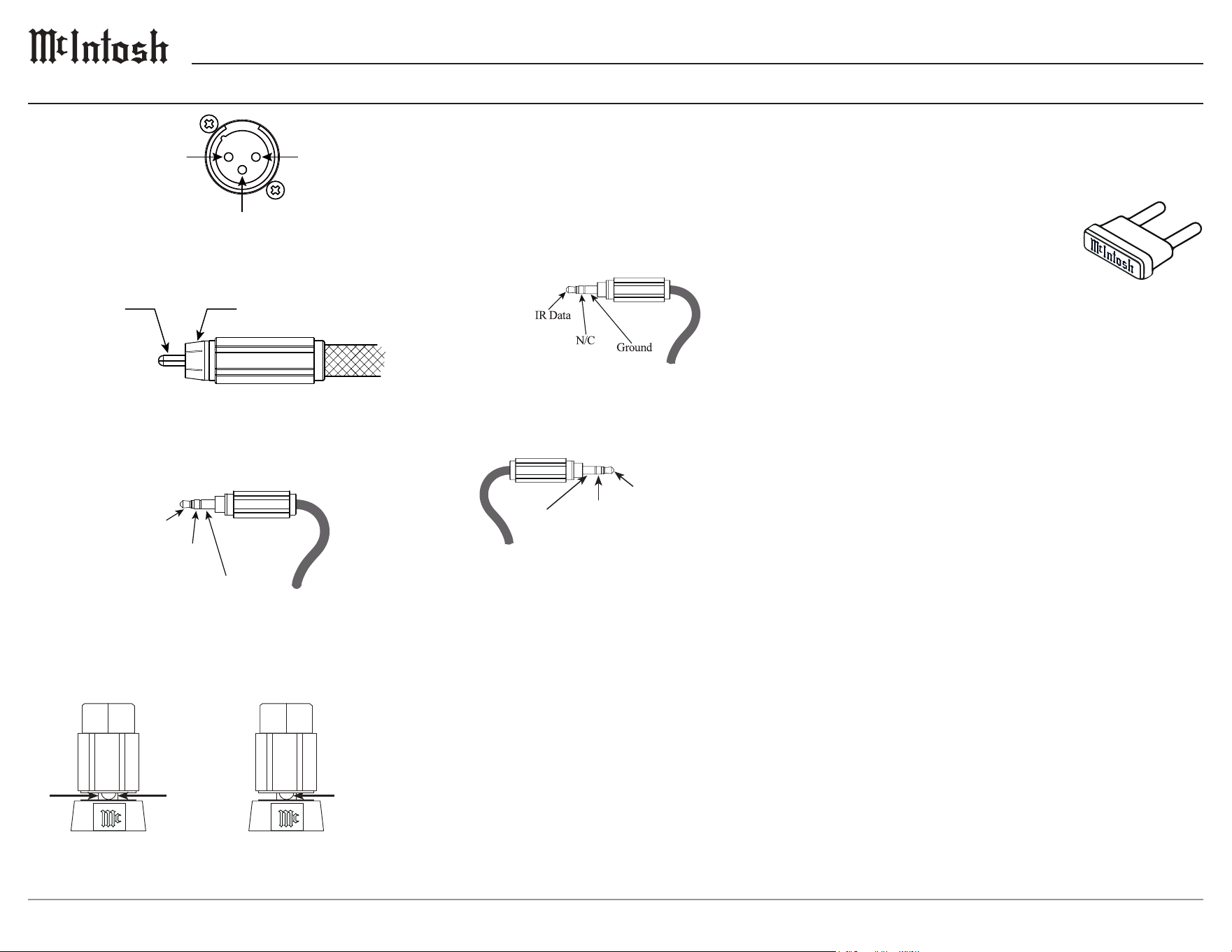
Data Ports and External Control Connectors
Data Ports send converted IR commands to other
McIntosh components. A 3.5mm stereo mini phone
plug is used for connections.
The IR IN port also uses a 3.5mm stereo mini phone
plug and allows the connection of other brand IR
receivers to the MSA5500.
The IR receiver must
provide its own power supply.
The RS232-C Data Cable
is a 3.5mm stereo mini phone plug used to connect
to external third party controllers.
MSA5500 TXD Out
Data being transmitted
Ground
MSA5500 RXD In
Data being received
NET Port (Ethernet / 10baseT LAN)
Use an Ethernet cable to connect the MSA5500 to
a network router. The network connector is located
on the rear panel of the MSA5500 to the left of the
CAUTION label. It is labeled NET.
By default, the MSA5500 has DHCP set to ON and
will automatically receive an IP address from the
router. This setting can be changed.
Alternatively, the MSA5500 may be connected to
your home network via wireless Wi-Fi. In this case
then the Ethernet connection would not apply.
McIntosh Plug-In Jumper Connector
The MSA5500 utilizes two phono style Plug-In
Jumpers to connect the Preamplier Output to the
Power Amplier Input.
Note: Additional or replacement
Jumper Connectors can be
obtained from the McIntosh
Parts Department under Part
No. 117781.
USB Type B Input
The USB audio input of the MSA5500 provides the
capability to receive music/sound in a digital format
from a connected computer. Apple
®
computers
with OS-10.6.8 or later will communicate with the
MSA5500 automatically when connected.
For Windows-based computers (PC), Windows 7
(Service Pack 1) or later is required. The correct
McIntosh USB audio driver must be installed. To
install the McIntosh USB driver for Windows-based
computers download the latest driver from the
McIntosh website: www.mcintoshlabs.com
The driver can be found in the Downloads section
of the webpage under Software Updates. Choose the
McIntosh USB Audio Windows Driver. You may
select this driver in many third-party applications
such as JRiver Media Center.
The MSA5500’s display will show the sampling rate
or bit rate for the USB input.
Optical
The two optical inputs allow digital sources to be
connected to the MSA5500 using TOSLINK cables
also known as “optical audio cables.” The optical
inputs can handle high resolution digital audio up
to 192kHz/24-bit. The MSA5500 DAC will process
standard format SPDIF PCM signals and Dolby
Digital and DTS bitstreams. Unsupported formats can
result in strange and/or unpleasant sounds.
Connectors and Cable Information
XLR Connectors
Meter/Tube
Illumination
Control
Power
Control
Ground
Signal Ground
RCA Connectors
Power Control Connectors
Output Terminals
PIN 1PIN 2
PIN 3
(+) Signal Ground
(-) Signal
2
1
3
5/16 in
7.9 mm
3/16 in
4.8 mm
Ø
7
MSA5500
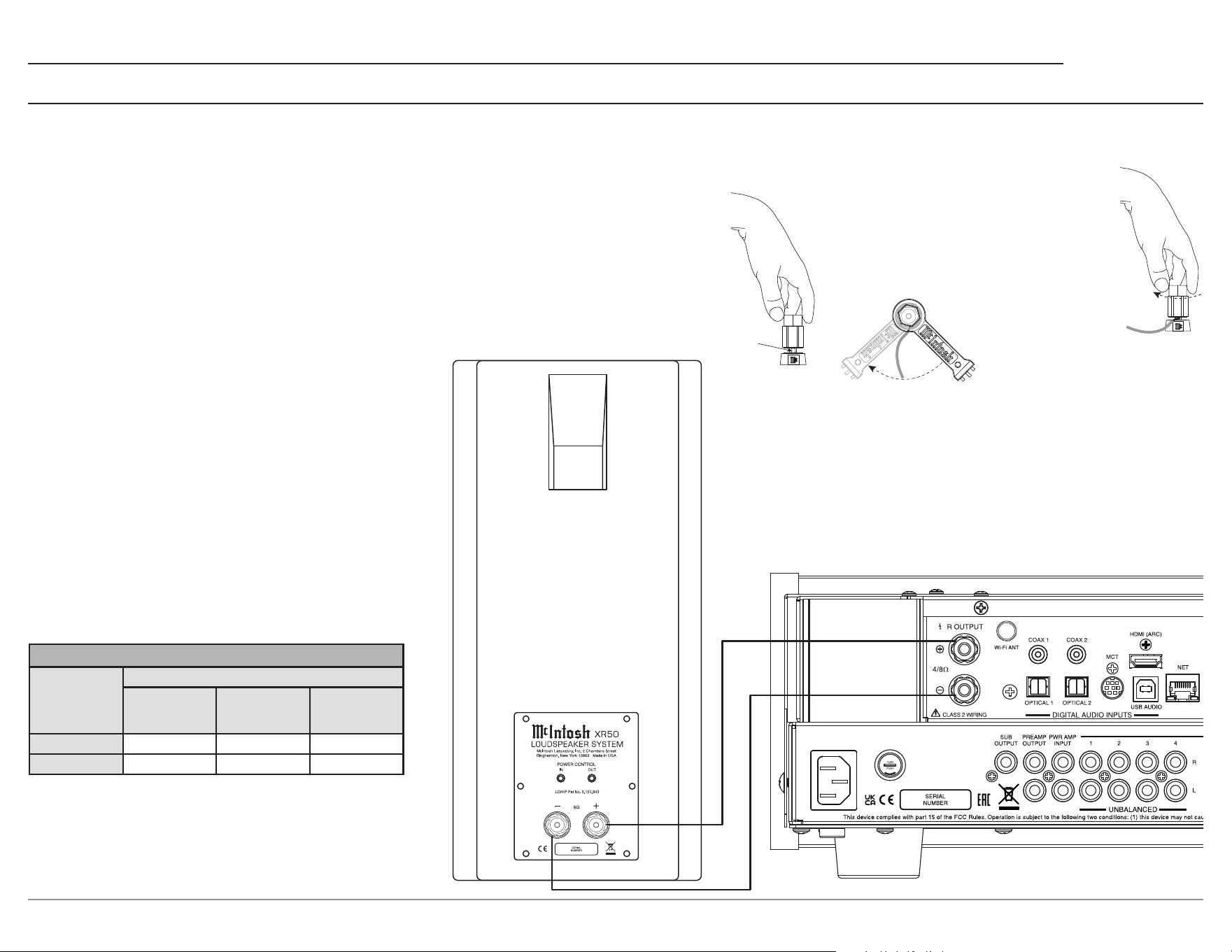
Loudspeaker Cable Connections
When connecting loudspeaker cables to the MSA5500 output terminals follow the steps:
1. Make sure AC power is disconnected.
2. Rotate the top of the output terminal
counterclockwise until an
opening appears.
3. Insert the loudspeaker cable into the
output terminal. Proper polarity
must be maintained for all connec-
tions. (+/-)
Opening
The McIntosh MSA5500 Power Amplier
Circuitry is designed for a Loudspeakers with
minimum 4 ohms impedance. Connect a single
Loudspeaker only to the Right and Left Output
Terminals.
Do not connect the AC Power Cord to
the MSA5500 Rear Panel until after the
Loudspeaker Connections are made. Failure to
observe this could result in Electric Shock.
Loudspeaker Cables
When connecting loudspeakers to the MSA5500
it is very important to use cables of adequate size.
The size is specied in AWG (American Wire
Gauge). The smaller the gauge number, the larger
the wire size.
Loudspeaker Cable Wire Gauge Guide
Loudspeaker
Impedance
Cable Distance
25 feet
(7.62 meters)
or less
50 feet
(15.24 meters)
or less
100 feet
(30.48 meters)
or less
4 ohms 14AWG 12AWG 10AWG
8 ohms 16AWG 14AWG 12AWG
Connecting a Loudspeaker
4. Rotate the top of the output terminal
clockwise until it is nger tight.
5. Place the McIntosh wrench over the
top of the output terminal and rotate
the output terminal clockwise one
quarter of a turn (90°).
Do not over tighten.
Coax
The two digital coaxial inputs allow digital sources
to be connected to the MSA5500 using Digital Audio
RCA coaxial Cables. The coax inputs can handle
high-resolution digital audio up to 192kHz/24-bit. The
MSA5500 DAC will process standard format SPDIF
PCM signals and Dolby Digital and DTS bitstreams.
Remember, unsupported formats can result in strange
and/or unpleasant sounds.
MSA5500 Rear
8
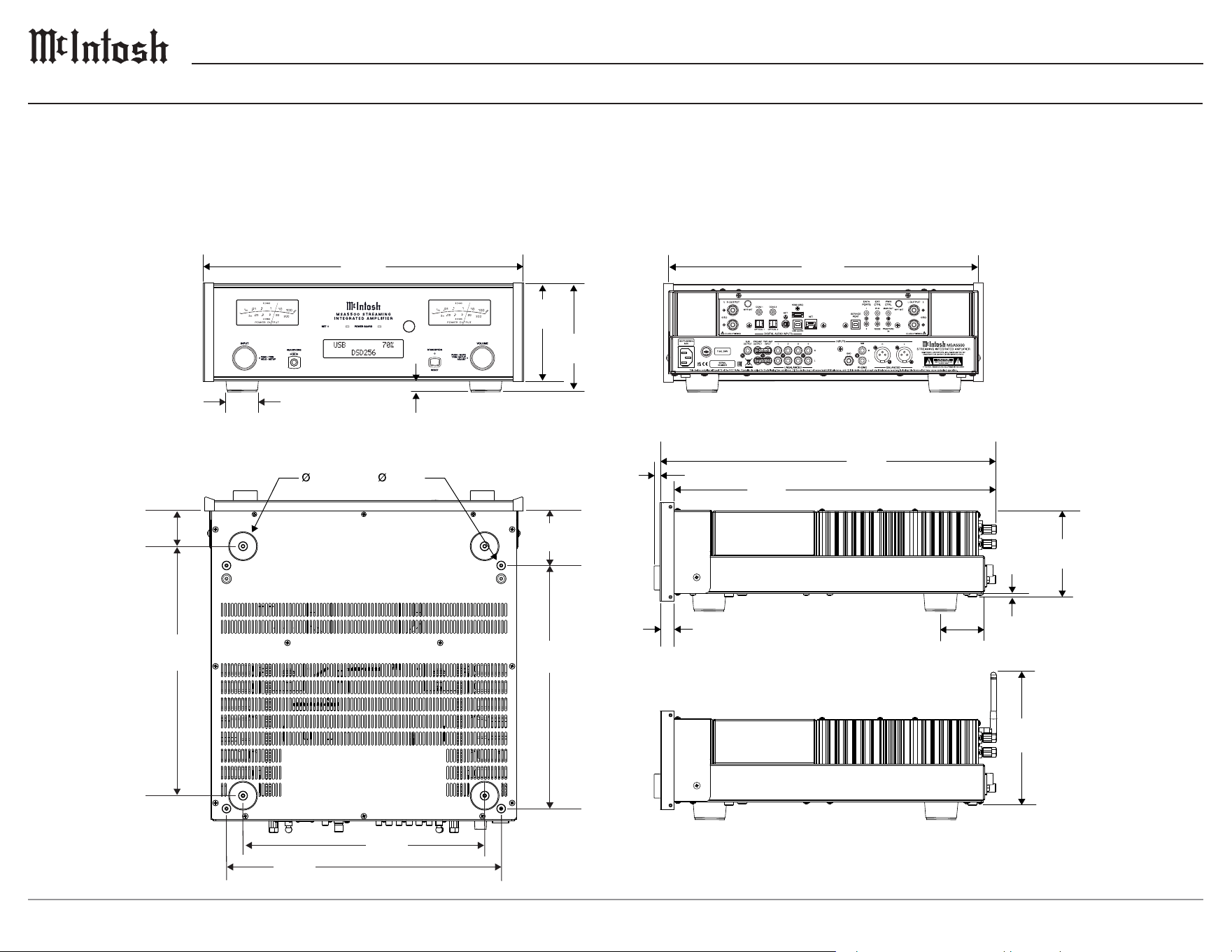
Dimensions
The following dimensions can assist in determining the best location for your MSA5500.
A Note on Placement:
It is important to keep your McIntosh unit out of direct sunlight and only use appropriate gentle cleaners because the organic anodize can become discolored
over time. While most products will maintain their classic dark features for their lifetime, some situations can accelerate discoloration. The most pervasive
culprit is UV light, especially light directly from the sun, or high intensity spotlights. Even high intensity short-term exposure can result in discoloration.
Chemicals can also alter the nish of the anodize. Aggressive cleaners will take their toll over time and actually etch away the anodize nish.
5 ³/8”
13.7cm
6”
15.2 cm
7 ⁵/16”
18.6 cm
4 ⁷/8”
12.4 cm
1 ³/8”
3.5 cm
³/16”
0.5 cm
²⁵/32”
2.0 cm
⁹/32”
.71 cm
18 ⁷/16”
46.8 cm
17 ⁵/8”
44.8 cm
17 ¹/2”
44.5 cm
1 ⁹/16”
39.7 cm
⁵/8”
1.6 cm
16 ³/4”
42.6 cm
1 ³⁄4”
4.4 cm
¹⁄2”
1.3 cm
2
”
5.1 cm
13 ¹¹⁄16”
34.8 cm
13 ⁵⁄16”
33.8 cm
3”
7.6 cm
13 ¹⁄4”
33.7 cm
15
¹⁄16”
38.3 cm
9
MSA5500
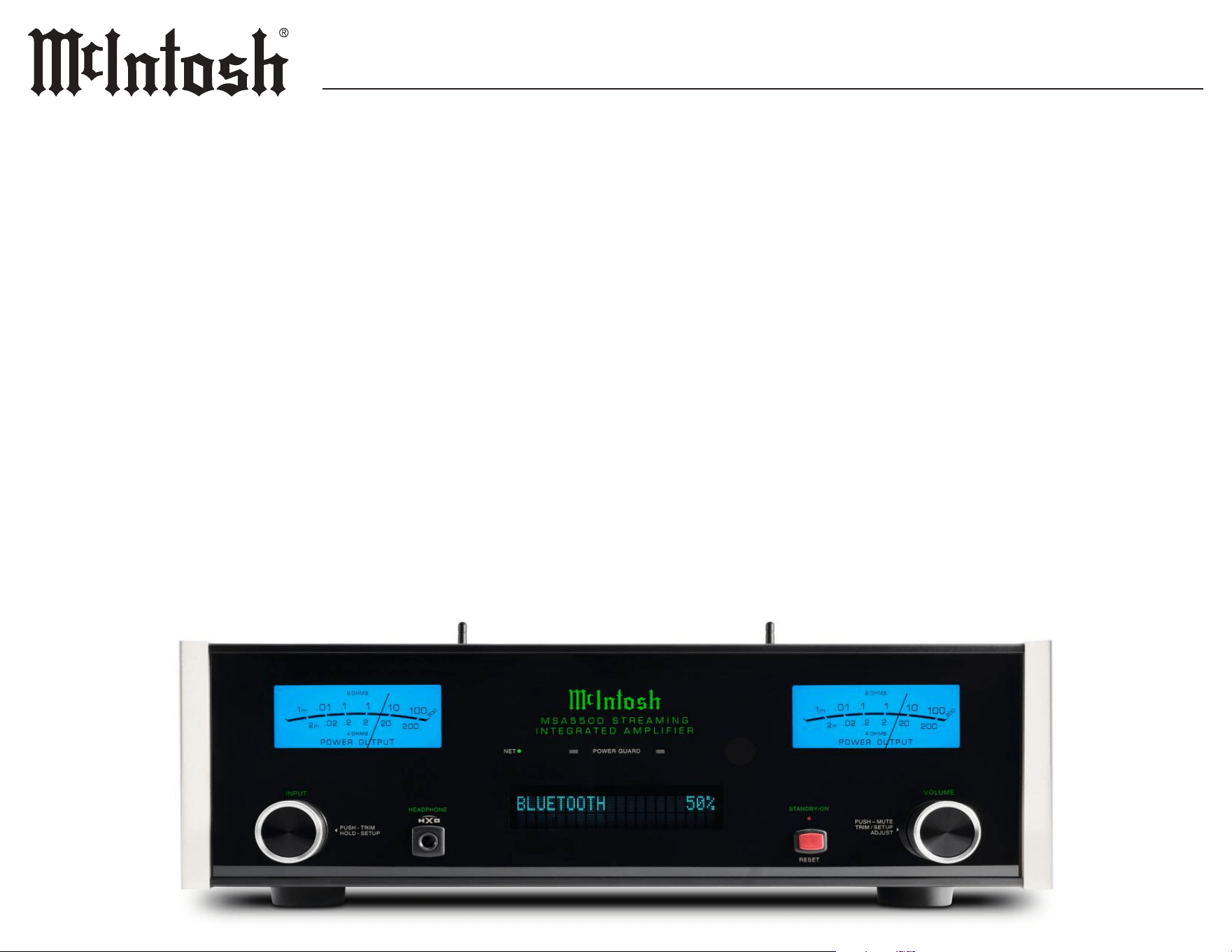
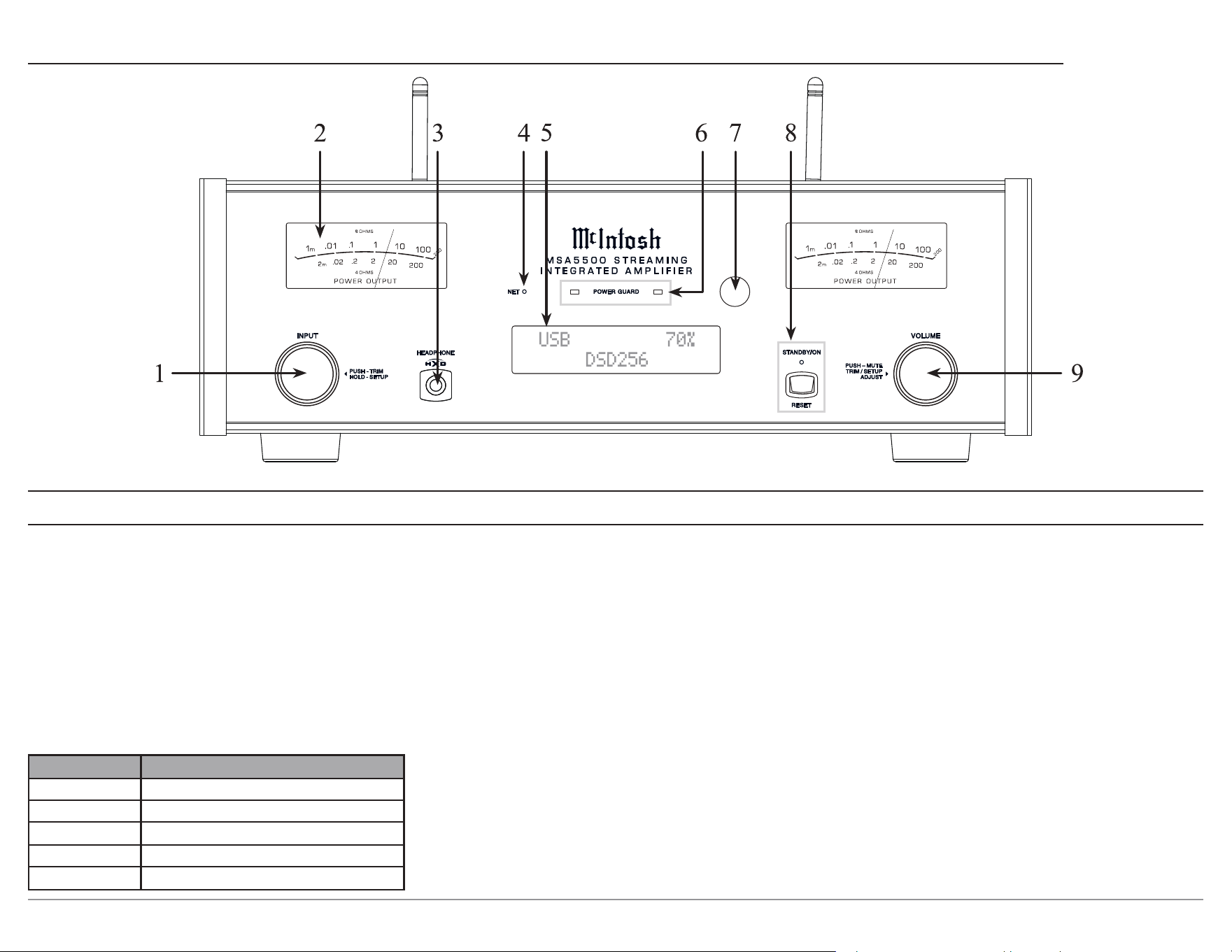
1. INPUT Knob rotates to select dierent input
sources for playback and navigate through
dierent options in the menus. Access Trim or
Setup menus by holding or pressing the knob
in.
2. METERS indicate POWER OUTPUT to the
left and right loudspeakers.
3. HEADPHONE connection for low impedance
dynamic headphones, for private listening.
Front Panel Displays and Switches
4. N ETwork LED will light up in the following ways:
5. VFD (Vacuum Florescent Display) indicates
the Input, Source information, and Volume
Level. Alternatively, can display Trim and
Setup options. The VFD’s intensity is also
adjustable.
6. POWER GUARD LEDs will illuminate under
the following conditions:
• When the Power Guard circuit activates to
control excessive distortion in the audio output.
• When the audio is muted due to high
temperatures in either of the heatsinks.
• When the audio is muted during the
MSA5500 power on sequence (approximately
10 seconds).
7. IR Sensor receives commands from your
remote control.
8. STANDY/ON Indicator LED illuminates
when the MSA5500 is connected to AC power.
STANDBY/ON Button turns the MSA5500 On
and O.
9. VOLUME Knob adjusts the output level.
Also used to navigate in the menus and trims.
Pressing the knob will mute the volume.
LED Status
None No network connection
Green slow pulse Connecting to a network
Green solid Network connected
Red solid A network error has occurred
Amber solid Firmware requires an update
10
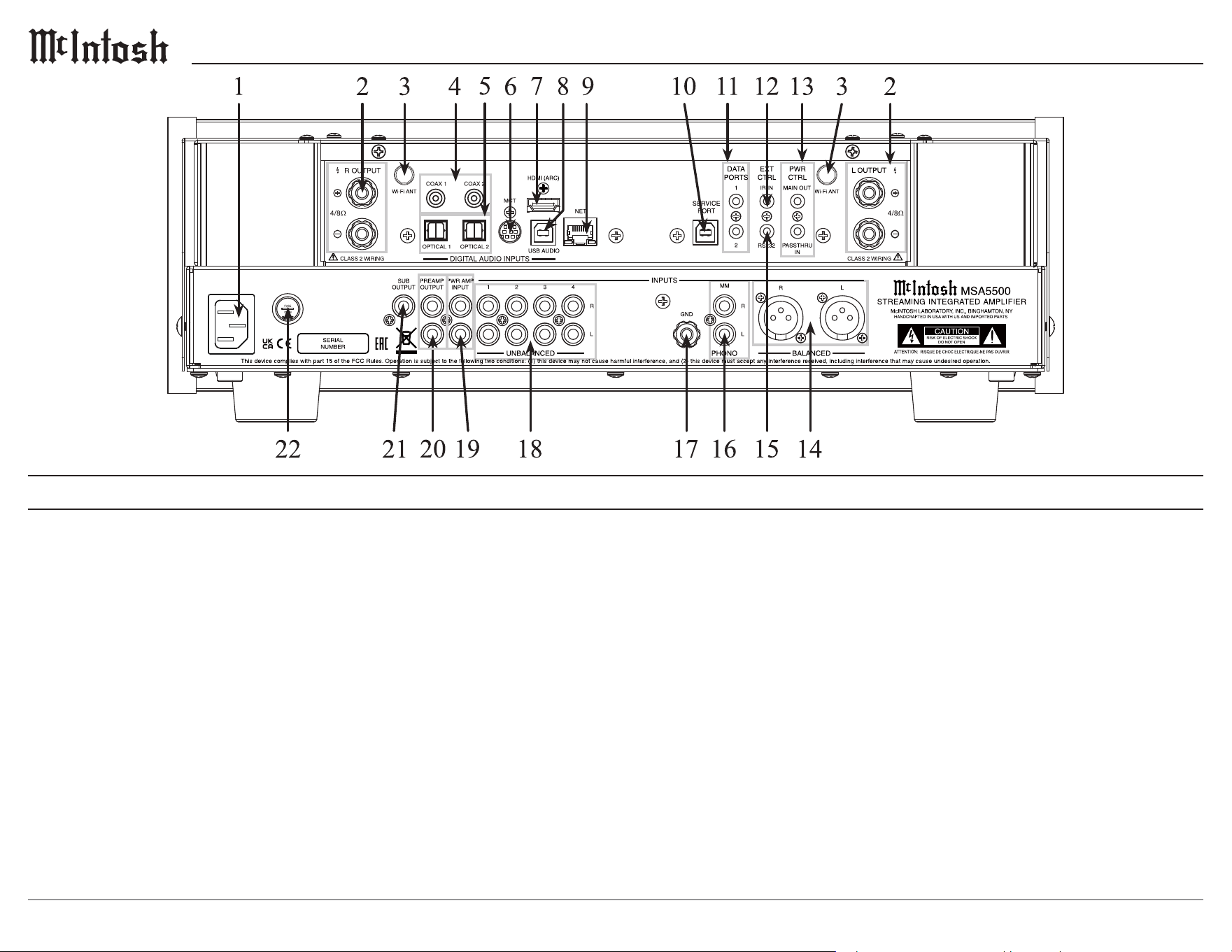
Rear Panel Connections and Switches
1. AC Input connects to an AC Outlet for power.
2. Loudspeaker Terminals connect to a
loudspeaker for audio output.
3. Wi-Fi ANTenna connection for wireless Wi-Fi.
4. COAX Inputs (1 and 2) accept coaxial cables for
digital signals.
5. OPTICAL Inputs (1 and 2) accept optical
connections for digital signals.
6. MCT Input transfers signals from McIntosh products
with an MCT connector and is required for SACD
audio.
7. HDMI (ARC) Input connects with a compatible
ARC TV using an HDMI cord.
Note: The HDMI ARC functionality of the MSA5500
is only compatible with ARC TVs. Other devices
like DVD and Blu-ray players will not work.
8. USB AUDIO Input is a USB Type-B connector
used to connect the MSA5500 to a computer to
stream digital audio.
9. EtherNET Input for a wired network connection.
10. SERVICE PORT is used for service purposes only.
11. DATA PORTS receive operating data from a
McIntosh preamplier or Control Center.
12. IR INput connects to an IR receiver using a 3.5mm
stereo mini phone plug cable.
13. PASSTH RU IN receives turn On/O signals from
another McIntosh component.
Power Control MAIN OUT sends a turn On/O
signals to another McIntosh component.
14. BALANCED Input
15. RS232 communicates with external control devices
using a 3.5mm stereo mini phone plug cable.
16. Phono Input for MM cartridge
17. Ground connection to use with a turntable to
prevent noise.
18. UNBALANCED Inputs
19. Power Amp Input connects the MSA5500’s
Preamp Output to the onboard power ampliers
using the included Jumper Plugs, see page 6.
20. PREAMP OUTPUT sends adjustable audio via
RCA cables. Connect included Jumper Plugs, see
page 6, to PWR AMP Input to drive the onboard
power amplier.
21. SUBwoofer Unbalanced OUTPUT send signals
to Power Amplier(s) and is active along with
PREAMP OUTPUT.
22. Fuse holder, refer to back panel of the MSA5500 for
correct fuse size and rating.
11
MSA5500
Powering On / Turning O:
While the unit is in Standby Mode (no lights
except the LED indicator light are on), press the
STANDBY/ON Button to power on the unit.
While the unit is on, press the STANDBY/ON
Button again to enter Standby Mode (turn it
o). Using the remote control, press the power
button to turn the MSA5500 On or O where
appropriate. If power control is connected from
a preamplier, the MSA5500 will automatically
turn on and o with the preamplier.
The MSA5500 has the ability to automatically
switch power On or O to source components
via the power control connections. The data port
connections allow for the remote operation of
basic functions using the remote control. With
an external sensor connected to the MSA5500,
remote control operation of the system is possible
from another room and/or when the MSA5500 is
located in a cabinet with the doors closed.
Selecting an Input for Playback:
You can change the current playback source by
rotating the INPUT knob or by using the input
button on the remote control.
Adjusting the Level:
Rotate the ADJUST knob or use the volume
buttons on the remote control to adjust the
volume. The current volume level is represented
by a percentage on the display.
Using Your MSA5500
MCT Input
When playing a multi-layer SACD, select the
stereo (SACD) or CD layer. The multi-channel
layer will not reproduce sound.
Troubleshooting
In the unlikely event that your commands are not
being registered by the unit, you can reset the
microprocessors. To do so, hold the STANDBY/
ON button down until the LED indicator light
switches o. Release the button, and when the
light illuminates again, you can press the button
again to power the unit On and resume normal
operation.
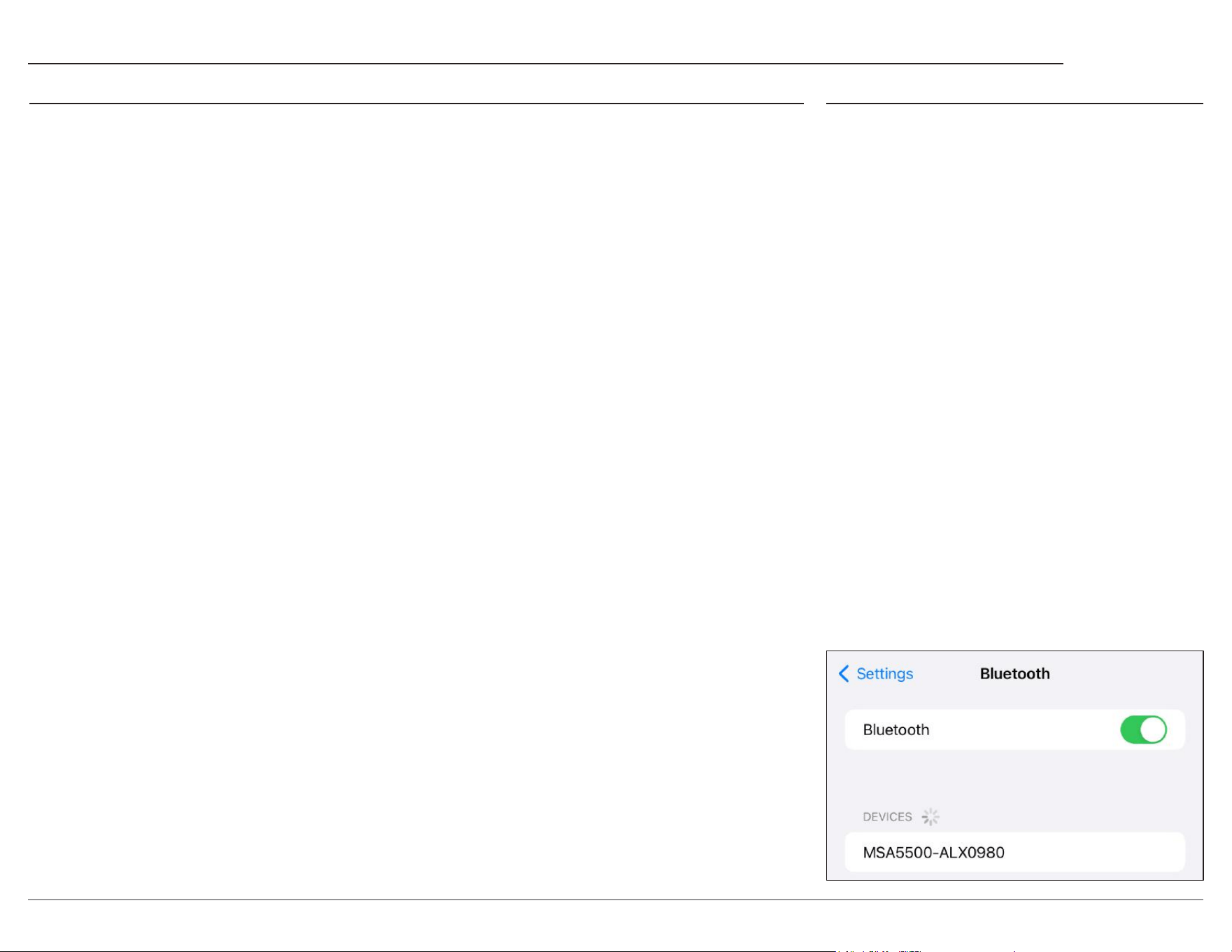
Quick Start: Bluetooth
The following steps are the fastest way to connect
to the MSA5500 and start listening to music:
1. Connect to the MSA5500 to AC Power.
2. Power the MSA5500 On by pressing and
releasing the STANDBY/ON button.
3. Rotate Input knob to show Bluetooth. Press
the Input control to enter the Trim Menu.
Rotate the left knob until Bluetooth Pairing
is shown. Rotate the right control to enter the
Pairing Mode. This action is automatic for rst
time powering On or immediately following a
factory reset.
4. On the phone (or other device) you wish to
connect, press SCAN in the Bluetooth section
of Settings.
5. The MSA5500 will appear as “MSA5500-
ALXxxxx” in Available Devices.
6. Choose the MSA5500 to pair.
7. When asked to conrm you want to pair the
MSA5500 to your device, select OK.
8. The MSA5500 should now be “Connected for
audio”.
9. Play some music.
12
When your MSA5500 connects to your network
for the rst time, it will automatically look for the
latest software update. If available, the MSA5500
will install the newest version. When updating,
the VFD will show the following messages:
UPDATE DETECTED
Downloading
UPDATING: DS1
Installing...
UPDATING: MSA5500
MESSAGES
Updating
MESSAGES
will indicate downloading
and updating the internal processors, as necessary
in the included update. The unit will reboot when
the operation has completed. Do not remove
power during this operation.
Ethernet
For a wired connection to your network, use an
Ethernet cable to connect the MSA5500 to your
router.
Note: A solid red Network/Wi-Fi LED indicates
that a network error has occurred. See page 9.
Note that plugging in an Ethernet cable will
disable the Wi-Fi radio of the MSA5500. The
MSA5500 will use the Ethernet connection for all
network activity. To enable Wi-Fi, the Ethernet
cable must be removed.
With an Ethernet connection, you can use the
MSA5500 browser interface to provide the MSA5500
with your Wi-Fi settings. For more information, see
“The Browser Interface” on page 20.
Setting up Wi-Fi Using Ethernet
To connect your MSA5500 to a Wi-Fi network
using an Ethernet connection follow these steps:
1. Power the MSA5500 O and then On
2. Connect the MSA5500 using an Ethernet
cable. The unit should immediately connect.
3. Open a web browser.
4. Check the MSA5500 for current connection IP
address and type into browser.
5. Select Settings from the MSA5500 interface
6. Select Wireless in Network Type
7. Select Start Scan
8. Select your network
9. Provide your password and press Connect
10. Your MSA5500 will connect to your network
Quick Start: Network Connections
Wi-Fi Connection using an iOS Device
To set up the MSA5500 as an AirPlay device, a
device with iOS 11.4 or later is required. Airplay
will connect the MSA5500 to your Wi-Fi network
automatically. Follow the steps below for set up:
1. Make sure your iOS device is on the Wi-Fi
network you wish to connect the MSA5500 to and
the MSA5500 is powered on.
2. Open up Settings on the iOS device.
3. Open up the Wi-Fi submenu.
4. Look at the Wi-Fi network list and nd “Set Up
New AirPlay Speaker”
5. Select the MSA5500
6. The MSA5500 will be added to your network
7. Alternatively, use the iOS Home app to join the
MSA5500 to your network
Wi-Fi Connection using an Android Device
1. Connect your mobile device/tablet to the same
Wi-Fi network as your MSA5500 and power on
the MSA5500.
2. Download the McIntosh Cast Connect App
from the app store on your device.
3. Open the app and follow the steps for the
MSA5500 as they automatically appear.

13
MSA5500
Tidal Connect
To listen to music on TIDAL through the MSA5500,
using the Tidal app, select the content you want to
play and then select the connect icon on the
Now Playing screen.
This will bring up a list of nearby devices to
stream through. Locate the MSA5500 and select
to pair.
If you are unable to nd your device, make sure
the device is connected to the same Wi-Fi network
you are streaming from.
Once paired you can use your TIDAL app as a
remote. TIDAL is compatible with select smart
assistants that enable voice controls. Depending
on your region, you may enable this feature by
linking your TIDAL account with your selected
smart device. This option can normally be found
in the Settings section of your respective Smart
Devices app.
Airplay
Airplay is an Apple technology designed to
control home audio systems and speakers in any
room with a tap or by asking Siri.
To control this Airplay enabled device, follow the
“Wi-Fi Connection using an iOS Device” instruc-
tions on the previous page.
Other Connections
HDMI ARC
The HDMI ARC (Audio Return Channel) allows
you to use your entire audio system to play the
sound from your TV.
Notes about Setup:
• Ensure you are connected to the TV’s HDMI
input port that is labeled “ARC”.
• Your TV’s setup menu and settings may need
to be adjusted before sound is heard.
• When the MSA5500 is set to the HDMI
input, the unit will automatically turn On
and O with the TV. The front display will
show “Entering HDMI Standby Mode” when
turning O.
• Multi-channel formats will be down mixed to
a 2-channel output.
Audio formats supported by HDMI ARC:
• PCM (2 channel)
• Dolby Digital (up to 5.1 channel)
• DTS Digital Surround (up to 5.1 channel)
Google Cast
To Cast to your MSA5500 follow the steps below:
1. Connect your mobile device/tablet to the same
Wi-Fi network as your MSA5500 and power on
the MSA5500.
2. Download the McIntosh Cast Connect App from
the app store on your device.
3. Open the app and follow the steps for the
MSA5500 as they automatically appear.
4. Accept Google’s terms of service to enable
Google Cast streaming.
5. Once the MSA5500 is setup, you can choose to
Cast to it. By clicking the Cast button in the top
right corner of any Google Cast-enabled app and
selecting the MSA5500.
6. When connected the Cast button will change
colors.
Roon
The MSA5500 is Roon Ready so when connected
to your network, the MSA5500 will be available as
a Zone for your Roon server (if you have a Roon
server). The MSA5500 can be connected to your
Wi-Fi using any of the methods on the previous
page. It can also be directly connected with an
Ethernet cable.
Spotify Connect
Spotify Connect allows you to use your phone,
tablet or computer as a remote control. Connect
the MSA5500 to your network using one of the
methods on the previous page and then while
playing music on Spotify, select your MSA5500 as
your device to listen on in the bottom left corner.
Use your phone, tablet, or computer as a remote
control for Spotify. Go to https://www.spotify.
com/connect to learn how.
Network Connections
14
Passthru
When the MSA5500 is part of a Home Theater or
Multichannel Audio System, the Right and Left
Front Channels from an Audio/Video Processor or
Surround Decoder can “Passthru” the MSA5500
and onto its associated Power Amplier(s). The
Passthru setting allows selection of the specied
MSA5500 Input to be used for the Right and Left
Front Channels. In the example below, the Right
and Left Front Channels from the Audio/Video
Processor will be connected to the UNBALanced
2 Input Connectors on the MSA5500. Refer to
page 6 for additional connection information.
Note: The Phono and Digital Inputs are not assign-
able as a Passthru Input.
1. Use the INPUT Knob to enter the System Setup
Menu.
2. Rotate the INPUT Knob until the following
appears on the Information Display.
System: < Passthru >
Off >
3. Rotate the VOLUME Knob to select
“UNBAL 2” Input.
System: < Passthru >
< UNBAL 2 >
4. Exit the System Setup Menu by pressing the
INPUT Knob.
Setup Menus
The Setup Menus are listed below.
• System
• Digital
• Network
• Inputs
• Data Out
• External Control
How to Navigate the Setup Menus
Your McIntosh MSA5500 has been factory
congured for default operating settings that
will allow immediate enjoyment of superb audio
without the need for further adjustments. If you
wish to make changes to the factory default
settings, a Setup Menu is provided to customize
the operating settings using the Front Panel
Information Display.
Note: If the MSA5500 is currently On,
proceed to step 2.
1. Press and hold in the INPUT Knob until the
Front Panel Information Display indicates
SETUP: Menu Select
< System >
2. Rotate the INPUT Knob to select any of the
available submenus.
3. To enter the selected submenu, press and hold
the INPUT Knob.
4. Rotate the INPUT knob to navigate available
options in the selected submenu.
5. Rotate the VOLUME knob to change the
selected option’s value.
6. To exit from the Setup Menu, or any of the
submenus, press the INPUT Knob.
System Setup Menu
Settings Options
Product MSA5500 XXX_ _ _ _
Firmware _._._
Passthru O
Auto O Disabled, Enabled
Power Save Disabled, Enabled
Restore Defaults Default Settings
Factory Reset Default Settings
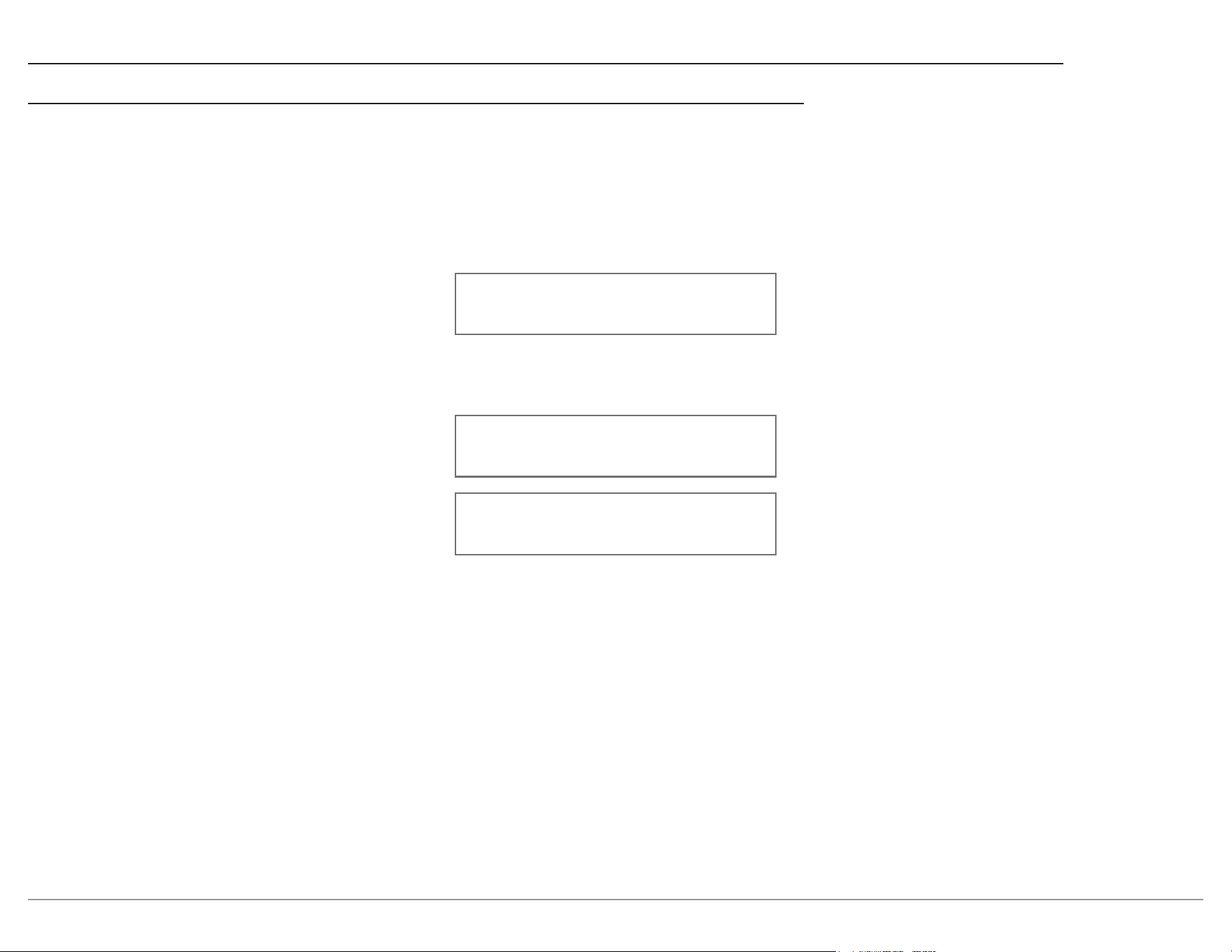
Product Information
Specic identifying information for the
MSA5500, including the System Firmware
Version, can be found on the Product Information
page of the System Setup Menu. This rmware
eects the main circuitry and can be identied by
opening the System Setup Menu.
Firmware
The MSA5500 will periodically check for updates.
The current rmware version will be displayed
here.
15
MSA5500
System Setup Menu (continued)
Auto O
Enabled: The MSA5500 will automatically enter
Standby/O Mode after approximately 30 minutes
without user activity (includes changes to any of
the Operation Functions such as source selection,
volume adjustment, etc.) and absence of an audio
signal.
Disabled: The MSA5500 must be turned o by
pressing the STANDBY/ON Button.
Power Save
Enabled: The Network, Wi-Fi, and digital inputs
including HDMI, section will not be powered
when the unit is in Standby mode, preventing
remote activation. The IR Remote, RS232, plus
Power Control remain active.
Disabled: The MSA5500 will maintain network
connections. This will allow the unit to be
remotely activated and turned On by your mobile
device or network connected device, like a PC or
connected TV.
Restore Defaults
To reset all the adjustable settings (Setup and Trim
Settings) to the factory default values, perform the
following steps:
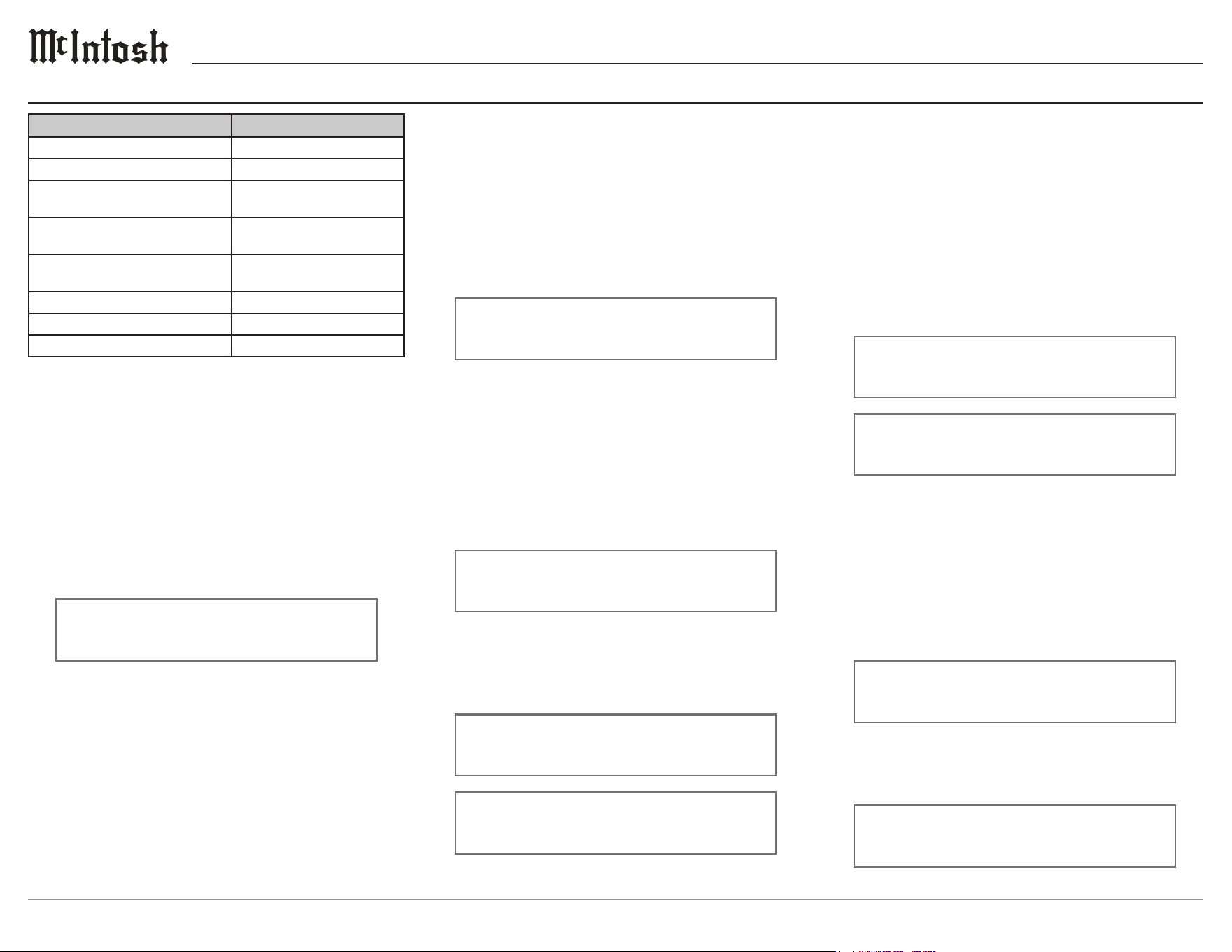
1. Select the Defaults option in the System
Setup Menu. The following should be on the
Information Display.
System: < Defaults >
Hold INPUT to Reset
3. Press and hold in the INPUT Knob until the
following appears on the Information Display,
then release the INPUT Knob.
System: < Defaults >
In Progress!
System: < Defaults >
Completed!
4. Press the front panel STANDBY/ON Button to
switch the MSA5500 on.
Factory Reset
To reset all adjustable settings and clear all
network information, select Factory Reset and
follow the same process as above.
16
Digital Setup Menu
Settings Options
DS Module v#.##
Update (Hold INPUT)
OPT 1 0dB to +15dB in 1dB
intervals
OPT 2 0dB to +15dB in 1dB
intervals
HDMI(ARC) 0dB to +15dB in 1dB
intervals
Lip Sync Manual, Automatic
CEC Power Disabled, Enabled
CEC Volume Disabled, Enabled
DS Module Firmware Version
The MSA5500 functionality is controlled by
internal software that is know as Firmware. The
Firmware Number for the Digital Streaming
Circuitry of the MSA5500, and can be viewed by
following the steps below:
1. Press and hold the INPUT Knob to enter the Setup
Menu.
2. Rotate the INPUT Knob until the Front Panel
Information Display indicates
SETUP: Menu Select
< Digital >
3. Press and hold the INPUT Knob to open
the Digital Setup Menu and the Information
Display will show the DS Firmware version.
DS Update
This option is for service purposes only.
Digital Gain
The MSA5500 oers Digital Gain Adjustments
for the HDMI, OPTICAL 1 (OPT 1) and
OPTICAL 2 (OPT 2) Inputs. The change in gain
of a specic Digital Input, will produce a change
in playback volume of the music. To change the
gain for the HDMI Input perform the following
steps:
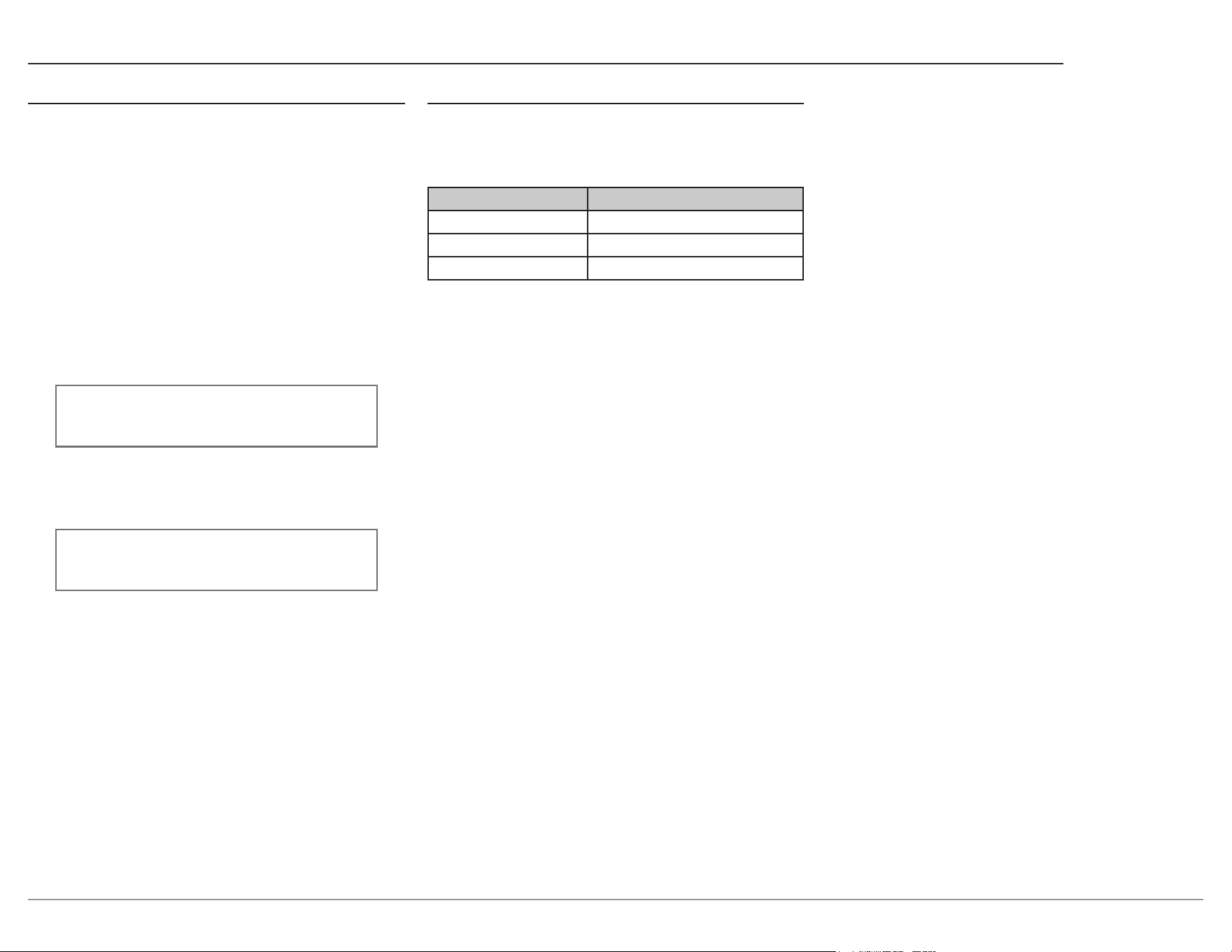
1. Use the INPUT Knob to enter the Digital Setup
Menu.
2. Rotate the INPUT Knob until the following
appears on the Information Display.
Digital: < HDMI (ARC) >
+15dB
3. The gain can be adjusted in 1dB Gain steps by
rotating the VOLUME Knob counterclockwise
to reduce the gain downwards from +15 dB all
the way to 0dB.
4. To adjust other Gain values, rotate the INPUT
Knob to select OPT 1 or OPT 2 and the gain is
adjustable in 1dB Gain steps. 0 dB is the default
setting for Optical 1 and Optical 2.
Digital: < OPT 1 >
0 dB
5. The gain can be increased by rotating
VOLUME Knob clockwise to increase the gain
from 0 dB with an increase all the way up to
+15 dB or +8dB from 0 dB.
Digital: < OPT 1 >
+ 15 dB
Digital: < OPT 2 >
+ 8 dB
HDMI (ARC) CEC Power
The MSA5500 HDMI Input Connector has (ARC)
Audio Return Channel Circuitry, allowing the
Audio Selection and Control Command of HDMI
TV/Monitor Devices. By default the HDMI Input
is congured to accept Power commands via
CEC.
To prevent the CEC Power Control of the
MSA5500, simply change HDMI CEC Power
from On to O.
Digital: < CEC Power >
< Enabled
Digital: CEC Power
Disabled >
HDMI (ARC) CEC Volume
To change the Consumer Electronics Control
(CEC) of the volume, perform the following steps:
1. Use the INPUT Knob to enter the Digital Setup
Menu.
2. Rotate the INPUT Knob until the following
appears on the Information Display.
Digital: < CEC Volume
< Enabled
3. To deactivate the Consumer Electronics Control
(CEC), rotate the VOLUME Knob until the
following appears on the Information Display.
Digital: < CEC Volume
Disabled >
17
MSA5500
HDMI (ARC) Lip Sync Mode
The MSA5500 HDMI Input Connector (ARC),
also has another control function. When listening
and viewing a TV/Monitor HDMI Input Signal,
the ARC circuitry provides a synchronized Video
and Audio TV/Monitor Signal. To switch O
the AUTO Synchronised Video and Audio TV/
Monitor Signal, perform the following steps:
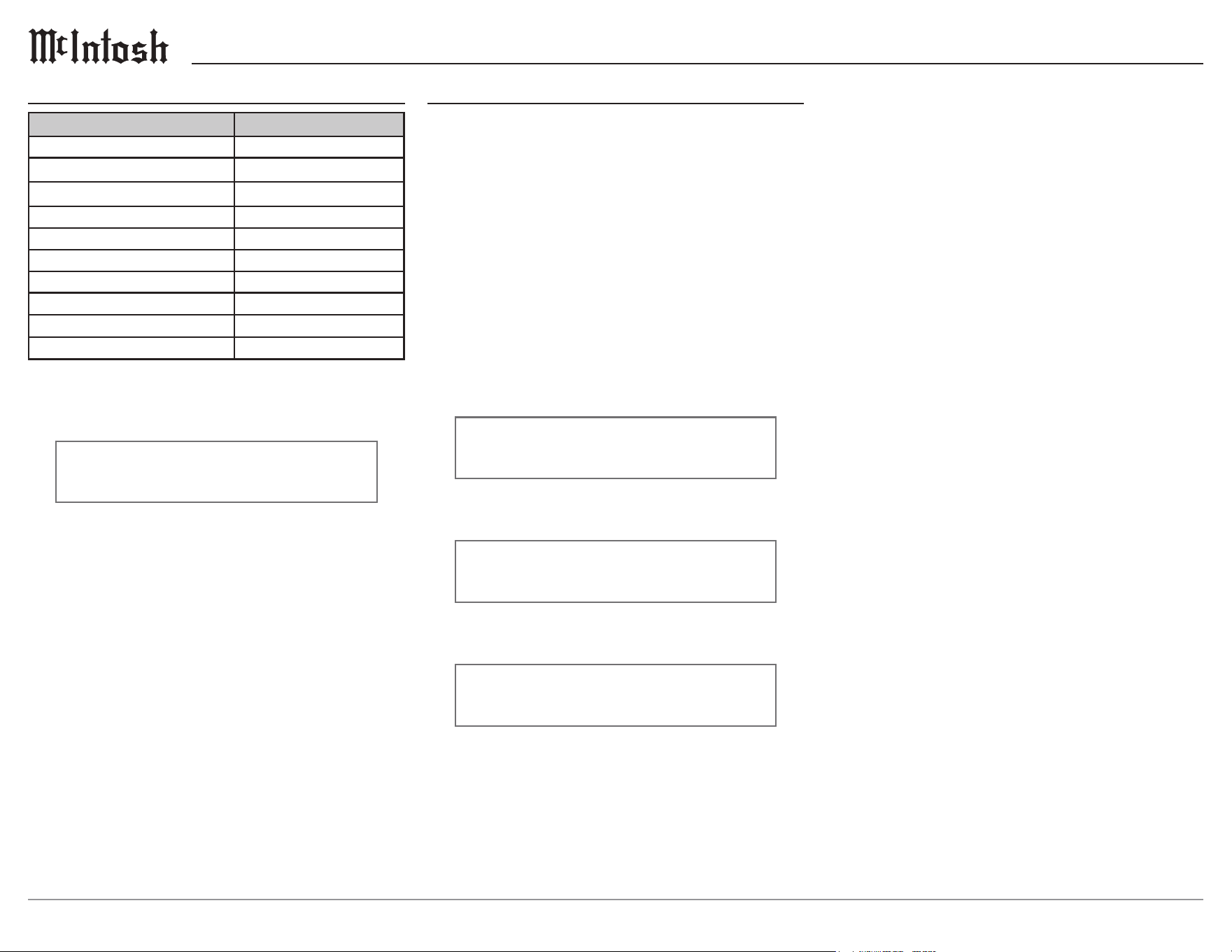
1. Use the INPUT Knob to enter the Digital Setup
Menu.
2. Rotate the INPUT Knob until the following
appears on the Information Display.
Digital: < Lip Sync >
< Auto
3. To manually congure the lip sync delay, rotate
the VOLUME Knob until the following appears
on the Information Display.
Digital: < Lip Sync >
Manual >
4. The delay time can then be adjusted from the
Trim Menu when the HDMI (ARC) Input is
selected.
Digital Setup Menu (continued)
Network Setup Menu
The Network Information Menu lists information
about network connection. The chart below details
all of the available settings.
Settings Options
Connection Type Displays Connection Type
IP Address Displays IP Address
MAC Address Displays MAC Address
18
Inputs Setup Menu
Setting Options
BALANCED On/Name, O
U NBA L 1-4 On/Name, O
MM PHONO On/Name, O
COAX 1, 2 On/Name, O
OPT 1, 2 On/Name, O
USB On/Name, O
MCT On/Name, O
HDMI(ARC) On/Name, O
Network On/Name, O
Bluetooth On/Name, O
Hold the INPUT Knob to open the Inputs Setup
Menu and from there, the following changes can
be made:
SETUP: Menu Select
< Inputs >
On/Name: The selected input will be functioning
as normal. Hold in the INPUT Knob to enter the
menu to rename the input*.
O: The selected input will be deactivated and
will no longer be selectable from the main display
during normal use. Change this setting back to
“On /Name” to make it selectable again.
*Naming Inputs: While in the selected input’s
submenu, use the INPUT Knob to navigate to the
input with the name you’d like to change (and turn
it On using the VOLUME Knob if it isn’t already)
so that the display says “Inputs: [ input name ]
On/Name” and hold the INPUT Knob to begin
renaming. The character you are currently adjust-
ing will be blinking. Rotate the INPUT Knob to
select which character you want to change and use
the VOLUME Knob to change the character.
Data Out Setup Menu
Data Port Connections between the MSA5500
and a McIntosh Source Component allow for
basic function control of the source component
using the MSA5500 supplied HR085 Remote
Control. By default, all of the four Data Ports
are set to send the same Data to the selected
source. To dedicate a given Data Port for only one
source component (example, source component
connected to the UNBAL 1 Input will be assigned
to Data Port 1) perform the following Steps:
1. Use the INPUT Knob to enter the Data Out Setup
Menu.
2. Rotate the INPUT Knob until the following
appears on the Information Display.
SETUP: Menu Select
< Data Out >
3. Press and hold in the INPUT Knob until the
following appears on the Display.
Data Out: PORT 1 >
All Data >
4. Rotate the VOLUME Knob to select “UNBAL
1” Input.
Data Out: PORT 1 >
< UNBAL 1 >
5. In a similar manner, perform steps 3 and 4 to
assign any additional Data Ports.
6. Exit the Data Out Setup Menu by pressing the
INPUT Knob.
19
MSA5500
External Control Setup Menu
RS232 Baud Rate
The MSA5500 may be remotely controlled from
other equipment connected to the Rear Panel
RS232 Jack. The speed at which the MSA5500
communicates (8 bit, no parity and 1 stop bit)
with other equipment is adjustable from 9,600 bits
per second to 115,200 bits per second. To change
from the default speed of 115,200 bits per second,
perform the following steps:
1. Use the INPUT Knob to enter the External
Control Setup Menu.
2. Rotate the INPUT Knob until the following
appears on the Information Display.
Ext Ctrl: < RS232 >
< 115200 Baud
3. Rotate the VOLUME Knob to select the desired
Baud Rate Speed.
4. Exit the External Control Setup Menu by
pressing the INPUT Knob.
Settings Options
Front IR Enabled, Disabled
RS232 Baud Rate 115200 Baud
IR Codes Normal, Alternate
IR Codes
The Remote Control included with the MSA5500
utilizes the NORMAL McIntosh Control Codes.
The Second Set of Control Codes the MSA5500
will respond to is referred to as the ALTERNATE
Codes. The Alternate Codes are used when the
MSA5500 is used in the same location as another
McIntosh Preamplier and/or A/V Processor. This
will prevent the Remote Control from aecting
the operation of both units at the same time. To
activate the Remote Control ALTERNATE Codes
perform the following steps:
1. Use the INPUT Knob to enter the External
Control Setup Menu.
2. Rotate the INPUT Knob until the following
appears on the Information Display.
Ext Ctrl: < IR Codes
< Normal
3. Rotate the VOLUME Knob to the Alternate
Codes.
Ext Ctrl: < IR Codes
Alternate >
4. It is now necessary to change the HR085 Remote
Control over to the Alternate Codes. Information
on the HR085 Remote Control is available for
download from the McIntosh website.
5. Exit the External Control Setup Menu by
pressing the INPUT Knob.
Front IR
The MSA5500 Front Panel Sensor, which receives
the signals from the HR085 Remote Control, can
be switched o to prevent interference when an
external IR Sensor is connected. To de-activate
the Front Panel IR Sensor perform the following
steps:
1. Use the INPUT Knob to enter the External
Control Setup Menu.
2. Rotate the INPUT Knob until the following
appears on the Information Display.
Ext Ctrl: Front IR >
< Enabled
3. Rotate the VOLUME Knob to select
“Disabled”.
Ext Ctrl: Front IR >
Disabled >
4. Exit the External Control Setup Menu by
pressing the INPUT Knob.
20
Browser Interface
Another way to change the settings for the
MSA5500 is to use the Browser Interface. To
open the Browser Interface you just need to go
on your computer and enter the IP address for
the MSA5500. To view the IP address for the
MSA5500, see the “Network Setup Menu” on
page 17.
Browser Interface Menus
The Browser Interface contains the following
menus:
• Overview
• Settings
• Update
Overview Menu
The Overview Menu contains the following:
Settings Options
Model Name MSA5500
Custom Name
Serial Number
Mac Address
Network IP Address
Network status
Firmware Product Firmware Version Information
You can provide a Custom Name for the
MSA5500. This is the name that will display for
available AirPlay devices. If you wish to change
the default name, type the new name in the box
and press Enter. If the name was changed using
the Apple Home app, the name will not be able to
be changed on the web page.
Settings Menu
The Settings Menu contains the following:
Settings Options
Startup Volume Limit ON, OFF
Power Save Disabled, Enabled
Network Type Automatic, Wired, Wireless
When the Startup Volume Limit is ON, upon
power loss or return to play from Sleep or Standby,
the rst playback of the product will start at a low
volume level. When switched to OFF, the product
will resume playback at the last volume level. The
Settings Menu allows you to change settings for
Wired and Wireless network connections.
If Power Save is Enabled, the MSA5500 will
power o into a sleep state after approximately 30
minutes of no sound or user input. After 45 minutes
of uninterrupted sleep, the MSA5500 will enter a
Standby Mode. If the Standby key is pressed the
MSA5500 will enter Sleep state for 15 minutes,
and then will enter Standby. In this Standby Mode,
the Wi-Fi radio is powered o and the unit can not
be woken via the network. Standby Mode power
consumption is less than 0.5 watts.
If Power Save is Disabled, the MSA5500 will power
o into a sleep state after 30 minutes of non-activity.
The MSA5500 can be woken from sleep by input
from the network (or physically pushing the Power
Button). In a sleep state, the MSA5500 will continue
to work with devices congured to control it in your
Google Home collection. The MSA5500 can be
made to immediately enter a sleep state by pressing
the red button on the Front Panel.
If Network Type is set to Automatic, the MSA5500
will automatically connect to Wi-Fi when the
ethernet cable is unplugged provided the Wireless
connection has previously been setup. Selecting
Wired for Network Type will limit the MSA5500
network connection to the ethernet port connection.
Select Wireless to setup a Wi-Fi network or to
restrict the network connection to Wi-Fi.
If you selected the Network Type of Wireless, the
following submenus appear:
• Scan Networks
• Display SSID
• Network Password
Update Menu
The Update Menu contains the following:
Settings Options
Factory Reset
Start Factory Reset
Update Method Service, OTA Auto, OTA Manual
Authorization Code
To restore Factory settings, select the “Start
Factory Reset” button. Done. Note that you
will lose your Wi-Fi and Bluetooth connection
settings. An alternative method for Factory
Reset, is via the System Setup Menu, see page
14. Update Method allows you to set how the
MSA5500 updates its rmware. When set to the
default of OTA Auto, the MSA5500 will periodi-
cally check for updates and install them automati-
cally. When set to OTA Manual, the MSA5500
will check for available updates when you select
the Start Search button to the right of Check for
Update. If an update is available, you can install it
by selecting Start Update. (OTA stands for “over-
the-air”.) The Service option for updating is for
service purposes by a McIntosh qualied techni-
cian only. While the MSA5500 is in the process of
updating the rmware, various messages will be
displayed on the VFD. This is normal.
21
MSA5500
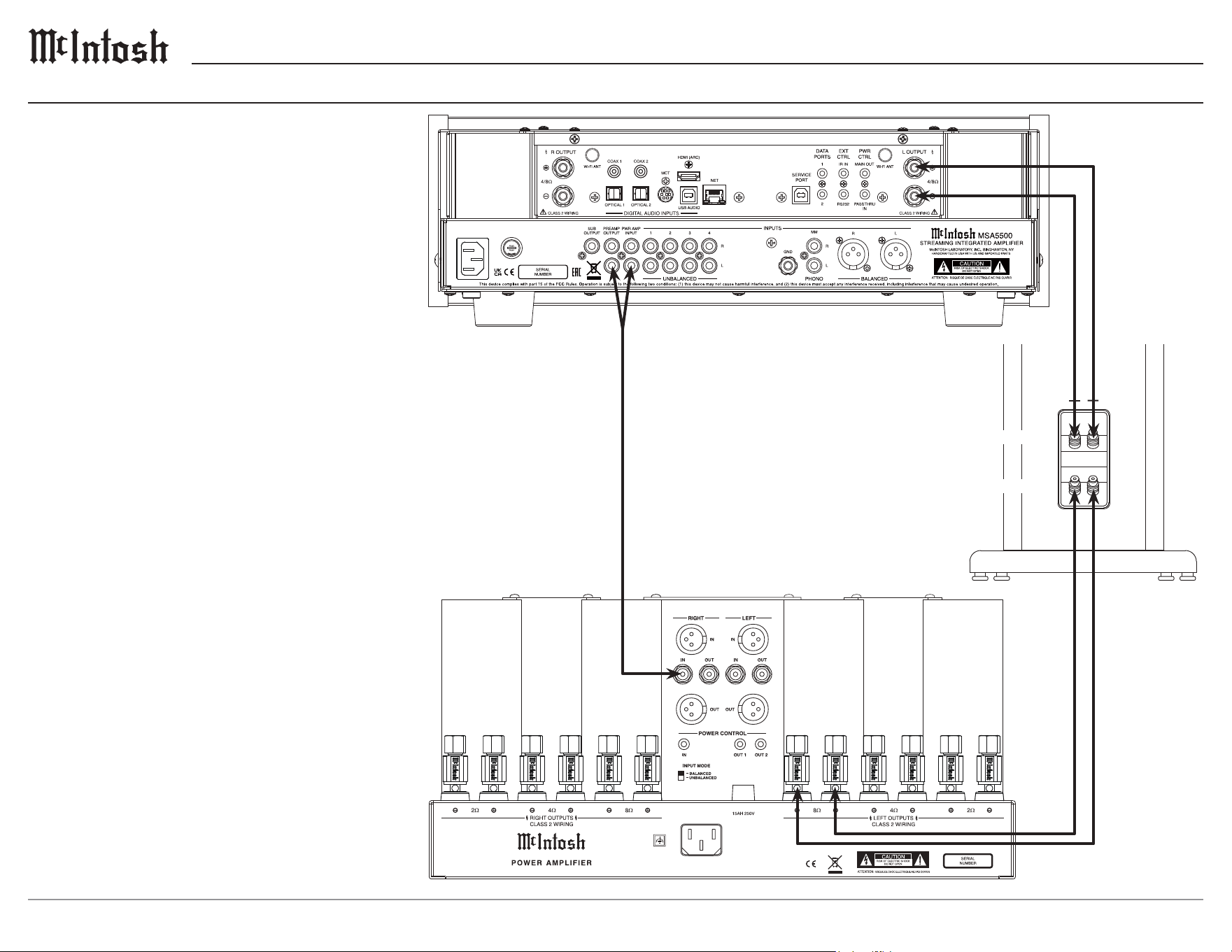
The MSA5500 can be part of a Multichannel
Sound System for Blu-ray Audio, DVD Audio and
Home Theater Movies. The Right and Left Front
Channels from an Audio/Video Control Center
can “Passthru” the MSA5500. In the following
example the UNBAL 4 Input will become the
“Passthru” input:
1. Connect Audio Cables from the A/V Processor
FL (Front Left) and FR (Front Right) Channel
Outputs to the MSA5500 UNBALANCED
Number 4 INPUTS Left and Right Jacks.
2. Connect a Control Cable from the A/V
Processor TRIGger 2 Output to the MSA5500
POWER CONTROL PASSTHRU INPUT Jack.
Note: Refer to Passthru on page 14 to assign the
UNBAL 4 INPUT as the “Passthru” Input.
3. Proceed to “Connecting Loudspeaker”
on page 7.
Passthru Connection Diagram
22
The MSA5500 Power Amplier, together with
an additional separate Power Amplier, may be
used to Bi-Amplify a Loudspeaker System. In
the illustration on this page, the Power Amplier
of the MSA5500 is connected to the Midrange/
High Frequency Section of the Loudspeaker. The
additional separate Power Amplier is connected
to the Low Frequency Section of the Loudspeaker
System.
Warning: The Loudspeaker System used for
Bi-Amplification must have the jumpers
removed from between the MID/HIGH and
LOW Frequency Sections of the Loudspeaker
System. Failure to remove them could result
in damage to the MSA5500 and/or the
separate Power Amplifier.
MSA5500 Connections:
1. Remove the “McIntosh Jumpers” from
between the PREAMP Jacks and the PWR
AMP In Jacks located on the Rear Panel of the
MSA5500. Place the “McIntosh Jumpers” in a
safe place for possible future use.
2. Using a pair of shielded RCA Type Audio “Y”
Adapters connect the PREAMP Jacks to the
PWR AMP In Jacks, for both Left and Right
Channels on the MSA5500.
3. Connect the remaining unconnected part of the
“Y” Adapters to the separate Power Amplier.
4. Refer to “Connecting a Loudspeaker” on
page 7 and the Owner’s Manual supplied
with the Power Amplier and Loudspeaker to
connect the MSA5500 Output Terminals to the
Loudspeaker MID/HIGH Input Terminals.
Note: The Loudspeaker Connection illustrations on
this page are for the Left Channel. Connect the
Right Channel Loudspeaker in the same manner.
Bi-Amplication Connection Diagram
“Y” adapter Cable
LOW
MID / HIGH
23
MSA5500
CABLE
TV
AUX
1
2
3
4
5
6
7
8
9
0
AM PRESET
FM
INPUT
VOL
PRESET SEEK PRESET
HRO85
BAND
SELECT
AM
OUTPUT2
OUTPUT 1
LEVEL UP
MENU
INFO
LEVEL DN
TRIM
GUIDE
EXIT
MODE
SETUP
Navigating the Remote Control
Remote Control Batteries
The HR085 Remote Control included with the
MSA5500 is powered by two AAA batteries (not
included). To insert or remove batteries, open
the battery compartment by removing the cover
located on the back of the remote control. To
open, pull the clasp located just above the opening
downward.
Additional Discrete Commands
Additional discrete commands for external control
systems are available:
• BALANCED
• UNBAL 1,2,3,4
• PHONO MM
• COAX 1,2
• OPT 1,2
• USB
• MCT
• HDMI (ARC)
• Power (Cycle)
These additional commands can be accessed
using an optional McIntosh HR093 Service
Remote Control. You can also contact McIntosh
Technical Assistance or your dealer for more
information.
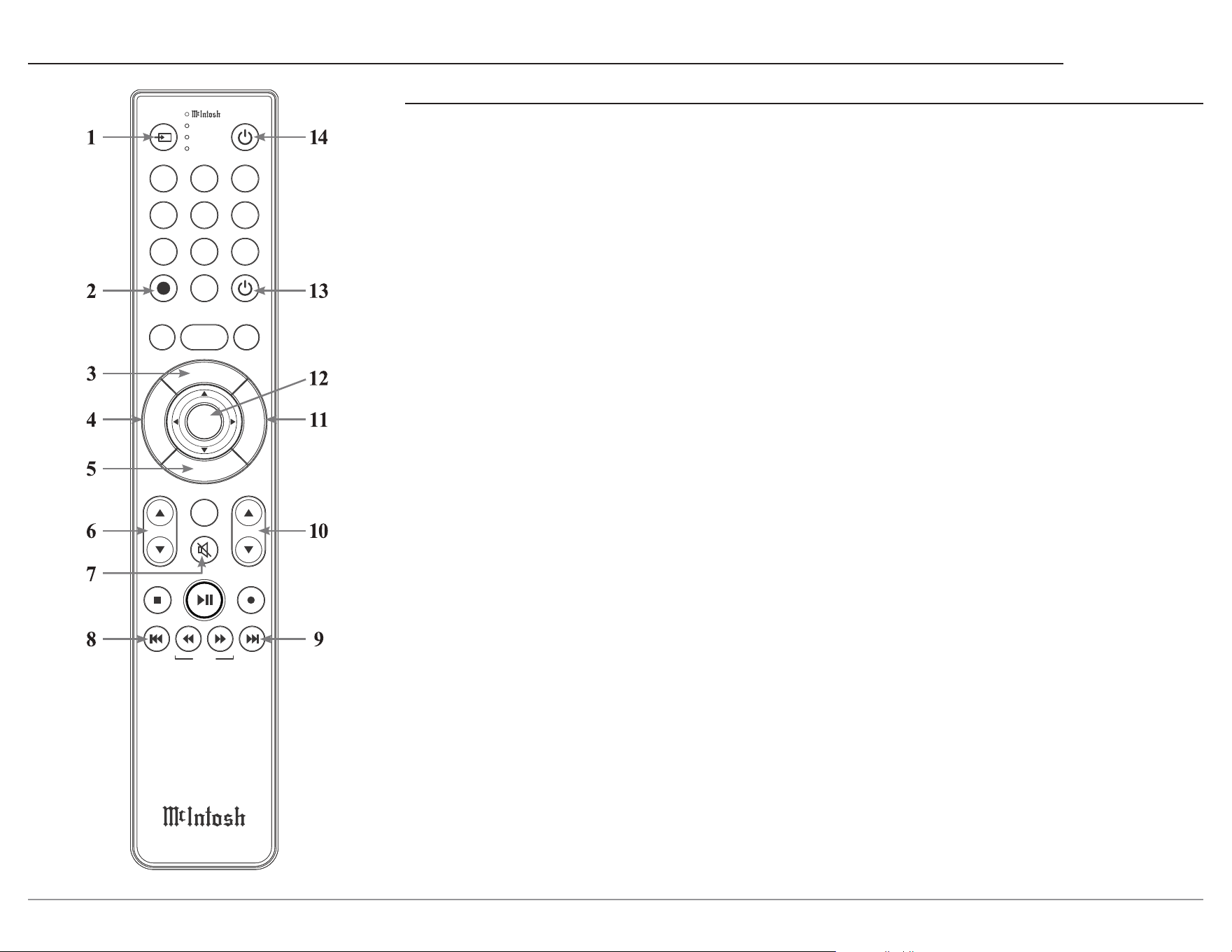
1. Switch Device: Select dierent devices for remote
operation. Selected device is indicated by the LED
light.
2. Setup Button: Used to enter setup mode.
3. Level Up/Menu: Accesses menu on compatible
devices.
4. Trim/Guide: Enters trim functions menu. Opens
guide on compatible devices.
5. Info/Level Down: Accesses info on compatible
devices.
6. Input: Changes and selects dierent inputs.
7. Mute: Mutes audio playback.
8. Previous/Previous Preset: Return to your previ-
ous media selection.
9. Next/Next Preset: Jump to your next media
selection or navigate to the next tuner preset.
10. Volume: Used to adjust the volume.
11. Mode/Exit: This will exit the trim functions
menu. It will also display information or certain
options.
12. Select: Selects the highlighted option.
13. Power O: Turns o the selected device shown by
the LED.
14. Power On: Turns on the selected device shown by
the LED.
Note: The HR085 Remote Control has buttons used to
control multiple devices. Buttons whose function
are not described are for use with other McIntosh
products.
For more information, refer to the HR085 Owner's
Manual on the McIntosh website at
www.mcintoshlabs.com
24
How to use the Remote Control
The supplied MSA5500 Remote Control (HR085)
is capable of directly controlling the functions
of contemporary McIntosh Source Components
connected to the MSA5500 via the Data Ports.
Note: If the MSA5500 seems unresponsive to the
HR085 Remote Control Commands, press
the
DEVICE Button to select first.
Trim
Press the TRIM Button until the desired Trim
function (Balance, Trim Level, etc.) appears on
the MSA5500 Front Panel Display, then press the
LEVEL Up or Down Button to adjust the Trim
setting.
Pressing the TRIM Button once will recall the last
Trim function selected. For additional information
on using the Trim Functions refer to the following
page.
Mute
Press the MUTE Button to mute the audio in all
outputs except the SEND OUTPUT. The word
MUTE will appear on the Front Panel Information
Display. To un-mute the audio, press the MUTE
Button again.
Disc, Server and Tape Functions
Use these buttons to operate a DVD Player, CD
Player, CD Changer, Music Server or Recorder.
Disc and Track
Use the AM (disc) and FM (track) Buttons when a
Disc Player or Music Server is being used.
Volume
Press the Up p or Down q VOLUME Button to
raise or lower the listening volume level.
The Trim Settings are stored in memory indepen-
dently for each Input Source Selected, except
the Meter Illumination and Display Brightness
settings of On or O, which are the same for all
inputs.
How to Select and Adjust Trim Functions
1. Press the Front Panel INPUT Knob to open the
Trim Menu.
2. Rotate it to select the desired Trim Function.
3. Rotate the VOLUME Knob to change the setting.
Note: The Remote Control TRIM Button together with
the LEVEL UP / LEVEL DN Button may also be
used to access and change Trim Functions.
Approximately 5 seconds after making any
changes, the Information Display will return to
indicate the Source Selection and Volume Level.
Settings Options
Balance L, Center, R
Input Trim -6dB to +6dB in 1dB intervals
Tone Control On, O
Bass O, -12dB to 12dB in dB intervals
Treble O, -12dB to 12dB in dB intervals
Mono/Stereo Mode
Stereo, Mono
Meter Lights On, O
Brightness 4 Levels from Dim Bright
HXD Mode* On, O
Note: HXD Mode will only appear if headphones
are plugged in.
Trim Functions Menu
25
MSA5500
Trim Functions Menu Options
Balance
Listening balance varies with dierent program
sources, room acoustics and listening positions
relative to the loudspeakers. Use the Balance
(Trim Function) as needed to achieve approxi-
mately equal listening volume levels in each
loudspeaker.
The Front Panel Display indicates the Balance
changes are from 0 to 50 dB. After approximately
4 seconds the Information Display returns to
indicate the Source Selection and Volume Level.
To verify the Balance setting without changing it,
use the TRIM Button and select Balance.
Input Trim Level
Source Components can have slightly dierent
volume levels resulting in the need to readjust
the MSA5500 VOLUME Knob when switching
between dierent sources. The MSA5500 allows
the adjustment of levels for each of the Source
Inputs for the same relative volume.
Trim Functions Menu (continued)
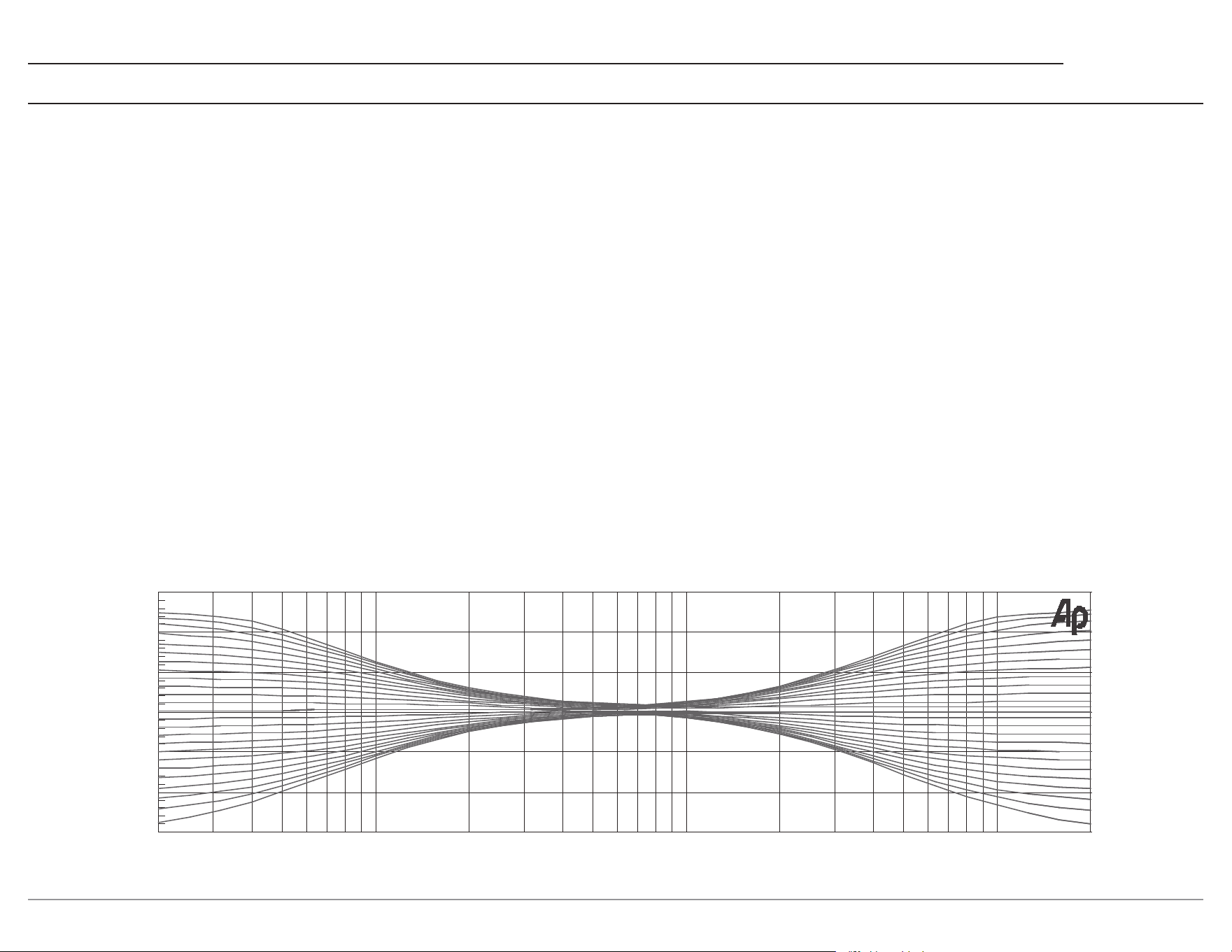
Tone Control
With the Tone Controls are On, the Treble and
Bass Trim Settings may be adjusted for the
currently selected input source. When the Tone
Controls are O, the previous settings for Treble
and Bass are bypassed from the signal path.
• Bass
The intensity of the low frequencies in the
music can be increased or decreased by using
the Trim Select and Trim Adjust controls.
• Treble
The intensity of the high frequencies in the
music can be increased or decreased by using
the Trim Select and Trim Adjust Control.
• Mono/Stereo Mode
By default, the Stereo Mode is active for all
Input Sources however, any Input Source may
be assigned to the Mono Mode of operation. To
change Stereo Mode to Mono for a given Input
Source, perform the same type of steps by using
the Front Panel Controls or the Remote Control
buttons as done for TONE CONTROL Settings:
20 20k50 100 200 500 1k 2k 5k 10k
0
+6
-6
+12
-12
dB
Hz
Meter Illumination
The Meter Illumination of McIntosh Power
Ampliers, when connected to the MSA5500,
may be switched On or O.
Information Display Illumination
The brightness level of the Front Panel
Information Display can be adjusted.
It has 4 levels that vary from dim to bright.
HXD Mode
When headphones are connected to the MSA5500
Front Panel Jack, an additional TRIM function
becomes available. McIntosh’s HXD brings the
acoustical depth and spatiality of music normally
heard with loudspeakers, to your headphones.
Note: The Headphone Output is optimized for
impedances ranging from 100 to 600 ohms.

26
FTC Power Output Rating
100 watts
Power Output
Minimum sine wave continuous average
power output per channel, with both channels
operating is:
100 watts into 8 ohm load
160 watts into 4 ohm load
Output Load Impedance
8 or 4 ohms
Rated Power Band
20Hz to 20,000Hz
Total Harmonic Distortion
0.005% maximum with both channels operating
from 250 milliwatts to rated power, 20Hz to
20,000Hz
Intermodulation Distortion
0.005% maximum, if the instantaneous peak
power is 400 watts or less per channel with
both channels operating for any combination of
frequencies from 20Hz to 20,000Hz
Dynamic Headroom
1.8dB
Wide Band Damping Factor
Greater than 200 - 8 ohm
Greater than 100 - 4 ohm
Power Guard
Less than 2% THD with up to 16dB overdrive at
1,000Hz
Frequency Response
+0, -0.5dB from 20Hz to 20,000Hz
+0, -3dB from 10Hz to 100,000Hz
Preamplier Output (at rated input)
1.4V unbalanced (8V Maximun)
Sensitivity (for rated output)
High Level - 250mV unbalanced, 500mV balanced
Phono MM - 2.5mV
Power Amp In - 1V (8 ohm load)
Signal To Noise Ratio (A-Weighted)
High Level - 95dB below rated output
Phono MM - 82dB below 5mV input
Power Amplier - 110dB below rated output
Input Impedance
High Level - 20K ohms
Phono MM - 47K ohms; 50pF
Preamplier Output Impedance
220 ohms
Maximum Input Signal
High Level - 8V unbalanced, 16V balanced
Phono MM - 80mV
Power Amplier In - 8V
Headphone Impedance
100 to 600 ohms
Voltage Gain
High Level to Preamp Output: 15dB
Phono MM to Preamp Output: 55dB
Power Amplier: 29dB
Power Control Output
12VDC, 25mA
Amplier Specications General Specications
Power Requirements
Field AC Voltage conversion of the MSA5500 is not
possible. The MSA5500 is factory congured for
one of the following AC Voltages:
100 Volts, 50/60Hz at 3.7 amps
110 Volts, 50/60Hz at 3.4 amps
120 Volts, 50/60Hz at 3.2 amps
220 Volts, 50/60Hz at 1.8 amps
230 Volts, 50/60Hz at 1.6 amps
240 Volts, 50/60Hz at 1.6 amps
Standby: Less than 0.25 watt
Note: Refer to the rear panel of the MSA5500 for the
correct voltage.
Overall Dimensions
Width
17 1/2 inches (44.4cm)
Depth
18 3/4 inches (47.6cm) with vertical antennae
22 1/4 inches (56.5cm) with horizontal antennae
Height
6 inches (15.2cm) including feet
8 1/8 inch (20.6cm) including feet
and vertical antennae
Weight
38 pounds (17.2 kg) net
55.5 pounds (25.2 kg) in shipping carton
Shipping Carton Dimensions
Width is 26 1/2 inches (67.3cm)
Depth is 24 1/4 inches (62.2cm)
Height is 11 3/4 inches (29.9cm))
27
MSA5500
Digital Audio Specications
Digital Input Signal Format
Coaxial / optical inputs - SPDIF (PCM), and
bitstream
MCT - SACD, PCM
USB Audio - DSD, DXD, PCM
HDMI - PCM, Dolby Digital, DTS
Digital Input Sample Rates
Optical: PCM 16-bit, 24-bit 44.1-192kHz
Coaxial: PCM 16-bit, 24-bit 44.1-192kHz
MCT: PCM, SACD, 16-bit, 24-bit 44.1-192kHz
USB: PCM 16-bit, 24-bit, 32-bit 44.1-192kHz
DXD DXD352.8kHz, DXD384kHz
DSD DSD64, DSD128, DSD256, DSD512
HDMI: PCM 24-bit, 44.1-192kHz, bitstream
Digital Inputs
Coaxial: 0.5V p-p/75 ohms
Optical: -15dbm to -21dbm (TOS Link)
MCT: 0.5V p-p/75 ohms
USB Audio 2.0: USB Type B Connector
HDMI: 2.0 ARC
Streaming Support
Apple AirPlay, Google Cast, Spotify Connect, Tidal
Connect, Roon
Supported Audio Formats
(Must also be supported by chosen source app and
device)
MP3, AAC, FLAC, ALAC, WMA, Ogg Vorbis,
WAV, M4A, OGG, AIFF
Connectivity
Wi-Fi CERTIFIED™ a, b, g, n, ac
WPA™, WPA2™, WMM®
2.4/5 GHz, Ethernet
Bluetooth 5.0
AVRCP, A2DP, aptX, aptX HD, aptX Adaptive
Packing Instructions
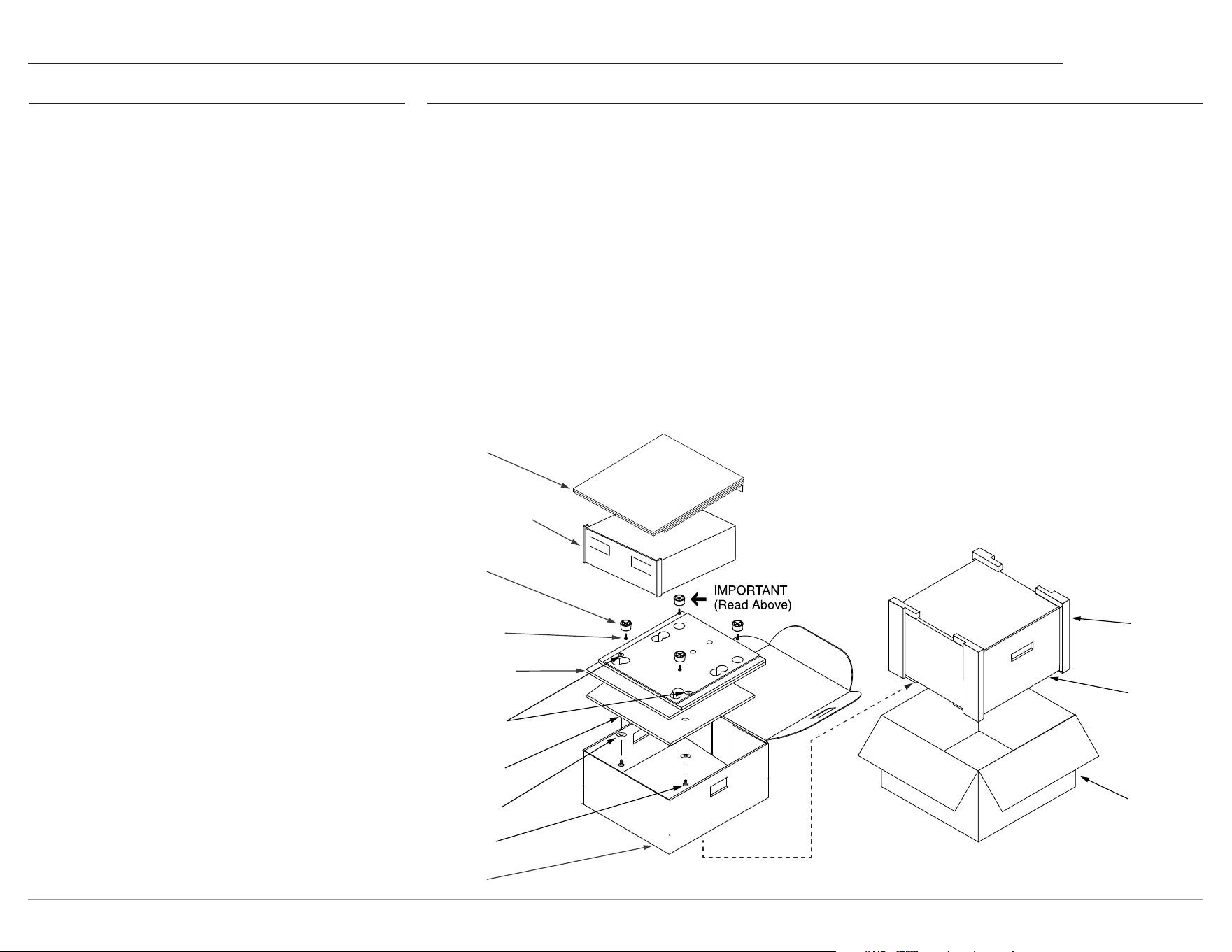
In the event it is necessary to repack the equip-
ment for shipment, the equipment must be packed
exactly as shown below.
It is very important that the four plastic feet
are attached to the bottom of the equipment.
This will ensure the proper equipment location
on the bottom pad. Failure to do this will result
in shipping damage.
Use the original shipping carton and interior parts
only if they are all in good serviceable condition.
If a shipping carton or any of the interior part(s)
are needed, please call or write Customer Service
Department of McIntosh Laboratory. Refer to
page 3.
Please see the Part List below for the correct part
numbers.
Qty Part Number Description
1 033838 Shipping carton
2 034669 End Caps
1 033836 Inner carton
1 033725 Top pad
1 034576 Bottom pad
1 034480 Wood skid
2 017218 Plastic feet (spacer)
2 401204 #10 x 2 1/2 inch wood screws
2 404033 #10 at washers 1-3/4 inch
4 017937 Plastic feet
4 400159 #10-32 x 3/4 machine screws
2 404033 #10 at washers
TOP PAD
UNIT WITH
(4) FEET ON
BOTTOM COVER
PLASTIC
FOOT (4)
10-32 x ¾”
SCREW WITH
WASHER (4)
BOTTOM PAD
PLASTIC FOOT
SPACERS (2)
WOOD SKID
#10 x 1-¾”
WASHER (2)
#10 x 2-½”
SCREW (2)
INSIDE
CARTON
INSIDE
CARTON
END CAPS
SHIPPING
CARTON

© 2024 McIntosh Laboratory, Inc.
McIntosh Part No. 24124800
The continuous improvement of its products is the policy of McIntosh Laboratory Incorporated
who reserve the right to improve design without notice. The MSA5500 is designed to employ
non-McIntosh-provided services some of which require separate customer subscriptions and
some of which do not, as part of the Product’s functionality. Because McIntosh cannot control
the providers of such services or the services themselves, the owner of the Product therefore
assumes all risks related to the use of services provided by anyone other than McIntosh itself.
McIntosh cannot and does not warrant against, and shall have no liability of any kind for any
of the following that are attributable to non- McIntosh providers or services: (i) interruption,
discontinuance, or other unsatisfactory performance of service; (ii) reduced Product function-
ality that is so attributable; or (iii) any other loss or damage of any kind that is so attributable.
Printed in the U.S.A.
McIntosh Laboratory, Inc.
2 Chambers Street
Binghamton, NY 13903
www.mcintoshlabs.com