IRTC500
Compact Thermal Imager

Thermal Imager User Manual
2
Introduction ------------------------------------------------4
overview ----------------------------------------------4
Safety Information---------------------------------------4
Specifications ---------------------------------------------6
Before You Start-------------------------------------------9
How to Charge the Battery ---------------------9
Power On ---------------------------------------------9
Power Off --------------------------------------------10
Desktop ----------------------------------------------11
Shutter------------------------------------------------12
LED light ---------------------------------------------12
Temperature Measurement---------------------12
Emissivity Adjustment----------------------------13
Reflected Temperature --------------------------15
Thermal Imager Reporter Software ---------15
Menus ------------------------------------------------------15
Main Menu -----------------------------------------16
Image Mode-----------------------------------------17
Image Palette --------------------------------------17
Image Adjustment---------------------------------18
Lock operation----------------------------------18
Histgram mode and Auto mode ----------19
Parameter menu ----------------------------------20
Settings menu -------------------------------------------21
Device setting ---------------------------------22
Measure setting ------------------------------24
Reset --------------------------------------------27
Camera Menu -------------------------------------29
Video Menu -----------------------------------------31
Files Browser ---------------------------------------31
USB Mode -------------------------------------------32
COMPACT THERMAL IMAGER

Safety Information
Introduction
Overview
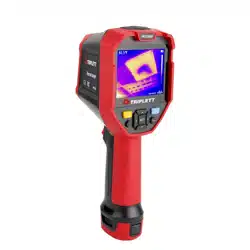
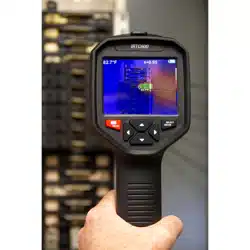
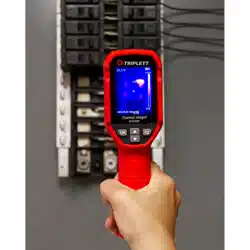
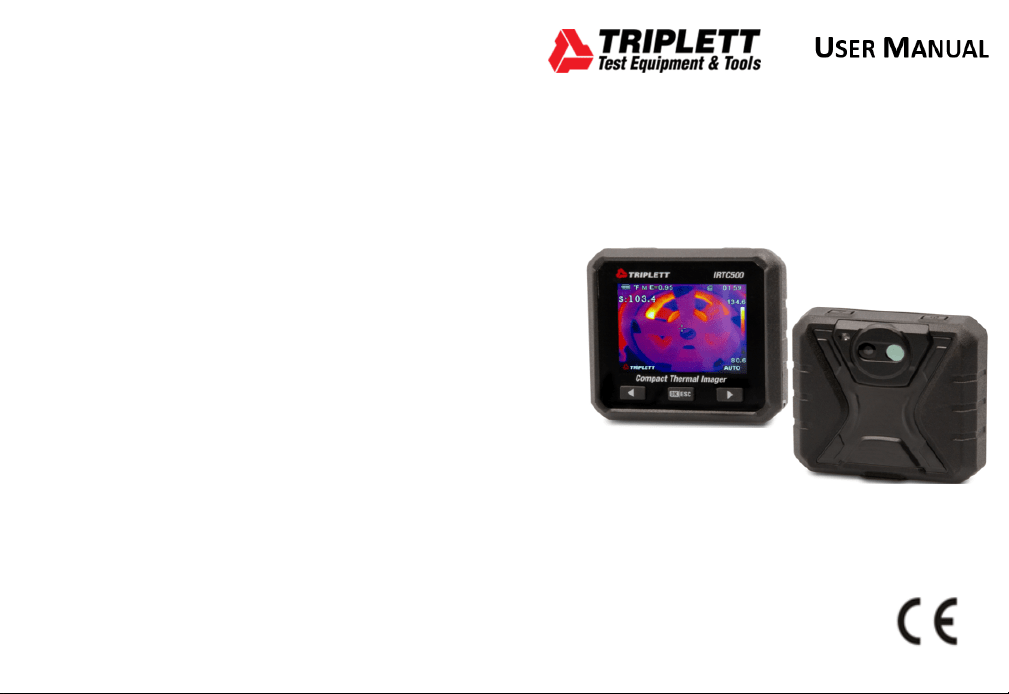
The Triplett IRTC500 Thermal Imager is a handheld imaging camera
designed for predictive maintenance, troubleshooting equipment, and
verification. Simply focus the lens on the object, and the thermal image
will be displayed on the LCD. Images can be saved to a Micro SD
memory card for easy storage. Transferring images to a PC is
straightforward—remove the SD memory card, connect it to a PC using
the included card reader, or use the “InfraRead” app to transfer images
and video streams directly to a smart device.
In addition to these features, the thermal imager also supports video
recording and playback.
43
Do not disassemble or do a modification to the Thermal Imager.
Do not point the Thermal Imager (with or without the lens cover)
at intensive energy sources, for example devices that emit laser
radiation, or the sun.
This can have an unwanted effect on the accuracy of the
camera. It can also cause damage to the detector in the
Thermal Imager.
Do not use the Thermal Imager in a temperature higher than
+50°C (+122°F), lower than -20°C (-4°F). High temperature or
Fault diagnosis and exclusion -----------------32
Android/iOS APP InfraRead-----------------------33
Software install and uninstall -----------------33
System required ------------------------------33
InfraRead App install ------------------33
InfraRead function --------------------------33
Import pictures --------------------------------33
Analyze ------------------------------------------34
Report and Share -----------------------------35
PC software ---------------------------------------------36
Software install and uninstall -----------------36
System required ------------------------------36
InfraRead Pro install-----------------------37
Running ------------------------------------------37
Uninstall ----------------------------------------38
COMPACT THERMAL IMAGER COMPACT THERMAL IMAGER
Only use the correct equipment to discharge the battery.
If you do not use the correct equipment, you can decrease the
performance or the life cycle of the battery. If you do not use
the correct equipment, an incorrect flow of current to the
battery can occur. This can cause the battery to become hot, or
cause an explosion and injury to persons.
Do not pull out the battery when the thermal imager is working.
If you pull out the battery when the thermal imager is working, it
may cause the thermal imager work unnormal.
Do not disassemble or do a modification to the battery.
The battery contains safety and protection devices which, if
they become damaged, can cause the battery to become hot, or
cause an explosion or an ignition. If there is a leak from the
battery and the fluid gets into your eyes, do not rub your eyes.
Flush well with water and immediately get medical care.
Do not make holes in the battery with objects. Do not hit the
battery with a hammer. Do not step on the battery, or apply
strong impacts or shocks to it.
Do not put the battery in or near a fire, or in direct sunlight, or
other high-temperature locations. Do not solder directly onto
the battery.
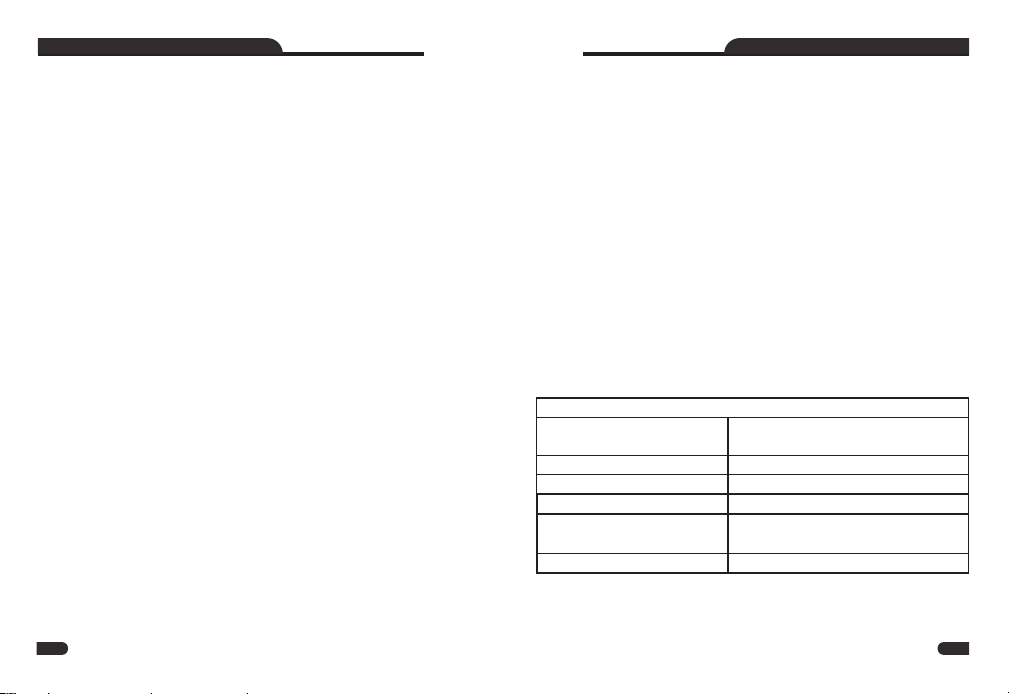
Always charge the battery in the special temperature rang.
The temperature range through which you can charge the
battery is 0°C to +50°C(+32°F to +122°F). If you charge the
battery at temperatures out of this range, it can cause the
battery to become hot or to break. It can also decrease the
performance or the life cycle of the battery.
Do not get water or salt water on the battery, or permit the
battery to get wet.
Clean the case with a damp cloth and a weak soap solution. Do
not use abrasives, isopropyl alcohol, or solvents to clean the
case or lens/screen.
Be careful when you clean the infrared lens. Do not clean the
infrared lens too vigorously. This can damage the anti-reflective
coating.
Avoid condensation
Take the Thermal Imager from from cold to hot, it will appear
condensation in thermal Imager. To protect the Thermal Imager,
you should power of the Thermal Imager, wait until the Thermal
Imager has become war enough for the condensation to
evaporate.
Storage
If you do not use the Thermal Imager, put the Thermal Imager in
cool and dry environment, if you store Thermal Imager equipped
with the battery, the power of the battery will be exhausted.
Specifications
Imaging and optical data
Field of view (FOV) /
Minimum focus distanc
42°x 32°/ 0.5m
e
Thermal sensitivity/NETD < 0.05°C @ +30°C (+86°F) / 40 mK
Image frequency 9Hz
Focus mode Forcus free
Focal Plane Array (FPA) /
Uncooled microbolometer /
8–14 µm
Spectral range
IR resolution 160x120 pixels
5 6
COMPACT THERMAL IMAGER COMPACT THERMAL IMAGER
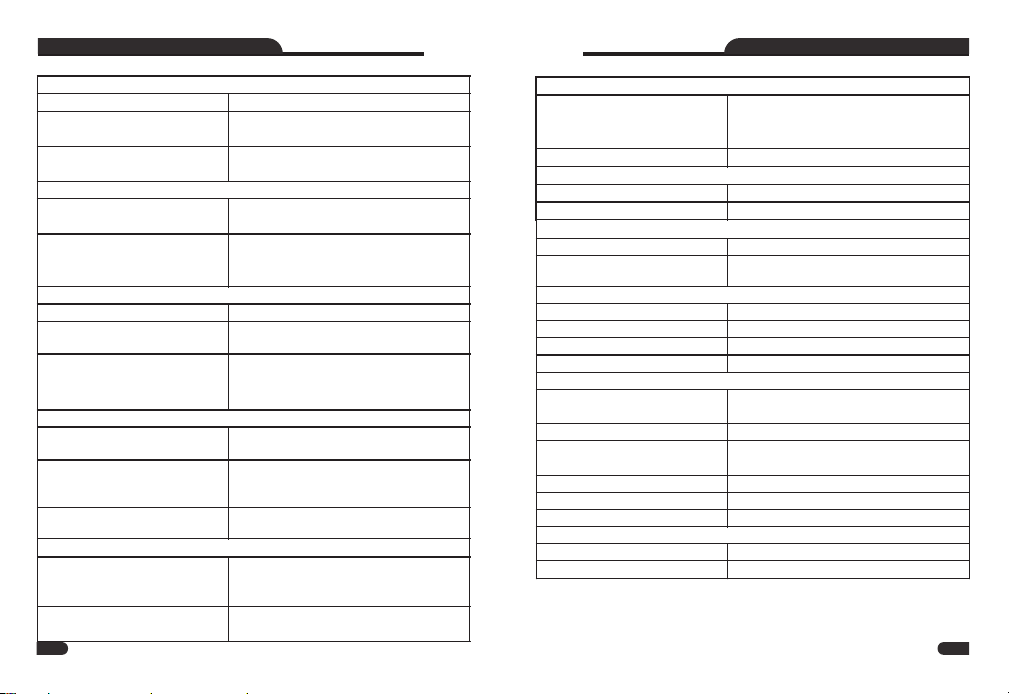
Image presentation
Display 2.8 in. LCD, 320x240 pixels
Image modes
IRON、Rainbow、Grey、Grey Inverted、
Color palettes
Brown
、
Blue-red
、
hot-cold
、
Feather
Measurement
–20°C to +150°C (–4°F to +302°F)
Object temperature range
0°C to +550°C (+32°F to +1022°F)
±2°C (±3.6°F) or ±2% of reading
Accuracy
(Environment temperature 10℃
-35℃℃,object temperature > 0℃. )
Measurement analysis
Spot Center Spot
Automatic hot /
Auto hot or cold markers
cold detection
Emissivity, Reflected temperature,
Measurement corrections
ambient temperature,atmospheric
humidity,infrared compensation,
distance compensation.
IR image、Visual i mage、
Picture in picture、Auto fusion.
Storage of videos
8Gbytes Micro SD card and
Storage media
3.4GB internal EMMC
format Standard MPEG-4encode,
Video storage
640x480@30fps, on memory card
> 60 minutes
IR/visual images; simultaneous
Video storage mode
storage of IR and visual images
Storage of images
Standard JPEG,or HIR files
Image storage format
including measurement data,
on memory card > 6000 pictures
IR/visual images; simultaneous
Image storage mode
storage of IR and visual images
7 8
Set-up
Local adaptation of units,
Set-up commands
language, date and time formats,
information of camera
Languages multinational
Digital camera
Built-in digital camera 2 Megapixels
Built-in digital lens data FOV 59°
Power system
Battery Li-ion battery, 4 hours operating time
Input voltage DC 5V
Charging system In camera (AC adapter)
Power management Automatic shutdown
Environmental data
Operating
-15°C to +50°C (5°F to +122°F)
temperature range
Storage temperature
–40°C to +70°C (–40°F to +158°F)
Humidity (operating
10%~90%
and storage)
Drop test 2m
Bump 25g(IEC60068-2-29)
Vibration 2g(IEC60068-2-6)
Physical data
Camera weight, incl. battery
<18 0g
Camera size (L*W*H)
90x85.3x25mm
Data transform between cam and PC
Live video between camera and PC
Data communication interfaces
Interfaces USB-TypeC
USB
range
COMPACT THERMAL IMAGER COMPACT THERMAL IMAGER
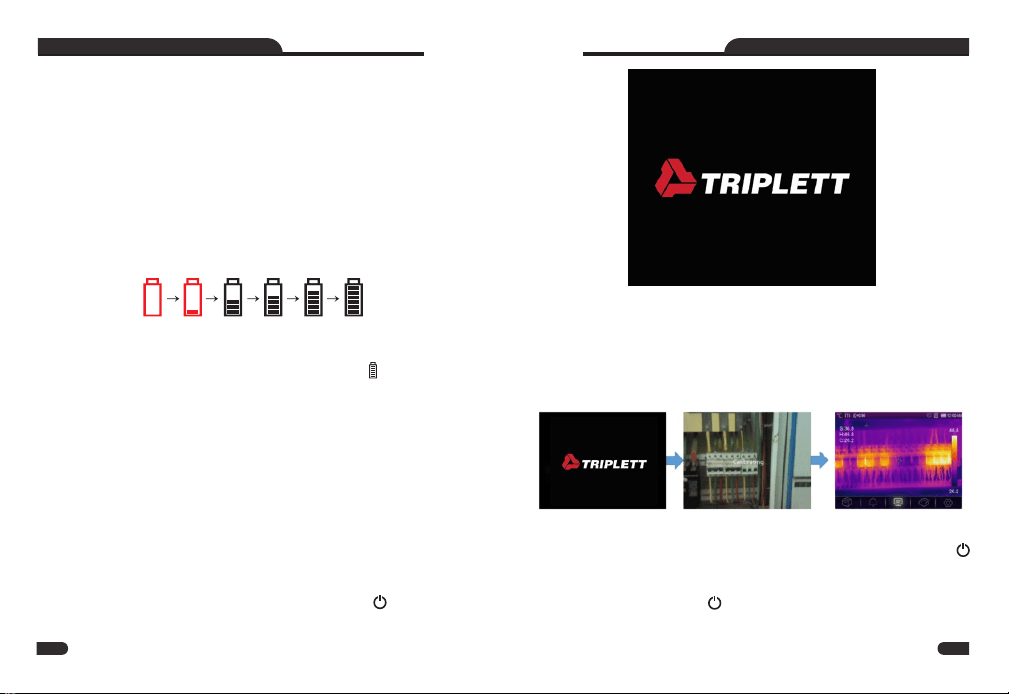
Before you use the Thermal Imager for the first time, charge the
battery for three and three-half hours. The battery status shows
on the six-segment charge indicator.
To charge the battery, use follow before:
Before You Start
How to Charge the Battery
1.Connect the ac power adapter into an ac wall outlet and
connect the dc output to the Thermal Imager’s ac power
socket, the charge light is on. The battery indicator
becomes
while the battery charges with the ac power adapter.
“”
2.charge until the charge indicator becomes , the charge
icon not changed .
3.Disconnect ac power adapter when the battery is full
charged.
Make sure that the Thermal Imager is near room temperature
before you connect it to the charger. Do not charge in hot or
cold areas. When you charge in extreme temperature, battery
capacity may be decreased.
Note
Power On
To turn the Thermal Imager on, push the Power Button.
After power on the device, The thermal Imager needs sufficient
warm- u p time f o r the mo s t accurate t e m perature
measurements and best image quality. So the visible image will
first appear, and the thermal sensor will calibrate internal for
sevearal seconds. After that the thermal image will be displayed
on the screen.
Power Off
When Thermal Imagers power on, Push and hold the Power .
Button for two seconds, then popup the power off menu, press
“Left/Right” button to highlight “OK” to power off the device.
Push and hold the Power Button for twelve seconds, the
device will be forced power off directly.
9 10
COMPACT THERMAL IMAGER COMPACT THERMAL IMAGER
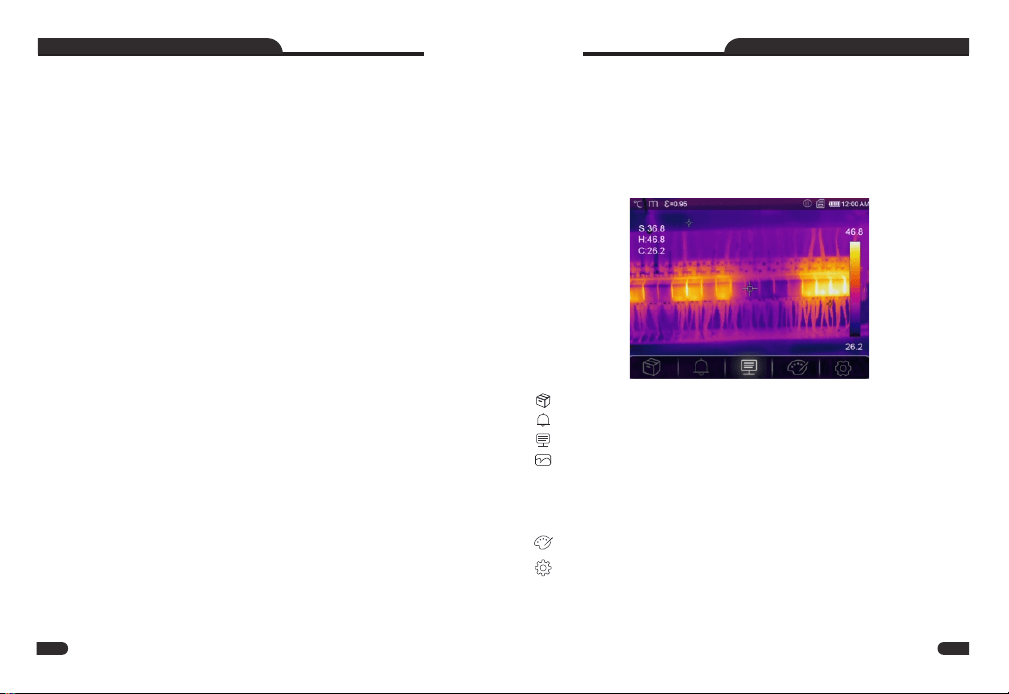
Desktop
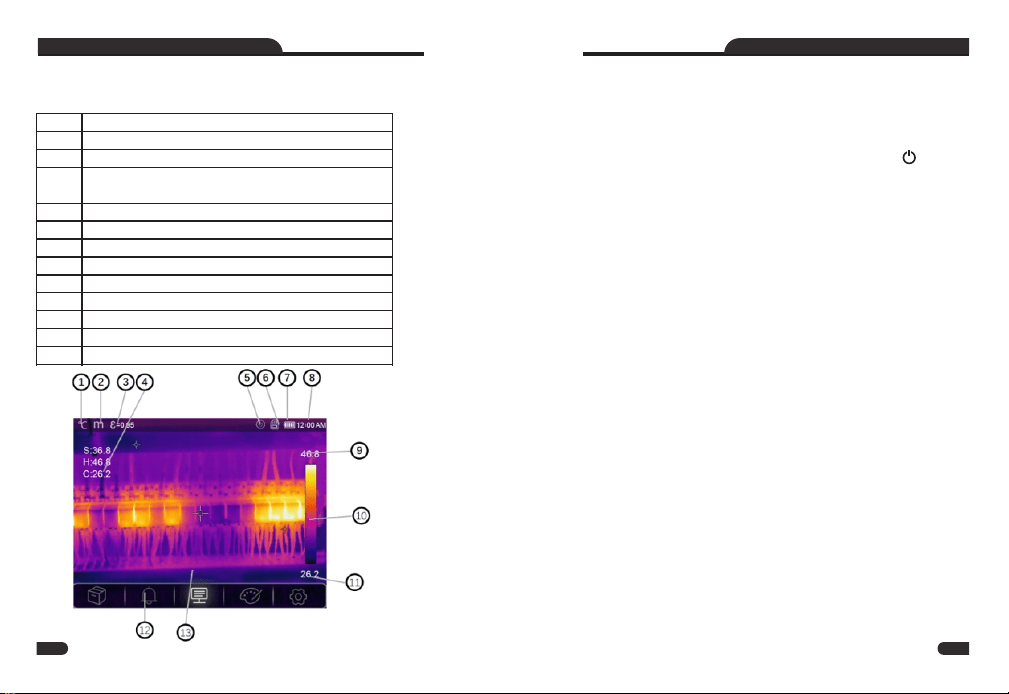
The Desktop is as follow:
Temperature unit
Distance unit
Emissivity
Centre/Max/
Min point temperature readings
Flashlight ON status
SD card
Battery capacity status
Time
Max temperature of current scene
Color bar
Min temperature of current scene
Main menu
Image display area
1
2
3
4
5
6
7
8
9
10
11
12
13
Shutter
The thermal image of the Thermal Imager becomes blurry, when
the Thermal Imager no correcting after some minutes or the
Thermal Imager changes target. To get fine thermal image, the
Thermal Imager need to correct. Short push the Power Button
the inner shutter will action once.
LED light
In device setting menu, press “Left/Right” button to highlight the
flash light button, the LED light will be on or off.
Temperature Measurement
All objects radiate infrared energy. The quantity of energy
radiated is base on the actual surface temperature and the
surface emissivity of the object. The Thermal Imager senses the
infrared energy from the surface of the object and uses this
data to calculate an estimated temperature value. Many
common objects and materials such as painted metal, wood,
water, skin, and cloth are very good at radiating energy and it is
easy to get relatively accurate measurements. For surfaces that
are good at radiating energy (high emissivity), the emissivity
factor is >=0.90. This simplification does not work on shiny
surfaces or unpainted metals as they have an emissivity of <0.6.
These materials are not good at radiating energy and are
classified as low emissivity. To more accurately measure
materials with a low emissivity, an emissivity correction is
necessary. Adjustment to the emissivity setting will usually
allow the Thermal Imager to calculate a more accurate estimate
of the actual temperature. More information please see
Emissivity Adjustment to get the most accurate temperature
measurements.
11
1010
12
COMPACT THERMAL IMAGER COMPACT THERMAL IMAGER
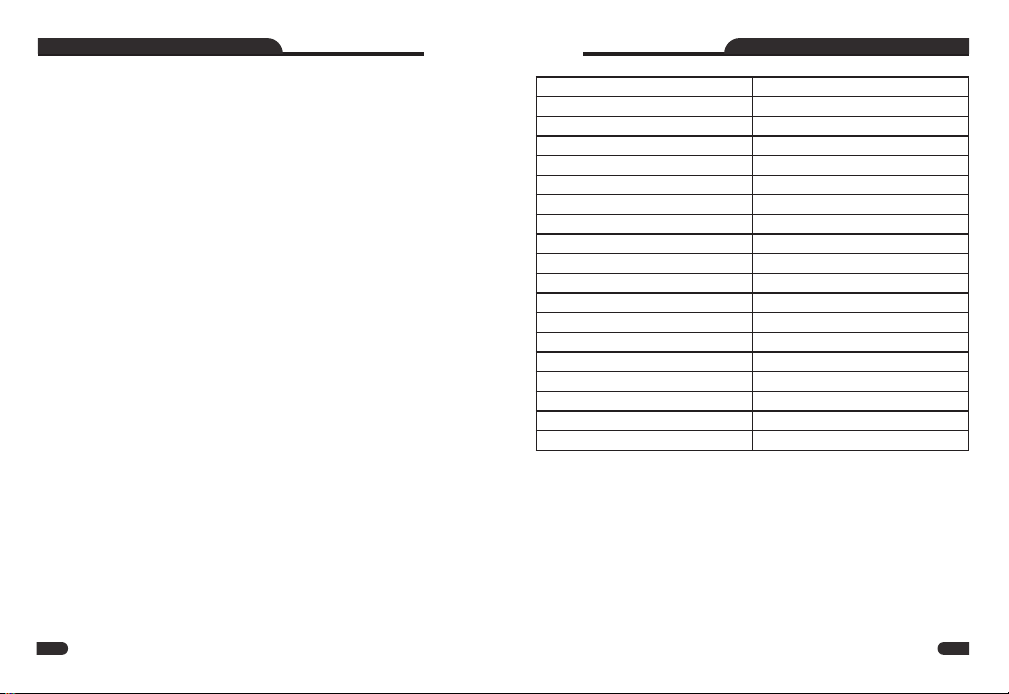
Emissivity Adjustment
The correct emissivity value is important to make the most
accurate temperature measurement. Emissivity of a surface can
have a large effect on the apparent temperatures that the
Thermal Imager observes. Understanding the emissivity of the
surface, but may not always, allow you to obtain more accurate
temperature measurements.
Surfaces with an emissivity of <0.60 make reliable and
consistent determination of actual temperature problematic.
The lower the emissivity, the more potential error is associated
with the Imager’s temperature measurement calculations. This
is also true even when adjustments to the emissivity and
reflected background adjustments are performed properly.
Emissivity is set directly as a value or from a list of emissivity
values for some common materials. The global emissivity
displays in LCD Screen as E=x.xx.
The following table gives typical emissivity of important
materials.
Note
Material Emissivity
Water 0.96
Stainless steel 0.14
Aluminum plate 0.09
Asphalt 0.96
Concrete 0.97
Cast iron 0.81
Rubber 0.95
Wood 0.85
Brick 0.75
Tape 0.96
Brass plate 0.06
Human skin 0.98
PVC plastic 0.93
Polycarbonate 0.80
Oxidized copper 0.78
Rust 0.80
Paint 0.90
Soil
0.93
13 14
COMPACT THERMAL IMAGER COMPACT THERMAL IMAGER
Reflected Temperature
Using the offset factor, the reflection is calculated out due to
the low emissivity and the accuracy of the temperature
measurement with infrared instruments is improved. In most
cases, the reflected temperature is identical to the ambient air
temperature. Only when objects with strong emissions with
much higher temperature are in the proximity of the object
being measured should be determined and used. The reflected
temperature has only little effect on objects with high
emissivity. The reflected temperature can be set individually.
Follow these steps to get the right value for the reflected
temperature.
1.Set the emissivity to 1.0
2.Adjust the optical lens to near focus
3.Looking in the opposite direction away from the object, take a
measurement and freeze the image
4.Determine the average value of the image and use that value
for your input of reflected temperature.
Thermal Imager Reporter Software
Thermal Imager Reporter software is supplied with the Thermal
Imager. This Software is intended for Thermal Imager and
contains feature to analyze images, organize data and
information, and make professional reports. Thermal Imager
Reporter software allows audio annotations and commentary to
be reviewed on a PC.
Menus
The menus, are access for image, measurement, Emiss, Palette,
temperature measurement range, take photo and video, review,
and settings.
Main Menu
Short Press the “OK|ESC” button, the main menu will be poped
up. Long press the “OK|ESC” button, the main menu will be
hidden. Main Menu is the main interface of the Thermal
Imager’s menus. It contains six items such as Image
Browser,Alarm Setting,Measure parameters, Image mode
Palette, system Settings.
set for the user preferences such as language,
unit of temperature measurement, date, time.
restore factory setting and display product
information.
Image Browser: Enter into the image view
Alarm setting: Settings for high/low tempera
ture alarm
Paramters: parameters set for the calcula
tion
temperature.
Image mode: set image source for the display
on the Thermal Imager’s LCD.
It contains five
items such as infrared image,
visual image and fusion
Palette: set the type of color bar.
Settings:
15 16
COMPACT THERMAL IMAGER COMPACT THERMAL IMAGER
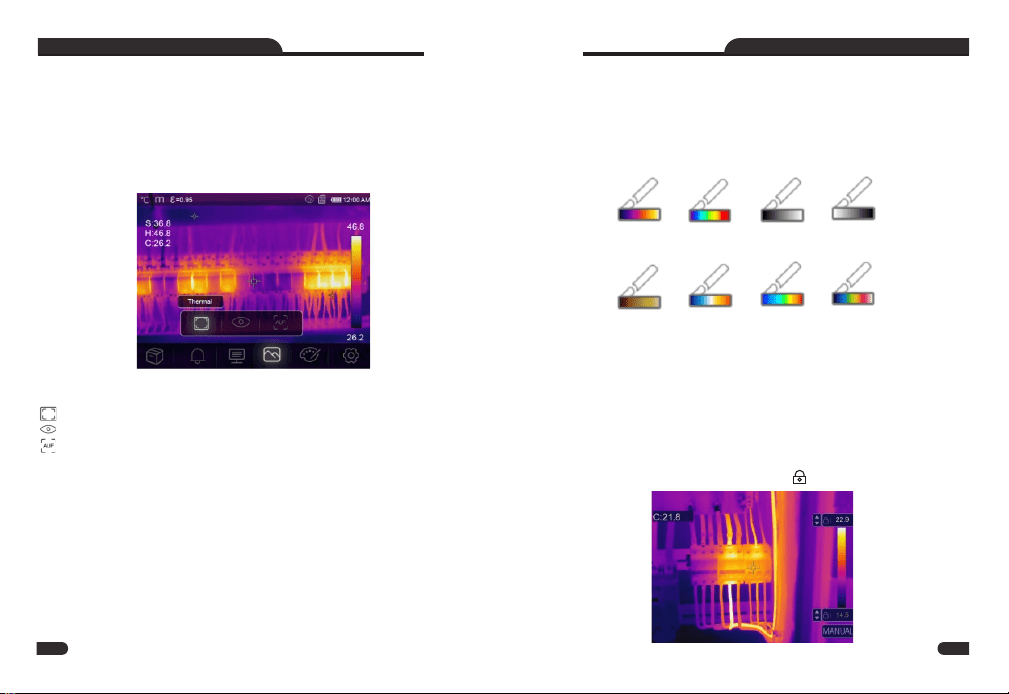
Image Mode
In main menu,press “Left/Right” button, highlight “Image
mode” icon , highlight “Image mode”,Short Press the “OK|ESC”
button to popup Image submenu which contains five image
modes.Long Press the “OK|ESC” button to exit the Palette Image
mode menu.
Thermal Imager has 3 kinds of image modes for display.
IR、Camera、AUF mode.
IR: displays only infrared image;
Camera: displays only visible image;
AUF: Auto Fusion mode, compare the centre area temperature
with full screen, the machine will calculate the mix ratio of
infrared and visible images automaticly.
Image Palette
The Image Palette lets you change the false-color presentation
of the infrared images on display or captured. A variety of
palettes are available for specific applications. The standard
palettes offer an equal, linear presentation of colors that allow
for best presentation of detail.
Standard Palette
In main menu,press “Left/Right” button, highlight “Palette”.
Short Press the “OK|ESC” button, the Palette menu will be poped
up,Palette submenu which contains 8 kinds of color palettes.Long
Press the “OK|ESC” button to exit the Palette settingmenu.
Iron
Rainbow
Grey
Grey invert
Brown hot Blue red Hot cold Feather
Image Adjustment
There are two kinds of mode for image adjustment,Auto and
Manual.
Lock operation
Short press power key button to switch to Manual mode, lock
the current scene temperature range. means Manual.
17 18
COMPACT THERMAL IMAGER COMPACT THERMAL IMAGER
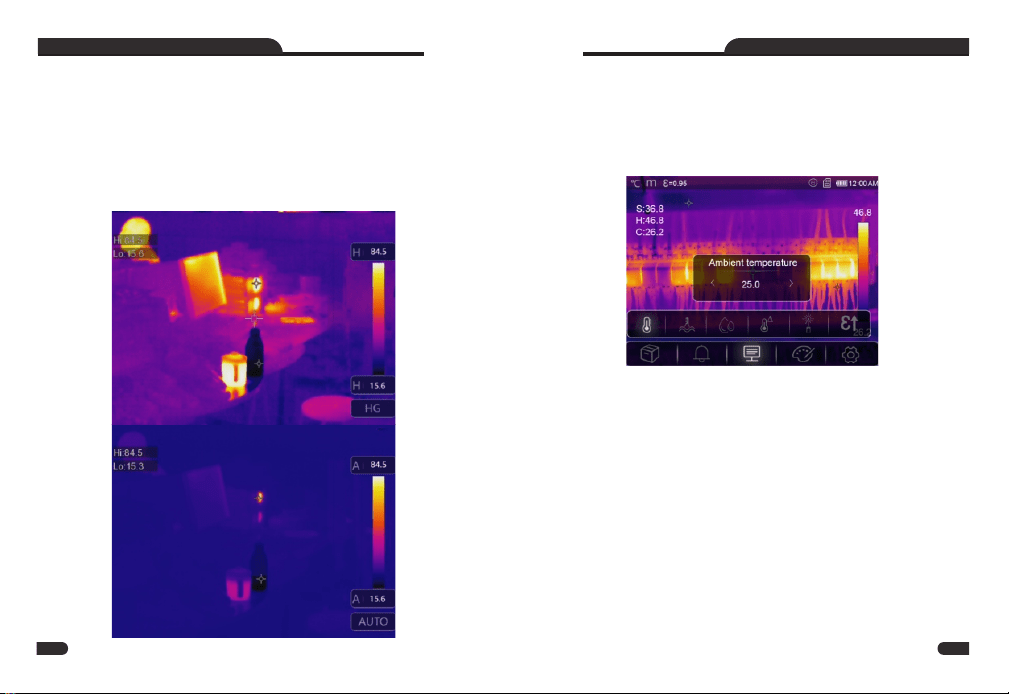
Parameter menu
In main menu,press “Left/Right” button, highlight “Parameter ”.
Short Press the “OK|ESC” button,the Parameter submenu will
popup.Long Press the “OK|ESC” button to exit the Parameter
settingmenu.
Histgram mode and Auto mode
Auto mode: level and span are decided by the thermal image of
minimum temperature and maximum temperature. The
relationship between temperature and color is linear.
Histgram mode: the thermal image is enhanced by histogram
algorithm, The relationship between temperature and color is
not linear. Some part of the image is enhanced.
Ambient temperature composation
Ambient temperature will affect the measurement of the
thermal imager, it can be composite from 0 degree to 50
degree.
Reflective temperature
The reflective temperature is important for radiometric
temperature measurement. Thermal Imager has temperature
compensation for reflective temperature. To get more accurate
temperature measurement, accurately set the reflective
temperature. In most cases, the reflected temperature is
identical to the ambient temperature. Only when objects with
strong emissions with much higher temperature are in the
proximity of the object being measured, the reflected
temperature must set.
19 20
COMPACT THERMAL IMAGER COMPACT THERMAL IMAGER
Delta temperature compesation
In delta temperature,the value of the delta temperature will
affect the measurment directly.
Distance
There are many substances in the air that can absorb infrared
rays. So the infrared ray of the object will decaied as the
distance increase. The distance can be setted from 2meter to
1000meters.
Emissivity
“Emiss” sets object emissivity, the value range is 0.01~1.00;
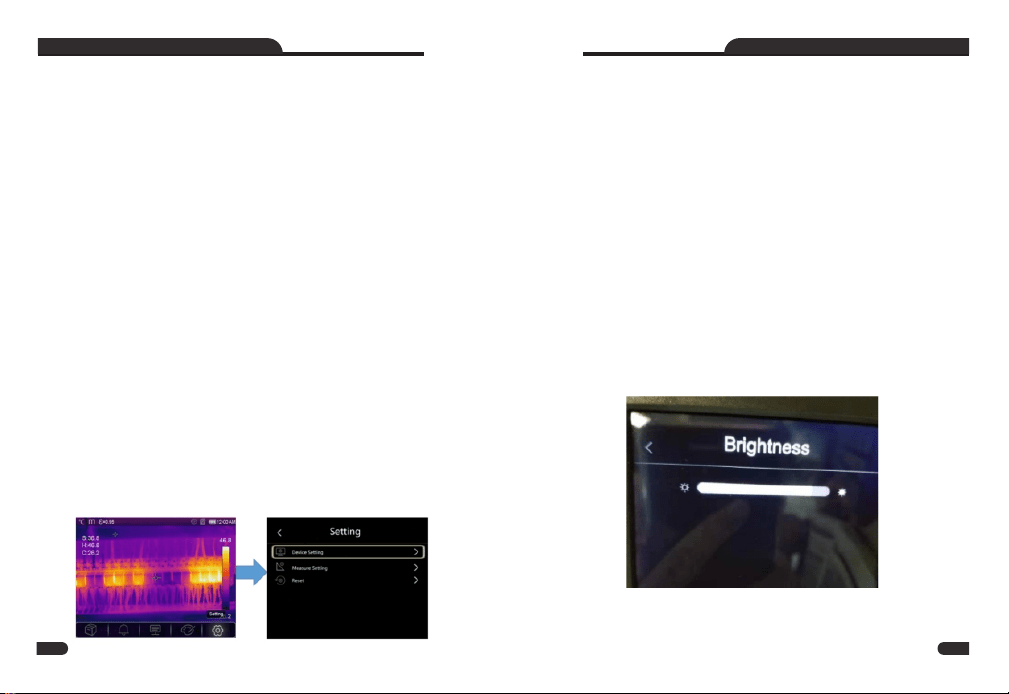
Settings menu
In main menu,press “Left/Right” button, highlight “Settings”.
Short Press the “OK|ESC” button,the Settings submenu will
popup.Long Press the “OK|ESC” button to exit the setting menu.
Atmospheric humidity
Water droplets in the air can absorb infrared rays. The wet air
can affect the measurement of the temperature’s accurate, the
compensation humidity can be set from 10%~100%.
Device setting
There are multipages in Device setting,press “Left/Right” button
to go to next page, or go to previous page.
USB Mode
PC connection: set the device as Mass storage mode, if connect
the device to the PC with USB cable,there will be a Mass storage
device on the PC.
PC Camera:set the device as UVC camera mode, if connect the
device to the PC with USB cable,there will be a UVC camera
device on the PC.
Flashlight
Press “Left/Right” button to turn on the flash light.
Brightness
Press “Left/Right” button to adjust the LCD brightness.
Time Date
Press “Left/Right” button to change time/date, then press “Set
Date” to save the change, or press “Cancel” to quit.
21 22
COMPACT THERMAL IMAGER COMPACT THERMAL IMAGER
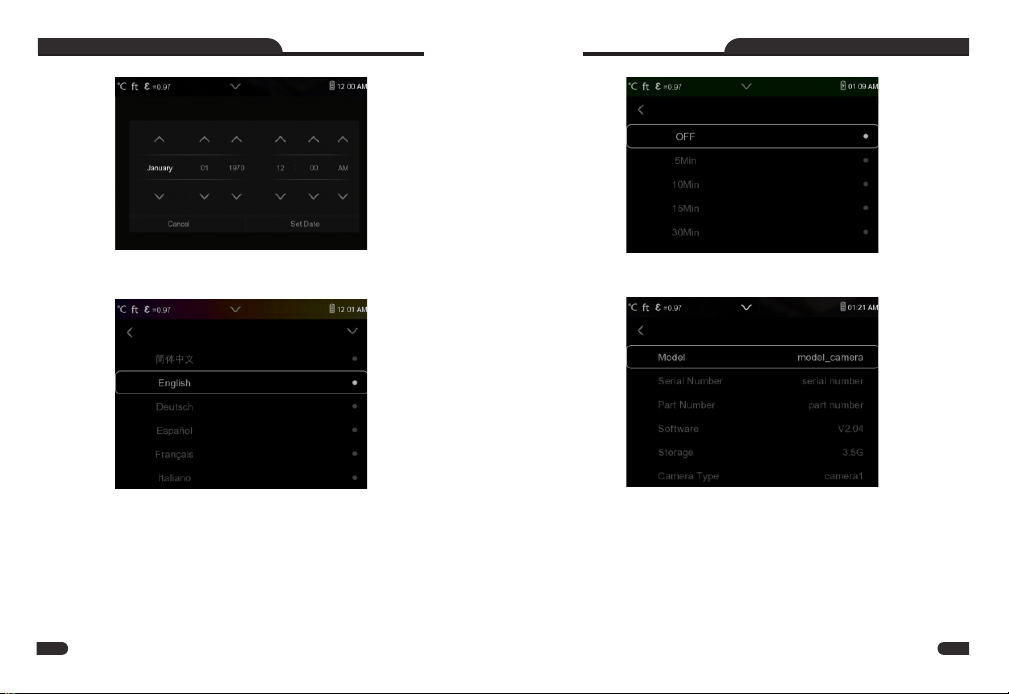
Info
The info menu contains all of the product information, such as:
software version, serial number,andsoon.
Measure setting
Thera are four options in Measure setting menu, as follow
picture.
Max/Min enable
Press “Left/Right” button to highligturn on Max/Min
subm e nu,pre ss “OK|Ex it” to enab le M ax/Min poi nt
measurement.
Auto Power Off
Thera are four options in auto power off menu, as follows:
“OFF”, “5Min”, “10Min”, “15Min”, “30Min”.When press any one of
the buttons, the timer of Auo Power Off will be cleared and re-
timed.
Language
Press “Left/Right” button to select the language you want.
23 24
COMPACT THERMAL IMAGER COMPACT THERMAL IMAGER
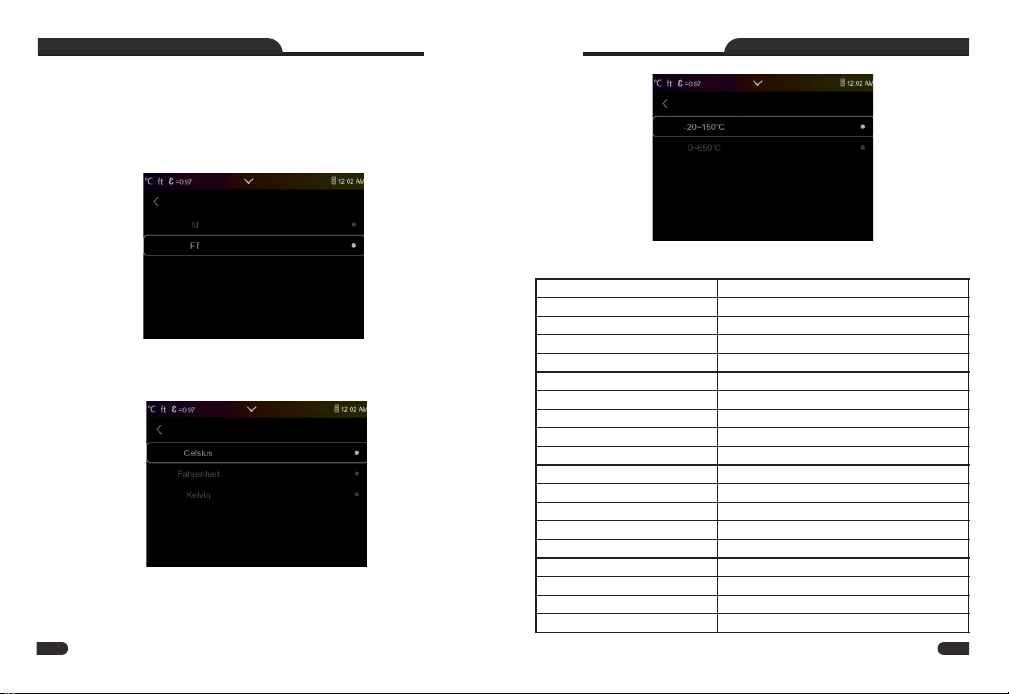
Temperature unit
Temperature Unit have three types to choose: ℃, ℉ and K.
Conversion relationship: ℉=1.8*℃+32, K=273.15+℃。
Temperature range
The temperature measurement ranges have “-20~150℃” and
“0~550℃” to choose. The overlap temperature of the two
ranges is more accurate to choose “-20~150℃”.
Distance Unit
Change the distance unit between “m” and “ft”, “m” means
meter, ft means Foot.
1(ft)=0.3048(m);
1(m)=3.2808399(ft)
Emissivity
Quick set the emissivity from the table below:
Material Emissivity
Water
0.96
Stainless steel 0.14
Aluminum plate 0.09
Asphalt 0.96
Concrete 0.97
Cast iron 0.81
Rubber 0.95
Wood 0.85
Brick 0.75
Tape 0.96
Brass plate 0.06
Human skin 0.98
PVC plastic 0.93
Polycarbonate 0.80
Oxidized copper 0.78
Rust 0.80
Paint 0.90
Soil 0.93
25 26
COMPACT THERMAL IMAGER COMPACT THERMAL IMAGER
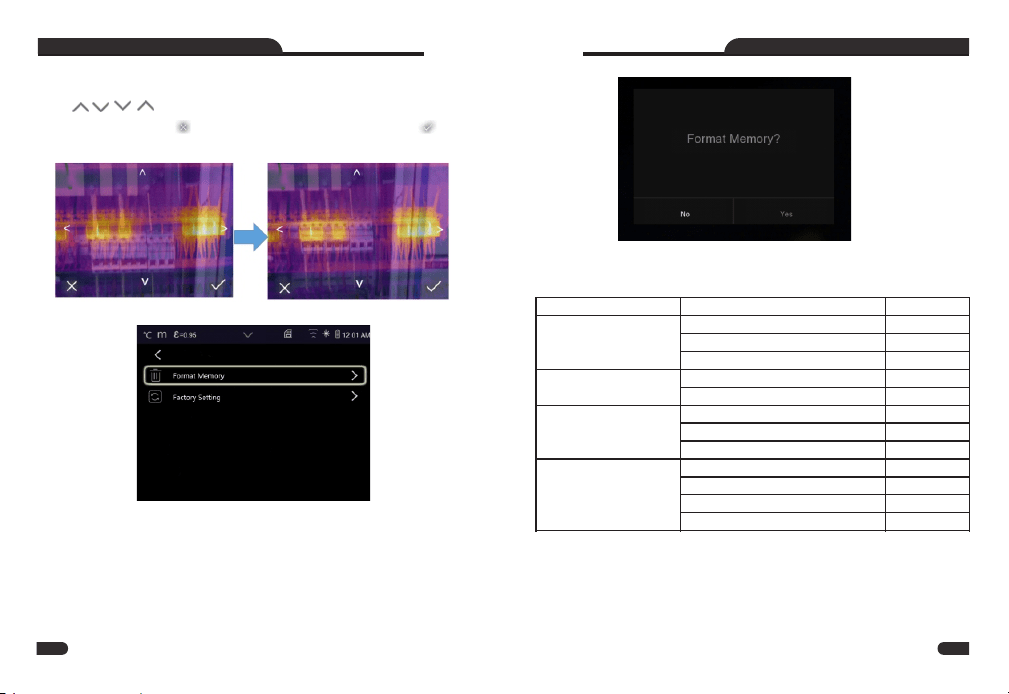
Reset
Image Align
Press to adjust the vision’s position to align the vision
and infrared.press “ ” to cancel the setting, press “ ” to
save the aligment setting.
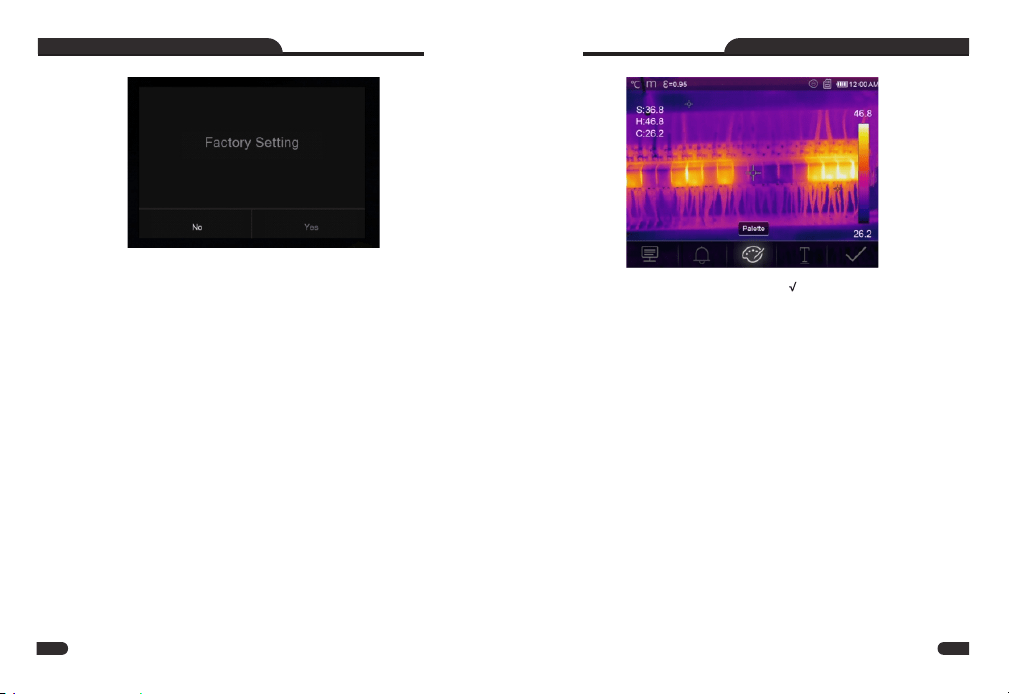
Factory Settings
Factory Settings of the Thermal Imager is as follow:
Format Memory
Format Memory operation will format all the Picture Gallery, the
device setting is not affected.
Language English
HDMI Output
Laser
Lamp
item
Measurement
Parameter
Center Spot Measurement
off
value
Hot Spot Measurement
Cold Spot Measurement
off
off
Measurement
Parameters
Emissivity
Reflective temperature
0.95
25℃
Image
Mode In
infrared
Palette Iron
Adjustment Auto
System Setting
off
off
off
27 28
COMPACT THERMAL IMAGER COMPACT THERMAL IMAGER
Camera Menu
Thermal Imager has photo and video functions. In photo
function, the Imager can save thousands of images. Every
image resolution is 1280*960, format is .jpg, and stores infrared
data and visible data in an image. In video function, the Imager
has .mp4 video capture for hours, and save infrared data in
.mp4 format.
2.Press “Left/Right” button to select “ ” button save image, and
the image will flash for a second, after the image is saved, the
image will be unfreezed.
Note
Images and video files are stored in SD Memory Card. Images
can easily be read and second analyzed within Thermal Imager
PC software.
Save Image
1.In desktop, press photo button, freeze an image. The save
menu will display.
Change measure parameters
Press “Left/Right” button to highlight the “Parameters” icon, it
can change the image’s measure parameters:Emissivity,ambient
t e mpe r at u re , hum i di t y, r efl e c t t em p e ra t ur e ,i n fra r ed
compensation,distance.
Change image mode
Press “Left/Right” button to highlight the “image mode” icon, it
can change the image mode: thermal,visible,picture in
picture,Auto fusion,zoom.
29 30
Change color
Press “Left/Right” button to highlight the “Pallete” icon, it can
change the image color.
COMPACT THERMAL IMAGER COMPACT THERMAL IMAGER
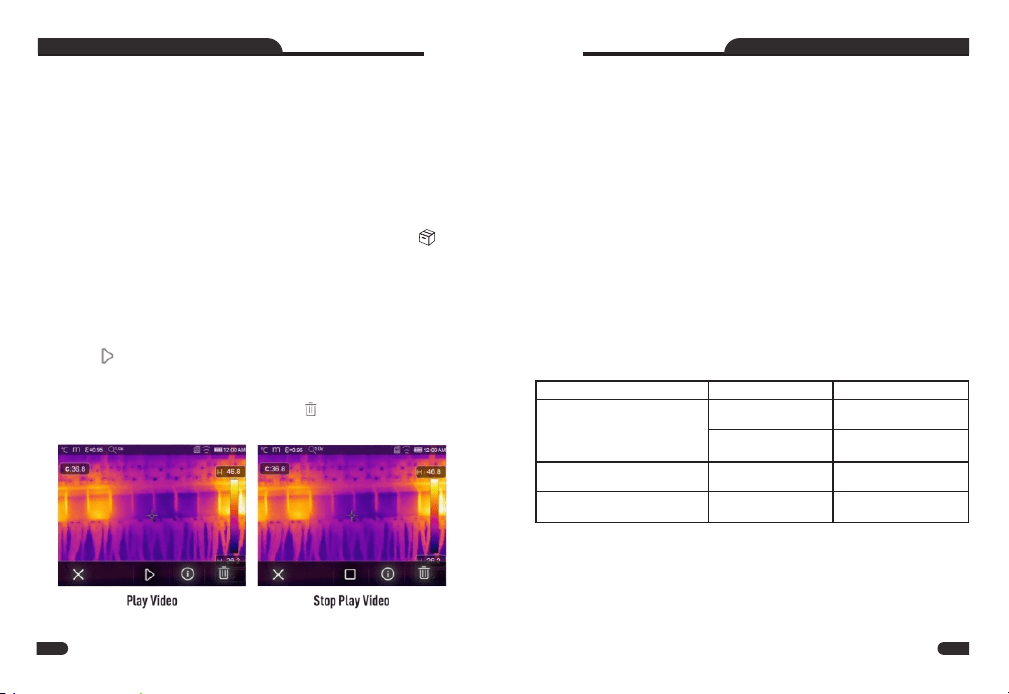
Delete a file
Press “Left/Right” button to highlight to delete the current
file.
USB Mode
Play a video
When current file type is video, press “Left/Right” button to
highlight to play video.
connect USB cable to device, popup the menu as follow:
there are two modes for USB, Storage and PC Camera.
press up or down button to switch mode.
1. Storage
Browse files stored on the SD card on your computer. if select
Storage mode, will display a picture as follow:
2. PC Camera
The device is a USB camera for your computer. If select this mode,
will display a picture as follow :
Video Menu
The Thermal Imager has .mp4 video capture.
1.In desktop, press photo button and hold for about 2 seconds,
start video capture.
2.To stop video capture, press photo button again. The video
saved in the video file.
Files Browser
In desktop, press “Left/Right” button to highlight icon,
popup files Browser, Which displays images and videos saved in
SD Memory Card.
Fault diagnosis and exclusion
If you encounter any problems while using the thermal imager,
overhaul according to the following table. If the problem
persists, disconnect the power and contact with the company's
technical support department.
Phenomenon of the fault
Cause of the fault
Solution
Opened the lenscap
Thermal imager cannot start
No battery
Inserting the battery
No power
Replace the battery
or charge it
Thermal imager shut down
No power
No Thermal image
The lens cap cover
Replace the battery
or charge it
31 32
COMPACT THERMAL IMAGER COMPACT THERMAL IMAGER
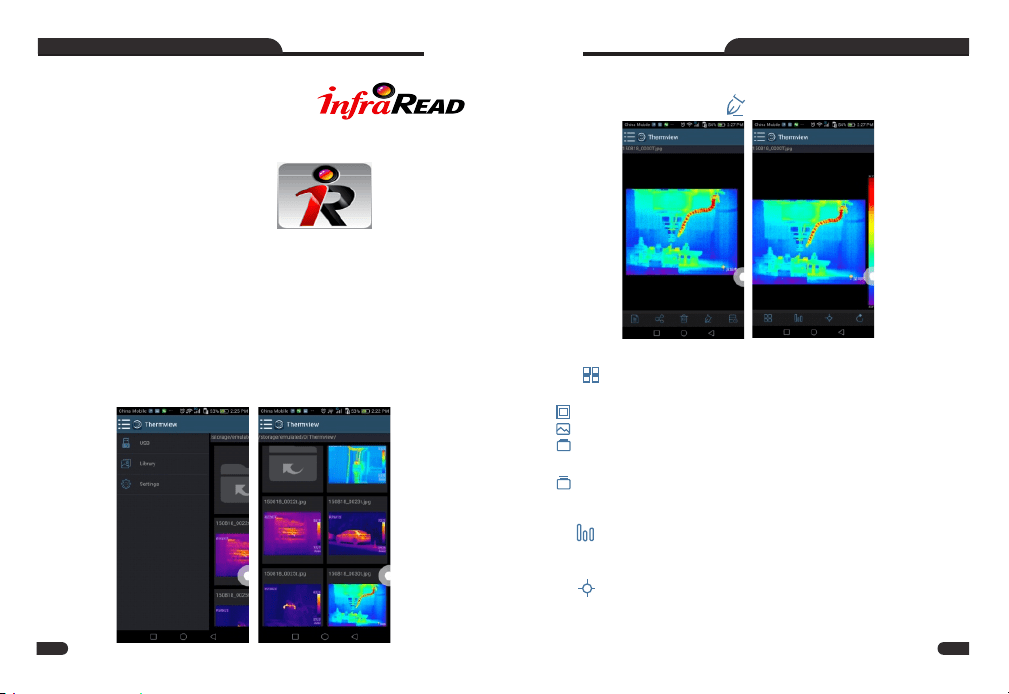
Triplett InfraRead App Install
Android:Search “Triplett InfraRead” on Google Play and install it.
iOS: Search “Triplett InfraRead” on Apple Store and install it.
Triplett InfraRead Function
Import pictures
1.Use the USB OTG cable download the IR pictures from the
thermal imager directly
2.Copy the IR pictures from PC or SD card.
Android/iOS APP Triplett InfraRead
Software Install and Uninstall
System required
Android mobile phone; Android 4.0 above, with USB OTG
Support
iOS:iPhone4 above
(4) Visible fusion mode: full screen fusion, the visible picture is
fused with infrared picture.
2.Colorbar select.
Click “ ” icon to select colorbar. There are eight colorbar for you
choice.
3.Analyse
Click “ ” icon to analyze the IR pictures. There are three analyze
tools:
1.Image mode
Click “ ” icon to select image mode, there are four mode for
you to select
(1) IR mode: only infrared picture displayed
(2) Visible mode: only visible picture displayed
(3) IR fusion mode: The infrared picture is fused with visible
picture
Analyze
Select a IR Picture and click “ ” icon to analyze it.
33 34
COMPACT THERMAL IMAGER COMPACT THERMAL IMAGER
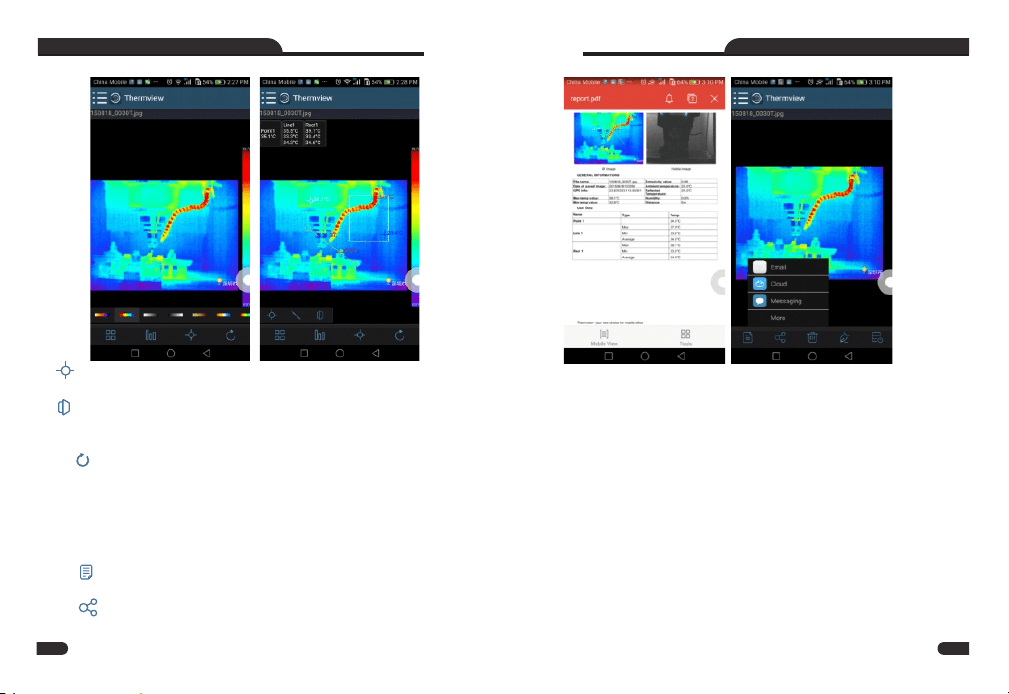
(1) Point analyse: Add a point to the picture, it will display the
temperature of the point.
(2) Area analyse: Add a rectangle to the picture, it will display
the highest,lowest and average temperature of the rectangle.
4.Save and exit.
Click “ ” to save and return to the main page of the APP.
Report and Share
1.Report
Click “ ” icon to report as a .pdf file.
2.Share
Click “ ” icon to share the Infrared picture with Email, Cloud or
Message and so on.
PC software
Window 10 or higher version of Windows system, please make
sure you have installed .Net Framework 4.6 when you install
Thermview Pro software. If not, please find and install our
Microsoft. NET_Framework_v4.6.exe that provided to you .
open the net framework 4.6,Follow all tips to install Net
Framework 4.6 till it finishes.
If your system already have installed Net Framework 4.6, then no
need to install again.
Software install and uninstall
System required
35 36
COMPACT THERMAL IMAGER COMPACT THERMAL IMAGER
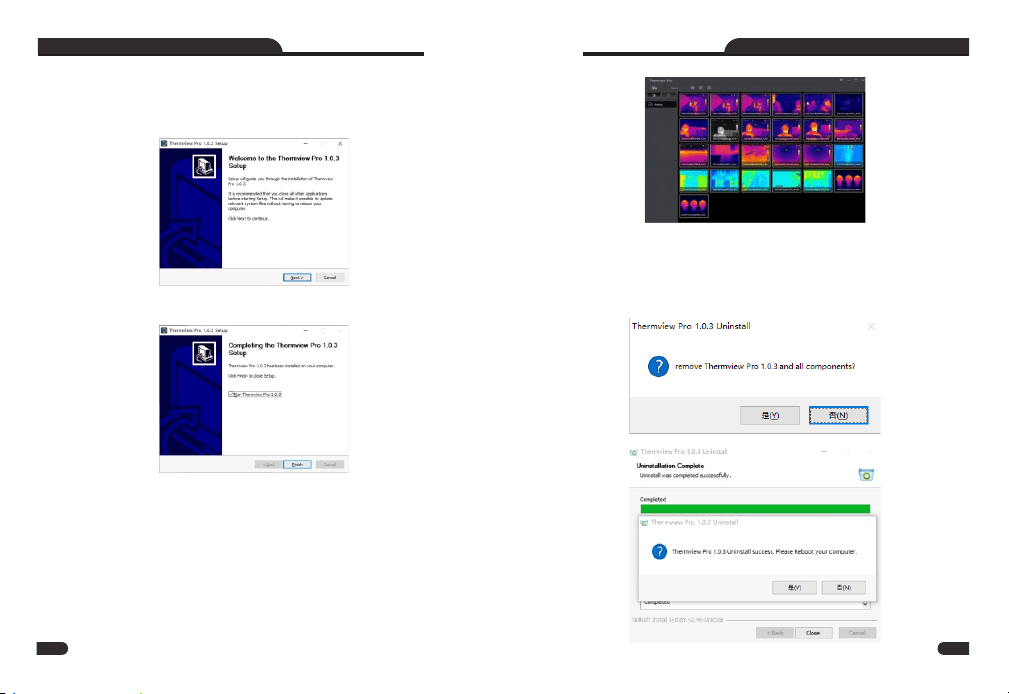
Click "Next" to install, till finish installation.
Installation Successful after click "Finish" like above.
Running
After ensuring Triplett InfraRead software has been installed, click
shortcuts on the desktop to run the software.
Triplett InfraRead Install
You can insert your installation CD to install directly if you have
one, or you can run "setup.exe" to install it as follow.
Uninstall
Uninstall Triplett InfraRead in the Installation directory as
follow.run “uninst.exe” and then click "YES" to start to uninstall,
and finally choose whether to reboot the computer.
37 38
COMPACT THERMAL IMAGER COMPACT THERMAL IMAGER
39
COMPACT THERMAL IMAGER COMPACT THERMAL IMAGER
40