2
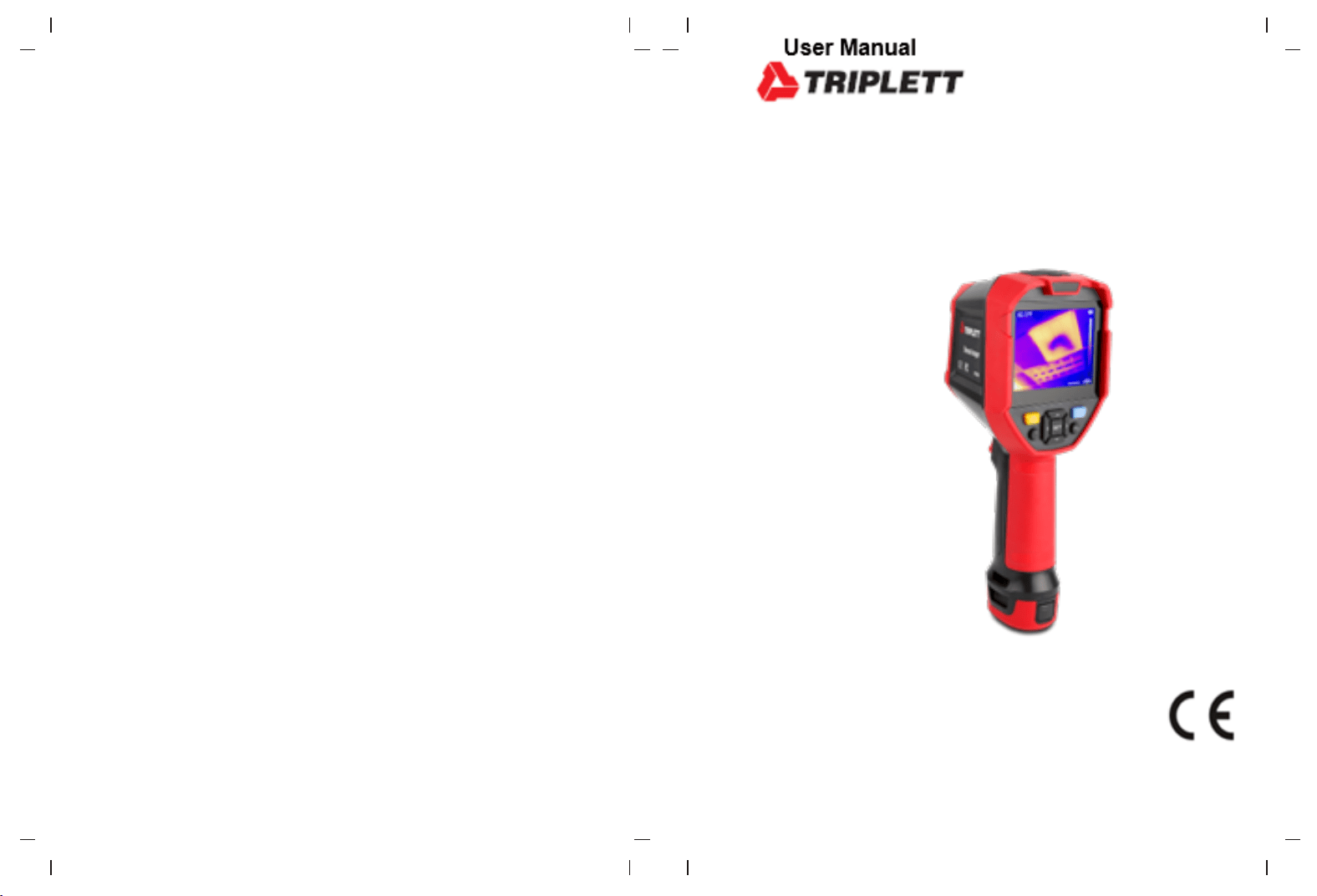
IRTC800
Thermal Imager
3
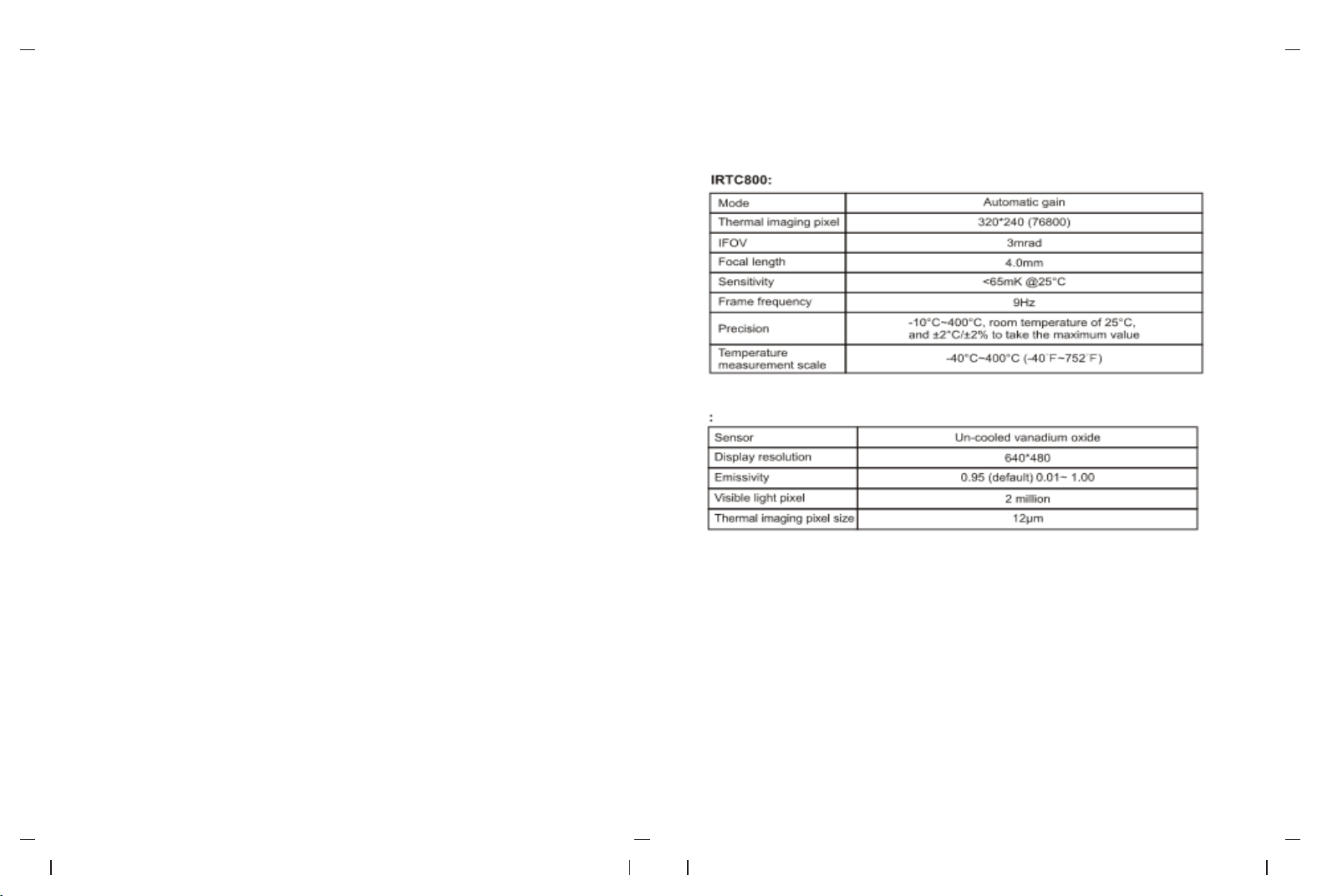
1. Performance indicators
Contents
1. Performance indicators -------------------------------------------------------------------- 4
2. Structure -------------------------------------------------------------------------------------- 6
3. Display instructions ------------------------------------------------------------------------ 7
4. Power on-off --------------------------------------------------------------------------------- 7
5. Instruction of configuration menu ------------------------------------------------------ 8
6. Marking tool -------------------------------------------------------------------------------- 9
7. Image mode -------------------------------------------------------------------------------- 9
8. Swatches switching ---------------------------------------------------------------------- 10
9. Temperature measuring tool ------------------------------------------------------------ 10
10. Vitta tool ----------------------------------------------------------------------------------- 12
11. Photo view and edit -------------------------------------------------------------------- 12
12. Digital amplification & fusion ratio adjustment ---------------------------------- 13
13. System setup --------------------------------------------------------------------------- 13
13.1 Camera mode ------------------------------------------------------------------- 14
13.2 Units ------------------------------------------------------------------------------- 14
13.3 Parameters ---------------------------------------------------------------------- 14
13.4 Alarm ------------------------------------------------------------------------------- 16
13.5 QR CODE ------------------------------------------------------------------------ 16
13.6 Language ------------------------------------------------------------------------- 17
13.7 Date and time ------------------------------------------------------------------ 17
13.8 Wi-Fi ------------------------------------------------------------------------------- 17
13.9 USB mode ----------------------------------------------------------------------- 18
13.10 Brightness ---------------------------------------------------------------------- 18
13.11 Automatic Shutdown --------------------------------------------------------- 18
13.12 Factory reset ------------------------------------------------------------------ 19
13.13 Formatting --------------------------------------------------------------------- 19
13.14 About --------------------------------------------------------------------------- 19
14. SD Card -------------------------------------------------------------------------------- 20
15. Maintain -------------------------------------------------------------------------------- 20
16. Safety precautions ------------------------------------------------------------------ 20
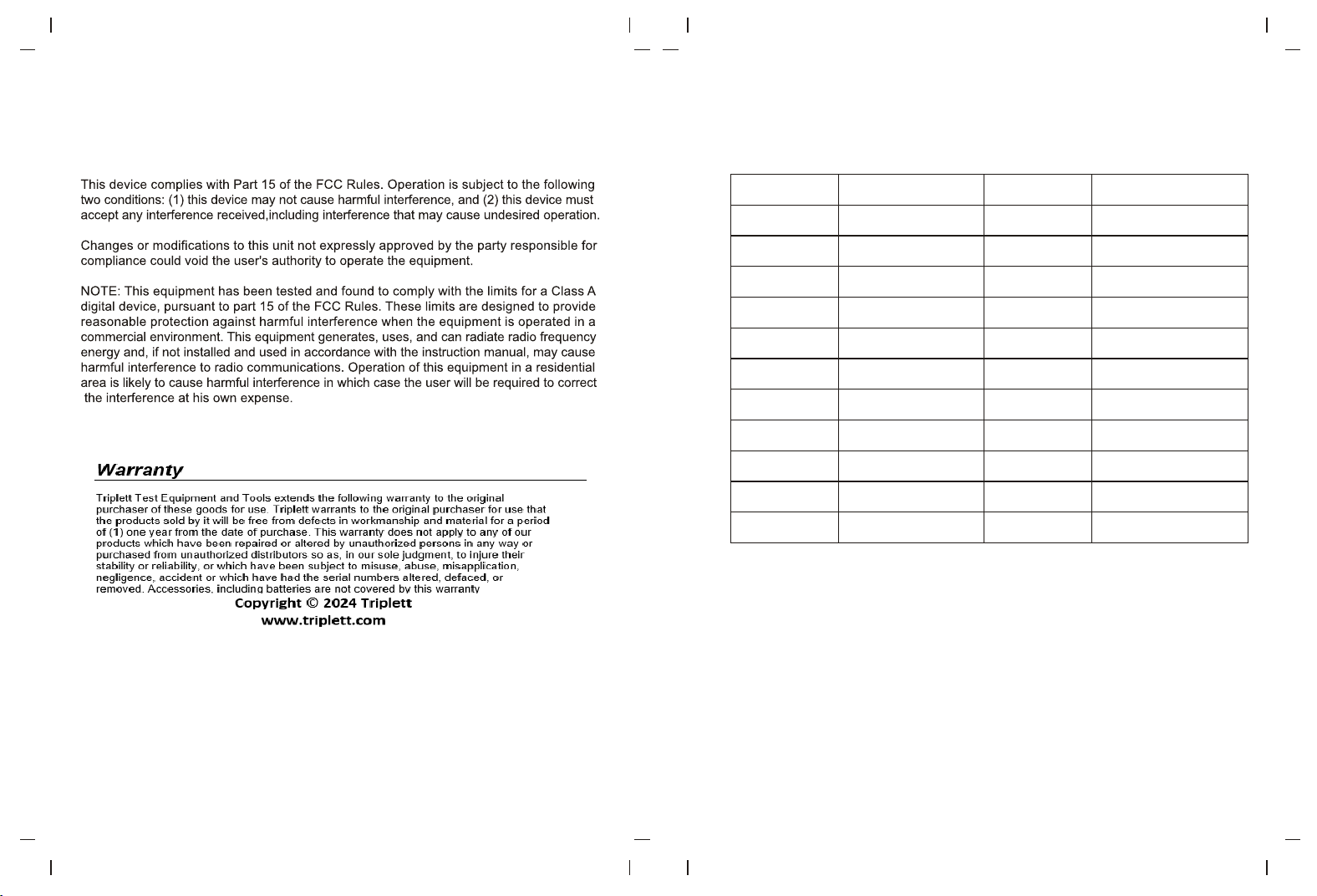
17. FCC Compliance statement ------------------------------------------------------- 21
18. Common emissivity table ---------------------------------------------------------- 21
(9HZ)
2
1
3
4
14
5
6
7
8
9
10
11
12
13
16
17
18
19
20
15
65
8
9
10
11
12
13
20
19
18
17
16
15
14
1
2
3
4
5
6
7
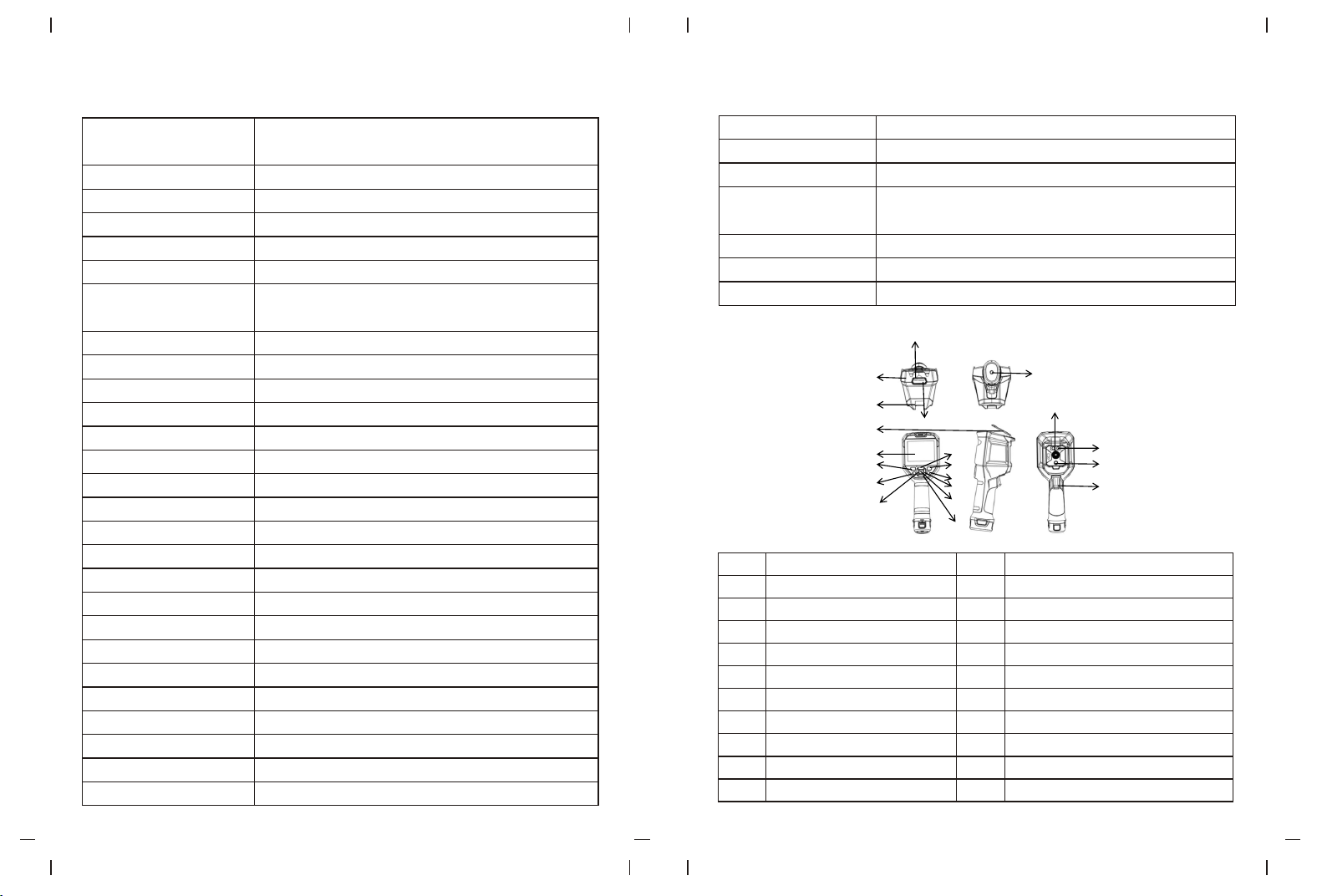
2. Structure
Iron red, rainbow, black heat, white heat,
red heat, lava, and high contrast rainbow
8~14μm
HFOV 56°
Free Focus
2x,4x
5 points,3 rectangles,3 circles, and1 line (add up to 6)
Automatic isothermal, proportional isothermal, downward
isothermal, upward isothermal, interval isothermal,
and manual isothermal
Center point temperature, and high/low temperature tracking
℃ ℉(default)、 、K
Yes (LED lighting alarm, and LCD animation alarm)
Thermal imaging, visible light, fusion, and picture in picture
Take pictures, and automatically take pictures
JPG
Temperature analysis, changingswatches, and remarks
Yes
Type-c USB (Charging, real-time image and USB disk storage)
Yes
Yes
Yes (live image, photo download and analysis)
Yes (Photo download and analysis)
Yes
English/French/German/Spanish/Russian
CE FCC UKCA ROHS
0 ~ 50 (32 ~ 122 )℃ ℃ ℉ ℉
-10 ~ 60 (14 ~ 140 )℃ ℃ ℉ ℉
10%~95%RH Non - Condensing ( )
Swatches
Infrared spectral bandwidth
Field of view
Focusing mode
Digital zoom
Temperature Sweep
Vitta tool
Temperature display
Temperature measurement unit
High and low temperature alarm
Image mode
Image capture mode
Image save format
Image browse
QR code scanning
USB communication
WIFI
PC projection screen
PC analysis software
Mobile phone APP
LED lighting
Language
Authentication
Operation temperature
Storage temperature
Operation humidity
5200mAh(Detachable battery pack)
Yes
More than 3h
Less than 4h
Battery
Auto Power -Off
Service duration
Charging period
5V/ 1.5a 9V/1A 12V/1A
Charging voltage/current
(supported only with standard USB charging below QC2.0)
The microSD card supporting 32 GB for maximum
IP54 (IEC 60529:1989+A1:1999+A2:2013 )
2m
Image saving
IP level
Drop height
Description
The USB Type - C interface
Upper casing
Lower casing
SD card slot
Interface protection cover
LCD display
Start key
Lighting key
Left key
Up key
Description
Photo browsing button
Back key
Right key
SET key
Down key
Bracket fixed screw hole
Infrared thermal image window
Lamp
Visible light camera window
Photo trigger key
No.No.
87
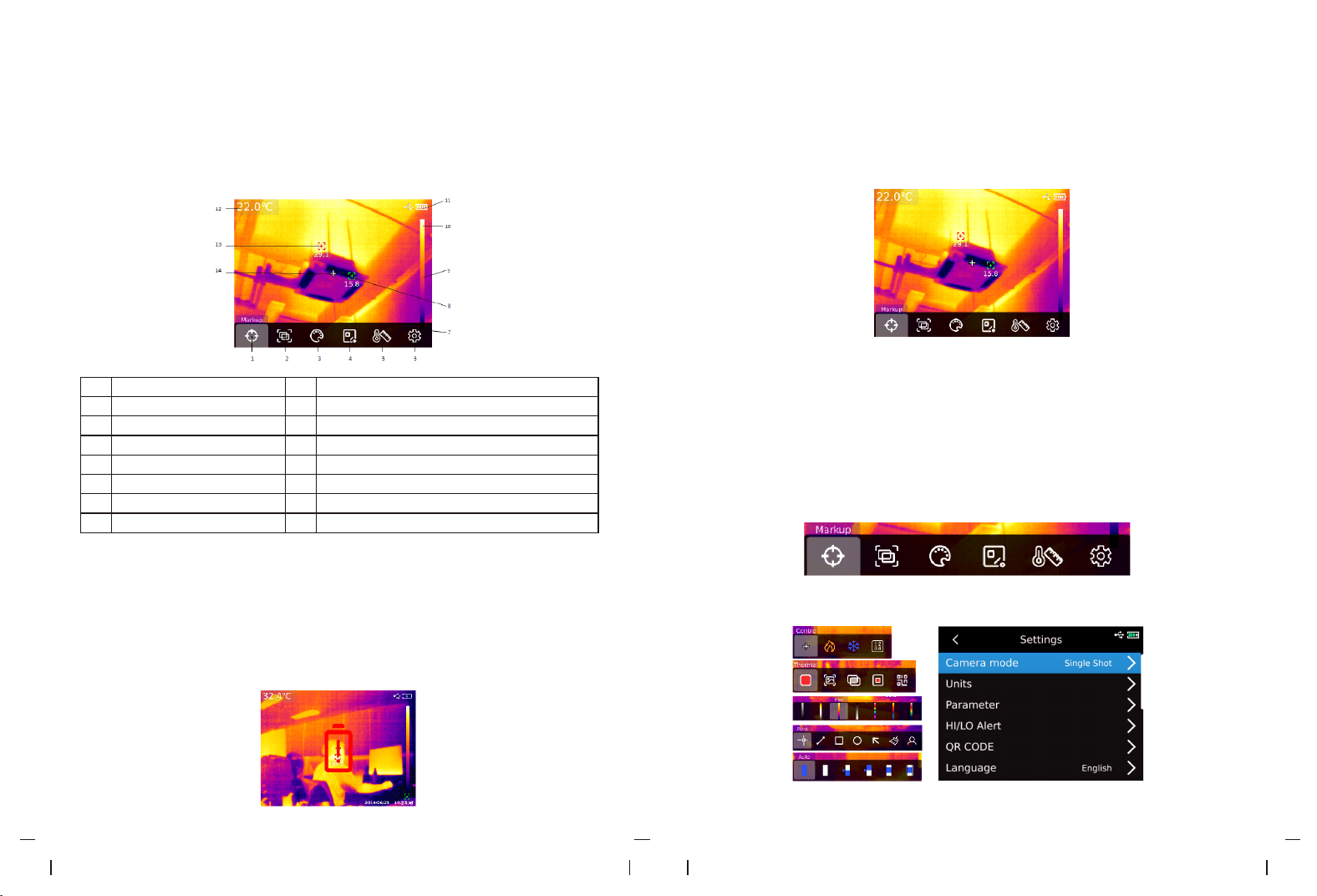
3. Display instructions
Displayresolution: 640×480
8
9
10
11
12
13
14
1
2
3
4
5
6
7
Description
Description
Marking tool
Image mode
Swatches switch
Temperature measuring tool
V
itta tool
System setup
Lower limit of swatchesscale
Automatic tracking of the minimum point
Color temperature bar
Upper limit of swatchesscale
Electric quantity
T
emperature of the measurement central
point
Automatic tracking of the maximum
point
Temperature measurement central point
No. No.
4. Power on-off
Long press the "Power button" for
5 seconds to start up the thermal imaging
device (if
start
up the device just now, the device is not being used for a long time or after the measurement
e
n
v
i
r
o
n
m
e
n
t
c
h
a
n
g
e
s
,
i
t
w
i
l
l
t
a
k
e
u
p
3
0
m
i
n
u
t
e
s
f
o
r
s
t
a
r
t
i
n
g
u
p
t
h
e
d
e
v
i
c
e
t
o
m
e
a
s
u
r
e
t
h
e
temperature). Long press the "Power button" for
5 seconds to turn of
f
the
thermal
imaging
device. When the thermal imaging device is in low power mode, the reminder of low power
will pop up. At this time, the thermal imaging device needs to be turned off to charge. When
t
h
e
t
h
e
r
m
a
l
i
m
a
g
i
n
g
d
e
v
i
c
e
i
s
i
n
l
o
w
p
o
w
e
r
m
o
d
e
a
l
l
t
h
e
t
i
m
e
,
t
h
e
t
h
e
r
m
a
l
i
m
a
g
i
n
g
d
e
v
i
c
e
w
i
l
l
automatically be shut down.
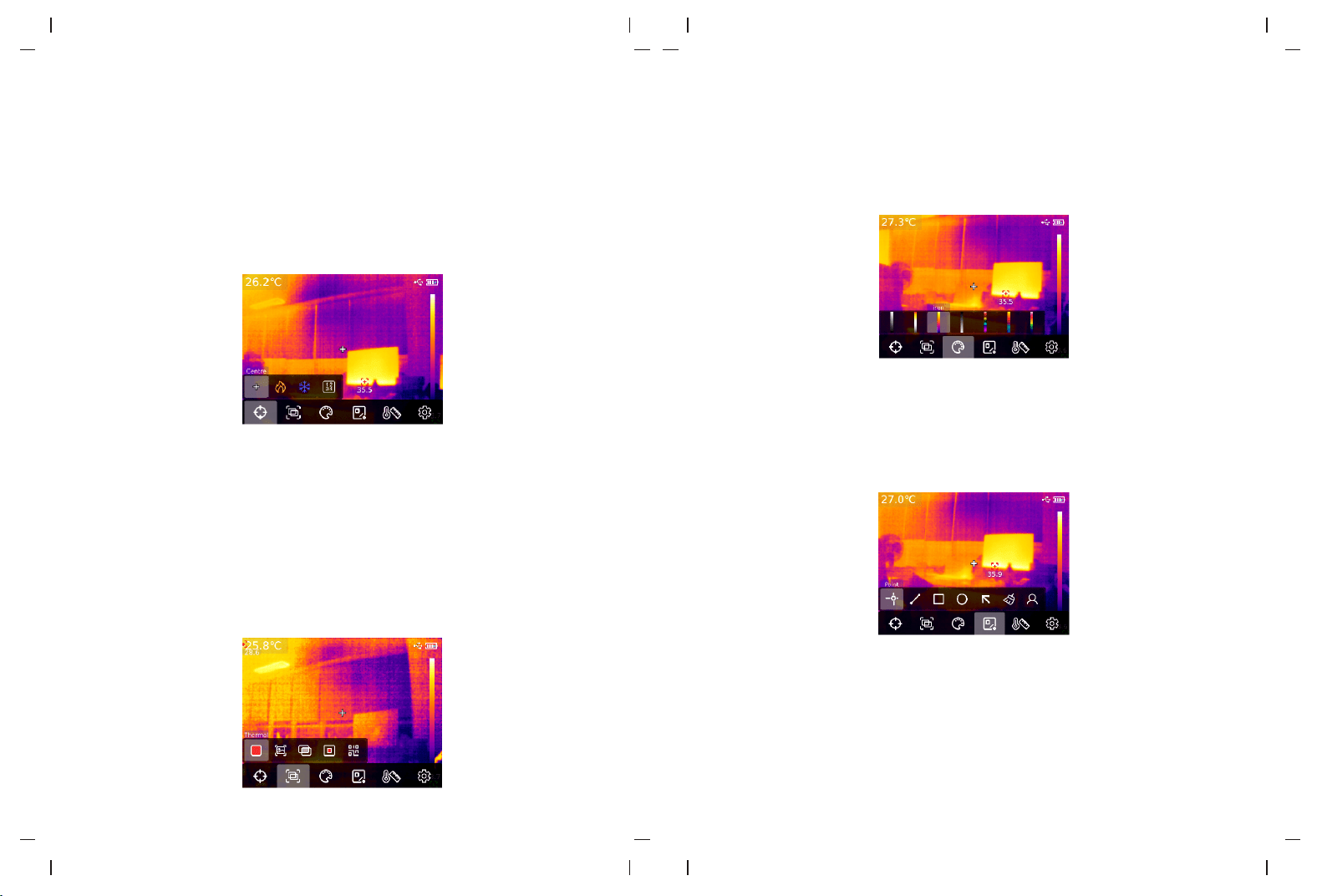
5. Instruction of configuration menu
Configuration options
for main
menu
Main
page
of
the
thermal
imaging
device
1. Press “SET key” on the home page to display the main menu
2.
Press“Left/right
key”
to
select
sub-menu
3. Press“SET key” to enter the corresponding sub-menu
4.
Press “Left/right key”
to
select sub-menu Settings
5. Press “SET key” to select Settings
6. Press “Back key” to return to the previous level and save the Settings
7.
Press "Back key"
again
to
return
to
the
home
page of
thermal imaging
Main menu:
Sub-menu:
109
6. Marking tool
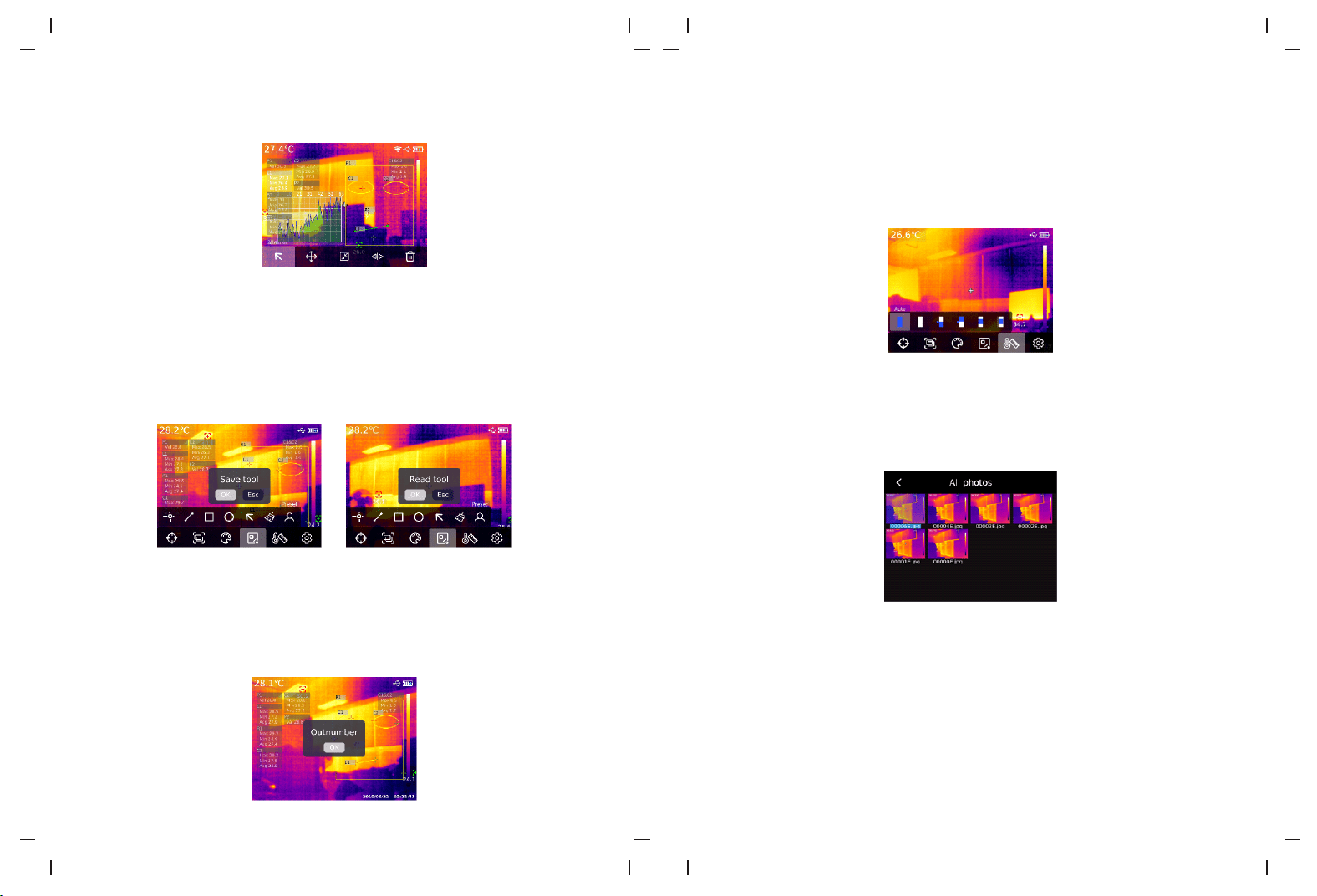
If you need to use the center point/high/low temperature tracking/temperature display
function,press "SET key" to pop up the main menu options, select "Marking tool" by using
left/right key, and then press "SET key" to enter the marking tool sub-menu options and
make selection byusing left/right key. (For example: Press "SET key" to select "Center point".
When cross collimation appears, it means that the center point cursor is opened. Press
"SET key" again, the cross collimation disappears, indicating that the function of the center
point cursor is closed.
7. Image mode
Press "SET key" to pop up the main menu, select "Image mode" by using"Left/right key",
and then press "SET key" to enter the sub-menu options of image mode. You can make
selection byusing left/right key. For example, press"SET key" to select "Thermal imaging"
to switch the image to thermal imaging mode. (In the fusion mode, you can adjust the fusion
ratio by using"Left/right key" and adjust the fusion distance by using"Up/down key". In picture
in picture mode, you can change the position and size of the picture in picture by selecting
Move or Stretch by using"Left/right key". Press "SET key" to select "QR code", you can
manually enter the QR code or scan the code to obtain QR code, and select "Cancel" to
return to the main page).
8. Swatches switching
Press the "SET key" to pop up the main menu options, select "Swatches Switch" by using
"Left/right key", select the required swatches by using "Left/right key", and there are seven
swatches available: white hot, red hot, iron red, black hot, high rainbow, lava, and rainbow.
9. Temperature measuring tool
Press the "SET key" to pop up the main menu options, select "Temperature measuring tool"
by using "Left/right key". By using "Left/right key",select the analysis object type (including
point temperature measurement, line temperature measurement, rectangle, and circle) and
select the target (this function can be used only when the analysis object is added on the
home page). Clear all and preset tools.
Press"SET key" to add point, line, rectangle and circle temperature measurement analysis
objects, and the sub-menu bar of "Select thetarget" will pop up automatically. Select the
required functions by using "Left/right key", including following functions: select, move,
stretch (for the point temperature measurement analysis object, it cannot be stretched),
comparing (for the point temperature measurement analysis object, it can only be compared
with point temperature measurement analysis object, and corresponding comparison
information will be displayed on the right after comparison), and delete (only the currently
selected temperature measurement analysis object can be deleted). After adding the
temperature measurement analysis object, the corresponding temperature information will
be displayed on the left side. When select the line temperature measurement analysis
object, the temperature curve of the line area will be displayed in the lower left corner.
1211
After pressing"SET key" to clear all functions, all temperature measurement analysis objects
on the current page will be cleared. If there is the temperature measurement analysis object
on the home page, press "SET key" to select the preset tool, and the "Save Tool" prompt
box will pop up. If you select OK, the current analysis object will be saved and the preset
tool can be used next time. If there is no temperature analysis object on the home page,
press"SET key" to select the preset tool, and the Read Tool dialog box will be displayed. If
you select OK, the preset tool saved last time will be added to the home page.
Note: The maximum of five point temperature measurement analysis objects can be added.
Forthe line temperature analysis object, it can be addedonly one.The maximum of three
rectangular and circular temperature analysis objects can be added. The total number of
temperature measurement analysis objects cannot exceed six. If the number of analysis
objects exceeds the threshold, will not add any analysis objects and will display the message"
Out number".
10. Vitta tool
Press "SET key" to pop up the main menu, and select "Vitta Tool" by using "Left/right key".
Select the desired vitta tool by using "Left/right key". Six isothermal modes can be selected:
Auto isothermal, Proportional isothermal, Down isothermal, Up isothermal, Interval isothermal,
and Manual isothermal.
11. Photo view and edit
On the main page, press the "Photo view key" to enter the multimedia view. Press "Up/Down
key" to select all photos/videos or other folders, and press the "SET key" to enter. Press
"Up/Down/Left/Right key" to select the picture you want to view, press"SET key" to view the
picture, and switch the picture using "Left/right key".
Press "SET key", the picture interfacesub-menu will appear, press "Left/right key" to select
the photo message and modify remarks (after adding remarks, you can view them in the
photo message), state editing (it can be used for second editing of the marking tool,
image mode, swatches switch, temperature measurement tool, vitta tool and other
functions on the original picture, and the function is basically the same as the main page
function), QR code (it can be added to the existing QR code for picture classification. After
classification, you can view the corresponding QR code classification pictures in different
folders, and can also delete the QR code of the current picture or add a new QR code.The
new QR code is not added here for folder classification), and delete photos.
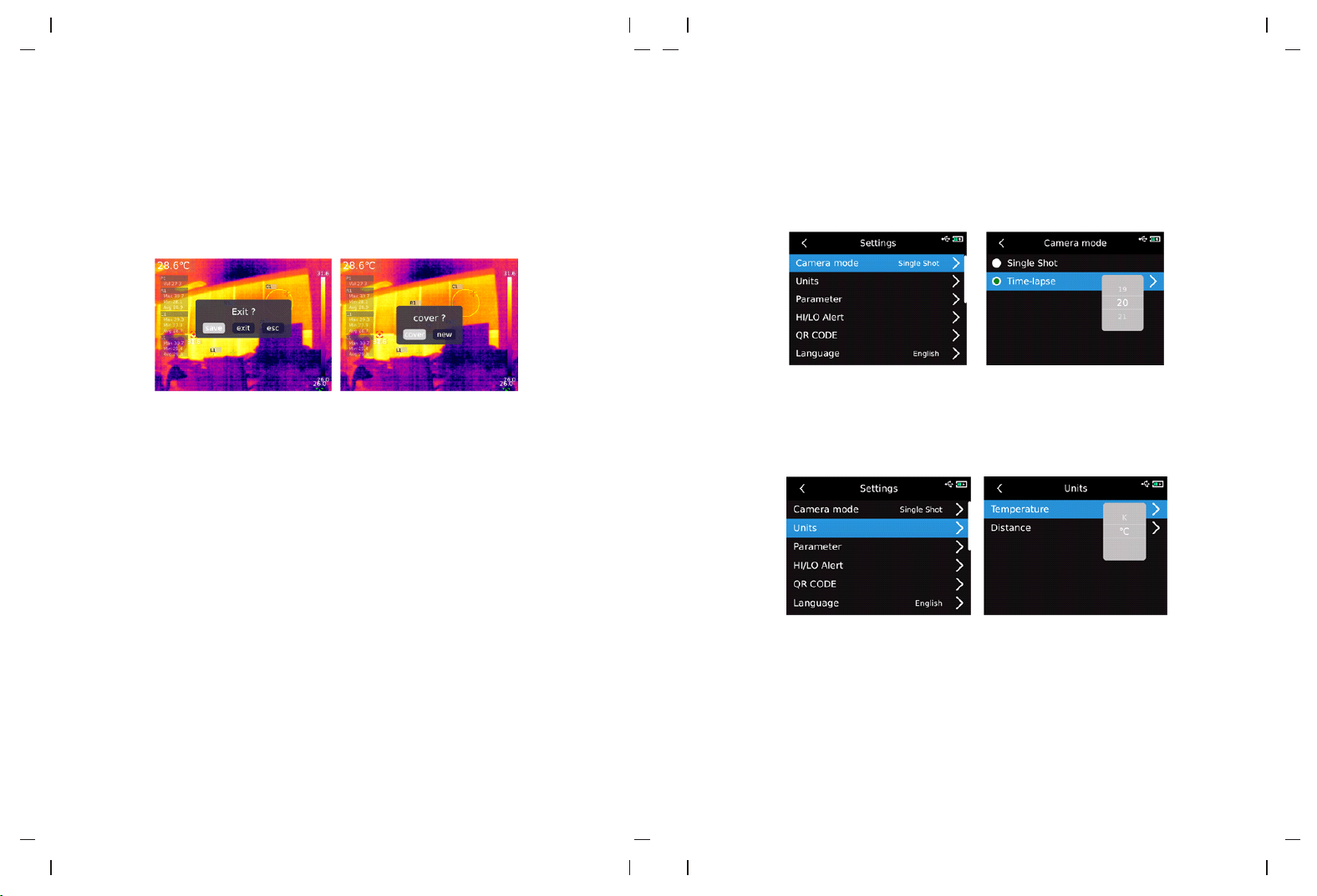
1413
Note: After editing on the status editing page, press "SET key" to open the status editing
sub-menu, select Recovery by using"Up key", and press "SET key" to restore the picture to
the initial state. After editing, press "Back key". The message Exit or Not will be displayed.
If you select Exit, the editing page is directly exited. If you select Save, the message"Cover
or not?" will be displayed. If you select Cover , change the original image and save it, then
back to the view page. If you select New , the original image will not be changed, one new
image will be added and back to view page.
After adding QR code, press "Back key" and the message"Save and exit" will pop up to
confirm, then the added QR code will be saved. If you select Cancel, the QR code will not
be saved and exit the QR code editing page. For QR code added here, it will not be saved
to the existing QR code category. If you need to modify the existing QR code, just modify it
in the Settings.
12. Digital amplification & fusion ratio adjustment
On the home page, press "Up key" to enlarge the screen, and the corresponding magnification
factor will be displayed in the upper right corner of the screen. For the switch of magnification
factor, it isswitched with the cycle of 1X, 2X, 4X and 1X.
On the home page, press"Left and right key”to adjust the degree of fusion. The degree of
fusion adjustment is 0%, 25%, 50%, 75% and 100% respectively.
13. System setup
Press "SET key" to enter the sub-menu, select different Settings by using"Up/Down key".
Press "SET key" to enter the secondary page for setting, including: camera mode, units,
parameters, alarm, QR CODE, language, date, time, Wi-Fi, USB mode, brightness, automatic
shutdown, factory reset, and about Settings. Click "Back key" to return to the first-level menu
on the setting page, and click the "Back key" again to return to the main menu.
13.1 Camera mode
After entering the first level menu on the Setting page, select "Camera mode"option, press
"SET key" to enter the sub-menu of "Camera Mode", and use "Up/Down key" to select
Photo/Auto photo. If select automatic photo taking, press"Up/Down key" to set the automatic
photo taking interval (10s-1000s is optional).
13.2 Units
After entering the first-level menu on the Settings page, select "Units" option and press
"SET key"to enter the sub-menu of "Units". Use "Up/Down key" to select the temperature/
distance. When select a temperature, press"Up/Down key" to select the temperature unit
(°C /K/℉). For distance units, they cannot be changed.
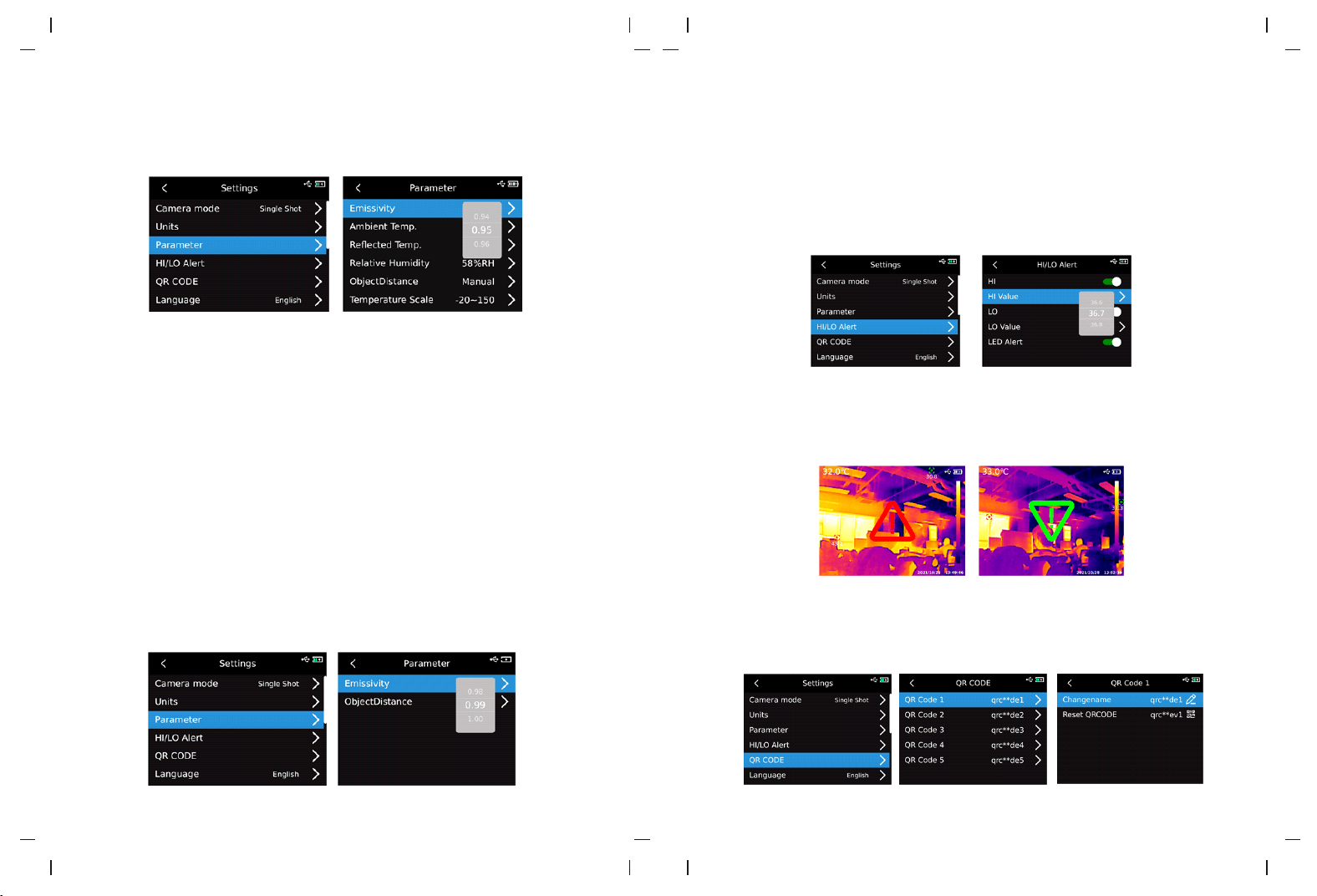
13.3 Parameters
After entering the first-level menu of the Settings page, select the "Parameter" option and
press the "SET
key" to enter the sub-menu of "Parameter". Select emissivity/ambient
temperature/reflected temperature/relative humidity/object distance/Temperature scale
through the "Up/Down key". Press"SET
key" to select the parameter you want to change,
and press "Up/Down key" to select the value for the parameter.When setting the object
distance parameter, press the "SET key" to enter the "Object distance" sub-menu, and then
use the "SET
key" and the "Up/Down key" to modify the parameter.
Low temperature scale: -20°C~150°C
High temperature scale: 0~550°C
1615
Note: It takes about 20 seconds to switch the temperature scale. Wait until the switch is
stable before performing other operations or measuring the temperature.
1. Please refer to 18 Emissivity table;
2. If you cannot determine which value to use, it is recommended to use the following
default values:
Emissivity 0.95
Ambient temperature 25℃
Reflected temperature 25℃
Relative humidity 55%RH
Object distance 0.25m
Note: Emissivity and reflected temperature are the two most important parameters that
need to be set correctly. If you are in doubt, please use the default values.
:
After entering the first-level menu of the Settings page, select "Parameter"option and press
"SET key" to enter the sub-menu of "Parameter". Select emissivity/object distance through
"Up/Down key" and press "SET key" to select parameters to be changed. Press"Up/Down
key" to select the value for the parameter. When setting the object distance parameter,
press "SET key" to enter the sub-menu of "Object distance", and then use the "SET key"
and the "Up/Down key" to modify the parameters.
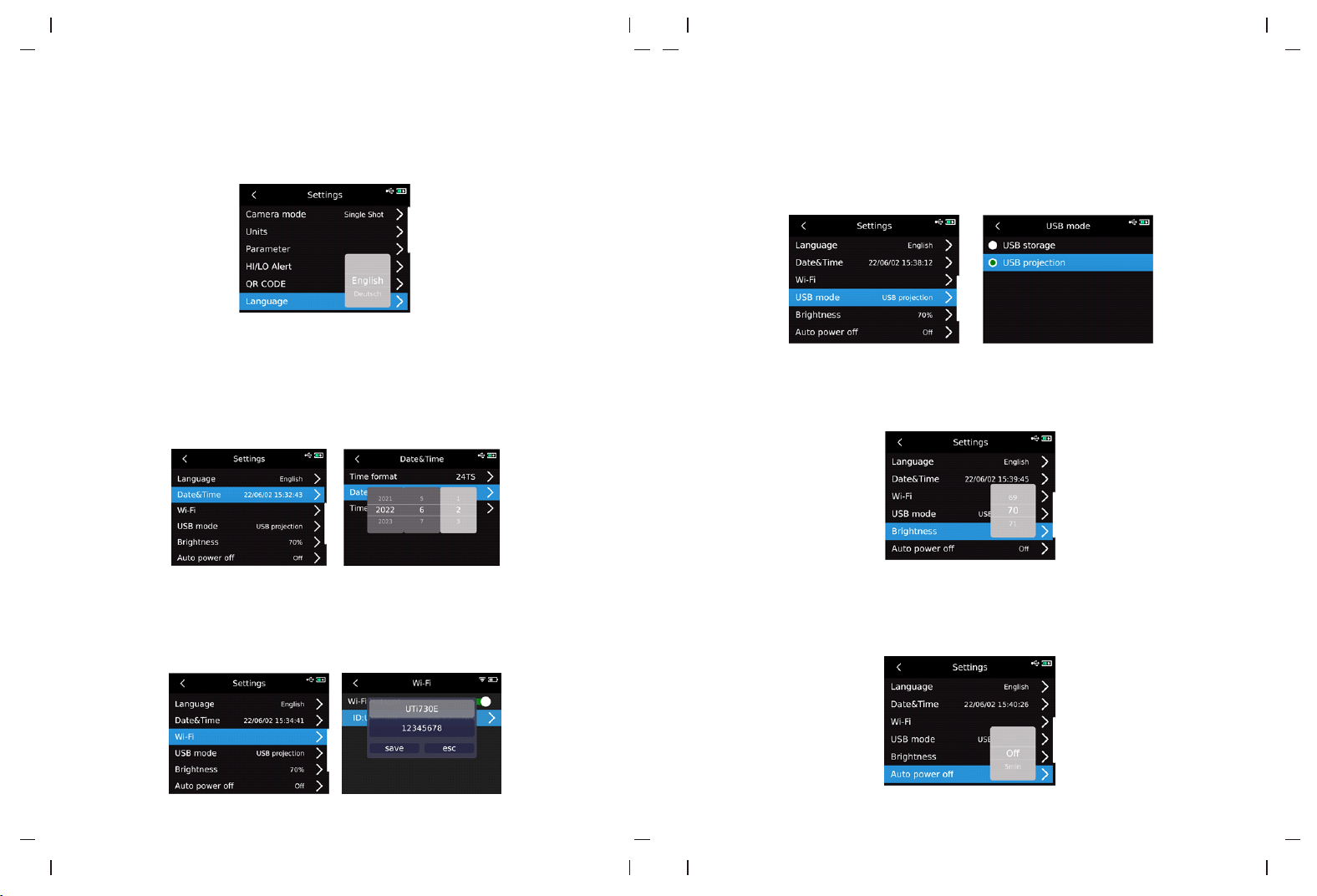
13.4 Alarm
After entering the first-level menu on the Setting page, select "Alarm" option, press "SET
key" to enter the sub-menu of "Alarm", and select the high temperature alarm/low temperature
alarm /LED alarm by using the "Up/Down key". When selecting high temperature alarm/low
temperature alarm, select high/low temperature alarm value by using"Up/Down key", press
"SET key" to select, and set the required value by using"Up/Down key" (UTi720E:
-20℃-550℃ optional, and UTi730E: -40℃~400℃ optional).
When the temperature of the measured object exceeds the high temperature alarm
temperature value, the red positive triangle will pop up. When the temperature of the
measured object is lower than the low temperature alarm temperature value, the green
inverted triangle will pop up.
13.5 QR CODE
After entering the first-level menu on the Setting page, select "QR CODE"option and press
"SET key"to enter the QR CODE sub-menu. Select different QR Codes by using"Up/Down
key"and press "SET key" to enter the change page for QR CODE name /CODE.
1817
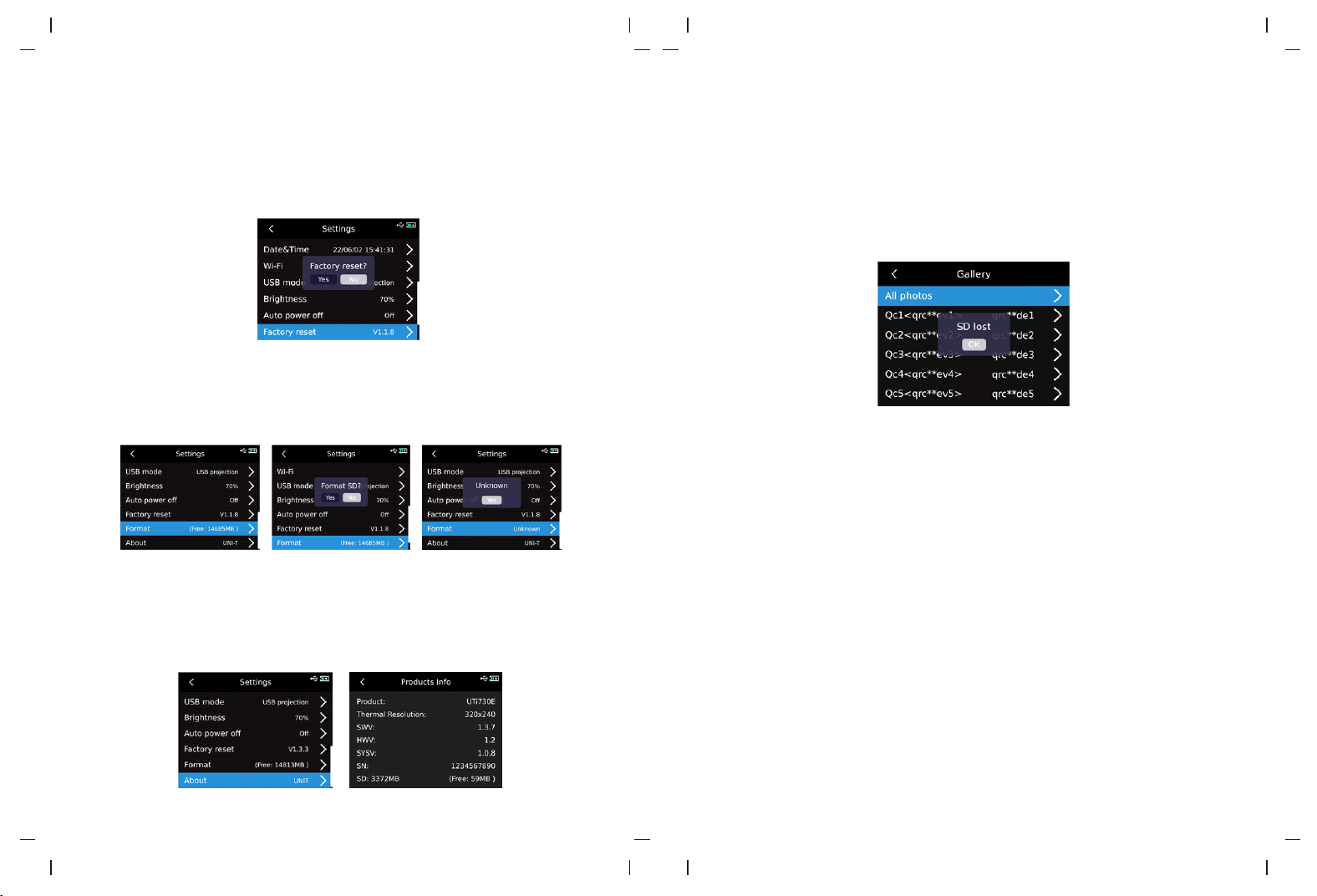
13.6 Language
After entering the first-level menu on the Setting page, select "Language" option andselect
English, French, German, Spanish, or Russian by using"Up/Down key".
13.7 Date and time
After entering the first-level menu on the Setting page, select Date and Time and press"SET
key"to enter the submenu of Date and Time. Press "SET key" to change the time system/
date/time, and change the value by using "Up/Down key". For example, if you want to
change the date, select the change of year/month/day by using "Left/Right key", and select
the specified date by using "Up/Down key".
13.8 Wi-Fi
After entering the first-level menu on the Setting page, select Wi-Fi option and press "SET
key"to enter the sub-menu. Press "SET key" to open theHotspot, press "Down key" to select
the Hotspot ID and password, and set up by using "SET key".
13.9 USB mode
After entering the first-level menu on the Settings page, select "USB mode" option and
press "SET key"to enter the Sub-menu of "USB mode". Select "USB storage /USB Projection"
by using"Up/Down key"and press"SET key" to select.
13.10 Brightness
After entering the first-level menu on the Setting page, select "Brightness" option, and
select the intensity of brightness (1-100) by using"Up/Down key".
13.11 Automatic Shutdown
After entering the first-level menu on the Setting page, select "Automatic Shutdown" option,
and select Off /5 /10 /20 /30 /45 /60 /90 by using"Up/Down key".
2019
13.12 Factory reset
After entering the first-level menu on the Settings page, select the option of "Factory reset"
option, press "SET key", and the prompt "Shutdown and factory reset" will pop up. If you
select Yes, the device will automatically shut down, and the instrument will restore factory
settings after manual startup.
13.13 Formatting
After entering the first-level menu on the Settings page, select the "Formatting" option and
press the "SET key". If there is SD card, the message "format SD card" will pop up? If you
select Yes, will format the SD card. If there is no SD card , the message "Unknown"will be
displayed.
13.14 About
After entering the first-level menu on the Settings page, select "About"option and press
"SET key" to enter the sub-menu of "Product Information". Then you can view product model,
infrared resolution, hardware version, system version, SN, SD capacity and other related
product information.
14. SD Card
The device supports microSD cards to store images. In order to prevent excessive image
data from affecting the operating speed, should periodically copy backup data and clear
the data in the card. In order to avoid data abnormalities caused by hot swap, do not remove
or insert the SD card repeatedly. Try to remove or insert the SD card when it is powered off.
If you remove the SD card when viewing or operating an image, the message "SD card is
lost" will be displayed.
15. Maintain
Clean the structural housing with the damp cloth or weak soapy solution. Do not use the
grinder, isopropyl alcohol or solvent to clean the lens/window of the instrument housing.
16. Safety precautions
In order to guarantee the accurate measurement results, please read the instructions
carefully. Please be sure to use the product according to the instructions, otherwise the
product will not be free of warranty after damage. Do not use the instrument in inflammable,
explosive, humid or corrosive environment. Do not continue to use the instrument when it
is damaged, broken or corrected, which will cause wrong test results. Obtain the actual
temperature by referring to the radiation coefficient information; otherwise, the measured
temperature may be inaccurate.
Do not aim the lens at the hot light source, like the sun, so as to avoid damage to the lens
or thermal imaging detector. Do not use the product in an extremely hot, cold, dusty, or
high-humidity environment. For specific requirements on temperature and humidity, please
see the product parameter table.
The system supports USB cable to charge the device, but in order to improve charging
efficiency, it is recommended to remove the battery pack and charge the battery pack
separately.
2221
17. FCC Compliance statement
18. Common emissivity table
0.85
0.96
0.75
0.14
0.96
0.09
0.06
0.95
0.98
0.96
0.93
0.86
0.8
0.97
0.78
0.81
0.8
0.75
0.9
0.95
0.93
Material
W
ood
Water
Brick
Stainless steel
T
ape
Aluminum plate
Copper plate
Black aluminum
Human skin
Asphalt
PVC
Emissivity
Material
Emissivity
Black paper
Polycarbonate
Concrete
Copper oxide
Cast iron
Rust
Gypsum
Paint
Rubber
Soil