Copyright© 2025 WYBOTICS Co., Ltd. All Rights Reserved.
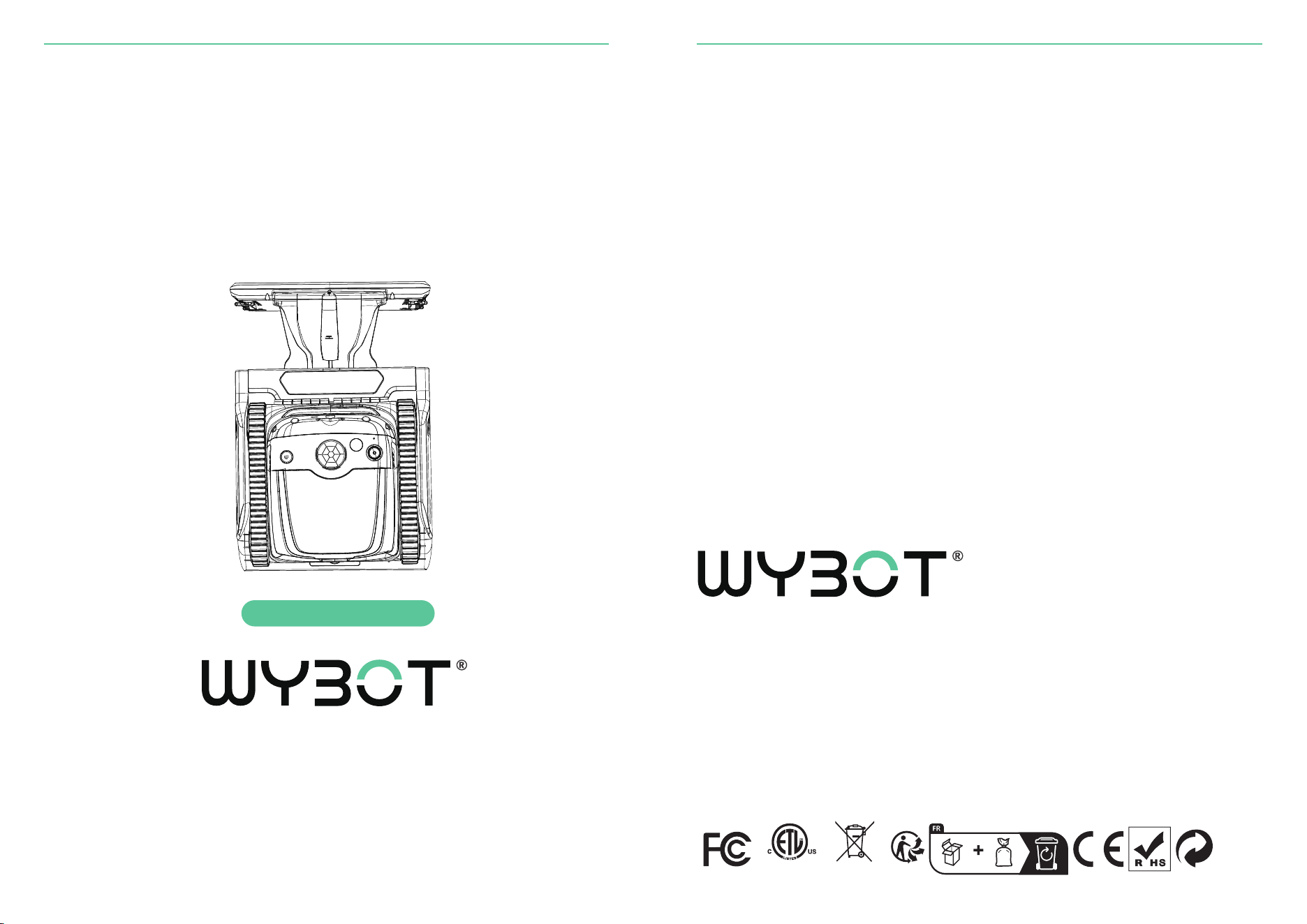
Robotic Pool Cleaner
User Manual
Read through the entire manual before running your new
robotic pool cleaner, and keep this manual handy
for your reference.
www.wybotpool.com
E-mail: [email protected]
Facebook: @WybotPool
WYBOTICS CO.,LTD
No.30,Zhongnan 4th Street West Zone,TEDA Tianjin,China
All trade names are registerred trademarks of respective manufacturers listed.
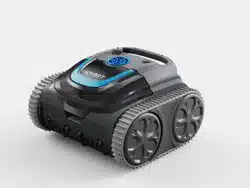
WYBOT S2 Solar Vision

Thank you for choosing WYBOT products, your support means a lot to us. Continu-
ous providing the best solution to free you up from pool cleaning and enjoy your
family time is always our pursuit.
WYBOT Robotic Pool Cleaner is dedicated to serving you high efficiency, low power
consumption, easy operation and thorough pool cleaning work.
Its unique appearance and reliable functions as one-button activation, powerful
suction and scrubbing, fine filtration, smart navigation, remote control, and high
compatibility with various pool shapes and constructions materials assure you a
convenient, intelligent, and optimal pool cleaning.
Feel free to contact us by Email or visit our website with any questions. We are very
glad to hear your advice on our continuous improvement.
Read the manual carefully before you use the cleaner. Your safety is the most
important thing. Please read through and operate the device as per instruc-
tions, WYBOTICS Co., Ltd. is not held liable for any loss or injury caused by
improper use.
Failure to operate the device as per the warnings can result in serious injury,
electrocution or death.
1. Use only the accessories recommended or sold by WYBOTICS Co., Ltd.
2. Use only the original and authorized charging station. Avoid charging any
other types of devices with this station. Improper use may result in
overheating or corrosive liquid leakage from the battery.
3. Cut off power supply when doing any maintenance or removing it from the
pool.
4. In case of any abnormal operation from the charging station, cut off the
power supply immediately, and remove the robotic cleaner from the
station. Contact professionals at once.
5. Ensure the charging port is dry before plugging in the charger end.
6. Make sure the electrical outlet is protected by a ground fault circuit
interrupter (GFCI) and an earth leakage interrupter (ELI).
7. Do not use a cord-damaged charger to avoid any electrical shock.
8. Do not try to use nonauthorized extension cord to connect the charger to
the robot.
9. Never allow children to ride on the cleaner/docking station or play with it
as a toy.
10. Do not allow child to operate or maintain the device or docking station.
11. Do not enter the pool when the robot is working in it.
12. Never expose or charge the device in flammable environments.
13. Only licensed professionals can disassemble the sealed parts of the
robot.
Warning
Safety Instructions
Cautions
Safety Instructions
Failure to operate the device as per the cautions can cause a damage to the
device.
1. Install the solar panel and docking station following the steps in the manual.
2. If the pool liners comes away or is damaged, please repair it before intall the
docking station onto the wall.
3. Charge the unit before first use.
4.
Do not over charge the cleaner, which will reduce the battery life.
5.
Charge the cleaner prior to being stored for a long time (over 6 months) to main-
tain an optimal battery life.
6.
Do not operate the cleaner while pool filter is running.
7.
Remember to wash and clean the filter basket and ultra-fine filter after each use.
8. Store the cleaner in a cool and ventilated place, away from direct sunshine
or any heat source.
9. No stepping onto the solar panel or putting pressure onto the surface.
10. Use only the pool cleaner in the following water conditions:
Max 4 mg/L
7.0 - 7.8
41 - 95 ℉ (5 - 35 ℃)
Maximum 5000 PPM
Chlorine
pH
Temperature
NaCl
01
01
03
04
05
06
07
07
10
10
1 1
1 2
13
14
15
16
17
17
18
20
20
CONTENTS
01 / WYBOT AT A GLANCE
Product External Overview
Product Internal Overview
Packing List
02 / INSTALL SOLAR KIT
03 / HOOK UP DOCKING STATION
04 / GET STARTED
Charge your new WYBOT
Setup your new WYBOT
Connect to your App
Choose your cleaning mode
Dirt hunting (floor cleaning)
Run your new WYBOT
05 / DO A FILTER CLEANING
06 / PUT BACK TO DOCKING STATION
07 / DEVICE SPECIFICATION
08 / LIMITED WARRANTY
09 / HOW TO MAINTAIN YOUR DEVICE
10 / FAQ & TROUBLE SHOOTING
11 / CERTIFICATION
12 / WYBOT CUSTOMER CARE
01 / WYBOT AT A GLANCE
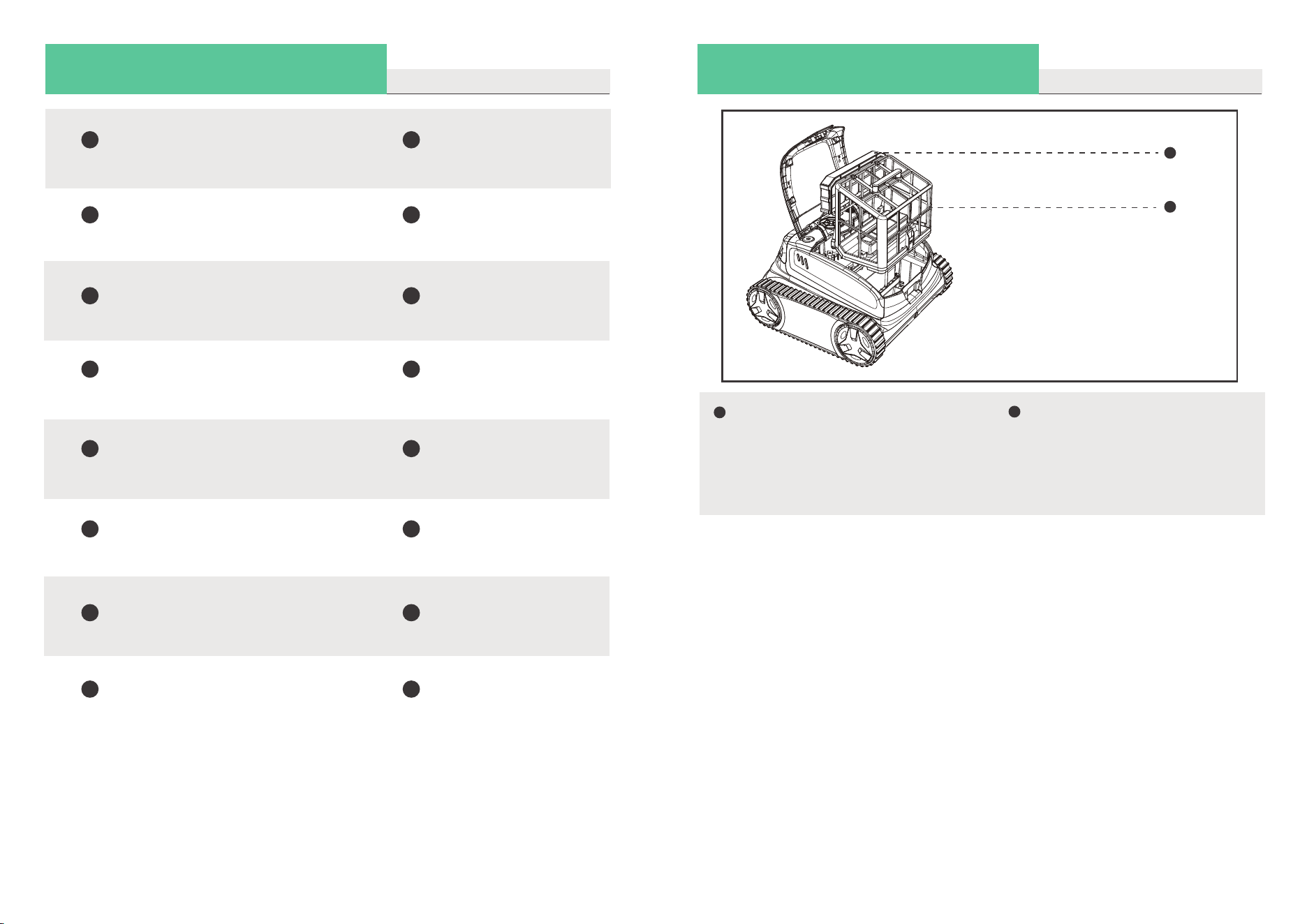
Product External OverviewProduct External Overview
01
9
Solar Kit
Docking Station
10
11
12
13
14
15
16
Robot
6
7
8
1
2
3
4
5
Product External Overview
01 / WYBOT AT A GLANCE
Product Internal Overview
01 / WYBOT AT A GLANCE
02 03
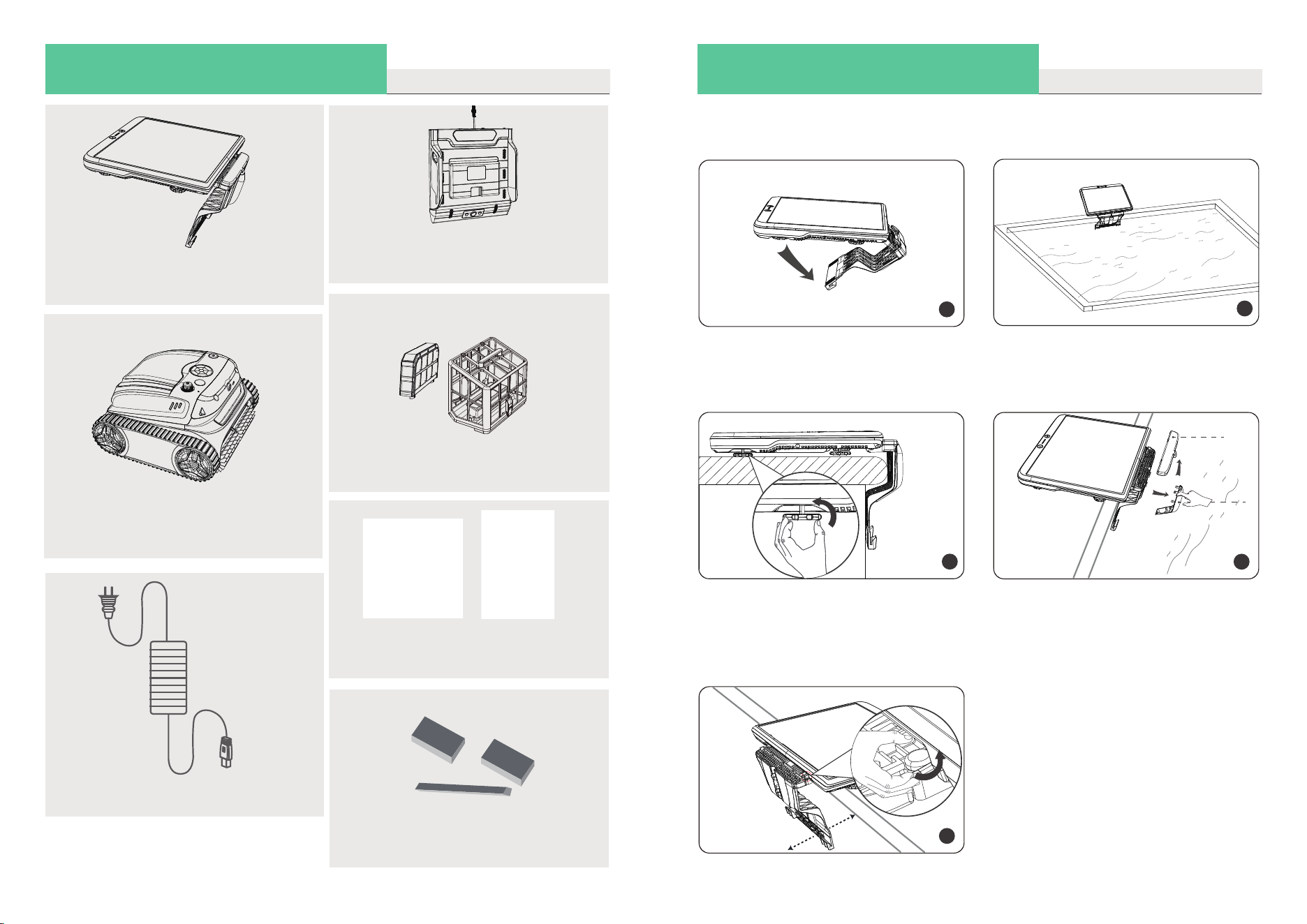
Filter Basket
Store collected dirt and debris,
remember to install it before start
cleaning, and wash it after each use.
Ultra-fine Filter
Cotton foam is an auxiliary filter to help
trap the fine dirty particles.
Recommend
to use it for floor cleaning.
Please do not install it when the pool
water is heavy dusty, it may influence
the operation of the cleaner.
1
Home Button
Call the robot back to
the docking station.
2
LED indicator
Tell current statues
of the robot.
3
Start Button
Start the solar panel
and routine cleaning.
4
Solar Panel
Charge the robot.
5
Level Screw
Adjust the position of
the solar kit.
6
Protective Cover
Protect the solar kit.
7
Angle Adjustment Screw
Adjust the angle of solar
kit to fix the station well.
8
Hook
Hook up the docking
station.
9
Power Connector
Connect the docking
station to the solar kit.
10
on/off Button
Turn on/ turn off the device
11
Pump
pump out water through
the window
12
Camera
Starts working when running
Vision Mode
13
Charging Port
Connect the charger
14
Handle
Remove and transport
the device with it
15
Scrubbing Brush
Knock loose all dirt and
roll them all into the
device
16
Track
Enhance device’s capability
in climbing walls and various
obstacles
17
18
17
18
04 05
Filters x 2
Docking Station x 1
Charger x 1
Use Guide x 2
Floating Blocks
01 / WYBOT AT A GLANCE
Packing List
Robot x 1
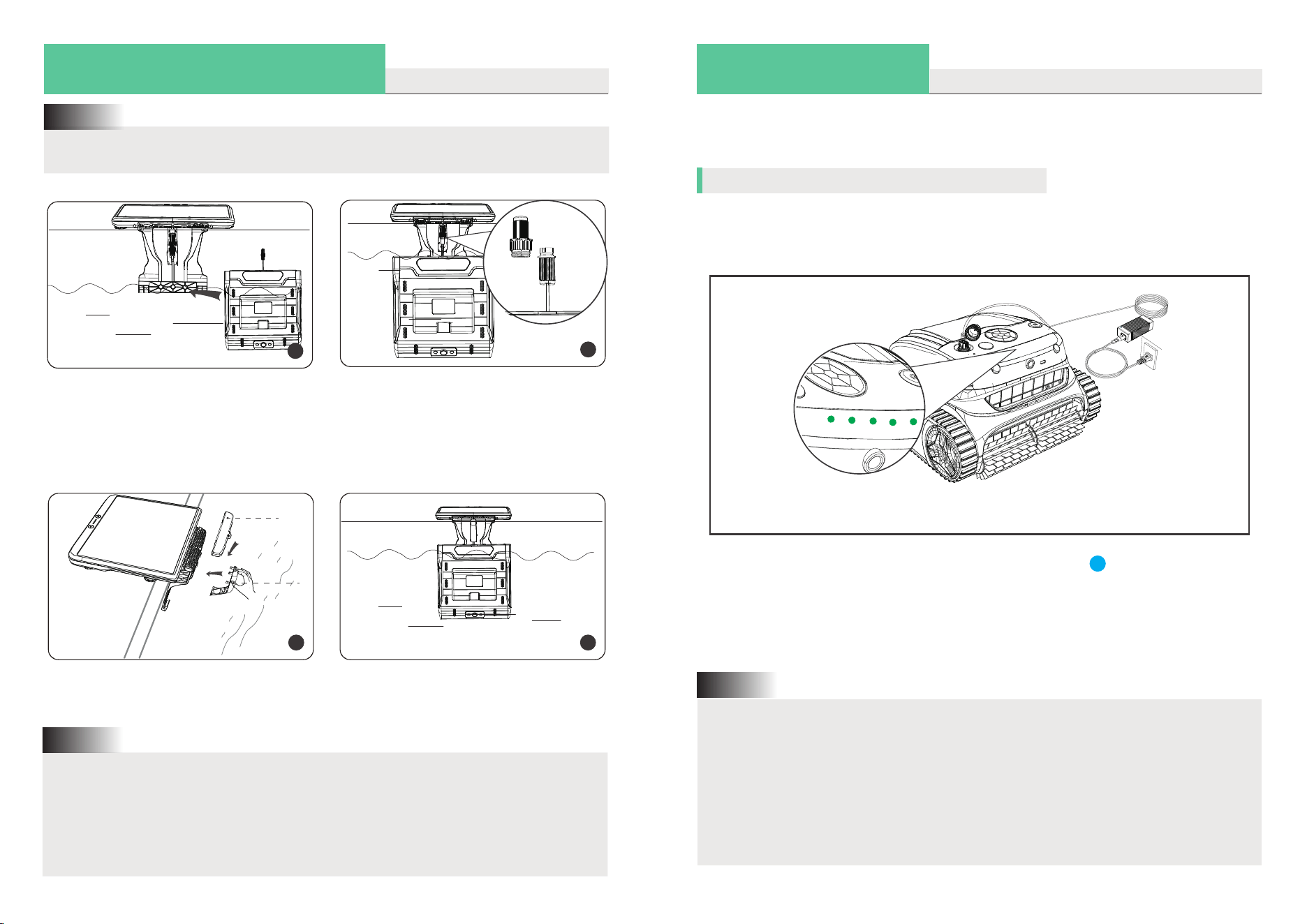
02 / INSTALL SOLAR KIT
1
2
To keep the robot always enegetic, the solar kit supplying power continuously to
the robot should be installed well.
Take out the included solar kit and unfold
the hook to the vertical position.
Put the solar kit onto the pool deck where
surface is flat and there is no steps or
ladders around.
3
Adjust the height of the level screws on
the bottom of the solar kit, ensuring the
solar panel on the deck is flat enough.
4
Remove the covers (the order is a then b.)
on the solar kit, and put them aside.
a
b
5
Adjust the height of the screw to ensure the
hook press against the wall tightly, and
tighten them after fixing.
Solar Kit x 1
04 / GET STARTED
Charge your new WYBOT
07
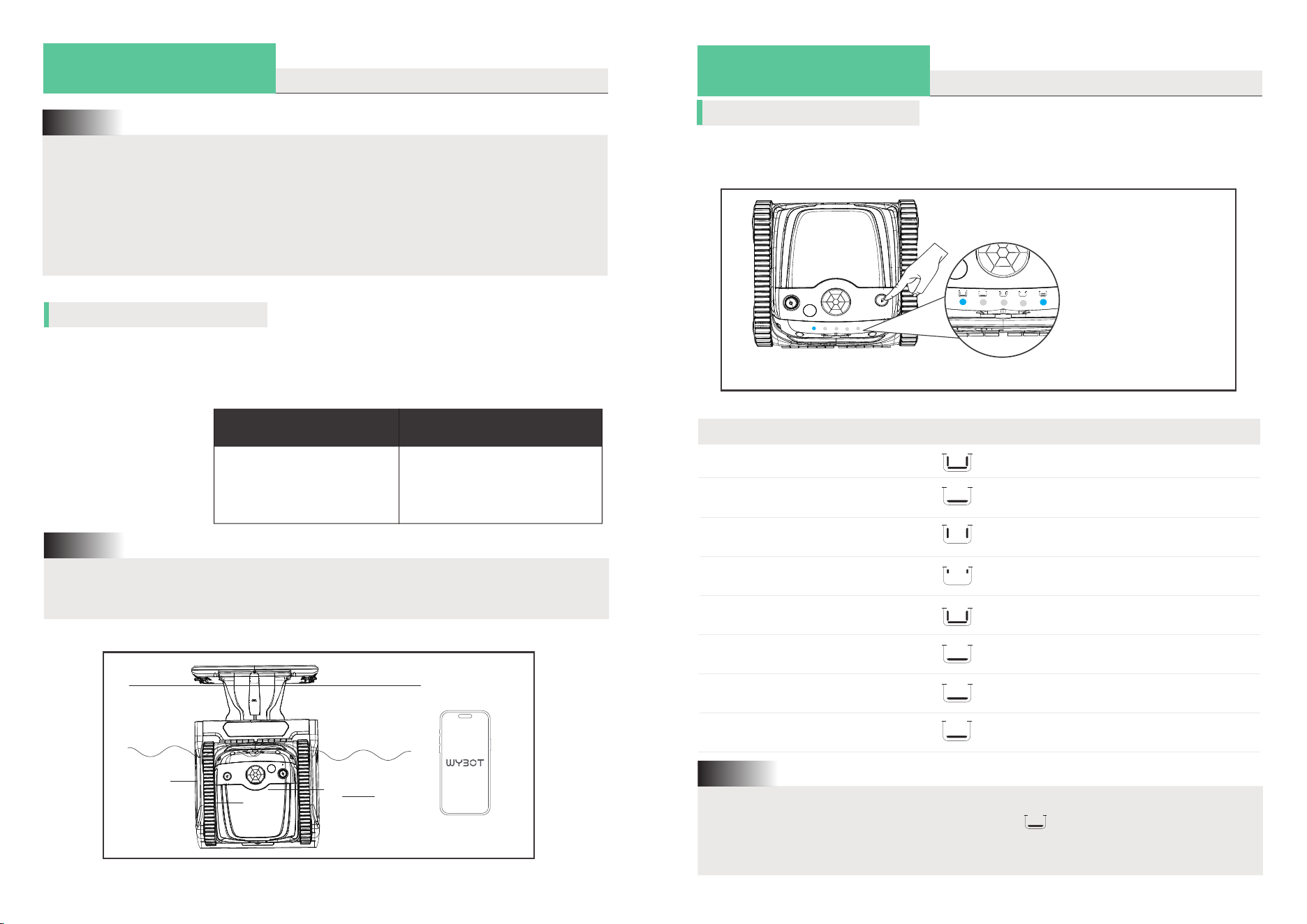
The device has a lithium-ion rechargeable battery, and you need to charge the
battery before first use and when the battery is low.
1. When charging ,you should ensure your device at least 3m (appr. 10ft) away
from the edge of the pool.
2. For reducing fire risk, keep your device and adaptor away from direct
sunshine or water when charging.
3. For your important safety, you need to double check the device is powered
off and the charging port is dry before charging.
4. The best charging environment is temperature at 32℉ -95℉ (0℃ -35℃), RH
at 5%-95%.
Note:
Fully Charged!
The adaptor has an indicator, Which will display blue light indicating the power
supply status.
The LED indicators on the top of the cleaner turn solid green light when fully
charged.
03 / HOOK UP DOCKING STATION
Note:
You should avoid put any pressure onto the solar panel when installing it.
Hook up the docking station to the solar
kit, keeping the whole set stable after
installation.
1
2
Unscrew the protective caps on the ends
of solar kit and docking station, and then
connect them to form a complete power
cable.
Put the covers (the order is b then a.) back
to the solar kit.
3
a
b
1. You should ensure the place where the docking station installed is flat and exists
no damage if your pool surface is PVC.
2. Please keep the cable ends of both solar kit and docking station are dry
before screwing them together.
3. The water depth of the installation area shall reach 1.2m at least, and there
should be no steps, sitting area or light under the docking station.
Note:
Complete the whole installation.
4
Connect your device to a power outlet using the included cable and adaptor.
Charge your robot using DC charger
06
04 / GET STARTED
08 09
Charge your new WYBOT
Charge your robot using solar panel
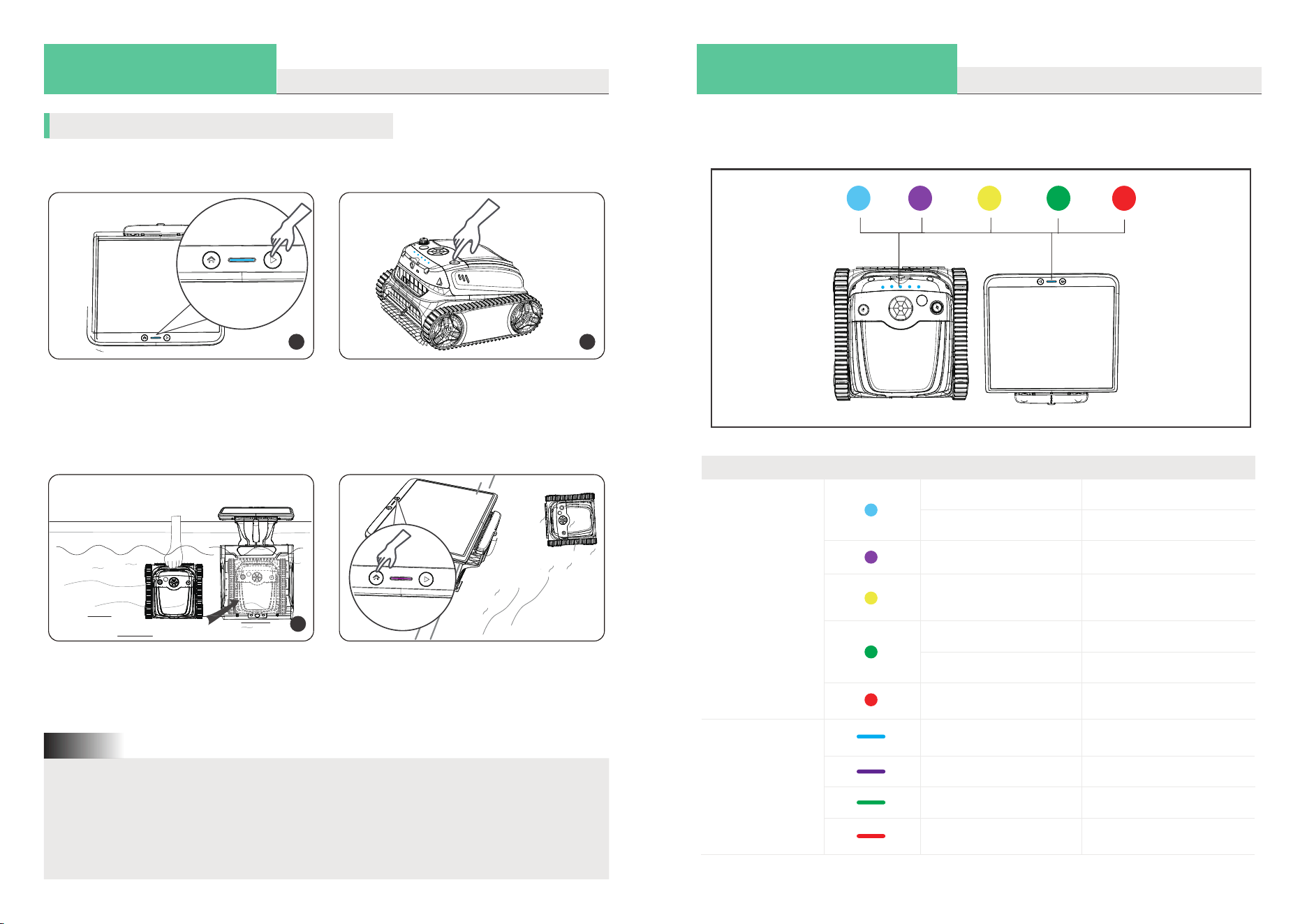
After installing your solar kit and docking station, you can start charging your
robot.
Turn on the device by pressing the on/off
button. The LED indicator on the top will
display a solid green to display current
battery level and then a solid blue when
the device is on.
2
3
Hold the handle of the cleaner, emerge the
robot into the pool. Put it directly onto the
docking station to start charging after
shaking off inside air.
1
Press the start button on the solar kit to
turn on the solar panel and docking sta-
tion. (If no light is indicated, please leave
the solar kit and docking station under
the sun for 2 hours.)
1. Keep your docking station beneath the water when staring charging.
2. No charging devices on shore using docking station.
3. When sending orders to the robot using solar kit, you need waking the device
first pressing any button onside, then starting sending orders.
4. If the weather is not favourite, or the robot is at low battery, recommend to put
the robot onto the docking station directly.
Note:
Below is the indication of the LED lights, you may refer to it to know different device
status.
Charge your new WYBOT
04 / GET STARTED
LED Light Indication
Solid
Flashing
Solid
Flashing
Solid or flashing
Status
Power On
Under working
Connecting to App & Current
cleaning mode
Low battery or under
self-parking in the pool
Fault
Flashing
Solid
Charging in progress
Fully charged
Device
Robot
Solid
Solid
Solid or flashing
Solid or flashing
Power on
Able to control the robot
charging
Fault
Solar Kit
Or, you can put the robot into the pool
vertically. Wait until the robot has
completed self-calibration. Press the
home button to call it back to charge.
10 11
04 / GET STARTED
Setup your new WYBOT
Choose your cleaning mode
You can choose a cleaning mode for your cleaner through the app after connecting
to your App or pressing the ‘on/off button’.
Cleaning Mode
Standard full pool
(First choosing from App only)
Floor only
Wall only
Wall then floor (Combo)
Cleaning Coverage
Wall+ Floor+Waterline
Pool floors
Pool walls
Wall *1+ Floor *1
Eco floor
(First choosing from App only)
Eco mode, floor cleaning only
Vision cleaning tech indication
Vision-based floor cleaning
is on
Icon (Robot)
1. The default mode is ‘Wall then floor’, and you can customize each icon’s specific
mode using the app. Eg, set up that the icon ‘ ’ represents Turbo floor mode.
2. If the device restarts, it will automatically enter the cleaning mode you set
last time.
Note:
Turbo floor
(First choosing from App only)
Powerful cleaning mode
(floor cleaning only)
Waterline only
Pool waterline
1. For maintaining a favourite working status, you need to keep the docking station
always being powered on.
2. When yellow light flashes, the robotic pool cleaner will back to the docking
station for the inductive charging.
3. If red LED light is on, you can find solution from trouble shooting in this manual
or call for service.
Note:
You can download the WYBOT App to your smart mobile device by scanning QR
code below, or from Google Play or App Store.
Connect to your App
iOS
iOS 15.0 or later
Android 8.0 or later
Android
Before connection to your App, please ensure your cleaner is charging on the
docking station.
Note:
04 / GET STARTED
Setup your new WYBOT
Select a mode by
pressing the on/off button
VISION
12 13
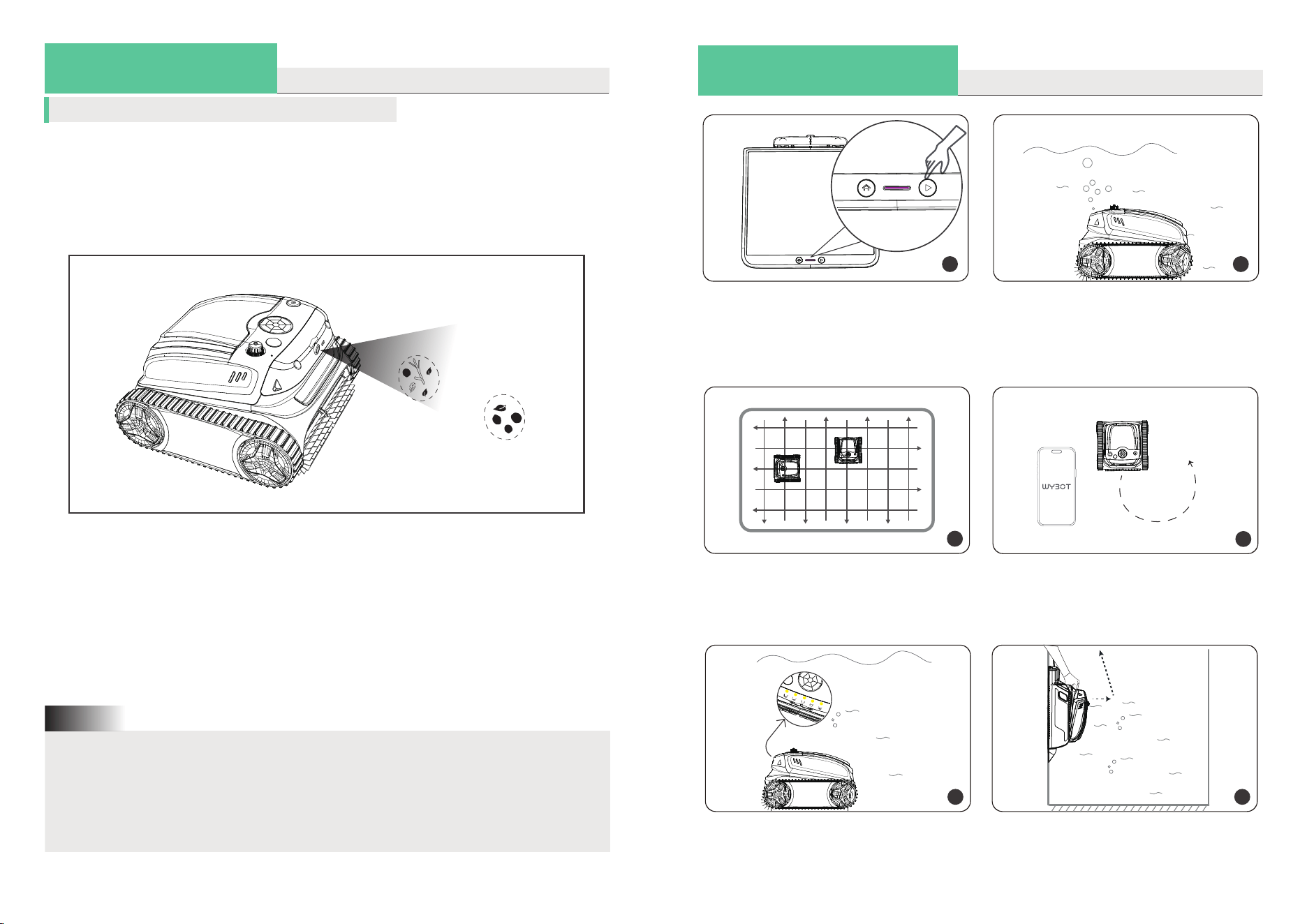
1
Press the start/stop button on the
docking station or click the start
cleaning button on the APP to start
the pool cleaning.
2
Let it move back to the pool floor.
3
The robot begins to clean walls, floor
and waterline as default or your set
through App.
4
You can control the cleaner remotely
and complete the specific area
cleaning via the App.
5
The robot will automatically move to
stop by the edge of wall when fini-
shing cleaning or battery low.
6
Remove the robot out of the pool, and
power it off.
04 / GET STARTED
Run your new WYBOT
Dirt hunting (floor cleaning)
2
4
If you have opened the “Dirt hunting” setting through the APP, your cleaner will
automatically start cleaning floor in a high-efficiency cleaning path when complet-
ing the cleaning task.
During the cleaning, the camera on the front of the cleaner will automatically detect
and target for the dirt in front when has recognized them.
Detect, and perform
a targeted cleaning!
The robot needs to enrich its recognition of the dirt from the start, and it may turn on
and record its floor dirt types during cleaning. It will reach its best targeted cleaning
performance after one month of cleaning.
Your WYBOT continues enhancing its capability. Please help to update it to have the
best cleaning experience.
1. The camera on the front is protected by a film when out of the factory, please
peel it off if before running the “Dirt hunting”.
2. The camera on the robot will only be turned on when being underwater.
3. The “Dirt hunting” is performed based on vision, thus the camera must be kept
away from any dust or scratch as it may decrease its performance.
Note:
04 / GET STARTED
Setup your new WYBOT
14
05 / DO A FILTER CLEANING
1. As electric components inside the cleaner, store the cleaner in a cool and
ventilated place, away from direct sunshine or any heat source.
2. Charge the cleaner prior to being stored for a long time (over 6 months) to
maintain an optimal battery life.
Note:
15
06 / PUT BACK TO DOCKING STATION
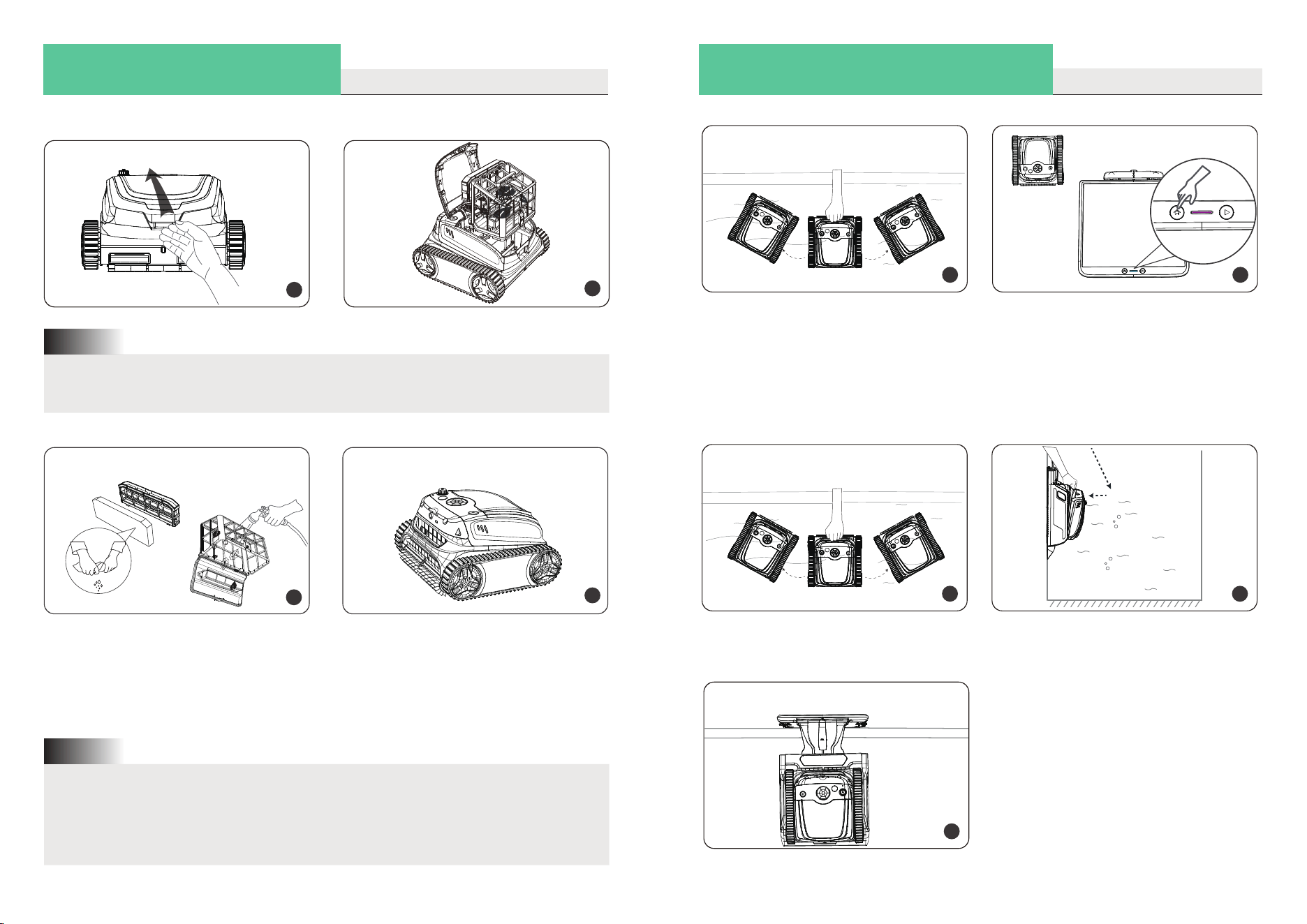
Press the filter cover handle and lift the cover up.
1
2
1. You should ensure the device is power off when open the top cover.
2. You need to clean the filter basket after each use.
Note:
3
Empty all debris and rinse them with
clean water.
After rinsing, put the filter basket and
ultra-fine filter into the cleaner and
close the cover.
1
Hold the handle of the cleaner, and shake
off inside air. Put it into the pool vertically.
Wait until the robot has completed self-
calibration.
2
Press the home button on the solar kit to
call the robot back to the docking station.
If your robot is powered off because of the low battery, you can put it onto the
docking station manually.
1
Shake the cleaner horizontally to empty
trapped air inside.
2
Put the robot onto the docking station
carefully.
3
Start to fully charge itselft automa-
tically and keep standing by for next
cleaning cycle.
4
07 / DEVICE SPECIFICATION
16
09 / HOW TO MAINTAIN YOUR DEVICE
You should follow the steps to store your cleaner to maintain good performance.
a) Ensure the device is power off
b) Dry out the cleaner
c) Fully charge the battery
d) Store the cleaner in a cool and ventilated place, away from direct sunshine,
heat source, frost and squeezing with an ambient temperature between 5℃/
41℉ and 45℃ / 113℉.
e) Charge the cleaner every three months to ensure an optimal battery life.
f) Keep the solar kit away from any pressure
If your device do not work after a long-term low battery life or being off, please
contact after-sale team for help. For your safety, do not try to disassemble it
without authorization.
Note:
1. All WYBOT pool cleaners in the market have been inspected and licensed to
be sold as per local laws.
2. The warranty applies only to original buyers, and not valid to resale and any
other kinds of transfer.
3. Any damages to the unit caused by improper use, unauthorized repair or
disassembly are not covered by WYBOTICS Co., Ltd.’s warranty.
4. The order number or record must be presented for any claim or repair within
the warranty period.
Scan the QR code for the warranty policy.
Model
Pool Size
Depth
Device Dimension
Weight
Runtime
Charging Time
Voltage
Power
Charger Input
Charger Output
Battery Capacity
Filtration
Flow Rate
Moving Speed
Water Resistance
OTA upgrading
App Connection
WYBOT S2 Solar Vision
Up to 300
m
2
(3229.173ft²)
9.8ft (3m)
400(L)*390(W)*255(H) mm
8.5 Kg (Robot)+12.5Kg (Solar+Station)
2.5 hours
3 hours (DC charging)
Battery/25.9V
90W
100-240V, 47-63Hz
29.4V/2.2A
5200mAh
Double-level
14m³/H (3962GPH)
10m/min.
IPX8
Available
Available
08 / LIMITED WARRANTY
17
10 / FAQ & TROUBLE SHOOTING
Q: What pool shapes and construction materials is the cleaner suitable for?
A: The machine can be applied to rectangle, oval, or irregular shapes of in-ground
swimming pools. Applicable construction materials include PVC, guinite, tile and
other materials.
Q: Will obstacles such as steps, shallow water areas, drains, slopes etc. in the
swimming pool affect the running?
A: The machine can climb steps, drains, and shallow water areas. The above obs-
tacles may influence its cleaning path, but will not affect the operation of the
machine.
Q: Are the WYBOT App able to control the device when cleaning under water?
A: Yes. But you should connect your robot to the app when the robot is docking
onto it. You can schedule your cleaning and control it remotely at anytime.
If you encounter the following situations when using the cleaner, you can check
the table and solve them by yourself.
If you can not find a solution from the table, please contact after-sale team.
10 / FAQ & TROUBLE SHOOTING
1
Issues
Possible Causes
Suggested Solution
Details
No.
Cannot charge
All LED indicators
show green
Sealed parts or charger
are damaged.
Contact for change.
No LED indicators
show
The device does not have
a good contact with the
docking.
Adjust the position.
2
Charger light dies
Plug into the power
supply well, but no
light shows.
The charger is damaged.
Contact for change.
Cannot be turned
on
3
No LED indicators
show
Low battery.
Charge the device.
4
Does not work
LED indicators die
after a while.
Automatically power off
3 min after no operation.
Relaunch the device.
Show solid red light
Impeller or filtration basket
is stuck.
Open to clean.
Show flashing
red light
Overheat protection.
Relaunch the device
after a while.
Show flashing
yellow light
Low battery.
Charge the device.
5
Cannot clean the wall
Wrong cleaning mode.
Choose wall cleaning mode.
Heavy dirty pool water.
Clean filtration system.
Use cotton foam. Remove cotton foam.
Gyro need be calibrated.
Calibrate it using the App.
Device weight it heavy.
Install floating parts.
Update it using the App.
6
Low cleaning coverage
Firmware is not the
latest version.
Floor cleaning mode
Switch to full-pool cleaning.
7
The front part raises frequently
Full filtration basket
Clean filtration system.
8
Cleaning path is not patterned
Gyro need be calibrated.
Calibrate it using the App.
9
The device is stuck at main d
rains or floor lights
The obstacle is hight than
30mm (1.2ft)
Manually unstuck the
device.
10
Cannot call the device back to the
docking station.
No power supply for
the docking station
Connect to the power
supply.
The docking station need
be calibrated.
Contact for calibration.
18 19
20
1 1 / CERTIFICATION
WYBOT robotic pool cleaners have passed all performance and reliability tests and
also has obtained relevant certifications from the countries in which they are sold.
you can rest assured.
12 / WYBOT CUSTOMER CARE
Due to the need for continuous products improvement, the products in the
manual are subject to the real products, and WYBOTICS Co., Ltd. reserves the
right to update products.
If you encounter any problems during use, please contact after-sale team.
For more details, please contact WYBOTICS website www.wybotpool.com
C
US
CM
Wybot Customer Service:
Email: [email protected]
Facebook: @WybotPool
Tel: 1-866-777-6655
Scan the QR code for the e-Manual.