©COPYRIGHT AVPRO GLOBAL HOLDINGS 2023 - 2222 E 52ND STREET N SIOUX FALLS, SD 57104 ~ 1.877.866.5112
1
User Manual
MU-GAX-8K
48
Gbps Generator and Analyzer

Table of Contents
Introduction .............................................................................................................................................. 3
Features .............................................................................................................................................. 3
What’s in the Box
............................................................................................................................... 3
Specifications
..........................................................................................................................................4
Front Panel Overview .............................................................................................................................5
Rear Panel Overview ..............................................................................................................................8
Intial Setup.............................................................................................................................................. 10
Signal Generator .................................................................................................................................... 11
Signal Analyzer .......................................................................................................................................13
Troubleshooting ..................................................................................................................................... 14
Firmware
................................................................................................................................................. 14
Warranty
..................................................................................................................................................15
Support
................................................................................................................................................... 18
©COPYRIGHT AVPRO GLOBAL HOLDINGS 2023 - 2222 E 52ND STREET N SIOUX FALLS, SD 57104 ~ 1.877.866.5112
2

Whats in the box
MU-GAX-
8K
1 x Power Supply
• Extended Range FRL6-48 Gbps 8K/60 fps Bandwidth Capability
• Support for Display Stream Compression 1.2b, Including HDR and HLG
• Up to 8-Channel LPCM Audio Analysis with Companion Volume Unit Meter
• Seven provided EDIDs and 10 User EDID Memory Slots; Eight User HDR Metadata Slots
• Laboratory-grade Industrial Build Quality
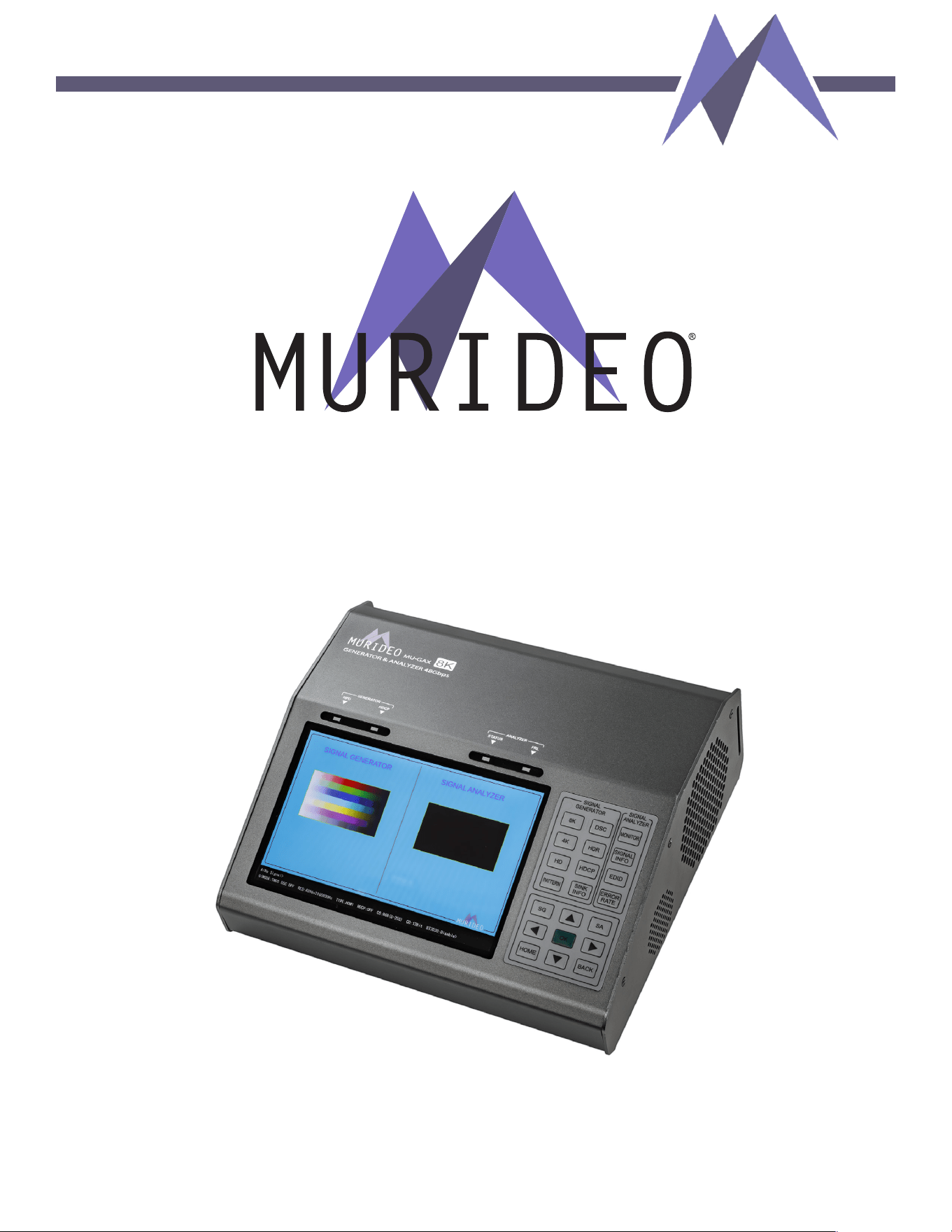
The Murideo MU-GAX-8K
is a single-chassis, industrial-grade, benchtop 8K HDMI
2.1b full 48 Gbps signal generator and analyzer HDMI testing platform featuring Display
Stream Compression 1.2, developed for the manufacturing segment that designs, installs,
and maintains components or communication systems that incorporate HDMI electronics
and protocols.
Scientifically accurate and constructed to laboratory-grade standards, the MU-GAX-8K is
a high-performance HDMI test and development tool with DSC support from 9 Gbps to
48 Gbps. Manual Fixed Rate Link lane assignment and selectable DSC enable simultane-
ous testing for bandwidth and compression.
Comprehensive HDMI InfoFrame signal data construction generation and analysis is pos-
sible for audio clock regeneration N and CTS values, HDR metadata, HDR byte extraction
and pixel data interpretation, HDMI Video Identification Code mapping, plus Auxiliary Vid-
eo Information and Source Product Description analysis. Hybrid Log Gamma is supported,
and there are eight user HDR metadata memory slots.
Features
Introduction
©COPYRIGHT AVPRO GLOBAL HOLDINGS 2023 - 2222 E 52ND STREET N SIOUX FALLS, SD 57104 ~ 1.877.866.5112
3
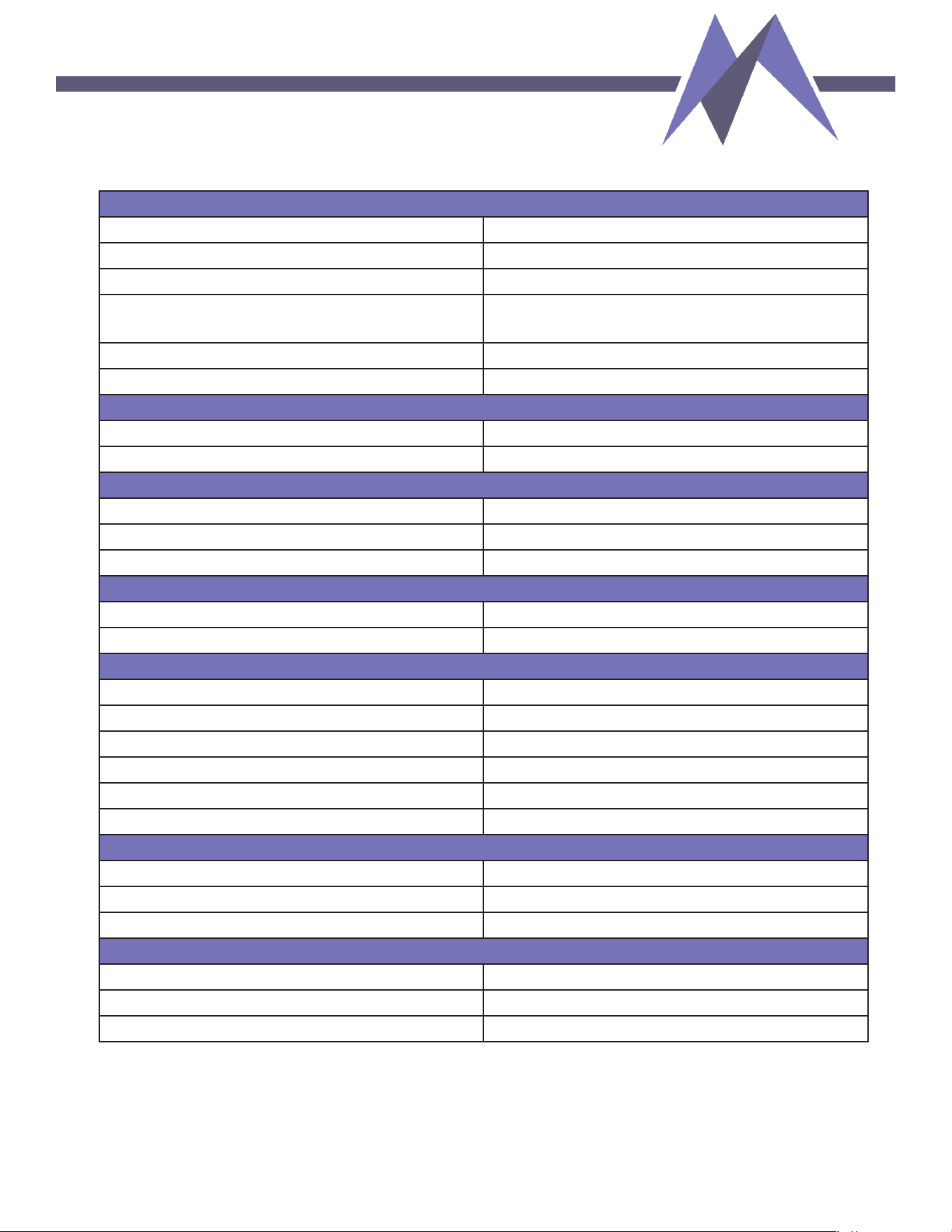
Video Output
Video Resolutions
Up to 8K/60 fps, 4:2:0 (4K/120 fps, 4:4:4)
DCI Resolutions Up to DCI 4K (4096x2160 60 fps)
VESA Resolutions Up to 1920x1200 60 fps
HDR Formats
4:2:0, 4:2:2, 4:4:4 (10-,
12-bit Deep
Color) HDR10 and HLG
Chroma Subsampling 4:2:0, 4:2:2, 4:4:4
Deep Color
Up to 12-bit
Audio
Audio Formats Supported HDMI
Up to LPCM 7.1 CH
Audio Formats Supported Analog TRS PCM 2.0 CH
Other
Bandwidth
48 Gbps (FRL6)
VESA Display Stream Compression 1.2a Up to 48 Gbps (FRL6)
HDCP HDCP 2.3 and earlier
Control
Ports
LAN, DB-9, USB 2.0 Type-B, Keypad
HTTP GUI Yes
Ports
HDMI Source Type A
HDMI SINK Type A
LAN HTTP GUI RJ45
Audio Input
Analog 3.5 mm TRS
Audio Output Analog 3.5 mm TRS
RS232/ISP DB-9 or USB 2.0 Type-B
Environmental
Operating Temperature
23
0
F to 125
0
F (-5
0
C to 51
0
C)
Storage Temperature -4
0
F to 140
0
F (-20
0
C to 60
0
C)
Humidity Range
5% to 90% RH (No Condensation)
Power
Power Consumption
36 watts Max
Power Supply Input: 100-240 VAC ~ 50/60Hz
Output: 12 VDC @ 5A
Specifications
©COPYRIGHT AVPRO GLOBAL HOLDINGS 2023 - 2222 E 52ND STREET N SIOUX FALLS, SD 57104 ~ 1.877.866.5112
4
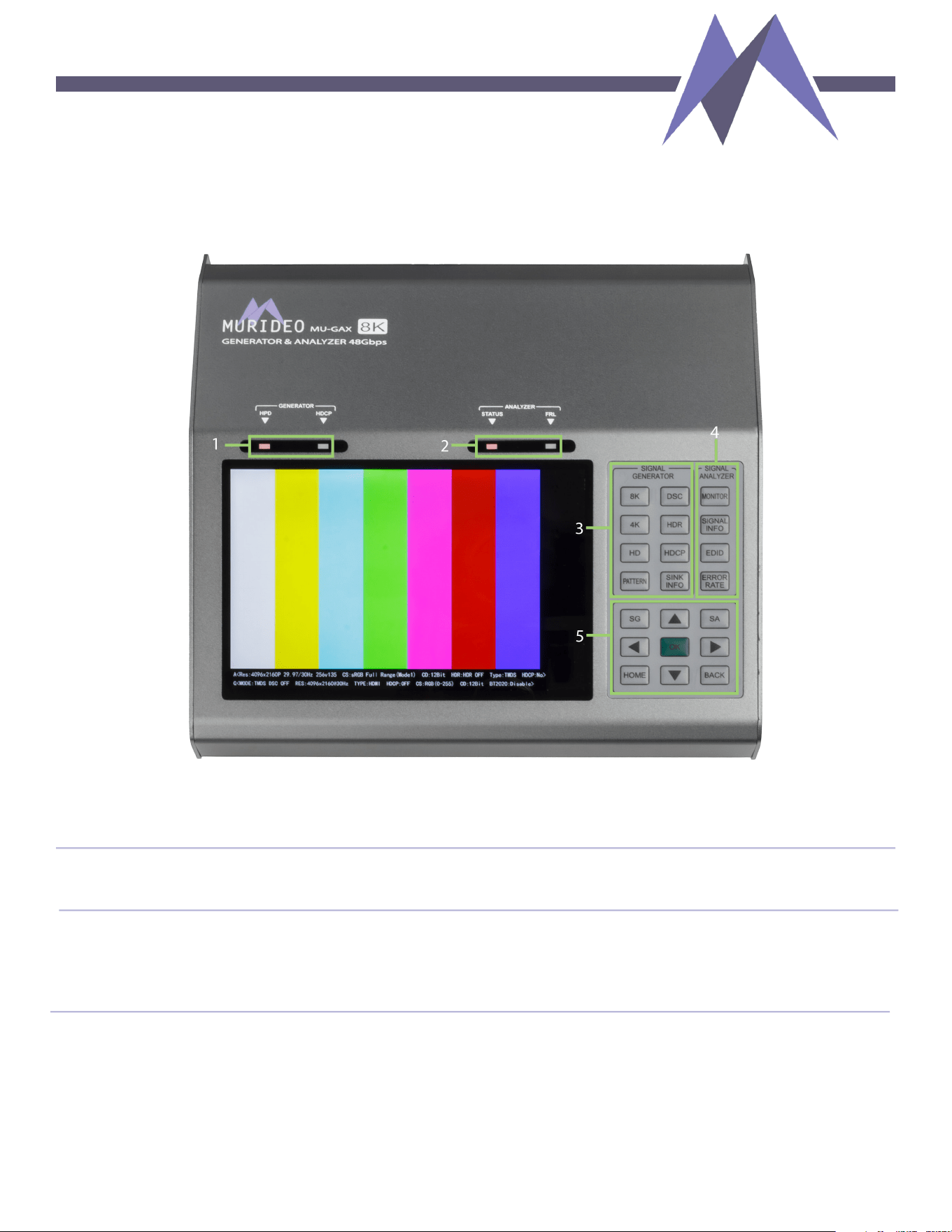
Front Panel Overview
• STATUS - HDMI Video/Audio is being received on the HDMI
Input Port
• FRL - HDMI 2.1 Fixed Rate Link is being received on the
HDMI Input Port
• HPD - Hot Plug Detect is received on the HDMI Output Port
• HDCP - HDCP is being generated on the HDMI Output Port
1 - Generator Indicator Lights
2 - Analyzer Indicator Lights
©COPYRIGHT AVPRO GLOBAL HOLDINGS 2023 - 2222 E 52ND STREET N SIOUX FALLS, SD 57104 ~ 1.877.866.5112
5

3 - Signal Generator Buttons
-
Press to jump directly to 8K UHD output timings
» Use the Up or Down arrows to navigate to a desired timing
• Press OK to select an 8K timing
» Press the BACK button to return to the menu,
or
» Press the HOME button to view the Generator/Analyzer Split Screen
- Press to jump directly to 4K UHD output timings
» Use the Up or Down arrows to navigate to a desired timing
• Press OK to select a 4K timing
o Press once more to toggle 4K DCI timings
» Use the Up or Down arrows to navigate to a desired 4K DCI timing
• Press OK to select a 4K DCI timing
» Press the BACK button to return to the menu, or
»
Press the HOME button to view the Generator/Analyzer Split Screen
- Press to jump directly to HD and Full HD output timings
» Use the Up or Down arrows to navigate to a desired timing
• Press OK to select a timing
» Press the BACK button to return to the menu, or
» Press HOME to view the Generator/Analyzer Split Screen
- Press to jump directly to the Pattern Select Menu
» Use the Up, Down, Left, or Right arrows to navigate to desired test pattern
• Press OK to select a pattern
» Press the BACK button to return to the menu, or
» Press the HOME button to view the Generator/Analyzer Split Screen
- Press to jump directly to the HDMI 2.1 FRL/DSC Menu
» Press the Up or Down arrows to navigate to a desired FRL rate or TDMS
• Press OK to select a FRL rate or TDMS
» Press the BACK button to return to the menu, or
» Press the HOME button to view the Generator/Analyzer Split Screen
- Press to jump directly to the HDR Output Menu
» Use the Up or Down arrows to navigate to the desired HDR format
• Press OK to select an HDR format
» Press the BACK button to return to the menu, or
» Press the HOME button to view the Generator/Analyzer Split Screen
8K
4K
HD
Pattern
DSC
HDR
©COPYRIGHT AVPRO GLOBAL HOLDINGS 2023 - 2222 E 52ND STREET N SIOUX FALLS, SD 57104 ~ 1.877.866.5112
4K DCI -

4 - Signal Analyzer Buttons - Use these buttons to navigate to Signal Analyzer Functions
- Press to view the incoming signal detected at
the HDMI Input Port on the front panel
display screen
to 4K output timings
» Use the Up or Down arrows to navigate to the desired timing
• Press OK to select
- Press to display the incoming Audio and Video information at the HDMI Input Port
MONITOR
SIGNAL
INFORMATION
EDID
ERROR RATE
5 - Menu Navigation
- These are the primary buttons for menu navigation
» Use the Up or Down arrows to page through video test patterns on the HOME screen
- Press this button after you have highlighted your menu item to confirm your
selection.
- Press this button to return to the SG/SA Home Combo Screen
- Press this button to return to the previous menu or exit
ARROW
BUTTONS
OK
HOME
BACK
©COPYRIGHT AVPRO GLOBAL HOLDINGS 2023 - 2222 E 52ND STREET N SIOUX FALLS, SD 57104 ~ 1.877.866.5112
7
-Press to jump directly to the HDCP Output Menu
» Press the Up or Down arrows to navigate to the desired HDCP format, or to
turn HDCP off
• Press OK to select
» Press the BACK button to return to the menu, or
» Press the HOME button to view the Generator/Analyzer Split Screen
- Press to display EDID information from the sink device connected to the HDMI
Output Port
HDCP
SINK INFO
3 - Signal Generator Buttons - Cont'd
- Press to display the EDID Selection Menu
- Press to display the Error and Signal Loss Menu
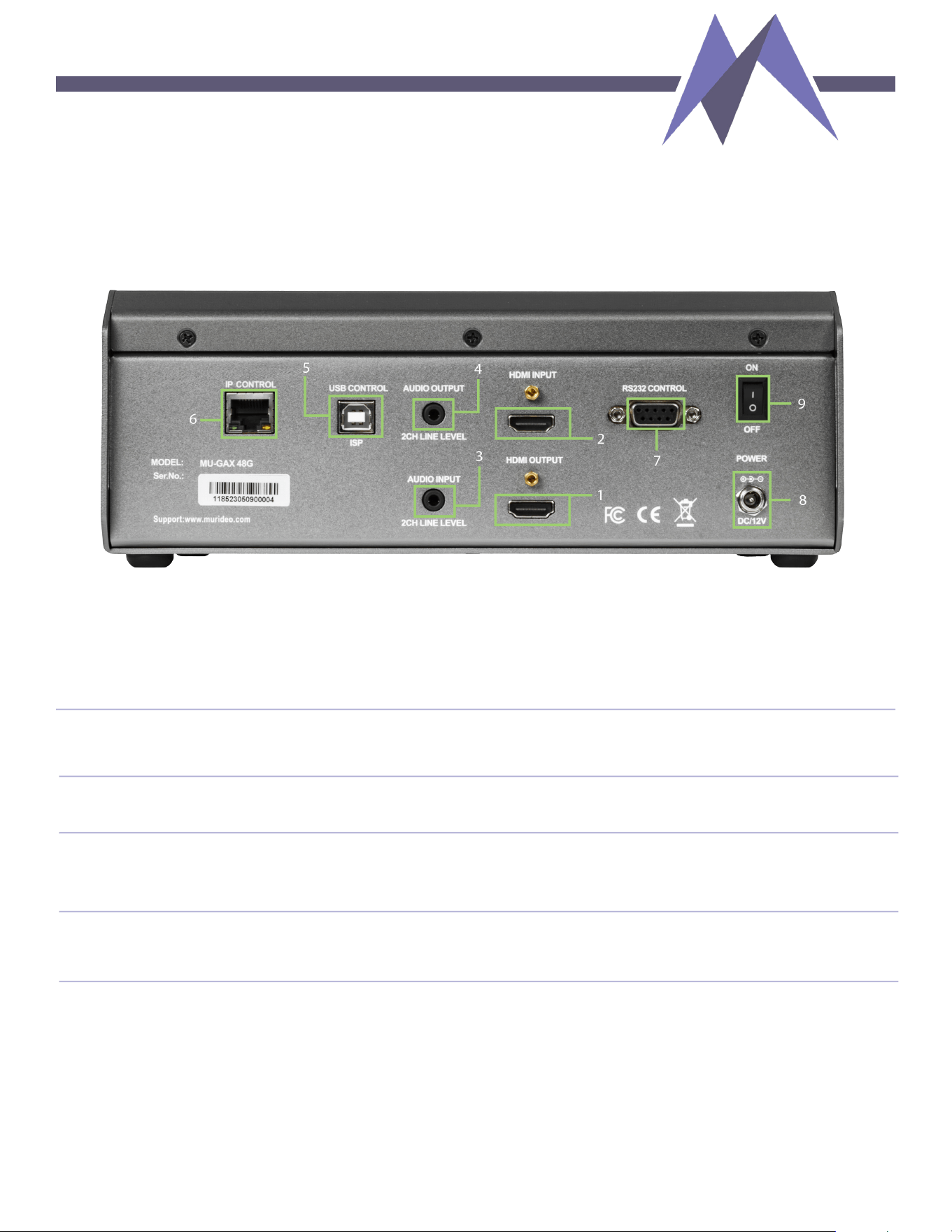
Rear Panel Overview
• Connect a known, working HDMI cable from the device
undergoing testing to the MU-GAX-8K HDMI Input
• Connect a known, working HDMI cable from the MU-GAX-8K
HDMI Output to the device undergoing testing
1 - HDMI Output
2 - HDMI Input
Connections
• 2-Channel Line Level External Audio Input
- 3.5 mm TRS input for connection of an external audio source
to the MU-GAX-8K for audio test tones or audio clips.
3 - Audio Input
• 2 Channel Line Level Audio Output
- 3.5mm TRS Output for connecting the MU-GAX-8K to an
external audio playback device.
4 - Audio Output
©COPYRIGHT AVPRO GLOBAL HOLDINGS 2023 - 2222 E 52ND STREET N SIOUX FALLS, SD 57104 ~ 1.877.866.5112
8

• Connect the MU-GAX-8K included power supply unit.
Note: Only use the included power supply.
• Use a DB-9 cable to connect the MU-GAX-8K to a serial
controller. The default baud rate is 115200. Once connected, the
unit is controllable via RS-232. This connection can be used for
any of the MU-GAX-8K software packages.
7 - RS232 Control (DB9)
8 - 12 VDC/3A
• Power the MU-GAX-8K ON (up position) or OFF (down position)
9 - Power Switch
Power
Control Ports
The MU-GAX-8K has multiple format connections to control the MU-GAX-8K
remotely, or to facilitate firmware updates.
5 - RS-232 Control (USB 2.0) • Use a USB 2.0 Type-B data cable to connect the MU-GAX-8K
to a computer. The default baud rate is 115200. Once
connected, the unit is controllable via RS-232. This connection
can be used for any of the MU-GAX-8K software packages.
6 - IP Control
• Use an Ethernet cable to connect the MU-GAX-8K to a network
for access to the HTTP UI. Note: To work properly the computer
and the MU-GAX-8K must be on the same network. The default
IP address is 192.168.1.239 and may be changed in the System
Setup Menu (available in the Signal Generator Menu).
©COPYRIGHT AVPRO GLOBAL HOLDINGS 2023 - 2222 E 52ND STREET N SIOUX FALLS, SD 57104 ~ 1.877.866.5112
9

Using the MU-GAX-8K
Murideo recommends taking time to become familiar navigating the MU-GAX-8K menu
architecture prior to first use.
1. Verify the MU-GAX-8K is powered on using the rear panel switch.
2. Connect a high-performance HDMI cable between the MU-GAX-8K HDMI
OUTPUT (generator) port and the HDMI INPUT (analyzer)port.
3. The Home Screen is the MU-GAX-8K default menu when the unit is powered on.
Pressing the HOME button at any time will return the display to Home Screen
status. Press SG or SA to select the function the MU-GAX-8K will perform.
- SG - Signal Generator
- SA - Signal Analyzer
For the following example, press the SG button.
The screen will change to SG SETTING.
4. Under SG SETTING, the Up or Down arrow
buttons navigate through the category
of Menu selections listed in the left panel half of the display screen.
At the top, the TIMING & RESOLUTION menu will be highlighted in blue, signifying it
as the currently selected menu option.
5. Press the GREEN OK button.
6. On the left panel of the display screen, TIMING & RESOLUTION is no longer
highlighted in blue and the lettering has changed to white. In the right panel of the
display screen, under OPTIONS, note that 8K TIMING has become highlighted in
ORANGE, and the lettering has changed to white.
Note that when powered up for the first time, HD TIMING is the default.
Use the Up or Down arrows to navigate to a different timing option.
With 8K TIMING highlighted, pressing OK once more changes the display to a full-
width 8K TIMING screen.
Use the Up or Down arrows to navigate to the desired video standard and
resolution.
7. Pressing the BACK button returns to each previous selection, and then to the main
SG Menu panel.
8. Use the Down arrow
button to navigate to and highlight the PATTERN SELECT
Menu.
9. Press the OK button.
10. The display screen will change to the full-width Pattern Select sub-screen and a
layout depicting available pattern choices. The Down arrow navigates to
additional patterns.
11. Use the the Up / Down / Left / Right arrow buttons to navigate to a pattern for
generation. Press the BACK button to return to the SG SETTING Menu screen, or
the HOME button to return to the Home Screen.
©COPYRIGHT AVPRO GLOBAL HOLDINGS 2023 - 2222 E 52ND STREET N SIOUX FALLS, SD 57104 ~ 1.877.866.5112
10

Signal Generator
Pressing the SG button calls up the Signal Generator Settings menu. It contains the
following options for generated video signals:
• TIMING & RESOLUTION
• COLOR SPACE
• BT 2020 SETTINGS
• COLOR DEPTH
• FRL / DSC SETTINGS
• HDMI / DVI SETUP
TIMING & RESOLUTION
Related menus facilitate selection
of the resolution and frame rate (frequency) of the
generated video signal. They provide the following options:
• 8K TIMING
• 4K TIMING
• 4K DCI TIMING (Press 4K button to toggle between 4K and 4K DCI timing)
• HD TIMING
• VESA TIMING (Available in IP or USB GUI Only)
• SD TIMING (Available in IP or USB GUI Only)
COLOR SPACE - Select the desired color space of the generated signal
BT 2020 SETTINGS - Enable or Disable BT 2020
COLOR DEPTH - Select color bit depth of the generated signal
FRL / DSC SETTINGS - Select the desired Fixed Rate Link Trained Data Rate or
enable Display Stream Compression
HDMI
/ DVI SETUP - Used to set signal type for the HDMI OUTPUT port
• DVI - Sets output to DVI (RGB 4:4:4)
• HDMI - Sets output to HDMI (RGB/YUV)
• AUTO - Based on the EDID of the connected device
• HDR SETTING
• PATTERN SELECT
• HDCP SETTING
• SG EDID INFO
• AUDIO SETTING
• SYSTEM SETUP
©COPYRIGHT AVPRO GLOBAL HOLDINGS 2023 - 2222 E 52ND STREET N SIOUX FALLS, SD 57104 ~ 1.877.866.5112
11

HDR SETTING - Change HDR metadata for any of the FPGA Patterns
PATTERN SELECT - Select one of 36 Test Patterns
HDCP SETTING - Set the encryption type for the HDMI Output of the MU-GAX-8K
• HDCP OFF
• HDCP 1.4
• HDCP 2.3 (with HDCP 2.2 Fallback)
SG EDID INFO - Displays the manufacturer's listed capabilities for the HDMI Sink Device
connected to the MU-GAX-8K HDMI Output port
AUDIO SETTING - Select the Desired HDMI Audio Source
• PCM AUDIO
- Audio Sampling Rate
- Audio Bit Depth
- Sine Wave Tone (Hz)
- Audio Volume (dBFS)
- Channel Config
• EXT. ANALOG L/R INPUT
SYSTEM SETUP
General device setup and MU-GAX-8K management options, including:
(Use any arrow key to advance the selection cursor)
• IP Management
- DHCP On / Off
• FAN CONTROL
• RESET SG
SETTINGS OR SA SETTINGS
- Factory Defaults Signal Generator
» Resolution – 1920x1080p60 (RGB 4:4:4) 8-bit
» Pattern – 100% Color Bars
» Audio – PCM 48KHz – 2.0CH
- Factory Defaults Signal Analyzer
» EDID – FRL_48G_8K_2CH_HDR_DSC
» SA Volume – 25%
• FIRMWARE INFO
©COPYRIGHT AVPRO GLOBAL HOLDINGS 2023 - 2222 E 52ND STREET N SIOUX FALLS, SD 57104 ~ 1.877.866.5112
12

Signal Analyzer
Pressing the SA button calls up the Signal Generator Settings menu. It contains the
following options for generated video signals:
• EDID SELECT
• SIGNAL INFO
• ERROR RATE
• SA VOLUME
• VU METER
EDID SELECT
Press OK to call up the EDID Selection menu for:
• Preset EDIDs
• User EDIDs that can be set to the HDMI Input Port.
SIGNAL INFO
A full-width Received Signal Info window displays the composition of the incoming
Video and Audio signal received at the HDMI Input Port.
ERROR RATE
A full-width Signal Monitor window displays characteristics of the incoming Video
signal to enable users to measure a change in frame or complete signal loss over
time.
SA VOLUME
Raise or lower the volume of the internal speaker output.
VU METER
Enable or disable the VU METER on the MU-GAX-8K Menu Screen.
©COPYRIGHT AVPRO GLOBAL HOLDINGS 2023 - 2222 E 52ND STREET N SIOUX FALLS, SD 57104 ~ 1.877.866.5112
13

• During device testing that utilizes both Signal Generator and Signal Analyzer sections,
verify the EDID selected on the Signal Analyzer matches the parameters of the Signal
Generator.
For Example:
» On the Signal Analyzer, if the 4K30HZ_2CH EDID is selected, followed by
selecting the Signal Generator Timing of 3840X2160@60Hz, the MU-GASX-48G
will report the error message Pixel Rate Too High
» When testing solo devices (a cable, a switcher, an extender; etc.) set the Signal
Analyzer EDID on the MU-GAX-8K to FRL48G_8K_2CH_HDR_DSC
• Setting the EDID to this highest level enables testing of all timings and signal
parameters available on the Signal Generator.
Troubleshooting
• Field firmware updates are available via the USB Port or the HTTP GUI.
When available, firmware updateswill be posted to the Murideo.com website
accompanied by complete instructions.
Firmware
©COPYRIGHT AVPRO GLOBAL HOLDINGS 2023 - 2222 E 52ND STREET N SIOUX FALLS, SD 57104 ~ 1.877.866.5112
14

AVPro Global Holdings (DBA MURIDEO) offers a 2 year international limited warranty for
Murideo products. Products sold to the original purchaser are guaranteed to be free from
defects
in parts and workmanship under regular use. The warranty period commences on
the date the item ships.
Attention:
An invoice with the name of the original purchaser, date of purchase, model number, and
serial number of the product is proof of the purchase date. This International Limited
Warranty is applicable and shall be honored in every country where MURIDEO or its
Authorized Service Providers offer warranty service, subject to the terms and conditions
detailed in this International Limited Warranty Statement. The following products are
included in this warranty:
• Murideo SEVEN Series Generators
• Murideo SIX Series Generators
• Murideo SIX Series Analyzers
• Murideo Fox & Hound Series
• Murideo HDMI T
est Monitor Series
• Murideo GAX Series
• Murideo STIX Series
During the warranty period, defective Murideo products will either be repaired or
replaced
with new, or like-new products, at Murideo's discretion. This International
Limited Warranty covers the cost of service parts and labor required to restore Murideo
products to fully functional, original performance condition. Murideo will, at its discretion,
repair or replace any defective products or parts covered by this International Limited
warranty with refurbished products or parts equivalent to new or like-new in functionality
and performance. A product or part that is repaired or replaced under this International
Limited Warranty shall be covered for the remainder of the original warranty period
applying to the product or part, or for 90-days, whichever expires last. All exchanged
parts and products under this International Limited Warranty will become the property of
MURIDEO.
Warranty
©COPYRIGHT AVPRO GLOBAL HOLDINGS 2023 - 2222 E 52ND STREET N SIOUX FALLS, SD 57104 ~ 1.877.866.5112
15

Warranty service or a Returned Merchandise Authorization (RMA) under this
International Limited Warranty will be honored only if claims are made within the
warranty period. For notifications to MURIDEO or products outside the warranty period,
the process will be the same, but charges may apply. Contact details may be obtained
on MURIDEO website https://www.murideo.com/
Customers are requested to perform the following actions before claiming a MURIDEO
product to be
defective:
A. Owner must notify MURIDEO, during the warranty period, in writing of alleged
defect, and allow MURIDEO a reasonable opportunity to inspect an alleged
defective product.
B. No p
roduct may be returned without consent from MURIDEO. The MURIDEO RMA #
must accompany all returns, and all returns must be delivered to MURIDEO within
the warranty period.
C. Owner may, at their expense, return the alleged defective product freight pre-paid
and in the original packaging to MURIDEO, accompanied by a brief statement
explaining the alleged defect.
D. If MURIDEO determines a returned product is not defective, or if MURIDEO
determines that the defect is not covered by warranty, MURIDEO will return the
product at the Owner’s expense, freight collect, and Owner agrees to pay MURIDEO
a reasonable cost for handling and testing the product.
E. Upon determining that a returned product is defective, to receive warranty service,
the Owner will need to present a copy of the invoice showing the original purchase
transaction. If shipping the product, Owner will need to package it carefully and
send it transportation prepaid, by a traceable insured method, to the MURIDEO
Service Center. Package the product using adequate materials to prevent damage
in transit. The original packaging is ideal for this purpose. Include the RMA #, your
name, return shipping address, email address and telephone number where you
may be reached during USA business hours inside the shipping package with the
unit. Any replacement unit will be warranted under these Terms and Conditions for
the remainder of the original warranty period, or ninety (90) days whichever is
longer.
Refer to user manual,
available for download on our website http://www.murideo.com/
for important tips on how to operate and troubleshoot the product.
Obtaining Warranty Service
©COPYRIGHT AVPRO GLOBAL HOLDINGS 2023 - 2222 E 52ND STREET N SIOUX FALLS, SD 57104 ~ 1.877.866.5112
16

THIS WARRANTY IS EXPRESSED IN LIEU OF ALL OTHER WARRANTIES, EXPRESSED OR
IMPLIED, INCLUDING THE IMPLIED WARRANTY OF MERCHANTABILITY, THE IMPLIED
WARRANTY OF FITNESS FOR A PARTICULAR PURPOSE AND OF ALL OTHER OBLIGATIONS
OR LIABILITIES ON MURIDEO’S PART, AND IT NEITHER ASSUMES NOR AUTHORIZES ANY
OTHER PARTY TO ASSUME FOR MURIDEO ANY OTHER LIABILITIES. THE FOREGOING
CONSTITUTES THE BUYER’S SOLE AND EXCLUSIVE REMEDY FOR THE FURNISHING OF
DEFECTIVE OR NONCONFORMING PRODUCTS AND MURIDEO WILL NOT IN ANY EVENT BE
LIABLE FOR COST OF SUBSTITUTE OR REPLACEMENT, COST OF FACILITIES OR SERVICE,
DOWNTIME COSTS, LOSS OF PROFITS, REVENUES OR GOODWILL, RELIANCE DAMAGES,
LOSS OF DATA, LOSS OF USE IF OR DAMAGE TO ANY ASSOCIATED EQUIPMENT,
OR ANY OTHER INDIRECT, INCIDENTAL, SPECIAL,OR CONSEQUENTIAL DAMAGES BY
REASON OF THE FACT THAT SUCH PRODUCTS WILL HAVE BEEN DETERMINED TO BE
DEFECTIVE OR NONCONFORMING. THE RIGHTS AND OBLIGATIONS OF THE PARTIES
UNDER THIS AGREEMENT SHALL NOT BE GOVERNED BY THE PROVISIONS OF THE 1980
U.S. CONVENTION ON CONTRACTS FOR THE INTERNATIONAL SALE OF GOODS OR THE
UNITED NATIONS CONVENTION ON THE LIMITATION PERIOD IN THE INTERNATIONAL
SALE OF GOODS, AS AMENDED (COLLECTIVELY, THE“CONVENTIONS”); RATHER, THE
RIGHTS AND OBLIGATIONS OF THE PARTIES SHALL BE GOVERNED BY THE LAWS OF THE
STATE of SOUTH DAKOTA, INCLUDING ITS PROVISIONS OF THE UNIFORM COMMERCIAL
CODE, AS APPLICABLE. FOR THE AVOIDANCE OF DOUBT, THE CONVENTIONS ARE HEREBY
EXCLUDED.
This Limited Warranty gives you specific legal rights. You may also have other rights
that may vary from state to state or from country to country. You are advised to consult
applicable state or country laws for full determination of your rights. Some jurisdictions do
not allow the exclusion or limitation of special, incidental or consequential damages, or
limitations on how long a warranty lasts, so the above exclusion and limitations may not
apply to everyone.
Disclaimer of Warranty
©COPYRIGHT AVPRO GLOBAL HOLDINGS 2023 - 2222 E 52ND STREET N SIOUX FALLS, SD 57104 ~ 1.877.866.5112
17

For service and support, contact your local dealer.
To find your dealer or to contact MURIDEO support, go to:
https://support.murideo.com/
Or call
+1-605-330-8491
for worldwide technical support
Legal Notices
MURIDEO® Logos are trademarks or registered trademarks of AVPro Global Holdings, Inc.
in the United States or other countries. ISF® and the ISF logo are trademarks or registered
trademarks of, and are used under license from, Imaging Science Foundation, LLC. in the
United States or other countries. All other trademarks and registered trademarks are the
property of their respective owners in the United States or other countries. The absence of
a trademark symbol does not constitute a waiver of Silicon Image’s trademarks or other
intellectual property rights with regard to a product name, logo or slogan.
Limitation of Liability
MURIDEO reserves the right to refuse warranty service of products under disputable
conditions. MURIDEO also holds the rights to declare final decision whether products are
within warrantyk conditions. The following actions and damages will result in voiding the
limited warranty:
• Damage caused by act of nature, such as fire, flood, wind, earthquake, lightning, etc.
• Damage or incompatibility caused by failure to perform a proper installation or
to provide an appropriate operational environment for the product, including but
not limited to unstable wired/wireless network con-nection and phone lines, bad
grounding, external electro-magnetic fields, direct sunlight, high humidity and
vibration.
• Damage caused by impact with other objects, dropping, falls, spilled liquids, or
submersion in liquids.
• Damage caused by unauthorized repair or disassembling of the product.
• Damage caused by any other abuse, misuse, mishandling, or misapplication.
• Damage caused by third party peripherals (including but not limited to visible
damages on motherboard or other electronic parts of the product such as burn spots
after electric discharge, melting, fusing, splitting, etc.)
• Any unauthorized software or modification of built-in software not approved by
MURIDEO.
• The serial number of the product (or serial number stickers of its parts) has been
modified, removed, blurred or damaged.
• Defects caused by transportation, handling or customer abuse.
Support
©COPYRIGHT AVPRO GLOBAL HOLDINGS 2023 - 2222 E 52ND STREET N SIOUX FALLS, SD 57104 ~ 1.877.866.5112
18
Thank you for choosing Murideo!
Please contact us with any questions, we are
happily at your service!
2222 E 52nd Street North, Sioux Falls, SD 57104
support: 877.886.5112
support@avproedge.com
©COPYRIGHT AVPRO GLOBAL HOLDINGS 2023 - 2222 E 52ND STREET N SIOUX FALLS, SD 57104 ~ 1.877.866.5112
19