
1
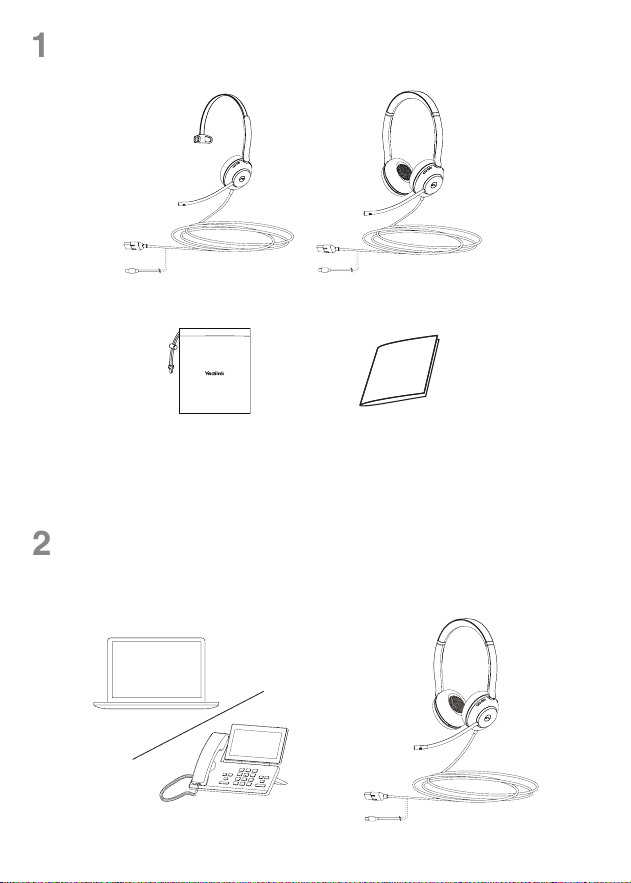
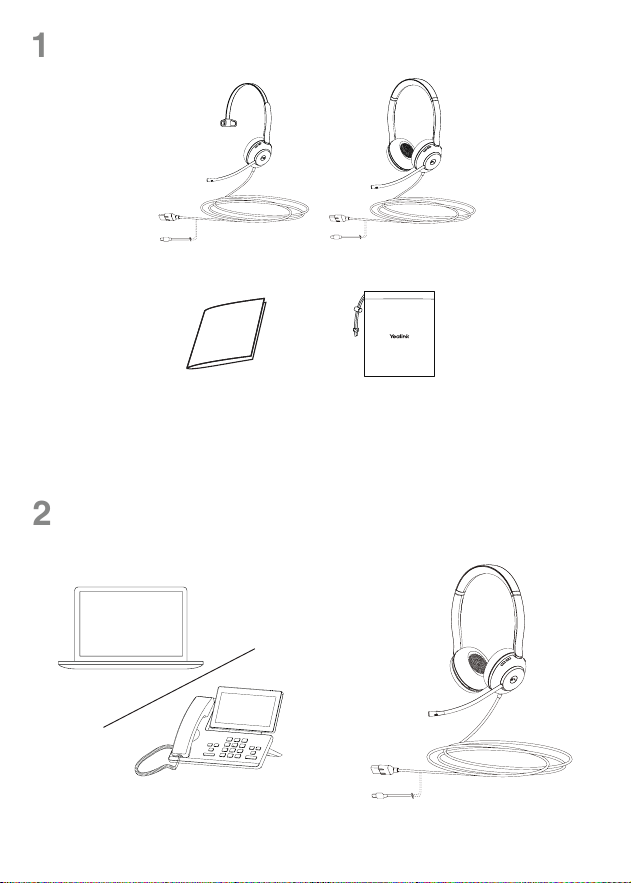
Package List
1
Connection
2
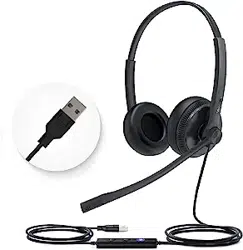
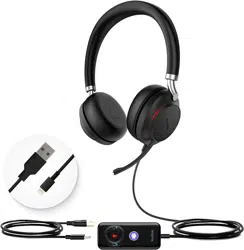
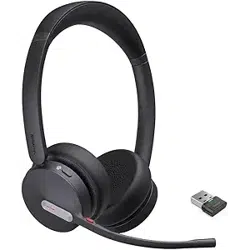
UH37 Dual Headset
or
or
or
Quick Start Guide
Note: We recommend that you use the included accessories, and other accessories may have
compatibility issues that prevent them from working properly.
Drawstring Bag Quick Start Guide
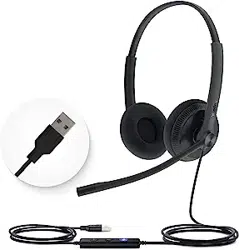
UH37 Mono Headset
Plug the headset into either a USB-A or USB-C port on your computer, depending on the USB
variant of the headset.
or
2
3
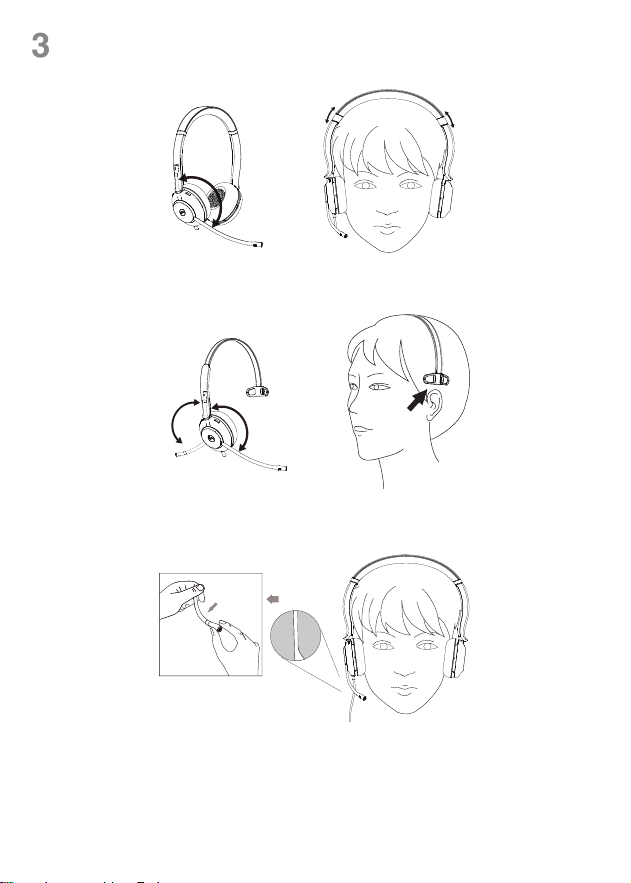
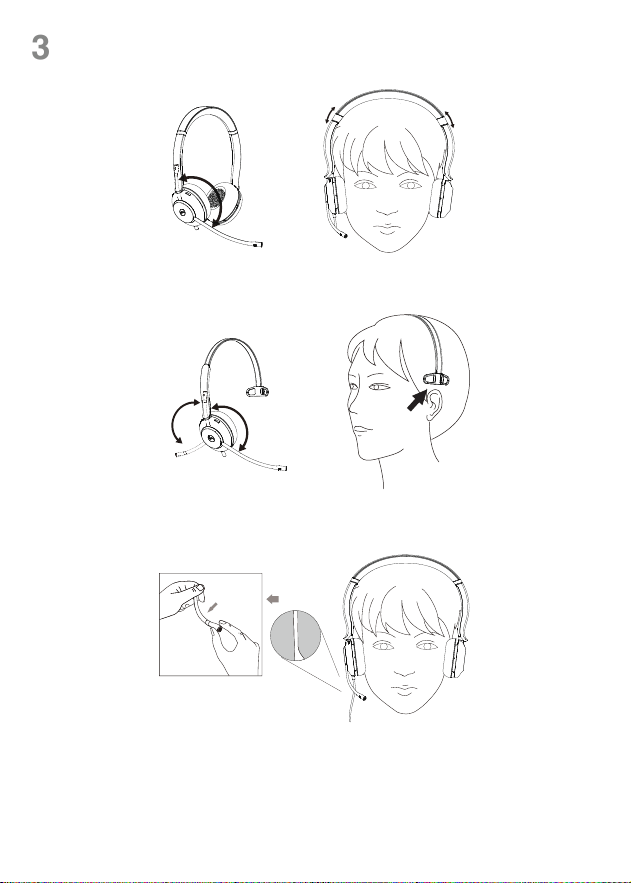
Wear the Headset
RightLeft
Bendable boom arm
150°
150°
150°
3
Overview
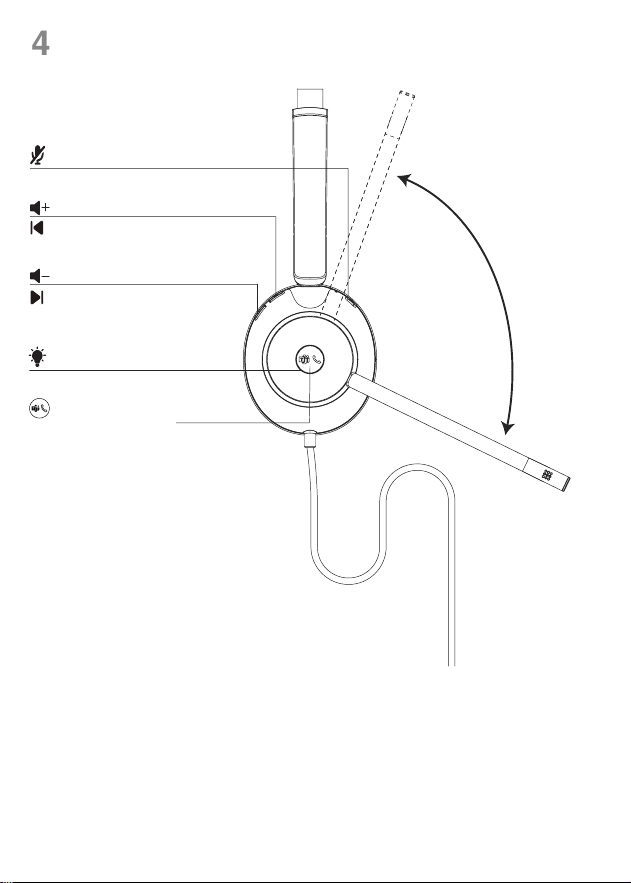
4
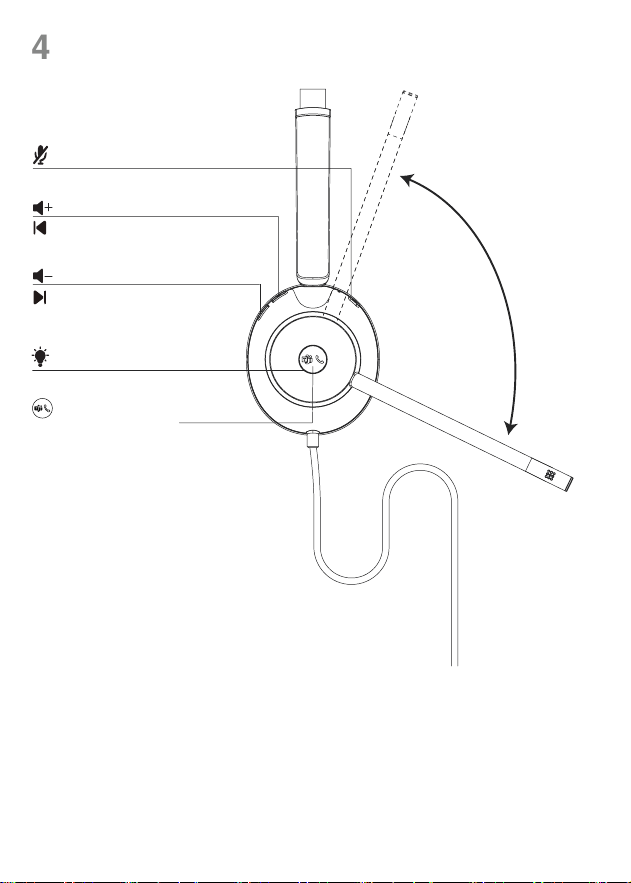
Mute/Unmute Button
Mute microphone
Unmute
microphone/
answer call
Volume up
Volume down
Prev.track
(Press&hold for 1.5s)
Next track
(Press&hold for 1.5s)
Busylight
(A circle around the button)/
Microsoft Teams status
Answer or end call/
Play/Pause
(UC Edition)
/
Hook*
(UC Edition)
Open Microsoft Teams notication
(Teams
Edition)
* You need to go to the Yealink USB Connect application to enable this feature.
- Click Device settings->Advanced Settings->Platform to select UC.
- Click MFB Button to select HOOK.
4
Calls & music
5
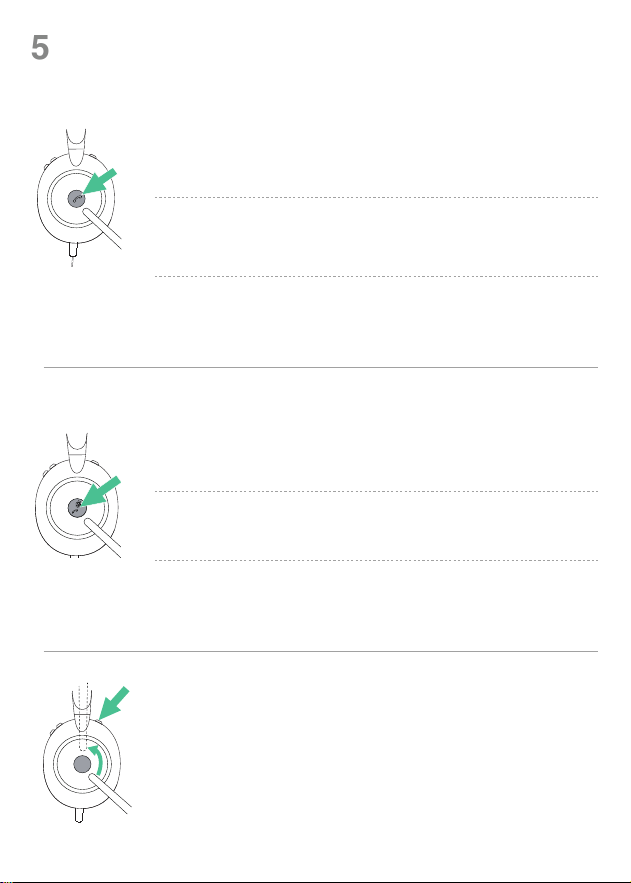
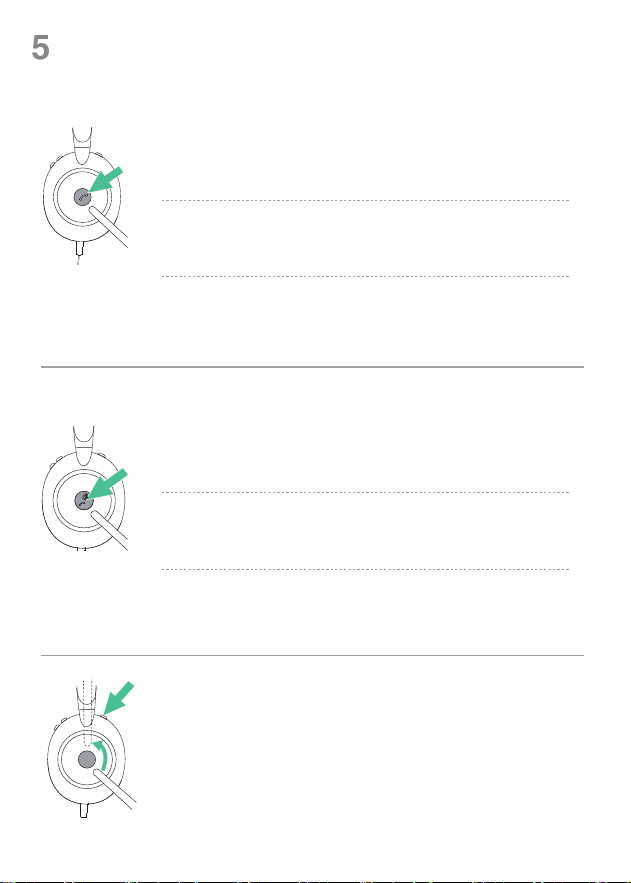
Press once
Press once
Double-press
Double-press
Press the Mute
button once
Alternatively,
move up/down
the microphone
boom-arm
Hold for 1.5 sec
Hold for 1.5 sec
• Answer/end a call
• Answer/end the call
• Reject a call/reject the incoming call when on a call
• Reject a call/reject an incoming call when on a call
•
Activate Cortana (requires Microsoft's support)
• Mute/unmute the microphone
• Put the current call on hold and answer an incoming call
• Redial
• Redial
• Switch between held call and active call
• End the current call and answer an incoming call
• End the current call and answer an incoming call
•
Invoke the Teams client
• Dismiss/invoke raise hand during the meeting
• Play/pause the music
UC Edition
Teams Edition
Note: Before using the Teams functions, you should install the Microsoft Teams client on your PC.
5
Software
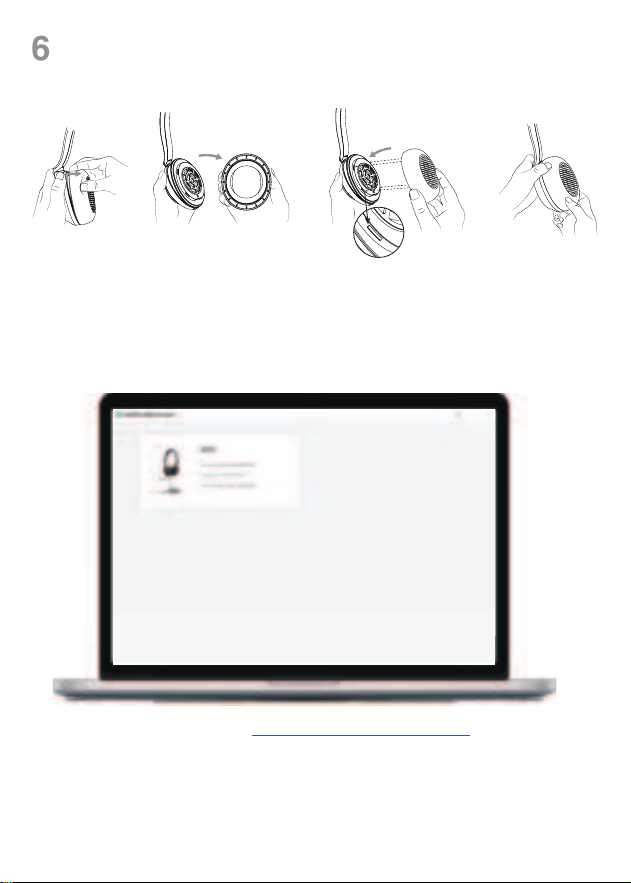
You can update or manage your Yealink headsets through the Yealink USB Connect.
Download it from the Yealink website https://www.yealink.com/product/yuc.
Note: It needs to be used with Yealink USB Connect of version 0.34.x.x or higher.
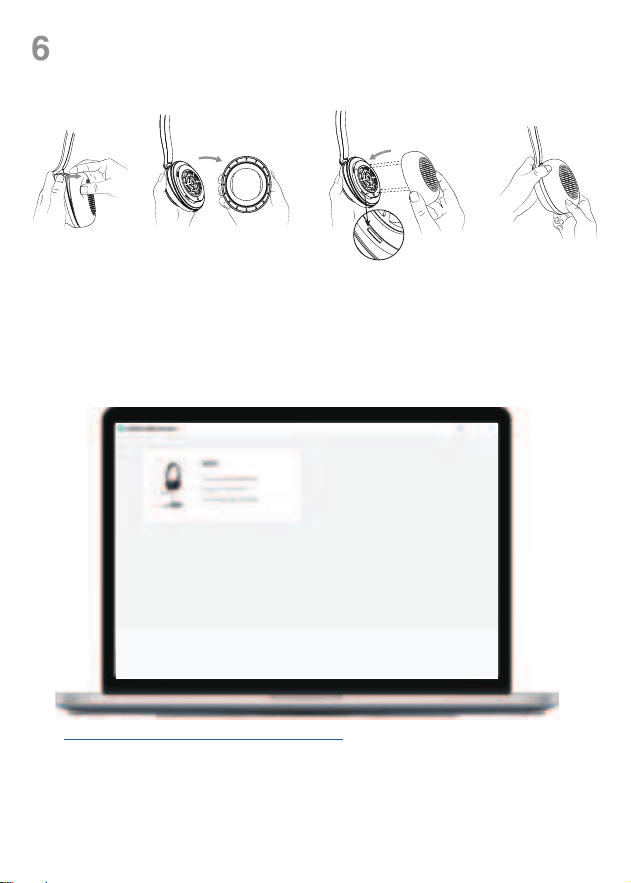
Note: The replaceable ear cushions need to be purchased separately.
Replace Ear Cushions
6
Pull out
Aligh with the
four grooves
Align the new cushion with the four grooves of the headset base and press rmly together.
6
包装清单
1
连接
2
说明 : 我们推荐使用自带的配件,使用其它配件可能存在兼容问题导致无法正常使用。
UH37 单耳耳麦UH37 双耳耳麦
你可以根据耳机的型号插入电脑上对应的 USB-A 或 USB-C 端口。
束口袋快速入门指南
Quick Start Guide
或
或
或
或
7
3
耳麦佩戴和调节
右左
可弯曲
150°
150°
150°
8
概览
4
* 你需要到 YUC 应用程序才能启用此功能。
-
点击设备设置 -> 高级设置 -> 平台模式选择 UC。
-
点击 MFB 按键选择拨号。
静音键
麦克风静音
麦克风静音 /
接听电话
调高音量
调低音量
上一首
( 长按1.5s)
下一首
( 长按1.5s)
Busylight
( 按键外圈)/
Microsoft Teams状态灯
接听或挂断 /
播放 /暂停
(UC Edition)
/
拨号 *
(UC Edition)
打开 Microsoft Teams通知
(Teams Edition)
9
通话和音乐
5
单击
单击
双击
双击
单击静音键
或上移 /下移麦克风杆
长按 1.5秒
长按 1.5秒
• 接听/ 挂断电话
• 接听/ 挂断电话
• 拒接来电/ 通话中拒接新来电
• 拒接来电/ 通话中拒接新来电
•
激活Teams的Cortana (需要微软支持)
• 麦克风静音/ 取消静音
• 通话中接听新来电,保持当前通话
• 重拨
• 重拨
• 多个通话之间切换
• 通话中接听新来电,结束当前通话
• 通话中接听新来电,结束当前通话
•
调出 Teams 客户端
•Teams 会议中举手 /取消举手
• 播放/ 暂停音乐
说明 : 在使用 Teams 按键功能之前,需要先在 PC 上安装 Microsoft Teams 客户端。
UC 版本
Teams 版本
10
你可以通过 Yealink USB Connect 升级或管理耳机。
请从
https://www.yealink.com.cn/product/yuc 下载。
软件
耳套替换
6
拉出对准四个卡扣
说明 : 需要配套亿联 USB 设备管理软件 0.34.x.x 或更高版本使用。
说明 : 可替换的耳罩需要单独购买。
更换耳罩时,将耳罩四个卡扣对齐耳壳的卡槽后按下即可。

11
Regulatory Notices
Operating Ambient Temperatures
• Operating temperature: +14 to 113°F (-10 to 45°C)
• Relative humidity: 5% to 90%, noncondensing
• Storage temperature: -22 to +158°F (-30 to +70°C)
Warranty
Our product warranty is limited only to the unit itself, when used normally in accordance with the operating instructions
and the system environment. We are not liable for damage or loss resulting from the use of this product, or for any claim
from a third party. We are not liable for problems with Yealink device arising from the use of this product; we are not lia-
ble for nancial damages, lost prots, claims from third parties, etc., arising from the use of this product.
Explanation of the symbols
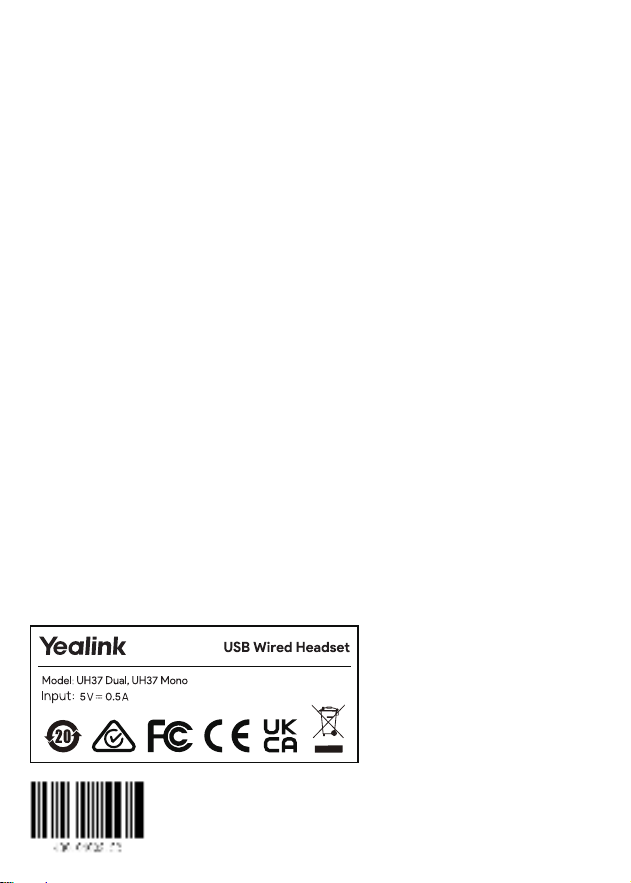
• DC symbol
is the DC voltage symbol.
• WEEE Warning symbol
To avoid the potential effects on the environment and human health as a result of the presence of hazardous
substances in electrical and electronic equipment, end users of electrical and electronic equipment should
understand the meaning of the crossed-out wheeled bin symbol. Do not dispose of WEEE as unsorted municipal
waste and have to collect such WEEE separately.
Restriction of Hazardous Substances Directive (RoHS)
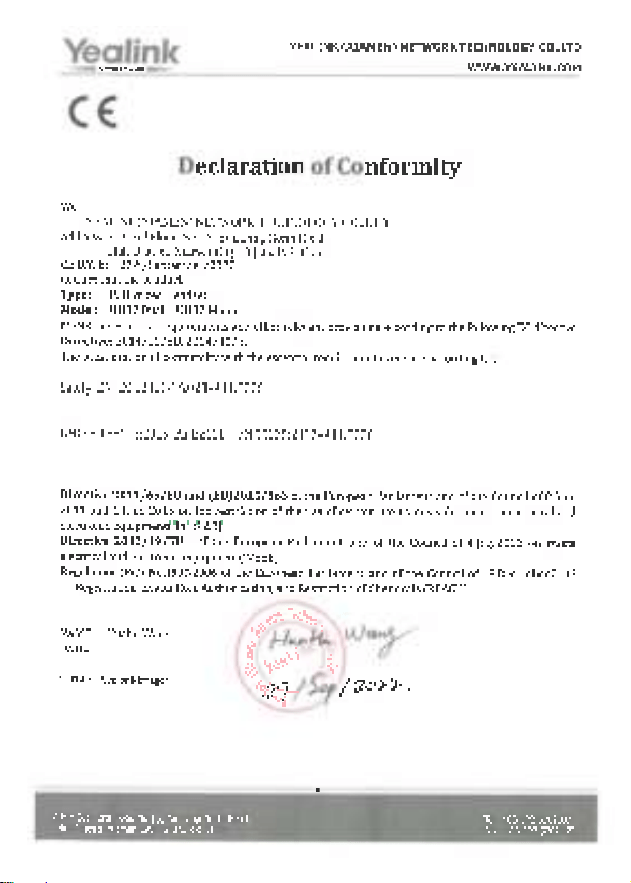
This device complies with the requirements of the EU RoHS Directive. Statements of compliance can be obtained by
contacting [email protected].
Safety Instructions
Save these instructions. Read these safety instructions before use!
General Requirements
• Before you install and use the device, read the safety instructions carefully and observe the situation during oper-
ation.
• During the process of storage, transportation, and operation, please always keep the device dry and clean, avoid
collision and crash.
• Please attempt not to dismantle the device by yourself. In case of any discrepancy, please contact the appointed
maintenance center for repair.
• Please refer to the relevant laws and statutes while using the device. Legal rights of others should be respected as
well.
Environmental Requirements
• Place the device at a well-ventilated place. Do not expose the device under direct sunlight.
• Keep the device dry and free of dusts.
• Do not place the device on or near any inammable or re-vulnerable object, such as rubber-made materials.
• Keep the device away from any heat source or bare re, such as a candle or an electric heater.
Operating Requirements
• Do not let a child operate the device without guidance.
• Do not let a child play with the device or any accessory in case of accidental swallowing.
• Please use the accessories provided or authorized by the manufacturer only.
• The power supply of the device shall meet the requirements of the input voltage of the device. Please use the pro-
vided surge protection power socket only.
• Before plugging or unplugging any cable, make sure that your hands are completely dry.
• Do not spill liquid of any kind on the product or use the equipment near water, for example, near a bathtub, wash-
bowl, kitchen sink, wet basement or near a swimming pool.
• During a thunderstorm, stop using the device and disconnect it from the power supply. Unplug the power plug and
the Asymmetric Digital Subscriber Line (ADSL) twisted pair (the radio frequency cable) to avoid lightning strike.
• If the device is left unused for a rather long time, disconnect it from the power supply and unplug the power plug.
• When there is smoke emitted from the device, or some abnormal noise or smell, disconnect the device from the
power supply, and unplug the power plug immediately.
• Contact the specied maintenance center for repair.
• Do not insert any object into equipment slots that is not part of the product or auxiliary product.
• Before connecting a cable, connect the grounding cable of the device rst. Do not disconnect the grounding cable
until you disconnect all other cables.
Battery Requirements
• Do not immerse the battery into water, which could short-circuit and damage the battery.
• Do not expose the battery to an open ame or leave the battery where it could be subjected to extremely high
temperatures, which could cause the battery to explode.
• Do power the handset off before removing the battery.
• Do not try to use the battery for the power supply of any device other than this handset.
• Do not open or mutilate the battery, released electrolyte is corrosive and may cause damage to your eyes or skin.
• Use only the rechargeable battery pack delivered with the handset or those rechargeable battery packs expressly
recommended by Yealink.

12
• Defective or exhausted battery should never be disposed of as municipal waste. Return old battery to the
battery supplier, a licensed battery dealer or a designated collection facility.
Cleaning Requirements
• Before cleaning the device, disconnect it from the power supply.
• Use a piece of soft, dry and anti-static cloth to clean the device.
• Keep the power plug clean and dry.
Troubleshooting
The unit cannot supply power to Yealink device.
There is a bad connection with the plug.
1. Clean the plug with a dry cloth.
2. Connect it to another wall outlet.
The usage environment is out of operating temperature range.
1. Use in the operating temperature range.
The cable between the unit and the Yealink device is connected incorrectly.
1. Connect the cable correctly.
You cannot connect the cable properly.
1. You may have connected a wrong Yealink device.
2. Use the correct power supply.
Some dust, etc., may be in the port.
1. Clean the port.
Contact your dealer or authorized service facility for any further questions.
FCC CAUTION:
This device complies with part 15 of the FCC Rules. Operation is subject to the following two conditions: (1) This device may not
cause harmful interference, and (2) this device must accept any interference received, including interference that may cause unde-
sired operation. Any changes or modications not expressly approved by the party responsible for compliance could void the user’s
authority to operate the equipment.
ISED WARNING:
This device complies with Innovation, Science and Economic Development Canada licence-exempt RSS standard(s). Operation is
subject to the following two conditions: (1) this device may not cause interference, and (2) this device must accept any interference,
including interference that may cause undesired operation of the device.
Le présentappareilestconforme aux CNR d’Industrie Canada applicables aux appareils radio exempts de licence. L’exploitationestau-
torisée aux deux conditions suivantes : (1) l’appareil ne doit pas produire de brouillage, et (2) l’utilisateur de l’appareildoit accepter
tout brouillageradioélectriquesubi, mêmesi le brouillageest susceptible d’encompromettre le fonctionnement.
Contact Information
YEALINK NETWORK TECHNOLOGY CO.,LTD.
309, 3rd Floor, No.16, Yun Ding North Road, Huli District, Xiamen City, Fujian, P.R.C
YEALINK (EUROPE) NETWORK TECHNOLOGY B.V.
Strawinskylaan 3127, Atrium Building, 8th oor, 1077ZX Amsterdam, The Netherlands
YEALINK (USA) NETWORK TECHNOLOGY CO., LTD.
999 Peachtree Street Suite 2300, Fulton, Atlanta, GA, 30309, USA
Made in China
YEALINK(XIAMEN) NETWORK TECHNOLOGY CO.,LTD.
Web: www.yealink.com
Copyright©2022 YEALINK(XIAMEN) NETWORK
TECHNOLOGY CO.,LTD. All rights reserved.
Technical Support
Yealink (Stock Code: 300628) is a global-leading provider of Unied Communication & Collabora-
tion Solutions specialized in video conferencing, voice communications, and collaboration, dedi-
cated to helping every person and organization embrace the power of “Easy Collaboration, High
Productivity”.
With best-in-class quality, innovative technology, and user-friendly experiences, Yealink is one of
the best providers in more than 140 countries and regions, ranks No.1 in the global market share of
IP Phone, and is the Top 5 leader in the video conferencing market (Frost & Sullivan, 2021).
Note: UH37 supports Yealink T27G/T4xS/T4xU/T53/T5xW/T58/VP59 through the
USB connection. To have a better experience, the phone rmware is recommend-
ed to be v86 (xx.86.x.xx) or higher. You can nd more detail in the “Yealink Head-
set Compatibility Guide” from the Yealink support website.
If your headset needs warranty service, the process is quick and easy. Please go
to
https://ticket.yealink.com/page/headset/warranty-service.html and submit the
RMA Claim to Yealink.