
Contents
About This Guide........................................................................................ 3
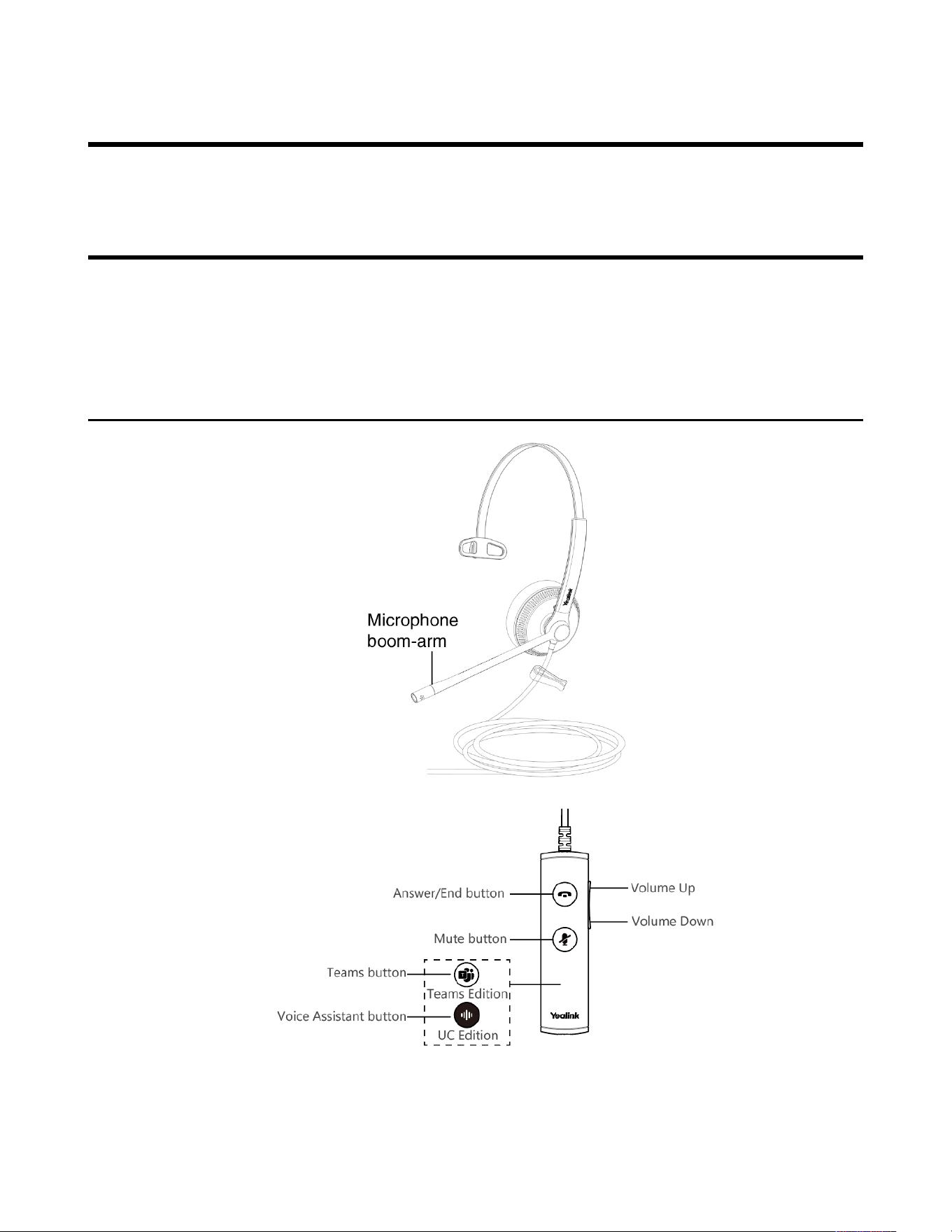
Hardware Overview......................................................................................3
Wired Headset UH34/UH34 Lite Mono...............................................................................................3
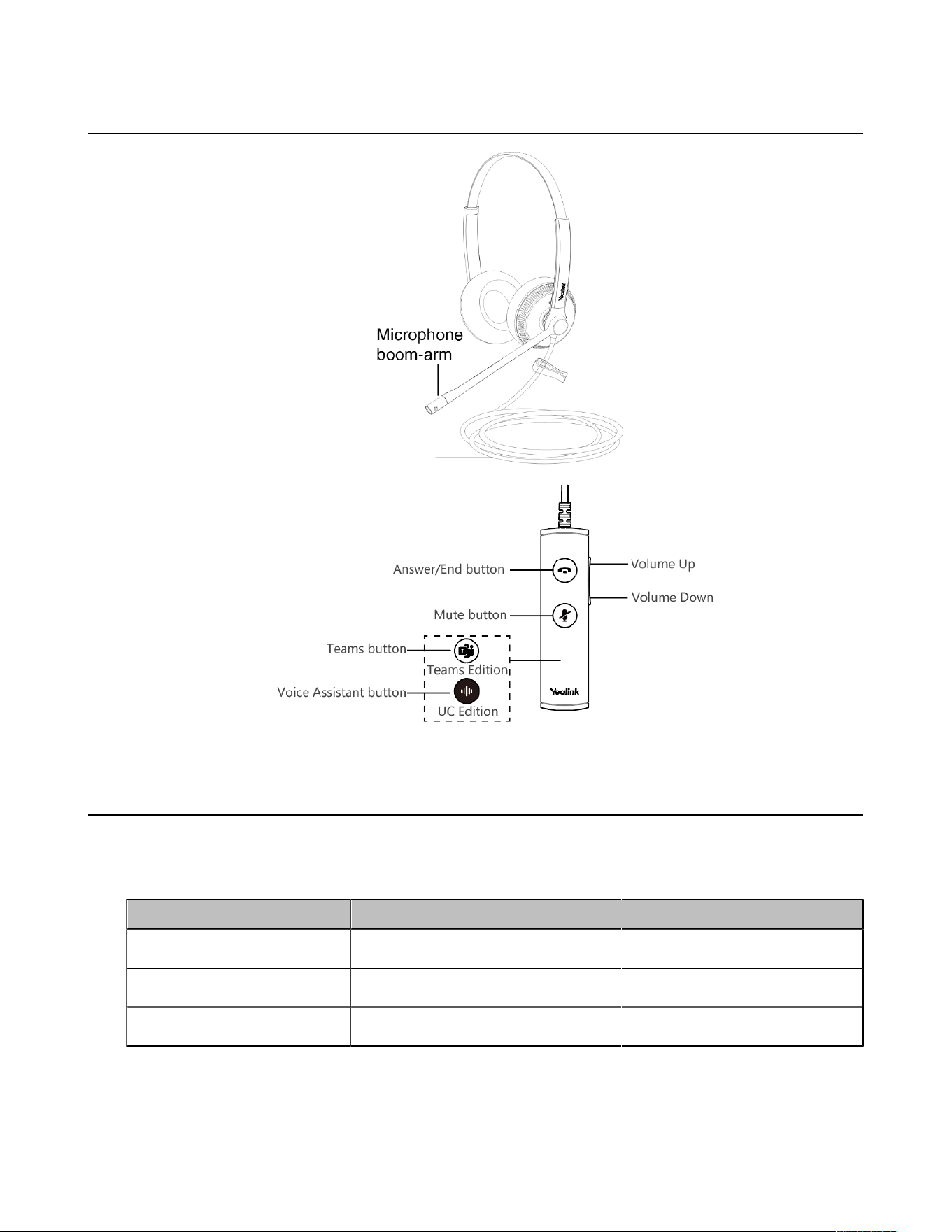
Wired Headset UH34/UH34 Lite Dual................................................................................................ 4
Teams/Voice Assistant Button LED Indicator......................................................................................4
Connecting to PC/Yealink IP Phone.......................................................... 5
Headset Wear............................................................................................... 5
Left or Right Wearing Style.................................................................................................................5
Adjusting the Headband......................................................................................................................5
Positioning the Microphone................................................................................................................. 6
Storing the Microphone....................................................................................................................... 6
Basic Call Usage......................................................................................... 7
Multiple Calls Handling............................................................................... 9
Yealink USB Connect.................................................................................. 9
Update Firmware............................................................................................................................... 10
FAQ.............................................................................................................. 11
| Hardware Overview | 4
Wired Headset UH34/UH34 Lite Dual
Teams/Voice Assistant Button LED Indicator
When used with the Teams client, the button LED indicator is as follows. When the voice assistant is
activated, the button always glows white.
LED Indicator
LED Indicator Description
Slow-flashing white When there are missed calls/voice mails/Teams meeting notification
Solid white
Teams connected
Off
Teams disconnected
| Connecting to PC/Yealink IP Phone | 5
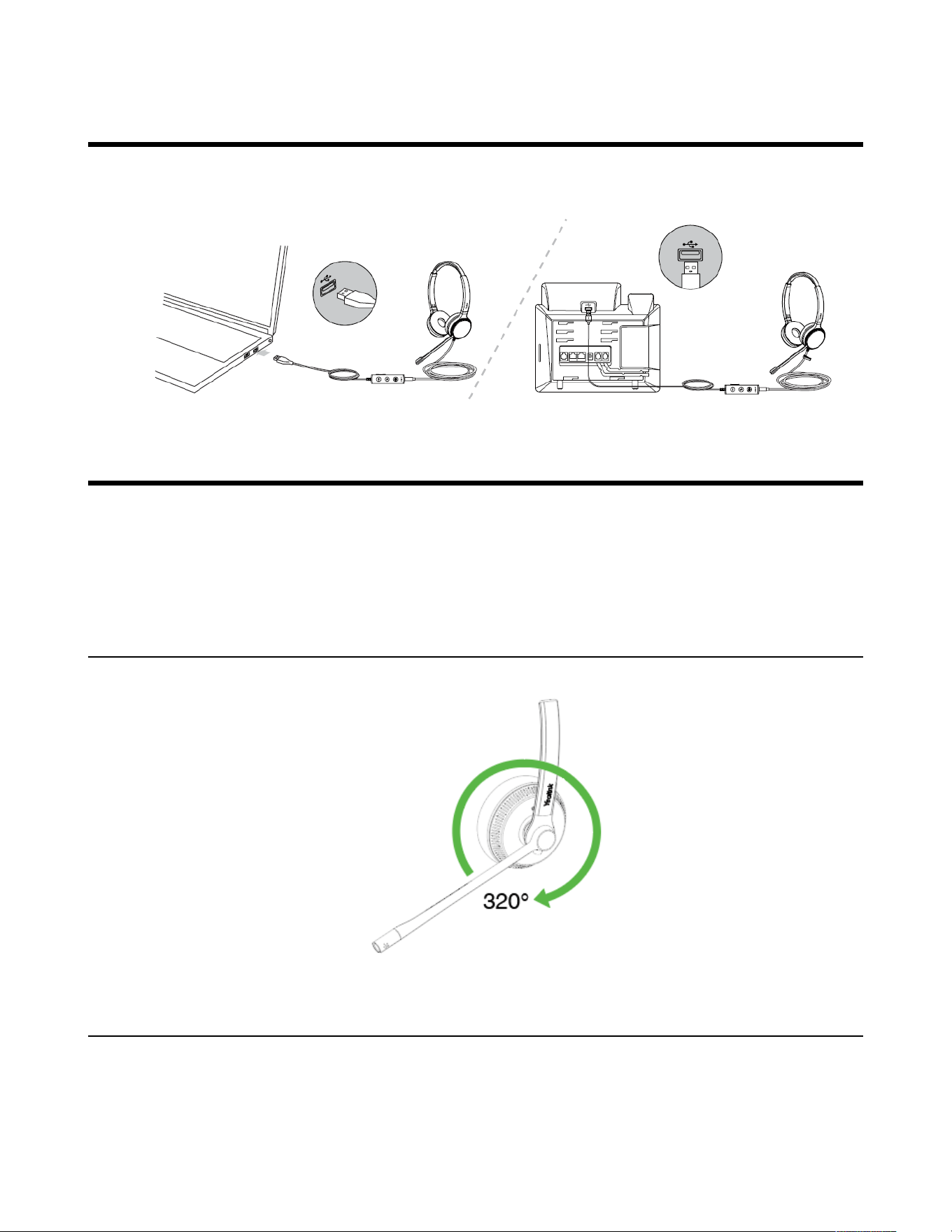
Connecting to PC/Yealink IP Phone
Connect the headset to a USB port on the PC/Yealink IP phone.
Headset Wear
• Left or Right Wearing Style
• Adjusting the Headband
• Positioning the Microphone
• Storing the Microphone
Left or Right Wearing Style
You can wear the headset on the left or right by flipping the microphone to the other side (320° limit).
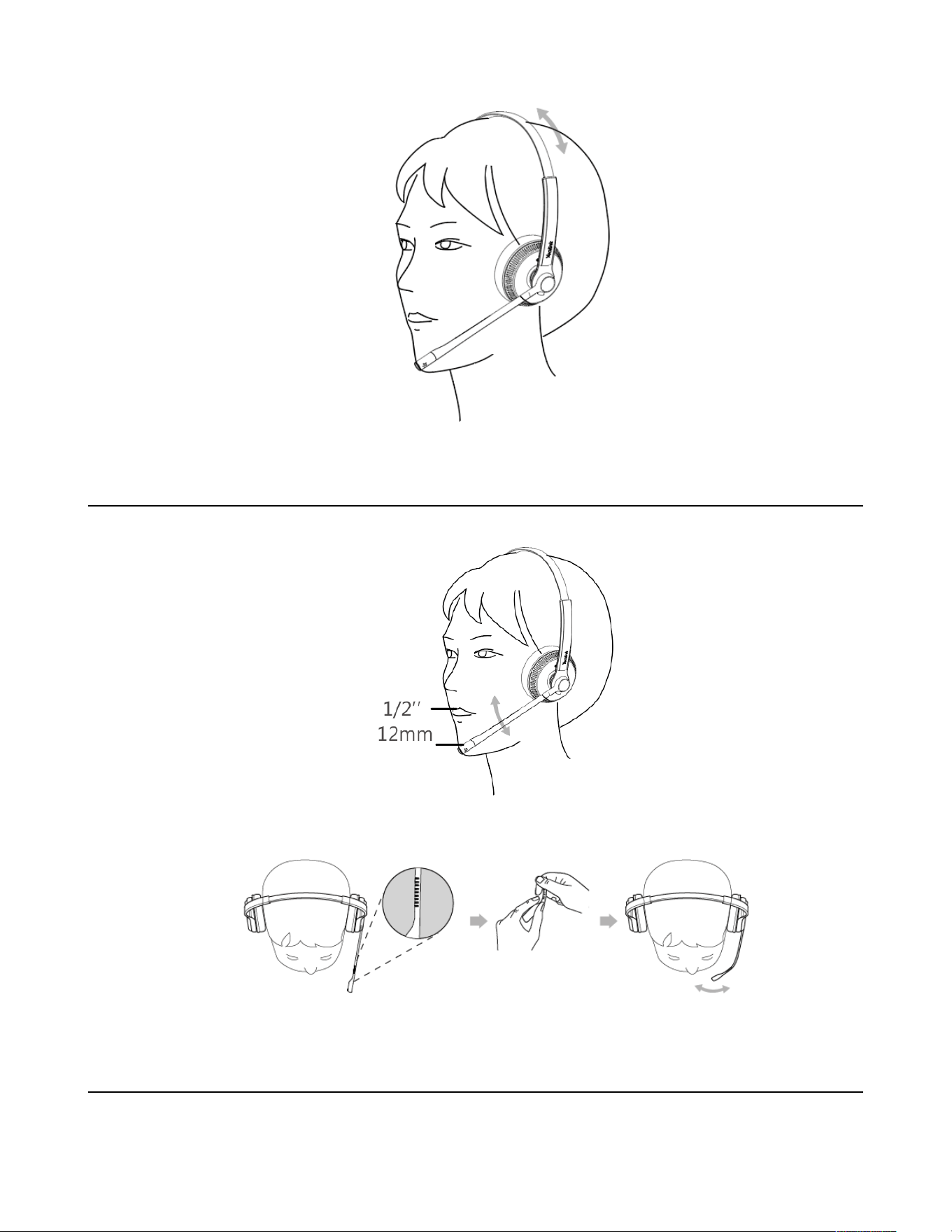
Adjusting the Headband
Adjust the headband to find the most comfortable fit.
| Headset Wear | 6
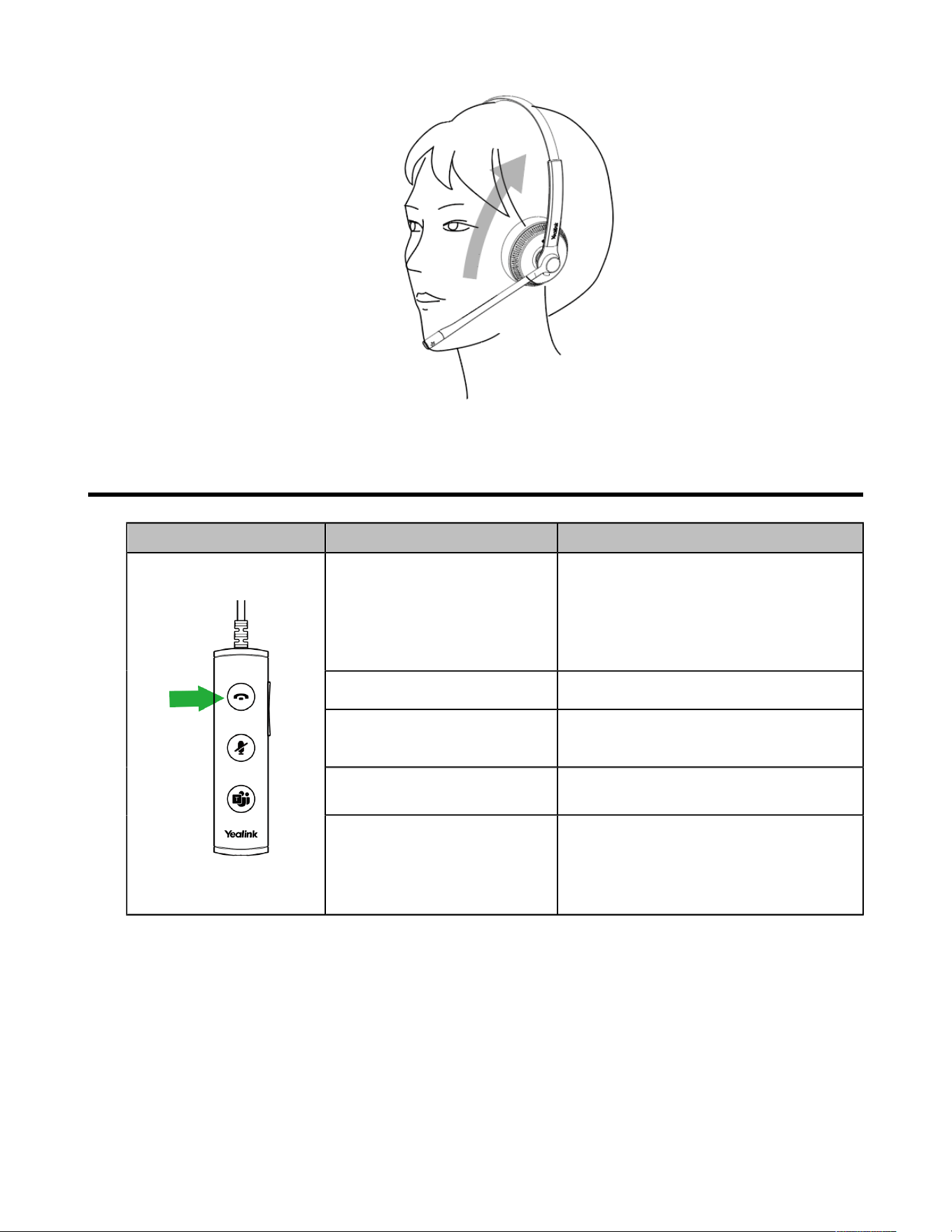
Positioning the Microphone
It is recommended to position the microphone close to your mouth (0.5 inches).
The microphone is bendable for personal preference.
Storing the Microphone
The microphone can be placed upright.
| Basic Call Usage | 7
Basic Call Usage
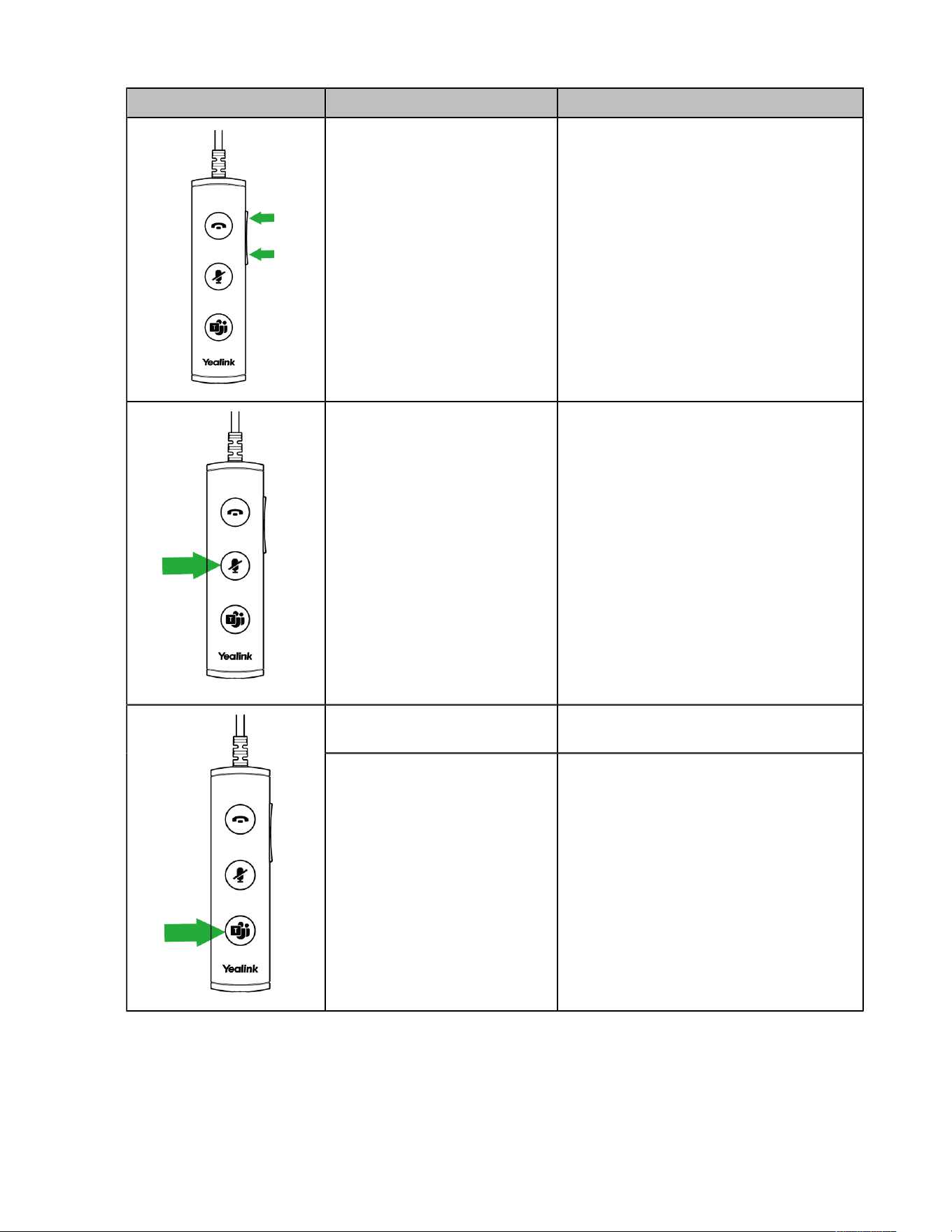
Headset Function Action
Answer call
Press the Answer/End Call button.
Note: When receiving an incoming call,
the Answer/End button LED flashes green.
During the call, the Answer/End button
LED glows green.
End call Press the Answer/End Call button.
Reject call
Double-press the Answer/End Call
button.
Redial
Double-press the Answer/End Call
button.
Hold/resume call
Hold the Answer/End Call button for 2
seconds.
Note: When a call is placed on hold, the
Answer/End button LED flashes green.
| Basic Call Usage | 8
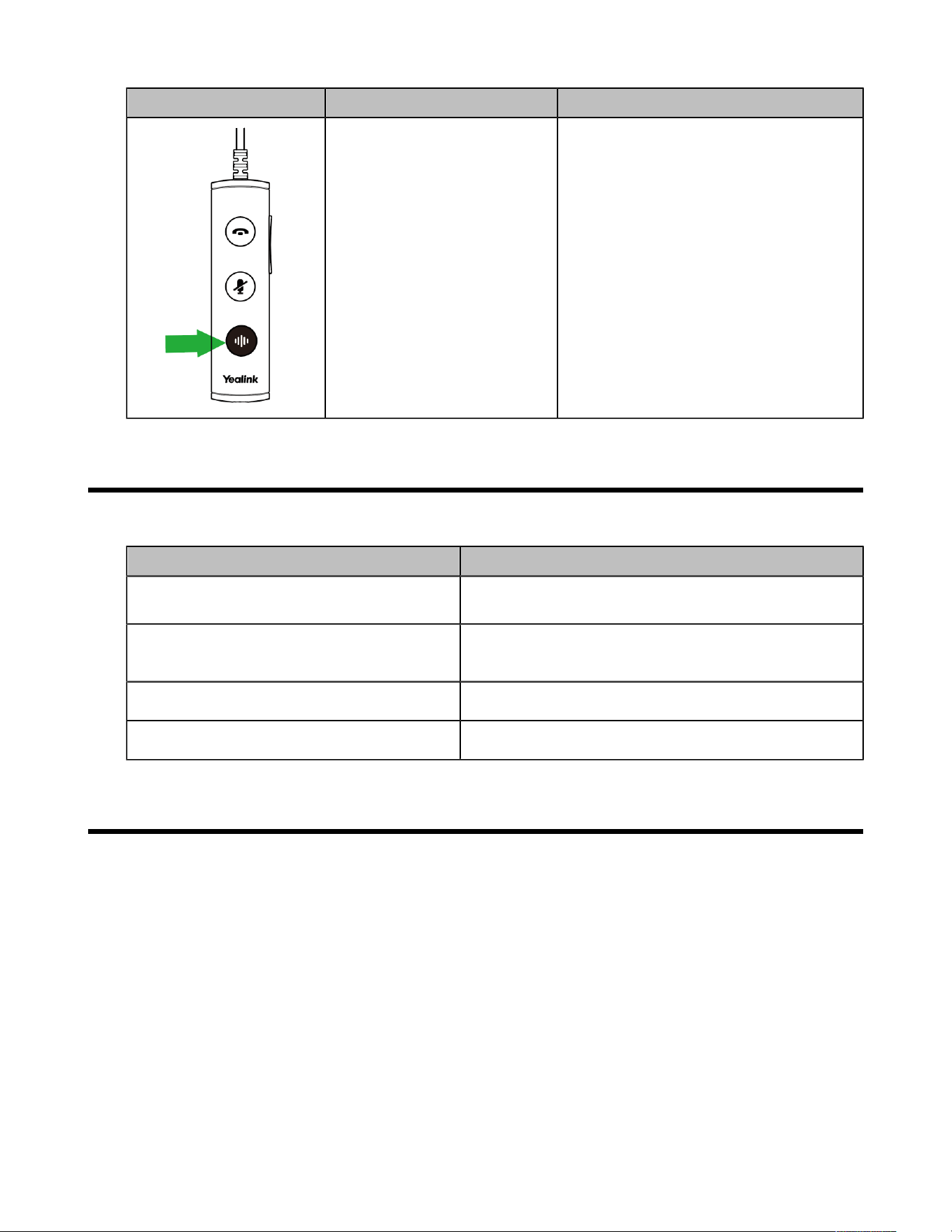
Headset Function Action
Adjust volume
Press the Volume Up/Volume Down
button.
Mute/un-mute microphone
Press the Mute button.
Note: When a call is muted, the Mute
button LED glows red.
(Teams version) Activate
Cortana integrated in Teams
Hold the Teams button for 2 seconds. (this
requires Microsoft's support).
(Teams version) Invoke the
Teams client
Press the Teams button in the idle state.
| Multiple Calls Handling | 9
Headset Function Action
(UC version) Activate voice
assistant
Hold the Voice Assistant button for 2
seconds.
Multiple Calls Handling
The headset and base can accept and handle multiple calls at the same time.
Multiple Call Handling Action
End the current call and answer the incoming
call
Press the Call Control button.
Put the current call on hold and answer the
incoming call
Hold the Call Control button for 2 seconds.
Switch between held call and active call
Hold the Call Control button for 2 seconds.
Reject incoming call, while on a current call Double-press the Call Control button.
Yealink USB Connect
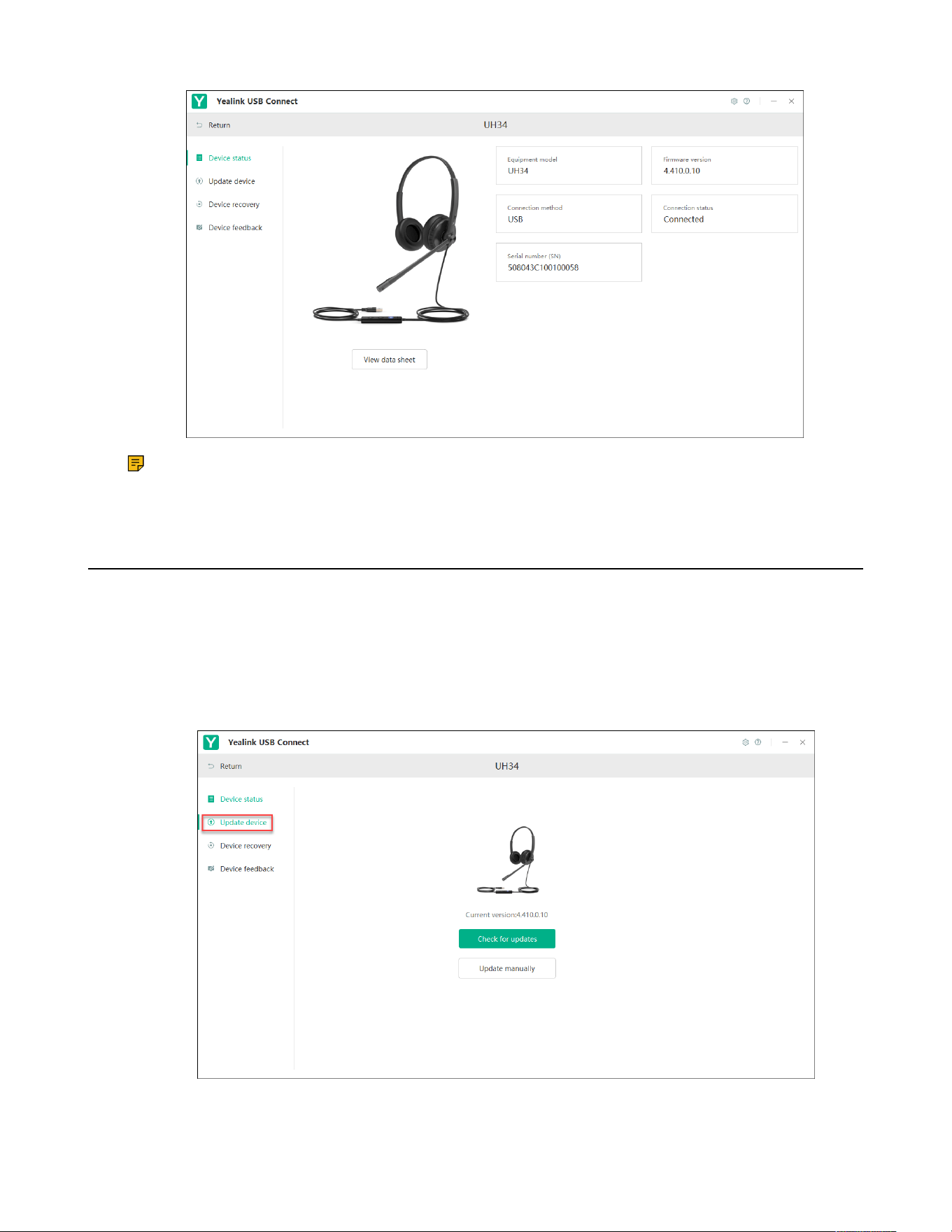
Yealink USB Connect is a computer software designed to manage Yealink USB devices.
With Yealink USB Connect, you can:
• Get an overview of connected Yealink USB devices
• Manage your Yealink USB devices
• Update your Yealink USB device to enhance its performance and features
• Give feedback on your Yealink USB device
| Yealink USB Connect | 10
Note: Download via support.yealink.com.
• Update Firmware
Update Firmware
Procedure
1. Connect the headset to the USB port of PC.
2. Update the headset firmware via Yealink USB Connect.
• Check for updates
• Update manually
For more information on Yealink USB Connect, refer to Yealink USB Device Manager Client User Guide.