
Contents
About This Guide........................................................................................ 3
Hardware Overview......................................................................................3
Package List........................................................................................................................................ 4
Headset Buttons.................................................................................................................................. 5
Busylight Indicator............................................................................................................................... 6
Mobile/PC Button Indicator..................................................................................................................6
Teams/Voice Assistant Indicator..........................................................................................................7
UH38 Headset Connection..........................................................................7
Connecting to PC/Yealink IP Phone via the USB Cable.....................................................................7
Connecting to Mobile Device via Bluetooth........................................................................................ 8
Disable Bluetooth.................................................................................................................................8
Headset Wear............................................................................................... 8
Left or Right Wearing Style.................................................................................................................8
Adjusting the Microphone....................................................................................................................9
Clip the Microphone Cable on Clothes............................................................................................. 10
Headset Usage........................................................................................... 10
Status Check..................................................................................................................................... 10
Basic Call and Music........................................................................................................................ 11
Mute Usage....................................................................................................................................... 13
Multiple Calls..................................................................................................................................... 13
Recovery Factory Setting......................................................................... 14
Yealink USB Connect................................................................................ 14
Firmware Update............................................................................................................................... 15
FAQ.............................................................................................................. 16

| Hardware Overview | 4
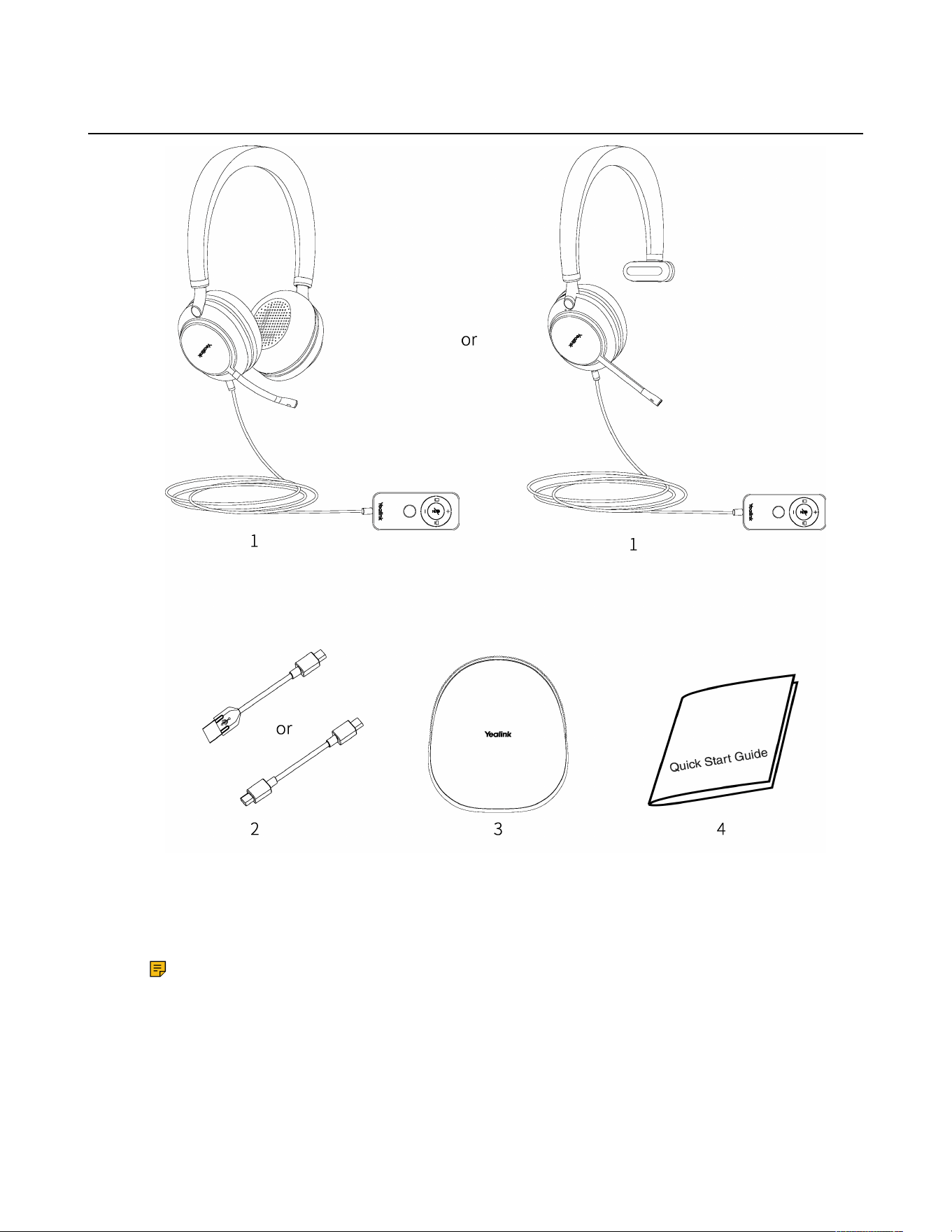
Package List
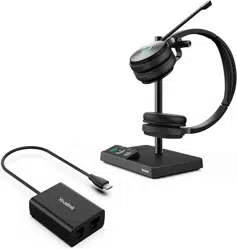
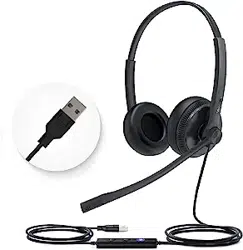
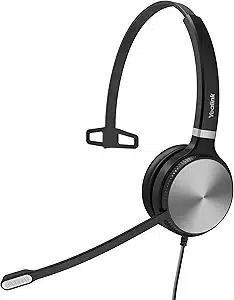
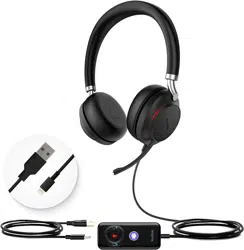
1. UH38 dual headset (with built-in battery)/mono headset (without built-in battery)
2. USB 2.0 Cable ( USB-A to USB-C/USB-C to USB-C, line length 1.2 meters )
3. Carrying Case
4. Quick Start Guide
Note: We recommend that you use the included accessories, and other accessories may have
compatibility issues that prevent them from working properly.
| Hardware Overview | 5
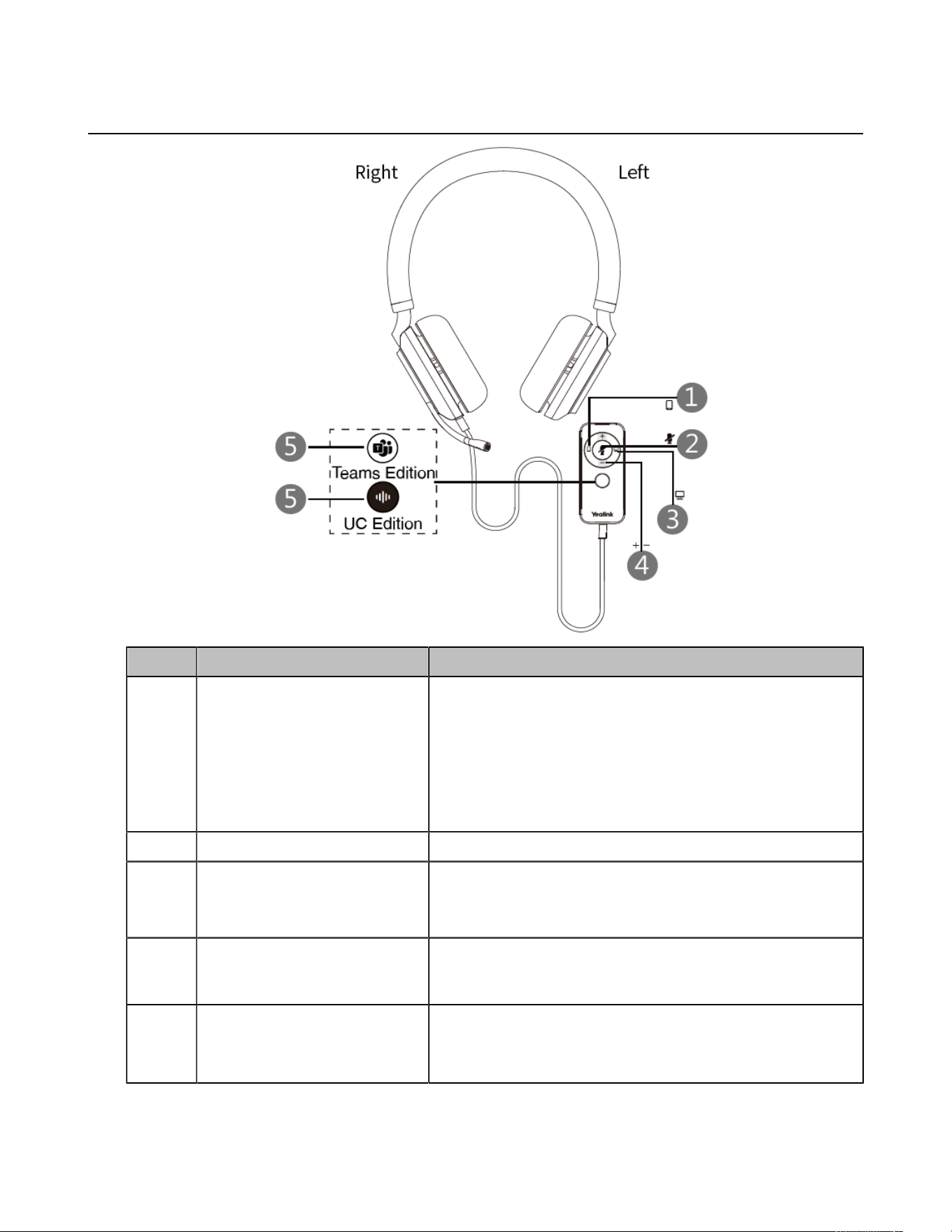
Headset Buttons
No. Button Description
1
Bluetooth on/off Button and
Mobile Talk
• Hold for 5 seconds while the headset is powered off to
enter the Bluetooth pairing mode (the button flashes red
and blue). Then, you can search and connect Yealink
UH38 on the mobile phone.
• Hold for 5 seconds to disable Bluetooth.
• Control button of Bluetooth device call: press to answer,
reject, or end a mobile call.
2 Mute/Unmute Button Press to mute or unmute the microphone.
3 PC Talk Button
Control calls from devices connected to the headset via a
USB cable: press to answer, reject, or end a PC/desk phone
call.
4
Volume up Button
Volume down Button
Press to turn up/turn down volume.
5
(Teams Edition) Teams
Button
• Hold for 2 seconds to activate Cortana integrated in
Teams (this requires Microsoft's support).
• Press to invoke the Teams client.
| Hardware Overview | 6
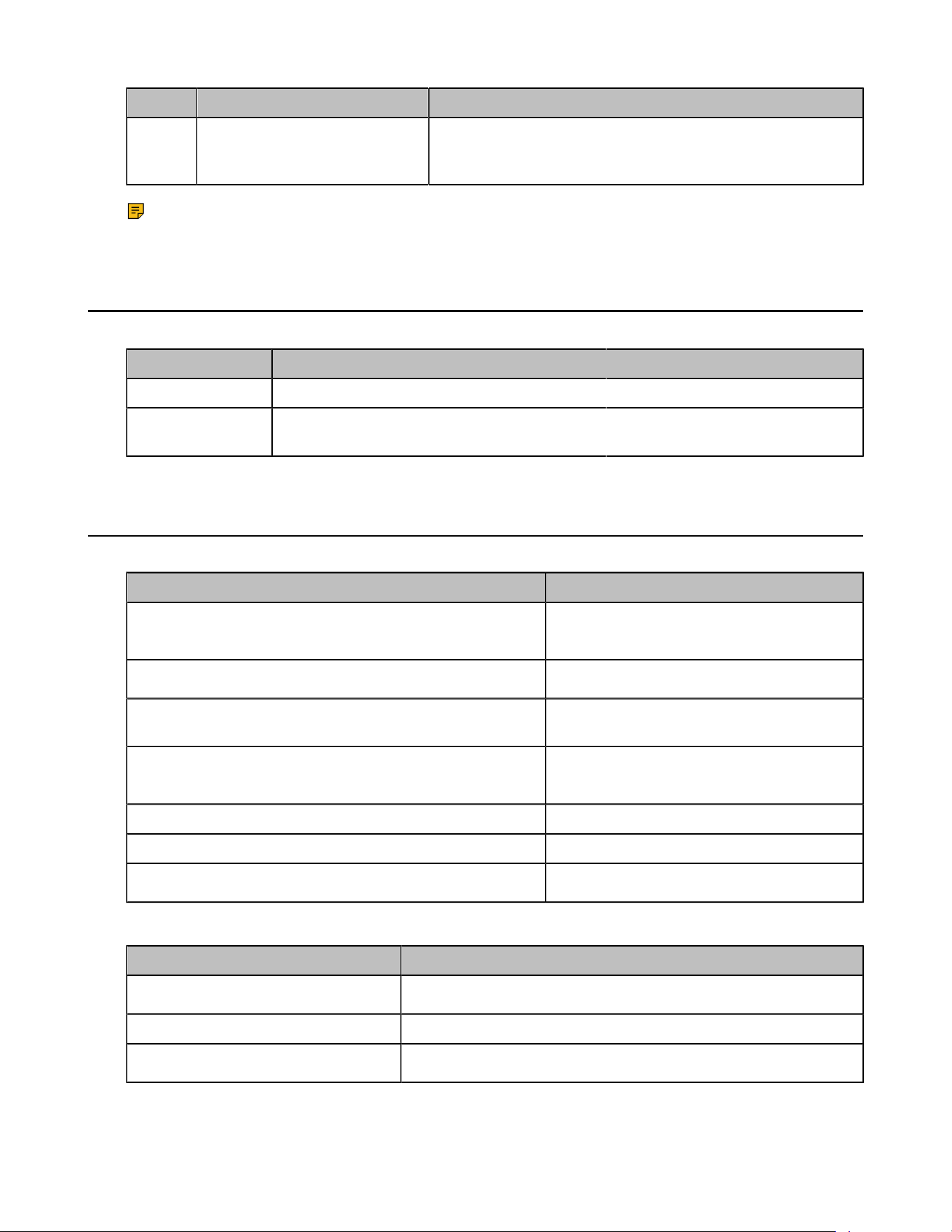
No. Button Description
(UC Edition) Voice
Assistant Button
Hold for 2 seconds to activate the voice assistant.
Note: Before using the Teams feature, you should install the Microsoft Teams client on your PC.
For more information on LED indicator status, please refer to the user guide.
Busylight Indicator
Introduction of the busylight indicator on both sides of the headset:
Indicator Description
Red light flashes Incoming call rings.
Solid red light During a call.
Mobile/PC Button Indicator
Mobile Button Indicator
Indicator Description
The green light is on for 2 seconds, and then the light goes
out
Enable Bluetooth
The red and blue lights flash alternately for 500 ms/time
Bluetooth enters the pairing state
The red light is on for 2 seconds, and then the light goes
out
Disable Bluetooth
The blue light is on for 2 seconds, and then the light goes
out
Bluetooth pairing succeeded
Green light flashes Received an incoming call
Solid green During a call
The green light double flashes
Stay on the line
PC Button Indicator
Indicator Description
Green light flashes
Received an incoming call
Solid green During a call
The green light double flashes
Stay on the line
| UH38 Headset Connection | 7
Indicator Description
The green light flashes slowly during
the upgrade
Headset is being upgraded (when the upgrade is complete,
the light of the mobile button, mute button, and PC button flash
simultaneously for 1 second and then the light goes out)
Teams/Voice Assistant Indicator
When the headset activates the voice assistant, the button backlight is always on. When the headset works
with Teams Client, the button backlight is shown below:
Indicator Description
White light flashes slowly Receive a missed call/voice message/meeting
notification
White indicator light flashes slowly and becomes
solid white light
Teams connected successfully
The white light flashes slowly and then the light
goes out
Teams is not connected
UH38 Headset Connection
• Connecting to PC/Yealink IP Phone via the USB Cable
• Connecting to Mobile Device via Bluetooth
• Disable Bluetooth
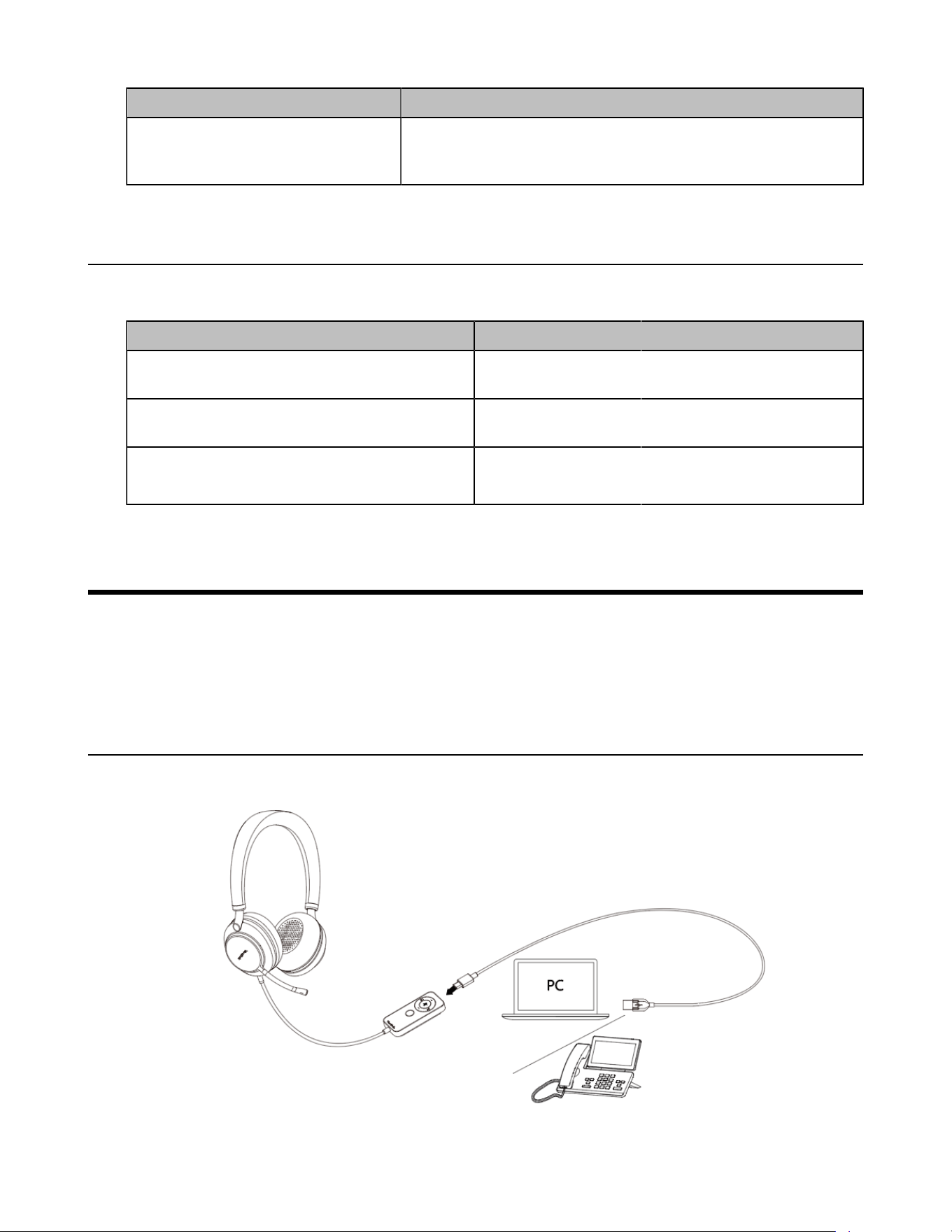
Connecting to PC/Yealink IP Phone via the USB Cable
Connect the headset to the PC/Yealink IP phone via the USB cable.

| Headset Wear | 8
Note: For the dual headset, you can charge the headset after connecting it to your PC/phone via
the USB cable.
Connecting to Mobile Device via Bluetooth
You can connect the headset to your phone via the built-in Bluetooth to use as a Bluetooth headset.
Procedure
1. The headset enters the Bluetooth pairing mode.
• Unpacking for the first time (Bluetooth has not been paired): Press and hold the Mobile button for 3
seconds to enable the Bluetooth, and the headset enters the Bluetooth pairing automatically.
• Bluetooth has been paired: Press and hold the Mobile button for 5 seconds to enable the Bluetooth,
and the headset enters the Bluetooth pairing automatically.
The voice prompts "Bluetooth on, remaining talk time XX hours, pairing mode", then the headset
enters the Bluetooth pairing mode. The red and blue lights of the Mobile button will flash alternately
(500ms/time) after 2 seconds of the green light of the headset.
2. Enable Bluetooth on your mobile phone/IP phone/PC.
3. You can search and select the Yealink UH38 from the list of Bluetooth devices to pair with UH38.
The voice prompts "Mobile one connected" means that the connection is successful.
Tip: When you want to pair the headset with a new device (Device 2) after the headset has
been paired with a Bluetooth device (Device 1), and you need to disable the Bluetooth on Device
1 and can hear the voice prompts "Mobile one disconnected". Or you need to make sure that
Device 1 is not within the range of the headset and then connect to other devices.
Note: Yealink UH38 is the default device name. For Bluetooth compatibility information, please
refer to the specific compatibility guide.
Disable Bluetooth
When the headset is not on a call, you can press and hold the Mobile button for 5 seconds until the voice
prompts "Bluetooth off". After you disable Bluetooth, you can quickly disconnect the Bluetooth connection
of your headset from your Bluetooth device. For the mono headset, you only need to unplug the USB cable
and disable the Bluetooth.
Headset Wear
• Left or Right Wearing Style
• Adjusting the Microphone
• Clip the Microphone Cable on Clothes
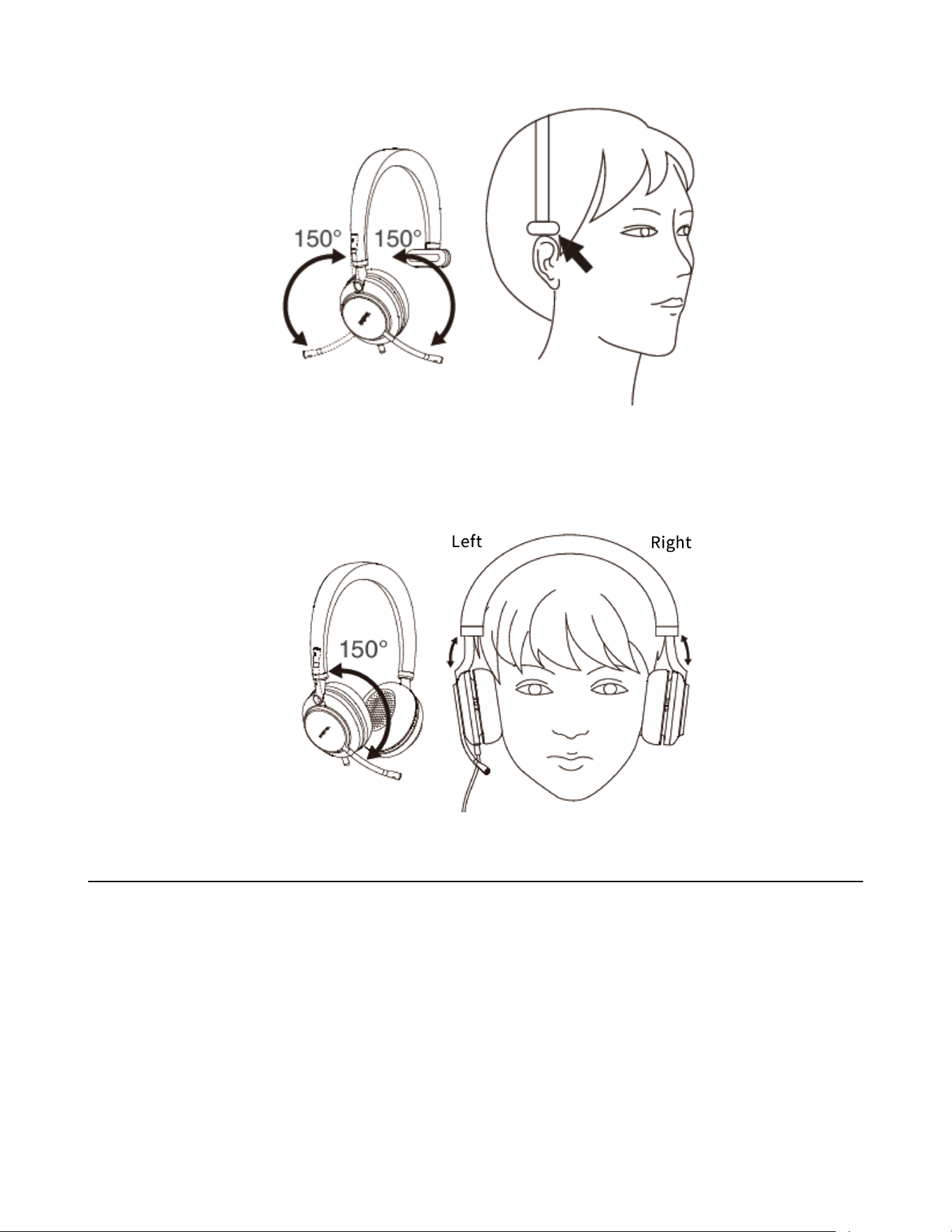
Left or Right Wearing Style
Mono Headset
You can wear the headset on the left or right by flipping the microphone to the other side (300° limit).
| Headset Wear | 9
Dual Headset
You need to distinguish the left and right of microphone, and the rotation angle of the microphone is up to
150°.
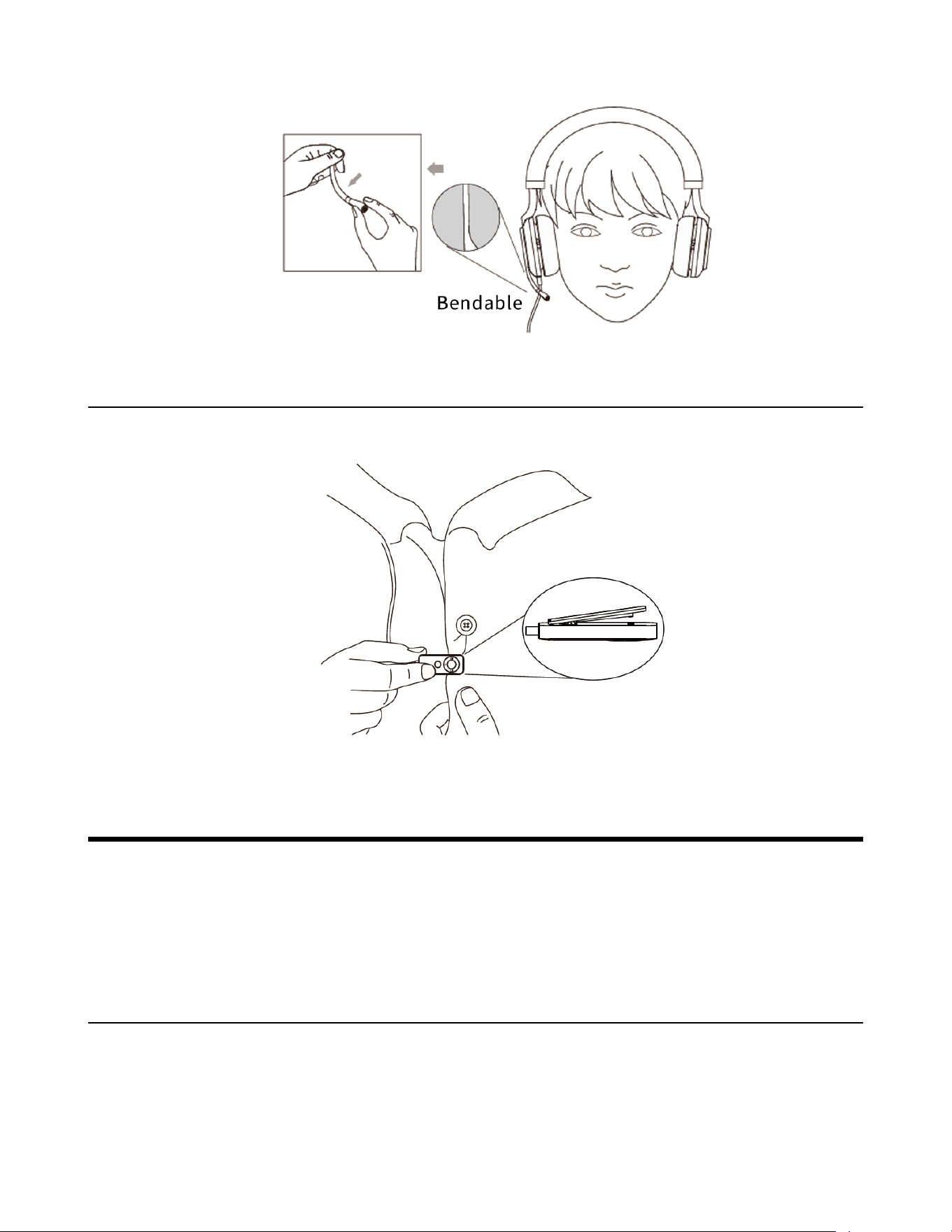
Adjusting the Microphone
You can adjust the microphone to find the most comfortable fit. When using the headset, you can bend the
microphone boom properly and bring it closer to your mouth for a better sound pickup.
| Headset Usage | 10
Clip the Microphone Cable on Clothes
You can fix the microphone cable to your clothes with clothespins. The clothespin keeps the microphone
cable in a convenient position when using your mobile phone away from your PC.
Headset Usage
• Status Check
• Basic Call and Music
• Mute Usage
• Multiple Calls
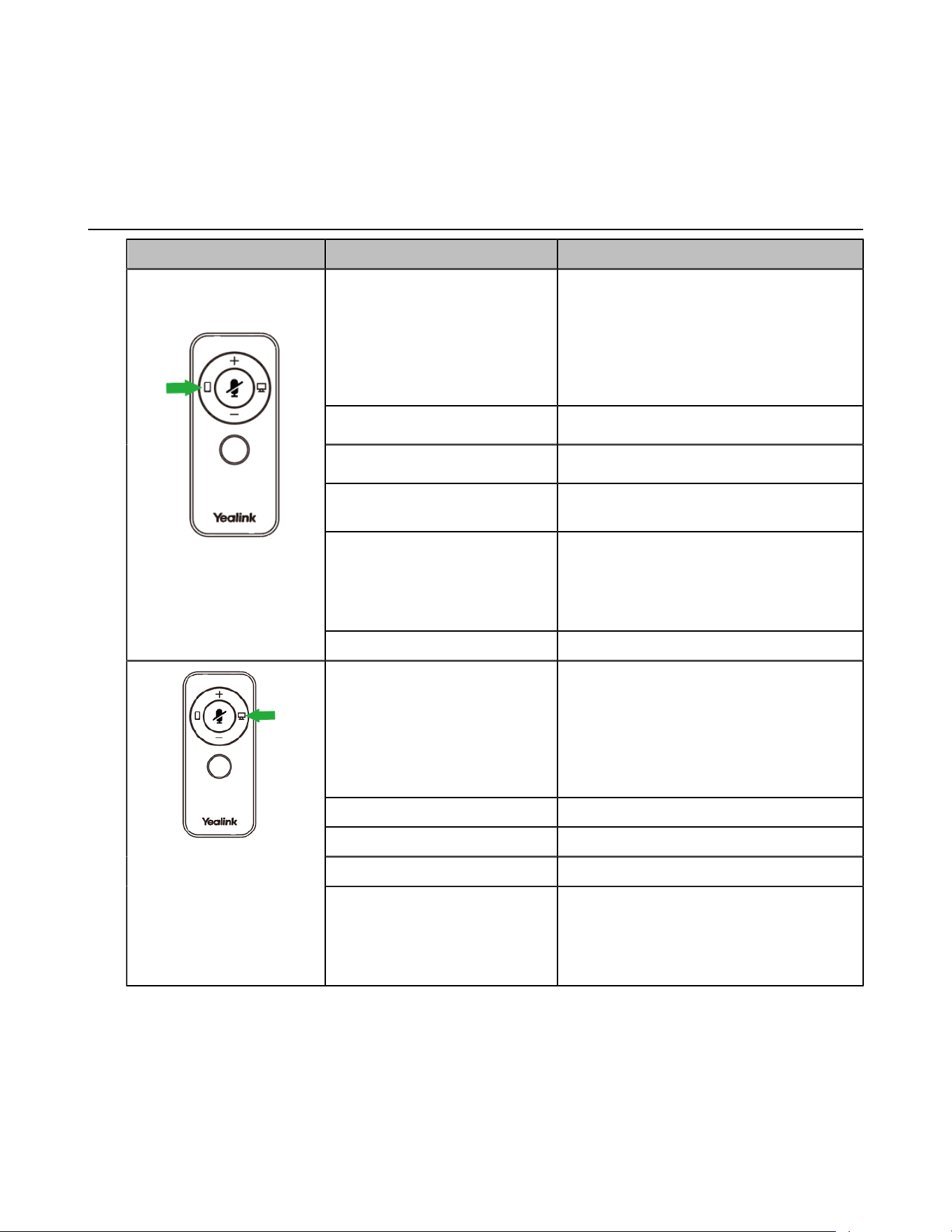
Status Check
You can manually check the remaining talk time and device connection of the headset.
Procedure
In the idle state, press and hold the Mobile button for 2 seconds.
| Headset Usage | 11
Results
• Dual Headset: the voice prompts "Remaining talk time xx hours, XXX connected".
• Mono Headset (without built-in battery): the voice prompts "XXX connected".
Basic Call and Music
Headset Feature Action
Answer call
Press the Mobile button.
Note: When receiving an incoming call,
the Busylight LED flashes red quickly,
and the Mobile button LED flashes green.
During the call, the Busylight LED glows
red and Mobile button LED glows green.
End call Press the Mobile button.
Reject call Press the Mobile button twice.
Redial
Press the Mobile button twice in the idle
state.
Hold/resume call
Press and hold the Mobile button for 2
seconds.
Note: When a call is placed on hold, the
Mobile button LED flashes green.
(Control buttons for
Bluetooth device call)
Play/Pause music Press the Mobile button.
Answer PC/IP phone call Press the PC button.
Note: When receiving an incoming call,
the Busylight LED flashes red quickly,
and the PC button LED flashes green.
During the call, the Busylight LED glows
red and PC button LED glows green.
End PC/IP phone call Press the PC button.
Reject PC/IP phone call Press the PC button twice.
Redial Press the PC button twice in the idle state.
(Control buttons for
USB device call)
Hold/resume call Press and hold the PC button for 2
seconds.
Note: When a call is placed on hold, the
PC button LED flashes green.
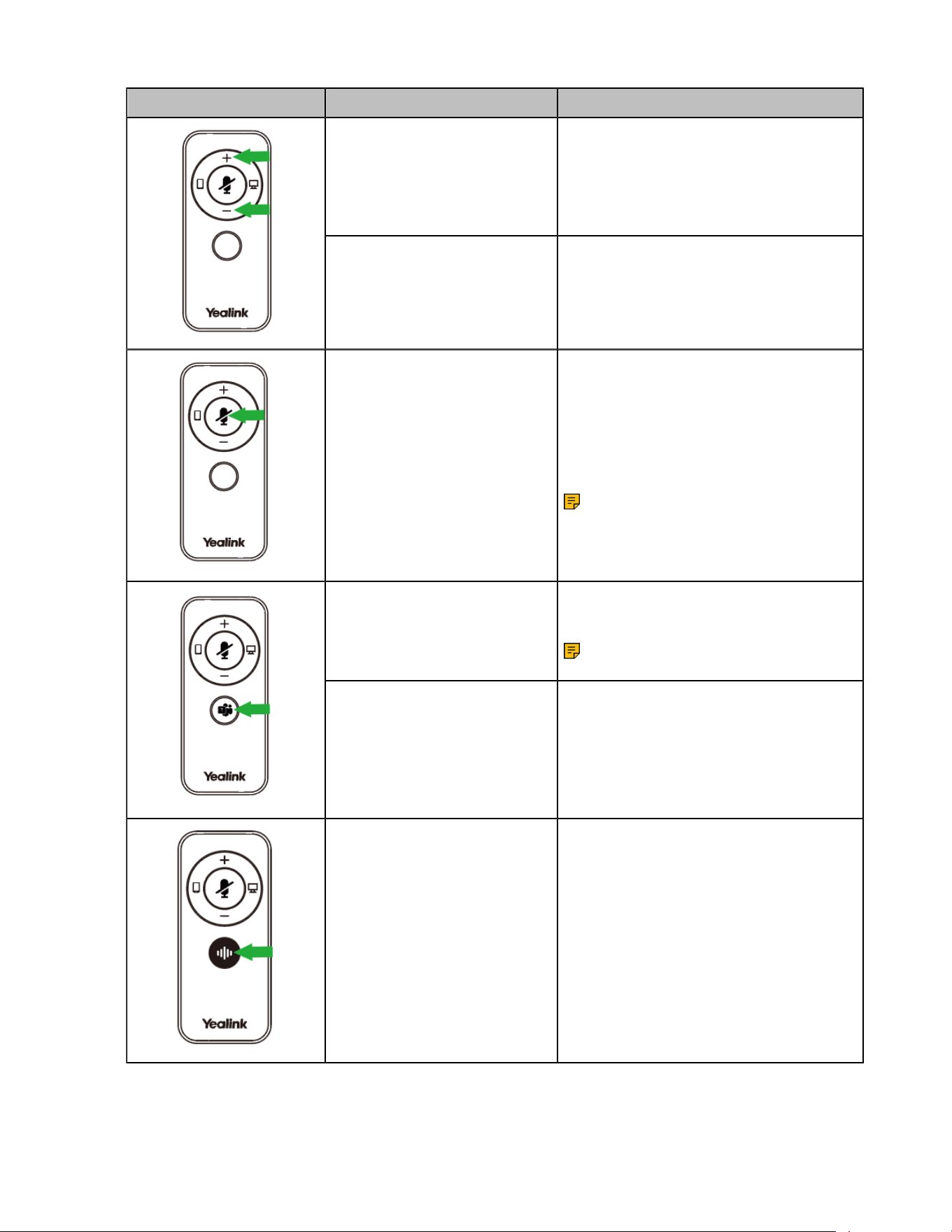
| Headset Usage | 12
Headset Feature Action
Adjust volume
Press the Volume Up/Volume Down
button.
Note: press and hold the Volume
Up/Volume Down button to increase/
decrease the volume.
Manually turn on/off the
headset Busylight indicator
Press the Volume Up/Volume Down
button when not in a call.
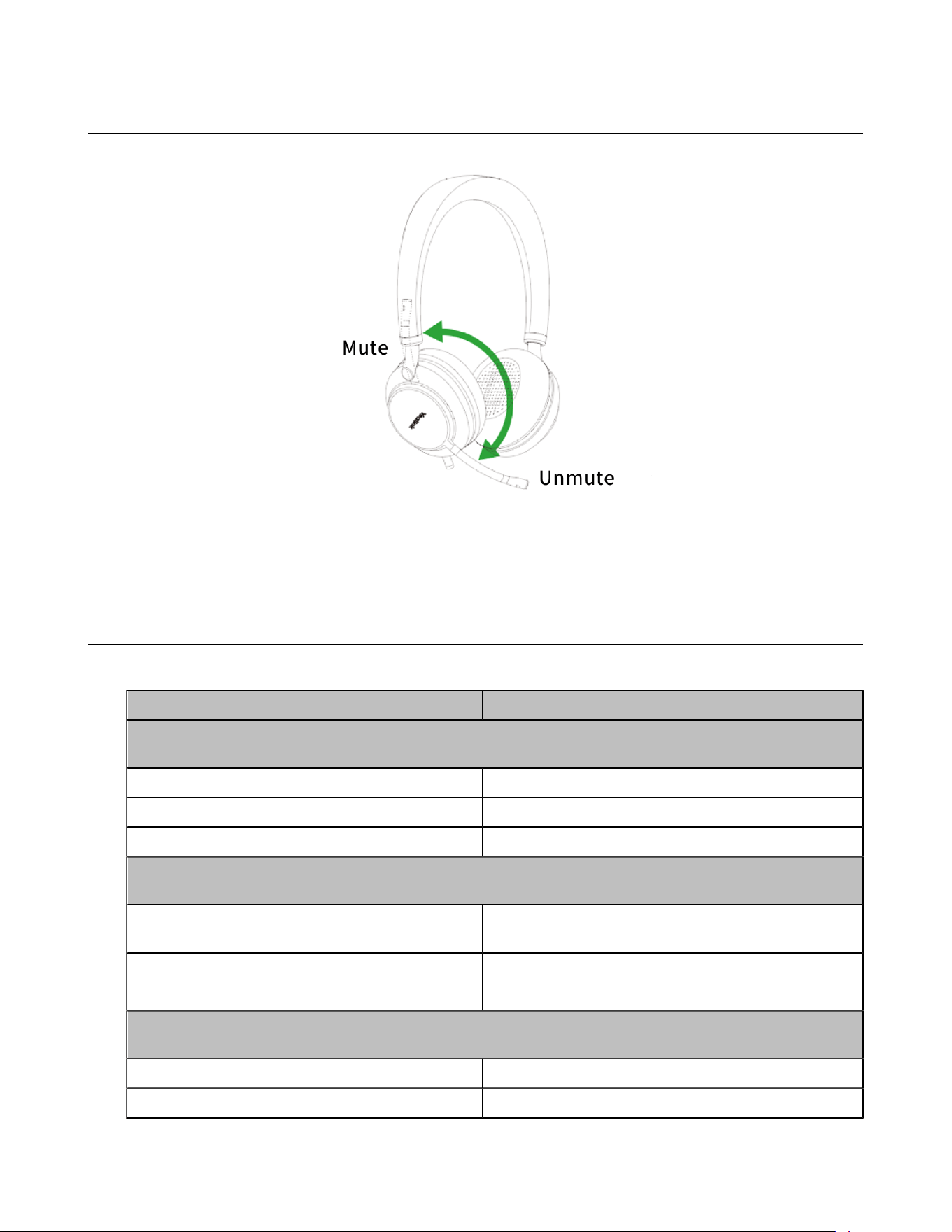
Mute/un-mute microphone
Press the Mute button.
Note: When a call is muted, the Mute
button LED is always on.
Note: It only works when the
boom is down.
(Teams version) Activate
Cortana integrated in Teams
Press and hold the Teams button for 2
seconds.
Note: this requires Microsoft's
support.
(Teams version) Invoke the
Teams client
Press the Teams button.
(UC version) Activate voice
assistant
Press and hold the Voice Assistant
button for 2 seconds.
| Headset Usage | 13
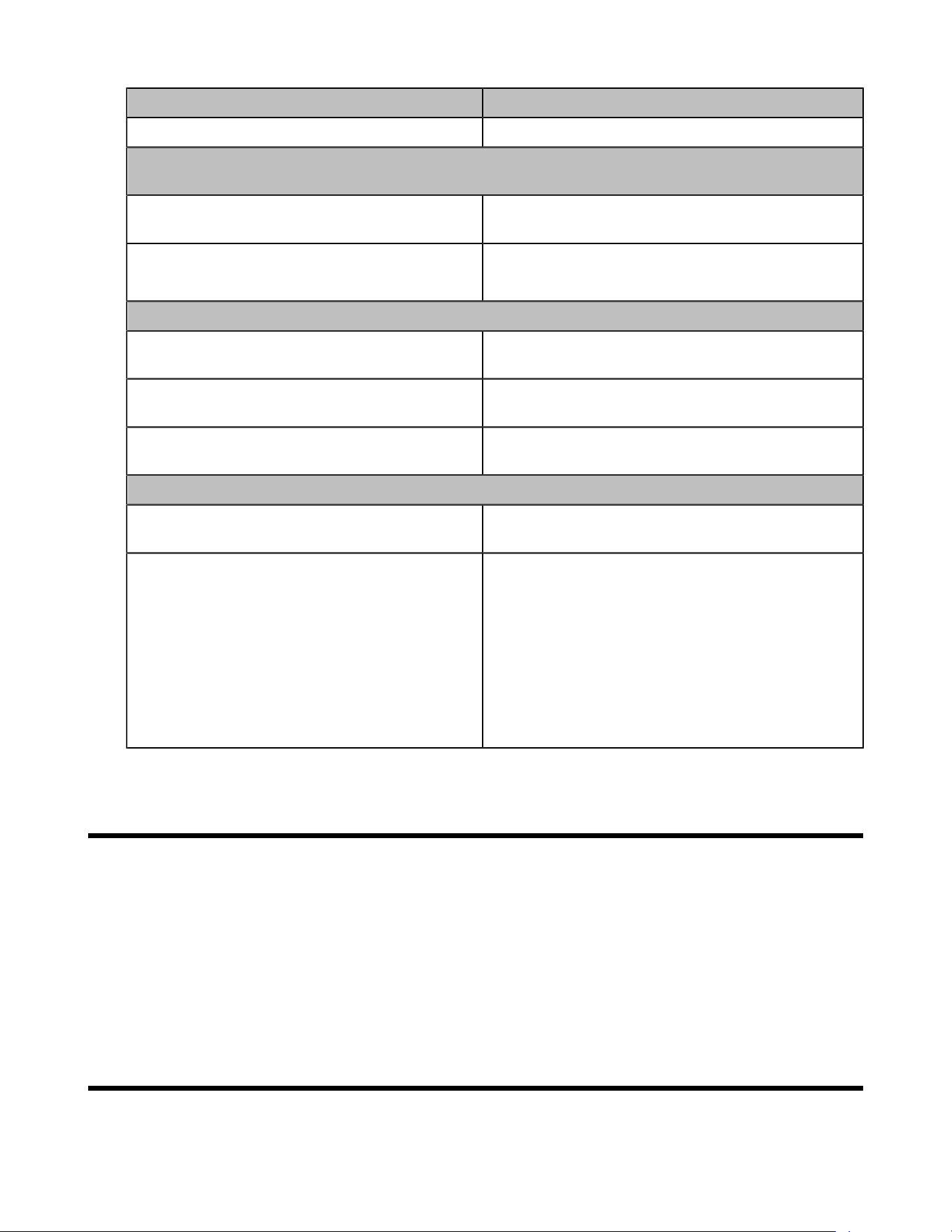
Mute Usage
You can mute the microphone by moving the boom up or unmute it by moving it down.
Start Mute detection feature: it will prompt "Muted" when you are speaking into the muted microphone.
Otherwise, it will not prompt.
Multiple Calls
The headset can answer and handle multiple incoming calls at the same time.
Handle multiple calls Description
1.The headset is on a call via a USB cable (the PC button glows solid green and the busylight
glows solid red), and you can answer a new call via the USB cable at this time:
Answer the new call and hang up the current call Press the PC button.
Reject the new call and continue the current call Press the PC button twice.
Answer the new call and hold the current call Press and hold the PC button for 2 seconds.
2.The headset is on a call via a USB cable (the PC button glows solid green and the busylight
glows solid red), and you can answer a new call via Bluetooth at this time:
Reject the new Bluetooth call and continue the
current USB cable call
Press the Mobile button twice.
Answer the new Bluetooth call and hold the
current USB cable call
Press and hold the Mobile button.
3.The headset is on a call via Bluetooth (the Mobile button glows solid green and the busylight
glows solid red), and you can answer a new call via Bluetooth at this time:
Answer the new call and hang up the current call Press the Mobile button.
Reject the new call and continue the current call Press the Mobile button twice.
| Recovery Factory Setting | 14
Handle multiple calls Description
Answer the new call and hold the current call Press and hold the Mobile button for 2 seconds.
4.The headset is on a call via Bluetooth (the Mobile button glows solid green and the busylight
glows solid red), and you can answer a new call via the USB cable at this time:
Reject the new USB cable call and continue the
current Bluetooth call
Press the PC button twice.
Answer the new call and hold the current
Bluetooth call
Press and hold the PC button.
5.Multiple calls switching
Switch calls between USB cable calls and
Bluetooth calls (ie, switch device calls)
Press the PC(or Mobile button).
Switch USB calls via the USB cable: (ie, multi-call
switching in the same device)
Press and hold the PC button (or Mobile button).
Switch from a call on the current bluetooth device
to a call on another bluetooth device
Press and hold the Mobile button for 2 seconds.
6.Conference calls
Merge the USB cable call and Bluetooth call into
a conference call
Press and hold the PC button and the Mobile button
for 2 seconds simultaneously.
Split the conference calls During the conference calls:
• Press and hold the PC button for 2 seconds to
split the conference calls. At this time, the PC
continues the call, and the mobile phone call stays
on the line.
• Press and hold the Mobile button to split the
conference calls. At this time, the mobile phone
continues the call, and the PC call stays on the
line.
Recovery Factory Setting
Procedure
Press and hold the mute button and the Teams/voice assistant key for 6 seconds until you hear the voice-
"Factory reset. Bluetooth on, remaining talk time xx hours, pairing mode". After all the button lights flash
simultaneously, the mobile button indicator will flash red and blue alternately to enter the pairing mode.
Results
The list of paired devices will be cleared and all settings are reset after the headset is restored.
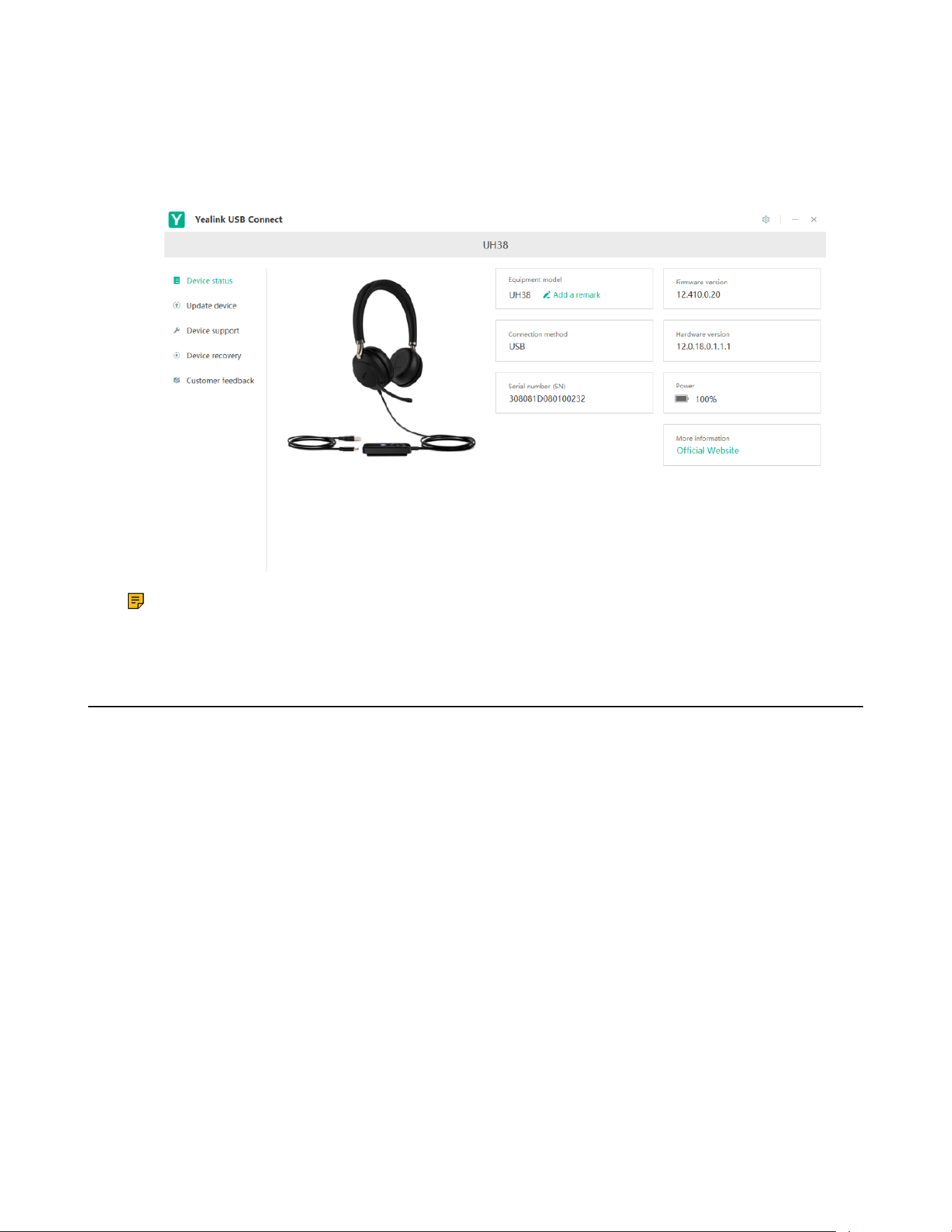
Yealink USB Connect
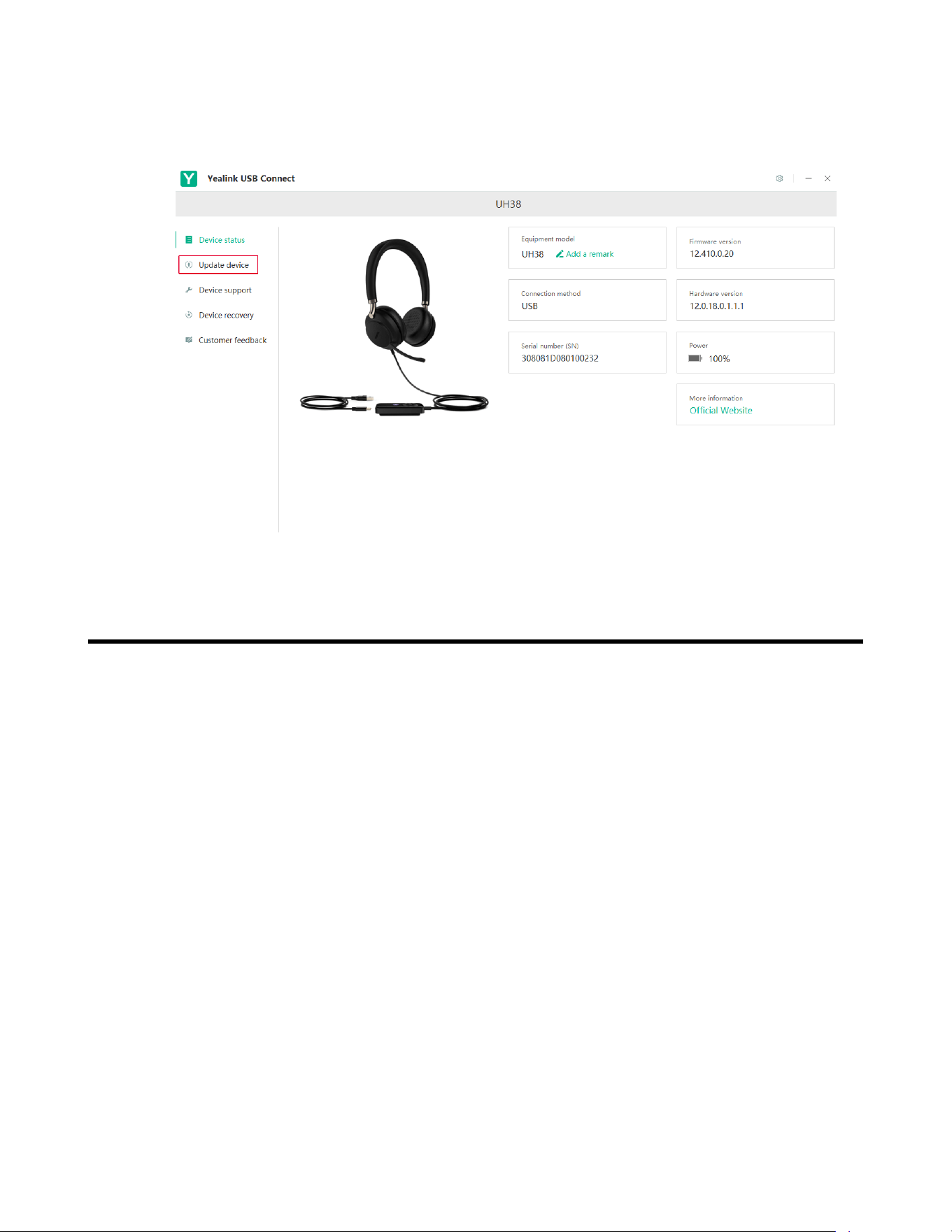
Yealink USB Connect is a computer software designed to manage Yealink USB devices.
| Yealink USB Connect | 15
With Yealink USB Connect, you can:
• Get an overview of connected Yealink USB devices
• Manage your Yealink USB devices
• Update your Yealink USB device to enhance its performance and features
• Give feedback on your Yealink USB device
Note: Download via support.yealink.com.
• Firmware Update
Firmware Update
Procedure
1. Connect the headset to the USB port of a PC.