User Manual Eufy Auto-Empty C10
1. About Your Auto-Empty C10
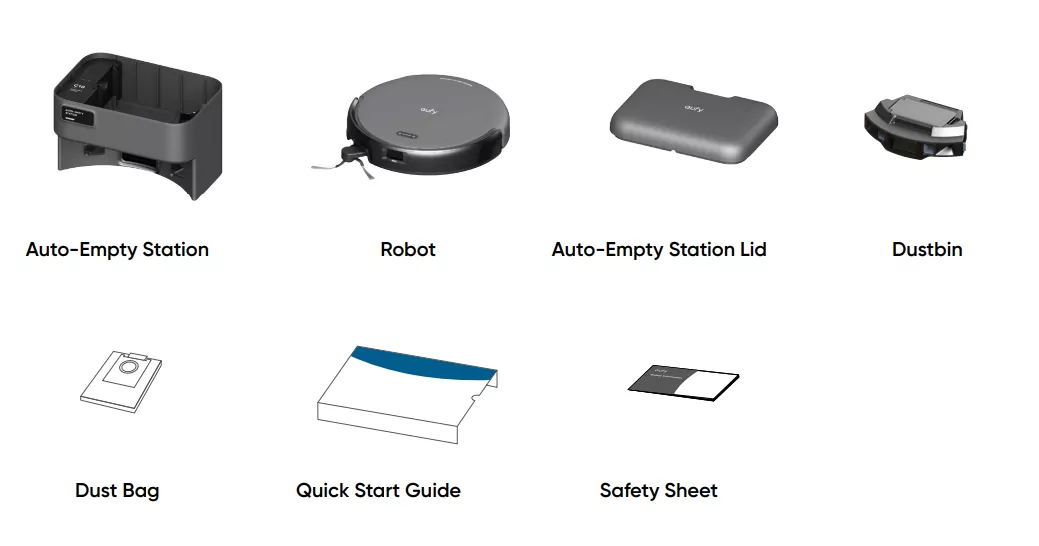
1.1 What's in the Box
1.2 Overview
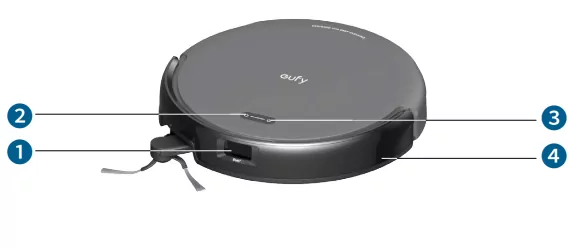
- Laser
- Recharge Button
- Power Button
- Bumper
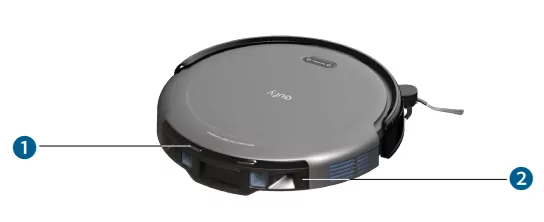
- Charging Contact Pins (x2)
- Dustbin
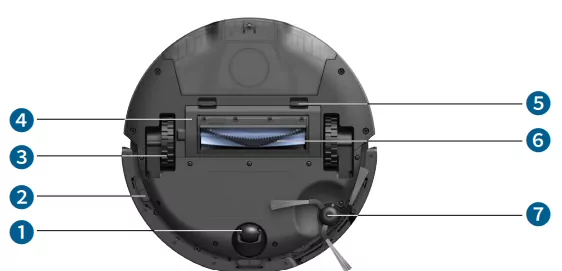
- Swivel Wheel
- Drop Sensors (x3)
- Wheels (x2)
- Brush Guard
- Brush Guard Release Latches (x2)
- Rolling Brush
- Side Brush
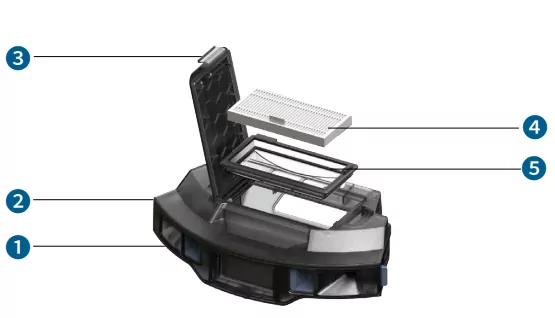
- Dustbin Release Buttons (x2)
- Dustbin
- Release Latch
- Filter
- Filter Holder
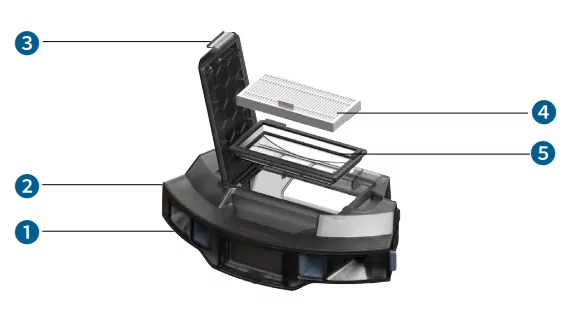
- Dust Collection Port
- Dock Sensors (x2)
- LED Indicator
- Auto-Empty Station Lid
- Charging Contact Pins (x2)
1.3 Button Controls
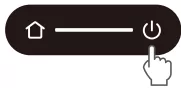 |
- Long press (3s): Power on or off
- Short press (1s): Pause / finish the current task when working
|
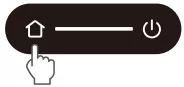 |
- Short press (1s): Return the robot to the Station
- Long press (3s): Enable or disable Child Safety Lock
|
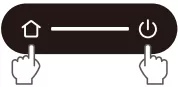 |
- Long press simultaneously (3s): Reset the Wi-Fi connection
|
1.4 LED Indication
You can see the status of the device from the LED indicators of the robot and the base station.
| |
LED Indication |
Description |
Status |
| Base Station |
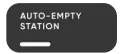 |
Steady White |
Powered On |
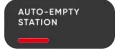 |
Steady Red |
Dust bag full/not in place |
| Robot |
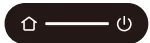 |
Steady White |
Powered On |
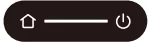 |
Breathing White |
Battery level: >30% |
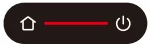 |
Breathing Red |
Battery level: <30% (idle) / <12% (working) |
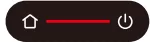 |
Steady Red |
Error
*Check in-app instructions, or contact eufy Customer Service for solutions |
2. Preparing Your Auto-Empty C10
2.1 Important Tips Before First Use
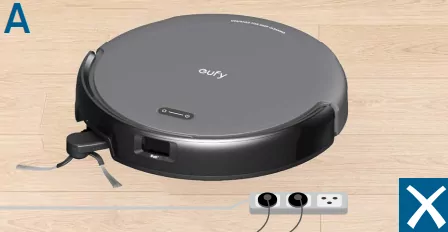 |
Remove power cords and small objects from the floor (socks/ toys/slippers/towels/weighing scales, etc.) that may entangle the robot. |
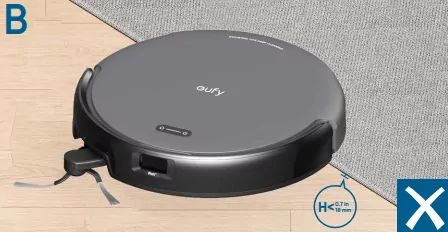 |
Fold tasseled edges of rugs underneath to prevent tangling the robot. Avoid cleaning high-pile rugs or rugs thicker than 0.7 in (18mm) as they may cause the robot to malfunction. |
 |
It is strongly recommended to place physical barriers or set a “No-Go” zone via the app in front of fireplaces and certain areas (i.e. air vents) that may cause damage to the robot if entered. |
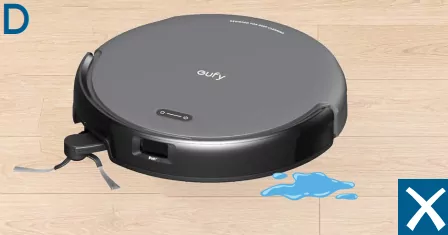 |
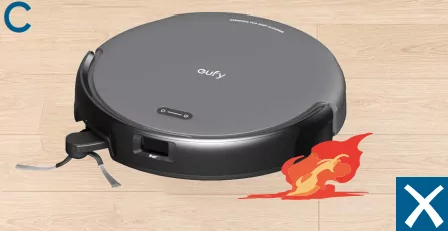
Avoid vacuuming large amounts of water or burning objects or it will potentially cause safety hazards or damage the robot.
*Water may also cause hair or debris to clump together in the back of the dustbin. |
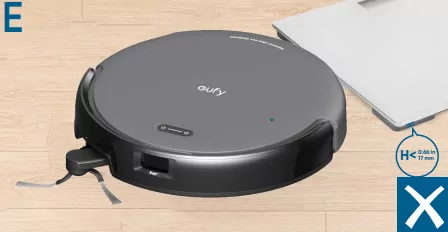 |
The robot may climb on top of objects less than 0.66 in (17 mm) in height. Remove these objects if possible. |
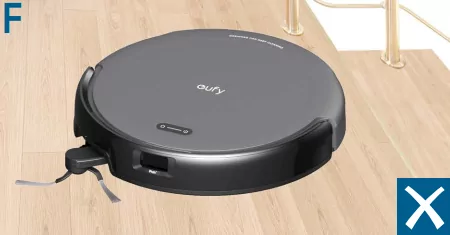 |
Anti-drop sensors will prevent the robot from tumbling down stairs and steep drops in most cases, but sensors are less effective if dirty or used on carpeted / reflective / dark floors. Place physical barriers or set a “No-Go” zone to block off areas where the robot may fall. |
2.2 Prepare the Auto-Empty Station
Reverse the Auto-Empty Station to place it in correct direction, insert the dust bag, and close the Auto-Empty Station Lid.
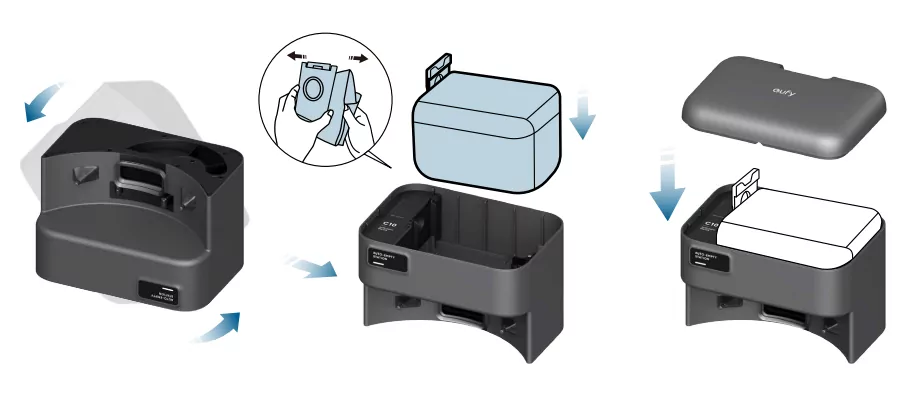
Note: The lid can be installed in either orientation. You can choose the side that is more convenient to open.
2.3 Place the Auto-Empty Station
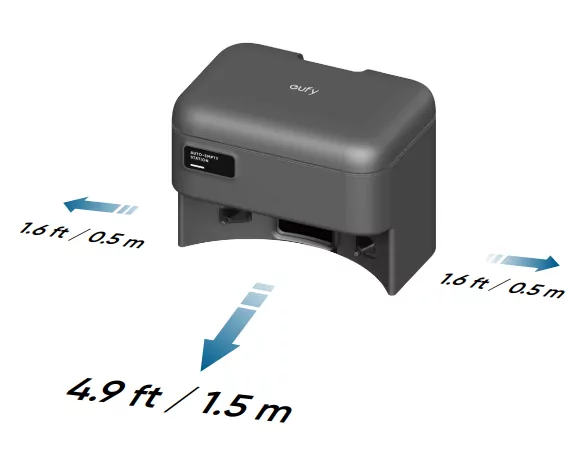
Place the station in a location that has strong Wi-Fi signal and the robot can easily access. It is recommended to place it against a wall and on a hard level surface. To ensure cleaning efficiency, do not place it on the high pile carpets.
2.4 Connect to Power Supply
Connect the power cord to the Auto-Empty Station and a wall outlet. Always keep the Auto-Empty Station plugged in, otherwise the Robot will not automatically return.
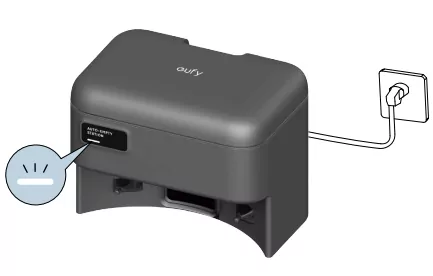
Note: Always keep the Auto-Empty Station plugged in, otherwise the Robot will not automatically return.
2.5 Prepare the Robot
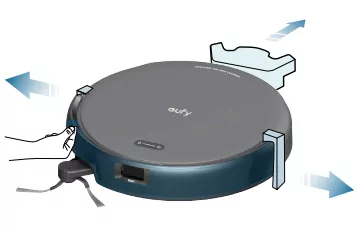
Before use, remove the foam blocks and protective film.
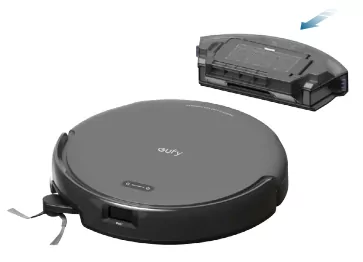
2.6 Install the Dustbin
Insert the dustbin into the robot.
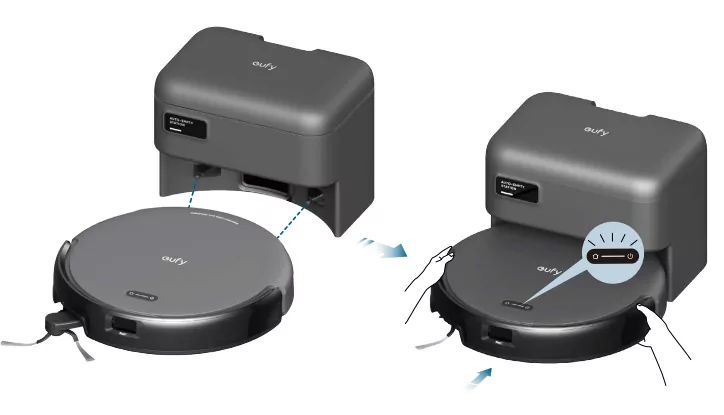
2.7 Charge the Robot
Attach the robot to the Auto-Empty Station. The robot will turn on and start charging automatically.
Note:
- Make sure the robot is fully charged before use.
- Upon successful docking, you'll hear a voice prompt of "charging".
3. Using Your Auto-Empty C10
Note: The UI images are for illustration purposes only. Actual display contents may vary based on the software version.
To enjoy all available features, it is recommended to control your robot via the app.
Before you start, make sure:
- Your smartphone is running iOS 11.0 (or above) or Android 8.0 (or above).
- The 2.4GHz band wireless signal is enabled on your wireless router.
3.1 Download the App
- Download the app from the App Store (iOS devices) or Google Play (Android devices).
- Open the app and create a user account.
- Tap the "+" icon to add AE C10 to your eufy account.
- Follow the instructions in the app to set up the Wi-Fi connection.
- After connecting successfully, you can control the robot via the app.
- With the app, you can select cleaning modes, select cleaning at your desired suction power, schedule cleaning, view the system status, receive notifications, and access additional features.
Note: If the robot gets stuck in any space, tap Find My Robot in the app to find the device.
3.2 Reset the Wi-Fi Connection
If you bump into issues when connecting your robot to the app, try to reset the Wi-Fi connection. Press and hold the power and recharge buttons simultaneously for 3 seconds until you hear a voice prompt.
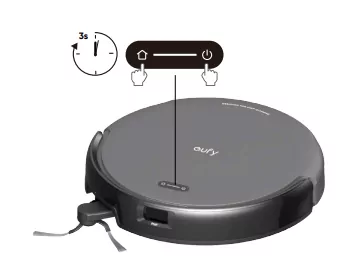
You will hear a voice prompt when the Wi-Fi connection has been reset, and the LED indicator on the robot will quickly flash white. Now you can follow the in-app instructions to reset the Wi-Fi connection.
3.3 Mapping
This feature is designed to help your robot efficiently learn the layout of your home, ensuring thorough and systematic cleaning. By creating a detailed floor plan, your robot can navigate and clean with precision. To maximize the efficiency and accuracy of the mapping process, please follow these steps:
- Open All Doors: Ensure all doors within the cleaning area are open. This allows the robot to access and map each room seamlessly.
- Block Off Restricted Areas: If there are specific zones you don't want the robot to enter, use physical barriers to block these areas. This can enhance mapping accuracy and prevent the robot from entering unwanted spaces. After the mapping is completed, you can remove physical barriers, and set up restricted areas to prevent the robot from entering those areas.
- Remove Obstacles: Clear any objects, such as toys, cables, or small furniture, that might obstruct the robot's path or become entangled in its brushes. This helps the robot move freely and map the area without interruptions.
- Do Not Move the Base Station: Once the floor plan is created, avoid relocating the base station. The robot relies on the base station as a reference point for navigation and mapping. Moving it may disrupt the accuracy of the floor plan.
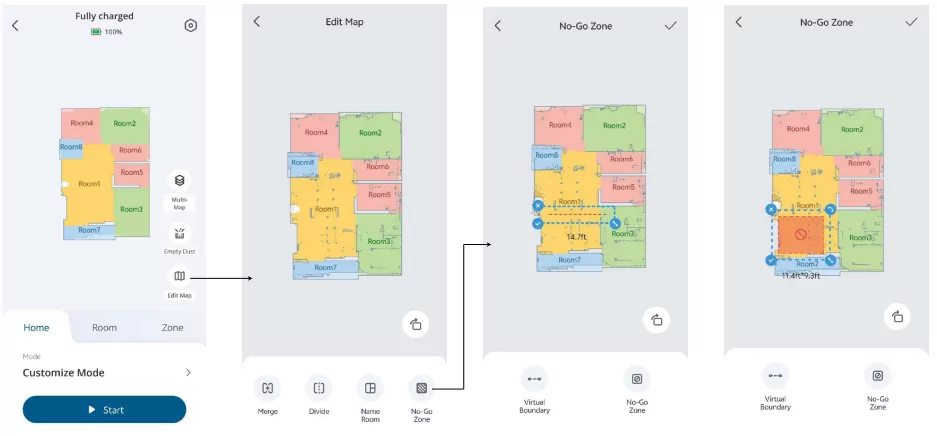
3.4 Set Up No-Go Zone
With the app, you can set up a "No-Go Zone" as a restricted area. This eliminates the need to use physical barriers, including boundary strips. This feature is only designed for dividing the cleaning zones, not for isolating hazardous areas.
3.5 Schedule Cleaning
With the app, you can schedule the robot to start cleaning at a particular time.
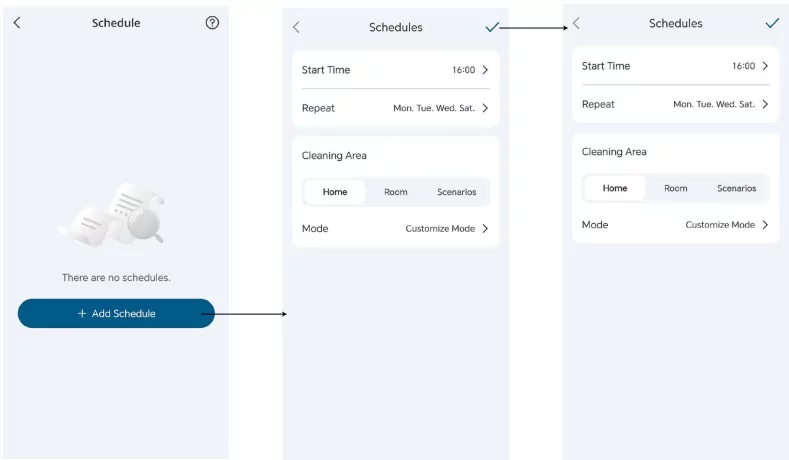
Note: You can set the time and customize cleaning schedules from Sunday to Saturday on the app. This function is only available on the app.
3.6 Select a Cleaning Mode
You can start / pause cleaning or select a cleaning mode via the app.
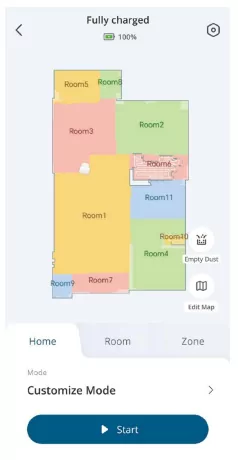
3.6.1 Home Cleaning Mode
Tap Start in the app to enable Home Cleaning mode.
After startup, the robot moves from the Auto-Empty Station and automatically determines its cleaning route, cleaning the edges first and following a Z-shaped cleaning path. When cleaning is finished, the robot automatically returns to the Auto-Empty Station.
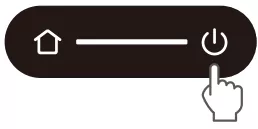
- To pause cleaning, press the power button on the robot.
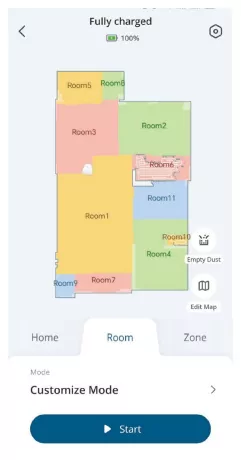
3.6.2 Room Cleaning
In this mode, your house is automatically divided into several rooms for cleaning in the eufy app. You can also customize your room settings in the app. The robot will clean the selected rooms only and return to the Auto-Empty Station after cleaning.
Note:
- Enable Room Cleaning mode only after the robot has created the map.
- It is recommended that the robot moves from the Station to start room cleaning.
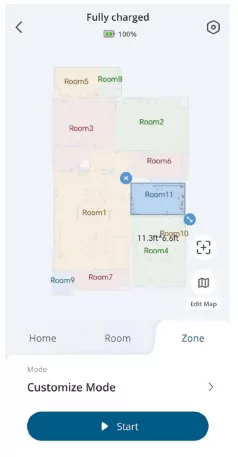
3.6.3 Zone Cleaning
In this mode, you can set up a cleaning zone and customize its size in the eufy app. The robot will clean the selected zone only.
3.7 Select a Suction Power Level
In the app, select a suction power level according to your needs: Quiet, Standard (Default), Turbo, and Max. When the robot starts cleaning next time, it will clean according to the suction power level you previously selected.
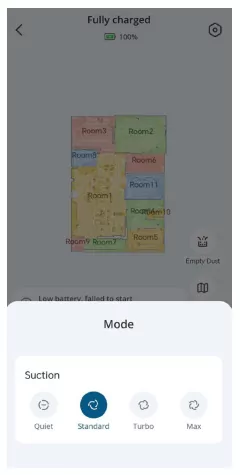
Note: If you have pets or children at home, it is recommended to select a higher suction power level. However, please note that higher suction power increases energy consumption, which may reduce the robot's battery runtime. In the a pp, you can also select the BoostIQ feature according to your needs. The robot will automatically enable BoostIQ if it detects a carpet during cleaning to ensure the best clean. BoostIQ is ideal for cleaning thicker carpets. If the vacuuming noise caused by BoostIQ disturbs you, you can disable this feature.
4. Using the Robot with Amazon Alexa / The Google Assistant
Amazon Alexa or the Google Assistant are smart voice control devices that enable you to control the robot with your voice.
Before you start, make sure:
- The robot is attached to the base station to ensure there is enough power.
- The robot is connected to the app.
- You have an Amazon Alexa-enabled device (i.e. Amazon Echo, Echo Dot, Amazon Tap, Echo Show, or Echo Spot) or a device enabled with the Google Assistant (i.e. Google Home, Google Home Mini). These devices are sold separately.
- The Amazon Alexa app or Google Home app is already installed on your smart device, and you have created an account.
To control the Robot with Amazon Alexa or the Google Assistant:
- Open the eufy app and tap Profile > Smart Integrations.
- Follow the on-screen instructions to complete the setup.
5. Enabling / Disabling Child Safety Lock
- Press and hold the recharge button for 3 seconds to activate the child safety lock. Once the child safety lock is enabled, all buttons will be locked to prevent children from damaging the device or accidentally getting hurt.
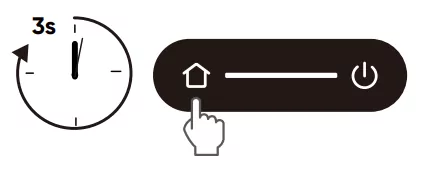
- To disable the child safety lock, press and hold the recharge button for 3 seconds again.
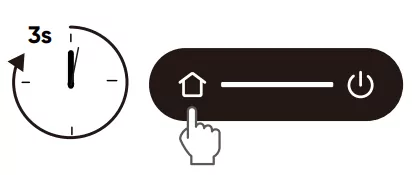
Note: This function is also available in the app.
6. Cleaning and Maintenance
6.1 Clean the Dustbin and Filter
- Hold the release buttons of the dustbin and remove the dustbin.
- Press the release latch to open the dustbin.
- Detach the filter from the filter holder, and tap to remove dust.
- Empty the dustbin.
- Rinse the dustbin, filter and filter holder thoroughly with water.
- Air-dry the dustbin, filter and filter holder completely before next use.
- Reinstall the filter back into the filter holder, and filter holder back into the dustbin.
- Push the dustbin back into the robot.
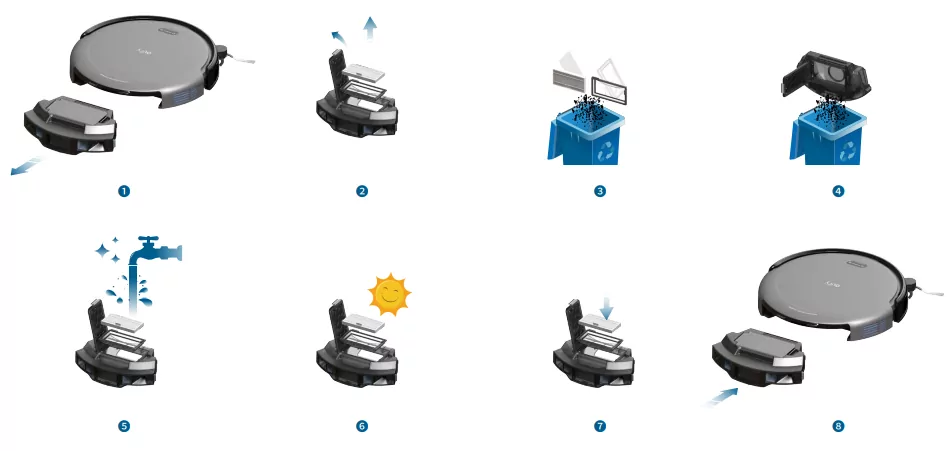
Note: Do not use the filter if it is not completely dry, otherwise it may affect the cleaning performance. Do not use a brush, hot water, or any detergent to clean the filter.
6.2 Clean the Rolling Brush
- Turn over the robot, push the release tabs with both hands to unlock the brush guard.
- Take out the rolling brush and remove the end caps from both sides. Clean the hair entangled on the rolling brush and debris with scissors.
- Rinse the rolling brush and brush guard with running water.
- Air dry the rolling brush and brush guard completely before next use.
- Reinstall the rolling brush.
- Press down to snap the brush guard into place.
6.3 Clean the Side Brush
Foreign substances, such as hair, can easily get tangled in the side brush, so it is best to clean it regularly.
- Remove the side brush with a screwdriver.
- Carefully unwind and pull off any hair or substances that are wrapped between the main unit and the side brush.
- Clean the side brush with water.
- Air dry the side brush before next use.
- Reinstall the side brush on the robot.
6.4 Clean the Sensors and Charging Pins
To maintain the best performance, clean the sensors, bumpers and charging contact pins regularly. Use a soft cloth to dust off the sensors and charging contact pins.
7. Troubleshooting
Note: The UI images are for illustration purposes only. Actual display contents may vary based on the software version.
When an error occurs, please refer to the in-app instructions for solutions. If the problem persists, please contact [email protected] for help.
8. Specifications
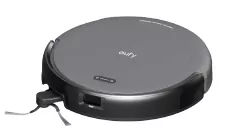 |
Power Consumption |
Base Station: 15W
(During Dust Collection: 400W)
Robot: 40W
|
| Battery |
3200mAh |
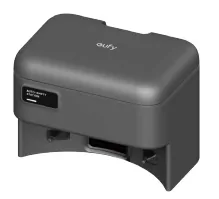 |
Input |
100V, 50 - 60Hz |
| Output |
20V=0.75A |
| Dust Bag Capacity |
3L |
9. Customer Service
[email protected]
www.eufy.com
(US/CA) +1 (800)994 3056
(UK) +44 (0) 1604 936 200
(DE) +49 (0) 69 9579 7960
(JP) +81 03 4455 7823
For video tutorials, FAQs, warranty policies, and more information, please visit https://support.eufy.com/
Hereby, Anker Innovations Limited declares that this device is in compliance with The Product Security and Telecommunications Infrastructure (Security Requirements for Relevant Connectable Products) Regulations 2023. For the Statement of Compliance, visit the website: https://www.eufy.com/uk/psti-related.
a. the equipment does not have a standby mode or other equivalent state in terms of energy efficiency requirements, power management function or the ability to deactivate wireless network connections mode; b. the power consumption of the equipment is likely to be higher than other equipment models meeting these functional requirements.
- Power consumption in standby mode: ≤ 0.5W
- Power consumption in standby mode with Display: ≤ 0.8W
- Power consumption in networked standby mode: ≤ 2W
- Power management: ≤ 20 min