Table of Contents | i

Table of Contents | ii
Tabl
e of Contents
I
ntroduction – Read This First .............................................. 1
Manuals for this Printer ................................................................................................................ 1
Manuals List................................................................................................................................. 1
Important Notice ....................................................................................................................... 2
User's Notes............................................................................................................................. 2
Information about this Manual ...................................................................................................... 4
Symbols ................................................................................................................................... 4
Note ......................................................................................................................................... 5
Model-Specific Information ........................................................................................................... 5
Available Units and Options for Each Model ............................................................................. 6
About The Sawgrass SG500 and SG1000 ........................... 7
Guide to Components .................................................................................................................. 7
Front View ................................................................................................................................ 7
Rear View ................................................................................................................................ 8
Left Side View .......................................................................................................................... 8
Options and Accessories .............................................................................................................. 9
Option Tray SG500NA / SG500EU ........................................................................................... 9
Option Tray for SG1000NA / SG1000EU ................................................................................ 10
Bypass Tray for SG500NA / SG500EU ................................................................................... 10
Bypass Tray for SG1000NA / SG1000EU ............................................................................... 11
Control Panel ............................................................................................................................. 12
Turning On/Off the Power .......................................................................................................... 13
Turning on the power ............................................................................................................. 13

Table of Contents |
T
urning off the power ............................................................................................................. 14
Setup and Installation ........................................................ 15
Setup Procedure ........................................................................................................................ 15
Checking the Installation Area .................................................................................................... 20
Installation Area ..................................................................................................................... 20
Checking the power source .................................................................................................... 23
Checking the Supplied Items and Unpacking the Printer ............................................................. 24
Attaching and Detaching Options ............................................................................................... 26
Attaching and Detaching the Option Tray................................................................................ 26
Attaching and Detaching the Bypass Tray .............................................................................. 25
Loading Sublimation Transfer Paper .......................................................................................... 27
Loadable Paper Sizes ............................................................................................................ 27
Handling and Storage Precautions ......................................................................................... 28
Loading Paper ........................................................................................................................... 29
Loading Paper into Tray 1-3 ................................................................................................... 29
Extending the Paper Tray to Load Paper ................................................................................ 31
Installing the Ink Cartridges ........................................................................................................ 34
Plugging in the Power Cord and Turning the Power On .............................................................. 36
Connecting the Printer ............................................................................................................... 38
Confirming the Connection Method ......................................................................................... 38
USB Connection ..................................................................................................................... 38
Ethernet Connection ............................................................................................................... 39
How to change the LAN type .................................................................................................. 41
How to connect using SSID Auto Search ................................................................................ 42
How to connect using push button method ............................................................................. 43
How to connect using PIN code method ................................................................................. 45
Using the Control Panel to Make Printer Settings .............. 47
Overview of Settings .................................................................................................................. 47

Table of Contents |
Using t
he [Print Features] Menu ................................................................................................. 49
Using the [List/Test Print] Menu .................................................................................................. 49
Using the [System] Menu ........................................................................................................... 50
Nozzle Check ......................................................................................................................... 51
Head-cleaning ........................................................................................................................ 52
No-fuss head cleaning ............................................................................................................ 53
Head-flushing ......................................................................................................................... 54
Head Position ......................................................................................................................... 55
Adjust Paper Feed.................................................................................................................. 57
Registration ............................................................................................................................ 59
Using the [System Settings] Menu .............................................................................................. 61
Using the [Tray Paper Settings] Menu ........................................................................................ 62
Printing a Configuration Page ..................................................................................................... 62
Interpreting the Configuration Page ........................................................................................ 63
Changing the Sleep Mode Timer ................................................................................................ 63
Setting the Date and Time .......................................................................................................... 64
Date setting ............................................................................................................................ 64
Time setting ........................................................................................................................... 65
Time zone setting ................................................................................................................... 66
De-condensation ........................................................................................................................ 67
Using the [Interface] Menu ......................................................................................................... 68
Changing the [Interface] Menu ................................................................................................ 69
Precautions When Using a Networked Printer ........................................................................ 71
Using the [Language] Menu ....................................................................................................... 72
Software ............................................................................ 73
System Requirements ................................................................................................................ 73
Design Software Requirements .................................................................................................. 74
Download, Install and Configure Software .................................................................................. 74

Table of Contents |
Monitoring and Configuring the Printer ...............................
75
Using Web Image Monitor .......................................................................................................... 75
Displaying Top Page .............................................................................................................. 71
Menu ...................................................................................................................................... 72
Logging in Using Web Image Monitor ..................................................................................... 72
Changing the Printer Settings ................................................................................................. 73
Maintenance ...................................................................... 81
Ink Cartridges ............................................................................................................................ 76
Checking the Remaining Ink ................................................................................................... 76
Replacing an Ink Cartridge ..................................................................................................... 77
Handling Ink Cartridges .......................................................................................................... 78
Waste Collection Unit ................................................................................................................. 80
Checking the Waste Ink Level ................................................................................................ 80
Replacing a Waste Collection Unit .......................................................................................... 81
Cleaning .................................................................................................................................... 83
Cleaning the Power Cable Plug .............................................................................................. 91
Moving ....................................................................................................................................... 92
Moving a Short Distance ........................................................................................................ 92
Moving a Long Distance ......................................................................................................... 93
Disposing ................................................................................................................................... 94
When Not Using for a Long Period of Time ................................................................................. 94
Troubleshooting ................................................................. 95
Canceling Printing ...................................................................................................................... 95
Canceling Printing Using the [Job Reset] Key ......................................................................... 95
Canceling Printing from the Windows Taskbar ........................................................................ 97
Canceling a Print Job from the Macintosh Print Job Queue Window ....................................... 97
Printing Does Not Start ............................................................................................................... 97
Paper Is Not Fed or Delivered Normally ..................................................................................... 98

Table of Contents |
P
aper Jam ................................................................................................................................. 99
Using the [Form Feed] selection Key to Remove Jammed Paper .......................................... 100
Removing Paper Jammed in Tray 1 ...................................................................................... 101
Paper Jam in Tray 2/3 .......................................................................................................... 102
Removing Paper Jammed in the Bypass Tray ...................................................................... 103
Removing Paper Jammed under the Top Cover ................................................................... 104
Opening the Rear Cover to Remove Jammed Paper ............................................................ 106
Removing Paper Jammed in Tray 2/3 ................................................................................... 107
Opening the Rear Unit Cover to Remove Jammed Paper (SG500NA/SG500EU) .................. 108
Poor Print Quality ..................................................................................................................... 109
Prints are Unsatisfactory ...................................................................................................... 109
Colors are not correct ........................................................................................................... 110
Image Position is not Correct or Only a Partial Image is Printed ............................................ 111
Error & Status Messages on the Display .................................................................................. 112
Error Messages .................................................................................................................... 112
Errors Displayed by the Web Image Monitor ............................................................................. 116
No Paper/Tray Not Detected (Tray 1) ................................................................................... 117
No Paper/Tray Not Detected (Tray 2/3) ................................................................................ 117
No Paper/Tray Not Detected (Bypass Tray) .......................................................................... 117
Paper Size Mismatch/Paper Type Mismatch (Tray 1) ............................................................ 118
Paper Size Mismatch/Paper Type Mismatch (Tray 2/3) ......................................................... 118
Paper Size Mismatch/Paper Type Mismatch (Bypass Tray) .................................................. 118
Paper Size Mismatch/Paper Type Mismatch (Auto Tray Select) ............................................ 118
Cover Open.......................................................................................................................... 119
Cover Open / Ink Cartridge(s) Not Detected.......................................................................... 119
Cartridge Almost Empty ........................................................................................................ 121
Cartridge Empty ................................................................................................................... 121
Used Cartridge ..................................................................................................................... 122
Waste Collection Unit Not Detected ...................................................................................... 122
Waste Collection Unit Almost Full ......................................................................................... 123

Table of Contents |
W
aste Collection Unit Full..................................................................................................... 123
Used Waste Collection Unit .................................................................................................. 123
Out of Printable Temperature Range .................................................................................... 123
Printer Error ......................................................................................................................... 124
Network Interface Error ........................................................................................................ 124
Maintenance Failed .............................................................................................................. 124
Cannot Recover Error Page ................................................................................................. 124
Where to Inquire ...................................................................................................................... 125
Recommended Consumables .................................................................................................. 125
Options .................................................................................................................................... 125
Introduction – Read This First | 1
Introduction – Read This First
Manuals for this Printer
Read this manual carefully before using this printer.
Refer to the sections that are relevant to what you want to do with the printer.
Safety Information
This booklet contains important information about using the printer safely and correctly.
Be sure to read this before using the printer.
Quick Installation Guide
This guide briefly explains how to unpack and install the printer.
User Guide (PDF)
This guide explains in detail how to install and use the printer.
The guide also provides instruction on how check and change settings on the printer
itself, and how to make and check printer settings using a Web browser.
It contains basic troubleshooting procedures, such as those related to printing and
paper jams, and important information about consumables such as paper and ink.
We recommend this guide be installed on the computer so it can be easily referred to.
Manuals List
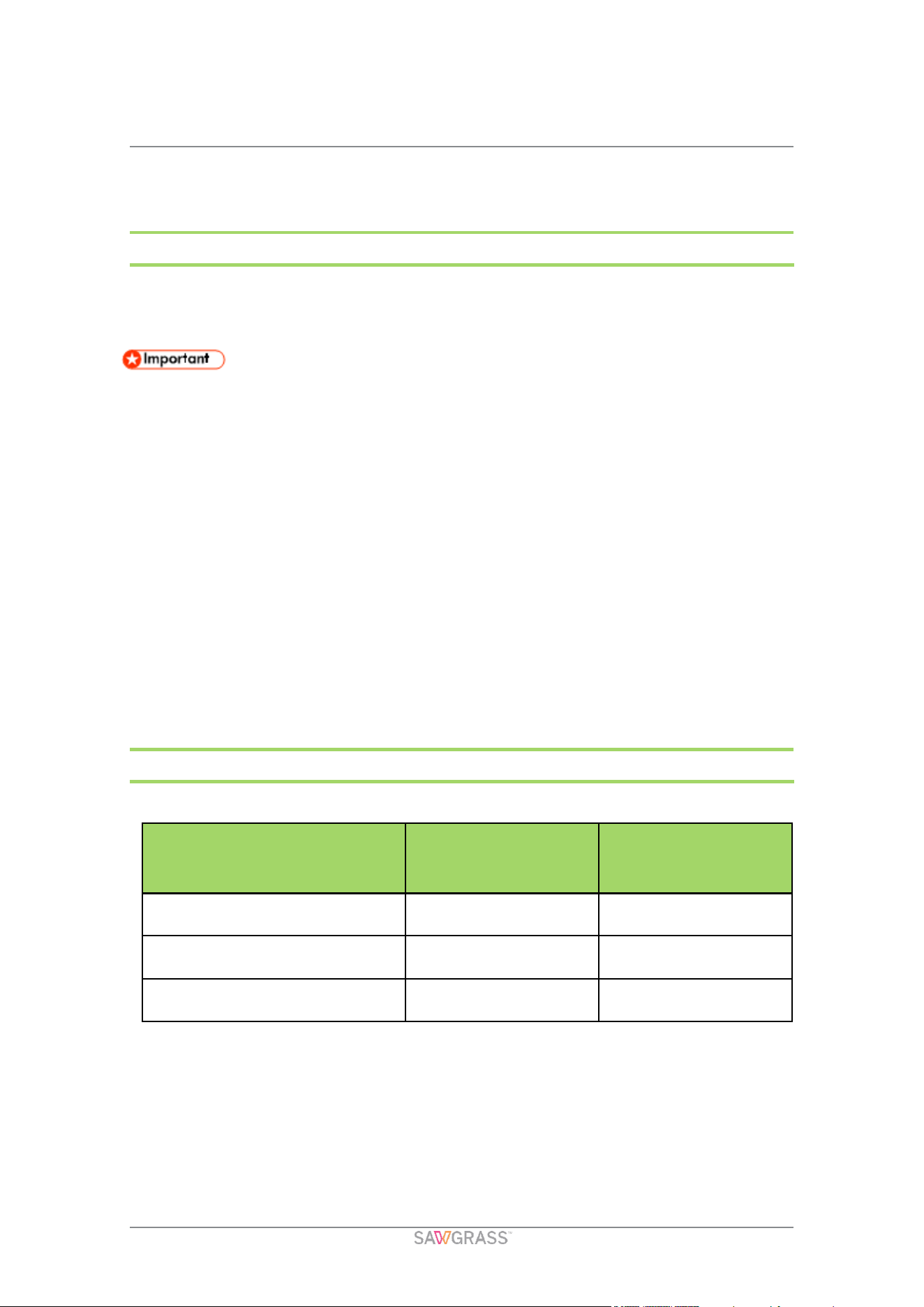
Manual Name
Printed Manuals
Provided
PDF Manuals Provided
Quick Installation Guide Yes No
User Guide No Yes
Safety Information Yes No
Introduction – Read This First | 2
Important Notice
In no event will Sawgrass be liable for direct, indirec
t, special, incidental, or
c
onsequential damages as a result of handling or operating the printer in deviation from
the User Manual or other instructions given by Sawgrass.
This warranty only applies to printers used with genuine Sawgrass ink. The use of third-
party cartridges is not covered by this warranty.
Sawgrass shall not be responsible for any damage or expense that might result from
the use of parts other than genuine parts from Sawgrass with the printer.
User's Notes
High temperatures inside the printer can cause a breakdown. Do not lean anything
against the vent or block it in any way.
Wa
rm air from the vent is normal and not a cause for concern.
Do not leave the top or right front cover open. If you do, dust or other matter might get
inside the printer, and this will reduce print quality.
During printing, do not move the printer or open its covers.
Do not open the top or right front cover during printing. If you do, printing will stop.
During printing, do not pull out a tray. Printing will stop and the paper will jam.
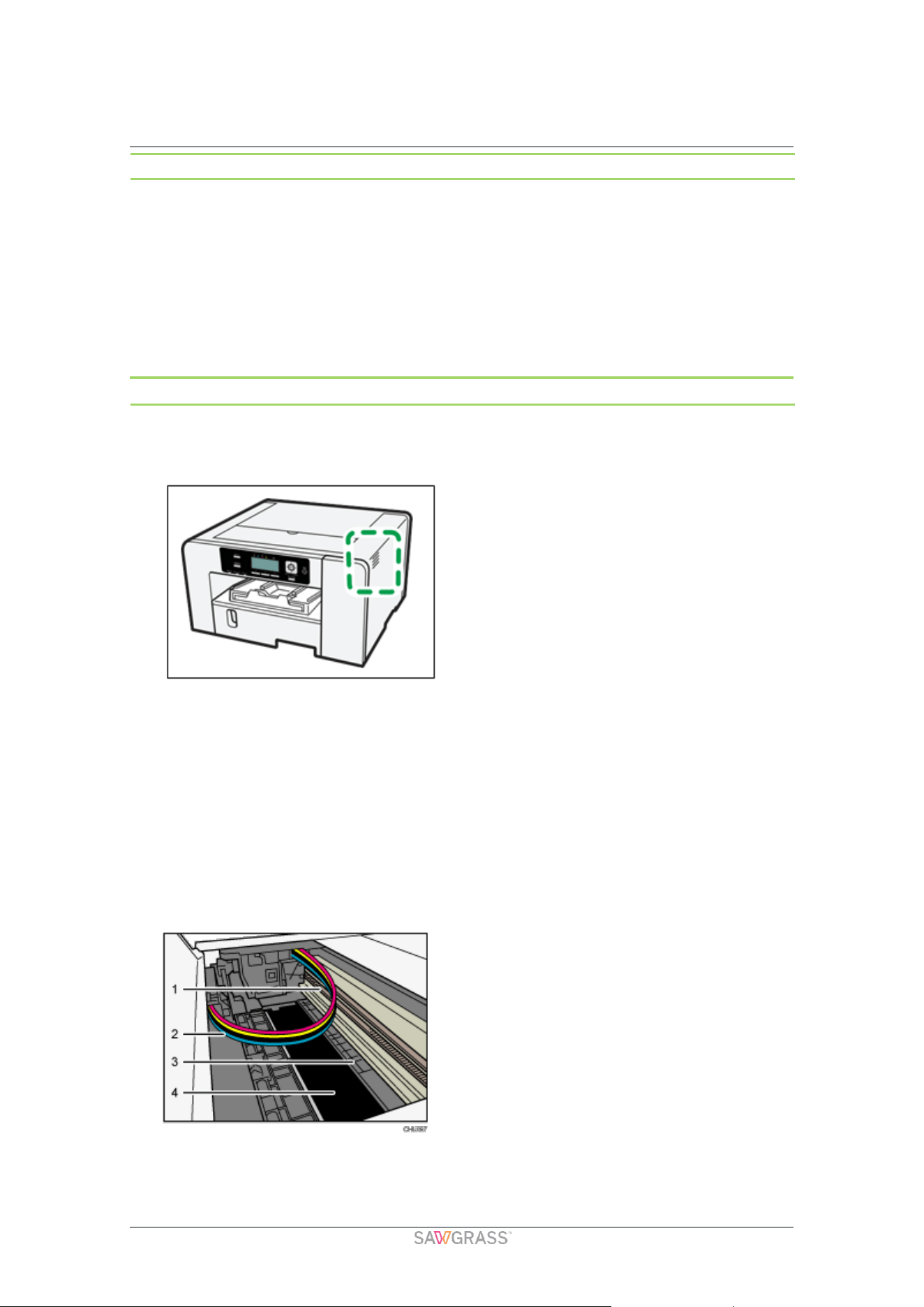
Do not touch the feed belt, ink tubes, paper pressing board, or toothed rubber belt.
Also, take care not to catch cables or ink tubes with your sleeves.

Introduction – Read This First | 3
1. Toothed rubber belt
2. Ink tubes
3. Paper pressing board
4. Feed belt
Take care not to let paper clips and other foreign objects fall inside the printer.
After the ink cartridges are installed and the printer is turned on for the first time, the
print
head priming process will begin. After it is completed, a head cleaning procedure
may be required to achieve a full nozzle check.
During printing, do not turn off the power or unplug the power cord from the wall outlet.
During printing, do not subject the printer to external shock such as that caused by
tapping paper on it.
Sawgrass always recommends keeping the printer powered on. This will allow the
printer to run automatic maintenance utilities for optimal performance.
Up to 10 kg (22.1 lb.) of evenly spread weight can be placed on the printer. Do not
place any concentrated weight of more than 2.5 kg (5.6 lb.) on the printer.
Do not place unsteady objects on the printer. If they fall, they will cause injury to users
and/or damage to the printer.
The operational life also depends on the environment in which the printer is used.
The
Waste Collection unit may fill up sooner than normal based on the specifics of your
printing
practices and/or maintenance procedures.
"Prepare new Waste Collection Unit" message appears shortly before the waste
collection unit is full. Although the printer remains usable until the unit is completely full,
contact Sawgrass or an authorized distributor to purchase a replacement.
Ink cartridges should be used up before the “Recommended Use By” date label
affixed to each cartridge. Using ink in the printer past this date may be harmful to the
unit and/or result in poor output quality.
Cartridges that the printer report as empty may still contain a small amount of ink.
This is normal as the cartridges are overfilled to prevent them from completely
running dry. This prevents air from being drawn into the printer.
Sawgrass ink cartridges and supplies comply with the manufacturer's safety
specifications. Only genuine Sawgrass ink cartridges and supplies will ensure good
output, safety and reliability.
Printing hundreds of copies in a single day might cause nozzle loss the following day.
If this happens, perform the head cleaning procedure.
To ensure consistent print quality this printer performs regular automatic maintenance
after
and/or during printing. Maintenance is also performed when printing begins after
a period of inactivity. A higher than normal amount of ink will be consumed during this

Introduction – Read This First | 4
maintenance procedure and/or irreversible damage to the print head may occur if
printer is not used at least once a month.
Color ink may be used even when printing all-black or when black and white printing is
specified. It may also be used for print head cleaning and refreshing, which are done to
maintain printer performance.
Sawgrass recommends that the printer be used often to ensure the print head nozzles
do not become clogged.
When not in use, do not power off the printer. Leave it powered on so that automatic
maintenance utilities can run.
Note that the printer consumes a considerable amount of ink for maintenance and print
head cleaning when used after a long period of inactivity.
Do not move the printer while it is powered on. Even when it is off, make sure the
printer is on a level surface and safe from shock and vibration.
Do not turn the printer off while it is busy. Make sure the printer is idle before turning it
off.
Condensation can form inside the printer if it is moved from a cold place to a warm
place. Allow any condensation to fully evaporate by not turning the printer on for at
least an hour after moving it.
Information about this Manual
Be sure to read this section first to understand how information is presented in this manual.
This guide uses Windows 10 for its examples. Procedures and screens might vary
depending on the operating system being used.
Symbols
This manual uses the following symbols:
Indi
cates points to pay attention to when using the printer and explanations of likely causes
of paper misfeeds, damage to originals, or loss of data. Be sure to read these explanations.
Indicates supplementary explanations of the printer's functions and instructions on
resolving user errors.
This symbol is located at the end of sections. It indicates where further relevant information
can be found.
Introduction – Read This First | 5
[ ]
Indicates the names of keys on the printer's display or control panels.
(mainly Europe and Asia)
(mainly North America)
Differences in the functions of Region A and Region B models are indicated by two
symbols. Read the information indicated by the symbol that corresponds to the region of
the model being used. For details about which symbol corresponds to the model being
used, see the section "Model-Specific Information".
Note
Contents of this manual are subject to change without prior notice.
Some illustrations in this manual might be slightly different from the actual printer.
Model-Specific Information
This section explains how to identify the region the printer belongs to.
There is a label on the rear of the printer, located in the position shown below. The label
contains details that identify the printer’s region.
The following information is region-specific. Read the information under the symbol that
corresponds to the region of the printer.
(mainly Europe and Asia)
If the label contains the following, the printer is a region A model:
CODE SG500EU, SG1000EU
220-240 V
(mainly North America)
If the label contains the following, the printer is a region B model:
CODE SG500NA, SG1000NA
120-127 V
Dimensions in this manual are given in two units of measure: metric and inch. If
the printer is a Region A model, refer to the metric units. If the printer is a Region B
model, refer to the inch units.
Introduction – Read This First | 6
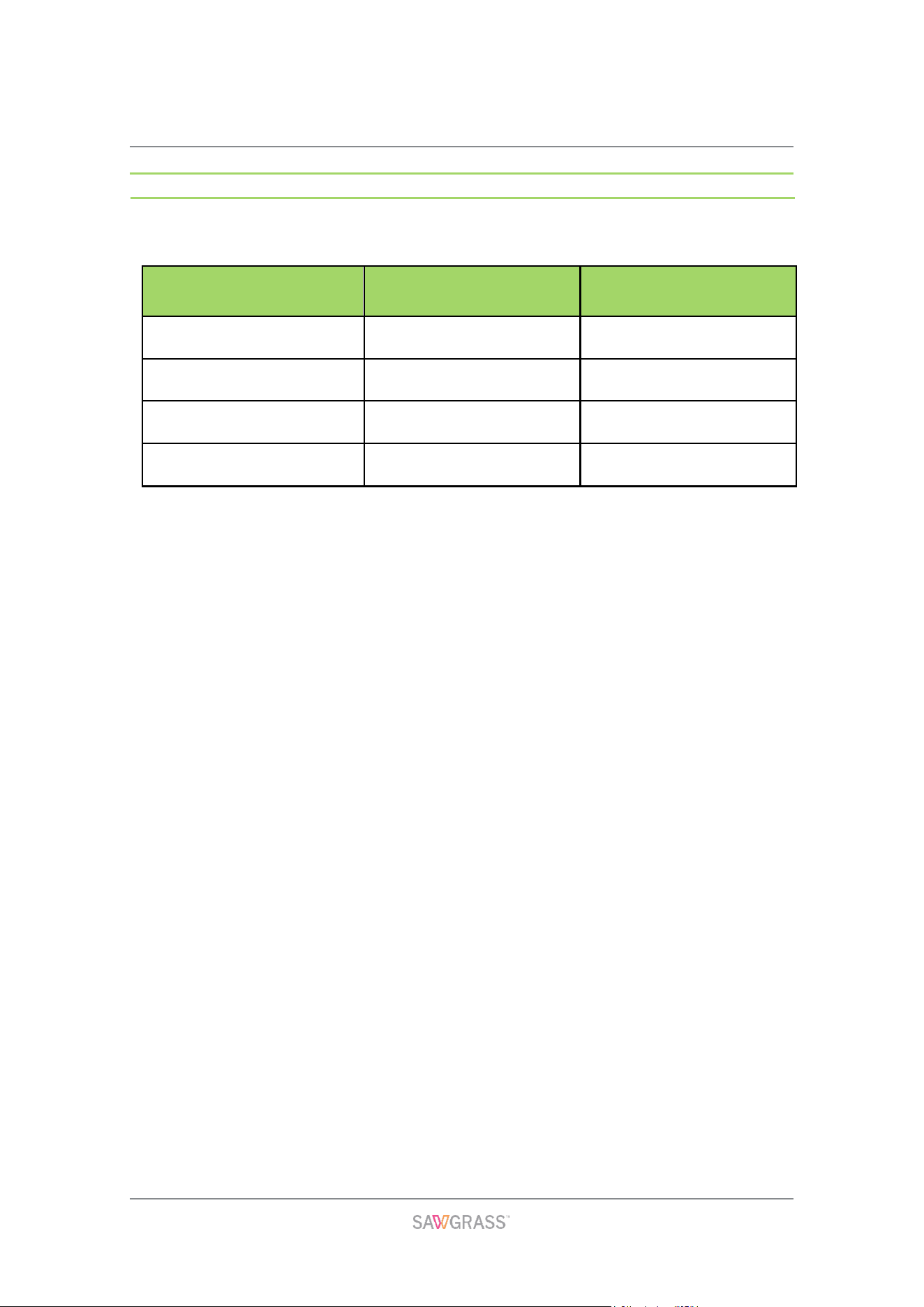
Available Units and Options for Each Model
The available units and options differ depending on the model.
Unit/Option SG500NA/SG500EU SG1000NA/SG1000
EU
Option Tray Optional Optional
Bypass Tray Optional Optional
Ethernet Interface Standard Equipment Standard Equipment
USB2.0 Standard Equipment Standard Equipment
About The SG500 and SG1000 | 7
About The SG500 and SG1000
This chapter describes the names and functions of the printer's parts and options.
Guide to Components
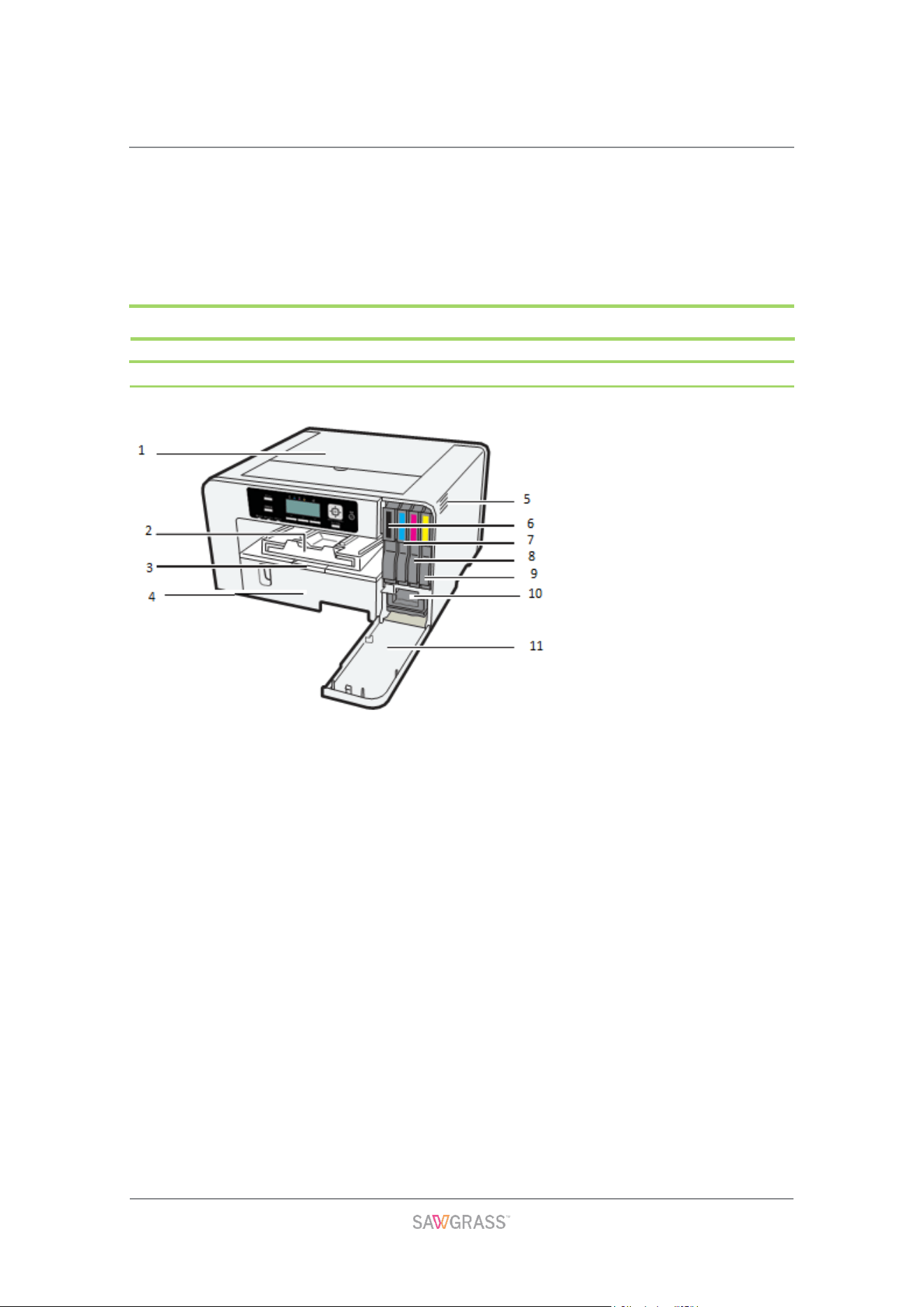
Front View
1. Top Cover
Normally, keep this cover closed. If jammed paper cannot be located or remove
d
eas
ily, you may be able to access it from the top of the printer.
2. Output Ramp
Prints are delivered on the output ramp.
Pull out when using large paper to keep the printed paper from falling.
3. Paper Tray Cover Extension (SG1000NA / SG1000EU)
Pull out this cover when using the tray extension to prevent an accumulation of dust.
Do not pull out this cover if the extension unit is not used.
4. Tray 1
Load paper here. Use the Tray Extension and Paper Tray Cover Extension for larger
paper sizes.
5. Vent
Air is vented here to prevent the inside of the printer from getting too warm. Do not lean
any
thing against the vent or block it in any way. If the inside of the printer gets to
o
w
arm, it may not function properly.
About The SG500 and SG1000 | 8
6. Ink Cartridge (black)
7. Ink Cartridge (cyan)
8. Ink Cartridge (magenta)
9. Ink Cartridge (yellow)
10. Waste Collector Unit
11. Right Front Cover
Normally, keep this cover closed. Open this cover to install or replace an ink cartridge
or the waste collector unit.
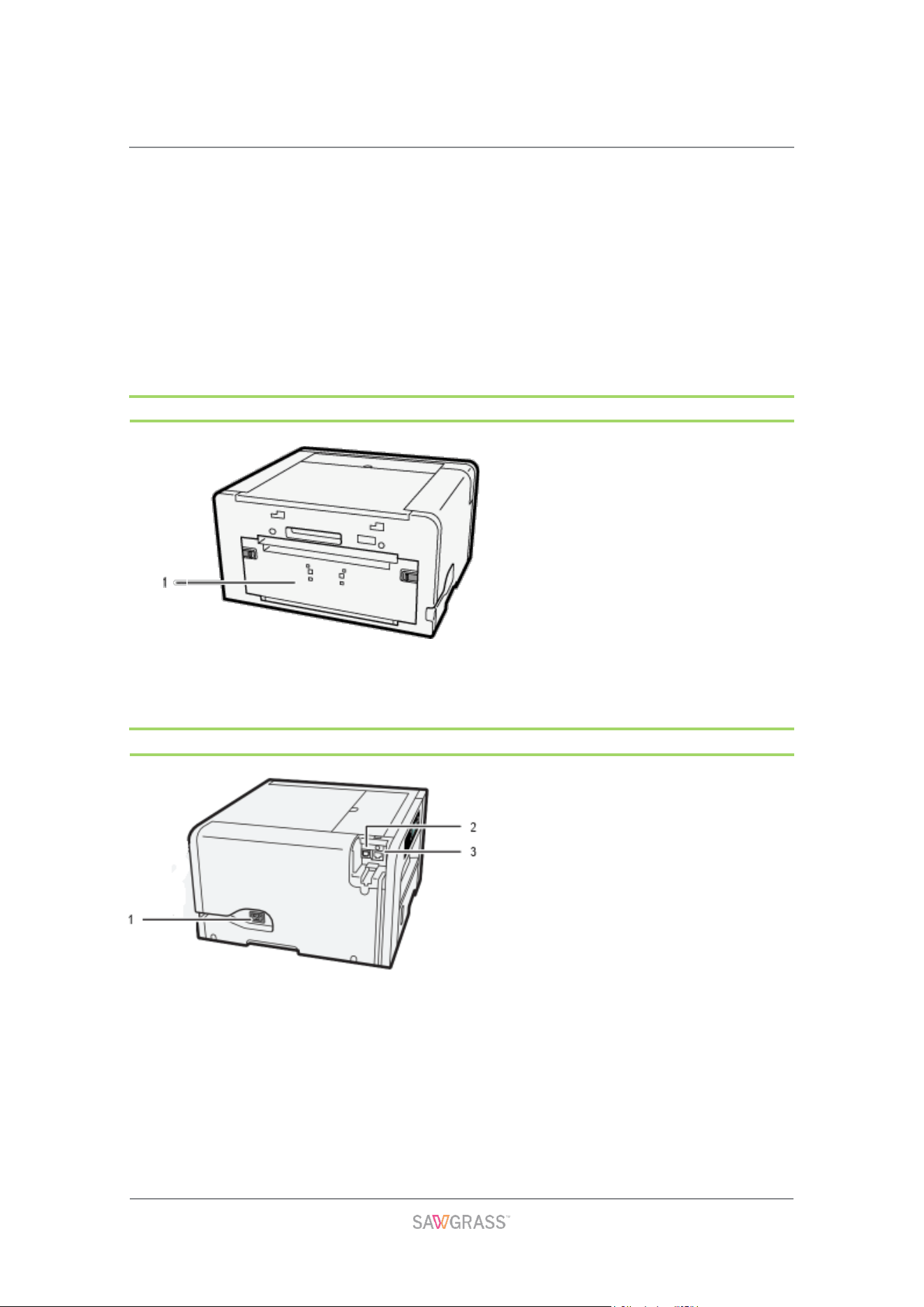
Rear View
1. Rear cover
Open this to clear paper jams inside the printer.
Left Side View
1. Po
wer inlet
Plug for the power cord.
2. USB port
Port for connecting the USB2.0 interface cable.
3. Ethernet port
Port for connecting the 100BASE-TX or 10BASE-T cable.
About The SG500 and SG1000 | 9
Options and Accessories
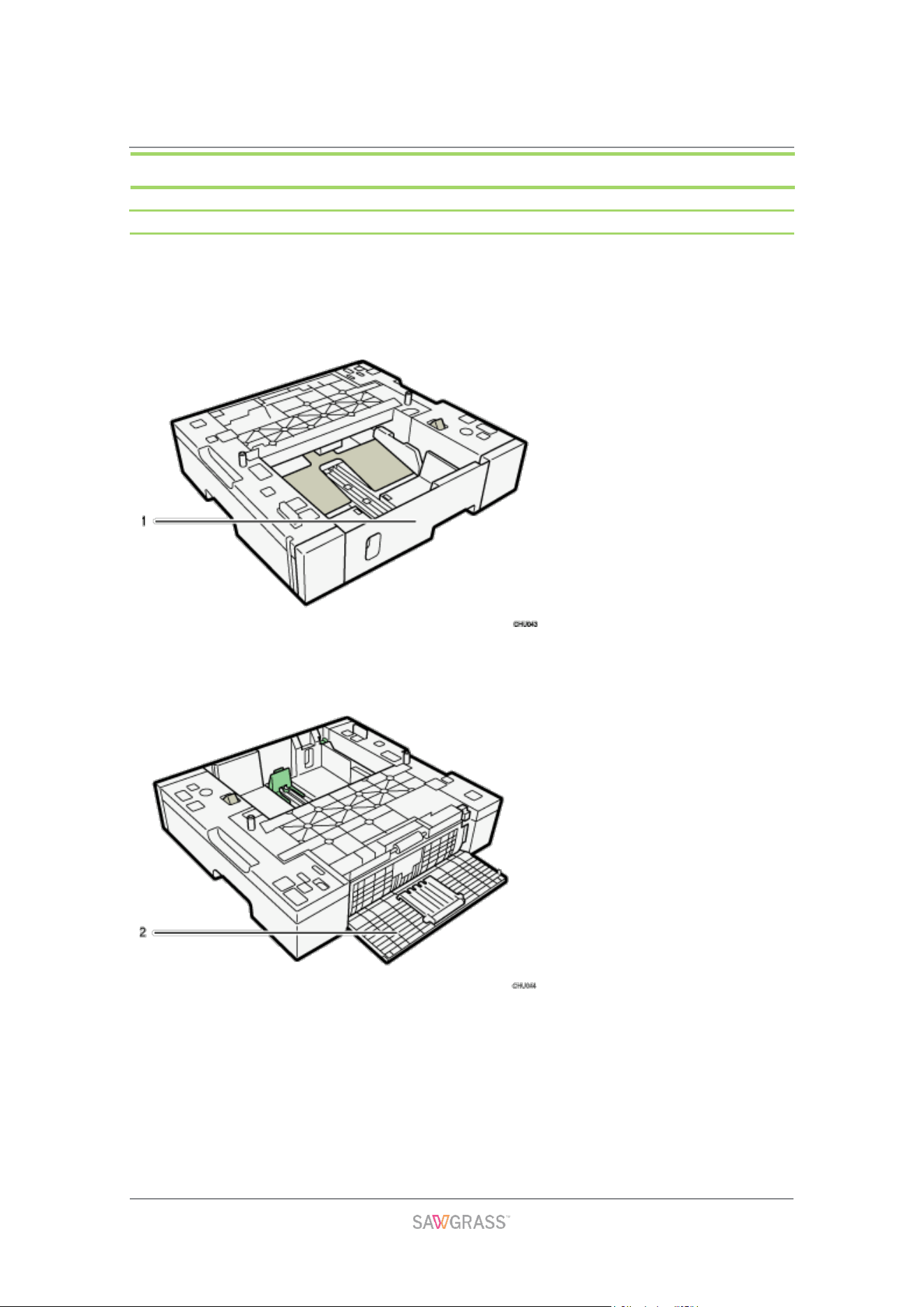
Option Tray SG500NA / SG500EU
This unit allows you to load additional sheets of paper. Two units can be stacked.
Front View
Rear View
1. Tray 2/Tray 3
When using paper larger than A4 or letter, extend the tray.
If two option trays are attached, one on top of the other, the unit on top is Tray 2, an
d
t
he unit on the bottom is Tray 3.
2. Rear unit cover
Open to remove paper that has jammed inside the option tray.
About The SG500 and SG1000 | 10
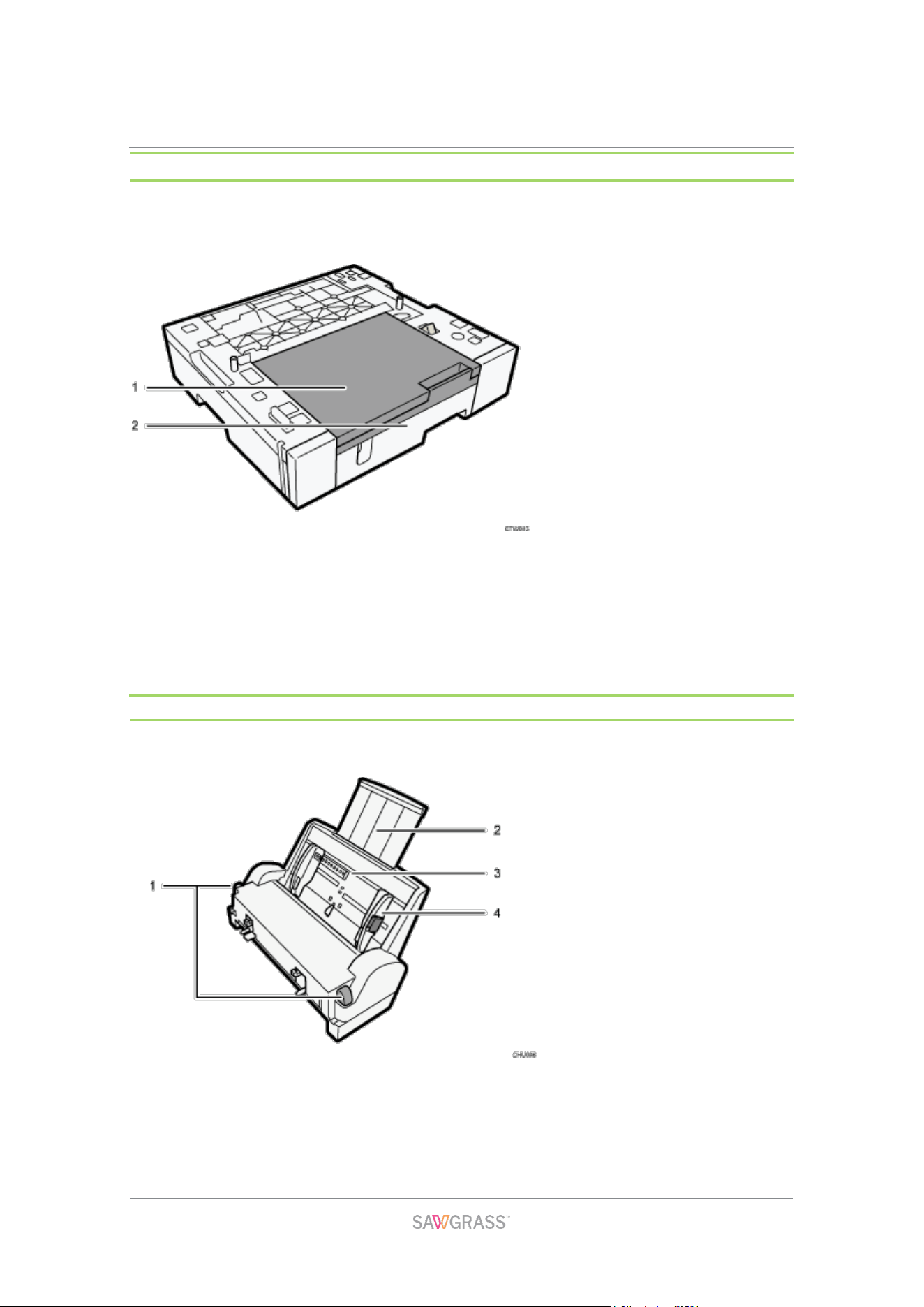
Option Tray for SG1000NA / SG1000EU
This unit allows you to load additional sheets of paper. Only one unit can be attached.
Front View
1. Paper Tray Cover Extension
Pull out this cover when using the tray extension unit, to prevent an accumulation of
dust. Do not pull out this cover if the extension unit is not used.
2. Tray 2
To print on paper larger than A4 or letter size, pull the tray extension out.
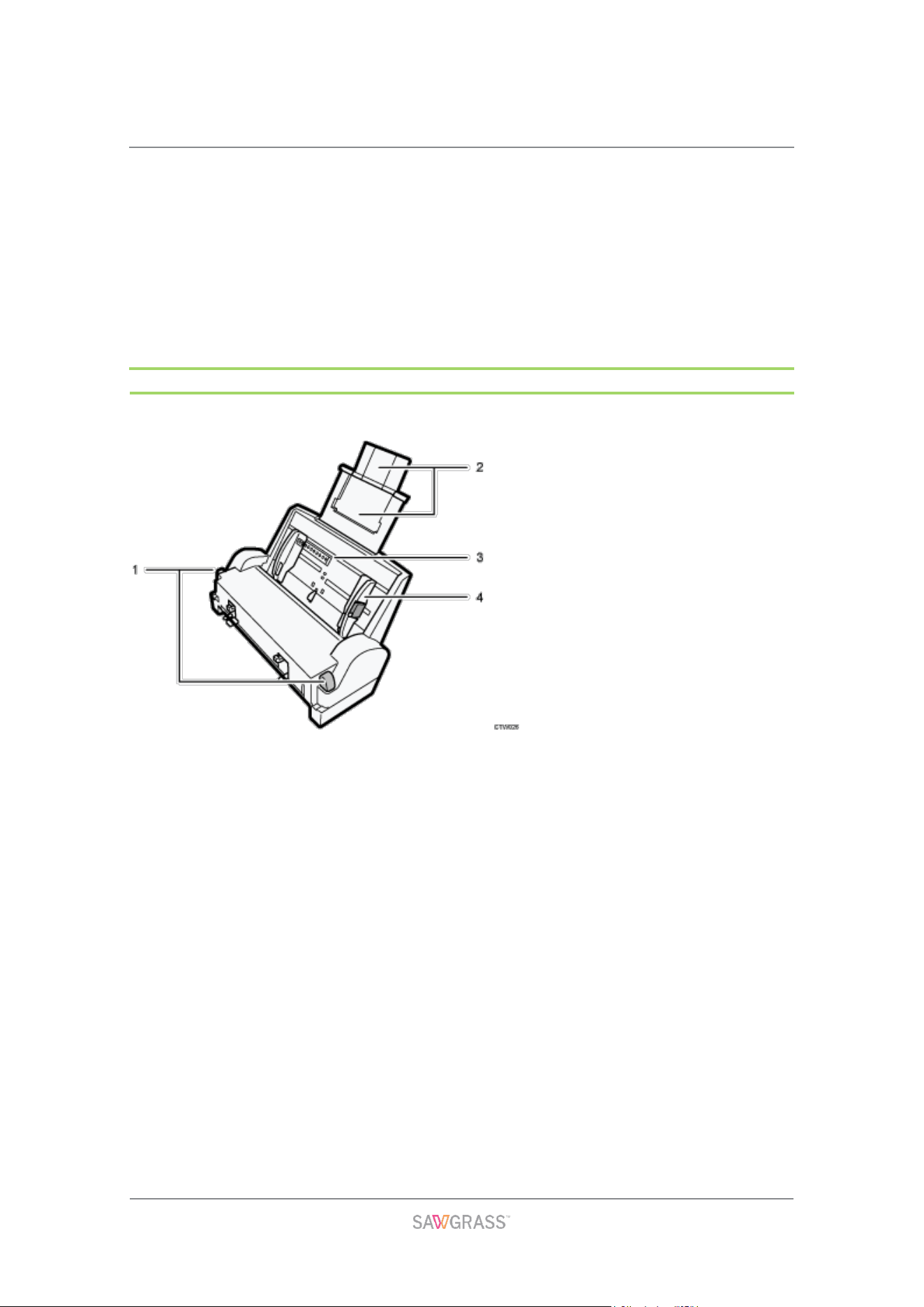
Bypass Tray for SG500NA / SG500EU
Use this tray to feed in sheets manually.
1. T
abs for bypass tray attachment and detachment
Press to lock the bypass tray before attaching it or to unlock the tray before detaching
it.
About The SG500 and SG1000 | 11
2. Bypass tray extension
Pull this out according to the paper size.
3. Bypass tray
Load paper here.
4. Side paper guides
Adjust the position of the side paper guides to match the paper size. Squeeze th
e
l
ocking lever and push the side paper guides.
Bypass Tray for SG1000NA / SG1000EU
Use this tray to feed in sheets manually and/or for oversize paper.
1. Tabs for bypass tray attachment and detachment
Press to lock the bypass tray before attaching it or to unlock the tray before detaching
it.
2. Bypass tray extension
Pull this out according to the paper size.
To load paper larger than A3 or Tabloid, extend the auxiliary trays.
3. Bypass tray
Load paper here.
4. Side paper guides
Adjust the position of the side paper guides to match the paper size. Squeeze th
e
l
ocking lever and push the side paper guides.
About The SG500 and SG1000 | 12
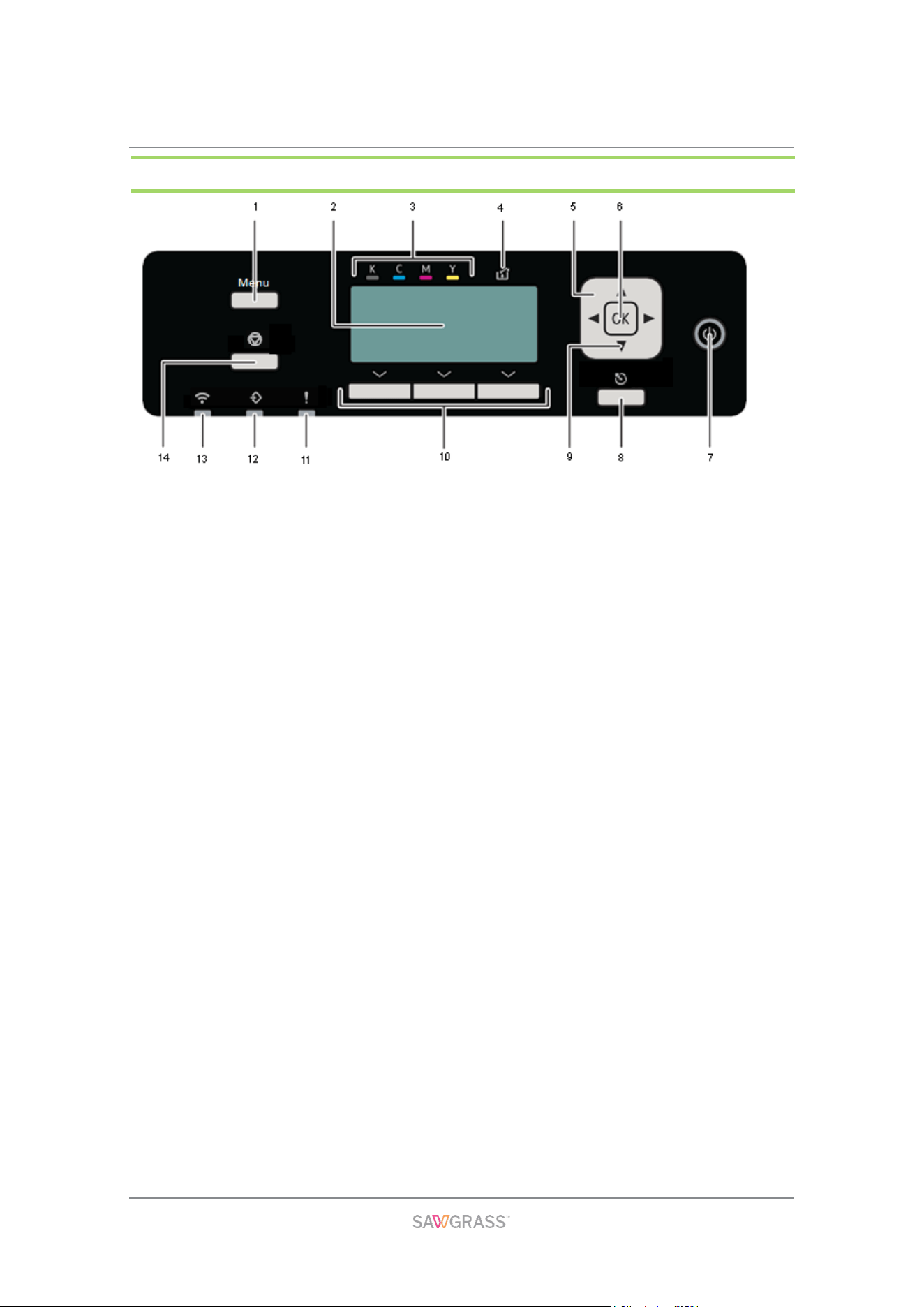
Control Panel
1. [Menu] Key
Use this key to display the menu.
2. Display
Displays the current printer status and messages.
3. Cartridge replacement indicator
Each color corresponds to an ink cartridge.
K, C, M, and Y indicate black, cyan, magenta, and yellow, respectively.
The amount of ink remaining in each ink cartridge is indicated on the six-level display.
4. Waste Ink Full Indicator
The amount of waste ink is indicated on the six-level display. A message appears
when it is near time and time to replace the waste collection unit.
5. Scroll Keys
To cycle through the menu or set a value on the display.
6. [OK] Key
To confirm the setting or setting values.
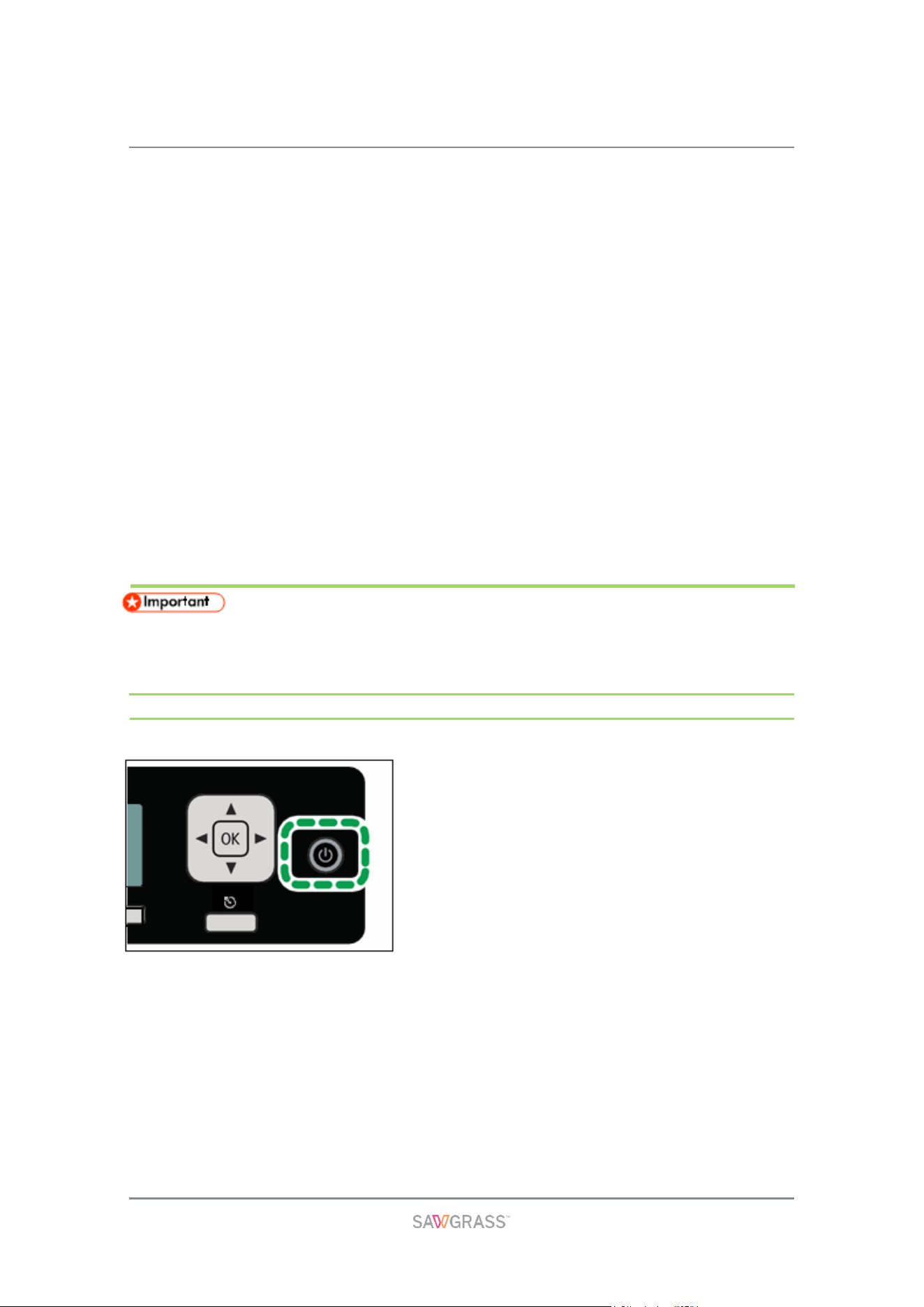
7. [Power] Key
Press this key to turn the power on. To turn the power off, press and hold down this
key for one second.
See the section “Turning On/Off the Power” for more information.
8. [Escape] key
Press this key to return to the previous screen or menu on the display.
9. No-Fuss Head Cleaning
Press and hold for 3 seconds to perform a head clean on all channels.
10. Selection keys
Press to select an item displayed at the bottom of the screen.
About The SG500 and SG1000 | 13
11. A
lert indicator
Lights up or blinks whenever a printer error occurs.
If the red light is on, follow the instructions that appear on the display.
12. Data In indicator
Flashes when receiving data sent from a computer. It will light up when there is a print
job in the queue
13. WIFI indicator
Flashes when you are trying to connect to a wireless LAN, will light up when it is
connected.
14. [Job Reset] key
When the printer is online, press this key to cancel an ongoing print job.
Turning On/Off the Power
Sawgrass always recommends keeping the printer powered on. This will allow the
printer to run automatic maintenance utilities for optimum performance.
Turning on the power
1. Press the [Power] key.
The [Power] key flashes and the "Waiting..." message will be displayed when the printer starts
warming up.
The [Power] key lights and the "Ready" message will be displayed when the printer is
ready for use.

About The SG500 and SG1000 | 14
Turning off the power
1. Press and hold down the [Power] key for one second.
When the printer is in shutdown mode, the "Shutting down..." message is displayed.
When the printer stops, the [Power] key and the display turn off.
If the printer is not used for a specified time after turning it on, it will automatically
go into Energy Saver mode, and electricity consumption of the printer will be
reduced. To specify a wait period for Energy Saver mode initiation, configure the
timer settings. See section "Using the [System settings] Menu" for more
information.
If the printer is in Energy Saver mode, the [Power] key lights but the LCD is blank.
(SG500NA / SG500EU)
If the printer is in Energy Saver mode, the [Power] key lights and the "Energy
Saver" message will be displayed. (SG1000NA / SG1000EU)
The printer recovers from Energy Saver mode when it receives a print job or when
any key is pressed.
For printers that are not connected to a network, turning off "Main Pwr Off if
Ntwrk Disc" will increase energy consumption.
Setup and Installation | 15
Setup and Installation
This chapter describes setup and installation procedures.
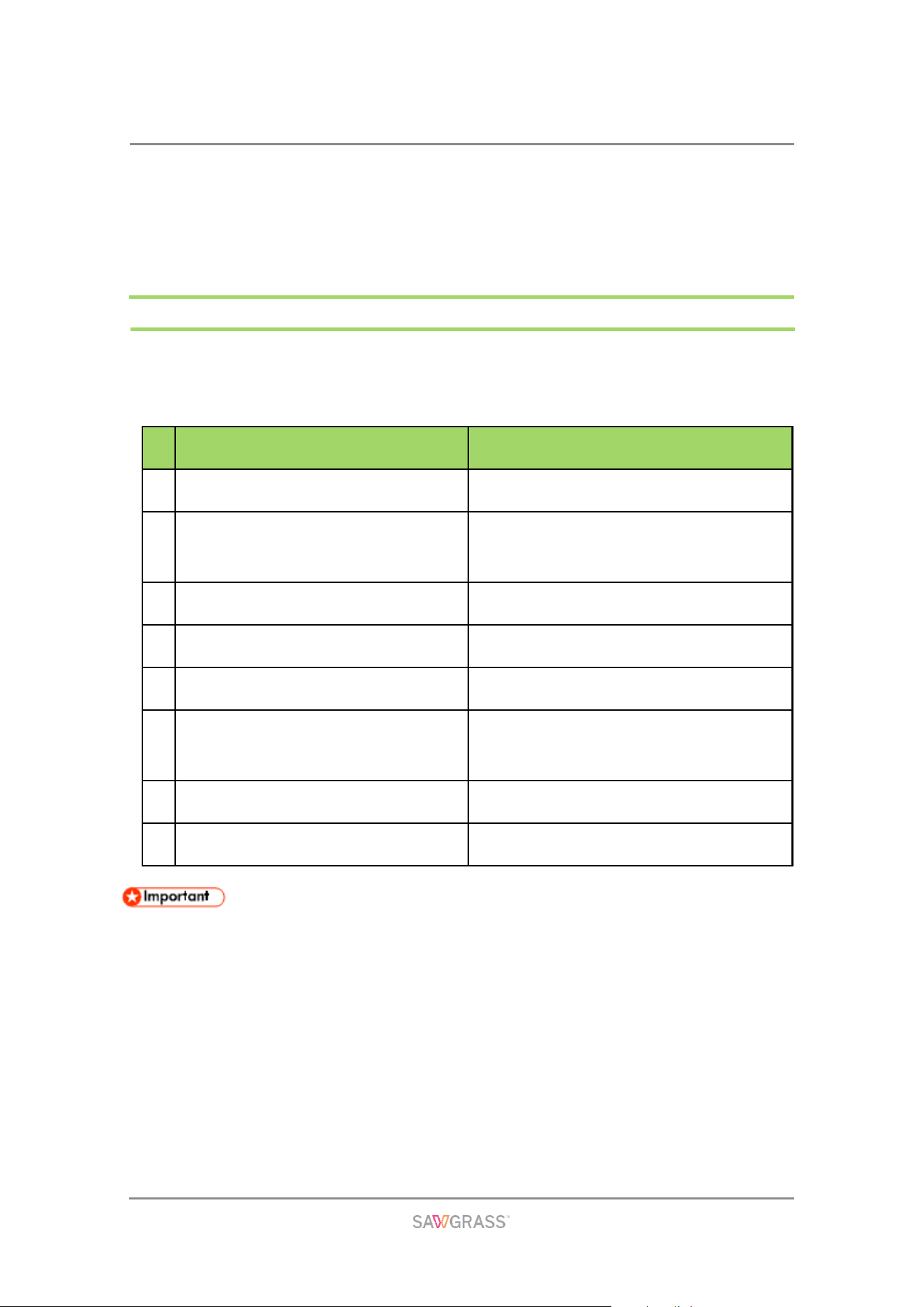
Setup Procedure
This section explains the tasks necessary for setting up the printer.
Install and set up the printer by following the steps in the order shown.
Task Reference Section for Full Details
1 Check the installation environment "Checking the Installation Area"
2 Check the supplied items "Checking the Supplied Items and
Unpacking the Printer"
3 Attach any options “Attaching and Detaching Options”
4 Load paper "Loading Paper"
5 Install the ink cartridges "Installing the Ink Cartridges"
6 Plug the power cord in and turn the
power on
"Plugging in the Power Cord and Turning
the Power On"
7 Connect the printer to the computer “Connecting the Printer”
8 Acquire, install and configure software “Printer and Color Management Software”
Follow these instructions for physical installation of the printer.
Instructions for installation and configuration of software are provided in
separate documents located on Care.sawgrassink.com
Do not turn the printer on until you have been instructed to do so.
Do not connect the printer to a computer via USB until directed to do so in the
instructions for software installation.
Connecting the printer to the computer via USB prior to being instructed to do
so may cause the printer to not be automatically recognized resulting in a
communication failure with the printer software.
Setup and Installation | 16
Checking the Installation Area
The printer's location should be carefully chosen because environmental conditions greatly
affect its performance.
Installation Area
To avoid malfunctions, position the printer away from the following:
direct sunlight
flow of air from air conditioners or heaters
radios, televisions, or other electronic devices
areas of high/low temperature and high/low moisture
humidifying appliances
oil stoves and ammonia-emitting appliances (such as copiers)
Do not use flammable sprays or solvents in the vicinity of this printer. Also, avoid
pl
acing these items in the vicinity of this printer. Doing so could result in fire or
electric shock.
Do not place vases, plant pots, cups, toiletries, medicines, small metal objects, or
containers holding water or any other liquids, on or close to this printer. Fire or
electric shock could result from spillage or if such objects or substances fall insid
e
th
is printer.
Be sure to locate the printer as close as possible to a wall outlet. This will allo
w
eas
y disconnection of the power cord in the event of an emergency.
Keep the printer away from humidity and dust. Otherwise a fire or an electric
shock might occur.
Do not place the printer on an unstable or tilted surface. If it topples over, an injury
might occur.
Do not place heavy objects on the printer. Doing so can cause the printer to toppl
e
ov
er, possibly resulting in injury.
Do not obstruct the printer's vents. Doing so may lead to a fire caused by
overheated, internal components.
Make sure the room where the printer is used is well ventilated and spacious.
Good ventilation is especially important when the printer is used heavily.
Setup and Installation | 17
Choose a flat, stable area to install the printer.
The surface should be level within two degrees, left to right and front to back.
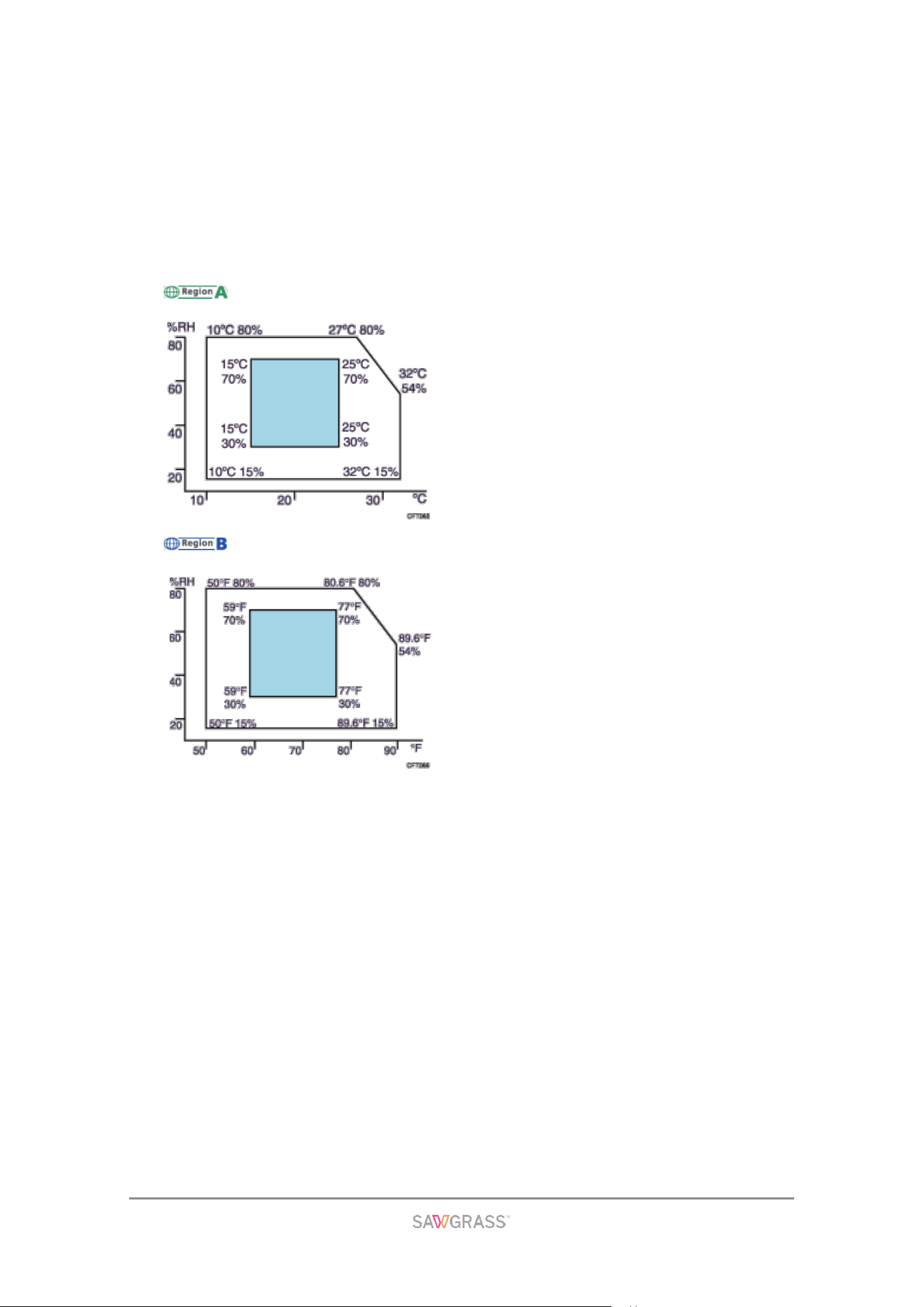
To prevent condensation, install the printer in an area where temperature and humidity
conditions do not exceed those indicated in the diagram below.
The printer may cease to print if these limitations are exceeded.
(mainly Europe and Asia)
(mainly North America)
White area: Permissible Range
Blue area: Recommended Range
Setup and Installation | 18
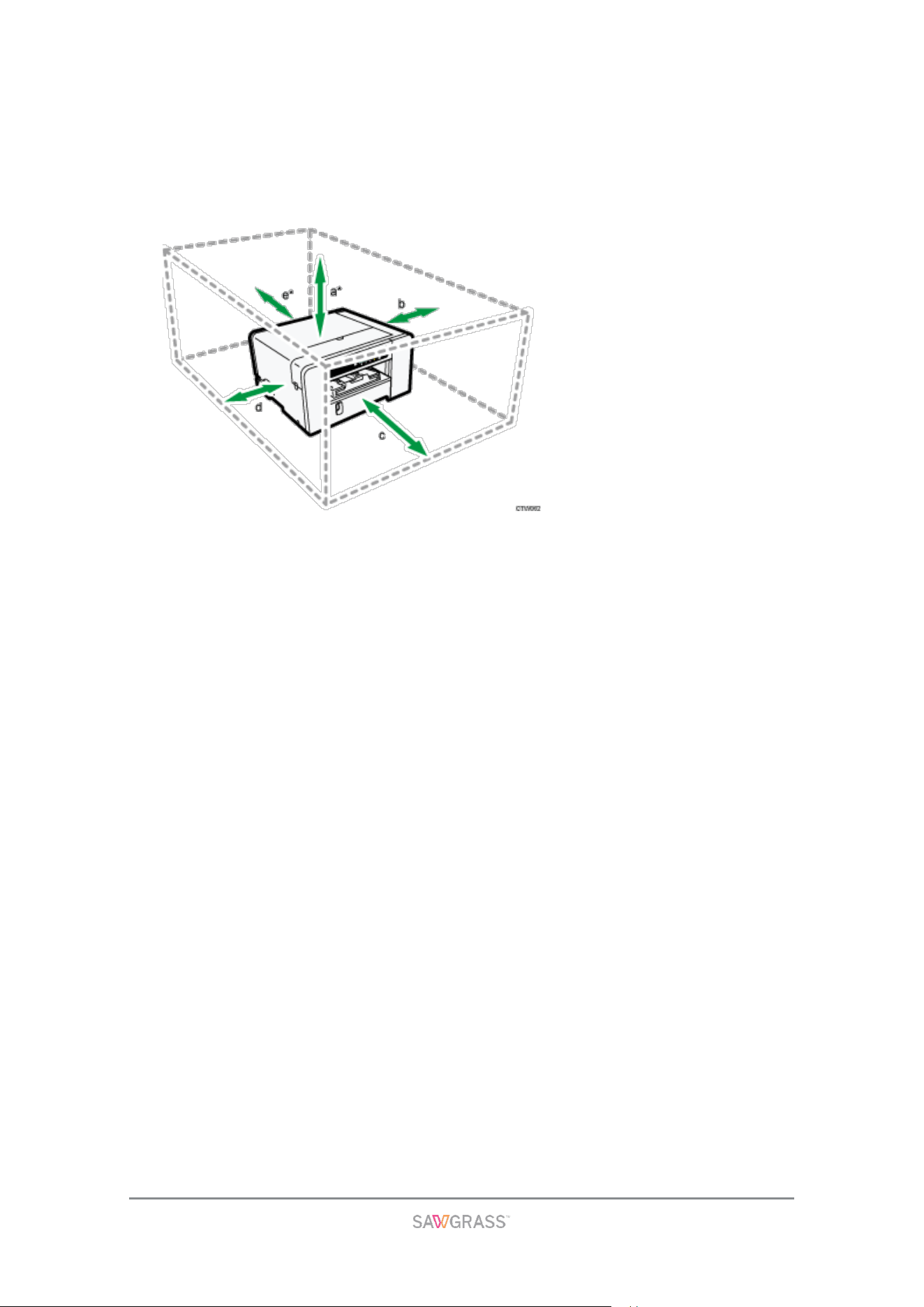
The following diagram shows the ideal clearance for loading paper, replacing ink
cartridges and removing jammed paper
SG500NA / SG500EU
a. 26 cm (10.3 inches)
b. 10 cm (4.0 inches)
c. 45 cm (17.8 inches)
d. 3 cm (1.2 inches)
e. 13 cm (5.2 inches)
* A clearance of 30 cm (11.9 inches) is necessary if the bypass tray is attached.
SG1000NA / SG1000EU
a. 26 cm (10.3 inches)
* A clearance of 41 cm (16.2 inches) is necessary if the bypass tray is attached.
b. 10 cm (4.0 inches)
c. 70 cm (27.6 inches)
d. 3 cm (1.2 inches)
e. 13 cm (5.12 inches)
* A clearance of 38 cm (15.0 inches) is necessary if the bypass tray is attached.
Setup and Installation | 19
Checking the power source
(mainly Europe and Asia)
SG500EU
220-240 V: 50/60 Hz 0.6
A
SG1000EU
220-240 V: 50/60 Hz 0.6 A
(mainly North America)
SG500NA
120-127 V: 60 Hz 1.0
A
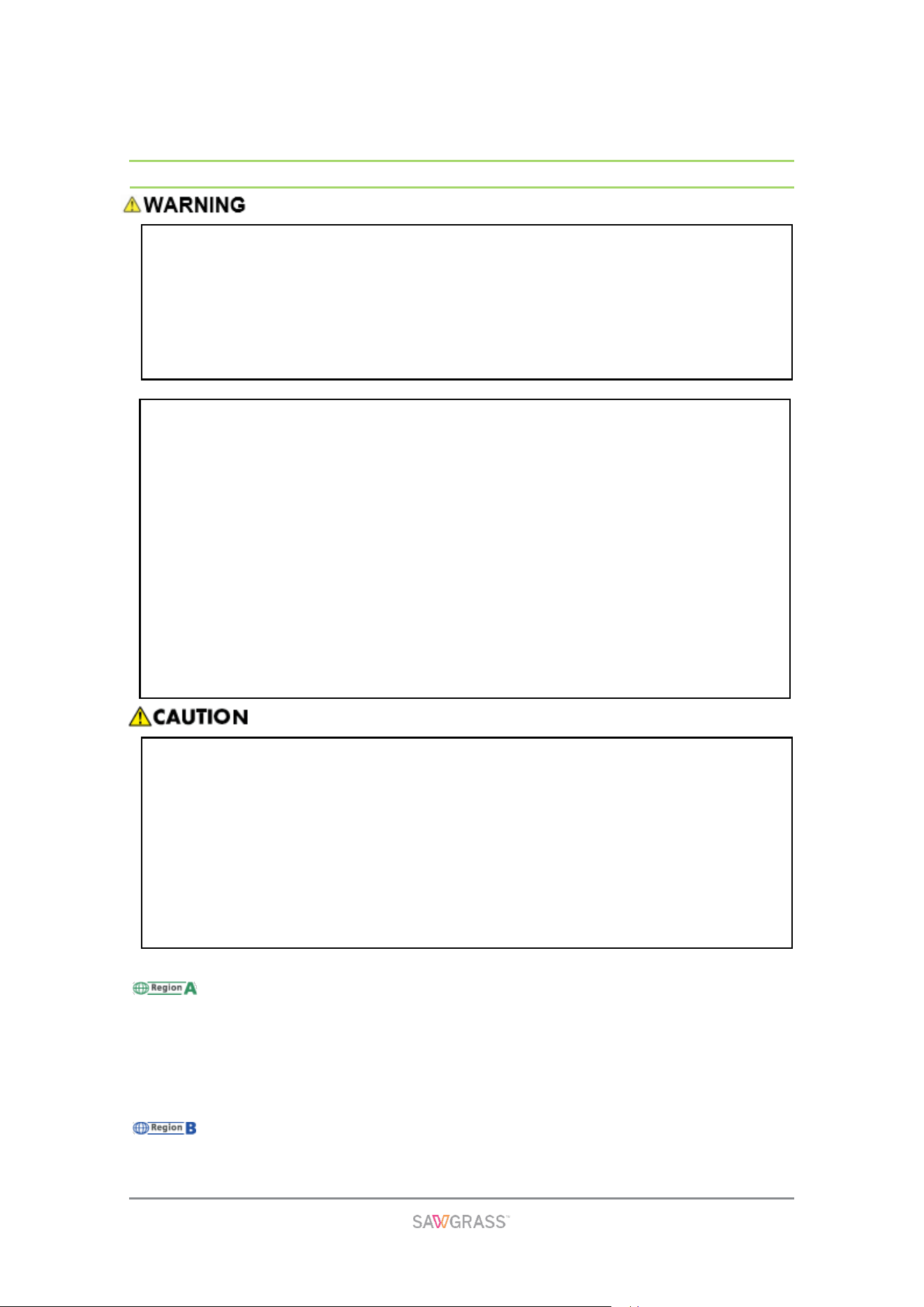
Failure to follow any of the warnings below could result in fire or electric shock:
Do not use any power sources other than those that match the specifications
shown in this manual.
Do not use any frequencies other than those that match the specifications shown.
Do not use multi-socket adaptors or extension cords.
Do not touch the prongs of the power cable's plug with anything metallic.
Do not handle the power cord plug with wet hands.
The supplied power cord is for use with this printer only. Do not use it with other
appliances.
Do not use power cords that are damaged, broken, or modified. Also, do not us
e
p
ower cords that have been trapped under heavy objects, pulled hard, or bent
severely.
If the power cord is damaged and its inner wires are exposed or broken, contact
Sawgrass for a replacement. Use of damaged power cords could result in fire or
electric shock.
Locate the printer as close as possible to a wall outlet. This will allow easy
disconnection of the power cord in the event of an emergency.
Be sure to push the plug of the power cord fully into the wall outlet. A partially
inserted plug may create an unstable connection that can result in unsafe buildup
of heat.
When disconnecting the power cord from the wall outlet, always pull the plug, not
the cord. Pulling the cord can damage the power cord.
Setup and Installation | 20
SG1000NA
120-127 V: 60 Hz 1.2 A
Checking the Supplied Items and Unpacking the Printer
Do not turn the printer on until you have been instructed to do so.
Do not connect the printer to a computer via USB until directed to do so in the
i
nstructions for software installation.
Connecting the printer to the computer via USB prior to being instructed to do s
o
m
ay cause a communication failure between the software and the printer.
Open the printer box and take out all supplied items. Check that all the following items are
present:
Power Cord
Safety Information
USB Cable
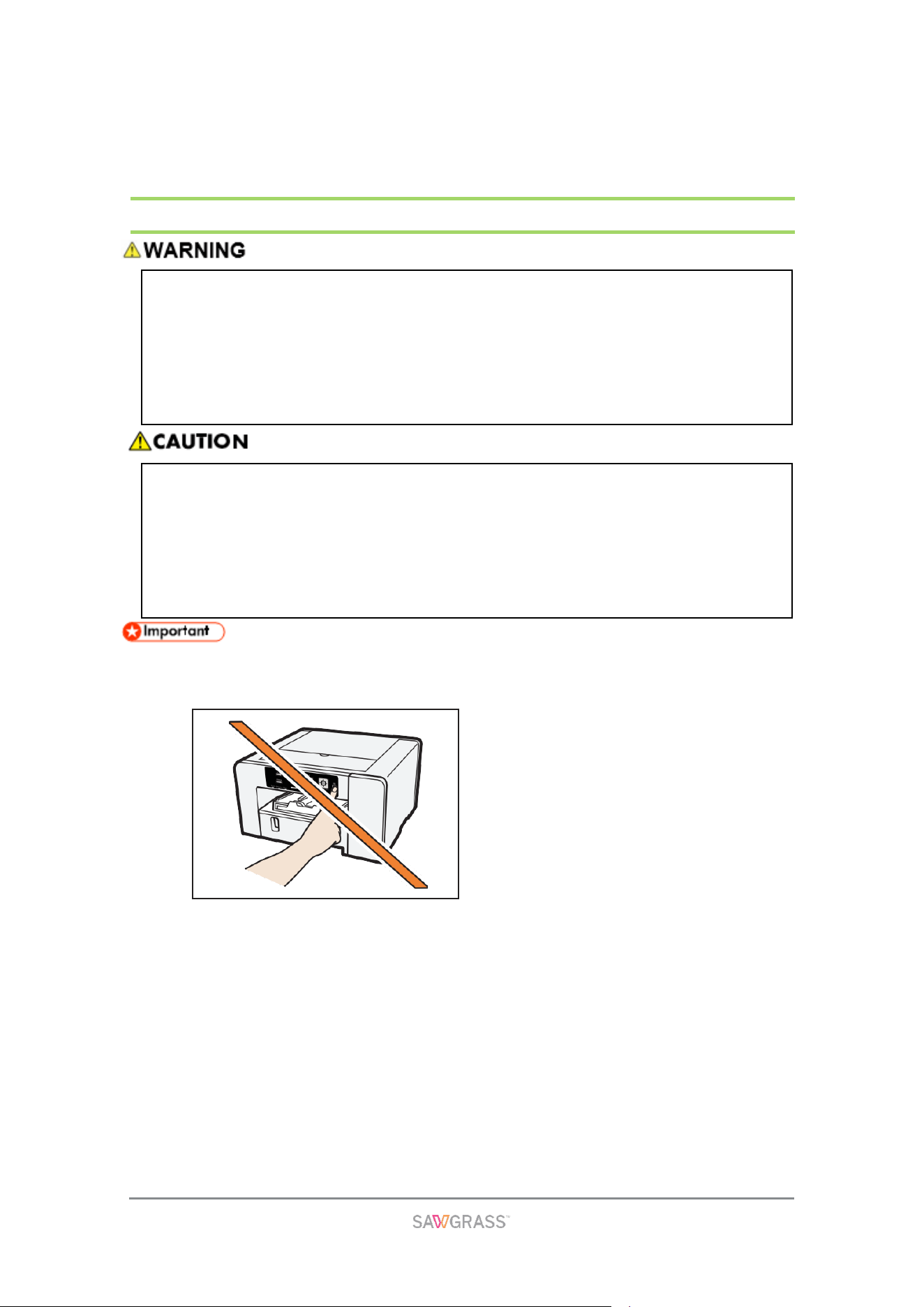
The following explains the warning messages on the plastic bag used in this
product's packaging.
Keep the polythene materials (bags, etc.) supplied with this printer away from
babies and small children at all times. Suffocation can result if polythen
e
m
aterials are brought into contact with the mouth or nose.
SG1000NA and SG1000EU weigh around 15 kg (33 lb.).
Grip the center area at the base of the printer's sides. Lift it slowly and do not
strain your body.
When moving the printer, remove the option tray. Careless handling and over
exertion when lifting can result in breakage and/or injury.
Setup and Installation | 21
Open the box containing the ink cartridges and other accessories and ensure you have the
following:
Sawgrass Ink Cartridge – Black
Sawgrass Ink Cartridge – Cyan
Sawgrass Ink Cartridge – Magenta
Sawgrass Ink Cartridge – Yellow
Quick Installation Guide
Warranty Card
1. Take off the protective covering.
2. Remove the plastic bag.
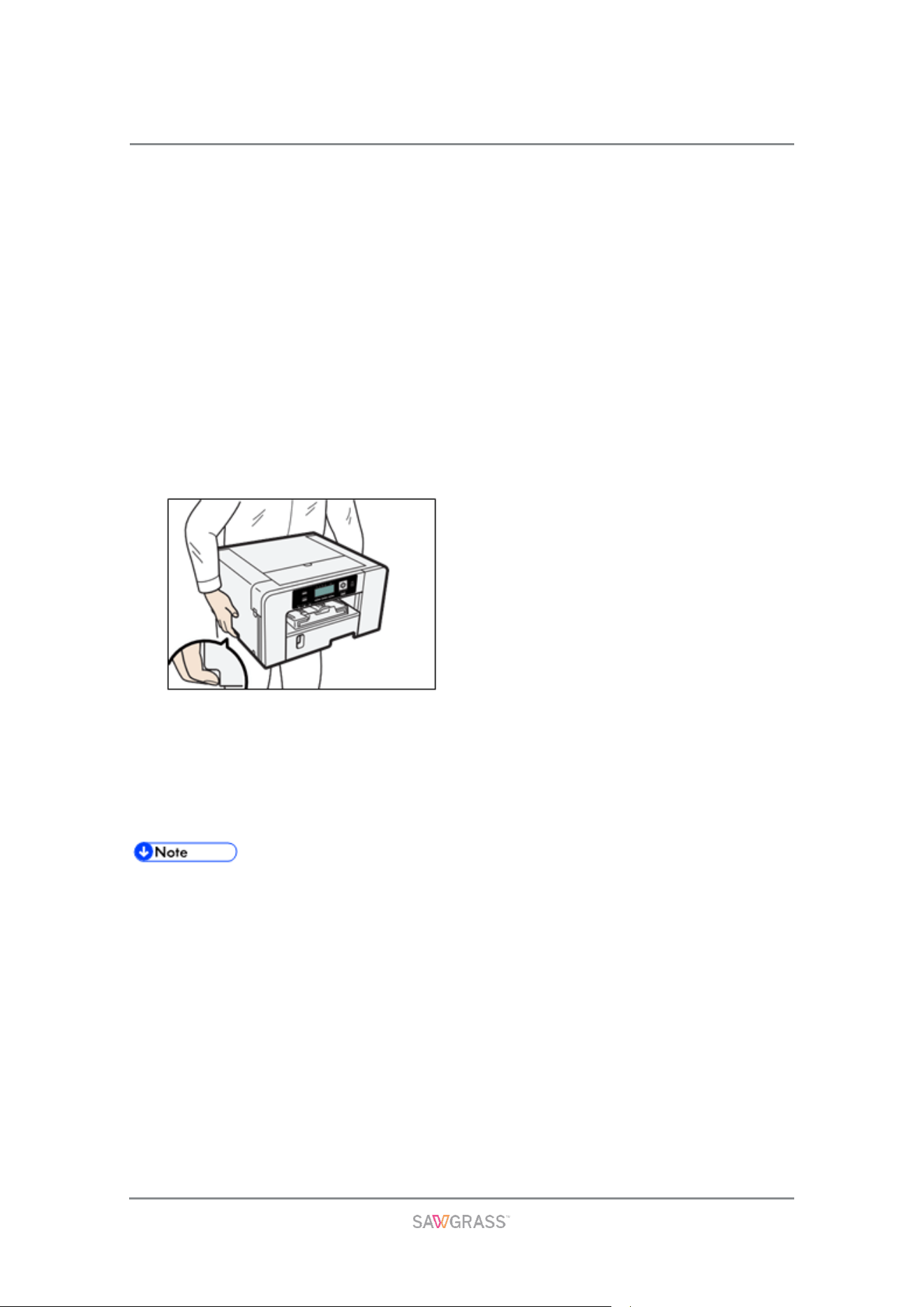
3. Lift the printer and move it to the place where it will be installed.
Gr
ip the indented area at the base of the printer's sides, as shown. Lift and carry the
printer slowly and carefully.
4. Remove the tape from the printer body.
5. Attach units and options.
See the section “Attaching and Detaching Options” for more information.
Sawgrass recommends the box be kept on hand and not disposed.
100BASE-TX or 10BASE-T LAN cables are not supplied.
Setup and Installation | 22
Attaching and Detaching Options
Attaching and Detaching the Option Tray
Before installing or removing options, always disconnect the power cord plug from
the wall outlet.
Attaching the option tray
1. If the printer is powered on, press and hold down the [Power] key until it turns
off and then unplug the power cord.
2. If necessary, disconnect the USB cable or Ethernet cable.
3. Take the option tray out of the box and remove the tape.
4. Position the option tray close to the printer.
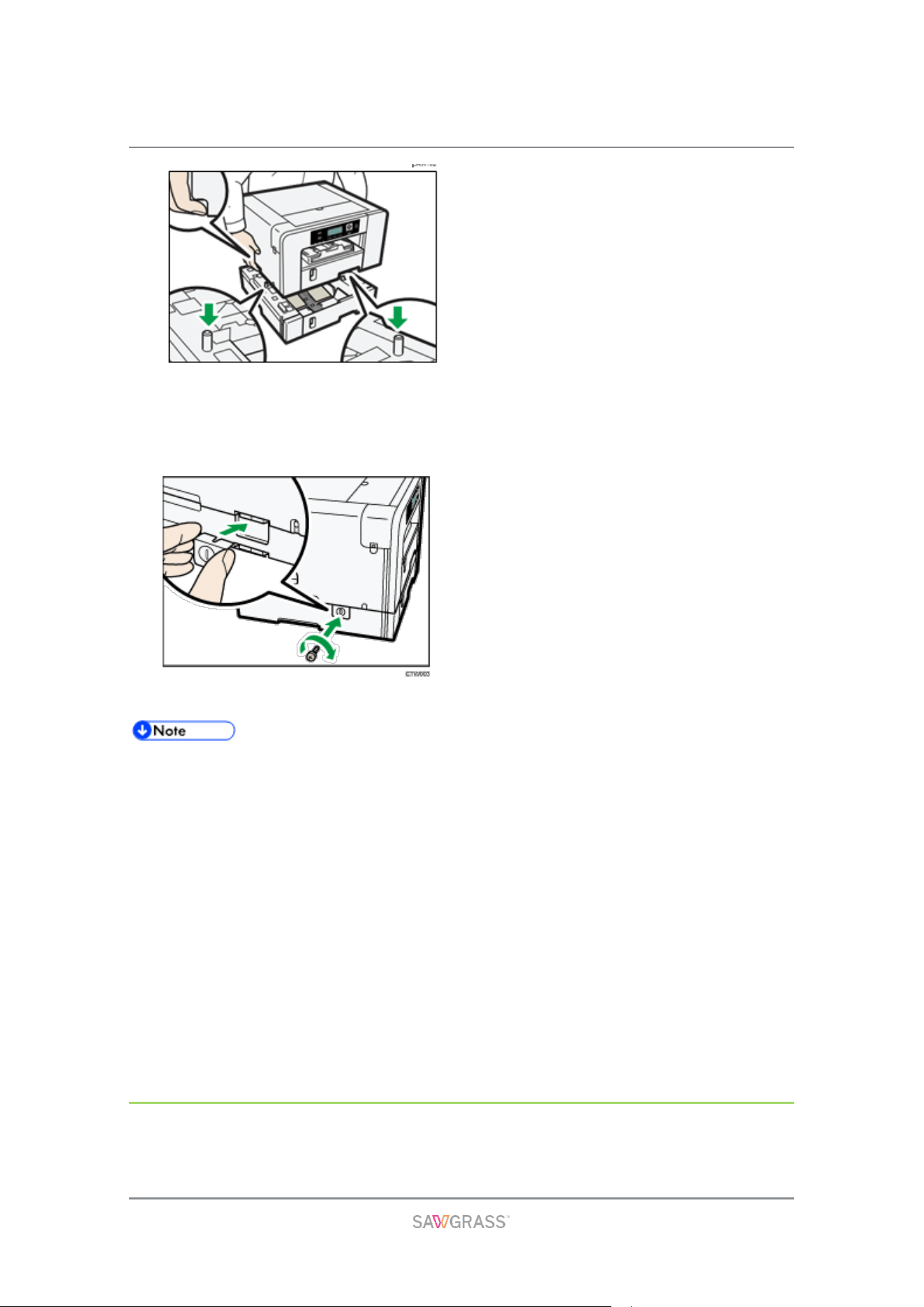
5. Align the connecting parts of the printer and option tray, then lower the printer
onto the option tray.
The following explains the warning messages on the plastic bag used in this
product's packaging.
Keep the polythene materials (bags, etc.) supplied with this printer away from
babies and small children at all times. Suffocation can result if polythene
materials are brought into contact with the mouth or nose.
SG1000NA and SG1000EU weigh around 15 kg (33 lb.).
Grip the center area at the base of the printer's sides. Lift it slowly and do not
strain your body.
When moving the printer, remove the option tray first. Careless handling and
over exertion when lifting can result in breakage and/or injury.
Setup and Installation | 23
Grip the center area at the base of the printer's sides. Lift it slowly and do not strain
your body.
6. Attach the clamping plate and secure it with a coin screw. (SG1000NA / SG1000EU)
7. Connect the power cord, USB cable or Ethernet cable.
Align the option tray and printer using their corners.
When the printer is placed on top of the option tray, installation is complete.
Do not tilt the printer.
Be careful not to trap your fingers.
Up to 2 option trays can be attached. (SG500NA / SG500EU)
To install two option trays, put the upper option tray (Tray 2) on the lower option
tray (Tray 3) first, then lower the printer onto the upper option tray (Tray 2).
After attaching an option tray, the printer driver may need to be configured to
recognize it.
After attaching the option tray, you must register where to start printing on paper
loaded in the option tray. See the section "Registration" for more information.
Detaching the option tray
1. If the printer is powered on, press and hold down the [Power] key until it turns
off and then unplug the power cord.
Setup and Installation | 24
2. If necessary, disconnect the USB cable or Ethernet cable.
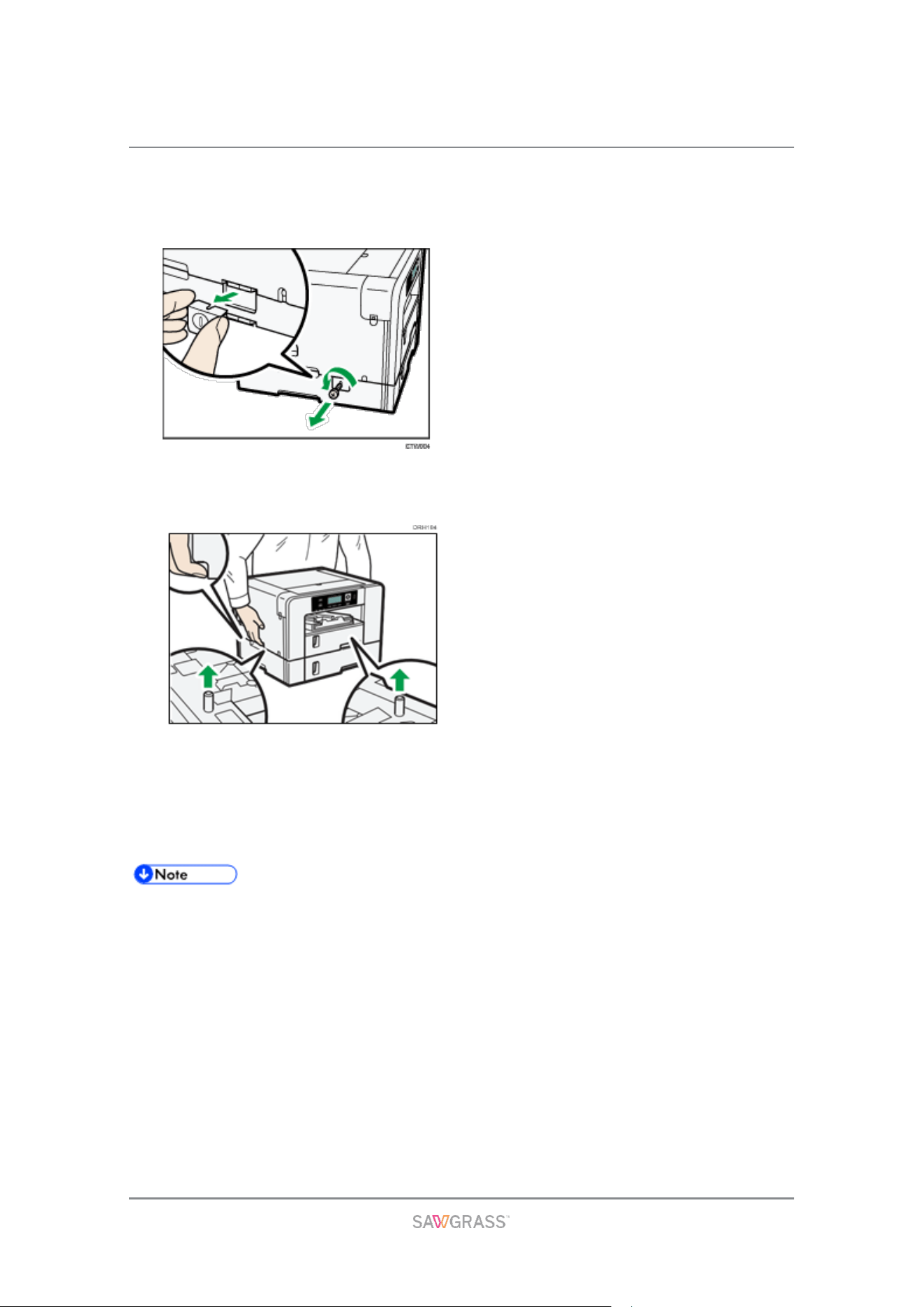
3. Remove the coin screw and then detach the clamping plate.
(SG1000NA / SG1000EU)
4. Temporarily move the printer to a nearby flat and stable surface to detach the
option tray.
Grip the center area at the base of the printer's sides. Lift it slowly and do not strain
your body.
5. Place the printer back in the previous location.
6. Connect the power cord, USB cable or Ethernet cable.
D
o not tilt the printer.
Be careful not to trap your fingers.
Setup and Installation | 25
Attaching and Detaching the Bypass Tray
This section explains how to attach and detach the bypass tray.
Do not place the printer near the edge of a desk if the bypass tray is attached.
There is a risk of it falling to the floor.
Before installing or removing options, always disconnect the power cord plug from
the wall outlet.
Do not forcefully press down on the bypass tray. It may come off the printer and
paper misfeeds or positioning problems may result.
Attaching the bypass tray
1. If the printer is powered on, press and hold down the [Power] key until it turns
off and then unplug the power cord.
2. If necessary, disconnect the USB cable or Ethernet cable.
3. Take the bypass tray out of the box and remove the tape.
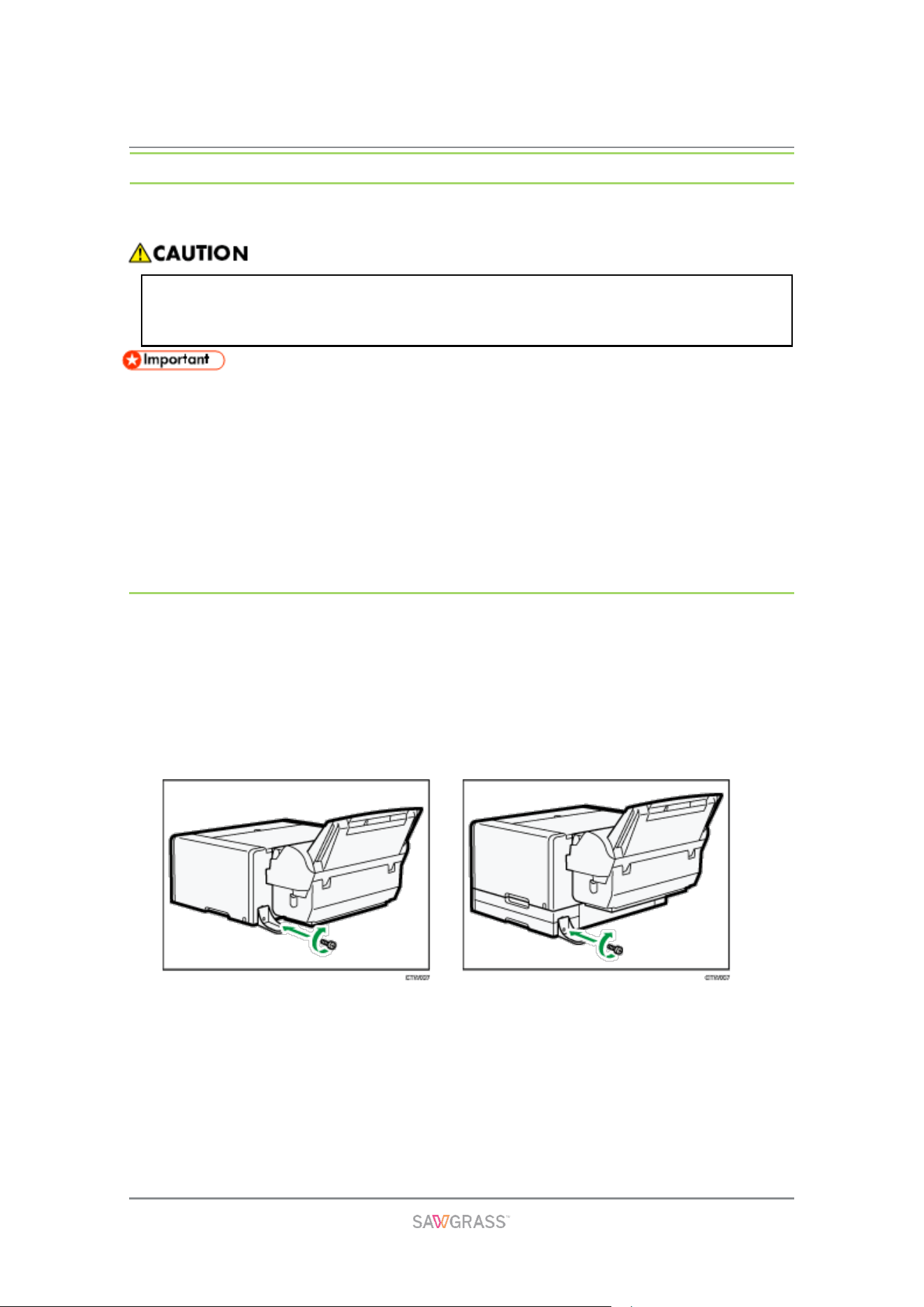
4. Attach the anti-topple stand and then secure it with a coin screw.
(SG1000NA/SG1000EU)
If an option tray is installed, attach the anti-topple stand to it.
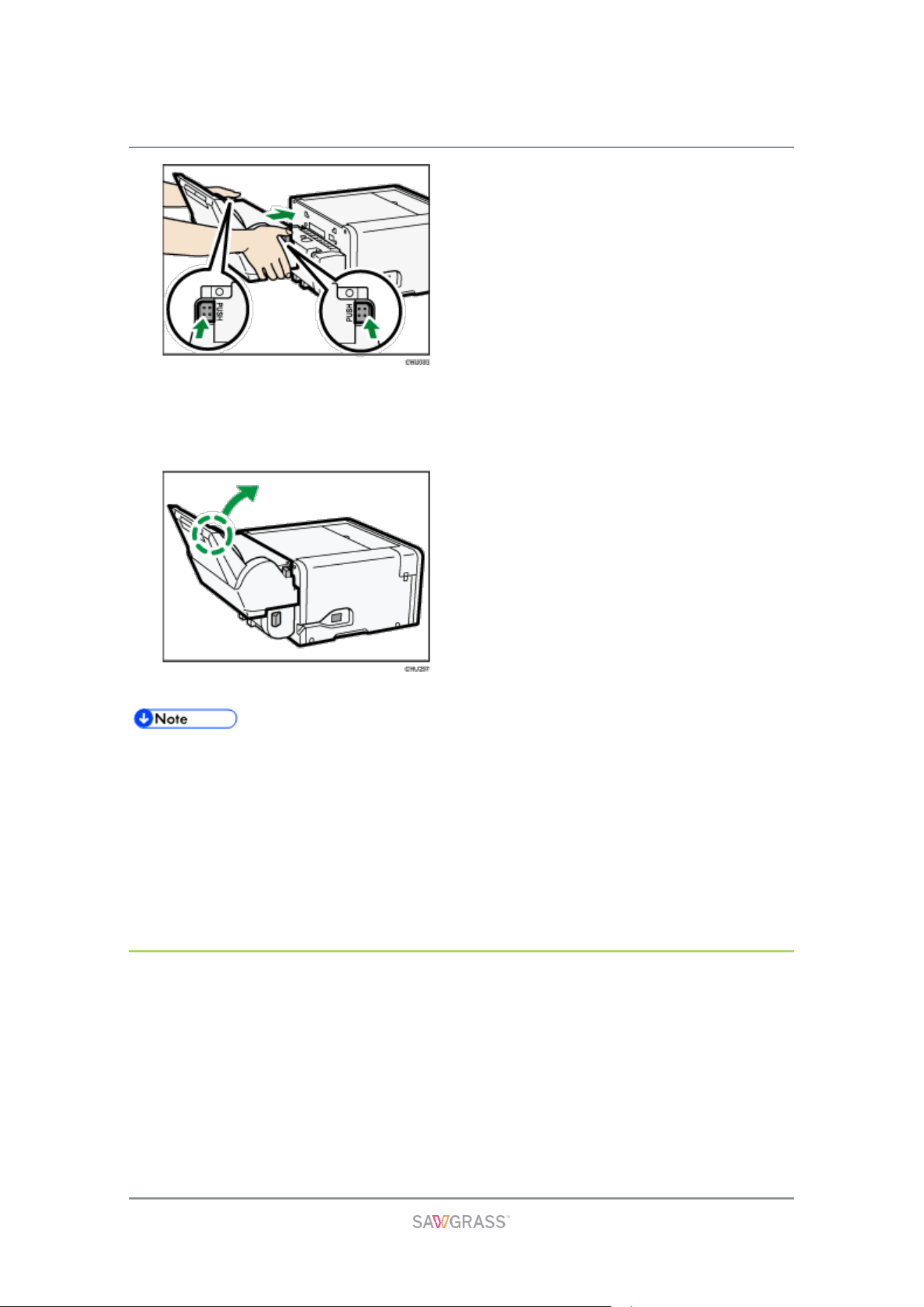
5. Attach the bypass tray while pressing the tabs on each side, then push it in all
the way. Attach the bypass tray into the printer until you hear it click.
Do not place the printer on an unstable or tilted surface. If it topples over an injury
might occur.
Setup and Installation | 26
Make sure the tabs return to their original positions.
If the tabs do not return to their original positions, push the tray in while pulling up on its
top left part as shown.
6. Connect the power cord, USB cable or Ethernet cable.
A
fter attaching an option tray, the printer driver may need to be configured t
o
r
ecognize it.
After attaching the bypass tray, you must register where to start printing on paper
loaded in the bypass tray. See the section "Registration" for more information.
The coin screw on the underside of the bypass tray is used when setting the sid
e
f
ence.
Detaching the bypass tray
1. Press and hold down the [Power] key until it turns off, then unplug the power
cord.
2. If necessary, disconnect the USB cable or Ethernet cable.
3. Remove any paper in the bypass tray.
4. If the bypass tray extension is pulled out, push it back in.
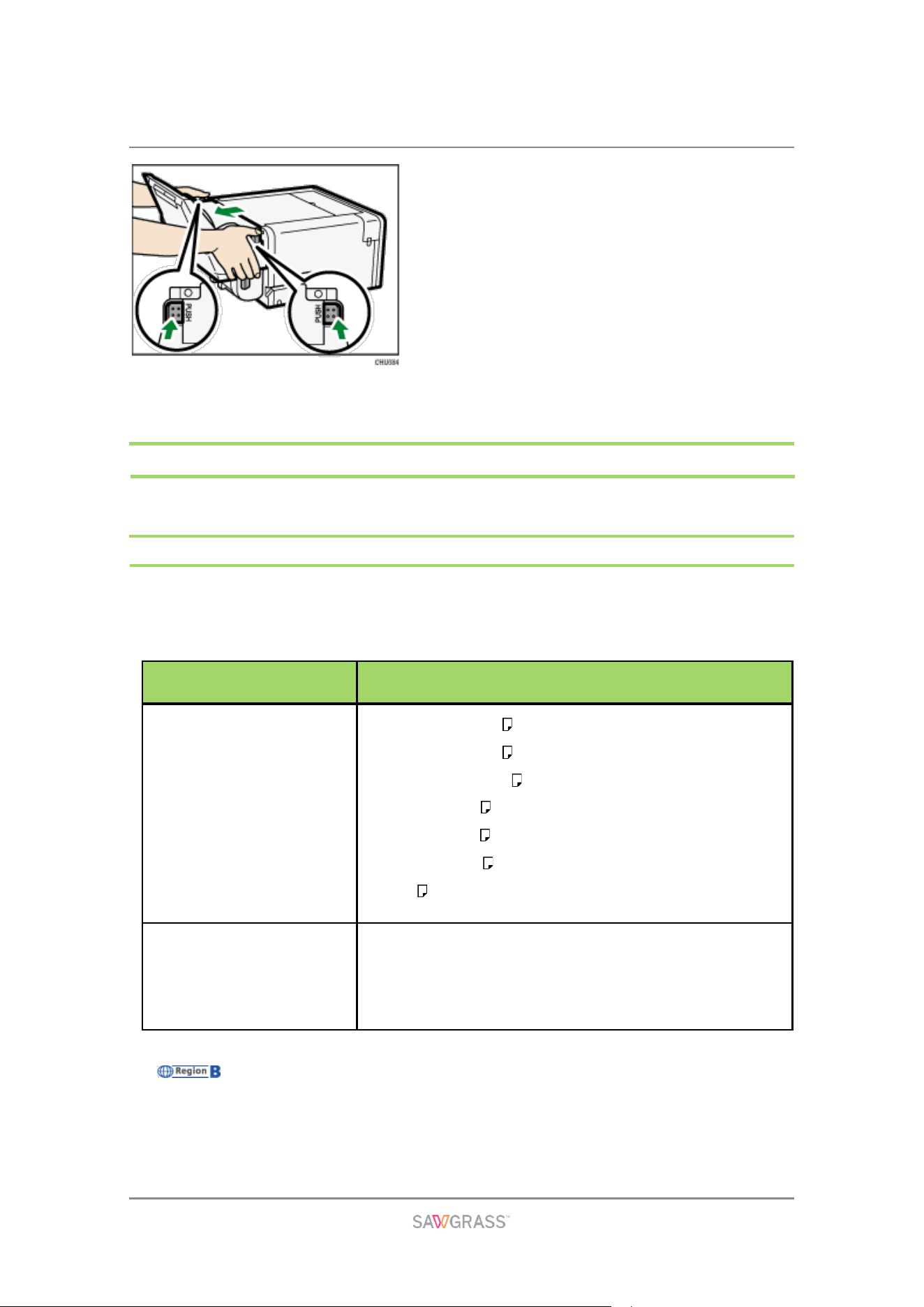
5. Pressing the tabs on each side of the bypass tray, detach the unit.
Setup and Installation | 27
6. Connect the power cord, USB cable or Ethernet cable.
Loading Sublimation Transfer Paper
This section explains the available paper sizes and how to load paper.
Loadable Paper Sizes
Option Tray 1, Option Tray 2, and/or Bypass Tray (SG500NA / SG500EU / SG1000NA
/ SG1000EU)
Type Paper Size
Sublimation Transfer Paper
(standard sizes)
A4 (210 × 297 mm)
A3 (297 × 420 mm)
A3+ (328 × 483 mm)
Letter (8
1
/
2
× 11)
*1
Legal (8
1
/
2
× 14)
*1
Tabloid (11 × 17)
*1
13 × 19
*1
Sublimation Transfer Paper
(custom cut)
Vertical: 139.7-297.0 mm (5.50-11.69 inches)
Vertical: 139.7-356.0 mm
*1
(5.50-14.01 inches)
Horizontal: 88.0-216.0 mm (3.47-8.50 inches)
*1 (mainly North America)
Setup and Installation | 28
Handling and Storage Precautions
Paper handling precautions
Load only Sawgrass recommended sublimation transfer paper in the paper tray(s).
Do not load paper of different types or sizes at the same time.
Pull Trays 1-3 completely out before loading them with paper.
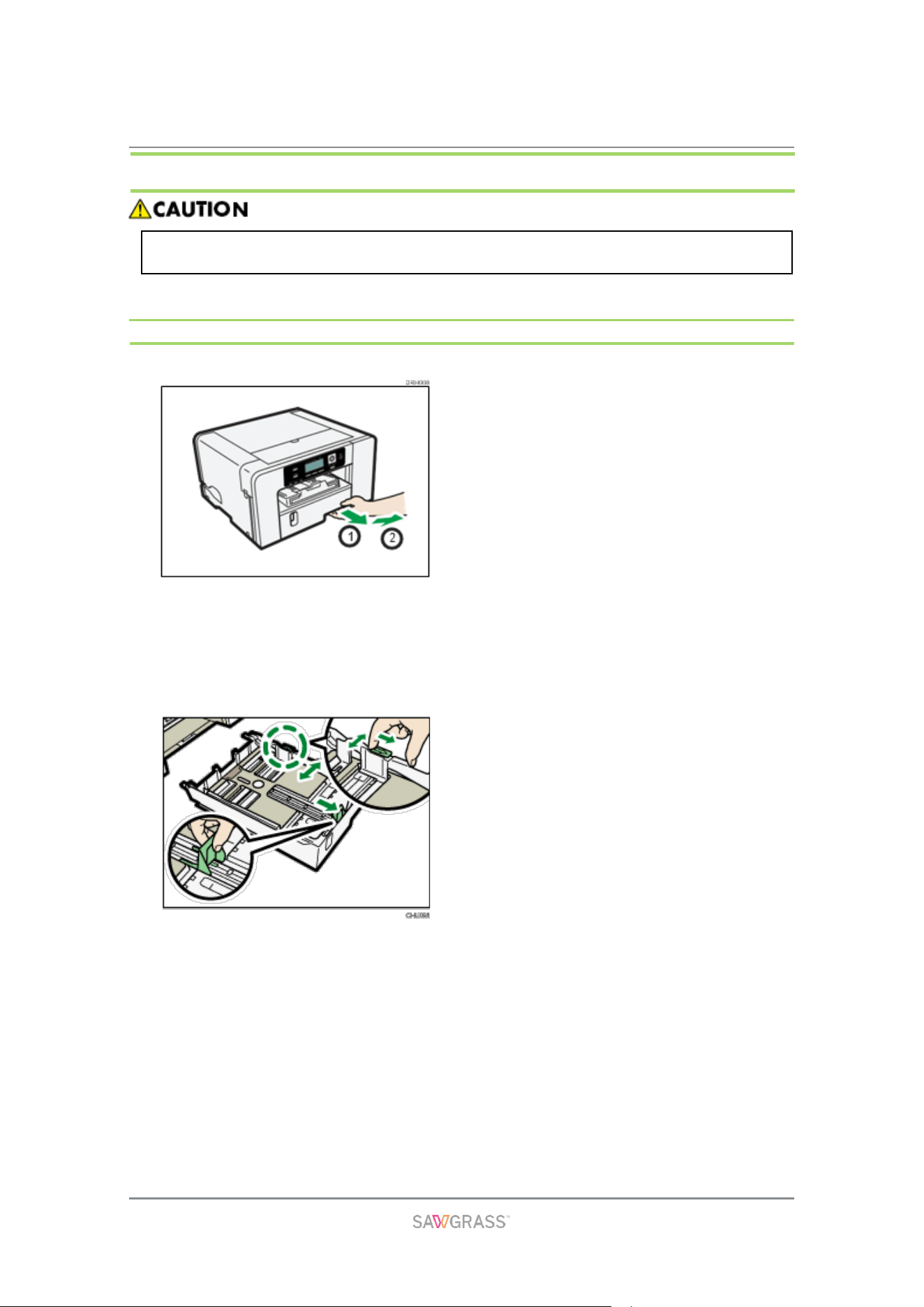
Load transfer paper in Tray 1-3 print side down (bright, white side or side without
watermark or logo), with the shorter edge pointing in the paper feed direction.
Do not stack paper over the limit mark.
Load transfer paper in the bypass tray print side up (bright, white side or side without
watermark or logo), with the shorter edge pointing in the paper feed direction.
Curled paper may jam. Straighten any curls within 2 mm (0.08 inches) before loading.
Paper storage precautions
If stored under adverse conditions, even paper suitable for printing can cause paper jams,
poor print quality or printer malfunctions. Heed the following when paper is stored:
Do not store paper in humid places.
Do not store paper in direct sunlight.
Store paper flat.
Store unused paper in the original package.
Setup and Installation | 29
Loading Paper
Loading Paper into Tray 1-3
1. Using the grip, pull the tray halfway out, lift it slightly, then pull it out completely.
Pull the tray out completely. Take care not to drop it.
1. Pinch the catch of the paper guide on the right side, slide the paper guides t
o
m
atch the size of the paper to load, then push the end paper guide out until there
is space between them.
2. Load paper with the print side face down but not over the limit mark.
Print side is the bright, white side or side without watermark or logo and should b
e
placed face down, with the shorter edge pointing in the paper feed direction.
When loading paper, take care not to trap or injure your fingers.
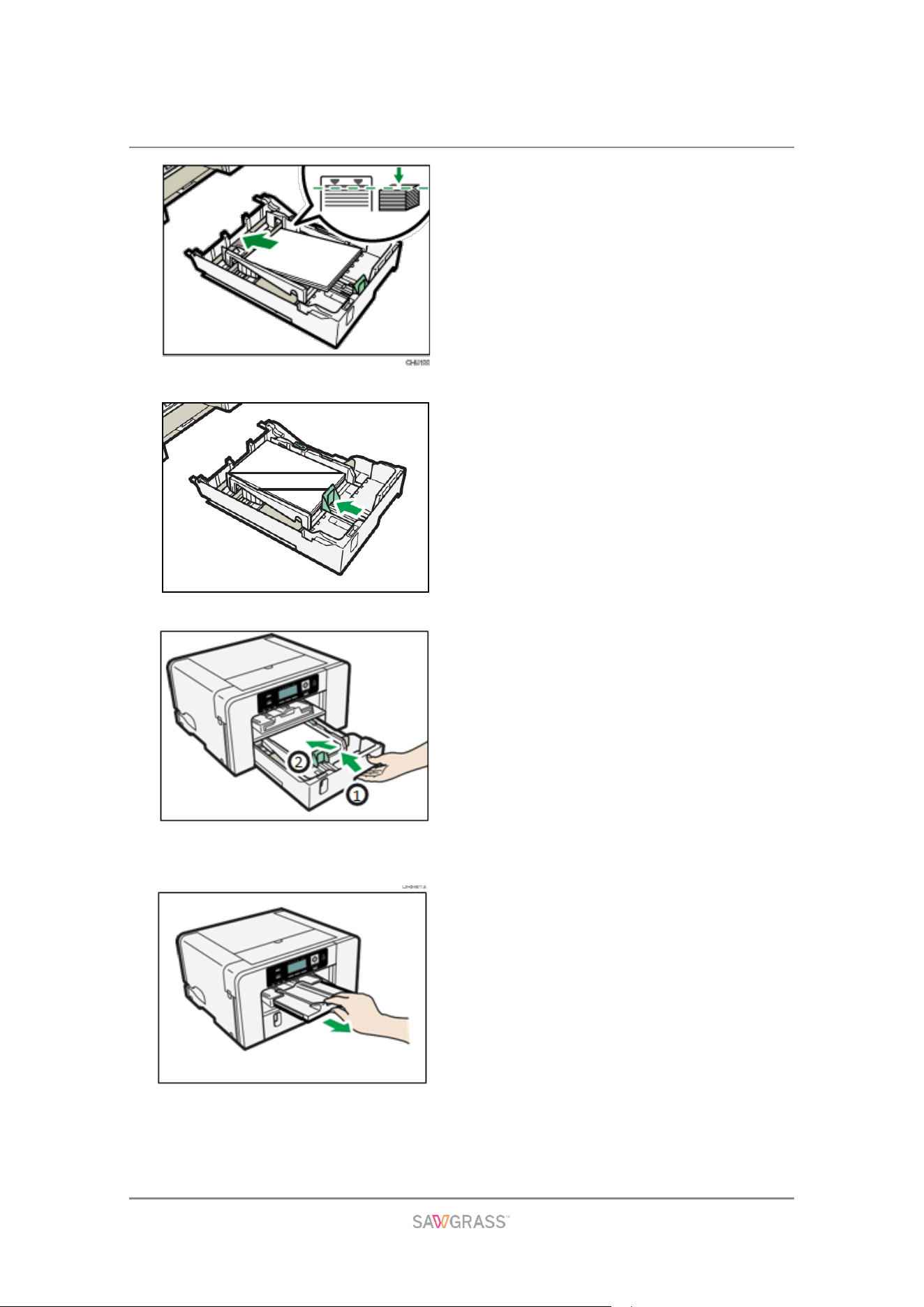
Setup and Installation | 30
3. Squeeze the front-end paper guide, then slide it to touch the edge of the paper.
4. Push the tray gently in until it stops.
Before Tray 1 is pushed in, make sure the output ramp is closed.
5. Pull out the output ramp extension.
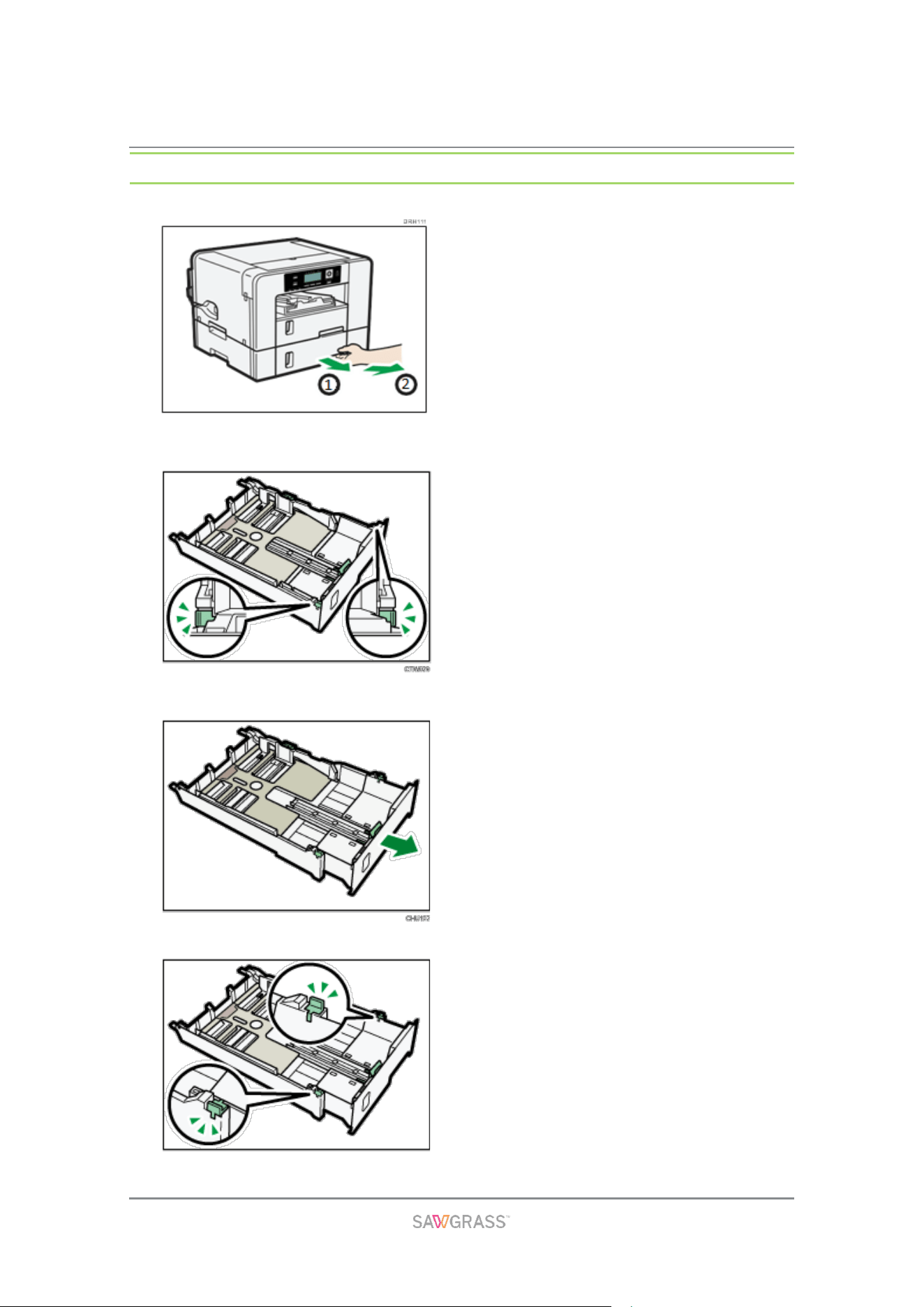
Setup and Installation | 31
Extending the Paper Tray to Load Paper
1. Using the grip, pull the tray halfway out, lift it slightly, then pull it out completely.
2. Slide the tabs on both sides of the tray, then release the lock.
3. Pull out the tray extension.
4. Slide both tabs to the original positions, then lock the tray.
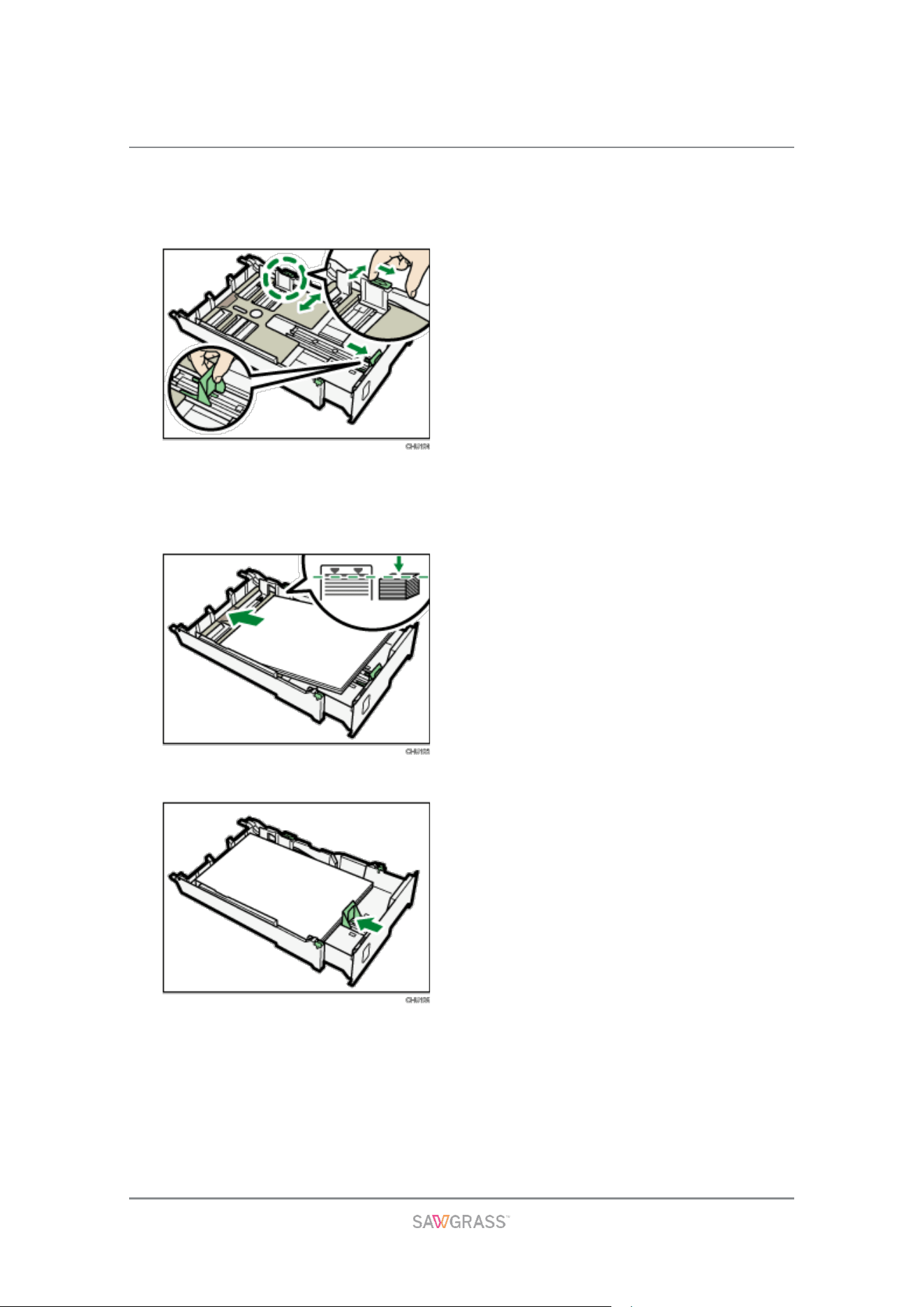
Setup and Installation | 32
5. Pinch the catch of the paper guide on the right side, slide the paper guides to
match the size of paper to load, then push the end paper guide out until there is
space between them.
6. Load paper with the print side face down but not over the limit mark.
Print side is the bright, white side or side without watermark or logo and should b
e
pl
aced face down, with the shorter edge pointing in the paper feed direction.
7. Squeeze the front-end paper guide, then slide it to touch the edge of the paper.
8. Pull out the paper tray cover extension. (SG1000NA / SG1000EU)
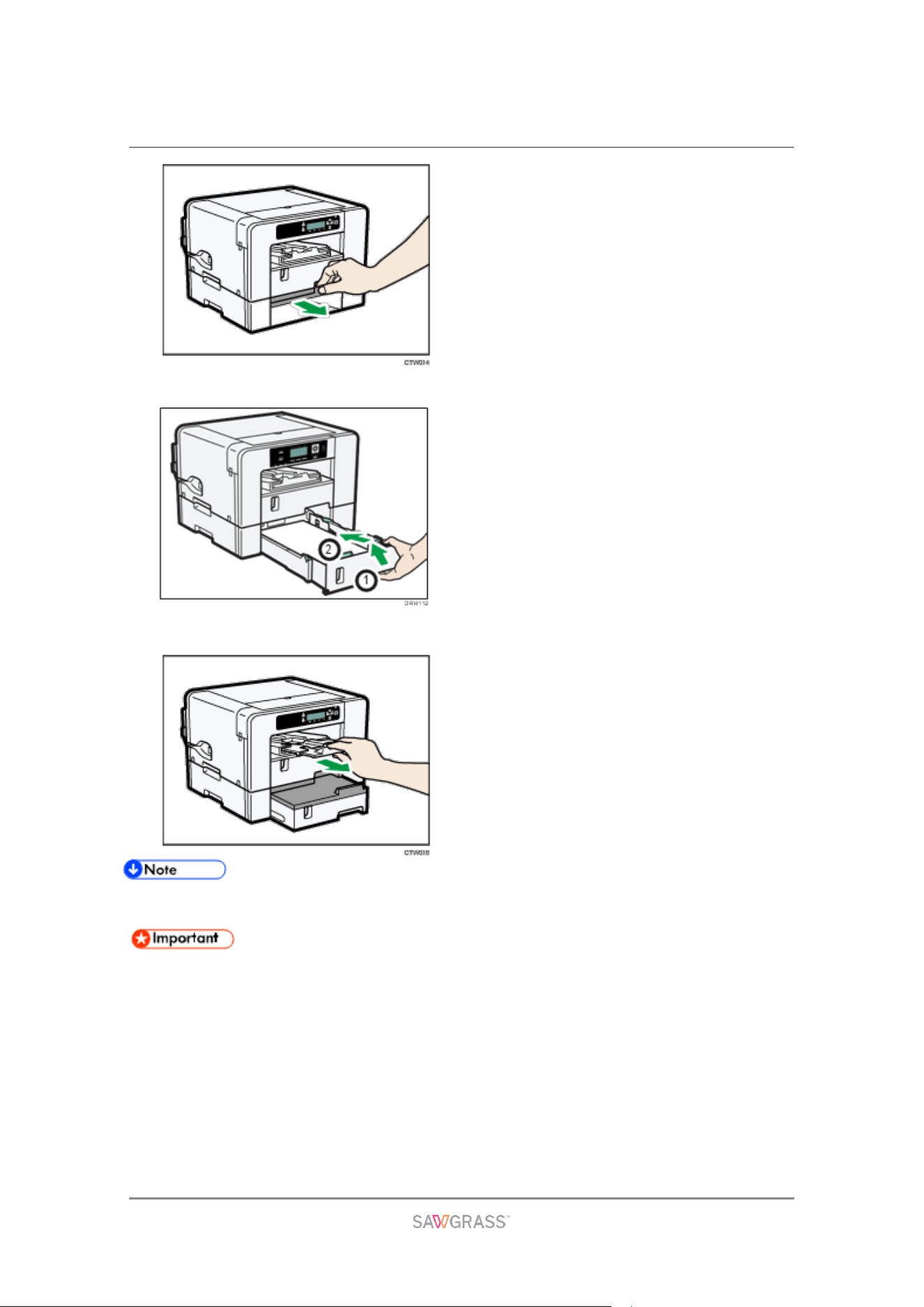
Setup and Installation | 33
9. Push the tray gently in until it stops.
10. Pull out the output ramp extension.
Do not use the tray extension for A4 (Letter) size paper or smaller paper.
Curled paper may jam. Straighten any curls within 2 mm (0.08 inches) before
loading.
Setup and Installation | 34
Installing the Ink Cartridges
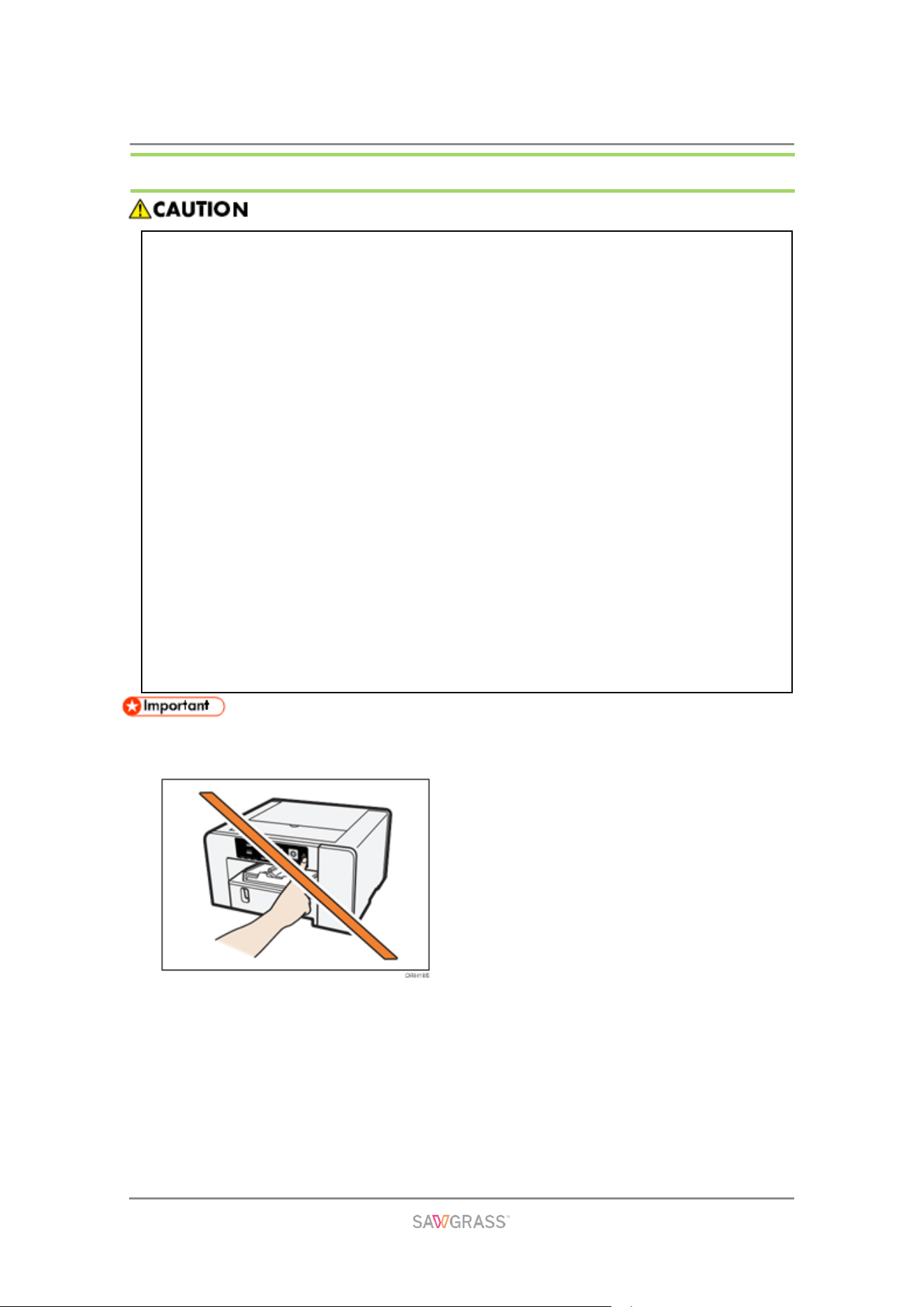
When installing the ink cartridge, do not touch the inside of the printer.
Do not turn the printer on until you have been instructed to do so.
1. Be sure to install the Sawgrass ink cartridges.
2. Remove the packaging from the ink cartridges.
Do not touch the ink supply ports or chip contacts of ink cartridges.
3. Open the right front cover.
Keep ink and ink containers out of reach of children.
If ink gets into contact with eyes, flush eyes with clean, lukewarm water (low
pressure) for at least 15 minutes, occasionally lifting eyelids to ensure that the
chemical is being flushed out of the eyes. Obtain medical attention.
If ink is ingested, wash out mouth with water provided person is conscious.
Consult a doctor immediately.
When removing jammed paper or replacing ink, avoid getting ink on your clothing.
If ink comes into contact with your clothing, immediately rinse the stained ar
ea
w
ith cold water and wash the garment with laundry detergent per the car
e
p
roductions provided on the label.
When removing jammed paper or replacing ink, avoid getting ink on your skin. If
ink comes into contact with your skin, wash the affected area thoroughly with soa
p
an
d water. If irritation develops, seek medical attention.
When removing the ink cartridge, avoid putting your hand near the place wher
e
t
he ink cartridge is installed. If ink comes in contact with your hands, wash them
thoroughly with soap and water. If irritation develops, seek medical attention.
Setup and Installation | 35
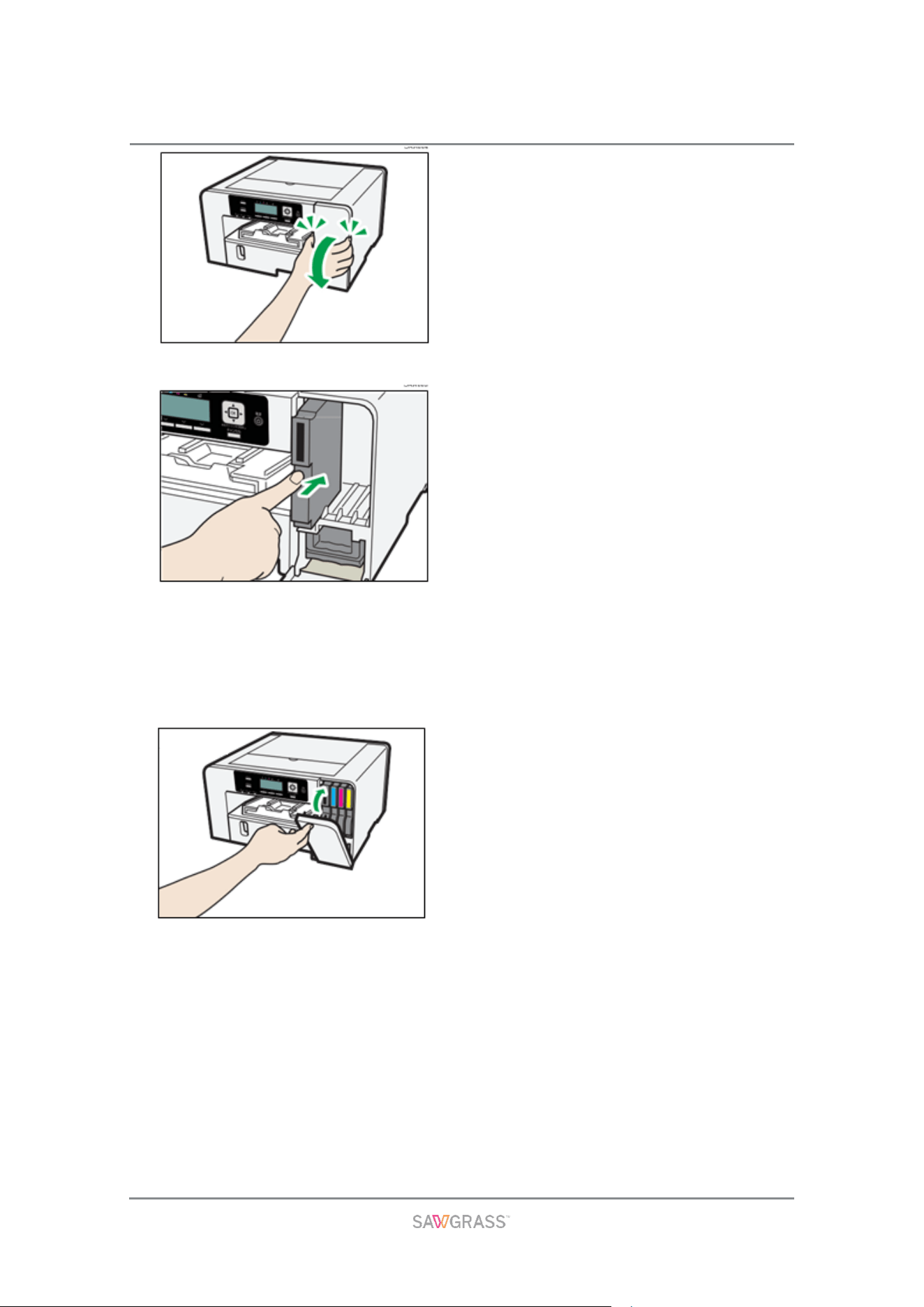
4. Check the orientation of each cartridge, then install them gently.
Install in the following order from the left: K (black), C (cyan), M (magenta), and Y
(yellow).
5. Push in each cartridge.
6. Repeat steps 3 to 4 for all four cartridges.
7. Close the right front cover.
Setup and Installation | 36
Plugging in the Power Cord and Turning the Power On
Connect the printer's power cord and turn the printer on but do not connect the printer to a
computer yet.
Do not connect the printer to a computer via USB until directed to do so in the
i
nstructions for software installation.
Connecting the printer to the computer via USB prior to being instructed to do s
o
m
ay cause the printer to not be automatically recognized resulting in a
communication failure with the printer software.
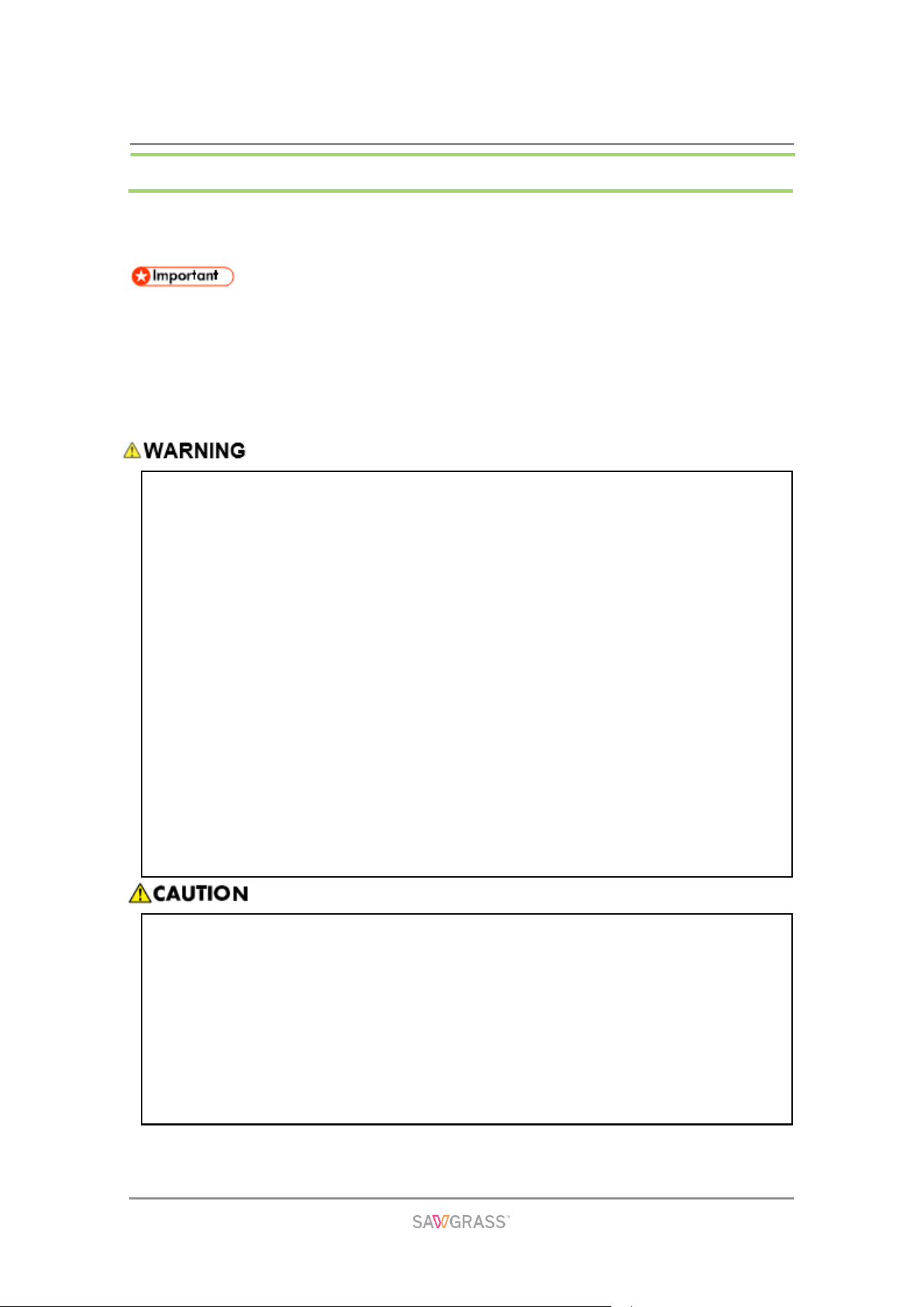
Failure to follow any of the warnings below could result in fire or electric shock:
Do not use any power sources other than those that match the specifications
shown in this manual.
Do not use any frequencies other than those that match the specifications shown.
Do not use multi-socket adaptors or extension cords.
Do not touch the prongs of the power cable's plug with anything metallic.
Do not handle the power cord plug with wet hands.
The supplied power cord is for use with this printer only. Do not use it with other
appliances.
Do not use power cords that are damaged, broken, or modified. Also, do not us
e
p
ower cords that have been trapped under heavy objects, pulled hard, or bent
severely.
If the power cord is damaged and its inner wires are exposed or broken, contact
Sawgrass for a replacement.
Locate the printer as close as possible to a wall outlet. This will allow easy
disconnection of the power cord in the event of an emergency.
Be sure to push the plug of the power cord fully into the wall outlet. A partially
inserted plug may create an unstable connection that can result in unsafe buildup
of heat.
When disconnecting the power cord from the wall outlet, always pull the plug, not
the cord. Pulling the cord can damage the power cord.
Setup and Installation | 37
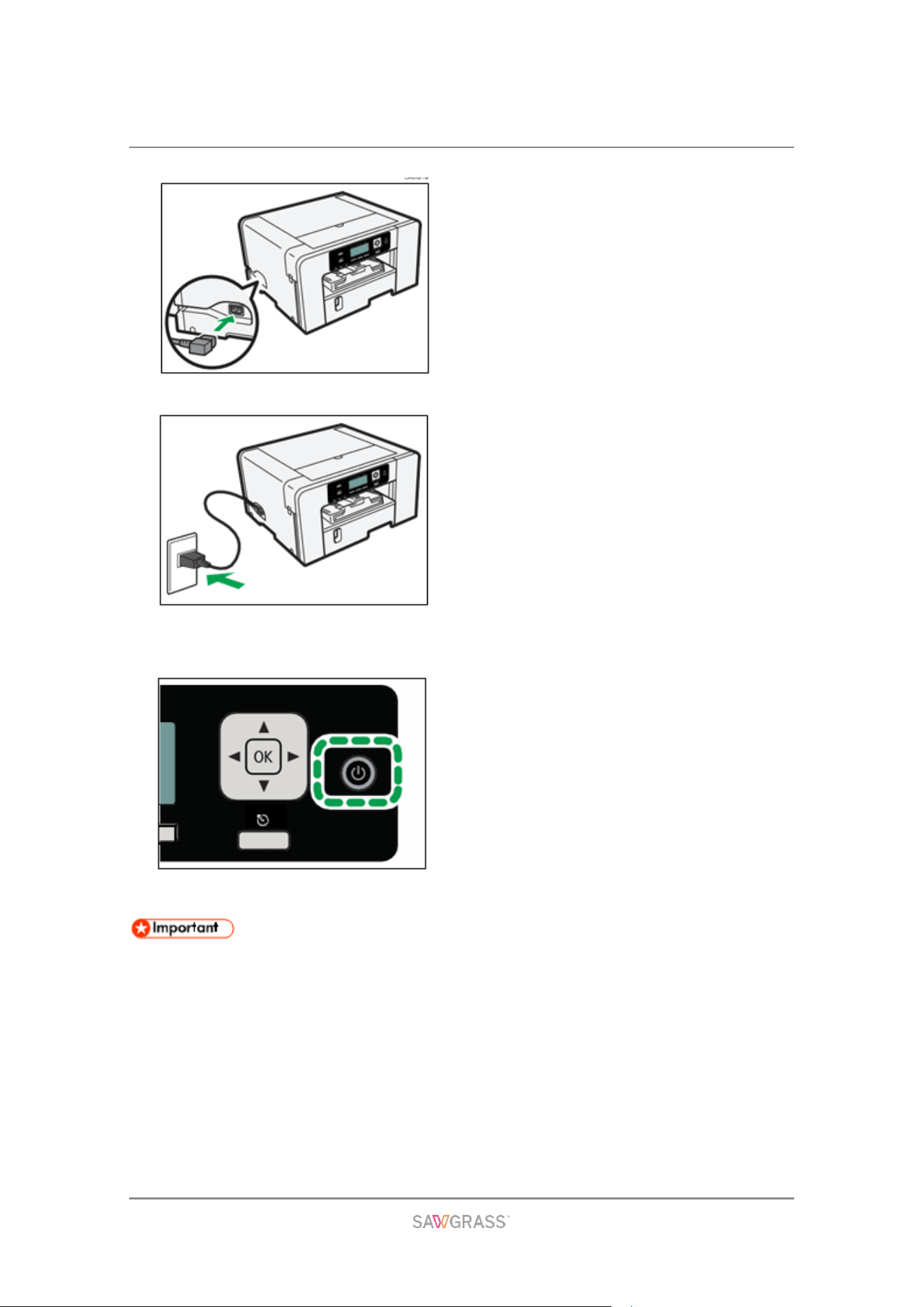
1. Plug the power cord fully into the printer.
2. Plug the power cord fully into the wall outlet.
Make sure the power cord is not trapped under the printer.
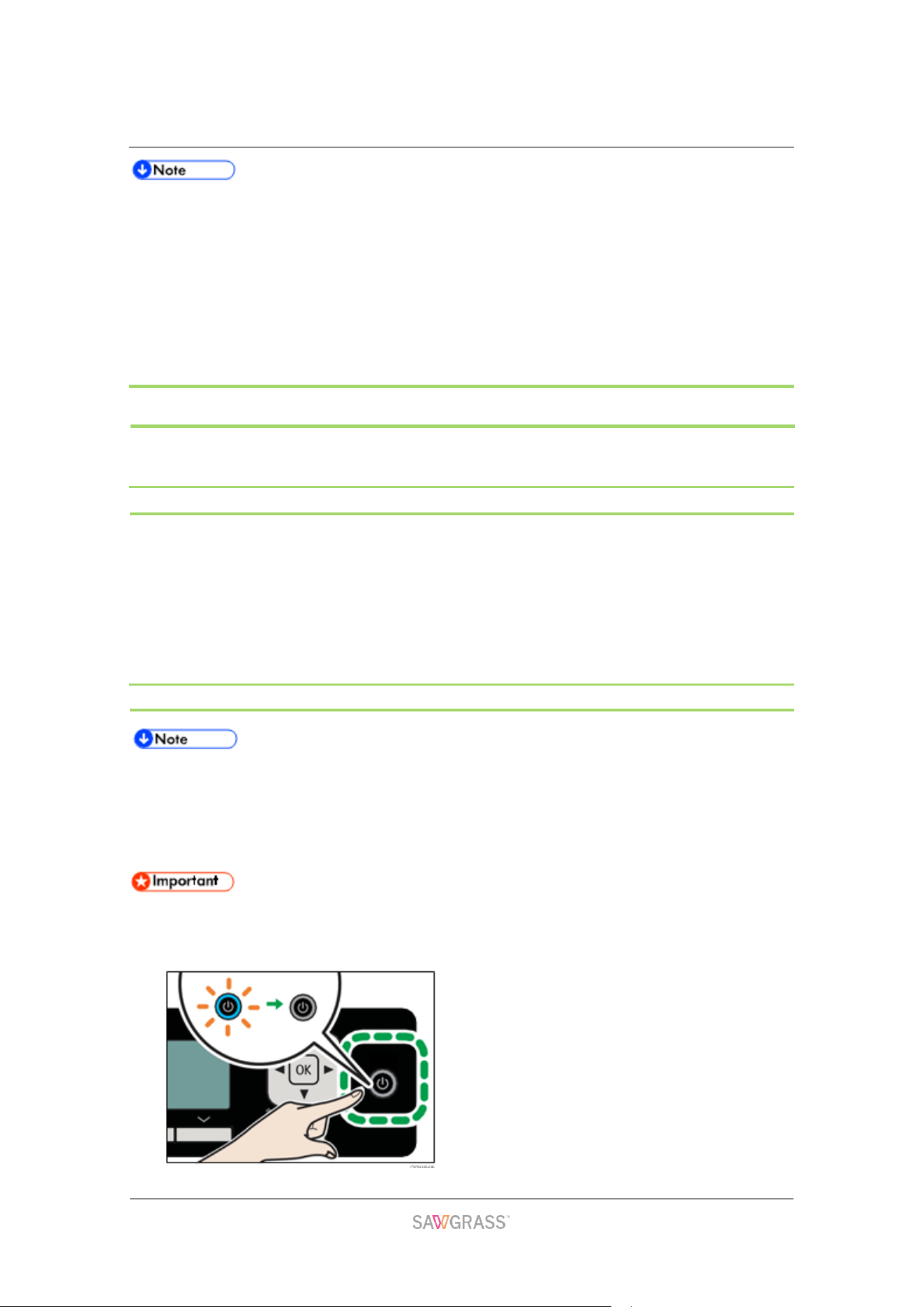
3. Press the [Power] key.
The printer will start performing the initial ink fill.
Do not disturb the printer while it is performing the initial ink fill.
Leave the printer idle for about six minutes until the message "Ready" appears.
Do not remove the plug from the wall outlet while the ink is being fed.
You may hear a clicking sound while the initial ink fill is being performed. This is not
a
m
alfunction and will stop after the process is complete.
When ink is completely fed, the [Power] key stops flashing and remains lit.
Setup and Installation | 38
After installation of the first set of ink cartridges and the initial ink fill, the ink levels
on the display will not be at 100%. This is normal and does not mean the ink has
been lost or wasted. It is now inside the printer and ready for printing.
Open the top cover of the printer to view the ink tubes where the initial ink from the
first set of cartridges is being stored inside the printer.
Any subsequent, new ink cartridge will read at the 100% level.
Connecting the Printer
This section explains how to attach the printer to the computer.
Confirming the Connection Method
This printer supports USB, network (100BASE-TX or 10BASE-T Ethernet) and
Wireless LAN connection.
Before installing the software, determine how the printer is connected.
If unsure, begin with the USB installation using the cable provided or contact your network
administrator.
USB Connection
T
his section explains how to connect the printer to a computer using a USB cable.
Even if the computer connected to the printer to via USB is networked, you can still
connect the printer and computer according to the procedure explained in this
section.
Do not turn the printer on until directed to do so during the installation of software.
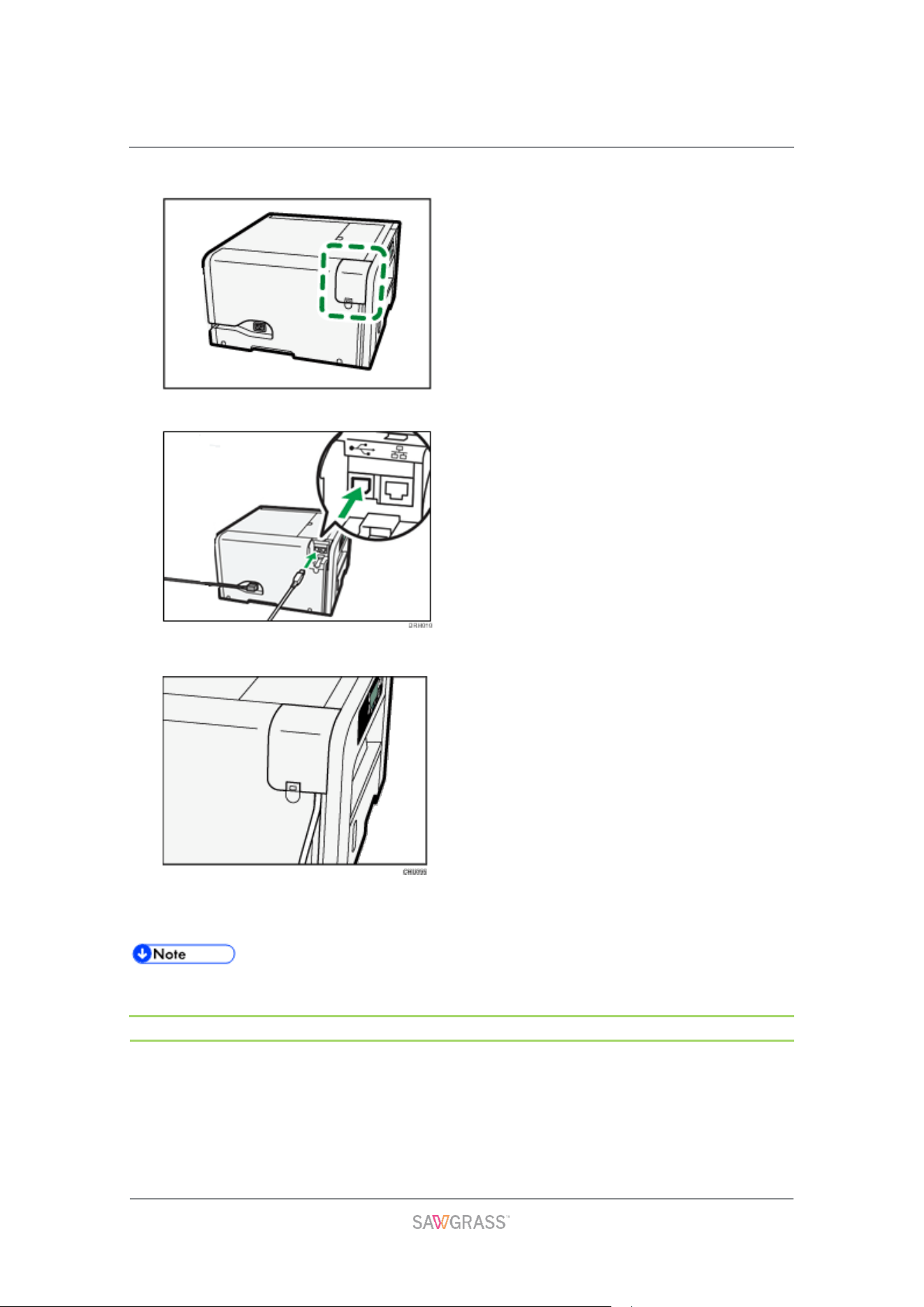
1. Make sure the printer is off.
Setup and Installation | 39
2. Open the port cover.
3. Insert the USB cable's hexagonal (type B) plug firmly into the port.
4. Close the port cover.
5. Insert the USB cable's rectangular (type A) plug firmly into the computer's USB
port.
Check the shape and orientation of the USB cable's plug and insert it fully.
Ethernet Connection
This section explains how to connect the printer to a computer using Ethernet.
Be sure to install all necessary network equipment, such as hubs, etc. before connecting
the Ethernet cable to the printer.
Connect the printer via Ethernet first, then specify the printer's network settings according
to the network environment.
Setup and Installation | 40
Ethernet cables are not supplied with the printer. Select your cable according to
t
he network environment.
You can connect a 10BASE-T or 100BASE-TX cable to the printer.
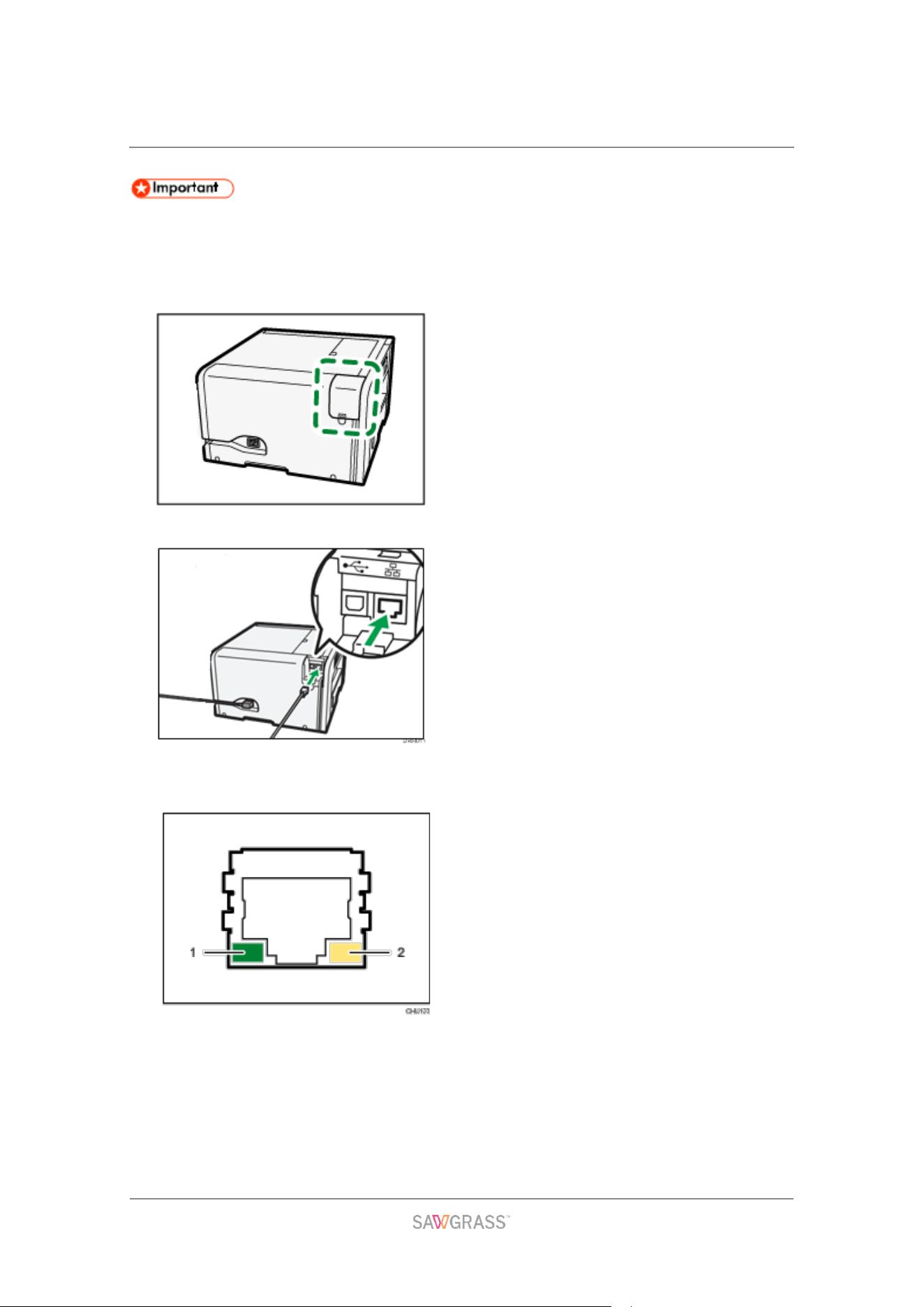
1. Open the port cover.
2. Plug the Ethernet cable into the port.
3. Connect the other end of the cable to the printer's network, such as to a hub.
When they printer has been powered on, you can check the LEDs on the Ethernet port.
1. Indicator (green)
Lights whenever the printer is properly connected to the network.
2. Indicator (yellow)
Lights whenever the printer is sending or receiving data via the network.
Setup and Installation | 41
4. Close the port cover.
N
etwork settings may need to be changed according to the network interface y
ou
a
re using.
See section “Using the [Host Interface] menu” for information on the settings that
can be specified and their default factory values.
How to change the LAN type
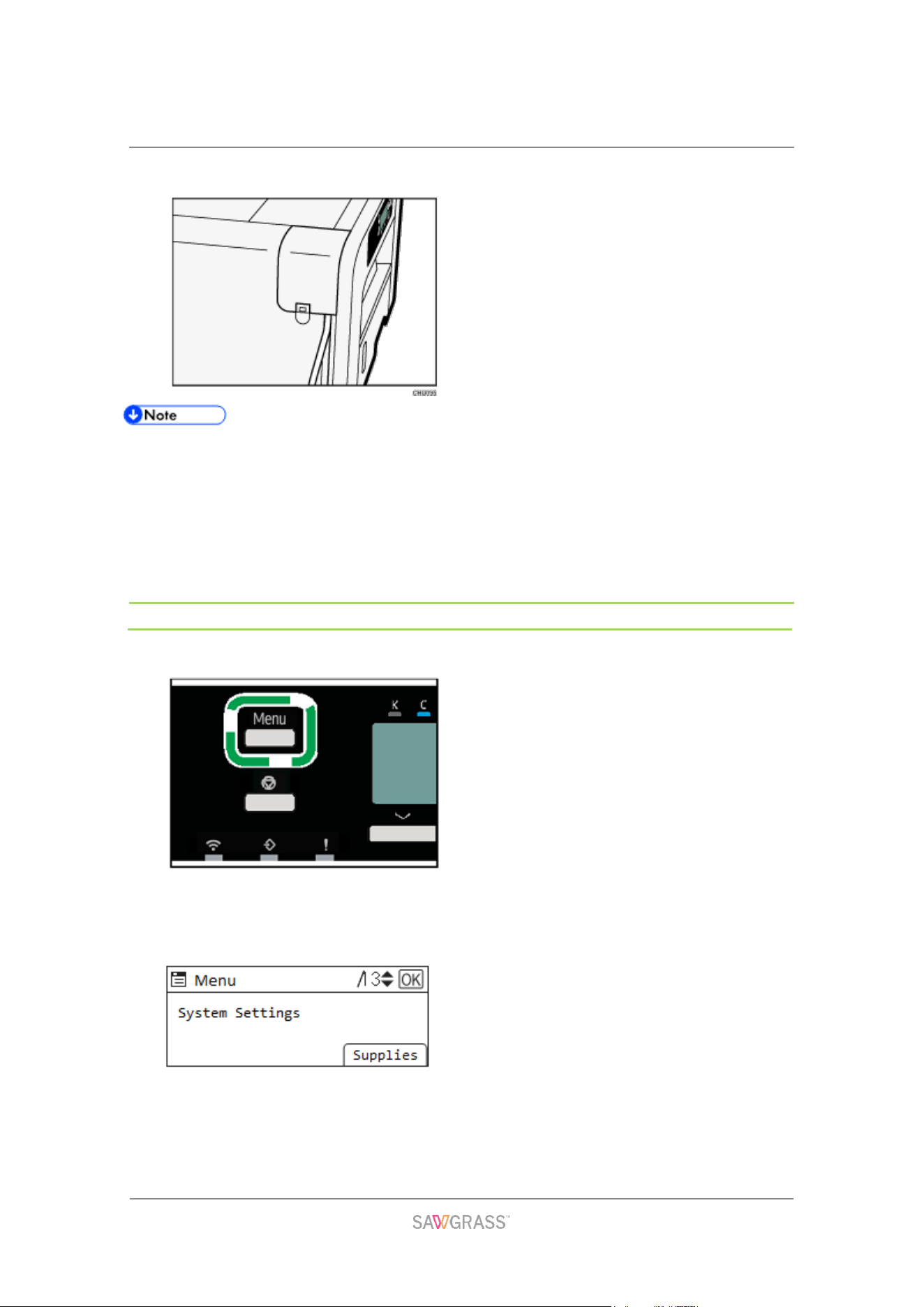
1. Press the [Menu] key
2. Press the [▲] or [▼] key to display [System Settings], then press the [OK]
key.
3. Press the [▲] or [▼] key to display [Interface Settings], then press the [OK]
key.
4. Press the [▲] or [▼] key to display [Network], then press the [OK] key.
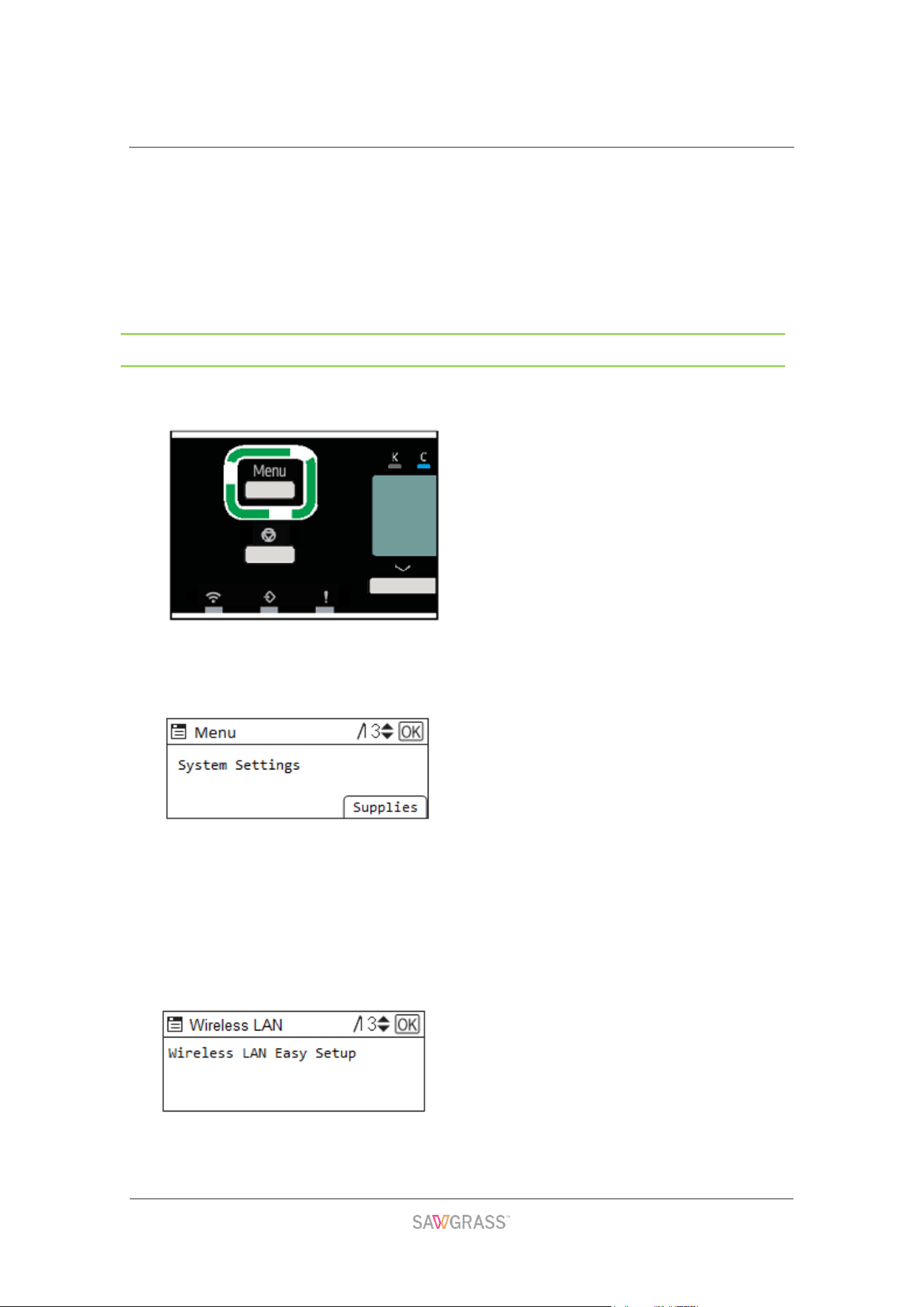
Setup and Installation | 42
5. Press the [▲] or [▼] key to display [LAN Type], then press the [OK] key.
6. Press the [▲] or [▼] key to display the desired connection type [Ethernet] or
[Wireless LAN], then press the [OK] key.
7. If Wireless LAN has been selected, the Wireless LAN light will now be flashing
blue.
How to connect using SSID Auto Search
1. Press the [Menu] key.
2. P
ress the [▲] or [▼] key to display [System Settings], then press the [OK]
key.
3. P
ress the [▲] or [▼] key to display [Interface Settings], then press the [OK]
key.
4. Press the [▲] or [▼] key to display [Wireless LAN], then press the [OK] key.
5. Press the [▲] or [▼] key to display [Wireless LAN Easy Setup], then press th
e
[O
K] key.
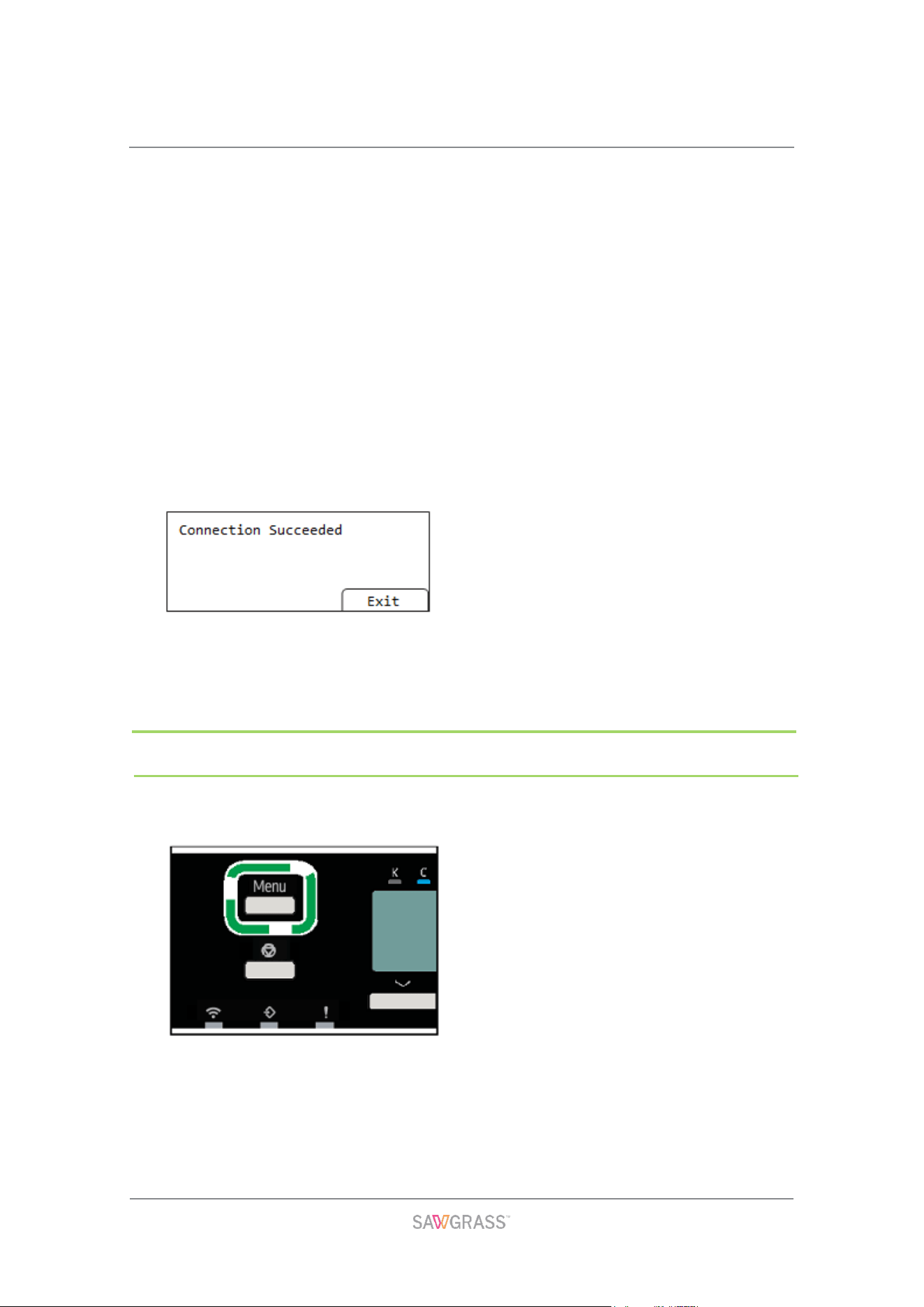
Setup and Installation | 43
6. Press the [▲] or [▼] key to display [SSID Auto Search], then press the [OK]
key.
7. Press the [▲] or [▼] key to select the wireless network to which you wish to
c
onnect, then press the [OK] key.
8. Using the [▲] or [▼], enter your wireless LAN password, then press th
e
[
Accept] selection key.
9. P
ress the [Exit] selection key
10. The
Wireless Lan light will now be solid blue indicating it is connected to your
network
How to connect using push button method
1. Press the [Menu] key
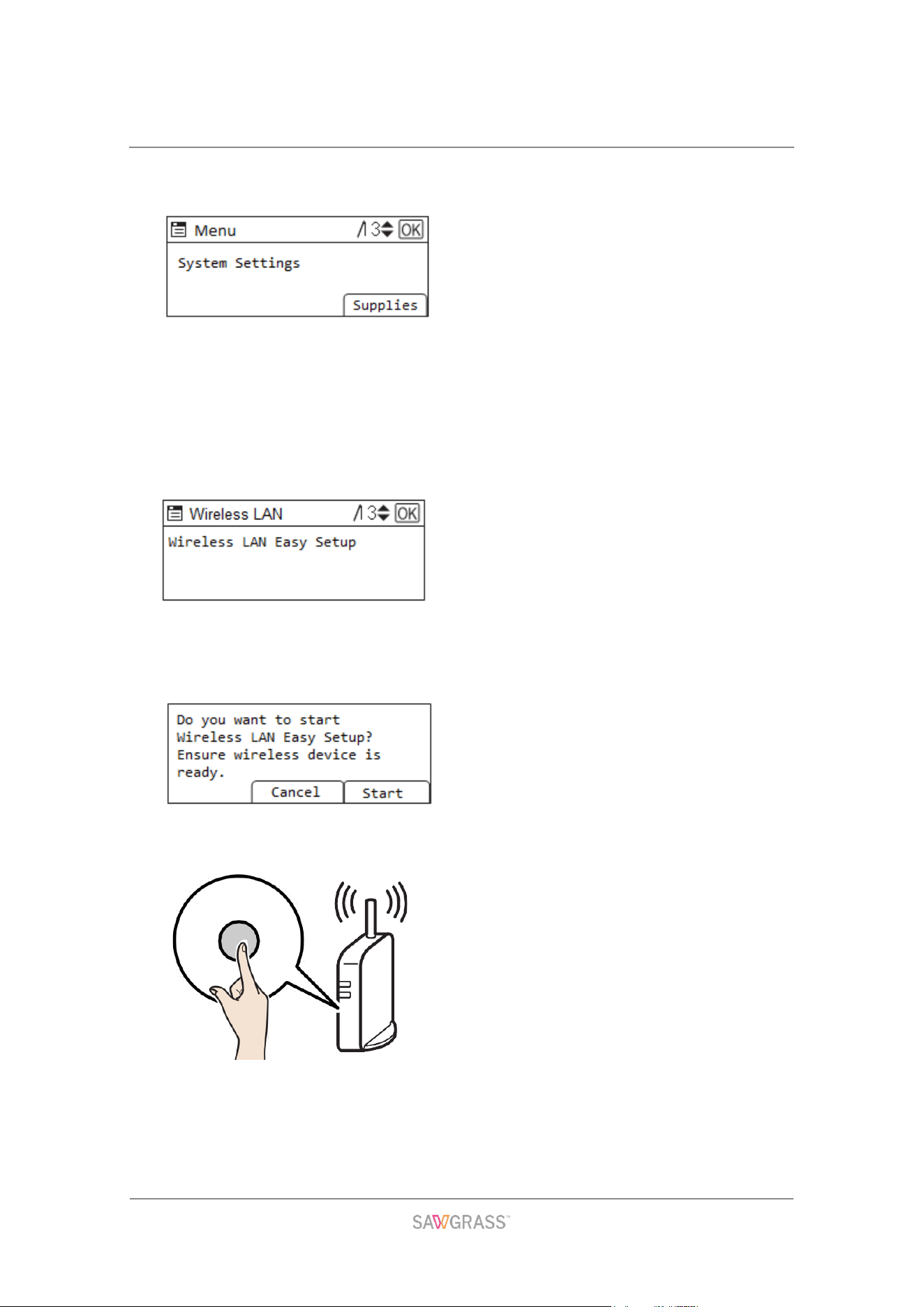
Setup and Installation | 44
2. Press the [▲] or [▼] key to display [System Settings], then press the [OK]
key.
3. Press the [▲] or [▼] key to display [Interface Settings], then press the [OK]
key.
4. Press the [▲] or [▼] key to display [Wireless LAN], then press the [OK] key.
5. Press the [▲] or [▼] key to display [Wireless LAN Easy Setup], then press the
[O
K] key.
6. P
ress key [▲] or [▼] to display Push button method, then press [OK]
7. Press the [Start] selection key to start searching for an access point
8. P
ress the WPS button on the wireless router (access point)
WPS
Setup and Installation | 45
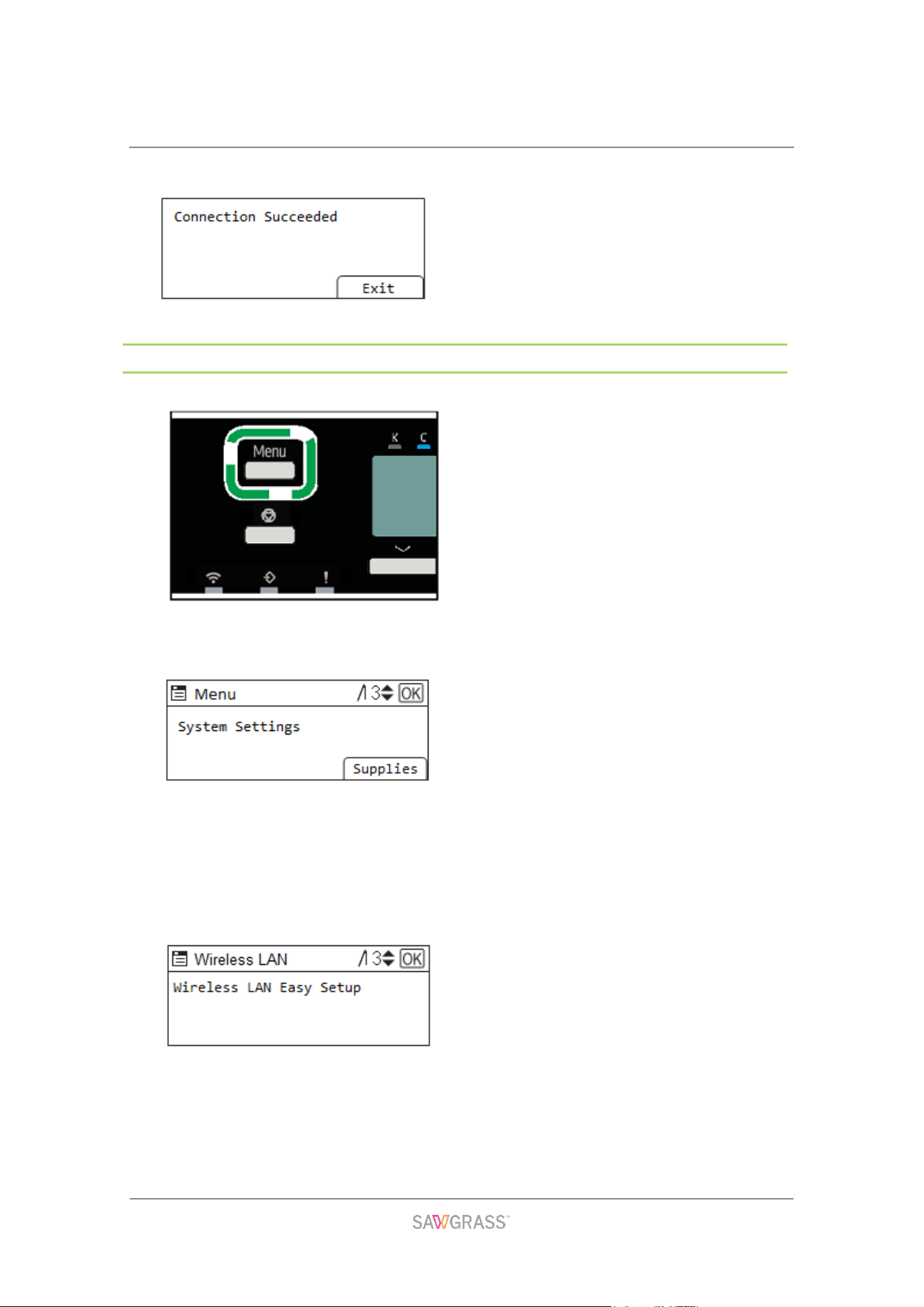
9. P
ress the [Exit] selection key
How to connect using PIN code method
1. P
ress the [Menu] key
2. Press the [▲] or [▼] key to display [System Settings], then press the [OK]
key.
3. P
ress the [▲] or [▼] key to display [Interface Settings], then press the [OK]
key.
4. Press the [▲] or [▼] key to display [Wireless LAN], then press the [OK] key.
5. Press the [▲] or [▼] key to display [Wireless LAN Easy Setup], then press th
e
[O
K] key.
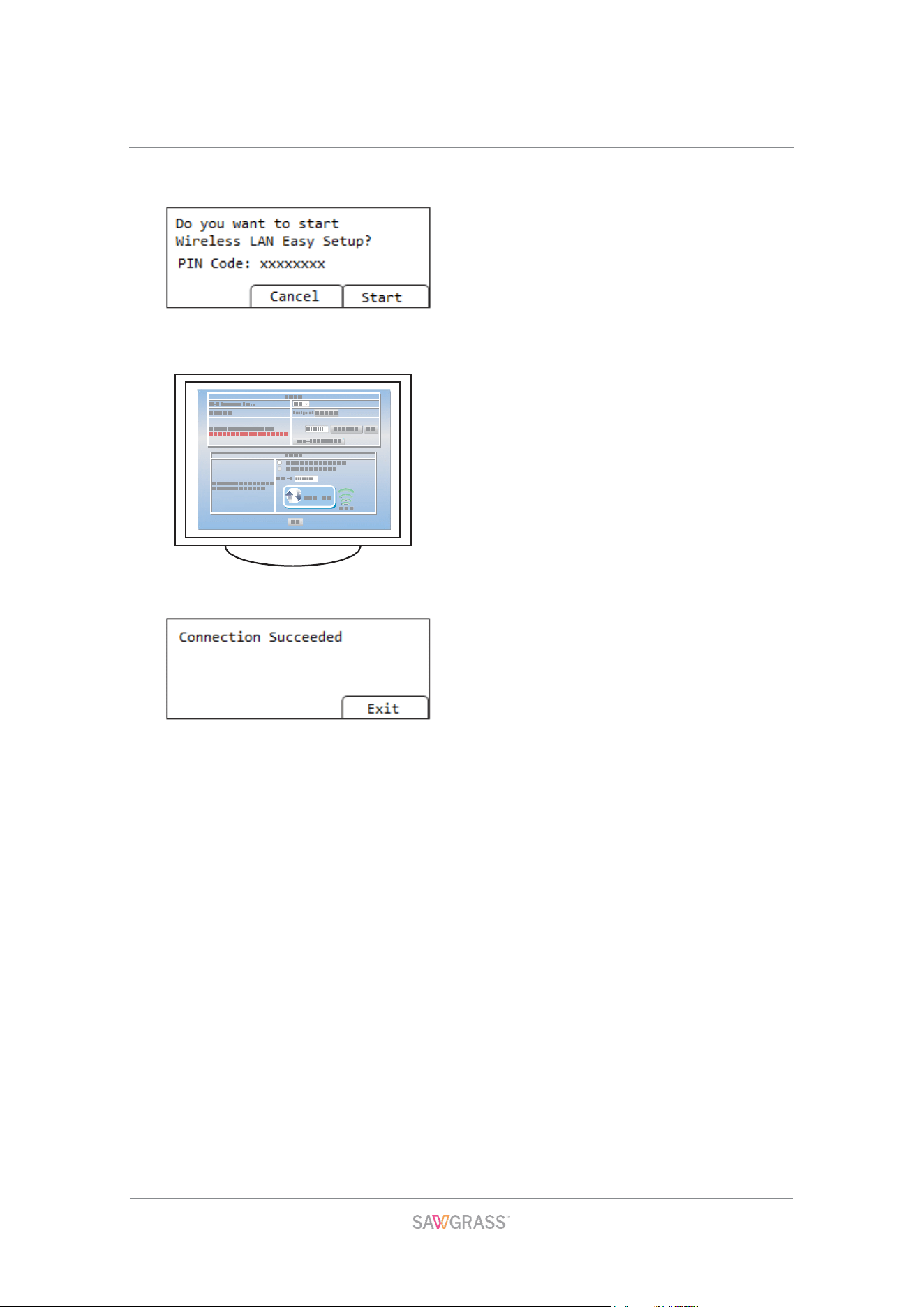
6. P
ress key [▲] or [▼] to display PIN code method, then press [OK]
Setup and Installation | 46
7. Press the [Start] selection key
8. E
nter the PIN code on the web page of your wireless router (access point)
9. Press the [Exit] selection key
Setup and Installation | 47
Using the Control Panel to Make Printer
Settings
This chapter describes use of the printer’s control panel to make changes to various printer
settings.
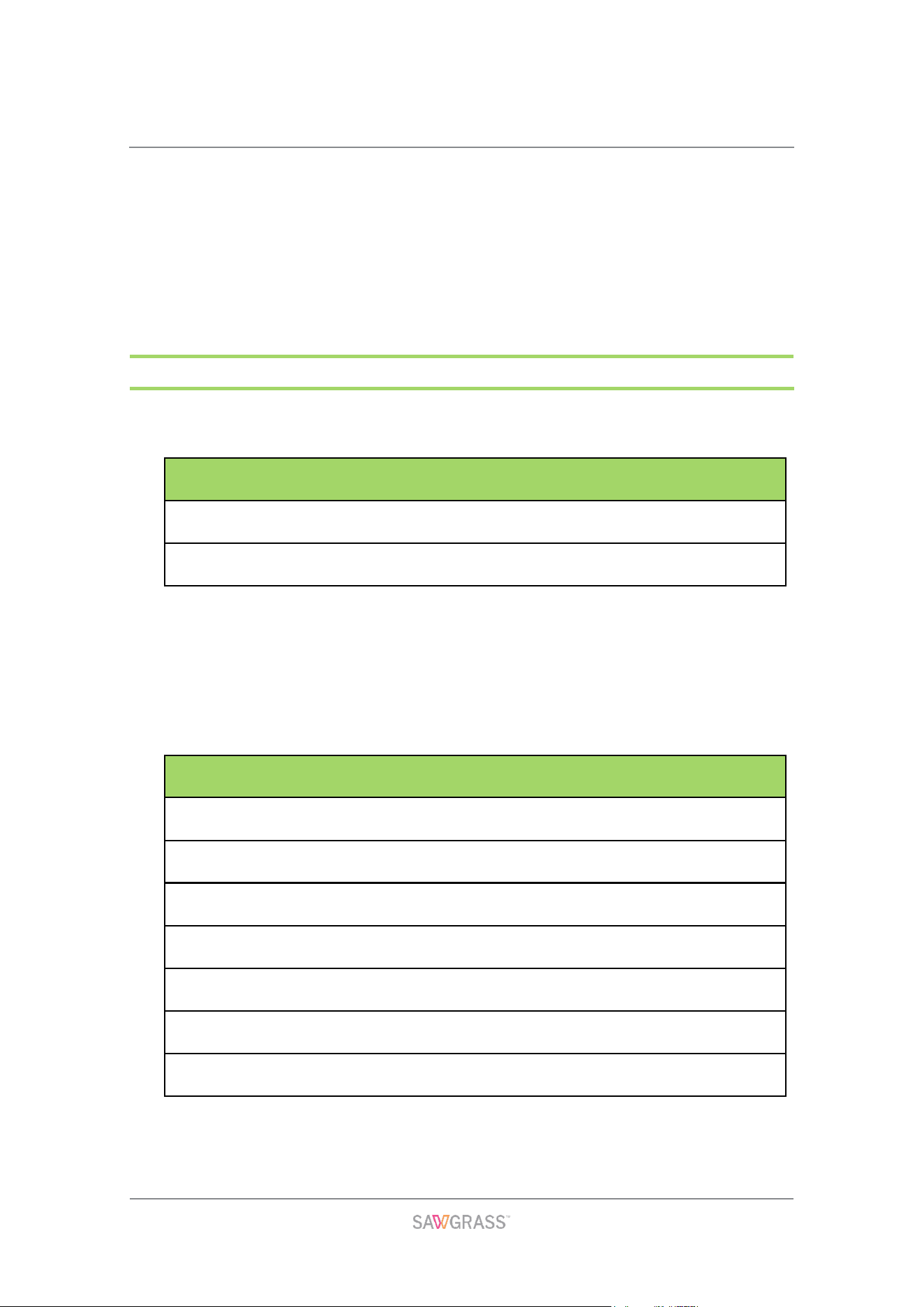
Overview of Settings
Printer Features
You can check that the printer is working correctly.
Menu
List/ test Print
System
See section "Using the [Print Features] Menu" for more information.
S
ystem Settings
You can check the printer's settings and operational status.
Menu
General Features
Tray paper Settings
Timer Settings
Interface Settings
Administrator Tools
Maintenance
Direct Connection Settings
See the section "Using the [System Settings] Menu" for more information.
Setup and Installation | 48
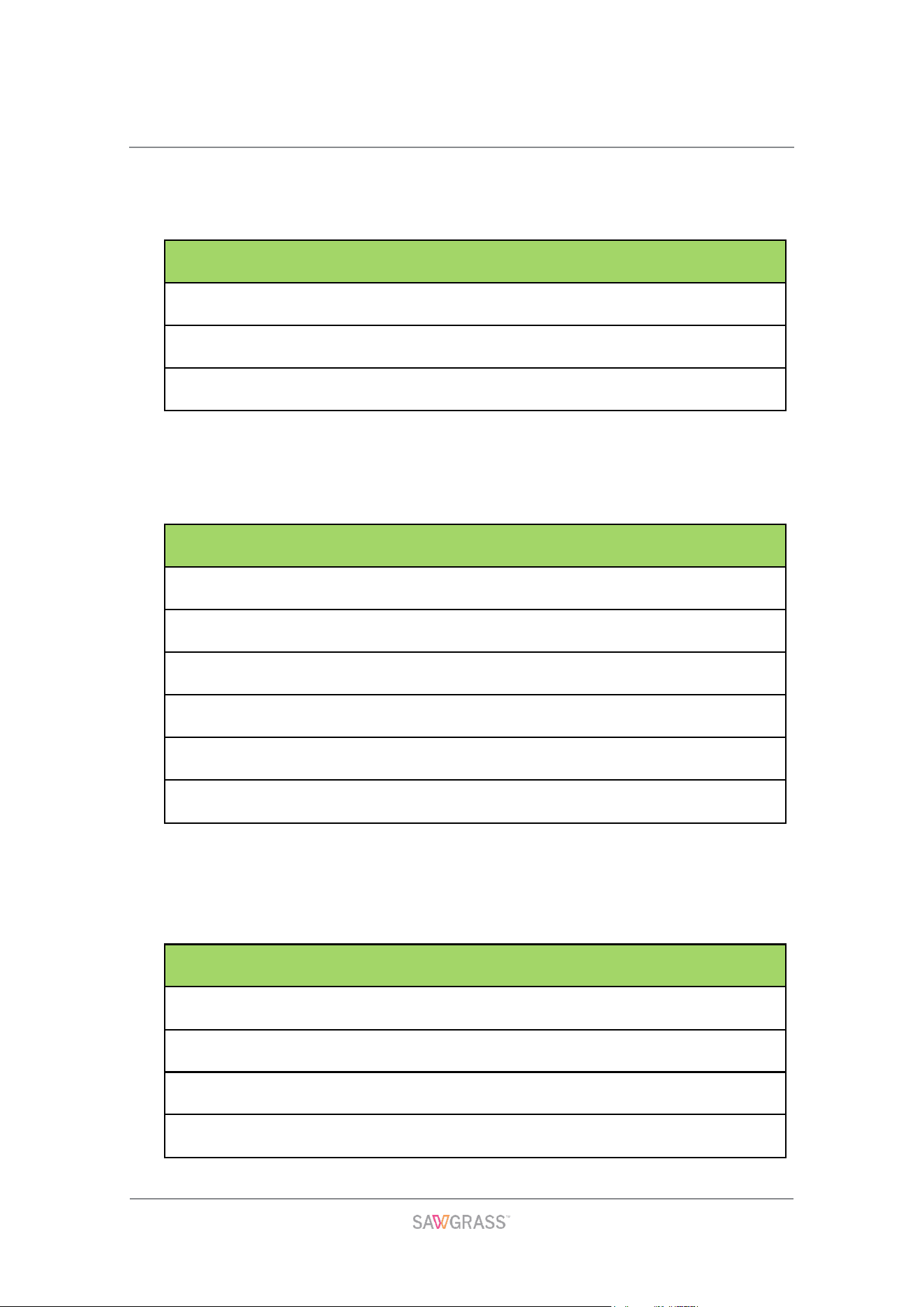
Tray Paper Settings
You can change the paper settings
Menu
Ppr Tray Priority: Printer
Paper Size: Tray 1
Paper: Type: Tray 1
See section "Using the [Tray Paper Settings] Menu" for more information.
M
aintenance
Menu
Paper Feed Test
De-Condensation
Sheet Dry Delay (Exit)
Silent Mode
Unidirectional Print
Paper Size Error Detect
See section "Using the [Maintenance] Menu" for more information.
Language
You can select which language the menu is displayed in. North American and
European versions are different. Language options for these printers may vary
Menu
English
Français
Deutch
Italiano

Setup and Installation | 49
Español
T
he [Language] menu will be displayed in English. See section "Using the [Language] Menu"
for more information.
Using the [Print Features] Menu
List/test Print
Enables you to check various maintenance functions such as nozzle check, cleans and
adjustments as well as print the configuration page.
System
Allows you to set the number of copies, tray setting priority as well as print orientation.
Using the [List/Test Print] Menu
Use the [List/Test Print] menu to check that the printer is working properly and to also check
the printer's system configuration and settings.
Config. Page
You can print the current configuration of the printer.
Menu List
You can print the menu list
Color Demo Page
You can print a sample image, but do not use the output to judge output quality or
imaging issues.
Nozzle check Pattern
Print a test pattern to check that print head nozzles are printing properly.
If nozzle blockages occur, ink cannot be ejected properly. This will result in poor print
quality.
H
ead-cleaning
Clean the print head if the test pattern indicates the nozzles are not printing properly.
Head cleaning consumes ink but is sometimes necessary to achieve a full nozzle check.
Perform a head cleaning up to five (5) times.
Print and check for any changes in the nozzle check test pattern between each head
cleaning.
Head-flushing
Perform a more thorough head cleaning if print head nozzles cannot be cleared by up
to five (5) head cleanings.
Head flushing consumes more ink than head cleaning.
Do not perform more than one (1) head flush.
If nozzles do not print properly after five (5) head cleanings and one (1) head flush,
contact Sawgrass for assistance.

Setup and Installation | 50
Head Position Adjustment
Adjust the print head to resolve some print quality problems such as printed lines that are
vertically misaligned.
Although instructions are provided, Sawgrass recommends that the procedure to adjust
the print head be performed from the printer driver and not the printer control panel.
Adjust Paper Feed
If printed lines are horizontally misaligned or if images are printed unevenly, print the test
pattern and adjust the paper feed setting.
Although instructions are provided, Sawgrass recommends that the procedure to adjust
the paper feed be performed from the printer driver and not the printer control panel.
Registration
Print the test pattern and align the point where printing starts for each paper tray.
Using the [System] Menu
Emulation Sensing
Automatically send data to the printer to determine the emulation.
Memory Usage
Insufficient memory can cause printing to fail or a file's image data to not be printed. If
this happens, you can specify the priority assigned to the printer's memory space.
Select [Font Priority] if a file's image data is not printed. Select [Frame Priority] if
printing fails due to insufficient memory.
Default: [Frame Priority]
Copies
You can set the number of copies to print between 1-999.
Rotate by 180 degrees
Allows you to rotate the orientation of the print.
Paper size
You can select the default paper size.
(mainly Europe and Asia)
Default: [A4 (210 × 297)]
(mainly North America)
Default: [8
1
/
2
× 11]
Tray Setting priority
You can set Tray Setting priority:
[Driver/Command] will prioritize the settings set within the driver.
[Machine Setting] will prioritize the settings set within the [Tray/paper] menu.
Setup and Installation | 51
Nozzle Check
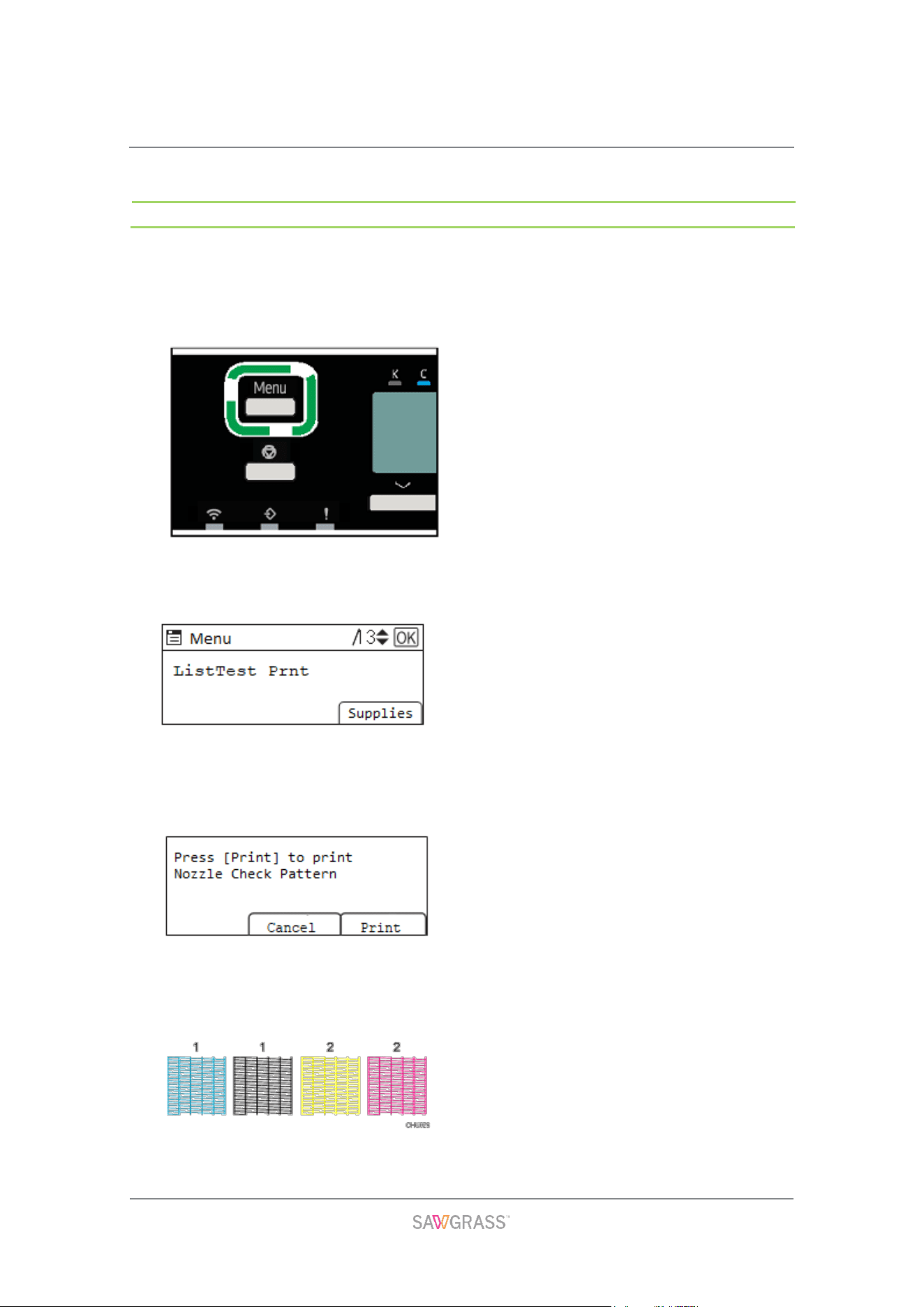
Follow the procedure below to print a nozzle check test pattern used to check if the print
head nozzles are printing properly.
1. Press the [Menu] key.
1. P
ress the [▲] or [▼] key to display [Print Features], then press the [OK] key.
2. Press the [▲] or [▼] key to display [ListTest Prnt], then press the [OK] key.
3. Press the [▲] or [▼] key to display [Nozzle Check Pattern], then press the [OK]
key.
4. P
ress the [Print] option on the selection keys.
A
test pattern is printed.
5. Check the printed test pattern.
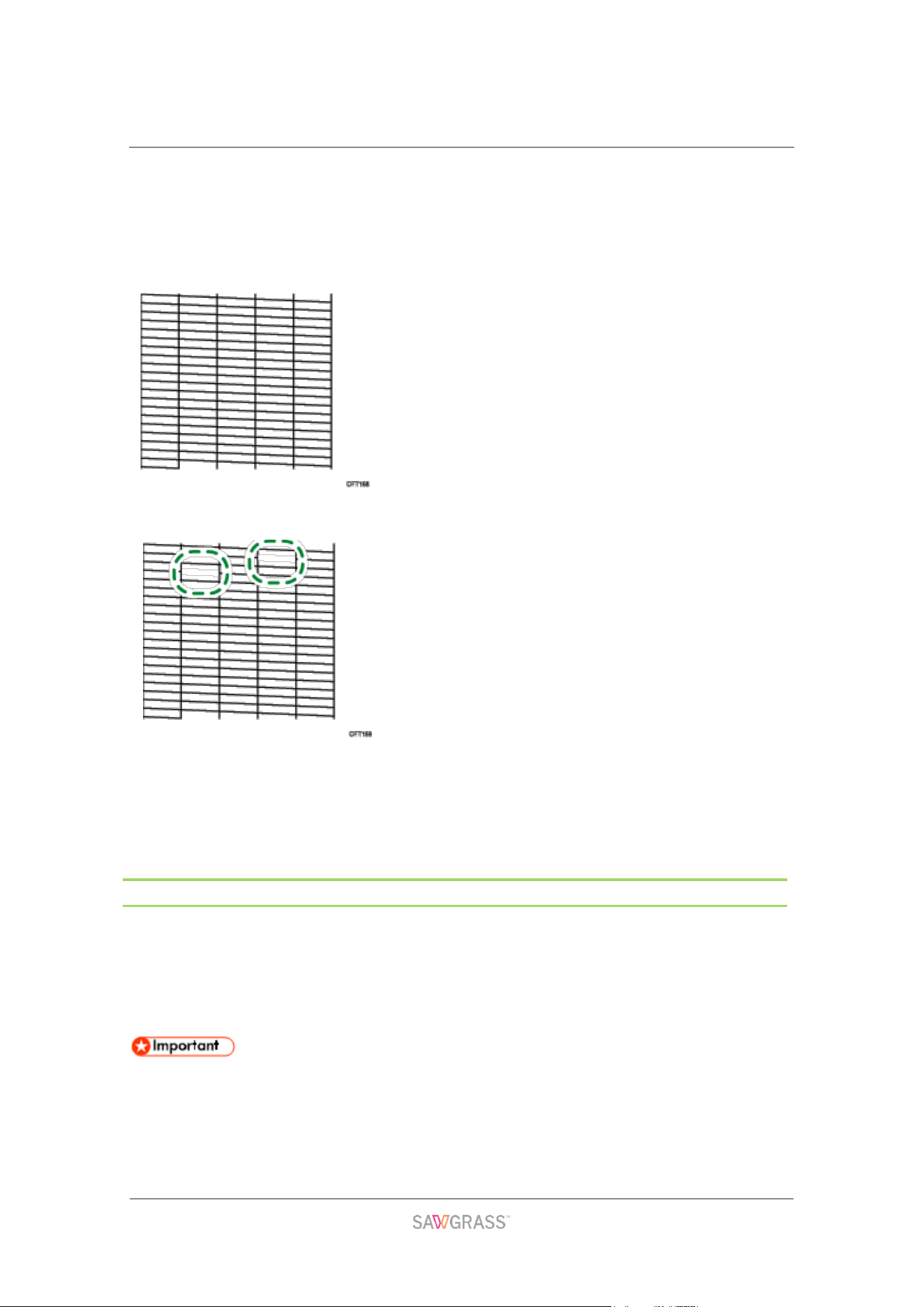
Printed Test Pattern
Using the printed test pattern, check for missing nozzles.
The number above each color in the test pattern is the number of the print head.
Setup and Installation | 52
The print head for cyan and black is [Head 1].
The print head for yellow and magenta is [Head 2].
Check which print head is missing nozzles by referring to the following illustration.
Normal
W
hen a print head is missing nozzles
I
f the print head is missing nozzles, perform a Head Cleaning. See section "Head-
cleaning" for more information.
If the problem persists, perform Head Flushing. See section "Head-flushing" for more
information.
Head-cleaning
Follow the procedure below to perform a print head cleaning.
Perform a head cleaning when print quality if affected by missing nozzles.
Head cleaning consumes ink but is sometimes necessary to achieve a full nozzle check.
After an ink cartridge is replaced, a print head cleaning will be automatically performed.
Perform a head cleaning up to five (5) times in an attempt to clear missing nozzles.
Print and check for any changes in the nozzle check test pattern between each
head cleaning.
Do not turn the printer off during print head cleaning. If the printer is turned o
ff
du
ring a print head cleaning, start again by printing a nozzle check test pattern.
Setup and Installation | 53
1. Press the [ Menu] key.
2. P
ress the [▲] or [▼] key to display [Print Features], then press the [OK] key.
3. Press the [▲] or [▼] key to display [ListTest Prnt], then press the [OK] key.
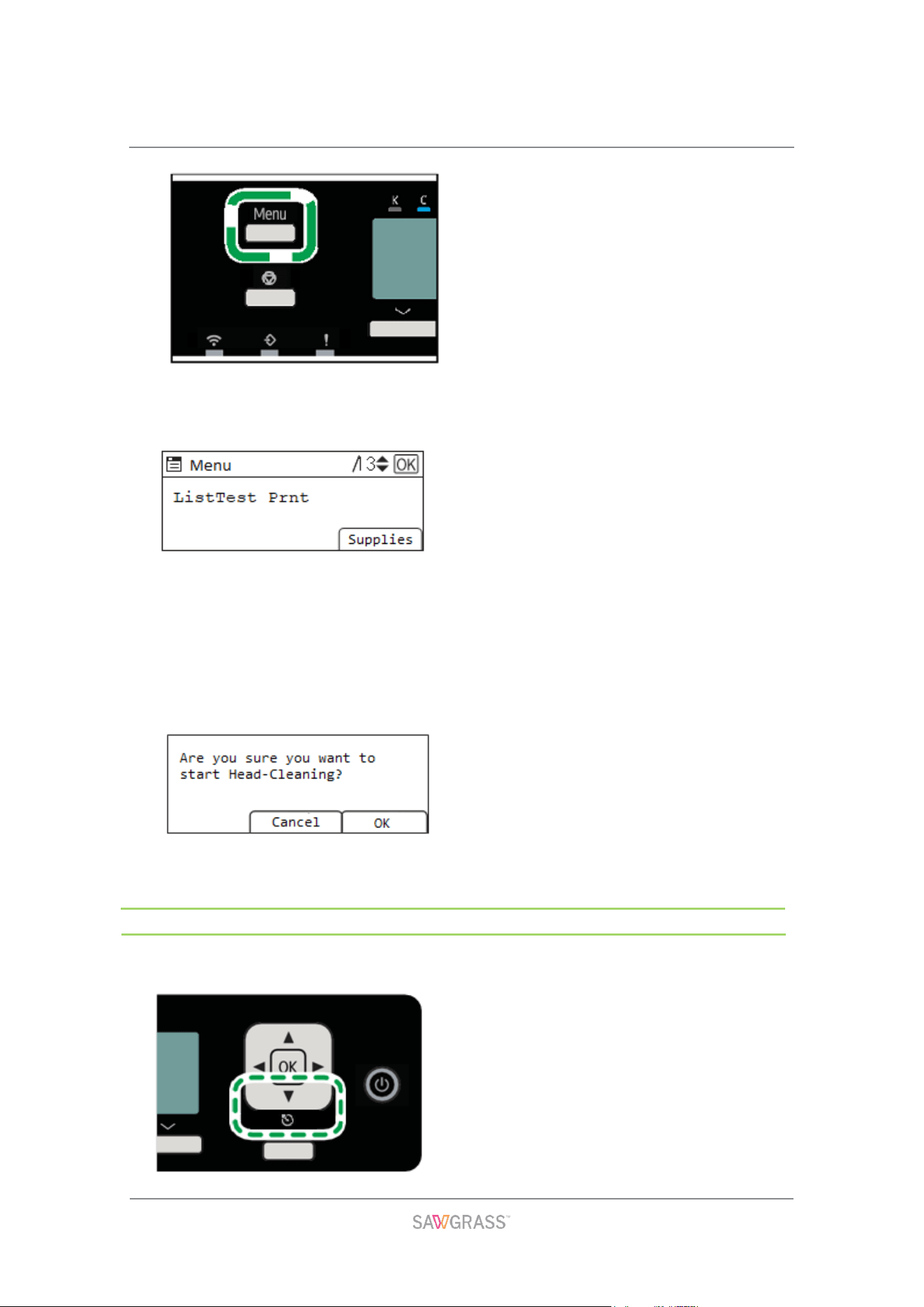
4. Press the [▲] or [▼] key to display [Head-cleaning], then press the [OK] key.
5. Press the [▲] or [▼] key to select a color, then press the [OK] key
To clean all the print heads, select [All Heads].
T
o clean the print head for cyan and black, select [Head 1].
To clean the print head for yellow and magenta, select [Head 2].
6. Press the [OK] in the selection key.
H
ead cleaning starts.
No-fuss head cleaning
You can perform a one-touch head cleaning for all colors.
1. Press and hold the [▼] key.
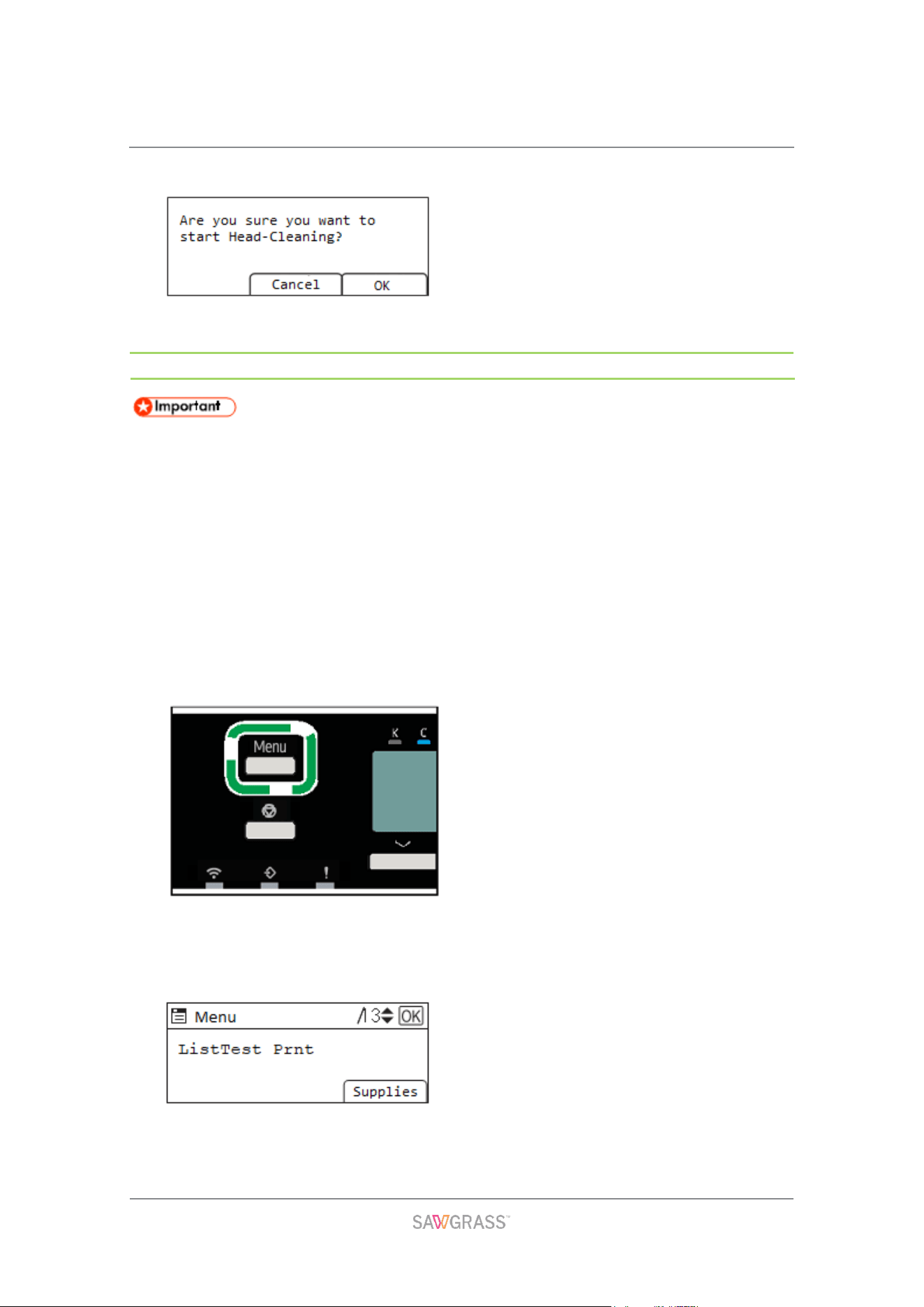
Setup and Installation | 54
2. P
ress [OK] in the selection keys.
He
ad cleaning will start.
Head-flushing
F
ollow the procedure below to perform a thorough print head cleaning.
Perform a head flushing only if print head nozzles cannot be cleared by up to five
(5)
he
ad cleanings.
Head flushing consumes more ink that head cleaning.
Do not perform more than one (1) head flush.
If nozzles do not print properly after up to five (5) head cleanings and one (1) head
flush, contact Sawgrass for assistance.
Do not turn the printer off during print head flushing. If the printer is turned off
during print head flushing, start again from printing the nozzle check test pattern.
1. Press the [ Menu] key.
2. P
ress the [▲] or [▼] key to display [Print Features], then press the [OK] key.
3. Press the [▲] or [▼] key to display [ListTest Print], then press the [OK] key.
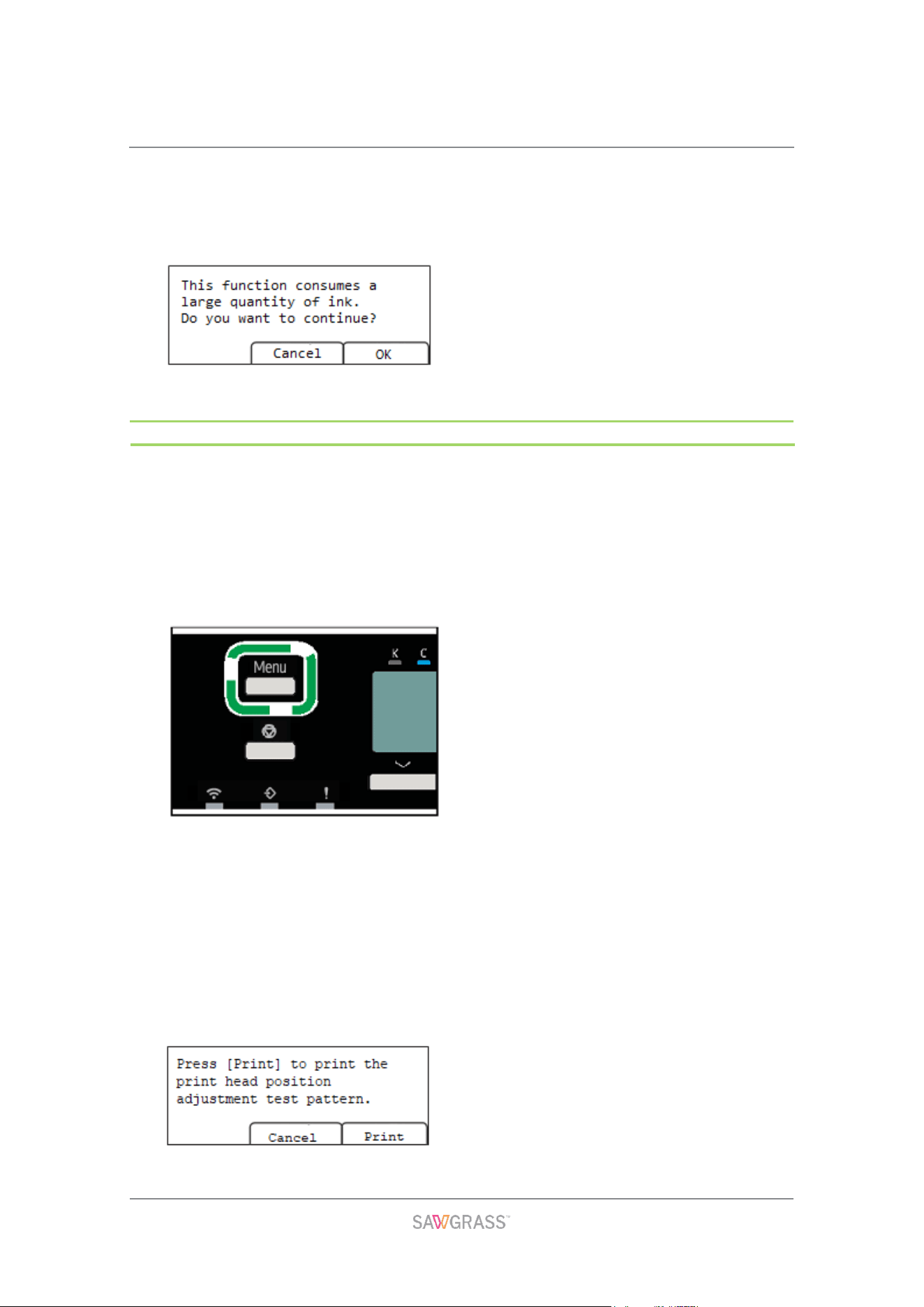
4. Press the [▲] or [▼] key to display [Head-flushing], then press the [OK] key.
5. Press the [▲] or [▼] key to select a color, then press the [OK] key.
Setup and Installation | 55
To flush all the print heads, select [All Heads].
To flush the print head for cyan and black, select [Head 1].
To flush the print head for yellow and magenta, select [Head 2].
6. Press the [OK] selection key.
H
ead flushing starts.
Head Position
Adjusts the print head. Perform this operation if printed lines are vertically misaligned.
I
f there are several lines in the test pattern, check adjustment values for each line, and
adjust the print head positions. If the adjustment value is set to "0", adjustment is not
necessary. Adjust all lines so their adjustment values indicate "0".
1. Press the [ Menu] key.
2. P
ress the [▲] or [▼] key to display [Print Features], then press the [OK] key.
3. Press the [▲] or [▼] key to display [ListTest Prnt], then press the [OK] key.
4. Press the [▲] or [▼] key to display [Head Position], then press the [OK] key.
5. Press the [▲] or [▼] key to display [Pr.Test Pattern], then press the [OK] key.
6. Press the [▲] or [▼] key to select the target's resolutions, then press the [OK
]
key
.
7. Press the [Print] selection key
A
test pattern to adjust print head positions is printed.
Setup and Installation | 56
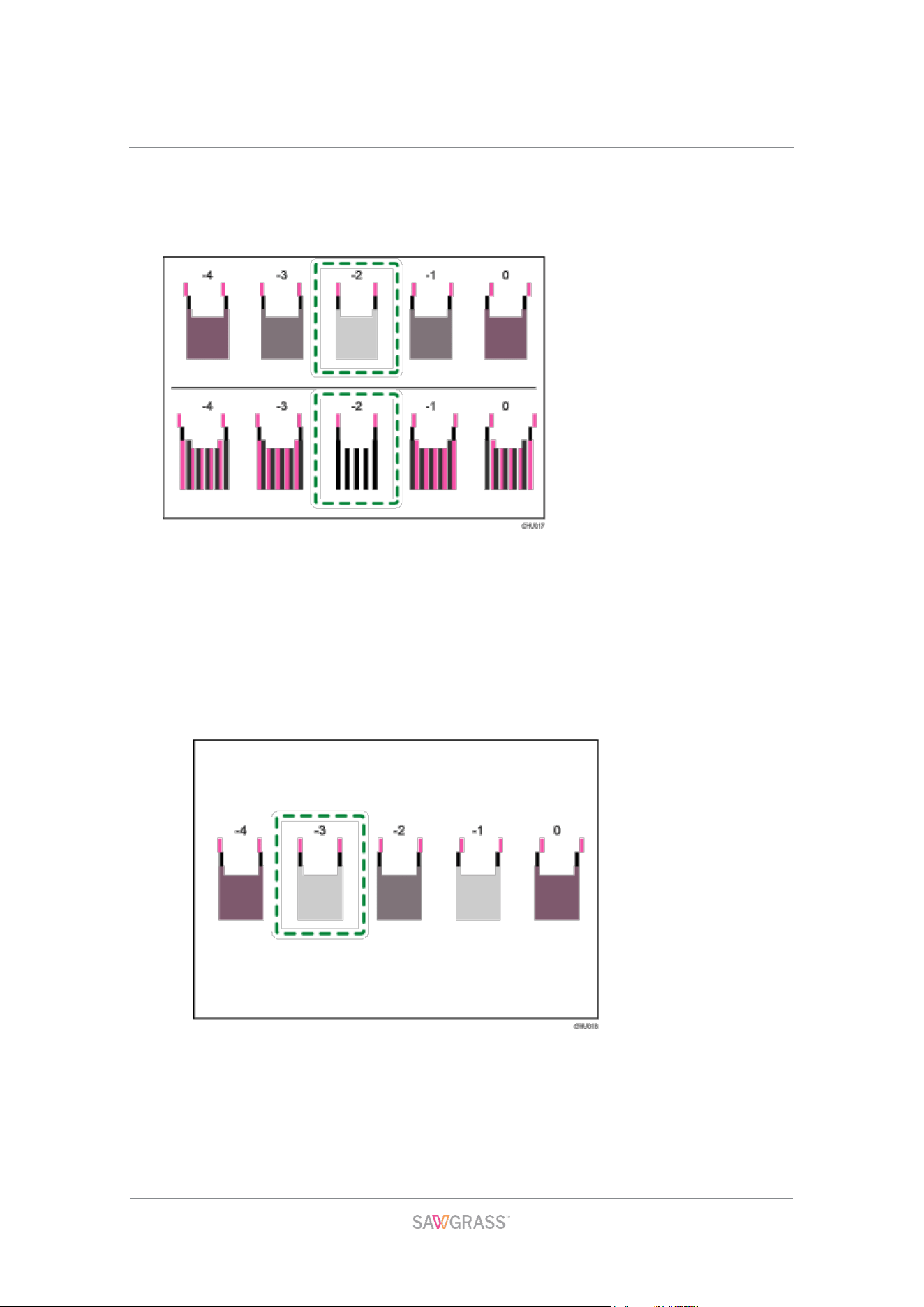
8. T
o determine the adjustment value, select the square that is faintest (closest to
white). Alternatively, select the square whose internal lines overlap to form
a
s
ingle color.
Combined two-color lines form squares, and depending on line overlapping, (white)
spaces between the lines are painted and look darker. Sometimes the colors of the
lines are identical.
For this illustration, the adjustment value is "-2". Checking adjustment values for each
item is required.
If you cannot determine the adjustment value, select the square that is between
the straightest lines.
Each vertical line is made of an upper part and lower part. If the print head is not
properly positioned, the vertical line will be displayed as two disconnected lines, so
that the line looks misaligned.
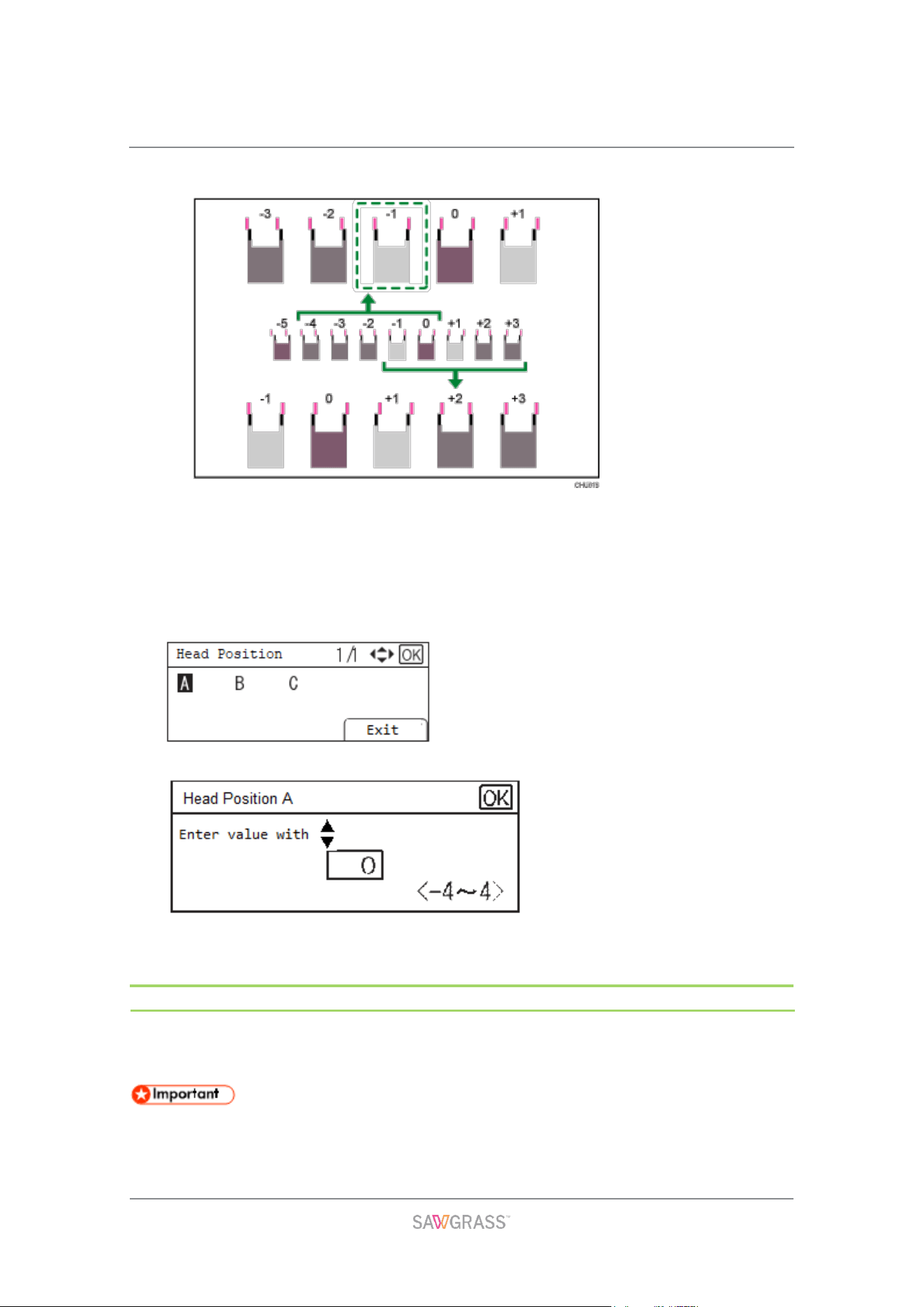
If you still cannot determine the adjustment value, locate the square that is
between adjacent squares whose lines form symmetry. Adjacent squares can be
one or two places either side (at positions ±1 or ±2).
Setup and Installation | 57
T
his illustration indicates an adjustment value that is set to "-1".
9. Press the [▲] or [▼] key to display [Adjustment] then press the [OK] key
10. Press the [▲] or [▼] key to select a resolution from Step 5, then press the
[OK] key
.
11. Select the items that you need to adjust, then press the [OK] key.
12
. Enter the optimal adjustment values from Step 6, then press the [OK] key.
13. Press the [Exit] selection key once all the values have been set.
Adjust Paper Feed
If printed horizontal lines are misaligned, print images are patchy, or streaks are printed at
regular intervals, print a test pattern, then adjust the paper feed setting.
Although instructions are provided, Sawgrass recommends that the procedure to
ad
just the paper feed be performed from the printer driver and not the printer
control panel.
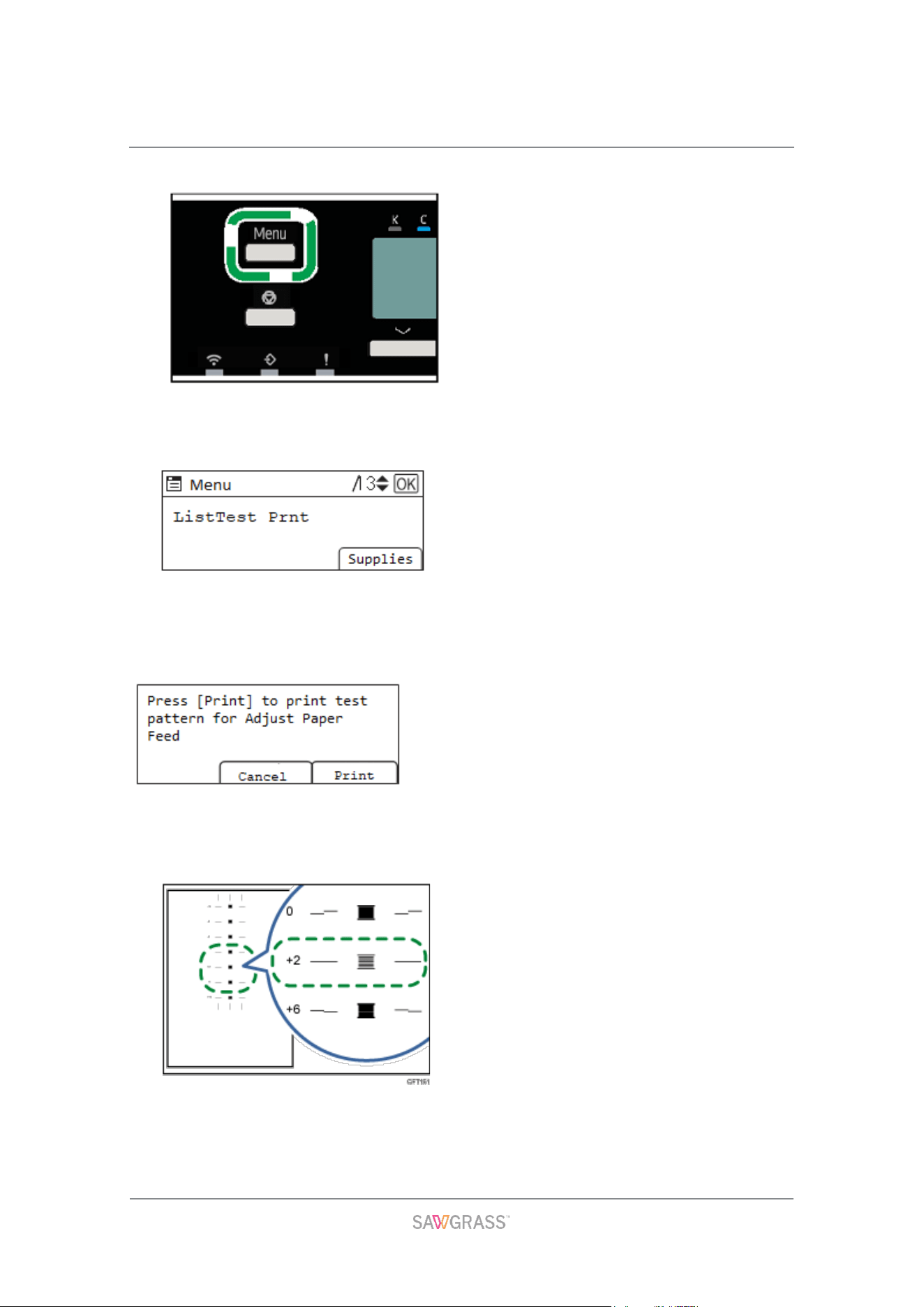
Setup and Installation | 58
1. P
ress the [ Menu] key.
2. P
ress the [▲] or [▼] key to display [Print Features], then press the [OK] key.
3. Press the [▲] or [▼] key to display [ListTest Prnt], then press the [OK] key.
4. Press the [▲] or [▼] key to display [Adj.Paper Feed], then press the [OK] key.
5. Press the [▲] or [▼] key to display [Pr.Test Pattern], then press the [OK] key.
6. Press the [Print] selection key
A
test pattern to adjust paper feed is printed.
7. Check the optimal adjustment values on the printed test pattern.
The optimal adjustment value is the number that appears on the left of the lightest gray
square with straight horizontal lines on both sides. When this number is "+2", the
optimal adjustment value is "+2".
When horizontal lines beside the lightest gray square are broken, select the optimal
adjustment value by referring to the lines broken in the opposite direction. When the
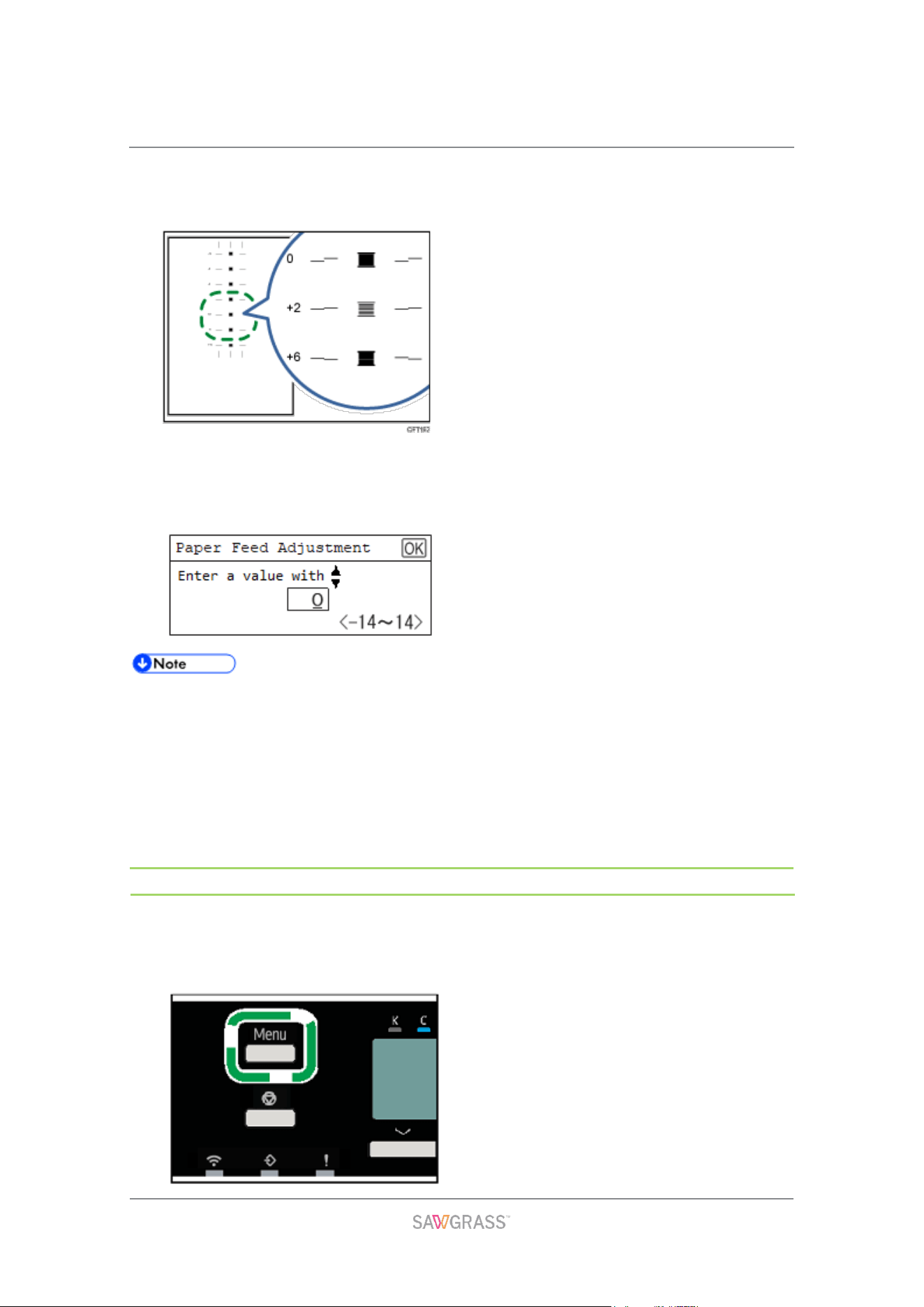
Setup and Installation | 59
"+2" square is the lightest gray square and the "+6" horizontal lines are broken in the
opposite direction, the optimal adjustment value is between "+3" and "+5". After
adjustment, check the adjustment result.
8. Press the [▲] or [▼] key to display [Adjustment], then press the [OK] key.
9. Press the [▲] or [▼] key to enter the adjustment value (-14 to +14) from Step 5,
then press the [OK] key.
If streaks still appear after the adjustment, continue to adjust the value by 1 and
ex
ecuting "Adjustment".
If black streaks appear, increase the adjustment value.
If white streaks appear, decrease the adjustment value.
Keep adjusting the value and executing "Adjustment" until the black or whit
e
st
reaks disappear.
Registration
Follow the procedure below to adjust where to start printing on paper loaded in each paper
tray after checking the test pattern printed.
1. Press the [ Menu] key.
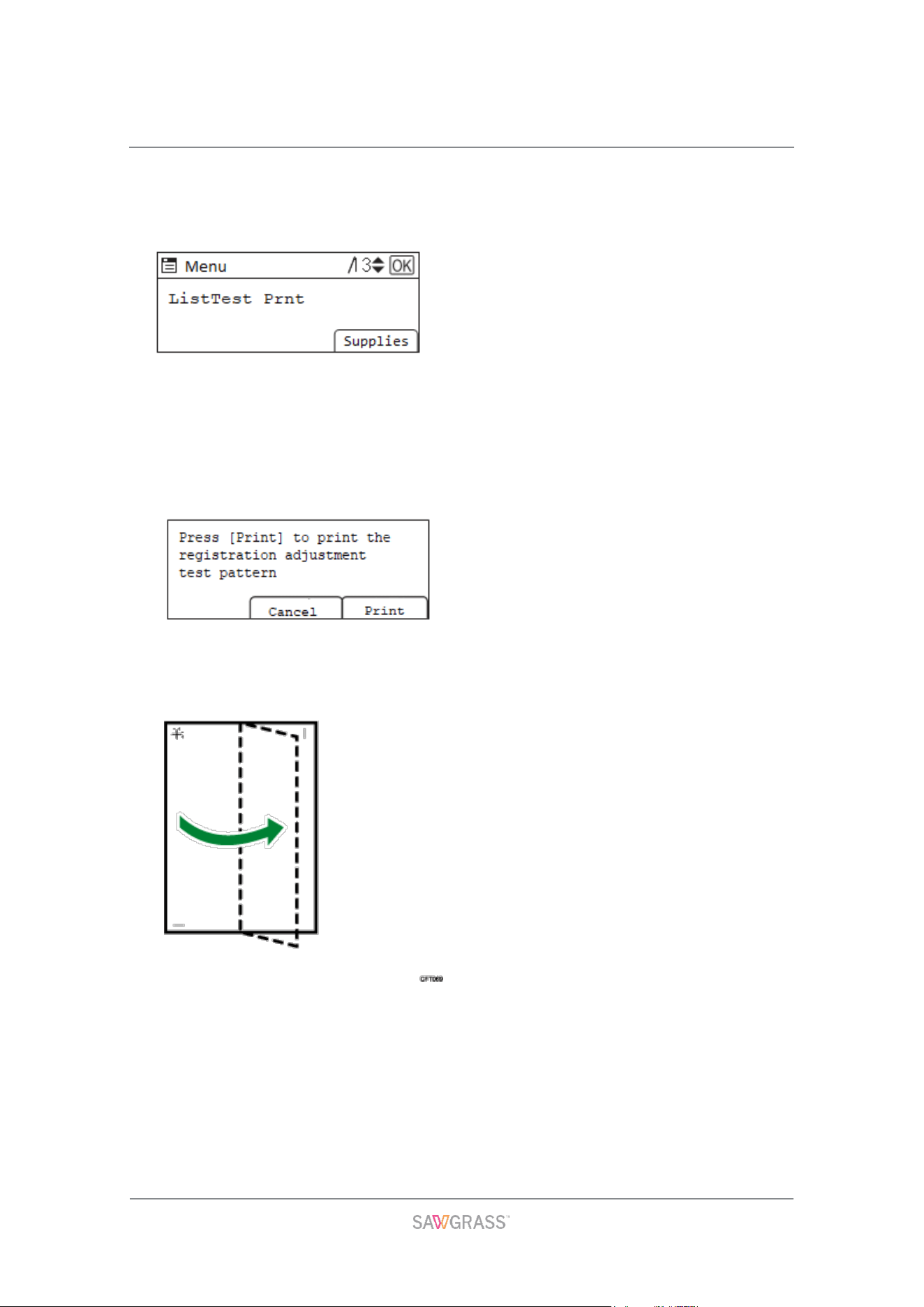
Setup and Installation | 60
2. Press the [▲] or [▼] key to display [Print Features], then press the [OK] key.
3. Press the [▲] or [▼] key to display [ListTest Prnt], then press the [OK] key.
4. Press the [▲] or [▼] key to display [Registration], then press the [OK] key.
5. Press the [▲] or [▼] key to display [Pr.Test Pattern], then press the [OK] key.
6. Press the [▲] or [▼] key to select a paper tray, then press the [OK] key.
7. Press the [Print] selection key.
A
test pattern to adjust the print start position is printed.
Check the optimal adjustment values on the printed test pattern
8. Fold the test pattern sheet in half lengthwise.
9. The optimal adjustment value is the difference between the single vertical line
and the cross's vertical line that you can see when the folded paper is held up to
light. When the difference is one calibration mark in the "+" direction, the optimal
adjustment value for the [Read Direction] is "+1.0".
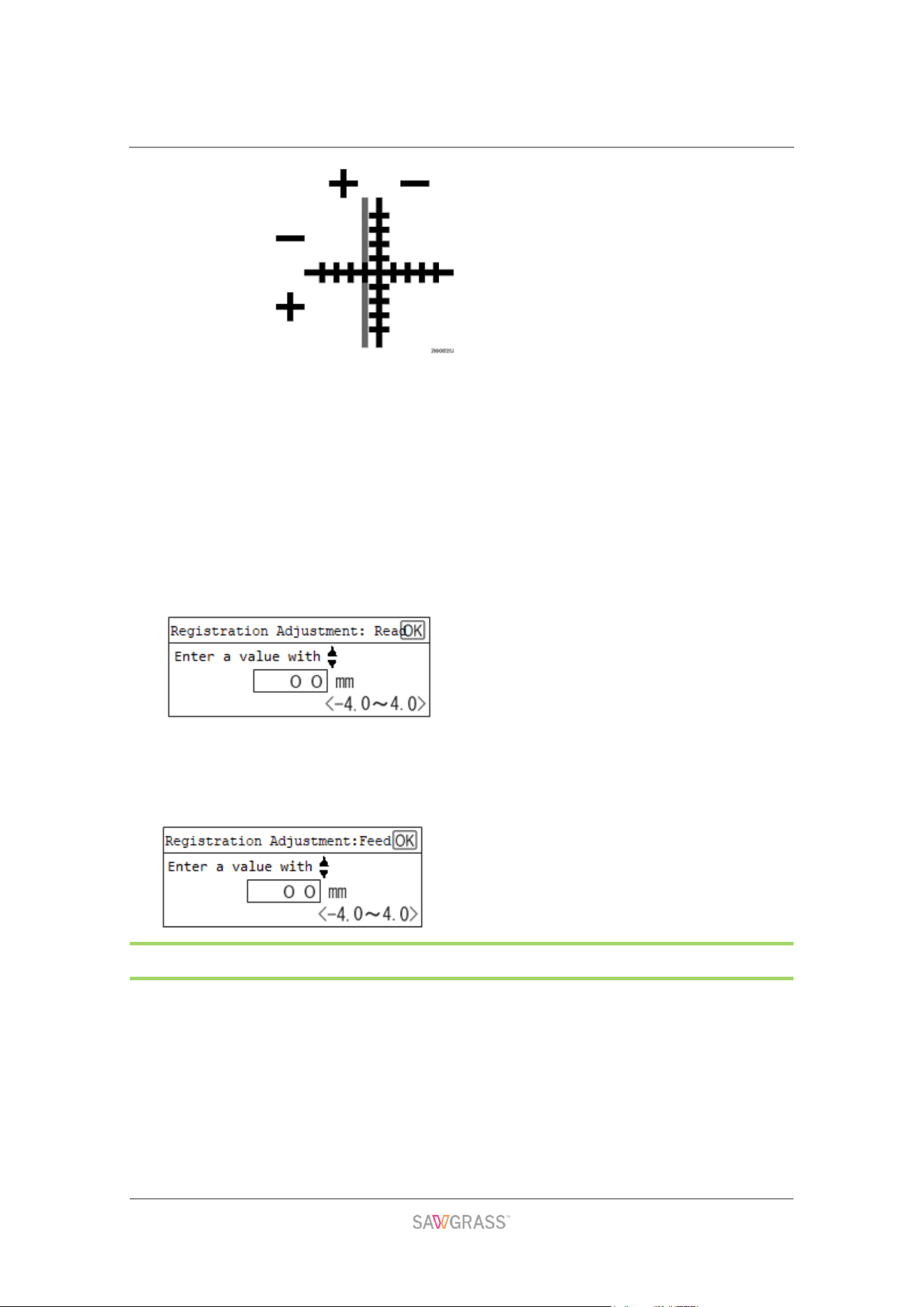
Setup and Installation | 61
10. Fold the test pattern sheet in half widthwise, then check the adjustment value for
the [Feed Direction].
Adjustment values are in 0.1 increments.
11. Press the [▲] or [▼] key to display [Adjustment], then press the [OK] key.
12. Press the [▲] or [▼] key to select a paper tray, then press the [OK] key.
13. Press the [▲] or [▼] key to enter the adjustment values (-4.0 to +4.0) in the [Read
Direction] from Step 7, then press the [OK] key.
14. Press the [▲] or [▼] key to enter the adjustment values (-4.0 to +4.0) in the
[
Feed Direction] from Step 8, then press the [OK] key.
Using the [System Settings] Menu
General Features
Change contrast of the LCD panel as well as changing the unit of measure
Tray Paper Settings
Change settings such as the tray paper size and priority
Timer Settings
Change timer settings such as date, time, time zone and sleep timer
Interface Settings
Access Network and Wireless LAN settings as well as check the IP Address and any
other various network settings

Setup and Installation | 62
A
dministrator Tools
Check the current firmware of the printer as well as reset all settings to default
Maintenance
Change the Sheet dry delay as well as Paper size error detect and perform De-
condensation
Direct Connection Settings
Access the settings in order to connect directly to the PC.
Using the [Tray Paper Settings] Menu
This section explains the settings you can specify in the [Tray Paper Settings] menu, such
as those for the size and type of the paper loaded in each paper tray, although changes in
this manner are not recommended by Sawgrass.
Tray Paper Size
You can specify the size of the paper loaded in the paper tray.
Sawgrass recommends that you do not change the paper size in this manner since it
may conflict with settings controlled by the printer driver.
P
aper Type
You can specify the type of the paper loaded in the paper tray.
Sawgrass recommends that you do not change the type of paper in this manner since
it may conflict with settings controlled by the printer driver.
Using the Control Panel to Make Printer Settings | 45
Tray Priority
You can specify the prioritized paper tray. Default: [Tray 1]
"Aut.Tray Select" can be specified only if the bypass tray or the option tray is attached.
If you select "Aut.Tray Select", the paper tray is automatically selected according to the
paper size and paper type for the paper trays in "Tray Paper Size" and "Paper Type".
"Tray Priority" will be specified only if the option tray is attached.
Printing a Configuration Page
1. Press the [ Menu] key.
2. Press the [▲] or [▼] key to display [Print Features], then press the [OK] key.
3. Press the [▲] or [▼] key to display [List/Test Print], then press the [OK] key.
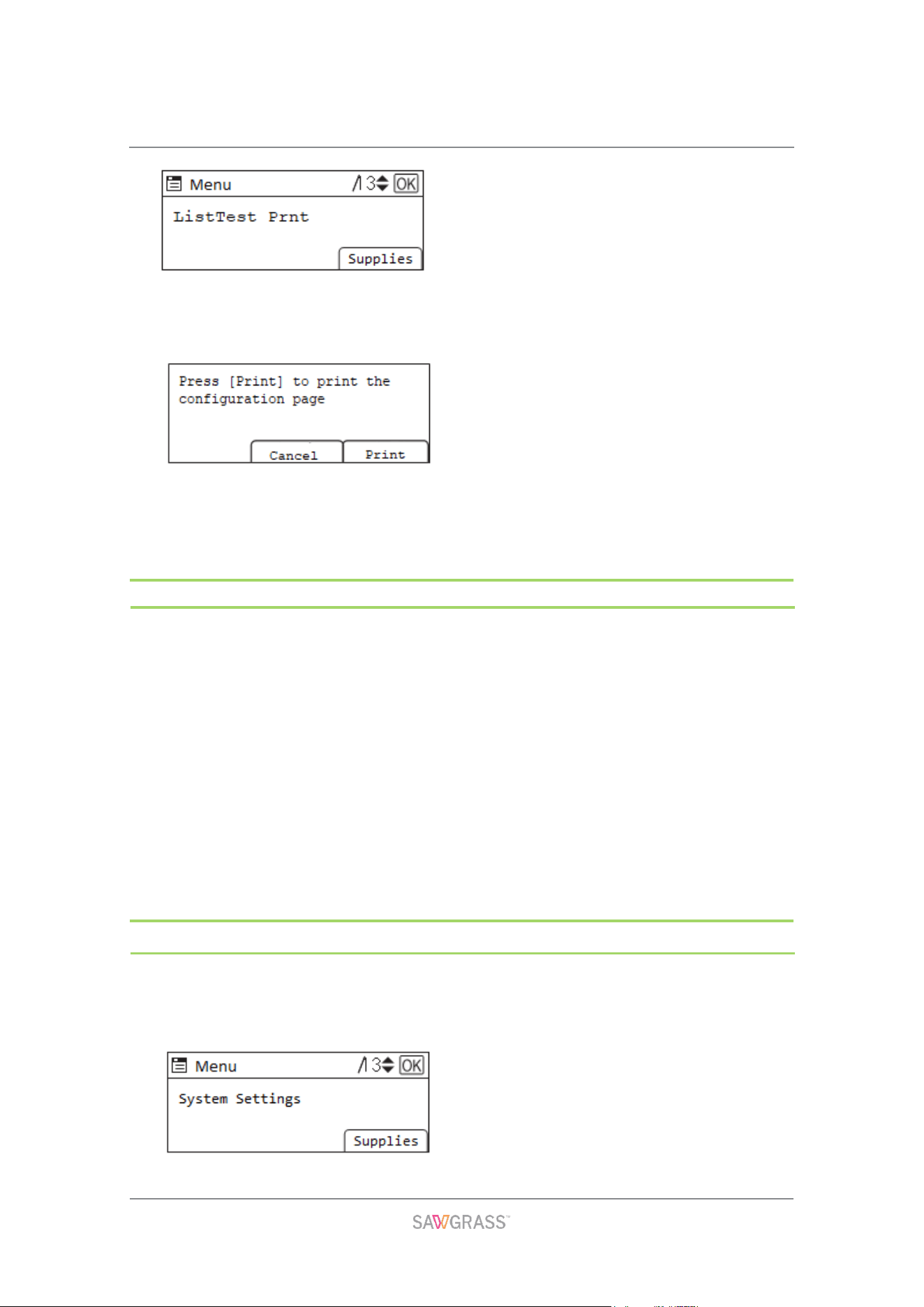
Setup and Installation | 63
4. Press the [▲] or [▼] key to display [Config. Page], then press the [OK] key.
5. Press the [Print] selection key]
T
he configuration page is printed.
Interpreting the Configuration Page
System reference
Information such as the counter numbers (Pages Printed), the printer's firmware
version, attached options, language and remaining ink are printed in this area.
Paper Input
The specified Tray Priority setting and the specified settings in the [Tray Paper Settings]
menu, such as the size and type of paper loaded in each paper tray, are printed in this
area.
Host Interface
The specified settings in the [Interface] menu are printed in this area.
System
The specified settings in the [System] menu are printed in this area.
Maintenance
The specified settings in the [Maintenance] menu are printed in this area.
Changing the Sleep Mode Timer
1. Press the [ Menu] key.
2. Press the [▲] or [▼] key to display [System Settings], then press the [OK]
key.
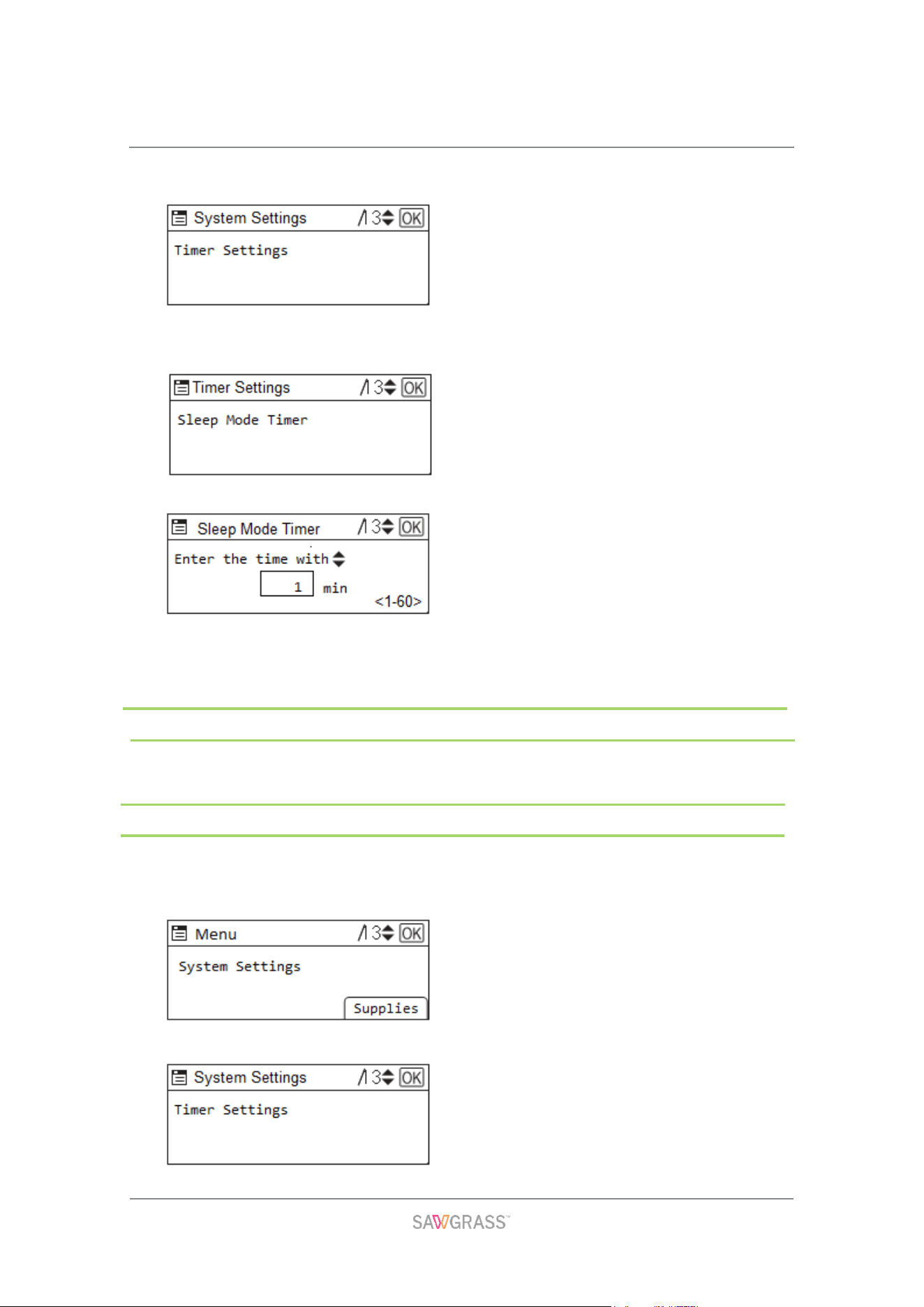
Setup and Installation | 64
3. P
ress the [▲] or [▼] key to display [Timer Settings], then press the [OK] key.
4. P
ress the [▲] or [▼] key to display [Sleep Mode Timer], then press the [OK]
key.
5. Press the [▲] or [▼] key to set the date, then press the [OK] key.
Setting the Date and Time
Use the following procedure to specify the date, time, and time zone.
Date setting
1. Press the [ Menu] key.
2. Press the [▲] or [▼] key to display [System Settings], then press the [OK
]
key
.
3. P
ress the [▲] or [▼] key to display [Timer Settings], then press the [OK] key.
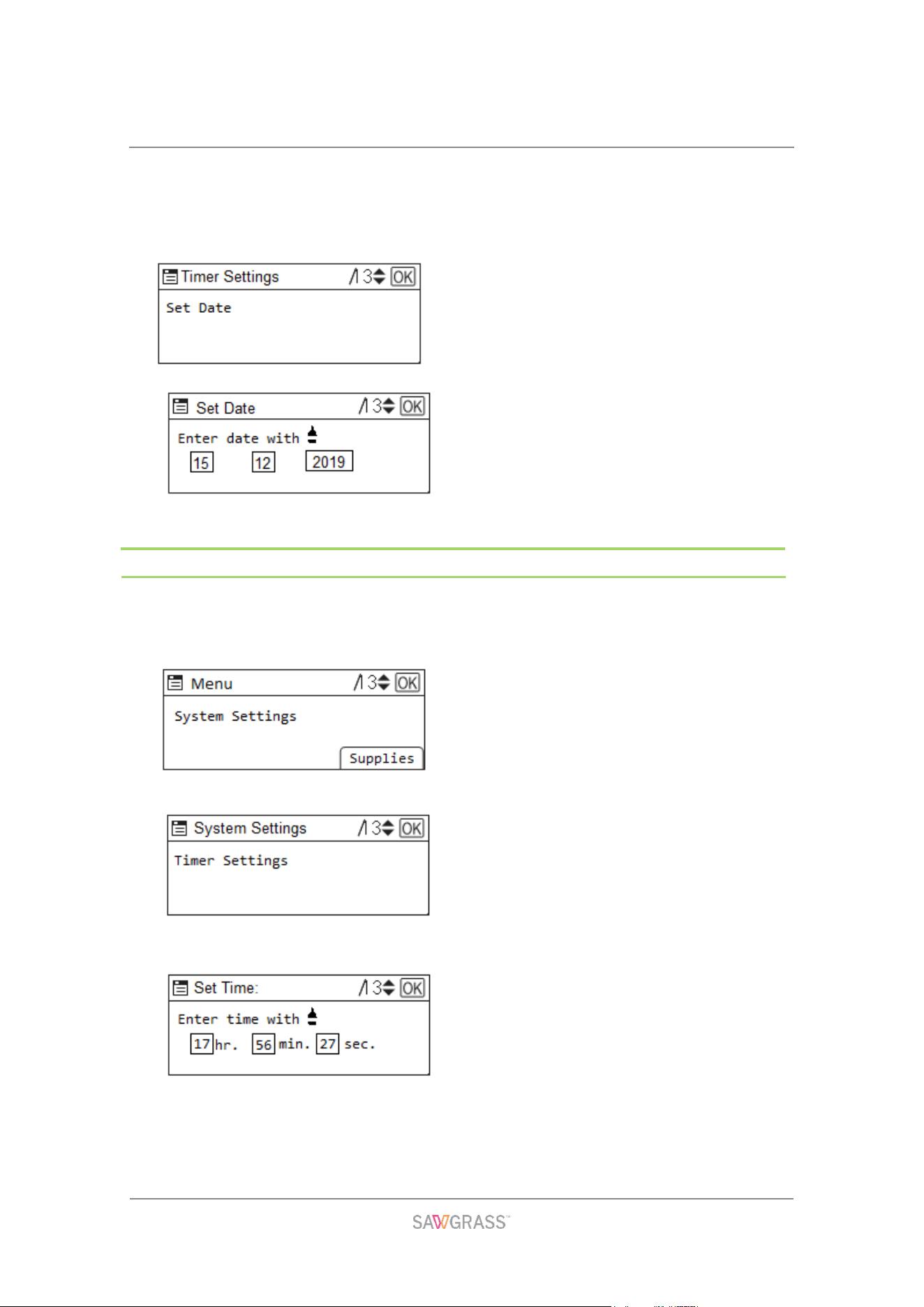
Setup and Installation | 65
4. P
ress the [▲] or [▼] key to display [Set Date], then press the [OK] key.
5. Press the [▲] or [▼] key to set the date, then press the [OK] key.
6. P
ress the [Menu] key.
Time setting
1. Press the [Menu] key.
2. Press the [▲] or [▼] key to display [System Settings], then press the [OK]
key
.
3. Press the [▲] or [▼] key to display [Timer Settings], then press the [OK] key.
4. Press the [▲] or [▼] key to display [Time Setting], then press the [OK] key.
5. Press the [▲] or [▼] key to set the time, then press the [OK] key.
T
o specify the time zone next, go to Step 4 in section "Time Zone Setting".
6. Press the [Menu] key.
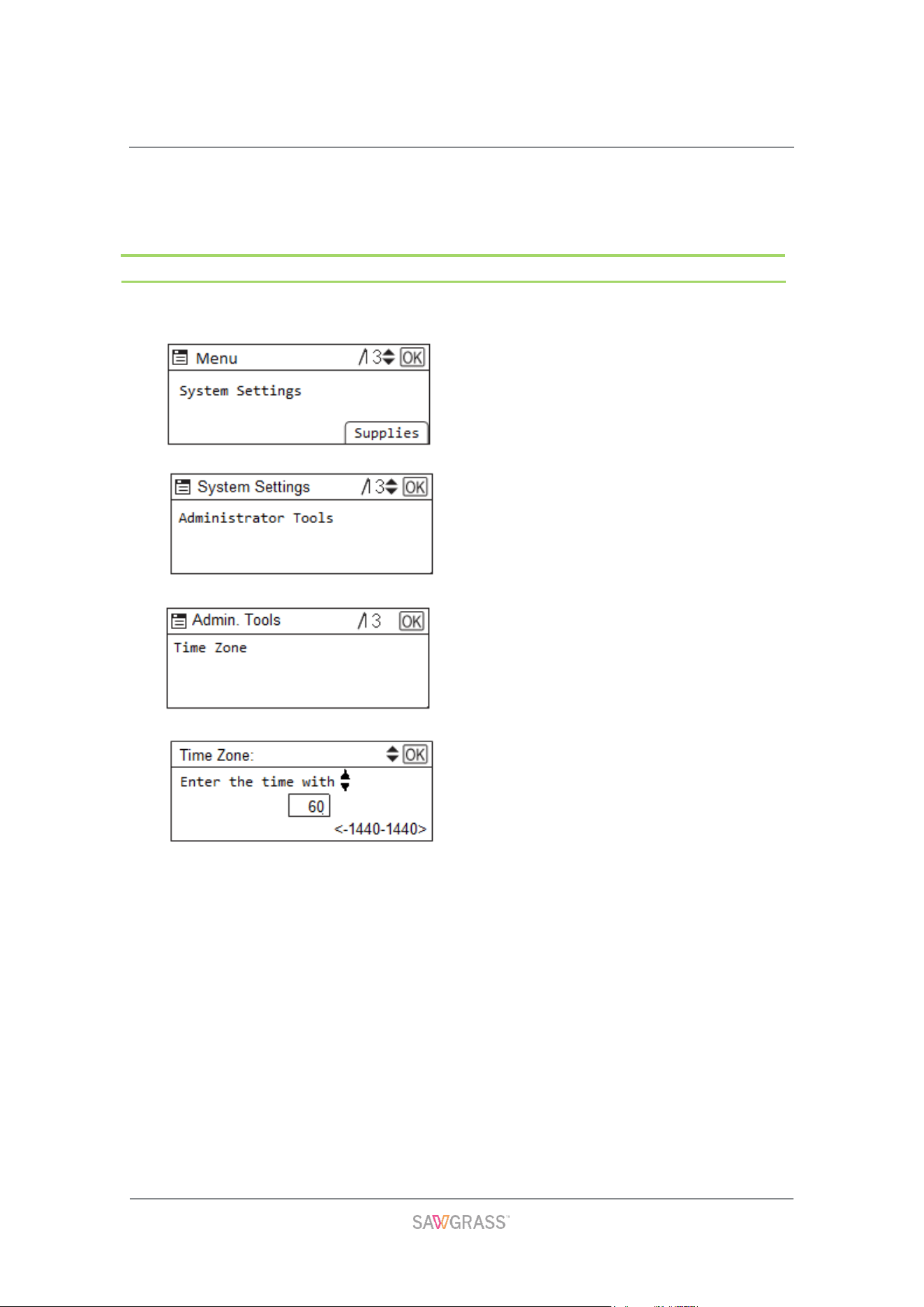
Setup and Installation | 66
Time zone setting
1. Press the [ Menu] key.
2. Press the [▲] or [▼] key to display [System Settings], then press the [OK] key.
3. Press the [▲] or [▼]] key to display [Administrator tools], then press the [OK] key.
4. P
ress the [▲] or [▼] key to display [Time Zone], then press the [OK] key.
5. Press the [▲] or [▼] key to set the time zone, then press the [OK] key.
The time zone is displayed in minutes.
6. P
ress the [Menu] key to exit.
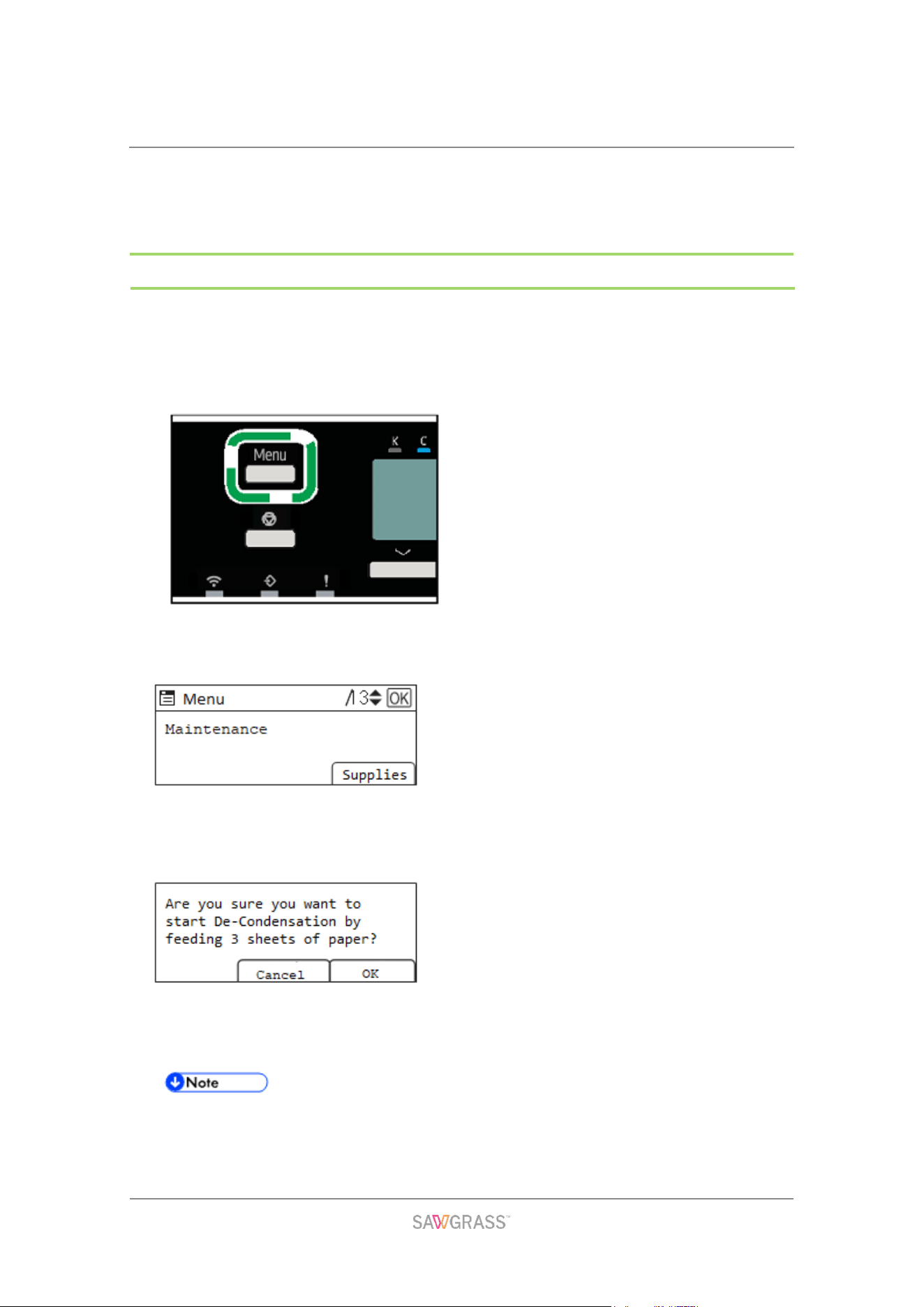
Setup and Installation | 67
De-condensation
If the SC57000 error message appears, there might be condensation inside the printer. Dry
the printer's interior by performing the de-condensation procedure. See page section
"Printer Errors" for more information.
1. Press the [ Menu] key.
2. P
ress the [▲] or [▼] key to display [System Settings], then press the [OK] key.
3. Press the [▲] or [▼] key to display [Maintenance], then press the [OK] key.
4. Press the [▲] or [▼] key to display [De-condensation], then press the
[OK] key
.
5. Press the [OK] selection key
Three sheets are fed through the printer without anything being printed on them.
6. Turn the printer off, then turn it on again.
I
f the error message does not reappear, the printer's interior has fully dried.
If the error persists, turn the printer off, leave it for an hour, and then turn it o
n
ag
ain. If this does not resolve the problem, contact Sawgrass.

Setup and Installation | 68
Using the [Interface] Menu
In the [Interface] menu, you can specify settings related to connection and communication.
Settings made using the [Interface] menu remain effective even if you turn the printer off.
To configure the printer's network settings, use the [Network] menu.
Network
Machine IPV4 Address
Set the IPv4 address and subnet mask. It also displays the physical address.
IPV4 Gateway Address
Set the IPv4 gateway address.
M
achine IPV6 Address
It displays the IPv6 address. Manual setting the address and prefix
length
DHCPV6
You can specify whether or not to use DHCP in an IPv6 environment.
IPV6 Stateless Address Autoconfig
Allows you to set the Stateless Address autoconfiguration to Active or Inactive
I
PV6 Gateway Address
You can specify the IPv4 gateway address.
DNS Configuration
Set the DNS server settings
I
Psec
Allows you to enable/disable the IPsec function
D
omain Name
Displays the printer's domain name.
E
ffective Protocol
Allows you to set the web protocol to be used
La
n Type
Specify whether to connect via Wireless LAN or Ethernet
E
thernet Speed
Specify the ethernet communication speed. Please select a speed that
matches the environment to be used. Select [Auto Select] as normal.

Setup and Installation | 69
H
ost Name
Displays the printer's host name.
M
achine Name
Displays the printer's name.
U
SB Speed
Set the speed of USB when connected. This option does not usual need changing.
W
ireless LAN
Wireless LAN Easy Setup
The SSID is automatically searched on the wireless LAN Network.
Also, when [802.11 ad-hoc mode] or [Infrastructure Mode] in
[Communication mode] is selected, you can easily connect to the wireless
LAN by using the Wireless LAN easy setup.
C
ommunication Mode
Specify the communication mode of the wireless LAN
SSI
D Setting
Specify the SSID to identify the Wireless LAN network. The SSID is case sensitive and
up to 32-byte alphanumeric characters can be used
Ad-ho
c Channel
Set the channel to be used when 802.11 Ad-hoc mode is selected
S
ecurity Method
Specify the encryption type of the wireless LAN
• WEP
When set to [WEP], always enter the WEP key.
• WPA2
Cryptography and select the [WPA2-PSK
PSK, enter the alphanumeric and symbols in the range of 8 to 6
3
ch
aracters.
P
rint I/F Settings List
You can print the items related to the network environment that are being
used. Interface settings list is described for the current network settings.
Changing the [Interface] Menu
This section gives an example of setting a static IP address in the [Interface] menu.
1. Press the [ Menu] key.
2. Press the [▲] or [▼] key to display [System Settings], then press the [OK]
key.
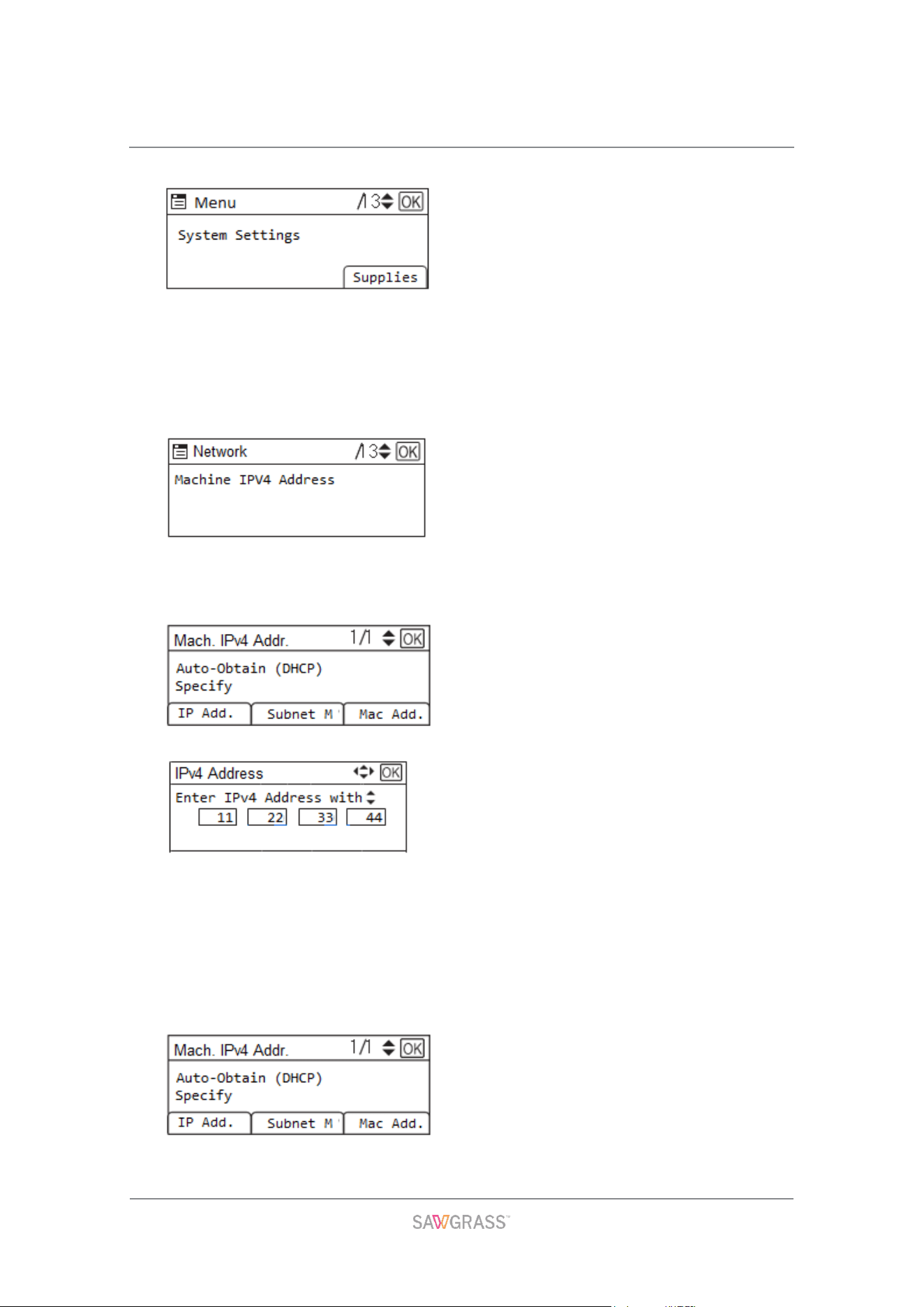
Setup and Installation | 70
3. Press the [▲] or [▼] key to display [Interface Settings], then press the [OK] key
4. Press the [▲] or [▼] key to display [Network], then press the [OK] key.
5. Press the [▲] or [▼] key to display [Machine IPV4 address], then press the
[OK] key.
6. P
ress the [▲] or [▼] key to select [Specify], then press the [OK] key.
7.
Press the [IP Add.] selection key
8. Press the [▲] or [▼] key to change the value of the field.
Please check with your network administrator to confirm the IP address to be set.
When pressing and holding [▲] or [▼], the value will increase or decrease in increments
of 10.
Please press the [◄] or [►] to move to another field.
9. Complete all the fields then press the [OK] key.
1
0. Press the [Subnet M] selection key.
11
. Perform steps 8 and 9 again for the Subnet Mask
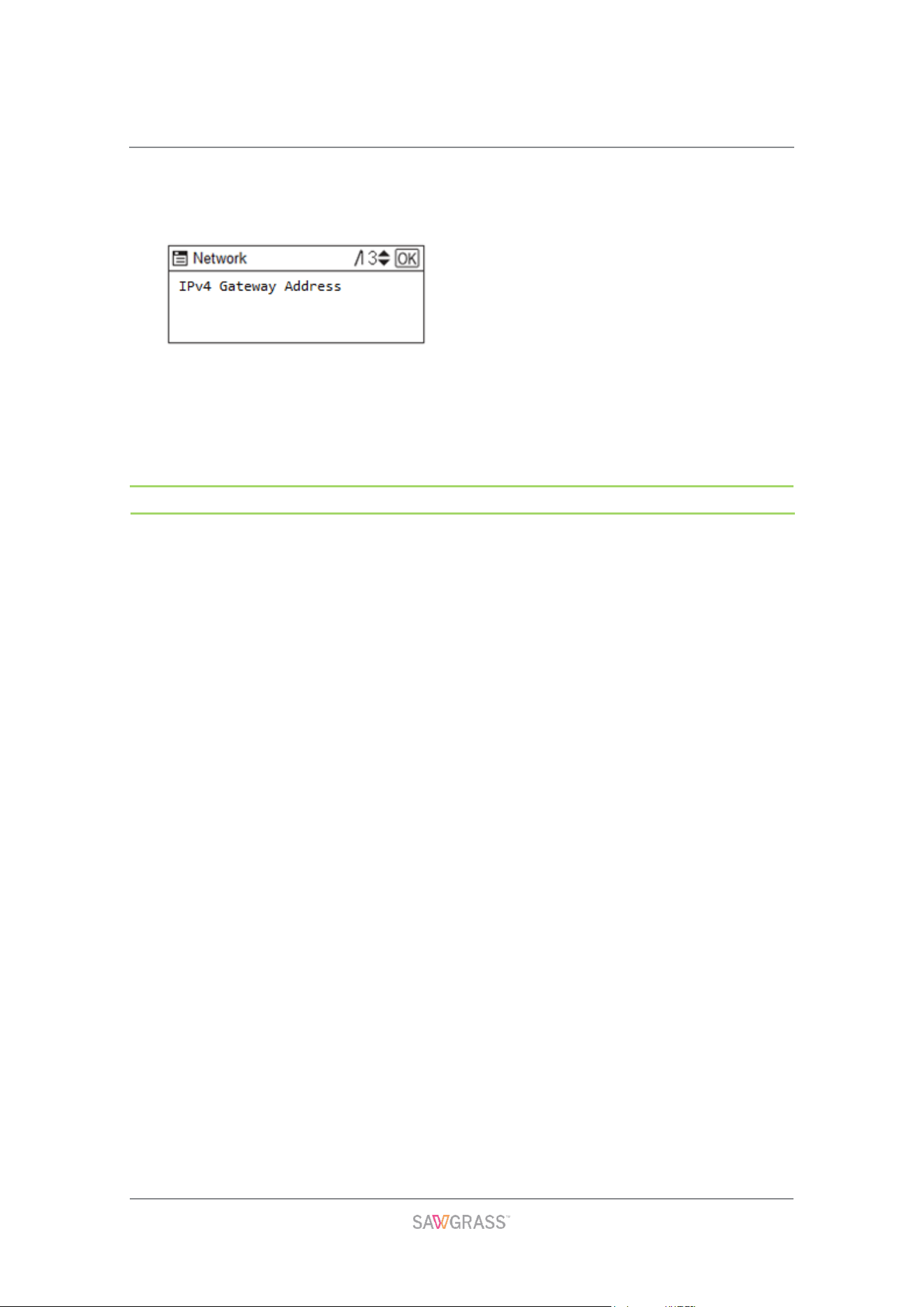
Setup and Installation | 71
12. After setting the IPv4 address and Subnet Mask, select [Specify] and press the
[O
K] key.
1
3. Return to the previous menu and select IPv4 Gateway Address and press the [OK]
key.
14. Press the [▲] or [▼] key to change the value of the field.
15. Complete all the fields then press the [OK] key.
1
6.
Once all the settings are finished, press the [Menu] key.
Precautions When Using a Networked Printer
Using DHCP
You can register the host name to a DNS server. In the Web Image Monitor menu,
you can enable or disable [Notify Host Name to DHCP Server]. For details, s
ee
s
ection "Changing the Printer Settings" for more information.
The DHCP Relay Agent is not supported.
Supported DHCP server operating systems are: Windows Server 2003/2003 R2,
Windows Server 2008, and UNIX standard.
The IP address acquired from DHCP can be checked on the configuration page.
For details about printing a configuration page, see section "Using the [List/Test
Print] Menu".
When there are multiple DHCP servers, make the same configuration for all. This
printer uses information from the DHCP server that responds first.
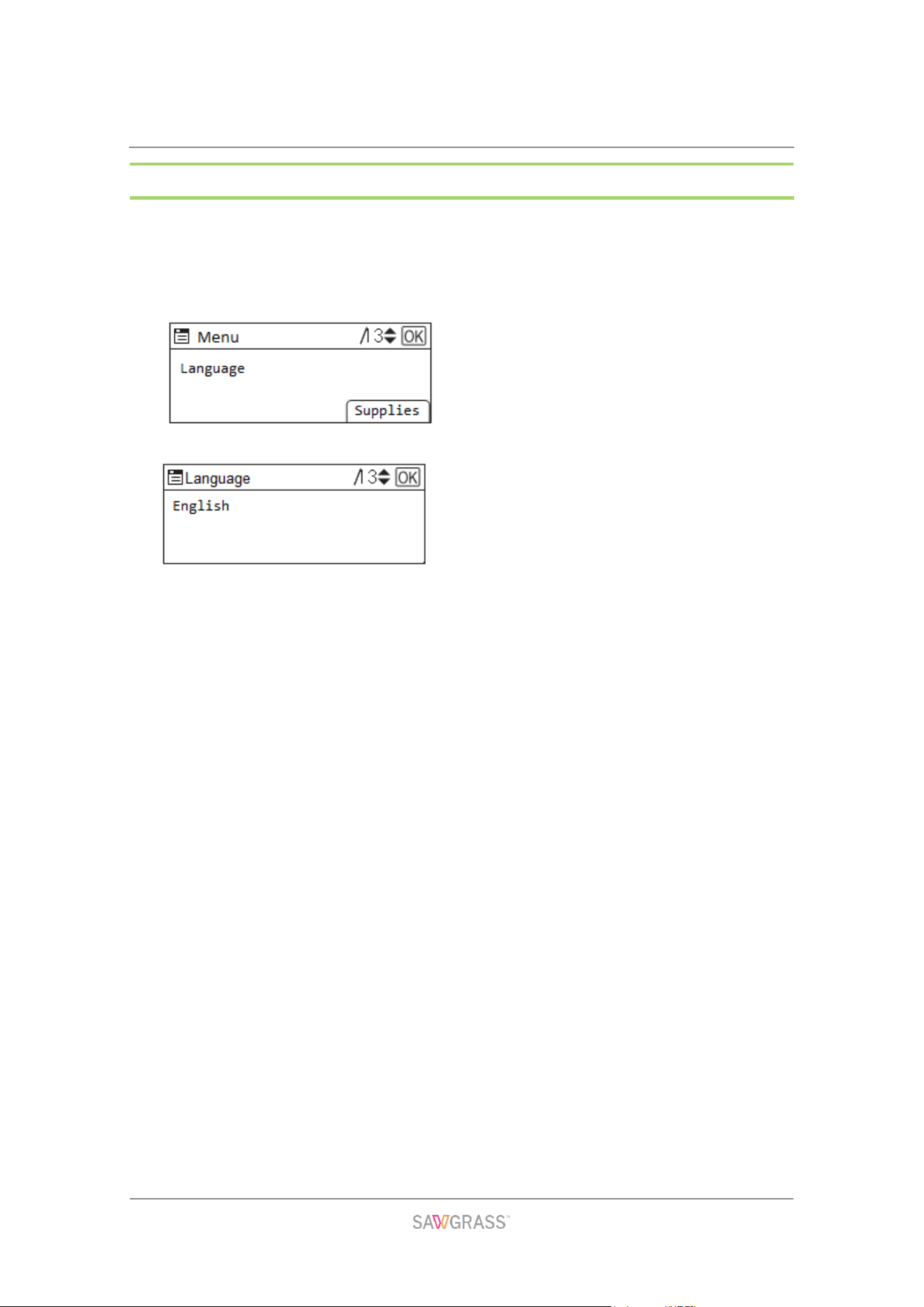
Setup and Installation | 72
Using the [Language] Menu
This section explains how to select the language used for the settings and messages
displayed on the display.
1. Press the [ Menu] key.
2. Press the [▲] or [▼] key to display [Language], then press the [OK] key.
3. P
ress the [▲] or [▼] key to select the language, then press the [OK] key.
Software | 73
Software
This chapter describes system and design software requirements and how to acquire,
install and configure printer driver and color management software.
System Requirements
The printer may be used with both Windows and Macintosh operating systems that meet
recommended system specifications.
Sawgrass may limit support to customers who use less than the minimum stated
requirements.
Problems may occur if the computer does not meet recommended system requirements
Print speeds may be longer and therefore less economical to run.
Larger graphic files may not print properly or at all.
The computer may get 'hung up' or "time out' during the processing of the print
command.
Graphic design programs may be much slower to use.
Print spooling may not work properly because of lack of computer or printer
memory capacity.
Graphics may not print correctly.
Images may be cut off.
Longer print times can lead to nozzle drops or banding.
Windows* Macintosh
Windows OS versions 8 (64 bit) or later
Mi
nimum RAM: 4GB
Recommended RAM: >8GB
Minimum CPU: Dual Core CPU
Recommended CPU: Quad Core or
Greater
Free Hard Drive Space: 10%
Macintosh OS 10.13 or later
Minimum RAM: 4GB
Recommended RAM: >8GB
Minimum CPU: Dual Core CPU
Recommended CPU: Quad Core or
Greater
Free Hard Drive Space: 10%
*
Only Professional, Business, Enterprise and Ultimate Editions have been tested and approved.
Software | 74
Design Software Requirements
Certain types of design software are required for high quality prints and correct color
output.
Sawgrass may limit support to customers who do not use the specified software.
Poor print
and color quality will likely occur if specified software is not used.
Download, Install and Configure Software
Download the Sawgrass Print Utility and related
instructions from www.sawgrassink.com/products/
software
If the computer to be used with the printer is not connected to the internet,
download what is needed from another computer that has internet access.
Using the USB drive supplied with the printer, transfer the files to the computer
without internet access.
Alternatively, contact an authorized Sawgrass distributor for assistance.
Windows* Macintosh
CreativeStudio
CorelDRAW 12 – 2019
Adobe PhotoShop CS – CS6
Adobe Illustrator CS – CS6
Adobe Creative Cloud (“CC”)
Adobe PhotoShop Elements 8 – 15
CreativeStudio
Adobe PhotoShop CS – CS6
Adobe Illustrator CS – CS6
Adobe Creative Cloud (“CC”)
Adobe PhotoShop Elements 8–10 & 15

Monitoring and Configuring the Printer | 75
Monitoring and Configuring the Printer
This chapter describes how to monitor and configure the printer.
Using Web Image Monitor
The following operations can be remotely performed using Web Image Monitor from a client
computer.
Displaying printer status or settings
Making printer settings
Making network protocol settings
Performing maintenance
Making security settings
Resetting the printer
Updating the printer's firmware
Configuring the printer
To perform the operations from Web Image Monitor, TCP/IP is required. After the
printer is configured to use TCP/IP, operations from Web Image Monitor become
available.
Recommended Web browsers
Windows:
Internet Explorer 9 and later
Firefox 10 and 15 and later
Google Chrome version 19 and later
Mac OS:
Safari 5 or later
Firefox 10 and 15 and later
Google Chrome version 19 and later
If the previous versions of the Web browser above are used or JavaScript and
cookies are not enabled with the Web browser used, display and operation
problems may occur.
Non-recommended Web browsers might not display certain screen elements
correctly.
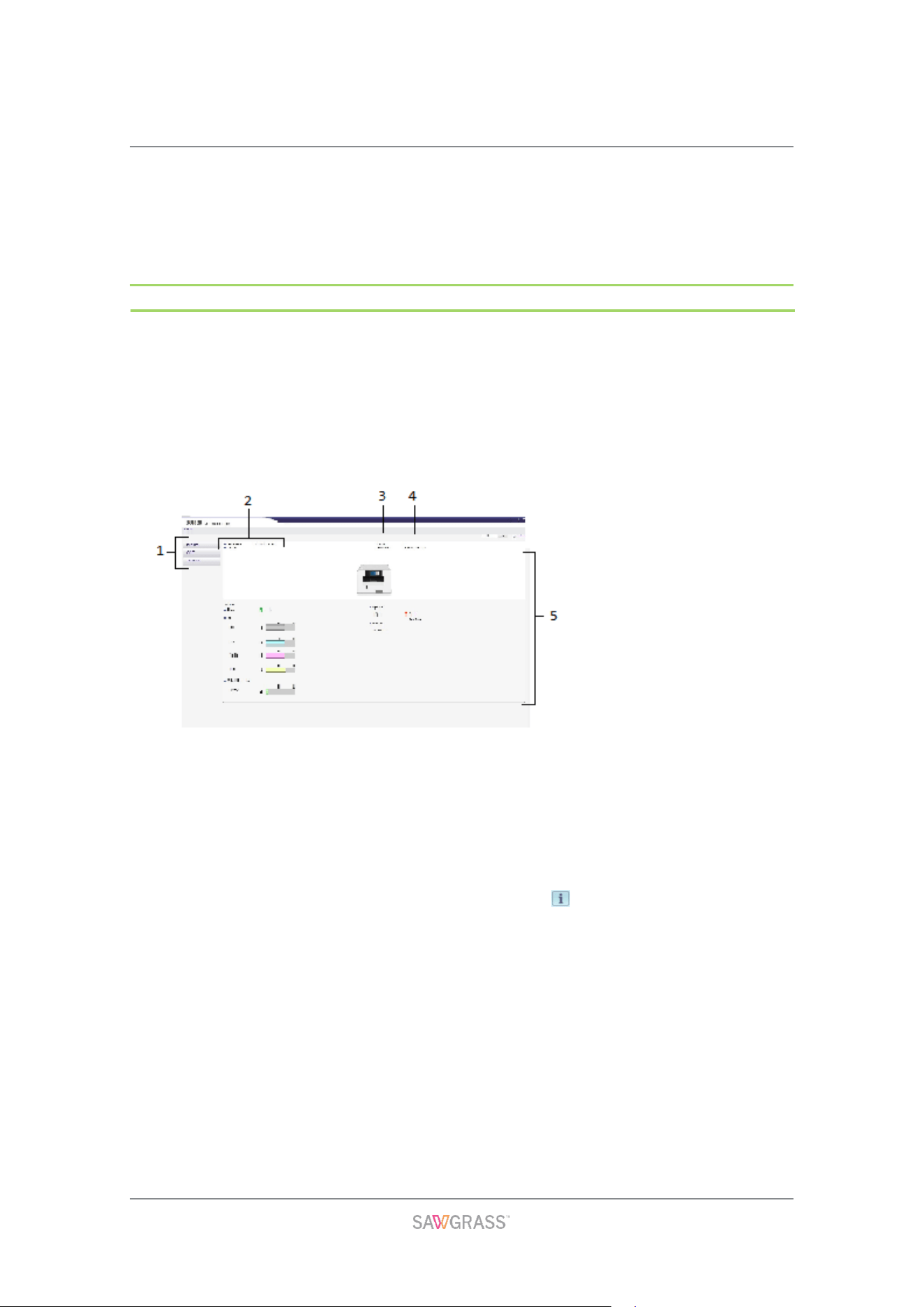
Monitoring and Configuring the Printer | 76
If you are using a proxy server, change the Web browser settings. Contact your
network administrator for information about the settings.
The previous page may not appear even after the back button of a Web browser is
clicked. If this happens, click the refresh button of a Web browser.
Displaying Top Page
This section explains the Top Page and how to display Web Image Monitor.
1. Launch the Web browser.
2. In the address bar, enter "http://(printer's IP address or host name)/".
When setting SSL, a protocol for encrypted communication, under environment which
server authentication is issued, enter "https://(printer's IP address or host name)/".
The displayed Web Image Monitor page is split into the following areas:
1. Menu A
rea
A menu to access Home, Settings and Maintenance.
2. Language choice
If the displayed page is garbled when using an English language operating system,
select "English" with the language selection menu Language Selection Menu
3. Header area
Check the version of the printer's firmware by clicking . Sawgrass may periodically
provide updates to the printer’s firmware. Change the printer settings by clicking
[Administrator Login] to access the printer as an administrator.
4. Auto Update Interval
Specify the update interval for information on the [Status] tab.
Information for other menus and tabs are not automatically updated, so click [Refresh]
to update.
Default: [10 seconds]
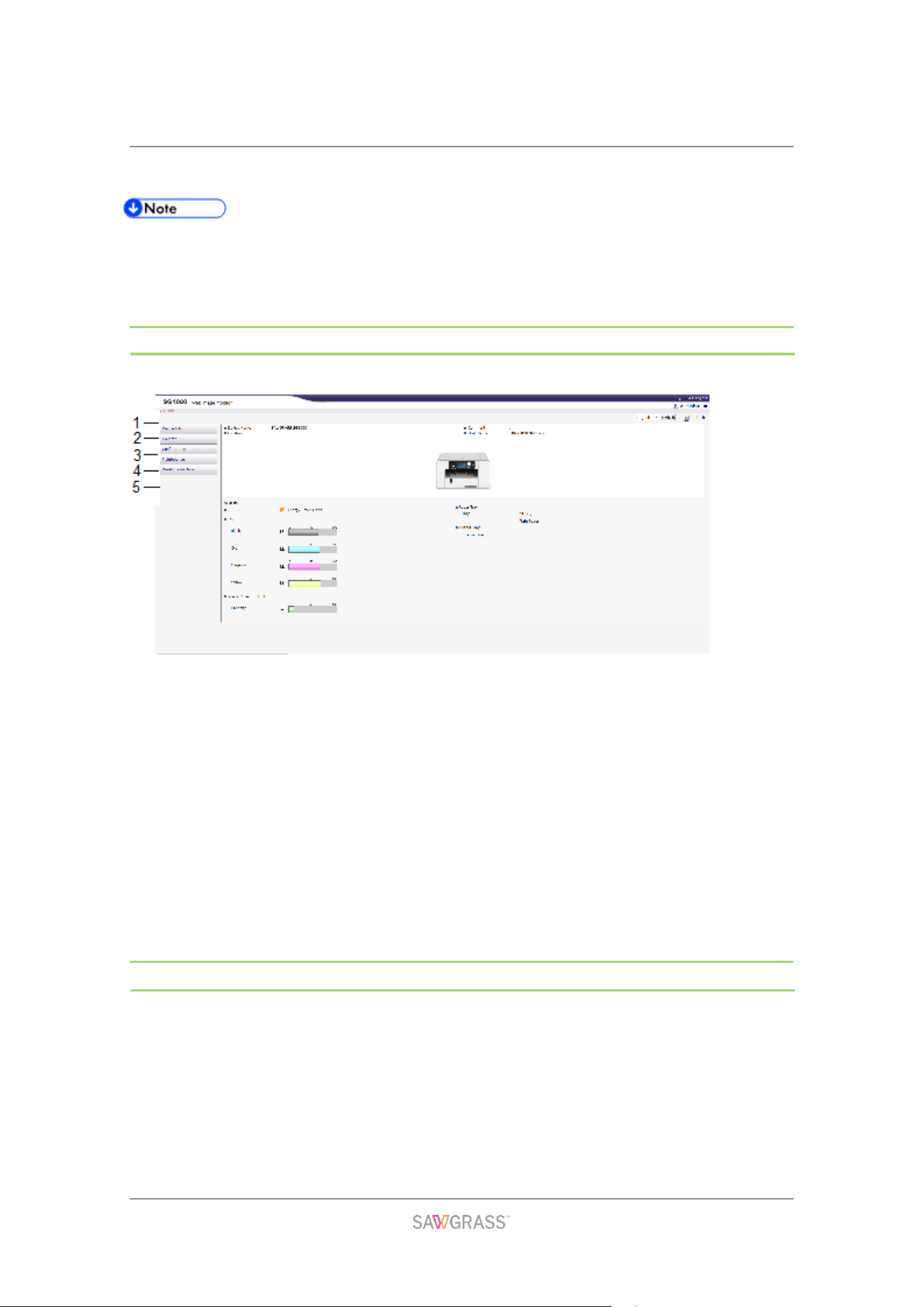
Monitoring and Configuring the Printer | 77
5. Ma
in Area
Di
splays the contents of the item selected in the menu area.
To display Web Image Monitor, click [Web Image Monitor...] on the
[Configuration/About] tab in the [Printing Preferences] dialog box.
Menu
This section explains the items in the Web browser menu.
1. Device info
The [System], [Version], and [emulation] will be displayed.
2. Counter
Display the print count
3. Configuration
Make system settings for the printer, interface settings, and security.
4. Maintenance
Click to perform printer maintenance. Will only be displayed in the administrator mode.
5. Reset the Machine
Click to reset the system of the printer. Will only be displayed in the administrator mode.
Logging in Using Web Image Monitor
To change the printer settings, log in to the printer as the administrator.
1. Launch the Web browser.
2. In the address bar, enter "http://(printer's IP address or host name)/".
3. Click [Administrator Login].

Maintenance | 78
A dialog box for entering the username and password opens.
4. Enter the username and password, then click [OK].
If this is the first time to do this, enter "admin" as the username and leave the
password blank.
To ensure security, it is important you change the password.
5. In the menu area, click [Configuration].
6. Specify the printer settings.
7. Click [OK].
The specified settings are transmitted to the printer.
Changing the Printer Settings
You can specify the following settings on each page of Web Image Monitor.
[Device Settings] area
[System] page
You can specify [Device Name], [Comment], [Location], and [Recycle Paper
Mode].
[Date/Time] page
You can specify [Set Date], [Set Time] and [Time Zone]
[ROM Update] page
You can check the printer’s firmware version. Sawgrass may periodically provide
updates to the printer’s firmware.
[Administrator Tools] area
[Administrator Authentication] page
You can specify [New Password] and [Confirm New Password].
[Restore Factory Defaults] page
You can restore the default settings for the network interface.
[Interface] area
[Interface Settings] page
[Ethernet]
You can specify [Ethernet Speed].
[Wireless LAN Settings] page
You can set the network interface.
• [Wireless LAN Settings]
[Communication mode], [SSID], [channel], you can set
[the security Method].
• [WEP Settings]
When the [Security Method] is WEP, you can set
the new WEP key (confirmation).

Maintenance | 79
• [WPA Settings]
When the [Security Method] is WPA2, you can set the new
WPA PSK.
• [Direct Connection Settings]
[Connection Mode], you can set the [SSID Setting],
[connection method], [connection password],
[Connection Timeout], [connection timeout time],
[Device Name], [SSID / connection password setting
method].
[Network] area
[IPv4] page
You can specify whether to enable or disable [IPv4].
[Ethernet]
You can specify [Host Name], [DHCP], [Notify Host Name to DHCP Server],
[Domain Name], [Use Domain Name], [IPv4 Address], [Subnet Mask], and
[AutoIP].
[Details]
You can specify [Default Gateway Address], [DNS Server1], [DNS Server2],
[DNS Protocol Priority], [LPR(515)], [DIPRINT(9100)], [IPP(80/631)]
and [LLTD].
[IPv6] page
You can specify whether to enable or disable [IPv6].
[Ethernet]
You can specify [Host Name], [Domain Name], [Link-Local Address], Stateless
Address] and [Manual Configuration Address].
[Details]
You can specify [Default Gateway Address], [DNS Server1], [DNS Server2],
[DNS Protocol Priority], [LPR], [DIPRINT], [IPP] and [LLTD].
[DHCPv6] page
You can specify [DHCPv6 Mode], [IAID], and [Request Timeout].
[DDNS] page
You can specify [IPv4], [IPv6], [A Record Registration for DHCP], [AAAA Record
Registration for DHCPv6], [Operation when records are duplicated], and [Interval
to Update Device's Record].
[SNMP] page
[Protocol]
You can specify whether to enable or disable IPv4 and IPv6 when using
[SNMP].
[SNMPv1,v2 Setting]

Maintenance | 80
You can specify [SNMPv1,v2 Function], [SNMPv1 Trap Communication], and
[SNMPv2 Trap Communication].
[Community]
You can configure up to four SNMP communities. You can set the [Access
Type], [Protocol], and whether to enable/disable [IPV4/IPV6]
In addition, you can run the [Extended Security]
[B
onjour] page
You can specify whether to enable or disable IPv4 and IPv6 when using [Bonjour].
[Details]
You can specify [Computer Name] and [Location].
[Print Order Priority]
You can specify [DIPRINT], [LPR], and [IPP].
[Security] area
[Network Security] page
[SSL/TLS Version]
You can specify [TLS1.2] [TLS1.1], [TLS1.0], and [SSL3.0].
[Encrypted Communication Settings]
You can specify [AES], [3DES], and [RC4].
[Access Control] page
[IPv4]
You can configure up to five access control ranges.
[IPv6]
You can configure up to five [Range] and [Mask] settings.
[IPP Authentication] page
You can configure up to ten [Authentication], [User Name], and [Password]
settings.
[SSL/TLS] page
You can specify [SSL/TLS] and [Permit SSL/TLS Communication].
[Site Certificate] page
You can Enable or Disable the Site certificate Check.
[Imported Site Certificate]
You can select [Delete] or [Update to Trustworthy Certificate] for an imported
site certificate.
[Device Certificate] page
You can select [Create], [Upload] and [Request] for up to three certificates.
[Certification]
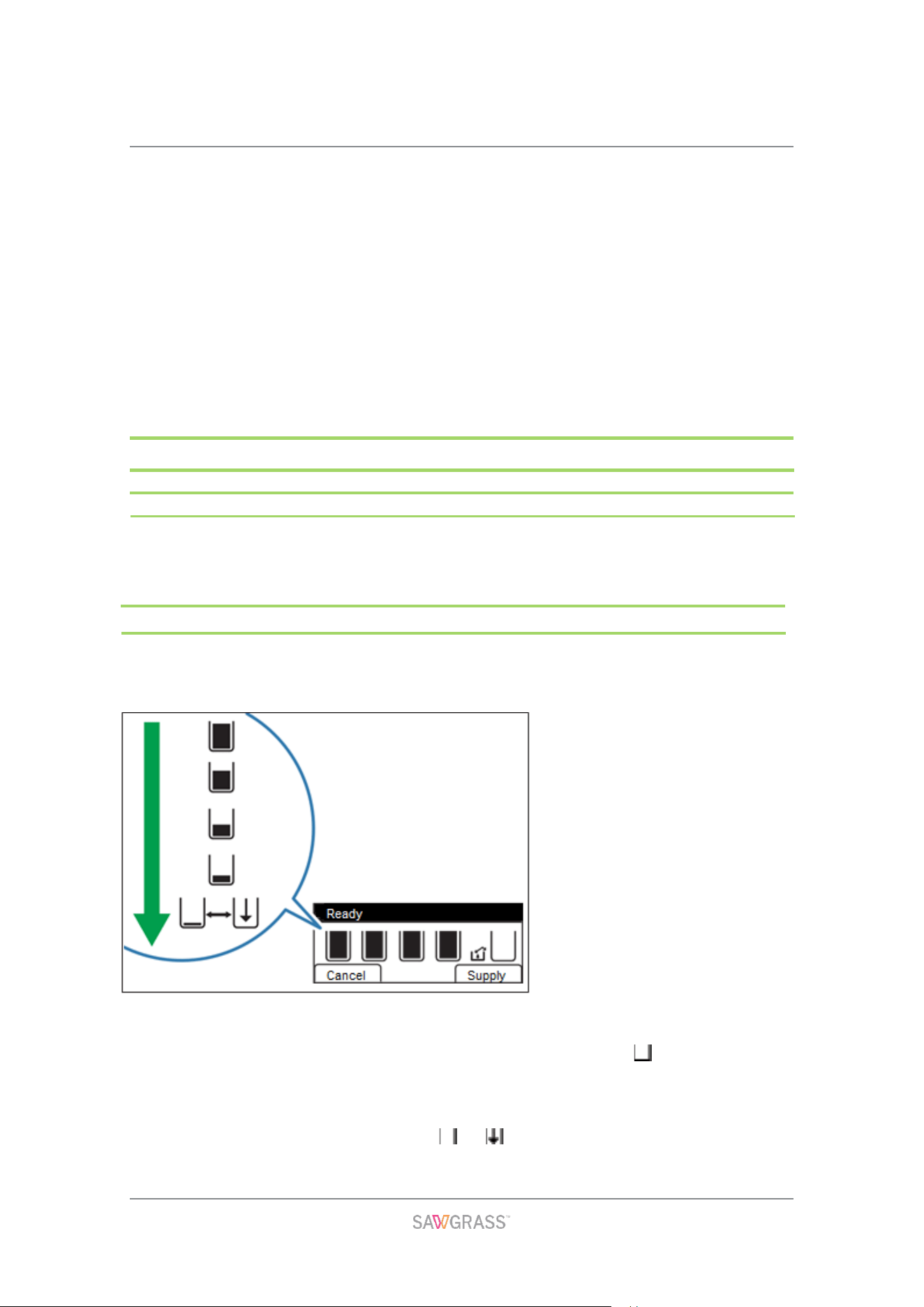
Maintenance | 81
Select the certificate to be used in [SSL/TLS] and [IPsec].
[IPsec] page
You can specify [IPsec].
You can configure up to ten parameters.
Maintenance
This chapter describes how to maintain the printer.
Ink Cartridges
Checking the Remaining Ink
Follow the procedure below to check when to replace ink cartridges using the Web Image
Monitor or the cartridge replacement indicators.
Checking the remaining ink level on the display
You can check the remaining ink level by looking at the icon that appears above the
cartridge replacement indicator.
K, C, M, and Y indicate black, cyan, magenta, and yellow, respectively.
If the ink will soon run out, the message "Low Ink" appears on the display.
Make sure you have a new ink cartridge for the color indicated by the icon.
If an ink cartridge runs out of ink, the message "Open Front Cover / Replace Ink Crtg"
appears on the display.
Replace the ink cartridge indicated by the or icon.
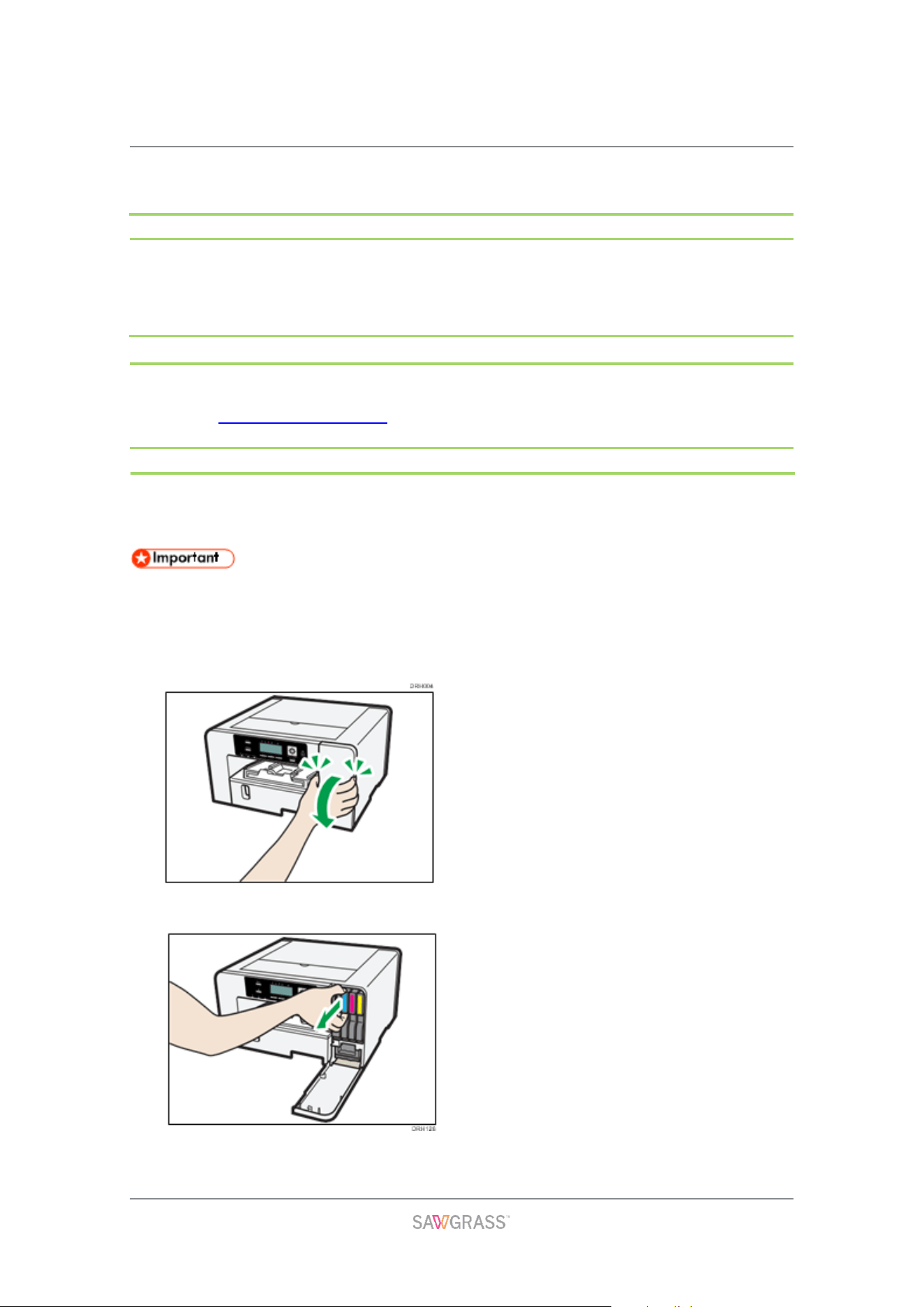
Maintenance | 82
Checking the remaining ink level on the Web Image Monitor
The Web Image Monitor can be used to check ink levels.
See section “Using Web Image Monitor” for more information.
Checking the remaining ink level via Sawgrass Print Manager
Sawgrass Print Manager can also be used to check ink
levels. See Care.sawgrassink.com for more information.
Replacing an Ink Cartridge
Clear any errors, such as when there is a paper jam or when no paper is loaded, before
replacing an ink cartridge.
When removing the ink cartridge, do not touch the inside of the printer.
Carefully install an ink cartridge in the correct position.
1. Take the ink cartridge out of the box.
2. Open the right front cover.
3. Take out the empty cartridge.
Whi
le taking out the cartridge, be sure to hold the printer firmly so that it does not
move.
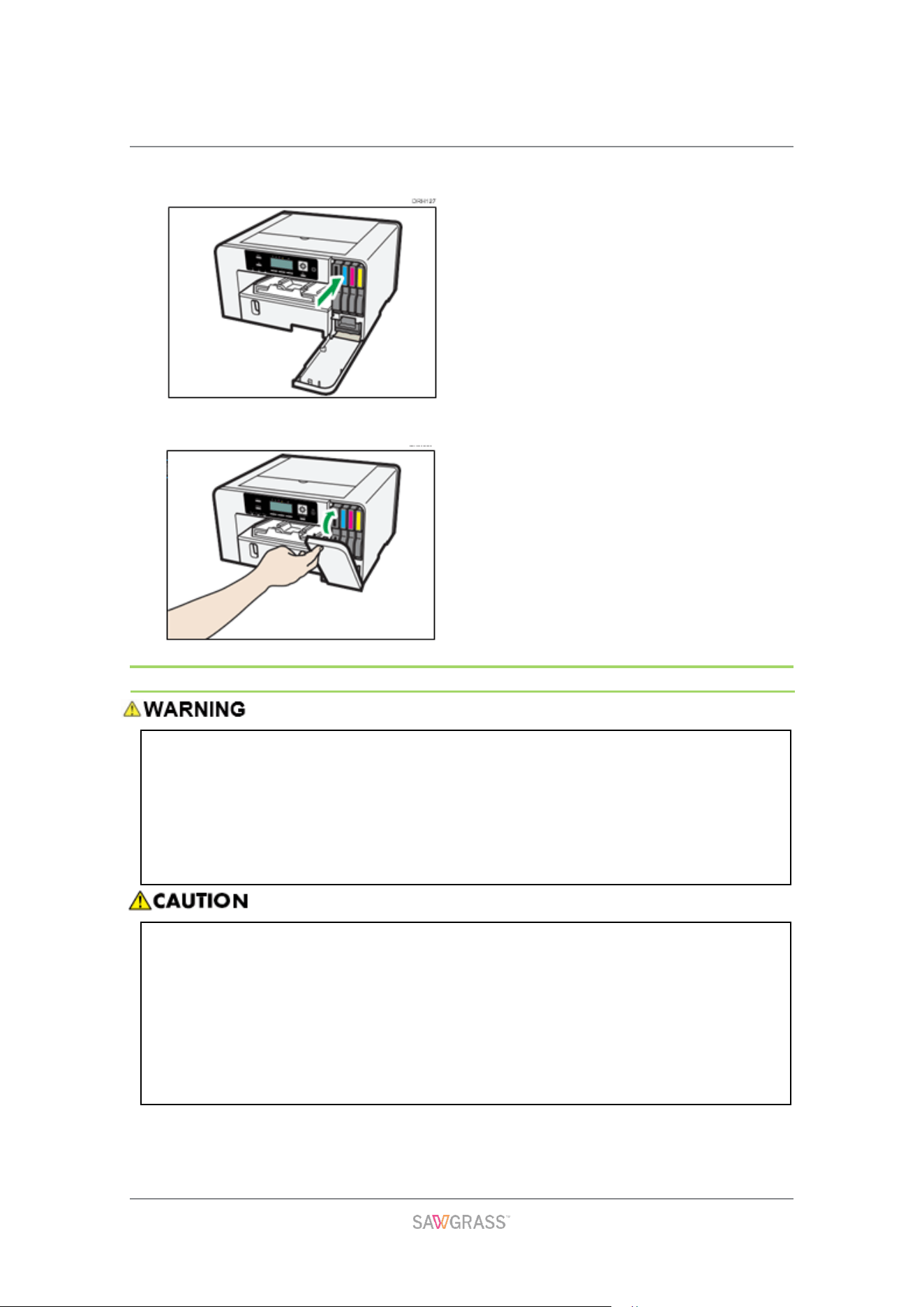
Maintenance | 83
4. Check the cartridge' orientation, then install it carefully.
5. Push the cartridge in fully.
6. Close the right front cover.
Handling Ink Cartridges
The following explains the warning messages on the plastic bag used in this
product's packaging.
Keep the polythene materials (bags, gloves, etc.) supplied with this printer
away from babies and small children at all times. Suffocation can result if
polythene materials are brought into contact with the mouth or nose.
Keep ink and ink containers out of reach of children.
If ink gets into contact with eyes, flush eyes with clean, lukewarm water (low
pressure) for at least 15 minutes, occasionally lifting eyelids to ensure that the
chemical is being flushed out of the eyes. Obtain medical attention.
If ink is ingested, wash out mouth with water provided person is conscious.
Consult a doctor immediately.

Maintenance | 84
About ink cartridges
Ink cartridges comply with the Sawgrass safety specifications. To ensure safety
and reliability, use genuine Sawgrass-UHD ink cartridges.
Do not reuse the Sawgrass ink cartridges.
Using ink cartridges
Ink cartridges should be used up before their “Recommended Use by Date”, ideally
within six months of being removed from their packaging.
Do not open the package of an ink cartridge until the cartridge will be installed in
the printer.
Do not touch the cartridge’s ink inlets or chip contacts.
Do not shake ink cartridges strongly. Ink may leak out.
Do not take apart ink cartridges.
Do not turn off the power or unplug the power cord during the process of installing
the cartridges.
Always confirm the color of an ink cartridge before installing it.
Do not remove an ink cartridge while printing is being performed. Printing will stop.
Storing ink cartridges
Store ink cartridges at a temperature between 15°C and 25°C (59°F to 77°F),
relative humidity above 35% without condensation.
Ink consumption
To protect the print head and ensure print quality, the printer performs periodic
maintenance and print head cleaning when it is turned on. Both operations
consume ink.
When removing jammed paper or replacing ink, avoid getting ink on your clothing.
If ink comes into contact with your clothing, refer to the ink cartridge labeling for
recommended procedures.
When removing jammed paper or replacing ink, avoid getting ink on your skin. If
ink comes into contact with your skin, wash the affected area thoroughly with soap
and water. If irritation develops, seek medical attention.
When removing the ink cartridge, avoid putting your hand near the place where
the ink cartridge is installed. If ink comes in contact with your hands, wash them
thoroughly with soap and water. If irritation develops, seek medical attention.
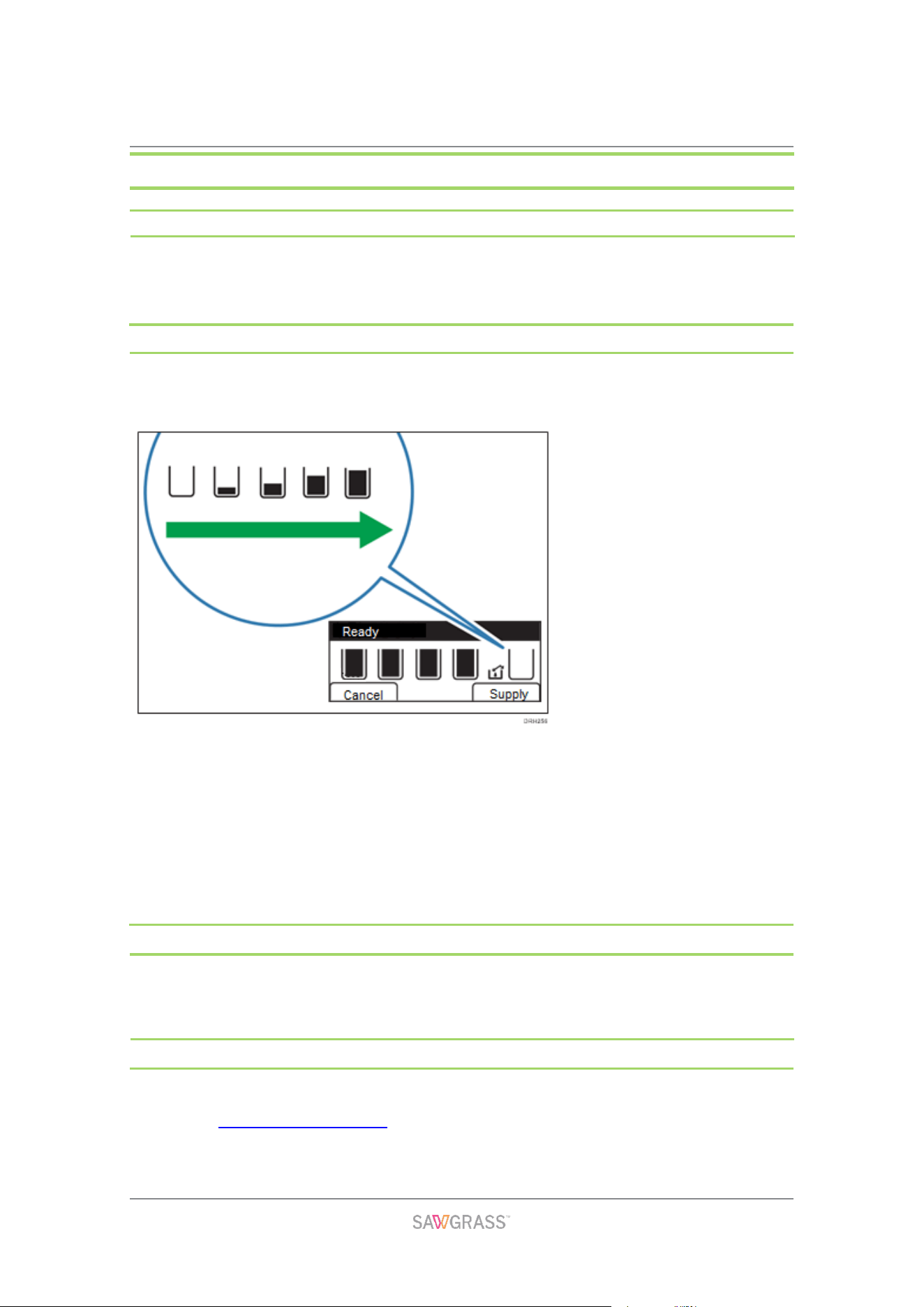
Maintenance | 85
Waste Collection Unit
Checking the Waste Ink Level
Follow the procedure below to check when to replace a waste collection unit using the Web
Image Monitor or the waste ink full indicator.
Checking the waste ink level on the display
You can check the waste ink level by looking at the icon that appears above the waste ink
full indicator.
If the waste collection unit is almost full, the message "Prepare new Waste Collection Unit"
appears on the display.
Make sure you have a new waste collection unit on hand.
If the waste collection unit is full, the message "Waste Collection Unit is full / Replace
Waste Collection Unit" appears on the display.
Replace the waste collection unit.
Checking the waste ink level on the Web Image Monitor
The Web Image Monitor can be used to check ink levels.
See section “Using Web Image Monitor” for more information.
Checking the waste ink level via Sawgrass Print Manager
Sawgrass Print Manager can also be used to check ink
levels. See Care.sawgrassink.com for more information.
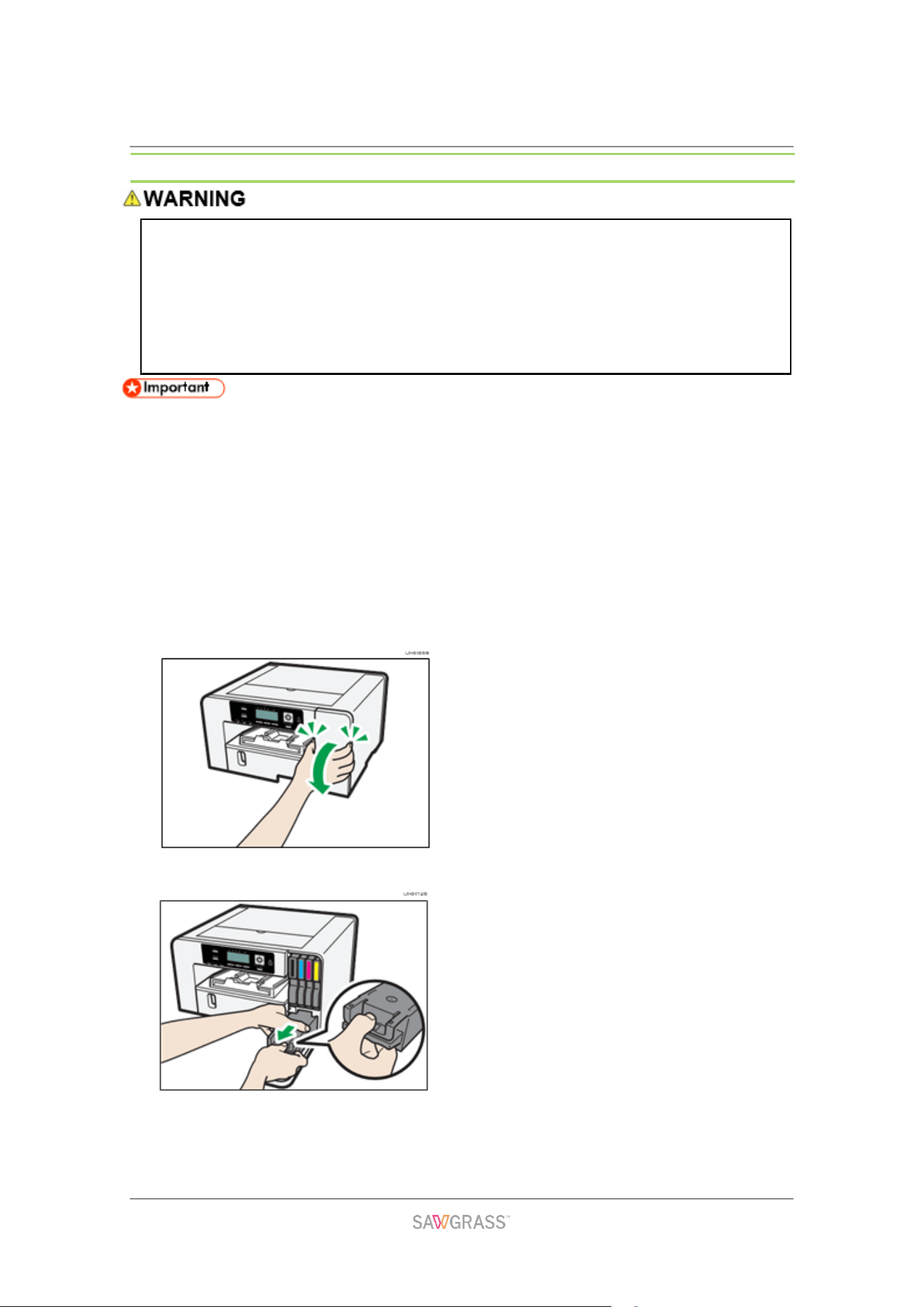
Maintenance | 86
Replacing a Waste Collection Unit
Do not use a waste collection unit that has not been used for a long time.
Do not touch the waste collection unit's chip contacts.
Take care not to drop the waste collection unit.
Take care not to drop the waste collection unit when putting it in the supplied
plastic bag. The bag might tear, causing ink to spill.
Make sure the waste collection unit is fully inserted. If it is not, an error may occur
or ink will leak inside the printer.
1. Take the waste collection unit out of the box.
2. Open the right front cover.
3. Wait at least five seconds, then remove the waste collection unit from the printer.
Press on the area marked "PUSH" to pull the unit out. Keep the unit level.
The following explains the warning messages on the plastic bag used in this
product's packaging.
Keep the polythene materials (bags, gloves, etc.) supplied with this printer
away from babies and small children at all times. Suffocation can result if
polythene materials are brought into contact with the mouth or nose.
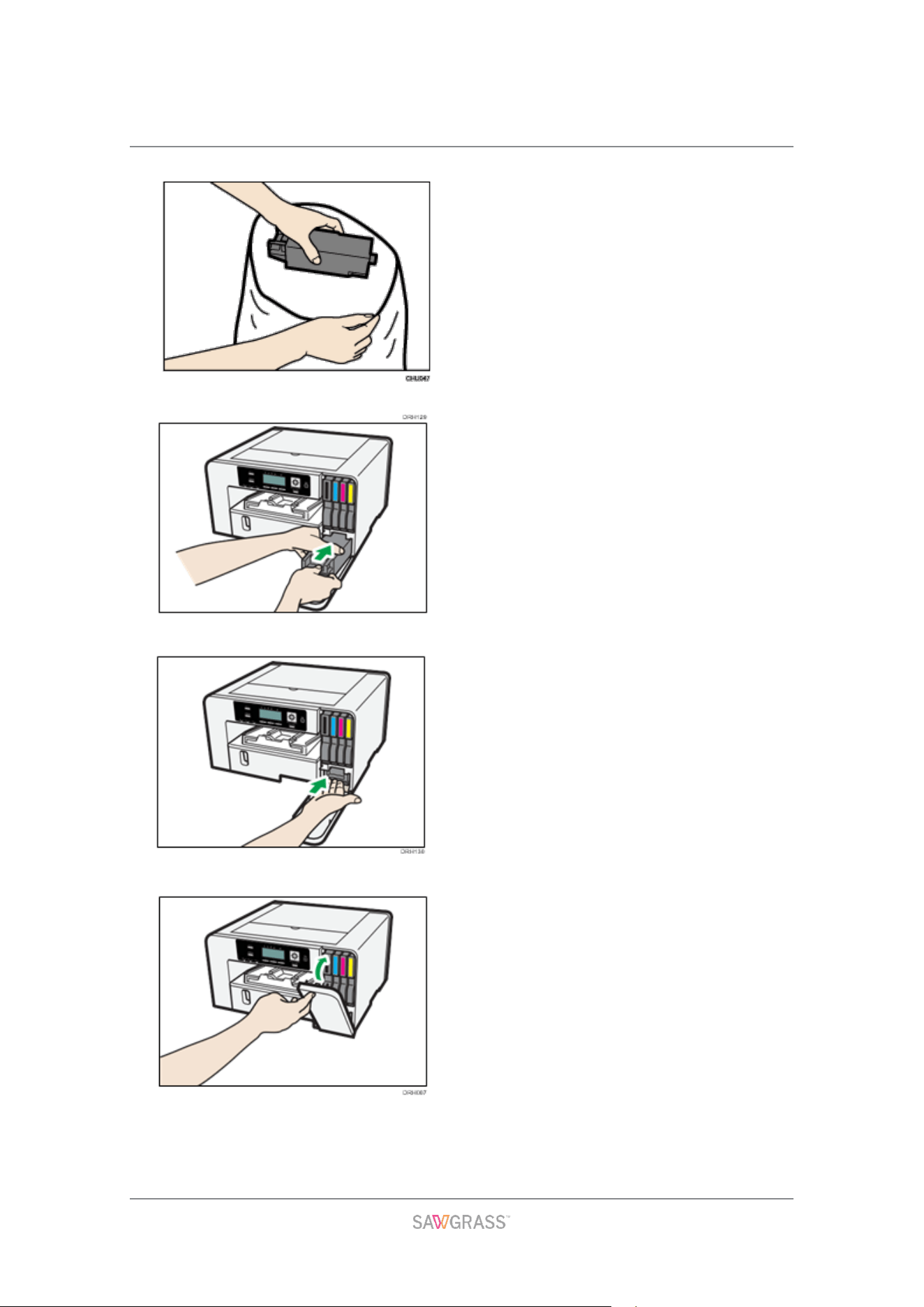
Maintenance | 87
4. Put the waste collection unit in the supplied plastic bag.
5. Insert the new waste collection unit.
6. Slide the waste collection unit carefully into the printer until you hear it click.
7. Close the right front cover.
Maintenance | 88
Cleaning
Clean the outside of the printer regularly to maintain the condition of the printer.
To clean the exterior of the printer, wipe it with a soft, dry or damp cloth. If the dirt does not
come off, wipe the printer first with a cloth moistened with a neutral detergent, then with a
damp cloth, and finally with a dry cloth.
Do not use volatile chemicals like benzene or thinner, or insecticides on the printer.
Using these chemicals could deform, crack, or change the color of the printer.
When wiping the printer with a cloth moistened with detergent, be sure to wipe only
the exterior.
Cleaning the Power Cable Plug
This section describes precautions for cleaning the power cable plug.
Do not remove any covers or screws other than those explicitly mentioned in this
manual. Inside this printer are high voltage components that are an electric shock
hazard. Contact Sawgrass if any of the printer's internal components require
maintenance, adjustment, or repair.
Do not attempt to disassemble or modify this printer. Doing so risks burns and
electric shock.
When performing maintenance on the printer, always disconnect the power cord
from the wall outlet.
Be sure to disconnect the plug from the wall outlet at least once a year and check
for the following:
There are burn marks on the plug.
The prongs on the plug are deformed.
If any of the above conditions exist, do not use the plug and consult Sawgrass.
Use of the plug could result in fire or electric shock.
Maintenance | 89
Moving
The precautions when moving the printer a short distance or long distance are explained.
Moving a Short Distance
Take the following precautions when moving the printer a short distance - for instance,
when attaching an optional paper tray or relocating the printer inside the same room.
Be sure to disconnect the power cord from the wall outlet at least once a year and
check for the following:
The power cord's inner wires are exposed, broken, etc.
The power cord's coating has a crack or dent.
When bending the power cord, the power turns off and on.
Part of the power cord becomes hot.
The power cord is damaged.
If any of the above conditions exist, do not use the power cord and consult
Sawgrass. Use of the power cord could result in fire or electric shock.
Be sure to disconnect the plug from the wall outlet and clean the prongs and the
area around the prongs at least once a year. Allowing dust to build up on the plug
constitutes a fire hazard.
SG1000NA and SG1000EU weigh around 15 kg (33 lb.).
Grip the center area at the base of the printer's sides. Lift it slowly and do not
strain your body.
When moving the printer, remove the option. Careless handling and over exertion
when lifting can result in breakage and/or injury.
Unplug the power cord from the wall outlet before you move the printer. While
moving the printer, take care that the power cord is not damaged under the
printer. Failing to take these precautions could result in fire or electric shock.
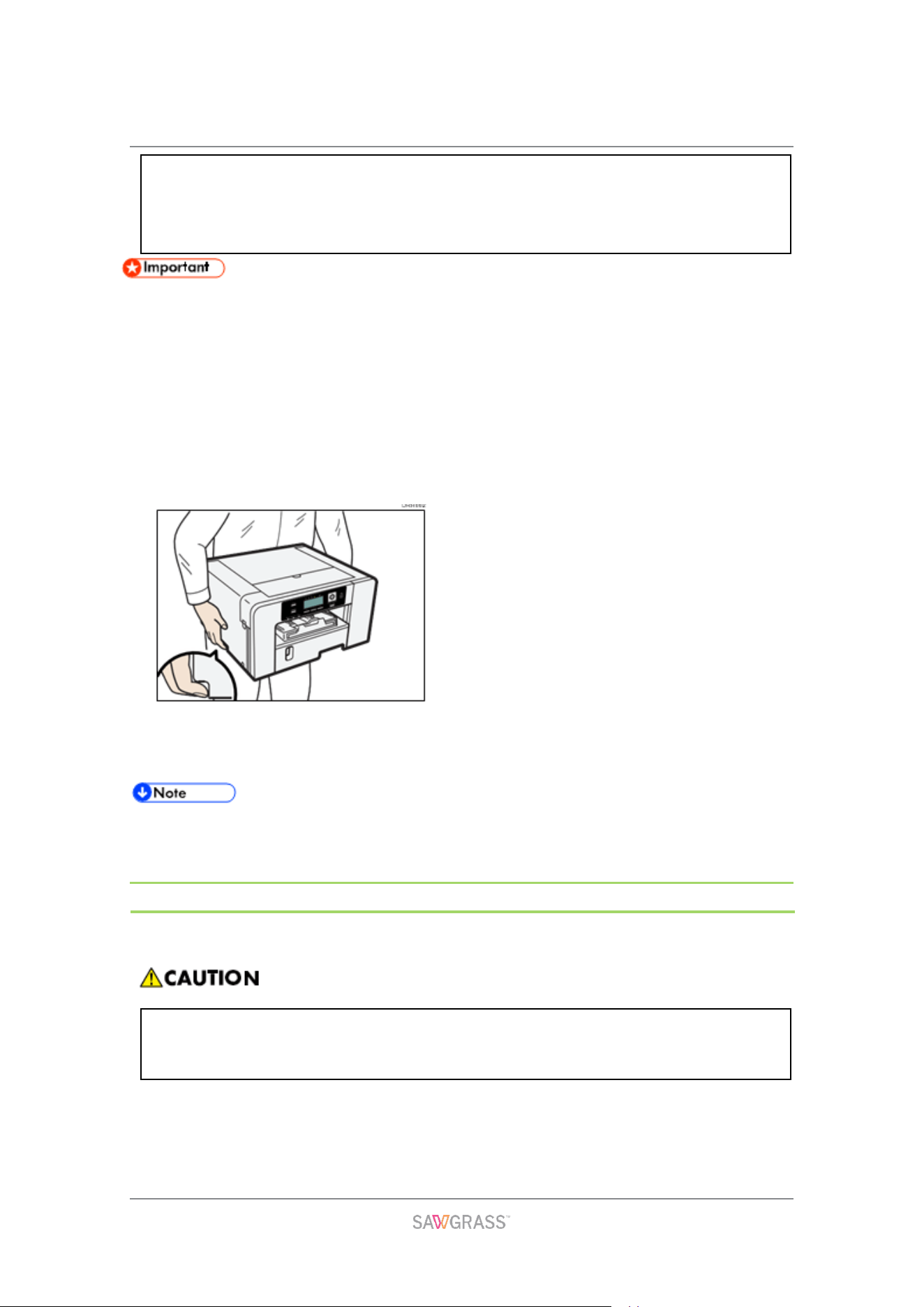
Maintenance | 90
Be sure to keep the printer level. If it is unduly tilted, ink will leak from the waste
collection unit.
1. Press and hold down the [Power] key until it turns off, then unplug the power
cord.
2. Disconnect the USB cable or Ethernet cable.
3. If options are installed, remove it.
See section “Attaching or Detaching Options” for more information.
4. Lift the printer and move it to the place where you want to install it.
Grip the indented area at the base of the printer's sides, as shown. Lift and carry the
printer slowly and carefully.
When you move the printer, unplug the power cord from the printer, too.
Make sure the power cord is not trapped under the printer.
Moving a Long Distance
To transport the printer, put it in the box it came in. Do the same for any options.
When disconnecting the power cord from the wall outlet, always pull the plug, not
the cord. Pulling the cord can damage the power cord. Use of damaged power
cords could result in fire or electric shock.
Transporting the printer without ink cartridges or a waste collection unit installed
will result in ink leaking out and damaging the printer.
Maintenance | 91
Do not remove the ink cartridges.
Do not remove the Waste Collection Unit.
Remove the paper.
When you move the printer, also unplug the power cord from the printer.
The inside of the printer may become dirty if the printer is not level when
transported.
Disposing
When disposing of the printer, be sure to comply with local disposal regulations.
When Not Using for a Long Period of Time
When not in use, be careful of the following:
Even with automatic maintenance utilities, the nozzles of the print heads may dry out
and become clogged. To prevent this, periodically print something.
If you choose to ignore Sawgrass’ recommendations and power the printer off during
periods of inactivity, at least turn the printer on for a few minutes once every 20-25
days, even if you don’t print anything.
If you want to print something after the printer has not been used for a period of time,
always check for missing nozzles by printing a nozzle check test pattern. See section
"Nozzle Check" for more information.
If necessary, clean the print heads up to five (5) times prior to printing. See section
"Head-cleaning" for more information.
If (5) head cleans do not clear missing nozzles, perform one (1) head flush. See
section "Head-flushing" for more information.
Sawgrass recommends that the printer be used often to ensure the print head
nozzles do not become clogged.
Sawgrass also recommends keeping the printer powered on at all times. This will
allow the printer to run automatic maintenance utilities for optimal performance.
The printer consumes a considerable of ink for maintenance and print head
cleaning when used after a long period of inactivity.
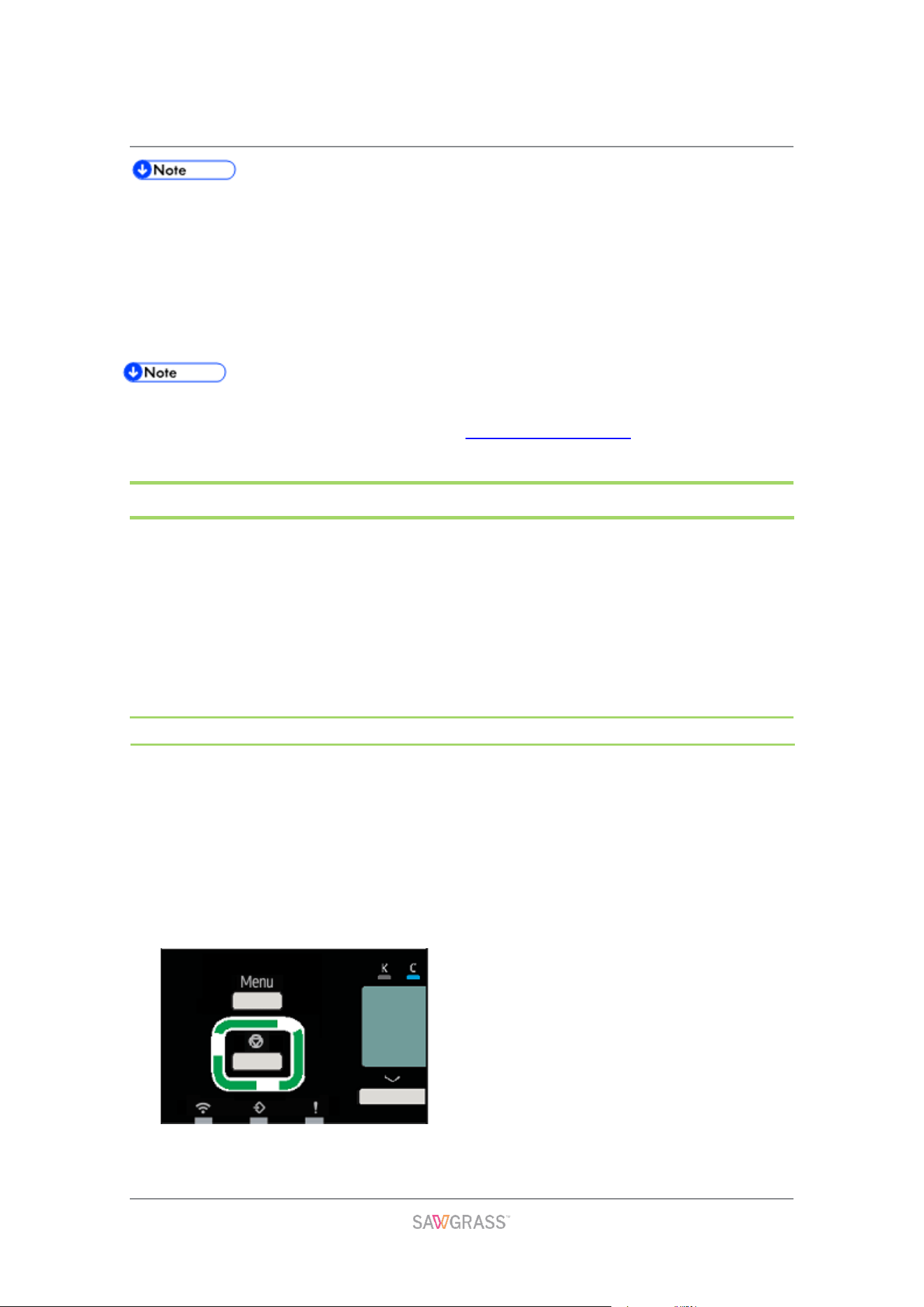
Troubleshooting | 92
If there is no improvement after performing the steps above, contact Sawgrass.
Troubleshooting
This chapter describes common troubleshooting procedures that are applicable to functions
of the printer and what to do when paper misfeeds (become jammed inside the printer).
More troubleshooting information, particularly related to the printer and color
management software, is located on Care.sawgrassink.com.
Canceling Printing
Print jobs can be canceled from either a printer or computer. How to cancel print jobs differs
according to their job status. Check the job status first.
Canceling a print job already sent to the printer
Cancel the print job by pressing the [Job Reset] key.
Canceling a print job that is not sent to the printer
Cancel the print job from the taskbar of the computer.
Canceling Printing Using the [Job Reset] Key
Follow the procedure below to cancel a print job that was already sent to the printer.
The [Job Reset] key cancels all print jobs being printed or that were received. If you do not
want to cancel another print job that was sent later, it's possible to delete only the current
print job.
Cancel only the print job being printed
1. Check that printing has started.
2. Press the [Job Reset] key.
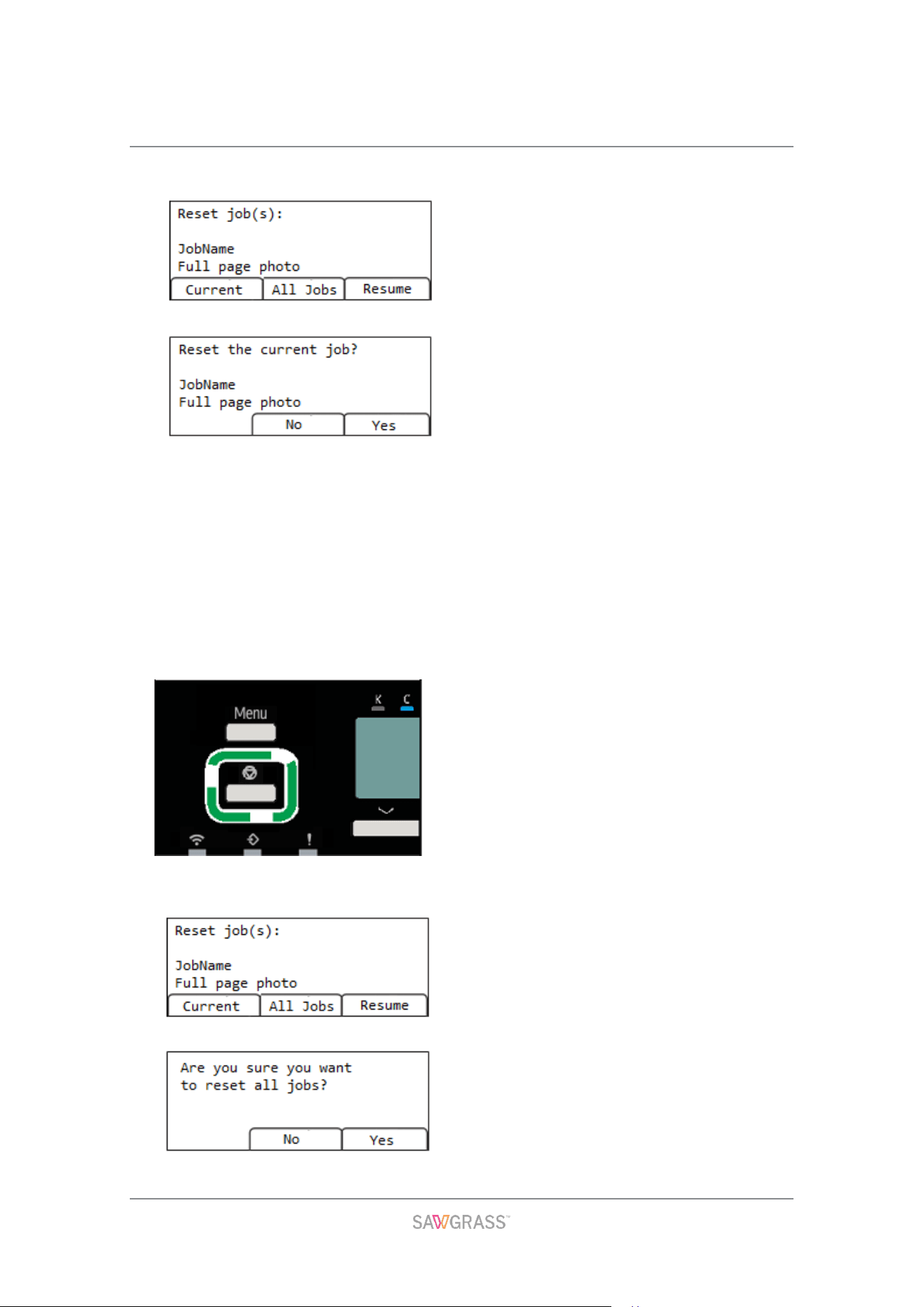
Troubleshooting | 93
3. Press the [Current] selection key.
4. Press the [Yes] selection key to confirm.
Only the print job being printed is deleted.
If there are other print jobs waiting, they will be printed after the current print job is
deleted.
It takes time to cancel the print job.
Canc
el all print jobs received
1. Check that printing has started.
2. Press the [Job Reset] key.
3. Pres
s the [All Jobs] selection key.
4. Press the [Yes] selection key to confirm.
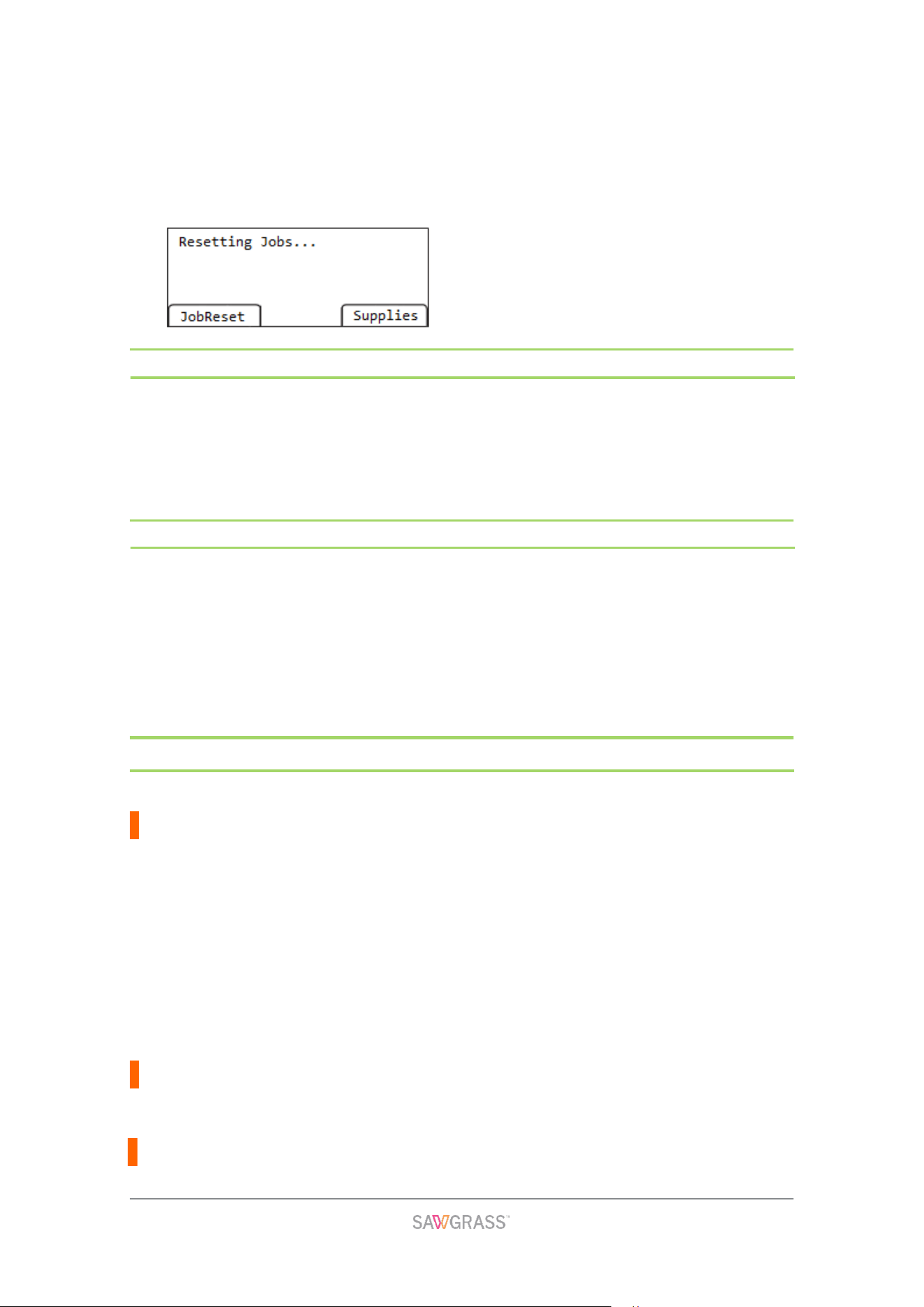
Troubleshooting | 94
The confirmation screen appears.
Canceling Printing from the Windows Taskbar
Follow the procedure below to cancel a print job in the printer queue.
1. Double-click the printer icon on the taskbar.
2. Select the print job you want to cancel in the printer queue that is displayed.
Click [Cancel] on the [Document] menu.
Canceling a Print Job from the Macintosh Print Job Queue Window
You can delete a print job before, during, and after its being sent from the computer to the
printer.
1. Check that the print job queue window opens.
2. In the print job queue window, select the print job you want to cancel.
3. Click [Delete Job] in the [Jobs] menu or [Delete] on the toolbar.
Printing Does Not Start
If printing fails, check the following:
Check the printer's power.
The [Power] key is not lit.
Turn the printer on.
See section "Turning On/Off the Power” for more information.
The power indicator does not light up or blink despite the [Power] key being pressed.
Check whether the power cord is plugged into the receptacle properly.
Plug another appliance that works into the receptacle to determine whether the
receptacle is all right.
If the problem persists, unplug the power cord and contact your Sawgrass.
Check the error message.
If the error message appears on the display
See section "Error & Status Messages on the Display" for more information.
Check the name associated with the printer's icon.
Check communication issue with Sawgrass Print
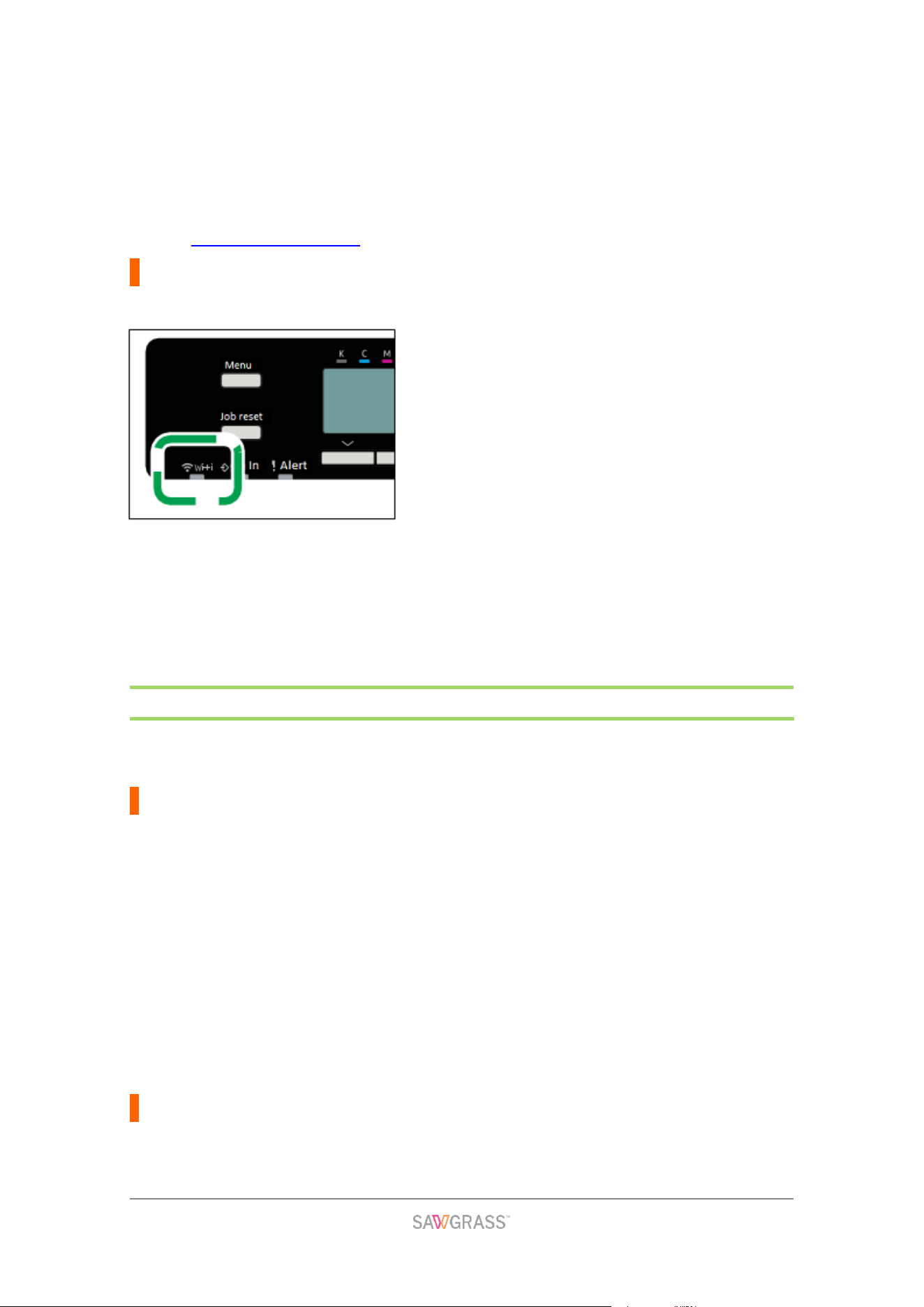
Troubleshooting | 95
Manager.
This may occur if the printer is powered on and/or connected prior to the appropriate
step during the installation of software.
Visit Care.sawgrassink.com or contact Sawgrass for more information.
Chec
k Status of the Wireless LAN
To conf
irm whether the Wireless LAN is connected, please check the status of the WIFI light.
If the WIF
I light is not lit, then the printer is not connected to the Wireless network.
You can check the configuration of the Wireless LAN in the Interface Menu > Wireless LAN.
Please also make sure that there are no obstructions between the printer and the wireless
router or PC.
Please move away any equipment that emits radio waves such as microwave ovens
Paper Is Not Fed or Delivered Normally
If the printer is operating but paper will not feed or paper jams multiple times, check the
condition of the printer and paper.
Paper does not feed smoothly.
Paper guides are not adjusted correctly.
The paper guides of the paper tray do not match the paper loaded. Adjust the paper
guides and load the paper again.
See section "Loading Paper" for more information.
Paper is not loaded correctly.
The paper is not loaded correctly. Load the paper correctly.
See section "Loading Paper" for more information.
Paper is curled.
Remove the loaded paper and check if it is curled. If it is, straighten the curl within 2
mm (0.08 inches).
Paper jams multiple times.
Paper is still jammed in the printer.
Pull the paper tray out, then open the output ramp to check for jammed paper.
Troubleshooting | 96
Multiple sheets of paper are fed at one time.
Load the paper again. Remove the paper from the paper tray, fan it well, and tap it on a
flat surface such as a desk to even the edges. Check the position of the paper guides
of the paper tray, then load the paper again.
A double-feed may occur when using the bypass tray to print on paper that has a rough
surface or that is friction prone.
If a double-feed occurs several times, use Trays 1, 2, or 3 to print.
See sections "Handling and Storage Precautions" and "Loading Paper" for more
information.
The paper does not feed even after a paper jam has been cleared.
When a paper jam occurs, clear the paper jam, then press the [Form Feed] selection
key. See page 101 "Using the [Form Feed] Key to Remove Jammed Paper" for
more information.
Paper Jam
This section explains how to remove a paper jam.
If a paper jam error message appears on the display Web Image Monitor, remove the
paper according to the message.
Before installing or removing options, always disconnect the power cord plug from
the wall outlet.
See sections listed below for more information:
"Using the [Form Feed] Key to Remove Jammed Paper".
"Continue to remove the jammed paper according to subsequent error messages
until the messages no longer appear. See section "" for more information.
When removing jammed paper or replacing ink, avoid getting ink on your clothing.
If ink comes into contact with your clothing, immediately rinse the stained area
with cold water and wash the garment with laundry detergent per the care
productions provided on the label.
When removing jammed paper or replacing ink, avoid getting ink on your skin. If
ink comes into contact with your skin, wash the affected area thoroughly with soap
and water. If irritation develops, seek medical attention.
When removing jammed paper, make sure not to trap or injure your fingers.
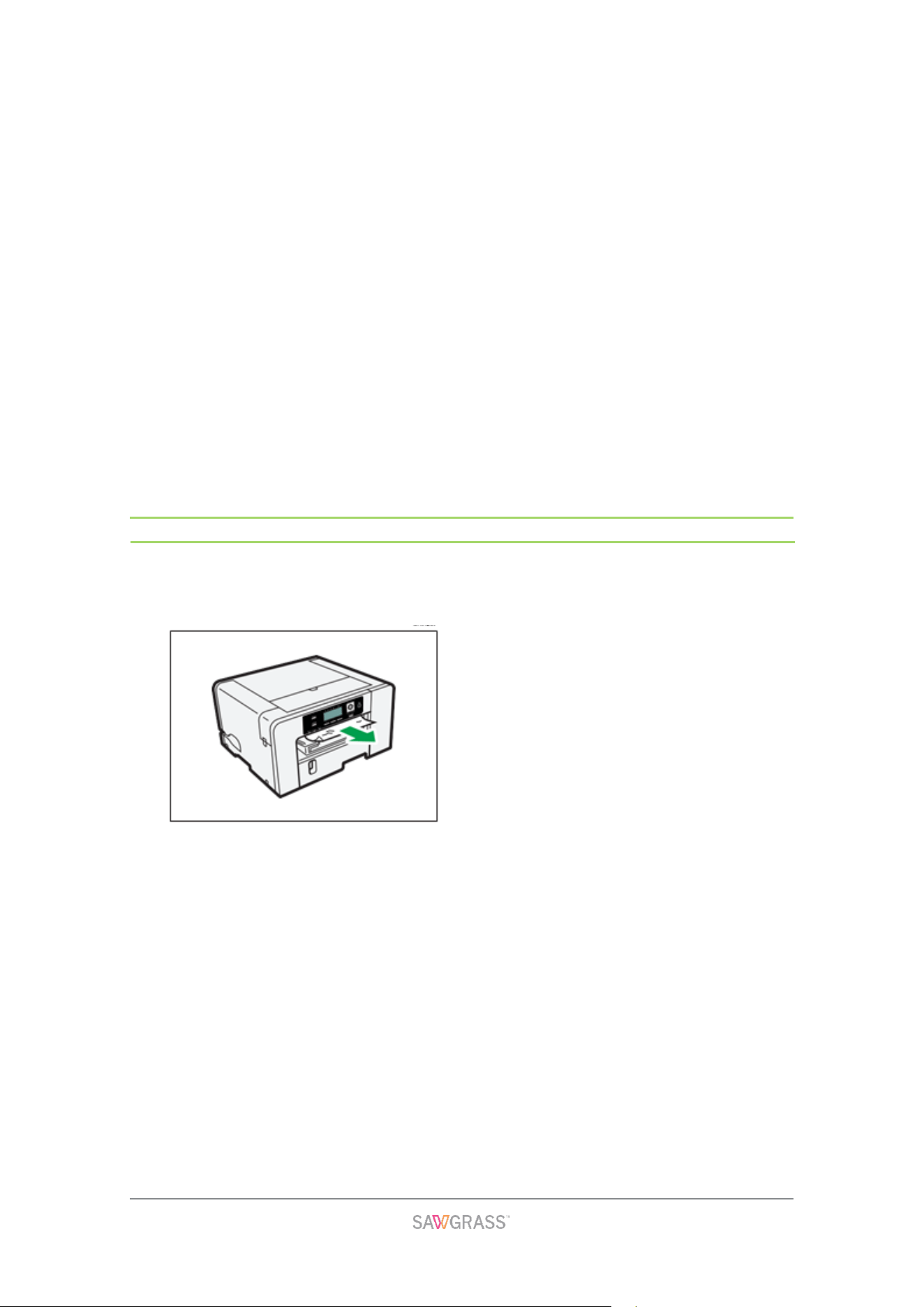
Troubleshooting | 97
If paper jams occur repeatedly, see section "Paper Is Not Fed or Delivered
Normally" for more information.
“Removing Paper Jammed in Tray 1".
If paper jams occur repeatedly, see section "Paper Is Not Fed or Delivered
Normally" for more information.
“Paper Jam in Tray 2/3".
If paper jams occur repeatedly, see section "Paper Is Not Fed or Delivered
Normally" for more information.
“Removing Paper Jammed in the Bypass Tray".
"Removing Paper Jammed under the Top Cover".
"Removing Paper Jammed in Tray 2/3".
"Opening the Rear Unit Cover to Remove Jammed Paper”
Using the [Form Feed] selection Key to Remove Jammed Paper
1. Press the [Form Feed] selection key.
2. Remove the jammed paper.
Printing starts.
Continue to remove the jammed paper according to subsequent error messages
until the messages no longer appear. See section “Paper Jam" for more
information.
If paper jams occur repeatedly, see section "Paper Is Not Fed or Delivered
Normally" for more information.
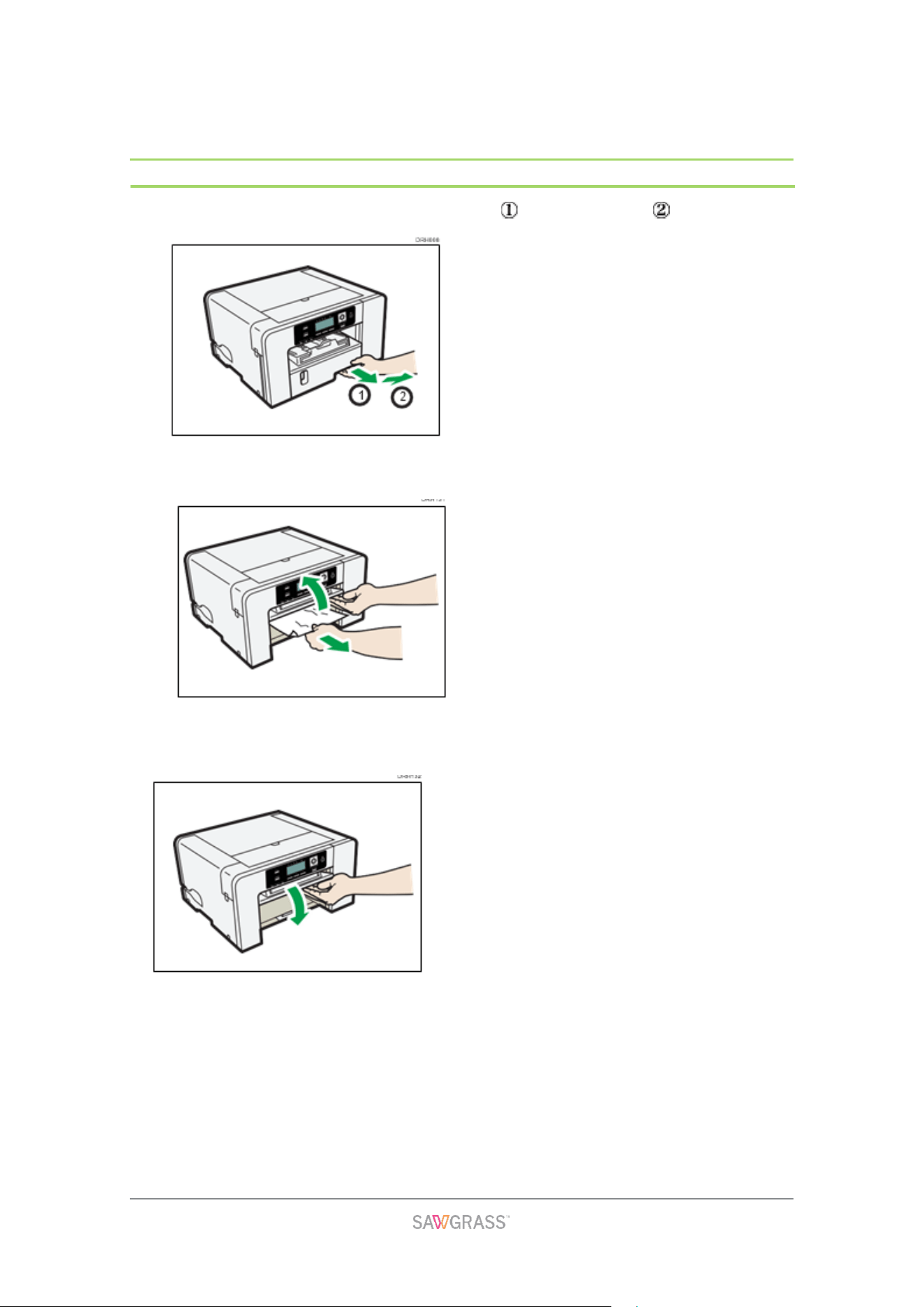
Troubleshooting | 98
Removing Paper Jammed in Tray 1
1. Hold the grip on Tray 1, lift the tray slightly ( ), then pull it out ( ).
Pul
l the tray completely out. Take care not to drop it.
2. Open the output ramp, then remove the jammed paper.
If you cannot remove the jammed paper or it is difficult to remove, the paper may be jammed
ins
ide the printer. Examine the paper carefully and remove.
3. Close the output ramp
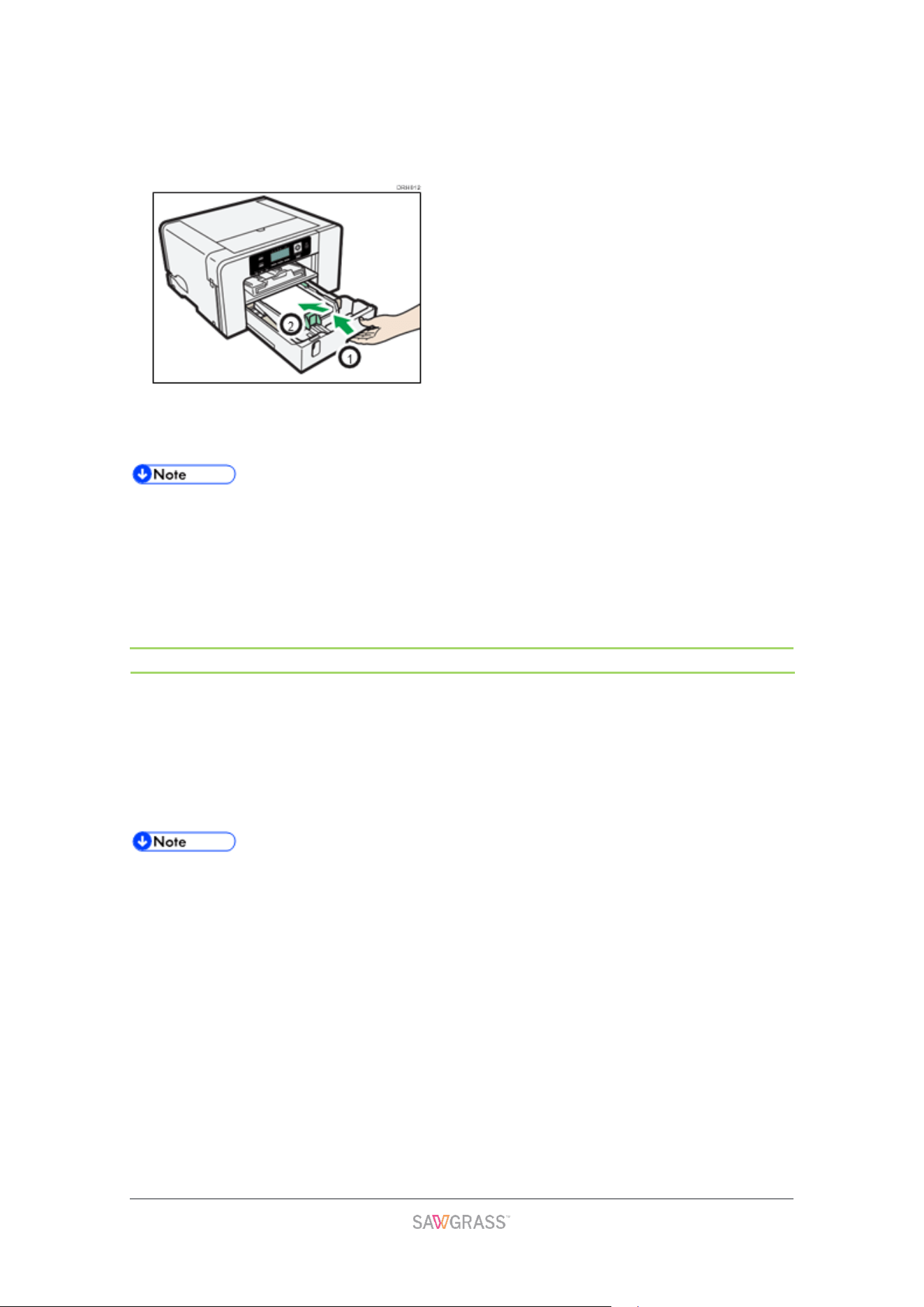
Troubleshooting | 99
4. Pus
h Tray 1 gently in until it stops.
Before pushing the paper tray in, make sure the output ramp is closed.
Printing starts. Blank paper may be delivered after printing resumes.
Continue to remove the jammed paper according to subsequent error messages
until the messages no longer appear. See section "" for more information.
Paper Jam" for more information.
If paper jams occur repeatedly, see section "Paper Is Not Fed or Delivered
Normally" for more information.
Paper Jam in Tray 2/3
1. Remove the paper jammed in Tray 2/3.
See section "Removing Paper Jammed in Tray 2/3" for more information.
2. Open the rear unit cover and remove the jammed paper.
See section "Opening the Rear Unit Cover to Remove Jammed Paper ( for more
information.
Continue to remove the jammed paper according to subsequent error messages
until the messages no longer appear. See section "" for more information.
Paper Jam" for more information.
If paper jams occur repeatedly, see section "Paper Is Not Fed or Delivered
Normally" for more information.
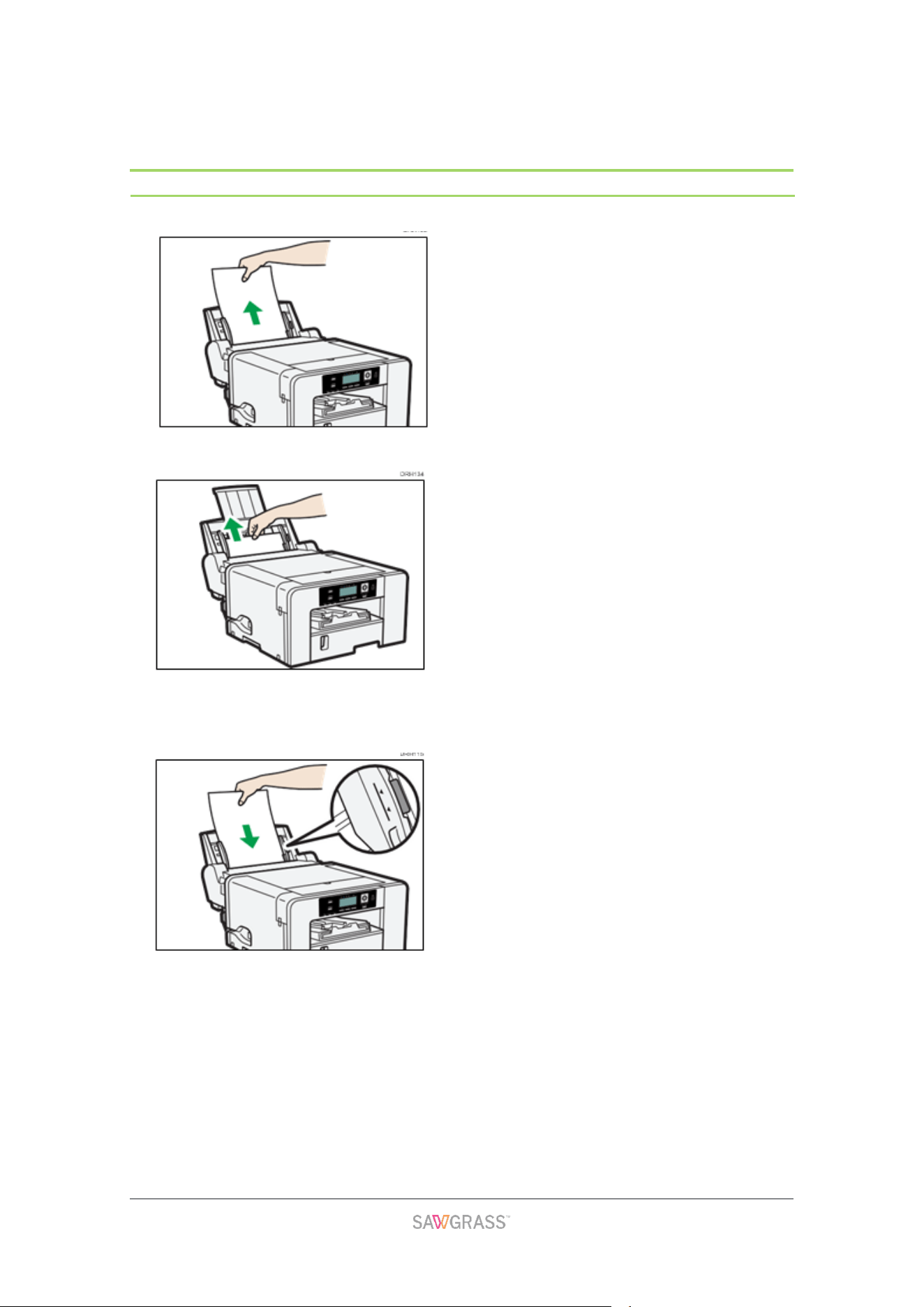
Troubleshooting | 100
Removing Paper Jammed in the Bypass Tray
1. Remove any paper in the bypass tray.
2. Remove the jammed paper.
3. Load paper in the bypass tray with the side to be printed on facing up and
without exceeding the sheet limit.
4. Press the [Form Feed] selection key.
Printing starts. Blank paper may be delivered after printing resumes.
If it is difficult to remove the jammed paper, detach the bypass tray so that the paper
can be removed.
Detach the bypass tray.
See section “Attaching and Detaching the Bypass Tray” for more information.
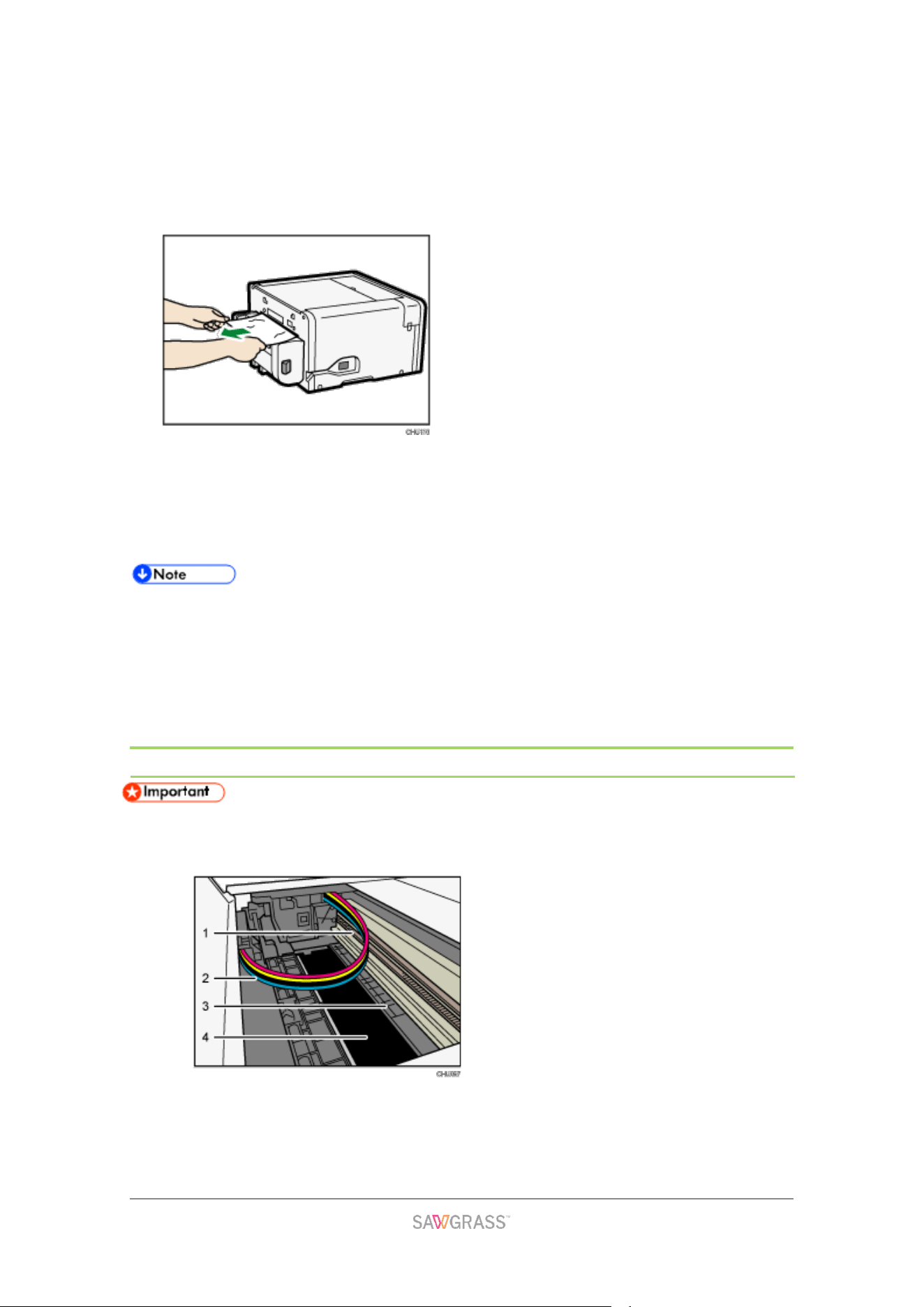
Troubleshooting | 101
1. Re
move the jammed paper from the rear of the printer.
Reattach the bypass tray.
See section “Attaching and Detaching the Bypass Tray” for more information.
2. Load paper in the bypass tray with the side to be printed on facing up and
without exceeding the sheet limit.
Continue to remove the jammed paper according to subsequent error messages
until the messages no longer appear. See section "" for more information.
Paper Jam" for more information.
If paper jams occur repeatedly, see section "Paper Is Not Fed or Delivered
Normally" for more information.
Removing Paper Jammed under the Top Cover
Do not touch the feed belt, ink tubes, paper pressing board, or toothed rubber belt.
Also, take care not to catch cables or ink tubes with your sleeves.
1. Toothed rubber belt
2. Ink tubes
3. Paper pressing board
4. Feed belt
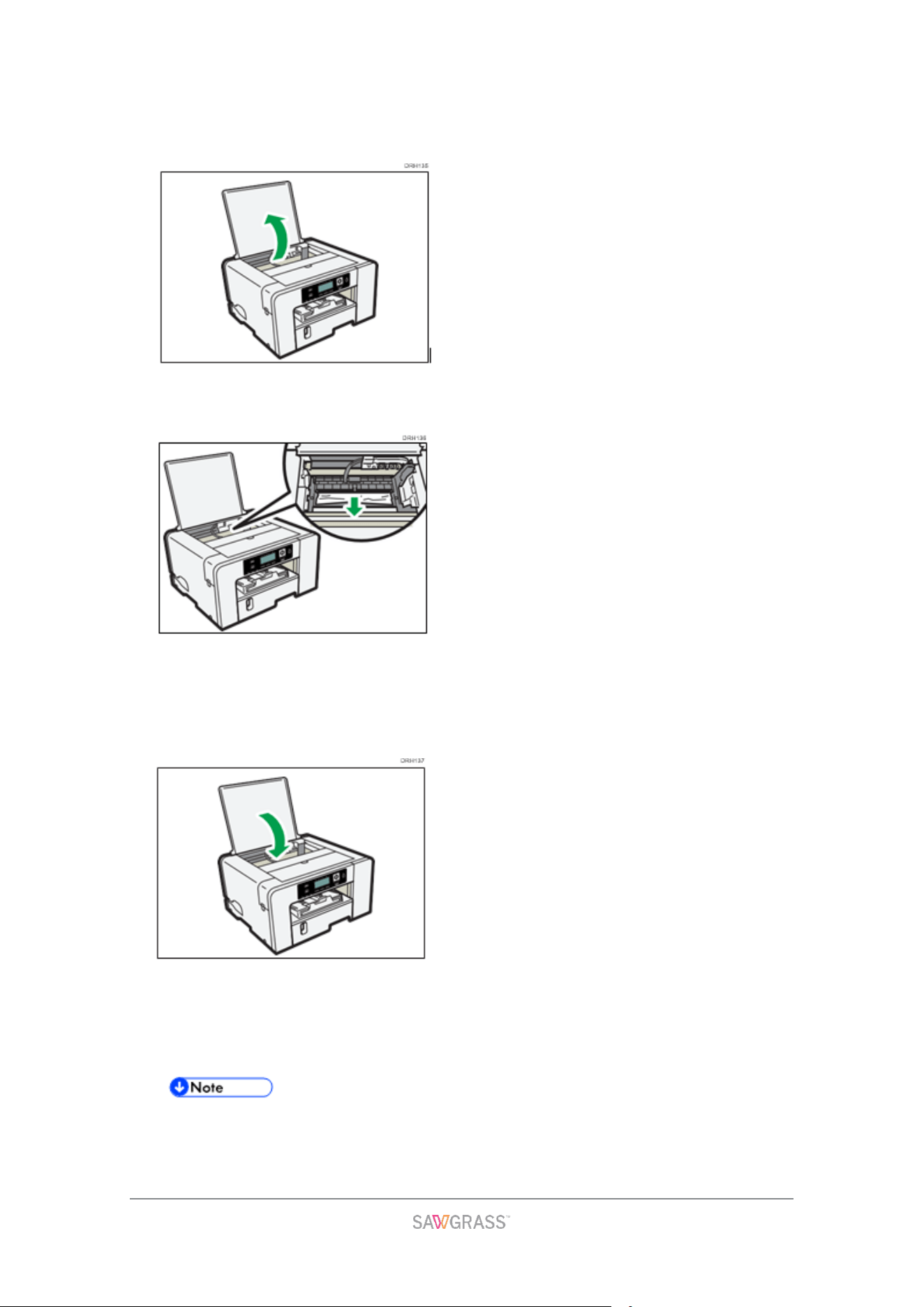
Troubleshooting | 102
1. Open the top cover.
2. Press the [Form Feed] selection key.
3. Remove the jammed paper through the top cover opening.
When removing the paper, slowly pull it obliquely upward. Pulling it forcibly or directly
upward may cause some parts to come off.
If the print head has stopped halfway, move it to either end.
4. Close the top cover.
Printing starts. Blank paper may be delivered after printing resumes.
5. Print the nozzle check test pattern to make sure the print head's nozzles are not
missing.
See section "Nozzle Check" for more information.
Continue to remove the jammed paper according to subsequent error messages
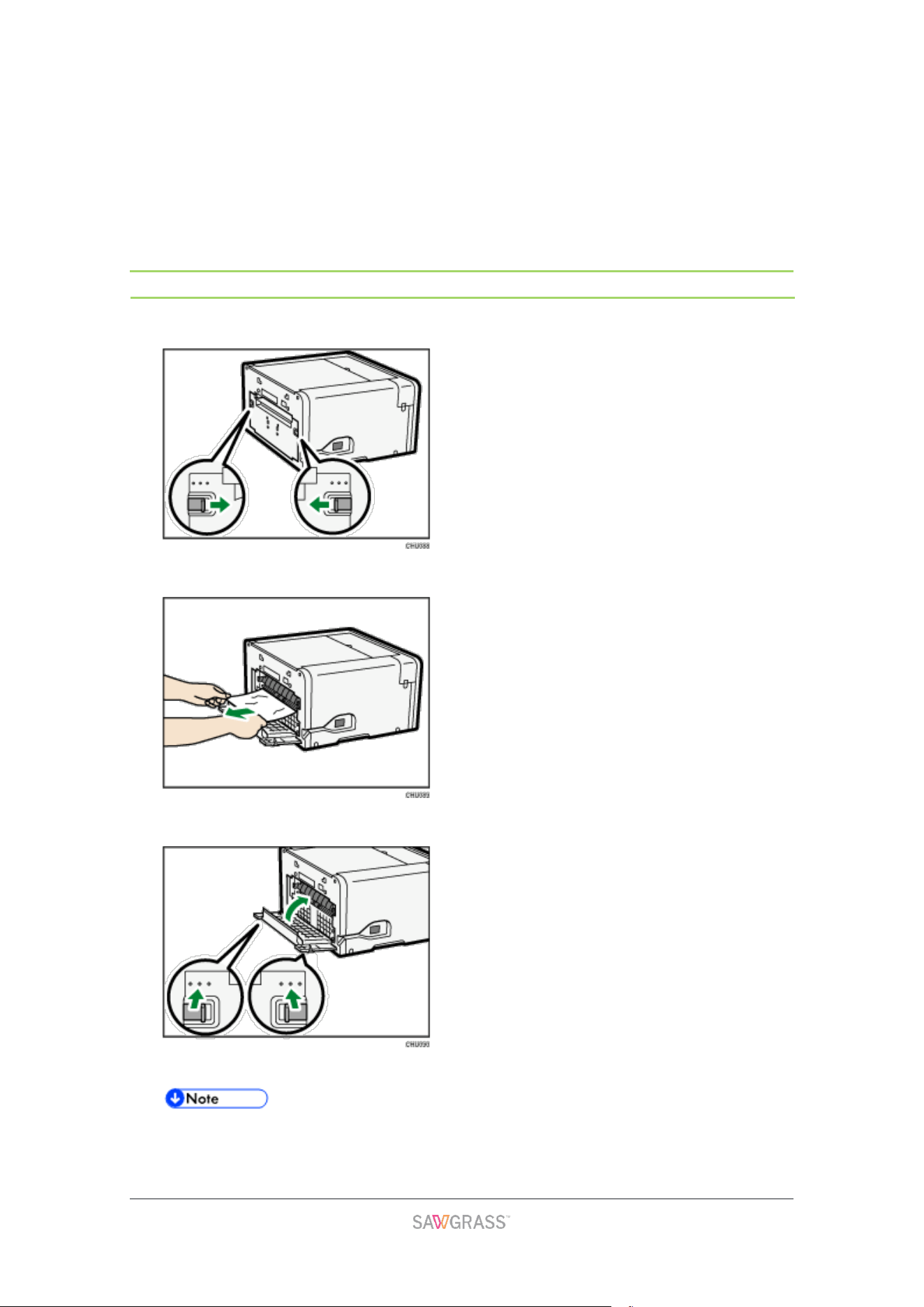
Troubleshooting | 103
until the messages no longer appear. See section "" for more information.
Pap
er Jam" for more information.
If paper jams occur repeatedly, see section "Paper Is Not Fed or Delivered
Normally" for more information.
Opening the Rear Cover to Remove Jammed Paper
1. Slide the tabs on the sides to unlock, then open the rear cover.
2. Remove the jammed paper.
3. Close the rear cover.
Make sure to return the tabs to their original positions.
Pri
nting starts. Blank paper may be delivered after printing resumes.
Continue to remove the jammed paper according to subsequent error messages
until the messages no longer appear. See section "" for more information.
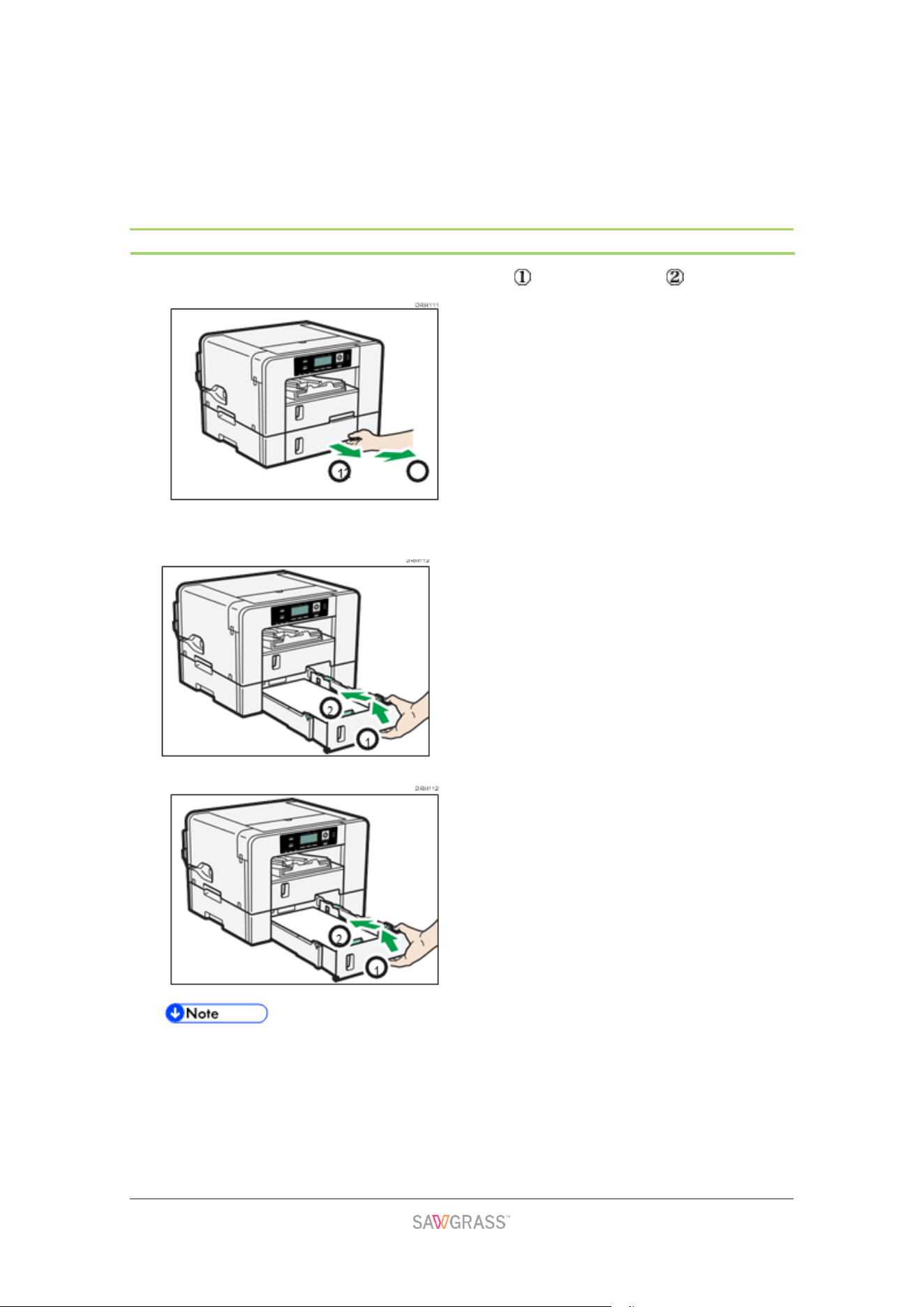
Troubleshooting | 104
Paper Jam" for more information.
If paper jams occur repeatedly, see section "Paper Is Not Fed or Delivered
Normally" for more information.
Removing Paper Jammed in Tray 2/3
1. Hold the grip on Tray 2/3, lift the tray slightly ( ), then pull it out ( ).
Pul
l the tray completely out. Take care not to drop it.
2. Remove the jammed paper.
3. Push Tray 2/3 gently in until it stops.
Pr
inting starts. Blank paper may be delivered after printing resumes.
Continue to remove the jammed paper according to subsequent error messages
until the messages no longer appear. See section "" for more information.
Pap
er Jam" for more information.
If paper jams occur repeatedly, see section "Paper Is Not Fed or Delivered
Normally" for more information.
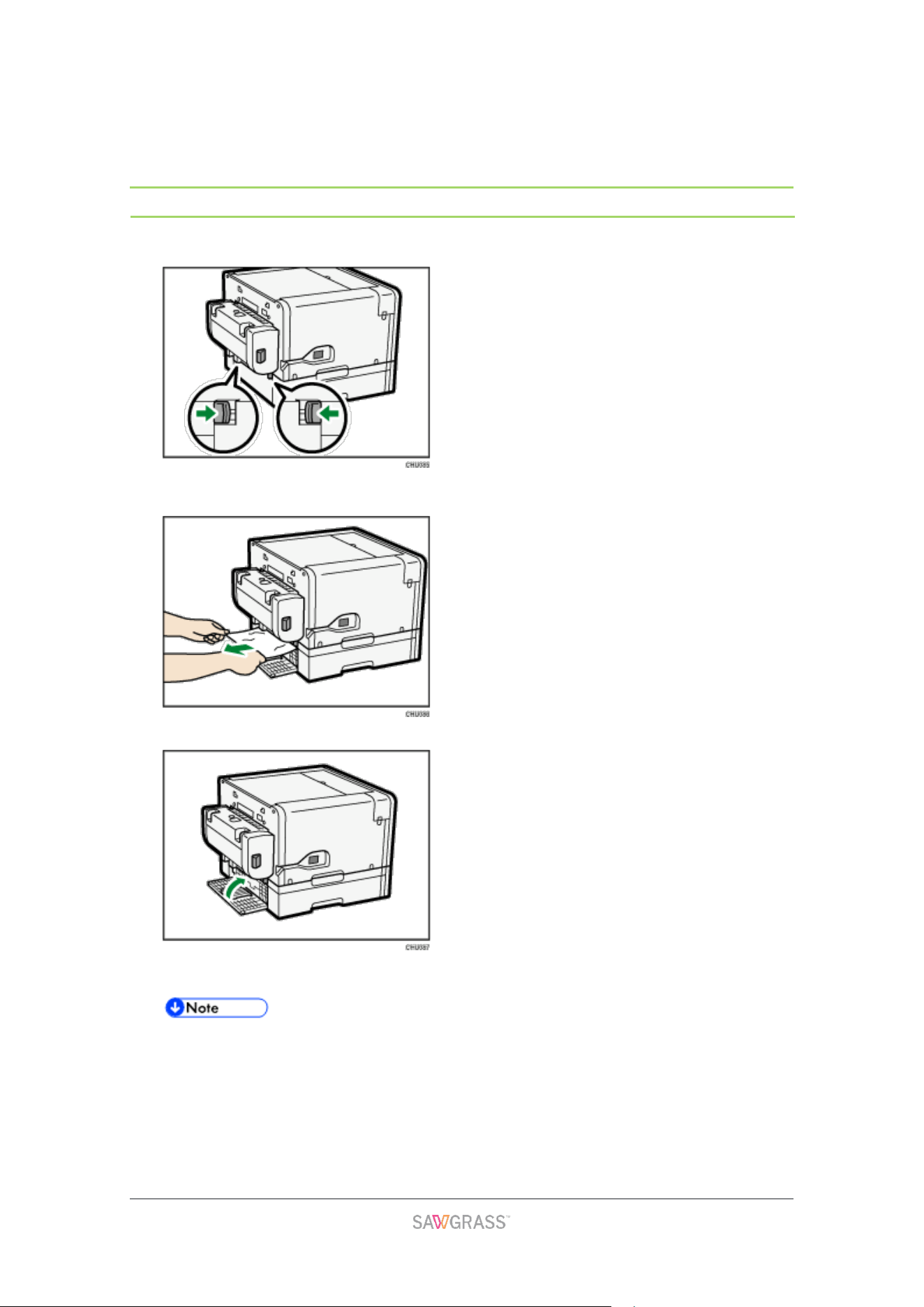
Troubleshooting | 105
Opening the Rear Unit Cover to Remove Jammed Paper (SG500NA/SG500EU)
1. Slide the tabs on the sides to unlock, then open the rear unit cover.
2. Remove the jammed paper.
3. Close the rear unit cover.
Make sure to return the tabs to their original positions.
Pr
inting starts. Blank paper may be delivered after printing resumes.
Continue to remove the jammed paper according to subsequent error messages
until the messages no longer appear. See section "" for more information.
Pap
er Jam" for more information.
If paper jams occur repeatedly, see section "Paper Is Not Fed or Delivered
Normally" for more information.

Troubleshooting | 106
Poor Print Quality
If print quality is poor, check the printer, Sawgrass Print Manager and design software
settings for problems. If no problems are apparent, check the “Recommended Use by
Date” for the ink cartridges or issues with the sublimation paper. For details about handling
paper, see section "Loading Sublimation Transfer Paper" for more information. For details
about handling the ink cartridges, see section "Handling Ink Cartridges" for more
information.
If problems persist visit Care.sawgrassink.com for more
troubleshooting information.
Prints are Unsatisfactory
This section explains how to troubleshoot the printer when printing is uneven or when prints
are streaked, smudged, smeared, or blotchy.
Have you printed the nozzle check test pattern?
Print the nozzle check test pattern to check whether the print head nozzles are all ejecting
ink properly, and, if necessary, carry out head cleaning and/or head-flushing.
If necessary, clean the print heads up to five (5) times prior to printing. See section
"Head-cleaning" for more information.
If (5) head cleans do not clear missing nozzles, perform one (1) head flush. See
section "Head-flushing" for more information.
Has the printer not been used for a long time?
The ink may be dry causing the print head nozzles to become clogged. Print the nozzle
check test pattern and clean the print heads as necessary.
See section "When not Using for a Long Period of Time" for more information.
Have the print heads been aligned?
Blurred or double lines indicate the print heads may be incorrectly positioned.
See section "Using the [List Test Print] Menu" for more information.
Is there a problem with the printer's location?
Make sure that the printer is level. Place the printer in a location where it will not be subject
to shaking or excessive force.
See section "Checking the Installation Area" for more information.
Have you performed registration adjustment?
Perform registration adjustment if the print start point indicates misalignment.

Troubleshooting | 107
After attaching the option tray, and the bypass tray, you must register where to start printing
on paper loaded in each paper tray.
See section "Registration adjustment" for more information.
Have you changed the paper feed setting?
If horizontal lines are printed unaligned, print images are patchy, or black or white streaks
are printed at regular intervals, print a test pattern, then adjust the paper feed setting.
See section "Adjust Paper Feed" for more information.
Does the paper type setting match?
Make sure that the paper type setting of the printer driver matches the type of paper
loaded.
See section "Using the [Paper Tray Settings] Menu" for more information.
Have any of the inks past the “Recommended Use by Dates”?
Ink cartridges should be used prior to the “Recommended Use by Date,” preferably within
six months of being removed from their packaging. Using ink in the printer past this date
may be harmful to the unit and/or result in poor output quality.
Are you printing on the right type or wrong side of the paper?
Check that you are printing on sublimation transfer paper and that the print is on the
correct, bright white side.
See sections "Handling and Storage Precautions" and "Loadable Paper Sizes Paper" for
more information.
Is the paper loaded in the correct orientation?
Some paper cannot be loaded lengthwise depending on the size of the paper. Check the
orientation in which the paper is loaded.
See section "Loadable Paper Sizes" for more information.
Colors are not correct
If the color of the printed output differs from what is expected, refer to the following
questions:
More information specifically regarding color can be found on Care.sawgrassink.com.
Does col
or not match what is onscreen?
Since printed colors and screen colors are produced by different methods, a color printed
and a color displayed on a screen can have different hues even though they are the "same"
color.
Has the nozzle check been performed?

Troubleshooting | 108
The print heads may be missing nozzles. Print the nozzle check test pattern and clean the
print heads as necessary.
See sections "Nozzle Check" and "Head-cleaning" for more information.
Are you printing on the right type or wrong side of the paper?
Check that you are printing on sublimation transfer paper and that the print is on the
correct, bright white side.
See sections "Handling and Storage Precautions" and “Loading Paper” for more
information.
Have any of the inks past the “Recommended Use by Dates”?
Ink cartridges should be used prior to the “Recommended Use by Date,” preferably within
six months of being removed from their packaging. Using ink in the printer past this date
may be harmful to the unit and/or result in poor output quality.
Is a supported design software being used and is it configured properly?
Certain types of design software are required for correct color output. Poor color quality will
likely occur if specified software is not used or configured properly.
See section “Design Software Requirements” for more information.
Image Position is not Correct or Only a Partial Image is Printed
If the position of printed items is not correct or only a partial image is printed, refer to the
following questions:
Have the settings for page layout been made?
Check whether page layout settings have been made with the design software.
Does the paper size setting match?
Make sure that the paper size selected in the Sawgrass Print Manager matches the size of
the paper loaded.
Is there a printer error?
View the display or Web Image Monitor to check whether an error has occurred.
Is the correct paper size selected in the design software and Sawgrass Print
Manager?
Make sure that the paper size selected in design software and Sawgrass Print Manager
matches the size of the paper loaded.
Does the computer meet system requirements?
Check that the computer being used meets system requirements.
See section “System Requirements” for more information.

Troubleshooting | 109
Error & Status Messages on the Display
This section explains what the messages that appear on the display mean and what to do
when a particular message appears.
Depending on the "Auto Continue" settings specified on the [System] menu, some of the
following messages might not appear. See section "Using the [System] Menu" for more
information.
Error Messages
Cannot recover error page(s) / Form Feed to print remaining
The printer confirmed that the error has been cleared and printing has resumed. However,
some page(s) did not print.
To continue printing, press the [Form Feed] selection key and print the missing page
after the print job is finished. To delete the print job, press the [Job Reset] key.
See section "Cannot Recover Error Page" for more information.
Cannot use High Temp. / Power Off On
The temperature is abnormally high.
Check the installation area and relocate the printer. Alternatively, wait until the printer
acclimates to the room temperature.
See section "Out of Printable Temperature Range" for more information.
Cannot use Low Temp. / Power Off On
The temperature is abnormally low.
Check the installation area and relocate the printer. Alternatively, wait until the printer
acclimates to the room temperature.
See section "Out of Printable Temperature Range" for more information.
Paper Size or Type Mismatch
The size of paper in the tray # (Tray 1, 2, 3, or the bypass tray) is different from the size
specified.
Load the paper of the size specified in the paper tray, then change the paper size in the
Tray Paper Settings menu accordingly.
Alternatively, press the [Form Feed] selection key, select a paper tray containing paper
of the specified size, then print. To cancel the print job, press the [Job Reset] key.
See sections "See section “Cancelling Printing” for more information.
Paper Size Mismatch/Paper Type Mismatch (Tray 1)" and "See section “Cancelling
Printing” for more information.
Paper Size Mismatch/Paper Type Mismatch (Tray 1) for more information.
Hardware Problem Ethernet Board

Troubleshooting | 110
An error in the Ethernet port (ethernet board) network function has occurred.
Disconnect all cables, turn the printer off, and then turn it on again.
If the message reappears, contact Sawgrass.
See section "Network Interface Error" for more information.
Waste Collection Unit is not set / Set the Waste Collection Unit.
The waste collection unit has not been installed correctly.
Reset the waste collection unit correctly.
See section "Waste Collection Unit Not Detected" for more information.
Waste Collection Unit is full / Replace Waste Collection Unit
The waste collection unit is full.
Replace the waste collection unit.
See section "Waste Collection Unit" for more information.
Load Paper or Form Feed
There is no paper tray that contain paper of the specified size and type.
Load paper of the specified size and type in a paper tray, then specify the size and type in
the Tray Paper Settings menu accordingly.
Alternatively, press the [Form Feed] selection key, select a paper tray containing
paper of the specified size or type, then print. To cancel the print job, press the [Job
Reset] key. See section "Paper Size Mismatch/Paper Type Mismatch (Auto Tray
Select)" for more information.
Load Paper:Tray# or Form Feed
The tray (Tray 1, 2, 3, or the bypass tray) has run out of paper.
Reload the paper tray.
Alternatively, press the [Form Feed] selection key, select a different paper tray, then print. To
cancel the print job, press the [Job Reset] key.
See sections "No Paper/Tray Not Detected (Tray 1)", "No Paper/Tray Not Detected (Tray 1)
and "No Paper/Tray Not Detected (Tray 1)” for more information.
Load Paper:Tray1
Tray 1 has run out of paper.
Reload Tray 1.
To cancel the print job, press the [Job Reset] key.
See section "No Paper/Tray Not Detected (Tray 1)" for more information.
Loading Ink... / WAIT! N minutes
Ink being filled.
"N" indicates time required for this operation.
Low Ink
The ink will soon run out.
Make sure you have a new ink cartridge for the color indicated by the icon.

Troubleshooting | 111
Maintenance failed
Head cleaning, head flushing, or other maintenance operations have failed.
Run the maintenance again after clearing the error.
You can clear a maintenance error as follows:
The printer receives another print job.
Press the [ok] key.
Maintenance in process...
The printer is cleaning or flushing its print head.
Wait a moment.
Open Front Cover / Replace Ink Crtg
The ink has run out.
Install a new ink cartridge indicated by the or icon.
See section "Ink Cartridge" for more information.
Open Front Cover / Reset Cartridge
No ink cartridge has been installed.
Install the ink cartridge correctly.
See section "Cover Open / Ink Cartridge(s) Not Detected" for more information.
Page Drying...
Being dried.
See section "Using the [Maintenance] Menu" for more information.
Panel Locked Cannot use
You have pressed a locked key
Unlock the key.
Paper Misfeed / Press Form Feed
A paper jam occurs.
Press the [Form Feed] selection key to feed the paper.
See section "Using the [Form Feed] selection Key to Remove Jammed Paper" for more
information.
Paper Misfeed Bypass Tray / Reset Paper
A paper misfeed has occurred in the bypass tray.
Reposition the paper in the bypass tray.
See section "Loading Paper" for more information.
Paper Misfeed Remove all Rear / Covers then remove misfeed
A paper jam occurs.
Open the rear cover or rear unit cover, then remove the jammed paper.
See sections “Opening the Rear Cover to Remove Jammed Paper” and “Opening the Rear
Unit Cover to Remove Jammed Paper” for more information.

Troubleshooting | 112
Paper Misfeed remove Tray # / or Rear Covers, remove misfeed
Paper has jammed in the tray (Tray 2 or 3).
Remove the jammed paper.
See section “Paper Jam in Tray 2/3” for more information.
Paper Misfeed Tray # / Remove tray(s), reset paper
A paper misfeed has occurred in the tray (Tray 1, 2, or 3).
Reposition the paper in the paper tray, then press the [Form Feed]
selection key. See section "Loading Paper" for more information.
Prepare new Waste Collection Unit
The waste collection unit is almost full.
Make sure you have a new waste collection unit on hand.
If an ink cartridge starts running out of ink when the waste collection unit is almost full, the
alert indicator will flash and a message informing you of the cartridge's low ink level will
appear on the display.
Processing...
The printer is printing.
Ready
The printer is able to print.
Rear Cover is open / Close Rear Cover
The rear cover is open.
Close the rear cover.
See section "Cover Open" for more information.
Remove Misfeed Open Top Cover / Press Form Feed, remove misfeed
A paper jam occurs.
Open the top cover, press the [Form Feed] selection key, then remove the jammed paper
from the opening.
See section "Removing Paper Jammed under the Top Cover" for more information.
Reset Bypass Tray correctly
The bypass tray has not been installed correctly.
Reset the bypass tray correctly.
See section “Attaching and Detaching the Bypass Tray” and “No Paper/Tray Not Detected
(Bypass Tray)” for more information.
Resetting Job...
The printer is reinitializing a print job.
Wait a moment.
Right Front Cover is open / Close Right Front Cover
The right front cover is open.

Troubleshooting | 113
Close the ink cartridge cover.
See section "Cover Open / Ink Cartridge(s) Not Detected" for more information.
Right Int. Unit almost full
Internal unit is a service replacement part.
For details about internal unit replacement, contact Sawgrass.
SCXXX-XX Power Off On / Call Service if error reoccurs
An error has occurred.
Turn the printer off and then on. If the message reappears, contact Sawgrass.
Setting change…
The printer is updating the network interface.
Wait a moment.
Temp. alert Please wait...
The printer is too hot or cold at start-up.
Wait until "Ready" appears on the display.
Top Cover is open / Close Top Cover
The top cover is open.
Close the top cover.
See section "Cover Open" for more information.
Tray # Rear Cover is open / Close Tray # Rear Cover
The rear unit cover of the tray (Tray 2 or 3) is open.
Close the rear unit cover.
See section "Cover Open" for more information.
Used Ink Collect Unit is set / Replace Ink Collector Unit
A used waste collection unit was installed.
Install a new waste collection unit.
See section "Waste Collection Unit" for more information.
Used Ink Crtrdge / Replace Ink Crtg
A used ink cartridge was installed.
Replace the ink cartridge indicated by the or icon.
See section "Ink Cartridge" for more information.
Waiting...
Wait a moment.
Errors Displayed by the Web Image Monitor
If an error occurs with the printer, the Web Image Monitor displays an error message.
Check the manual for the page corresponding to the error where you can check how to

Troubleshooting | 114
resolve the problem in more detail.
Depending on the "Auto Continue" settings specified on the [System] menu, some of the
following messages might not appear. See section "Using the [System] Menu" for more
information.
No Paper/Tray Not Detected (Tray 1)
Tray 1 has run out of paper or the tray is not installed correctly.
Follow the procedure below:
Load paper into the paper tray.
See section "Loading Paper" for more information.
Print by Form Feed.
Press the [Form Feed] selection key, select a different paper tray, then print.
Cancel the print job.
See section “Cancelling Printing” for more information.
No Paper/Tray Not Detected (Tray 2/3)
Tray 2/3 has run out of paper or the tray is not installed correctly.
Follow the procedure below:
Load paper into the paper tray.
See section "Loading Paper" for more information.
Print by Form Feed.
Press the [Form Feed] selection key, select a different paper tray, then print.
Cancel the print job.
See section “Cancelling Printing” for more information.
No Paper/Tray Not Detected (Bypass Tray)
The bypass tray has run out of paper or the bypass tray is not installed correctly.
Follow the procedure below:
Load paper into the paper tray.
See section "Loading Paper" for more information.
Attach the bypass tray properly.
See section “Attaching and Detaching the Bypass Tray” for more information.
Print by Form Feed.
Press the [Form Feed] selection key, select a different paper tray, then print.
Cancel the print job.
See section “Cancelling Printing” for more information.

Troubleshooting | 115
Paper Size Mismatch/Paper Type Mismatch (Tray 1)
Tray 1 is not loaded with paper of the correct size or type.
Follow the procedure below:
Change the paper settings.
See section "Using the [Tray Paper Settings] Menu" for more information.
Print by Form Feed.
Press the [Form Feed] selection key, select a paper tray containing paper of the specified
size or type, then print.
Cancel the print job.
See section “Cancelling Printing” for more information.
Paper Size Mismatch/Paper Type Mismatch (Tray 2/3)
Tray 2/3 is not loaded with paper of the correct size or type.
Follow the procedure below:
Change the paper settings.
See section "Using the [Tray Paper Settings] Menu" for more information.
Print by Form Feed.
Press the [Form Feed] selection key, select a paper tray containing paper of the specified
size or type, then print.
Cancel the print job.
See section “Cancelling Printing” for more information.
Paper Size Mismatch/Paper Type Mismatch (Bypass Tray)
The bypass tray is not loaded with paper of the correct size or type.
Follow the procedure below:
Change the paper settings.
See section "Using the [Tray Paper Settings] Menu" for more information.
Print by Form Feed.
Press the [Form Feed] selection key, select a paper tray containing paper of the specified
size or type, then print.
Cancel the print job.
See section “Cancelling Printing” for more information.
Paper Size Mismatch/Paper Type Mismatch (Auto Tray Select)
Paper tray is not loaded with paper of the correct size or type.
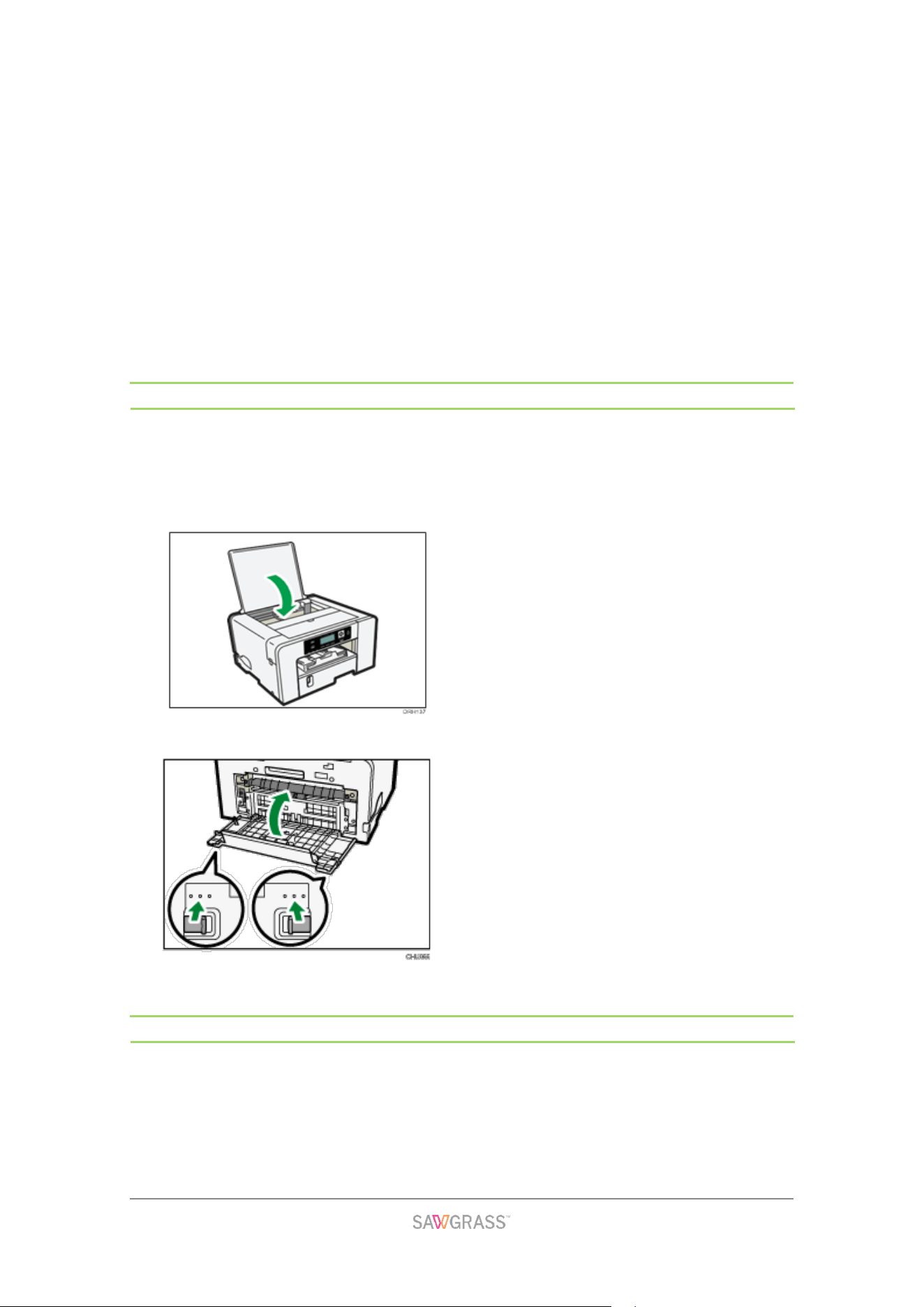
Troubleshooting | 116
Follow the procedure below:
Change the paper settings.
See section "Using the [Tray Paper Settings] Menu" for more information.
Print by Form Feed.
Press the [Form Feed] selection key, select a paper tray containing paper of the specified
size or type, then print.
Cancel the print job.
See section “Cancelling Printing” for more information.
Cover Open
The top, rear, or rear unit cover is open.
Close the cover.
If these covers are closed, open and close each of them again.
1. Close the cover.
Top cover
Rear cover
Make sure to return the tabs to their original positions.
Cover Open / Ink Cartridge(s) Not Detected
The right front cover is open. Close the right front cover.
Alternatively, the ink cartridges are not installed or are installed incorrectly.
Install the ink cartridges correctly.
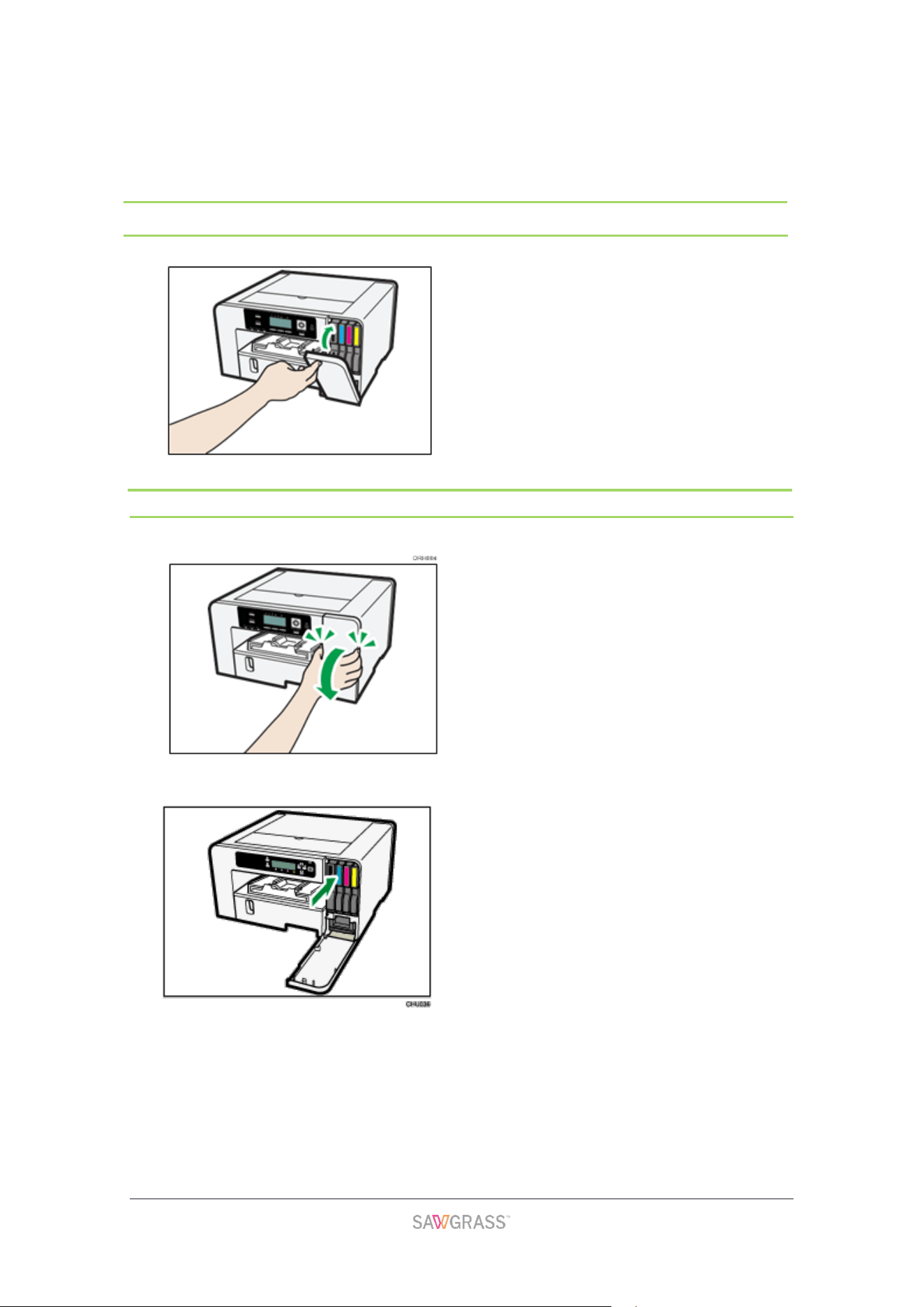
Troubleshooting | 117
If the cover is open
1. Close the right front cover.
If the ink cartridges are not installed or are installed incorrectly
1. Open the right front cover.
2. Push the cartridge fully in.
3. Close the right front cover.
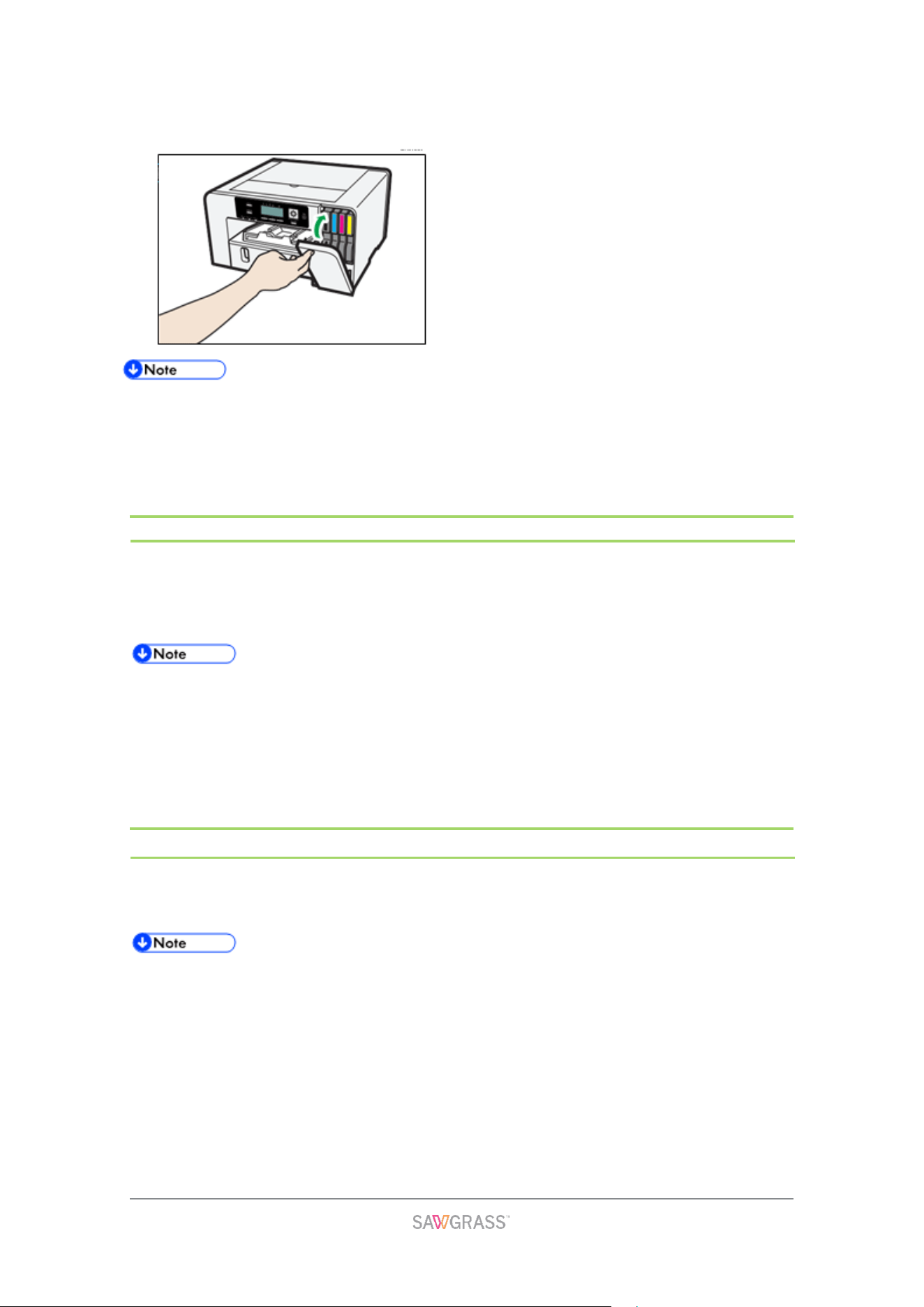
Troubleshooting | 118
If the error persists, remove the ink cartridge, then re-install it. Do this once only.
If there is a problem with the ink cartridge, try installing a new cartridge.
For details about handling the ink cartridges, see section "Handling Ink Cartridges"
for more information.
Cartridge Almost Empty
One of the ink cartridges is almost empty.
Check which color ink cartridge will soon have to be replaced, then have a new cartridge
handy.
Do not carry out head cleaning or head flushing. If you do, the ink may run out.
If you turn the printer off then on again, the ink in the ink cartridge may run out.
The amount of remaining ink shown in the cartridge replacement indicator is for
reference only and may differ from the actual amount. Also, cartridges can become
empty without a low ink warning appearing.
Cartridge Empty
The ink has run out.
Replace the cartridge.
If the cartridge is empty, head cleaning or flushing cannot be performed.
If the ink runs out during printing, the printer may eject blank or partially printed
sheets.
Cartridges that the printer report as empty may still contain a small amount of ink.
This is normal as the cartridges are overfilled to prevent them from completely
running dry. This prevents air from being drawn into the printer.
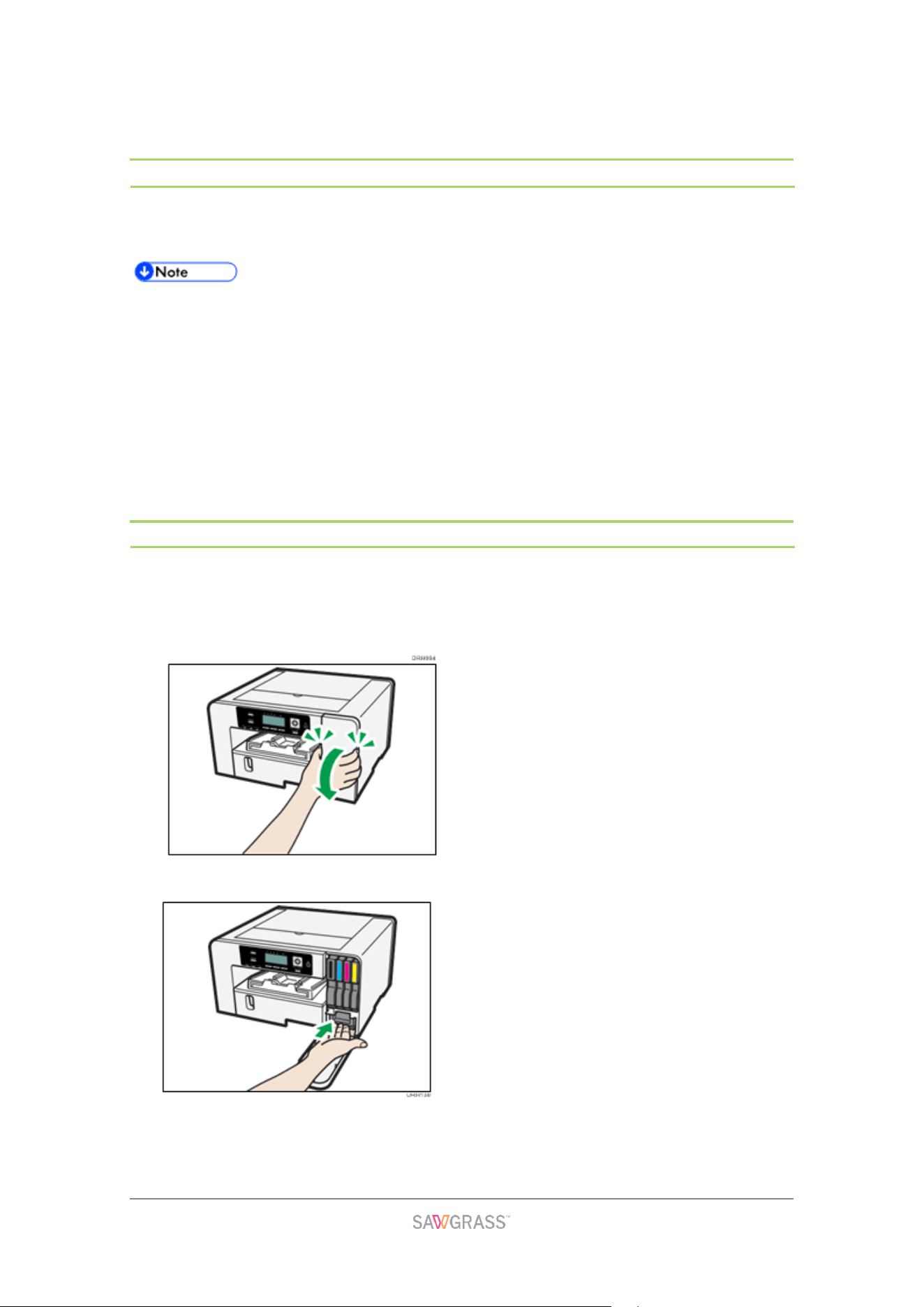
Troubleshooting | 119
Used Cartridge
A used ink cartridge was installed.
Replace the ink cartridge.
See
section "Ink Cartridge" for more information.
If the cartridge is empty, head cleaning or flushing cannot be performed.
Ink cartridges should be used up before the “Recommended Use By” date label
affixed to each cartridge. Using ink in the printer past this date may be harmful to
the unit and/or result in poor output quality.
Cartridges that the printer report as empty may still contain a small amount of ink.
This is normal as the cartridges are overfilled to prevent them from completely
running dry. This prevents air from being drawn into the printer.
Waste Collection Unit Not Detected
The waste collection unit is not inserted correctly.
Insert the waste collection unit correctly.
1. Ope
n the right front cover.
2. Attach the waste collection unit by pushing it in until it clicks.
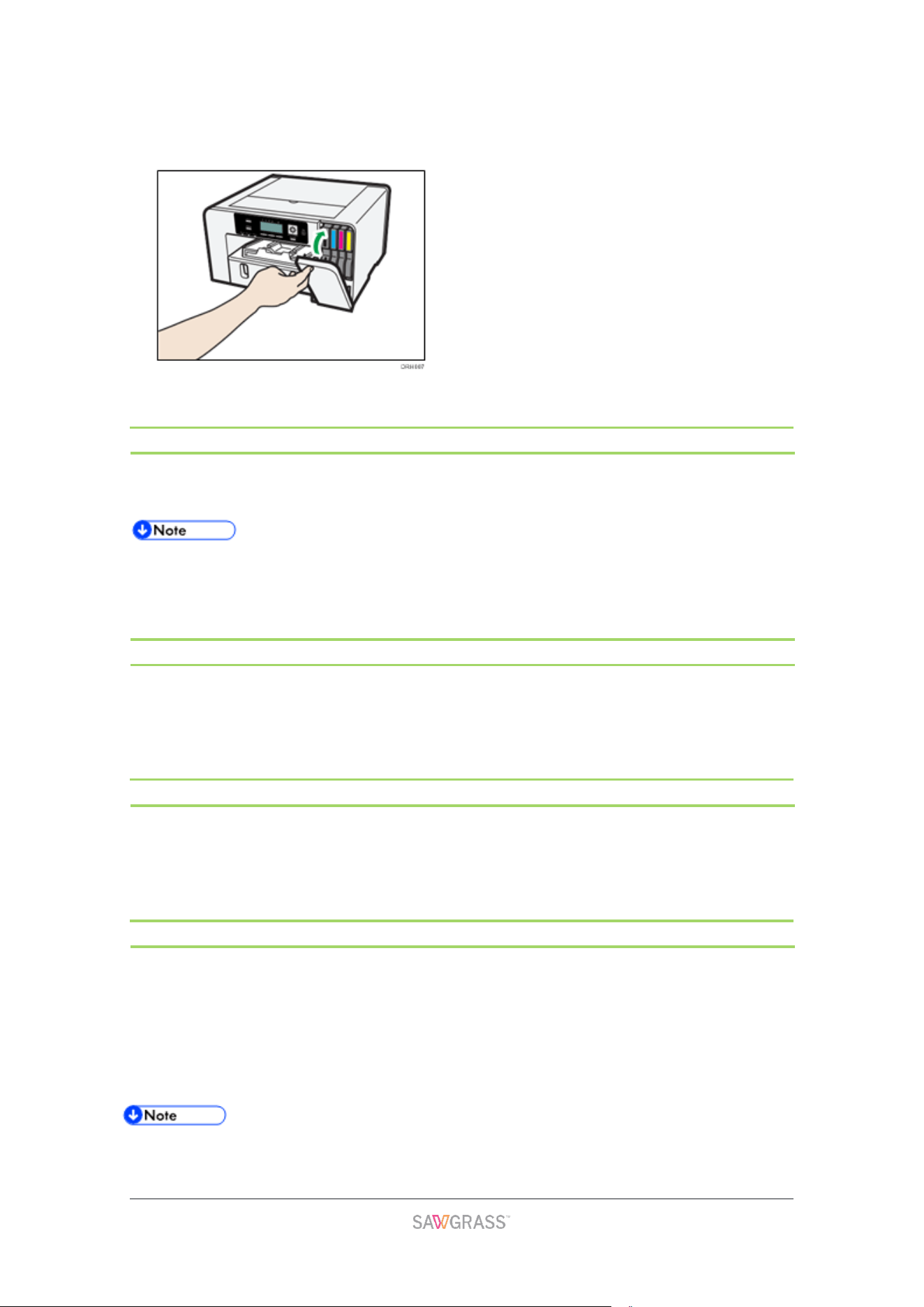
Troubleshooting | 120
3. Close the right front cover.
If the message reappears, contact Sawgrass.
Waste Collection Unit Almost Full
The waste collection unit is almost full.
Have a new waste collection unit handy.
If an ink cartridge starts running out of ink when the waste collection unit is almost
full, the alert indicator will flash and a message informing you of the cartridge's low
ink level will appear on the display.
Waste Collection Unit Full
The waste collection unit is full.
Replace the waste collection unit.
See section "Waste Collection Unit" for more information.
Used Waste Collection Unit
A used waste collection unit is installed.
Replace the waste collection unit.
See section "Waste Collection Unit" for more information.
Out of Printable Temperature Range
Printing is not possible because the printer is placed in a location that is too hot or cold.
Move the printer to a more suitable environment.
1. Press and hold down the [Power] key for one second.
2. Place the printer in an environment where the temperature range is between
15°C and 25°C (59°F and 77°F).
3. Turn th
e printer on.
If humidity is more than 54%, the upper temperature limit will be lower.
Troubleshooting | 121
Even after the power is turned on, the printer may remain in standby mode until it
acclimates to the room temperature. If this happens, wait until the [Power] key
stops flashing and stays lit.
For details about what conditions the printer can be used under (ambient
temperature and humidity range), see section "Checking the Installation Area" for
more information.
Printer Error
An error has occurred in the printer.
Turn the printer off, then turn it on again.
If the printer is relocated from a cold area to a warm area or the printer is placed in
a room where the temperature varies greatly, condensation may form inside the
printer causing errors. If this happens, perform the decondensation procedure. See
section "De-condensation" for more information.
If the error still does not clear after the printer acclimates to room temperature and
the power is turned back on, contact Sawgrass.
Network Interface Error
An error in the Ethernet port network function has occurred.
Turn the printer off, then turn it on again.
If the message reappears, contact Sawgrass.
Maintenance Failed
Head cleaning, head flushing, or other maintenance operations have failed.
Run the maintenance again after clearing the error.
You can clear a maintenance error as follows:
The printer receives another print job.
Press the [OK] key.
Cannot Recover Error Page
If you resume printing after removing a paper jam, an error message may appear if some
pages cannot be printed. If so, follow the procedure below:
Print by Form Feed.
Press the [Form Feed] selection key, then the printer prints the remaining pages
following the missed page(s).

Troubleshooting | 122
Cancel the print job.
See section "Cancelling Printing" for more information.
Where to Inquire
For inquiries, contact Sawgrass or an authorized Sawgrass distributor.
Please see https://www.sawgrassink.com/find-a-dealer/ for our dealer locater.
Recommended Consumables
Consumables recommended for this printer are listed.
Purchase necessary consumables before your supply runs out.
For information about consumables, contact Sawgrass or an authorized Sawgrass
distributor.
Ink cartridges
Waste Collection Unit
Options
SG500 OPTION TRAY / SG1000 OPTION TRAY
This unit allows you to load additional sheets of paper.
SG500 BYPASS TRAY / SG1000 BYPASS TRAY
Use this tray to feed in sheet manually and/or for oversize paper.
For information about options, contact Sawgrass or an authorized Sawgrass distributor.
