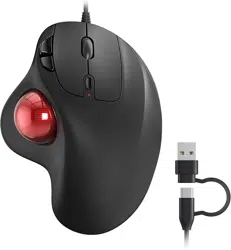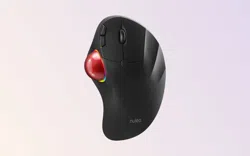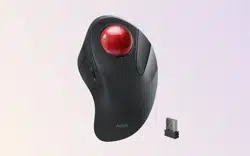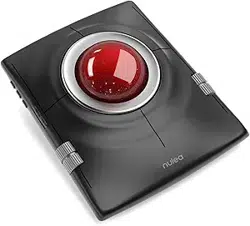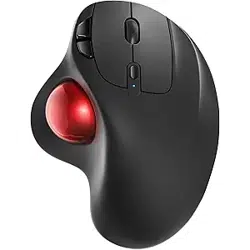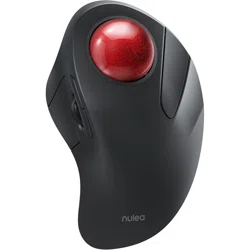
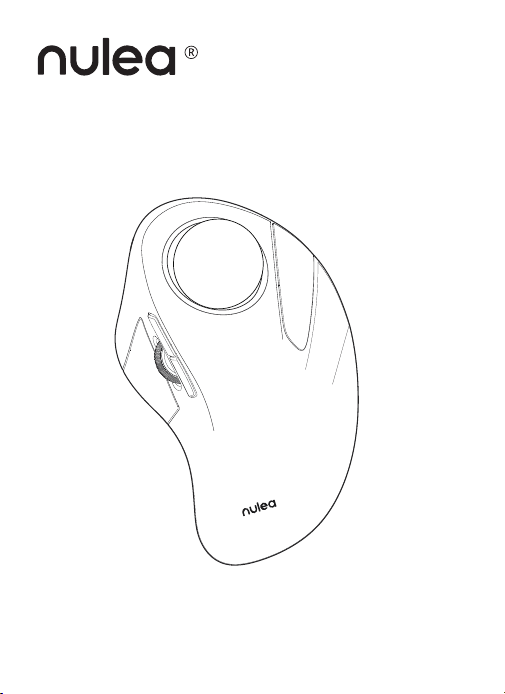
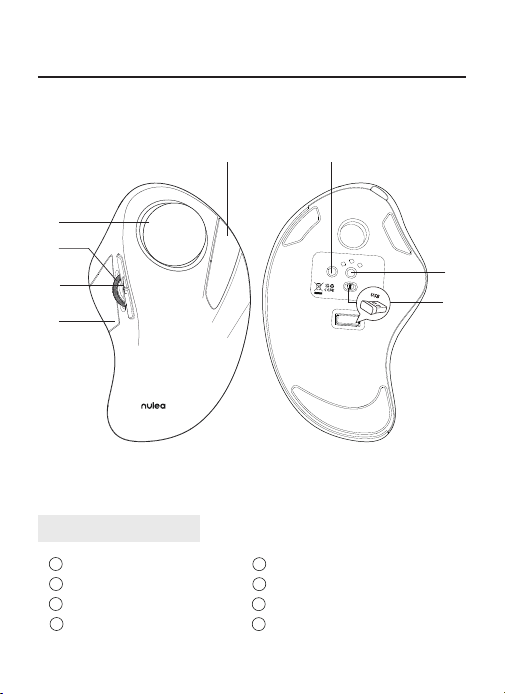
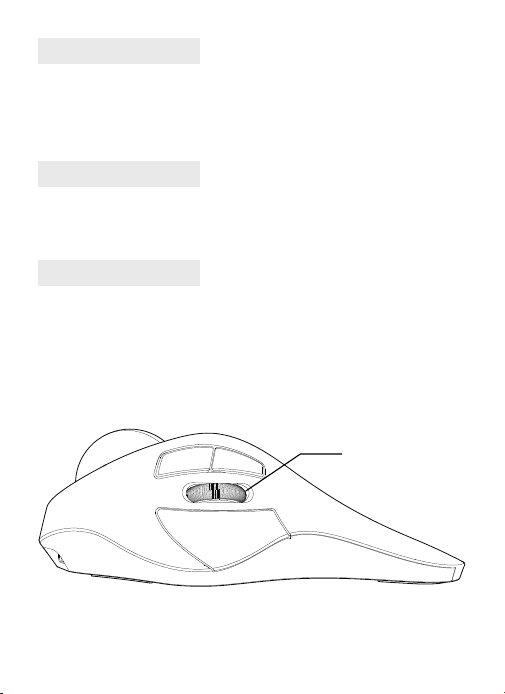
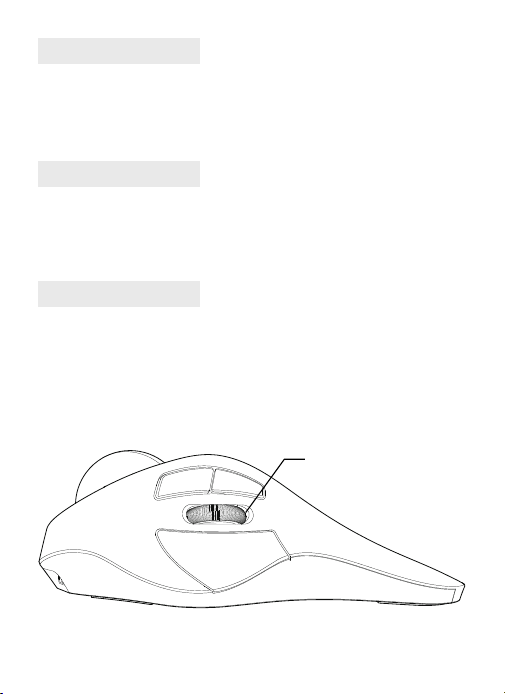
Removable Ball
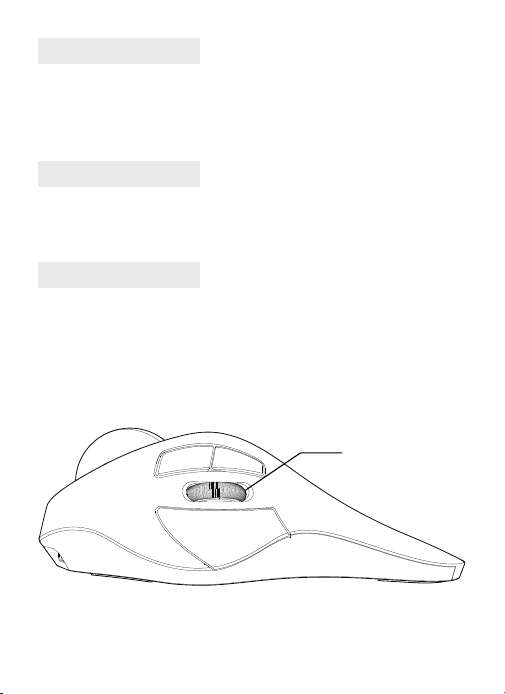
DPI Switch Key
Back/Forward Button
Mode Switch
1
2
3
4
5
6
7
8
Scroll Wheel
Left Key
Right Key
ON/OFF
UK/US/CA
Product Function
⑧
④
②⑦
⑥
③
⑤
ON OFF
USB BT2
BT1
Mode
DPI
Model Name: M505
S/N:B0801
MADE IN CHINA
①
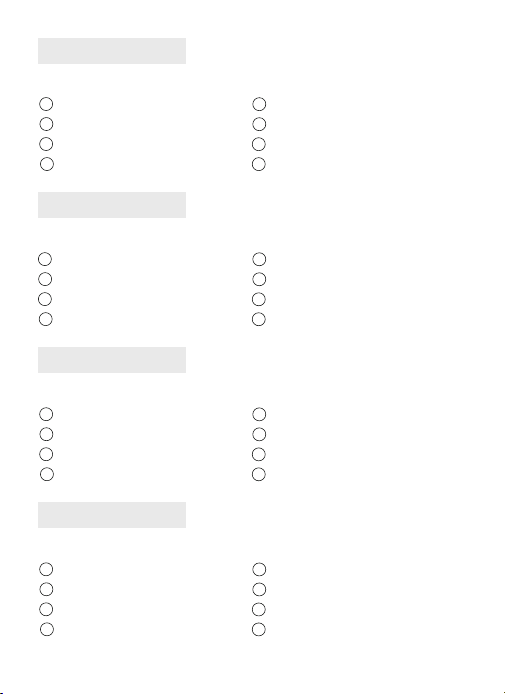
Abnehmbare Kugel
DPI-Umschalttaste
Zurück/Vorwärts-Taste
Modus-Schalter
1
2
3
4
5
6
7
8
8
8
8
Produkt Funktion
Scrollrad
Linke Taste
Rechte Taste
ON/OFF
DE
Fonction du produit
Boule amovible
Touche DPI Switch
Bouton Back/Forward
Commutateur de mode
1
2
3
4
5
6
7
Molette de délement
Touche gauche
Touche droite
ON/OFF
FR
Funzione del prodotto
Palla rimovibile
Tasto DPI
Tasto avanti/indietro
Interruttore di modalità
1
2
3
4
5
6
7
Rotella di scorrimento
Tasto sinistro
Tasto destro
ON/OFF
IT
Función del producto
Bola extraíble
Tecla DPI Switch
Botón de avance/retroceso
Interruptor de modo
1
2
3
4
5
6
7
Rueda de desplazamiento
Tecla izquierda
Tecla derecha
ON/OFF
ES
US/UK/CA
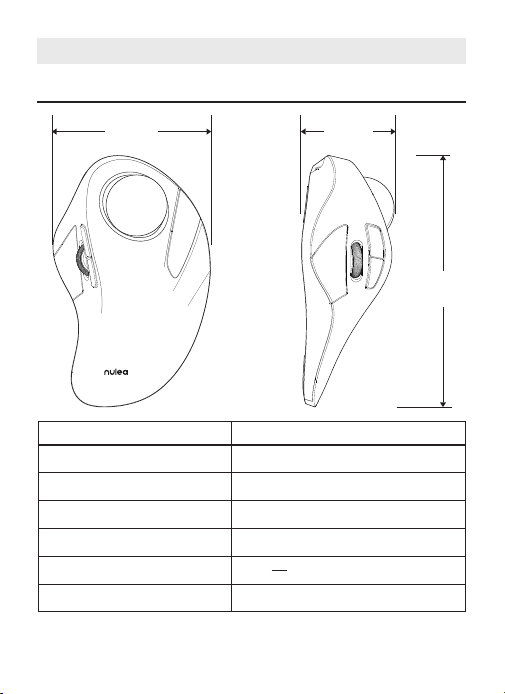
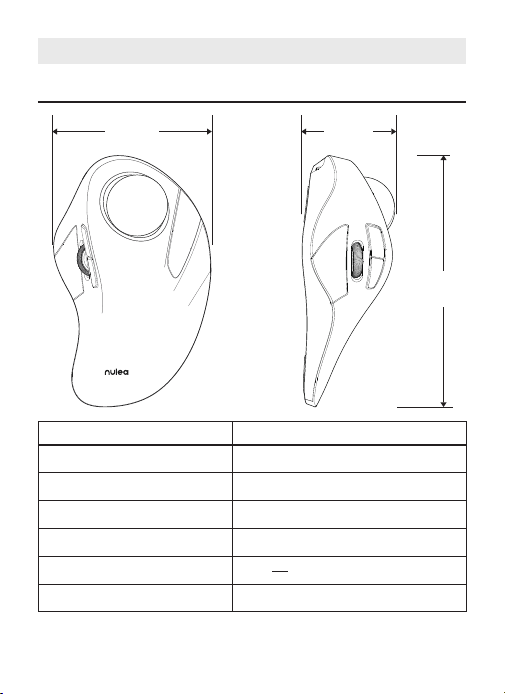
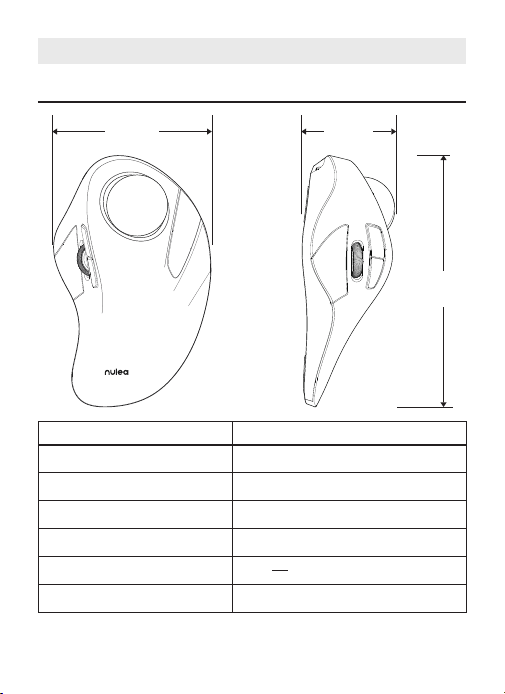
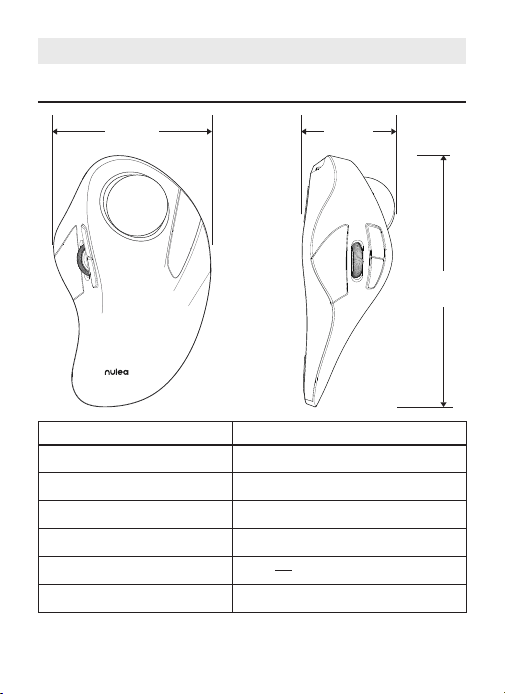
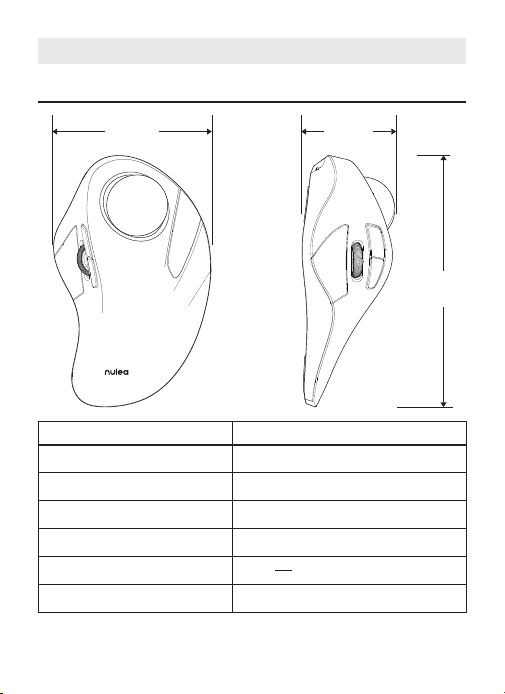
Basic Parameters
4.1in 2. 2in
6.6
in
Interface
DPI
Size
Weight
Transmission distance
Power Rating
Report Rate
2.4G/Bluetooth
200 - 400(Default) - 800 - 1200 -1600
6.6 × 4.1 × 2.2in
193g
10m
DC 5V---0.3A
250HZ (2.4G) / 115HZ (Bluetooth)
Package Content
1 × Wireless Trackball Mouse
1 × USB-C Cable
1 × User Manual
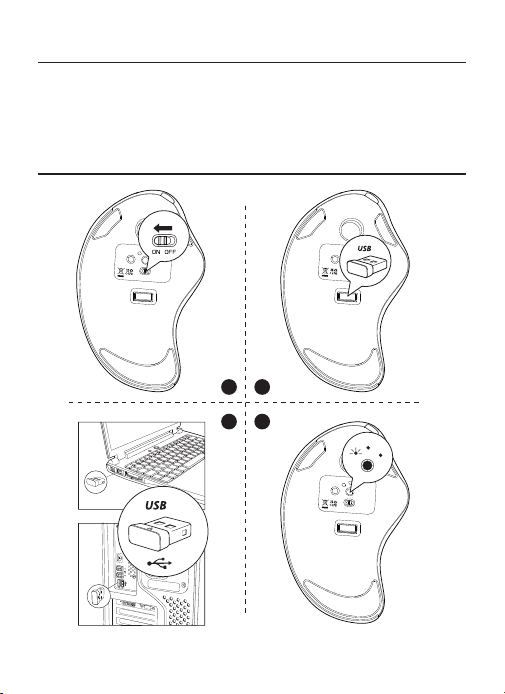
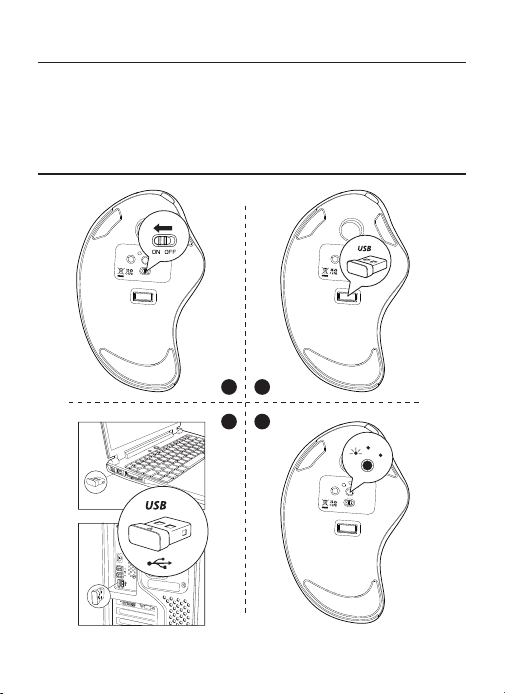
2.4G Connection
1
3
2
4
ON OFF
USB BT2
BT1
DPI
Mode
ON OFF
BT1 USB
BT2
DPI
Mode
ON OFF
USB BT2
BT1
DPI
Mode
Model Name: M501
S/N:B0801
Power Rating:
DC5V 0.3A
MADE IN CHINA
MADE IN CHINA
MADE IN CHINA
Model Name: M505
S/N:B0801
Model Name: M505
S/N:B0801
support@nulea.com
Model Name: M505
S/N:B0801
support@nulea.com
USB
BT2
BT1
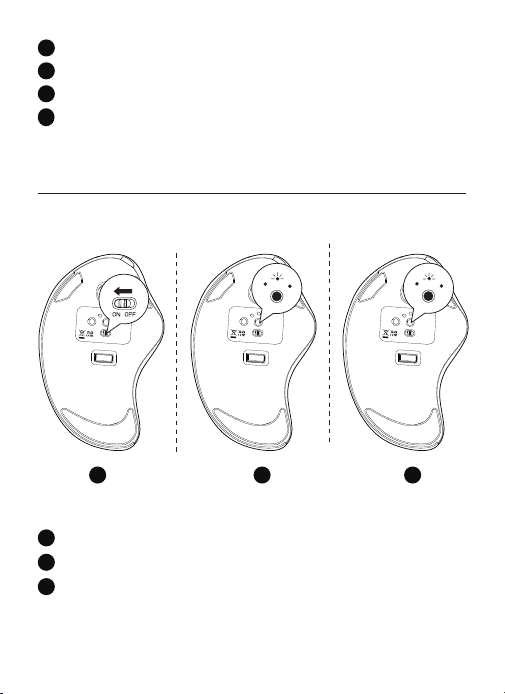
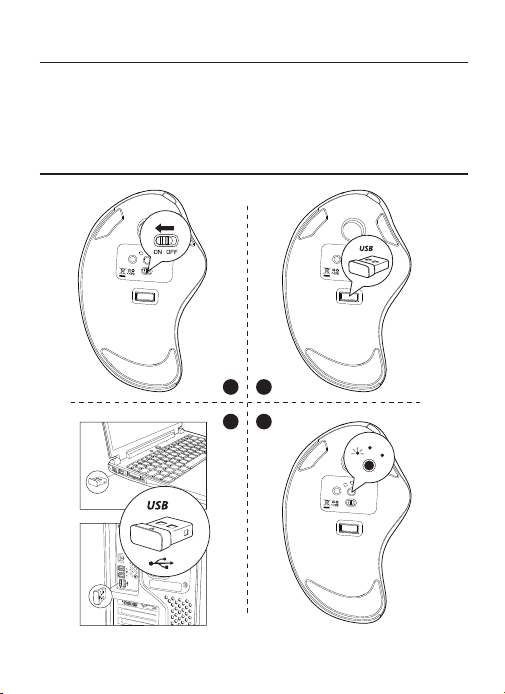
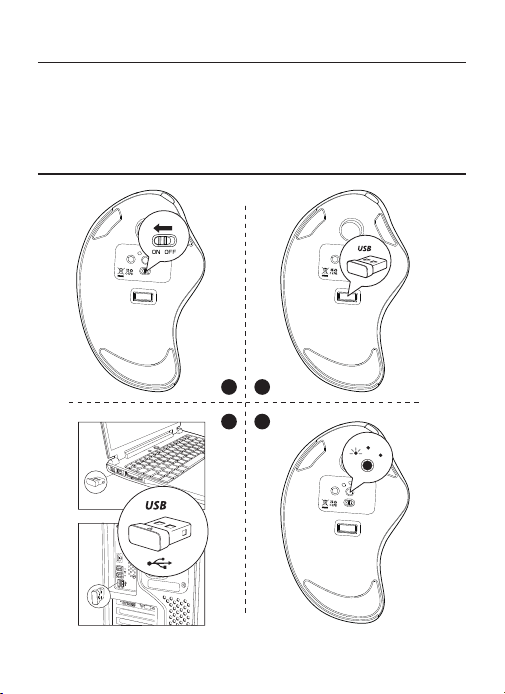
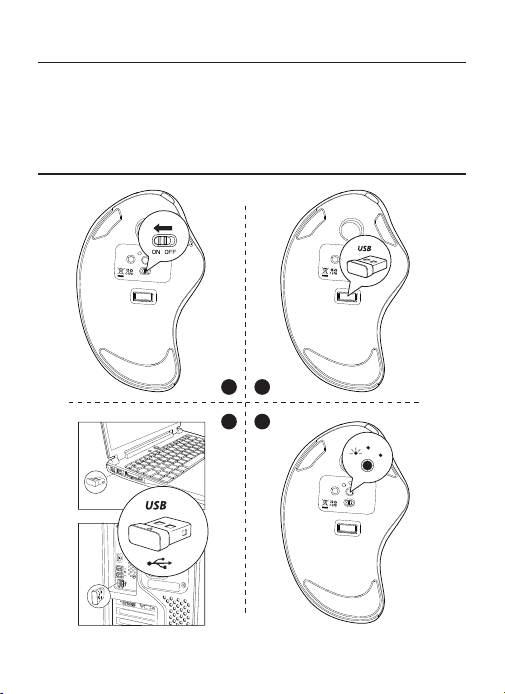
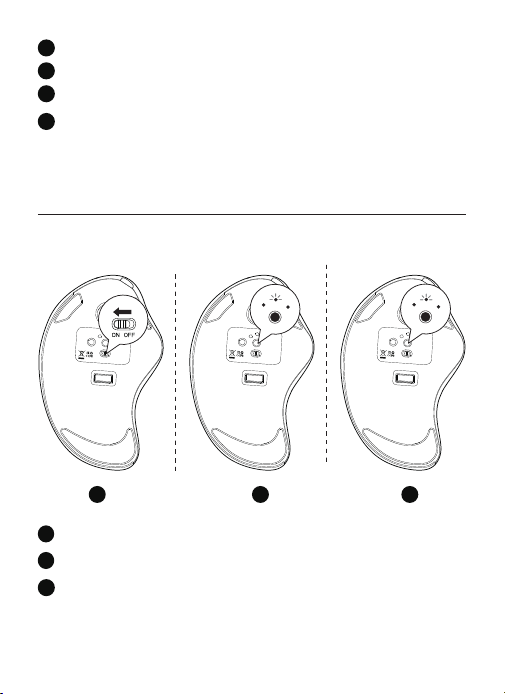
Turn on the mouse.
1
Take out the 2.4G receiver.
2
Insert it into the computer USB port.
3
Press the channel switch button, switch to 2.4G mode. The LED lights up for
5 seconds and then goes out, the pairing is successful.
4
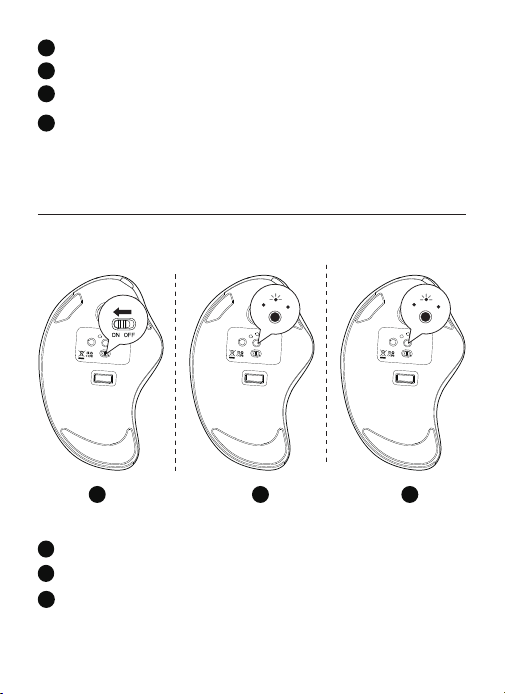
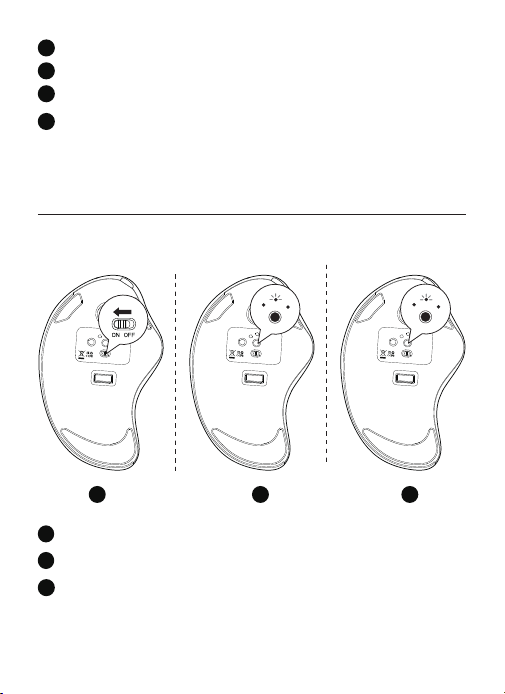
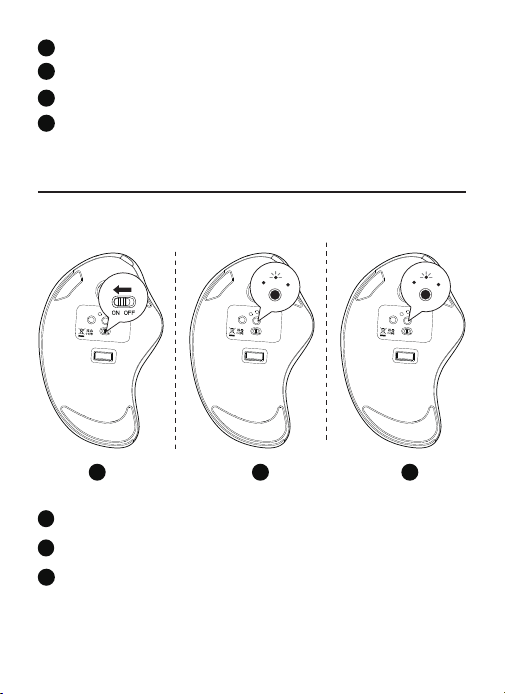
Turn on the mouse.
1
Press the channel switch button to switch to Bluetooth mode.
2
Long press the switch button for 3-5 seconds, the LED light ashes
rapidly and the mouse enters Bluetooth pairing mode.
3
1 2 3
Bluetooth Connection
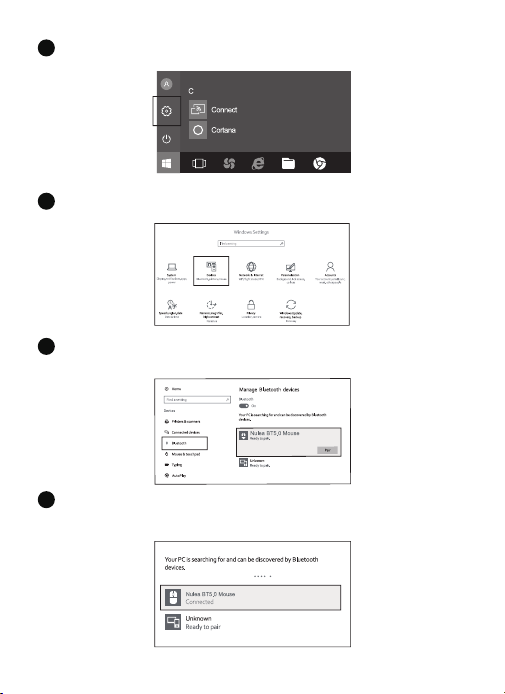
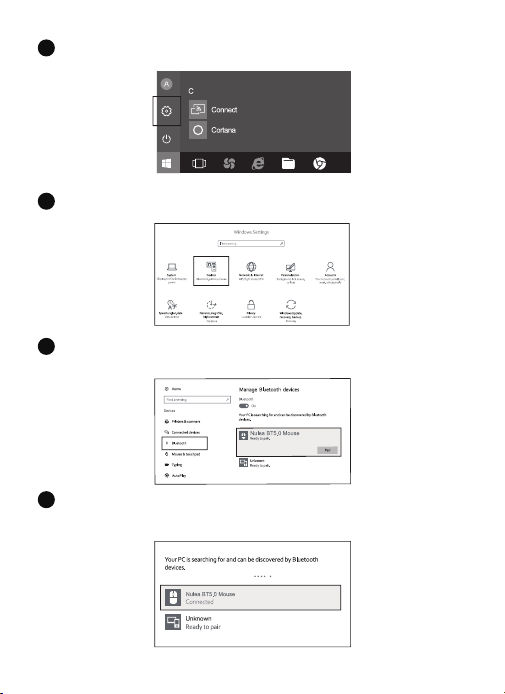
Windows System(Take Windows 10 as an example)
ON OFF
USB BT2
BT1
DPI
Mode
Model Name: M505
S/N:B0801
MADE IN CHINA
support@nulea.com
MADE IN CHINA
Model Name: M505
S/N:B0801
Model Name: M505
S/N:B0801
MADE IN CHINA
ON OFF
USB BT2
BT1
Mode
DPI
ON OFF
USB BT2
BT1
DPI
Mode
support@nulea.com
support@nulea.com
USB
BT2
BT1
USB
BT2
BT1
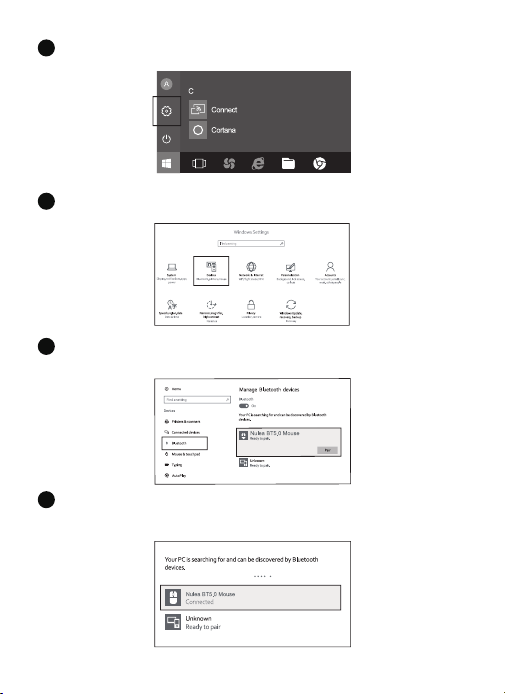
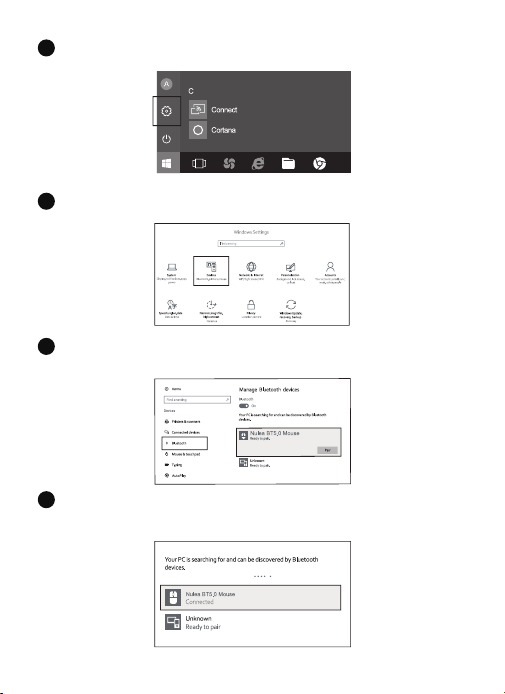
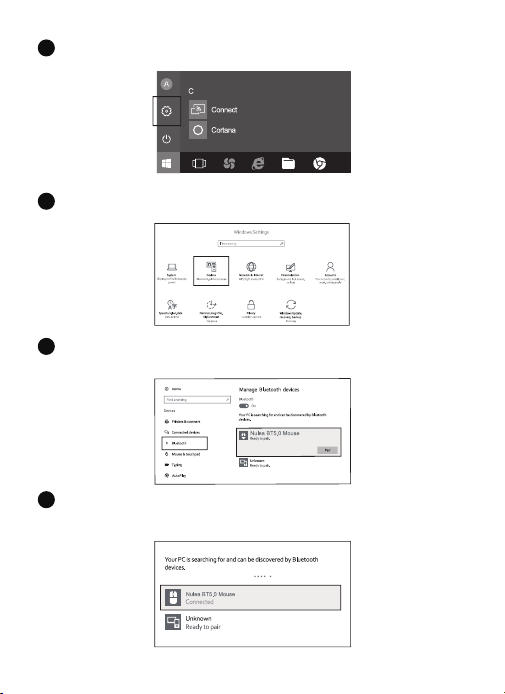
Click the "Bluetooth devices" button on the computer.
4
Click the "Add or remove Bluetooth devices" button.
5
Search the Bluetooth "Nulea BT5.0 Mouse/Nulea BT3.0 Mouse", and click
the pairing button.
6
If the pairing is successful, the LED lights up for 5 seconds and then goes
out.
7
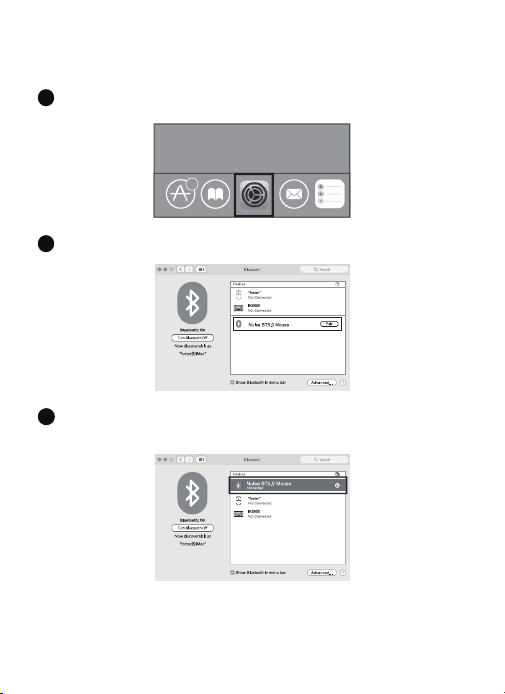
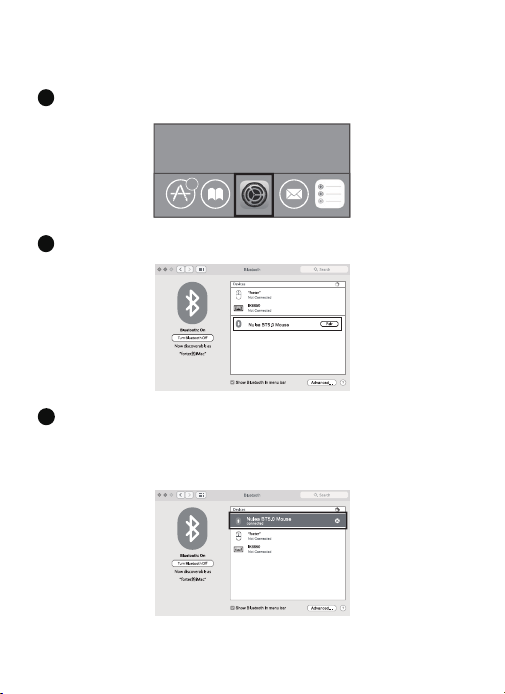
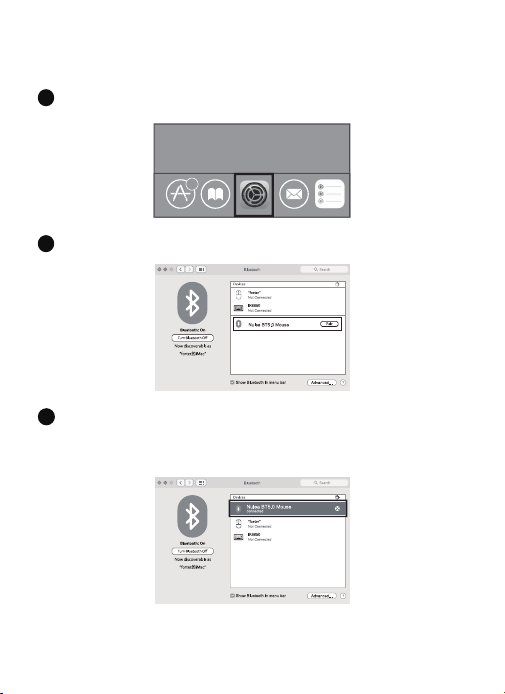
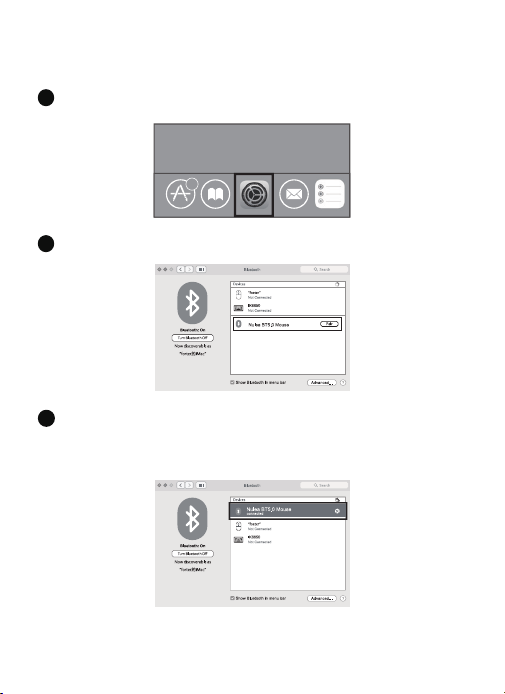
Mac OS System
Please operate the Bluetooth installation steps(1~3) before pairing.
6
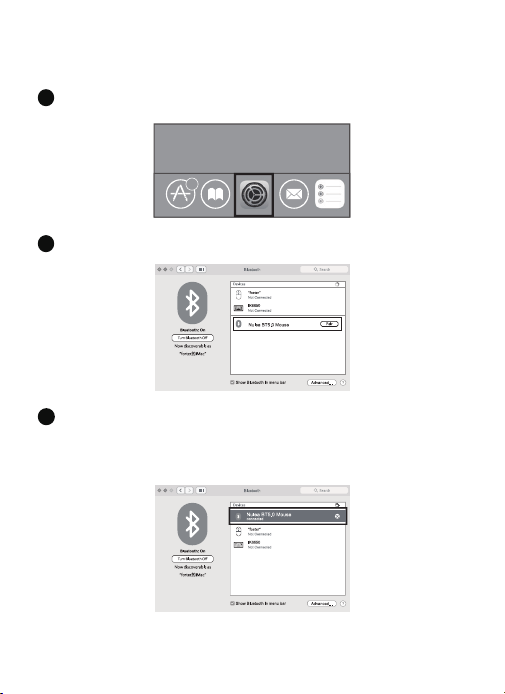
Click the “System Preferences” button on the Mac.
1
Click the Bluetooth button on the system preference folder.
2
Search the Bluetooth "Nulea BT5.0 Mouse/Nulea BT3.0 Mouse", and click the
pairing button. If installed completely, the mouse could be used normally.
3
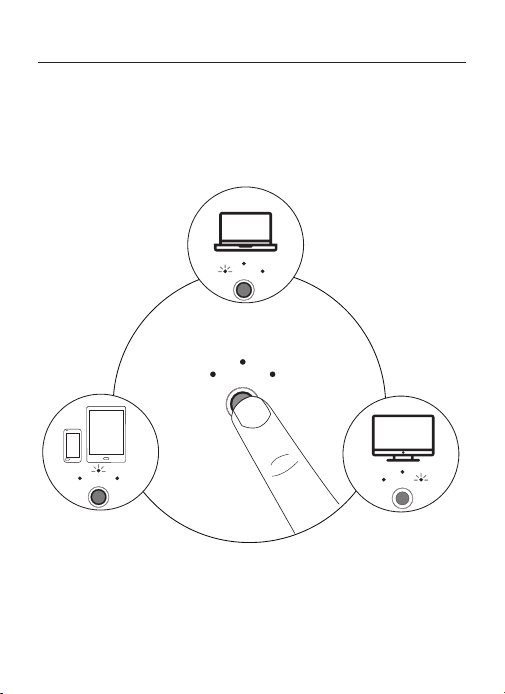
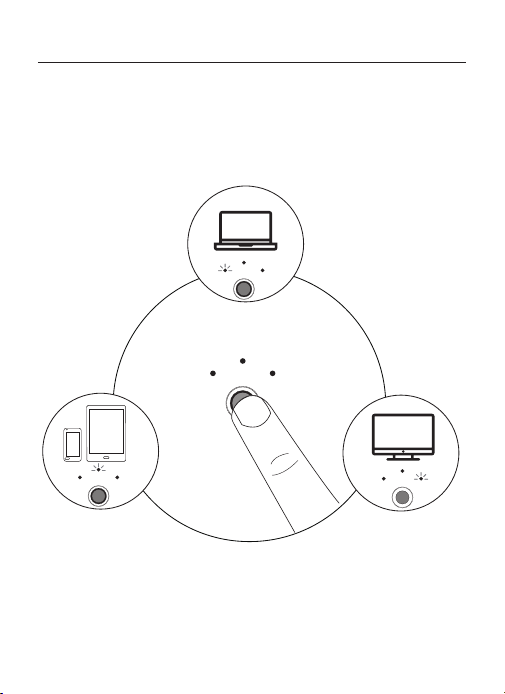
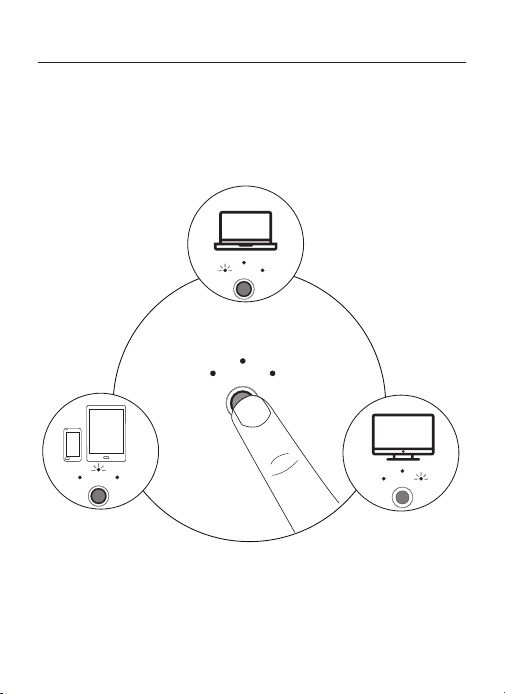
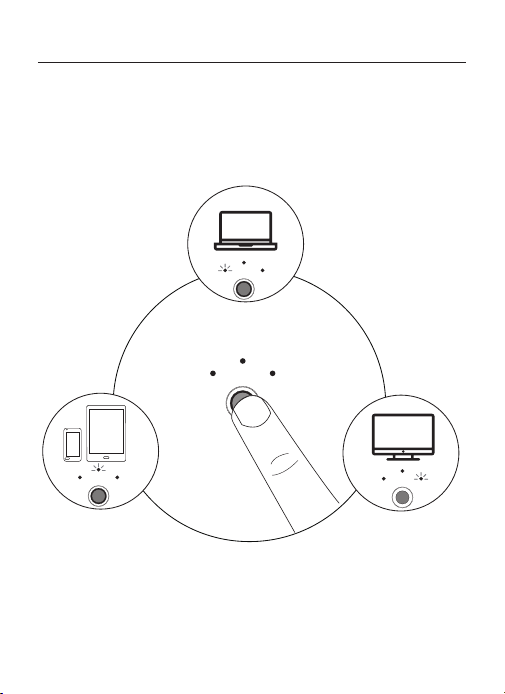
Mode Switch
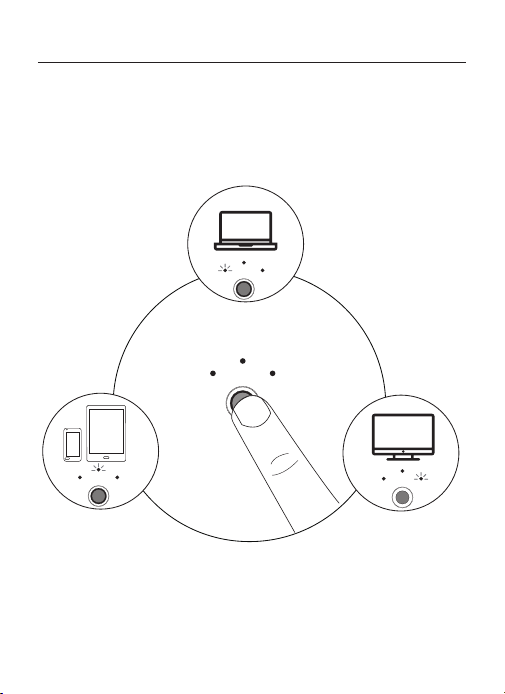
When 2.4G or Bluetooth connect successfully, shortly press the switch button at
the bottom of the mouse, and you could switch the modes easily
.
2.4G Mode LED on
Bluetooth 1 Mode LED on Bluetooth 2 Mode LED on
USB
BT2
BT1
USB BT2
BT1
USB BT2
BT1
USB BT2
BT1
MODE
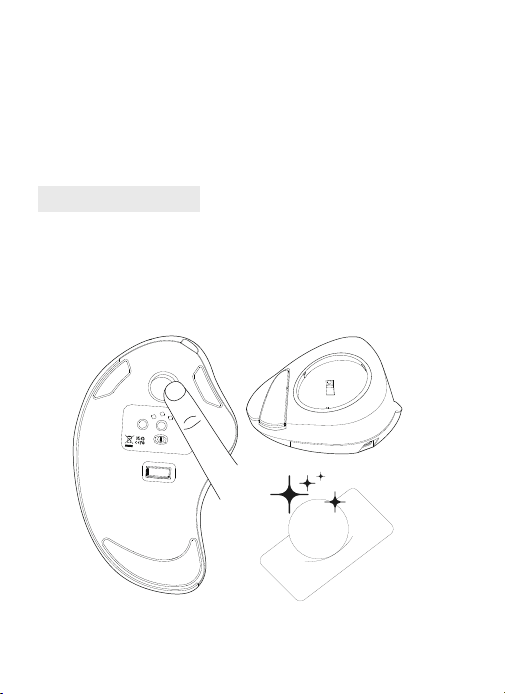
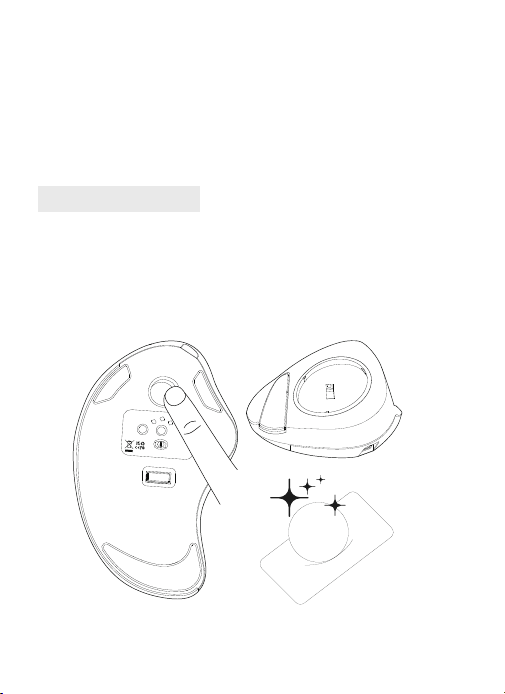
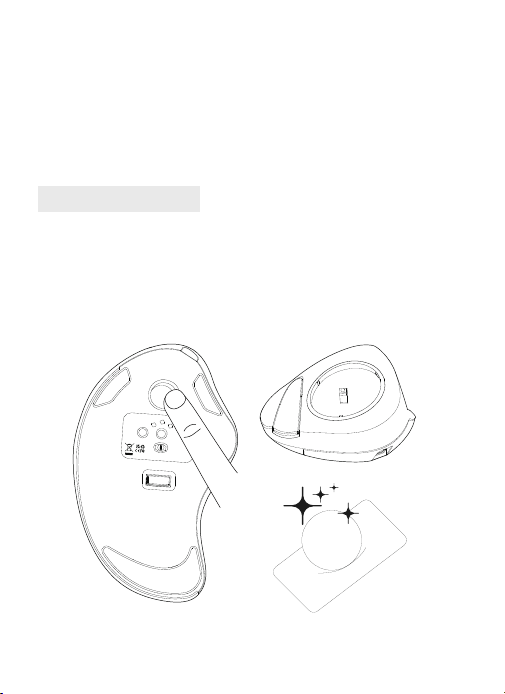
FAQ1
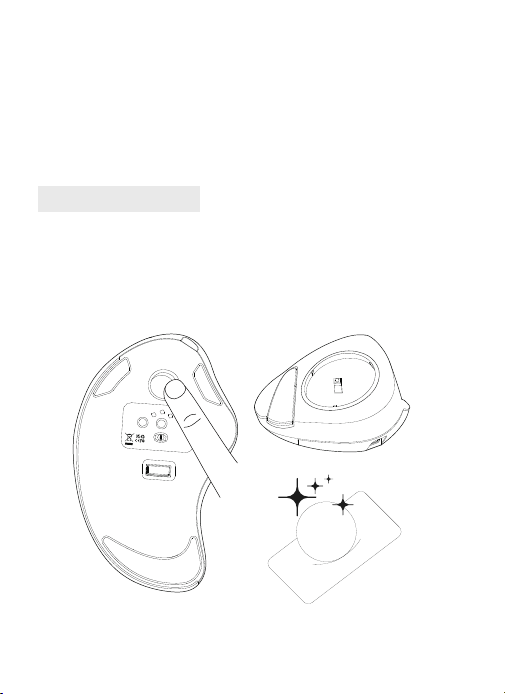
What can you do when the trackball and cursor cannot work well?
Push the trackball from the bottom of the mouse. Use a dry cloth to clean the
trackball regularly for better performance.
ON OFF
USB BT2
BT1
DPI
Mode
MADE IN CHINA
support@nulea.com
Model Name: M505
S/N:B0801
Charging
1. Low battery indicator ashes blue, in order not to affect the experience and
function of the mouse, please charge in time.
2. The charging indicator will glow red while the mouse is charging. The
indicator light turns green when fully charged.
Sleep Mode
To save power, the mouse will enter sleep mode after 30 minutes of
inactivity, press any key to exit sleep mode.
Take out the trackball Clean the trackball & sensor
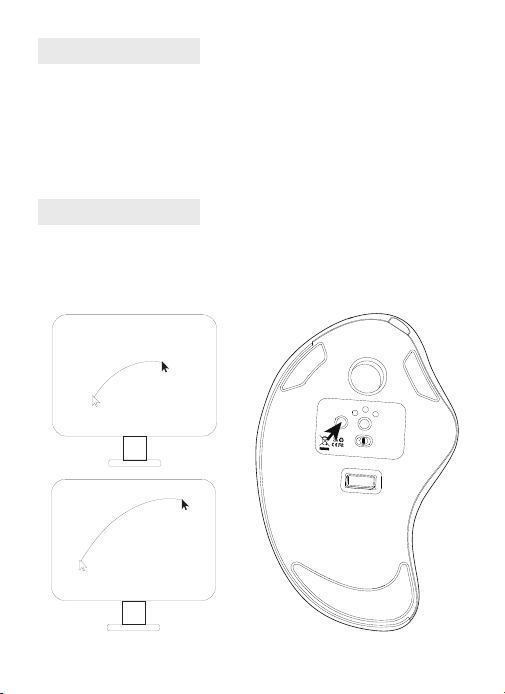
FAQ2
Note the mouse charging problem.
1
.
Please use our included charging cable to charge the mouse.
2. Do not use a fast charger to charge the mouse. Using a high-power adapter
to charge the mouse may burn out the mouse's chip. (Directly use the computer
USB port or a 5V charger to charge the mouse).
3. For your best experience, please fully charge the mouse before your rst use.
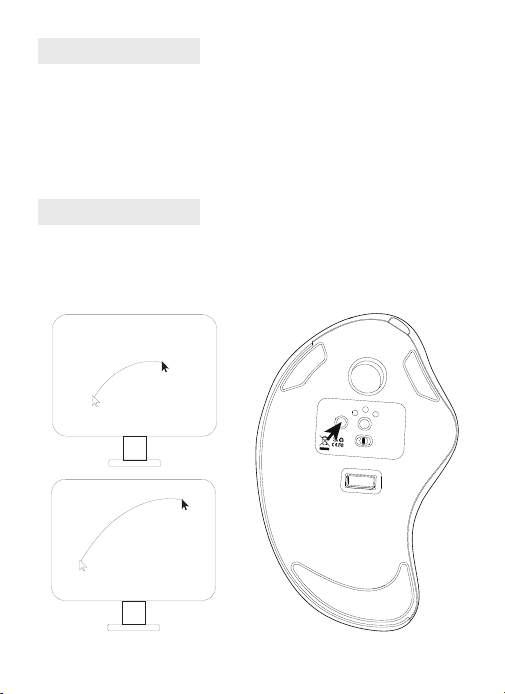
FAQ3
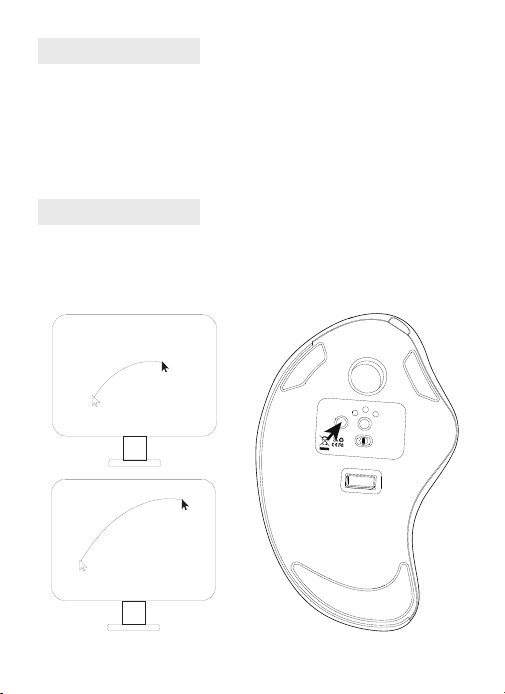
Why is the cursor too sensitive to control?
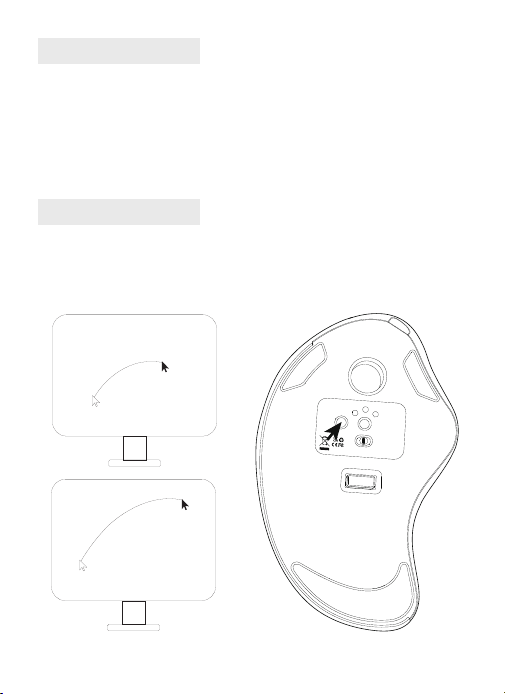
There are 5 DPI levels: 200-400(Default)-800-1200-1600. Press the DPI button
to adjust for your preference.
ON OFF
USB BT2
BT1
Mode
DPI
MADE IN CHINA
support@nulea.com
Model Name: M505
S/N:B0801
FAQ4
Don't get used to using trackball mouse.
The trackball mouse helping relieve wrist discomfort when working. The special
operation of the mouse may make you feel uncomfortable at rst. Once you get
command of using it, you will get its benets and fall in love with it.
FAQ5
How to reprogram mouse buttons?
1. All keys are not programmable.
2. Forward/Backward buttons are not compatible with MAC OS.
FAQ6
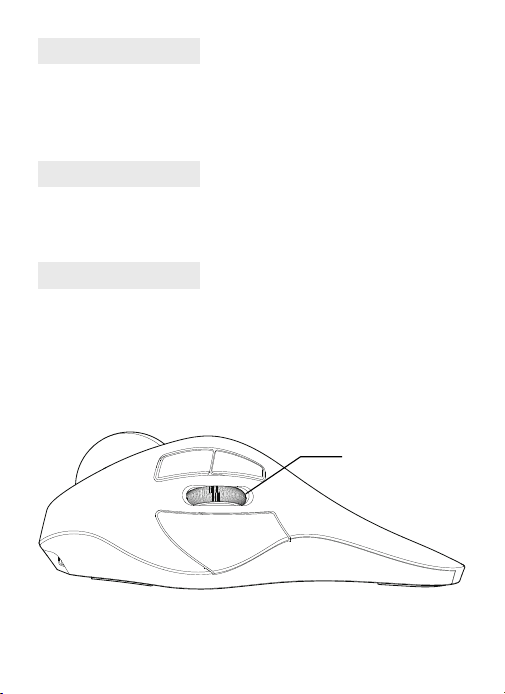
How does mouse charging display? Where is the charging indicator?
1. When the mouse is charging, the charging indicator is red, and the charging
completion indicator is green
2. Refer to the following gure for the position of charging indicator lamp
Charge display light
DE
Grundlegende Parameter
4.1in 2. 2in
6.6
in
Schnittstelle
DPI
Größe
Gewicht
Übertragungsentfernung
Nennleistung
Bericht Rate
2.4G/Bluetooth
200 - 400(Standard) - 800 - 1200 -1600
6.6 × 4.1 × 2.2in
193g
10m
DC 5V---0.3A
250HZ (2.4G) / 115HZ (Bluetooth)
Paket Inhalt
1 × Kabellose Trackball-Maus
1 × USB-C Kabel
1 × Benutzerhandbuch
2.4G Verbindung
1
3
2
4
ON OFF
USB BT2
BT1
DPI
Mode
ON OFF
BT1 USB
BT2
DPI
Mode
ON OFF
USB BT2
BT1
DPI
Mode
Model Name: M501
S/N:B0801
Power Rating:
DC5V 0.3A
MADE IN CHINA
MADE IN CHINA
MADE IN CHINA
Model Name: M505
S/N:B0801
Model Name: M505
S/N:B0801
support@nulea.com
Model Name: M505
S/N:B0801
support@nulea.com
USB
BT2
BT1
Schalten Sie die Maus ein.
1
Nehmen Sie den 2.4G Empfänger heraus.
2
Legen Sie es in den USB-Anschluss des Computers ein.
3
Drücken Sie die Kanalschalter-Taste, schalten Sie in den 2.4G-Modus. Die LED
leuchtet fünf Sekunden lang auf und erlischt dann, die Kopplung ist erfolgreich.
4
Schalten Sie die Maus ein.
1
Drücken Sie die Kanalumschalttaste, um in den Bluetooth-Modus zu wechseln.
2
Drücken Sie die Schaltertaste für 3-5 Sekunden lang, das LED-Licht blinkt
Schnell und die Maus in den Bluetooth -Pairing -Modus eintreten.
3
Bluetooth-Verbindung
Windows-System(Windows 10 als Beispiel nehmen)
1 2 3
ON OFF
USB BT2
BT1
DPI
Mode
Model Name: M505
S/N:B0801
MADE IN CHINA
support@nulea.com
MADE IN CHINA
Model Name: M505
S/N:B0801
Model Name: M505
S/N:B0801
MADE IN CHINA
ON OFF
USB BT2
BT1
Mode
DPI
ON OFF
USB BT2
BT1
DPI
Mode
support@nulea.com
support@nulea.com
USB
BT2
BT1
USB
BT2
BT1
Klicken Sie auf die Schaltäche "Bluetooth-Geräte" auf dem Computer.
4
Klicken Sie auf die Schaltäche "Bluetooth -Geräte hinzufügen oder entfernen".
5
Suchen Sie die Bluetooth "Nulea BT5.0 Mouse/Nulea BT3.0 Mouse" und
klicken Sie auf die Pairing -Taste.
6
Wenn die Paarung erfolgreich ist, leuchtet die LED 5 Sekunden lang auf
und geht dann aus.
7
Mac OS-System
Bitte betreiben Sie die Bluetooth -Installationsschritte (1 ~ 3) vor dem Paarung.
6
Klicken Sie auf dem Mac auf die Schaltäche „Systemeinstellungen“.
1
Klicken Sie auf die Bluetooth -Taste im Systempräferenzordner.
2
3
Suchen Sie die Bluetooth "Nulea BT5.0 Mouse/Nulea BT3.0 Mouse" und klicken
Sie auf die
Pairing -Taste. Wenn sie vollständig installiert ist, kann die Maus normal verwendet
werden
Modus-Schalter
Wenn die 2.4G- oder Bluetooth-Verbindung erfolgreich ist, drücken Sie kurz auf
die Umschalttaste an der Unterseite der Maus, und Sie können die Modi leicht
wechseln.
2.4G Mode LED on
Bluetooth 1 Mode LED on Bluetooth 2 Mode LED on
USB
BT2
BT1
USB BT2
BT1
USB BT2
BT1
USB BT2
BT1
MODE
FAQ1
Was können Sie tun, wenn der Trackball und der Cursor nicht gut
funktionieren können?
Drücken Sie den Trackball vom Boden der Maus. Verwenden Sie ein trockenes
Tuch, um den Trackball regelmäßig für eine bessere Leistung zu reinigen.
ON OFF
USB BT2
BT1
DPI
Mode
MADE IN CHINA
support@nulea.com
Model Name: M505
S/N:B0801
Ladung
1. Die Batterieanzeige blinkt blau, um die Erfahrung nicht zu beeinussen und
Funktion der Maus, bitte rechtzeitig auaden.
2
.
Der Ladeindikator leuchtet rot, während die Maus aufgeladen wird. Das
Indikatorlicht wird bei voll aufgeladenen Grün grün.
Schlafmodus
Um Strom zu sparen, tritt die Maus nach 30 Minuten in den Schlafmodus ein
Inaktivität, drücken Sie eine beliebige Taste, um den Schlafmodus zu verlassen.
Nehmen Sie den Trackball
heraus
Reinigen Sie den Trackball &
Sensor
FAQ2
Beachten Sie das Problem der Maus -Ladung.
1. Bitte verwenden Sie unser mitgeliefertes Ladekabel, um die Maus aufzuladen.
2. Verwenden Sie kein schnelles Ladegerät, um die Maus aufzuladen. Die
Verwendung eines Hochleistungsadapters zum Laden der Maus kann den Chip
der Maus ausbrennen. (Verwenden Sie direkt den USB -Anschluss oder ein 5 -V
-Ladegerät, um die Maus aufzuladen).
3. Für Ihre beste Erfahrung berechnen Sie die Maus vor Ihrer ersten Verwendung
vollständig.use.
FAQ3
Warum ist der Cursor zu empndlich gegenüber der Kontrolle?
Es gibt 5 DPI-Werte: 200-400 (Standard) -800-1200-1600. Drücken Sie die DPI
-Taste, um Ihre Dreferenz Vorliebe.
ON OFF
USB BT2
BT1
Mode
DPI
MADE IN CHINA
support@nulea.com
Model Name: M505
S/N:B0801
FAQ4
Gewöhnen Sie sich nicht an die Verwendung von Trackball -Maus.
Die Trackball -Maus lindert das Handgelenksbeschwerden bei der Arbeit. Der
besondere Betrieb der Maus kann Sie zunächst unangenehm machen. Sobald Sie
den Befehl über die Verwendung erhalten haben, erhalten Sie seine Vorteile und
verlieben sich in sie.
FAQ5
Wie programmiere ich Maustasten neu?
1. Alle Schlüssel sind nicht programmierbar.
2. Vorwärts-/Rückwärtsschaltächen sind nicht mit Mac OS kompatibel.
FAQ6
Wie zeigt die Ladestation der Maus an? Wo ist die Ladeanzeige?
1. Wenn die Maus aufgeladen wird, leuchtet die Ladeanzeige rot und die Anzeige
zum Auaden grün
2. Siehe die folgende Abbildung für die Position der Ladekontrollleuchte
Lampe laden
FR
Paramètres de base
4.1in 2. 2in
6.6
in
Interface
DPI
Taille
Poids
Distance de transmission
Puissance nominale
Taux de rapport
2.4G/Bluetooth
200 - 400(Défaut) - 800 - 1200 -1600
6.6 × 4.1 × 2.2in
193g
10m
DC 5V---0.3A
250HZ (2.4G) / 115HZ (Bluetooth)
Contenu du paquet
1 × Souris sans l à boule de commande
1 × Câble USB-C
1 × Manuel de l'utilisateur
Connexion 2.4G
1
3
2
4
ON OFF
USB BT2
BT1
DPI
Mode
ON OFF
BT1 USB
BT2
DPI
Mode
ON OFF
USB BT2
BT1
DPI
Mode
Model Name: M501
S/N:B0801
Power Rating:
DC5V 0.3A
MADE IN CHINA
MADE IN CHINA
MADE IN CHINA
Model Name: M505
S/N:B0801
Model Name: M505
S/N:B0801
support@nulea.com
Model Name: M505
S/N:B0801
support@nulea.com
USB
BT2
BT1
Allumez la souris.
1
Retirer le récepteur 2.4G.
2
Branchez - le sur le port USB de l'ordinateur.
3
Appuyez sur le bouton de commutation de canal pour passer en mode 2.4G. LED
allumée pendant 5 secondes, puis éteinte, appariement réussi.
4
Allumez la souris.
1
Appuyez sur le bouton du commutateur de canal pour passer en mode
Bluetooth.
2
Appuyez longtemps sur le bouton de l'interrupteur pendant 3-5 secondes, la
lumière LED clignote Rapidement et la souris entre en mode d'appariement
Bluetooth.
3
Connexion Bluetooth
Système Windows(prenez Windows 10 comme exemple)
1 2 3
ON OFF
USB BT2
BT1
DPI
Mode
Model Name: M505
S/N:B0801
MADE IN CHINA
support@nulea.com
MADE IN CHINA
Model Name: M505
S/N:B0801
Model Name: M505
S/N:B0801
MADE IN CHINA
ON OFF
USB BT2
BT1
Mode
DPI
ON OFF
USB BT2
BT1
DPI
Mode
support@nulea.com
support@nulea.com
USB
BT2
BT1
USB
BT2
BT1
Cliquez sur le bouton "Bluetooth Devices" sur l'ordinateur.
4
Cliquez sur le bouton "Ajouter ou supprimer les périphériques Bluetooth".
5
Recherchez la souris Bluetooth "Nulea BT5.0 Mouse/Nulea BT3.0 Mouse" et
cliquez sur le bouton d'appariement.
6
Si l'appariement est réussi, la LED s'allume pendant 5 secondes et va ensuite
dehors.
7
Système Mac OS
Veuillez utiliser les étapes d'installation Bluetooth (1 ~ 3) avant le couple.
6
Cliquez sur le bouton «Préférences système» sur le Mac.
1
Cliquez sur le bouton Bluetooth dans le dossier des préférences système.
2
3
Recherchez la souris Bluetooth"Nulea BT5.0 Mouse/Nulea BT3.0 Mouse"et cliquez
sur le Bouton d'appariement. S'il est complètement installé, la souris pourrait être
utilisée normalement.
Changement de mode
Lorsque la connexion 2.4G ou Bluetooth réussit, appuyez brièvement sur le
bouton de commutation situé en bas de la souris, et vous pourrez changer de
mode facilement.
2.4G Mode LED on
Bluetooth 1 Mode LED on Bluetooth 2 Mode LED on
USB
BT2
BT1
USB BT2
BT1
USB BT2
BT1
USB BT2
BT1
MODE
FAQ1
Que pouvez-vous faire lorsque le trackball et le curseur ne peuvent pas bien
fonctionner?
Poussez le trackball du bas de la souris. Utilisez un chiffon sec pour
nettoyer régulièrement le trackball pour de meilleures performances.
ON OFF
USB BT2
BT1
DPI
Mode
MADE IN CHINA
support@nulea.com
Model Name: M505
S/N:B0801
Mise en charge
1. Low Indicateur de batterie clignote bleu, an de ne pas affecter l'expérience et
Fonction de la souris, veuillez facturer à temps.
2
.
L'indicateur de charge brillera en rouge pendant la charge de la souris. La
La lumière indicatrice devient verte lorsqu'elle est complètement chargée.
Mode veille
Pour économiser de l'énergie, la souris entrera en mode de sommeil après 30
minutes de Inactivité, appuyez sur n'importe quelle touche pour quitter le mode
de sommeil.
Sortez le trackball Nettoyez le trackball et le capteur
FAQ2
Notez le problème de charge de la souris.
1. Veuillez utiliser notre câble de charge inclus pour charger la souris.
2. N'utilisez pas de chargeur rapide pour charger la souris. L'utilisation d'un
adaptateur haute puissance pour charger la souris peut brûler la puce de la
souris. (Utilisez directement le port USB de l'ordinateur ou un chargeur 5V pour
charger la souris).
3. Pour votre meilleure expérience, veuillez facturer complètement la souris
avant votre première utilisation.
FAQ3
Pourquoi le curseur est-il trop sensible pour contrôler?
Ilya 5 niveaux de DPI: 200-400 (par défaut) -800-1200-1600. Appuyez sur le
bouton DPI pour ajuster votre Préférence.
ON OFF
USB BT2
BT1
Mode
DPI
MADE IN CHINA
support@nulea.com
Model Name: M505
S/N:B0801
FAQ4
Ne vous habituez pas à utiliser la souris trackball.
La souris trackball contribuant à soulager l'inconfort du poignet lorsque vous
travaillez. Le fonctionnement spécial de la souris peut vous mettre mal à l'aise
au début. Une fois que vous aurez commandé de l'utiliser, vous obtiendrez ses
avantages et vous en tomberons amoureux.
FAQ5
Come riprogrammare i pulsanti del mouse?
1. Tutte le chiavi non sono programmabili.
2. I pulsanti in avanti/indietro non sono compatibili con Mac OS
FAQ6
Comment la charge de la souris s'afche - t - elle?
Où est l'indicateur de charge?
1. Lorsque la souris est chargée, l'indicateur de charge est rouge et l'indicateur
d'achèvement de la charge est vert.
2. Voir la gure ci - dessous pour la position de l'indicateur de charge.
Lampe d’afchage rechargeable
IT
Parametri di base
4.1in 2. 2in
6.6
in
Interfaccia
DPI
Dimensioni
Peso
Distanza di trasmissione
Potenza nominale
Rapporto Tasso
2.4G/Bluetooth
200 - 400(Predenito) - 800 - 1200 -1600
6.6 × 4.1 × 2.2in
193g
10m
DC 5V---0.3A
250HZ (2.4G) / 115HZ (Bluetooth)
Contenuto della confezione
1 × Mouse Trackball senza li
1 × Cavo USB-C
1 × Manuale dell'utente
Connessione 2.4G
1
3
2
4
ON OFF
USB BT2
BT1
DPI
Mode
ON OFF
BT1 USB
BT2
DPI
Mode
ON OFF
USB BT2
BT1
DPI
Mode
Model Name: M501
S/N:B0801
Power Rating:
DC5V 0.3A
MADE IN CHINA
MADE IN CHINA
MADE IN CHINA
Model Name: M505
S/N:B0801
Model Name: M505
S/N:B0801
support@nulea.com
Model Name: M505
S/N:B0801
support@nulea.com
USB
BT2
BT1
Accendere il mouse.
1
Take fuori il ricevitore 2.4G.
2
Inserire nella porta USB del computer.
3
Premere il pulsante di commutazione del canale, passare alla modalità 2.4G. Il
LED si accende per 5 secondi e poi si spegne, l'accoppiamento ha successo.
4
Accendere il mouse.
1
Premere il pulsante interruttore del canale per passare alla modalità Bluetooth.
2
Premere a lungo il pulsante Switch per 3-5 secondi, la luce LED lampeggia
rapidamente e il mouse entra nella modalità di accoppiamento Bluetooth.
3
Connessione Bluetooth
Sistema Windows(Prendi Windows 10 come esempio)
1 2 3
ON OFF
USB BT2
BT1
DPI
Mode
Model Name: M505
S/N:B0801
MADE IN CHINA
support@nulea.com
MADE IN CHINA
Model Name: M505
S/N:B0801
Model Name: M505
S/N:B0801
MADE IN CHINA
ON OFF
USB BT2
BT1
Mode
DPI
ON OFF
USB BT2
BT1
DPI
Mode
support@nulea.com
support@nulea.com
USB
BT2
BT1
USB
BT2
BT1
Fare clic sul pulsante "Bluetooth Devices" sul computer.
4
Fare clic sul pulsante "Aggiungi o rimuovi i dispositivi Bluetooth".
5
Cerca il mouse Bluetooth "Nulea BT5.0 Mouse/Nulea BT3.0 Mouse"e fai clic su
il pulsante di abbinamento.
6
Se l'abbinamento ha successo, il LED si illumina per 5 secondi e poi va
fuori.
7
Sistema Mac OS
Si prega di utilizzare i passaggi di installazione Bluetooth (1 ~ 3) prima dell'abbinamento.
6
Fare clic sul pulsante "Preferenze di sistema" sul Mac.
1
Fare clic sul pulsante Bluetooth sulla cartella Preferenza di sistema.
2
Cerca il mouse Bluetooth "Nulea BT5.0 Mouse/Nulea BT3.0 Mouse" e fai clic sul
Pulsante di abbinamento. Se installato completamente, il mouse potrebbe essere
utilizzato normalmente.
3
Interruttore di modalità
Quando la connessione 2.4G o Bluetooth avviene con successo, premere
brevemente il pulsante di commutazione nella parte inferiore del mouse per
cambiare facilmente modalità.
2.4G Mode LED on
Bluetooth 1 Mode LED on Bluetooth 2 Mode LED on
USB
BT2
BT1
USB BT2
BT1
USB BT2
BT1
USB BT2
BT1
MODE
FAQ1
Cosa puoi fare quando il trackball e il cursore non possono funzionare bene?
Spingi la trackball dal fondo del mouse. Usa un panno asciutto per pulire
regolarmente la trackball per prestazioni migliori.
ON OFF
USB BT2
BT1
DPI
Mode
MADE IN CHINA
support@nulea.com
Model Name: M505
S/N:B0801
Carica
1. Luci l'indicatore della batteria lampeggia in blu, per non inuire sull'esperienza
e funzione del mouse, si prega di caricare in tempo.
2
.
L'indicatore di ricarica brillerà in rosso mentre il mouse è in carica. Il
La luce dell'indicatore diventa verde quando è completamente carica.
Modalità risparmio
Per salvare l'alimentazione, il mouse entrerà in modalità sospensione dopo
30 minuti di Inattività, premere qualsiasi tasto per uscire dalla modalità di
sospensione.
Elimina la trackball Pulisci il trackball e il sensore
FAQ2
Nota il problema di ricarica del mouse.
1. Utilizzare il nostro cavo di ricarica incluso per caricare il mouse.
2. Non utilizzare un caricabatterie veloce per caricare il mouse. L'uso di un
adattatore ad alta potenza per caricare il mouse può bruciare il chip del mouse.
(Utilizzare direttamente la porta USB del computer o un caricabatterie da 5 V per
caricare il mouse).
3. Per la tua migliore esperienza, si prega di caricare completamente il mouse
prima del primo utilizzo.
FAQ3
Perché il cursore è troppo sensibile per il controllo?
Esistono 5 livelli DPI: 200-400 (impostazione predefinita) -800-1200-1600.
Premere il pulsante DPI per regolare per la tua Preferenza.
ON OFF
USB BT2
BT1
Mode
DPI
MADE IN CHINA
support@nulea.com
Model Name: M505
S/N:B0801
FAQ4
Non abituarti a usare il mouse trackball.
Il mouse trackball che aiuta ad alleviare il disagio del polso quando si lavora.
L'operazione speciale del mouse potrebbe metterti a disagio all'inizio. Una volta
che avrai il comando di usarlo, ne otterrai i suoi beneci e ne innamori.
FAQ5
Come riprogrammare i pulsanti del mouse?
1. Tutte le chiavi non sono programmabili.
2. I pulsanti in avanti/indietro non sono compatibili con Mac OS
FAQ6
Come viene visualizzato l'indicatore di carica sul mouse?
Dove si trova l'indicatore di carica?
1. Quando il mouse è in carica, l'indicatore di carica è rosso e l'indicatore di
completamento della carica è verde.
2. Per la posizione dell'indicatore di carica, fare riferimento al seguente
diagramma
Spia di carica
ES
Parámetros básicos
4.1in 2. 2in
6.6
in
Interfaz
DPI
Tamaño
Peso
Distancia de transmisión
Potencia nominal
Tasa de informe
2.4G/Bluetooth
200 - 400((Por defecto - 800 - 1200 -1600
6.6 × 4.1 × 2.2in
193g
10m
DC 5V---0.3A
250HZ (2.4G) / 115HZ (Bluetooth)
Contenu du paquet
1 × Ratón inalámbrico con bola de seguimiento
1 × Cable USB-C
1 × Manual de usuario
Conexión 2.4G
1
3
2
4
ON OFF
USB BT2
BT1
DPI
Mode
ON OFF
BT1 USB
BT2
DPI
Mode
ON OFF
USB BT2
BT1
DPI
Mode
Model Name: M501
S/N:B0801
Power Rating:
DC5V 0.3A
MADE IN CHINA
MADE IN CHINA
MADE IN CHINA
Model Name: M505
S/N:B0801
Model Name: M505
S/N:B0801
support@nulea.com
Model Name: M505
S/N:B0801
support@nulea.com
USB
BT2
BT1
Abra el ratón.
1
Retire el receptor 2.4G.
2
Conéctelo al puerto USB del ordenador.
3
Pulse el botón Cambiar canal para cambiar al modo 2.4G. El LED se enciende
durante 5 segundos, luego se apaga, y la pareja tiene éxito.
4
Encienda el mouse.
1
Presione el botón de interruptor del canal para cambiar al modo Bluetooth.
2
Larga presione el botón del interruptor durante 3-5 segundos, la luz LED
parpadea rápidamente y el mouse entra en modo de emparejamiento Bluetooth.
3
Conexión Bluetooth
Sistema de Windows(tome Windows 10 como ejemplo)
1 2 3
ON OFF
USB BT2
BT1
DPI
Mode
Model Name: M505
S/N:B0801
MADE IN CHINA
support@nulea.com
MADE IN CHINA
Model Name: M505
S/N:B0801
Model Name: M505
S/N:B0801
MADE IN CHINA
ON OFF
USB BT2
BT1
Mode
DPI
ON OFF
USB BT2
BT1
DPI
Mode
support@nulea.com
support@nulea.com
USB
BT2
BT1
USB
BT2
BT1
Haga clic en el botón "Dispositivos Bluetooth" en la computadora.
4
Haga clic en el botón "Agregar o eliminar dispositivos Bluetooth".
5
Busque el Bluetooth "Nulea BT5.0 Mouse/Nulea BT3.0 Mouse" y haga clic
el botón de emparejamiento.
6
Si el emparejamiento es exitoso, el LED se ilumina durante 5 segundos y luego
se va afuera.
7
3
Sistema Mac OS
Opere los pasos de instalación de Bluetooth (1 ~ 3) antes de emparejarse.
6
Haga clic en el botón "Preferencias del sistema" en la Mac.
1
Haga clic en el botón Bluetooth en la carpeta de preferencias del sistema.
2
Busque en el ratón Bluetooth
"Nulea BT5.0 Mouse/Nulea BT3.0 Mouse"
y haga
clic en el Botón de emparejamiento. Si se instala por completo, el mouse podría
usarse normalmente.
Cambio de modo
Cuando el 2.4G o el Bluetooth se conectan con éxito, pulse brevemente el botón
de cambio en la parte inferior del ratón, y usted podría cambiar los modos
fácilmente.
2.4G Mode LED on
Bluetooth 1 Mode LED on Bluetooth 2 Mode LED on
USB
BT2
BT1
USB BT2
BT1
USB BT2
BT1
USB BT2
BT1
MODE
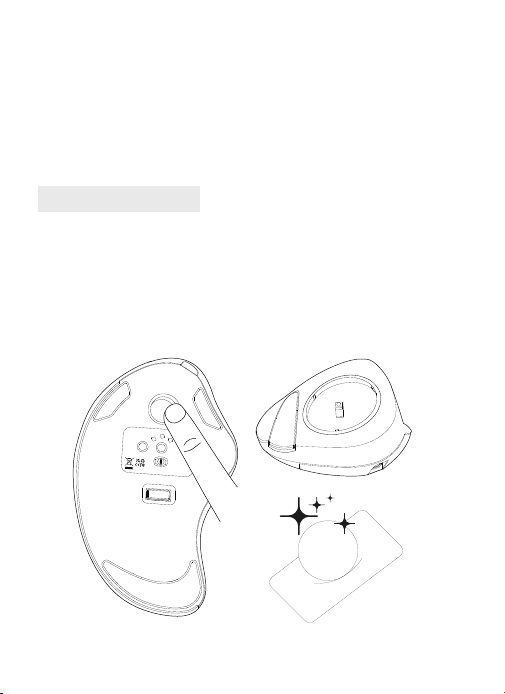
FAQ1
¿Qué puedes hacer cuando la bola de seguimiento y el cursor no pueden
funcionar bien?
Empuje la bola de pista desde la parte inferior del mouse. Use un paño seco para
limpiar la bola de pista regularmente para un mejor rendimiento.
ON OFF
USB BT2
BT1
DPI
Mode
MADE IN CHINA
support@nulea.com
Model Name: M505
S/N:B0801
Carga
1. El indicador de batería bajo parpadea azul, para no afectar la experiencia y
función del mouse, por favor, por favor, cargue a tiempo.
2. El indicador de carga brillará rojo mientras el mouse está cargando. los
La luz indicadora se vuelve verde cuando está completamente cargada.
Modo de sueño
Para guardar la energía, el mouse entrará en modo de suspensión después
de 30 minutos de Inactividad, presione cualquier tecla para salir del modo de
suspensión.
Saca la bola de seguimiento Limpiar el trackball y el sensor
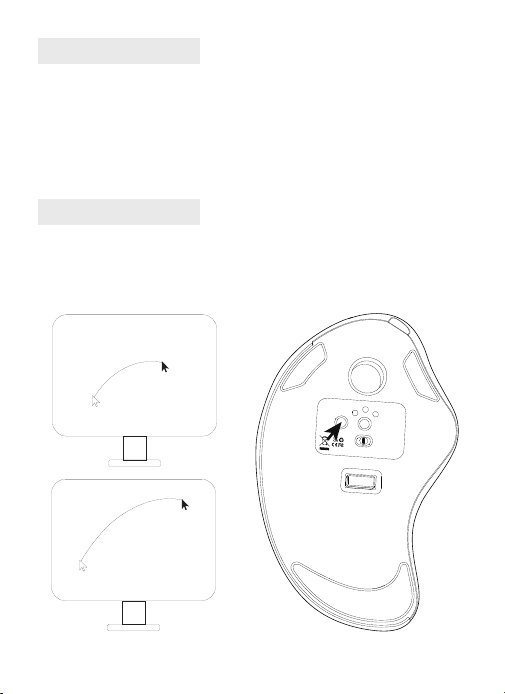
FAQ2
Tenga en cuenta el problema de carga del mouse.
1. Utilice nuestro cable de carga incluido para cargar el mouse.
2. No use un cargador rápido para cargar el mouse. El uso de un adaptador
de alta potencia para cargar el mouse puede quemar el chip del mouse. (Use
directamente el puerto USB de la computadora o un cargador de 5V para cargar
el mouse).
3. Para su mejor experiencia, cargue completamente el mouse antes de su primer
uso.
FAQ3
¿Por qué el cursor es demasiado sensible al control?
Hay 5 niveles de DPI: 200-400 (predeterminado) -800-1200-1600. Presione el
botón DPI para ajustar su Preferencia.
ON OFF
USB BT2
BT1
Mode
DPI
MADE IN CHINA
support@nulea.com
Model Name: M505
S/N:B0801
FAQ4
No te acostumbres a usar Trackball Mouse.
El ratón Trackball ayuda a aliviar la incomodidad de la muñeca cuando trabaja.
La operación especial del mouse puede hacer que se sienta incómodo al
principio. Una vez que obtenga el mandato de usarlo, obtendrá sus benecios y
se enamorará de él.
FAQ5
¿Cómo reprogramar los botones del mouse?
1. Todas las claves no son programables.
2. Los botones hacia adelante/hacia atrás no son compatibles con Mac OS.
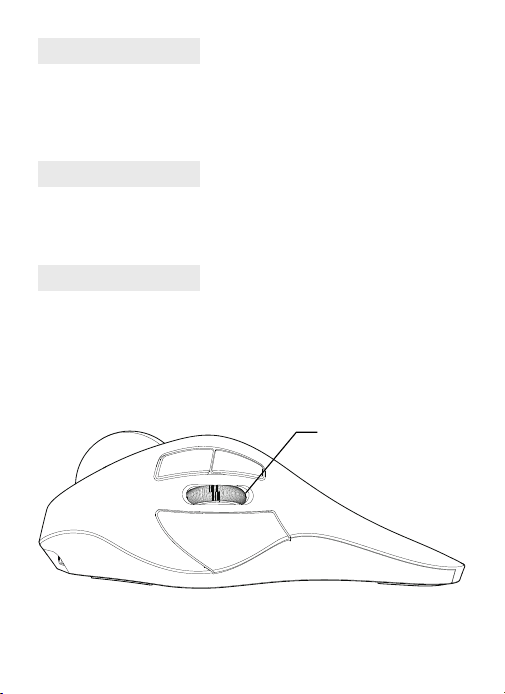
FAQ6
¿Cómo se muestra la carga del ratón? ¿Dónde está el indicador de carga?
1. Cuando el ratón se está cargando, el indicador de carga es rojo, y el indicador
de nalización de la carga es verde
2. Consulte la siguiente figura para ver la posición del indicador luminoso de
carga
Indicador luminoso de
carga
FCC Statement
Correct Disposal of This Product
Any Changes or modications not expressly approved by the party responsible for
compliance could void the user’s authority to operate the equipment.
This device complies with part 15 of the FCC Rules. Operation is subject to the following
two conditions:
(1) This device may not cause harmful interference, and (2) this device must accept any
interference received, including interference that may cause undesired operation.
FCC Radiation Exposure Statement
This equipment complies with FCC radiation exposure limits set forth for an uncontrolled
environment.
(Waste Electrical & Electronic Equipment)
This marking shown on the product or its literature, indicate that it should not be
disposed with other household wastes at the end of its working life.
To prevent possible harm to the environment or human health from uncontrolled waste
disposal, please separate this from other types of wastes and recycle it responsibly to
promote the sustainable reuse of material resources. Household user should contact
either the retailer where they purchased this product or their local government ofce, for
details of where and how they can take this item for environmentally safe recycling.
Business users should contact their supplier and check the terms and conditions of the
purchase contact. This product should not be mixed with other commercial wastes for disposal.
WORK WITH YOUR FAVORITE
Visit www.nulea.com for our 24/7
live chat or send an email to
[email protected] for support.
24
7
EC REP
CET Product Service Ltd.
Beacon House Stokenchurch Business Park,
Ibstone Rd, Stokenchurch
High Wycombe HP14 3FE UK
Email: info.cetservice@gmail.com
Phone: +44 741 932 5266
UK REP