
2

3
CONTENTS
Safety Information 4
What’s Included 6
Monitor Dimensions 6
Connections Available on the Monitor 7
Wall Mounting 7
Shortcut Key Guide 8
Initial Setup 8
Menu Options 8
Input Source 9
Brightness/Contrast 9
Color Settings 10
Picture Quality Settings 10
Display Settings 11
Audio Settings 11
Multi-Window 12
OSD Setting 12
Other Settings 13
Specification
14
Troubleshooting 15

4
SAFETY INFORMATION
⚫ Read these instructions – All the safety and operating instructions should be read
before this product is installed or operated.
⚫ Keep these instructions – The safety and operating instructions should be retained
for future reference.
⚫ Heed all warnings – All warnings on the appliance and in the operating instructions
should be adhered to.
⚫ Follow all instructions – All operating and usage instructions should be followed.
⚫ Do not use this equipment near water – The appliance should not be used near
water or moisture e.g. in a wet basement or near a swimming pool.
⚫ This monitor is designed for indoor use only.
⚫ Clean only with a dry cloth. Do not use solvents or petroleum-based fluids.
⚫ Do not block any ventilation openings.
⚫ Do not install near any heat sources such as radiators, stoves or other apparatus
(including amplifiers) that produce heat.
⚫ Do not tamper with the supplied plug. This plug is a BS1363 standard plug.
⚫ Protect the power cord from being walked on or pinched, particularly at the plug and
at the point where it exits from the appliance.
⚫ Only use attachments/accessories specified by the manufacturer.
⚫ Unplug the apparatus during lightning storms or when unused for long periods of time.
⚫ Refer all servicing to qualified personnel. Servicing is required when the apparatus
has been damaged in any way, such as:
• The power supply cord or plug has been damaged.
• Liquid has been spilled or the monitor has been exposed to rain or moisture.
• Objects have fallen into the apparatus.
• It does not operate normally or has been dropped.
⚫ Please keep the unit in a well-ventilated environment.
⚫ The monitor should only be connected to a mains power supply with AC 100-240V~
50/60Hz
⚫ To prevent overload, do not share the same power supply socket with too many other
electronic components.
⚫ Do not place any connecting wires where they may be stepped on or tripped over.
⚫ Do not place heavy items on the cable as this may cause damage.
⚫ When removing from a socket grip the plug, not the cable.
⚫ Disconnect the plug immediately and seek professional help if the plug or cable is
damaged, liquid has spilt onto the monitor, if accidentally exposed to water or
moisture, if anything accidentally penetrates the ventilation slots or if the set does not
work normally.
⚫ Do not remove the safety covers. There are no user serviceable parts inside.
⚫ Do not block ventilation slots on the back cover. The monitor can be placed in a
cabinet but ensure the guidance on clearances (see next page) are followed.
⚫ Do not tap or shake the screen, this may damage internal components.
⚫ Diagrams within the manual are for illustrative purposes only, and as such there may
be differences to the actual product received.
⚫ This is a CLASS I product and as such requires an earth connection.
5
WARNINGS
Never place a monitor in an unstable location. A monitor may fall, causing serious
personal injury or death. Many injuries, particularly to children, can be avoided by
taking simple precautions such as:
⚫ Use cabinets or stands recommended by the manufacturer of the monitor.
⚫ Only use furniture that can safely support the monitor.
⚫ Ensure the monitor is not overhanging the edge of the supporting furniture.
⚫ Do not place the monitor on tall furniture (for example, cupboards or bookcases)
without anchoring both the furniture and the monitor to a suitable support.
⚫ Do not place the monitor on cloth or other materials that may be located between
the monitor and the supporting furniture.
⚫ Educate children about the dangers of climbing on furniture to reach the monitor or
its controls.
If your existing monitor is being retained and relocated, the same considerations as
above should be applied.
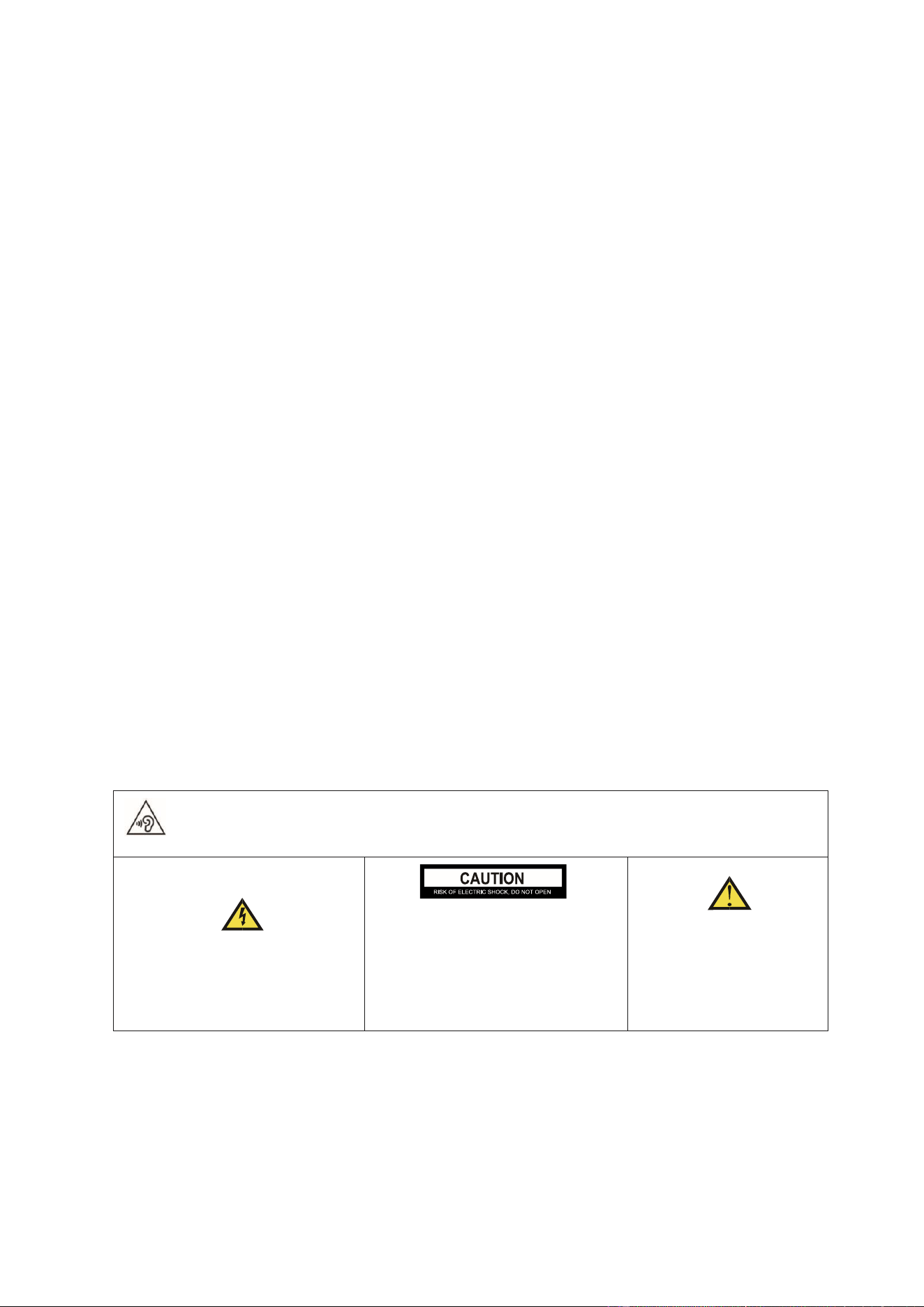
AT FULL VOLUME, PROLONGED LISTENING MAY DAMAGE THE
USER’S HEARING.
This warning sign is to warn
of dangerous voltage inside
the product.
CAUTION: To reduce the risk
of electric shock, DO NOT
remove the cover (or back).
No user serviceable parts
inside. Refer servicing to
qualified service personnel.
This warning sign is
to alert you of
important instructions
accompanying the
product.
6
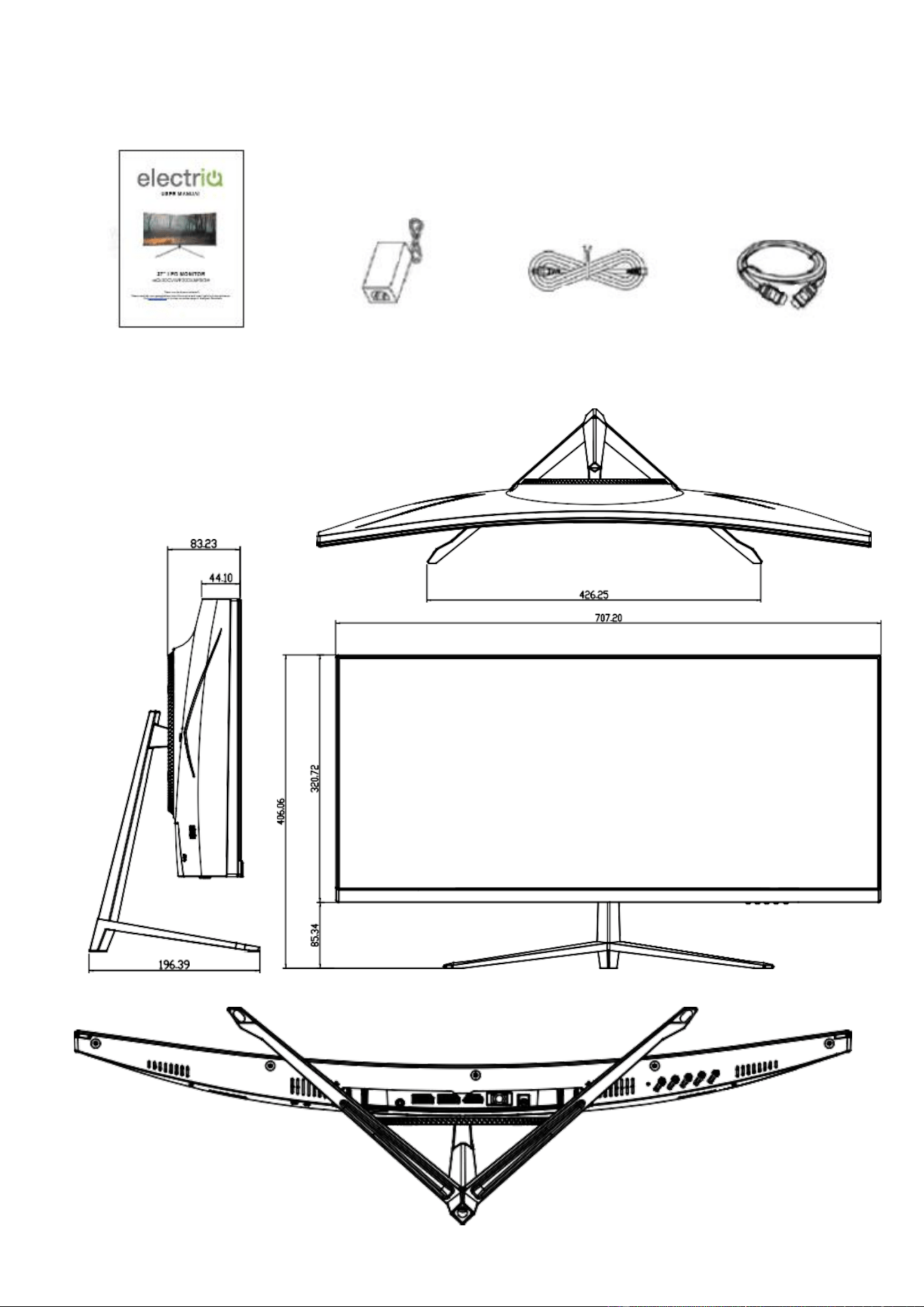
WHAT’S INCLUDED
USER MANUAL POWER SUPPLY POWER CABLE HDMI
7
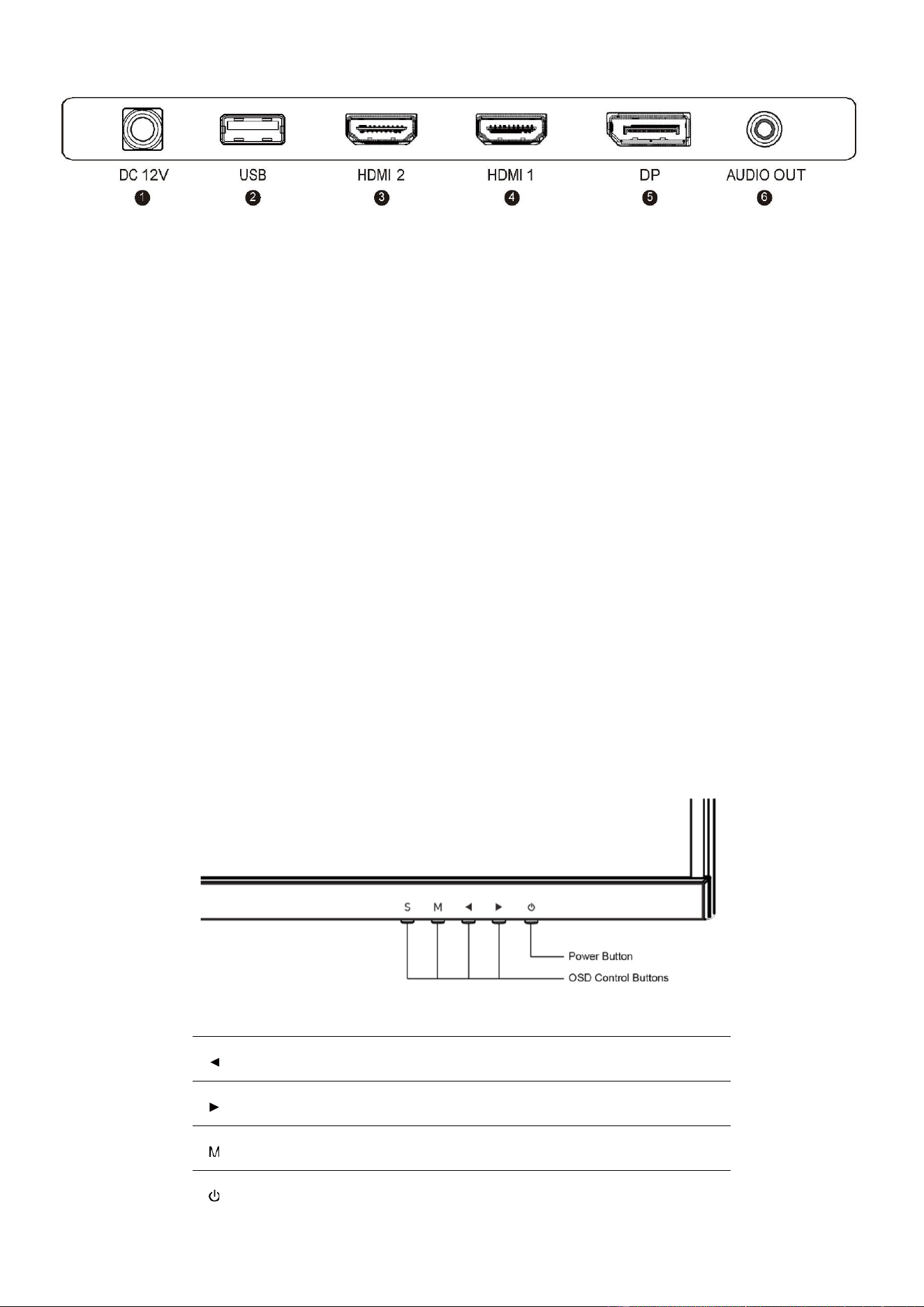
CONNECTIONS AVAILABLE ON THE MONITOR
1.
1
POWER
2.
2
USB (Firmware updates)
3.
3
HDMI 2 (HDMI 1.4, 60Hz, Free Sync)
4.
4
HDMI 1 (HDMI 2.0, 200Hz, Free Sync)
5.
5
DP (Display Port 1.2, 200Hz, Free Sync)
6.
6
AUDIO OUT
WALL MOUNTING
• The monitor is provided with mounting holes for a VESA approved wall mounting bracket (not supplied).
• The VESA mounting pattern is: 100x100mm and the size of the screws is 4 x M6 x 10 (not supplied)
• Do not use screws longer than specified or damage will occur to the internal components.
NOTE: As the monitor is considered heavy, please consult with a professional wall mount installer to perform the
installation.
GETTING STARTED
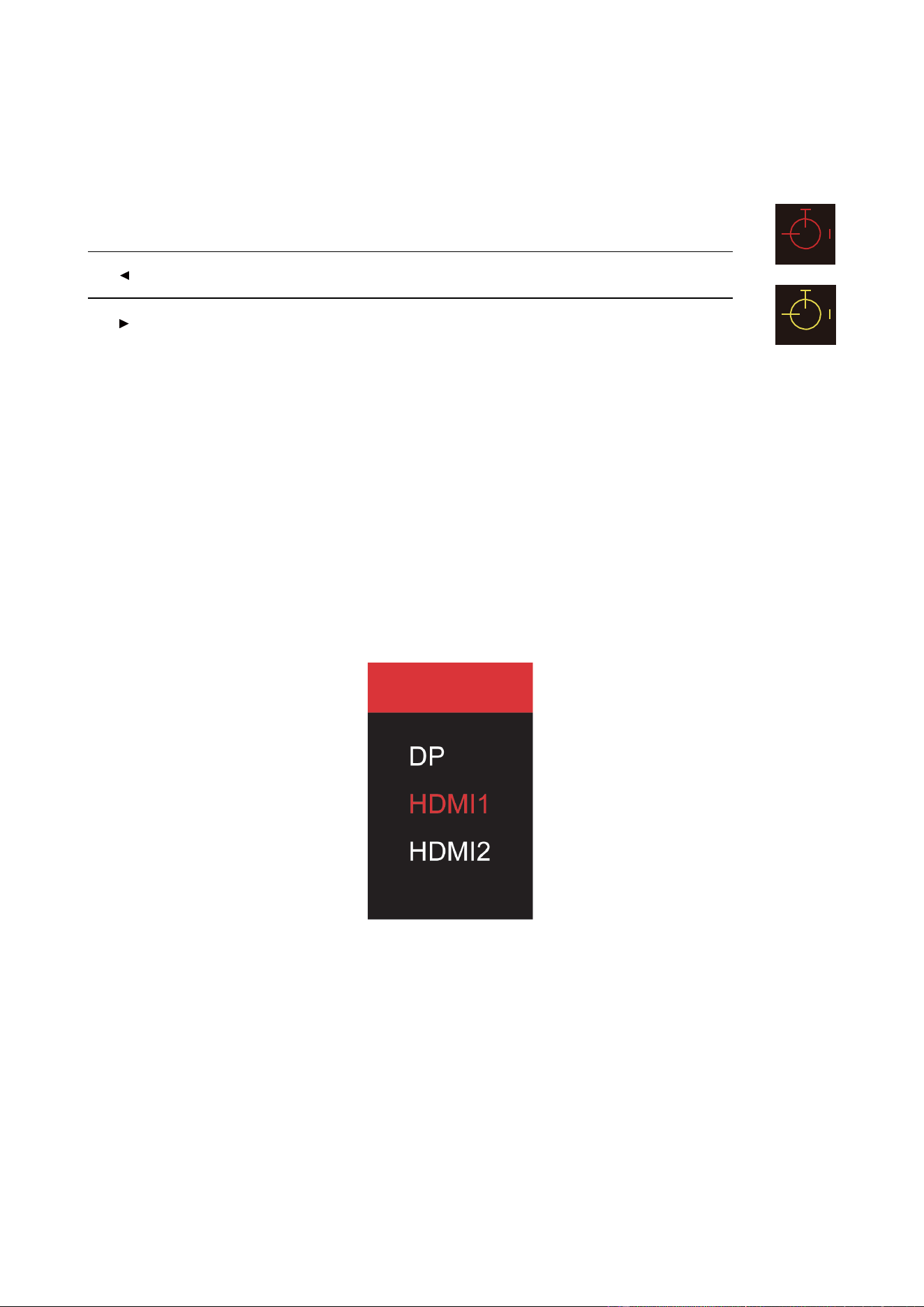
MONITOR CONTROLS
S
Select signal source or Exit the menu
Go Up within the Main Menu or increase the value of the selected
item
Go Down within the Main Menu or decrease the value of the selected
item
Enter the Main OSD Menu and Select submenu
Turn the monitor on or Off
8
SHORTCUT BUTTONS
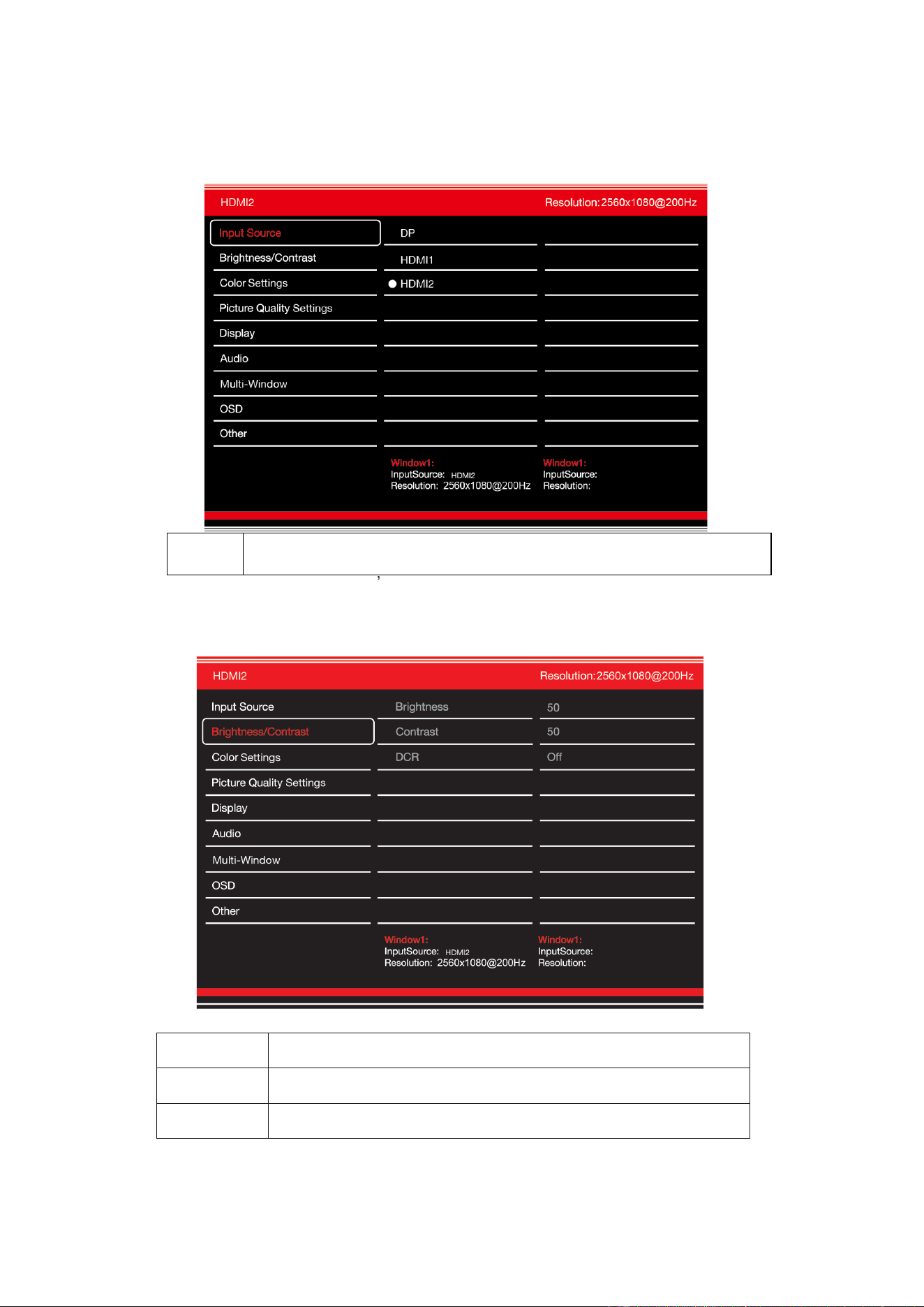
The monitor includes one touch options to access common settings.
S
Display the signal source menu. Use the ◄and► buttons to navigate
and the M button to select the source.
Activate the Line of Sight feature. Press again to cycle between the
colours or turn off.
Activate the ECO Mode feature. Press again to cycle through the presets.
INITIAL SETUP
Connect the monitor to a power socket.
1. Press the POWER button on the monitor or to turn it on (The indicator will be blue).
2. Connect the relevant cable to the corresponding input on the monitor. The source will be automatically
detected.
3. To change between inputs, press the E button to enter the source menu. Use the ◄and ► buttons
to choose the input source between DP, HDMI1 and HDMI2.
MENU OPTIONS
The menu for the monitor can be accessed by pressing the menu button on the control panel. This menu is
separated into the following sub menus: Input source, Brightness/Contrast, Colour Settings, Picture Quality
Settings, Display, Audio, OSD (On screen display), and other. Details of each menu can be found in the
following section.
9
OSD MENU
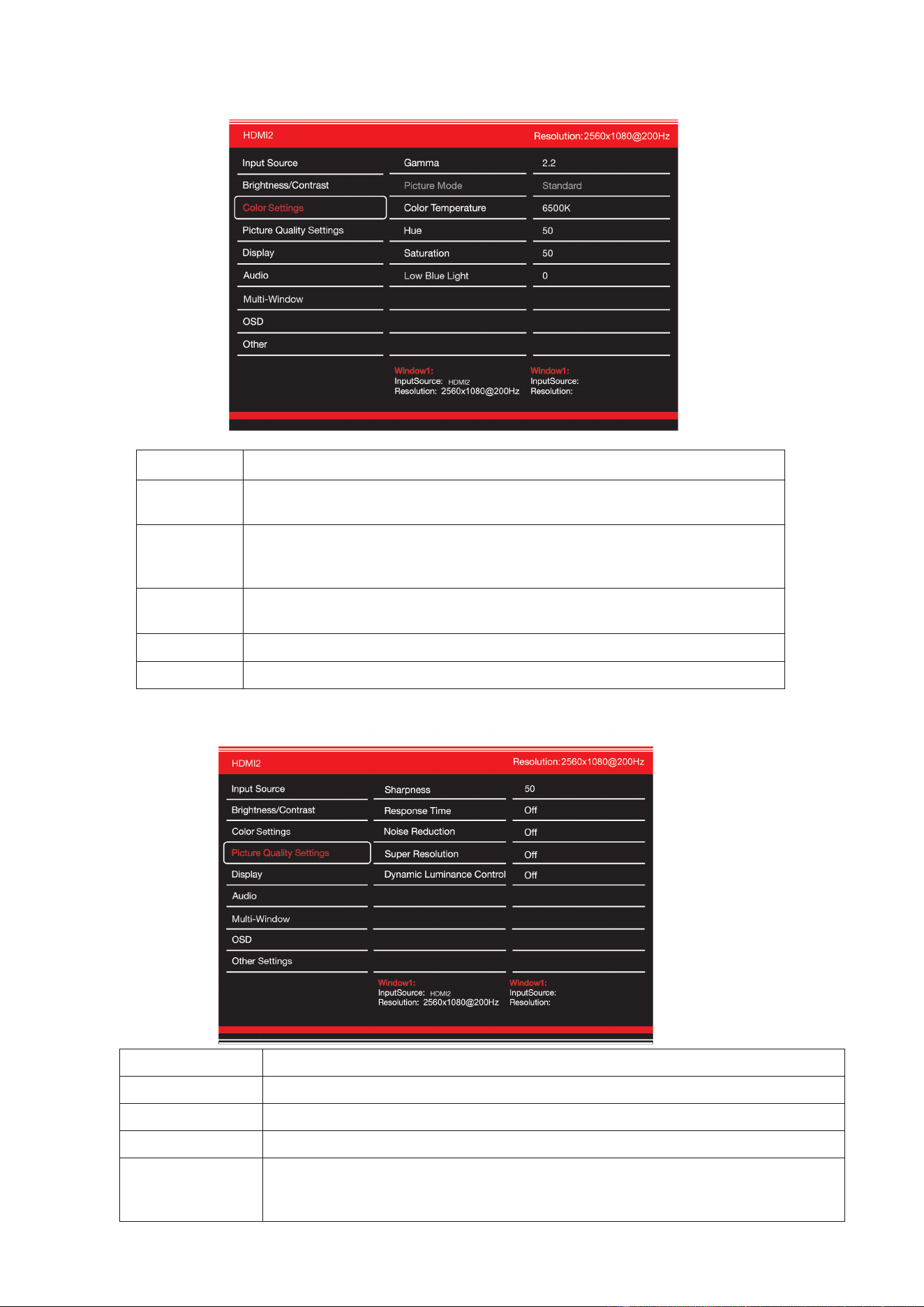
INPUT SOURCE
Signal
Switch the signal input or select the source. DP, HDMI1, HDMI2
BRIGHTNESS/CONTRAST
Brightness
Adjust the brightness of the display between 0 and 100.
Contrast
Adjust the contrast of the display between 0 and 100.
DCR
Turn the Dynamic Contrast Ratio Feature On or Off.
1
PICTURE QUALITY SETTINGS
COLOR SETTINGS
Gamma
Change the Gamma value for the display between 2.0/ 2.2/ 2.4.
Picture Mode
Change the picture mode between Standard, Photo, Movie, Game, FPS and
RTS
Colour
Temperature
Change the Colour Temperature of the display to Normal, Warm, Cool or
User. When the User Mode is selected, the Red, Green, and Blue values
can be adjusted independently between 0 and 100.
Low Blue
Light
Change the blue light emitted by the display between0 and 100.
Hue
Change the Hue value between 0 and 100.
Saturation
Change the Saturation of the display between 0 and 100.
Sharpness
Change the display Sharpness between 0 and 100.
Response Time
Turn the Response Overdrive feature between Off, High, Middle of low
Noise Reduction
Adjust the level of Noise Reduction between Low, Middle, High, or Off.
Super Resolution
Change the Super Resolution value Low, Middle or High.
Dynamic
Luminance
Control
Turn the Dynamic Luminance Control Feature On or Off.
10
1
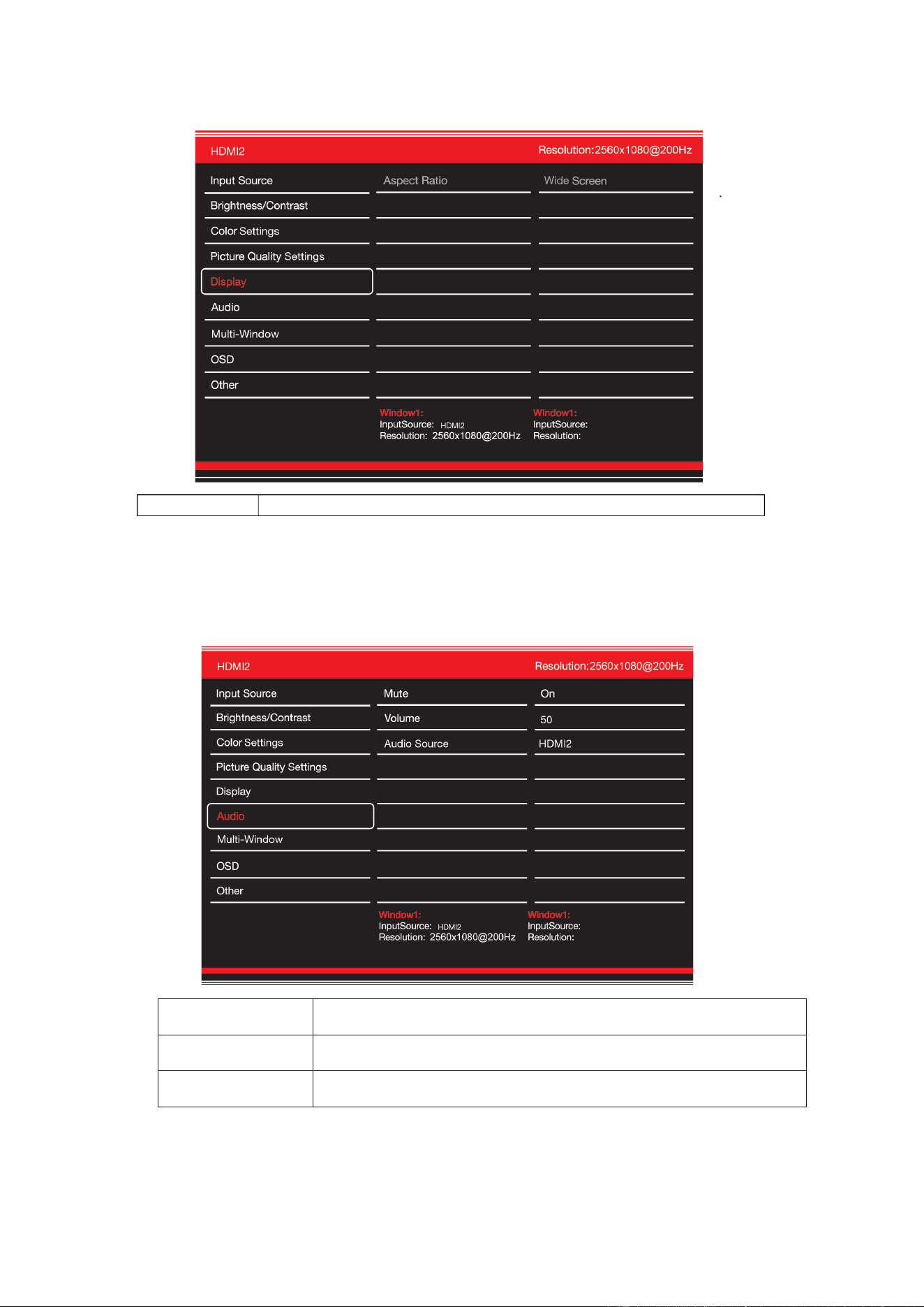
AUDIO
Mute
Turn On and off to mute and unmute the audio output.
Volume
Adjust the output volume between 0 and 100.
Audio Source
Chose which source the audio is output from.
DISPLAY
Aspect Ratio
Change the image aspect ratio to Wide Screen. 4:3 Auto. 1:1
11
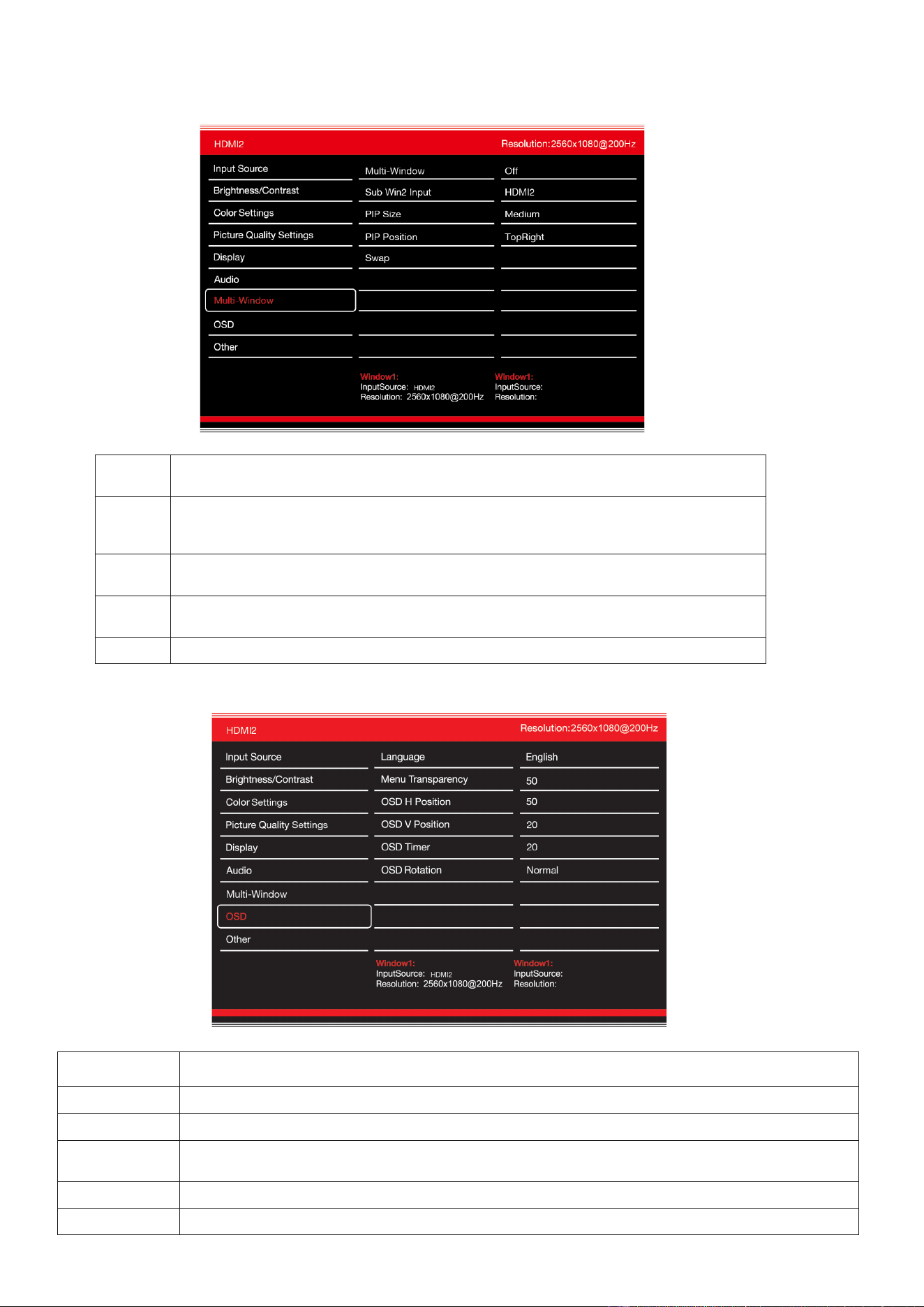
MULTI-WINDOW
Multi-
Window
Choose the different formats of multi window display between Off, Picture in Picture (PIP) and
Picture by Picture (PBP 2Win)
Sub
Win2
Input
Choose the source of the second window between HDMI 1 and HDMI 2.
PIP Size
Adjust the size of the secondary source in PIP and PBP modes between Small, Medium and
Large
PIP
Position
Set the position of the secondary source in PIP and PBP modes between Top Right, Top Left,
Bottom Right and Bottom Left.
SWAP
Swap the Primary and Secondary inputs on screen.
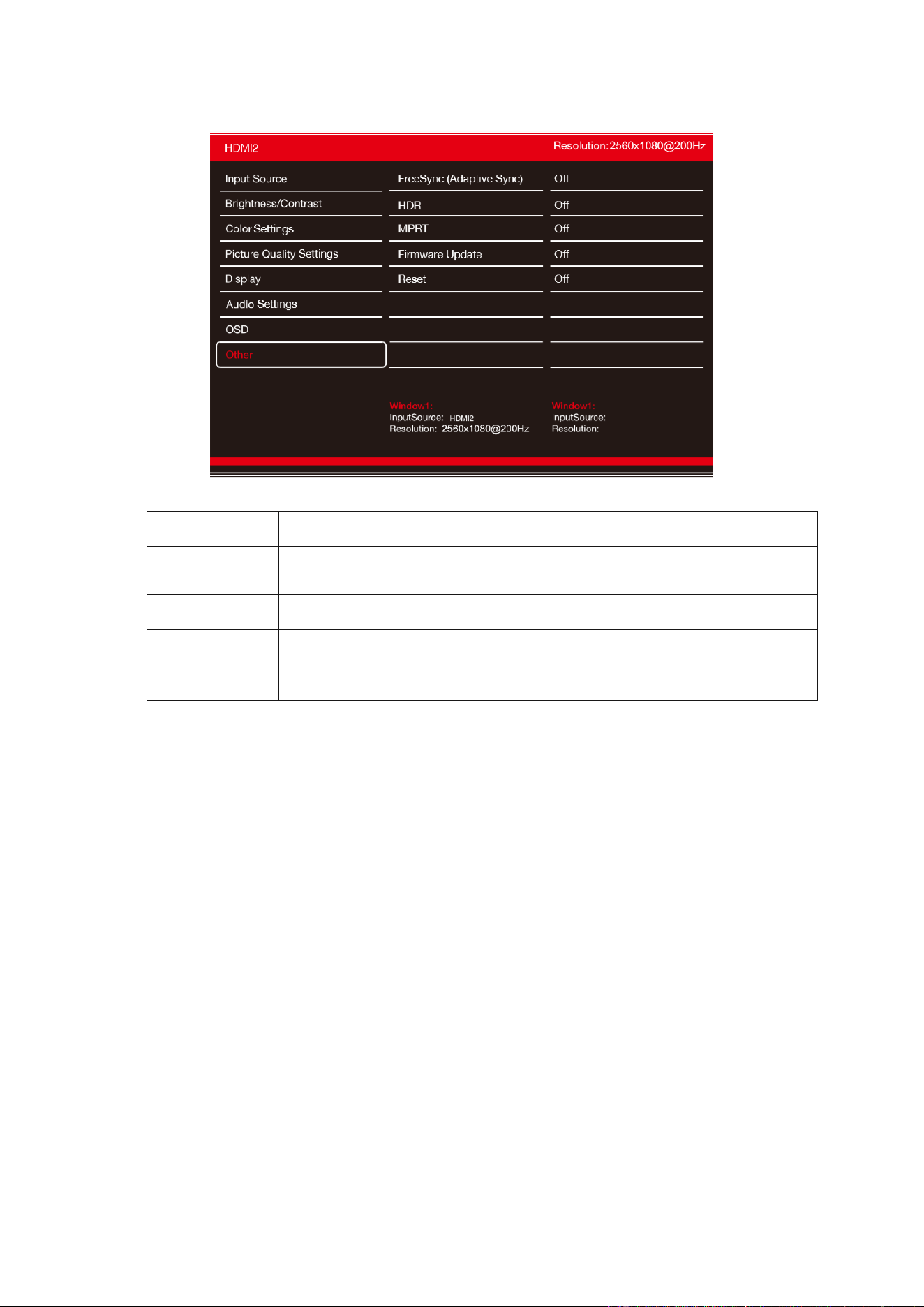
OSD
Language
Change the OSD Menu display language.
OSD H Position
Change the horizontal position of the OSD Menu.
OSD V Position
Change the vertical position of the OSD Menu.
OSD
Transparency
Change the transparency value of the OSD Menu between 0 and 100.
OSD Time Out
Change how long the OSD Menu is on before it automatically exits.
OSD Rotation:
Rotate the OSD Menu for ease of use on rotated screens.
12
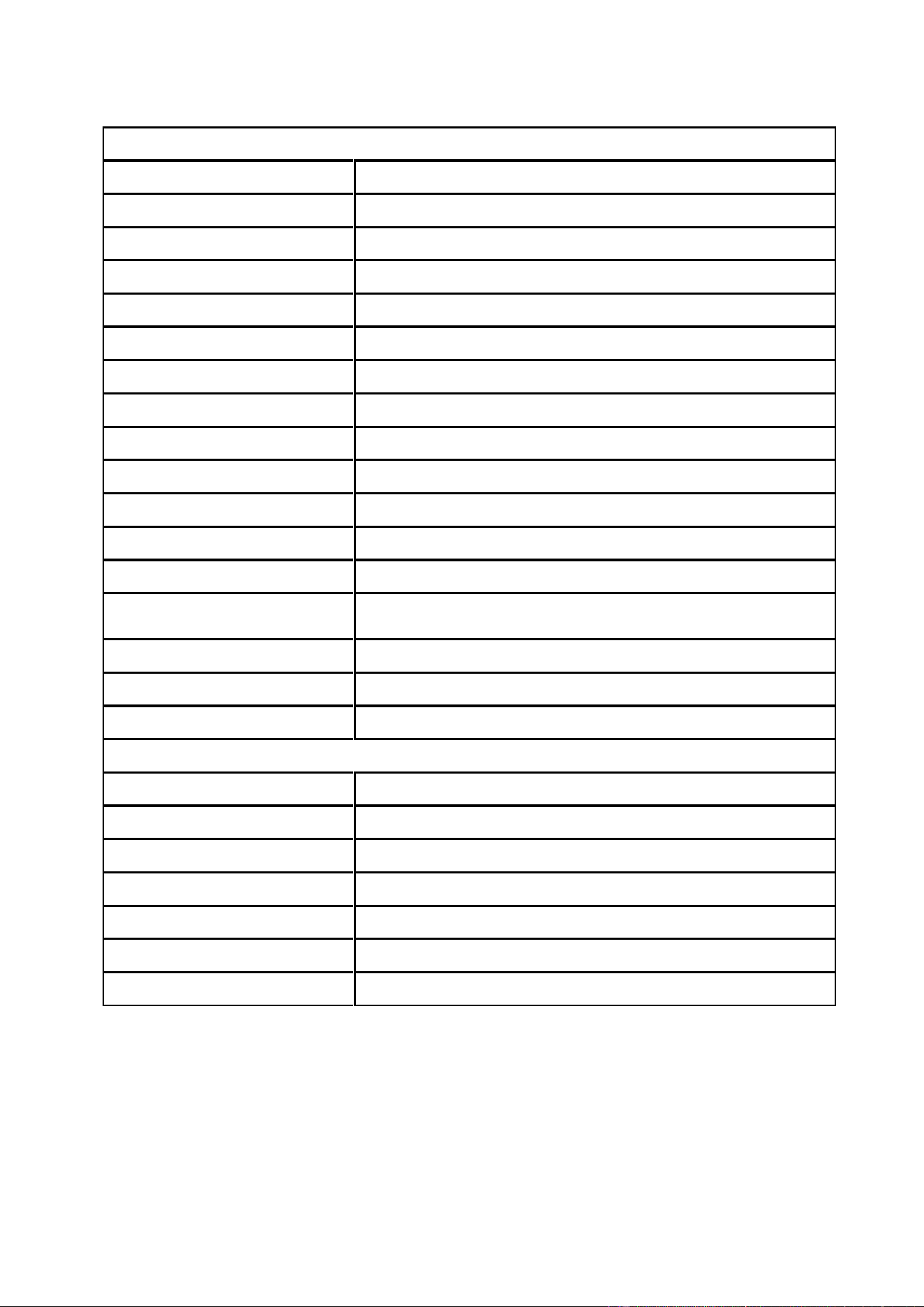
OTHER
Free Sync Mode
Turn Free Sync On or Off. HDR: Turn HDR On (requires HDMI 2.0 input).
HDR
Turn HDR On or Off.
MPRT
Turn MPRT on and off
Reset
Restore factory default setting.
Firmware Update
Update the monitor firmware with proper firmware Using the USB port.
13
SPECIFICATION
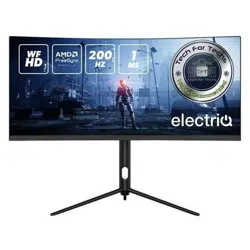
eiQ-30CVWF200VAFSGH
Panel Type
29.5” (21:9) LED Backlit Monitor
Panel Dimensions
749.3mm Diagonal
Case Type
Plastic
Best Resolution
2560(H)x1080(V)@200Hz
Active Display Area
690.432(H)x291.276(V)
Pixel Pitch
0.2697(H)x0.2697(V)
Contrast Ratio
3000:1 Typical
Brightness
350 cd/m²
Response Time
1ms (MRPT)
Viewing Angle
176°/170° CR≥10
Display Colours
16.7M
Video Compatibility
Multi-Standard for NTSC / PAL
Aspect Ratio
21:9
Speaker Multimedia
Speakers
2x3W
Sound Demodulation
Stereo. Audio
Operating Humidity
20%-70%
Operating Temperature
-10 to 50℃
IN/OUT INTERFACE
Video Interface
HDMIx2, DPx1, USBx1
Audio Interface
Audio out x1
Safety & EMC Certification
CE/FCC/ROHS
Stand Type
Desktop
Button Position
Right Hand Side
Power Input
DC 12V 5A
Power Consumption
≤50W
14
TROUBLESHOOTING
Problem
Solution
No power
Insert the plug securely into the power outlet.
No picture
Ensure that the equipment is connected properly.
Ensure the correct input is selected.
Buttons on the monitor don’t
do anything
Disconnect the power plug and then reconnect it.
(The unit may not be operating properly due to
lightning, static, or other factors.)
Noise or other interference
Electronic equipment near the unit may be causing
interference. Relocate the unit or move the
equipment.
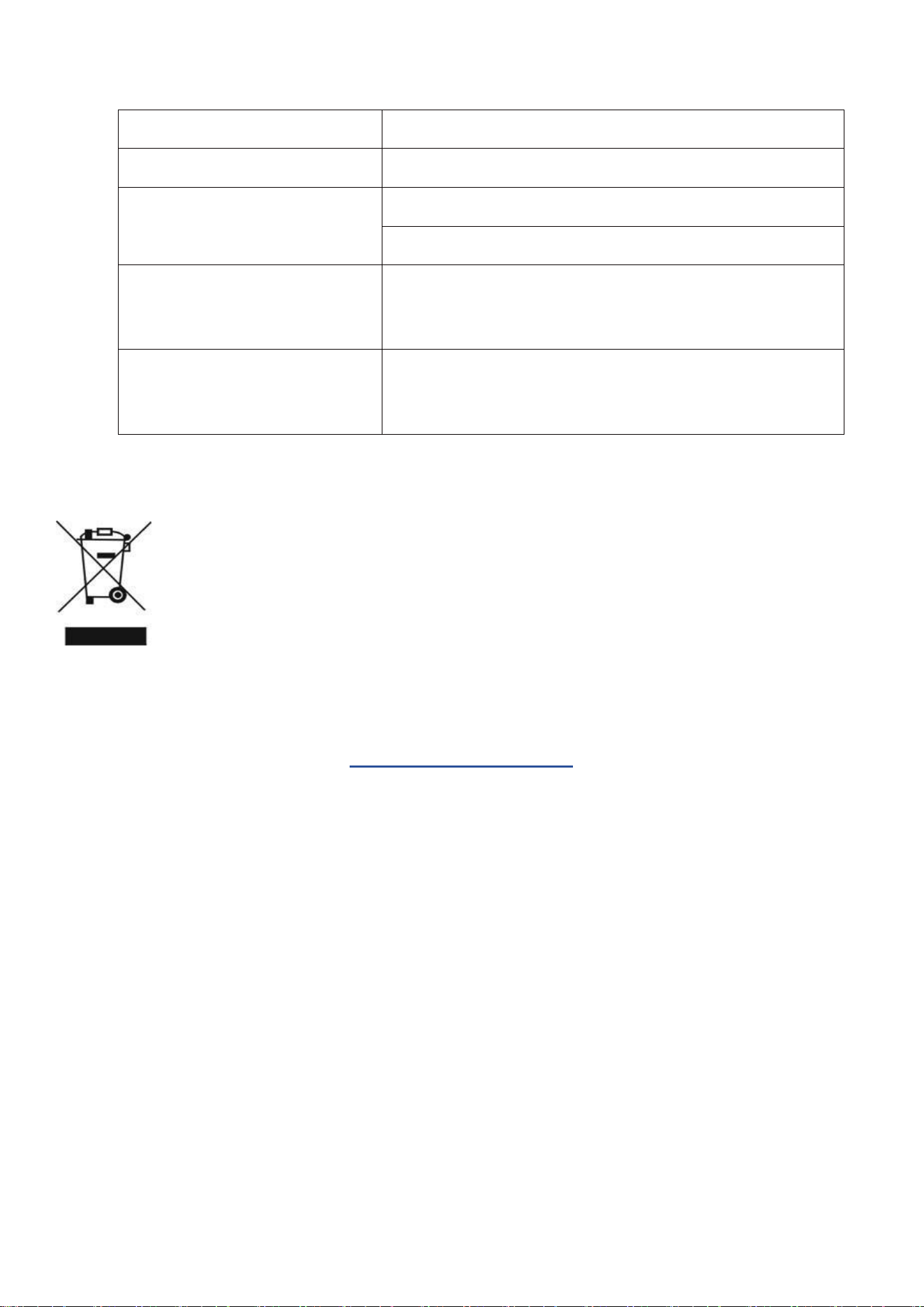
ENVIRONMENTAL PROTECTION
Recycling facilities are now available for all customers at which you can deposit your old electrical
products. Customers will be able to take any old electrical equipment to participating civic amenity
sites run by their local councils. Please remember that this equipment will be further handled during
the recycling process, so please be considerate when depositing your equipment. Please contact the
local council for details of your local household waste recycling centres
electriQ UK SUPPORT
www.electriQ.co.uk/support
If the unit fails to operate call: 0330 390 3061 or complete the online form
Office hours: 9AM - 5PM Monday to Friday
www.electriQ.co.uk
Unit J6, Lowfields Business Park
Lowfields Way, Elland
West Yorkshire, HX5 9DA
15