
ATH-CKS30TW
Wireless Headphones
User Manual
English

1
Safety precautions
Although this product was designed to be used safely, failing to use it correctly may result in an accident. To ensure
safety, observe all warnings and cautions while using the product.
Cautions for the headphones
Do not use the product near medical equipment. Radio waves may affect cardiac pacemakers and medical electronic
equipment. Do not use the product inside medical facilities.
When using the product in aircraft, follow airline instructions.
Do not use the product near automatic control devices such as automatic doors and fire alarms. Radio waves may
affect electronic equipment and cause accidents due to malfunction.
Do not disassemble, modify or attempt to repair the product to avoid electric shock, malfunction or fire.
Do not subject the product to strong impact to avoid electric shock, malfunction or fire.
Disconnect the product from a device if the product begins to malfunction, producing smoke, odor, heat, unwanted
noise or showing other signs of damage. In such a case, contact your local Audio-Technica dealer.
Do not put foreign matter such as combustible materials, metal, or liquid in the product.
Do not cover the product with a cloth to avoid fire or injury by overheating.
Follow applicable laws regarding mobile phone and headphone use if using headphones while driving.
Do not use the product in places where the inability to hear ambient sound presents a serious risk (such as at railroad
crossings, train stations, and construction sites).
The product effectively shields external sound, so you may not hear sound around you clearly while wearing the
product. Adjust the volume to a level where you can still hear background sound and monitor the area around you
while listening to music.
Store the product out of the reach of small children.
To prevent damage to your hearing, do not raise the volume too high. Listening to loud sound for an extended period
may cause temporary or permanent hearing loss.
Discontinue use if skin irritation results from direct contact with the product.
If you begin to feel unwell while using the product, discontinue use immediately.
When removing the product from your ears, check to make sure the eartips are still attached to the main unit. If the
eartips become lodged in your ears and you are unable to remove them, consult a physician at once.
If you develop an itch from wearing the product, discontinue use.
Cautions for charging case
Do not disassemble, modify or attempt to repair the product to avoid electric shock, malfunction or fire.
Do not subject the product to strong impact to avoid electric shock, malfunction or fire.
Do not handle the product with wet hands to avoid electric shock or injury.
Disconnect the product from a device if the product begins to malfunction, producing smoke, odor, heat, unwanted
noise or showing other signs of damage.
In such a case, contact your local Audio-Technica dealer.
Do not allow the product to get wet to avoid electric shock or malfunction.
Do not put foreign matter such as combustible materials, metal, or liquid in the product.
Do not cover the product with a cloth to avoid fire or injury by overheating.

Safety precautions
2
Do not charge the product if water or foreign matter is inside the battery jack or USB charging cable. Doing so may
cause corrosion, heat generation, smoke, fire, or other malfunction or electric shock in the battery jack or USB
charging cable.
Do not charge the battery if the terminal of the USB charging cable is bent, loose, or damaged.
Doing so may cause heat generation, smoke emission, fire or electric shock.
When charging, make sure to use the included USB charging cable.
Do not charge with devices that have quick-charge functionality (with a voltage of 5 V or more).
Doing so may cause the product to malfunction.
Do not store the product in direct sunlight, near heating devices, or in hot, humid, or dusty places because such
storage could cause malfunction or defect.
Do not put the product close to fire because that could cause deformation or malfunction.
Do not use benzine, paint thinners and electrical contact cleaner, etc. because use of such material could cause
deformation or malfunction.
Cautions for rechargeable battery
The headphones and charging case are equipped with a rechargeable battery (lithium-ion battery).
If battery fluid gets into eyes, do not rub them. Rinse thoroughly with clean water such as tap water and consult a
doctor immediately.
If battery fluid leaks, do not touch fluid with bare hands. If fluid remains inside the product, it may cause malfunction.
If battery fluid leaks, contact your local Audio-Technica dealer.
If fluid gets in your mouth, gargle thoroughly with clean water such as tap water and consult a doctor
immediately.
If your skin or clothing comes in contact with fluid, immediately wash the affected skin or clothing with water. If
you experience skin irritation, consult a doctor.
To avoid leakage, generation of heat or explosion:
Never heat, disassemble or modify the battery, nor dispose of it in a fire.
Do not attempt to pierce with a nail, hit with a hammer or step on the battery.
Do not drop the product or subject it to strong impact.
Do not get the battery wet.
Do not use, leave or store the battery in the following places:
Area exposed to direct sunlight or high temperatures and humidity
Inside of a car under the blazing sun
Near heat sources such as heat registers
Charge only with the included USB cable to avoid malfunction or fire.
The internal rechargeable battery of this product cannot be replaced by the user. The battery may have reached the
end of its service life if the usage time becomes significantly shorter even after the battery has been fully charged. If
this is the case, the battery needs to be repaired. Contact your local Audio-Technica dealer for repair details.
When the product is disposed of, the built-in rechargeable battery needs to be discarded properly. Contact your local
Audio-Technica dealer to learn how to properly dispose of the battery.

3
Notes on use
Be sure to read the connected device’s user manual before use.
Audio-Technica will not be liable in any way for any loss of data in the unlikely event that such losses should occur
while using the product.
On public transportation or in other public places, keep the volume low so as not to disturb other people.
Minimize the volume on your device before connecting the product.
When using the product in a dry environment, you may feel a tingling sensation in your ears. This is caused by static
electricity accumulated on your body, not by product malfunction.
Do not subject the product to strong impact.
Do not store the product in direct sunlight, near heating devices, or in hot, humid, or dusty places.
When the product is used for a long time, the product may become discolored due to ultraviolet light (especially
direct sunlight) and wear.
If the charging case is placed in a bag while the USB charging cable is still connected, the USB charging cable may
become caught, severed, or broken.
Make sure to hold the plug when connecting and disconnecting the USB charging cable. The USB charging cable
may become severed or an accident may occur if you pull on the cable itself.
When you are not using the USB charging cable, disconnect it from the charging case.
When you are not using the product, store it in the included charging case.
If you use eartips other than those included, the headphones may not fit into the charging case, or may not charge.
Be sure to use the included eartips.
When using the product, select the eartips that fit your ears best so the product can be worn securely.
This product can be used to talk on the phone only when using a mobile telephone network. Support for telephony
apps that use a mobile data network is not guaranteed.
If you use the product near an electronic device or transmitter (such as a mobile phone), unwanted noise may be
heard. In this case, move the product away from the electronic device or transmitter.
If you use the product near a TV or radio antenna, noise may be seen or heard in the television or radio signal. In this
case, move the product away from the TV or radio antenna.
To protect the built-in rechargeable battery, charge it at least once every 6 months. If too much time passes between
charges, the life of the rechargeable battery may be reduced, or the rechargeable battery may no longer be able to be
charged.
Charge the product in a well-ventilated place (10 to 35°C (50 to 95°F)) away from direct sunlight. Otherwise, the
battery may deteriorate, possibly resulting in shorter periods of continuous use or may fail to charge.
If the headphones are wet, wipe them with a dry cloth before placing them in the charging case. The charging case is
not water-resistant (drip-proof). Do not charge the product if the headphones are wet.
The hear-through function of the product allows you to hear the sounds around you through the built-in microphone.
Depending on the volume of the music being played back, the surrounding sounds may be difficult to hear. In this
case, turn down the volume of the music.
Depending on your surroundings, the ambient sounds may be difficult to hear even when using the product’s hear-
through function. Do not use the product in places that are dangerous if you cannot hear the surrounding sounds,
such as places with heavy traffic.
Operate the touch sensor with one finger. Operating with a sharp-tipped object, such as a ballpoint pen or pencil,
may result not only in incorrect operation, but also damage to the touch sensor.
Do not touch the touch sensor with your fingertips. Doing so may cause your fingernail to break.

Notes on use
4
If the product does not operate at all or as intended when touched, check to make sure that your other fingers, parts
of your hand, or clothing items are not in contact when touching. Also, the product may not operate correctly if you
are wearing gloves or if your fingertips are too dry.
The product may not operate correctly if the touch sensor is dirty from sweat. Remove the dirt before operating the
product.

5
Waterproof and dustproof performance
The waterproof performance of the product is designed to prevent the ingress of liquids from sweating during
operation and simple washing (equivalent to IPX5). JIS/IEC protection grade IPX5 means that the headphones are
protected against exposure to water jets. The headphones cannot be used in hot and humid places, such as
bathrooms.
The headphones are not completely waterproof. Do not intentionally submerge or use the headphones in water.
Also, do not expose the headphones to liquids other than sweat and water (such as soapy water).
The dustproof performance of the product is designed to prevent the ingress of dust and dirt (equivalent to IP5X).
JIS/IEC protection grade IP5X means that the headphones are protected against the ingress of dust that would
otherwise hinder operation.
The waterproof and dustproof specifications of this product apply only to the headphones. The charging case is not
waterproof or dustproof.
Although the headphones have waterproof and dustproof capabilities equivalent to IP55, the part where the sound
comes from is not waterproof or dustproof.
The headphones may not function properly if they become wet. Wipe the headphones with a dry cloth, shake them
multiple times to remove any excess water, and allow the headphones to dry thoroughly before use.
6
For a more comfortable Bluetooth communication
experience
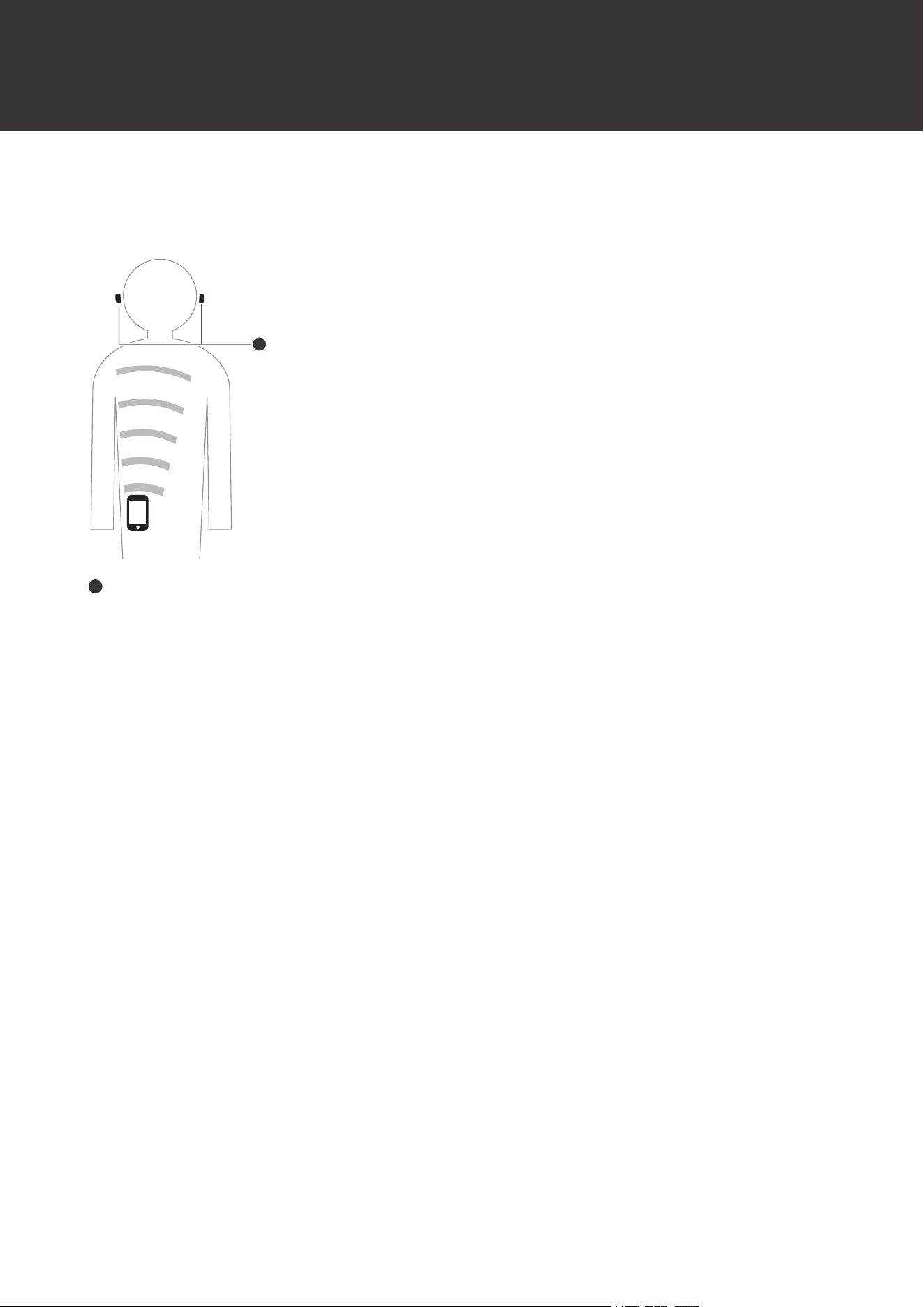
The effective communication range of this product varies depending on obstructions and radio wave conditions. For a
more enjoyable experience, please use the product as close as possible to the Bluetooth device. To minimize noise and
sound disruptions, avoid placing your body or other obstacles between the product’s antenna and the Bluetooth device.
1
1
Antennas
7
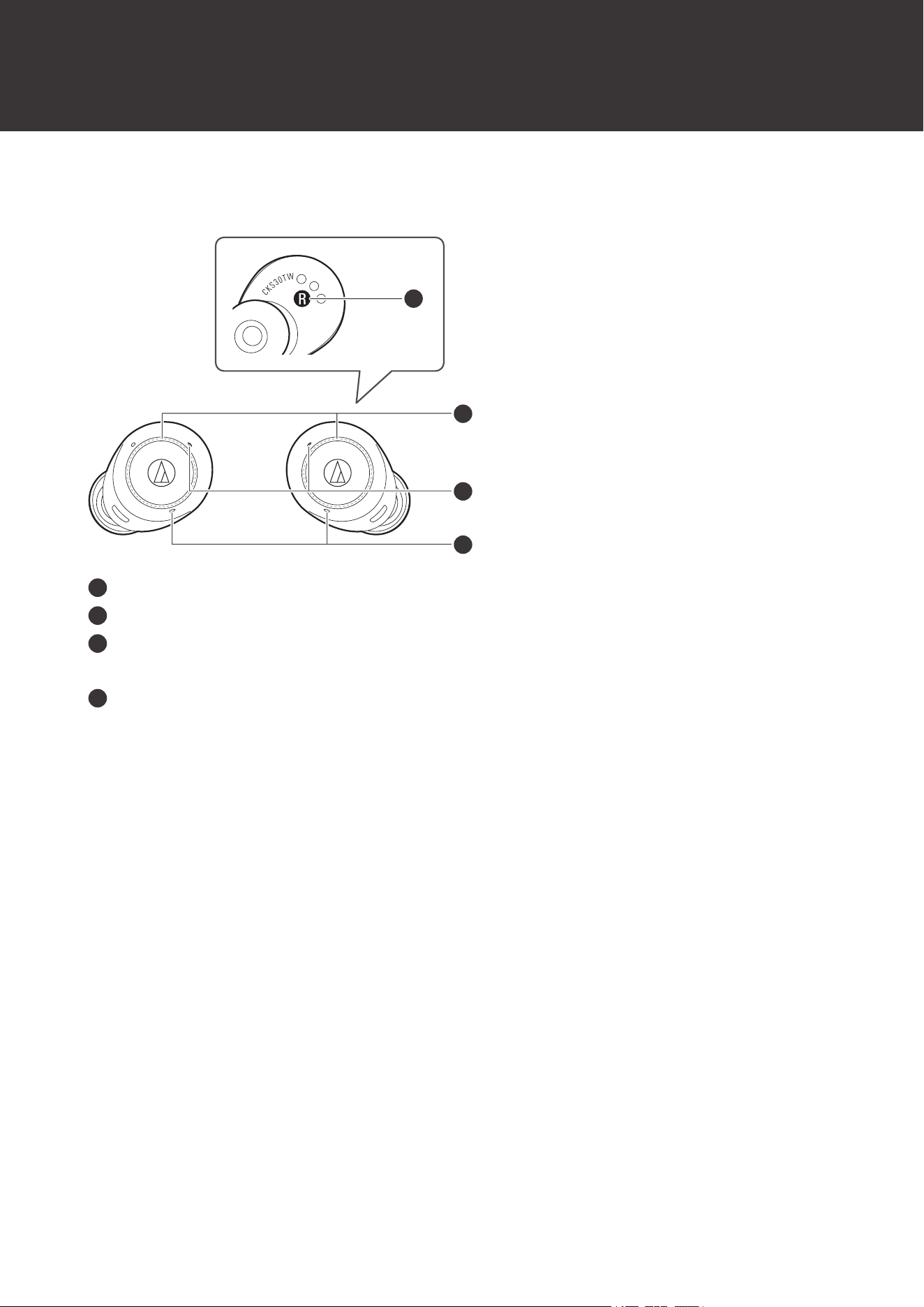
Part names and functions
Headphones
2
3
4
1
1
L/R (left/right) indicator
2
Touch sensors
3
Indicator lamps
Display the operating status and battery level of the headphones.
4
Microphones
Part names and functions
8
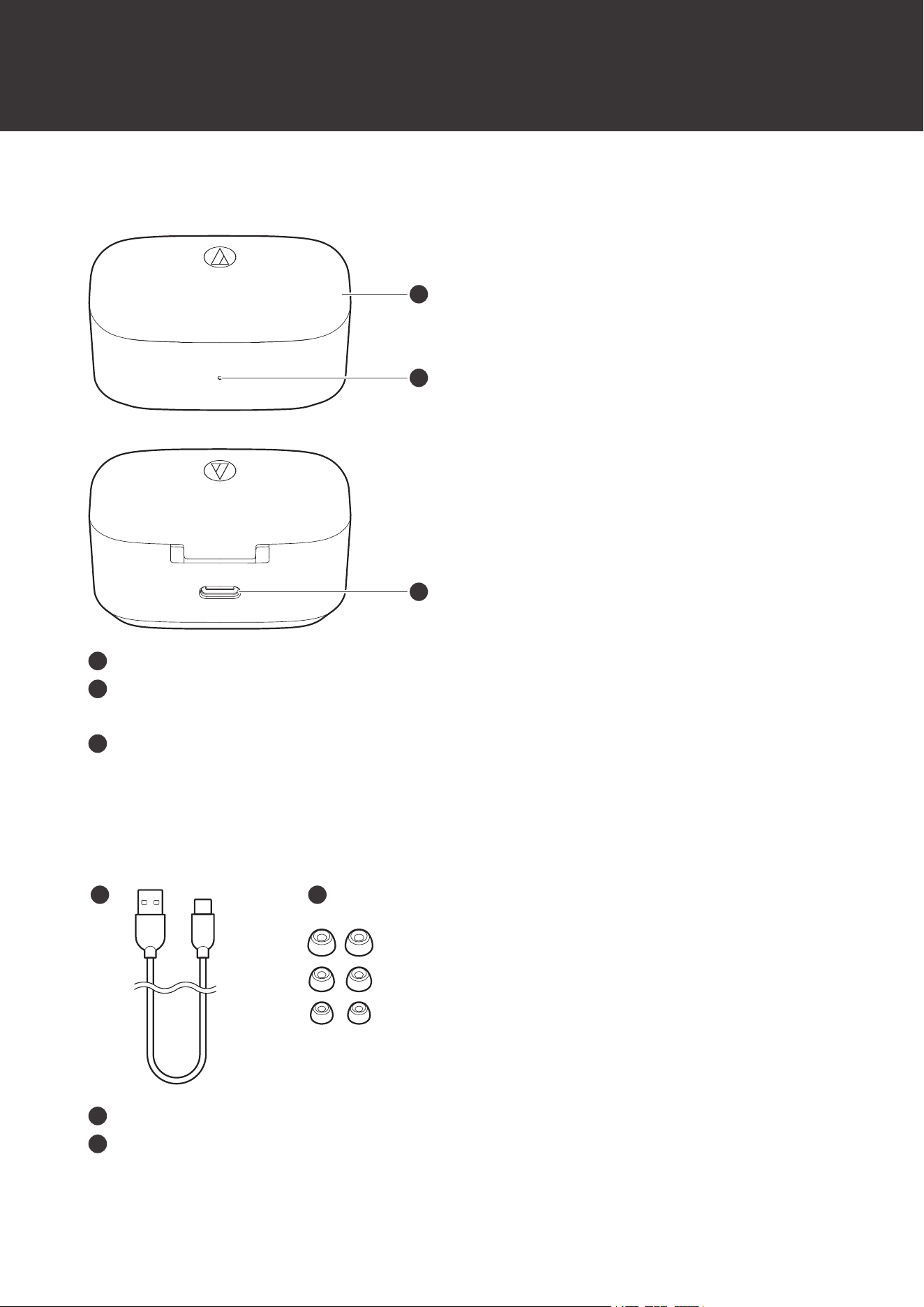
Charging case
1
2
3
1
Cover
2
Charging indicator lamp
Lights/flashes when charging the charging case. Also displays the battery level of the charging case.
3
Battery jack
Use to connect the included USB charging cable and charge the product.
Accessories
21
1
USB charging cable (30cm (12"), USB Type-A / USB Type-C
™
)
2
Eartips (XS, S, M, L)
At the time of purchase, the M-size eartips are attached to the product.
Part names and functions
9
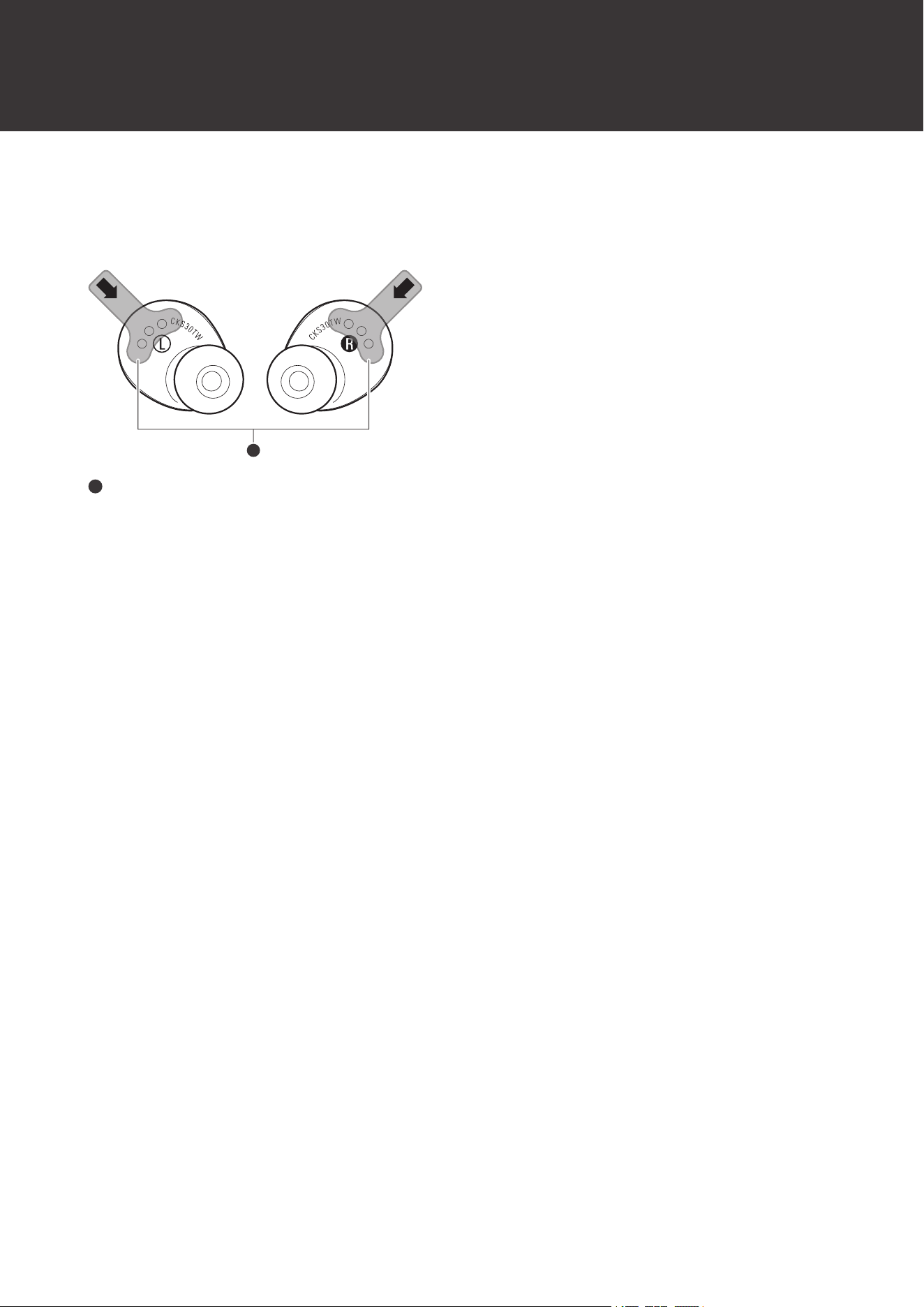
Removing the insulation seals
Remove the insulation seals before use.
1
1
Insulation seals
10
Charging the battery
Fully charge the battery when using for the first time.
When the rechargeable battery is running low, the voice guidance will play the message “Low battery”, and the
indicator lamp will flash in orange. Charge the battery as soon as possible.
It takes about 2.5 hours to fully charge the headphones, and about 3 hours to fully charge the charging case.
(Charging times may vary depending on usage conditions.)
Charge the product in a well-ventilated place (10 to 35°C (50 to 95°F)) away from direct sunlight. Charging outside
the normal charging temperature range may result in failure to charge or longer charging time. Otherwise, the
battery may deteriorate, possibly resulting in shorter periods of continuous use or may fail to charge.
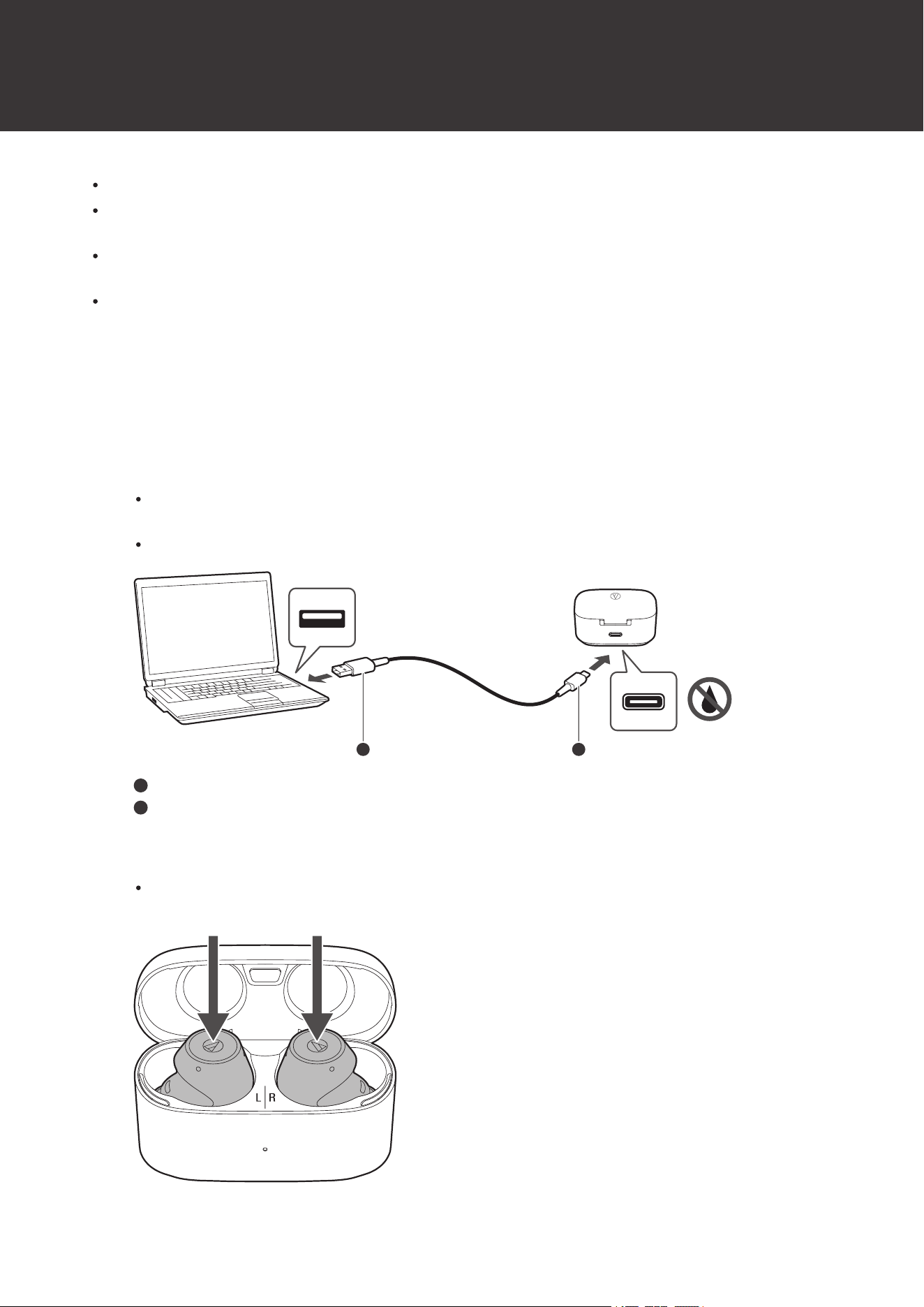
Charging the headphones and charging case
1
Connect the included USB charging cable (USB Type-C side) to the battery jack of the charging case.
The included USB charging cable is designed for exclusive use with the product. Do not use any other USB
charging cable.
When inserting the USB charging cable into the USB port or battery jack, insert it directly (horizontally).
1 2
1
USB Type-A
2
USB Type-C
2
Place the headphones in the charging case.
When charging the headphones, make sure the indicator lamps on the headphones light up. If they do not
light up, remove the headphones and place them in the case again.
Charging the battery
11
3
Connect the included USB charging cable (USB Type-A side) to the computer to start charging.
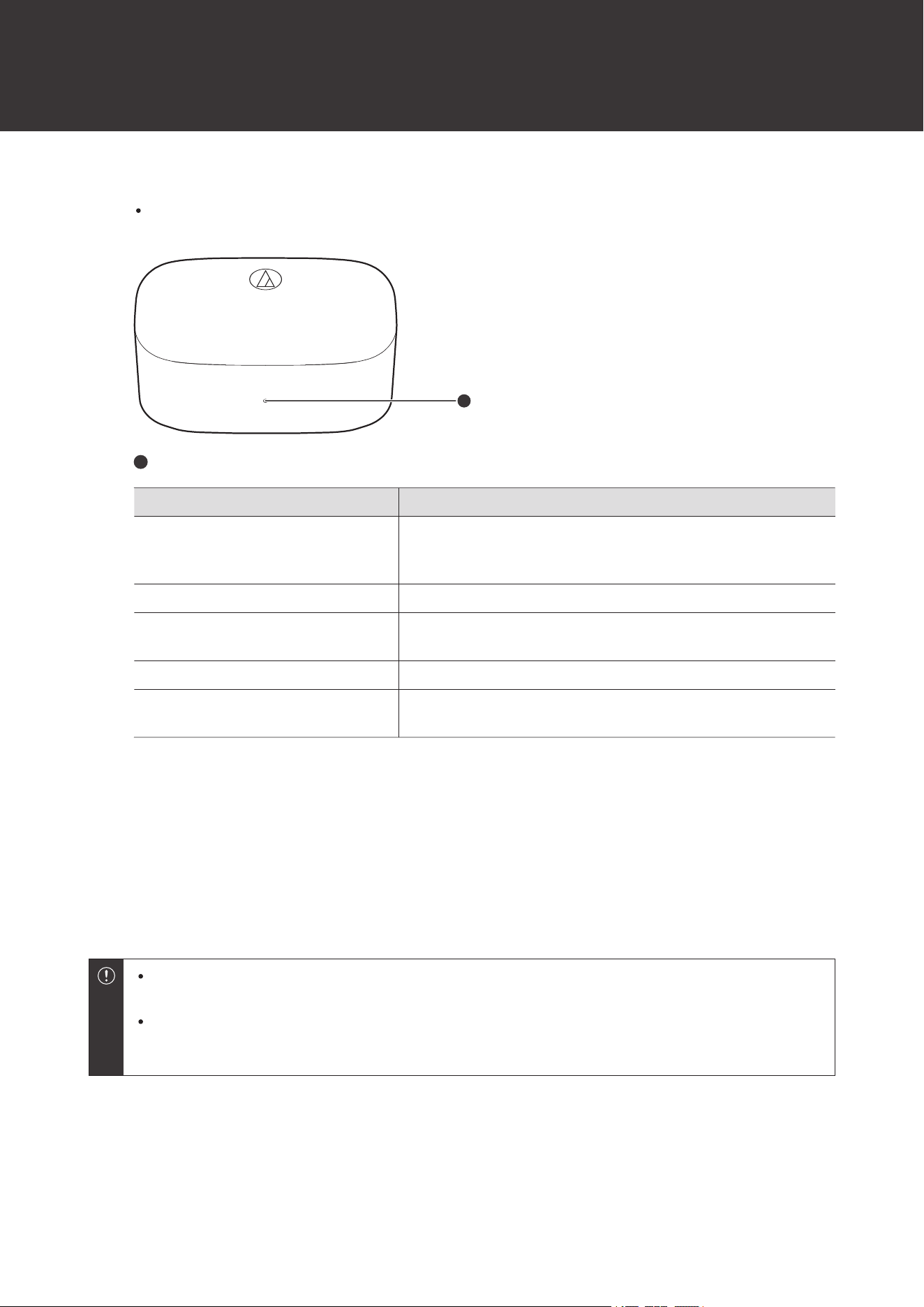
While charging, the charging indicator lamp on the charging case lights/flashes as follows. (It may take
several seconds for the charging indicator lamp to light.)
1
1
Charging indicator lamp
Charging indicator lamp Status
Flashing orange -> Flashing white
Charging
(The indicator lamp flashes orange when the battery level is low
and changes to white as the battery level increases.)
Flashing white Charging
Lights in white for 10 seconds, and
then turns off.
Charging complete
Flashing orange quickly Charging error
[1]
Alternating between flashing white and
orange
Error detected
[2]
[1] The charging case or headphones may be hot. Allow the temperature of the product to cool sufficiently before charging in a well-ventilated
place (10 to 35°C (50 to 95°F)) away from direct sunlight.
[2] Discontinue use of the product and contact your local Audio-Technica dealer for repair.
4
When charging is complete, disconnect the USB charging cable (USB Type-A side) from the
computer.
5
Disconnect the USB charging cable (USB Type-C side) from the battery jack on the charging case.
When charging, make sure to use the included USB charging cable. The product may not charge with
cables other than the included USB charging cable.
Always make sure the headphones are not wet before charging. The headphones may not operate correctly
or may not turn on if they are wet. Wipe the headphones with a dry cloth, shake them multiple times to
remove any excess water, and allow the headphones to dry thoroughly before charging.
Charging headphones without the USB charging cable
A rechargeable battery is built into the charging case. If you have charged the charging case, you can charge the
headphones without using the USB charging cable.
Charging the battery
12
1
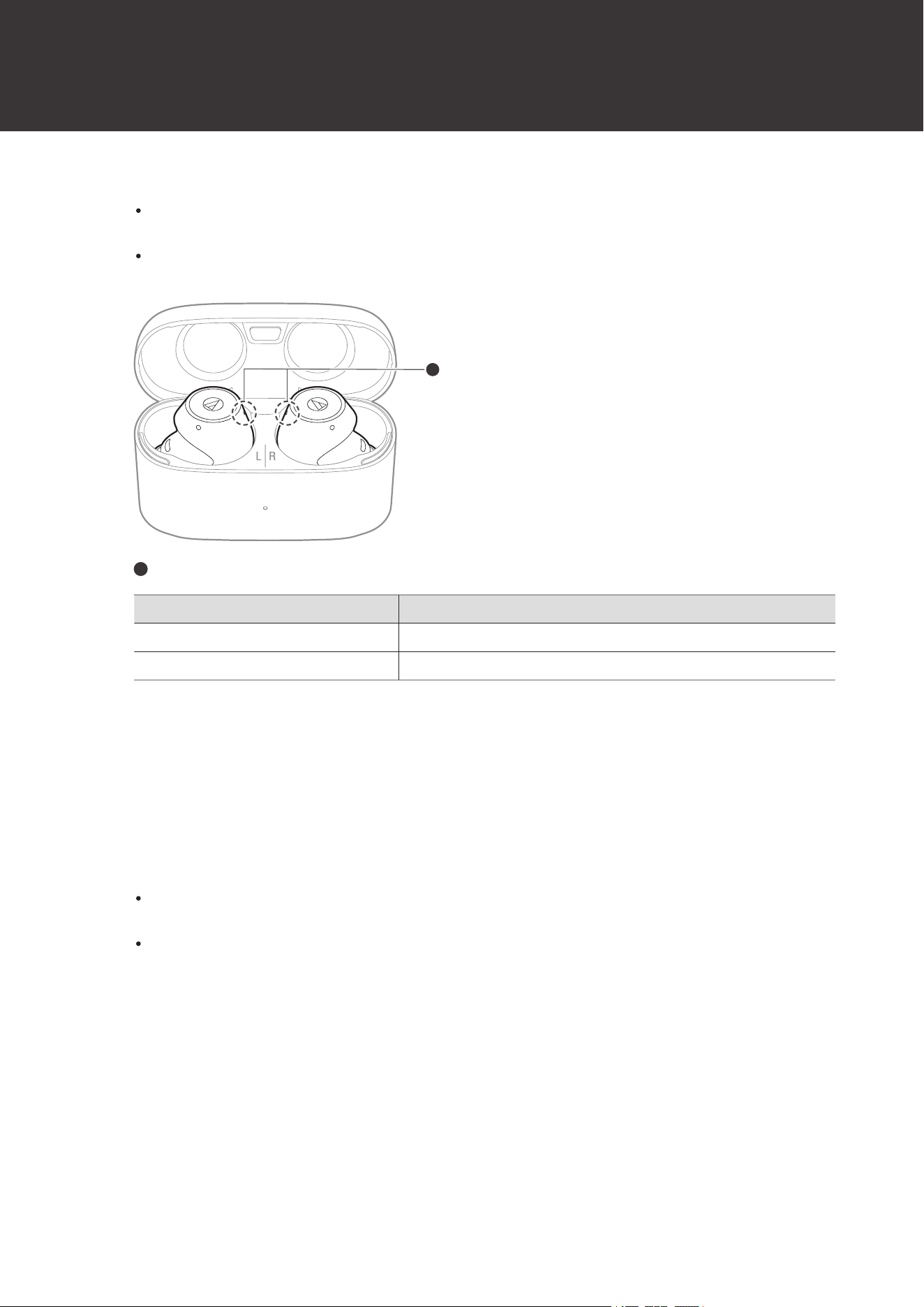
Place the headphones in the charging case.
While charging, the indicator lamp lights as follows. (It may take several seconds for the indicator lamp to
light.)
When charging the headphones, make sure the indicator lamps on the headphones light up. If they do not
light up, remove the headphones and place them in the case again.
1
1
Indicator lamps
Indicator lamp Status
Lights in white Charging
Off Charging complete / Charging case battery has no power
Checking the battery level of the charging case
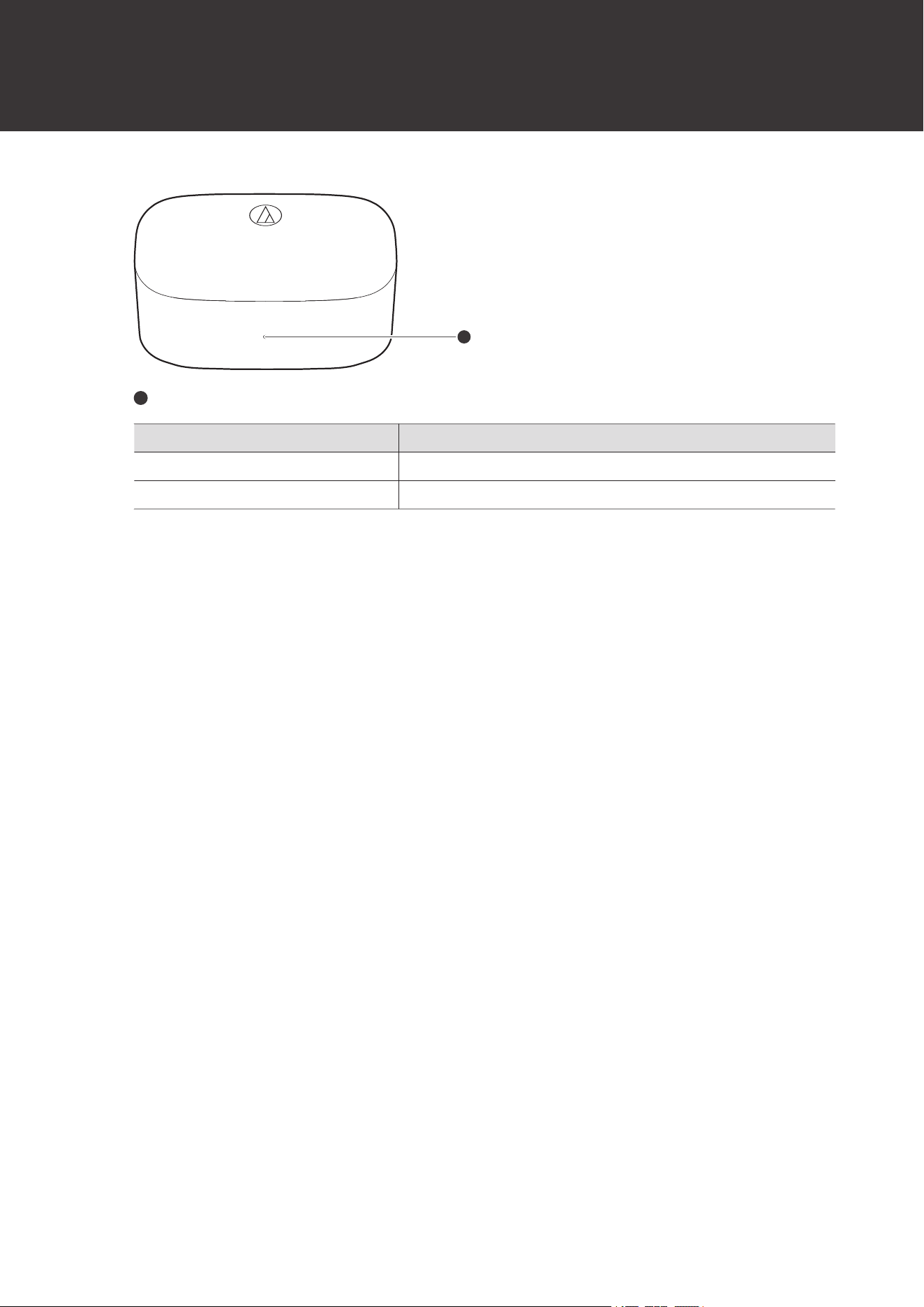
When opening/closing the cover of the charging case, the charging indicator lamp lights to indicate the battery level of
the charging case.
1
Open/close the charging case cover.
The charging indicator lamp lights as follows. The color of the charging indicator lamp indicates the battery
level.
If the charging indicator lamp flashes orange twice in a row, the charging case is fully discharged. Charge the
charging case.
Charging the battery
13
1
1
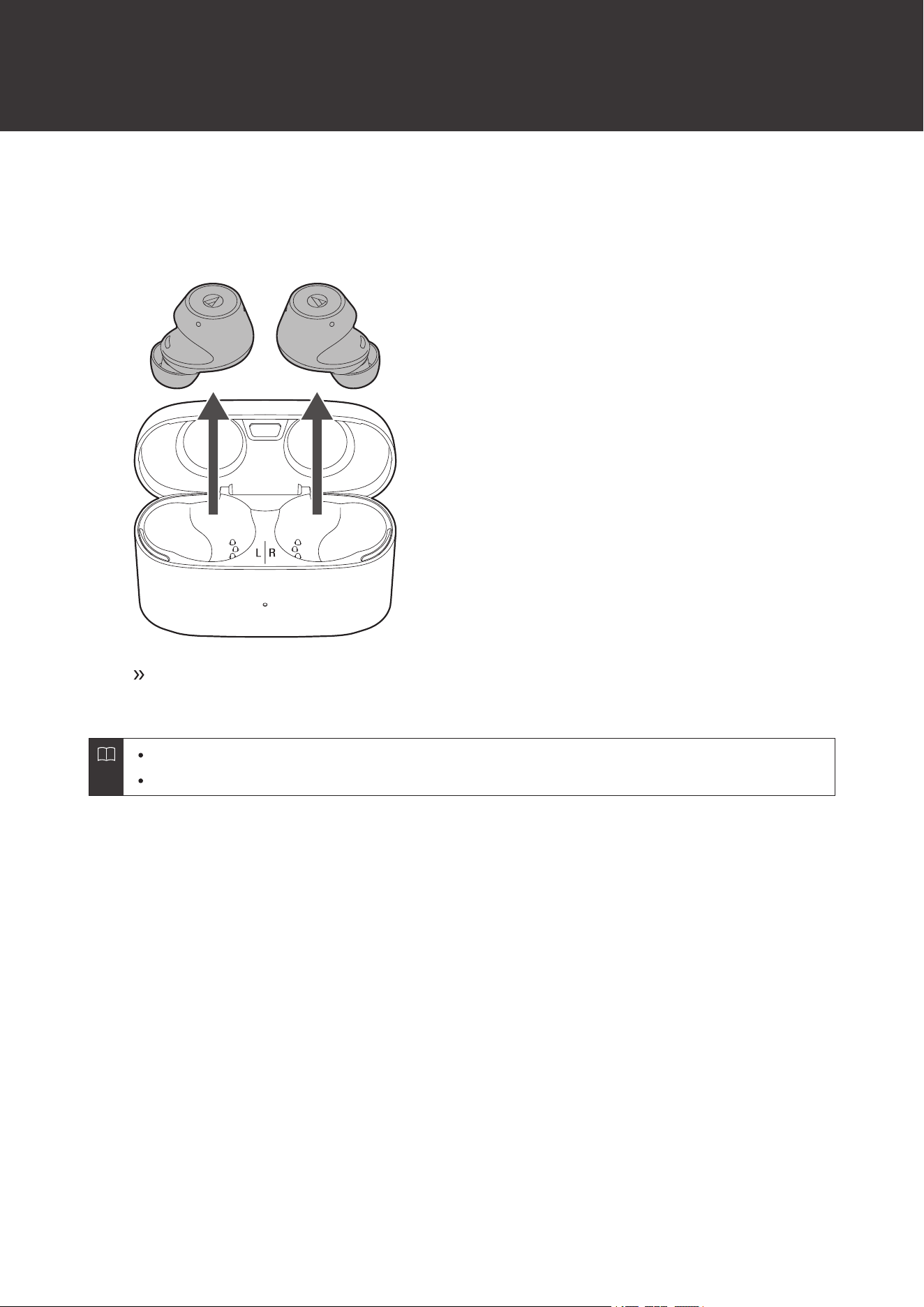
Charging indicator lamp
Charging indicator lamp Status
Lights in orange Battery level is low
Lights in white Battery level is sufficient
14
Power supply ON/OFF
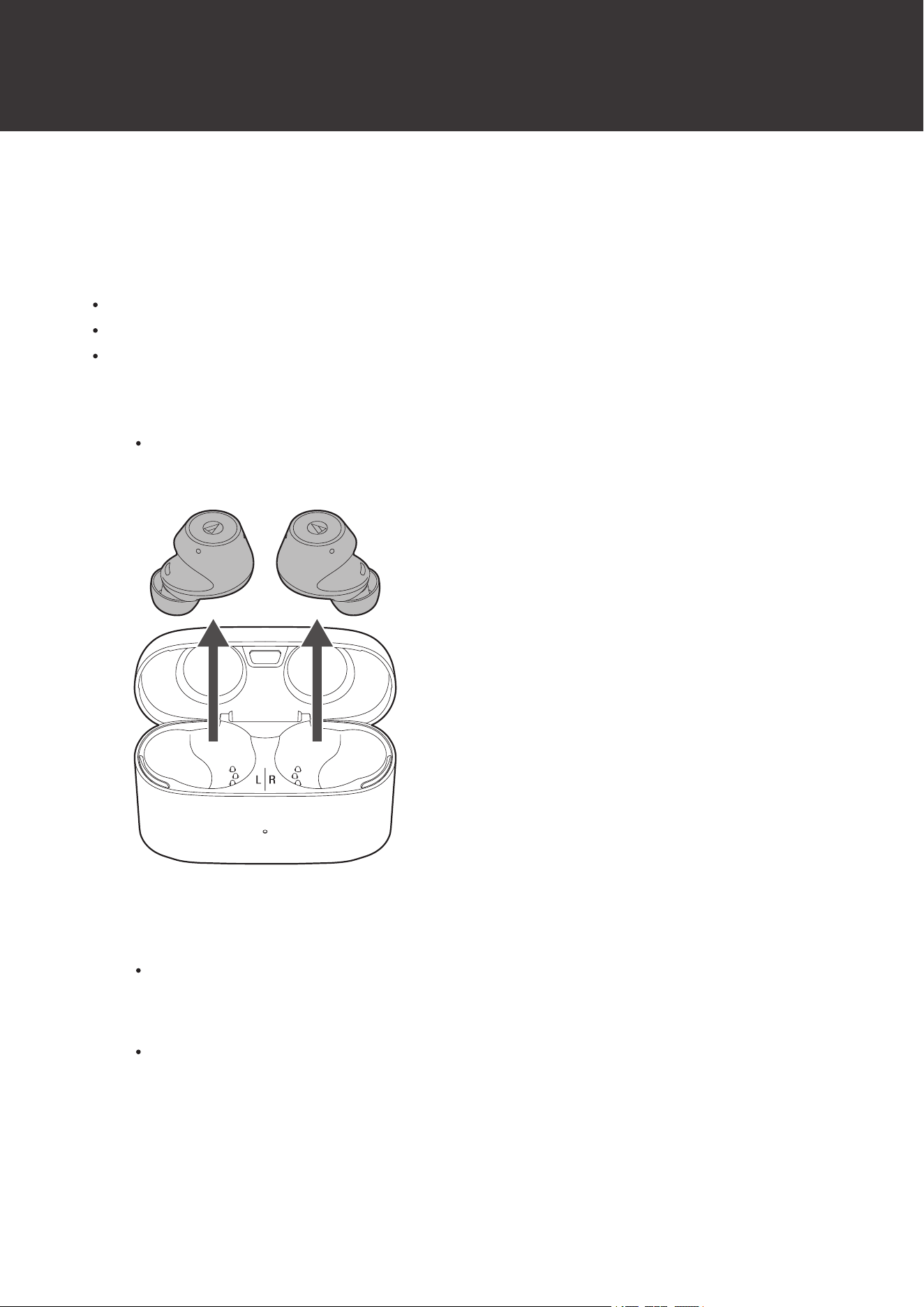
Turning on the product
1
Remove the headphones from the charging case.
The power will turn on automatically, and the indicator lamps will light in white and then flash.
Voice guidance is played.
It may take several seconds for the indicator lamp to light.
See "Voice guidance" (p. 28) for more information on voice guidance.
Turning off the product
1
Place the headphones in the charging case.
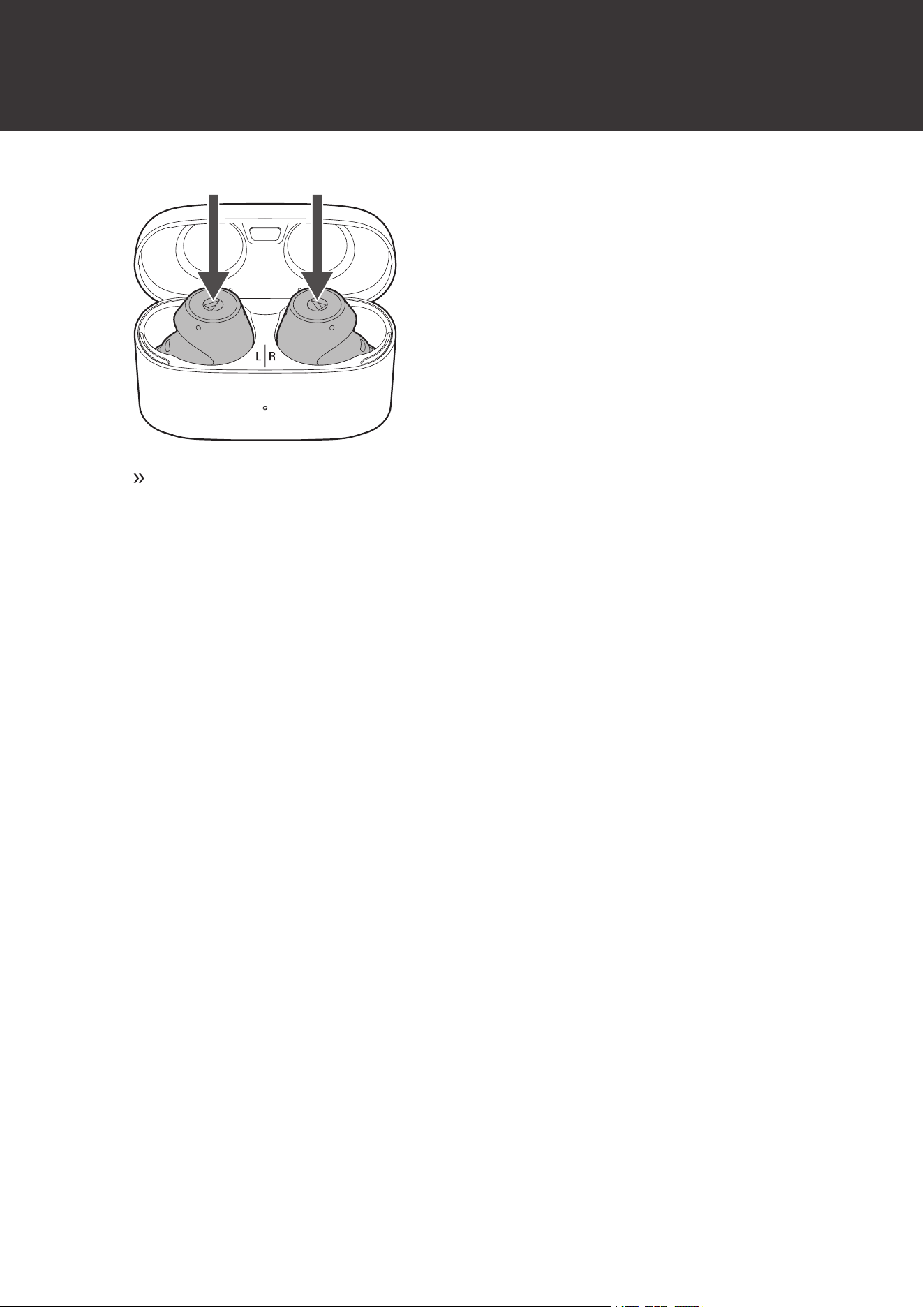
Power supply ON/OFF
15
The power will turn off automatically.
16
Connecting via Bluetooth
To connect the product to a Bluetooth device, the product needs to pair (register) with the device.
Pairing a Bluetooth device
Read the user manual for the Bluetooth device.
Place the Bluetooth device within 1 m (3.3') of the product to perform pairing correctly.
Wear the product to hear voice guidance during pairing.
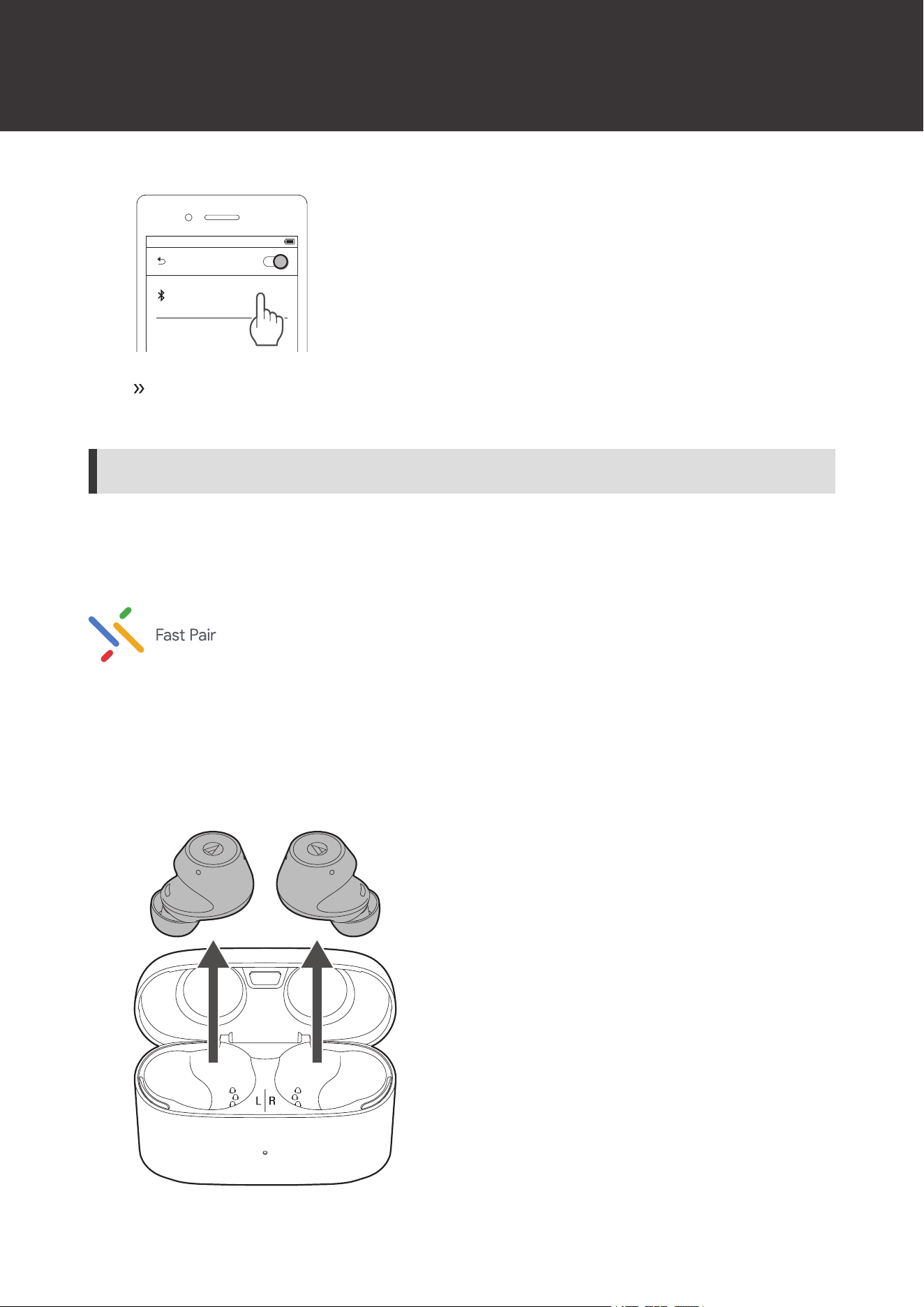
1
Remove the headphones (L (left) and R (right)) from the charging case.
The indicator lamps will light in white, and then flash. Depending on the order the L (left) and R (right) side
headphones are removed from the charging case, the indicator lamp on one side will flash white quickly, and
the other will flash white slowly.
2
Use your Bluetooth device to begin the pairing process and search for the product. When your
Bluetooth device finds the product, “ATH-CKS30TW” will be displayed on the device.
For information about using your Bluetooth device, refer to the device’s user manual.
3
Select “ATH-CKS30TW” to pair the product and your Bluetooth device.
Some devices may ask for a passkey. In this case, enter “0000”. The passkey may also be called a passcode,
PIN code, PIN number, or password.
Connecting via Bluetooth
17
Bluetooth ON
ATH-CKS30TW
The voice guidance will play the message “Connected”. This indicates pairing was performed
correctly and is now complete.
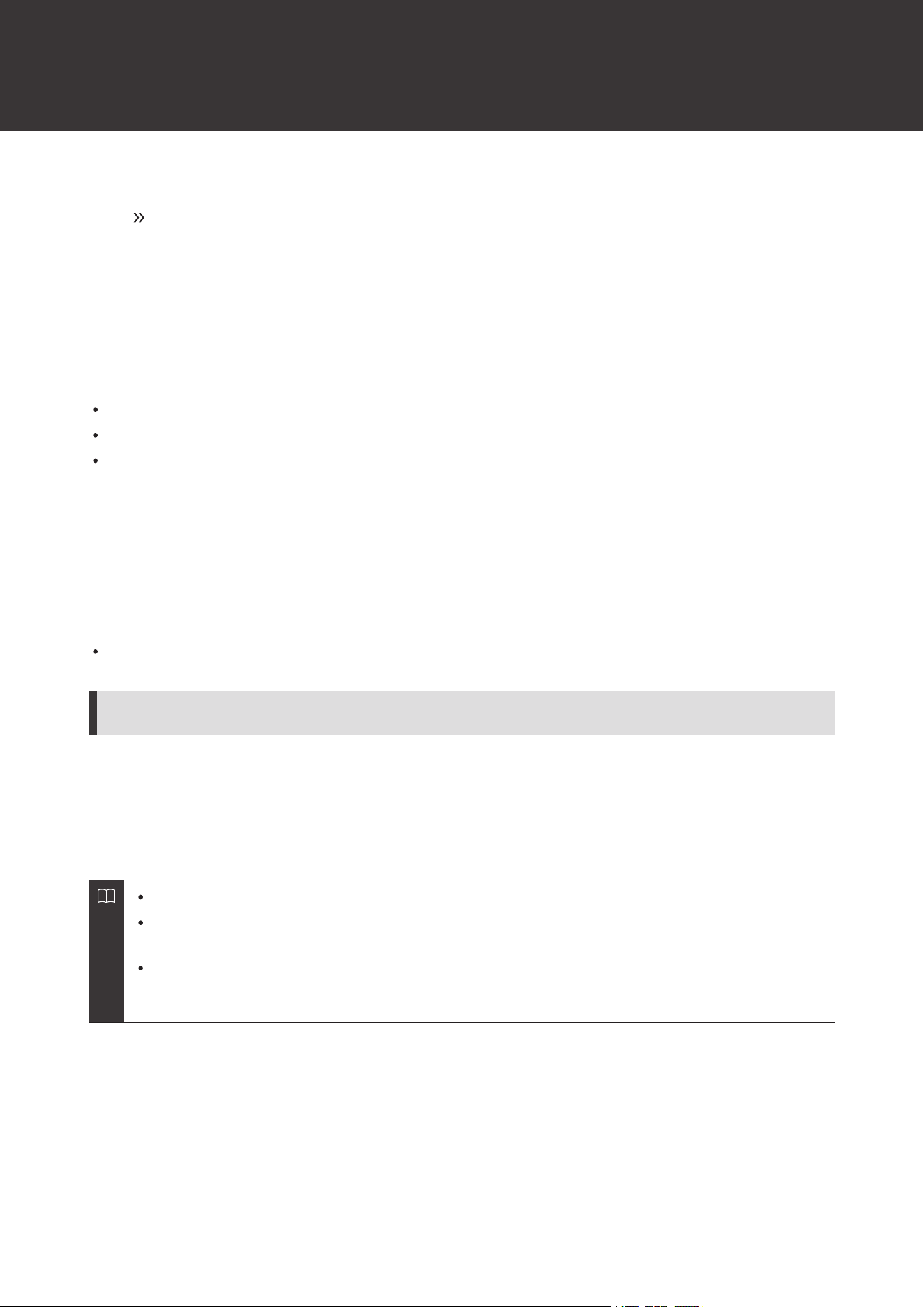
Pairing with Fast Pair
In one touch, the product enables quick, effortless Bluetooth pairing with your Android devices. You can even check to
see where you last placed it.
1
Turn on the Bluetooth function on an Android device configured with a Google account.
2
Remove the headphones (L (left) and R (right)) from the charging case and bring them close to the
Android device.
Connecting via Bluetooth
18
3
Touch the pairing notification that appears on your Android device.
The voice guidance will play the message “Connected” when pairing is complete.
About pairing
When connecting a new Bluetooth device, you need to pair it with the product. Once the Bluetooth device and the
product are paired, you do not need to pair them again. The product supports multipairing, in which a connection history
is saved. However, in the following cases you will need to pair again even if the Bluetooth device was paired once:
If the product is deleted from the Bluetooth device’s connection history.
If the product is sent out for repair.
If the product is reset.
Multipoint function
The product supports multipoint, which allows two Bluetooth devices to be connected at the same time. While you are
listening to music with one device, you can answer a call that comes in from the other device. It is convenient if you have
two smartphones, for example.
Audio-Technica does not guarantee the operation of all combinations of Bluetooth devices.
Connecting using multipoint
1
Pair with the first Bluetooth device.
2
Pair with the second Bluetooth device within 30 seconds of pairing with the first Bluetooth device.
If the product does not connect, restart its power.
Up to two Bluetooth devices can be connected at the same time with multipoint. To connect a third
Bluetooth device, disconnect one of the connected devices.
Music cannot be played from two devices at the same time. If music is playing on the first Bluetooth device,
playback will not be switched even if music is played on the second device. The music playing on the first
device must be stopped to play music from the second device.
19
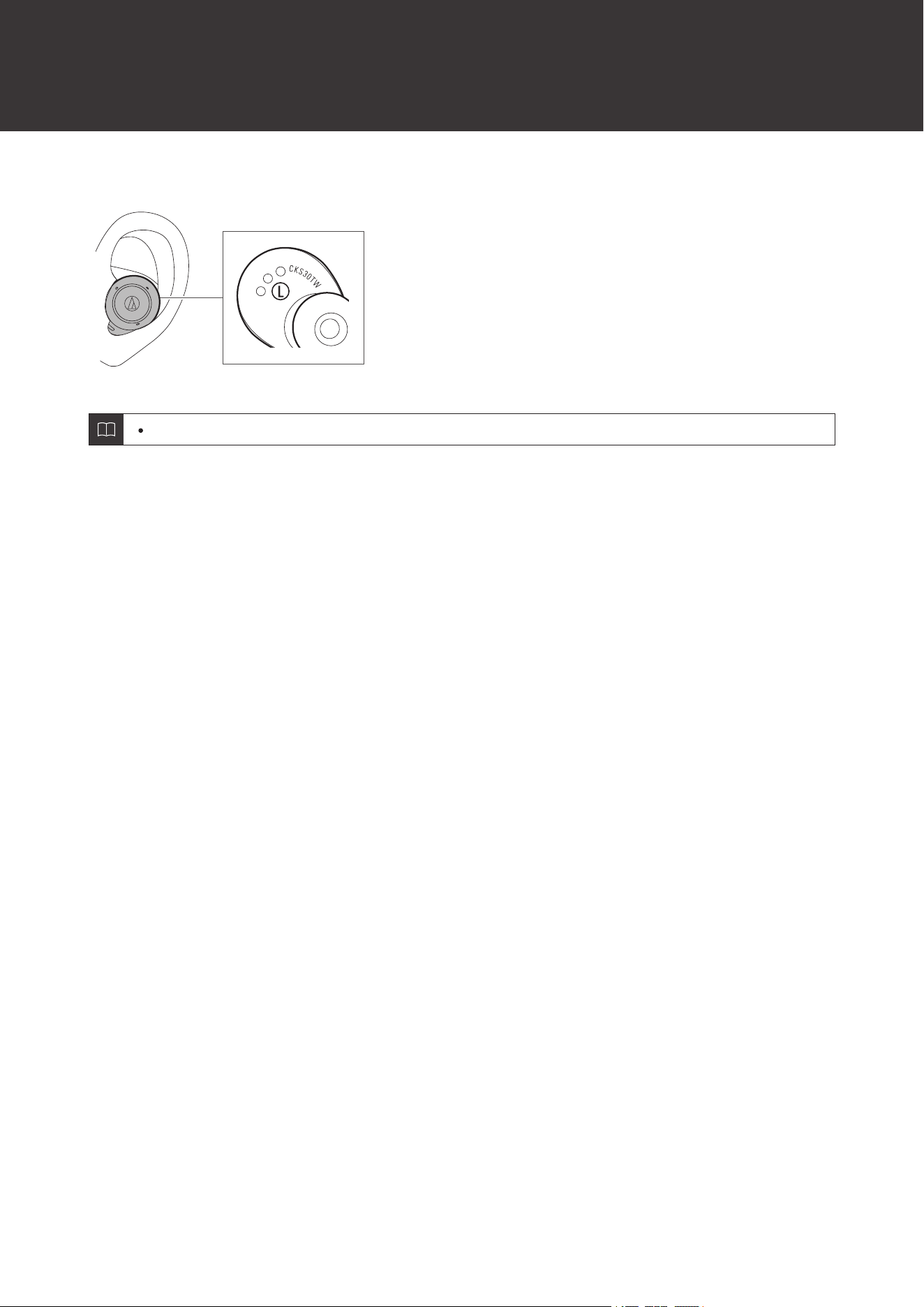
Wearing the product
Insert the side of the product marked “L” (left) into the left ear and the side marked “R” (right) into the right ear.
When using the product, select the eartips that fit your ears best, and wear the product securely.
20
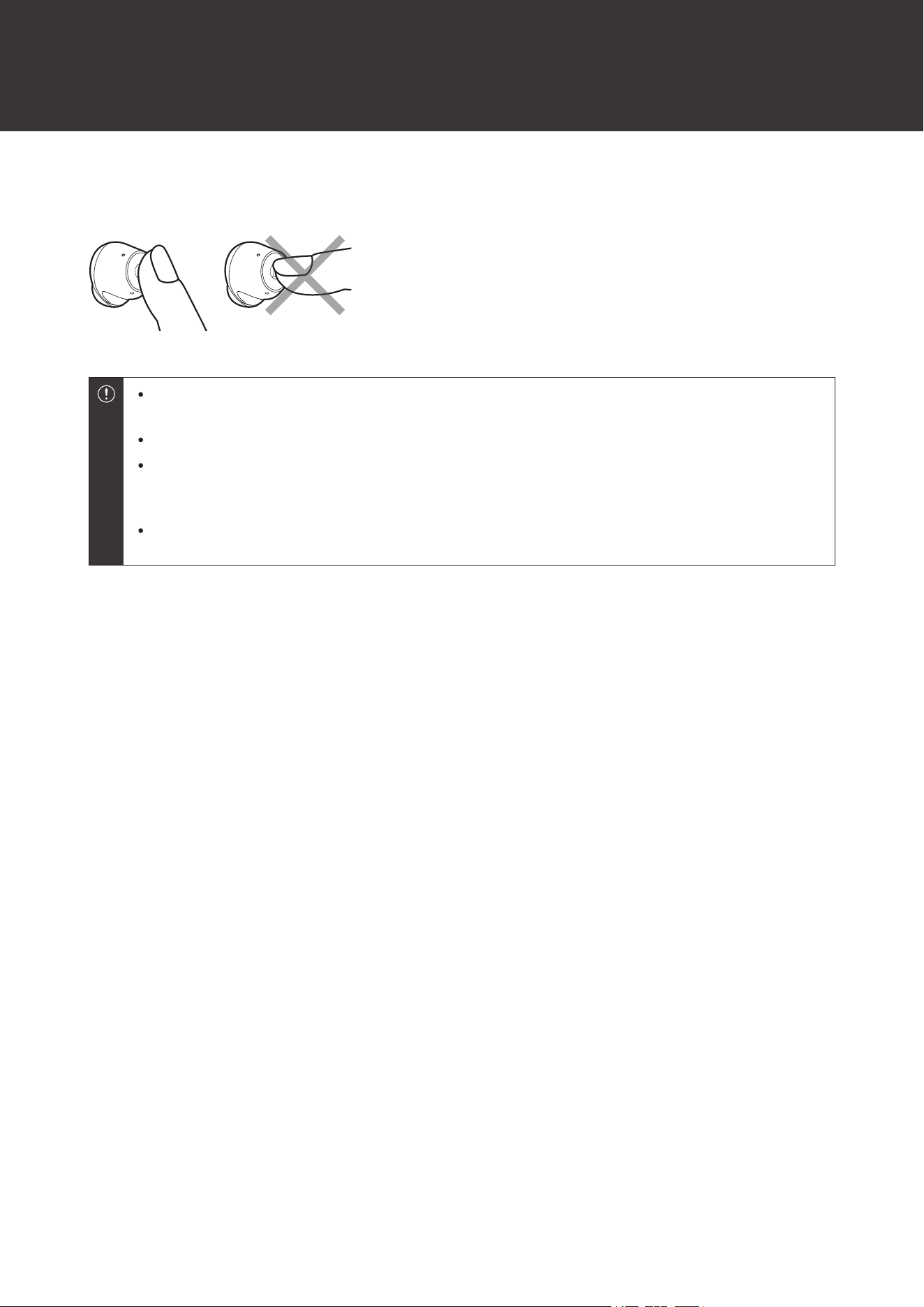
Touch sensors
The product has touch sensors. When performing operations, touch the sensors using the pad of your finger, not the
fingertip.
Operate the touch sensor with one finger. Operating with a sharp-tipped object, such as a ballpoint pen or
pencil, may result not only in incorrect operation, but also damage to the touch sensor.
Do not touch the touch sensor with your fingertips. Doing so may cause your fingernail to break.
If the product does not operate at all or as intended when touched, check to make sure that your other
fingers, parts of your hand, or clothing items are not in contact when touching. Also, the product may not
operate correctly if you are wearing gloves or if your fingertips are too dry.
The product may not operate correctly if the touch sensor is dirty from sweat. Remove the dirt before
operating the product.
21
Using the product
The product can use Bluetooth wireless technology to connect to your device and play music, receive phone calls, etc.
Use the product for whichever of these purposes suits your needs. Note that Audio-Technica cannot guarantee the
operation of displays, such as the battery level display, or applications via Bluetooth devices.
Listening to music
To connect for the first time, pair the product and your device via Bluetooth wireless technology. If you have already
paired the product and your Bluetooth device, turn on the Bluetooth device’s Bluetooth connection before turning on
the product.
Use your Bluetooth device to start playback, referring to the device’s user manual as necessary.
1
Remove the headphones from the charging case and place them in your ears.
2
Start playback on your Bluetooth device.
3
Touch the touch sensor on the L (left) side headphone once or twice in a row to adjust the volume
(up or down).
4
To pause music, touch the touch sensor on the R (right) side headphone.
Playback will be started or paused with every touch.
Listening to music is also possible with only one headphone by removing only one side from the charging
case and putting it in your ear. When you use only one headphone, some functions are not available
depending on which side is worn. Use the Bluetooth device for operation in such cases.
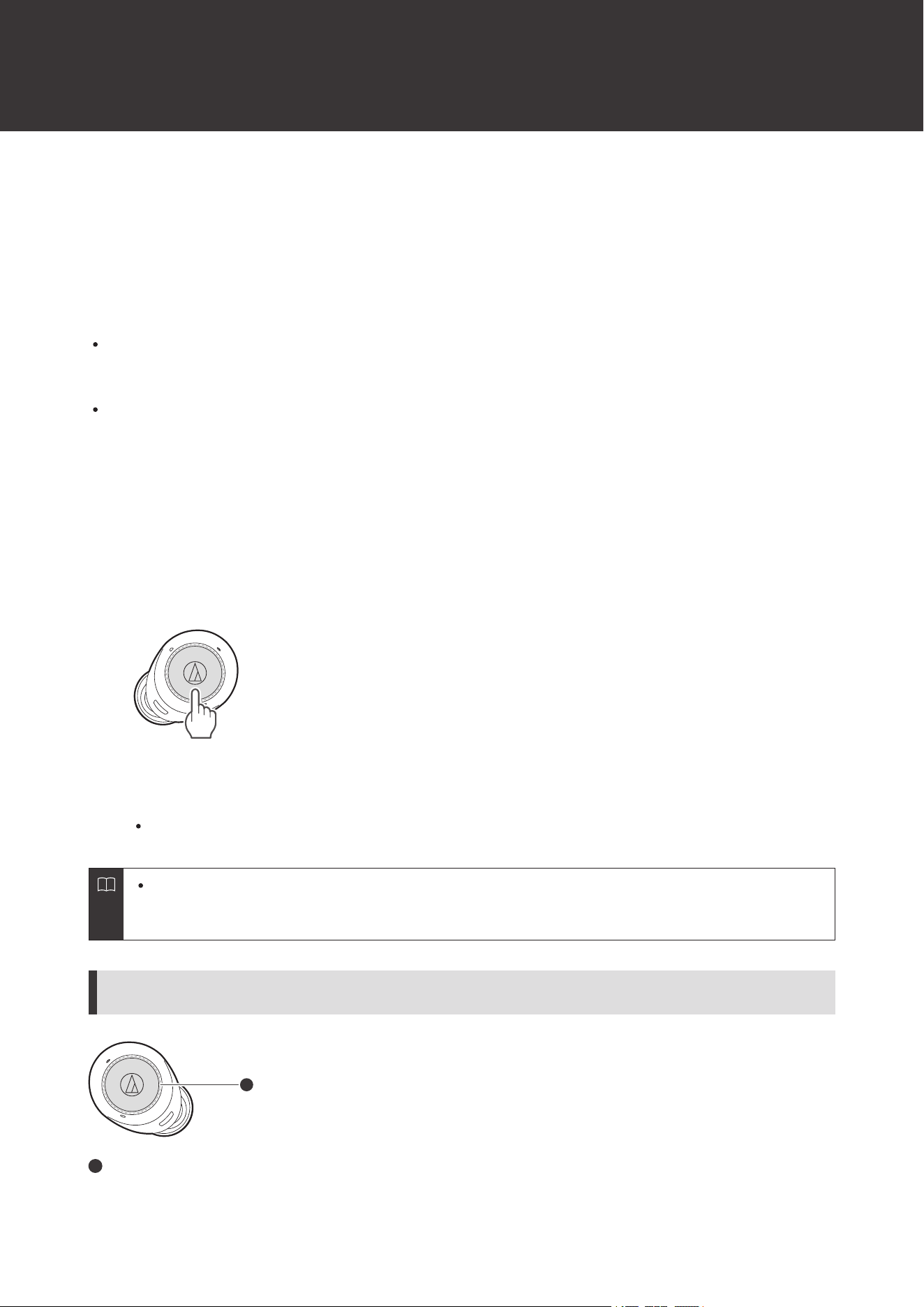
R (right) side headphone touch sensor operations
1
1
Touch sensor
Using the product
22
Operation Function
Touch Starts or pauses playback.
Touch (twice) Plays the next track.
Touch (three times) Plays the previous track / returns to the start of the track.
The controls explained above may not be available on some smartphones.
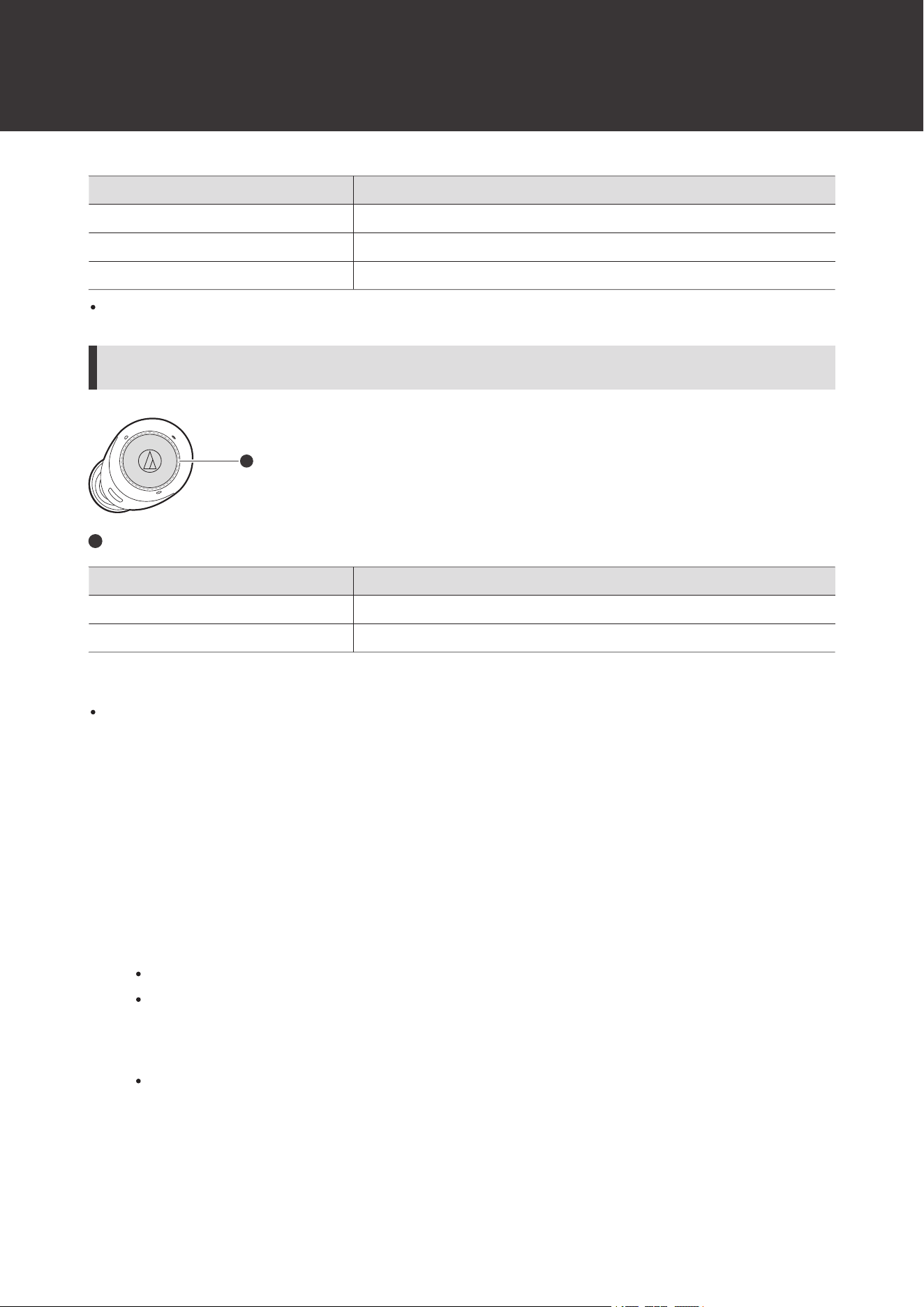
L (left) side headphone touch sensor operations
1
1
Touch sensor
Operation Function
Touch Increases the volume by 1 level.
[1][2]
Touch (twice) Decreases the volume by 1 level.
[1][2]
[1] A beep is heard each time the volume is increased/decreased by 1 level.
[2] The volume control of some Bluetooth devices may not work well with the product.
The controls explained above may not be available on some smartphones.
Talking on the phone
If your Bluetooth device supports telephone features, you can use the product to talk on the phone.
1
Remove the headphones from the charging case and place them in your ears.
2
Make/receive calls with your Bluetooth device.
When your Bluetooth device receives a phone call, the product sounds a ringtone.
If a call is received while you are listening to music, music playback is paused.
3
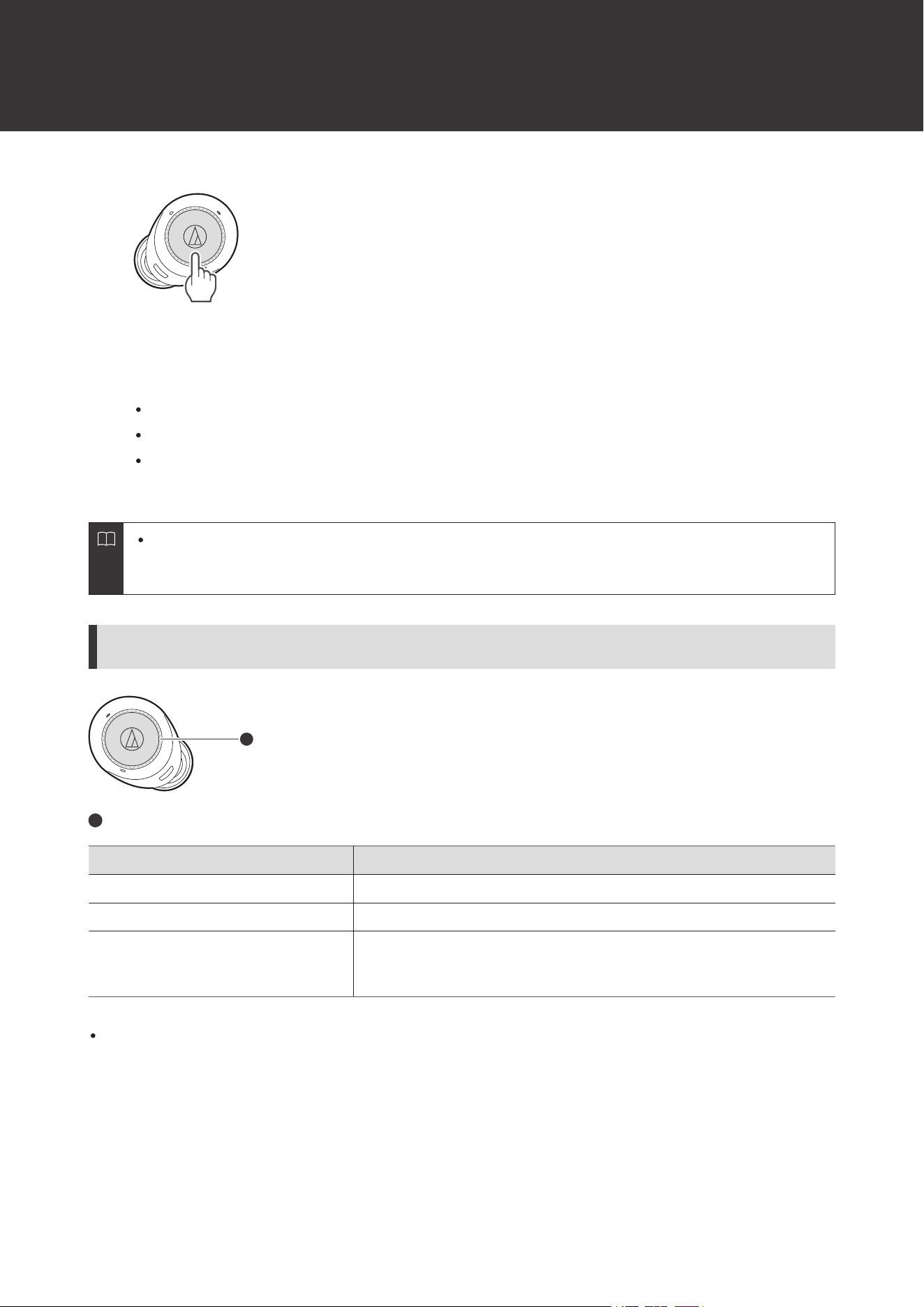
Touch the touch sensor on the headphones (L (left) or R (right) side) to answer incoming calls.
Calls can be answered from either the L (left) or R (right) side headphone.
4
Touch the touch sensor on the L (left) side headphone once or twice in a row to adjust the volume
(up or down).
Using the product
23
5
To end a call, touch and hold (about 2 seconds) the touch sensor on the L (left) or R (right) side
headphone.
Calls can be ended from either the L (left) or R (right) side headphone.
If the call was received while listening to music, playback is resumed.
Music playback may not be resumed on some Bluetooth devices. In this case, music playback must be started
manually.
Making/receiving calls is also possible with only one headphone by removing only one side from the
charging case and putting it in your ear. When you use only one headphone, some functions are not
available depending on which side is worn. Use the Bluetooth device for operation in such cases.
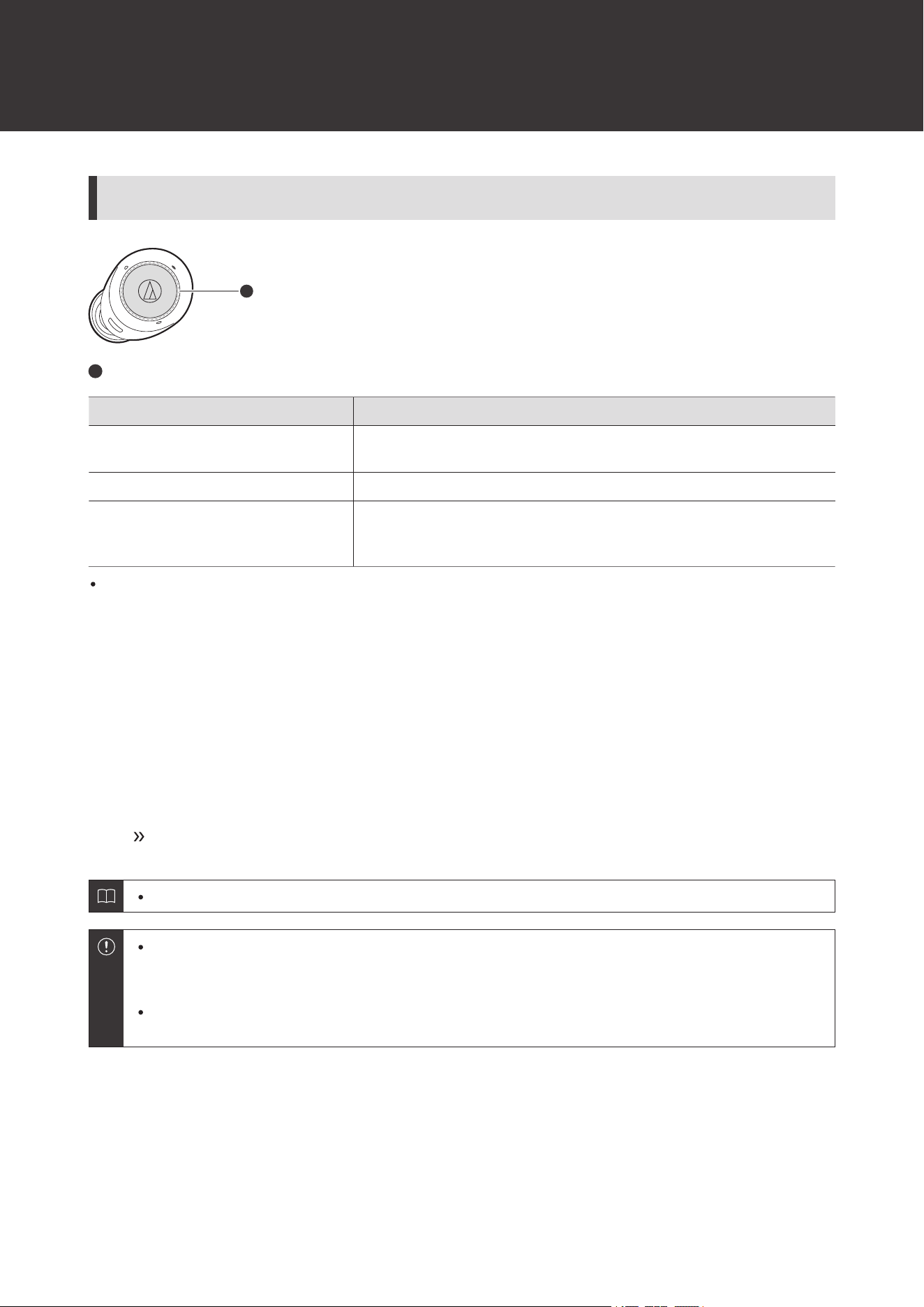
R (right) side headphone touch sensor operations
1
1
Touch sensor
Operation Function
Touch Receiving a call: Answers the call.
Press (twice) Mutes the microphone.
[1]
Touch and hold (about 2 seconds)
Receiving a call: Rejects the call.
Making a call: Cancels the call.
During a call: Ends the call.
[1] The mute operation using the touch sensor only mutes the headphones and does not activate the mute function on the Bluetooth device.
The controls explained above may not be available on some smartphones.
Using the product
24
L (left) side headphone touch sensor operations
1
1
Touch sensor
Operation Function
Touch
Receiving a call: Answers the call.
During a call: Increases the call volume by 1 level.
Touch (twice) During a call: Decreases the call volume by 1 level.
Touch and hold (about 2 seconds)
Receiving a call: Rejects the call.
Making a call: Cancels the call.
During a call: Ends the call.
The controls explained above may not be available on some smartphones.
Talk-through function
This function enhances external sound by focusing on people’s voices. The volume of music being played back
decreases automatically. It is useful for when you want to listen to public transportation announcements or people’s
voices.
1
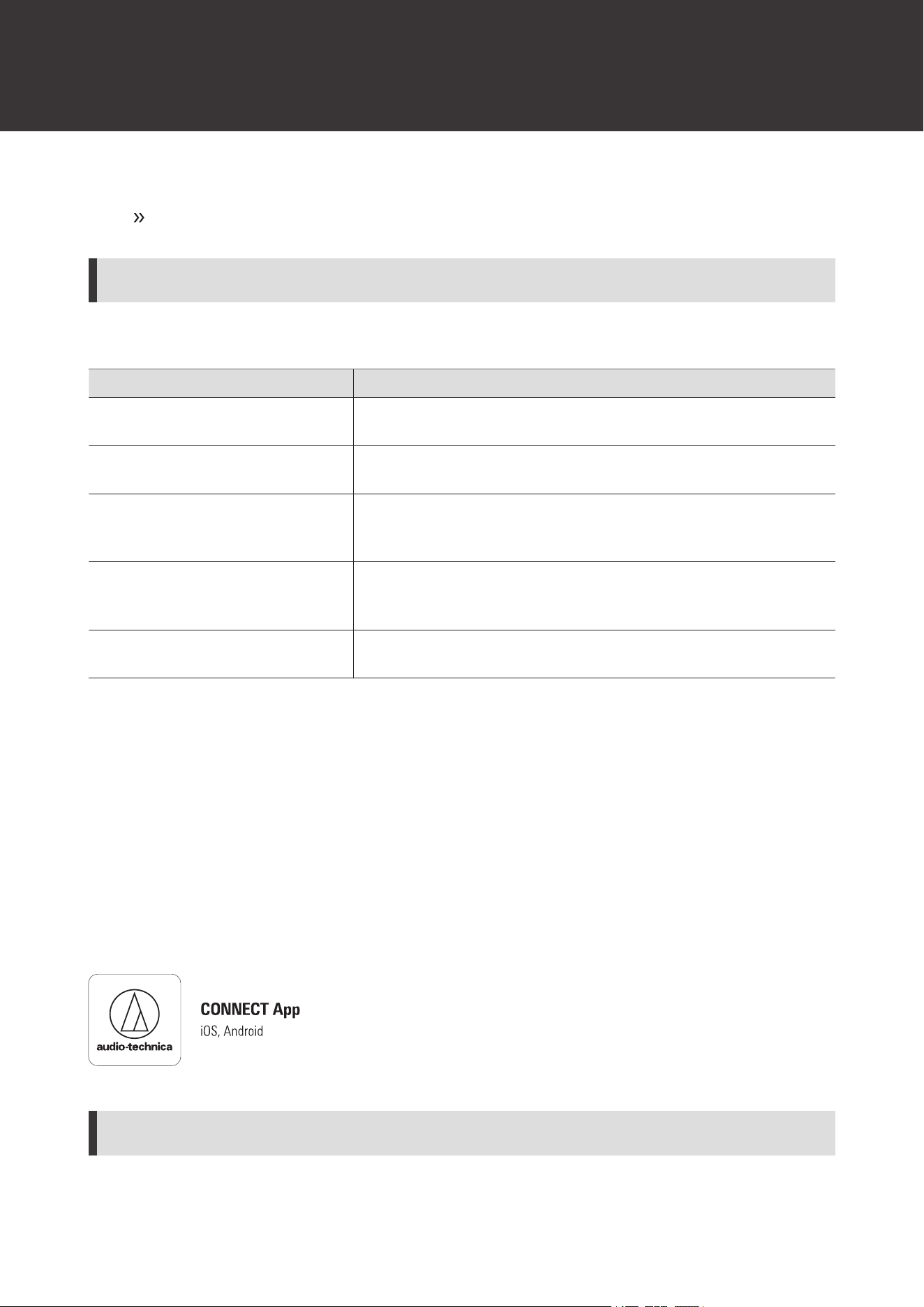
Touch and hold (about 2 seconds) the touch sensor on the R (right) side headphone.
The talk-through function will be turned on/off with every long touch (about 2 seconds).
The talk-through function cannot be used during a call.
Depending on your surroundings, the ambient sounds may be difficult to hear even when using the
product’s talk-through function. Do not use the product in places that are dangerous if you cannot hear the
surrounding sounds, such as places with heavy traffic.
When the talk-through function is turned ON, do not cover the microphone with your hand. If you do so, a
loud sound (howling) will be emitted, and it may adversely affect your hearing ability.
Equalizer function
This function switches the equalizer function setting to change the sound quality. The equalizer is set to “Bass Boost -
Deep” for increased bass at the time of purchase.
Using the product
25
1
Touch and hold (about 2 seconds) the touch sensor on the L (left) side headphone.
The equalizer function will be turned on/off with every long touch (about 2 seconds).
Equalizer settings
Use the “CONNECT” app to change the equalizer function setting applied with the touch sensor.
Equalizer Description
Bass Boost - Deep
Increased bass to get you up and moving. Sound is closer to the ultra-low
frequency with an enhanced sense of depth for enjoying long-lasting bass.
Bass Boost - Beat
Crisp, tight bass. The sharp low frequencies combined with well-balanced
mid and high frequencies produce a fuller sense of power and realism.
Dynamic
Crisp sound that emphasizes the low and high frequencies. The vibrant
sound quality of this setting is recommended for becoming immersed in
games and other media.
Vocal
Sound that emphasizes the natural connections between low- and high-
frequency ranges. This setting offers clearer voices and dialogue while
also highlighting the vocal-centric middle range.
Clear
Sound that emphasizes crispness in high frequencies. The result is clean
and clear high frequencies with delicate lingering notes.
Auto power off function
The product automatically turns off after 5 minutes of not being connected to a device.
App for smartphones
This product is compatible with our “CONNECT” app. The app gives you convenient access to various functions. It also
allows you to update the product's firmware.
https://app.at-globalsupport.com
What you can do with the app
The app allows you to use the following functions. For details, refer to the app screen.
Using the product
26
Function Description
Volume Adjustment Level The number of volume adjustment steps can be changed.
Ambience Control
You can switch to the hear-through function. You can also adjust the
volume of external sounds that are captured.
Talk-Through
You can change the talk-through type and adjust the music playback
volume for talk-through.
Equalizer You can configure the equalizer settings.
Low Latency Mode
Low latency mode reduces sound delay when playing games or watching
videos. Bluetooth communication can be easily affected by obstacles and
radio wave conditions. Turn this mode off in such situations.
L/R Balance Adjustment You can adjust the left-right volume balance.
Side Tone
You can turn on or off the side tone function that captures your own voice
and ambient sounds through the microphone during a call (the function is
on at the time of purchase).
Key Assign You can set the functions to be assigned to the touch sensors.
Touch Sensors
You can turn the touch sensors on or off and adjust the touch sensor
sensitivity.
Voice Guidance
You can change the product’s voice guidance to a confirmation tone, or
switch the voice guidance language.
Connected Device Management
You can switch the connection by selecting the Bluetooth device you want
to connect from the list of Bluetooth devices you have connected to so far.

27
Indicator lamp display
Pairing
Status Indicator lamp display pattern
Searching for devices
○-○-○・・・
Flashing white (gradually lighting up)
(Depending on the order the L (left) and R (right) side headphones are
removed from the charging case, the indicator lamp on one side will flash
white quickly, and the other will flash white slowly.)
Connecting
Status Indicator lamp display pattern
Connecting
○-----○-----○・・・
Flashing white in 4-second intervals
Music is playing
------------・・・
Off
Battery level
Status Indicator lamp display pattern
Battery level is low White in the pairing or connection status turns orange.

28
Voice guidance
The product plays English voice guidance in the following situations.
Use the “CONNECT” app to change the voice guidance language.
Situation Voice guidance
Bluetooth is connected Connected
Bluetooth is disconnected Disconnected
Talk-through function on Talk-through
Equalizer function on Equalizer on
Equalizer function off Off
Battery level is low Low battery
No power due to dead battery Please recharge
29
Cleaning
Get into the habit of regularly cleaning the product to ensure that it will last for a long time. Do not use alcohol, paint
thinners, or other solvents for cleaning purposes.
Headphones
Remove the eartips when cleaning the headphones.
The headphones may not function properly if they become wet. Wipe the headphones with a dry cloth, shake them
multiple times to remove any excess water, and allow the headphones to dry thoroughly before use.
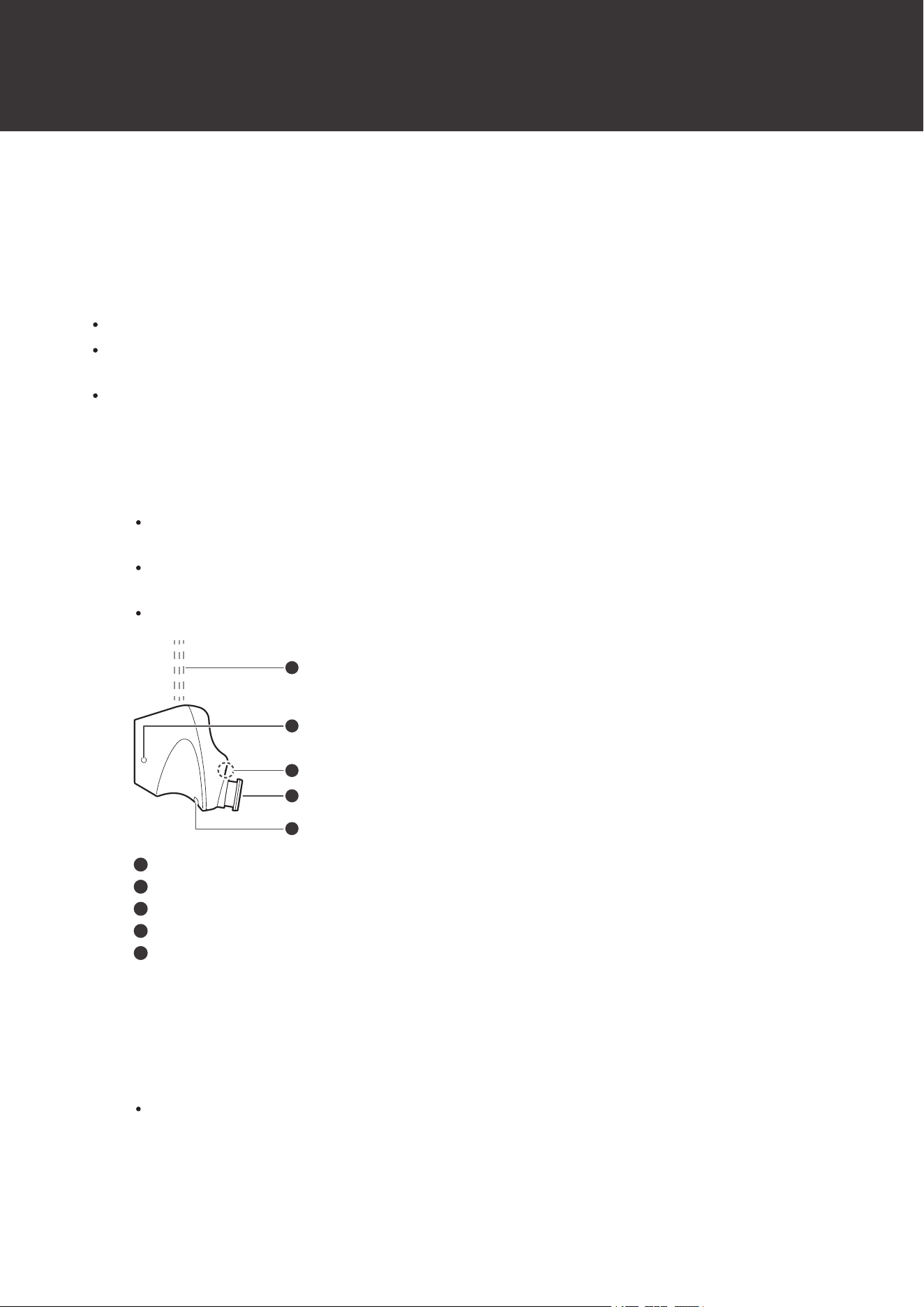
Natural oils from the skin are particularly likely to build up on the eartip attachment parts (see figure). If these areas
are not cleaned, the eartips can become detached. Clean them regularly. Do not touch the areas where sound is
produced as they are delicate. Doing so may result in malfunction.
1
Remove the eartips and wash the headphones with water.
Do not use soapy water. Wash in fresh water at normal temperature (10 to 35°C (50 to 95°F)) or a gentle flow
of tap water.
Wash the headphone as shown in the figure. Do not apply water directly to the sound reproduction part, the
microphone, or the vent.
Do not wash with a brush or sponge. Wash by hand.
5
2
4
3
1
1
Fresh water or gentle-flowing tap water
2
Microphone
3
Eartip attachment part
4
Sound reproduction part
5
Vent
2
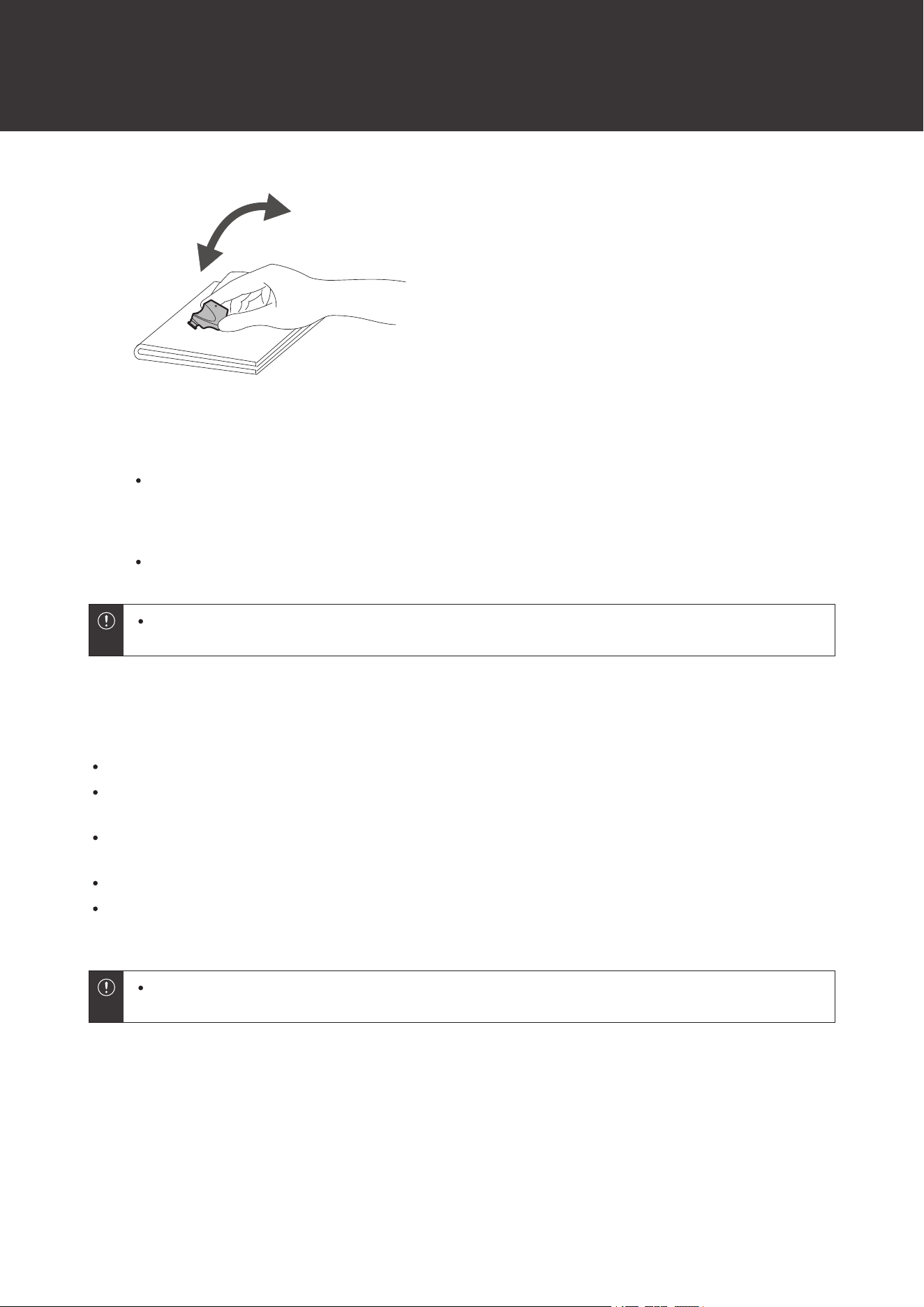
After washing, wipe any surface moisture thoroughly with a dry, clean, and soft cloth.
3
Hold the headphone firmly, press it against a dry cloth, and then shake it until no more water
droplets come off.
Although the headphones have a waterproof rating equivalent to IPX5, the sound reproduction parts,
microphones, and vents are not water resistant. If any water enters the interior of the headphones, no sound
will be reproduced, or sounds may be difficult to hear. In such cases, press the headphone against a dry cloth,
and then shake it approximately 20 times with the sound reproduction part, microphone, or vent positioned
downward.
Cleaning
30
4
Wipe off any water that remains in the sound reproduction part, microphone, or vent by gently
pressing the headphones against a dry, clean, and soft cloth.
Do not wipe off any water in the gap with a cotton swab, etc.
5
Dry the product thoroughly in a well-ventilated shady location.
Do not apply hot air such as by using a dryer.
If the product will not be used for an extended period of time, store it in a well-ventilated place free from
high temperatures and humidity.
Charging case / USB charging cable / eartips
Wipe any dirt off the charging case with a dry cloth.
Immediately wipe off any moisture such as sweat that has splashed onto the charging case battery jack, the
charging terminals, etc. Failure to do so may result in a malfunction due to corrosion.
Wipe away any perspiration or dirt from the USB charging cable with a dry cloth immediately after use. Failure to
clean the cable may cause it to deteriorate and harden over time, resulting in malfunction.
If the USB terminal of the charging cable is dirty, wipe it off with a dry cloth.
Clean the eartips by removing them from the headphones and manually cleaning them with a diluted mild detergent.
After cleaning, dry before using again.
If the product will not be used for an extended period of time, store it in a well-ventilated place free from
high temperatures and humidity.
31
Eartips
Eartip size
The product includes silicone eartips in 4 sizes (XS, S, M, and L). At the time of purchase, the M-size silicone eartips are
attached. To ensure the best sound quality, select the eartip size that is best suited for you, and adjust the eartips inside
your ears for a snug fit. It may be difficult to hear bass sounds if the eartips do not fit snugly in your ears.
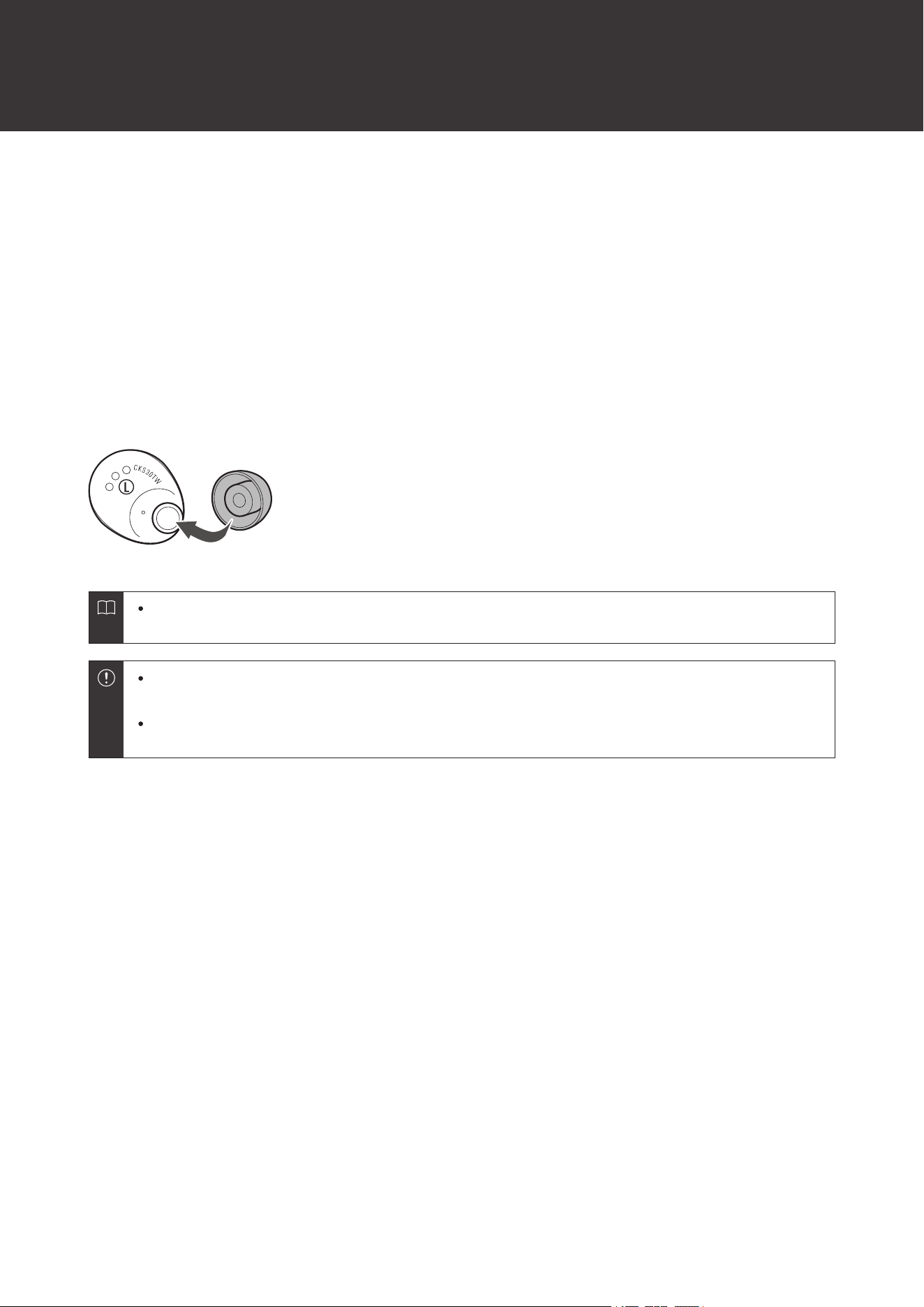
Replacing the eartips
Remove the old eartip and attach the new eartip by pushing it onto the headphone at an angle. Push firmly on the eartip
so that the inside of the eartip expands, and push the eartip onto the post as far as it will go.
Eartips are consumable parts that degrade through storage and use. If the eartips are loose and easily
removed or if they appear to have degraded, purchase replacements.
Periodically remove and clean the eartips as they become dirty easily. Using dirty eartips may cause the
headphones themselves to become dirty, resulting in deteriorated sound quality.
When reattaching eartips that were previously removed, be sure to check that they are securely attached.
Injury or illness may occur if the eartips become detached and are left inside the ear.
32
Forced pairing mode / reset
If the product does not connect to a device (forced pairing
mode)
If pairing cannot be cancelled or is not successful, you can use forced pairing mode to perform pairing again.
When operating, hold the headphones so that they stay in the charging case.
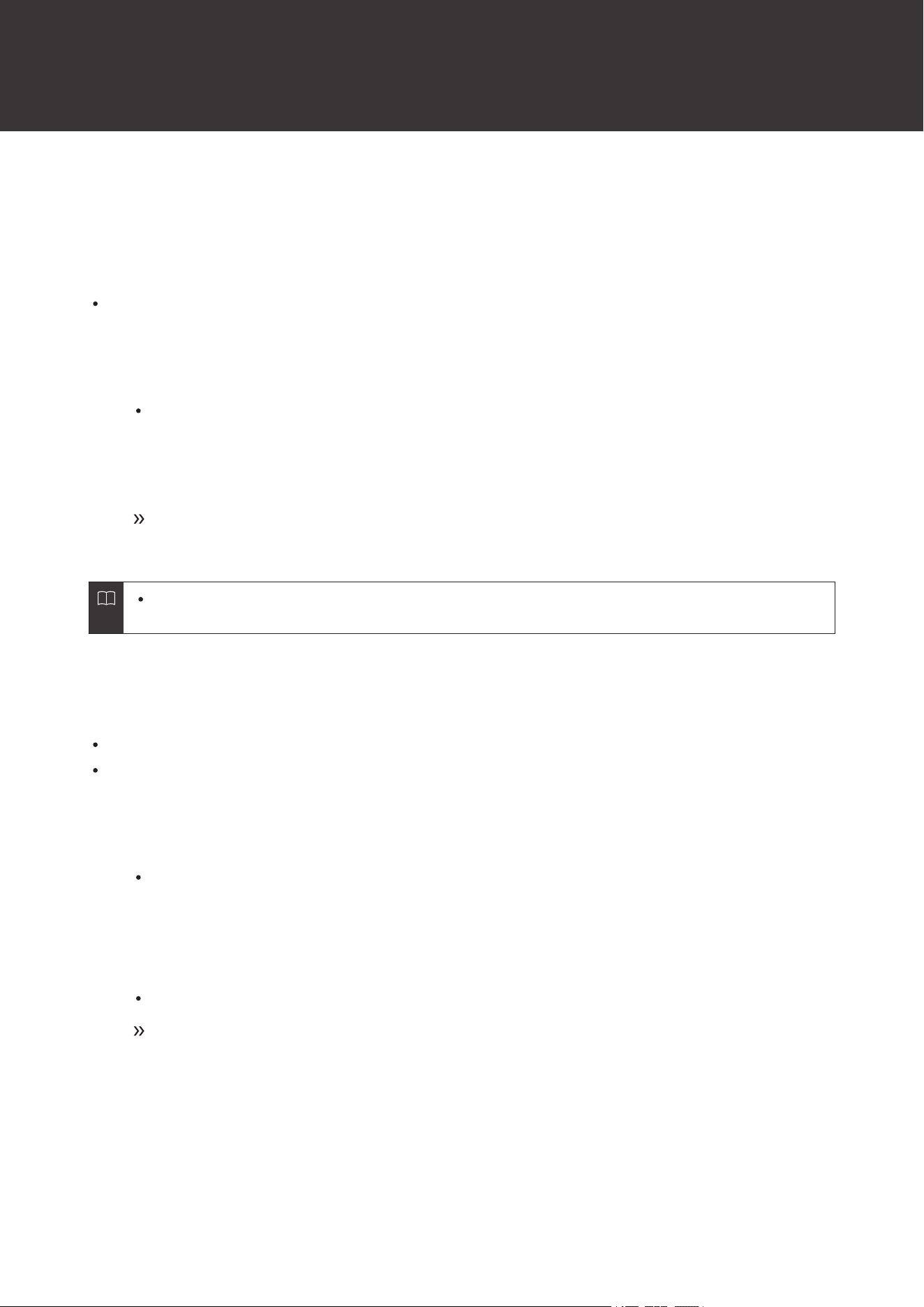
1
About 5 seconds after both headphones (L (left) and R (right) sides) are placed in the charging case
(with battery remaining), touch and hold (about 4 seconds) the touch sensors of both headphones.
You can operate both headphones simultaneously or one headphone at a time.
2
When the indicator lamps on both headphones light in orange, release your fingers and remove the
headphones from the charging case.
The product will switch to the “searching for devices” (pairing mode) state and you will be able to
pair with your desired Bluetooth device.
If the procedure cannot be completed as expected, remove the headphones from the charging case again
and repeat the procedure from the beginning.
If the product operates abnormally (reset)
Reset the product.
When operating, hold the headphones so that they stay in the charging case.
1
About 5 seconds after both headphones (L (left) and R (right) sides) are placed in the charging case
(with battery remaining), touch and hold (about 10 seconds) the touch sensors of both headphones.
About 4 seconds into touching and holding the sensors, the indicator lamps will light in orange. Continue
touching and holding the sensors.
2
When the indicator lamps on both headphones begin flashing orange, release your fingers and
remove the headphones from the charging case.
You can operate both headphones simultaneously or one headphone at a time.
Reset is complete.
3
Remove the product from the list of registered devices on your Bluetooth device.
4
Pair the product again.

Forced pairing mode / reset
33
If the procedure cannot be completed as expected, remove the headphones from the charging case again
and repeat the procedure from the beginning.
The “CONNECT” app can also be used to perform a reset.

34
Troubleshooting
Power is not supplied
Charge the product.
Unable to pair
Confirm that the Bluetooth device communicates using Ver. 2.1+EDR or higher.
Place the product and the Bluetooth device within 1 m (3.3') of each other.
Set the profiles for the Bluetooth device. For procedures on how to set profiles, refer to the Bluetooth
device’s user manual.
Remove the pairing information for the Bluetooth device then pair the product with this device again.
Place the headphones in the charging case and close the cover, then remove the headphones and perform
the operation again.
Make sure you are not connected to any other previously connected Bluetooth device. If so, disconnect the
product using the previously connected Bluetooth device, and then select the product on the Bluetooth
device being connected to. Use forced pairing mode if you are unable to disconnect from a previously
connected Bluetooth device. For details, refer to "If the product does not connect to a device (forced pairing
mode)" (p. 32).
Reset the product if it cannot be unpaired, connected, or does not operate as expected even after trying all
other solutions. For details, refer to "If the product operates abnormally (reset)" (p. 32).
Re-pairing takes a long time
Pairing a device again can take a long time. Please be patient as the process is completed.
Make sure you are not connected to any other previously connected Bluetooth device. If so, disconnect the
product using the previously connected Bluetooth device, and then select the product on the Bluetooth
device being connected to. Use forced pairing mode if you are unable to disconnect from a previously
connected Bluetooth device. For details, refer to "If the product does not connect to a device (forced pairing
mode)" (p. 32).
No sound is heard / Sound is faint
Turn on the power of the product and the Bluetooth device.
Turn up the volume on the product and the Bluetooth device.
Make sure that the product and Bluetooth device are connected by the A2DP (or audio connection).
Disable pairing for the product and the Bluetooth device, then pair the product with this device again.
Move away from obstacles between the product and the Bluetooth device, such as people, metal, or walls,
and place the product and device closer together.
Switch the sound output of the Bluetooth device to the product.

Troubleshooting
35
Check whether the talk-through function is turned on/off. If the talk-through function is on, the volume of
music being played back will decrease automatically. Touch and hold (about 2 seconds) the touch sensor on
the R (right) side headphone to turn the talk-through function on or off.
Sound only comes out of one headphone
Make sure there is battery level remaining.
Place the headphones in the charging case and close the cover, then remove the headphones and perform
the operation again.
Sound is distorted / Noise is heard / Sound cuts out
Turn down the volume on the product and the Bluetooth device.
Keep the product away from devices that emit radio waves such as microwaves and wireless routers.
Keep the product away from TVs, radios, and devices with built-in tuners. These devices can also be affected
by the product.
Turn off the equalizer settings of the Bluetooth device.
Remove obstacles between the product and the Bluetooth device and place them closer together. For
details, refer to "For a more comfortable Bluetooth communication experience" (p. 6).
Cannot hear the voice of the caller / Voice of the caller is too quiet
Turn on the power of the product and the Bluetooth device.
Turn up the volume on the product and the Bluetooth device.
Confirm that the product and Bluetooth device are connected via HFP (or phone connection).
Disable pairing for the product and the Bluetooth device, then pair the product with this device again.
Switch the sound output of the Bluetooth device to the product.
Charging case cannot be charged
Securely connect the included USB charging cable and charge the product.
The charging case or headphones may be hot. Allow the temperature of the product to cool sufficiently
before charging in a well-ventilated place (10 to 35°C (50 to 95°F)) away from direct sunlight.
Headphones cannot be charged
Make sure that the product is placed in the charging case correctly.
Make sure to close the charging case cover when charging.
Troubleshooting
36
Charge the charging case.
Wipe dirt off the charging terminal with a dry cloth.
The charging case or headphones may be hot. Allow the temperature of the product to cool sufficiently
before charging in a well-ventilated place (10 to 35°C (50 to 95°F)) away from direct sunlight.
Bass is insufficient
Select the eartips that best fit your ears, and wear the product securely. It may be difficult to hear bass
sounds if the eartips do not fit snugly in your ears.
Switch the equalizer function setting to change the sound quality. Touch and hold (about 2 seconds) the
touch sensor on the L (left) side headphone to turn the equalizer function on or off.
Use the “CONNECT” app to change the equalizer function setting applied with the touch sensor. Change the
setting so that the desired sound quality is applied.
For details about how to operate your Bluetooth device, refer to the device’s user manual.
37
Specifications
Headphones
Type
Dynamic
Driver
9 mm
Sensitivity
110 dB/mW
Frequency response
5 to 20,000 Hz
Impedance
20 ohms
Microphone
Type
MEMS type
Polar pattern
Omnidirectional
Sensitivity
-38 dB (1 V/Pa, at 1 kHz)
Frequency response
100 to 8,000 Hz
Communication specifications
Communication system
Bluetooth version 5.1
Maximum RF output
10 mW EIRP
Maximum communication
range
Line of sight - approx. 10 m (33')
Frequency band
2.402 GHz to 2.480 GHz
Modulation method
GFSK, Pi/4DQPSK, 8DPSK
Spread spectrum method
FHSS
Compatible Bluetooth profiles
A2DP, AVRCP, HFP
Supported codec
AAC, SBC
Supported content protection
method
SCMS-T
Transmission band
20 to 20,000 Hz
Specifications
38
Other
Power supply
Headphones: DC 3.7 V lithium ion battery
Charging case: DC 3.7 V lithium ion battery
Charging time
Headphones: Approx. 2.5 hours
[1]
Charging case: Approx. 3 hours
[1]
Operating time
Continuous transmission time (music playback): Max. approx. 7.5 hours
[1]
(headphones)
Max. approx. 20 hours
[1]
(if charging case is used in combination)
Weight
Headphones: Approx. 4.5 g (0.16 oz) (L side), approx. 4.5 g (0.16 oz) (R side)
Charging case: Approx. 28 g (0.99 oz)
Waterproof and dustproof
performance
IP55
[2]
Operating temperature
5°C to 40°C (41°F to 104°F)
Accessories
USB charging cable (30cm (12"), USB Type-A / USB Type-C), Eartips (XS, S,
M, L)
Sold separately
Eartips
[1] The figures above depend on operating conditions.
[2] Headphones only.
For product improvement, the product is subject to modification without notice.

39
Trademarks
The Bluetooth
®
word mark and logos are registered trademarks owned by Bluetooth SIG, Inc., and any use of such
marks by Audio-Technica Corporation is under license. Other trademarks and trade names are those of their
respective owners.
USB Type-C
™
is a trademark of USB Implementers Forum.
Google Play is a trademark of Google LLC.

株式会社オーディオテクニカ
〒194-8666 東京都町田市西成瀬2-46-1
www.audio-technica.co.jp
Audio-Technica Corporation
2-46-1 Nishi-naruse, Machida, Tokyo 194-8666, Japan
www.audio-technica.com
©2022 Audio-Technica Corporation
Global Support Contact: www.at-globalsupport.com
138901310-02-01 ver.1 2022.10.01