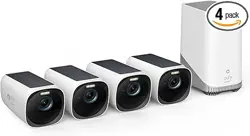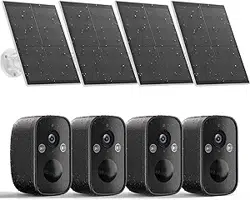

Wire-Free Camera
Operation Instruction
(BW6)
aftersale@rraycom.com
Please email us:
Customer Service
Phone:
+1 2027384449
Facebook
Claim
warranty for your device
1-year
(Sun. - Thur. 8pm - 12pm)
01
Camera *1 Bracket *1
USB Cable *1
Instruction*1
Mounting Kit *1
④
③
⑤
① ②
Packing List
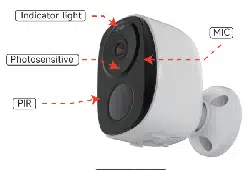
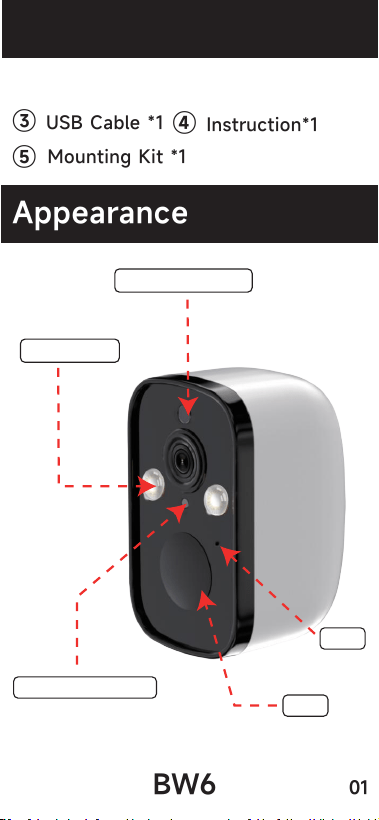
Appearance
BW6
Indicator light
Photosensitive
PIR
MIC
Spotlight
02
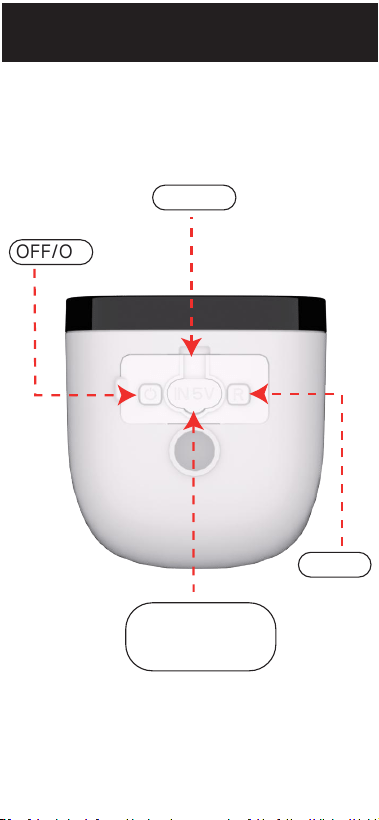
At the bottom
OFF/ON
TF card
Reset
* 5V 1.5A Power
adaptor Only
03
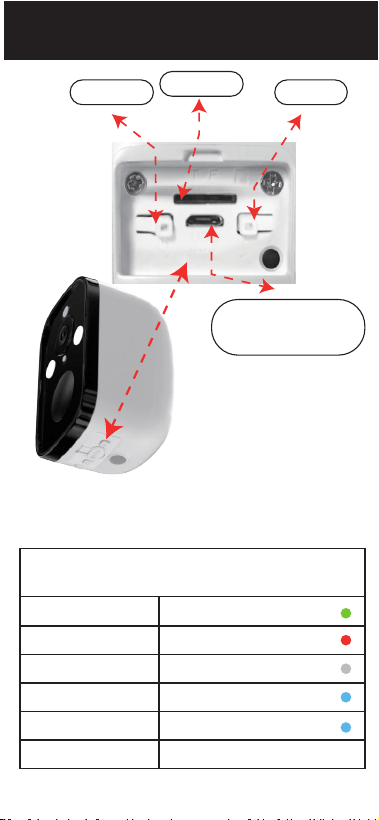
Reset Green light flashes
Indicator light definition
Charging Red light
Fully Charged Off
No network Blue light flashes
Wifi connected Blue (when it wakes up)
Sleep
Off
At the bottom
OFF/ON
TF card
Reset
* 5V 1.5A Power
adaptor Only
Press and hold the reset button
for about 3 seconds,
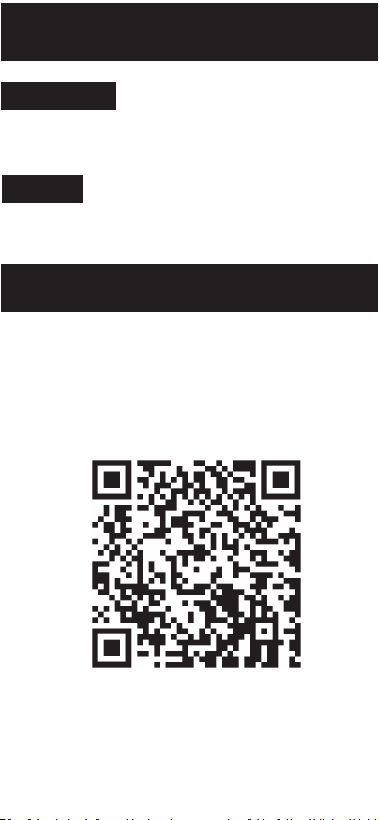
Scan the QR code to download the APP.
Or search for "O-KAM" to download
through the app store
(Google play/ APP Store).
04
Step-1
Power-on
Reset
Download the APP
Quick start
>>>
Press and hold the power
button until you hear
the prompt,
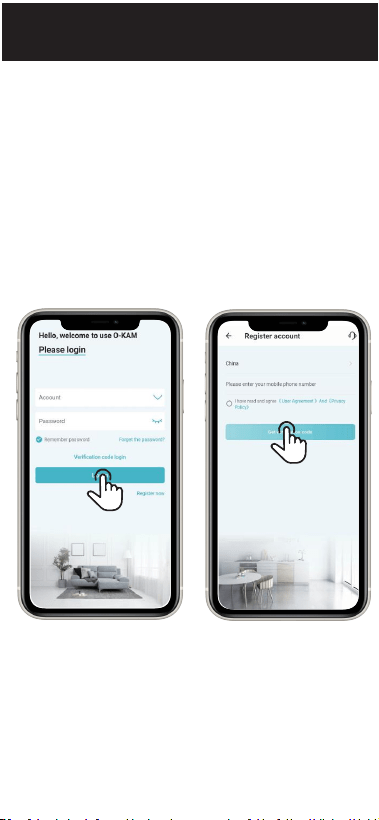
Click "Register now" at the login
interface
-- Select the address
-- Enter your phone number
-- Get the verification code.
After entering the verification code
you need to set the password and
click Finish.
05
①
②
>>>
APP account registration
Step-2
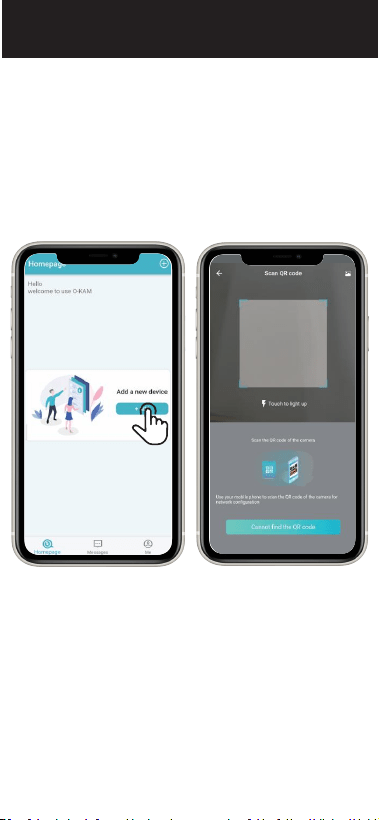
Log in and click "Add" button found at
the "Home" interfaceor click the " "
in the upper right corner.
06
①
>>>
Add cameras
Step-3
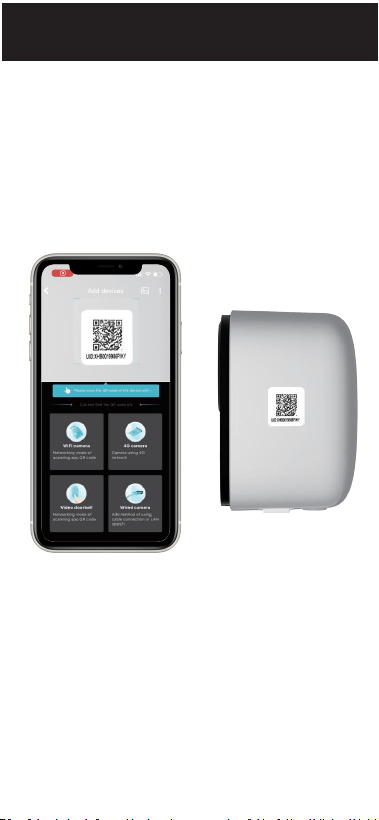
At the QR code scanning interface,
scan the QR code on the camera.
07
②
>>>
Add cameras
Step-4
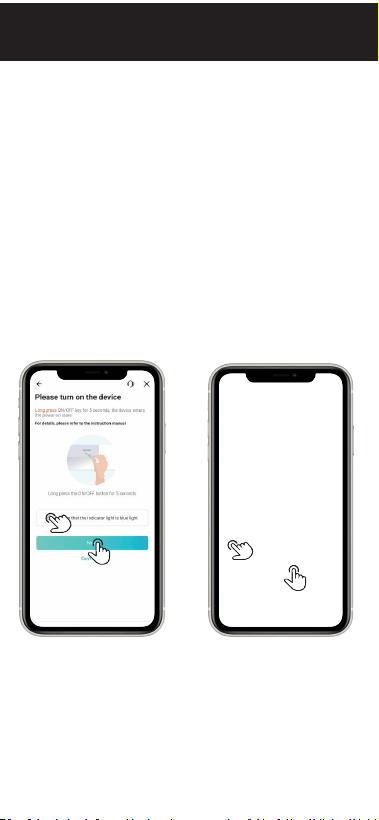
Switch the camera "On".
(No need for "Long press")
Click "Next" when the indicator light
flashes in blue slowly.
Confirm that the camera is ready for WiFi
configuration
when the indicator light flashes in blue
slowly. And click "Next"
08
>>>
>>>
③
④
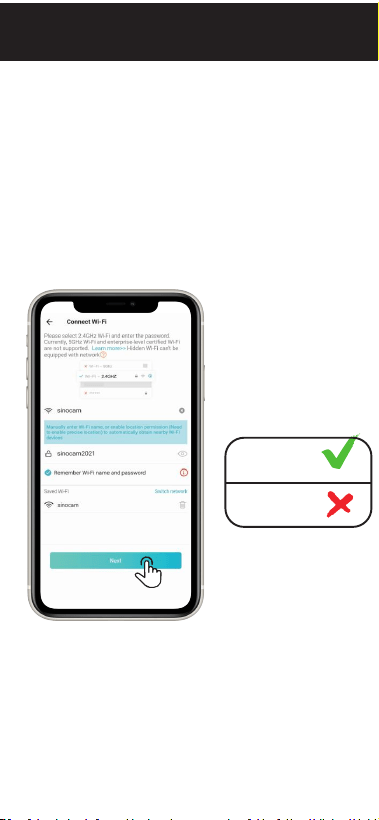
Enable the location service of your phone,
and allow the O-KAM APP to access the
location. Confirm the WiFi and enter the
* Make sure the Wi-Fi is 2.4Ghz. WiFi
2.4Ghz
5 Ghz
09
>>>
⑤
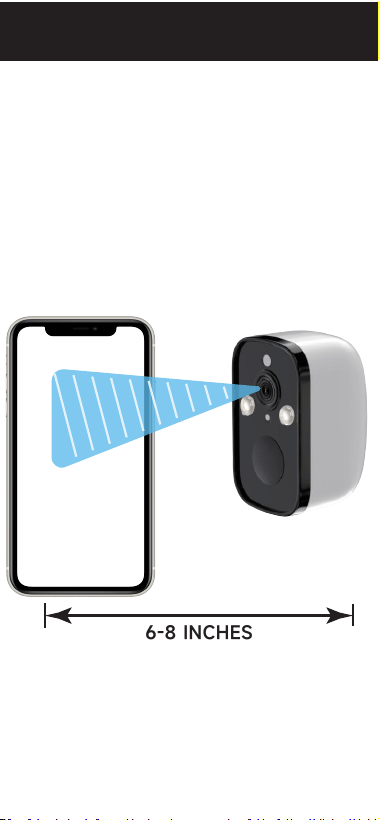
The APP will automatically generate a QR
code. Point the camera lens at the QR code
and keep it at a distance of 6-8 inches. You'
ll hear a beep and voice prompt when it's
scanned successfully.
10
6-8 INCHES
>>>
⑥
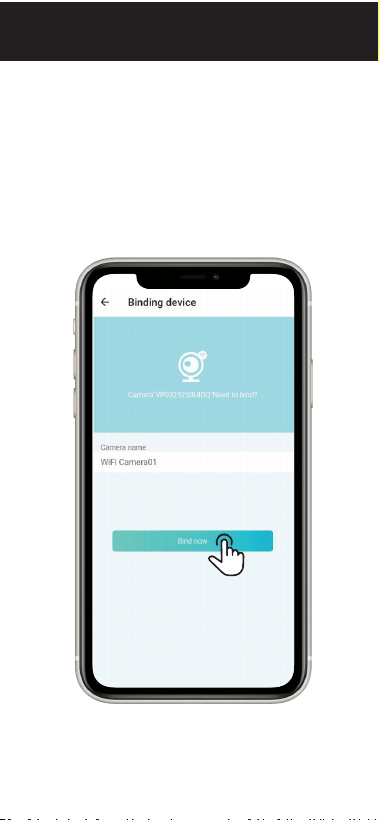
When the device is connected to the WiFi,
name the camera and click "Bind Now".
11
>>>
⑦
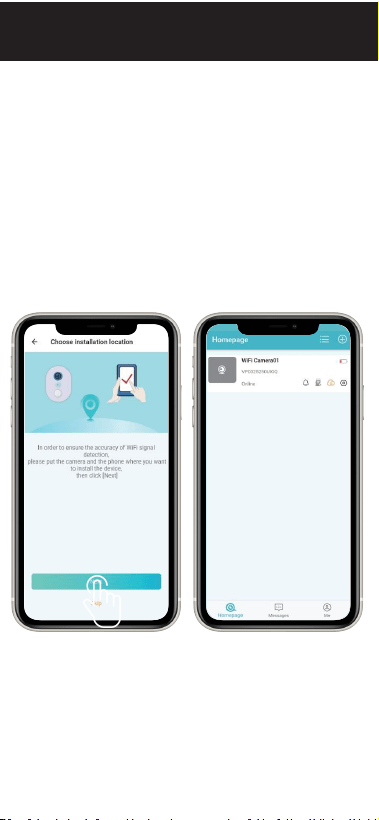
Please take the camera and phone to the
location where you're going to install the
camera, and then click "Next" to test the
signal strength. Make sure there is strong
WiFi signal strength at the location.
12
>>>
⑧
13
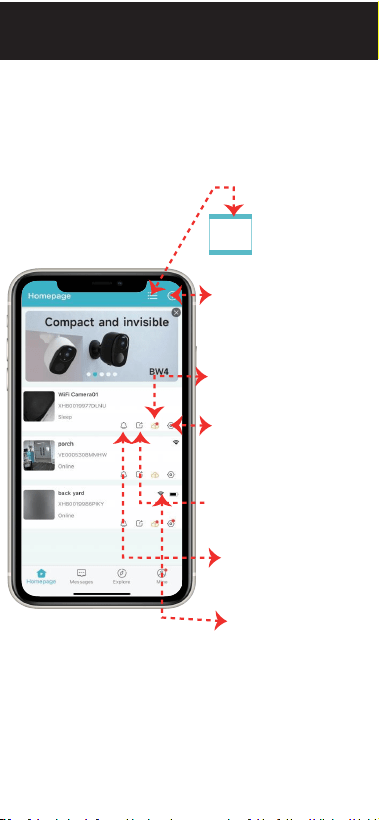
Home introduction.
>>>
APP function introduction
Step-5
Multi-device
view
Add
device
System
settings
Cloud
service
Share
camera
Do not
disturb mode
WiFi
display
14
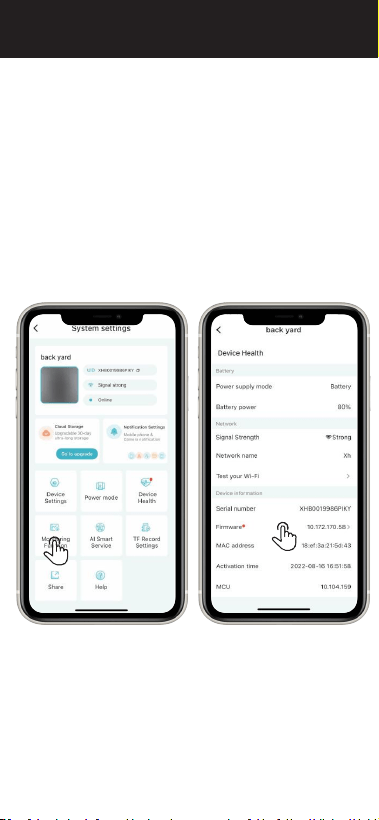
Enter system settings "
Tap on the “Device Health”- “Firmware”to
update (Suggested)
"
>>>
Monitoring settings
Step-6
-monitoring function
15
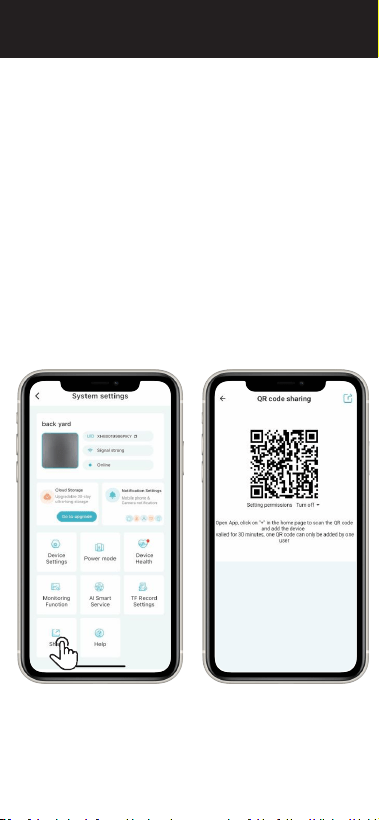
Enter the system settings " "- Share
Sharing method: Share the QR code to a
user. The other user adds the camera by
scanning the QR code;The QR code is valid
for 30 minutes, and one QR code can only
be shared
with one user. Generate more QR codes for
more members. Maximum of 4 people can
live view at the same time.
>>>
Share the device
Step-7
Tutorial
Videos
Please scan the QR code below
16

FCC Warning
This device complies with part 15 of the FCC Rules.
Operation is subject to the following two conditions:
(1) This device may not cause harmful interference,
and (2) this device must accept any interference
received, including interference that may cause
undesired operation.
Any Changes or modifications not expressly approved by the
party responsible for compliance could void
the user's authority to operate the equipment.
Note: This equipment has been tested and found to comply
with the limits for a Class B digital device, pursuant to
part 15 of the FCC Rules. These limits are designed to
provide
reasonable protection against harmful
interference in a residential installation.This equipment
generates uses and can radiate radio frequency energy
and, if not installed and used in accordance with the
instructions, may cause harmful interference to radio
communications. However, there is no guarantee that
interference will not occur in a particular installation.
If this equipment does cause harmful interference to
radio or television reception,which can be determined
by turning the equipment off and on, the user is
encouraged to try to correct the interference by one
or more of the following measures:
· -Reorient
or relocate the receiving antenna.
·
-Increase the separation between the equipment and
receiver.
· -Connect the equipment into an outlet on a circuit
different from that to which the receiver is
connected.
·
-Consult the dealer or an experienced radio/TV
technician for help.
The device has been evaluated to meet general RF exposure
requirement. The device can be used in
portable exposure condition without restriction.
17