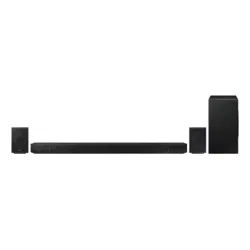

© 2024 Samsung Electronics Co., Ltd. All rights reserved.
User Guide
HW-Q990D
To receive more complete service, please register your product at
www.samsung.com/register
Figures and illustrations in this User Manual are provided for reference
only and may differ from actual product appearance.

ENG - 2
CONTENTS
01 Checking the Components 3
02 Product Overview 4
Top Panel of the Soundbar. . . . . . . . . . . . . . . . . . . . . . . . . . . . . . . . . . 4
Bottom Panel of the Soundbar. . . . . . . . . . . . . . . . . . . . . . . . . . . . . . 4
03 Using the Soundbar Remote Control 5
Inserting Batteries before using the Remote Control (AAA
batteries X 2). . . . . . . . . . . . . . . . . . . . . . . . . . . . . . . . . . . . . . . . . . . . . . 5
How to Use the Remote Control. . . . . . . . . . . . . . . . . . . . . . . . . . . . . 5
Setting the
(Sound Control). . . . . . . . . . . . . . . . . . . . . . . . . . . . . 6
Using the Hidden Buttons (Buttons with more than one
function). . . . . . . . . . . . . . . . . . . . . . . . . . . . . . . . . . . . . . . . . . . . . . . . . . 7
Output specications for the different sound effect modes. . . . 7
Adjusting the Soundbar volume with a TV remote control . . . . . 8
04 Connecting the Soundbar 9
Connecting the power and units . . . . . . . . . . . . . . . . . . . . . . . . . . . . 9
‒ Recommended Speaker Layout . . . . . . . . . . . . . . . . . . . . . . . . . 10
‒ Surround speaker mode. . . . . . . . . . . . . . . . . . . . . . . . . . . . . . . . 10
‒ Manually connecting the Subwoofer or Surround Speakers 11
‒ LED Indicator Lights on the Rear of Subwoofer and Surround
Speakers . . . . . . . . . . . . . . . . . . . . . . . . . . . . . . . . . . . . . . . . . . . . . 12
05 Connecting to a TV 13
Connecting the TV that supports HDMI ARC (Audio Return
Channel) . . . . . . . . . . . . . . . . . . . . . . . . . . . . . . . . . . . . . . . . . . . . . . . . . 13
Connecting using an Optical Cable . . . . . . . . . . . . . . . . . . . . . . . . . 14
Connecting via Bluetooth . . . . . . . . . . . . . . . . . . . . . . . . . . . . . . . . . 15
Connecting via Wi-Fi . . . . . . . . . . . . . . . . . . . . . . . . . . . . . . . . . . . . . . 16
Using the Q-Symphony Function . . . . . . . . . . . . . . . . . . . . . . . . . . . 17
Using the SpaceFit Sound . . . . . . . . . . . . . . . . . . . . . . . . . . . . . . . . . 18
06 Connecting an External Device 19
Method 1. Connecting using an HDMI Cable (Capable of Dolby
Atmos / DTS:X decoding and playback) . . . . . . . . . . . . . . . . . . . . . 19
Method 2. Connecting using an Optical Cable . . . . . . . . . . . . . . .20
07 Connecting a Mobile Device 21
Method 1. Connecting via Bluetooth . . . . . . . . . . . . . . . . . . . . . . . . 21
Method 2. Connecting via Wi-Fi (Wireless Network). . . . . . . . . .23
Using Group Play . . . . . . . . . . . . . . . . . . . . . . . . . . . . . . . . . . . . . . . . .23
Using the SmartThings Hub . . . . . . . . . . . . . . . . . . . . . . . . . . . . . . . 24
Connecting via Apple AirPlay . . . . . . . . . . . . . . . . . . . . . . . . . . . . . .24
Using the Tap Sound . . . . . . . . . . . . . . . . . . . . . . . . . . . . . . . . . . . . . .25
08 Installing the Wall Mount 26
Installation Precautions . . . . . . . . . . . . . . . . . . . . . . . . . . . . . . . . . . .26
Wallmount Components . . . . . . . . . . . . . . . . . . . . . . . . . . . . . . . . . . 26
Installing the Surround Speakers on a Wall . . . . . . . . . . . . . . . . . 27
09 Installing the Soundbar in front of TV 27
Component . . . . . . . . . . . . . . . . . . . . . . . . . . . . . . . . . . . . . . . . . . . . . . 27
10 Software Update 28
Auto Update . . . . . . . . . . . . . . . . . . . . . . . . . . . . . . . . . . . . . . . . . . . . .28
USB Update . . . . . . . . . . . . . . . . . . . . . . . . . . . . . . . . . . . . . . . . . . . . . .28
Security updates information . . . . . . . . . . . . . . . . . . . . . . . . . . . . . .28
Initialization . . . . . . . . . . . . . . . . . . . . . . . . . . . . . . . . . . . . . . . . . . . . .29
11 Troubleshooting 29
12 Licence 31
ENG - 3
01 CHECKING THE COMPONENTS
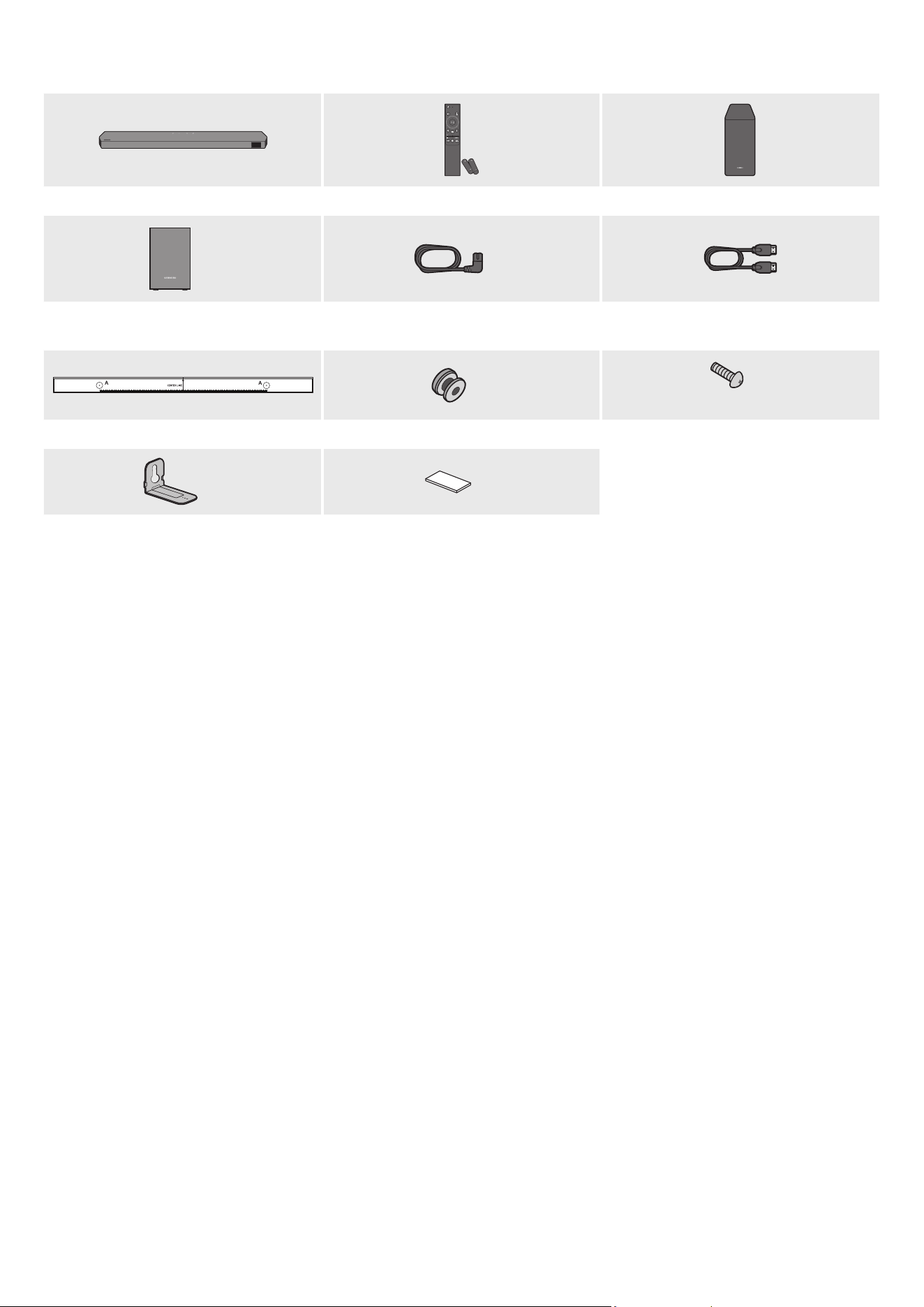
SOUNDBAR
Soundbar Main Unit Samsung Smart Remote / Batteries Subwoofer
POWER
x 2
x 4
Surround Speaker
(Left / Right)
Power Cord
(Soundbar, Subwoofer, Surround speaker)
HDMI Cable
A TYPE : 450mm
x 2
x 2
(M4 x L10)
Wall Mount Guide Holder-Screw Screw
x 2
x 4
Bracket-Wall Mount Rubber-Foot
• For more information about the power supply and power consumption, refer to the label attached to the product. (Label: Rear of the Soundbar
Main Unit)
• To purchase additional components or optional cables, contact a Samsung Service Center or Samsung Customer Care.
• For more information about the wallmount or rubber-foot, see pages 26~28.
• Design, specications, and App screen are subject to change without prior notice.
• The appearance of the accessories may differ slightly from the illustrations above.
• Samsung Electronics Co., Ltd reserves the right to change the specications without notice.
• Weight and dimensions are approximate.
ENG - 4
02 PRODUCT OVERVIEW
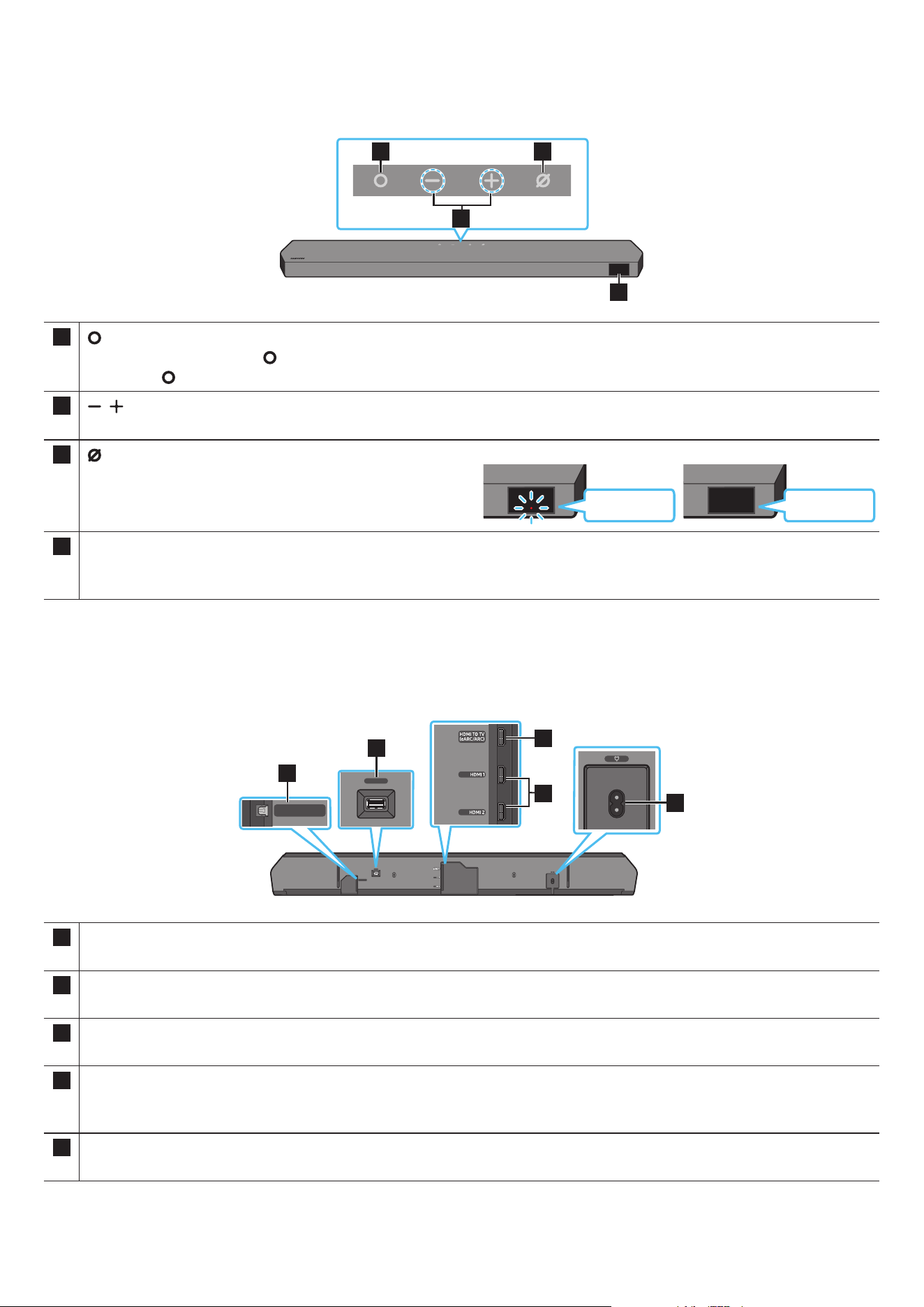
Top Panel of the Soundbar
2
1 3
4
1
(Multi Function) Button
• In standby mode, press the (Multi Function) button to turn on the Soundbar.
• Press the (Multi Function) button to change the input source.
2
(Volume) Button
Adjusts the volume.
3
(Mic On/Off) Button
Press the button to turn the microphone on or off.
When the microphone is off, the LED indicator will glow red.
Red On
Mic Off
Red Off
Mic On
4 Display
Displays the product’s status and current mode.
TV ARC or eARC → HDMI 1 → HDMI 2 → Wi-Fi → BT → D.IN
• When you plug in the power cord, the power button will begin working in 4 to 6 seconds.
• When you turn on this unit, there will be a 4 to 5 second delay before it produces sound.
• If you hear sounds from both the TV and Soundbar, go to the Settings menu for the TV audio and change the TV speaker to External Speaker.
Bottom Panel of the Soundbar
DIGITAL AUDIO IN
(OPTICAL)
SERVICE
DIGITAL AUDIO IN
(OPTICAL)
SERVICE
ID SET
HDMI IN 1
HDMI IN 2
POWER
NETWORK
SERVICE
DIGITAL AUDIO IN
(OPTICAL)
HDMI TO TV
(eARC/ARC)
HDMI 2
HDMI 1
ID SET
(WOOFER/REAR)
ID SET
NETWORK
SERVICE
ID SET
(WOOFER/REAR)
DIGITAL AUDIO IN
(OPTICAL)
HDMI TO TV
(eARC/ARC)
HDMI 2
HDMI 1
5
DIGITAL AUDIO IN
(OPTICAL)
SERVICE
DIGITAL AUDIO IN
(OPTICAL)
SERVICE
DIGITAL AUDIO IN
(OPTICAL)
SERVICE
DIGITAL AUDIO IN
(OPTICAL)
SERVICE
DIGITAL AUDIO IN
(OPTICAL)
SERVICE
DIGITAL AUDIO IN
(OPTICAL)
SERVICE
2
1
4
3
1 DIGITAL AUDIO IN (OPTICAL)
Connect to the digital (optical) output of an external device. (See page 20)
2 SERVICE
Connect a USB storage device to upgrade the product’s software.
3 HDMI TO TV (eARC/ARC)
Connect to the HDMI jack on a TV. (See page 13)
4 HDMI 1 / HDMI 2
Inputs digital video and audio signals simultaneously using an HDMI cable.
Connect to the HDMI output of an external device. (See page 19)
5 POWER
Connect the Soundbar’s power cord. (See page 9)
• When disconnecting the power cord from a wall outlet, pull the plug. Do not pull the cable.
• Do not connect this unit or other components to an AC outlet until all connections between components are complete.
ENG - 5
03 USING THE SOUNDBAR REMOTE CONTROL
Inserting Batteries before using the Remote Control (AAA batteries X 2)
Slide the back cover in the direction of the arrow until it is completely removed. Insert 2 AAA batteries
(1.5V) oriented so that their polarity is correct. Slide the battery cover back into position.
• The illustration differs with the respective Remote Control model.
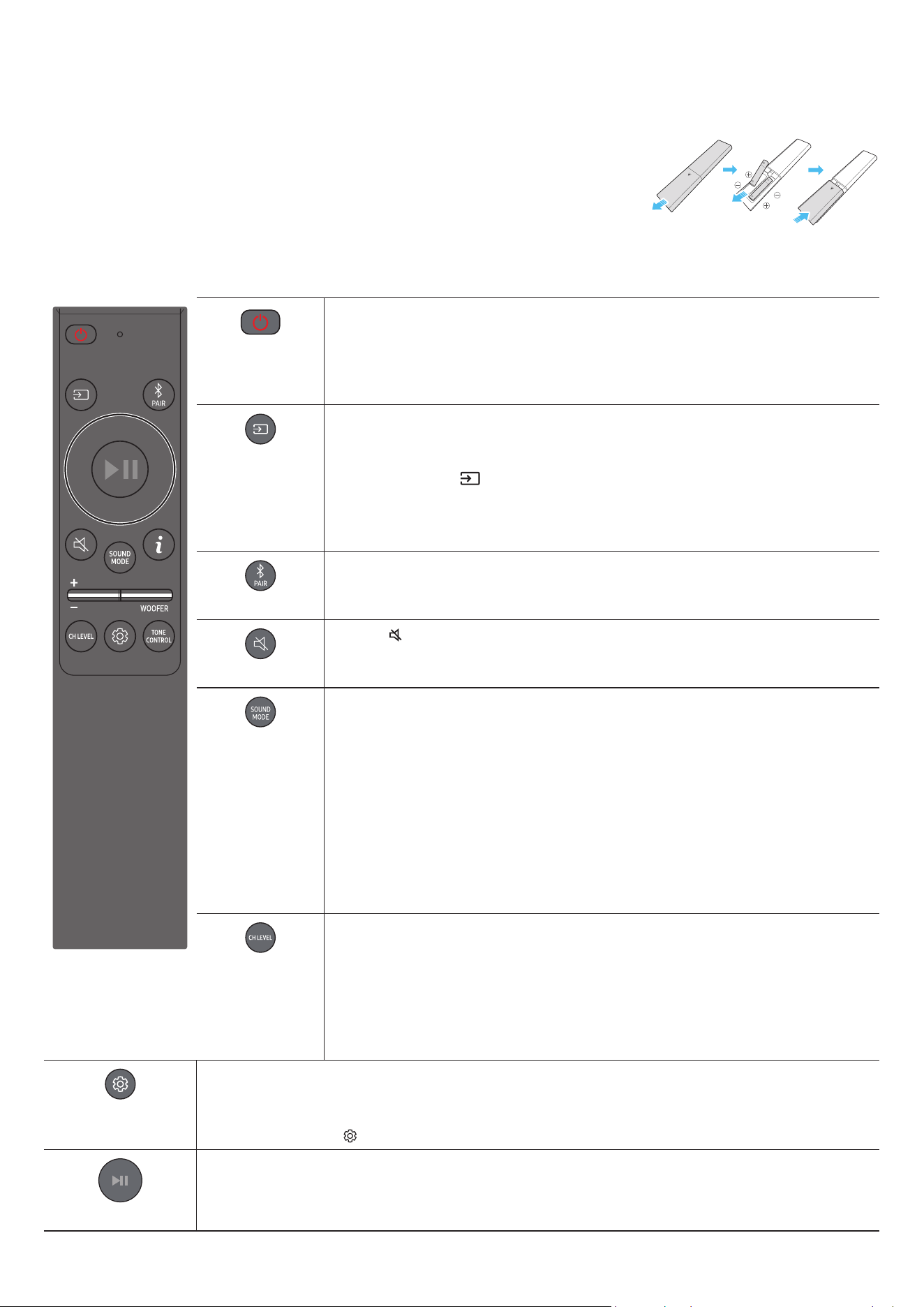
How to Use the Remote Control
SOUNDBAR
Power
Turns the Soundbar on and off.
• Auto Power Down Function
The unit turns off automatically in the following situations:
• In TV ARC or eARC / HDMI 1 / HDMI 2 / Wi-Fi / BT / D.IN mode if there is no audio signal
for 18 minutes.
Source
Press to select a source connected to the Soundbar.
• Voice Feedback On/Off
You can turn on or off the Voice Feedback.
Press and hold the
(Source) button on the remote control for 5 seconds while the
Soundbar is off (Standby mode).
Each time you change the Voice Feedback setting, the display will show “AUI OFF”
(Default) or “AUI ON”.
Bluetooth PAIR
Switch the Soundbar to Bluetooth pairing mode. Press the button and wait for the “BT
PAIRING” screen to connect to a new Bluetooth device.
Mute
Press the
(Mute) button to mute the sound.
Press it again to unmute the sound.
SOUND MODE
By pressing the button, you can select the desired audio mode such as Surround, Game Pro,
Standard, Adaptive Sound.
• Standard
Outputs the original sound.
• Surround
Provides a wider sound eld than standard.
• Game Pro
Provides stereoscopic sound to immerse you in the action while gaming.
• Adaptive Sound
Analyzes the content in real time and automatically provides the optimal sound eld
based on the characteristics of the content.
CH LEVEL
By pressing the button, you can adjust the volume of the each speaker such as Center level,
Side level, Wide level, Front Top level, Rear level, Rear top level, and Rear side level.
• To control the volume of the each speaker select Center level, Side level, Wide level, or
Front Top level in Sound Settings, and then adjust the volume between -6~+6 by using the
Up/Down buttons.
• If Surround Speakers are connected, select Rear level, Rear top level, or Rear side level
and then use the Up/Down buttons to adjust the volume within a -6 to +6 range.
Sound Control
By pressing the button, you can set the audio functions such as SpaceFit Sound, AVA, Voice enhance mode, Night
mode, Sync, Surround speaker mode, Virtual, Private Rear Sound, and Sound Grouping. The desired item can be
adjusted using the Up/Down buttons.
• Refer to “Setting the
(Sound Control)” on page 6.
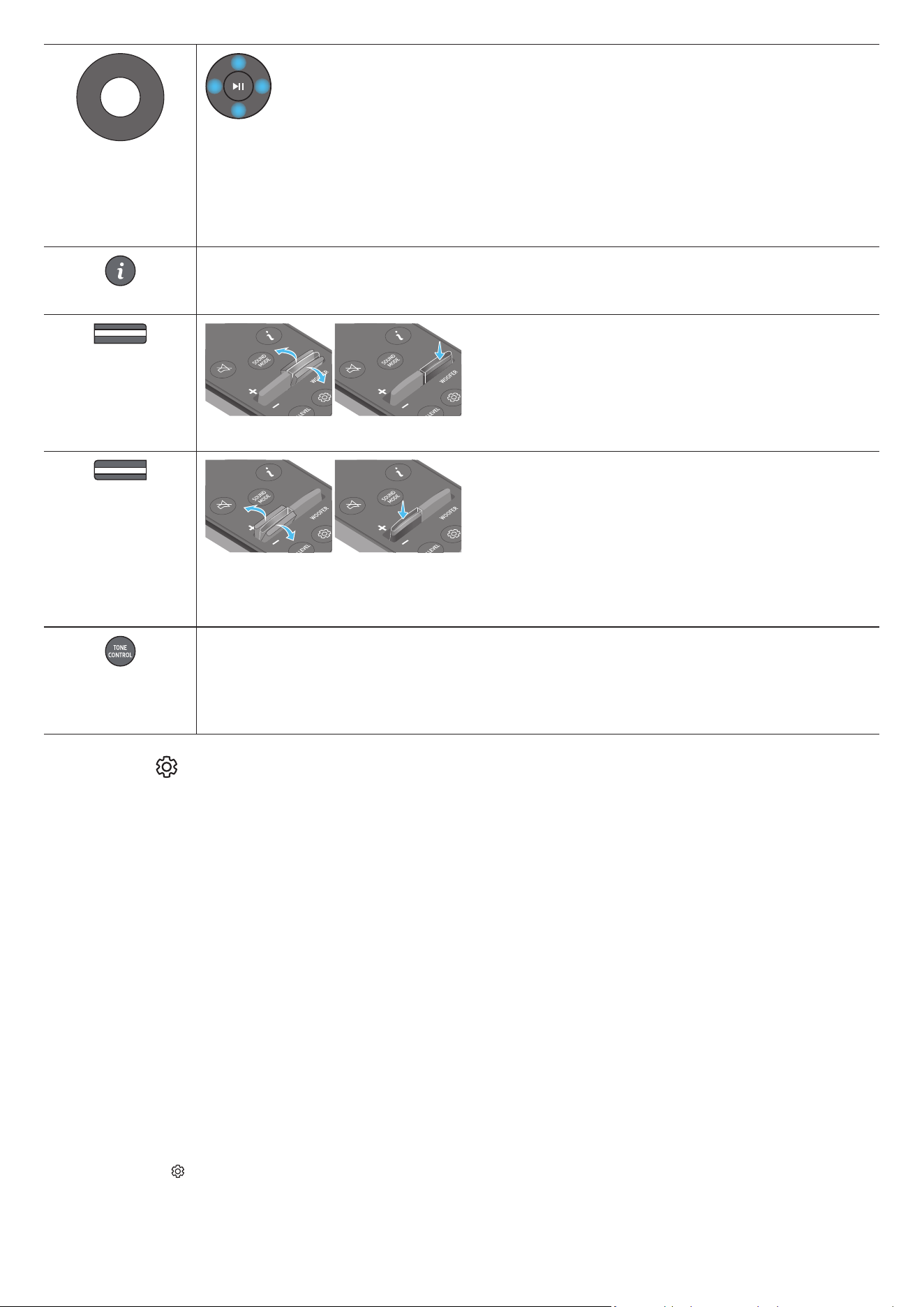
Play / Pause
You can also play or pause music by pressing the button.
ENG - 6
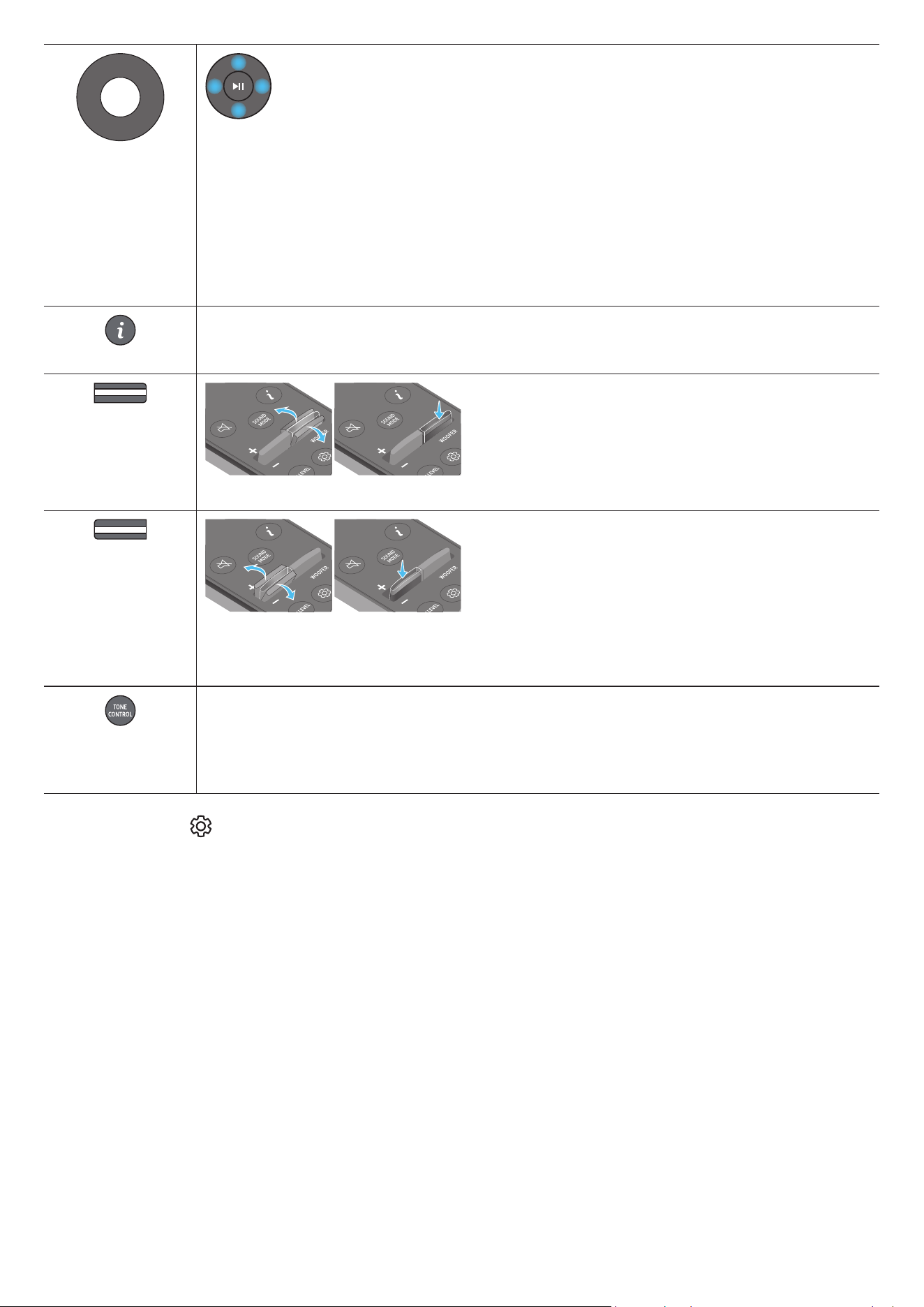
Up/Down/Left/Right
Press the indicated areas to select Up/Down/Left/Right.
Press Up/Down/Left/Right on the button to select or set functions.
• Music Skip
Press the Right button to select the next music le. Press the Left button to select the previous music le.
• ID SET
Use this option when the Subwoofer or Surround Speakers are not connected or need reconnection.
While powered off, press and hold the Up button for 5 seconds to perform ID SET. (See page 11.)
Info
Press to display information about the active function or the codec available.
In BT mode, it displays the connected device (when pairing is complete) or “BT ready” (when pairing is required).
WOOFER LEVEL
Push the button up or down to adjust the level of the woofer (bass).
VOLUME
Push the button up or down to adjust the volume.
• Mute
Press the VOL button to mute the sound. Press it again to unmute the sound.
TONE CONTROL
By pressing the button, you can adjust the volume of the treble or bass sound. The dered item can be adjusted
using the Up/Down buttons. This function is enabled in Sound mode excluding in Standard mode.
• To control the volume of the treble or bass sound, select TREBLE or BASS in Sound Settings, and then adjust the
volume between -6~+6 by using the Up/Down buttons.
• Once the bass level is changed, the woofer level will be also adjusted accordingly.
Setting the (Sound Control)
• Active Voice Amplier (AVA) : Analyzes external noise in real time while soundbar is playing, so that voice audio can always be heard clearly.
No data is saved during the analysis.
• Voice enhance mode enhances spoken dialog in movies and TV to make it easier to hear.
• Night mode is optimized for night time viewing with the settings adjusted to bring the volume down but keep the dialog clear.
• Sound Grouping : The Soundbar main unit and the Surround Speakers play the entire sound instead of surround sound, making it ideal for
large groups of people listening to music in a large space.
‒ This menu is initially activated when the Surround Speakers are connected, and then the menu remains activated regardless of the
connection of the Surround Speakers.
‒ If you enable the Sound Grouping, there are no differences in sounds between the Sound modes.
‒ Sound does not come out from all speaker units of the Soundbar main unit and the Surround speakers, but only from certain
predetermined units, which vary by model.
• Private Rear Sound : This mode sets the sound to come out from the Surround Speakers only, allowing you to listen without being disturbed
by others.
‒ If you enable this mode, sound does not come out from the Soundbar main unit and the Subwoofer. Sound only comes out from the front
channel of the Surround Speakers.
‒ If you enable the Private Rear Sound, there are no differences in sounds between the Sound modes.
‒ The function turns off when the power turns off or the Surround Speakers connection is lost.
‒ The menu is activated only when the Surround Speakers are connected.
‒ This mode is automatically turned off and becomes unavailable when the Q-symphony function turns on.
• Press and hold the (Sound Control) button for about 5 seconds to adjust the sound for each frequency band. 150Hz, 300Hz, 600Hz, 1.2kHz,
2.5kHz, 5kHz, and 10kHz are selectable using the Left/Right buttons and each can be adjusted to a setting between -6 to +6 using the Up/
Down buttons.
(Make sure the Sound mode is set to “Standard”.)
ENG - 7
• If the video on the TV and audio from the Soundbar are not synchronized, select Sync in Sound Control, and then set the audio delay between
0~300 milliseconds by using the Up/Down buttons.
• Sync is only supported for some functions.
• Available Surround speaker mode settings may vary depending on the specication of the compatible (with the Soundbar) surround speaker.
• The Virtual Speaker function can be turned ON/OFF by using the Up/Down buttons.
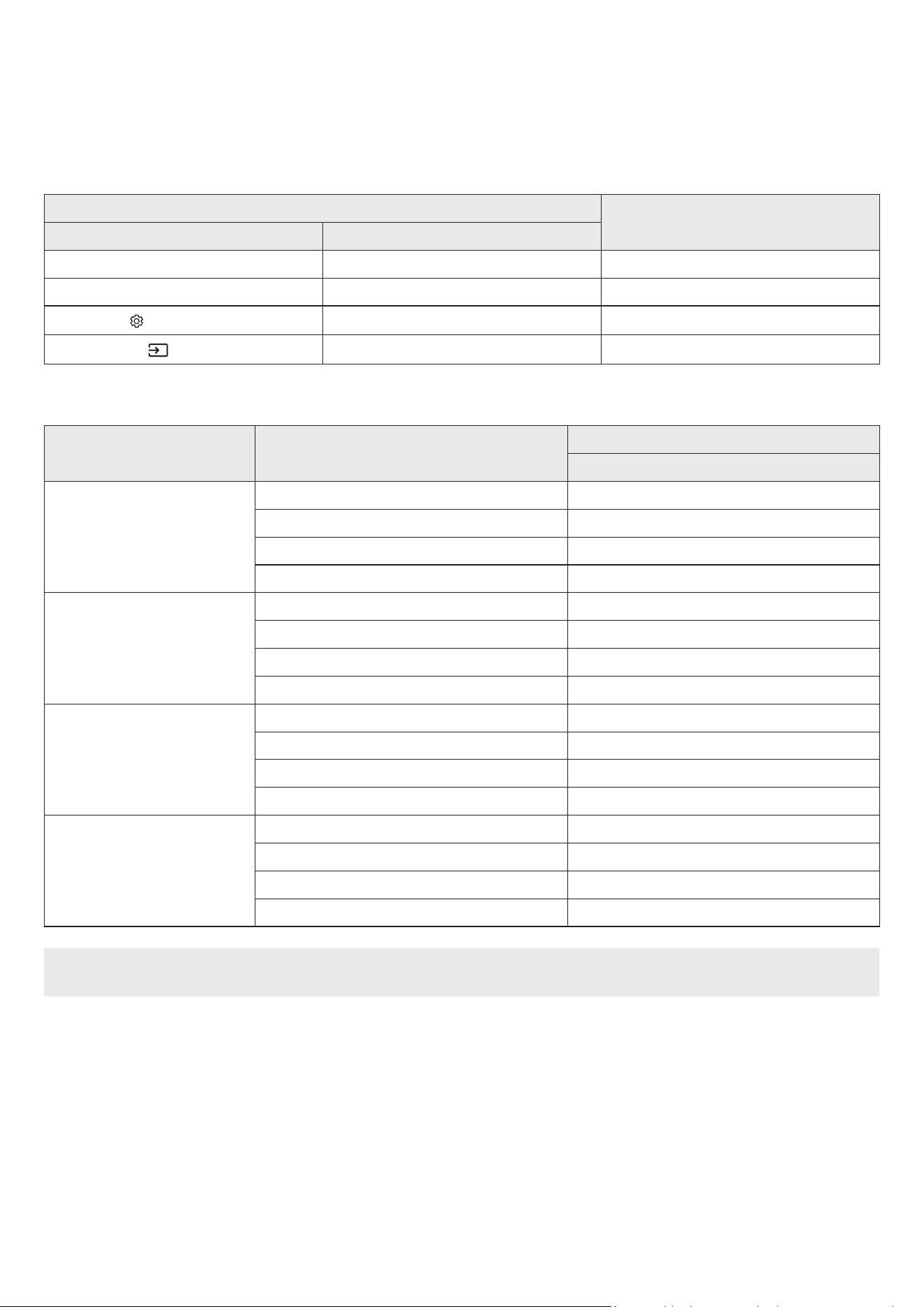
Using the Hidden Buttons (Buttons with more than one function)
Hidden Button
Reference page
Remote Control Button Function
WOOFER (Up) TV remote control On/Off (Standby) page 8
Up ID SET page 11
(Sound Control)
7 Band EQ page 6
(Source)
Voice Feedback On/Off (Standby) page 5
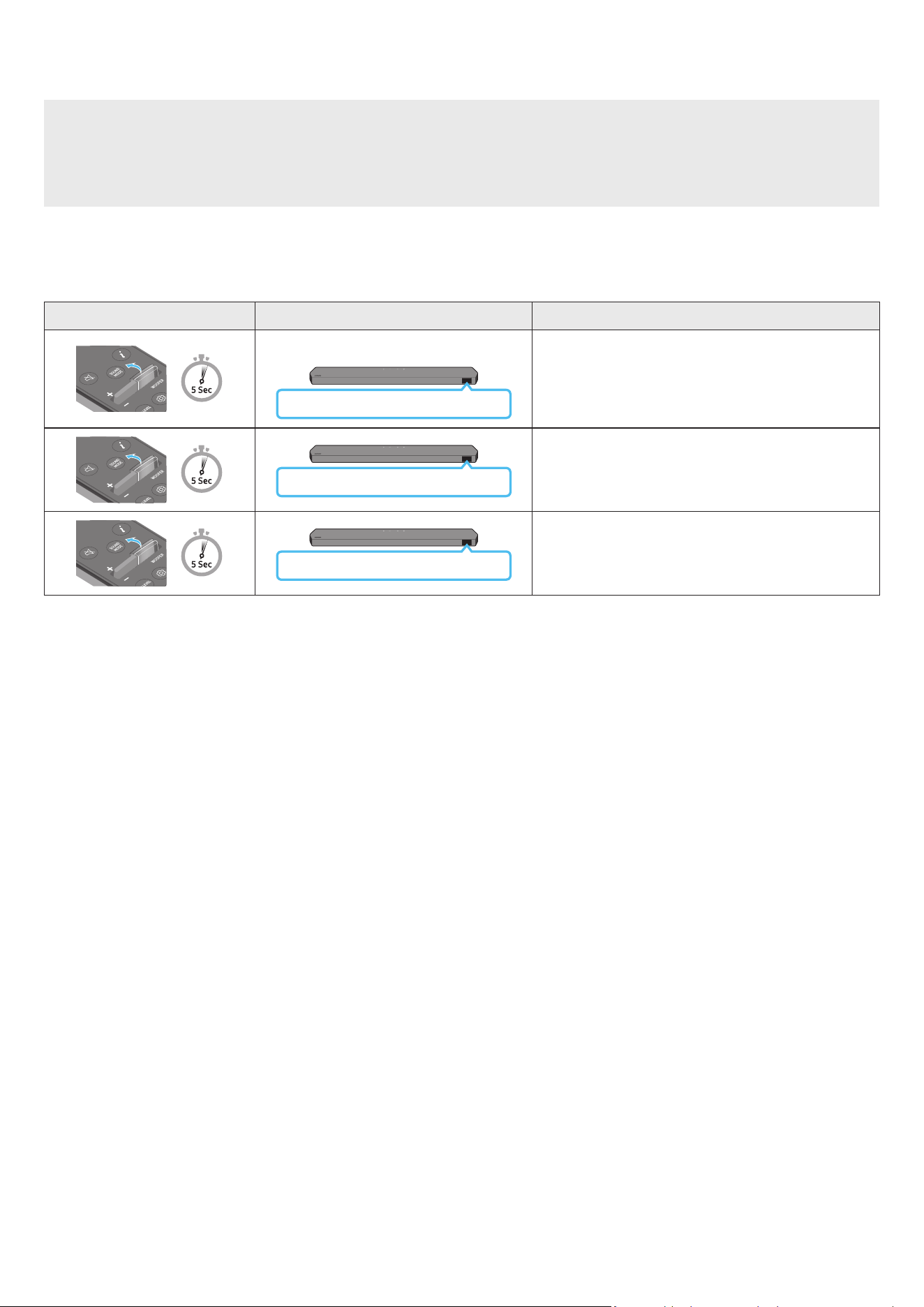
Output specications for the different sound effect modes
Effect Input
Output
With Subwoofer & Surround Speaker
Standard
2.0 ch 2.1 ch
5.1 ch 5.1 ch / 7.1 ch (DTS)
7.1 ch 7.1 ch
Dolby Atmos®, DTS:X 7.1.4 ch
Surround
2.0 ch 11.1.4 ch
5.1 ch 11.1.4 ch
7.1 ch 11.1.4 ch
Dolby Atmos®, DTS:X 11.1.4 ch
Game Pro
2.0 ch 11.1.4 ch
5.1 ch 11.1.4 ch
7.1 ch 11.1.4 ch
Dolby Atmos®, DTS:X 11.1.4 ch
Adaptive Sound
2.0 ch 11.1.4 ch
5.1 ch 11.1.4 ch
7.1 ch 11.1.4 ch
Dolby Atmos®, DTS:X 11.1.4 ch
The Surround Speakers will not produce sounds for 2 channel output while Standard mode is in use. To enable sound for the Surround
Speakers, change the effect mode to Surround.
ENG - 8
Adjusting the Soundbar volume with a TV remote control
Adjust the Soundbar volume using the TV’s remote control.
• This function can be used with IR remote controls only. Bluetooth remote controls (remote controls that require pairing) are not
supported.
• Set the TV speaker to External Speaker to use this function.
• Manufacturers supporting this function:
Samsung, VIZIO, LG, Sony, Sharp, PHILIPS, PANASONIC, TOSHIBA, Hisense, RCA
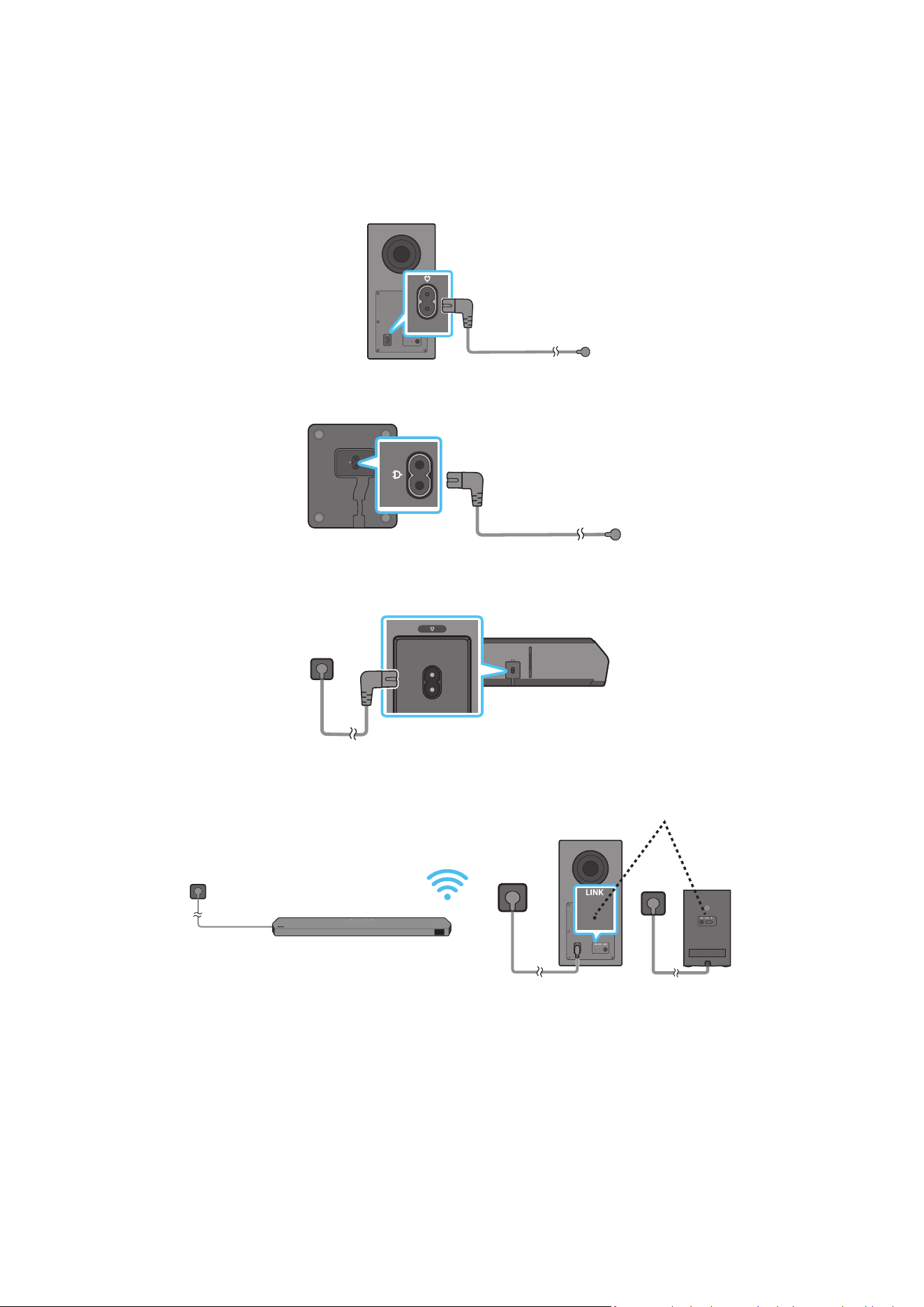
1. Turn Off the Soundbar.
2. Push up and hold the WOOFER button for 5 seconds.
Each time you push the WOOFER button up and hold it for 5 seconds, the mode switches in the following order: “OFF-TV REMOTE” (Default
mode), “SAMSUNG-TV REMOTE”, “ALL-TV REMOTE”.
Remote Control Button Display Status
(Default mode)
OFF-TV REMOTE
Disable the TV remote control.
SAMSUNG-TV REMOTE
Enable a Samsung TV’s IR remote control.
ALL-TV REMOTE
Enable a third-party TV’s IR remote control.
ENG - 9
04 CONNECTING THE SOUNDBAR
Connecting the power and units
Use the Power cord to connect the Subwoofer, Surround Speakers, and Soundbar to an electrical outlet in the following order:
• For more information about the required electrical power and power consumption, refer to the label attached to the product. (Label: Rear of
the Soundbar Main Unit)
1. Connect the Power cord to the Subwoofer.
Rear of Subwoofer
Power Cord
2. Connect the power cord to the Left and Right Surround Speakers.
Bottoms of the Left and
Right Surround Speakers
Power Cord
3. Connect the Power cord to the Soundbar.
POWER
POWER
DIGITAL AUDIO IN
(OPTICAL)
HDMI TO TV
(eARC/ARC)
HDMI 1
HDMI 2
SERVICE
POWER
Bottom of the Soundbar
Main Unit
Power Cord
4. Connect power to the Soundbar, Subwoofer and Surround Speakers. The Subwoofer and Surround Speakers are automatically connected when
the Soundbar is turned on.
LINK LED - Blue is On
NOTE
• Connect the Subwoofer and Surround Speakers power before connecting to the Soundbar. The Subwoofer and Surround Speakers will be
automatically connected when turning on the Soundbar.
• If you unplug and reconnect the power cord when the product is turned on, the Soundbar turns on automatically.
ENG - 10
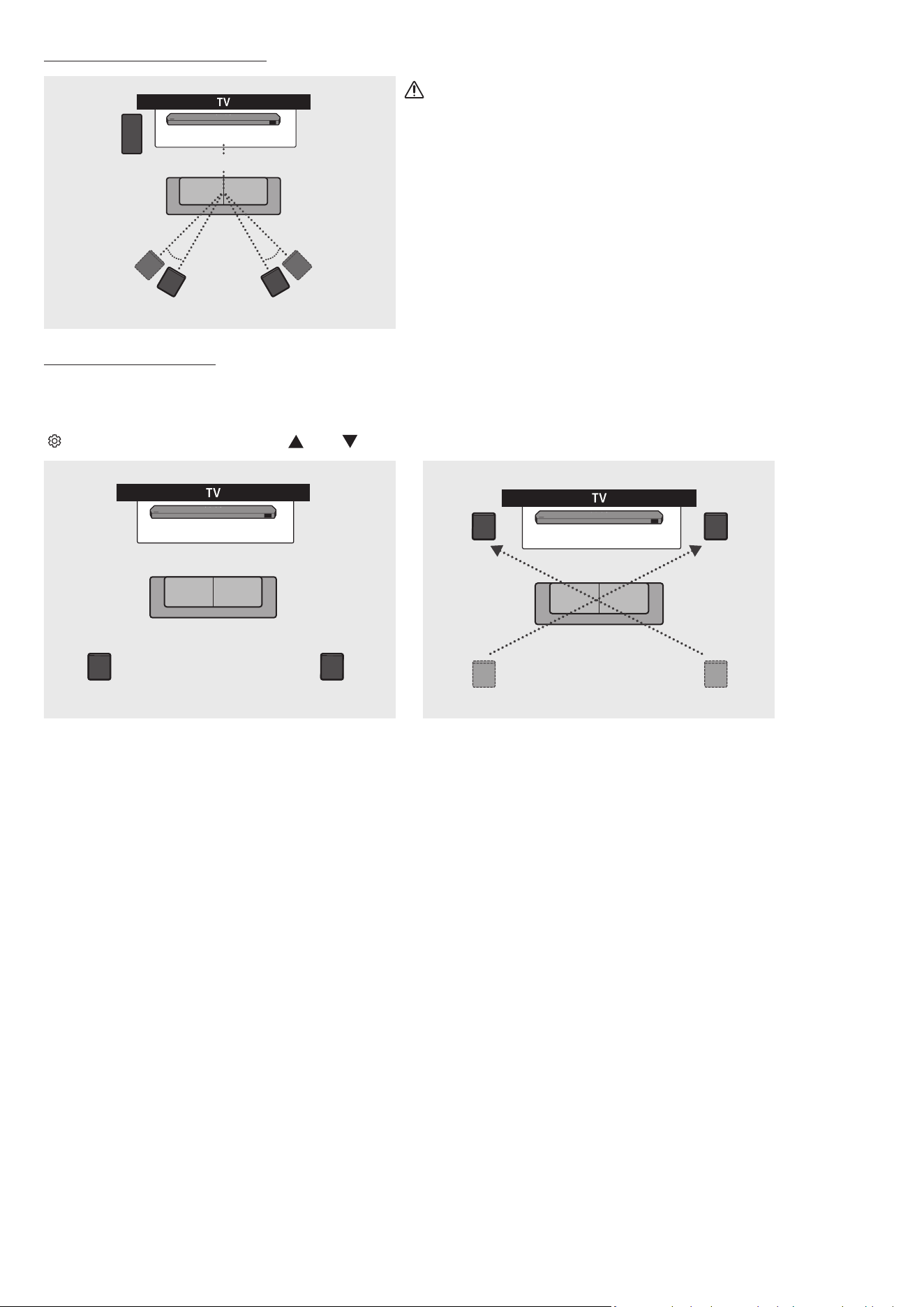
Recommended Speaker Layout
150° 150°
135° 135°
0°
Subwoofer
Soundbar
Surround Speaker L Surround Speaker R
CAUTION
• Wireless receiving antennas are built into the Subwoofer and surround
speakers. Keep the units away from water and moisture.
• For optimal listening performance, make sure that the areas around the
Subwoofer and surround speakers locations are clear of any obstructions.
Surround speaker mode
An optimal surround sound may be delivered depending on the position of the surround speaker. See the illustration below for speaker
positioning.
To activate this mode, select the Surround Speaker mode using the remote control of the Soundbar.
(
(Sound Control) → Surround speaker → (Up) / (Down) → Front / Rear)
Soundbar
Surround Speaker L Surround Speaker R
Soundbar
Surround Speaker R
Surround Speaker L
Rear positioning Front positioning
NOTE
• This mode is available only with Soundbar models including a specic surround speaker.
• In Front speaker mode, position the front speakers toward you.
• The surround speaker mode is enabled by default as rear position.
ENG - 11
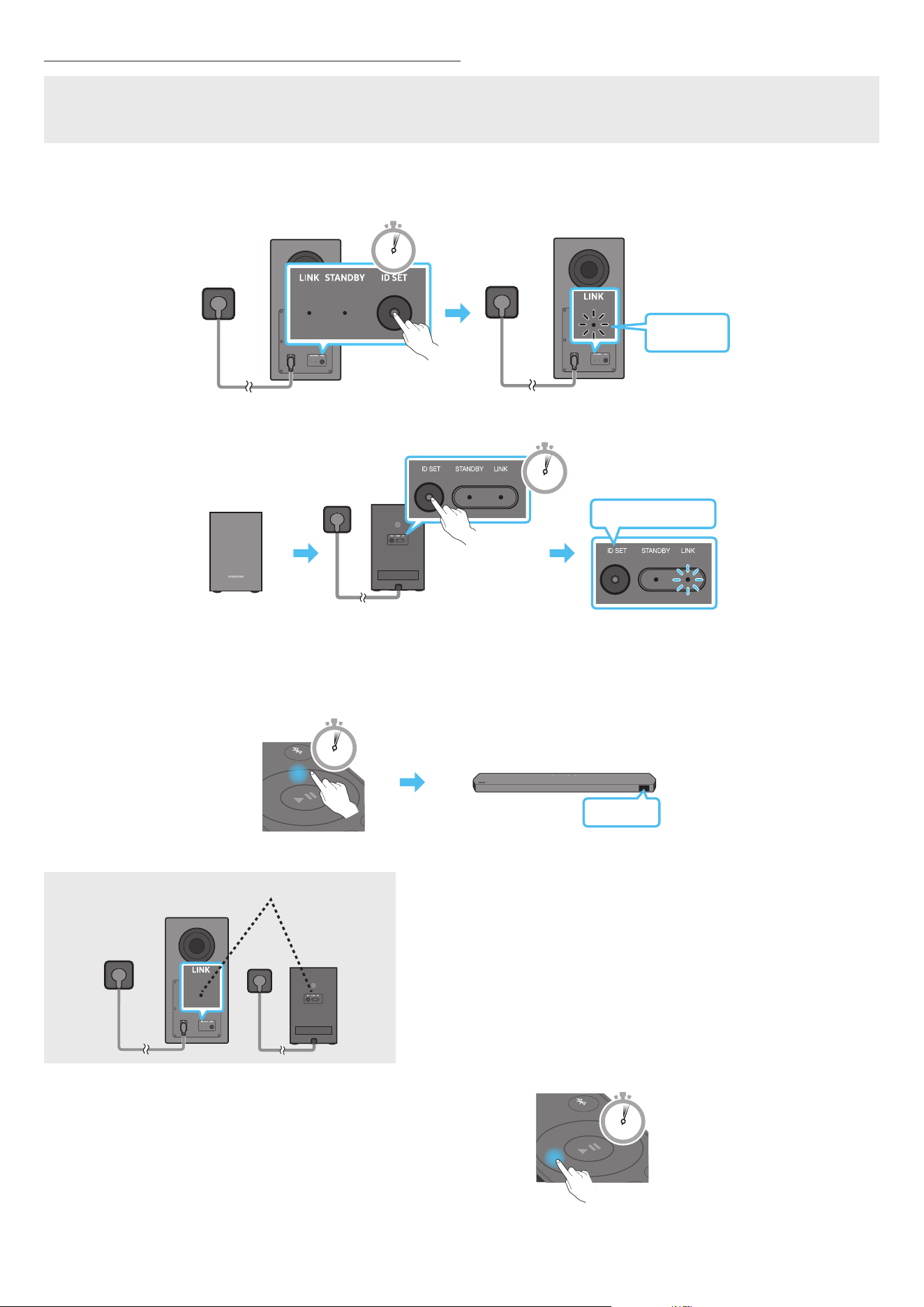
Manually connecting the Subwoofer or Surround Speakers
Before performing the manual connection procedure below:
• Check whether the power cables for the Soundbar and Subwoofer or Surround Speakers are connected properly.
• Make sure that the Soundbar is turned off.
1. Turn off the Soundbar main.
2. Press and hold ID SET on the rear of the Subwoofer and surround speakers for at least 5 seconds.
• The red indicator at the rear of each speaker turns off and the blue indicator blinks.
5 Sec
Blinking
blue fast
Rear of Subwoofer Rear of Subwoofer
Blinking blue fast
POWER
x 2
Rear of the Left and Right Surround Speakers
5 Sec
3. Press the Up button on the remote control for 5 seconds.
• The ID SET message appears on the display of the Soundbar for a moment, and then it disappears.
• The Soundbar will automatically power on when ID SET is complete.
SOUND
MODE
PAIR
5 Sec
ID SET
4. Check if the LINK LED is solid blue (connection complete).
LINK LED - Blue is On The LINK LED indicator stops blinking and glows a solid blue when a connection
is established between the Soundbar and the Subwoofer, surround speakers.
NOTE
• How to Tx Module Reset
1. Turn off the soundbar.
2. Press the Left button on the remote control for 5 seconds
3. Follow the “Manually connecting the Subwoofer or Surround Speakers”.
SOUND
MODE
PAIR
5 Sec
ENG - 12
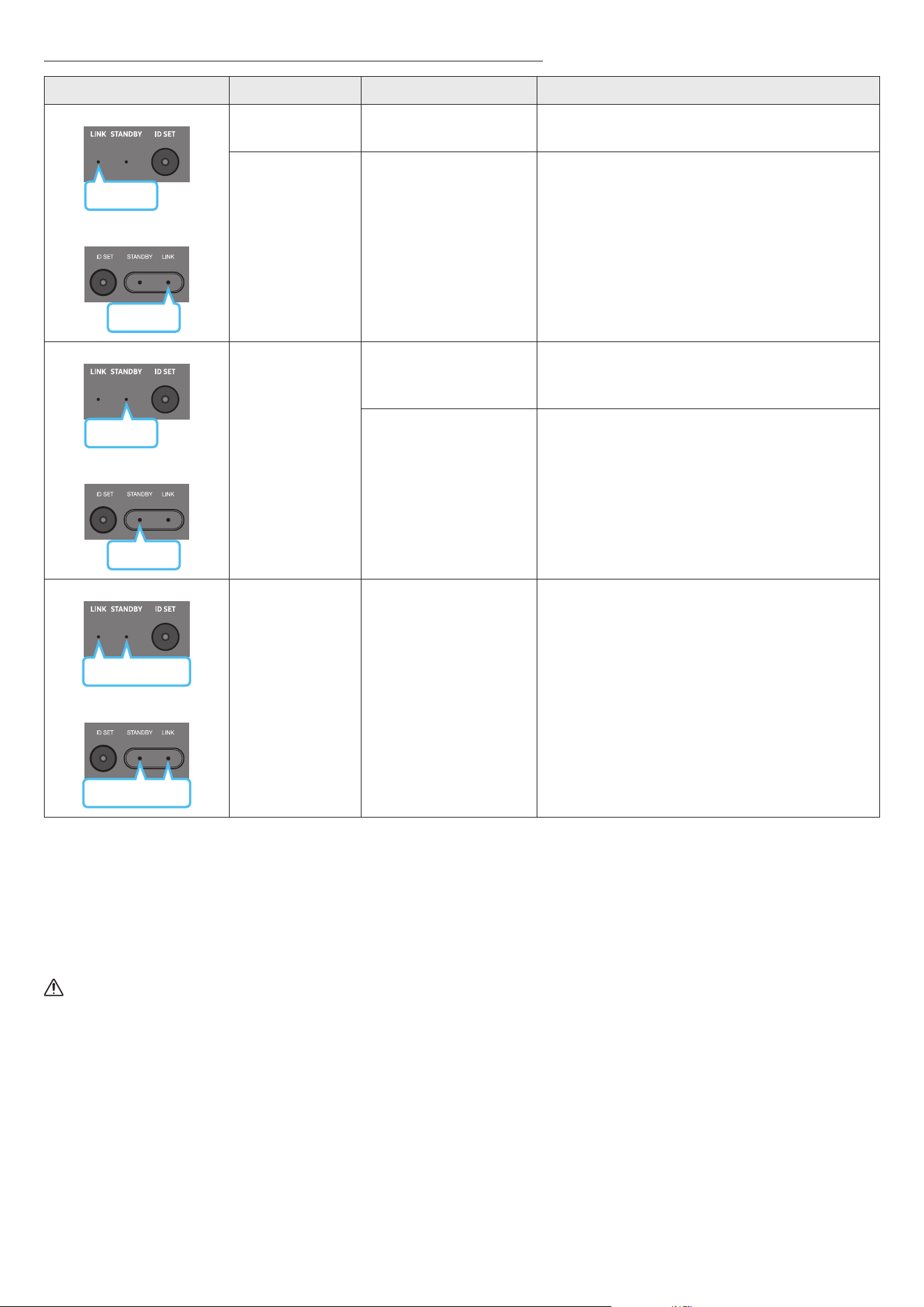
LED Indicator Lights on the Rear of Subwoofer and Surround Speakers
LED Status Description Resolution
Blue
Subwoofer
Surround Speakers
Blue
On
Successfully connected
(normal operation)
-
Blinking Recovering the connection
Check if the power cable attached to the main Soundbar
unit is connected properly or wait about 5 minutes.
If blinking persists, try manually connecting the
Subwoofer and Surround Speakers. See page 11.
Red
Subwoofer
Surround Speakers
Red
On
Standby (with the
Soundbar main unit turned
off)
Check if the power cable attached to the main Soundbar
unit is connected properly.
Connection failed
Connect again. See the instructions for manual
connection on page 11.
Subwoofer
Red and blue
Surround Speakers
Red and blue
Blinking Malfunction
See the contact information for the Samsung Service
Center in this manual.
NOTE
• If the main unit is powered off, the Subwoofer will go into stand-by mode and the STANDBY LED on the rear of the sub-woofer will turn red
after blinking in blue several times.
• If you use a device that uses the same frequency as the Soundbar near the Soundbar, interference may cause some sound interruption.
• The maximum transmission distance of the main unit’s wireless signal is about 10 m, but may vary depending on your operating environment.
If a steel-concrete or metallic wall is between the main unit and the Subwoofer, the system may not operate at all because the wireless signal
cannot penetrate metal.
CAUTION
• Wireless receiving antennas are built into the Subwoofer and Surround Speakers. Keep the unit away from water and moisture.
• For optimal listening performance, make sure that the area around the Subwoofer and the Surround Speakers are clear of any obstructions.
• Do not insert any part of your body or foreign objects into the Subwoofer’s duct (hole).
• Do not use the Subwoofer’s duct (hole) to hang it on the wall.
ENG - 13
05 CONNECTING TO A TV
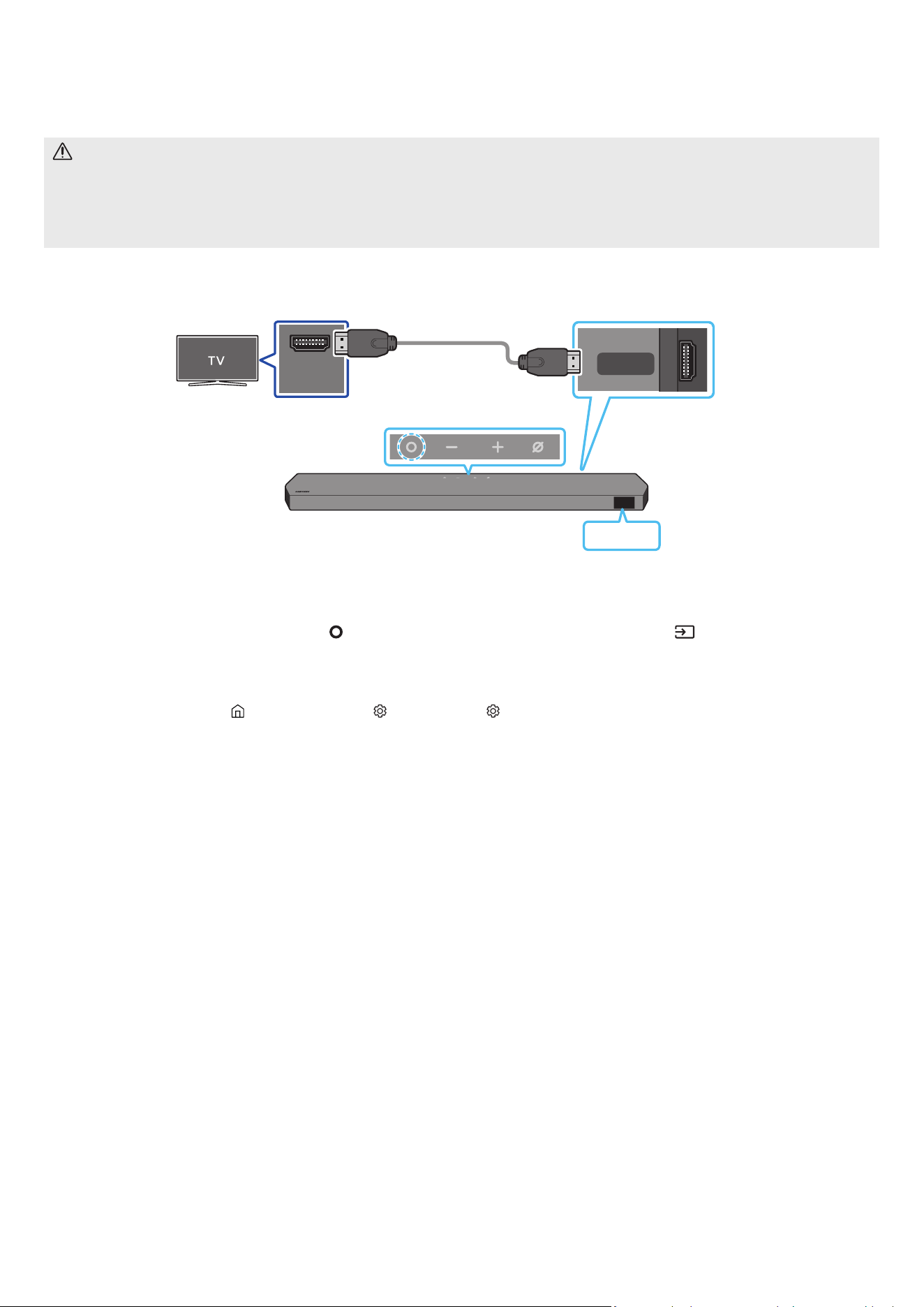
Connecting the TV that supports HDMI ARC (Audio Return Channel)
CAUTION
• When both the HDMI cable and optical cable are connected, the HDMI signal is received rst.
• To connect the HDMI cable between the TV and Soundbar, be sure to connect the terminals marked ARC. Otherwise, the TV sound may not
be output.
• The recommended cable is an HDMI cable certied by HDMI.org.
HDMI IN
(ARC)
HDMI TO TV
(eARC/ARC)
Connect to the HDMI IN
(ARC/eARC) port of your TV.
Connect to the HDMI TO
TV (eARC/ARC) port of the
Soundbar main unit.
HDMI Cable
(supplied)
Top of the Soundbar
Bottom of the Soundbar
TV ARC
1. With the Soundbar and TV turned off, connect the HDMI cable as shown in the gure.
2. Turn on the Soundbar and TV.
3. “TV ARC” appears in the display window of the Soundbar main unit and the Soundbar plays TV sound.
• When the TV sound is not output, press the (Multi Function) button at the top of the Soundbar or the (Source) button on the remote
control to select the “TV ARC” mode. The screen display “TV ARC”, and TV sound is played.
• When connecting a TV that supports the eARC function, “TV eARC” appears on the display and the sound is heard.
• To connect with eARC, the eARC function in the TV menu should be set to On. Refer to the TV user manual for details on setting.
(e.g. Samsung TV : Home ( ) → Menu → Settings ( ) → All Settings ( ) → Sound → Expert Settings → HDMI-eARC Mode (Auto))
• If “TV ARC” does not appear in the display window of the Soundbar main unit, conrm that the HDMI cable is connected to the correct port.
• Use the volume buttons on the TV’s remote control to change the volume on the Soundbar.
NOTE
• When you connect the TV that supports the HDMI ARC (Audio Return Channel) to the Soundbar with an HDMI cable, you can transmit the
digital video and audio data without connecting a separate optical cable.
• We recommend you use a coreless HDMI cable if possible. If you use a cored HDMI cable, use one whose diameter is less than 14 mm.
• This function is not available if the HDMI cable does not support ARC.
• When the audio in a broadcast is encoded in Dolby Digital and the “Digital Output Audio Format” on your TV is set to PCM, we recommend that
you change the setting to Dolby Digital. When the setting on the TV is changed, you will experience better sound quality. (The TV menu may
use different words for Dolby Digital and PCM depending on the TV manufacturer.)
• The ARC/eARC protocols support Dolby Atmos.
• Make sure that the content supports Dolby Atmos®.
ENG - 14
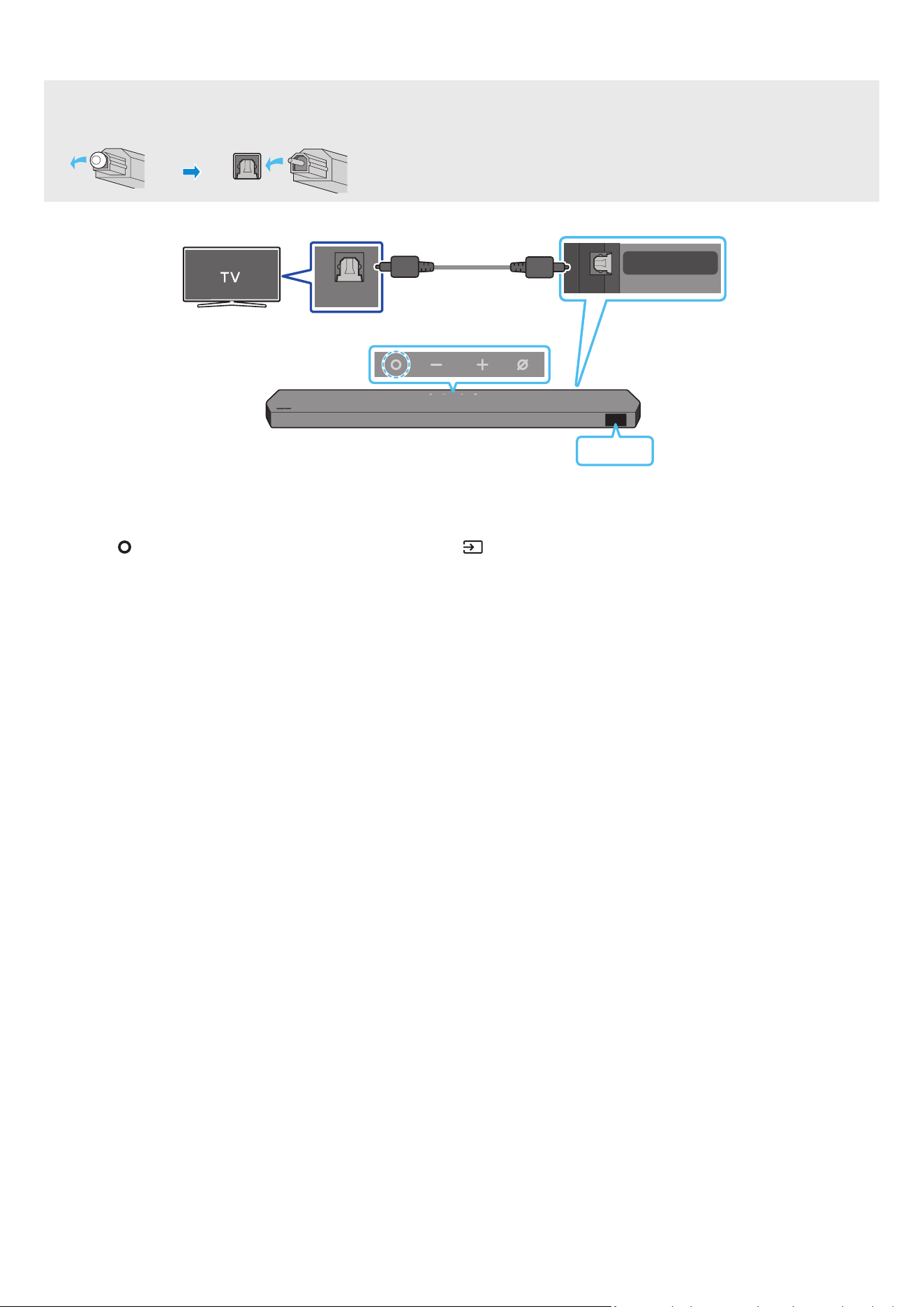
Connecting using an Optical Cable
Pre-connection Checklist
• When both the HDMI cable and optical cable are connected, the HDMI signal is received rst.
• When you use an optical cable and the terminals have covers, be sure to remove the covers.
OPTICAL OUT
DIGITAL AUDIO IN
(OPTICAL)
Optical Cable (not supplied)
Bottom of the Soundbar
D.IN
Top of the Soundbar
1. With the TV and Soundbar turned off, connect the DIGITAL AUDIO IN (OPTICAL) port on the Soundbar and the OPTICAL output port on the TV
with an optical cable (not supplied), as shown in the gure.
2. Turn on the Soundbar and TV.
3. Press the
(Multi Function) button at the top of the Soundbar or the (Source) button on the remote control to select the “D.IN” mode.
4. The TV sound is output from the Soundbar.
ENG - 15
Connecting via Bluetooth
When a Samsung TV is connected using Bluetooth, you can hear stereo sound without the hassle of cabling.
• Only one Samsung TV can be connected at a time.
• Samsung TV that supports Bluetooth can be connected. Check the specications of your TV.
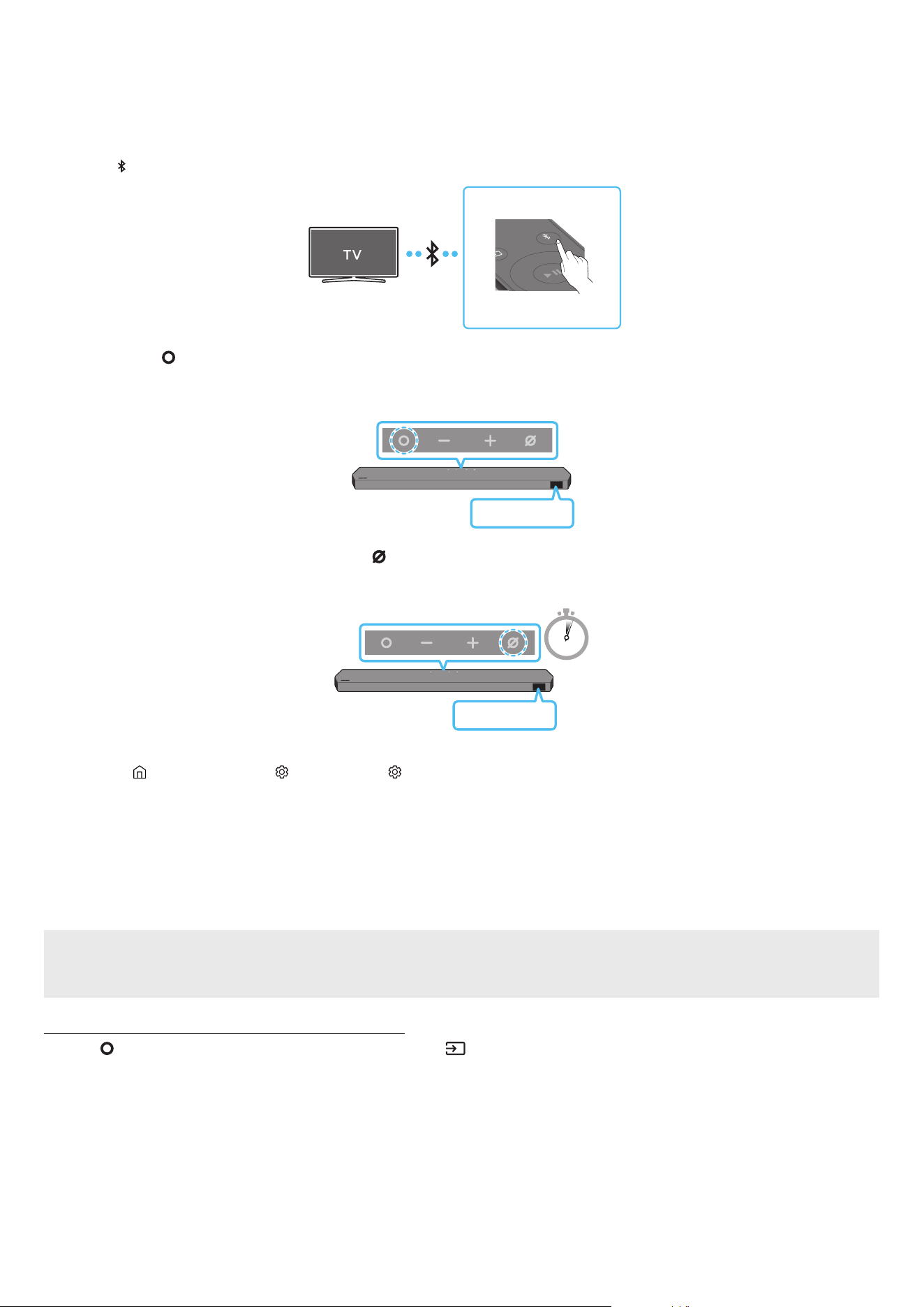
The initial connection
1. Press the PAIR button on the Soundbar remote control to enter the “BT PAIRING” mode.
PAIR
(OR)
a. Press the
(Multi Function) button on the top panel and then select “BT”.
“BT” changes to “BT PAIRING” in a few seconds automatically or changes to “BT READY” if there is a connect record.
Top of the Soundbar
BT READY
b. When “BT READY” appears, press and hold the (Mic On/Off) button on the top panel of the Soundbar for more than 5 seconds to
display “BT PAIRING”.
5 Sec
Top of the Soundbar
BT PAIRING
2. Select Bluetooth mode on the Samsung TV.
(e.g. Home ( ) → Menu → Settings ( ) → All Settings ( ) → Sound → Sound Output → Bluetooth Speaker List → Soundbar Q-Series
(Bluetooth))
3. Select “Soundbar Q-Series” from the list on TV’s screen.
An available Soundbar is indicated with “Need Pairing” or “Paired” on the TV’s Bluetooth device list. To connect the Samsung TV to the
Soundbar, select the message, and then establish a connection.
• When the Samsung TV is connected, [TV Name] → “BT” appears on the Soundbar’s front display.
4. You can now hear Samsung TV sound from the Soundbar.
• After you have connected the Soundbar to your Samsung TV the rst time, use the “BT READY” mode to reconnect.
If the device fails to connect
• If you have an existing Soundbar (e.g., Soundbar Q-Series) on the list of speakers on the Samsung TV, delete it.
• Then repeat steps 1 through 3.
Disconnecting the Soundbar from the Samsung TV
Press the (Multi Function) button at the top of the Soundbar or the (Source) button on the remote control to select the mode other than
“BT”.
• Disconnecting takes time because the Samsung TV must receive a response from the Soundbar.
(The time required may differ, depending on the Samsung TV model.)

ENG - 16
What is the difference between BT READY and BT PAIRING?
• BT READY : In this mode, you can reconnect any Samsung TV or mobile device that was connected before.
• BT PAIRING : In this mode, you can connect a new device to the Soundbar.
(Press the PAIR button on the Soundbar remote control or press and hold the (Mic On/Off) button on the top of the Soundbar for more
than 5 seconds while the Soundbar is in “BT” mode.)
Notes on Bluetooth connection
• Locate a new device within 1 m to connect via Bluetooth communication.
• If asked for a PIN code when connecting a Bluetooth device, enter <0000>.
• The Soundbar automatically turns off after 18 minutes in the Ready state.
• The Soundbar may not perform Bluetooth search or connection correctly under the following circumstances:
‒ If there is a strong electrical eld around the Soundbar.
‒ If several Bluetooth devices are simultaneously paired with the Soundbar.
‒ If the Bluetooth device is turned off, not in place, or malfunctions.
• Electronic devices may cause radio interference. Devices that generate electromagnetic waves must be kept away from the Soundbar main
unit - e.g., microwaves, wireless LAN devices, etc.
• To activate/deactivate Bluetooth connection
Press the TONE CONTROL button on the remote control of the Soundbar for 30 seconds to turn Bluetooth On / Off.
Connecting via Wi-Fi
Pre-connection Checklist
• Wi-Fi connection is available only on Samsung TV.
• Check whether the wireless router (Wi-Fi) is turned on and the TV is connected to the router.
• The TV and Soundbar must be connected to the same wireless network (Wi-Fi).
• If your wireless router (Wi-Fi) uses a DFS channel, you will not be able to establish a Wi-Fi connection between the TV and Soundbar.
Contact your Internet service provider for details.
• Because the menus may differ depending on the year of manufacture, refer to your TV manual.
• To connect the TV to the Soundbar via Wi-Fi, connect the Soundbar to the wireless router rst. See page 23, for details on how to establish a
Wi-Fi connection.
1. For more information about Wi-Fi connection to the Soundbar, see page 23, “Method 2. Connecting via Wi-Fi (Wireless Network)”.
2. Change the input source of the TV by using the Audio menu to Soundbar.
• Samsung TVs released in 2017 or later
Home (
) → Menu → Settings ( ) → All Settings ( ) → Sound → Sound Output → Soundbar Q-Series (Wi-Fi)
NOTE
• The Wi-Fi Dolby Atmos connection is available in some Samsung TVs and some Soundbar models.
• Precaution : The Soundbar will restart automatically if you turn on/turn off Wi-Fi.
• To activate/deactivate Wi-Fi connection
Press the CH LEVEL button on the remote control of the Soundbar for 30 seconds to turn Wi-Fi On / Off.
ENG - 17
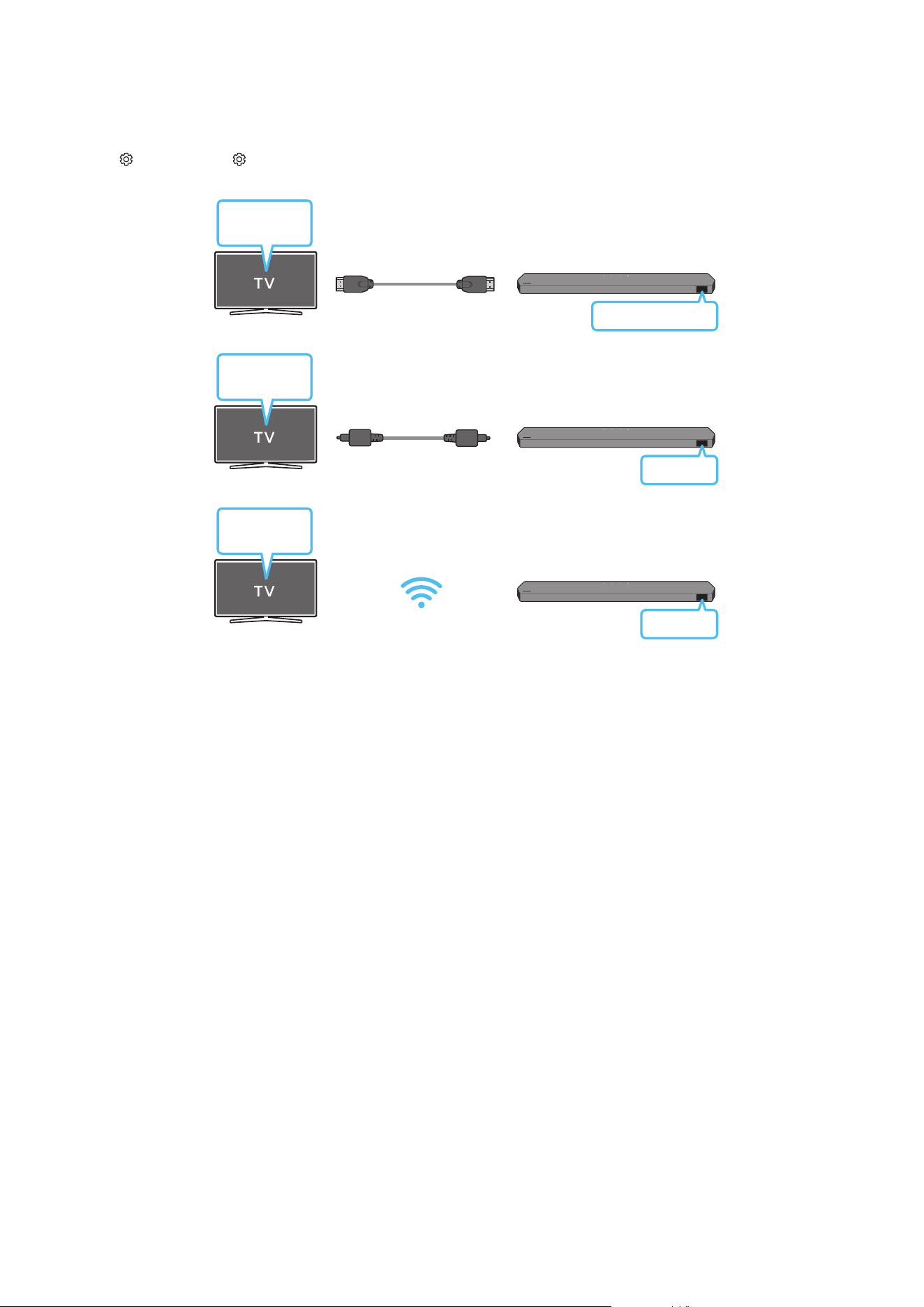
Using the Q-Symphony Function
• When the Soundbar connects to a Samsung TV that supports the Q-Symphony function you can play the sound simultaneously through the
Soundbar and the TV. If you use the Q-Symphony function, the surround sound played on the TV allows you to enjoy a richer, more three-
dimensional surround sound effect.
• When the Soundbar is connected “Q-Symphony” menu appears on the TV.
Settings ( ) → All Settings ( ) → Sound → Sound Output
• TV menu example: Q-Symphony
TV menu
HDMI Cable
TV ARC/eARC
TV menu
Optical Cable (not supplied)
D.IN
TV menu
Wi-Fi
Wi-Fi
NOTE
• It can operate according to the Codec supported by TV.
• This function is supported only when the HDMI Cable or Optical Cable (not supplied) or Wi-Fi is connected.
• The message displayed may differ with the TV model.
• Ensure that your TV and Soundbar are connected to the same wireless router/frequency.
• This function is available in some Samsung TVs and some Soundbar models.

ENG - 18
Using the SpaceFit Sound
This function analyzes the user’s listening space with the Soundbar’s microphone and provide optimal sound for the space. Sound optimization
proceeds automatically.
Method 1. Connecting via Soundbar
To enable this function, turn on the SpaceFit Sound mode with the remote control of the Soundbar.
1. Press the (Sound Control) button to turn on the SpaceFit Sound mode.
“SPACEFIT SOUND OFF” appears on the display.
2. Press the Up button on the remote control to turn on the SpaceFit Sound.
“ON” appears on the display.
SOUND
MODE
PAIR
3. Press the Down button on the remote control to turn off the SpaceFit Sound.
“OFF” appears on the display.
SOUND
MODE
PAIR
• This is available in all Sound modes.
Method 2. Connecting via TV
To enable this function, turn on the Adaptive Sound+ mode on your Samsung TV menu.
(Home ( ) → Menu → Settings ( ) → All Settings ( ) → General → Intelligent Mode Settings → Adaptive Sound+)
• The sound mode on your Soundbar will automatically change to Adaptive Sound+ if you enable the Adaptive Sound+ mode on your TV.
NOTE
This function works when the Soundbar connects to some of the Samsung TVs.
ENG - 19
06 CONNECTING AN EXTERNAL DEVICE
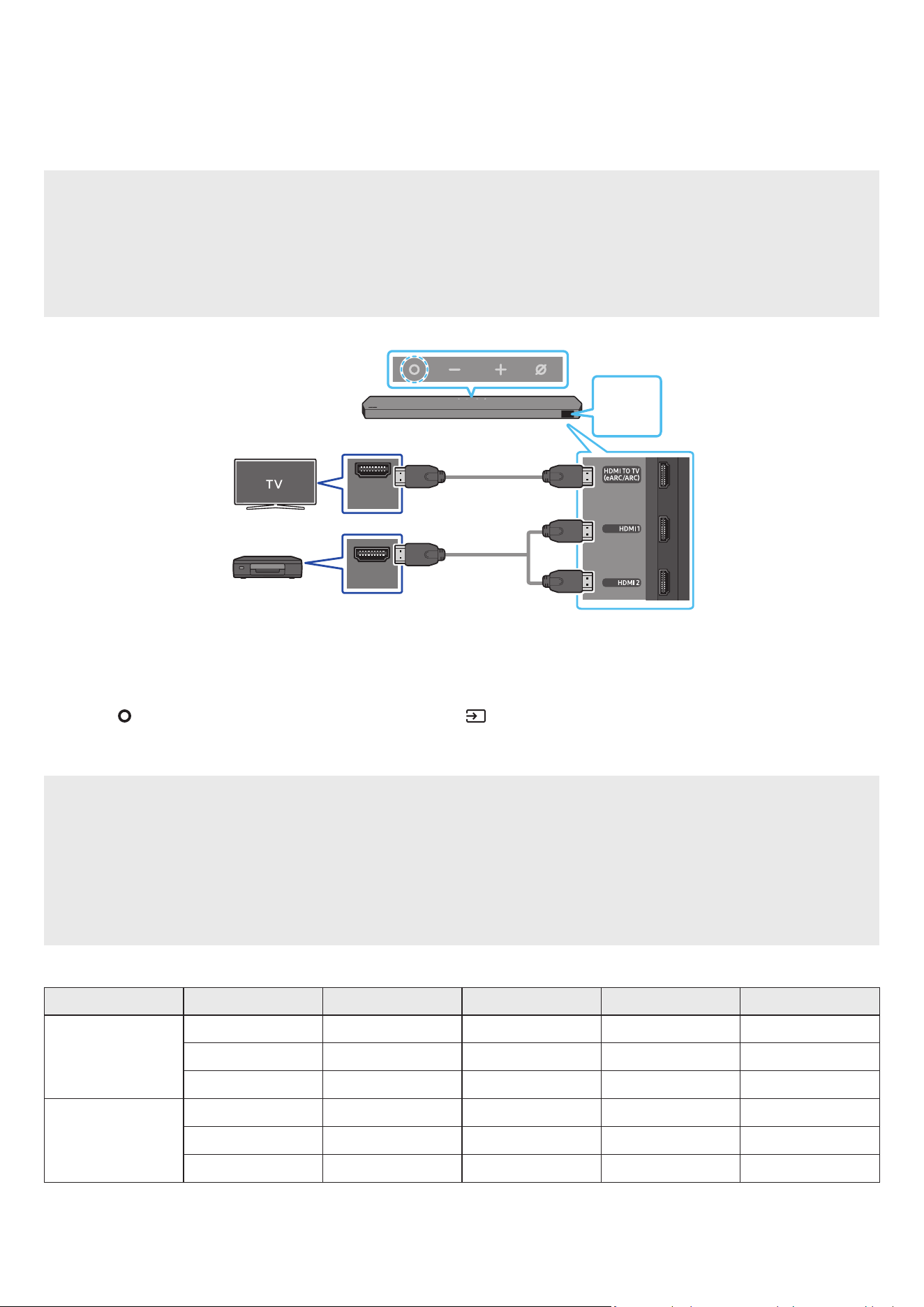
Method 1. Connecting using an HDMI Cable (Capable of Dolby Atmos / DTS:X decoding
and playback)
Pre-connection Checklist
• If the Audio Output options include Secondary Audio, make sure Secondary Audio is set to Off.
• Make sure that the content supports Dolby Atmos® / DTS:X.
• Only use an HDMI cable that satises relevant I/O requirements.
• To receive the UHD signal properly, a certied Ultra High Speed HDMI cable is required.
• For proper reception of the UHD signal, check out the video I/O specication and local settings of the TV or the external device beforehand.
• For more information, refer to the TV user manual or the external device.
HDMI IN
(ARC)
HDMI OUT
Bottom of the Soundbar
HDMI 1
OR
HDMI 2
External Device
HDMI Cable
(supplied)
HDMI Cable
OR
Top of the Soundbar
1. Use an HDMI cable to connect the HDMI OUT port on the external device and the HDMI port on the bottom of the Soundbar.
2. Use an HDMI cable (supplied) to connect the HDMI IN port of the TV and the HDMI TO TV (eARC/ARC) port on the bottom of the Soundbar.
3. Turn on the Soundbar, TV, and the external device.
4. Press the
(Multi Function) button on the top of the Soundbar or the (Source) button on the remote control to select “HDMI 1” or “HDMI
2” mode.
5. The Soundbar display indicates that “HDMI 1” or “HDMI 2” mode is currently selected and the Soundbar will start playing sounds.
NOTE
• When you use Dolby Atmos® / DTS:X: If the input source is Dolby Atmos® / DTS:X, refer to “Output specications for the different sound
effect modes” on page 7
• When Dolby Atmos® is activated, “DOLBY ATMOS” appears in the front display.
• When DTS:X is activated, “DTS:X” appear in the front display.
• Conguring Dolby Atmos® / DTS:X on your BD player or other device
Open the audio output options on the settings menu of your BD player or other device and make sure that “No Encoding” is selected for
Bitstream. For example, on a Samsung BD Player, go to Home Menu → Sound → Digital Output and then select Bitstream (unprocessed).
Supported UHD Signals Specication (3840 x 2160p)
Frame rate (fps) Color depth RGB 4:4:4 YCbCr 4:4:4 YCbCr 4:2:2 YCbCr 4:2:0
< 60
8 bit O O O O
10 bit O O O O
12 bit O O O O
120
8 bit O O O O
10 bit O O O O
12 bit - - O O
• Supported specication may vary depending on the connected external device or usage conditions.
ENG - 20
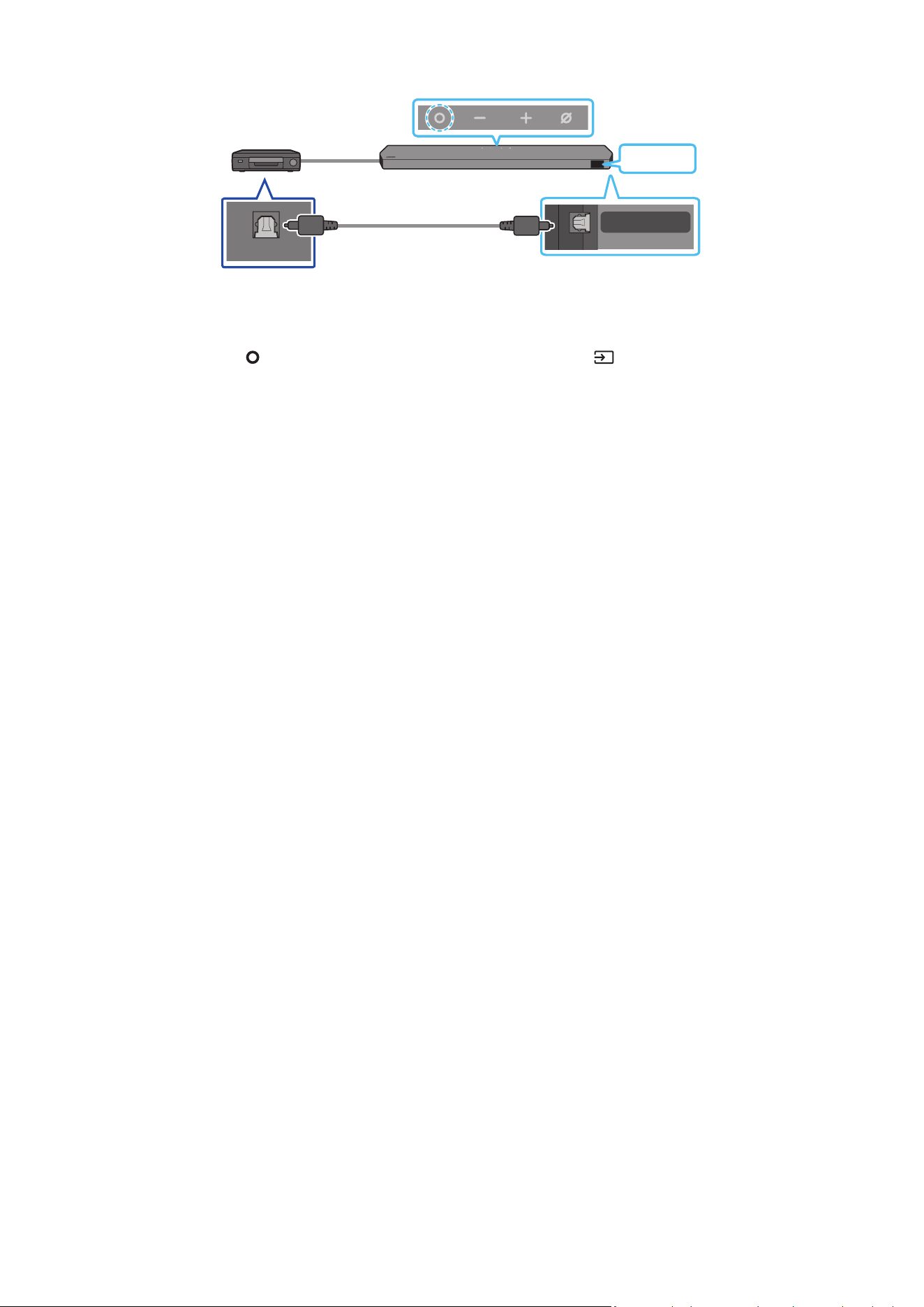
Method 2. Connecting using an Optical Cable
DIGITAL AUDIO IN
(OPTICAL)
OPTICAL OUT
BD / DVD player / Set-
top box / Game console
Top of the Soundbar
D.IN
Optical Cable
(not supplied)
Bottom of the Soundbar
1. Use an optical cable (not supplied) to connect the DIGITAL AUDIO IN (OPTICAL) on the Soundbar main and the OPTICAL OUT port on the
external device.
2. Turn on the Soundbar and external device.
3. To select “D.IN” mode, press the (Multi Function) button on the top of the Soundbar or the (Source) button on the remote control.
4. Your Soundbar will play sounds from the external device.
ENG - 21
07 CONNECTING A MOBILE DEVICE
Method 1. Connecting via Bluetooth
When a mobile device is connected using Bluetooth, you can hear stereo sound without the hassle of cabling.
• When you connect a paired Bluetooth device with the Soundbar off, the Soundbar automatically turns on.
The initial connection
• When connecting to a new Bluetooth device, make sure the device is within 1 m distance.
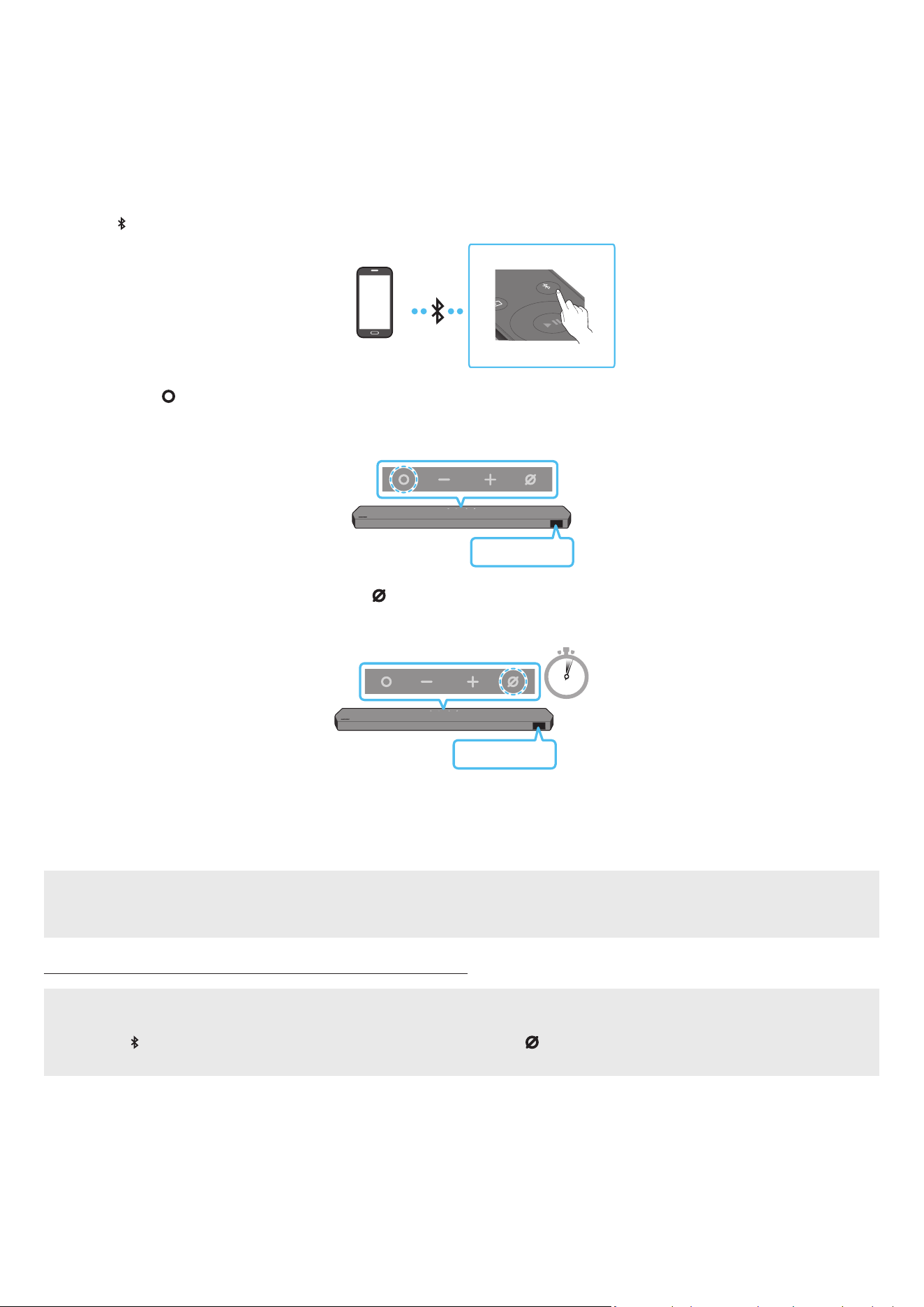
1. Press the PAIR button on the Soundbar remote control to enter the “BT PAIRING” mode.
PAIR
Mobile device
(OR)
a. Press the
(Multi Function) button on the top panel and then select “BT”.
“BT” changes to “BT PAIRING” in a few seconds automatically or changes to “BT READY” if there is a connect record.
Top of the Soundbar
BT READY
b. When “BT READY” appears, press and hold the (Mic On/Off) button on the top panel of the Soundbar for more than 5 seconds to
display “BT PAIRING”.
5 Sec
Top of the Soundbar
BT PAIRING
2. On your device, select “Soundbar Q-Series” from the list that appears.
• When the Soundbar is connected to the Mobile device, [Mobile Device Name] → “BT” appears in the front display.
3. Play music les from the device connected via Bluetooth through the Soundbar.
• After you have connected the Soundbar to your mobile device the rst time, use the “BT READY” mode to reconnect.
If the device fails to connect
• If you have an existing Soundbar (e.g., “Soundbar Q-Series”) in the list of speakers on the Mobile device, delete it.
• Repeat steps 1 and 2.
What is the difference between BT READY and BT PAIRING?
• BT READY : In this mode, you can reconnect any Samsung TV or mobile device that was connected before.
• BT PAIRING : In this mode, you can connect a new device to the Soundbar.
(Press the PAIR button on the Soundbar remote control or press and hold the (Mic On/Off) button on the top of the Soundbar for more
than 5 seconds while the Soundbar is in “BT” mode.)

ENG - 22
Notes on Bluetooth connection
• Locate a new device within 1 m to connect via Bluetooth communication.
• If asked for a PIN code when connecting a Bluetooth device, enter <0000>.
• The Soundbar automatically turns off after 18 minutes in the Ready state.
• The Soundbar may not perform Bluetooth search or connection correctly under the following circumstances:
‒ If there is a strong electrical eld around the Soundbar.
‒ If several Bluetooth devices are simultaneously paired with the Soundbar.
‒ If the Bluetooth device is turned off, not in place, or malfunctions.
• Electronic devices may cause radio interference. Devices that generate electromagnetic waves must be kept away from the Soundbar main
unit - e.g., microwaves, wireless LAN devices, etc.
• The Soundbar supports SBC data (44.1kHz, 48kHz).
• Connect only to a Bluetooth device that supports the A2DP (AV) function.
• When connecting the Soundbar to a Bluetooth device, place them as close to each other as possible.
• The farther the Soundbar and Bluetooth device are from each other, the lower the sound quality will become.
The Bluetooth connection may break when the devices are out of the effective range.
• The Bluetooth connection may not function as intended in areas with poor reception.
• A Bluetooth device may experience noise or malfunction under in the following conditions:
‒ When the body is in contact with the signal transceiver on the Bluetooth device or Soundbar
‒ In corners or when there is an obstacle in proximity, such as a wall or partition, where electrical changes may occur.
‒ When exposed to radio interferences by other products operating on the same frequency ranges, such as medical equipment, microwave
ovens, and wireless LAN devices.
‒ Obstacles such as doors and walls may still impact the sound quality even when the devices are within the effective range.
• Note that your Soundbar cannot be paired with other Bluetooth devices while using the Bluetooth option.
• This wireless device may cause electrical interference during operation.
Disconnecting the Bluetooth device from a Soundbar
You can disconnect a Bluetooth device from the Soundbar. For instructions, see the Bluetooth device’s user manual.
• The Soundbar will be disconnected.
• When the Soundbar is disconnected from the Bluetooth device, the Soundbar will display “BT DISCONNECTED” on the front display.
Disconnecting the Soundbar from the Bluetooth device
Press the (Multi Function) button on the top of the Soundbar or the (Source) button on the remote control to switch the mode from “BT”.
• Disconnecting takes time because the Bluetooth device must receive a response from the Soundbar. (Disconnection time may differ,
depending on the Bluetooth device)
• When the Soundbar is disconnected from the Bluetooth device, the Soundbar will display “BT DISCONNECTED” on the front display.
ENG - 23
Method 2. Connecting via Wi-Fi (Wireless Network)
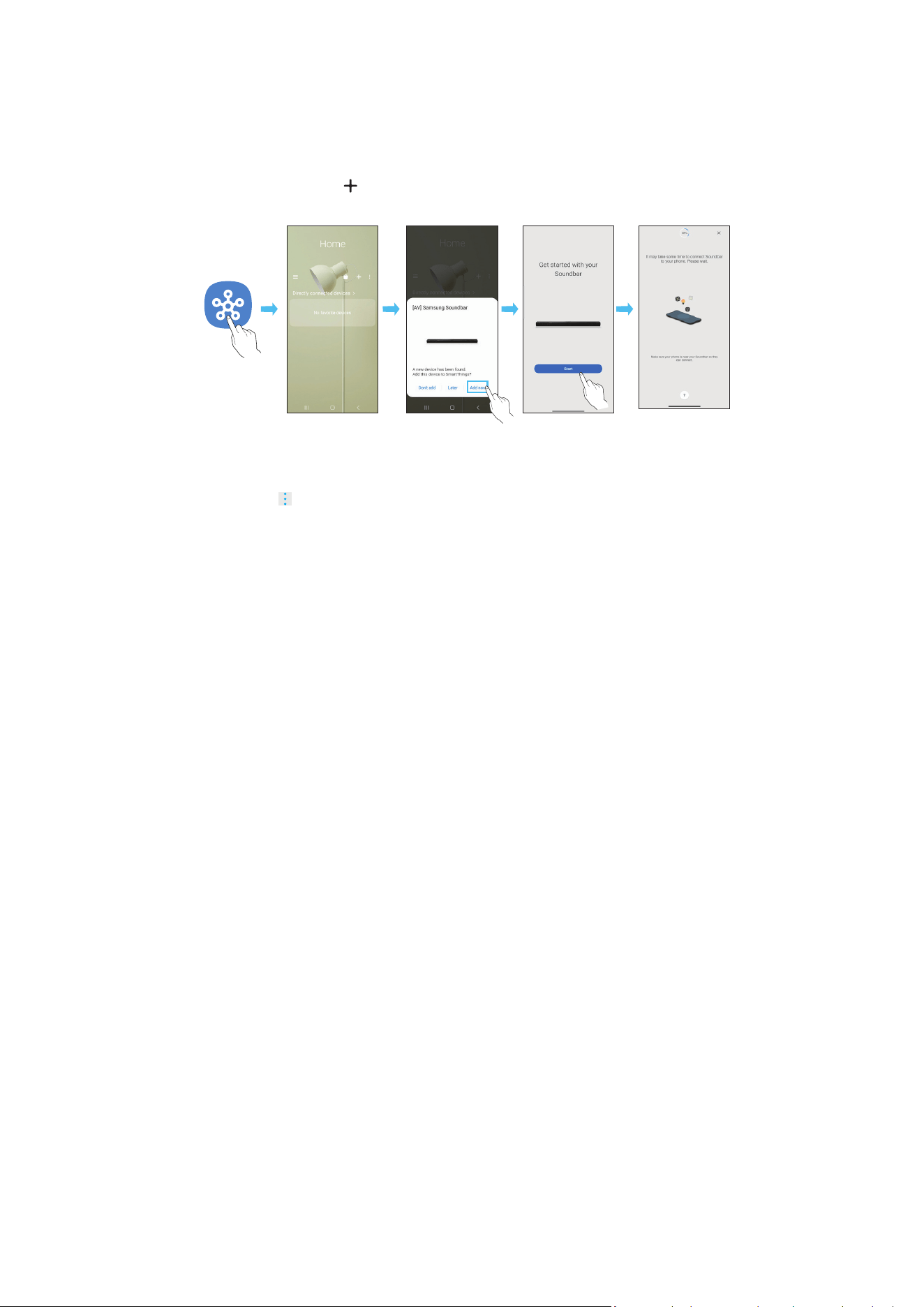
To connect a Soundbar to a mobile device via a wireless network (Wi-Fi), the SmartThings app is required.
The initial connection
1. Install and launch the SmartThings app from your mobile device (smartphone or tablet).
2. On the app, follow the screen instructions to add the Soundbar.
• The automatic pop-up (the second screenshot below) may not show on some devices.
If the pop-up window does not appear, press “ ” on the Home screen. The Soundbar is added to the app.
• The illustration below may differ according to the app version.
Launch App Auto pop-up Add device
SmartThings
App
To change your Wi-Fi connection
1. Launch the SmartThings app from your mobile device (smartphone or tablet).
2. Tap the Soundbar’s card and tap the ( ) icon.
3. Go to Device Settings > Network Status > Change Wi-Fi network, and follow the onscreen instructions.
Using Group Play
• To benet from this feature, add your Soundbar to the SmartThings app.
• To enable this, connect at least two audio devices to the same Wi-Fi network at 5 GHz.
• This is available on Samsung Sound devices that support Wi-Fi released year 2024 or later.
• This feature does not support TV sound.
Conguring Group Play
1. Run the SmartThings app on your mobile device.
2. Add the Soundbar in the SmartThings app according to the instructions in the “Method 2. Connecting via Wi-Fi (Wireless Network)” section.
3. Tap the Soundbar’s card.
4. On your mobile device, tap Create Group under the audio device icon.
• Create Group button appears only when Soundbar is in Wi-Fi mode.
• If the Soundbar is playing the TV sound, the connection to the TV is disconnected when creating a group.
5. Enable Group Play.
6. Select a desired device in the list, and tap Apply.
• You can add a maximum of 4 devices.
• With Group Play, the audio will be output through the host device alone.
• When a device connected to the host device switches to a different source, the device will be deleted from the group automatically.
• When the host device is connected to a TV, the generated group will be deleted automatically.
Disabling Group Play
1. Tap the audio device’s card.
2. On your mobile device, tap Edit Group under the audio device icon.
3. Disable Group Play.
• To disable an individual device, uncheck the device from the list and tap Apply.

ENG - 24
Using the SmartThings Hub
• You can use the Soundbar’s SmartThings Hub function to connect the IoT devices (bulbs, plugs, sensors etc.) that require SmartThings Hub.
• To use the SmartThings Hub function, you must register the Soundbar in the SmartThings app.
Registering an IoT device on the SmartThings app
1. Add the Soundbar in the SmartThings app according to the instructions in the “Method 2. Connecting via Wi-Fi (Wireless Network) > The
initial connection” section.
2. Tap the Soundbar device card.
3. Tap SmartThings Hub at the bottom of the screen.
4. Tap Using SmartThings Hub, and then tap Set up to activate the SmartThings Hub function.
• When the SmartThings Hub function activates, unset changes to using.
• SmartThings Hub device card will appear next to the Soundbar device card.
5. On the Home screen, tap “ ” to add an IoT device.
• An IoT device card appears on the app when you successfully add an IoT device.
• If you unplug the Soundbar, devices connected through the SmartThings Hub may be disconnected. You must reconnect the devices once
they get disconnected.
Deleting SmartThings Hub from the SmartThings app
1. On the devices screen , tap the Soundbar device card.
2. Tap SmartThings Hub at the bottom of the screen.
3. Tap Removing SmartThings Hub to deactivate the SmartThings Hub function.
• When the SmartThings Hub function deactivates, using changes to unset.
Connecting via Apple AirPlay
• This feature may not be available in some countries.
• This Samsung Soundbar supports AirPlay® and recommends that the user use the latest version of iOS, iPadOS, or macOS.
• To enable AirPlay in your Soundbar, you must rst register the device with the Samsung Smart Things app by agreeing with the app’s terms
and conditions.
• Make sure the Soundbar is powered on and connected to the same Wi-Fi network as your Apple® device.
With AirPlay, you can enjoy music, podcasts, and other audio on the Samsung Soundbar right from your Apple devices.
• Select
from an AirPlay-supported app or Control Center on your iPhone®, iPad®, or Mac®.
• Select the Soundbar from the list of available devices to play the current audio to.
ENG - 25
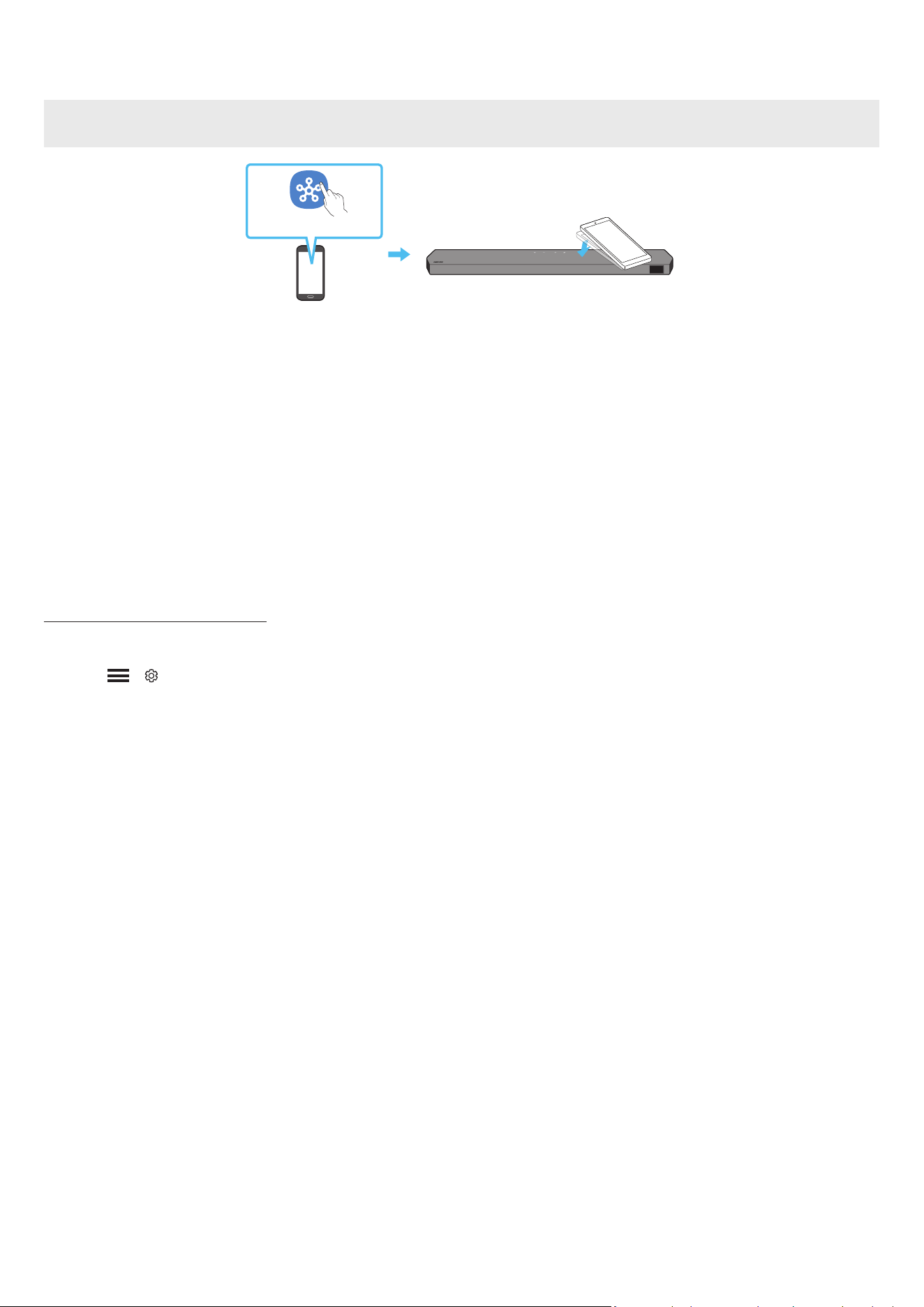
Using the Tap Sound
Tap the Soundbar with your mobile device to play the sound of content on the mobile device through the Soundbar.
• This function may not be supported, depending on the mobile device.
• This function is only compatible with Samsung mobile devices with Android 8.1 or later.
Top of the Soundbar
Mobile device
SmartThings App
1. Turn on the Tap Sound function on your mobile device.
• For details on how to turn on the function, refer to “Setting the Tap Sound function” below.
2. Tap the Soundbar with the mobile device. Select “Start now” in the displayed message window.
A connection is established between the mobile device and Soundbar via Bluetooth.
3. Play the sound of content on the mobile device through the Soundbar.
• This function connects a mobile device to the Soundbar via Bluetooth by detecting vibration that occurs when the device touches the
Soundbar.
• Make sure the mobile device does not tap a sharp corner of the Soundbar. The Soundbar or mobile device may become scratched or
damaged.
• It is recommended that the mobile device be covered with a case. Lightly tap the wide area in the upper portion of the Soundbar, without
using excessive force.
• To use this function, update the SmartThings app to the latest version.
The function may not be supported, depending on the app version.
Setting the Tap Sound function
Use the SmartThings app to turn on the Tap View, Tap Sound function.
1. On the mobile device, run the SmartThings app.
2. Select ( → ) in the SmartThings app screen displayed on the mobile device.
3. Set “Tap View, Tap Sound” to On to allow the function to work when a mobile device moves close to the Soundbar. The function is turned on.
NOTE
• When the mobile device is in power-saving mode, the Tap Sound function does not work.
• The Tap Sound function may not work if there are devices near the Soundbar that cause radio interference such as electric devices. Make sure
devices that may cause radio interference are placed at a sufcient distance away from the Soundbar.
ENG - 26
08 INSTALLING THE WALL
MOUNT
Installation Precautions
• Install on a vertical wall only.
• Do not install in a place with high temperature or humidity.
• Verify whether the wall is strong enough to support the product’s
weight. If not, reinforce the wall or choose another installation
point.
• Purchase and use the xing screws or anchors appropriate for
the kind of wall you have (plaster board, iron board, wood, etc.). If
possible, x the support screws into wall studs.
• Purchase wall mounting screws according to the type and
thickness of the wall you want to mount the Soundbar on.
‒ Diameter: M5
‒ Length: 35 mm or longer recommended.
• Connect cables from the unit to external devices before you install
the Soundbar on the wall.
• Make sure the unit is turned off and unplugged before you install
it. Otherwise, it may cause an electric shock.
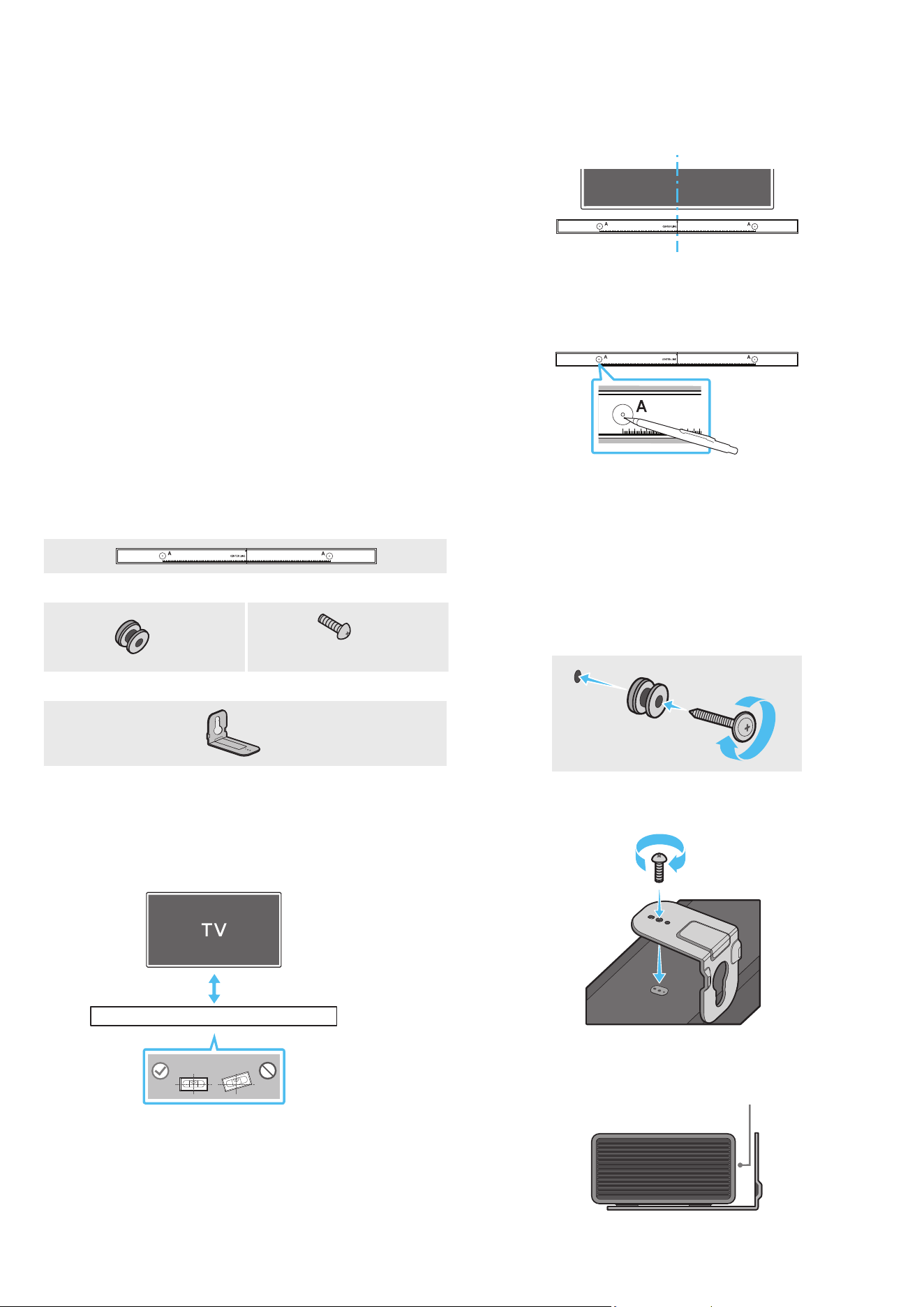
Wallmount Components
A TYPE : 450mm
Wall Mount Guide
x 2
x 2
(M4 x L10)
Holder-Screw Screw
x 2
Bracket-Wall Mount
1. Place the Wall Mount Guide against the wall surface.
• The Wall mount guide must be leveled.
• If your TV is mounted on the wall, install the Soundbar at least
5 cm below the TV.
5 cm or more
2. Align the Wall Mount Guide’s Center Line with the center of your
TV (if you are mounting the Soundbar below your TV), and then x
the Wall Mount Guide to the wall using tape.
• If you are not mounting below a TV, place the Center Line in the
center of the installation area.
A TYPE : 450mm
Center Line
3. Push a pen tip or sharpened pencil tip through the center of the
A-TYPE images on each end of the Guide to mark the holes for the
supporting screws, and then remove the Wall Mount Guide.
A TYPE : 450mm
4. Using an appropriately sized drill bit, drill a hole in the wall at each
marking.
• If the markings do not correspond to the positions of studs,
make sure you insert appropriate anchors or mollies into the
holes before you insert the support screws. If you use anchors
or mollies, make sure the holes you drill are large enough for
the anchors or mollies you use.
5. Push a screw (not supplied) through each Holder-Screw, and then
screw each screw rmly into a support screw hole.
6. Install the 2 Bracket-Wall Mounts in the correct orientation on the
bottom of the Soundbar using 2 Screws.
• When assembling, make sure the hanger part of the Bracket-
Wall Mounts are located behind the rear of the Soundbar.
Rear of Soundbar
Right end of Soundbar
ENG - 27
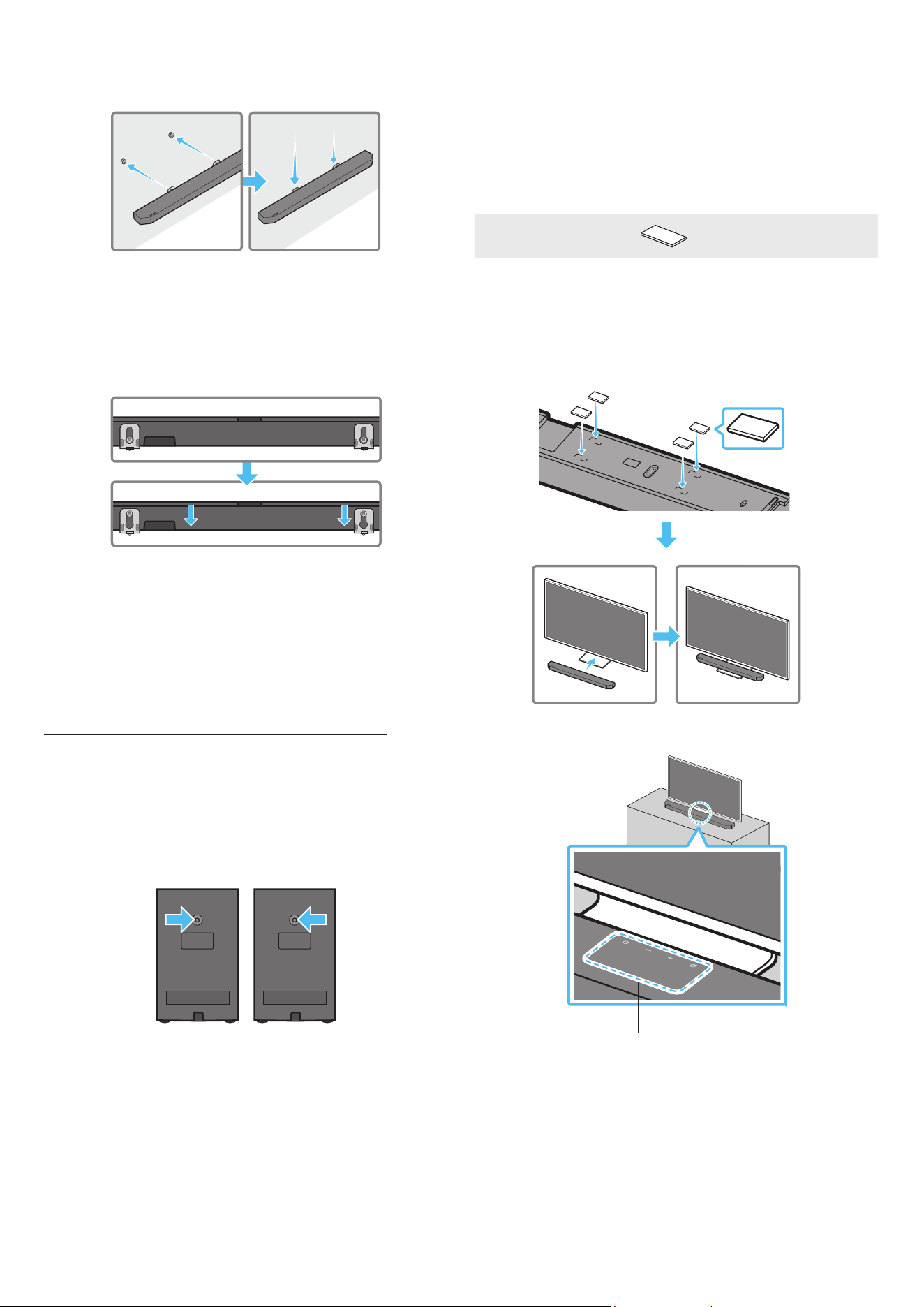
7. Install the Soundbar with the attached Bracket-Wall Mounts by
hanging the Bracket-Wall Mounts on the Holder-Screws on the
wall.
8. Slide the Soundbar down as shown below so that the Bracket-Wall
Mounts rest securely on the Holder-Screws.
• Insert the Holder-Screws into the wide (bottom) part of the
Bracket-Wall Mounts, and then slide the Bracket-Wall Mounts
down so that the Bracket-Wall Mounts rest securely on the
Holder-Screws.
Installing the Surround Speakers on a
Wall
You can purchase wall mounts separately to install the surround
speakers on a wall.
Wall mounts aren’t sold by Samsung Electronics.
Notes for Wall Mounting the Surround Speakers
• Surround Speaker wall mounts must be able to support more than
8.0 kg.
• Hole size : 1/4 - 20 UNC threaded insert
‒ Standard Screw : 6.35 mm ø,
1.27mm Pitch
‒ Length : 18 mm long
‒ Quantity : Left 1 EA / Right 1 EA
L R
• Check the strength of the wall before you install the Wall Mount
Brackets. If the strength is insufcient, make sure to reinforce the
wall before installing the Wall Mount Brackets and the speakers
on the wall.
• Samsung Electronics is not liable for any damage to the product
due to the product being installed inappropriately.
• Take care not to install the speakers sideways or upside down.
09 INSTALLING THE
SOUNDBAR IN FRONT OF
TV
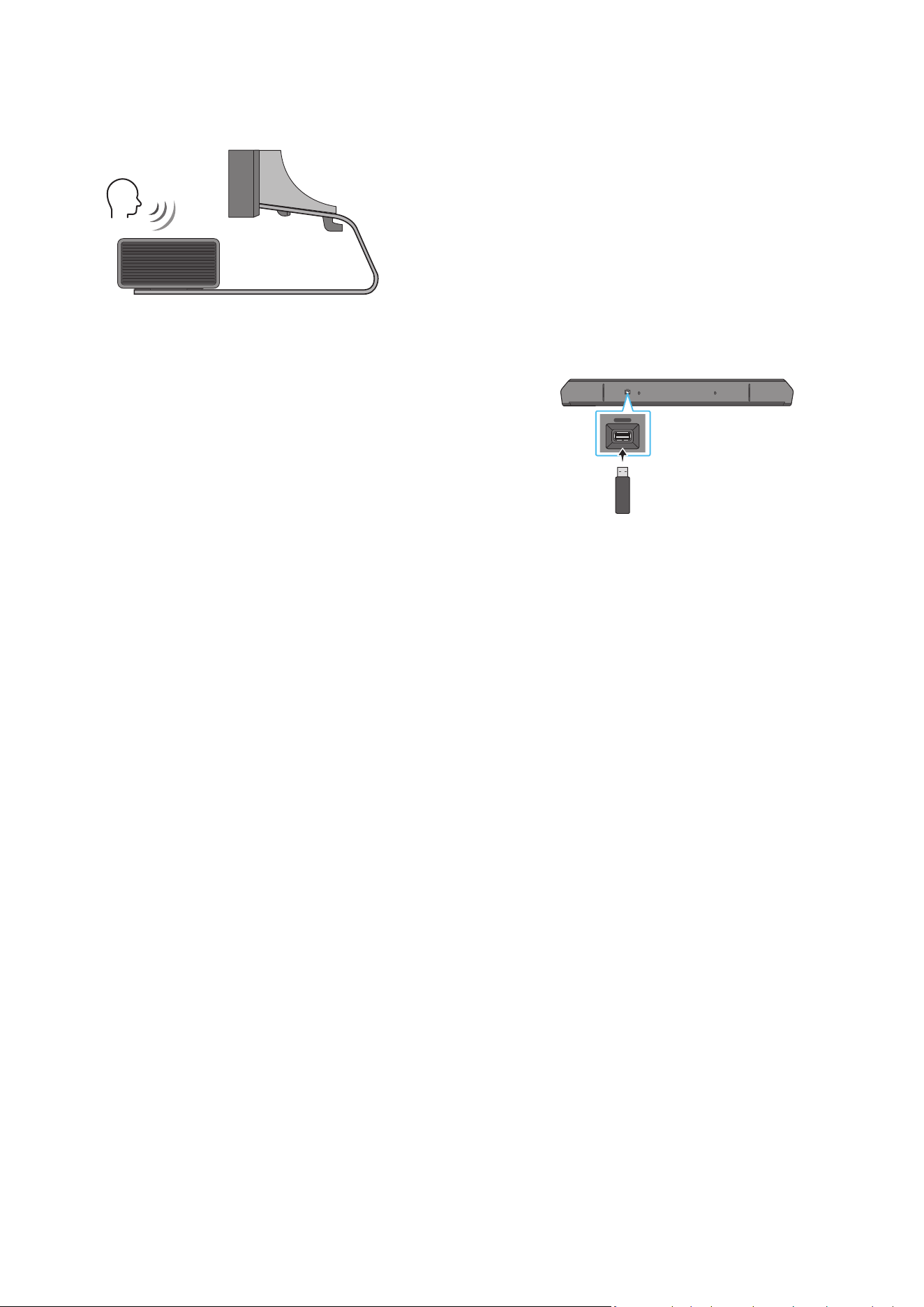
Component
x 4
Rubber-Foot
To install, attach the Rubber-Feet to the bottom of the Soundbar
before placing it in position above the TV stand. Make sure you attach
the Rubber-Feet so they do not lie outside the edges of the TV stand.
Refer to the gure below.
Rubber-Foot
Place the Soundbar on a TV stand.
Microphones
ENG - 28
As illustrated in the image, align the center of the Soundbar with the
center of the TV, carefully place the Soundbar onto the TV stand.
At this time, place the microphones at the front of the stand not to
interfere with voice recognition.
Right end of Soundbar
TV
NOTE
• Make sure the Soundbar is placed on a at and solid surface.
• Insufcient gap from the TV may cause voice recognition and
acoustic problems.
• The illustration above differs from the respective model.
• For the best performance of the microphones, keep the Soundbar
at least 2 cm away from the TV’s panel.
10 SOFTWARE UPDATE
Auto Update
When the Soundbar is connected to the Internet, software updates
automatically occur even when the Soundbar is turned off.
• To use the Auto Update function, the Soundbar must be connected
to the Internet.
The Wi-Fi connection to the Soundbar will be terminated if
the Soundbar’s power cord is disconnected or the power is cut
off. If the power is cut off, when the power comes back on or
you reconnect the power cord, turn on the Soundbar, and then
reconnect it to the Internet.
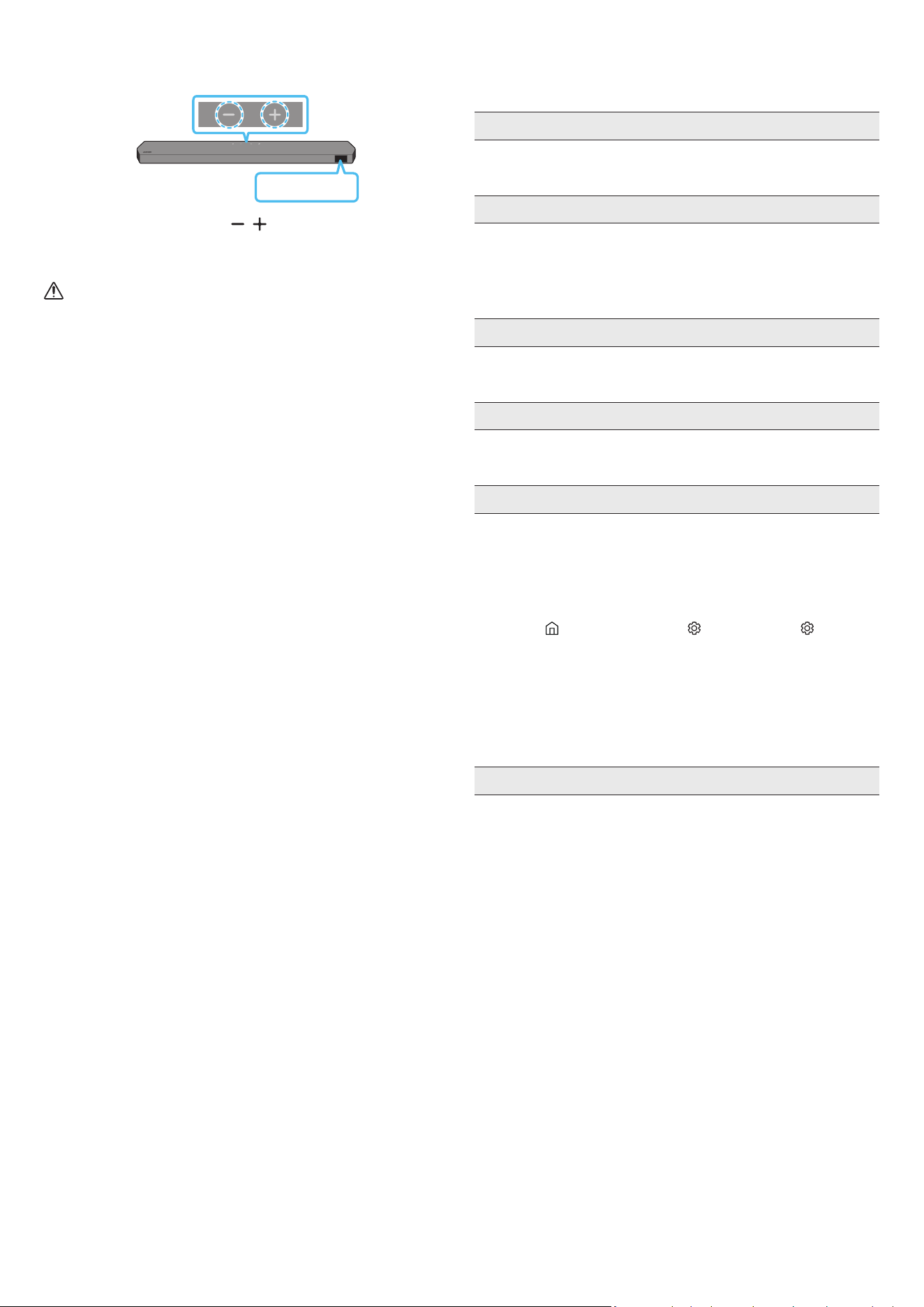
USB Update
Bottom of the Soundbar
SERVICE
ID SET
(WOOFER,
REAR)
NETWORK
SERVICE
ID SET
Samsung may offer updates for the Soundbar’s system rmware in
the future.
When an update is available, you can update the Soundbar by
connecting the USB drive that contains the update rmware to the
SERVICE port of the Soundbar.
1. Go to the Samsung Electronics website (www.samsung.com) →
search for the model name from the customer support menu
option.
• For more information about update, refer to Upgrade Guide.
2. Download the upgrade le (USB type).
3. Unzip the le to create a folder with the le name.
4. Store the created folder in a USB and then connect it to the
Soundbar.
5. Turn on the Soundbar. Then the product is updated within 3
minutes with displaying the message, “UPDATE”.
• During update, do not turn it off or remove the USB.
• If “UPDATE” does not appear on the display window, remove the
power cord from the Soundbar and then reconnect it.
• When the latest version is installed, no update is performed.
• Depending on the USB type, update may not be supported.
Security updates information
Security updates are provided to strengthen the security of your
device and protect your personal information. For more information
on security updates, visit https://security.samsungtv.com.
• The website supports only some languages.
ENG - 29
Initialization
Top of the Soundbar
INIT
With the Soundbar on, press the (Volume) buttons on the body
at the same time for at least 5 seconds. “INIT” appears on the display
and then the Soundbar is initialized.
CAUTION
• All the settings of the Soundbar are initialized. Be sure to
perform this only when initialization is required.
11 TROUBLESHOOTING
Before seeking assistance, check the following.
Soundbar does not turn on.
• Check whether the power cord of the Soundbar is correctly
inserted into the outlet.
Soundbar works erratically.
• After removing the power cord, insert it again.
• Power cycle the external device and try again.
• If there is no signal, the Soundbar automatically turns off after a
certain period of time. Turn on the power. (See page 5.)
Remote control does not work
• Point the remote directly at the soundbar.
• Replace the batteries with new ones.
The Soundbar indicator turns solid red.
• The microphone is turned off.
Turn on the microphone. (See page 4.)
Sound is not output from the soundbar.
• The volume of the Soundbar is too low or muted. Adjust the
volume.
• When any external device (STB, Bluetooth device, mobile device,
etc.) is connected, adjust the volume of the external device.
• For sound output of the TV, select Soundbar. (Samsung TV:
Home (
) → Menu → Settings ( ) → All Settings ( ) → Sound
→ Sound Output → Select Soundbar)
• The cable connection to the Soundbar may not be loose. Remove
the cable and connect again.
• Remove the power cord completely, reconnect, and turn the
power on.
• Initialize the product and try again. (See page 29.)
Sound is not output from the Subwoofer or the surround speakers.
• Check whether the LED indicator on the rear of the Subwoofer
and Surround Speakers are on in blue. Reconnect the Soundbar
and Subwoofer and Surround Speakers if the indicator is blinking
in blue or turned red. (See page 11.)
• You may experience an issue if there is an obstacle between the
Soundbar and Subwoofer. Move devices to an area away from
obstacles.
• Other devices sending radio frequency signals in proximity may
interrupt the connection.
Keep your speaker away from such devices.
• Remove and reconnect the power plug.

ENG - 30
In case there is sound jitter, delays, or noise from the Subwoofer
and Surround Speaker
• If there are any objects between the Soundbar and Subwoofer
speaker, this could cause a problem. Please reposition these to a
place without such an object.
• There may be sound jitter or delays when the Subwoofer and
Surround Speaker are far from the Soundbar. Please place them
near the Soundbar.
• There may be sound jitter or delays when the Soundbar is near an
instrument or electrical device that can cause radio interference.
Place the Soundbar far from such devices that can cause radio
interference. (E.g., wireless router)
• Change the TV network connection status from wireless to wired.
The Subwoofer volume is too low
• The original volume of the content you are playing may be low.
Try adjusting the Subwoofer level. (See page 6.)
• Bring the Subwoofer speaker closer to you.
If the TV is not connected via HDMI TO TV (eARC/ARC)
• Check whether the HDMI cable is connected properly to the ARC
terminal. (See page 13.)
• Connection may not be possible due to the connected external
device (set-top box, game machine, etc.). Directly connect the
Soundbar.
• HDMI-CEC may not be activated on the TV. Turn on the CEC on
the TV menu. (Samsung TV: Home (
) → Menu → Settings ( )
→ All Settings ( ) → Connection → External Device Manager →
Anynet+ (HDMI-CEC) ON)
• To connect with eARC, the eARC function in the TV menu should
be set to On. (Samsung TV: Home ( ) → Menu → Settings ( ) →
All Settings ( ) → Sound → Expert Settings → HDMI-eARC Mode
(Auto))
There is no sound in when connecting to the TV in HDMI TO TV
(eARC/ARC) mode
• Your device is unable to play the input signal. Change the
TV’s audio output to PCM or Dolby Digital. (For a Samsung TV:
Home (
) → Menu → Settings ( ) → All Settings ( ) → Sound
→ Expert Settings → Digital Output Audio Format)
Soundbar will not connect via Bluetooth.
• When connecting a new device, switch to “BT PAIRING” for
connection. (Press the
PAIR button on the remote control
or press the (Mic On/Off) button on the body for at least 5
seconds.)
• If the Soundbar is connected to another device, disconnect that
device rst to switch the device.
• Reconnect it after removing the Bluetooth speaker list on the
device to connect. (Samsung TV: Home ( ) → Menu →
Settings ( ) → All Settings ( ) → Sound → Sound Output →
Bluetooth Speaker List)
• The automatic TV connection may be disabled. While the
Soundbar is in “BT READY”, press and hold the Left button on
the Soundbar remote control for 5 seconds to select ON-TV
CONNECT. If you see OFF-TV CONNECT, press and hold Left
button again for 5 seconds to switch the selection.
• Remove and reconnect the power plug, then try again.
• Initialize the product and try again. (See page 29.)
Sound drops out when connected via Bluetooth.
• Some devices can cause radio interference if they are located too
close to the Soundbar. e. g. microwaves, wireless routers, etc.
• If your device that is connected via Bluetooth moves too far away
from the soundbar, it may cause the sound to drop out. Move the
device closer to the soundbar.
• If a part of your body is in contact with the Bluetooth transceiver
or the product is installed on metal furniture, the sound may drop
out. Check the installation environment and conditions for use.
Soundbar will not connect to Wi-Fi.
• Check whether your wireless router is on.
• Turn off the router, turn it back on, and then try again.
• The soundbar will not connect if the wireless signal is too weak.
Try moving the router closer to the soundbar, or eliminating
any obstacles that are between the soundbar and the router, if
possible.
• If your wireless router is new, you will need to recongure the
speaker’s network settings. (See page 23.)
• Soundbar does not support Wi-Fi 6.
The soundbar does not turn on automatically with the TV.
• When you turn off the Soundbar while watching TV, power
synchronization with the TV is disabled. First turn off the TV.
The AVA function is not available in the following cases.
• The AVA function will not be available when the microphone is
turned off.
ENG - 31
After connecting the TV to the Soundbar, I switched the Soundbar
mode. Then no sound is output from the TV.
• If you connect your Soundbar to a mobile device while the
Soundbar is connected to the TV, the Soundbar outputs sound
from the mobile device while keeping the TV connection. So the
TV sound will not be delivered anywhere.
• Disconnect the mobile device, and the TV sound will be output
from the Soundbar again.
The Soundbar does not appear in AirPlay
• To enable AirPlay in your Soundbar, you must rst register the
device with the Samsung Smart Things app by agreeing with the
app’s terms and conditions. (See page 24.)
• AirPlay does not operate if you delete the Soundbar from the
Samsung Smart Things app.
• Make sure that the Soundbar and the Apple device are connected
to the same Wi-Fi network.
• The Soundbar is compatible with AirPlay installed on iOS 13.4 or
later.
No UHD input signal is displayed on my TV.
• An additional change in settings may be required for your TV or
the input source. For more information, refer to the user manual
of the TV or the external device.
• Make sure you are using an Ultra High Speed HDMI Cable
certied by HDMI.org.
Group Play is not enabled
• Check if the audio devices are newer models released year 2024
or later.
• Check if the host device is connected to a Wi-Fi network as
source.
• Make sure that all audio devices are connected to the same Wi-Fi
network (at 5 GHz).
12 LICENCE
Dolby, Dolby Atmos, and the double-D symbol are registered
trademarks of Dolby Laboratories Licensing Corporation.
Manufactured under license from Dolby Laboratories. Condential
unpublished works.
Copyright © 2012-2021 Dolby Laboratories. All rights reserved.
For DTS patents, see http://patents.dts.com. Manufactured under
license from DTS, Inc. or DTS Licensing Limited. DTS, DTS:X, and the
DTS:X logo are registered trademarks or trademarks of DTS, Inc. in
the United States and other countries.
© 2021 DTS, Inc. ALL RIGHTS RESERVED.
The terms HDMI, HDMI High-Denition Multimedia Interface, HDMI
Trade dress and the HDMI Logos are trademarks or registered
trademarks of HDMI Licensing Administrator, Inc.
Apple, AirPlay, iPad, iPhone, and Mac are trademarks of Apple Inc.,
registered in the U.S. and other countries and regions.
• Use your phone, tablet or computer as a remote control for
Spotify. Go to spotify.com/connect to learn how
• The Spotify Software is subject to third party licenses found here:
https://www.spotify.com/connect/third-party-licenses.
Being Roon Tested means that Samsung and Roon have collaborated
to ensure you have the best experience using Roon software and
Samsung equipment together, so you can just enjoy the music.
Open Source License Notice
Open Source used in this product can be found on the following
webpage (http://opensource.samsung.com).

FRA - 2
CONTENU
01 Vérication des composants 3
02 Vue d'ensemble du produit 4
Panneau supérieur de la Soundbar 4
Panneau inférieur de la Soundbar 4
03 Utilisation de la télécommande de la Soundbar 5
Insertion des piles avant l'utilisation de la télécommande (2 piles AAA) 5
Comment utiliser la télécommande 5
Conguration de
(Réglages audio) 6
Utilisation des touches dissimulées (Touches avec plus d'une fonction) 7
Caractéristiques techniques de sortie pour les différents modes d'effets
sonores 7
Réglage du volume de la Soundbar avec une télécommande de
téléviseur 8
04 Connexion de la Soundbar 9
Connexion de l'alimentation et des unités 9
‒ Disposition recommandée des enceintes 10
‒ Mode Surround speaker 10
‒ Connexion manuelle du caisson de basse ou des enceintes surround 11
‒ Le voyant est allumé à l'arrière du caisson de basse et des enceintes
surround 12
05 Connexion à un téléviseur 13
Connexion à un téléviseur qui prend en charge HDMI ARC (canal de
retour audio) 13
Connexion à l'aide d'un câble optique 14
Connexion via Bluetooth 15
Connexion via Wi-Fi 16
Utilisation de la fonction Q-Symphony 17
Utilisation de SpaceFit Sound 18
06 Connexion d'un appareil externe 19
Méthode 1. Connexion à l'aide d'un câble HDMI (prise en charge du
décodage et de la lecture Dolby Atmos / DTS:X) 19
Méthode 2 Connexion à l'aide d'un câble optique 20
07 Connexion d'un appareil mobile 21
Méthode 1 Connexion via Bluetooth 21
Méthode 2. Connexion via Wi-Fi (Réseau sans l) 23
Utilisation de Group Play 23
Utilisation de SmartThings Hub 24
Connexion via Apple AirPlay 24
Utilisation de la fonction Tap Sound 25
08 Installation de la xation murale 26
Précautions d'installation 26
Composants de xation murale 26
Fixation murale des enceintes surround 27
09 Installation de la Soundbar devant le
téléviseur 27
Composant 27
10 Mise à jour du logiciel 28
Mise à jour automatique 28
Mise à jour par USB 28
Information sur les mises à jour de sécurité 28
Initialisation 29
11 Dépannage 29
12 Licence 31
FRA - 3
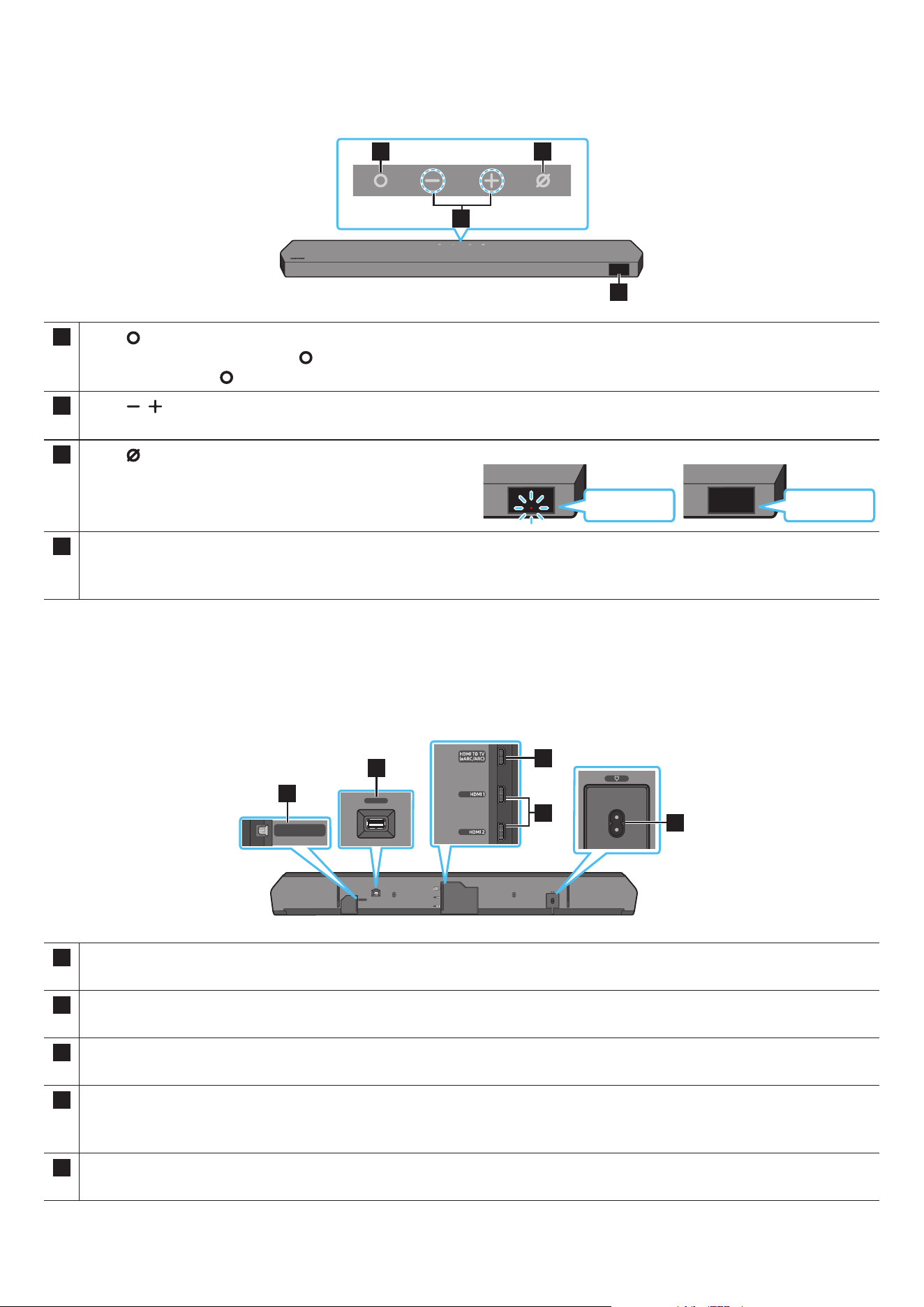
01 VÉRIFICATION DES COMPOSANTS
SOUNDBAR
Unité principale Soundbar Télécommande / Piles de la Soundbar Caisson de basse
POWER
x 2
x 4
Enceinte surround
(gauche / droite)
Cordon d'alimentation
(Soundbar, caisson de basse, enceinte surround)
Câble HDMI
A TYPE : 450mm
x 2
x 2
(M4 x L10)
Guide de xation murale Vis de xation Vis
x 2
x 4
Support de xation murale Pied en caoutchouc
• Pour plus d'informations sur l'alimentation et la consommation électriques, reportez-vous à l'étiquette collée sur le produit. (Étiquette : Arrière de l'unité
principale Soundbar)
• Pour acheter des câbles en option ou des composants supplémentaires, contactez un Centre de service Samsung ou le Service client de Samsung.
• Pour plus d'informations au sujet de la xation murale ou des pieds en caoutchouc, consultez les pages 26 à 28
• La conception, les caractéristiques techniques et l'écran de l'application sont sujets à changement sans préavis.
• L'apparence des accessoires peut légèrement différer des illustrations ci-dessus.
• Samsung Electronics Co., Ltd se réserve le droit de modier les caractéristiques techniques sans préavis.
• Le poids et les dimensions sont donnés à titre approximatif
FRA - 4
02 VUE D'ENSEMBLE DU PRODUIT
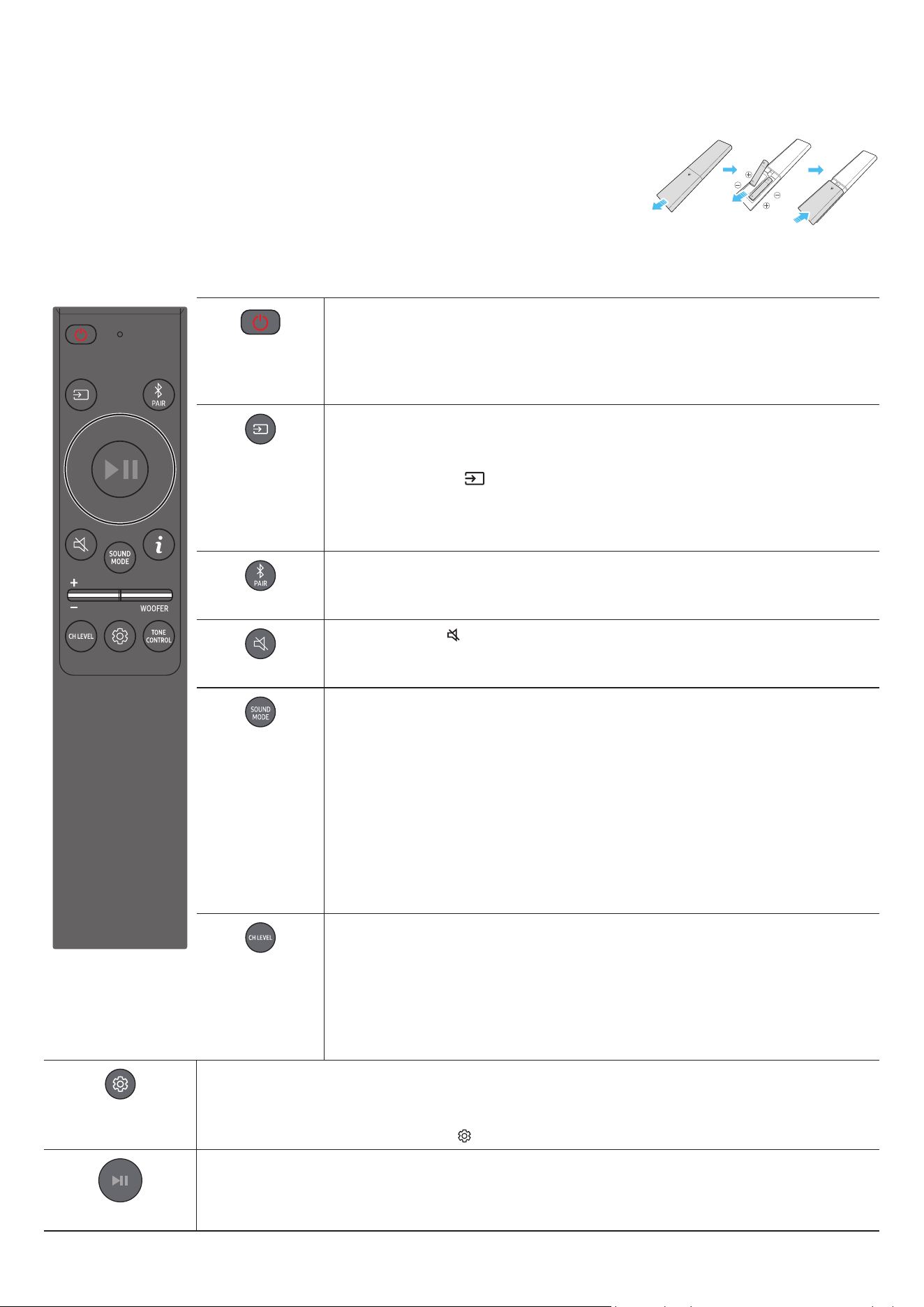
Panneau supérieur de la Soundbar
2
1 3
4
1
Touche
(Multi-fonction)
• En mode Veille, appuyez sur la touche (Multi-fonction) pour allumer la Soundbar
• Appuyez sur la touche (Multi-fonction) pour changer la source d'entrée.
2
Touche
(Volume)
Règle le volume.
3
Touche
(Micro activé/désactivé)
Appuyez sur la touche pour allumer ou éteindre le microphone
Lorsque le microphone est éteint, le voyant LED s'allume en rouge.
Rouge allumé
Micro désactivé
Rouge éteint
Micro activé
4 Écran
Afche l'état du produit et le mode actuel.
TV ARC ou eARC → HDMI 1 → HDMI 2 → Wi-Fi → BT → D.IN
• Lorsque vous branchez le cordon d'alimentation, le bouton d'alimentation commence à fonctionner après 4 à 6 secondes
• Lorsque vous allumez cette unité, il y a un délai de 4 à 5 secondes avant qu'elle ne produise du son
• Si vous entendez du son provenant du téléviseur et de la Soundbar, allez dans le menu Paramètres pour l'audio du téléviseur et réglez l'enceinte du téléviseur sur
Enceinte externe
Panneau inférieur de la Soundbar
DIGITAL AUDIO IN
(OPTICAL)
SERVICE
DIGITAL AUDIO IN
(OPTICAL)
SERVICE
ID SET
HDMI IN 1
HDMI IN 2
POWER
NETWORK
SERVICE
DIGITAL AUDIO IN
(OPTICAL)
HDMI TO TV
(eARC/ARC)
HDMI 2
HDMI 1
ID SET
(WOOFER/REAR)
ID SET
NETWORK
SERVICE
ID SET
(WOOFER/REAR)
DIGITAL AUDIO IN
(OPTICAL)
HDMI TO TV
(eARC/ARC)
HDMI 2
HDMI 1
5
DIGITAL AUDIO IN
(OPTICAL)
SERVICE
DIGITAL AUDIO IN
(OPTICAL)
SERVICE
DIGITAL AUDIO IN
(OPTICAL)
SERVICE
DIGITAL AUDIO IN
(OPTICAL)
SERVICE
DIGITAL AUDIO IN
(OPTICAL)
SERVICE
DIGITAL AUDIO IN
(OPTICAL)
SERVICE
2
1
4
3
1 DIGITAL AUDIO IN (OPTICAL)
Connectez la sortie (optique) numérique d'un appareil externe. (Voir page 20)
2 SERVICE
Connectez un appareil de stockage USB pour mettre à jour le logiciel du produit.
3 HDMI TO TV (eARC/ARC)
Connectez ce port à la prise jack HDMI d'un téléviseur. (Voir page 13)
4 HDMI 1 / HDMI 2
Permet l'entrée simultanée de signaux audio et vidéo par l'intermédiaire d'un câble HDMI.
Connectez ce port à la sortie HDMI d’un appareil externe. (Voir page 19)
5 ALIMENTATION
Branchez le cordon d'alimentation de la Soundbar. (Voir page 9)
• Lorsque vous débranchez le cordon d'alimentation d'une prise murale, tirez sur la che Ne tirez pas sur le câble.
• Ne branchez pas cette unité ou d'autres composants à une prise CA tant que toutes les connexions entre les composants n'ont pas été faites.
FRA - 5
03 UTILISATION DE LA TÉLÉCOMMANDE DE LA SOUNDBAR
Insertion des piles avant l'utilisation de la télécommande (2 piles AAA)
Faites glisser le capot arrière dans le sens de la èche jusqu'à ce qu'il soit complètement retiré. Insérez 2 piles AAA
(1,5 V) en respectant l'orientation de leur polarité. Remettez le couvercle en position en le faisant glisser.
• L'illustration diffère selon le modèle de télécommande utilisé
Comment utiliser la télécommande
SOUNDBAR
Marche/Arrêt
Active ou désactive la Soundbar
• Fonction Auto Power Down
L'appareil s'éteint automatiquement dans les situations suivantes :
• En mode TV ARC ou eARC / HDMI 1 / HDMI 2 / Wi-Fi / BT / D.IN en l'absence de signal audio pendant
18 minutes
Source
Appuyez pour sélectionner une source connectée à la Soundbar
• Activation/Désactivation du retour vocal
Vous pouvez activer ou désactiver le retour vocal
Appuyez sur la touche
(Source) de la télécommande pendant 5 secondes alors que la Soundbar
est éteinte (mode Veille).
Chaque fois que vous modiez le paramètre de retour vocal, l'écran afche « AUI OFF » (par défaut) ou
« AUI ON »
Bluetooth PAIR
Faites passer la Soundbar en mode de jumelage Bluetooth. Appuyez sur la touche et attendez que l'écran
« BT PAIRING » se connecte à un nouveau dispositif Bluetooth
Silence
Appuyez sur la touche
(Silence) pour couper le son
Appuyez de nouveau sur cette touche pour réactiver le son
SOUND MODE
Cette touche permet de sélectionner le mode audio souhaité comme Surround, Game Pro, Standard,
Adaptive Sound
• Standard
Émet le son original.
• Surround
Fournit un champ sonore plus large que la norme.
• Game Pro
Fournit un son stéréoscopique vous permettant une immersion dans l'action pendant le jeu
• Adaptive Sound
Analyse le contenu en temps réel et fournit automatiquement le champ sonore optimal sur la base
des caractéristiques du contenu
CH LEVEL
Cette touche permet de régler le volume de chaque enceinte : Center level, Side level, Wide level, Front
Top level, Rear level, Rear top level et Rear side level
• Pour régler le volume de chaque enceinte, sélectionnez Center level, Side level, Wide level ou Front
Top level dans les paramètres audio, puis réglez le volume entre -6~ et +6 à l’aide des touches Haut/
Bas
• Si les enceintes surround sont connectées, sélectionnez Rear level, Rear top level ou Rear side level,
puis utilisez les touches Haut/Bas pour régler le volume entre -6 et +6.
Réglages audio
Cette touche permet de dénir les fonctions audio : SpaceFit Sound, AVA, Voice enhance mode, Night mode, Sync, Surround
speaker mode, Virtual, Private Rear Sound et Sound Grouping. Il est possible de régler l'élément souhaité à l'aide des touches
Haut/Bas
• Reportez-vous à la section « Conguration de
(Réglages audio) » à la page 6
Lecture / Pause
Vous pouvez également lire ou mettre en pause la musique en appuyant sur cette touche.
FRA - 6
Haut/Bas/Gauche/Droite
Appuyez sur les zones indiquées pour sélectionner Haut/Bas/Gauche/Droite.
Appuyez sur Haut/Bas/Gauche/Droite sur la touche pour sélectionner ou paramétrer les fonctions.
• Changement de titre
Appuyez sur la touche Droite pour sélectionner le titre suivant Appuyez sur la touche Gauche pour sélectionner le titre
précédent
• ID SET
Utilisez cette option lorsque le caisson de basse et les enceintes surround ne sont pas connectés ou nécessitent d'être
connectés à nouveau
Pendant que l'appareil est éteint, appuyez sur la touche Haut pendant 5 secondes pour exécuter l'opération ID SET
(Voir page 11 )
Info
Appuyer sur ce bouton permet d’afcher la fonction active ou le codec disponible.
En mode BT, l'appareil connecté s'afche (si le jumelage est terminé) ou le message « BT ready » s'afche (si le jumelage doit être
effectué)
WOOFER LEVEL
Appuyez sur le bouton vers le haut ou le bas pour régler le niveau du caisson de basse (graves).
VOLUME
Appuyez sur les touches haut ou bas pour régler le volume.
• Silence
Appuyez sur la touche VOL pour couper le son Appuyez de nouveau sur cette touche pour réactiver le son
TONE CONTROL
Appuyer sur ce bouton permet de régler le volume des aigus et des graves. Il est possible de régler l'élément souhaité à l'aide des
boutons Haut/Bas Cette fonction est activée dans le mode Son, elle n'est pas disponible avec le mode Standard
• Pour régler le volume des aigus et des graves, sélectionnez TREBLE ou BASS dans les paramètres audio, puis réglez le volume,
de -6 à +6, à l'aide des touches Haut/Bas
• Une fois que le niveau des graves est modié, le niveau du caisson de basse s'ajuste en conséquence.
Conguration de (Réglages audio)
• Active Voice Amplier (AVA) : analyse le bruit externe en temps réel lorsque la Soundbar émet du son an que les voix soient toujours clairement audibles.
L'analyse n'enregistre pas de données.
• Le Voice enhance mode améliore les dialogues parlés dans les lms et autres programmes sur le téléviseur pour les entendre plus facilement.
• Le Night mode est idéal pour le visionnage de nuit, car les réglages sont modiés pour baisser le volume sans nuire à la clarté des dialogues.
• Sound Grouping : l'unité principale Soundbar et les enceintes surround émettent l'ensemble des sons, pas seulement le son surround, ce qui est idéal pour les
grands groupes de personnes écoutant de la musique dans un grand espace.
‒ Ce menu est activé lorsque les enceintes surround sont connectées, puis il le reste que ces enceintes soient toujours connectées ou non
‒ Si vous activez le Sound Grouping, les modes audio ne produisent aucune différence dans le rendu sonore.
‒ Le son n'est pas émis par toutes les enceintes de l'unité principale Soundbar et les enceintes surround, mais seulement par certaines enceintes prédénies,
qui varient selon le modèle
• Private Rear Sound : avec ce mode, le son est émis uniquement par les enceintes surround, ce qui vous offre une écoute sans être dérangé par les autres.
‒ Si vous activez ce mode, le son n'est émis ni par l'unité principale Soundbar, ni par le caisson de basse Le son n'est émis que via le canal avant des enceintes
surround
‒ Si vous activez le mode Private Rear Sound, les modes audio ne produisent aucune différence dans le rendu sonore
‒ La fonction se désactive si le système est éteint ou si la connexion des enceintes surround est perdue
‒ Le menu est activé uniquement si les enceintes surround sont connectées
‒ Ce mode est automatiquement désactivé et n'est plus disponible si la fonction Q-Symphony est activée
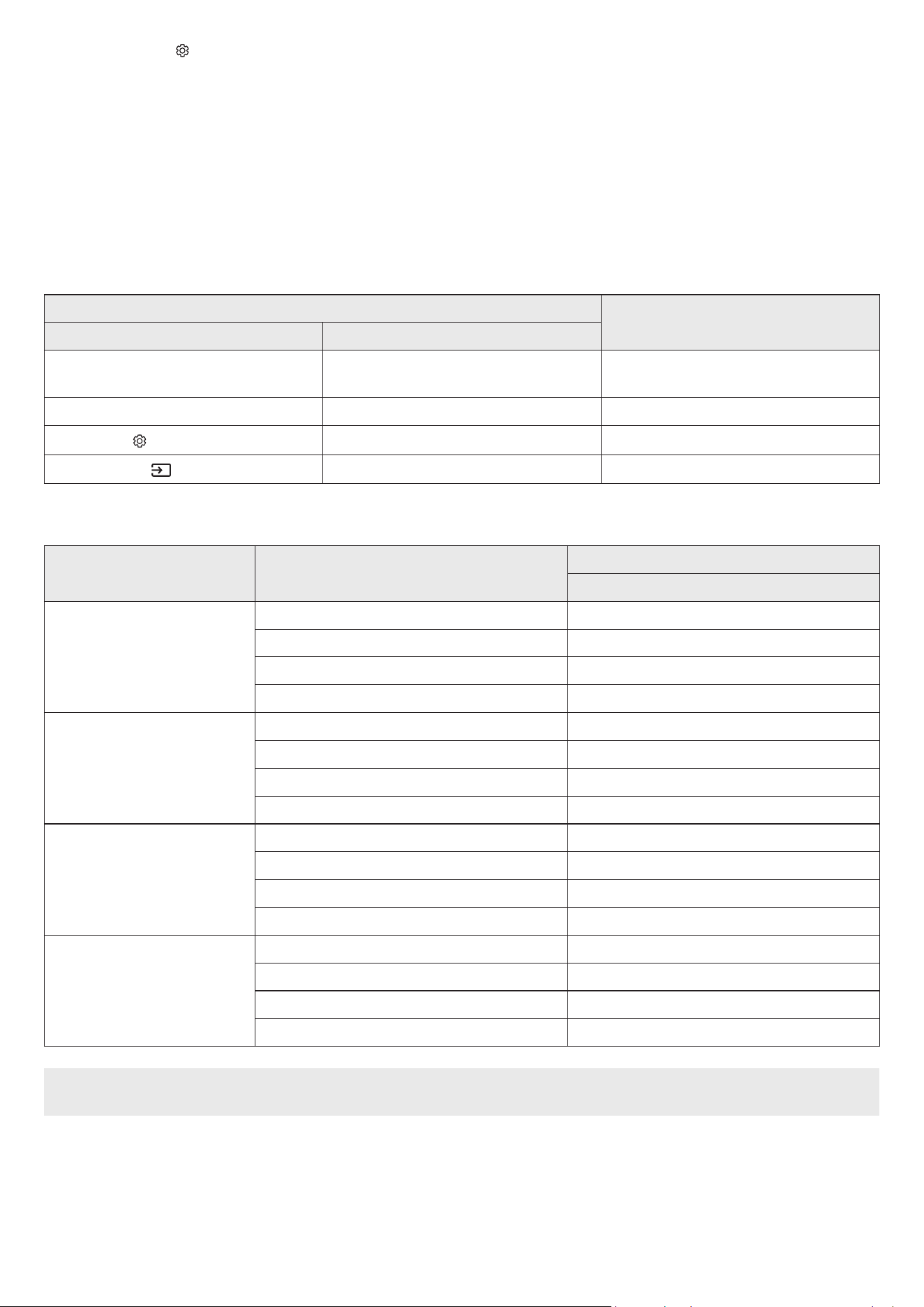
FRA - 7
• Appuyez sur la touche (Réglages audio) pendant environ 5 secondes an de régler le son pour chaque bande de fréquences. Les fréquences 150 Hz, 300 Hz,
600 Hz, 1,2 kHz, 2,5 kHz, 5 kHz et 10 kHz peuvent être sélectionnées à l'ide des touches Gauche/Droite et chacune peut être réglée entre -6 et +6 à l'aide des
touches Haut/Bas
(Assurez-vous que le mode Son est réglé sur « Standard » )
• Si l'image du téléviseur et le son de la Soundbar ne sont pas synchronisés, sélectionnez Sync dans les réglages audio, puis réglez le décalage audio entre 0~ et
300 millisecondes à l'aide des touches Haut/Bas
• Le réglage Sync n'est pris en charge que pour certaines fonctions.
• Les réglages disponibles pour le Surround speaker mode peuvent varier selon les caractéristiques techniques des enceintes surround compatibles (avec la
Soundbar)
• La fonction Virtuel peut être ON/OFF à l’aide des touches Haut/Bas
Utilisation des touches dissimulées (Touches avec plus d'une fonction)
Touche dissimulée
Page de référence
Touche de télécommande Fonction
WOOFER (Haut)
Télécommande du téléviseur activée/désactivée
(Veille)
page 8
Haut ID SET page 11
(Réglages audio)
Égaliseur 7 bandes page 6
(Source)
Activation/Désactivation du retour vocal (Veille) page 5
Caractéristiques techniques de sortie pour les différents modes d'effets sonores
Effet Entrée
Sortie
Avec caisson de basse et enceintes surround
Standard
2 0 canaux 2 1 canaux
5 1 canaux 5.1 / 7.1 canaux (DTS)
7 1 canaux 7 1 canaux
Dolby Atmos®, DTS:X 7 1 4 canaux
Surround
2 0 canaux 11 1 4 canaux
5 1 canaux 11 1 4 canaux
7 1 canaux 11 1 4 canaux
Dolby Atmos®, DTS:X 11 1 4 canaux
Game Pro
2 0 canaux 11 1 4 canaux
5 1 canaux 11 1 4 canaux
7 1 canaux 11 1 4 canaux
Dolby Atmos®, DTS:X 11 1 4 canaux
Adaptive Sound
2 0 canaux 11 1 4 canaux
5 1 canaux 11 1 4 canaux
7 1 canaux 11 1 4 canaux
Dolby Atmos®, DTS:X 11 1 4 canaux
Les enceintes surround ne produisent pas de son pour 2 canaux de sortie si le mode Standard est utilisé Pour activer le son des enceintes Surround, passez en
mode d'effet Surround
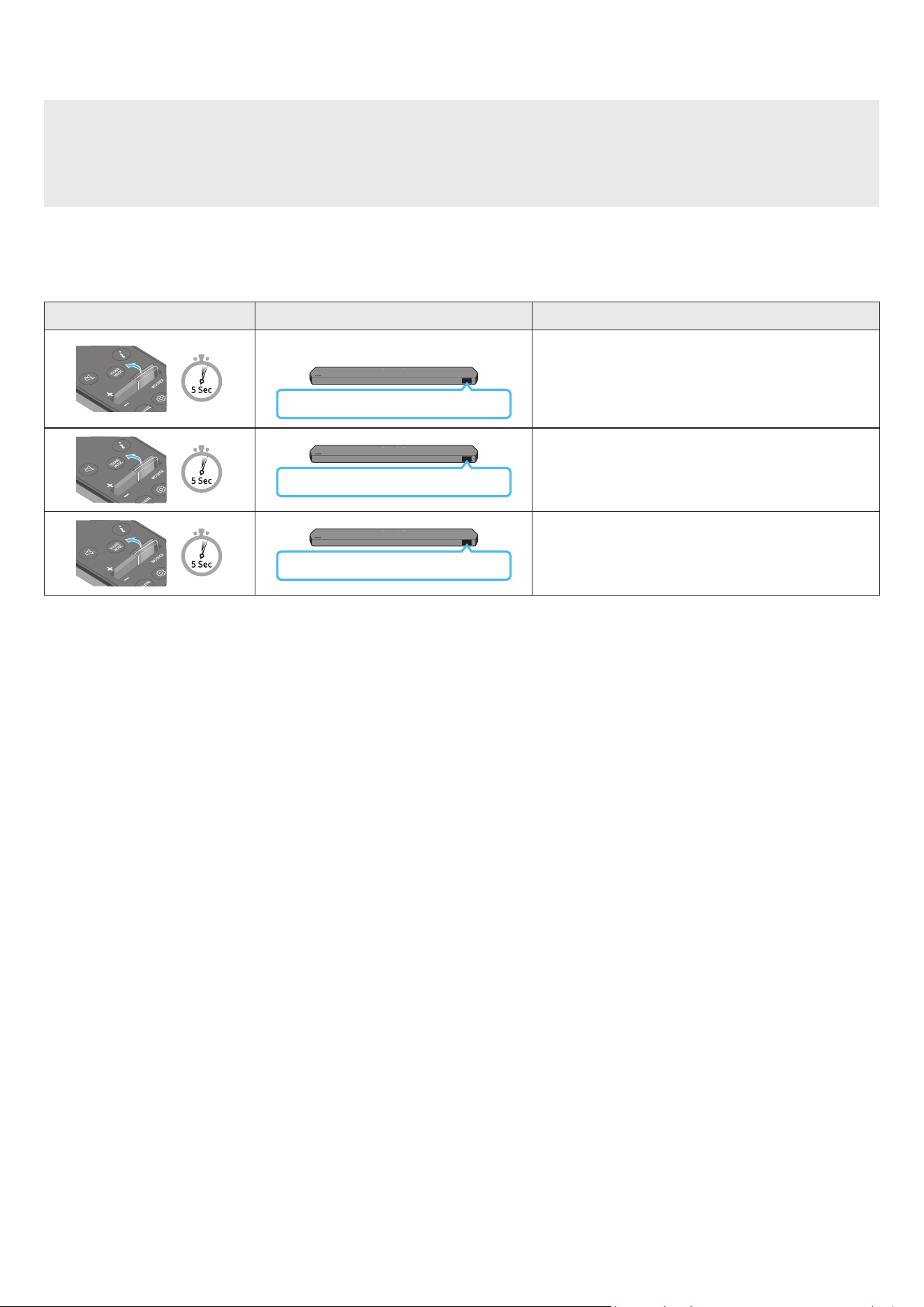
FRA - 8
Réglage du volume de la Soundbar avec une télécommande de téléviseur
Réglez le volume de la Soundbar en utilisant la télécommande du téléviseur.
• Cette fonction ne peut être utilisée qu'avec une télécommande à infrarouge. Les télécommandes Bluetooth (qui nécessitent un jumelage) ne sont pas prises
en charge.
• Réglez les enceintes du téléviseur sur Enceinte externe pour utiliser cette fonction
• Fabricants prenant en charge cette fonction :
Samsung, VIZIO, LG, Sony, Sharp, PHILIPS, PANASONIC, TOSHIBA, Hisense, RCA
1. Éteignez la Soundbar.
2. Poussez vers le haut la touche WOOFER pendant 5 secondes
Chaque fois que vous poussez la touche WOOFER pendant 5 secondes, le mode change dans l'ordre suivant : « OFF-TV REMOTE » (mode par défaut), « SAMSUNG-
TV REMOTE », « ALL-TV REMOTE »
Touche de télécommande Écran État
(Mode par défaut)
OFF-TV REMOTE
Désactive la télécommande de téléviseur
SAMSUNG-TV REMOTE
Active la télécommande à infrarouge d'une TV Samsung.
ALL-TV REMOTE
Active toute autre télécommande de téléviseur à infrarouge.
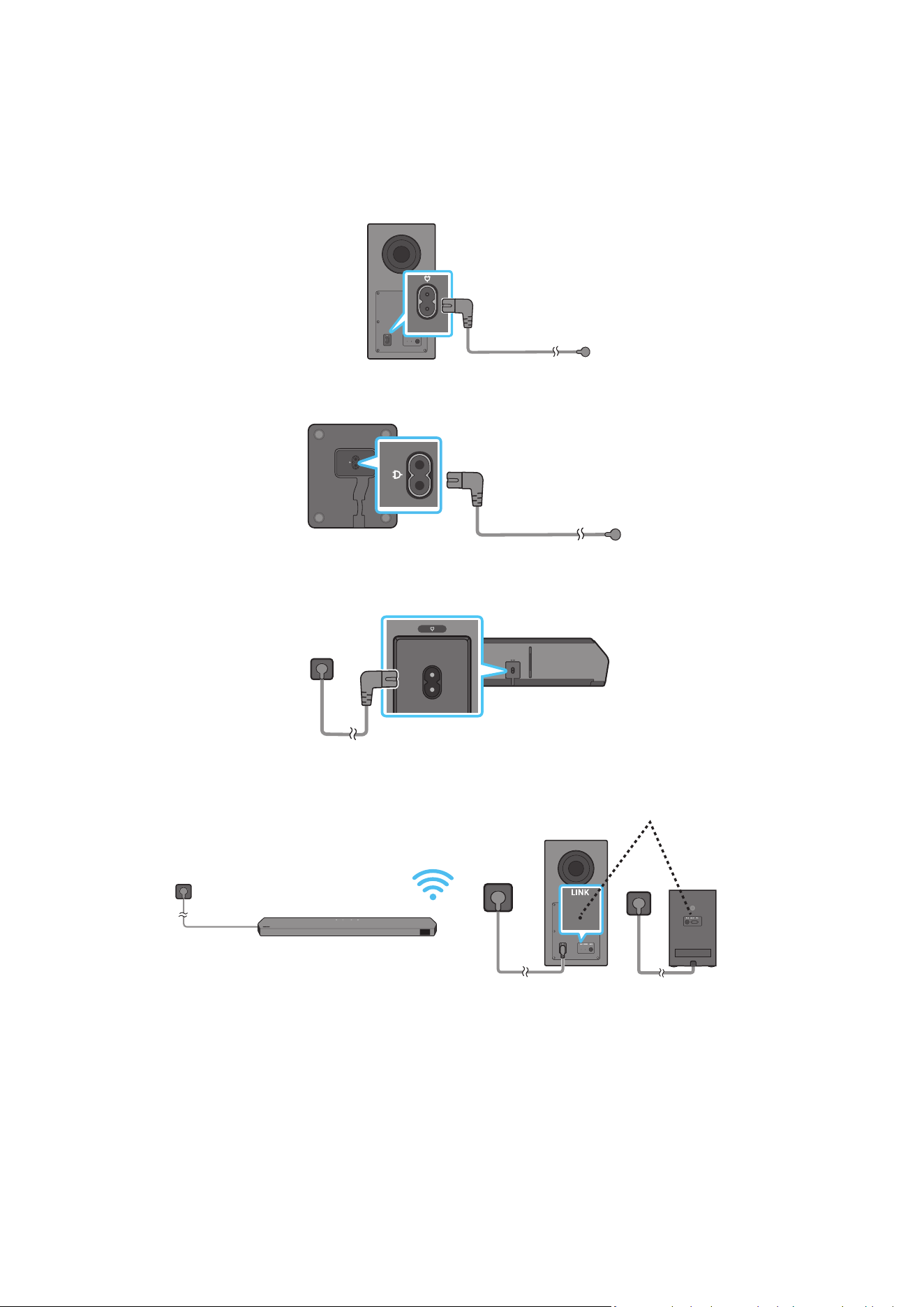
FRA - 9
04 CONNEXION DE LA SOUNDBAR
Connexion de l'alimentation et des unités
Utilisez le cordon d'alimentation pour brancher le caisson de basse, les enceintes surround et la Soundbar à une prise électrique, dans l'ordre suivant :
• Pour plus d’informations sur l’alimentation électrique requise et la consommation d’énergie, reportez-vous à l’étiquette collée sur le produit. (Étiquette : Arrière
de l'unité principale Soundbar)
1. Connectez un cordon d'alimentation au caisson de basse
Arrière du caisson de basse
Cordon d'alimentation
2. Branchez le cordon d'alimentation aux enceintes surround gauche et droite.
Face inférieure des enceintes
surround gauche et droite
Cordon
d'alimentation
3. Branchez le cordon d'alimentation à la Soundbar
POWER
POWER
DIGITAL AUDIO IN
(OPTICAL)
HDMI TO TV
(eARC/ARC)
HDMI 1
HDMI 2
SERVICE
POWER
Bas de l’unité principale
Soundbar
Cordon
d'alimentation
4. Branchez le cordon d'alimentation à la Soundbar, au caisson de basse et aux enceintes surround Le caisson de basse et les enceintes surround se connectent
automatiquement lorsque la Soundbar est allumée
VOYANT D'ASSOCIATION - Bleu si activé
REMARQUE
• Branchez le caisson de basse et les enceintes surround avant de les connecter à la Soundbar Le caisson de basse et les enceintes surround se connectent
automatiquement lorsque vous allumez la Soundbar
• Si vous débranchez, puis rebranchez le cordon d'alimentation alors que le produit est allumé, la Soundbar s'allume automatiquement
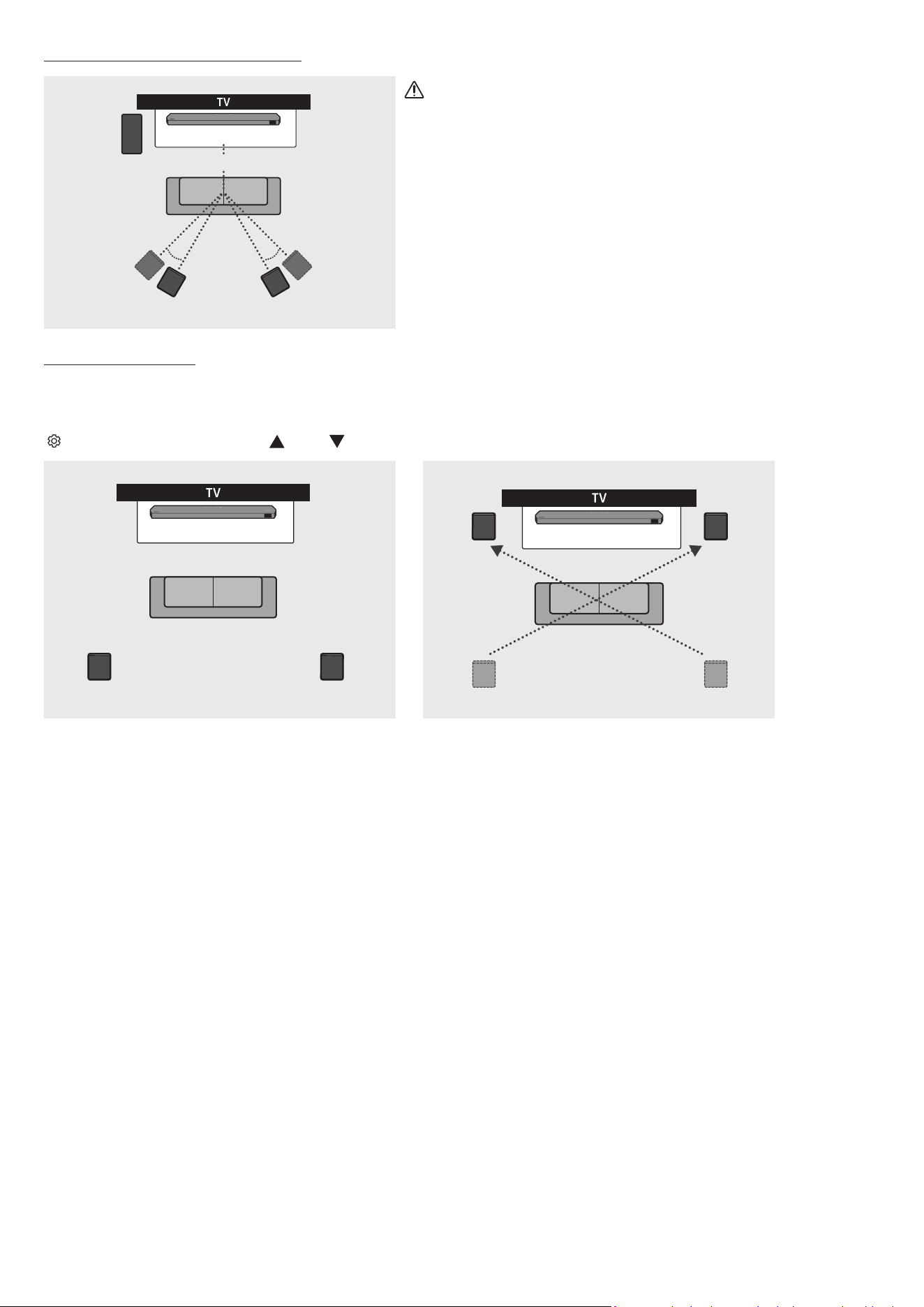
FRA - 10
Disposition recommandée des enceintes
150° 150°
135° 135°
0°
Caisson de
basse
Soundbar
Enceinte surround G Enceinte surround D
ATTENTION
• Des antennes de réception sans l sont intégrées dans le caisson de basse et les
enceintes surround. N'exposez pas les appareils à la pluie ni à l'humidité.
• An d'optimiser la qualité d'écoute, assurez-vous qu'il n'existe aucun obstacle autour du
caisson de basse et des enceintes surround
Mode Surround speaker
Un son surround optimal peut être émis en fonction de la position de l'enceinte surround Reportez-vous à l'illustration ci-dessous pour savoir comment positionner
les enceintes
Pour activer ce mode, sélectionnez le mode Surround Speaker à l'aide de la télécommande de la Soundbar
(
(Réglages audio) → Enceinte surround → (Haut) / (Bas) → Avant / Arrière)
Soundbar
Enceinte surround G Enceinte surround D
Soundbar
Enceinte surround D
Enceinte surround G
Positionnement à l'arrière Positionnement à l'avant
REMARQUE
• Ce mode n'est disponible qu'avec les modèles de Soundbar qui comprennent une enceinte surround spécique.
• En mode Front speaker, positionnez les enceintes à l'avant vers vous.
• Le mode enceinte surround est activé par défaut pour un positionnement à l'arrière
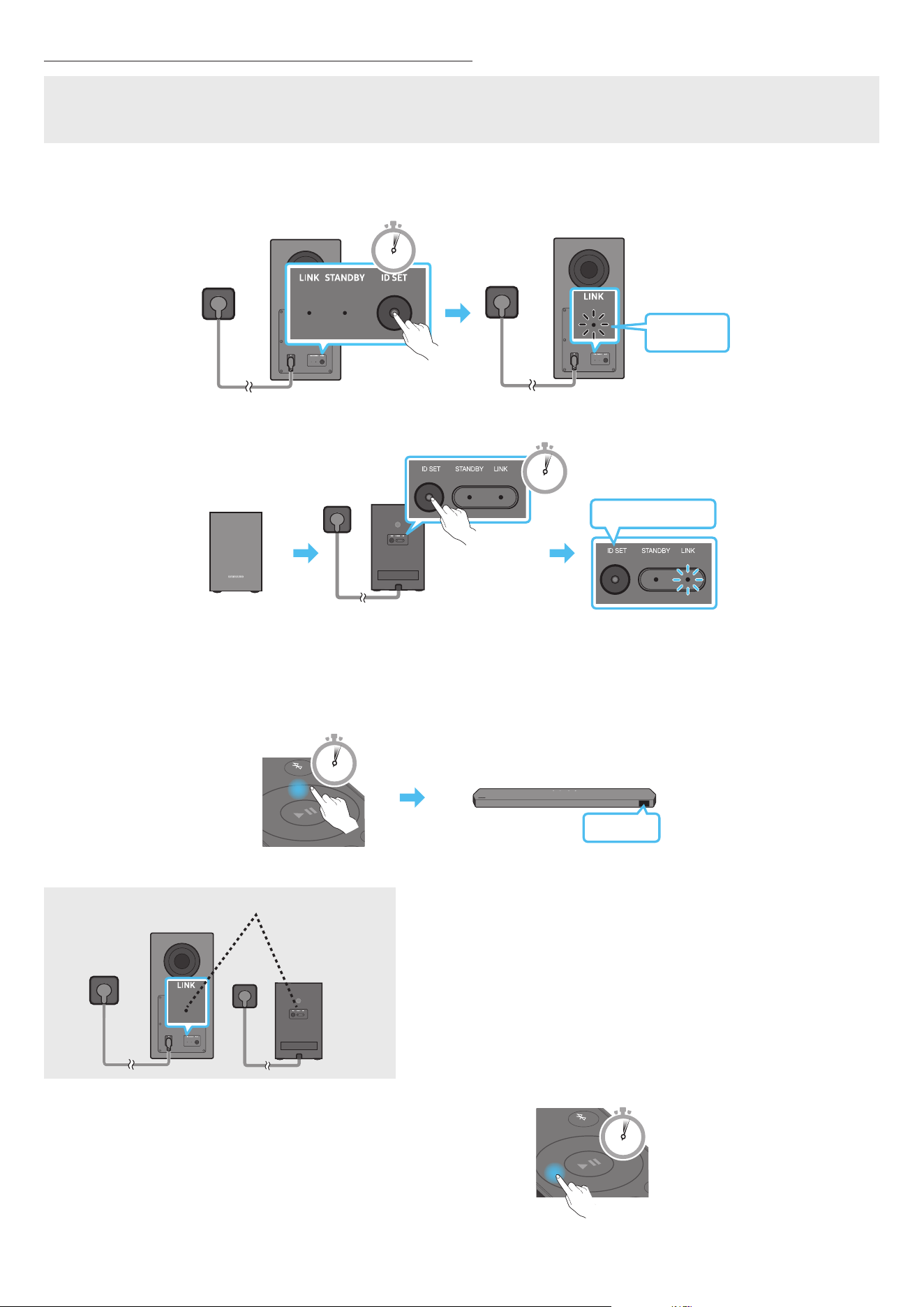
FRA - 11
Connexion manuelle du caisson de basse ou des enceintes surround
Avant de réaliser la procédure de connexion manuelle du caisson de basse décrite ci-dessous :
• Assurez-vous que les cordons d'alimentation de la Soundbar et du caisson de basse, ou des enceintes surround, sont correctement branchés
• Vériez que la Soundbar est éteinte.
1. Éteignez l'unité principale de la Soundbar.
2. Appuyez pendant au moins 5 secondes sur ID SET à l'arrière du caisson de basse et des enceintes surround
• L'indicateur rouge à l'arrière de chaque enceinte s'éteint et l'indicateur bleu clignote.
5 Sec
Clignotement
rapide en bleu
Arrière du subwoofer Arrière du subwoofer
Clignotement rapide
en bleu
POWER
x 2
Face arrière des enceintes
surround gauche et droite
5 Sec
3. Appuyez sur la touche Haut de la télécommande pendant 5 secondes
• Le message ID SET apparaît sur l'écran de la Soundbar pendant quelques instants, puis disparaît
• La Soundbar s'allume automatiquement lorsque l'opération ID SET est terminée
SOUND
MODE
PAIR
5 Sec
ID SET
4. Vériez que le voyant LED LINK brille en bleu de manière stable (connexion terminée).
VOYANT D'ASSOCIATION - Bleu si activé Le voyant LED LINK arrête de clignoter et s'allume en bleu lorsqu'une connexion est établie
entre la Soundbar, le caisson de basse et les enceintes surround
REMARQUE
• Instructions pour réinitialiser le module Tx
1. Éteignez la Soundbar.
2. Appuyez sur la touche Gauche de la télécommande pendant 5 secondes
3. Suivez les instructions de la section « Connexion manuelle du caisson de basse ou des
enceintes surround »
SOUND
MODE
PAIR
5 Sec
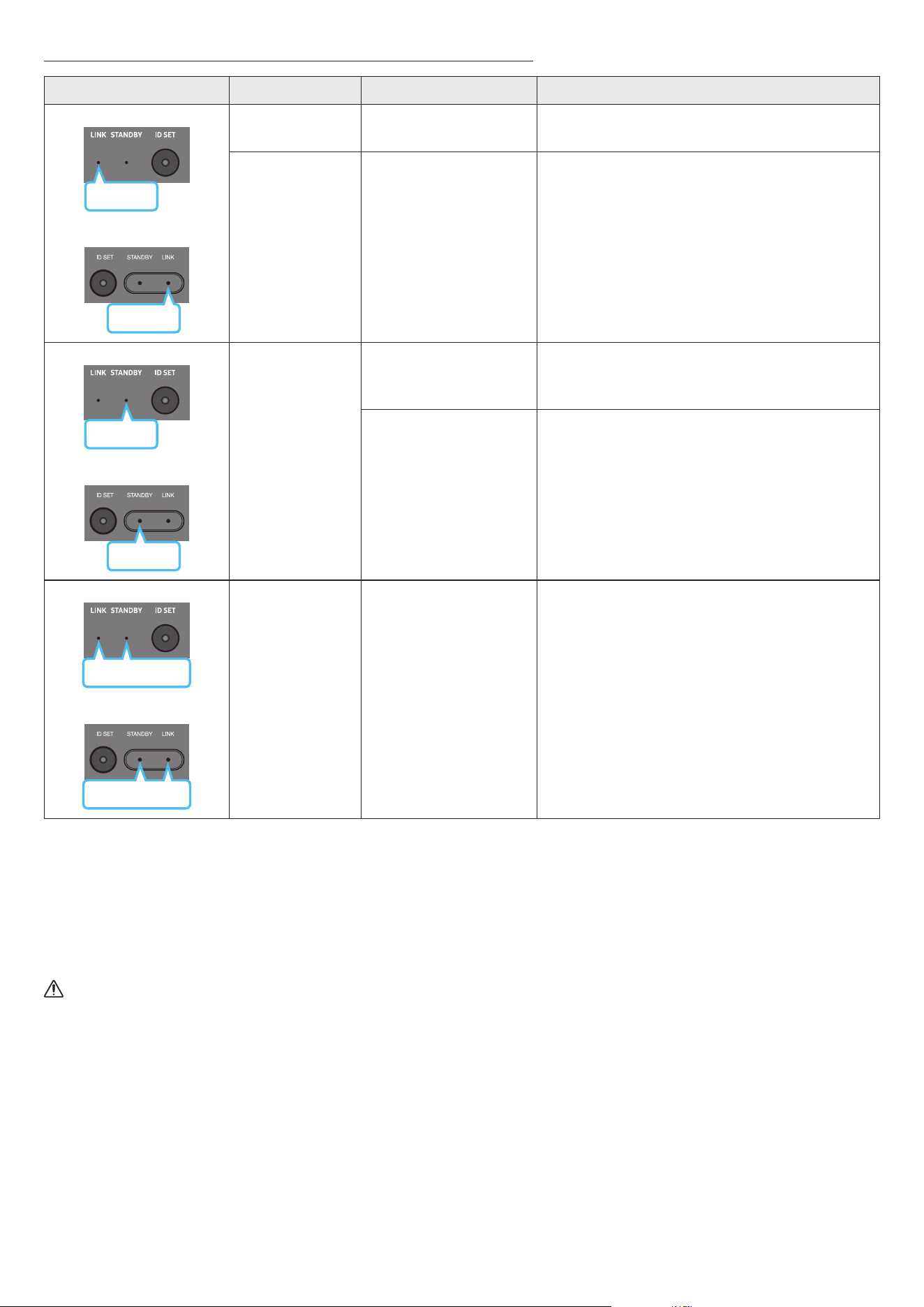
FRA - 12
Le voyant est allumé à l'arrière du caisson de basse et des enceintes surround
LED État Description Résolution
Bleu
Caisson de basse
Enceintes surround
Bleu
Allumée
Connexion réussie
(fonctionnement normal)
-
Clignote
Récupération de la connexion
en cours
Vériez que le câble d'alimentation xé à l'unité principale
Soundbar est connecté correctement ou attendez environ
5 minutes. Si le voyant continue de clignoter, essayez de
connecter manuellement le caisson de basse et les enceintes
surround. Voir page 11
Rouge
Caisson de basse
Enceintes surround
Rouge
Allumée
Veille (lorsque l'unité
principale Soundbar est
éteinte)
Vériez que le câble d'alimentation xé à l'unité principale de la
Soundbar est connecté correctement
Échec de la connexion
Rétablissez la connexion Consultez les instructions relatives à
la connexion manuelle à la page 11
Caisson de basse
Rouge et bleu
Enceintes surround
Rouge et bleu
Clignote Dysfonctionnement
Consultez les coordonnées du Centre de service Samsung
fournies dans ce manuel
REMARQUE
• Si l'unité principale est hors tension, le caisson de basse entre en mode Veille et son voyant STANDBY, situé à l'arrière, s'allume en rouge après avoir clignoté en
bleu plusieurs fois
• Si vous utilisez un appareil qui exploite la même fréquence que la Soundbar près de celle-ci, des interférences peuvent provoquer des coupures de son
• La distance de transmission maximale du signal sans l de l'unité principale est d'environ 10 m, mais peut varier en fonction de votre environnement. Si un mur
en béton armé ou métallique se trouve entre l'unité principale et le caisson de basse, le système risque de ne pas fonctionner du tout car le signal sans l ne peut
pas traverser le métal
ATTENTION
• Des antennes de réception sans l sont intégrées dans le caisson de basse et les enceintes surround. N'exposez pas l'appareil à la pluie ni à l'humidité.
• An d'optimiser la qualité d'écoute, assurez-vous qu'il n'existe aucun obstacle autour du caisson de basse et des enceintes surround.
• N'introduisez aucune partie de votre corps ni aucun corps étranger dans le conduit (ouverture) du caisson de basse.
• N'utilisez pas le conduit (ouverture) du caisson de base pour suspendre ce dernier à un mur.
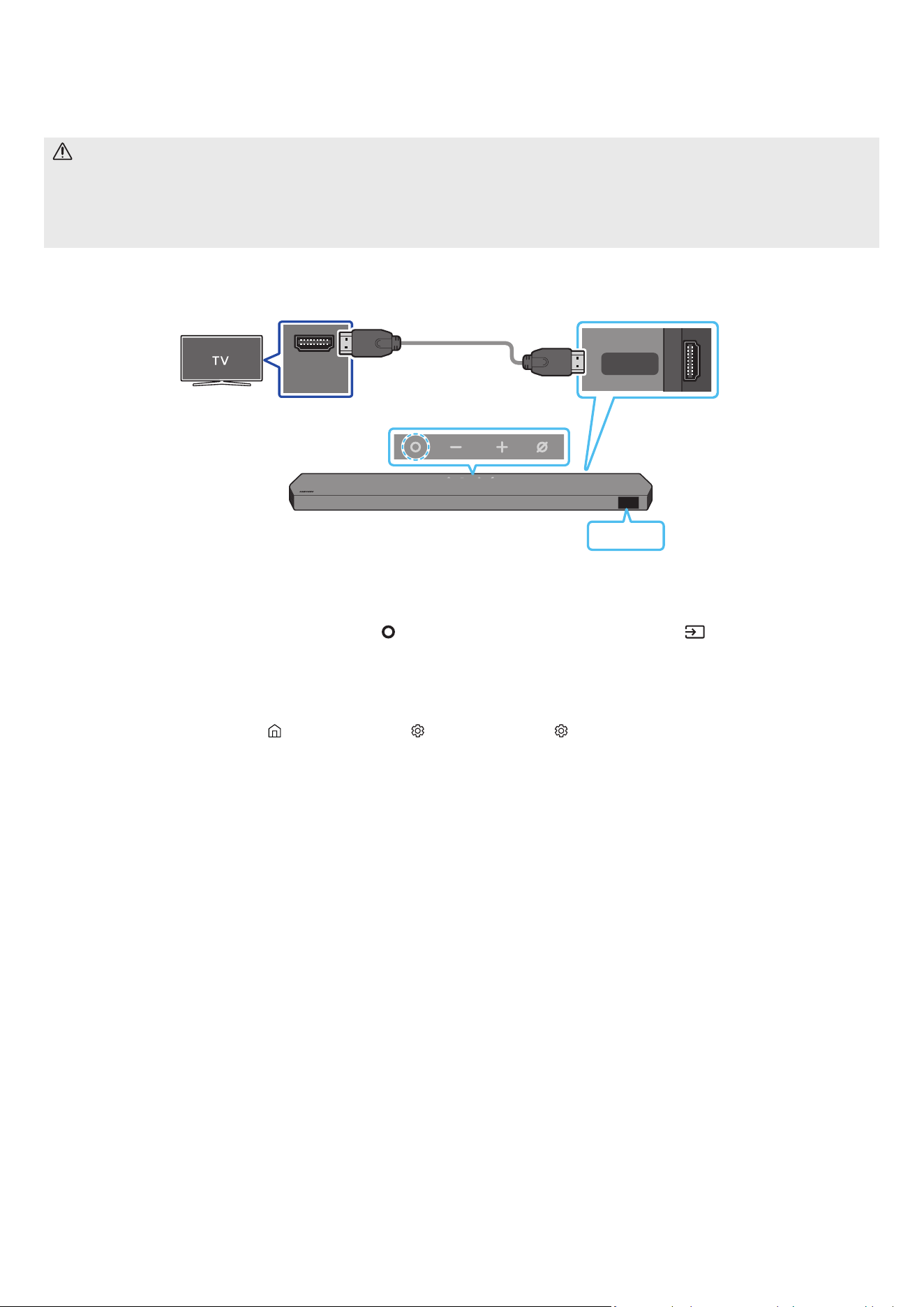
FRA - 13
05 CONNEXION À UN TÉLÉVISEUR
Connexion à un téléviseur qui prend en charge HDMI ARC (canal de retour audio)
ATTENTION
• Lorsqu'un câble HDMI et un câble optique sont connectés simultanément, le signal HDMI est reçu en priorité.
• Pour raccorder le téléviseur et la Soundbar à l'aide du câble HDMI, veillez à utiliser les bornes marquées ARC. Dans le cas contraire, le son du téléviseur ne sera
pas émis
• Il est recommandé d'utiliser un câble HDMI certié par HDMI.org.
HDMI IN
(ARC)
HDMI TO TV
(eARC/ARC)
Effectuez la connexion au port
HDMI IN (ARC/eARC) de votre
téléviseur.
Connectez au port HDMI TO TV
(eARC/ARC) sur l'unité
principale Soundbar.
Câble HDMI
(fourni)
Dessus de la Soundbar
Bas de la Soundbar
TV ARC
1. Vériez que le téléviseur et la Soundbar sont éteints, plus connectez le câble HDMI comme indiqué sur la gure.
2. Allumez la Soundbar et le téléviseur
3. « TV ARC » apparaît sur la fenêtre d'afchage de l'unité principale Soundbar et le son du téléviseur est émis.
• Si le son du téléviseur n'est pas émis, appuyez sur la touche (Multi-fonction) en haut de la Soundbar ou sur la touche (Source) de la télécommande
pour sélectionner le mode « TV ARC ». L’écran afche « TV ARC » et le son du téléviseur est émis
• Lors de la connexion d'un téléviseur qui prend en charge la fonction eARC, « TV eARC » s'afche à l'écran et le son est émis.
• Pour une connexion avec eARC, la fonction eARC doit être activée dans le menu du téléviseur Consultez le manuel utilisateur du téléviseur pour plus de
détails concernant ce réglage.
(p. ex. sur une TV Samsung : Accueil ( ) → Menu → Paramètres ( ) → Tous les paramètres ( ) → Son → Paramètres expert → Mode HDMI eARC (Auto))
• Si « TV ARC » n'apparaît pas dans la fenêtre d'afchage de l'unité principale Soundbar, vériez que le câble HDMI est connecté au bon port.
• Utilisez les touches de volume de la télécommande du téléviseur pour changer le volume de la Soundbar.
REMARQUE
• Lorsque vous connectez le téléviseur qui prend en charge HDMI ARC (Audio Return Channel ou canal de retour audio) à la Soundbar à l'aide d'un câble HDMI, vous
pouvez transmettre les données vidéo et audio numériques sans qu'il ne soit nécessaire de connecter un câble optique séparé
• Nous recommandons l'utilisation d'un câble HDMI sans noyau, si possible. Si vous utilisez un câble HDMI avec un noyau, choisissez-en un de diamètre inférieur à
14 mm
• Cette fonction n'est pas disponible si le câble HDMI ne prend pas en charge ARC.
• Lorsque le son d'un canal de diffusion est encodé en Dolby Digital et que le format audio de la sortie numérique (« Digital Output Audio Format ») de votre
téléviseur est réglé sur PCM, nous vous recommandons d'ajuster le réglage sur Dolby Digital. Modier ce réglage sur le téléviseur vous permettra d'obtenir un son
de meilleure qualité. (Il est possible que le menu TV utilise différents mots pour Dolby Digital et PCM en fonction du fabricant du téléviseur.)
• Les protocoles ARC/eARC prennent en charge Dolby Atmos.
• Assurez-vous que le contenu prend en charge Dolby Atmos®.
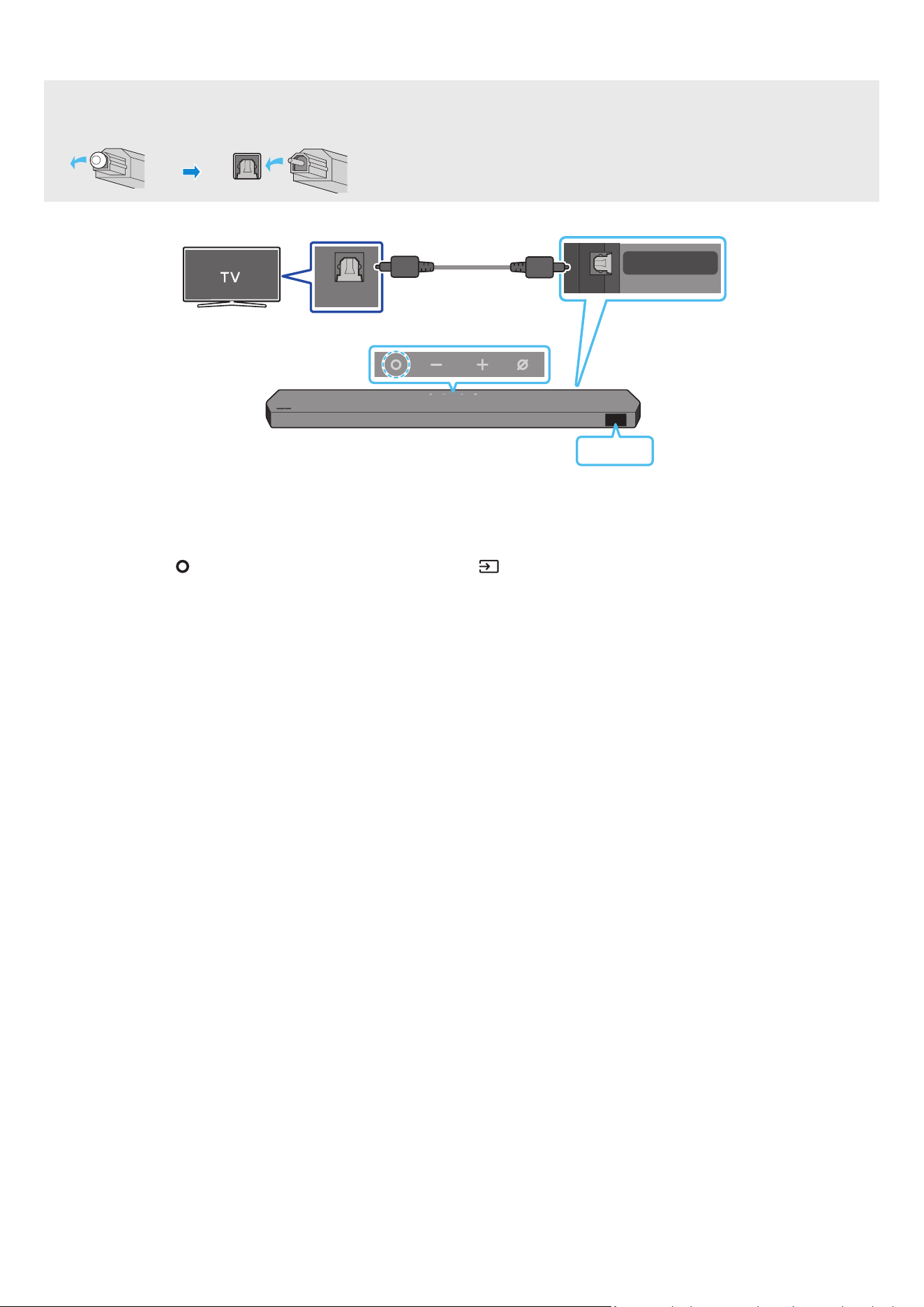
FRA - 14
Connexion à l'aide d'un câble optique
Liste de vérications préalables à la connexion
• Lorsqu'un câble HDMI et un câble optique sont connectés simultanément, le signal HDMI est reçu en priorité.
• Lorsque vous utilisez un câble optique et que les bornes sont dotées d’un cache, veillez à retirer les caches.
OPTICAL OUT
DIGITAL AUDIO IN
(OPTICAL)
Câble optique (non fourni)
Bas de la Soundbar
D.IN
Dessus de la Soundbar
1. Vériez que le téléviseur et la Soundbar sont éteints, puis connectez le port DIGITAL AUDIO IN (OPTICAL) et le port de sortie OPTICAL OUT du téléviseur à l'aide
d'un câble optique (non fourni), comme indiqué sur la gure.
2. Allumez la Soundbar et le téléviseur
3. Appuyez sur la touche
(Multi-fonction) en haut de la Soundbar ou sur la touche (Source) de la télécommande pour sélectionner le mode « D.IN »
4. Le son du téléviseur est émis par la Soundbar
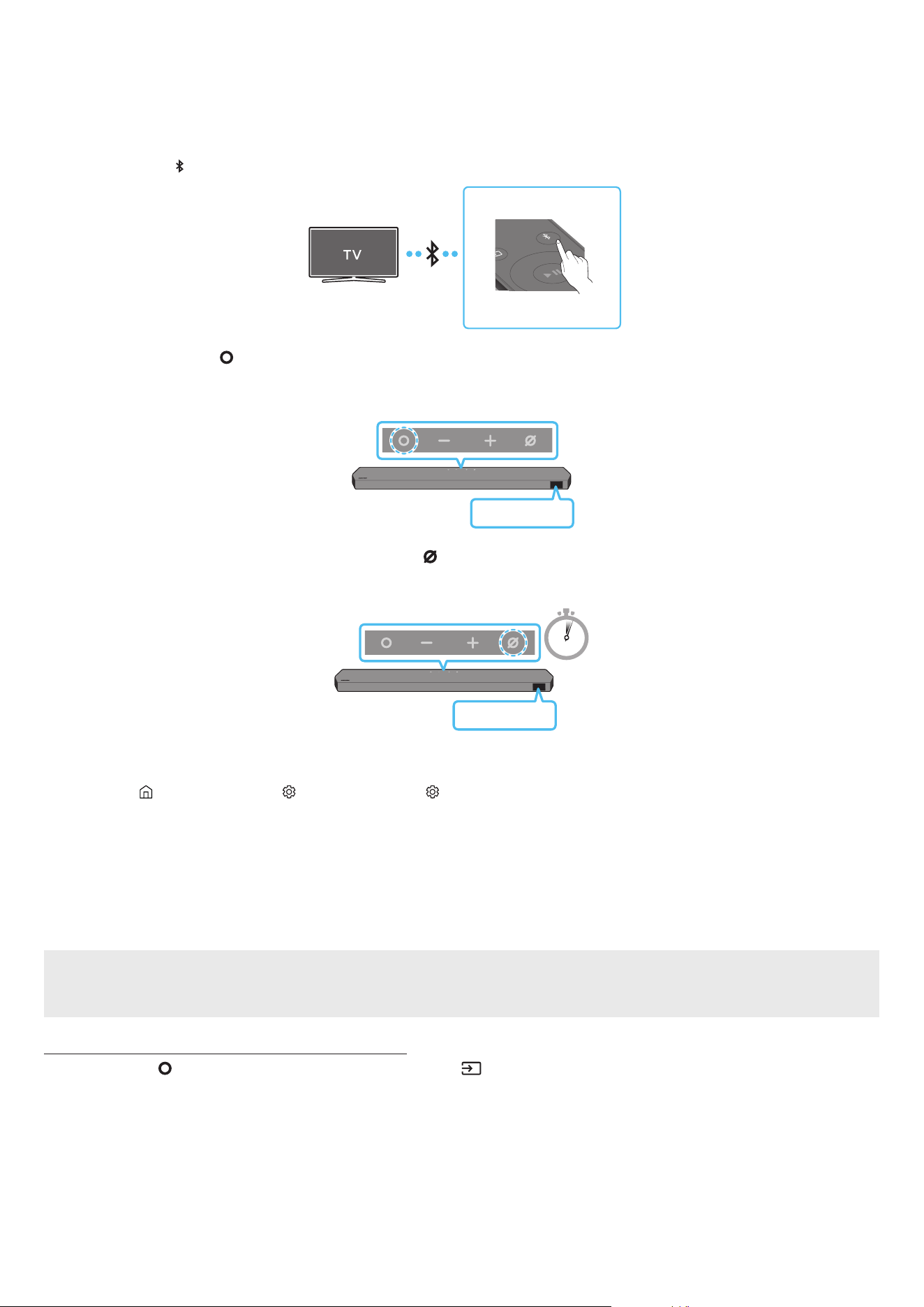
FRA - 15
Connexion via Bluetooth
Lorsqu'un téléviseur Samsung TV est connecté via Bluetooth, vous pouvez proter d'un son stéréo sans le casse-tête du câblage.
• Seul un téléviseur Samsung TV peut être connecté à la fois.
• Seul un téléviseur Samsung TV prenant en charge la fonction Bluetooth peut être connecté. Vériez les caractéristiques techniques de votre téléviseur.
Connexion initiale
1. Appuyez sur la touche PAIR de la télécommande de la Soundbar pour passer en mode « BT PAIRING »
PAIR
(OU)
a. Appuyez sur la touche
(Multi-fonction) située sur le panneau supérieur, puis sélectionnez « BT »
« BT » passe automatiquement sur « BT PAIRING » en quelques secondes ou sur « BT READY » si une connexion est déjà enregistrée.
Dessus de la Soundbar
BT READY
b. Lorsque « BT READY » s'afche, maintenez enfoncée la touche (Micro activé/désactivé) sur le panneau supérieur de la Soundbar pendant plus de
5 secondes jusqu'à ce que le message « BT PAIRING » s'afche.
5 Sec
Dessus de la Soundbar
BT PAIRING
2. Sélectionnez le mode Bluetooth sur la TV Samsung.
(p ex Accueil ( ) → Menu → Paramètres ( ) → Tous les paramètres ( ) → Son → Sortie son → Liste des enceintes Bluetooth → Soundbar Q-Series
(Bluetooth))
3. Sélectionnez « Soundbar Q-Series » dans la liste à l'écran du téléviseur
Pour toute Soundbar disponible, le message « Appariement nécessaire » ou « Apparié » apparaît sur la liste des appareils Bluetooth du téléviseur Pour
connecter le téléviseur Samsung TV à la Soundbar, sélectionnez le message, puis établissez une connexion.
• Lorsque la TV Samsung est connectée, [Nom du téléviseur] → « BT » apparaît sur l'écran frontal de la Soundbar
4. Vous pouvez à présent proter du son de la TV Samsung à partir de la Soundbar.
• Une fois que vous avez connecté votre Soundbar à votre TV Samsung pour la première fois, utilisez le mode « BT READY » pour vous reconnecter
Si la connexion avec l'appareil échoue
• S'il y a déjà une Soundbar (p ex Soundbar Q-Series) dans la liste des enceintes afchée à l'écran de la TV Samsung, supprimez-la.
• Ensuite, répétez les étapes 1 à 3.
Déconnexion de la Soundbar et du téléviseur Samsung TV
Appuyez sur la touche (Multi-fonction) en haut de la Soundbar ou sur la touche (Source) de la télécommande pour sélectionner un mode autre que « BT »
• La déconnexion prend un certain temps, car la TV Samsung doit recevoir une réponse de la part de la Soundbar.
(Le temps requis peut varier selon le modèle du téléviseur Samsung TV.)

FRA - 16
Quelle est la différence entre les modes BT READY et BT PAIRING ?
• BT READY : Dans ce mode, vous pouvez reconnecter n'importe quel téléviseur Samsung TV ou appareil mobile qui a déjà été connecté par le passé.
• BT PAIRING : Dans ce mode, vous pouvez connecter un nouvel appareil à la Soundbar.
(Appuyez sur la touche PAIR de la télécommande ou maintenez enfoncée la touche (Micro activé/désactivé) en haut de la Soundbar pendant plus de
5 secondes lorsque la Soundbar est en mode « BT » )
Remarques concernant la connexion Bluetooth
• Placez un nouvel appareil à une distance inférieure à 1 m pour établir la connexion par le biais de la communication Bluetooth
• Si un code d'identication personnel vous est demandé lors de la connexion d'un nouvel appareil Bluetooth, saisissez <0000>.
• La Soundbar s'éteint automatiquement après 18 minutes passées en mode Prêt
• Il est possible que la Soundbar n'effectue aucune recherche Bluetooth ou n'établisse aucune connexion sous certaines circonstances :
‒ En présence d'un fort champ électromagnétique autour de la Soundbar.
‒ Si plusieurs appareils Bluetooth ou plus sont jumelés simultanément avec la Soundbar
‒ Si l'appareil Bluetooth est éteint, déplacé ou qu'un dysfonctionnement survient
• Les appareils électroniques peuvent causer des interférences radio. Les appareils qui génèrent des ondes électromagnétiques doivent être conservés à distance
de l'unité principale Soundbar (par ex. des micro-ondes, des appareils LAN sans l, etc.).
• Pour activer/désactiver la connexion Bluetooth
Appuyez sur le bouton TONE CONTROL sur la télécommande de la Soundbar pendant 30 secondes pour activer/désactiver le Bluetooth.
Connexion via Wi-Fi
Liste de vérications préalables à la connexion
• La connexion Wi-Fi n'est disponible que sur les TV Samsung.
• Vériez si le routeur sans l (Wi-Fi) est activé et si le téléviseur est connecté au routeur
• Le téléviseur et la Soundbar doivent être connectés au même réseau sans l (Wi-Fi).
• Si votre routeur sans l (Wi-Fi) utilise un canal DFS, vous ne pourrez pas établir de connexion Wi-Fi entre le téléviseur et la Soundbar. Contactez votre
fournisseur de service Internet pour plus de détails
• Les menus pouvant varier selon l'année de fabrication, reportez-vous au manuel de votre téléviseur
• Pour connecter le téléviseur à la Soundbar par Wi-Fi, connectez d'abord la Soundbar au routeur sans l. Pour plus de détails sur l'établissement d'une
connexion Wi-Fi, voir page 23
1. Pour plus d'informations sur la connexion Wi-Fi à la Soundbar, voir page 23, « Méthode 2. Connexion via Wi-Fi (Réseau sans l) »
2. Changez la source d'entrée du téléviseur en utilisant le menu Audio de la Soundbar.
• TV Samsung sorties en 2017 ou ultérieurement
Accueil (
) → Menu → Paramètres ( ) → Tous les paramètres ( ) → Son → Sortie son → Soundbar Q-Series (Wi-Fi)
REMARQUE
• La connexion Dolby Atmos en Wi-Fi est disponible sur certaines TV Samsung et certains modèles de Soundbar.
• Précaution : La Soundbar redémarre automatiquement si vous activez/désactivez le Wi-Fi.
• Pour activer/désactiver la connexion Wi-Fi
Appuyez sur le bouton CH LEVEL sur la télécommande de la Soundbar pendant 30 secondes pour activer/désactiver le Wi-Fi.
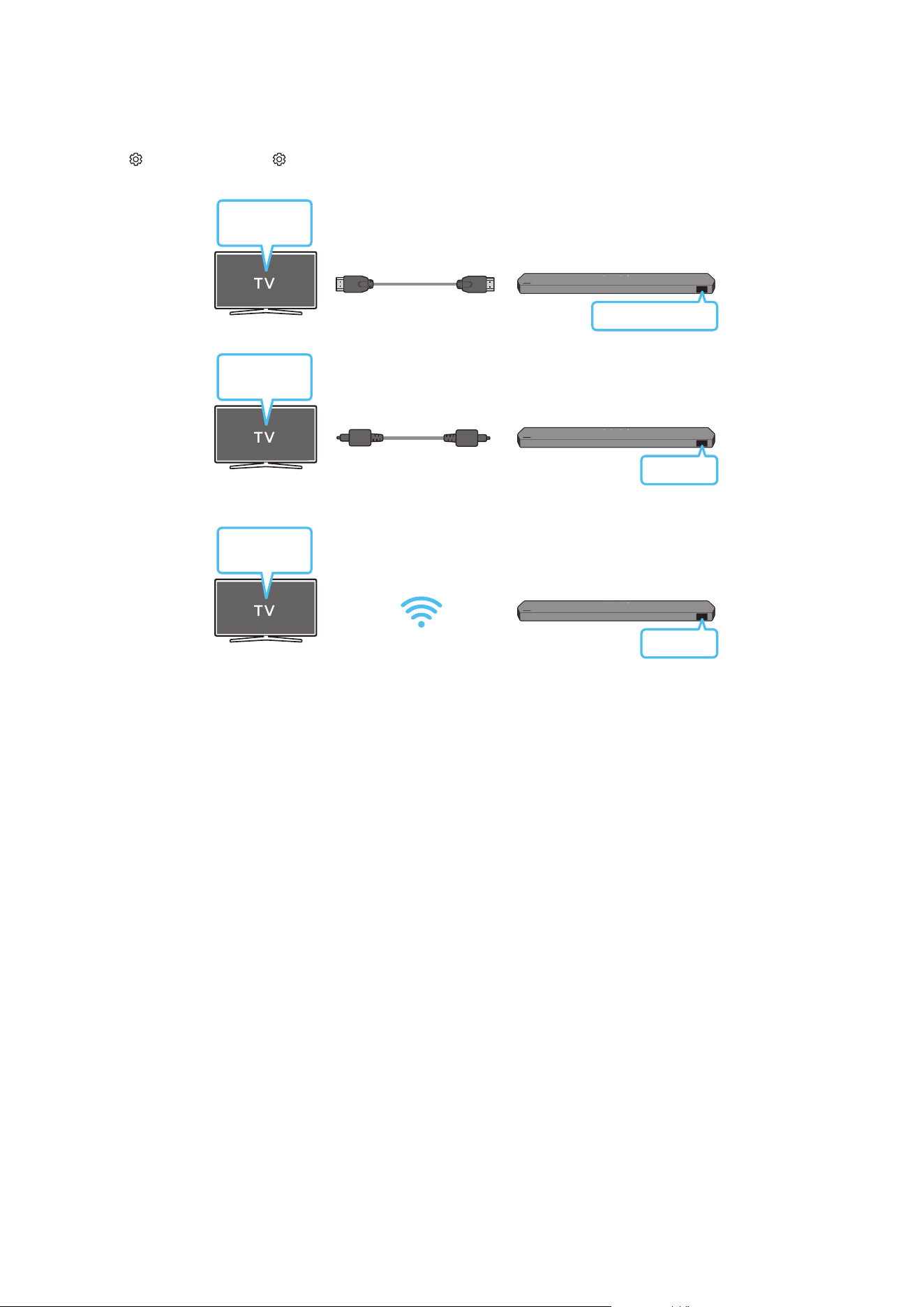
FRA - 17
Utilisation de la fonction Q-Symphony
• Quand la Soundbar se connecte à un téléviseur Samsung qui prend en charge la fonction Q-Symphony, vous pouvez écouter simultanément le son via la
Soundbar et le téléviseur. Si vous utilisez la fonction Q-Symphony, le son surround émis par le téléviseur vous permet de proter d'effets sonores surround plus
riches en trois dimensions
• Quand la Soundbar est connectée, le menu « Q-Symphony » s'afche sur le téléviseur.
Paramètres ( ) → Tous les paramètres ( ) → Son → Sortie son
• Exemple de menu TV : Q-Symphony
Menu TV
Câble HDMI
TV ARC/eARC
Menu TV
Câble optique (non fourni)
D.IN
Menu TV
Wi-Fi
Wi-Fi
REMARQUE
• Le produit peut fonctionner selon le Codec pris en charge par le téléviseur.
• Cette fonction n’est prise en charge que lorsque le câble HDMI, le câble optique (non fourni) ou le Wi-Fi est connecté.
• Le message afché peut différer selon le modèle de téléviseur.
• Assurez-vous que votre téléviseur et votre Soundbar sont connectés au même routeur sans l/à la même fréquence.
• Cette fonction est disponible sur certaines TV Samsung et certains modèles de Soundbar.

FRA - 18
Utilisation de SpaceFit Sound
Cette fonction analyse l'espace d'écoute de l'utilisateur à l'aide du microphone de la Soundbar et offre le son optimal pour cet espace L'optimisation du son se fait
automatiquement
Méthode 1. Connexion via la Soundbar
Pour activer cette fonction, activez le mode SpaceFit Sound avec la télécommande de la Soundbar
1. Appuyez sur la touche (Réglages audio) pour activer le mode SpaceFit Sound
Le message « SPACEFIT SOUND OFF » s'afche sur l'écran.
2. Appuyez sur la touche Haut de la télécommande pour activer le mode SpaceFit Sound
Le message « ON » s'afche à l'écran.
SOUND
MODE
PAIR
3. Appuyez sur la touche Bas de la télécommande pour désactiver le mode SpaceFit Sound
Le message « OFF » s'afche à l'écran.
SOUND
MODE
PAIR
• Cette méthode est disponible dans tous les modes audio
Méthode 2. Connexion via un téléviseur
Pour activer cette fonction, activez le mode Son adaptatif+ via le menu de votre TV Samsung.
(Accueil ( ) → Menu → Paramètres ( ) → Tous les paramètres ( ) → Général → Paramètres de mode intelligent → Adaptive Sound+)
• Le mode sonore sur votre Soundbar passe automatiquement sur Adaptive Sound+ si vous activez le mode Adaptive Sound+ sur votre téléviseur
REMARQUE
Cette fonction est active si la Soundbar se connecte à certaines TV Samsung.
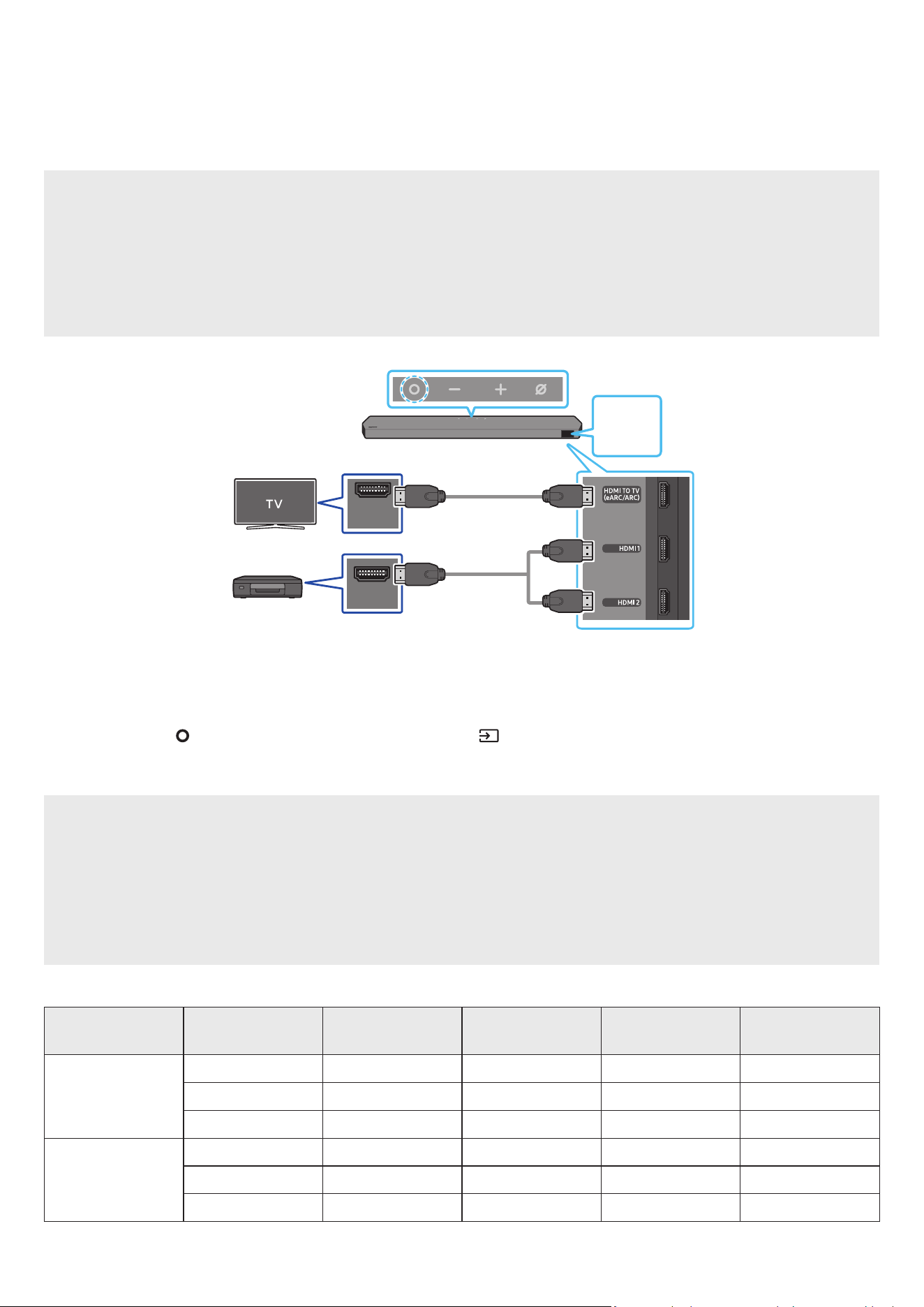
FRA - 19
06 CONNEXION D'UN APPAREIL EXTERNE
Méthode 1. Connexion à l'aide d'un câble HDMI (prise en charge du décodage et de la lecture Dolby
Atmos / DTS:X)
Liste de vérications préalables à la connexion
• Si les options de sortie audio comprennent un ux audio secondaire, assurez-vous que ce dernier est réglé sur « Off ».
• Assurez-vous que le contenu prend en charge Dolby Atmos® / DTS:X.
• Utilisez uniquement un câble HDMI qui répond aux exigences d'entrée/sortie.
• An de bien recevoir le signal UHD, un câble HDMI Ultra High Speed certié est requis.
• Pour une bonne réception du signal UHD, vériez au préalable les caractéristiques techniques d'entrée/sortie vidéo et les paramètres locaux du téléviseur ou
de l'appareil externe
• Pour en savoir plus, veuillez vous reporter au manuel utilisateur du téléviseur ou de l'appareil externe
HDMI IN
(ARC)
HDMI OUT
Bas de la Soundbar
HDMI 1
OU
HDMI 2
Appareil externe
Câble HDMI
(fourni)
Câble HDMI
OU
Dessus de la Soundbar
1. Utilisez un câble HDMI pour relier le port HDMI OUT de l'appareil externe au port HDMI qui se trouve au bas de la Soundbar
2. Utilisez un câble HDMI (fourni) pour relier le port HDMI IN du téléviseur au port HDMI TO TV (eARC/ARC) qui se trouve au bas de la Soundbar
3. Allumez la Soundbar, le téléviseur et l'appareil externe
4. Appuyez sur la touche
(Multi-fonction) en haut de la Soundbar ou sur la touche (Source) de la télécommande pour sélectionner le mode « HDMI 1 » ou
« HDMI 2 »
5. L'écran de la Soundbar indique que le mode « HDMI 1 » ou « HDMI 2 » est actuellement sélectionné et la Soundbar commence à diffuser du son
REMARQUE
• Lorsque vous utilisez Dolby Atmos® / DTS:X : Si la source d'entrée est Dolby Atmos® / DTS:X, reportez-vous à la section « Caractéristiques techniques de
sortie pour les différents modes d’effets sonores » page 7
• Lorsque Dolby Atmos® est activé, « DOLBY ATMOS » apparaît sur l'écran frontal
• Lorsque DTS:X est activé, « DTS:X » s'afche sur l'écran frontal.
• Conguration de Dolby Atmos® / DTS:X sur votre lecteur BD ou autre appareil
Ouvrez les options de sortie audio dans le menu des paramètres de votre lecteur BD ou autre appareil et assurez-vous que « Pas d’encodage » est sélectionné
pour le ux binaire. Par exemple, sur un lecteur BD Samsung, allez dans Home Menu → Sound → Digital Output, puis sélectionnez Bitstream (non traité).
Caractéristiques techniques des signaux UHD pris en charge (3840 x 2160p)
Fréquence d'images
(i/s)
Intensité de couleur RVB 4:4:4 YCbCr 4:4:4 YCbCr 4:2:2 YCbCr 4:2:0
< 60
8 bits O O O O
10 bits O O O O
12 bits O O O O
120
8 bits O O O O
10 bits O O O O
12 bits - - O O
• La spécication prise en charge peut varier en fonction de l'appareil externe connecté ou des conditions d'utilisation.
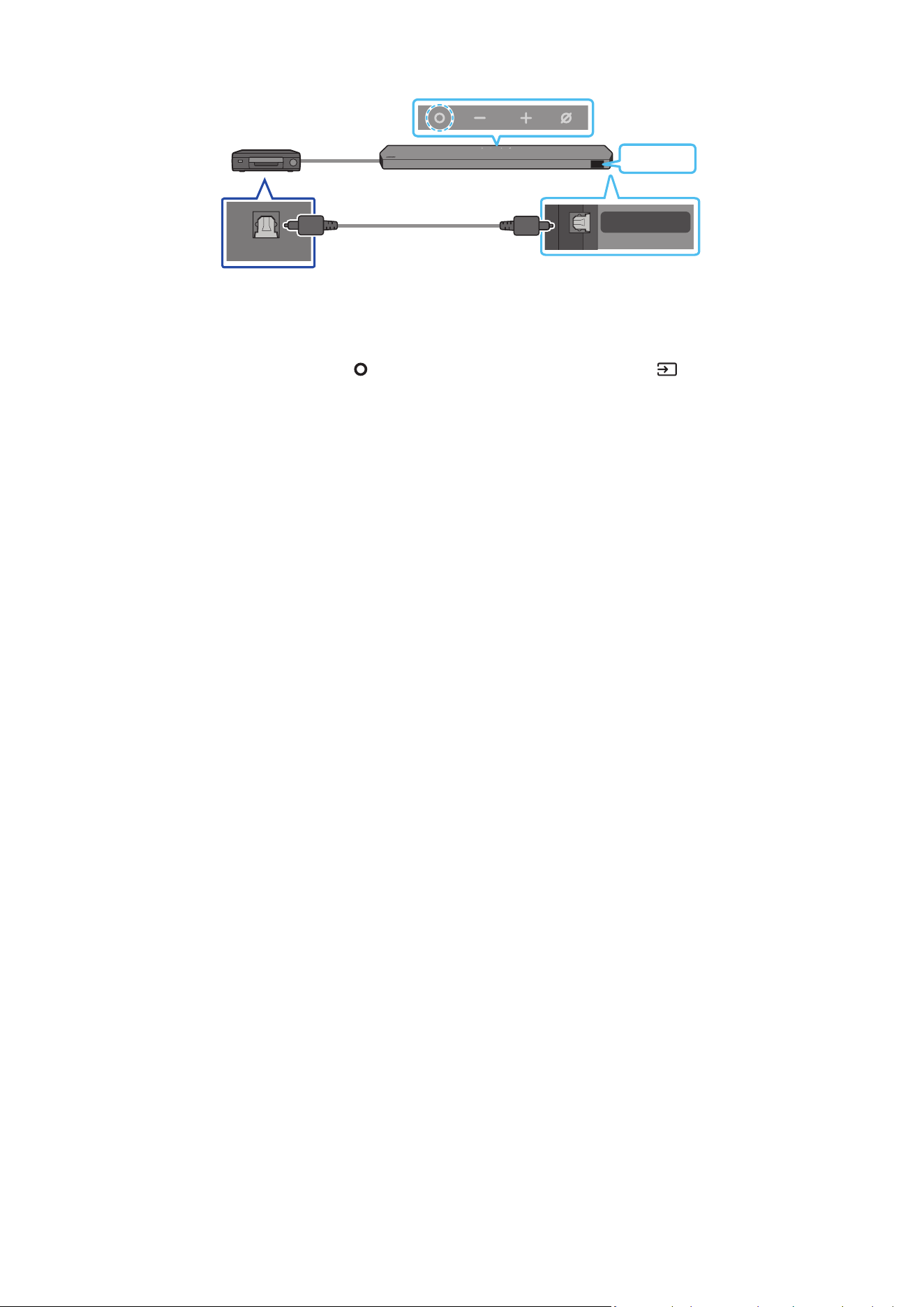
FRA - 20
Méthode 2. Connexion à l'aide d'un câble optique
DIGITAL AUDIO IN
(OPTICAL)
OPTICAL OUT
Lecteur BD / DVD /
décodeur / console de jeu
Dessus de la Soundbar
D.IN
Câble optique
(non fourni)
Bas de la Soundbar
1. Utilisez un câble optique (non fourni) pour connecter l'entrée numérique optique DIGITAL AUDIO IN (OPTICAL) de l'unité principale de la Soundbar et la sortie
optique « OPTICAL OUT » sur l'appareil externe.
2. Allumez la Soundbar et l'appareil externe
3. Pour sélectionner le mode « D.IN », appuyez sur la touche (Multi-fonction) en haut de la Soundbar ou sur la touche (Source) de la télécommande
4. Votre Soundbar produira des sons depuis l'appareil externe.
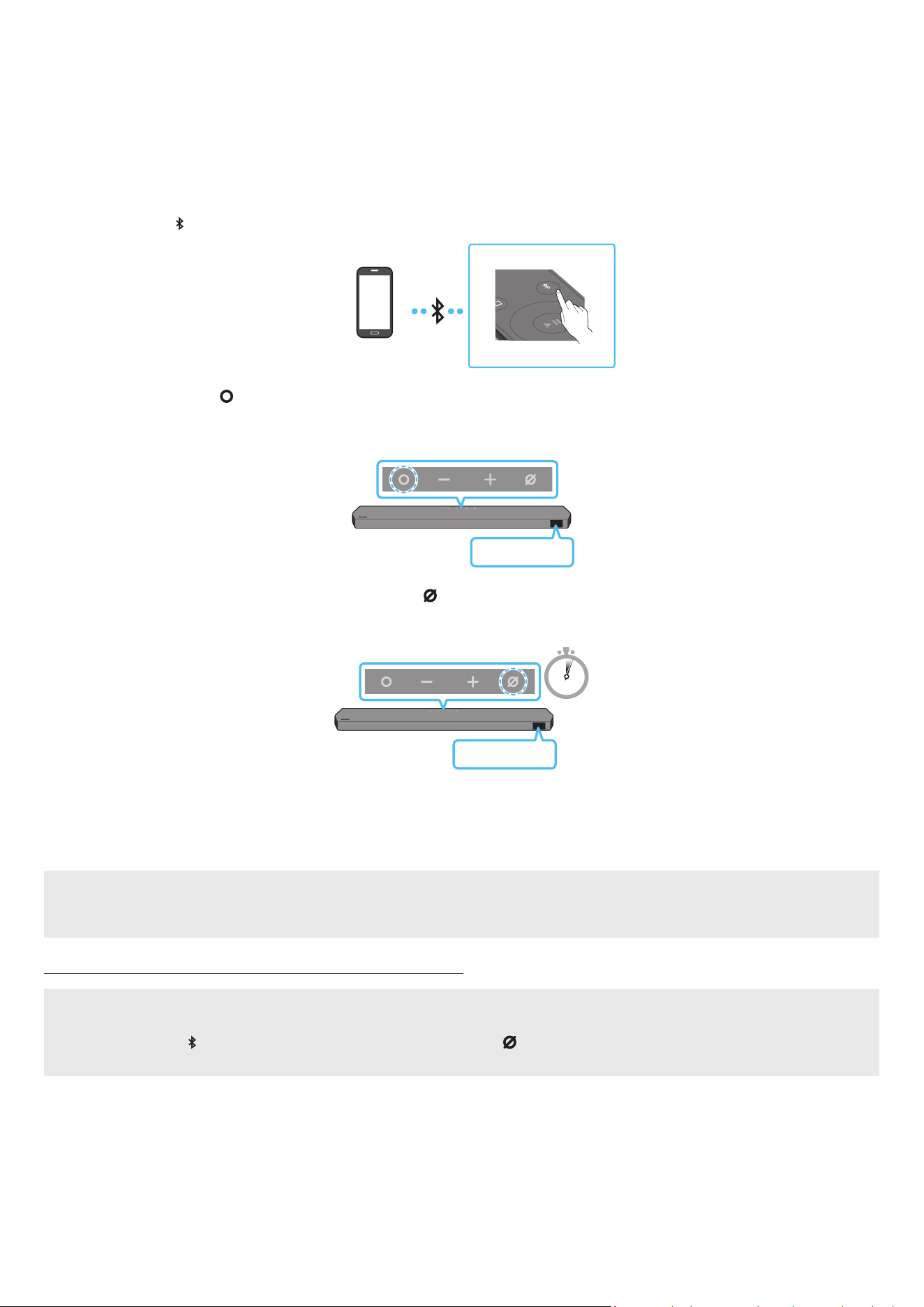
FRA - 21
07 CONNEXION D'UN APPAREIL MOBILE
Méthode 1. Connexion via Bluetooth
Lorsqu'un appareil mobile est connecté via Bluetooth, vous pouvez proter d'un son stéréo sans le casse-tête du câblage.
• Lorsque vous connectez un appareil Bluetooth déjà jumelé et que la Soundbar est éteinte, celle-ci s'allume automatiquement
Connexion initiale
• Lorsque vous établissez la connexion avec un nouvel appareil Bluetooth, veillez à ce que celui-ci soit à une distance inférieure à 1 m de la Soundbar
1. Appuyez sur la touche PAIR de la télécommande de la Soundbar pour passer en mode « BT PAIRING »
PAIR
Appareil mobile
(OU)
a. Appuyez sur la touche
(Multi-fonction) située sur le panneau supérieur, puis sélectionnez « BT »
« BT » passe automatiquement sur « BT PAIRING » en quelques secondes ou sur « BT READY » si une connexion est déjà enregistrée.
Dessus de la Soundbar
BT READY
b. Lorsque « BT READY » s'afche, maintenez enfoncée la touche (Micro activé/désactivé) sur le panneau supérieur de la Soundbar pendant plus de
5 secondes jusqu'à ce que le message « BT PAIRING » s'afche.
5 Sec
Dessus de la Soundbar
BT PAIRING
2. Sur votre appareil, sélectionnez « Soundbar Q-Series » dans la liste qui s'afche.
• Lorsque la Soundbar est connectée à l'appareil mobile, [Nom de l'appareil mobile] → « BT » apparaît sur l'écran frontal
3. Lisez des chiers musicaux sur l'appareil connecté via Bluetooth à partir de la Soundbar.
• Une fois que vous avez connecté votre Soundbar à votre appareil mobile pour la première fois, utilisez le mode « BT READY » pour vous reconnecter
Si la connexion avec l'appareil échoue
• S'il y a déjà une Soundbar, (p. ex. « Soundbar Q-Series ») dans la liste des enceintes afchée sur l'appareil mobile, supprimez-la.
• Répétez les étapes 1 et 2
Quelle est la différence entre les modes BT READY et BT PAIRING ?
• BT READY : Dans ce mode, vous pouvez reconnecter n'importe quel téléviseur Samsung TV ou appareil mobile qui a déjà été connecté par le passé.
• BT PAIRING : Dans ce mode, vous pouvez connecter un nouvel appareil à la Soundbar.
(Appuyez sur la touche PAIR de la télécommande ou maintenez enfoncée la touche (Micro activé/désactivé) en haut de la Soundbar pendant plus de
5 secondes lorsque la Soundbar est en mode « BT » )

FRA - 22
Remarques concernant la connexion Bluetooth
• Placez un nouvel appareil à une distance inférieure à 1 m pour établir la connexion par le biais de la communication Bluetooth
• Si un code d'identication personnel vous est demandé lors de la connexion d'un nouvel appareil Bluetooth, saisissez <0000>.
• La Soundbar s'éteint automatiquement après 18 minutes passées en mode Prêt
• Il est possible que la Soundbar n'effectue aucune recherche Bluetooth ou n'établisse aucune connexion sous certaines circonstances :
‒ En présence d'un fort champ électromagnétique autour de la Soundbar.
‒ Si plusieurs appareils Bluetooth ou plus sont jumelés simultanément avec la Soundbar
‒ Si l'appareil Bluetooth est éteint, déplacé ou qu'un dysfonctionnement survient
• Les appareils électroniques peuvent causer des interférences radio. Les appareils qui génèrent des ondes électromagnétiques doivent être conservés à distance
de l'unité principale Soundbar (par ex. des micro-ondes, des appareils LAN sans l, etc.).
• La Soundbar prend en charge les données SBC (44,1 kHz, 48 kHz).
• Ne connectez qu'un appareil Bluetooth prenant en charge la fonction A2DP (AV).
• Lorsque vous connectez la Soundbar à un appareil Bluetooth, placez-les le plus près possible l'un de l'autre
• Plus la Soundbar et l'appareil Bluetooth sont éloignés, plus la qualité du son sera mauvaise.
La connexion Bluetooth peut se rompre lorsque les appareils sont hors de portée
• La connexion Bluetooth peut ne pas fonctionner comme prévu dans les zones où la réception est mauvaise
• Un appareil Bluetooth peut produire du bruit ou connaître un dysfonctionnement dans les conditions suivantes :
‒ Quand le corps est en contact avec l'émetteur-récepteur de signaux de l'appareil Bluetooth ou de la Soundbar
‒ Dans les coins ou lorsqu'il y a un obstacle à proximité, tel qu'un mur ou une cloison, où des changements électriques peuvent se produire.
‒ Lorsqu'il est exposé à des interférences radio par d'autres produits fonctionnant sur les mêmes plages de fréquences, tels que des équipements médicaux,
des fours à micro-ondes et des dispositifs LAN sans l.
‒ Des obstacles tels que des portes et des murs peuvent aussi avoir un impact sur la qualité du son même lorsque les appareils se trouvent à portée effective
• Notez que la Soundbar ne peut pas être jumelée avec d'autres appareils Bluetooth pendant l'utilisation de l'option Bluetooth.
• Cet appareil sans l peut causer des interférences électriques lors de son fonctionnement.
Déconnexion de l'appareil Bluetooth de la Soundbar
Vous pouvez déconnecter un appareil Bluetooth de la Soundbar. Pour les instructions, consultez le manuel utilisateur de l'appareil Bluetooth.
• La Soundbar se déconnecte
• Lorsque la Soundbar est déconnectée de l'appareil Bluetooth, elle afche « BT DISCONNECTED » sur l'écran frontal
Déconnexion de la Soundbar de l’appareil Bluetooth
Appuyez sur la touche (Multi-fonction) en haut de la Soundbar ou sur la touche (Source) de la télécommande pour quitter le mode « BT »
• La déconnexion prend un certain temps l'appareil Bluetooth doit recevoir une réponse de la part de la Soundbar (Le délai de déconnexion peut varier selon
l'appareil Bluetooth)
• Lorsque la Soundbar est déconnectée de l'appareil Bluetooth, elle afche « BT DISCONNECTED » sur l'écran frontal
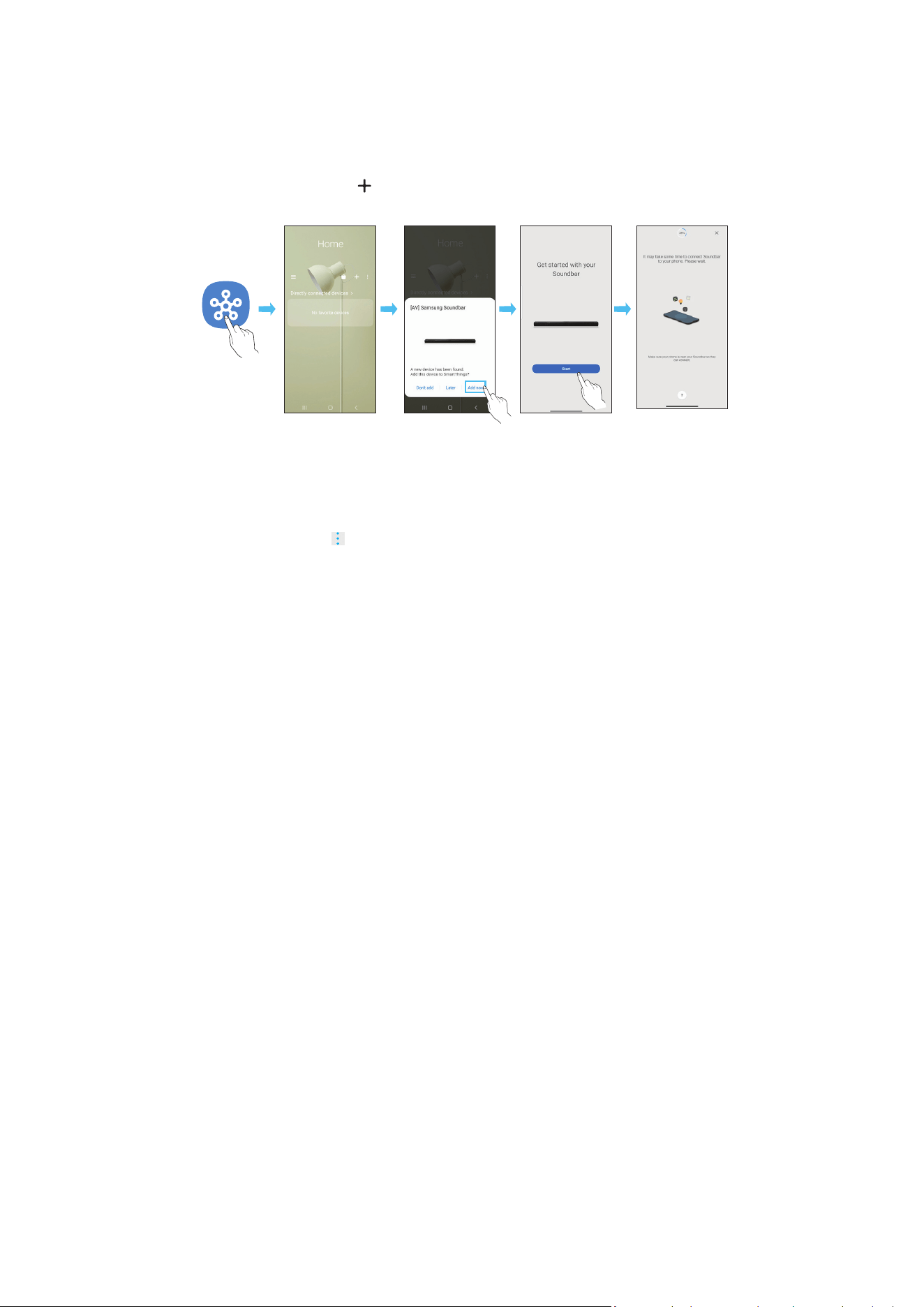
FRA - 23
Méthode 2. Connexion via Wi-Fi (Réseau sans l)
Pour connecter une Soundbar à un appareil mobile via un réseau sans l (Wi-Fi), il est nécessaire de disposer de l'application SmartThings
Connexion initiale
1. Installez et lancez l'application SmartThings sur votre appareil mobile (smartphone ou tablette)
2. Sur l'application, suivez les instructions à l'écran pour ajouter la Soundbar
• Le message contextuel automatique (deuxième illustration ci-dessous) peut ne pas s'afcher sur certains appareils.
Si la fenêtre contextuelle n'apparaît pas, appuyez sur « » dans l'écran Home La Soundbar est ajoutée à l'application
• L'illustration ci-dessous peut différer selon la version de l'application
Lancer
l'application
Message
contextuel
automatique
Ajouter
l'appareil
Application
SmartThings
Pour modier votre connexion Wi-Fi
1. Lancez l'application SmartThings sur votre appareil mobile (smartphone ou tablette)
2. Appuyez sur la carte de la Soundbar, puis sur l'icône ( )
3. Allez Paramètres de l'appareil > État du réseau > Changer de réseau Wi-Fi, puis suivez les instructions à l'écran.
Utilisation de Group Play
• Pour proter de cette fonction, ajoutez votre Soundbar à l'application SmartThings.
• An de pouvoir l'utiliser, connectez au moins deux appareils audio au même réseau Wi-Fi à 5 GHz.
• Elle n'est disponible que sur les appareils audio Samsung prenant en charge le Wi-Fi sortis en 2024 ou ultérieurement.
• Elle ne prend pas en charge le son du téléviseur.
Conguration de Group Play
1. Lancez l'application SmartThings sur votre appareil mobile
2. Ajoutez la Soundbar dans l'application SmartThings en suivant les instructions fournies dans la section « Méthode 2. Connexion via Wi-Fi (Réseau sans l) »
3. Appuyez sur la carte de la Soundbar
4. Sur votre appareil mobile, appuyez sur Créer un groupe sous l'icône de l'appareil audio
• Le bouton Créer un groupe n'apparaît que si la Soundbar est en mode Wi-Fi
• Si la Soundbar émet le son du téléviseur, la création d'un groupe coupe la connexion avec le téléviseur.
5. Activez Group Play
6. Sélectionnez un appareil dans la liste, puis appuyez sur Appliquer
• Vous pouvez ajouter un maximum de 4 appareils.
• Avec Group Play, le son est émis par l'appareil hôte uniquement
• Si un appareil connecté à l'appareil hôte passe à une autre source, il est automatiquement supprimé du groupe.
• Si l'appareil hôte est connecté à un téléviseur, le groupe créé est automatiquement supprimé.
Désactivation de Group Play
1. Appuyez sur la carte d'appareil audio
2. Sur votre appareil mobile, appuyez sur Modier le groupe sous l'icône de l'appareil audio
3. Désactivez Group Play
• Pour désactiver un seul appareil, décochez-le dans la liste, puis appuyez sur Appliquer

FRA - 24
Utilisation de SmartThings Hub
• Vous pouvez utiliser la fonction SmartThings Hub de la Soundbar pour connecter les appareils IdO (ampoules prises, capteurs, etc ) qui nécessitent
SmartThings Hub
• Pour utiliser la fonction SmartThings Hub, vous devez enregistrer la Soundbar dans l'application SmartThings Hub
Enregistrement d'un appareil IdO sur l'application SmartThings
1. Ajoutez la Soundbar dans l'application SmartThings en suivant les instructions fournies dans la section « Méthode 2. Connexion via Wi-Fi (Réseau sans l) >
Connexion initiale »
2. Appuyez sur la carte d'appareil de la Soundbar
3. Appuyez sur SmartThings Hub dans la partie inférieure de l’écran.
4. Appuyez sur Using SmartThings Hub, puis sur Set up pour activer la fonction SmartThings Hub
• Lorsque la fonction SmartThings Hub, est activée, unset devient using
• La carte d'appareil SmartThings Hub apparaît à côté de la carte d'appareil de la Soundbar
5. Sur l'écran Home, appuyez sur « » pour ajouter un appareil IdO
• Lorsque vous ajoutez un appareil IdO avec succès, une carte d'appareil IdO apparaît sur l'application
• Si vous débranchez la Soundbar, les appareils connectés via SmartThings Hub peuvent être déconnectés. Vous devez reconnecter les appareils une fois qu'ils
ont été déconnectés
Suppression de SmartThings Hub depuis l'application SmartThings
1. Sur l'écran de l'appareil, appuyez sur la carte d'appareil de la Soundbar
2. Appuyez sur SmartThings Hub dans la partie inférieure de l’écran.
3. Appuyez sur Removing SmartThings Hub pour désactiver la fonction SmartThings Hub
• Lorsque la fonction SmartThings Hub, est désactivée, using devient unset
Connexion via Apple AirPlay
• Cette fonctionnalité peut ne pas être disponible dans certains pays
• Cette Soundbar Samsung est compatible avec AirPlay®. Nous vous recommandons d'utiliser la dernière version d'iOS, iPadOS ou macOS.
• Pour activer AirPlay dans votre Soundbar, vous devez d'abord enregistrer l'appareil avec l'application Samsung SmartThings en acceptant les conditions
générales de l'application.
• Assurez-vous que la Soundbar est allumée et connectée au même réseau Wi-Fi que votre appareil Apple®
Avec AirPlay, vous pouvez écouter de la musique, des podcasts et d'autres contenus audio sur vos appareils Apple via la Soundbar Samsung.
• Sélectionnez
dans une application prise en charge par AirPlay ou dans le centre de contrôle de votre iPhone®, iPad® ou Mac®.
• Sélectionnez la Soundbar dans la liste des appareils disponibles pour lire le son
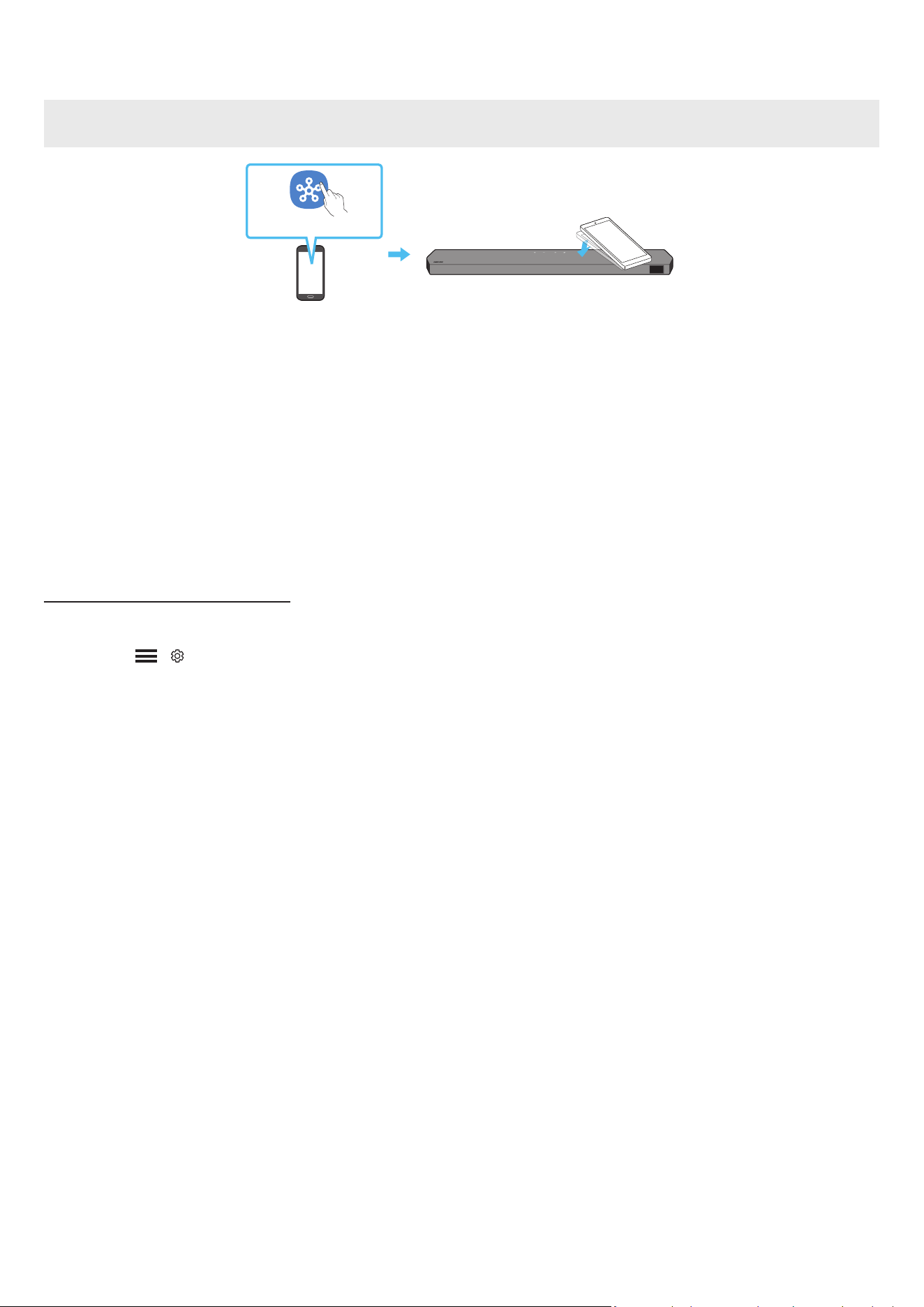
FRA - 25
Utilisation de la fonction Tap Sound
Appuyez sur la Soundbar avec votre appareil mobile pour lire le son du contenu de l'appareil mobile via la Soundbar
• Il se peut que cette fonction ne soit pas prise en charge, selon l'appareil mobile.
• Cette fonction est uniquement compatible avec les appareils mobiles Samsung sous Android 8.1 ou supérieur.
Dessus de la Soundbar
Appareil mobile
Application
SmartThings
1. Activez la fonction Tap Sound sur votre appareil mobile
• Pour des détails sur l'activation de la fonction, reportez-vous à la section « Conguration de la fonction Tap Sound » ci-après
2. Appuyez sur la Soundbar avec votre appareil mobile. Sélectionnez « Start now » dans la fenêtre de message afchée.
Une connexion est établie entre l'appareil mobile et la Soundbar via Bluetooth
3. Lisez le son du contenu de l'appareil mobile via la Soundbar
• Cette fonction permet de connecter un appareil mobile à la Soundbar via Bluetooth en détectant les vibrations qui se produisent lorsque l'appareil touche la
Soundbar
• Assurez-vous que l'appareil mobile ne touche pas un angle saillant de la Soundbar. La Soundbar ou l'appareil mobile risquerait d'être rayé ou endommagé.
• Il est recommandé de recouvrir l'appareil mobile d'une housse protectrice. Appuyez légèrement sur la zone large de la partie supérieure de la Soundbar, sans
forcer
• Pour utiliser cette fonction, mettez à jour l'application SmartThings à la dernière version
Il se peut que cette fonction ne soit pas prise en charge, selon la version de l'application.
Conguration de la fonction Tap Sound
Utilisez l'application SmartThings pour activer la fonction Tap View, Tap Sound
1. Sur l'appareil mobile, exécutez l'application SmartThings
2. Sélectionnez ( → ) sur l'écran de l'application SmartThings qui s'afche sur l'appareil mobile.
3. Placez « Tap View, Tap Sound » sur Activé pour permettre à la fonction de se mettre en marche lorsqu'un appareil mobile est en mouvement à proximité de la
Soundbar La fonction est activée
REMARQUE
• Lorsque l'appareil mobile est en mode d'économie d'énergie, la fonction Tap Sound ne se met pas en marche
• La fonction Tap Sound pourrait ne pas fonctionner si des appareils situés à proximité de la Soundbar provoquent des interférences radio, comme par exemple, des
appareils électriques. Assurez-vous que les appareils susceptibles de provoquer des interférences radio sont placés à une distance sufsante de la Soundbar.
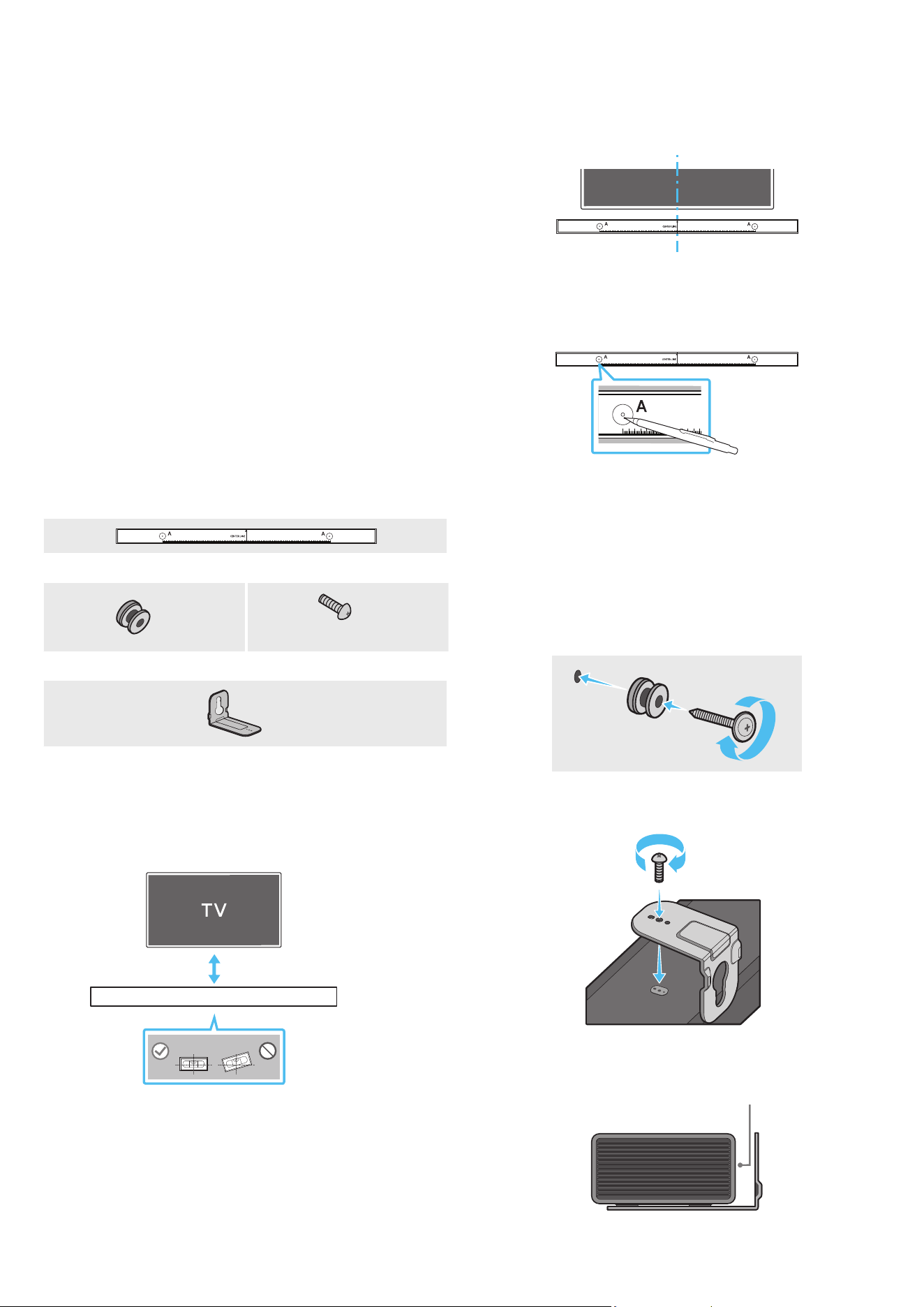
FRA - 26
08 INSTALLATION DE LA
FIXATION MURALE
Précautions d'installation
• Installez uniquement la Soundbar sur un mur vertical
• N'installez pas la Soundbar dans un endroit chaud ou humide.
• Vériez que le mur est assez résistant pour soutenir le poids du produit. Si ce
n'est pas le cas, consolidez le mur ou choisissez un autre point d'installation
• Achetez et utilisez uniquement les vis de xation et les dispositifs d'ancrage
adaptés au type de mur que vous avez choisi (mur en plâtre, en acier, en
bois, etc.). Si possible, xez les vis du support dans les montants du mur.
• Achetez des vis de xation murale adaptées au type et à l'épaisseur du mur
sur lequel vous souhaitez installer la Soundbar
‒ Diamètre : M5
‒ Longueur : 35 mm ou plus selon nos recommandations.
• Branchez les câbles de l'unité aux appareils externes avant de procéder à
l'installation murale de la Soundbar
• Veillez à ce que l'unité soit éteinte et débranchée avant de procéder à
l'installation Dans le cas contraire, il existe un risque d'électrocution
Composants de xation murale
A TYPE : 450mm
Guide de xation murale
x 2
x 2
(M4 x L10)
Vis de xation Vis
x 2
Support de xation murale
1. Placez le Guide de xation murale contre le mur
• Le guide de xation murale doit être horizontal
• Si votre téléviseur est xé au mur, installez la Soundbar au moins 5 cm
sous celui-ci
5 cm ou plus
2. Alignez la ligne centrale du guide de xation murale avec le centre de votre
téléviseur (si vous xez la Soundbar sous votre téléviseur), puis xez le
guide de xation murale au mur avec du ruban adhésif
• Si vous ne xez pas la Soundbar sous un téléviseur, placez la ligne
centrale au centre de la zone d'installation
A TYPE : 450mm
Ligne centrale
3. Appuyez avec la pointe d'un stylo ou d'un crayon bien taillé au centre des
images A-TYPE à chaque extrémité du guide pour marquer les trous des vis
de xation, puis retirez le guide de xation murale
A TYPE : 450mm
4. À l'aide d'une mèche appropriée, faites un trou dans le mur au niveau de
chaque marque
• Si les marques ne correspondent pas aux positions des poteaux muraux,
veillez à insérer les ancrages ou les chevilles à expansion approprié(e)
s dans les trous avant d'insérer les vis de xation. Si vous utilisez des
ancrages ou des chevilles Molly, pensez à percer des trous sufsamment
larges pour les accueillir.
5. Enfoncez une vis (non fournie) dans chaque Vis de xation, puis vissez
fermement chaque vis dans un trou pour vis portante
6. Installez les 2 crochets de xation murale sur la partie inférieure de la
Soundbar, en veillant à bien les positionner, en utilisant 2 vis
• Lors du montage, veillez à ce que la partie verticale des crochets de
xation murale se trouve derrière l'arrière de la Soundbar
Arrière de la Soundbar
Extrémité droite de la Soundbar
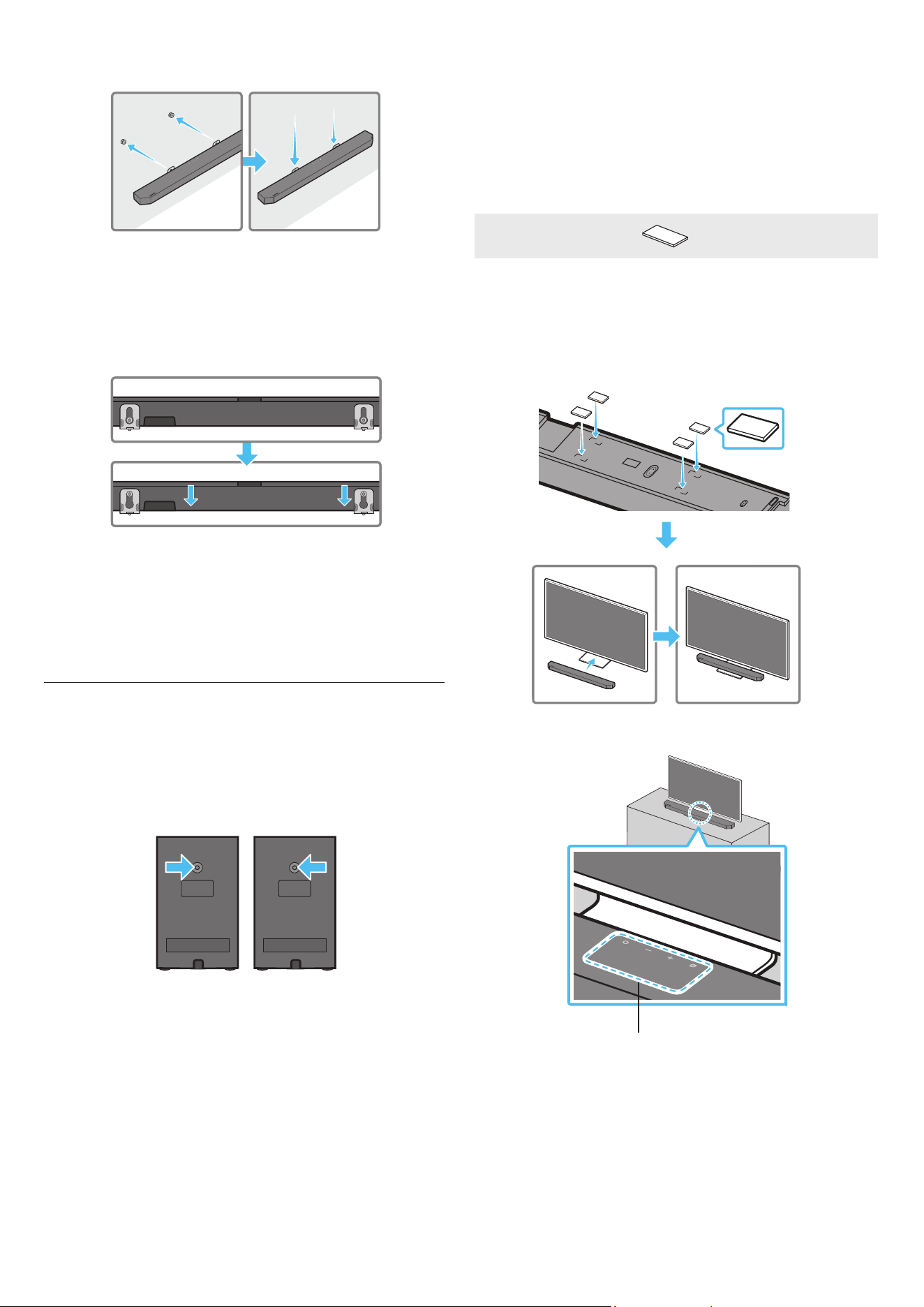
FRA - 27
7. Installez la Soundbar sur laquelle sont xés les crochets de xation murale
en accrochant ces crochets sur les bagues-supports au mur
8. Faites glisser la Soundbar vers le bas, comme indiqué ci-dessous, an
que les crochets de xation murale reposent fermement sur les bagues-
supports
• Insérez les bagues-supports dans la partie large (inférieure) des
crochets de xation murale, puis faites glisser ces crochets vers le bas
an qu'ils reposent fermement sur les bagues-supports
Fixation murale des enceintes surround
Vous pouvez acheter des supports séparément an de xer les enceintes
surround au mur
Ces supports muraux ne sont pas vendus par Samsung Electronics.
Remarques concernant la xation murale des enceintes surround
• Les supports muraux des enceintes surround doivent supporter un poids
supérieur à 8 kg.
• Taille des trous : vis letées 1/4-20 UNC
‒ Vis standard : ø 6,35 mm,
pas 1,27 mm
‒ Longueur : 18 mm
‒ Quantité : Gauche 1 unité / Droite 1 unité
G D
• Vériez la solidité du mur avant d'installer les supports de xation murale.
Si la force est insufsante, assurez-vous de consolider votre mur avant d'y
installer les crochets de xation murale et les enceintes.
• Samsung Electronics n'est pas responsable des dommages causés au
produit en raison d'une installation inappropriée
• Veillez à ne pas monter les enceintes sur le côté ou à l'envers.
09 INSTALLATION DE LA
SOUNDBAR DEVANT LE
TÉLÉVISEUR
Composant
x 4
Pied en caoutchouc
Pour l'installation, attachez les pieds en caoutchouc au bas de la Soundbar
avant de la placer au-dessus du socle de téléviseur. Assurez-vous de xer
les pieds en caoutchouc de sorte qu'ils ne dépassent pas du socle de la TV.
Reportez-vous à la gure ci-dessous.
Pied en caoutchouc
Placez la Soundbar sur un socle de téléviseur
Microphones
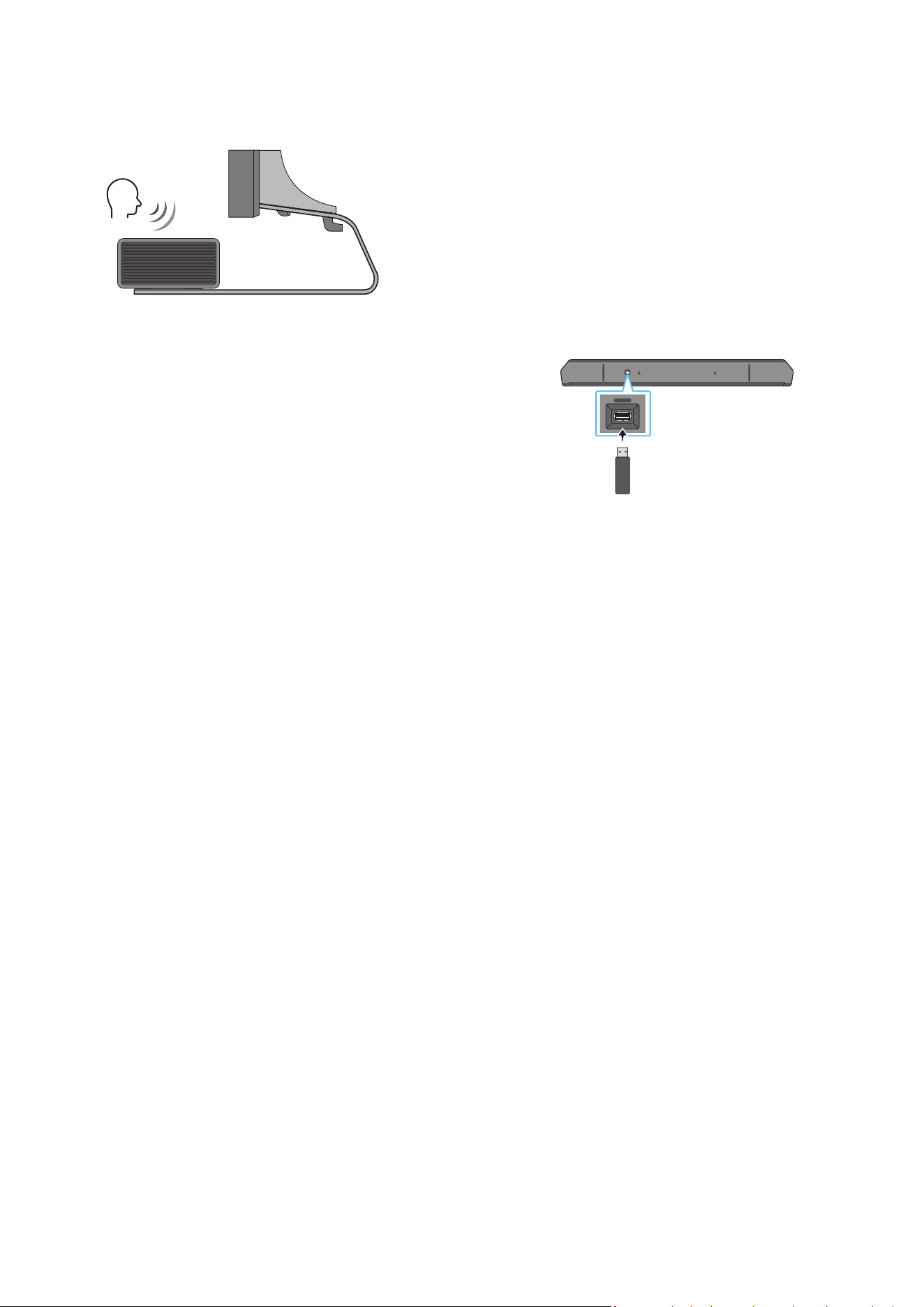
FRA - 28
Comme indiqué sur l'illustration, alignez le centre de la Soundbar avec le centre
du téléviseur, en plaçant avec précaution la Soundbar sur le socle du téléviseur.
Ensuite, placez les microphones sur la partie avant du socle an qu'il n'y ait pas
d'interférence avec la reconnaissance vocale
Extrémité droite de la Soundbar
TV
REMARQUE
• Veillez à ce que la Soundbar soit placée sur une surface plane et stable.
• Un écart insufsant avec le téléviseur peut entraîner des problèmes
d'acoustique et de reconnaissance vocale
• L'illustration ci-dessus peut différer du modèle utilisé
• Pour obtenir des performances optimales des microphones, placez la
Soundbar à une distance d’au moins 2 cm du panneau du téléviseur.
10 MISE À JOUR DU LOGICIEL
Mise à jour automatique
Lorsque la Soundbar est connectée à internet, le logiciel est automatiquement
mis à jour, même lorsque la Soundbar est éteinte
• Pour utiliser la fonction de mise à jour automatique, la Soundbar doit être
connectée à internet
La connexion Wi-Fi à la Soundbar prend n si le cordon d'alimentation de la
Soundbar est débranché ou si l'alimentation est coupée Si l'alimentation
a été coupée, lorsque l'alimentation revient ou quand vous rebranchez le
cordon d'alimentation, allumez la Soundbar, puis reconnectez-la à internet
Mise à jour par USB
Bas de la Soundbar
SERVICE
ID SET
(WOOFER,
REAR)
NETWORK
SERVICE
ID SET
Il est possible qu'à l'avenir, Samsung propose des mises à jour du micrologiciel
du système de la Soundbar.
Lorsqu'une mise à jour est disponible, vous pouvez mettre à jour la Soundbar
en connectant un lecteur USB contenant la mise à jour du micrologiciel au port
SERVICE de la Soundbar
1. Rendez-vous sur le site Web de Samsung Electronics (www.samsung.com)
→ recherchez le nom du modèle en passant par le menu Assistance.
• Pour plus d'informations sur les mises à jour, reportez-vous au guide des
mises à jour
2. Téléchargez le chier de mise à jour (type USB).
3. Décompressez le chier pour créer un dossier avec le nom du chier.
4. Stockez le chier créé dans une clé USB puis connectez-la à la Soundbar.
5. Allumez la Soundbar L'appareil est ensuite mis à jour en 3 minutes et
afche le message « UPDATE »
• Pendant la mise à jour, n'éteignez pas l'appareil et ne retirez pas la clé
USB
• Si le message « UPDATE » n'apparaît pas sur l'écran, débranchez le
cordon d'alimentation de la Soundbar, puis rebranchez-le
• Lorsque la dernière version est installée, aucune mise à jour n'est
effectuée
• Selon le type de clé USB utilisée, la mise à jour peut ne pas être prise en
charge.
Information sur les mises à jour de sécurité
Les mises à jour de sécurité sont fournies en vue de renforcer la sécurité
de votre appareil et de protéger vos informations personnelles. Pour plus
d'informations sur les mises à jour de sécurité, allez sur le site https://security.
samsungtv.com.
• Le site Web ne prend en charge que certaines langues.
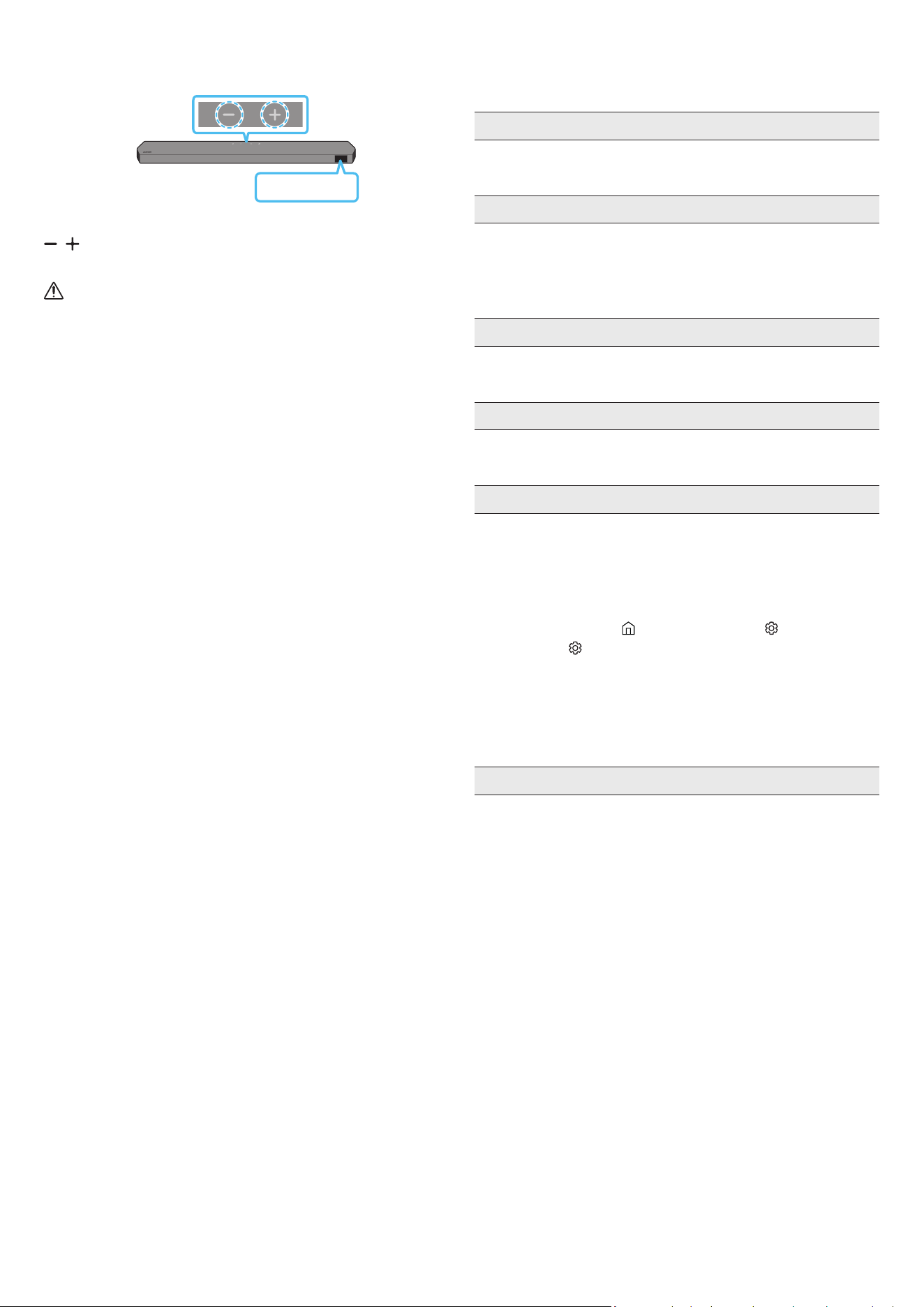
FRA - 29
Initialisation
Dessus de la Soundbar
INIT
Alors que la Soundbar est allumée, appuyez simultanément sur les touches
(Volume) situées sur le boîtier pendant au moins 5 secondes. « INIT »
s'afche à l'écran et la Soundbar s'initialise.
ATTENTION
• Tous les paramètres de la Soundbar sont initialisés. Veillez à n'effectuer
cette opération que lorsque l'initialisation est nécessaire
11 DÉPANNAGE
Avant de contacter l’assistance, vériez les éléments suivants.
La Soundbar ne s'allume pas.
• Vériez que le cordon d'alimentation de la Soundbar est correctement
inséré dans la prise
La Soundbar fonctionne par intermittence.
• Retirez le cordon d'alimentation, puis insérez-le à nouveau
• Mettez l'appareil externe hors tension, puis sous tension, et réessayez
• En l’absence de signal, la Soundbar s’éteint automatiquement après un
certain temps. Activez l'alimentation. (Voir page 5 )
La télécommande ne fonctionne pas.
• Pointez la télécommande directement vers la Soundbar
• Remplacez les piles de la télécommande par des piles neuves
Le voyant de la Soundbar reste allumé en rouge.
• Le microphone est éteint
Allumez le microphone. (Voir page 4 )
Le son n'est pas émis par la Soundbar.
• Le volume de la Soundbar est trop bas ou a été mis en sourdine. Réglez le
volume
• Si un appareil externe (STB, appareil Bluetooth, appareil mobile, etc ) est
connecté, réglez le volume de l'appareil externe.
• Sélectionnez la Soundbar comme sortie du son du téléviseur
(TV Samsung : Accueil ( ) → Menu → Paramètres ( ) → Tous les
paramètres ( ) → Son → Sortie son → Sélectionnez la Soundbar)
• La connexion du câble à la Soundbar peut ne pas être desserrée
Débranchez le câble et connectez-le de nouveau
• Débranchez complètement le cordon d'alimentation, reconnectez-le, puis
allumez l'alimentation
• Initialisez l'appareil et réessayez. (Voir page 29 )
Le son n'est pas émis par le caisson de basse ou par les enceintes surround.
• Assurez-vous que le voyant situé à l'arrière du caisson de basse et des
enceintes surround est allumé en bleu. S'il clignote en bleu ou est allumé
en rouge, reconnectez la Soundbar au caisson de basse et aux enceintes
surround. (Voir page 11 )
• Vous pouvez rencontrer un problème s'il y a un obstacle entre la Soundbar
et le caisson de basse Déplacez les appareils vers une zone sans obstacle
• Les signaux de fréquence radio envoyés par d'autres appareils à proximité
peuvent interrompre la connexion
Gardez l'enceinte éloignée de ces appareils.
• Débranchez puis reconnectez la che d'alimentation.

FRA - 30
Le son du caisson de basse et des enceintes surround est dénaturé par une
instabilité, des décalages ou des parasites
• La présence d'objets entre la Soundbar et le caisson de basse peut causer ce
type de problème. Veuillez repositionner votre équipement vers un endroit
sans objet susceptible d'interférer
• Si le caisson de basse et les enceintes surround sont éloignés de la
Soundbar, le son peut subir une instabilité ou des décalages. Veuillez les
placer à proximité de la Soundbar
• Des instabilités ou des décalages peuvent se produire lorsque la Soundbar
se trouve à proximité d'un instrument ou d'un appareil électrique
susceptible de causer des interférences radio. Veuillez éloigner la Soundbar
de tels appareils (ex : routeur sans l).
• Passez le statut de la connexion réseau du téléviseur de « sans l » à
« laire ».
Le volume du caisson de basse est trop faible
• Le volume original du contenu que vous écoutez peut être faible. Essayez
de régler le niveau du caisson de basse. (Voir page 6 )
• Rapprochez le caisson de basse de vous
Si le téléviseur n’est pas connecté via HDMI TO TV (eARC/ARC)
• Vériez si le câble HDMI est bien connecté à la borne ARC. (Voir page 13 )
• La connexion peut être rendue impossible par l'appareil externe connecté
(décodeur, console de jeu, etc ) Connectez directement la Soundbar
• Il est possible que HDMI-CEC ne soit pas activé sur le téléviseur.
Activez CEC sur le menu TV. (TV Samsung : Accueil (
) → Menu →
Paramètres ( ) → Tous les paramètres ( ) → Connexion → Gestionnaire
d'appareil externe → Anynet+ (HDMI-CEC) ON)
• Pour une connexion avec eARC, la fonction eARC doit être activée
dans le menu du téléviseur. (TV Samsung : Accueil ( ) → Menu →
Paramètres ( ) → Tous les paramètres ( ) → Son → Paramètres expert
→ Mode HDMI eARC (Auto))
Il n'y a aucun son lors de la connexion au téléviseur en mode HDMI TO TV
(eARC/ARC)
• Votre appareil est incapable de lire le signal d'entrée. Changez la sortie
audio du téléviseur sur PCM ou Dolby Digital. (Pour une TV Samsung :
Accueil (
) → Menu → Paramètres ( ) → Tous les paramètres ( ) →
Son → Paramètres expert → Format audio de la sortie numérique)
La Soundbar ne se connecte pas en Bluetooth.
• Lors de la connexion d'un nouvel appareil, passez en mode « BT PAIRING »
pour établir la connexion (Appuyez sur le bouton
PAIR de la
télécommande ou maintenez la touche (Micro activé/désactivé) située
sur le boîtier enfoncée pendant au moins 5 secondes )
• Si la Soundbar est connectée à un autre appareil, déconnectez d'abord cet
appareil pour changer d'appareil.
• Supprimez la liste des enceintes Bluetooth sur l’appareil à connecter, puis
reconnectez-le. (TV Samsung : Accueil ( ) → Menu → Paramètres ( )
→ Tous les paramètres ( ) → Son → Sortie son → Liste des enceintes
Bluetooth)
• La connexion automatique au téléviseur peut être désactivée Lorsque
la Soundbar afche « BT READY », appuyez sur la touche Gauche de la
télécommande de la Soundbar pendant 5 secondes pour sélectionner
ON-TV CONNECT Si OFF-TV CONNECT s'afche, appuyez à nouveau sur la
touche Gauche pendant 5 secondes pour changer la sélection.
• Débranchez puis reconnectez la che d'alimentation, et réessayez.
• Initialisez l'appareil et réessayez. (Voir page 29 )
Le son se coupe lors d'une connexion via Bluetooth.
• Certains appareils peuvent générer des interférences radio s'ils sont
placés trop très de la Soundbar (p ex les micro-ondes, les routeurs sans
l, etc.).
• Si votre appareil connecté via Bluetooth est trop éloigné de la Soundbar, il
est possible que le son soit coupé Rapprochez l'appareil de la Soundbar
• Si une partie de votre corps est en contact avec l'émetteur-récepteur
Bluetooth ou si le produit est installé sur un meuble en métal, il se peut
que le son coupe. Vériez l'environnement d'installation et les conditions
d'utilisation
La Soundbar ne se connecte pas en Wi-Fi.
• Vériez si votre routeur sans l est allumé.
• Éteignez le routeur, rallumez-le, puis réessayez.
• La Soundbar ne peut pas se connecter si le signal sans l est trop faible.
Placez le routeur plus près de la Soundbar ou éliminez tout obstacle entre
celle-ci et le routeur, dans la mesure du possible
• Si votre routeur sans l est neuf, vous devrez congurer de nouveau les
paramètres réseau de l'enceinte. (Voir page 23 )
• La Soundbar ne prend pas en charge le Wi-Fi 6.
La Soundbar ne s'allume pas automatiquement avec le téléviseur.
• Éteindre la Soundbar alors que vous regardez le téléviseur entraîne la
désactivation de la synchronisation de l'alimentation du téléviseur et de la
Soundbar Commencez par éteindre le téléviseur
La fonction AVA n'est pas disponible dans les cas suivants.
• La fonction AVA n'est pas disponible lorsque le microphone est éteint.
FRA - 31
Après avoir connecté le téléviseur à la Soundbar, j'ai activé le mode
Soundbar. Aucun son n'est émis par le téléviseur.
• Si vous connectez la Soundbar à un appareil mobile alors que la Soundbar
est connectée au téléviseur, la Soundbar émet du son provenant de
l'appareil mobile tout en conservant la connexion au téléviseur Par
conséquent, le son du téléviseur ne sera pas émis
• Déconnectez l'appareil mobile et le son du téléviseur sera émis de
nouveau à partir de la Soundbar
La Soundbar n'apparaît pas sur AirPlay
• Pour activer AirPlay dans votre Soundbar, vous devez d'abord enregistrer
l'appareil avec l'application Samsung SmartThings en acceptant les
conditions générales de l'application. (Voir page 24 )
• AirPlay ne fonctionne pas si vous supprimez la Soundbar depuis
l'application Samsung SmartThings.
• Assurez-vous que la Soundbar et l'appareil Apple sont connectés au même
réseau Wi-Fi
• La Soundbar est compatible avec AirPlay installé sur iOS 13 4 ou version
ultérieure
Aucun signal d'entrée UHD ne s'afche sur l'écran de mon téléviseur.
• Un changement supplémentaire dans les paramètres peut être nécessaire
pour le téléviseur ou la source d’entrée. Pour en savoir plus, veuillez vous
reporter au manuel utilisateur du téléviseur ou de l'appareil externe
• Assurez-vous d'utiliser un câble HDMI Ultra High Speed certié par HDMI.
org.
Group Play n'est pas activé
• Vériez si les appareils audio sont des modèles récents, sortis en 2024 ou
ultérieurement
• Vériez si l'appareil hôte est connecté à un réseau Wi-Fi comme source.
• Assurez-vous que tous les appareils audio sont connectés au même
réseau Wi-Fi (à 5 GHz).
12 LICENCE
Dolby, Dolby Atmos, and the double-D symbol are registered trademarks of
Dolby Laboratories Licensing Corporation. Manufactured under license from
Dolby Laboratories. Condential unpublished works.
Copyright © 2012-2021 Dolby Laboratories. All rights reserved.
For DTS patents, see http://patents.dts.com. Manufactured under license
from DTS, Inc. or DTS Licensing Limited. DTS, DTS:X, and the DTS:X logo are
registered trademarks or trademarks of DTS, Inc. in the United States and
other countries
© 2021 DTS, Inc. ALL RIGHTS RESERVED.
The terms HDMI, HDMI High-Denition Multimedia Interface, HDMI Trade
dress and the HDMI Logos are trademarks or registered trademarks of HDMI
Licensing Administrator, Inc.
Apple, AirPlay, iPad, iPhone et Mac sont des marques commerciales
d'Apple Inc., enregistrées aux États-Unis et dans d'autres pays et régions.
• Utilisez votre téléphone, votre tablette ou votre ordinateur comme
télécommande pour Spotify Allez sur spotify.com/connect pour savoir
comment faire
• Le logiciel Spotify est soumis aux licences tierces répertoriées à l'adresse
suivante : https://www.spotify.com/connect/third-party-licenses
Being Roon Tested means that Samsung and Roon have collaborated to
ensure you have the best experience using Roon software and Samsung
equipment together, so you can just enjoy the music.
Avis concernant les licences libres
Les logiciels open source utilisés dans ce produit gurent sur le site Web
suivant : http://opensource.samsung.com

POR - 2
ÍNDICE
01 Vericar os componentes 3
02 Descrição geral do produto 4
Painel superior do Soundbar 4
Painel inferior do Soundbar 4
03 Utilizar o controlo remoto do Soundbar 5
Inserir as pilhas antes de utilizar o controlo remoto (X 2 pilhas AAA) 5
Como utilizar o controlo remoto 5
Congurar o
(Controlo de som) 6
Utilizar os botões escondidos (botões com mais de uma função) 7
Especicações de saída para os diferentes modos de efeitos sonoros 7
Ajustar o volume do Soundbar com o telecomando de uma TV 8
04 Ligar o Soundbar 9
Ligar a alimentação e as unidades 9
‒ Disposição recomendada dos altifalantes 10
‒ Modo do Altifalante Surround 10
‒ Ligação manual do Subwoofer ou dos Altifalantes Surround 11
‒ Luzes indicadoras LED na parte traseira do Subwoofer e Altifalantes
Surround 12
05 Ligar a uma TV 13
Ligar uma TV compatível com HDMI ARC (canal de retorno de áudio) 13
Ligar com um cabo ótico 14
Ligar via Bluetooth 15
Ligar através de Wi-Fi 16
Utilizar a função Q-Symphony 17
Utilizar o SpaceFit Sound 18
06 Ligar a um dispositivo externo 19
Método 1. Ligar através de um cabo HDMI (compatível com
descodicação e reprodução Dolby Atmos/DTS:X) 19
Método 2. Ligar com cabo ótico 20
07 Ligar a um dispositivo móvel 21
Método 1. Ligar através de Bluetooth 21
Método 2. Ligar através de Wi-Fi (Rede sem os) 23
Utilizar o Group Play 23
Utilizar o SmartThings Hub 24
Ligar através do Apple AirPlay 24
Utilizar o Tap Sound 25
08 Instalar o suporte de parede 26
Precauções de instalação 26
Componentes do suporte de parede 26
Instalação dos Altifalantes Surround numa parede 27
09 Instalar o Soundbar em frente à TV 27
Componente 27
10 Atualização do Software 28
Atualização automática 28
Atualização por USB 28
Informações de atualizações de segurança 28
Inicialização 29
11 Resolução de problemas 29
12 Licença 31
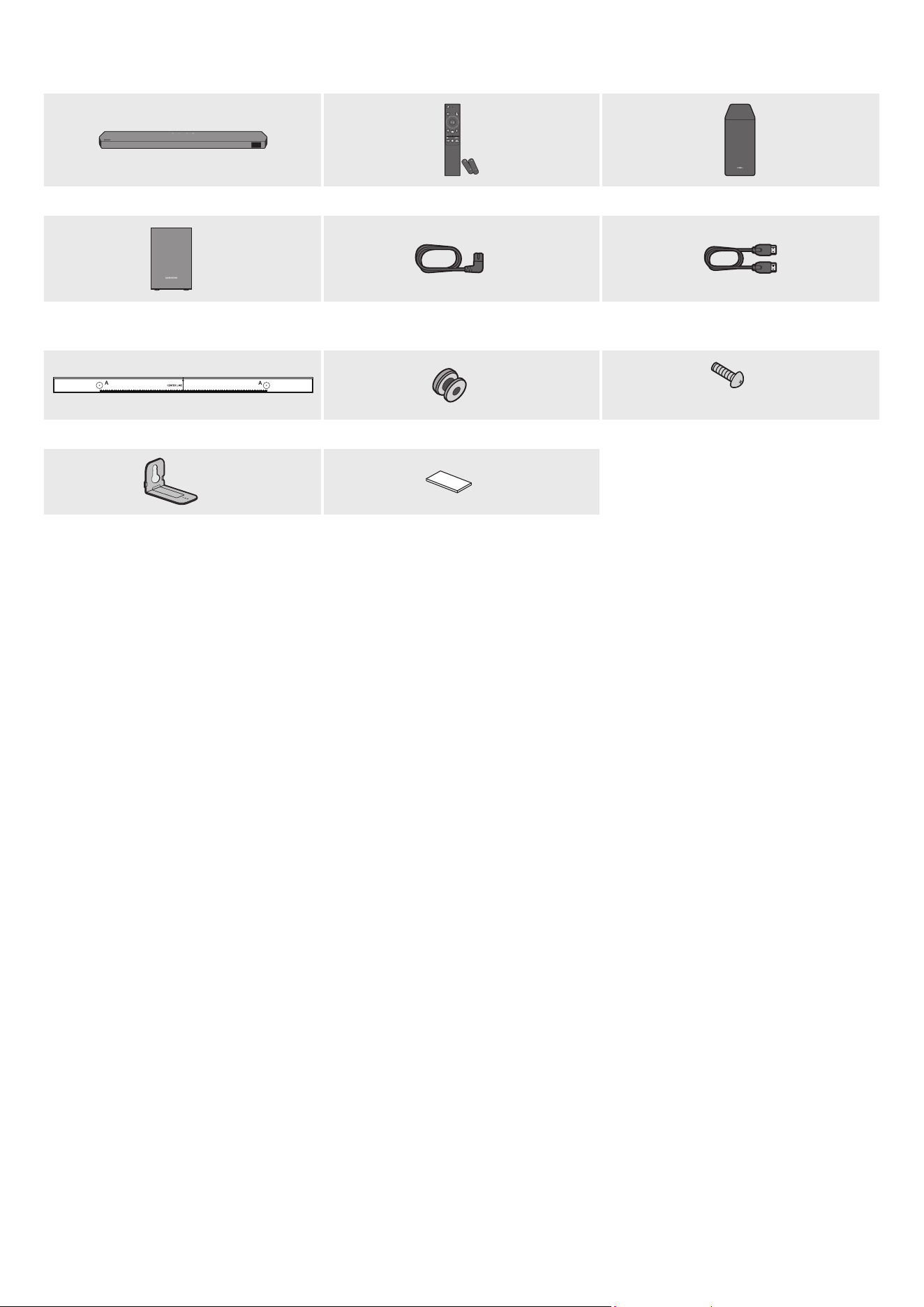
POR - 3
01 VERIFICAR OS COMPONENTES
SOUNDBAR
Unidade principal do Soundbar Telecomando do Soundbar/Pilhas Subwoofer
POWER
x 2
X 4
Altifalante Surround
(esquerdo/direito)
Cabo de alimentação
(Soundbar, Subwoofer, Altifalante Surround)
Cabo HDMI
A TYPE : 450mm
X 2
X 2
(M4 x L10)
Guia de suporte de parede Parafuso de xação Parafuso
X 2
X 4
Suporte de parede Borracha de base
• Para obter mais informações sobre a fonte de alimentação e o consumo de energia, consulte a etiqueta no produto. (Etiqueta: Parte de trás da unidade principal
do Soundbar)
• Para adquirir componentes adicionais ou cabos opcionais, entre em contacto com o Centro de assistência técnica ou com o Atendimento ao cliente da Samsung.
• Para mais informações sobre o suporte de parede ou a borracha de base, consulte as páginas 26~28
• A conceção, as especicações e o ecrã da aplicação estão sujeitos a alteração sem aviso prévio.
• O aspeto dos acessórios pode ser ligeiramente diferente das ilustrações acima.
• A Samsung Electronics Co., Ltd reserva-se o direito de alterar as especicações sem aviso prévio.
• Os valores do peso e das dimensões são aproximados
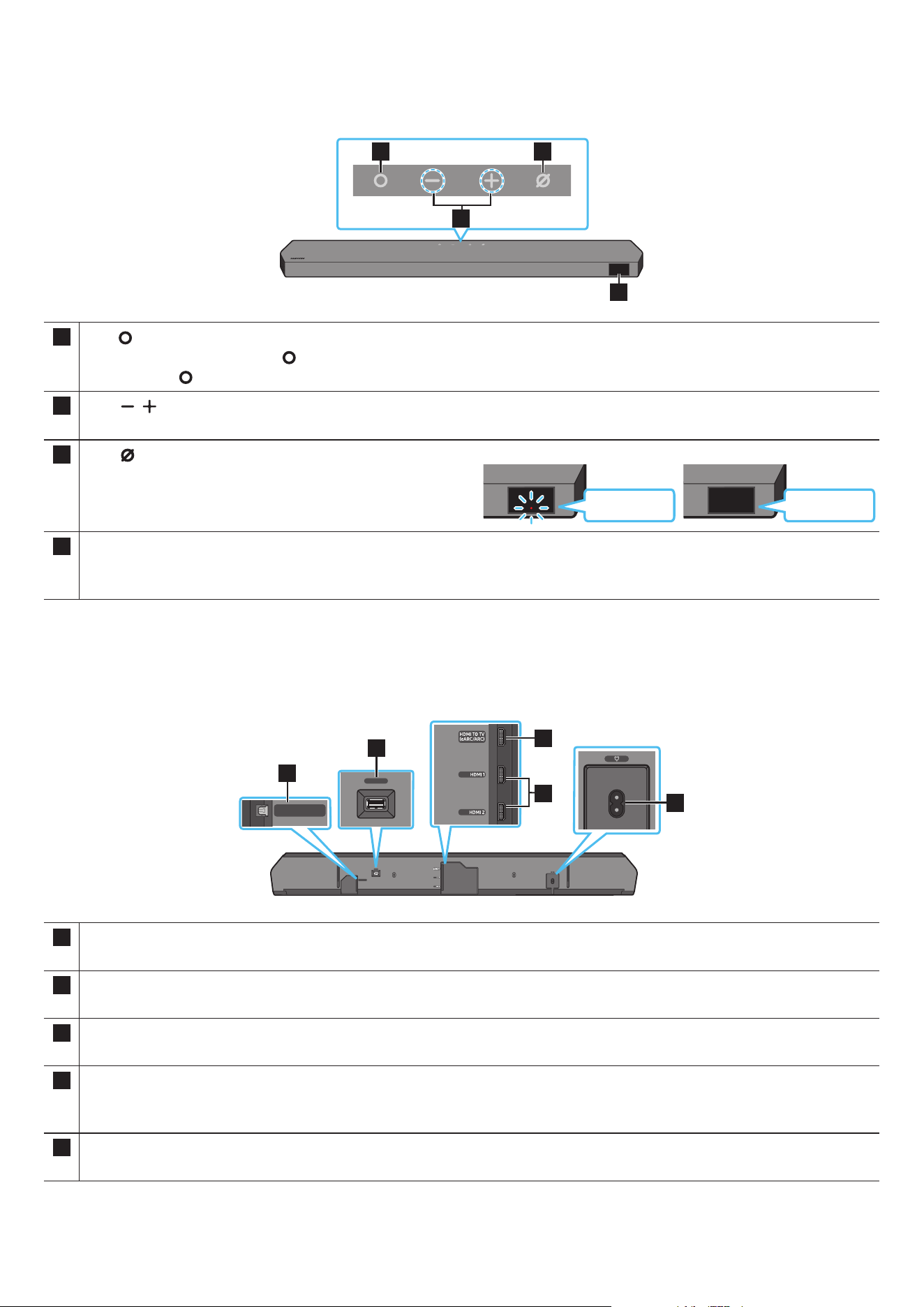
POR - 4
02 DESCRIÇÃO GERAL DO PRODUTO
Painel superior do Soundbar
2
1 3
4
1
Botão
(Multi Funções)
• No modo de espera, prima o botão (Multi Funções) para ligar o Soundbar.
• Prima o botão (Multi Funções) para alterar a fonte de entrada
2
Botão
(Volume)
Ajusta o volume
3
Botão
(Microfone Ligado/Desligado)
Prima o botão para ligar ou desligar o microfone.
Quando o microfone está desligado, o indicador LED brilha a vermelho.
Vermelho
Ligado
Microfone Desligado
Vermelho
Desligado
Microfone Ligado
4 Ecrã
Apresenta o modo atual e o estado do produto
TV ARC ou eARC → HDMI 1 → HDMI 2 → Wi-Fi → BT → D.IN
• Ao ligar o cabo de alimentação, o botão Ligar/Desligar começa a funcionar dentro de 4 a 6 segundos.
• Ao ligar esta unidade, há um atraso de 4 a 5 segundos antes de esta reproduzir som.
• Se ouvir sons provenientes da TV e do Soundbar, aceda ao menu Denições para o áudio da TV e mude o altifalante da TV para Altifalante externo
Painel inferior do Soundbar
DIGITAL AUDIO IN
(OPTICAL)
SERVICE
DIGITAL AUDIO IN
(OPTICAL)
SERVICE
ID SET
HDMI IN 1
HDMI IN 2
POWER
NETWORK
SERVICE
DIGITAL AUDIO IN
(OPTICAL)
HDMI TO TV
(eARC/ARC)
HDMI 2
HDMI 1
ID SET
(WOOFER/REAR)
ID SET
NETWORK
SERVICE
ID SET
(WOOFER/REAR)
DIGITAL AUDIO IN
(OPTICAL)
HDMI TO TV
(eARC/ARC)
HDMI 2
HDMI 1
5
DIGITAL AUDIO IN
(OPTICAL)
SERVICE
DIGITAL AUDIO IN
(OPTICAL)
SERVICE
DIGITAL AUDIO IN
(OPTICAL)
SERVICE
DIGITAL AUDIO IN
(OPTICAL)
SERVICE
DIGITAL AUDIO IN
(OPTICAL)
SERVICE
DIGITAL AUDIO IN
(OPTICAL)
SERVICE
2
1
4
3
1 DIGITAL AUDIO IN (OPTICAL)
Ligue a uma saída digital (ótica) de um dispositivo externo. (Consulte a página 20)
2 SERVICE
Ligue um dispositivo de armazenamento USB para atualizar o software do produto.
3 HDMI TO TV (eARC/ARC)
Ligue à tomada fêmea HDMI num televisor. (Consulte a página 13)
4 HDMI 1 / HDMI 2
Permite a entrada simultânea de sinais de áudio e vídeo digitais através de um cabo HDMI.
Ligue à saída HDMI de um dispositivo externo. (Consulte a página 19)
5 POWER
Ligue o cabo de alimentação do Soundbar. (Consulte a página 9)
• Quando desligar o cabo de alimentação da tomada elétrica, puxe a cha. Não puxe o cabo.
• Não ligue esta unidade ou outros componentes a uma tomada de CA até que todas as ligações entre os componentes estejam concluídas.
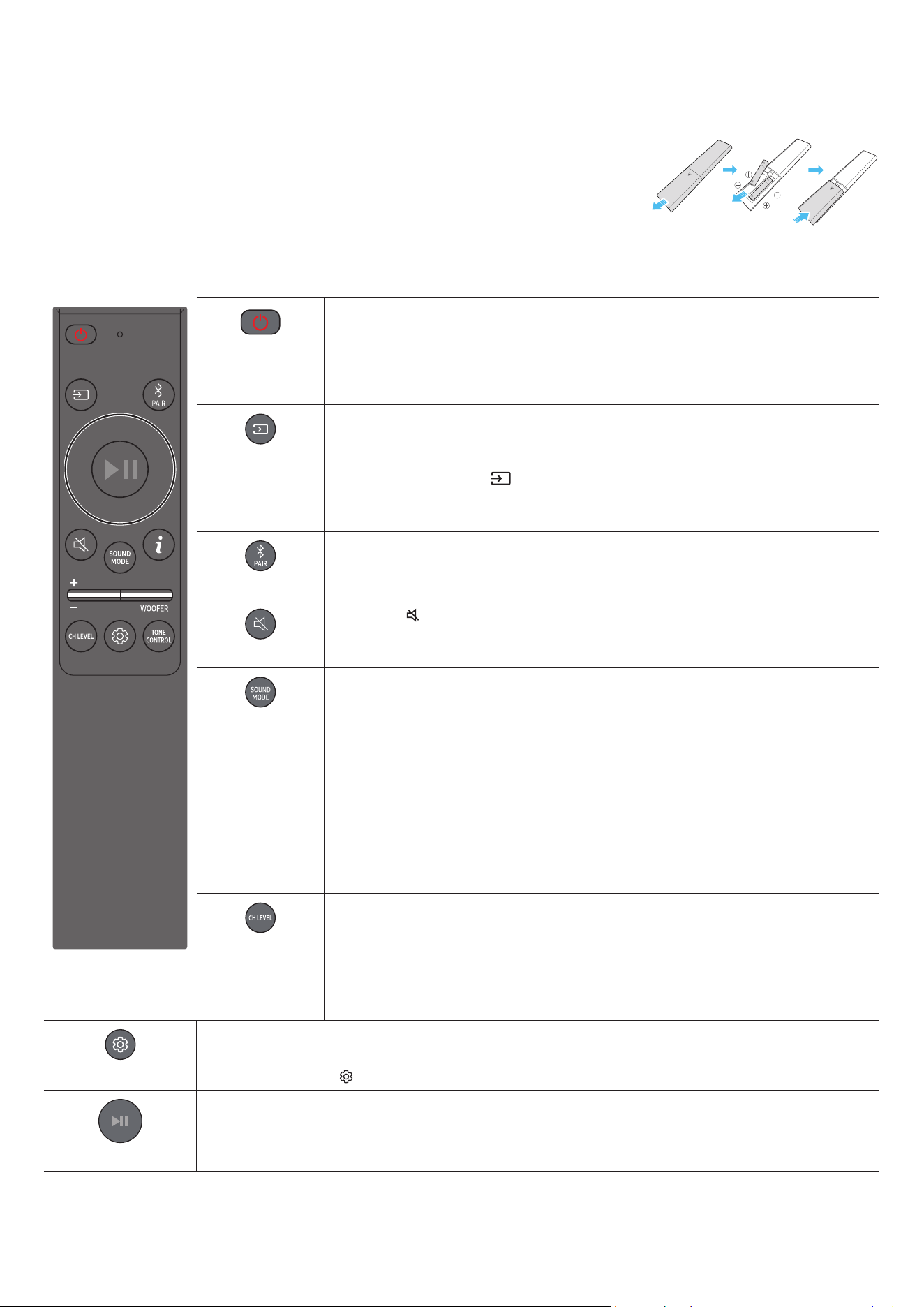
POR - 5
03 UTILIZAR O CONTROLO REMOTO DO SOUNDBAR
Inserir as pilhas antes de utilizar o controlo remoto (X 2 pilhas AAA)
Faça deslizar a tampa posterior na direção da seta até ser totalmente removida. Insira 2 pilhas AAA (1,5 V) orientadas
corretamente em função das suas polaridades. Deslize a tampa das pilhas de volta à sua posição.
• A ilustração difere consoante o respetivo modelo de Controlo remoto
Como utilizar o controlo remoto
SOUNDBAR
Ligar/Desligar
Liga e desliga o Soundbar.
• Função Desligar automático
Esta unidade desliga-se automaticamente nas seguintes situações:
• No modo TV ARC ou eARC / HDMI 1/ HDMI 2 / Wi-Fi / BT / D.IN, se não existir sinal de áudio durante
18 minutos
Fonte
Prima para selecionar uma fonte ligada ao Soundbar.
• Ligar/Desligar Feedback de Voz
Pode ligar ou desligar o Feedback de Voz
Mantenha premido o botão
(Fonte) no telecomando durante 5 segundos enquanto o Soundbar
está desligado (modo de espera).
Sempre que altera a denição Feedback de Voz, o ecrã mostra “AUI OFF” (Predenição) ou “AUI ON”
Bluetooth PAIR
Mude o Soundbar para modo de emparelhamento por Bluetooth. Prima o botão e aguarde pelo ecrã “BT
PAIRING” para ligar a um novo dispositivo Bluetooth.
Sem som
Prima o botão
(Sem som) para colocar no silêncio.
Prima-o novamente para repor o som
SOUND MODE
Ao premir o botão, pode selecionar o modo de áudio pretendido, como Surround, Game Pro, Standard,
Adaptive Sound
• Standard
Emite o som original.
• Surround
Oferece um campo sonoro mais amplo do que o padrão.
• Game Pro
Oferece som estereoscópico para mergulhar na ação durante os videojogos.
• Adaptive Sound
Analisa o conteúdo em tempo real e fornece automaticamente o campo sonoro ótimo com base nas
características do conteúdo.
CH LEVEL
Ao premir o botão, pode ajustar o volume de cada altifalante como Center level, Side level, Wide level,
Front Top level, Rear level, Rear top level, e Rear side level
• Para controlar o volume de cada altifalante, selecione Center level, Side level, Wide level ou Front Top
level nas Denições de som e, em seguida, ajuste o volume entre -6 e +6 com os botões Cima/Baixo
• Se tiver Altifalantes Surround ligados, selecione Rear level, Rear top level ou Rear side level e utilize
os botões Cima/Baixo para ajustar o volume dentro do intervalo -6 a +6.
Controlo de som
Ao premir o botão, pode denir as funções de áudio como SpaceFit Sound, AVA, Voice enhance mode, Night mode, Sync, Surround
speaker mode, Virtual, Private Rear Sound e Sound Grouping Pode ajustar o item desejado ao usar os botões Cima/Baixo
• Consulte “Congurar o
(Controlo de som)” na página 6
(Reproduzir/Pausar)
Pode também reproduzir ou pausar música premindo o botão.
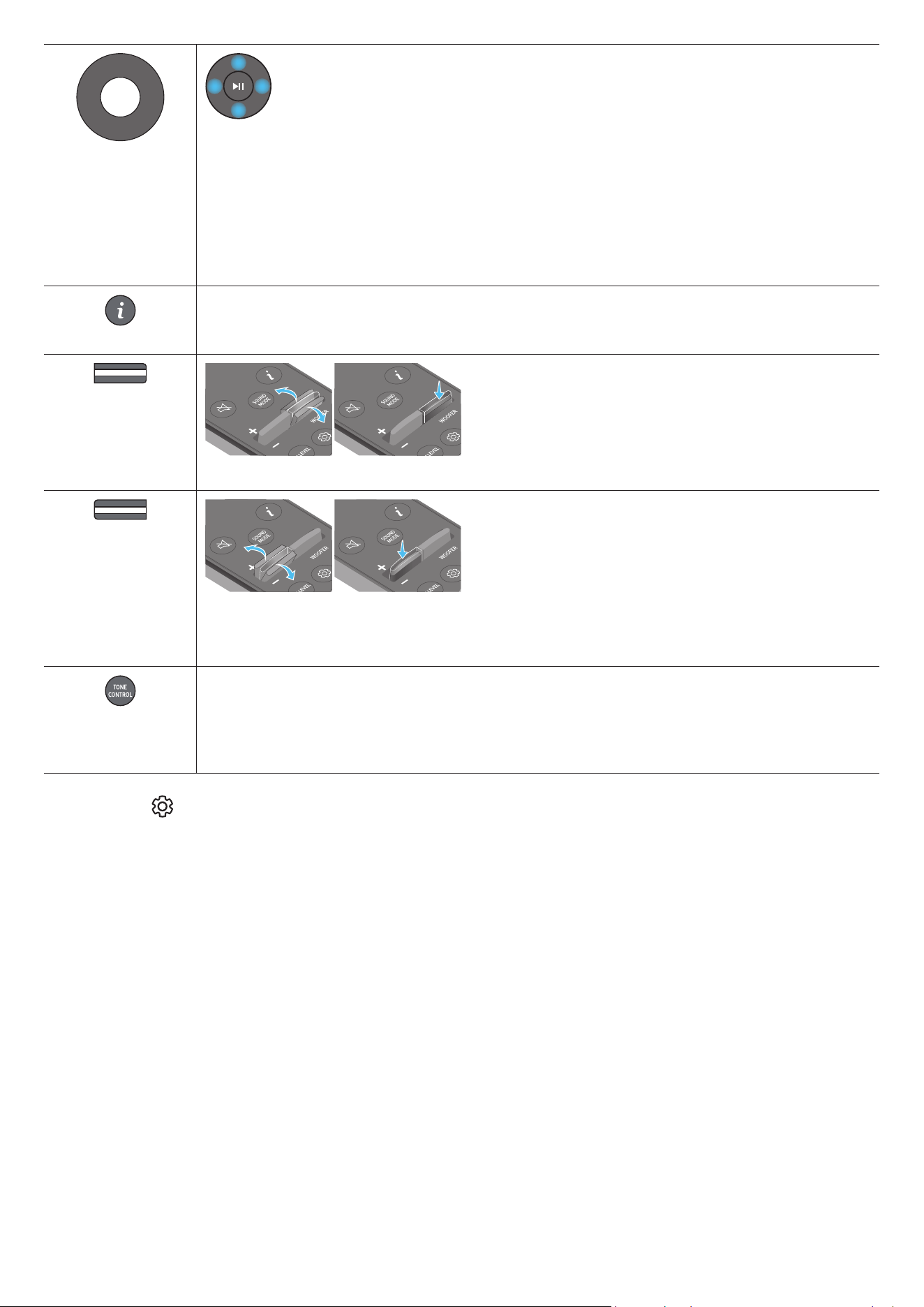
POR - 6
Cima/Baixo/Esquerda/
Direita
Prima as áreas indicadas para selecionar Cima/Baixo/Esquerda/Direita.
Prima Cima/Baixo/Esquerda/Direita no botão para selecionar ou denir funções.
• Saltar música
Prima o botão Direito para selecionar o cheiro de música seguinte. Prima o botão Esquerdo para selecionar o cheiro de
música anterior
• ID SET
Utilize esta opção se o Subwoofer ou as Colunas Surround não estiverem ligados ou se for necessário voltar a ligar.
Enquanto estiverem desligados, mantenha premido o botão Cima durante 5 segundos para executar a ID SET (Consulte a
página 11 )
Informações
Prima para apresentar informações sobre a função ativa ou o codec disponível.
Em modo BT, apresenta o dispositivo ligado (após a conclusão do emparelhamento) ou “BT ready” (quando é necessário
emparelhar)
NÍVEL DO WOOFER
Prima o botão Para cima ou Para baixo para ajustar o nível do woofer (graves).
VOLUME
Prima o botão para cima ou para baixo para ajustar o volume
• Sem som
Prima o botão VOL para colocar no silêncio. Prima-o novamente para repor o som.
TONE CONTROL
Ao premir o botão, pode ajustar o volume de sons agudos ou graves. Pode ajustar o item desejado ao usar os botões Cima/Baixo
Esta função é ativada no modo de som, com a exclusão do modo Standard
• Para controlar o volume de sons agudos ou graves, selecione TREBLE ou BASS em Denições de som e dena o nível entre -6 e
+6 com os botões Cima/Baixo
• Quando o nível de graves for alterado, o nível do woofer será também ajustado em conformidade.
Congurar o (Controlo de som)
• Active Voice Amplier (AVA): Analisa o ruído externo em tempo real enquanto o Soundbar está em reprodução, para que o áudio de voz possa ser sempre ouvido
com nitidez. Não são guardados quaisquer dados durante a análise.
• A opção Voice enhance mode otimiza os diálogos em lmes e na TV ao permitir ouvir mais facilmente.
• O Night mode está otimizado para visualização noturna com as denições ajustadas para diminuir o volume, mas manter os diálogos percetíveis.
• Sound Grouping: a unidade principal do Soundbar e os Altifalantes surround reproduzem o som completo em vez de som surround, tornando-o ideal para
grandes grupos de pessoas a ouvir música num espaço amplo.
‒ Este menu é inicialmente ativado quando os Altifalantes surround estão ligados e, em seguida, o menu permanece ativado independentemente da ligação
dos Altifalantes surround
‒ Se ativar o Sound Grouping, não existem diferenças nos sons entre os Modos de som.
‒ O som não sai de todas as unidades de altifalante da unidade principal do Soundbar e dos Altifalantes surround, mas apenas de certas unidades pré-
determinadas, que variam consoante o modelo.
• Private Rear Sound: este modo dene o som para sair apenas dos Altifalantes surround, permitindo-lhe ouvir sem ser incomodado por outras pessoas.
‒ Se ativar este modo, o som não sai da unidade principal do Soundbar nem do subwoofer. O som sai apenas do canal frontal dos Altifalantes surround.
‒ Se ativar o Private Rear Sound, não existem diferenças nos sons entre os Modos de som.
‒ A função desliga-se quando a alimentação é desligada ou a ligação dos Altifalantes surround é perdida.
‒ O menu só é ativado quando os Altifalantes surround estão ligados.
‒ Este modo é automaticamente desligado e ca indisponível quando a função Q-Symphony é ativada.
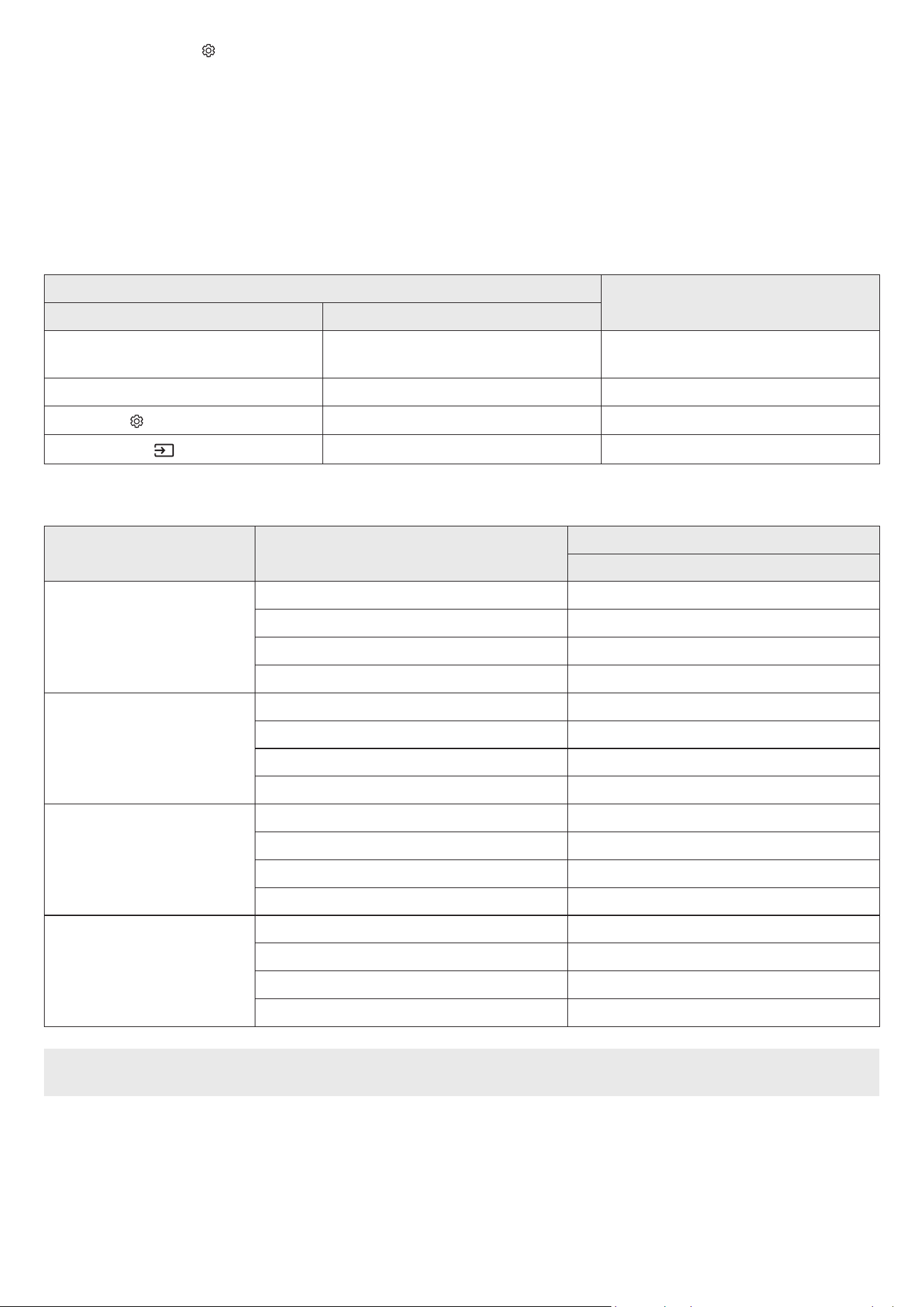
POR - 7
• Mantenha premido o botão (Controlo de som) durante cerca de 5 segundos para ajustar o som a cada banda de frequência. Pode selecionar 150 Hz, 300 Hz,
600 Hz, 1,2 kHz, 2,5 kHz, 5 kHz e 10 kHz com os botões Esquerdo/Direito e cada opção pode ser ajustada para uma denição entre -6 e +6 com os botões Cima/
Baixo
(Certique-se de que o modo de som está denido como “Standard” )
• Se o vídeo na TV e o áudio no Soundbar não estiverem sincronizados, selecione Sync em Controlo de som e dena o atraso de áudio para um valor entre 0 e
300 milissegundos com os botões Cima/Baixo
• Sync só é suportado em algumas funções.
• As denições disponíveis do Surround speaker mode podem variar consoante a especicação do altifalante Surround (com o Soundbar) compatível.
• A função de Altifalante Virtual pode ser ligado ou desligado, ON/OFF, com os botões Cima/Baixo
Utilizar os botões escondidos (botões com mais de uma função)
Botão escondido
Página de referência
Botão do controlo remoto Função
WOOFER (cima)
Ligar/desligar (em espera) do controlo remoto do
televisor
página 8
Cima ID SET página 11
(Controlo de Som)
7 Band EQ página 6
(Fonte)
Ligar/Desligar Feedback de Voz (modo de espera) página 5
Especicações de saída para os diferentes modos de efeitos sonoros
Efeito Entrada
Potência
Com Subwoofer e Altifalante Surround
Standard
2 0 canais 2 1 canais
5 1 canais 5.1 canais/7.1 canais (DTS)
7 1 canais 7 1 canais
Dolby Atmos®, DTS:X 7 1 4 canais
Surround
2 0 canais 11 1 4 canais
5 1 canais 11 1 4 canais
7 1 canais 11 1 4 canais
Dolby Atmos®, DTS:X 11 1 4 canais
Game Pro
2 0 canais 11 1 4 canais
5 1 canais 11 1 4 canais
7 1 canais 11 1 4 canais
Dolby Atmos®, DTS:X 11 1 4 canais
Adaptive Sound
2 0 canais 11 1 4 canais
5 1 canais 11 1 4 canais
7 1 canais 11 1 4 canais
Dolby Atmos®, DTS:X 11 1 4 canais
Os Altifalantes Surround não emitem qualquer som para saídas de 2 canais enquanto o modo Standard estiver a ser utilizado Para ativar o som dos Altifalantes
Surround, altere o modo de efeitos para Surround
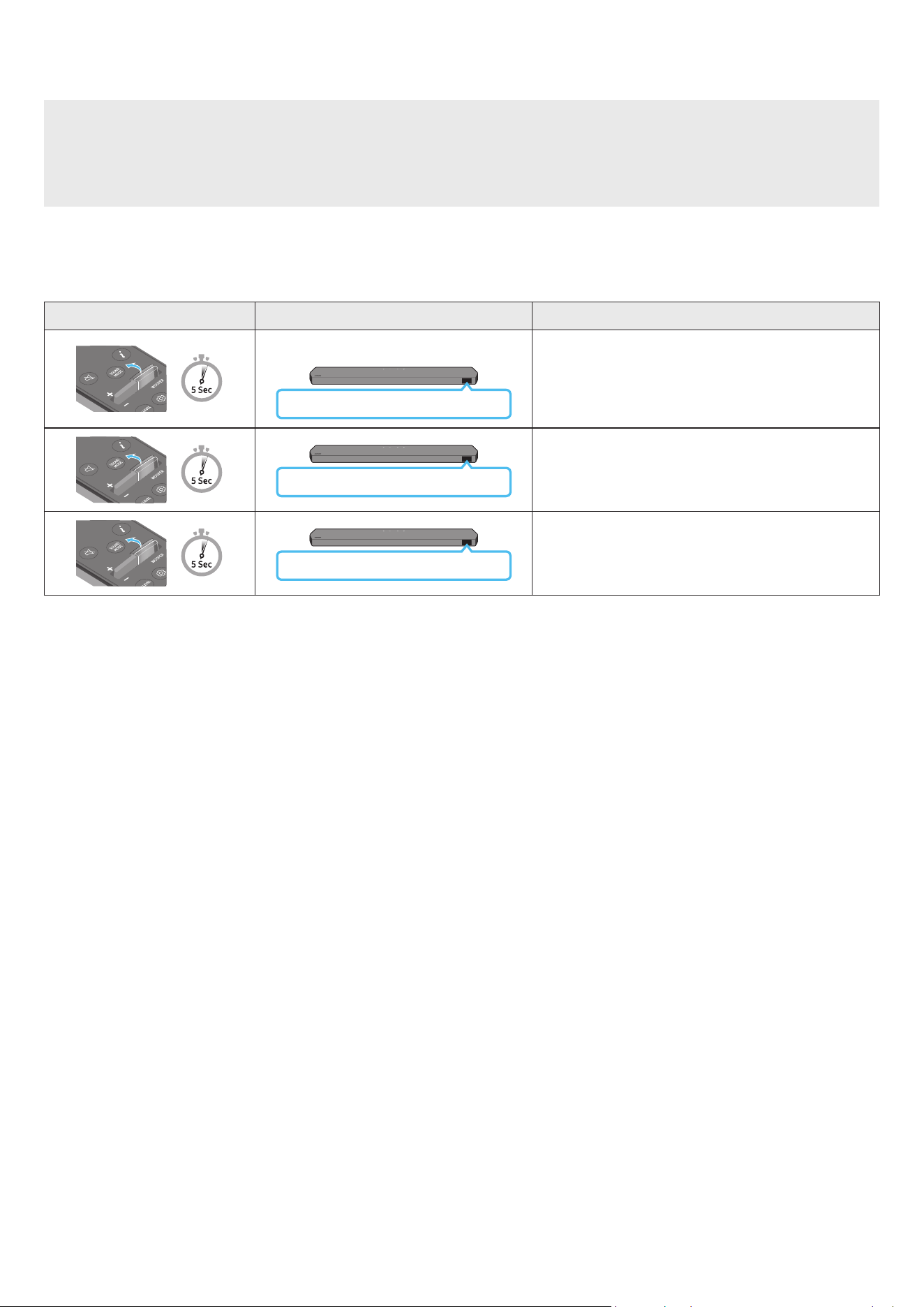
POR - 8
Ajustar o volume do Soundbar com o telecomando de uma TV
Ajuste o volume do Soundbar com o controlo remoto do televisor
• Esta função só pode ser utilizada com telecomandos por infravermelhos. Os controlos remotos Bluetooth (controlos remotos que requerem emparelhamento)
não são suportados
• Dena o altifalante da TV para Altifalante externo para utilizar esta função
• Fabricantes que suportam esta função:
Samsung, VIZIO, LG, Sony, Sharp, PHILIPS, PANASONIC, TOSHIBA, Hisense, RCA
1. Desligue o Soundbar.
2. Mantenha premido o botão WOOFER durante 5 segundos.
Cada vez que mantiver premido o botão WOOFER durante 5 segundos, o modo muda pela seguinte ordem: “OFF-TV REMOTE” (Modo predenido), “SAMSUNG-TV
REMOTE”, “ALL-TV REMOTE”
Botão do controlo remoto Ecrã Estado
(Modo predenido)
OFF-TV REMOTE
Desative o controlo remoto do televisor
SAMSUNG-TV REMOTE
Ative o controlo remoto por infravermelhos de um televisor
Samsung.
ALL-TV REMOTE
Ative o controlo remoto por infravermelhos de um televisor de
terceiros
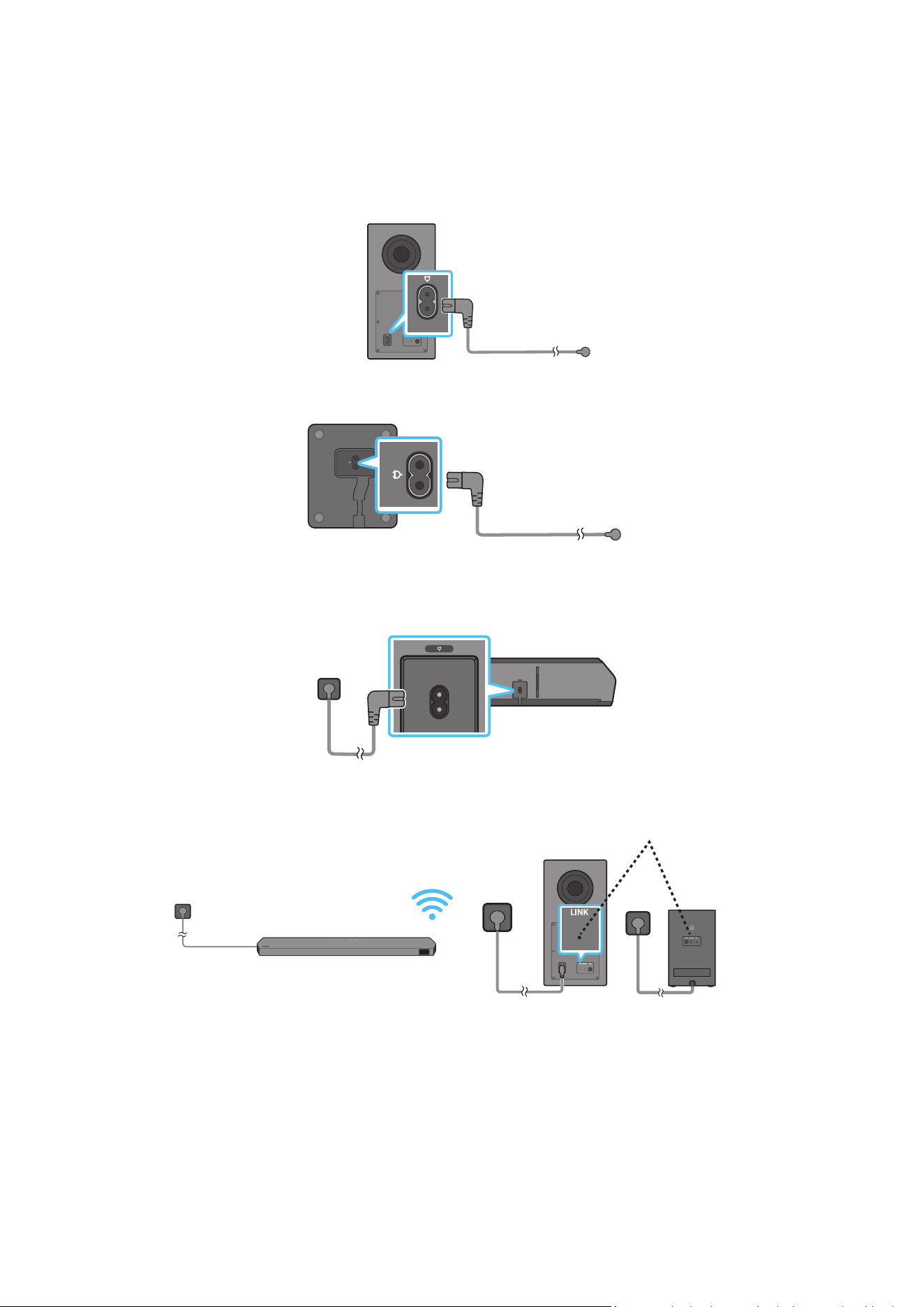
POR - 9
04 LIGAR O SOUNDBAR
Ligar a alimentação e as unidades
Utilize o cabo de alimentação para ligar o Subwoofer, os Altifalantes Surround e a Soundbar a uma tomada elétrica pela seguinte ordem:
• Para mais informações sobre a potência elétrica necessária e o consumo de energia, consulte a etiqueta no produto. (Etiqueta: Parte de trás da unidade principal
do Soundbar)
1. Ligue o cabo de alimentação ao Subwoofer.
Parte traseira do Subwoofer
Cabo de alimentação
2. Ligue o cabo de alimentação aos Altifalantes Surround esquerdo e direito.
Parte inferior dos
Altifalantes Surround
esquerdo e direito
Cabo de alimentação
3. Ligue o cabo de alimentação à Soundbar.
POWER
POWER
DIGITAL AUDIO IN
(OPTICAL)
HDMI TO TV
(eARC/ARC)
HDMI 1
HDMI 2
SERVICE
POWER
Parte inferior da unidade
principal do Soundbar
Cabo de alimentação
4. Ligue o cabo de alimentação à Soundbar, ao Subwoofer e aos Altifalantes Surround. O Subwoofer e os Altifalantes Surround ligam-se automaticamente quando
se liga a Soundbar.
LED DE LIGAÇÃO - Azul signica ativado
NOTA
• Ligue a alimentação do Subwoofer e dos Altifalantes Surround antes de ligar a Soundbar. O Subwoofer e os Altifalantes Surround serão ligados automaticamente
quando se ligar a Soundbar.
• Se desligar e voltar a ligar o cabo de alimentação quando o produto estiver ligado, o Soundbar liga-se automaticamente.
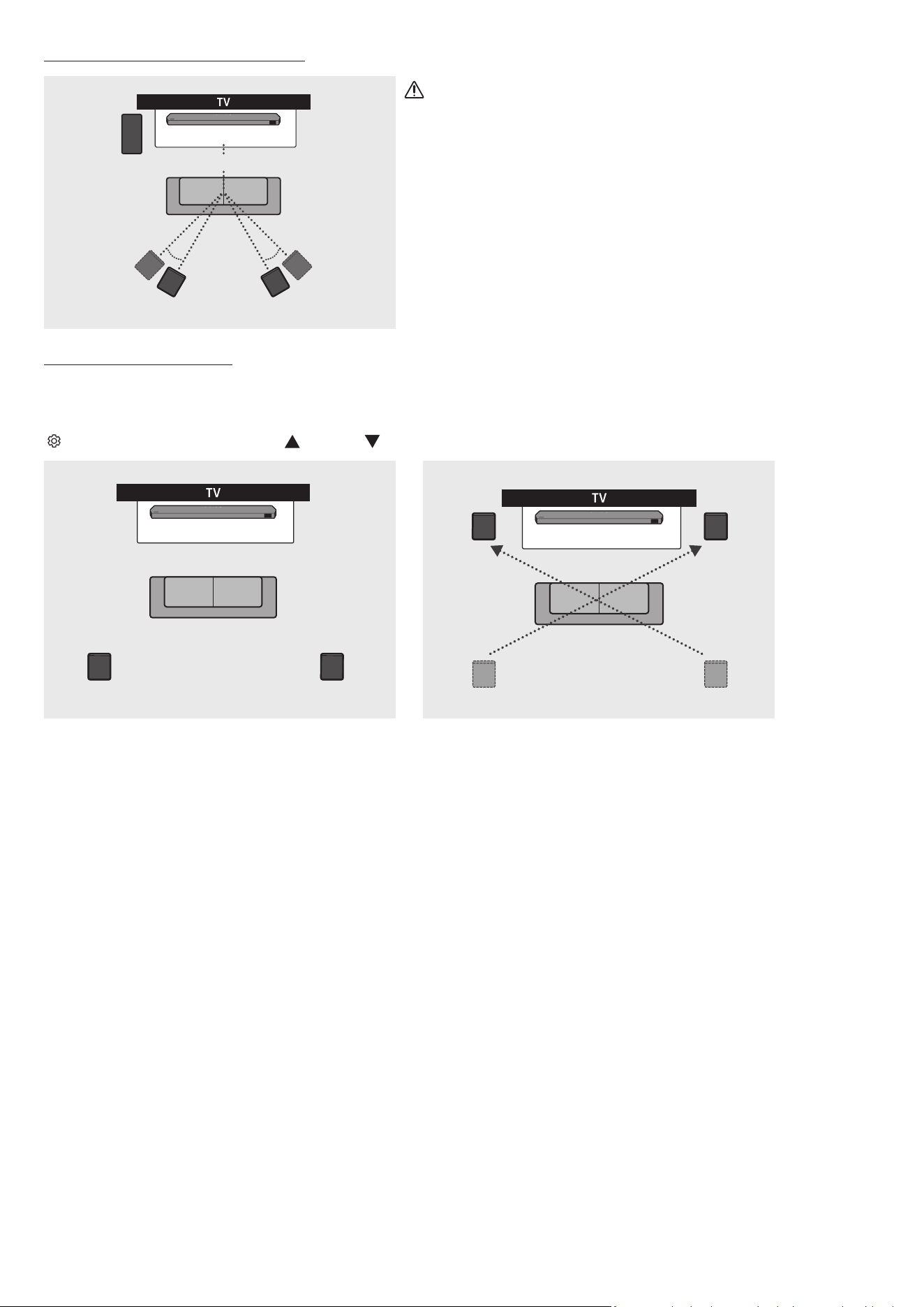
POR - 10
Disposição recomendada dos altifalantes
150° 150°
135° 135°
0°
Subwoofer
Soundbar
Altifalante Surround E Altifalante Surround D
CUIDADO
• O Subwoofer e os Altifalantes surround possuem antenas de receção de sinal sem os
incorporadas. Mantenha as unidades afastadas da água e da humidade.
• Para obter um desempenho de áudio ideal, certique-se de que as áreas em torno do
Subwoofer e dos Altifalantes surround não estão obstruídas.
Modo do Altifalante Surround
Pode ser fornecido um som surround ideal consoante a posição do altifalante surround Consulte a ilustração abaixo para obter informações sobre o posicionamento
do altifalante
Para ativar este modo, selecione o modo de Altifalante Surround com o controlo remoto do Soundbar.
(
(Controlo de Som) → Altifalante surround → (Para cima)/ (Para baixo) → Frontal/Traseiro)
Soundbar
Altifalante Surround E Altifalante Surround D
Soundbar
Altifalante Surround D
Altifalante Surround E
Posicionamento traseiro Posicionamento frontal
NOTA
• Este modo só está disponível com modelos de Soundbar que incluem um altifalante Surround especíco.
• No modo Altifalante Frontal, posicione os altifalantes frontais na sua direção.
• O modo de altifalante surround está ativado por predenição como posição traseira.
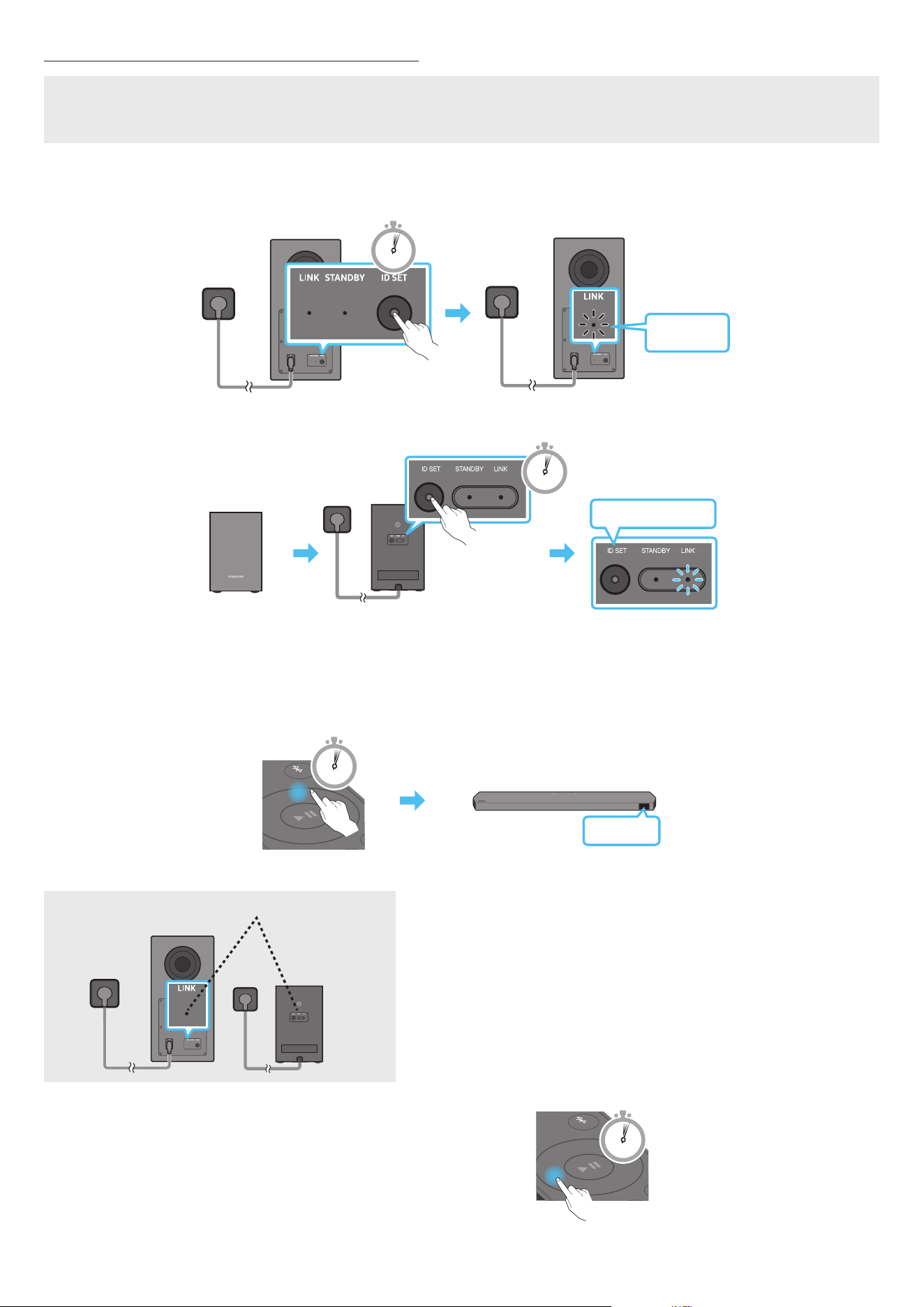
POR - 11
Ligação manual do Subwoofer ou dos Altifalantes Surround
Antes de executar o procedimento de ligação manual em baixo:
• Conrme se os cabos de alimentação do Soundbar e do Subwoofer ou dos Altifalantes surround estão corretamente ligados.
• Certique-se de que o Soundbar está desligado.
1. Desligue a unidade principal do Soundbar.
2. Mantenha premido o botão ID SET na parte traseira do Subwoofer e dos Altifalantes surround durante, pelo menos, 5 segundos.
• O indicador vermelho na parte de trás de cada coluna apaga-se e o indicador azul pisca.
5 Sec
Azul a piscar
rápido
Parte traseira do Subwoofer Parte traseira do Subwoofer
Azul a piscar rápido
POWER
x 2
Parte traseira dos Altifalantes Surround esquerdo
e direito
5 Sec
3. Mantenha o botão Para cima do telecomando premido durante 5 segundos.
• A mensagem ID SET é apresentada no ecrã do Soundbar brevemente e depois desaparece.
• O Soundbar liga-se automaticamente quando a ID SET estiver concluída.
SOUND
MODE
PAIR
5 Sec
ID SET
4. Verique se o LED LINK está aceso continuamente a azul (ligação concluída).
LED DE LIGAÇÃO - Azul signica ativado O indicador LED DE LIGAÇÃO deixa de estar intermitente e mantém uma cor azul sólida
quando é estabelecida uma ligação entre o Soundbar, o Subwoofer e os Altifalantes
surround
NOTA
• Como efetuar a reposição do módulo Tx
1. Desligue o Soundbar.
2. Mantenha o botão Esquerda no telecomando premido durante 5 segundos.
3. Siga o procedimento “Ligação manual do Subwoofer ou dos Altifalantes Surround”
SOUND
MODE
PAIR
5 Sec
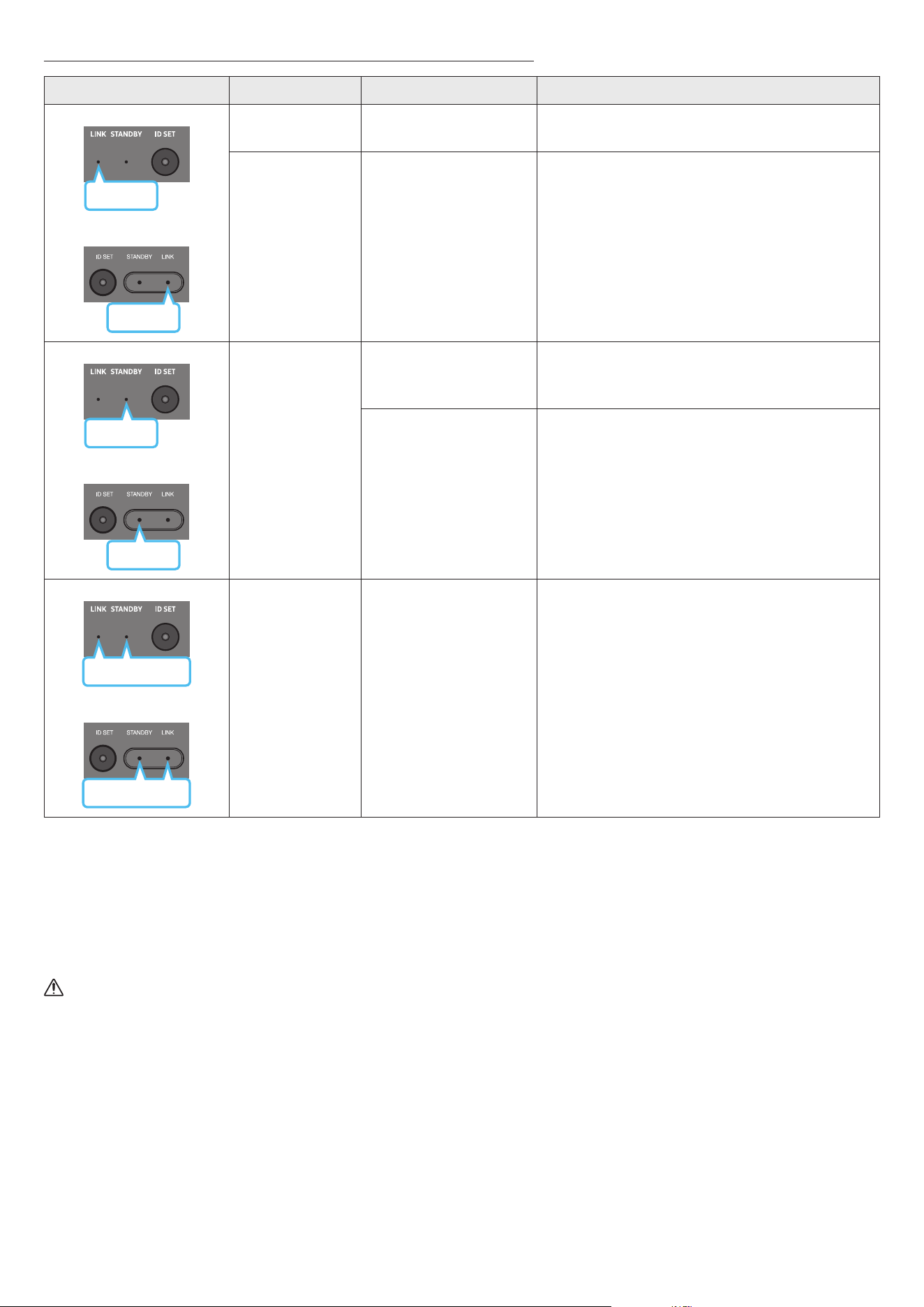
POR - 12
Luzes indicadoras LED na parte traseira do Subwoofer e Altifalantes Surround
LED Estado Descrição Resolução
Azul
Subwoofer
Altifalantes Surround
Azul
Ligado
Ligado com sucesso
(funcionamento normal)
-
A piscar A recuperar a ligação
Verique se o cabo de alimentação está devidamente ligado à
unidade principal do Soundbar ou aguarde cerca de 5 minutos.
Se a luz permanecer intermitente, tente ligar manualmente o
Subwoofer e os Altifalantes surround. Consulte a página 11
Vermelho
Subwoofer
Altifalantes Surround
Vermelho
Ligado
Modo de espera (com a
unidade principal do Soundbar
desligada)
Verique se o cabo de alimentação está devidamente ligado à
unidade principal do Soundbar
Falha ao ligar
Estabeleça uma nova ligação. Consulte as instruções relativas à
ligação manual na página 11
Subwoofer
Vermelho e azul
Altifalantes Surround
Vermelho e azul
A piscar Ocorreu uma avaria
Consulte as informações de contacto do Centro de assistência
Samsung presentes neste manual.
NOTA
• Se a unidade principal estiver desligada, o Subwoofer entrará em modo de espera e o LED STANDBY na parte traseira do subwoofer cará vermelho após piscar a
azul várias vezes.
• Se utilizar um dispositivo que utilize a mesma frequência do Soundbar perto deste, as interferências podem causar algumas interrupções de som.
• A distância de transmissão máxima do sinal sem os da unidade principal é de cerca de 10 m, mas pode variar consoante o ambiente de funcionamento. Se existir
uma parede de aço e betão ou uma parede metálica entre a unidade principal e o Subwoofer, o sistema pode não funcionar de todo porque o sinal sem os não
consegue passar por metal.
CUIDADO
• O Subwoofer e os Altifalantes surround possuem antenas de receção de sinal sem os incorporadas. Mantenha a unidade longe da água e da humidade.
• Para obter um desempenho de áudio ideal, certique-se de que a área em torno do Subwoofer e dos Altifalantes surround não estão obstruídas.
• Não insira qualquer parte do seu corpo ou objetos estranhos no tubo do Subwoofer (orifício).
• Não utilize o tubo do Subwoofer (orifício) para o pendurar na parede.
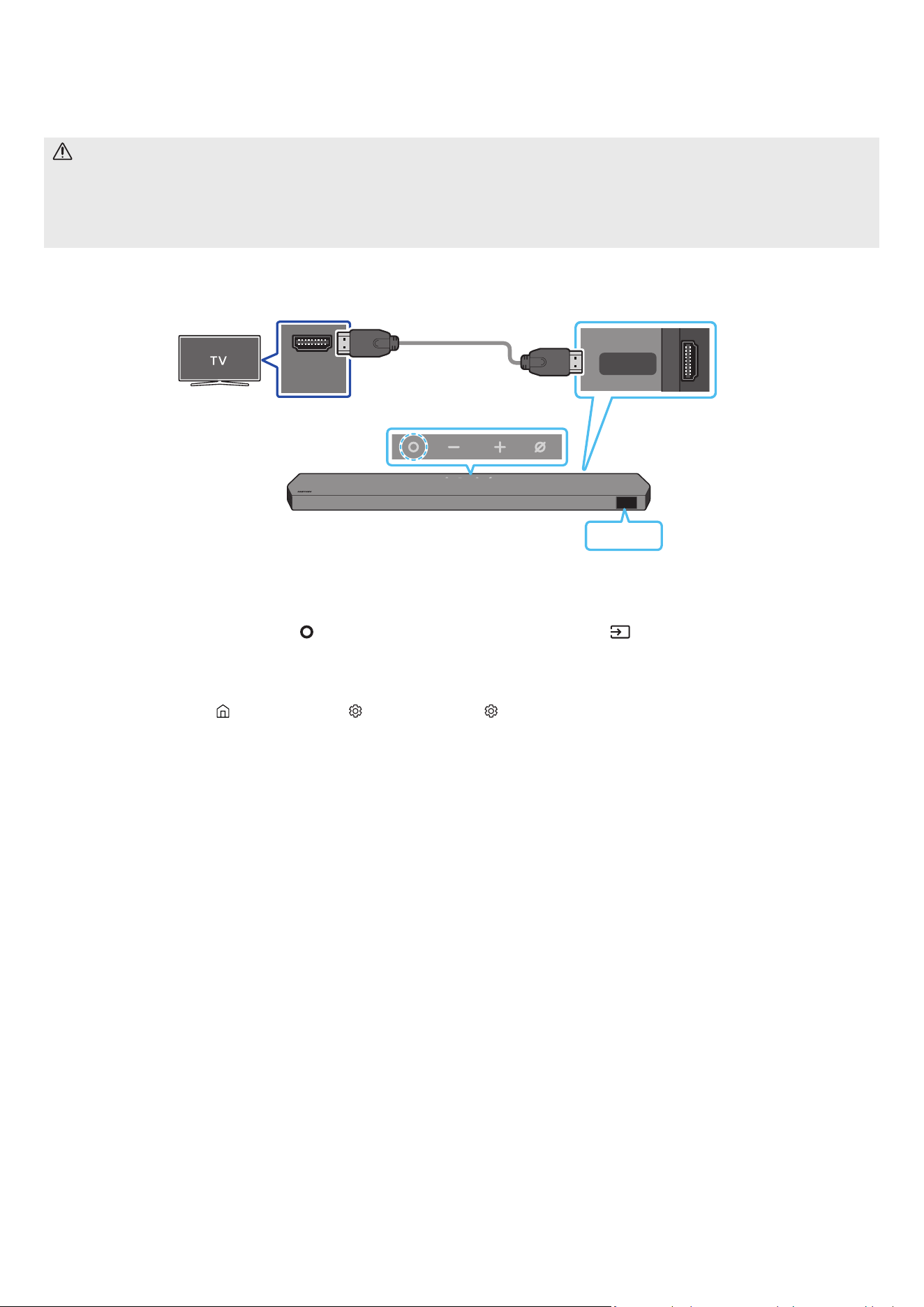
POR - 13
05 LIGAR A UMA TV
Ligar uma TV compatível com HDMI ARC (canal de retorno de áudio)
CUIDADO
• Quando o cabo HDMI e o cabo ótico estão ambos ligados, o sinal HDMI é recebido primeiro.
• Para ligar o cabo HDMI entre o televisor e o Soundbar, certique-se de que liga os terminais assinalados com ARC. Caso contrário, o som do televisor pode não
reproduzir
• Recomenda-se a utilização de um cabo HDMI certicado pela HDMI.org.
HDMI IN
(ARC)
HDMI TO TV
(eARC/ARC)
Ligue à porta HDMI IN
(ARC/eARC) da TV.
Ligue à porta HDMI TO TV
(eARC/ARC) da unidade
principal do Soundbar.
Cabo HDMI
(fornecido)
Parte superior do Soundbar
Parte inferior do Soundbar
TV-ARC
1. Com o Soundbar e o televisor desligados, ligue o cabo HDMI conforme indicado na gura.
2. Ligue o Soundbar e o televisor.
3. “TV ARC” surge no ecrã da unidade principal do Soundbar e o som do televisor é reproduzido pelo Soundbar.
• Quando a TV não emitir som, prima o botão (Multi Funções) na parte superior do Soundbar ou o botão (Fonte) no telecomando para selecionar o modo
“TV ARC”. O ecrã apresenta a mensagem "TV ARC" e o som da TV é reproduzido.
• Quando liga uma TV compatível com a função eARC, é apresentada a mensagem “TV eARC” no ecrã e é reproduzido um som.
• Para ligar com eARC, a função eARC no menu da TV deve estar ligada. Consulte o manual do utilizador da TV para obter mais informações sobre a denição.
(p. ex., TV Samsung: Início ( ) → Menu → Denições ( ) → Todas as Denições ( ) → Som → Denições Especializadas → Modo HDMI-eARC (Auto))
• Se a mensagem “TV ARC” não surgir no ecrã da unidade principal do Soundbar, verique se o cabo HDMI está ligado à porta correta.
• Utilize os botões do volume no controlo remoto do televisor para mudar o volume no Soundbar
NOTA
• Quando ligar o televisor que suporta HDMI ARC (Canal de retorno de áudio) ao Soundbar com um cabo HDMI, pode transmitir dados de áudio e vídeo digital sem
precisar de ligar um cabo ótico diferente.
• Recomendamos que utilize um cabo HDMI sem núcleo, se possível. Se utilizar um cabo HDMI com núcleo, utilize um cujo diâmetro seja inferior a 14 mm.
• Esta função não está disponível se o cabo HDMI não suportar ARC.
• Se o áudio numa emissão estiver codicado como Dolby Digital e o “Formato de saída de áudio digital” do televisor estiver denido como PCM, recomendamos
que altere a denição para Dolby Digital. Se a conguração do televisor for alterada, terá uma melhor qualidade de som. (O menu do televisor poderá utilizar
expressões diferentes para Dolby Digital e PCM em função do fabricante do televisor.)
• Os protocolos ARC/eARC suportam Dolby Atmos.
• Certique-se de que o conteúdo suporta Dolby Atmos®.
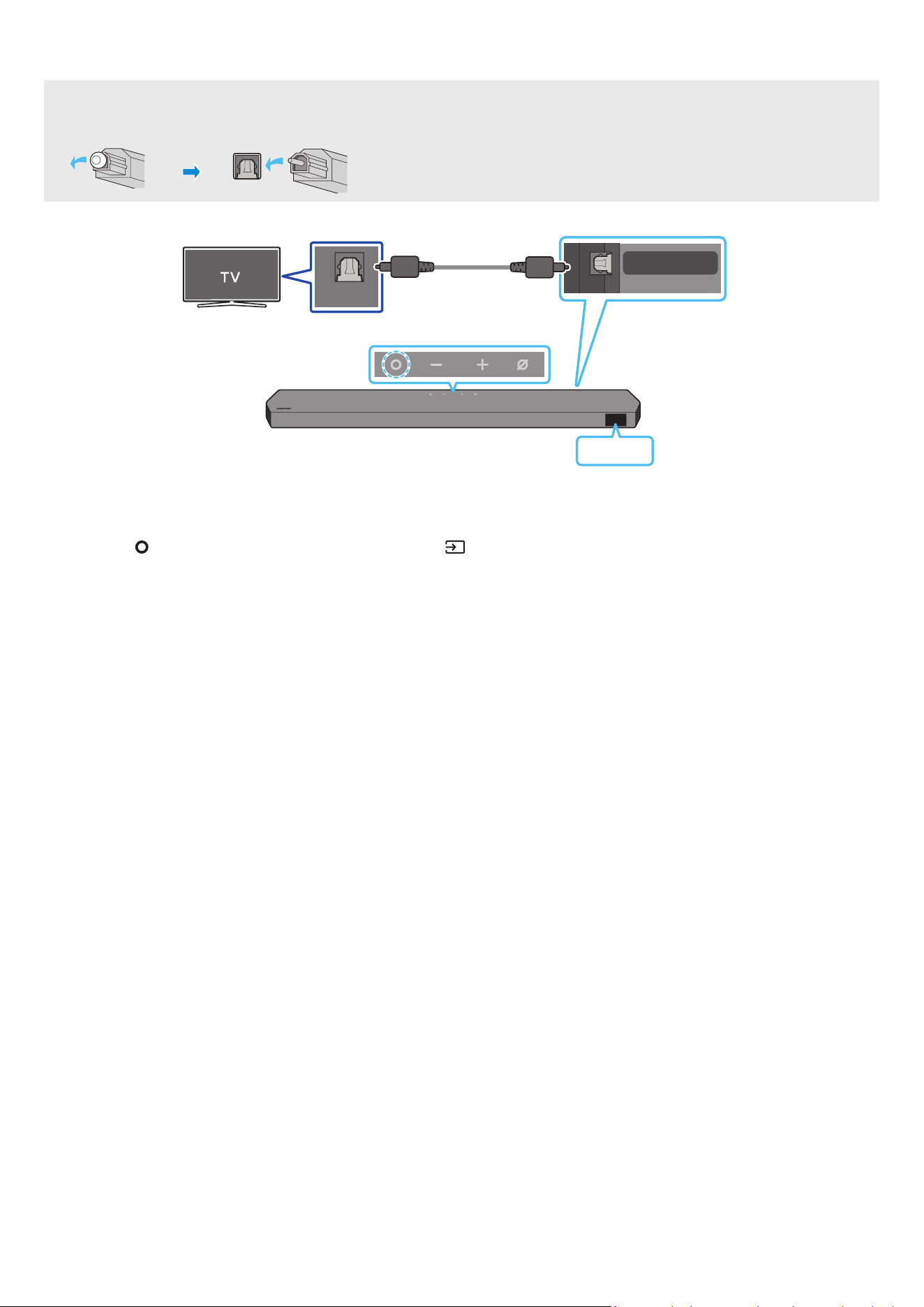
POR - 14
Ligar com um cabo ótico
Lista de vericação pré-ligação
• Quando o cabo HDMI e o cabo ótico estão ambos ligados, o sinal HDMI é recebido primeiro.
• Quando utilizar um cabo ótico e os terminais estiverem tapados, certique-se de que remove as tampas.
OPTICAL OUT
DIGITAL AUDIO IN
(OPTICAL)
Cabo ótico (não fornecido)
Parte inferior do Soundbar
D.IN
Parte superior do Soundbar
1. Com a TV e o Soundbar desligados, ligue a porta DIGITAL AUDIO IN (OPTICAL) no Soundbar e a porta de saída OPTICAL na TV com um cabo ótico (não fornecido),
como ilustrado na gura.
2. Ligue o Soundbar e o televisor.
3. Prima o botão
(Multi Funções) na parte superior do Soundbar ou o botão (Fonte) no telecomando para selecionar o modo “D.IN”
4. O som do televisor é emitido a partir do Soundbar.
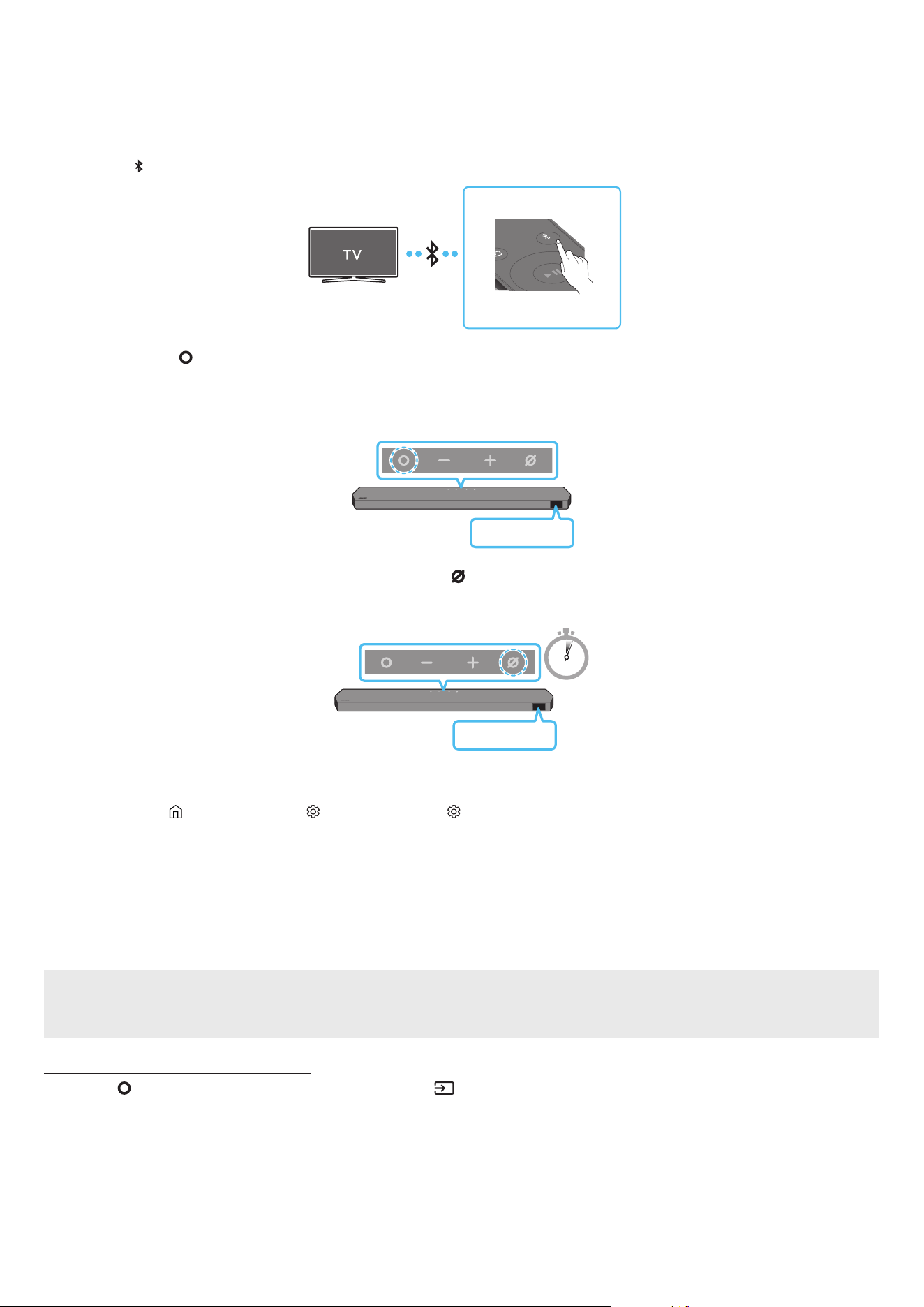
POR - 15
Ligar via Bluetooth
Quando um televisor Samsung é ligado através de Bluetooth, pode ouvir som estéreo sem ter de utilizar cabos incómodos.
• Apenas pode ser ligado um televisor Samsung de cada vez.
• Pode ser ligado um televisor Samsung que suporte Bluetooth. Verique as especicações do seu televisor.
A ligação inicial
1. Prima o botão PAIR no telecomando do Soundbar para aceder ao modo “BT PAIRING”
PAIR
(OU)
a. Prima o botão
(Multi Funções) no painel superior e, em seguida, selecione “BT”
“BT” muda automaticamente para “BT PAIRING” em alguns segundos ou para “BT READY” se existir um registo de ligação.
Parte superior do Soundbar
BT READY
b. Quando surgir a mensagem “BT READY”, mantenha premido o botão (Microfone Ligado/Desligado) no painel superior do Soundbar durante mais de
5 segundos para que seja apresentada a mensagem “BT PAIRING”
5 Sec
Parte superior do Soundbar
BT PAIRING
2. Selecione o modo Bluetooth no televisor Samsung.
(por exemplo, Início ( ) → Menu → Denições ( ) → Todas as Denições ( ) → Som → Saída de Som → Lista de Altifalantes Bluetooth → Soundbar Q-Series
(Bluetooth))
3. Selecione “Soundbar Q-Series” a partir da lista apresentada no ecrã da TV
Os Soundbars disponíveis são identicados pela mensagem “Need Pairing” ou “Paired” na lista de dispositivos Bluetooth do televisor. Para ligar o televisor
Samsung ao Soundbar, selecione a mensagem e estabeleça uma ligação.
• Quando o televisor Samsung estiver ligado, a mensagem [TV Name] → “BT” surgirá no ecrã frontal do Soundbar.
4. Poderá então ouvir o som do televisor Samsung a partir do Soundbar.
• Após ligar o Soundbar ao televisor Samsung pela primeira vez, utilize o modo “BT READY” para voltar a ligar.
Se ocorrer uma falha ao ligar o dispositivo
• Se já tiver um Soundbar (por exemplo, Soundbar Q-Series) na lista de altifalantes da TV Samsung, elimine-o.
• Depois, repita os passos 1 a 3.
Desligar o Soundbar do televisor Samsung
Prima o botão (Multi Funções) na parte superior do Soundbar ou no botão (Fonte) no telecomando para selecionar outro modo que não o “BT”
• Desligar demora algum tempo porque o televisor Samsung tem de receber uma resposta do Soundbar.
(O tempo necessário para tal poderá variar em função do modelo do televisor Samsung.)

POR - 16
Qual é a diferença entre BT READY e BT PAIRING?
• BT READY: neste modo, pode voltar a ligar qualquer televisor ou dispositivo móvel Samsung que tenham sido ligados antes.
• BT PAIRING: neste modo, pode ligar um novo dispositivo ao Soundbar.
(Prima o botão PAIR no telecomando do Soundbar ou mantenha premido o botão (Microfone Ligado/Desligado) na parte superior do Soundbar durante
mais de 5 segundos enquanto o Soundbar está em modo “BT” )
Notas sobre a ligação Bluetooth
• Localize um novo dispositivo a 1 m para efetuar a ligação por comunicação Bluetooth.
• Se lhe for pedido para introduzir um código PIN quando estiver a ligar um dispositivo Bluetooth, introduza <0000>.
• O Soundbar desliga-se automaticamente após 18 minutos quando está no modo Bluetooth Pronto.
• O Soundbar poderá não realizar corretamente a pesquisa ou a ligação Bluetooth nas seguintes circunstâncias:
‒ Se existir um campo elétrico forte em redor do Soundbar.
‒ Se forem emparelhados vários dispositivos Bluetooth em simultâneo com o Soundbar.
‒ Se o dispositivo Bluetooth estiver desligado, não estiver no devido lugar ou não funcionar corretamente.
• Os dispositivos eletrónicos podem provocar interferências rádio. Os dispositivos que geram ondas eletromagnéticas devem ser mantidos afastados da unidade
principal do Soundbar - por exemplo, micro-ondas, dispositivos LAN sem os, etc.
• Para ativar/desativar a ligação Bluetooth
Prima o botão TONE CONTROL no controlo remoto do Soundbar durante 30 segundos para ligar/desligar o Bluetooth.
Ligar através de Wi-Fi
Lista de vericação pré-ligação
• Apenas a TV Samsung tem ligações Wi-Fi disponíveis.
• Verique se o router sem os (Wi-Fi) está ligado e se a TV está ligada ao router
• A TV e o Soundbar têm de estar ligados à mesma rede sem os (Wi-Fi).
• Se o router sem os (Wi-Fi) utilizar um canal DFS, não conseguirá estabelecer uma ligação Wi-Fi entre a TV e o Soundbar. Contacte o seu fornecedor de
serviços de Internet para obter mais detalhes
• Dado que os menus podem variar consoante o ano de fabrico, consulte o manual da TV.
• Para ligar a TV ao Soundbar através de Wi-Fi, ligue primeiro o Soundbar ao router sem os. Consulte a página 23 para obter mais informações sobre como
estabelecer uma ligação Wi-Fi.
1. Para obter mais informações sobre a ligação Wi-Fi ao Soundbar, consulte a página 23, “Método 2. Ligar através de Wi-Fi (Rede sem os)”
2. Mude a fonte de entrada da TV, utilizando o menu Áudio para Soundbar.
• TVs Samsung lançadas em 2017 ou depois
Início (
) → Menu → Denições ( ) → Todas as Denições ( ) → Som → Saída de Som → Soundbar Q-Series (Wi-Fi)
NOTA
• A ligação Wi-Fi Dolby Atmos está disponível em algumas TV Samsung e em alguns modelos de Soundbar.
• Precaução: O Soundbar irá reiniciar automaticamente se ligar/desligar o Wi-Fi.
• Para ativar/desativar a ligação Wi-Fi
Prima o botão CH LEVEL no controlo remoto do Soundbar durante 30 segundos para ligar/desligar o Wi-Fi.
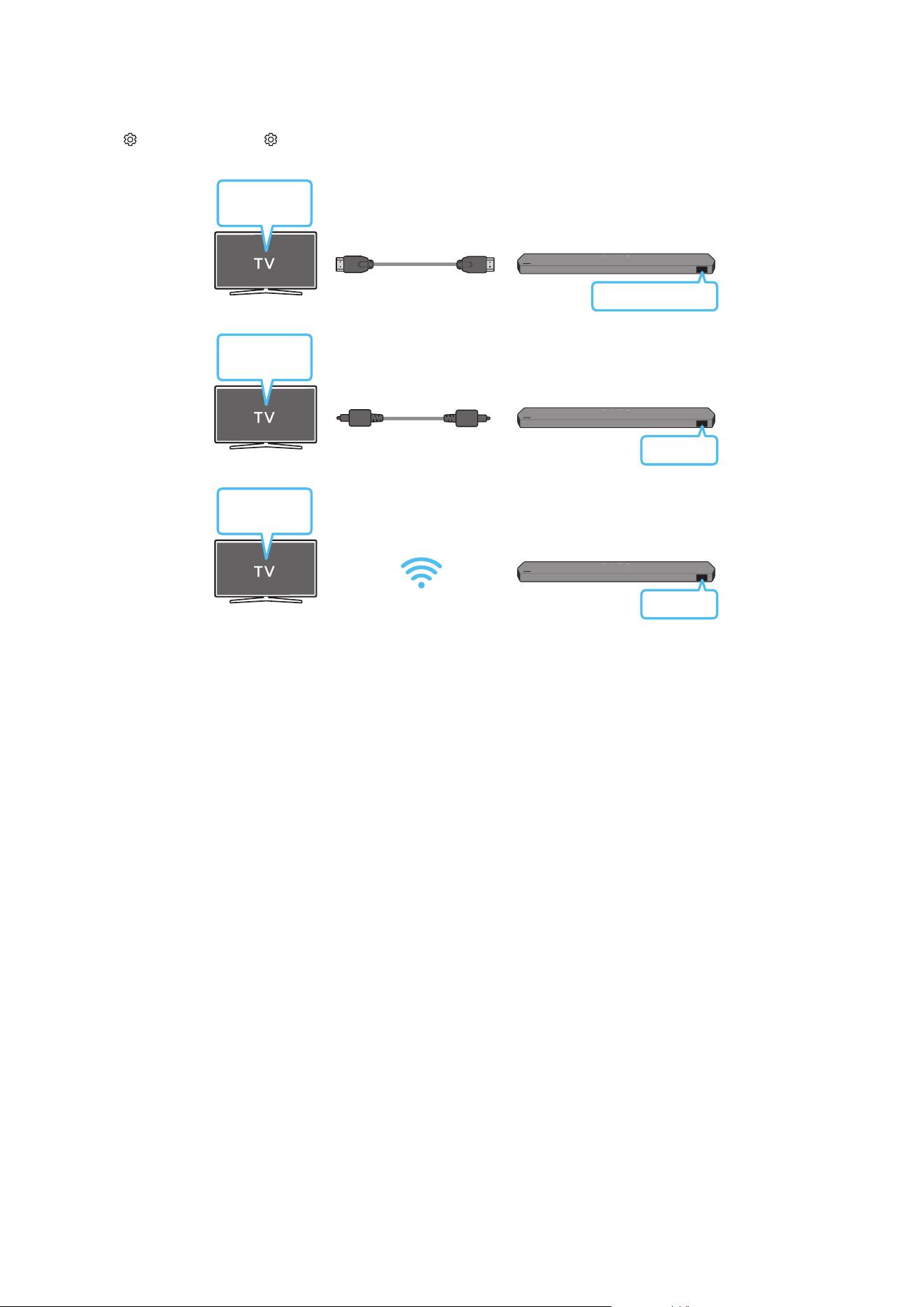
POR - 17
Utilizar a função Q-Symphony
• Quando o Soundbar estabelecer ligação com uma TV Samsung compatível com a função Q-Symphony, poderá reproduzir o som ao mesmo tempo no Soundbar e
na TV. Se utilizar a função Q-Symphony, o som surround reproduzido na TV permite-lhe desfrutar de um efeito de som surround mais rico e tridimensional.
• Quando o Soundbar é ligado, o menu “Q-Symphony” aparece na TV
Denições ( ) → Todas as Denições ( ) → Som → Saída de Som
• Exemplo do menu da TV: Q-Symphony
Menu da TV
Cabo HDMI
TV ARC/eARC
Menu da TV
Cabo ótico (não fornecido)
D.IN
Menu da TV
Wi-Fi
Wi-Fi
NOTA
• Pode funcionar conforme o Codec suportado pela TV
• Esta função é suportada apenas quando o cabo HDMI ou cabo ótico (não fornecido), ou o Wi-Fi estiver ligado.
• A mensagem apresentada poderá ser diferente, consoante o modelo da TV.
• Certique-se de que a TV e o Soundbar estão ligados ao mesmo router sem os/frequência.
• Esta função está disponível em algumas TV Samsung e em alguns modelos de Soundbar.

POR - 18
Utilizar o SpaceFit Sound
Esta função analisa o espaço de escuta do utilizador com o microfone do Soundbar e fornece um som ideal para o espaço A otimização do som decorre
automaticamente
Método 1. Ligar através do Soundbar
Para ativar esta função, ative o modo SpaceFit Sound com o telecomando do Soundbar
1. Prima o botão (Controlo de Som) para ligar o modo SpaceFit Sound
"SPACEFIT SOUND OFF" aparece no ecrã.
2. Prima o botão Cima no telecomando para ligar o SpaceFit Sound
"ON" aparece no ecrã.
SOUND
MODE
PAIR
3. Prima o botão Baixo no telecomando para desligar o SpaceFit Sound
"OFF" aparece no ecrã.
SOUND
MODE
PAIR
• Está disponível em todos os modos de som.
Método 2. Ligar através da TV
Para ativar esta função, ative o modo Som Adaptativo+ no menu da TV Samsung.
(Início ( ) → Menu → Denições ( ) → Todas as Denições ( ) → Geral → Denições de Modo Inteligente → Adaptive Sound+)
• O modo de som do Soundbar será automaticamente alterado para Adaptive Sound+ se ativar o modo Adaptive Sound+ na TV
NOTA
Esta função funciona quando o Soundbar estabelece ligação com alguma das suas TV Samsung.
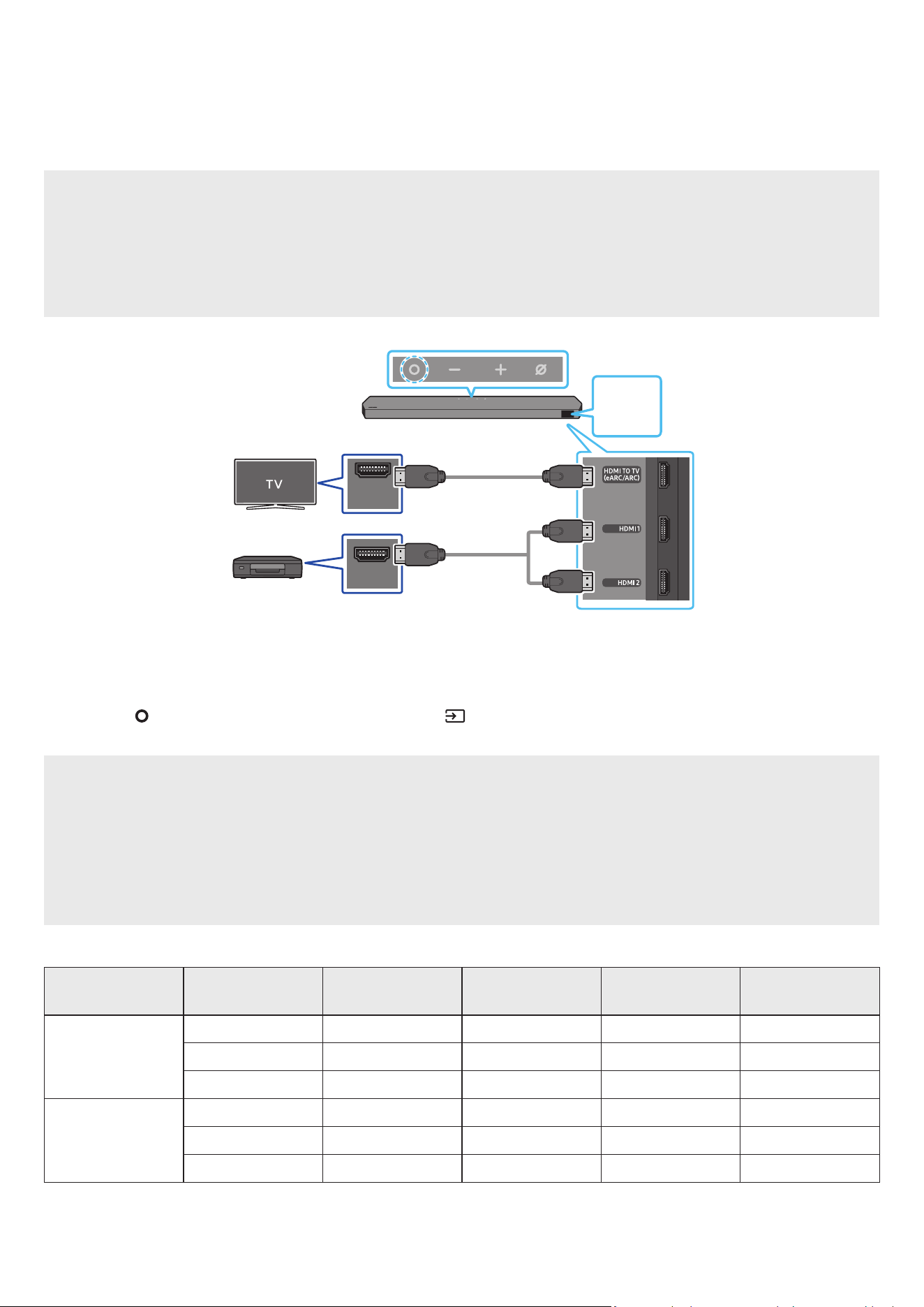
POR - 19
06 LIGAR A UM DISPOSITIVO EXTERNO
Método 1. Ligar através de um cabo HDMI (compatível com descodicação e reprodução Dolby
Atmos/DTS:X)
Lista de vericação pré-ligação
• Se as opções de Saída de áudio incluírem Áudio secundário, certique-se de que o Áudio secundário está desligado.
• Certique-se de que o conteúdo suporta Dolby Atmos®/DTS:X.
• Utilize apenas um cabo HDMI que cumpra os requisitos de E/S relevantes.
• Para receber corretamente o sinal UHD, é necessário um cabo HDMI de Ultra-Alta Velocidade.
• Para a receção adequada do sinal UHD, consulte a especicação de E/S de vídeo e as denições locais da TV ou do dispositivo externo antecipadamente.
• Para mais informações, consulte o manual do utilizador da TV ou do dispositivo externo.
HDMI IN
(ARC)
HDMI OUT
Parte inferior do Soundbar
HDMI 1
OU
HDMI 2
Dispositivo externo
Cabo HDMI
(fornecido)
Cabo HDMI
OU
Parte superior do Soundbar
1. Utilize um cabo HDMI para ligar a porta HDMI OUT do dispositivo externo à porta HDMI na parte inferior do Soundbar
2. Utilize um cabo HDMI (fornecido) para ligar a porta HDMI IN da TV à porta HDMI TO TV (eARC/ARC) na parte inferior do Soundbar
3. Ligue o Soundbar, a TV e o dispositivo externo.
4. Prima o botão
(Multi Funções) na parte superior do Soundbar ou o botão (Fonte) no telecomando para selecionar o modo “HDMI 1” ou “HDMI 2”
5. O ecrã do Soundbar indica que o modo “HDMI 1” ou “HDMI 2” está atualmente selecionado e o Soundbar vai começar a reproduzir sons.
NOTA
• Quando utiliza o Dolby Atmos®/DTS:X: Se a fonte de entrada for Dolby Atmos®/DTS:X, consulte “Especicações de saída para os diferentes modos de efeitos
sonoros” na página 7
• Quando o Dolby Atmos® é ativado, “DOLBY ATMOS” é exibido no ecrã dianteiro.
• Quando o DTS:X está ativado, “DTS:X” aparece no ecrã frontal
• Congurar o Dolby Atmos®/DTS:X no leitor Blu-Ray ou noutro dispositivo
Abra as opções de saída áudio no menu de denições do leitor Blu-Ray, ou outro dispositivo, e certique-se de que “Sem Codicação” está selecionado para o
uxo de bits. Por exemplo, num leitor Blu-Ray Samsung, vá até Home Menu inicial → Áudio → Saída digital e selecione Fluxo de Bits [não processado].
Especicação de sinais UHD compatíveis (3840 x 2160p)
Velocidade de
fotogramas (fps)
Profundidade de cor RGB 4:4:4 YCbCr 4:4:4 YCbCr 4:2:2 YCbCr 4:2:0
< 60
8 bit O O O O
10 bit O O O O
12 bit O O O O
120
8 bit O O O O
10 bit O O O O
12 bit - - O O
• A especicação compatível pode variar dependendo do dispositivo externo ligado ou das condições de utilização.
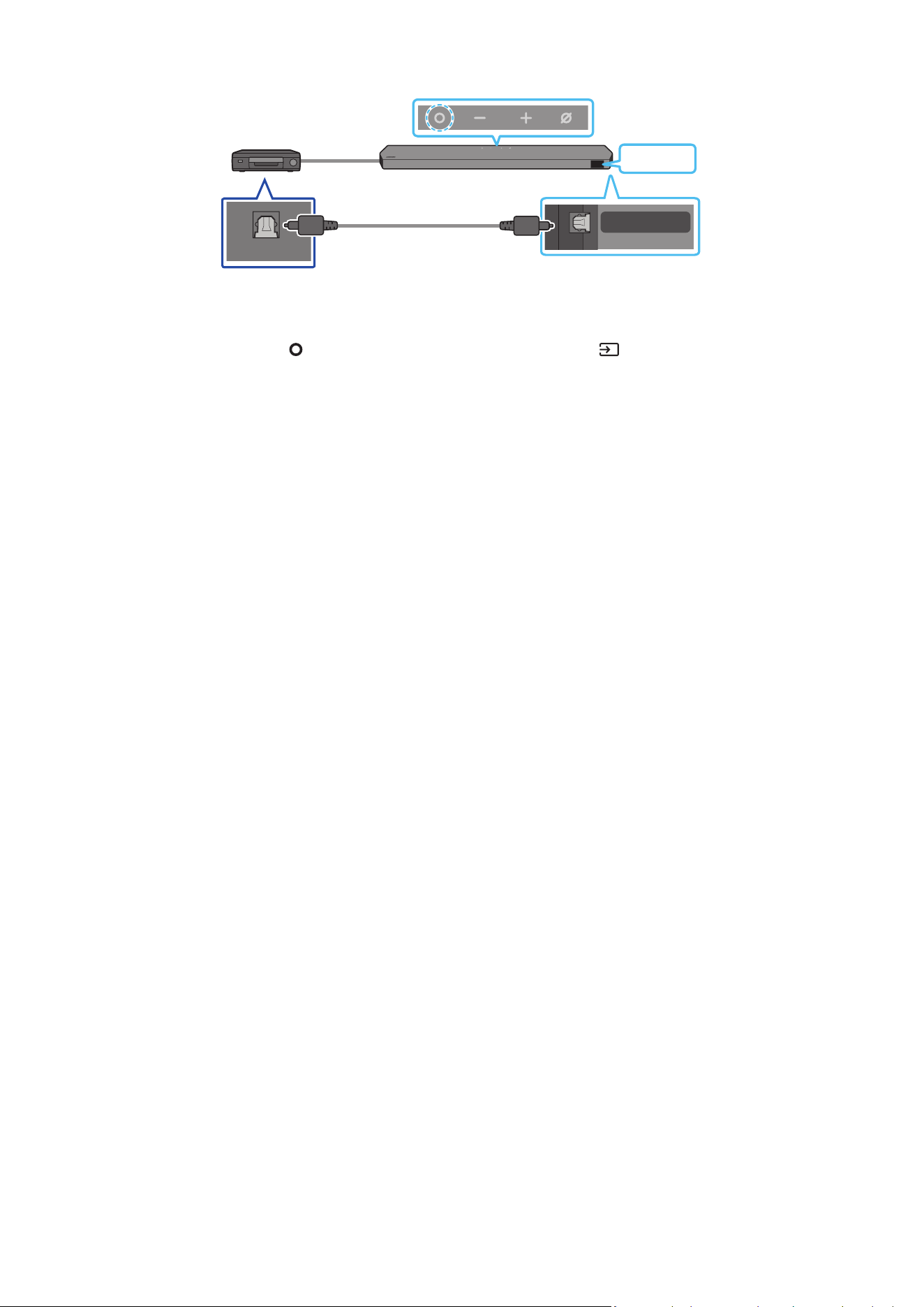
POR - 20
Método 2. Ligar com cabo ótico
DIGITAL AUDIO IN
(OPTICAL)
OPTICAL OUT
Leitor de DVD ou Blu-Ray
/ Descodicador / Consola
de jogos
Parte superior do Soundbar
D.IN
Cabo ótico
(não fornecido)
Parte inferior do Soundbar
1. Utilize um cabo ótico (não fornecido) para ligar a DIGITAL AUDIO IN (OPTICAL) na unidade principal do Soundbar e a porta OPTICAL OUT no dispositivo externo
2. Ligue o Soundbar e o dispositivo externo.
3. Para selecionar o modo “D.IN”, prima o botão (Multi Funções) na parte superior do Soundbar ou o botão (Fonte) no telecomando
4. O seu Soundbar irá reproduzir sons a partir do dispositivo externo.
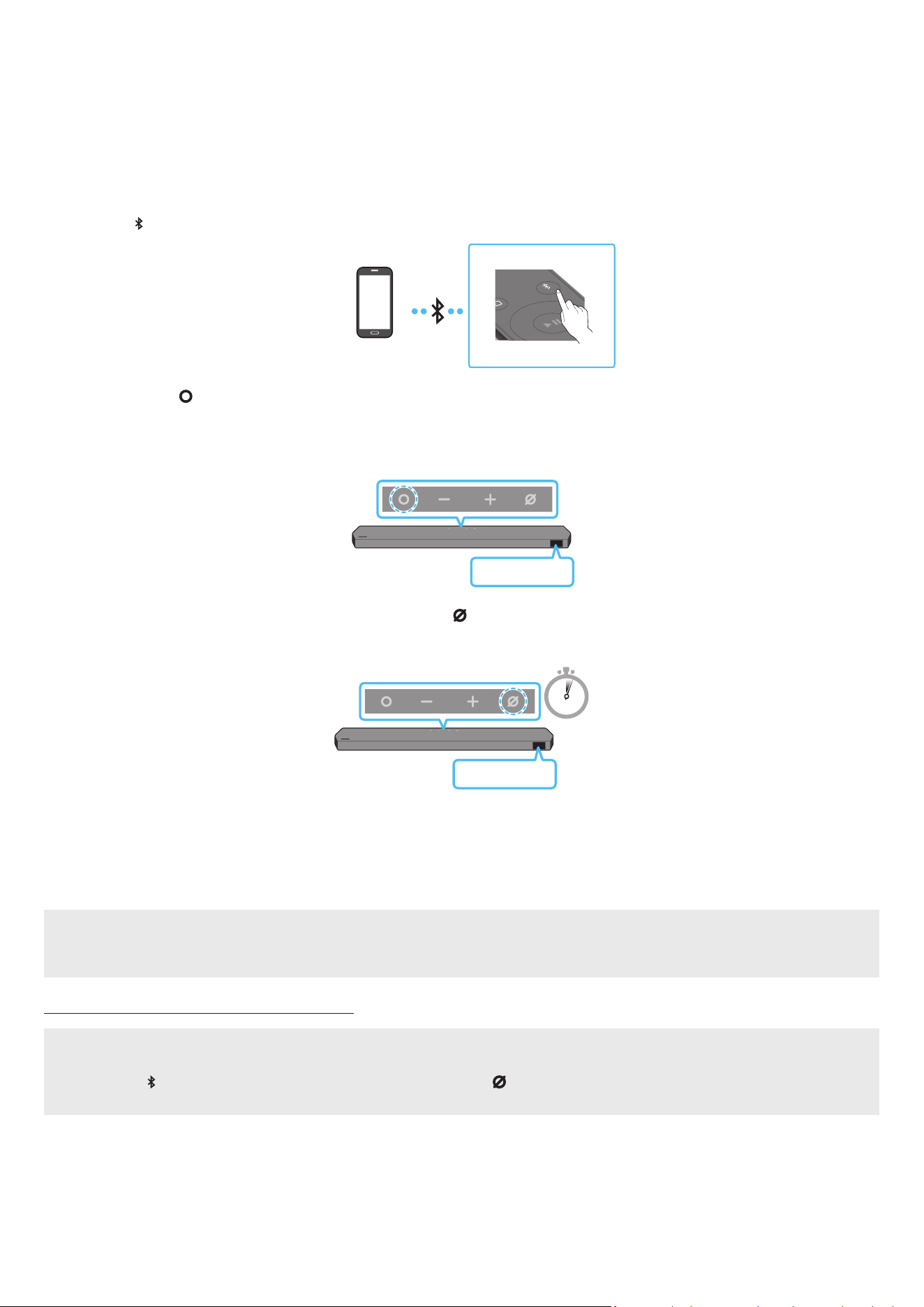
POR - 21
07 LIGAR A UM DISPOSITIVO MÓVEL
Método 1. Ligar através de Bluetooth
Quando um dispositivo móvel é ligado através de Bluetooth, pode ouvir som estéreo sem ter de utilizar cabos incómodos.
• Quando liga um dispositivo Bluetooth emparelhado com o Soundbar desligado, o Soundbar liga-se automaticamente.
A ligação inicial
• Quando ligar a um novo dispositivo Bluetooth, certique-se de que o dispositivo está a menos de 1 m de distância.
1. Prima o botão PAIR no telecomando do Soundbar para aceder ao modo “BT PAIRING”
PAIR
Dispositivo móvel
(OU)
a. Prima o botão
(Multi Funções) no painel superior e, em seguida, selecione “BT”
“BT” muda automaticamente para “BT PAIRING” em alguns segundos ou para “BT READY” se existir um registo de ligação.
Parte superior do Soundbar
BT READY
b. Quando surgir a mensagem "BT READY", mantenha premido o botão (Microfone Ligado/Desligado) no painel superior do Soundbar durante mais de
5 segundos para que seja apresentada a mensagem "BT PAIRING".
5 Sec
Parte superior do Soundbar
BT PAIRING
2. No dispositivo, selecione "Soundbar Q-Series" na lista apresentada.
• Quando o Soundbar estiver ligado ao dispositivo móvel, a mensagem [Mobile Device Name] → “BT” surgirá no ecrã frontal.
3. Reproduza os cheiros de música a partir do dispositivo que está ligado via Bluetooth através do Soundbar.
• Após ligar o Soundbar ao dispositivo móvel pela primeira vez, utilize o modo “BT READY” para voltar a ligar.
Se ocorrer uma falha ao ligar o dispositivo
• Se já tiver um Soundbar (por exemplo, "Soundbar Q-Series") na lista de altifalantes do dispositivo móvel, elimine-o.
• Repita os passos 1 e 2
Qual é a diferença entre BT READY e BT PAIRING?
• BT READY: neste modo, pode voltar a ligar qualquer televisor ou dispositivo móvel Samsung que tenham sido ligados antes.
• BT PAIRING: neste modo, pode ligar um novo dispositivo ao Soundbar.
(Prima o botão PAIR no telecomando do Soundbar ou mantenha premido o botão (Microfone Ligado/Desligado) na parte superior do Soundbar durante
mais de 5 segundos enquanto o Soundbar está em modo “BT” )

POR - 22
Notas sobre a ligação Bluetooth
• Localize um novo dispositivo a 1 m para efetuar a ligação por comunicação Bluetooth.
• Se lhe for pedido para introduzir um código PIN quando estiver a ligar um dispositivo Bluetooth, introduza <0000>.
• O Soundbar desliga-se automaticamente após 18 minutos quando está no modo Bluetooth Pronto.
• O Soundbar poderá não realizar corretamente a pesquisa ou a ligação Bluetooth nas seguintes circunstâncias:
‒ Se existir um campo elétrico forte em redor do Soundbar.
‒ Se forem emparelhados vários dispositivos Bluetooth em simultâneo com o Soundbar.
‒ Se o dispositivo Bluetooth estiver desligado, não estiver no devido lugar ou não funcionar corretamente.
• Os dispositivos eletrónicos podem provocar interferências rádio. Os dispositivos que geram ondas eletromagnéticas devem ser mantidos afastados da unidade
principal do Soundbar - por exemplo, micro-ondas, dispositivos LAN sem os, etc.
• O Soundbar suporta dados SBC (44,1 kHz, 48 kHz).
• Ligue apenas a um dispositivo Bluetooth que suporte a função A2DP (AV).
• Ao ligar o Soundbar a um dispositivo Bluetooth, coloque-os o mais perto possível um do outro.
• Quanto maior a distância entre o Soundbar e o dispositivo Bluetooth, menor será a qualidade do som.
A ligação Bluetooth poderá ser quebrada se os dispositivos estiverem fora do alcance.
• A ligação Bluetooth poderá não funcionar conforme pretendido em áreas com má receção.
• Um dispositivo Bluetooth poderá experienciar ruído ou uma avaria sob as seguintes condições:
‒ Quando o corpo está em contacto com o transmissor de sinal no dispositivo Bluetooth ou Soundbar
‒ Em cantos ou quando existe um obstáculo nas proximidades, tais como uma parede ou uma divisória, onde possam ocorrer alterações elétricas.
‒ Quando exposto a interferências por rádio por outros produtos em funcionamento nas mesmas gamas de frequências, como equipamentos médicos, micro-
ondas e dispositivos LAN sem os.
‒ Obstáculos como portas e paredes poderão ainda inuenciar a qualidade do som, mesmo que os dispositivos se encontrem dentro do alcance.
• Tenha em consideração que se a opção de Bluetooth estiver a ser utilizada, não é possível emparelhar o Soundbar com outro dispositivo Bluetooth.
• Este dispositivo sem os pode causar interferência elétrica durante a utilização.
Desligar o dispositivo Bluetooth de um Soundbar
Pode desligar um dispositivo Bluetooth de um Soundbar. Para obter instruções, consulte o manual do utilizar do dispositivo Bluetooth.
• O Soundbar será desligado.
• Quando o Soundbar for desligado do dispositivo Bluetooth, o Soundbar apresentará “BT DISCONNECTED” no ecrã dianteiro
Desligar o Soundbar do dispositivo Bluetooth
Prima o botão (Multi Funções) na parte superior do Soundbar ou o botão (Fonte) no telecomando para mudar do modo “BT”
• Desligar demora algum tempo porque o dispositivo Bluetooth tem de receber uma resposta do Soundbar. (O tempo necessário para desligar poderá variar em
função do dispositivo Bluetooth)
• Quando o Soundbar for desligado do dispositivo Bluetooth, o Soundbar apresentará “BT DISCONNECTED” no ecrã dianteiro
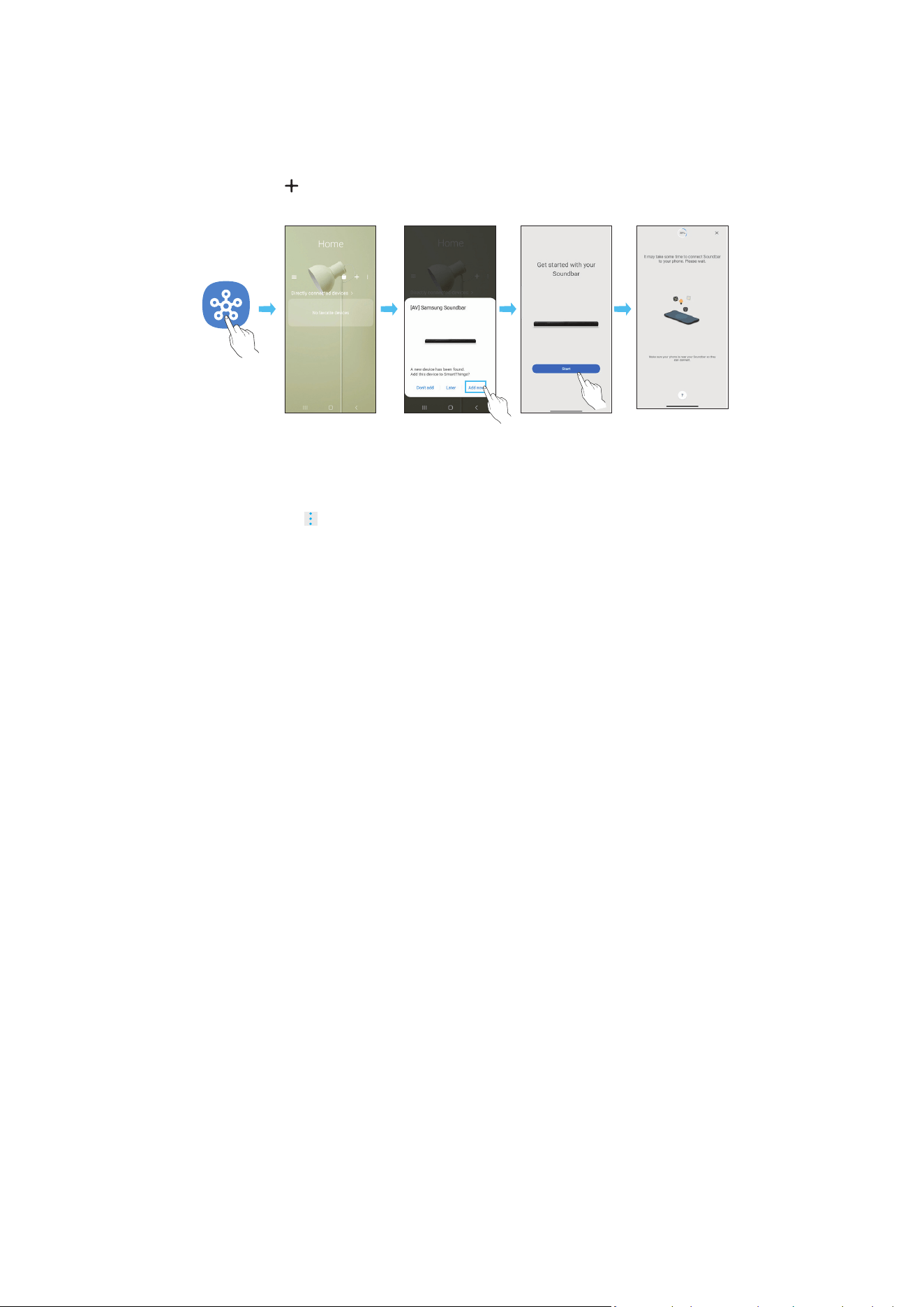
POR - 23
Método 2. Ligar através de Wi-Fi (Rede sem os)
Para ligar o Soundbar a um dispositivo móvel através da rede sem os (Wi-Fi), precisa da aplicação SmartThings
A ligação inicial
1. Instale e inicie a aplicação SmartThings a partir do dispositivo móvel (smartphone ou tablet).
2. Na aplicação, siga as instruções no ecrã para adicionar o Soundbar.
• O pop-up automático (a segunda captura de ecrã abaixo) poderá não aparecer em alguns dispositivos móveis.
Se a janela pop-up não aparecer, prima “ ” no ecrã Home. O Soundbar é adicionado à aplicação.
• A ilustração abaixo pode ser diferente consoante a versão da aplicação
Iniciar aplicação Pop-up
automático
Adicionar
dispositivo
Aplicação
SmartThings
Para alterar a ligação Wi-Fi
1. Inicie a aplicação SmartThings a partir do dispositivo móvel (smartphone ou tablet).
2. Toque no cartão do Soundbar e toque no ícone ( )
3. Aceda a Denições do dispositivo > Estado da rede > Alterar rede Wi-Fi e siga as instruções no ecrã.
Utilizar o Group Play
• Para tirar partido desta funcionalidade, adicione o seu Soundbar à aplicação SmartThings.
• Para o ativar, ligue pelo menos dois dispositivos de áudio à mesma rede Wi-Fi a 5 GHz.
• Esta funcionalidade está disponível em dispositivos Samsung Sound compatíveis com Wi-Fi lançados em 2024 ou posteriormente.
• Esta funcionalidade não é compatível com som da TV.
Congurar o Group Play
1. Execute a aplicação SmartThings no dispositivo móvel.
2. Adicione o Soundbar na aplicação SmartThings de acordo com as instruções na secção “Método 2. Ligar através de Wi-Fi (Rede sem os)”
3. Toque no cartão do Soundbar.
4. No dispositivo móvel, toque em Criar Grupo abaixo do ícone do dispositivo de áudio.
• O botão Criar Grupo só aparece quando o Soundbar está no modo Wi-Fi.
• Se o Soundbar estiver a reproduzir o som da TV, a ligação à TV é desligada durante a criação de um grupo.
5. Ative o Group Play
6. Selecione um dispositivo pretendido na lista e toque em Aplicar
• Pode adicionar, no máximo, 4 dispositivos.
• Com o Group Play, o áudio será emitido através do próprio dispositivo antrião.
• Quando um dispositivo ligado ao dispositivo antrião muda para uma fonte diferente, o dispositivo é eliminado automaticamente do grupo.
• Quando o dispositivo antrião é ligado a uma TV, o grupo gerado é eliminado automaticamente.
Desativar o Group Play
1. Toque no cartão do dispositivo de áudio.
2. No dispositivo móvel, toque em Editar Grupo abaixo do ícone do dispositivo de áudio.
3. Desative o Group Play
• Para desativar um dispositivo individual, desmarque o dispositivo da lista e toque em Aplicar

POR - 24
Utilizar o SmartThings Hub
• Pode utilizar a função SmartThings Hub do Soundbar para ligar os dispositivos IoT (lâmpadas, chas, sensores, etc.) que requerem SmartThings Hub
• Para utilizar a função SmartThings Hub, terá de registar o Soundbar na aplicação SmartThings
Registar um dispositivo IoT na aplicação SmartThings
1. Adicione o Soundbar na aplicação SmartThings de acordo com as instruções na secção "Método 2. Ligar através de Wi-Fi (Rede sem os) > A ligação inicial".
2. Toque no cartão do dispositivo Soundbar.
3. Toque em SmartThings Hub na parte inferior do ecrã
4. Toque em Using SmartThings Hub e, em seguida, toque em Set up para ativar o SmartThings Hub function
• Quando a função SmartThings Hub for ativada, unset muda para using
• O cartão do dispositivo SmartThings Hub aparecerá junto ao cartão do dispositivo Soundbar.
5. No ecrã Home, toque em " " para adicionar um dispositivo IoT.
• Um cartão de dispositivo IoT aparece na aplicação quando adicionar um dispositivo IoT com sucesso.
• Se desligar o Soundbar, os dispositivos ligados através do SmartThings Hub poderão ser desligados. Deverá voltar a ligar os dispositivos assim que forem
desligados.
Eliminar o SmartThings Hub da aplicação SmartThings
1. No ecrã de dispositivos, toque no cartão do dispositivo Soundbar.
2. Toque em SmartThings Hub na parte inferior do ecrã
3. Toque em Removing SmartThings Hub para desativar a função SmartThings Hub
• Quando a função SmartThings Hub for desativada, using muda para unset
Ligar através do Apple AirPlay
• Esta funcionalidade pode não estar disponível em alguns países.
• Este Samsung Soundbar é compatível com AirPlay®, recomendando-se que o utilizador use a versão mais recente do iOS, iPadOS ou macOS.
• Para ativar o AirPlay no seu Soundbar, terá de registar primeiro o dispositivo na aplicação Samsung SmartThings, ao aceitar os termos e condições da
aplicação
• Certique-se de que o Soundbar está ligado à corrente e ligado à mesma rede Wi-Fi do dispositivo Apple®.
Com o AirPlay, pode tirar partido de música, podcasts e de outros conteúdos de áudio no Samsung Soundbar diretamente a partir dos seus dispositivos Apple.
• Selecione
a partir de uma aplicação compatível com AirPlay ou na Central de controlo no iPhone®, iPad® ou Mac®.
• Selecione o Soundbar a partir da lista de dispositivos disponíveis onde reproduzir o áudio atual.

POR - 25
Utilizar o Tap Sound
Toque no Soundbar com o seu dispositivo móvel para reproduzir o som do conteúdo do dispositivo móvel no Soundbar.
• Dependendo do dispositivo móvel utilizado, esta função poderá não ser suportada.
• Esta função só é compatível com dispositivos móveis Samsung com Android 8.1 ou posterior.
Parte superior do Soundbar
Dispositivo móvel
Aplicação SmartThings
1. Ative a função Tap Sound no seu dispositivo móvel.
• Para obter detalhes sobre como ativar a função, consulte “Congurar a função Tap Sound” abaixo
2. Toque no Soundbar com o dispositivo móvel. Selecione “Start now” na janela da mensagem que é apresentada.
É estabelecida uma ligação via Bluetooth entre o dispositivo móvel e o Soundbar.
3. Reproduza o som do conteúdo do dispositivo móvel através do Soundbar.
• Esta função liga um dispositivo móvel ao Soundbar através de Bluetooth ao detetar a vibração que ocorre quando o dispositivo toca no Soundbar.
• Tenha cuidado para que o dispositivo não toque nas arestas do Soundbar. Poderá riscar ou danicar o Soundbar ou o dispositivo móvel.
• Recomendamos que o dispositivo móvel seja protegido com uma capa. Toque ligeiramente na parte plana da parte superior do Soundbar, sem utilizar força
excessiva
• Para utilizar esta função, atualize a aplicação SmartThings com a versão mais recente
Dependendo da versão da aplicação, esta função poderá não ser suportada.
Congurar a função Tap Sound
Utilize a aplicação SmartThings para ativar a função Tap View, Tap Sound
1. Execute a aplicação SmartThings no dispositivo móvel.
2. Selecione ( → ) no ecrã da aplicação SmartThings apresentada no dispositivo móvel.
3. Ative “Tap View, Tap Sound” para ativar a função quando um dispositivo móvel se aproximar do Soundbar. A função é ativada.
NOTA
• A função Tap Sound não funciona se o dispositivo móvel estive no modo de poupança de energia.
• A função Tap Sound poderá não funcionar se houver dispositivos que causem interferências rádio, tais como dispositivos elétricos, perto do Soundbar. Certique-
se de que os dispositivos que podem causar interferência rádio são colocados a uma distância adequada do Soundbar.
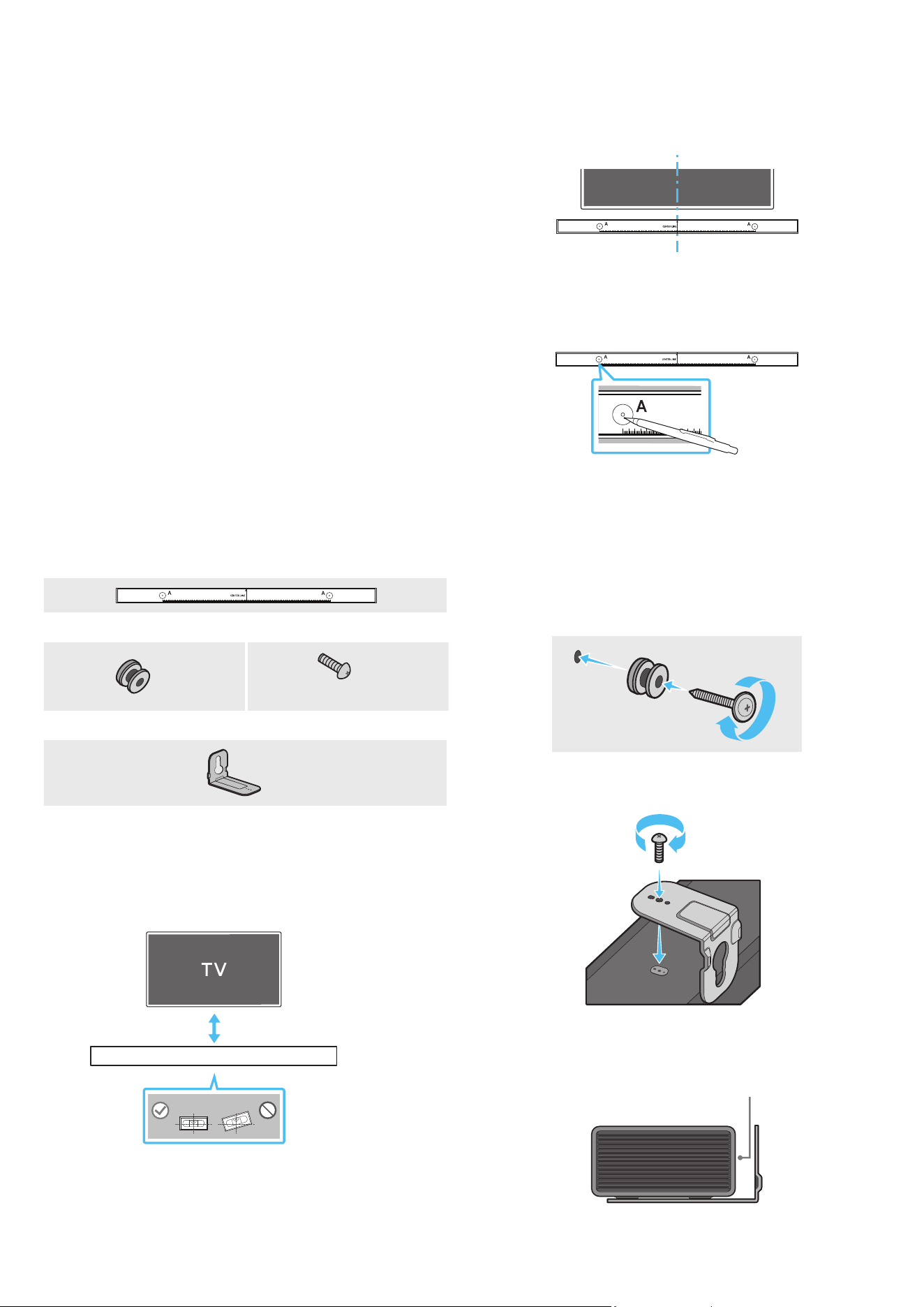
POR - 26
08 INSTALAR O SUPORTE DE
PAREDE
Precauções de instalação
• Instale apenas em paredes verticais
• Não instale em locais expostos a altas temperaturas ou a uma elevada
percentagem de humidade.
• Verique se a parede é sucientemente resistente para suportar o peso do
produto. Caso não seja, deve reforçar a parede ou optar por outro local para
instalar o produto
• Compre e utilize os parafusos de xação ou buchas adequadas para o tipo
de parede em questão (pladur, placa de ferro, madeira, etc.). Caso seja
possível, xe os parafusos de suporte em montantes de parede.
• Compre parafusos próprios para a montagem em parede de acordo com o
tipo e a espessura da parede onde pretende instalar o Soundbar
‒ Diâmetro: M5
‒ Comprimento: recomendamos 35 mm ou mais longos.
• Ligue os cabos da unidade aos dispositivos externos antes de instalar o
Soundbar na parede
• Antes da instalação, deve garantir que a unidade está desligada e que
a respetiva cha está desligada da tomada. Caso contrário, esta poderá
provocar um choque elétrico.
Componentes do suporte de parede
A TYPE : 450mm
Guia de suporte de parede
X 2
X 2
(M4 x L10)
Parafuso de xação Parafuso
X 2
Suporte de parede
1. Coloque o Guia de suporte de parede encostado à superfície da parede.
• O Guia de suporte de parede tem de car nivelado.
• Se a TV estiver montada na parede, instale o Soundbar, pelo menos, 5 cm
abaixo da TV
5 cm ou mais
2. Alinhe a Linha central do Guia de suporte de parede com o centro da TV (se
estiver a montar o Soundbar por baixo da TV) e, em seguida, xe o Guia de
suporte de parede à parede com ta adesiva.
• Se não estiver a montar por baixo da TV, coloque a Linha central no
centro da área de instalação.
A TYPE : 450mm
Linha central
3. Utilize a ponta de uma caneta ou um lápis aado para furar o centro das
imagens de A-TYPE, em cada extremidade do Guia, para assinalar os
orifícios dos parafusos de suporte e remova o Guia de suporte de parede
A TYPE : 450mm
4. Faça um orifício na parede em cada marca com uma ferramenta de
perfuração de dimensão apropriada
• Se as marcações não corresponderem às posições dos pinos, certique-
se de que insere os suportes ou parafusos Molly nos orifícios antes de
inserir os parafusos de suporte. Certique-se de que a dimensão dos
orifícios perfurados corresponde às buchas e parafusos Molly a utilizar.
5. Coloque um parafuso (não fornecido) em cada Parafuso de xação e aperte
cada um rmemente nos orifícios de parafuso de suporte.
6. Instale os 2 suportes de parede na orientação correta na parte inferior do
Soundbar, utilizando 2 Parafusos
• Durante a montagem, certique-se de que a parte de suporte dos
Suportes de parede está localizada na parte de trás do Soundbar.
Parte de trás do Soundbar
Extremidade direita do Soundbar
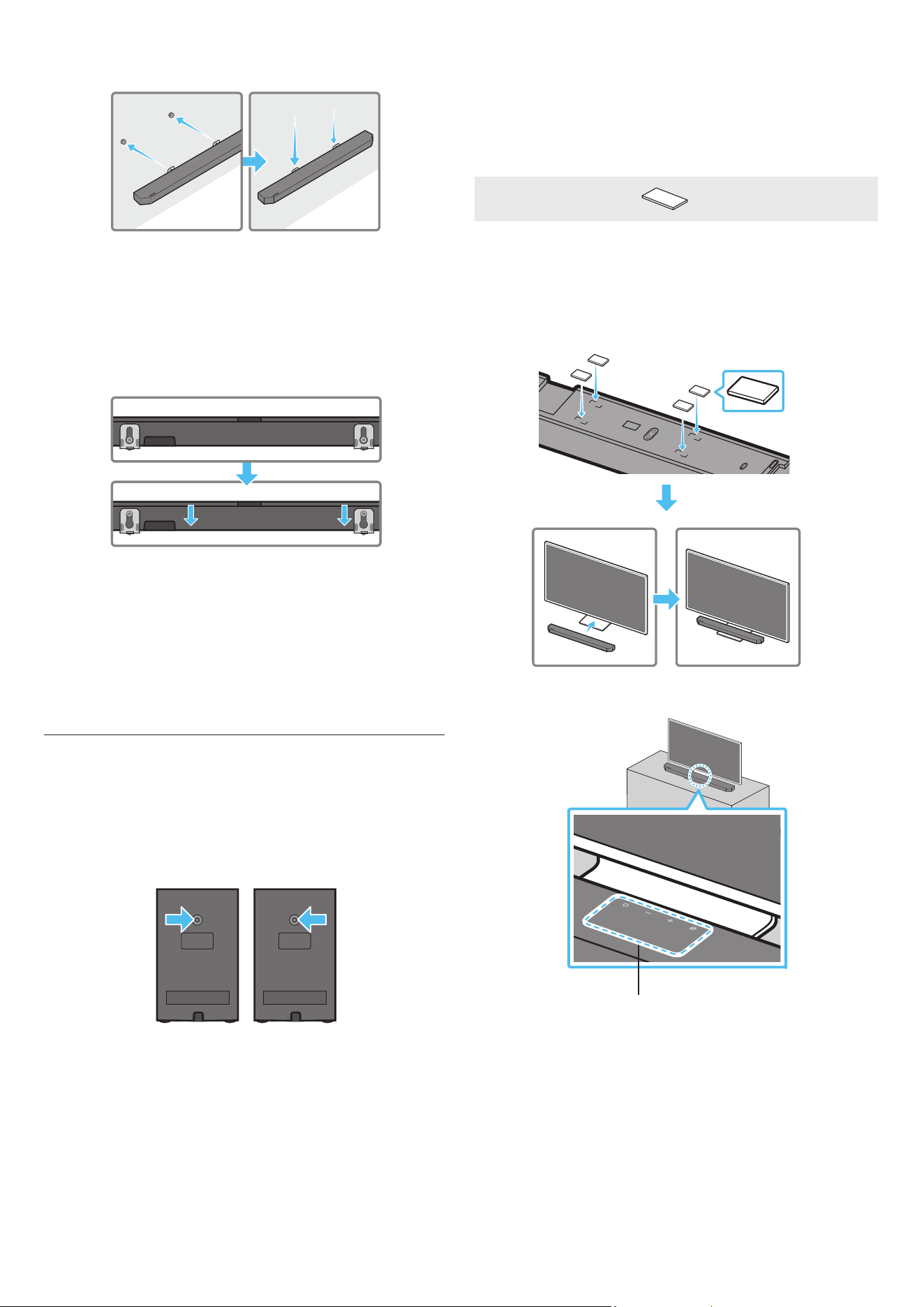
POR - 27
7. Instale o Soundbar com os Suportes de parede ao pendurar os Suportes de
parede nos Parafusos de suporte na parede
8. Deslize o Soundbar para baixo, tal como indicado abaixo, para que os
Suportes de Parede quem apoiados de forma segura nos Parafusos de
Suporte
• Introduza os Parafusos de suporte na parte larga (inferior) dos Suportes
de parede e, em seguida, deslize os Suportes de parede para baixo
de forma a xar os Suportes de parede rmemente nos Parafusos de
suporte
Instalação dos Altifalantes Surround numa
parede
Pode adquirir suportes de parede em separado para instalar os Altifalantes
Surround numa parede
A Samsung Electronics não vende suportes de parede.
Notas para a instalação dos Altifalantes Surround numa parede
• Os suportes para instalar os Altifalantes surround numa parede devem ter
capacidade para suportar mais de 8 kg.
• Tamanho do orifício: rosca do acessório 1/4 - 20 UNC
‒ Parafuso standard: 6,35 mm ø,
1,27 mm de espaçamento
‒ Comprimento: 18 mm de comprimento
‒ Quantidade: Esquerda 1 unid./direita 1 unid.
E D
• Conrme a resistência da parede antes de instalar os suportes para
instalação numa parede. Se a parede não tiver resistência suciente, terá de
a reforçar antes de instalar os Suportes de Parede e as colunas na parede
• A Samsung não será responsável por quaisquer danos no produto devido à
instalação inadequada do mesmo.
• Tenha atenção para não instalar as colunas na lateral ou ao contrário.
09 INSTALAR O SOUNDBAR EM
FRENTE À TV
Componente
X 4
Borracha de base
Para instalar, xe as Borrachas de base na parte inferior do Soundbar antes de
o colocar por cima do televisor. Certique-se de que xa as Borrachas de base
de modo que não ultrapassam as extremidades do suporte da TV. Consulte a
gura abaixo.
Borracha de base
Coloque o Soundbar sobre o suporte do televisor.
Microfones
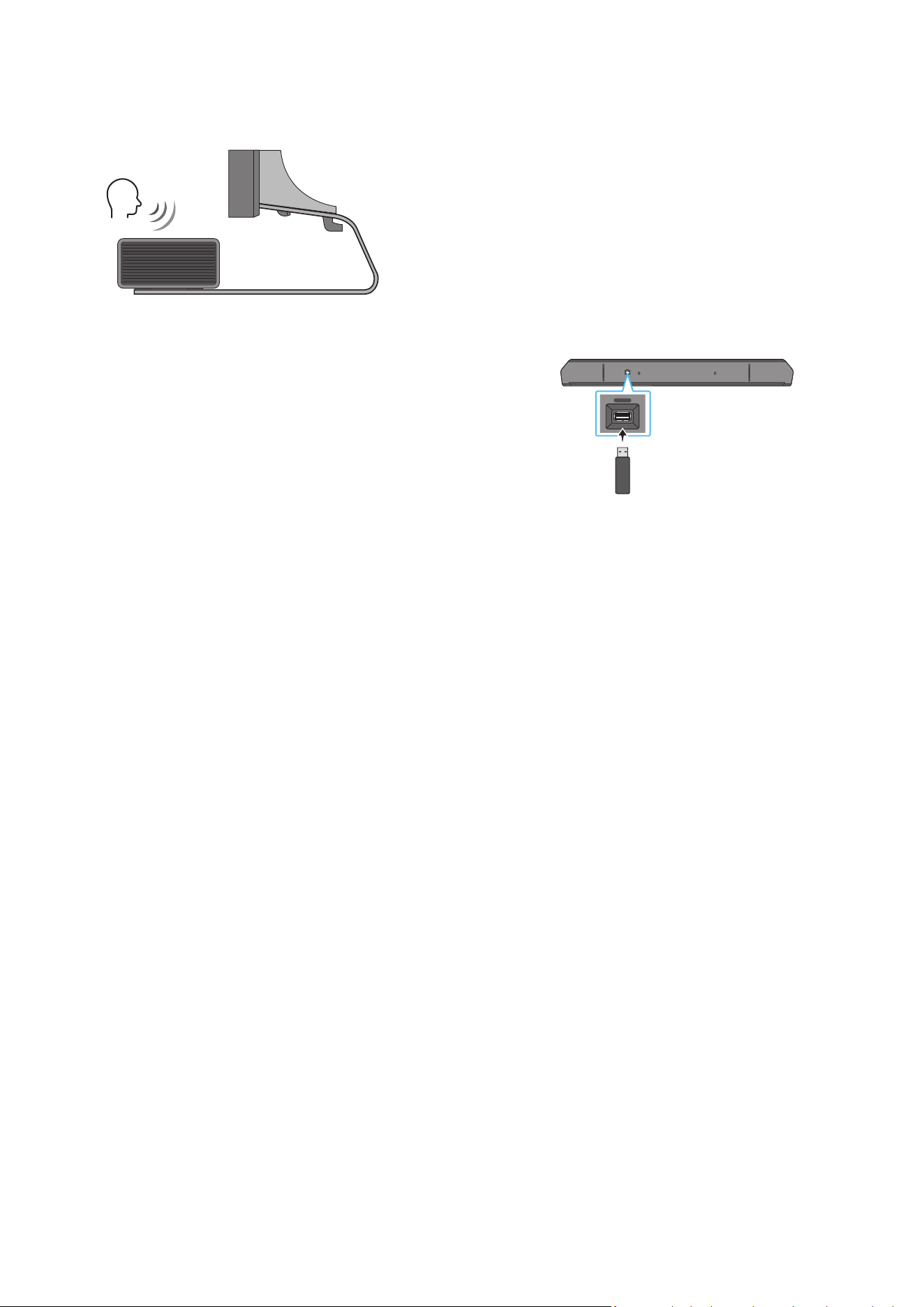
POR - 28
Alinhe o centro do Soundbar com o centro da TV, conforme ilustrado na
imagem, e coloque cuidadosamente o Soundbar no suporte da TV.
Neste momento, coloque os microfones na parte da frente do suporte para que
não haja interferência com o reconhecimento de voz.
Extremidade direita do Soundbar
TV
NOTA
• Certique-se de que o Soundbar é colocado sobre uma superfície plana e
sólida.
• Caso não esteja sucientemente afastado da TV, podem ocorrer problemas
acústicos e de reconhecimento de voz
• A ilustração acima difere do respetivo modelo
• Para obter o melhor desempenho dos microfones, mantenha o Soundbar
afastado, pelo menos, 2 cm do painel da TV.
10 ATUALIZAÇÃO DO SOFTWARE
Atualização automática
Quando o Soundbar está ligado à Internet o software é atualizado
automaticamente, mesmo quando o Soundbar está desligado.
• Para utilizar a função de atualização automática, o Soundbar tem de estar
ligado à Internet.
A ligação Wi-Fi do Soundbar é cortada se o cabo de alimentação do
Soundbar for desligado ou se houver uma falha de energia. Se ocorrer uma
falha de energia, quando a energia voltar ou quando voltar a ligar o cabo de
alimentação, ligue o Soundbar e volte a ligá-lo à Internet.
Atualização por USB
Parte inferior do Soundbar
SERVICE
ID SET
(WOOFER,
REAR)
NETWORK
SERVICE
ID SET
A Samsung poderá disponibilizar atualizações do rmware do sistema do
Soundbar no futuro.
Quando uma atualização estiver disponível, pode atualizar o Soundbar ao ligar
a unidade USB que contém o rmware da atualização à porta de SERVICE do
Soundbar
1. Aceda ao website Samsung Electronics (www.samsung.com) → procure o
nome do modelo a partir da opção do menu de apoio ao cliente
• Para mais informações sobre a atualização, consulte o Guia de
Atualizações
2. Transra o cheiro de atualização (tipo USB).
3. Extraia o cheiro para criar uma pasta com o nome do cheiro.
4. Guarde a pasta criada num dispositivo USB e, em seguida, ligue-o ao
Soundbar
5. Ligue o Soundbar. Em seguida, o produto é atualizado em 3 minutos com
indicação da mensagem, “UPDATE”
• Durante a atualização, não o desligue nem remova o dispositivo USB.
• Se não aparecer “UPDATE” na janela do ecrã, remova o cabo de
alimentação do Soundbar e, em seguida, volte a ligá-lo.
• Se estiver instalada a versão mais recente, não é realizada nenhuma
atualização
• A atualização poderá não ser suportada, dependendo do tipo de USB.
Informações de atualizações de segurança
As atualizações de segurança são fornecidas para reforçar a segurança do
seu dispositivo e proteger as suas informações pessoais. Para obter mais
informações sobre atualizações de segurança, visite
https://security.samsungtv.com.
• O website suporta apenas alguns idiomas.
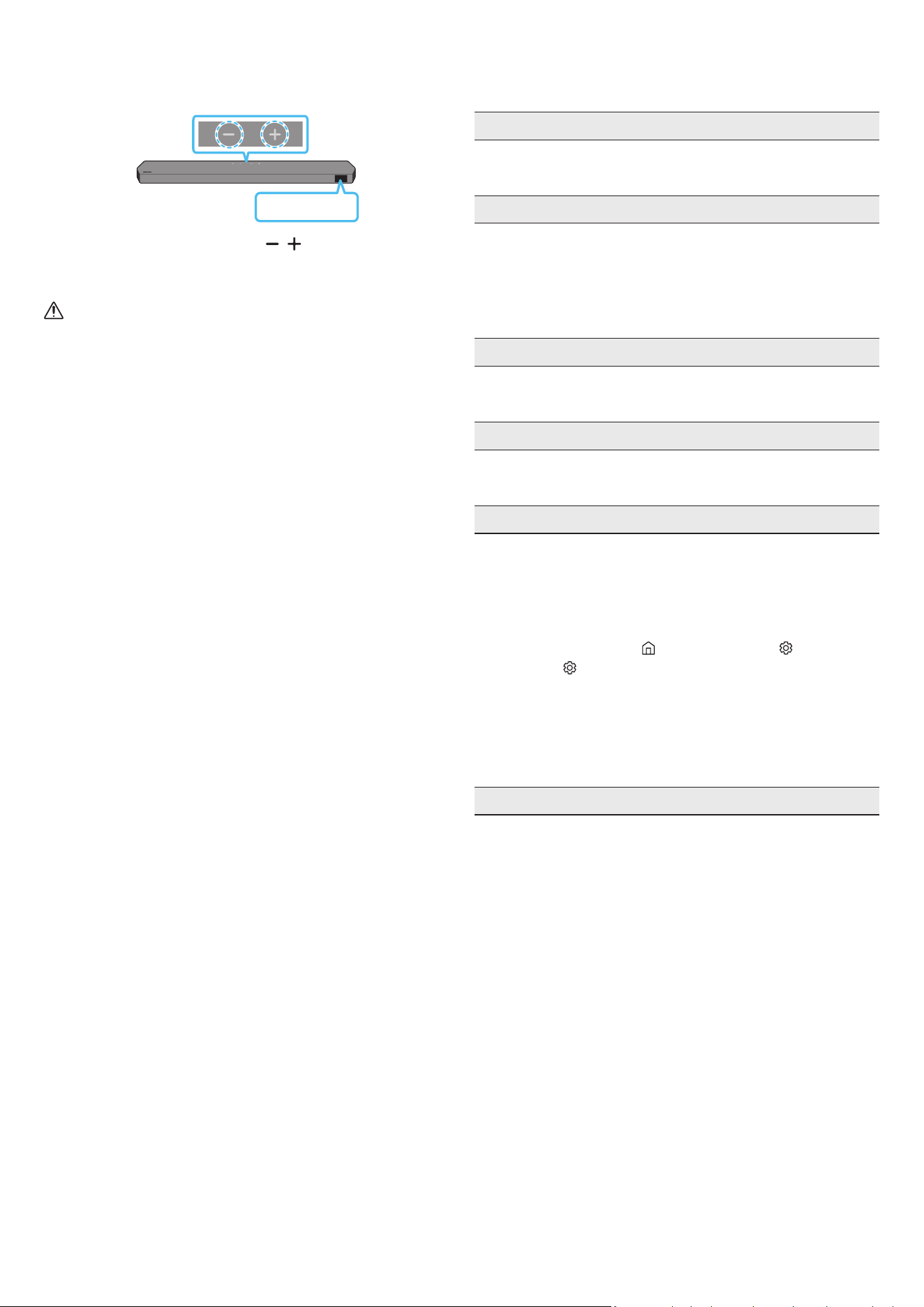
POR - 29
Inicialização
Parte superior do Soundbar
INIT
Com o Soundbar ligado, prima os botões de (Volume) no corpo,
simultaneamente, durante pelo menos 5 segundos. A mensagem “INIT” surge
no ecrã e o Soundbar é inicializado.
CUIDADO
• Todas as denições do Soundbar são inicializadas. Certique-se de que
efetua esta ação apenas quando é necessário inicializar.
11 RESOLUÇÃO DE PROBLEMAS
Antes de solicitar assistência, verique o seguinte.
A Soundbar não se liga.
• Verique se o cabo de alimentação do Soundbar está corretamente
inserido na tomada
A Soundbar funciona de forma errática.
• Após remover o cabo de alimentação, insira-o de novo.
• Desligue e volte a ligar o dispositivo externo e tente novamente.
• Se não existir sinal, o Soundbar desliga-se automaticamente após um
determinado período de tempo. Ligue o Ligar/Desligar.
(Consulte a página 5 )
O telecomando não funciona
• Aponte o telecomando diretamente para o Soundbar
• Troque as pilhas por umas novas.
O indicador do Soundbar ca vermelho sólido.
• O microfone está desligado.
Ligue o microfone. (Consulte a página 4 )
O Soundbar não emite som.
• O volume do Soundbar está demasiado baixo ou em silêncio. Ajuste o
volume
• Quando ligar qualquer dispositivo externo (STB, dispositivo Bluetooth,
dispositivo móvel, etc.), ajuste o volume do mesmo.
• Para aceder à saída de som no televisor, selecione Soundbar.
(Televisor Samsung: Início (
) → Menu → Denições ( ) → Todas as
Denições ( ) → Som → Saída de Som → Selecionar Soundbar)
• A ligação dos cabos ao Soundbar não pode estar solta. Desligue o cabo e
volte a ligá-lo.
• Remova completamente o cabo de alimentação, volte a ligá-lo e ligue a
alimentação
• Inicialize o produto e tente novamente. (Consulte a página 29 )
O som não é emitido a partir do Subwoofer ou dos altifalantes surround.
• Conrme se o indicador LED na parte posterior do Subwoofer e dos
Altifalantes Surround está a azul. Ligue novamente a Soundbar, o
Subwoofer e os Altifalantes Surround caso o indicador esteja com uma luz
azul intermitente ou vermelho xo. (Consulte a página 11 )
• Poderá ter problemas se houver um obstáculo entre o Soundbar e o
Subwoofer. Coloque os dispositivos numa zona afastada de obstáculos.
• A ligação pode ser interrompida por outros dispositivos que se encontrem
a emitir sinais de radiofrequência nas proximidades.
Mantenha a sua coluna afastada desses dispositivos
• Remova o cabo de alimentação e volte a ligá-lo.
POR - 30
Em caso de instabilidade do som, atrasos ou ruído do Subwoofer e do
Altifalante Surround
• Se existirem objetos entre o Soundbar e o Altifalante Subwoofer, isso pode
provocar um problema Reposicione-os num local sem esse objeto
• Se o Subwoofer e o Altifalante Surround estiverem afastados do Soundbar,
pode ocorrer instabilidade do som ou atrasos. Coloque-os perto do
Soundbar
• Pode ocorrer instabilidade do som ou atrasos quando o Soundbar está
próximo de um instrumento ou dispositivo elétrico que pode provocar
interferências radioelétricas. Mantenha o Soundbar afastado de dispositivos
que possam provocar interferências radioelétricas. (por exemplo, router sem
os)
• Altere o estado de ligação de rede da TV de "sem os" para "com os".
O volume do Subwoofer está demasiado baixo
• O volume original do conteúdo que está a reproduzir pode ser baixo. Tente
ajustar o nível do Subwoofer. (Consulte a página 6 )
• Aproxime a coluna do Subwoofer de si.
Se a TV não estiver ligada via HDMI TO TV (eARC/ARC)
• Verique se o cabo HDMI está corretamente ligado ao terminal ARC.
(Consulte a página 13 )
• A ligação pode não ser estabelecida devido à ligação do dispositivo
externo (descodicador, consola de jogos, etc.). Ligue diretamente o
Soundbar
• O modo HDMI-CEC pode não estar ativado no televisor. Ligue o CEC
no menu do televisor. (Televisor Samsung: Início (
) → Menu →
Denições ( ) → Todas as Denições ( ) → Ligação → Gestor de
Dispositivos Externos → Anynet+ (HDMI-CEC) ON)
• Para ligar com eARC, a função eARC no menu da TV deve estar ligada.
(Televisor Samsung: Início ( ) → Menu → Denições ( ) → Todas as
Denições ( ) → Som → Denições Especializadas → Modo HDMI-eARC
(Auto))
Não há som ao ligar a TV no modo HDMI TO TV (eARC/ARC)
• O seu dispositivo não consegue reproduzir o sinal de entrada. Altere a
saída de áudio do televisor para PCM ou Dolby Digital. (Para um televisor
Samsung: Início (
) → Menu → Denições ( ) → Todas as Denições ( )
→ Som → Denições Especializadas → Formato de Áudio de Saída Digital)
O Soundbar não estabelece ligação via Bluetooth.
• Ao ligar um novo dispositivo, mude para “BT PAIRING” para estabelecer
ligação. (Prima o botão
PAIR no telecomando ou o botão (Microfone
Ligado/Desligado) no corpo durante pelo menos 5 segundos.)
• Se o Soundbar estiver ligado a outro dispositivo, desligue esse dispositivo
primeiro para trocar de dispositivo
• Ligue-o novamente após remover a lista de altifalantes Bluetooth no
dispositivo a ligar. (Televisor Samsung: Início ( ) → Menu →
Denições ( ) → Todas as Denições ( ) → Som → Saída de Som → Lista
de Altifalantes Bluetooth)
• A ligação automática do televisor poderá estar desativada. Enquanto
o Soundbar estiver no modo "BT READY", mantenha premido o botão
Esquerdo no telecomando do Soundbar durante 5 segundos para
selecionar ON-TV CONNECT Se vir OFF-TV CONNECT, mantenha premido
novamente o botão Esquerda durante 5 segundos para mudar a seleção.
• Remova o cabo de alimentação, volte a ligá-lo e, em seguida, tente
novamente
• Inicialize o produto e tente novamente. (Consulte a página 29 )
O som é cortado quando ligado através de Bluetooth.
• Alguns dispositivos podem provocar interferências de rádio se estiverem
demasiado perto do Soundbar, como acontece com micro-ondas, routers
sem os, etc.
• Se o seu dispositivo ligado através de Bluetooth se afastar demasiado
do Soundbar, poderá fazer com que o som seja cortado. Aproxime o
dispositivo do Soundbar
• Se uma parte do seu corpo estiver em contacto com o transmissor de
Bluetooth ou se o produto for instalado em móveis de metal, o som pode
ser cortado. Verique o ambiente de instalação e as condições para a
utilização
O Soundbar não estabelece ligação através Wi-Fi.
• Verique se o router sem os está ligado.
• Desligue o router, volte a ligá-lo e, em seguida, tente novamente.
• Não será possível ligar o Soundbar se o sinal sem os for demasiado fraco.
Experimente deslocar o router para um local mais próximo do Soundbar
ou eliminar quaisquer obstáculos que estejam entre o Soundbar e o router,
se possível.
• Se o seu router sem os for novo, será necessário recongurar as
denições de rede da coluna. (Consulte a página 23 )
• O Soundbar não é compatível com Wi-Fi 6.
O Soundbar não se liga automaticamente em conjunto com a TV.
• Quando desliga o Soundbar enquanto vê televisão, a sincronização da
energia com o televisor é desativada. Primeiro, desligue o televisor.
A função AVA não se encontra disponível nos seguintes casos.
• A função AVA não estará disponível quando o microfone estiver desligado.
POR - 31
Depois de ligar a TV ao Soundbar, ativei o modo Soundbar. Assim, a TV não
emite qualquer som.
• Se ligar o Soundbar a um dispositivo móvel enquanto o Soundbar estiver
ligado à TV, o Soundbar emite som a partir do dispositivo móvel enquanto
mantém a ligação à TV. Assim, o som da TV não é emitido.
• Desligue o dispositivo móvel e o som da TV será emitido novamente a
partir do Soundbar
O Soundbar não aparece no AirPlay
• Para ativar o AirPlay no seu Soundbar, terá de registar primeiro o
dispositivo na aplicação Samsung SmartThings, ao aceitar os termos e
condições da aplicação. (Consulte a página 24 )
• O AirPlay não funciona se eliminar o Soundbar da aplicação Samsung
SmartThings.
• Certique-se de que o Soundbar e o dispositivo Apple estão ligados à
mesma rede Wi-Fi.
• O Soundbar é compatível com o AirPlay instalado no iOS 13.4 ou posterior.
Não foi apresentado nenhum sinal de entrada UHD na minha TV.
• Poderá ser necessária uma alteração adicional nas denições da sua TV
ou da fonte de entrada. Para mais informações, consulte o manual do
utilizador da TV ou do dispositivo externo
• Certique-se de que está a utilizar um Cabo HDMI de Ultra-Alta
Velocidade certicado pela HDMI.org.
O Group Play não está ativado
• Verique se os dispositivos de áudio são modelos mais recentes lançados
em 2024 ou posteriormente
• Verique se o dispositivo antrião está ligado a uma rede Wi-Fi como
fonte
• Certique-se de que todos os dispositivos de áudio estão ligados à mesma
rede Wi-Fi (a 5 GHz).
12 LICENÇA
Dolby, Dolby Atmos, and the double-D symbol are registered trademarks of
Dolby Laboratories Licensing Corporation. Manufactured under license from
Dolby Laboratories. Condential unpublished works.
Copyright © 2012-2021 Dolby Laboratories. All rights reserved.
For DTS patents, see http://patents.dts.com. Manufactured under license
from DTS, Inc. or DTS Licensing Limited. DTS, DTS:X, and the DTS:X logo are
registered trademarks or trademarks of DTS, Inc. in the United States and
other countries
© 2021 DTS, Inc. ALL RIGHTS RESERVED.
The terms HDMI, HDMI High-Denition Multimedia Interface, HDMI Trade
dress and the HDMI Logos are trademarks or registered trademarks of HDMI
Licensing Administrator, Inc.
Apple, AirPlay, iPad, iPhone e Mac são marcas comerciais da Apple Inc.,
registadas nos EUA e noutros países e regiões.
• Utilize o seu telefone, tablet ou computador como telecomando para o
Spotify Visite spotify.com/connect para saber como
• O Software Spotify está sujeito a licenças de terceiros disponíveis aqui:
https://www.spotify.com/connect/third-party-licenses
Being Roon Tested means that Samsung and Roon have collaborated to
ensure you have the best experience using Roon software and Samsung
equipment together, so you can just enjoy the music.
Aviso de licença de código aberto
O código aberto utilizado neste produto pode ser encontrado na seguinte
página Web (http://opensource.samsung.com)

.Samsung Electronics Co., Ltd. All rights reserved 2024 ©
مدختسا ليلد
HW-Q990D
ع كجتنم ليجست ىجر
ُ
ي ،
ً
امتكا كأ ةمدخ ع لوصحلل
www.samsung.com/register
طقف عجرمك اذه مدختسا ليلد اذه ةدراولا ةيحيضوتلا موسرلاو لاكشا فوت متي
.عفلا جتنا رهظم نع فلتخت دقو

2 - ARA
تايوتحا
01 3 تانوكانمققحتلا
02 4 جتنانعةماعةرظن
4 . . . . . . . . . . . . . . . . . . . . . . . . . . . . . . Soundbar زاهج نم ةيولعلا ةحوللا
4 . . . . . . . . . . . . . . . . . . . . . . . . . . . . . . . . Soundbar زاهجل ةيلفسلا ةحوللا
03 5 Soundbarزاهجدع
ُ
بنعمكحتلازاهجمادختسا
5 . . . . . . )AAA ناتيراطب( دع
ُ
ب نع مكحتلا زاهج مادختسا لبق تايراطبلا لاخدإ
5 . . . . . . . . . . . . . . . . . . . . . . . . . . . . . . دع
ُ
ب نع مكحتلا زاهج مادختسا ةيفيك
6 . . . . . . . . . . . . . . . . . . . . . . . . . . . . . . . . . . .)توصلا مكحتلا(
دادعإ
7. . . . . . . . . . . . . . . . . . . . . . )ةفيظو نم كأ اهل رارزأ( ةيفخا رازا مادختسا
7. . . . . . . . . . . . . . . . . . . . . . ةفلتخا وصلا ثأتلا عاضو ذفنا تافصاوم
صاخلا دع
ُ
ب دنع مكحتلا ةدحو مادختساب Soundbar زاهج توص ىوتسم طبض
8 . . . . . . . . . . . . . . . . . . . . . . . . . . . . . . . . . . . . . . . . . . . . . . . . . . نويزفلتلاب
04 9 Soundbarزاهجليصوت
9 . . . . . . . . . . . . . . . . . . . . . . . . . . . . . . . . . .تادحولاو ابرهكلا رايتلا ليصوت
‒ 10 . . . . . . . . . . . . . . . . . . . . . . . . . . . . . . هب وا توصلا كم طيطخت
‒ 10 . . . . . . . . . . . . . . . . . . . . . . . . . . . . . . . . .يطيحا توصلا كم عضو
‒ 11 . . . . . . . . . . . .
ً
ايودي يطيحا توصلا تاكم وأ توصلا مخضم ليصوت
‒ توصلا تاكمو توصلا مخضم نم يفلخلا ءزجلا ع LED ؤم ءي
12 . . . . . . . . . . . . . . . . . . . . . . . . . . . . . . . . . . . . . . . . . . . . . . . يطيحا
05 13 نويزفلتبلاصتا
13. . . . . . . . . . . )توصلا عاجرإ ةانق( HDMI ARC معدي يذلا نويزفلتلا ليصوت
14. . . . . . . . . . . . . . . . . . . . . . . . . . . . . . . . . . .يب لبك مادختساب ليصوتلا
15. . . . . . . . . . . . . . . . . . . . . . . . . . . . . . . . . . .Bluetooth ةينقت ع لاصتا
16. . . . . . . . . . . . . . . . . . . . . . . . . . . . . . . . . . . . . . Wi-Fi لخ نم ليصوتلا
17. . . . . . . . . . . . . . . . . . . . . . . . . . . . . . . . . Q-Symphony ةفيظو مادختسا
18 . . . . . . . . . . . . . . . . . . . . . . . . . . . . . . . . . . . SpaceFit Sound مادختسا
06 19 يجراخزاهجليصوت
Dolby فشت كف ع رداق( HDMI لباك مادختساب ليصوتلا .1 ةقيرطلا
19. . . . . . . . . . . . . . . . . . . . . . . . . . . . . . . . . . . . )هليغشتو DTS:X / Atmos
20 . . . . . . . . . . . . . . . . . . . . . . . . . . يب لبك مادختساب ليصوتلا .2 ةقيرطلا
07 21 لومحمزاهجليصوت
21. . . . . . . . . . . . . . . . . . . . . . . . . . .Bluetooth ةينقت ع لاصتا .1 ةقيرطلا
23 . . . . . . . . . . . . . . . . . . . )ةيكلسلا ةكبشلا( Wi-Fi ع لاصتا .2 ةقيرطلا
23 . . . . . . . . . . . . . . . . . . . . . . . . . . . . . . . . . . . . . . . Group Play مادختسا
24 . . . . . . . . . . . . . . . . . . . . . . . . . . . . . . . . . SmartThings عزوم مادختسا
24 . . . . . . . . . . . . . . . . . . . . . . . . . . . . . . . . .Apple AirPlay ةينقتب لاصتا
25 . . . . . . . . . . . . . . . . . . . . . . . . . . . . . . . . . . . . . . . . Tap Sound مادختسا
08 26 طئاحلاعتيبثتلامقطبيكرت
26 . . . . . . . . . . . . . . . . . . . . . . . . . . . . . . . . . . . . . . . . . . . بيكلا تاطايتحا
26 . . . . . . . . . . . . . . . . . . . . . . . . . . . . . . . . طئاحلا ع تيبثتلا مقط تانوكم
27. . . . . . . . . . . . . . . . . . . . . . . . . طئاحلا ع يطيحا توصلا تاكم تيبثت
09 27 نويزفلتلامامأSoundbarزاهجبيكرت
27. . . . . . . . . . . . . . . . . . . . . . . . . . . . . . . . . . . . . . . . . . . . . . . . . . . . نوكا
10 28 جمانلاثيدحت
28 . . . . . . . . . . . . . . . . . . . . . . . . . . . . . . . . . . . . . . . . . . . . .اقلتلا ثيدحتلا
28 . . . . . . . . . . . . . . . . . . . . . . . . . . . . . . . . . . . . . . . . . . . . . . . USB ثيدحت
28 . . . . . . . . . . . . . . . . . . . . . . . . . . . . . . . . . . . . ةينما تاثيدحتلا تامولعم
29 . . . . . . . . . . . . . . . . . . . . . . . . . . . . . . . . . . . . . . . . . . . . . . . . . . . .ةئيهتلا
11 29 اهحصإولاطعافاشكتسا
12 31 صيخالا
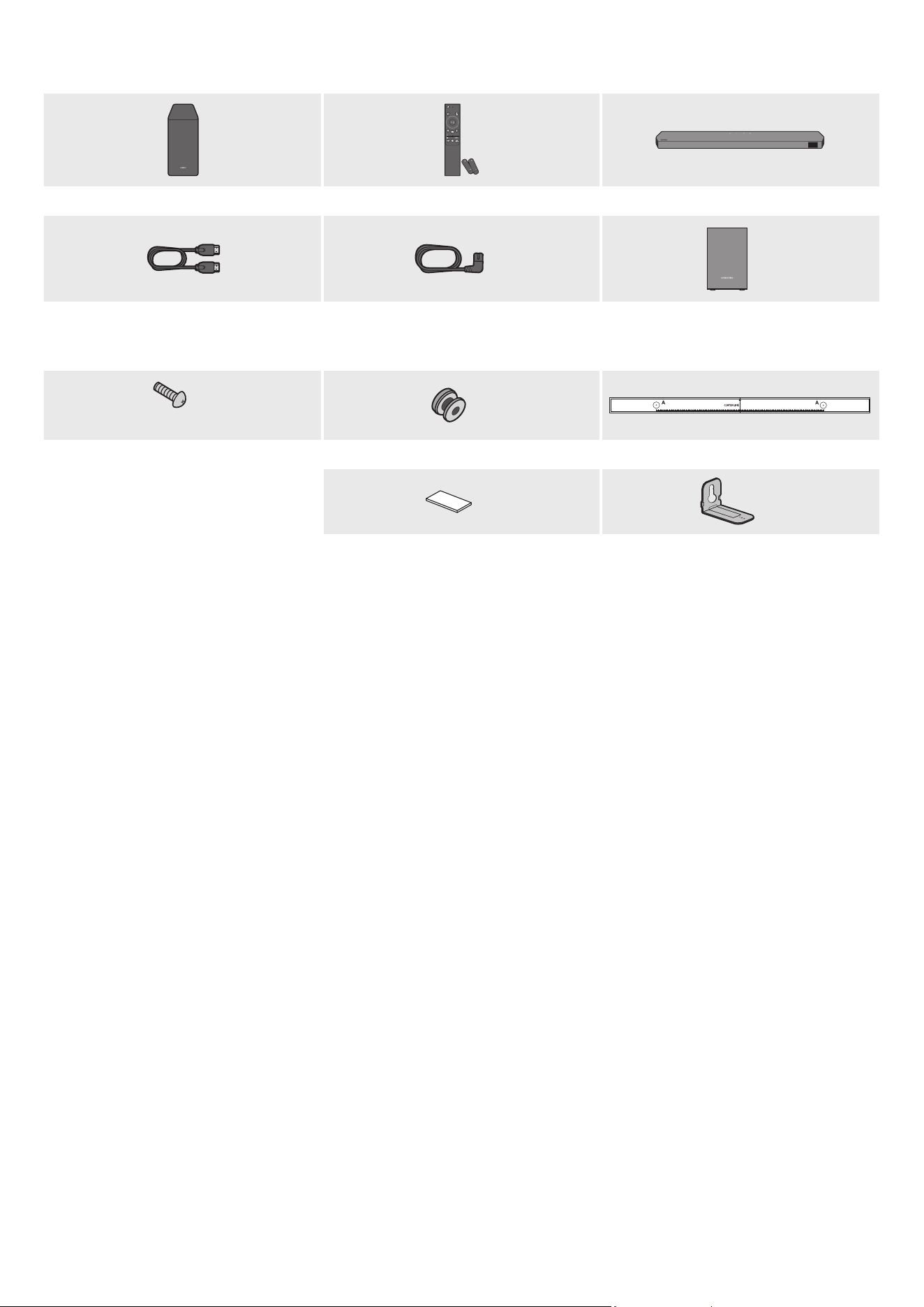
3 - ARA
01 تانوكانمققحتلا
SOUNDBAR
ةيساساSoundbarةدحوتايراطبلا/Soundbarزاهجدع
ُ
بنعمكحتلاةدحوتوصلامخضم
POWER
2 x
4 x
يطيحاتوصلاكم
)مي/راسي(
ابرهكرايتكلس
)توصلامخضم،Soundbarزاهج(
)توصلاكم(
HDMIلبك
A TYPE : 450mm
2 x
2 x
)M4 × L10(
طئاحلاعتيبثتلاليلدلماحلارامسمرامسم
2 x
4 x
طئاحلاعتيبثتلاةماعدةيطاطمقاس
)ةيساسا Soundbar زاهج ةدحول يفلخلا بناج :قصلا( .جتنا عم قفرا قصلا عجار ،اهكهتساو ةقاطلا ردصم نع تامولعا نم ديز
.Samsung ءمع ةمدخ وأ Samsung ةمدخ زكرمب لصتا ،ةيرايتخا تبكلا وأ ةيفاضا تانوكا ءال
.28~26 تاحفصلا عجار ،ةيطاطا قاسلا وأ طئاحلا ع تيبثتلا لماح نع تامولعا نم ديز
.قبسم راعشإ نود يغتلل ةضرع قيبطتلا ةشاشو تافصاواو ميمصتلا
.هعأ ةيحيضوتلا روصلا نع
ً
يلق تاقحلا لكش فلتخي دق
.راعشإ نود تافصاوا يغت قحلاب Samsung Electronics Co.، Ltd ظفتحت
.ةيبيرقت داعباو نزولا
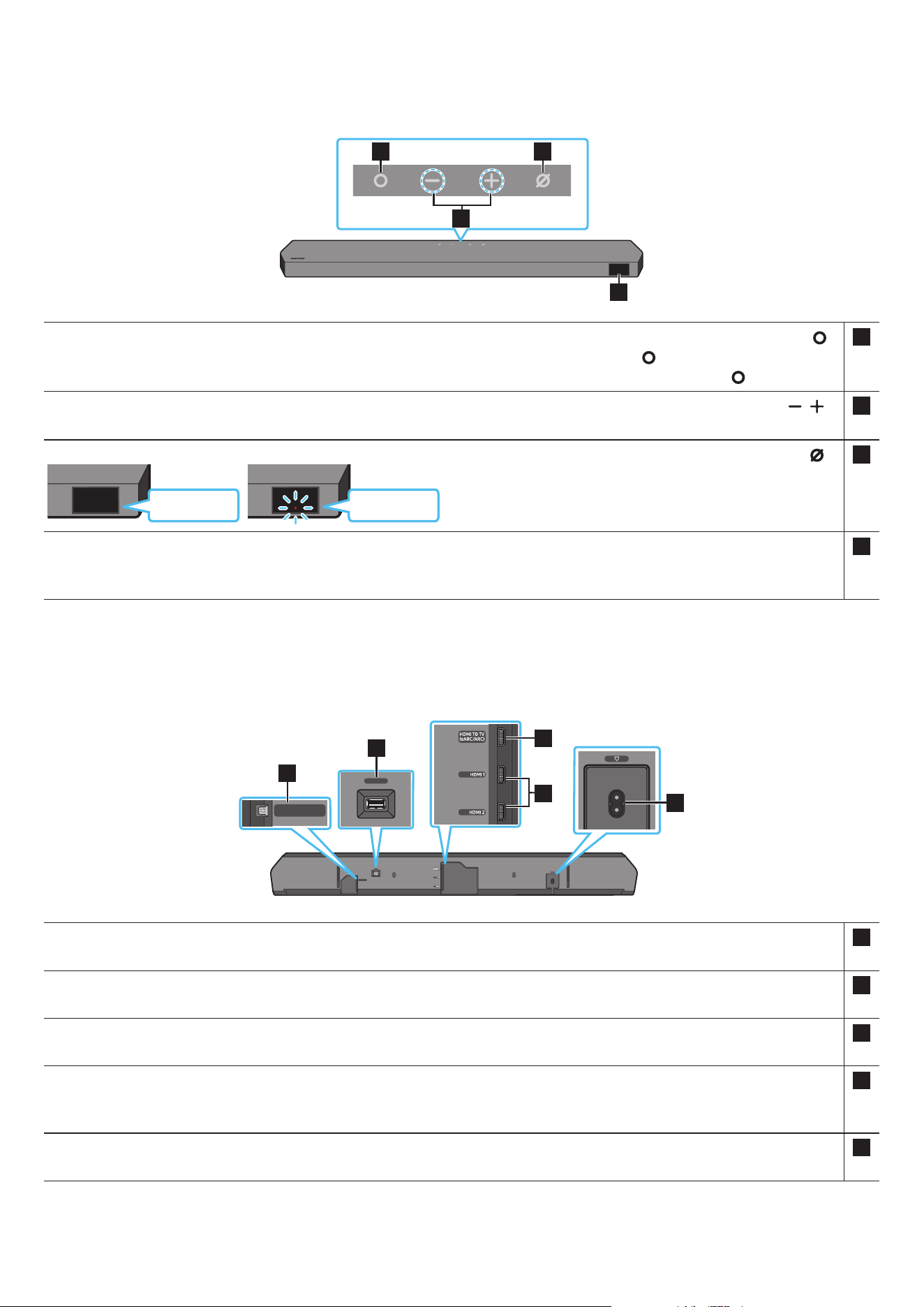
4 - ARA
02 جتنانعةماعةرظن
Soundbarزاهجنمةيولعلاةحوللا
2
1 3
4
1
)ةددعتافئاظولا(
رز
.Soundbar زاهج ليغشتل )ةددعتافئاظولا( رزلا ع طغضا ،دادعتسا عضو
.لاخدا ردصم يغتل )ةددعتافئاظولا( رزلا ع طغضا
2
)توصلاىوتسم(
رز
.توصلا ىوتسم طبضل
3
)نوفوركياليغشتفاقيإ/ليغشتءدب(
رز
.هليغشت فاقيإ وأ نوفوركيا ليغشتل رزلا ع طغضا
.رمحا نوللاب LED ؤم ءيس ،نوفوركيا ليغشت فاقيإ دنع
ديقرمحاءوضلا
ليغشتلا
نوفوركياليغشتفاقيإ
رمحاءوضلا
ليغشتفاقيإ
نوفوركياليغشت
4ضرعلاةشاش
.احلا عضولاو جتنا ةلاح ضرعي
D.IN ← BT ← Wi-Fi ← HDMI 2 ← HDMI 1 ← eARC وأ TV ARC
.
ٍ
ناوث 6 إ 4 لخ لمعلا ةقاطلا رز أدبيس ،ةقاطلا كلس ليصوت دنع
.ا
ً
توص ردصت نأ لبق ناوث 5 إ 4 نم رخأتتس ،ةدحولا هذه ليغشت دنع
.ةيجراخلاةعامسلا إ نويزفلتلا تاعامس يغتلو نويزفلتلا توصل تادادعا ةمئاق إ لقتنا ،Soundbarو نويزفلتلا نم تاوصأ تعمس اذإ
Soundbarزاهجلةيلفسلاةحوللا
DIGITAL AUDIO IN
(OPTICAL)
SERVICE
DIGITAL AUDIO IN
(OPTICAL)
SERVICE
ID SET
HDMI IN 1
HDMI IN 2
POWER
NETWORK
SERVICE
DIGITAL AUDIO IN
(OPTICAL)
HDMI TO TV
(eARC/ARC)
HDMI 2
HDMI 1
ID SET
(WOOFER/REAR)
ID SET
NETWORK
SERVICE
ID SET
(WOOFER/REAR)
DIGITAL AUDIO IN
(OPTICAL)
HDMI TO TV
(eARC/ARC)
HDMI 2
HDMI 1
5
DIGITAL AUDIO IN
(OPTICAL)
SERVICE
DIGITAL AUDIO IN
(OPTICAL)
SERVICE
DIGITAL AUDIO IN
(OPTICAL)
SERVICE
DIGITAL AUDIO IN
(OPTICAL)
SERVICE
DIGITAL AUDIO IN
(OPTICAL)
SERVICE
DIGITAL AUDIO IN
(OPTICAL)
SERVICE
2
1
4
3
1DIGITALAUDIOIN)OPTICAL(
)20 ةحفص عجار( .يجراخ زاهجل )يب( يمقر جرخمب هل
صو
2SERVICE
.جتنا جمانرب ةيقل USB نيزخت زاهج ل
صو
3HDMITOTV)eARC/ARC(
)13 ةحفص عجار( .نويزفلتلا زاهجب دوجوا HDMI سبقمب هل
صو
4HDMI 2/HDMI 1
.HDMI لبك مادختساب ا
ً
عم ةيمقرلا ويديفلاو توصلا تاراشإ لاخدإ
)19 ةحفص عجار( .يجراخ زاهجل HDMI جرخمب هل
صو
5 POWER
)9 ةحفص عجار( .Soundbar ـب ةقاطلا كلس ليصوتب مق
.لبكلا بحس بنجت .سباقلا بحسا ،طئاحلاب دوجوا رايتلا ذخأم نم ةقاطلا كلس لصف دنع
.تانوكا ب تيصوتلا ةفاك لمتكت ح ددا رايتلا ذفنمب تانوكم ةيأ وأ ةدحولا هذه ليصوتب مقت
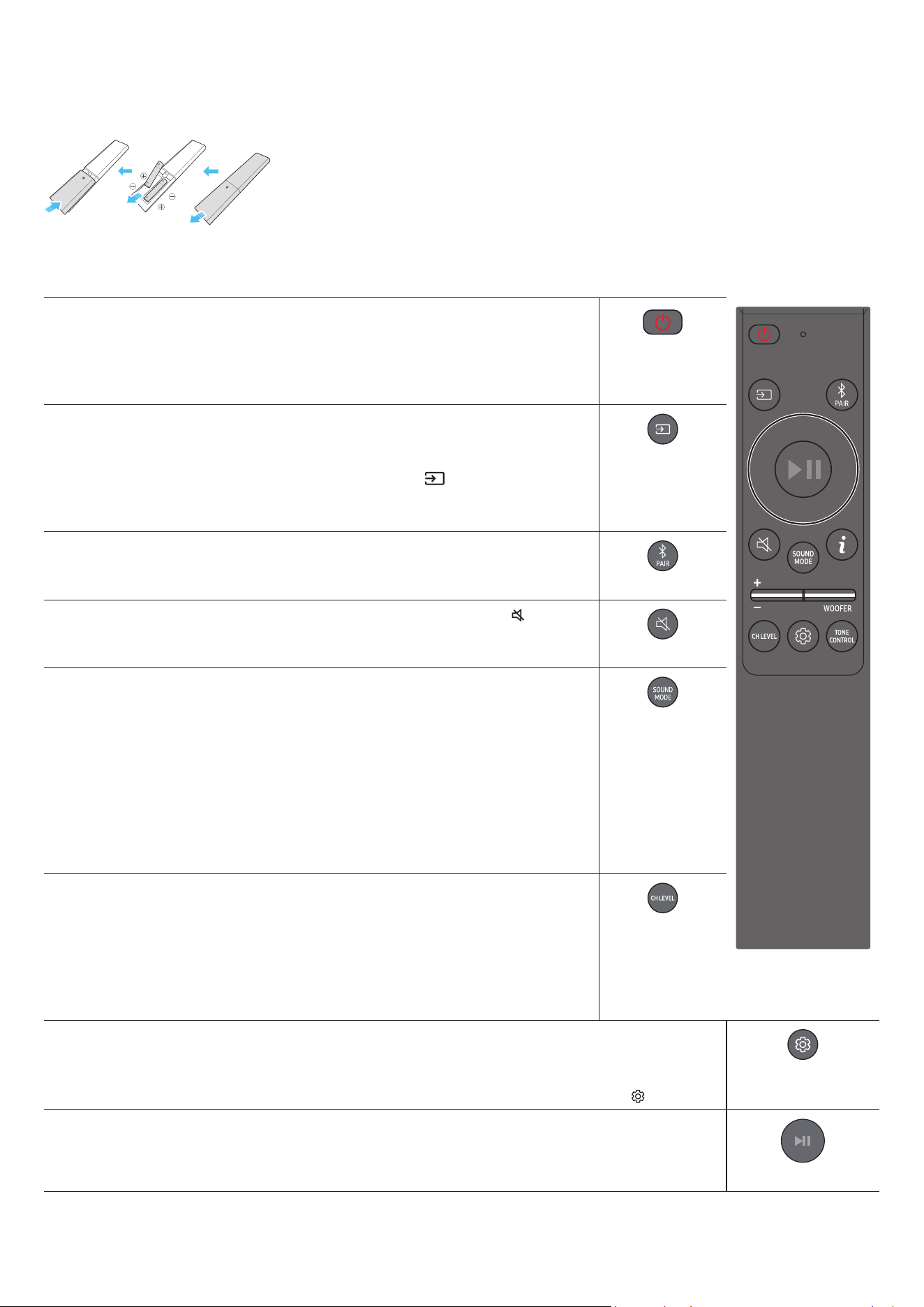
5 - ARA
03 SOUNDBARزاهجدع
ُ
بنعمكحتلازاهجمادختسا
)AAAناتيراطب(دع
ُ
بنعمكحتلازاهجمادختسالبقتايراطبلالاخدإ
نوكت ثيحب حيحصلا هاجتا )تلوف 1.5 ةوقب( AAA تيراطبلا لخدأ .ا
ً
مامت هتلازإ متت ح مهسلا هاجتا يفلخلا ءاطغلا ك
رح
.هناكم حبصي ح ءارولل قلي ةيراطبلا فغ لعجا مث نمو .ةحيحص ةيبطقلا
.دع
ُ
ب نع مكحتلا ةدحو زارط بسح ةيحيضوتلا ةروصلا فلتخت
دع
ُ
بنعمكحتلازاهجمادختساةيفيك
SOUNDBAR
ةقاطلا
.هليغشت فاقيإو Soundbar زاهج ليغشتب موقي
•ا
ً
يئاقلتليغشتلافاقيإةفيظو
:ةيلاتلا تاحلا ا
ً
يئاقلت ةدحولا ليغشت فاقيإ متي
ةيتوص ةراشإ دوجو مدع ةلاح D.IN / BT / Wi-Fi / HDMI 2 / HDMI 1 / eARC وأ TV ARC عاضوا
.ةقيقد 18 ةد
ردصا
.Soundbar زاهجب لصتم ردصم ديدحتل طغضا
•ةيتوصلاتاقيلعتلاليغشتفاقيإ/ليغشتءدب
.اهليغشت فاقيإ وأ ةيتوصلاتاقيلعتلا ليغشت كنكمي
زاهج ليغشت فاقيإ ءانثأ
ٍ
ناوث 5 ةد دع
ُ
ب نع مكحتلا ةدحو ع )ردصا(
رز ع رارمتسا عم طغضا
.)دادعتسا عضو( Soundbar
."AUI ON" وأ )افا( "AUI OFF" ةشاش ضرعتس ،ةيتوصلاتاقيلعتلا دادعإ يغتب اهيف موقت ةرم لك
Bluetooth PAIR
ةشاش لاصتا حل رظتناو رزلا ع طغضا .Bluetoothـب ناقا عضو إ Soundbar زاهج ليوحت
.ديدج Bluetooth زاهجب"BT PAIRING"
توصلامتك
.توصلا متكل )توصلامتك(
رز ع طغضا
.توصلا متك ءاغل ا
ً
ددجم طغضا
SOUND MODE
وStandard وGame Pro وSurround لثم بولطا توصلا عضو ديدحت كنكمي ،رزلا اذه ع طغضلاب
.Adaptive Sound
•Standard
.صا توصلا جارخإب موقي
•Surround
.داتعا نم عسوأ ا
ً
يتوص
ً
اجم رفوي
•Game Pro
.ةبعللا ءاوجأ سمغنتل ا
ً
مسجم ا
ً
توص رفوي
•Adaptive Sound
.ىوتحا صئاصخ ع
ً
ءانب لثما توصلا لاجم ا
ً
يئاقلت رفويو عفلا تقولا ىوتحا للحي
CH LEVEL
،Wide levelو ،Side levelو ،Center level لثم ةعامس لك توص ىوتسم طبض كنكمي ،رزلا اذه ع طغضلاب
.Rear side levelو ،Rear top levelو ،Rear levelو ،Front Top levelو
وأ ،Wide level وأ ،Side level وأ ،Center level ددح ،توص كم لكل توصلا ىوتسم مكحتلل
/ع نيرزلا دحأ مادختساب +6و -6 ب توصلا ىوتسم طبضا مث ،توصلا تادادعإ Front Top level
.لفس
مث Rear side level وأ Rear top level وأ Rear level ددحف ،ةلصتم يطيحا توصلا تاكم تناك اذإ
.+6و -6 ب قاطن توصلا ىوتسم طبضل لفس/ع نيرزلا مدختسا
توصلامكحتلا
Syncو Night modeو Voice enhance modeو AVAو SpaceFit Sound لثم توصلا ةفيظو طبض كنكمي ،رزلا اذه ع طغضلاب
نيرزلا مادختساب بوغرا نعلا طبض نكميو .Sound Groupingو Private Rear Soundو Virtualو Surround speaker modeو
.لفس/ع
.6 ةحفص ")توصلامكحتلا(
دادعإ" عجار
اًتقؤمفاقيا/ليغشتلا
.رزلا ع طغضلاب اًتقؤم اهفاقيإ وأ ىقيسوا ليغشت ا
ً
ضيأ كنكمي
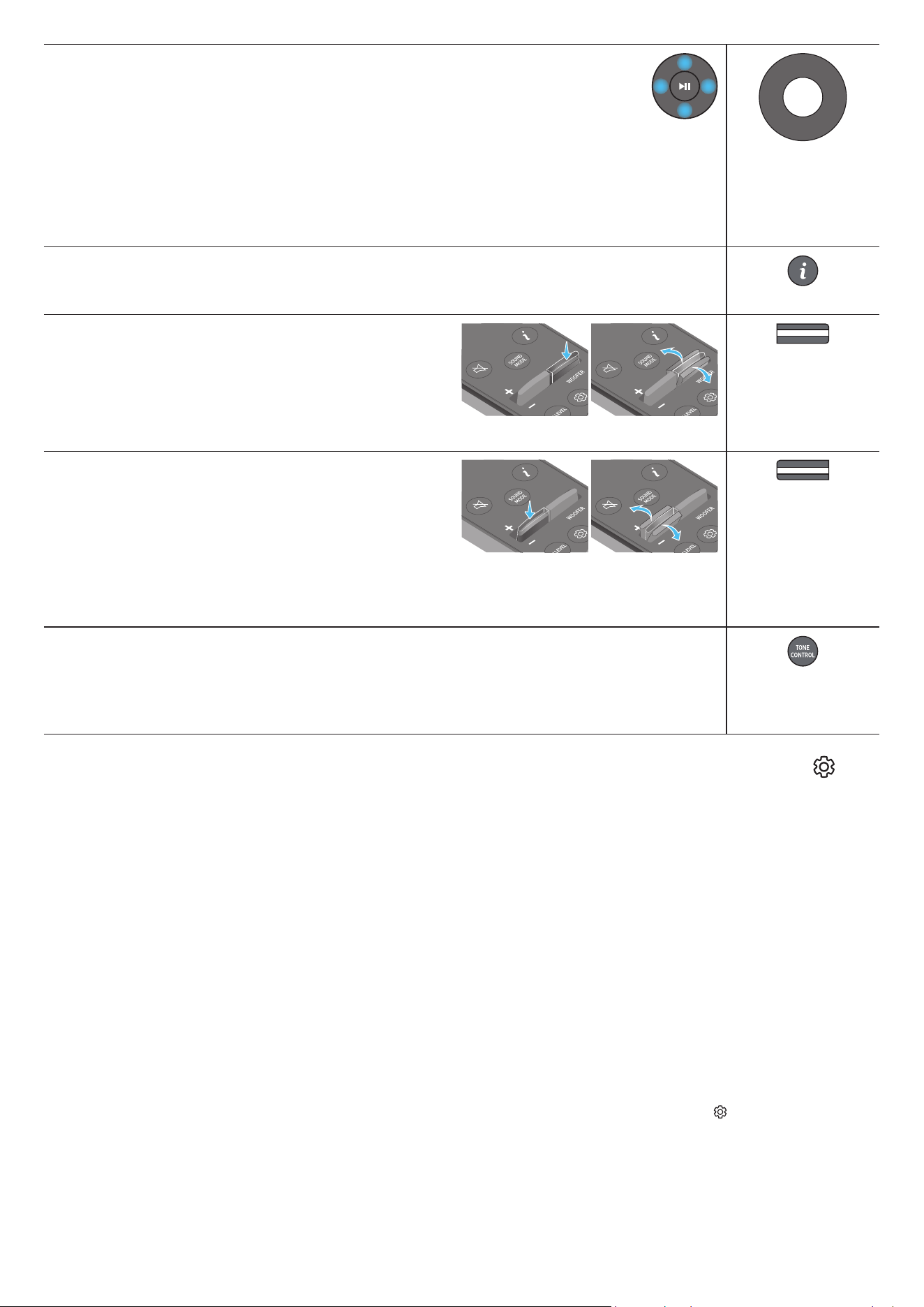
6 - ARA
مي/راسي/لفسأ/عأ
.ميلل/راسيلل/لفس/عهاجتاديدحتلاهيلإراش
ُ
اقطاناعطغضا
.اهطبض وأ فئاظولا ديدحتل رزلا ع ميلا/راسيلا/لفسا/عا هاجتاب طغضا
•يقيسواعطقازواجت
.قباسلا ىقيسوا فلم ديدحتل راسيلا رزلا ع طغضا .اتلا ىقيسوا فلم ديدحتل ميلا رزلا ع طغضا
•ID SET
.ليصوت ةداعإ اوجاتحي وأ لصتم غ ةمسجا تاعامسلا وأ توصلا مخضم نوكي امدنع رايخلا اذه مدختسا
).11 ةحفص عجار( .ID SET ذيفنتل ناوث 5 ةد ع رزلا ع رارمتسا عم طغضا ،ليغشتلا فاقيإ ءانثأ
تامولعم
.حاتا ملا وأ ةطشنلا ةفيظولا لوح تامولعم ضرعل طغضا
.)ناقا بلط دنع( "BT ready“ وأ )ناقا لامتكا دنع( لصتا زاهجلا ضرع
ُ
ي BT عضو
WOOFER LEVEL
.)هجلا( توصلا مخضم توص ىوتسم طبضل لفسل وأ عل رزلا عفدا
توصلاىوتسم
.توصلا ىوتسم طبضل لفسل وأ عل رزلا عفدا
•توصلامتك
.توصلا متك ءاغل ا
ً
ددجم طغضا .توصلا متكل VOL رزلا ع طغضا
TONE CONTROL
هذه كمت متي .لفس/ع نيرزلا مادختساب بوغرا نعلا طبض نكميو .هجلا وأ ثلا توصلا ىوتسم طبض كنكمي ،رزلا ع طغضلاب
.Standard عضولا ءانثتساب توصلا عضو ةفيظولا
مادختساب +6 ~ -6 ب توصلا ىوتسم طبضا مث ،توصلا تادادعإ BASS وأ TREBLE ددح ،هجلا وأ ثلا توصلا ىوتسم مكحتلل
. لفس/ع رارزا
.كلذل ا
ً
قفو توصلا كم ىوتسم طبض ا
ً
ضيأ متيس ،هجلا ىوتسم يغت درجمب
)توصلامكحتلا( دادعإ
ءانثأ تانايب يأ ظفح متي .ا
ً
مئاد حوضوب توصلا عامس نكمي ثيحب ،soundbar زاهج ليغشت ءانثأ عفلا تقولا ةيجراخلا ءاضوضلا للحي : ActiveVoiceAmplier)AVA(
.ليلحتلا
.يأ عامتسا ل نويزفلتلاو مفا قوطنا راوحلا عامس Voice enhance mode لهس
ُ
ي
.ا
ً
حضاو راوحلا ءاقبإ عم توصلا ىوتسم ضفخل تادادعا طبض عم Night mode سحت مت
تاعومجملل ةيلاثم اهلعجي امم ،يطيحا توصلا نم
ً
دب لماكلاب توصلا ليغشت ع ةيطيحا توصلا تاكمو ةيسيئرلا Soundbar ةدحو لمعت : Sound Grouping
.ةبك ةحاسم ىقيسوا إ نوعمتسي نيذلا صاخشا نم ةبكلا
‒ .ةيطيحا توصلا تاكم ليصوت نع رظنلا ضغب ةطشن ةمئاقلا لظت مث ،ةيطيحا توصلا تاكم ليصوت دنع ةيادبلا ةمئاقلا هذه طيشنت متي
‒ .توصلا عاضوأ ب تاوصا تافتخا كانه نوكت نلف ،Sound Grouping كمتب تمق اذإ
‒ فتخاب فلتخت لاو ،ا
ً
قبسم ةددحم ةنيعم تادحو نم طقف نكلو ،ةيطيحا تاعامسلاو ةيسيئرلا Soundbar ةدحوب ةصاخلا تاعامسلا تادحو عيمج نم توصلا جرخي
.زارطلا
.نيرخا جاعزإ نود عامتساب كل حمسي امم ،طقف ةيطيحا تاعامسلا نم جرخيل توصلا طبضب عضولا اذه موقي : Private Rear Sound
‒ .ةيطيحا توصلا تاك ةيماما ةانقلا نم طقف توصلا جرخي .توصلا مخضمو Soundbar زاهجل ةيسيئرلا ةدحولا نم توصلا جرخي نلف ،عضولا اذه كمتب تمق اذإ
‒ .توصلا عاضوأ ب تاوصا تافتخا كانه نوكت نلف ،Private Rear Sound كمتب تمق اذإ
‒ .يطيحا توصلا تاكم لاصتا نادقف وأ ةقاطلا ليغشت فاقيإ دنع ةفيظولا فاقيإ متي
‒ .يطيحا توصلا تاكم ليصوت دنع طقف ةمئاقلا طيشنت متي
‒ .Q-Symphony ةفيظو ليغشت دنع حاتم غ حبصيو ا
ً
يئاقلت عضولا اذه ليغشت فاقيإ متي
وليك 2.5و ،زتره وليك 1.2و ،زتره 600و ،زتره 300و ،زتره 150 ديدحت نكمي .ددرت قاطن لكل توصلا طبضل ناوث 5 نم ب
ُ
رقي ا )توصلامكحتلا( رزلا ع رارمتسا عم طغضا
. لفس/ع نيرزلا دحأ مادختساب +6 إ -6 ب ام دادعإ إ اهنم ةدحاو لك طبض نكميو مي/راسي نيرزلا دحأ مادختساب زتره وليك 10و ،زتره وليك 5و ،زتره
).”Standard“ إ توصلا عضو يعت نم دكأت(
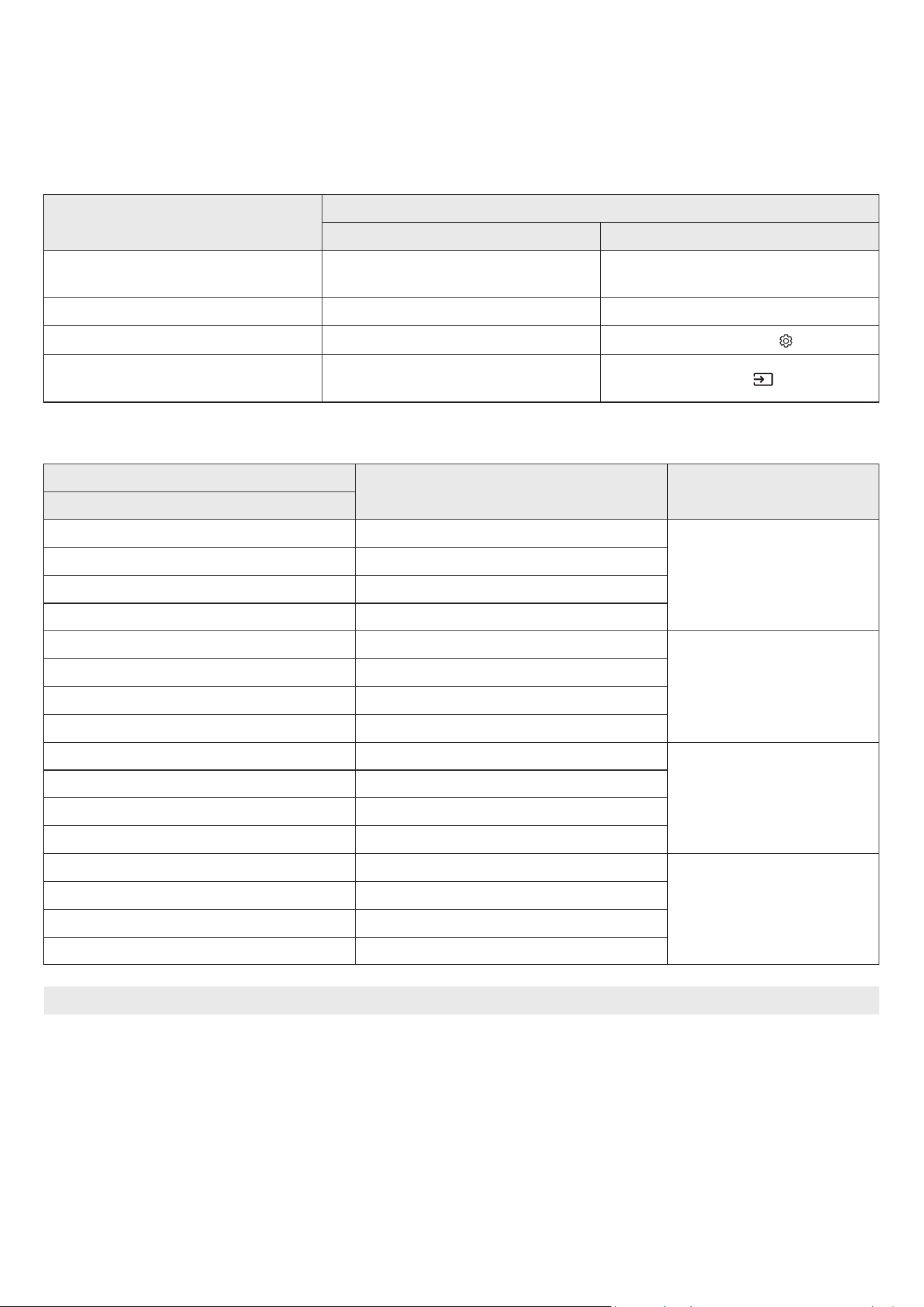
7 - ARA
نيرزلا دحأ مادختساب ةيناث لم 300 ~ 0 ب توصلا خأت طبضا مث ،توصلا مكحتلا Sync ددحف ، Soundbar نم توصلاو نويزفلتلا ع ويديفلا نماي مل اذإ
.لفس/ع
.طقف فئاظولا ضعب Sync ةيصاخ معدت
.قفاوتا )Soundbar زاهج عم( يطيحا توصلا كم تافصاو ا
ً
عبت )يفلخ يولع ىوتسمو يفلخ ىوتسم( ةرفوتا Surround speaker mode تادادعإ توافتت دق
.لفس/ع نيرزلا دحأ مادختساب Virtual تاعامسلا ةفيظو ON/OFF ليغشت فاقيإ/ليغشت نكمي
)ةفيظونمكأاهلرارزأ(ةيفخارازامادختسا
يفخارزلا
عجراةحفص
دع
ُ
بنعمكحتلاةدحورزةفيظولا
)عأ( توصلا مخضم
نويزفلتلا دع
ُ
ب نع مكحتلا زاهج ليغشت فاقيإ/ليغشت
)دادعتسا(
8 ةحفص
عأID SET11 ةحفص
)توصلا مكحتلا(
تاقاطن 7 نم توصلا لداعم 6 ةحفص
)ردصا(
ةيتوصلا تاقيلعتلا ليغشت فاقيإ/ليغشت
)دادعتسا عضو(
5 ةحفص
ةفلتخاوصلاثأتلاعاضوذفناتافصاوم
ثأتلاخدإ
جرخلا
يطيحمتوصكموتوصمخضمعم
Standard
ةانق 2.0ةانق 2.1
ةانق 5.1)DTS( ةانق 7.1 / ةانق 5.1
ةانق 7.1ةانق 7.1
DTS:X ,Dolby Atmos®ةانق 7.1.4
Surround
ةانق 2.0ةانق 11.1.4
ةانق 5.1ةانق 11.1.4
ةانق 7.1ةانق 11.1.4
DTS:X ,Dolby Atmos®ةانق 11.1.4
Game Pro
ةانق 2.0ةانق 11.1.4
ةانق 5.1ةانق 11.1.4
ةانق 7.1ةانق 11.1.4
DTS:X ,Dolby Atmos®ةانق 11.1.4
Adaptive Sound
ةانق 2.0ةانق 11.1.4
ةانق 5.1ةانق 11.1.4
ةانق 7.1ةانق 11.1.4
DTS:X ,Dolby Atmos®ةانق 11.1.4
.Surround إ ثأتلا عضو يغتب مق ،يطيحا توصلا تاكم كمتل .Standard عضولا مادختسا ءانثأ تانق جارخ ا
ً
تاوصأ ةيطيحا توصلا تاكم ردصت نل
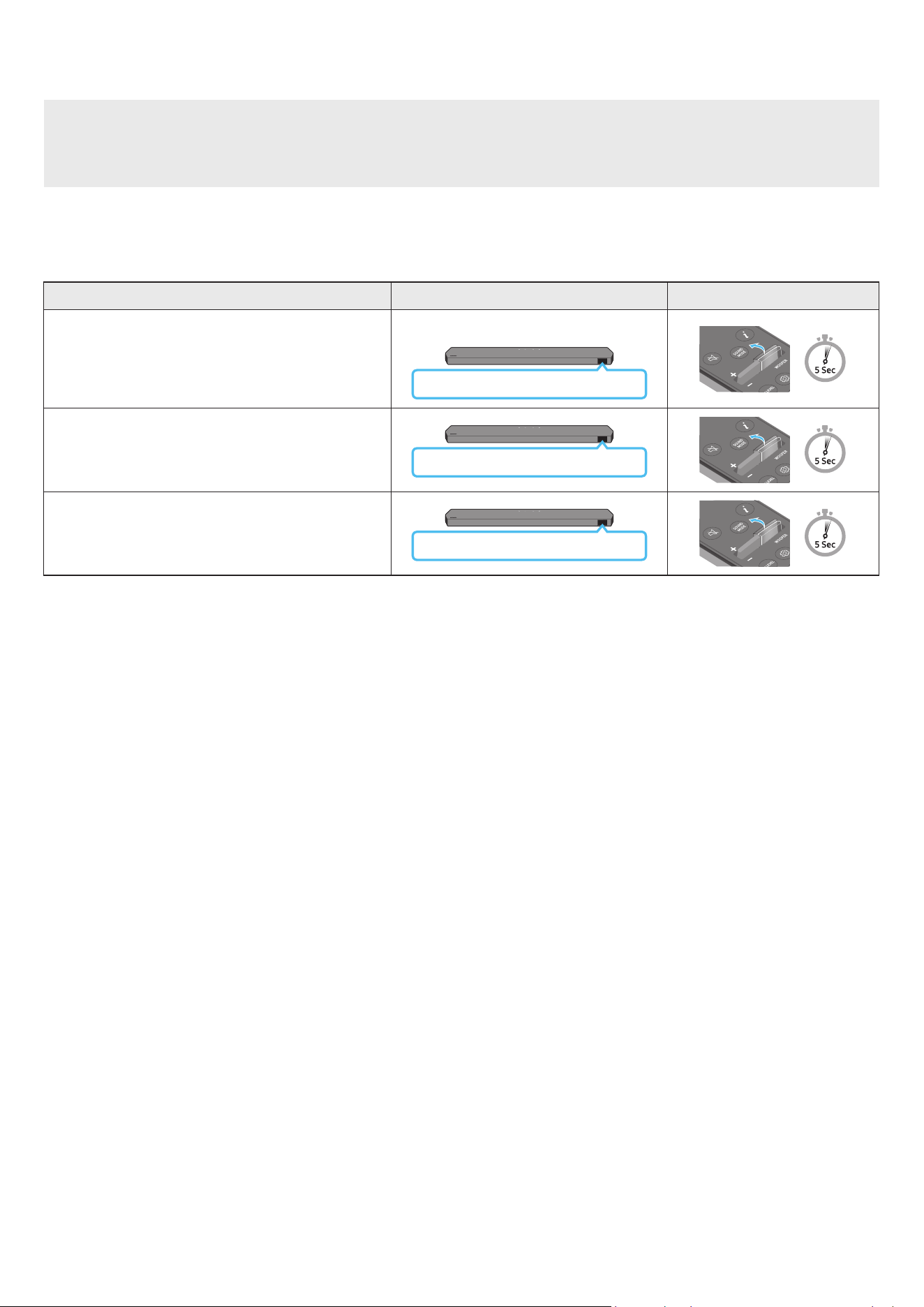
8 - ARA
نويزفلتلابصاخلادع
ُ
بدنعمكحتلاةدحومادختسابSoundbarزاهجتوصىوتسمطبض
.نويزفلتلاب صاخلا دعب دنع مكحتلا زاهج مادختساب Soundbar توص ىوتسم طبض
.ةموعدم غ )نارقا بلطتت لا مكحتلا ةزهجأ( ثوتولبلاب دعب نع مكحتلا ةزهجأ .طقف ءارمحلا تحت ةعشاب دع
ُ
ب نع مكحتلا ةزهجأ عم ةفيظولا هذه مادختسا نكمي
.ةفيظولا هذه مادختس ةيجراخلاةعامسلا ع نويزفلتلا توص كم طبضا
:يه ةفيظولا هذه معدت لا ةعّنصا تاكلا
RCAو Hisenseو TOSHIBAو PANASONICو PHILIPSو Sharpو Sonyو LGو VIZIOو Samsung
1 ..Soundbar ليغشت فاقيإب مق
2 ..ناوث 5 ةد WOOFER رزلا ع رارمتسا عم طغضا
,”SAMSUNG-TV REMOTE“ ,)افا عضو( ”OFF-TV REMOTE“ :اتلا بيتلاب عضولا لدبتي ،ناوث 5 ةد رارمتسا عم ع WOOFER رزلا عفدت ةرم لك
.”ALL-TV REMOTE“
دع
ُ
بنعمكحتلاةدحورزضرعلاةشاشةلاحلا
)افا عضولا(
OFF-TV REMOTE
.نويزفلتلاب صاخلا دعب نع مكحتلا زاهج ليطعتب مق
SAMSUNG-TV REMOTE
نويزفلتب صاخلا ءارمحلا تحت ةعشاب دعب دنع مكحتلا زاهج ليعفتب مق
.Samsung
ALL-TV REMOTE
نويزفلتب صاخلا ءارمحلا تحت ةعشاب دعب دنع مكحتلا زاهج ليعفتب مق
.ىرخا ةهج جاتنإ نم
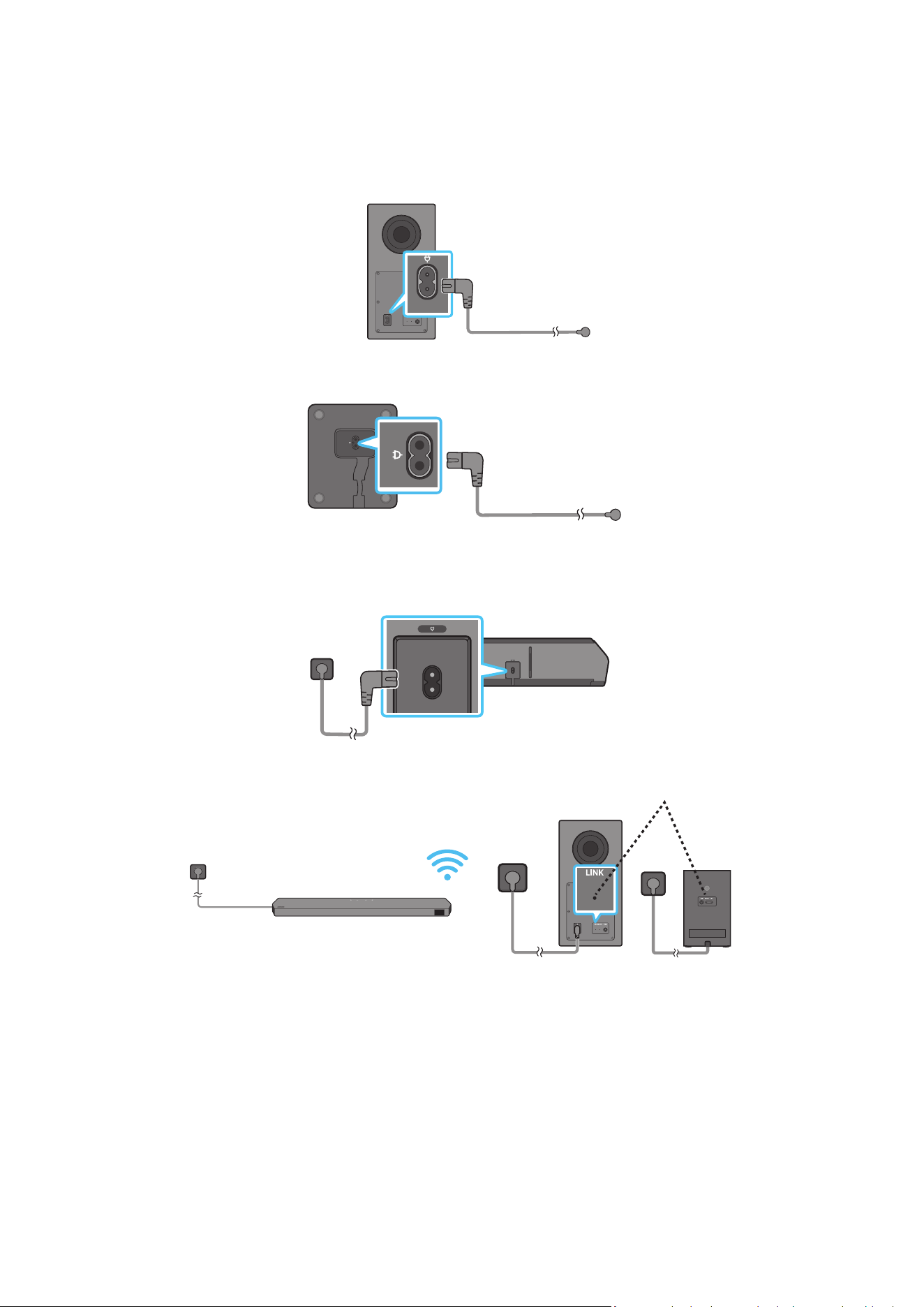
9 - ARA
04 SOUNDBARزاهجليصوت
تادحولاوابرهكلارايتلاليصوت
:اتلا بيتلاب ابرهك ذخأمب Soundbarو يطيحا توصلا تاكمو توصلا مخضم ليصوتل ةقاطلا كلس مدختسا
)ةيساسا Soundbar زاهج ةدحول يفلخلا بناج :قصلا( .جتنا عم قفرا قصلا عجار ،ةقاطلا كهتساو ةبولطا ةيئابرهكلا ةقاطلا نع تامولعا نم ديز
1 ..توصلا مخضمب ءابرهكلا كلس ليصوتب مق
توصلامخضيفلخلاءزجلا
ابرهكرايتكلس
2 . .ميلاو ىيلا يطيحا توصلا تاكمب ةقاطلا كلس ليصوتب مق
تاكمنمةيلفسلاءازجا
ىيلايطيحاتوصلا
ميلاو
ابرهكرايتكلس
3 ..Soundbar ـب ةقاطلا كلس ليصوتب مق
POWER
POWER
DIGITAL AUDIO IN
(OPTICAL)
HDMI TO TV
(eARC/ARC)
HDMI 1
HDMI 2
SERVICE
POWER
ةدحونمفسلاءزجلا
ةيساساSoundbar
ابرهكرايتكلس
4 . .Soundbar ليغشت دنع ا
ً
يئاقلت يطيحا توصلا تاكمو توصلا مخصم ليصوت متي .يطيحا توصلا تاكمو توصلا مخضمو Soundbar ـب ةقاطلا ليصوتب مق
ليغشتلاديققرزاءوضلا-LINK LED
ةظحم
.Soundbar ليغشت دنع ا
ً
يئاقلت يطيحا توصلا تاكمو توصلا مخصم ليصوت متيس .Soundbar ـب لاصتا لبق يطيحا توصلا تاكمو توصلا مخضم ليصوتب مق
.ا
ً
يئاقلت Soundbar زاهج ليغشت متيس ،جتنا ليغشت دنع هليصوت ةداعإو ءابرهكلا كلس لصفب تمق اذإ
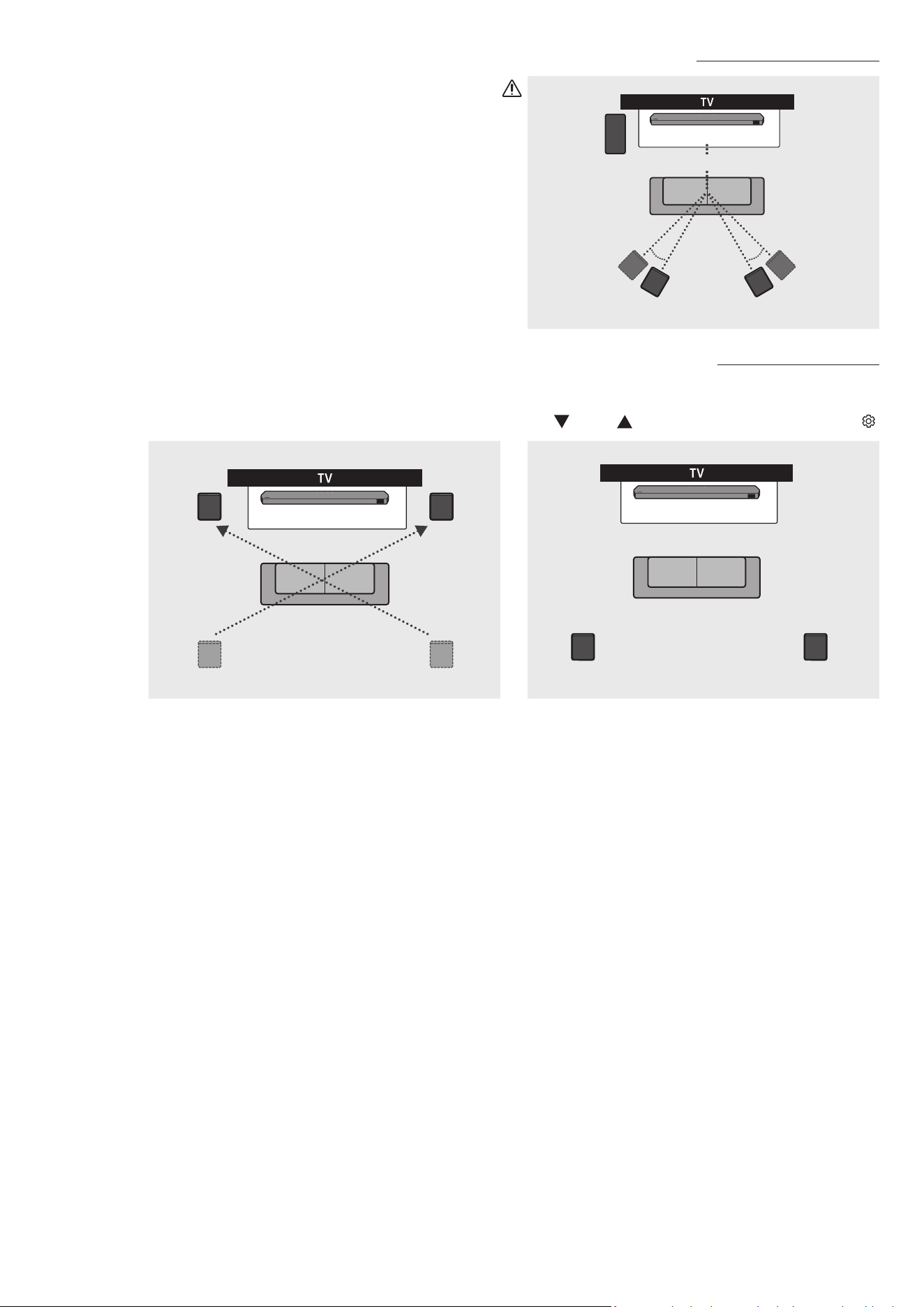
10 - ARA
هبواتوصلاكمطيطخت
150° 150°
135° 135°
0°
مخضم
توصلا
Soundbarزاهج
راسييطيحاتوصلاكم نميامسجاتوصلاكم
هيبنت
.يطيحا توصلا تاكمو لسلا توصلا مخضم ةيكلسلا لابقتسا تايئاوه مضت متي
.ةبوطرلاو ءاا نع تادحولا دعبأ
نكامأو لسلا توصلا مخضمب ةطيحا قطانا نأ نم دكأت ،اثم عامتسا ءادأ ع لوصحلل
.قئاوع ةيأ نم ةيلاخ يطيحا توصلا تاكم
يطيحاتوصلاكمعضو
.ةعامسلا عضوم ديدحتل هاندأ يحيضوتلا مسرلا رظنا .يطيحا توصلا كم عضو ا
ً
قفو اثم طيحم توص رادصإ متي دق
.Soundbar زاهجل دع
ُ
ب نع مكحتلا ةدحو مادختساب يطيحا توصلا كم عضو ددح ،عضولا اذه طيشنتل
)يفلخ / يمامأ ← )لفس(
/ )ع( ← يطيحا توصلا كم ← )توصلا مكحتلا( (
Soundbarزاهج
راسييطيحاتوصلاكم نميامسجاتوصلاكم
Soundbarزاهج
نميامسجاتوصلاكم
راسييطيحاتوصلاكم
فلخلابعضوامامابعضوا
ةظحم
.ددحم يطيحم توص كم كلذ امب Soundbar زرط عم طقف حاتم عضولا اذه
.كوحن ةيماما تاعامسلا عض ،يماما توصلا كم عضو
.يفلخ عضومك
ً
ايضافا يطيحا توصلا كم عضو كمت متي
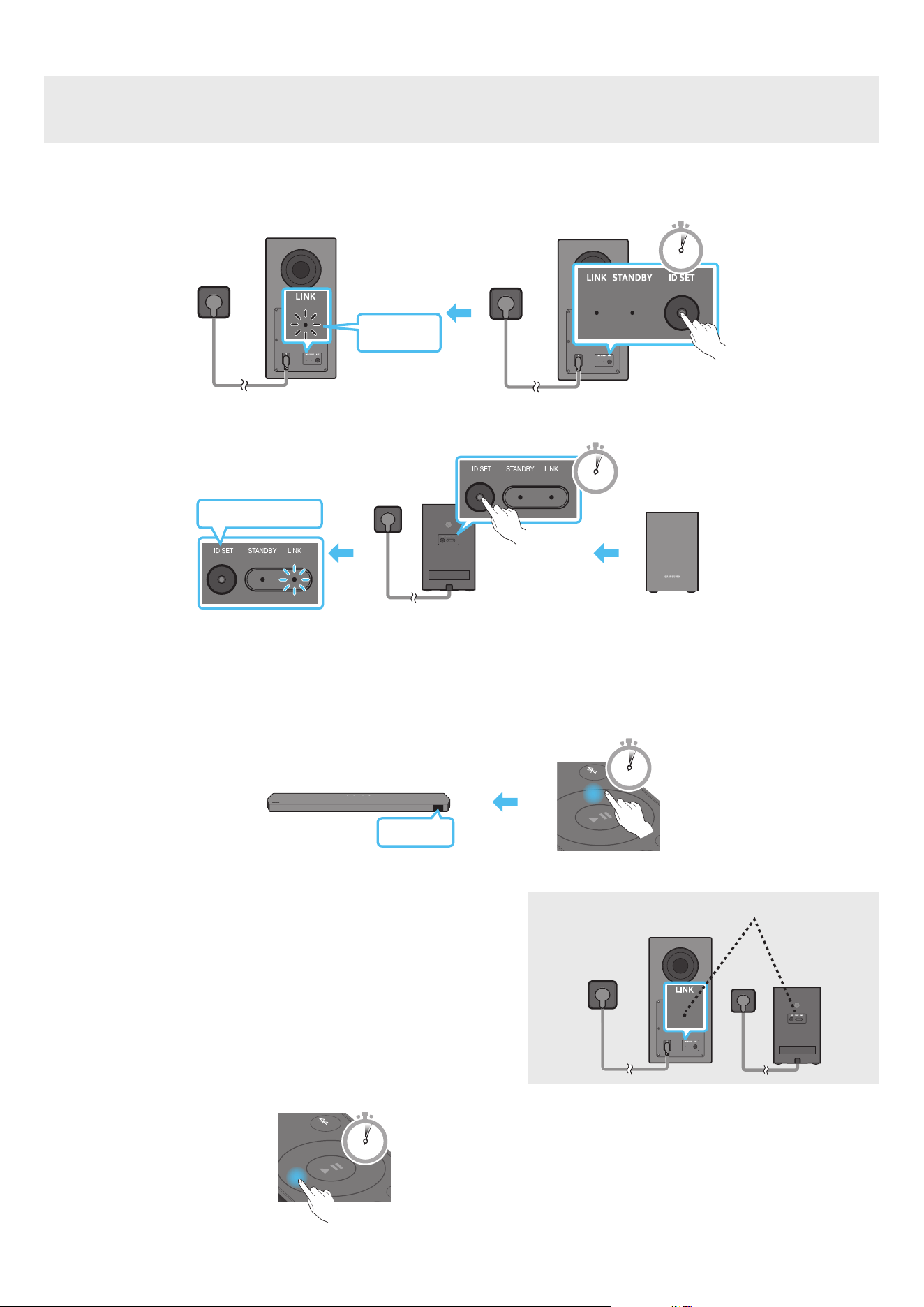
11 - ARA
ً
ايودييطيحاتوصلاتاكموأتوصلامخضمليصوت
:هاندأدراولايوديلاليصوتلاءارجإذيفنتلبق
.حيحص لكشب يطيحا توصلا تاكم وأ توصلا مخضمو Soundbar ـب ةصاخلا ةقاطلا تبك ليصوت نم ققحت
.Soundbar زاهج ليغشت فاقيإ نم دكأت
1 ..ةيساسا Soundbar ةدحو ليغشت فقوأ
2 . .لقا ع
ٍ
ناوث 5 ةد يطيحا توصلا تاكمو توصلا مخضم نم يفلخلا ءزجلا ع ID SET ع رارمتسا عم طغضا
.قرزا نوللاب ما ؤا ضمويسو توصلل كم لك فلخ دوجوا رمحا نوللاب ما ؤا ةءاضا نع فقوتيس
5 Sec
توصلامخضيفلخلاءزجلا
ةعبضموي
قرزانوللاب
توصلامخضيفلخلاءزجلا
قرزانوللابةعبضموي
POWER
x 2
يطيحاتوصلاتاكمنميفلخلاءزجلا
ميلاوىيلا
5 Sec
3 ..
ٍ
ناوث 5 ةد دع
ُ
ب نع مكحتلا ةدحو ع رزلا ع طغضا
.يفتخت مث ةصق ةينمز ةد Soundbar زاهج ةشاش ع ID SET ةلاسرلا رهظت
. ID SET لامتكا دنع ا
ً
يئاقلت Soundbar زاهج لمعيس
SOUND
MODE
PAIR
5 Sec
ID SET
4 ..)ليصوتلا لمتكا( تباث قرزأ نولب طابترا LED ؤم نأ ققحت
ليغشتلاديققرزاءوضلا-LINK LED Soundbar ب لاصتا ءاشنإ دنع تباث قرزأ ءوضب ءيو ضيمولا نع LINK LED ؤم فقوتي
.يطيحا توصلا تاكمو توصلا مخضمو
ةظحم
ةيطمنلا Tx ةدحو يعت ةداعإ ةيفيك
1 ..Soundbar ليغشت فقوأ
2 ..
ٍ
ناوث 5 ةد دع
ُ
ب نع مكحتلا ةدحو يا رزلا ع طغضا
3 ..”
ً
ايودييطيحاتوصلاتاكموأتوصلامخضمليصوت“ عبتا
SOUND
MODE
PAIR
5 Sec
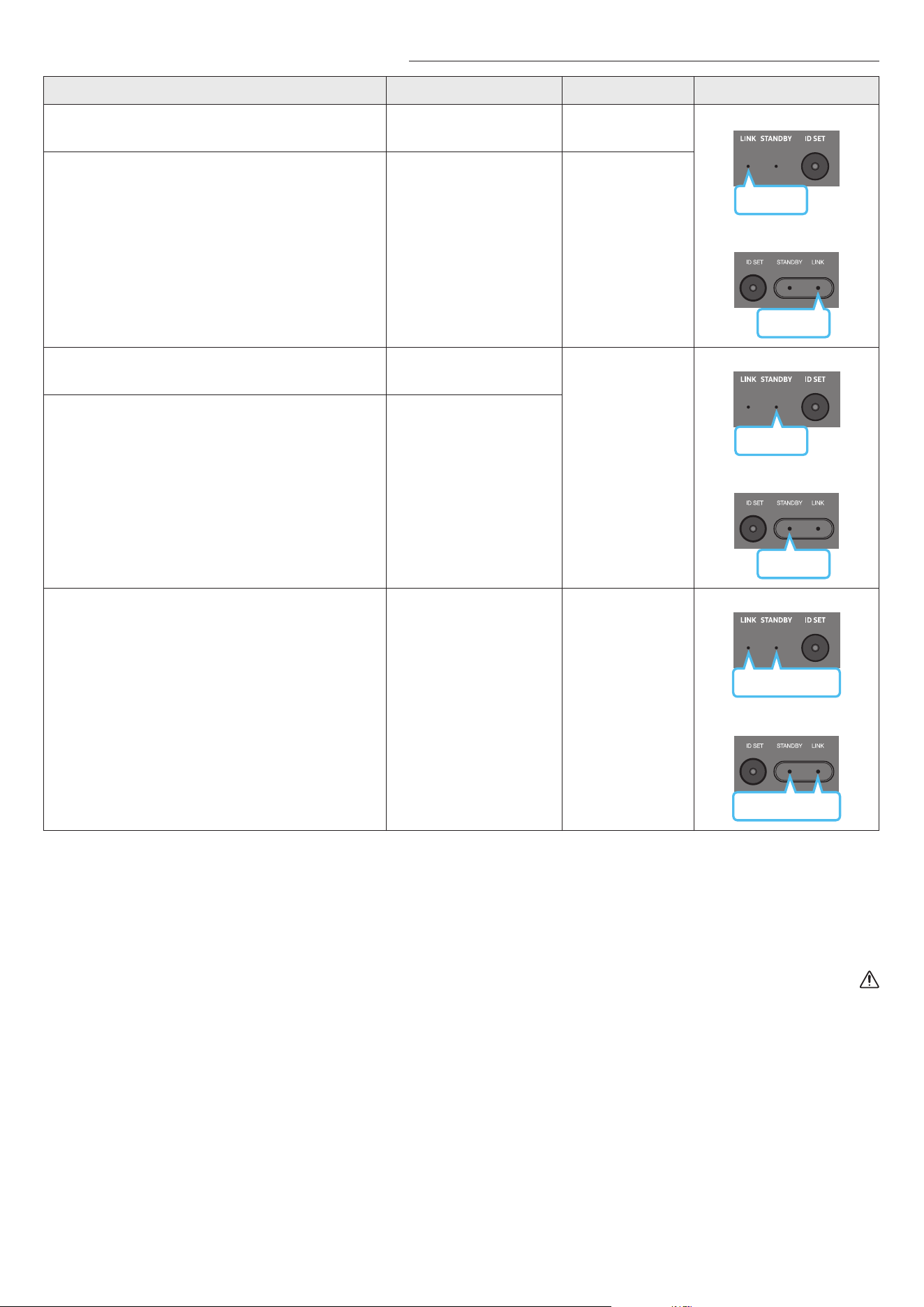
12 - ARA
يطيحاتوصلاتاكموتوصلامخضمنميفلخلاءزجلاعLEDؤمءي
LEDؤمةلاحلافصولاةقدلا
قرزأ
توصلامخضم
يطيحمتوصتاكم
قرزأ
ليغشت
حاجنب لصتم
)ةيداع ليغشت ةيلمع(
-
ضيموليصوتلا ةداعتسا
لكشب ةيساسا Soundbar زاهج ةدحوب ةقاطلا لبك ليصوت نم ققحت
ليصوت لواحف ،ضيمولا رمتسا اذإ .ا
ً
بيرقت قئاقد 5 ةد رظتنا وأ حيحص
.11 ةحفص عجار .ا
ً
يودي يطيحا توصلا تاكمو توصلا مخضم
رمحأ
توصلامخضم
يطيحمتوصتاكم
رمحأ
ليغشت
ليغشت فاقيإ عم( دادعتسا
)Soundbar زاهجل ةيسيئرلا ةدحولا
ةيساسا Soundbar زاهج ةدحوب ةقاطلا لبك ليصوت نم ققحت
.حيحص لكشب
ليصوتلا لشف
ةدراولا يوديلا ليصوتلا تاميلعت عجار .ىرخأ ةرم ليصوتلاب مق
.11 ةحفص
توصلامخضم
قرزأورمحأ
يطيحمتوصتاكم
قرزأورمحأ
ضيموللخ.ليلدلا اذه ةدراولا Samsung ةمدخ زكرمب لاصتا تامولعم عجار
ةظحم
إ يعرفلا توصلا كم نم يفلخلا ءزجلا دوجواو دادعتسا عضول وضلا ؤا لوحتيو دادعتسا عضو إ توصلا مخضم لقتنيس ،ةيساسا ةدحولا ليغشت فاقيإ مت اذإ
.تارم ةدع قرزا نوللاب ضيمو دعب رمحا نوللا
.توصلاب عاطقنا ثودح لخادتلا ببستي دقف ،Soundbar زاهج نم برقلاب Soundbar زاهج لثم ددلا سفن مدختسي ا
ً
زاهج مدختست تنك اذإ
ب دعم رادج وأ يذوف اسرخ رادج دوجو ةلاح .كب ةصاخلا ليغشتلا ةئيبل ا
ً
عبت فلتخت دق اهنكلو ،راتمأ 10 اوح ةيسيئرلا ةدحولل ةيكلسلا ةراشل لاسرإ ةفاسم قأ غلبت
.ندعا قاخا اهنكمي ةيكلسلا ةراشا ن قطا ع ماظنلا لمعي دقف ،توصلا مخضمو ةيسيئرلا ةدحولا
هيبنت
.ةبوطرلاو ءاا نع ةدحولا دعبأ .يطيحا توصلا تاكمو توصلا مخضم ةيكلسلا لابقتسا تايئاوه مضت متي
.قئاوع ةيأ نم ةيلاخ يطيحا توصلا تاكمو توصلا مخضمب ةطيحا ةقطنا ولخ نم دكأت ،اثم عامتسا ءادأ ع لوصحلل
.توصلا مخضم )ةحتف( ةانق ةبيرغ ماسجأ وأ كمسج نم ءزج يأ لخد
ُ
ت
.طئاحلا ع اهقيلعتل توصلا مخضم )ةحتف( ةانق مدختست
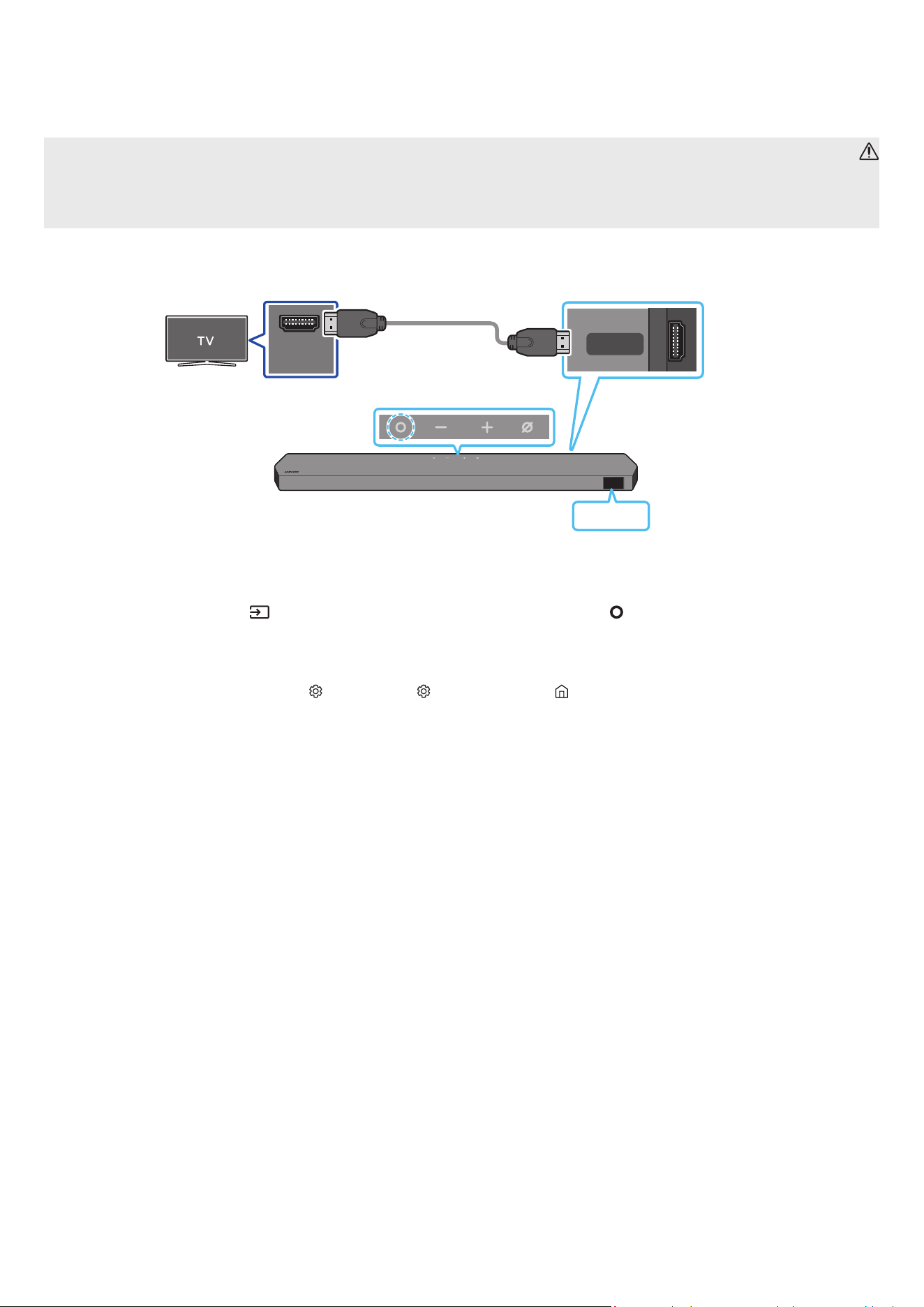
13 - ARA
05 نويزفلتبلاصتا
)توصلاعاجرإةانق(HDMI ARCمعدييذلانويزفلتلاليصوت
هيبنت
.
ً
وأ HDMI لبك ةراشإ متسا متي ،يبلا لبكلاو HDMI لبك نم لك ليصوت دنع
.نويزفلتلا توص جارخإ متي دق ،إو .ARC فرحاب ةما فارطا ليصوت نم دكأت ،Soundbar زاهجو نويزفلتلا ب HDMI لبك ليصوتل
.HDMI.org نم دمتع
ُ
م HDMI لبك وه هب وا لبكلا
HDMI IN
(ARC)
HDMI TO TV
(eARC/ARC)
HDMIINTV)ARC/eARC(ذفنمبل
صو
.نويزفلتلازاهجبدوجواوأ
ذفنمبل
صو
HDMITOTV)eARC/ARC(
.ةيساساSoundbarةدحوب
)قفرم(HDMIلبك
Soundbarزاهجنميولعلاءزجلا
Soundbarزاهجنمفسلاءزجلا
TV ARC
1 ..لكشلا حضوم وه امك HDMI لبك ل
صو ،نويزفلتلاو Soundbar زاهج ليغشت فاقيإ دنع
2 ..نويزفلتلاو Soundbar زاهج ل
غش
3 ..نويزفلتلا توص ليغشتب Soundbar زاهج موقيو ةيساسا Soundbar ةدحو ضرع ةذفان "TV ARC" رهظت
ديدحتل دع
ُ
بلا نع مكحتلا ةدحوب )ردصا( رز وأ Soundbar زاهج نم يولعلا ءزجلا دوجوا )ةددعتافئاظولا( رزلا ع طغضا ،نويزفلتلا توص جورخ مدع دنع
.نويزفلتلا توص ليغشت متيو ،”TV ARC“ ةشاشلا ضرعت .TV ARC عضو
.توصلا عامس متيو ةشاشلا ع TV eARC رهظت ،eARC ةفيظو معدي نويزفلت ليصوت دنع
.تادادعا لوح ليصافت ع لوصحلل نويزفلتلا مدختسم ليلد عجار .)ليغشتلا عضو( On ع نويزفلتلا ةمئاق eARC ةفيظو طبض بجي ،"eARC" ـب لاصتل
HDMI-eARC عضو ← بخلا تادادعإ ← توصلا ← ) ( تادادعا لك ← ) ( تادادعا ← ةمئاقلا ← ) ( ةيسيئرلا ةحفصلا :Samsung نويزفلت :لاثا لبس ع (
))اقلت(
.حيحصلا ذفناب HDMI لبك ليصوت نم ققحت ،ةيساسا Soundbar ةدحو ضرع ةذفان "TV ARC" روهظ مدع ةلاح
.Soundbar زاهج توصلا ىوتسم يغتل نويزفلتلا دع
ُ
ب نع مكحتلا زاهجب نيدوجوا توصلا ىوتسم طبض يرز مدختسا
ةظحم
.لصفنم يب لبك ليصوت نود ةيمقرلا توصلاو ويديفلا تانايب لقن كنكمي ،HDMI لبك مادختساب Soundbar زاهجب )توصلا عاجرإ ةانق( HDMI ARC معدي نويزفلت ليصوت دنع
.مم 14 نع هرطق لقي
ً
بك مدختسا ،موم HDMI لبك مدختست تنك اذإف .نكمأ نإ موم غ HDMI لبك مادختساب كيصون
.ARC معدي HDMI لبك ناك اذإ ةفيظولا هذه رفوتت
دنعو .Dolby Digital إ دادعا يغتب ون ،PCM ع نويزفلتلا زاهج ع "يمقرلا توصلا جارخإ قيسنت" طبضو Dolby Digital ةينقت مادختساب ام ثب توصلا فشت دنع
).نويزفلتلل ةعنصا ةكلا بسح PCMو Dolby Digital ةينقتل ةفلتخم تاملك نويزفلتلا ةمئاق مدختست دق( .لضفأ توص ةدوجب عتمتتس ،نويزفلتلا ع دادعا يغت
.Dolby Atmos ةينقت نامعدي ARC/eARC نوكوتولا
.Dolby Atmos® ةينقت معدي ىوتحا نأ نم دكأت
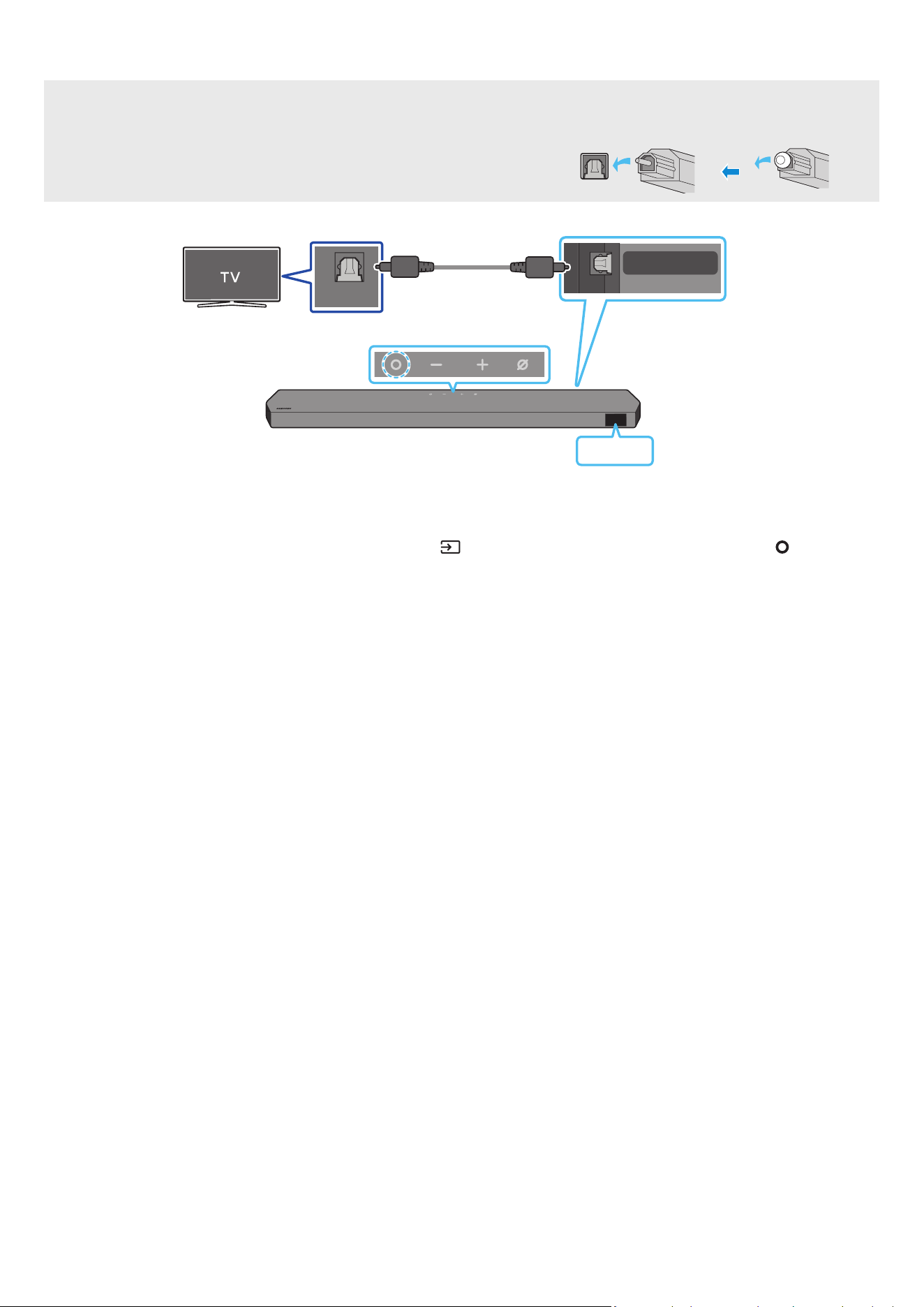
14 - ARA
يبلبكمادختسابليصوتلا
ليصوتلالبقصحفلاةمئاق
.
ً
وأ HDMI لبك ةراشإ متسا متي ،يبلا لبكلاو HDMI لبك نم لك ليصوت دنع
.ةيطغا ةلازإ نم دكأت ،فارطا ع ةيطغأ دجوتو ا
ً
يب
ً
بك مدختست امدنع
OPTICAL OUT
DIGITAL AUDIO IN
(OPTICAL)
)قفرمغ(يبلبك
Soundbarزاهجنمفسلاءزجلا
D.IN
Soundbarزاهجنميولعلاءزجلا
1 . نويزفلتلاب دوجوا OPTICAL جارخا ذفنمو Soundbar زاهجب دوجوا DIGITALAUDIOIN)OPTICAL( ذفنم ل
صو ،Soundbar زاهجو نويزفلتلا ليغشت فاقيإ دنع
.لكشلا حضوم وه امك ،)قفرم غ( يب لبك مادختساب
2 ..نويزفلتلاو Soundbar زاهج ل
غش
3 .."D.IN" عضو رايتخ دع
ُ
ب نع مكحتلا زاهجب )ردصا(
رز وأ Soundbar نم يولعلا ءزجلا دوجوا )ةددعتافئاظولا( رزلا ع طغضا
4 ..Soundbar زاهج نم نويزفلتلا توص جارخإ متي
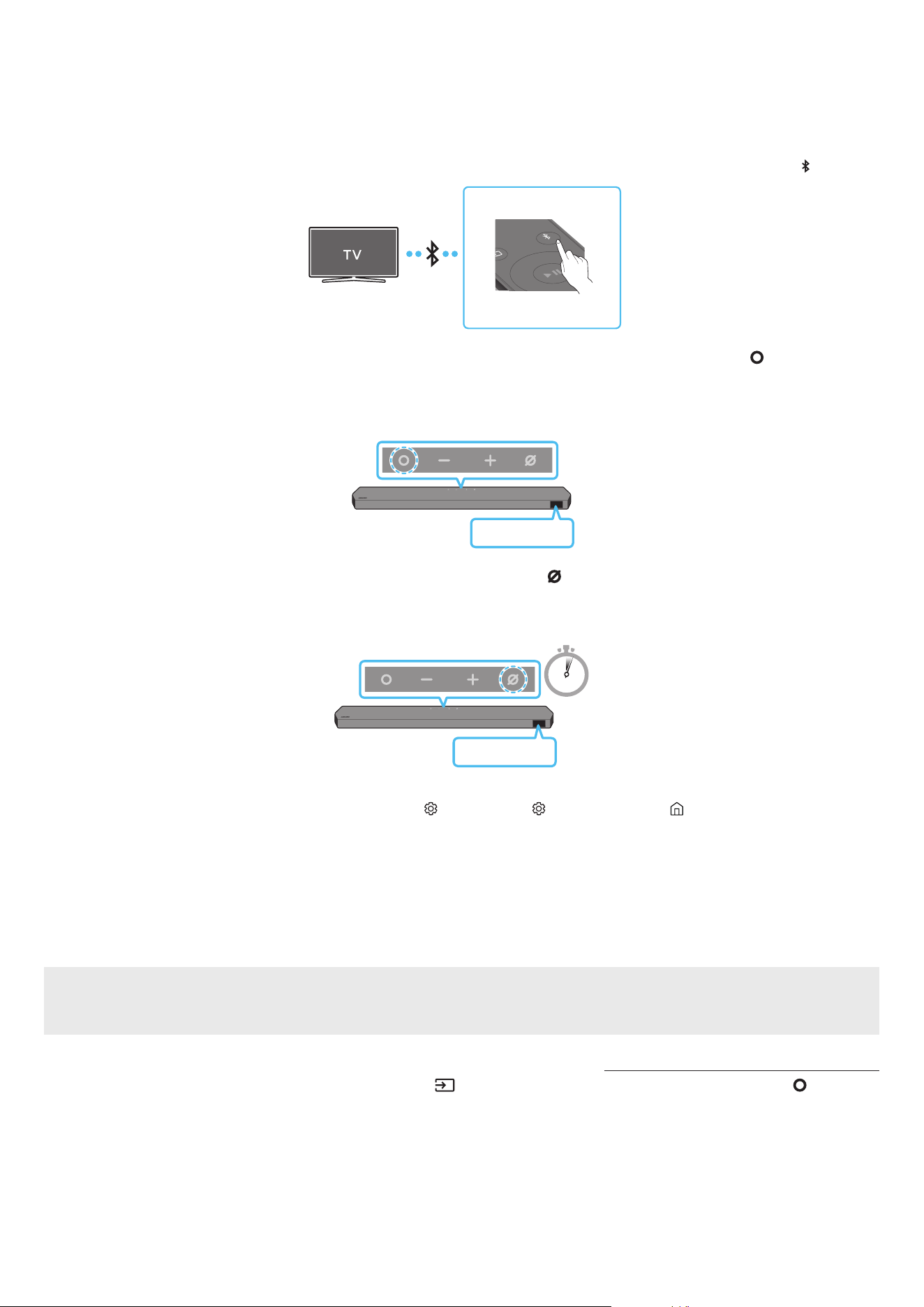
15 - ARA
Bluetoothةينقتعلاصتا
.تبكلا كباشت بعاتم نود ويستوص عامس كنكمي ،Bluetooth ةينقت مادختساب Samsung نويزفلت ليصوت دنع
.ةدحاولا ةرا دحاو Samsung نويزفلت ىوس ليصوت نكمي
.كنويزفلت تافصاوم نم ققحت .Bluetooth ةينقت معدي يذلا Samsung نويزفلت ليصوت نكمي
واليصوتلا
1 .. ”BT PAIRING“ عضولا لوخدل Soundbar زاهجل دع
ُ
ب نع مكحتلا ةدحو PAIR رزلا طغضا
PAIR
)وأ(
a ..”BT“ ددح مث ةيولعلا ةحوللا )ةددعتافئاظولا(
رز طغضا
.لاصتا لجس دوجو ةلاح "BT READY" إ غتي وأ ا
ً
يئاقلت
ٍ
ناوث عضب نوضغ "BT PAIRING" إ "BT" غتي
زاهجنميولعلاءزجلا
Soundbar
BT READY
b . ضرعل
ٍ
ناوث 5 نع ديزت ةد Soundbar زاهجل ةيولعلا ةحوللاب )نوفوركياليغشتفاقيإ/ليغشت( رزلا ع رارمتسا عم طغضا ،BT READY" روهظ دنع
."BT PAIRING"
5 Sec
زاهجنميولعلاءزجلا
Soundbar
BT PAIRING
2 ..Samsung نويزفلت ع ثوتولبلا عضو ددح
← Bluetooth توص كم ةمئاق ← توصلا جارخإ ← توصلا ← ) ( تادادعا لك ← ) ( تادادعا ← ةمئاقلا ← ) ( ةيسيئرلا ةحفصلا ،لاثا ليبس ع(
)Soundbar Q-Series )Bluetooth(
3 ..نويزفلتلا ةشاش ع ةرهاظلا ةمئاقلا نم "Soundbar Q-Series" ددح
،ةلاسرلا ددح ،Soundbar زاهجب Samsung نويزفلت ليصوتل .نويزفلتلاب ةصاخلا Bluetooth ةزهجأ ةمئاق "نقم" وأ "ناقاإةجاحلا" ـب حاتا Soundbar زاهج إ راش
ُ
ي
.لاصتا ءاشنإب مق مث
.Soundbar زاهجل ةيماما ضرعلا ةشاش ع "BT" ← ]نويزفلتلامسا[ رهظي ،Samsung نويزفلت ليصوت دنع
4 ..Soundbar زاهج نم Samsung نويزفلت توص عامس نا كنكمي
.لاصتا ةداع "BT READY" عضو مدختسا ،ةرم لو Samsung نويزفيلتب Soundbar زاهج ليصوت دعب
زاهجلالاصتالشفةلاح
.هفذحا ،Samsung نويزفلت ع توصلا تاكم ةمئاق )Soundbar Q-Series ،لاثا ليبس ع( Soundbar زاهج كيدل ناك اذإ
.3 إ 1 نم تاوطخلا ررك مث
SamsungنويزفلتنمSoundbarزاهجلصف
.”BT“ عضولا غ عضو ديدحتل دع
ُ
ب نع مكحتلا زاهجب )ردصا( رزلا وأ Soundbar زاهج نم يولعلا ءزجلاب دوجوا )ةددعتافئاظولا( رزلا ع طغضا
.Soundbar زاهج نم ةباجتسا Samsung نويزفلت لبقتسي نأ بجي هن ا
ً
رظن تقولا ضعب لصفلا ةيلمع قرغتست
).Samsung نويزفلت زارط بسح ق
َ
رغتسا تقولا فلتخي دق(

16 - ARA
؟BT PAIRINGوBT READYبقرفلاام
.لبق نم
ً
صتم ناك لومحم زاهج وأ Samsung نويزفلت يأ ليصوت ةداعإ كنكمي ،عضولا اذه : BT READY
.Soundbar زاهجب ديدج زاهج ليصوت كنكمي ،عضولا اذه : BT PAIRING
نم يولعلا ءزجلا دوجوا )نوفوركياليغشتفاقيإ/ليغشت( رزلا ع رارمتسا عم طغضا وأ Soundbar زاهج دع
ُ
ب نع مكحتلا زاهجب PAIR رزلا ع طغضا(
)."BT" عضولا Soundbar زاهجلا نوكي امدنع
ٍ
ناوث 5 نع ديزي ا Soundbar زاهج
Bluetoothلاصتانعتاظحم
.Bluetooth لاصتا ع لاصتل م 1 قاطن ديدج زاهج عقوم ددح
.>0000< ل ِخدأ ،Bluetooth زاهج ليصوت دنع PIN زمر كنم بل
ُ
ط اذإ
.دادعتسا ةلاح ةقيقد 18 دعب ا
ً
يئاقلت Soundbar زاهج ليغشت فاقيإ متي
:ةيلاتلا فورظلا لظ حيحص لكشب
ً
اصتا وأ Bluetooth ثحب Soundbar زاهج يرج
ُ
ي دق
‒ .Soundbar زاهج لوح يوق ابرهك لاجم دوجو ةلاح
‒ .دحاو
ٍ
نآ Soundbar زاهجب Bluetooth ةزهجأ ةدع ناقا ةلاح
‒ .لاطعأ دوجو وأ هناكم هدوجو مدع وأ ،Bluetooth زاهج ليغشت فاقيإ ةلاح
ةزهجأو فيوركياا ةزهجأ ،لاثم ،ةيساسا Soundbar ةدحو نع ةيسيطانغمورهك تاجوم د
ّ
لوت لا ةزهجا داعبإ عتي .ويدارلا تاجوم لخادت ةينوكلا ةزهجا ببستت دق
.كلذ إ امو ةيكلسلا LAN
Bluetooth لاصتا طيشنت ءاغلإ/ طيشنتل
.Bluetooth ليغشت فاقيإ /ليغشتل ةيناث 30 ةد Soundbar دع
ُ
ب نع مكحتلا ةدحو ع TONE CONTROL رز ع طغضا
Wi-Fiلخنمليصوتلا
ليصوتلالبقصحفلاةمئاق
.طقف Samsung نويزفلت ع Wi-Fi لاصتا رفوتي
.هجوابنويزفلتلا ليصوت نمو )Wi-Fi(لسلاهجوا ليغشت نم ققحت
.)Wi-Fi( ةيكلسلا ةكبشلا سفنب Soundbarو نويزفلتلا ليصوت بجي
ع لوصحلل كيدل تننا ةمدخ رفومب لصتا .Soundbarو نويزفلتلا ب Wi-Fi لاصتا ءاشنإ نم نكمتت نلف ،DFS ةانق مدختسي )Wi-Fi( لسلا هجوا ناك اذإ
.ليصافتلا
.كب صاخلا نويزفلتلا ليلد عجار ،عينصتلا ةنس بسح فلتخت دق مئاوقلا ن
ً
ارظن
.Wi-Fi لاصتا ءاشنإ ةيفيك لوح ليصافت ةفرع ،23 ةحفصلا عجار .
ً
وأ لسلا هجواب Soundbar ليصوتب مق ،Wi-Fi ع Soundbar ـب نويزفلتلا ليصوتل
1 ..")ةيكلسلاةكبشلا(Wi-Fiعلاصتا.2ةقيرطلا" ،23 ةحفصلا عجار ،Soundbar ـب Wi-Fi لاصتا لوح تامولعا نم ديز
2 ..Soundbar إ توصلا ةمئاق مادختسا قيرط نع نويزفلتلا لخد ردصم يغتب مق
ا
ً
قحوأ2017ماعاهرادصإمتلاSamsungتانويزفلت
Soundbar Q-Series )Wi-Fi( ← توصلا جارخإ ← توصلا ← )
( تادادعا لك ← ) ( تادادعا ← ةمئاقلا ← ) ( ةيسيئرلا ةحفصلا
ةظحم
.Soundbar زرط ضعبو Samsung نويزفلت ةزهجأ ضعب Wi-Fi Dolby Atmos لاصتا رفوتي
.هليغشتفاقيإوأWi-Fiليغشتبتمقاذإ
ً
ايئاقلتSoundbarزاهجليغشتةداعإمتتستاطايتحا
Wi-Fi لاصتا طيشنت ءاغل/طيشنتل
.Wi-Fi فاقيإ/ليغشتل ةيناث 30 ةد Soundbar دع
ُ
ب نع مكحتلا ةدحو ع CH LEVEL رز ع طغضا
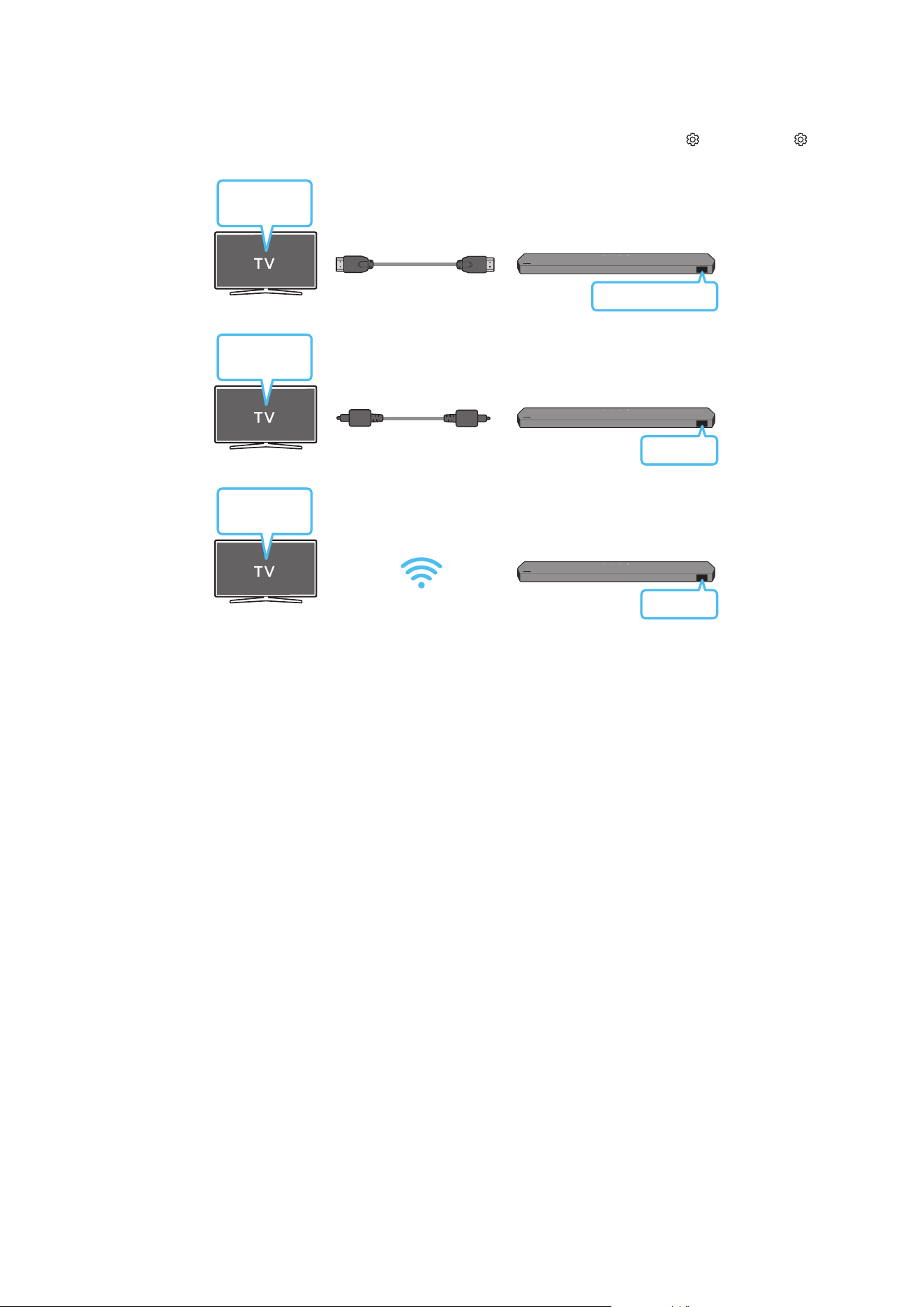
17 - ARA
Q-Symphonyةفيظومادختسا
ةفيظو مدختست تنك اذإ .نويزفلتلاو Soundbar لخ نم تقولا سفن توصلا ليغشت كنكمي ،Q-Symphony ةفيظو معدي Samsung نويزفلتب Soundbar لصتي امدنع
.داعبا ثو
ً
ءارث كأ يطيحم توص ثأتب عاتمتساب كل حمسي نويزفلتلا ع هليغشت مت يذلا يطيحا توصلا نإف ،Q-Symphony
.نويزفلتلا زاهج ع رهظت "Q-Symphony" ،ةمئاق نإف ،Soundbar زاهج ليصوت دنع
توصلا جارخإ ← توصلا ← ) ( تادادعا لك ← ) ( تادادعا
Q-Symphony :نويزفلتلا ةمئاق ع لاثم
ةمئاق
نويزفلتلا
HDMIلبك
TVARC/eARC
ةمئاق
نويزفلتلا
)قفرمغ(يبلبك
D.IN
ةمئاق
نويزفلتلا
Wi-Fi
Wi-Fi
ةظحم
.نويزفلتلا ةطساوب موعدا ملا جمانل ا
ً
قفو هليغشت نكمي
.Wi-Fi ـلا وأ )قفرم غ( يب لبك وأ HDMI لبك ليصوت دنع طقف ةفيظولا هذه معد
ُ
ت
.نويزفلتلا زارط فتخاب ةضورعا ةلاسرلا فلتخت دق
.ددلا / لسلا هجوا سفنب Soundbar زاهجو نويزفلتلا ليصوت نم دكأت
.Soundbar زرط ضعبو Samsung نويزفلت ةزهجأ ضعب ةفيظولا هذه رفوتت

18 - ARA
SpaceFit Soundمادختسا
.ا
ً
يئاقلت رمتسي توصلا سحت .ةحاسملل لثما توصلا رفوتو Soundbar نوفوركيم مادختساب مدختسملل عامتسا ةحاسم ةفيظولا هذه للحت
Soundbarزاهجعليصوتلا.1ةقيرطلا
.Soundbar دع
ُ
ب نع مكحتلا ةدحو ع SpaceFit Sound عضو ليغشتب مق ،ةفيظولا هذه كمتل
1 ..SpaceFit Sound عضو ليغشتل )توصلامكحتلا( رز ع طغضا
.Soundbar ةشاش ع "SPACEFIT SOUND OFF" رهظت
2 ..SpaceFit Sound ليغشتل دع
ُ
ب نع مكحتلا ةدحو ع رزلا ع طغضا
.ةشاشلا ع "ON" رهظت
SOUND
MODE
PAIR
3 ..SpaceFit Sound ليغشت فاقي دع
ُ
ب نع مكحتلا ةدحو لفس رزلا ع طغضا
.ةشاشلا ع "OFF" رهظت
SOUND
MODE
PAIR
.توصلا عاضوأ عيمج ةحاتم ةا هذه
نويزفلتلاعليصوتلا.2ةقيرطلا
.Samsung نويزفيلت ةمئاق دوجوا +Adaptive Sound عضو ليغشتب مق ،ةفيظولا هذه كمتل
)Adaptive Sound+ ← ذلا عضولا تادادعإ ← ماع ← ) ( تادادعا لك ← ) ( تادادعا ← ةمئاقلا ← ) ( ةيسيئرلا ةحفصلا(
.كزافلت ع Adaptive Sound+ عضو كمتل Adaptive Sound+ إ ا
ً
يئاقلت Soundbar ع توصلا عضو يغت متي فوس
ةظحم
.Samsung نويزفلت ةزهجأ ضعبب Soundbar لاصتا ةلاح ةفيظولا هذه لمعت
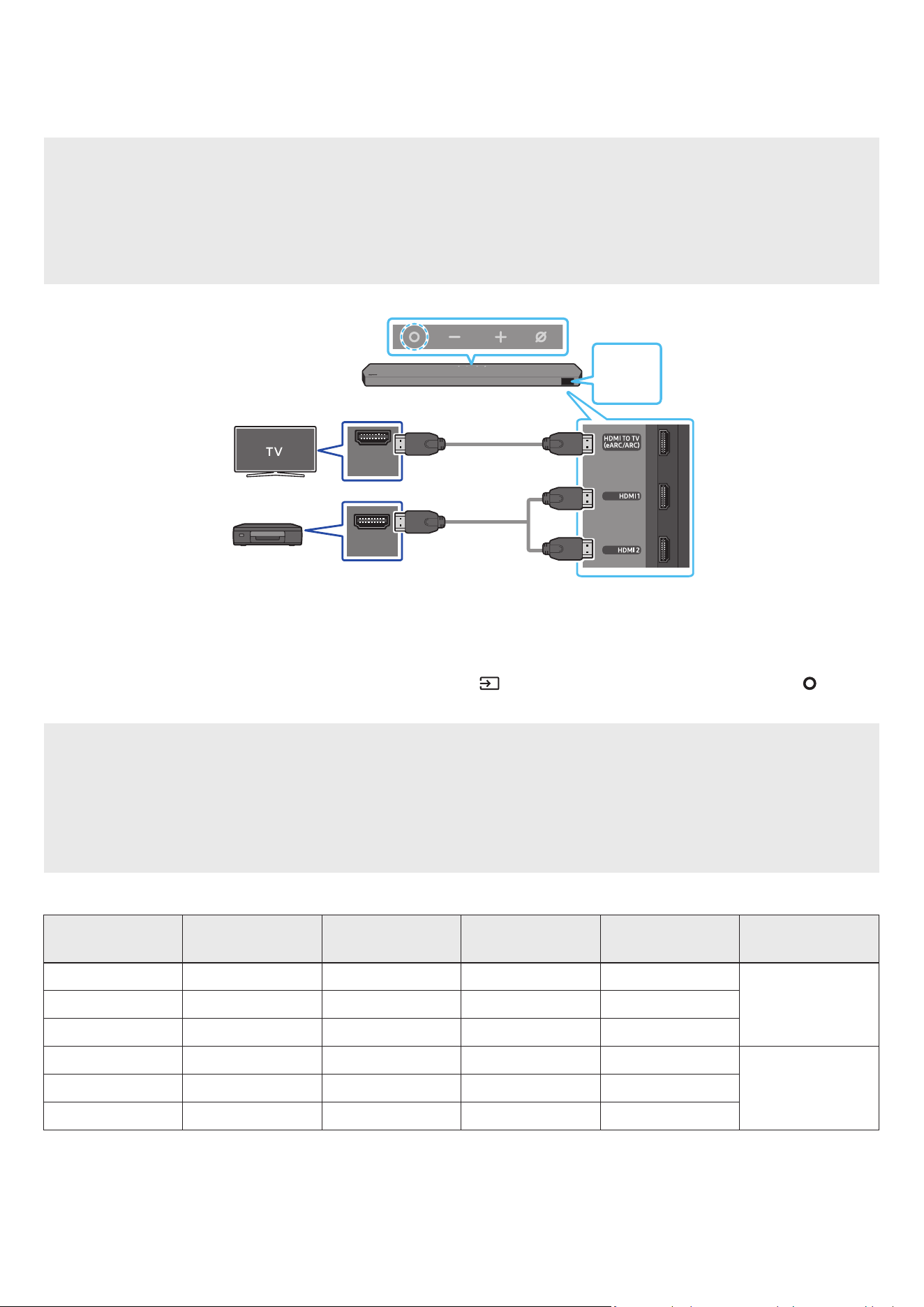
19 - ARA
06 يجراخزاهجليصوت
)هليغشتوDTS:X/Dolby Atmosفشتكفعرداق(HDMIلباكمادختسابليصوتلا.1ةقيرطلا
ليصوتلالبقصحفلاةمئاق
."ليغشتلا فاقيإ" عضو ع يوناثلا توصلا طبض نم دكأتف ،ا
ً
يوناث ا
ً
توص نمضتت توصلا جارخإ تارايخ تناك اذإ
.DTS:X / Dolby Atmos® ةينقت معدي ىوتحا نأ نم دكأت
.ةلصلا تاذ جارخا/لاخدا تابلطتم لي يذلا HDMI لبك طقف مدختسا
.دمتعم ةعلا اع HDMI لباك دوجو مزلي ،حيحص لكشب UHD ةراشإ لابقتس
.ا
ً
قبسم يجراخلا زاهجلا وأ نويزفلتلل ةيلحا تادادعاو ويديفلا جارخإ/لاخدإ تافصاوم نم ققحت ،UHD ةراش ميلس لابقتسا ع لوصحلل
.يجراخلا زاهجلا وأ نويزفلتلاب صاخلا مدختسا ليلد عجار ،تامولعا نم ديز
HDMI IN
(ARC)
HDMI OUT
Soundbarزاهجنمفسلاءزجلا
HDMI 1
وأ
HDMI 2
يجراخزاهج
HDMIلبك
)قفرم(
HDMIلبك
وأ
Soundbarزاهجنميولعلاءزجلا
1 ..Soundbar لفسأ دوجوا HDMI ذفنمو يجراخلا زاهجلا ع دوجوا HDMI OUT جرخ ذفنمب لاصتل HDMI لبك مدختسا
2 ..Soundbar لفسأ دوجوا HDMITOTV)eARC/ARC( ذفنمو نويزفلتلا زاهجل HDMI IN لخد ذفنمب لاصتل )قفرم( HDMI لبك مدختسا
3 ..يجراخلا زاهجلاو ،نويزفلتلاو ،Soundbar ليغشتب مق
4 .."HDMI 2 وأ "HDMI 1" عضو ديدحتل دع
ُ
ب نع مكحتلا ةدحو دوجوا )ردصا(
وأ Soundbar نم يولعلا ءزجلا دوجوا )ةددعتافئاظولا( رز طغضا
5 ..تاوصا ليغشت أدبي فوس Soundbar نأو ،ا
ً
يلاح ددح
ُ
م ”HDMI 2“ وأ ”HDMI 1“ عضو نأ إ Soundbar ةشاش ش
ُ
ت
ةظحم
7 ةحفص »ةفلتخاوصلاثأتلاعاضوذفناتافصاوم« إ عجراف ،DTS:X / Dolby Atmos® وه لاخدا ردصم ناك اذإ :DTS:X/Dolby Atmos®مدختستم(
.ةيماما ةشاشلا ع "DOLBY ATMOS" ضرع متيس ،Dolby Atmos® طيشنت دنع
.ةيماما ةشاشلا ع "DTS:X" ضرع متيس ،DTS:X طيشنت دنع
رخآزاهجيأوأ،BDل
ّ
غش
ُ
معDTS:X /Dolby Atmos®نيوكت
إ لقتنا ،Samsung نم BD ل
ّ
غش
ُ
م ،لثم .تبلا قفدل »مرت نود« ديدحت نم دكأتو رخآ زاهج يأ وأ كتصاخ BD ل
ّ
غش
ُ
تادادعا ةمئاق نم توصلا جارخإ تارايخ حتفا
.)ج
َ
لاعم غ( تبلا قفد ددح مث ةيمقر تاجرخم ← توصلا ← ةيسيئرلا ةمئاقلا
)2160p × 3840(ةموعداUHDتاراشإتافصاوم
تاراطالدعم
)ةيناثلاراطإ(
وللاقمعلاRGB4:4:4YCbCr4:4:4YCbCr4:2:2YCbCr4:2:0
60 <
تب 8OOOO
تب 10OOOO
تب 12OOOO
120
تب 8OOOO
تب 10OOOO
تب 12--OO
. مادختسا فورظ وأ لصتا يجراخلا زاهجلا بسح ةموعدا تافصاوا فلتخت دق
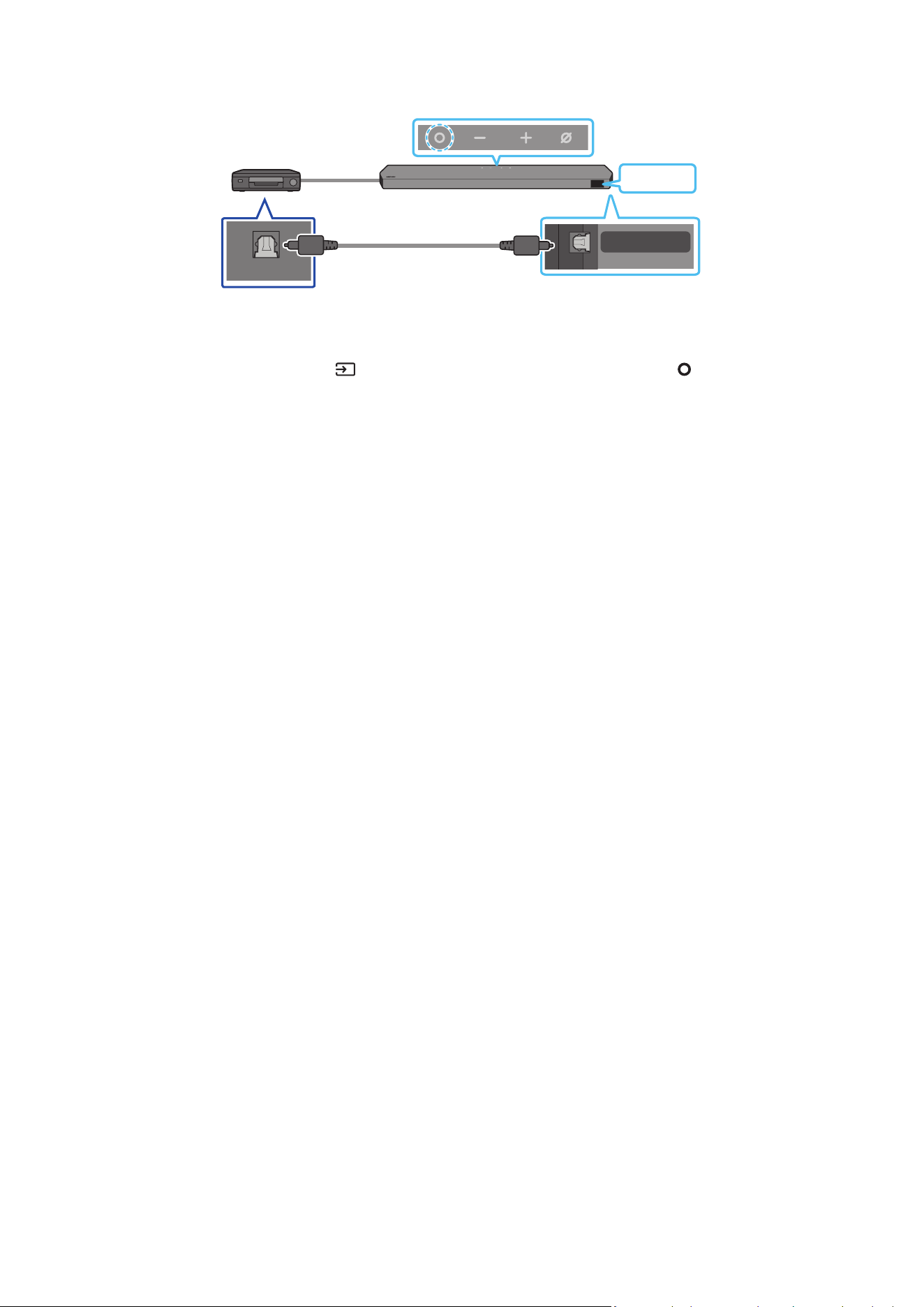
20 - ARA
يبلبكمادختسابليصوتلا.2ةقيرطلا
DIGITAL AUDIO IN
(OPTICAL)
OPTICAL OUT
زاهج/BD/DVDلغشم
مكحتلاةدحو/فشتلاكف
باعلا
زاهجنميولعلاءزجلا
Soundbar
D.IN
يبلبك
)قفرمغ(
Soundbarزاهجنمفسلاءزجلا
1 ..يجراخلا زاهجلا ع OPTICAL OUT ذفنمو ةيسيئرلا Soundbar ةدحو ع دوجوا DIGITALAUDIOIN)OPTICAL( ليصوتل )قفرم غ( يب لبك مدختسا
2 ..يجراخلا زاهجلاو Soundbar ليغشتب مق
3 ..دع
ُ
ب نع مكحتلا ةدحو )ردصا( رزلا وأ Soundbar نم يولعلا ءزجلا دوجوا )ةددعتافئاظولا( رزلا ع طغضا،"D.IN" عضو ديدحتل
4 ..يجراخلا زاهجلا نم تاوصأ ليغشتب Soundbar موقيس
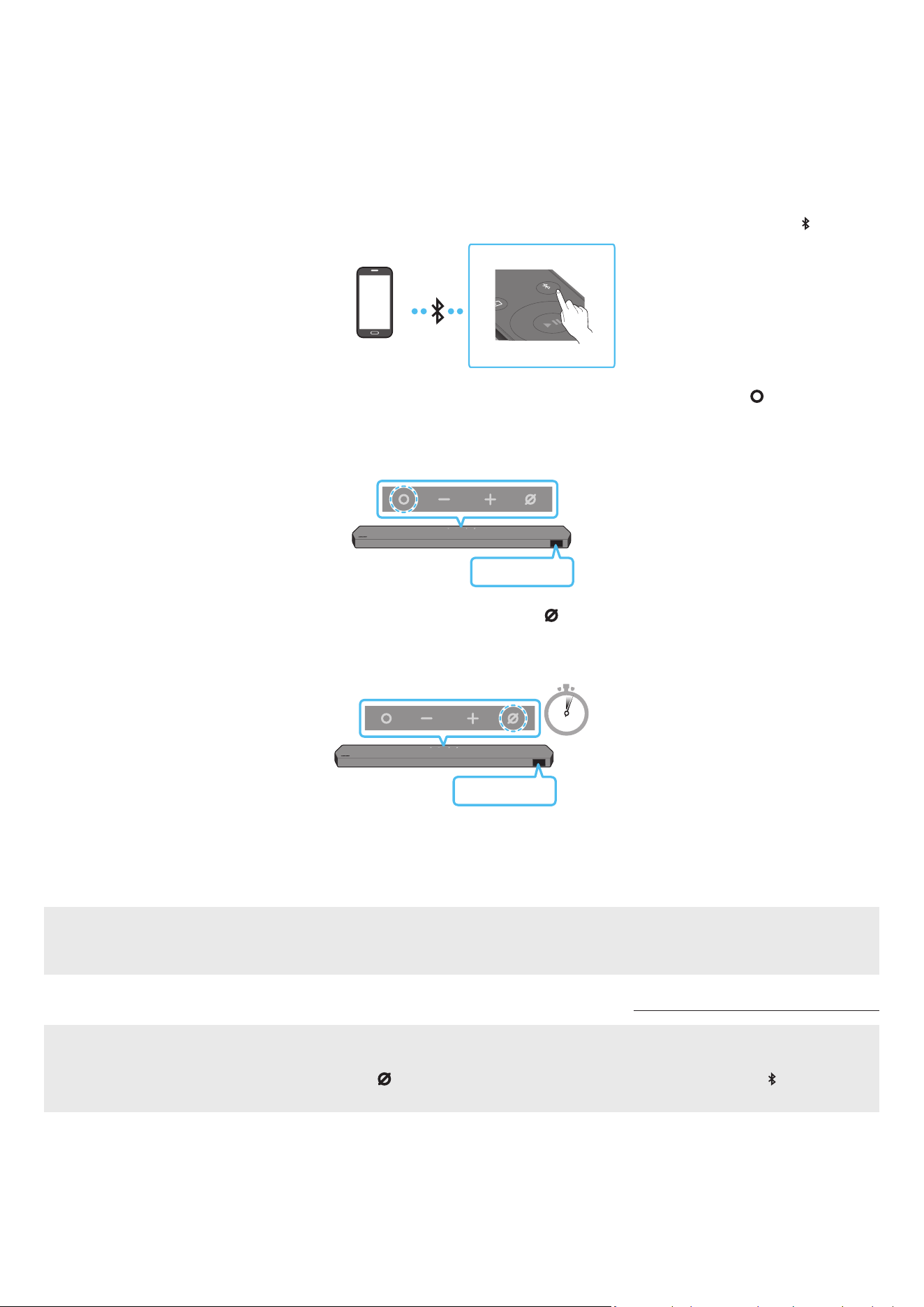
21 - ARA
07 لومحمزاهجليصوت
Bluetoothةينقتعلاصتا.1ةقيرطلا
.تبكلا كباشت بعاتم نود ويستوص عامس كنكمي ،Bluetooth ةينقت مادختساب لومحم زاهج ليصوت دنع
.ا
ً
يئاقلت Soundbar زاهج ليغشت متي ،ليغشتلا فاقيإ ديق Soundbar زاهجو نقم Bluetooth زاهج ليصوت دنع
واليصوتلا
.م 1 ةفاسم قاطن زاهجلا دوجو نم دكأت ،ديدج Bluetooth زاهجب لاصتا دنع
1 .. ”BT PAIRING“ عضولا لوخدل Soundbar زاهجل دع
ُ
ب نع مكحتلا ةدحو PAIR رزلا طغضا
PAIR
لومحمزاهج
)وأ(
a ..”BT“ ددح مث ةيولعلا ةحوللا )ةددعتافئاظولا(
رز طغضا
.لاصتا لجس دوجو ةلاح "BT READY" إ غتي وأ ا
ً
يئاقلت
ٍ
ناوث عضب نوضغ "BT PAIRING" إ "BT" غتي
زاهجنميولعلاءزجلا
Soundbar
BT READY
b . ضرعل
ٍ
ناوث 5 نع ديزت ةد Soundbar زاهجل ةيولعلا ةحوللاب )نوفوركياليغشتفاقيإ/ليغشت( رزلا ع رارمتسا عم طغضا ،BT READY" روهظ دنع
."BT PAIRING"
5 Sec
زاهجنميولعلاءزجلا
Soundbar
BT PAIRING
2 ..رهظت لا ةمئاقلا نم "Soundbar Q-Series" ددح ،كزاهج ع
.ةيماما ةشاشلا "BT" ← ]لومحازاهجلامسا[ رهظي ،لومحا زاهجلاب
ً
صتم Soundbar زاهج نوكي امدنع
3 ..Soundbar زاهج لخ نم Bluetooth ع لصتا زاهجلا نم يقيسوا تافلم ل
غش
.لاصتا ةداع "BT READY" عضو مدختسا ،ةرم لو لومحا كزاهجب Soundbar زاهج ليصوت دعب
زاهجلالاصتالشفةلاح
.هفذحا ،لومحا زاهجلا ع توصلا تاكم ةمئاق )”Soundbar Q-Series ،لاثا ليبس ع( Soundbar زاهج كيدل ناك اذإ
. 2 و 1 توطخلا ررك
؟BT PAIRINGوBT READYبقرفلاام
.لبق نم
ً
صتم ناك لومحم زاهج وأ Samsung نويزفلت يأ ليصوت ةداعإ كنكمي ،عضولا اذه : BT READY
.Soundbar زاهجب ديدج زاهج ليصوت كنكمي ،عضولا اذه : BT PAIRING
نم يولعلا ءزجلا دوجوا )نوفوركياليغشتفاقيإ/ليغشت( رزلا ع رارمتسا عم طغضا وأ Soundbar زاهج دع
ُ
ب نع مكحتلا زاهجب PAIR رزلا ع طغضا(
)."BT" عضولا Soundbar زاهجلا نوكي امدنع
ٍ
ناوث 5 نع ديزي ا Soundbar زاهج

22 - ARA
Bluetoothلاصتانعتاظحم
.Bluetooth لاصتا ع لاصتل م 1 قاطن ديدج زاهج عقوم ددح
.>0000< ل ِخدأ ،Bluetooth زاهج ليصوت دنع PIN زمر كنم بل
ُ
ط اذإ
.دادعتسا ةلاح ةقيقد 18 دعب ا
ً
يئاقلت Soundbar زاهج ليغشت فاقيإ متي
:ةيلاتلا فورظلا لظ حيحص لكشب
ً
اصتا وأ Bluetooth ثحب Soundbar زاهج يرج
ُ
ي دق
‒ .Soundbar زاهج لوح يوق ابرهك لاجم دوجو ةلاح
‒ .دحاو
ٍ
نآ Soundbar زاهجب Bluetooth ةزهجأ ةدع ناقا ةلاح
‒ .لاطعأ دوجو وأ هناكم هدوجو مدع وأ ،Bluetooth زاهج ليغشت فاقيإ ةلاح
ةزهجأو فيوركياا ةزهجأ ،لاثم ،ةيساسا Soundbar ةدحو نع ةيسيطانغمورهك تاجوم د
ّ
لوت لا ةزهجا داعبإ عتي .ويدارلا تاجوم لخادت ةينوكلا ةزهجا ببستت دق
.كلذ إ امو ةيكلسلا LAN
.)زترهوليك 48و زترهوليك 44,1( SBC تانايب Soundbar معدي
.A2DP )AV( ةفيظو معدي Bluetooth زاهجب طقف لاصتاب مق
.ناكما ردق ضعبلا مهضعب نم مهبرق ،Bluetooth زاهجب Soundbar ليصوت دنع
.توصلا ةدوج تضفخنا ،ضعبلا امهضعب نع نيديعب Bluetooth زاهجو Soundbar ناك املك
.لاعفلا يدا جراخ ةزهجا نوكت امدنع Bluetooth لاصتا عطقني دق
.فيعضلا لابقتسا تاذ قطانا بولطا لكشلاب Bluetooth لاصتا لمعي دق
:ةيلاتلا تاحلا لطع هب ثدحي وأ ءاضوض Bluetooth زاهج ردص
ُ
ي دق
‒ Soundbar وأ Bluetooth زاهج ع دوجوا ةراشا لابقتساو لاسرإ زاهجب لصتم مسجلا نوكي امدنع
‒ .ةيئابرهك تايغت ثدحت دق ثيح ،رادج وأ طئاح لثم ،بيرق قئاع كانه نوكي امدنع وأ اياوزلا
‒ LAN تاكبشب لمعت لا ةزهجاو فيووركيا نارفأو ةيبطلا ةزهجا لثم ،ددلا تاقاطن سفن لمعت ىرخأ تاجتنم ةطساوب ويدارلا تاجوم لخادتل زاهجلا ضرعت دنع وأ
.ةيكلسلا
‒ .لاعفلا ىدا نمض ةزهجا نوكت امدنع ح توصلا ةدوج ع طئاوحلاو باوبا لثم تابقعلا رثؤت دق
.Bluetooth رايخ مادختسا ءانثأ ىرخأ Bluetooth ةزهجأب ناقا Soundbar ـل نكمي هنأ ظح
.هليغشت ءانثأ ابرهك لخادت ثودح لسلا زاهجلا اذه ببسي دق
SoundbarةدحونمBluetoothزاهجلاصتاعطق
.Bluetooth زاهجب صاخلا مدختسا ليلد عجار ،تاميلعتلا ع عطل .Soundbar ةدحو نم Blutooth زاهج عطق كنكمي
.Soundbar زاهج لاصتا عطق متي فوس
.ةيماما ةشاشلا ع ”Soundbar ”BT DISCONNECTED ضرعيس ،Bluetooth زاهج نع Soundbar لصف دنع
BluetoothزاهجبSoundbarلاصتاعطق
.BT" نم عضولا ليدبتل دع
ُ
ب نع مكحتلا ةدحو )ردصا( رز وأ Soundbar نم يولعلا ءزجلا )ةددعتافئاظولا( رزلا ع طغضا
)Bluetooth زاهج زارط بسح ق
َ
رغتسا تقولا فلتخي دق( .Soundbar نم
ً
ةباجتسا Bluetooth ـلا زاهج يقلت بوجول ا
ً
رظن اًتقو لاصتا عطق قرغتسي
.ةيماما ةشاشلا ع ”Soundbar ”BT DISCONNECTED ضرعيس ،Bluetooth زاهج نع Soundbar لصف دنع
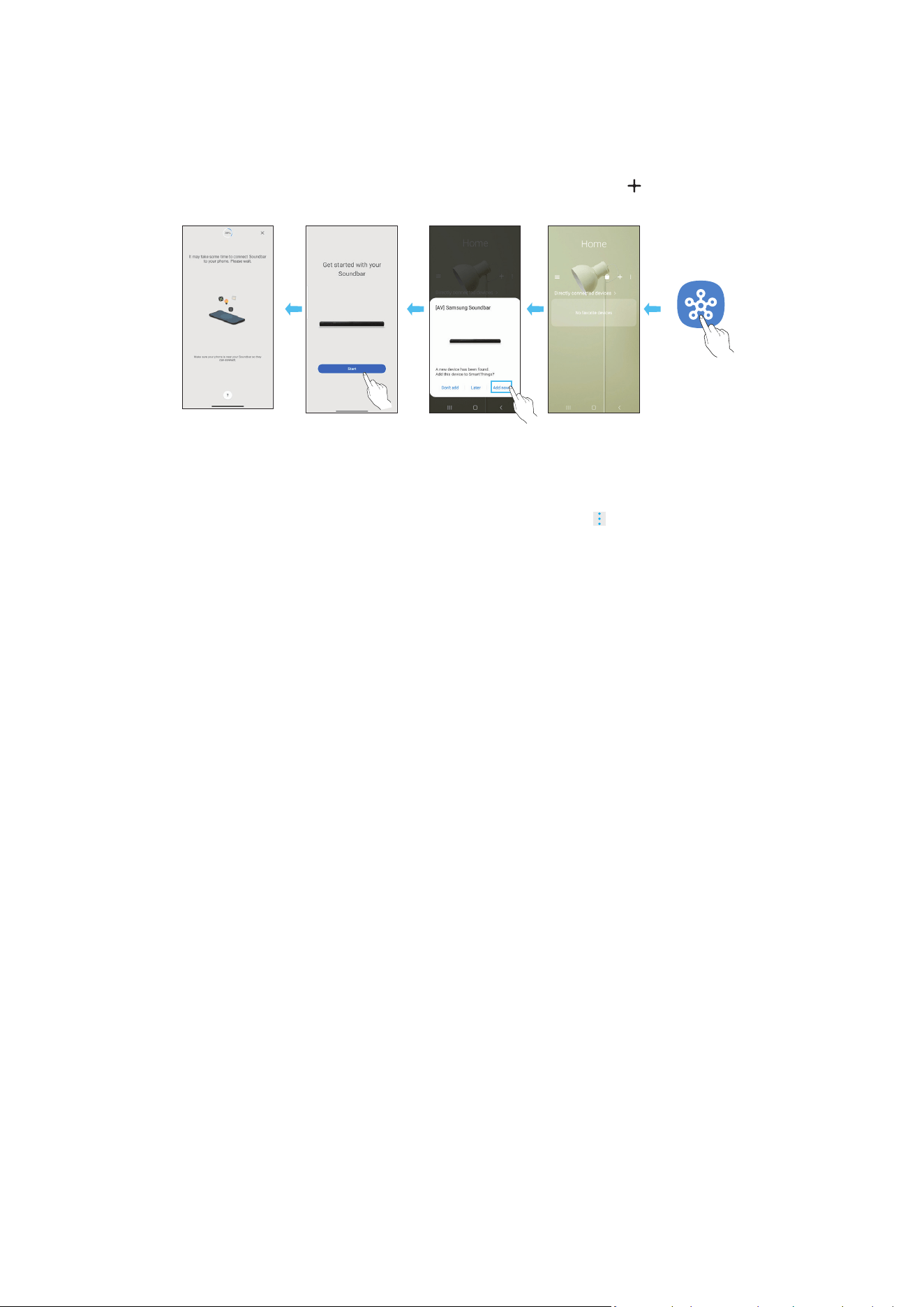
23 - ARA
)ةيكلسلاةكبشلا(Wi-Fiعلاصتا.2ةقيرطلا
. SmartThings قيبطت رفاوت مزلي ،)Wi-Fi( ةيكلس ةكبش ع لومحم زاهجب Soundbar زاهج ليصوتل
واليصوتلا
1 ..)يحول زاهج وأ ذ فتاه( لومحا كزاهج نم SmartThings قيبطت تيبثتب مق
2 ..Soundbar ةفاض ةشاشلا ع ةرهاظلا تاميلعتلا عبتا ،قيبطتلا ع
.ةزهجا ضعب ع )هاندأ ةيناثلا ةشاشلا ةطقل( ةيئاقلتلا ةقثبنا ذفاونلا رفوتت دق
.قيبطتلا ع ا
ً
فاضم Soundbar نوكيسو .Home ةشاشلا دوجوا " " رز ع طغضا ،ةقثبنا ةذفانلا رهظت مل اذإ
.قيبطتلا رادصإ فتخاب لفساب ةدوجوا ةيحيضوتلا ةروصلا فلتخت دق
قيبطت
SmartThings
ليغشتبمق
قيبطتلا
ةذفانرهظتس
ا
ً
يئاقلتةقثبنم
زاهجةفاضإ
Wi-Fiلاصتايغت
1 ..)يحول زاهج وأ ذ فتاه( لومحا كزاهج نم SmartThings قيبطت ليغشتب مق
2 ..) ( زمر ع طغضاو ،Soundbar زاهج ةقاطب ع طغضا
3 ..ةشاشلا ع رهظت لا تاميلعتلا عبتاو ،Wi-Fi ةكبش يغت > ةكبشلا ةلاح > زاهجلا تادادعإ إ لقتنا
Group Playمادختسا
.Smar tThings قيبطت إ كب صاخلا Soundbar زاهج فضأ ،ةا هذه نم ةدافتسل
.زترهاجيج 5 ددب Wi-Fi ةكبش سفنب لقا ع يتوص نيزاهج ليصوتب مق ،كلذ كمتل
.ثدحا تارادصا وأ 2024 ماع اهرادصإ مت لا Wi-Fi معدت لا Samsung Sound ةزهجأ ع اذه رفوتي
.نويزفلتلا توص معدت ةا هذه
Group Playنيوكت
1 ..لومحا زاهجلا ع SmartThings قيبطت ليغشتب مق
2 ..”)ةيكلسلاةكبشلا(Wi-Fiعلاصتا.2ةقيرطلا“ مسق ةدراولا تاميلعتلل ا
ً
قبط SmartThings قيبطت Soundbar زاهج فضأ
3 ..Soundbar زاهج ةقاطب ع طغضا
4 ..توصلا زاهج زمر لفسأ ةعومجمءاشنإ ع طغضا ،لومحا كزاهج ع
.Wi-Fi عضو Soundbar زاهج نوكي امدنع طقف ةعومجمءاشنإ رزلا رهظي
.ةعومجم ءاشنإ دنع نويزفلتلاب لاصتا عطق متيسف ،Soundbar زاهج نم ثعبني نويزفلتلا توص ناك اذإ
5 ..Group Play كمتب مق
6 ..قيبطت ع طغضا مث ،ةمئاقلا نم هيف بوغرا زاهجلا ددح
.قأ دحك ةزهجأ 4 ةفاضإ كنكمي
.هدحو فيضا زاهجلا لخ نم توصلا جارخإ متيس ،Group Play لخ نم
.ا
ً
يئاقلت ةعومجا نم زاهجلا فذح متيس ،فلتخم ردصم إ فيضا زاهجلاب لصتم زاهج لوحتي امدنع
.ا
ً
يئاقلت اهؤاشنإ مت لا ةعومجا فذح متيس ،نويزفلتلاب
ً
صتم فيضا زاهجلا نوكي امدنع
Group Playليطعت
1 ..توصلا زاهج ةقاطب ع طغضا
2 ..توصلا زاهج زمر لفسأ ةعومجاريرحت ع طغضا ،لومحا كزاهج ع
3 . .Group Play ليطعتب مق
.قيبطت قوف رقنا مث ،ةمئاقلا نم زاهجلا ديدحت ءاغلإب مق ،يدرف زاهج ليطعتل

24 - ARA
SmartThingsعزوممادختسا
لا )كلذ غو ،راعشتسا ةزهجأو سباقاو حيباصا( )IoT( ءايشا تننإ ةزهجأ ليصوتل Soundbar زاهج ةدوزا SmartThings Hub ةفيظو مادختسا كنكمي
. SmartThings Hub ةفيظو بلطتت
.SmartThings قيبطت Soundbar زاهج ليجست كيلع بجي ،SmartThings Hub ةفيظو مادختس
SmartThingsقيبطتIoTزاهجليجست
1 ..”واليصوتلا > )ةيكلسلاةكبشلا(Wi-Fiعلاصتا.2ةقيرطلا“ مسق ةدراولا تاميلعتلل ا
ً
قبط SmartThings قيبطت Soundbar زاهج فضأ
2 ..Soundbar زاهج ةقاطب ع طغضا
3 ..ةشاشلا لفسأ SmartThings Hub ع طغضا
4 .. SmartThings Hub ةفيظو طيشنتل Set up ع طغضا مث ، Using SmartThings Hub ع طغضا
.using إ unset غتي ، SmartThings Hub ةفيظو طيشنت دنع
.Soundbar زاهج ةقاطب راوجب SmartThings Hub زاهج ةقاطب رهظتس
5 ..IoT زاهج ةفاض ” “ ع طغضا ،Home ةشاش ع
.حاجنب IoT زاهج ةفاضإ دنع قيبطتلا ع IoT زاهج ةقاطب رهظت
.اهلصف درجمب ةزهجا ليصوت ةداعإ بجي . SmartThings Hub لخ نم ةلصتا ةزهجا لصفنت دقف ،Soundbar زاهج لصفب تمق اذإ
SmartThingsقيبطتنم SmartThingsعزومفذح
1 ..Soundbar زاهج ةقاطب ع طغضا ،ةزهجا ةشاش ع
2 ..ةشاشلا لفسأ SmartThings Hub ع طغضا
3 .. SmartThings Hub ةفيظو طيشنت ءاغل Removing SmartThings Hub ع طغضا
.unset إ using غتي ، SmartThings Hub ةفيظو طيشنت ءاغلإ دنع
Apple AirPlayةينقتبلاصتا
.لودلا ضعب ةرفوتم ةفيظولا هذه نوكت دق
.macOS وأ iPadOS وأ iOS نم رادصإ ثدحأ مادختساب مدختسا ونو AirPlay® اذه Samsung Soundbar زاهج معدي
.قيبطتلا ماكحأو طو ع ةقفاوا لخ نم Samsung SmartThings قيبطت مادختساب زاهجلا ليجست
ً
وأ كيلع بجي ،Soundbar زاهج AirPlay كمتل
.Apple® زاهج اهب لصتا Wi-Fi ةكبش سفنب هلاصتاو Soundbar زاهج ليغشت نم ققحت
.ةابم Apple ةزهجأ لخ نم Samsung Soundbar زاهج نم تاوصا نم كلذ غو تساكدوبلاو ىقيسواب عاتمتسا كنكمي ،AirPlay مادختساب
.Mac® وأ iPad® وأ iPhone® ةزهجأ ع "مكحتلا زكرم" نم وأ AirPlay معدي يذلا قيبطتلا نم
ديدحتب مق
.اهيلع احلا توصلا ليغشتل ةحاتا ةزهجا ةمئاق نم Soundbar ددح
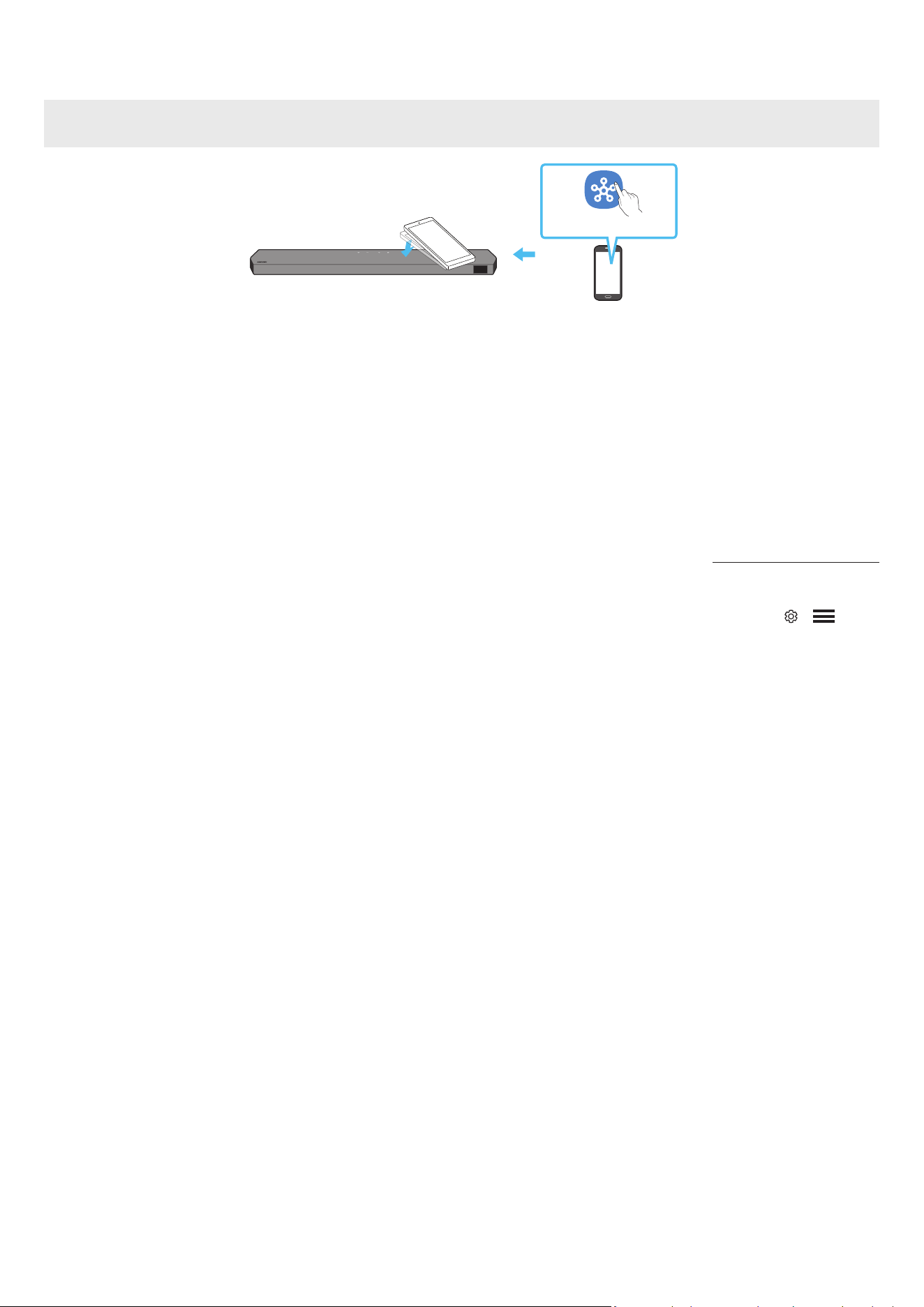
25 - ARA
Tap Soundمادختسا
.Soundbar لخ نم لومحا زاهجلا ع ىوتحا توص ليغشتل لومحا كزاهج مادختساب Soundbar ع طغضا
.لومحا زاهجلا ع
ً
ءانب ةفيظولا هذه معد متي امبر
.ثدحأ وأ 8.1 رادصإ Android ماظنب لمعت لا Samsung لومحم ةزهجأ عم طقف ةقفاوتم ةفيظولا هذه
زاهجنميولعلاءزجلا
Soundbar
لومحمزاهج
SmartThingsقيبطت
1 ..لومحا كزاهج ع ةدوجوا Tap Sound ةفيظو ليغشتب مق
.هاندأ "Tap Soundةفيظوتادادعإ" عجار ،ةفيظولا ليغشت ةيفيك نع ليصافت ةفرع
2 ..ةضورعا لئاسرلا ةذفان ةدوجوا "Start now" ددح .لومحم زاهج مادختساب Soundbar ع طغضا
.Bluetooth ع Soundbarو لومحا زاهجلا ب لاصتا ءاشنإ مت
3 ..Soundbar لخ نم لومحا زاهجلا ع ىوتحا توص ليغشتب مق
.Soundbar زاهجلا سملي امدنع ثدحي يذلا زاها نع فشكلا لخ نم Bluetooth ع Soundbar زاهجب لومحم زاهج ليصوتب ةفيظولا هذه موقت
.لومحا زاهج وأ Soundbar فلت
ُ
ي وأ شدخ
ُ
ي دق .ةداحلا Soundbar ةيواز ع طغضي لومحا زاهج نأ نم دكأت
.ةطرفم ةوق مادختسا نود Soundbar نم يولعلا ءزجلا ةدوجوا ةعساولا ةقطنا ع قفرب طغضا .بارجب لومحا زاهج ةيطغتب وي
.رادصإ ثدح SmartThings قيبطت ثيدحتب مق ،ةفيظولا هذه مادختس
.قيبطتلا رادصإ ع
ً
ءانب ةفيظولا هذه معد متي امبر
Tap Soundةفيظوتادادعإ
.Tap Sound ,Tap View ةفيظو ليغشتل SmartThings قيبطت مدختسا
1 ..لومحا زاهجلا ع SmartThings قيبطت ليغشتب مق
2 ..لومحا زاهجلا ع ةضورعا SmartThings قيبطت ةشاش ) ← ( ددح
3 ..ةفيظولا ليغشت مت .Soundbar نم لومحم زاهج بقي امدنع لمعلاب ةفيظولل حامسلل ليغشت ع "Tap Sound ,Tap View" طبضا
ةظحم
.ةقاطلا ظفح عضو لومحا زاهجلا نوكي امدنع Tap Sound ةفيظو لمعت
لخادت ثودح ببستت دق لا ةزهجا نأ نم دكأت .ةيئابرهكلا ةزهجا لثم ا
يكلس
ً
خادت ببست Soundbar نم ةبيرق ةزهجأ كانه ناك اذإ Tap Sound ةفيظو لمعت امبر
.Soundbar نع ا
ً
ديعب ةيفاك ةفاسم ع اهعضو مت لس
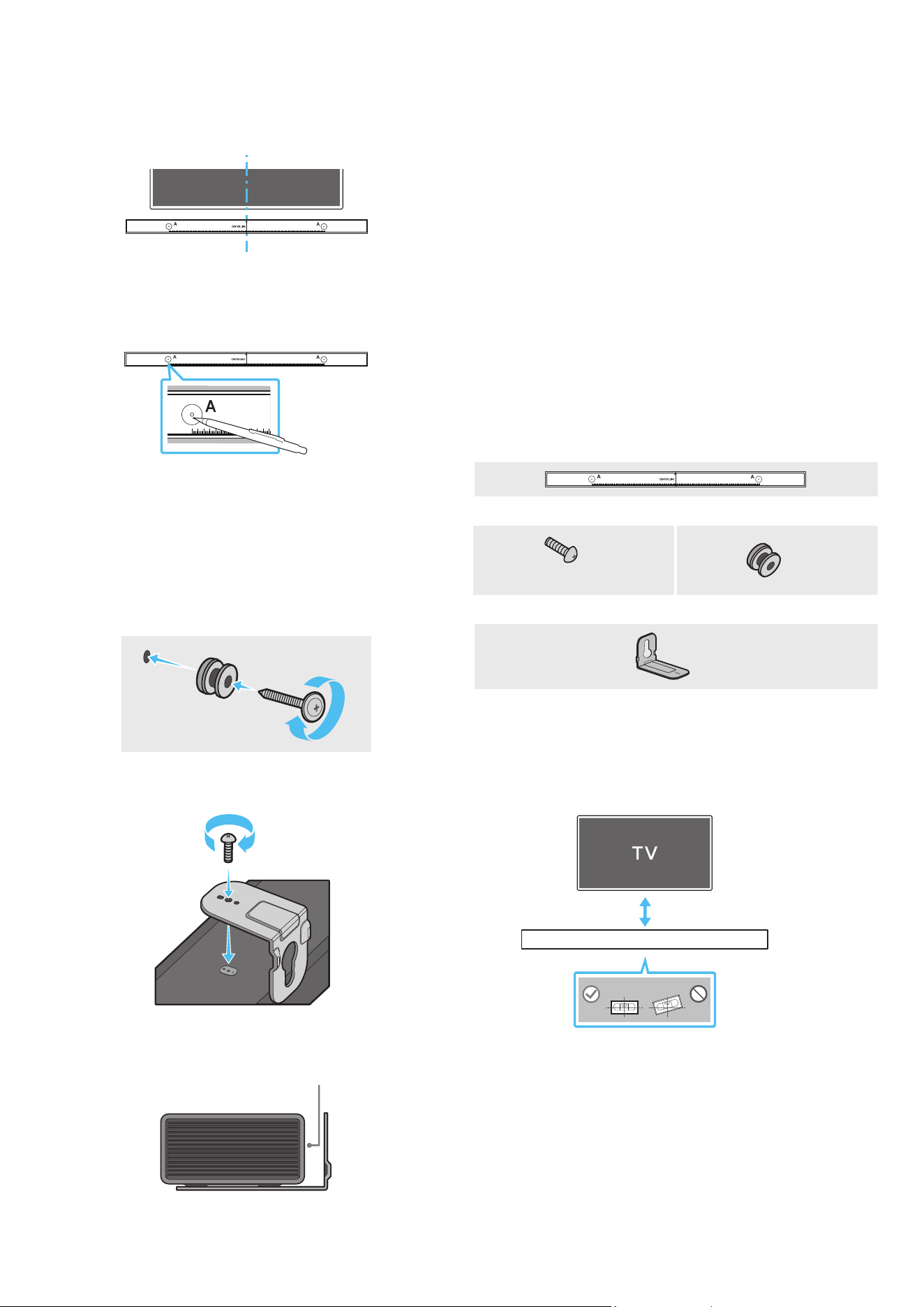
26 - ARA
08 طئاحلاعتيبثتلامقطبيكرت
بيكلاتاطايتحا
.أر رادج ع ىوس تيبثتلاب مقت
.ةيلاع ةبوطر وأ ةيلاع ةرارح ةجرد وذ ناكم تيبثتلا بنجت
،كلذك نكي مل اذإو .جتنا نزو لمحتل اك لكشب ا
ً
يوق طئاحلا ناك اذإ امم ققحت
.ىرخأ تيبثت ةطقن رايتخا وأ طئاحلا زيزعتب مقف
كيدل رفاوتا طئاحلا عونل ةبسانا تيبثتلا تاودأ وأ يغارب مادختساو ءاب مق
معدلا يغارب تيبثتب مق ،نكمأ نإو .)كلذ غ ،بشخلاو ،ديدحلا حاولأو ،سبجلا حاولأ(
.طئاحلا مئاوق
زاهج تيبثت ديرت يذلا رادجلا عونل ا
ً
قفو طئاحلا ع تيبثتلا يغارب ءاب مق
.هكم
ُ
سو Soundbar
‒ M5 :رطقلا
‒ .كأ وأ مم 35 لوطب وي :لوطلا
.طئاحلا ع Soundbar زاهج تيبثت لبق ةيجراخ ةزهجأب ةدحولا نم تبكلا ل
صو
كضرعت كلذ ببستي دق ،إو .اهتيبثت لبق اهلصفو ةدحولا ليغشت فاقيإ نم دكأت
.ةيئابرهك ةمدصل
طئاحلاعتيبثتلامقطتانوكم
A TYPE : 450mm
طئاحلاعتيبثتلاليلد
2 x
2 x
)M4 × L10(
لماحلارامسمرامسم
2 x
طئاحلاعتيبثتلاةماعد
1 ..طئاحلا حطس ةهجاوم طئاحلاعتيبثتلاليلد عض
.ةيوتسم طئاحلاعتيبثتلاليلد نوكت نأ بجي
ةفاسم ع Soundbar زاهج بيكب مقف ،طئاحلا ع اًت
َ
بثم نويزفلتلا ناك اذإ
.نويزفلتلا لفسأ لقا ع مس 5
كأوأمس5
2 . ( نويزفلتلا زاهج فصتنمب طئاحلاعتيبثتلاةماعدفصتنمطخ ةاذاحمب مق
طئاحلاعتيبثتلاةماعد تيبثتب مق مث ،)نويزفلتلا لفسأ Soundbar تيبثت ةلاح
.طي مادختساب
فصتناطخ عضوم ددح ،نويزفلتلا زاهج لفسأ Soundbar تيبثت ةلاح و
.تيبثتلا ةقطنم طسو
A TYPE : 450mm
فصتناطخ
3 . نم فرط لك Aعونلا ةروص فصتنم إ ببدم صاصر ملق وأ فاج ملق سأر عفدا
ةلازإب مق مث ،معدلا ماسم تيبثتل ةصصخا بوقثلا ناكم ديدحتل ةماعدلا فارطأ
.طئاحلاعتيبثتلاةماعد
A TYPE : 450mm
4 . تامع نم ةمع لك دنع طئاحلا ا
ً
بقث رفحا ،بسانم مجحب باقثم ةشير مادختساب
.ماسا تيبثت
لاخدإ نم دكأتف ،ماسا تيبثت عضاوم عم ةقفاوتم غ تامعلا تناك اذإ
اذإو .معدلا ماسم لاخدإ لبق بوقثلا لخاد ةبسانم تيبثت تاودأ وأ فيطاطخ
ةجردب ةبك اهترفح لا بوقثلا نأ دكأتف ،تيبثت تاودأ وأ فيطاطخ مدختست تنك
.تيبثتلا تاودأ وأ فيطاطخلا مادختساب حمست ةيفاك
5 . بقث ماكحإب رامسم لك طبرا مث لماحلارامسم )د
وزم غ( تيبثت رامسم عفدا
.معدلا رامسم
6 . ،Soundbar لفسأ حيحصلا هاجتا طئاحلاعبيكلالماوحنمنثا بكر
.ماسا نم نثا مادختساب كلذو
فلخ طئاحلاعبيكلالماوح ـب صاخلا قيلعتلا ءزج دوجو نم دكأت ،طبرلا دنع
.Soundbar ةدحول يفلخلا ءزجلا
Soundbarزاهجنميفلخلاءزجلا
Soundbarنمنميافرطلا
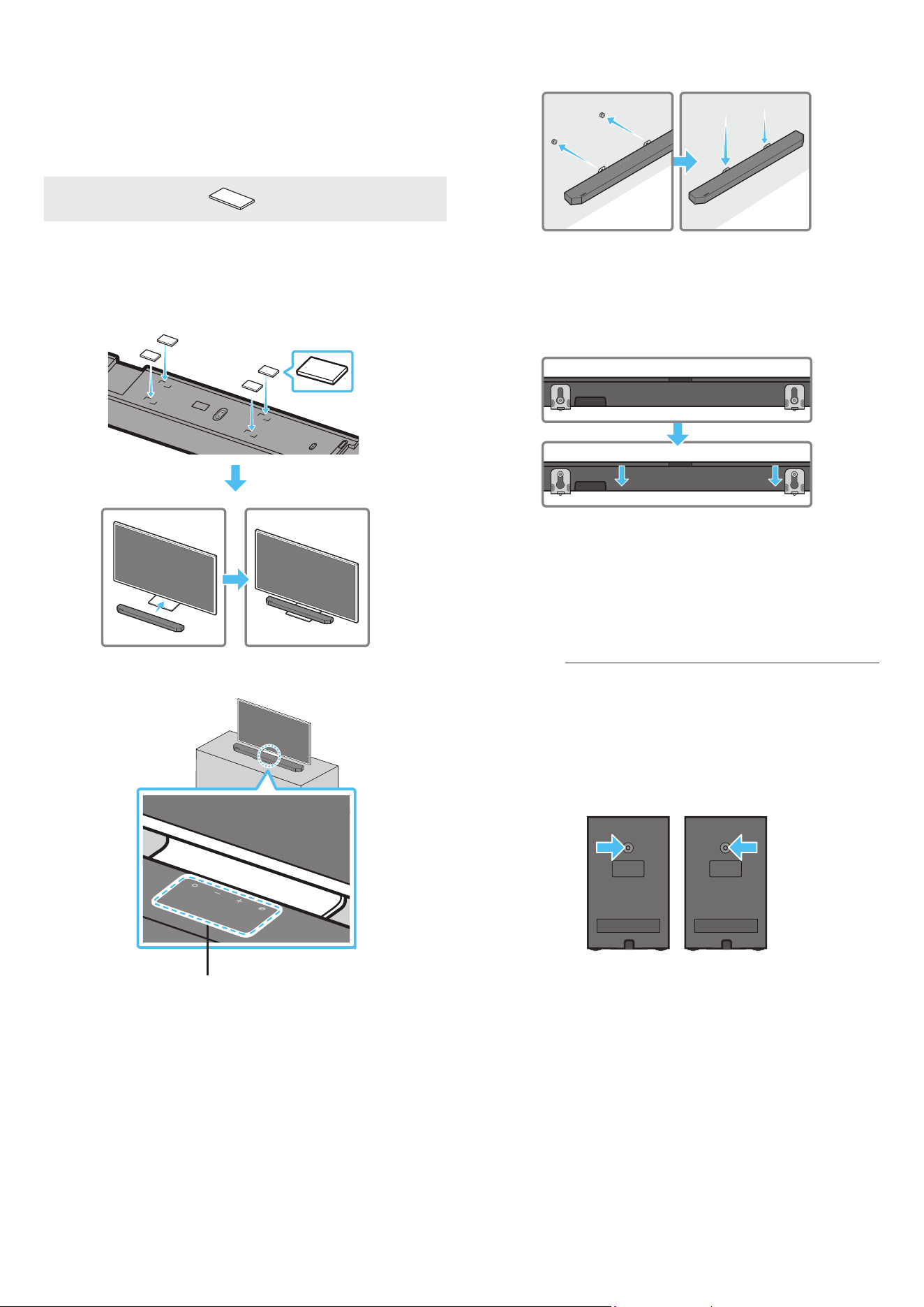
27 - ARA
7 . قيرط نع طئاحلاعتيبثتلاتاماعد مادختساب Soundbar ـلا ةدحو بيكب مق
.طئاحلا ع لماحلاماسم ع طئاحلاعتيبثتلاتاماعد قيلعت
8 .بيكلالماوح رقتست ح هاندأ حضوم وه امك لفسل قلي Soundbar لعجا
.لماحلاماسم ع ةنمآ ةروصبطئاحلاع
،طئاحلاعبيكلالماوح نم )يفلخلا( عساولا ءزجلا لماحلاماسم لخدا
بيكلالماوح رقتست ح لفس قلت طئاحلاعبيكلالماوح لعجا مث
.لماحلاماسم ع ةنمآ ةروصبطئاحلاع
طئاحلاعيطيحاتوصلاتاكمتيبثت
يطيحا توصلا تاكم تيبثتل لصفنم لكشب طئاحلاب تيبثتلا لماوح ءا كنكمي
.طئاحلا ع
.Samsung Electronics لبِق نم طئاحلاب تيبثتلا لماوح عيب متي
طئاحلابيطيحاتوصلاتاكمتيبثتلوحتاظحم
كأ لم
ّ
حت ع ةرداق طئاحلاب يطيحا توصلا كم تيبثت لماوح نوكت نأ بجي
.مجك 8.0 نم
بلولم UNC لخدأ 20 - 1/4 :ةحتفلا مجح
‒ ،مم 6.35 رطقلا لوط :ايقلا رامسا
مم 1.27 بلوللا ةوطخ
‒ مم 18 لوطلا :لوطلا
‒ ةعطق لكل 1 مي / ةعطق لكل 1 راسي : ةيمكلا
راسي مي
نكت مل لاح .طئاحلاب تيبثتلا لماوح تاماعد تيبثت لبق طئاحلا ةوق نم ققحت
بيكرت متي نأ لبق هتوق نم ديزي امب طئاحلا زيزعت نم دكأت ،
ً
ةيفاك لمحتلا ةردق
.طئاحلا ع توصلا تاكمو تيبثتلا تاماعد
تيبثت ببسب جتناب قحلي ر يأ ةيلوؤسم Samsung Electronics لمحتت
.بسانم غ لكشب جتنا
.بقع ع ا
ً
سأر وأ اهيبناج ع توصلا تاكم بيكرت نم رذحا
09 مامأSOUNDBARزاهجبيكرت
نويزفلتلا
نوكا
4 x
ةيطاطمقاس
هعضو لبق Soundbar نم فسلا ءزجلابةيطاطاناقيسلا قافرإ نم دكأت ،هبيكل
ىطختت ثيحبةيطاطاناقيسلا بيكرت نم دكأت .نويزفلتلا لماح قوف هعضوم
.هاندأ لكشلا عجار .نويزفلتلا لماحل ةيجراخلا فاوحلا
ةيطاطمقاس
.نويزفلت لماح ع Soundbar عض
تانوفوركيا
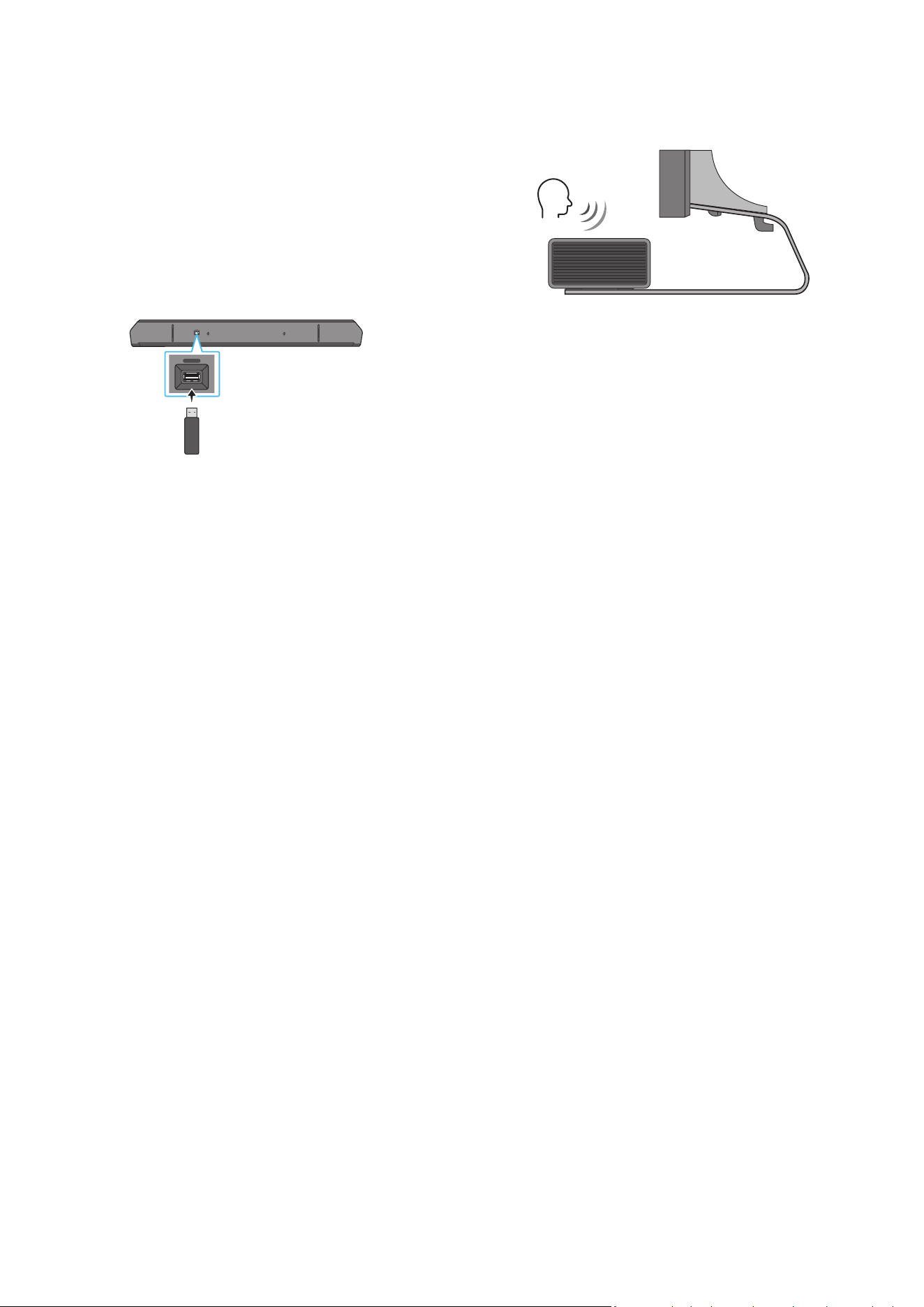
28 - ARA
،نويزفلتلا فصتنم عم Soundbar زاهج فصتنم ةاذاحمب مق ،ةروصلا حضوم وه امك
.نويزفلتلا لماح ع رذحب Soundbar زاهج عض مث
ع فرعتلا ةفيظو عم لخادتي ح لماحلا ةمدقم نوفوركيا عض ،تقولا اذه
.توصلا
Soundbarنمنميافرطلا
نويزفلتلا
ةظحم
.بلصو وتسم
ٍ
حطس ع Soundbar زاهج عضو نم دكأت
ةفيظوو توصلاب قلعتت تكشم ثودح إ نويزفلتلا نم اكلا غ دع
ُ
بلا يدؤي دق
.توصلا ع فرعتلا
.زارطلا بسح عاب ةيحيضوتلا ةروصلا فلتخت
نويزفلتلا ةحول نع Soundbar زاهج دعبا ،تانوفوركيملل ءادأ لضفأ ع لوصحلل
.مس 2 نع لقت ةفاسم
10 جمانلاثيدحت
اقلتلاثيدحتلا
فاقيإ دنع ح ا
ً
يئاقلت جمانلا تاثيدحت تيبثت متي ،تنناب Soundbar زاهج لاصتا دنع
.Soundbar زاهج ليغشت
.تنناب Soundbar زاهج لاصتا بجي ،اقلتلا ثيدحتلا ةفيظو مادختس
زاهج ءابرهك كلس لصف ةلاح Soundbar زاهجب Wi-Fi ةكبش لاصتا ءاهنإ متيسو
زاهج ل
غش ،ابرهكلا رايتلا عاطقنا ةلاح .ابرهكلا رايتلا عاطقنا وأ Soundbar
.تنناب هليصوت د ِعأ مث ءابرهكلا كلس ليصوت دِعأ وأ هتدوع دنع Soundbar
USBثيدحت
Soundbarزاهجنمفسلاءزجلا
SERVICE
ID SET
(WOOFER,
REAR)
NETWORK
SERVICE
ID SET
.لبقتساSoundbarزاهجماظنلتباثلاجمانللتاثيدحتSamsungرفوتدق
صارقأ كرحم ليصوت قيرط نع Soundbar زاهج ثيدحت كنكمي ،ام ثيدحت رفوتي امدنع
.Soundbar زاهج SERVICE ذفنمب ثيدحتلل تباثلا جمانلا ع يوتحي يذلا USB
1 . نع ثحباو ← )www.samsung.com( Samsung Electronics عقوم إ لقتنا
.ءمعلا معد ةمئاق رايخ نم زارطلا مسا
.ةيقلا ليلد عجار ،ثيدحتلا لوح تامولعا نم ديز
2 ..)USB عون نم( ةيقلا فلم ليتب مق
3 . .فلا مساب دلجم ءاشن فلا طغض كف
4 ..Soundbar ـب لصتا مث USB هؤاشنإ مت يذلا دلجا نزخ
5 . ضرعتسو قئاقد 3 لخ جتنا ثيدحت متيس كل دعب .Soundbar ليغشتب مق
."UPDATE" ،ةلاسرلا
.USB ةلصو عت وأ جتنا ليغشت فقوت ،ثيدحتلا ةيلمع لخ
نم ءابرهكلا كلس لصفاف ،ضرعلا ةذفان ع "UPDATE" ةلاسر رهظت مل اذإ
.ىرخأ ةرم هليصوتب مق مث Soundbar
.ثيدحت يأ ىرجي نل ،رادصإ ثدحأ تيبثت دنع
.USB عونل ا
ً
قفو ،ثيدحتلا معد
ُ
ي دق
ةينماتاثيدحتلاتامولعم
نم ديز .ةيصخشلا كتامولعم ةيامحو كزاهج نامأ زيزعتل ةينما تاثيدحتلا فوت متي
.https://security.samsungtv.com ةرايزب مق ،ةينما تاثيدحتلا لوح تامولعا
.طقف تاغللا ضعب عقوا معدي
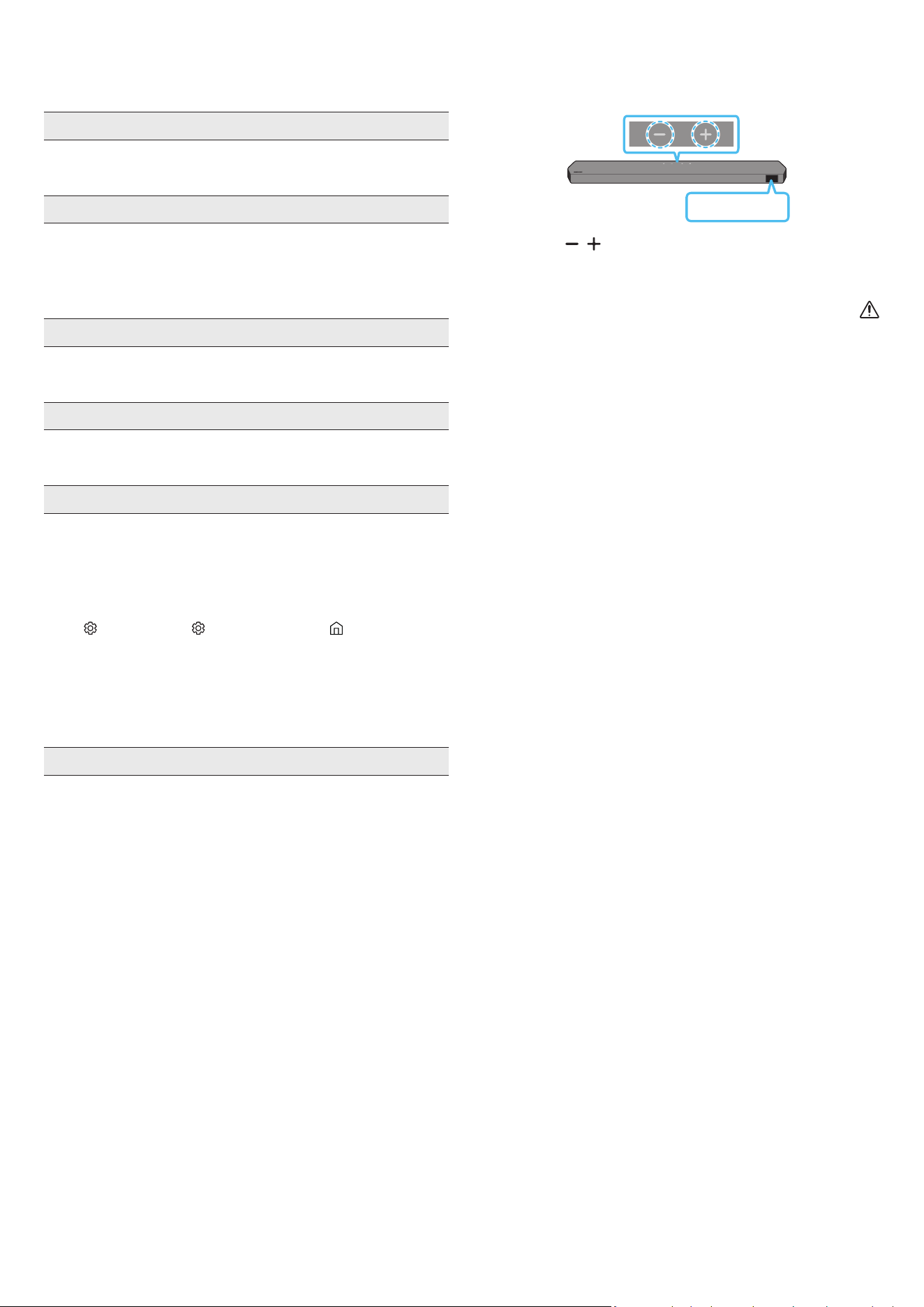
29 - ARA
ةئيهتلا
زاهجنميولعلاءزجلا
Soundbar
INIT
)توصلاىوتسم( يرز ع طغضا ،ليغشتلا ديق Soundbar زاهج نوكي امدنع
ةئيهت أدبتس مث ةشاشلا ع "INIT" رهظتس .
ٍ
ناوث 5 ةد دحاو نآ زاهجلا لكيه ع
.Soundbar زاهج
هيبنت
ىوس كلذ ءارجإ مدع نم دكأت .Soundbar زاهج تادادعإ عيمج ةئيهت متت
.ةئيهتلا بلطت ةلاح
11 اهحصإولاطعافاشكتسا
.ي ام عجار ،ةدعاسا نع ثحبلا لبق
.لمعيSoundbarزاهج
حيحص لكشب هلاخدإ مت Soundbar زاهج ءابرهك كلس ناك اذإ امم ققحت
.ذفنا
.عطقتملكشبلمعيSoundbarزاهج
.ىرخأ ةرم هلخدأ ،ءابرهكلا كلس ةلازإ دعب
.ا
ً
ددجم لواحو يجراخلا زاهجلا نع ءابرهكلا كلس دعبأ
ةف دعب ا
ً
يئاقلت Soundbar زاهج ليغشت فاقيإ متي ،ةراشإ دوجو مدع ةلاح
).5 ةحفص عجار( .ةقاطلا ل
غش .ةددحم ةينمز
.لمعيدع
ُ
بنعذلامكحتلازاهج
.ةابم دع
ُ
ب نع مكحتلا زاهج إ Soundbar زاهج ه
جو
.ةديدج ىرخأ تايراطبب تايراطبلا لدبتسا
.تباثلارمحانوللابSoundbarزاهجؤمرهظيس
.نوفوركيا ليغشت فاقيإ مت
).4 ةحفص عجار( .نوفوركيا ليغشتب مق
.Soundbarزاهجنمتوصلاجارخإمتي
ىوتسم طبضا .تماص وأ ةياغلل ضفخنم Soundbar زاهج توص ىوتسم
.توصلا
ام وأ لومحم زاهج وأ Bluetooth زاهج وأ STB( يجراخ زاهج يأ ليصوت دنع
.يجراخلا زاهجلا توص ىوتسم طبضا ،)كلذ إ
:Samsung نويزفلت( .Soundbar زاهج ددح ،نويزفلتلا نم توصلا جارخ
)
( تادادعا لك ← ) ( تادادعا ← ةمئاقلا ← ) ( ةيسيئرلا ةحفصلا
)Soundbar زاهج ددح ← توصلا جارخإ ← توصلا ←
لبكلا لصفا .ةمكحم غ Soundbar زاهجب ةلصتا لبكلا ةلصو نوكت دق
.ىرخأ ةرم هليصوتب مقو
.ةقاطلا لغش مث ،هليصوت دعأو ،ا
ً
مامت ءابرهكلا كلس لصفا
).29 ةحفص عجار( .ا
ً
ددجم لواح مث جتنا نحش ةئيهتب مق
.ةيطيحاتوصلاتاكموأتوصلامخضمنمتوصلاجارخإمتي
توصلا مخضم نم يفلخلا ءزجلا دوجوا LED ؤم ةءاضإ نم ققحت
مخضمو Soundbar ليصوت دعأ .قرزا ءوضلاب ةطيحا توصلا تاكمو
وأ قرزا ءوضلاب ضموي ؤا ناك اذإ يطيحا توصلا تاكمو توصلا
).11 ةحفص عجار( .رمحا ءوضلاب
لقنا .توصلا مخضمو Soundbar ب قئاع كانه ناك اذإ ةلكشم كهجاوت دق
.قئاوعلا نع ا
ً
ديعب ناكم إ ةزهجا
عطق لس ددرت تاراشإ لسرت لا ىرخا ةبيرقلا ةزهجا ببستت دق
.لاصتا
.ةزهجا هذه لثم نع تاعامسلا دعبأ
.ىرخا ةرم هليصوت دعأو ابرهكلا رايتلا سباق لصفا
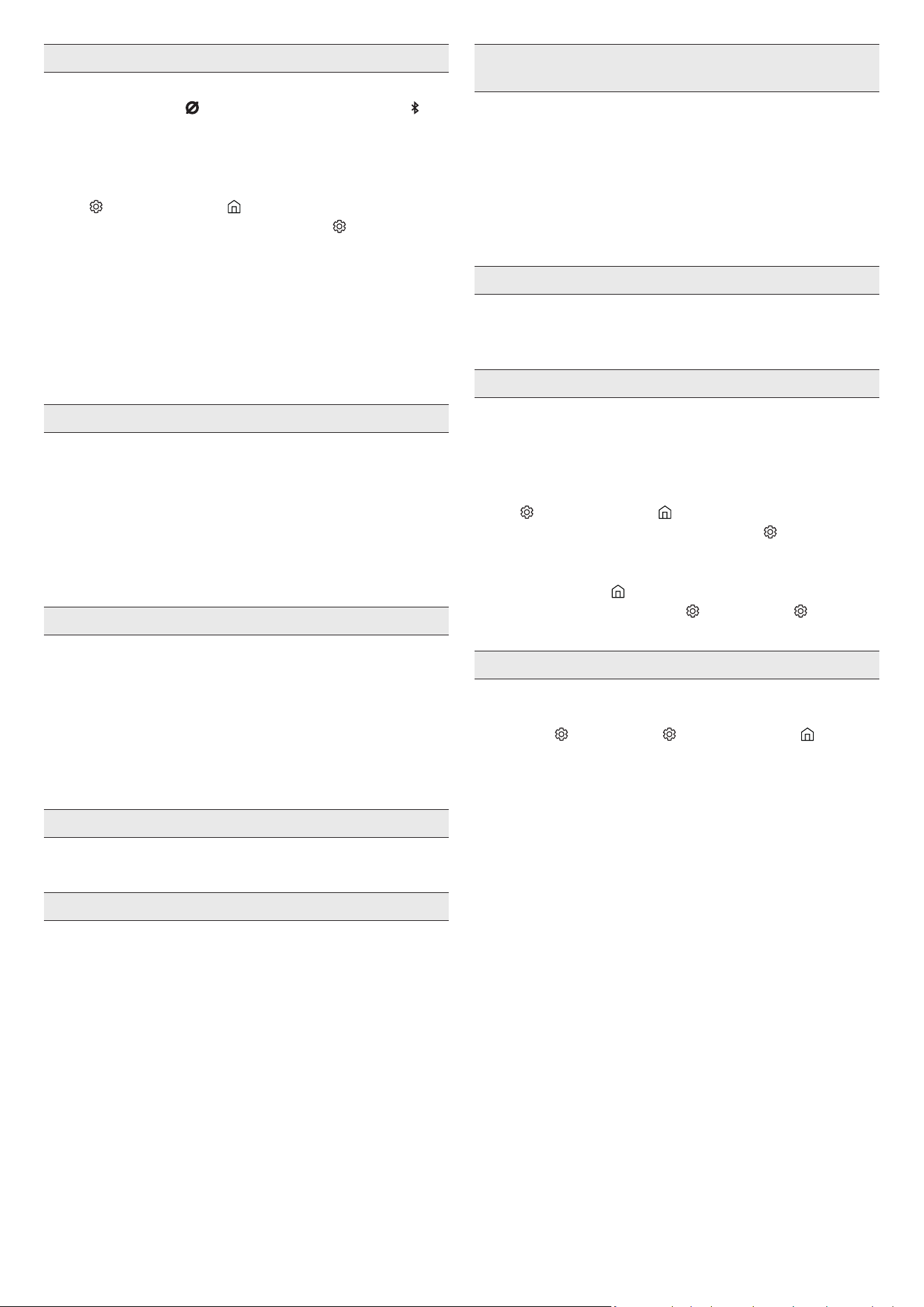
30 - ARA
كموتوصلامخضمنمءاضوضوأ،تاخأتوأ،توصلاهيوشتدوجوةلاح
يطيحاتوصلا
اذه ببس
ُ
ي دق ،توصلا مخضم ةعامسو Soundbar ب ماسجأ يأ دوجو ةلاح
.مسجلا اذه نودب اهعضول ةزهجا هذه عضوم يغت ىجري .ةلكشم
توصلا كمو توصلا مخضم نوكي امدنع تاخأت وأ توصلا هيوشت دجوي دق
.Soundbar نم برقلاب اهعضو ىجري .Soundbar نع ا
ً
ديعب يطيحا
وأ ةادأ نم برقلاب Soundbar نوكي امدنع تاخأت وأ توصلا هيوشت كانه نوكي دق
ةزهجا هذه نع ا
ً
ديعب Soundbar عض .ا
ً
يكلس
ً
خادت ببس
ُ
ي نأ نكمي ابرهك زاهج
)لس هجوم ،لاثا ليبس ع( .ا
ً
يكلس
ً
خادت ببست نأ نكمي لا
.لس إ لس نم نويزفلتلا ةكبش لاصتا ةلاح يغتب مق
ا
ً
دجضفخنمتوصلامخضمتوصىوتسم
لواح .ا
ً
ضفخنم هليغشتب موقت يذلا ىوتحملل ا توصلا ىوتسم نوكي دق
).6 ةحفص عجار( .توصلا مخضم ىوتسم طبض
.كنم برقلاب توصلا مخضم تاعامس حا
HDMITOTV)eARC/ARC(عنويزفلتلاليصوتمدعةلاح
.ARC فرطب حيحص لكشب
ً
صتم HDMI لبك ناك اذإ امم ققحت
).13 ةحفص عجار(
،فشتلا كف زاهج( لصتا يجراخلا زاهجلا ببسب اًنكمم لاصتا نوكي دق
.ةابم Soundbar زاهج ل
صو .)كلذ إ امو ،باعلا زاهج
.نويزفلتلا ةمئاق CEC ل
غش .نويزفلتلا ع HDMI-CEC طيشنت متي دق
)
( تادادعا ← ةمئاقلا ← ) ( ةيسيئرلا ةحفصلا :Samsung نويزفلت(
← يجراخلا زاهجلا ريدم ← لاصتا ← ) ( تادادعا لك ←
)ليغشت Anynet+ )HDMI-CEC(
عضو ع نويزفلتلا ةمئاق eARC ةفيظو طبض بجي ،"eARC" ـب لاصتل
← ةمئاقلا ← ) ( ةيسيئرلا ةحفصلا :Samsung نويزفلت( .ليغشتلا
← بخلا تادادعإ ← توصلا ← ) ( تادادعا لك ← ) ( تادادعا
))اقلت( HDMI-eARC عضو
HDMITOTV)eARC/ARC(عضونويزفلتلابلاصتادنعتوصدجوي
نويزفلتلا توص جرخ يغتب مق .لاخدا ةراشإ ليغشت ع رداق غ كزاهج
ةحفصلا :Samsung نويزفلتل ةبسنلاب( .Dolby Digital وأ PCM إ
← )
( تادادعا لك ← ) ( تادادعا ← ةمئاقلا ← ) ( ةيسيئرلا
)يمقرلا توصلا جارخإ قيسنت ← بخلا تادادعإ ← توصلا
.BluetoothعلصتيSoundbarزاهج
ع طغضا( .لاصتل"BT PAIRING" إ ليدبتلاب مق ،ديدج زاهج ليصوت دنع
ليغشتفاقيإ/ليغشت(
رز ع طغضا وأ دع
ُ
ب نع مكحتلا زاهجب PAIR رز
).لقا ع
ٍ
ناوث 5 ةد زاهجلا لكيهب )نوفوركيا
ليدبتل
ً
وأ زاهجلا اذه لصفا ،رخآ زاهجب لصتم Soundbar زاهج ناك اذإ
.زاهجلا
.لاصتل زاهجلا ع Bluetooth توص كم ةمئاق ةلازإ دعب هليصوت دعأ
) ( تادادعا ← ةمئاقلا ← ) ( ةيسيئرلا ةحفصلا :Samsung نويزفلت(
توص كم ةمئاق ← توصلا جارخإ ← توصلا ← ) ( تادادعا لك ←
) Bluetooth
عضو Soundbar نوكي امدنع .نويزفلتلل اقلتلا لاصتا لطعتي دق
دع
ُ
ب نع مكحتلا ةدحو راسيلل رز ع رارمتسا عم طغضا،"BT READY"
تيأر اذإ .ON-TV CONNECT ديدحتل ناوث 5 ةد Soundbar زاهجب صاخلا
ليدبتل ناوث 5 ةد راسيلل رز ع رارمتسا عم طغضا ،OFF-TV CONNECT
.رايتخا
.ا
ً
ددجم لواح مث هليصوت دعأو ابرهكلا رايتلا سباق لصفا
).29 ةحفص عجار( .ا
ً
ددجم لواح مث جتنا نحش ةئيهتب مق
.Bluetoothعلاصتادنعتوصلاعطقني
نم ا
ً
دج ةبيرق تناك اذإ لس لخادت ثودح ةزهجا ضعب ببستت نأ نكمي
ةيكلسلا تاهجواو فيوركياا ةزهجأ لاثا ليبس ع Soundbar زاهج
.كلذ غو
،Soundbar زاهج نع ا
ً
دج ا
ً
ديعب Bluetooth ع لصتا كزاهج كرحت اذإ
.Soundbar زاهج نم برقأ زاهجلا لقنا .توصلا عاطقنا كلذ ببستي دقف
لاسرا زاهجل كمسج نم ءزج ةسمم ةلاح توصلا عطقت ثدحي دق
ثاثأ ع جتنا تيبثت مت وأ Bluetooth ةينقتب لمعي يذلا لابقتساو
.مادختسا طوو تيبثتلا ةئيب نم ققحت .دعم
.Wi-FiعلصتيSoundbarزاهج
.لسلا هجوا لمع نم ققحت
.ا
ً
ددجم لواح مث ىرخا ةرم هلغشو هجوا ليغشت فقوأ
لواح .ةياغلل ةفيعض لسلا ةراشإ تناك اذإ Soundbar زاهج لصتي نل
Soundbar زاهج ب قئاوع يأ ةلازإ وأ Soundbar زاهج نم ه
جوا بيرقت
.نكمأ نإ ه
جواو
ةكبش تادادعإ نيوكت ةداعإ إ جاتحتسف ،ديدج لسلا هجوا ناك اذإ
).23 ةحفص عجار( .ةعامسلا
.Wi-Fi 6 ةكبش Soundbar زاهج معدي
.نويزفلتلاعما
ً
يئاقلتSoundbarزاهجليغشتمتي
ليطعت متي ،نويزفلتلا ةدهاشم ءانثأ Soundbar زاهج ليغشت فاقيإ دنع
.
ً
وأ نويزفلتلا ليغشت فقوأ .نويزفلتلا عم ةقاطلا ةنمازم
.ةيلاتلاتاحلاةحاتمغAVAةفيظو
.نوفوركيا ليغشت فاقيإ دنع AVA ةفيظو رفوتت
31 - ARA
متيمل.Soundbarعضوليوحتب
ُ
تمق،Soundbarزاهجبنويزفلتلاليصوتدعب
.نويزفلتلازاهجنمنويزفلتلاتوصجارخإ
Soundbar ليصوت ءانثأ لومحم زاهجب Soundbar زاهج ليصوتب تمق اذإ
ظافحلا عم لومحا زاهجلا نم توصلا جرخي Soundbar نإف ،نويزفلتلاب
.ناكم يأ نويزفلتلا توص ليصوت متي نل كلذل .نويزفلتلا لاصتا ع
زاهج نم نويزفلتلا زاهج توص جرخيس اهدعب ،لومحا زاهجلا لصفب مق
.ا
ً
ددجم Soundbar
AirPlaySoundbarزاهجرهظي
زاهجلا ليجست
ً
وأ كيلع بجي ،Soundbar زاهج AirPlay كمتل
طو ع ةقفاوا لخ نم Samsung SmartThings قيبطت مادختساب
).24 ةحفص عجار( .قيبطتلا ماكحأو
قيبطت نم Soundbar فذحب تمق اذإ AirPlay لمعي
.Samsung SmartThings
.اهسفن Wi-Fi ةكبشب Apple زاهجو Soundbar زاهج ليصوت نم دكأت
.ثدحأ وأ iOS 13.4 ع تبثا AirPlay عم Soundbar زاهج قفاوتي
.نويزفلتلازاهجعUHDلاخدإةراشإرهظت
.لاخدا ردصم وأ نويزفلتلا تادادعإ اضإ يغت إ ةجاح كانه نوكت دق
زاهجلا وأ نويزفلتلاب صاخلا مدختسا ليلد عجار ،تامولعا نم ديز
.يجراخلا
.HDMI.org نم Ultra High Speed HDMI لباك مدختست كنأ نم دكأت
ن
ّ
كم
ُ
مغGroup Play
2024 ماع اهرادصإ مت ثدحأ تيدوم يه توصلا ةزهجأ تناك اذإ امم ققحت
.ثدحأ وأ
.ردصمك Wi-Fi ةكبشب
ً
صتم فيضا زاهجلا ناك اذإ امم ققحت
اهسفن Wi-Fi ةكبشب ةلصتم ةيتوصلا ةزهجا عيمج نأ نم دكأت
.)زترهاغيغ 5 ددب(
12 صيخالا
Dolby, Dolby Atmos, and the double-D symbol are registered
trademarks of Dolby Laboratories Licensing Corporation.
Manufactured under license from Dolby Laboratories. Condential
unpublished works.
Copyright © 2012-2021 Dolby Laboratories. All rights reserved.
For DTS patents, see http://patents.dts.com. Manufactured under
license from DTS, Inc. or DTS Licensing Limited. DTS, DTS:X, and the
DTS:X logo are registered trademarks or trademarks of DTS, Inc. in
the United States and other countries.
© 2021 DTS, Inc. ALL RIGHTS RESERVED.
The terms HDMI, HDMI High-Denition Multimedia Interface, HDMI
Trade dress and the HDMI Logos are trademarks or registered
trademarks of HDMI Licensing Administrator, Inc.
، .Apple Inc ةكل ةيراجت تامع Macو iPhoneو iPadو AirPlayو Apple دع
ُ
ت
.ىرخأ قطانمو نادلبو ةدحتا تايولا ةل
جسم
.Spotify ـل دع
ُ
ب نع مكحت زاهجك رتويبمكلا وأ يحوللا كزاهج وأ كفتاه مدختسا
ةيفيكلا ةفرع spotify.com/connect ةرايزب لضفت
:انه ةدوجوا ةيجراخلا تاهجلا صيخال Spotify جمانرب عضخي
.https://www.spotify.com/connect/third-party-licenses
Being Roon Tested means that Samsung and Roon have collaborated
to ensure you have the best experience using Roon software and
Samsung equipment together, so you can just enjoy the music.
حوتفاردصاصيخرتراعشإ
:ةيلاتلا بيولا ةحفص روثعلا نكمي جتنا اذه مدختسا Open Source
.)http://opensource.samsung.com(
