
User
Manual
Products:
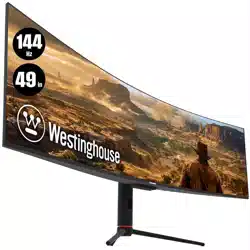
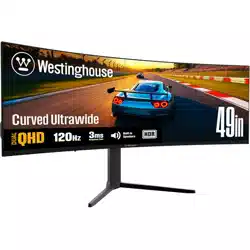
WC49BX6250
DO NOT RETURN THIS PRODUCT TO THE STORE
If you have questions or need assistance, please call
customer service at (800) 701-0680.
3
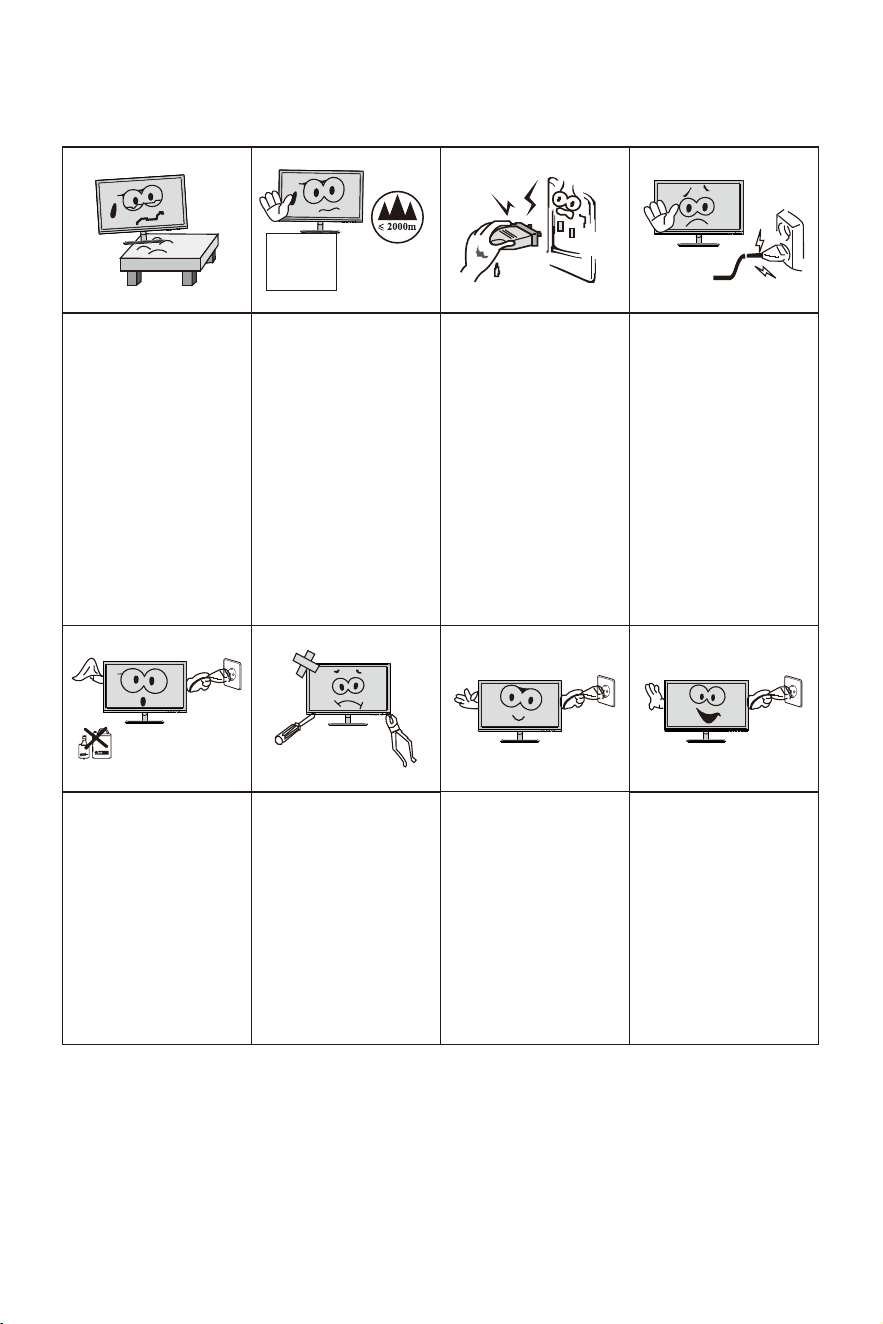
Please always place
this device on a stable
surface; otherwise,
it may fall and be
damaged.
The altitude and the
tropical environment
the adapter fits depend
on which adapter is
used for the device.
The rating plate on
the back of the device
with the above warning
sign indicates that
t h i s p r o d u c t i s
ap pli cable fo r t he
safe use of the region
w i t h a l t i t u d e o f
2,000m and below.
Do not hold the plug
w i t h w e t h a n d ;
otherwise, electric
shock
m a y o c c u r.
Make sure the plug
has a good touch
because poor touch
may cause fire.
Do not use a broken
power plug nor keep
a power cord near heat
source; otherwise,
e l e ct r i c s h oc k o r
fire may occur.
When cleaning the
device, be sure to
remove the power
plug, use a piece
of soft cloth rather
t h a n i n d u s t r i a l
ch emi cal t o cle an
the device, be sure
not to let water enter
the device.
Do not disassemble
this device without
permission. In case
of failure, be sure to
contact a professional
servicing person to fix
it. The unauthorized
disassembly of this
device may result
in electric shock or
fire.
In case of rare smell
or noise out of t
his
device, be sure to
immediately cut off
the power supply and
ask a professional
servicing person to
fix the problem.
When this device
is idle for long time,
be sure to power it
off; otherwise, electric
shock or fire may
occur.
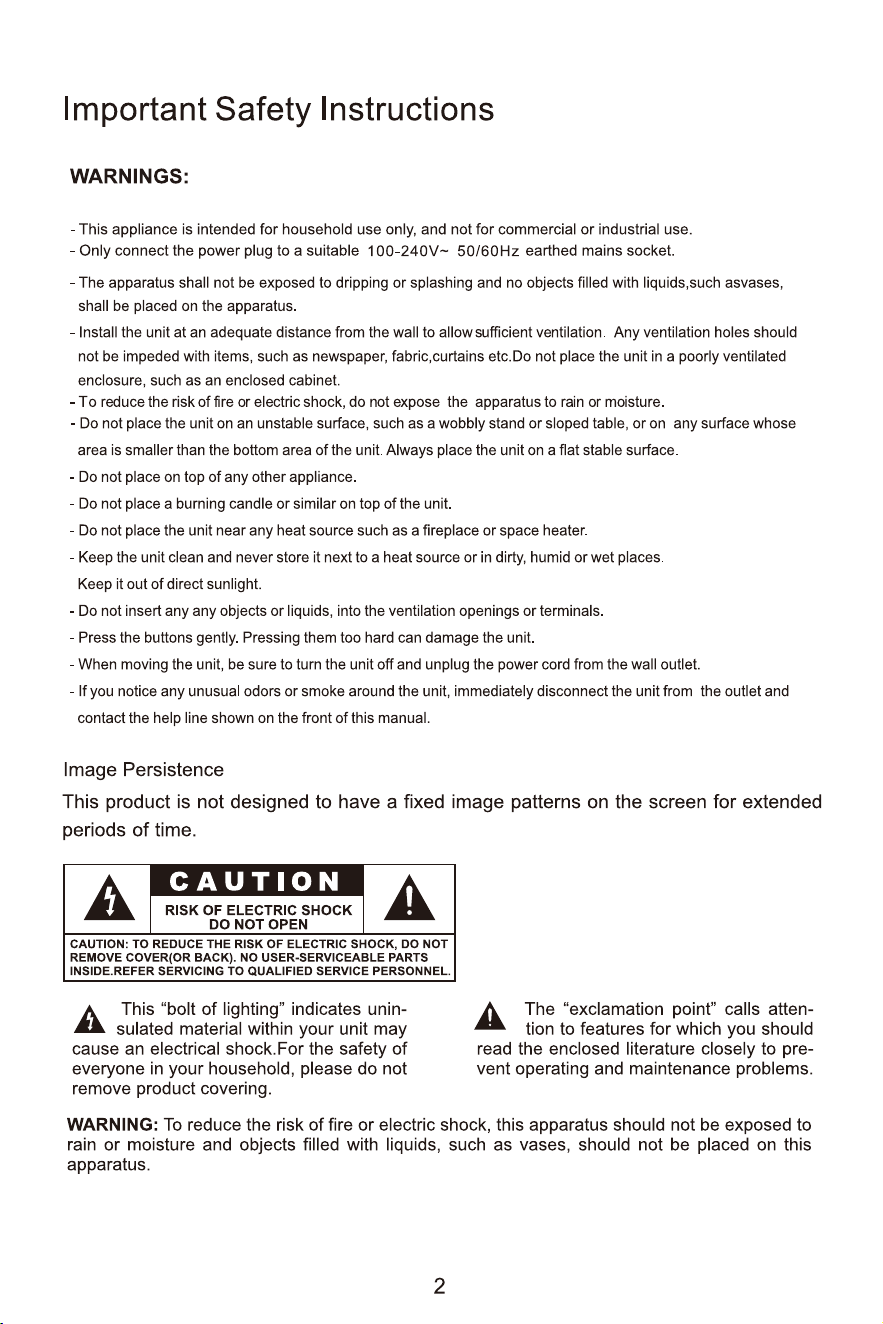
I. Safety Prevention Measures
Note:
The device with AC switch may use such AC switch as cut-off component.
The device without AC switch may use power plug or coupler as cut-off component.
ln case of the normal use of the equipment, make sure the cut-off component can be accessed
easily.
2. Product introduction
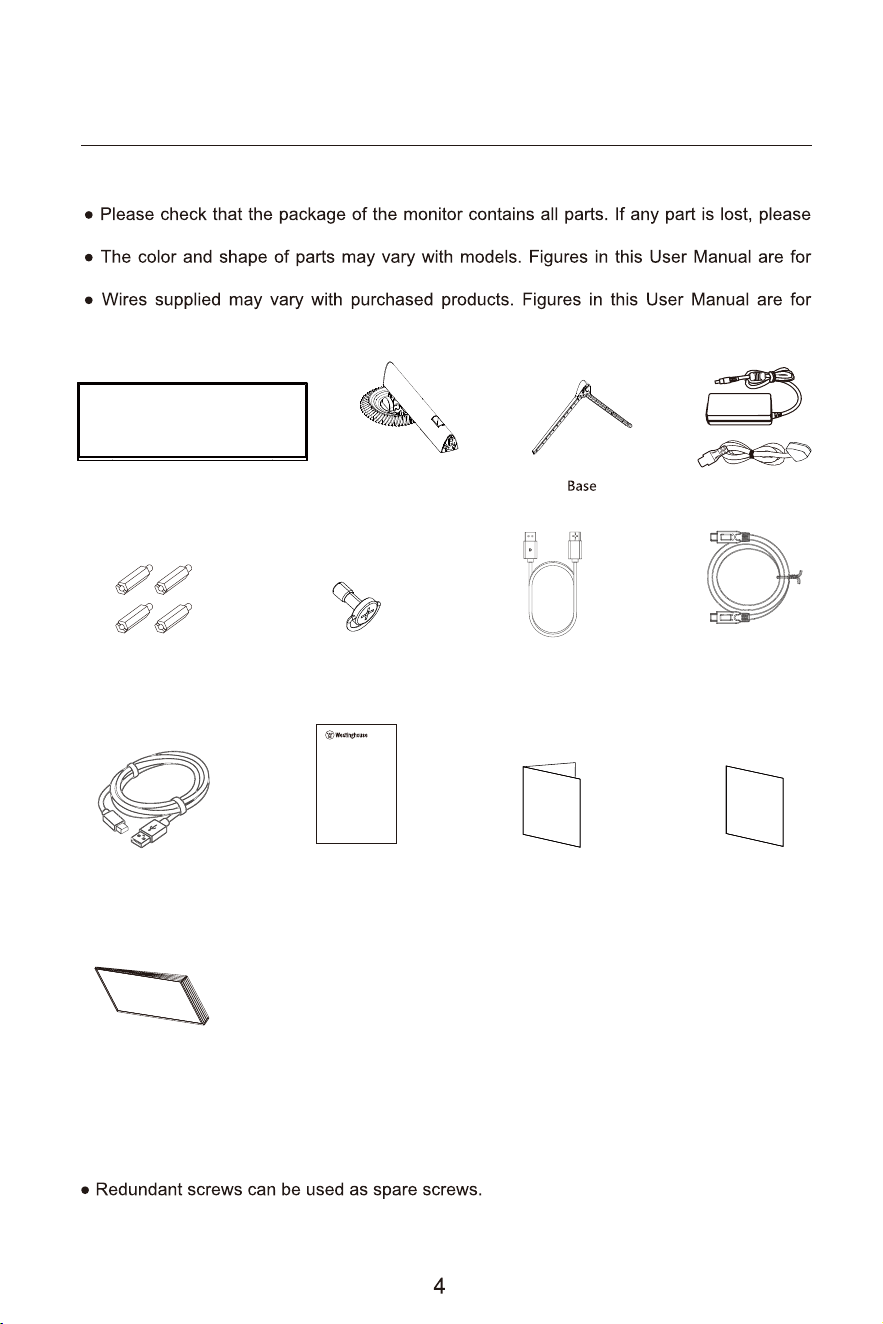
Packing list
(The above pictures are for illustration only and the physical accessories shall govern.)
contact the distributor.
reference only.
reference only.
User Manual
Monitor
DP Signal Cable
Warranty Card
Tech Support CardQuick Start Guide
User
Manual
Products:
WC49BX6250
DO NOT RETURN THIS PRODUCT TO THE STORE
If you have questions or need assistance, please call
customer service at(800)701-0680.
TYPE-C Signal Cable
USB A TO B Cable
Stand
Power Cord/Adapter
Screw x1pcs
Wall Mounting Stud x 4pcs
(for wall mounting)
Screws
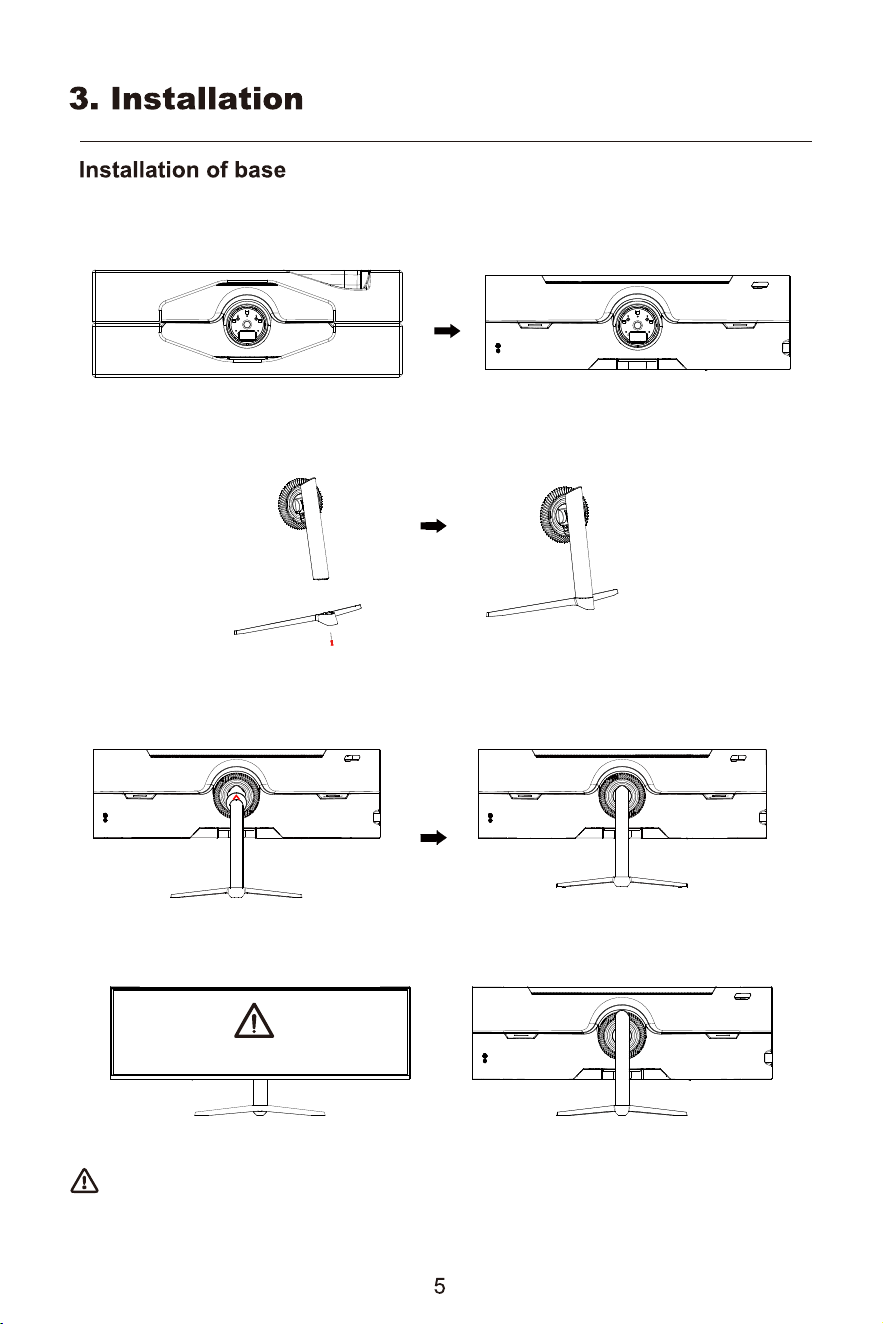
1. First open the carton, take out the foam.
2. Use 1 screws to lock the shaft assembly and bracket.
3. Align the stand stem's bracket with the opening on the back ofthe monitor. and carefully insert bracket,
t the stand assembly and display together.
4. After assembly, simply hold the stand with hand to stand the monitor upright.
Note: During standing of the whole monitor, do not press the liquid crystal screen with hand to avoid
damage to the screen.
Do not press the LCD
Installation of mount
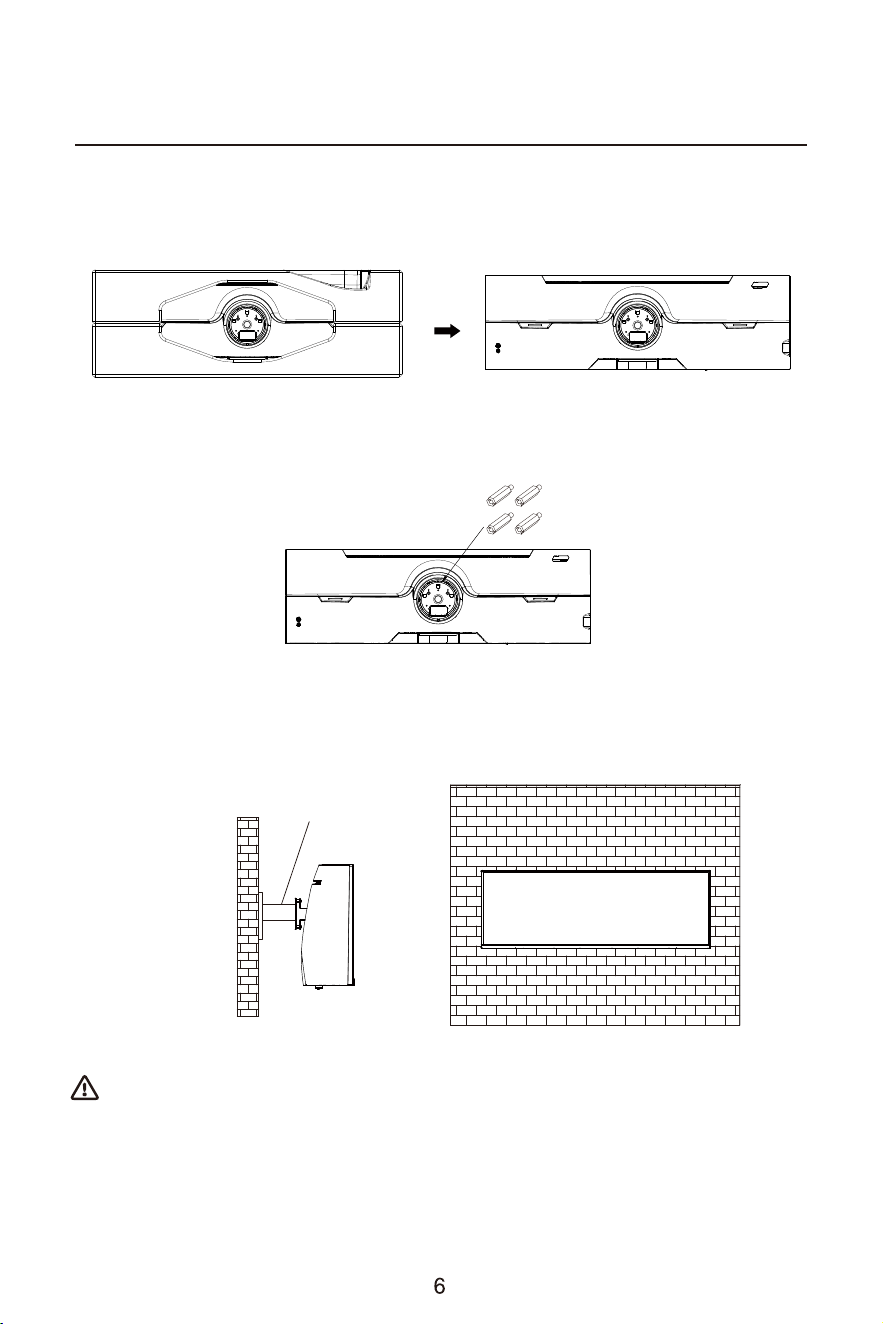
2. Take the wall mounting adapter out of the accessory bag, and install the wall mounting adapter on the
rear shell according to the gure.
3. Hang the assembled product on a hard wall. Do not pinch the screen with your hands during the hanging
process to avoid damaging the screen.
Mount (not supplied)
Note: In order to prevent the monitor from falling when it is used on the wall, please install it properly
and do safety protection. Do not place or hang any objects on the wall bracket, and the wall height
should be within 2 meters.
1. Open the package to take out foams and put them on a at tabletop.
Wall Mounting Stud x 4pcs
(for wall mounting)
7
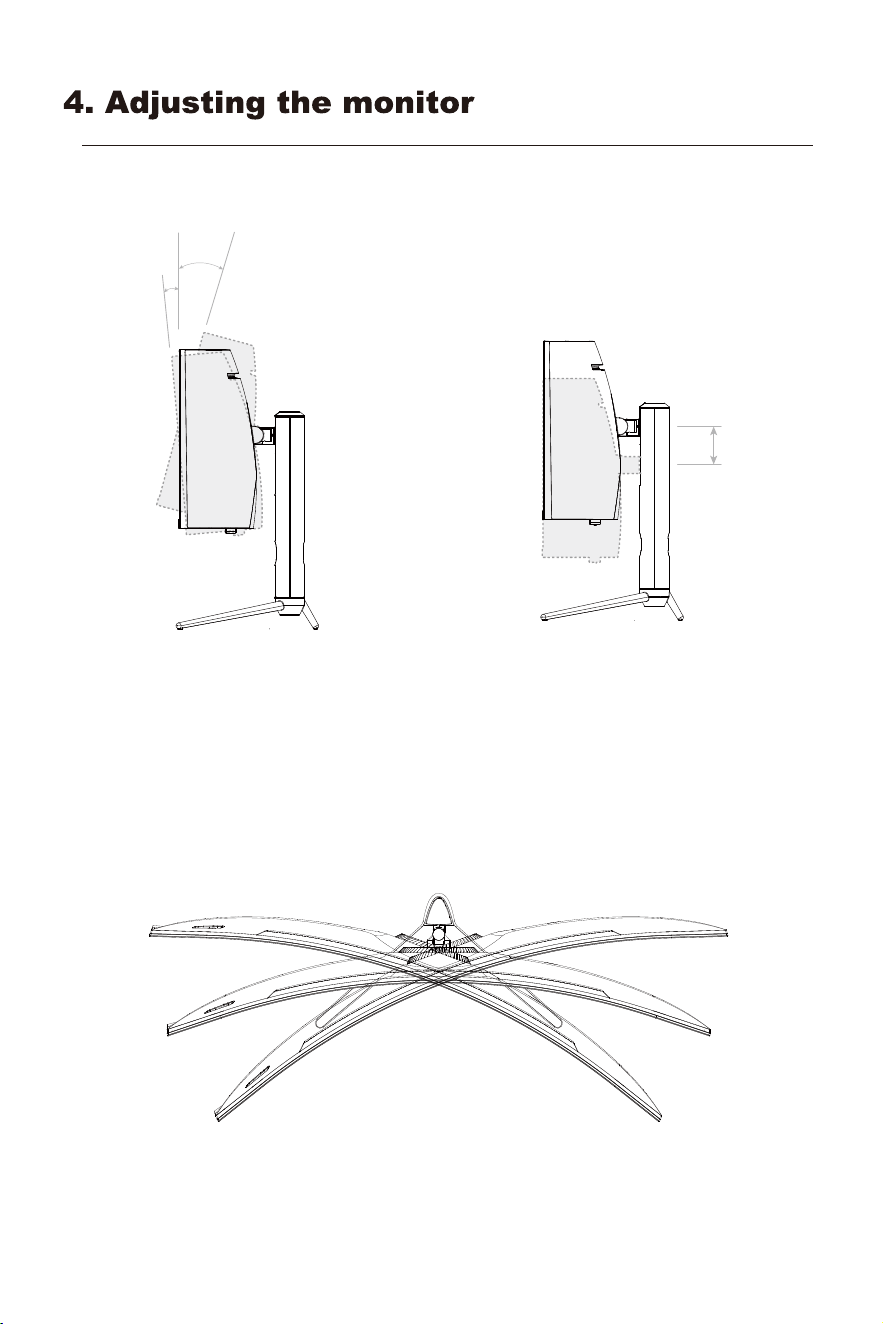
left angle of rotation right angle of rotation
Height
adjustment
range
110mm
110mm
Tilting angle
-5.0°±2°- +15°±2°
+15°
-5.0°
8
5. Usage
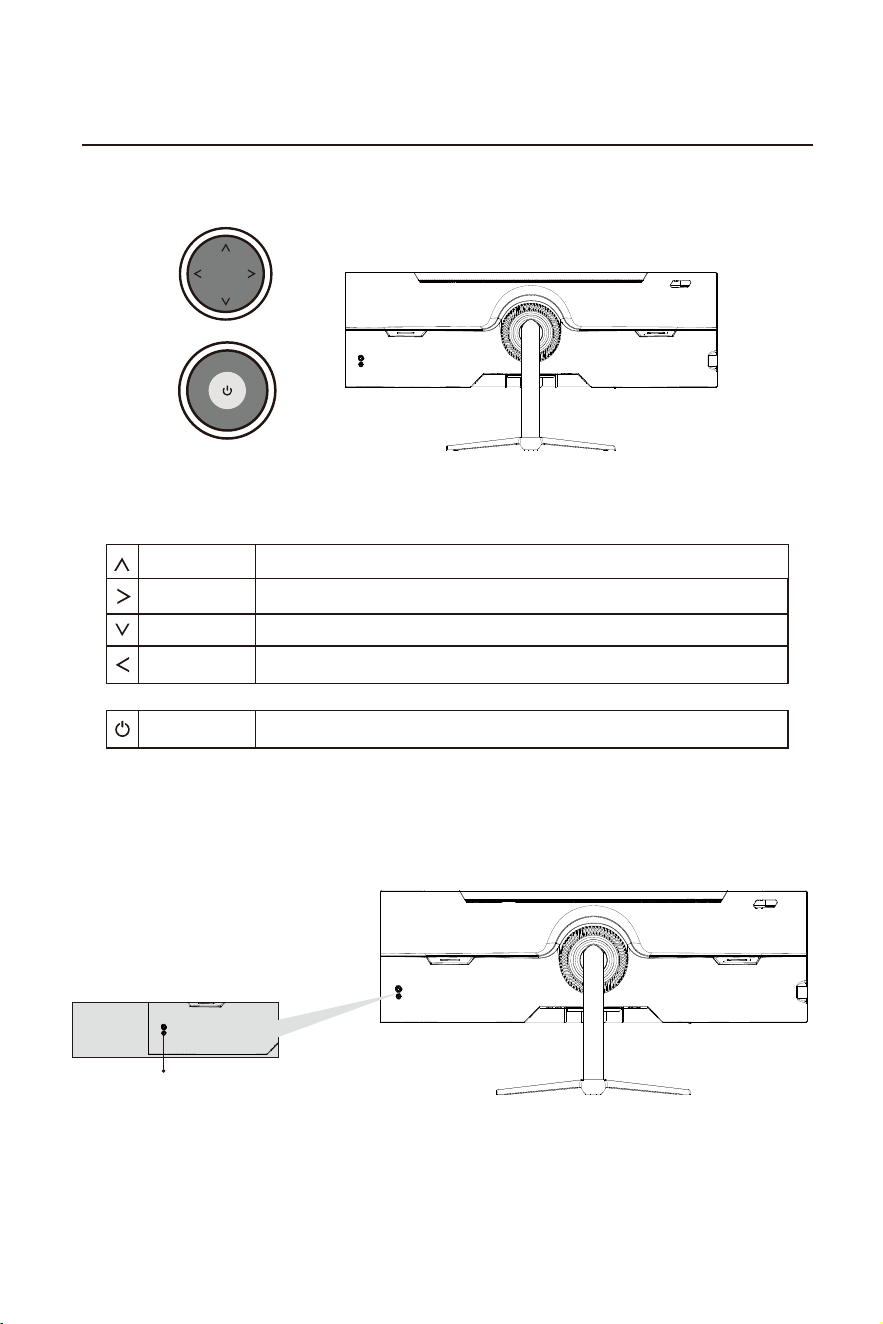
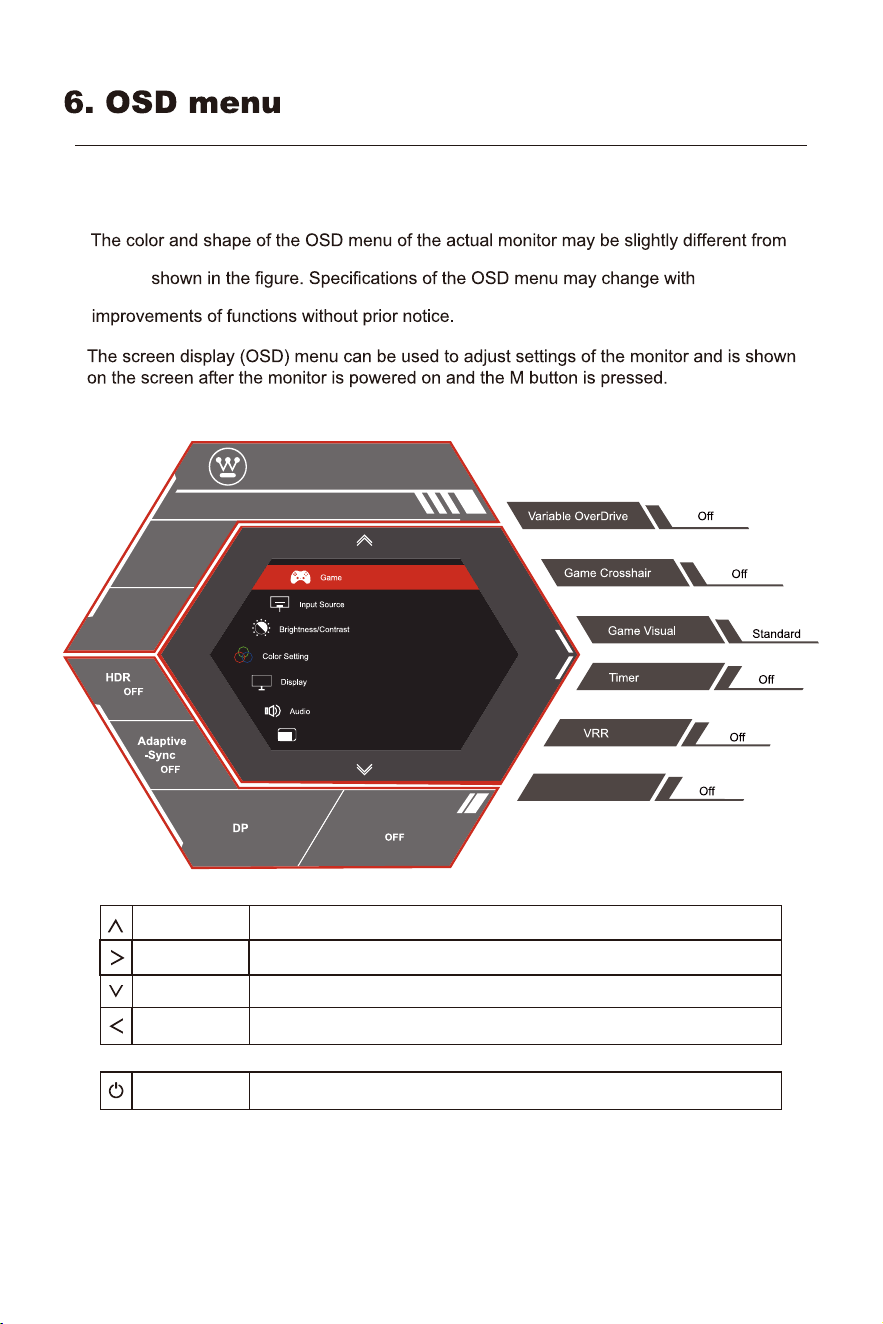
Description of buttons
Usage of multifunctional button control key
Menu / Confirm
Upwards
Downwards
Exit
Power off
Pop up the OSD Menu or confirm the setting
Adjust parameters upwards in the menu / Shortcut of Brightness adjustment
Adjust parameters downwards in the menu / Shortcut of Game visual
Return or Exit the menu / Shortcut of FPS mode
Press to turn on the power on / off.
Explanation of indicators
Indicator
Indicator light: Steady blue indicates that the power supply is normal and the display is running normally. In
addition, a steady red liaht indicates that there is no video source, no horizontal orvertical signal or low voltage is
detected. lf no indicator is displayed, the server is o. Make sure your computer is turned on and all video cables are
fully plugged in or connected.
9
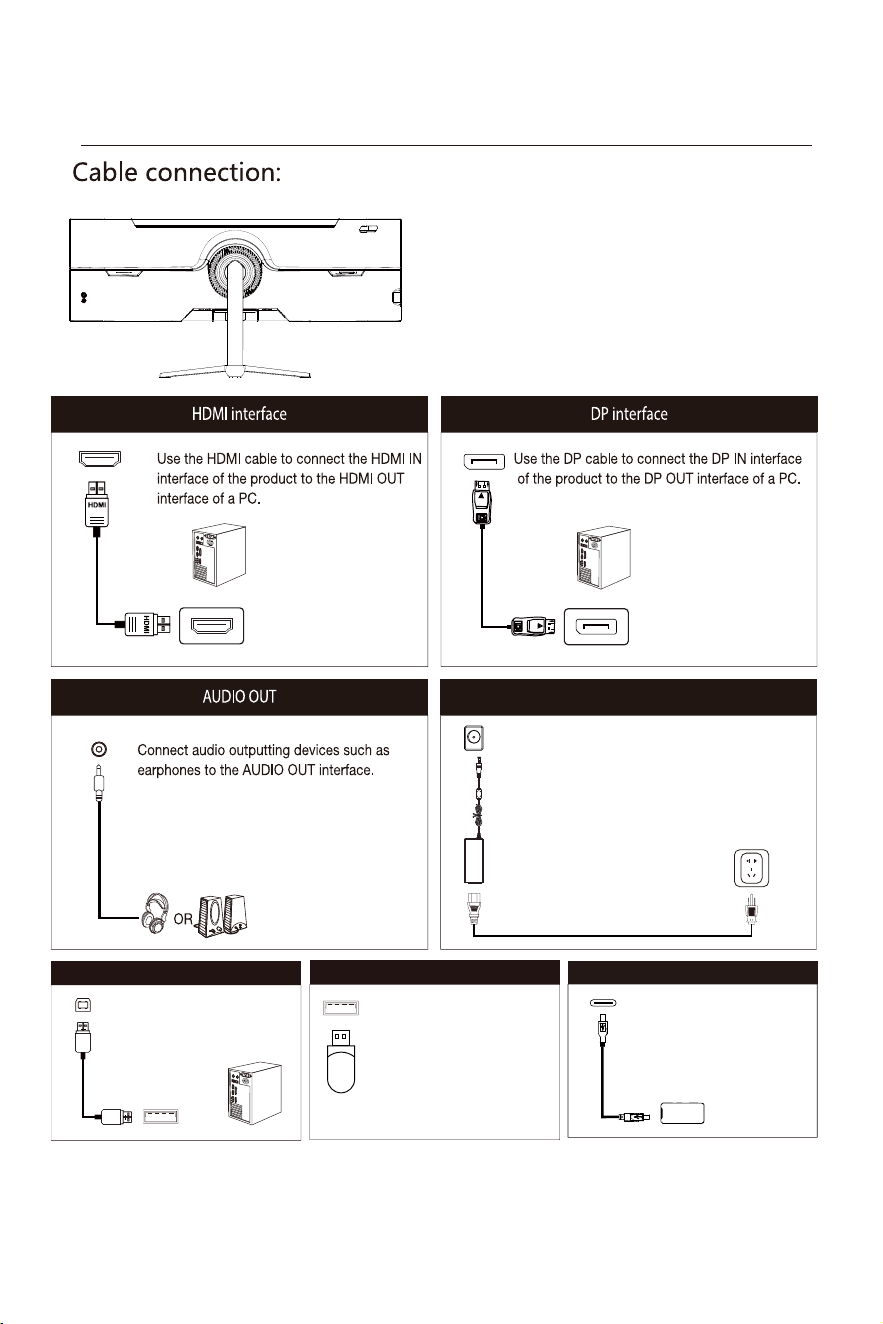
* The bottom interface configuration at the back
of the monitor varie withproducts.
* Note: If the power cable or signal cable is damaged,
you must replace it with special soft cables or special
components purchased from themanufacture or
maintenance department.
DC interface
Type-C
Connect one end of the TYPE-C cable to
the TYPE-C interface of the monitor and
the other end to the TYPE-C interface
of the mobile device
USB -B
Use the USB cable to connect the
USB-B IN interface of the product to
the USB-A OUT interface of a PC.
USB-A 2.0
Connect the USB Device into the USB
OUTport in the back of the monitor.
Please connect the power
adapter plug to the
corresponding power port
of the monitor, and then
connect the power cable
to a properly grounded
power outlet.
USB Device
10
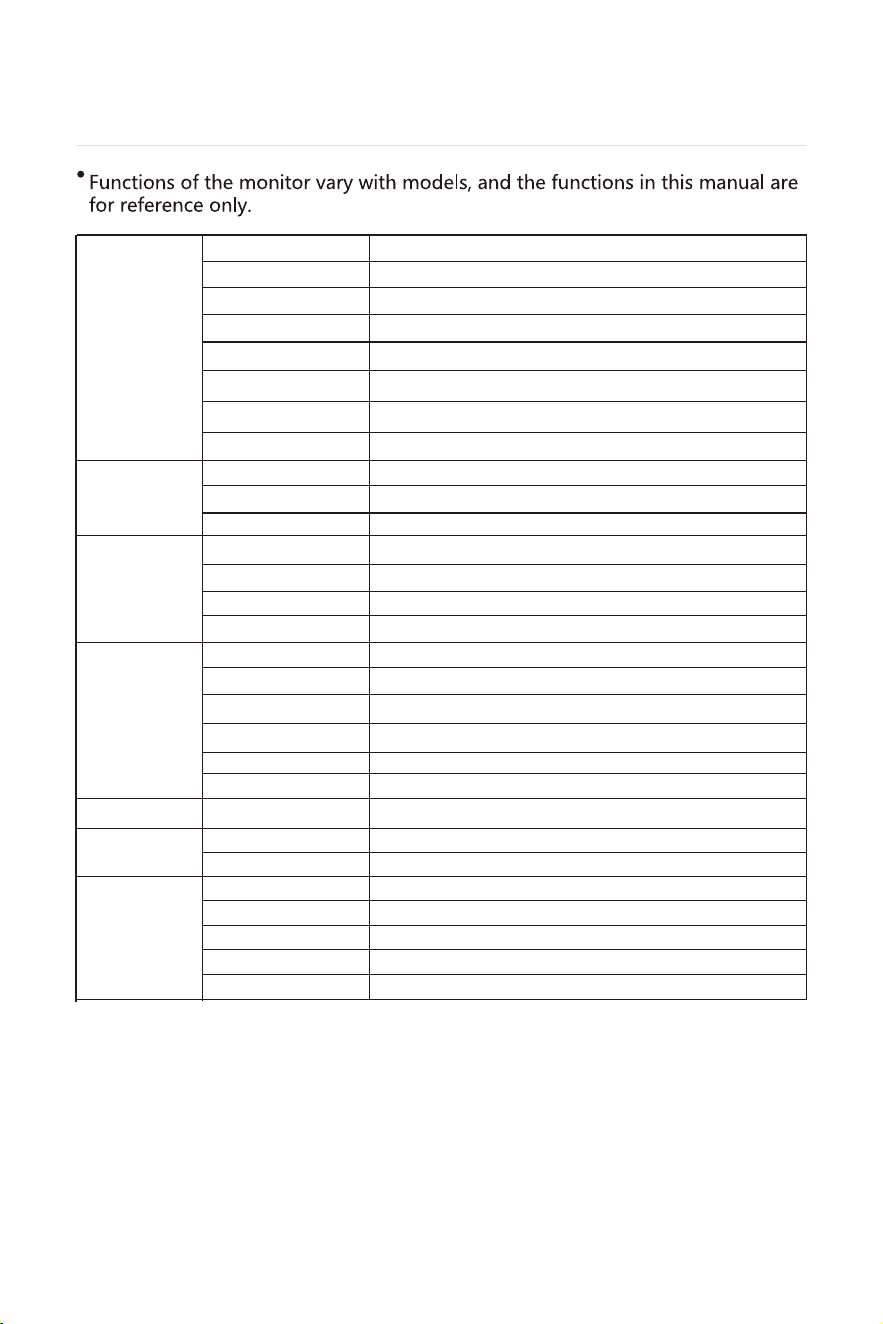
what is
Menu description
VRR
WC49BX6250
5120X1440
120HZ
Multi-Window
FPS Counter
Menu / Confirm
Upwards
Downwards
Exit
Power off
Pop up the OSD Menu or confirm the setting
Adjust parameters upwards in the menu / Shortcut of Brightness adjustment
Adjust parameters downwards in the menu / Shortcut of Game visual
Return or Exit the menu / Shortcut of FPS mode
Press to turn on the power on / off.
+
11
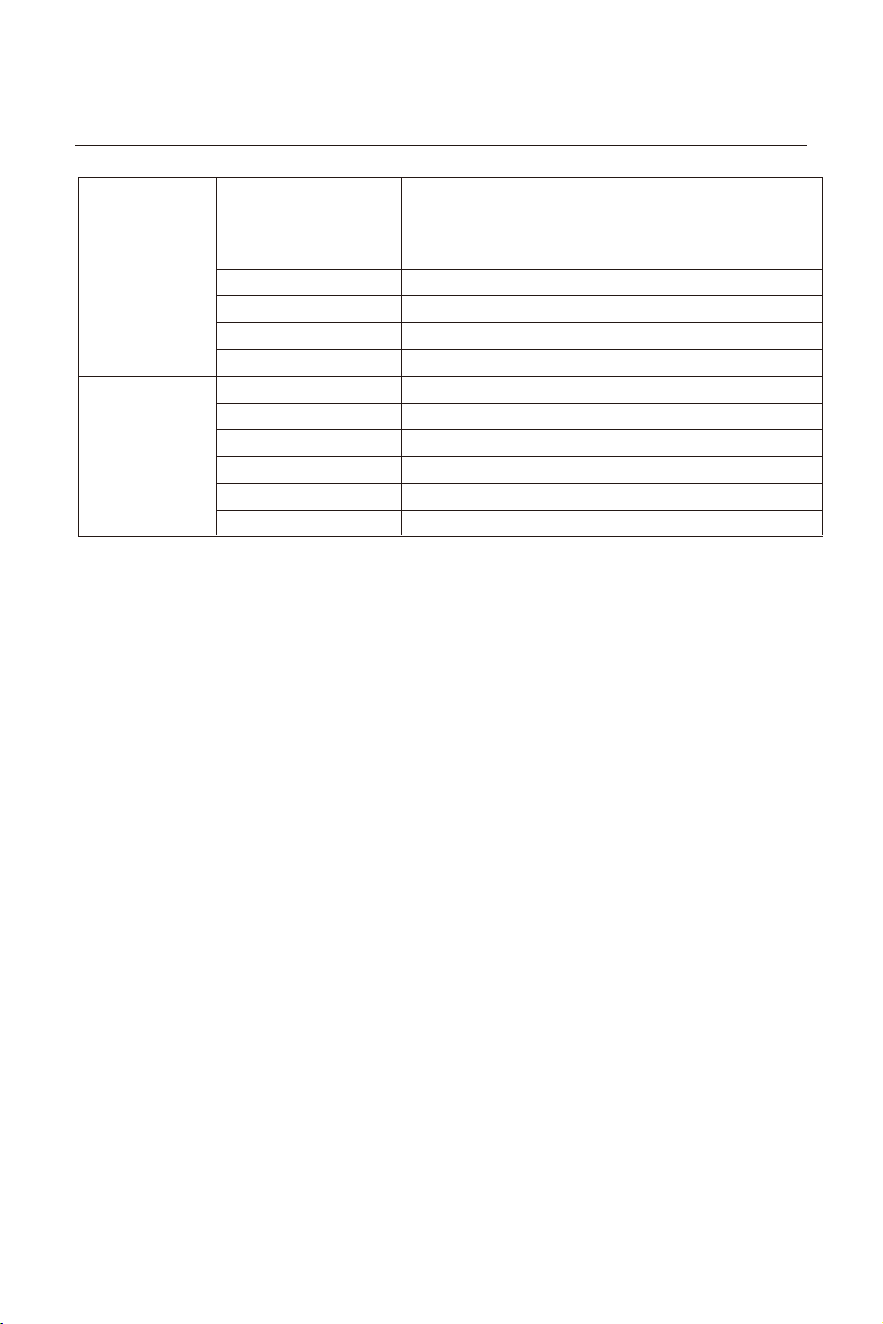
FreeSync On(G-Sync Compatible)/O
On/O
On/O
On/O
On/O
On/O
O/PIP Mode/PBP 2win
HDMI/DP
Large/Medium/Small
TopRight/TopLeft/BottomRight/BottomLeft
1.8/2.0/2.2/2.4/2.6
Normal/Warm/Cool/User
O/High/Medium/Low
O/Mode 1/Mode 2/Mode 3
Standard/Movie/RTS/RPG/FPS/MOBA/sRGB/Reader
O/30/50/60/90
Variable OverDrive
Game Crosshair
Game Visual
Timer
VRR
Game Ligh t
FPS Counter
DP
TYPE-C
Brightness
Contrast
DCR
Black Equalizer
Gamma
0-100
0-100
0-100
0-100
0-100
wide screen/4:3/1:1
0-100
0-100
0-100
Volume
Mute
Color Temperature
Sharp pixel
Aspect Ratio
Low Blue Light
Hue
Saturation
HDMI
Game+
Input Source
Brightness/Contrast
Color Setting
Display
Audio
Multi-Window
Multi-Window
Sub Win 2 Input
PIP Size
PIP Position
Swap
12
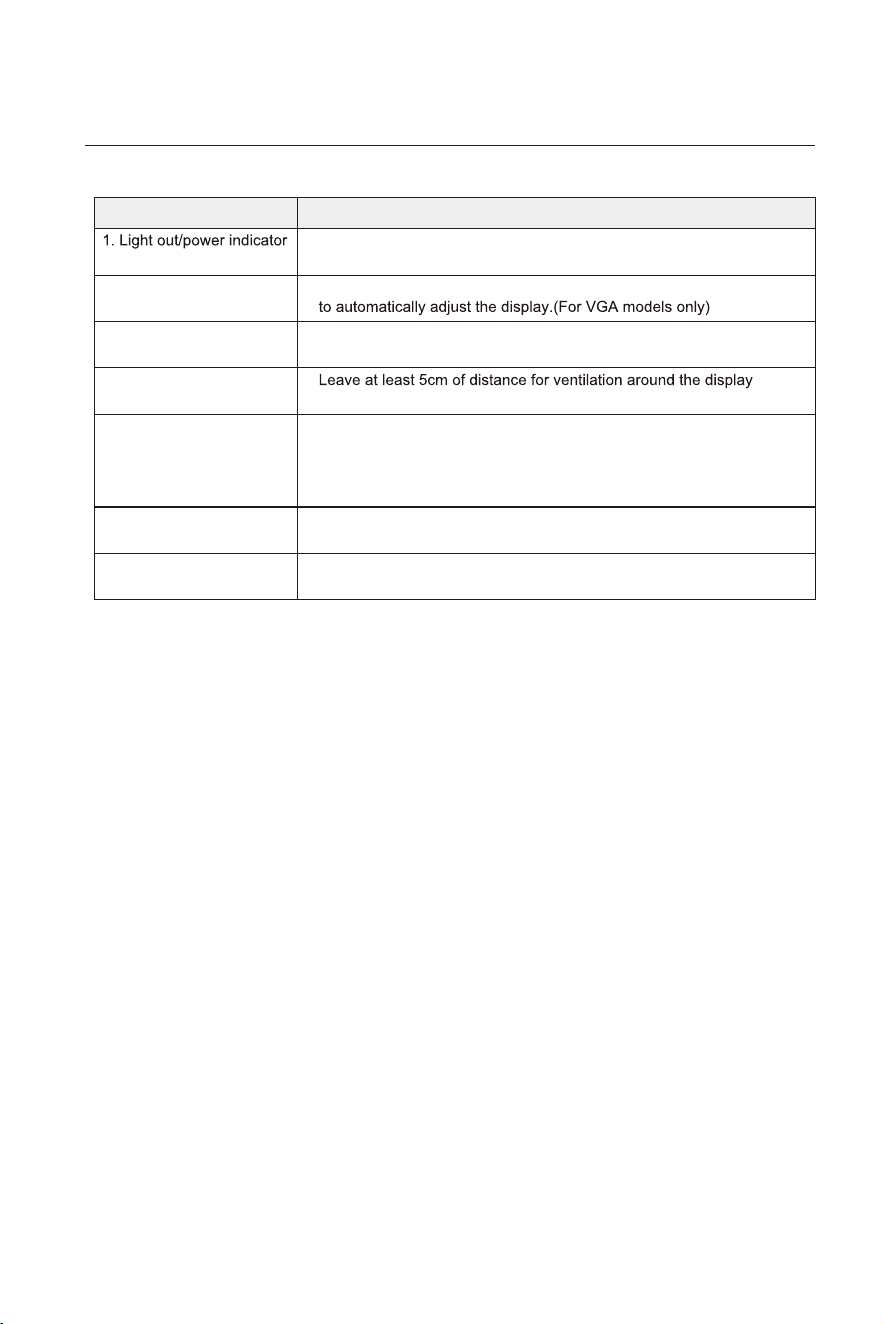
English/Français /Deutsch /Lengua española/
Português /Nederlands /Türkçe/العربية
OSD Time Out 5-100
OSD H-Position 0-100
OSD V-Position 0-100
0-100OSD Transparency
Language
OSD Settings
On/O
Auto/On/O
O/On
O/On
HDR
ECO Mode
Power Indicator
O/OnEyeshield Remind
Input Source/Resolution/Mode/HDR VerReset
FreeSync
Other Settings
7. Basic Troubleshooting
13
Phenomenon Troubleshooting
light is off
2. Image blurring,
over-large, over-small, etc.
Check whether the display and the socket are well connected to
power, and whether the display is in the shutdown mode.
Enter the menu“ Image Setting” and select“ Auto Image Adjust”
Enter the menu“ Brightness and Contrast” to adjust the
brightness and contrast of the display.
and do not place articles on the display.
Check computer setting, select the correct resolution and re-adjust
the refresh frequency.
It is a normal phenomenon caused by display discharging in the
process of powering off.
This is a normal phenomenon. It is due to the backlight illuminates
unevenly at the initial phase of powering on caused by temperature
difference. The backlight can illuminates normally after 20 minutes,
and then the dark/light spots will be corrected.
5. Dark/ light spots when
powering on
6. Image distortion, blinking,
shaking
3. Image over dark
4. Display over heat
7. Power off noise
8. Basic parameters
14
(The actual application of the above parameters shall be subject to the specific model.)
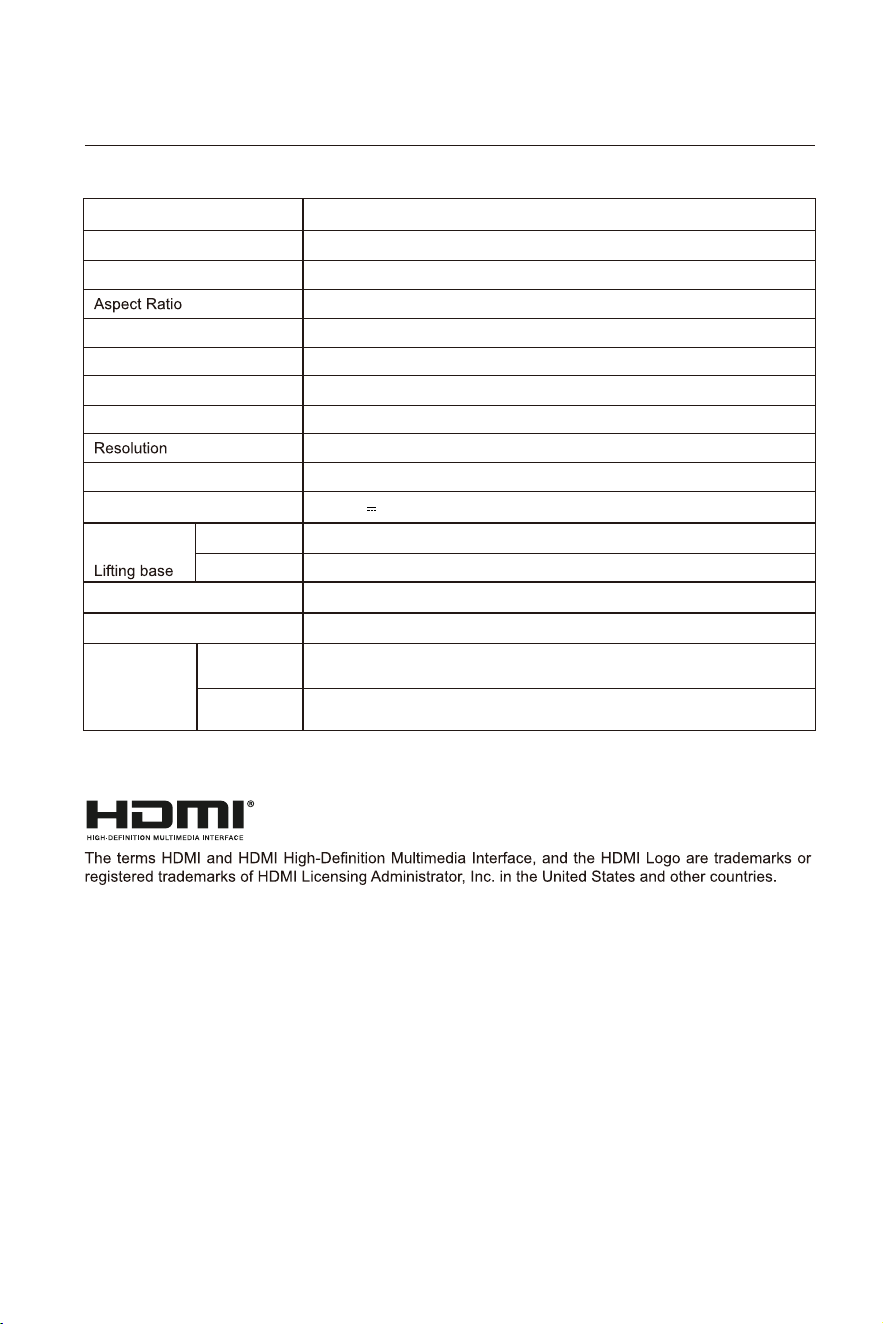
Product model
WC49BX6250
Screen Size
Viewing Angle
49"
178°(H) / 178°(V)
Pixel pitch 0.2328(H) x 0.2328(V)mm
Contrast ratio 3000:1(TYP)
16.7M
Colors
32:9
5120 x 1440
Product
Dimensions
Without base
Action
Storage
1185 x 365 x 192mm
1185 x 571 x 295mm
With base
2 x 3W
Tilting angle
speaker
Environmental
conditions
Power Input
Maximum refresh rate 120Hz
Product Name
49" CURVED GAMING MONITOR
Forward titling: -5°±2° ;Backward tilting: 15°±2°
Temperature: 0°C~ 40°C (32°F ~ 104°F)
Humidity: 10%~90% RH (non-condensing)
Temperature: -20°~ 60° (-4°F ~ 140°F)
Humidity: 5%~95% RH (non-condensing)
DC 24V 6.25A
深圳市微领客科技有限公司
料号:
210-49F4R0-002004
说明书
V1版本:
名称:
日期: 20250718
技术要求:
1、80g书写纸;
2、尺寸:140x210mm;
3、彩色印刷,骑马钉;
4、不得有缺页,漏印,字迹模糊;
4、符合RoHS标准。