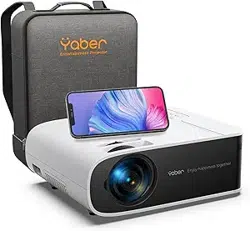
Buffalo Pro U7 Projector
V.22.7.13
01 02
03 04 05 06
07 08 09 10
11 12 13 14
15 16 17 18
19 20 21 22
23

YABER Lifetime Professional Support
TIPS
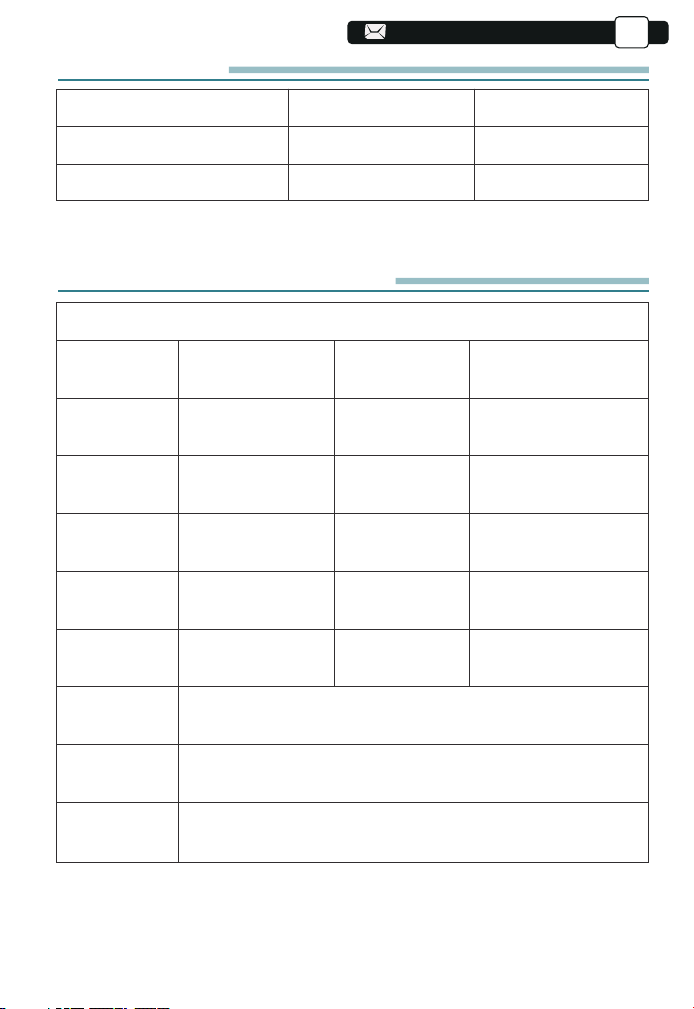
PACKAGE LIST
PROJECTOR SPECIFICATIONS
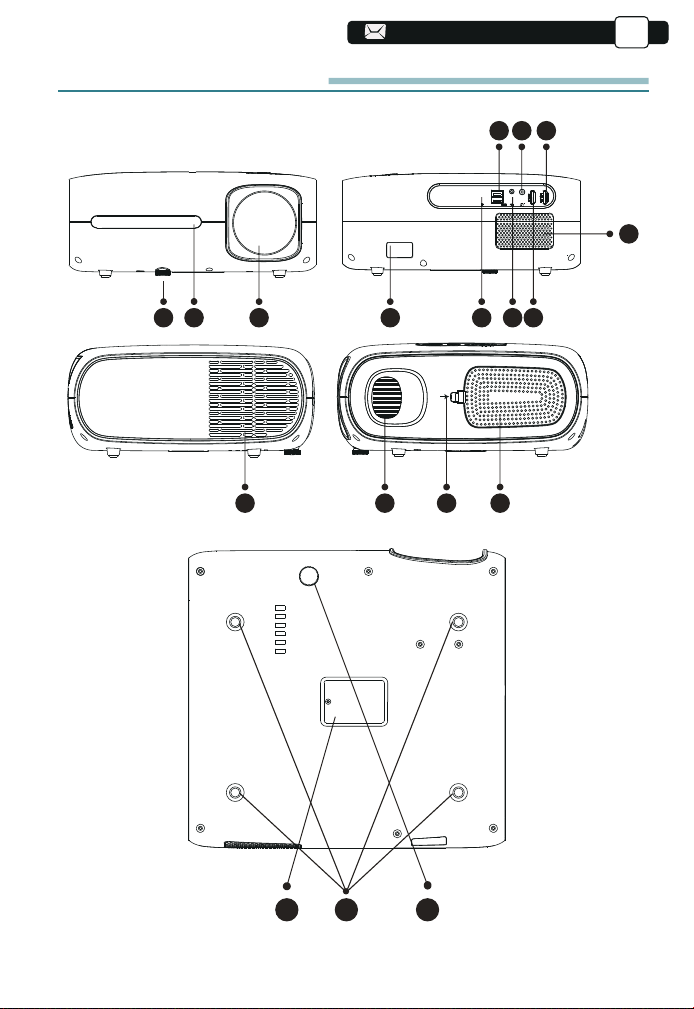
PROJECTOR OVERVIEW
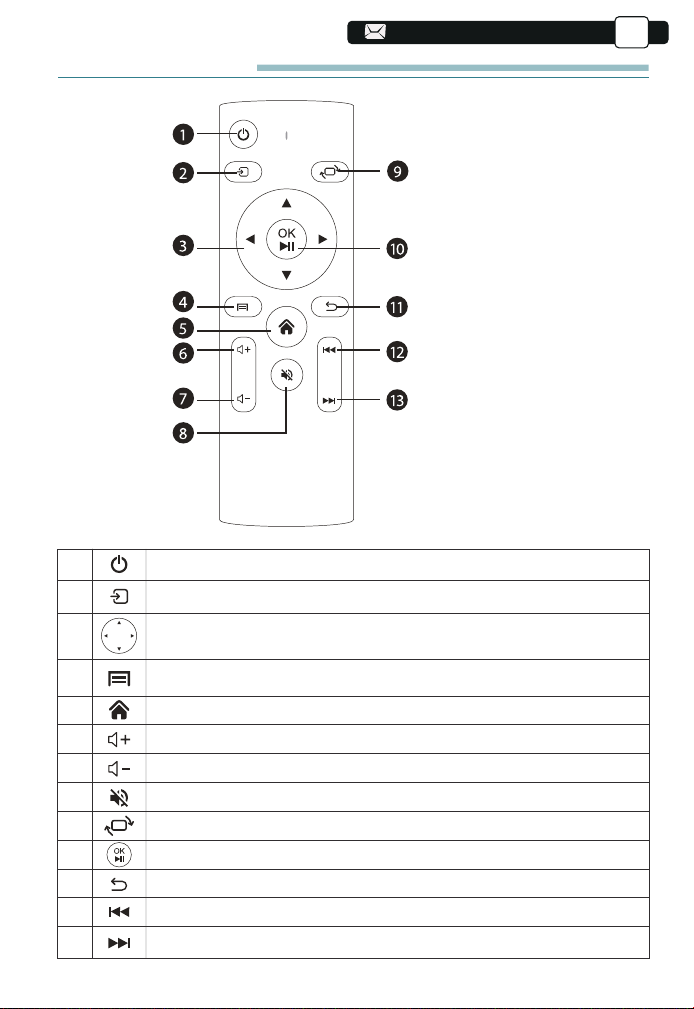
REMOTE CONTROL
INSTALLATION
1.Installation Method
2.Projection Distance and Size
3.Install on the Ceiling
STARTING PROJECTOR
IMAGE ADJUSTMENT
1.Focus Adjustment
2.Digital 4D Keystone Correction
SETTING UP THE PROJECTOR
1.Select The Input Signal Source
2.USB Disk Insert Mode
3.WiFi Setting
3.1.iOS Cast(for iOS Devices)
3.2.Miracast(for Android Devices)
4.Bluetooth Setting
5.Projector Image Setting
5.1.Projection Mode
5.2.Keystone Advanced & 4-Point Keystone
5.3.Digital Zoom
6.System Update
7.Other Setting
8.About
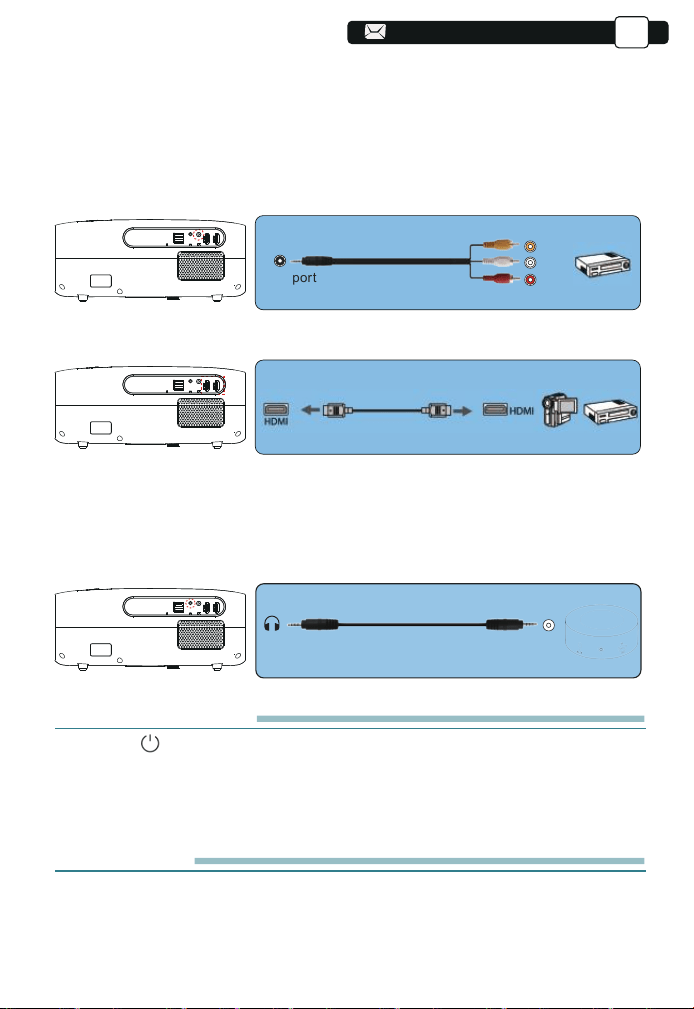
SIGNAL LINES CONNECTION
1.Connect USB Disk
2.Connect the Devices via the HDMI ports
3.Connect to the DVD Player
4.Connect to the Soundbar/Speaker
SAFE SHUTDOWN
WARRANTY
01
01
02
02
03
05
06
06
07
07
08
08
08
09
09
09
10
13
14
15
16
16
16
17
19
19
20
21
21
21
21
21
21
22
22
23
.........................................................................................
.........................................................................................................................................................
.....................................................................................................................................
..................................................................................................
................................................................................................................
..........................................................................................................................
...................................................................................................................................
........................................................................................................................
......................................................................................................
.....................................................................................................................
..............................................................................................................
.......................................................................................................................
..........................................................................................................................
.................................................................................................
...................................................................................................
.................................................................................................
..................................................................................................................
.....................................................................................................................................
.......................................................................................................
....................................................................................................
...........................................................................................................................
..............................................................................................................
........................................................................................................................
....................................................................................
.............................................................................................................................
...............................................................................................................................
.................................................................................................................................
...............................................................................................................................................
......................................................................................................
.........................................................................................................................
.................................................................................
.........................................................................................................
............................................................................................
............................................................................................................................
.........................................................................................................................................
........................................................................................................................
CONTENTS
TROUBLESHOOTING
EN
01 02
03 04 05 06
07 08 09 10
11 12 13 14
15 16 17 18
19 20 21 22
23

01
EN
YABER Lifetime Professional Support
Dear customer,
Thank you very much for supporting YABER!
Please read this manual thoroughly before using the projector. If you have
any issues, email your order number and the problem to
. We will provide a fast solution in 24 hours.
Actually, many problems can be easily solved by setting, such as no signal,
no sound, bluetooth connection failed, WiFi connection failed, dark spots,
choppy animation etc. We promise all the projectors have been 100%
carefully checked and packaged before shipping.
If you have any questions, could you please contact us so that the problem
can been solved. And give us an opportunity to improve. We guarantee we
will provide you a satisfactory solution.
Thanks for your understanding!
YABER Service Team
TIPS:
1.Do not place projector in too warm or too cold room, because the high
temperature or low temperature will shorten lifespan of the device. The
working environment would be 5℃~35℃ better.
2.If there are black spots on the projection screen, please don't worry,
please contact via email, we can send you a video
about how to remove the dust.
3.The ventilation is equipped for the projector to work stably. Don't cover the
vent with cloth, blanket or other things. Don't insert anything into the slit of
the projector, or it may produce a short circuit or an electric shock to your
device and cause damage.
4.The projector shall be strictly protected from strong impact, extrusion and
vibration. Do not try to move and on strong impact, extrusion and vibration.
Do not try to move and the internal circuit faults.
5.Lens,
as the core component of the projector, is directly related to the
picture definition and effect. The excessive dust thereon will affect image
quality. The dirty lens shall be wiped with soft cotton cloth for the glass lens
surface. Hard cloth or abrasives shall not be used.
01
01 02
03 04 05 06
07 08 09 10
11 12 13 14
15 16 17 18
19 20 21 22
23
02
02
EN
PACKAGE LIST
Buffalo Pro U7 Projector*1
HDMI Cable*1
Cleaning Kit*1
Remote Control*1
3-in-1 AV Cable
Quick Start Guide*1
Carry Bag*1
Power Cord*1
Lens Cover*1
PROJECTOR SPECIFICATIONS
Model No. Buffalo Pro U7
Native
Resolution
Display
Technology
Color Game
Recommended
Projection
Distance
Power
Voltage
Picture File
Projection
Method
Video File
Audio File
1920*1080P
LCD
16.7M Full
4.0-22.3ft
AC100-240V
JPG/JPEG/
BMP/PNG
Front/Rear on Desk, Front/ Rear on Ceiling
MP3/ AAC/ FLAC/ OGG/ WAV/ WMA
3GP/ AVI/ MP4/ MPG/ MKV/ VOB/ TS/ MOV/ TRP
Keystone
Correction
Light Source
Aspect Ratio
Minimum
Projection
Distance
Projector
Weight
Interfaces
Manual Vertical &
Horizontal
LED
4:3/16:9
4.0ft
4.8lb
HDMI*2/USB*2/3.5mm
Headphone jack/AV
01 02
03 04 05 06
07 08 09 10
11 12 13 14
15 16 17 18
19 20 21 22
23
EN
PROJECTOR OVERVIEW
03
03
03
3
12 13 1514
4 5 6 7
8 9 10
11
21
17 1816
01 02
03 04 05 06
07 08 09 10
11 12 13 14
15 16 17 18
19 20 21 22
23
04
EN
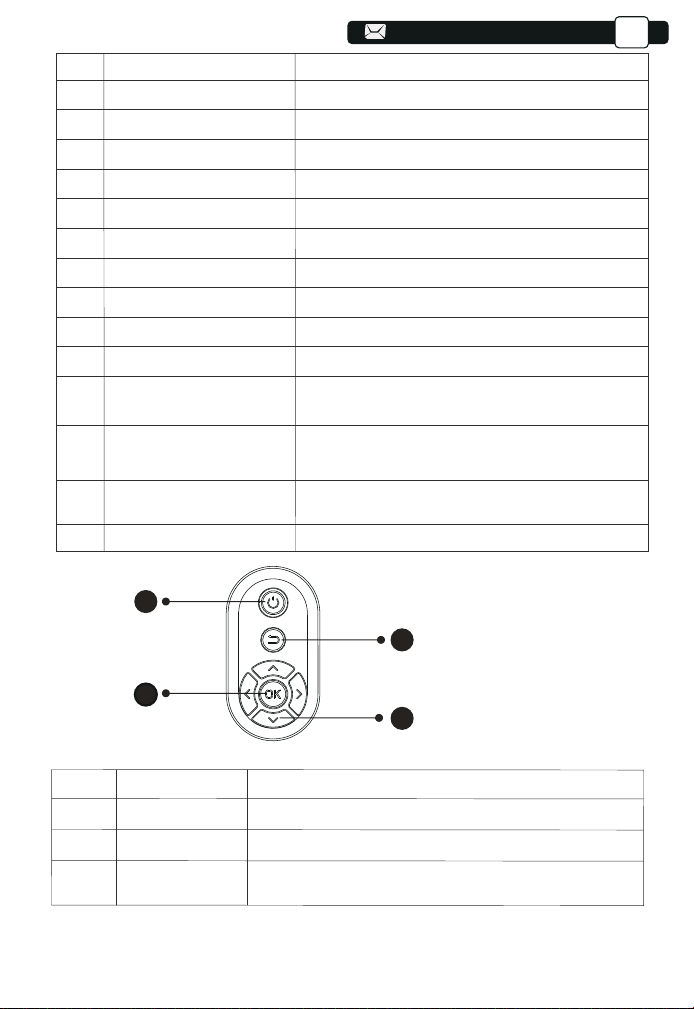
1/18
2/5
3
4
6
7/10
8
9
11
12
13
14
15
16
17
Height Adjustment Screw
IR Window
Projector lens
Power Cord Port
Headphone Jack
HDMI Ports
USB Ports
AV Port
Speaker
Air Outlet
Focus Ring
Detachable Dust
Filter Switch
Detachable Dust Filter/
Air Inlet
Dust Cleaning Port
Rubber Pads
Adjust the height of the projector
Infrared signal receiver
Optical coated glass lens
Power Cord Port
3.5mm Headphone Output
HDMI 1 input / HDMI 2 input
USB 1 port / USB 2 port
Audio input
Stereo 5W
Prevent the projector from overheating
Adjust the focus ring to get the clearest image
Push the switch to open the detachable dust filter
Prevent the projector's inside from the dust/
Circulate inside and outside air
When black spots and dust appear on the screen,
open the port to clean the dust
Protective pads/remove to install ceiling mount
04
04
1
2
3
4
Power
Back
OK
Arrow Keys
Turn on/off the power
Return to the previous menu
Confirm the option
Used to adjust the parameter of the projector in the
menu mode
1
2
4
3
1. Power Key
2. Back
3. OK Key
4. Arrow Key
01 02
03
04 05 06
07 08 09 10
11 12 13 14
15 16 17 18
19 20 21 22
23
05
05
EN
REMOTE CONTOL
1
2
3
4
5
6
7
8
9
10
11
12
13
Turn on/off the power
Select the input signal source
Used to adjust the parameter of the projector in the
menu mode
Press once: Operate picture and sound settings in AV or HDMI Mode
Press twice in succession: select 16:9/4:3 projection
Enter the home page
Volume up
Volume down
Close the sound
Picture flips
Confirm the option/Play or pause the video
Return to the previous menu
Switch to the previous video
1. Power
2. Source
3. Arrow keys
4. Menu
5. Homepape
6. Volume +
7. Volume -
8. Mute
9. Picture flip
10. Confirmation key
(Play and Pause)
11. Back
12. Previous
13. Next
05
Switch to the next video
01 02
03 04
05
06
07 08 09 10
11 12 13 14
15 16 17 18
19 20 21 22
23
06
06
06
EN
Note:
1).Install 2 pieces of AAA batteries into the remote controller before using it.
Do not combine new batteries with old ones in remote controller, which can
cause operation failure due to insufficient power supply.
2).When using the remote controller, please make sure that the signal
transmitter of the remote controller aims at infrared signal receiver of the
projector.
3).If you are not using the remote controller for an extended period, please
take out batteries to prevent batteries leakage.
INSTALLATION
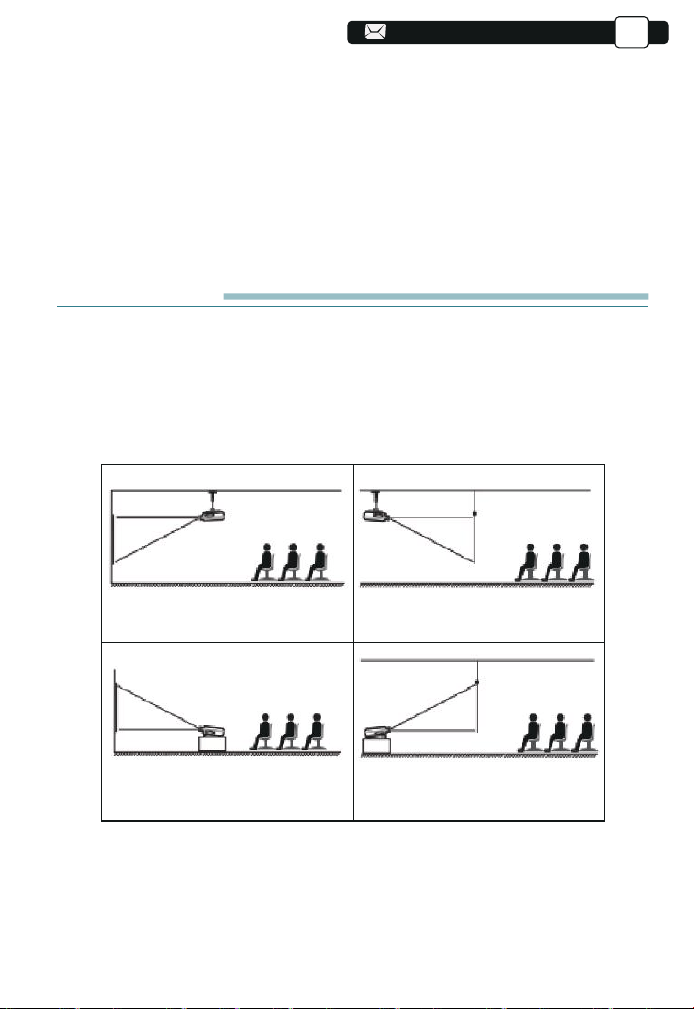
1.Installation Method
The projector can be hanged on the ceiling with special hanger frame, and
placed on the stable desk to project the image according to the operating
environment and requirements. In addition, the projector can be installed with
following methods:
1.Front projection Ceiling mount
3.Front projection Desk mount
2.Rear projection Ceiling mount
4.Rear projection Desk mount
Keep the projector at a height where its lens is axial symmetry to the screen.
If this is not possible, use the keystone correction function to adjust the
projection image.
If you want to get a free projection screen,please contact us via
01 02
03 04 05
06
07 08 09 10
11 12 13 14
15 16 17 18
19 20 21 22
23
EN
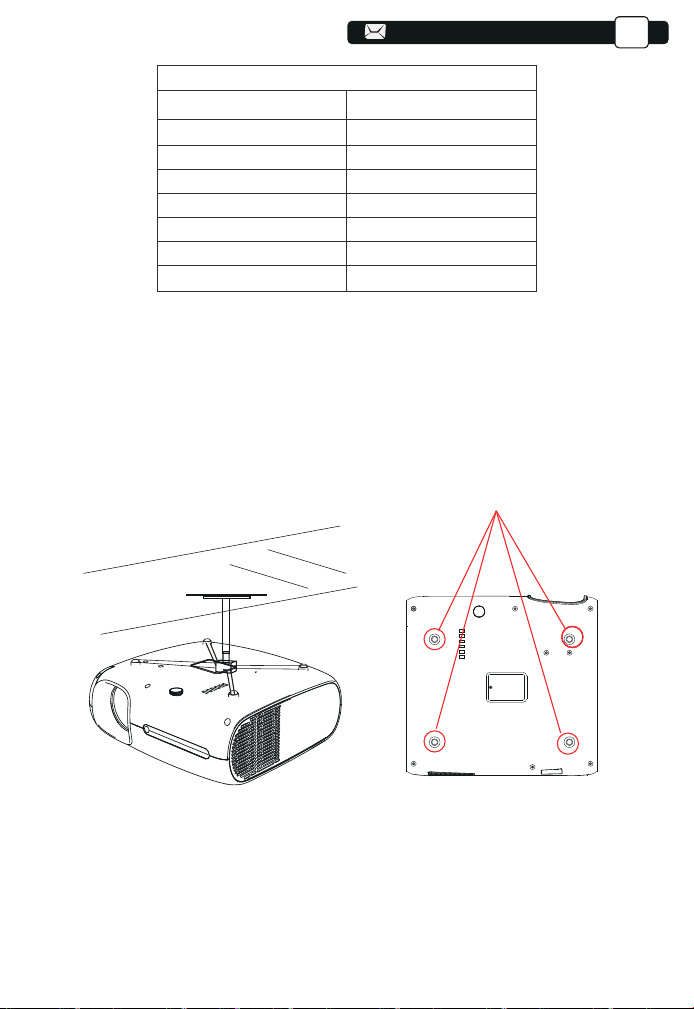
The recommended projection distance is about 10.8ft,the shortest projection
distance is 4.0ft.
The image size depends on the distance between projector and screen, there
may be 3% deviation among above listed data. Different settings cause
various distances.
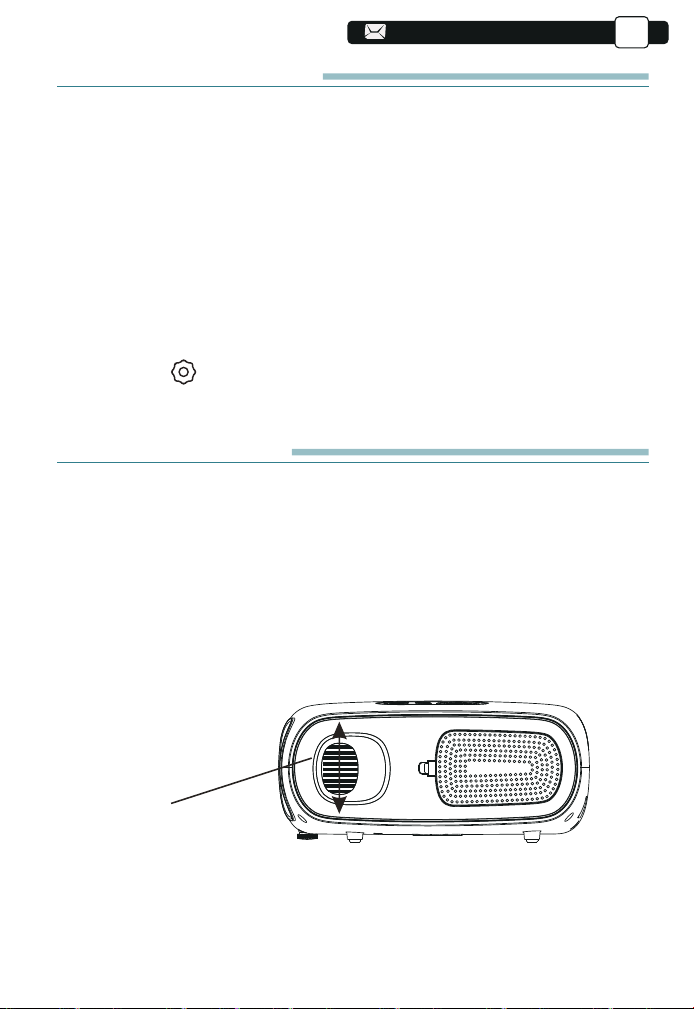
2.Install on the Ceiling
A.Please purchase an universal projector ceiling mount;
B.Remove the four rubber pads on the bottom of the projector, you will see the
screw holes and use the M5*11mm screws for installing the ceiling, and then
install it.
Screwholes
07
07
Aspect Ratio: 16:9
Distance (ft.) Screen Size
4.0
5.6
7.7
10.8
13.1
16.3
35"
50"
70"
100"
120"
150"
22.3
200"
01 02
03 04 05 06
07 08 09 10
11 12 13 14
15 16 17 18
19 20 21 22
23
08
EN
STARTING PROJECTOR
1)Press the power key on the remote controller or projector, the indicator
light will turn blue;
2)Adjust the focus ring of the projector to get the best image performance;
(If it is still blurry, please try to adjust the projection distance.)
3)Use the keystone function of the projector to get a rectangle projection
screen;
4)Connect the external device (Smart phone, iPad, Fire TV, TV box, DVD
player, Computer, etc.) in the corresponding interfaces of the projector, please
be sure to select the corresponding source. If you do not select the correct
source, the projector will not be able to detect the signal;.
5)Select the " " menu,enter the [ Other Setting],then you can select the
option [ Language Setting ] to set your preferred language.
IMAGE ADJUSTMENT
When using the projector for the first time, it normally displays an unclear
image. This is due to the lens being out of focus or the incorrect trapezoid
setting.
Please follow the below steps to correct:
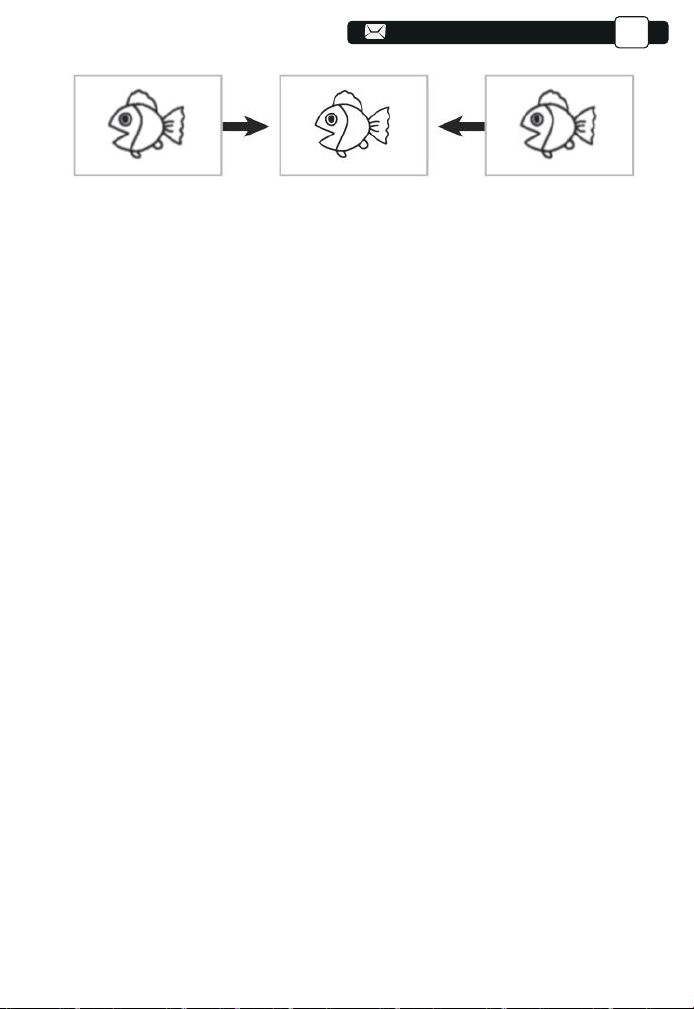
1.Focus Adjustment
08
08
Focus Ring
01 02
03 04 05 06
07
08 09 10
11 12 13 14
15 16 17 18
19 20 21 22
23
09
09
EN
Rotate the focus ring or lens slowly. At the same time, check the focus point
carefully. The best focus point for the lens would be where the image most
clear.
Note: If it is still blurry, please try to adjust the projection distance.
2.Digital 4D Keystone Correction.
Use the digital 4D keystone correction of the projector to change the image to
be rectangle(vertical and horizontal). Detail please refer the page 17 of this
manual.
09
01 02
03 04 05 06
07 08
09 10
11 12 13 14
15 16 17 18
19 20 21 22
23
10
PS:
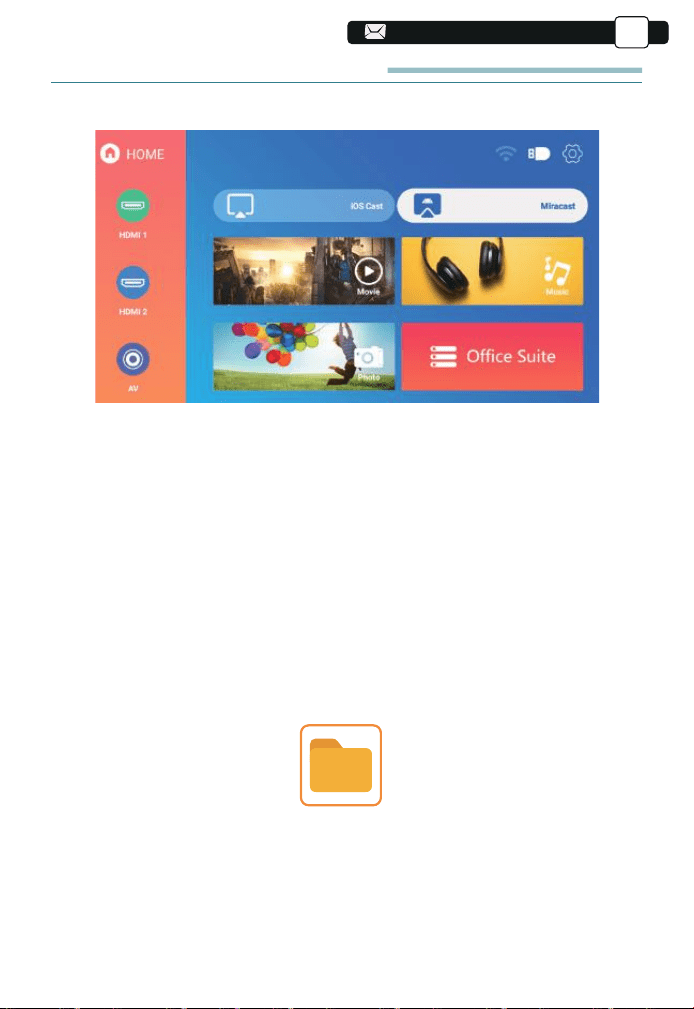
a.Buffalo Pro U7 upgraded projector supports U disk to directly play PPT,
Word, Excel files.
b.If you enter from the [Movie] menu, you can only play the video, The same
as other 3 options.
10
SETTING UP THE PROJECTOR
The projector's home page is as follow.
1.Select The Insert Signal Source
Select the desired insert signal source (HDMI1/HDMI2/AV) on the home-page
10
EN
2.USB Disk Input Mode
2.1.Play Movie/Music/Photo/Office Suite in the USB Disk Insert Mode
1).Insert the USB Disk, the [USB] icon of the homepage will turn white.
2).Select the option [ Movie/Music/Photo/Office Suite].
3).Select the desired file (or folder to enter the subfolder) in the USB disk, then
press the [ OK ] button to play it.
External Device
01 02
03 04 05 06
07 08 09
10
11 12 13 14
15 16 17 18
19 20 21 22
23
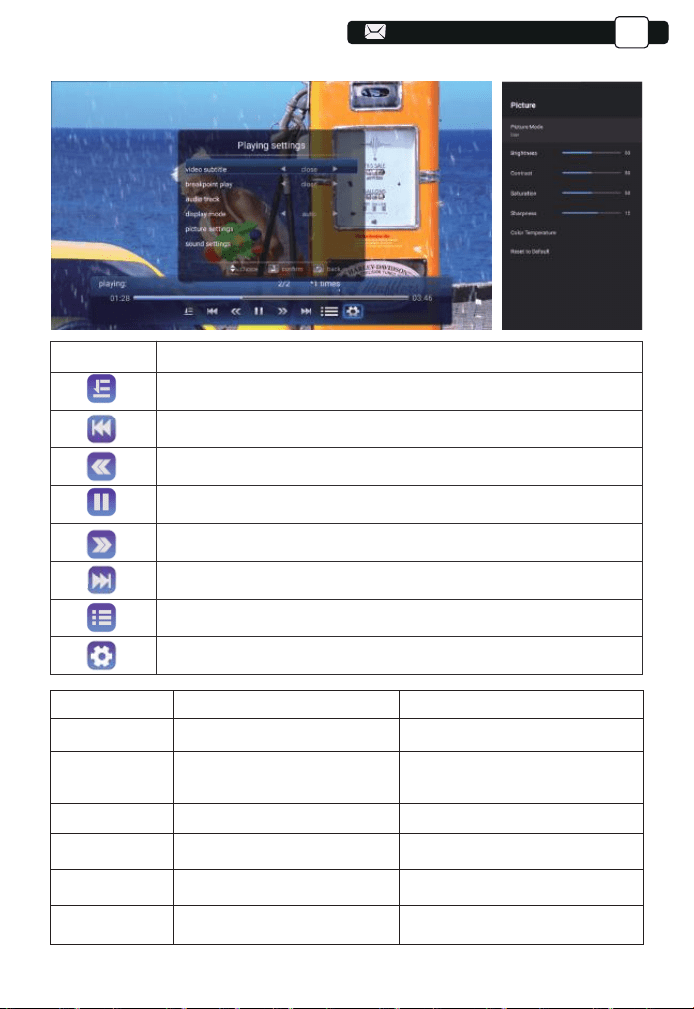
2.2.Play Interface
Menu
Function
Select play mode (directory play/single cycle/directory loop)
Switch to the previous video
Fast Backward,rewinds the video back quickly while playing it.
The rewinding speed ranges from 2X to 32X
Play or pause the current video
Fast Forward, pushes the video to move forward quickly while
playing it. The forward speed ranges from 2X to 32X
Switch to the next video
Select all playlists in the current folder
Playing settings
10
EN
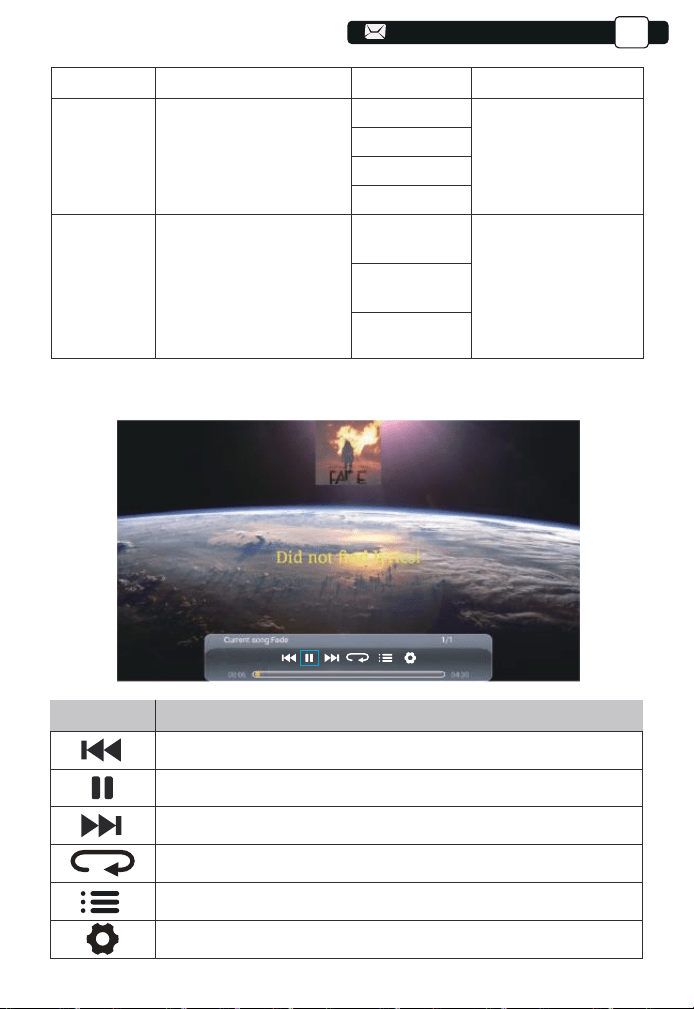
Playing settings
Video subtitle
Breakpoint play
Audio track
Display mode
Picture settings
Sound settings
Include
close,inner,external
close,open
Audio track
16:9,full,over,auto,4:3
Picture Mode, Color
Temperature, Reset to Default
Sound Style, Equalizer Detail,
Reset to Default
Function
Set multiple modes of video subtitles
You can set the video continue to
play from the point where it was
stopped
You can see the audio information
You can set the video aspect ratio
You can set the picture information
You can set the sound information
01 02
03 04 05 06
07 08 09 10
11 12 13 14
15 16 17 18
19 20 21 22
23
EN
11
Menu Content Mode Function
Picture Mode
User/Standard/Vivid/
Sport/Movie/Game/
Energy Saving
Sound Style
User/Standard/Vivid/
Sports/Movie/Music/News
Brightness
Contrast
Saturation
Sharpness
Balance
Bass
Treble
Modify the picture
parameters in the
range 0-100
Modify the sound
parameters in the
range 0-100
12
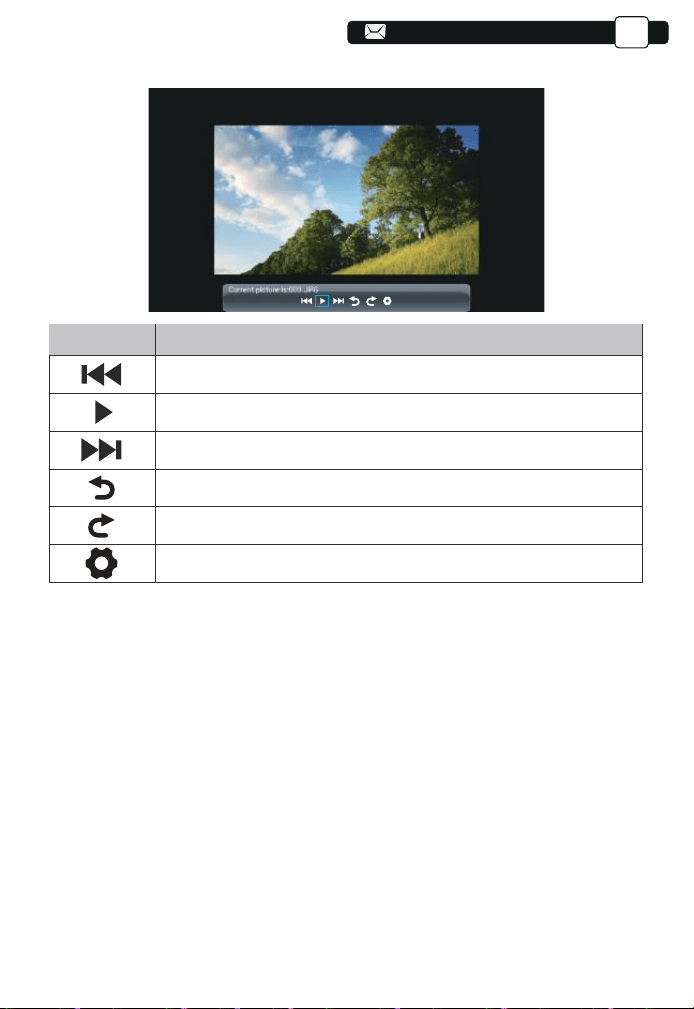
2.3.Music Play Interface
Menu
Function
Switch to the previous music.
Play or pause the current music.
Switch to the next music.
Repeat the music.
Select the music list.
Set the sound information.
01 02
03 04 05 06
07 08 09 10
11
12 13 14
15 16 17 18
19 20 21 22
23
12
EN
3.WiFi Setting
Wireless Connection
Warming Tips:
①The fluency of screen mirroring with wireless connection will be affected by
the network environment. A bandwidth of 100Mbit or more is recommended
when using screen mirroring.
②Make sure your mobile device is close to the projector when using wireless
connection. A distance within 1 meter is recommended.
③Some mobile devices may not support screen mirroring due to the compati-
bility.
④Any questions, please feel free to email YABER via
12
13
2.4.Picture Play Interface
Switch to the previous picture.
Pause the auto - play mode of a picture.
Switch to the next picture.
Menu
Function
Flip picture 90°to the left.
Flip picture 90°to the right.
Set the picture information.
01 02
03 04 05 06
07 08 09 10
11 12
13 14
15 16 17 18
19 20 21 22
23
13
13
EN
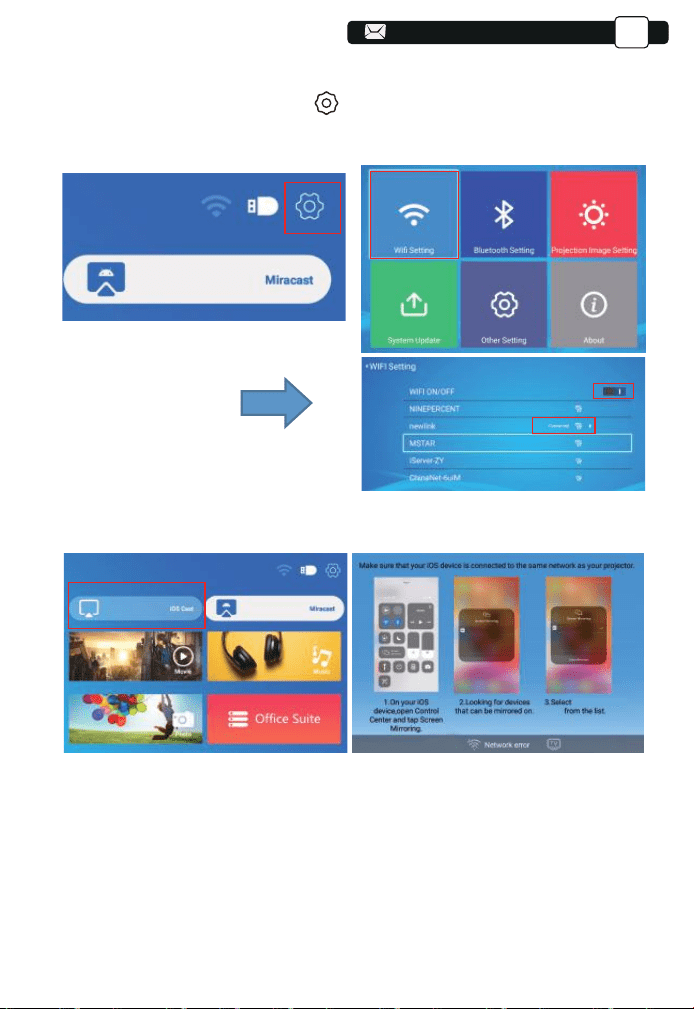
3.1.iOS Cast (for iOS Devices)
1.Go to home page -- Select the [ ] menu -- Select the [ WiFi Setting ] menu
-- Open the WiFi function -- Select your home WiFi from the list -- Connect the
Buffalo Pro U7 projector to your home WiFi.
2.Back to home page -- Select [ iOS Cast ] menu -- Press the OK button to
enter the [ iOS Cast ] menu.
3.Select the [ Settings ] menu on your iOS device -- Turn on the [ Wi-Fi ]
function -- Connect your iOS device to the same home network as the
projector.
4.Open the [ Control Center ] on your iOS device -- Select the [ Screen
Mirroring ] function -- Select and connect the iOS Cast receiver named
[ U7-iOSCast-xxxx ] -- your iOS device screen will be displayed on the
projection screen after 3 seconds.
U7-iOSCast-xxxx
U7-iOSCast-xxxx
U7-iOSCast-xxxx
14
U7-iOSCast-xxxx
01 02
03 04 05 06
07 08 09 10
11 12 13
14
15 16 17 18
19 20 21 22
23
EN
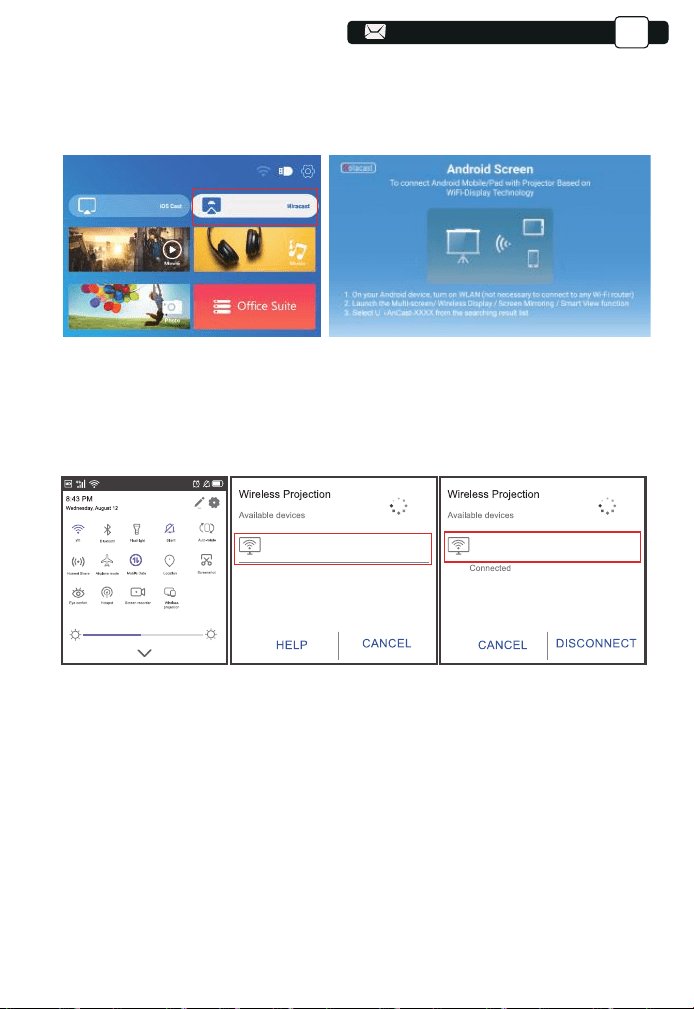
3.2.Miracast (for Android Devices)
1.Go to home page -- Select the [ Miracast ] menu -- Press the OK button to
enter the [ Miracast ] interface.
3.On your Android device, tap [ Settings ] -[ WLAN Display ] -Turn [ Wi-Fi ]
ON, Connect your home WiFi.
Note:
1.Different brands of Android phones have different operations for select
Screen Mirroring Display, please refer to your phone’s manual. [
Multiscreen/Wireless display/WLAN display/Screen mirroring/Wireless
projection/Smart view etc. ]
2.Not all Android phones support this function. Please make sure it is support-
ed before use.
2.Select the [ Settings ] menu on your Android device -- Select the [ Screen
mirroring ] function -- Select your Miracast receiver named [ U7-AnCast-XX ]
-- your Android device screen will be displayed on the projection screen after
3 seconds.
U7-AnCast-6688
U7-AnCast-6688
14
14
14
7
01 02
03 04 05 06
07 08 09 10
11 12 13 14
15 16 17 18
19 20 21 22
23
15
EN
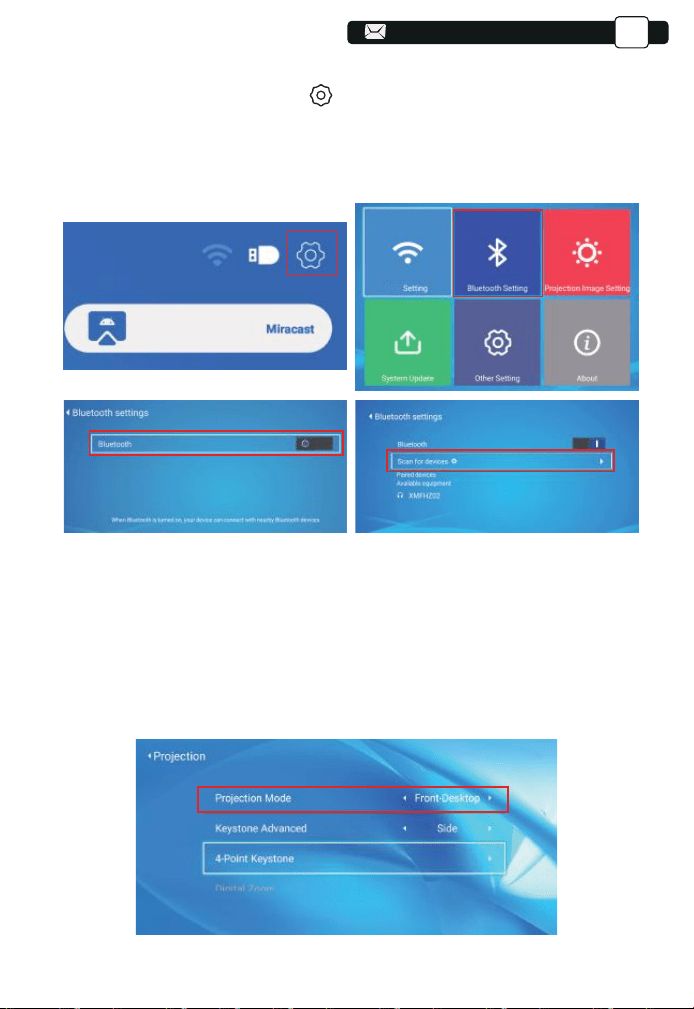
4.Bluetooth Setting
Go to home page -- Select the [ ] menu -- Select the [ Bluetooth Setting ]
Option -- Open the Bluetooth function and your Bluetooth device -- Scan the
Bluetooth devices nearby automatically -- Choose the Bluetooth device
desired -- it will be paired and connected automatically.
Note:
1.The Buffalo Pro U7 projector is compatible with the Bluetooth headsets,
Bluetooth speakers and Airpods, but not the Bluetooth keyboards or
Bluetooth phones.2.If you have any question, please feel free to email
YABER via: [email protected]
5.Projector Image Setting
5.1.Projection Mode
15
15
WIFI
01 02
03 04 05 06
07 08 09 10
11 12 13 14
15
16 17 18
19 20 21 22
23
16
16
EN
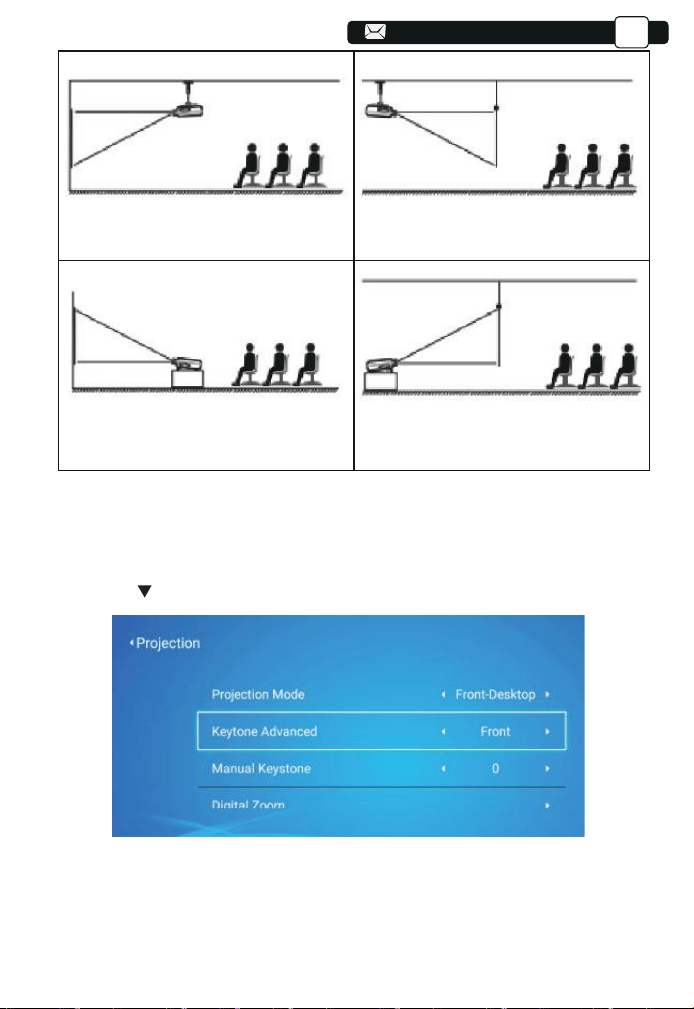
1.Front projection Ceiling mount
3.Front projection Desk mount
2.Rear projection Ceiling mount
4.Rear projection Desk mount
5.2.Keystone Advanced & 4-Point Keystone
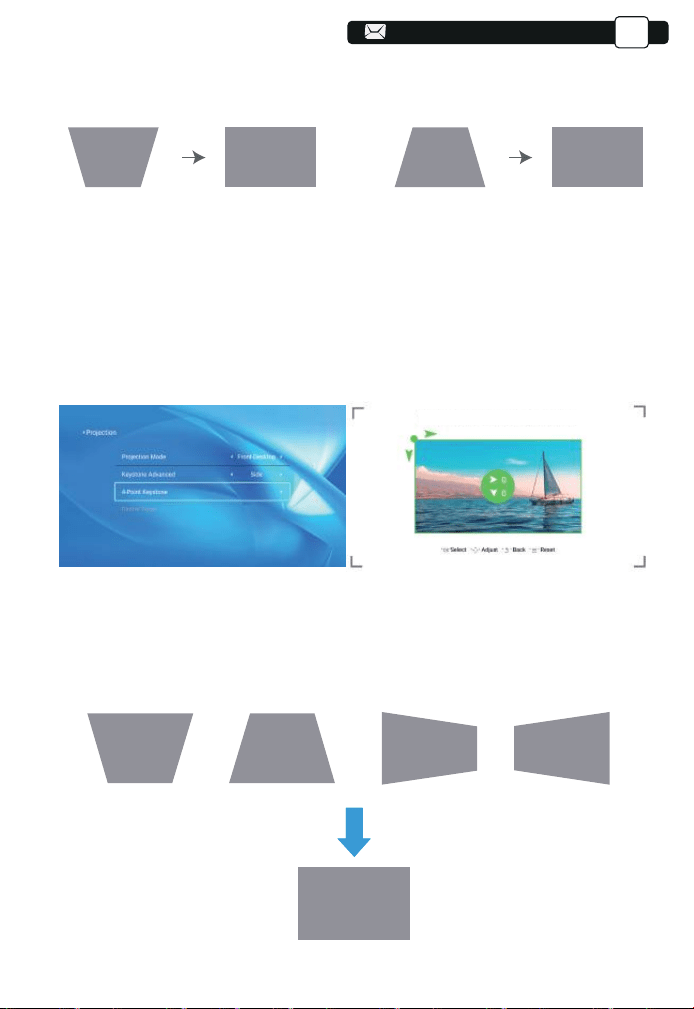
5.2.1.Vertical Keystone Correction
Step 1: Select the [ Front ] option in the [ Keystone Advanced ] menu, then
press the button to enter the [ Manual Keystone ] menu.
Step 2: If the projection image shows as (1), press the button on the remote
controller or projector to increase the vertical parameter (-50~0), until to
achieve the projection image (2).
16
01 02
03 04 05 06
07 08 09 10
11 12 13 14
15 16
17 18
19 20 21 22
23
17
17
17
EN
Step 3: If the projection image shows as (3), then press the button on the
remote controller or projector, and decrease the vertical parameter
(0~50), until to achieve the projection image (4).
(3) (4)(1) (2)
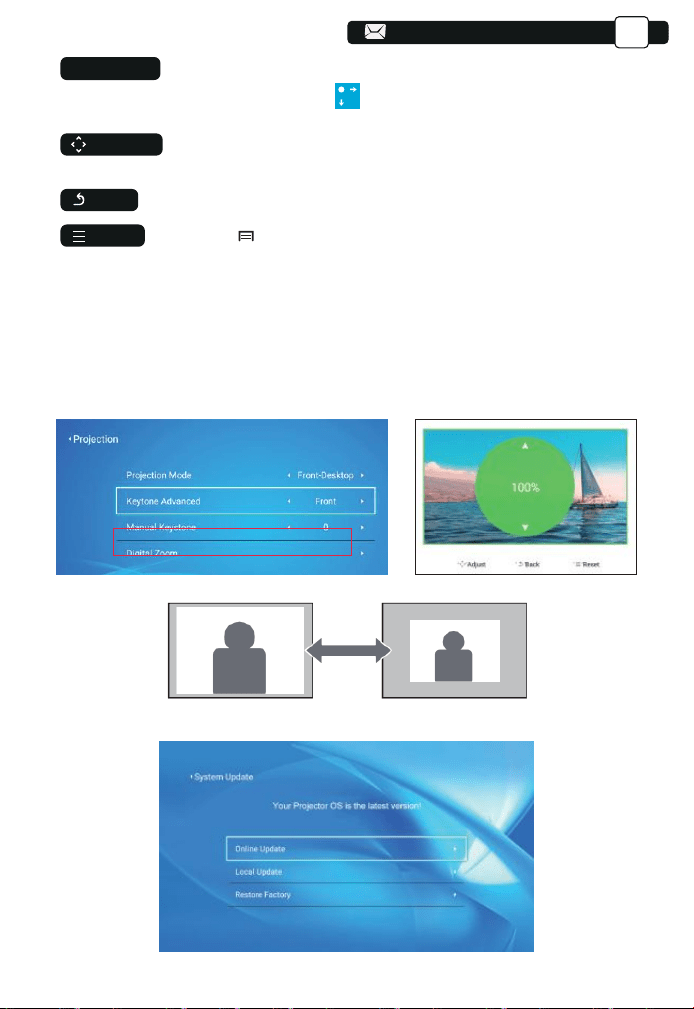
5.2.2.Horizontal & Vertical Keystone Correction
When the projection screen is not rectangular, it can be adjusted by 4-point
keystone correction.
Step 1: Select the [ Side ] option in the [ Keystone Advanced ] menu.
Step 2: Press the button to select the [ 4-Point Keystone ] menu, then press
the [ OK ] bottom to enter the submenu.
Step 3: Keep pressing the OK button on the remote controller or projector to
select the point .
Step 4: Press the arrow keys on the remote controller or projector to adjust
the horizontal or vertical parameters, until the projection screen becomes
the desired rectangle.
You will get the best viewing experience when the green area is a perfect circle.
01 02
03 04 05 06
07 08 09 10
11 12 13 14
15 16 17
18
19 20 21 22
23
EN
:Keep pressing the OK button on the remote controller or
projector, until the positioning icon appears at the point desired, then
release the button immediately.
:Press the arrow keys on the remote controller or projector to
adjust the horizontal or vertical parameters.
: Press the key on the remote controller to back to previous page.
:Press the key on the remote controller to restore the
original parameters.
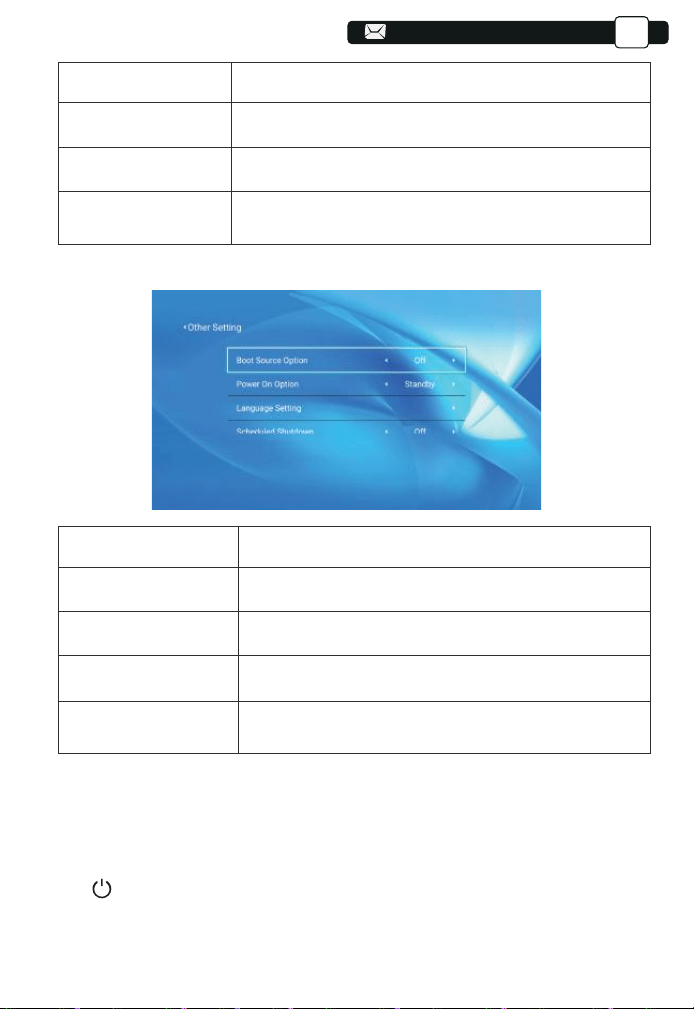
5.3.Digital Zoom
Step 1: Select the [ Digital Zoom ] option and press the OK button on the
remote controller or projector to enter the submenu.
Step 2: By pressing the button on the remote controller or projector, you
can reduce the height and width of projection size up to 50%.
6.System Update
OK
Pick point
Adjustment
Back
Reset
135
01 02
03 04 05 06
07 08 09 10
11 12 13 14
15 16 17 18
19 20 21 22
23
EN
Menu
Function
Online Update
Local Update
Restore Factory
Online update
Local update
Restore user operation application configuration
and system setting
7.Other Setting
Menu
Function
Power On Option
Language Setting
Scheduled
Shutdown
Direct/Standby
Boot Source Option
Off/HDMI1/HDMI2/AV
Set up the language
Off/10min/20min/30min/60min/120min
About the Direct/Standby Power On Option
Direct Mode: When the projector is powered on, the projector will be
automatically turned on.
Standby Mode: When the projector is powered on, you need to press
the button on the remote controller or projector to turn on the projector.
136
01 02
03 04 05 06
07 08 09 10
11 12 13 14
15 16 17 18
19
20 21 22
23
20
EN
8.About
Menu
Content
System Version
MAC Address
V1.0.0.2:2022-XX-XX
Ac:5d:5c:c5:d9:83
SIGNAL LINES CONNECTION
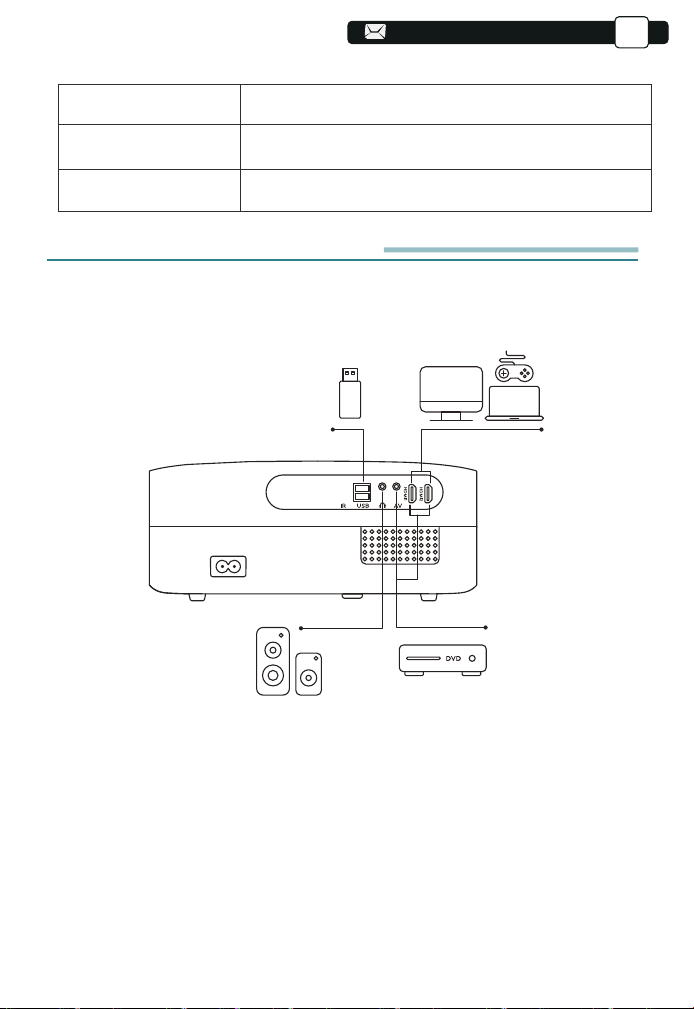
Buffalo Pro U7 projector has 6 interfaces, HDMI ports*2/ USB ports*2/
3.5mm headphone output/ AV in. Please select the correct connecting port
to connect your device (PC, Phone, DVD Player, Sound bar, USB, PS4 etc.)
1.Connect USB Disk
1) Insert the U disk into either of the two usb input ports;
2) You can directly enter the start-up screen on the home page, select the
option [ Movie/Music/Photo/Office Suite]
3) Select the desired file (or enter the subfolder) in the USB disk, then
press the [ OK ] button to play it.
2.Connect the Devices via the HDMI ports
1) Connect your TV stick or laptop to any HDMI port of the projector;
2) Enter the home page to select the corresponding HDMI1 or HDMI2 as the
signal source.
01 02
03 04 05 06
07 08 09 10
11 12 13 14
15 16 17 18
19 20
21 22
23
EN
3.Connect to the DVD Player
Use the 3-in -1 AV cable in the package
1) Turn on your DVD player and the projector;
2) Connect the colorful female connectors to your DVD player's RCA cable
with the 3-in-1 AV cable in the package;
3) Connect the black connector to the AV port of the projector, enter the
home page to select [ AV ] as the signal source.
SAFE SHUTDOWN
1.Press the button on the projector or remote controller,then press OK key
to power off the projector.
2.Unplug the power cord of the projector.
3.Cover the lens and store the projector in a cool and dry place.
WARRANTY
Thank you so much for your purchase and support! We provide 3-year
warranty for Buffalo Pro U7 projector. If you have any questions, please feel
01
Video
Left
AV port
Right
Or connect to the DVD Player with the HDMI cable in the package.
4.Connect to the Sound bar/Speaker
If your speaker has AUX port, please use your 3.5mm audio cable connect
the projector and your speaker as the picture shows, enter the home page to
select [ AV ] as the signal source.
-Audio out
AUX port
01 02
03 04 05 06
07 08 09 10
11 12 13 14
15 16 17 18
19 20 21
22
23

EN
TROUBLESHOOTING
Problems listed below might occur during the operation of your projector.
Please refer to the possible factors which might cause the issue to do
troubleshooting.
1. When turning on the power switch, the indicator light does not work.
1) The power might not be connected well.
2) Check the over-heat protection system.
2. The remote controller does not communicate with the projector.
1) The power switch at the back of the projector is turned on or off?
2) The remote controller's batteries are depleted?
3) Something obstructing the signal between the remote and IR
4) Strong light on IR directly.
3. No image on the screen.
1) Is the channel set-up correct?
2) Is there an input signal ?
3) Is the input cable plugged well ?
4) Under PC mode, is the refresh rate > 75KHz ?
4. Blue screen,no picture,no sound.
Input cables connected right?
5.Picture right, no sound.
1)Input cables connected right?
2)Volume at min or on Mute.
6.Can't play the movies.
1)The format of the video is right?
2)Files are broken?
3)Device is broken?
7. There is picture, no sound?
The decode system doesn't match.
8. Can't find devices when connected with hard drive or flash drive.
Check if the device is broken.
9. Auto-off after working for a while.
1) The projector ventilation is blocked.
2) The over-heat protection system.
FCC ID:2A4K9-PROU6
150
01 02
03 04 05 06
07 08 09 10
11 12 13 14
15 16 17 18
19 20 21 22
23

1) This device may not cause harmful interference, and
2) This device must accept any interference received, including interference
that may cause undesired operation.
Warning: Changes or modifications not expressly approved by the party
responsible for compliance could void the user's authority to operate the
equipment.
NOTE: This equipment has been tested and found to comply with the limits
for a Class B digital device, pursuant to Part 15 of the FCC Rules. These
limits are designed to provide reasonable protection against harmful interfer-
ence in a residential installation. This equipment generates uses and can
radiate radio frequency energy and, if not installed and used in accordance
with the instructions, may cause harmful interference to radio communica-
tions. However, there is no guarantee that interference will not occur in a
particular installation. If this equipment does cause harmful interference to
radio or television reception, which can be determined by turning the
equipment off and on, the user is encouraged to try to correct the interfer-
ence by one or more of the following measures:
Reorient or relocate the receiving antenna.
Increase the separation between the equipment and receiver.
Connect the equipment into an outlet on a circuit different from that to which
the receiver is connected.
Consult the dealer or an experienced radio/TV technician for help.
FCC STATEMENT :
This device complies with Part 15 of the FCC Rules. Operation
is subject to the following two conditions:
This equipment complies with FCC radiation exposure limits set forth for an
uncontrolled environment. This equipment should be installed and operated
with minimum distance 20cm between the radiator & your body.
FCC Radiation Exposure Statement:
WARRANTY AND SERVICE
We guarantee the unit TO BE free from defects in material or
workmanship for a period of one (1) year from the date of
purchase.
01 02
03 04 05 06
07 08 09 10
11 12 13 14
15 16 17 18
19 20 21 22
23

23
Should this unit be operated under conditions other than those recommend-
ed or at voltages other than the voltage indicated on the unit, or any attempts
made to service or modify the unit, this will render WARRANTY VOID. The
product you buy may sometimes differ slightly from illustration.
This marking indicates that this product should not be disposed with other
household wastes throughout the EU. To prevent possible harm to the
environment or human health from uncontrolled waste disposal, recycle it
responsibly to promote the sustainable reuse of material resources. To
return your used device, please use the return and collection systems or
contact the retailer where the product was purchased. They can take this
product for environmental safe recycling.
DISPOSAL:
01 02
03 04 05 06
07 08 09 10
11 12 13 14
15 16 17 18
19 20 21 22
23

43
24
Declaration of Conformity
We (Manufacturer is responsible for this declaration)
YABER TECHNOLOGIES CO.,LIMITED.
(Company name)
Room 406,4 Floor,B Building,BanTian International Center,HuanCheng
South Road,BanTian Street, LongGang District,Shenzhen, China
(Company address)
declare under our sole responsibility that the product
Trade name: Yaber
Equipment: Entertainment Projector
Model No. : Buffalo Pro U7
to which this declaration relates is in conformity with the essential
requirement set out in the Council Directive on the Approximation of the
laws of the Member States relating to LVD Directive(2014/35/EU) &
EMC Directive(2014/30/EU) & RoHS(2011/65/EU) product is responsi-
ble to affix CE marking, the following standards were applied:
EN 62368-1:2014+A11:2017
EN IEC 62311:2020
ETSI EN 301 489-1 V2.2.3(2019-11)
ETSI EN 301 489-17 V3.2.4(2020-09)
ETSI EN 301 489-3 V2.1.1(2019-03)
EN 55032:2015+A11:2020
EN 55035:2017 +A11:2020
EN IEC 61000-3-2:2019
EN 61000-3-3:2013+A1:2019
ETSI EN 300 328 V2.2.2(2019-07)
ETSI EN 301 893 V2.1.1(2017-05)
ETSI EN 300 440 V2.2.1(2018-07)
IEC62321-3-1:2013
IEC62321-4:2013
IEC62321-5:2013
IEC62321-6:2015
IEC62321-7-1:2015
IEC62321-7-2:2017
IEC62321-8:2017
Full Name: George.wang Position: Approbation Manager
Signature: George.wang Place/Date: Shenzhen,China/Mar.04-2022
01 02
03 04 05 06
07 08 09 10
11 12 13 14
15 16 17 18
19 20 21 22
23

www.yabertech.com
aftersales@yabertech.com
@Yaber Entertainment Projector
@Yaber Entertainment Projector