User Manual
BR18
2-IN-1 WIRELESS
AUDIO ADAPTER

03
7
8
1
6
4
5
2
3
7
8
1
6
4
5
2
3
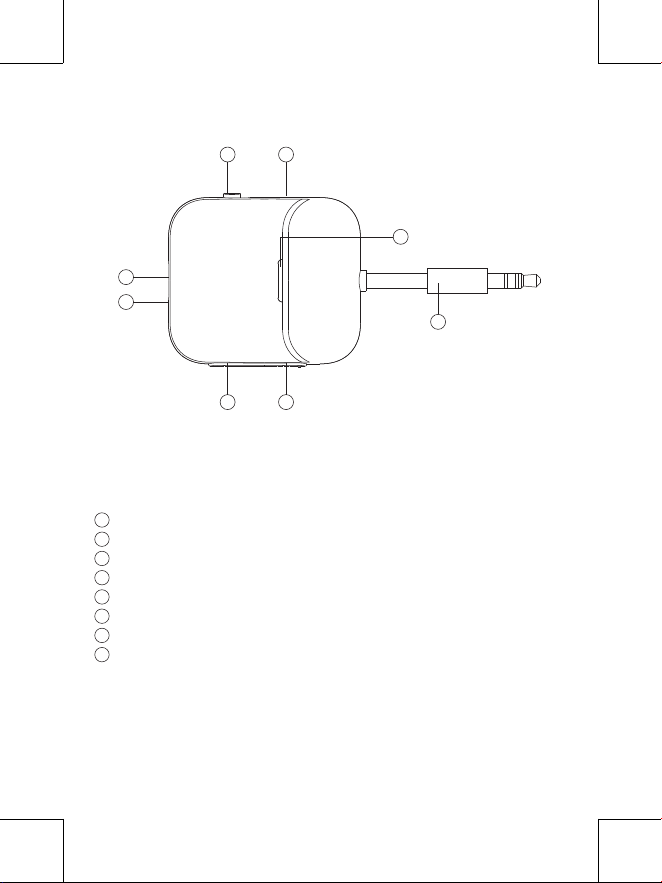
RX/TX Mode Switching Button
MFB Button
Work Status Indicator
USB-C Power Port
Charging Indicator
Next Song / Volume Down Button
Previous Song / Volume Up Button
Audio Cable
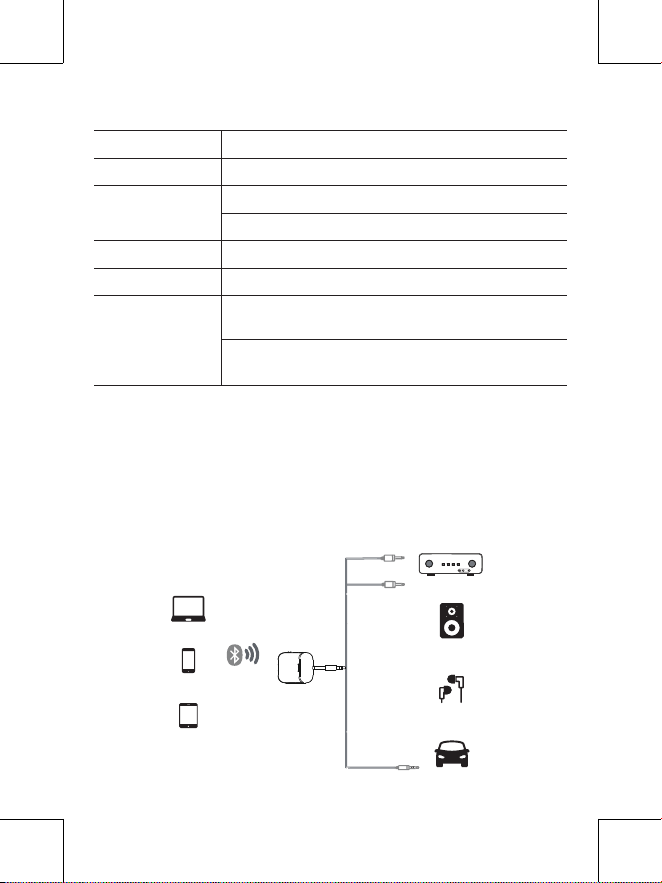
Transmitter Mode (TX): Connect
to an audio source, such as a TV or
computer.
Receiver Mode (RX): Connect
to playback devices, such as
headphones or speakers.
04
Specications
Operation Instruction
Bluetooth Version
Battery Capacity
Working Time
Charging Time
Charging Power
Bluetooth Codec
Support
5.3
250mAh lithium-ion polymer battery
RX Mode: Up to 20 hours
TX Mode: Up to 15 hours
Approximately 2 hours
DC 5V
TX Mode: Supports aptX, aptX LL, aptX HD, aptX
Adaptive, and SBC codecs
RX Mode: Supports aptX, aptX HD, aptX Adaptive, AAC,
and SBC codecs
1. Bluetooth Receiver (RX) Mode:
This device can receive audio from devices like smartphones, laptops, and tablets
and transmit it to speakers or car audio systems without Bluetooth capabilities.
Laptop
Amplier
Speaker
Headset
Car
Phone
Tablet
05
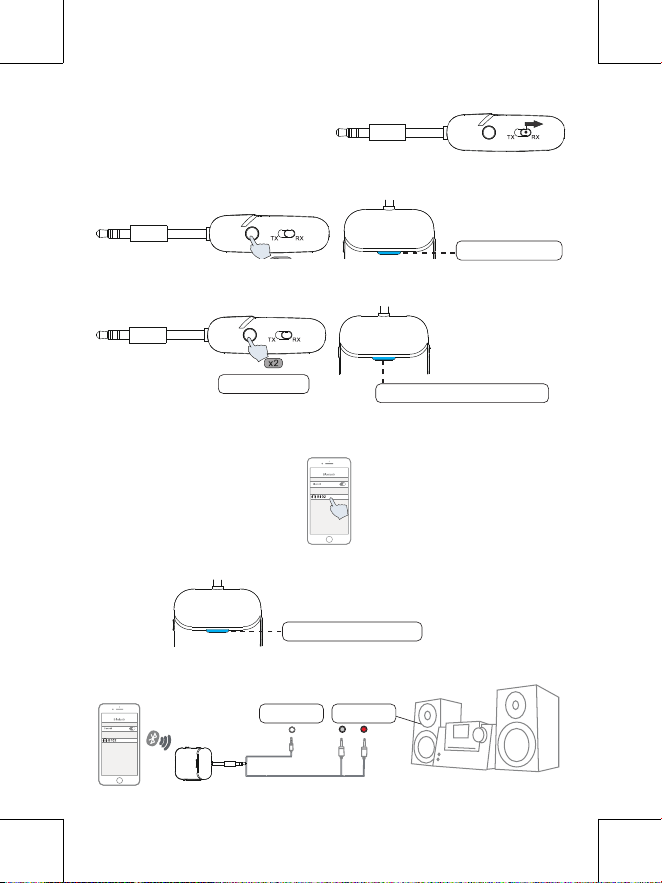
Activate Device: Press and hold the MFB button for 2 seconds to turn on the
device; the blue light will illuminate.
Pairing Mode: Double-click the MFB button; the blue light will ash rapidly,
indicating pairing mode.
Connect Device: Activate Bluetooth on your phone, locate "B102" in the available
devices list, and connect to it.
Successful Connection: A constant blue light indicates a successful connection.
Audio Output Connection: Insert the 3.5mm audio cable from the product into
the AUX-IN port of your audio device.
To Connect in RX Mode:
Turn On: Slide the switch to the RX end.
Blue light is on
Blue lights rapidly ashing
Blue light constant on
Speaker AUX
Input
Speaker RCA
Input
Double-click
06
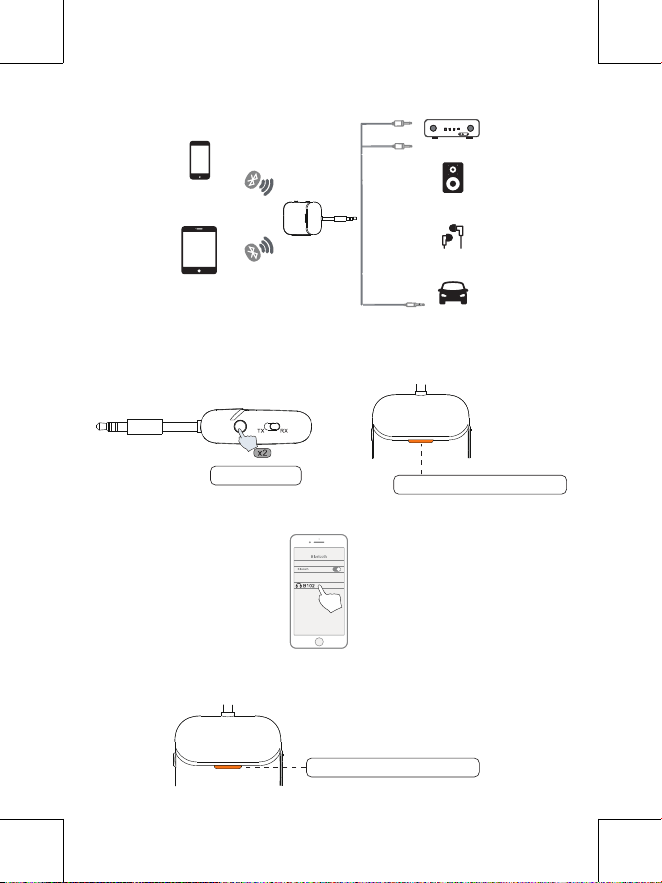
Connecting to Two Mobile Phones in RX Mode:
Connect to First Phone: Follow the above steps to connect to Mobile Phone A.
Pair Second Phone: Once the rst phone is connected, double-click the MFB
button to enter pairing mode again (orange light will ash rapidly).
Connect Second Phone: Turn on Bluetooth on Mobile Phone B, search for "B102",
and connect.
Successful Connection: A constant orange light indicates a successful
connection with the second device.
Phone
Amplier
Speaker
Headset
Car
Tablet
Orange light ashing rapidly
Orange light constant on
Double-click
07
Receiving Mode Precautions:
Noise Issues:
Step 1: Ensure all audio cable connections are secure.
Step 2: Avoid intertwining the audio cable with other cables.
Step 3: Disconnect the charging cable if noise occurs during charging, as this may
cause interference.
Unable to Find 'B102':
Step 1: Clear unused Bluetooth names from your device settings.
Step 2: Reset B102 by holding the switch for 8 seconds in the powered-off state (a
white light indicates successful reset).
Lack of Required Ports:
This device supports audio devices with RCA and AUX 3.5mm input ports only.
For devices with optical or coaxial ports, additional converters are required.
Guidelines for Connecting Two Phones:
When using two phones, pause playback on one device before starting on the
other to prevent audio issues like stuttering or loss of sound.
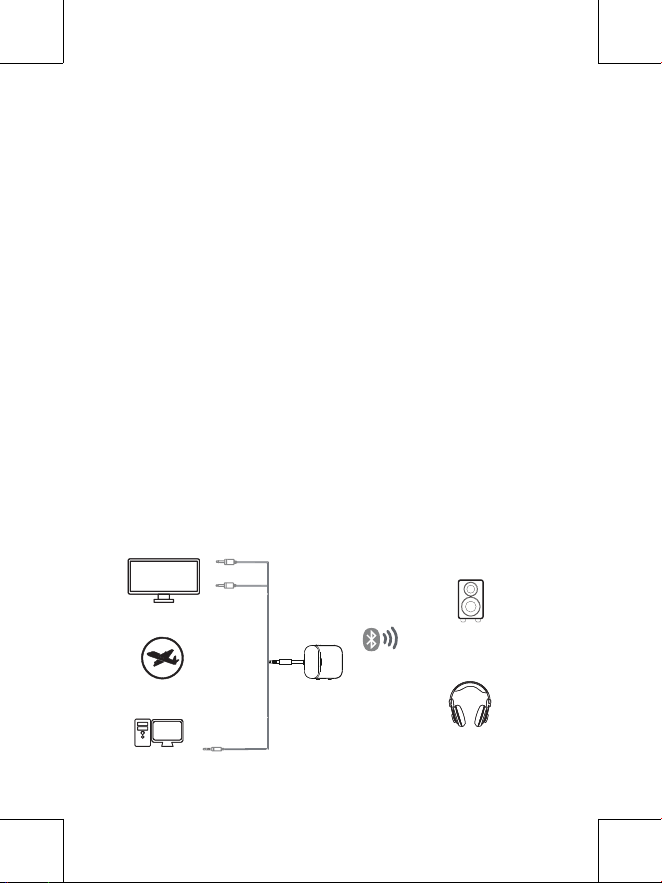
2. Bluetooth Transmitter (TX) Mode:
The Bluetooth transmitter mode allows you to send audio from non-Bluetooth
devices like TVs, PCs, MP3 players, or airplane audio systems to Bluetooth
headphones or speakers.
TV
Airplane
Computer
BT Speaker
BT Headphone
08
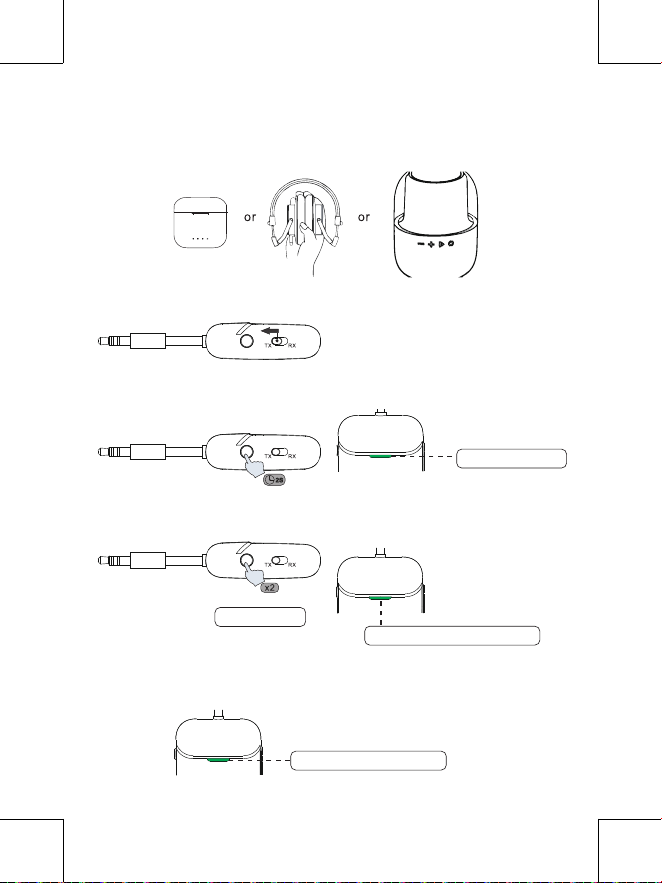
Turn on the Bluetooth Headset/Speaker: Ensure it is in pairing mode. To
minimize signal interference, turn off the TV and keep away from routers and
other devices during the pairing process.
Activate Transmitter Mode: Slide the switch to the TX end.
Power On: Press and hold the MFB button for 2 seconds; the green light will
illuminate.
Enter Pairing Mode: Double-click the MFB button; the green light will ash
rapidly, indicating the device is in pairing mode.
Automatic Search: Place the transmitter near the Bluetooth device. A steady
green light indicates a successful connection.
Pairing with One Bluetooth Headset or Speaker:
Green light is on
Green lights rapidly ashing
Green light constant on
Double-click
09
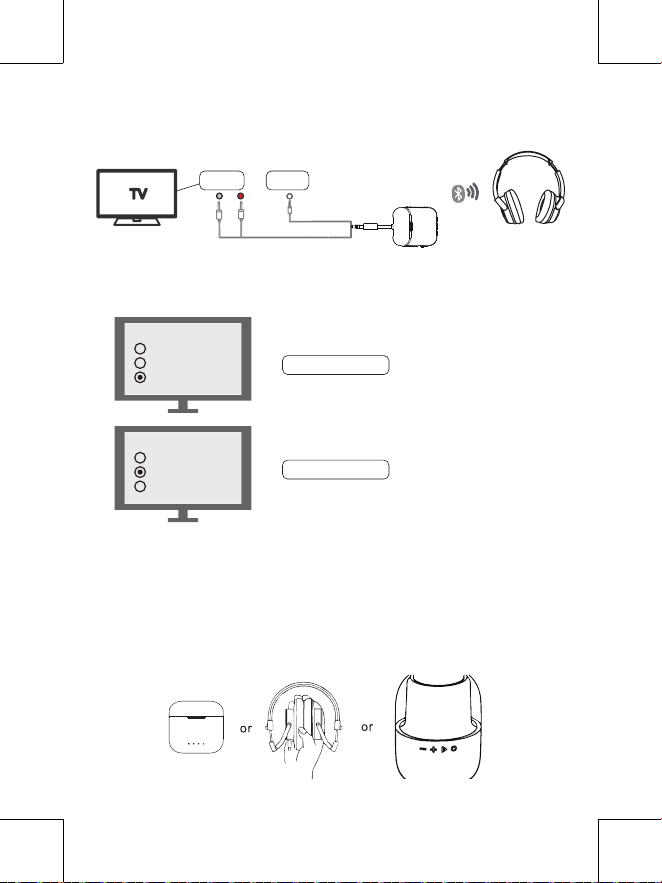
Connect Audio Cable: Insert the 3.5mm audio cable from the transmitter into the
TV's audio output jack. If there is no 3.5mm jack, use the included RCA cable for
the TV’s RCA audio output.
Adjust TV Audio Settings: If there is no sound or if it still comes from the TV:
For a 3.5mm connection, set the TV audio to "headset."
For RCA connections, change the audio settings to "external speakers."
Pairing with Two Bluetooth Devices Simultaneously:
First Device Connection: Follow the steps above to connect to Bluetooth Device A.
TV AUX Output
TV RCA Output
TV RCA
Output
TV AUX
Output
Speakers
Speakers
Internal speakers
External speakers
Headset
Internal speakers
External speakers
Headset
10
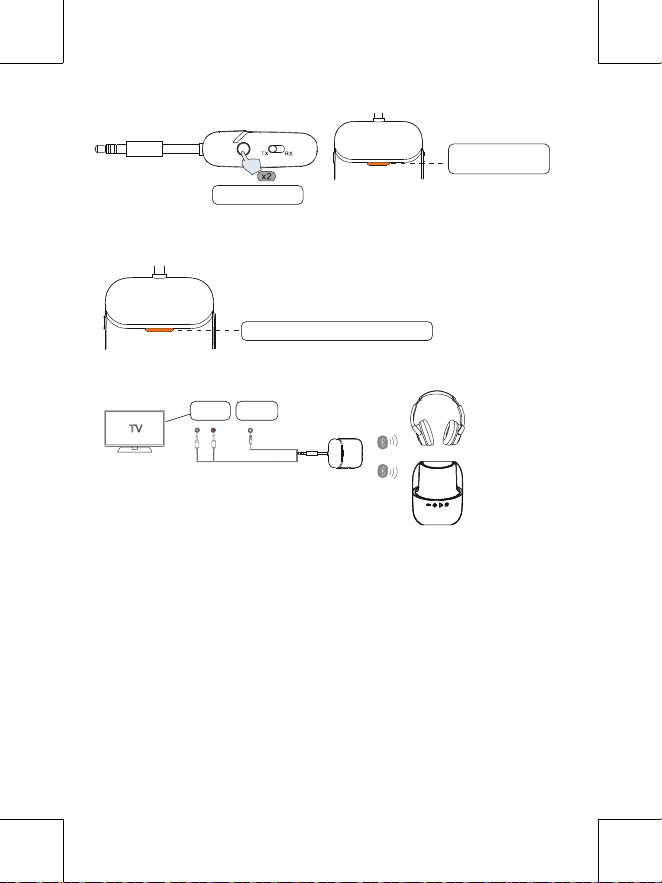
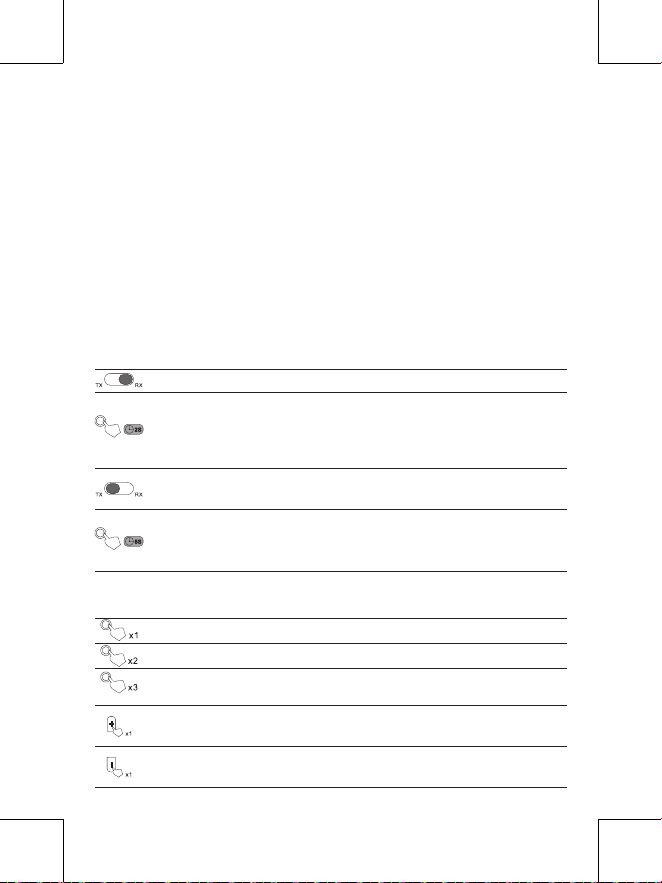
Pair Second Device: Turn on Device B and set it to pairing mode.
Re-enter Pairing Mode: Double-click the MFB button; the TX light will ash
rapidly, indicating it is ready to pair with another device.
Successful Connection: A constant orange light signies a successful connection.
Transmitting Precautions:
Noise Issues:
Ensure proper insertion of audio cables.
Avoid tangling the audio cable with other cables.
Disconnect the charging cable if noise occurs, as it may cause interference.
Double-click
Orange light constant on status
Orange light
ashing rapidly
TV RCA
Output
TV AUX
Output
Important Notice:
After turning off your headphones and disconnecting them from the audio
adapter, the audio adapter will automatically shut down after 10 minutes to
conserve power. Before using the audio adapter again, please ensure that it is
powered on and reconnected to your headphones.
11
Connection Issues:
Conrm that the Bluetooth devices are in pairing mode.
The TX indicator light will blink rapidly when ready to pair.
Audio Latency:
The device supports APTX-LL for low latency. Ensure your Bluetooth
headphones/speakers also support APTX-LL to use this feature.
Port Compatibility:
This device works with RCA and AUX 3.5mm audio outputs. Use a converter for
optical or coaxial ports.
Button Features Denition
RX/TX Mode Switching:
Turning on the Device: Long press the button for 2 seconds.
Switch to RX Mode: Move the switch to the RX end to turn on the device
and enter the receiving mode.
Switch to TX Mode: Move the switch to the TX end to turn on the device
and enter the transmitting mode.
Factory Reset: In the powered-off state, press and hold the button for
8 seconds. The white indicator lights up to conrm a successful factory
reset.
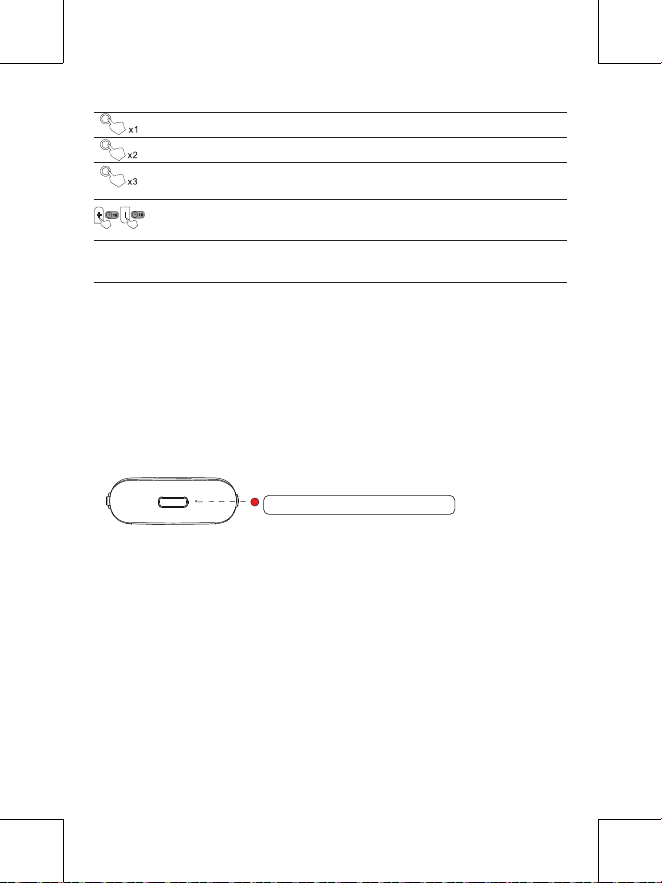
RX Mode (Receiver):
Play/Pause: Single click to pause or play music during playback.
Enter Pairing Mode: Double-click to quickly initiate pairing mode.
Gaming Low-Latency Mode: Triple click to switch to gaming low-
latency mode during playback.
Previous Song / Increase Volume: Single click to skip to the previous
song; long press to increase volume.
Next Song / Decrease Volume: Single click to skip to the next song; long
press to decrease volume.
12
TX Mode (Transmitter):
Reconnect: Quick press to enter the reconnection state.
Enter Pairing Mode: Double-click to quickly initiate pairing mode.
Switch Audio Codec Format: Triple click during playback to cycle
through audio codec formats.
Volume Adjustment: Long press to increase (Volume+) or decrease
(Volume-) volume.
Auto Power-Off: The device will automatically turn off if not connected
to any device for 10 minutes.
Charging
Initial Charge: For the rst use, charge the device for at least 2 hours to ensure it
has sufcient power.
Low Battery Indication: When the battery is low, the red light will ash, and a
prompt sound will be emitted in RX mode to indicate low battery status. Low
battery may cause audio interference.
Charging Habits: It is recommended to maintain good charging habits for all
Bluetooth devices. Disconnect the charging cable when the device is not charging
to preserve battery health.
Important Notes:
Current Interference Noise: If the battery power is too low or the quality of the
charging power supply is poor, there may be current interference noise when
using the device while charging.
Battery Life: Frequent use of the device while charging can affect the battery’s
service life. Avoid letting the battery run low. If the battery is not used for a long
time, it may enter a protection mode and be unable to supply power.
Charging Back Flow Noise: During use while charging, noise may occur as the
battery nears full charge. This can typically be resolved by removing the charging
cable.
Low battery: Red light ashes

13
Package Contents
1 × 2-in-1 Wireless Audio Adapter
1 × USB-C Charging Cable
1 × User Manual
14
CORRECT DISPOSAL OF THIS PRODUCT
(Waste Electrical & Electronic Equipment)
This marking shown on the product or its literature, indicate that it should
not be disposed with other household wastes at the end of its working life.
To prevent possible harm to the environment or human health from uncontrolled
waste disposal, please separate this from other types of wastes and recycle it
responsibly to promote the sustainable reuse of material resources. Household
user should contact either the retailer where they purchased this product or their
local government ofce, for details of where and how they can take this item for
environmentally safe recycling.
Business users should contact their supplier and check the terms and conditions
of the purchase contact. This product should not be mixed with other commercial
wastes for disposal.
FCC ID STATEMENT
Any changes or modications not expressly approved by the party responsible
for compliance could void the user's authority to operate the equipment.
This device complies with part 15 of the FCC Rules. Operation is subject to the
following two conditions: (1) this device may not cause harmful interference, and
(2) this device must accept any interference received, including interference that
may cause undesired operation.
FCC Radiation Exposure Statement:
This equipment complies with FCC radiation exposure limits set forth for an
uncontrolled environment.This equipment should be installed and operated with
minimum distance 20cm between the radiator & your body.
15
To help create a brighter, greener future for our planet,
Nulaxy thanks you for joining us in reducing paper
consumption. Need a manual in another language?
Scan the QR code
Wireless Audio Adapter User Manual
Benutzerhandbuch für den drahtlosen
Audioadapter
Manuel d'utilisation de l'adaptateur audio
sans l
Manuale utente adattatore audio wireless
Manual de usuario del adaptador de audio
inalámbrico
English
:
Deutsch
:
Français
:
Italiano
:
Español
:
16
Visit www.nulaxy.com for our 24/7 live chat
or send an email to suppor[email protected]
for support.
EC REP
CET Product Service Ltd.
Beacon House Stokenchurch Business Park,
Ibstone Rd, Stokenchurch
High Wycombe HP14 3FE UK
Email: info.cetservice@gmail.com
Phone: +44 741 932 5266
UK REP
Manufacturer:
Shenzhen Yahong Digital Co. LTD
Address:
Room 301,Building A-3, Xinfu Industrial Park,Chongqing Road,
Zhancheng Community, Fuhai Street, Bao'an District, Shenzhen, China
FCC ID: 2BAUJ-B1
MADE IN CHINA
Please scan this QR code for a
more detailed video tutorial.