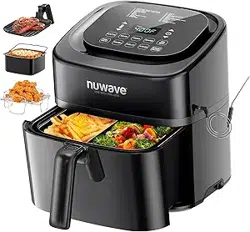
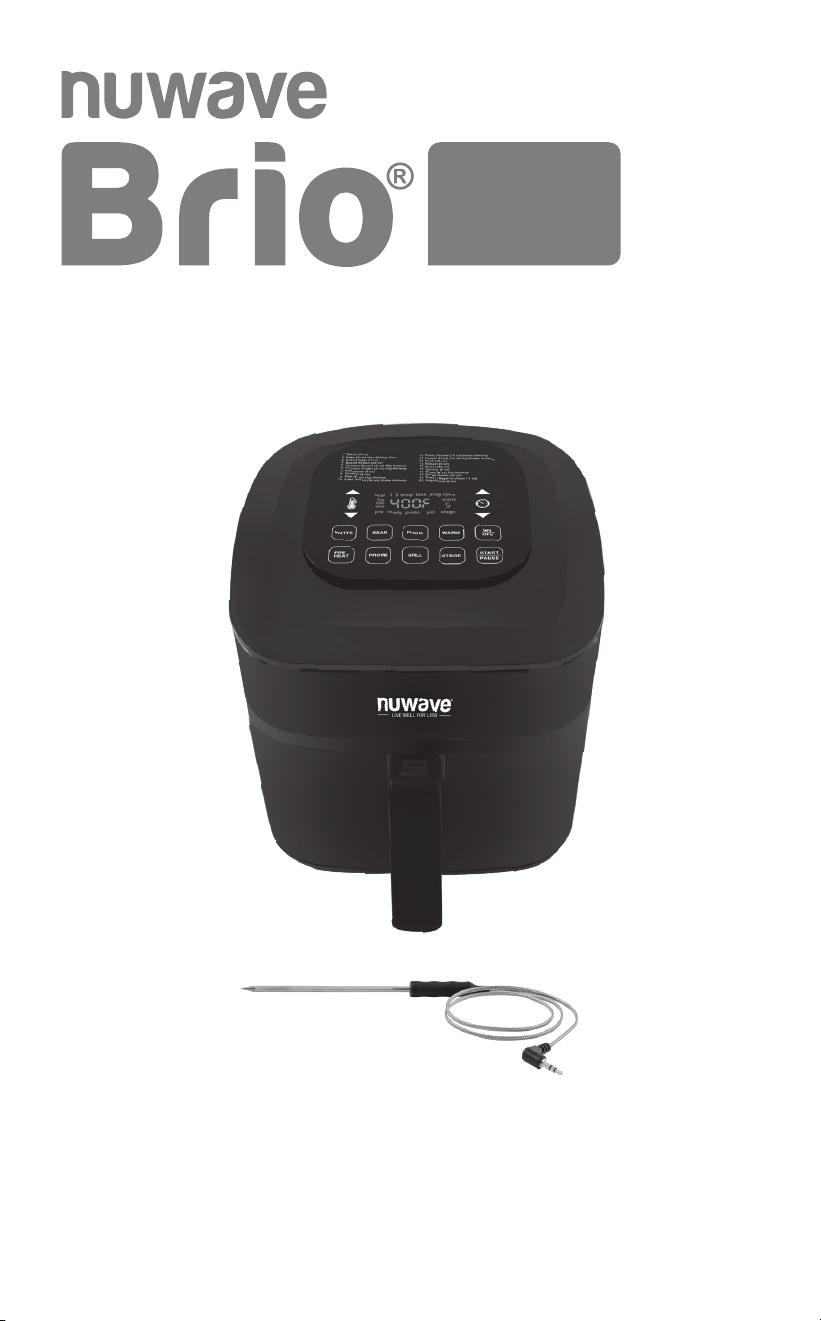
Digital Air Fryer
with Temperature Probe
6Q
Customer Service: support@Nuwavenow.com
Questions or Concerns?
1-888-502-7805
Mon-Fri 7:30am-4:30pm CST
Owner’s Manual

REGISTER
NOW!
Register Today!
Use your smartphone or device to scan the QR code
located on the back of your unit to register your product, or
visit nuwavenow.com/register.
Connect with Us!
#nuwavenow
Visit nuwavenow.com to see other great products and accessories.
THANK YOU!
Congratulations on your Nuwave® purchase. We know there are many
options available and sincerely appreciate the trust you have placed in us.
For the last 30 years, we have committed to introducing products that
promote healthy living at affordable prices. By combining the highest
quality designs with cutting edge technology, we have always strived to
blend feature, function, and innovation into every product we make. We
hope you will agree.
nuwavenow.comnuwavenow.com
OWNER’S MANUAL
Important Safeguards .....................................................5-7
Additional Safeguards .....................................................7-8
Parts & Accessories ...........................................................9
Assembly Guide ..........................................................10-12
Quickstart ....................................................................12-13
Instructions..................................................................14-28
Cleaning & Maintenance ..............................................29-30
Troubleshoot Guide ......................................................31-33
Limited Warranty ..........................................................34-38
Spanish..........................................................................39-77
Replacement Parts .......................................................78-79
THANK YOU!

important safeguards
4
IMPORTANT SAFEGUARDS
HOUSEHOLD USE ONLY • READ ALL INSTRUCTIONS BEFORE USE
4
WARNING: When using
the Brio, basic safety
precautions should always
be followed:
1. Do not touch hot
surfaces. Use handles
or knobs.
2. To protect against
electrical shock, do not
immerse cord, plug,
or the Brio in water or
other liquids.
3. Do not operate the
Brio with a damaged
cord or plug or after the
appliance malfunctions
or has been damaged
in any manner. Return
appliance to the nearest
authorized service facility
for examination, repair,
or adjustment.
4. Close supervision is
necessary when any
appliance is used near
children. This appliance
is not intended for use
by persons (including
children) with reduced
physical, sensory or
mental capabilities,
or lack of experience
and knowledge,
unless they have been
given supervision or
instruction concerning
use of the appliance by
a person responsible for
their safety.
5. The use of accessories
that are not intended to
be used with the Brio
is not recommended.
Doing so may damage
the Brio and can cause
accidents.
6. NOT INTENDED FOR
OUTDOOR USE. FOR
HOUSEHOLD USE
ONLY.
7. Do not let the cord hang
over the edge of tables
or counters, or touch hot
surfaces.
8. Do not place the Brio
on or near hot gas or
electric burners, or in a
heated oven.
9. Extreme caution must be
used when moving the
Brio while hot.
10. To disconnect, turn the
Brio OFF, then remove
plug from the wall outlet.
11. During air-frying, hot
steam is released from
the air outlet vent. Keep
hands and face away
from the steam and from
the air outlet vent. Also,
be careful of hot steam
and air when removing
Trays, and Racks.
12. Never put the Brio
against the wall or other
appliances. There should
be at least 3 inches of
free space for the back
side, left/right sides, and
the upper side of the Brio.
13. Do not place anything on
top of the Brio.

nuwavenow.com
5
nuwavenow.com
5
SAVE THESE
INSTRUCTIONS
Read and understand
the entire manual before
using the Brio.
DO NOT USE THE
UNIT FOR OTHER
THAN INTENDED USE.
Note: Put the Brio on a
surface that is horizontal,
even, and stable. This
appliance is intended for
normal household use. It
is not intended to be used
in environments such as
the staff kitchens of shops,
ofces, farms, or other
work environments. Nor is
it intended to be used by
clients in hotels, motels, bed
and breakfasts, and non-
residential environments.
NOTICE: THE FAILURE
TO FOLLOW ANY
OF THE IMPORTANT
SAFEGUARDS,
ADDITIONAL
SAFEGUARDS, OR THE
INSTRUCTIONS FOR SAFE
WARNING
In case of other
problems, immediately
unplug and contact
Customer Service
Department at support@
nuwavenow.com
14. Unplug the Brio from
outlet when not in use
and before cleaning.
Allow the Brio to cool
before cleaning, putting
on or taking off parts.
15. Keep manual handy for
future reference.
USE IS A MISUSE OF YOUR
BRIO THAT CAN VOID
YOUR WARRANTY AND
CREATE THE RISK OF
SERIOUS INJURY.
1. Do not place the Brio
close to ammable
materials, heating units,
or wet environments.
2. Do not put any other
cooking pans in the
Fry Pan Basket. Do not
replace any parts with
other containers.
3. It is normal for some
smoke to escape the
Brio when heating for the
rst time.
4. If a lot of smoke is
escaping from the air
vent during operation,
unplug the Brio
immediately and contact
Customer Service.*
5. Extreme caution must
be exercised when
operating the Brio or any
other appliance.
6. Do not move the Brio
while in operation.
Only after the Brio has
important safeguards
6
IMPORTANT SAFEGUARDS
HOUSEHOLD USE ONLY • READ ALL INSTRUCTIONS BEFORE USE
6
CAUTION
• Always put the ingredients
to be fried in the Fry Pan
Basket to prevent direct
contact with the heating
components.
• Do not cover the air inlet
and outlet openings
while the appliance is
operating.
• Do not pour oil into the
Base Tray or Fry Pan
Basket, as this may
create a re hazard.
• Never touch the insides
of the appliance while it
is operating.
ADDITIONAL
SAFEGUARDS
SEE INSTRUCTIONS
BEFORE USE
Electrical Information
A short power-supply
cord (or detachable
power-supply cord)
is provided to reduce
the risk resulting from
becoming entangled in
or tripping over a longer
cord. Longer detachable
power-supply cords or
extension cords are
available and may be
used if care is exercised
in their use. If a longer
detachable power-
supply cord or extension
cord is used:
completely cooled
should moving be
attempted. Always wait
for the Air Fryer to cool
down prior to handling it.
7. Children should be
supervised to ensure
that they do not play
with the appliance.
8. Never use a towel or
other material or object
to block the air vents.
9. If any trouble arises
during operation,
any service MUST
be done by Nuwave
LLC or authorized by
the manufacturer for
repairs.
10. The Brio is not intended
to be operated by
means of an external
timer or separate
remote-control system.
11. Do not disassemble
the Brio or replace
any parts without prior
written consent from the
manufacturer.
12. Do not use metal
utensils with the coated
Fry Pan Basket or Fry
Pan Basket Net as this
can damage the surface.
13. Make sure the Brio is
always clean prior to
cooking.
*Customer Service:
support@nuwavenow.
com

nuwavenow.com
7
nuwavenow.com
7
1. The marked
electrical rating of
the extension cord
should be at least
as great as the
electrical rating of the
appliance.
2. The longer cord
should be arranged
so that it will not
drape over the
countertop or
tabletop where it
could be pulled
on or tripped over
unintentionally.
3. The appliance has
a polarized plug
(one blade is wider
than the other). To
reduce the risk of
electric shock, this
plug is intended to
fit into a polarized
outlet only one way.
If the plug does not
fit fully into the outlet,
reverse the plug. If
it still does not fit,
contact a qualified
electrician. Do not
attempt to modify the
plug in any way. If
the appliance is of the
grounded type, the
cord set or extension
cord should be a
grounding-type 3-wire
cord.
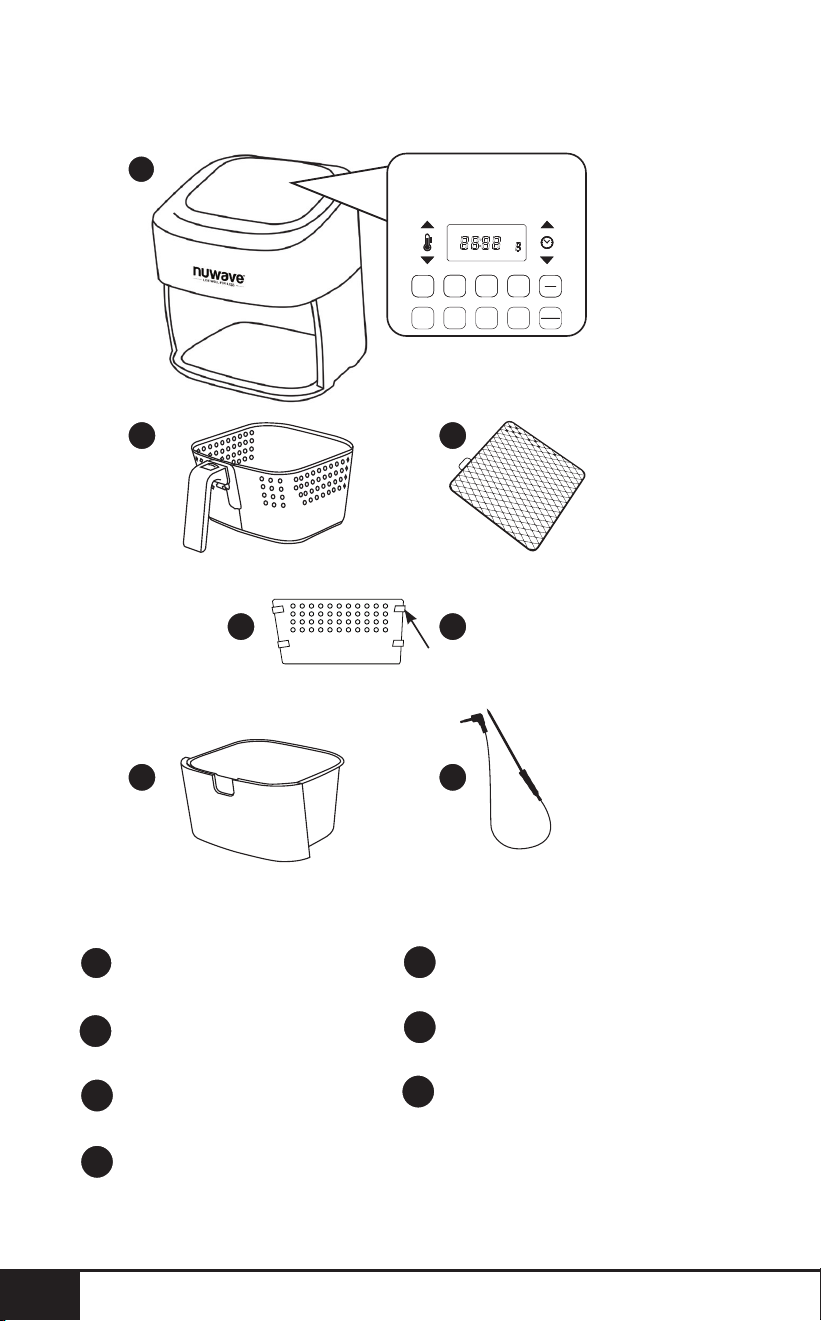
parts & accessories
8
PARTS & ACCESSORIES
8
1
3
5
2
4a
4b
START
PAUSE
WATTS
STAGEGRILL
PROG WARM
sear 1 2
1800
1500
900
pre ready probe grill stage
temp time prog open
warm
PROBE
SEAR
1. Bacon (4 oz)
2. Bake (8 oz) Use Baking Pan
3. Baked Eggs (2 oz)
4. Baked Potato (32 oz)
5. Chicken Breast (8 oz) Flip Halfway
6. Chicken Thighs (8 oz) Flip Halfway
7. Dehydrate (8 oz)
8. Dessert (8 oz)
9. Fish (6 oz) Flip Halfway
10. Fries, Fresh (16 oz) Shake Halfway
11. Fries, Frozen (16 oz) Shake Halfway
12. Frozen Food (16 oz) Flip/Shake Halfway
13. Pork (16 oz)
14. Reheat (8 oz)
15. Roast (32 oz)
16. Shrimp (8 oz)
17. Steak (8 oz) Flip Halfway
18. Sweet Potato (32 oz)
19. Toast / Bagel (4 slices / 4 oz)
20. Vegetables (8 oz)
date name doc#
05-19-20 6Q Control Panel 02
all text and lines - pantone metallic 877C
LED Display - BLUE
PRE
HEAT
ON
OFF
Silicone Tabs
6
Air Fryer Power Base
Part #: 37210
Fry Pan Basket
Part #: 37202
Fry Pan Basket Net
Part #: 37204
Fry Pan Divider
Part #: 37205
1
2
3
4a
4 Silicone Tabs
Part #: 37207
Base Tray
Part #: 37201
Probe
Part #: 36261
4b
5
6
nuwavenow.com
9
nuwavenow.com
9
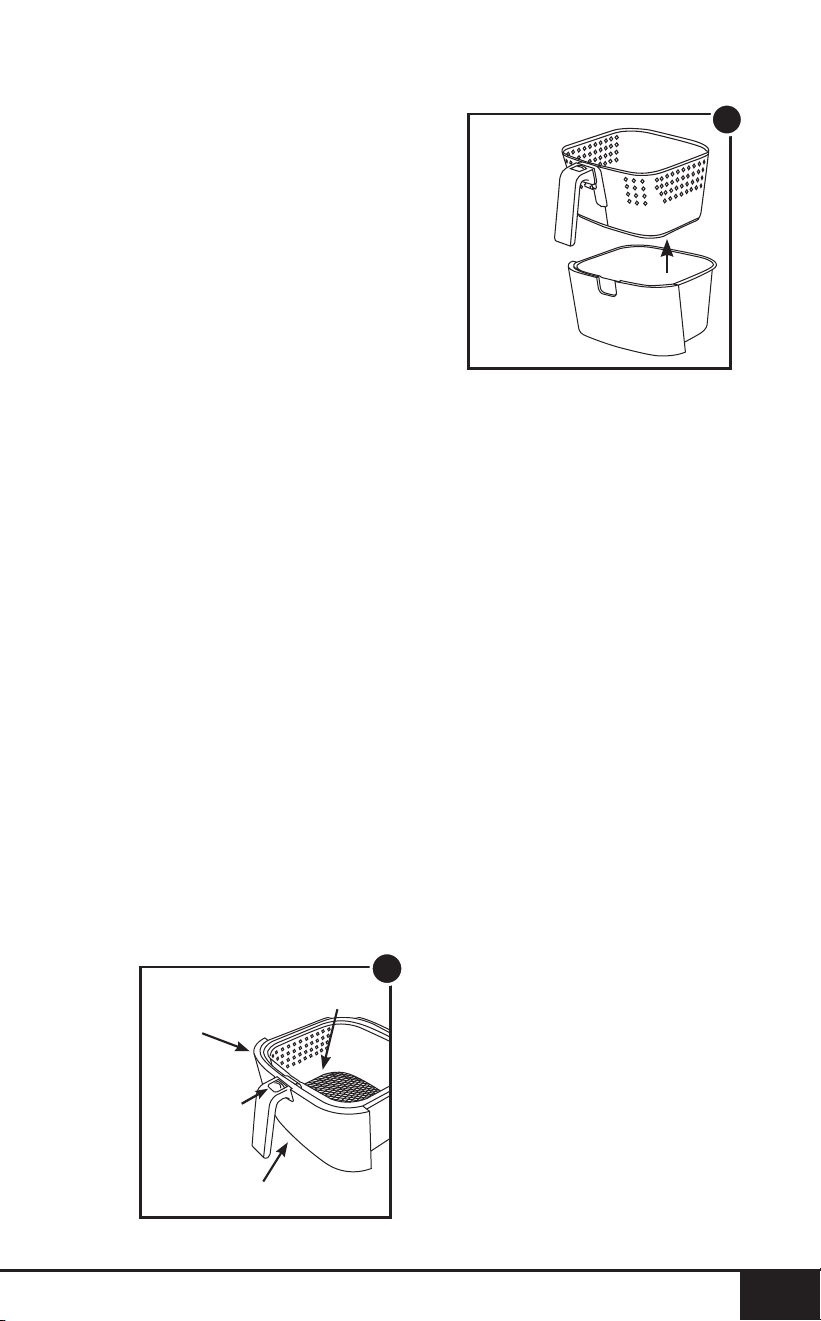
2
Fry Pan
Basket
Demounting
Button
Base Tray
1
Basket Net
Fry Pan
Basket
Base Tray
Assembling the Brio
CAUTION: DO NOT use
the Brio without the Base
Tray and Fry Pan Basket
with Net. DO NOT touch the
insides of the Base Tray,
Fry Pan Basket, and Net
immediately after cooking.
Parts will be hot. ONLY hold
the Base Tray and Fry Pan
Basket by the handle.
Removing Base Tray with
Fry Pan Basket
1. Using the handle, pull
and slide out the Base
Tray and Fry Pan Basket
with Net. (See Fig. 1.)
2. To remove the Fry
Pan Basket from the
Base Tray, hold the
handle and press the
demounting button
forward and lift the Fry
Pan Basket out of the
Base Tray (See Fig. 2).
When cooking, this will
reduce extra weight from
the Base Tray and make
it easier to pour or shake
smaller foods.
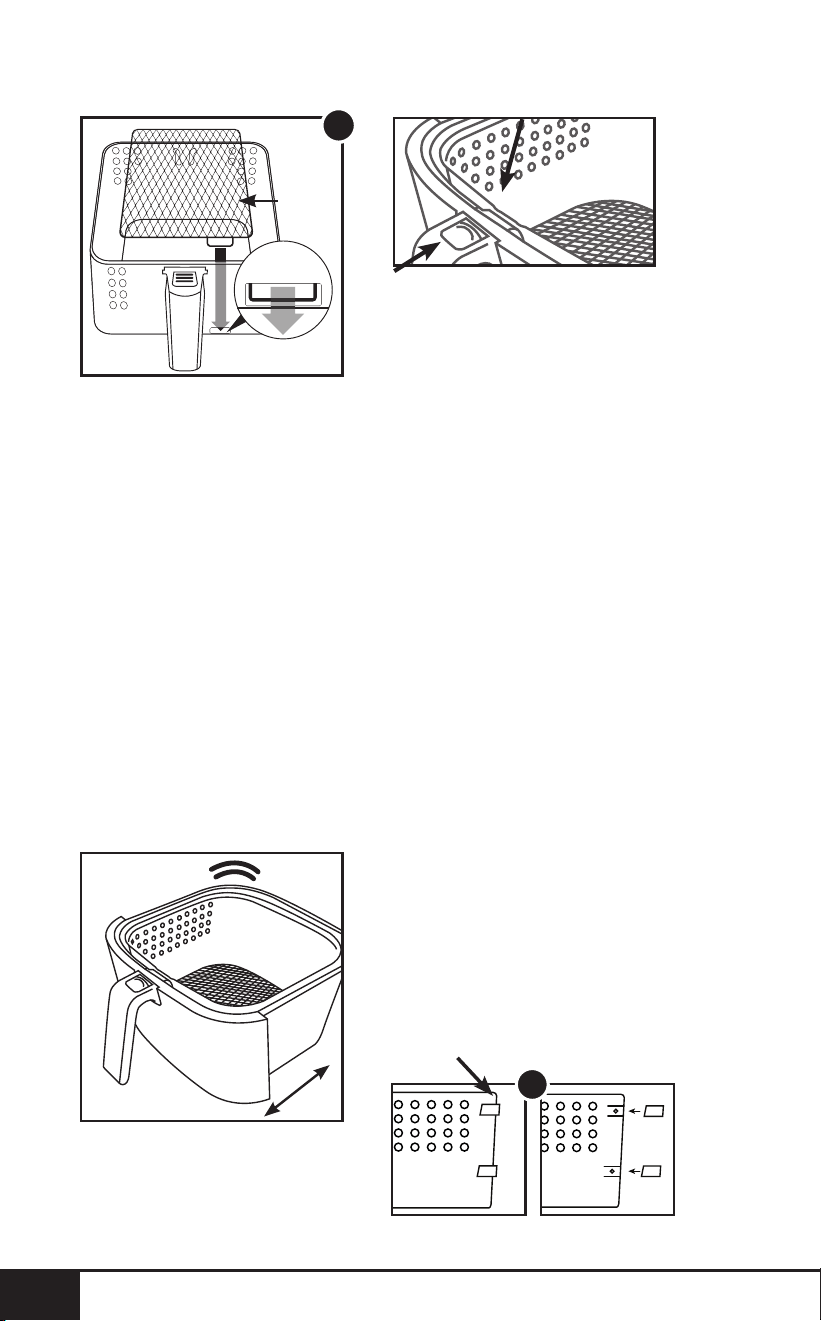
Removing the Fry Pan
Basket Net:
1. After removing Fry
Pan Basket from Base
Tray, turn Fry Pan
Basket upside down.
2. Using oven mitts, press
the bottom of the Fry
Pan Basket Net down
until it is released from
Fry Pan Basket.
Assembling the Fry Pan
Basket Net
1. Place the Tab of the Fry
Pan Basket Net into
the slot of the Fry Pan
Basket. (See Fig. 3.)
2. Press the other end
of the Fry Pan Basket
Net down until Net
snaps into place and is
at inside the Fry Pan
Basket.
assembly guide
10
ASSEMBLY GUIDE
10
3
Basket
Net
Tab
DO NOT PUSH THE
DEMOUNTING
BUTTON FORWARD
WHILE SHAKING.
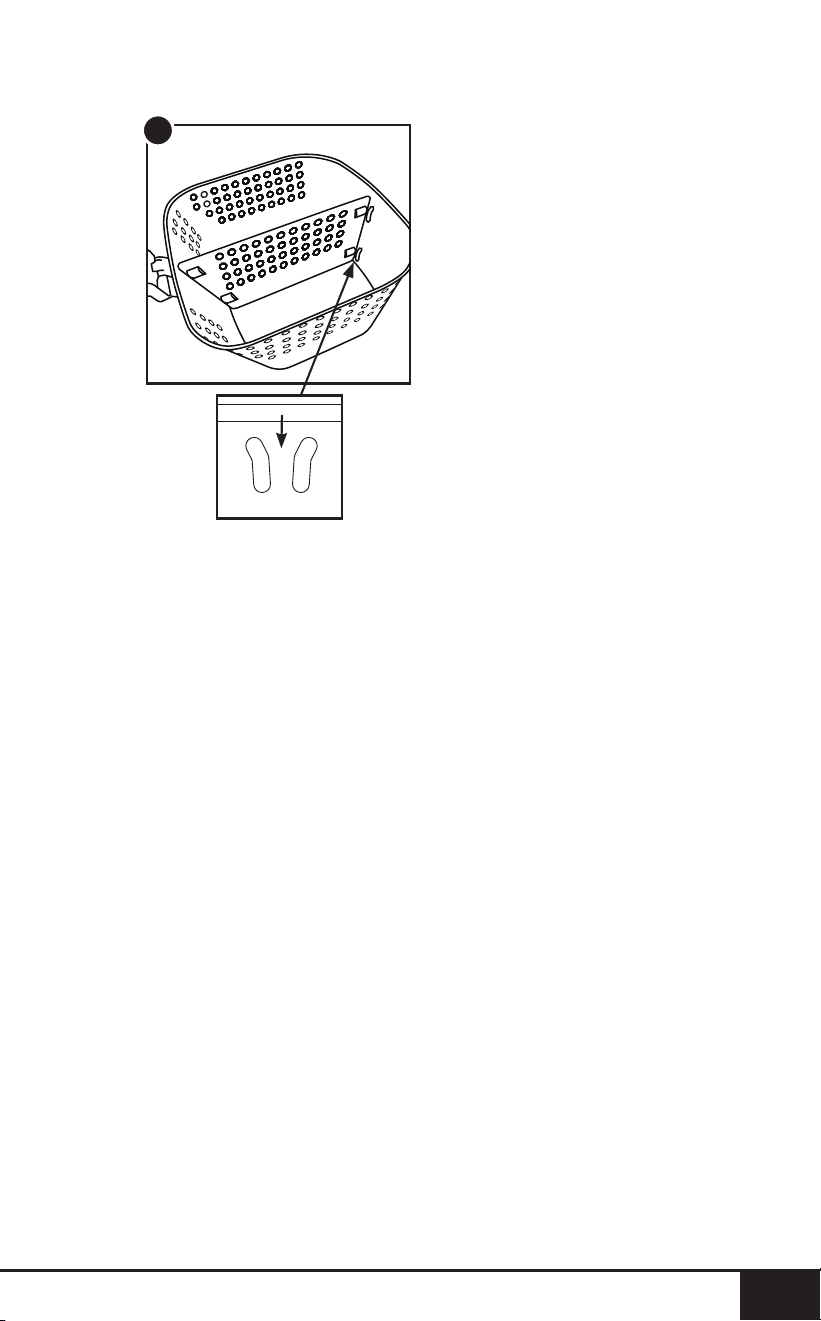
Using the Fry Pan Divider:
Fig.1.
Make sure all 4 Silicone Tabs
are placed on the divider
tabs.
Fig. 2.
Looking down at the Fry Pan
Basket, slide the Divider
down the center of the
Basket.
Make sure the Divider is
between both the grooves
and screws of the Basket.
To remove the Divider,
simply slide it straight up.
(Caution: Divider will be hot
from cooking. Use oven
mitts.)
The Silicone Tabs can be
removed from the Divider
before cleaning. (Caution:
Silicone Tabs may be hot.)
XX
For Best Results
Shaking Food
Some foods require shaking
halfway through cooking.
To properly shake the food,
hold the handle, remove
the Base Tray with Fry Pan
Basket from the appliance,
and shake. Once the food
has been adequately
shaken, slide the Base Tray
with Fry Pan Basket back
into the Brio.
Note: For best results, when
cooking, do not ll the Fry
Pan Basket more than
4
⁄
5
full.
Silicone Tabs
1
nuwavenow.com
11
nuwavenow.com
INSTRUCTIONS
11
2
QUICKSTART
Function Buttons
ON/OFF: The ON/OFF button turns the unit on and off and
stops all cooking functions.
Switch from Fahrenheit to Celsius
• Press the TEMP Arrow Key + SEAR to change the
Temperature Format from °F (default) to °C (Celsius).
Press TEMP Arrow Key + SEAR again to switch from °C
(Celsius) to °F (Fahrenheit). Degree adjustments for °F
are in 5° increments and °C are in 1° increments. They are
adjusted with the [↑] and [↓] buttons.
Note: Switching the Temperature Format can only be
done during setting. It cannot be done while cooking. If the
user switches to Celsius, the unit will stay Celsius even if
unplugged until it is changed back.
START/PAUSE: When the START/PAUSE button is
pressed, the unit begins or pauses cooking. The START/
PAUSE button is also used to mute and unmute the Brio’s
beeping sounds for quiet operation, if desired.
[↑] & [↓] Buttons: Use the arrow buttons to adjust
temperatures and times.
WATTS: The unit comes with three (3) wattage adjustments
(900, 1500 & 1800). Press the WATTS button to change the

instructions
12
INSTRUCTIONS
12
running wattage the unit will use. When the unit is turned off
and/or unplugged, the unit will run at the wattage previously
used when plugged in and turned on.
GRILL: Press GRILL, choose between 9 levels of cooking.
Level 4 is default. Choose pressing [↑] & [↓] Buttons (either
Temp or Time). Each level determines level of doneness,
see GRILL section under INSTRUCTIONS for a detailed
chart. After selecting the level of cooking, press START/
PAUSE to start grilling.
For grilling with the Digital Probe, see the GRILL section
under INSTRUCTIONS.
STAGE: Use the STAGE button set to up to ve (5) different
cooking parameters. Cooking temperatures and times can
be adjusted for each stage of cooking using the TEMP &
TIME buttons and the [↑] and [↓] buttons.
PREHEAT: Use the PREHEAT button to preheat the unit
before cooking. Use the [↑] and [↓] buttons to adjust the
temperature before or during preheat. To cancel the preheat
function press the PREHEAT button anytime.
SEAR: The SEAR button is used to cook at high temperature
for a short amount of time. Use the SEAR button to "sear"
foods directly before and/or after the regular cooking cycle.
Use the [↑] and [↓] buttons to adjust the temperature and
time (up to 15-minutes) before or during the searing cycle.
WARM: Use the WARM button to keep your food warm after
cooking or when you simply want to keep something warm
for an extended amount of time. Use the [↑] and [↓] buttons
to adjust the warming temperature and warming time. Press
the WARM button to cancel the warm cycle.
PROGRAM: The unit comes with 100 pre-programed
cooking recipes along with an additional 50 memory
slots allowing you to add your own unique recipes. Use
the PROGRAM button to recall and save programmed
recipes.
PROBE: Use the PROBE button to set the Digital
Temperature Probe’s target temperature as well as to view
the foods internal temperature during cooking. Use the [↑]
and [↓] buttons to adjust the Digital Temperature Probe
target temperature.

nuwavenow.com
13
nuwavenow.com
INSTRUCTIONS
13
Order of Cooking
Sequence:
1. Preheat
2. Sear 1
3. Stage 1~5 / Program /
Probe
4. Sear 2
5. Warm
FUNCTIONS
Plug the power cord into
an electrical outlet. Press
the ON/OFF button to
turn the unit on. The LED
display will show "350F"
("177C") and "temp."
ON/OFF
1. Press the ON/OFF
button to turn the
unit on and off. Once
turned on the LED
display will show
the default cooking
temperature (350F)
(175C) and "temp."
2. The temperature can
be adjusted up or
down by using the
[↑] and [↓] buttons
above and below the
temperature icon.
3. The default cooking
time is 15-minutes.
To adjust the cooking
time, press the [↑] and
[↓] buttons above and
below the time icon.
4. Press the START/
PAUSE button to
begin cooking.
Note: Before setting any
other cooking function, set
the regular Stage 1 cooking
temperature and time. Stage
cooking is explained in the
STAGE section of these
Operating Instructions.
START/PAUSE
1. Press the START/PAUSE
button to begin cooking.
The ":" will ash indicating
the unit is now cooking.
2. To pause cooking, press
the START/PAUSE button
or simply remove the Fry
Pan Basket with Base
Tray. The ":" will no longer
ash indicating the unit is
now paused and the LED
display will show open.
3. To un-pause and go back
to cooking, slide the Fry
Pan Basket with Base
Tray back into the Brio.
4. Once the unit nishes
cooking, the LED display
will show "End" with three
(3) beep sounds.
5. The SEAR + STAGE
buttons are also used
to mute and unmute the
beep sounds. To mute
the beep sounds, press
and hold the SEAR
+ STAGE buttons for
two seconds. The Brio
will remain mute until
it is unmuted by again
pressing and holding the
SEAR/STAGE button for
two seconds or turning
off the Brio.

instructions
14
INSTRUCTIONS
14
The Grill button has 2
options for cooking, with
and without the Digital
Probe. There are 9 levels
of grilling, see the above
chart for temps and times.
To Grill:
1. Plug the Probe into
the Brio.
2. Press GRILL.
a) This sets the Brio to grill
a medium steak at 400F
(204C) Level "4" is the
default.
i. Adjust grill level (1–9)
with either Temp or
Time arrow keys.
b) Press and hold PROBE
until you hear a beep.
i. The screen will show
"probe" and 135F (57)
(the Grill Level Probe
Temperature).
ii. Adjust temperature
with arrow key if
necessary
iii. Consult cooking
guide above for times,
temps, and levels of
doneness.
3. Press START/PAUSE
a) The unit will preheat
automatically to the grilling
temperature.
i. Unit will give a 5-minute
countdown.
4. Insert Food.
5. Insert Probe into Food.
6. Press START/PAUSE to
start grilling.
Note: To Grill without the
Probe do not follow "b" under
step 2. Then it will cook with
desired grill temperature.
TEMP
1. To set a different cooking
temperature, press
the [↑] and [↓] buttons
above and below the
temperature icon. The
control panel will display
"350F" ("177C") and
"temp."
• The temperature will
adjust in 5-degree
With Probe No Probe
1. 110°F (43°C) (Rare) 400°F (204°C) - 5 min. (Rare)
2. 120°F (48°C) (Med-Rare) 400°F (204°C) - 7 min. (Med-Rare)
3. 130°F (54°C) (Med-Rare-Plus) 400°F (204°C) - 8 min. (Med-Rare-
Plus)
4. 135°F (57°C) (Medium) 400°F (204°C) - 9 min (Medium)
5. 140°F (60°C) (Medium-Plus
and Fish)
400°F (204°C) - 10 min (Medium-Plus
and Fish)
6. 145°F (63°C) (Medium-Well
and Pork)
400°F (204°C) - 11 min (Medium-Well
and Pork)
7. 155°F (68°C) (Well Done) 400°F (204°C) - 12 min (Well Done)
8. 165°F (74°C) (Poultry) 400°F (204°C) - 13 min (Poultry)
9. 170°F (77°C) (Poultry Well
Done)
400°F (204°C) - 15 min (Poultry Well
Done)
GRILL
Grill your favorite foods. Brio will Preheat at 400˚F (204˚C)
by default.

nuwavenow.com
15
nuwavenow.com
INSTRUCTIONS
15
increments between
50F and 400F (10C -
204C).
2. To quickly adjust the
temperature, hold down
the arrows until desired
cooking temperature is
reached.
Note: Cooking
temperature can be
adjusted at any time before
or during the cooking
process. Once the display
is switched to temperature
display, it will remain in the
temperature display.
TIME
1. To set a different
cooking time, press
the [↑] and [↓] buttons
above and below the
time icon. The control
panel will display
"00:15" and "time."
• The time will adjust in
1-minute increments.
2. To quickly adjust the
time, hold down the
arrows until desired
cooking time is
reached.
• The maximum
selectable cooking
time differs
depending on the
selected cooking
temperature.
• 50F - 275F (10C -
135C), maximum
cooking time
is 00:00~99:59
(0-minutes to 99-hrs.;
59-minutes).
• 280F - 345F (138C
- 174C), maximum
cooking time is
00:00~24:00 hours
(0-minutes to
24-hours).
• 350F - 400F (177C
- 204C), maximum
cooking time
is 00:00~1 hour
(0-minutes to1 hour).
Note: Cooking time can
be adjusted at any time
before or during the
cooking process. The Brio
will beep 3 times half-way
through the cooking cycle
to alert you to remove the
basket from the unit, shake
the food in the basket, and
then reinsert the basket to
nish cooking.
PREHEAT
The unit will preheat to
the temperature of the
next cooking cycle. For
example, if Sear 1 is set to
400F (204C), the unit will
Preheat to 400F (204C).
If Sear 1 is not used, the
unit will preheat to the set
cooking temperature.
1. Press the ON/OFF
button and adjust your
cooking temperature
and time for Stage 1
cooking.
2. Press the PREHEAT
button to engage the
Preheat function.
• The LED display will
show the set cooking
temperature, "pre,"

instructions
16
INSTRUCTIONS
16
and "temp."
• The unit will
ALWAYS preheat
to the cooking
temperature of the
next cooking cycle.
3. Press the START/
PAUSE button to begin
preheating.
• The unit will begin
preheating to the set
temperature.
• The LED display
will show the set
cooking/preheat
temperature
(ashing), "pre," and
"temp."
• During preheat the
cooking temperature
can be adjusted by
using the [↑] and
[↓] buttons above
and below the
temperature icon.
• The cooking time
can be adjusted
also by pressing the
[↑] and [↓] buttons
above and below the
time icon.
4. When the unit
reaches the preheat
temperature the unit
will move into a ve
(5) minute hold. The
unit will maintain the
preheat temperature
during this ve (5)
minute hold.
• The LED display will
show "5" (ashing),
"ready," and "time."
AUTO PREHEAT
The Brio defaults to
Automatic Preheat at 350F
(177F), the default cooking
temperature.
• You can turn the
Automatic Preheat off
or on again by pressing
PROG + PREHEAT at
the same time.
• Temperature range is
50F - 400F (10C-204C).
• After it has reached the
set cooking temperature,
Brio will go into a
5-minute countdown
just like the typical
PREHEAT function.
• If no action is taken
within the ve (5)
minute hold, the unit
will automatically go
into standby mode.
5. Place your food into
the unit, slide the Fry
Pan Basket with Base
Tray back into the Brio.
The unit will begin
cooking at the set
temperature and time.
6. The preheat cycle
can be canceled
anytime by pressing
the PREHEAT button.
The unit will end the
preheat cycle and
automatically go into
the next cooking cycle.
7. When the unit is
nished cooking the
LED display will show
"End" and beep three
(3) times.

nuwavenow.com
17
nuwavenow.com
INSTRUCTIONS
17
• After the countdown, the
Brio will cook at the set
cooking temperature and
cooking time.
Note: Changing the
preheat temperature will
change the subsequent
cooking temperature.
STAGE
Stage cooking is used
to cook food at different
temperatures and times
throughout the cooking
process. Up to ve (5)
stages of cooking can
be set up. Grill, Preheat,
Sear 1, Sear 2, and Warm
are NOT considered
stages in the cooking
process. Stage 1 cooking
is the default 350F (177C)
for 15-minutes). The
temperature and time can
be adjusted.
1. Press the ON/OFF
button. The LED
display will show
"350F" ("177C") and
"temp." This is Stage
1. Adjust the cooking
temperature and time
using the [↑] and [↓]
buttons.
2. To add additional
stages, press the
STAGE button one (1)
time. The LED display
will show "350F"
("177C"), "temp,"
"stage," and "2" (above
stage). This is Stage 2
cooking.
3. Adjust Stage 2
cooking temperature
and time by using the
[↑] and [↓] buttons.
4. To set additional stage
cooking settings,
repeat steps 2 and 3.
The number above
stage will change as
you continue to press
the STAGE button and
set temperature and
time. After Stage 5, if
the STAGE button is
pressed again it will
go back to Stage 1.
The LED display will
show the Stage set
cooking temperature,
"temp," "stage," and
"1" (above "stage").
5. If you only want two
(2) stages of cooking,
leave the time at 00:00
for stages 3~5 and
those stages will be
skipped.
6. Press the START/
PAUSE button to begin
cooking. The unit
will cook with the set
parameters.
7. During cooking, press
the STAGE button
to see and adjust
upcoming cooking
stages.
8. When the unit is
nished cooking the
LED display will show
"End" and beep three
(3) times.
9. The STAGE button
is also used to scroll
through the cooking

instructions
18
INSTRUCTIONS
18
functions that have
been set for a
particular recipe. Press
the STAGE button,
either before or during
cooking, to see and
edit each function
of the cooking cycle
as desired. This is
explained later in this
manual.
Note:
• The LED display
will only indicate the
stage cooking number
when two (2) or more
stages are used. The
LED display will not
show stage number if
only one (1) stage of
cooking is used.
• Stage 1 default: 350F
(177C), 00:15
• Stage 2~5 default:
350F (177C), 00:00
• If no time is set for
stages 2~5, those
stages will be skipped
in the cooking cycle.
SEAR
Sear 1 will ALWAYS be
directly before regular
stage cooking and Sear
2 will ALWAYS be directly
after regular stage
cooking.
Sear 1
Default sear 1 temperature
is 400F (204C) and default
sear 1 time is ve (5)
minutes (00:05).
1. Press the ON/OFF
button and adjust your
cooking temperature
and time for stage
cooking.
2. Press the SEAR
button one (1) time.
This will engage the
Sear 1 function.
3. The LED display will
show 400F (204C),
"sear," "1," and "temp."
• Sear 1 searing
temperature can be
adjusted by using the
[↑] and [↓] buttons
above and below the
temperature icon.
400F (204C) is the
maximum searing
temperature.
• Sear 1 searing time
can be adjusted by
using the [↑] and
[↓] buttons above
and below the time
icon up to ve (5)
minutes (00:05).
4. Press the START/
PAUSE button to begin
cooking. The LED
display will show "sear
1" (ashing), "time,"
and the set sear time
(00:05 default) with the
":" ashing.
5. Once the Sear 1 cycle
is complete the unit
will automatically go
into stage (regular)
cooking.
6. When the unit is
nished cooking the
LED display will show
"End" and beep three
(3) times.

nuwavenow.com
19
nuwavenow.com
INSTRUCTIONS
19
1. Press the ON/OFF
button and adjust your
cooking temperature
and time for stage
cooking.
2. If you want to set a
different temperature
and/or time for Sear
1, press the SEAR
button one time and
adjust the Sear 1
temperature and time.
3. Press the SEAR button
again. The LED display
will show 400F (204C),
"sear," "1," "2," and
"temp."
4. Adjust the Sear 2
temperature and time
if desired.
5. Press the START/
PAUSE button to
begin cooking. The
LED display will show
"sear 1" (ashing),
"2," "time," and the set
sear 1 time with the ":"
ashing.
6. Once the Sear 1 cycle
is complete the unit
will beep one (1) time
and automatically
go into regular stage
cooking. The LED
display will show "sear
2," "time," and the set
regular stage cooking
time (00:15 default)
with the ":" ashing.
7. Once the stage cooking
cycle is complete the
unit will beep one (1)
time and automatically
go into Sear 2 cooking.
The LED display
will show "sear 2"
(ashing), "time," and
the set Sear time
(00:05 default) with the
":" ashing.
8. When the unit is
nished cooking the
LED display will show
"End" and beep three
(3) times.
Sear 2
Default Sear 2 temperature
is 400F (204C) and default
Sear 2 time is ve (5)
minutes (00:05).
1. Press the ON/OFF
button and adjust your
cooking temperature
and time for Stage 1.
2. Press the SEAR button
three (3) times. This
will engage the Sear 2
function.
3. The LED display will
show "400F" ("204C"),
"sear," "2," and "temp."
• Sear 2 searing
temperature can be
adjusted by using the
[↑] and [↓] buttons
above and below the
temperature icon.
400F (204C) is the
Sear 1 & 2
Sear 1 & 2 is used to sear
before and after regular
stage cooking.

instructions
20
INSTRUCTIONS
20
maximum searing
temperature.
• Adjust the Sear 2
time by using the
[↑] and [↓] buttons
above and below the
time icon up to ve
(5) minutes (00:05).
4. Press the START/
PAUSE button to
begin cooking.
5. Once the stage
cooking cycle is
complete the unit will
beep one (1) time and
automatically go into
Sear 2 cooking. The
LED display will show
"sear 2" (ashing),
"time," and the set sear
time (00:05 default)
with the ":" ashing.
6. When the unit is
nished cooking the
LED display will show
"End" and beep three
(3) times.
WARM
1. Press the WARM
button to engage the
"Warm" function and
keep your food warm
until you’re ready to
serve.
2. The LED display will
show 140F (60C),
"temp" and "warm."
3. Use the [↑] and [↓]
buttons above and
below the temperature
icon to adjust the warm
temperature.
4. Press the [↑] and [↓]
buttons above and
below the time icon to
adjust the warm time.
The LED display will
show "01:00" (default),
"time" and "warm."
5. Use the [↑] and [↓]
buttons above and
below the time icon to
adjust the warm time.
6. Press the START/
PAUSE button to start
cooking. The unit
will go through the
regular stage cooking
cycle then will go
into "Warm" at the
temperature set as well
as the set time.
Using Warm as an
Independent Function
1. Warm can be used
as an independent
function. Press and
hold the WARM button
for 1 second.
2. The unit will
automatically begin
the warming function
and the LED display
will show "01:00,"
"time and warm."
3. Warm temperature and
time can be adjusted at
this time by using the
[↑] and [↓] buttons.

nuwavenow.com
21
nuwavenow.com
INSTRUCTIONS
21
4. When the warming
time runs out, the LED
display will show "End"
and will beep three (3)
times.
Notes:
• Warm temperature
can only be adjusted
up to 200F (93C).
Time can be adjusted
up to 3 hours.
• Warm can be used
with the program
options as well. Simply
choose the program
number and press
the WARM button
and adjust the Warm
temperature and time.
• To cancel the Warm
function at any time
simply press the
WARM button. "Warm"
will no longer be lit in
the LED display.
PROGRAM
The PROG button
represents Memory
Entry (the storage of
frequently used cooking
sequences) and Memory
Recall (retrieval of cooking
sequences). Program slots
number 1~100 are preset
recipe programs. Slots
101~150 are for your own
unique programs.
Memory Recall
Press the PROG button.
The LED display will show
"prog" and "1."
1. Use the [↑] and [↓]
buttons to choose
the desired program
number to recall.
Either set of [↑] and [↓]
buttons (temperature
icon or time icon)
can be used to scroll
through the program
numbers.
2. Once the program
number is chosen,
press the START/
PAUSE button to begin
cooking. You can make
temperature and time
adjustments if desired.
3. The unit will cook at the
programmed settings.
Program Your Own
Recipe Before Cooking
1. Set your cooking
parameters using
GRILL, PREHEAT,
SEAR 1, STAGE (1~5),
SEAR 2 and/or WARM.
2. Press PROG for 1
second. The LED
display will show "prog"
and "101."
3. Use the [↑] and [↓]
buttons to choose
the desired program
number to save the
program to (101~150).
4. Press PROG again for
1 second to store and
save the program to your
chosen program number.
The program is now
stored and available for
future recall.

instructions
22
INSTRUCTIONS
22
5. Press the START/
PAUSE button to begin
cooking the program.
Program Your Own
Recipe During Cooking
1. Set your cooking
parameters using
GRILL, PREHEAT,
SEAR 1, STAGE (1~5),
SEAR 2 and/or WARM.
2. Press the START/
PAUSE button to
begin cooking.
3. During cooking, press
PROG for 1 second.
The LED display will
show "prog" and "101."
4. Use the [↑] and [↓]
buttons to choose
the desired program
number to save the
program to (101~150).
5. Press PROG for 1
second again to store
and save the program
to your chosen
program number. The
program is now stored
and available for
future recall.
6. The unit will continue
to cook the recipe
programmed.
Program Your Own
Recipe After cooking
1. Set your cooking
parameters using
GRILL, PREHEAT,
SEAR 1, STAGE (1~5),
SEAR 2 and/or WARM.
2. Press the START/
PAUSE button to
begin cooking.
3. When the cooking
process is nished, and
the LED display shows
"End" press on hold the
PROG button. The LED
display will show "prog"
and "101."
4. Use the [↑] and [↓]
buttons to choose
the desired program
number to save the
program to (101~150).
5. Press PROG again for
1 second to store and
save the program to
your chosen program
number. The program
is now stored and
available for future
recall.
View Current Program
During Cooking
You can view the currently
cooking program number
while the program is
running.
1. During cooking, press
and PROG.
2. The LED display will
show the currently
running program.
3. Release the PROG
button to see the
previous screen on the
LED display.
View Cooking Functions
You can view all cooking
functions associated with

nuwavenow.com
23
nuwavenow.com
INSTRUCTIONS
23
a program before or during
the cooking process.
1. View Before Cooking
• Press PROG for 1
second and nd the
program number to
review using the [↑]
and [↓] buttons.
• Once the program
number shows in the
LED display, press
the STAGE button to
review each phase
of cooking.
• Adjustments to
temperature and
time can be made
for each function at
this time.
2. During Cooking
• Press the STAGE
button to review each
phase of cooking.
• Continue to press
the STAGE button
to scroll through
all programmed
functions for that
program number.
See example above.
• Adjustments to
temperature and
time can be made
for each function at
this time.
• If a cooking function
has already
occurred in the
cooking process,
that function is no
longer available
for adjustments in
cooking temperature
or time.
Editing a Program
You can edit the programs
you create before or during
the cooking process and
save any changes.
1. Edit Before Cooking
• Press PROG for 1
second and nd the
program number to
edit using the [↑] and
[↓] buttons.
• Once the program
number shows in
the LED display,
press the STAGE
button until the
function you would
like to edit shows in
the LED display.
• Using the [↑] and [↓]
buttons, make the
edits to temperature
and time as desired.
• Once all edits are
made, press and
hold the PROG
button. The LED
display will show
"prog" and "101."
• Use the [↑] and [↓]
buttons to nd the
program number to
save your edits to.
• Press PROG for 1
second button again
to save and store
the edits.

instructions
24
INSTRUCTIONS
24
Note: Save indicates there
has been a change in the
program settings during
cooking.
1. If you have already
saved the changes
to a program number
during cooking, there
is nothing more you
need to do. The edited
program is available for
further recall.
2. If you have not saved
the changes to a
program number by the
time cooking nishes,
the Brio will remind you
that changes have been
made by displaying
"SAVE" and allow you
to save the changes at
this point.
• Press PROG for 1
second. The LED
display will show
"prog" and "101."
• Use the [↑] and [↓]
buttons to nd the
program number to
save your edits to.
• Press the PROG
button again to save
and store the edits.
Note: If you save any
recipe to an already
lled memory slot, the
new recipe will override
the previous recipe. Any
edits to a preset program
(1~100) can only be saved
and stored into program
numbers 101~150. You
cannot save an adjusted
preset program to its
original preset program
number.
2. Edit During Cooking
• During cooking,
press the STAGE
button until the
function you would
like to edit shows in
the LED display.
• Use the [↑] and [↓]
buttons to adjust the
cooking temperature
and time.
• If there are more
cooking functions
that you would
like to edit, press
the STAGE button
until you reach the
function you would
like to edit and make
the changes.
• The unit will continue
the cooking process
with the edits that
you have made.
Note: Functions that
have already ended in the
cooking cycle cannot be
edited.
• When cooking has
nished, the unit will
beep three (3) times
and the LED display
will show "End"
followed by "SAVE."

nuwavenow.com
25
nuwavenow.com
INSTRUCTIONS
25
PROBE
Use the Digital
Temperature Probe
to accurately cook to
your preferred internal
temperature. To use the
probe, connect the probe
to the unit.
1. Set your cooking
functions and stages
as desired.
2. Press the PROBE
button. The LED
display with show
current probe
temperature, "temp,"
and "probe."
3. Press and hold the
PROBE button for
2 seconds. The
LED display will
show "probe,"165F"
("74C") (target probe
temperature default),
and "temp."
4. Use the [↑] and [↓]
buttons above and
below the temperature
icon to set the target
probe temperature (the
internal temperature
you want the food to
reach during cooking),
up to 212F (100C).
5. Insert the pointed end
of the probe into the
food to be cooked and
place food in the unit.
6. Press the START/
PAUSE button to
begin cooking. The
LED display will show
the current probe
temperature, "temp,"
and "probe."
• To see the current
cooking temperature,
press the [↑] or
[↓] button above
or below the
temperature icon.
This will show you
current cooking
temperature.
• To go back and see
the current probe
temperature, press
the PROBE button.
• To see the target
probe temperature,
press and hold the
PROBE button for
two (2) seconds. You
can adjust the target
probe temperature
by using the [↑] and
[↓] buttons above
and below the
temperature icon.

instructions
26
INSTRUCTIONS
26
7. The unit will cook until the
current probe temperature
reaches the set target
probe temperature. For
example, if you want to
cook your chicken to
170F (77C), set the target
probe temperature to
170F (77C).
8. Once the target probe
temperature is reached,
cooking will stop, and the
LED display will show
"End."
The Brio will beep 3 times half-way through the
cooking cycle to alert you to remove the basket from
the unit, shake the food in the basket (or flip foods
like chicken, steak, or fish), and then reinsert the
basket to finish cooking.
nuwavenow.com
27
nuwavenow.com
INSTRUCTIONS
27
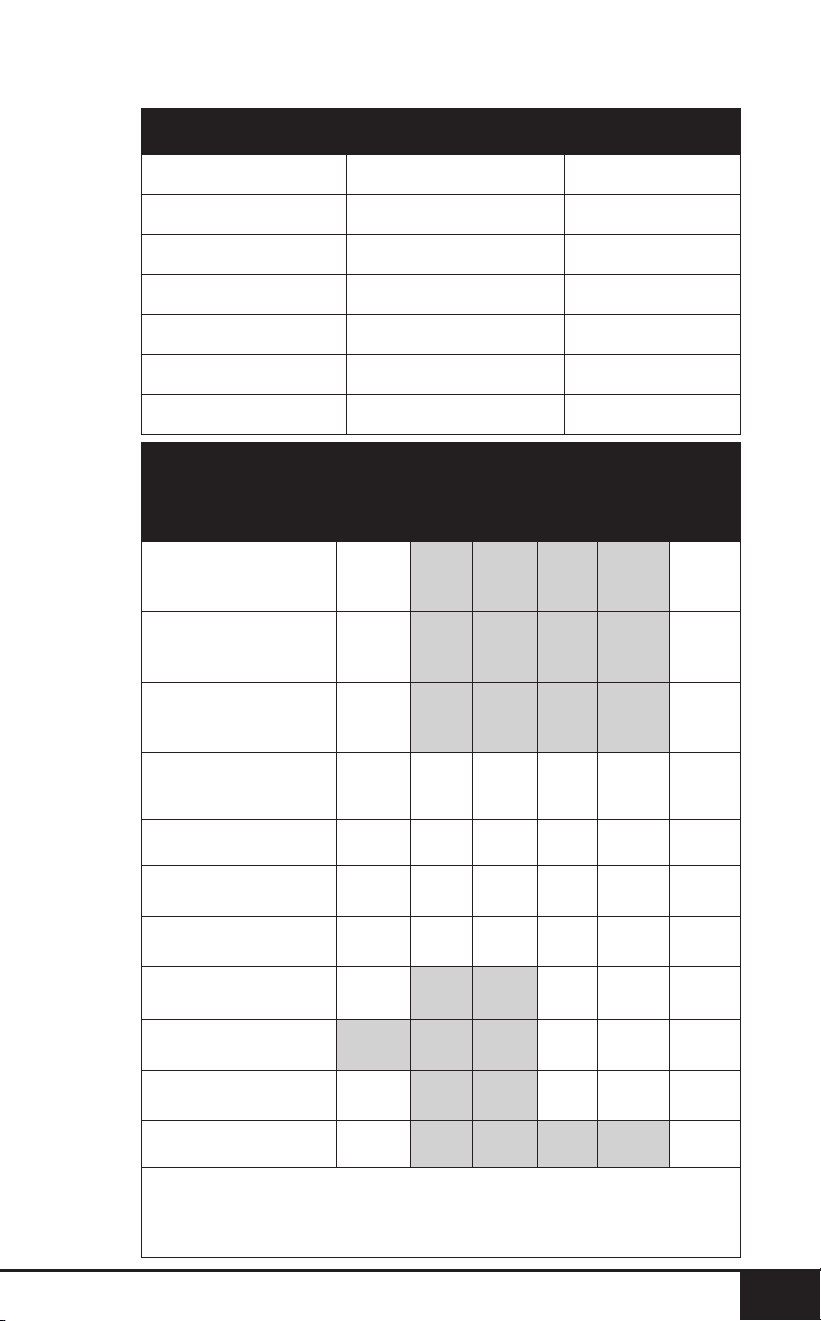
Temperature Chart
Meats °F/ °C
Rare
°F/ °C
Med
Rare
°F/ °C
Med
°F/ °C
Med
Well
°F/ °C
Well
°F/ °C
Chicken, breast
Turkey, breast
Duck, breast
360/182 165/74*
Chicken, whole
Turkey, whole
Duck, whole
360/182 165/74*
Chicken, thigh
Turkey, thigh
Duck, thigh
360/182 165/74*
Steak 1-inch thick
(25mm)
400 or
450/204
or 232
125/51 135/57
145/
62*
150/65*
160/
71*
Burgers ½ lb (227g) 350/177 125/51 135/57
145/
62*
155/68*
160/
71*
Roast Beef (bone-in)
Roast Beef (boneless)
325/163 125/51 135/57
145/
62*
150/65*
160/
71*
Lamb (bone-in)
Lamb (boneless)
325/163 125/51 135/57
145/
62*
150/65*
160/
71*
Pork (bone-in)
Pork (boneless)
350/177
145/
62*
150/65*
160/
71*
Salmon, Tuna, Halibut,
Swordfish
145/
62*
150/65*
160/
71*
Fish Steaks 1-inch
thick (25mm)
350/177
145/
62*
150/65*
160/
71*
Sausage 360/182
160/
71*
Note: Times may vary depending on cooking preference. Consuming
raw or undercooked meats, poultry, or seafood may increase your risk
of food borne illness. *To reduce the risk, cook your food to USDA-safe
temperatures.
Measurement Chart
Teaspoon = t Fahrenheit = °F Minute = min
Tablespoon = T Celsius = °C Second = sec
Cup = c Fluid Ounces = oz Inch = in.
Ounce = oz Liter = L Dozen = doz
Pound = lb(s) Milliliter = ml Hour = hr
Quart = qt Package = pkg. Gram = g
Pint = pt Gallon = gal Kilograms = kg

cleaning & maintenance
28
CLEANING & MAINTENANCE
28
Cleaning
Clean the Brio after every use or in between a number of
large batches. The Fry Pan Basket and the Base Tray have
a non-stick coating with a stainless steel Basket Net. Do not
use metal utensils or harsh abrasives when cleaning as this
can damage the coating.
1. Unplug the appliance and make sure it cools completely.
2. Use a damp cloth to wipe the outside of the appliance.
3. Clean the Fry Pan Basket and inside components with a
nonabrasive sponge, hot water, and mild detergent.
Note: Remove the Base Tray and Fry Pan Basket and place
on a heat-resistant surface to help cool the appliance quicker.
Note: If using the dishwasher for the Base Tray, Fry Pan
Basket, and Fry Pan Basket Net, it is recommended to use
top rack only.
Tip: If there is residual food in the Base Tray and Fry Pan
Basket, add some hot water and let it soak separately for
about 10 minutes for easier cleaning. Then, use a soft
cleaning brush to remove any lingering food.
Note: To clean Probe, wipe end with a damp cloth or paper towel.
Storage:
1. Unplug the Brio and let it cool down completely.
2. Make sure that all the parts are clean and dry.
3. Push the power cord into the storing capsule. Afx the
cord by inserting it into the cord-afxing opening in the
back of the unit.
nuwavenow.com
29
ENGLISH
nuwavenow.com
29
WARNING
In case of other problems, immediately unplug
and contact Customer Service Department.
support@nuwavenow.com
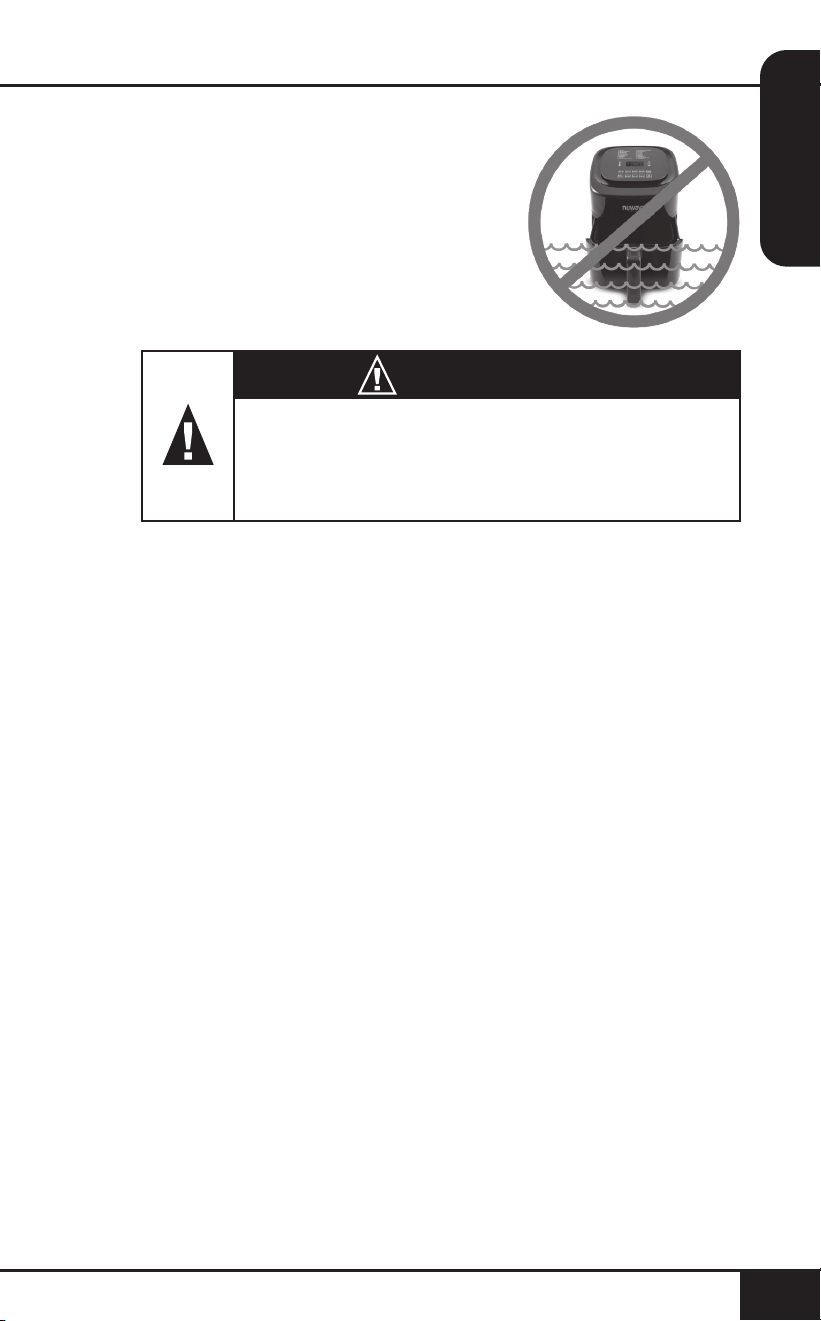
IMPORTANT - Do not immerse unit
in water or attempt to cycle through
dishwasher. The outer surface may
be cleaned by wiping carefully with
a damp dishcloth or sponge.
Make sure unit has cooled
completely prior to cleaning.

troubleshoot guide
30
TROUBLESHOOT GUIDE
30
The Brio is not turning on or working.
1. The Brio is not plugged in.
2. Did not press ON/OFF.
3. Base Tray with Fry Pan Basket is not in the Brio.
4. Insert the plug into an appropriate grounded power
socket. Press ON/OFF after settings are selected. Place
the Base Tray with Fry Pan Basket into the Brio.
The ingredients fried in the Fry Pan Basket are not
completely cooked.
1. Too many ingredients were used. The cooking
temperature is too low.
2. The cooking time is too short.
3. Remove some ingredients from the Fry Pan Basket;
smaller batches air-fry more evenly. Cook at a higher
temperature. Set the Brio to air-fry for a longer time.
The food is fried unevenly.
1. Certain types of ingredients need to be shaken halfway
through the cooking time.
2. Ingredients that are on the top need to be shaken
halfway through the cooking time.
Fried snacks are not crispy when they come out
of the Brio.
1. You used a type of snack meant to be prepared in a tradi-
tional deep fryer.
2. Use snacks designed to be baked in a traditional oven,
or lightly brush some olive oil onto the snacks before
placing into Brio for a crispier result.
Cannot slide the Fry Pan Basket into
the appliance properly.
1. The Fry Pan Basket is overlled. The Fry Pan Basket is
not placed in the Base Tray correctly.
2. Do not ll the Fry Pan Basket more than 4/5 full. Push
the Fry Pan Basket down into the Base Tray until you
hear a click.

nuwavenow.com
31
nuwavenow.com
31
White smoke is coming out of the product.
1. You are frying greasy foods. The Fry Pan Basket and
Fry Pan Basket Net or Base Tray contains greasy
residue from previous uses.
2. When preparing greasy ingredients in the air fryer, large
amounts of oil can smoke and inltrate Fry Pan Basket.
The oil will produce white smoke and the Fry Pan
Basket or Base Tray might become hotter than usual.
This will not affect the nal cooking result. White smoke
is caused by grease heating up in the Fry Pan Basket.
Make sure you clean Fry Pan Basket and Fry Pan
Basket Net and Base Tray properly after use.
French fries are fried unevenly in the Brio.
1. You did not soak the potato sticks properly before air-
frying them.
2. You did not use the right potato type or they were not fresh.
3. Soak potato sticks in a bowl of water for at least 30
minutes, remove them, and dry with paper towels. Use
fresh potatoes and make sure they stay rm during
air-frying.
French fries are not crispy when they come out
of the Brio.
1. The crispiness of the fries depends on the amount of oil
and water in the fries.
2. Make sure you dry the potato sticks properly before
adding oil. Cut the potato sticks smaller and dry them
for a crispier result. Add slightly more oil on potatoes
before placing in Brio for a crispier result.
If the unit needs to be replaced or returned to the
manufacturer, please contact Customer Service Department
at support@nuwavenow.com.

troubleshoot guide
32
TROUBLESHOOT GUIDE
32
Error Message: Solution(s):
Prb1
Probe not connected to the unit. Plug
the Brio into the appropriate
power socket.
Prb2
The Probe target internal temperature is
set higher than set cooking temperature.
Prb3
Probe short Circuit.
Contact Customer Service Department.
Prb4
Probe sensor not detecting temperature
increase. Ensure the Probe is inserted
into the food and the food is in oven
during cooking.
Er1
NTC Temperature Sensor overheated.
Turn unit off to cool. If the Brio is not
working after it cools down, contact
Customer Service.
Err1
NTC Temperature Sensor short circuit.
Contact Customer Service Department.
Err2
NTC Temperature Sensor is open.
Contact Customer Service Department
at support@nuwavenow.com.

nuwavenow.com
33
nuwavenow.com
33
The Nuwave Brio
®
6Q Digital Air Fryer with Probe
THE MANUFACTURER WARRANTS
The Brio, including the Base Tray, Fry Pan Divider, Fry Pan
Basket, Fry Pan Basket Net, and Probe, are to be free from
manufacturer defects.
All electrical components are warrantied for 1 year from
the date of purchase, under normal household use, and
when operated in accordance with the Manufacturer’s
written instructions. The Manufacturer will provide the
necessary parts and labor to repair any part of the Brio
at Nuwave LLC Service Department. After the expiration
of the warranty, the cost of the labor and parts will be the
responsibility of the owner.
MANUFACTURER’S OBLIGATION
The Manufacturer’s obligation under this Limited Warranty
is limited, to the extent allowable by law, to repairing or
replacing any part covered by this Limited Warranty which
upon examination is found to be defective under normal use.
The Limited Warranty is applicable only within the continental
United States and only to the original purchaser of the
manufacturer’s authorized channels of distribution. THE
LIMITED WARRANTY MAY NOT BE ALTERED, VARIED
OR EXTENDED EXCEPT BY A WRITTEN INSTRUMENT
EXECUTED BY THE MANUFACTURER. THE REMEDY
OF REPAIR OR REPLACEMENT AS PROVIDED UNDER
THIS LIMITED WARRANTY IS EXCLUSIVE. IN NO
EVENT SHALL THE MANUFACTURER BE LIABLE FOR

limited warranty
34
LIMITED WARRANTY
34
LIMITED WARRANTY
ANY CONSEQUENTIAL OR INCIDENTAL DAMAGES TO
ANY PERSON, WHETHER OR NOT OCCASIONED BY
NEGLIGENCE OF THE MANUFACTURER, INCLUDING
WITHOUT LIMITATION, DAMAGES FOR LOSS OF USE,
COSTS OF SUBSTITUTION, PROPERTY DAMAGE, OR
OTHER MONEY LOSS.
Some states do not allow the exclusion or limitation of
incidental or consequential damages, so the above limitation
exclusions may not apply. This Limited Warranty gives specic
legal rights, and there may also be other rights which vary
from state to state. EXCEPT AS OTHERWISE EXPRESSLY
PROVIDED ABOVE, THE MANUFACTURER MAKES NO
WARRANTIES EXPRESSED OR IMPLIED ARISING BY
LAW OR OTHERWISE, INCLUDING WITHOUT LIMITATION,
THE IMPLIED WARRANTIES OF MERCHANTABILITY
AND FITNESS FOR A PARTICULAR PURPOSE TO ANY
OTHER PERSON. READ YOUR OWNER’S MANUAL. IF
YOU STILL HAVE ANY QUESTIONS ABOUT OPERATION
OR WARRANTY OF THE PRODUCT, PLEASE CONTACT
Nuwave LLC.
DISPUTE RESOLUTION PROCEDURE. For disputes
relating to use of the website or use or purchase of a
Nuwave product or service (collectively "Disputes"), you
agree to rst contact Nuwave LLC at (877) 689-2838
(phone), (847) 367-5486 (facsimile), or legal@Nuwavenow.
com (email). If we cannot resolve your dispute informally,
any and all disputes shall be submitted to nal and binding
arbitration. You may start the arbitration process by
submitting in writing a demand to the American Arbitration

nuwavenow.com
35
nuwavenow.com
35
Association ("AAA") and sending a copy to Nuwave. Nuwave
will pay all ling costs. A single arbitrator of the AAA will
conduct the arbitration in a location convenient to you or by
phone. The arbitrator’s award will be binding and may be
entered as a judgment in a court of competent jurisdiction.
The arbitration will be conducted in accordance with the
provisions of AAA’s Commercial Arbitration Rules and
Mediation Procedures in effect at the time of submission of
your demand for arbitration. See https://www.adr.org/sites/
default/les/CommercialRules_Web.pdf. Except as may be
required by law as determined by an arbitrator, no party or
arbitrator may disclose the existence, content, or results of
any arbitration hereunder without prior written consent of
both parties.
A. WAIVER OF RIGHT TO SUE. By agreeing to arbitration
you understand that, to the maximum extent permitted by
law, you are agreeing to waive your right to le suit in any
court, to a court hearing, judge trial, and jury trial.
B. CLASS ACTION WAIVER. To the maximum extent
permitted by law you expressly agree to refrain from
bringing or joining any claims in any representative or
class-wide capacity, including but not limited to, bringing
or joining any claims in any class action or class-wide
arbitration.

limited warranty
36
LIMITED WARRANTY
36
C. OPT OUT PROCEDURE. To opt out of arbitration you
must contact Nuwave. To request to opt out of arbitration
contact us at legal@Nuwavenow.com (email), Nuwave LLC,
1795 N. Buttereld Road, Libertyville, IL 60048, U.S.A.,
(847) 367-5486 (fax), or (877) 689-2838 or (224) 206-3019
(phone). You will have thirty (30) days from the date of
product delivery to opt out of arbitration with respect to any
dispute arising out of or relating to use or purchase of any
Nuwave product. If more than 30 days have passed you are
not eligible to opt out of arbitration and will have waived your
right to sue or participate in a class action with respect to
the dispute arising out of your purchase or use of a Nuwave
product. For any dispute arising out of your use of Nuwave’s
website, you have thirty (30) days from the date you
provided information to the website to opt out of arbitration.
If more than 30 days have passed you are not eligible to opt
out of arbitration and you will have waived your right to sue
and participate in a class action with respect to the dispute
arising out of your use of Nuwave’s website.

nuwavenow.com
37
nuwavenow.com
37
LIMITED WARRANTY
3737
D. SOME MATTERS ARE NOT SUBJECT TO
ARBITRATION. Notwithstanding the foregoing, the
following shall not be subject to arbitration and may be
adjudicated only in the state and federal courts of Illinois: (i)
any dispute, controversy, or claim relating to or contesting
the validity of our intellectual property rights and proprietary
rights, including without limitation, patents, trademarks,
service marks, copyrights, or trade secrets; (ii) an action by
a party for temporary, preliminary, or permanent injunctive
relief, whether prohibitive or mandatory, or other provisional
relief; or (iii) interactions with governmental and regulatory
authorities. You expressly agree to refrain from bringing
or joining any claims in any representative or class-wide
capacity, including but not limited to, bringing or joining any
claims in any class action or any class-wide arbitration.
READ YOUR OWNER’S MANUAL
If you still have any questions about operation or warranty
of the product, please contact at
support@nuwavenow.com.
Item No: BM 37006
Rev.4
08-05-24-YK
FOR HOUSEHOLD USE ONLY
120VAC / 60 Hz / 1800 Watts
For patent information please go to:
www.nuwavenow.com/legal/patent
Designed & Developed in USA
Nuwave LLC
560 Bunker Ct.
Vernon Hills, IL 60061, U.S.A.
Made in China
©2024 • All Rights Reserved.
Customer Service: support@nuwavenow.com
Questions or Concerns?
1-888-502-7805
Mon-Fri 7:30am-4:30pm CST
Digital Air Fryer
with Temperature Probe
6Q
