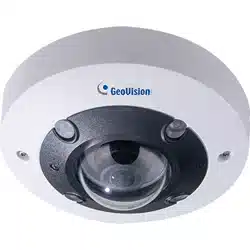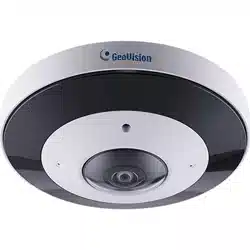
Before attempting to connect or operate this product,
please read these instructions carefully and save this manual for future use.
User's Manual
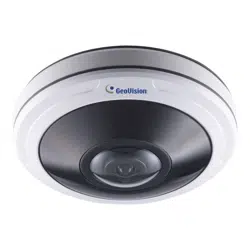
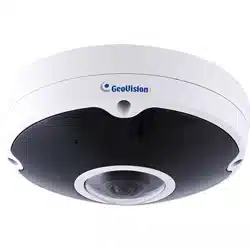
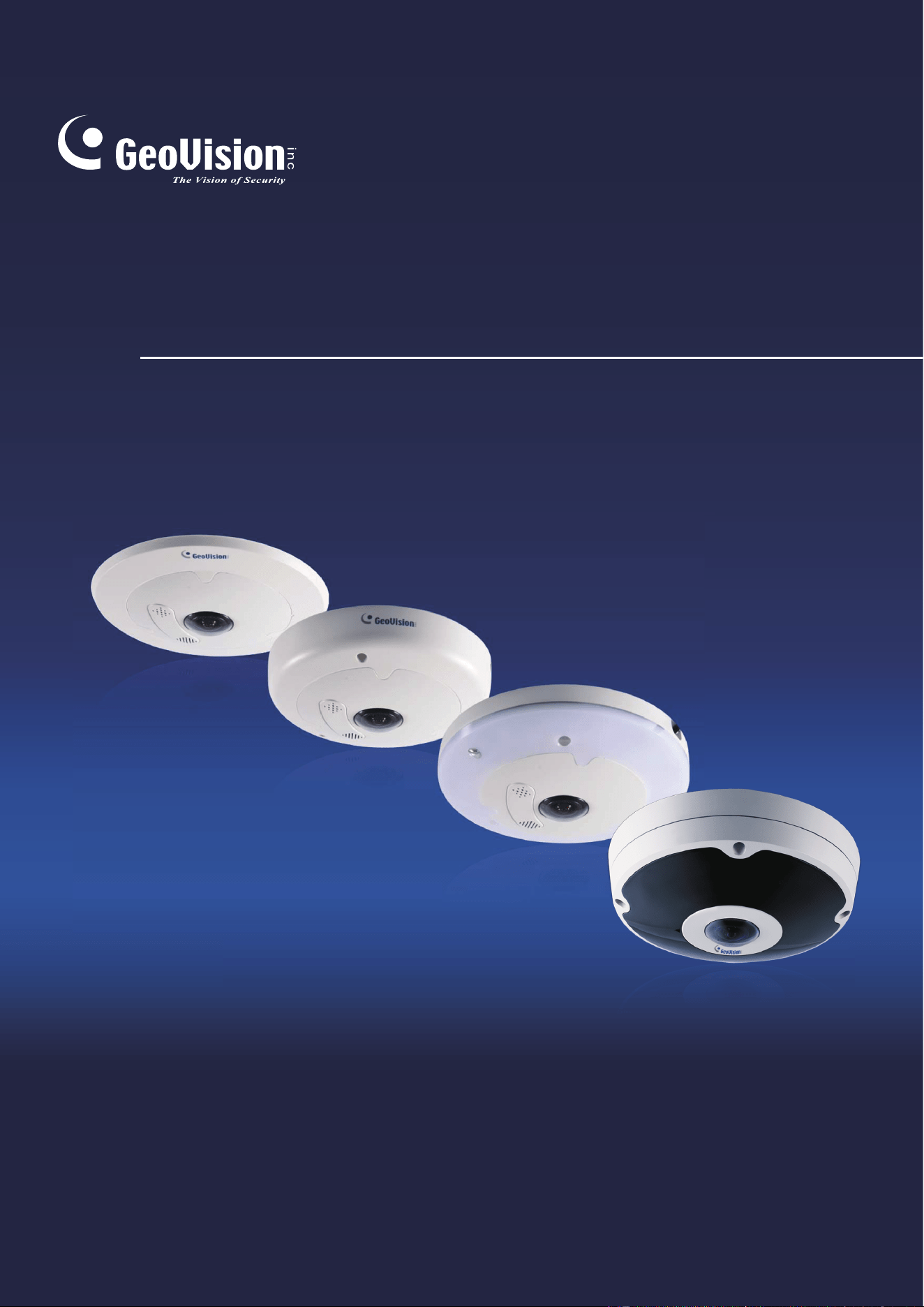
GV-Fisheye IP Camera
FE-UM-&

© 2023 GeoVision, Inc. All rights reserved.
Under the copyright laws, this manual may not be copied, in whole or in part,
without the written consent of GeoVision.
Every effort has been made to ensure that the information in this manual is
accurate. GeoVision, Inc. makes no expressed or implied warranty of any kind
and assumes no responsibility for errors or omissions. No liability is assumed
for incidental or consequential damages arising from the use of the information
or products contained herein. Features and specifications are subject to
change without notice.
GeoVision, Inc.
9F, No. 246, Sec. 1, Neihu Rd.,
Neihu District, Taipei, Taiwan
Tel: +886-2-8797-8377
Fax: +886-2-8797-8335
http://www.geovision.com.tw
Trademarks used in this manual: GeoVision, the GeoVision logo and GV
series products are trademarks of GeoVision, Inc. Windows is the registered
trademark of Microsoft Corporation.
November 2023
Scan the following QR codes for product warranty and technical support
policy:
[Warranty] [Technical Support Policy]
i
Preface
Welcome to the GV-Fisheye IP Camera User’s Manual.
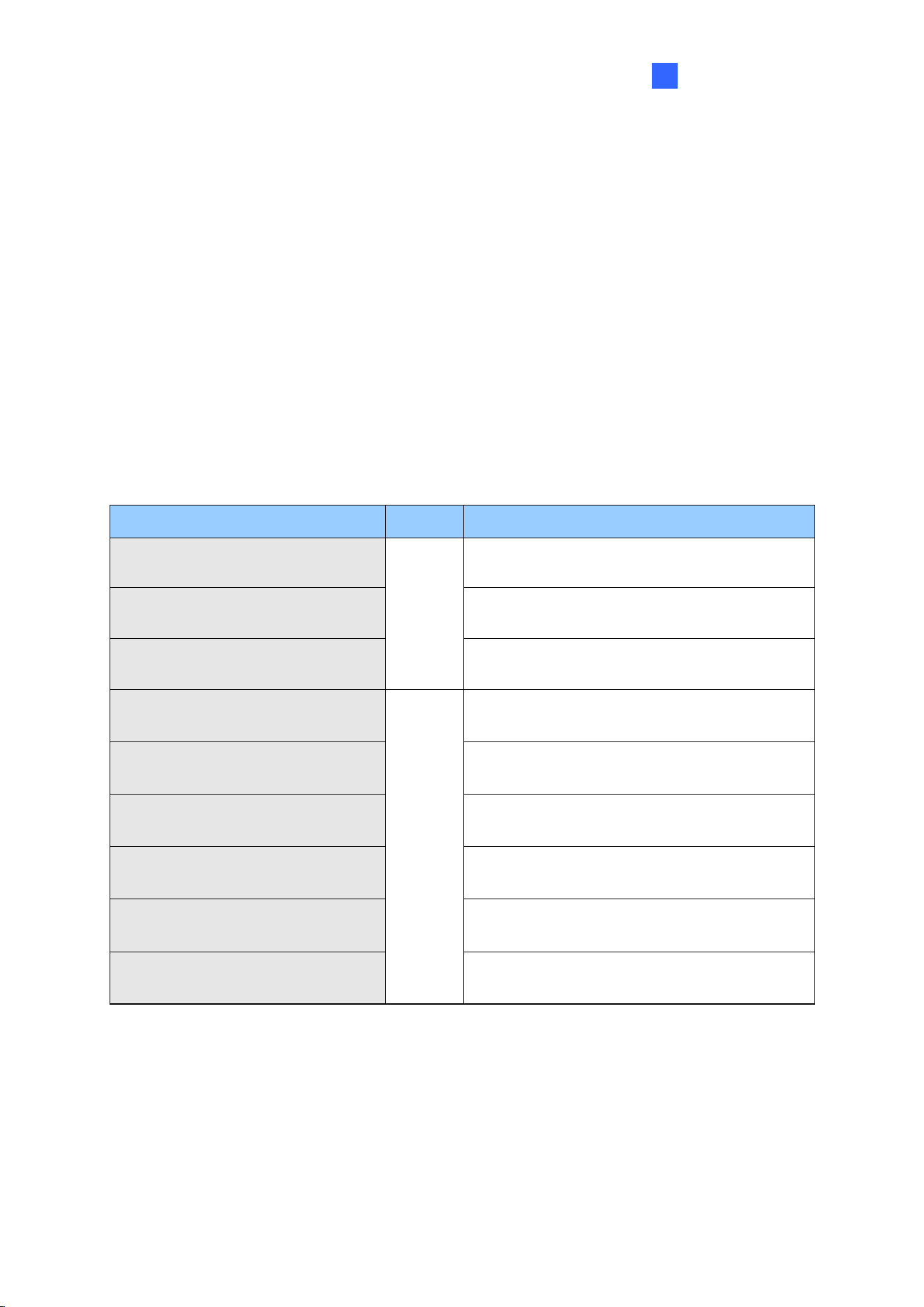
The GV-Fisheye IP Camera has the following models with different resolutions. This Manual
is designed for the following models:
Model
Model Number
Fisheye Camera
GV-FE2301
GV-FE4301
GV-FE3402 / 3403
GV-FE5302 / 5303
Fisheye Rugged Camera
GV-FER3402 / 3403
GV-EFER3700 Series
GV-FER5302 / 5303
GV-FER5700
GV-FER5701
GV-FER12203
GV-FER12700
Note:
1. To upgrade the camera firmware from V2.07 or earlier to the latest version, back up the
files in the camera’s memory card before the upgrade and it is required to re-format the
memory card after the upgrade.
2. Starting from V3.0, GV-Fisheye IP Camera (except GV-FER5700 / 5701 / 12203 and
GV-EFER3700 Series) supports recording to NAS devices using the Network
Neighborhood settings.

ii
Contents
Naming and Definition ...........................................................vii
Caution ....................................................................................vii
Creating GV-IP Camera’s Login Credentials ......................viii
Note for Connecting to GV-DVR / NVR / VMS .......................ix
Note for USB Storage and WiFi Adapter ...............................ix
Note for Recording ...................................................................x
Note for Installing Camera ......................................................xi
Chapter 1 Introduction ..........................................................1
1.1 Key Features ......................................................................................................... 2
1.2 Packing List ........................................................................................................... 5
1.3 System Requirement ............................................................................................13
1.4 Optional Accessories ............................................................................................14
1.5 Physical Description..............................................................................................15
1.5.1 GV-FE2301 / 4301 ....................................................................................15
1.5.2 GV-FE3402 / 3403 / 5302 / 5303 ..............................................................15
1.5.3 GV-FER3402 / 3403 / 5302 / 5303 ............................................................16
1.5.4 GV-EFER3700 / EFER3700-W .................................................................19
1.5.5 GV-FER5700 / 5701 / 12700 .....................................................................21
1.5.6 GV-FER12203 ..........................................................................................22
1.6 Installation ............................................................................................................26
1.6.1 Hard Ceiling Mount ..................................................................................24
1.6.1.1 General Hard-Ceiling Mount ......................................................24
1.6.1.2 GV-FER5700 / 5701 / 12203 / 12700 ........................................28
1.6.1.3 GV-EFER3700 / EFER3700-W .................................................32
1.6.1.4 Waterproofing the Cable ...........................................................34
1.6.2 In-Ceiling Mount ......................................................................................35
1.6.3 Standard Wall Mount and Ground Mount ..................................................38
1.6.4 Ground Mount ...........................................................................................38
1.7 Connecting GV-Fisheye Camera ..........................................................................39
1.7.1 GV-FE2301 / 4301 ....................................................................................39
1.7.2 GV-FE3402 / 3403 / 5302 / 5303 ..............................................................41

iii
1.7.3 Connecting PoE Converter and IR LED Ring for GV-FE3403 / 5303 ........42
1.7.4 GV-FER3402 / 3403 / 5302 / 5303 ............................................................44
1.7.5 GV-FER5700 / 5701 / 12203 / 12700 ........................................................46
1.7.6 GV-EFER3700 / EFER3700-W .................................................................47
Chapter 2 Getting Started ...................................................49
2.1 Installing on a Network ..........................................................................................49
2.1.1 Checking the Dynamic IP Address ............................................................50
2.1.2 Assigning an IP Address ...........................................................................51
2.1.3 Configuring the Wireless Connection ........................................................53
2.2 Configuring the Basics ..........................................................................................55
Chapter 3 Accessing the Camera .......................................56
3.1 Accessing Your Surveillance Images ....................................................................56
3.2 Functions Featured on the Main Page ..................................................................57
3.2.1 The Live View Window ..............................................................................58
3.2.2 Fisheye View ............................................................................................61
3.2.3 The Control Panel of the Live View Window .............................................64
3.2.4 Snapshot of a Live Video ..........................................................................68
3.2.5 Video Recording .......................................................................................68
3.2.6 Wide Angle Lens Dewarping .....................................................................69
3.2.7 Picture-in-Picture and Picture-and-Picture View........................................70
3.2.8 Object Tracking.........................................................................................72
3.2.9 Alarm Notification ......................................................................................74
3.2.10 Video and Audio Configuration ...............................................................76
3.2.11 Remote Configuration .............................................................................77
3.2.12 Camera Name Display ............................................................................77
3.2.13 Image Enhancement ...............................................................................77
3.2.14 I/O Control ..............................................................................................78
3.2.15 Visual Automation ...................................................................................79
3.2.16 Network Status .......................................................................................79

iv
Chapter 4 Administrator Mode ...........................................80
4.1 Video & Motion .....................................................................................................82
4.1.1 Video Settings ..........................................................................................83
4.1.2 Motion Detection .......................................................................................90
4.1.3 Privacy Mask ............................................................................................92
4.1.4 Text Overlay .............................................................................................93
4.1.5 Tampering Alarm ......................................................................................94
4.1.6 Visual Automation .....................................................................................96
4.2 I/O Control ............................................................................................................97
4.2.1 Input Settings ............................................................................................97
4.2.2 Output Settings .........................................................................................98
4.3 Events & Alerts .....................................................................................................99
4.3.1 E-mail .......................................................................................................99
4.3.2 FTP ......................................................................................................... 101
4.3.3 Center V2 ............................................................................................... 104
4.3.4 Vital Sign Monitor .................................................................................... 106
4.3.5 Backup Center ........................................................................................ 108
4.3.6 Video Gateway / Recording Server ......................................................... 110
4.3.7 ViewLog Server ...................................................................................... 112
4.3.8 RTSP/ONVIF .......................................................................................... 113
4.4 Monitoring ........................................................................................................... 115
4.5 Recording Schedule............................................................................................ 117
4.5.1 Recording Schedule Settings .................................................................. 117
4.5.2 I/O Monitoring Settings ........................................................................... 118
4.6 Remote ViewLog ................................................................................................ 119
4.7 Network .............................................................................................................. 120
4.7.1 LAN ........................................................................................................ 120
4.7.2 Wireless Client Mode .............................................................................. 122
4.7.3 Advanced TCP/IP ................................................................................... 124
4.7.4 IEEE 802.1x ............................................................................................ 127
4.7.5 UMTS Settings........................................................................................ 128
4.7.6 IP Filtering .............................................................................................. 130
4.7.7 SNMP Setting ......................................................................................... 131
4.8 Management ....................................................................................................... 132
4.8.1 Date and Time Settings .......................................................................... 132
4.8.2 Storage Settings ..................................................................................... 134
4.8.3 User Account .......................................................................................... 139
4.8.4 Log Information ....................................................................................... 140

v
4.8.5 Tools ....................................................................................................... 140
4.8.6 Language ................................................................................................ 141
Chapter 5 Recording and Playback .................................142
5.1 Recording ........................................................................................................... 142
5.2 Playback ............................................................................................................. 143
5.2.1 Playback from the Memory Card ............................................................. 143
5.2.2 Playback over Network ........................................................................... 147
5.2.3 Accessing the Recorded Files through FTP Server ................................. 148
5.2.4 Playing Back Daylight Saving Time Events ............................................. 149
Chapter 6 Advanced Applications ...................................150
6.1 Upgrading System Firmware ............................................................................... 150
6.1.1 Using the Web Interface ......................................................................... 151
6.1.2 Using GV-IP Device Utility ...................................................................... 152
6.2 Backing Up and Restoring Settings ..................................................................... 153
6.3 Restoring Factory Default Settings ...................................................................... 155
6.3.1 Using the Web Interface ......................................................................... 155
6.3.2 Directly on the Camera ........................................................................... 155
6.4 Verifying Watermark ........................................................................................... 159
6.4.1 Accessing AVI Files ................................................................................ 159
6.4.2 Running Watermark Proof ...................................................................... 159
6.4.3 The Watermark Proof Window ................................................................ 160
6.5 Downloading Videos from the Micro SD Card ..................................................... 161
6.5.1 Installing GV-SDCardSync Utility ............................................................ 161
6.5.2 The GV-SDCardSync Utility Window ...................................................... 164

vi
Chapter 7 DVR/NVR/VMS Configurations ........................165
7.1 Setting Up IP Cameras on GV-DVR / NVR ......................................................... 167
7.1.1 Customizing the Basic Settings on GV-DVR / NVR ................................. 167
7.2 Setting Up IP Cameras on GV-VMS ................................................................... 170
7.3 Remote Monitoring with Multi View ..................................................................... 172
7.3.1 Connecting to the IP Camera .................................................................. 172
7.4 Remote Monitoring with E-Map ........................................................................... 173
7.4.1 Creating an E-Map for the IP Camera ..................................................... 173
7.4.2 Connecting to the IP Camera .................................................................. 174
Chapter 8 CMS Configurations .........................................175
8.1 Center V2 ........................................................................................................... 176
8.2 Vital Sign Monitor ................................................................................................ 178
8.3 Dispatch Server .................................................................................................. 179
Appendix ...............................................................................180
A. Settings for Internet Explorer 8 or later .................................................................... 180
B. RTSP Protocol Support ........................................................................................... 181
C. Supported Mobile Broadband Devices .................................................................... 182
D. The CGI Command ................................................................................................. 182
E. Supported Firmware for Flash Memory ................................................................... 183
F. How to Remotely Reboot IP Cameras via FTP ........................................................ 184
G. Compatible SD Cards for GV-FER12700 ................................................................ 185
vii
Naming and Definition
GV-DVR / NVR
GeoVision Analog and Digital Video Recording Software. The GV-
DVR also refers to GV-Multicam System, or GV-Hybrid DVR.
GV-VMS
GeoVision Video Management System for IP cameras.
Caution
This caution is only for GV-EFER3700-W.
This device complies with Part 15 of the FCC Rules. Operation is subject to the following two
conditions:
1. This device may not cause harmful interference, and
2. This device must accept any interference received, including interference that may cause
undesired operation
viii
Creating GV-IP Camera’s Login
Credentials
The default Administrator and Guest accounts are not supported by the latest firmware
anymore. After purchasing a new camera or applying factory defaults, you need to set up a
login username and password for that camera.
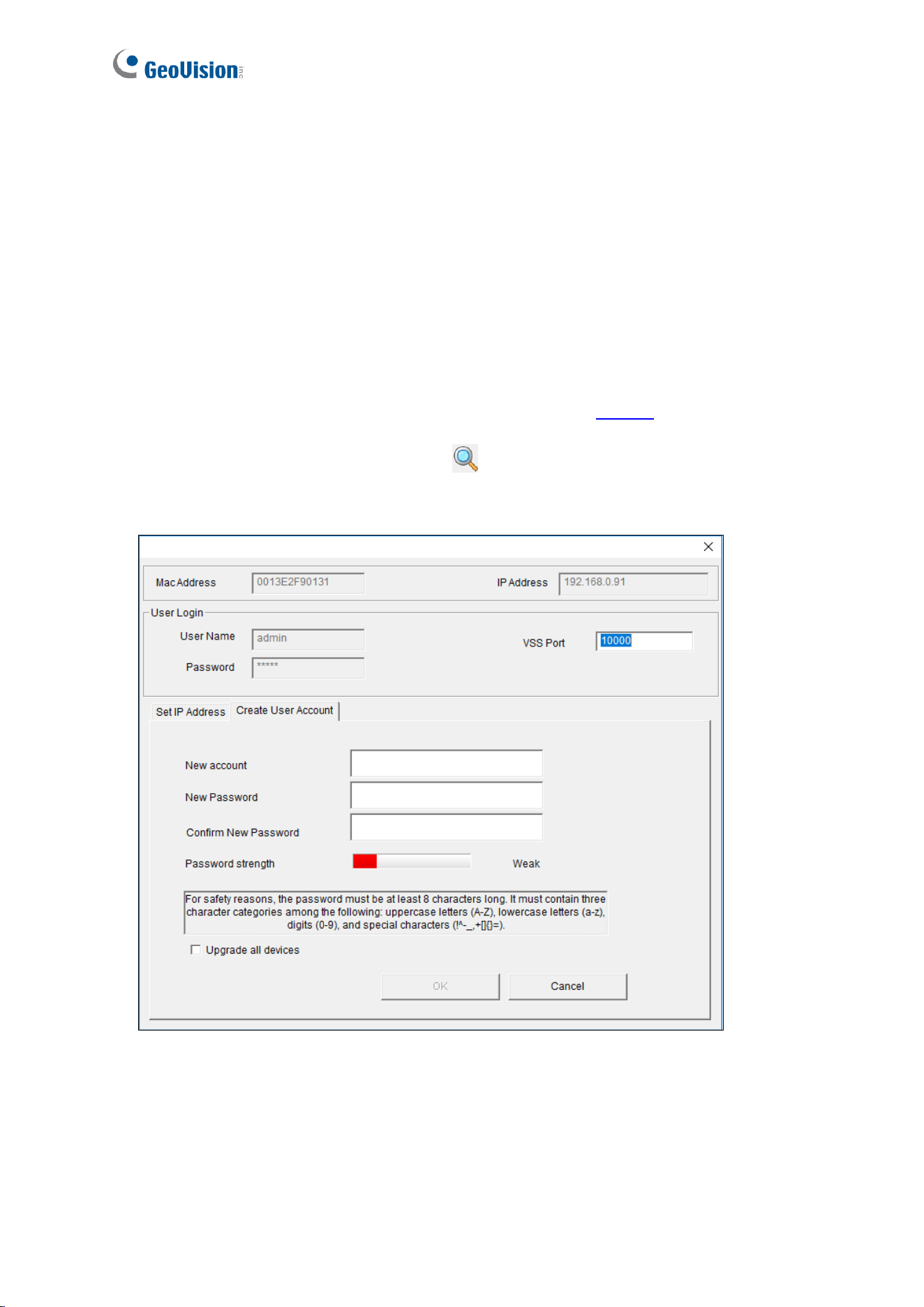
1. Download and install GV-IP Device Utility from the company website.
2. On the GV-IP Device Utility window, click to search for your GV-IP camera.
3. Double-click your GV-IP camera in the GV-IP Device Utility list. This dialog box appears.
4. Click the Create User Account tab to type a username and password. Note that the new
password must meet the password strength requirements.
5. Optionally click Upgrade all devices to use the same username and password on all
other devices that do not yet have login credentials.

ix
Note for Connecting to GV-DVR /
NVR / VMS
The GV-Fisheye IP Camera is designed to work with GV-DVR / NVR / VMS, a video
management system. Note the following when the camera is connected to GV-DVR / NVR /
VMS:
1. By default, the images are recorded to the memory card inserted in the GV-Fisheye IP
Camera.
2. Once the camera is connected to the GV-DVR / NVR / VMS, the resolution set on the
GV-DVR / NVR / VMS will override the resolution set on the camera’s Web interface. You
can only change the resolution settings through the Web interface when the connection
to the GV-DVR / NVR / VMS is interrupted.
Note for USB Storage and WiFi Adapter
Mind the following limitations and requirements for using USB storage and GV-WiFi Adapter:
1. The USB hard drive must be of 2.5’’ or 3.5’’, version 2.0 or above.
2. The USB hard drive’s storage capacity must not exceed 2TB.
3. USB flash drives and USB hubs are not supported.
4. External power supply is required for the USB hard drive.
5. To connect a GV-WiFi Adapter, make sure it is connected before the camera is powered
on.

x
Note for Recording
1. By default, the images are recorded to the memory card inserted in the GV-Fisheye IP
Camera. Make sure the Write recording data into local storage option (see 4.1.1 Video
Settings) is enabled. If this option is disabled, the camera will stop recording to the
memory card while the live view is accessed through Web browsers or other applications.
2. Mind the following when using a memory card for recording:
• Recorded data on the memory card can be damaged or lost if the data are accessed
while the camera is under physical shock, power interruption, memory card
detachment or when the memory card reaches the end of its lifespan. No guarantee
is provided for such causes.
• The stored data can be lost if the memory card is not accessed for a long period of
time. Back up your data periodically if you seldom access the memory card.
• Memory cards are expendable and their durability varies according to the conditions
of the installed site and how they are used. Back up your data regularly and replace
the memory card annually.
• To avoid power outage, it is highly suggested to apply a battery backup (UPS).
• For better performance, it is highly suggested to use Micro SD card of MLC NAND
flash, Class 10.
• Replace the memory card when its read/write speed is lower than 6 MB/s or when the
memory card is frequently undetected by the camera.
3. It is recommended to use memory cards of the following setting and specifications:
• Apply a battery backup (UPS) to avoid power outage.
• Use Micro SD card of MLC NAND flash, Class 10 for better performance.
xi
Note for Installing Camera
When installing GV-FER outdoor models, be sure that:
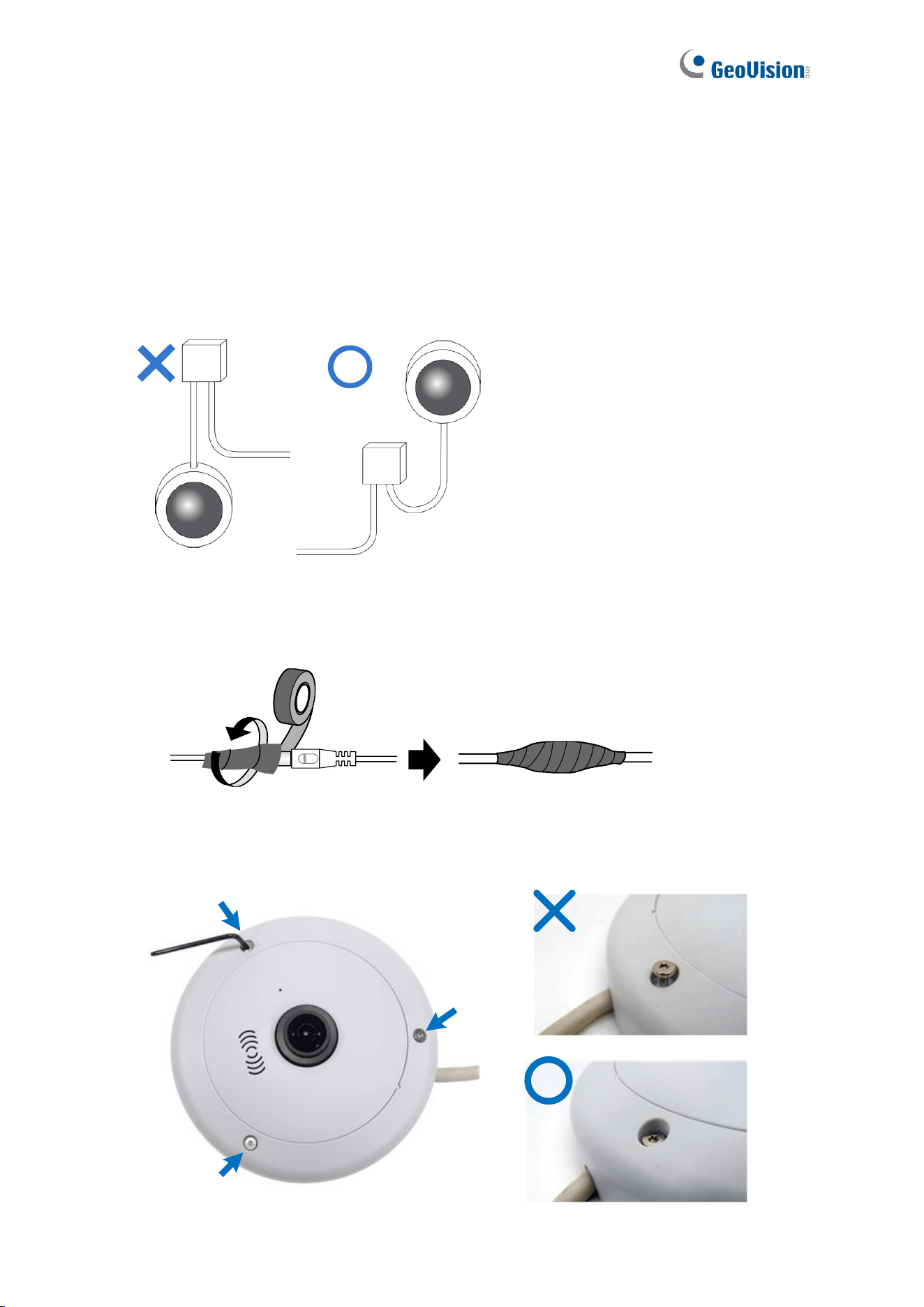
1. The camera is set up above the junction box to prevent water from entering the camera
along the cables.
2. Any PoE, power, audio and I/O cables are waterproofed using waterproof silicon rubber
or the like.
3. The screws are tightened and the cover is in place after opening the camera cover.
xii
4. The silica gel bag loses its effectiveness when the dry camera is opened. To prevent the
lens from fogging up, use the supplied silica gel bag for replacement every time you open
the camera, and conceal the gel bag into camera within 2 minutes of air exposure.
When installing GV-FE indoor models, be sure to:
• Keep the indoor camera shielded from rain and moisture.
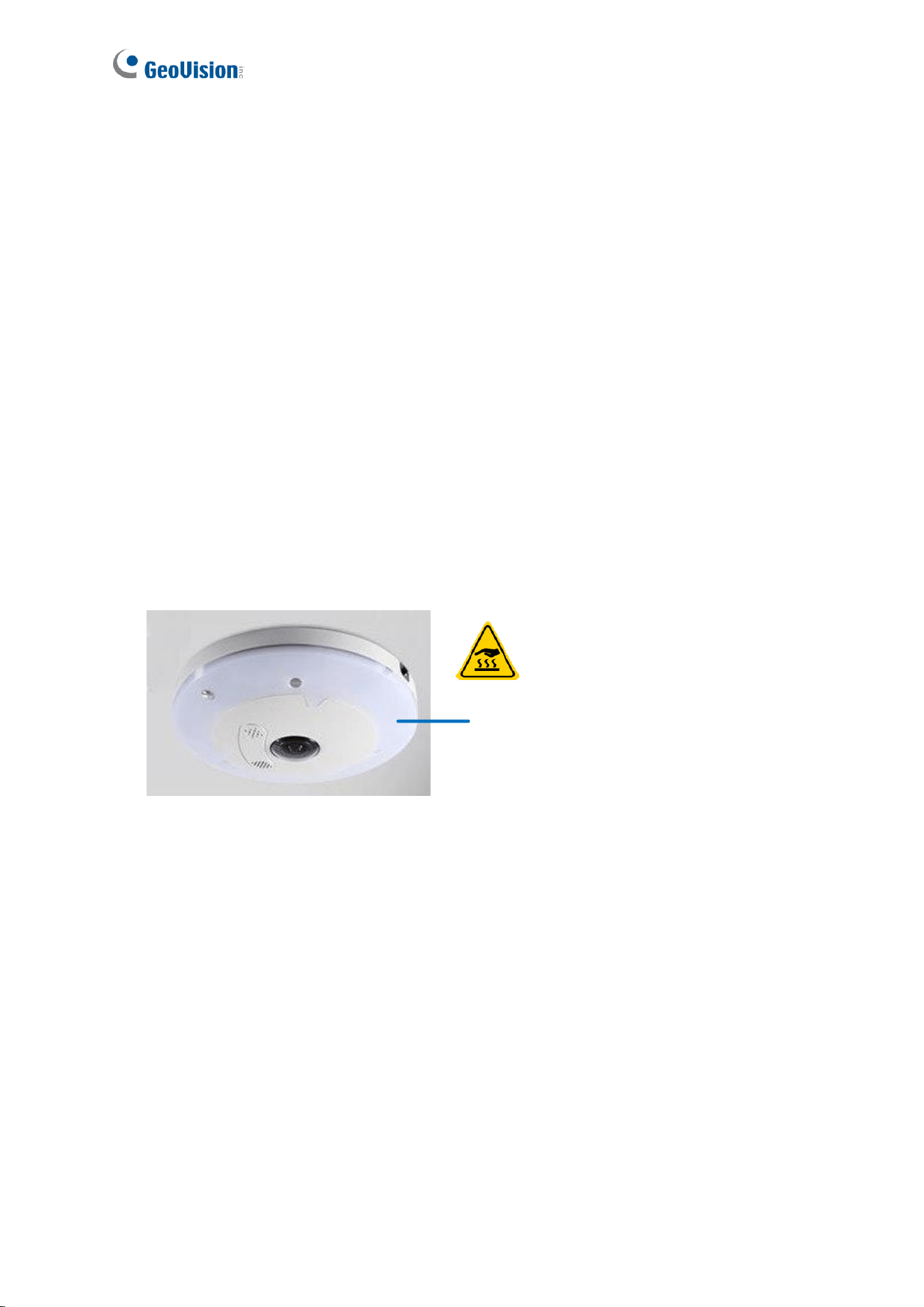
When installing GV-FE or GV-FER models with IR LED rings, be sure that:
• An operating IR LED ring may reach high temperatures of up to 60°C (140°F).
Disconnect the power supply and allow the IR LED ring to cool down before handling
the device.
IR LED Ring
Introduction
1
1
Chapter 1 Introduction
The fisheye camera allows you to monitor all angles of a location using just one camera. It
can be installed to the ceiling, wall, wall corner and pole. The distorted hemispherical image
of the fisheye camera can be converted into the conventional rectilinear projection.
Without installing any software, you can watch live view and utilize functions such as motion
detection, privacy mask and alert notification through the Web interface. In addition, GV-
Fisheye IP Camera seamlessly integrates with the GV-DVR / NVR / VMS, providing
advanced monitoring and video management features.
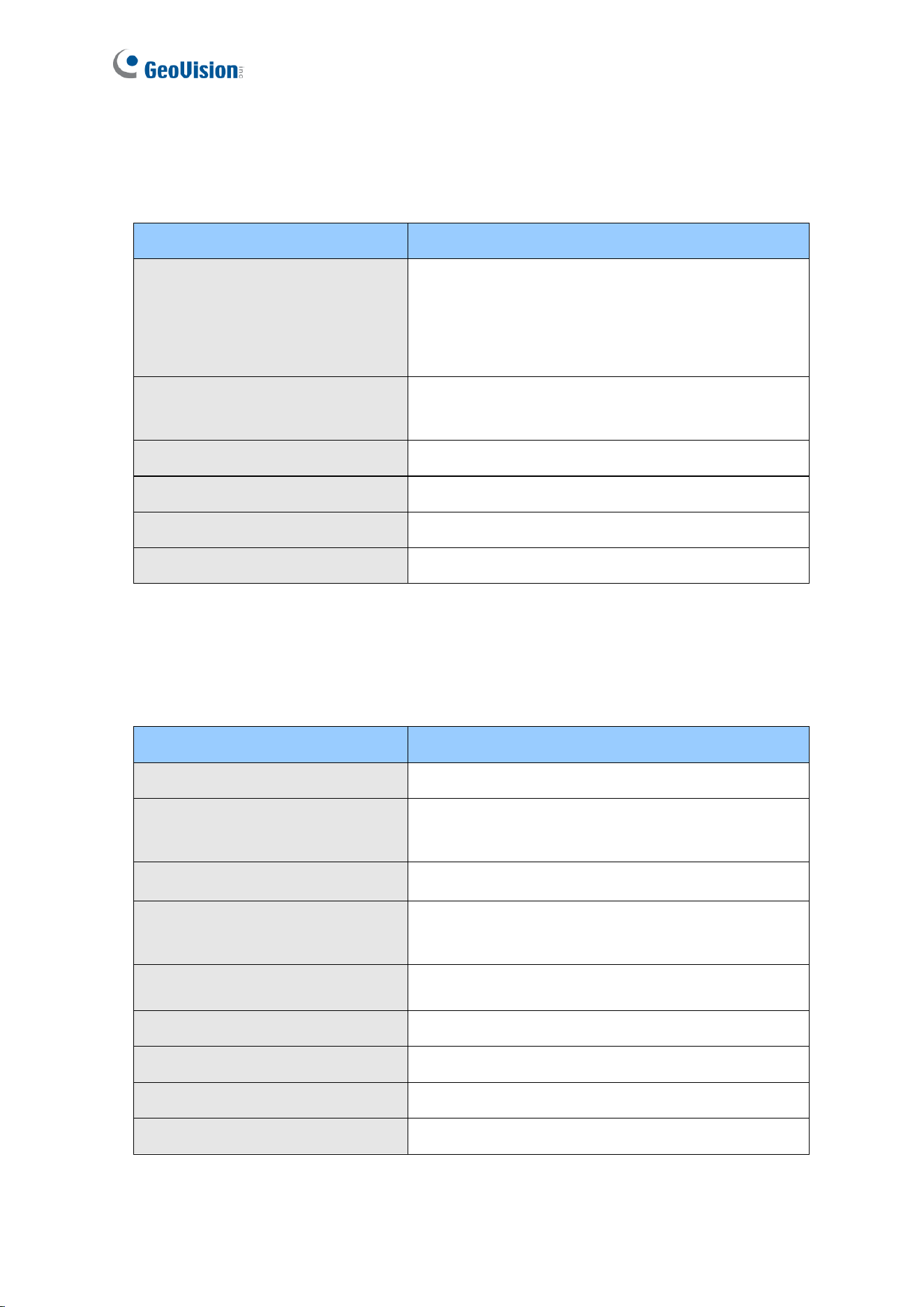
The following GV-Fisheye Cameras are available:
Models
Type
Description
GV-FE2301 / 4301
Indoor
2 MP / 4 MP
GV-FE3402 / 5302
3 MP WDR Pro / 5 MP
GV-FE3403 / 5303
3 MP WDR Pro / 5 MP, IR LED ring
GV-FER3402 / 5302
Outdoor
3 MP WDR Pro / 5 MP, IP67, IK10+ for
metal casing
GV-FER3403 / 5303
3 MP WDR Pro / 5 MP, IR LED ring, IP67,
IK10+ for metal casing
GV-EFER3700 / EFER3700-W
3 MP, H.265, WDR Pro, Super Low Lux, IR
LED, IP67, IK8
GV-FER5700
5MP, H.265, WDR, Low Lux, IR LED, IP 67,
IK10+ for metal casing
GV-FER5701
5MP, H.265, WDR Pro, Low Lux, IR LED,
IP 67, IK10+ for metal casing
GV-FER12203 / 12700
12 MP, IR LED, IP 67, IK10+ for metal
casing
2
1.1 Key Features
• Image sensor
Camera Model
Image Sensor
GV-FE2301
GV-FE4301
GV-FE5302 / 5303
GV-FER5302 / 5303
1/2.5’’ progressive scan CMOS
GV-FE3402 / 3403
GV-FER3402 / 3403
1/3.2’’ progressive scan CMOS
GV-EFER3700 / EFER3700-W
1/2.8” progressive scan super low lux CMOS
GV-FER5700
1/1.8’’ progressive scan CMOS
GV-FER5701
1/2.5’’ progressive scan low lux CMOS
GV-FER12203 / 12700
1/1.7’’ progressive scan CMOS
• Dual streams from H.264 or MJPEG
- Triple streams from H.265, H.264 or MJPEG for GV-FER5700 / 5701 / 12700 / GV-
EFER3700 / EFER3700-W only
• Frame rate
Camera Model
Frame Rate
GV-FE2301
Up to 15 fps at 1440 x1376
GV-FE3402 / 3403
GV-FER3402 / 3403
Up to 15 fps at 2048 x 1536
GV-FE4301
Up to 15 fps at 2048 x 1944
GV-FE5302 / 5303
GV-FER5302 / 5303
Up to 10 fps at 2560 x 1920
GV-EFER3700 / EFER3700-W
Up to 30 fps at 2048 x1536
GV-FER5700
Up to 30 fps at 2560 x 2048
GV-FER5701
Up to 30 fps at 2560 x 1944
GV-FER12203
Up to 15 fps at 4000 x 3000
GV-FER12700
Up to 30 fps at 4000 x 3000
Introduction
3
1
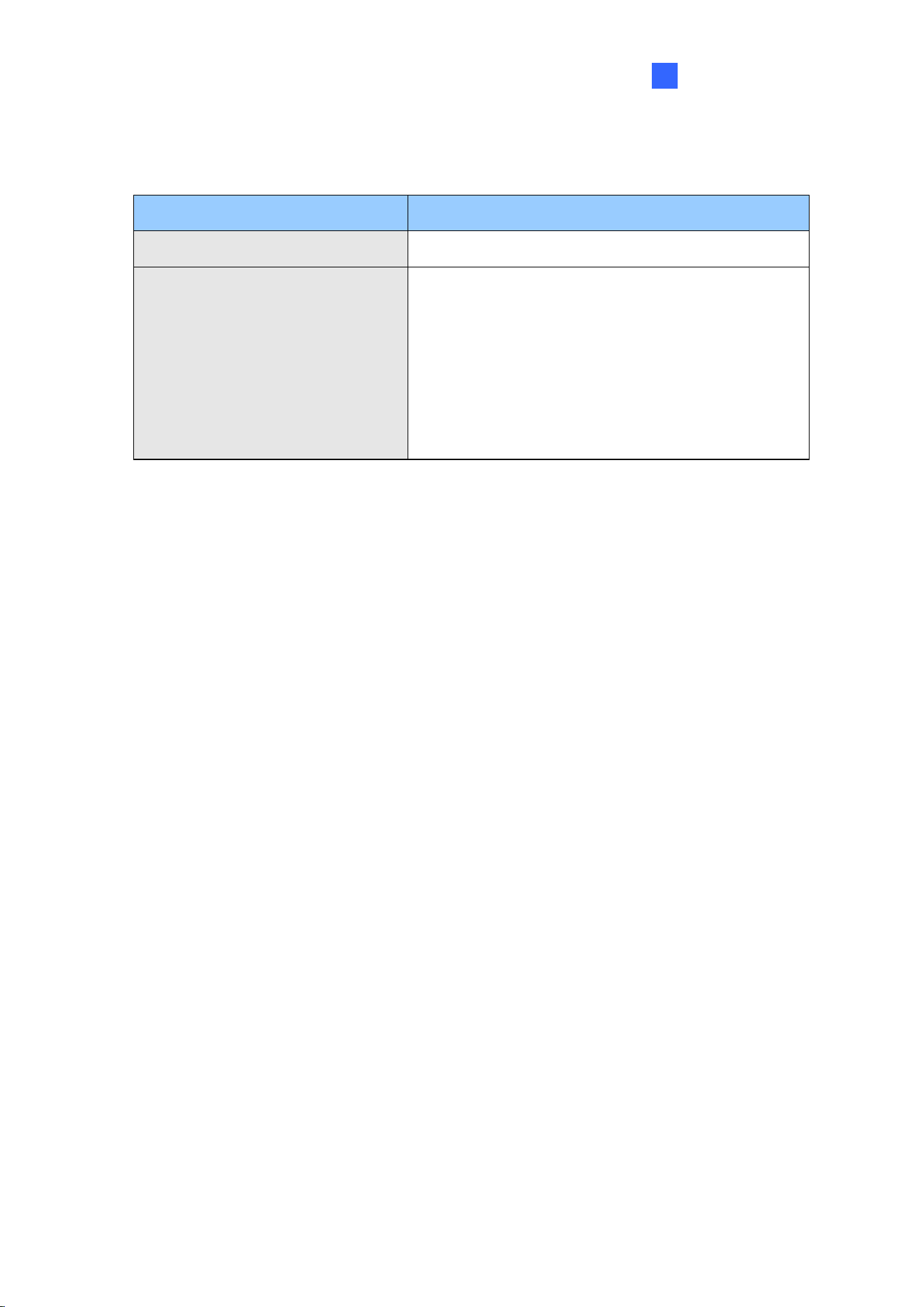
• Day and night function
Camera Model
Day / Night function
GV-FE2301 / 4301
Electronic
GV-FE3402 / 3403
GV-FE5302 / 5303
GV-FER3402 / 3403
GV-FER5302 / 5303
GV-EFER3700 / EFER3700-W
GV-FER5700 / 5701 / 12203 /
12700
Removable IR-cut filter
• Effective IR distance
- Up to 10 m / 35 ft (GV-FE3403 / 5303, GV-FER3403 / 5303)
- Up to 30 m / 100 ft (GV-FER5700 / 5701 / 12203 / 12700)
- Up to 20 m / 65 ft (GV-EFER3700 / EFER3700-W)
• Wide Dynamic Range
- WDR for GV-FE5302 / 5303, and GV-FER5302 / 5303 / 5700 / 12700
- WDR Pro for GV-FE3402 / 3403, GV-FER3402 / 3403 / 5701, and GV-EFER3700 /
EFER3700-W
• Ingress protection
- IP67 rating (GV-FER3402 / 3403 / 5302 / 5303 / 5700 / 5701 / 12203 / 12700, and GV-
EFER3700 / EFER3700-W)
• Vandal Resistance Rating
- IK10+ for metal casing (GV-FE3402 / 3403 / 5302 / 5303 and GV-FER3402 / 3403 /
5302 / 5303 / 5700 / 5701 / 12203 / 12700)
- IK8 (GV-EFER3700 / EFER3700-W)
• Intelligent IR (GV-FER5700 / 5701 / 12203 / 12700, and GV-EFER3700 / EFER3700-W)
• Low lux enhancement (GV-FER5700 / 5701 / 12203 / 12700, and GV-EFER3700 /
EFER3700-W)
• Built-in micro SD card slot for local storage
• Audio
- Two-way audio
• Mini USB slot for WiFi adapter or USB hard drive (GV-FE3402 / 3403 / 5302 / 5303)

4
• USB slot for WiFi adapter or USB hard drive (GV-FER5700 / 5701 / 12700)
• One sensor input and alarm output (GV-FE2301 / 4301, GV-FER5700 / 5701 / 12203 /
12700 and GV-EFER3700 / EFER3700-W)
• No mechanical moving parts
• Provides 360° and 180° panorama view
• Stereographic projection to reduce the distortion of the image (GV-FER5701 / 12700)
• Different angle of view controllable by multiple users at the same time
• Playback from any view angle and zoom level
• Digital Object Tracking
• Virtual PTZ function
• Auto Pan function
• 2D noise reduction
• 3D noise reduction (GV-FER5700 / 5701 / 12700, and GV-EFER3700 / EFER3700-W)
• Defog (Except for GV-FER12203)
• Privacy mask
• Visual automation
• Tampering alarm
• Text overlay
• 31 languages on Web interface
• ONVIF (Profile S) conformant
• Recording assigned by GV-Edge Recording Manager
• More storage option - NAS
Note: GV-FER5700 / 5701 / 12203 / 12700 and GV-EFER3700 / EFER3700-W do not
support connection with NAS servers.
Introduction
5
1
1.2 Packing List
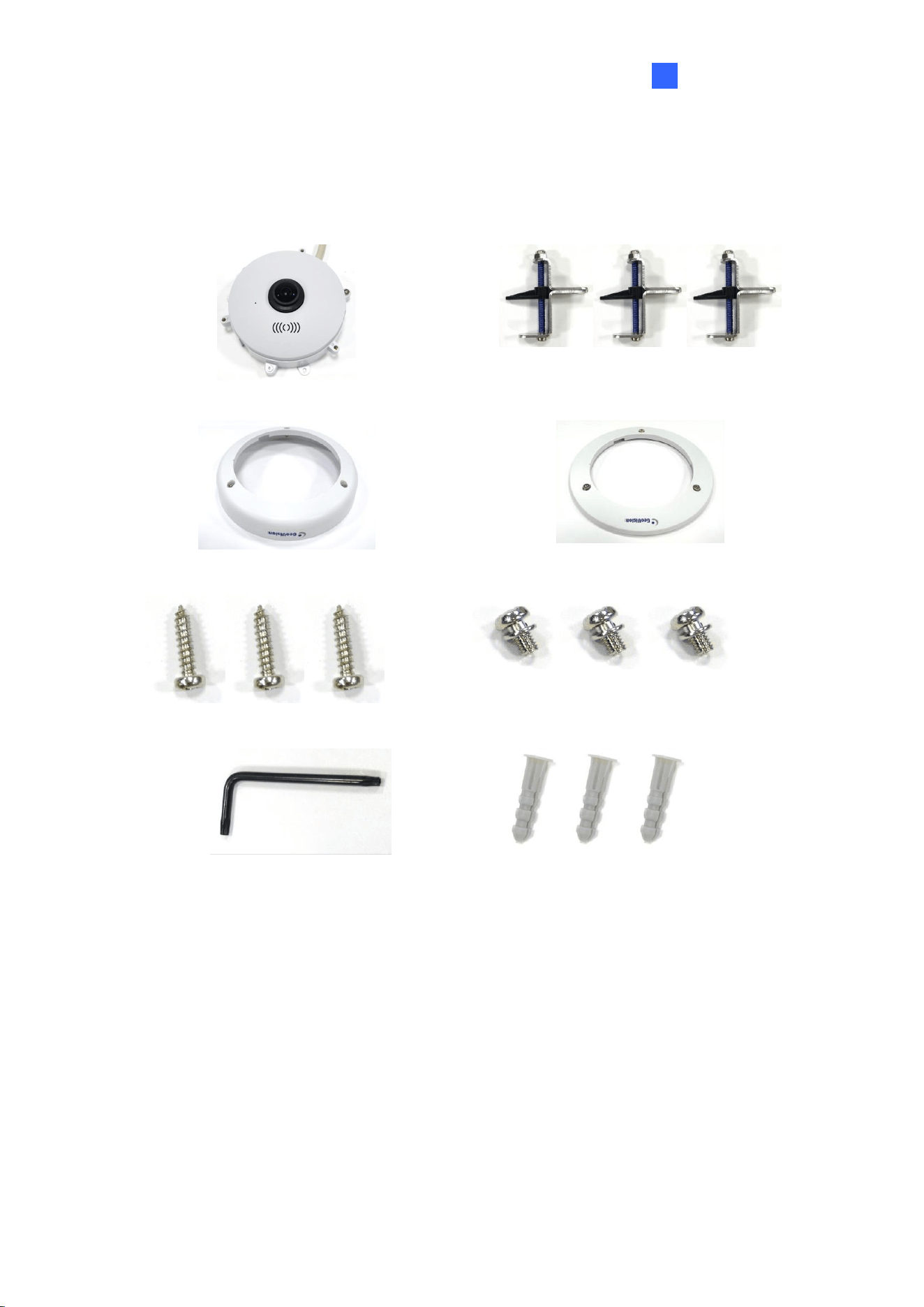
GV-FE2301 / 4301
• Fisheye Camera
• Support Bracket x 3
• Camera Cover (Hard Ceiling Mount)
• Camera Cover (In-Ceiling Mount)
• Screw (Hard Ceiling Mount) x 3
• Screw (In-Ceiling Mount) x 3
• Torx Wrench
• Plastic Screw Anchor x 3
• Installation Sticker
• For GV-FE2301 / 4301 only:
- 3-Pin or 2-Pin Terminal Block
- DC 12V Power Adapter
• GV-IPCAM H.264 Software DVD
• GV-NVR Software DVD
• Warranty Card
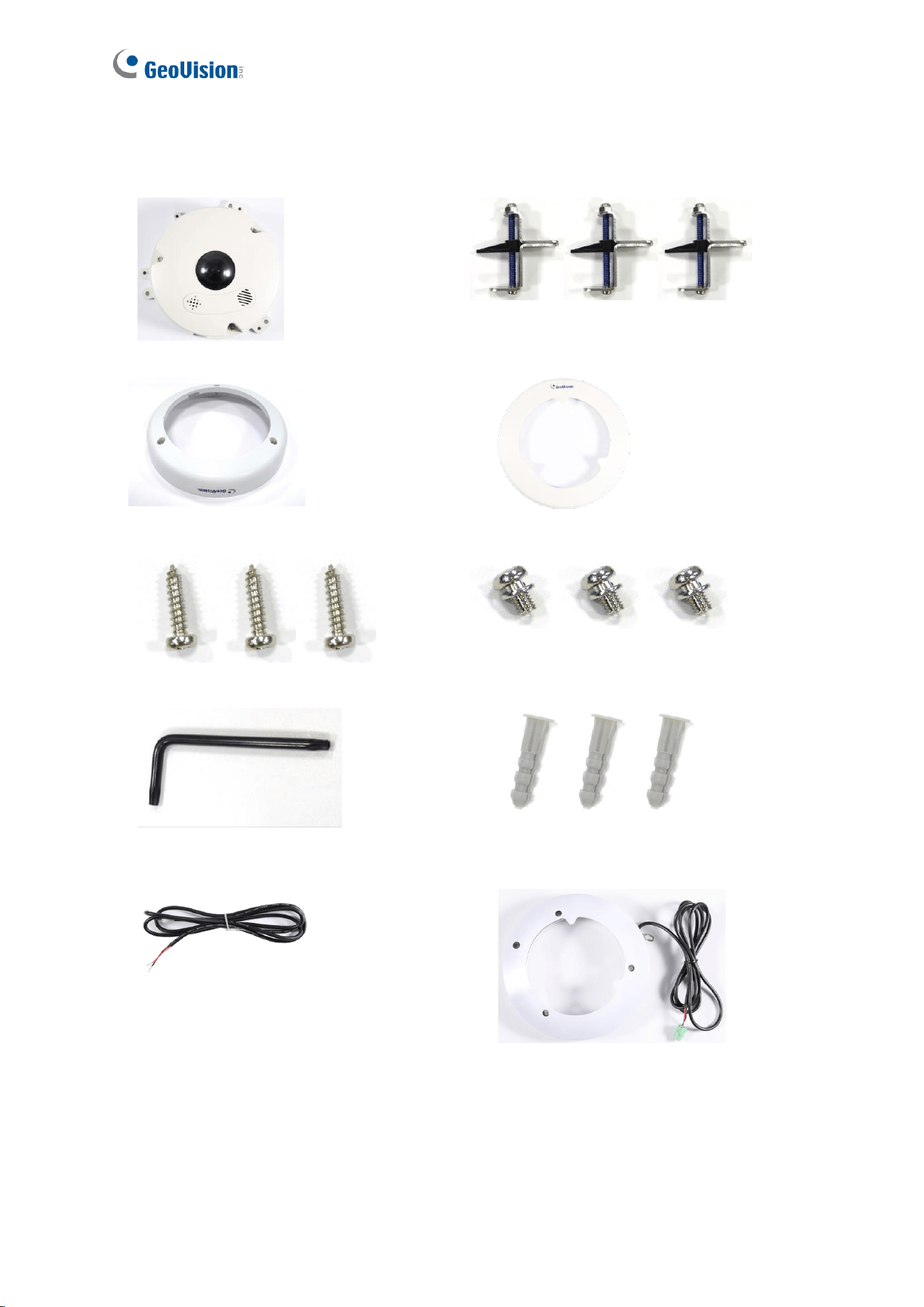
6
GV-FE3402 / 5302 and GV-FE3403 / 5303
• Fisheye Camera
• Support Bracket x 3
• Camera Cover (Hard Ceiling Mount)
• Camera Cover (In-Ceiling Mount)
• Screw (Hard Ceiling Mount) x 3
• Screw (In-Ceiling Mount) x 3
• Torx Wrench
• Plastic Screw Anchor x 3
• Mini USB Extension Cable
• IR LED Ring (GV-FE3403 / 5303 only)
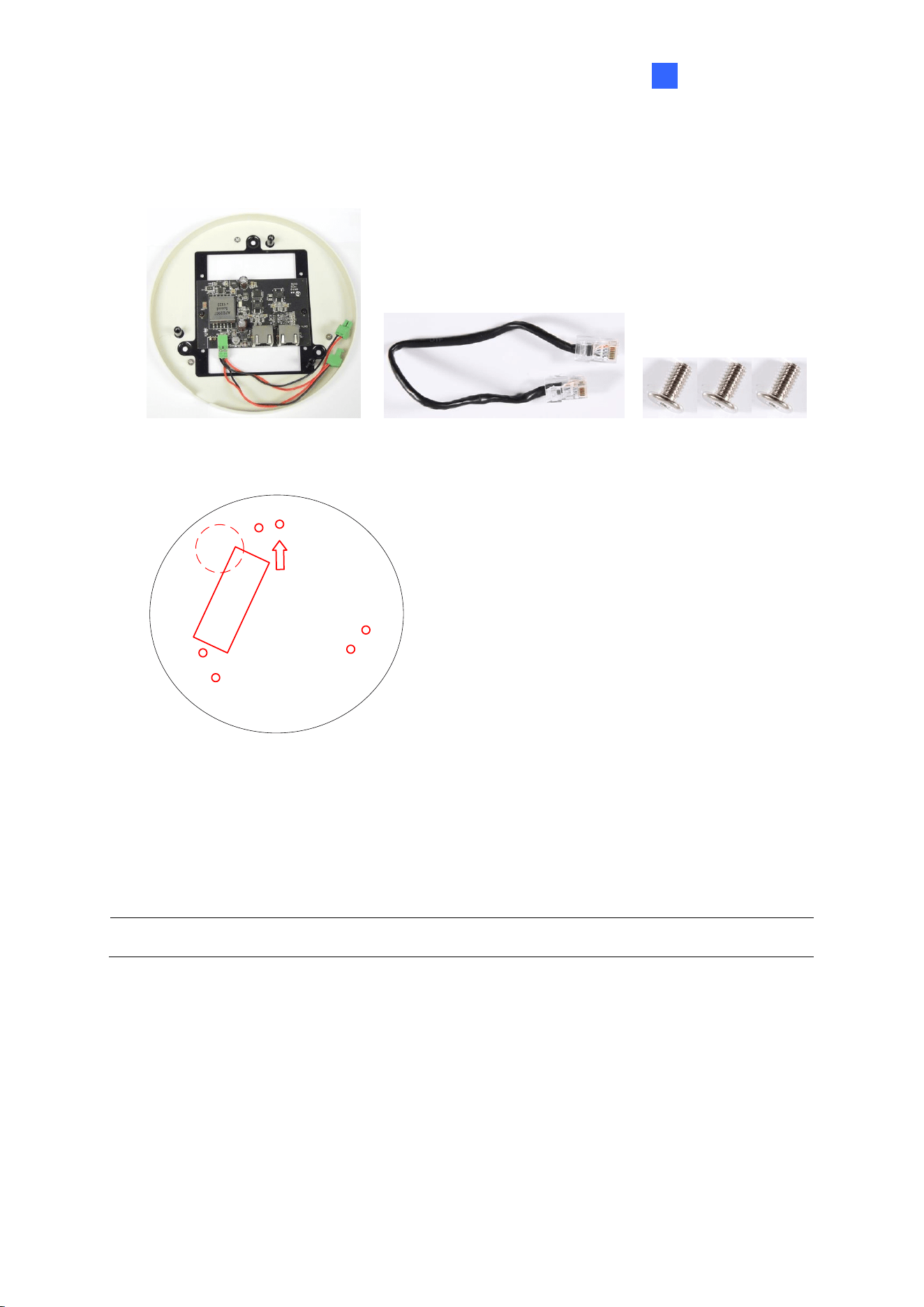
Introduction
7
1
• PoE Converter set (including 1 module, 1 DC Power Y-cable, 1 RJ-45 cable and 3 PoE
Screws) (GV-FE3403 / 5303 only)
• Installation Sticker
Device
TOP
Device
Device
PoE Converter
PoE Converter
PoE Converter
PoE Converter
IR
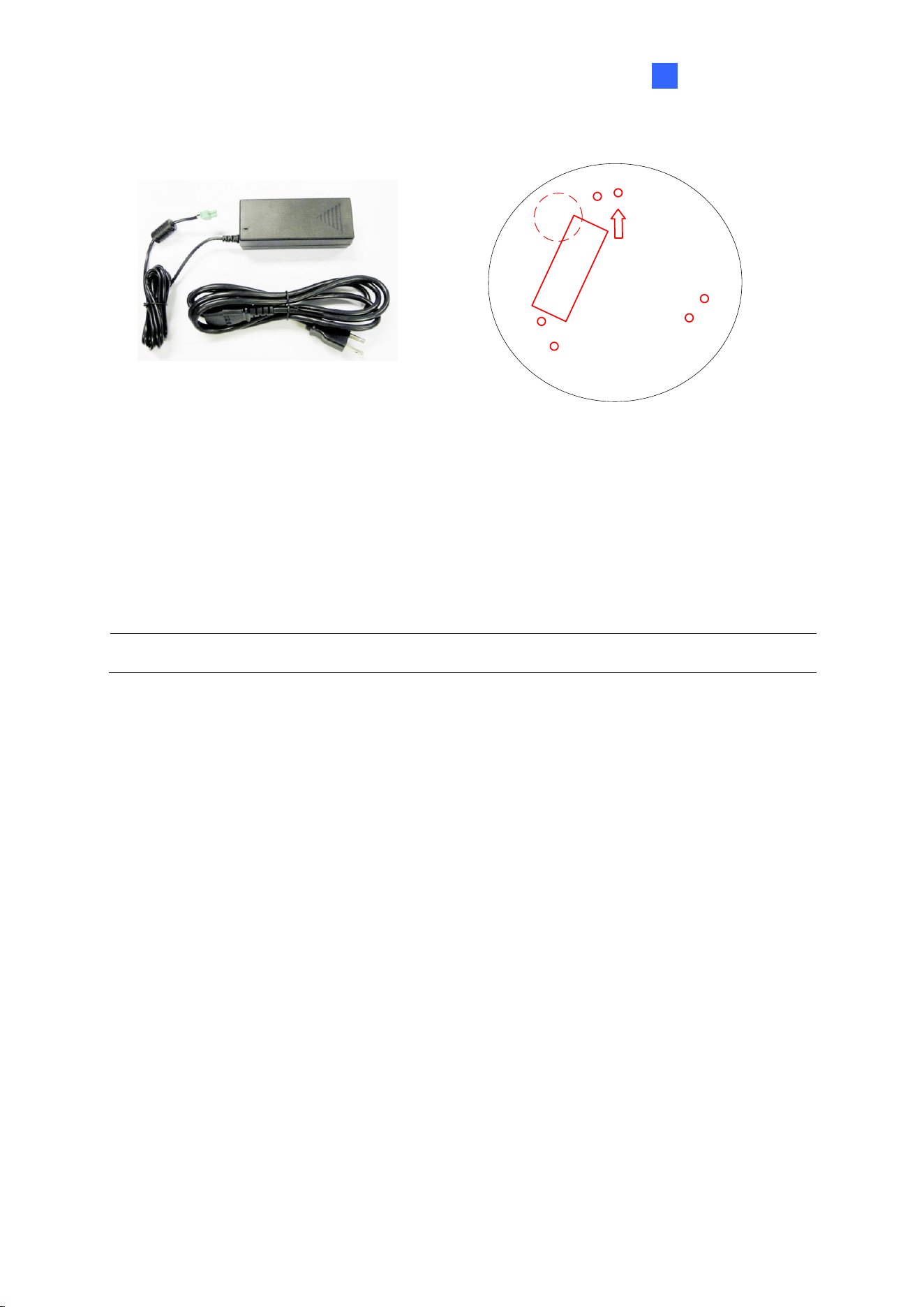
• Power Adapter
• Download Guide
• GV-Fisheye IP Dome Hardware Installation Guide
• Warranty Card
Note: The power adapter can be excluded upon request.
8
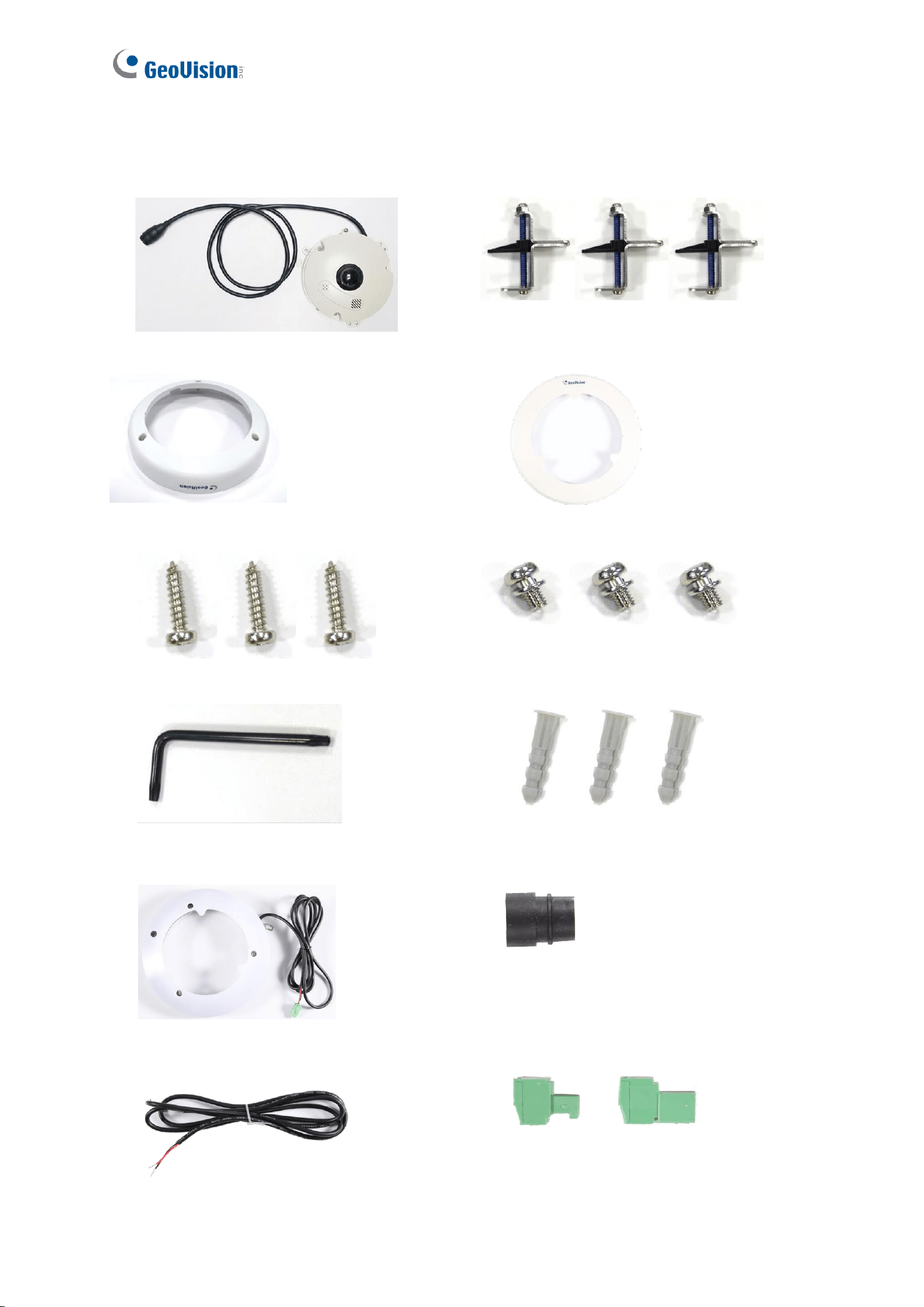
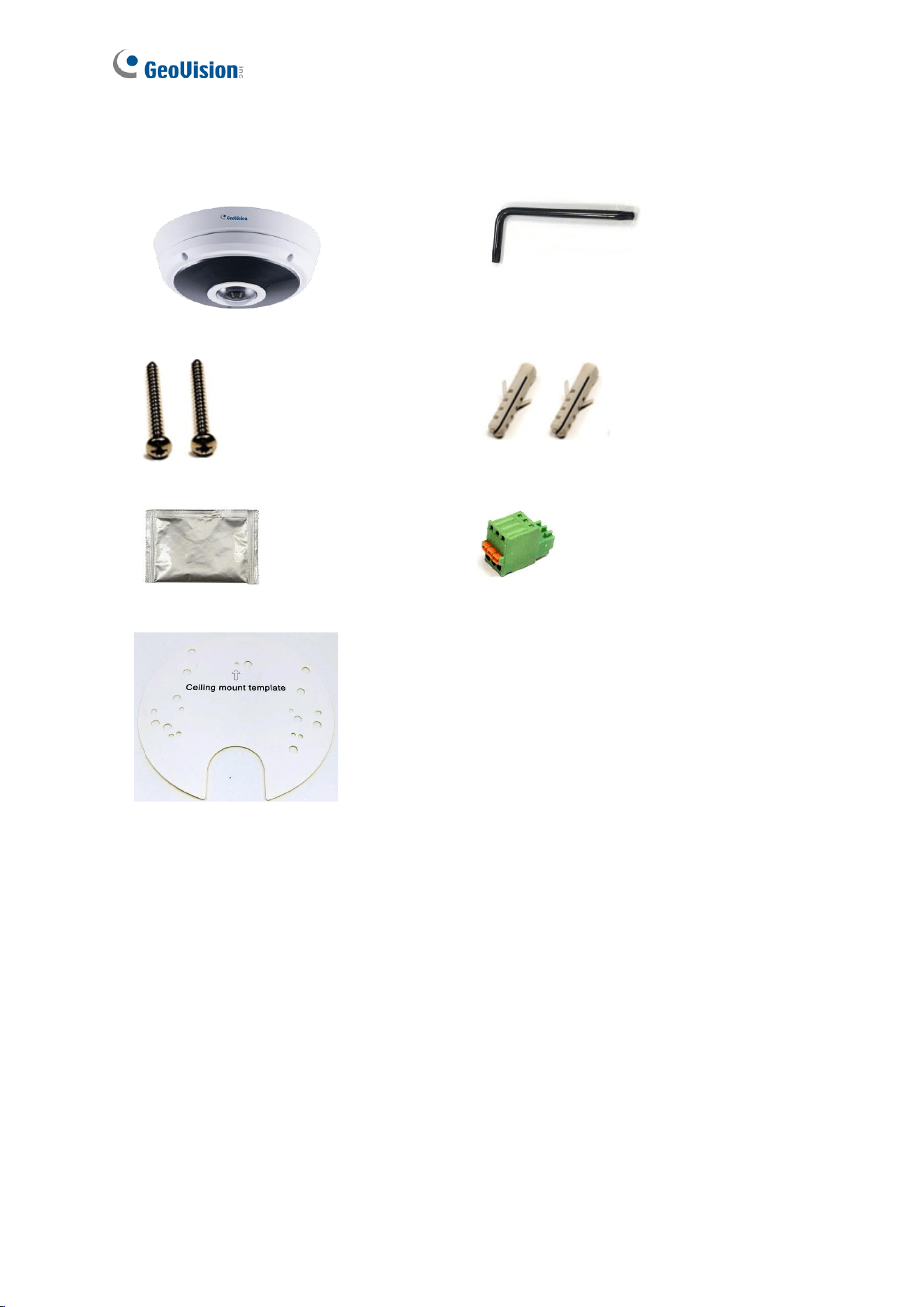
GV-FER3402 / 5302 and GV-FER3403 / 5303
• Fisheye Camera
• Support Bracket x 3
• Camera Cover (Hard Ceiling Mount)
• Camera Cover (In-Ceiling Mount)
• Screw (Hard Ceiling Mount) x 3
• Screw (In-Ceiling Mount) x 3
• Torx Wrench
• Plastic Screw Anchor x 3
• IR LED Ring (GV-FER3403 / 5303 only)
• Waterproof Rubber
• Power Cable
• Terminal Block x 2
(female) (male)
Introduction
9
1
• IR Power Adapter (DC 12V, 3.5A, GV-
FER3403 / 5303 only)
• Installation Sticker
Device
TOP
Device
Device
PoE Converter
PoE Converter
PoE Converter
PoE Converter
IR
• Silica Gel Bag and Adhesive Tape x 2
• Cable Connector
• Power Adapter (DC 12V, 1.25A)
• GV-IPCAM H.264 Software DVD
• GV-NVR Software DVD
• GV-Fisheye IP Dome Hardware Installation Guide
• Warranty Card
Note: The power adapter can be excluded upon request.
10
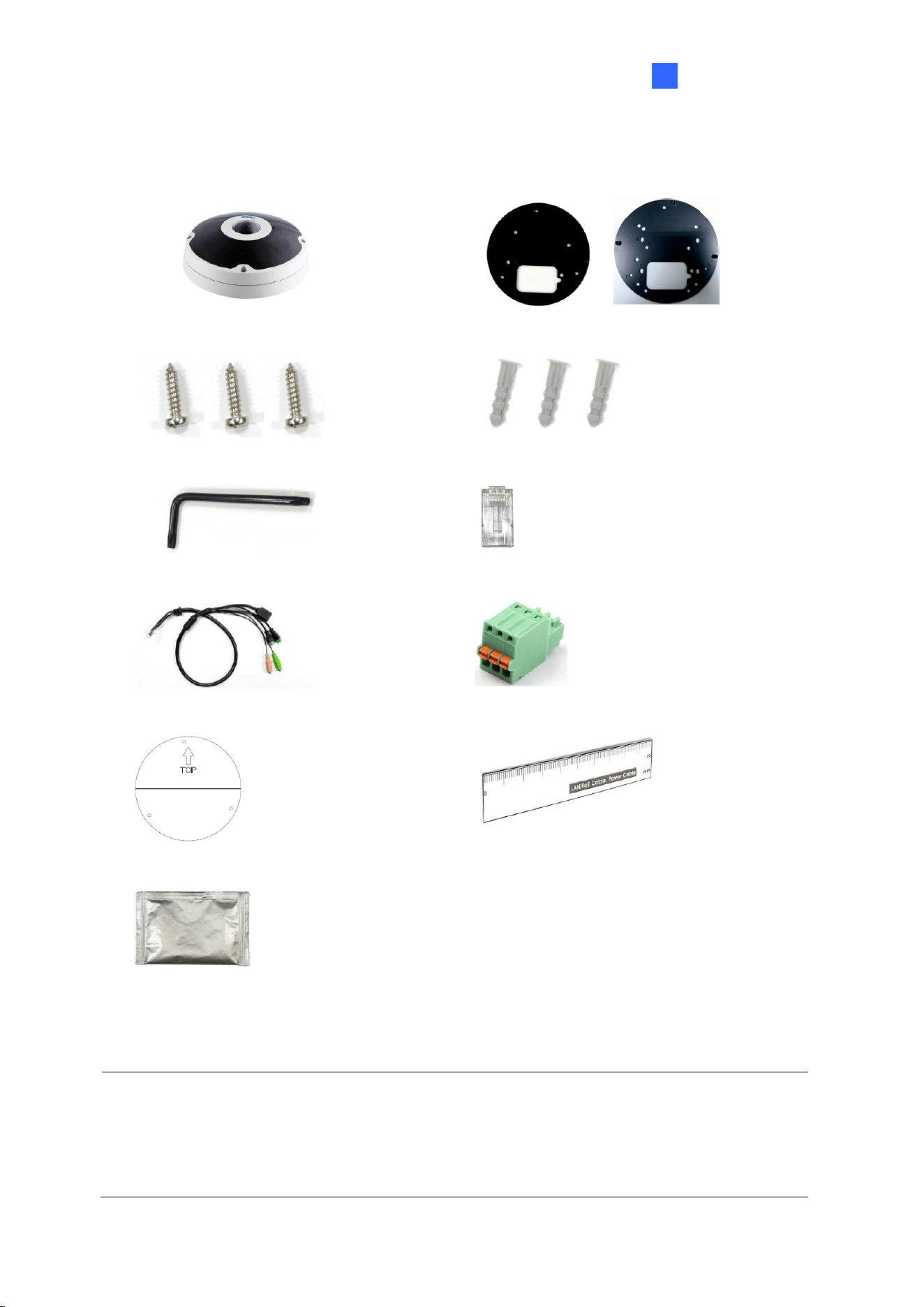
GV-EFER3700 / EFER3700-W
• H.265 Fisheye Camera
• Torx Wrench
• Screw x 2
• Screw Anchor x 2
• Silica Gel Bag x 2
• Terminal Block (3-pin)
• Installation Sticker
• Power Adapter (only for GV-EFER3700-W)
• Download Guide
• Warranty Card
Introduction
11
1
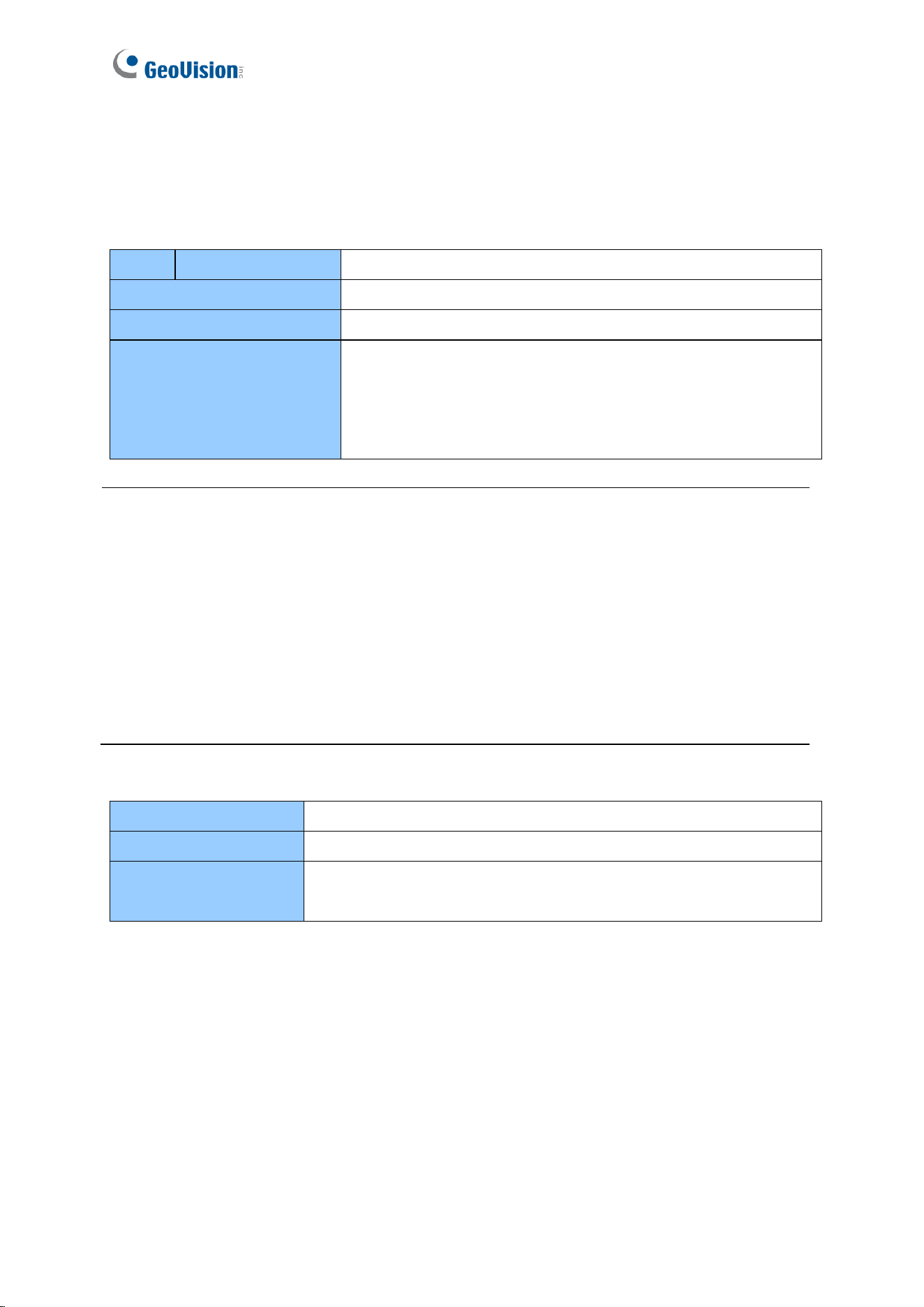
GV-FER5700 / 5701 / 12203 / 12700
• Fisheye Camera
• Back Plate A or B, as shown below
/
• Plate Screw x 3
• Plastic Screw Anchor x 3
• Torx Wrench
• RJ-45 Connector
• Data Cable
• Terminal Block
• Installation Sticker
• Ruler
• Silica Gel Bag x 2
• Power Adapter (only for GV-FER12203)
• Download Guide
• Warranty Card
Note:
1. The back plate supplied may differ depending on the storage availability at the time of
purchase.
2. The power adapter can be excluded upon request.
12
1.3 System Requirement
To operate the camera through a web browser, make sure your PC has good network
connection, and meet the following system requirement:
OS
64-bit
Windows 7 / 8 / 8.1 / Server 2008 R2 / Server 2012 R2
GV-VMS
V15.11.3 with patch files or later
GV-DVR / NVR Version
V8.7.3.0 with patch files or later
Browser
⚫ Internet Explorer 7.x or later
⚫ Firefox
⚫ Google Chrome
⚫ Safari
Note:
1. If you are using Microsoft Internet Explorer 8.0 or later, additional settings are
required. Refer to Settings for Internet Explorer 8 or later in Appendix A.
2. When using non-IE browsers,
a. The following functions are not supported: Motion Detection, Tampering Alarm,
Visual Automation, Text Overlay, and Two-Way Audio. To see the functions
available on live view windows using non-IE browsers, see Figure 3-4.
b. RTSP streaming must be enabled. By default, RTSP streaming is enabled. See
4.3.8 RTSP to see more details on RTSP settings.
To access GV-FER12203 / 12700 images, the following PC specifications should be met:
CPU
Intel Core i5-4670, 3.40 GHz
Memory
DDR3 8 GB RAM
On Board Graphics
Intel HD Graphics 4600 (Versions of driver from year 2014 or later
required)

Introduction
13
1
1.4 Optional Accessories
Optional devices can expand the capabilities and versatility of your GV-Fisheye Camera.
Contact your dealer for more information.
Name
Details
GV-Mount Accessories
The GV-Mount Accessories provides a comprehensive
lineup of accessories for installation on ceiling, wall and
pole. For details, see GV-Mount Accessories Installation
Guide online.
GV-PA191
Power over Ethernet (PoE)
Adapter
The GV-PA191 is a Power over Ethernet (PoE) adapter
designed to provide power to the IP device through a single
Ethernet cable.
GV-POE Switch
The GV-POE Switch is designed to provide power along with
network connection for IP devices. The GV-POE Switch is
available in various models with different numbers and types
of ports.
Power Adapter
Contact your sales representative for the countries and
areas supported.
GV-Relay V2
The GV-Relay V2 is designed to expand the voltage load of
GV IP devices. It provides 4 relay outputs, and each can be
set as normally open (NO) or normally closed (NC)
independently as per your requirement.
GV-WiFi Adapter
The GV-WiFi Adapter is a plug-and-play device that provides
WiFi connectivity to GV-IP Cameras through a mini USB
port. This product complies with IEEE 802.11 b/g/n (Draft
3.0) standards for wireless networking.
Note:
1. Some models need compatible versions to work with
the accessory.
2. GV-FER12203 does not support the wireless function.
14
1.5 Physical Description
1.5.1 GV-FE2301 / 4301
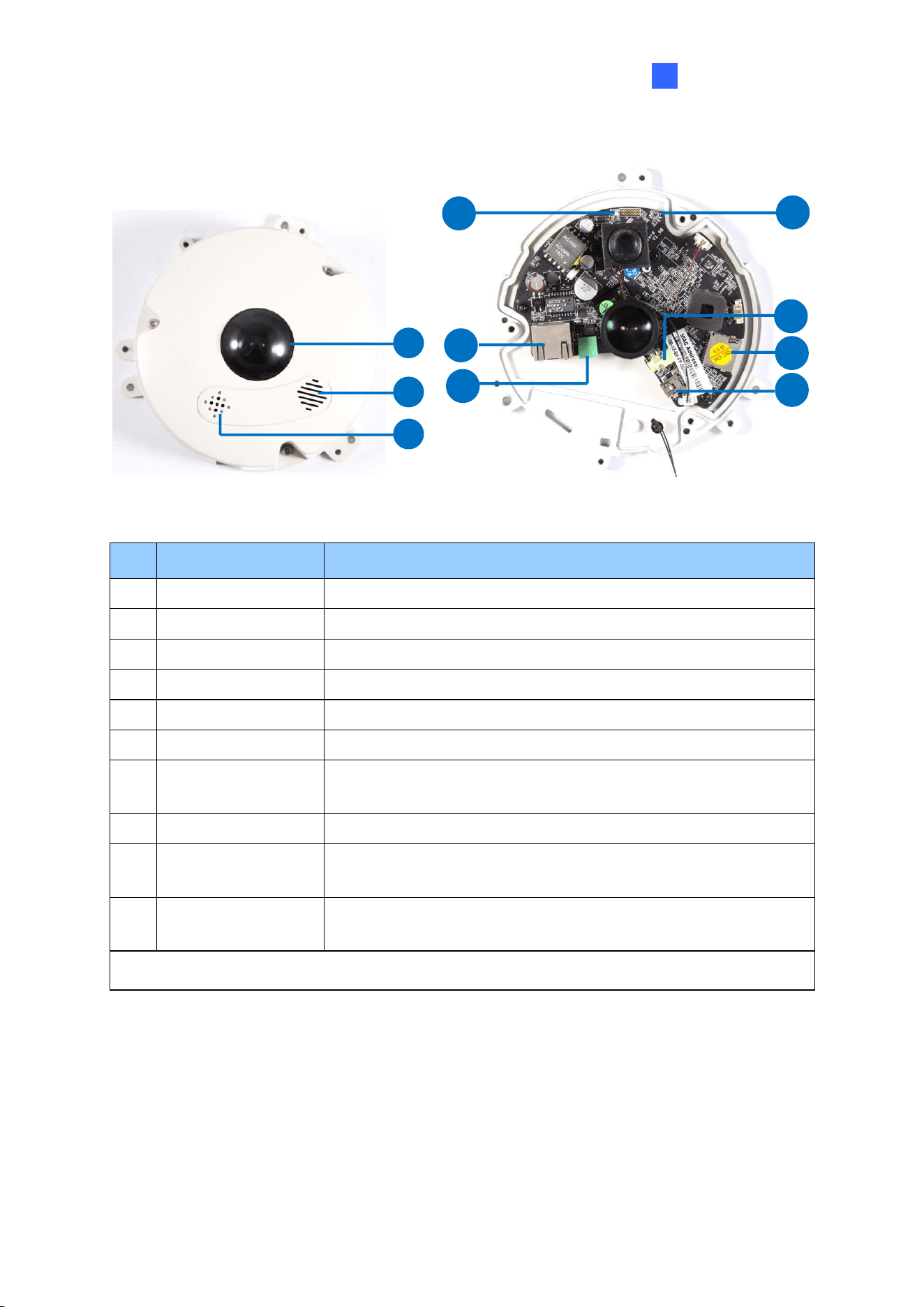
To access the Default button, LED indicators and micro SD card slot, unscrew the screws
indicated below and then remove the camera cover.
6
5
7
8
2
4
3
1
Figure 1-1: GV-FE2301 / 4301
No.
Name
Function
1
Lens
Receives image inputs.
2
Speaker
Talks to the surveillance area from the local computer.
3
Microphone
Receives the sound from the camera.
4
Default Button
Resets all configurations to default factory settings. See 6.3
Restoring to Factory Default Settings.
5
Micro SD Card Slot
Inserts a micro SD / SDHC memory card to store recorded data.
6
Network status LED
Indicates the network status.
7
Power status LED
Indicates whether the camera is powered on or off.
8
System status LED
Indicates whether the system is booted successfully or not.
Note: SDXC and UHS-I card types are not supported.
Introduction
15
1
1.5.2 GV-FE3402 / 3403 / 5302 / 5303
1
2
3
10
4
5
6
7
8
9
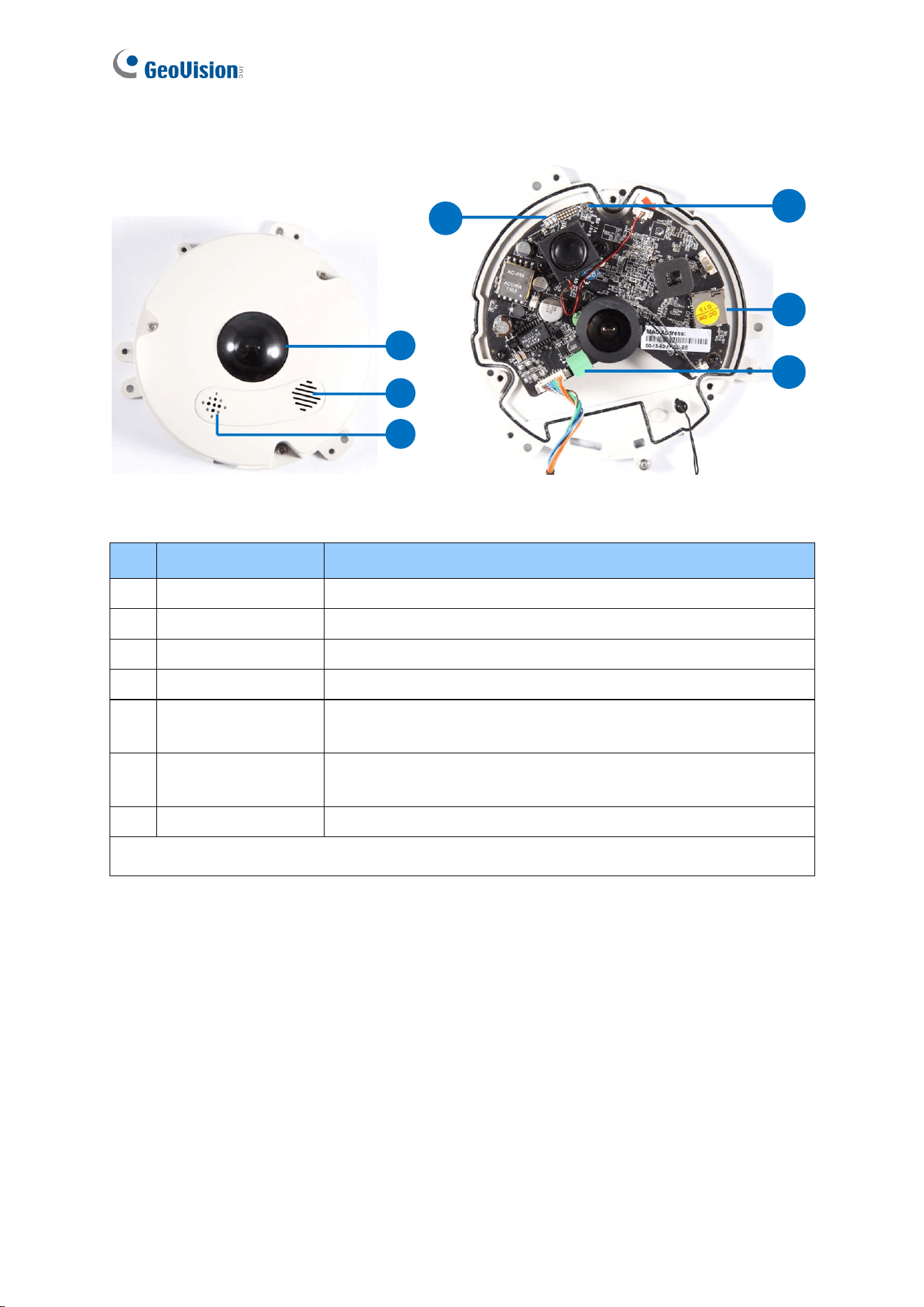
Figure 1-2
No.
Name
Function
1.
Lens
Receives image inputs.
2.
Speaker
Talks to the surveillance area from the local computer.
3.
Microphone
Receives the sound from the camera.
4.
Status LED
Indicates whether the device is booted successfully or not.
5.
LAN / PoE
Connects to a 10/100 Ethernet or PoE.
6.
Terminal Block
Connects to power.
7.
Default Button
Resets all configurations to default factory settings. See 6.3
Restoring to Factory Default Settings.
8.
Audio Out
Connects to an external speaker for broadcast.
9.
Micro SD Card Slot
Inserts a micro SD / SDHC memory card to store recorded
data.
10.
Mini USB Slot
Connects to a GV-WiFi Adapter or a USB hard drive for
external storage.
Note: SDXC and UHS-I card types are not supported.
16
1.5.3 GV-FER3402 / 3403 / 5302 / 5303
1
2
3
4
5
6
7
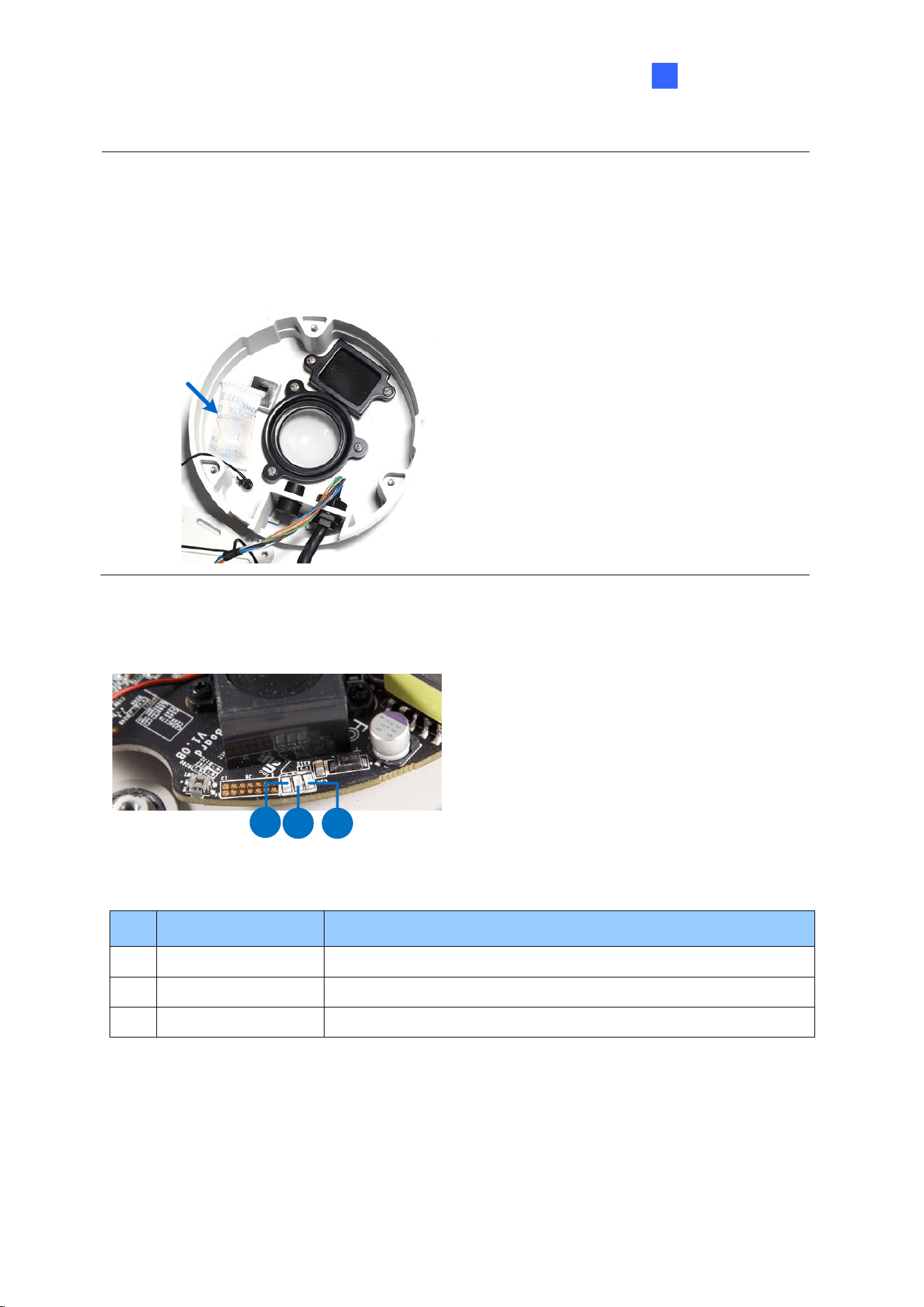
Figure 1-3
No.
Name
Function
1.
Lens
Receives image inputs.
2.
Speaker
Talks to the surveillance area from the local computer.
3.
Microphone
Receives the sound from the camera.
4.
LEDs
See the table below for details.
5.
Default Button
Resets all configurations to default factory settings. See 6.3
Restoring to Factory Default Settings.
6.
Micro SD Card Slot
Inserts a micro SD / SDHC memory card to store recorded
data.
7.
Terminal Block
Connects to power.
Note: SDXC and UHS-I card types are not supported.
Introduction
17
1
Note: For GV-FER3402 / 3403 / 5302 / 5303, a silica gel bag is attached to the inside of
the camera cover. The silica gel loses effectiveness after you open the camera cover. To
prevent the lens from fogging up, it is highly recommended to replace the silica gel bag
every time you open the camera. To replace the silica gel bag, use the supplied adhesive
tape to attach a new silica gel bag and fasten the camera cover within 2 minutes of opening
the silica gel bag package.
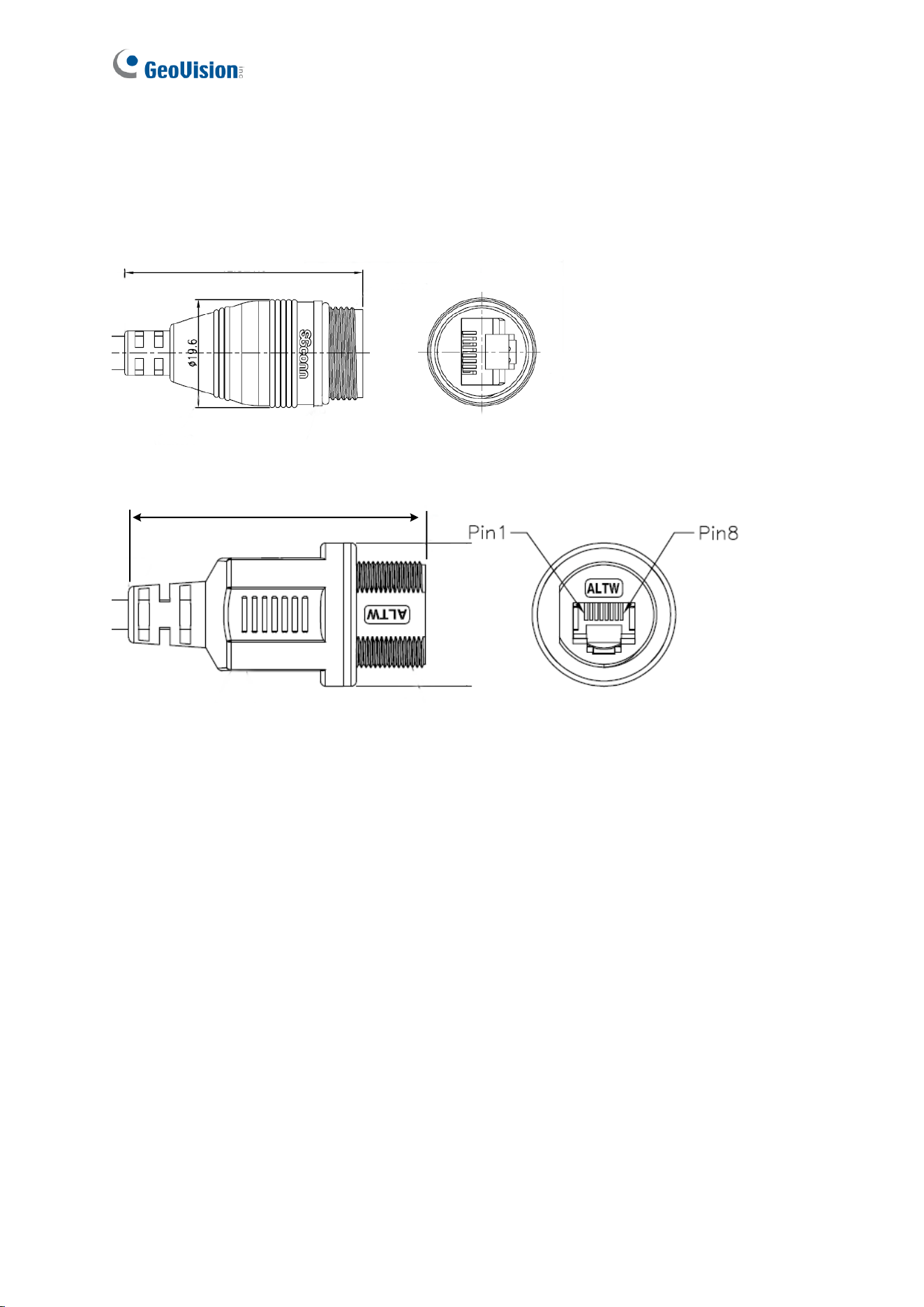
LED Indicators
1
2 3
Figure 1-4
No.
Name
Function
1.
Link
Turns on when network is connected.
2.
ACT
Turns on when data are being transmitted or received.
3.
Status
Turns on when the device is ready.
18
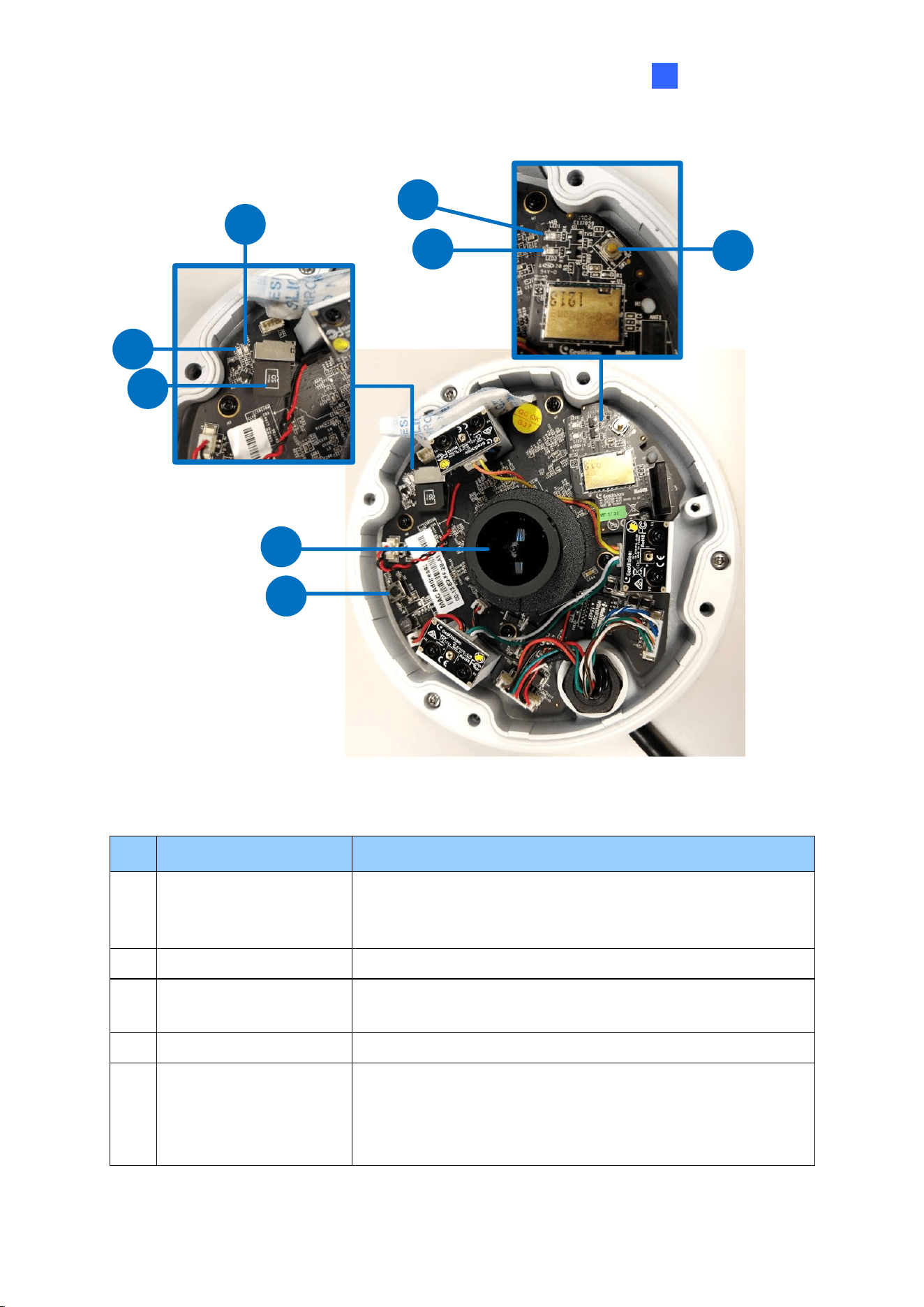
PoE Cable
For GV-FER3402 / 3403 / 5302 / 5303, the PoE connector may be one of the following types:
Type 1
42.8 mm (1.7")
Ø 19.6 (0.8")
Type 2
58.5 mm (2.3")
Ø 28.2 (1.1")
Introduction
19
1
1.5.4 GV-EFER3700 / EFER3700-W
3
4
5
6
8
1
2
7
Figure 1-5
No.
Name
Function
1.
Status LED
Indicates whether the camera is booted successfully or
not.
Flashes when the camera is loading default settings.
2.
Power LED
Indicates whether the camera is powered on or off.
3.
Default Button
Resets all configurations to default factory settings. See
6.3 Restoring to Factory Default Settings.
4.
Lens
Receives image inputs.
5.
Micro SD Card Slot
Inserts a micro SD memory card (SD / SDHC / SDXC /
UHS-I) to store recorded data.
To insert the micro SD memory card, make sure the side
with “micro SD” is facing upward.
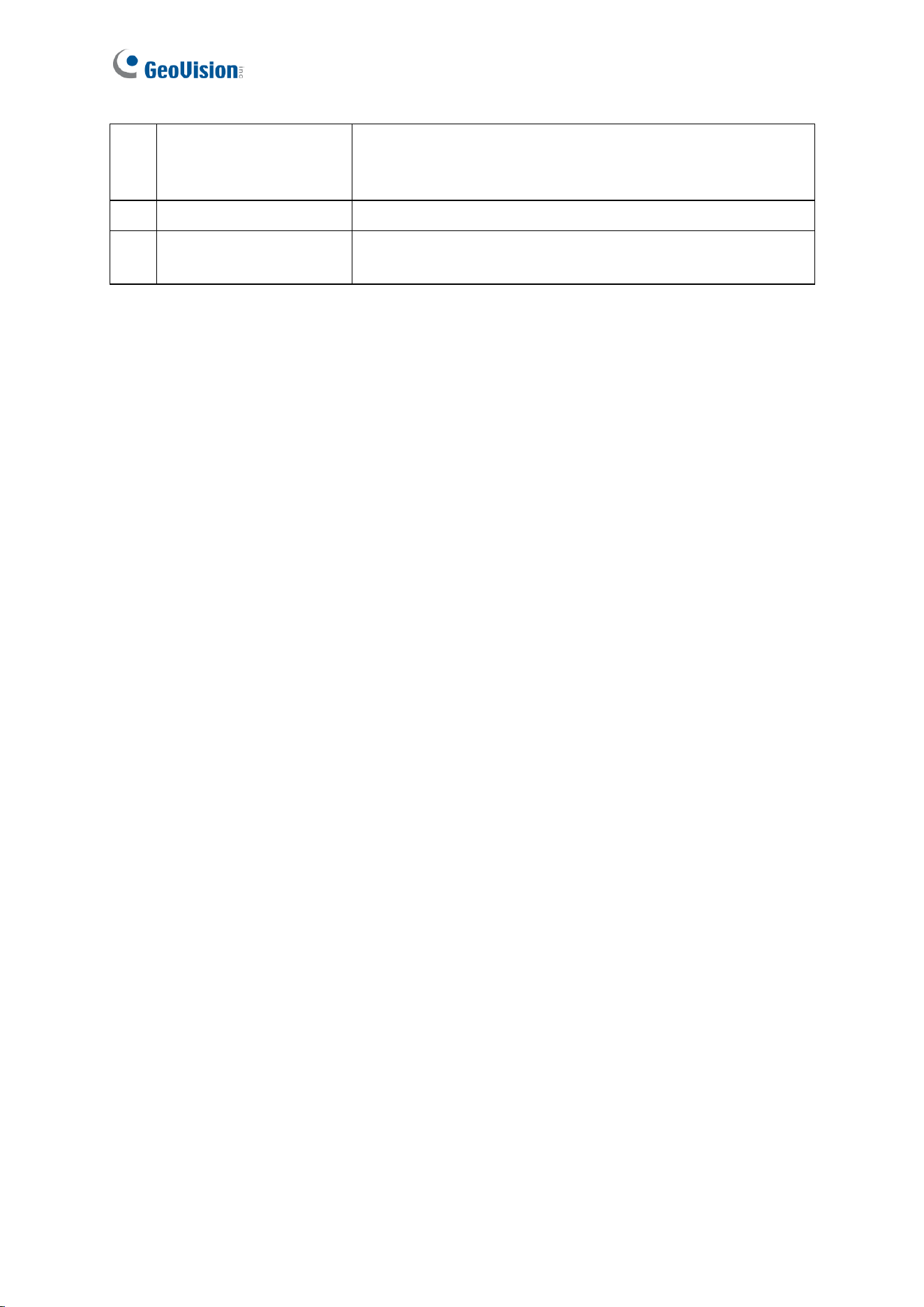
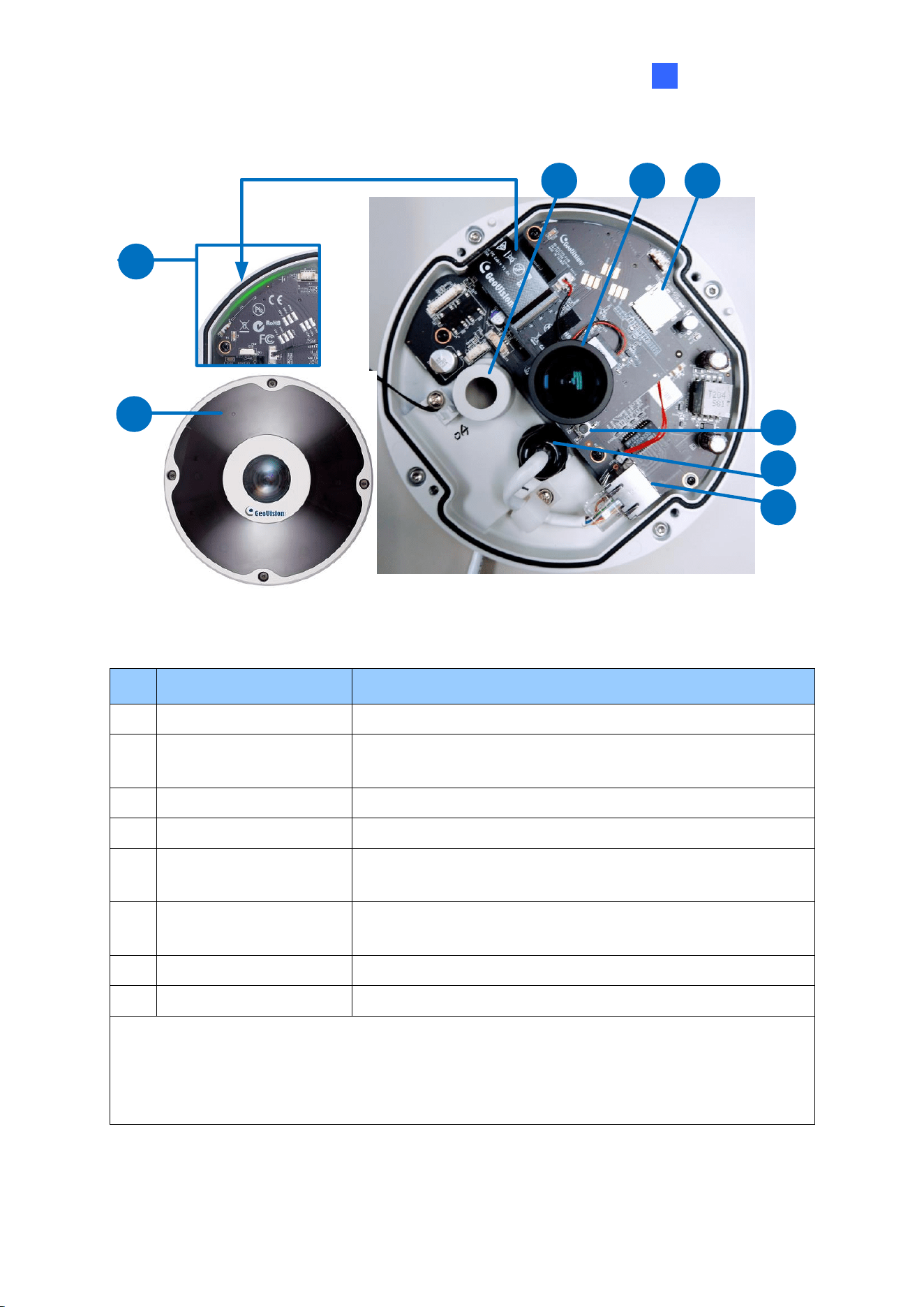
20
6.
WPS Button
Only for GV-EFER3700-W, connects the camera to the
WiFi router wirelessly. For detailed instructions, see WPS
Button below.
7.
WiFi Status LED
Flashes when the camera is mapping with the WiFi router.
8.
WiFi Power LED
Indicates whether the camera’s WiFi module is powered
on or off.
WPS Button
To connect the camera to the WiFi router wirelessly, follow the steps below.
1. After powering on the GV-EFER3700-W, make sure the WiFi Power LED is lit up.
2. Keep pressing the WPS button on the camera. After 5 seconds, make sure the WiFi
Status LED beside the WPS button flashes.
3. Press the WPS button on the WiFi router.
4. After the WiFi Status LED stop flashing, your camera is connected to the WiFi router.
Introduction
21
1
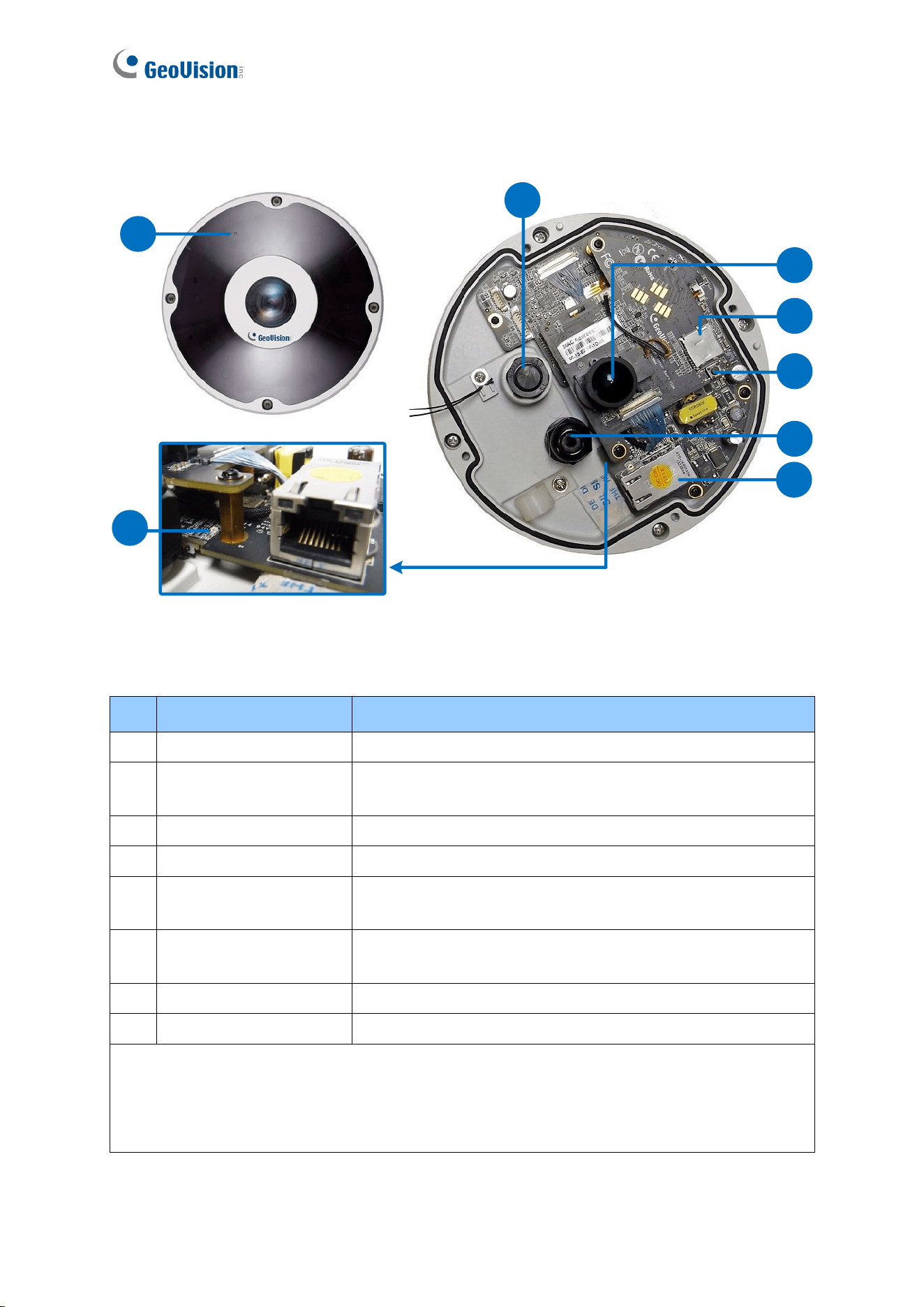
1.5.5 GV-FER5700 / 5701 / 12700
1
2
543
7
6
8
Figure 1-6
No.
Name
Function
1.
Microphone
Receives the sound from the camera.
2.
Status LED
Flashes when the camera is powering on and loading
default settings.
3.
Data Cable Connector
Waterproofs the data cable.
4.
Lens
Receives image inputs.
5.
Micro SD Card Slot
Inserts a micro SD memory card (SD / SDHC / SDXC /
UHS-I) to store recorded data.
6.
Default Button
Resets all configurations to default factory settings. See
6.3 Restoring to Factory Default Settings.
7.
LAN / PoE Connector
Waterproofs the Ethernet cable.
8.
LAN / PoE
Connects to a 10/100 Ethernet or PoE.
Note: A silica gel bag is attached under the LAN / PoE port. The silica gel loses its
effectiveness after you open the camera cover. To prevent the lens from fogging up, it is
highly recommended to replace the silica gel bag every time you open the camera. To
replace the silica gel bag, use the supplied adhesive tape to attach a new silica gel bag
and fasten the camera cover within 2 minutes of opening the silica gel bag package.
22
1.5.6 GV-FER12203
3
6
4
8
7
5
2
1
Figure 1-7
No.
Name
Function
1.
Microphone
Receives the sound from the camera.
2.
Status LED
Flashes when the camera is powering on and loading
default settings.
3.
Data Cable Connector
Waterproofs the data cable.
4.
Lens
Receives image inputs.
5.
Micro SD Card Slot
Inserts a micro SD memory card (SD / SDHC / SDXC /
UHS-I) to store recorded data.
6.
Default Button
Resets all configurations to default factory settings. See
6.3 Restoring to Factory Default Settings.
7.
LAN / PoE Connector
Waterproofs the Ethernet cable.
8.
LAN / PoE
Connects to a 10/100/1000 Ethernet or PoE.
Note: A silica gel bag is attached under the LAN / PoE port. The silica gel loses its
effectiveness after you open the camera cover. To prevent the lens from fogging up, it is
highly recommended to replace the silica gel bag every time you open the camera. To
replace the silica gel bag, use the supplied adhesive tape to attach a new silica gel bag
and fasten the camera cover within 2 minutes of opening the silica gel bag package.
Introduction
23
1
1.6 Installation
The fisheye camera is designed to be mounted on the ceiling, wall or ground. There are two
ways to mount the camera on the ceiling, Hard Ceiling Mount and In-Ceiling Mount. Make
sure the ceiling has enough strength to support the fisheye camera.
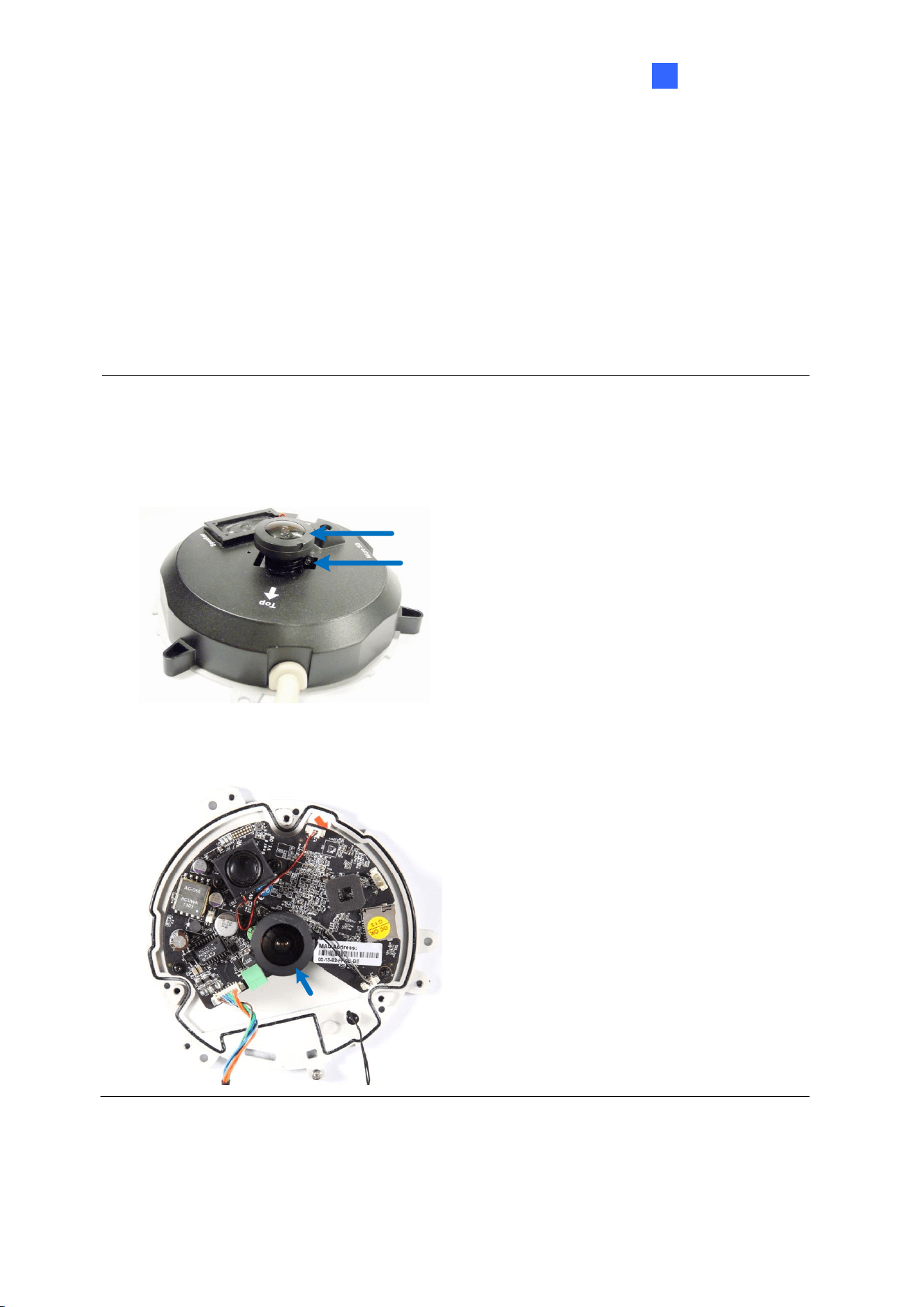
Note: To re-focus your camera, follow the instruction below. However, it is only
recommended to re-focus your camera when the live view is blurry.
⚫ GV-FE2301 / 4301: Loosen the indicated screw and manually adjust the focus ring
with your fingers.
Focus Ring
Screws
⚫ GV-FE3402 / 3403 / 5302 / 5303 and GV-FER3402 / 3403 / 5302 / 5303 / 5700 / 5701
/ 12203 / 12700: Manually adjust the focus ring with your fingers.
Focus Ring
24
1.6.1 Hard Ceiling Mount
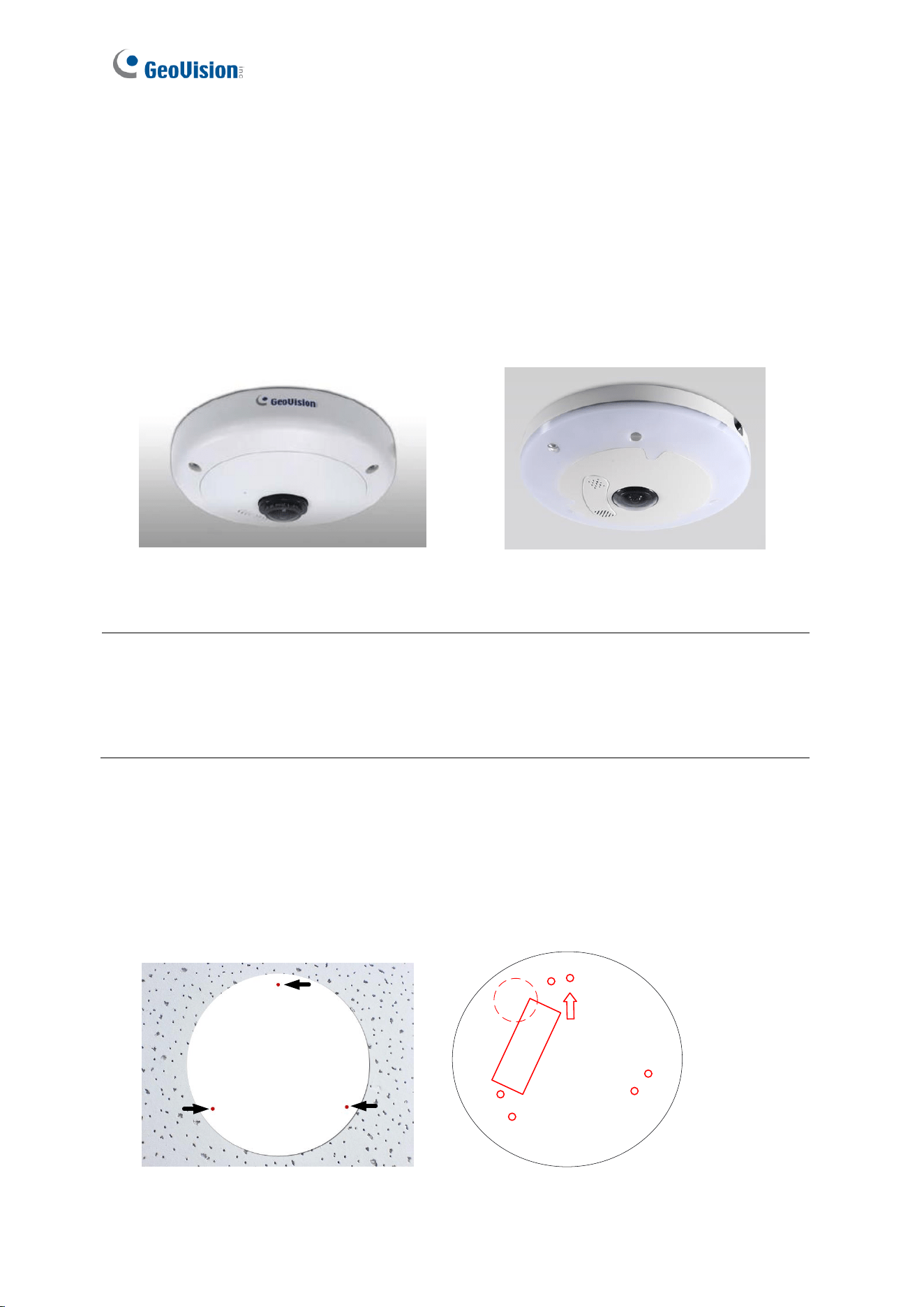
In this section, we introduce three types of hard-ceiling mounts: General Hard-Ceiling Mount,
GV-FER5700 / 5701 / 12203 / 12700, and GV-EFER3700 / EFER3700-W.
1.6.1.1 General Hard-Ceiling Mount
Without IR LED Ring
With IR LED Ring
Note:
1. This hard-ceiling mount is not applicable to GV-FER5700 / 5701 / 12203 / 12700.
2. To connect wires, cables and the IR LED ring, see 3. Connecting the Camera in the
Quick Start Guide.
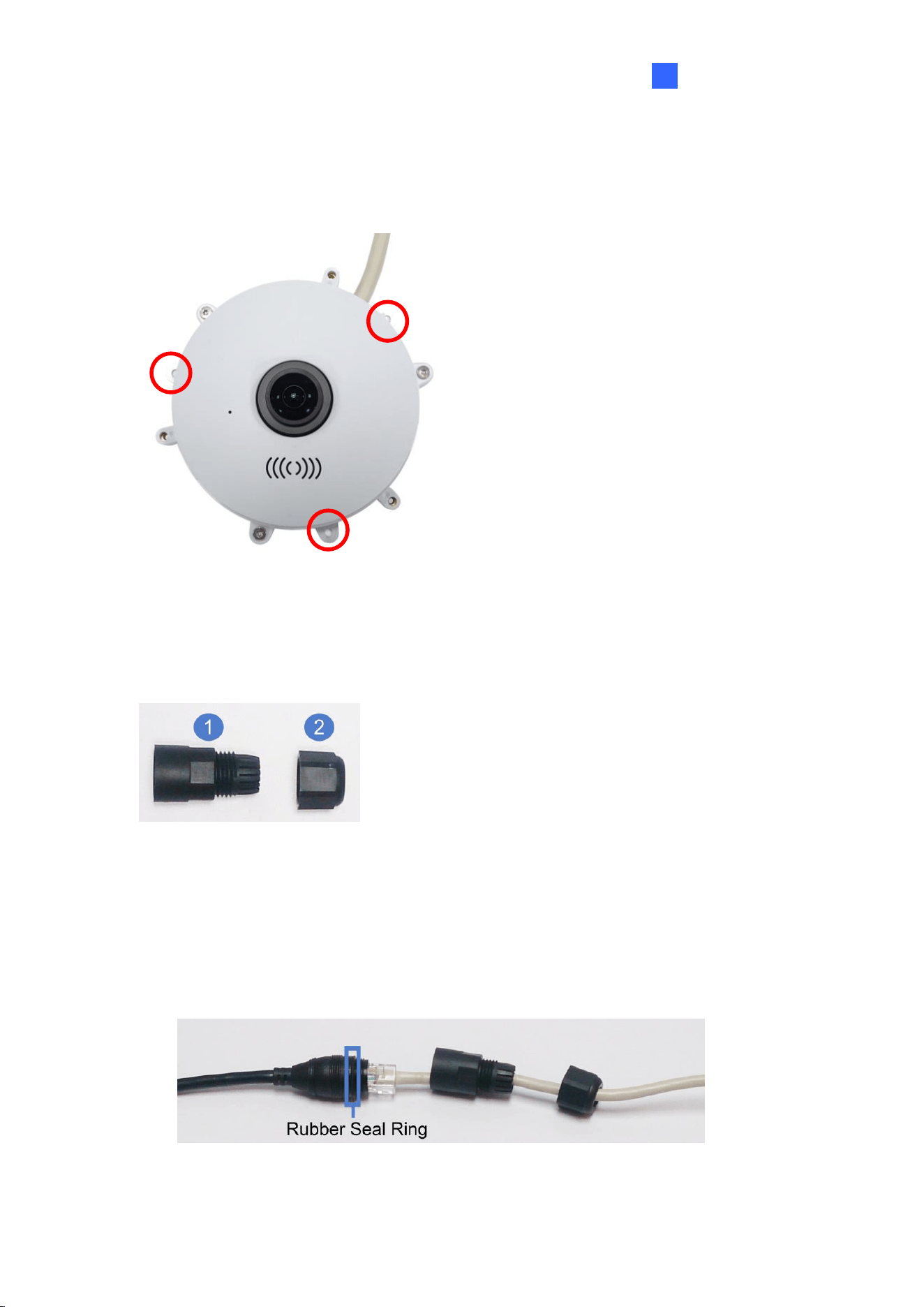
1. Place the installation sticker on the ceiling board. The 3 red dots indicate the location of
the screws. To install GV-Fisheye Camera with PoE converter (GV-FE3403 / 5303), drill
the 3 holes and the rectangle block indicated as “PoE Converter”; to install GV-Fisheye
Camera only with the IR LED ring (GV-FE3403 / 5303 and GV-FER3403 / 5303), drill the
3 holes indicated as “Device” and the circle indicated as “IR”.
Device
TOP
Device
Device
PoE Converter
PoE Converter
PoE Converter
PoE Converter
IR
Figure 1-9
Introduction
25
1
2. At the 3 red dots, drill a hole slightly smaller than the plastic screw anchors provided.
3. Insert the 3 plastic screw anchors in the drilled holes.
4. Secure the fisheye camera with the 3 hard ceiling mount screws provided.
Figure 1-10
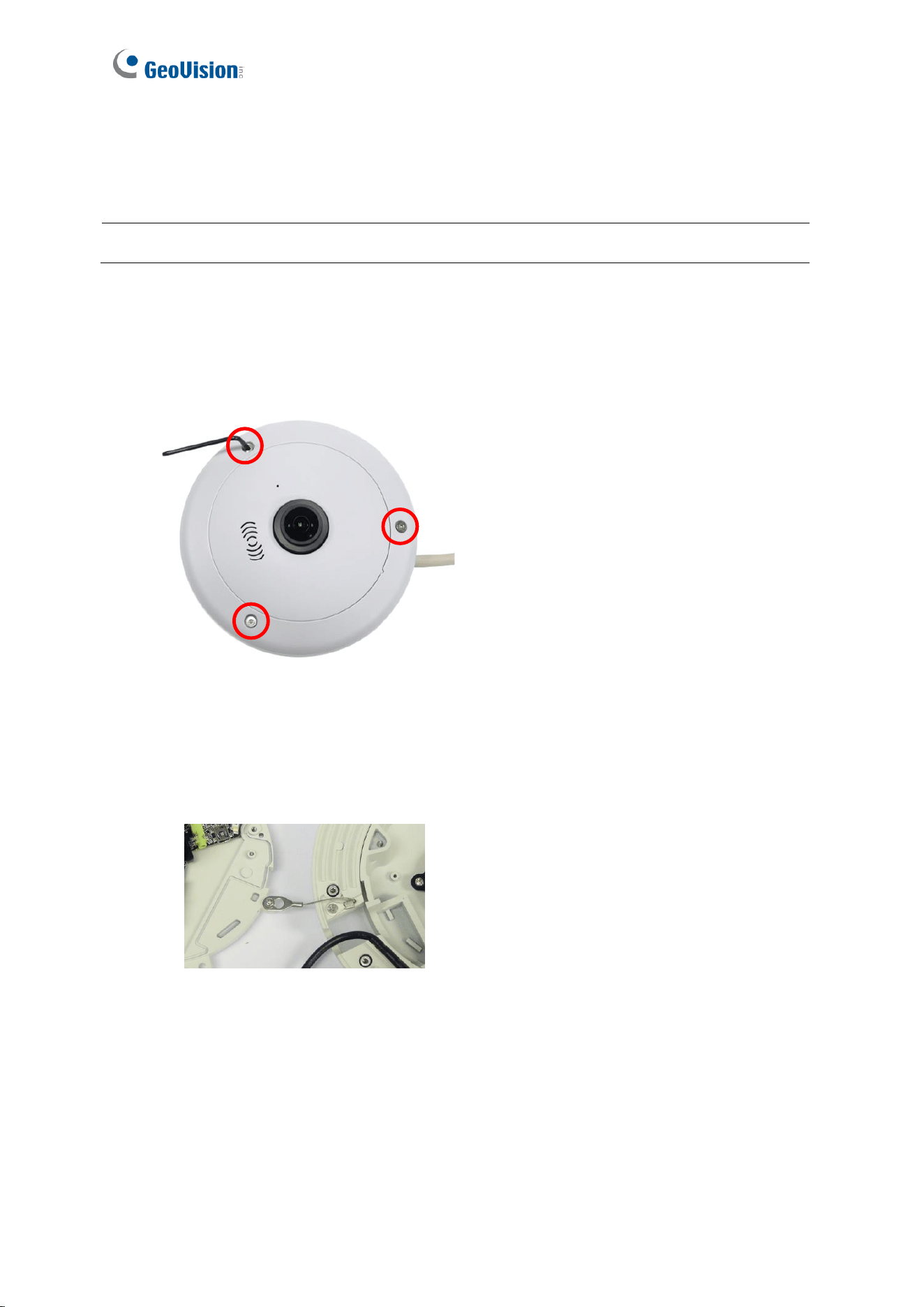
5. For outdoor GV-Fisheye Cameras (GV-FER3402 / 3403 / 5302 / 5303), install the
supplied cable connector to waterproof the cable. You should have 2 components (item1
and item 2):
Figure 1-11
a. Prepare an internet cable with the RJ-45 connector on one end only.
b. Connect the internet cable to the camera data cable.
c. Slide in the components through the end of the Internet cable without RJ-45
connector as shown below.
Figure 1-12
26
d. Move the components toward the RJ-45 connector, secure item 1 to the Rubber
Seal Ring of the camera data cable and secure item 2 to item 1 tightly.
IMPORTANT: Item 1 must be secured tightly to waterproof the cable.
6. For GV-Fisheye Camera that does not come with an IR LED ring, place the camera cover
(for hard ceiling mount) on top of the camera and tighten the screws with the supplied
torx wrench.
Figure 1-13
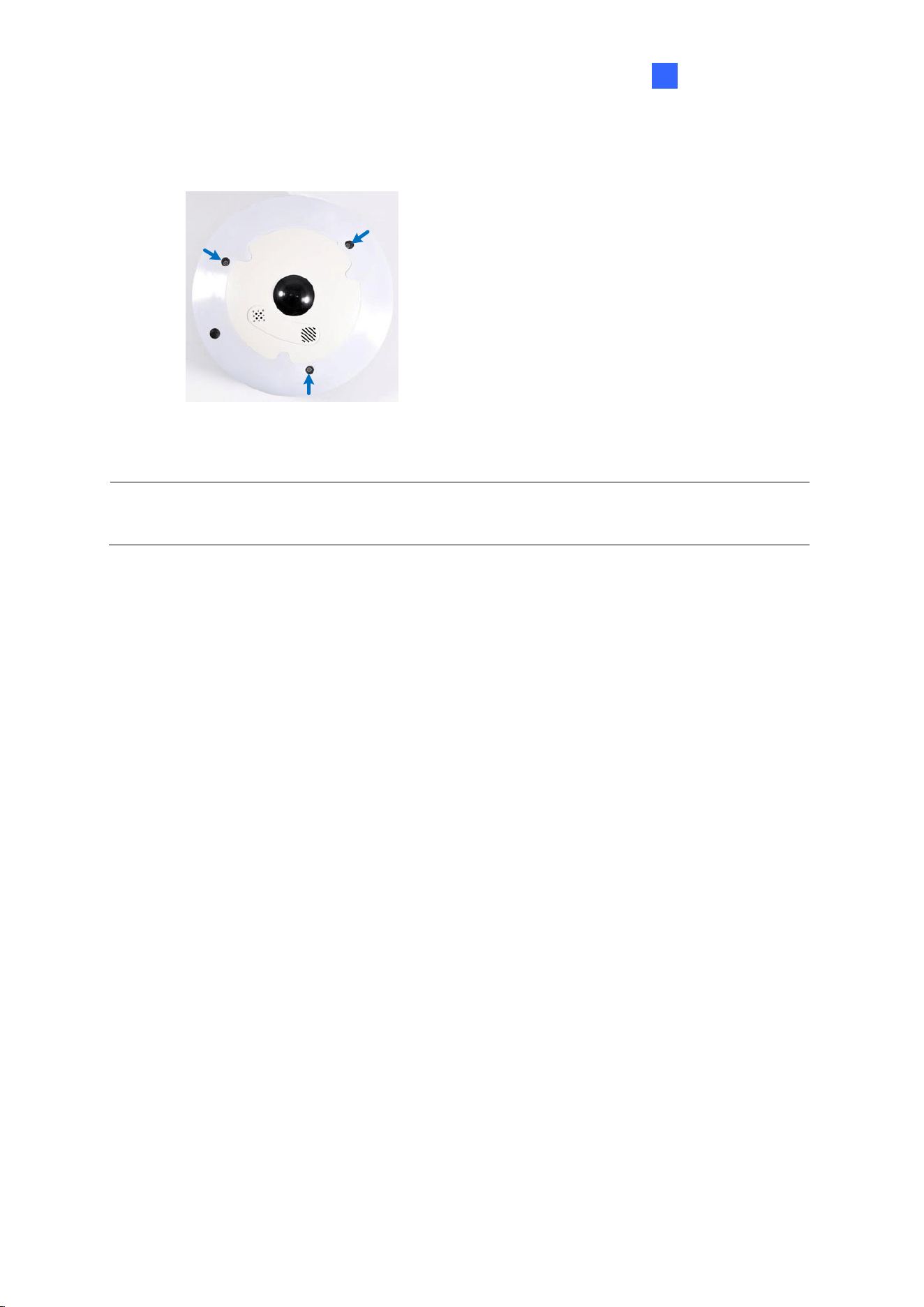
7. For GV-Fisheye Camera with an IR LED ring, follow the steps below to secure the IR
LED ring to the camera.
A. Secure the safety lock to the camera. Then secure the camera cover.
Figure 1-14
Introduction
27
1
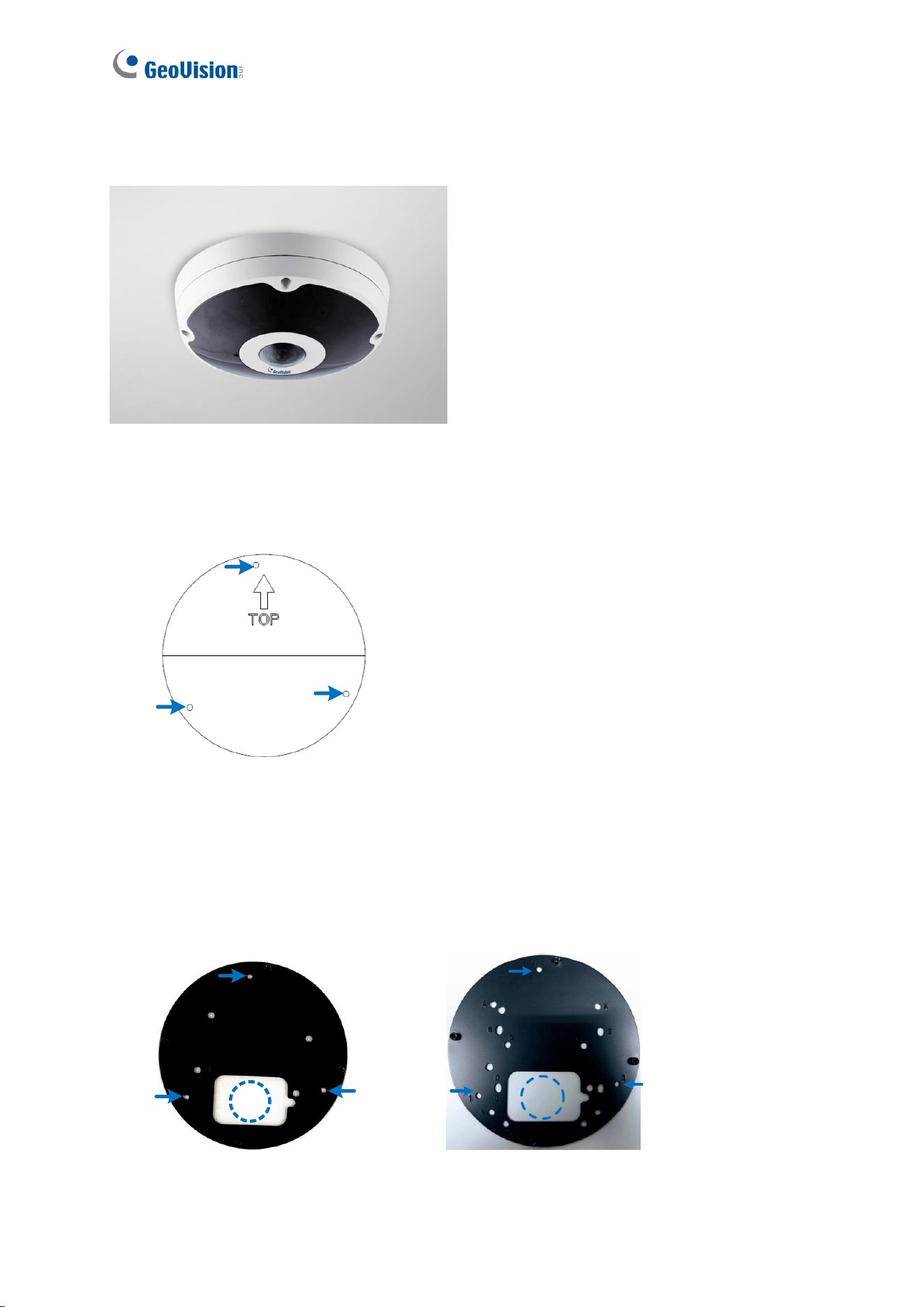
B. Place the IR LED ring on top of the camera and tighten the screws with the torx
wrench provided.
Figure 1-15
Caution: An operating IR LED ring may reach high temperatures. Disconnect the power
supply and allow the IR LED ring to cool down before handling the device.
28
1.6.1.2 GV-FER5700 / 5701 / 12203 / 12700
1. Paste the installation sticker to the ceiling board.
2. At the 3 dots, drill a hole slightly smaller than the plastic screw anchors provided.
Figure 1-16
3. Insert the 3 plastic screw anchors in the drilled holes.
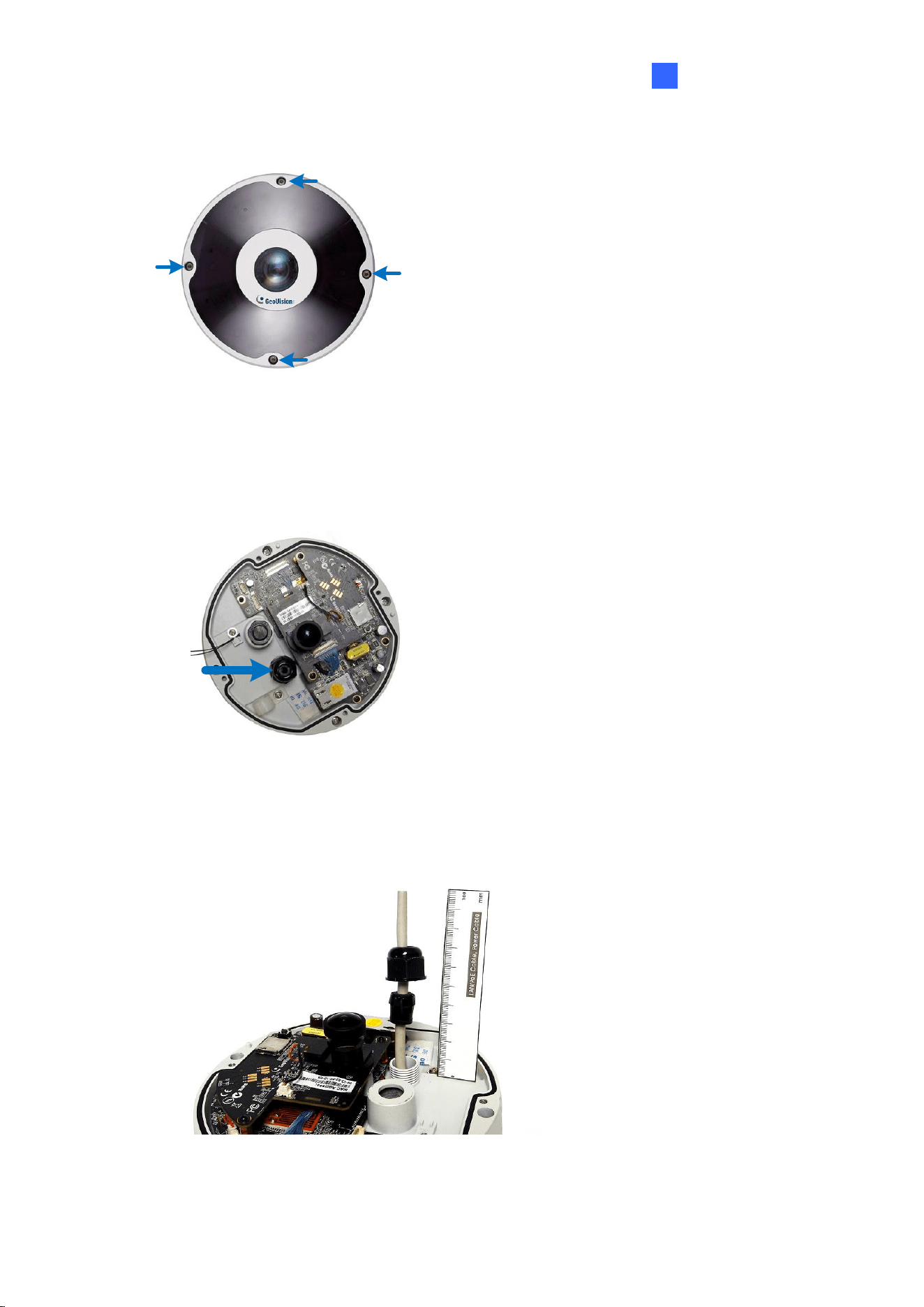
4. Secure the back plate onto the ceiling board with the 3 screws provided. If you want to
thread the camera cables through the ceiling board, you can cut a cable opening as
shown below.
Figure 1-17 – users are provided with one of the back plates shown above with the standard package
Introduction
29
1
5. Open the camera cover by unscrewing the indicated screws.
Figure 1-18
6. Connect the Ethernet cable.
a. Unplug the LAN / PoE connector and prepare an Ethernet cable with only one RJ-
45 connector.
Figure 1-19
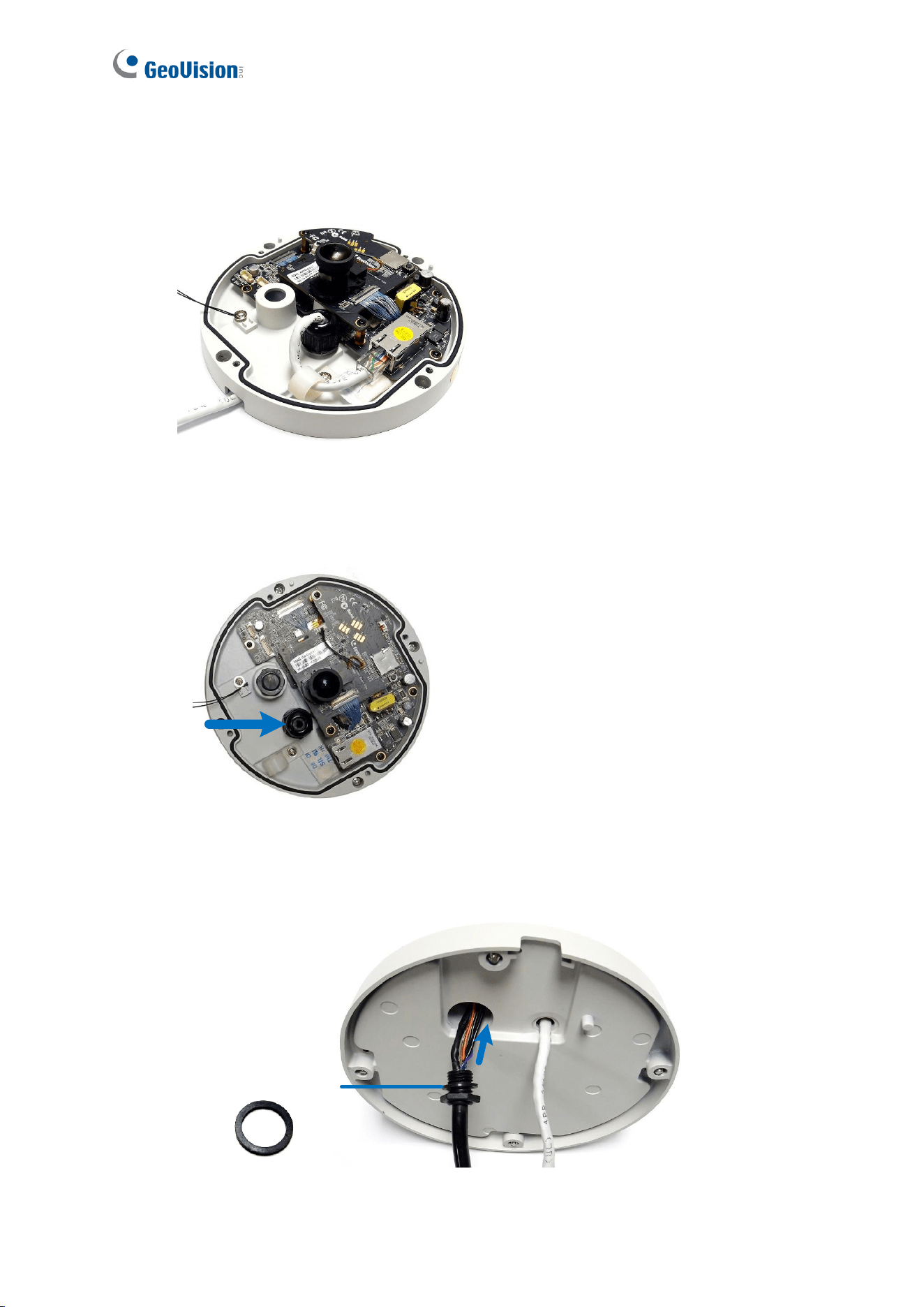
b. Thread the Ethernet cable through the opening into the camera and through the
plug and cap as shown below. Use the supplied ruler to make sure the length of the
cable from the opening to the end of the cable is about 10 cm.
Figure 1-20
c. Insert the plug into the opening and tighten the cap.
30
d. Attach the supplied RJ-45 connector to the Ethernet cable, and plug the connector
into the LAN / PoE port.
e. Loosen the screw on the cable holder and thread the cable under the cable holder.
Figure 1-21
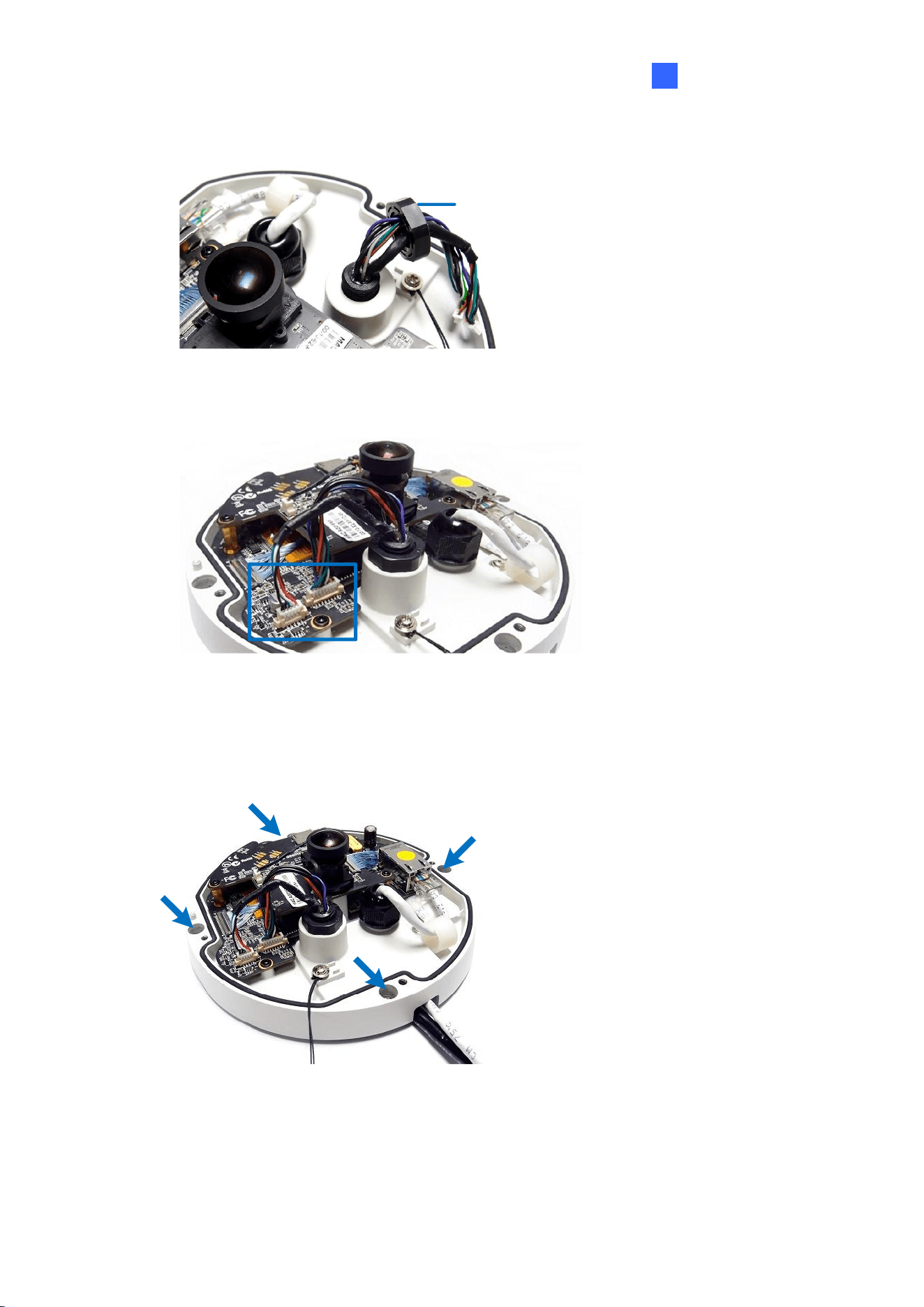
7. Connect the supplied data cable if needed.
a. Unscrew the hexagon washer on the data cable opening.
Figure 1-22
b. Thread the data cable through the black rubber ring, and then through the opening
into the camera.
Black rubber ring
Figure 1-23
Introduction
31
1
c. Slide the hexagon washer through the cable, and then tighten the washer.
Hexagon washer
Figure 1-24
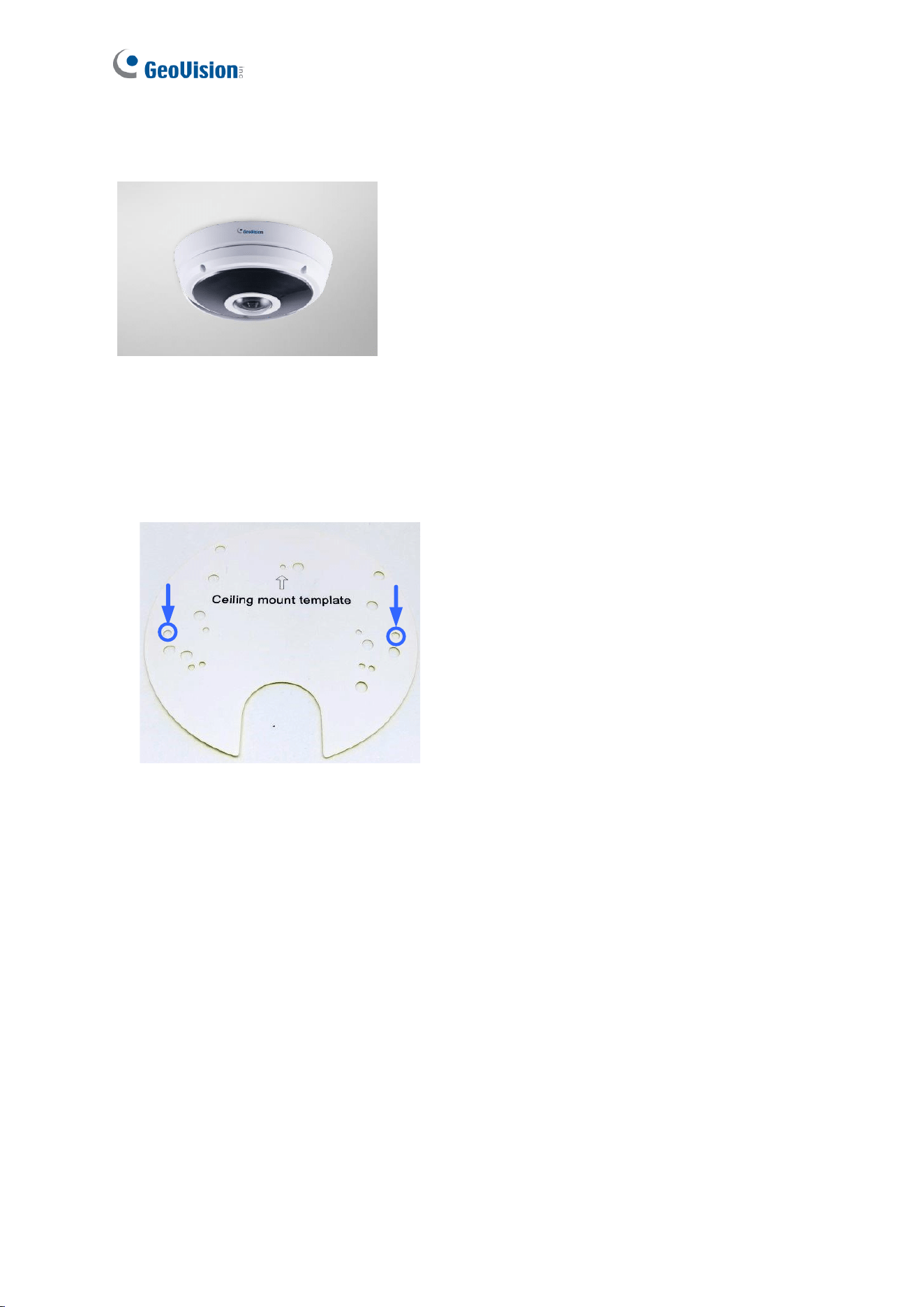
d. Plug the pins of the cable to the camera as shown below.
Figure 1-25
8. Secure the camera to the back plate by tightening the 4 screws as shown below. The
cables can be threaded through the cable opening on the side or through the ceiling
board.
Figure 1-26
9. Secure the camera cover and tighten the 4 screws.
32
1.6.1.3 GV-EFER3700 / EFER3700-W
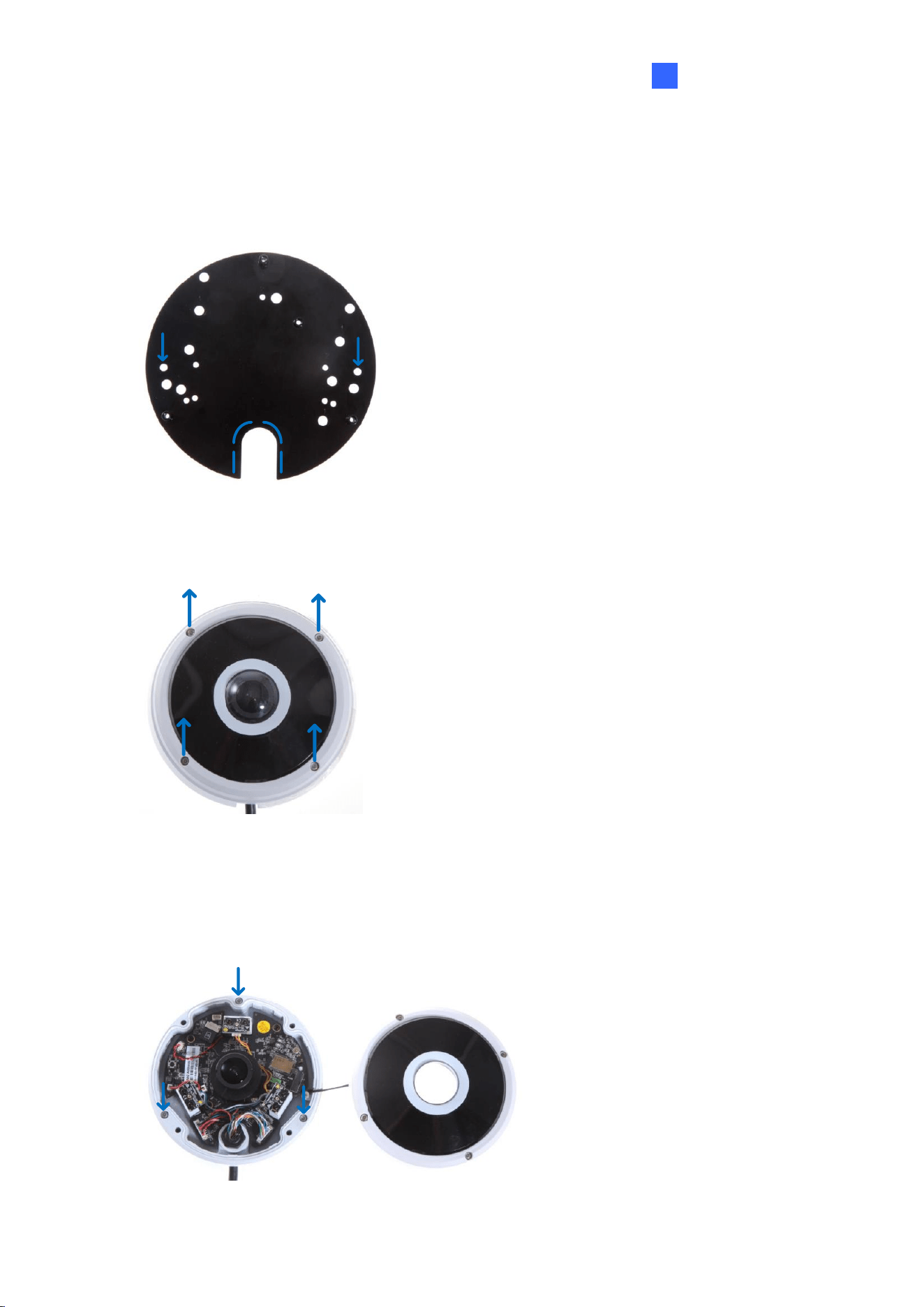
1. Remove the back plate.
2. Paste the installation sticker to the ceiling board.
3. Drill holes in the indicated areas on the installation sticker.
Figure 1-27
4. Insert the 2 screw anchors in the drilled holes.
Introduction
33
1
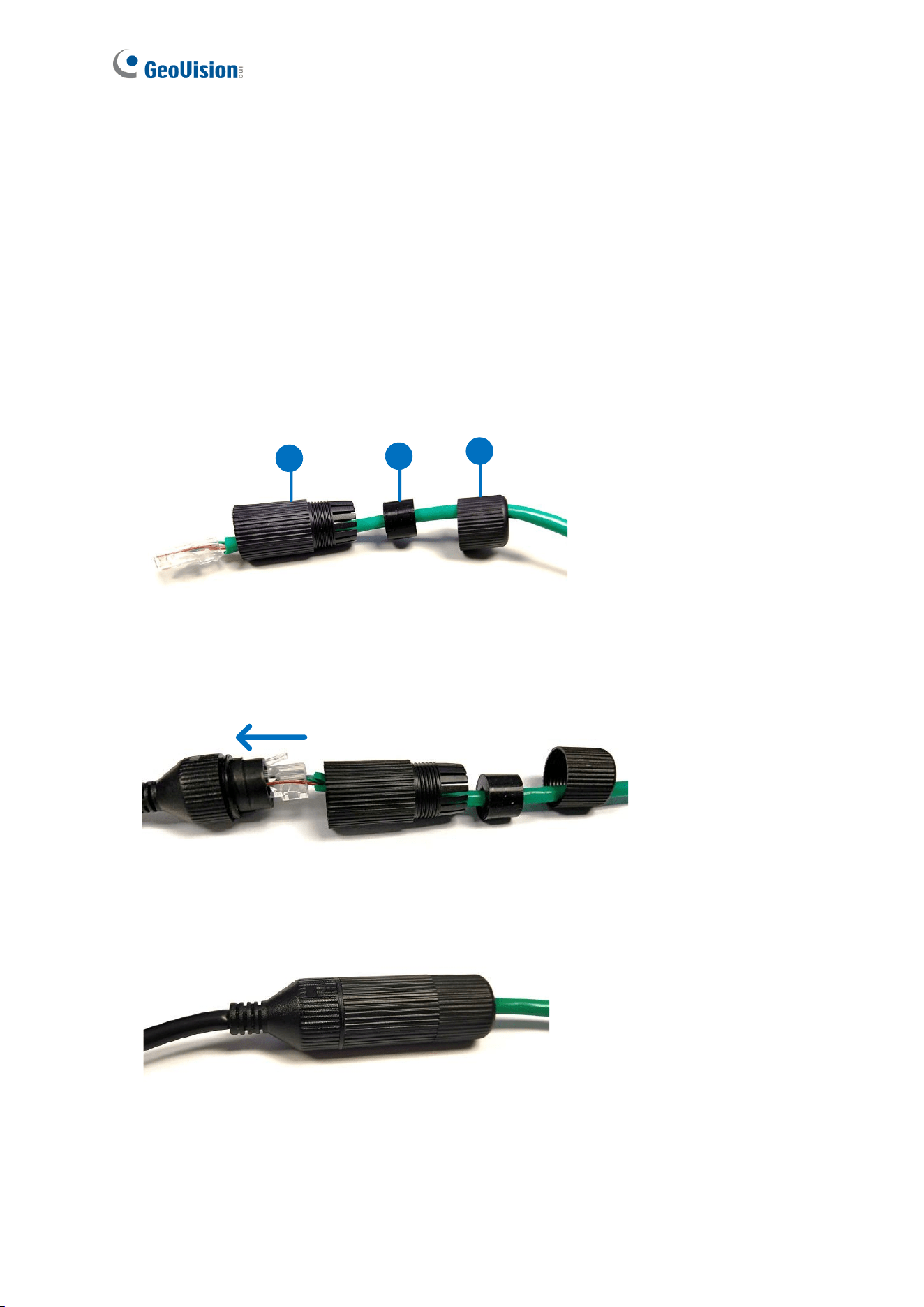
5. Secure the back plate onto the ceiling board with the 2 screws provided. If you want to
thread the camera cables through the ceiling board, you can cut a cable opening as
shown below. Make sure to cut the cable opening slightly larger than the RJ-45 plug of
the camera cable.
Figure 1-28
6. Open the camera cover by unscrewing the indicated screws.
Figure 1-29
7. Secure the camera to the back plate by tightening the 3 screws as shown below. The
cables can be threaded through the cable opening on the side or through the ceiling
board.
Figure 1-30
34
8. Secure the camera cover and tighten the 4 screws.
9. Connect the camera cables. For details, refer to 3. Connecting the Camera in the Quick
Start Guide.
1.6.1.4 Waterproofing the Cable
Waterproof the Ethernet cable of GV-EFER3700 / EFER3700-W by using the supplied
waterproof rubber set.
1. Insert the waterproof components through the Ethernet cable as shown below.
1
2
3
Insert in order
Figure 1-31
2. Insert the cable into the RJ-45 plug.
Figure 1-32
3. Assemble the waterproof rubber set.
Figure 1-33
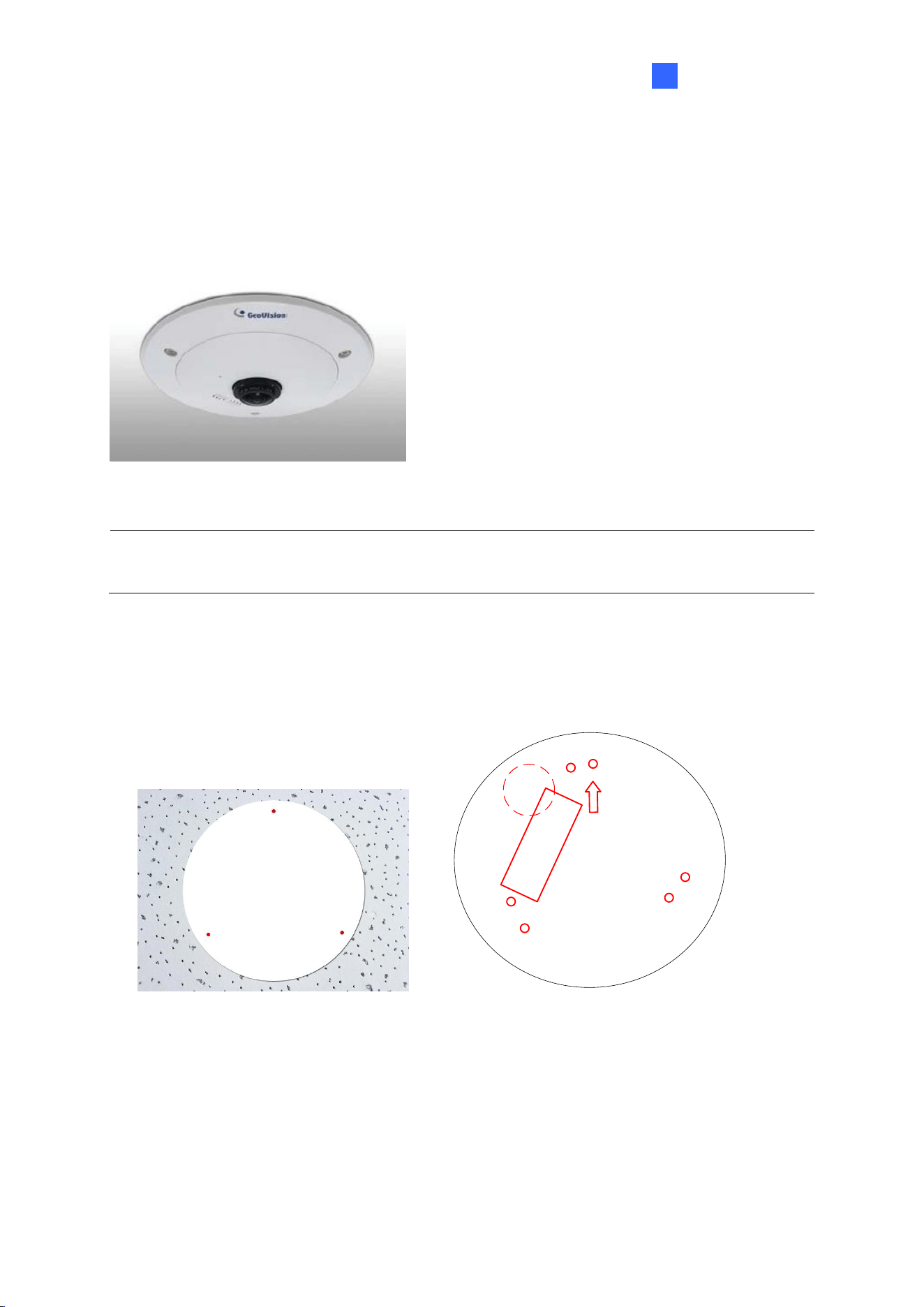
Introduction
35
1
1.6.2 In-Ceiling Mount
In-Ceiling Mount allows the camera to be mounted into the ceiling, revealing a small portion
of the camera. In-Ceiling Mount requires the ceiling board to be between 0.5 – 3.0 cm (0.2 –
1.18 in) thick.
Figure 1-34
Note: This in-ceiling mount is not applicable to the models with IR LED ring (GV-FE3403 /
5303 and GV-FER3403 / 5303), and GV-FER5700 / 5701 / 12203 / 12700.
1. Place the installation sticker on the ceiling board, and cut the circle part out of the ceiling.
To install GV-FE3402 / 5302 and GV-FER3402 / 5302, drill the 3 holes indicated as
“Device”.
Device
TOP
Device
Device
PoE Converter
PoE Converter
PoE Converter
PoE Converter
IR
Figure 1-35
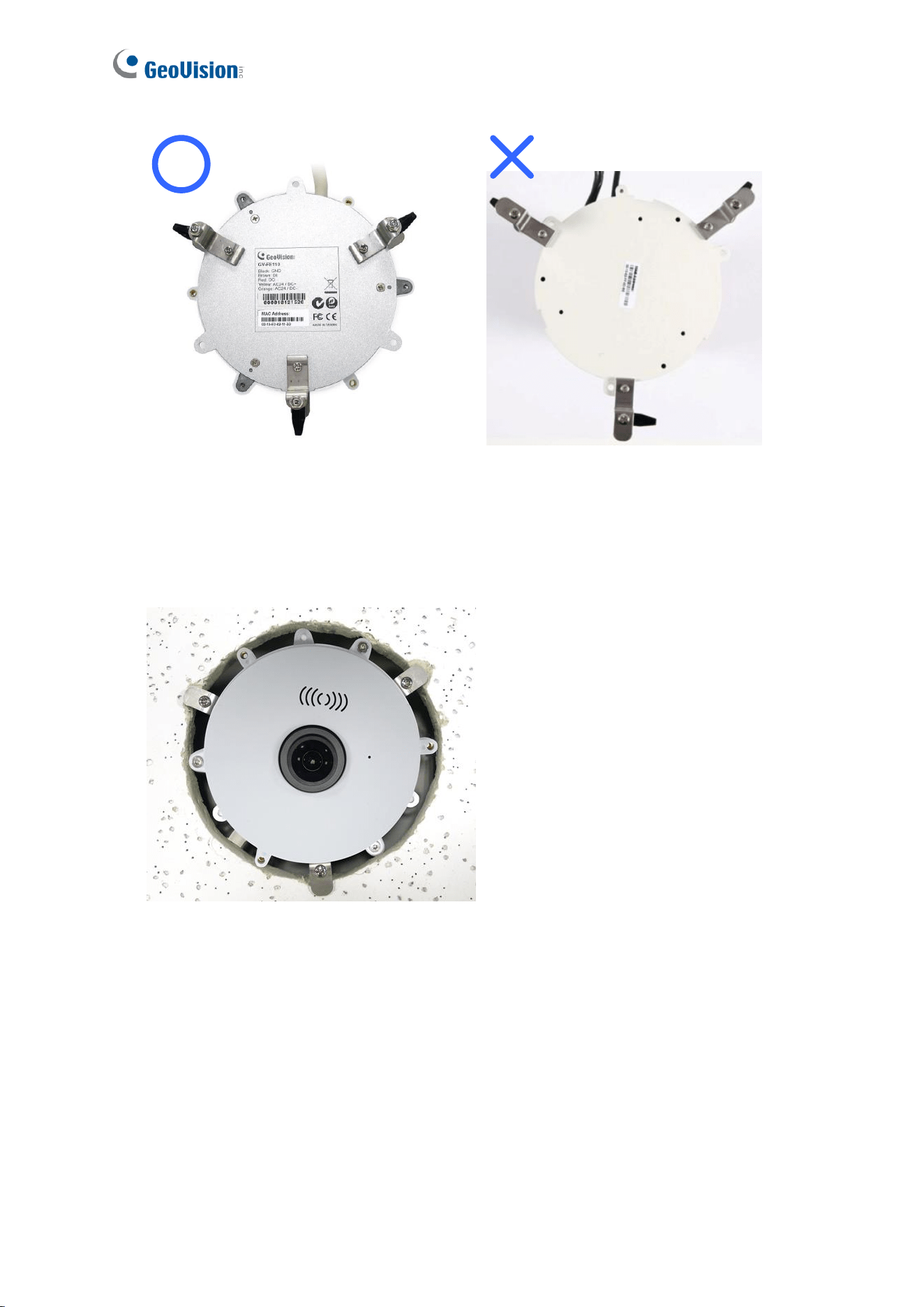
2. Align the 3 support brackets with the holes on the back of the camera as shown below
and secure using the in-ceiling mount screws provided.
36
Figure 1-36
3. For outdoor GV-Fisheye Cameras (GV-FER3402 / 5302), install the supplied cable
connector to waterproof the cable. Refer to step 5 in 1.6.1 Hard Ceiling Mount for details.
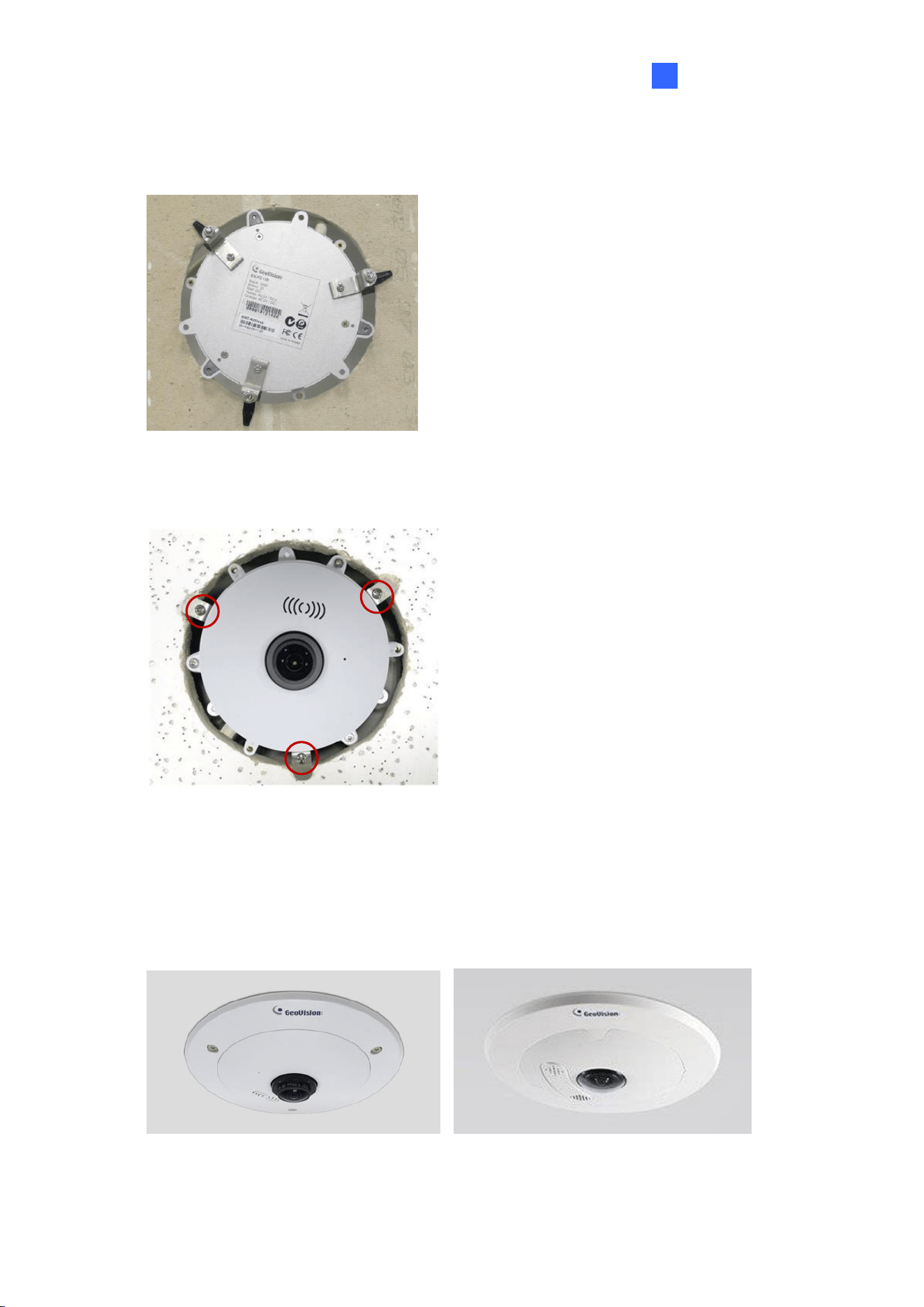
4. Place the fisheye camera into the ceiling opening as shown below.
Figure 1-37
Introduction
37
1
5. On the back side, make sure the black plastic clips are slightly above the ceiling board
and pointing outward.
Figure 1-38
6. From the front side of the camera, tighten the screws.
Figure 1-39
7. Connect the camera with power, network and other wires. For details, see 1.7
Connecting GV-Fisheye Camera.
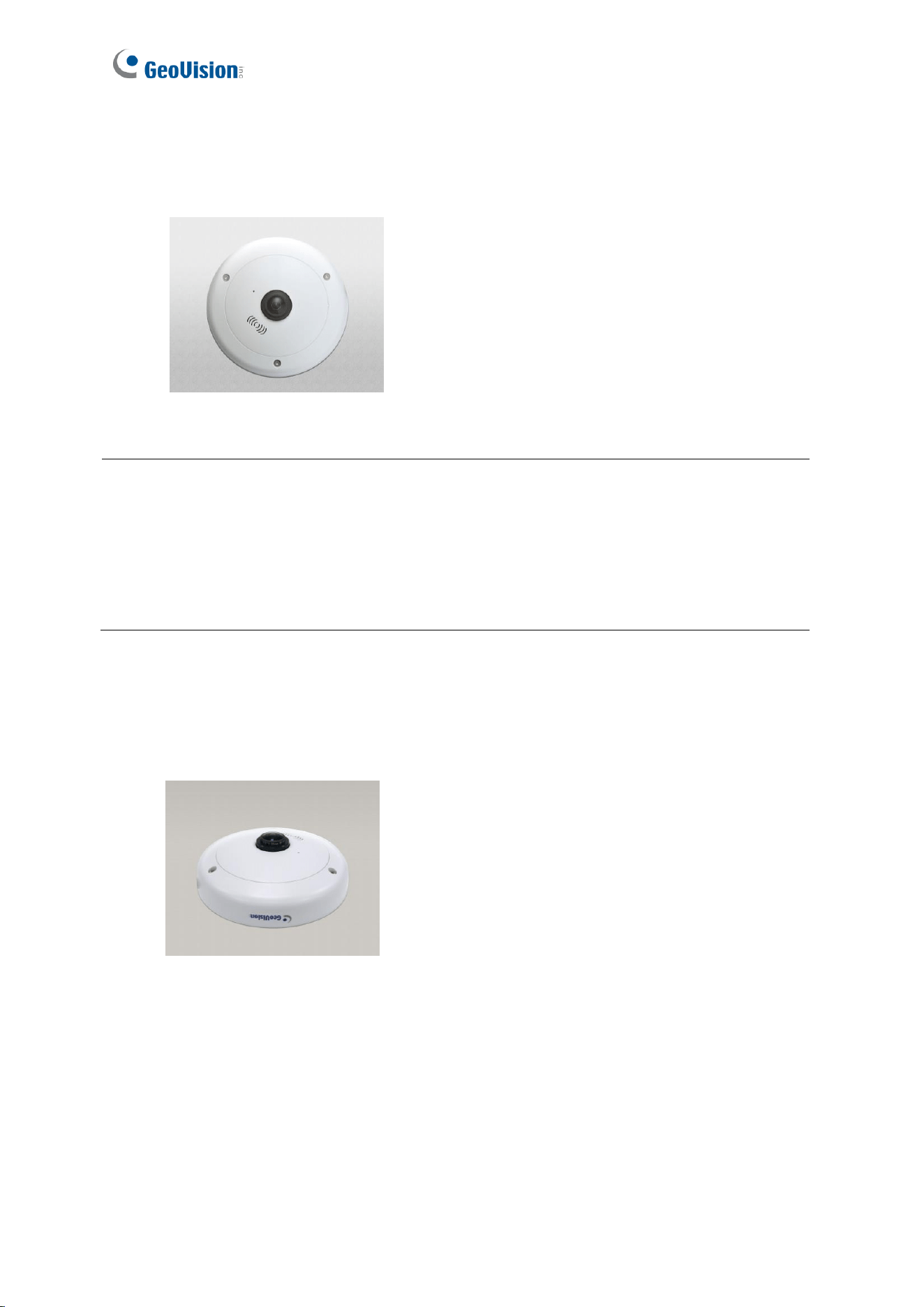
8. Place the camera cover for in-ceiling mount on top of the camera and tighten the 3
screws or just put on the in-ceiling cover if it does not contain screws.
Figure 1-40
38
1.6.3 Standard Wall Mount and Ground Mount
To mount the camera on a wall, follow the instructions in 1.6.1 Hard Ceiling Mount.
Figure 1-54
Hint:
1. Mount the fisheye camera in the middle of the wall to have an excellent overview. Or
ensure the camera is focused on the most important areas of the room as directly as
possible to have the desired detailed recognition.
2. Orientate your camera using the printed text “TOP” on the camera or the installation
sticker.
1.6.4 Ground Mount
For ground mount, simply install the hard ceiling cover and place the camera on a flat
surface such as a conference table.
Figure 1-55
Introduction
39
1
1.7 Connecting GV-Fisheye Camera
1.7.1 GV-FE2301 / 4301
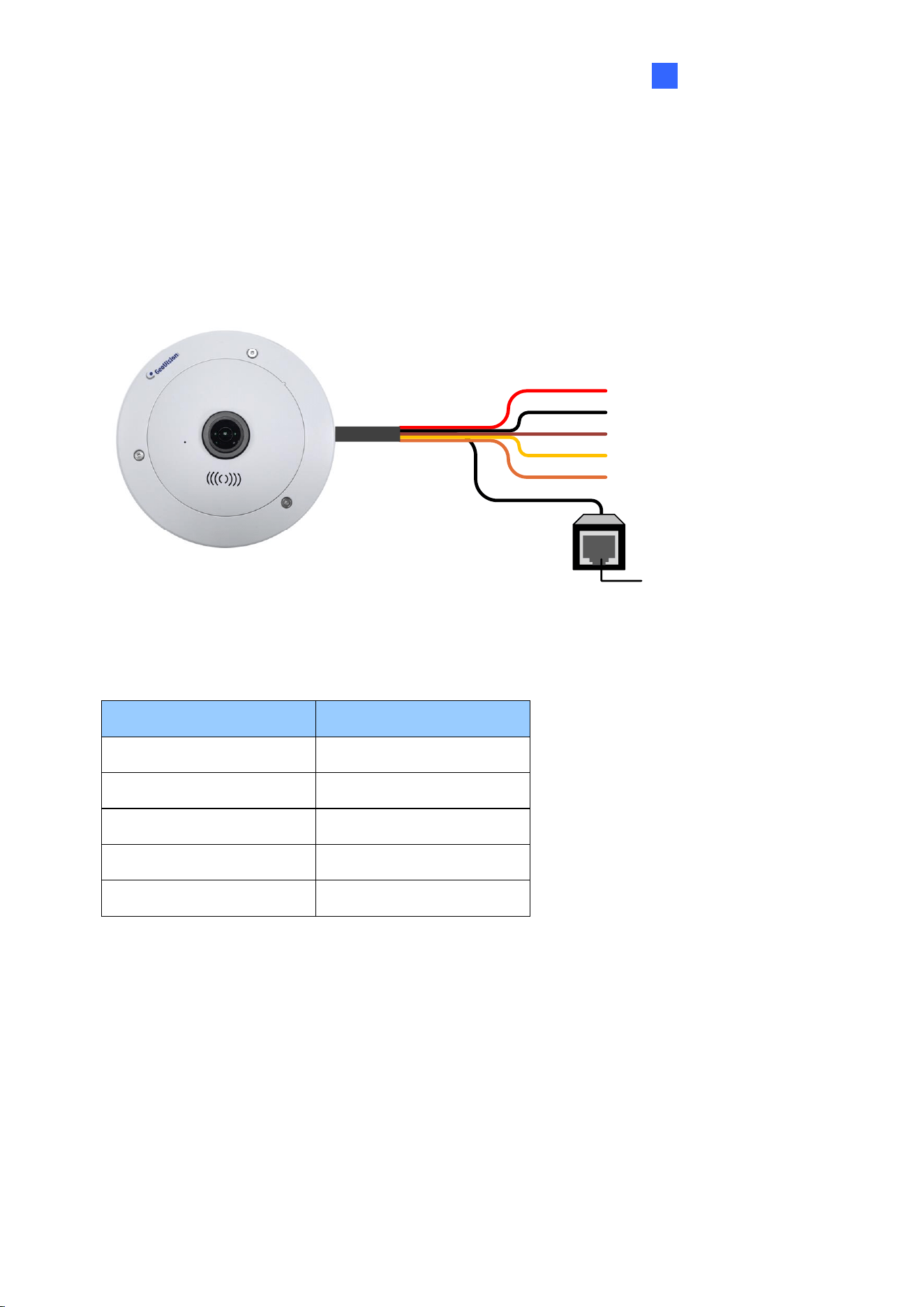
GV-FE series come with a 5-pin data cable that allows you to connect to the power and any
I/O devices.
Ethernet (PoE)
Digital Output (Red)
Digital Input (Brown)
AC 24V / DC- (Orange)
GND (Black)
AC 24V / DC+ (Yellow)
Figure 1-56
Wire Definition
Wire Color
Definition
Yellow
AC 24V+ / DC 12V+
Orange
AC 24V- / DC 12V-
Brown
Digital Input
Red
Digital Output
Black
GND
40
Connecting to Power
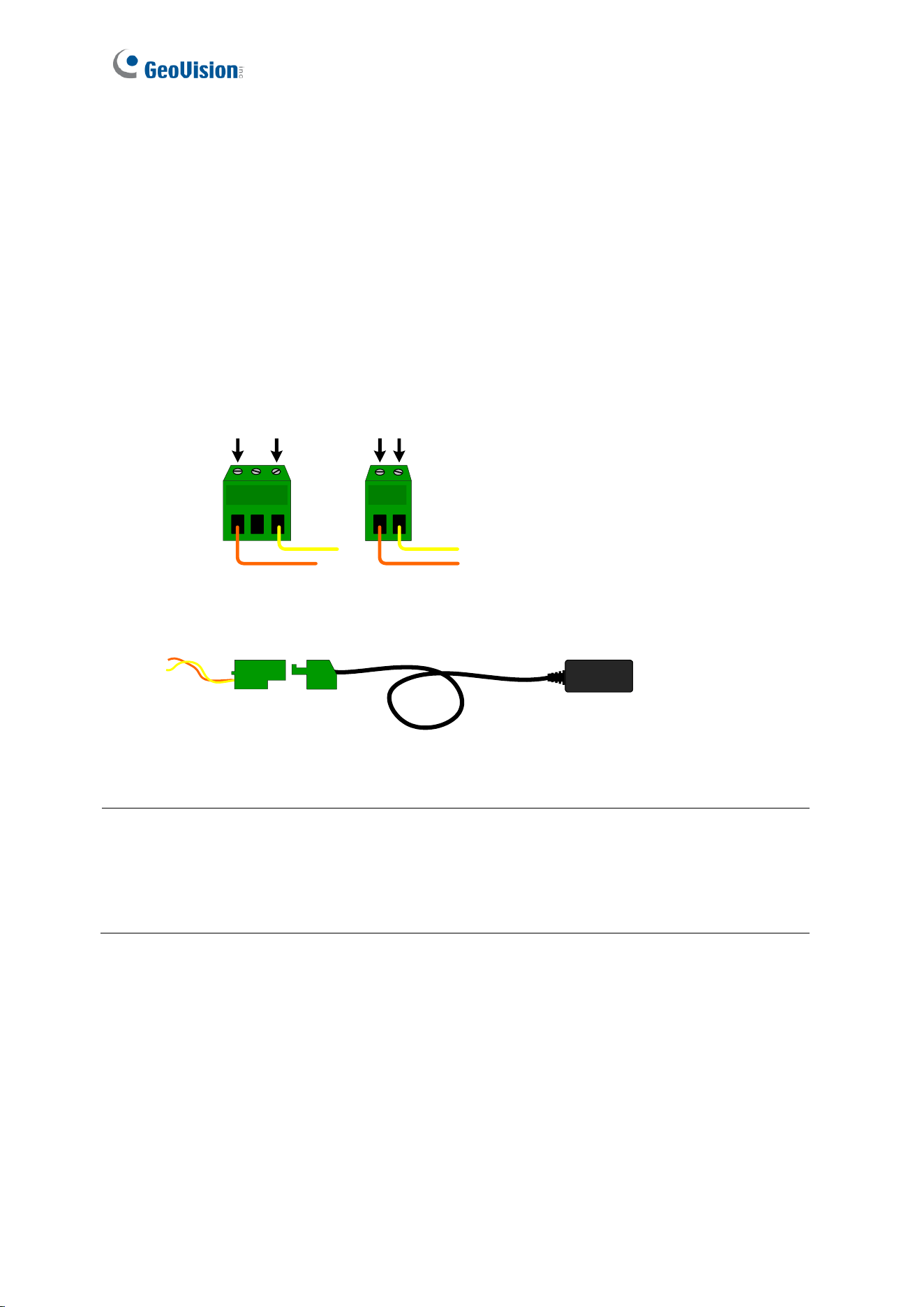
You can connect to power using either the power adapter provided or a Power over Ethernet
(PoE) adapter. To connect to power using the power adapter, follow the steps below to
connect the orange and yellow wires of the camera to the 3-pin or 2-pin terminal block
provided.
1. Insert the yellow wire to the pin on the right-side of the terminal block and the orange
wire to the pin on the left-side of the terminal block.
2. Use a small flat-tip screwdriver to secure the screws above the pins.
Figure 1-57
3. Connect the DC 12V Power Adapter to the Terminal Block.
DC 12V Power Adapter
Terminal Block
Figure 1-58
Note:
1. A DC 12V power adapter has been provided, but both AC 24V power adapter and DC
12V power adapter are compatible.
2. The power status LED will not be visible unless the camera cover is removed.
Introduction
41
1
1.7.2 GV-FE3402 / 3403 / 5302 / 5303
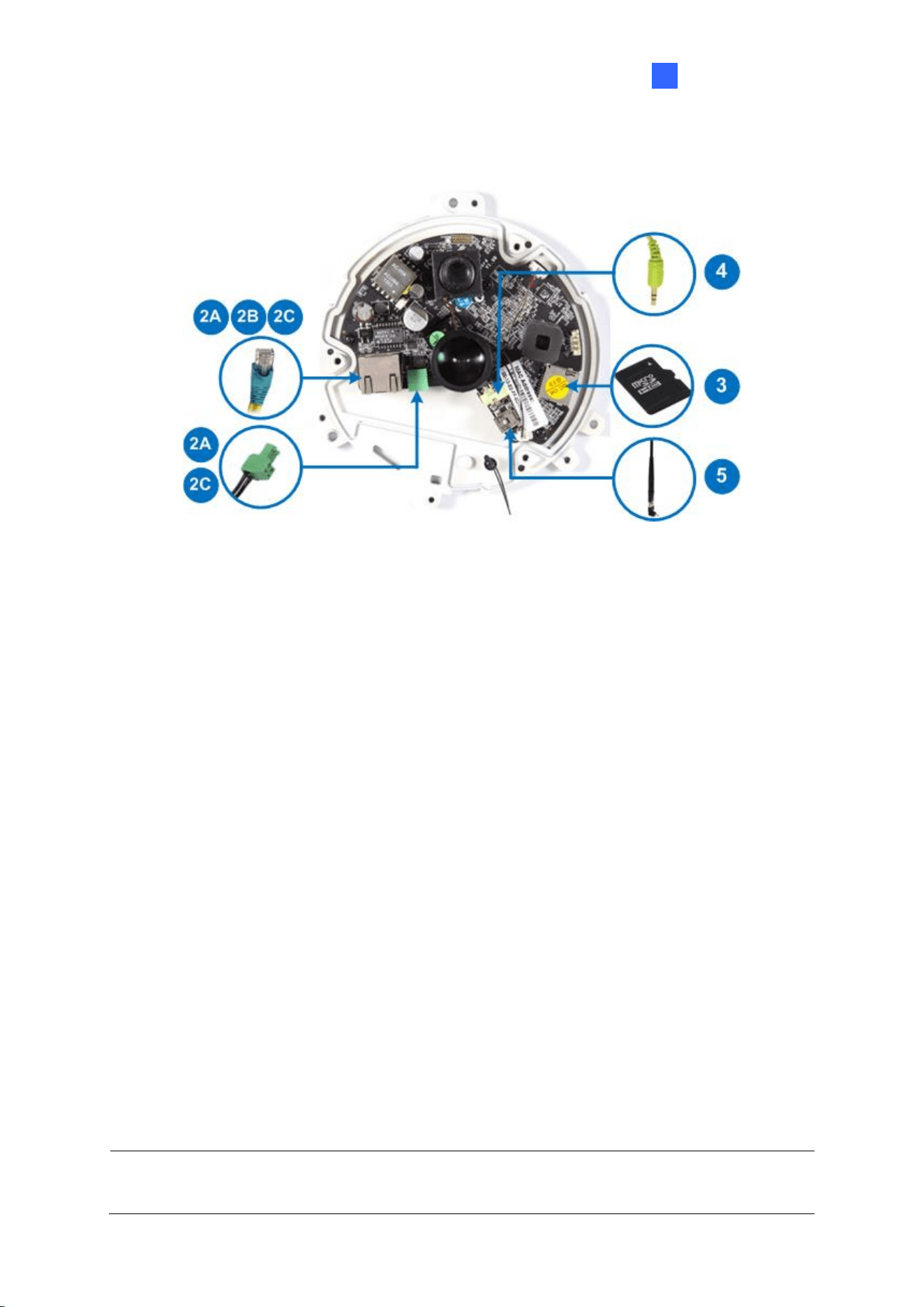
Figure 1-59
1. Remove the camera cover with the supplied torx wrench.
2. Supply power and network to the camera with one of the following methods:
A. Power adapter: plug in the power adapter and connect a standard network work
cable.
B. Power over Ethernet (PoE): connect the camera to a PoE switch with a standard
network cable to supply power and network.
C. PoE Converter: this method is only applicable to indoor GV-Fisheye Camera
installed with an IR LED ring (GV-FE3403 / 5303). A PoE converter allows the
camera to be connected to a PoE switch (thus supplied with network and power
over a network cable), and also supplies power to IR LED ring. For installation
steps, see 1.7.4 Connecting PoE Converter and IR LED Ring for GV-FE3403 /
5303.
3. Optionally insert a micro SD card (SD/SDHC, version 2.0 only, Class 10).
4. Optionally connect an external speaker.
5. Optionally connect a GV-WiFi Adapter (for WiFi accessibility) or an external USB hard
drive (for additional storage).
6. Secure the camera cover with the supplied torx wrench.
Note: For details on the limitations and requirements of mini USB port, refer to Note for
USB Storage and WiFi Adapter at the beginning of this manual.
42
1.7.3 Connecting PoE Converter and IR LED Ring for GV-FE3403 /
5303
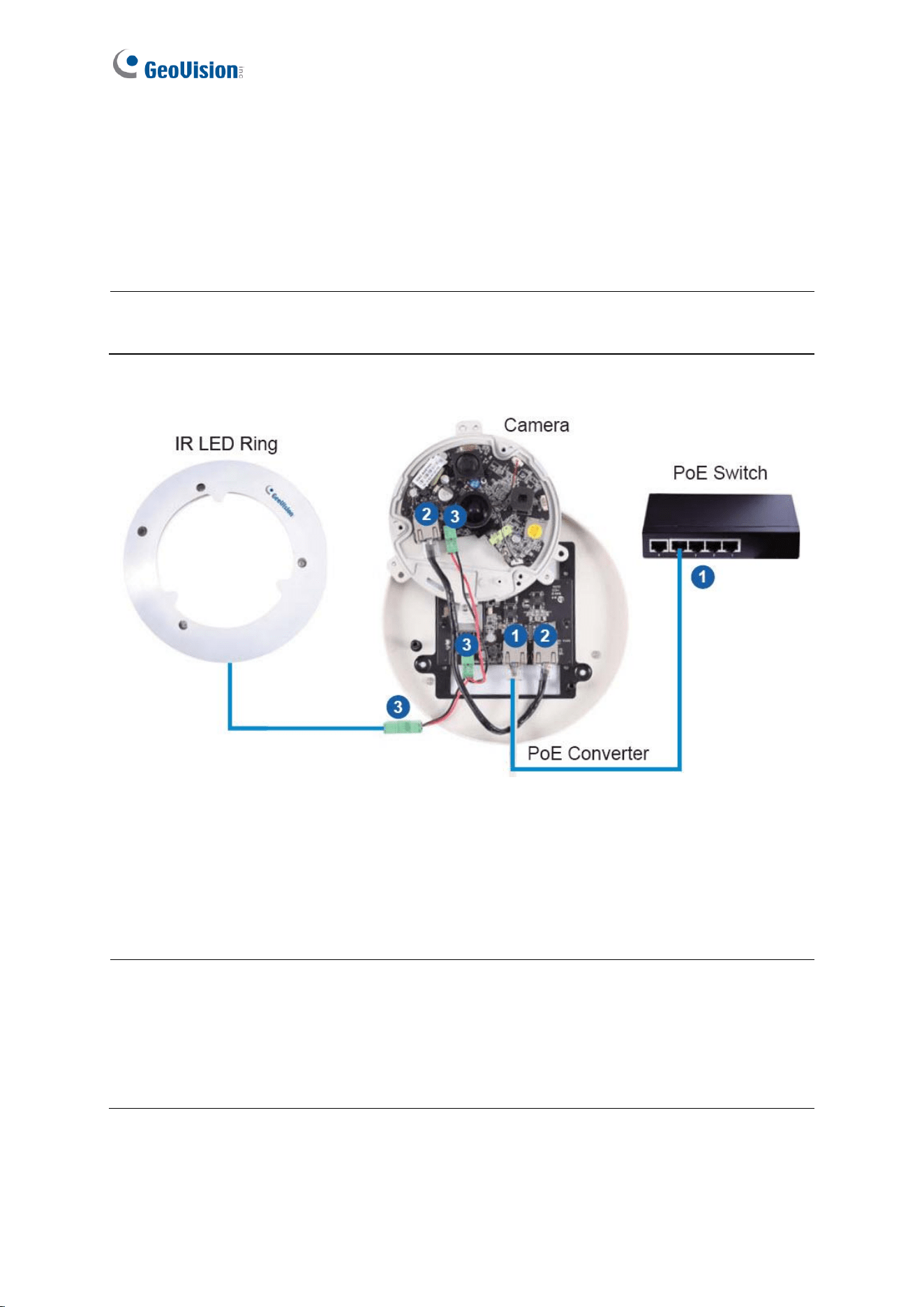
To install a PoE converter, follow the steps below.
Note: Instead of installing the PoE converter, you can connect the camera to a PoE switch
and the IR LED ring with a power adapter (optional accessory).
Figure 1-60
1. Connect the PoE converter to a PoE switch with a standard network cable. Use the
RJ-45 connector on the left.
Note:
1. Due to limited space inside the PoE converter, use a standard network cable without
the rubber boot.
2. The camera will not work if you connect the wrong devices to the two RJ-45
connectors on the PoE converter.
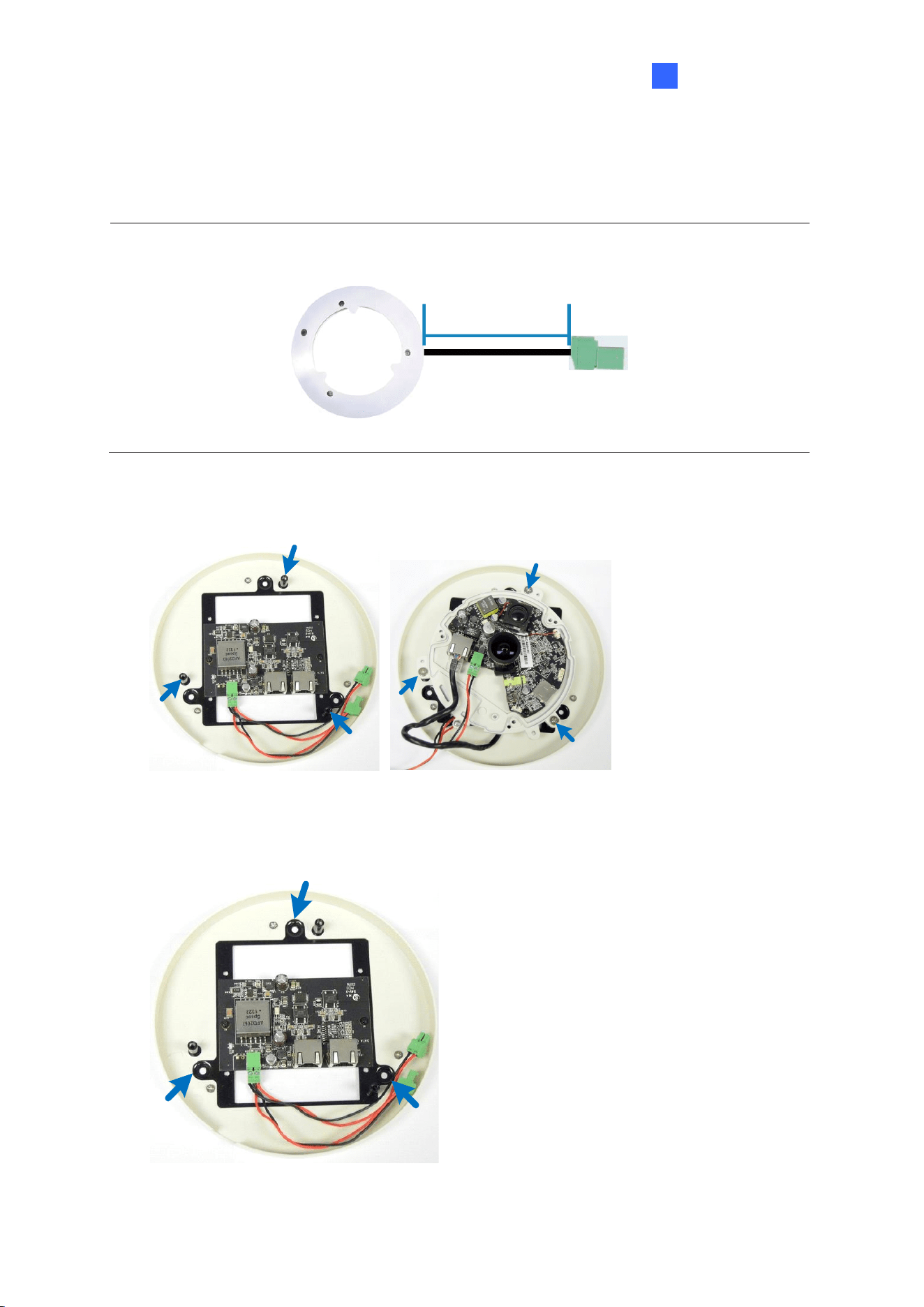
2. Connect PoE Converter and the camera with the supplied network cable. Use the RJ-45
connector on the right.
Introduction
43
1
3. Plug one of the PoE converter’s terminal blocks to the camera and the other one to the
IR LED ring.
IMPORTANT: It is advised to shorten the IR LED ring’s wire to approximately 20 cm for it
to fit inside the PoE converter.
20cm
Figure 1-61
4. Secure the camera to the PoE converter with the supplied screws.
Figure 1-62
5. Secure the PoE converter to the ceiling with 3 self-prepared screws.
Figure 1-63
44
1.7.4 GV-FER3402 / 3403 / 5302 / 5303
Figure 1-64
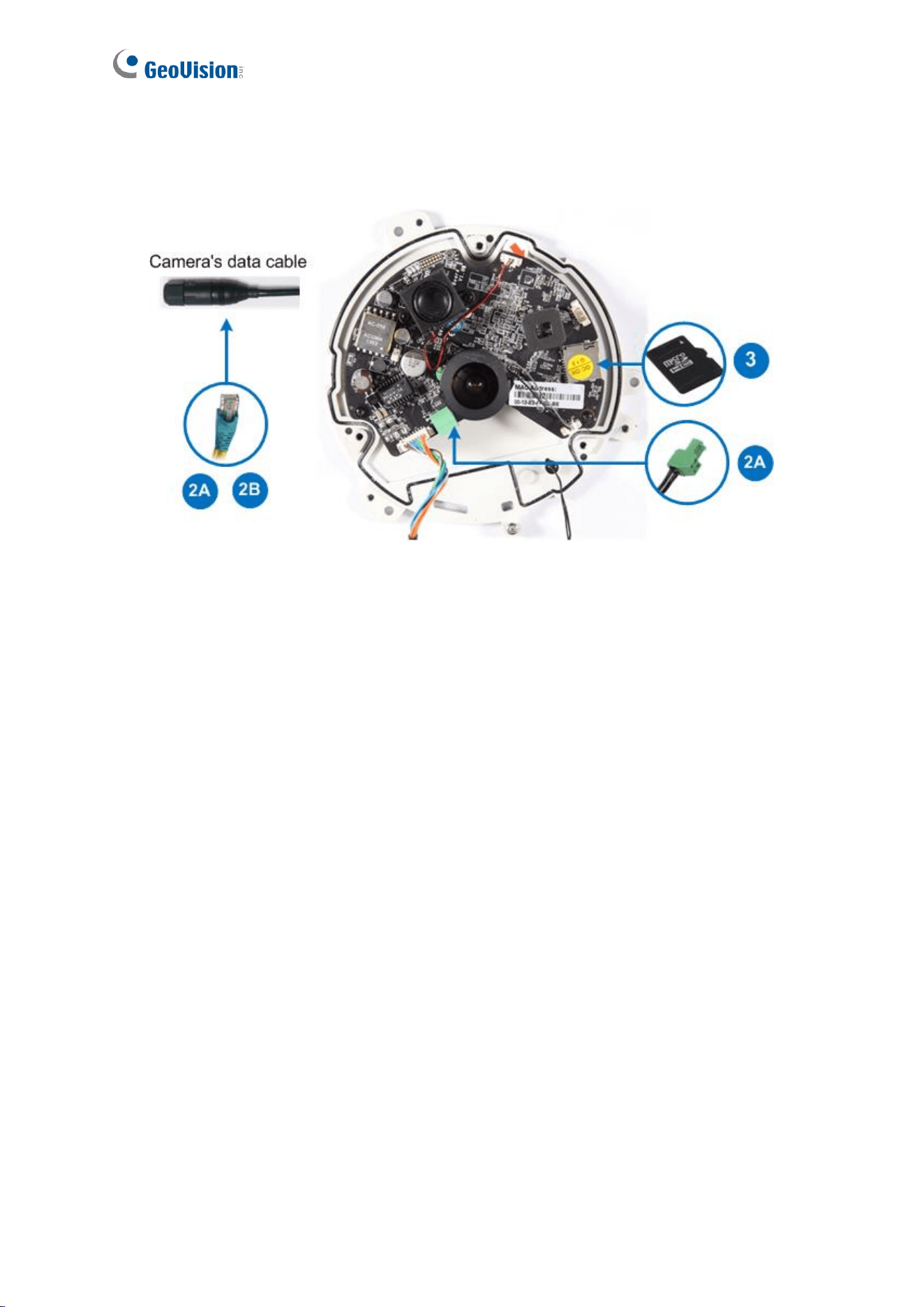
1. Remove the camera cover with the supplied torx wrench.
2. Supply power to the camera with one of the following:
A. Power adapter: see Assembling the Power Adapter later in this section.
B. Power over Ethernet (PoE): connect the camera to a PoE switch with a standard
network cable to supply power and network.
3. Optionally insert a micro SD card (SD/SDHC, version 2.0 only, Class 10).
4. Secure the camera cover with the supplied torx wrench.
Introduction
45
1
Assembling the Power Adapter
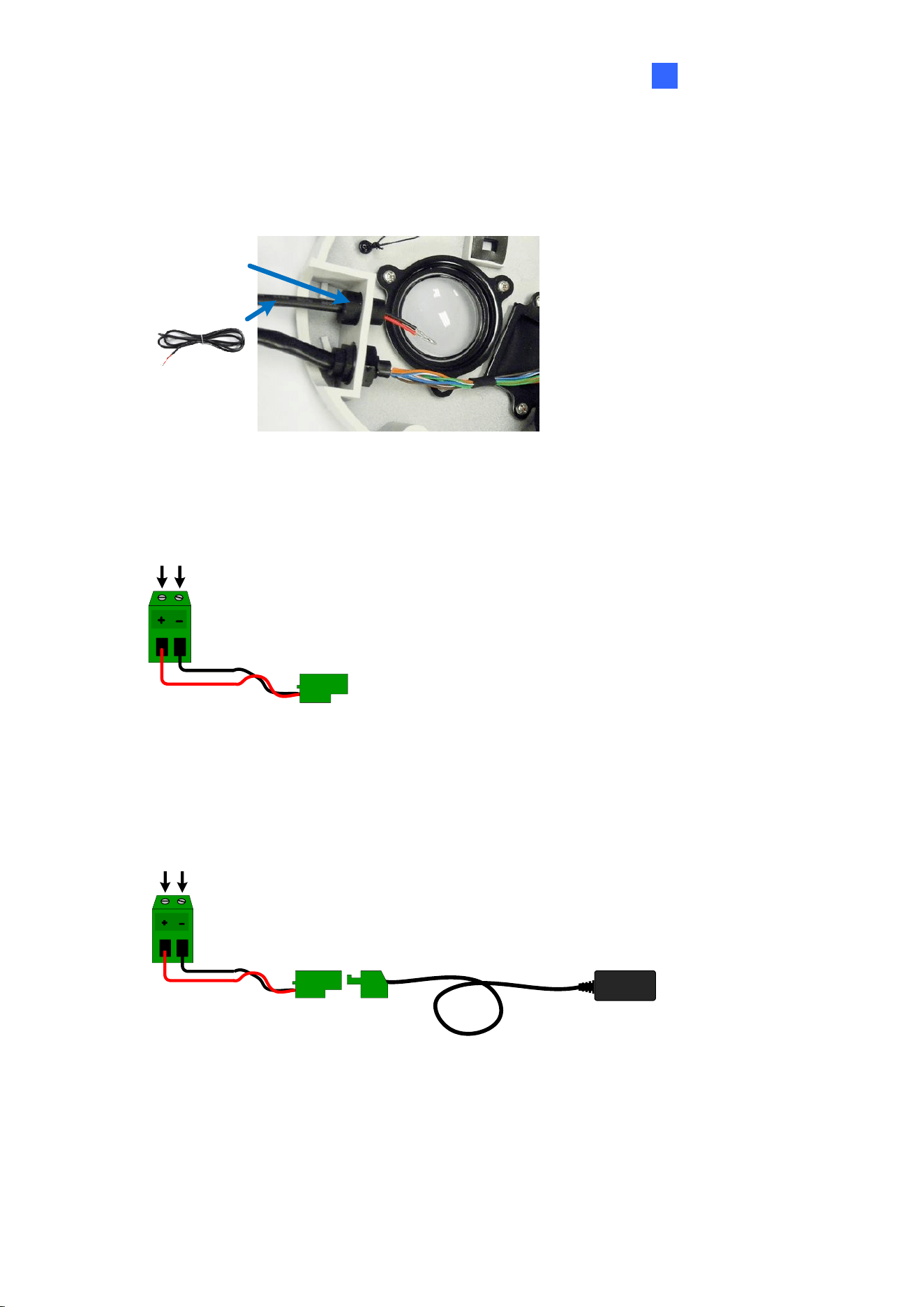
1. Insert the supplied power cable into the supplied waterproof rubber and plug it into the
camera.
Power Cable
Waterproof
Rubber
Figure 1-65
2. Insert the power cable into the supplied female terminal block as illustrated and plug it
into the terminal block connector in the camera.
Male Terminal Block
Female Terminal Block
(Connect to Camera)
(Connect to Power Adapter)
Figure 1-66
3. Insert the power wires at the other end into the male terminal block as illustrated and
plug it to the power adapter.
DC 12V
Power Adapter
Terminal Block
Female Terminal Block
(Connect to Camera)
Male Female
Figure 1-67
46
1.7.5 GV-FER5700 / 5701 / 12203 / 12700
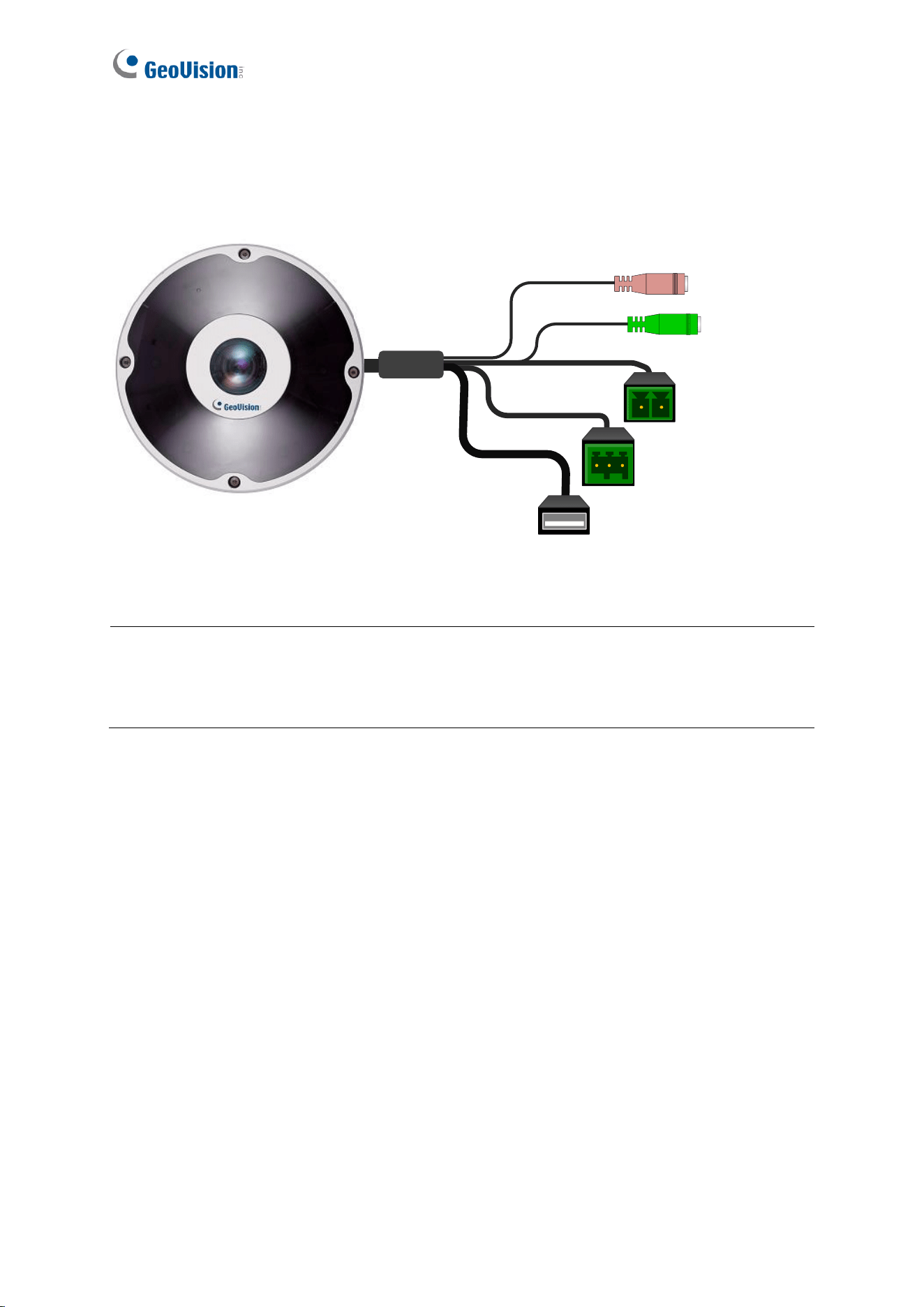
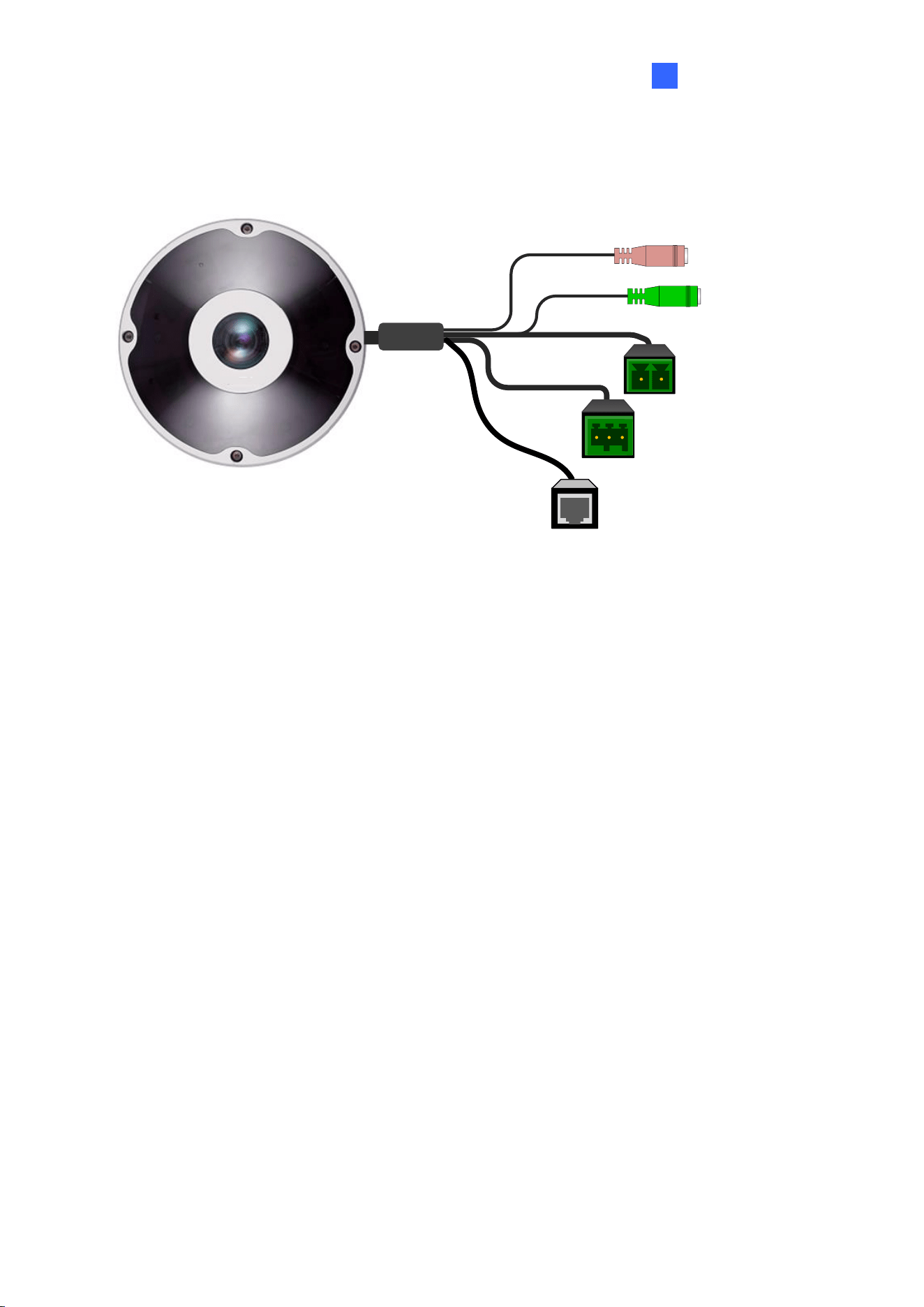
GV-FER5700 / 5701 / 12203 / 12700 comes with a data cable that allows you to connect to
the power adapter, WiFi adapter or USB hard drive, microphone, speaker, and any I/O
devices.
Audio Out
Digital I/O
USB
DC 12V / AC 24V
Audio In
Figure 1-68
Note:
1. AC 24V is not supported by GV-FER5700 / 5701 / 12700.
2. GV-FER12203 does not support the wireless function
Connecting to Power
There are two ways to supply power to the camera:
⚫ Use a Power over Ethernet (PoE) adapter to connect the camera to the network, and
the power will be provided at the same time.
⚫ Plug the power adapter to the terminal block on the data cable.
Connecting to I/O Devices
For details, see the same topic in 1.7.6 GV-EFER3700 / EFER3700-W.
Introduction
47
1
1.7.6 GV-EFER3700 / EFER3700-W
GV-EFER3700 / EFER3700-W come with a data cable that allows you to connect to the
power, microphone, speaker, and any I/O devices.
Audio Out
Digital I/O
DC 12V
Audio In
Ethernet (PoE)
Figure 1-69
Connecting to Power
There are two ways to supply power to the camera:
⚫ Only for GV-EFER3700, use a Power over Ethernet (PoE) adapter to connect the
camera to the network, and the power will be provided at the same time.
⚫ Plug the power adapter to the terminal block on the data cable.
48
Connecting to I/O Devices
The camera supports one digital input and one digital output of dry contact.
I/O
1 2 3
Figure 1-70
Voltage Load Expansion (Optional)
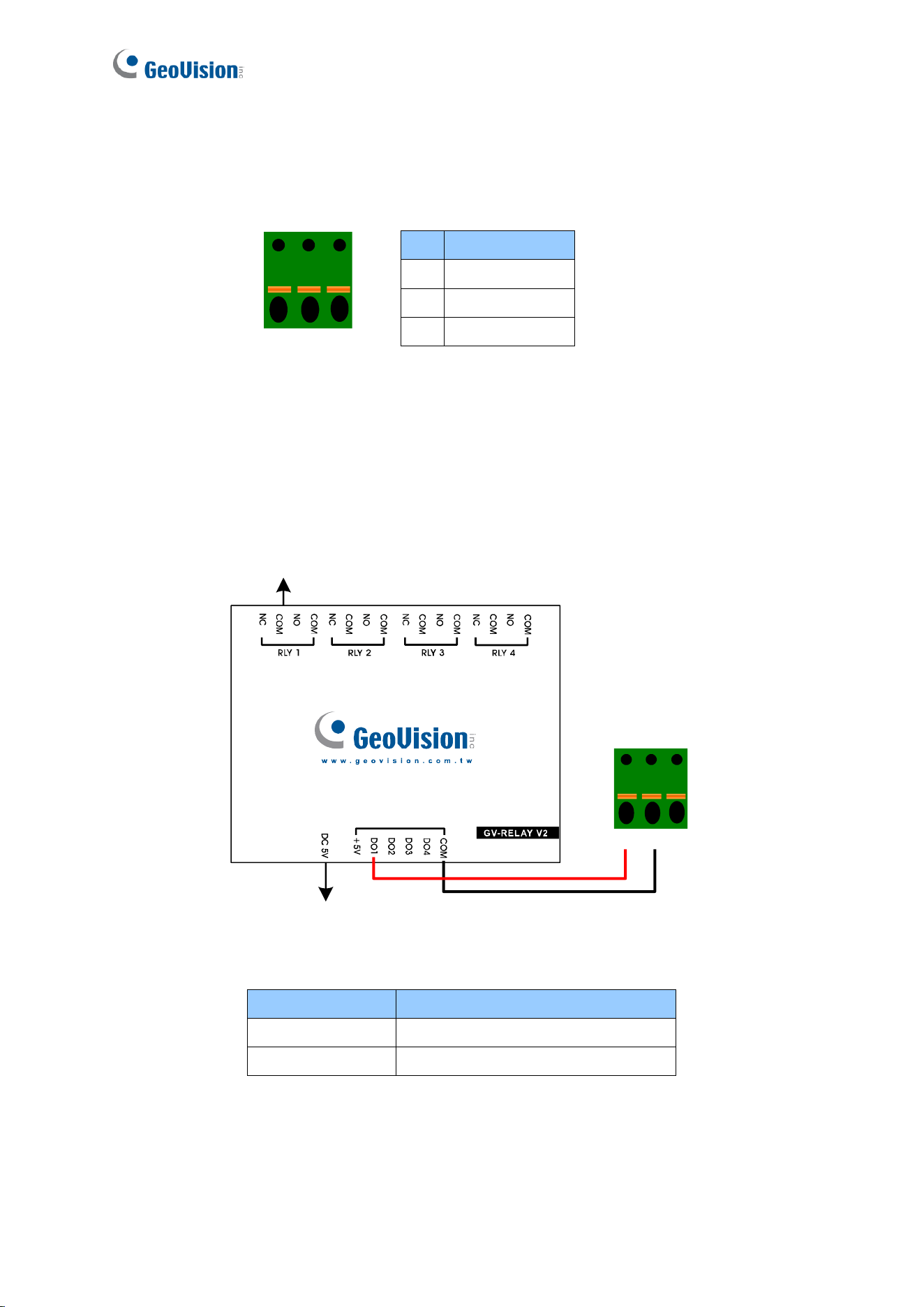
The camera can only drive a maximum load of 200mA 5V DC. To expand the maximum
voltage load to 10A 250V AC, 10A 125V AC or 5A 100V DC, connect the camera to a GV-
Relay V2 module (optional product) as illustrated below.
Output Devices
Connect to Power
I/O
1 2 3
Figure 1-71
GV-Relay V2
Vandal Proof IP Dome
COM
Pin 2 of I/O terminal block
DO1
Pin 1 of I/O terminal block
Pin
Function
1
Digital Output
2
GND
3
Digital Input

49
Chapter 2 Getting Started
This section provides basic information to get the camera working on the network.
2.1 Installing on a Network
These instructions describe the basic connections to install the camera on the network.
1. Using a standard network cable, connect the camera to your network.
2. Connect power using one of the methods:
• Using the supplied power adapter, connect to power.
• Use the Power over Ethernet (PoE) function. The power will be provided over the
network cable.
3. You can now access the Web interface of the camera.
• If the camera is installed in a LAN without the DHCP server, the default IP address
192.168.0.10 will be applied. You also can assign a static IP address. See 2.1.2
Assigning an IP Address.
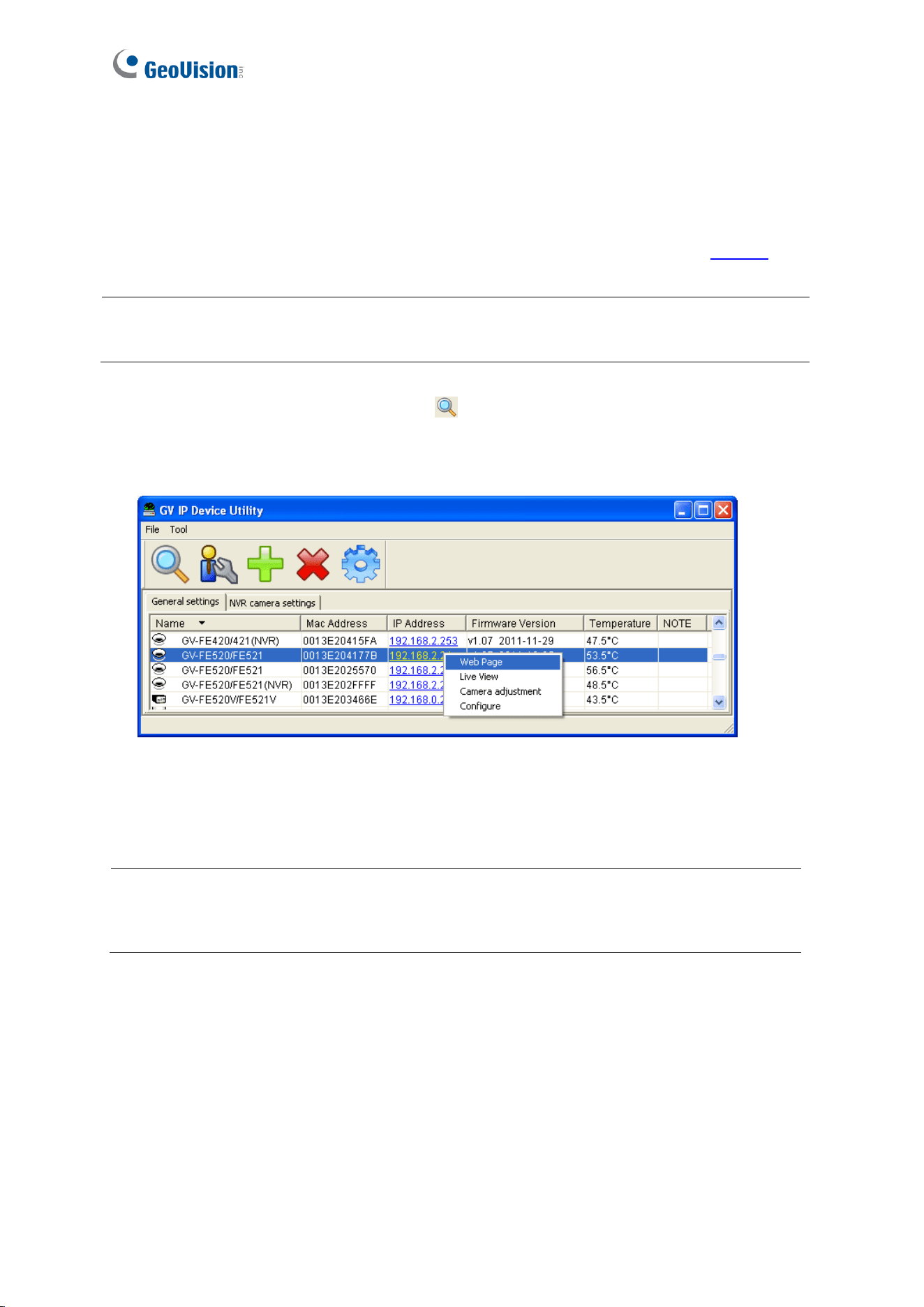
• If the camera is installed in a LAN with the DHCP server, use GV-IP Device Utility to
look up the camera’s dynamic IP address. See 2.1.1 Checking the Dynamic IP
Address.
50
2.1.1 Checking the Dynamic IP Address
Follow the steps below to look up the IP address and access the Web interface.
1. Download and Install the GV-IP Device Utility program from the company website.
Note: The PC installed with GV-IP Device Utility must be under the same LAN as the
camera you wish to configure.
2. On the GV-IP Utility window, click the button to search for the IP devices connected
in the same LAN. Click the Name or Mac Address column to sort.
3. Find the camera with its Mac Address, click on its IP address and select Web Page.
Figure 2-1
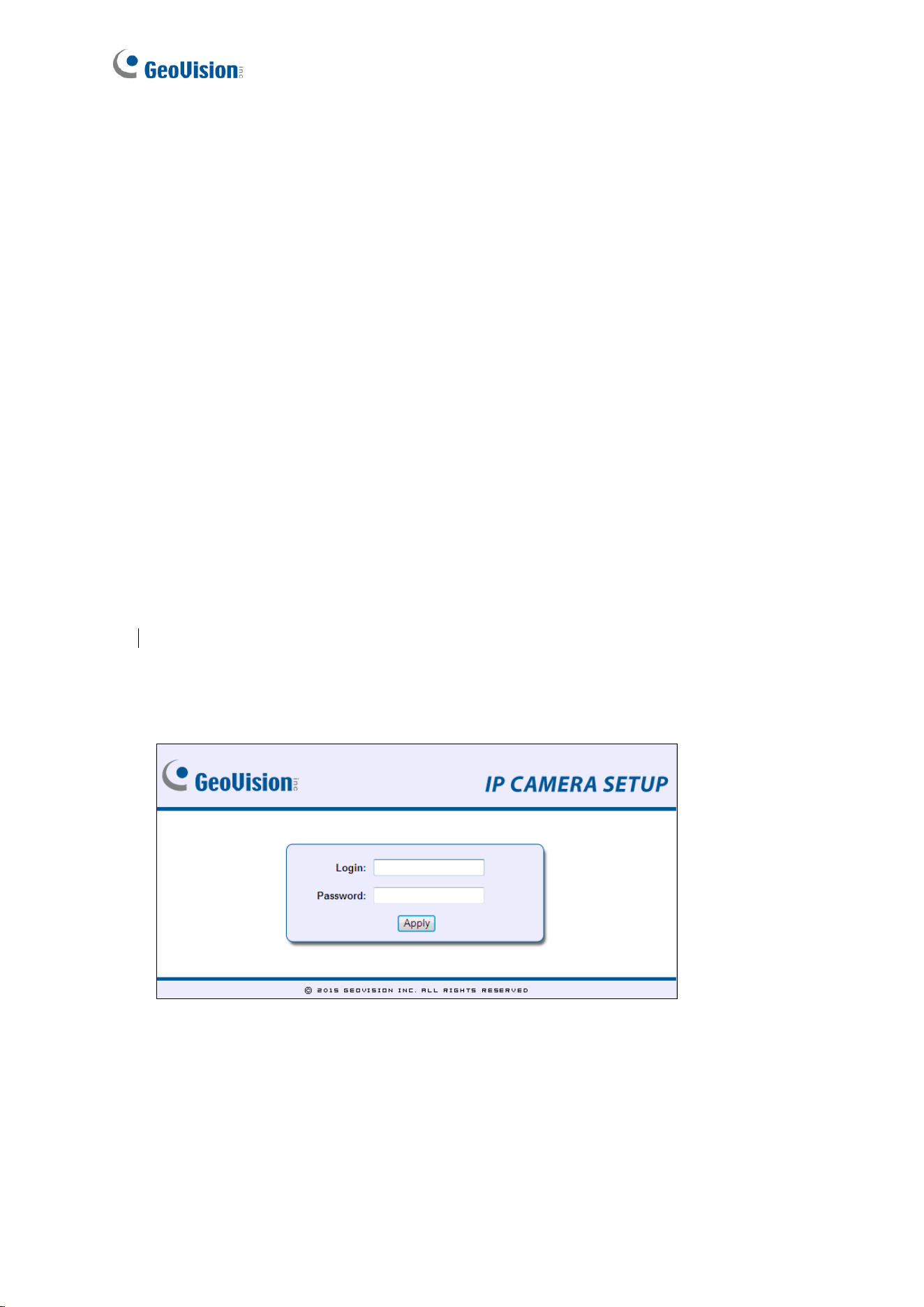
4. The login page appears.
5. Type the default ID and password admin and click Apply to login.
Note: The default Administrator account is no longer supported by the latest firmware.
When logging in for the first time, type the desired account name and password to create
an Administrator account.
Getting Started
51
2
2.1.2 Assigning an IP Address
By default, GV-Fisheye Camera that is connected to LAN without a DHCP server, is assigned
with the static IP address 192.168.0.10. Follow the steps below to assign a new IP address to
avoid IP conflict with other GeoVision devices.
Note:
1. The computer used to set the IP address must be under the same network with the
camera.
2. If your router supports the DHCP server, the camera will obtain a dynamic IP
address from the DHCP server each time it connects to the LAN, instead of using
192.168.0.10. The default setting for automatic IP assignment is not available for
GV-FE2301 / 4301 using firmware V1.06 or earlier.
1. Open your web browser, and type the default IP address http://192.168.0.10
2. Type the default value admin. Click Apply.
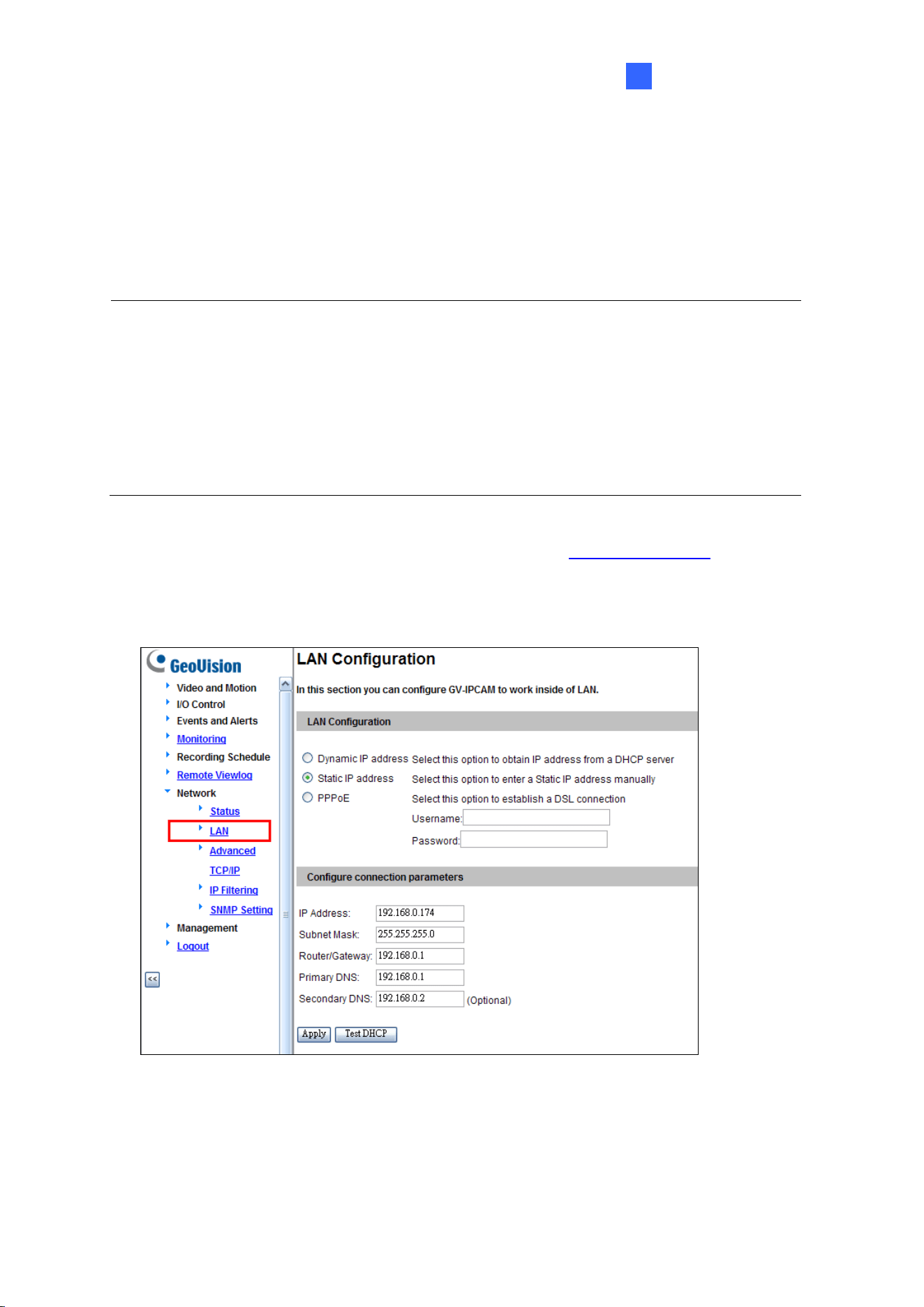
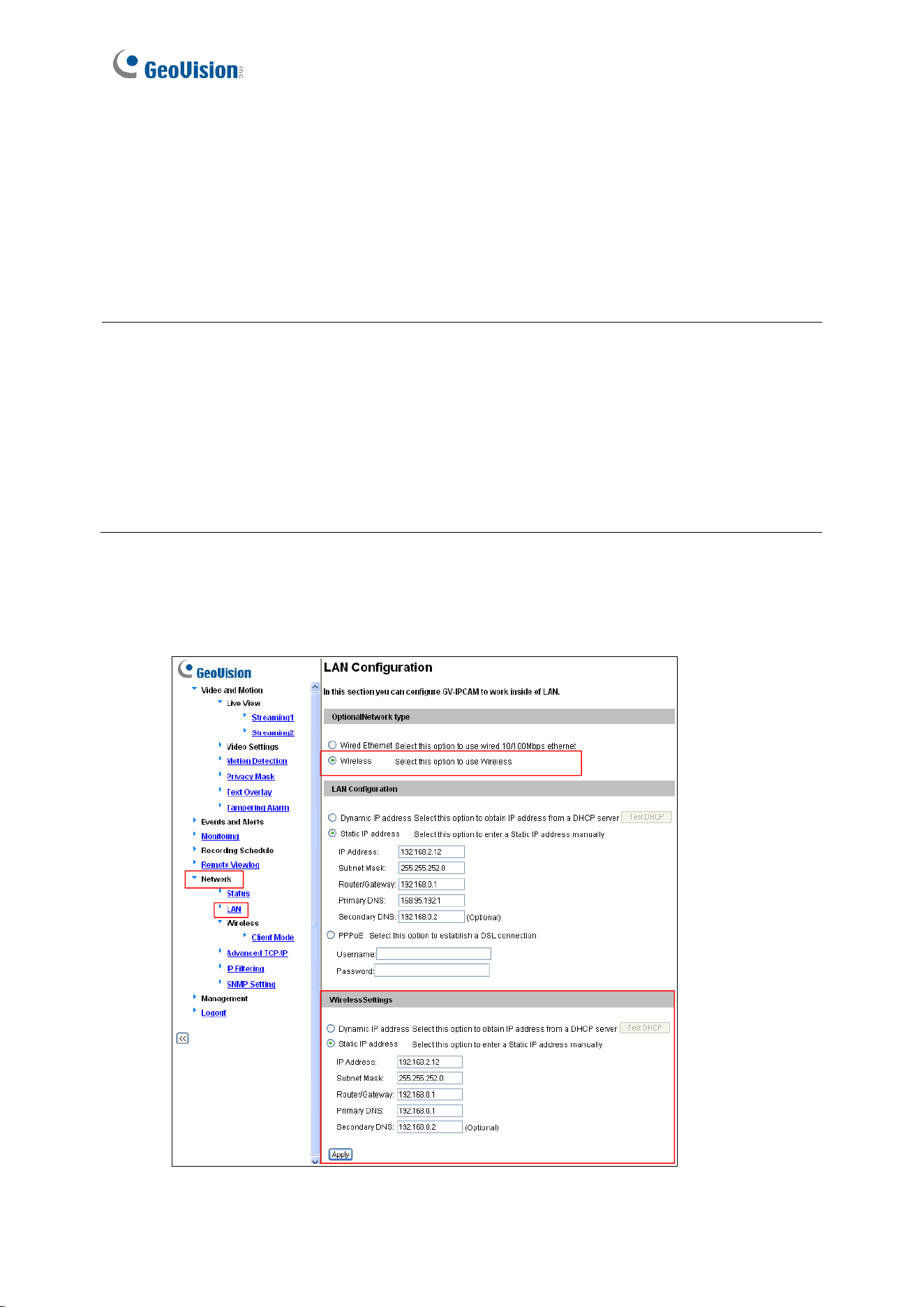
3. In the left menu, select Network and then LAN to begin the network settings.
Figure 2-2
4. Select Static IP address. Type IP Address, Subnet Mask, Router/Gateway, Primary DNS
and Secondary DNS in the Configure connection parameters section.
5. Click Apply. The camera is now accessible by entering the assigned IP address on the
Web browser.
52
IMPORTANT:
1. If Dynamic IP Address or PPPoE is enabled, you need to know which IP address
the camera will get from the DHCP server or ISP to log in. If your camera in
installed in a LAN, use the GV-IP Device Utility to look up its current dynamic
address. See 2.1.1 Checking the Dynamic IP Address.
If your camera uses a public dynamic IP address, via PPPoE, use the Dynamic
DNS service to obtain a domain name linked to the camera’s changing IP address
first. For details on Dynamic DNS Server settings, see 4.7.2 Advanced TCP/IP.
2. If Dynamic IP Address and PPPoE is enabled and you cannot access the unit,
you may have to reset it to the factory default settings and then perform the
network settings again.
To restore the factory settings, see 6.3 Restoring to Factory Default Settings.
Getting Started
53
2
2.1.3 Configuring the Wireless Connection
Wireless settings are only applicable to GV-FE3402 / 3403 / 5302 / 5303, GV-FER5700 / 5701
/ 12700 and GV-EFER3700-W. Insert a WiFi adapter to the camera and follow the steps below
to set up a wireless connection to your camera.
Note: GV-EFER3700-W has a built-in WiFi antenna and supports the WPS function. If your
router doesn’t support WPS, follow the instructions below to set up the wireless connection.
1. To set up the wireless LAN for the first time, power on and connect a standard network
cable to the camera.
2. An IP address will be automatically assigned to the camera. Use GV-IP Device Utility to
search for the device. For details, see 2.1.1 Checking the Dynamic IP Address.
3. Configure the wireless settings.
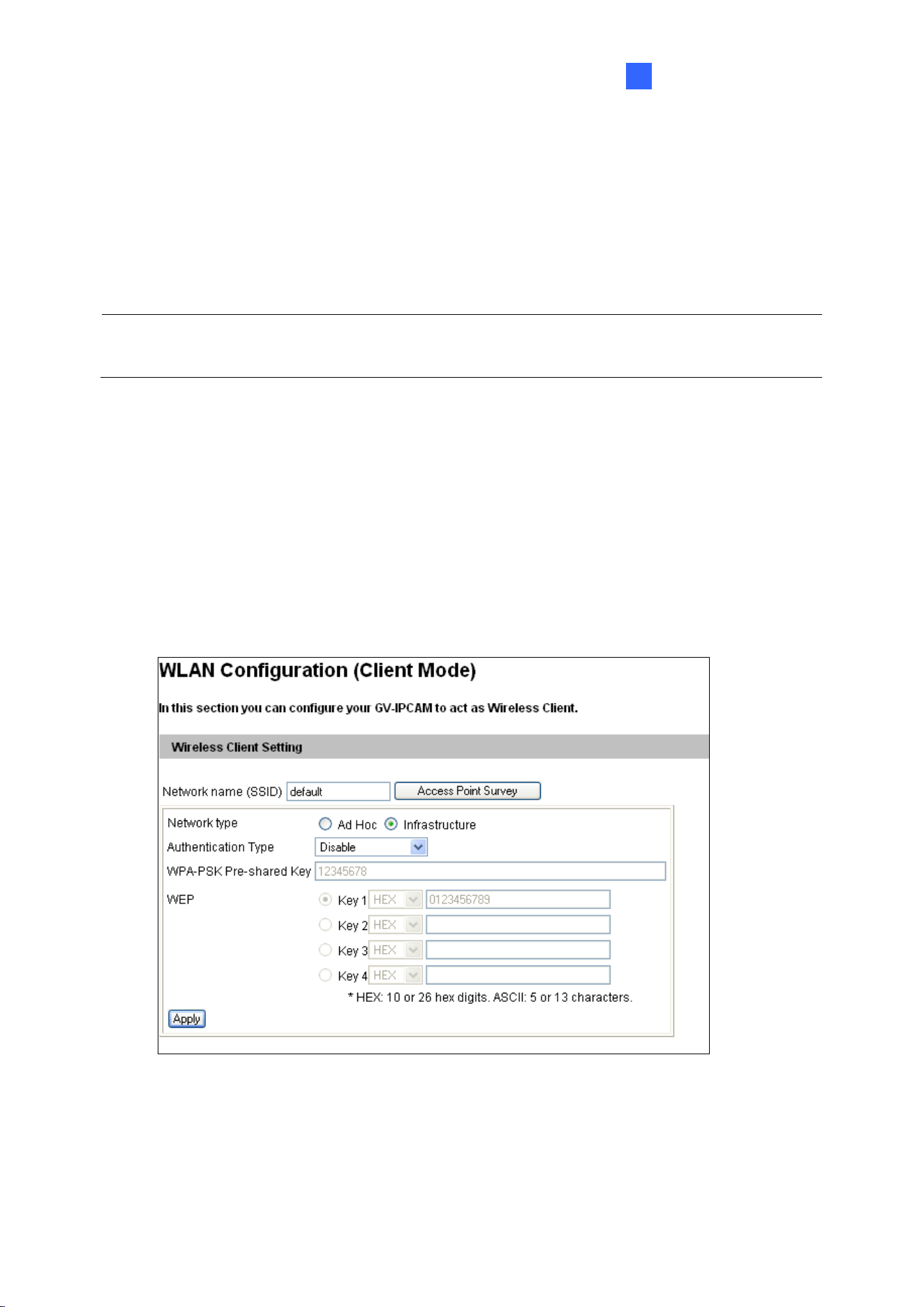
A. On the Web interface, select Network, select Wireless and Client Mode. This dialog
box appears.
Figure 2-3
B. Type the Network Name (SSID) or click the Access Point Survey button to search and
select for the available Access Points/wireless stations.
C. Select Ad-Hoc or Infrastructure for the Network type.
54
D. Select the Authentication Type using the drop-down list. You can also obtain this
information by clicking the Access Point Survey button.
E. Type the WPA-PSK Pre-shared Key or WEP depending on the encryption setting for
the Access Point.
F. Click Apply to save the configuration.
Note:
1. Your encryption settings must match those used by the Access Points or wireless stations
with which you want to associate.
2. When Ad Hoc is used, only WEP encryption is supported.
3. When you lose the wireless access, you can still access the unit by connecting it to a LAN
and using the GV-IP Device Utility to search for the device.
4. For detailed information on configuring the wireless LAN, see 4.7.2 Wireless Client Mode.
4. Enable wireless LAN.
A. On the Web interface, select Network and LAN. This page appears.
Figure 2-4

Getting Started
55
2
B. Select Wireless for Optional Network Type.
C. To use a dynamic IP address assigned by the DHCP server, select Dynamic IP
address. To use a fixed IP address, select Static IP address and type the IP address
information.
5. Click Apply. The Camera will start creating a wireless connection to the access point.
6. Unplug the Ethernet cable.
2.2 Configuring the Basics
Once the camera is properly installed, the following important features can be configured
using the browser-based configuration page and are discussed in the following sections in this
manual:
• Date and time adjustment: see 4.8.1 Date and Time Settings.
• Login and privileged passwords: see 4.8.3 User Account.
• Network gateway: see 4.7 Network.
• Camera image adjustment: see 3.2.3 The Control Panel of the Live View Window.
• Video format, resolution and frame rate: see 4.1.1 Video Settings.
56
Chapter 3 Accessing the Camera
Two types of users are allowed to log in to the camera: Administrator and Guest. The
Administrator has unrestricted access to all system configurations, while the Guest has the
access to live view and network status only.
3.1 Accessing Your Surveillance Images
Once installed, your camera is accessible on a network. Follow these steps to access your
surveillance images:
1. Start the Internet Explorer browser.
2. Type the IP address or domain name of the camera in the Location/Address field of
your browser.
Enter the login name and password.
• The default login name and password for Administrator are admin.
• The default login name and password for Guest are guest.
Figure 3-1
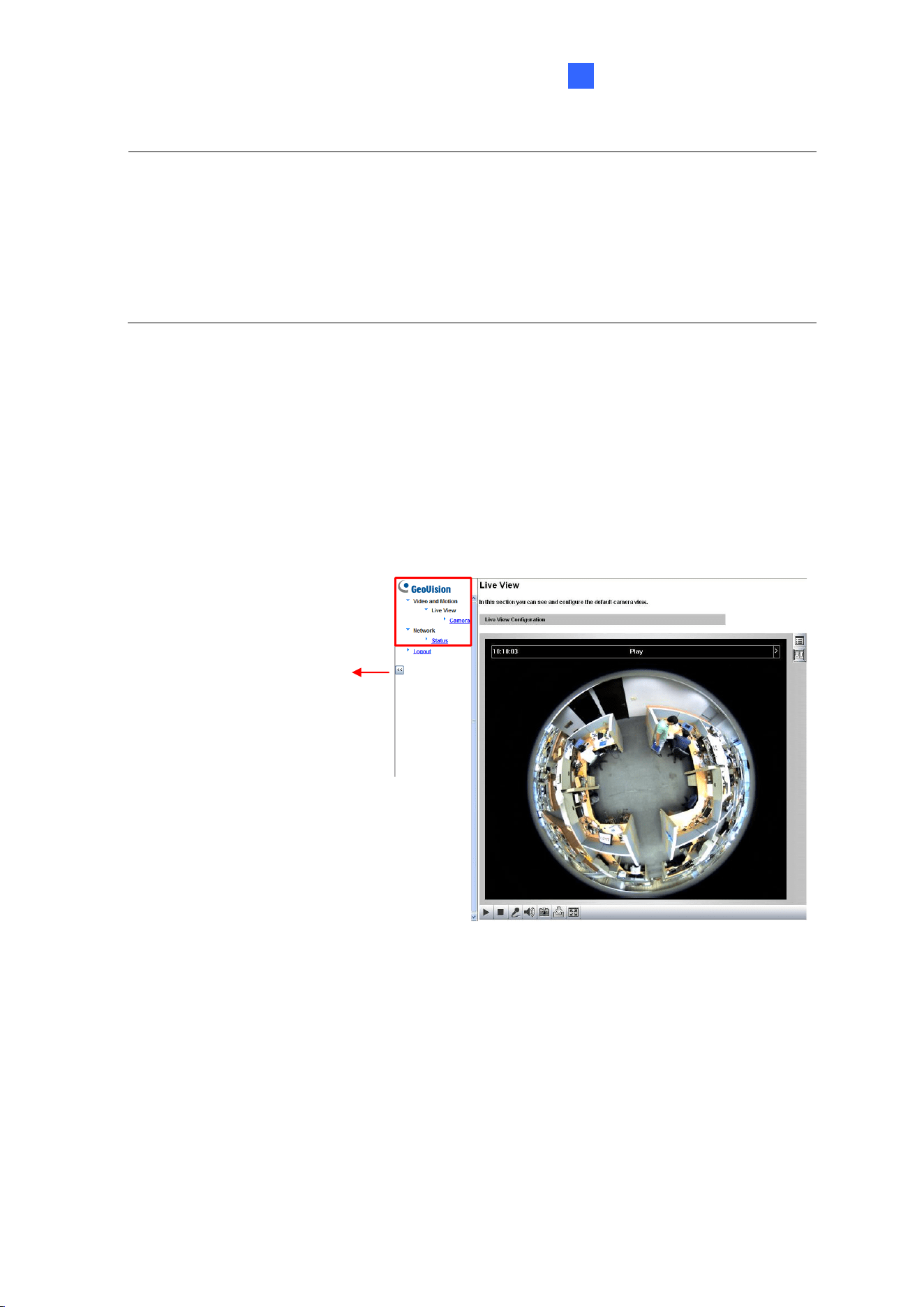
3. A video image, similar to the example in Figure 3-2, is now displayed in your browser.
Accessing the Camera
57
3
Note:
1. The default Administrator and Guest accounts are no longer supported by
the latest firmware.
2. To enable the updating of images in Microsoft Internet Explorer, you must set your
browser to allow ActiveX Controls and perform a one-time installation of
GeoVision’s ActiveX component onto your computer.
3.2 Functions Featured on the Main Page
This section introduces the features of the Live View window and Network Status on the
main page. The two features are accessible by both Administrator and Guest.
Main Page of Guest Mode
▼ Video and Motion
▼ Live View
► Camera
▼ Network
► Status
Figure 3-2
The camera can process one video stream in two different codec and image settings. In the
Administrator mode, both streams are available. Click Streaming 1 or Streaming 2 in the left
menu to access the live view. In the Guest mode, only one stream is available, as shown in
Figure 3-2.
58
3.2.1 The Live View Window
Internet Explorer
When accessing the camera live view using Internet Explorer, the following window appears.
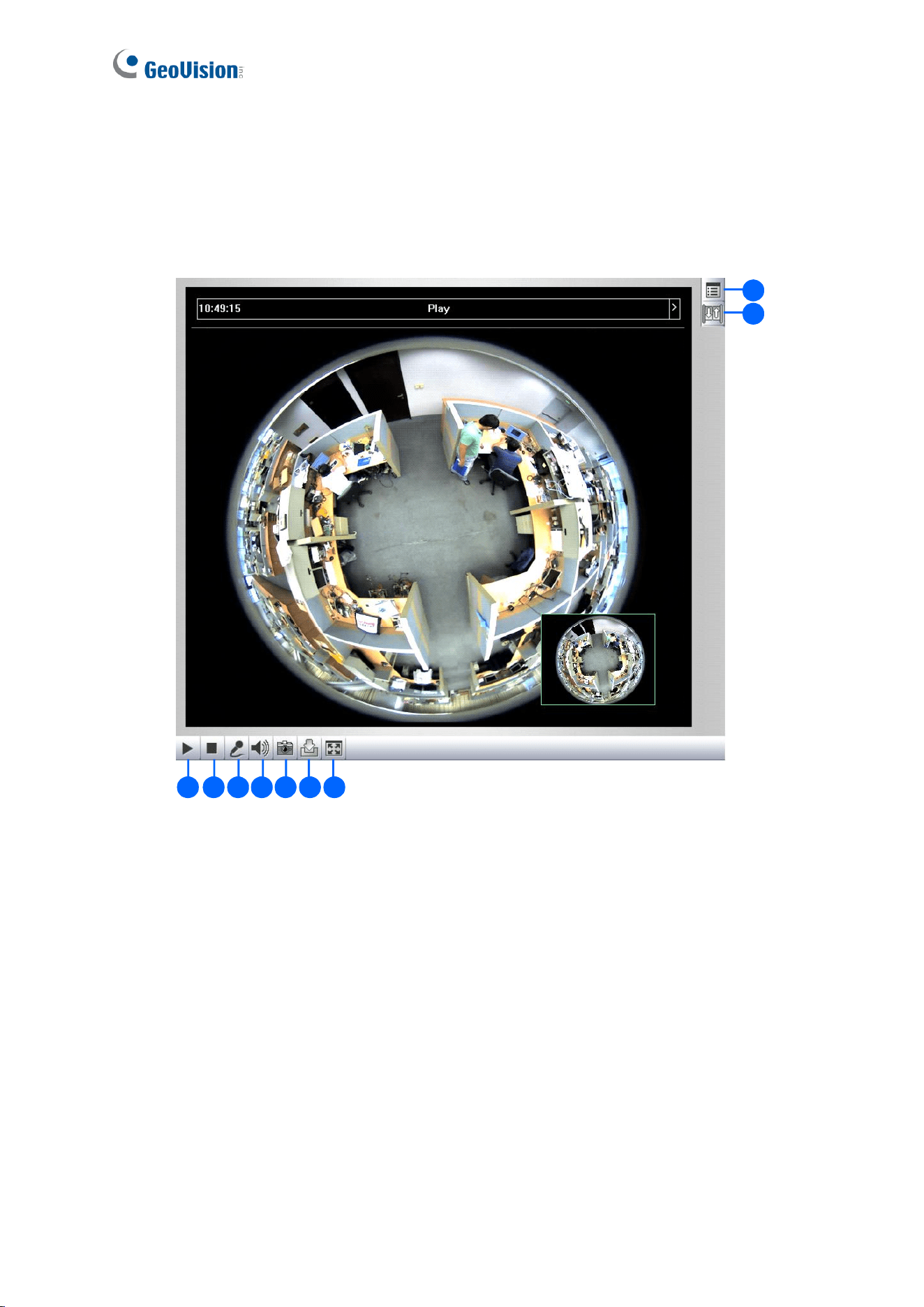
7654321
9
8
Figure 3-3

Accessing the Camera
59
3
No.
Name
Function
1
Play
Plays live video.
2
Stop
Stops playing video.
3
Microphone
Talks to the surveillance area from the local computer. Click the
Push to talk button (from the pop-up menu) for the camera to
switch between audio transmission and reception, where only one
party can speak at a time.
4
Speaker
Listens to the audio around the camera.
5
Snapshot
Takes a snapshot of live video.
--- See 3.2.4 Snapshot of a Live Video.
6
File Save
Records live video to the local computer.
--- See 3.2.5 Video Recording.
7
Full Screen
Switches to full screen view. Right-click the image to have these
options: Snapshot, Resolution, Wide Angle Lens Dewarping,
PIP, PAP, Geo Fisheye, Zoom In and Zoom Out.
--- See 3.2.6 Wide Angle Lens Dewarping
--- See 3.2.7 Picture-in-Picture and Picture-and-Picture View
--- See 3.2.2 Fisheye View
8
I/O Control
Enables the I/O Control Panel or the Visual Automation. This
function is only supported by GV-FE2301 / 4301, GV-FER5700 /
5701 / 12203 / 12700 and GV-EFER3700 / EFER3700-W.
--- See 3.2.14 I/O Control.
9
Show System Menu
Brings up these functions: Alarm Notify, Video and Audio
Configuration, Remote Config, Show Camera Name and Image
Enhance.
--- See 3.2.9 Alarm Notification
--- See 3.2.10 Video and Audio Configuration
--- See 3.2.11 Remote Configuration
--- See 3.2.12 Camera Name Display
--- See 3.2.13 Image Enhancement respectively.
10
Control Panel
Displays the camera information, video settings, audio data rate,
I/O device status and the images captured upon alarm. Also
allows you to adjust image quality and install the program from the
hard drive.
60
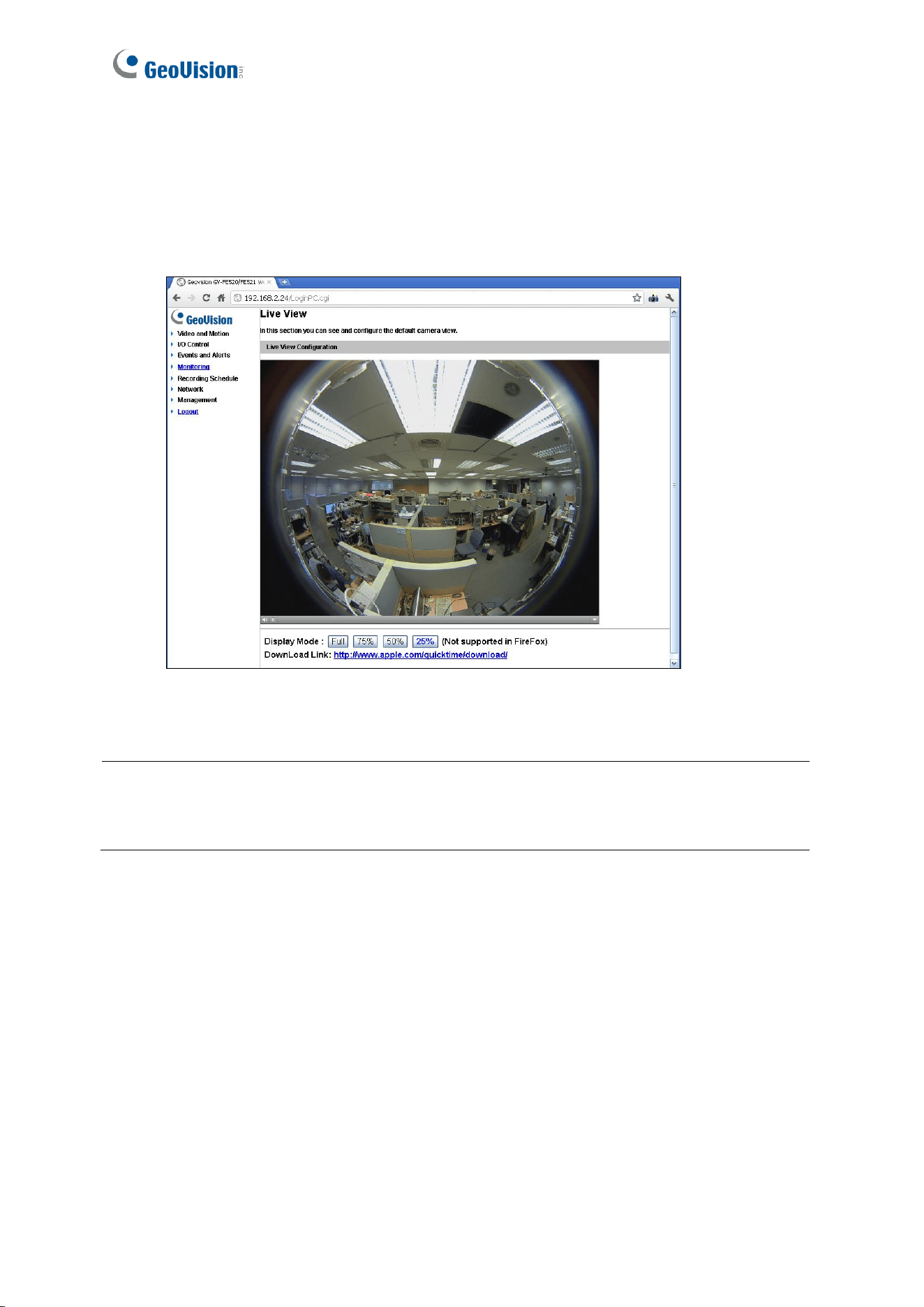
Non-IE Browsers
When accessing the camera live view using Google Chrome, Firefox or Safari, the following
window appears. The following functions are not supported using non-IE browsers: Control
panel, function buttons, Motion Detection, Tampering Alarm, Visual Automation, Text Overlay,
and Two-Way Audio.
Figure 3-4
Note: Non-IE browsers do not support OCX plugin which obstructs the smoothness of the
live view. For users of non-IE browsers, to enjoy smooth live view, download GV-
WebViewer right after you log on and you can also have access to the full features of the
camera.
Accessing the Camera
61
3
3.2.2 Fisheye View
To enable the fisheye options, right-click the live view and select Geo Fisheye. Right-click
the image again and select Fisheye Option to see the following options.
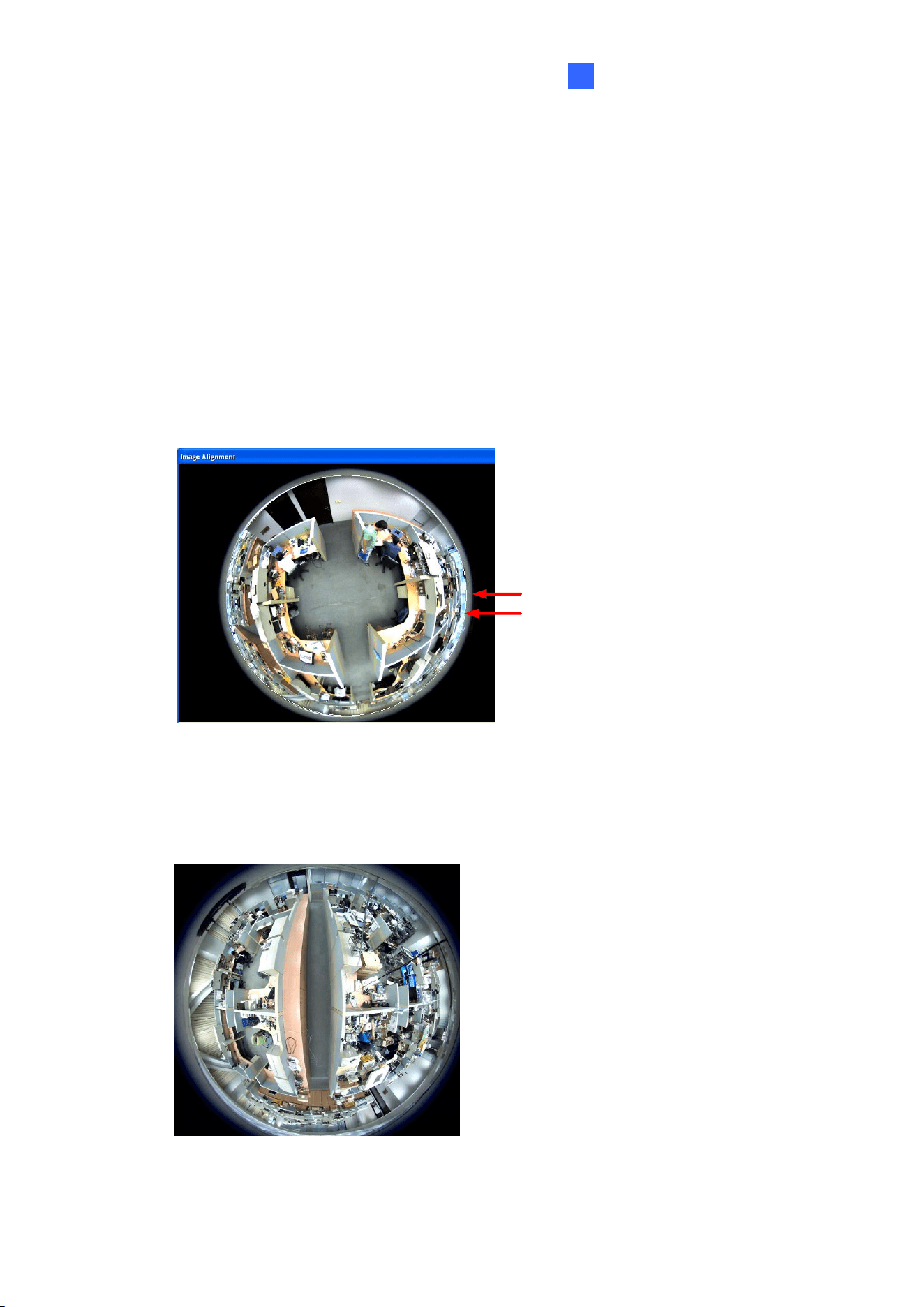
◼ Image Alignment: By default, the image should be properly aligned already. If not,
follow the steps below to align the image for each model:
⚫ GV-FE3402 / 3403 / 5302 / 5303, GV-FER3402 / 3403 / 5302 / 5303 / 5700 / 5701 /
12203 / 12700, and GV-EFER3700 / EFER3700-W: Align the red circle with the
outer edge of the camera image, and then align it with the inner edge of the image
frame to achieve optimal results.
Outer Edge
Inner Edge
Figure 3-5
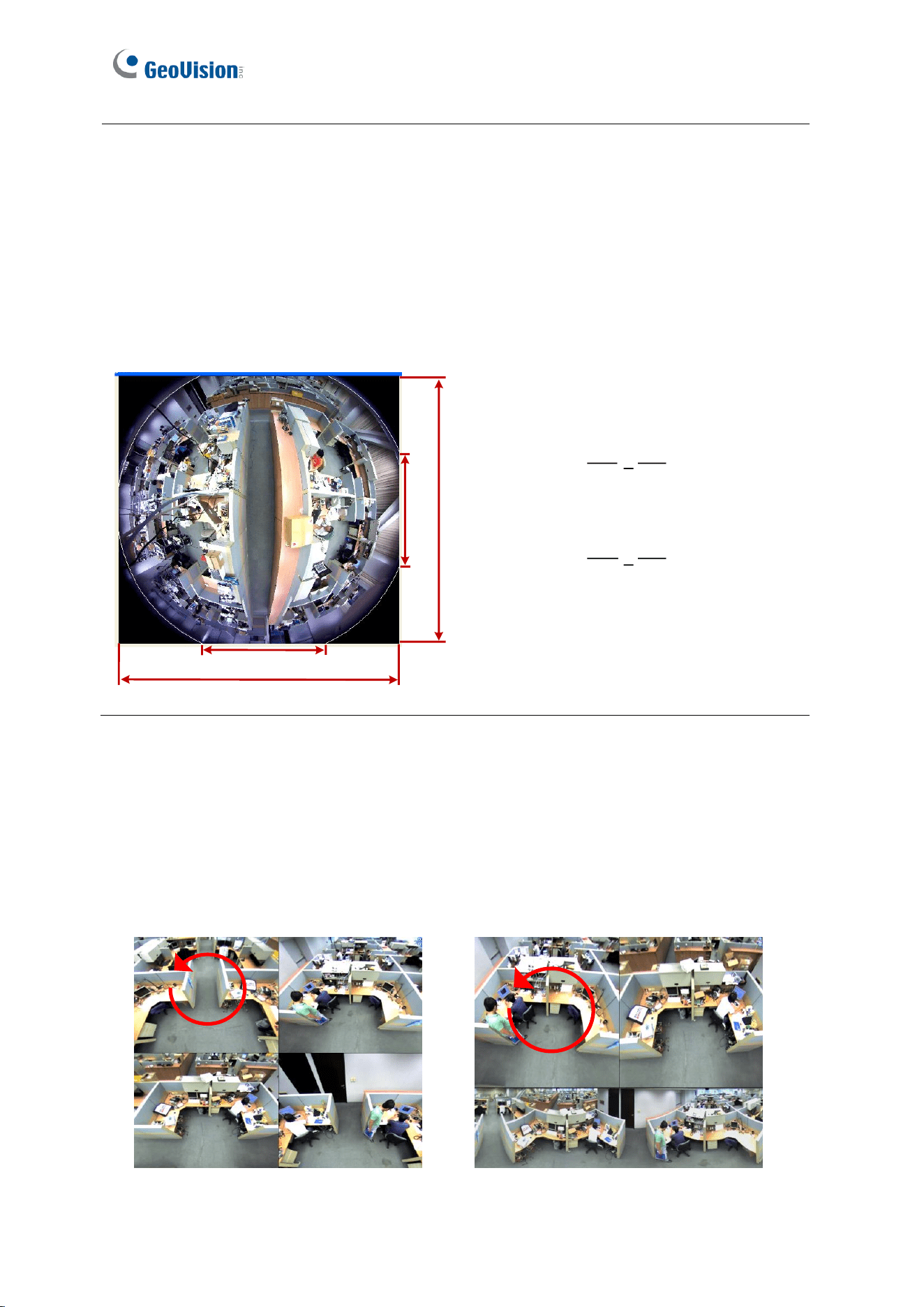
⚫ GV-FE2301 / 4301: Align the red circle with the edge of the camera image. You can
eliminate the darker areas toward the edge of the image by making the red circle
smaller, but the field of view will be slightly reduced.
Figure 3-6 When GV-FE2301 / 4301 images are aligned, all four edges will
be cropped slightly.
62
Note:
The circular source image of GV-FE2301 / 4301 should be centered and slightly cropped
on all four edges. If the image is not centered, please contact your sales representative and
send your device back to GeoVision for adjustment.
To determine whether your device needs adjustment, measure the length of a longer
cropped edge and the length of that entire edge. Divide the length of the cropped edge by
the length of the entire edge. The ratio for left and right edges should be less than or equal
to 5/9 and the ratio for the top and bottom edges should be less than or equal to 5/8.
A
B
A A
B
<
5 A
9
C
D
Left and right:
Top and bottom:
C A
D
<
5 A
8
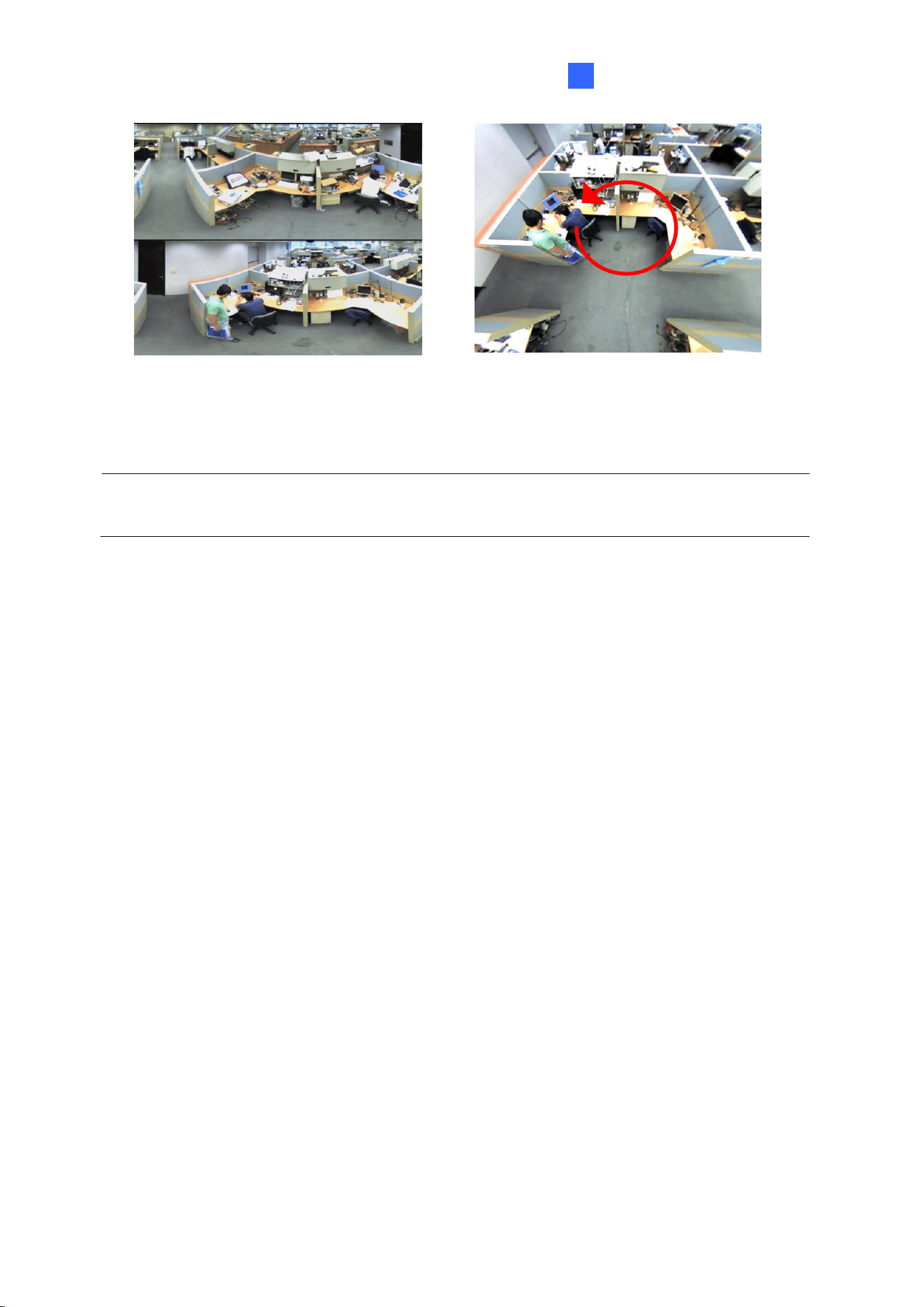
◼ Camera Modes: You can choose among four view modes.
⚫ Quad view: Composed of four PTZ views.
⚫ 360 degree: Composed of two PTZ view and one 360º panoramic view.
⚫ Dual 180 degree: Composed of two 180º views.
⚫ Single view: Composed of one PTZ view.
Quad view: 4 PTZ views
360 degree: 2 PTZ views &1 360º view
Accessing the Camera
63
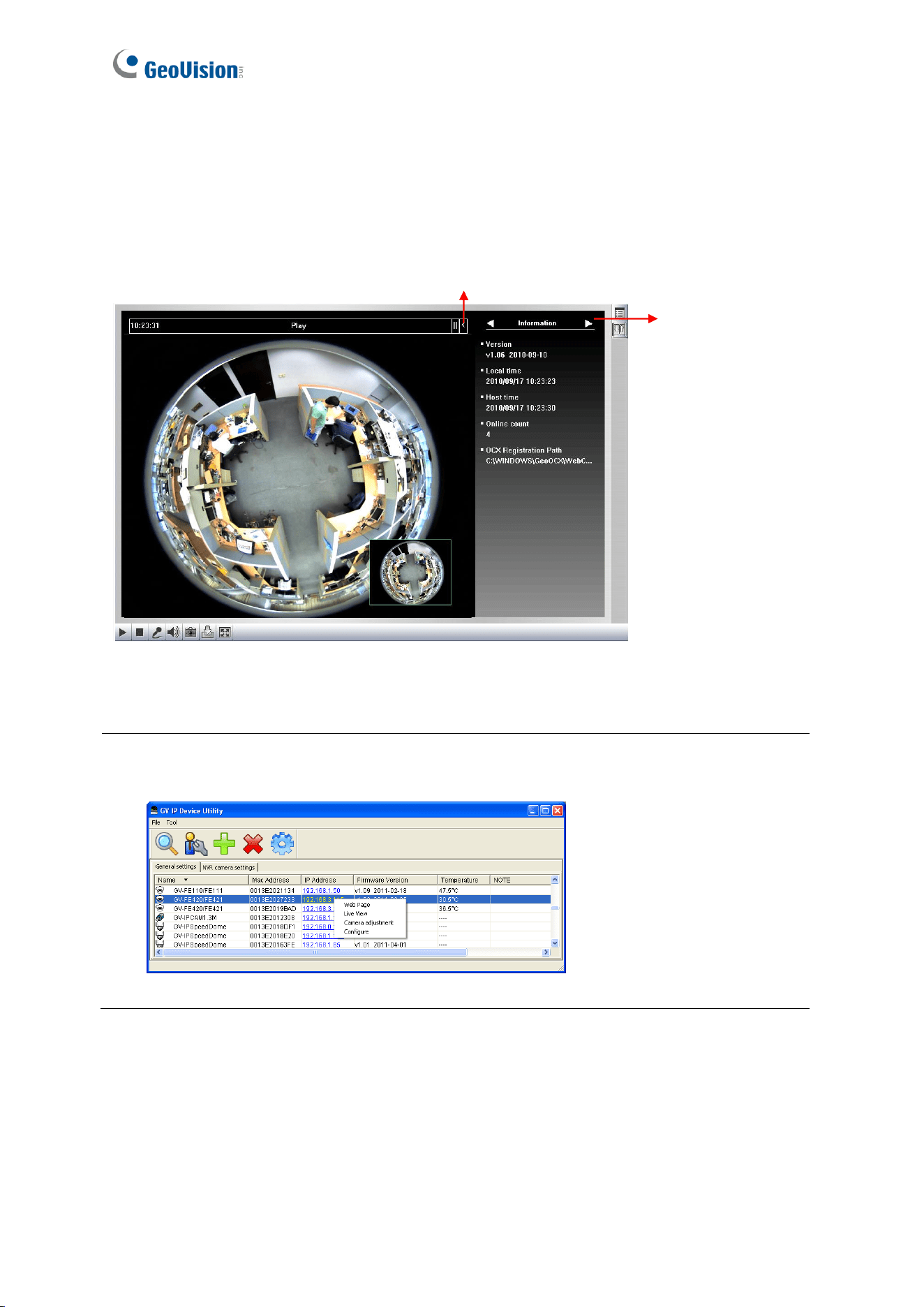
3
Dual 180 degree: 2 180º views
Single view: 1 PTZ view
Figure 3-7
◼ Camera Position: Select Ceiling, Wall or Ground according to where the camera is
mounted.
◼ Adjust AutoPan Speed At Top-Left Channel: Select low, medium, or high speed to
enable Auto Pan for one PTZ view at the rotation speed of your choice. This option
applies to Quad view, 360º degree and Single view.
◼ Zoom: Select Zoom In or Zoom Out and then click on the image.
◼ Show Source Video at Top-Right Channel: Shows the circular source image in the
top-right quadrant when Quad view is selected.
◼ 360 degrees Object Tracking: Tracks moving objects under 360 degree view. Refer to
3.2.8 Object Tracking for more details.
◼ Settings: The following settings are available.
⚫ Wide View: Increase the height of the 180 degree view when camera position is set
to wall mount.
⚫ Frame Rate Control: You can set the frame rate of the live view image.
⚫ Show Original Video in Low Resolution: Shows circular source image when the
resolution is low. This option only works on the GV-DVR / NVR / VMS when the
fisheye camera is connected to a GV-DVR / NVR / VMS.
You can drag and drop PTZ view or 180º view to adjust the viewing angle.
Note: When wall mount is selected for Camera Position, only one 180º view will be
displayed.
64
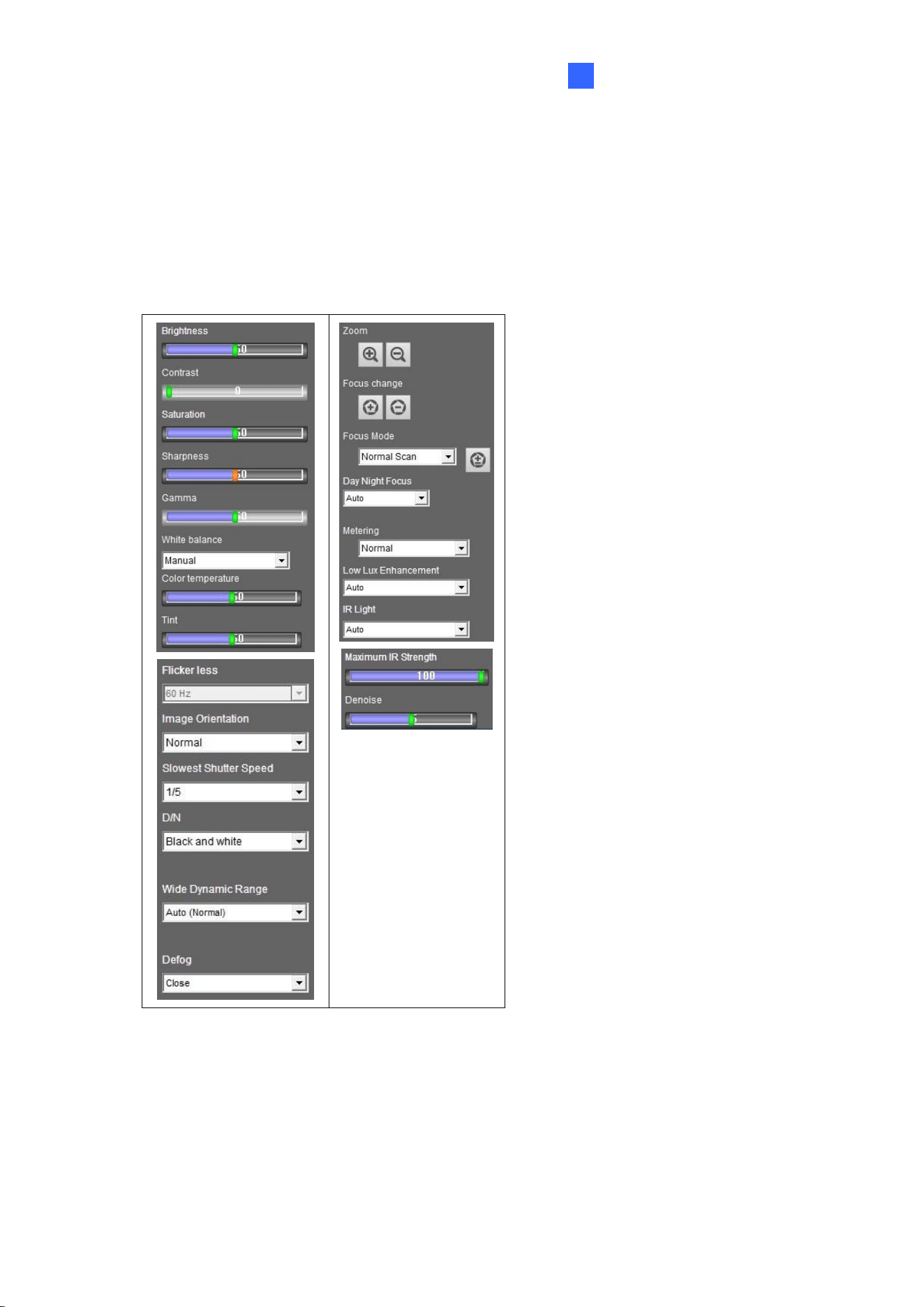
3.2.3 The Control Panel of the Live View Window
To open the control panel of the Live View window, click the arrow button on top of the
viewer. You can access the following functions by using the left and right arrow buttons on
the control panel.
Figure 3-8
Tip: The administrator can also use the GV-IP Device Utility and click the camera’s IP
address to access the live view and adjust camera image settings.
Figure 3-9
[Information] Displays the version of the camera, local time of the local computer, host time
of the camera, and the number of users logging in to the camera.
[Video] Displays the current video codec, resolution and data.
[Audio] Displays the audio data rates when the microphone and speaker devices are
enabled.
Click the right and left
arrow buttons to change
the page of the control
panel.
Click the arrow button to display the control panel.
Accessing the Camera
65
3
[I/O Control] Provides a real-time graphic display of the input and output status. You can
force the output to be triggered by double-clicking its icon.
[Alarm Notify] Displays images captured upon sensor triggers and/or motion detection. For
this function to work, you must configure the Alarm Notify settings first. See 3.2.9 Alarm
Notification.
[Camera Adjustment] Allows you to adjust the image quality.
Figure 3-10
◼ Brightness: Adjusts the brightness of the image.
◼ Contrast: Adjusts the relative differences between one pixel and the next.
◼ Saturation: Adjusts the saturation of the image.
◼ Sharpness: Adjusts the sharpness of the image.
◼ Gamma: Adjusts the relative proportions of bright and dark areas.

66
◼ White balance: The camera automatically adjusts the color to be closest to the image
you are viewing. You can choose one of the three presets: Indoor, Fluorescent, and
Outdoor. You can also choose Manual to adjust the white balance manually.
◼ Color Temperature: Adjust the camera image to have a warmer or cooler color tone.
Note this function is available for GV-FER5700 / 5701 / 12700 and GV-EFER3700
Series, and only appears when you choose Manual for White Balance.
◼ Tint: Move the slider to remove undesired color cast for a more neutral color. Note this
function is only available for GV-FER5700 / 5701 / 12700 and GV-EFER3700 Series,
and only appears when you choose Manual for White Balance.
◼ Flicker less: The camera automatically matches the frequency of your camera’s imager
to the frequency of indoor light sources, e.g. fluorescent lighting. You can also select 50
Hz or 60 Hz manually. If these don’t match, faint light and dark bars may appear in your
images. Check the power utility to determine which frequency is used.
Note: For GV-FER5700 / 5701 / 12700, GV-EFER3700 / EFER3700-W, the function of
Flicker is listed in Video Signal Type, 4.1.1 Video Settings.
◼ Image Orientation: Changes the image orientation on the Live View window.
◼ Slowest Shutter Speed: Shutter speed controls the amount of the lights enters the
image sensor and directly impacts the quality of image presentation. Under low light
conditions, a faster shutter speed will lower color quality and image clarity. A slow
shutter speed allows more light to enter and creates a brighter overall image, but moving
objects may appear blurry. You can manually select a shutter speed, select Auto for
automatic shutter speed, or select Auto (Higher Shutter Speed) for faster automatic
shutter control.
◼ D/N: Sets the Day/Night mode of the camera. Select Auto for automatic switch between
day mode and night mode depending on the amount of light detected. Select Black and
white to switch the camera to night mode. Select Color to switch the camera to day
mode. Sets the light sensor’s sensitivity of switching between day mode and night mode.
The value 10 is the most light-sensitive. Select Trigger by Input to switch between day
mode and night mode once the input device (e.g. sensor or button) is triggered. Select
Schedule to configure specific period(s) of time when day mode is activated.
◼ Wide Dynamic Range: adjusts and generates clear live view when the scene contains
very bright and very dark areas at the same time. Select Auto (Strong) to bring out
details in the darks areas of the scene, select Auto (Weak) to bring out less detail in the
dark area and at the same time keep the bright areas from overexposure, or select Auto

Accessing the Camera
67
3
(Normal) for a balanced effect. Select Close to disable the function. This function is not
available for GV-FER12203.
◼ Defog: Select Auto to automatically enhance the visibility of images. Select Close to
disable the function. This function is not available for GV-FER12203.
◼ Metering: Controls the camera’s exposure. Select Normal for the camera to adjust
exposure based on the full live view. Select Regional Metering for the camera to adjust
exposure of specified zones. Draw directly on the live view and a block marked with “AE
(automatic exposure)” appears. You can establish up to 4 zones. To remove the block,
right-click the block and select Delete.
◼ Low Lux Enhancement: Select Auto for the camera to automatically enhance the live
view under insufficient light. Select Close to disable the function. The default setting is
Close. This function is only available for GV-FER5700 / 5701 / 12203 / 12700 /
EFER3700 / EFER3700-W.
◼ IR Light: Select Auto for automatic switch between day mode and night mode
depending on the amount of light detected. Select Off to completely disable IR LEDs.
◼ Maximum IR Strength: Adjusts the intensity of the IR Light.
◼ Denoise: Reduces image noise especially under low-light conditions. The higher the
denoise value, the stronger the effect.
[Temperature] Click the Monitor button to see the current temperature of the chipset in
Celsius and Fahrenheit.
[Download] Allows you to install the programs from the hard drive.
Note: The I/O Control function is only supported by GV-FE2301 / 4301, GV-FER5700 /
5701 / 12203 / 12700 and GV-EFER3700 / EFER3700-W.

68
3.2.4 Snapshot of a Live Video
To take a snapshot of live video, follow these steps:
1. Click the Snapshot button (No. 5, Figure 3-3). The Save As dialog box appears.
2. Specify Save in, type the File name, and select JPEG or BMP as Save as Type. You
may also choose whether to display the name and date stamps on the image.
3. Click the Save button to save the image in the local computer.
3.2.5 Video Recording
You can record live video for a certain period of time to your local computer.
1. Click the File Save button (No. 6, Figure 3-3). The Save As dialog box appears.
2. Specify Save in, type the File name, and move the Time period scroll bar to specify the
time length of the video clip from 1 to 5 minutes.
3. Click the Save button to start recording.
4. To stop recording, click the Stop button (No. 2, Figure 3-3).
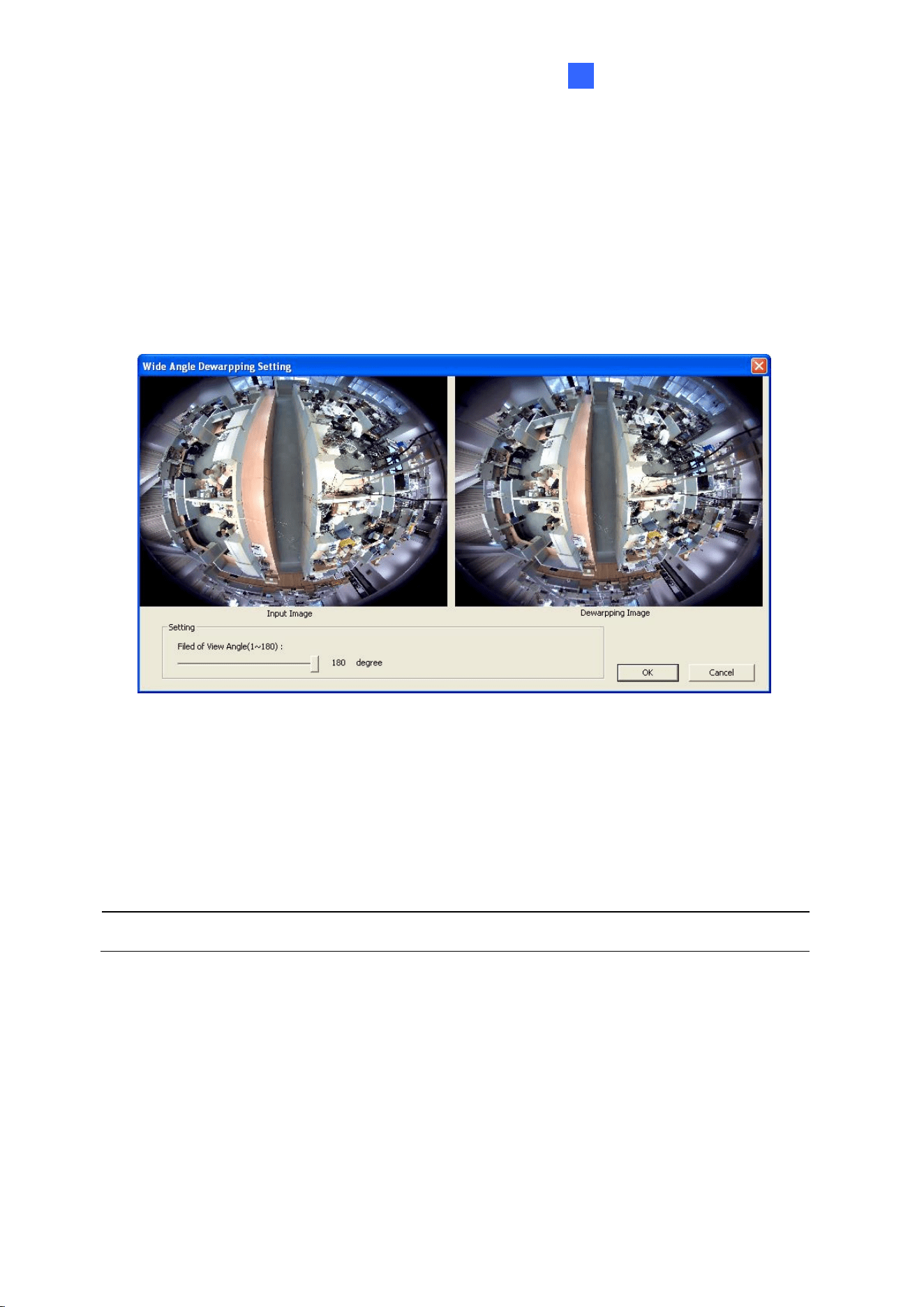
Accessing the Camera
69
3
3.2.6 Wide Angle Lens Dewarping
The fisheye source view is curved especially near the edges. Use this function to reduce the
warping of live view.
1. Right-click on the live view to display a drop-down list.
2. Select Wide Angle Setting. The Wide Angle Dewarping Setting window appears.
Figure 3-11
3. Slide the slider at the bottom to correct the degree of warping. The adjusted view is
shown on the right. Click OK to close this window.
4. To enable this configuration, right-click on the live view, select Wide Angle Lens
Dewarping.
Note: The Wide Angle Lens Dewarping function only applies to the circular source image.
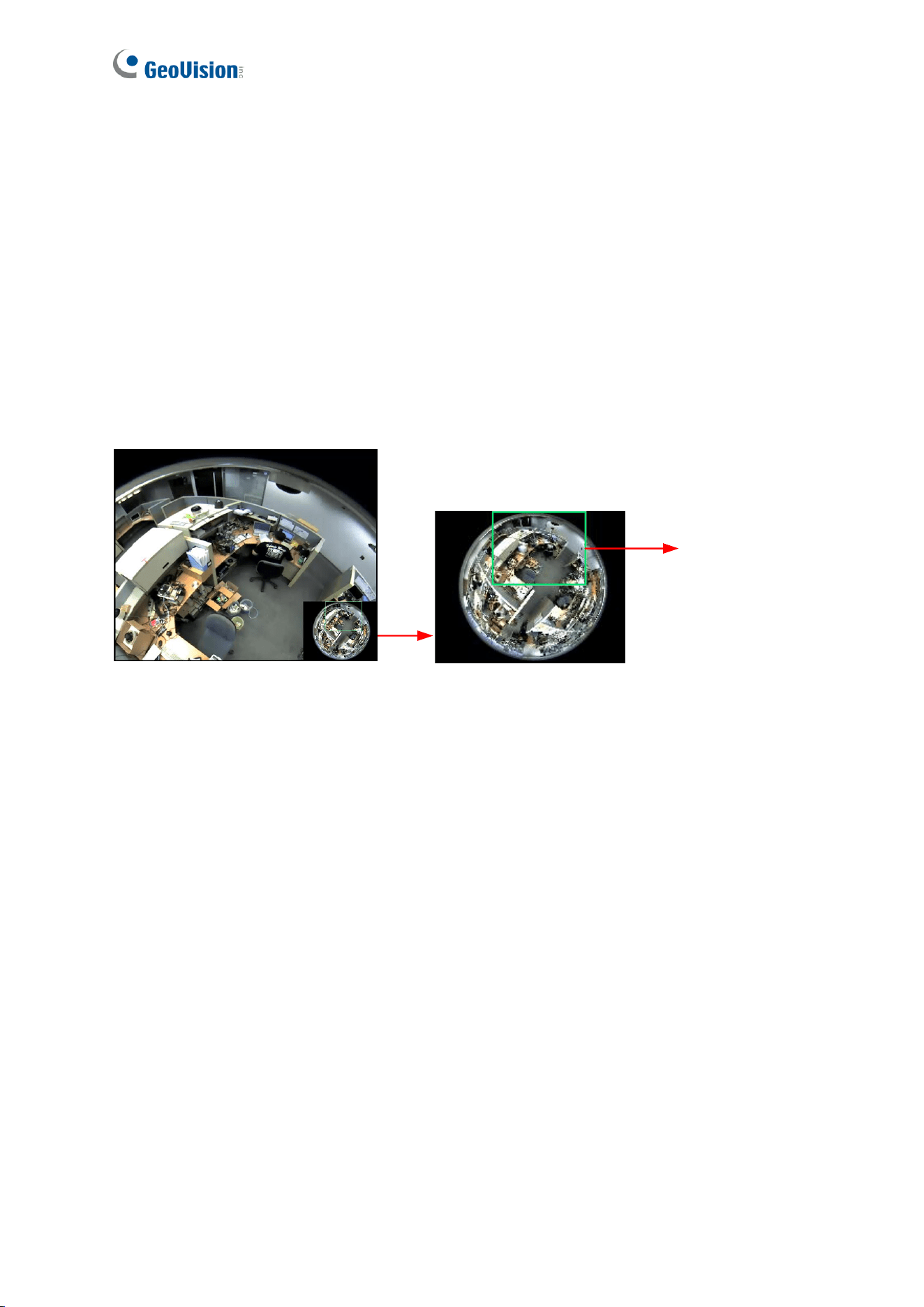
70
3.2.7 Picture-in-Picture and Picture-and-Picture View
Two types of close-up views are available to provide clear and detailed images of the
surveillance area: Picture-in-Picture (PIP) and Picture-and Picture (PAP). After entering
the live view window, the image is displayed in PIP mode by default. The PIP and PAP views
can only be displayed on the hemispherical source image.
Picture-in-Picture View
With the Picture in Picture (PIP) view, you can crop the video to get a close-up view or zoom
in on the video.
Inset window
Navigation box
Figure 3-12
1. Right-click the live view and select PIP. An inset window appears.
2. Click the inset window. A navigation box appears.
3. Move the navigation box around in the inset window to have a close-up view of the
selected area.
4. To adjust the navigation box size, move the cursor to any of the box corners, and enlarge
or diminish the box.
5. To exit the PIP view, right-click the image and click PIP again.
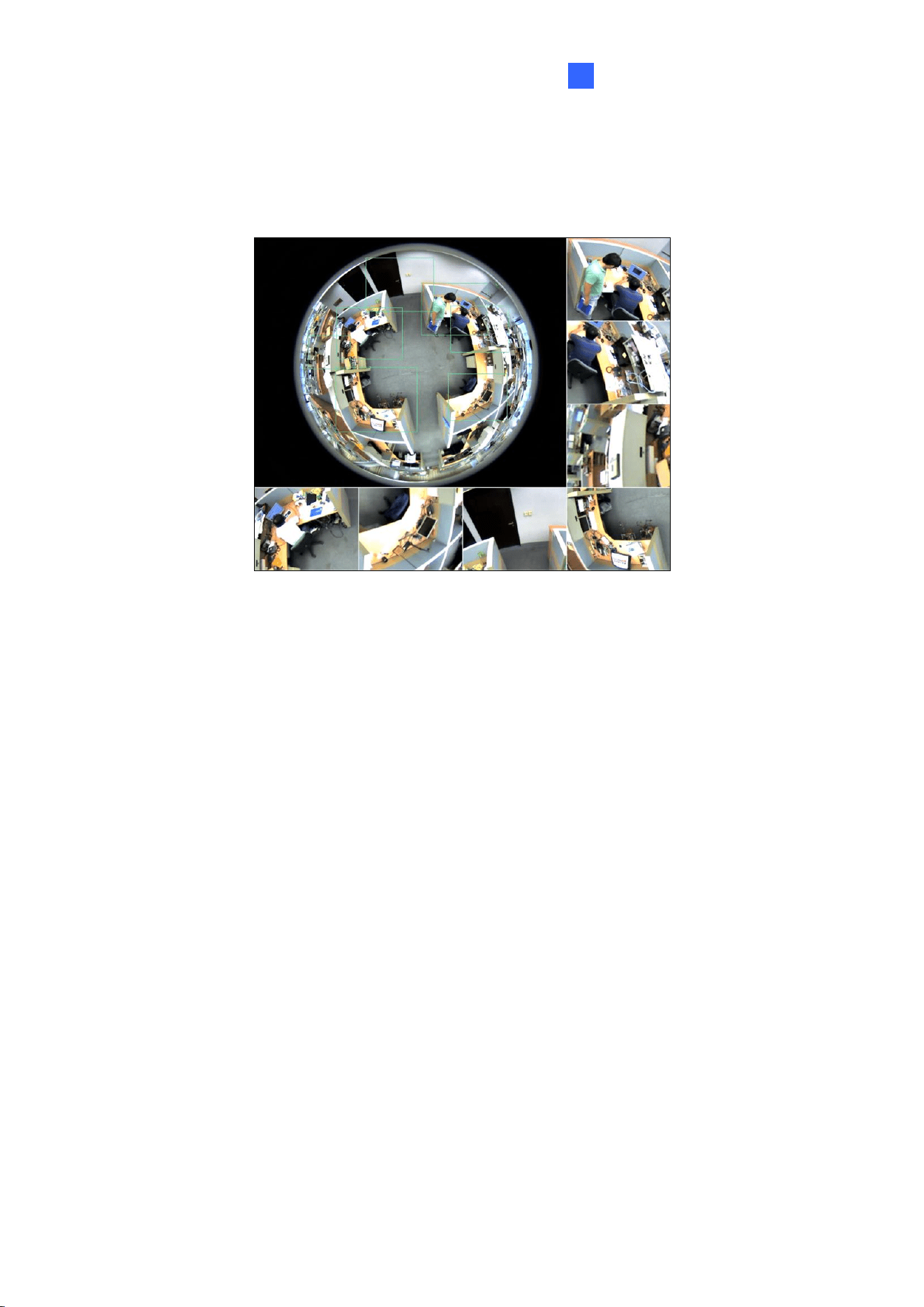
Accessing the Camera
71
3
Picture-and-Picture View
With the Picture and Picture (PAP) view, you can create a split video effect with multiple
close-up views on the image. A total of 7 close-up views can be defined.
Figure 3-13
1. Right-click the live view and select PAP. A row of three inset windows appears at the
bottom.
2. Draw a navigation box on the image, and this selected area is immediately reflected in
one inset window. Up to seven navigation boxes can be drawn on the image.
3. To adjust a navigation box size, move the cursor to any of the box corners, and enlarge
or diminish the box.
4. To move a navigation box to another area on the image, drag it to that area.
5. To change the frame color of the navigation box or hide the box, right-click the image,
select Mega Pixel Setting and click one of these options:
◼ Display Focus Area of PAP Mode: Displays or hides the navigation boxes on the
image.
◼ Set Color of Focus Area: Changes the color of the box frames.
6. To delete a navigation box, right-click the desired box, select Focus Area of PAP Mode
and click Delete.
7. To exit the PAP view, right-click the image and click PAP again.
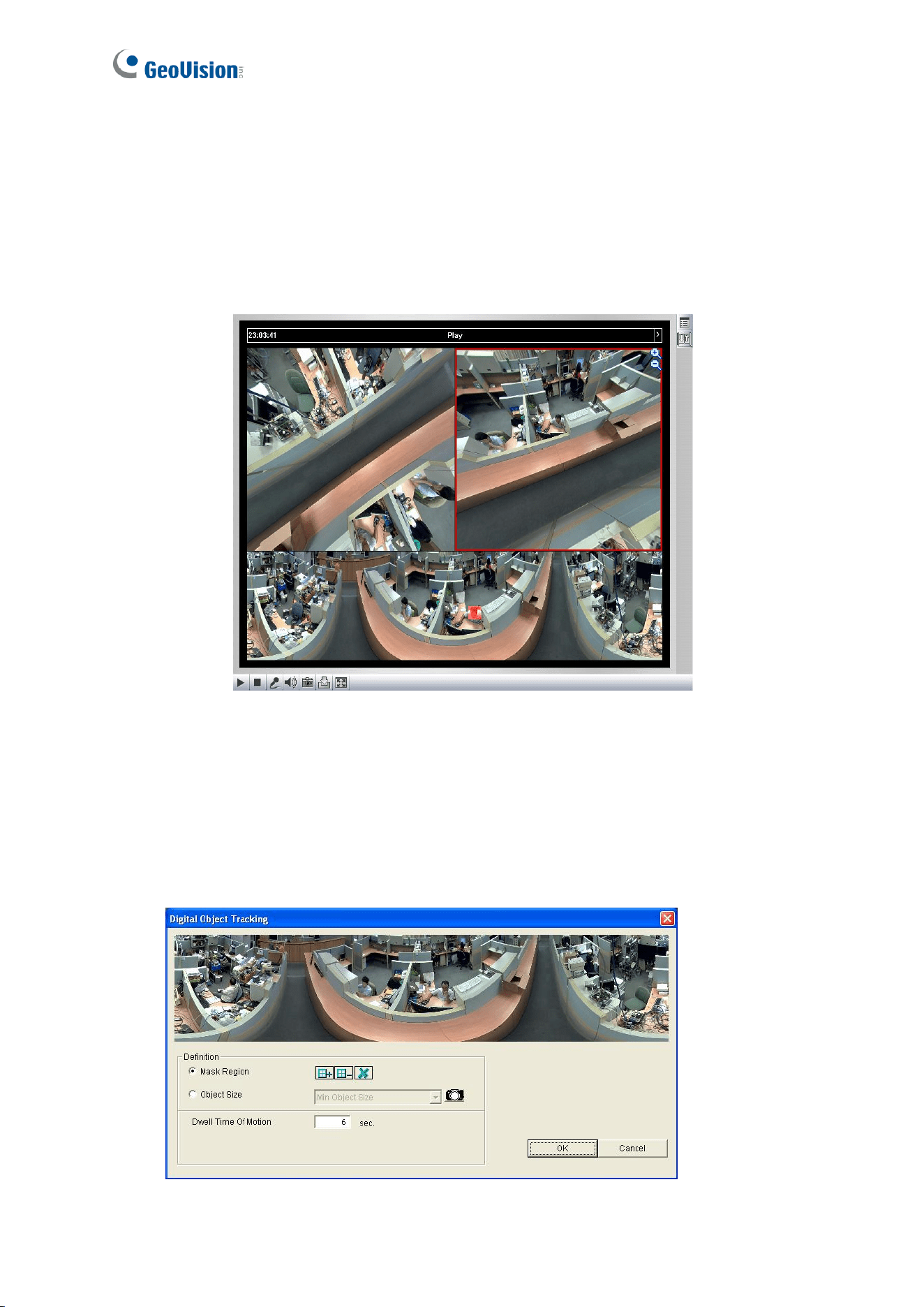
72
3.2.8 Object Tracking
You can track moving objects in fisheye live view. The function is only available when the
fisheye camera mode is set to be Geo Fisheye: 360 degree. When motion is detected, the
top-right channel will start tracking the moving object and in the 360 degree view at the
bottom, the moving object will be highlighted.
Figure 3-14
1. Right-click the fisheye view, select the camera number and select Geo Fisheye.
2. Right-click the fisheye view, select Fisheye Option, select Camera Mode and select
Geo Fisheye: 360 degree.
3. Right-click the fisheye view, select Fisheye Option, select 360 Object Tracking and
select Advanced Settings. This dialog box appears.
Figure 3-15

Accessing the Camera
73
3
4. Use the options below to customize object tracking.
◼ Mask Region: Use the mouse to outline a mask region where motion will be
ignored.
◼ Object Size: Click the button to pause the live view and then use the mouse
to outline the maximum and minimum size of the targeted object.
◼ Dwell Time of Motion: After a targeted object stops moving, the highlighted
region and the top-right channel will remain fixed on the area for the number of
seconds specified. Any new motion detected during the dwell time will be ignored
to prevent the camera view from frequently jumping from one area to another.
5. Right-click the fisheye view, select Fisheye Option, select 360 Object Tracking and
select Tracking to enable object tracking.
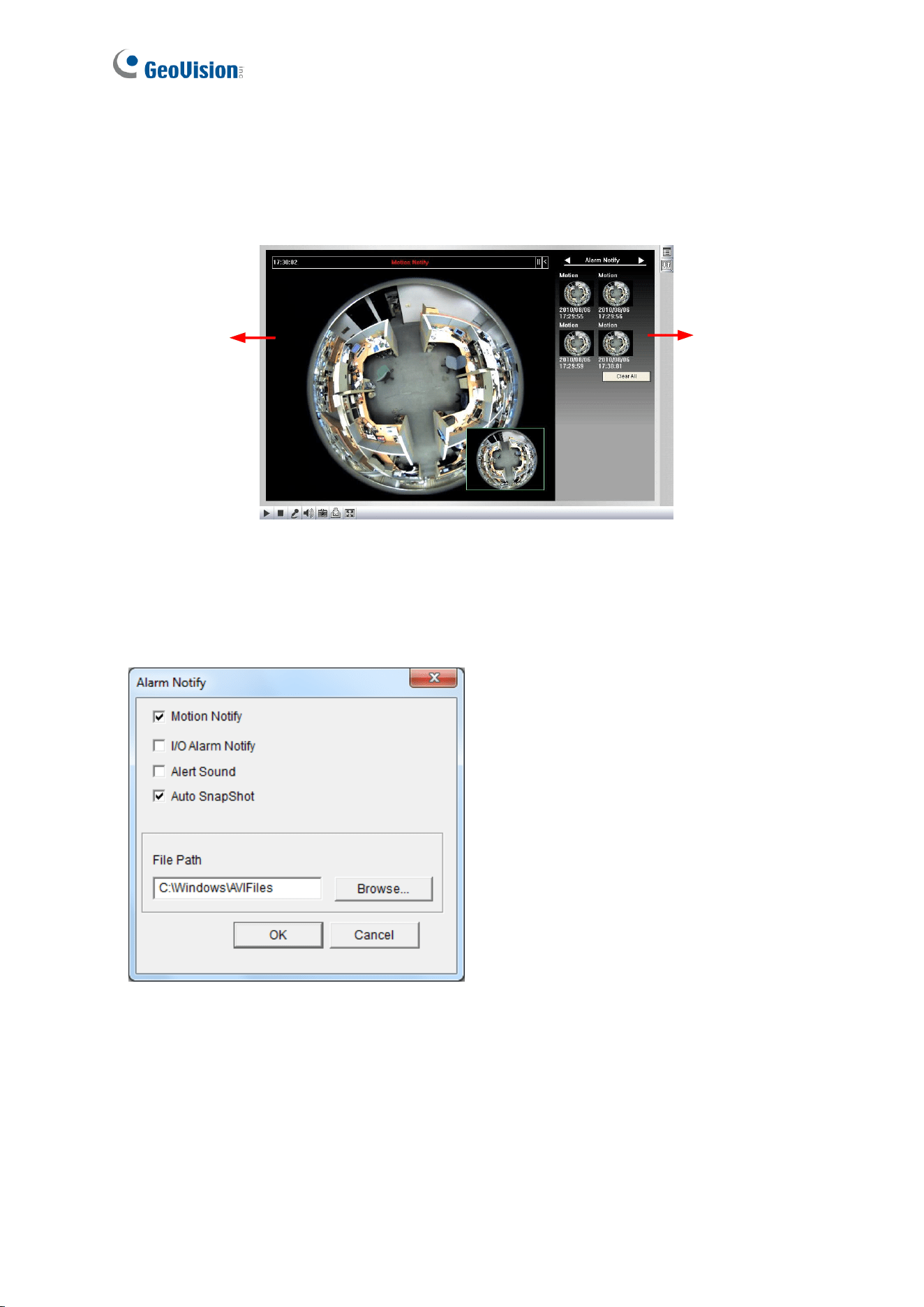
74
3.2.9 Alarm Notification
After input triggers and motion detection, you can be alerted by a pop-up live video and view
up to four captured images.
Captured Images
Pop-up live video
Figure 3-16
To configure this function, click the Show System Menu button (No. 11, Figure 3-3), and
select Alarm Notify. This dialog box appears.
Figure 3-17
◼ Motion Notify: Once motion is detected, the captured images are displayed on the
control panel of the Live View window.
◼ I/O Alarm Notify: Once the input device is triggered, the captured images are displayed
on the control panel of the Live View window. For this function to work, the Administrator
needs to install the input device properly. See 4.2.1 Input Settings.
◼ Alert Sound: Activates the computer alarm on motion and input-triggered detection.
Accessing the Camera
75
3
◼ Auto Snapshot: The snapshot of live video is taken every 5 seconds on motion and
input-triggered detection.
◼ File Path: Assigns a file path to save the snapshots.
Note:
1. The Administrator can adjust the motion detection area by using the Motion Detection
function. See 4.1.3 Motion Detection for more details.
2. The I/O Alarm notification function is only supported by GV-FE2301 / 4301,
GV-FER5700 / 5701 / 12203 / 12700, and GV-EFER3700 / EFER3700-W.
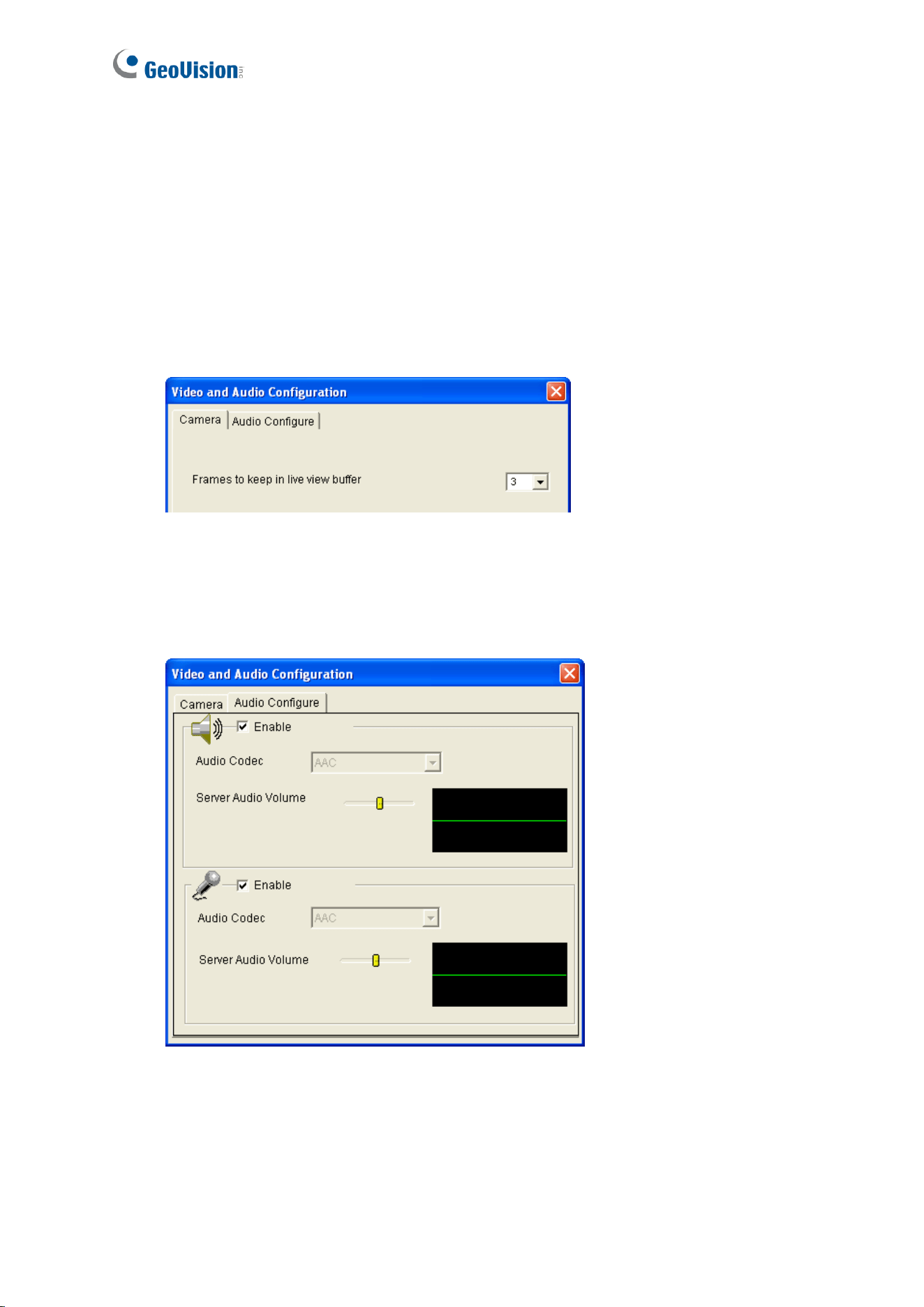
76
3.2.10 Video and Audio Configuration
You can enable the microphone and speaker for two-way audio communication and set the
number of frames to keep for live view buffer. Click the Show System Menu button (No. 9,
Figure 3-3), and select Video and Audio Configuration.
◼ Camera: Sets the number of frames to keep in live view buffer. Keeping more frames
for live view buffer can ensure a smooth live view, but the live view will be delayed for
the number of frames specified.
Figure 3-18
◼ Audio Configure: You can enable the microphone and speaker and adjust the audio
volume.
Figure 3-19
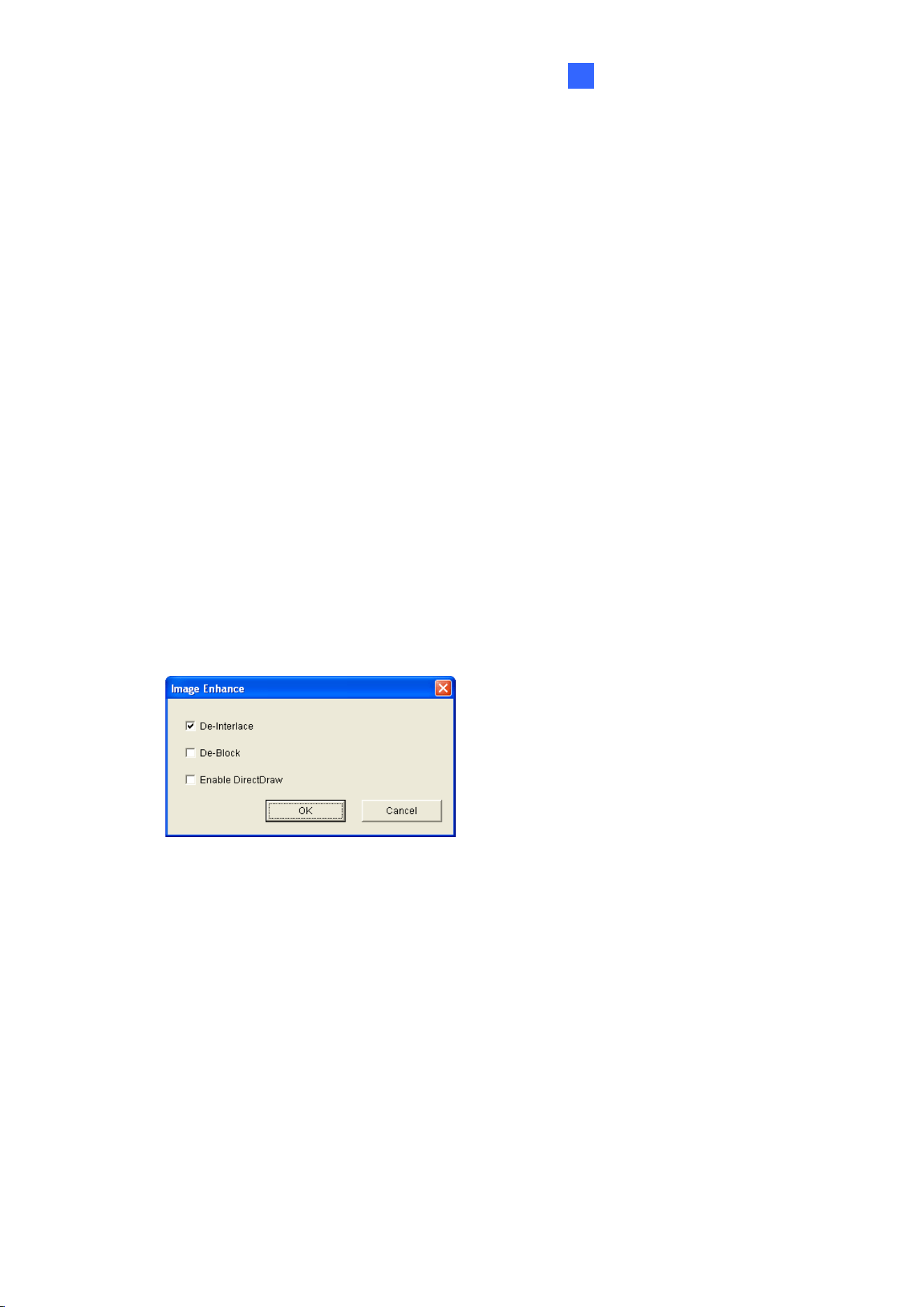
Accessing the Camera
77
3
3.2.11 Remote Configuration
You can view the connection status of the central monitoring stations and upgrade firmware
over the network. Click the Show System Menu button (No. 9, Figure 3-3), and select
Remote Config. The Remote Config dialog box will appear.
[Firmware Upgrade] In this tab, you can upgrade the firmware over the network. For details,
see Chapter 6 Advanced Applications.
3.2.12 Camera Name Display
To display the camera name on the image, click the Show System Menu button (No. 9,
Figure 3-3), and select Show Camera Name.
3.2.13 Image Enhancement
To enhance the image quality of live video, click the Show System Menu button (No. 9,
Figure 3-3), and select Image Enhance. This dialog box appears.
Figure 3-20
◼ De-Interlace: Converts the interlaced video into non-interlaced video.
◼ De-Block: Removes the block-like artifacts from low-quality and highly compressed
video.
◼ Enable DirectDraw: Activates the DirectDraw function.
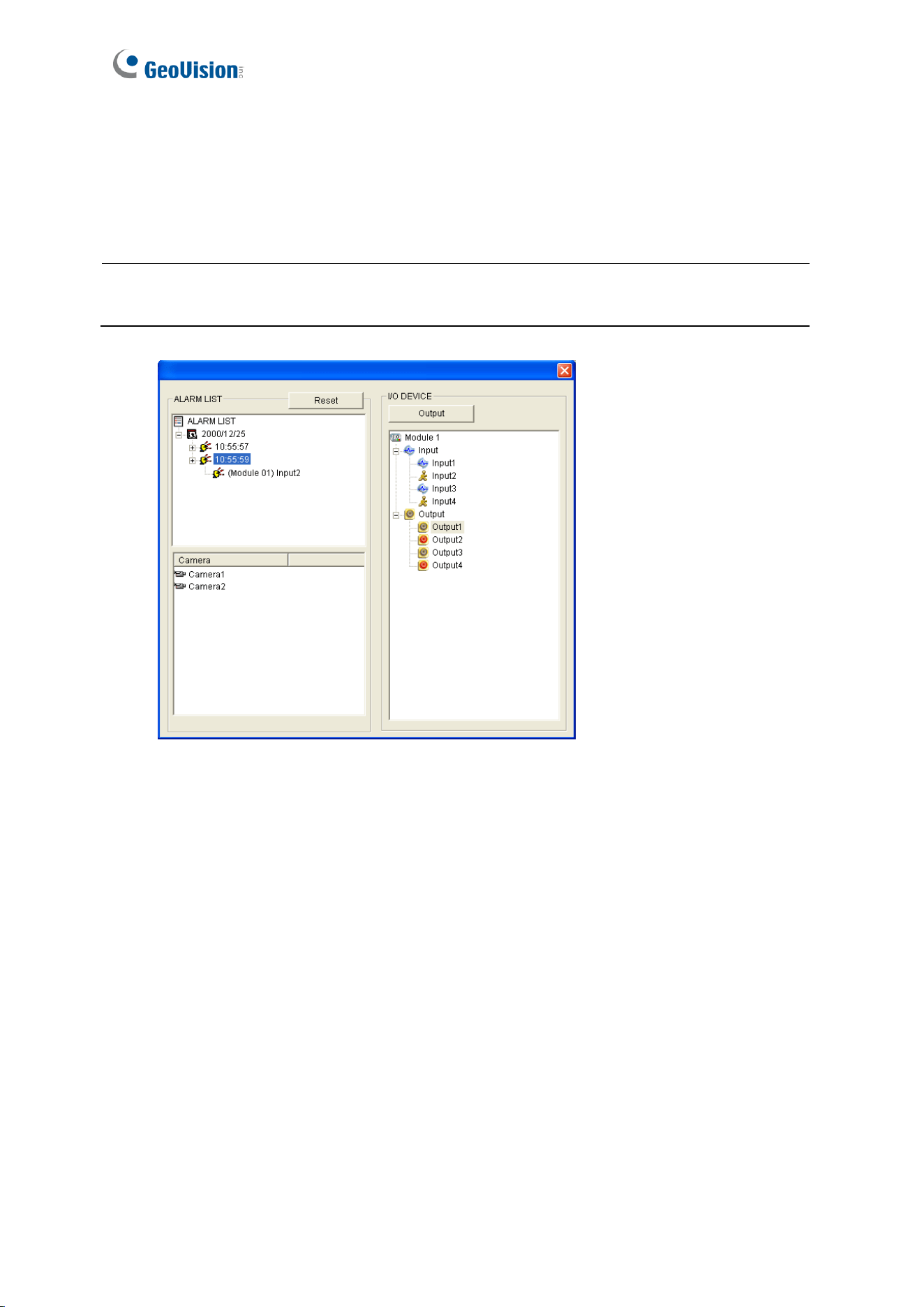
78
3.2.14 I/O Control
The I/O Control window provides real-time graphic displays of camera status, I/O status, and
alarm events. Additionally, you can remotely force output to be triggered.
Note: I/O Control settings are only supported by GV-FE2301 / 4301, GV-FER5700 / 5701 /
12203 / 12700 and GV-EFER3700 / EFER3700-W.
Figure 3-21
• To display the I/O control window, click the I/O Control button (No. 8, Figure 3-3).
• The Alarm List is displayed in three levels. The first level indicates date, the second
indicates time, and the third indicates alarm ID. Clicking the Reset button will clear the list.
• To trigger an output device, highlight an output and then click the Output button.
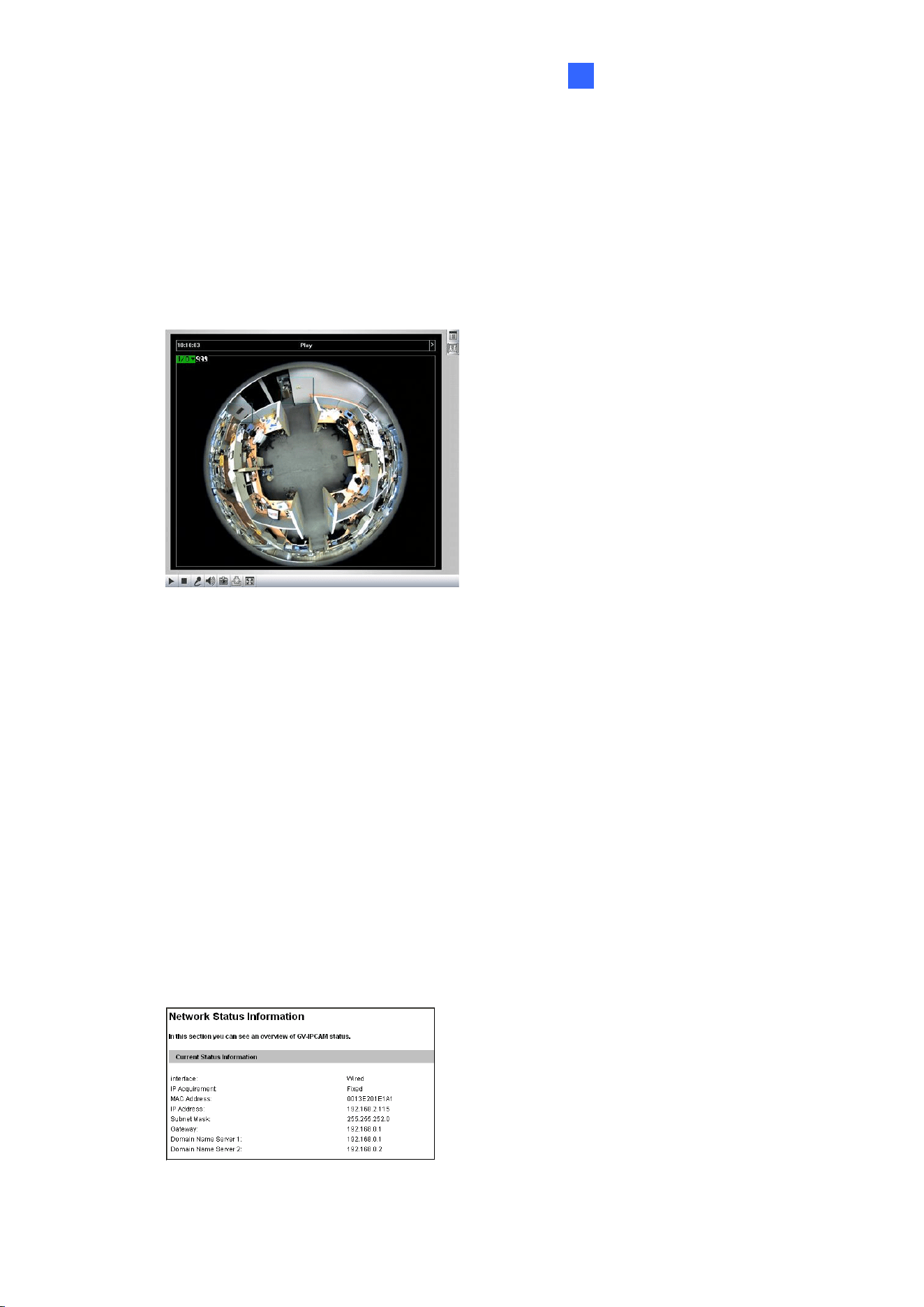
Accessing the Camera
79
3
3.2.15 Visual Automation
This function is only supported by GV-FE2301 / 4301, GV-FER5700 / 5701 / 12203 / 12700
and GV-EFER3700 / EFER3700-W. The Visual Automation allows you to change the current
state of the electronic device by simply clicking on its image, e.g. turning the light ON. This
feature is only available when the Visual Automation is set ahead by the Administrator. For
details, see 4.1.5 Visual Automation
Figure 3-22
➢ To access this feature, click the I/O Control button (No. 8, Figure 3-3) and select Visual
Automation.
➢ To change the style of the set areas, right-click the image and select Visual
Automation. Right-click the image again to see these options:
◼ Show All: Displays all set areas.
◼ Rect Float: Embosses all set areas.
◼ Set Color: Changes the frame color of all set areas.
3.2.16 Network Status
To view the network status, in the left menu, click Network and select Status.
Figure 3-23
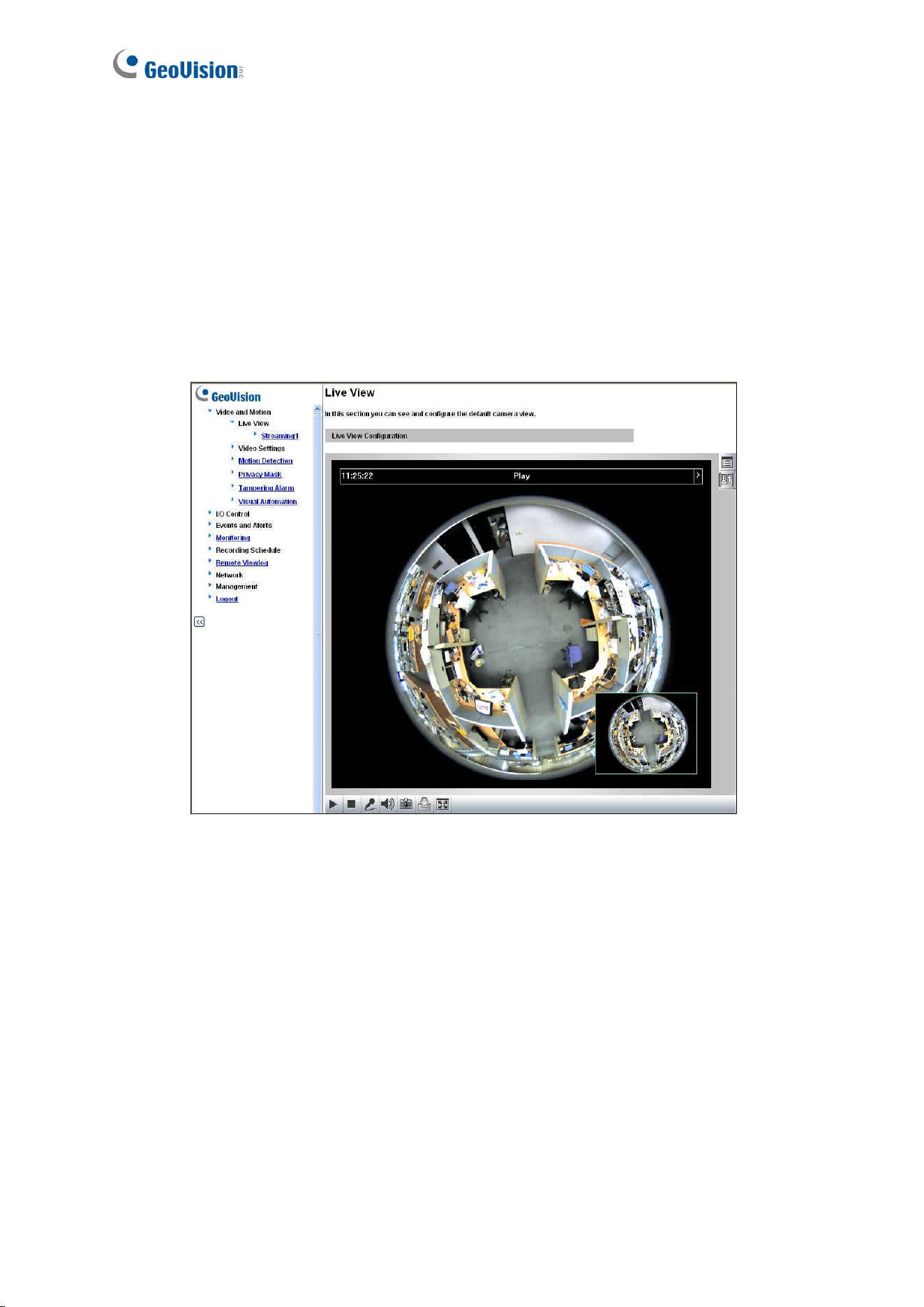
80
Chapter 4 Administrator Mode
The Administrator can access the system configuration through the network. Eight categories
of configurations are involved in the system configuration: Video and Motion, I/O Control,
Events and Alerts, Monitoring, Recording Schedule, Remote ViewLog, Network and
Management.
Figure 4-1
Administrator Mode
81
4
List of Menu Options
Find the topic of interest by referring to the section number prefixed to each option.
IMPORTANT: The available options and functions may vary among camera models and
firmware versions.
4.1 Video and Motion
4.1.1 Video Settings
4.1.2 Motion Detection
4.1.3 Privacy Mask
4.1.4 Text Overlay
4.1.5 Tampering Alarm
4.1.6 Visual Automation
4.2 I/O Control
4.2.1 Input Setting
4.2.2 Output Setting
4.3 Events and Alerts
4.3.1 Email
4.3.2 FTP
4.3.3 Center V2
4.3.4 Vital Sign Monitor
4.3.5 Backup Center
4.3.6 Video Gateway / Recording Server
4.3.7 ViewLog
4.3.8 RTSP/ONVIF
4.4 Monitoring
4.5 Recording Schedule
4.5.1 Recording Schedule Settings
4.5.2 I/O Monitor Settings
4.6 Remote ViewLog
4.7 Network
4.7.1 LAN
4.7.2 Wireless Client Mode
4.7.3 Advanced TCP/IP
4.7.4 IEEE 802.1x
4.7.5 UMTS Settings
4.7.6 IP Filtering
4.7.7 SNMP Settings
4.8 Management
4.8.1 Date and Time Settings
4.8.2 Storage Settings
4.8.3 User Account
4.8.4 Log Information
4.8.5 Tools
4.8.6 Language
82
4.1 Video & Motion
The GV-Fisheye Camera can simultaneously process one video source in multiple different
codec and resolutions. The dual / triple-stream design benefits for lower bandwidth
environment, allowing Streaming 2 / 3 to be set with lower resolution and codec for live
streaming, and Streaming 1 set with highest resolution and codec H.264 / H.265 for best
recording quality. Streaming 1, Streaming 2 and Streaming 3 each have its own setting
pages for separate setup.
Comparison between Streaming 1 and Streaming 2:
Video Setting Options
Streaming 1
Streaming 2 / 3
Region of Interest (ROI)
Yes
Not open for configuration.
But settings in Streaming 1
are automatically applied to
Streaming 2 / 3
Record Settings
Watermark Setting
LED Control
Enable SDK
Special View Setting
Video Resolution
Yes. Different resolutions can be applied to Streaming 1
and Streaming 2 / 3.
Note: Streaming 3 is only supported by GV-FER5700 / 5701 / 12700 and GV-EFER3700
series. By default, Streaming 3 is disabled.
This section includes video image settings and how the images can be managed by using
Motion Detection, Privacy Mask, Text Overlay, Tampering Alarm and Visual Automation.
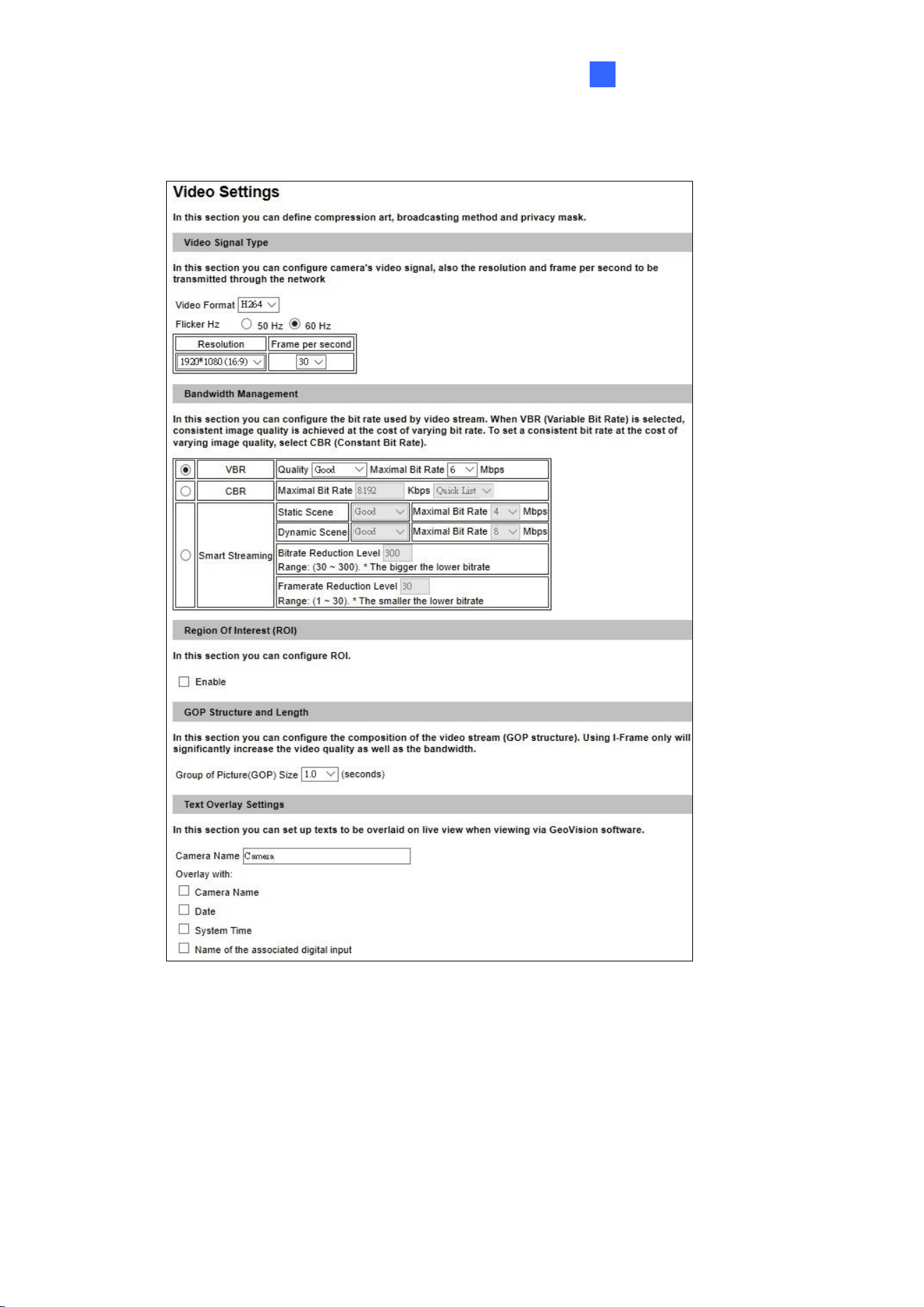
Administrator Mode
83
4
4.1.1 Video Settings
Figure 4-2
84
[Connection Template]
Select the type of your network connection. Unless you select Customized, this option will
automatically bring up the recommended video resolution, frame rate, bandwidth and GOP
size.
[Video Signal Type]
The codec options, resolutions and maximum frame rates are detailed below:
Models
Stream
Image Resolution
(Default)
Maximum Frame Rate
GV-FE2301
Main
1440 x 1376
15 fps
Sub
640 x 608
GV-FE3402 / 3403
GV-FER3402 / 3403
Main
2048 x 1536
15 fps
Sub
640 x 480
GV-FE4301
Main
2048 x 1944
15 fps
Sub
640 x 608
GV-FE5302 / 5303
GV-FER5302 / 5303
Main
2560 x 1920
10 fps
Sub
640 x 480
GV-FER5700
Main
2560 x 2048
30 fps (60 Hz) / 25 fps (50 Hz)
Sub
640 x 512
GV-FER5701
Main
2592 x 1944
30 fps (60 Hz) / 25 fps (50 Hz)
Sub
640 x 480
GV-EFER3700 /
EFER3700-W
Main
2048 x 1536
30 fps (60 Hz) / 25 fps (50 Hz)
Sub
640 x 480
GV-FER12203
Main
4000 x 3000
15 fps
Sub
640 x 480
GV-FER12700
Main
4000 x 3000
30 fps
Sub
1024 x 768
Sub
640 x 480
◼ Flicker: Choose the Flicker Hz value between 60 Hz or 50 Hz. This function is only
supported by GV-FER5700 / 5701 / 12700 and GV-EFER3700 Series.
Administrator Mode
85
4
[Bandwidth Management]
When using H.265 / H.264, it is possible to control the bitrate, which in turn allows the
amount of bandwidth usage to be controlled.
◼ VBR (Variable Bitrate): The quality of the video stream is kept as constant as possible
at the cost of a varying bitrate. The bandwidth is used much more efficiently than a
comparable CBR. You can set a limit to the bit rate by specifying a Maximal Bit Rate.
Set the image quality to one of the 5 standards: Standard, Fair, Good, Great, and
Excellent.
Camera Type
Default Max. Bitrate of VBR
GV-EFER3700 Series
4 Mbps
GV-FER5700 / 5701
5 Mbps
GV-FER12203
16 Mbps
◼ CBR (Constant Bitrate): CBR is used to achieve a specific bitrate by varying the quality
of the stream. Use the Maximal Bit Rate drop-down list to select a bitrate.
◼ Smart Streaming: When the option is enabled, the bitrates will be automatically reduced
in static scenes, significantly maximizing bandwidth and lowering file size.
• You can choose the image quality of Static Scene and Dynamic Scene to one of the
5 standards: Standard, Fair, Good, Great and Excellent. You can even choose the
maximum bitrate to optimize the bandwidth.
• Bitrate Reduction Level: The default value is 254 / 300. The bigger the value the
more bitrates can be reduced in static scenes, thus saving the recording size.
Note: To enable Smart Streaming, only supported by GV-FER5700 / 5701 / 12203 /
12700 and GV-EFER3700 Series, it is required to use either GV-NVR V8.7.0 or GV-VMS
V16.10.3 and later versions. For details, see the technical notice.
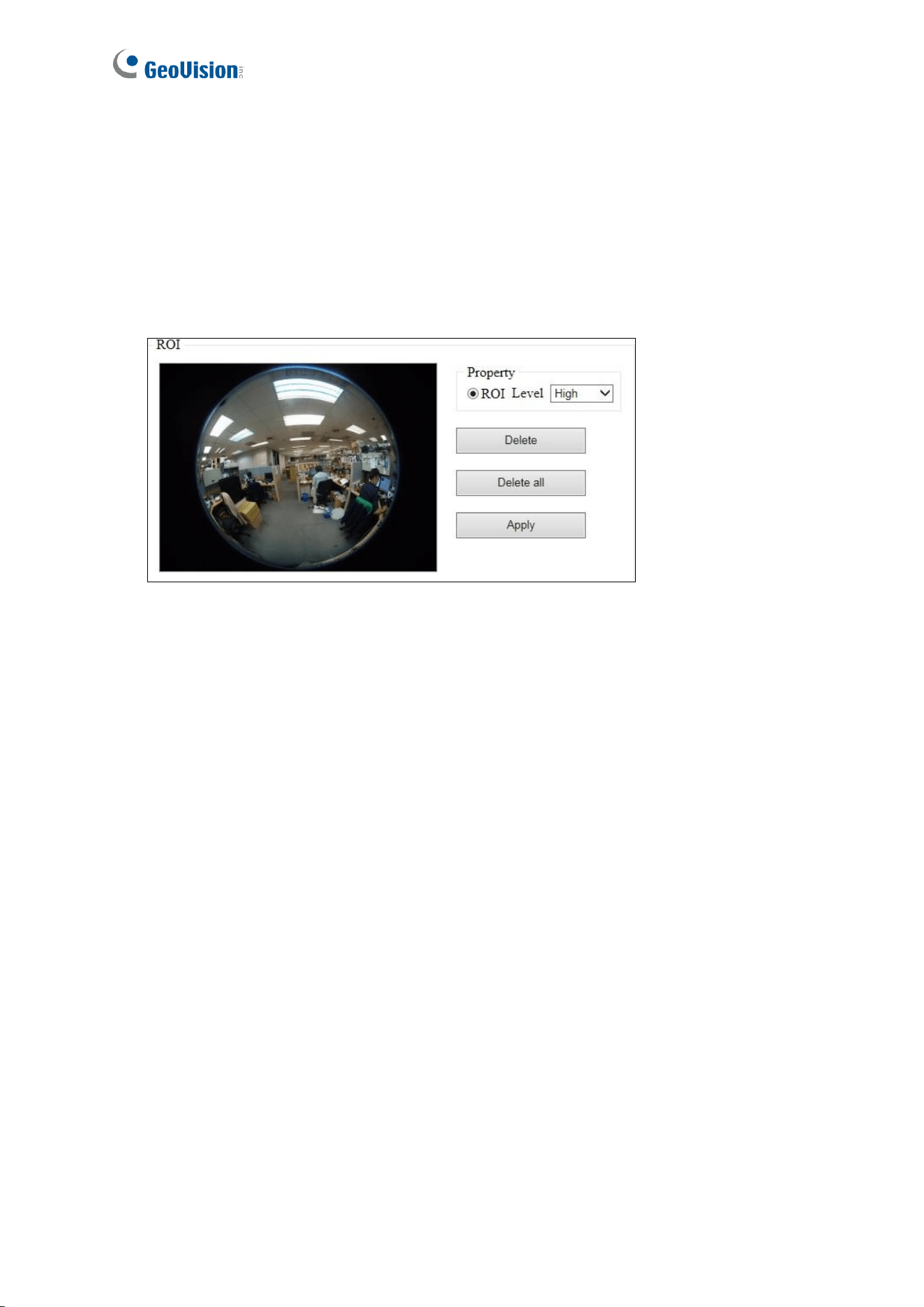
86
[Region of Interest]
Defines clarity of different parts of the live view for the camera connecting to third-party
software through ONVIF/RTSP. This function is disabled by default. Select Enable and click
ROI Setting to configure:
1. On the popup window, use your mouse and draw directly on the live view to specify a
region.
Figure 4-3
2. To define clarity to the region, select ROI and select High, Medium or Low using the
drop-down list.
3. Click Apply to apply the configurations.
[GOP Structure and Length]
Use the Group of Picture (GOP) Size drop-down list to set the number of seconds between
every key frame. This option is only available when H.264 is selected for codec.
[H.264 Video Entropy Coding Setting]
By default, the entropy coding is set to CAVLC. To change it to CABAC, click and select
from the drop-down list. This function is not available for GV-FER5700 / 5701 / 12203 /
12700 and GV-EFER3700 Series.
[Record Settings] Note for GV-FER5700 / 5701 / 12203 / 12700 and GV-EFER3700 Series,
see Recording Settings in 4.4 Monitoring to adjust the setting.
The alarm settings allow you to capture images before and/or after the motion or I/O event
happens.
◼ Pre-alarm recording time: Activates video recording before an event occurs. Set the
recording time to 1 or 2 seconds. The recording is saved in the buffer of the camera.

Administrator Mode
87
4
◼ Post-alarm recording time: Activates video recording onto the inserted memory card
after an event occurs. Set the recording time from 1 to 30 seconds.
◼ Split Interval (Max. Video Clip): Sets the maximum time length of each recorded file
from 1 to 5 minutes.
◼ Record Profile: This setting is only applicable for recording to the camera’s memory card.
Select Performance to maximize the lifespan of the memory card by restricting the
maximum bit rate to 4 Mbps and Sharpness value to 30. Select Quality to adopt your
current settings.
◼ Record Audio: Activates audio recording when an event occurs.
◼ Write recording data into local storage: Select to continue recording to the local
storage while live view is being accessed through Web interface or other applications
such as GV-DVR / NVR / VMS. This option is enabled by default.
Note: To optimize recording results, it is recommended to allow no more than two
connections to the camera using Web interface or any other applications when Write
recording data into local storage is enabled.
[Text Overlay Settings] Displays camera name, date, and/or time on the live view and
recorded videos when viewing through GeoVision software.
◼ Camera Name: Type the camera name.
◼ Overlay with: Select one or more of the options to be overlaid on the live view and
recorded videos: camera name, date, system time and name of the associated digital
input.
[Text Overlay Settings (OSD)] Displays camera name, date, and/or time on the live view
and recorded videos when viewing through GeoVision software and third-party software
through ONVIF and RTSP.
◼ Name: Type the camera name.
◼ Font Size: Select the font size using the drop-down list.
◼ Overlay with: Select camera name, date and system time to be overlaid on the live view
and recorded videos. Use the drop-down list to select the display position.
[Watermark] Enable this option to watermark all recordings. The watermark allows you to
verify whether the recorded video has been tampered with. See 6.5 Verifying Watermark.
[Audio Settings] Enable noise reduction for the audio received.
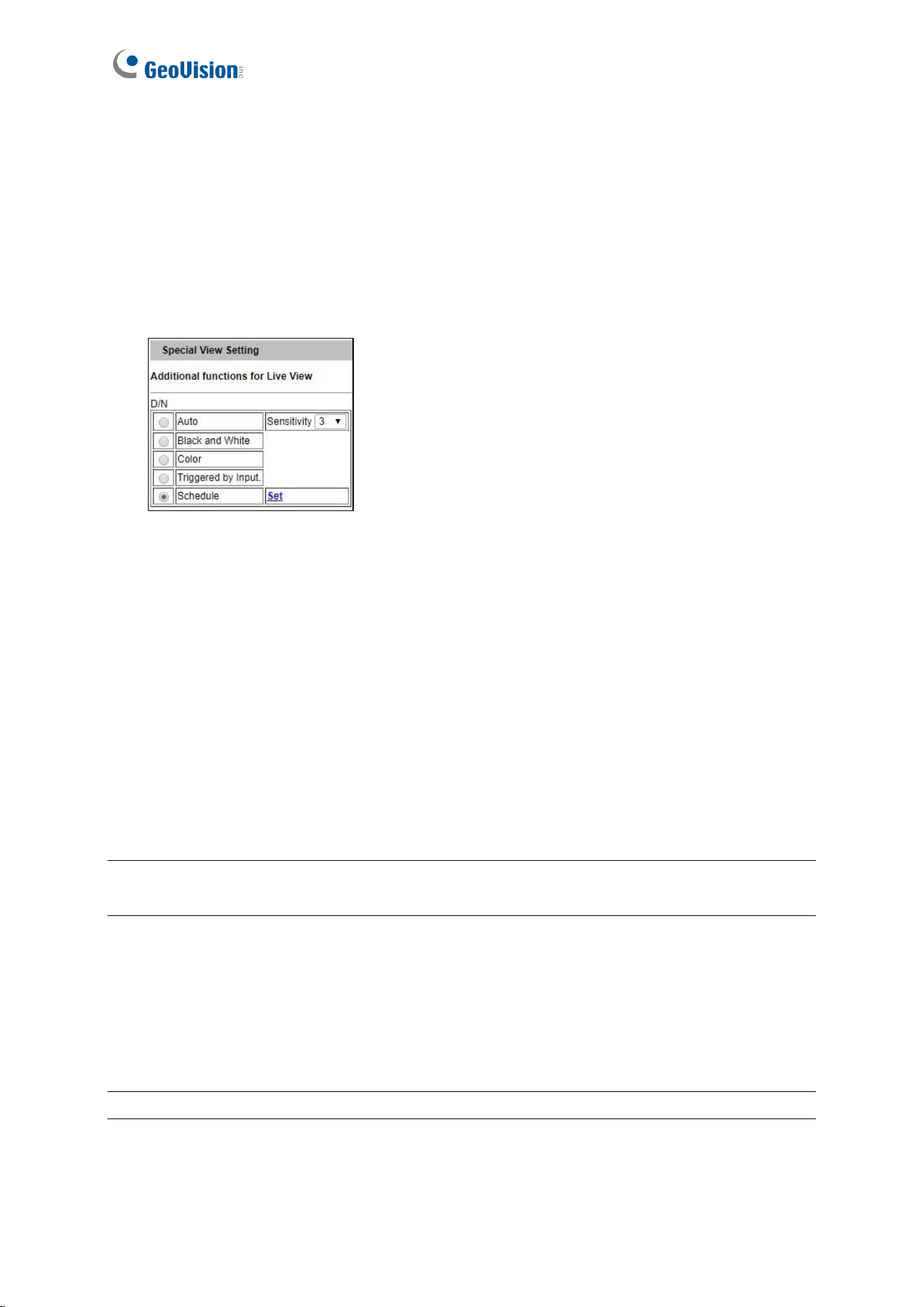
88
[LED Control] Select Disable if you do not want to use the System Status LED (No. 8,
Figure 1-2).
[Enable SDK] Select Enable to activate SDK. This function is not available for GV-FER5700
/ 5701 / 12203 / 12700 and GV-EFER3700 Series.
[Special View Setting]
◼ D/N: Sets the Day/Night mode of the camera.
Auto: Select Auto for the camera to detect the amount of light present and
automatically switch to monochrome in a poorly-lit scene. Use the drop-down list to
adjust the sensitivity level of light sensor from 1 to 10. The higher the value, the more
sensitive the camera is to light.
Black and White: Select this option for the live view to be in monochrome.
Color: Select this option for the live view to be in color.
Triggered by Input: Select this option to switch between day mode and night mode
once the input device (e.g. sensor or button) is triggered.
Note: If you select Triggered by Input, make sure you enable Trigger Day/Night Mode in
4.2.1 Input Settings.
Schedule: For GV-FER12201 firmware V1.02 or later, select this option to determine
specific period(s) of time when day mode is activated. See 4.5 Recording Schedule
Settings for the details on the setting of the schedule.
Note: If you select Schedule, make sure you start Schedule monitoring in 4.4 Monitoring.
◼ [BLC] Enable backlight compensation to adjust the exposure when the subject is
positioned in front of a bright light source.
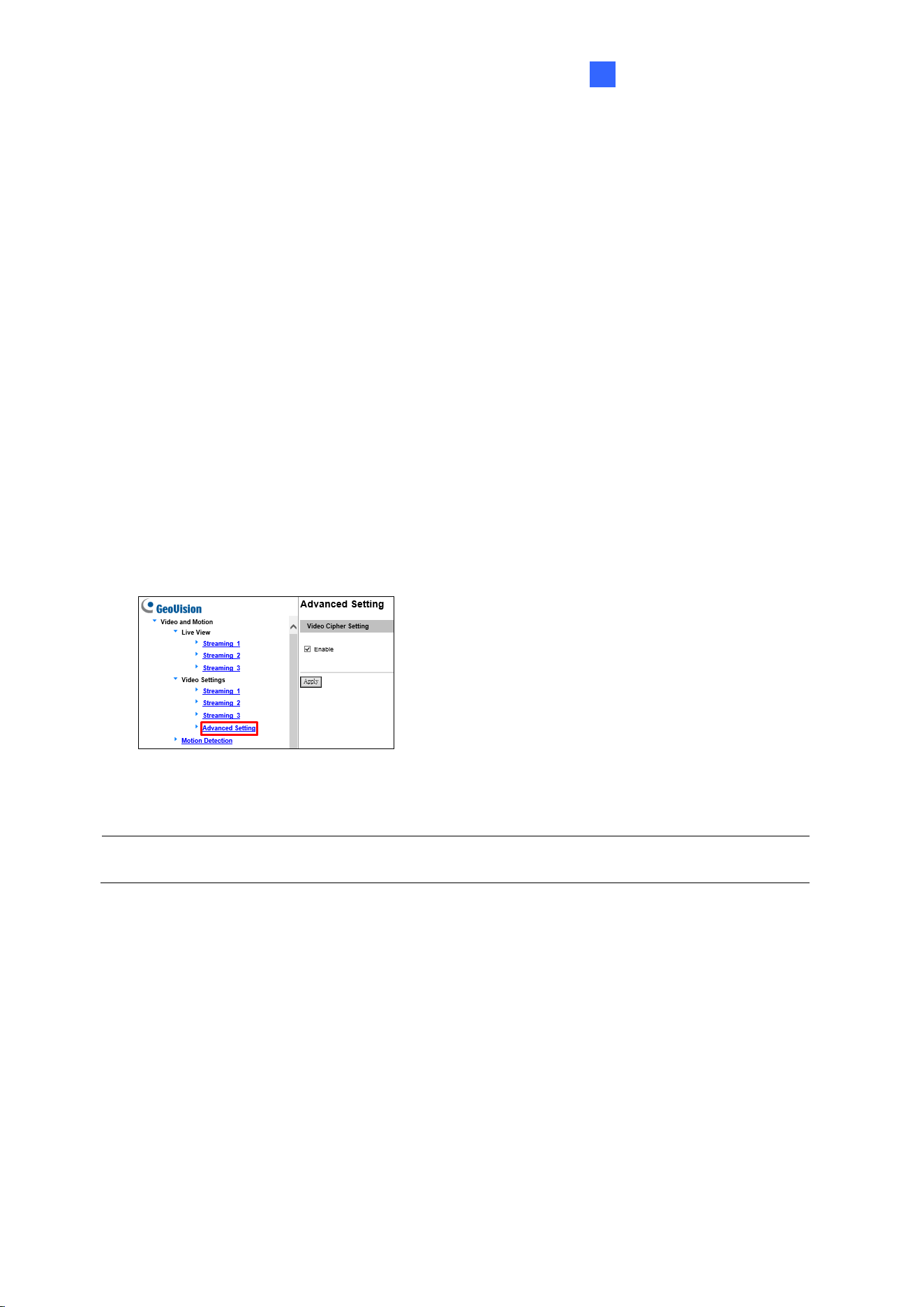
Administrator Mode
89
4
◼ [IR Light] Select Auto for automatic switch between day mode and night mode
depending on the amount of light detected. Select Off to completely disable IR LEDs.
This function is only supported by models with IR LEDs.
◼ IR Check Function: Note this option is only available for Box Camera. This function
determines whether the surveillance area is illuminated by an externally installed infrared
illuminator.
Off: The default setting. The infrared illuminator will be constantly off. It is advisable
to enable this option when the color temperature of outdoor lighting is 6000 K or
above.
On: The infrared illuminator will be constantly on.
Trigger by Input / Trigger IR by D/N: Select this option for the infrared illuminator to
turn on under low light and turn off under sufficient light.
[Advanced Setting] Note this function is only supported by GV-FER5700 / 5701 / 12700 and
GV-EFER3700 Series. You can enable Advanced Encryption Standard (AES) to protect the
streamed contents.
Figure 4-4
Note: This function only works with GV-VMS V18.1 and GV-DVR / NVR V8.8 or later
versions.
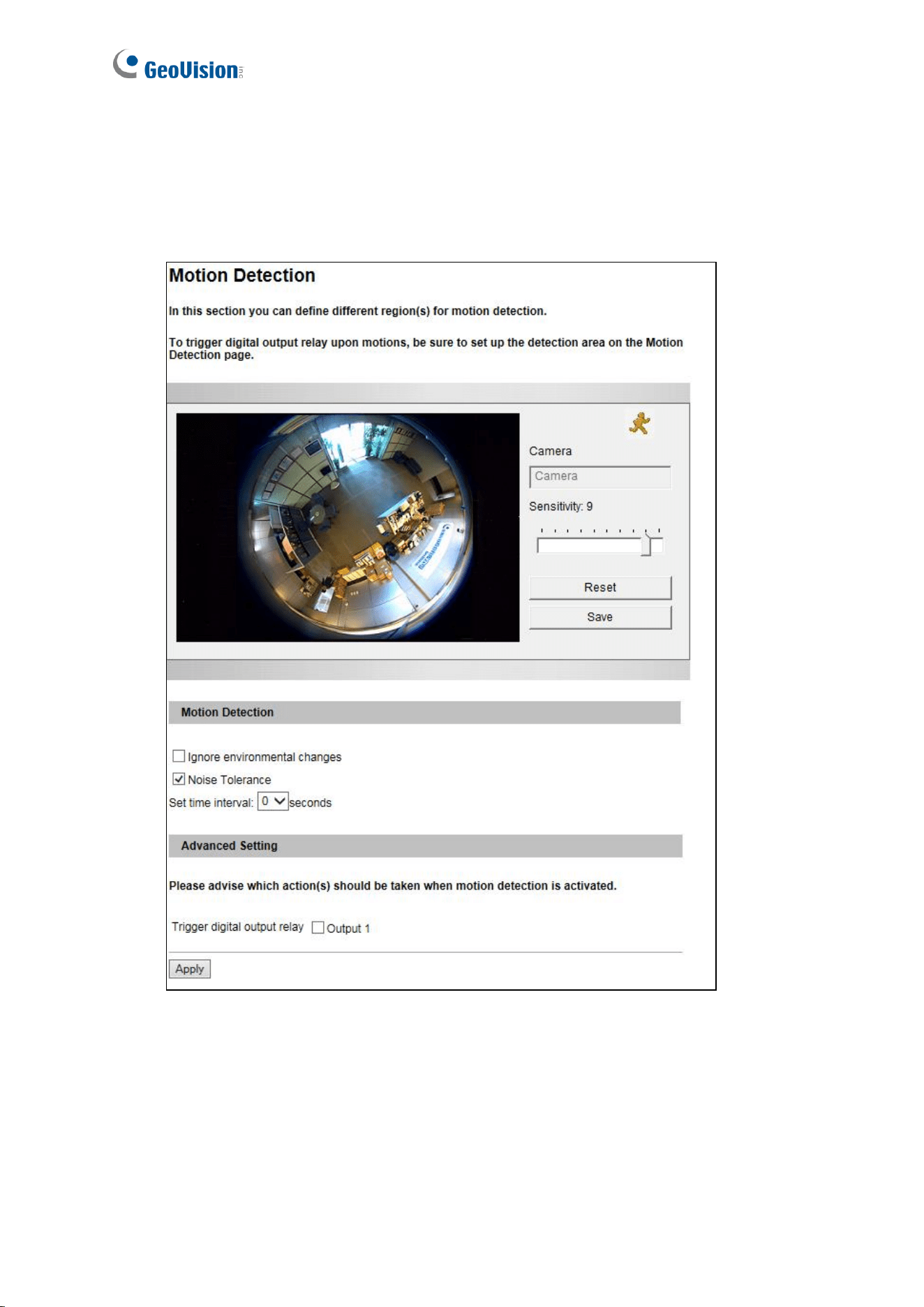
90
4.1.2 Motion Detection
Motion detection is used to generate an alarm whenever movement occurs in the video
image. You can configure up to 8 areas with different sensitivity values for motion detection.
Figure 4-5
The motion detection function is disabled by default. Follow the steps below to set up
motion detection.
1. Select the desired sensitivity level by moving the slider. The higher the value, the more
sensitive the camera is to motion.
2. Drag an area on the image. Click Add when you are prompted to confirm the setting.

Administrator Mode
91
4
3. To create several areas with different sensitivity values, repeat Steps 2 and 3.
4. Click Save to save the above settings.
5. Under Motion Detection section, select the following options to reduce false alarm.
◼ Ignore environmental changes: Ignore environmental changes in the camera
view such as rain or snow.
◼ The Noise Tolerance function is enabled by default. It ignores video noise when
the light intensity changes.
◼ Set Time Interval: If you set a time interval, the duration of motion has to exceed
the time interval for motion detection to be triggered.
◼ Set Duration: Set a period of time for a motion to be recorded even if it lasts
shorter than the specified time.
6. To trigger the alarm output when motion is detected, select Output1 and click the Apply
button. To activate the output settings, you must also start Input monitoring manually or
by schedule. For related settings, see 4.4 Monitoring.
Note:
1. The I/O settings are only available for GV-FE2301 / 4301, GV-FER5700 / 5701 / 12203
/ 12700 and GV-EFER3700 Series.
2. Set duration is only supported by GV-FER5700 / 5701 / 12203 / 12700 / EFER3700
Series.
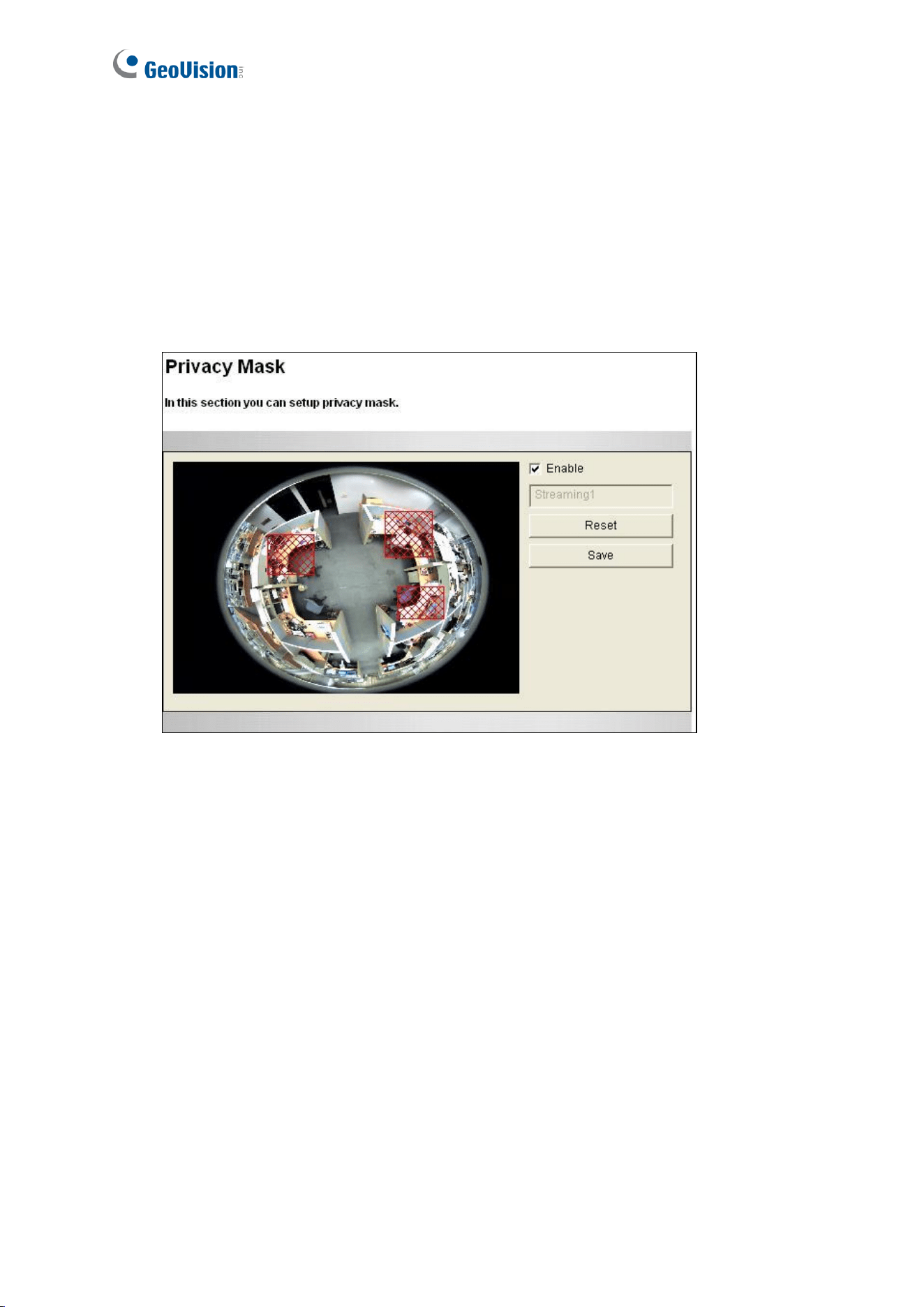
92
4.1.3 Privacy Mask
The Privacy Mask function is used to block out sensitive areas on live view and recorded
clips for the camera connecting to GeoVision software. This feature is ideal for locations
where displays, keyboard sequences (e.g. passwords), and for anywhere else you don’t
sensitive information visible.
Figure 4-6
1. Select the Enable option.
2. Drag the area(s) where you want to block out on the image. Click Add when you are
prompted to confirm the setting.
3. Click the Save button to save the settings.
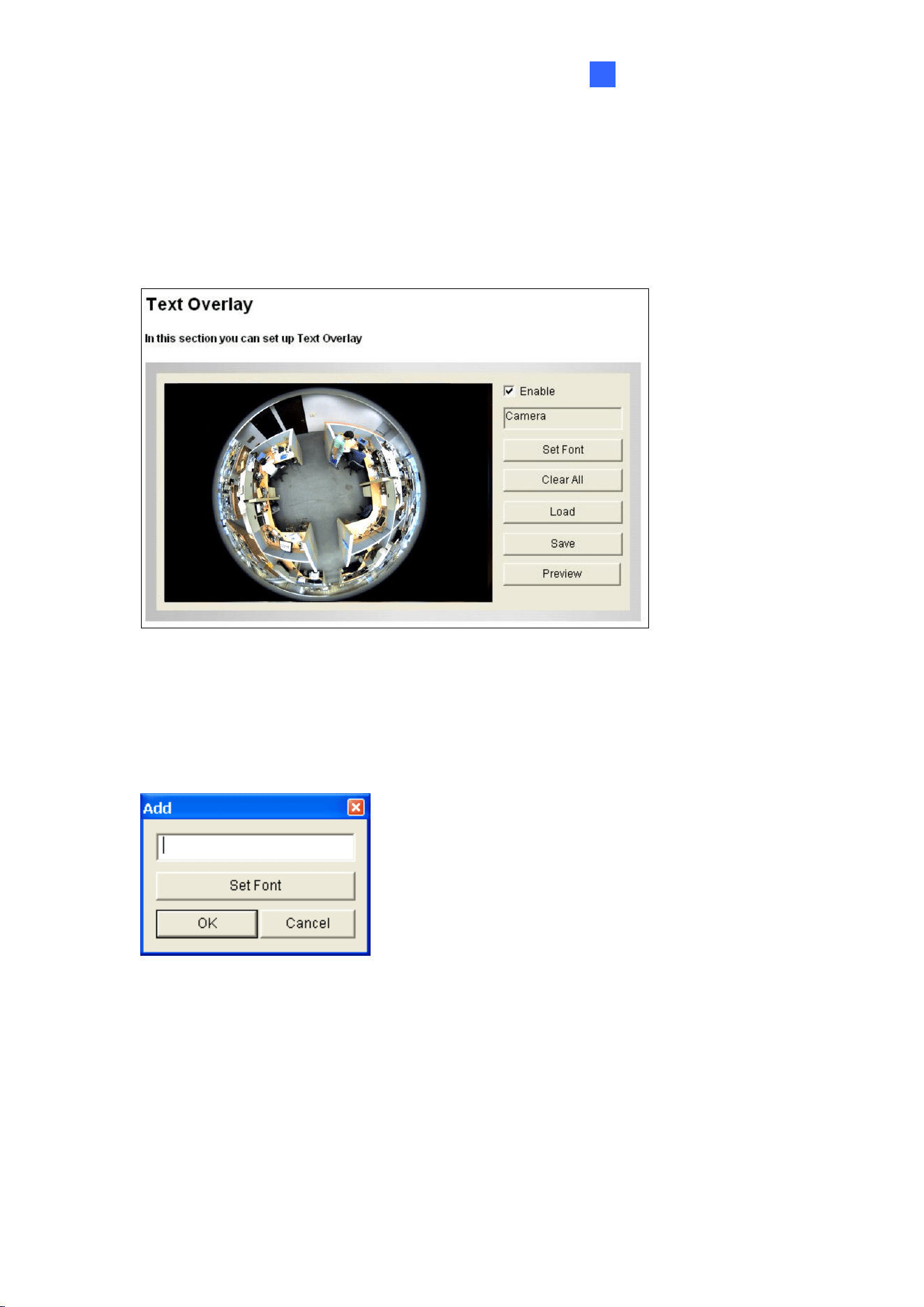
Administrator Mode
93
4
4.1.4 Text Overlay
The Text Overlay allows you to overlay any text in any place on the camera view. Up to 16
text messages can be created on one camera view. The overlaid text will be saved in the
recordings.
Figure 4-7
1. Select the font, font style and font size in a pop-up window.
2. Select the Enable option.
3. Click any place on the image. This dialog box appears.
Figure 4-8
4. Type the desired text, and click OK. The text is overlaid on the image.
5. Drag the overlaid text to a desired place on the image.
6. Click Set Font to modify the font settings.
7. Click Save to apply the settings, or click Load (Undo) to revert to the last saved setting.
8. Click Preview to see how the text will appear on the image. Click Close to end the
preview.
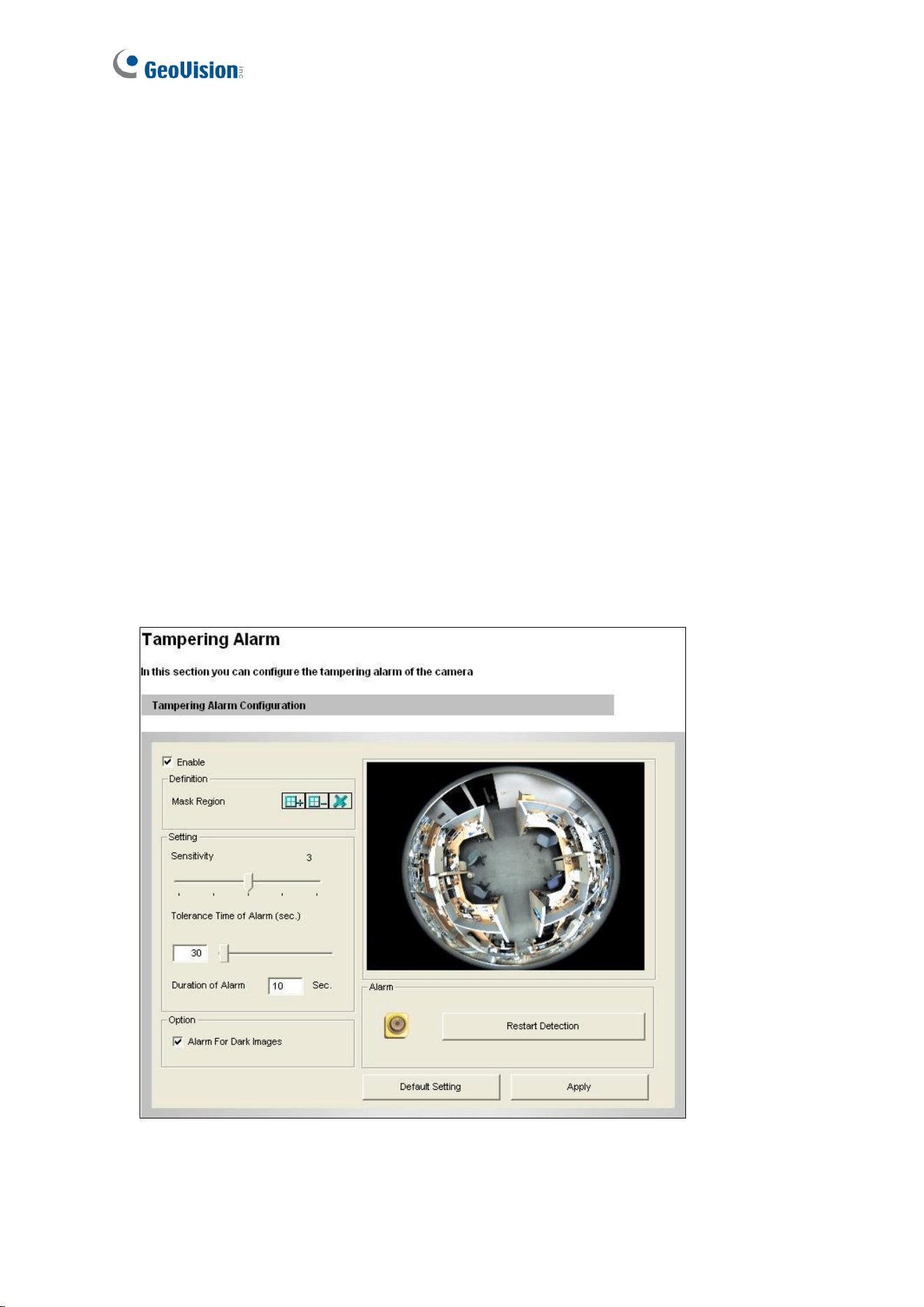
94
4.1.5 Tampering Alarm
The Tampering Alarm is used to detect when the camera is being physically tampered with.
An alarm can be generated when the camera is moved, covered up, or out of focus. The
alarm types include triggering the output device, e-mail alert and notifying the connected
GV-Center V2, GV-Vital Sign Monitor, GV-DVR / NVR / VMS.
To establish the tampering alarm, set up at least one of these alarm types properly.
• To trigger the output device when a tampering event occurs, enable the output setting
and select Tampering Alarm. See Output Setting in 4.2.2 Output Settings.
• To trigger the e-mail alert when a tampering event occurs, enable the e-mail setting and
select Tampering Alarm. See 4.3.1 E-Mail.
• To notify GV-Center V2, GV-Vital Sign Monitor, GV-DVR / NVR / VMS when a tampering
event occurs, enable the connection to these systems. See 8.1 Center V2, 8.2 Vital Sign
Monitor and 7.1 Setting up GV-IP Cameras respectively.
Figure 4-9
Administrator Mode
95
4
To configure the tampering alarm:
1. Select Enable.
2. If you want the camera to ignore any movement or scene change in certain areas, click
the button to drag areas on the camera view.
3. Select the desired detection sensitivity by moving the slider. The higher the value, the
more sensitive the camera is to scene changes.
4. In the Tolerance Time of Alarm field, specify the time length allowed for scene changes
before an alarm is generated.
5. In the Duration of Alarm field, specify the duration of the alarm after which the triggered
output device will be turned off.
6. To trigger an alarm when the scene turns dark, e.g. when the lens of camera is covered,
make sure the Alarm for Dark Images option is enabled. By default, this option is
enabled.
7. Click Apply to save all the settings.
8. Start monitoring to enable the function. To have output alarm, it is required to start Input
monitoring. See 4.4 Monitoring.
When the camera has been tampered with, the output device can be activated. To turn off
the output device immediately, return to this setting page, and click Restart Detection.
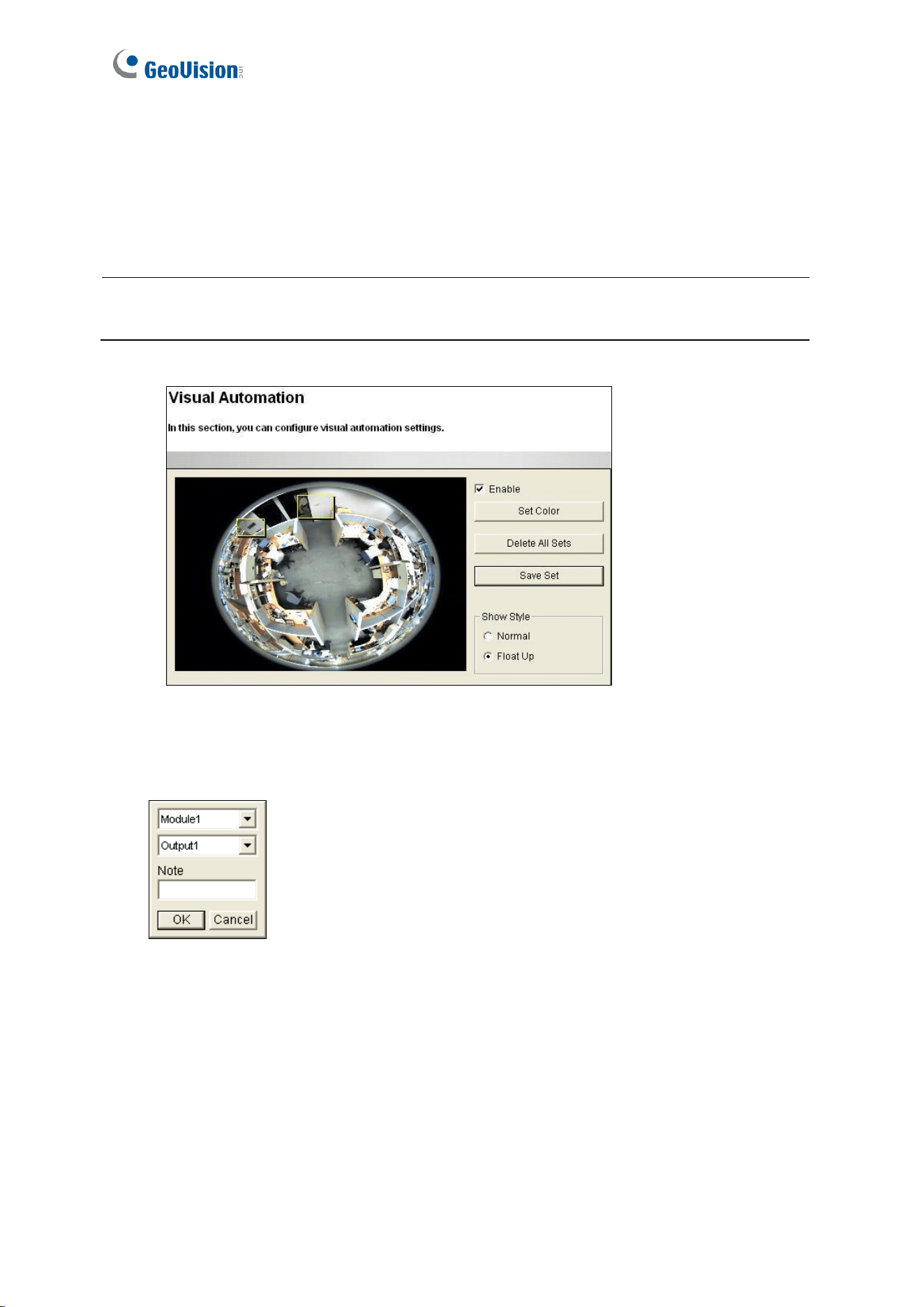
96
4.1.6 Visual Automation
This intuitive feature helps you automate any electronic device by triggering the connected
output device. When you click on the image of the electronic device, you can change its
current state, e.g. turning the light on.
Note: Visual Automation settings are only supported by GV-FE2301 / 4301, GV-FER5700 /
5701 / 12203 / 12700 and GV-EFER3700 Series.
Figure 4-10
1. Select the Enable option.
2. Drag an area on the image of the electronic device. This dialog box appears.
Figure 4-11
3. Assign the connected module and output device. In the Note filed, type a note to help
you identify the device. Click OK to save the settings.
4. To change the frame color of the set area, click the Set Color button.
5. To emboss the set area, select Float Up; or keep it flat by selecting Normal.
6. Click the Save Set button to apply the settings.
To perform the function, see 3.2.15 Visual Automation.
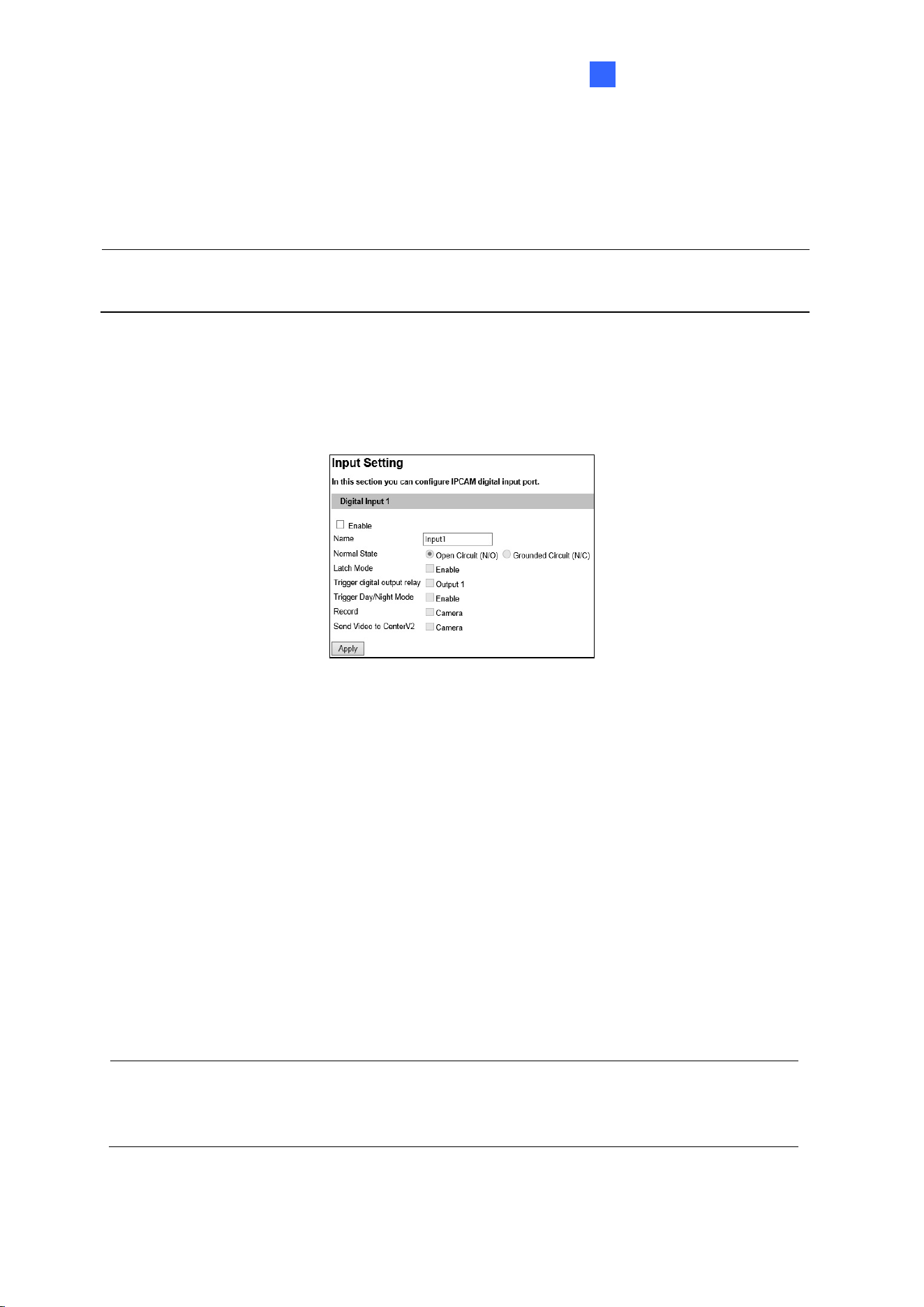
Administrator Mode
97
4
4.2 I/O Control
The I/O wires connected to the camera provide the interface for one input device and one
output device.
Note: The I/O settings are only supported by GV-FE2301 / 4301, GV-FER5700 / 5701 /
12203 / 12700 and GV-EFER3700 Series.
4.2.1 Input Settings
To activate the sensor input, select Enable.
Figure 4-12
◼ Normal State: You can set the input state to trigger actions by selecting Open Circuit
(N/O) or Grounded Circuit (N/C).
◼ Latch Mode: Enable this option to have a momentary output alarm.
◼ Trigger digital output relay: When this option is enabled, the output will be triggered
once the input is activated.
◼ Trigger Day/Night Mode: Enable this option when Triggered by Input of D/N function
is selected in 4.1.1 Video Settings.
◼ Record: Enable this option to start recording when the input is triggered.
◼ Send Video to Center V2: Enable this option to send the images to Center V2 when the
input is triggered.
Note: Triggering the output, recording the images and sending video to Center V2 are
enabled only after you start Input monitoring manually or by schedule. To configure the
input monitoring, see 4.4 Monitoring.
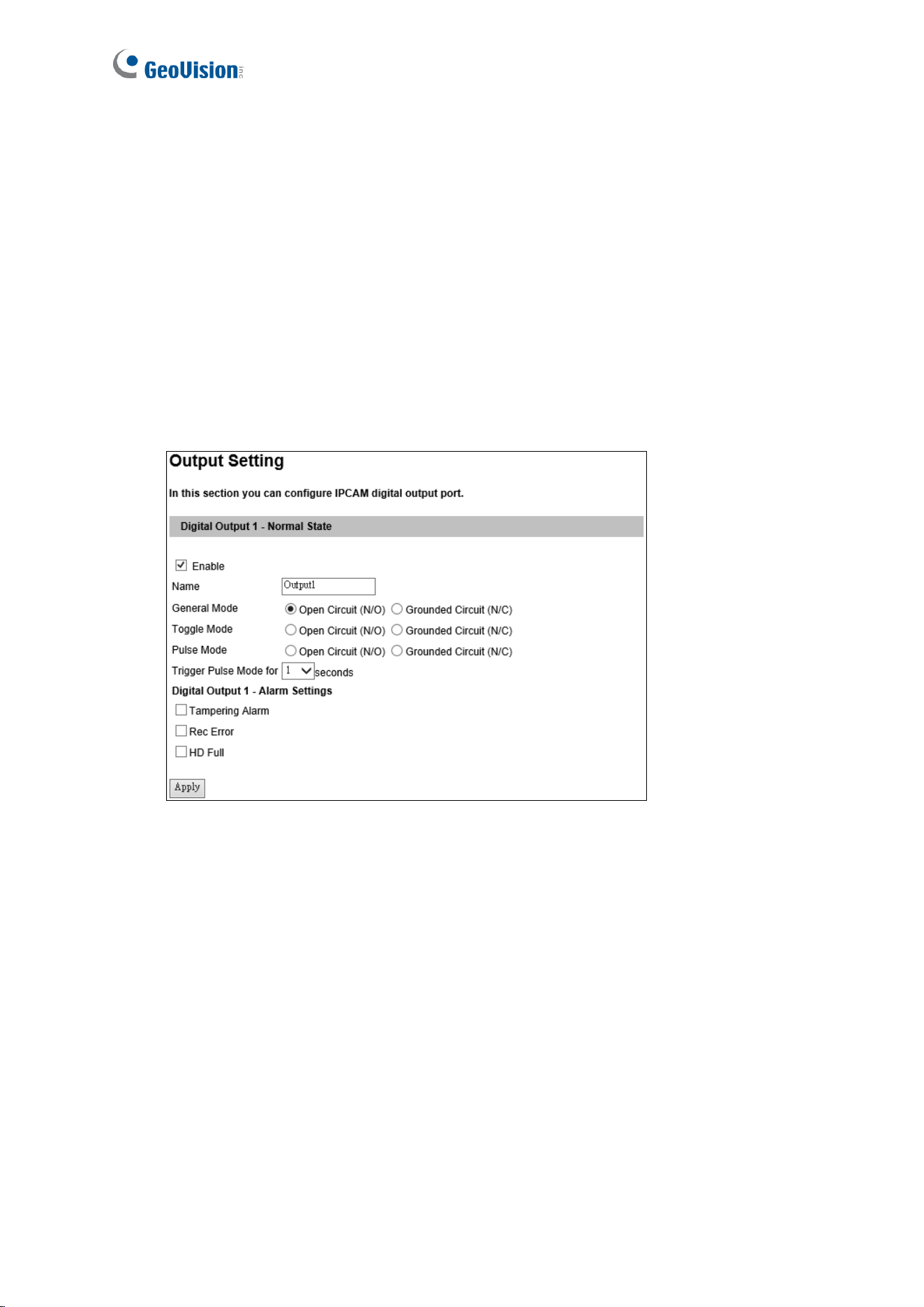
98
4.2.2 Output Settings
Select Enable to start the output device. Choose the output signal that best suits the device
you are using: N/O (Open Circuit), N/C (Grounded Circuit), N/O Toggle, N/C Toggle, N/O
Pulse or N/C Pulse. For Toggle output type, the output continues to be triggered until a new
input trigger ends the output. For Pulse output type, the output is triggered for the amount of
time you specify in the Trigger Pulse Mode for x Seconds field.
[Alarm Settings] You can choose to automatically trigger the digital output under these
conditions: tampering alarm, disk write error (Rec Error) and hard disk full (HD Full).
Figure 4-13
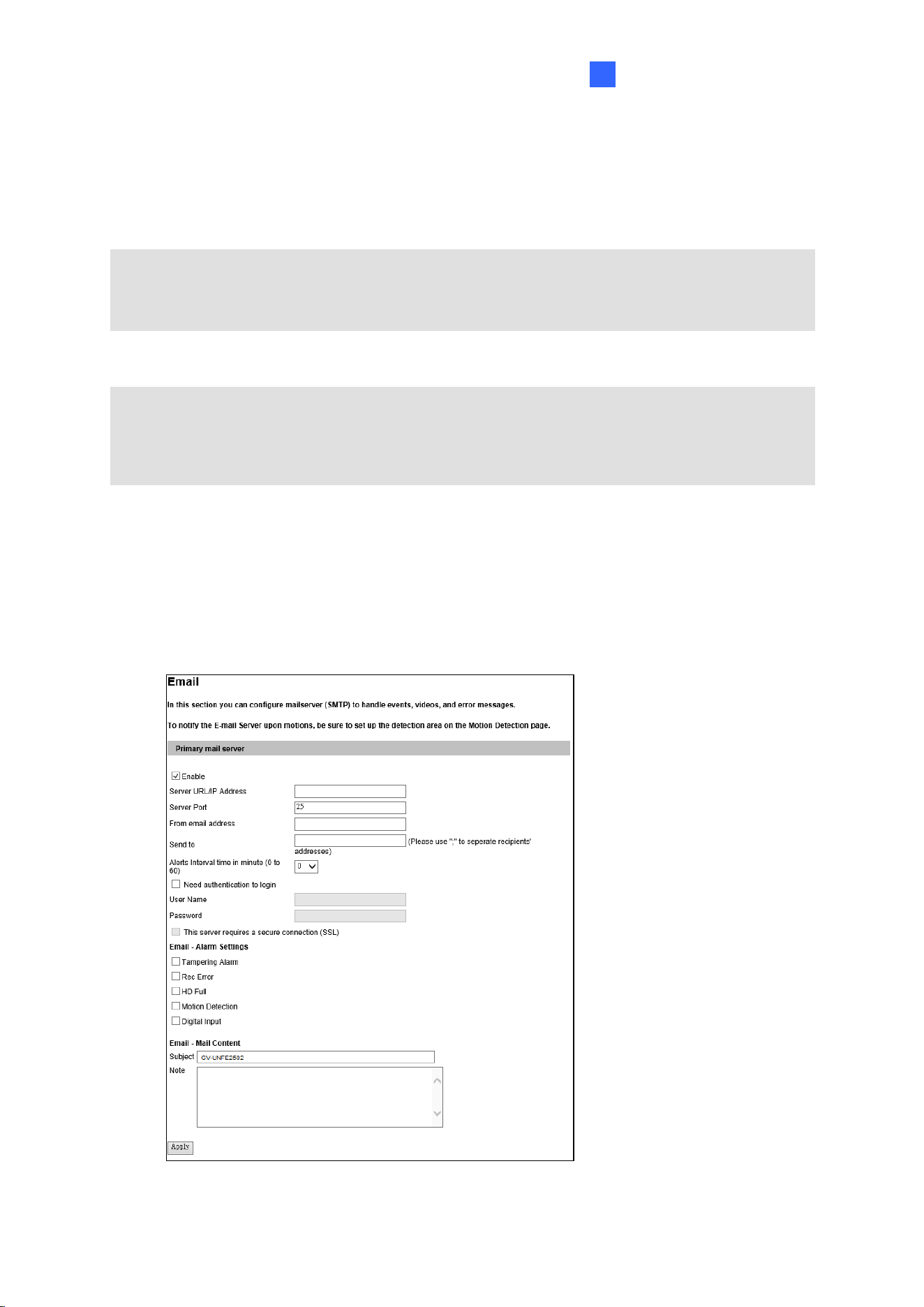
Administrator Mode
99
4
4.3 Events & Alerts
The Administrator can set up the following alert methods to receive notifications when motion
is detected or I/O devices are triggered:
1. Send a captured still image by e-mail or FTP.
2. Notify Center Monitoring Station, Center V2, Vital Sign Monitor or GV-GIS, by video or
text alerts.
To activate the above alert methods, you must set the following functions in advance:
• Motion Detection (See 4.1.2 Motion Detection)
• Input Setting (See 4.2.1 Input Settings)
• For e-mail and FTP alerts, it is required to start monitoring (See 4.4 Monitoring).
4.3.1 E-mail
After a trigger event, the camera can send an e-mail to a remote user containing a captured
still image.
Figure 4-14

100
[Enable] Select to enable the e-mail function.
◼ Sever URL/IP Address: Type the SMTP Server’s URL address or IP address.
◼ Server Port: Type the SMTP Server’s port number. Or keep the default value 25.
◼ From email address: Type the sender’s e-mail address.
◼ Send to: Type the e-mail address(s) you want to send alerts to.
◼ Alerts Interval Time: Specify the interval between e-mail alerts. The interval can be
between 0 and 60 minutes. The option is useful for frequent event occurrence. Any
event triggers during the interval period will be ignored.
[Need authentication to login] If the SMTP Server needs authentication, select this
option and type a valid username and password to log in the SMTP server.
[This server requires a secure connection] If the SMTP Servers needs a secure
connection (SSL), select this option.
[Email-Alarm Settings] You can choose to automatically send an e-mail alert under these
conditions: motion detection, digital input triggered, tampering alarm, disk write error (Rec
Error) and hard disk full (HD Full).
Important: To send e-mail alert upon motions, be sure to set up the detection area on the
Motion Detection page.
For settings related to sending e-mail alerts, see 4.1.2 Motion Detection, 4.2.2 Output
Settings and 4.4 Monitoring.
[Email-Mail Content] You can type the mail subject and mail content in the Subject and
Note columns. The default mail subject is the camera model name.
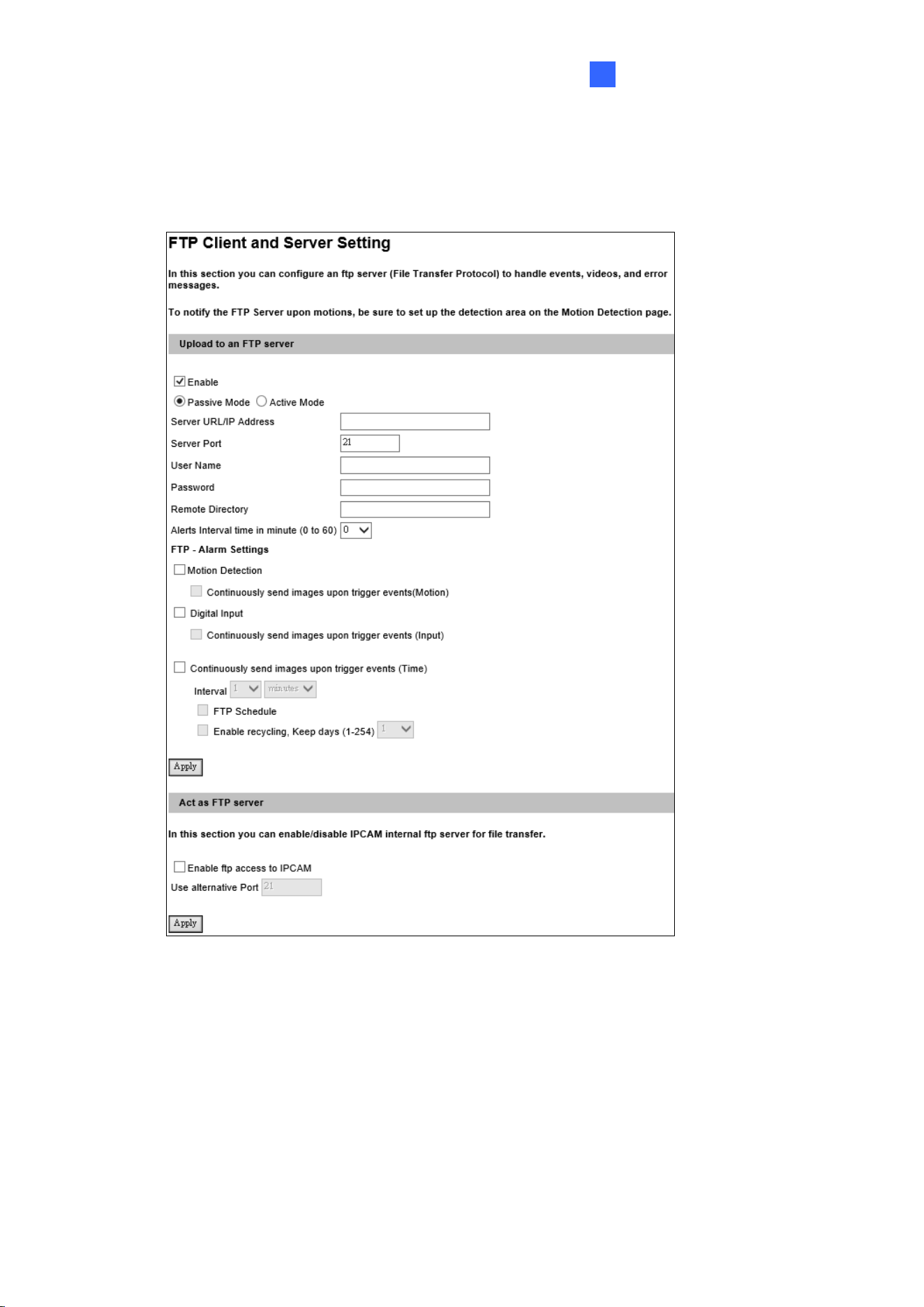
Administrator Mode
101
4
4.3.2 FTP
You can also send the captured images to a remote FTP server as alerts.
Figure 4-15
[Upload to an FTP Server]
◼ Enable: Select to enable the FTP function and then select Active Mode or Passive
Mode, depending on the setting of your FTP server.
◼ Server URL/IP Address: Type the URL address or IP address of the FTP Server.
◼ Server Port: Type the port number of the FTP Server. Or keep the default value 21.
◼ User Name: Type a valid user name to log into the FTP Server.

102
◼ Password: Type a valid password to log into the FTP Server.
◼ Remote Directory: Type the name of the storage folder on the FTP Server.
◼ Alerts Interval time in minute: Specify the interval between FTP alerts. The interval
can be between 0 and 60 minutes. The option is useful for frequent event occurrence.
Any event triggers during the interval period will be ignored.
[FTP-Alarm Settings]
◼ Motion Detection: Once motion is detected on the camera, a still image will be sent to
the FTP Server.
Continuously send images upon trigger events (Motion): A sequence of
snapshots is uploaded to the FTP Server when motion is detected on the camera.
◼ Digital Input: When the input is triggered, a still image will be sent to the FTP Server.
Continuously send images upon trigger events (Input): A sequence of snapshots
is uploaded to the FTP Server when the input is triggered.
◼ Continuously send images: Send messages to the FTP server at the specified interval.
Interval: Interval: Use the drop-down list to specify how frequent the images are
sent to the FTP server.
FTP Schedule: Select this option to define specific period(s) of time for images to be
sent to the FTP Server. For details on the schedule option, see 4.5 Recording
Schedule Settings. Note this function is only supported by GV-FER5700 / 5701 /
12700, GV-EFER3700 Series.
Enable Recycling: Select this option to recycle the FTP storage at the specified
Keep Day.
Keep Days: Specify the number of days after which the images at the FTP server are
recycled. By default, the Keep Day is set to 1.
IMPORTANT:
1. To send FTP alert upon motions, be sure to set up the detection area on the Motion
Detection page.
2. Digital Input settings are only supported by GV-FE2301 / 4301, GV-FER5700 / 5701 /
12203 / 12700 and GV-EFER3700 Series.

Administrator Mode
103
4
[Act as FTP Server]
◼ Enable FTP access to GV-IPCAM: The camera acts as an FTP server, enabling users
to download AVI files. The memory card must be inserted for the camera to act as an
FTP server.
◼ Use alternative port: The default port is set to 21.
To access the internal FTP server through a web browser, type the IP address or the domain
name of the camera in your browser like this:
ftp://192.168.0.10
When prompted for Username and Password, type the default username ftpuser and the
default password 123456. Then you should find the AVI files recorded after trigger events.
To change login information of the internal FTP server, see 4.8.3 User Account. For the
related settings to send FTP alerts, see 4.1.2 Motion Detection, 4.2.1 Input Settings and 4.4
Monitoring.
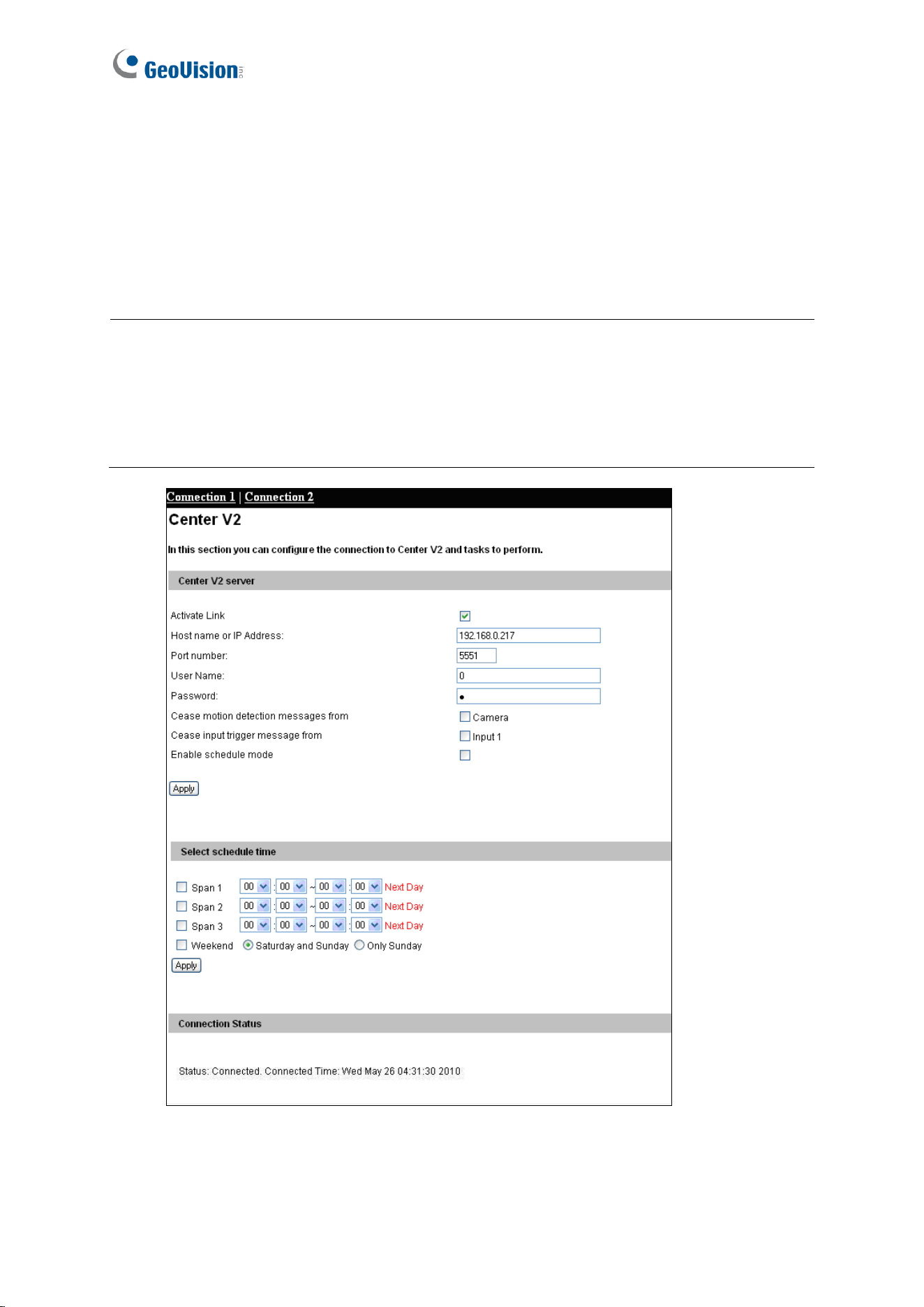
104
4.3.3 Center V2
After a motion or an I/O triggered event, the central monitoring station Center V2 can be
notified by live videos and text alerts. For the live monitoring through Center V2, you must
already have a subscriber account on Center V2. The camera can connect with up to two
Center V2.
Important:
1. To notify the Center V2 Server upon motions, be sure to set up the detection area on
the Motion Detection page.
2. The input trigger function is only supported by GV-FE2301 / 4301, GV-FER5700 /
5701 / 12203 / 12700 and GV-EFER3700 Series.
Figure 4-16

Administrator Mode
105
4
To enable the Center V2 connection:
1. Activate Link: Enable the monitoring through Center V2.
2. Host Name or IP Address: Type the host name or IP address of Center V2.
3. Port Number: Match the port to Port 2 on Center V2. Or keep the default value 5551.
For details, see 8.1 Center V2.
4. User Name: Type a valid user name to log into Center V2.
5. Password: Type a valid password to log into Center V2.
6. Click Apply. The Connection Status should display “Connected” and the connected
time.
7. To establish the connection to the second Center V2, click the Connection 2 tab and
repeat the above steps for setup.
These options can also be found on this Center V2 setting page:
◼ Cease motion detection messages from: Stops notifying Center V2 of motion-
triggered events.
◼ Cease input trigger messages from: Stops notifying Center V2 of input-triggered
events.
◼ Enable schedule mode: Starts the monitoring through Center V2 based on the
schedule you set in the Select Schedule Time section. Refer to 4.5 Recording
Schedule for the same settings.
For related settings to activate the monitoring through Center V2, see 4.1.2 Motion
Detection, 4.2.1 Input Settings, and 8.1 Center V2.
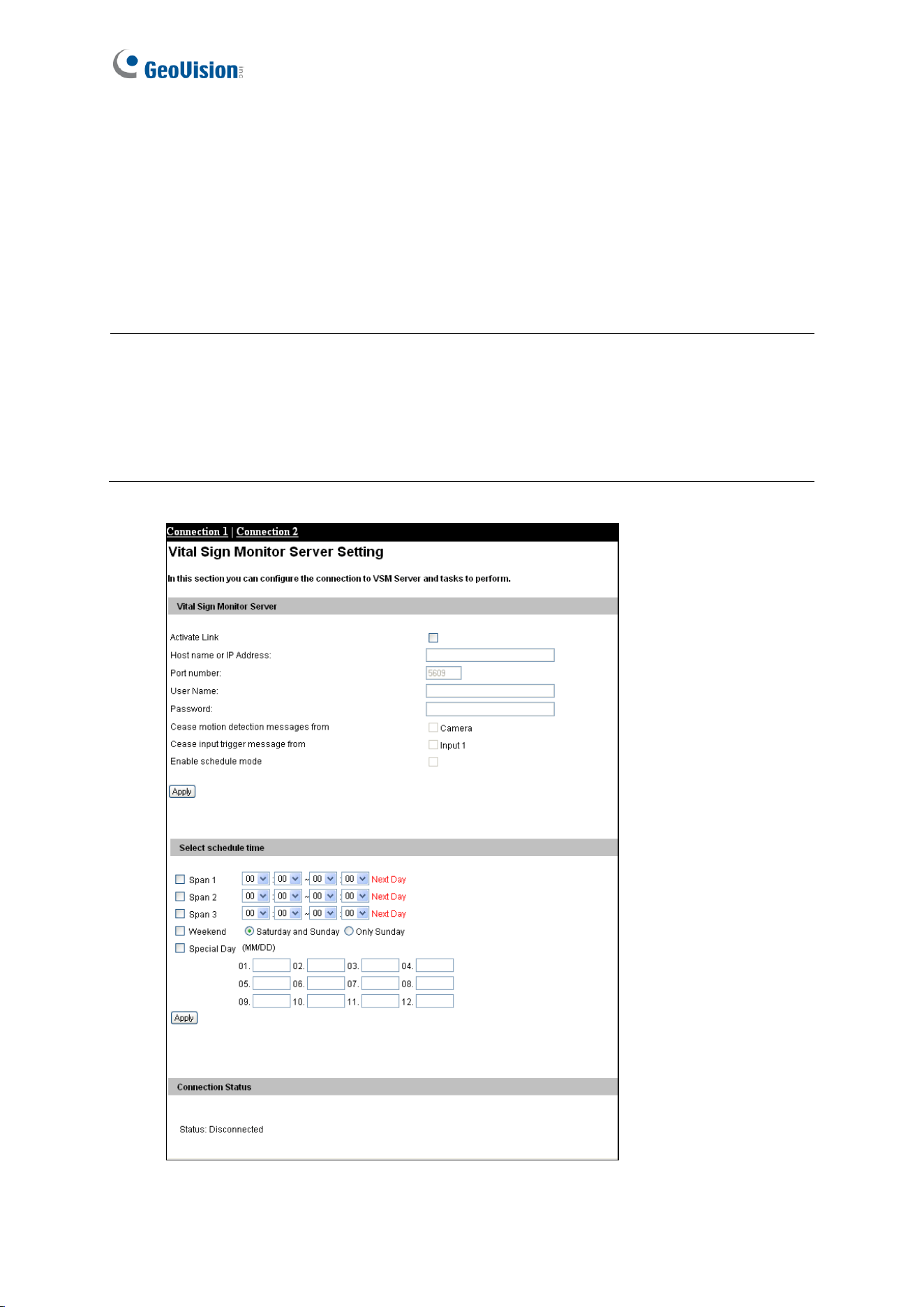
106
4.3.4 Vital Sign Monitor
After a motion detection or an I/O triggered event, the central monitoring station Vital Sign
Monitor can get notified by text alerts. For the live monitoring through Vital Sign Monitor, you
must already have a subscriber account on Vital Sign Monitor. The camera can be
connected with up to two Vital Sign Monitor.
Important:
1. To notify the Vital Sign Monitor upon motions, be sure to set up the detection area on
the Motion Detection page.
2. Input trigger is only available for GV-FE2301 / 4301, GV-FER5700 / 5701 / 12203 /
12700 and GV-EFER3700 Series.
Figure 4-17

Administrator Mode
107
4
To enable the Vital Sign Monitor connection:
1. Activate Link: Enable the monitoring through Vital Sign Monitor.
2. Host Name or IP Address: Type the host name or IP address of Vital Sign Monitor.
3. Port Number: Match the port to Port 2 on Vital Sign Monitor. Or keep the default
value 5609. For details, see 8.2 Vital Sign Monitor.
4. User Name: Type a valid user name to log into Vital Sign Monitor.
5. Password: Type a valid password to log into Vital Sign Monitor.
6. Click Apply. The Connection Status should display “Connected” and connected time.
7. To establish the connection to the second Vital Sign Monitor, click the Connection 2
tab and repeat the above steps for setup.
These options you can also find on this Vital Sign Monitor setting page:
◼ Cease motion detection messages from: Stops notifying Vital Sign Monitor of
motion-triggered events.
◼ Cease input trigger messages from: Stops notifying Vital Sign Monitor of input-
triggered events.
◼ Enable schedule mode: Starts the monitoring through Vital Sign Monitor based on
the schedule you set in the Select Schedule Time section. Refer to 4.5 Recording
Schedule for the same settings.
For related settings to activate the monitoring through Vital Sign Monitor, see 4.1.2 Motion
Detection, 4.2.1 Input Settings, and 8.2 Vital Sign Monitor.
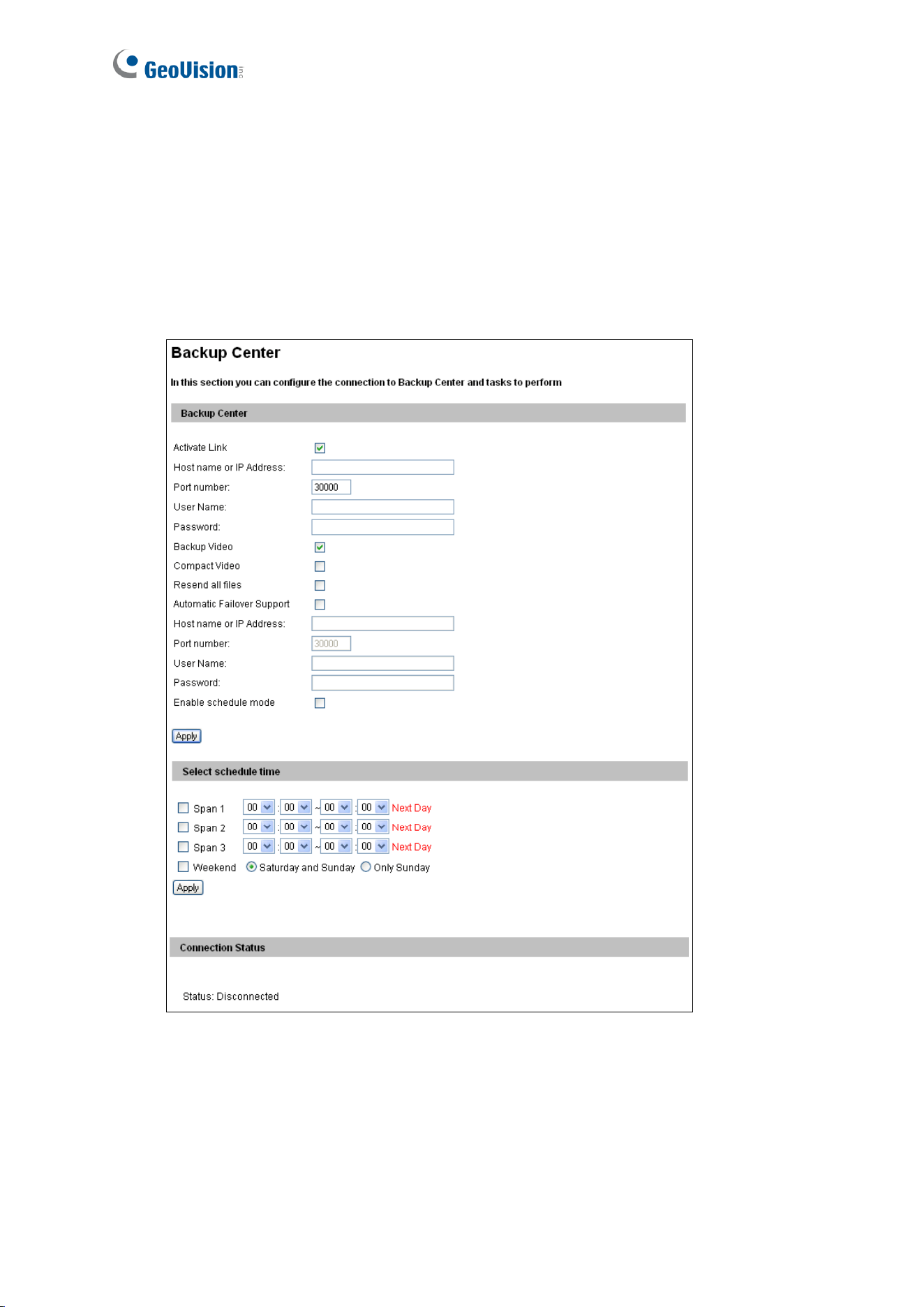
108
4.3.5 Backup Center
The connection to the GV-Backup Center allows you to back up another copy of recordings
to the GV-Backup Center on an offsite location while the camera is saving these data to the
memory card. The GV-Backup Center provides a PC-based storage and backup solution.
For details on the GV-Backup Center, see GV-Backup Center User’s Manual.
Figure 4-18

Administrator Mode
109
4
To enable connection to Backup Center:
1. Activate Link: Enable the connection to the Backup Center.
2. Host Name or IP Address: Type the host name or IP address of the Backup Center.
3. Port Number: Match the communication port on the Backup Center. Or keep the default
value 30000.
4. User Name: Type a valid user name to log into the Backup Center.
5. Password: Type a valid password to log into the Backup Center.
6. Backup Video: Select the streams to back up their recordings to the Backup Center.
7. Compact Video: Select the streams to only back up their Key Frames to the Backup
Center, instead of full recordings. This option is useful to save the backup time.
8. Resend all files: Select this option to send all the recorded files that have been received
by the Backup Center again.
9. Enable Schedule Mode: Enable the Backup Center connection on the schedule you set
in the Select Schedule Time section. Refer to 4.5 Recording Schedule for the same
settings.
10. Click Apply. The Connection Status should display “Connected” and connected time.
If the Backup Center has a failover server to provide uninterrupted backup services in case
the primary Backup Center fails, you can enable the automatic failover support.
1. Automatic Failover Support: Enable automatic connection to a secondary failover
server once the connection between camera and the primary Backup Center is
interrupted.
2. Host Name or IP Address: Type the host name or IP address of the failover center.
3. Port Number: Match the communication port on the failover server. Or keep the default
value 30000.
4. User Name: Type a valid user name to log into the failover server.
5. Password: Type a valid password to log into the failover server.
6. Click Apply.
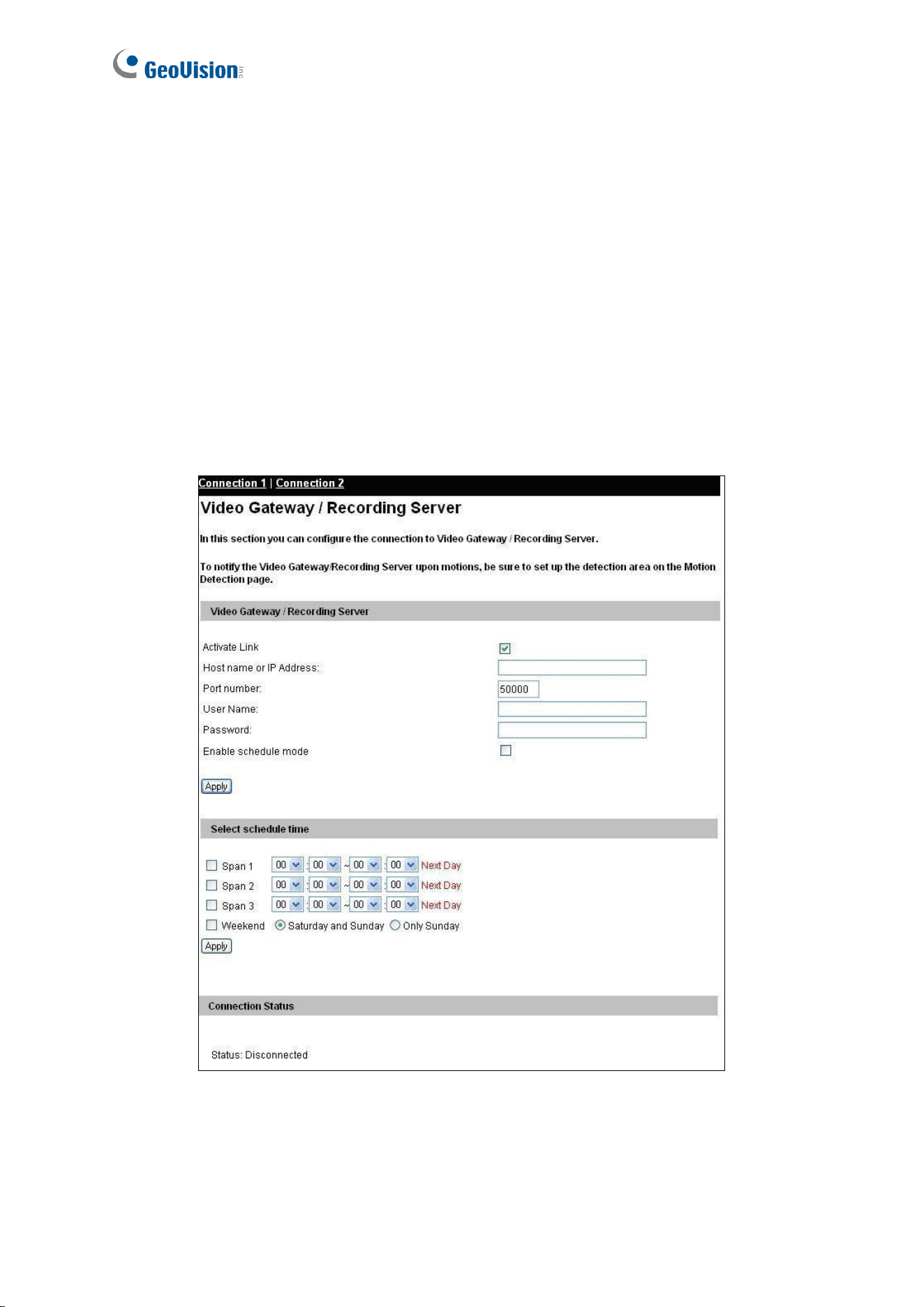
110
4.3.6 Video Gateway / Recording Server
The GV-Video Gateway / GV-Recording Server is a video streaming server designed for
large-scale video surveillance deployments. The GV-Video Gateway / GV-Recording Server
(with recording capability) can receive up to 128 channels from various IP video devices, and
distribute up to 300 channels to its clients. With the GV-Video Gateway / GV-Recording
Server, the desired frame rate can be ensured while the CPU loading and bandwidth usage
of the IP video devices are significantly reduced.
The fisheye camera can be connected with up to two GV-Video Gateway / GV-Recording
Server. To send the video images to the GV-Video Gateway or GV-Recording Server, follow
the steps below.
Figure 4-19

Administrator Mode
111
4
1. Activate Link: Enable the connection to the GV-Video Gateway / GV-Recording
Server.
2. Host Name or IP Address: Type the host name or IP address of the GV-Video
Gateway / GV-Recording Server.
3. Port Number: Match the communication port on the GV-Video Gateway / GV-
Recording Server or keep the default value 50000.
4. User Name: Type a valid user name to log into the GV-Video Gateway / GV-
Recording Server.
5. Password: Type a valid password to log into the GV-Video Gateway / GV-Recording
Server.
6. Enable schedule mode: Enable the GV-Video Gateway / GV-Recording Server
connection on the schedule you set in the Select Schedule Time section. Refer to 4.5
Recording Schedule for the same settings.
7. Click Apply. The Connection Status should display “Connected” and the connected
time.
8. To establish the connection to the second GV-Video Gateway / GV-Recording Server,
click the Connection 2 tab and repeat the above steps for setup.
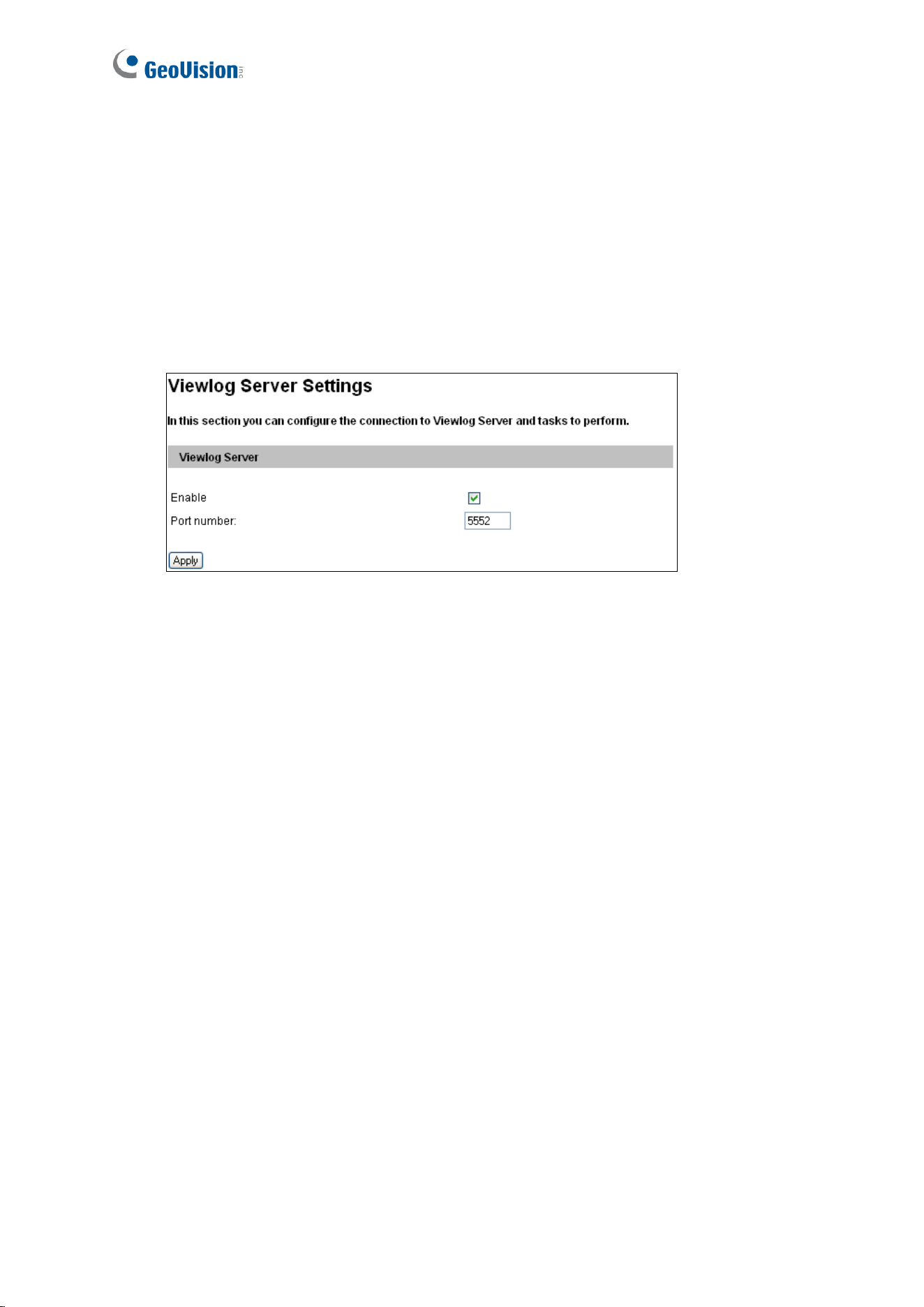
112
4.3.7 ViewLog Server
The ViewLog Server is designed for remote playback. This server allows you to remotely
access the recorded files saved in the camera and play back video with the GV-ViewLog
player.
Select Enable to activate the built-in server. Keep the default port 5552 or modify it if
necessary. For details on the remote playback, see 5.2.2 Playback over Network.
Figure 4-20
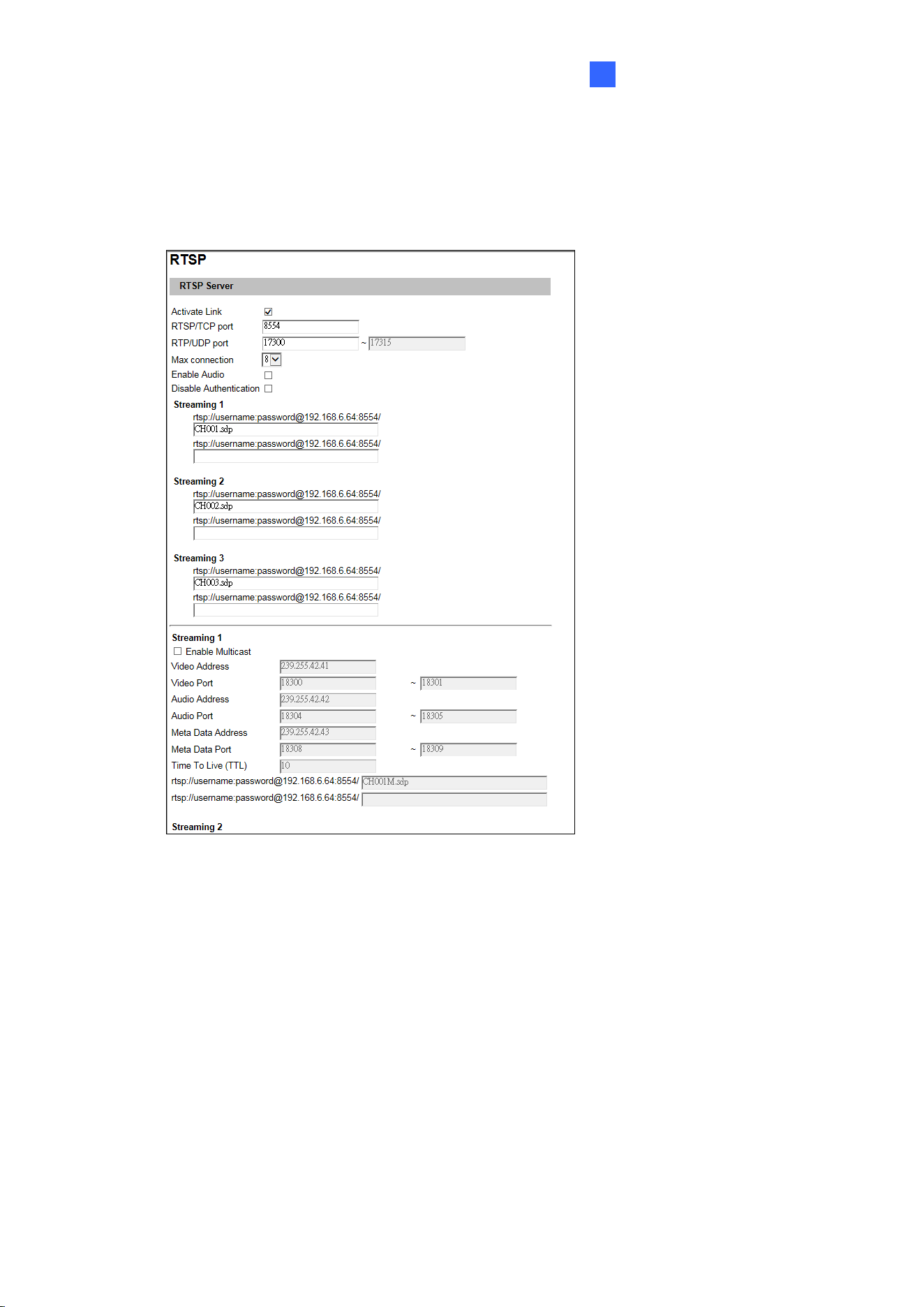
Administrator Mode
113
4
4.3.8 RTSP/ONVIF
The RTSP and ONVIF settings enable video and audio streaming to your 3G-enabled mobile
phone or the third-party software. The RTSP and ONVIF streaming is enabled by default.
Figure 4-21
[RTSP]
◼ Activate Link: Enable the RTSP protocol.
◼ RTSP/TCP Port: Keep the default value 8554, or modify it if necessary.
◼ RTP/UDP Port: Keep the default range from 17300 to 17319, or modify it if necessary.
The number of ports for use is limited to 20.
◼ Max Connection: Select the maximum number of connections to the camera. The
maximum value is 8.
◼ Enable Audio: Turns audio streaming on or off.
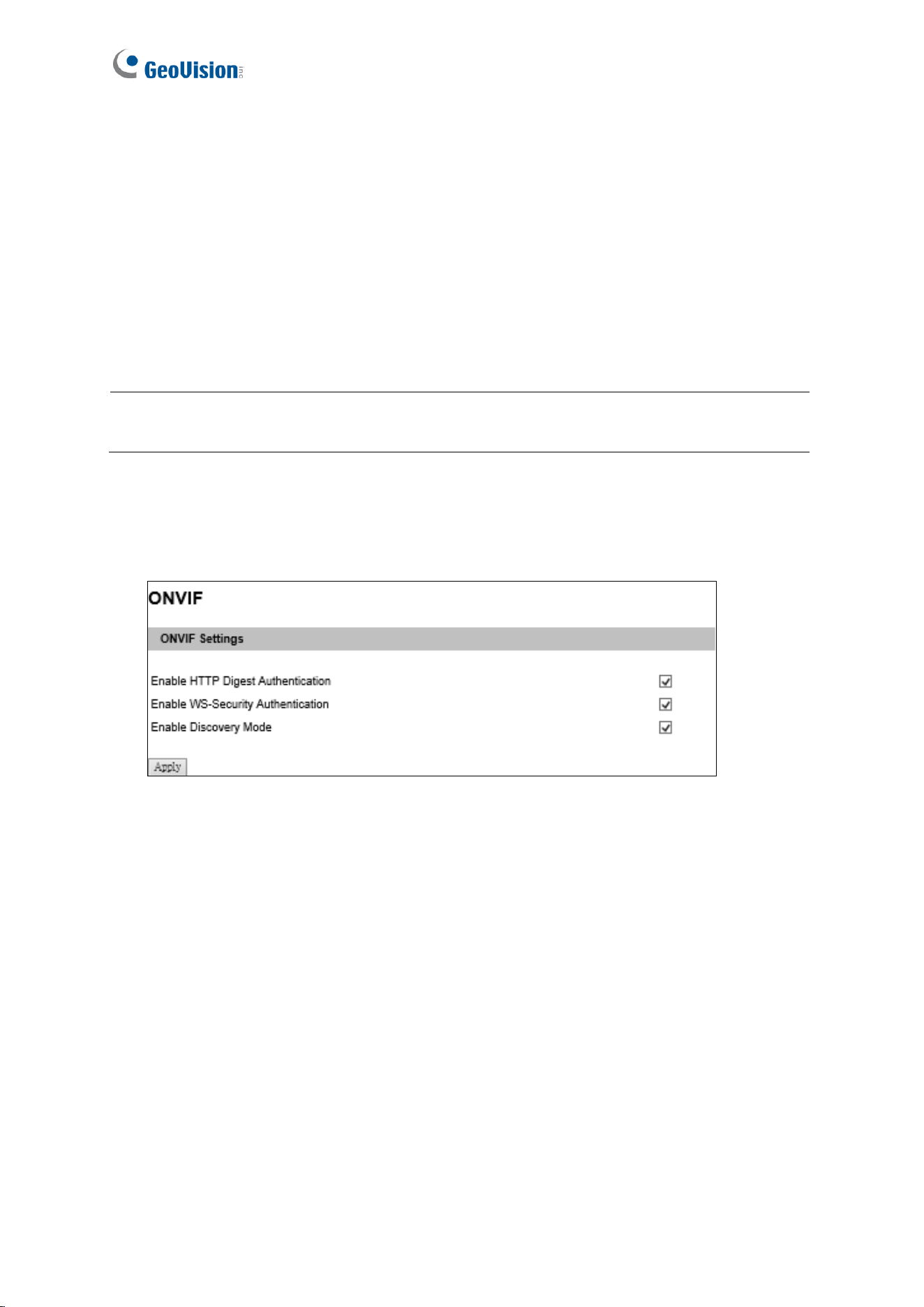
114
◼ Disable Authentication: Note this option is not supported by GV-FE2301 / 4301
(firmware version 1.10 or earlier). By default, when accessing live view through RTSP
command, the ID and password of the camera are required. Select this option to disable
the authentication prompt.
[Streaming 1/2/3]
Set up the Multicast function for up to 3 streams through RTSP.
Note: The streaming names in RTSP commands (rtsp://) are customizable only in GV-
FER5700 / 5701 / 12700 and GV-EFER3700 Series.
For details on the RTSP / Multicast command, see RTSP Protocol Support in Appendix B.
Figure 4-22
[ONVIF]
◼ Enable HTTP Digest Authentication: The compatibility with HTTP Digest
Authentication is required to access the camera by a third-party DVR through ONVIF.
This function is disabled by default. Note this function is only supported by GV-FER5700
/ 5701 / 12700 and GV-EFER3700 Series.
◼ Enable WS-Security Authentication: The ID and password of the camera are required
to access the camera by a third-party DVR through ONVIF. This function is enabled by
default.
◼ Enable Discovery Mode: Allows the third-party DVR to browse this camera. This
function is enabled by default.
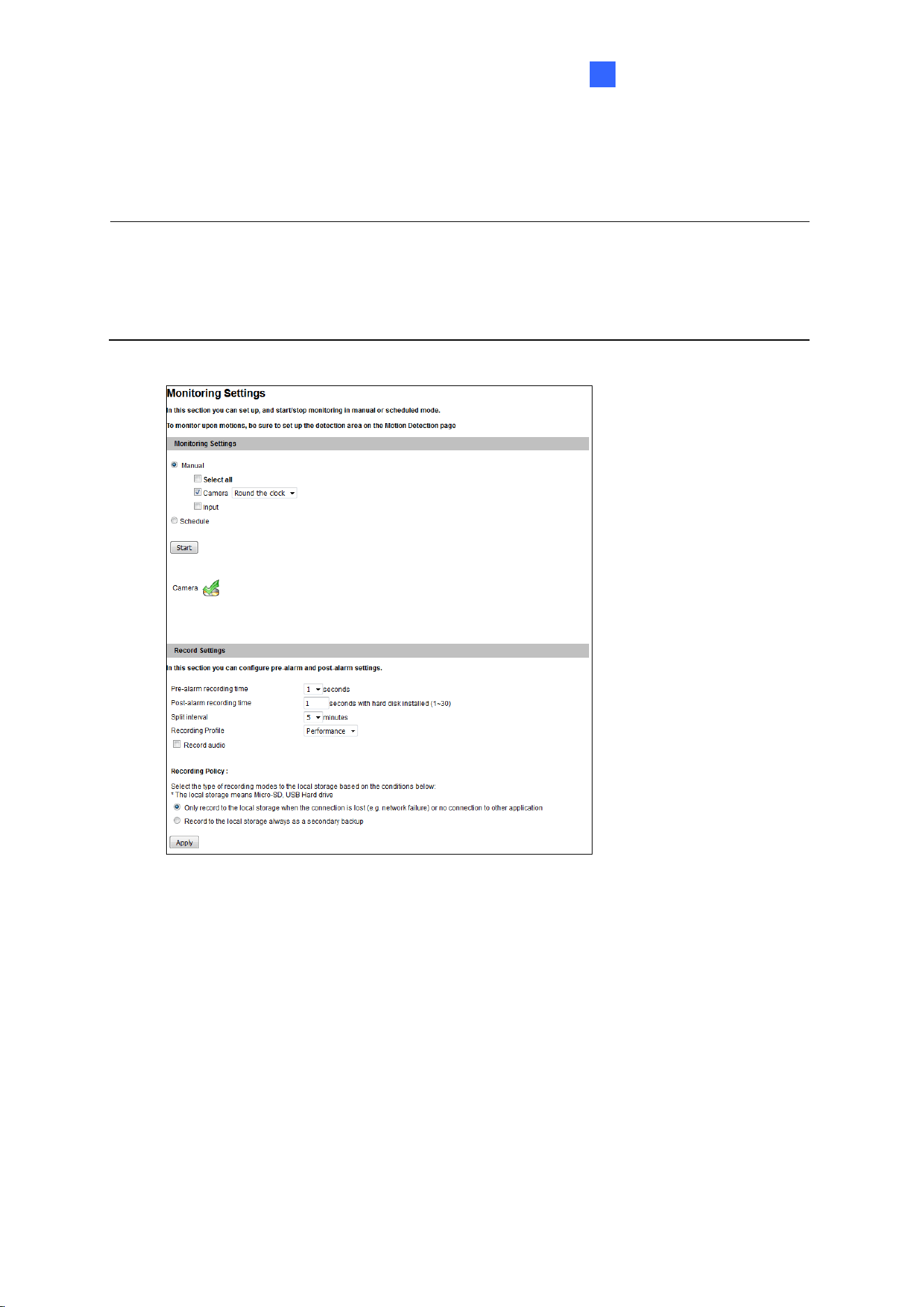
Administrator Mode
115
4
4.4 Monitoring
You can start recording manually, by schedule or by input trigger.
Note:
1. See Note for Recording at the beginning of the manual.
2. Recording upon input trigger is only supported by GV-FE2301 / 4301, GV-FER5700 /
5701 / 12203 / 12700 and GV-EFER3700 Series.
Figure 4-23-1
[Manual] Manually activates motion detection and I/O monitoring. Select one of the following
options and then click the Start button.
◼ Select all: Manually starts both motion detection and I/O monitoring.
◼ Camera Round the clock / Motion: Manually starts recording. Select the desired
recording mode for recording.
◼ Input: Manually starts I/O monitoring. When the sensor input is triggered, the camera
and output will also be activated for recording and alerting. For input settings, see 4.2.1
Input Settings.
[Schedule] The system starts recording and input monitoring based on the schedule you set.
For schedule settings, see 4.5 Recording Schedule.
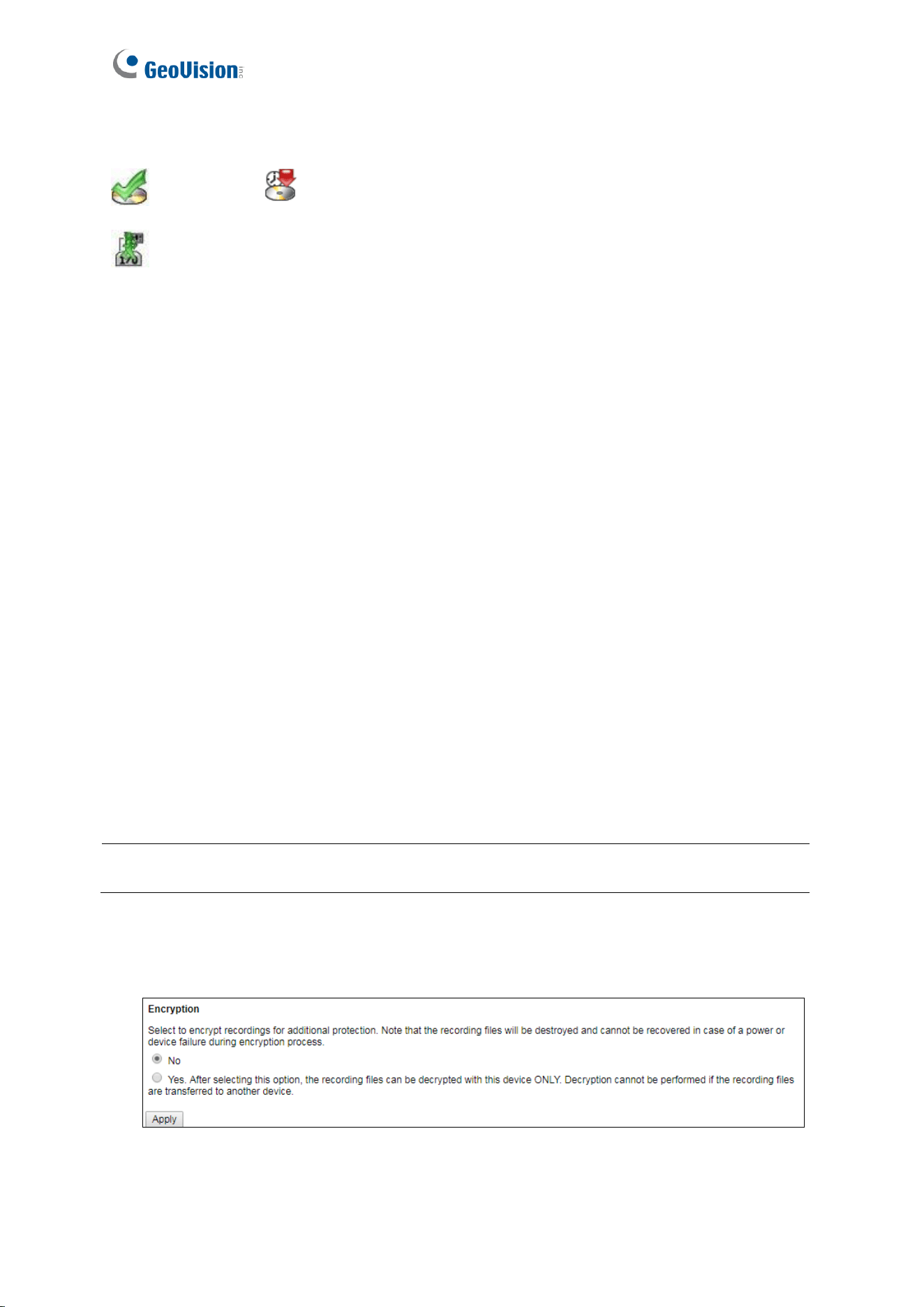
116
[Camera Status Icon]
: On standby : Recording is on.
: Enabled for motion detection and input trigger
[Recording Settings] Note this function is only supported by GV-FER5700 / 5701 / 12203 /
12700 and EFER3700 Series. Configure recording settings for motion and I/O events, and
the condition to record.
◼ Pre-alarm recording time: Activates video recording before an event occurs. Set the
recording time to 1 or 2 seconds. The recording is saved in the buffer of the camera.
◼ Post-alarm recording time: Activates video recording onto the inserted memory card
after an event occurs. Set the recording time from 1 to 30 seconds.
◼ Split-interval: Sets the time length between each event file from 1 to 5 minutes.
◼ Recording Profile: This setting is only applicable for recording to the camera’s memory
card. Select Performance to maximize the lifespan of the memory card by restricting the
frame rate to 30 fps and maximum bit rate to 4 Mbps. Select Quality to adopt your
current settings. The default setting is Performance.
◼ Record audio: Activates audio recording when an event occurs.
◼ Recording Policy: By default, the camera will only record to the memory card when the
camera is not streaming live view to other applications (e.g. GV-VMS) or Web browser.
Alternatively, you can set the camera to always record to the memory card as a
secondary backup.
Note: When the camera is recording to the memory card, it is recommended to connect no
more than two connections to the camera using Web interface or other applications
◼ Encryption: Stores the recordings as encrypted files that can only be played back by
GV-Remote ViewLog player. For details on playback, see 5.2.2 Playback over Network.
Figure 4-23-2
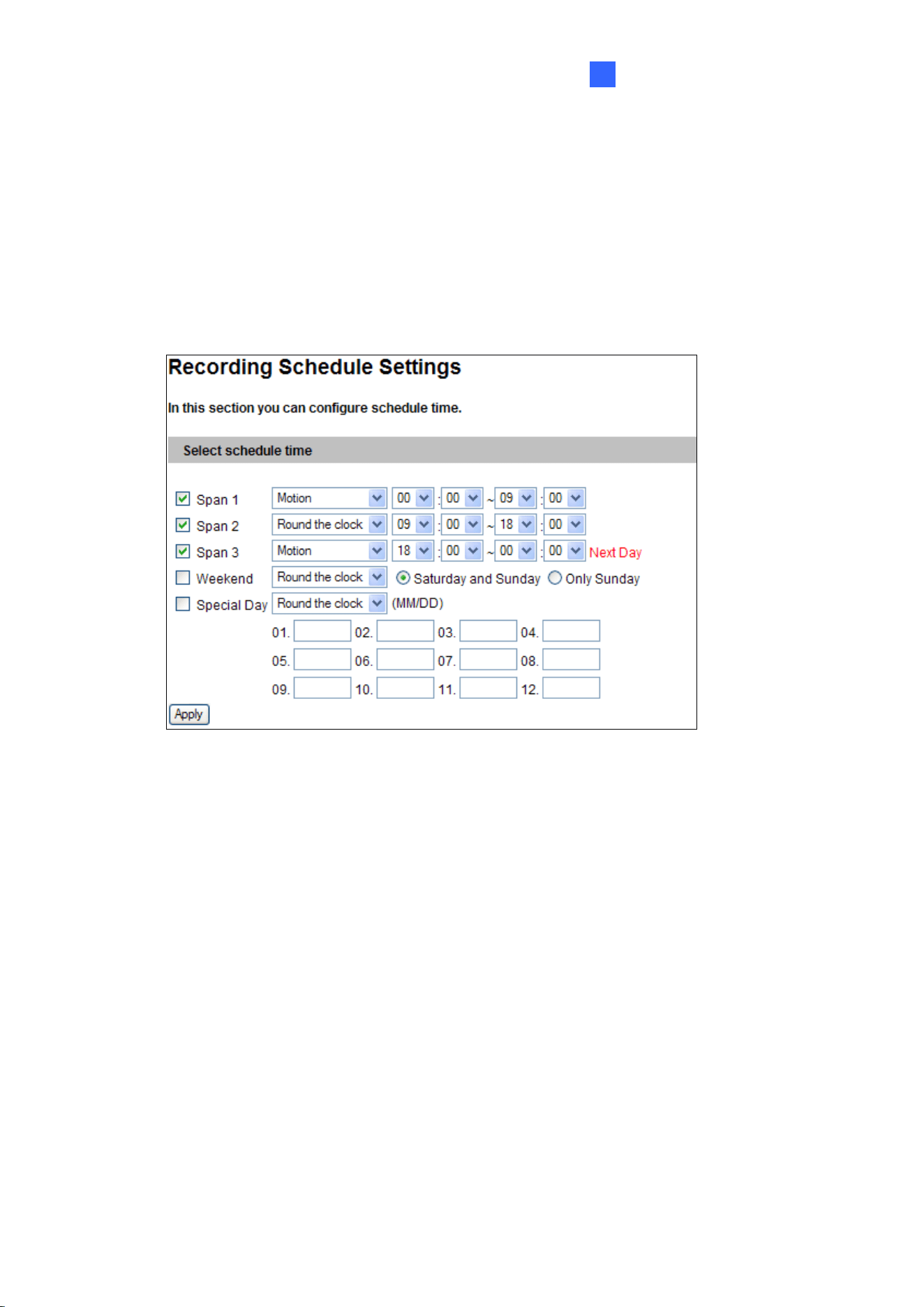
Administrator Mode
117
4
4.5 Recording Schedule
The schedule is provided to activate recording and I/O monitoring on a specific time each
day.
4.5.1 Recording Schedule Settings
You can set up the schedule for recording.
Figure 4-24
◼ Span 1- Span 3: Set a different recording mode for each time span during the day.
Each day can be divided into 3 time spans, shown as Span 1, Span 2, and Span 3.
The time span settings will apply to Monday through Sunday.
◼ Weekend: Enable this option to start monitoring all day on the weekend and select a
recording mode to be used. Define whether your weekend includes Saturday and
Sunday or Only Sunday.
◼ Special Day: Set the recording mode on a specified day.
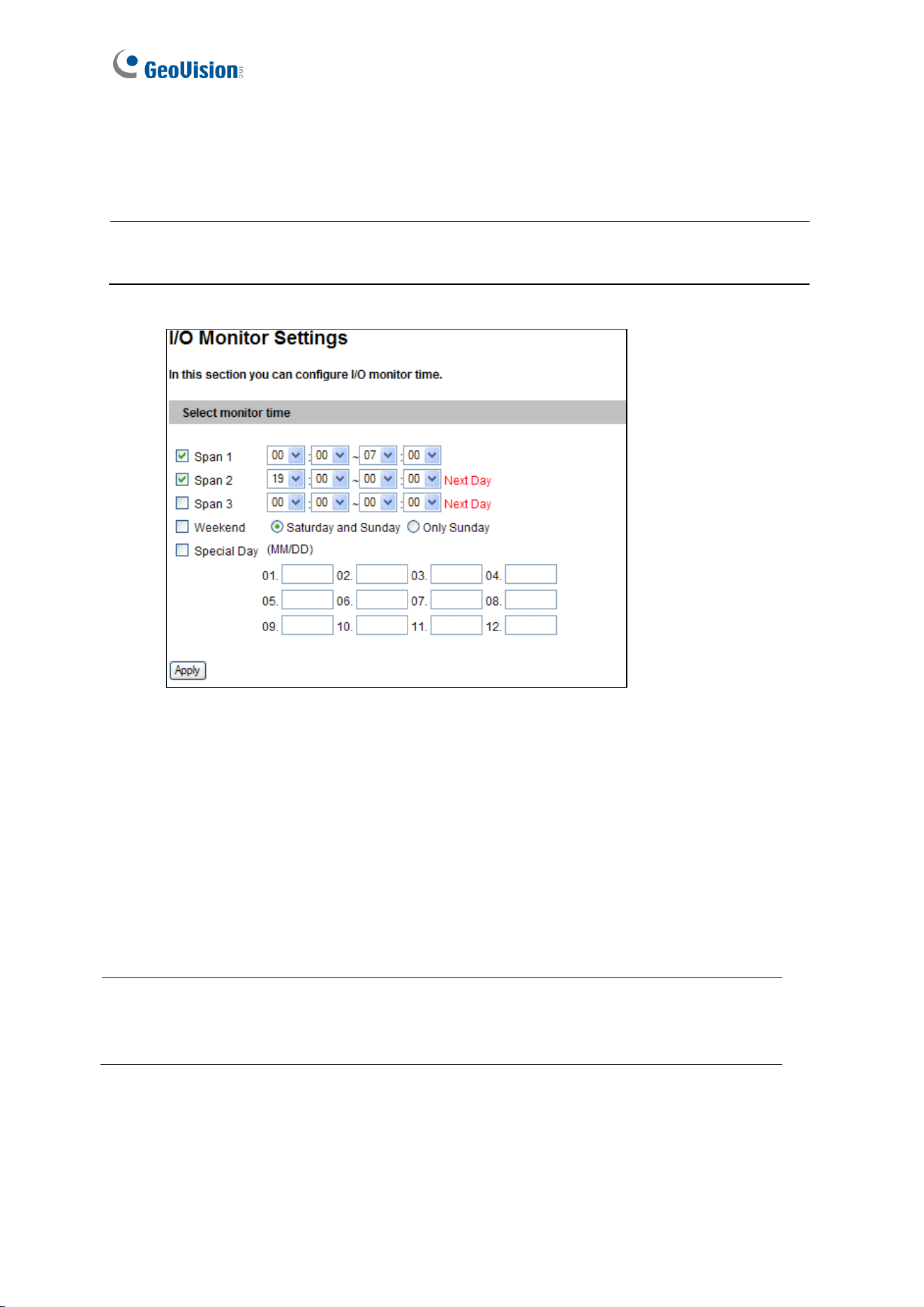
118
4.5.2 I/O Monitoring Settings
You can set the schedule for I/O monitoring to start.
Note: The I/O Monitoring Settings are only supported for GV-FE2301 / 4301, GV-
FER5700 / 5701 / 12203 / 12700 and GV-EFER3700 Series.
Figure 4-25
◼ Span 1-3: Set different time spans during the day to enable I/O monitoring. Each day
can be divided into 3 time spans, shown as Span 1, Span 2, and Span 3. The time
span settings will work from Monday through Sunday.
◼ Weekend: Enable this option to start I/O monitoring all day on the weekend and select
whether your weekend includes Saturday and Sunday or Only Sunday.
◼ Special Day: Enable I/O monitoring on a specified day.
Note: In Recording Schedule and I/O Monitoring Schedule, if the settings for Special
Day conflict with those for Span 1-3 or Weekend, the Special Day settings will get
priority.

Administrator Mode
119
4
4.6 Remote ViewLog
With the Remote ViewLog function, you can play back the files recorded at the camera over
TCP/IP network.
For first-time users, you need to download and install the Remote ViewLog program from the
company website. For remote access to the camera, the ViewLog Server built in the unit
must be enabled. See 4.3.7 ViewLog Server.
For details on connecting to the camera for playback, see 5.2.2 Playback over Network.
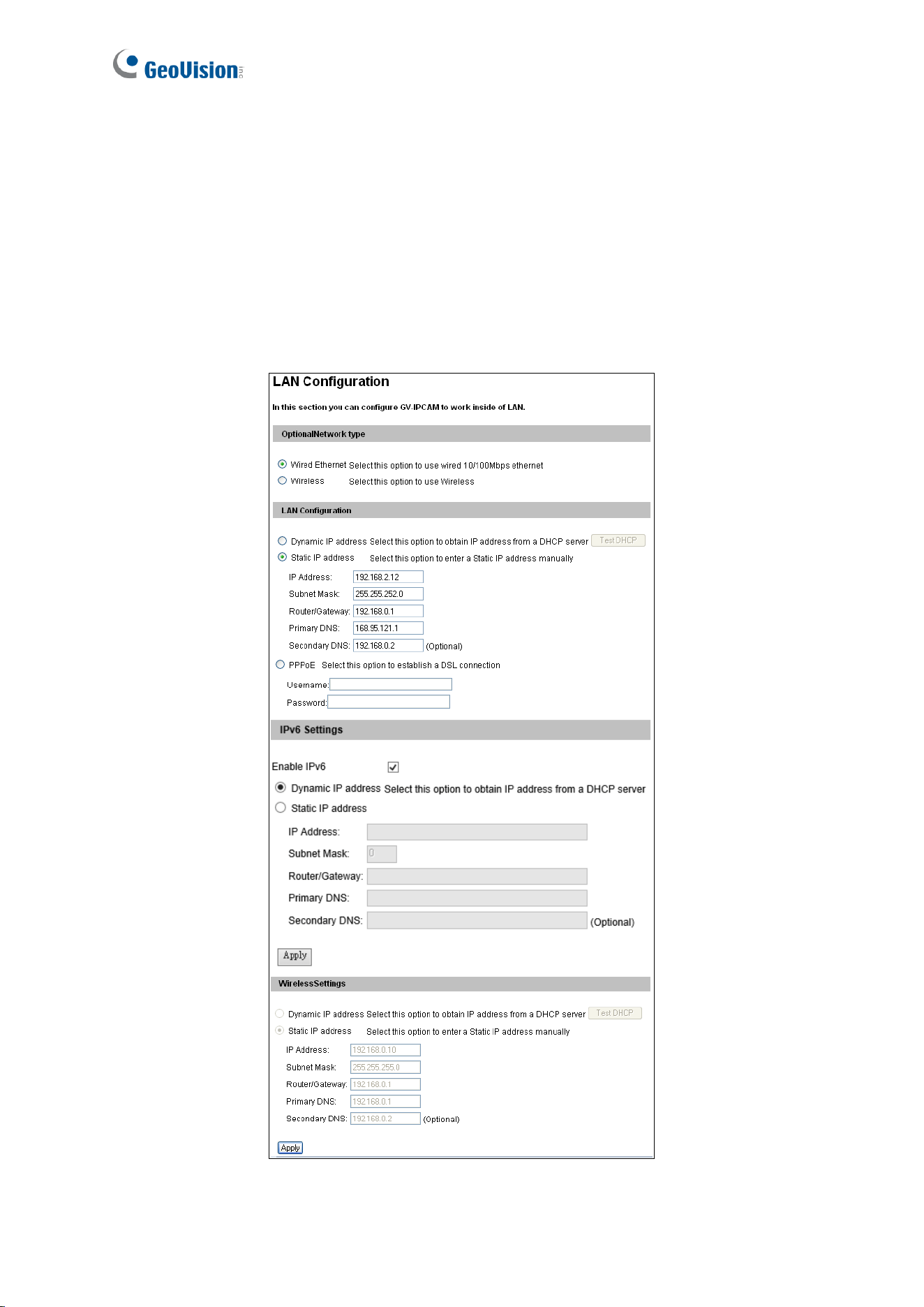
120
4.7 Network
The Network section includes some basic but important network configurations that enable
the camera to be connected to a TCP/IP network.
4.7.1 LAN
According to your network environment, select among Static IP, DHCP and PPPoE.
Figure 4-26
Administrator Mode
121
4
[Optional Network Type]
According to the network environment, select Wired Ethernet or Wireless. Before enabling
the Wireless option, follow the steps in 2.1.3 Configuring the Wireless Connection to
configure the wireless settings first.
[LAN Configuration]
◼ Dynamic IP address: The network environment has a DHCP server which will
automatically assign a dynamic IP address to the camera. Click the Test DHCP to see
the currently assigned IP address or look up the address using GV-IP Device Utility.
◼ Static IP address: Assign a static IP or fixed IP to the camera. Type the camera’s IP
address, Subnet Mask, Router/Gateway, Primary DNS server and Secondary DNS
server.
Parameters
Default
IP address
192.168.0.10
Subnet Mask
255.255.255.0
Router/Gateway
192.168.0.1
Primary DNS server
192.168.0.1
Secondary DNS server
192.168.0.2
◼ PPPoE: The network environment is xDSL connection. Type the Username and
Password provided by ISP to establish the connection. If you use the xDSL connection
with dynamic IP addresses, first use the DDNS function to obtain a domain name linking
to the camera’s changing IP address.
[IPv6 Settings] Select Enable IPv6 and click Apply to enable this function. Note this
function is only available for GV-FER5700 / 5701 and GV-EFER3700 Series.
◼ Dynamic IP address: The network environment has a DHCP server which will
automatically assign a dynamic IP address to the camera.
◼ Static IP address: Assign a static IP or fixed IP to the camera and fill out the required
settings.
Note: To enable this function, make sure your network environment and hardware
specifications support IPv6.
For details on Dynamic DNS Server Settings, see 4.7.2 Advanced TCP/IP.
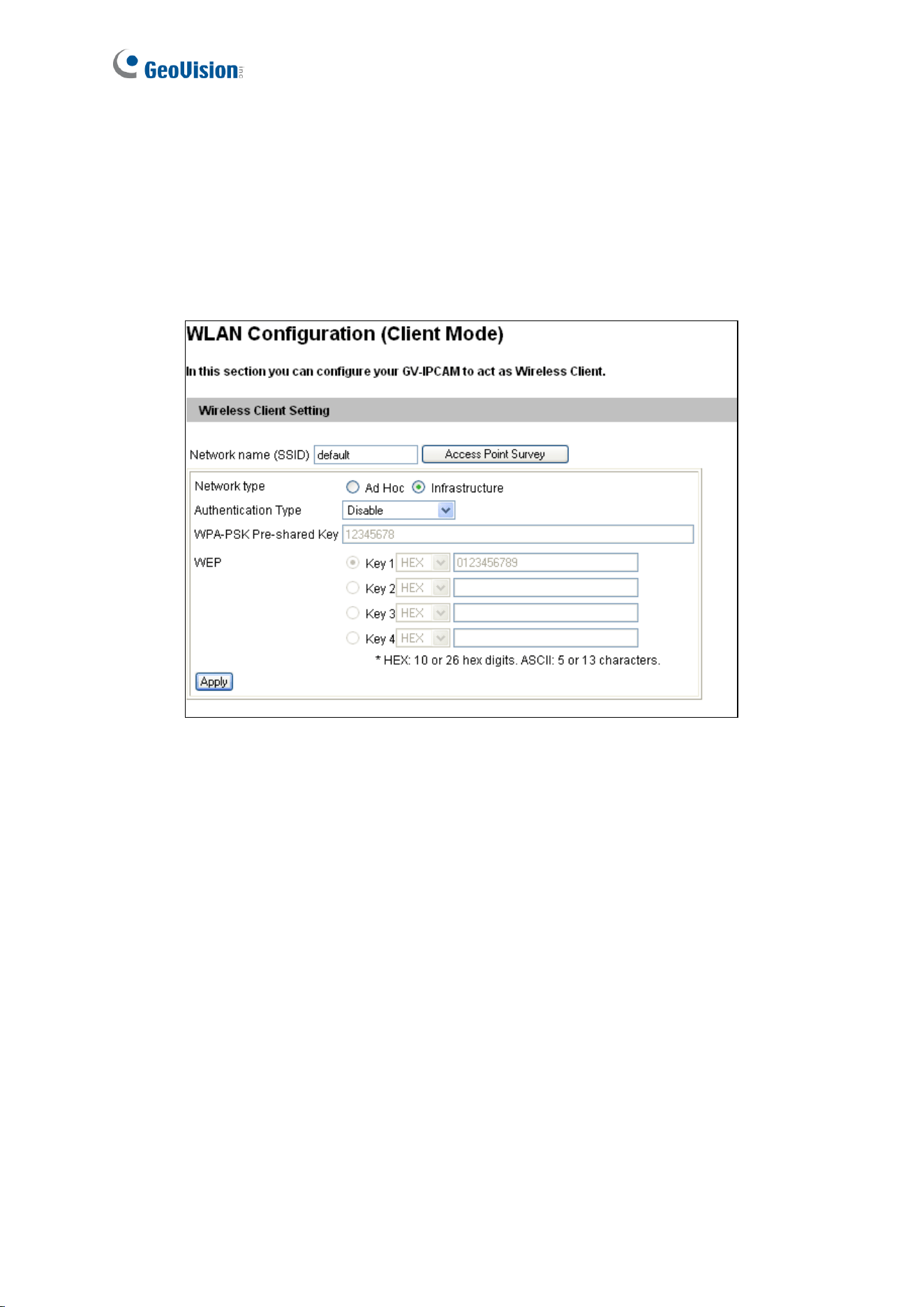
122
4.7.2 Wireless Client Mode
Note this function is only supported by GV-FE3402 / 3403 / 5302 / 5303, GV-FER5700 /
5701 / 12700 and GV-EFER3700-W. Some camera models require a WiFi adapter inserted
in advance. Set up the client mode before enabling the wireless function.
Figure 4-27
◼ Network type: Select the network mode Ad Hoc or Infrastructure.
Infrastructure: Connect to the Internet via the Access Point. This mode further gives
wireless access to the Internet or data sharing under a previously wired environment.
Ad-Hoc: A Peer-to-Peer mode. This mode connects to other computer with the
WLAN card, and does not need the Access Point to connect to each other.
◼ Network name (SSID): The SSID (Service Set Identify) is a unique name that identifies a
particular wireless network. Type SSID of the Wireless LAN group or Access Point you
are going to connect to.
◼ Access Point Survey: Click this button to search all the available Access Points
(Infrastructure mode) and wireless stations (AD-Hoc mode) within the LAN.
◼ Authentication Type: Select one of these network authentication and data encryption:
Disable, WEP, WPAPSK-TKIP, WPAPSK-AES, WPA2PSK-TKIP or WPA2PSK-AES.
Disabled: No authentication is needed within the wireless network.

Administrator Mode
123
4
WEP (Wired Equivalent Privacy): A type of data encryption. Type up to four WEP
Keys in HEX or ASCII format. Note that if you use HEX format, only digits 0-9 and
letters A-F, a-f are valid.
WPAPSK-TKIP and WPA2PSK-TKIP: Type WPA-PSK (Pre-Shared Key) for data
encryption.
WPAPSK-AES and WPA2PSK-AES: Type WPA-PSK (Pre-Shared Key) for data
encryption.
For step-by-step instruction on establishing a wireless connection, see 2.1.3 Configuring the
Wireless Connection.
Note:
1. Your encryption settings must match those used by the Access Points or wireless
stations with which you want to associate.
2. When you lose the wireless access, you can still access the unit by connecting it to a
LAN and search for the camera using GV-IP Device Utility.
3. When Ad Hoc is used, only WEP encryption is supported.
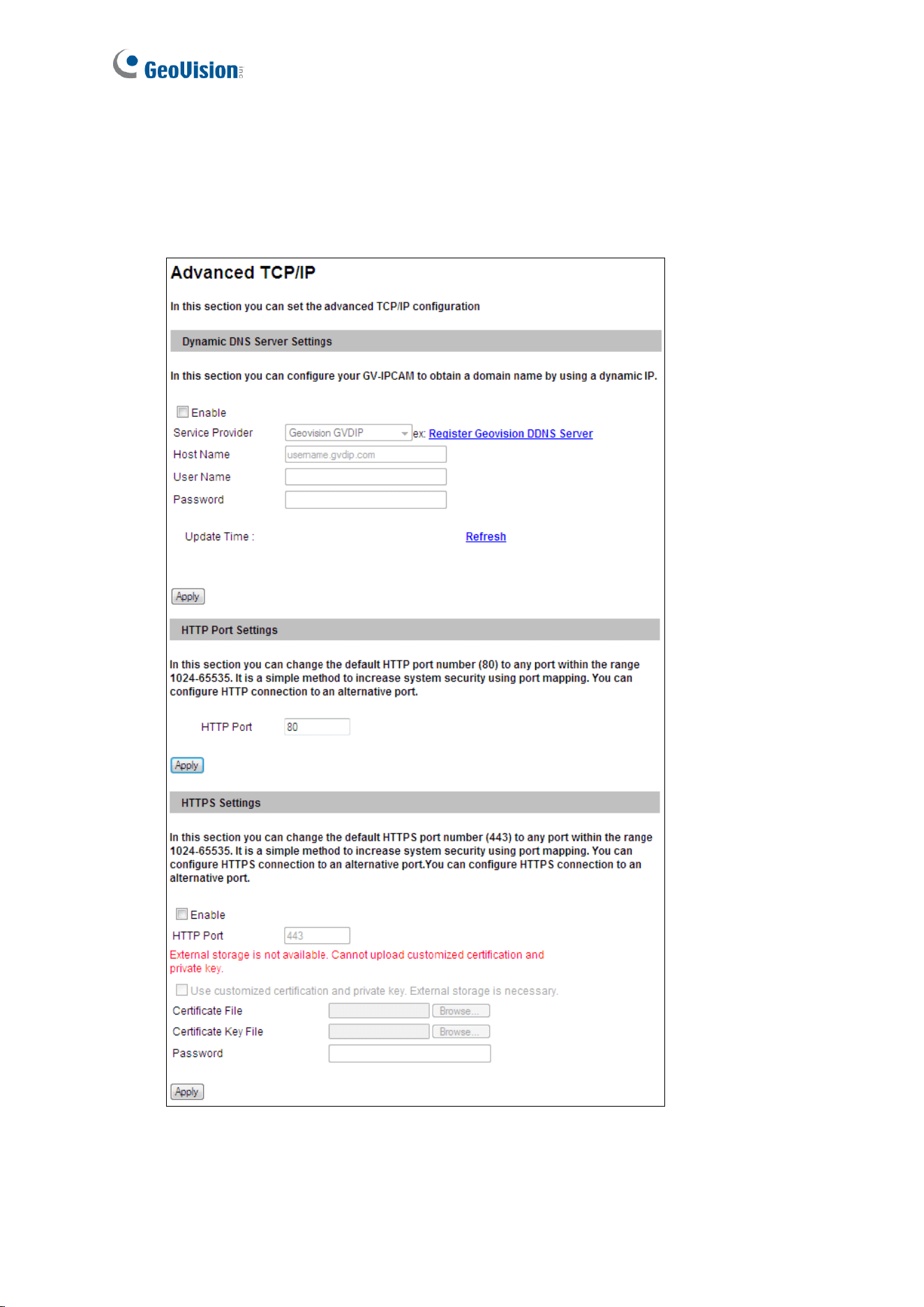
124
4.7.3 Advanced TCP/IP
This section introduces the advanced TCP/IP settings, including DDNS Server, HTTP port,
streaming port, UPnP and QoS.
Figure 4-28

Administrator Mode
125
4
[Dynamic DNS Server Settings]
DDNS (Dynamic Domain Name System) provides a convenient way of accessing the camera
when using a dynamic IP. DDNS assigns a domain name to the camera, so that the
Administrator does not need to go through the trouble of checking if the IP address assigned
by DHCP Server or ISP (in xDSL connection) has changed.
Before enabling the following DDNS function, the Administrator should have applied for a
Host Name from the DDNS service provider’s website. There are 3 providers listed in the
camera: GeoVision GVDIP, GeoVision DDNS Server and DynDNS.org.
To enable the DDNS function:
1. Enable: Enable the DDNS function.
2. Service Provider: Select the DDNS service provider you have registered with.
3. Host Name: Type the host name used to link to the camera. For users of GeoVision
DDNS Server, it is unnecessary to fill the field because the system will detect the host
name automatically.
4. User Name: Type the user name used to enable the service from the DDNS. The
username should look similar to your host name. Depending on your service provider,
you should add a domain name (.dipmap.com, .gvdip.com or .org) after your user name,
for example, alice.dipmap.com
5. Password: Type the password used to enable the service from the DDNS.
6. Click Apply.
[HTTP Port Settings] The HTTP port enables connecting the camera to the web. For
security integration, the Administrator can hide the server from the general HTTP port by
changing the default HTTP port of 80 to a different port number within the range of 1024
through 65535.
[HTTPS Settings] By enabling the HTTPS settings, you can access the camera through a
secure protocol. You can use your own generated Certificate and Private Key or ones
verified by the SSL authority. Click Browse to locate the Certificate file and Private Key file,
and type the password if the .pem files are protected by a password. Click Apply. The Web
interface will be restarted automatically and you will need to log in again.
Note: Only .pem file format is supported for Certification and Private Key.

126
[GV-IPCAM Streaming Port Settings] The VSS port enables connecting the camera to the
GV-DVR / NVR / VMS. The default setting is 10000.
[UPnP Settings] UPnP (Universal Plug & Play) is a networking architecture that provides
compatibility among networking equipment, software and peripherals of the 400+ vendors
that are part of the Universal Plug and Play Forum. It means that they are listed in the
network devices table for the operating system (such as Windows XP) supported by this
function. Enabling this function, you can connect to the camera directly by clicking on the
camera listed in the network devices table.
[QoS Settings] The Quality of Service (QoS) is a bandwidth control mechanism that
guarantees delay-sensitive data flows such as voice and video streams, obtain a certain
amount of bandwidth to keep the streaming smooth.
To apply QoS to the fisheye camera, all network routers must support QoS and QoS must be
enabled on these devices. To enable the QoS on the camera, select a Differentiated
Services Code Point (DSCP) value. This value is a field in an IP packet that enables different
levels of services for the network traffic. When the video stream from the camera reaches a
router, the DSCP value will tell the router what service level to be applied, e.g. the bandwidth
amount. This value ranges from 0 to 63 in decimal format. The default value is 0, meaning
QoS is disabled.
[Network Connection Check Settings] The camera checks for Internet connection, and
reboots when it is disconnected from the Internet. This function is enabled by default.
Note: If you do not intend to connect the camera to the network, disable this function to
prevent automatic reboot.
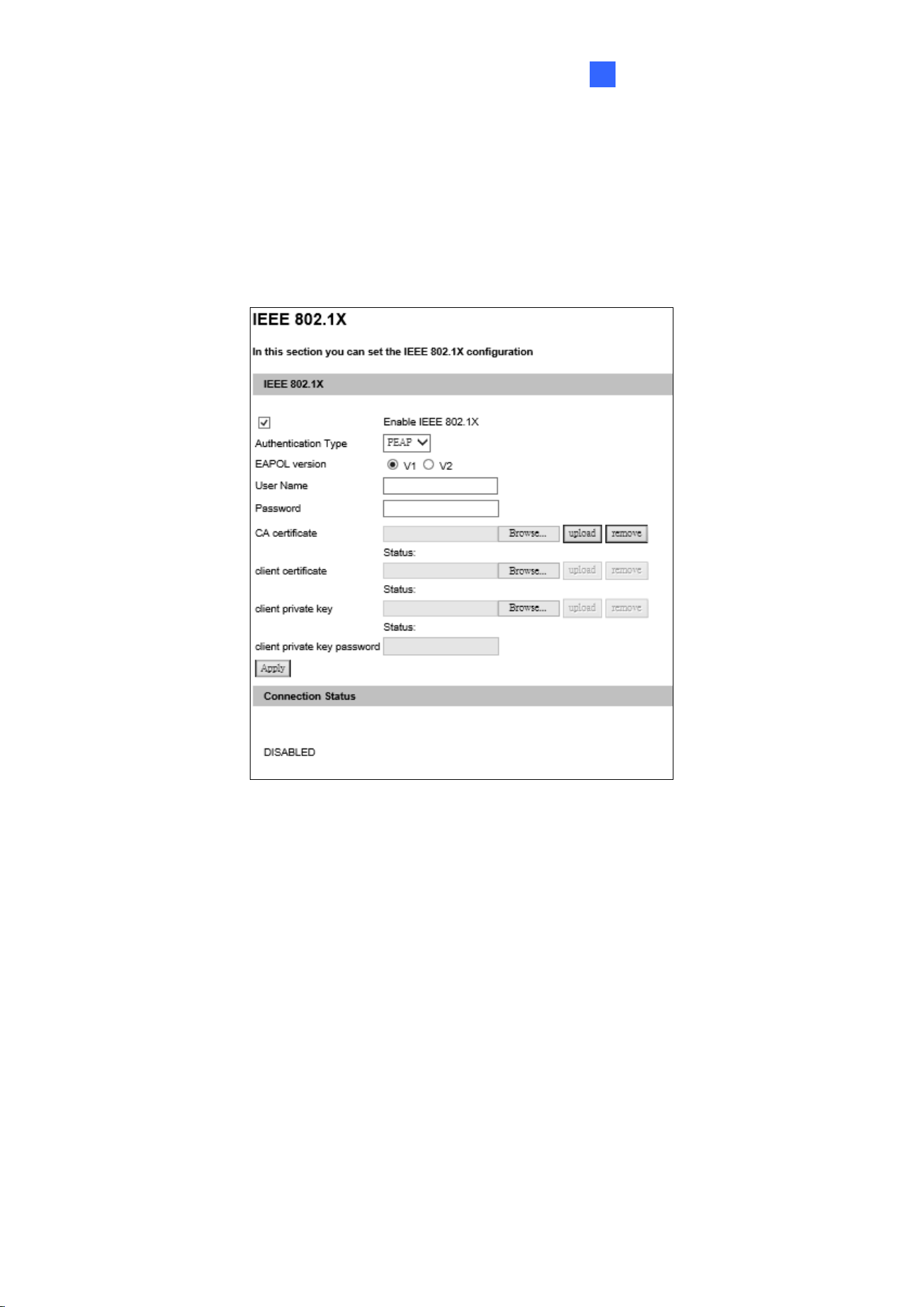
Administrator Mode
127
4
4.7.4 IEEE 802.1x
IEEE 802.1x is an IEEE standard for port-based Network Access Control. It provides an
authentication mechanism to devices wishing to attach to a LAN or WLAN. Note this function
is only supported by GV-FER5700 / 5701 / 12700 and GV-EFER3700 Series. This function is
disabled by default.
Figure 4-29
1. Enable IEEE 802.1x.
2. Select the Authentication Type from the dropdown list for your IP devices. If you select
PEAP, go to Step 3. If you select TLS, go to Step 4.
3. Select the EAPOL version, type a valid User Name and Password for the authentication
server. Note these options are only available if you select PEAP.
4. Click Browse to locate the CA Certificate, Client Certificate, Client Private Key, and
Client Private Key Password at your local computer and click Upload to upload the
credentials to the authentication server. Note these options are only available if you
select TLS.
5. Click Apply. The Connection Status will show Authentication Success when the
authentication is successful.
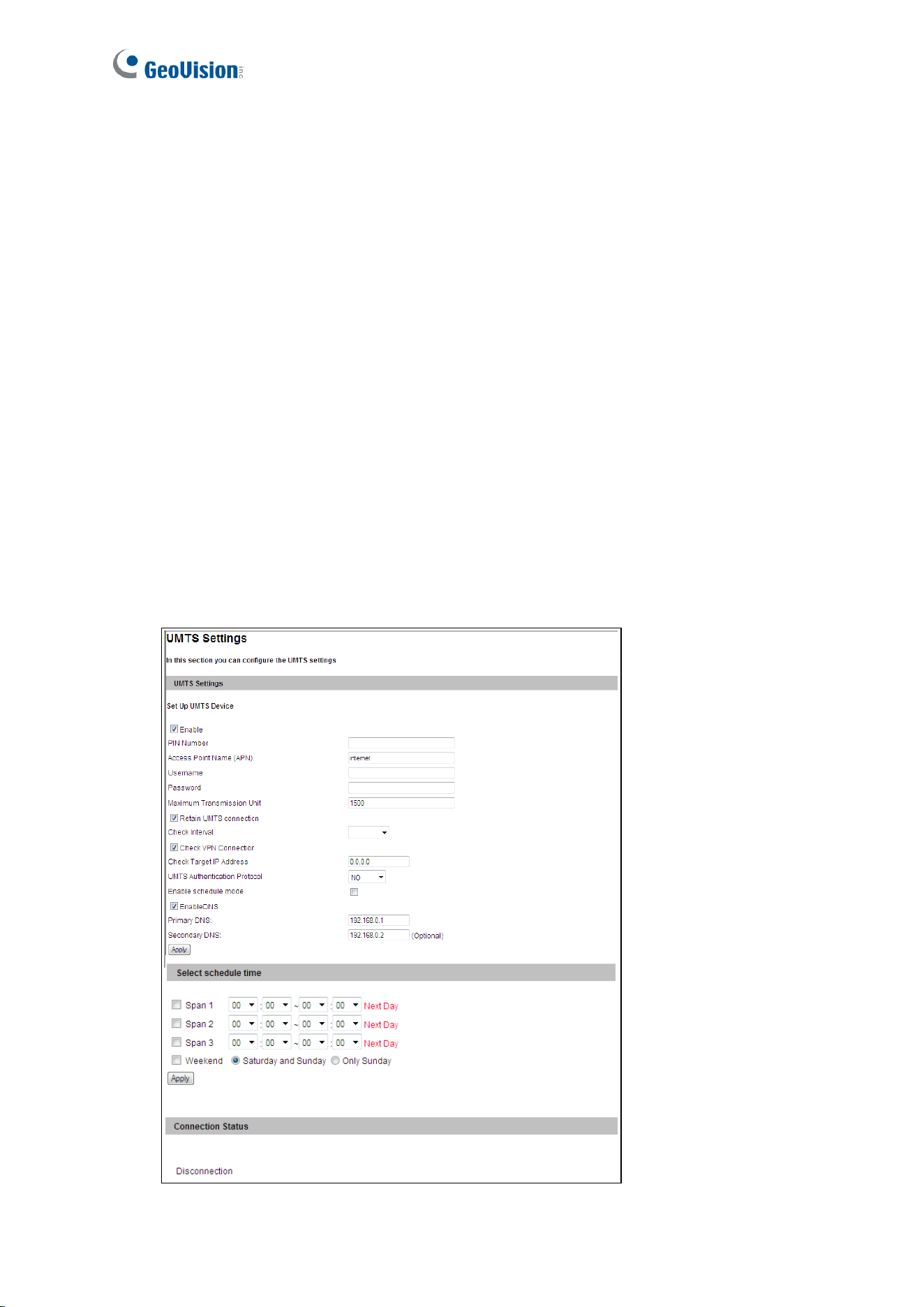
128
4.7.5 UMTS Settings
UMTS stands for Universal Mobile Telephone System. UMTS is a third-generation (3G)
broadband, packet-based transmission of text, digitized voice, video, and multimedia at data
rates up to 2 megabits per second. UMTS offers a consistent set of services to mobile
computer and phone users, no matter where they are located in the world.
With a mobile broadband device (supporting UMTS, HSDPA, etc.) attached to the USB port
on the rear panel, and with this UMTS function enabled, GV-Fisheye Camera can be
accessed through wireless broadband. For supported mobile broadband devices, see
Appendix C.
The Virtual Private Network (VPN) over a UMTS connection is also configurable on the
setting page.
Note this function is not supported by GV-FER5700 / 5701 / 12700 and GV-EFER3700
Series.
Figure 4-30

Administrator Mode
129
4
◼ PIN number: Type the PIN number that is provided by your network operator.
◼ Access Point Name (APN): Type Access Point Name that is provided by your
network operator.
◼ Username: Type a valid username to enable the UMTS service from your network
operator.
◼ Password: Type a valid password to enable the UMTS service from your network
operator.
◼ Maximum Transmission Unit: Type the Maximum Transfer Unit (MTU). The default
value is 1500.
◼ Retain UMTS Connection: Select this option to check the UMTS connection status
and use the drop-down list to specify the desired time length for check frequency. The
GV-Video Server will rebuild the connection if disconnection is detected.
◼ Enable VPN Connection: Select this option to enable the VPN (Virtual Private
Network) connection. Type the target IP address in the Check Target IP Address field.
◼ UMTS Authentication Protocol: Use the drop-down list to select the UMTS
Authentication Protocol provided by your network operator.
◼ Enable Schedule Mode: Starts the UMTS connection automatically based on the
schedule you set in the Select Schedule Time section. Refer to 4.5 Recording
Schedule for the same settings.
◼ Enable DNS: Optional type up to two DNS servers of your network operator.
◼ 3G Connection Status: Indicates the connection status of UMTS or VPN.
Note: When both WiFi and 3G signals are detected, the camera will connect to the
network through WiFi.
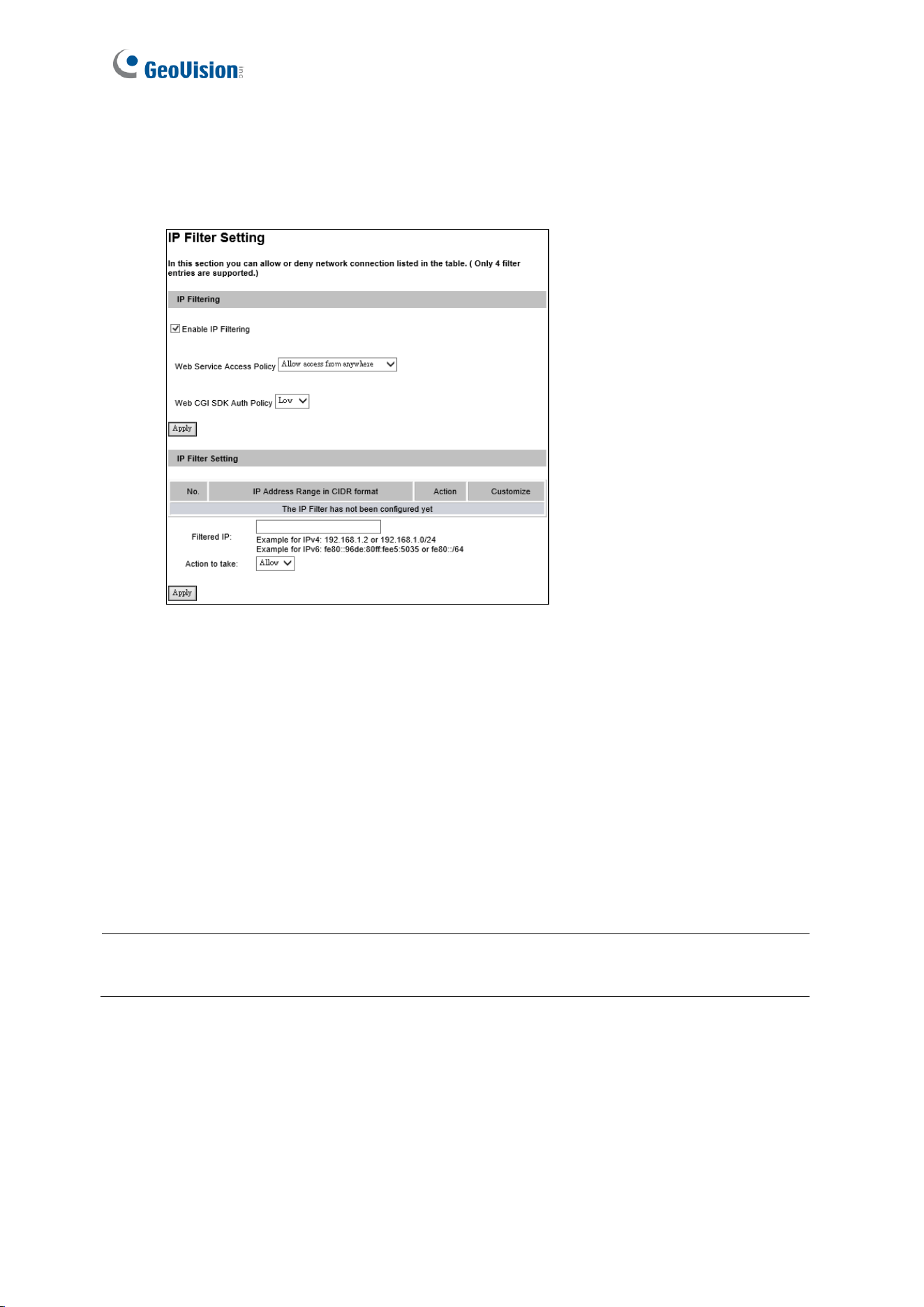
130
4.7.6 IP Filtering
The Administrator can set up IP filtering to restrict access to the camera.
Figure 4-31
To enable the IP Filter function:
1. Enable IP Filtering: Enable the IP Filter function.
2. Web Service Access Policy: Select Allow access from anywhere (Default) or Allow
access from local LAN / Disallow access from anywhere.
3. Web CGI SDK Auth Policy: Select Low (Default) or High, which enhances data
transmission security. This function is for customers with the need to develop their own
SDK, and is only supported by GV-FER5700 / 5701 / 12700 and GV-EFER3700 Series.
4. Click Apply.
Note: If you select Disallow access from anywhere, before clicking Apply, remember to
set one IP address for which access to the camera is allowed.
5. Filtered IP: Type one IP address or a range of IP addresses you want to restrict the
access.
6. Action to take: Select the action of Allow or Deny to be taken for the IP address(es)
you have specified.
7. Click Apply.
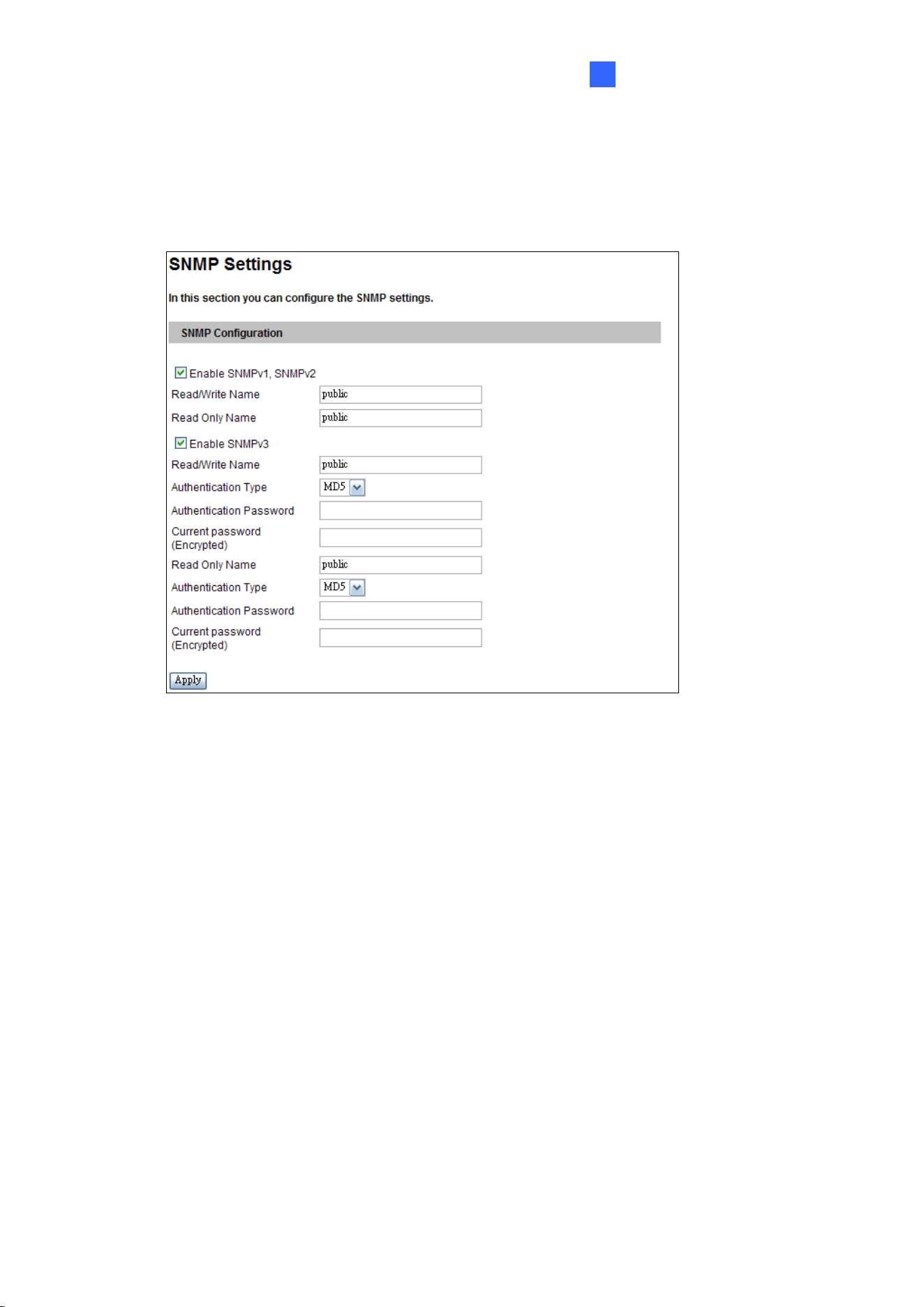
Administrator Mode
131
4
4.7.7 SNMP Setting
The Simple Network Management Protocol (SNMP) allows you to monitor the status of the
camera with SNMP network management software.
Figure 4-32
To set up the SNMP settings:
1. Select Enable SNMPv1 SNMPv2c to enable the function.
2. To enable access to Read/Write Name, type a community string. This will serve as a
password to allow read and write access to the camera from the SNMP software.
3. To enable Read Only Name, type a community string to allow read only access to the
camera from the SNMP software.
4. For a more secured connection, select Enable SNMPv3 to enable SNMP version 3.
5. To enable access to SNMPv3 Read/Write community, type a Read/Write Name.
6. Select an Authentication Type to use for SNMP requests.
7. Type the Authentication Password and Current Password (Encrypted). You will need
to type these passwords in the SNMP software to be able to access the camera.
8. To enable access to SNMPv3 Read only community, type a Read Only Name and follow
steps 6 – 7.
9. Click Apply to save the settings.
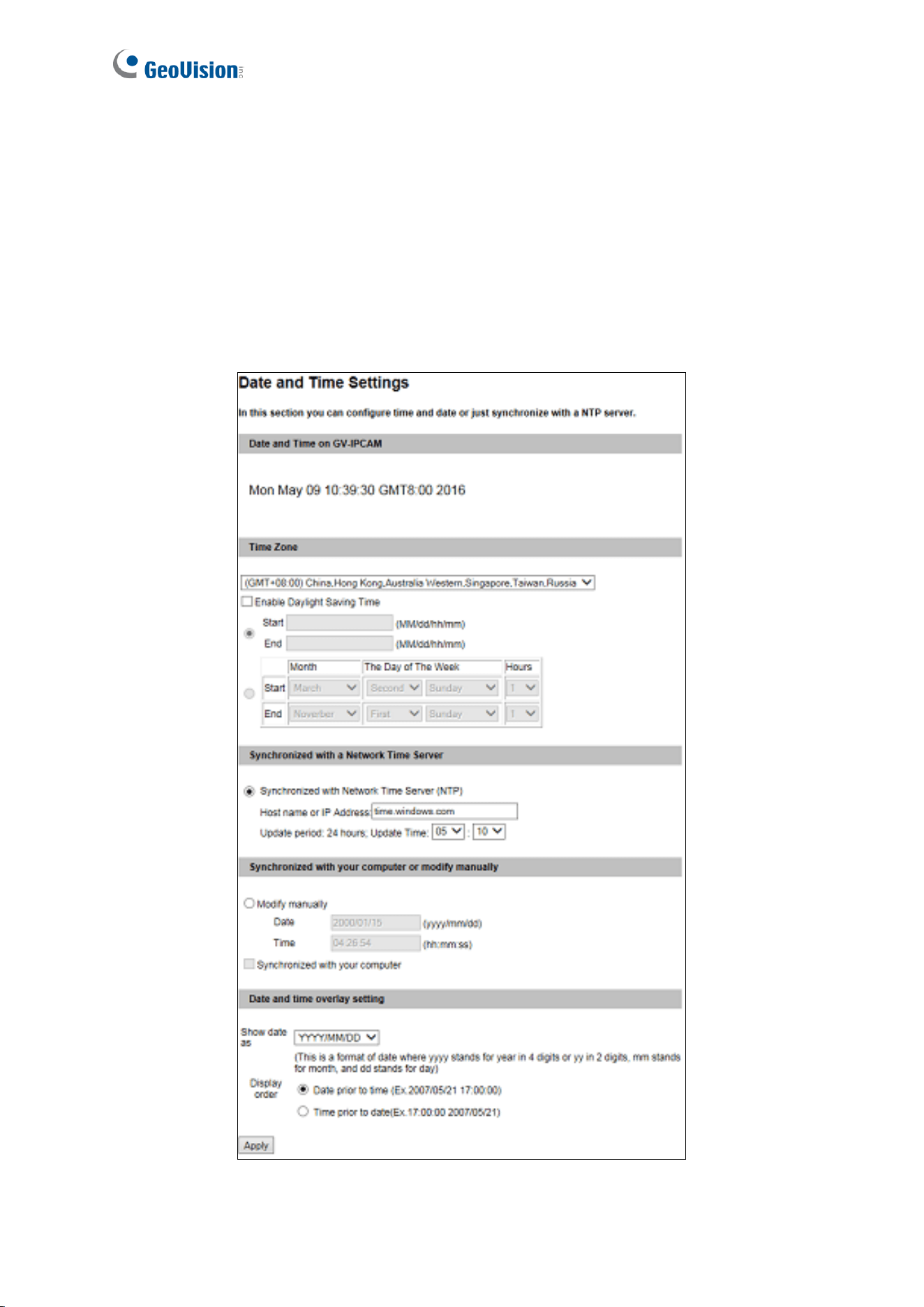
132
4.8 Management
The Management section includes the settings of data and time and user account. Also you
can view the firmware version and execute certain system operations.
4.8.1 Date and Time Settings
The date and time settings are used for date and time stamps on the image.
Figure 4-33

Administrator Mode
133
4
[Date & Time on IPCAM] Displays the current date and time on the camera.
[Time Zone] Sets the time zone for local settings. Select Enable Daylight Saving Time to
automatically adjust the camera for daylight saving time. Define the Start Time and End Time
to enable the daylight saving function. To playback, see 5.2.4 Playback of Daylight Saving
Time Events. To automatically synchronize the Daylight Saving Time with the GV-DVR /
NVR, see 7.1.1 Customizing the Basic Settings. For GV-FER5700 / 5701 / 12700 and GV-
EFER3700 Series, you can also select which day of a week within a month to apply the DST
setting.
[Synchronized with a Time Server] By default, the camera automatically update its internal
clock every 24 hours at the Update Time you specified. You can also change the host name
or IP setting to the timeserver of interest.
[Synchronized with your computer or manually] Manually changes the camera’s date
and time. Or, synchronize the camera’s date and time with those of the local computer.
[Date and time overlay setting] Select the display format of date and time stamps on the
image. For this function to work, you must also enable the Overlaid with date stamps and
Overlaid with time stamps options in Figure 4-2.
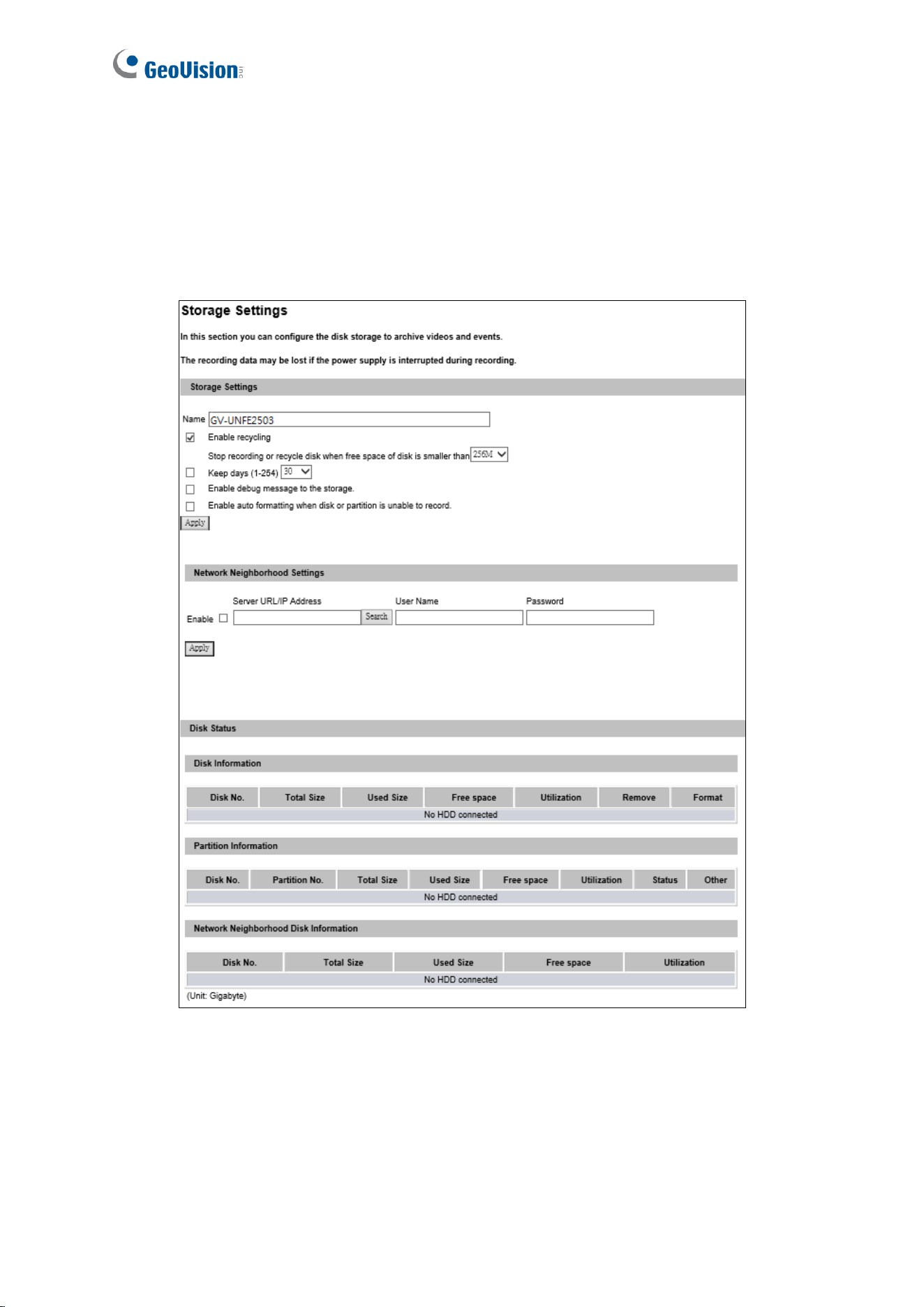
134
4.8.2 Storage Settings
Based on Linux ext3 file system, the camera supports memory cards for video and audio
recordings. You need to format the memory card by using the following Storage Settings.
After being formatted, the memory card will be ready to use by Linux OS of the camera.
Figure 4-34
[Storage Settings]
◼ Enable recycling: If the Enable recycling option is selected, when the space of the
storage device is lower than the specified space, the system will either write the data to
another device or overwrite the oldest recorded files. If the Enable recycling option is
not selected, the system will stop recording when the specified space is reached.
Administrator Mode
135
4
◼ Keep days (1-254): Select the number of days to keep the files from 1 day to 254 days.
When both Keep days and Enable recycling are selected, the system applies
whichever condition comes first. For example, if the specified smallest amount of
storage space comes earlier than the designated keep days, then recycle is applied
first.
◼ Enable debug message to the storage: Debug message (see 4.8.4 Log Information)
is deleted after reboot. Select this option to store log information to the attached
storage device.
◼ Enable auto formatting when disk or partition is enable to record: Select this
option for the camera to automatically format the storage device when there is error
during recording.
[Network Neighborhood Settings]
You can record your GV-Fisheye Camera to a connected NAS server.
Note:
1. GV-FER5700 / 5701 / 12203 / 12700 and GV-EFER3700 Series do not support
connection with NAS servers.
2. Make sure your camera’s video settings adhere to the following:
⚫ VBR is set to Good
⚫ Maximal Bit Rate is set to the following:
Camera Type
Max. Bit Rate
1.3 MP
6 Mbps or lower
2 MP / 3 MP / 4 MP / 5 MP
8 Mbps or lower
3. For optimal performance and compatibility, it is highly recommended to use a GV-NAS
System.
4. It is highly recommended that the NAS server supports quota function, and a separate
quota is allocated to each camera.
5. This NAS recording function is only supported for GV-IP Camera (firmware V3.0 or later).
6. GV-IP Camera does not support recording to shared folders of a Windows-based server.
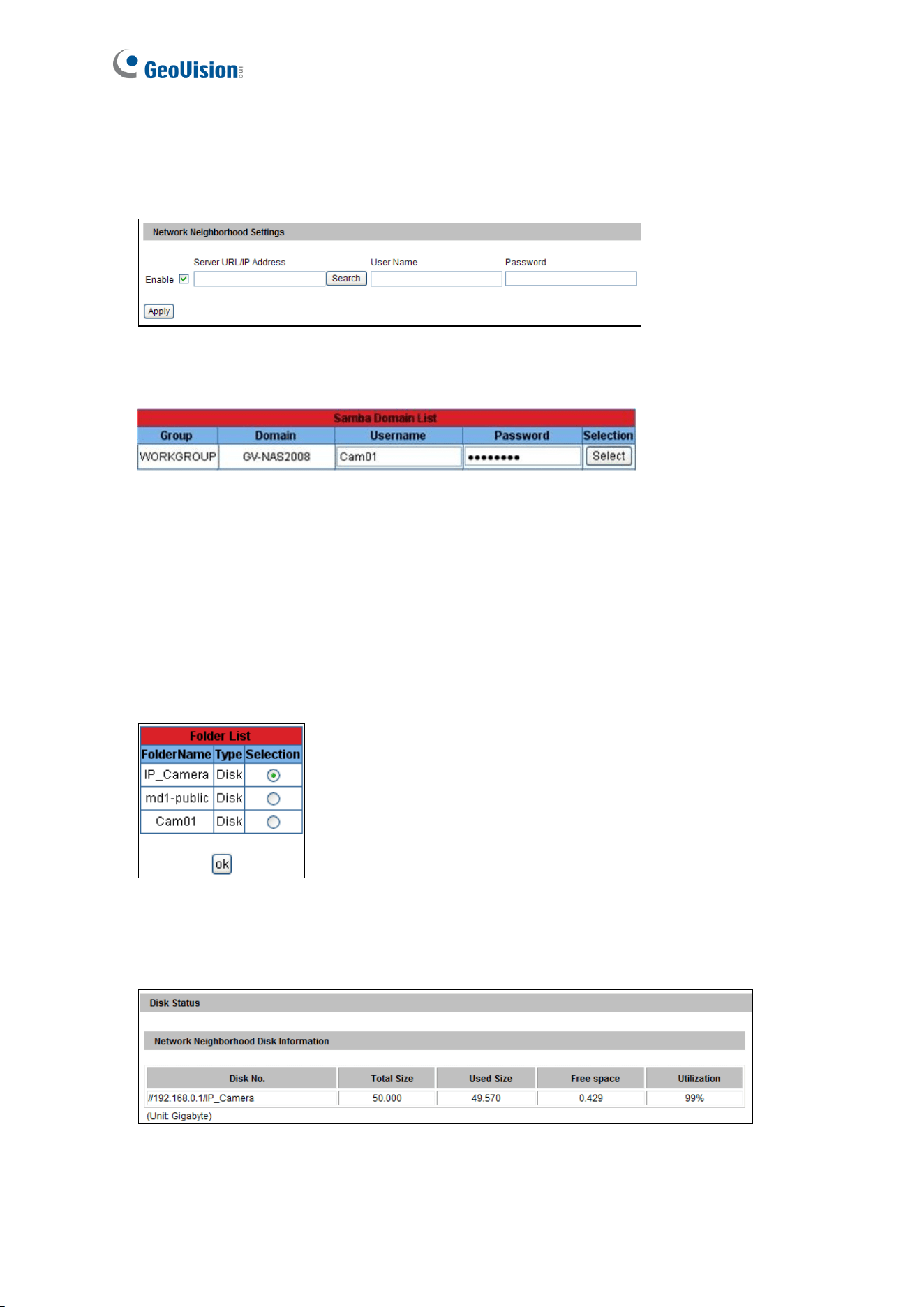
136
To record to GV-NAS Systems, follow the steps below.
1. Under Network Neighborhood Settings, select Enable and click the Search button to
search for available NAS servers.
Figure 4-35
2. Type the username and password, and click Select.
Figure 4-36
Note: Depending on the models of GV-NAS System, up to 16 default user accounts
(username: Cam01 – Cam16; password: 12345678) are available. The storage limitation
and recycle is applied on a user basis. It is recommended to use one user account
exclusively for recording of one GV-IP Camera to avoid uneven data recycle.
3. Select a folder to store recordings, and click OK.
Figure 4-37
4. Click Apply. Once connected, the disk status will display.
Figure 4-38
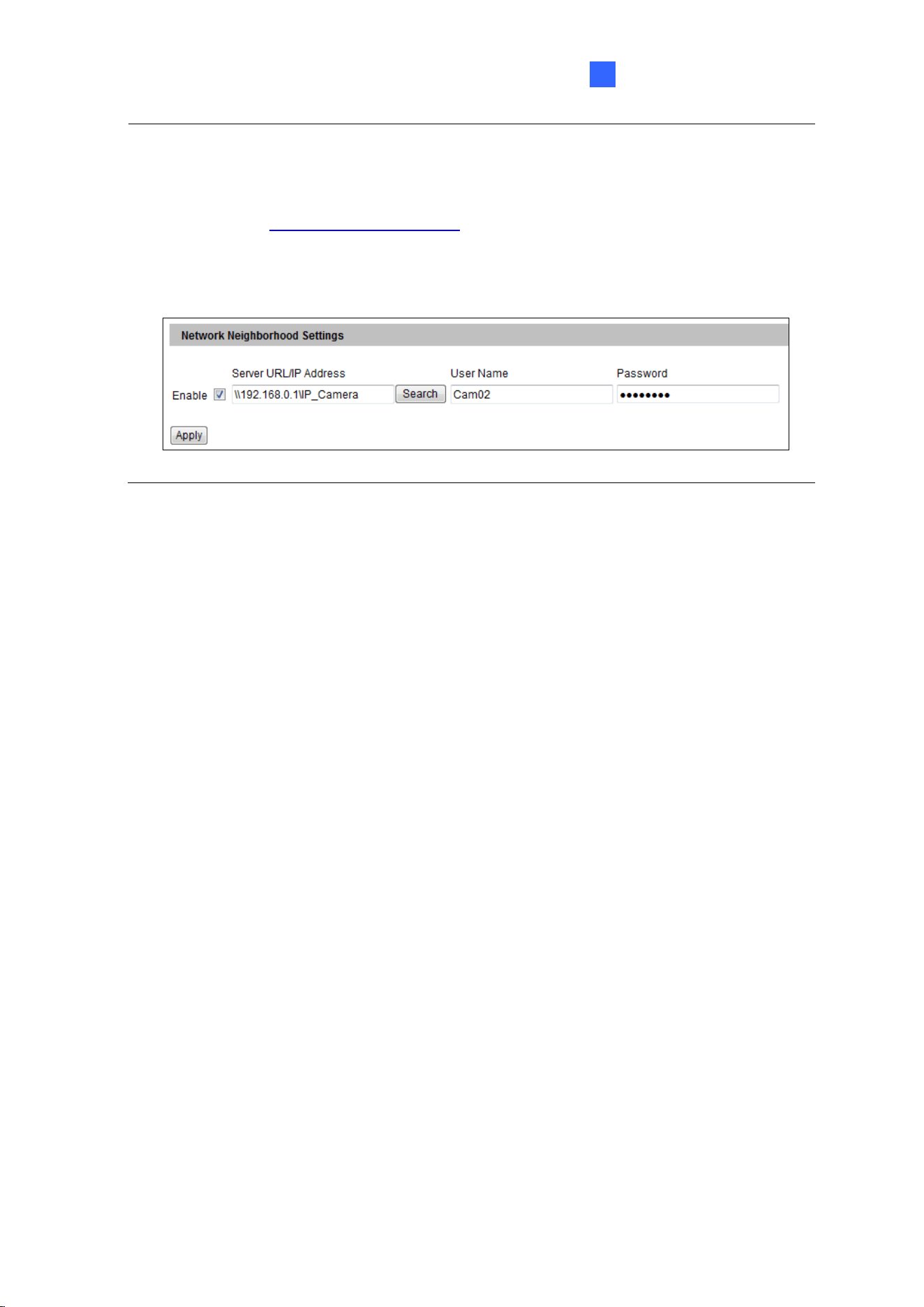
Administrator Mode
137
4
Tip: Instead of searching for available NAS servers, you can also type the storage path
directly.
1. Type the Server URL/ IP Address in this format: \\NAS IP Address\Storage Folder.
For example, \\192.168.0.1\IP_Camera. This GV-IP Camera will be recorded to a
default shared folder named “IP_Camera” in the GV-NAS System.
2. Type the username and password. For GV-NAS System, you can type any of default
usernames Can01 to Cam16, and password is 12345678.
Figure 4-39
For details on GV-NAS System, refer to GV-NAS System Quick Start Guide.
[Disk Information]
This section shows the details of the attached storage devices. Use the Format or Remove
button to format or unload a storage device. For detail steps, see Partition Information below.
[Partition Information]
This section shows the partition details of the attached storage devices.
To add a memory card:
1. Insert the memory card to the camera.
2. Click the Format button.
3. After the format is complete, the partition information will display. The maximum space
for one partition is 200 GB.
To remove a memory card:
1. Click the Remove button.
2. When you are prompted to confirm the action, click Yes. The page will be refreshed
and the partition information will be cleaned.
3. Remove the memory card from the camera.
138
The storage device status is indicated in the status column:
Status
Description
Formatting
The storage device is being formatted.
Unknown
The camera cannot recognize the format of the storage device or
the device cannot be found.
OK
Storage formatting is successful.
Try Mount
The camera is attempting to connect to the storage device.
Error File System
There is a recording error in the storage device. All the recording
data is inaccessible under this status.
Read Only
The storage device cannot be written to due to abnormal power
disruption.
Repairing
The system is attempting to repair the recording data.
Note:
1. If Enable Recycle is selected, the available space of the storage device must be
higher than the space you specified at the Stop recording or recycle disk when free
space of disk is smaller than x option. Otherwise no video will be recoded.
2. The recording data may be lost if you remove the storage device during recording.
3. If you do not remove the storage device properly, the data cannot be read in another
computer. In this case, re-plug the storage device back to the camera. The system will
repair the data automatically. When the system is repairing the data, the Remove field
will display “Repairing”.
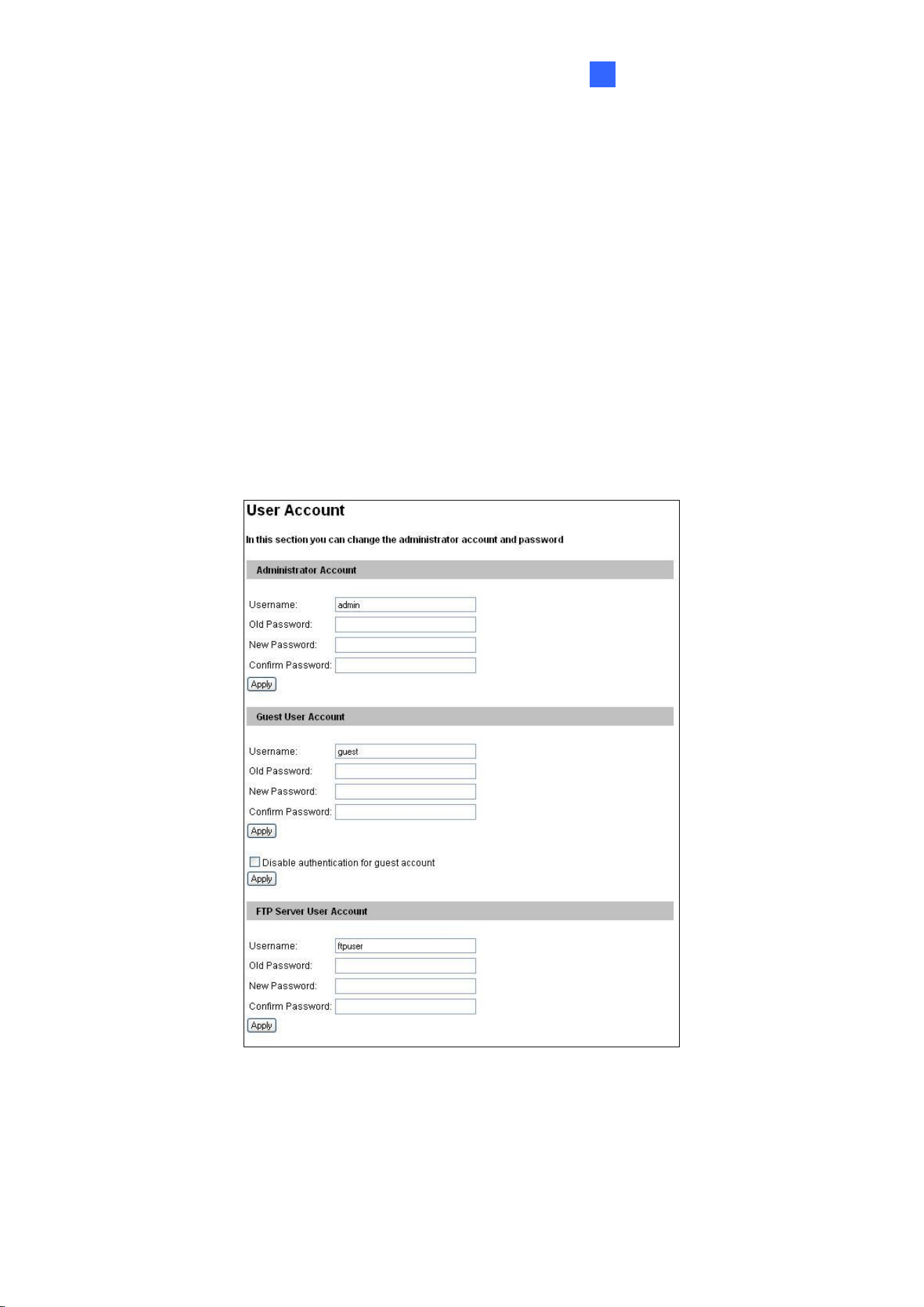
Administrator Mode
139
4
4.8.3 User Account
You can change the login name and password of Administrator, Guest and FTP Server User.
The default Administrator login name and password are admin.
• The default Guest login name and password are guest. To allow a Guest user to log in
without entering name and password, select Disable authentication for guest account.
• The default FTP Server login name is ftpuser and default password is 123456.
For GV-FER5700 / 5701 / 12700 and GV-EFER3700 Series, the default Administrator
account is no longer supported. To adjust the minimum strength requirement for login
password, select Normal or Great from Minimum Password Strength.
Figure 4-40
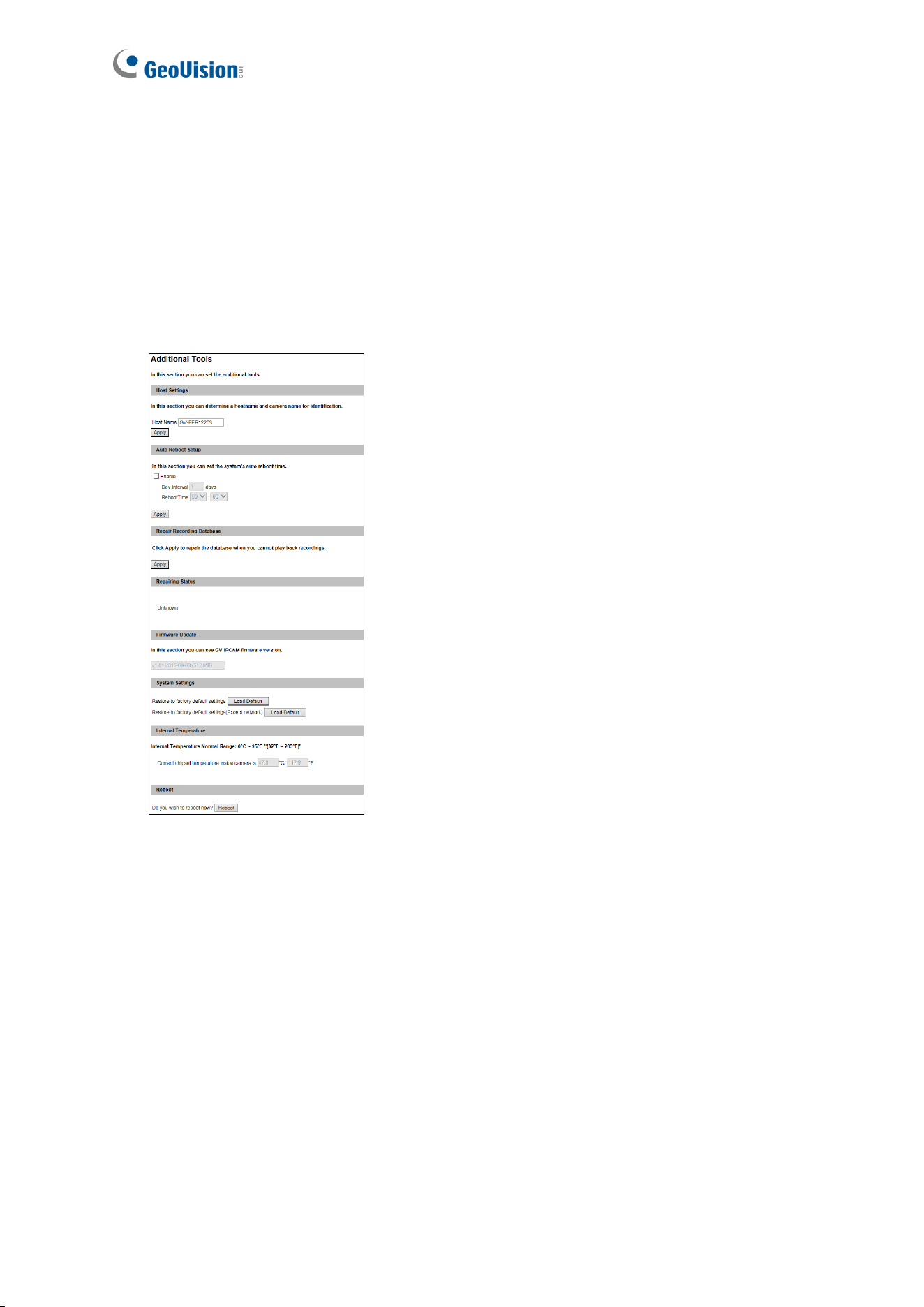
140
4.8.4 Log Information
The log information contains dump data that is used by service personnel for analyzing
problems.
4.8.5 Tools
This section allows you to execute certain system operations and view the firmware version.
Figure 4-41
[Host Name] Type a descriptive name for the camera.
[Auto Reboot Setup] Select Enable to activate automatic reboot and specify the time for
reboot in the sub fields.
◼ Day Interval: Type the day interval between each automatic reboot.
◼ Reboot Time: Use the drop-down lists to specify the time for automatic reboot.
[Repair Record Database] Click Apply to repair the database when errors occur while
playing back the recordings with Remote ViewLog player. Errors can occur when there are
errors in firmware or damages to the micro SD card.
[Database Status] Displays the status of the repairing database.
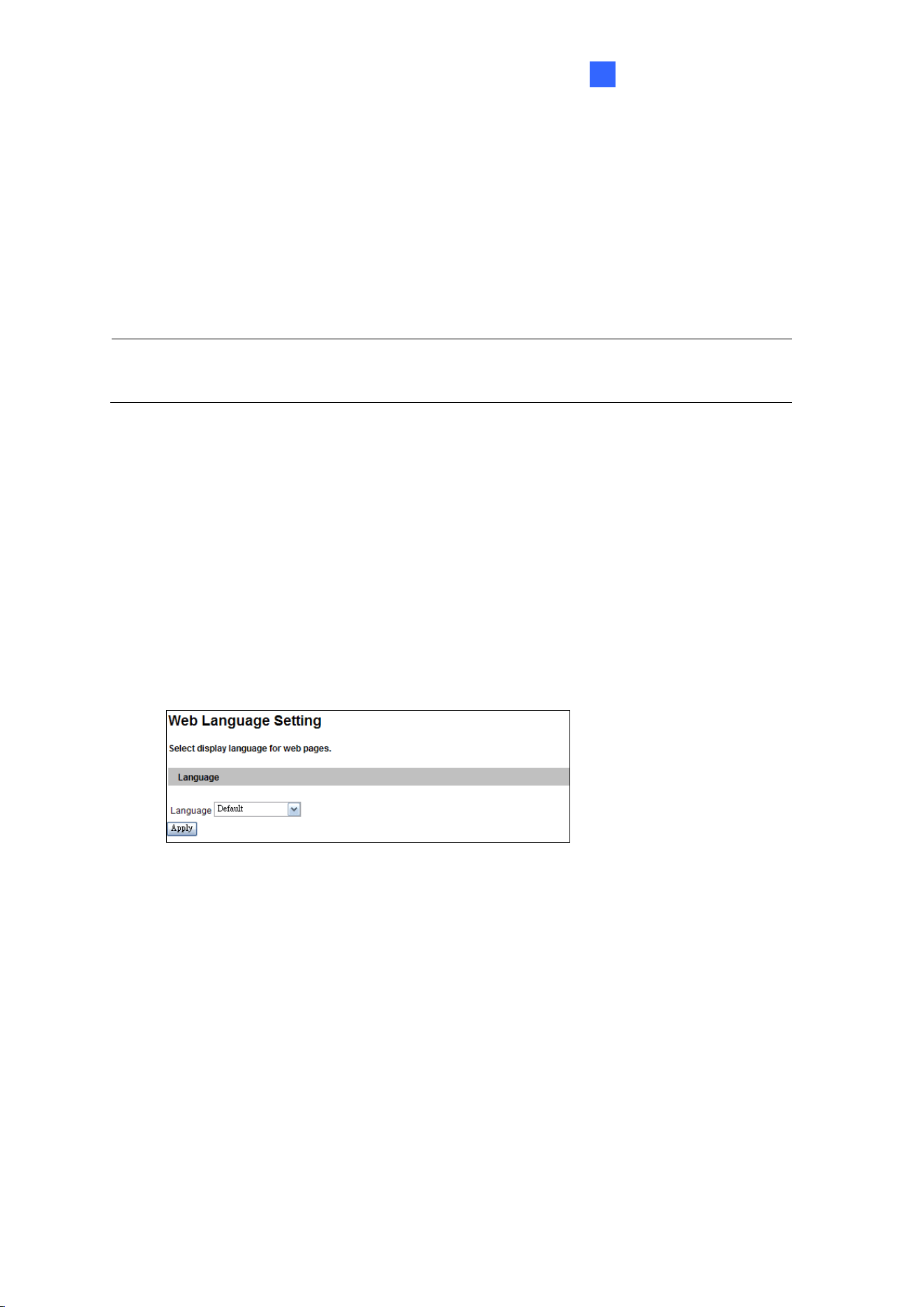
Administrator Mode
141
4
[Firmware Update] This field displays the firmware version of the camera.
[System Settings] Clicking the Load Default button will restore the camera to factory
default settings. You can choose to include or exclude network settings when loading factory
default settings.
Note: After applying the default function, you will need to configure the camera’s
network setting again.
[Temperature Status] Displays the chipset temperature inside the camera. You can also
see the Current chipset temperature inside the camera.
[Reboot] Clicking the Reboot button will make the camera perform software reset.
4.8.6 Language
This section allows you to select the language of the Web interface. The Default option sets
the Web interface to the language of the computer’s operating system.
Figure 4-42

142
Chapter 5 Recording and Playback
The camera can record video and audio directly to the memory card. You can play back the
recorded files on the GV-DVR / NVR / VMS or over the TCP/IP network.
Note: See Note for Recording at the beginning of the manual.
5.1 Recording
To enable the recording function:
1. Insert the memory card to the camera. See “To add a memory card,” 4.8.3 Storage
Settings.
2. If you want to set up pre-recording, post-recording or audio recording, see 4.1.1 Video
Settings.
3. If you want to set up the schedule for video recording or I/O monitoring, see 4.5
Recording Schedule.
4. If you want to configure the areas and sensitivity values for motion detection, see 4.1.2
Motion Detection.
5. If you want the recording to be triggered by input device, configure the operation of I/O
devices. See 4.2.1 Input Settings.
6. To start recording and I/O monitoring, see 4.4 Monitoring.
The camera will start recording upon motion detection, I/O trigger, or during the scheduled
time.

Recording and Playback
143
5
5.2 Playback
These methods are available to play back the video files recorded at the camera:
• Playback from the memory card by connecting it directly to the GV-DVR / NVR / VMS
through a card reader
• Playback using the Remote ViewLog function over the TCP/IP network
• Playback using the recorded files downloaded from built-in FTP Server
5.2.1 Playback from the Memory Card
You can play back the files recorded at the camera by attaching the memory card to the GV-
DVR / NVR / VMS. However, the videos on the camera are recorded in the Linux format and
GV-DVR / NVR / VMS runs on a Windows-based computer. For Linux files to be readable
and accessible on Windows, we use the Ext2Fsd program. Follow the steps below to
download, install and execute the Ext2Fsd program.
IMPORTANT:
1. The Ext2Fsd program only works on Windows 2000, XP, 2003, vista, 7, 8 and Server
2012 (32-bit and 64-bit).
2. The Ext2Fsd program is subject and under term/condition of The GNU General Public
License version 2 (GPLv2). Please read http://www.gnu.org/licenses/gpl-2.0.html
before installation.
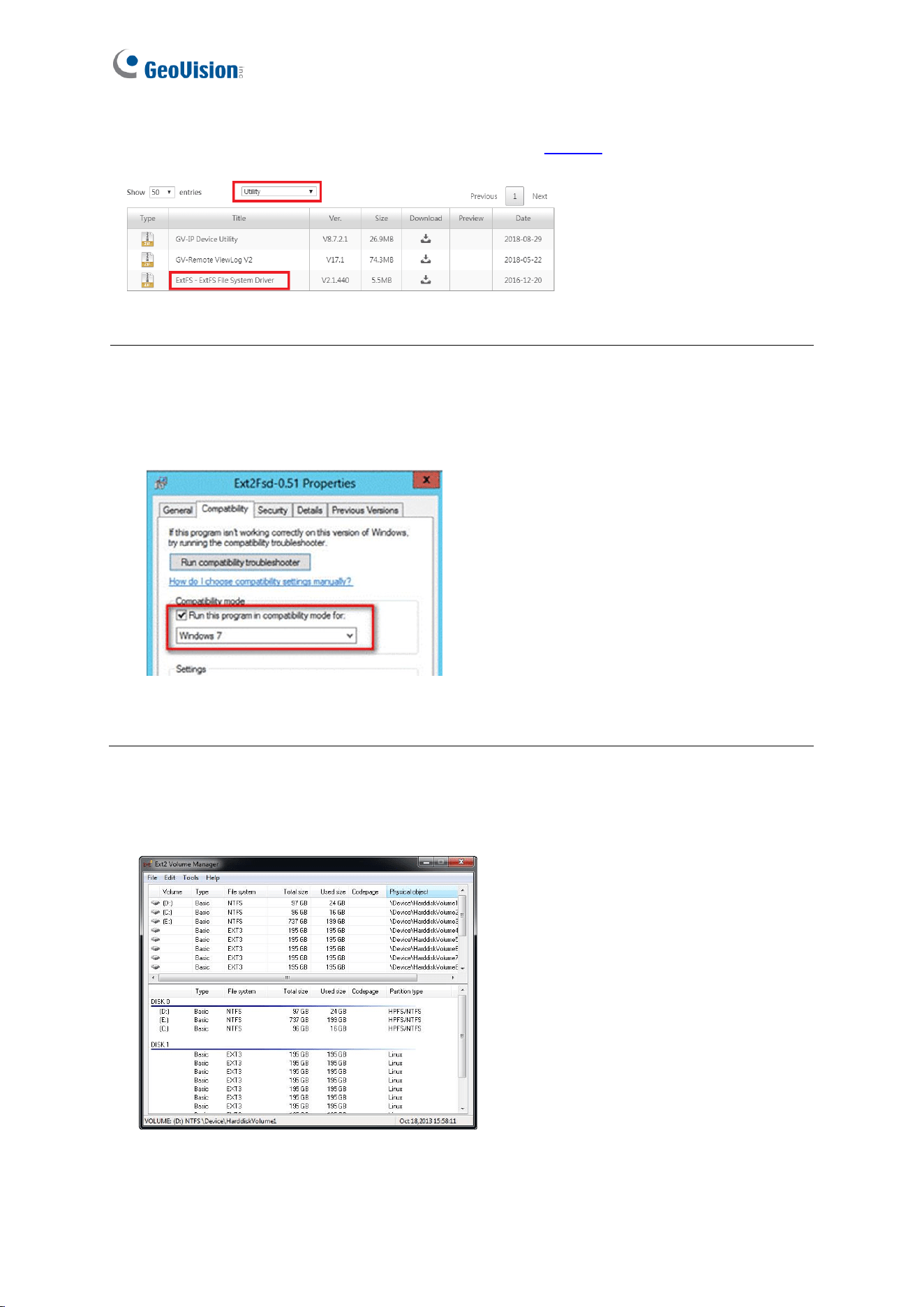
144
1. Download and install the Ext2Fsd from the company website.
Figure 5-1
Note: If you are using Windows 8 or Windows Server 2012, change its compatibility
before installing the Ext2Fsd program:
A. Right-click the Ext2Fsd program and select Properties. This dialog box appears.
B. Select the Compatibility tab.
C. Select Windows 7 from the drop-down list.
2. On Your desktop, click Start, select Programs, locate the Ext2Fsd folder and select
Ext2 Volume Manager. All the connected drives are shown.
Figure 5-2
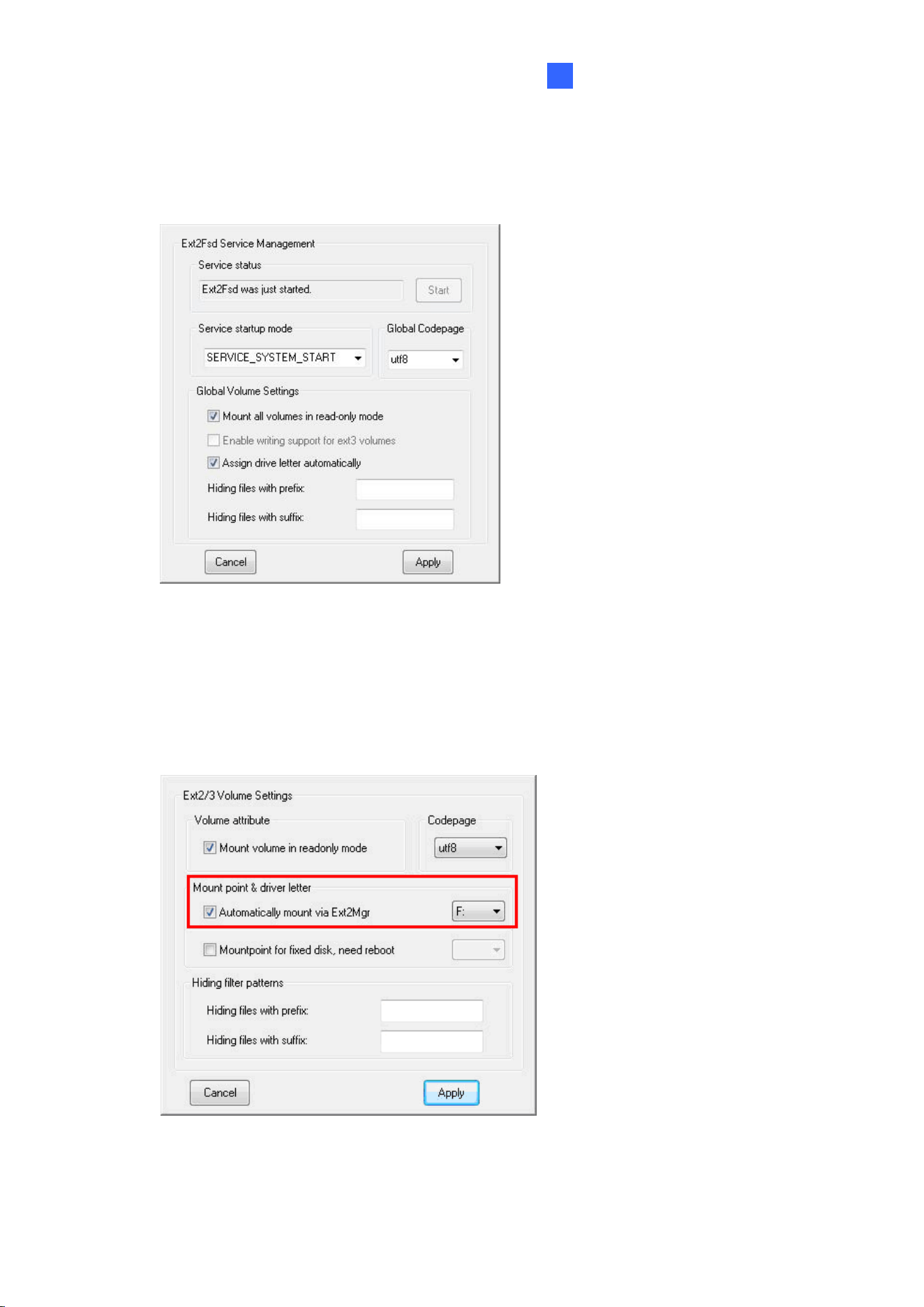
Recording and Playback
145
5
3. For the first-installation, execute the Ext2Fsd Service.
A. From the Ext2 Volume Manager window, select Tools and select Service
Management. This dialog box appears.
Figure 5-3
B. Click Apply.
4. Mount the storage drive to your computer.
A. From the Ext2Fsd Volume Manager window, right-click the storage drive and select
Ext2 Management. This dialog box appears.
Figure 5-4
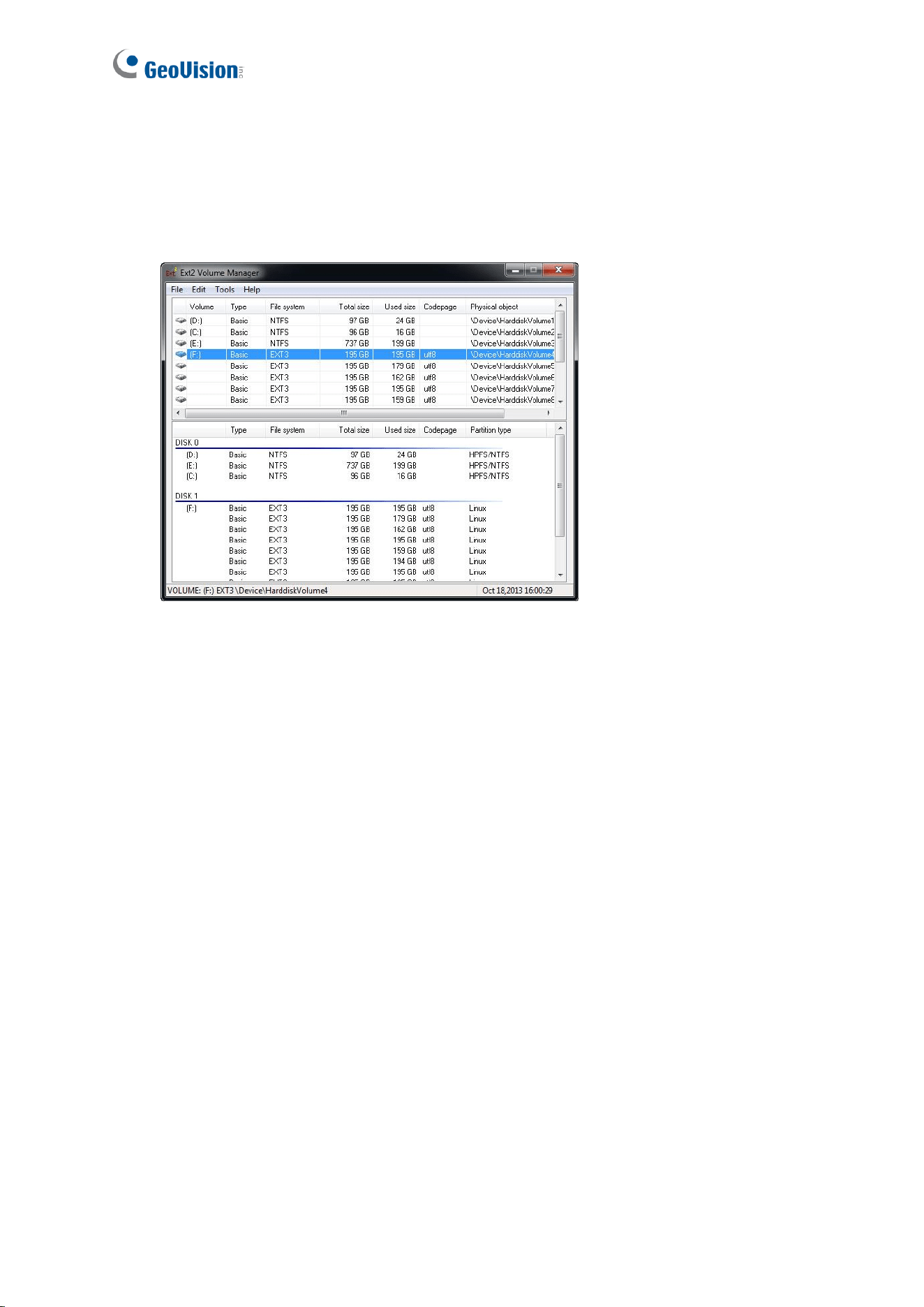
146
B. Under the Mount point & driver letter section, select Automatically mount via
Ext2Mgr, specify a disk drive using the drop-down list and click Apply.
C. On the Ext2 Volume Manager window, the storage drive is successfully mounted to
your computer when it is indicated with the disk drive you specified.
Figure 5-5
5. Access the recording files from the specified drive of your computer.
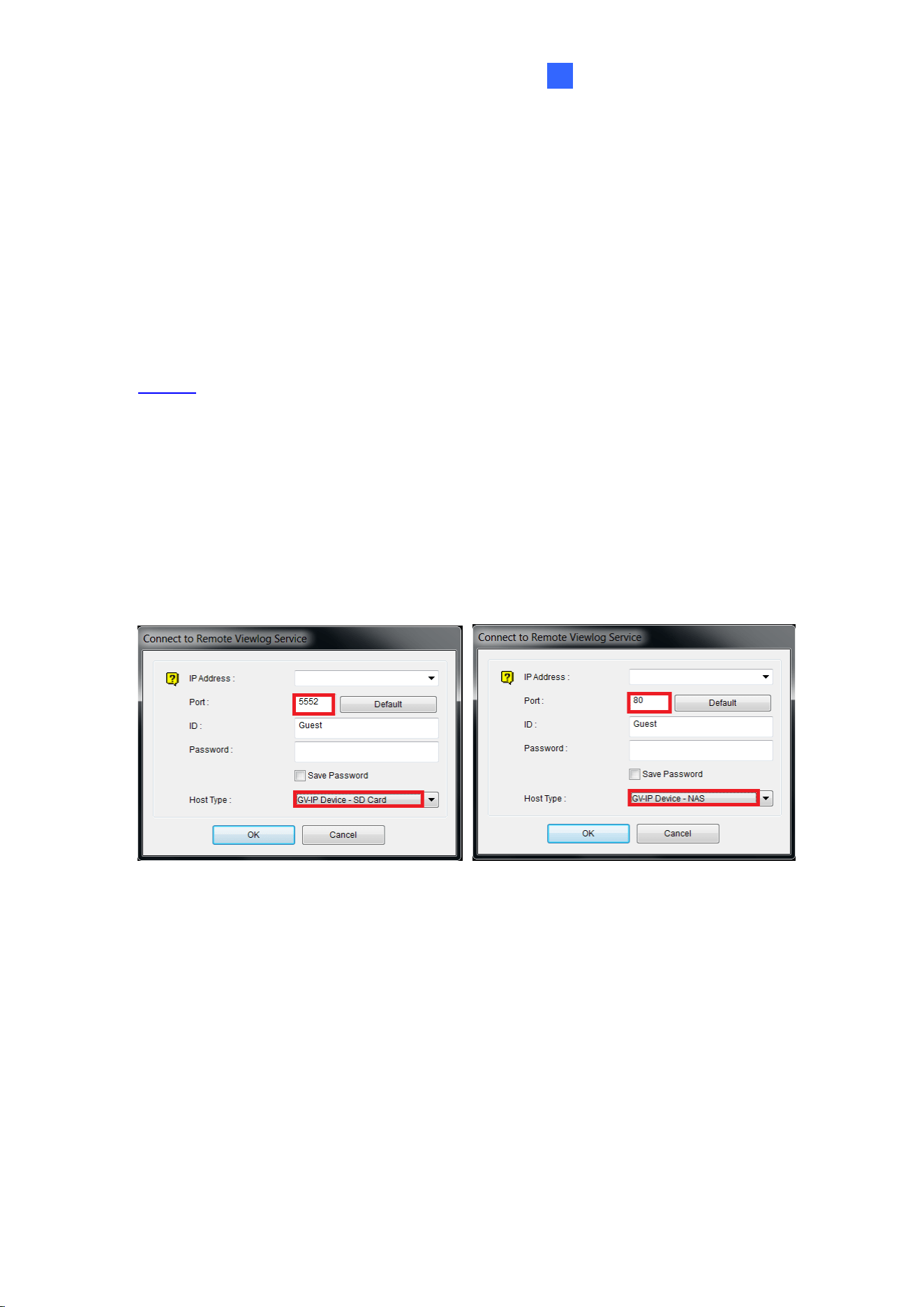
Recording and Playback
147
5
5.2.2 Playback over Network
With the Remote ViewLog function, you can play back the files recorded at the camera over
TCP/IP network. You can also play back the files recorded at the camera over GV-NAS
System.
1. The camera must allow remote access with ViewLog Server activated. See 4.3.7
ViewLog Server.
2. For first time users, download and run the Remote ViewLog program from the company
website. Next time whenever you would like to use this function, access this option from
the camera’s Web interface.
3. When the Remote ViewLog player is enabled, you will be prompted to select Remote
ViewLog Service or Remote Storage System. Select Remote ViewLog Service.
4. When this dialog box appears, type the camera’s IP address, login ID and password. In
the Host Type field, select GV-IP Device-SD Card. and the default port is 5552. To
retrieve recordings from GV-NAS System, select GV-IP Device-NAS and the default http
port is 80.
Figure 5-6
3. Click Connect to access the files of the camera for playback.

148
5.2.3 Accessing the Recorded Files through FTP Server
The built-in FTP Server allows you to download the recorded files saved on the memory card.
You can play back the downloaded files of AVI format with any multimedia player. For details
to download files, see [Act as FTP Server], 4.3.2 FTP.
Note: To play back videos, ensure you have installed Geovision codec on the computer.
The codec is available on the company website. If you have installed the Remote Playback
player on the computer, it is not required to install the codec.
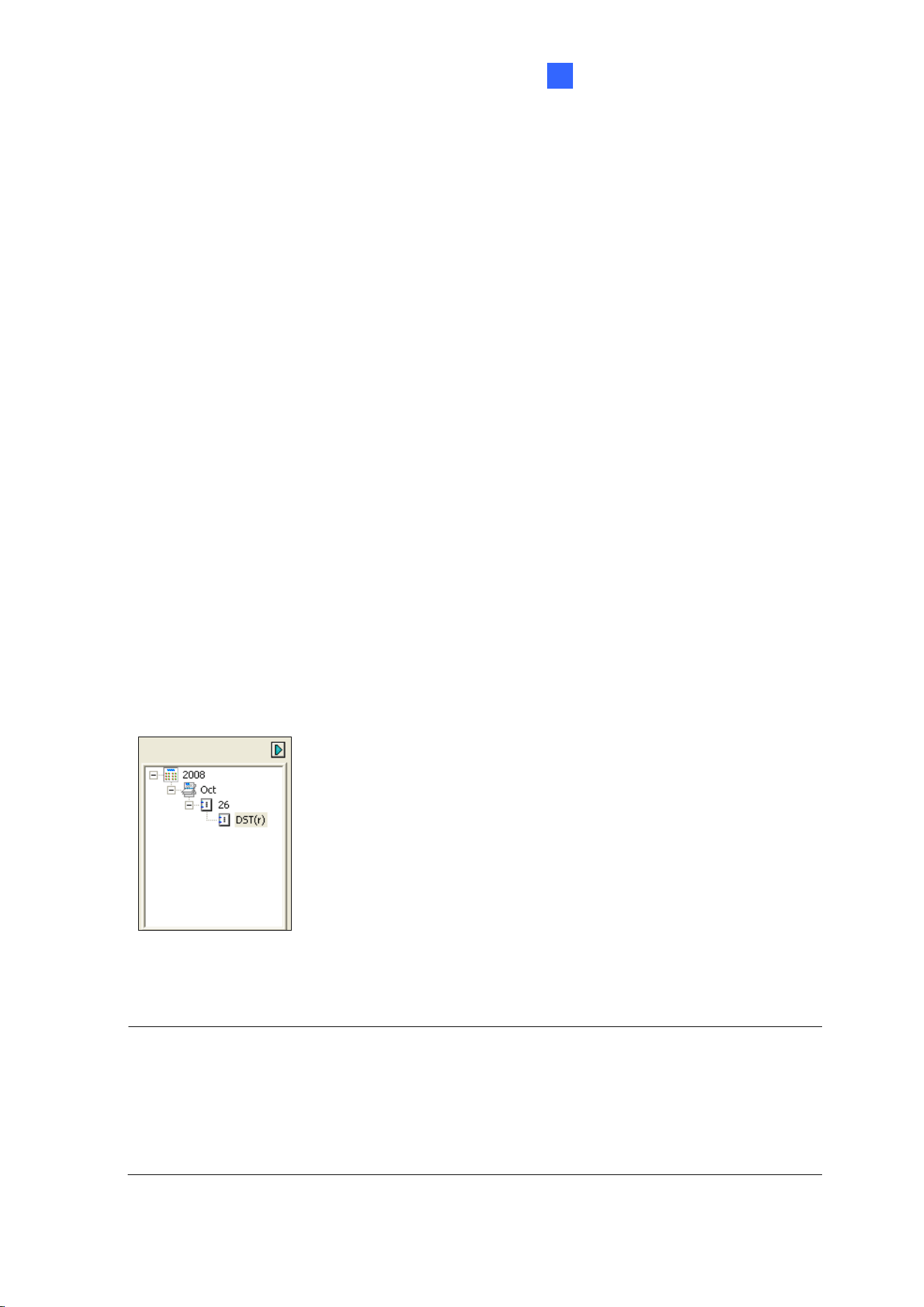
Recording and Playback
149
5
5.2.4 Playing Back Daylight Saving Time Events
On GV-DVR / NVR, you can retrieve the events recorded during the Daylight Saving Time
(DST) period from the camera for playback. You can also connect the memory card with the
recorded files to GV-DVR / NVR for playback.
The following instructions describe how to retrieve the recorded files from the camera over
Internet. If you like to use the memory card for playback, first follow the instructions in 5.2.1
Playback Using the Memory Card to load the recorded files to ViewLog, and then follow
Steps 4-5 below to play back DST events.
1. The camera must allow the remote access with ViewLog Server activated. See 4.3.7
ViewLog Server.
2. To remotely connect to the camera from GV-DVR / NVR, click the Tools button and
select Remote ViewLog Service. The Connect to Remote ViewLog Service dialog box
appears.
3. Enter the connection information of the camera, and click Connect. Once the connection
is established, the video events will be displayed on the Video Event list.
4. On the Date Tree, select the date of Daylight Saving Time. A separate DST subfolder will
be displayed as illustrated below.
Figure 5-7
5. On the Video Event list, select desired events, and click the Play button to start.
Note:
1. The playback function is only compatible with GV-DVR / NVR version 8.4 or later.
2. The AVI file recorded during the DST period is named with the prefix “GvDST”, e.g.
GvDST20081022xxxxxxxxx.avi, to differentiate from the regular AVI file named with
the prefix “Event”, e.g. Event20081022xxxxxxxxx.avi.

150
Chapter 6 Advanced Applications
This chapter introduces more advanced applications.
6.1 Upgrading System Firmware
GeoVision periodically releases the updated firmware on the website. The new firmware can
be simply loaded into the camera using the Web interface or the IP Device Utility on the
company website.
Important Notes before You Start
Before you start updating the firmware, please read these important notes:
1. If you use the IP Device Utility for firmware upgrade, the computer used to upgrade
firmware must be under the same network of the camera.
2. Stop monitoring of the camera.
3. Stop all the remote connections, such as GV-VMS.
4. While the firmware is being updated,
A. the power supply must not be interrupted, and
B. do not unplug the Ethernet cable if the cable is the source of power supply (Power
over Ethernet or PoE supported).
WARNING: The interruption of power supply during updating causes not only update
failures but also damages to your camera. In this case, please contact our sales
representative and send your device back to GeoVision for repair.
If firmware upgrade fails, you will need to restore the camera to the default settings. For
details, see 6.3 Restoring to Factory Default Settings in the User’s Manual.
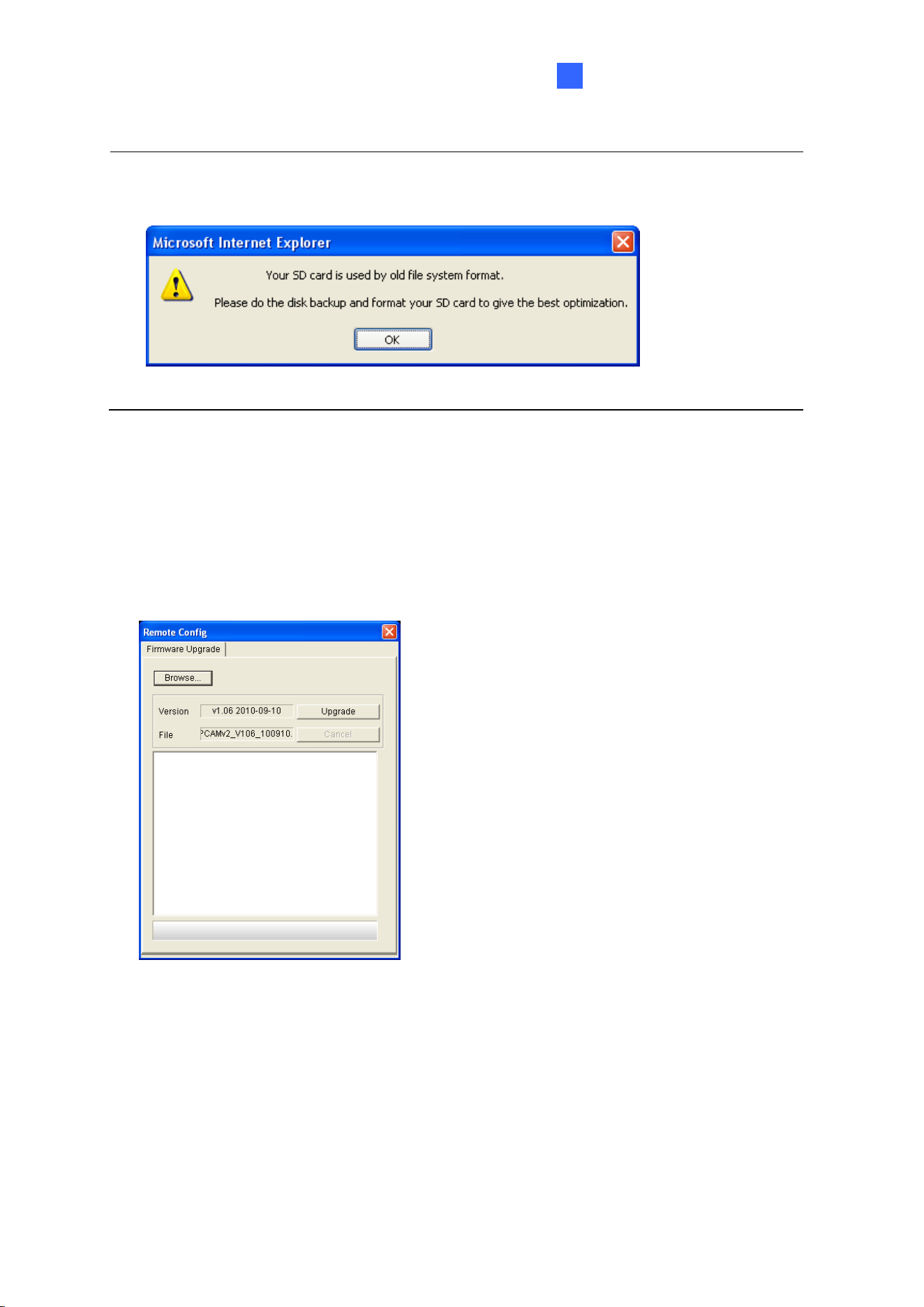
Advanced Applications
151
6
Note: Since the firmware adopts a different storage format from V2.07 onward, be sure to
re-format the memory card after firmware upgrade. If you have not done so, this message
appears when you view the Monitoring or Storage Settings Web interface:
Figure 6-1
6.1.1 Using the Web Interface
1. In the Live View window, click the Show System Menu button (No. 9, Figure 3-3) and
select Remote Config. This dialog box appears.
Figure 6-2
2. Click the Browse button to locate the firmware file (.img) saved at your local computer.
3. Click the Upgrade button to process the upgrade.
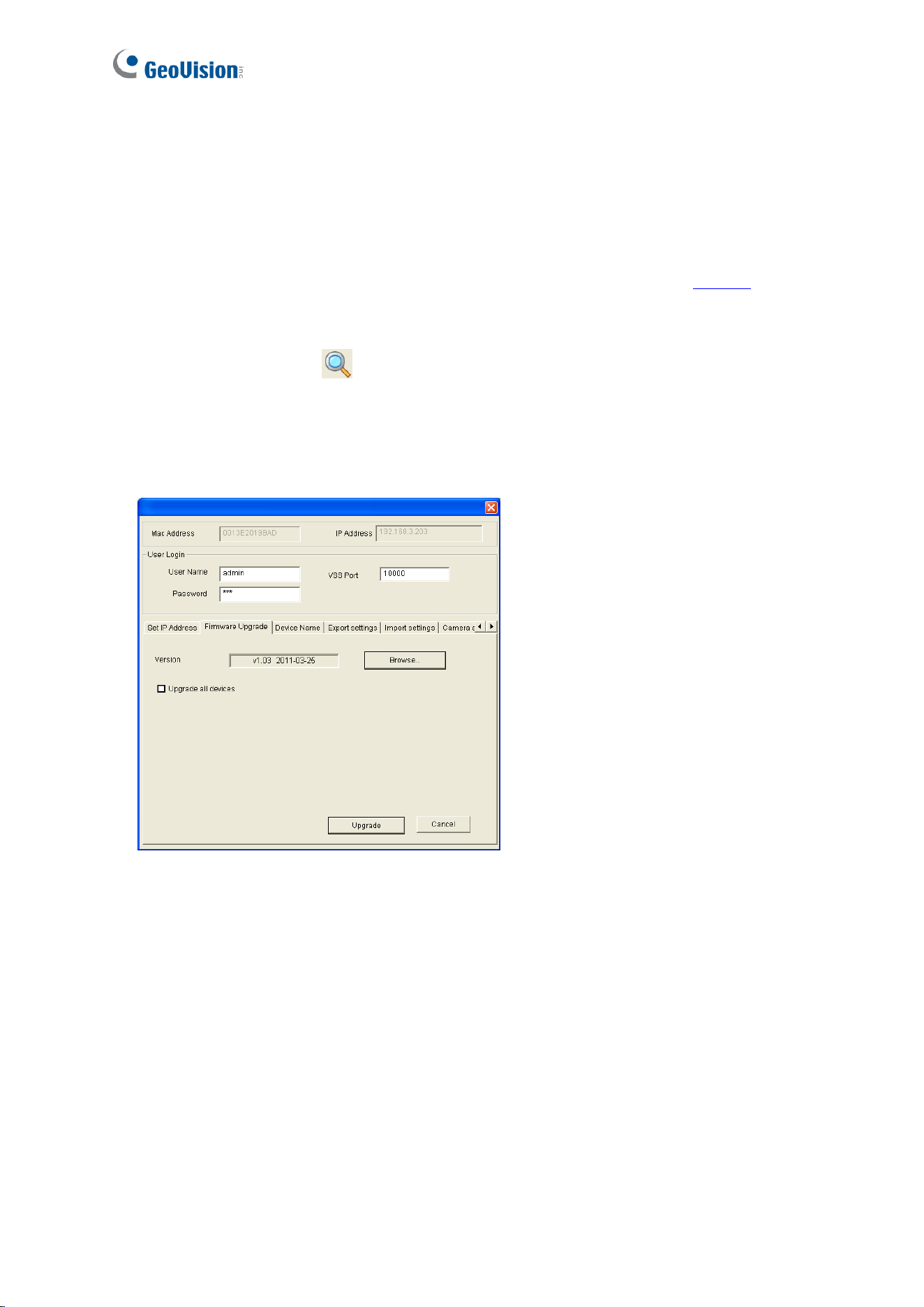
152
6.1.2 Using GV-IP Device Utility
The GV-IP Device Utility provides a direct way to upgrade the firmware for multiple cameras.
Note the computer used to upgrade firmware must be under the same network of the camera.
1. Download and install the GV-IP Device Utility program from the company website.
2. Double-click the GV IP Device Utility icon created on your desktop.
3. Click the Search button to locate the available cameras on the same LAN. Or click
the New button and assign the IP address to locate the camera over the Internet.
4. Double-click a camera in the list, and on the pop-up dialog box, click the Firmware
Upgrade tab. This dialog box appears.
Figure 6-3
5. Click the Browse button to locate the firmware file (.img) saved at your local computer.
6. If you like to upgrade all other cameras of the same username, password and model in
the list, select Upgrade all devices.
7. Type Password, and click Upgrade to start the upgrade.
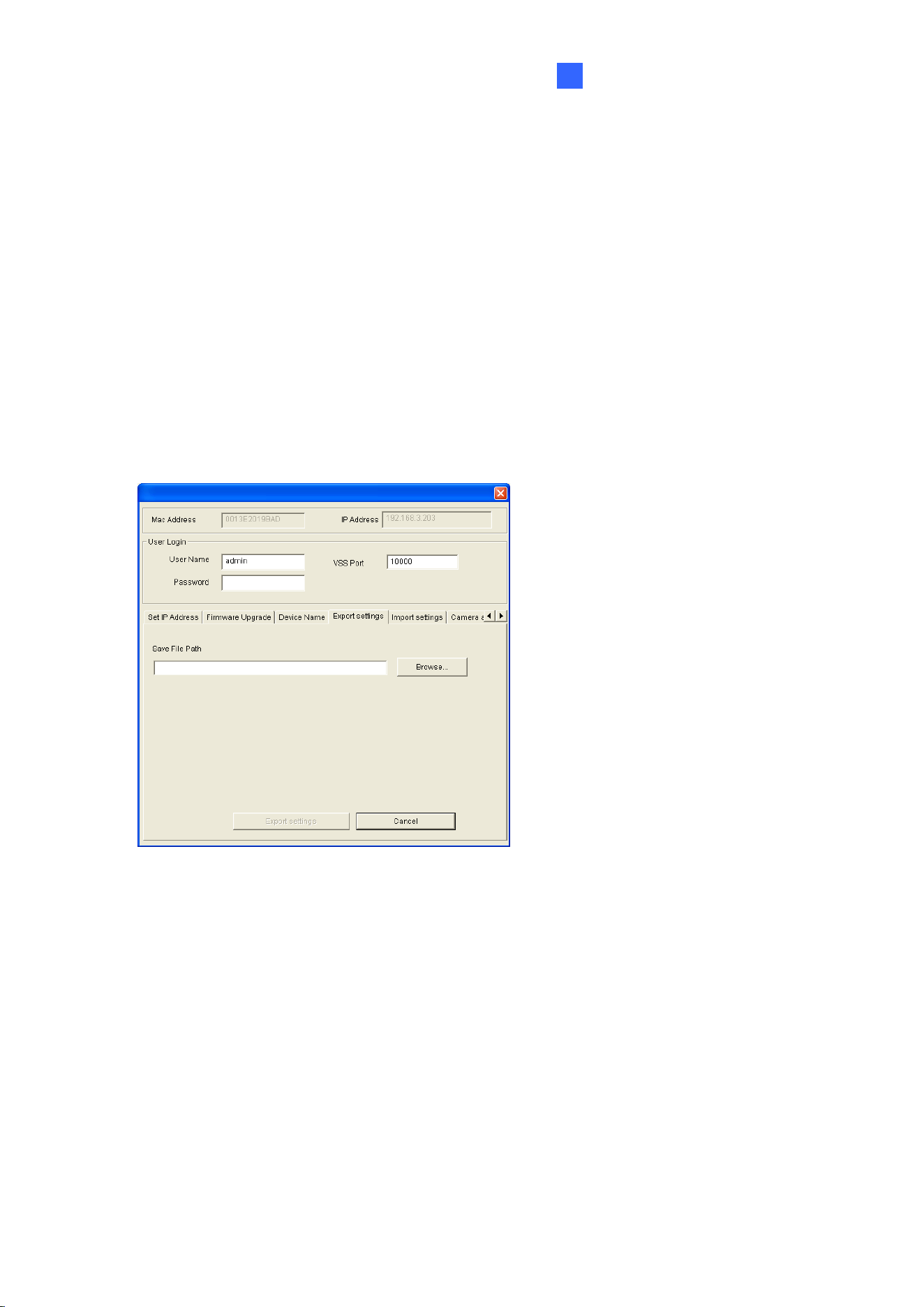
Advanced Applications
153
6
6.2 Backing Up and Restoring Settings
With the GV-IP Device Utility, you can back up the configurations in the camera, and restore
the backup data to the current unit or import it to another unit.
1. Run IP Device Utility and locate the desired camera in the list. See Steps 1-3 in 6.1.2
Using the GV-IP Device Utility.
To Back up the Settings:
2. Double-click the camera in the list, and on the pop-up dialog box, click the Export
Settings button. This dialog box appears.
Figure 6-4
4. Click the Browse button to assign a file path.
5. Type Password, and click Export Settings to save the backup file.
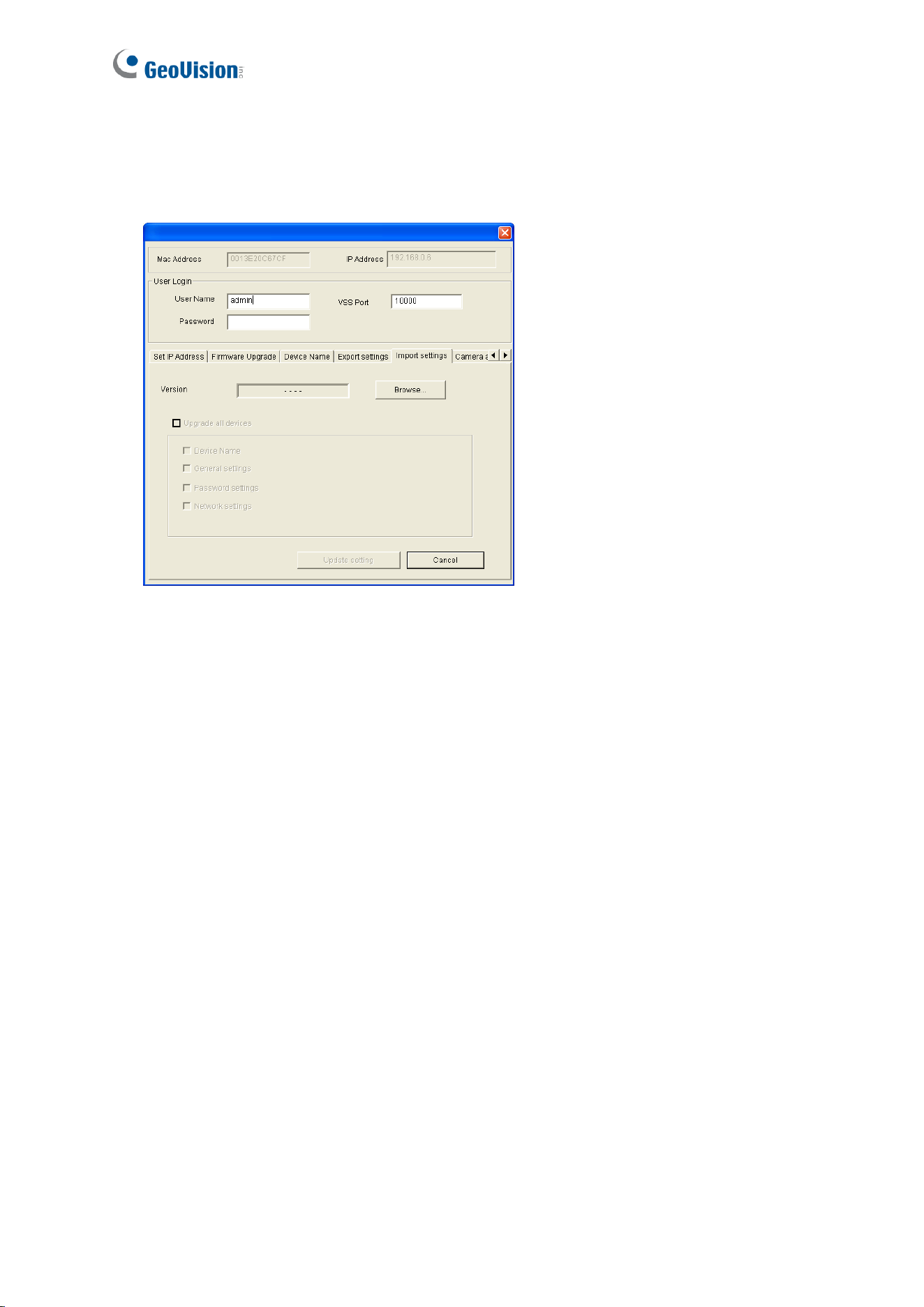
154
To Restore the Settings:
3. Double-click the camera in the list, and on the pop-up dialog box, click the Import
Settings button. This dialog box appears.
Figure 6-5
4. Click the Browse button to locate the backup file (.dat).
5. Select Upgrade all devices to apply the settings to all other devices of the same
username, password,model and firmware version in the list.
6. To import device name, password settings and/or network settings, select Device Name,
Password Settings and/or Network settings.
7. Type the Password and click the Update Settings button to start restoring.
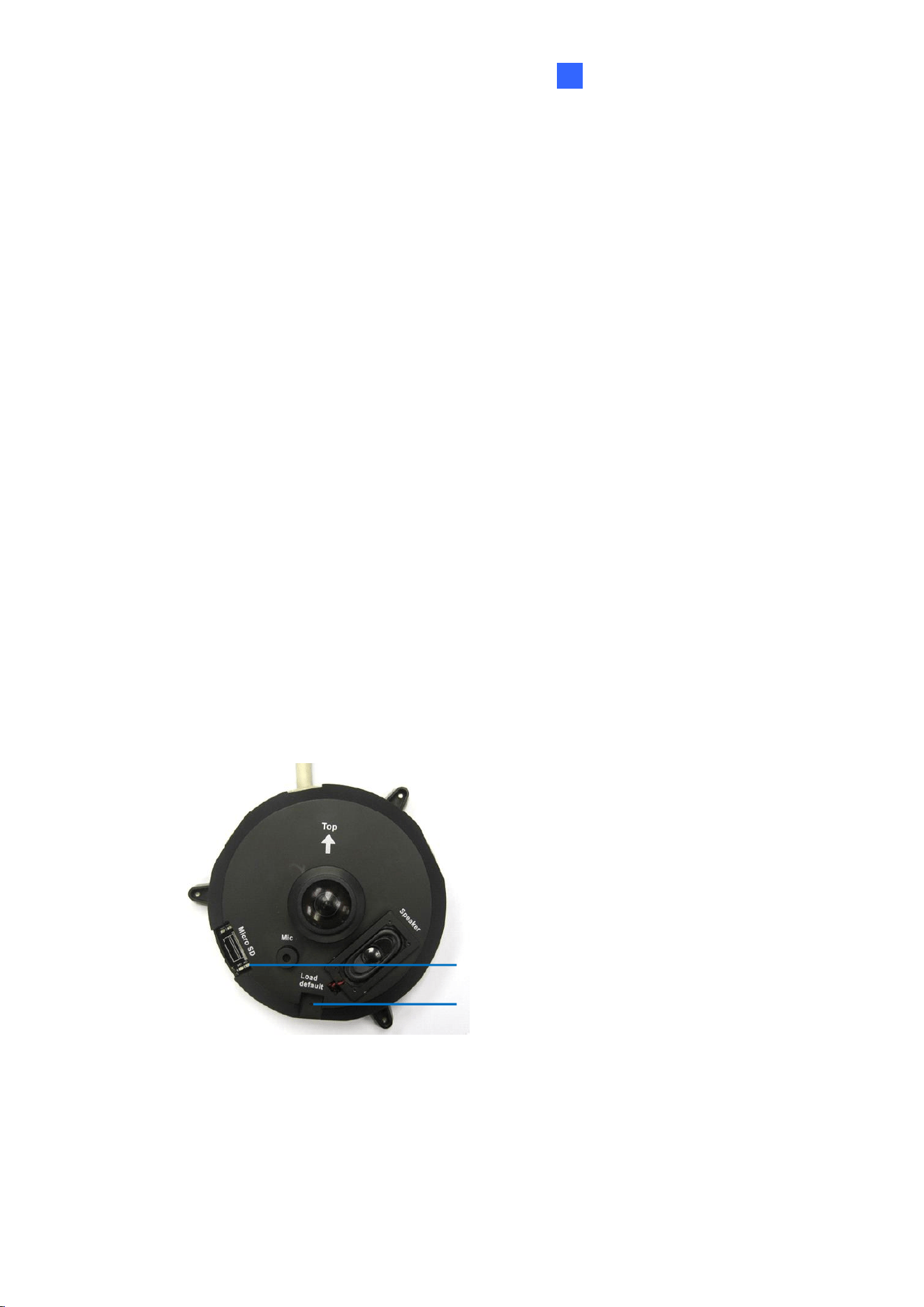
Advanced Applications
155
6
6.3 Restoring Factory Default Settings
If for any reason the camera is not responding correctly, you can reset it to its factory default
setting by using the camera’s Web interface or by operating directly on the camera.
6.3.1 Using the Web Interface
To restore to default settings using the Web interface:
1. In the left menu, select Management and select Tools.
2. Under the System Settings section, click the Load Default button.
6.3.2 Directly on the Camera
1. Use the supplied torx wrench to unscrew and remove the camera cover.
2. Use a pointy object such as the tip of a pen to hold down the Load Default button.
3. Release the default button when the status LED blinks.
4. When the status LED fades, the process of loading default settings is completed and the
camera reboots automatically.
GV-FE2301 / 4301
Default button
System Status LED
Figure 6-6
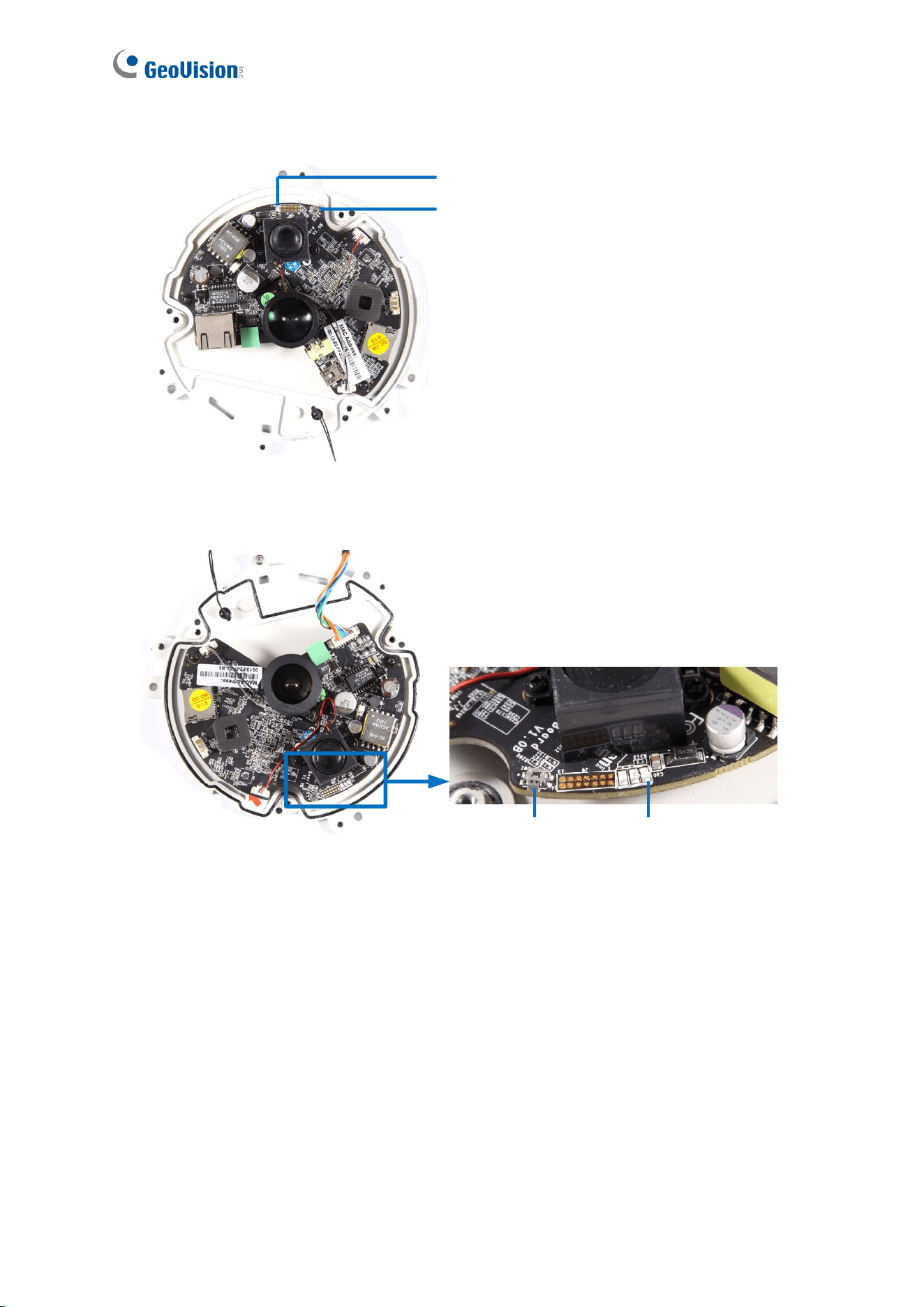
156
GV-FE3402 / 3403 / 5302 / 5303
System Status LED
Default button
Figure 6-7
GV-FER3402 / 3403 / 5302 / 5303
System Status LEDDefault button
Figure 6-8
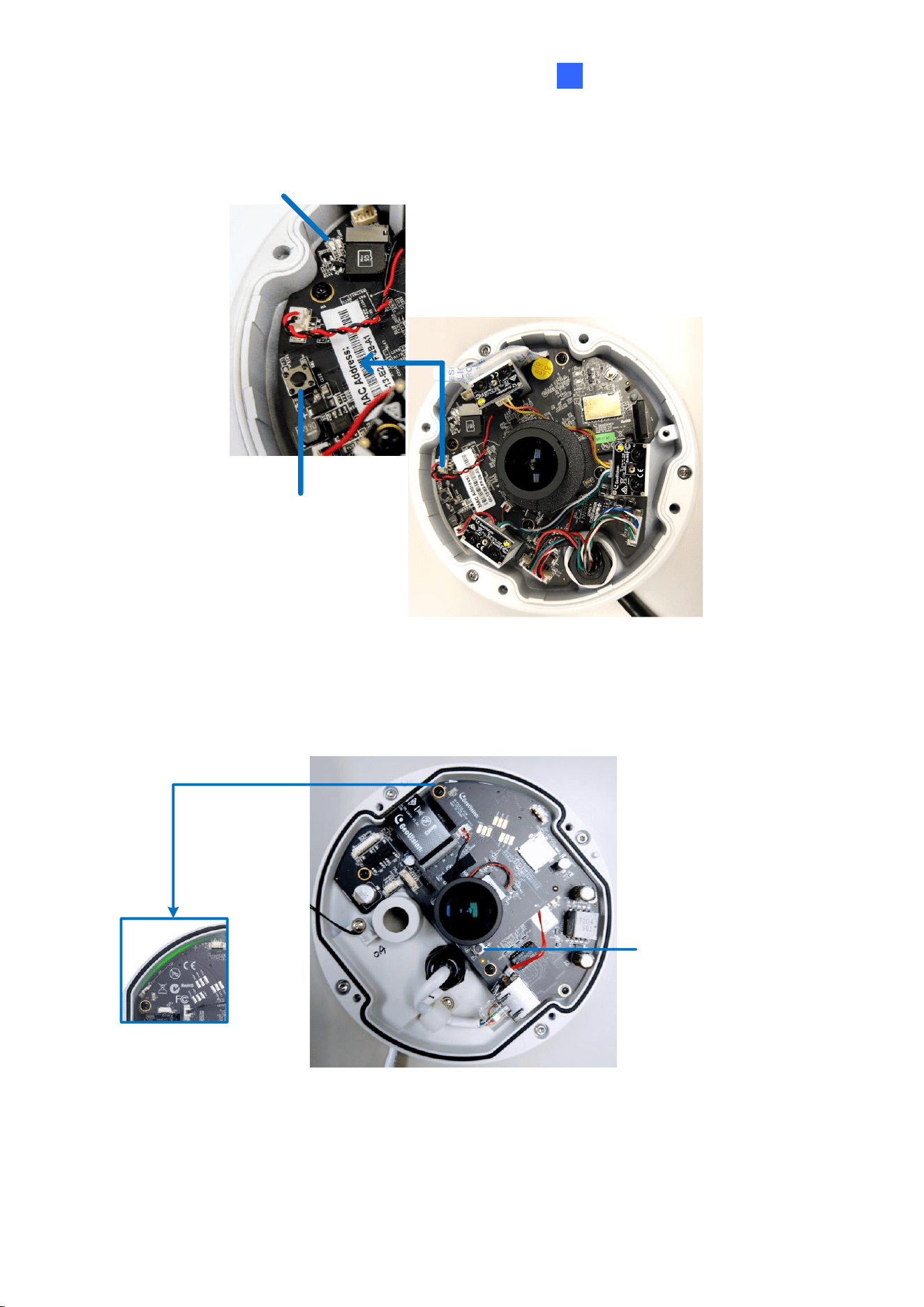
Advanced Applications
157
6
GV-EFER3700 / EFER3700-W
Default Button
System Status LED
Figure 6-9
GV-FER5700 / 5701 / 12700
Default Button
System Status LED
Figure 6-10
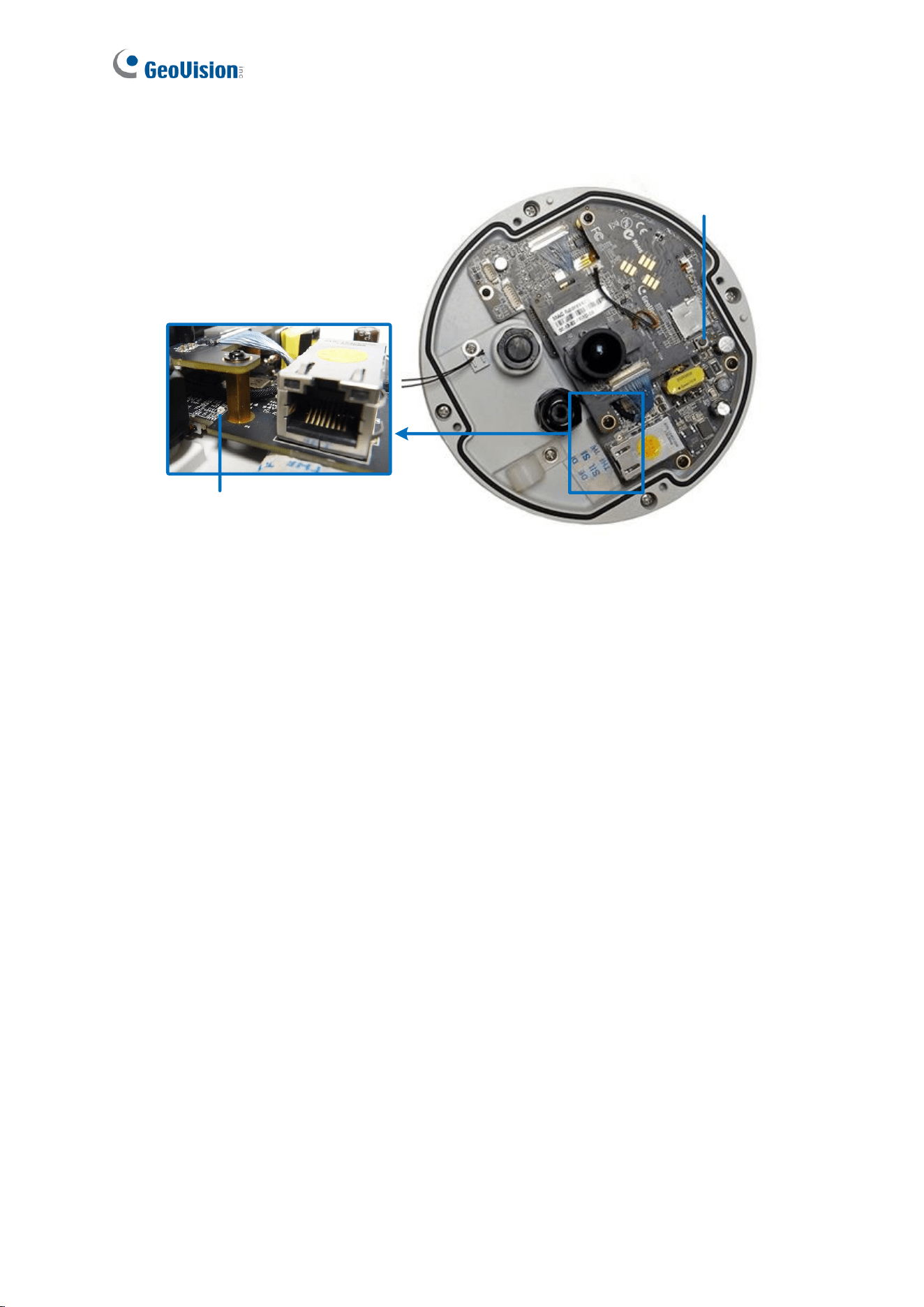
158
GV-FER12203
Default button
System Status LED
Figure 6-11

Advanced Applications
159
6
6.4 Verifying Watermark
The watermark is an encrypted and digital signature embedded in the video stream during
the compression stage, protecting the video from the moment of its creation. Watermarking
ensures that an image is not edited or damaged after it is recorded. To enable the watermark
function, see [Watermark], 4.1.1 Video Settings.
The Watermark Proof is a watermark-checking program. It can verify the authenticity of the
recording before you present it in court.
6.4.1 Accessing AVI Files
To verify watermark, first you have to access the recorded AVI files by one of these methods:
1. Use the File Save function on the Live View window (Figure 3-3) to start recording on the
local computer.
2. Use the Act as FTP Server function to download AVI files from the camera. See 4.3.2
FTP.
3. Use the files recorded on the memory card. Since the files saved on the memory card
are of Linux file system, remember to run IFS Drives to convert the Linux-based files to
Windows-based files. For the instructions, see Steps 1 to 2 in 5.2.1 Playback Using the
Memory Card.
6.4.2 Running Watermark Proof
1. Install Watermark Proof from the company website. After installation, a WMProof icon is
created on your desktop.
2. Double-click the created icon. The Water Mark Proof window appears.
3. Click File from the menu bar, select Open and locate the recording (.avi). The selected
recording is then listed on the window. Alternatively, you can drag the recording directly
from the storage folder to the window.
4. If the recording is unmodified, a check will appear in the Pass column. On the contrary, if
the recording is modified or does not contain watermark during recording, a check mark
will appear in the Failed column. To review the recording, double-click the listed file on
the window.
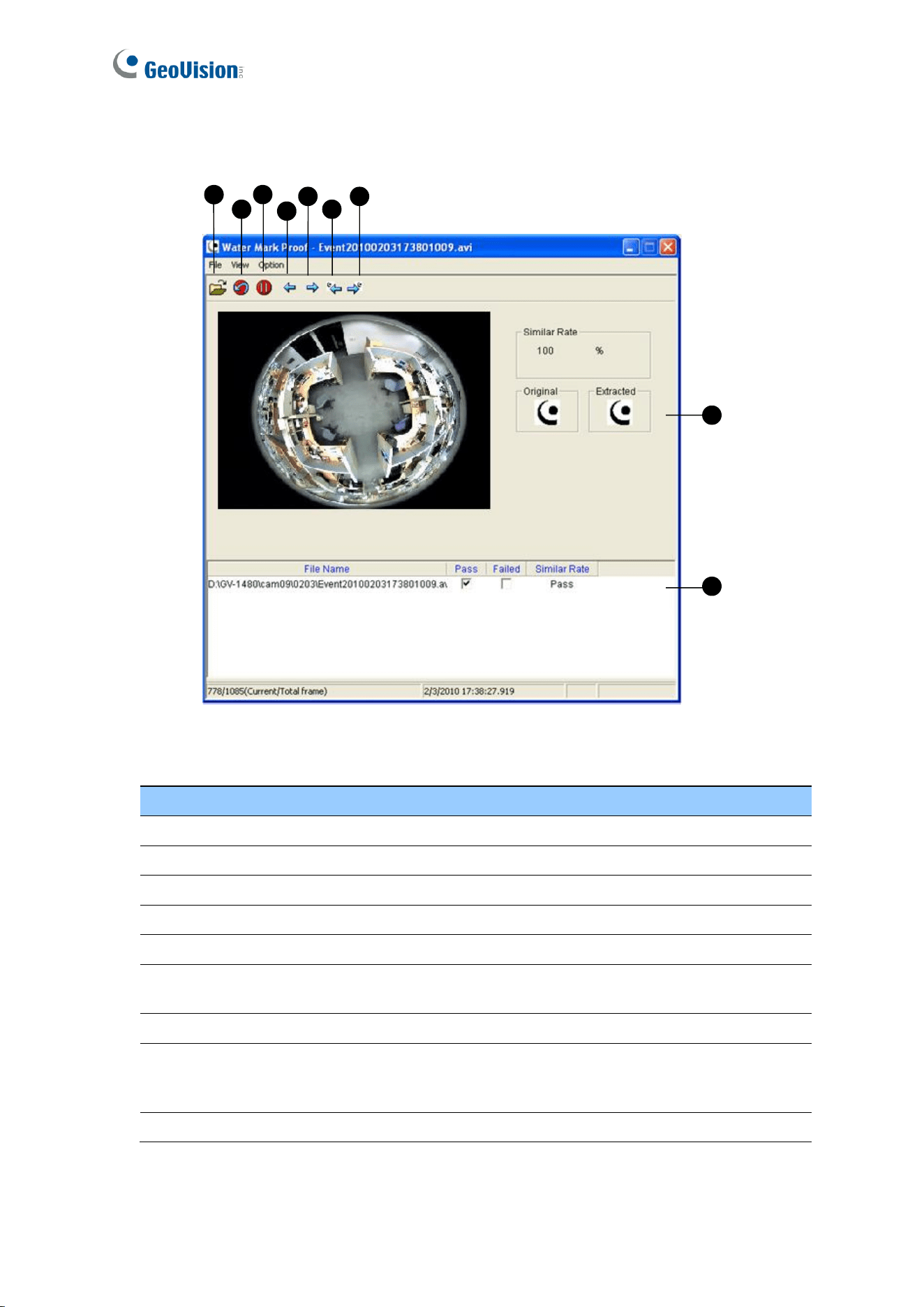
160
6.4.3 The Watermark Proof Window
1
3
5
6
7
8
9
2
4
Figure 6-13
The controls in the window:
No.
Name
Description
1
Open File
Opens the recorded file.
2
First Frame
Goes to the first frame of the file.
3
Play
Plays the file.
4
Previous Frame
Goes to the previous frame of the file.
5
Next Frame
Goes to the next frame of the file.
6
Previous Watermarked
Frame
Goes to the previous frame that contains watermark.
7
Next Watermarked Frame
Goes to the next frame that contains watermark.
8
Original vs. Extracted
The Extracted icon should be identical to the Original
icon. If not, it indicates the recording has been
tampered with.
9
File List
Displays the proof results.
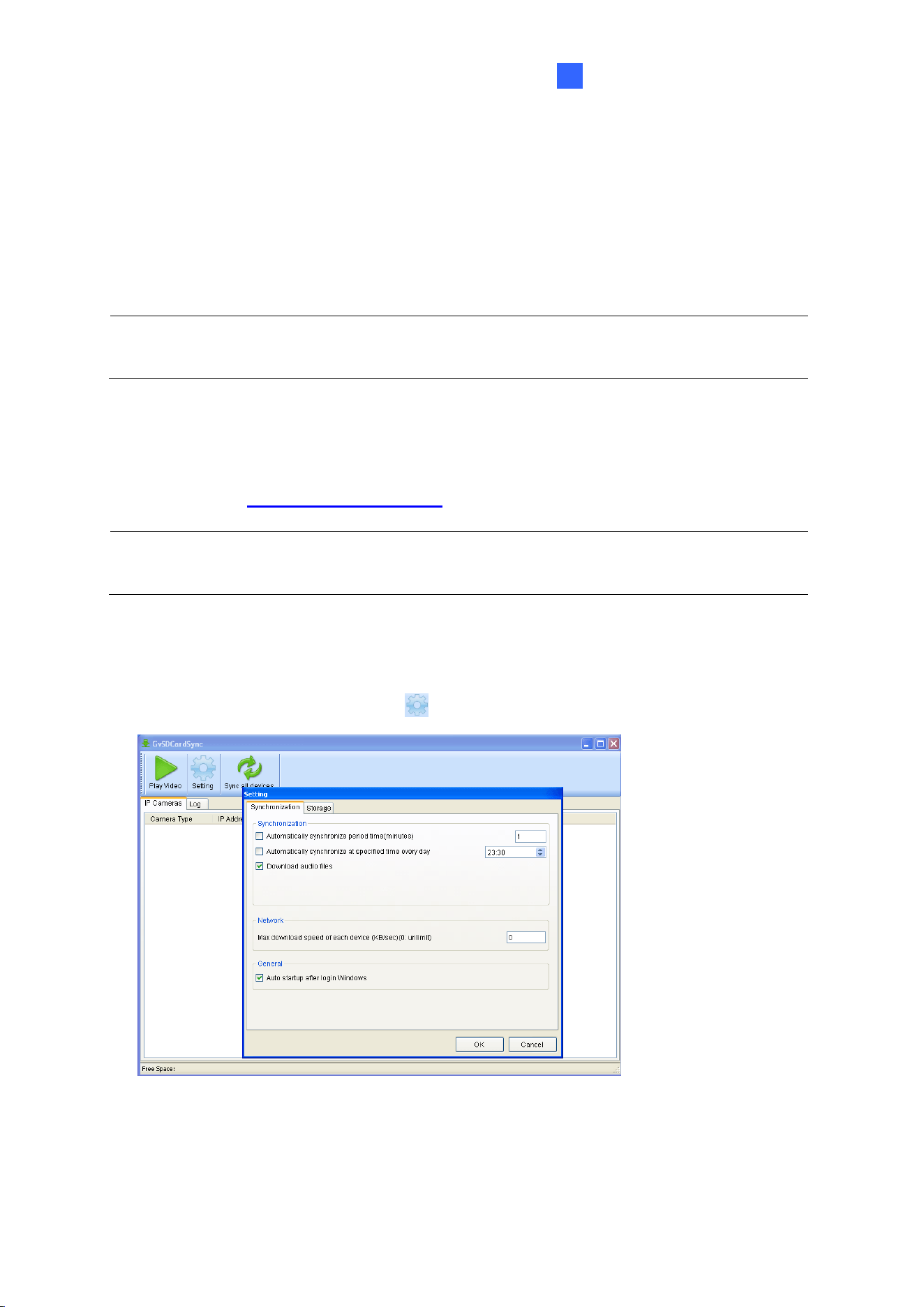
Advanced Applications
161
6
6.5 Downloading Videos from the Micro SD Card
When connections of GV-IP Cameras to the GV-DVR / NVR / VMS are lost, recordings are
automatically saved to the memory cards inserted in the GV-IP Cameras. To automatically
synchronize and download recordings from the micro SD cards to a local folder, install and
execute the GV-SDCardSync Utility program
Note: GV-SDSyncCard Utility is only supported in GV-DVR / NVR V8.5.4 or later, GV-
VMS V14.10 or later, and in GV-IPCam H.264 V1.11 or later.
6.5.1 Installing GV-SDCardSync Utility
1. Download the GV-SD Card Sync Utility program.
Note: The GV-SD Card Sync Utility must be installed on the computer installed with
GV-DVR / NVR V8.5.4 or later / GV-VMS V14.10 or later.
2. Execute the GV-SDCard Sync Utility program. The main window and the Setting
window appear. The Setting window pops up automatically upon first execution.
Otherwise, click the Setting button .
Figure 6-14
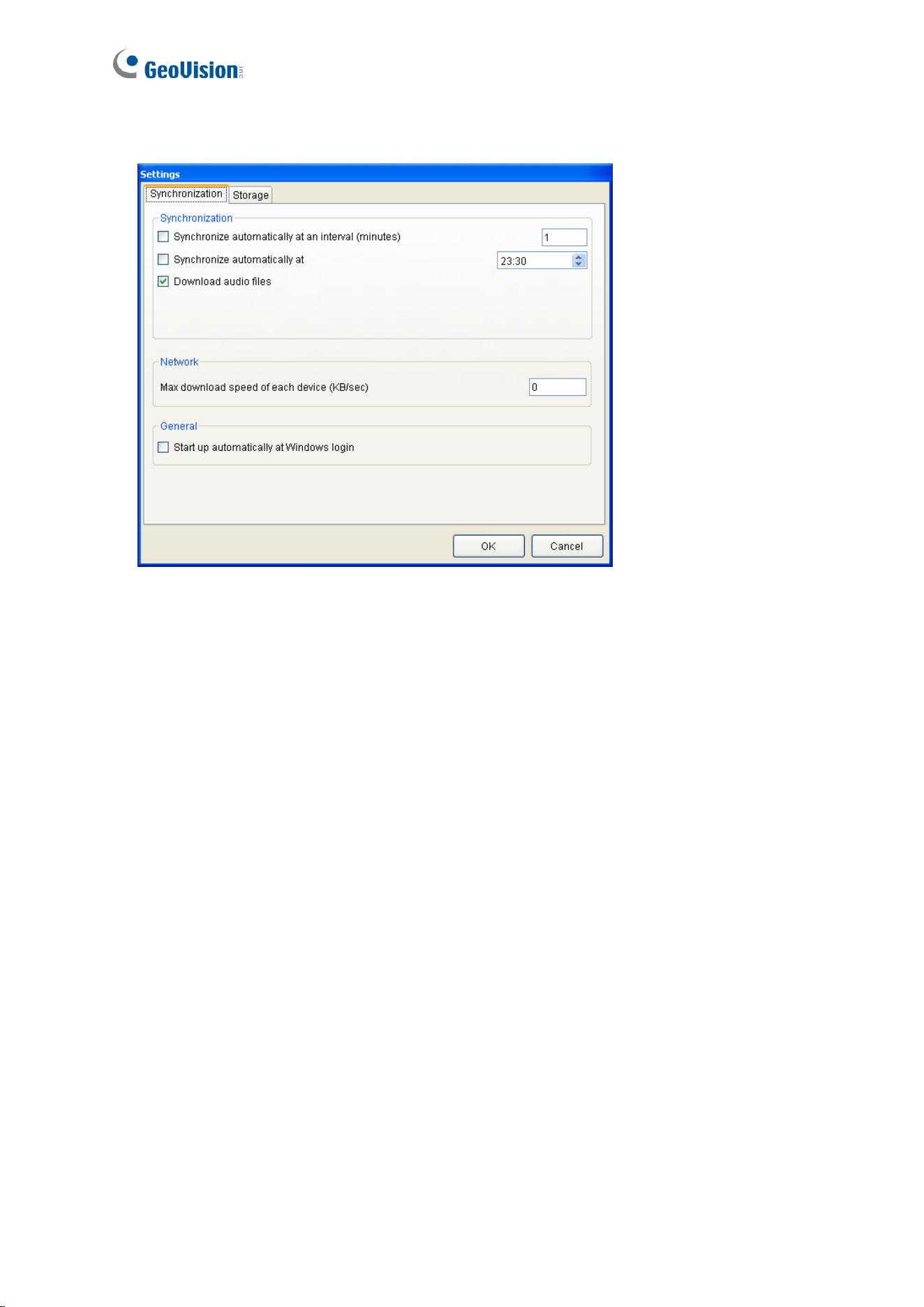
162
3. To configure synchronization, network and startup settings, see the steps below.
Figure 6-15
[Synchronization]
◼ Synchronize automatically at an interval: Automatically synchronize videos from
micro SD cards to a local folder at the specified interval.
◼ Synchronize automatically at: Automatically synchronize videos from micro SD
cards to a local folder at the specified time.
◼ Download Audio Files: You may choose to download audio files along with the
video files. This option is enabled by default.
[Network]
◼ Max. download speed of each device (Kb/sec): To make sure the bandwidth is not
completely taken up while downloading files from the memory card, specify a
maximum download speed. If you do not want to set a bandwidth limit, type 0.
[General]
◼ Start up automatically at Windows login: GV-SDSync Utility launches
automatically when Windows starts up.
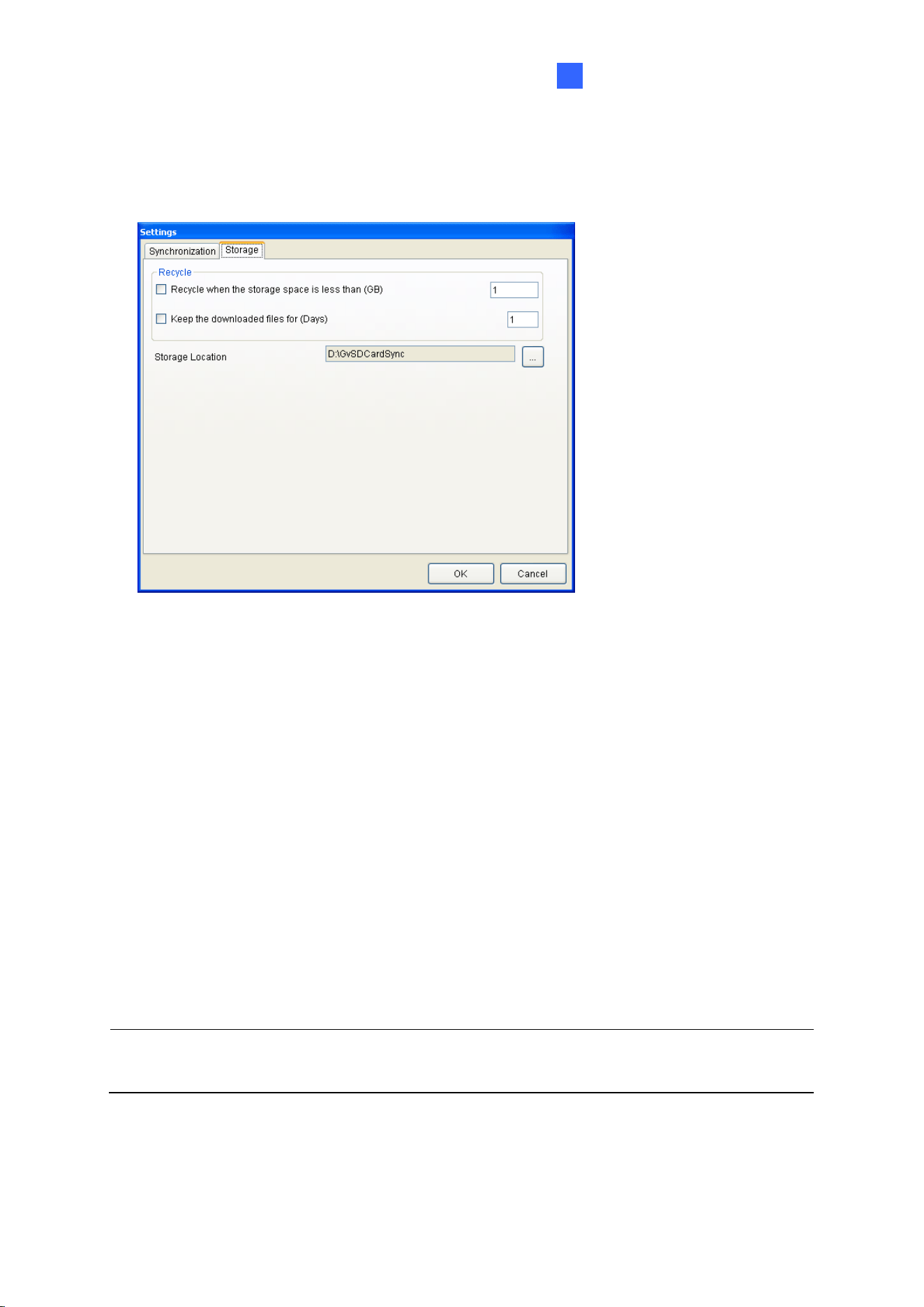
Advanced Applications
163
6
4. By default, downloads are saved to :\GvSDCardSync and are not recycled automatically.
To configure the storage and recycling settings, select the Storage tab on the Setting
window. This page appears.
Figure 6-16
[Recycle]
◼ Recycle when the storage space is less than (GB): Specify a minimum free space
of your local storage for file recycling.
◼ Keep the downloaded files for (Days): Specify the number of days to keep the
download files at the local hard drive.
[Storage Location]
To configure the storage path, click the button next to the location field and specify a
storage location.
5. Click OK to save the configuration or exit the Setting window.
Note: Keep the GV-SDCardSync Utility running in the background to automatically
synchronize and download videos.
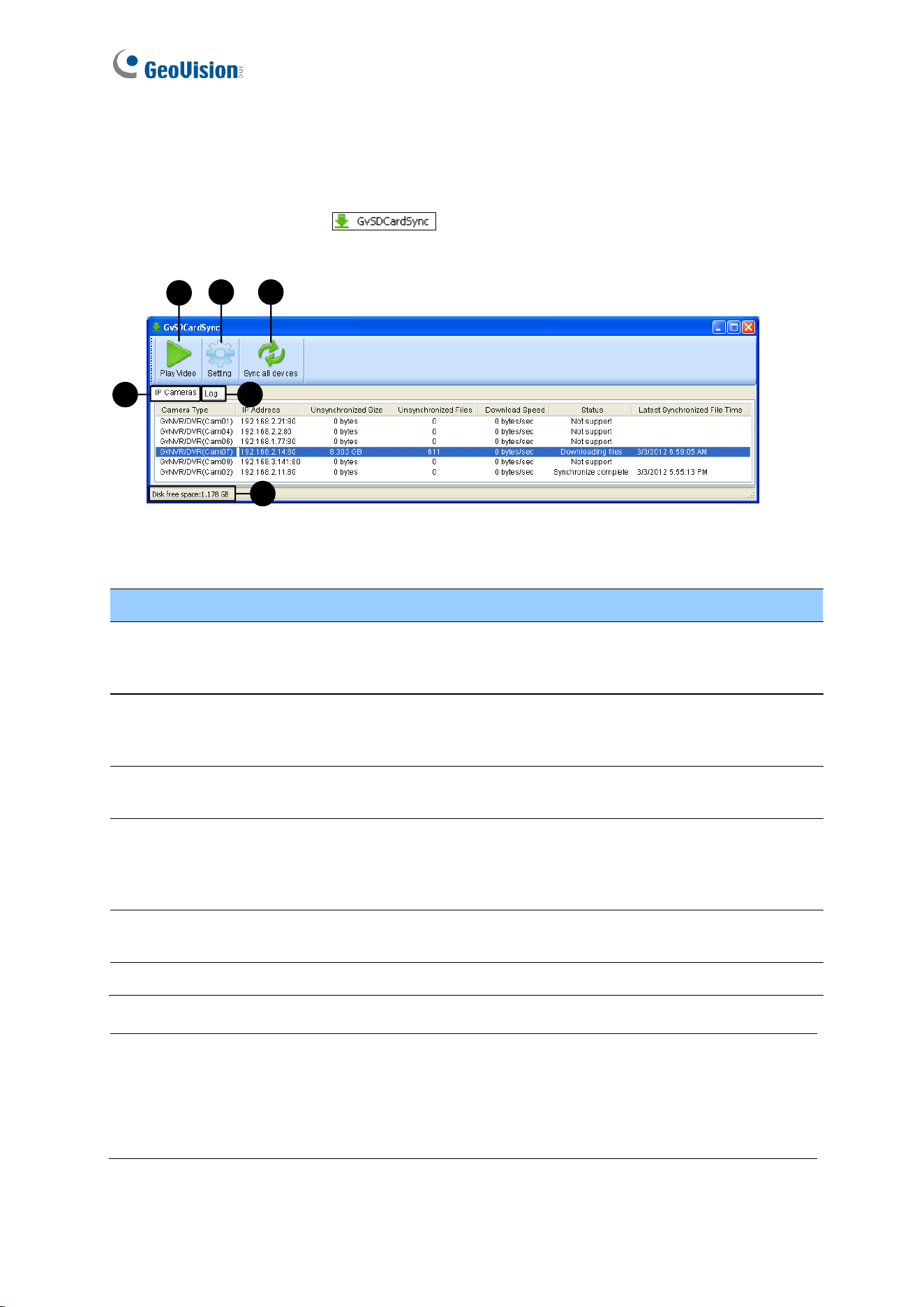
164
6.5.2 The GV-SDCardSync Utility Window
After you have installed the GV-SDCardSync Utility, point to Start, select Programs, select
GV-SDCardSync and select to launch the program. This window appears.
1
2 3
4
5
6
Figure 6-17
No.
Name
Description
1
Play Video
Plays downloaded recordings of the selected GV-IP Cameras using
the ViewLog player. For details, see Chapter 4, DVR User’s
Manual.
2
Setting
Contains settings on synchronization, network, storage location and
recycling criteria. See step 4 in 6.6.1 Installing the GV-SDCardSync
Utility.
3
Sync all devices
Manually synchronizes and downloads the recording files stored at
GV-IP Cameras.
4
IP Camera Tab
Shows information of GV-IP Cameras connected to the GV-DVR /
NVR / VMS, including channel number, IP address, size and
number of unsynchronized files, download speed, status and the
last synchronization time.
5
Log Tab
Displays up to 100 event entries of the GV-SDCardSync Utility.
Once the entries are full, recycling will start from the oldest file.
6
Storage Space
Shows the storage space of the designated hard drive.
Note:
1. The synchronization time is recorded according to the system time of the GV-IP
Camera.
2. The logs are deleted once the GV-SDCardSync Utility is re-activated.
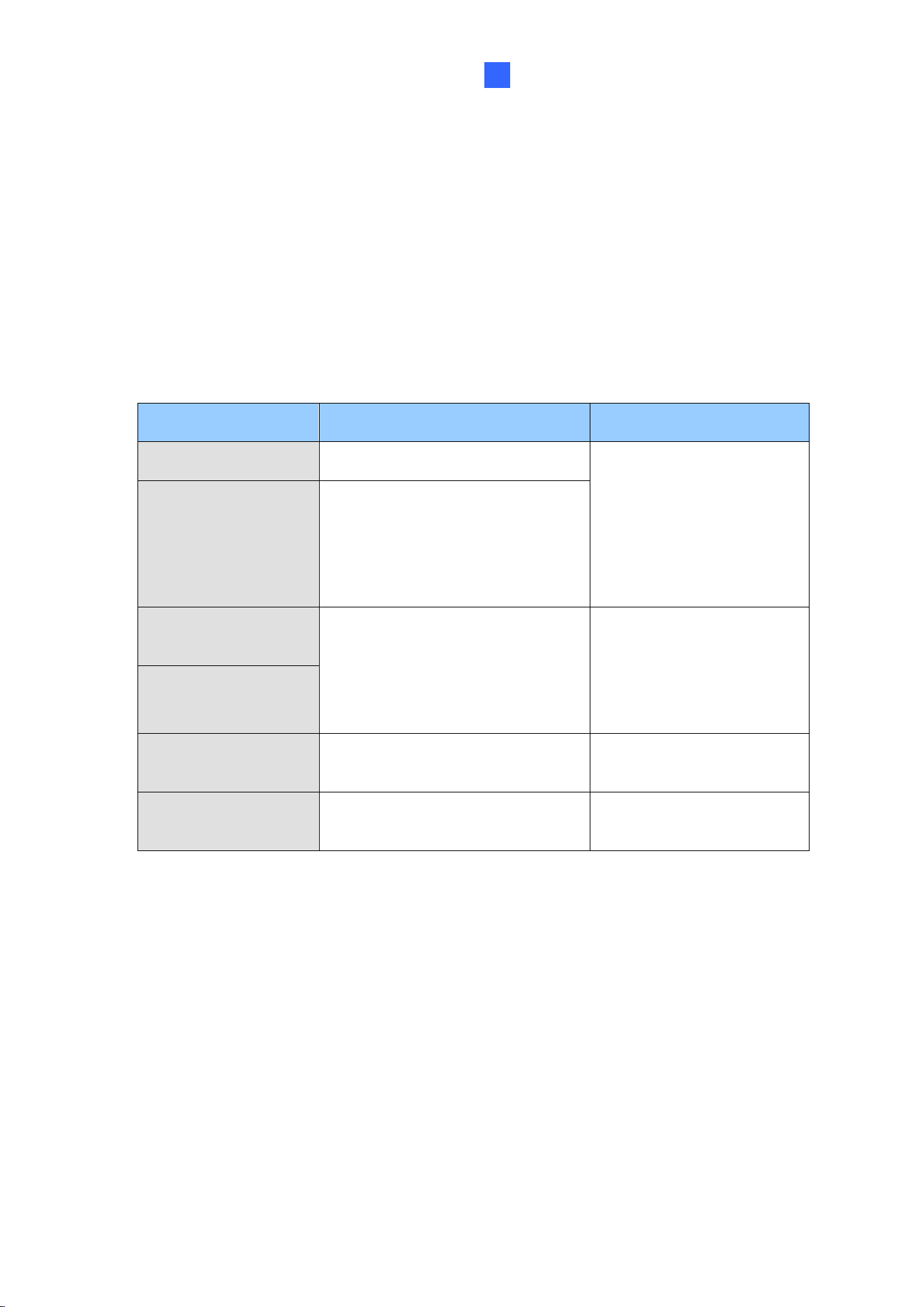
DVR/NVR/VMS Configurations
165
7
Chapter 7 DVR/NVR/VMS Configurations
The GV-DVR / NVR / VMS provides complete video management, such as video viewing,
recording, playback, alert settings, and almost every feature of the system. The integration
specifications are listed below:
• The compatible GV-DVR / NVR / VMS version for each GV-Fisheye Camera model:
Camera Model
Compatible GV-DVR / NVR
Compatible GV-VMS
GV-FE2301 / 4301
V8.5.6 (with patches) or later
V14.10 or later
GV-FE3402 / 3403
GV-FE5302 / 5303
GV-FER3402 / 3403
GV-FER5302 / 5303
V8.5.9 or later
GV-EFER3700 /
EFER3700-W
V8.7.4.0 (with patches) or later
GV-FER5701:
V8.8 (with patches) or later
V17.1 (with patches) or
later
GV-FER5701:
V17.1.0.100 (with
patches) or later
GV-FER5700 / 5701
GV-FER12203
V8.6.2.0 (with patches) or later
V14.10.1.0 (with patches)
or later
GV-FER12700
V8.8.0 (with patches) or later
V17.3.0 (with patches) or
later
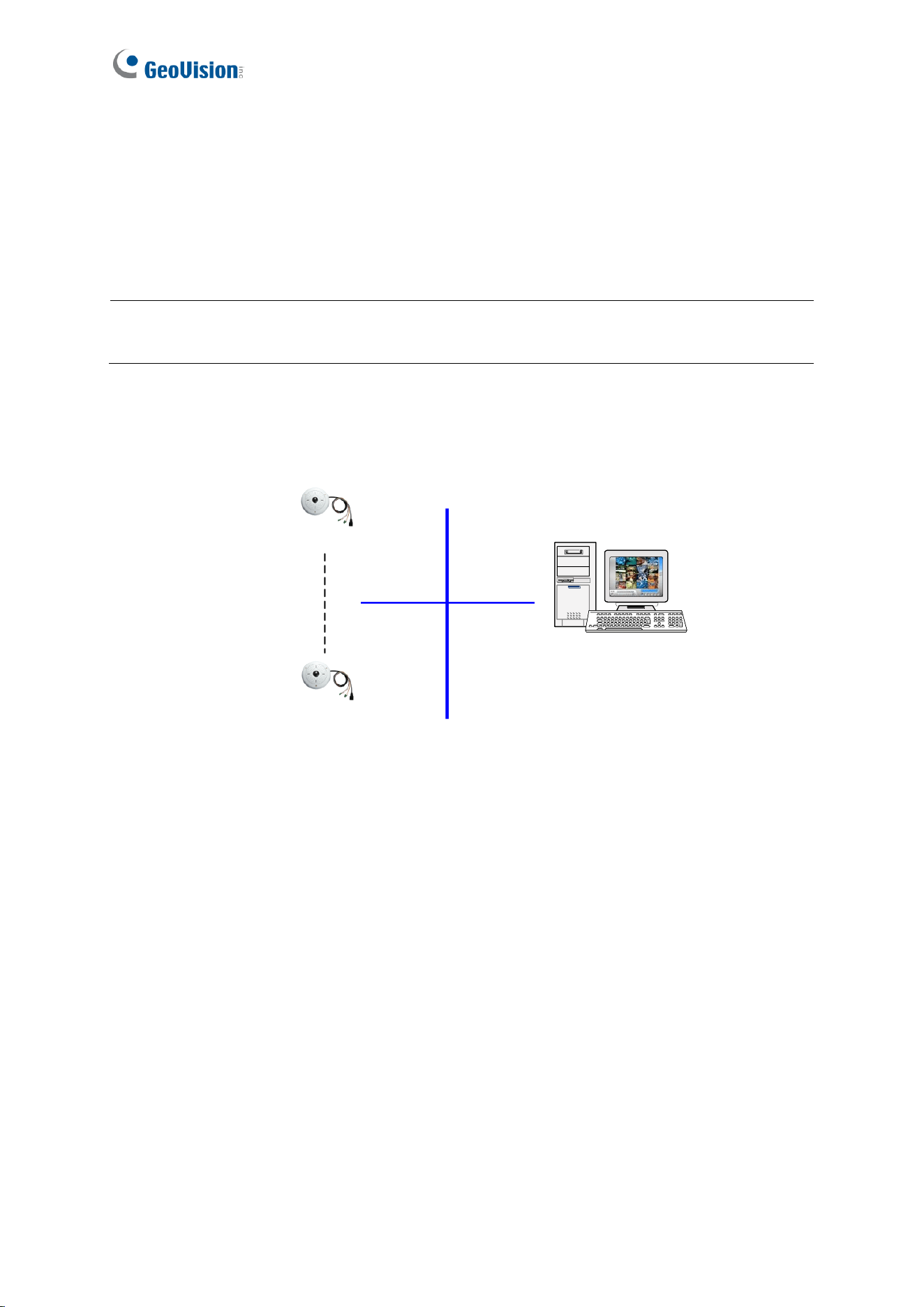
166
• The maximum number of streams, connected from any applications, supported by each
GV-Fisheye Camera is 8.
• When a GV-Fisheye Camera is connected to IE browser or any other applications, it
takes up 1 stream; when it is connected to GV-DVR / NVR / VMS, it takes up 1 stream;
when it is connected to GV-VMS, it takes up 2 streams.
Note: GV-DVR / NVR only supports a single stream from the GV-Fisheye Camera, and
GV-VMS supports dual streaming from the camera.
• The hardware compression and the “Pre-Recording Using RAM” feature cannot work on
the videos from the fisheye camera.
GV-Fisheye Camera
GV-Fisheye Camera
TCP/ IP
GV-DVR / NVR with
32-channel Display
Figure 7-1
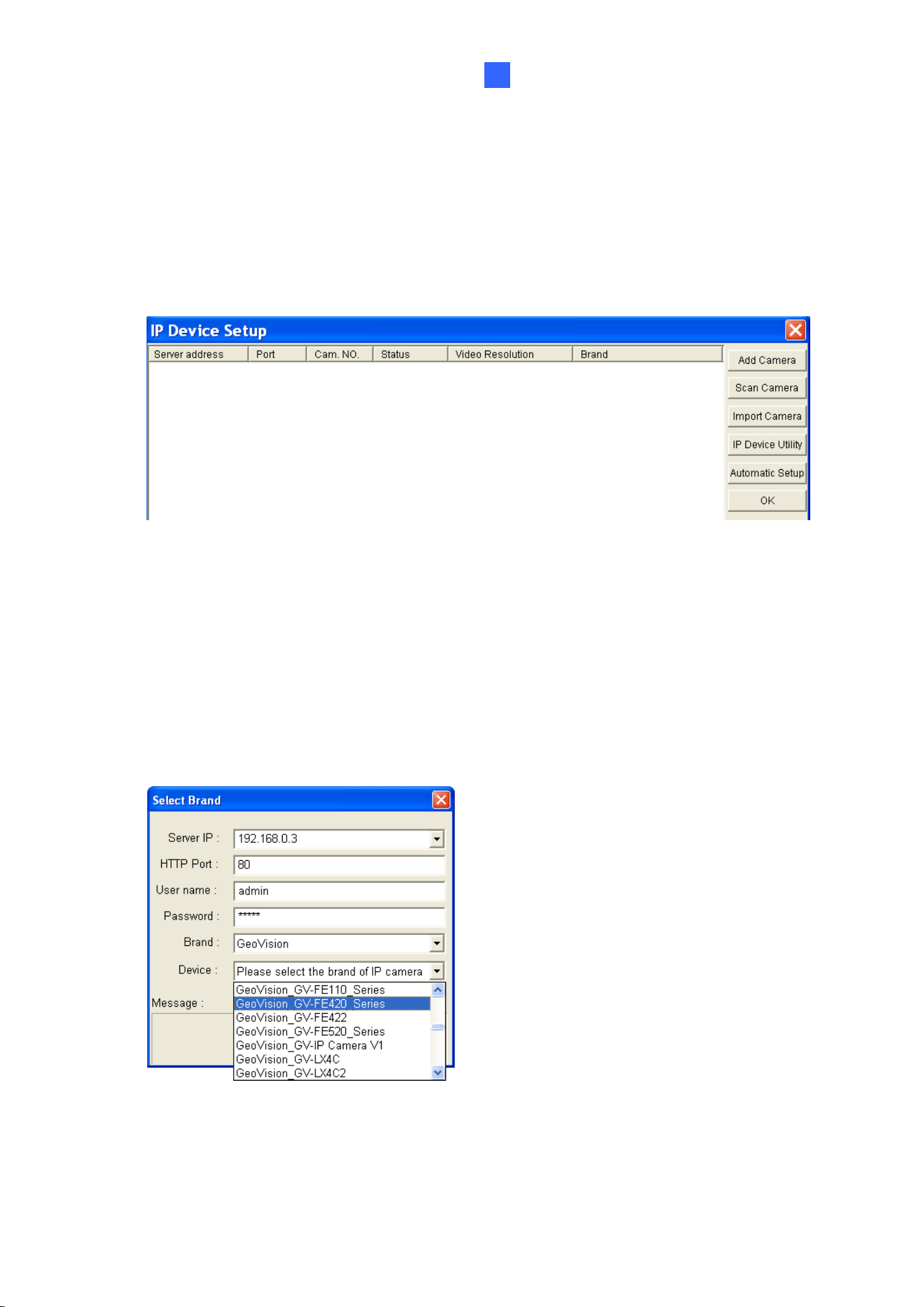
DVR/NVR/VMS Configurations
167
7
7.1 Setting Up IP Cameras on GV-DVR / NVR
To set up the camera on the GV-DVR / NVR, follow these steps:
1. On the main screen, click the Configure button, select System Configure, select
Camera Install and click IP Camera Install. This dialog box appears.
Figure 7-2
• To automatically set up the camera, click Scan Camera to detect any GV IP devices
on the LAN.
• To manually set up the camera, click Add Camera.
The following steps are the example of manual setup.
2. Click Add Camera. This dialog box appears.
Figure 7-3
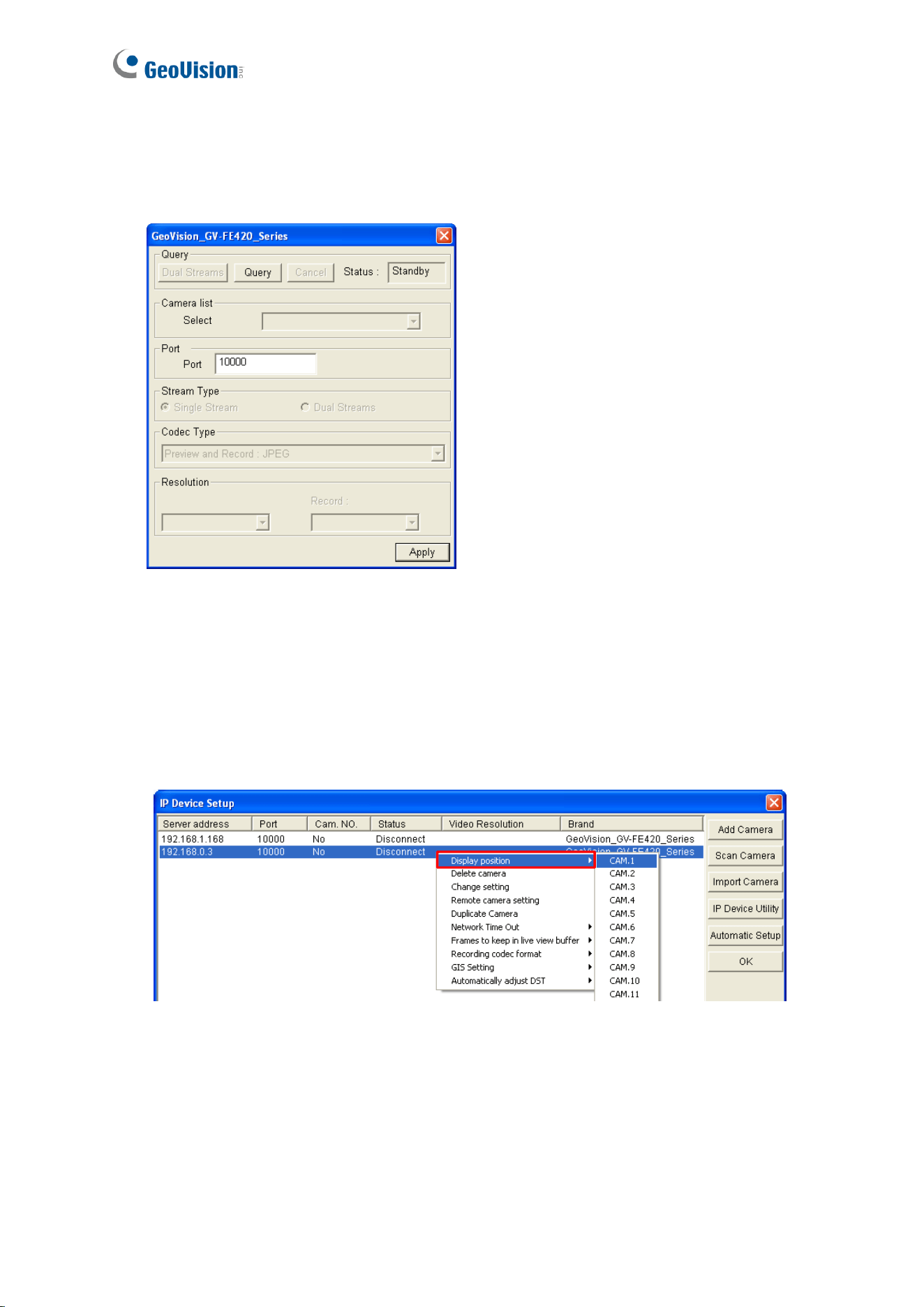
168
3. Type the IP address, username and password of the camera. Modify the default HTTP
port if necessary. Select GeoVision from the Brand drop-down list and select the model
from the Device drop-down list. This dialog box appears.
Figure 7-4
4. Click Query to acquire the information from the IP camera. You can change the video
streaming port number if needed.
5. Click Apply. The IP camera is added to the connection list.
6. Click the listed camera and select Display position to map the IP camera to a channel
on the GV-DVR / NVR.
Figure 7-5
7. The Statue column should display “Connected”. Click OK.
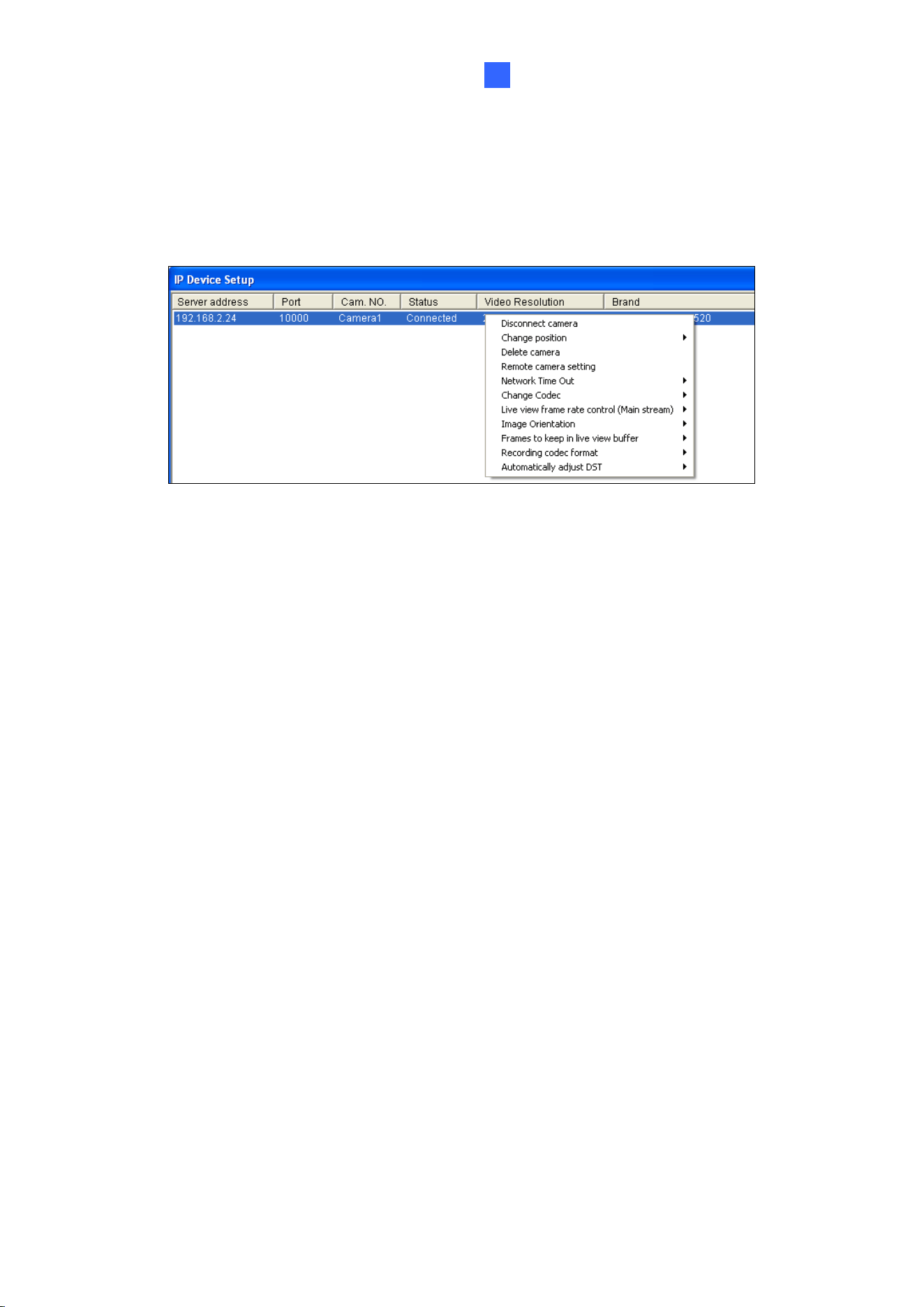
DVR/NVR/VMS Configurations
169
7
7.1.1 Customizing the Basic Settings on GV-DVR / NVR
After the GV-Fisheye Camera is connected and assigned with a display position, you can
configure the camera’s settings such as frame rate, codec type and resolution. Right-click the
desired camera to see the following list of options:
Figure 7-6
◼ Network Time Out: When network disconnection exceeds the specified time period, the
camera status will be displayed as Connection Lost.
◼ Change Codec: Changes the code type.
◼ Live-view frame rate control (Main stream): Sets the live view frame rate of the sub
stream to help reduce the CPU usage. If you have set the live view codec to be MJPEG,
select the number of frames to allow in a second. If the live view codec selected is H.264,
select one of the following options:
Maximum Live-view Frame Rate: View the video at the maximum frame rate
possible.
Live-view Key Frame only: You can choose to view the key frames of the videos
only instead of all frames on the live view. This option is related to the GOP setting
of the IP camera. For example, if the GOP value is set to 30, there is only one key
frame among 30 frames.
◼ Image Orientation: You can adjust the image orientation by selecting Normal,
Horizontal Mirror, Vertical Flip or Rotate 180°.
◼ Frames to keep in live view buffer: Specifies the number of frames to keep in the live
view buffer.
◼ Recording Codec Format: Specifies whether to record in standard or GeoVision type
of MJPEG, H.264 codec.
◼ Automatically Adjust DST: If enabled, the time on the GV-IP device Web interface will
be synchronized with the time of the GV-DVR / NVR when DST period starts or ends on
the GV-DVR / NVR.
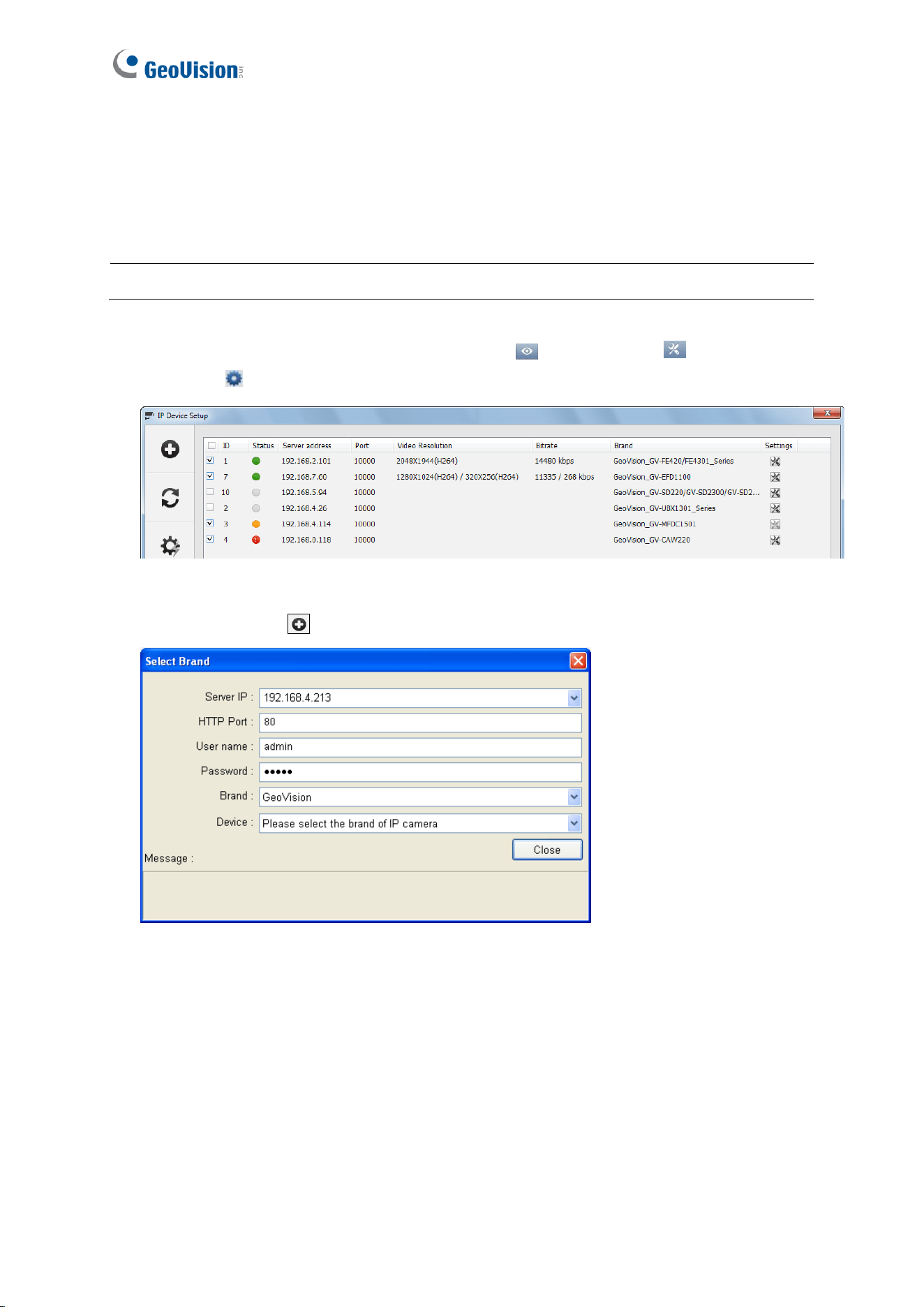
170
7.2 Setting Up IP Cameras on GV-VMS
Follow the steps below to manually connect your GV-Fisheye IP Dome to GV-VMS.
Note: The following instructions are based on V14.10 software and user interfaces.
1. To access the IP Device Setup page, click Home , select Toolbar , click
Configure and select Camera Install.
Figure 7-7
2. Click Add Camera . This dialog box appears.
Figure 7-8
3. Type the IP address, username and password of the camera. Modify the default HTTP
port 80 if necessary.
4. Select GeoVision and model name from the Brand drop-down list and select the
camera from the Device drop-down lists. This dialog box appears.
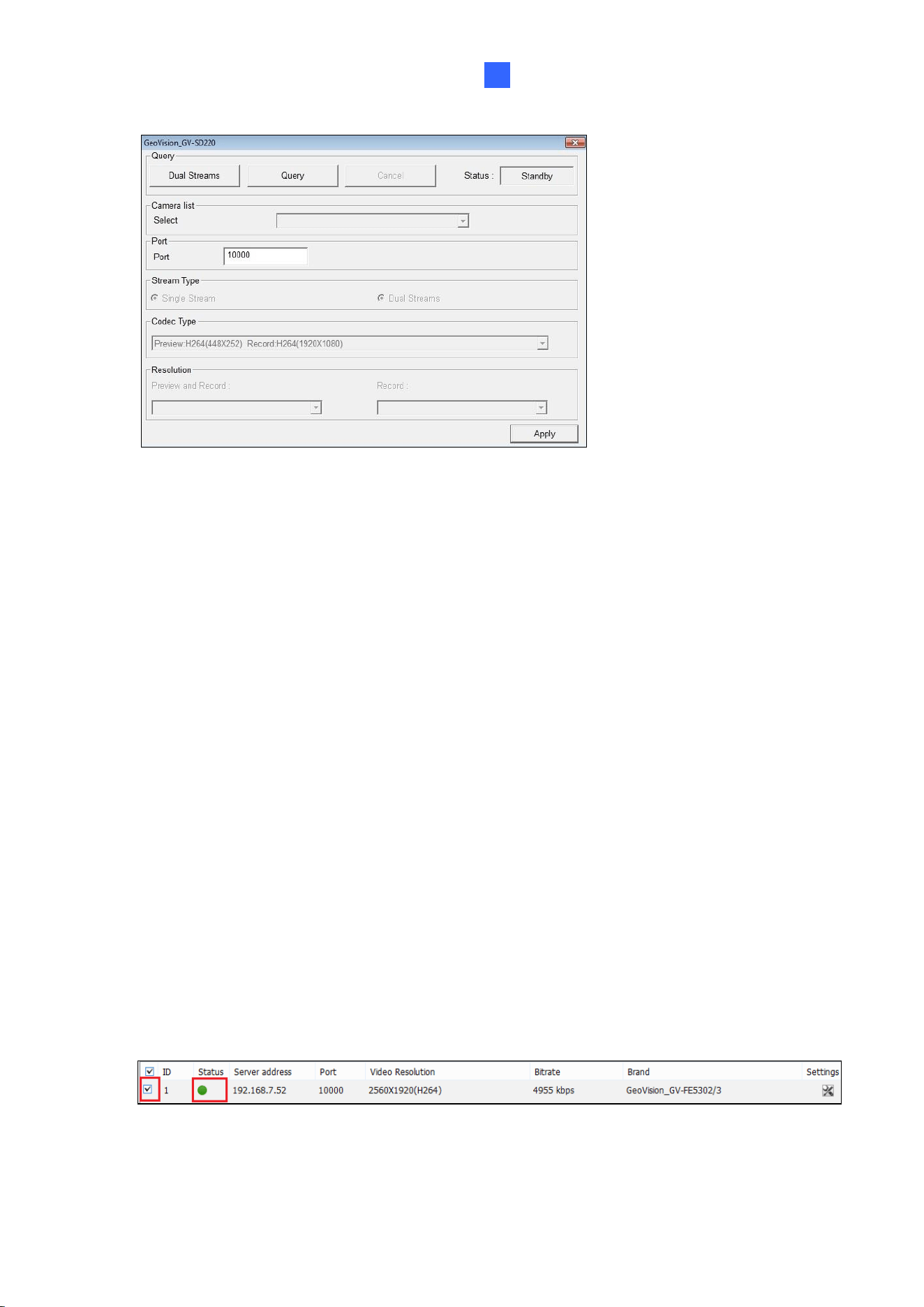
DVR/NVR/VMS Configurations
171
7
Figure 7-9
5. In the dialog box, configure the options which may vary depending on camera brands.
◼ Dual Streams: The camera is set to dual streams by default. Select this option to
apply the dual-streaming settings (lower resolution for live view and higher resolution
for recording) if the camera supports dual streams.
◼ Query: Detect and apply the current codec and resolution setting on the camera. This
function may not be available for some third-party cameras.
◼ Camera list: Select a camera number.
◼ Port: Modify the video streaming port number if necessary.
◼ Stream Type: You may have the option of Single Stream or Dual Streams.
◼ Codec Type: You may have different codec options depending on camera models. If
the selected camera supports dual streaming, the live view codec and recording
codec can be set differently.
◼ Resolution: You may select the different resolutions for live view and recording.
6. Click Apply to add the camera to the list.
7. To connect the added camera, click the box besides the ID column. Upon successful
connection, the Status icon shows green, with the video resolution and bit rate being
displayed in the correspondent columns.
Figure 7-10
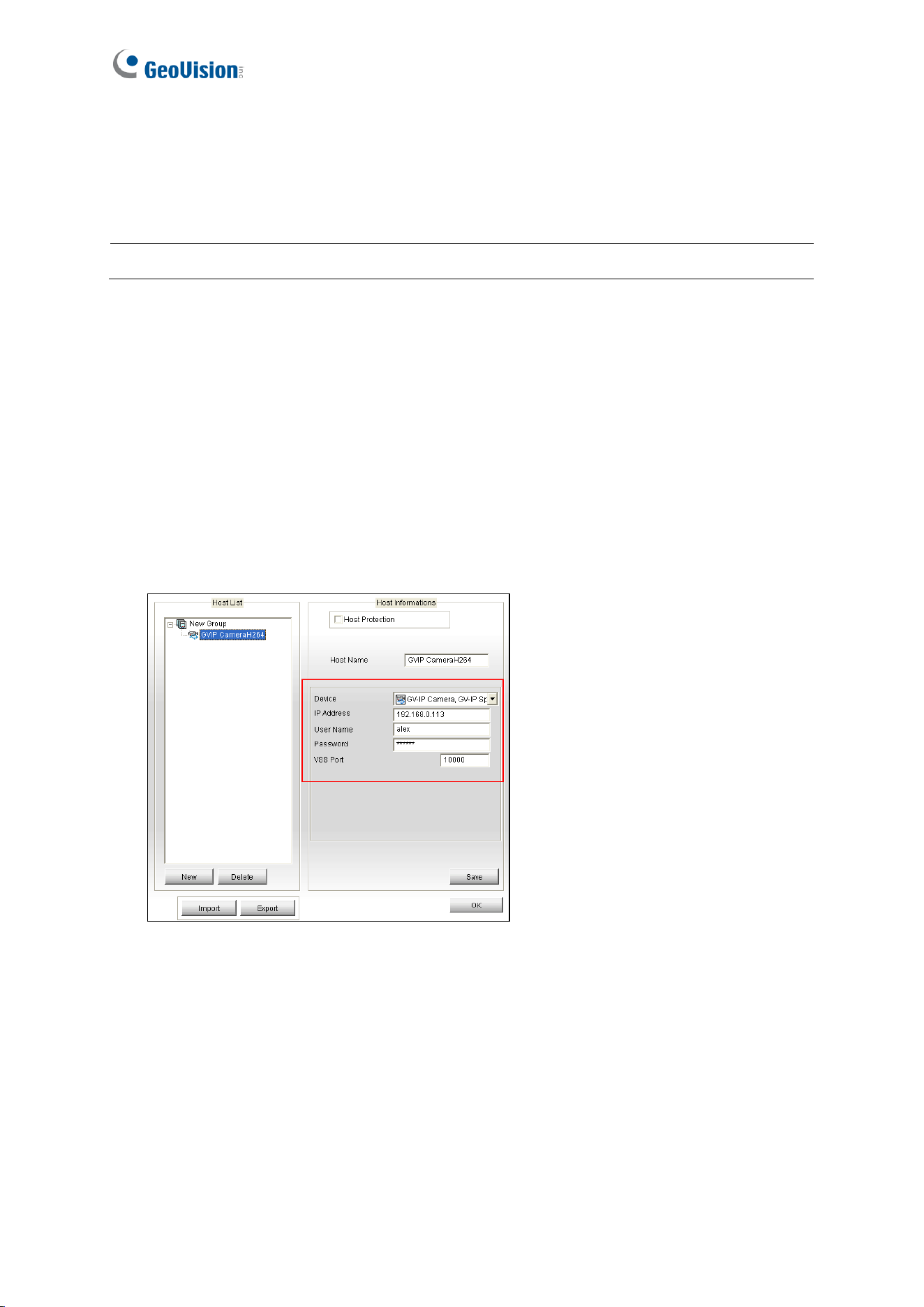
172
7.3 Remote Monitoring with Multi View
You can use the Multi View to monitor and manage the camera.
Note: Multi View is not supported by GV-VMS.
7.3.1 Connecting to the IP Camera
1. On the Multi View window, click the Edit Host button. The Edit Host window appears.
2. To create a host, click the New button. You need to create a group before creating a
host.
3. Select GV-IP Camera, GV-IP Speed Dome from the Device drop-down list. Type the
host name, IP address, user name and password of the camera. Modify the default VSS
port 10000 if necessary.
Figure 7-11
4. Click Save to establish connection.
For details on the Multi View functions, see “Multi View Viewer”, Remote Viewing, DVR
User’s Manual.
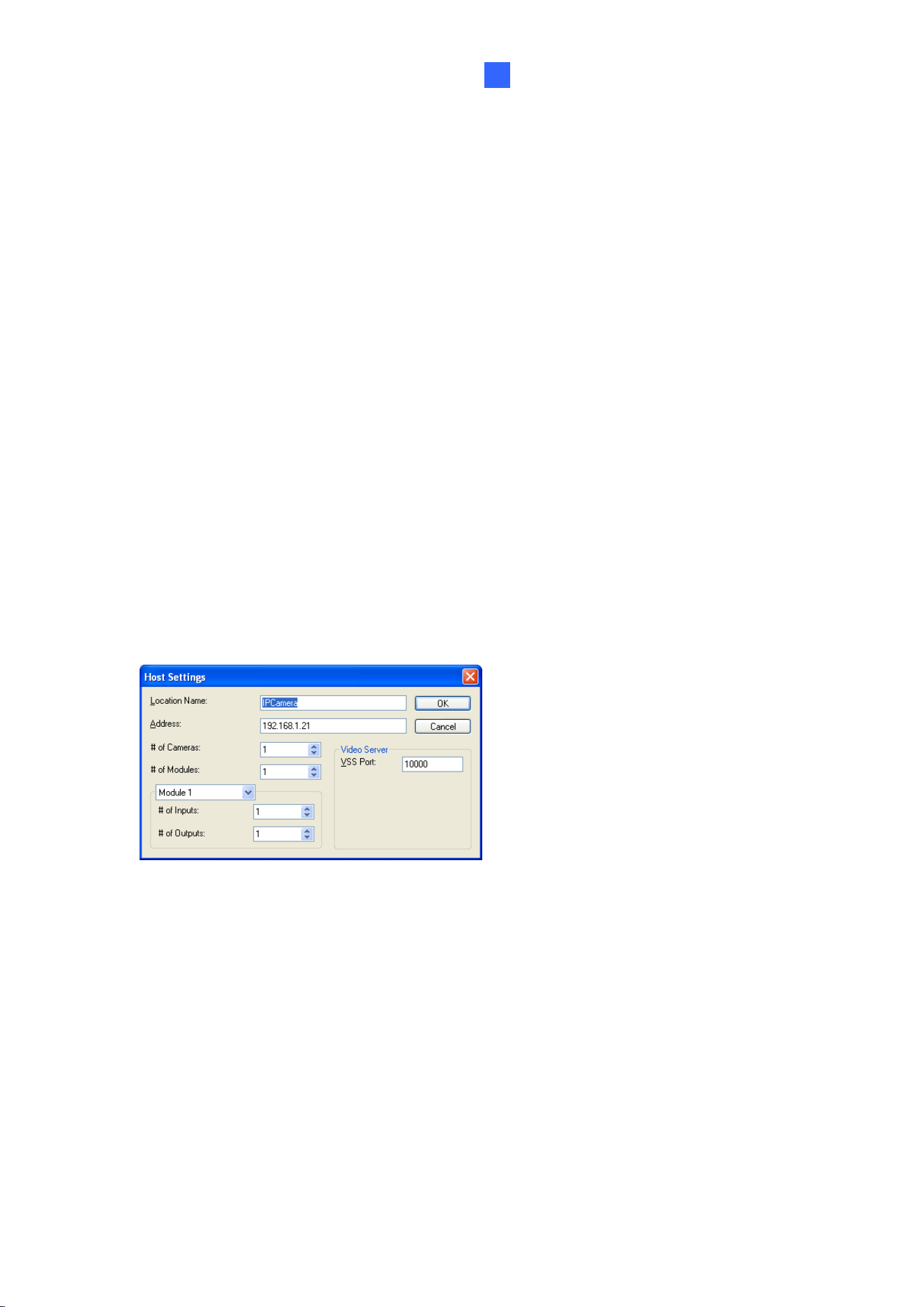
DVR/NVR/VMS Configurations
173
7
7.4 Remote Monitoring with E-Map
You can use the Remote E-Map to monitor and manage the camera.
7.4.1 Creating an E-Map for the IP Camera
With the E-Map Editor, you can create an E-Map for the camera. The E-Map Editor is
available in the two applications: Main System and E-Map Server. The following is an
example of running the E-Map Editor included in the Main System.
1. Go to Windows Start menu, point to Programs, select GV folder and click E-Map Editor.
2. To create an E-Map, click the Add Map button on the toolbar. A New Map file appears.
3. Double-click the New Map file, and click the Load Map button on the toolbar to import a
graphic file.
3. To create a host, click the Add Host button on the toolbar and select Add Camera.
4. Right-click the created New Host in the Host View, and select Host Settings. This dialog
box appears.
Figure 7-12
4. Give the camera a location name, and type its IP address (or domain name). Modify the
default VSS port 10000 if necessary.
5. Click OK to save the settings.
6. Expand the created host folder. Drag and drop the icons of cameras and I/O devices
onto the imported E-Map.
7. Close the E-Map Editor. Click Yes when you are promoted to save the file.
For details on creating an E-Map file on the E-Map Server, see “E-Map Server”, E-Map
Application, DVR User’s Manual.

174
7.4.2 Connecting to the IP Camera
Depending on where you save the created E-Map file (DVR, E-Map Server or Control
Center), the steps to open the Remote E-Map window for monitoring may vary slightly. The
following is the connection example when you store the E-Map file on the DVR.
1. To enable the remote access to the DVR, click the Network button, select WebCam
Server to display the Server Setup dialog box, and click OK to start the WebCam server.
2. At the local computer, open the web browser and type the address of the DVR. The
Single View page appears.
3. Select Emap. A valid user name and password are required for login. For the first-time
user, you will be directed to the Download page. Install the E-Map program before you
can run it.
4. On the Remote E-Map window, click the Login button and select the camera host to
access its videos and I/O devices. A valid user name and password are required to log
in the camera.
For details on the Remote E-Map functions, see “The Remote E-Map Window”, E-Map
Application, DVR User’s Manual.
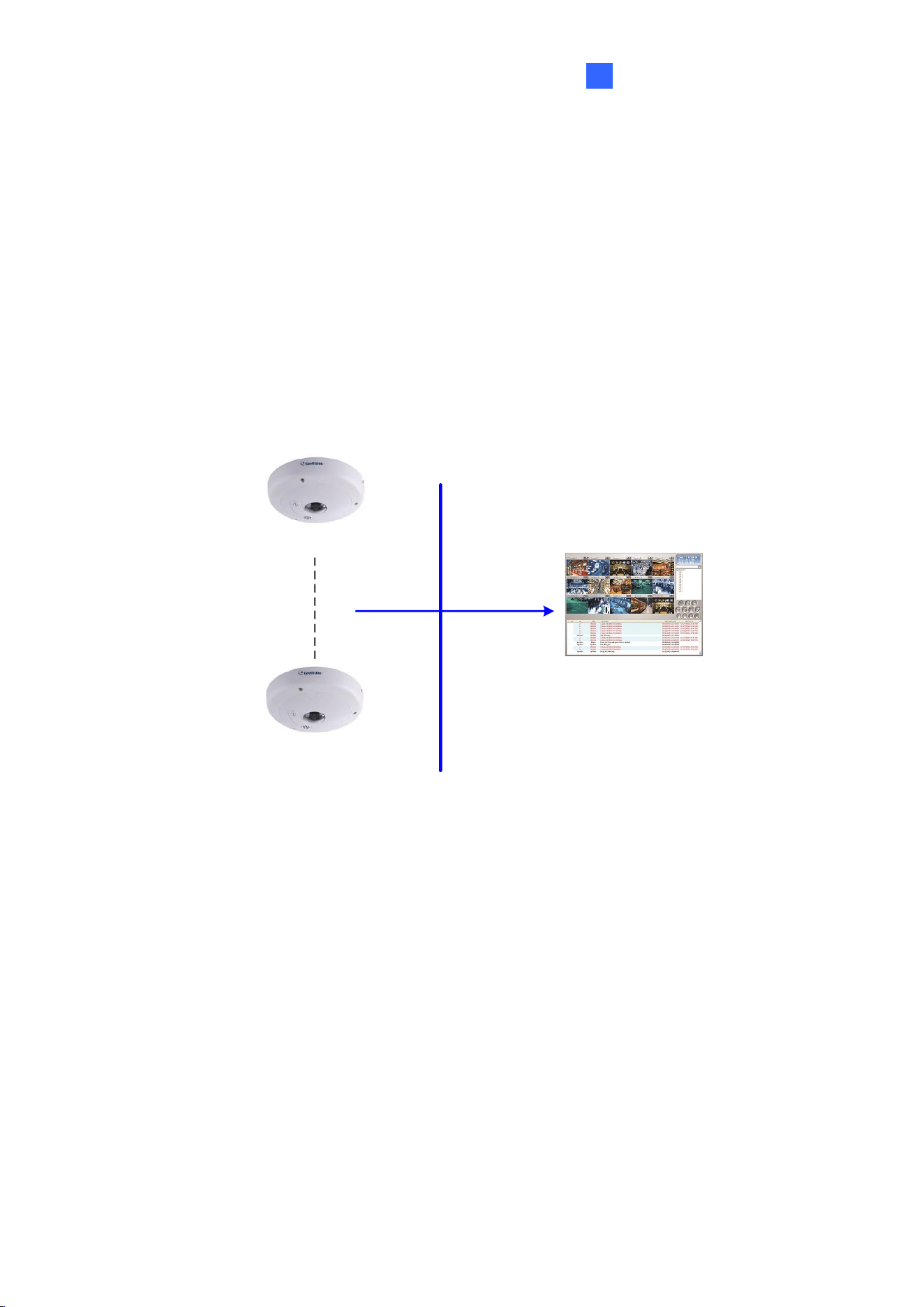
CMS Configurations
175
8
Chapter 8 CMS Configurations
This section introduces settings on connecting the camera in the central monitoring stations
Center V2, Vital Sign Monitor and Dispatch Server.
8.1 Center V2
The Center V2 can monitor and manage the camera and I/O devices connected to the
camera.
GV-Fisheye Camera
GV-Fisheye Camera
TCP/ IP
Center V2
Video Data
Text Data
Figure 8-1
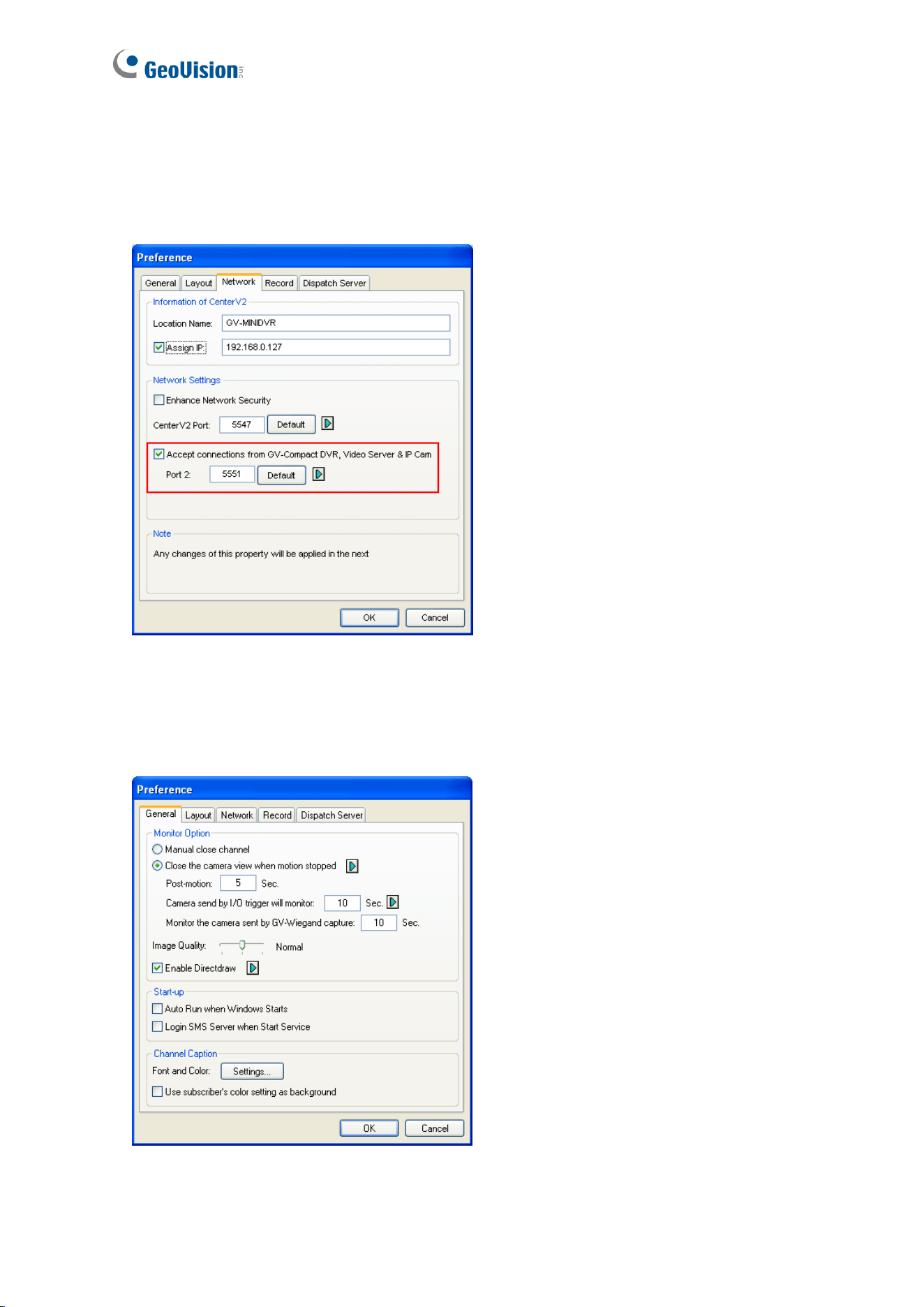
176
• To set the appropriate port connecting to the IP camera, click the Preference Settings
button, select System Configure, click the Network tab, and check Accept connections
from GV-Compact DVR, Video Server & IP Cam. Keep the default port 5551 for the Port
2 option, or modify it to match the Center V2 port on the camera.
Figure 8-2
• To define how to display the received video on motion detection and input trigger from the
camera, click the Preference Setting button and select System Configure. This dialog
box appears.
Figure 8-3

CMS Configurations
177
8
◼ Manual close channel: Closes the triggered camera view manually.
◼ Close the camera view when motion stopped: Closes the triggered camera view
automatically when motion stops.
◼ Post Motion: Specify the duration of the camera view remaining on the monitoring
window after motion stops.
◼ Camera send by I/O trigger will monitor: Specify the duration of the camera view
remaining on the monitoring window when an I/O device is triggered.
To keep the camera view remaining on the monitoring window even after the alarm is
finished, click the right-arrow button, and uncheck Latch Trigger. Then the camera view will
keep remaining on the monitoring window for the specified time. For example, the alarm is
triggered for 5 minutes and you set 10 minutes, which means the total display time will be 15
minutes.
For further information on how to manage the video received from the camera, see GV-CMS
Series User’s manual.
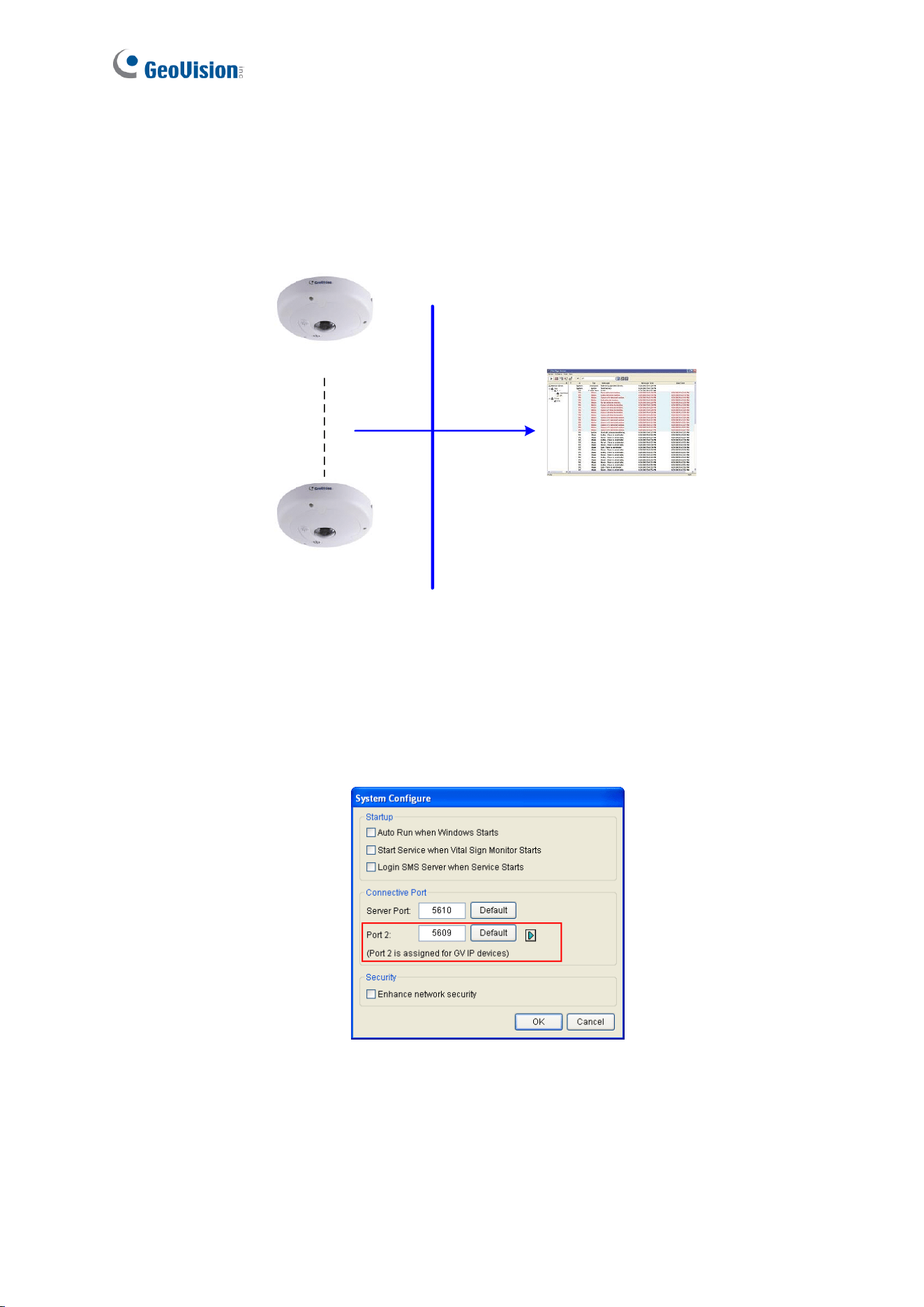
178
8.2 Vital Sign Monitor
The Vital Sign Monitor can monitor and manage the camera and I/O devices connected to
the camera.
GV-Fisheye Camera
TCP/ IP
VSM
Text Data
GV-Fisheye Camera
Figure 8-4
To set the appropriate port connecting to the camera, click Configure on the window menu,
and select System Configure to display this dialog box. In the Connective Port field, keep
the default value 5609 for the Port 2 option, or modify it to match the Vital Sign Monitor port
on the camera.
Figure 8-5
For further information on how to manage the video received from the camera, see GV-CMS
Series User’s manual.
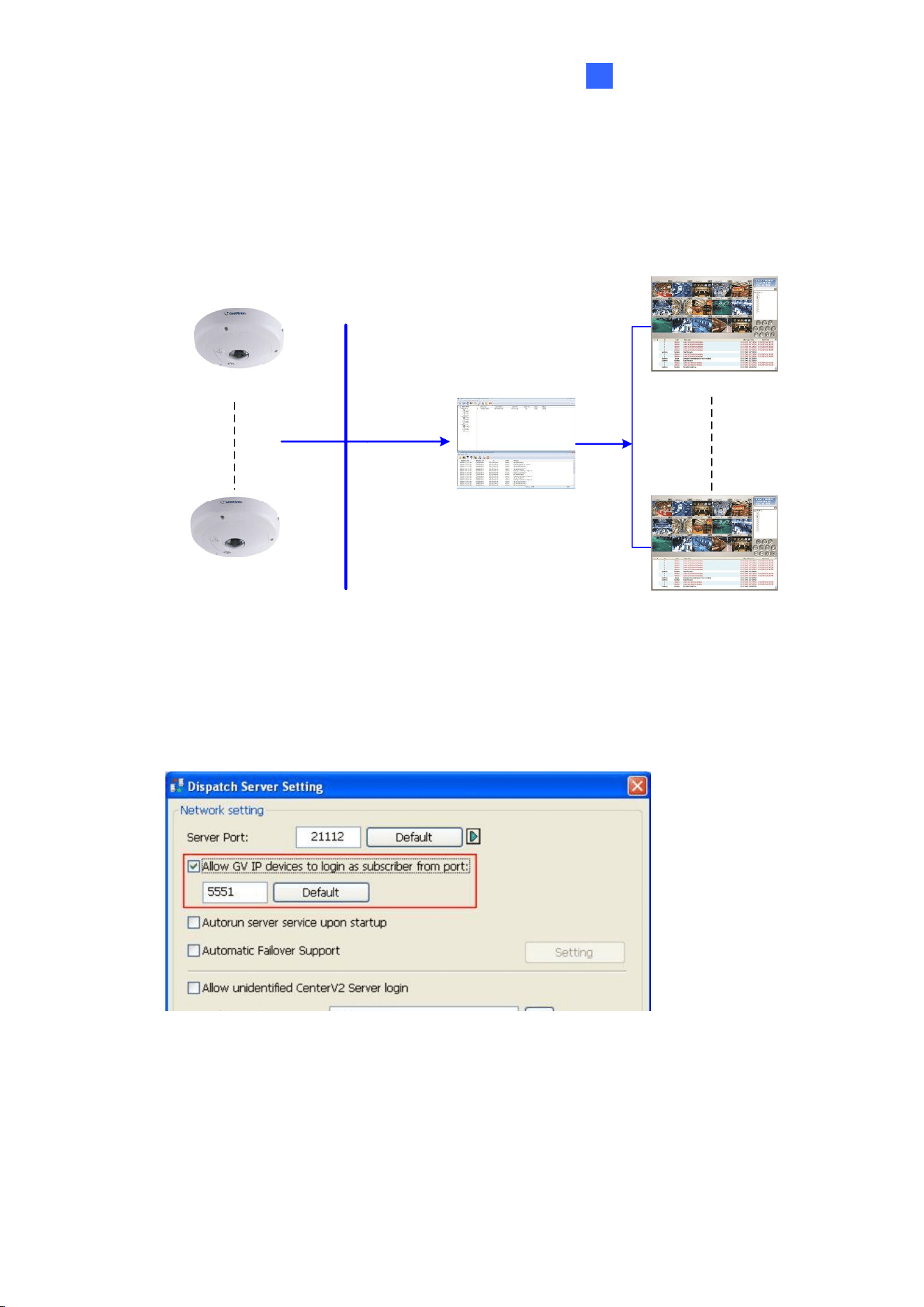
CMS Configurations
179
8
8.3 Dispatch Server
The Dispatch Server can manage the camera and I/O devices connected to the camera, and
distribute them to the Center V2.
GV-Fisheye Camera
TCP/ IP
Video Data
Center V2
Center V2
Dispatch Server
Text Data
GV-Fisheye Camera
Figure 8-6
To enable connecting to the camera, click the Setting button on the toolbar, and select
Allow GV IP devices to login as subscriber from port. Keep the default port 5551, or
modify it to match the Center V2 port on the camera.
Figure 8-7
For further information on how to manage the video received from the camera, see GV-CMS
Series User’s manual.
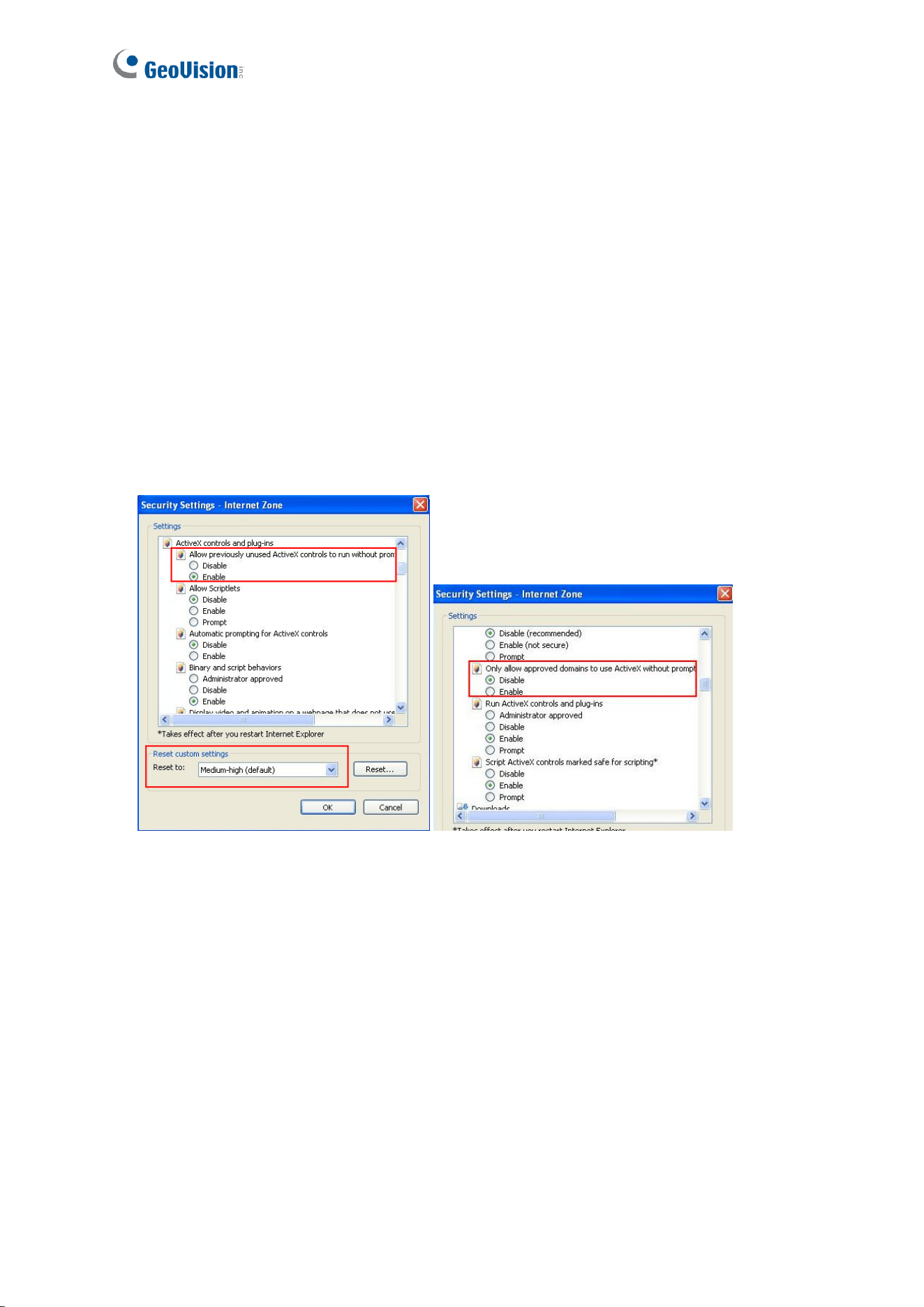
180
Appendix
A. Settings for Internet Explorer 8 or later
If you use Internet Explorer 8 or later, it is required to complete the following setting.
1. Set the Security to Medium-high (default).
2. Enable Allow previously unused ActiveX controls to run without prompt.
3. Disable Only allow approved domains to use ActiveX without prompt.
Appendix
181
B. RTSP Protocol Support
The fisheye camera can support RTSP protocol for both video and audio streaming.
If you are using Quick Time player, use the following RTSP command:
rtsp://<IP of the fisheye camera>:8554/<CH No.>.sdp
For example, rtsp://192.168.3.111:8554/CH001.sdp
If you are using VLC player, use the following RTSP command:
rtsp://<ID>:<Password>@<IP of the camera>:8554/<CH No.>.sdp
For example, rtsp://admin:admin@192.168.3.111:8554/CH001.sdp
If you use the VLC, and if authentication is not required, enter:
rtsp://@<IP of the GV-IPCAM:8554/<CH No.>.sdp
For example, rtsp://@192.168.3.111:8554/CH001.sdp
For RTSP Multicast, add “M” after the channel number.
For example, rtsp://@192.168.3.111:8554/CH001M.sdp or
rtsp://admin: admin@192.168.3.111:8554/CH001M.sdp
Note:
1. RTSP streaming is supported over HTTP, UDP and TCP.
2. The video streaming through RTSP protocol can only be displayed in circular source
images.
3. The RTSP protocol must be enabled on the Web interface. See 4.3.8 RTSP.
4. Only VLC and QuickTime players are supported for streaming video via RTSP
protocol.
182
C. Supported Mobile Broadband Devices
Brand
Model
Huawei
E220, E392
E169, E1692, E156, EC189, E1752, E1756, E1756C,
E169C
Novatel
MC998D
USB760, USB727, MC950D
ONDA
MSA523HS
ZTE
MF100
D. The CGI Command
You can use the CGI command to obtain a snapshot of the live view without logging in the
Web interface or to access the User Account Web interface. For a fisheye camera with the
following details:
IP address: 192.168.2.11
Username: admin
Password: admin
Desired stream: 1
Type the following into your web browser to obtain a snapshot:
http://192.168.2.11/PictureCatch.cgi?username=admin&password=admin&channel=1
Type the following into your web browser to access the User Account Web interface:
http://192.168.2.11/ConfigPage.cgi?username=admin&password=admin&page=UserSetting
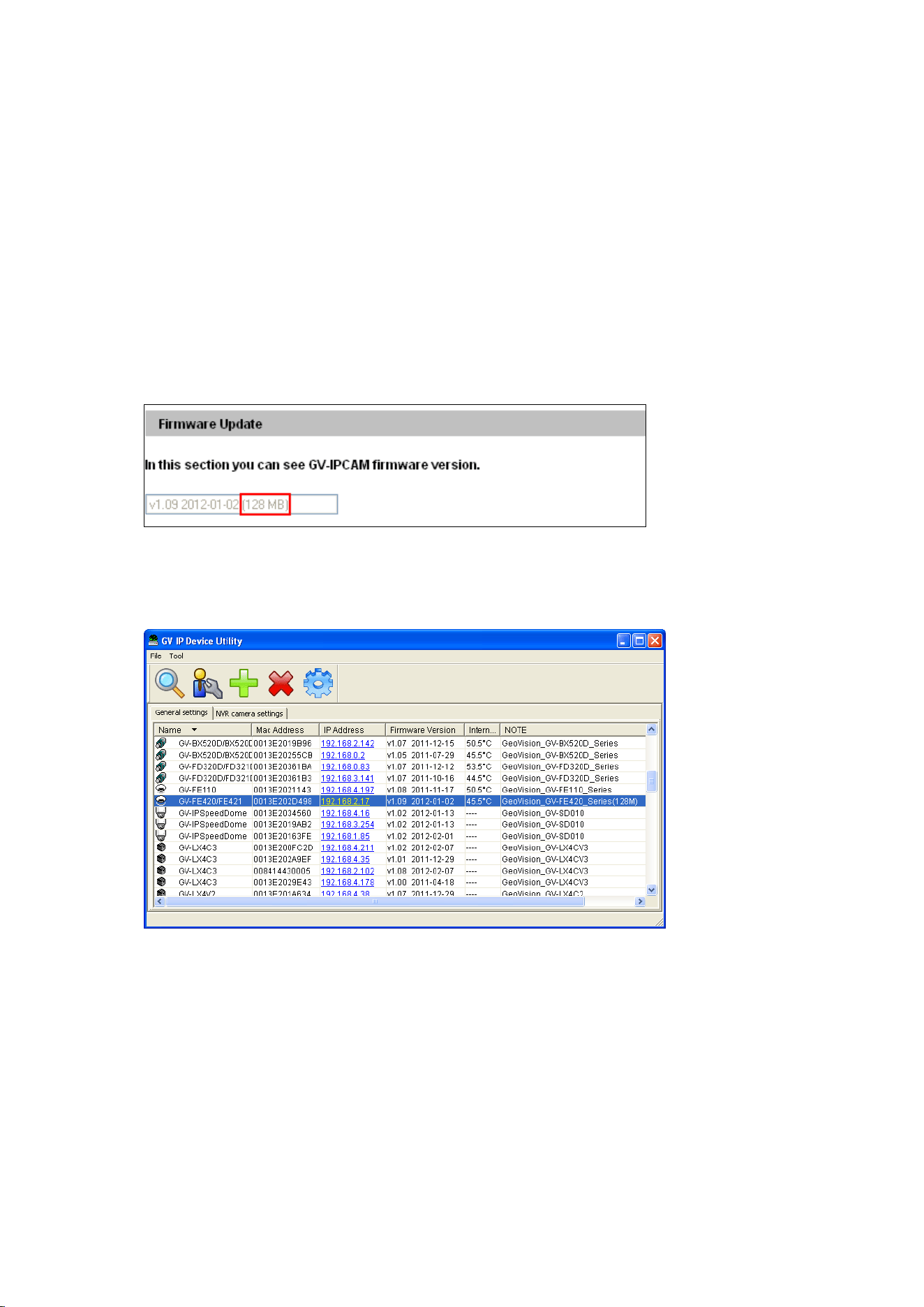
Appendix
183
E. Supported Firmware for Flash Memory
The 128 MB flash memory is supported by firmware V1.09 or later.
To look up if the camera contains a 128 MB type flash memory, access the web interface or
the GV-IP Device Utility:
• Web Interface
Click Management and click Tools. The “128 MB” should be noted after the firmware
version.
• GV-IP Device Utility
The “128 M” should appear under the NOTE column.
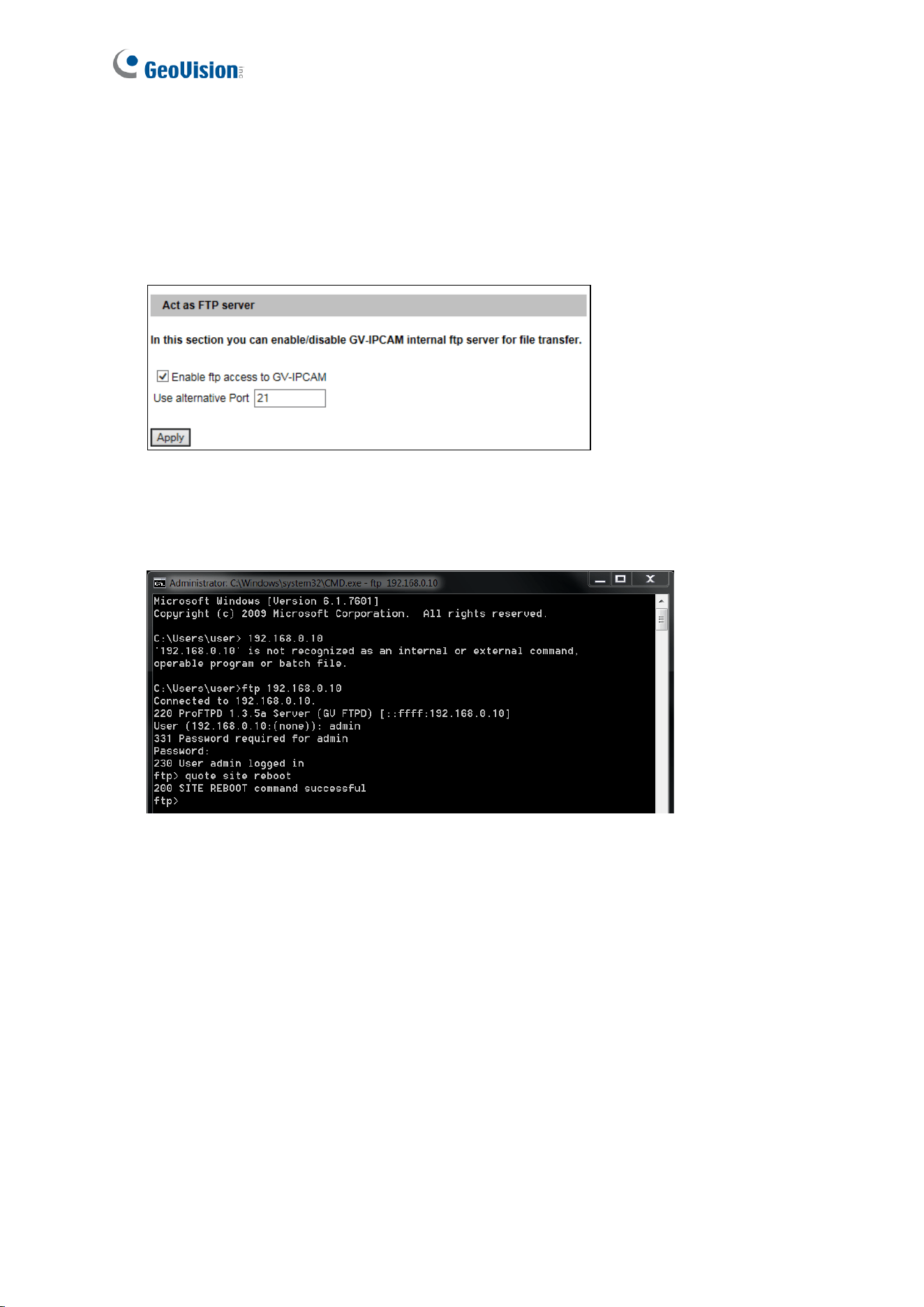
184
F. How to Remotely Reboot IP Cameras via FTP
Note this function is only available for GV-FER12203 firmware V1.02 or later.
1. Enable Act as FTP server under the FTP setting page.
2. In CMD.exe, type ftp <IP address of the camera>, e.g. ftp 192.168.0.10.
3. Type your account name and password.
4. Type quote site reboot. The camera will be rebooted as indicated in the photo below.
Appendix
185
G. Compatible SD Cards for GV-FER12700
Below is a list of SD cards tested and certified by GeoVision to be compatible with GV-
FER12700.
Note: Using SD cards of UHS-I and MLC NAND flash are strongly recommended, which
have a superior lifetime when compared to others.
MLC NAND flash SD Cards
Brand
Model
ADATA
IDU3A MLC UHS-I 32GB MicroSD Card (IDU3A-032GM)
Innodisk
3ME2 MLC UHS-I 32GB MicroSD Card
SanDisk
Industrial MLC UHS-I 64GB MicroSD Card (SDSDQAF3-064G)
Transcend
500S MLC UHS-I 16GB MicroSD Card (TS16GUSD500S)
TLC NAND flash SD Cards
Brand
Model
ADATA
Premier UHS-I 128GB MicroSD Card
Apacer
UHS-I 32GB MicroSD Card (AP32GMCSH10U5-R)
Lexar
High-Performance 633X UHS-I 64GB MicroSD Card
Patriot
LX UHS-I 32GB MicroSD Card (PSF32GLX1MCH)
Samsung
PRO Endurance UHS-I 128GB MicroSD Card (MB-MJ128GA/CN)
EVO Plus UHS-I 32GB MicroSD Card
SanDisk
High Endurance UHS-I 32GB MicroSD Card (SDSDQQ-032G-G46A)
Ultra UHS-I 32GB MicroSD Card (SDSQUAR-032G-GN6MN)
Toshiba
M203 UHS-I 32GB MicroSD Card (THN-M203K0320A2)
Transcend
300S UHS-I 256GB MicroSD Card (TS256GUSD300S-A)