U11 SMART PROJECTOR
EN


CONTENS
YABER Lifetime Professional Support -------------------------- 1
Tips ----------------------------------------------- 1
Package List ------------------------------------------2
Projector Specifications -----------------------------------3
Projector Overview--------------------------------------3
Remote Contol ----------------------------------------5
Installation -------------------------------------------6
1. Installation Method------------------------------------------- 6
2. Projection Distance and Size------------------------------------- 7
3. Install on the Ceiling------------------------------------------ 7
Use The Projector---------------------------------------8
Setting Up The Projector ----------------------------------9
1. Select The Insert Signal Source------------------------------------ 9
2.USB Disk Input Mode------------------------------------------ 9
2.1 Play Video/Audio/Image/Office in the USB Disk Input Mode ----------------9
2.2 Play Interface -------------------------------------------- 10
3. WiFi Setting -----------------------------------------------13
3.1 iOS Cast (for iOS Devices) ------------------------------------- 13
3.2 Maxhub Share (for Android Devices) ------------------------------ 13
4. Bluetooth Setting -------------------------------------------14
5. Projector Image Setting----------------------------------------15
5.1 Projection Mode ------------------------------------------- 15
5.2 Focus ------------------------------------------------- 16
5.3 Keystone Correction ---------------------------------------- 16
Signal Lines Connection ----------------------------------19
1. Connect the Devices via the HDMI port ------------------------------19
2. Connect to the DVD Player--------------------------------------19
3. Connect to the Sound bar/Speaker ------------------------------- 20
4. Connect to the Computer ------------------------------------- 20
Warranty --------------------------------------------21


EN 1
Yaber Lifetime Professional Support
Tips
Dear customer,
Thank you for your support of YABER! Before using your projector, please take a moment
to read through the manual thoroughly. Should you encounter any issues, simply email
aftersales@yaber.com with your order number and a brief explanation of the problem. Our
team will respond within 24 hours with a fast and effective solution.
Many common issues such as signal or sound problems,failed Bluetooth or WiFi
connections,dark spots, or choppy animations can often be resolved through simple
adjustments to the settings.Rest assured that all of our projectors have undergone a rigorous
100% inspection and packaging process prior to shipping.
If you have any further questions or concerns,please don't hesitate to contact us.We welcome
the opportunity to improve and guarantee that we will work with you to find a satisfactory
solution.
Thank you for your understanding and for choosing YABER!
Best regards,TheYABER Service Team.
1. Do not place projector in too warm or too cold room, because the high temperature or low
temperature will shorten lifespan of the device. The working environment would be 5
℃
~35
℃
better.
2. The ventilation is equipped for the projector to work stably. Don't cover the vent with cloth,
blanket or other things. Don't insert anything into the slit of the projector, or it may produce a
short circuit or an electric shock to your device and cause damage.
3. The projector shall be strictly protected from strong impact, extrusion and vibration. Do
not try to move and on strong impact, extrusion and vibration. Do not try to move and the
internal circuit faults.
4. Lens, as the core component of the projector, is directly related to the picture definition
and effect. The excessive dust thereon will affect image quality. The dirty lens shall be wiped
with soft cotton cloth for the glass lens surface. Hard cloth or abrasives shall not be used.
EN 2
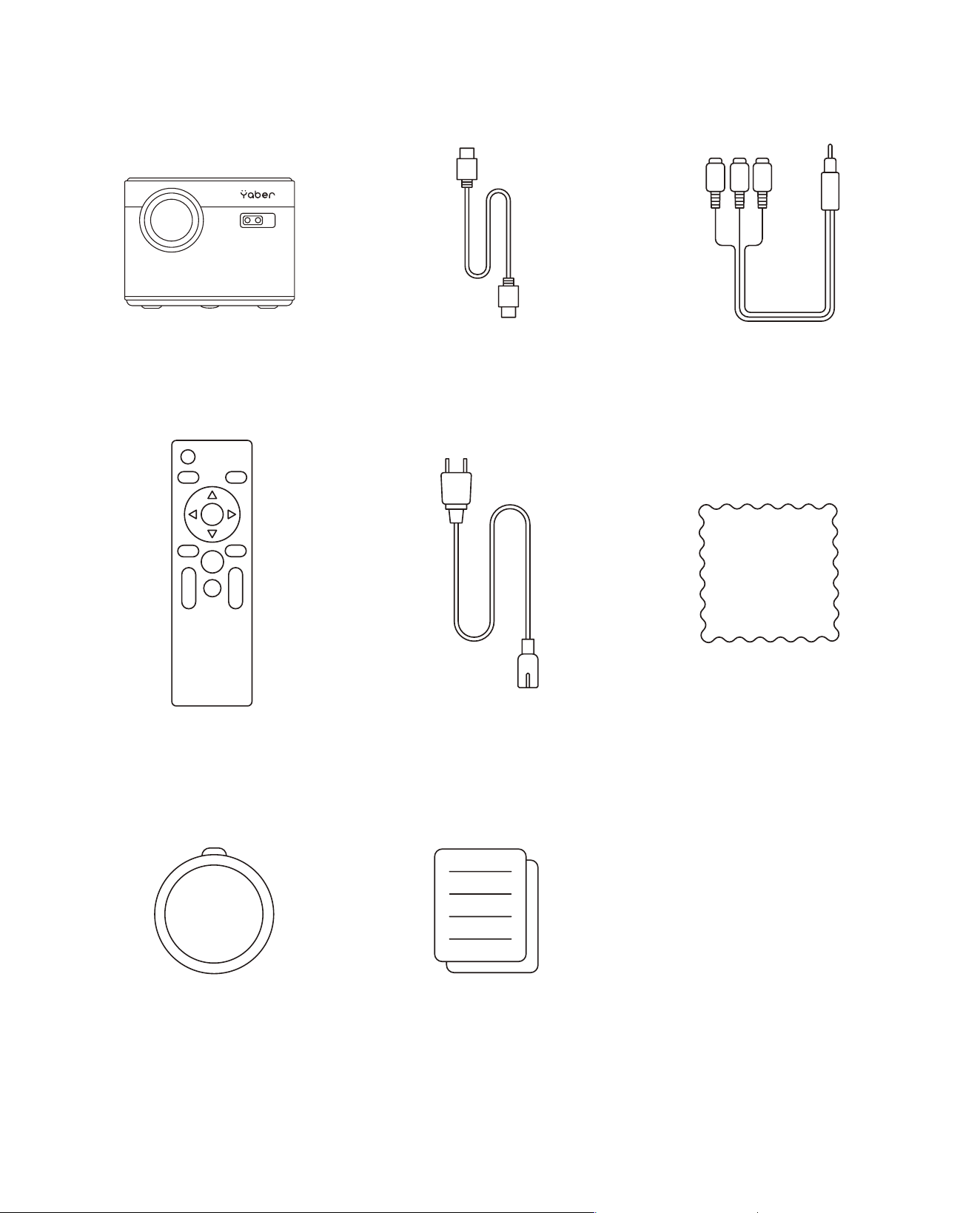
Package List
Yaber U11 Projector HDMI Cable 3-in-1 AV Cable
Remote Control Power Cord Cleaning Cloth
Lens Cover Quick Tutorial
EN 3
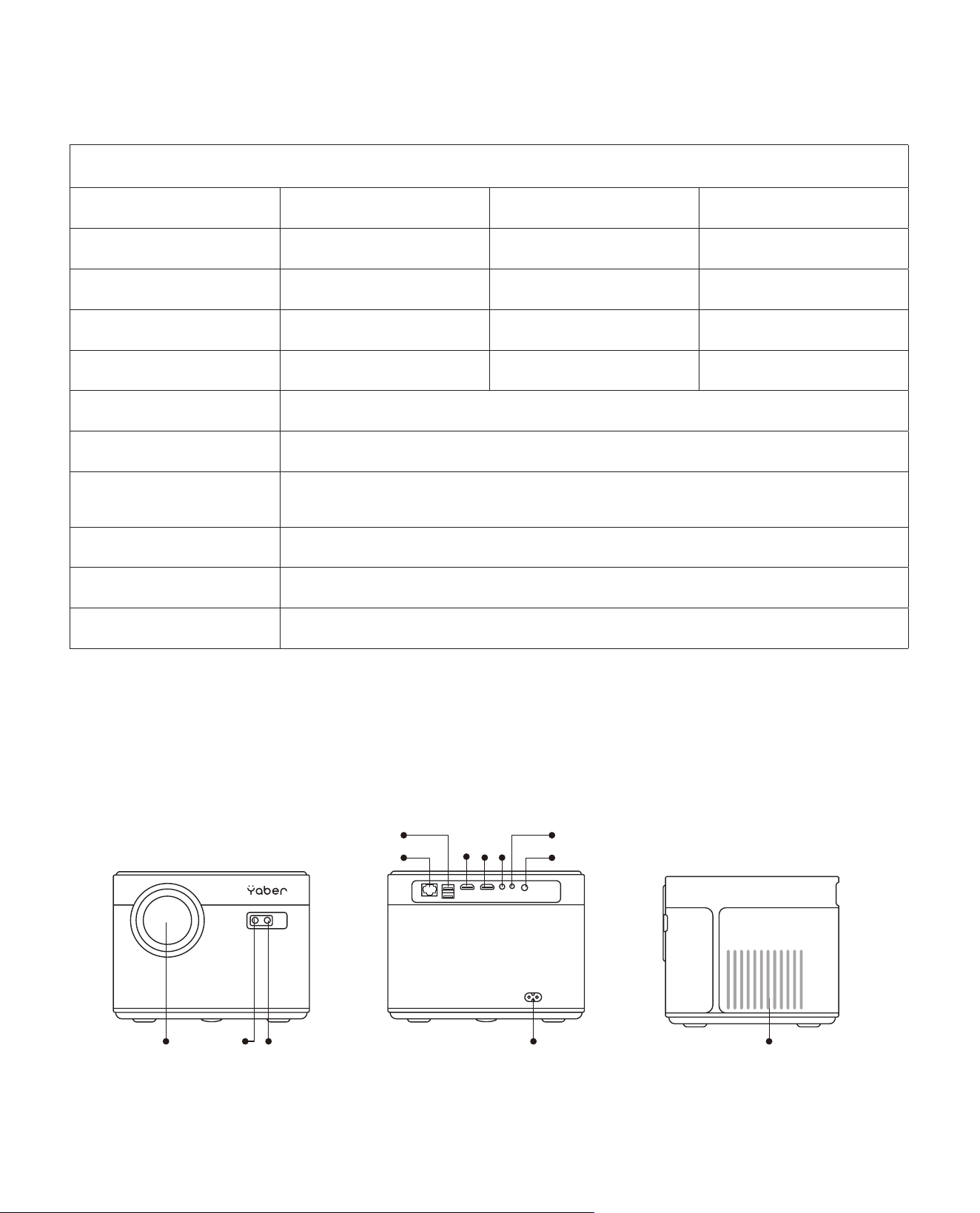
Projector Specifications
Projector Overview
Model No. U11
Native Resolution 1920*1080 Aspect Ratio 4:3/16:9
Display Tech LCD Light Source LED
Color Game 16.7M Full Size 8.32x6.3 inch
Weight 5.29 lb Power Voltage AC100-240V ~ 50/60Hz
Output Port Headphone Input Port RJ45/HDMI/USB/AV
Projection Method
Front/Rear on Desk, Front/ Rear on Ceiling
Operation Mode Remote control
Video Format
MP4
/
MKV
/
WMV
/
3GP
/
MPG
/
VOB
/
TP
/
TS
/
DAT
/
MOV
/
FLV
/
4K H.264/
H.265(
≤
30fps)
Audio Format AAC_LC
/
HE_AAC
/
HE_AACV2
/
LPCM
/
MP3
/
APE
/
MP3
Image Format JPG/JPEG/BMP/PNG
Document Format TXT/WORD/EXCEL/PPTX
① ② ③
⑪
④
⑤
⑥⑦⑧
⑨
⑩
⑫
EN 4
1 Projector lens Optical coated glass lens
2/10 IR window Infrared signal receiver
3 Camera Auto-focus lens
4 RJ45 Network port
5 USB Ports USB 1 port /USB 2 port
6/7 HDMI Ports HDMI Input
8 AV Interface Separates audio and video transmission
9 Headphone Jack 3.5mm Headphone Output
11 Power Cord Port Insert the power cord
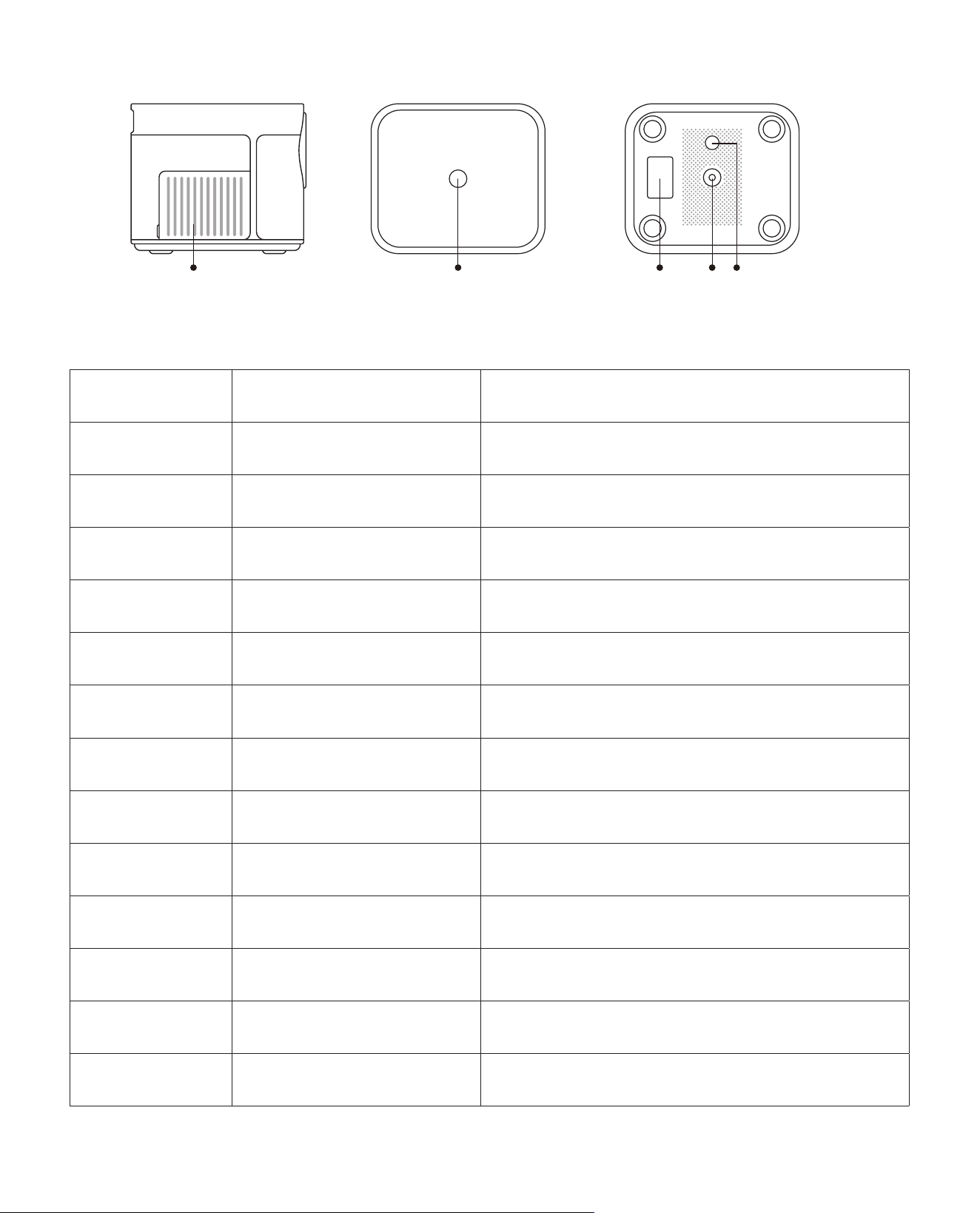
12/13 Cooling outlet Prevent the projector from overheating
14 Power button Turn on/off power
15 Bottom Label Nameplate on the bottom of the projector
16 Machine Feet Height adjustment machine feet
17 Screw hole
Bracket screw hole (1/4 inch), also supports
hoisting
⑬ ⑭ ⑮ ⑯ ⑰
EN 5
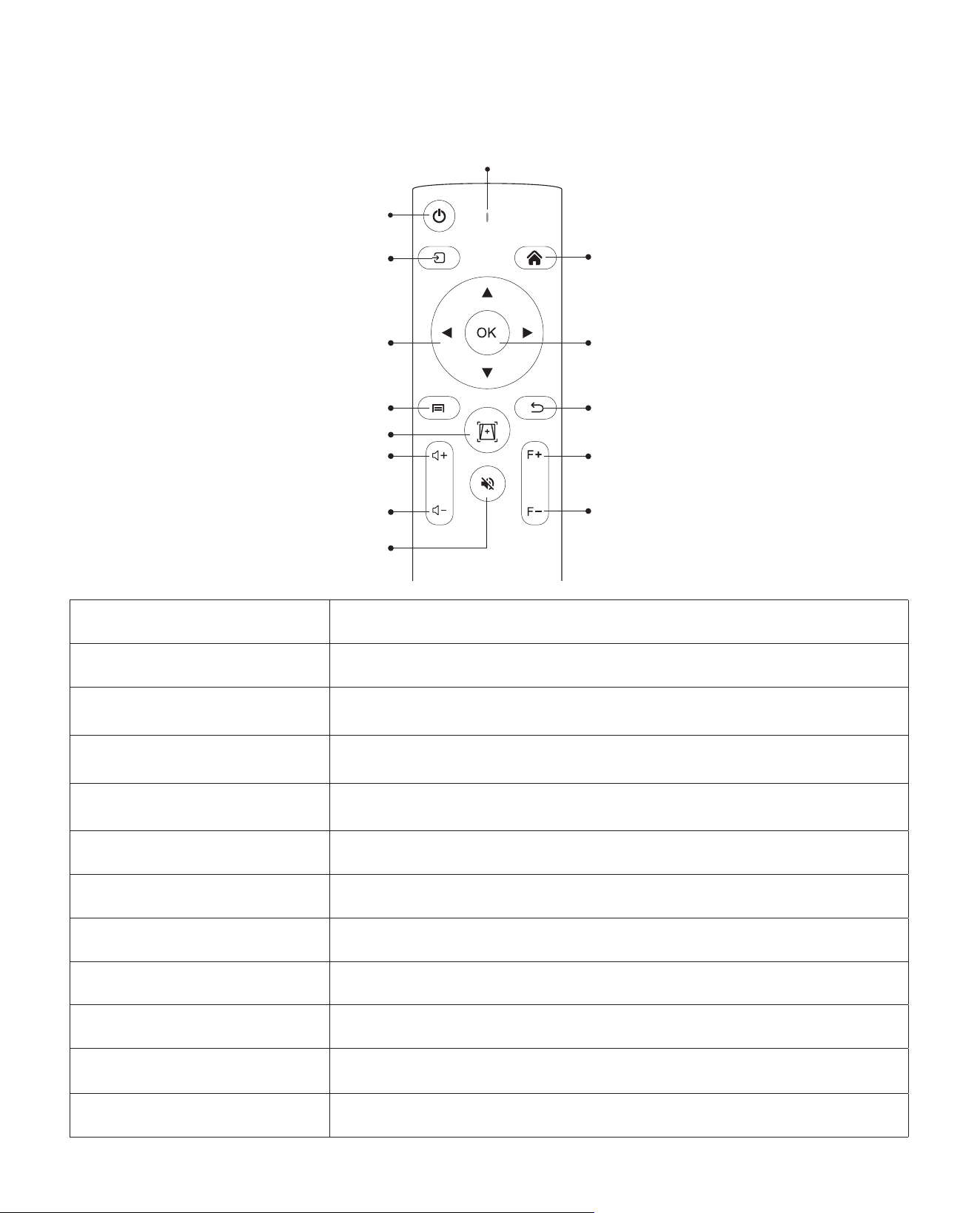
Buttonr
Home button
Indicator light
OK
Return key
Focus+
Focus-
Source key
Arrow keys
Menu
Home Page
Volume +
Volume -
Mute key
Remote Control
Button Turn on/off the power
Source key Select the input signal source
Arrow keys
Used to adjust the parameter of the projector in the menu
mode
Menu
Press once: Operate picture and sound settings in AV or HDMI
Mode Press twice in succession: select 16:9/4:3 projection
One-touch autofocus
auto-trapezoid
Press once: automatic image focus, automatic trapezoidal
adjustment
Volume + Volume up
Volume - Volume down
Mute key Close the sound
Home button Return to the home page
OK Confirm the option/Play or pause the video
Return key Return to the previous menu
Focus+/Focus- Screen focus adjustment
EN 6
Note:
1. Install 2 pieces of AAA batteries into the remote controller before using it. Do not combine
new batteries with old ones in remote controller, which can cause operation failure due to
insufficient power supply.
2. When using the remote controller, please make sure that the signal transmitter of the
remote controller aims at infrared signal receiver of the projector.
3. If you are not using the remote controller for an extended period, please take out batteries
to prevent batteries leakage.
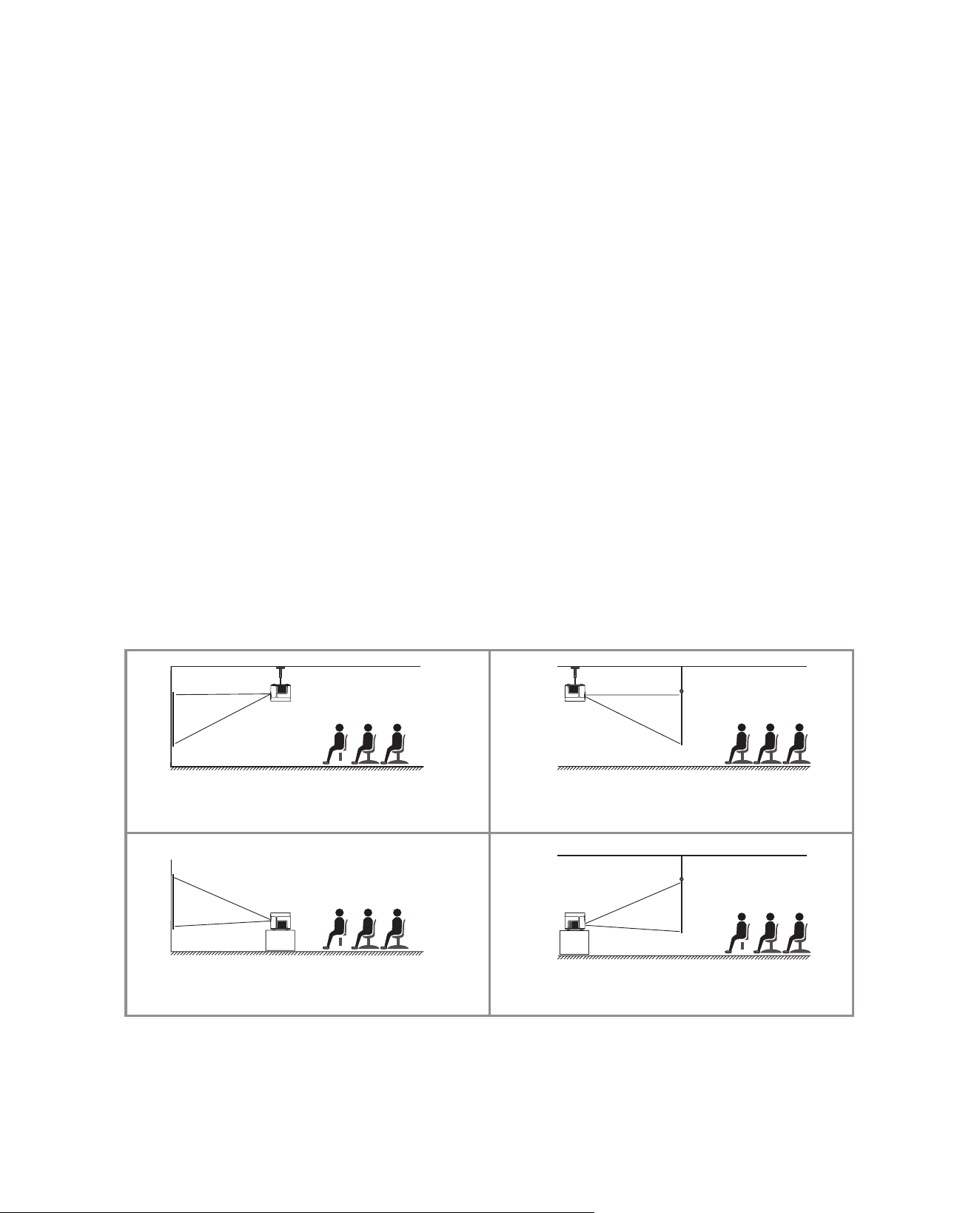
The projector can be hanged on the ceiling with special hanger frame, and placed on the
stable desk to project the image according to the operating environment and requirements.
The installation method is as follows:
Installation
1. Installation Method
1. Front projection Ceiling mount
Screen
Screen
Screen
Screen
Projector
Projector
Projector
Projector
2. Rear projection Ceiling mount
3. Front projection Desk mount
4. Rear projection Desk mount
EN 7
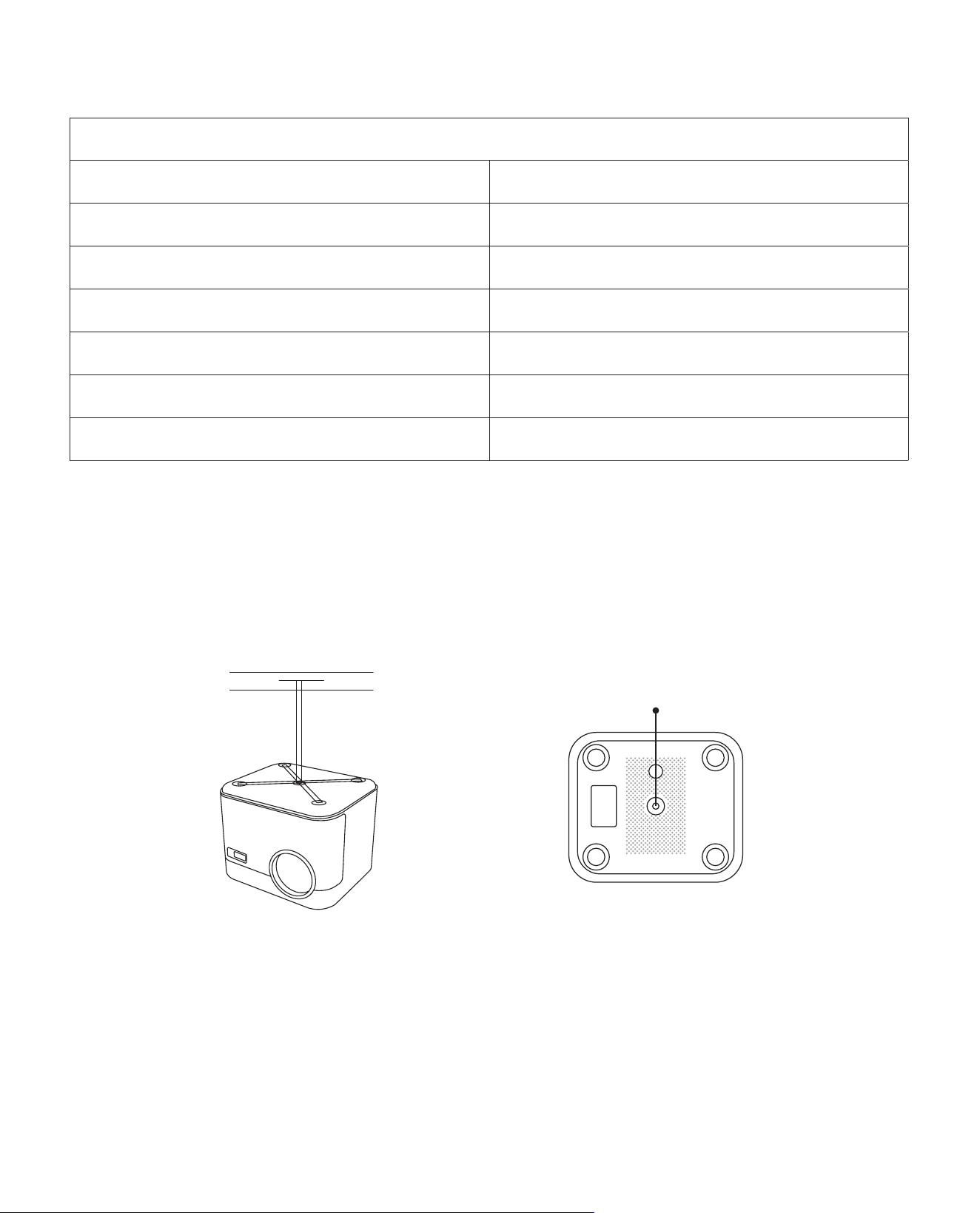
2. Projection Distance and Size
The recommended projection distance is about 8ft-10ft.
The image size depends on the distance between projector and screen, there may be 3%
deviation among above listed data. Different settings cause various distances.
Note: Please purchase an universal projector ceiling mount, attach the projector with 1/4 inch
screws.
3. Install on the Ceiling
Aspect Ratio: 16:9
Distance (ft.) Screen Size
5 50"
8 80"
10 100"
12 120"
13.4 120"
16.8 150"
Screw holes
EN 8
Use The Projector
Connect the projector to the power supply, the projector will enter the standby state, and the
signal indicator light on the cover will be red.
Power on: Press the power button on the body, or the power button on the remote control,
and the indicator light turns blue to enter the working state.
Shutdown: In the working state, press the power button on the body, or the power button on
the remote control, the indicator light will change from blue to red, and the projector will be
turned off.
* When starting the U11 projector for the first time, please wait patiently for 2-3 seconds, the
projector will automatically adjust the focus. If the image is not clear, you can press the focus
button "F+", "F-" to adjust the focal length of the lens, click or long press the focus button until
the image is clear.
Note: If it's still blurry, try adjusting the throw distance.
1. Turn on/off the projector
2. Focus Adjustment
Power button

EN 9
Setting Up The Projector
* When the U11 projector is started for the first time, the projector will automatically perform
keystone correction. Or you can also use the digital 4P keystone correction of the projector to
change the image to be rectangle(vertical and horizontal). Detail please refer the page xxx of
this manual.
Select the desired insert signal source (AV/HDMI1/HDMI2) on the home -page.
Note: If you connect the external device (Such as TV box, Fire TV Stick, DVD Player, USB flash
disk, Computer etc.), please must select the corresponding signal source. If you choose
wrong, the projector will show no signal.
1. Insert the USB Disk, Select the icon [Media]
2. Select the option [All/Video/Audio/Image]
3. Select the desired file (or folder to enter the subfolder) in the USB disk, then press the [OK]
button to play it.
Notice: Yaber U11 projector supports USB disk to directly play PPT, Word, Excel files.
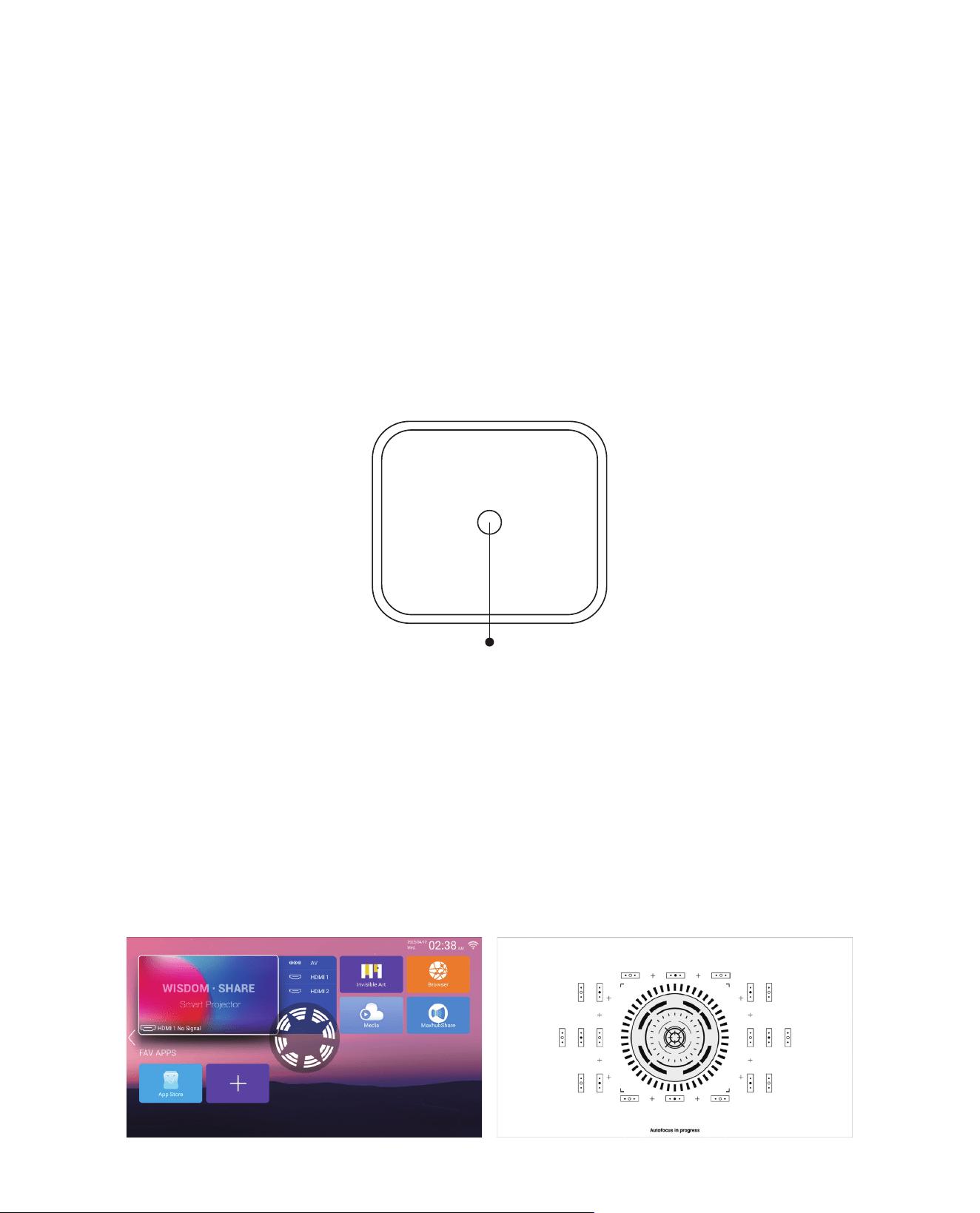
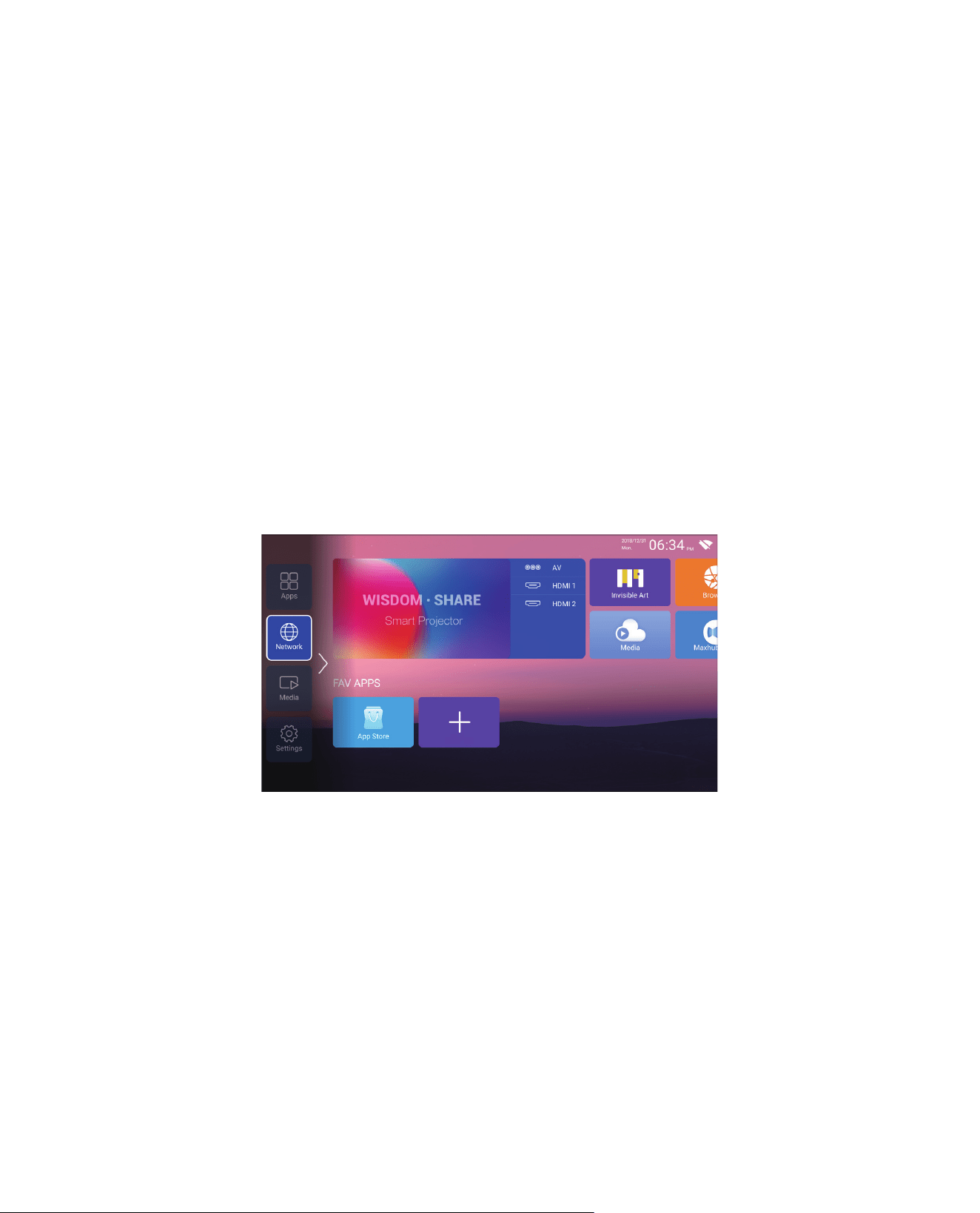
The projector's home page is as follow.
3. Keystone Correction Adjustment
1. Select The Insert Signal Source
2. USB Disk Input Mode
2.1 Play Video/Audio/Image/Office in the USB Disk Input Mode

EN 10
2.2 Play Interface
Warm Tips: If the projector cannot recognize the USB disk, please refer to the following
methods to solve the problem.
Please confirm whether your USB disk meets the following formats.
1. FAT32: 8G/16G/32G
2. NTFS: 64G
If it is not, please format the USB disk. Before you format the USB disk, if you have anything
on your USB disk, make sure to backup everything. After these steps, everything will be lost
forever.
1. Plug-in your usb disk into the computers USB port.
2. Open up File Explorer and right-click on the drive.
3. Choose Format.
4. In the File System dropdown, please choose the FAT32 format.
5. Click Start and close this window when finished.
If the problem is still not solved, please send your problem to this email: aftersales@yaber.
com
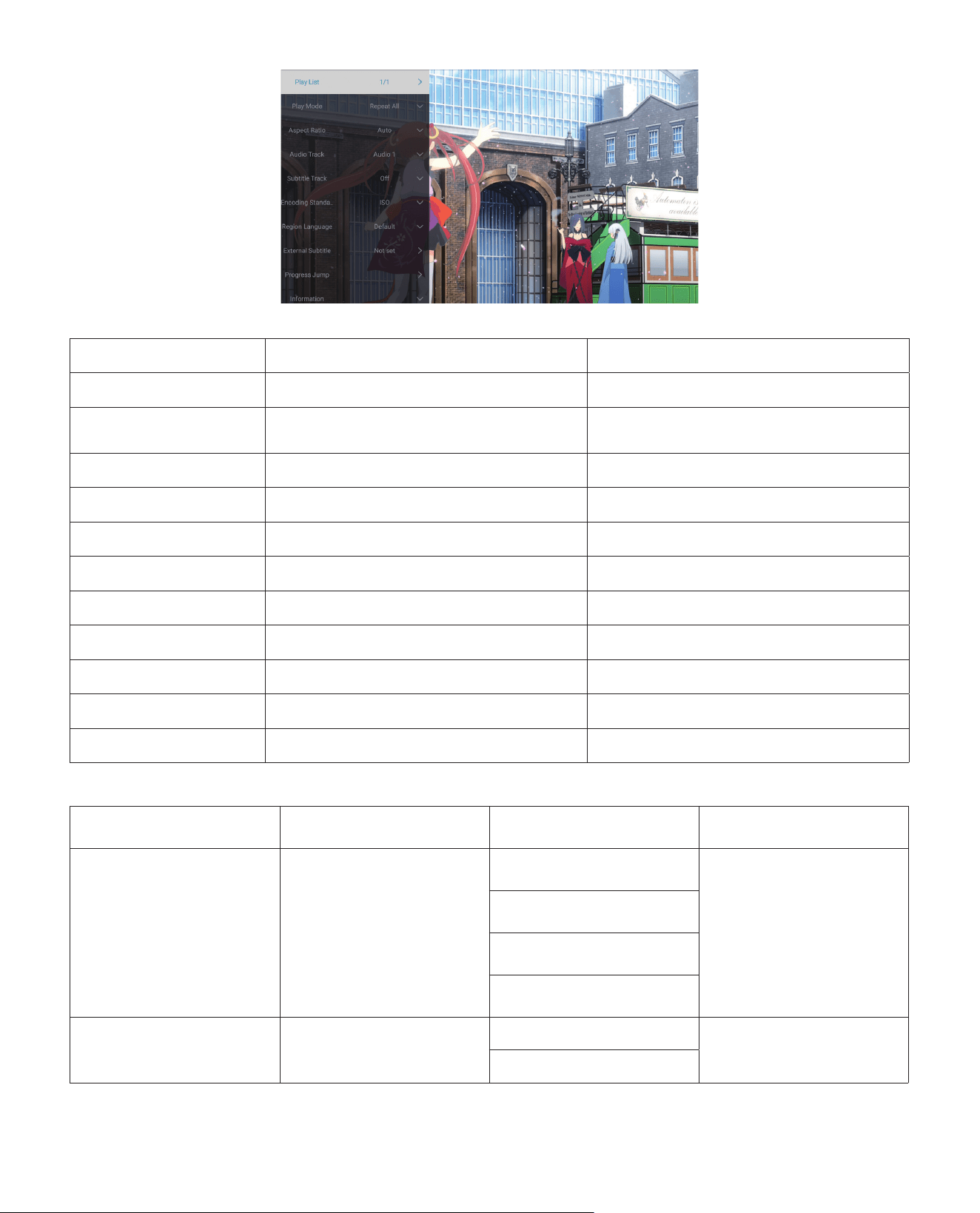
Click the "OK" button to get the play interface.
How to convert USB disk format to FAT32 format?
EN 11
Playing setting Include Function
Play List the videos of current folder change video from the current folder
Play mode
repeat all, auto exit, repeat one,
random, play list
change play mode
Aspect Ratio auto, 16:9, 4:3, zoom1, zoom2 set video aspect ratio
Audio Track audio track set audio track
Subtitle Track subtitle track set subtitle track
Encoding Standard iso, windows set encoding standard
Region Language various language set region language
External Subtitle external subtitle choose subtitle from other folders
Progress Jump progress jump fast forward video to specific time
Information resolution, size, duration, bitrate see the basic video information
Picuture & Sound piture and sound mode set picture and sound mode
Menu Content Mode Function
Picture Mode
Standard/Soft/
Dynamic/Vivid/User
Contrast
Modify the picture
parameters in the
range 0-100
Brightness
Sharpness
Color
Sound Mode
Standard/Music/
Moive/News/Users
Bass
Modify the sound
parameters in the
range 0-100
Treble
EN 12
Playing setting Include Function
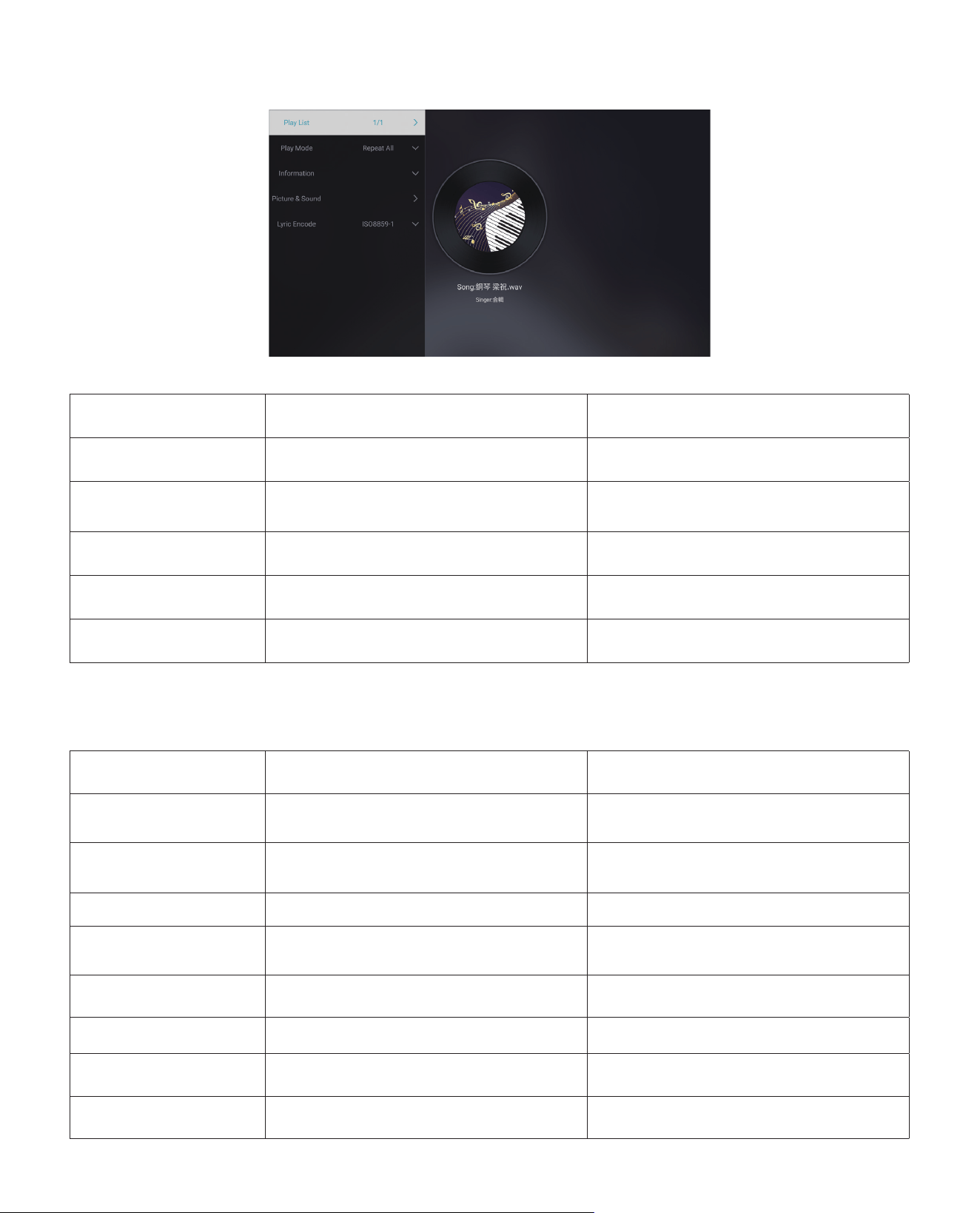
Play List the musics of current folder change music from the current folder
Play mode
repeat all, auto exit, repeat one,
random, play list
change play mode
Information size, duration, bitrate see the basic music information
Picture&Sound piture and sound mode set picture and sound mode
Lyric Encode various encoding standard set encoding standard
2.3 Music Play Interface
2.4 Picture Play Interface
Playing setting Include Function
Play List the pictures of current folder
change picture from the current
folder
Play Slide start, stop
start playing slides from the current
folder
Interval Time 3 sec, 5 sec, 8 sec, 12 sec set interval time of playing slides
Aspect Ratio
auto, full screen, zoom out, original,
zoom1, zoom2
set picture aspect ratio
Rotate default, rotate right, rotate left rotate picture
Set as wallpaper Set as wallpaper Set as wallpaper
Information resolution, size see the basic picture information
Picture&Sound piture and sound mode set picture and sound mode
EN 13
Wireless Connection
Warming Tips:
1. The fluency of screen mirroring with wireless connection will be affected by the network
environment. A bandwidth of 100Mbit or more is recommendedwhen using screen mirroring.
2. Make sure your mobile device is close to the projector when using wireless connection. A
distance within 1 meter is recommended.
3. Some mobile devices may not support screen mirroring due to the compati- bility.
4. Any questions, please feel free to contact us via aftersales@yaber.com.
1. Go to home page -- Press the left button - Select the [ Network ] menu - Select [ Wireless
Net Mode ] - Select your home Wi-Fi from the list - Connect the Yaber U11 projector to your
home Wi-Fi
2. Select the [ Settings ] menu on your iOS device - Turn on the [ Wi-Fi ] function - Connect
your iOS device to the same home network as the projector.
3.1 iOS Cast (for iOS Devices)
3. WiFi Setting
1. Make sure Yaber U11 projector and your Android device are connected with the same Wi-Fi,
operations refer to the [1] and [2] from iOS Cast (for iOS Device)
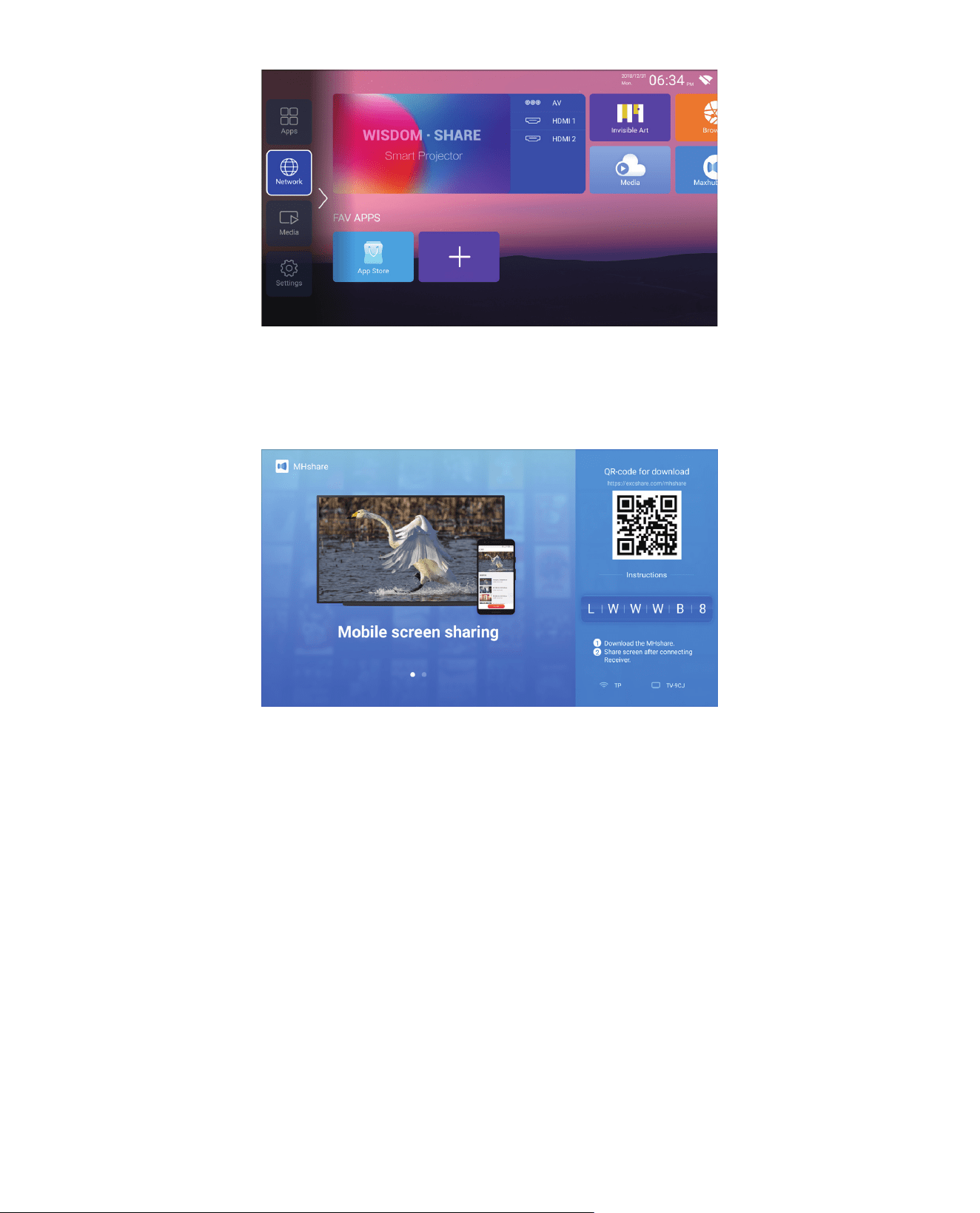
2. Go to home - Select the [ Maxhub Share ] app - Press the OK button to enter the [ Maxhub
Share ] app.
3.2 Maxhub Share (for Android Devices)
3. Open the [ Control Center ] on your iOS device - Select the [ Screen Mirroring ] function
Select and connect the iOS Cast receiver named [TV-XXXX ] - your iOS device screen will be
displayed on the projection screen after 3 seconds.
EN 14
3. Scan the QR code and download the app on your Android device
4. Open [Maxhub Share] app on your Android device - Select TV named [TV-XXXX] -Your
Android device screen will be displaced on the projection screen after 3 seconds.
Note:
1. Different brands of Android phones have different operations for select Screen Mirroring
Display, please refer to your phones manual. [ Multiscreen/Wireless display/WLAN display/
Screen mirroring/Wireless projection/Smart view etc. ]
2. Not all Android phones support this function. Please make sure it is supported before use.
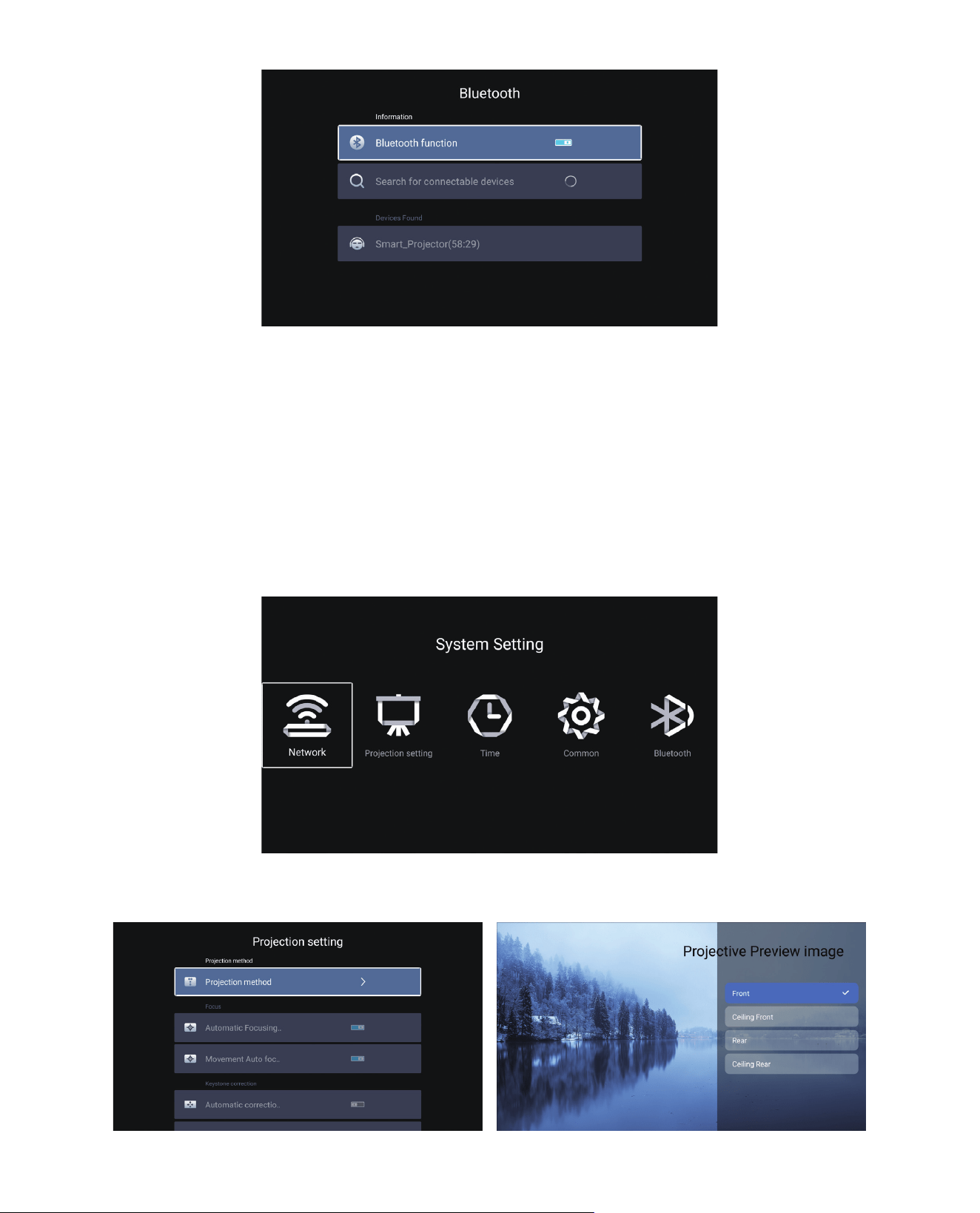
Go to home page - - Select the [ Setting ] menu - - Select the [ Bluetooth ] Option - - Open
the Bluetooth function and your Bluetooth device - - Scan the Bluetooth devices nearby
automatically - - Choose the Bluetooth device desired - - it will be paired and connected
automatically.
4. Bluetooth Setting
EN 15
Note:
1. The Yaber U11 projector is compatible with the Bluetooth headsets, Bluetooth speakers and
Air Pods, but not the Bluetooth keyboards or Bluetooth phones.
2. If you have any question, please feel free to contact us via aftersales@yaber.com.
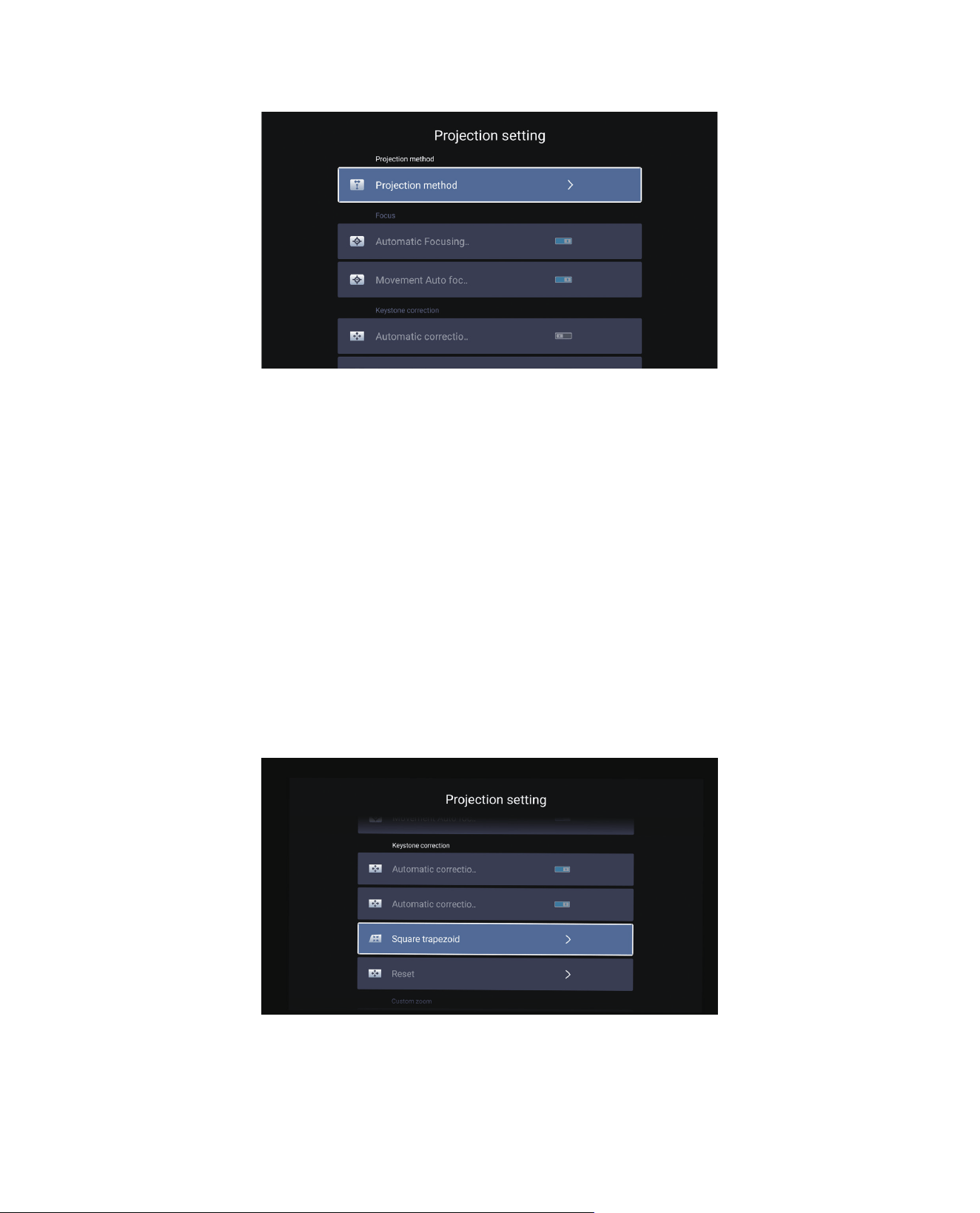
5. Projector System Setting
5.1 Projection Mode
EN 16
Turn on this button, when you start the projector, please wait patiently for 2-3 seconds, the
projector will automatically focus after powering on.
Turn on this button, when you start the projector, please wait patiently for 2-3 seconds, the
projector will adjust keystone automatically.
Turn on this button, the projector will automatically focus when changing the position.
Notice:
1.Use autofocus when your setting up your projector or when you need to quickly adjust the
focus of your image.
2.Use manual focus mode when you need more precise control over the focus of your image.
Long press the focus button "F+" , "F-" until the image is clear.
5.2 Focus
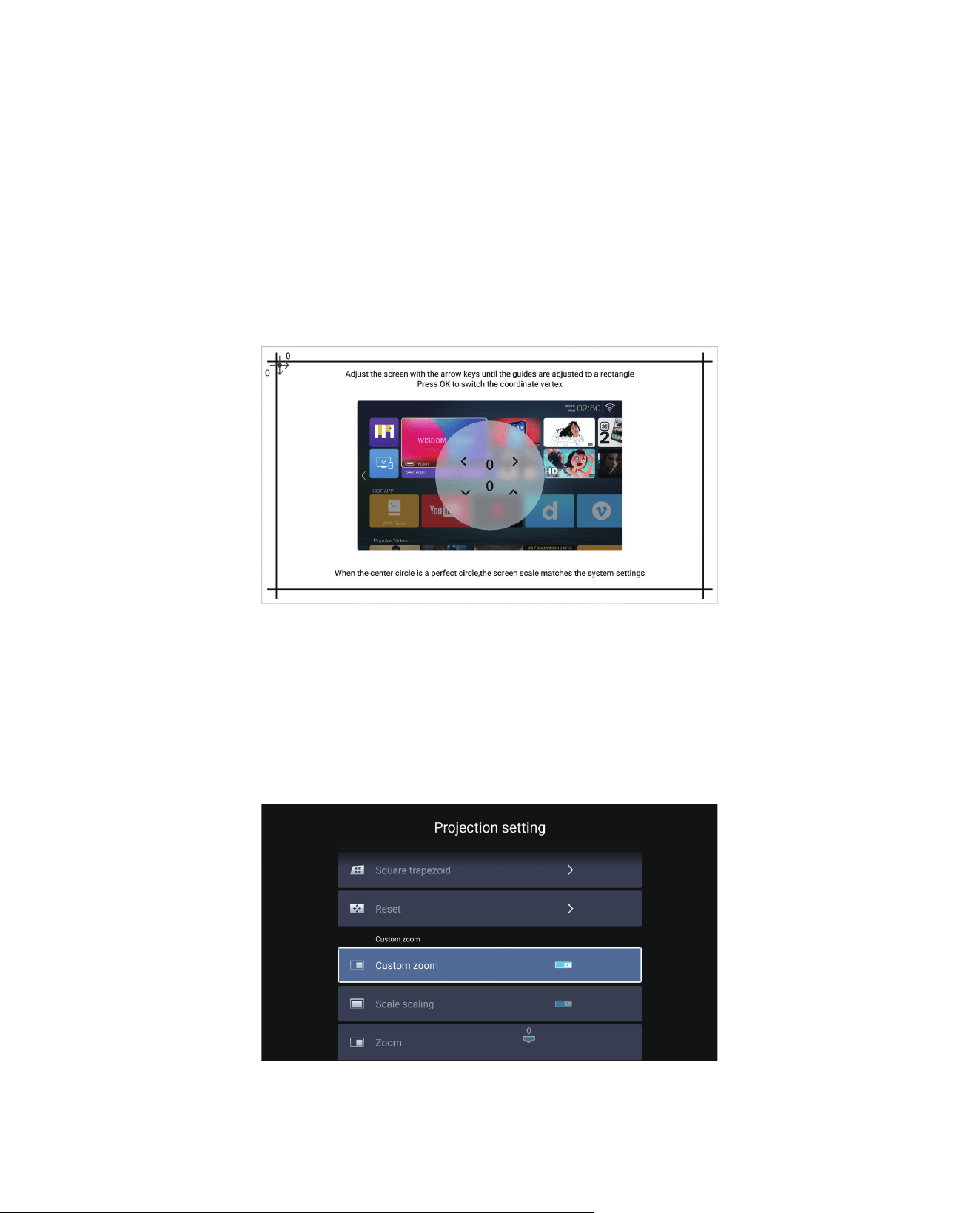
5.3 Keystone Correction
5.2.1 Automatic Focusing after boo
5.3.1 Automatic Correction after boot
5.2.2 Movement Auto focus
EN 17
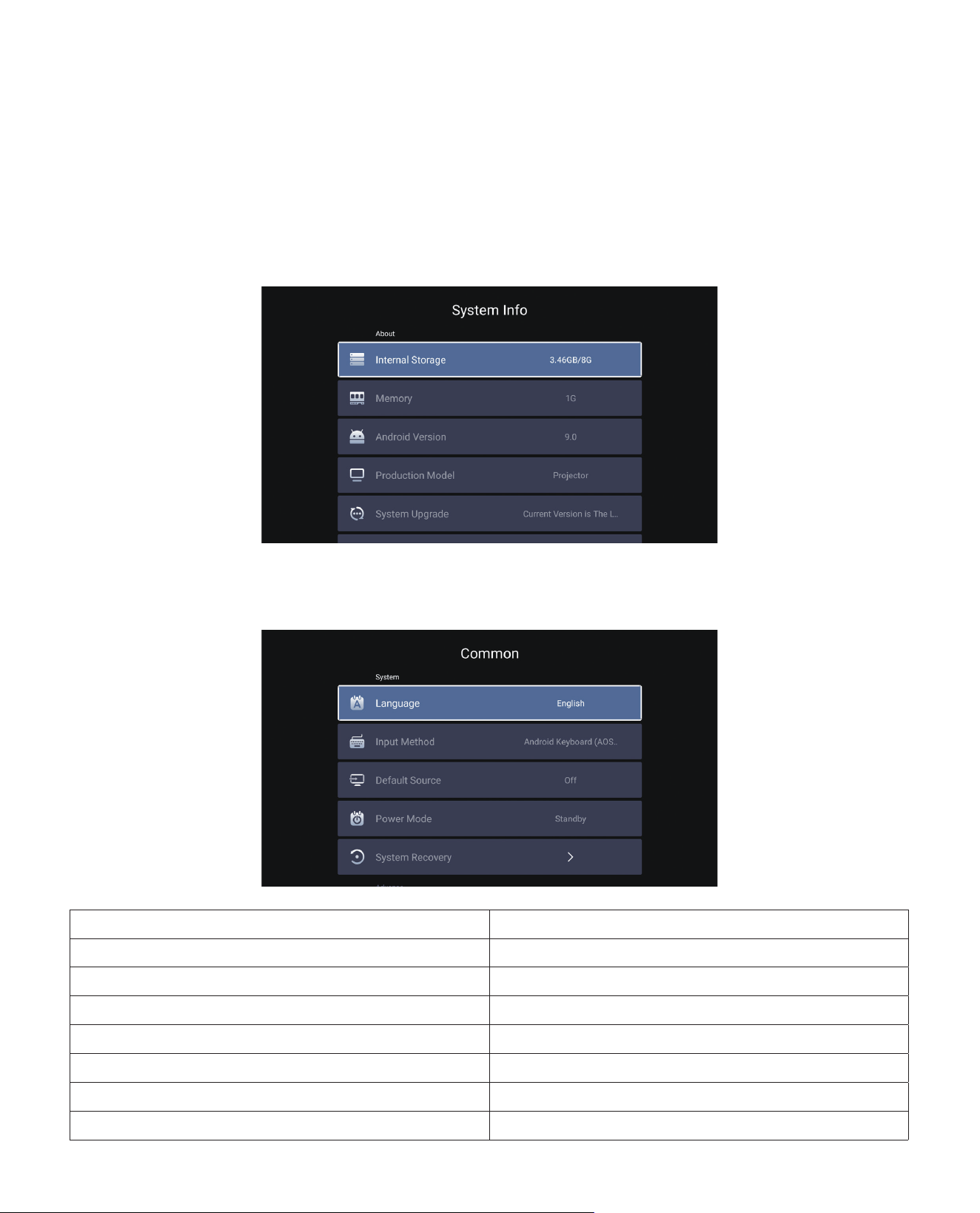
5.4 Zoom
Turn on this button, when you start the projector, please wait patiently for 2-3 seconds, the
projector will adjust keystone automatically.
* Select the [ Custom Zoom ] option, press the "OK" button on the remote controller to enter
the submenu [ Scale scaling ] , press the "OK" key to select this button to enter a three-level
menu [ Zoom ] , you can adjust the projection size by adjusting the parameters, zoom range
is 50%—100%.
Turn on this button, the projector will automatically keystone correction when changing the
position.
Notice: If you are not satisfied with the automatically corrected image, the projection screen
is not rectangular, you can adjust it by 4-point keystone correction.
5.3.1 Automatic Correction after boot
5.3.2 Automatic Correction after displacement
EN 18
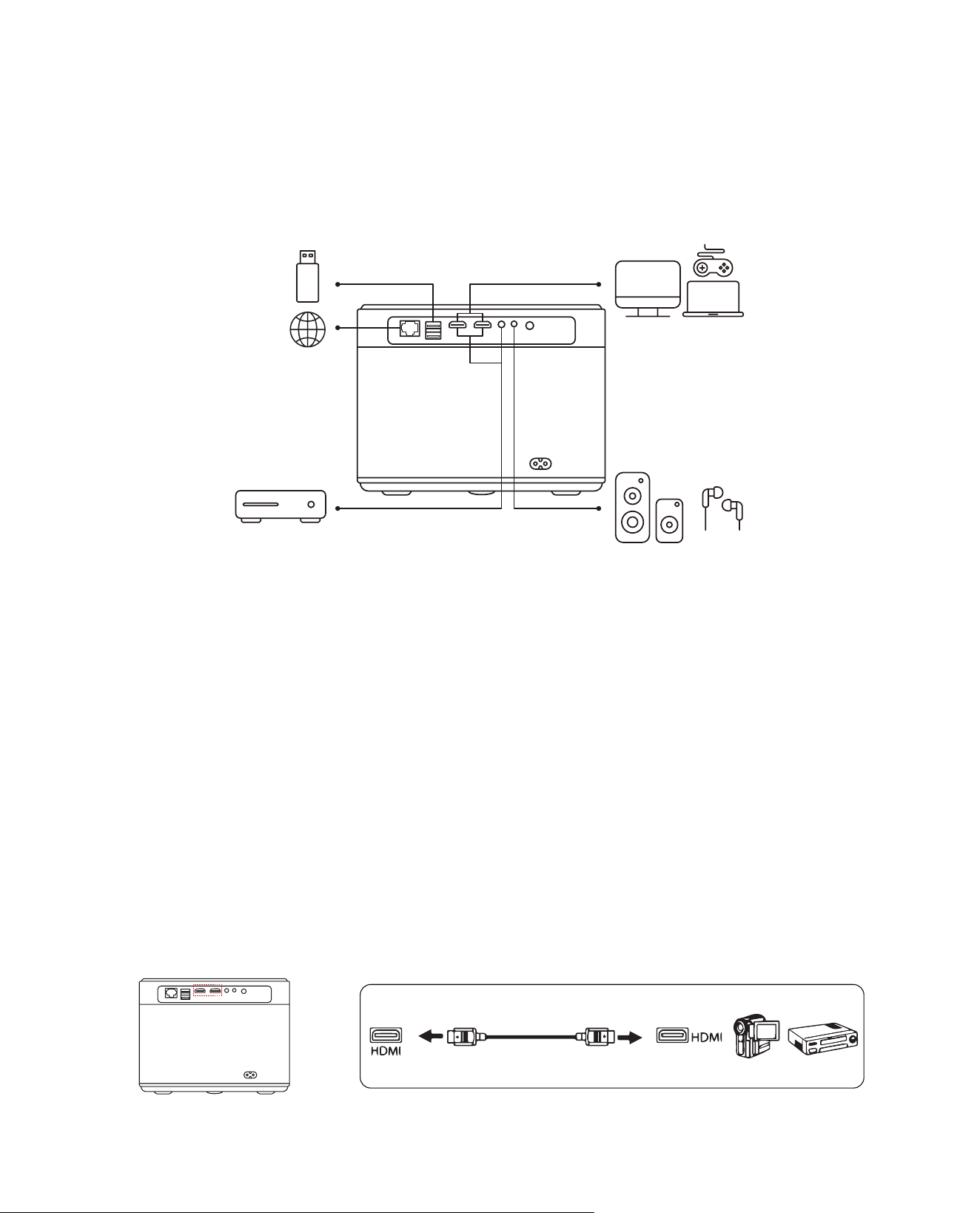
Go to home page - - Select the [ Setting ] menu - - Select the [ System Info ] Option - -
Select the [ System Upgrade ]
Notice: If the software currently is the latest, you do not need to upgrade the software. During
the upgrade process, if you have any question, please feel free to contact us via aftersales@
yaber.com.
6. System Update
7. Common
Menu Function
Language
Set up system language
Input method Set current input method
Wallpaper Change wallpaper
Default source Set up default source: AV, HDMI1, HDMI2
Power mode Set power mode: standby, on, last
System Recovery Recover the system and all data
The device name Change projector name
EN 19
Signal Lines Connection
Yaber U11 projector has 7 interfaces, HDMI port*2/ USB port*2/ 3.5mm headphone output*1/
Network port*1/ AV port*1, please select the correct port to connect your device (PC, DVD
Player, Fire TV stick, TV box, Sound bar, USB disk, PS4 etc.)
1. Connect your Fire TV stick ( or PC, TV box, PS4 etc.) to the HDMI port of the projector;
2. Enter the home page to select the corresponding HDMI as the signal source.
1. Turn on your DVD player and the projector.
2.Connect to the DVD Player and the projector with the HDMI cable.
3.Enter the home page to select the corresponding HDMI as the signal source.
Note: When the projector is connected to the DVD player via the HDMI cable, if there is no
sound, it may be that the output signal of the HDMI port of the DVD player is not compatible
with HDCP, please try to connect your Sound bar/Speaker.
1. Connect the Devices via the HDMI ports
2. Connect to the DVD Player
DVD
EN 20
out port
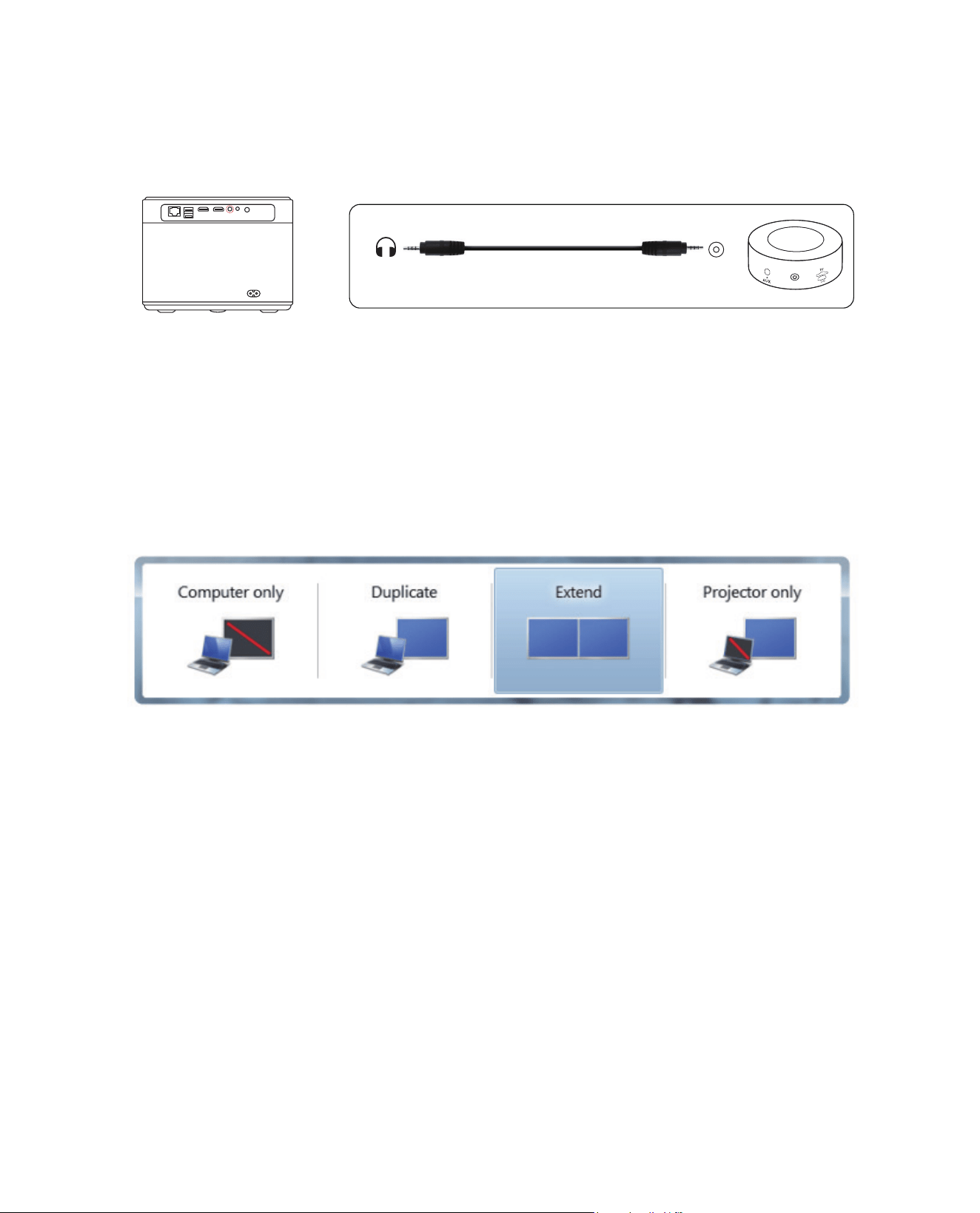
If your speaker has AUX port, please use your 3.5mm audio cable connect the projector and
your speaker as the picture shows.
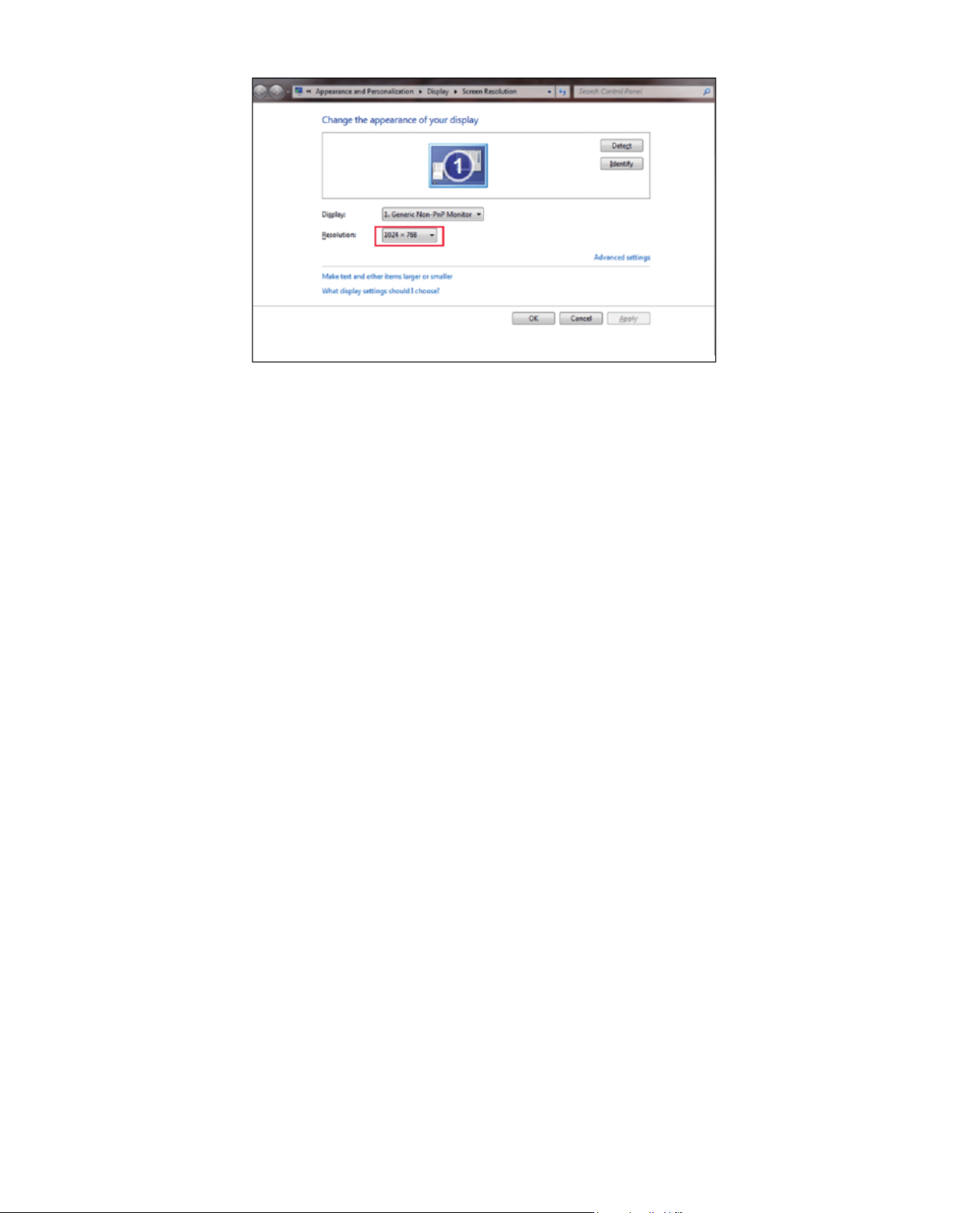
1. Connect to the computer and U11 projector with the HDMI cable (Included).
2. Select the HDMI source to project any files on your computer;
3. On your laptop, hold down the key “Win+P” board keys to change your display mode.
Computer only: it is the default option – only displays on the main monitor.
Duplicate: makes all of the monitors display the same thing duplicating the desktop on each
monitor.
Extend: makes all of your monitors act like one big monitor extending the desktop across all
of them.
Projector only: Displays only on the secondary monitor like a projector.
You can change the screen resolution on the Projector Only Mode
Step: Start > Control Panel > Appearance and Personalization > Adjust Screen Resolution
3. Connect to the Sound bar/Speaker
4. Connect to the Computer
Audio AUX
EN 21
Thank you so much for your purchase and support. We provide 3-year warranty for U11
projector. If you have any questions, please feel free to contact us via aftersales@yaber.com
Warranty

FCC STATEMENT :
This device complies with Part 15 of the FCC Rules. Operation is subject to the following two
conditions:
This device may not cause harmful interference, and
This device must accept any interference received, including interference that may cause
undesired operation.
Warning: Changes or modifications not expressly approved by the party responsible for
compliance could void the user's authority to operate the equipment.
NOTE: This equipment has been tested and found to comply with the limits for a Class B
digital device, pursuant to Part 15 of the FCC Rules. These limits are designed to provide
reasonable protection against harmful interference in a residential installation. This equipment
generates uses and can radiate radio frequency energy and, if not installed and used in
accordance with the instructions, may cause harmful interference to radio communications.
However, there is no guarantee that interference will not occur in a particular installation. If this
equipment does cause harmful interference to radio or television reception, which can be
determined by turning the equipment off and on, the user is encouraged to try to correct the
interference by one or more of the following measures:
Reorient or relocate the receiving antenna.
Increase the separation between the equipment and receiver.
Connect the equipment into an outlet on a circuit different from that to which the receiver is
connected.
Consult the dealer or an experienced radio/TV technician for help.
FCC Radiation Exposure Statement:
This equipment complies with FCC radiation exposure limits set forth for an uncontrolled
environment. This equipment should be installed and operated with minimum distance 20cm
between the radiator & your body.
This device contains license-exempt transmitter(s)/receiver(s) that comply with Innovation,
Science and Economic Development Canadas license-exempt RSS(s). Operation is subject to
the following two conditions:
(1) This device may not cause interference.
(2) This device must accept any interference, including interference that may cause undesired
operation of the device.
This equipment complies with IC exposure limits set forth for an uncontrolled environment.
This equipment shall be installed and operated with minimum distance 20cm between the
radiator & body.

Correct Disposal of this product
This marking indicates that this product should not be disposed with other
household wastes throughout the EU. To prevent possible harm to the
environment or human health from uncontrolled waste disposal, recycle it
responsibly to promote the sustainable reuse of material resources. To return
your used device, please use the return and collection systems or contact
the retailer where the product was purchased. They can take this product for
environmentally safe recycling.

Declaration of Conformity
We (EU based importer is responsible for this declaration)
Prolinx GmbH
(Company name)
Brehmstr.56, 40239 Duesseldorf, Germany
(Company address)
declare under our sole responsibility that the product
Trade name: Yaber
Equipment: Entertainment Projector
Model No. : U11
to which this declaration relates is in conformity with the essential requirement set out in the
Council Directive on the Approximation of the laws of the Member States relating to RED
Directive(2014/53/EU) & RoHS(2011/65/EU) product is responsible to affix CE marking, the
following standards were applied:
EN 62368-1:2014+A11:2017
EN IEC 62311:2020
ETSI EN 301 489-1 V2.2.3(2019-11)
ETSI EN 301 489-17 V3.2.4(2020-09)
ETSI EN 301 489-3 V2.1.1(2019-03)
EN 55032:2015+A11:2020
EN 55035:2017 +A11:2020
EN IEC 61000-3-2:2019
EN 61000-3-3:2013+A1:2019
ETSI EN 300 328 V2.2.2(2019-07)
ETSI EN 301 893 V2.1.1(2017-05)
ETSI EN 300 440 V2.2.1(2018-07)
IEC62321-3-1:2013
IEC62321-4:2013
IEC62321-5:2013
IEC62321-6:2015
IEC62321-7-1:2015
IEC62321-7-2:2017
IEC62321-8:2017
Full Name: George.wang Position: Approbation Manager
Signature: Place/Date: Shenzhen,China/Mar.22-2022

Scan and download the PDF user manual
Where to Get More Help
Support@yabertech.com aftersales@yaber.com www.yaberglobal.com
@Yaber Entertainment Projector @Yaber Entertainment Projector