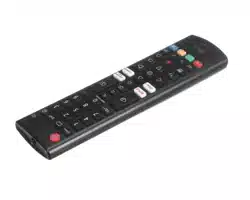
REMOTE CONTROL
The descriptions in this manual are based on the buttons on the
remote control. Please read this manual carefully and use the TV
correctly.
To install batteries, open the battery cover, replace batteries (1.5
V AAA) matching the and ends to the label inside the
compartment, and close the battery cover. To remove the batteries,
perform the installation actions in reverse. This remote uses infrared
light.
Make sure to point the remote control toward the remote control
sensor on the TV.
#
#
# #
(Some buttons and services may not be provided depending on
models or regions.)
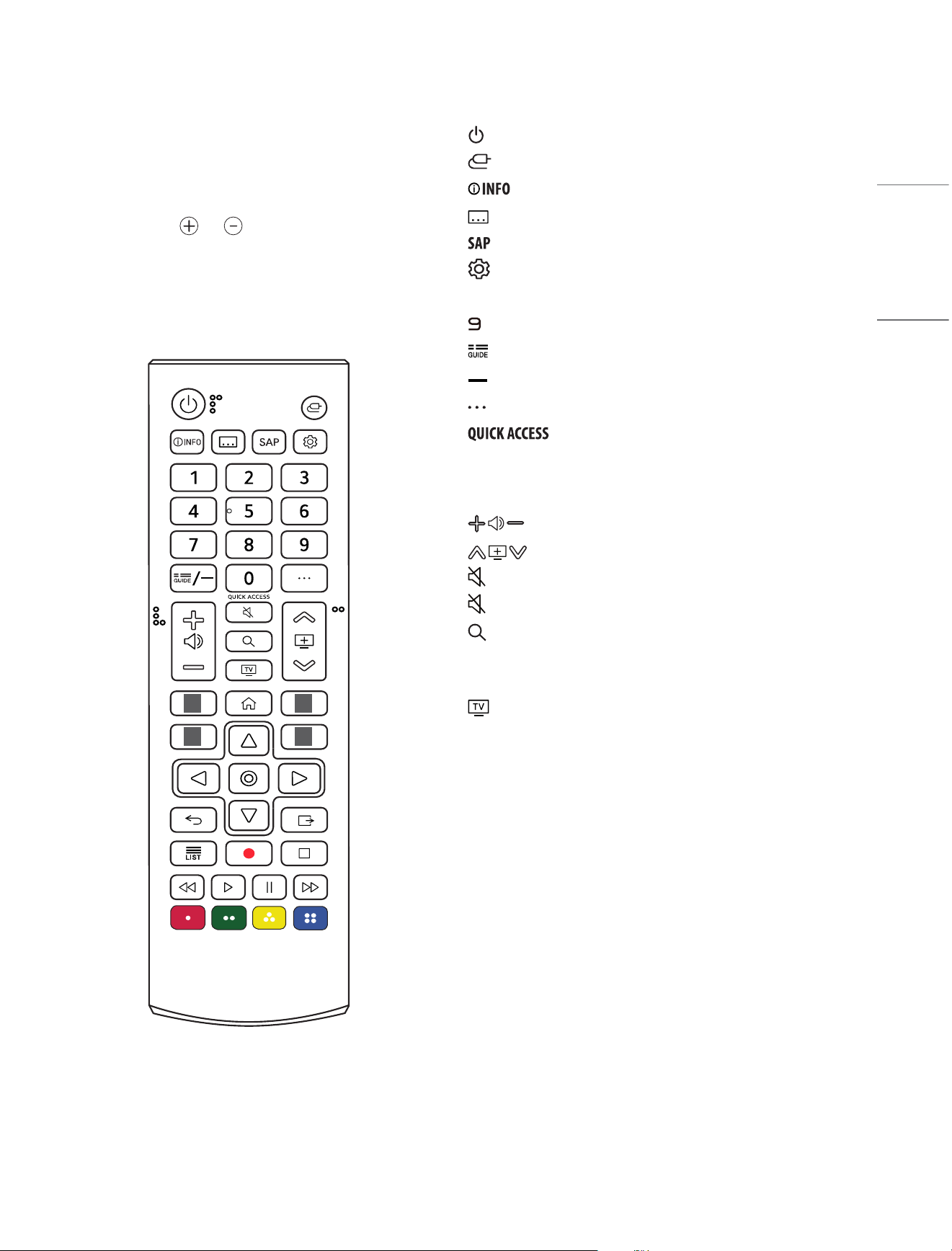
(Power) Turns the TV on or o.
(Input) Changes the input source.
Shows information on the current program.
(CC/SUB) Recalls your preferred subtitle in digital mode.
Enables SAP (Secondary Audio Program) Feature.
(Q. Settings) Accesses the Quick Settings.
Number buttons Enters numbers.
1
Accesses the [Quick Help].
Displays the program event according to time scheduler.
(Dash) Inserts a dash between numbers such as 2-1 and 2-2.
(More actions) Displays more remote control functions.
1
Edits QUICK ACCESS.
- QUICK ACCESS is a feature that allows you to enter a specied
app or Live TV directly by pressing and holding the number
buttons.
Adjusts the volume level.
Scrolls through the saved channels.
(Mute) Mutes all sounds.
(Mute)
1
Accesses the [Accessibility] menu.
(Search) Check for recommended content. (Some recommended
services may not be available in some countries.)
Shows the search mode.
You can watch TV or LG Channels.
13
ENGLISH
#
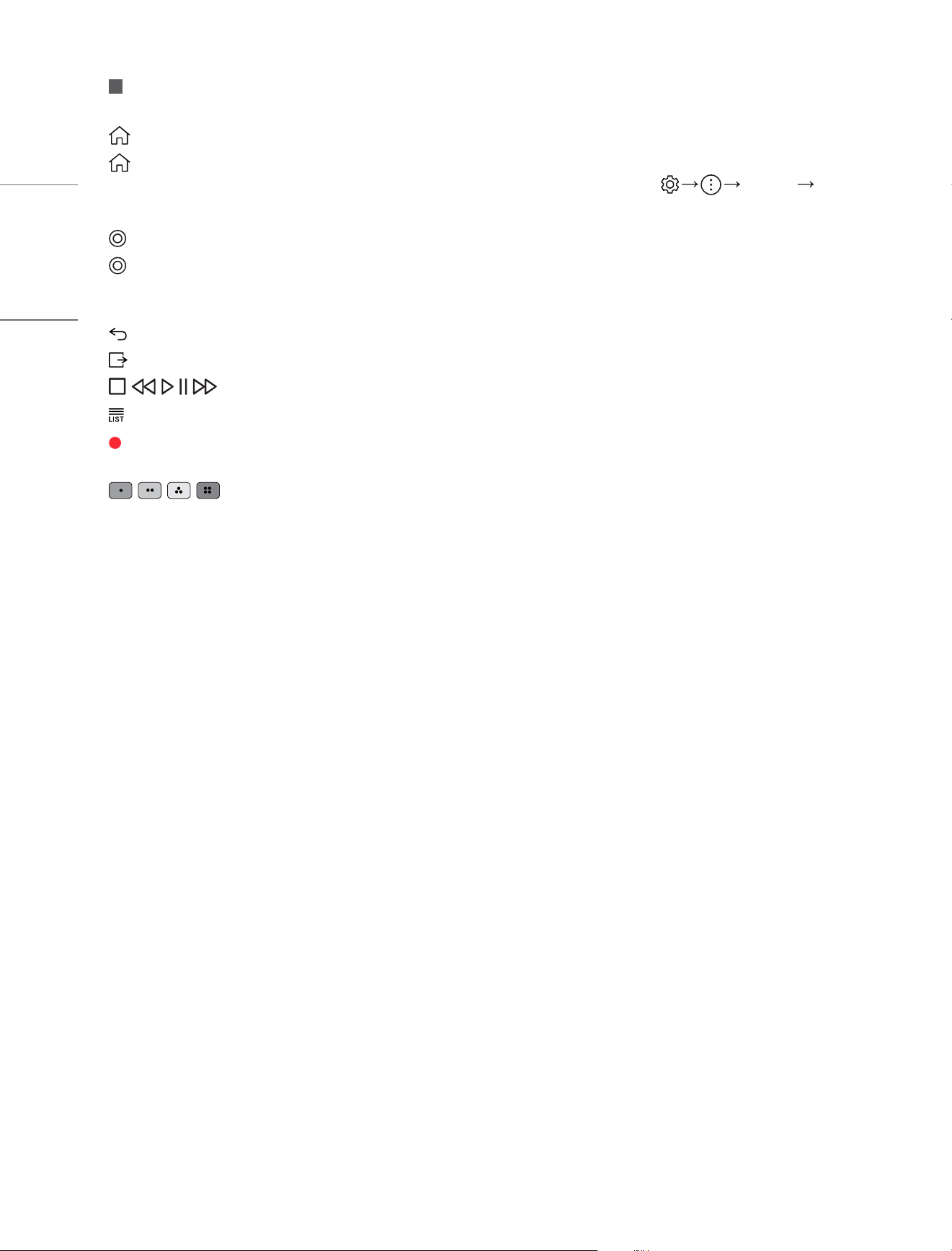
Streaming Service buttons Connects to the Video Streaming
Service.
(HOME) Accesses Home menu.
(HOME)
1
Launches the last used apps.
Navigation buttons (up/down/left/right) Scrolls through menus
or options.
(OK) Selects menus or options and conrms your input.
(OK)
1
Accesses the [Magic Explorer]. When using [TV Guide],
[Settings], [Sports Alert], or [Art Gallery], press and hold down on
the text.
(Back) Returns to the previous level.
(Exit) Clears on-screen displays and returns to TV viewing.
, , , , Control buttons for media contents.
Accesses the saved channel list.
(REC) Starts to record and displays record menu. This TV does not
support recording function.
, , , These access special functions in some menus.
1 To use the button, press and hold for more than 3 seconds.
USER GUIDE
For more information about this TV, read the USER GUIDE embedded
in the product. (Depending on model)
y
To open the USER GUIDE [Support] [User Guide]
TROUBLESHOOTING
Cannot control the TV with the remote control.
y
Check if anything such as tape has been placed over the receiver.
y
Check if there is any obstacle between the product and the remote
control.
y
Replace the batteries with new ones.
No image display and no sound is produced.
y
Check if the product is turned on.
y
Check if the power cord is connected to a wall outlet.
y
Check if there is a problem in the wall outlet by connecting other
products.
The TV turns off suddenly.
y
Check the power control settings. The power supply may be
interrupted.
y
Check if the auto-o function is activated on the settings related
time.
y
If there is no signal while the TV is on, the TV will turn o
automatically after 15 minutes of inactivity.
When connecting to the PC (HDMI), no signal is
detected.
y
Turn the TV o/on using the remote control.
y
Reconnect the HDMI cable.
y
Restart the PC with the TV on.
14
ENGLISH