Store this manual for future reference
8205-110-01
®
Universal Smart Wi-Fi Thermostat
User Manual
Read all instructions before proceeding.
Up to 3 Heat / 2 Cool Heat Pump
Up to 2 Heat / 2 Cool Conventional
8205
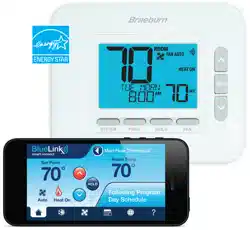
This manual covers the following thermostat model:
See Wi-Fi Setup Guide for Wi-Fi Setup Instructions
Contents
1
About Your Thermostat
Quick Reference........................................................ 4
2
User Settings
Accessing User Settings ........................................... 8
Table of User Settings ...............................................9
Resetting Service Reminders ....................................9
Setting the Time and Day ......................................... 9
Service Filter Reminder ...........................................10
Temperature & Lock Code .......................................10
Resetting Thermostat ..............................................11
3
Setting Your Program Schedule
Tips Before Setting Your Program Schedule .............12
Default Energy Saving Programs..............................13
Programming a 7 Day Schedule ..............................14
Programming a 5-2 Day Schedule ...........................16
4
Operating Your Thermostat
Setting the System Control Mode .........................17
Setting the Fan Control Mode ...............................18
Temperature Adjustment ......................................19
Program Event Indicators .....................................19
System Status and Maintenance Indicators ..........20
5
Additional Operation Features
Auto Changeover Mode ....................................... 23
Adaptive Recovery Mode ..................................... 23
Circulating Fan Mode ...........................................24
Compressor Protection ........................................ 24
Locking and Unlocking the Thermostat ................ 25
Wi-Fi Connection ................................................. 26
6
Thermostat Maintenance
Battery Replacement ........................................... 27
Thermostat Cleaning ........................................... 27
User Manual 2
3 User Manual
Regulatory Statements
This equipment has been tested and found to comply with the limits for a Class B digital device, pursuant to Part 15 of the FCC Rules. These limits are
designed to provide reasonable protection against harmful interference in a residential installation. This equipment generates uses and can radiate
radio frequency energy and, if not installed and used in accordance with the instructions, may cause harmful interference to radio communications.
However, there is no guarantee that interference will not occur in a particular installation. If this equipment does cause harmful interference to radio or
television reception, which can be determined by turning the equipment off and on, the user is encouraged to try to correct the interference by one or
more of the following measures:
• Reorient or relocate the receiving antenna.
• Increase the separation between the equipment and receiver.
• Connect the equipment into an outlet on a circuit different from that to which the receiver is connected.
• Consult the dealer or an experienced radio/TV technician for help.
Changes or modifications not expressly approved by the party responsible for compliance could void the user’s authority to operate the equipment.
This device complies with part 15 of the FCC Rules. Operation is subject to the following two conditions: (1) This device may not cause harmful
interference, and (2) this device must accept any interference received, including interference that may cause undesired operation.
This device complies with Industry Canada’s licence-exempt RSSs. Operation is subject to the following two conditions:
(1) This device may not cause interference; and
(2) This device must accept any interference, including interference that may cause undesired operation of the device.
Cet appareil est conforme aux CNR exempts de licence d’Industrie Canada. Son fonctionnement est soumis aux deux conditions suivantes :
(1) Ce dispositif ne peut causer des interf é rences ; et
(2) Ce dispositif doit accepter toute interf é rence , y compris les interf é rences qui peuvent causer un mauvais fonctionnement de l’appareil.
La operación de este equipo está sujeta a las siguientes dos condiciones: (1) es posible que este equipo o dispositivo no cause interferencia perjudicial
y (2) este equipo o dispositivo debe aceptar cualquier interferencia, incluyendo la que pueda causar su operación no deseada.
1
About Your Thermostat
User Manual 4
1
5
2 3 4
6
7
5 User Manual
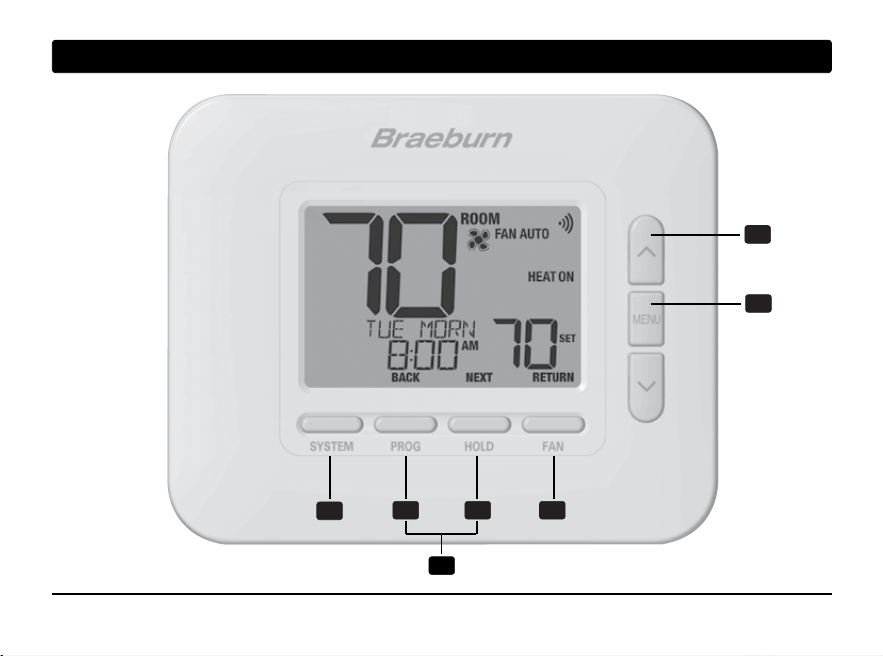
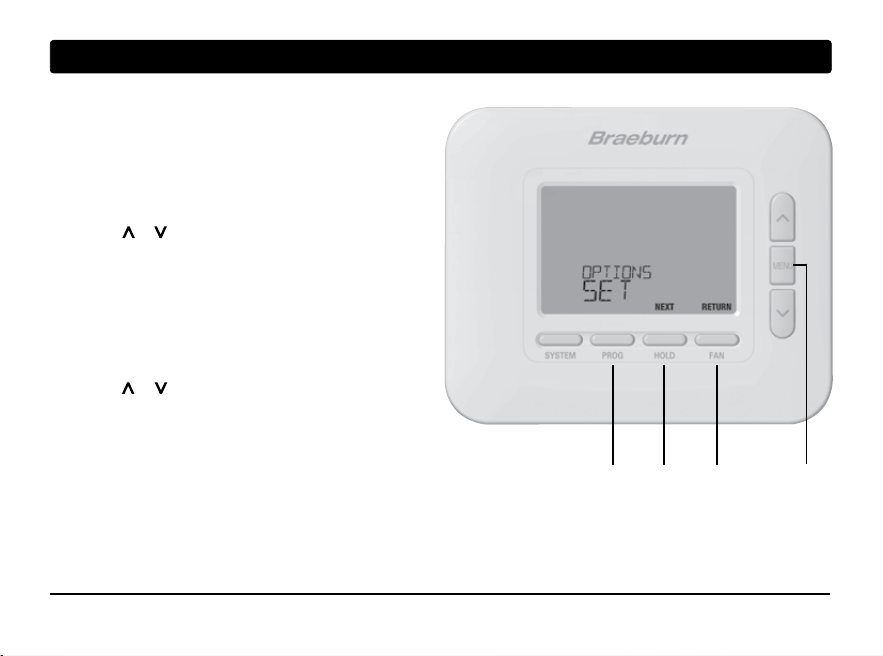
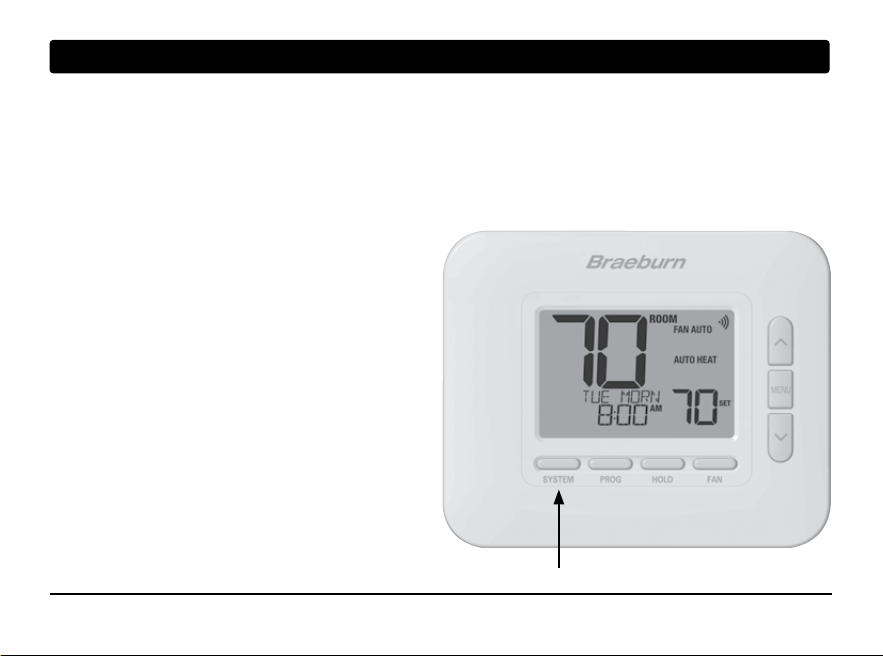
SYSTEM Button .................... Selects the system you want to control
PROG Button .........................Enters programming mode or hold for 3 seconds to enter SpeedSet
®
mode
BACK Button* ........................ Secondary function of the PROG button - Moves to previous setting
HOLD Button ......................... Enters / Exits HOLD mode (program bypass mode)
NEXT Button* ........................ Secondary function of the HOLD button - Moves to next setting
FAN Button ............................ Selects the system fan mode
RETURN Button* .................... Secondary function of the FAN button - Exits program or settings modes
Up / Down Arrow Buttons ..... Increases or decreases settings (time, temperature, etc.)
MENU Button ......................... Used to access user settings mode
Lock / Unlock Thermostat .... Access user Lock / Unlock screen by holding PROG and HOLD
together for 5 seconds
Battery Compartment .......... Located on the back side of thermostat (if installed)
1
2
3
4
5
6
7
Thermostat
* BACK, NEXT and RETURN are secondary functions of the PROG, HOLD and FAN buttons. When in programming
or configuration modes, BACK, NEXT and RETURN appear in the display screen indicating that the PROG, HOLD
and FAN buttons now function as BACK, NEXT and RETURN.
1
About Your Thermostat
1
2
6
3
8
7
5
4
11
10
User Manual 6
9
7 User Manual
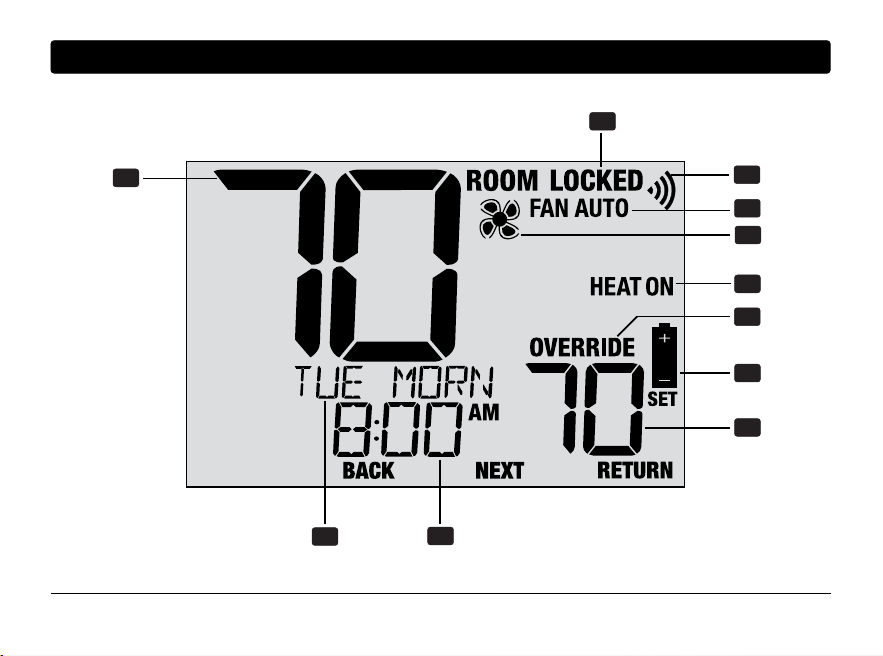
Room Temperature .............................Displays the current room temperature
Set Temperature .................................Displays the current setpoint temperature
Override Indicator ................................ Indicates that the current program schedule has
been temporarily overridden
Time of Day .......................................... Displays the current time of day
Message Center ................................... Displays various thermostat status and
maintenance information
System Mode ...................................... Displays the system mode and current system status
Fan Mode Indicator .............................. Indicates the current system fan mode
Fan Status Indicator ............................ Indicates that the system fan is running
Lock Mode Indicator ............................ Indicates if the thermostat is locked
Low Battery Indicator .......................... Indicates when the batteries need to be replaced
Wi-Fi Indicator .................................... Indicates the status of the wi-fi connection
Thermostat Display
1
2
3
4
5
6
7
8
9
10
11
2
User Settings
User Settings allow you set the current time of day as
well as customize various thermostat features.
To Enter User Settings Menu
1. Press and release the MENU button
2. Use the or buttons to select OPTIONS SET
3. Press NEXT (HOLD) to confirm this choice and
enter the User Settings Menu
To Navigate the User Settings Menu
4. Press NEXT (HOLD) or BACK (PROG) to move
to the next or previous setting
5. Use the or buttons to change the selection for
each setting.
6. Press RETURN (FAN) to exit or wait 30 seconds
MENU
User Manual 8
BACK NEXT
RETURN
9 User Manual
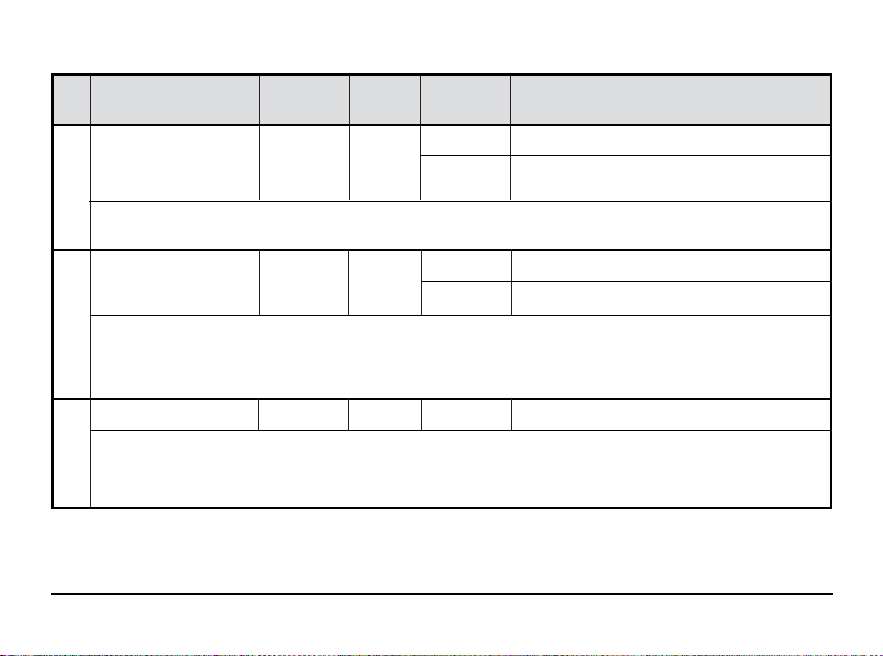
Table of User Settings
NOTE: Some user settings may not be available, depending on how the thermostat was configured during installation.
No.
User Setting
Displayed
Default
Available
Description of
Setting Settings Available Settings
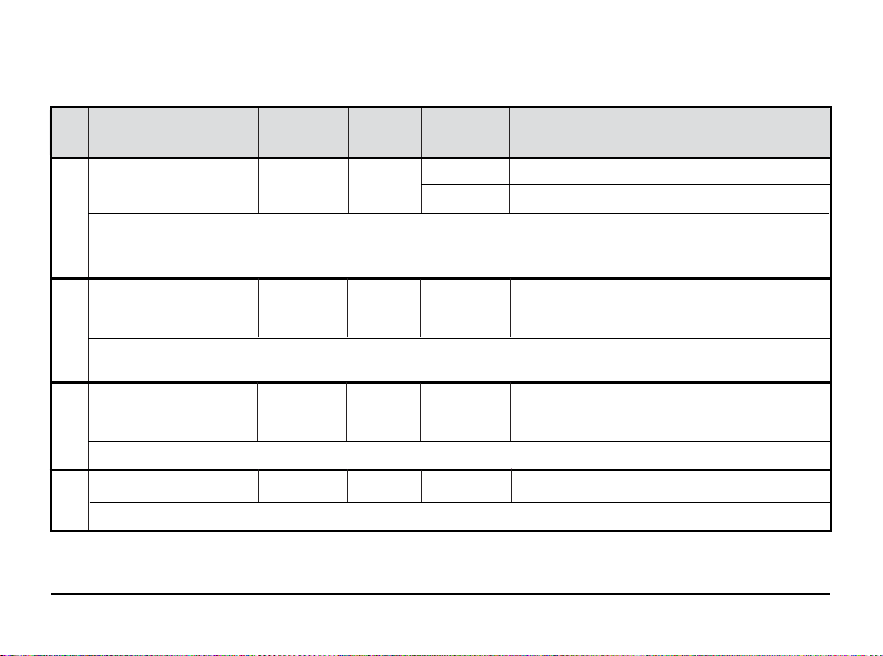
1 Reset FILTER RESET / N0
FILTER
[Only appears if the service filter time interval has expired] If a service filter time interval was selected in setting 5,
the thermostat will display a SERVICE FILTER message once that time interval is reached. Select NO to keep the message
displayed or select YES to clear the message and reset the timer.
2 Current Time of Day SET TIME 12:00
(Hour)
Set the current hour of the day. If thermostat was configured for a 24-hour clock, the settings 0-24 will be available.
If the thermostat was configured for a 12-hour clock, this is also how you will select between a.m. and p.m.
3 Current Time of Day
SET TIME 12:00
(Minute)
Set the current minute of the hour.
4 Current Day of Week
SET DAY MON
Set the current day of the week.
N0 Select to keep message displayed
YES Select to remove message and reset timer
1-12 Select the current hour of day
00-60 Select the current minute of the hour
MON-SUN Select the current day of the week
Continued on next page
User Manual 10
No.
User Setting
Displayed
Default
Available
Description of
Setting Settings Available Settings
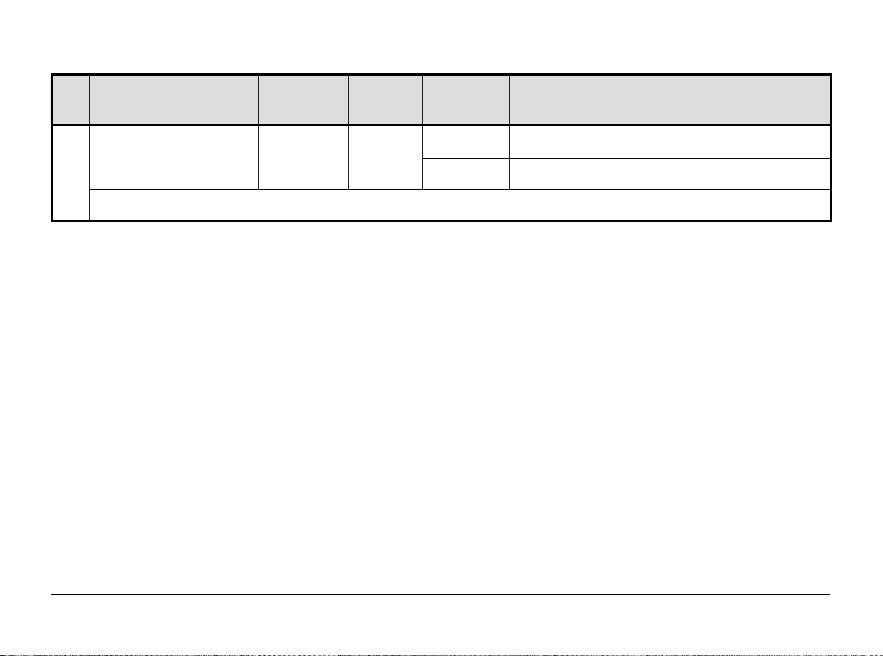
5 Service Filter Timer
FILTER OFF
Select the number of days before receiving a reminder to change your system filter (if applicable). When the timer interval has
expired, the thermostat will display SERVICE FILTER. To reset this reminder, see setting 1. To disable, select OFF.
6 Temperature Hold Time
HOLD LONG
(HOLD Button)
[Only available if programming is enabled] Temperature Hold Time lets you select the time that your thermostat will
hold the temperature when the HOLD button has been pressed. When LONG is selected, the thermostat will hold your
temperature indefinitely. When 24HR is selected, the thermostat will hold your temperature for 24 hours and then return
to the current program temperature.
7 Thermostat Lock Code
SET LOCK 000
The Thermostat Lock Code sets a 3-digit code that you may use at any time to lock or unlock the thermostat keypad.
Setting the 3-digit code does not activate the lock feature. To lock or unlock the thermostat, see Locking/Unlocking
Thermostat, section 5. The lock code 000 cannot be used.
OFF Service filter timer is disabled
30, 60, 90,
Select number of days for service filter timer
120, 180, 365
LONG Select for long (permanent) HOLD mode
24HR
Select for 24 hour (temporary) HOLD mode
0-9
Select a 3-digit lock code of 0-9 for each digit
Table of User Settings (cont.)
Continued on next page
11 User Manual
No.
User Setting
Displayed
Default
Available
Description of
Setting Settings Available Settings
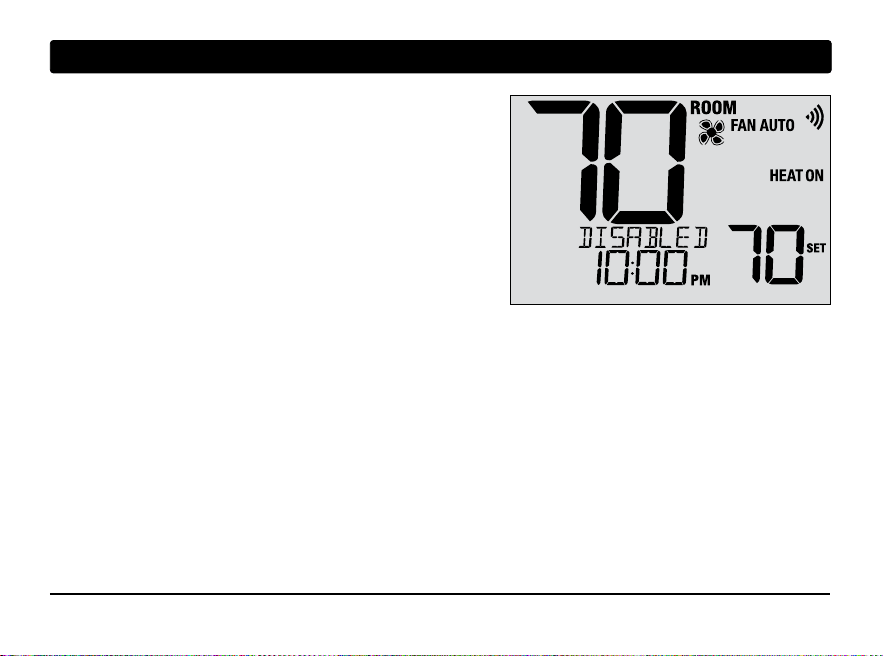
8 User Reset RESET NO
Selecting YES will reset all user settings, program and current time. Thermostat lock code and Installer Settings will not be affected.
NO Reset disabled - no changes made
YES
Reset enabled - resets thermostat
NOTE: This reset will not affect the lock code, wireless connection of the thermostat and/or any connected
remote sensors. If you wish to reset the wireless connection, please refer to the wireless setup guide.
Table of User Settings (cont.)
An additional Table of Wi-Fi Settings is available. Please refer to the Wi-Fi Setup Guide.
User Manual 12
3
Setting Your Program Schedule
Tips Before Setting Your Program Schedule
• Make sure your current time and day of the week
are set correctly.
• Make sure the AM and PM indicators are correct.
• Various installer settings such as auto changeover mode
and temperature adjustment limits may affect your
programming flexibility.
• Your NITE event cannot exceed 11:50 p.m.
• BACK, NEXT and RETURN are secondary functions of the
PROG, HOLD and FAN buttons.
This thermostat has been configured with one of
the following programming options:
• 7-day programming mode with 4 events per day
• 5-2 (weekday/weekend) programming mode
with 4 events per day
• Non-Programmable mode
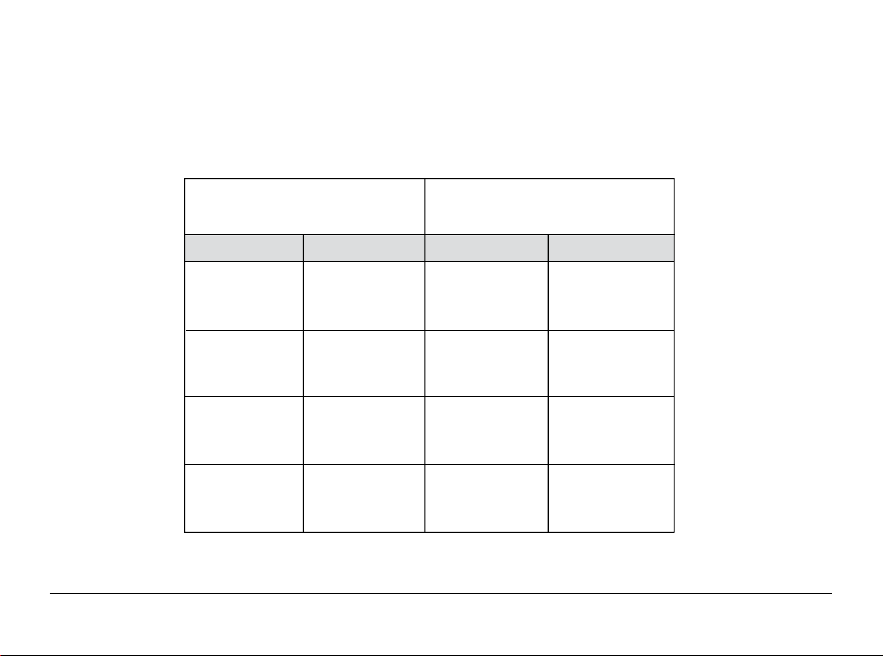
NOTE: If this thermostat was configured to be
non-programmable, then you cannot set a program
schedule. If you press the PROG or HOLD buttons,
the word “DISABLED” will appear in the display.
13 User Manual
Default Energy Saving Programs
This thermostat comes pre-programmed with a default energy saving program. The following tables outline
the pre-programmed times and temperatures for heating and cooling in each of your 4 daily events (2 events if
configured for commercial mode). If you wish to use these settings, then no further programming is necessary:
MORN
DAY
EVE
NITE
Time: 6:00 pm
Heat: 70˚ F (21˚ C)
Cool: 78˚ F (26˚ C)
Time: 8:00 am
Heat: 62˚ F (17˚ C)
Cool: 85˚ F (29˚ C)
Time: 6:00 am
Heat: 70˚ F (21˚ C)
Cool: 78˚ F (26˚ C)
Time: 10:00 pm
Heat: 62˚ F (17˚ C)
Cool: 82˚ F (28˚ C)
4 Event
All Days
7 Day Programming
Factory Settings
Weekday Weekend
Time: 6:00 pm
Heat: 70˚ F (21˚ C)
Cool: 78˚ F (26˚ C)
Time: 8:00 am
Heat: 62˚ F (17˚ C)
Cool: 85˚ F (29˚ C)
Time: 6:00 am
Heat: 70˚ F (21˚ C)
Cool: 78˚ F (26˚ C)
Time: 10:00 pm
Heat: 62˚ F (17˚ C)
Cool: 82˚ F (28˚ C)
Time: 6:00 pm
Heat: 70˚ F (21˚ C)
Cool: 78˚ F (26˚ C)
Time: 8:00 am
Heat: 62˚ F (17˚ C)
Cool: 85˚ F (29˚ C)
Time: 6:00 am
Heat: 70˚ F (21˚ C)
Cool: 78˚ F (26˚ C)
Time: 10:00 pm
Heat: 62˚ F (17˚ C)
Cool: 82˚ F (28˚ C)
5-2 Day Programming
Weekday/Weekend Factory Settings
User Manual 14
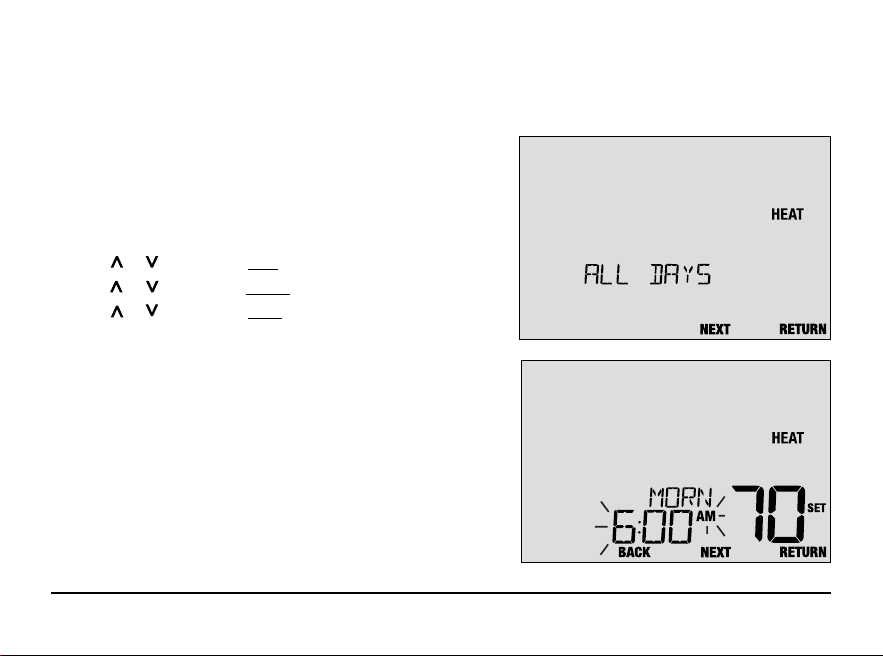
Setting a 7-Day program – All 7 Days at Once (SpeedSet
®
)
(7-day programming mode only)
NOTE: Setting all 7 days at once will copy over any previously programmed individual days.
Available Daily Events
MORN, DAY, EVE, NITE
1.
Hold the PROG button for 3 seconds until ALL DAYS appears.
2. Press SYSTEM to select HEAT or COOL. Press NEXT.
3.
Press or to adjust the hour for the first event. Press NEXT.
4.
Press or to adjust the minute for the first event. Press NEXT.
5.
Press or to adjust the temp for the first event. Press NEXT.
6. Repeat steps 3-5 for the remaining daily events.
7. If needed, repeat steps 2-6 to program the opposite mode.
8. Press RETURN to exit.
15 User Manual
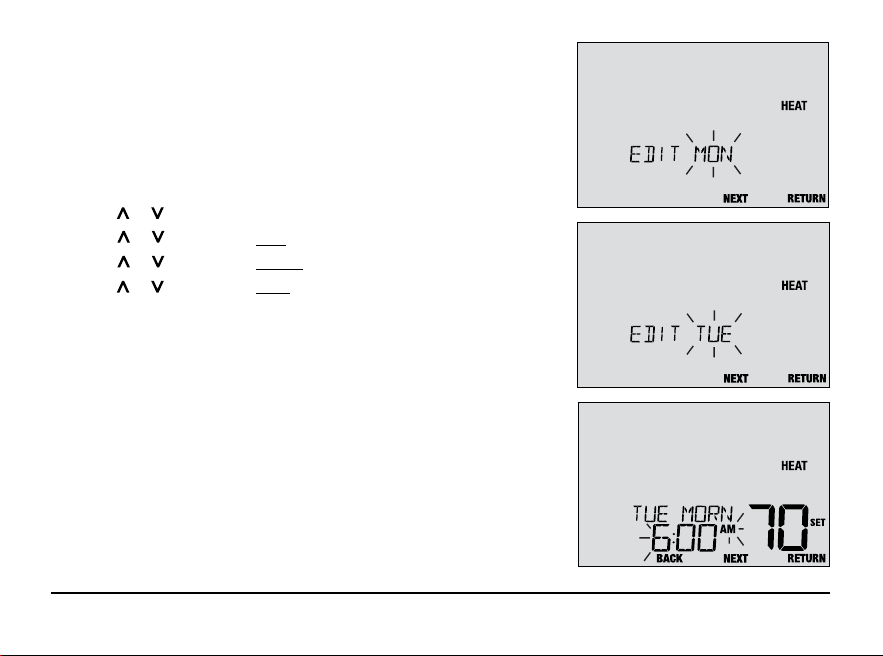
Setting a 7-Day program – Individual Days
(7-day programming mode only)
Available Daily Events: MORN, DAY, EVE, NITE
1. Press and release the PROG button.
2. Press SYSTEM to select HEAT or COOL.
3. Press or to select the day you want to program. Press NEXT.
4. Press or to adjust the hour for the first event. Press NEXT.
5. Press or to adjust the minute for the first event. Press NEXT.
6. Press or to adjust the temp for the first event. Press NEXT.
7. Repeat steps 4-6 for your remaining daily events.
8. If needed, repeat steps 3-7 to program additional days.
9. If needed, repeat steps 2-8 to program the opposite mode.
10. Press RETURN to exit.
User Manual 16
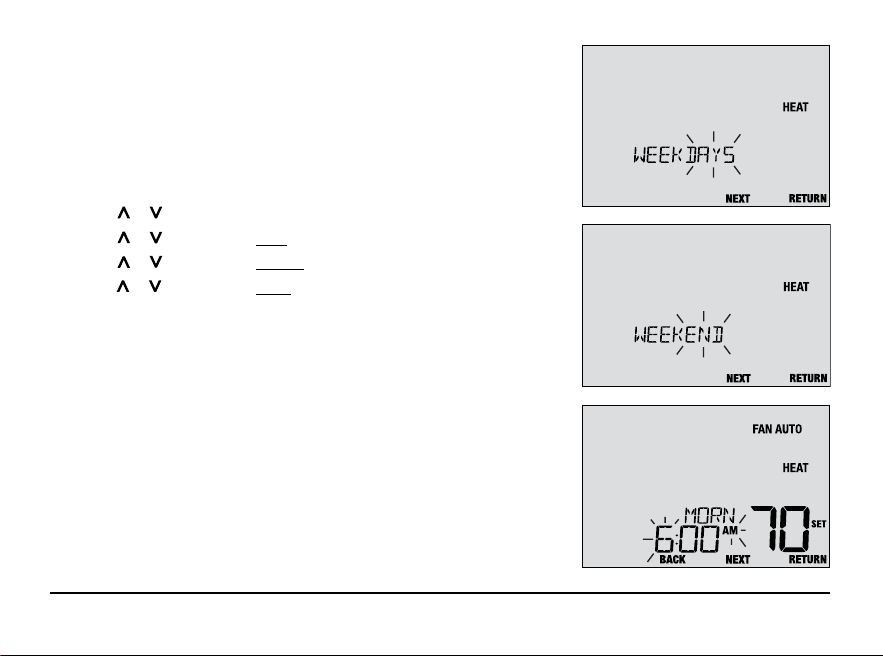
Setting a 5-2 Day Weekday/Weekend Program
(5-2 day programming mode only)
Available Daily Events: MORN, DAY, EVE, NITE
1. Press and release the PROG button.
2. Press SYSTEM to select HEAT or COOL.
3. Press or to select WEEKDAYS or WEEKEND. Press NEXT.
4. Press or to adjust the hour for the first event. Press NEXT.
5. Press or to adjust the minute for the first event. Press NEXT.
6. Press or to adjust the temp for the first event. Press NEXT.
7. Repeat steps 4-6 for your remaining daily events.
8. If needed, repeat steps 3-7 to program additional days.
9. If needed, repeat steps 2-8 to program the opposite mode.
10. Press RETURN to exit.
17 User Manual
4
Operating Your Thermostat
Setting the SYSTEM Control Mode
The System Control has 5 modes of operation – OFF, HEAT, EMR HEAT, AUTO and COOL. The mode can be
selected by pressing the SYSTEM button to scroll through the different system modes.
NOTE: Depending on how your thermostat was configured, some system modes may not be available.
OFF Heating and cooling systems are off.
HEAT Only your heating system will operate
EMERGENCY
Operates a backup heat source
HEAT (EMR HEAT)
(Emergency Heat) for heat pump
systems only.
AUTO The system will cycle between heating and
cooling automatically based on your temperature
set points. AUTO will be displayed with either
HEAT or COOL.
COOL Only your cooling system will operate.
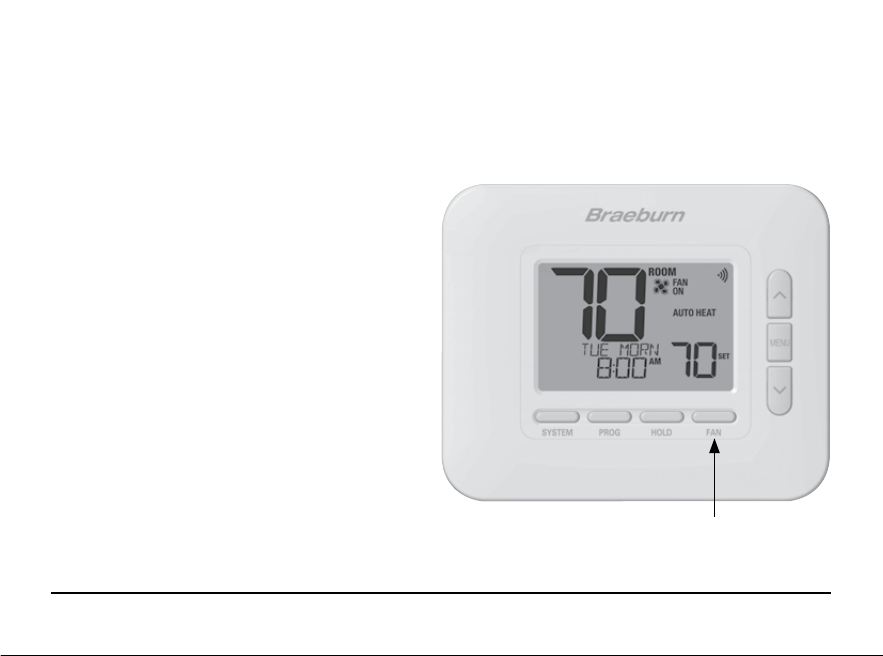
User Manual 18
Setting the FAN Control Mode
The Fan Control has 3 modes of operation – AUTO, ON, CIRC. The mode can be selected by pressing the FAN
button to scroll through the different fan modes.
NOTE: Depending on how your thermostat was configured, some fan modes may not be available.
AUTO The system fan will run only when your heating
or cooling system is running.
ON The system fan stays on.
CIRC The system fan will run from time to time to
help circulate air and provide more even
temperature when the heating or cooling
system is not active.
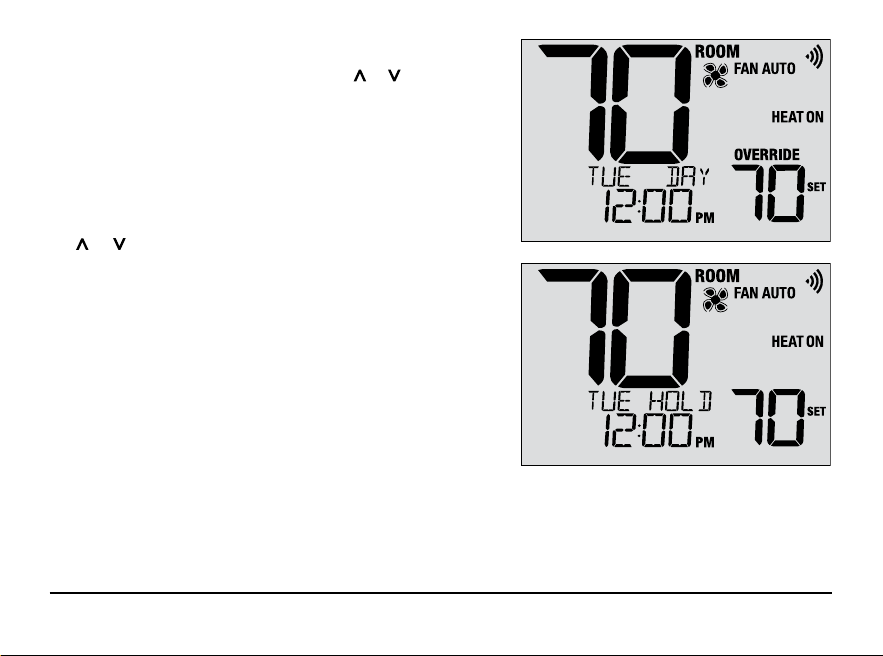
19 User Manual
Temperature Adjustment
Temporary Adjustment (OVERRIDE) – Press or to adjust
the current set temperature. The set temperature will change
back to your programmed temperature a few hours later or
at the start of the next scheduled program event. OVERRIDE
will appear in the display during the entire override period.
Extended Adjustment (HOLD) – Press the HOLD button
to override all programming. You can continue to use
the or buttons to adjust the current set temperature.
Press HOLD again to resume the program schedule. You
can limit your hold time to 24-hours by adjusting User
Setting 6 in section 2.
NOTE: If your thermostat was configured to be
non-programmable, HOLD and OVERRIDE are
not available.
Program Event Indicators (MORN, DAY, EVE, NITE)
Program event indicators appear in the display to let you know
what part of your current program is active.
NOTE: If your thermostat was configured to be non-programmable, or is in HOLD mode, you will not see a
Program Event or OVERRIDE indicator.
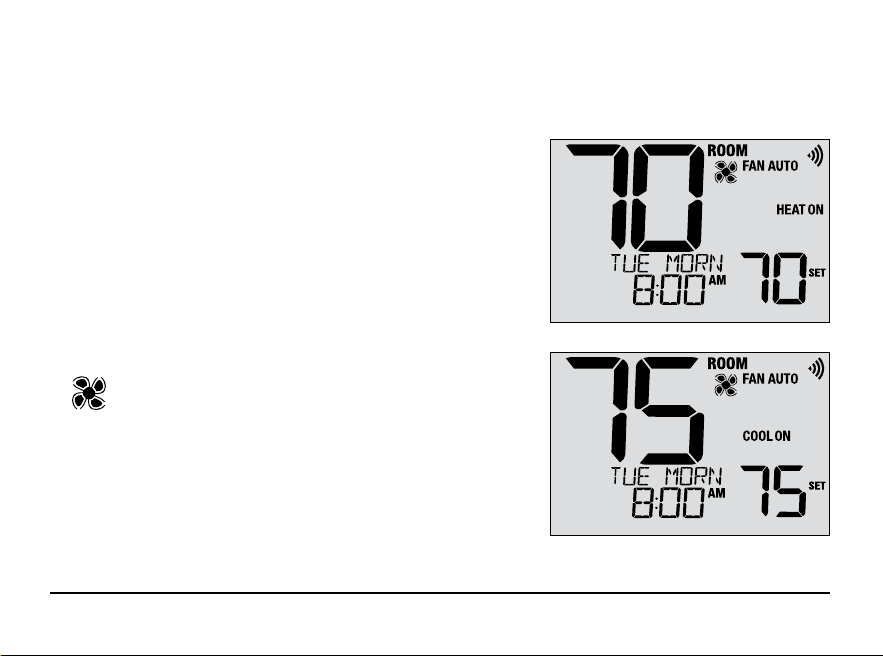
User Manual 20
System Status and Maintenance Indicators
Status indicators are messages or symbols that appear in the display to let you know what function your system
is currently performing. They are also used to inform you of various service and maintenance functions.
HEAT ON The heating system is running.
COOL ON The cooling system is running.
HEAT ON AUX The auxiliary stage of heating is running
(multistage systems only).
EMERGENCY
The emergency heating system is
HEAT ON running (heat pump systems only).
Indicates that the system fan is running.
21 User Manual
System Status and Maintenance Indicators (continued)
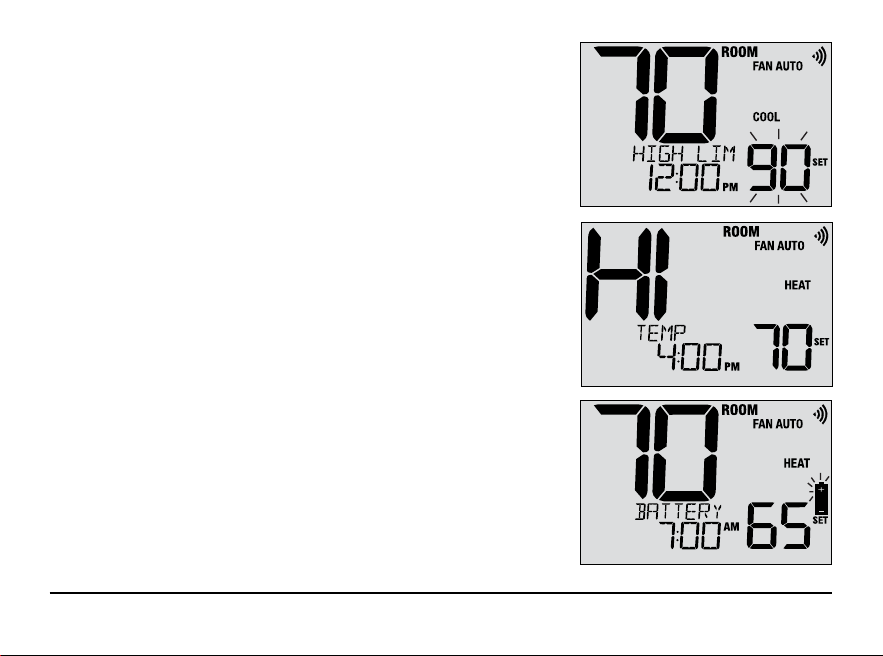
HIGH LIM Setpoint temperature has reached its
upper limit maximum.
LOW LIM Setpoint temperature has reached its
lower limit maximum.
HI TEMP Room temperature has risen above the
display range. Cooling will still operate to
help lower temperature.
LO TEMP Room temperature has fallen below the
display range. Heat will still operate to help
raise temperature.
CHANGE If batteries are installed and they become low,
BATTERY the battery symbol appears in the display. When
the batteries become critically low, the battery
symbol will flash, and CHANGE / BATTERY will
alternate in the display (see “Changing the
Batteries” in section 6).
User Manual 22
System Status and Maintenance Indicators (continued)
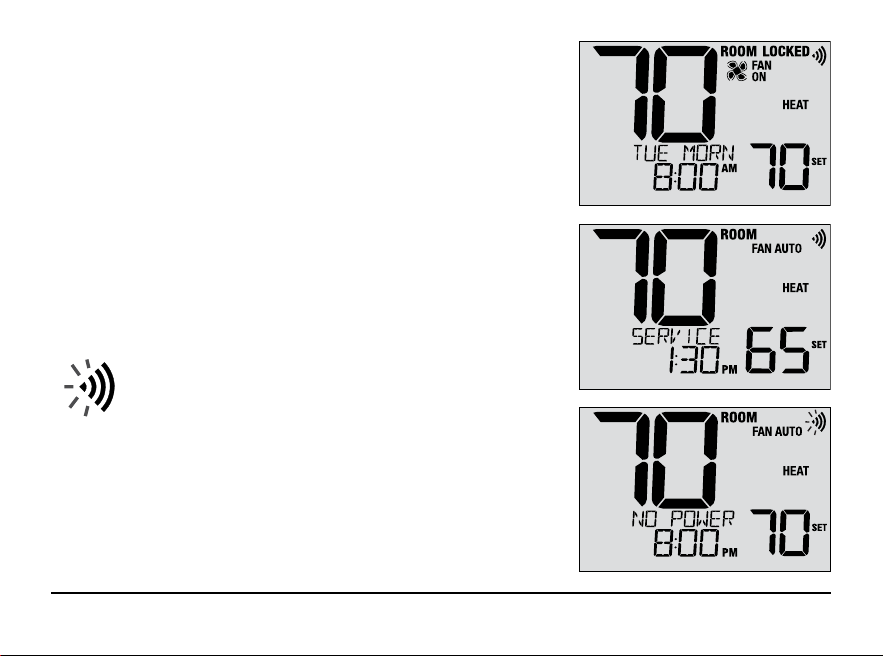
LOCKED Thermostat has been fully or partially locked.
See Locking and Unlocking thermostat, section 5.
SERVICE A user selectable service reminder for changing
the filter has be triggered. To set or reset these
reminders, see User Options, section 2.
NO POWER AC power to thermostat has been lost. Only available
if thermostat is hardwired and thermostat is configured
for power monitoring.
A flashing Wi-Fi icon indicates the Wi-Fi network
connection has been interrupted. Usually this connection
will re-establish when the network is available. If it
does not, see the Wi-Fi Setup Guide for further instructions.
23 User Manual
5
Additional Operating Features
Auto Changeover Mode
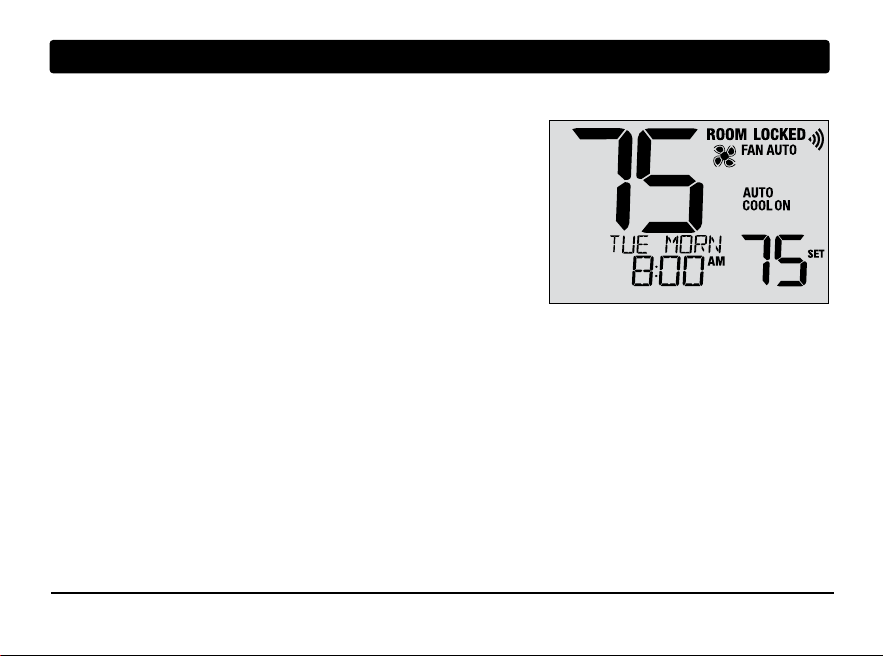
When Auto Changeover mode is enabled and selected, the system
automatically switches between heating and cooling when the
room temperature meets the current heating or cooling set points.
To operate properly, the thermostat maintains a forced separation
between the heating and cooling setpoints to prevent these systems
from working against each other. If a setting is made in either
heating or cooling which violates the forced separation, the opposite
mode will adjust up or down accordingly to maintain the current
forced separation.
Select Auto Changeover Mode by pressing the SYSTEM button until AUTO HEAT or AUTO COOL appears in the
display. Whichever system was running last will remain in the display until the opposite system runs.
Adaptive Recovery Mode (ARM
TM
)
If enabled, Adaptive Recovery Mode attempts to achieve your desired heating or cooling temperature at the time
you have set in your current program schedule, after a setback period. For example, if you set your heat down to
62° at night and have a set point of 70° scheduled for 7:00 AM, the thermostat may turn on your heating system
early in order achieve a temperature of 70° by 7:00 AM.
This feature does not operate when the thermostat is in HOLD mode; if the program is temporarily overridden or
if emergency heat is selected on a multistage heat pump system.
User Manual 24
Circulating Fan Mode
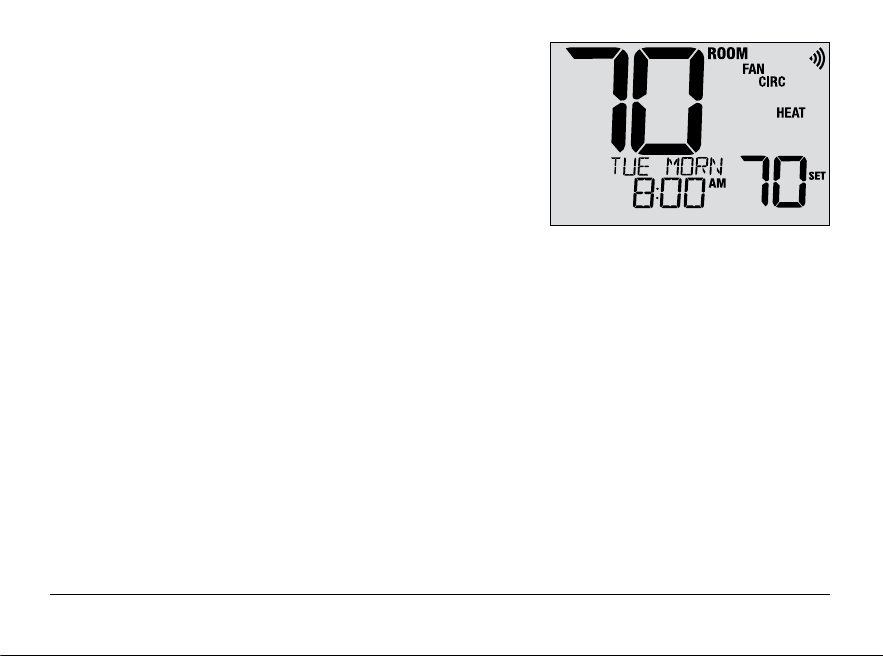
Circulating Fan Mode is selected by touching the FAN button until
CIRC appears in the display. When in CIRC mode the fan operates
as required by the heating and cooling system (just like AUTO mode).
When heating or cooling is not active, fan will run as needed to
ensure a 35% minimum run time.
Compressor Protection
This thermostat includes an automatic compressor protection delay to avoid potential damage to your system
from short cycling. This feature activates a short delay after turning off the system compressor.
Additionally, for multistage heat pump systems, this thermostat provides cold weather compressor protection by
locking out the compressor stage(s) of heating for a period of time after a power outage greater than 60 minutes.
During this lockout period, the thermostat will operate the auxiliary stage of heating.
25 User Manual
Locking and Unlocking the Thermostat
Your 3-digit Lock Code is set in the User Settings portion of this
manual (section 2). Once the code is set, the thermostat can be
locked or unlocked at any time by entering that code.
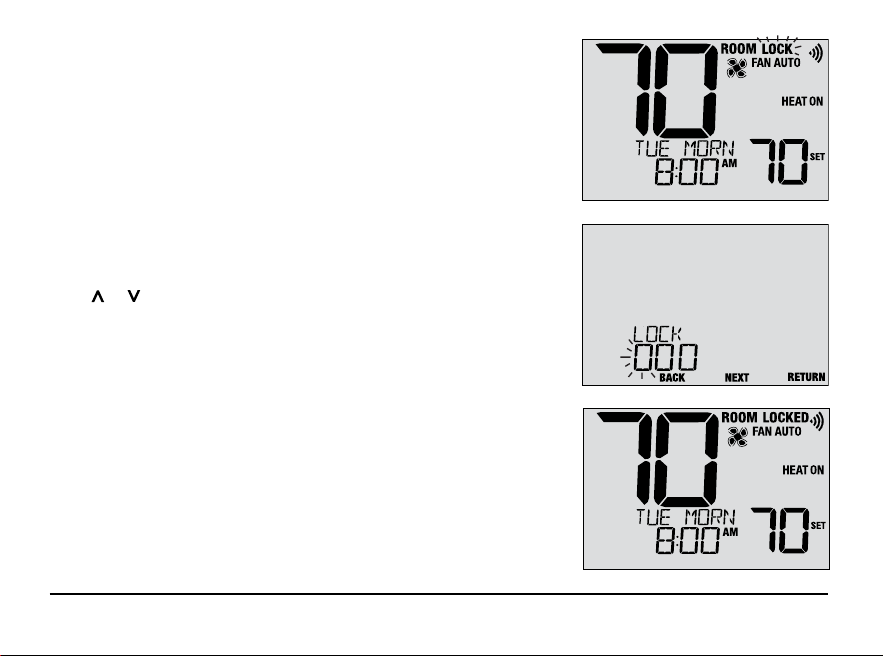
To lock or unlock the thermostat, press and hold the PROG and
HOLD buttons together for 5 seconds. While holding these buttons,
LOCK will flash in the display (Figure 1).
The screen will change displaying LOCK CODE 000 (Figure 2).
Press or to enter the first digit of your lock code and then
press the NEXT button to advance to the next digit. Repeat this
process to enter the second and third digit of your lock code.
After entering the third digit, press NEXT to advance to the next
User Setting or RETURN to exit.
If you entered a valid code, the thermostat will be locked or
unlocked (depending on its previous state). When locked, the
word LOCKED appears in the display (Figure 3). If an invalid code
is entered, WRONG CODE will briefly appear in the display.
Figure 1
Figure 2
Figure 3
User Manual 26
Wi-Fi Connection
This thermostat is capable of connecting to a Wi-Fi network to enable remote monitoring and control from
a mobile device or PC.
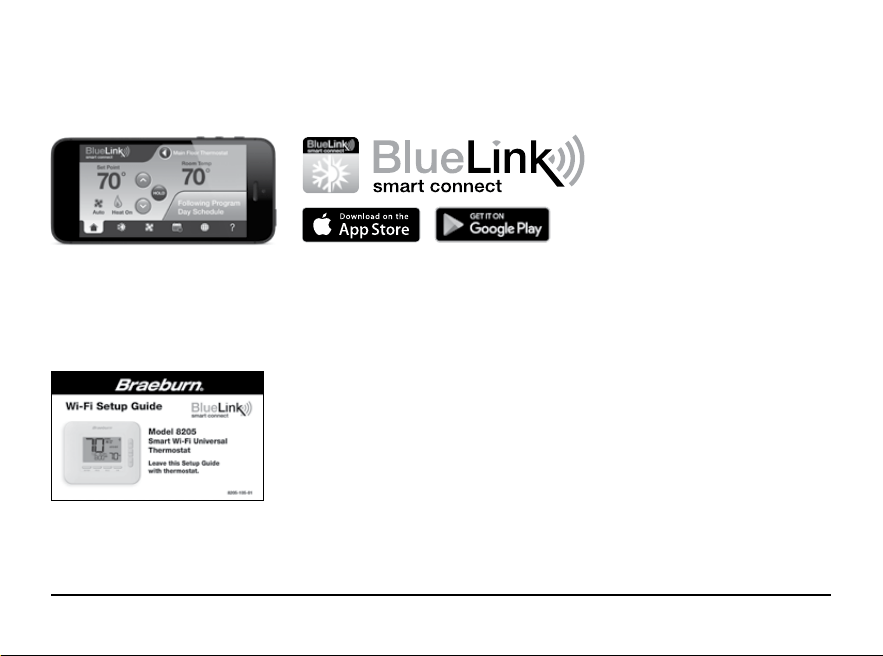
To connect to Wi-Fi, you’ll need the BlueLink Smart Connect
®
application on an iOS or Android
TM
device.
The BlueLink Smart Connect Application is FREE to download and use. The application will guide you through
account registration and thermostat connection.
®
For additional instructions
on connecting your thermostat,
see the Wi-Fi Setup Guide.
Apple and the Apple logo are trademarks of Apple Inc., registered in the U.S. and other countries. App Store is a service mark of Apple Inc.
Google and Google Play are trademarks of Google LLC.
27 User Manual
6
Thermostat Maintenance
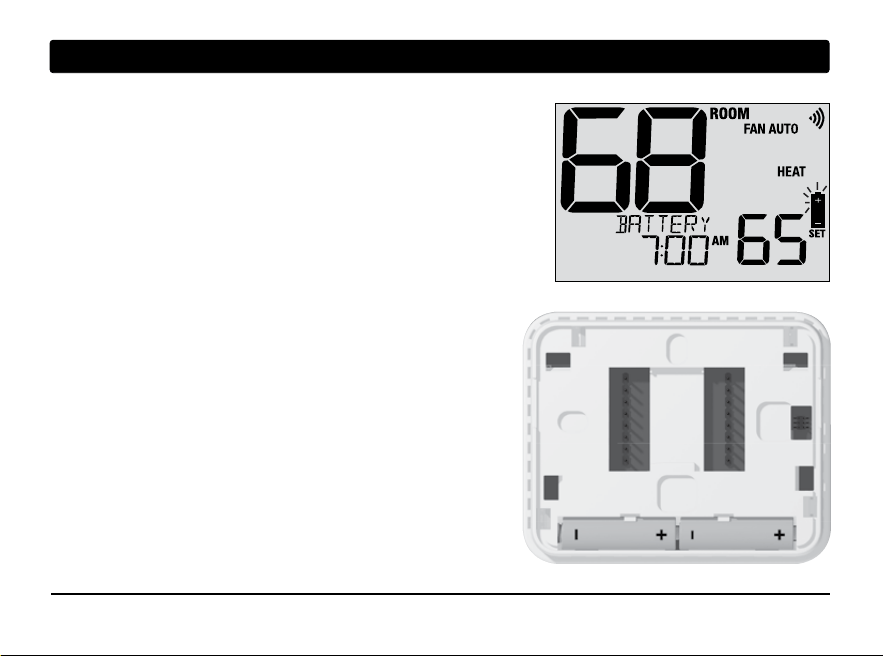
Changing the Batteries
Depending on your installation, this thermostat may be equipped with
two (2) “AA” type alkaline batteries.
If batteries are installed and they become low, the battery symbol
appears in the display. When the batteries become critically low,
the battery symbol will flash, and CHANGE / BATTERY will alternate
in the display.
To change your batteries:
1. Remove thermostat body by gently pulling it from base.
2. Remove old batteries and replace with new batteries.
3. Make sure to correctly position the (+) and (-) symbols.
4. Gently push thermostat body back onto base.
NOTE: We recommend replacing the thermostat batteries
annually or if the thermostat will be unattended for
an extended period of time.
Thermostat Cleaning
Never spray any liquid directly on the thermostat. Spray
your
cleaning liquid on a soft cloth and then proceed to
clean the screen
with the damp cloth. Only use water or
household glass cleaner. Never use any abrasive cleansers
to clean your thermostat.
For additional instructions
on connecting your thermostat,
see the Wi-Fi Setup Guide.

For more information, visit www.braeburnonline.com
Limited Warranty
When installed by a professional contractor, this product is backed by a 5 year limited warranty. Limitations apply. For limitations, terms
and conditions, you may obtain a full copy of this warranty. Visit us online: www.braeburnonline.com/warranty, phone us: 866.268.5599
or write us: Braeburn Systems LLC, 2215 Cornell Avenue, Montgomery, IL 60538.
55
YEAR
WARRANTY
LIMITED
Braeburn Systems LLC
2215 Cornell Avenue • Montgomery, IL 60538
Technical Assistance: www.braeburnonline.com
Call us toll-free: 866-268-5599 (U.S.)
630-844-1968 (Outside the U.S.)
©2024 Braeburn Systems LLC • All Rights Reserved.
8205-110-01