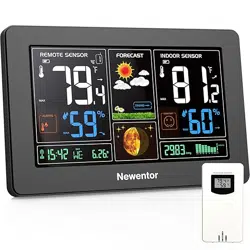
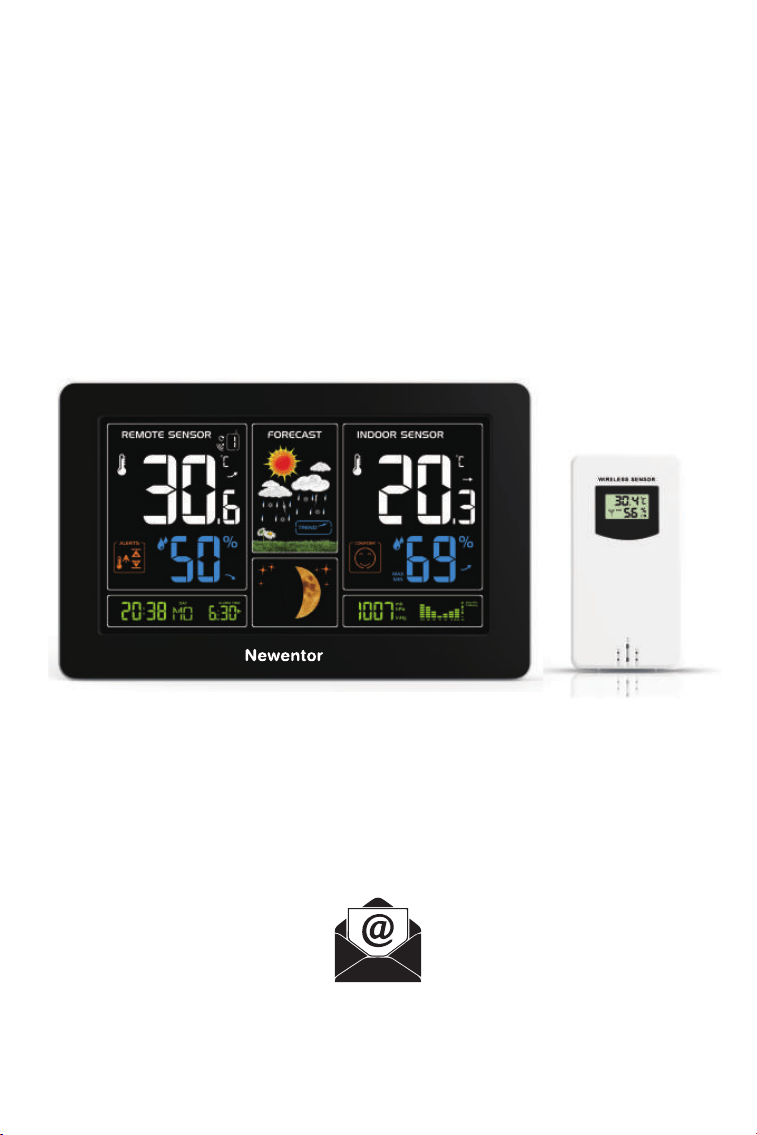

EN - Weather Station
1.WEATHER STATION FEATURES:
1.1 Main Station
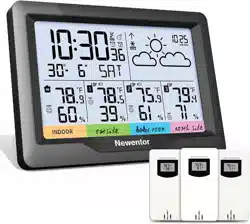
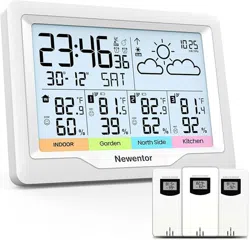
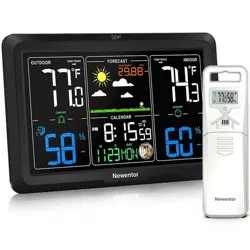
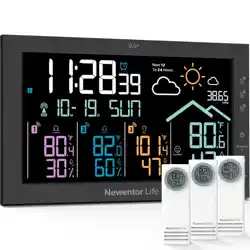
► The weather forecasting function
► WWVB radio controlled time function ( ON or OFF)
► Date and weekday display
► Time in optional 12/24 hour format
► Daily Alarm Function
► Automatic snooze function
► Moon phase display
► USB Charger Output Socket
► 5 Levels brightness backlight with power adapter
► Comfort display
► The trend display of Temperature, Humidity and Barometric
► Temperature:
— Temperature alternatively in °C or °F
— Indoor temperature measurement ranges: 15°F (-9.9°C) to 122°F (50°C)
— Outdoor temperature measurement ranges: -4°F (-20°C) to 140°F (60°C)
— Outdoor thermometer and frost alert
► Humidity: Indoor & Outdoor
measurable range: 20%RH ~ 95%RH
► Barometric pressure:
— Barometric pressure measurement ranges: 17.72 inHg (600 hPa/mb) to 32.50
inHg(1100 hPa/mb)
— Pressure alternatively in inHg or mb/ hPa
► Minimum/Maximum display for humidity and temperature
► 3 Remote Sensor can be connected (only 1 included)
1.2 Remote Sensor
► Wireless Outdoor Sensor:
— Wall Mount or Table Stand
— 433.92MHz RF transmitting frequency
— 200 feet transmission range in an open area
1.3 Power Supply:
► Weather Station:
Battery: 2 x AA (Not included)
► Wireless Outdoor Sensor:
Battery:2 x AA (Not included)
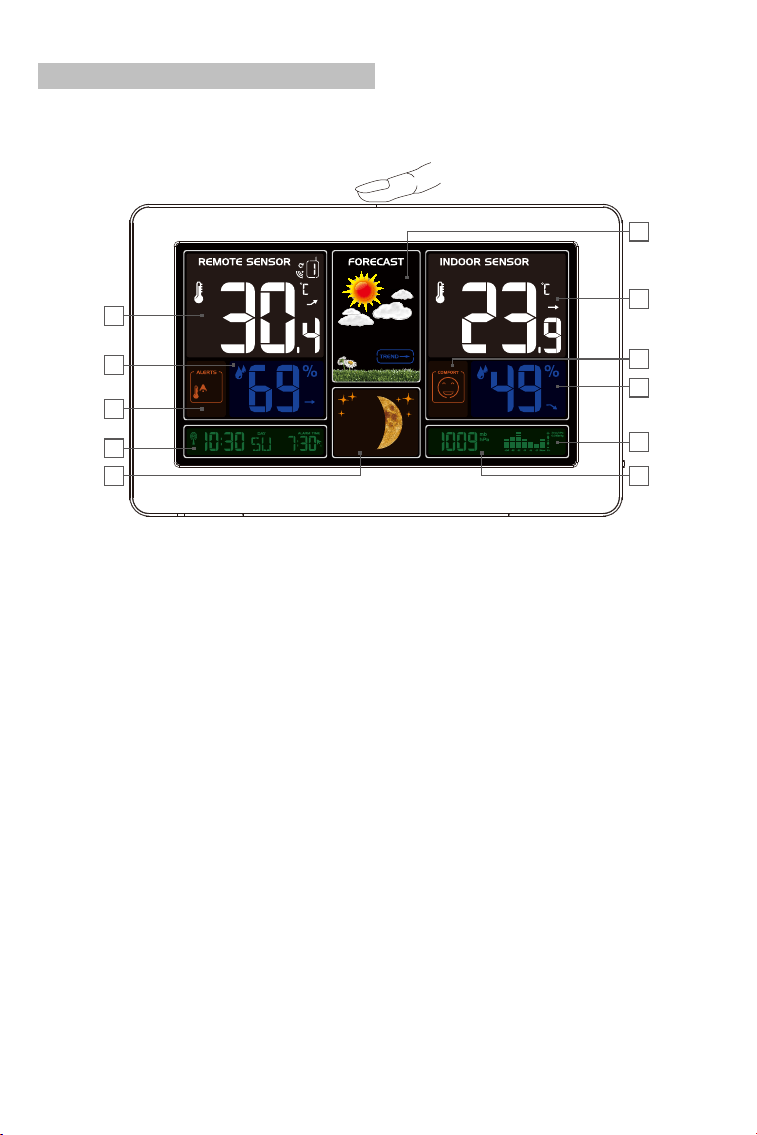
1.4 Weather Station Appearance
Part A – Weather Station Front
A1: Remote Temperature
A2: Remote Humidity
A3: Remote Temperature Alert
A4: Time/Calendar or Alarm time
A5: Moon Phase
A6: Barometric pressure
A7: Histogram shows the atmospheric pressure
A8: Indoor Humidity
A9: Indoor comfort
A10: Indoor Temperature
A11: Weather Forecasting
A6
A7
A8
A9
A10
A11
A5
A4
A3
A2
A1
3
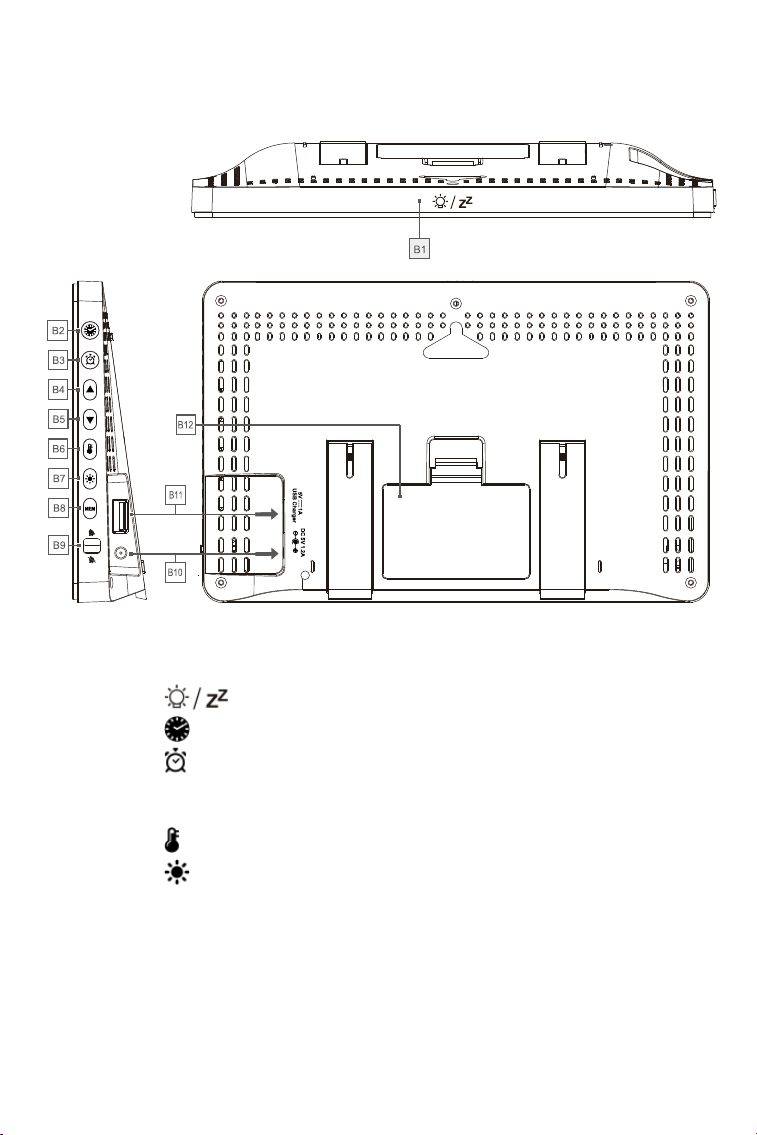
Part B – Weather Station Back
B1: “
” touch field
B2: “
” button
B3: “
” button
B4: “▲” button
B5: “▼” button
B6: “
” button
B7: “
” button
B8: “
MEM” button
B9: Alarm on/off shift switch
B10: Power supply socket
B11: USB charger output socket
B12: Battery compartment
4
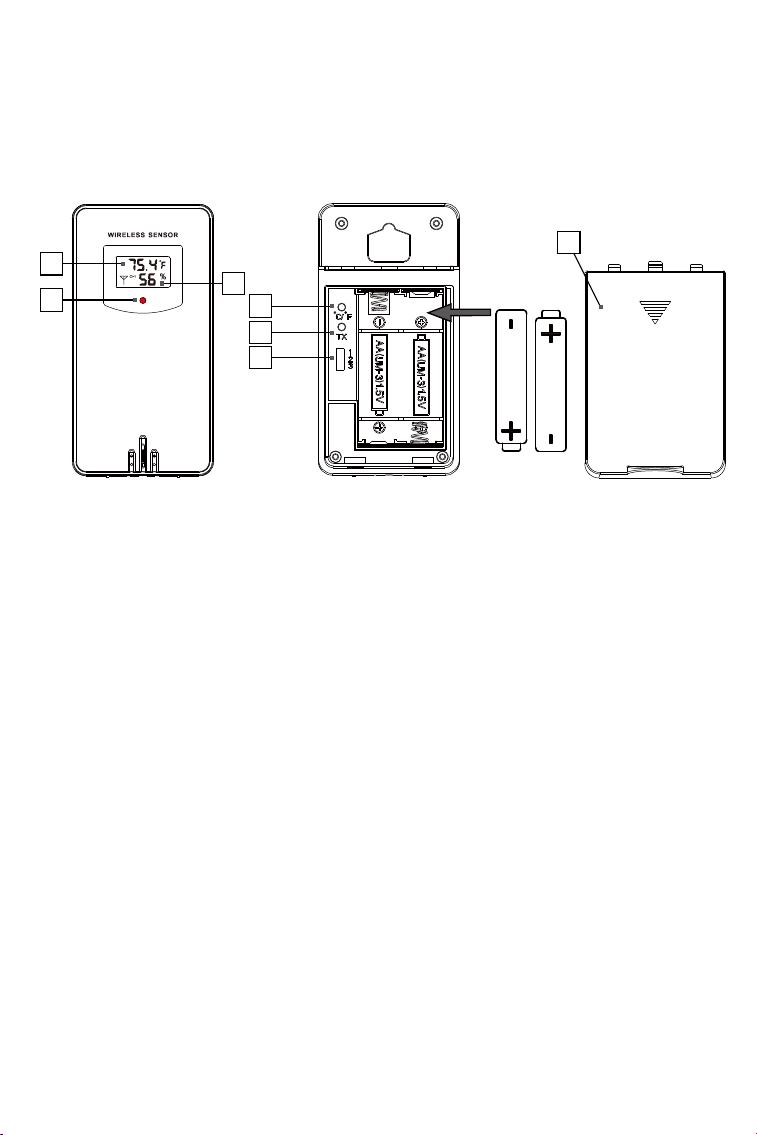
Part C – Wireless Outdoor Sensor:
C1: LCD display – Temperature
C2: LCD display – Humidity
C3: Transmit signal LED
C4: “°C/°F” switch button
C5: “TX” reset button
C6:
Battery compartment
C7: 3 channel select
C1
C2
C3
C4
C5
C7
C6
5
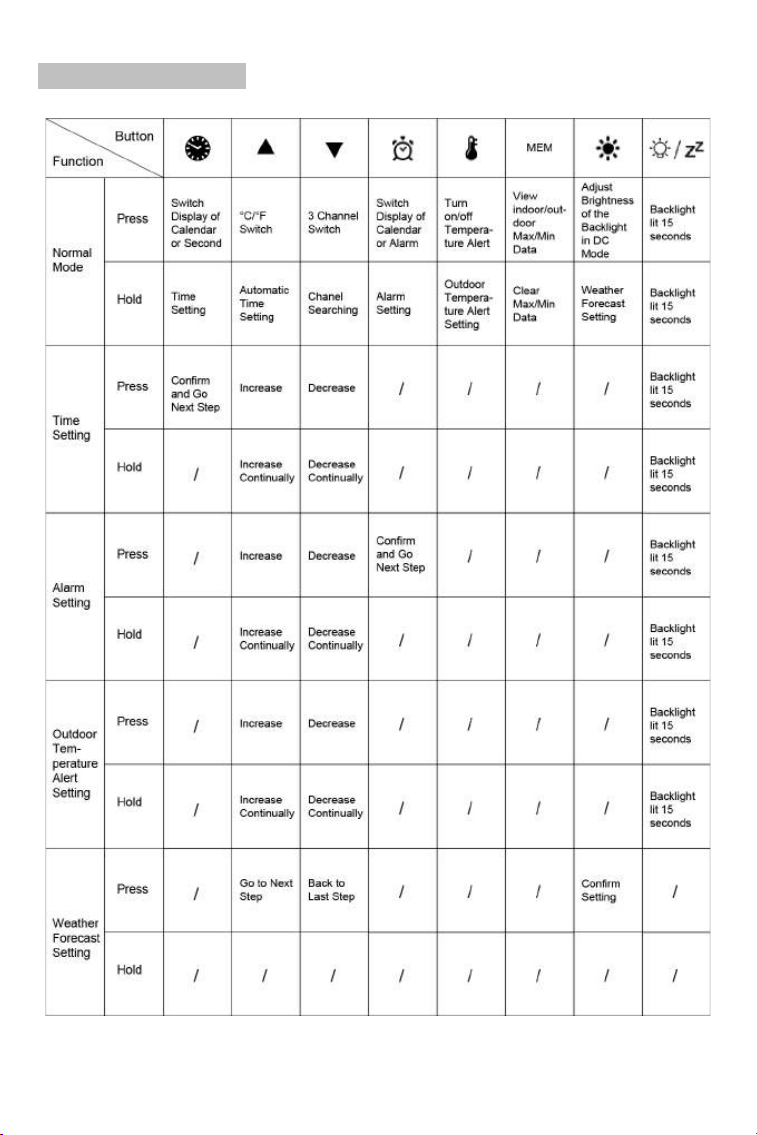
1.5 Button Function
6
2.INITIAL OPERATION AND NOTES
2.1 Initial Operation
► Open the weather station battery compartment, insert 2 x AA batteries observing
polarity [ “+” and “ –“ marks]
► Remove the battery compartment on the Wireless Remote Sensor, insert 2 x AA
batteries observing the correct polarity (+ and - marks) and close the battery
compartment.
► When the power is connected all the icons on the LCD display will light up for 3
seconds, you will hear a beep tone and the weather station will start to detect the
indoor temperature and humidity
► The weather station will start to make a connection to the outdoor remote sensor.
This operation takes about 3 minutes and is displayed by a flashing reception RF
icon “
” in the “Remote Sensor” display area on the receiver.
► Once the weather station has created a connection to the outdoor sensor the clock
will start automatically searching for the WWVB Signal to set the time and date. The
radio mast icon “
” will flash showing it is searching for signal, it may take up to 7
minutes to search.
2.2 Notes for Customer before Use
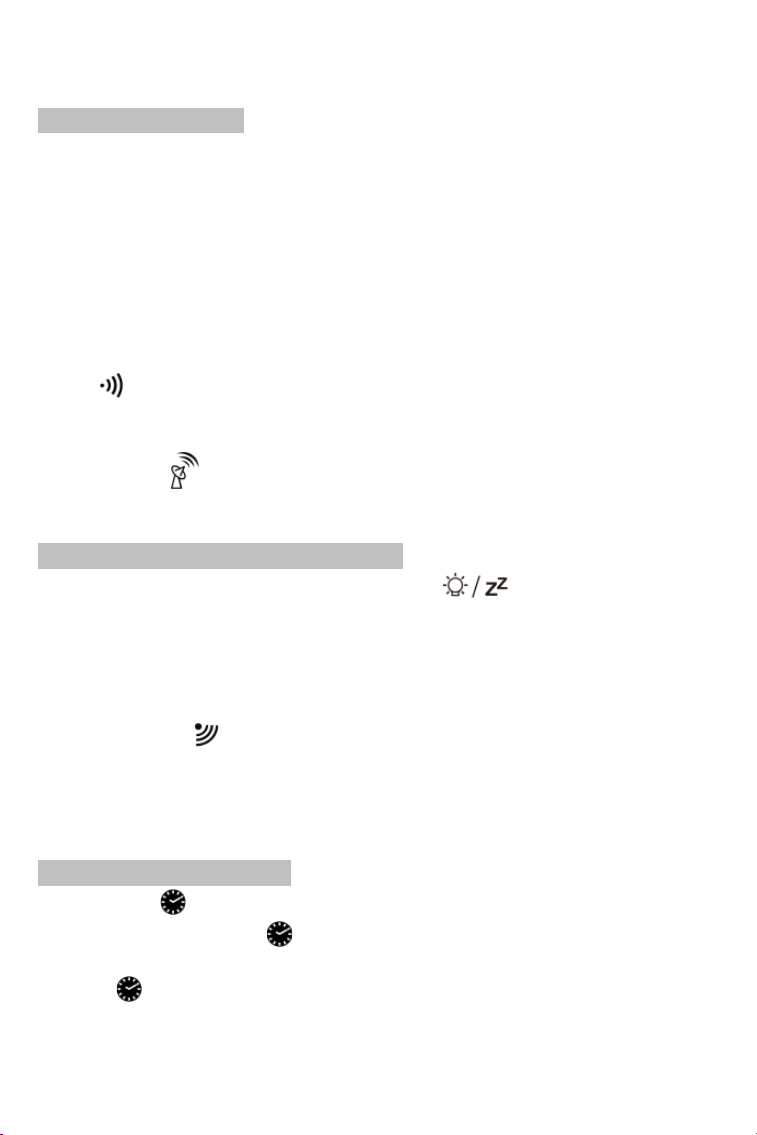
► During the WWVB signal search mode only the “ ” and “▲” button will
function, all other buttons have no function. And backlight will not keep lighting during
this moment even if the adapter plug in. Press the “▲” button it can cancel the WWVB
signal search and all buttons and backlight will function.
► If weather station failed to receive transmission from outdoor sensor (“- -”display on
the main station LCD), press and hold “▼” button for 3 seconds to receive transmission
manually. RF icon “
” flashes on the LCD and the weather station to re-receive the
data from outdoor sensor. Or open the sensor battery compartment, press the TX
button to connect the sensor and station again.
3.TIME, TIME ZONE AND CALENDAR SETTING
3.1 Manual Time Setting
► Press once “ ” button, can switch the display calendar or second
► Press and hold down the “
” button for 3 seconds, the 12/24 hour mode display
starts to flash. Now use“▲” and “▼” buttons to set the correct 12/24 hour mode.
► Press “
” to confirm your setting, the Time Zones starts to flash. Now use “▲” and
“▼” buttons set a correct time zone (-12 to +12).
7
► Press “ ” to confirm your setting, the Hour display starts to flash. Now use “▲” and
“▼” buttons to set the correct hour.
► Press “
” to confirm your setting, the Minute displays starts to flash. Now use“▲”
and “▼” buttons to set the correct minute.
► Press “
” button to confirm your setting, the Month and Date icon display starts to
flash. Now use “▲” and “▼” buttons to set the date display on Month/Date or
Date/Month.
► Press “
” button to confirm your setting, the Year display starts to flash. Now use
“▲” and “▼” buttons to set the correct year.
► Press “
” button to confirm your setting, the Month display starts to flash. Now use
“▲” and “▼” buttons to set the correct month.
► Press “
” button to confirm your setting, the Date display starts to flash. Now use
“▲” and “▼” buttons to set the correct date.
► Press “
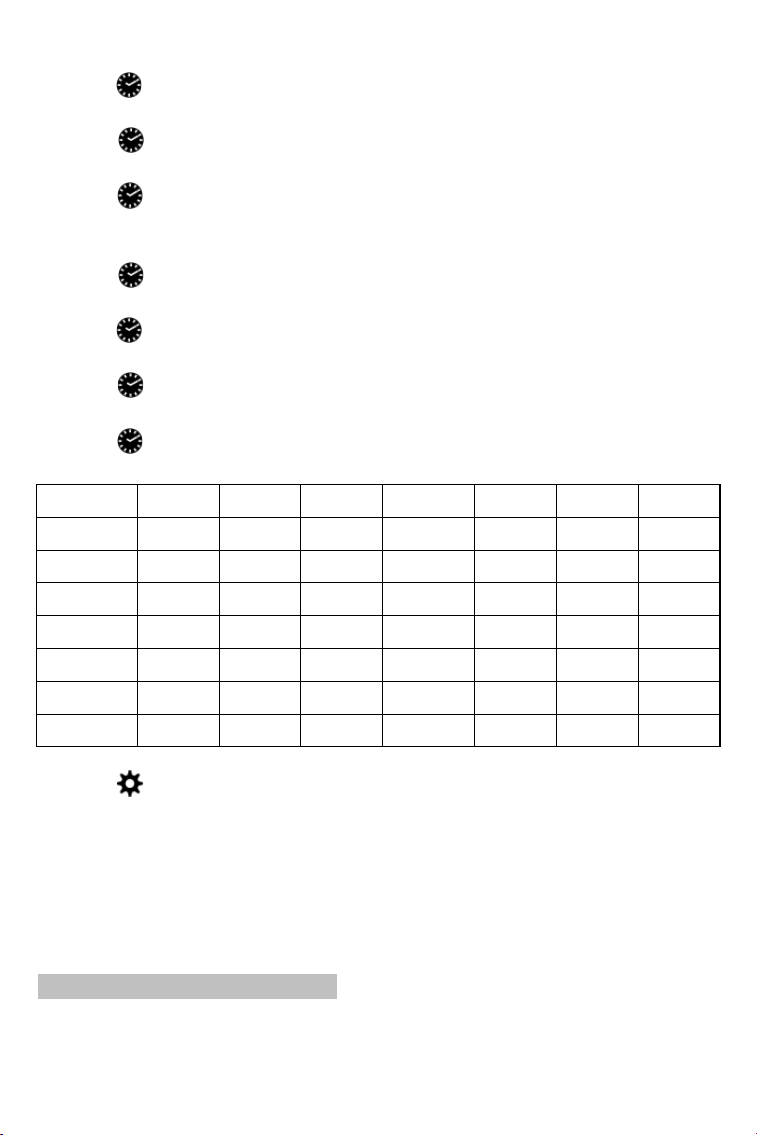
” button to confirm your setting, the week display language starts to flash.
Now use “▲” and “▼” buttons to set the correct language .
Language Sunday Monday Tuesday Wednesday Thursday Friday Saturday
German,GE SO MO DI MI DO FR SA
English,EN SU MO TU WE TH FR SA
French,FR DI LU MA WE JE VE SA
Italian,IT DO LU MA WE GI VE SA
Spanish.SP DO LU MA MI JU VI SA
Dutch,DU ZO MA DI MO DO VR ZA
Danish,DA SO MA TI ON TO FR LO
► Press “
” to confirm your setting and to end the setting procedures.
F.Y.I.:
► After 20 seconds without pressing any button, the clock switches automatically from
Set Mode to Normal Time Mode.
► The time zone must be set correctly according to the weather station area, or when
the time signal is received, the time will be incorrect
3.2 Automatic Time Setting
► The Weather Station automatically starts the WWVB Signal search up to 7 minutes
of any restart or change of batteries. Or press and hold down the“▲” button for 2
8
seconds to manually start the WWVB signal search.
► The radio mast icon “
” will flash showing it is searching for signal. Once the
signal is found the Time and Date will be automatically set. If no signal is found within 7
minutes the radio mast icon will disappear and it will automatically start searching again
in 1 hour.
► At 1:00 / 2:00 / 3:00am the Weather Station automatically carries out a
synchronization procedure with the WWVB signal to correct any deviations to the exact
time. If this synchronization attempt is unsuccessful (The radio mast symbol
disappears from the display), the system will automatically attempt another
synchronization at the next full hour. This procedure is repeated automatically up to 5
times.
F.Y.I.:
► A flashing radio mast icon indicates that the WWVB signal reception has started
►A continuously displayed radio mast icon indicates that the WWVB signal was
received successfully
► We recommend a minimum distance of 8 feet to all sources of interference, such as
televisions or computer monitors
► Radio reception is weaker in rooms with concrete walls (e.g.: in cellars) and in
offices. In such extreme circumstances, place the system close to the window.
► During the RC receive mode, only the“ ” and “▲” button function, other
button operation have no function and backlight will not lighting. If you want to carry
out other functions of operation, please press “▲” button to exit the RCC receiving
mode.
4.DAILY ALARM AND SNOOZE FUNCTION SETTING
4.1 Setting the Daily Alarm
► Press once “ ” button, can switch the display calendar or alarm.
► Press and hold down “
” button for 2 seconds until Alarm Time hour display starts
to flash. Use the “▲” and “▼” buttons to set the required hour.
►Press “
” button to confirm your setting, the Minute display starts to flash. Use the
“▲” and “▼” buttons to set the required minute.
► Press “
” button to confirm your setting and to end the setting procedure
F.Y.I.:
► After 20 seconds without pressing any button the clock switches automatically from
setting mode to Normal clock mode.
9
4.2 Switching ON/OFF the alarm signal
► The alarm shift switch is pushed in the “ ” position, LCD display the “ ” icon next
to the date, the alarm function is open
► Press back of the alarm shift switch is pushed in the “ ” position, the “ ” icon
disappears, the alarm function is close
► When alarm is ring, press any button except the “
” button to stop the alarm
signal. It is not necessary to reactivate the alarm. It switches itself automatically to
the alarm time which has already been set.
4.3 Snooze Function:
► Touch the " " field or press the “ ” button the alarm signal sounds to
get to SNOOZE mode. The alarm signal sounds again after approx. 5 minutes.
5.WEATHER FORECAST AND BAROMETRIC
5.1 Weather Forecast
► The weather station calculates a weather forecast for about the next 8 hours based
on the barometric pressure trend. Of course this forecast can‘t compare to that of
professional weather services supported by satellites and high performance
computers, but merely provides an approximate indication of current developments.
Please take the weather forecast from your local weather forecasting service into
account as well as the forecast from your weather station. If there are discrepancies
between the information from your device and from the local weather forecasting
service, please take the advice of the latter as authoritative.
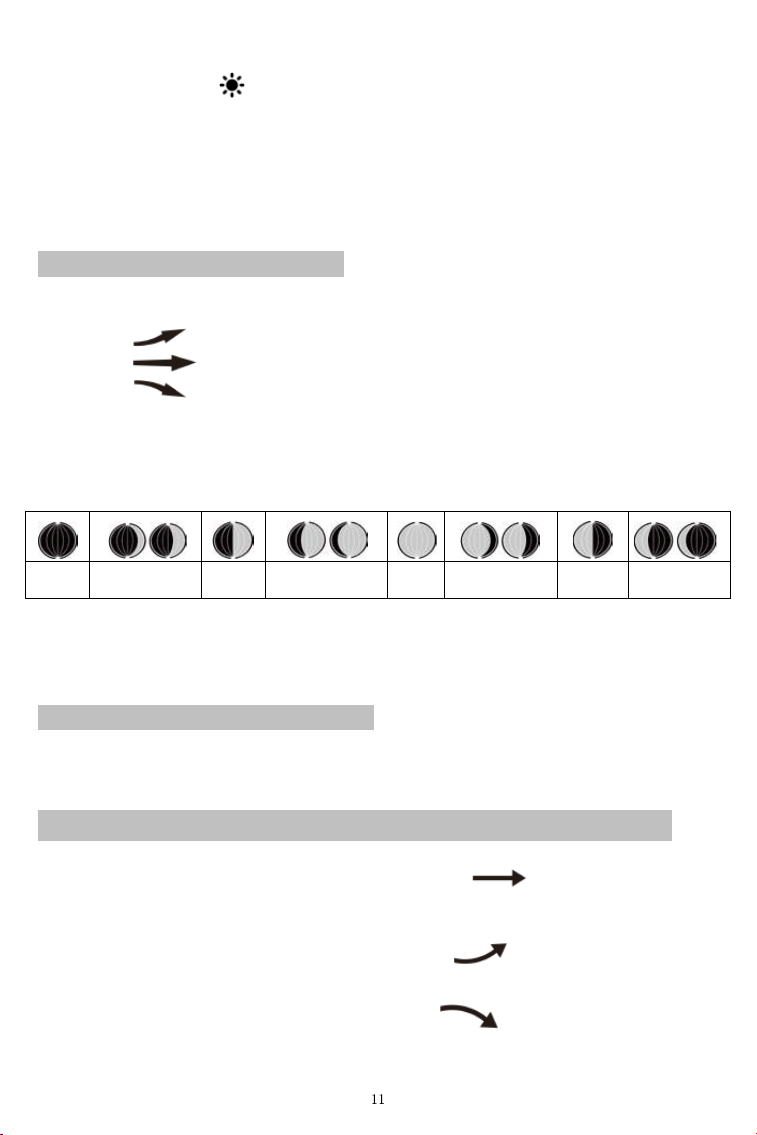
► The weather station displays the following weather icon for next 8 hours weather
forecast not current weather:
Sunny
Slightly
Cloudy
Cloudy Rainy
Heavy Rainy Snowy
5.2 Barometric Pressure Display
► The current barometric pressure is automatically shown on the Weather Station
once it starts receiving readings.
10
► Press and hold the “ ” button for 2 seconds to enter the air pressure unit and
weather settings, the pressure units will be flashing display, Use the “▲” and “▼”
button to set the pressure unit to display in the "hPa/mb" or "inHg".
► If the barometric pressure reading is below the minimum range, then LLLL will be
displayed. If the barometric pressure reading is above the maximum range, then HHHH
will be displayed.
5.3 Barometric Trend Display
► The weather station can display the barometric pressure trend.
► You may see the following displays next to the weather forecast icon:
The barometric pressure will rise.
The barometric pressure will remain constant.
The barometric pressure will fall.
6.LUNAR PHASES AND TIDE INDICATOR:
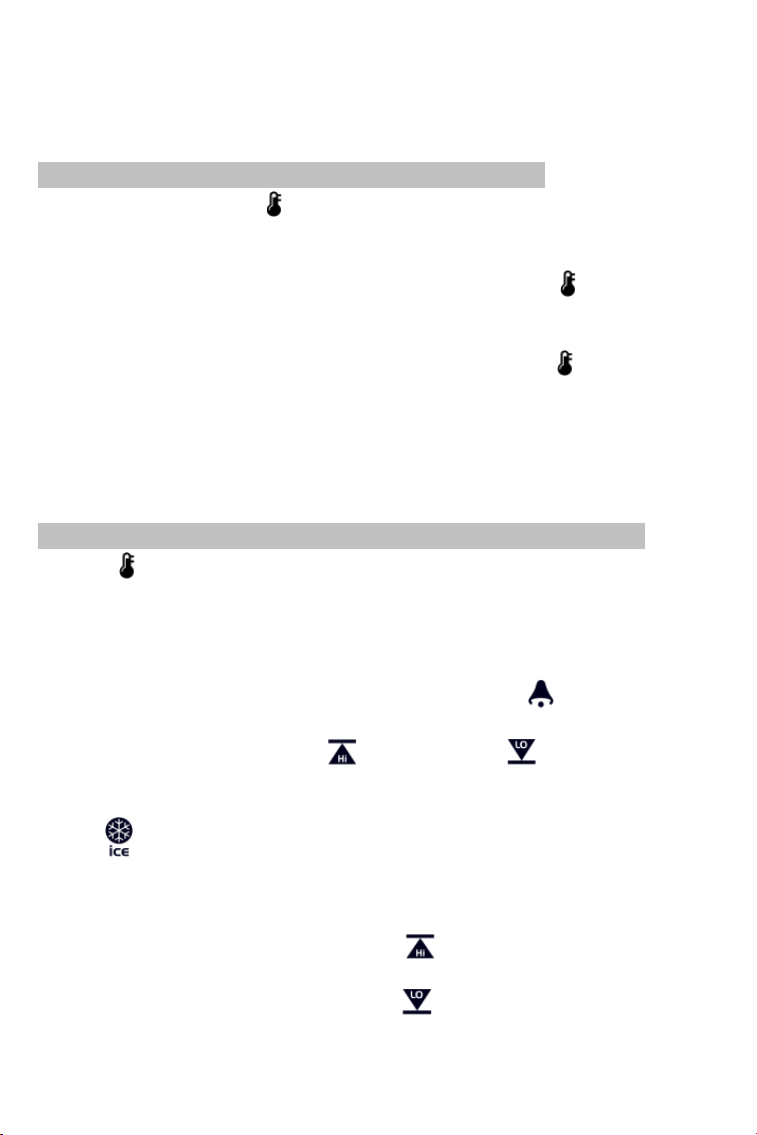
► The Moon icon and tide indicator of the Weather Station will also display 12 different
Moon phase .
New
moon
Waxing
half-moon
Half-moon
Waxing full
moon
Full
moon
Waning full
moon
Half-moon
Waning
half-moon
7.TEMPERATURE, HUMIDITY AND COMFORT
DISPLAY
7.1 °C or °F temperature display
► The temperature is displayed either in °C or °F. Briefly pressing the “▲” button
allows you to switch between the individual modes.
7.2 Current Temperature and Temperature Trend Display
► After you insert the batteries, the weather station measures the current temperature.
The trend display shows a neutral temperature course
. The further course of
the trend display is determined as follows:
If, after an hour, the temperature is more than 1°C higher than the value
measured first, then a positive course is displayed
.
If, after an hour, the temperature is more than 1°C lower than the value
measured first, then a negative course is displayed
.
If the temperature does not change within an hour, then the upward or
downward pointing arrow becomes a horizontal arrow. The measured temperature is
then taken as the neutral value from which further prognoses are made.
7.3 Outdoor Temperature & Frost Alert Settings
► Press and hold down the “ ” button for 2 seconds until the icon for the Temperature
Alert” starts to flash
► The icon of Upper limit of the Temperature alarm starts to flash. Use the “▲” and “▼”
buttons to set the required maximum temperature. Press “
” to confirm your
setting.
► The icon of the Lower limit of the Temperature alarm starts to flash. Use the “▲” and
“▼” buttons to set the required minimum temperature. Press “
” button to confirm
your setting and to end the setting procedure
F.Y.I.:
► Before entering the setup, you must select the remote channel, different channels
can set different temperature alarm range
7.4 Activating and Deactivating Temperature & Frost Alert
► Press “ ” button to activate or deactivate the remote temperature alert, When the
remote temperature alarm is activated, the temperature alarm icon is displayed in the
remote sensor bar
► When the remote channel temperature value exceeds the set temperature range,
will activate the alarm, the weather station will every minute continuous alarm 5
times, at the same time, temperature alarm in alarm icon "
" flashes, If the alarm
activates the temperature that is currently displayed on the channel, its temperature
value and alarm upper limit icon “
"or lower limit icon" " also flashes
► When the temperature of REMOTE SENSOR is +30°F to + 37°F or –1°C to + 3°C,
the frost alarm will be activated,
symbol " " flashing.
F.Y.I.:
► When the temperature is higher than the upper limit of the alarm temperature setting,
the activation of the upper limit alarm, symbol "
" flashing,
►When the temperature is lower than the lower limit of the alarm temperature, the
lower limit alarm is activated, and the symbol "
" flashes
12
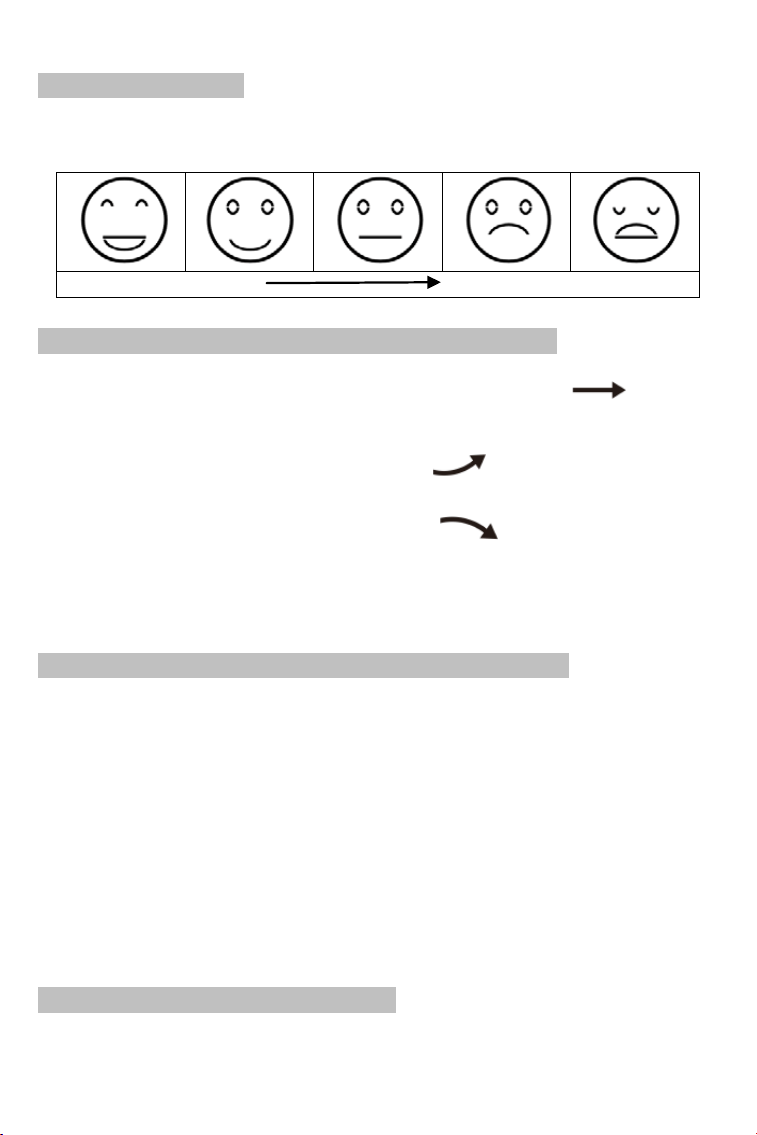
7.5 Comfort display
► Indoor comfort level is calculated according to the indoor temperature and humidity,
a total of 5 levels.
Comfortable too cold or too hot
7.6 Current Humidity and Humidity Trend Display
► After you insert the batteries, the weather station measures the current relative
humidity. The trend display shows a neutral relative humidity course
. The
further course of the trend display is determined as follows:
If, after an hour, the relative humidity is more than 5% higher than the value
measured first, then a positive course is displayed
.
If, after an hour, the relative humidity is more than 5% lower than the value
measured first, then a negative course is displayed
.
If the relative humidity does not change within an hour, the upward or downward
pointing arrow becomes a horizontal arrow. The measured relative humidity is then
taken as the neutral value from which further prognoses are made.
7.7 Maximum/Minimum Temperature and Humidity
► To view indoor/outdoor maximum, minimum temperature and humidity data, press
the “MEM” button:
Once to show the maximum temperature and humidity values.
Twice to sow the minimum temperature and humidity values
Three times to return to the current temperature and humidity levels
► To reset the maximum and minimum temperature and humidity, press and hold
down the “MEM” button about 2 seconds. This will reset all minimum and maximum
data recorded to the current displayed values.
F.Y.I.:
► If the temperature reading is below ranges, the LL.L will be displayed. If the
temperature reading is above ranges, the HH.H will be displayed.
7.8 Remote Sensor Transmission:
► The weather station automatically starts receiving transmission from outdoor thermo
13
sensor for outdoor temperature & humidity after batteries inserted.
► The outdoor sensor will automatically transmit temperature and humidity signal to
the Weather Station after batteries inserted.
► The weather station can connect up to 3 channel wireless sensor registration, the
use of multiple wireless sensor, the wireless sensor channel cannot choose the same
channel at the same time (a total of 1, 2, 3 channel can choose)
► Press the “▼” key can switch the display of different channels of remote
temperature and humidity, when displaying the symbol "
", will display the
channel every 5 seconds automatically switch a channel
► If Weather Station failed to receive transmission from outdoor sensor (“- -”display on
the LCD), press and hold “▼” button for 3 seconds to receive transmission manually.
RF icon “
” flashes on the LCD,The Weather Station to receive the outdoor sensor.
F.Y.I.:
► When the wireless sensor set up different channels, the weather station "REMOTE
SENSOR" also want to switch to the same channel.
When there is no wireless
sensor signal transmission on the channel, "--" will be displayed in the channel of the
weather station
► There is only 1 remote sensor included, please make weather station is stay in the
same channel with remote sensor.
8.BACKLIGHT
► If the product is powered by batteries, touch the " " field. Backlight lit 15
seconds.
►When the power supply of the product is inserted into the power supply adapter, the
battery will automatically disconnect the power supply, and the backlight will always be
bright. Press the “
” button to adjust the brightness of the backlight, you can adjust
the 5 state: 4 different brightness backlight and close the backlight.
Users can choose
according to the personal preferences of different brightness backlight or turn off the
backlight.
Turn off backlight when you can touch the " " field to light the
backlight 15 second.
9.USB Charger
► When you use USB charger to charging the electronic device, please make sure
weather station is powered by main adapter, DO NOT use batteries only.
14

10.LOW BATTERY:
► If the battery icon “ ” appears the batteries in the outdoor sensor should be
replaced as soon as possible.
15

SAFETY
·This item can be used by children 8 years of age and above, as well as by persons
with reduced physical, sensory, or mental capacities or lacking experience and
knowledge, if they are supervised or have been instructed in the safe use of the item
and understand the dangers that may arise.
·Children must not play with the item.
·Cleaning and user maintenance must not be carried out by children, unless they are 8
years of age or older and are being supervised.
·Batteries, when swallowed, can be life-threatening. Therefore, keep the product and
battery out of reach of small children. If a battery is swallowed, medical assistance
must be sought immediately.
RISK OF BATTERY LEAKAGE
·In the event of a battery leak, immediately remove it from the device to prevent
damage.
·Avoid contact with battery acid, thoroughly flush the affected area with plenty of clean
water and seek immediate medical attention.
·Only use the same type of batteries, do no
t mix used and new batteries.
· Avoid extreme environmental conditions and temperatures as they may affect
batteries e.g. above radiators.
·Remove the batteries from the device if they have not been used for a long period.
RISK OF EQUIPMENT DAMAGE
·Only use the specified battery type.
·When inserting the battery ensure the correct polarity. This is shown in the battery
compartment.
·If necessary, clean the battery and device contacts before inserting the ba
ttery.
·Promptly remove drained batteries from the product.
·Do not make any modifications to the item. Only allow repairs to be carried out at a
specialist workshop. Repairs carried out incorrectly can considerably endanger the
user.
16
GUARANTEE
The device has been manufactured to strict quality guidelines and meticulously
examined before delivery. The company Newentor guarantees the warranty for this
device is 1 year from the purchase date.
DECLARATION OF CONFORMITY
This product was manufactured in accordance with the harmonized European
standards, you will find the declaration of conformity below:
·2014/30/EU EMC Directive
·2014/53/EU RED Dir
ective
·2011/65/EU RoHS Directive
Disposal
The packaging is made of environmentally friendly materials, which
may be disposed through your local recycling facilities.
When your device has come to the end of its life, in the interest of
environmental protection please do not throw it out with your
household refuse, but take it to a suitable center where is can be
disposed of properly.
All batteries must be handed in at a collection point in
your community,
suburb, or at the retailer. Such batteries can thus be disposed of in an
environmentally friendly way.
Technical support email: