Updated 1/17/2025
COMPLETE USER GUIDE:
HUMAN TOUCH APP
WHAT YOU’LL NEED:
1. Apple or Android device
Internet and Bluetooth capability are required
2. Human Touch App
Download from the Apple App Store or Google Play Store
Wi-Fi or Cellular Data is required to download apps
PRO TIP:
• Disconnect all devices paired to your chair’s Bluetooth
TABLE OF CONTENTS:
Jump to…
SIGN UP
MY JOURNEY
MY CHAIR
REMOTE FOR MASSAGE CHAIRS
REMOTE FOR ZG CHAIRS
ADDITIONAL FEATURES
VIRTUAL THERAPIST®
FAQs
Account
Using the Human Touch App
Remote for Massage Chairs
Remote for ZG Chairs
Virtual Therapist
TROUBLESHOOTING GUIDE
Back to Top Updated 1/17/2025
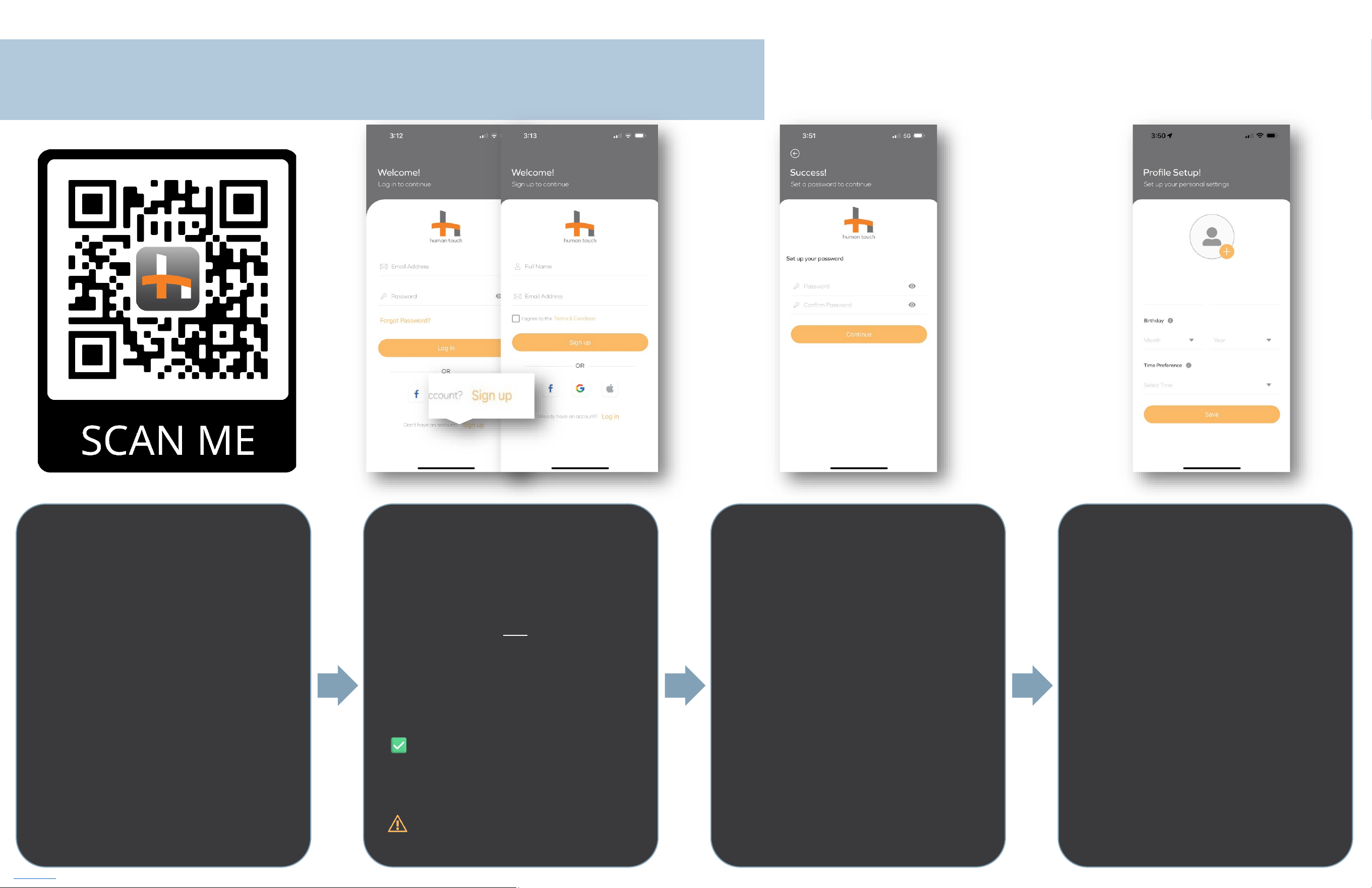
SIGN UP
Human Touch App
Step 1:
DOWNLOAD THE
Human Touch App
• Available for iOS and Android
Step 2a:
CREATE AN ACCOUNT
• Sign up with your Full Name and
Email Address
OR
• Use Facebook, Google, or your
Apple ID
• Review and agree to the Terms &
Conditions by checking the box
An account must be created
to use the Human Touch App
Step 2b:
SET A PASSWORD
Skip if signing up using Facebook,
Google, or your Apple ID
• Password must be 6 - 15
characters
• You may enable biometric
recognition for login now or later
in your App Settings
Step 3:
ADD PROFILE
SETTINGS
All fields are required
• Photo
• Birthday (month/year)
• Time preference
Be sure to allow push
notifications and Bluetooth
connectivity for the Human
Touch App
SAVE, THEN YOU'RE ALL SET!
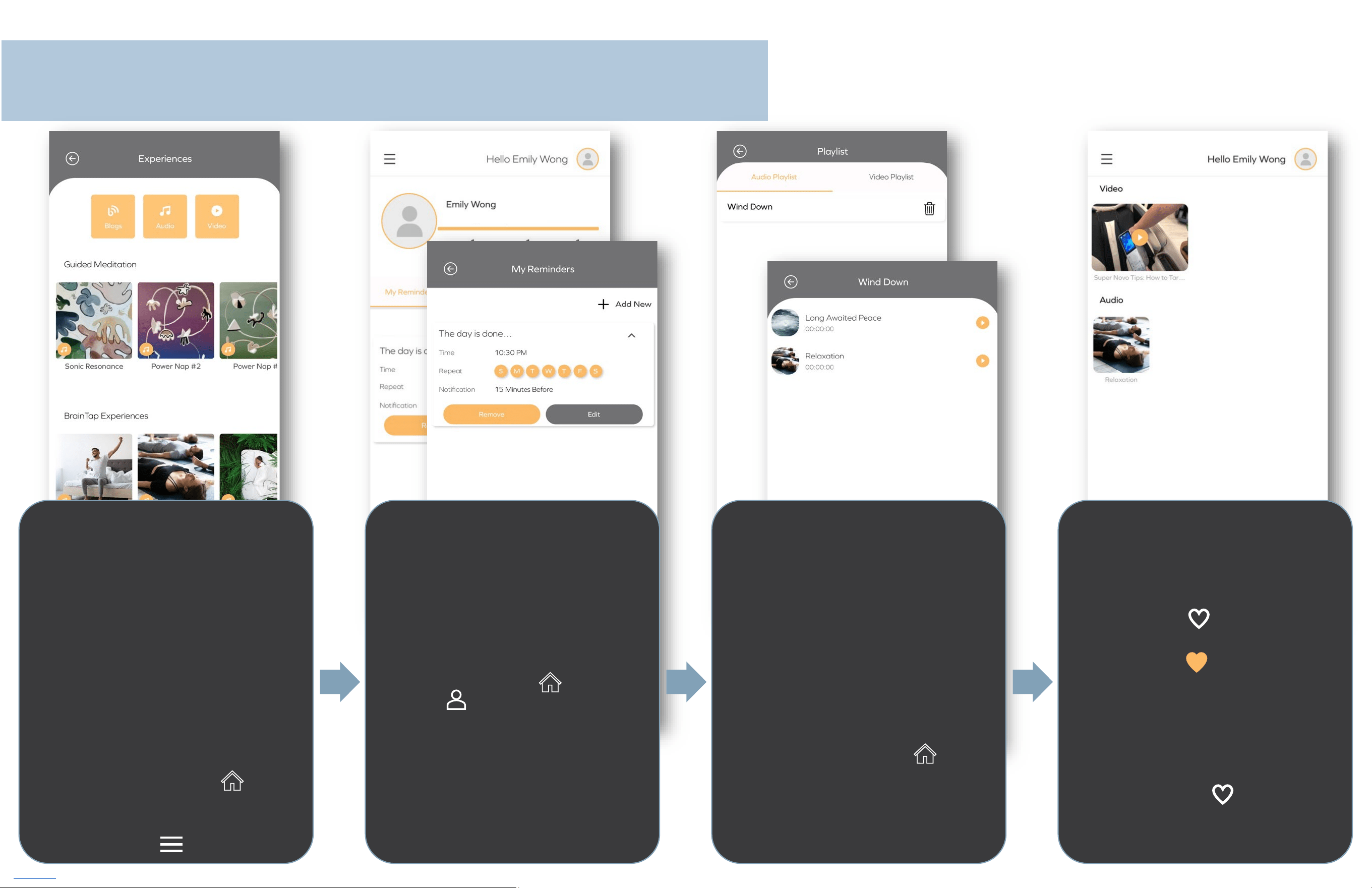
Back to Top Updated 1/17/2025
MY JOURNEY
Human Touch App
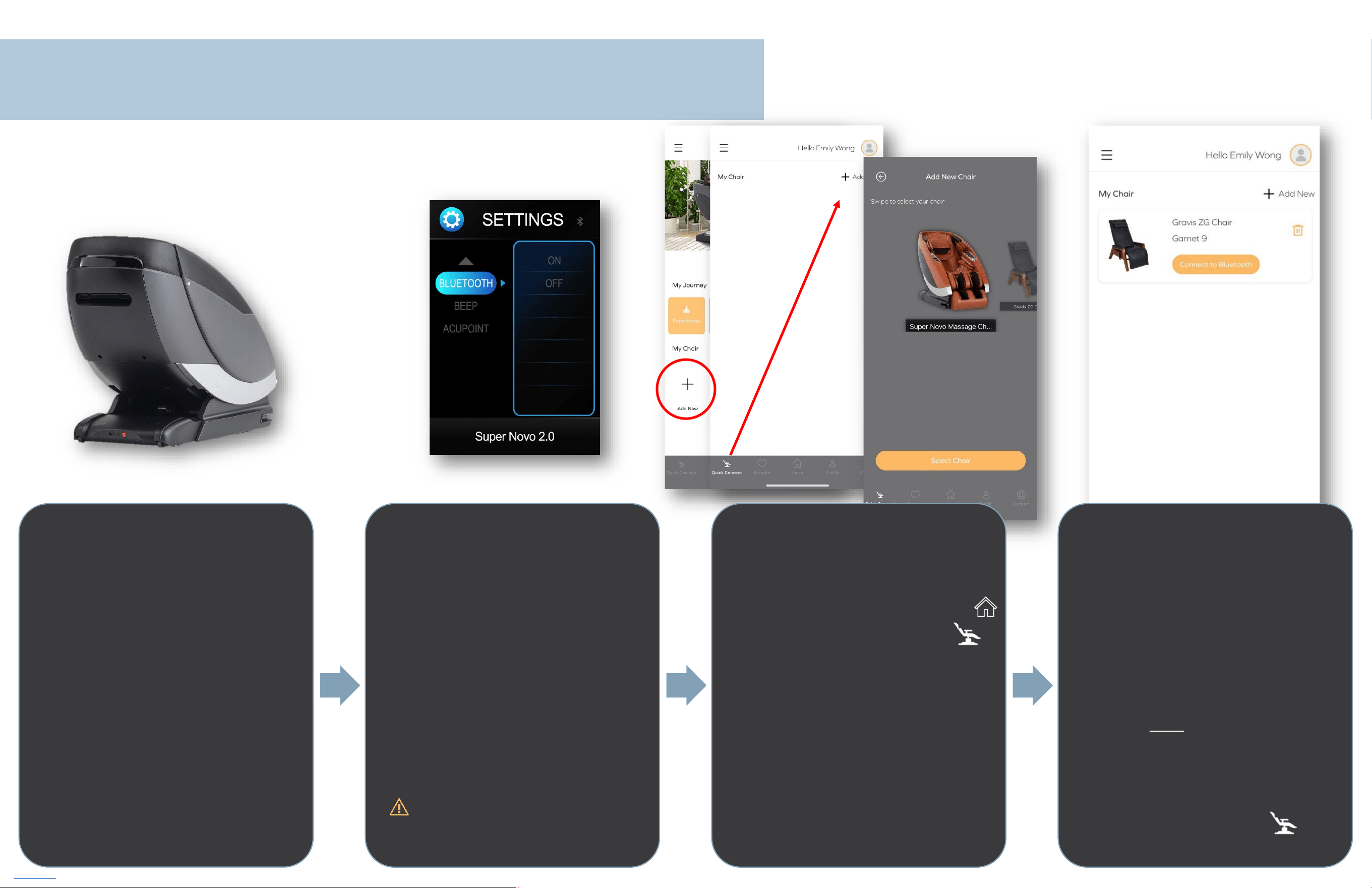
EXPERIENCES
• Discover wellness Blogs
• Listen to Guided Meditation and
soothing nature sounds
• Immerse in
exclusive
BrainTap
Experiences
• View Tips on getting the most
out of your chair
• Access from the Home
screen using the navigation menu
at the bottom of the screen or in
the App menu
REMINDERS
• Tap + Add New to set your self-
care notification
• Unlimited reminders for any
routine
• Access from Home or
Profile using the navigation
menu at the bottom of the
screen
Be sure to turn on push
notifications for the Human
Touch App in your device
Settings
PLAYLIST
• Endulge in self-care to your own
mix of Human Touch Experiences
• Tap + Add to Playlist when
listening to any Experience
(excluding Blogs)
• Unlimited Audio and Video
playlists for any routine
• Access from the Home
screen
FAVORITE
• Save your most loved
Experiences for easy recall
• Tap Favorite when listening
to any Experience
• Changes to when saved
• To remove, select the
Experience and tap Favorite;
the icon will not longer be filled,
removing the Experience from
your Favorites.
• Access Favorite in the
navigation menu at the bottom
of the screen
Back to Top Updated 1/17/2025
MY CHAIR
Human Touch App
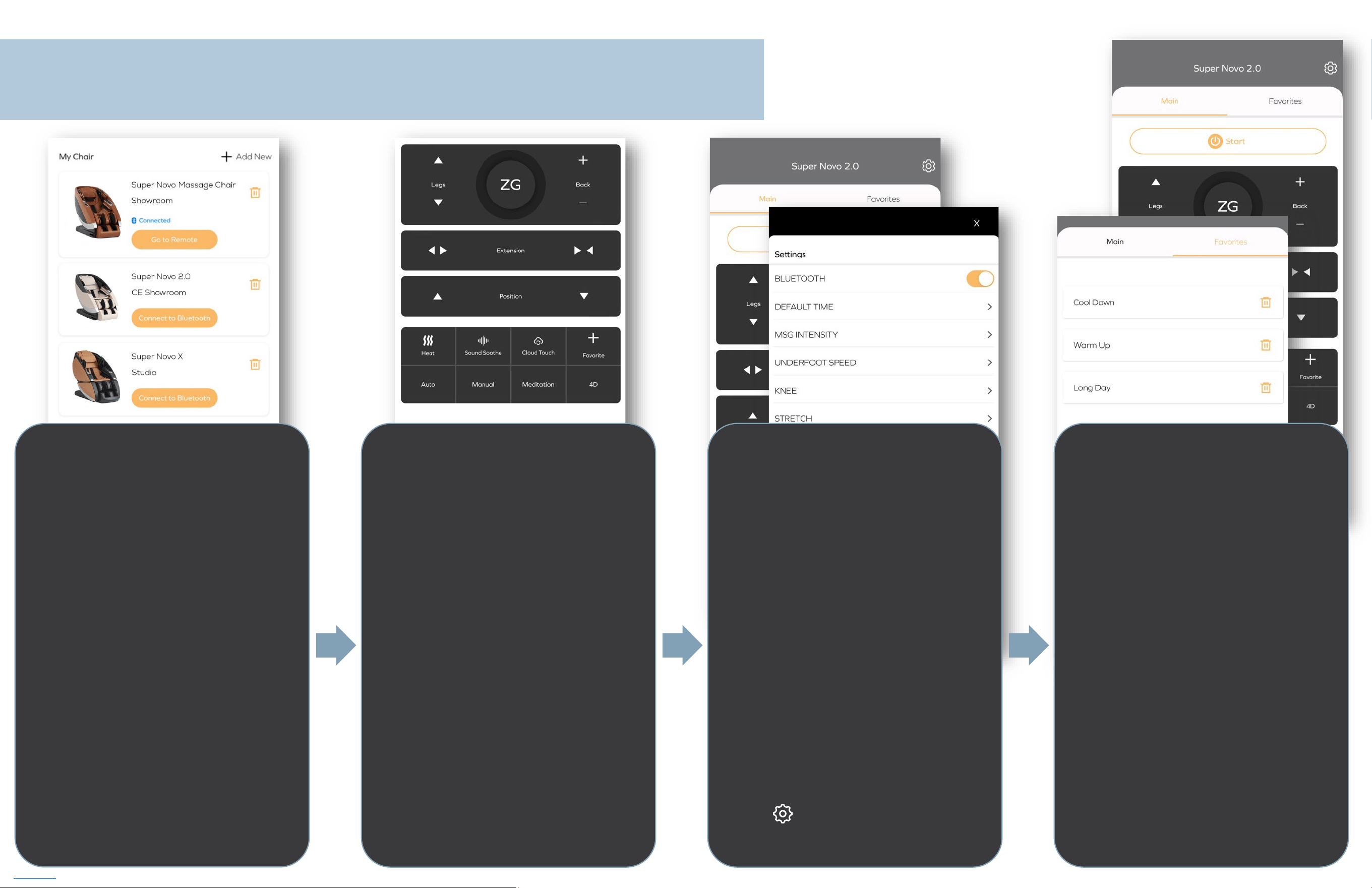
Step 1:
CHAIR SERIAL
NUMBER
• Your chair's serial number is
typically found on the back of
your chair
Be sure to turn on Bluetooth
connectivity for the Human
Touch App in your device Settings
Step 2:
CHECK BLUETOOTH
• Turn your chair's Bluetooth ON in
the remote Settings or
Adjustments menu (if applicable)
• Disconnect all other devices from
your chair
Only one (1) device/app can be
connected to your chair at any
given time.
Step 3:
ADD CHAIR
• Tap + Add New from the Home
screen or tap Quick Connect
on the naviagtion menu
• Find your chair in the available
model options, tap on the chair
image, then tap Select Chair
Your App will now scan for
applicable Bluetooth devices.
Step 4:
CONNECT CHAIR
• Find your chair's model name
and/or serial number in the
device list, then tap Select Chair
• Not seeing your chair? Return
to Step 2 or see more
Troubleshooting steps by
clicking here
• Enter a Nick Name for your chair
(required), then tap Submit
• From the Quick Connect
screen, tap Connect to Bluetooth
Back to Top Updated 1/17/2025
REMOTE FOR MASSAGE CHAIRS
Human Touch App
0
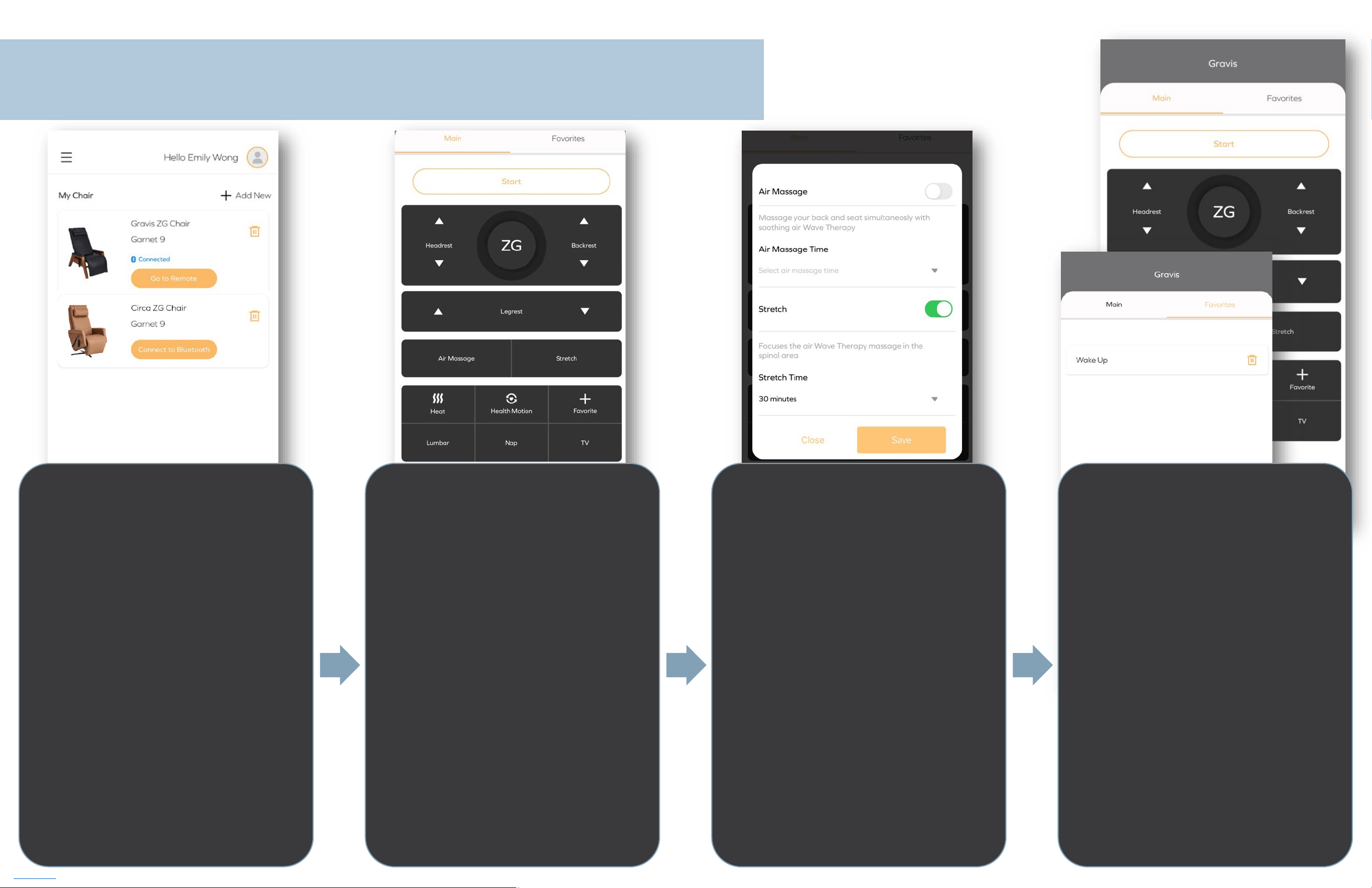
Step 1:
GO TO REMOTE
• Control your chair through the
App!
• All the same functions of your
chair's physical remote, plus so
much more
• Access any connected chair
within the same App
Step 2:
TAKE CONTROL
• Adjust your chair position or use
the one-touch to ZG
• Start a massage
• Set your time preference
• Add soothing heat
• Fine-tune your Cloud Touch air
compression focus and intensity
• Experience Sound Soothe nature
tracks
Step 3:
YOUR SETTINGS
• Save your personal preferences
for all sessions – no need to set
every time!
• Default time
• 3D massage intensity
• Underfoot roller speed
• Knee massage poition
(select
models)
• Stretch direction
• Shoulder height detection
method
(select models)
• Massage speed
• Need to make a change? Tap the
gear icon at the top of the
remote screen
Step 4:
SAVE FAVORITES
• Select your preferences, then tap
+ Favorite to add a name for
easy recall
• Favorites will save:
• Massage Auto-program and Style
• Time preference
• Heat
• Temperature
• Focus
(select models)
• Cloud Touch
• Focus
• Intensity
• Sound Soothe
• Sound
• Volume
• Unlimited favorites for any
routine
Back to Top Updated 1/17/2025
REMOTE FOR ZG CHAIRS
Human Touch App
Step 1:
GO TO REMOTE
• Control your chair through the
App!
• All the same functions of your
chair's physical remote, plus so
much more
• Access any connected chair
within the same App
Step 2:
TAKE CONTROL
• Adjust your chair position or
select from the preset positions
• Start a massage
• Set your time preference
• Add soothing heat
• Find comfort with lumbar
support
Step 3:
SIT BACK, RELAX, REST
• Use smart features to:
• wake you up after your desired
time by restoring the chair to
the upight position
• let you know you've been sitting
in one position for too long by
making subtle chair movements
(select models)
Step 4:
SAVE FAVORITES
• Select your preferences, then tap
+ Favorite to add a name for
easy recall
• Favorites will save:
• Chair position
• Massage program or Lumbar
support
• Time preference
• Heat
• Temperature
(select models)
• Time preference
(select models)
• Unlimited favorites for any
routine
Back to Top Updated 1/17/2025
ADDITIONAL FEATURES
Human Touch App
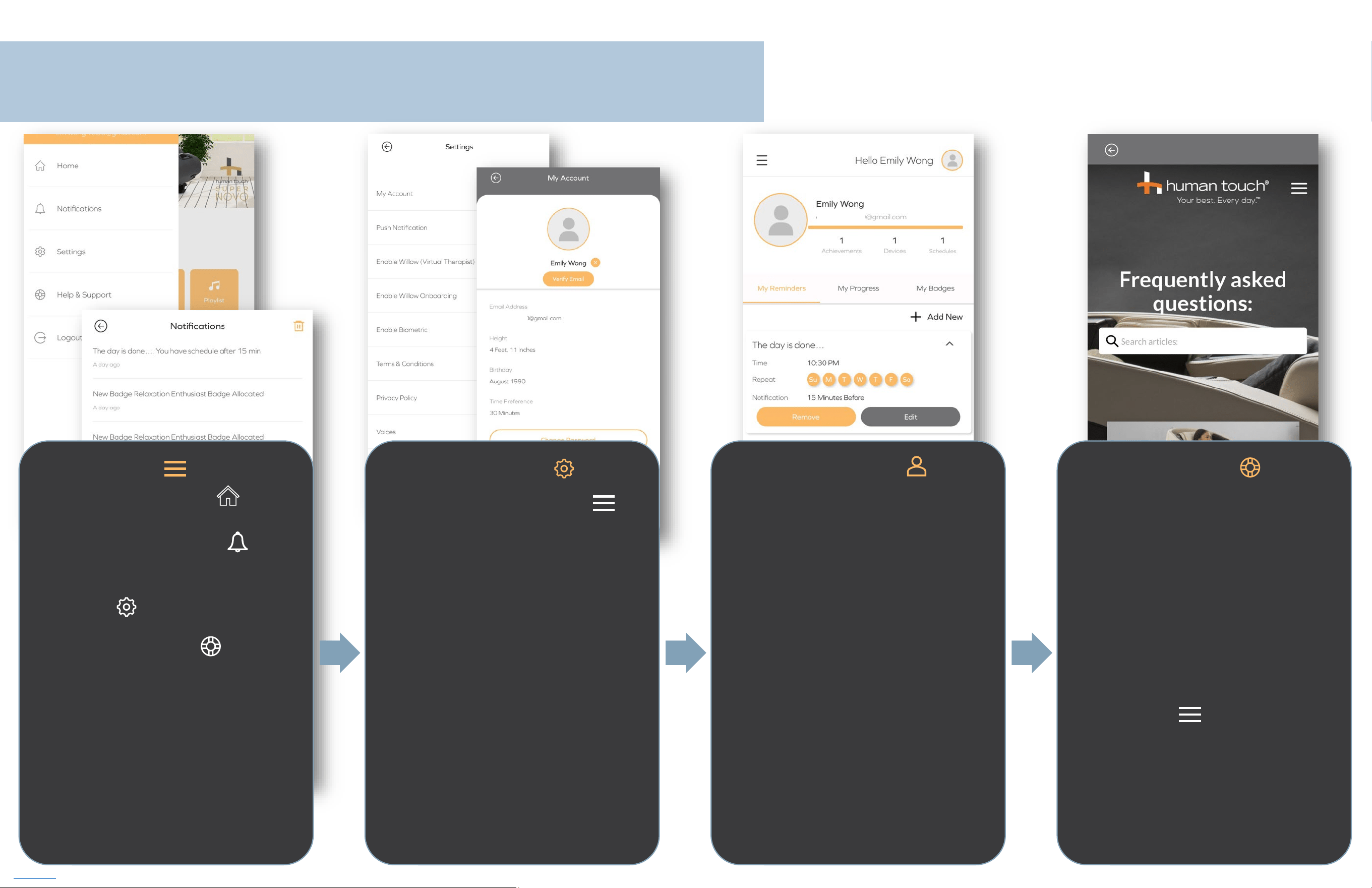
APP MENU
• Navigate to the Home screen
• View your notifications
• View and change your App
Settings
• Get Help & Support through
the Human Touch support portal
• Logout of the App
• View App version
APP SETTINGS
Access from the App menu
• My Account
• Verify account email
• Change account password
• Edit account profile
• Delete account
• Enable/disable push
notifications
• Choose your Virtual Therapist
Willow experience and voice
• Enable/disable biometrics
• Review Terms & Conditions and
Privacy Policy
YOUR PROFILE
Access from the navigation menu
at the bottom of the screen
• A snapshot of your account
• View and add new scheduled
reminders
• View progress toward
achievement badges
(coming
soon!)
• View achievement badges
(coming soon!)
GET SUPPORT
Access from the navigation menu
at the bottom of the screen
• FAQ's about the App
• Email Human Touch
• Get Help & Support through the
Human Touch support portal
• Also accessible directly in the
App Menu
Back to Top Updated 1/17/2025
VIRTUAL THERAPIST®
Human Touch App
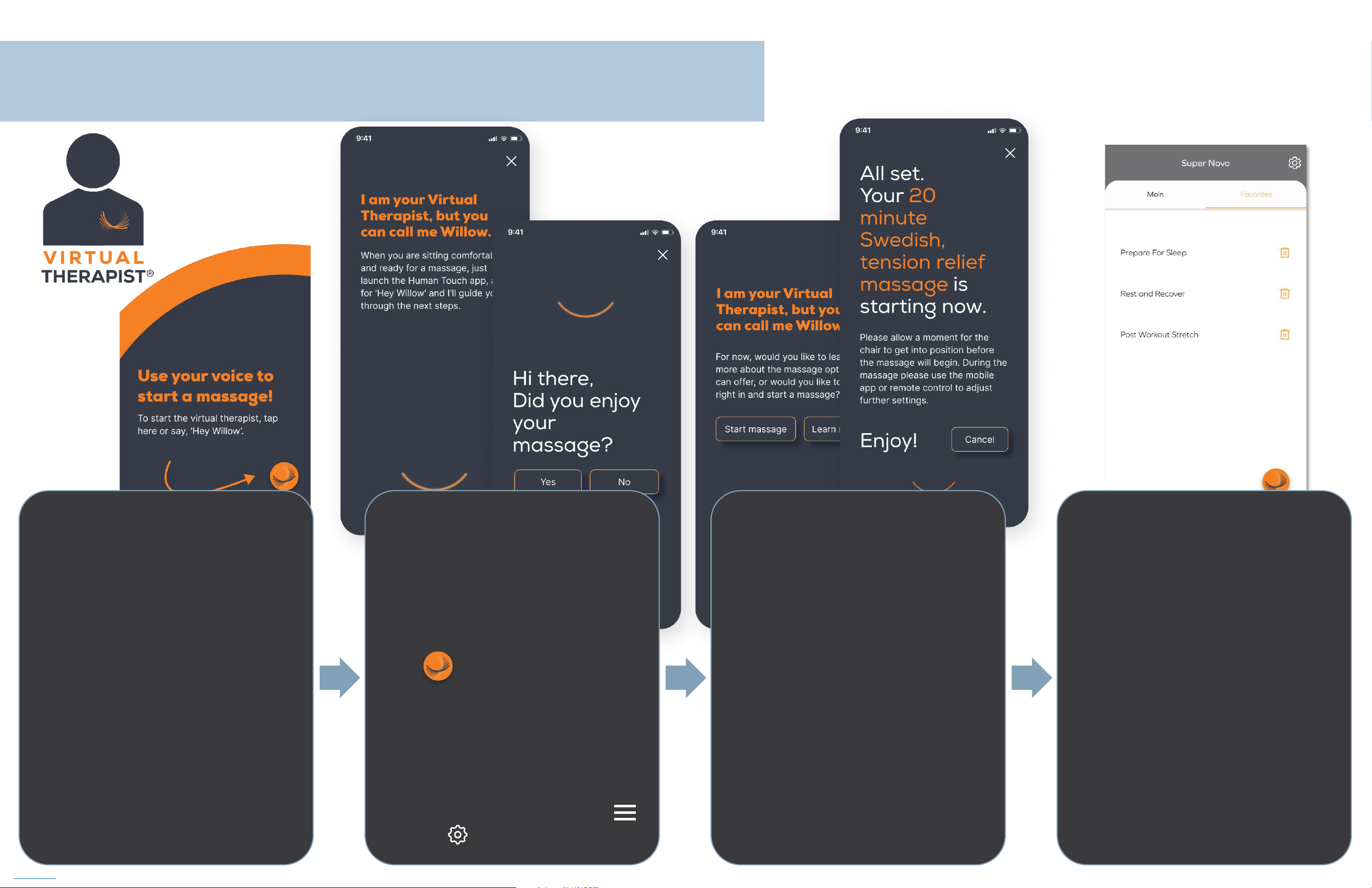
VOICE CONTROL
Exclusive to the Human Touch
App!
• Use your voice to select a
massage auto-program, style,
and duration. Plus, you can
change intensity, start a
Favorited massage, add heat,
Sound Soothe, and Restore.
• Available for:
• Super Novo
• Super Novo 2.0
• Super Novo X
Be sure to turn on Speech
Recognition for the Human Touch
App in your device Settings
INTRODUCING,
WILLOW
Meet your Virtual Therapist.
• Just open your Human Touch
App, connect to your virtual
therapist enabled chair, then
tap or say "Hey Willow"
PRO TIP: This onboarding experience
with Willow is for first time users. To
enable this experience for your next
session, toggle
Enable Willow
Onboarding
on in the App's Menu
Settings
NEW USER
Sit back, relax, and let Willow guide
you through the next steps.
• To discover each massage
program and style Willow has to
offer, just tap or say "Learn
more"
• To dive right in to a massage,
Willow will provide the options
you can choose from. Just tap
or say "Start massage"
RETURNING USER
Willow is ready to start your next
massage.
• After saving a Favorite massage,
just tap or say "Hey Willow, start
my favorite massage, [name of
Favorite massage]"
• Or if you'd like to try something
else, tap or say "Hey Willow" and
tell her which massage, style, and
duration you would like or she
can review the options available.

Back to Top Updated 1/17/2025
FAQs
Account
QUESTION:
Do I need to sign up to use the App?
Is sign up required to use the App?
ANSWER:
Yes.
Sign up is required to access the Human Touch App. However, email verification is no longer required to begin using its features. All App
features and functions can be used immediately upon signing up.
QUESTION:
Can I create different profiles for different
household members?
ANSWER:
Each person who uses the chair can download the App onto their own individual device and create their own profile with their specific
preferences.
Note: Only one device can be connected to the chair at one time.
QUESTION:
"This email is not registered" What does this
mean?
ANSWER:
This is the message a first-time user of the new app will receive if they have clicked “Log in” instead of “Sign up.” All first-time users must click
“Sign up” to create an account (free). If a user does receive this message they can simply click "Sign up" and follow the instructions to get set
up in the new app.
QUESTION:
I never got my verification email. Why?
ANSWER:
There are 3 main reasons why you may not have received your verification code:
1. The verification code is typically sent within 2 minutes. However, it can take up to 5 minutes.
2. We have found that over 50% of users who did not receive their verification code actually entered their email address with errors. For
example, janedoe@gmai.con instead of [email protected]
The email address that was entered is the email address that will receive a verification code. Therefore, triple-check that the address
you entered is 100% correct before moving to the next step. Entering the email address incorrectly means you will never receive the
verification code.
3. Check your spam or junk folder if the verification email is not in your inbox. Even if it is not there, it may have automatically been filtered
and deleted by your email security firewall. Make sure to add HumanTouch.com to your safe sender list.
Note: Email verification is no longer required to use the App.
QUESTION:
I received several verification code emails. Which
one do I use?
ANSWER:
If you receive multiple verification code emails, use the verification code from the last email you received.
Note: Email verification is no longer required to use the App.
QUESTION:
Do I need to verify my email to use the App?
ANSWER:
No.
Email verification is no longer required, and all App features and functions can be used immediately upon signing up.

Back to Top Updated 1/17/2025
QUESTION:
Can I log in on more than one device?
ANSWER:
Yes.
Your Human Touch account is accessible across multiple devices. As long as you are signing in as an existing user on your new device with the
same email and password as that on your old device, you'll be able to restore your account and progress.
To log in as an existing user, download the app to your new device, open the app, enter your email address and password, and tap "Log in".
QUESTION:
Will I lose my account if I change devices?
ANSWER:
No.
Your Human Touch account is accessible across multiple devices. As long as you are signing in as an existing user on your new device with the
same email and password as that on your old device, you'll be able to restore your account and progress.
To log in as an existing user, download the app to your new device, open the app, enter your email address and password, and tap "Log in".
QUESTION:
Can I delete my account?
How do I delete my account?
ANSWER:
Yes.
You can delete your account from inside the App in the
Settings > My Account
menu.
QUESTION:
How do I update/reset my password?
ANSWER:
You can change your password from inside the App in the Settings > My Account menu.
If you are currently logged out, you can reset your password by following these steps:
1. On the App’s login screen, tap "Forgot Password?"
2. Enter the email address you use for the Human Touch App
3. Tap "Send”, then "Close"
4. Check your email and open the reset email from [email protected]om
5. Tap the “Reset Password” button in the email
Enter your new password in both fields, then tap the “Reset” button
QUESTION:
I never got an email to reset my password. Why?
ANSWER:
Some email clients take longer than others to transmit emails from our App, which is especially true for
Yahoo!
addresses unfortunately.
If you signed up using an
@yahoo.com
email address, we recommend using a different email client (Gmail, Outlook, Apple, etc.) or signing up
using your Facebook, Google, or Apple ID account.
QUESTION:
“Does not exist” What does this mean?
ANSWER:
This is the message you receive when attempting to reset your password through the “Forgot Password?” feature on the login screen.
1. Confirm the email address you entered is the one used during sign up
2. Confirm the email address is spelled correctly
Still receiving this message?
You may have signed up using your Facebook, Google, or Apple ID account instead of using a standard email and password. Return to the
login screen and tap the applicable icon to reattempt log in.

Back to Top Updated 1/17/2025
QUESTION:
How do I change my time preferences?
ANSWER:
You can update your time from inside the App in the Settings > My Account menu and tapping the “Edit Account” button.
QUESTION:
How do I change my name?
ANSWER:
You can update your name from inside the App in the Settings > My Account menu and tapping the “Edit Account” button.
QUESTION:
How do I change my email address?
ANSWER:
You can update your email address from inside the App in the Settings > My Account menu and tapping the “Edit Account” button.
QUESTION:
Can I share my account?
ANSWER:
We recommend all users to create their own account for a personalized experience.

Back to Top Updated 1/17/2025
FAQs
Using the Human Touch App
QUESTION:
Do I need to use the App with my Human Touch
product?
ANSWER:
No.
The Human Touch App enhances your experience while using your Human Touch product. However, some remote control features are only
available in the App.
QUESTION:
Can I use the App without a chair?
ANSWER:
Yes!
Even without a Human Touch chair, you can access:
• Guided Meditation
• Exclusive BrainTap Audio
• Audio and Video Playlists
• Self-care Reminders (push notification)
QUESTION:
My Human Touch chair doesn't have Bluetooth,
can I still use the App?
ANSWER:
Yes!
Even without a Human Touch chair, you can access:
• Guided Meditation
• Exclusive BrainTap Audio
• Audio and Video Playlists
• Self-care Reminders (push notification)
QUESTION:
What are the compatibility requirements?
What devices can I use the Human Touch App
on?
ANSWER:
The Human Touch app is available on iPhone and iPod Touch running on iOS 13.0 or later and Android devices running Android 6.0 and up.
QUESTION:
Which Human Touch products are supported by
the App?
ANSWER:
The following Human Touch products are currently supported by the App and have remote control functionality.
• Super Novo
• Super Novo 2.0
• Super Novo X
• Novo Flex
• Gravis ZG Chair
• Circa ZG Chair

Back to Top Updated 1/17/2025
QUESTION:
Can I sync with Apple Health?
ANSWER:
Not yet. However, this is something we're considering in the future.
QUESTION:
How do I set up Siri shortcuts?
ANSWER:
The Human Touch App is not compatible with Siri shortcuts at this time.
QUESTION:
Is there a Human Touch App for Apple iWatch or
other smart watches?
ANSWER:
No.
The Human Touch app is not compatible with the Apple iWatch or other smart watches.
QUESTION:
Can I use the Human Touch App offline without
internet connection?
ANSWER:
No.
To use the Human Touch App, your device must be connected to the internet via Cellular Data or Wi-Fi.
QUESTION:
My chair isn't listed, how can I add/connect to my
chair?
ANSWER:
If your Human Touch chair is not listed, either it does not have Bluetooth capability or App control is currently unavailable for that chair.
QUESTION:
What can I use the App to do with my Human
Touch chair?
What can I do with my Human Touch chair in the
App?
ANSWER:
The App can be used to control the following Human Touch chairs with the same functions found on the remote as well as some additional
features not available on remote.
• Super Novo
• Super Novo 2.0
• Super Novo X
• Novo Flex
• Gravis ZG Chair
• Circa ZG Chair
QUESTION:
Can I play my own audio
(ie: Spotify, audio book,
podcast)
through the chair’s speakers while using
the App?
ANSWER:
Yes!
After successfully connecting to the App via Bluetooth, navigate to your device’s settings menu, select Bluetooth, find your chair in the list of
available Bluetooth devices (usually the chair name followed by number, ex: Super Novo-46200320) and connect to the chair.
QUESTION:
Does the App have Voice Control?
ANSWER:
Yes!
Voice Control is available for Super Novo X, Super Novo 2.0, and Super Novo.

Back to Top Updated 1/17/2025
QUESTION:
What is guided meditation?
ANSWER:
Guided meditation is a practice where an expert meditation instructor leads you through a journey of relaxation and mindfulness. Our
collection of guided meditation sessions offers a variety of themes to choose from, allowing you to find the perfect match for your needs.
During a session, you'll be guided through calming visualizations and breathing exercises, helping you to achieve a state of deep relaxation
and inner peace. Whether you're seeking serenity, stress relief, or enhanced mindfulness, our guided meditations provide the soothing voice
and expert guidance you need, all from the comfort of your own space.
QUESTION:
What is BrainTap?
ANSWER:
BrainTap has created the perfect at-home solution for better brain health. BrainTap’s proprietary neuro-algorithm produces brainwave
entrainment – the synchronization of brainwaves to a specialized sound – with no added effort. These sounds create full-spectrum
brainwave activity (neuro-activity), a matrix that BrainTap uses to maximize its impact on neuroplasticity.
QUESTION:
How does favoriting work?
ANSWER:
The favoriting feature allows you to bookmark audio tracks, videos, and blogs that you like and put them all in one place. Tap the heart icon
on any audio track, video, or blog to add it to your Favorites. You can find all of your Favorites in the Favorite tab in the navigation on the
bottom of any app screen.
If using the Human Touch App to control your Human Touch chair, the favoriting feature allows you to bookmark massage settings and/or
seating positions that you like for easy recall. Position the chair and/or select your massage settings, then tap the + Favorite icon, add a
Name for your favorite, and tap Save. You can find all of your Favorties in the Favorite tab on the chair’s remote screen.
QUESTION:
How do I reinstall my app?
ANSWER:
To reinstall your Human Touch App, please follow these steps:
iOS (iPhone and iPod Touch):
1. Uninstall the App by holding down on the Human Touch App icon until a menu appears. If you are on iOS 13, you will need to select
'Rearrange Apps' first
2. Click 'Remove App' to delete
3. Turn your device off and then back on. This step is very important.
4. Download the app again by visiting the App Store and searching for "Human Touch"
5. Press the cloud icon or "Install" to re-download
6. Log back in with your existing account information
Android (smartphone or tablet):
1. Uninstall the app by going to the Google Play Store and searching for "Human Touch". Press the 'Uninstall' button on the Human Touch
screen.
2. Turn your device off and then back on. This step is very important.
3. Download the app again by visiting the Play Store and searching for "Human Touch"
4. Press the 'Install' button on that screen to re-download
5. Log back in with your existing account information
Reinstalling the app does not affect your settings, etc. and you will be able to pick up from where you left off.

Back to Top Updated 1/17/2025
QUESTION:
How do I get the newest version of the Human
Touch app?
ANSWER:
To download the newest version of the Human Touch App, follow the steps below:
iOS:
1. Visit the App Store
2. Tap "Updates" in the bottom right corner
3. Scroll to the Human Touch app and tap "Update"
If it is not there, that means you are up to date!
4. Continue your journey on your updated Human Touch App
Android:
1. Visit the Google Play store
2. Open 'Settings' and tap "My apps & games"
3. Scroll down to the Human Touch app and tap "Update"
If it is not there, that means you are up to date!
4. Continue your journey on your updated Human Touch App
QUESTION:
How do I log out?
ANSWER:
You can log out of your account from the menu icon in the top left-hand corner of the App.
QUESTION:
Does the Human Touch app work in landscape
mode?
ANSWER:
No.
The Human Touch App can only be used in portrait mode.
QUESTION:
If I change my Time Preference in my Account
Settings, will it change the Time in my chair
settings?
ANSWER:
No.
The Time Preference set during account sign up does not affect your chair’s settings within the remote feature. Go to your chair’s remote
feature in the App to set or change your massage duration.

Back to Top Updated 1/17/2025
FAQs
Remote for Massage Chairs
QUESTION:
Can I save Manual massages?
ANSWER:
Unfortunately, because of the specific placement of the rollers and some other programming challenges, manual massage cannot be saved.
QUESTION:
What can I save in Favorites?
ANSWER:
You can save:
• Massage
Auto-program
(Tension Relief, Performance, Yoga Studio, etc.)
• Massage
Style
(Shiatsu, Swedish, Sports, etc.)
•
Cloud Touch Focus
areas (Arm & Shoulder, Leg & Foot, Hip, etc.)
•
Cloud Touch Intensity
(Soft, 2, 3, 4, Strong)
•
3D Intensity
•
Heat
•
Sound Soothe
nature track and
Volume
For Example: Yoga Studio: Stretch with Cloud Touch in the Arm & Shoulder and Leg & Foot at a “3” intensity, High Heat in the Back and Legs
with a Spring Shower track in Sound Soothe at a volume level of “4”.
QUESTION:
How many Favorites can be saved?
ANSWER:
Unlimited.
QUESTION:
What can I save in Settings?
ANSWER:
You can save:
• Default
Time
(10, 20, or 30 mins)
•
3D Intensity
(Soft, 2, 3, 4, Strong)
•
Stretch
(Down, Out, or Off)
•
Knee
(if applicable, Auto Glide On or Off)
•
Foot Speed
(Slow, Medium, or Fast)
•
Shoulder Height Detection
method (Auto AcuPoint® Body Sensing or Manual)
QUESTION:
Where can I find the Settings menu?
ANSWER:
The Settings menu can be found by tapping on the gear icon in the top right-hand corner of the Remote Control screen.
QUESTION:
Can more than one person using the App control
the chair at the same time?
ANSWER:
No. The chair's Bluetooth can only be connected to one device at a time, so one would need to disable their Bluetooth connection to the chair
in their device’s Settings for another to connect.
QUESTION:
How can more than one person use the App to
control the chair?
ANSWER:
We recommend all users to download the App on their own device and set up their own account for a more personalized experience.

Back to Top Updated 1/17/2025
FAQs
Remote for ZG Chairs
QUESTION:
What can I save in Favorites?
ANSWER:
You can save:
• Chair
position
(Back, Legs, etc.)
• Air massage
program
(Stretch, etc.)
• Massage
duration
(15 minutes, etc.)
•
Heat
o Focus
area, Temperature
, and
Timer
(if applicable)
•
Health Motion
(if applicable)
o Smart Motion
o Smart Sitting
•
Smart Nap
(if applicable)
For Example: Stretch for 30-minutes in ZG with High Heat in the Back and Seat for 1 hour, plus Smart Sitting for 1 hour.
QUESTION:
How many Favorites can be saved?
ANSWER:
Unlimited.
QUESTION:
Is Lumbar a massage program?
ANSWER:
No.
Lumbar is the adjustable support for the lower back area.
Note: The air massage programs override the Lumbar setting.
QUESTION:
Does the Lumbar support stay in place when not
in use?
ANSWER:
No.
The Lumbar support deflates automatically when the chair is powered Off.
QUESTION:
Can more than one person using the App control
the chair at the same time?
ANSWER:
No.
The chair's Bluetooth can only be connected to one device at a time, so one would need to disable their Bluetooth connection to the chair in
their device’s Settings for another to connect.
QUESTION:
How can more than one person use the App to
control the chair?
ANSWER:
We recommend all users to download the App on their own device and set up their own account for a more personalized experience.

Back to Top Updated 1/17/2025
FAQs
Virtual Therapist®
QUESTION:
Is Virtual Therapist still available through Alexa?
ANSWER:
No. Human Touch is no longer able to support Virtual Therapist through Alexa, and this feature is no longer functioning for Super Novo chairs.
We are currently working on integrating Virtual Therapist® featuring our own voice assistant directly through the Human Touch App. This will
be available for Super Novo, Super Novo 2.0, and Super Novo X and has a planned release in Fall 2024.
QUESTION:
Where is Virtual Therapist available?
Is there a Virtual Therapist app?
ANSWER:
Virtual Therapist is only available in the Human Touch App.
QUESTION:
Do I need to use the Human Touch App to use
Virtual Therapist?
ANSWER:
Yes. The Human Touch App is required to use Virtual Therapist.
QUESTION:
Which Human Touch products have Virtual
Therapist?
ANSWER:
Virtual Therapist is available in the Human Touch App for the following Human Touch wellness solution products:
• Super Novo massage chair
• Super Novo 2.0 massage chair
• Super Novo X massage chair
QUESTION:
What is Virtual Therapist?
ANSWER:
Virtual Therapist offers a hands-free experience, allowing you to use your voice to select a massage.
QUESTION:
Who is Willow?
ANSWER:
Willow is your Virtual Therapist. After connecting to your Virtual Therapist enabled chair, just say “Hey Willow”
QUESTION:
What can Virtual Therapist do?
ANSWER:
Your Virtual Therapist, Willow, can
• Start a massage—Just tell her your preferences for:
o A massage auto-program,
o Massage style, and
o Massage duration (10, 20, or 30-minutes)
Example:
Hey Willow, start a Yoga Studio, Stretch massage for 20 minutes.
Example:
Hey Willow, start a Full Body, Shiatsu massage for 10 minutes.
• Describe each program and style she can offer (Willow Onboarding only)
(more on the next page)

Back to Top Updated 1/17/2025
QUESTION:
(continued)
What can Virtual Therapist do?
ANSWER:
(continued)
Your Virtual Therapist, Willow, can also
• Turn on Heat in the Back, Legs, or both (if applicable)
o Example:
Hey Willow, turn on Heat
o Example:
Hey Willow, turn on Back Heat
• Turn Sound Soothe on or off
o Example:
Hey Willow, turn on Sound Soothe, Twilight
• Start a previously created Favorite massage by name
o Willow can only start a Favorite massage that has already been created. She cannot save a Favorite massage.
o Example:
Hey Willow, start my favorite massage: Prepare for Sleep
• Adjust 3D massage intensity level (1-5)
o Example:
Hey Willow, increase intensity to four (4).
• Adjust Could Touch intensity level (1-5)
o Example:
Hey Willow, decrease Cloud Touch to two (2).
• Restore the chair to the full upright position
o Example:
Hey Willow, restore chair.
QUESTION:
Why does the voice sound different sometimes?
ANSWER:
Both voices in the app are AI-generated, but they serve different purposes. The voice used for Willow during Onboarding is fine-tuned
through a specialized program, allowing it to sound more polished and refined. For other requests, Virtual Therapist uses a more dynamic
text-to-speech system that generates responses in real-time, which can cause a slight variation in tone or quality.
This setup helps us balance quality with flexibility, and we’re always exploring ways to make the experience even smoother!
QUESTION:
Can I change the voice?
ANSWER:
Yes. There are a variety of voices you can choose from for Willow.
In the menu icon in the top left-hand corner of the App, tap on Settings, then Voices, and choose from over 40 voice options.

Back to Top Updated 1/17/2025
QUESTION:
How do I turn off Virtual Therapist?
Can I turn Willow off?
ANSWER:
Yes. You can customize your experience with your Willow or turn Virtual Therapist off completely.
To turn Virtual Therapist off, follow these steps:
1. If you are on a Remote screen, navigate to Home
2. Tap the menu icon in the top left-hand corner of the App
3. Tap on Settings
4. Toggle Enable Willow (Virtual Therapist) off
5. Toggle Enable Willow Onboarding off (if applicable)
6. Swipe away the Human Touch App to close it
7. Reopen the Human Touch App from your Home screen or App list
QUESTION:
What is the difference between Willow
Onboarding and Willow (Virtual Therapist)?
ANSWER:
Willow Onboarding is for users who are experiencing Virtual Therapist for the first time through the Human Touch App. In the onboarding
experience, Willow can walk you through each auto-massage program and its available styles, then start your preferred massage for your
desired duration. Willow Onboarding is designed for new Virtual Therapist users, so once you’re familiar with Willow, next time you can simply
ask to start your preferred massage, style, and duration.
Willow (Virtual Therapist) is enabled by default and can be used once you’re more familiar using Virtual Therapist. If it’s your first time using
Virtual Therapist through the Human Touch App, Willow (Virtual Therapist) is available after Willow Onboarding.
QUESTION:
How do I go through the Willow Onboarding
experience again?
ANSWER:
Willow Onboarding is for users using Virtual Therapist for the first time through the Human Touch App. To experience Willow Onboarding
again, follow these steps:
1. Navigate to Home
2. Tap the menu icon in the top left-hand corner of the App
3. Tap on Settings
4. Toggle Enable Willow Onboarding on
5.
Swipe away the Human Touch App to close it and disconnect from your chair’s Bluetooth
6.
Re-open the Human Touch App
7.
Connect to your applicable chair’s Bluetooth
8.
Tap Go To Remote

Back to Top Updated 1/17/2025
TROUBLESHOOTING GUIDE
Human Touch App
PROBLEM:
Unable to connect via Bluetooth to the App.
Chair not showing during Bluetooth scan.
SOLUTION:
1. If previously connected to the Virtual Therapist® Bridge (Super Novo only), unplug the Bridge.
2. Confirm the chair is not connected directly to your device via Bluetooth. If so, Forget the device in your device’s Bluetooth Settings.
3. In your device’s Settings, turn Bluetooth Off.
4. In your chair’s Settings, turn Bluetooth Off.
5. Turn Bluetooth On again on both the device and the chair.
6. Attempt to connect via Bluetooth
Still not connecting?
7. Confirm your device’s software is up to date.
8. Update the App via the App Store or Google Play Store.
9. In your device’s Settings menu, find the Human Touch App to confirm access to Bluetooth is turned On.
10. Attempt to connect via Bluetooth.
Didn’t work?
11. Uninstall the App.
12. Reinstall the App.
13. Attempt to connect via Bluetooth.
PROBLEM:
Connected via Bluetooth, but no sound.
SOLUTION:
1. Confirm the Volume is turned up in the Sound Soothe > Volume menu or using the chair’s Fingertip Controls
2. For
Apple
devices, verify your device’s audio is connected to the chair.
a. Swipe down from the top-right edge of the screen to open your Control Center.
b. Tap the AirPlay or Bluetooth Speaker icon on Music control to verify there is a checkmark next to your chair. This is
necessary to play audio from your device through the chair.
For
Android
devices, there may be 2 Bluetooth connections shown. Your device must be connected to the device that shows a
headphone icon (or similar).
Still need assistance with the Human Touch App?
Contact our Customer Experience Team through our website’s Live Chat, by emailing csadmin@humantouch.com, or call 800-355-2762
Monday thru Thursday 7:00AM – 4:30PM (PST)3:30PM (PST)