
Specification
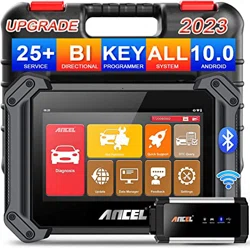
Applicable to the ANCEL DP500 products
Revised 25 April 2021

I. INTRODUCTION .................................................................................................................................... 5
1. PRODUCT PROFILE ............................................................................................................................. 5
2. FEATURES ............................................................................................................................................. 5
3 KNOWLEDGE OF THIS DEVICE .......................................................................................................... 6
3.1 The whole set.................................................................................................................................... 6
3.2 The tablet computer ....................................................................................................................... 6
4 TECHNICAL PARAMETER .................................................................................................................... 7
5 ACCESSORY(Standard Configuration) ....................................................................................... 8
5.1 Main test cable ................................................................................................................................. 8
5.2 OBD Connector ................................................................................................................................. 9
5.3 Others ............................................................................................................................................... 10
6 CHARGE THIS DEVICE ........................................................................................................................ 10
7 USING BATTERY ................................................................................................................................. 10
8 POWER ON/POWER OFF THIS DEVICE .......................................................................................... 12
8.1 Power on .......................................................................................................................................... 12
8.2 Power off ......................................................................................................................................... 12
9 ABOUT DESKTOP ............................................................................................................................... 12
10 CUSTOMIZE YOUR DESKTOP ......................................................................................................... 13
10.1 Add items on the desktop ......................................................................................................... 13
10.2 Move items on the desktop ...................................................................................................... 13
10.3 Delete items on the desktop ..................................................................................................... 13
10.4 Change your wallpaper .............................................................................................................. 14
10.5 Create a folder on the desktop ................................................................................................ 14
11 ON USING TOUCH SCREEN ............................................................................................................ 14
12 AUTO-R0TATE THE SCREEN .......................................................................................................... 15
13 LOCK&UNLOCK ................................................................................................................................ 15
13.1 Lock the screen ............................................................................................................................ 15
13.2 Unlock the screen ........................................................................................................................ 15
14 NOTIFICATION PANEL .................................................................................................................... 15
14.1 Turn on the notification panel .................................................................................................. 16
14.2 Turn off the notification panel ................................................................................................. 16
15 INPUT METHOD ............................................................................................................................... 16

16 HOW TO SET AS AIRPLANE MODE............................................................................................... 17
II. OTHERS .................................................................................................................................................... 18
1 WLAN ................................................................................................................................................... 18
1.1 Set WI-FI on ..................................................................................................................................... 18
1.2 Connect to WLAN........................................................................................................................... 18
2 Browser ................................................................................................................................................ 19
2.1 Open browser ................................................................................................................................. 19
2.2 Browser webpage .......................................................................................................................... 19
2.3 After a webpage is open, slide the screen with the tip of your finger to view other
hidden content. ..................................................................................................................................... 20
2.4 Save favorite webpage to bookmark ........................................................................................ 20
2.5 Open multiple pages ..................................................................................................................... 20
2.6 Customize Internet settings ........................................................................................................ 21
3 GALLERY ............................................................................................................................................... 21
3.1 Open gallery .................................................................................................................................... 21
3.2 Browse images ................................................................................................................................ 21
4 MUSIC................................................................................................................................................... 22
5 CALCULATOR ...................................................................................................................................... 22
6 CALENDAR ........................................................................................................................................... 22
7 ALARMS ............................................................................................................................................... 23
7.1 Add an alarm ................................................................................................................................... 23
7.2 Delete an alarm .............................................................................................................................. 23
7.3 Customize your alarm ................................................................................................................... 23
7.4 Countdown set ............................................................................................................................... 24
7.5 Second clock setting ...................................................................................................................... 24
8 ES FILE VIEWER .................................................................................................................................. 25
9 BRIGHTNESS........................................................................................................................................ 25
10 SET SCREEN LOCK ............................................................................................................................ 25
11 APPLICATION .................................................................................................................................... 26
11.1 View installed applications ........................................................................................................ 26
11.2 View the running applications .................................................................................................. 27
12 LANGUAGE&INPUT METHOD ....................................................................................................... 27

13 SET DATE&TIME............................................................................................................................... 27
14 RESTORE KEY MASTER TO FACTORY SETTINGS ........................................................................ 28
15 STORE ................................................................................................................................................. 29
16 APPS INSTALLATION/ UNINSTALLATION.................................................................................... 29
III. ONE KEY UPGRADE .............................................................................................................................. 30
1. DETECTION SYSTEM UPGRADE ................................................................................................. 30
2. DIAGNOSTIC FUNCTION UPGRADE .............................................................................................. 32
IV. DIAGNOSIS INSTRUCTION ................................................................................................................. 34
1 CONNECT VCI CONNECTOR ............................................................................................................. 34
2 DIAGNOSIS FLOWCHAT .................................................................................................................... 35
3 USER REGISTRATION ......................................................................................................................... 36
3.1 User Registration ....................................................................................................................... 36
4 DIAGNOSTIC SOFTWARE MAIN INTERFACE INTRODUCTION .................................................. 37
5 START DIAGNOSING .......................................................................................................................... 38
5.1 Read vehicle information ............................................................................................................. 40
5.2 Read trouble code ......................................................................................................................... 41
5.3 Clear trouble code ......................................................................................................................... 42
5.4 Read data stream ........................................................................................................................... 42
6 SYSTEM SETTINGS ............................................................................................................................. 43
6.1 VCI information .............................................................................................................................. 43
6.2 Language .......................................................................................................................................... 44
6.3 Unit .................................................................................................................................................... 44
6.4 User information ............................................................................................................................ 44
6.4.1 User login ..................................................................................................................................... 45
6.4.2 User registration ......................................................................................................................... 45
6.4.3 Forget password ......................................................................................................................... 46
6.4.4 Registration information .......................................................................................................... 46
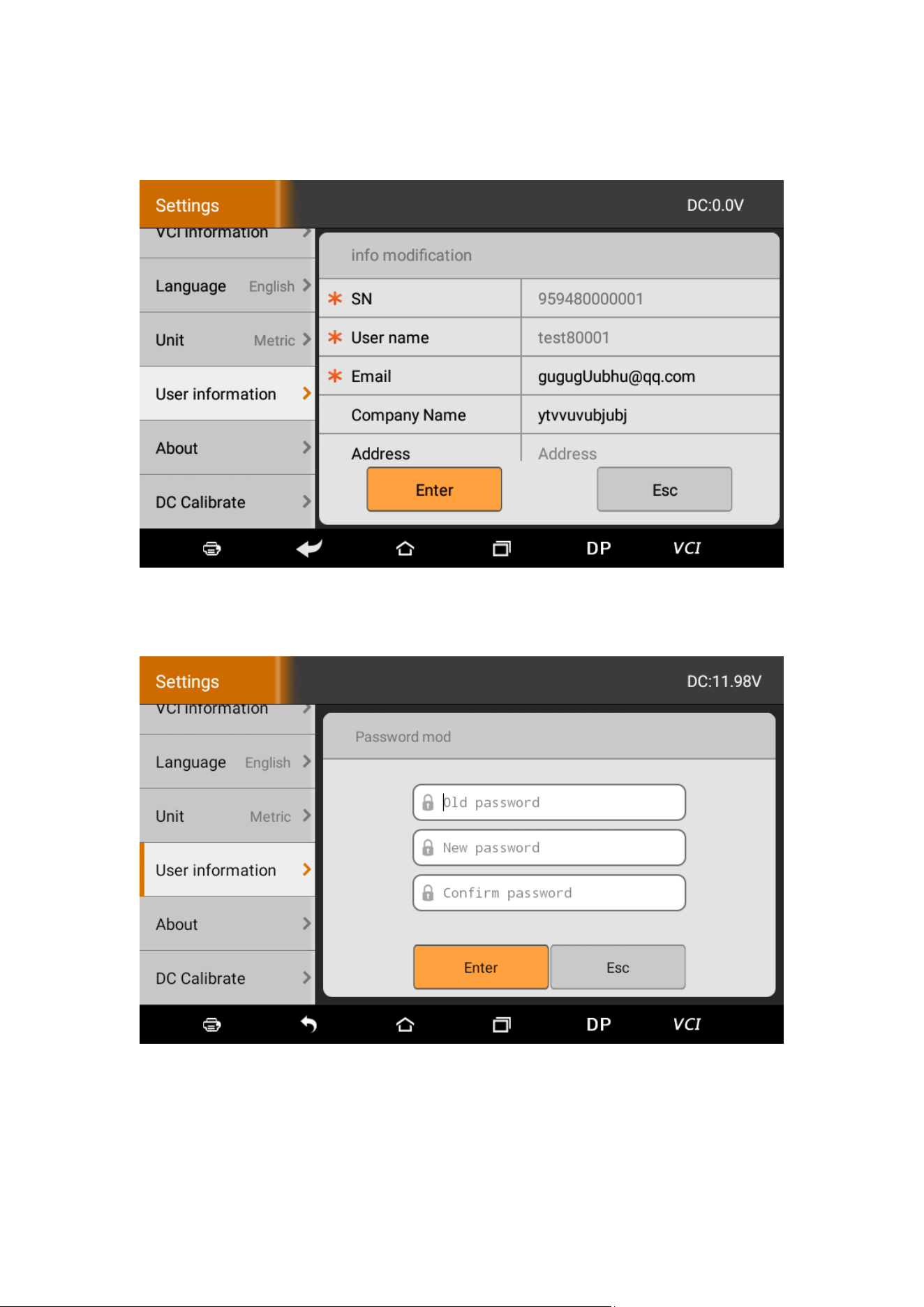
6.4.5 Info modification ........................................................................................................................ 47
6.4.6 Modify password ........................................................................................................................ 47
6.5 About ................................................................................................................................................ 48
6.6 DC Calibrate..................................................................................................................................... 48
7 REMOTE ASSISTANCE ....................................................................................................................... 50

I. INTRODUCTION
1. PRODUCT PROFILE
This device is a new Android-based vehicle trouble
diagnostic device developed for Internet applications.
It is characterized by covering wide range of vehicles,
featuring powerful function, and providing precise
result. Through vehicle diagnostic OBD connector and
variant mobile intelligent terminals, it achieves vehicle
trouble diagnosis for full car model and full system
vehicle.
Meanwhile, taking advantage of mobile Internet, this
device integrates more application and service, such as
Maintenance Database, remote assistant, One Key
Upgrade etc.
2. FEATURES
1. Diagnostic function:
Classify special function: ABS, Battery match, CVT
learning, EPB, Gear learning, Immobilizer, Cluster
calibrate, steering angle reset etc.
Specially designed for Android platform with clear and

user-friendly interface;
2. Maintenance database:
Equipped with powerful database.
3. One Key Upgrade:
Built-in WIFI mode can realize application
downloading and diagnostic function by one key
upgrade.
4. System setting:
Set VCI formation, language, unit, data logging, user
information etc.
5. Remote assistance:
Achieve remote assistance by this function.
3 KNOWLEDGE OF THIS DEVICE
3.1 The whole set
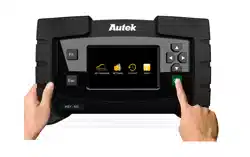
This device is composed of the tablet computer, main
test cable and kinds of connectors.
3.2 The tablet computer
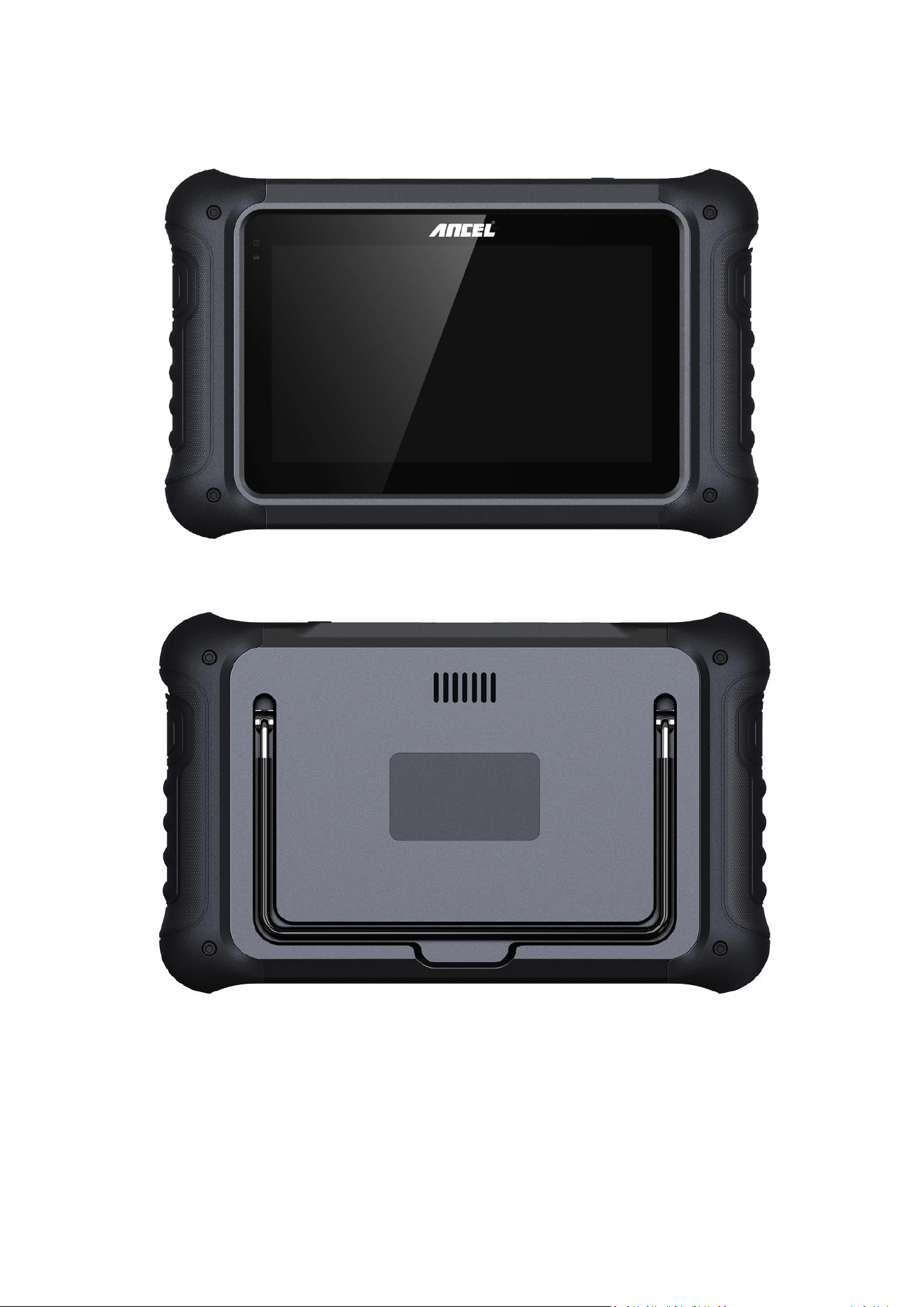
● Battery: 3800mA, rechargeable polymer lithium
battery
● Extension memory card: 32G Micro SD (TF) card
supported
● Memory capacity: 16GB
● LCD: 7.0 inches
● LCD resolution: 800*480
● Touch screen: Capacitive touch screen
● Wi-Fi: supported
● Working temperature: -20℃~55℃(14℉~131
℉)
● Storage temperature: -20℃~70℃(-4℉~158℉)
● Weight: about 1kg
● Dimension: 245*149*35 mm
5 ACCESSORY(Standard Configuration)
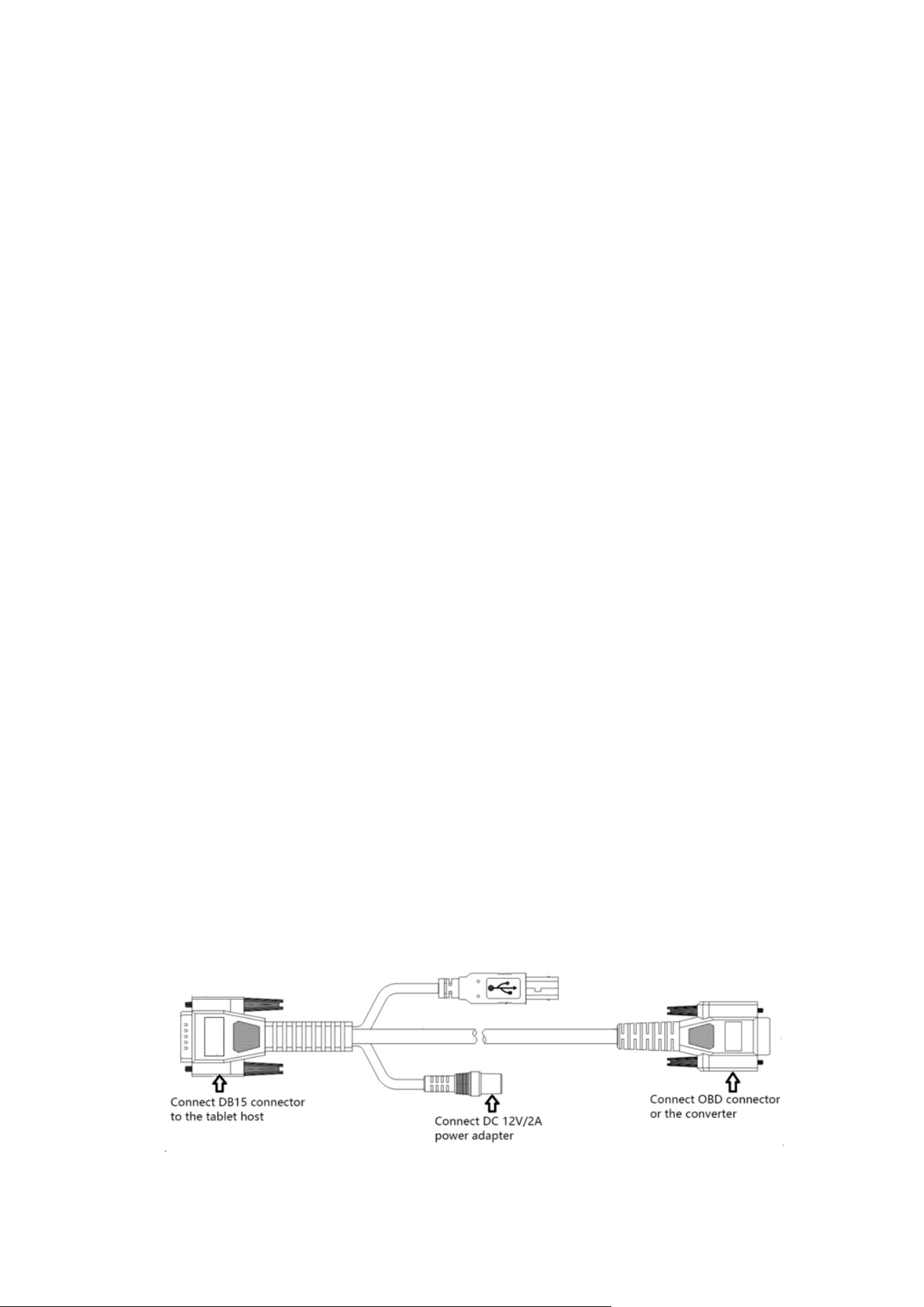
5.1 Main test cable
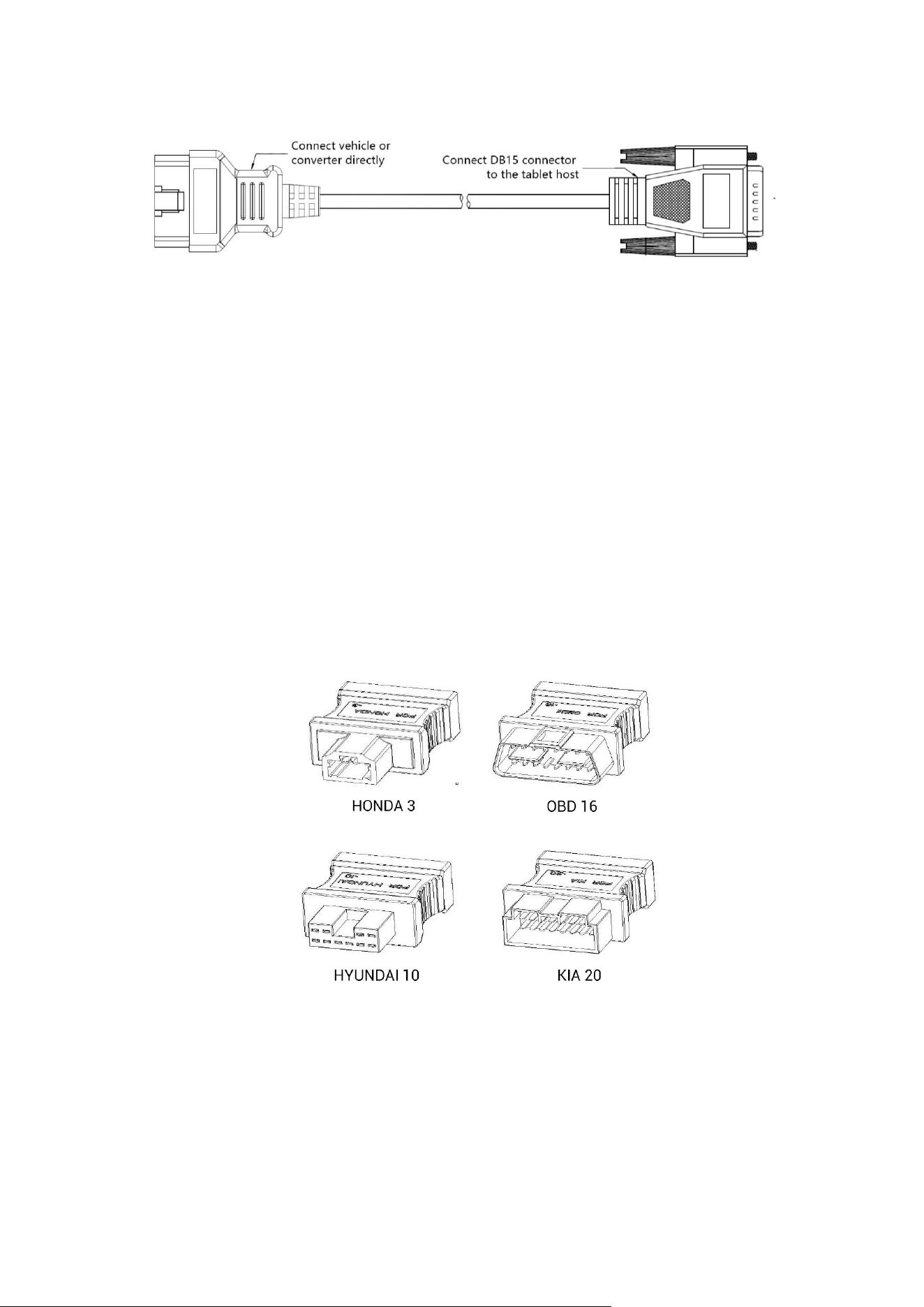
Pack different main cable according to different
configurations
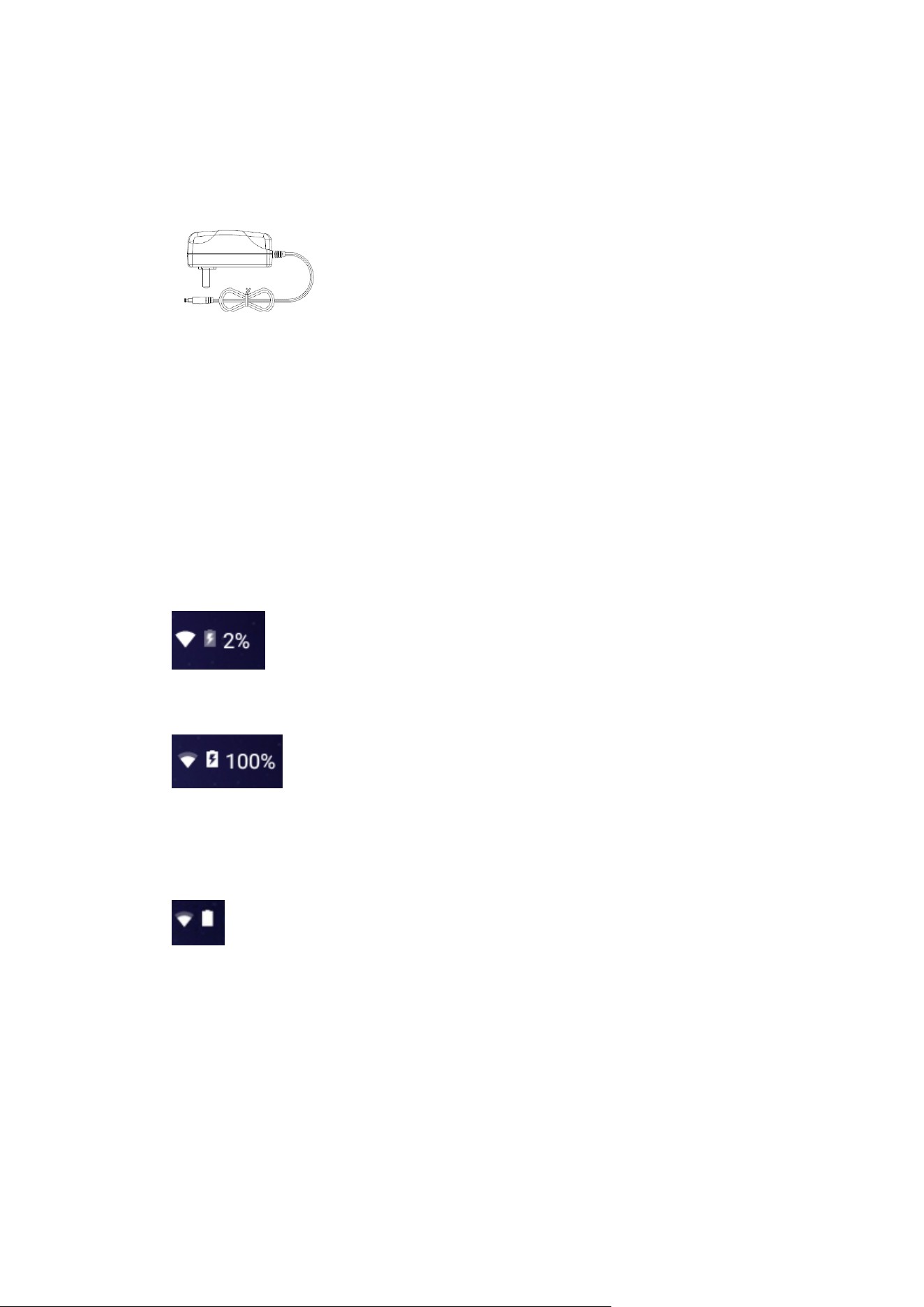
5.2 OBD Connector
OBD I connector to connect the diagnosis port of non
OBD II vehicles. To choose the connector according to
the vehicle brand and models.
Common connectors are as below:
Note: Different configuration accessories may have
different options
5.3 Others
DC Power Adapter (Output DC 12V/2A)
To power up the tablet via connecting
with outside power supply.
6 CHARGE THIS DEVICE
1. Connect the included USB cable with charger.
2. Plug the charger into AC outlet.
3. When it connects to charger, battery logo indicates
,it indicates that the battery is in charging
4. When battery logo changes into
, it indicates that the battery is fully charged
and then disconnect charger from AC outlet.
5. Unplug USB cable on the charger from this device.
7 USING BATTERY
● If the battery keeps unused for a long time or battery
is completely discharged, it is normal if it cannot be
turned on while being charged. Please charge it for a

period and then turn it on.
● Using data service will cause more power
consumption and shorten the stand by time.
● The charging time of battery varies with temperature
condition and battery consumption status.
● While this device has low battery, a beep will sound.
If it is very low, this device will be switched off
automatically.
Note: Do one of the followings to save power:
1. When this device keeps unattended, press POWER
key to turn off the LCD.
2. Shorten the standby time: Enter main menu, choose
“Settings” > “DEVICE”> “Display” > “Sleep” to select a
shorter standby time.
3. Decrease the brightness of LCD display: Enter main
menu, choose “Settings” > “DEVICE” > “Display” >
“Brightness”, and then drag the slider to adjust it.
4. Change “Live wallpaper” into “Gallery”.
5. Press VOLUME key to decrease the volume.

8 POWER ON/POWER OFF THIS DEVICE
8.1 Power on
Press and hold Power button for three seconds to turn
on this device.
Note:Set date, time and time zone.
8.2 Power off
Press and hold Power button for three seconds to turn
off this device.
9 ABOUT DESKTOP
The screen is shown as blow:
A. Print screen : make a quick screenshot and save
it to gallery
B. Back button : go back to previous interface or
exit program.
C. Home button : return to the desktop
D. Touch screen menu button : select desired item
E . DP button : enter diagnose and program
interface
F. VIC button : enter system settings

10 CUSTOMIZE YOUR DESKTOP
10.1 Add items on the desktop
On the main menu, hold and press the desired item,
the system will automatically enter the desktop and
place the icon into the circle.
Hint: If many applications occupy the desktop, hold
and press the desired one to move it to other
extension desktop.
10.2 Move items on the desktop
1. Hold and press the item to be moved.
2. After a movable circle appears on the screen, drag it
to the target location.
10.3 Delete items on the desktop
1. Hold and press the desired item, “X Delete” appears
in the upper middle of the screen.
2. Drag the item to “X Delete”.
3. When the item and icon turn red and then release
it.

10.4 Change your wallpaper
1. Hold and press a blank area on the desktop, a pop-
up wallpaper will be shown on the screen.
2. Choose desired wallpaper.
3. Click upper left corner √ to set wallpaper.
10.5 Create a folder on the desktop
1. Drag one icon to another icon, the system will create
a folder.
2. Input the folder name.
11 ON USING TOUCH SCREEN
● Tap: use your finger to tap desired items to confirm
or open it.
● Long-press: press and hold the current interface,
icon or input field to open the available operation
options.
● Slide: use your finger to slide the screen horizontally
or vertically.
● Drag: hold and press the desired item, then drag it
to any location.

12 AUTO-R0TATE THE SCREEN
To perform such operations as browsing webpage,
viewing images etc., rotate this device, the screen will
automatically change the display direction. To disable
this function, click “Settings” and click “display” to
enter. Unselect the option “Auto-rotate the screen”.
Note: This product application does not support
rotating screens.
13 LOCK&UNLOCK
13.1 Lock the screen
● When machine is ON, press POWER key to lock the
screen.
● The system will lock the screen automatically after
this device remains idle for a long time.
13.2 Unlock the screen
Press POWER key to activate the screen and then drag
the lock to “Unlock position.”
14 NOTIFACTION PANEL
The notice panel is used to display some activities,

messages to remind and inform users.
14.1 Turn on the notification panel
1. When a new notification icon appears on the status
bar, slide the status bar upwards to open it.
2. In the notification panel, click the desired
notification item to open it.
14.2 Turn off the notification panel
Slide the panel upwards, and then specify the
notifications as OFF to turn it off.
15 INPUT METHOD
Set input method:
Enter main menu, and then select “Settings”->
“Language and keyboard” to Choose desired input
method.
The default input method, Google input can support
powerful word stock engine,
Intelligent Google input and multiple keyboard mode.
Android keyboard and Google input method and make
input easier.
To start text input mode, please click any text input

entry.
16 HOW TO SET AS AIRPLANE MODE
According to the regulations of some countries or
areas, PC device must be turned off before boarding
on the airplane.
The way to disable functions of this device is to set it
as airplane mode. In this mode, all wireless radio
waves will be disabled, including mobile network, and
WLAN.
Do one of the followings to enable or disable airplane
mode:
Press POWER key and choose “Airplane mode” from
the pop-up option menu.
Access the main menu, and choose “Settings” >
“WLAN” > “More…” >“Airplane mode”.

II. OTHERS
1 WLAN
This function enables you to enjoy surfing on the
Internet and downloading data from the Internet via
Wi-Fi.
1.1 Set WI-FI on
1. Enter main menu screen, choose “Settings” > WLAN
2. When the WLAN sign appears blue, it indicates Wi-Fi
has been activated already.
Note: To prolong the battery life, please switch Wi-Fi off
when it keeps unattended.
1.2 Connect to WLAN
Start WLAN, if this device is within range of WLAN, it
can automatically detect and connect to current WLAN,
select desired network and input password, then you
can surf the Internet by WLAN.
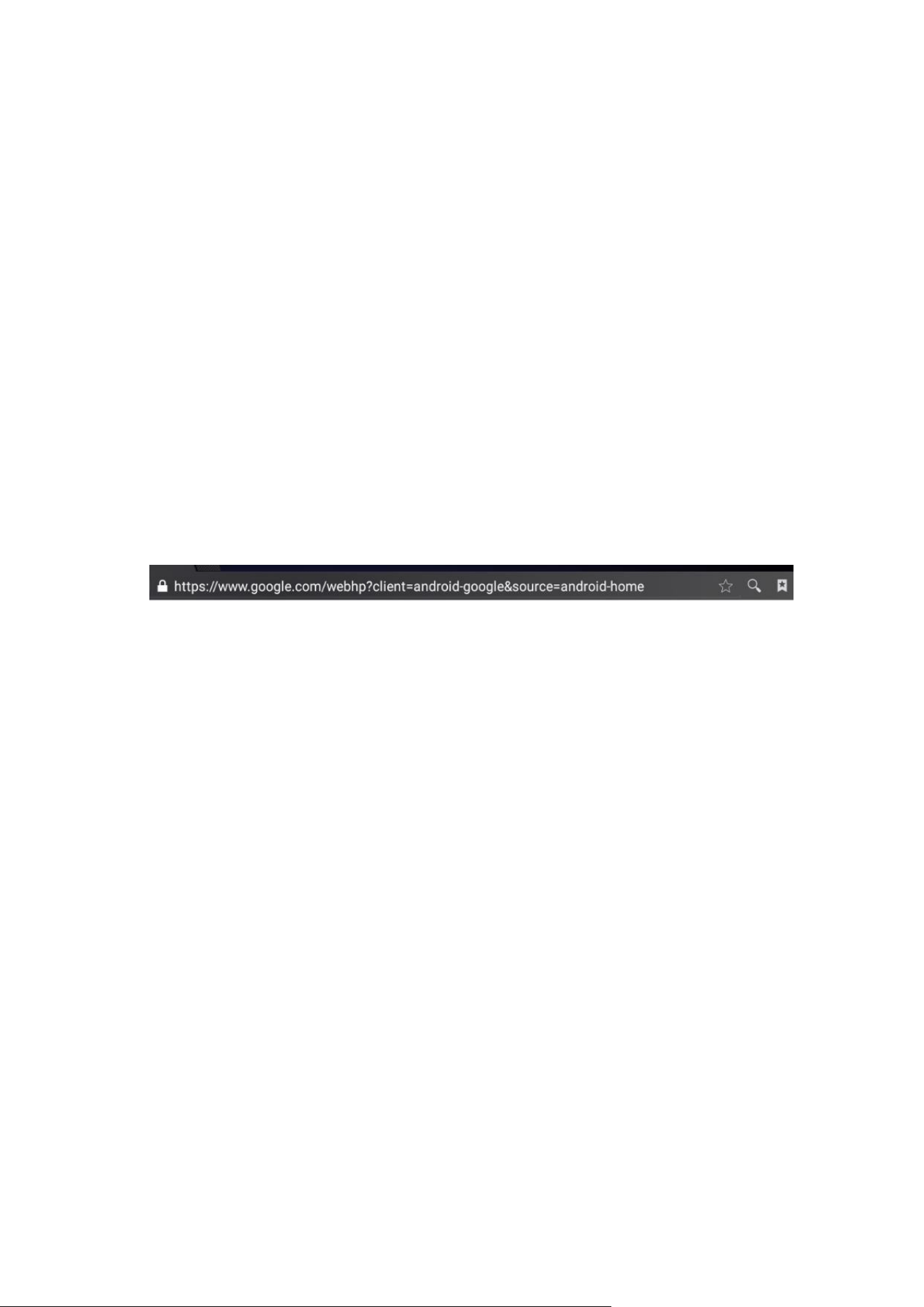
2 Browser
You can use any APP based on browse website and
network.
2.1 Open browser
Enter main menu screen, tap to the browser. You can
choose the desired homepage or input the website
address to browse.
1. Tap to input or edit the web link
2.2 Browser webpage
1. Open the browser.
2. Input the web address, and tap “Go” on the keyboard
to visit the website.
Tips: Alternatively, you can also tap, and then choose
“Bookmarks/History” from the pull-down list to choose
the web link you want to access.
3. After a webpage is open, slide the screen with the tip
of your finger to view other hidden content.

2.3 After a webpage is open, slide the screen with the
tip of your finger to view other hidden content.
There are two ways to zoom in/ zoom out while
browsing a webpage.
▪ to zoom in so that the text on a webpage appears in a
column that fits your device’s screen, double-tap with
the tip of your finger.
▪ to zoom in manually, place two fingers on the screen
and then spread them apart. To zoom out, either
double-tap again or place two fingers apart on the
screen and then pinch them together.
2.4 Save favorite webpage to bookmark
1. While browsing a webpage, tap Function Menu at
the top right and choose “Save to bookmarks”.
2. Edit a label for the bookmark.
3. Tap “OK” to confirm and save it.
2.5 Open multiple pages
The browser allows you to open multiple web pages
and you can toggle between these pages.

1. While browsing a webpage, tap the Fold Button at
the top right and open new window.
2. Another web page will be displayed in the new
window.
2.6 Customize Internet settings
While browsing a webpage, choose “Settings” at the
top right, you can view or change browser settings,
privacy & security setting and advanced setting etc.
3 GALLERY
This option is used to manage pictures and video files.
3.1 Open gallery
Enter main menu screen, tap “Gallery” to access it. The
system searches images and videos in this device and
SD card automatically, and categorizes it into
corresponding folders.
3.2 Browse images
1. Enter main menu screen, tap “Gallery”.
2. Tap the picture folder you want to view.
3. Tap the desired image to browse.

4. Swipe the screen rightwards or leftwards to view the
next/previous picture.
4 MUSIC
Music files are stored into 4 categories: Artists, Albums,
Songs and Playlist. Tap the desired music to display
music.
Tips: While playing, tap back button to switch to other
applications and the player will be running in
background. Open the status bar and choose the audio
file to return to the player screen.
5 CALCULATOR
You can use calculator to operate algorithm of plus,
subtract, multiply and divide, and function operation of
sin, cos, tan and log.
6 CALENDAR
This function lets you view calendar or create to-do
events.
Enter main menu screen, tap “Calendar”. Swipe up and
down to switch to month;
Tap someday, the followings can be done.

Tap to refresh, search, and hide control and setting.
7 ALARMS
7.1 Add an alarm
1. Enter main menu, and tap “Alarm”.
2. Tap to add alarms.
3. Set the detailed information of the alarm.
4. Tap to pack up the alarm to store the setting.
7.2 Delete an alarm
1. Enter main menu, and tap “Alarm”.
2. Tap the desired alarm.
3. Tap to delete it.
Tips: After the alarm is deleted, you can choose to
cancel delete alarm on the right side from the option
menu.
7.3 Customize your alarm
1. Enter main menu, and tap “Alarm”.
2. Tap menu button, and then choose “Settings”.
3. Alarm volume: Set the volume of alarms.
4. Set the duration of alarm.

5. Set the duration the alarm snooze next time.
6. Volume buttons: set what these buttons function
when pressed during an alarm.
7. Set default ringtone: choose the alarm ringtone.
7.4 Countdown set
1. Enter the main menu to tap to choose count down
alarm;
2. Set the time of countdown;
3. Tap to add count down alarm, and tap to
delete alarm;
4. Tap to start count down, and tap to stop
count down;
Notice: after the countdown ends, the device will ring
alarm sound.
7.5 Second clock setting
1. Enter the main menu to tap to choose second
clock;
2. Tap to start second and clock, and tap to stop
second clock;
3. Tap to reset second time;

4. Tap on the right side to display the smaller unit
counter of second clock;
8 ES FILE VIEWER
Open ES file viewer, and enter main menu.
You can manage SD card, browse by category and
browse all music, picture, video, document application,
package, favorites, installation package, management
recommended through catalogue.
9 BRIGHTNESS
1. Enter main menu screen, tap “Settings” > “Display”.
2. Tap “Brightness” to enter.
3. Drag the slider leftward to lower the screen
brightness. Drag the slider rightward to increase the
screen brightness.
10 SET SCREEN LOCK
You can set the screen lock pattern, and when the
screen is locked, it will not be unlocked until you draw
the right pattern.
1. Enter main menu screen, tap “Settings” >
“Security” > “Screen lock”.

2. There are several options available for your selection.
To define a pattern, follow the on-screen prompts to
plot your pattern.
3. After drawing, tap “Confirm” to save your setting.
11 APPLICATION
11.1 View installed applications
1. Enter main menu screen, tap “Settings” > “Apps” to
open the downloaded application list.
2. The following operations are available:
▪ Tap the desired one to view the application
information.
▪ Tap and choose “Sort by size” from the pull-down
menu, the applications will be displayed in size order
automatically.
▪ Tap and choose “Reset app preferences” from the
pull-down menu, a confirmation dialog box will appear
on the screen, tap “Reset apps” to proceed; tap
“Cancel” to abort.
3. To uninstall an application, tap it to enter the
application information screen.

4. Tap “Uninstall” and then follow the on-screen
instructions to finish it.
11.2 View the running applications
1. Enter the main menu screen, tap “Settings” > “Apps”.
Scroll the screen from right to left to RUNNING tab to
open the currently running application list.
2. The following operations can be done:
▪ View the currently running applications;
▪ Tap any one to stop it.
12 LANGUAGE&INPUT METHOD
1. Enter the main menu screen, tap “Settings” >
“Language & input”>Tap language.
2. Tap “Language” and choose the desired language in
this device.
The setting of input method
The device provides several kinds of input methods. Tap
setting before the desired input method.
13 SET DATE&TIME
This device is preset to use the network-provided date,
time zone and time.

Note: If Automatic date & time is set as Use network-
provided time, date, time and time zone will not be
defined.
1. Enter the main menu screen, and tap “Settings” >
“Date & time”.
2. Tap “Set date”, and scroll the screen upwards and
downwards until the desired numbers appear on the
highlight area.
3. Tap “Select time zone”, and choose the desired one
from the time zone list. Scroll the screen upwards and
downwards to view more.
4. Tap “Set time” and scroll the screen upwards and
downwards to adjust the hour and minute. After
setting, tap “Done” to confirm.
5. Select or deselect “Use 24-hour format” to switch
between 12-hour format and 24-hour format.
6. Tap “Choose date format” to choose the desired date
of this device format from the list.
14 RESTORE TO FACTORY SETTINGS
This option enables you to restore this device to the
default factory settings.

Once it is reset, all data (including downloaded
applications) will be deleted.
Note: Before resetting to factory data, please back up
all important data saved in your device.
1. Enter the main menu screen, tap “Settings” >
“Backup & reset” > “Factory data reset”.
2. Follow the instructions on the screen to proceed.1.
Enter main menu screen, choose “Settings” > WLAN
15 STORE
Enter the main menu, and tap setting> store check the
store situation of the device.
Store the download content in the default browser to
the download content list.
16 APPS INSTALLATION/ UNINSTALLATION
1. Install: Put the application package under the root
directory of SD card, enter “File Manager” and then tap
the desired package to start installing.
2. Uninstall: Tap “Settings” > “Apps”, and choose the
desired one to uninstall.
III. ONE KEY UPGRADE
1. DETECTION SYSTEM UPGRADE
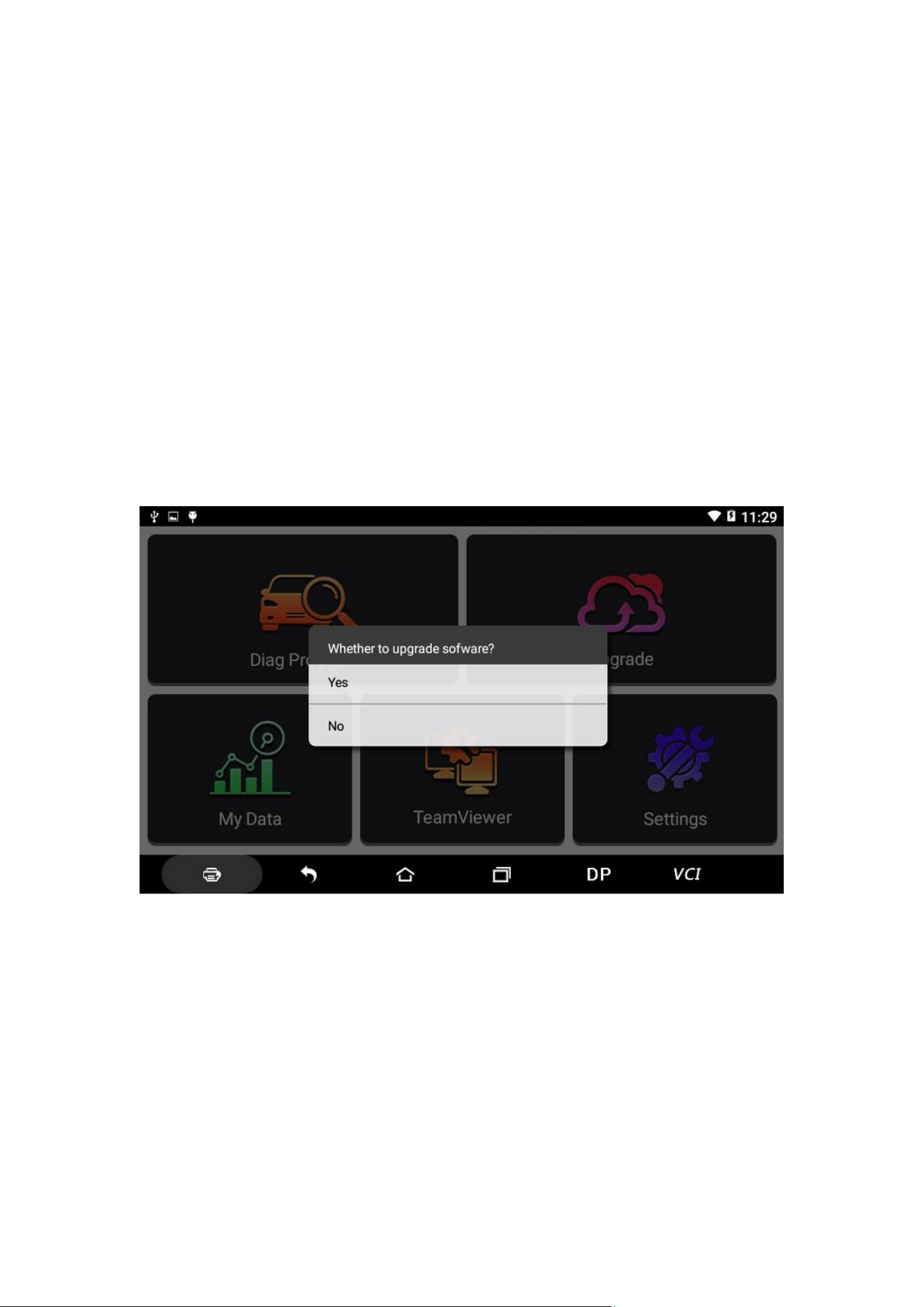
The system APK automatically detects the version. If
there is a version update, a red dot is in the upper right
corner of the upgrade button. Click on the upgrade
button to prompt “Whether to perform software
upgrade”:
If not, click “No”, you will directly return to the main
interface. However you cannot enter the upgrade
diagnosis application interface.
Click on the APK upgrade and it prompts to install:
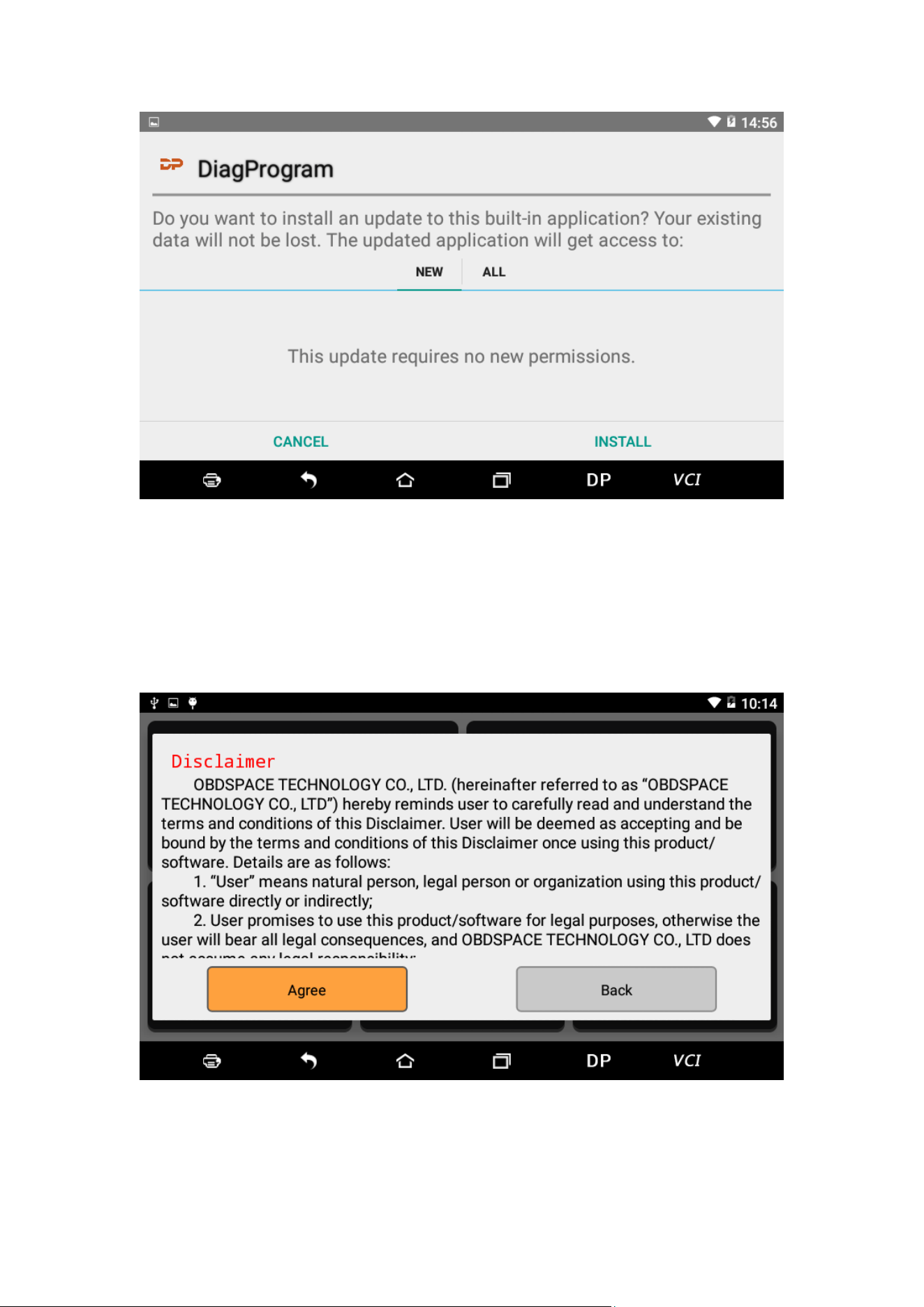
Click on the installation and perform the program
installation, automatically close the program and install.
After installation, click on the program image to re-
enter the DP program:
Re-enter the main interface and prompt statement.
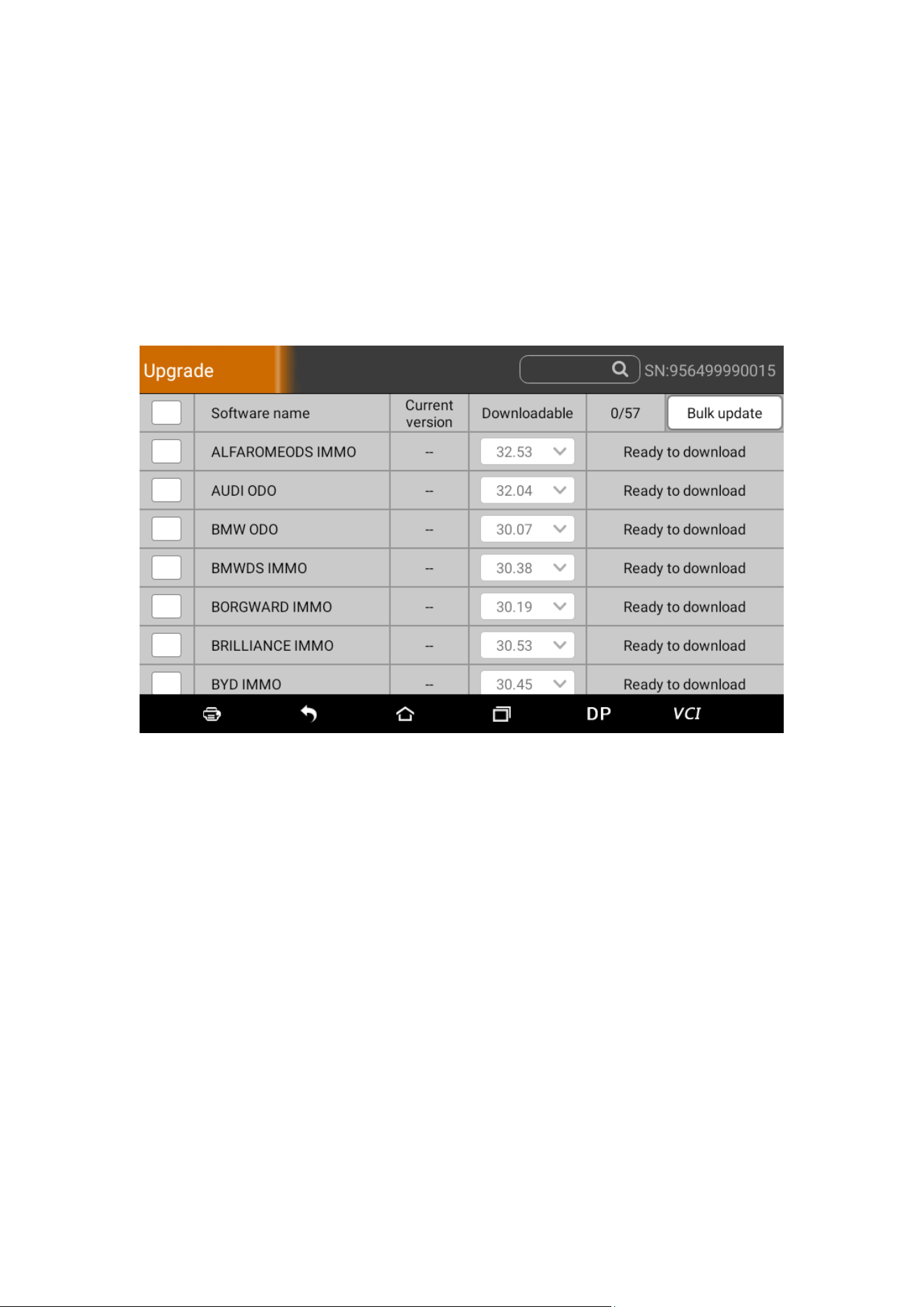
(Notes: Ensure Internet connection is normal when
updating.)
2. DIAGNOSTIC FUNCTION UPGRADE
Download and upgrade software by “One Key Upgrade”
Tap main screen “batch update”, start downloading and
upgrading
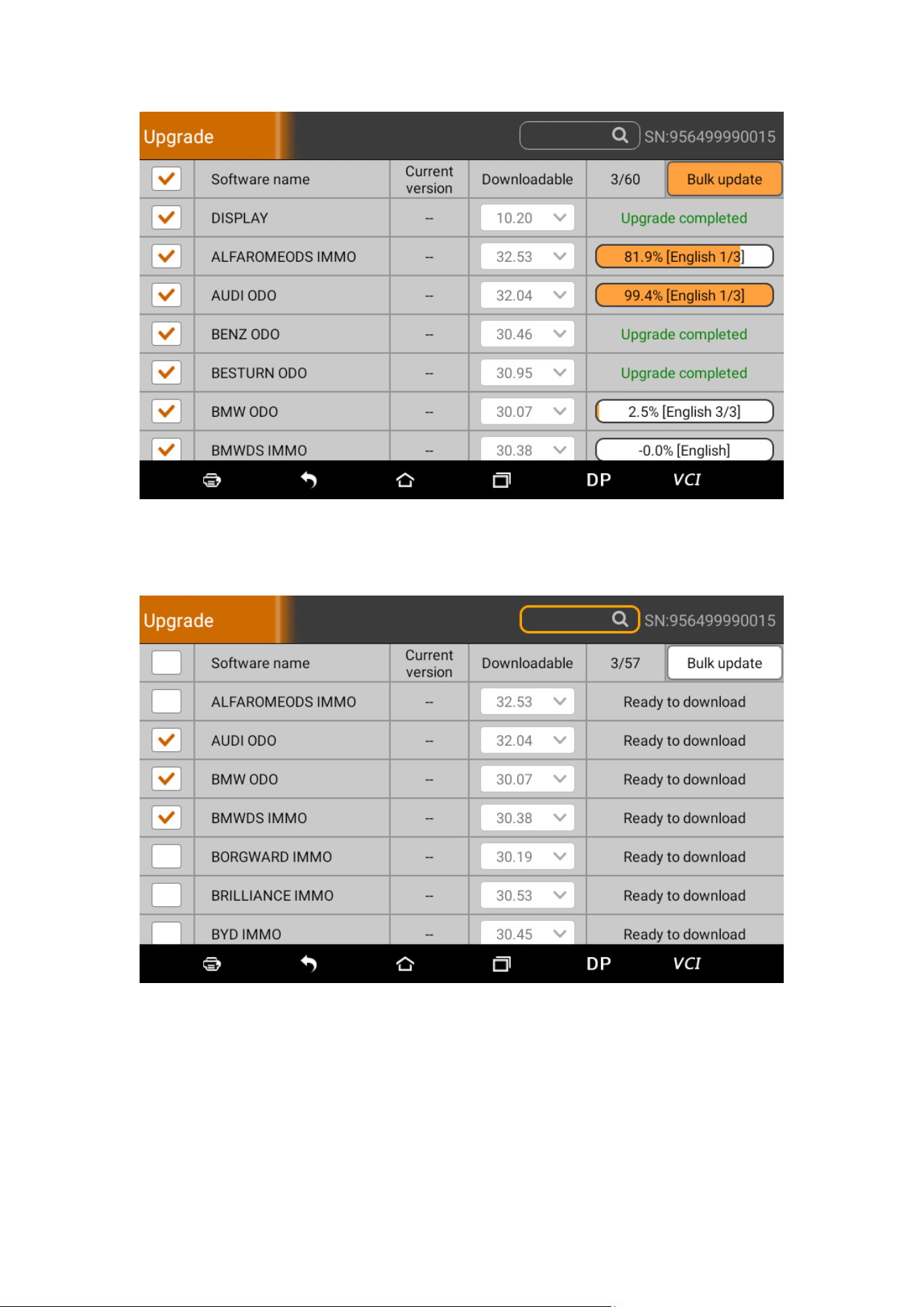
If a software needs to be canceled, just tap the
corresponding Check Box. As following photo shown:
After the upgrade is completed, you can enter the
diagnostic programming to view the upgrade version
description and the version number, and you can
perform related diagnostic operations and functions.

(Notes: Ensure Internet connection is normal when
updating. Besides, because of many software, it may
take several minutes, please wait patiently.)
IV. DIAGNOSIS INSTRUCTION
1 CONNECT VCI CONNECTOR
Procedure to connect VCI connector:
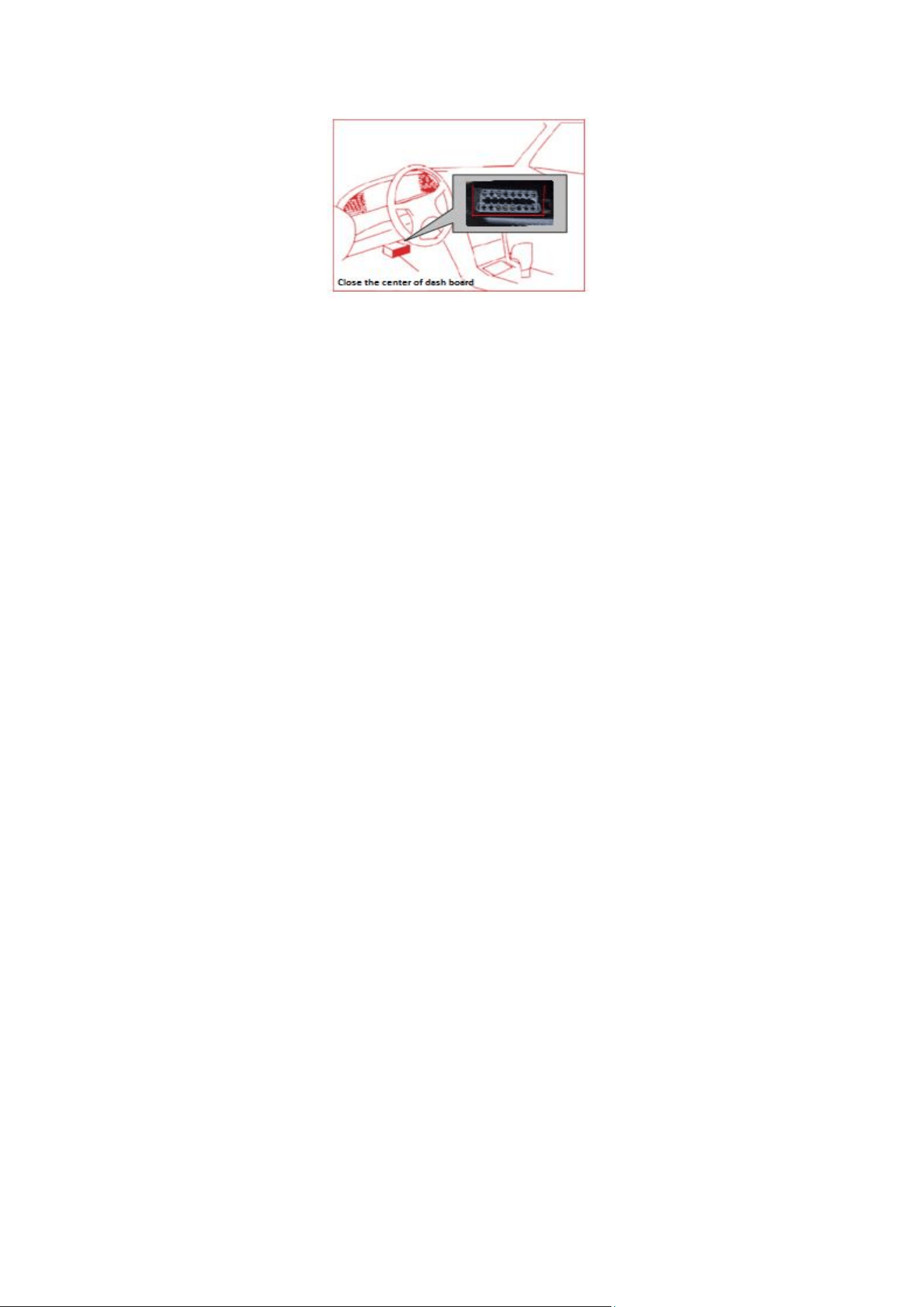
1. Locate vehicle’s DLC socket. The DLC (Data Link
Connector or Diagnostic Link Connector) is the
standardized 16-pin connector where diagnostic code
readers interface with the vehicle's on-board
computer. The DLC is usually located 12 inches from
the center of the instrument panel (dash), under or
around the driver’s side for most vehicles, as shown
below. If Data Link Connector is not located under
dashboard, a label should be there telling location.
For some Asian and European vehicles, the DLC is
located behind the ashtray and the ashtray must be
removed to access the connector. If the DLC cannot be
found, refer to the vehicle’s service manual for the
location.
2. Plug the diagnostic connector into the vehicle’s DLC
socket (It is suggested to use the OBD 2 extension
cable to connect VCI connector and DLC socket.). For
non-16PIN DLC socket, please select the
corresponding non-16 pin connector adapter, then
plug the non-16pin end of the adapter into the DLC
socket, and then connect the standard 16pinend VCI
connector.
2 DIAGNOSIS FLOWCHAT
For new users, please follow the 3.1 to get familiar
with and start using this device.
Connect the diagnostic connector –>user
registration–>user login–>download or upgrade
software–>select function or vehicle type–>proceed
diagnosis
3 USER REGISTRATION
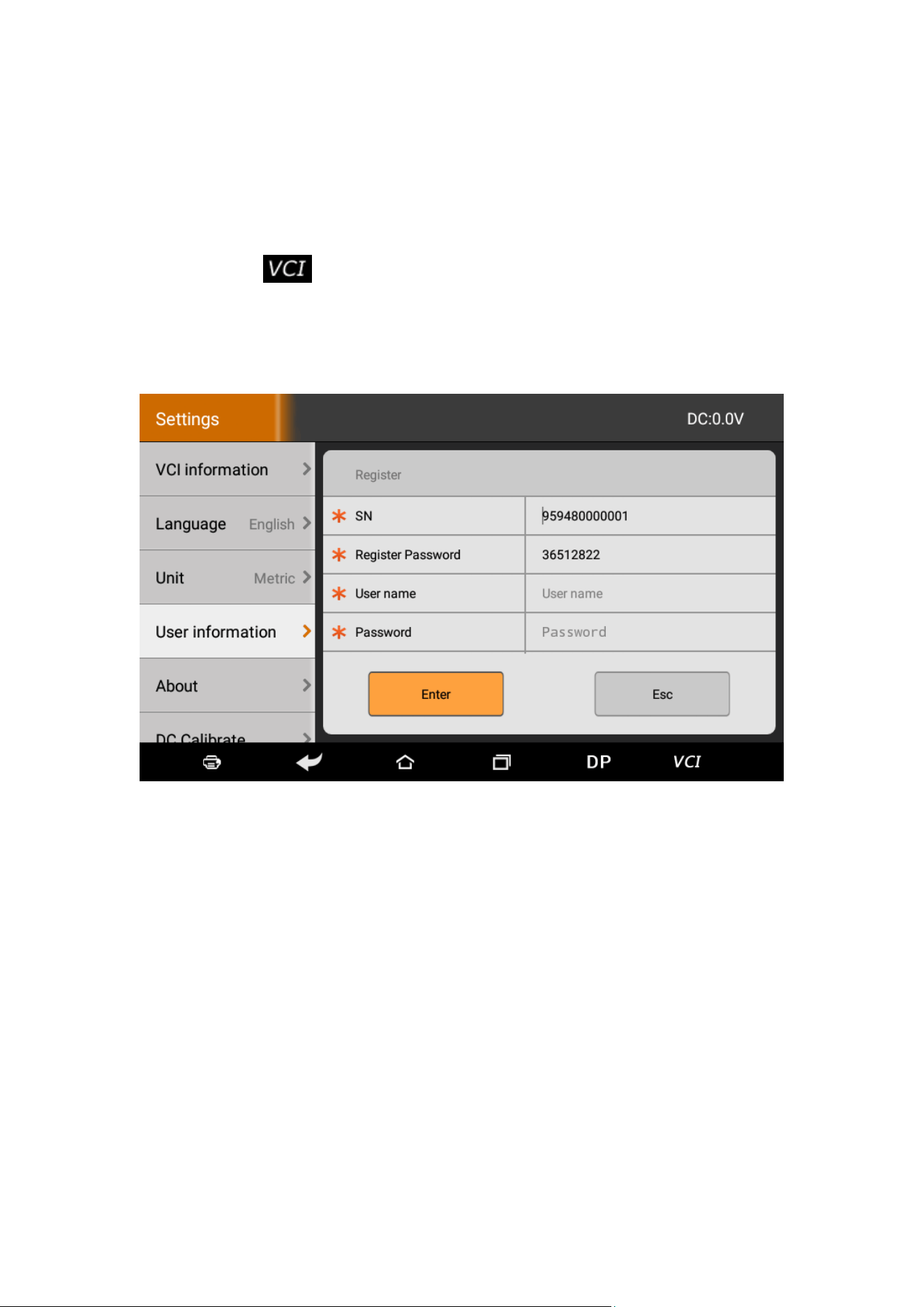
3.1 User Registration
Click to enter diagnostic software, select “the
user information” in “Settings” menu, and then enter
user registration window. As following photo shown:
Fill in the information in each field (Items with * must
be filled). After inputting, tap “OK”
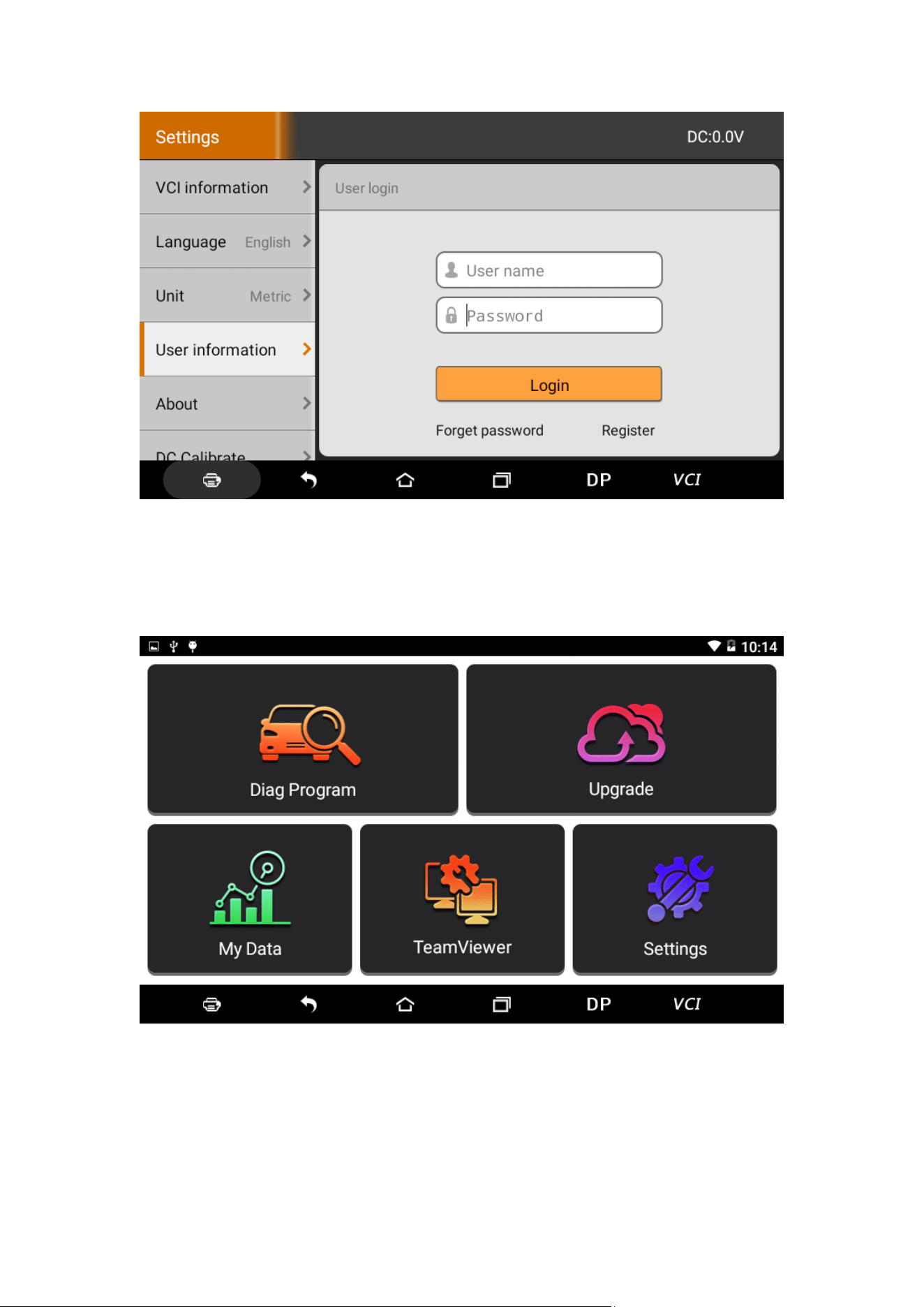
If you have registered to be a member, click “the user
information” to enter user login page, as following
picture shown:
4 DIAGNOSTIC SOFTWARE MAIN INTERFACE
INTRODUCTION
Function menu included as follows:
Diag Program: Operate as a diagnostic tool.
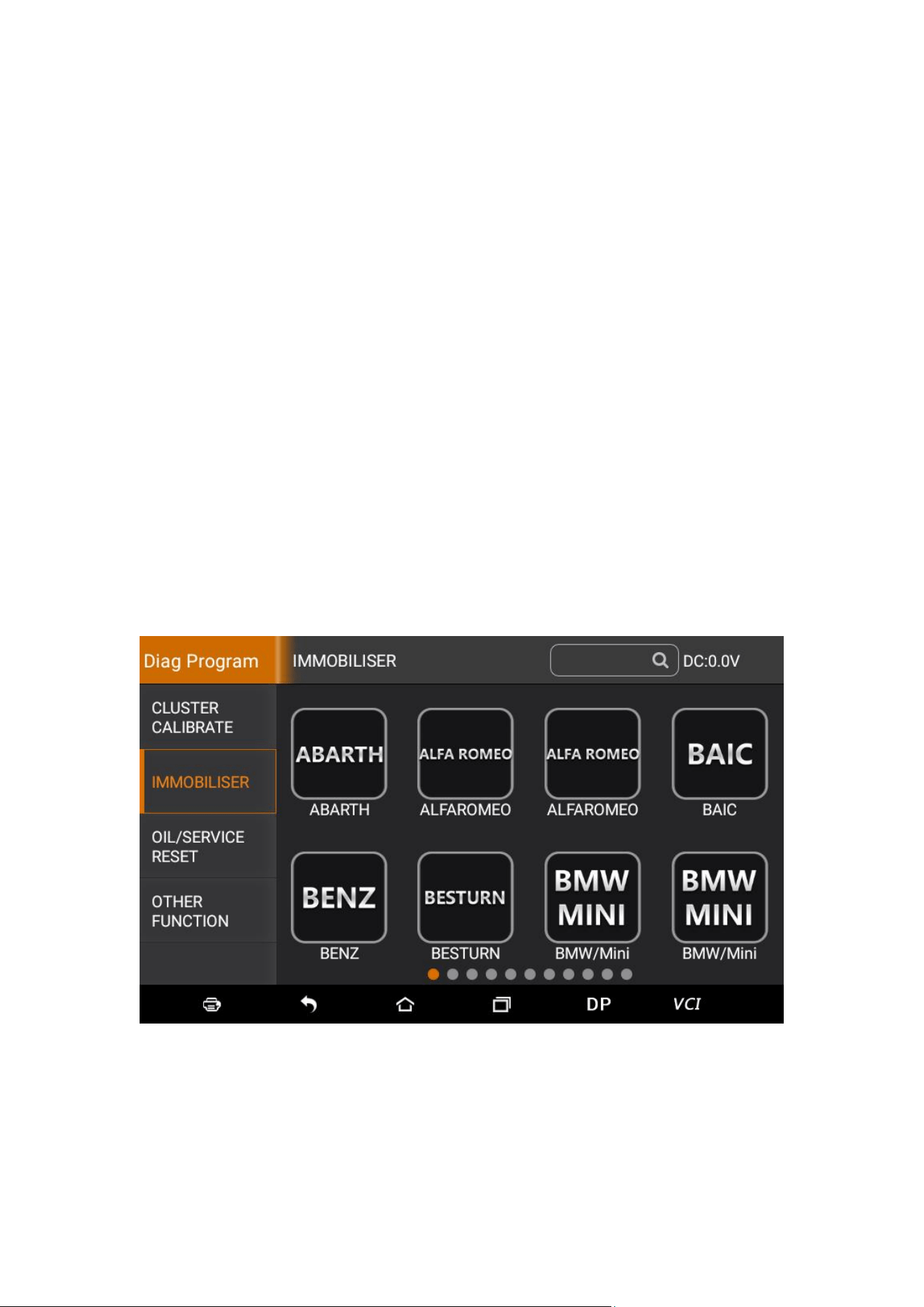
Upgrade: To download diagnostic software or upgrade
diagnostic software to the latest version.
My Data: Easy to handle the renewing data..
Settings: It includes VCI information, language, unit,
data records, user information, about.
Remote assistance: Realize remote hosting operation.
5 START DIAGNOSING
Tap on the main menu screen, and then choose “Diag
Program” to enter the function selection and vehicle
selection page. As following photo shown:
Hereinafter, take OBDII for example, to introduce how
to start diagnosing.
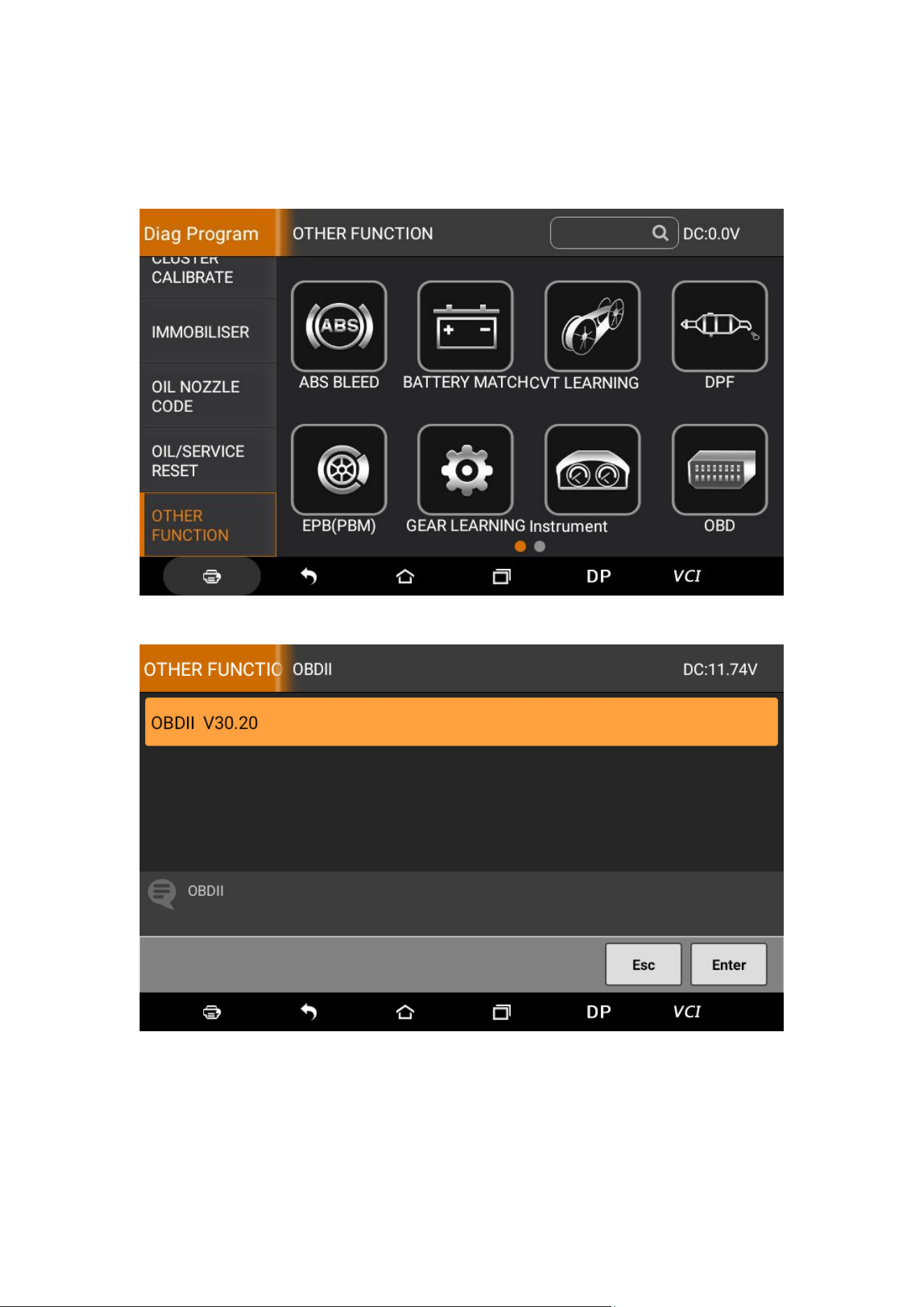
Tap “OBDII”, and tap “OBDII” icon. As following photo
shown:
To select software version, as following photo shown:
To enter diagnostic function menu, as following photo
shown:
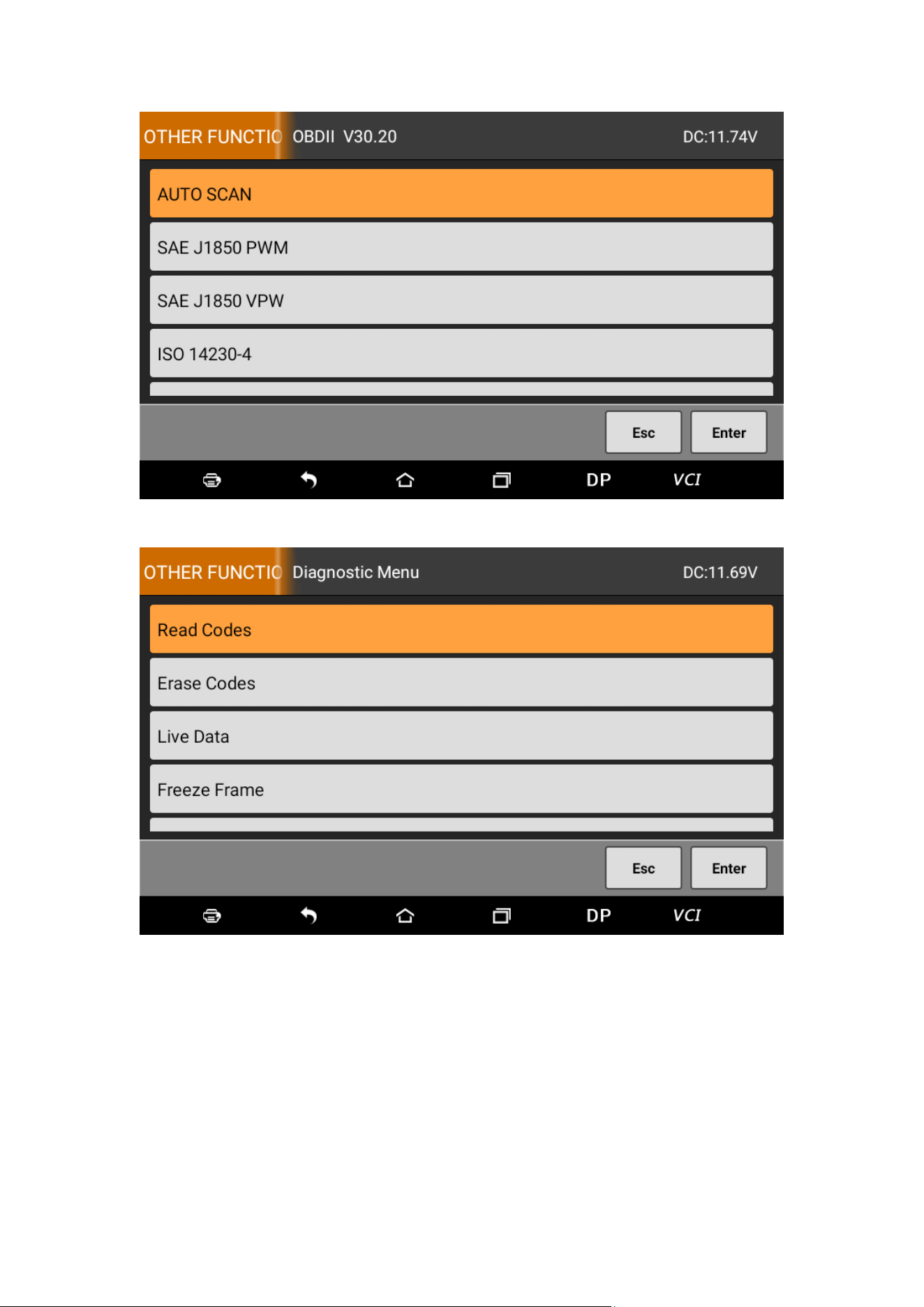
To select AUTO SCAN, as following photo shown:
5.1 Read vehicle information
Tap “Read vehicle information”, as following photo
shown:
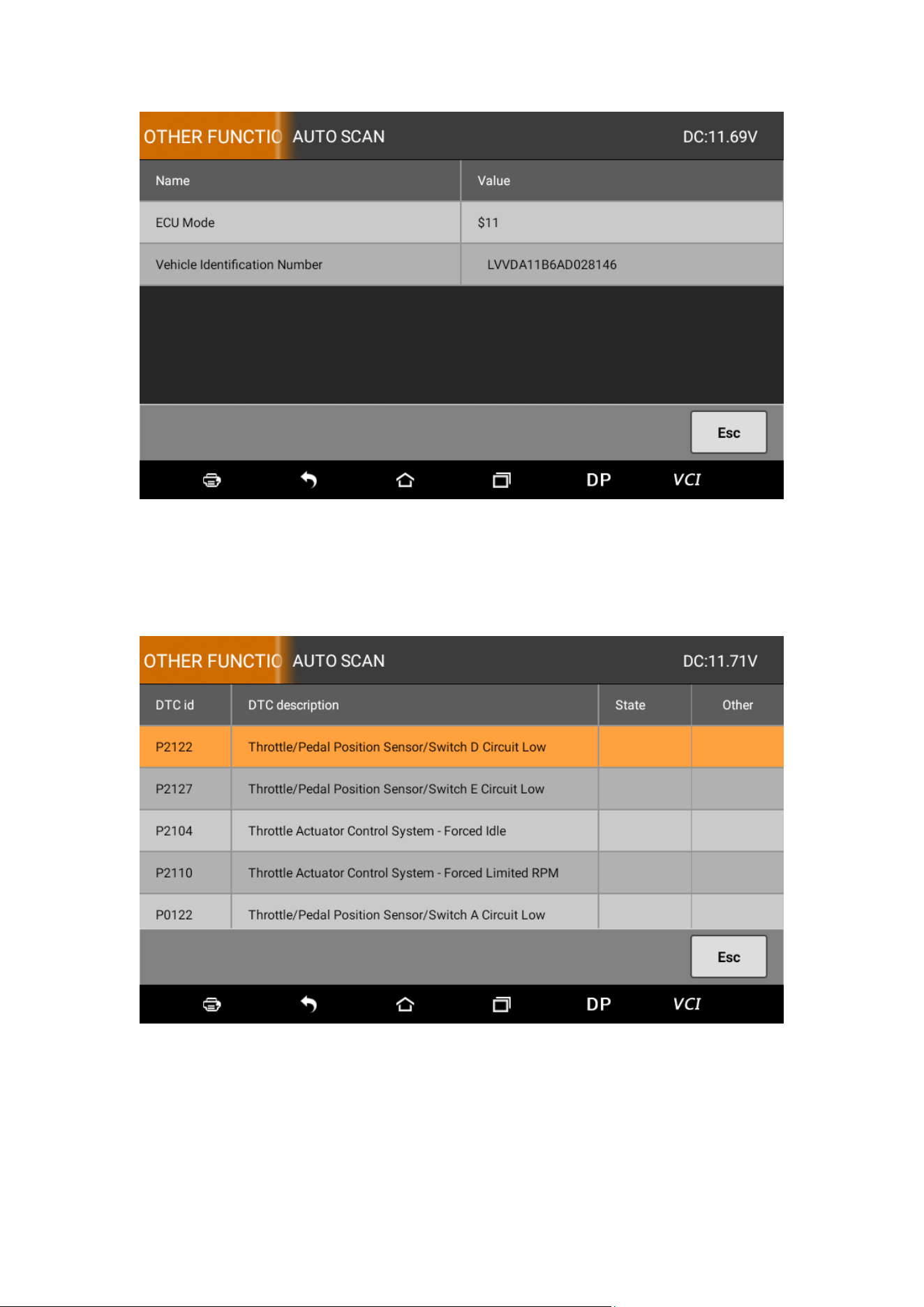
5.2 Read trouble code
Tap “Read trouble code”, as following photo shown:
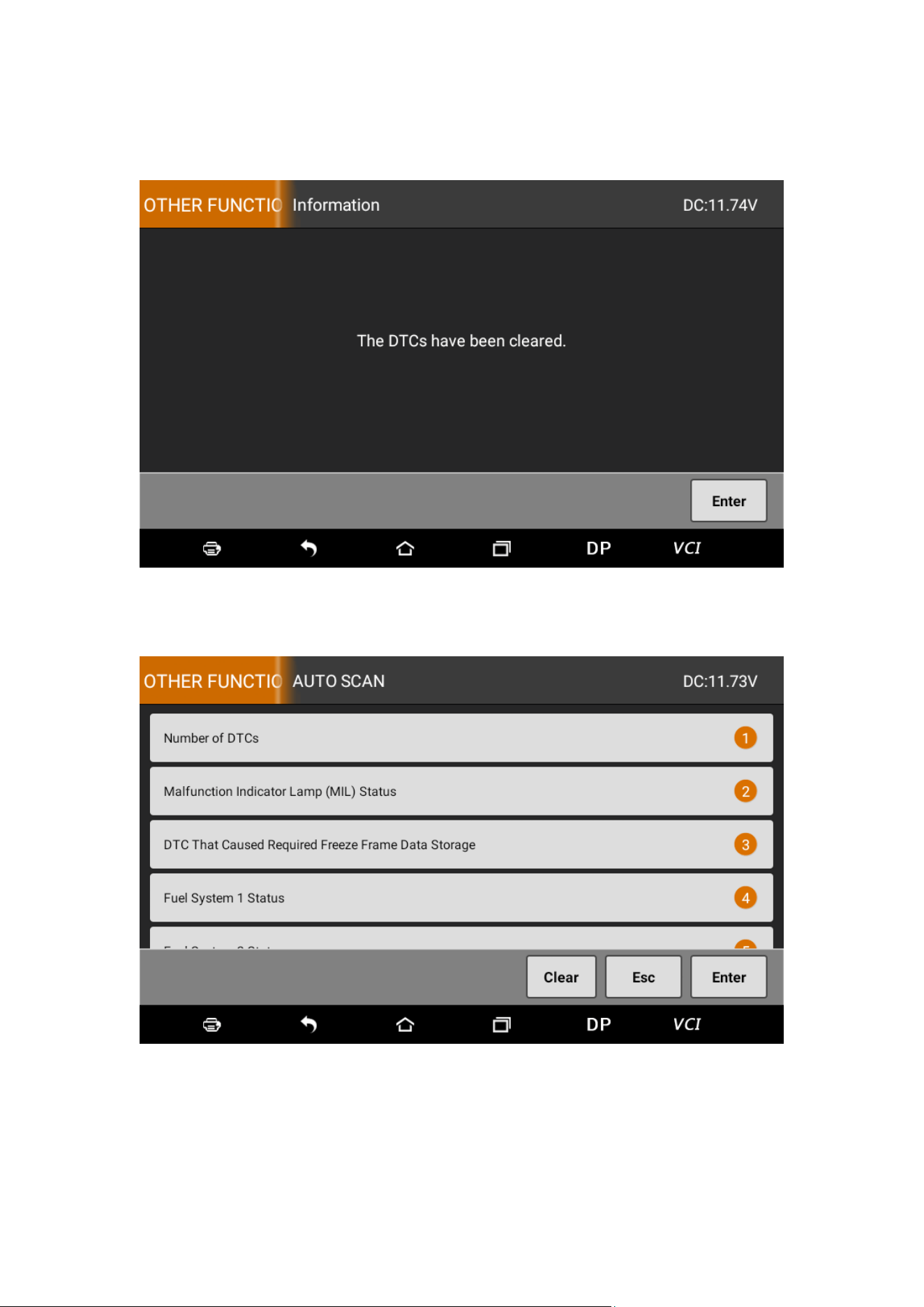
5.3 Clear trouble code
5.4 Read data stream
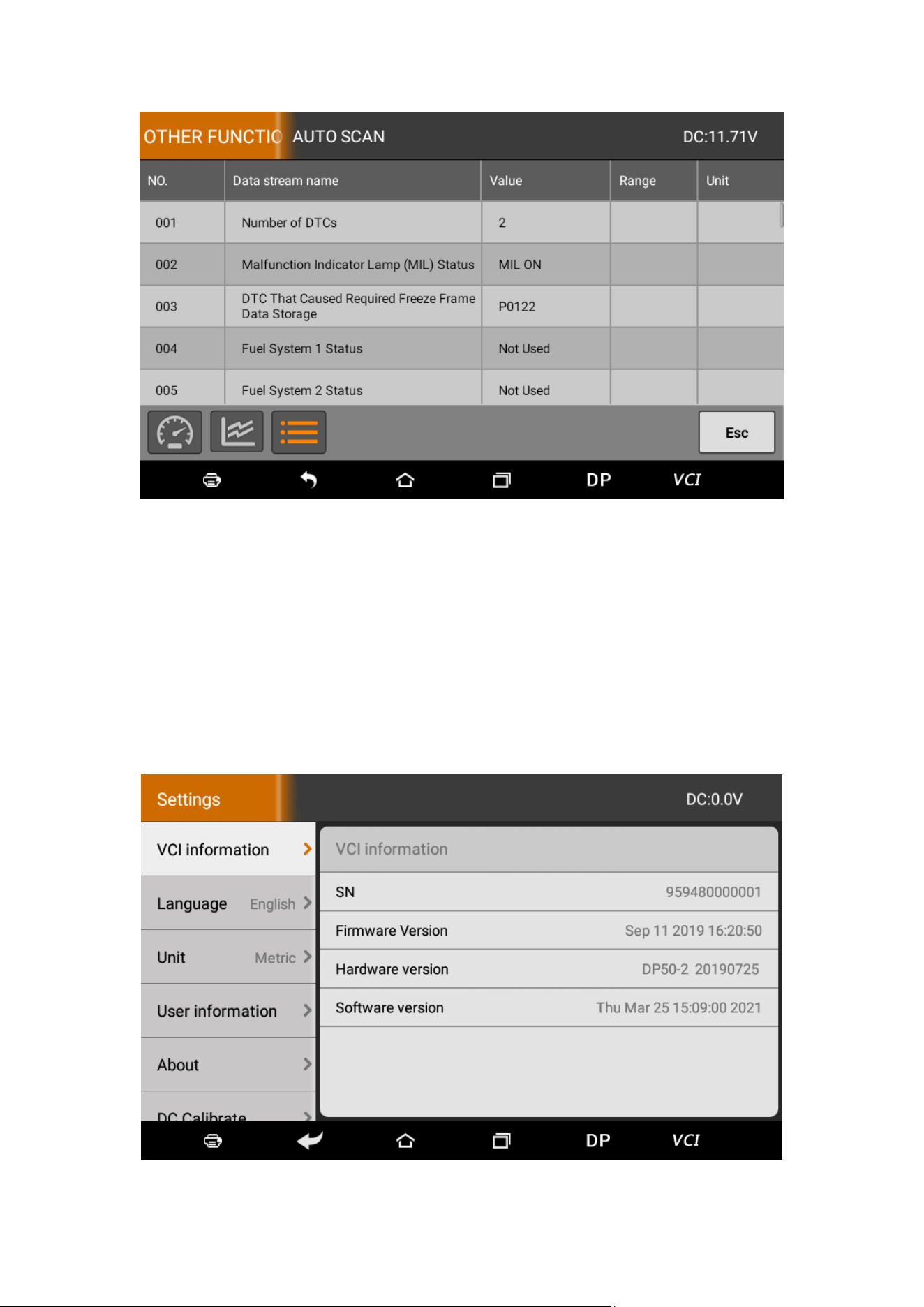
6 SYSTEM SETTINGS
It includes VCI information, language, unit, data
records, user information and about etc.
6.1 VCI information
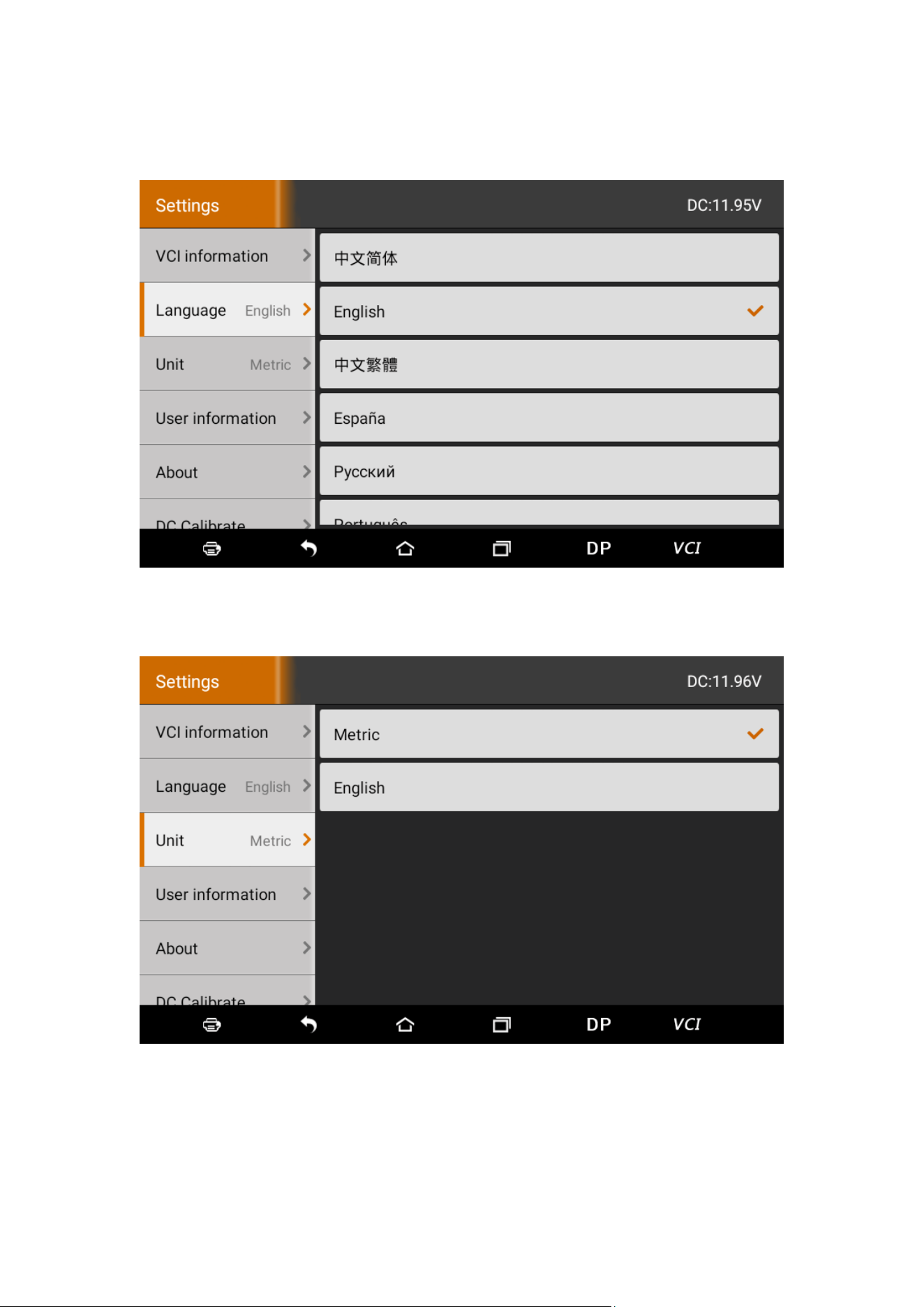
6.2 Language
6.3 Unit
6.4 User information
It used to set and manage user’s information.
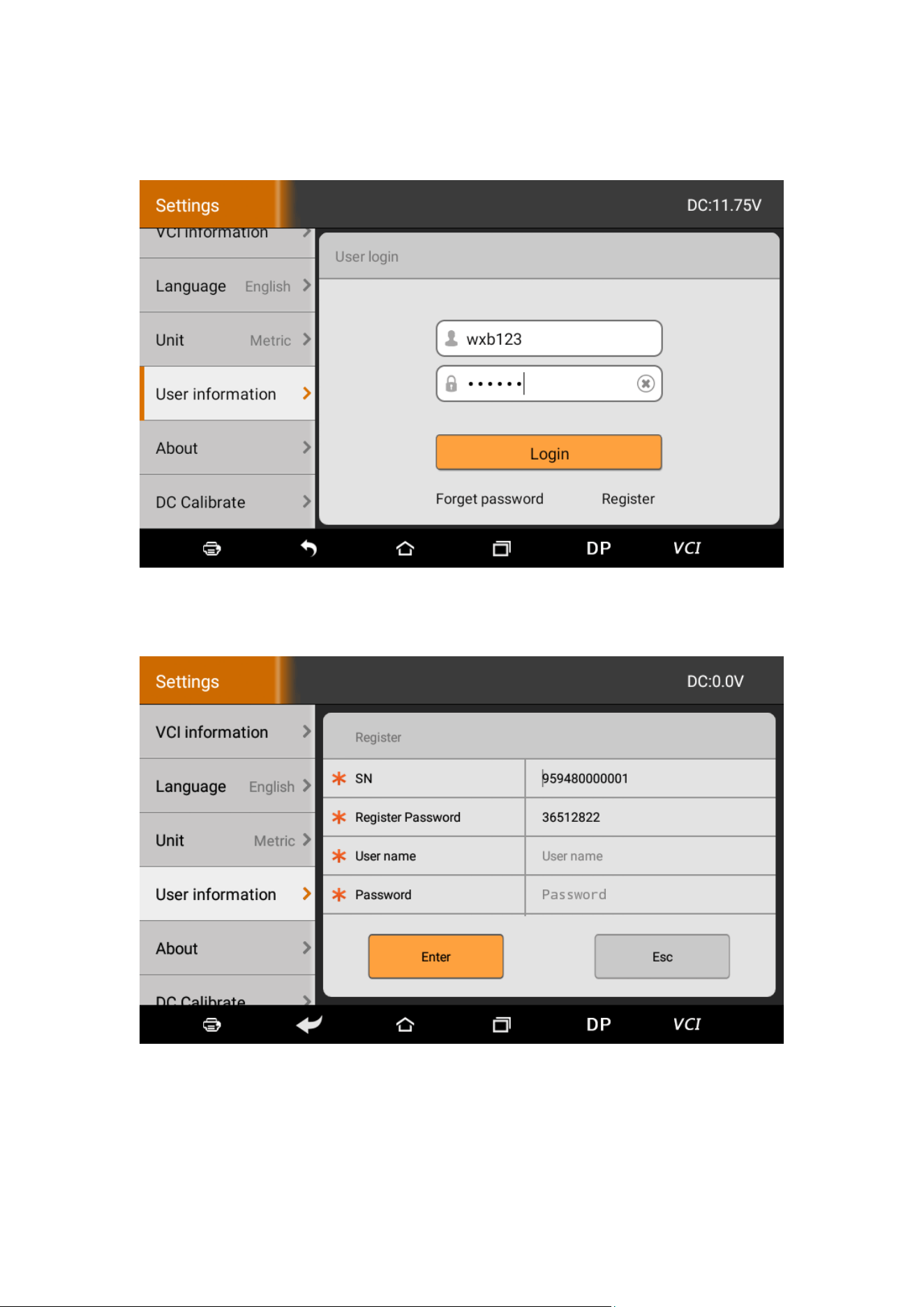
6.4.1 User login
6.4.2 User registration
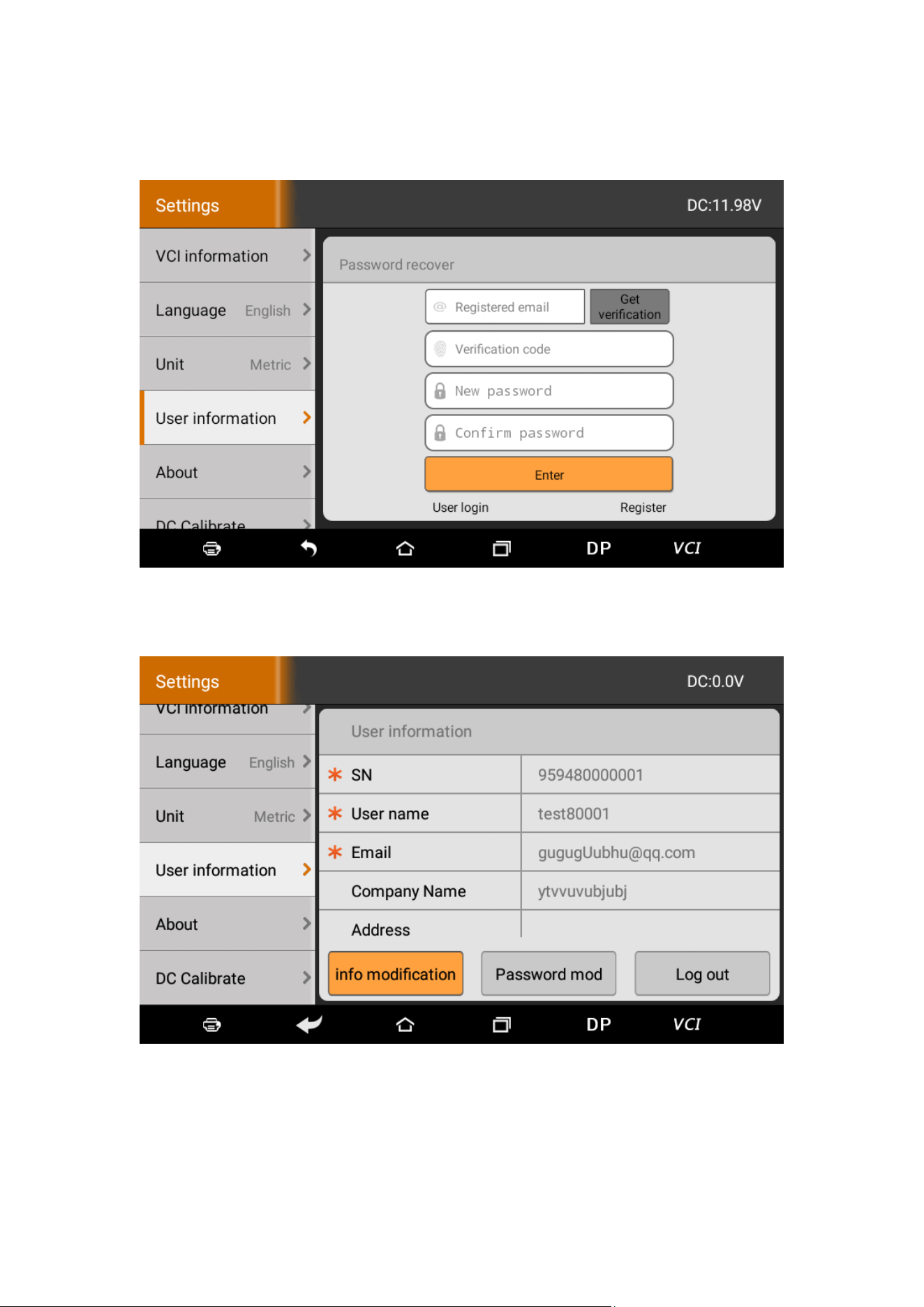
6.4.3 Forget password
6.4.4 Registration information
6.4.5 Info modification
6.4.6 Modify password
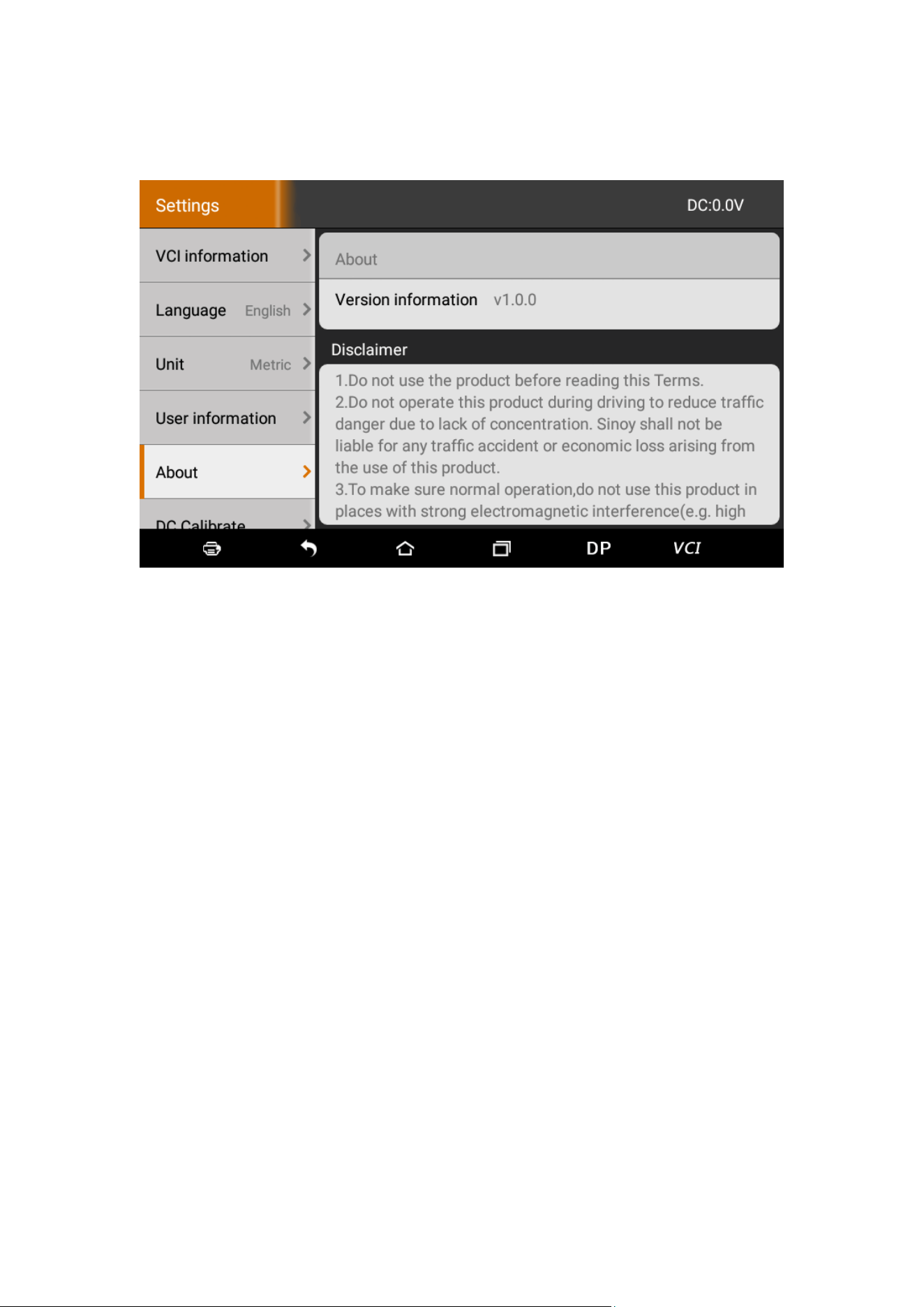
6.5 About
Display software version updates and product
announcements.
6.6 DC Calibrate
Voltage calibration is performed when the voltage is
abnormal:
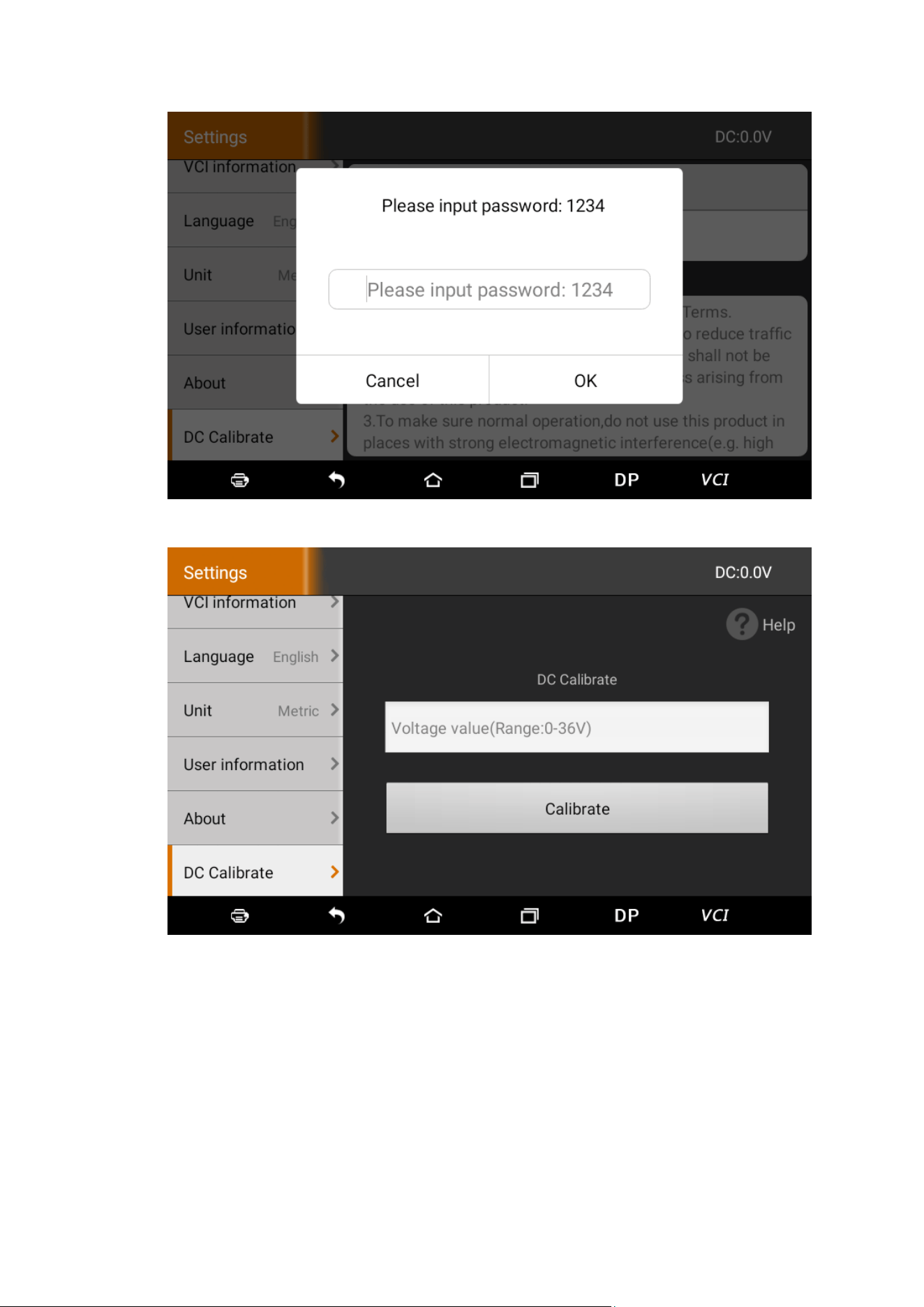
Enter the PinCode to access:
Enter the correct voltage for calibration. When it is
completed, display the correct voltage value in the
upper right corner of the diagnostic programming
interface.
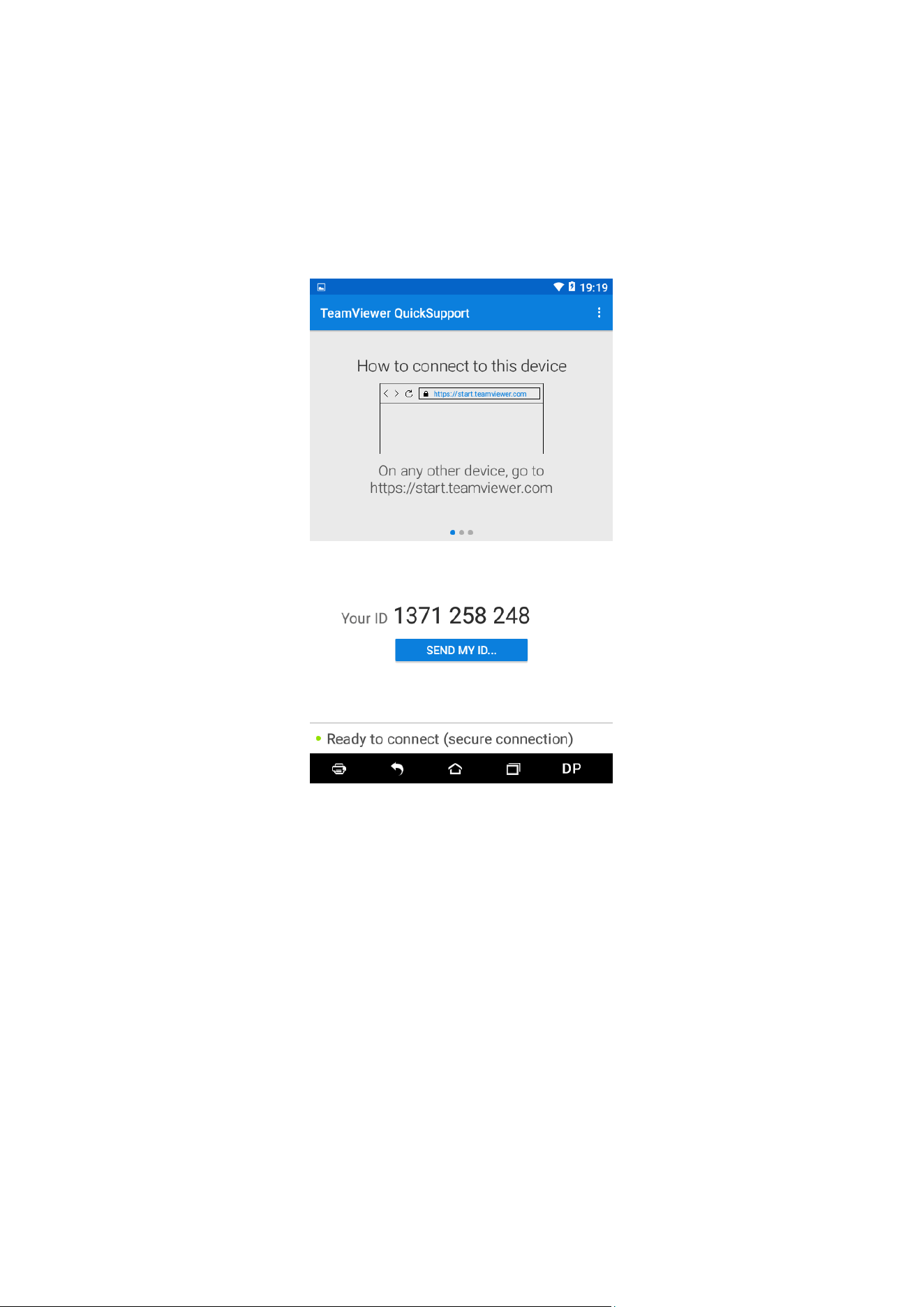
7 REMOTE ASSISTANCE
This application can realize remote hosting operation
via the Third Party’s software: Quick Support.