EN, English
Operator's manual
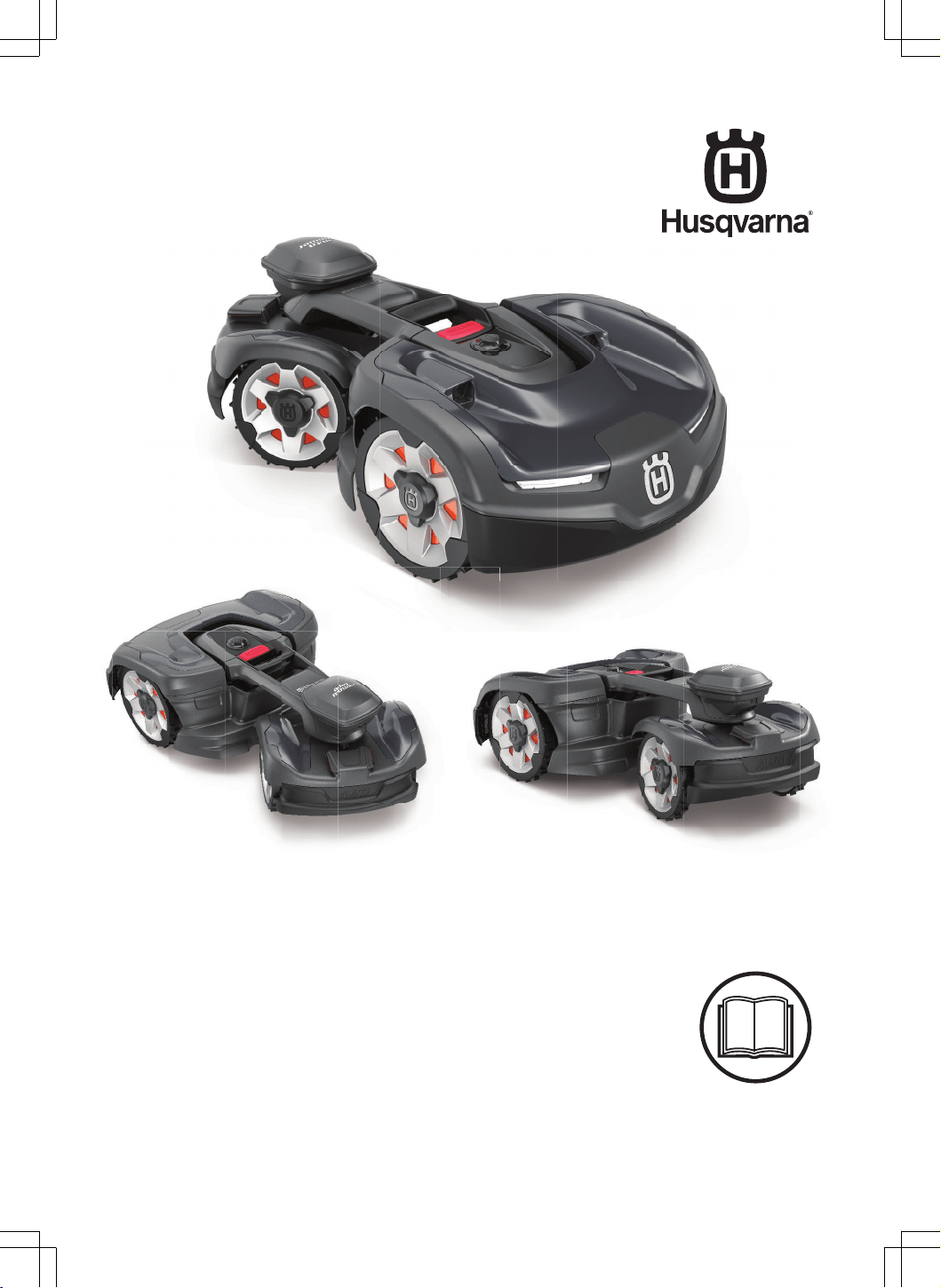
HUSQVARNA AUTOMOWER
®
435X AWD NERA
Read the operator's manual carefully and make sure that you
understand the instructions before you use the product.

Contents
1 Safety
1.1 Safety definitions...................................................4
1.2 General safety instructions....................................4
1.3 Safety instructions for installation..........................5
1.4 Safety instructions for operation............................5
1.5 Safety instructions for maintenance...................... 6
1.6 Battery safety........................................................ 6
1.7 To lift and move the product..................................6
2 Introduction
2.1 Support..................................................................7
2.2 Product description............................................... 7
2.3 Product overview ..................................................8
2.4 Symbols on the product........................................ 9
2.5 LED status indicator............................................ 10
2.6 Symbols on the battery....................................... 10
2.7 Symbols on the display....................................... 10
2.8 Menu structure overview in Automower
®
Access.......................................................................11
2.9 Symbols in the app..............................................12
2.10 General manual instructions............................. 12
2.11 Product damage................................................12
3 Installation with EPOS
™
technology
3.1 Introduction - Installation..................................... 13
3.2 System overview for EPOS
™
installation............13
3.3 Primary components for installation.................... 14
3.4 To prepare for installation................................... 14
3.5 To examine where to put the reference station...14
3.6 To examine where to put the charging station.... 14
3.7 To examine where to put the power supply........ 15
3.8 To examine where to install the virtual
boundaries................................................................ 15
3.9 Installation of the product.................................... 17
4 Installation with boundary wire
4.1 Introduction - Installation..................................... 23
4.2 Primary components for installation.................... 23
4.3 To prepare for installation................................... 23
4.4 Before the installation of the wires...................... 23
4.5 Installation of the product.................................... 28
5 Settings
5.1 Schedule............................................................. 32
5.2 Cutting height...................................................... 32
5.3 Pattern.................................................................32
5.4 Operation............................................................ 32
5.5 Installation settings..............................................33
5.6 Accessories.........................................................34
5.7 General (Bluetooth
®
only)................................... 34
5.8 Security............................................................... 35
5.9 Automower
®
Connect (Bluetooth
®
only)............. 35
5.10 Messages..........................................................35
5.11 Mowing profiles................................................. 35
5.12 Download firmware over the air (Firmware
over the air FOTA).................................................... 35
5.13 Automower
®
Intelligent Mapping (AIM) ............36
5.14 To reinstall the charging station on the map..... 36
5.15 To reinstall the reference station on the map....36
6 Operation
6.1 To set the product to ON.....................................37
6.2 To select operation mode Start........................... 37
6.3 Operating mode - Park........................................38
6.4 To stop the product............................................. 38
6.5 To set the product to OFF................................... 38
6.6 To charge the battery.......................................... 38
7 Maintenance
7.1 Introduction - maintenance..................................39
7.2 Maintenance schedule........................................ 39
7.3 Clean the product................................................40
7.4 Replacement of the blades................................. 41
7.5 Battery.................................................................42
7.6 Winter service..................................................... 42
8 Troubleshooting
8.1 Introduction - troubleshooting..............................43
8.2 Error symbols in the Automower
®
Access
display....................................................................... 43
8.3 Messages............................................................45
8.4 LED indicator of the charging station.................. 52
8.5 Symptoms........................................................... 53
8.6 Find breaks in the loop wire................................ 55
9 Transportation, storage and disposal
9.1 Transportation..................................................... 57
9.2 Storage................................................................57
9.3 Disposal.............................................................. 57
10 Technical data
10.1 Technical data...................................................59
10.2 Registered trademarks......................................61
11 Declaration of Conformity
11.1 Original EU Declaration of Conformity.............. 62
11.2 Translated EU Declaration of Conformity..........63
2
1404 - 017 -

1 Safety
1.1 Safety definitions
Warnings, cautions and notes are used to point out
specially important parts of the manual.
WARNING: Used if there is a risk of
injury or death for the operator or bystanders
if the instructions in the manual are not
obeyed.
CAUTION: Used if there is a risk of
damage to the product, other materials or
the adjacent area if the instructions in the
manual are not obeyed.
Note: Used to give more information that is necessary
in a given situation.
1.2 General safety instructions
WARNING: Read the warning
instructions that follow before you use the
product.
• Read the Operator’s manual carefully and make
sure you understand the instructions before you
use the product. Keep for future reference.
• This appliance is not intended for use by children
or persons with reduced physical, sensory or
mental capabilities (that could affect a safe
handling of the product), or lack of experience
and knowledge, unless they have been given
supervision or instruction concerning use of the
appliance by a person responsible for their safety.
However, EU requirements allows this appliance
to be used by children aged from 8 years and
above and persons with reduced physical, sensory
or mental capabilities or lack of experience and
knowledge, if they have been given supervision
or instruction concerning use of the appliance in
a safe way and understand the hazards involved.
Children shall not play with the appliance. Cleaning
and user maintenance shall not be made by
children without supervision.
• The product must only be used with the equipment
recommended by Husqvarna. All other types of
use are incorrect.
• To prevent damage to the product and accidents to
vehicles and persons, do not install work areas and
transport paths across public pathways.
• The product is not a toy. The blades of the product
can cause injury to persons and animals.
• Do not let children less than 8 years of age be
in the work area during operation. Children and
animals must be supervised at all times during
operation.
• All persons must be a minimum of 3 m/10 ft away
from the product when it is in operation. Do not for
example sleep or sunbathe in the work area when
the product is in operation.
• Warning signs must be put around the work area
of the product if it operates in public areas. The
signs must have the text that follows: Warning!
Automatic lawn mower! Keep away from the
machine! Supervise children!
• Do not run when you operate the product manually
with appDrive. Make sure that you have a safe and
stable position at all times. Make sure that there
are no persons near the product when it operates
in steep slopes. Always wear substantial footwear
and long pants when you operate the product with
appDrive.
• To set the product to OFF, go behind the product
and push the STOP button. You can use the app
to pause the product if it is applicable for your
product. When the product is set to OFF, wait
minimum 3 seconds before you move the product.
• Set the product to OFF before you clear a
blockage, do maintenance or examine the product,
and if the product starts to vibrate abnormally.
Examine the product for damage before you start
the product again. Do not use the product if it is
damaged.
• Do not touch moving hazardous parts, such as the
blade disc, before it has come to a complete stop.
• If an injury or accident occur, get medical aid.
• Do not put power supply cable and extension cable
in the work area. This can cause damage to the
cables.
• Do not connect a damaged cable or plug, or touch
a damaged cable, before it is disconnected from
the power outlet. Disconnect the plug from the
power outlet if the cable becomes damaged while
in operation. A worn or damaged cable increases
the risk of electrical shock. A damaged cable must
be replaced by service personnel.
• When you connect the power supply to the power
outlet, use a residual-current device (RCD) with a
tripping current of maximum 30 mA.
• Only charge the product in the included charging
station. For safe disposal of the battery, refer to
Disposal on page 57
. Incorrect use may result in
electric shock, overheating or leaking of corrosive
liquid from the battery. In the event of leakage of
electrolyte, flush with water/neutralizing agent. Get
medical aid if corrosive liquid comes in your eyes.
4
- Safety 1404 - 017 -
• Use only original batteries recommended by
Husqvarna. Product safety cannot be guaranteed
with other than original batteries. Do not use non-
rechargeable batteries.
• Follow the installation instructions that includes
to specify the work area, refer to
Introduction -
Installation on page 23
.
• Follow the instructions about to start and operate
the product, refer to
Operation on page 37
.
• If there is a risk of thunderstorm, Husqvarna
recommends that the power supply and all the
wires to the charging station are disconnected
to decrease the risk of damage to electrical
components. Connect the power supply and all
the wires again if there is no longer a risk of
thunderstorm. It is important that all wires are
connected correctly.
• Follow the maintenance instructions and if
necessary use Husqvarna original spare parts,
refer to
Maintenance on page 39
.
• For technical data such as weight, dimensions and
noise emission values, refer to
Technical data on
page 59
.
• The operator is responsible for accidents or
dangers that occurs to other persons or property.
• The product must only be operated, maintained
and repaired by persons that are fully conversant
with its special characteristics and safety
regulations.
• It is not permitted to change the initial design of the
product.
• Obey national regulations about electrical safety.
• Husqvarna does not guarantee full compatibility
between the product and other types of
wireless systems such as remote controls, radio
transmitters or equivalent.
• The built-in alarm is very loud. Be careful,
especially if the product is handled indoors.
• Operation and storage temperature range is 0-50
°C / 32-122 °F. Temperature range for charging is
5-45 °C / 41-113 °F. Too high temperatures can
cause damage to the product.
1.3 Safety instructions for installation
WARNING:
Read the warning
instructions that follow before you use the
product.
• Do not install the charging station in an area where
there is a risk that persons trip on it.
• Do not install the charging station, including any
accessory, at a location that is below, or within 60
cm / 24 in. from, any combustible material. In case
of malfunction, heating of the charging station and
the power supply may occur and create a potential
risk of fire.
• Do not put the power supply at a height where
there is a risk it can be put in water. Do not put the
power supply on the ground.
• Do not encapsulate the power supply. Condensed
water can harm the power supply and increase the
risk of electrical shock.
• Do not install the charging station where there are
pests, for example ants.
• Applicable to USA/Canada. If power supply is
installed outdoors: Risk of Electric Shock. Install
only to a covered Class A GFCI receptacle (RCD)
that has an enclosure that is weatherproof with the
attachment plug cap inserted or removed.
• Do not install the charging station where there is a
risk of standing water.
1.4 Safety instructions for operation
WARNING: Read the warning
instructions that follow before you use the
product.
• Keep your hands and feet away from the rotating
blades. Do not put your hands or feet near or
below the product when it is set to ON.
• Use the park mode or set the product to OFF when
persons, especially children or animals are in the
work area. Refer to
To set the product to OFF
on page 38
. Husqvarna recommends to set the
product to operate when the work area has no
activity. The product can cause injury to animals at
night in work area, for example hedgehogs. Refer
to
To set the product to OFF on page 38
.
• Make sure that there are no objects such as
stones, branches, tools or toys on the lawn. The
blades can be damaged if it hits an object.
• Do not lift the product or move it when it is set to
ON.
• Do not to let the product collide with persons or
animals. If a person or animal comes in the way of
the product, stop the product immediately. Refer to
To stop the product on page 38
.
• Do not put objects on top of the product or its
charging station.
• Do not use the product if the STOP button does
not work.
• Always set the product to OFF when it is not in
operation. The product can only start when you
enter the correct PIN code.
• Do not use the product at the same time as a
pop-up sprinkler. Use the
Schedule
function so the
product and pop-up sprinkler do not operate at the
same time. Refer to
Schedule on page 32
.
• Do not let the product operate when there is
standing water in the work area. For example when
heavy rain forms pools of water.
1404 - 017 -
Safety - 5
1.5 Safety instructions for maintenance
WARNING: Read the warning
instructions that follow before you do
maintenance on the product.
• Set the product to OFF when you do maintenance
on the product.
• Do not use a high-pressure washer to clean the
product. Do not use solvents to clean the product.
• Disconnect the plug to the charging station before
you clean or do maintenance of the charging
station.
1.6 Battery safety
WARNING: Read the warning
instructions that follow before you use the
product.
• Lithium-ion batteries can explode or cause fire if
disassembled, short-circuited, exposed to water,
fire, or high temperatures. Handle carefully, do
not dismantle, open the battery or use any type
of electrical/mechanical abuse. Avoid storage in
direct sunlight.
1.7 To lift and move the product
WARNING: The product must be set to
OFF before you lift it. The product is OFF
when the LED status indicator goes off.
CAUTION: Do not lift the product when
it is parked in the charging station. It can
damage the charging station and/or the
product. Push the STOP button and pull the
product out of the charging station before
you lift it.
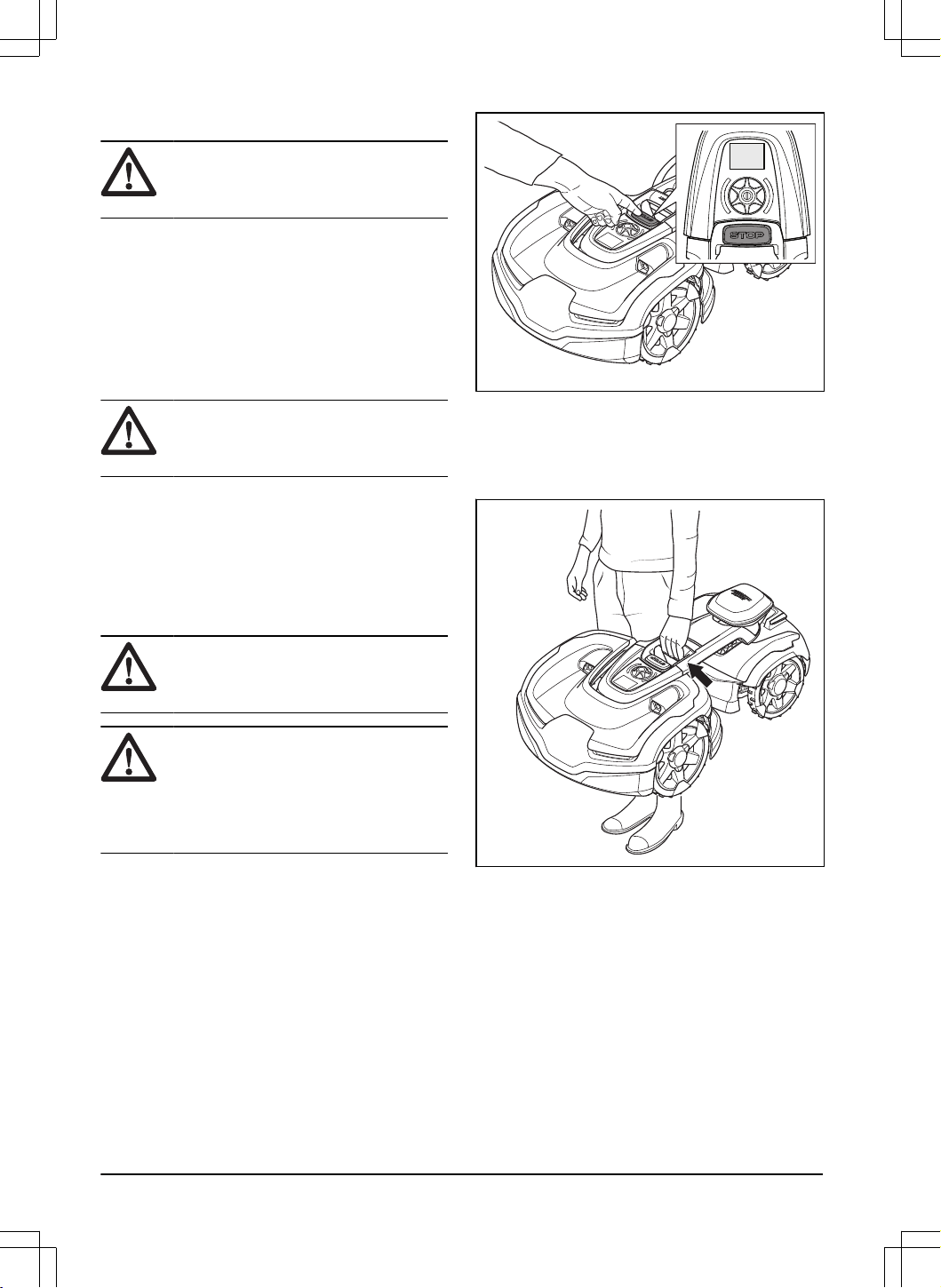
1. Push the STOP button to stop the product.
2. Enter the PIN code if it is necessary.
3. Push the jog wheel for 3 seconds to set the
product to OFF.
4. Make sure that the LED status indicator goes OFF.
5. Lift the product by the handle.
6 - Safety 1404 - 017 -

2 Introduction
Factory PIN code: 1234
Serial number:
Product number:
The serial number and the product number are on the product rating plate and on the product carton.
• Register your product on www.husqvarna.com. Enter the serial number of the product, the product number and
the date of purchase to register your product.
2.1 Support
For support about the product, speak to your Husqvarna
servicing dealer.
2.2 Product description
Note: Husqvarna regularly updates the appearance
and function of the products. Refer to
Support on page
7
.
The product is a robotic lawn mower. The product has a
battery power source and cuts the grass automatically. It
continuously alternates between mowing and charging.
The product operates until the battery state of charge is
low or until the work area is cut, then the product starts
to go to the charging station.The movement pattern of
the product can be set to irregular or systematic. The
frequent cutting technique improves the grass quality
and decreases the use of fertilizers. Collection of grass
is not necessary.
The operator selects the operation settings in
Automower
®
Access on the product. The display shows
the selected and possible operation settings, and the
operation mode of the product.
2.2.1 Installation method
You can install the product with a boundary wire or
without boundary wire with EPOS
™
.
For installation of the boundary wire, refer to
Installation
with boundary wire on page 23
. For installation with
EPOS
™
, refer to
Installation with EPOS
™
technology on
page 13
.
2.2.2 Automower
®
Access
Automower
®
Access is the user interface of the product,
it includes the display, the jog wheel, the START
button and the STOP button. In Automower
®
Access
you can set the cutting height and start, stop and
park the product. Refer to
Menu structure overview in
Automower
®
Access on page 11
.
2.2.3 Automower
®
Connect
Automower
®
Connect is a mobile application that makes
it possible to select the operation settings remotely. The
product can connect to the app with Bluetooth
®
and
cellular connectivity. When you are near the product
you can connect your mobile device and the product
with Bluetooth
®
. It is necessary to be connected with
Bluetooth
®
to make some settings. When the product
is connected to the cellular network you can control
the product from everywhere. You can also make
the settings of the product. Refer to
Installation with
boundary wire on page 23
.
1404 - 017 - Introduction - 7
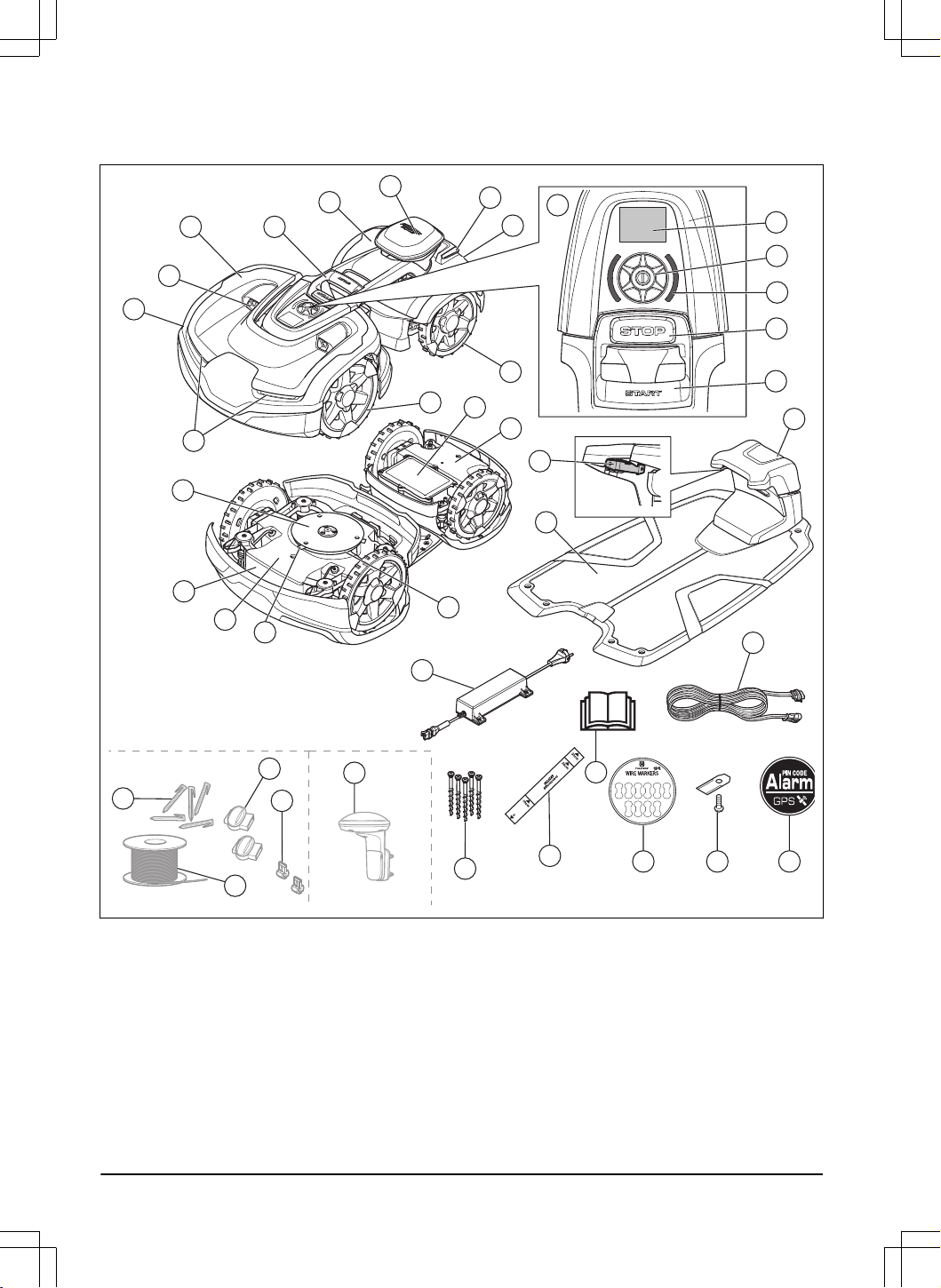
2.3 Product overview
3
5
7
15
13
16
11
10
4
9
17
2
14
1
6
20
18
19
24
23
25
27
28
21
22
38
39
36
35
40
37
34
32
30
33
31
26
29
12
8
1. Front body
2. Ultrasonic sensors
3. Front top cover
4. Handle
5. Rear body
6. EPOS
™
module
7. Charging plates
8. Rear top cover
9. Headlights
10. Front wheels
11. Rear wheels
12. Automower
®
Access
13. Display
14. Jog wheel
15. LED status indicator
16. STOP button
17. START button
18. Battery cover
19. Rear chassis with electronics, battery and motors
20. Skid plate
8 - Introduction 1404 - 017 -
21. Rating plate (incl. product identification code)
22. Front chassis with electronics and motors
23. Blades
24. Blade disc
25. Contact plates
26. LED indicator of the charging station
27. Charging station
28. Power supply
1
29. Low-voltage cable
30. Loop wire for boundary wire and guide wire
2
31. Couplers for loop wire
3
32. Stakes
4
33. Connector for the loop wire
5
34. Screws to attach the charging station
35. Measurement gauge for installation of the
boundary wire (the measurement gauge is
removed from the carton of the product)
36. Operator’s manual and Quick guide
37. Cable markers
38. Extra blades
39. Alarm decal
40. Reference station
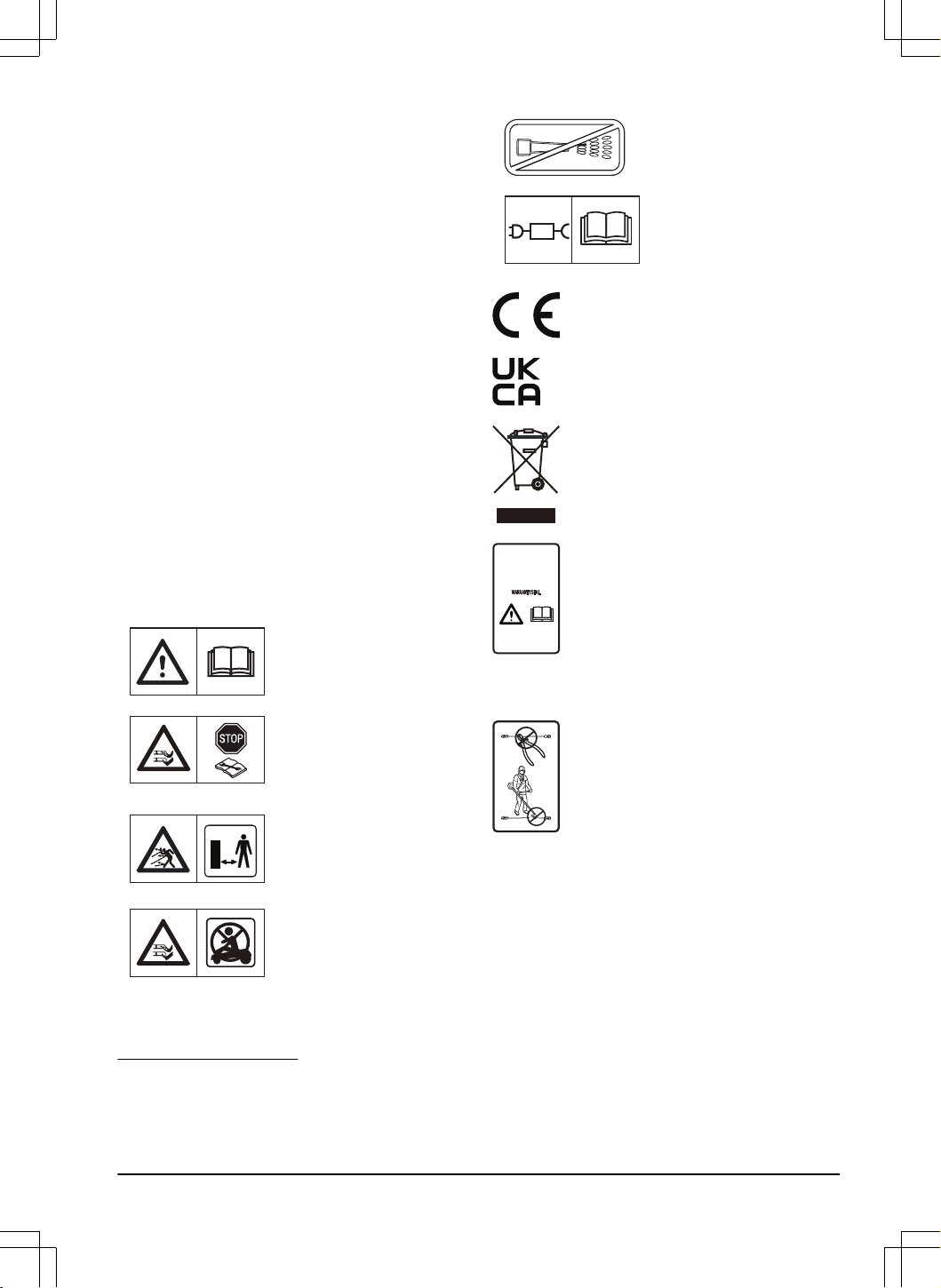
2.4 Symbols on the product
These symbols can be found on the product. Study them
carefully.
WARNING: Read the user
instructions before operating
the product.
WARNING: Disable the prod-
uct before working on or lift-
ing the product.
WARNING: Keep a safe dis-
tance from the product when
operating. Keep your hands
and feet away from the rotat-
ing blades.
WARNING: Do not ride on
the product. Do not put your
hands or feet close to or un-
der the product.
Do not use a high-pressure
washer or even running water
to clean the product.
Use a detachable power sup-
ply as defined on the rating
label next to the symbol.
This product complies with the applicable
EU Directives.
This product complies with the applicable
UK Directives.
It is not permitted to dispose this product
as normal household waste. Ensure that
the product is recycled in accordance with
local legal requirements.
The chassis contains components which
are sensitive to electrostatic discharge
(ESD). The chassis must also be resealed
in a professional manner. For these
reasons the chassis shall only be opened
by authorized service technicians. A
broken seal can result in the entire or
parts of the guarantee no longer being
valid.
The low-voltage cable must not be
shortened, extended or spliced.
Do not use a trimmer nearby the low-
voltage cable. Be careful when trimming
edges where the cables are placed.
1
The appearance can be different for different markets.
2
Is a part of the Installation kit which is purchased separately.
3
Refer to note 2
4
Refer to note 2
5
Refer to note 2
1404 - 017 - Introduction - 9
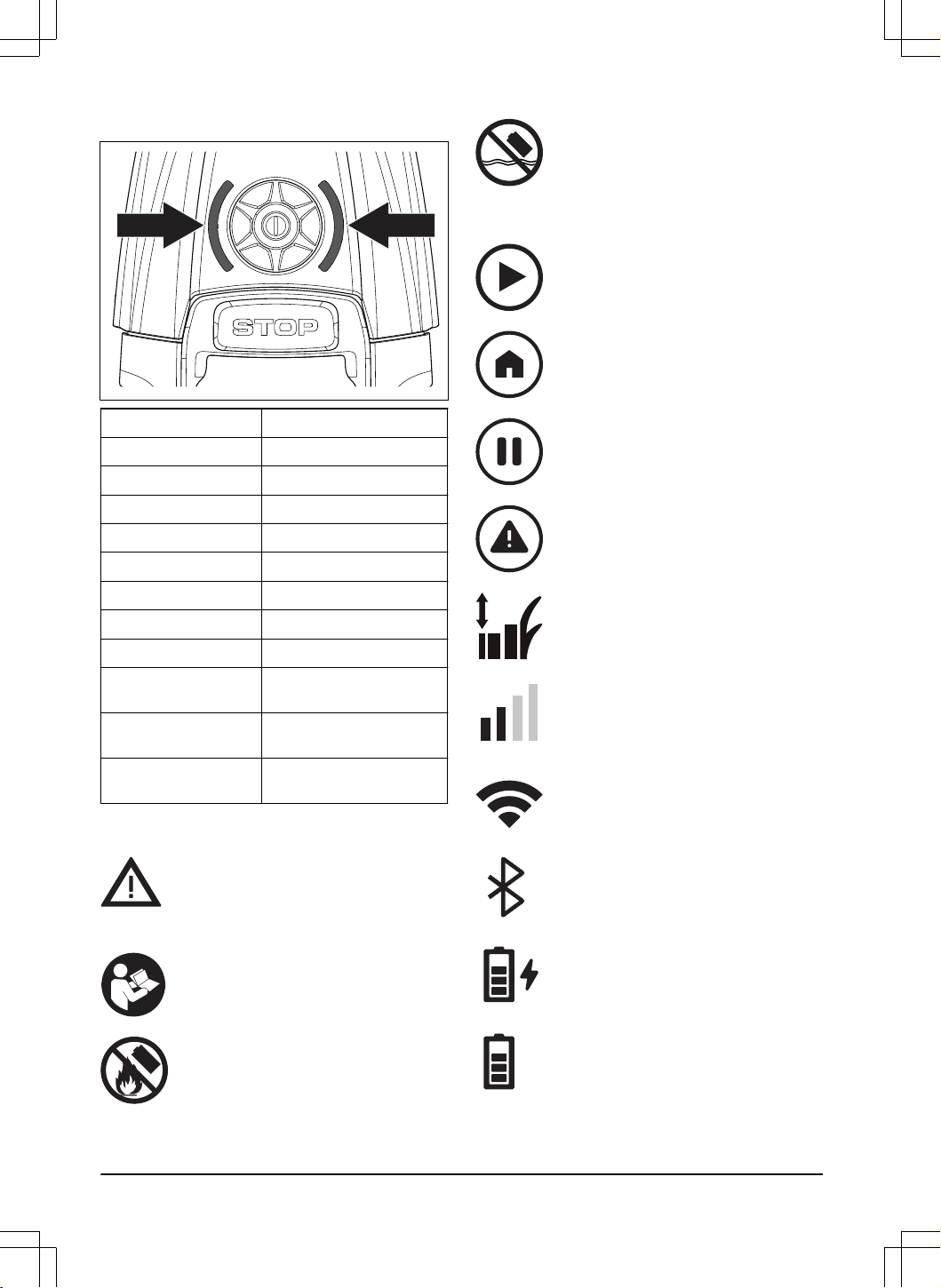
2.5 LED status indicator
LED Status
Green constant light In operation.
Green light flashes Paused.
Green light pulsates Charging
Red constant light Error.
Yellow constant light Stopped.
Yellow light flashes Waiting for PIN code.
Blue constant light Parked and charging.
Blue light pulsates Parked and charging.
Blue light flashes Parked/Bluetooth
®
pairing
operation is enabled.
White constant light The product sets to off /
Firmware is downloaded.
White light pulsates Firmware installation is in
progress.
2.6 Symbols on the battery
WARNING:
Lithium-ion batteries can
explode or cause fire if disassembled,
short-circuited or handled roughly. Do not
expose to water, fire or high temperature.
Read the user instructions.
Do not discard the battery into fire and do
not expose the battery to a heat source.
Do not immerse the battery into water.
2.7 Symbols on the display
The product is in operation.
The product is parked.
The product is paused.
There is an error.
Cutting height of the product.
Cellular signal strength.
Wi-Fi signal strength.
Bluetooth
®
connection is enabled.
The battery is charging.
Battery level.
10 - Introduction 1404 - 017 -
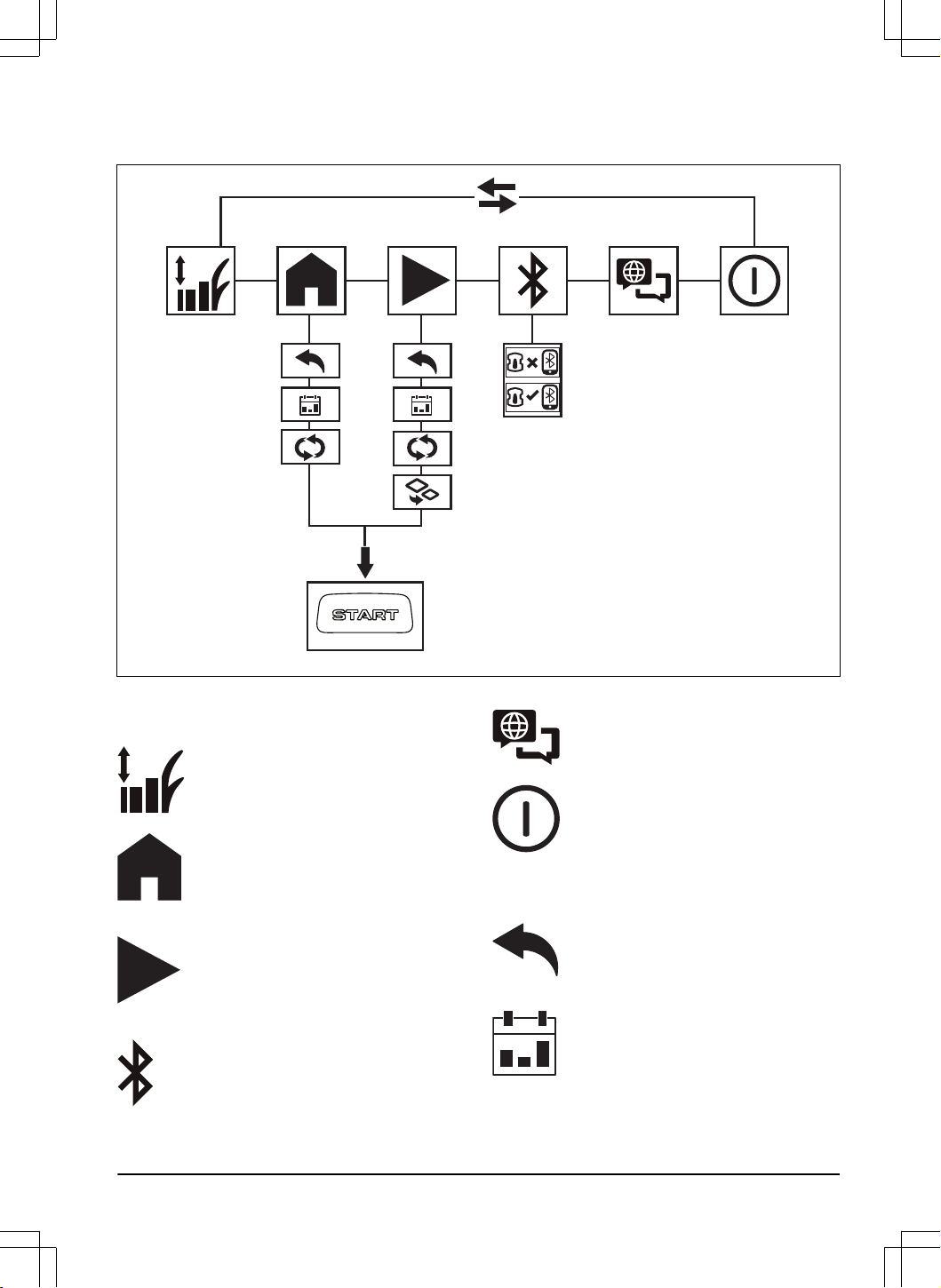
2.8 Menu structure overview in Automower
®
Access
2.8.1 Symbols in the main menu for
Automower
®
Access
Cutting height
In the
Cutting height
menu you can adjust
the cutting height.
Park
In the
Park
menu you can set the product
to park until further notice or to the set
schedule.
Mow
In the
Mow
menu you can set the product
to cut to the set schedule or in secondary
area mode.
Connect
In the
Connect
menu you can enable
Bluetooth
®
and make a pairing operation
with your mobile device.
Language
In the
Language
menu you can select a
language in the display.
Power off
Power off
sets the product to OFF.
2.8.2 Symbols in the submenu for
Automower
®
Access
Back
If you select
Back
, you go back to the
main menu.
Schedule
In the
Schedule
submenu you can select
the
Schedule
settings. The
Schedule
settings are set in the Automower
®
Connect app.
1404 - 017 - Introduction - 11
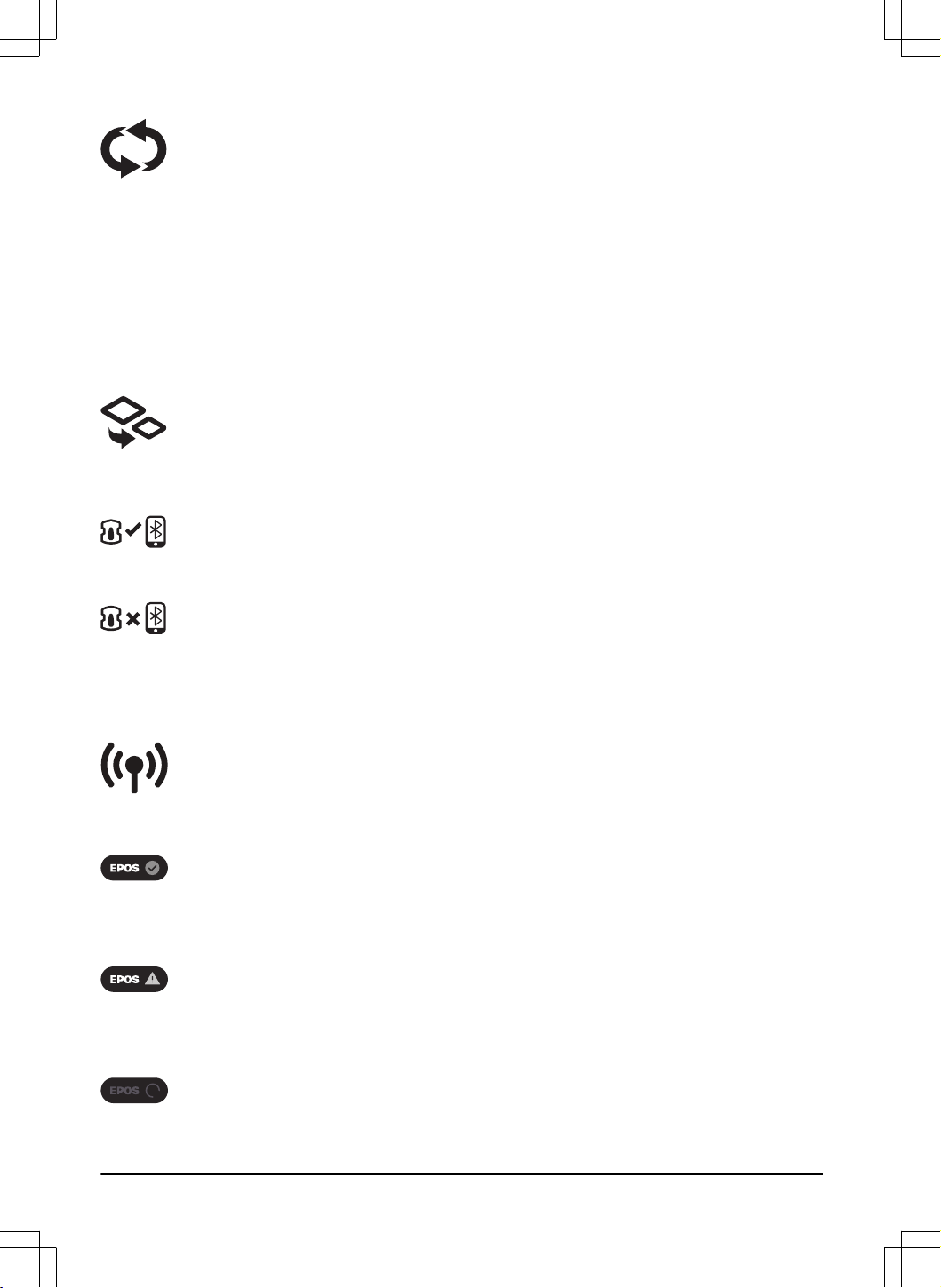
Selected operation mode
If you only have one work area, you
can select to override the schedule and
continue to cut until you change the
operation mode.
If you have more than one work area
you can select to override the schedule
and only cut one of the work areas. For
work areas with irregular mowing, the
product will cut this area until you change
the operation mode. For systematic work
areas, the product will cut until the area
is completed and then it will park in the
charging station.
Secondary area
In the
Secondary area
submenu you
can select the
Secondary area
operation
mode. Refer to
To make a secondary area
on page 27
.
Connected
The product and mobile device are
connected with Bluetooth
®
.
Not Connected
The product and mobile device are not
connected with Bluetooth
®
.
2.9 Symbols in the app
Shows the status of the correction data
that the product receives.
The status is
EPOS
™
confirmed
. The
product has an accurate position and
direction. This is necessary to operate
the product automatically and for the
installation of map objects.
The status is
EPOS
™
action is necessary
.
The product has an accurate position but
it is necessary to operate the product,
manually or automatically, to get an
accurate direction.
The status is
EPOS
™
searching
. The
product does not have an accurate
position and is searching for the satellite
signals and the correction data to get an
accurate position.
2.10 General manual instructions
The following system is used in the Operator’s Manual
to make it easier to use:
• Text written in
italics
is a text that is shown in the
display or is a reference to another section in the
Operator’s Manual.
• Text written in bold is one of the buttons on the
product.
2.11 Product damage
We are not responsible for damages to our product if:
• the product is incorrectly repaired.
• the product is repaired with parts that are not
from the manufacturer or not approved by the
manufacturer.
• the product has an accessory that is not from the
manufacturer or not approved by the manufacturer.
• the product is not repaired at an approved service
center or by an approved authority.
12 - Introduction 1404 - 017 -
3 Installation with EPOS
™
technology
3.1 Introduction - Installation
WARNING: Read and understand the
safety chapter before you install the product.
CAUTION: Use original spare parts and
installation material.
Note: Refer to www.husqvarna.com for more
information about installation.
For installation with EPOS
™
, the product uses satellites
and correction data to navigate. The correction data
can be received through the Husqvarna
®
Cloud or a
reference station. The reference station is an optional
accessory that you can use if you cannot connect to the
Husqvarna
®
Cloud.
Note: All countries do not support reference stations
or correction data through the Husqvarna
®
Cloud.
Speak to you local Husqvarna representative for
information.
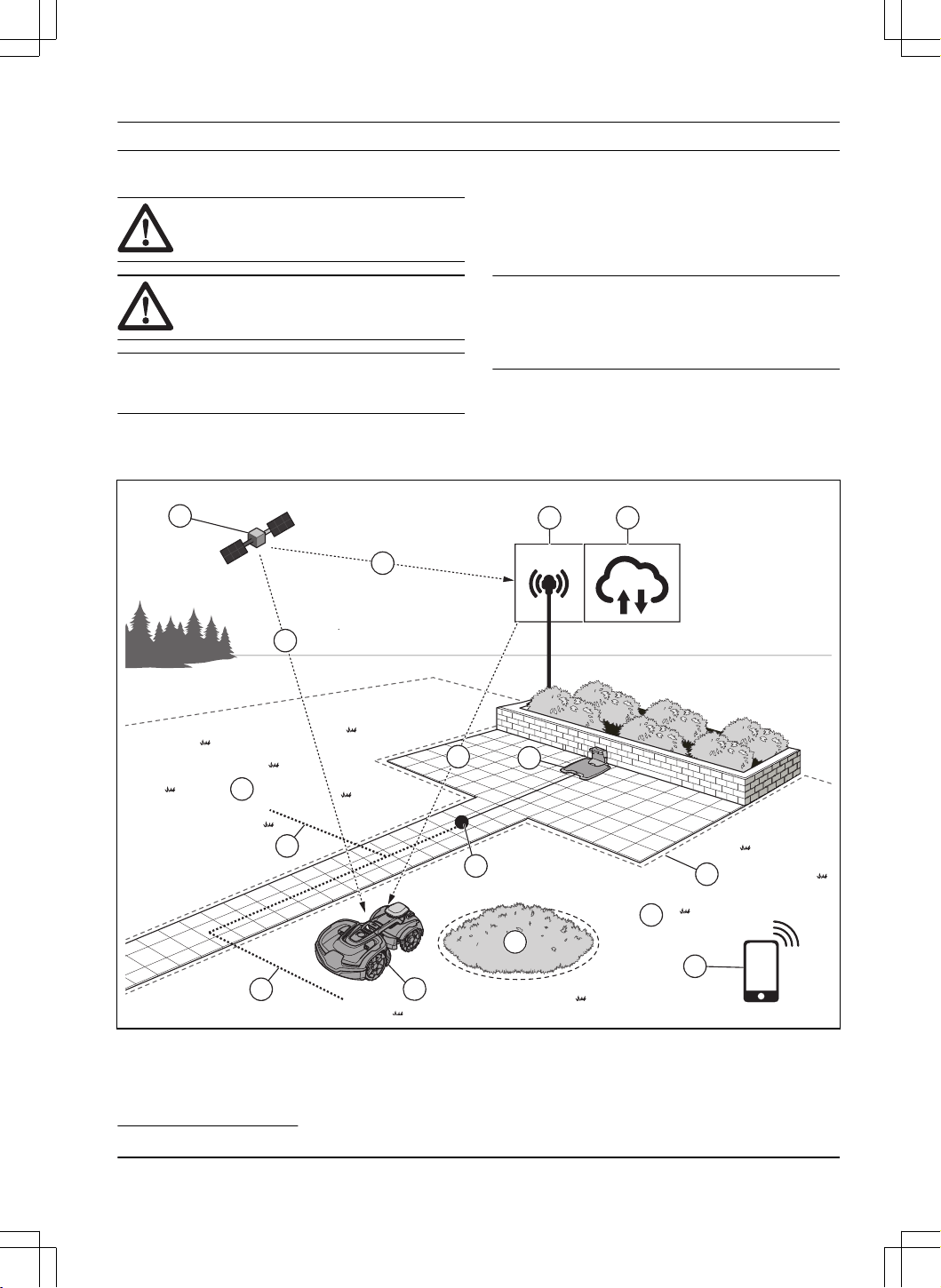
3.2 System overview for EPOS
™
installation
6
3 4
1
2
9
9
2
5
10
13
7
8
11
12
12
1. Satellites
2. Satellite signals
3. Reference station
6
4. Husqvarna
®
Cloud
5. Correction data
6. Charging station
6
Not included.
1404 - 017 - Installation with EPOS
™
technology - 13
7. Virtual boundary
8. Stay-out zone
9. Work area
10. Mobile device
7
11. Docking point
12. Transport path
13. Robotic lawn mower
3.3 Primary components for installation
The installation includes the components that follow:
• Robotic lawn mower, that cuts the lawn
automatically.
• Charging station, that charges the product.
• Power supply, which is connected to the charging
station and a 100-240V power outlet.
• Reference station
8
, that receives satellite signals
and sends correction data to the robotic lawn
mower.
• Mobile device with the Automower
®
Connect app
to do the installation and the settings for the
product.
3.4 To prepare for installation
CAUTION: Holes with water in the lawn
can cause damage to the product.
CAUTION: Read the installation
chapter before you start the installation.
• If you use EPOS
™
through Husqvarna
®
Cloud,
make sure that the product has cellular coverage
and can receive correction data in the complete
work area.
Note:
If you cannot connect the product to
the Husqvarna
®
Cloud, you can use a reference
station to receive correction data.
• Make a blueprint of the work area and include all
obstacles. This makes it easier to examine where
to put the charging station, the virtual boundaries
and the reference station.
• Make a mark on the blueprint where to put
the charging station, the maintenance point, the
transport paths, the virtual boundaries, stay-out
zones and the reference station.
• Fill in holes in the lawn to make it level.
• Cut the grass before you install the product. Make
sure that the grass is maximum 10 cm / 4 in.
Note:
The first weeks after installation the sound level
when the product cuts the grass can be higher than
usual. The sound level decreases after some time.
3.5 To examine where to put the
reference station
Read and understand the instructions about where to
put the reference station. Refer to the Operator's manual
for the reference station.
3.6 To examine where to put the
charging station
• You can put the charging station in the work
area or not in the work area. No transport path
is necessary if the charging station is put in the
work area (A). No transport path is necessary if
the product is fully in the work area when it is at
the charging station docking point. If the charging
station and docking point (B) are not in the work
area, you must install a transport path (C).
A
B
C
• You can put the charging station in an
Automower
®
house.
• Put the charging station (A) where the docking
point (B) has unimpeded sky view. The charging
station docking point (B) is where the product
stops after reversing from the charging station.
The reversing distance can be set to 100-300
cm / 40-118 in. Husqvarna recommends to have
a minimum of 6 m / 19.6 ft. (C) free space in front
of the charging station.
B
C
A
7
Not included.
8
Optional accessory which is purchased separately.
14 - Installation with EPOS
™
technology 1404 - 017 -
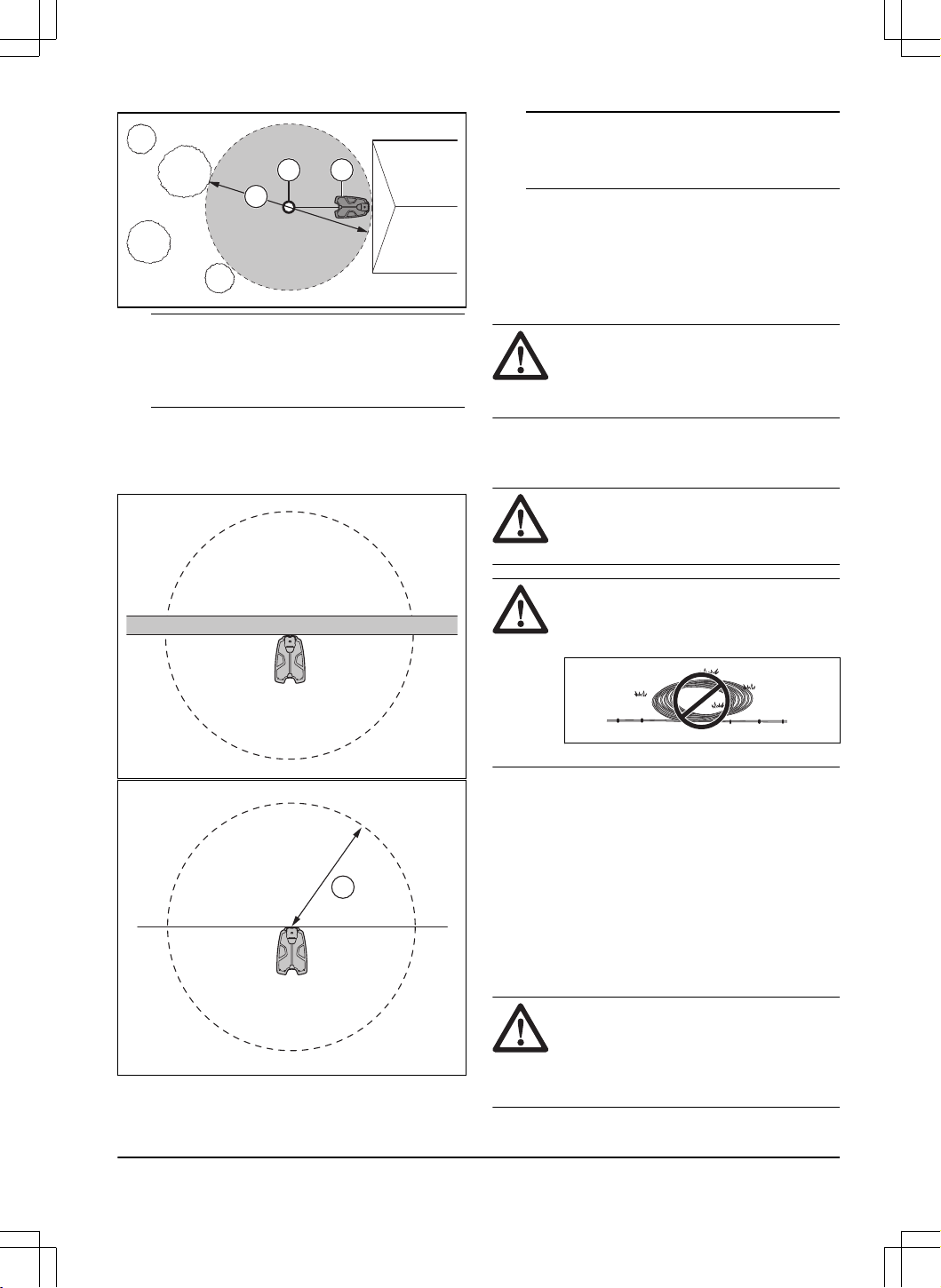
AB
C
Note: Short reversing distance decreases the
risk of track marks. A long reversing distance can
be necessary to have good satellite signals at the
docking point.
• If the product must not operate in a part of the
docking area, put a protective wall that is minimum
15 cm / 6 in. in height. The docking area (A) is
a circular area around the charging station with a
radius of 3 m / 9.8 ft.
A
Note: The product uses the charging station
signal to search for the charging station when it
is in the docking area.
• Put the charging station near a power outlet.
• Put the charging station on a level surface.
• The baseplate of the charging station must not be
bent.
• If the work area has 2 parts separated with a steep
slope, Husqvarna recommends to put the charging
station in the lower section.
CAUTION: Do not install the charging
station where there are metal objects
in the ground. Metal objects can cause
interference with the charging station signal.
3.7 To examine where to put the power
supply
CAUTION: Make sure that the blades
on the product do not cut the low-voltage
cable.
CAUTION: Do not put the low-voltage
cable in a coil or below the charging station
plate. The coil causes interference with the
signal from the charging station.
• Put the power supply in an area with a roof and
protection from the sun and rain.
• Put the power supply in an area with good airflow.
• Use a residual-current device (RCD) with a tripping
current of maximum 30 mA when you connect the
power supply to the power outlet.
Low-voltage cables of different lengths are available as
accessories.
3.8 To examine where to install the
virtual boundaries
CAUTION:
If the work area is adjacent
to water bodies, slopes, precipices or a
public road, there must be a protective wall.
The wall must be minimum 15 cm / 6 in. in
height.
1404 - 017 - Installation with EPOS
™
technology - 15
CAUTION: Do not let the product
operate on gravel.
• For careful operation without noise, isolate all
obstacles such as trees, roots and stones.
• Make a blueprint of the work area before you install
the virtual boundaries.
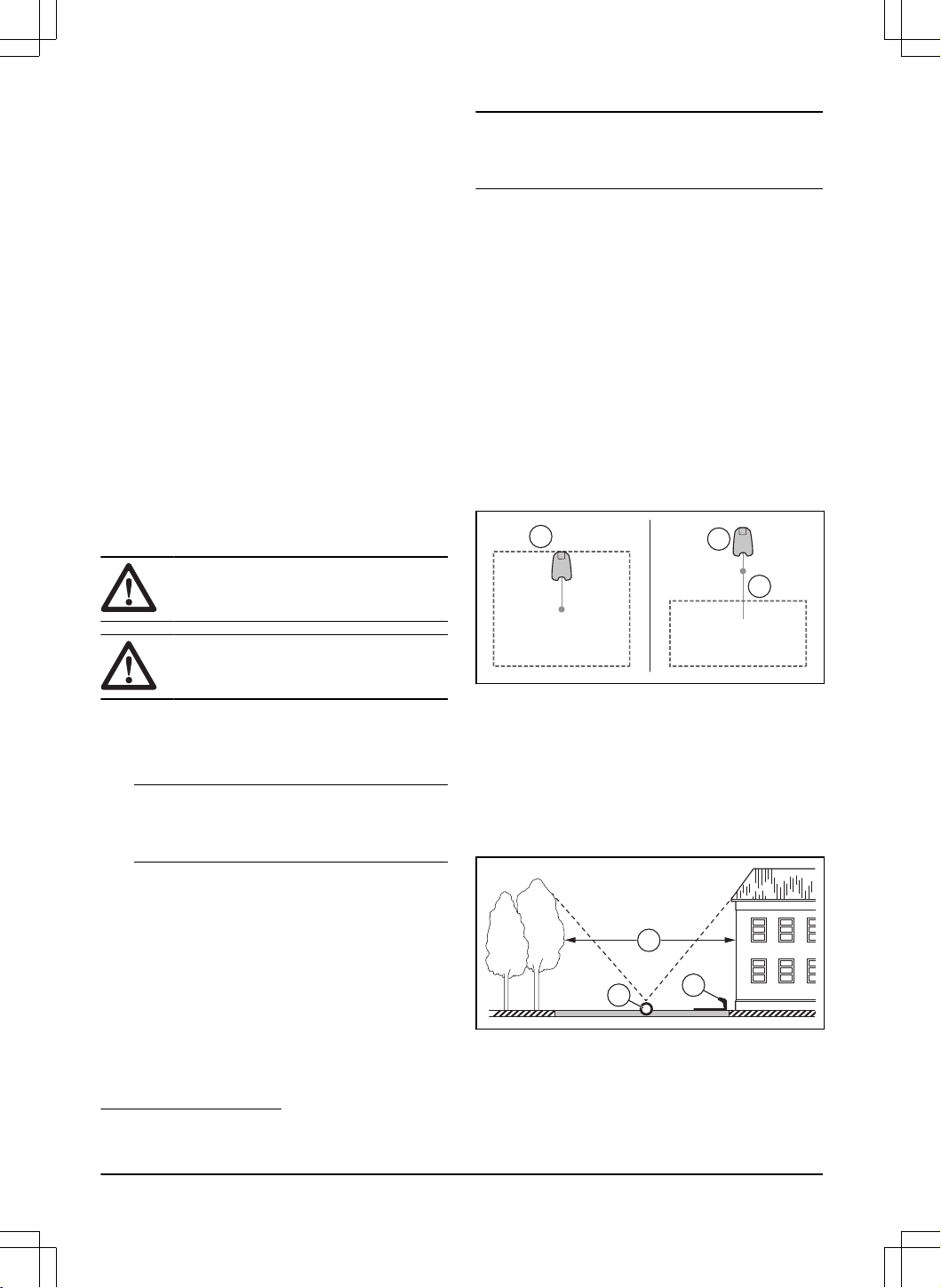
3.8.1 To install map objects near buildings
and trees
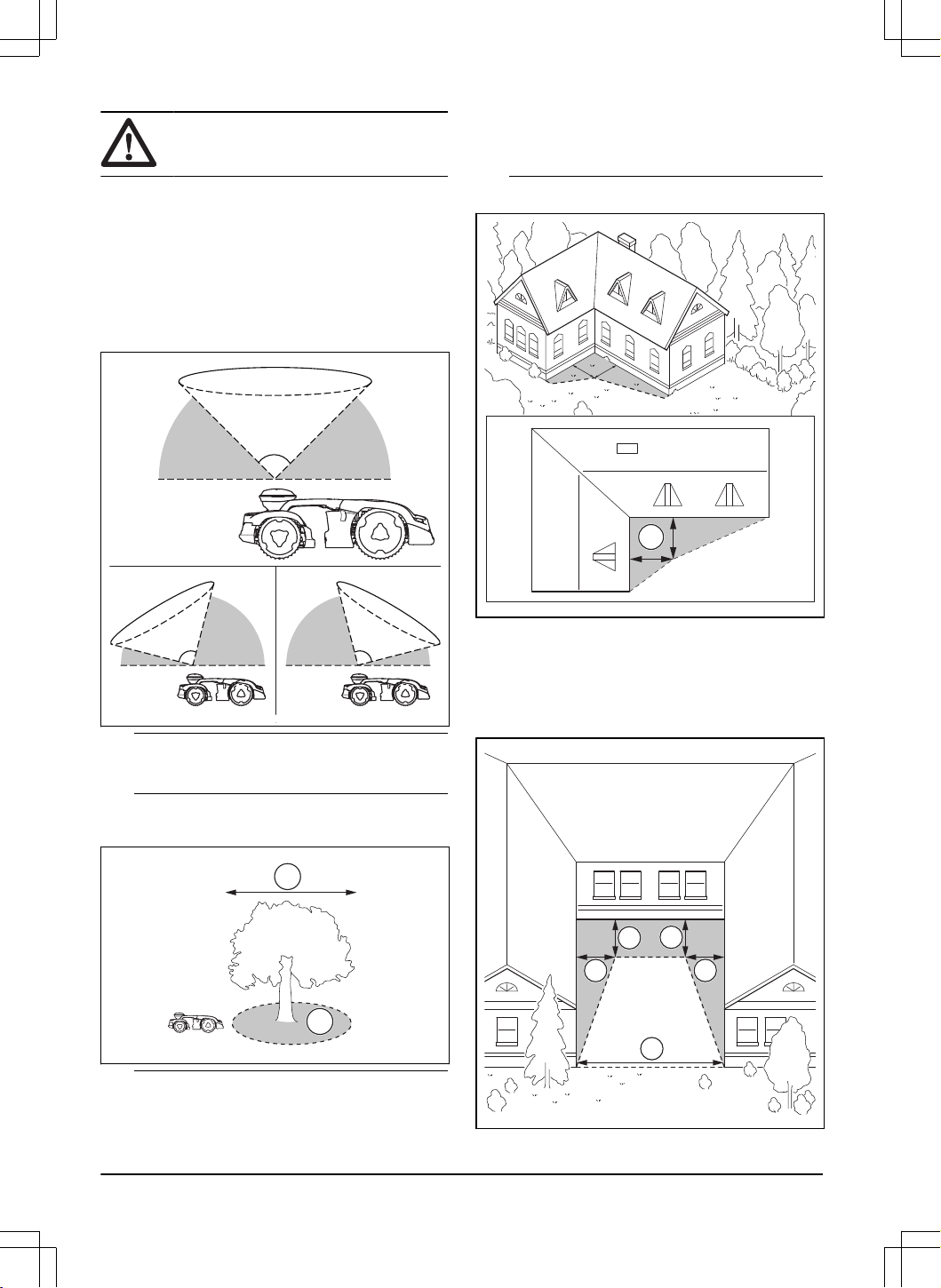
• Make sure that 90° section of the sky is unimpeded
where the product operates.
90°
Note: The product cannot receive signals from
the satellite for navigation if the sky is impeded.
• Make a stay-out zone (B) around trees or a group
of trees with tree canopies that are more than 4 m /
13 ft. in diameter (A).
B
A
Note:
Trees or a group of trees with tree
canopies that are more than 4 m / 13 ft. in diameter
(A) can cause temporary stops for the product.
Smaller trees do usually not cause interference
with the operation of the product.
• For L-shaped buildings, install the virtual boundary
at a minimum distance (C) of 1.5 m / 5 ft. from it.
C
• To install virtual boundaries in an area with an U-
shaped building, make sure that the distance (E) is
minimum 6 m / 20 ft. If the building is higher than 3
m / 10 ft., make sure that the distance (E) is twice
the height of the highest building. Install the virtual
boundary at a minimum distance (D) of 1.5 m / 5 ft.
from the building.
D
D
D
D
E
16
- Installation with EPOS
™
technology 1404 - 017 -
• Make sure that the areas between objects have a
distance (F) of minimum 4 m / 13.1 ft.
F
Note: For areas with a width less than 4 m / 13.1
ft. a transport path can be made for the robotic
lawn mower to go through without cutting.
3.8.2 To install the map objects in a slope
The product can operate in 70% slopes. The slope (%)
is calculated as height for each m. Example: 10 cm / 100
cm = 10%.
10 cm/ 4"
100 cm/ 40"
10%
• For slopes more than 70% in the work area, isolate
the slope with a stay-out zone.
• For slopes adjacent to a public road, put a fence or
a protective wall along the outer edge of the slope.
• Husqvarna recommends to set the direction of the
systematic pattern straight up the slope to prevent
wear on the grass.
• Install the virtual boundaries in slopes that are
maximum 50%.
3.8.3 Passages
A passage is a section that has virtual boundary on each
side and that connects 2 parts of the work area. The
width of the passage can be minimum 2 m / 6.5 ft. to get
a good cutting result.
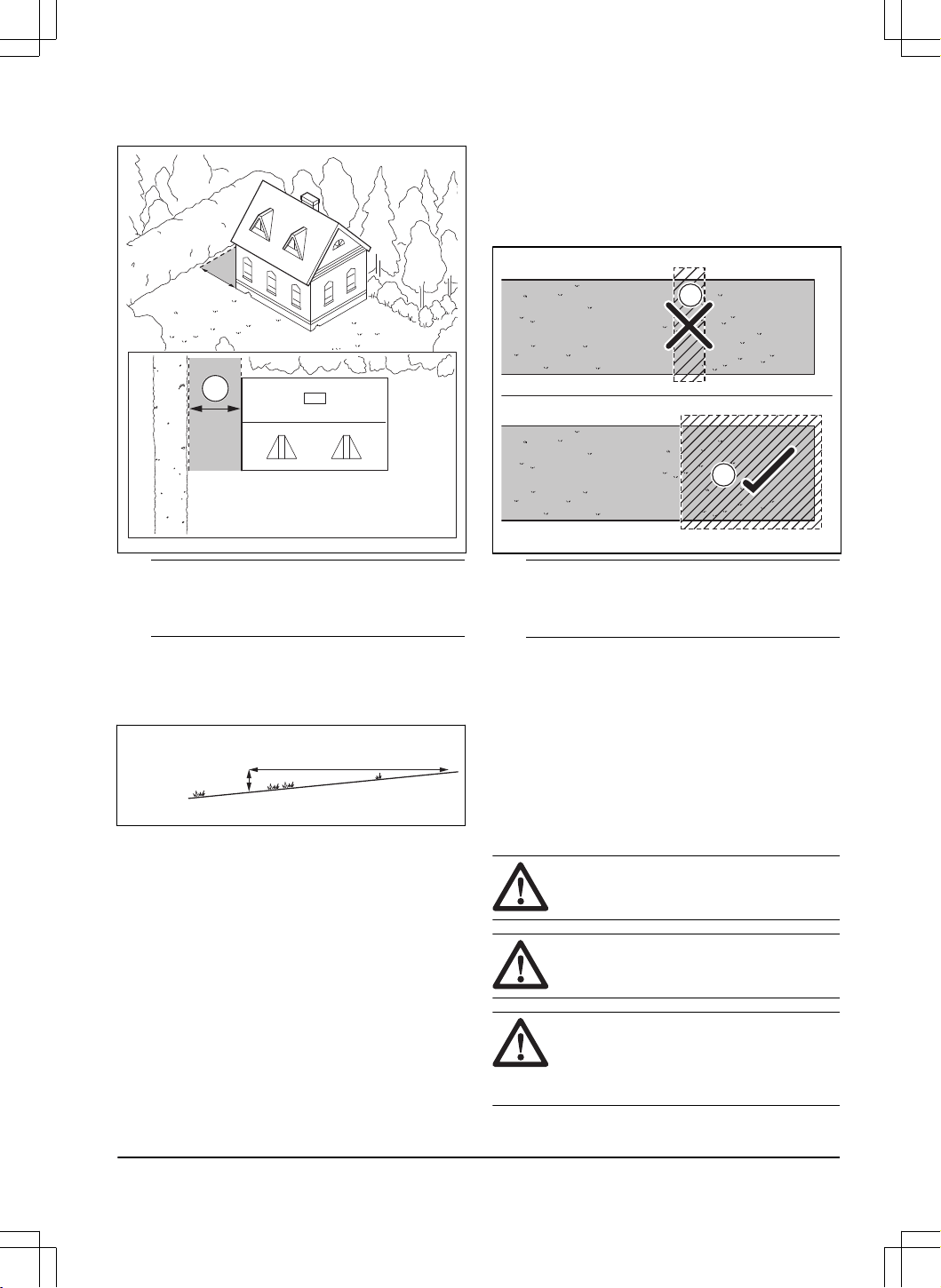
3.8.4 To examine where to make stay-out
zones
• Make stay-out zones around objects that are larger
than 2x2 m / 6.6x6.6 ft.
• Make sure that the stay-out zone includes the
complete area were the product must not operate
(B).
B
A
Note: Do not make a stay-out zone across the
work area to prevent the product to enter parts of
the work area (A).
• Make sure that the stay-out zone is minimum
30x30 cm / 1x1 ft.
3.9 Installation of the product
3.9.1 Installation tools
• Hex key, 8 mm. Included in the carton.
3.9.2 Installation of the charging station
Read and understand the instructions about the
charging station. Refer to
To examine where to put the
charging station on page 14
.
CAUTION: Do not make new holes in
the charging station plate.
CAUTION: Do not put your feet on the
baseplate of the charging station.
WARNING: Make sure that the plugs of
the low-voltage cable and the power supply
unit are clean and dry before you connect
them.
1404 - 017 - Installation with EPOS
™
technology - 17
When you connect the power supply, only use a power
outlet that is connected to a residual-current device
(RCD).
3.9.2.1 To install the charging station
1. Put the charging station in the selected area.
2. Attach the charging station to the ground with the
supplied screws.
3. Connect the low-voltage cable to the charging
station.
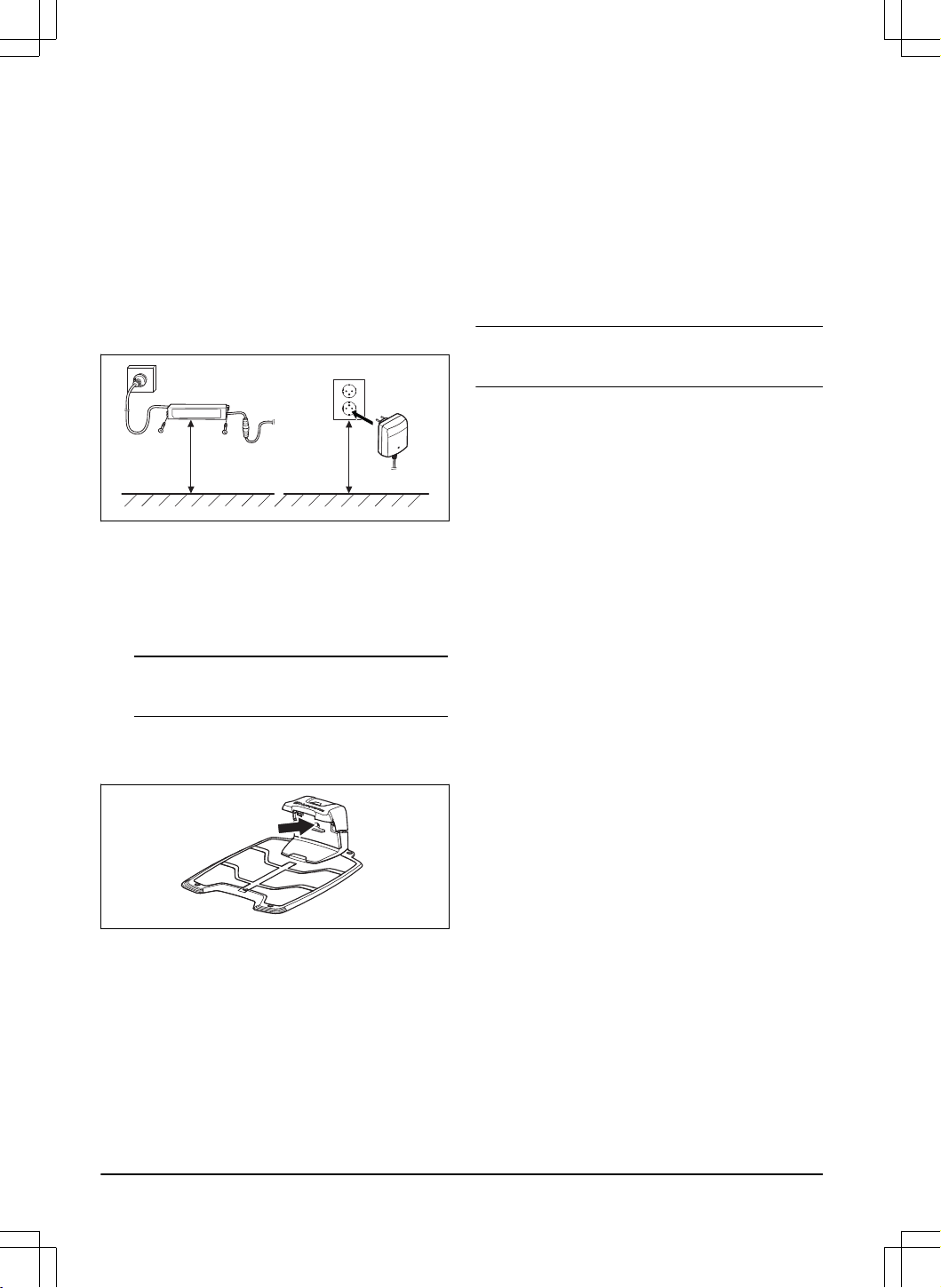
4. Put the power supply at a minimum height of 30
cm / 12 in. Refer to
To examine where to put the
power supply on page 15
.
min 30 cm / 12”
5. Connect the power supply cable to a 100-240V
power outlet.
6. Put the low-voltage cable in the ground outside the
work area. Use stakes or bury the cable.
3.9.2.2 To charge the product
1. Put the product in the charging station.
Note:
The product starts to charge automatically
when the product is in the charging station.
3.9.2.3 To do a visual check of the charging station
1. Make sure that the indicator LED lamp on the
charging station has a green light.
2. If the indicator LED lamp does not have a green
light, do a check of the installation. Refer to
LED
indicator of the charging station on page 52
and
Installation of the charging station on page 17
.
3.9.3 To do a pairing operation with the
Automower
®
Connect app
1. Download the Automower
®
Connect app on your
mobile device.
2. Sign up for a Husqvarna account in the
Automower
®
Connect app and follow the
instructions.
3. Enter the factory PIN code 1234 on the product.
4. Use the jog wheel on the product to select the
Bluetooth
®
menu to enable the pairing operation
mode.
5. Select
My mowers
in the Automower
®
Connect
app and add your product.
6. Follow instructions in the Automower
®
Connect
app.
Note: Husqvarna recommends to change the factory
PIN code to a new PIN code in the app.
3.9.4 Installation of the reference station
Install the reference station according to the instructions
in the Operator's manual for the reference station.
3.9.5 Installation of the map objects
Read and understand the instructions about where to
install the map objects. Refer to
To install objects on the
map on page 19
.
On the map you can install the objects that follow in the
app:
•
Work areas
(A)
•
Stay-out zones
(B)
•
Transport path
(C)
•
Charging station
(D)
•
Maintenance point
(E)
•
Work area (Secondary area)
(F)
18
- Installation with EPOS
™
technology 1404 - 017 -
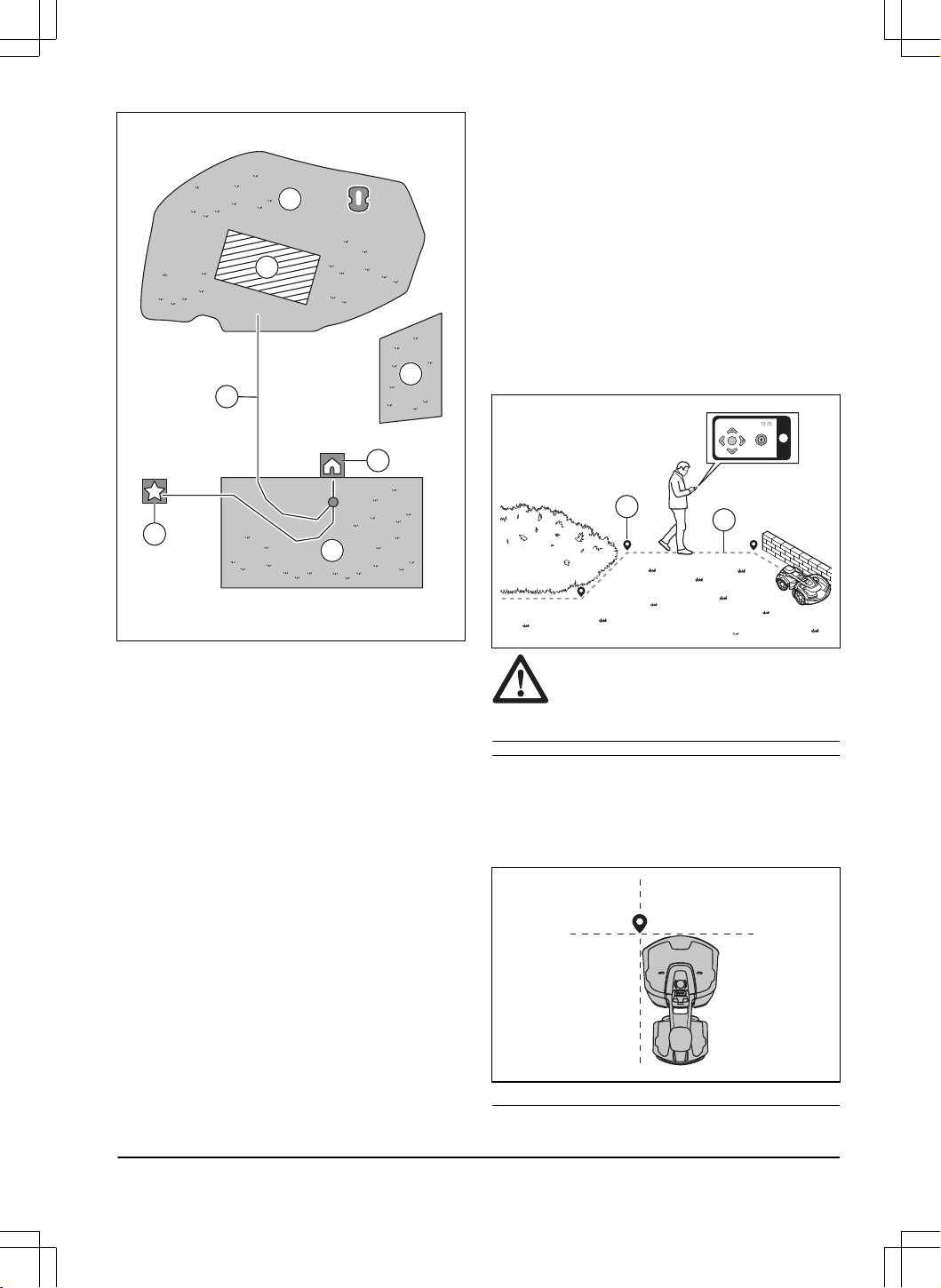
A
F
B
A
D
E
C
For a complete map installation, you must install a work
area and a charging station on the map.
A work area is specified by virtual boundaries. Maximum
20 work areas and secondary areas can be installed on
a map.
There are two types of work areas:
• A work area that has a charging station in it or
connected to it with a transport path where the
product operates automatically.
• A secondary area is a work area with no charging
station and no transport path. The product must be
moved manually to and from the work area.
A transport path is a specified path between the docking
point in front of the charging station and a work area.
The product can operate automatically in this path, but
does not cut grass. A transport path can temporarily be
enabled and disabled in the app.
Stay-out zones can be made if there are areas where
the product must not operate. A stay-out zone is
specified by virtual boundaries. Stay-out zones can
temporarily be enabled and disabled in the app.
A maintenance point is a specified position where the
product can be parked at. This can for example be used
for a service point where maintenance of the product
is done. The maintenance point is connected to the
docking point with a path.
To install objects on the map, operate the product with
the appDrive installation to add waypoints on the map.
Refer to
To install objects on the map on page 19
.
3.9.5.1 To install objects on the map
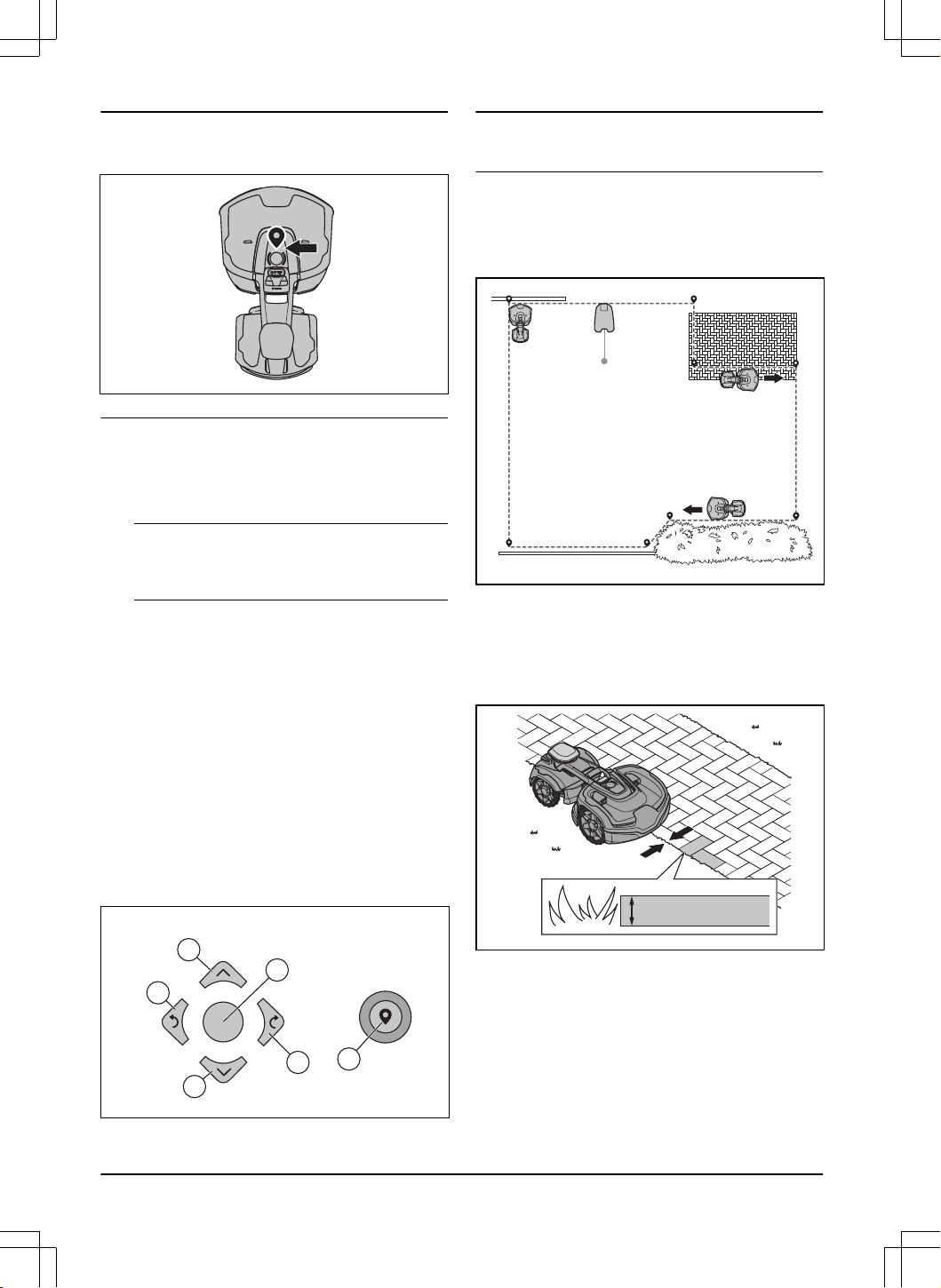
The waypoints (A) are positions that makes the virtual
boundaries and paths (B). The lines are straight
between the waypoints. It is recommended to use as
few waypoints as possible. For each work area and
the related stay-out zones and transport path the total
maximum number of waypoints are 800. Husqvarna
recommends to add maximum 1000 waypoints for the
complete installation of the map. To make smooth
curves use several waypoints. Husqvarna recommends
to set the minimum distance of 30 cm / 1 ft. between the
waypoints. You can adjust the positions of the waypoints
in the app after the installation of the map.
B
A
CAUTION: Do not lift and move the
product between the waypoints when you
install the map objects. Use appDrive for a
correct installation.
Note: The position of the waypoint when you install
a work area or a stay-out zone is in the front left
corner of the product. The virtual boundaries specifies
the area where the product operates. The product does
not cut the grass that is adjacent to the virtual boundary
because of the position of the cutting disc.
1404 - 017 - Installation with EPOS
™
technology - 19
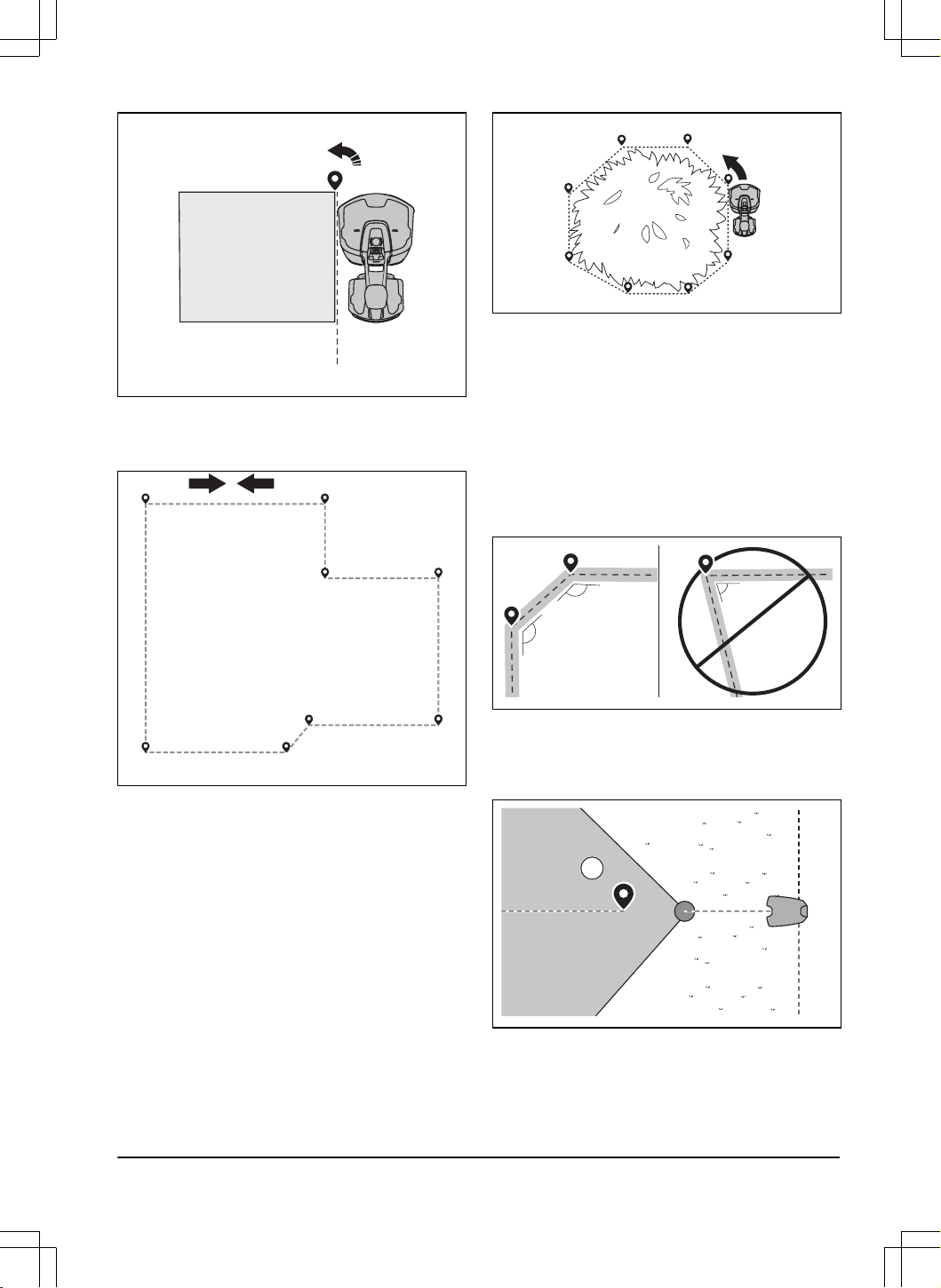
Note: The position of the waypoint when you install a
transport path or a path to a maintenance point is in the
middle of the product between the drive wheels.
• Make sure that you are near the product and
connected to the product with the app with
Bluetooth
®
.
• Make sure that the status is
EPOS
™
confirmed
in
the appDrive.
Note: A game controller with Bluetooth
®
can
be used together with appDrive to operate the
product.
• Make sure that the radio signal strength from
the reference station is good. The symbol for the
strength of the radio signal must be fully filled.
• Select the object you want to install and use the
buttons in the appDrive installation to operate the
product.
• Use the up button (A) to move the product forward.
• Use the down button (B) to move the product
rearward.
• Use the left arrow button (C) to rotate the product
to the left.
• Use the right arrow button (D) to rotate the product
to the right.
• Use the center button (E) as a joystick to move and
rotate the product in any direction.
• Use the waypoint button (F) to add a waypoint in
the map.
A
D
F
B
C
E
Note:
Walk 2-3 m / 6.5-9.8 ft. behind the product
when you operate the product with appDrive.
To make a work area
Minimum 3 waypoints are necessary to make a work
area.
• Operate the product clockwise around the
boundary of the work area.
• Add a waypoint to make the product cut the grass
at the edge between the lawn and the stone path.
Make sure that you straddel the edge of the lawn
and the stone path when you add a waypoint. The
product can straddel the edge if the height of the
stone path is maximum 1 cm / 0.4 in. in relation to
the lawn.
max 1 cm / 0.4”
• Add the waypoint at the outer corner to install the
virtual boundary around a corner.
20
- Installation with EPOS
™
technology 1404 - 017 -
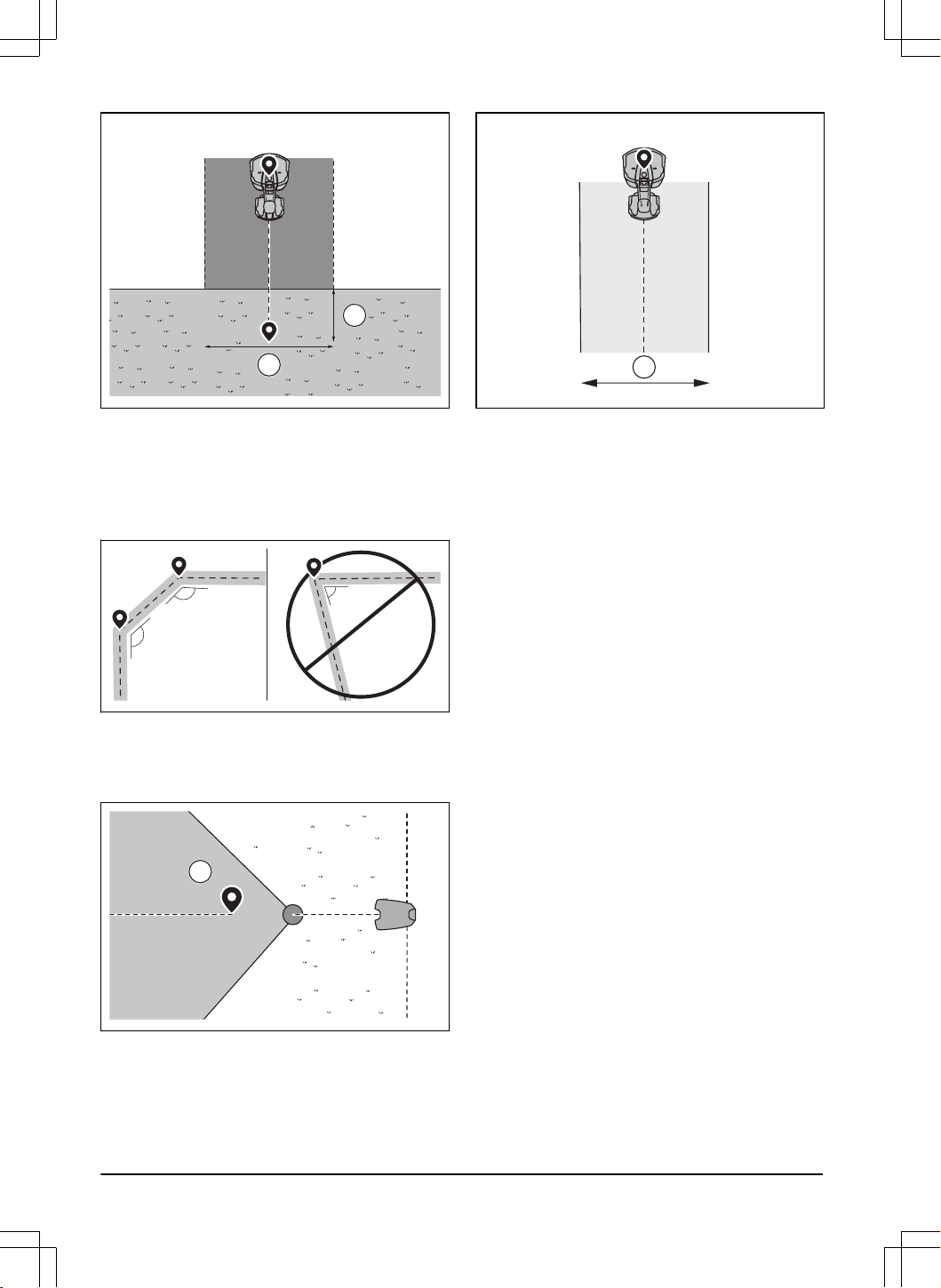
• Do not set waypoints that make a virtual boundary
go across itself in the same work area.
• Save the work area to automatically connect the
first and last waypoint with a virtual boundary.
1
2
3
4
5
6
7
8
To make a stay-out zone
Minimum 3 waypoints are necessary to make a stay-out
zone.
• Operate the product counterclockwise around the
boundary of the stay-out zone.
• Do not set waypoints that make a virtual boundary
go across itself in the same stay-out zone.
• Save the stay-out zone to automatically connect
the first and last waypoint with a virtual boundary.
To make a transport path
• Operate the product and add waypoints on the
map to install a transport path. Start in a work area
minimum 1 m / 3.3 ft. from the virtual boundary.
• Install the transport path perpendicular to the
virtual boundary of the work area.
• Do not install a transport path across a stay-out
zone.
• Do not set waypoints that make the transport path
go across the same transport path.
• Do not make sharp bends when you install the
transport part.
135º
135º
<90º
• Operate the product and add waypoints to connect
the transport path to the docking point.
• Put the last waypoint on a transport path (A) in
an angle of +/-45 degrees seen from the docking
point.
A
• Save the transport path to automatically connect
the last waypoint to the docking point.
• Set the corridor width (A) for the transport path.
The corridor width can be set to 2-5 m / 6.6-16.4 ft.
1404 - 017 -
Installation with EPOS
™
technology - 21
B
A
To make a maintenance point
• Operate the product and add waypoints on the
map. Start to add waypoints at the position
where you install the maintenance point. The first
waypoint specifies the maintenance point.
• Do not make sharp bends when you install a
transport part.
135º
135º
<90º
• Operate the product and add waypoints to make a
path to the charging station.
• Put the last waypoint on a transport path (A) in
an angle of +/-45 degrees seen from the docking
point.
A
• Save the maintenance point to automatically
connect the last waypoint to the docking point.
• Set the corridor width (A) for the maintenance
point. The corridor width can be set to 2-5 m /
6.6-16.4 ft.
A
22
- Installation with EPOS
™
technology 1404 - 017 -
4 Installation with boundary wire
4.1 Introduction - Installation
WARNING: Read and understand the
safety chapter before you install the product.
CAUTION: Use original spare parts and
installation material.
Note: Refer to www.husqvarna.com for more
information about installation.
4.2 Primary components for installation
The installation involves the following components:
• A robotic lawn mower that mows the lawn
automatically.
• A charging station, which has 3 functions:
• To send control signals along the boundary
wire.
• To send control signals along the guide wire
so that the product can follow the guide wire
to specific remote areas in the garden and
can find its way back to the charging station.
• To charge the product.
• A power supply, which is connected to the
charging station and a 100-240V power outlet.
• Loop wire, which is laid around the work area
and around objects and plants that the product
must not run into. The loop wire is used both as
boundary wire and guide wire.
4.3 To prepare for installation
CAUTION: Holes with water in the lawn
can cause damage to the product.
CAUTION: Read the installation
chapter before you start the installation.
• Make a blueprint of the work area and include all
obstacles. This makes it easier to examine where
to put the charging station, the reference station,
and the virtual boundaries.
• Make a mark on the blueprint where to put
the charging station, the reference station, the
maintenance point, the transport paths and the
virtual boundaries for the work areas and stay-out
zones.
• Fill in holes in the lawn to make it level.
• Cut the grass before you install the product. Make
sure that the grass is maximum 10 cm / 4 in.
Note: The first weeks after installation the sound level
when the product cuts the grass can be higher than
usual. The sound level decreases after some time.
4.4 Before the installation of the wires
You can select to attach the wires with stakes or bury
them. You can use the 2 procedures for the same work
area.
CAUTION: If you use a dethatcher
in the work area, bury the boundary wire
and the guide wire to prevent them from
damage.
4.4.1 To examine where to put the charging
station
• Keep a minimum 3 m / 10 ft. of free space in front
of the charging station.
• Keep a minimum of 1.5 m / 5 ft. of free space to
the right and to the left of the charging station.
• Put the charging station near a power outlet.
• Put the charging station on a level surface.
• The baseplate of the charging station must not be
bent.
max. 5 cm / 2"
max. 5 cm / 2"
• Put the charging station in the largest open section
of the work area.
• Put the charging station in an area without an
irrigation system.
• Put the charging station in an area with protection
from the sun.
• If the charging station is installed on an island,
make sure to connect the guide wire to the island.
Refer to
To make an island on page 26
.
1404 - 017 -
Installation with boundary wire - 23
4.4.2 To examine where to put the power
supply
CAUTION: Make sure that the blades
on the product do not cut the low-voltage
cable.
• Put the power supply in an area with a roof and
protection from the sun and rain.
• Put the power supply in an area with good airflow.
• Use a residual-current device (RCD) with a tripping
current of maximum 30 mA when you connect the
power supply to the power outlet.
Low-voltage cables of different lengths are available as
accessories.
4.4.3 To examine where to put the
boundary wire
CAUTION:
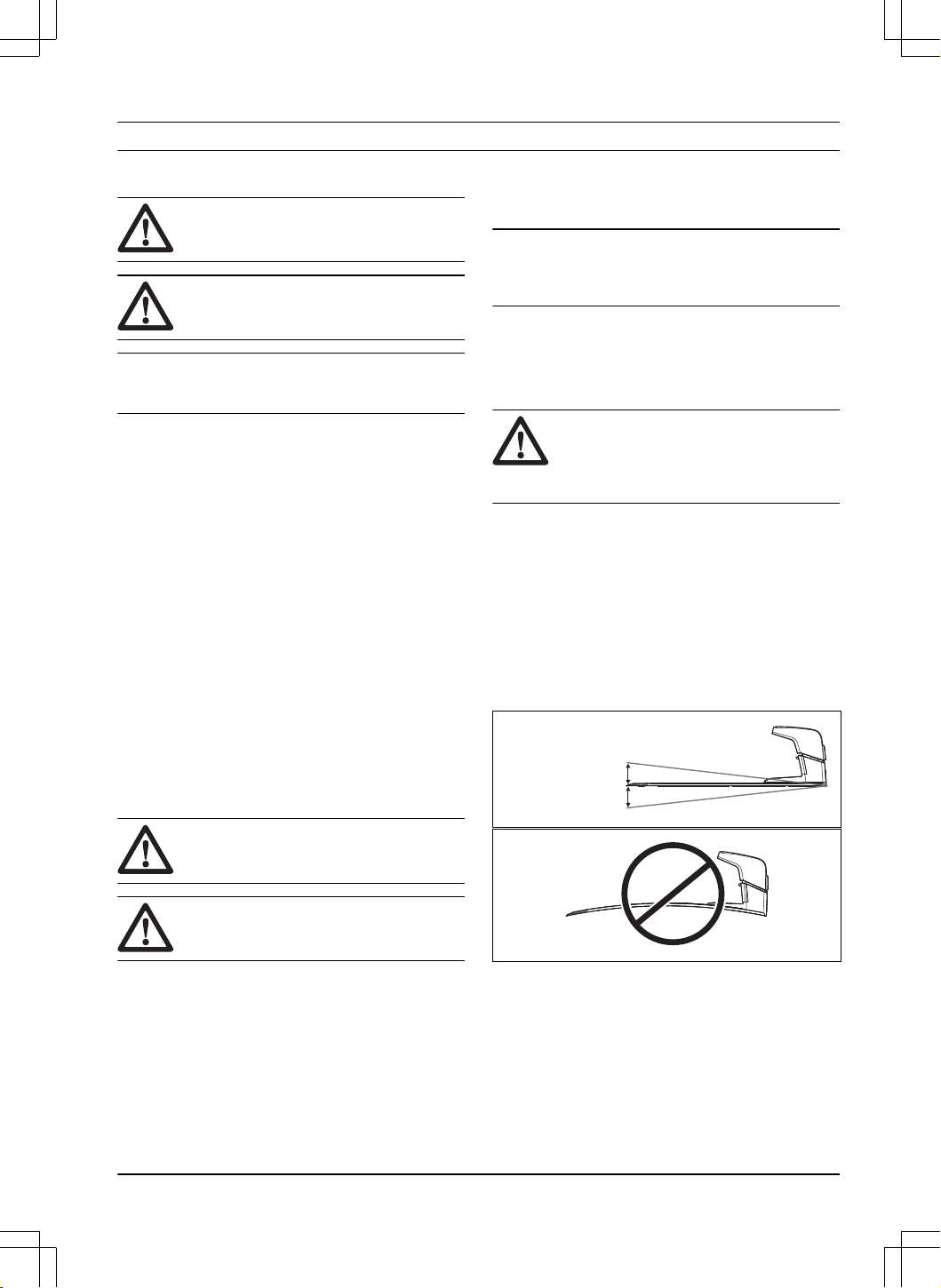
There must be a barrier of
minimum 15 cm / 6 in. in height between
the boundary wire and water bodies, slopes,
precipices or public roads. This will prevent
damage to the product.
CAUTION: Do not let the product
operate on gravel.
CAUTION: Do not make sharp bends
when you install the boundary wire.
CAUTION: For careful operation
without noise, isolate all obstacles such as
trees, roots and stones.
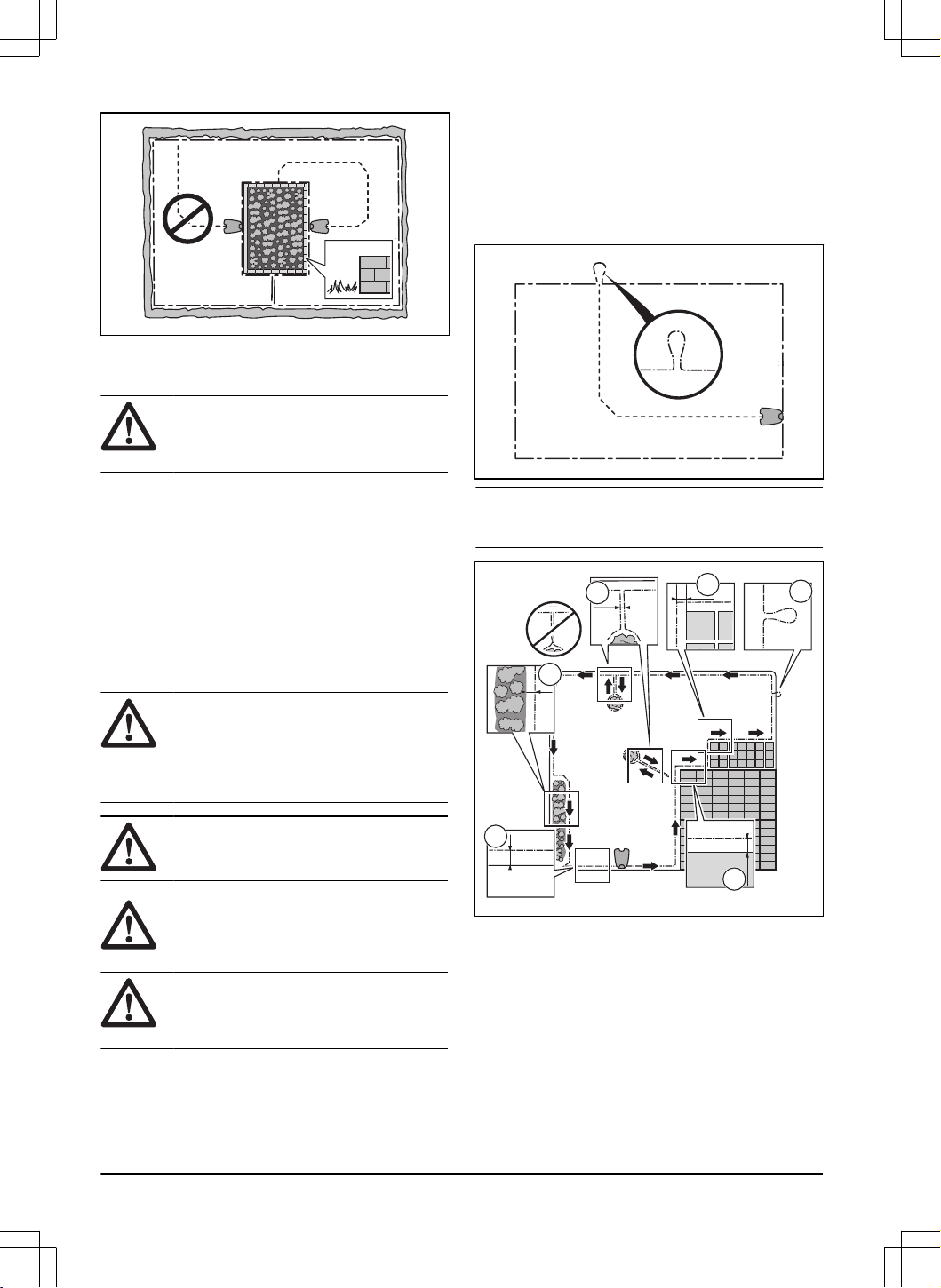
The boundary wire should be put as a loop around the
work area. Sensors in the product senses when the
product approaches the boundary wire, and the product
selects another direction. All parts of the work area must
be maximum 35 m / 115 ft. from the boundary wire.
To make the connection easier between the guide wire
and the boundary wire, it is recommended to make an
eyelet where the guide wire will be connected. Make the
eyelet with approximately 20 cm / 8 in. of the boundary
wire.
Note: Make a blueprint of the work area before you
install the boundary wire and guide wire.
A
B
C
E
D
F
• Put the boundary wire around all of the work area
(A). Adapt the distance between the boundary wire
and obstacles.
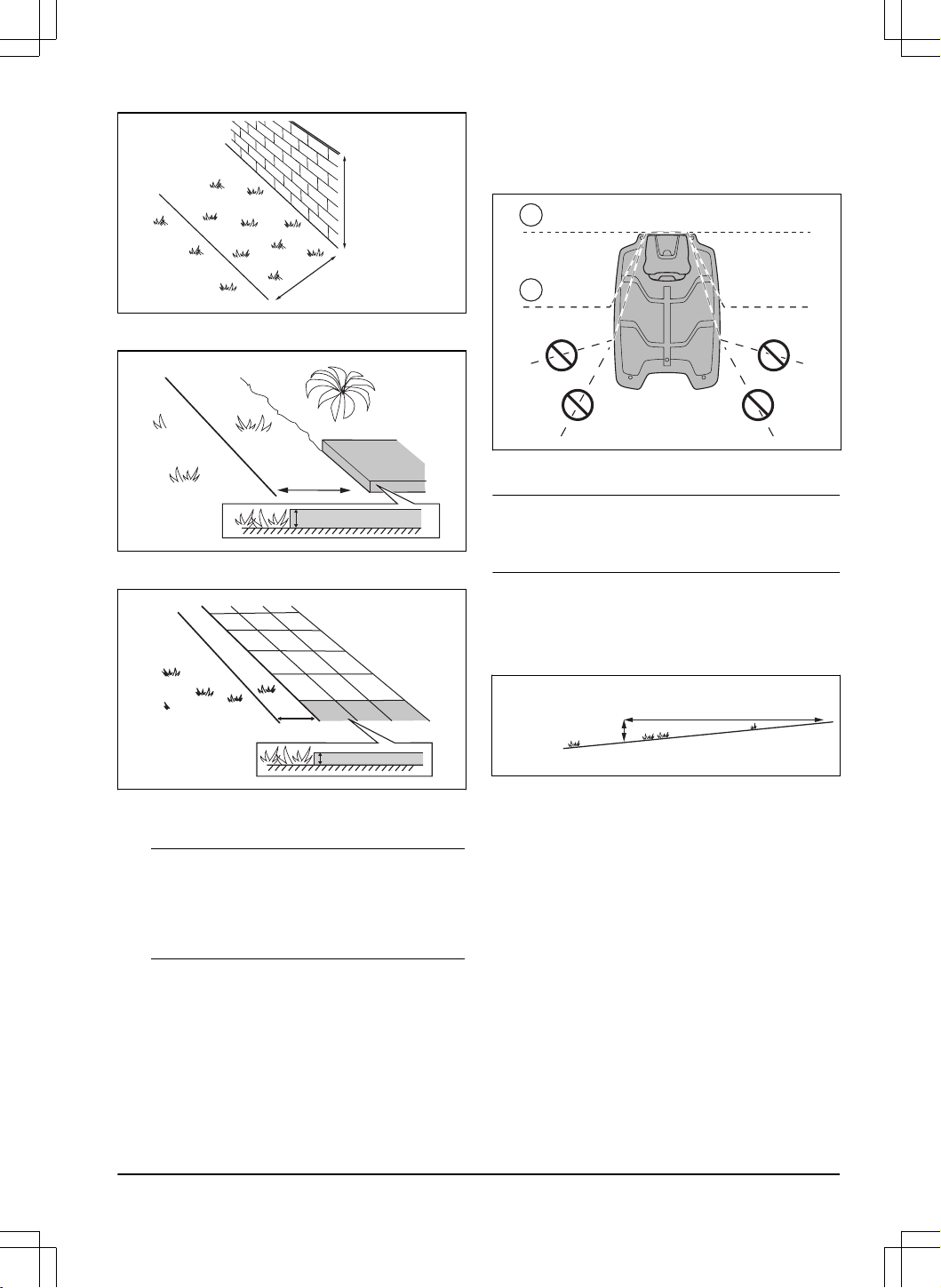
• Put the boundary wire 35 cm / 14 in. (B) from an
obstacle that is more than 5 cm / 2 in. high.
24
- Installation with boundary wire 1404 - 017 -
35 cm /14
"
> 5 cm / 2
"
• Put the boundary wire 30 cm / 12 in. (C) from an
obstacle that is 1-5 cm / 0.4-2 in. high.
1-5 cm / 0.4 - 2"
30 cm / 12"
• Put the boundary wire 10 cm / 4 in. (D) from an
obstacle that is less than 1 cm / 0.4 in. high.
10 cm / 4"
max 1 cm / 0.4"
• If you have a paving stone path that is in level with
the lawn, put the boundary wire below the paving
stone.
Note:
If the paving stone is minimum 30 cm / 12
in. wide, use the factory setting for the
Drive Past
Wire
function to cut all the grass adjacent to the
paving stone. Refer to
Drive Past Wire on page
34
.
• If you make an island, put the boundary wire that
runs to and from the island near together (E). Put
the wires in the same stake. Refer to
To make an
island on page 26
.
• Make an eyelet (F) where the guide wire is to be
connected to the boundary wire.
4.4.4 To examine how to put the boundary
wire around the charging station
• Husqvarna recommends to put the boundary wires
straight out from the charging station (A).
A
B
• If it is necessary you can put the boundary wire
below the charging station in an angle (B).
Note: Do not put the boundary wire too far below the
charging station. The product can find it hard to find and
enter the charging station.
4.4.4.1 To put the boundary wire in a slope
The product can operate in 70% slopes. Slopes that are
more than 70% must be isolated with the boundary wire.
The gradient (%) is calculated as height for each m.
Example: 10 cm / 100 cm = 10%.
10 cm/ 4"
100 cm/ 40"
10%
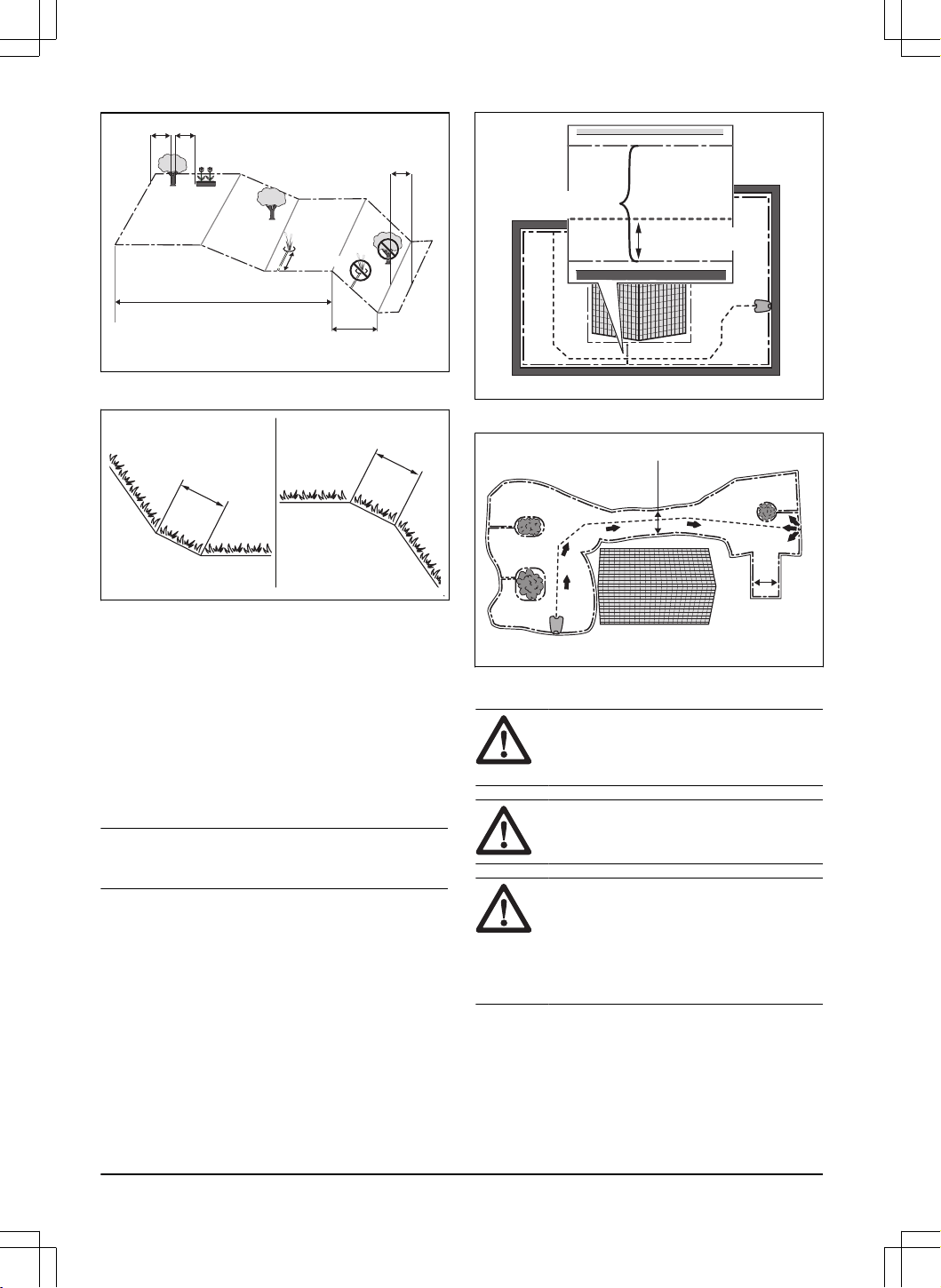
• The product operates as usual in slopes that are
maximum 50% in the work area. Keep a distance
of 1.5 between the boundary wire and obstacles,
or between obstacles.
• For slopes between 50-70%, make sure that there
are no obstacles in the slope. There must be a
distance of 1.5 m / 5 ft from the bottom of the slope
to the boundary wire.
1404 - 017 -
Installation with boundary wire - 25
> 1.5 m / 5 ft
> 1.5 m / 5 ft
0% - 50%
50% - 70%
> 1.5 m / 5 ft
• Make sure that there is an area of 50 cm / 1.6 ft.
between level ground and steep slopes.
70%
70%
0%
0%
50cm / 1.6ft
35%
50cm / 1.6ft
35%
• For slopes adjacent to a public road, put an
obstacle of minimum 15 cm / 6 in. along the outer
edge of the slope. You can use a wall or a fence
as an obstacle.
4.4.4.2 Passages
A passage is a section that has boundary wire on each
side and that connects 2 parts of the work area. The
passage must be a minimum of 2 m / 6.5 ft wide to get
a good cutting result. Short passages can be as narrow
as 60 cm / 2 ft., if a guide wire is installed through the
passage. A long narrow passage can have a negative
impact of the cutting result.
Note:
If a passage is less than 2 m / 6.5 ft. wide,
install a guide wire through the passage.
The product always runs to the left of the guide wire
as seen facing the charging station. It is recommended
that the distance between the guide wire and boundary
wire is one third of the total width of the passage on the
right side and two thirds of the total width of the passage
to the left of the guide wire (A). The minimum distance
between the guide wire and the boundary wire is 30 cm /
12 in.
>30 cm / 12"
>60 cm / 24"
A dead end must be a minimum of 2.5 m / 8.5 ft. wide.
>2 m / 7 ft
>2.5 m / 8.5 ft
4.4.4.3 To make an island
CAUTION:
Do not put a section
of boundary wire across the other. The
sections of boundary wire must be parallel.
CAUTION: Do not put the guide wire
across the boundary wire.
CAUTION: Isolate or remove obstacles
that are less than 15 cm / 6 in. in height.
Isolate or remove obstacles that slope
slightly, for example, stones, trees or roots.
This will prevent damage to the blades of the
product.
26 - Installation with boundary wire 1404 - 017 -
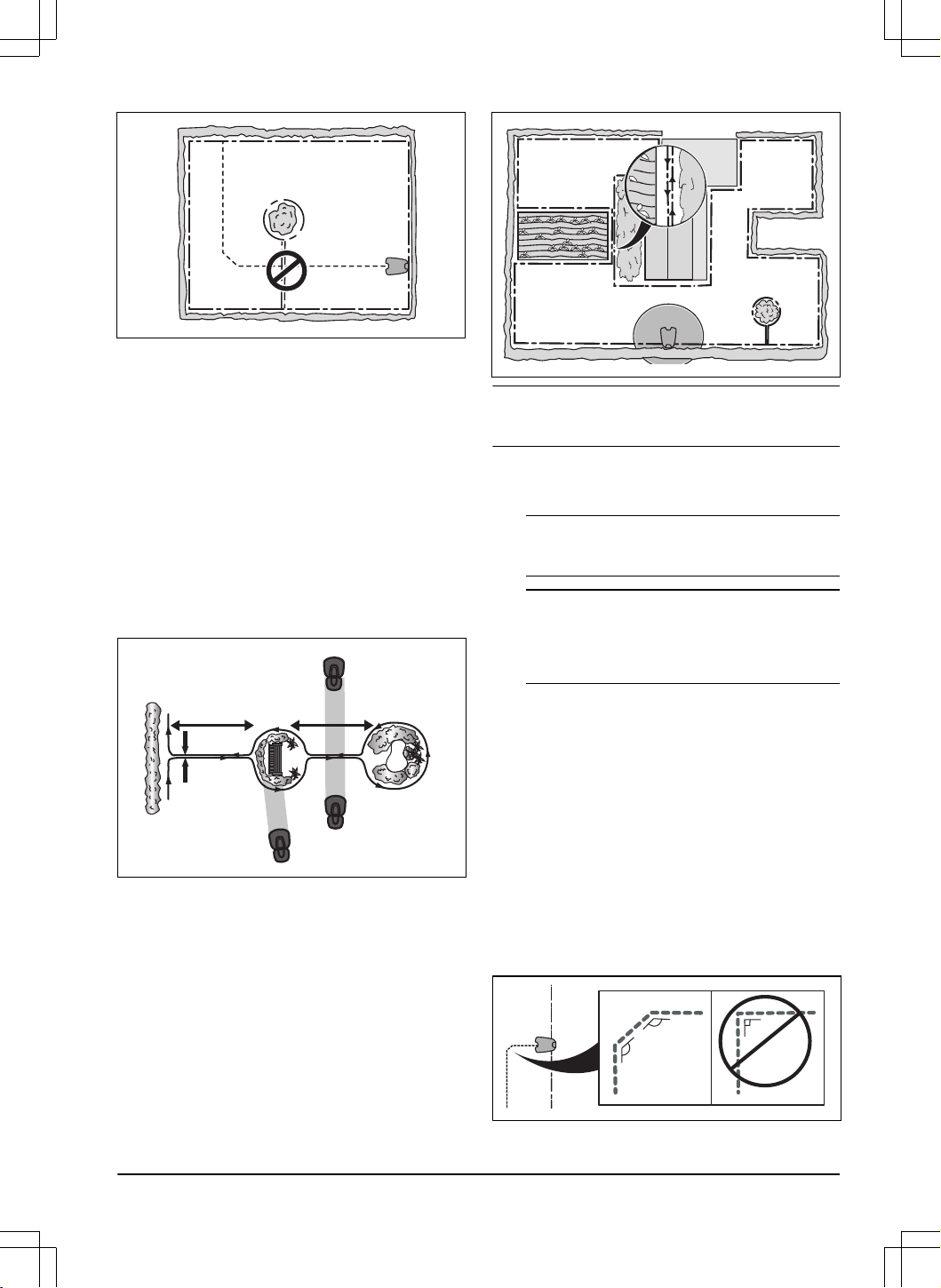
To make an island, isolate areas in the work area with
the boundary wire. We recommend to isolate all stable
objects in the work area.
Some obstacles are resistant to a collision, for example,
trees or bushes that are more than 15 cm / 6 in. in
height. The product will collide with the obstacle and
then select a new direction.
• Put the boundary wire to and around the obstacle
to make an island.
• Put the 2 sections of boundary wire to and from the
island close together. This will make the product
run across the wire.
• Put the 2 sections of boundary wire in the same
stake.
• Make sure that there is a minimum of 1.5 of empty
space before an obstacle.
0 cm/0 "
1.5 m/5 ft 1.5 m/5 ft
4.4.4.4 To make a secondary area
Make a secondary area (B) if the work area has 2 areas
that are not connected with a passage. The work area
with the charging station is the main area (A).
B
A
Note:
The product must be manually moved between
the main area and the secondary area.
• Put the boundary wire around the secondary area
(B) to make an island. Refer to
To make an island
on page 26
.
Note: The boundary wire must be put as 1 loop
around all of the work area (A + B).
Note: When the product cuts grass in the
secondary area, the
Secondary area
mode must
be selected. Refer to
Secondary area on page
38
.
4.4.5 To examine where to put the guide
wire
Put the guide wire from the charging station through
the work area and connect it to the boundary wire. This
product has 2 guide wires. Use the same approach for
all guide wires.
• Put the guide wire in a line at a minimum of 2 m / 7
ft. in front of the charging station.
• Make sure that the guide wire has as much free
area as possible to the left of the guide wire when
facing the charging station.
• Put the guide wire minimum 30 cm / 12 in. from the
boundary wire.
• Do not make sharp bends when you install the
guide wire.
135º
135º
90º
1404 - 017 -
Installation with boundary wire - 27
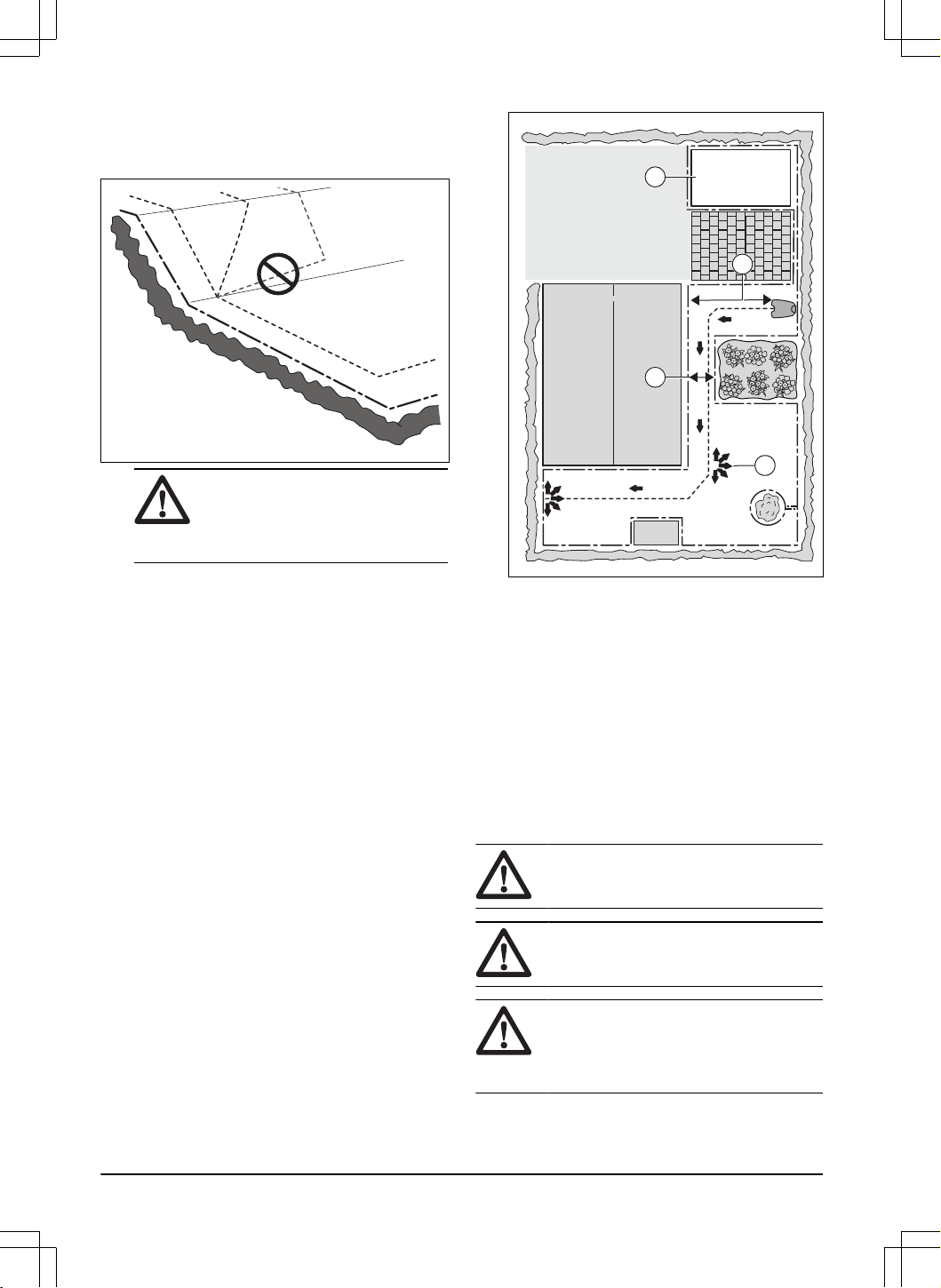
• If the work area has a slope, put the guide wire in a
straight line from the bottom of the slope to the top
of the slope. If it is not possible to make a straight
line, put the guide wire diagonally across the slope.
CAUTION: Do not put the guide
wire in parallel with the slope, as the
illustration shows. This can increase
the wear on the grass.
4.4.6 Work area examples
• If the charging station is put in a small area (A),
make sure that the distance to the boundary wire
is at a minimum 3 m / 10 ft. in front of the charging
station.
• If the work area has a passage (B) with no
guide wire installed, the recommended minimum
distance between the boundary wires is 2 m / 6.5
ft. With a guide wire installed through the passage,
the recommended minimum distance between the
boundary wires is 60 cm / 24 in.
• If the work area has areas which are connected by
a narrow passage (B), you can set the product to
first follow and then leave the guide wire after a
certain distance (C). The settings can be changed
in
Lawn coverage on page 33
.
• Use the GPS Assisted Navigation that helps the
product select the most optimal operation. Refer to
Lawn coverage on page 33
.
• If the work area includes a secondary area (D),
refer to
To make a secondary area on page 27
.
Put the product in the secondary area and select
Secondary area mode
.
B
D
C
A
4.5 Installation of the product
4.5.1 Installation tools
• Hammer/plastic mallet: To simplify putting the
stakes into the ground.
• Edge cutter/straight spade: To bury the boundary
wire.
• Combination pliers: For cutting the boundary wire
and pressing the connectors together.
• Adjustable plier: For pressing the couplers
together.
4.5.2 To install the charging station
CAUTION: Do not make new holes in
the charging station plate.
CAUTION: Do not put your feet on the
baseplate of the charging station.
WARNING: Make sure that the plugs of
the low-voltage cable and the power supply
unit are clean and dry before you connect
them.
1. Put the charging station in the selected area.
28
- Installation with boundary wire 1404 - 017 -
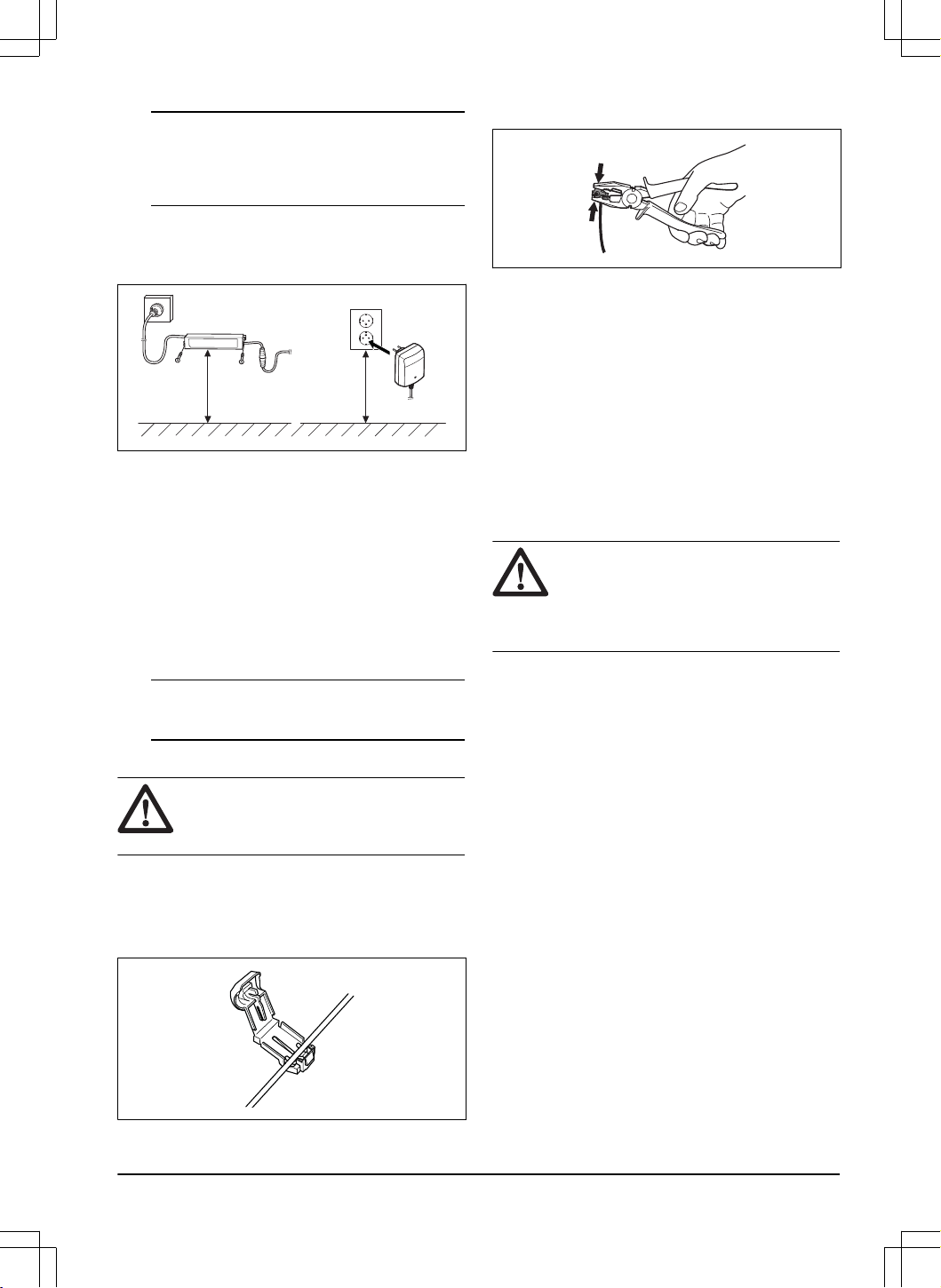
Note: Do not attach the charging station to the
ground with the screws until the guide wire is
installed. Refer to
To install the guide wire on page
29
.
2. Connect the low-voltage cable to the charging
station.
3. Put the power supply at a minimum height of 30
cm / 12 in.
min 30 cm / 12”
4. Connect the power supply cable to a 100-240V
power outlet.
5. Put the low-voltage cable in the ground with stakes
or bury the cable. Refer to
To put the wire or the
cable into position with stakes on page 30
or
To
bury the wire or the cable on page 30
.
6. Attach the charging station to the ground with the
supplied screws after the guide wire is installed.
Refer to
To install the guide wire on page 29
.
4.5.3 To charge the product
1. Put the product in the charging station.
Note:
The product starts to charge automatically
when the product is in the charging station.
4.5.4 To install the boundary wire
CAUTION:
Do not put remaining wire in
a coil. The coil causes interference with the
product.
1. Put the boundary wire around all of the work
area. Start and complete the installation behind the
charging station.
2. Open the connector and put the boundary wire in
the connector.
3. Close the connector with a pair of pliers.
4. Cut the boundary wire 1-2 cm / 0.4-0.8 in. above
each connector.
5. Put the right end of boundary wire into the channel
with the mark "AR".
6. Put the left end of boundary wire into the channel
with the mark "AL".
7. Push the right connector onto the metal pin on the
charging station with the mark "AR".
8. Push the left connector onto the metal pin on the
charging station with the mark "AL".
9. Put the cable mark on the left and right boundary
wire. Do not walk on the charging station.
4.5.5 To install the guide wire
CAUTION: Twinned cables, or a
screw terminal block that is insulated with
insulation tape are not satisfactory splices.
Soil moisture will cause the wire to oxidize
and after a time result in a broken circuit.
1. Open the connector and put the wires in the
connector.
2. Close the connector with a pair of pliers.
3. Cut the guide wires 1-2 cm / 0.4-0.8 in. above each
connector.
4. Put the guide wires centrally below the charging
station plate, and push them through the slot in the
charging station tower.
5. Push the connector onto the metal pin on the
charging station with the mark "G1, G2" or "G3".
6. Disconnect the charging station from the power
outlet.
7. Put the cable mark on the guide wires.
8. Put the end of the guide wires at the eyelet on the
boundary wire.
9. Cut the boundary wire with a pair of wire cutters.
10. Connect the guide wires to the boundary wire with
a coupler.
1404 - 017 -
Installation with boundary wire - 29
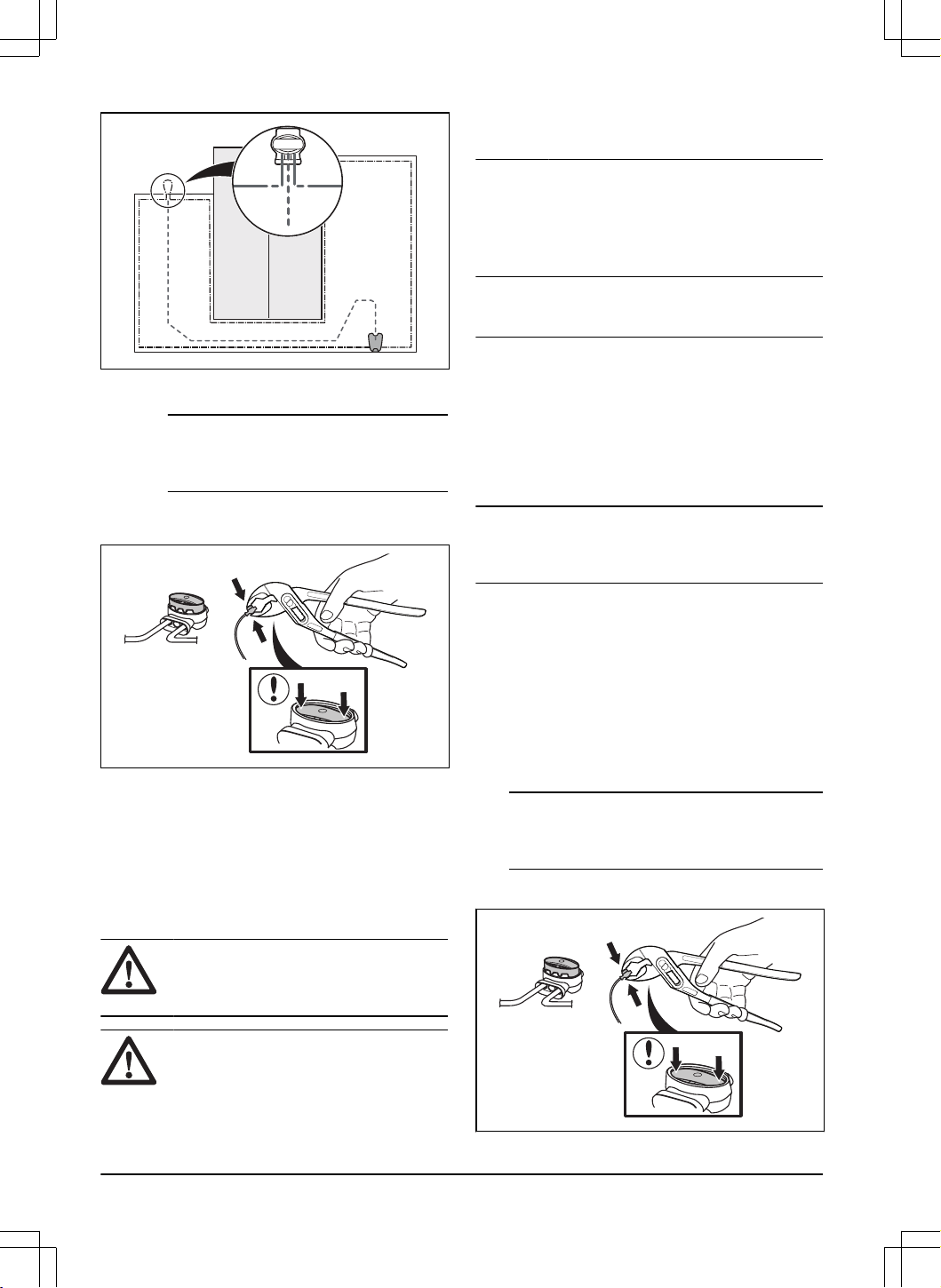
a) Put the 2 ends of the boundary wire and the
end of the guide wires into the coupler.
Note: Make sure that you can see the end
of the guide wires through the transparent
area of the coupler.
b) Push down the cover on the coupler with
adjustable pliers to attach the wires in the
coupler.
11. Attach the guide wires to the ground with stakes or
bury the guide wires in the ground. Refer to
To put
the wire or the cable into position with stakes on
page 30
or
To bury the wire or the cable on page
30
.
12. Connect the charging station to the power outlet.
4.5.6 To put the wire or the cable into
position with stakes
CAUTION:
Make sure that the stakes
hold the wire or the cable against the
ground.
CAUTION: Cutting the grass too low
right after installation can damage the wire
or the cable insulation. Damage to the
insulation may not cause disruptions until
several weeks or months later.
1. Put the wire or the cable on the ground.
2. Put the stakes at a maximum of 75 cm / 30 in.
distance from each other.
3. Attach the stakes to the ground with a hammer or a
plastic mallet.
Note: The wire or the cable is overgrown with grass
and not visible after a few weeks.
4.5.7 To bury the wire or the cable
• Cut a groove in the ground with an edge cutter or a
straight shovel.
• Put the wire or the cable 1-20 cm / 0.4-8 in. into the
ground.
4.5.8 To extend the boundary wire or the
guide wire
Note: Extend the boundary wire or the guide wire if it
is too short for the work area. Use original spare parts,
for example couplers.
1. Disconnect the charging station from the power
outlet.
2. Cut the boundary wire or the guide wire with a pair
of wire cutters where it is necessary to install the
extension.
3. Add wire where it is necessary to install the
extension.
4. Put the boundary wire or the guide wire into
position.
5. Put the wire ends into a coupler.
Note:
Make sure that you can see the ends of
the boundary wire or the guide wire through the
transparent area of the coupler.
6. Push down the cover on the coupler with
adjustable pliers to attach the wires in the coupler.
30
- Installation with boundary wire 1404 - 017 -
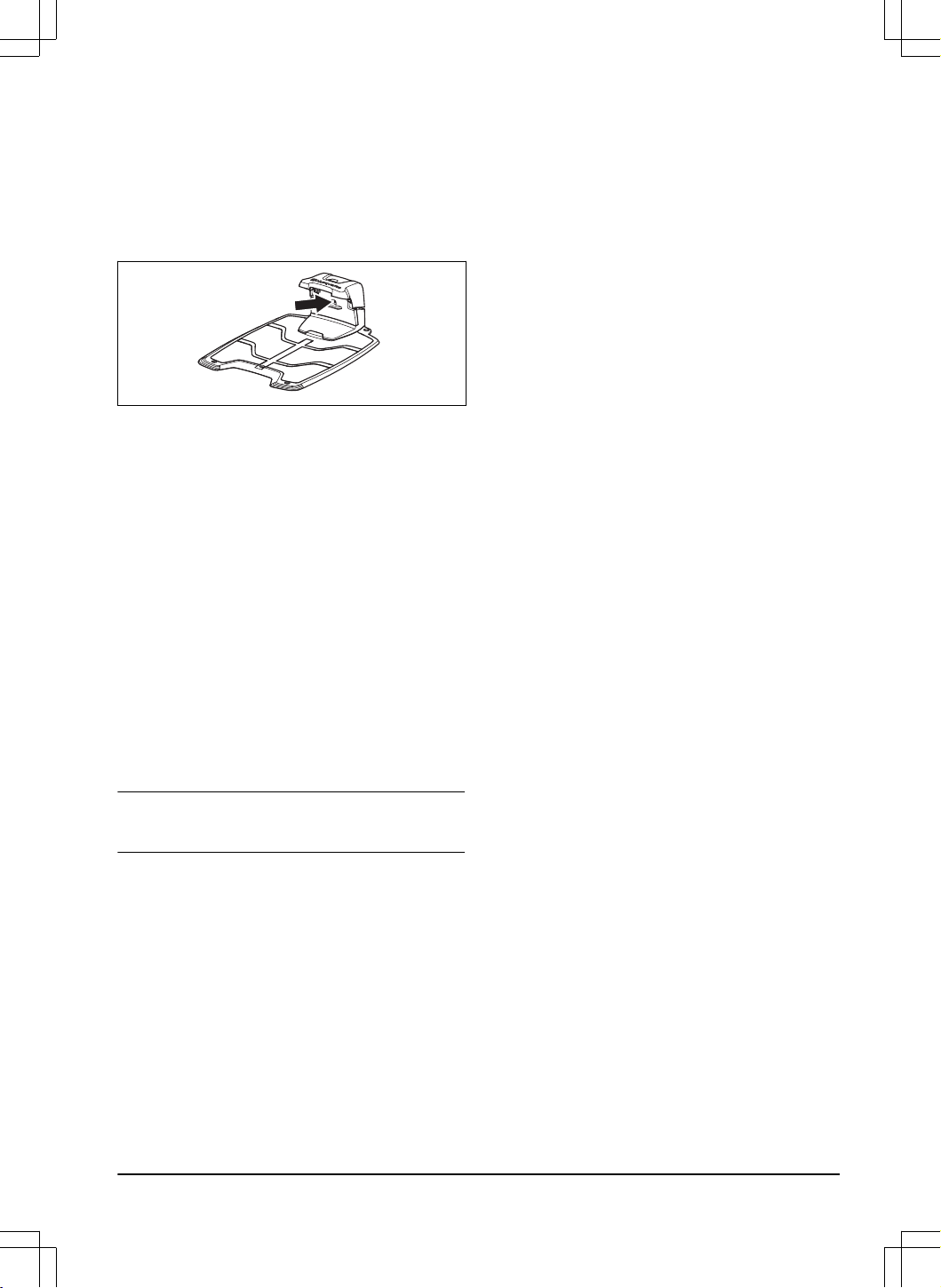
7. Put the boundary wire or the guide wire into
position with stakes.
8. Connect the charging station to the power outlet.
4.5.9 To do a visual check of the charging
station
1. Make sure that the indicator LED lamp on the
charging station has a green light.
2. If the indicator LED lamp does not have a green
light, do a check of the installation. Refer to
LED
indicator of the charging station on page 52
and
To install the charging station on page 28
.
4.5.10 To do a pairing operation with the
Automower
®
Connect app
1. Download the Automower
®
Connect app on your
mobile device.
2. Sign up for a Husqvarna account in the
Automower
®
Connect app and follow the
instructions.
3. Enter the factory PIN code 1234 on the product.
4. Use the jog wheel on the product to select the
Bluetooth
®
menu to enable the pairing operation
mode.
5. Select
My mowers
in the Automower
®
Connect
app and add your product.
6. Follow instructions in the Automower
®
Connect
app.
Note:
Husqvarna recommends to change the factory
PIN code to a new PIN code in the app.
1404 - 017 - Installation with boundary wire - 31
5 Settings
The product has factory settings but the settings can be
adapted to each work area.
5.1 Schedule
In
Schedule
you can change the schedule settings for
the product.
The
Schedular Tool
adapts the schedule to the size of
your work area. The
Schedule
function controls which
hours the product operates. When the product does not
operate, it is parked in the charging station. You can
see which hours and days the product operates in the
schedule overview in the app.
5.1.1 To use systematic mowing
• Set the schedule to let the product operate for as
long time as possible.
Note: When the product has cut the work area it
goes to the charging station. The product is parked
in the charging station until the next schedule
starts. If the work area is not fully cut, the product
continues to cut the work area with the next
schedule.
• To cut a work area 2 times a day, you can set
2 different schedules. Set the schedule for the
product to have sufficient time to cut the complete
work area.
• With 2 or more parallel schedules, the product
starts to cut where it has not cut for the longest
time.
5.1.2 To use irregular mowing
The product operates the complete scheduled time with
irregular mowing.
• Decrease the scheduled time or use the
Weather
timer
function to prevent wear on the grass. Refer
to
Weather timer on page 33
.
• If the cutting result is not satisfactory, increase the
scheduled time. Refer to
Schedule on page 32
.
• With 2 or more parallel schedules in different work
areas, the product first starts to cut 1 work area.
After each charging of the product, the product
starts to cut another work area.
5.2 Cutting height
5.2.1 Cutting height adjustment
The cutting height is set individually for each work area.
The cutting height can be set to to 3-7 cm / 1.2-2.8 in.
CAUTION: The first weeks after a new
installation, the cutting height must be set to
7 cm / 2.8 in. to prevent damage to the loop
wire. The cutting height can then be lowered
each week.
5.2.2 TargetHeight
Use the TargetHeight function to lower the cutting height
from the maximum cutting height to the specified cutting
height gradually during 10 days. If you change the
cutting height manually during this time it will disable the
TargetHeight function.
5.3 Pattern
The settings for pattern can be set for each work area
with an EPOS installation. You can do these settings:
• Set the pattern for how the product operates.
• For some patterns you can set the direction of the
pattern.
• For some patterns you can set the type of the
Border mowing
. With
Fixed border mowing
the
product always operates in the same paths to
keep a sharp border around the work area. With
Variable border mowing
, the product operates in
different paths to decrease the risk of track marks
along the virtual boundary.
Husqvarna recommends to use systematic pattern on
large and open work areas. If you use systematic
pattern on a work area with obstacles, make stay-out
zones around obstacles and use a pattern with many
directions for the best possible cutting result.
Husqvarna recommends to use irregular pattern if the
work area is complex and has many obstacles.
5.4 Operation
In
Operation
you can change the operation settings of
the product.
32
- Settings 1404 - 017 -
5.4.1 Object avoidance
The
Object avoidance
function makes the product
decrease speed when it comes near an obstacle to
avoid to collide with it.
Note: This can cause that the grass is not cut around
the obstacle. This function can cause the product to not
cut high grass satisfactorily.
5.4.2 Weather timer
Weather timer
automatically adjust the cutting time to
the growth of the grass.
Weather timer
adjusts the
cutting time only for work areas with irregular pattern.
The product is not permitted to operate more than the
schedule settings.
Note: When using
Weather timer
, it is recommended
to make as much operating time as possible available
for
Weather timer
. Do not restrict the schedule more
than necessary.
The first operation of the day is set by the schedule
settings. The product completes 1 mowing cycle per
scheduled work area, then the
Weather timer
selects if
the product continues to operate.
Note:
Weather timer
is reset if the product does not
operate for more than 50 hours, or if a
Reset of all user
settings
is done.
Weather timer
is not changed if a
Reset
of schedule settings
is done.
5.4.3 ECO mode
ECO mode
disables the signal in the boundary wire,
guide wire and the charging station, when the product is
parked or is charging. The LED indicator of the charging
station flashes green when the loop signal is disabled.
Note:
Use
ECO mode
to save energy and to prevent
interference with other equipment, for example hearing
loops or garage doors.
Note: To start the product manually in the work area
you must first enable the loop signal.
5.4.3.1 To enable the loop signal
1. Set the product to ON.
2. Put the product in the charging station.
3. Push the STOP button.
4. Wait 2 seconds and then remove the product from
the charging station.
5. Make sure that the LED indicator of the charging
station is solid green.
6. Put the product where you want it to start to cut.
5.5 Installation settings
In
Installation
you can change the settings for an
installation with boundary wire.
5.5.1 To find the charging station
The product can be set to search for the charging station
in 3 methods:
•
Charging station signal
•
Follow boundary wire
•
Follow guide wire
The factory setting is set to use the 3 search methods
at the same time. Use the factory setting to find the
charging station as fast as possible and to keep the risk
of tracks on the lawn to a minimum. The product always
starts to search for the
Charging station signal
. After
a specified time interval, it also uses
Follow guide
and
Follow boundary wire
.
Causes why the product cannot follow the wire:
• Obstacles near the wire have not been isolated.
• The charging station, the boundary wire or the
guide wire are not installed according to the
instructions in
To examine where to put the
charging station on page 23
,
To examine where
to put the boundary wire on page 24
and in
To
examine where to put the guide wire on page 27
.
5.5.1.1 Charging station signal
For some installations it is necessary to decrease the
signal of the charging station. For example when the
charging station is put near an obstacle, such as a bush
or a wall. The product finds the charging station signal
on the other side of the obstacle and tries to find the
charging station, but the object prevents it to go to the
charging station. You can set the charging station signal
to
min
,
avg
or
max
.
Note:
Husqvarna recommends to set the charging
station signal to
max
. It is usually better to move the
charging station, than to decrease the range of the
charging station signal.
5.5.1.2 Follow guide wire and boundary wire
The time interval can be set for when the product starts
to follow the boundary wire and guide wire to find the
charging station.
5.5.2 Lawn coverage
The product has GPS Assisted Navigation that helps the
product to select the most optimal operation.
1404 - 017 -
Settings - 33
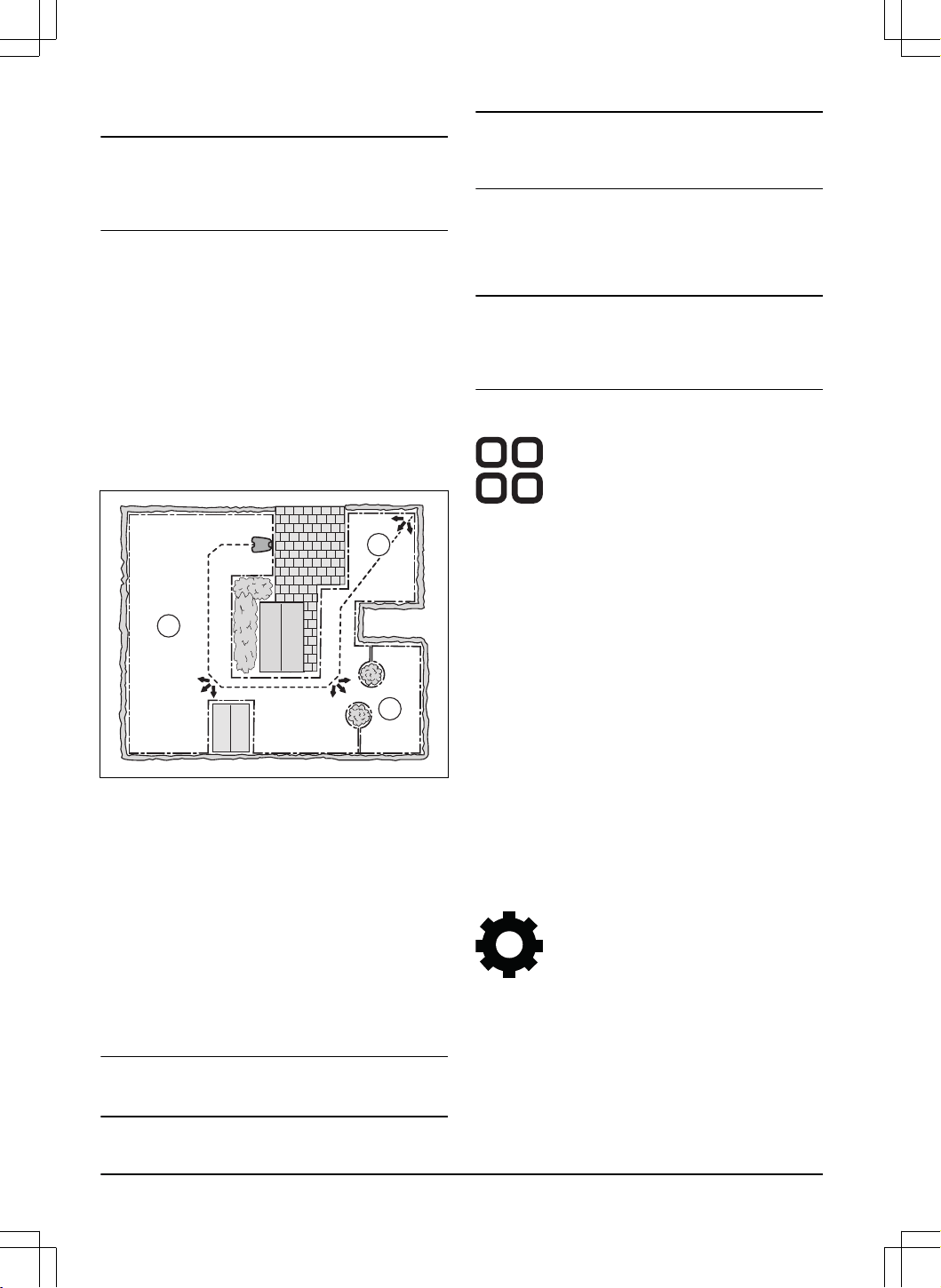
Use the
Lawn coverage
function to set manual settings.
Note: If the GPS assisted navigation is enabled it is
on while there is a GPS service. The product uses the
manual settings for operation if the GPS service is not
available.
5.5.2.1 To set the Lawn Coverage function
Use the
Lawn Coverage
function for the product to cut
remote parts of the work area. Use the
Lawn Coverage
function if the work area includes remote parts that are
connected with narrow passages to keep a satisfactorily
cut work area. You can set a maximum of 5 remote
areas where the product starts to cut.
The product first follows the guide wire until the set
specified distance and then it starts to cut the work area.
Area A, approximately 50%
Area B, approximately 30%
Area C, approximately 20%
A
C
B
Each area can be enabled or disabled. Use the
Test
function to measure the distance from the charging
station to where the product must start to cut.
The default settings lets the product follow the guide
wire 300 m / 980 ft. in 20% of the times it moves out
from the charging station. If the guide wire is less than
300 m / 980 ft. the product will follow it to the point
where the guide wire is connected to the boundary wire.
5.5.3 Drive Past Wire
The front of the product always moves past the
boundary wire by a specified distance before the product
moves back into the work area. The factory setting for
the
Drive Past Wire function
function is 31 cm / 13 in.
You can select a distance of 25-50 cm / 10-15 in.
Note:
With the factory setting the product will cut 11
cm / 4.3 in. past the wire.
Note: If the
Drive Past Wire
distance is changed,
the distance will change along the boundary wire
everywhere in the work area.
5.5.4 Starting point
The
Starting point
function allows you to control how
far the product drives forward from the charging station
before it starts to operate. Use this function if the
charging station is placed in an area with limited space.
Note: Starting point must not be set to a distance
longer than the distance the guide wire is installed in a
line in front of the charging station. Refer to
To examine
where to put the guide wire on page 27
.
5.6 Accessories
In
Accessories
you can change the settings of the
product accessories.
5.6.1 Headlights
There are 4 different headlight settings that control when
the headlights are on:
•
Always on
•
Evening only (19:00-00:00)
•
Evening and night (19:00-07:00)
•
Always off
The default setting is
Always on
. The headlights can be
set to flash if there is an error.
5.6.2 To avoid collisions with the
Automower
®
house
When this option is enabled, the wear on the product
and the Automower
®
house is reduced, but it can result
in more uncut grass around the charging station.
5.7 General (Bluetooth
®
only)
This function is used to set time and date, or to reset to
default settings.
5.7.1 Time & date
The time and date can be changed manually, or by
using the time and date from the mobile device.
34
- Settings 1404 - 017 -
5.7.2 Reset to factory settings
The user settings can be reset to factory settings.
Note:
PIN code, Loop signal, Messages
and
Date &
Time
will not be reset.
5.8 Security
The security settings controls the PIN code, the
GeoFence and other security functions. The correct PIN-
code must be entered to get access to the
Security
menu.
This menu is only available when your mobile device is
connected to the product with Bluetooth
®
.
5.8.1 New loop signal
The loop signal is randomly selected to create a unique
link between the product and the charging station. In
rare cases, there may be a need to generate a new
signal, for instance if 2 adjacent installations have a very
similar signal.
5.8.2 Change PIN code
You can change the PIN code. Make a note of the new
PIN code in Memo. Refer to
Introduction on page 7
.
5.8.3 Theft protection
In the
Theft protection
menu it is possible to set the
alarm duration and also what events should trigger the
alarm. The factory setting is to require PIN code and the
alarm duration is 1 min.
5.8.3.1 Require PIN code
This function means that the product cannot be operated
or controlled after the STOP button has been pushed
without first entering the correct PIN code. If the
incorrect PIN code is entered 5 times, the product is
locked for a time. The lock is extended for each new
incorrect try.
5.8.3.2 Alarm duration
There is a possibility to set how long the alarm signal
should last. A setting between 1 and 10 minutes is
possible.
5.8.3.3 STOP button pressed
If the alarm
"STOP button pressed"
is enabled, the
alarm goes off if someone presses the STOP button and
the PIN code is not entered within 30 seconds.
5.8.3.4 Carried away
If the alarm
Carried away
is enabled, the product senses
unexpected motions, and the alarm goes off.
5.8.4 GeoFence
GeoFence is a GPS-based theft protection that makes
a virtual fence for the product. If the product is more
than a set distance away from the center position the
product will be disabled and an alarm will start. The
center position sets to the current position of the product
when GeoFence is enabled. The PIN code is necessary
to stop the alarm and to start the product again. The
GeoFence is only enabled when the product is set to
ON.
5.9 Automower
®
Connect (Bluetooth
®
only)
In
Automower
®
Connect
you can enable or disable the
Automower
®
Connect module. You can also see the
signal strength, connectivity status, initiate new pairing
or remove the product from the paired accounts.
5.10 Messages
In this menu the previous fault and information
messages can be found. For some of the messages,
there are tips and advice to help to rectify the fault.
If the product is disrupted in any way, for example it
is trapped or the battery is low, a message is saved
relating to the disruption and the time it happened.
If the same message is repeated several times, this
may indicate that an adjustment to the installation or the
product is required. Refer to
Installation with boundary
wire on page 23
.
5.11 Mowing profiles
You can save different sets of settings in the
Mowing
profiles
. Use this function when you use one product for
more than one location or to have different settings on
the same location. You can for example use a boundary
wire installation for one profile and a EPOS
™
installation
for a second profile. In the
Mowing profiles
the product
settings, map objects and their settings are saved.
5.12 Download firmware over the air
(Firmware over the air FOTA)
The product has a function that automatically downloads
new firmware. When a new firmware is available, a
notification shows in the app where you can select
to install the new firmware. In the factory setting this
function is enabled. Husqvarna recommends you to
update the firmware when new firmware is available.
1404 - 017 -
Settings - 35
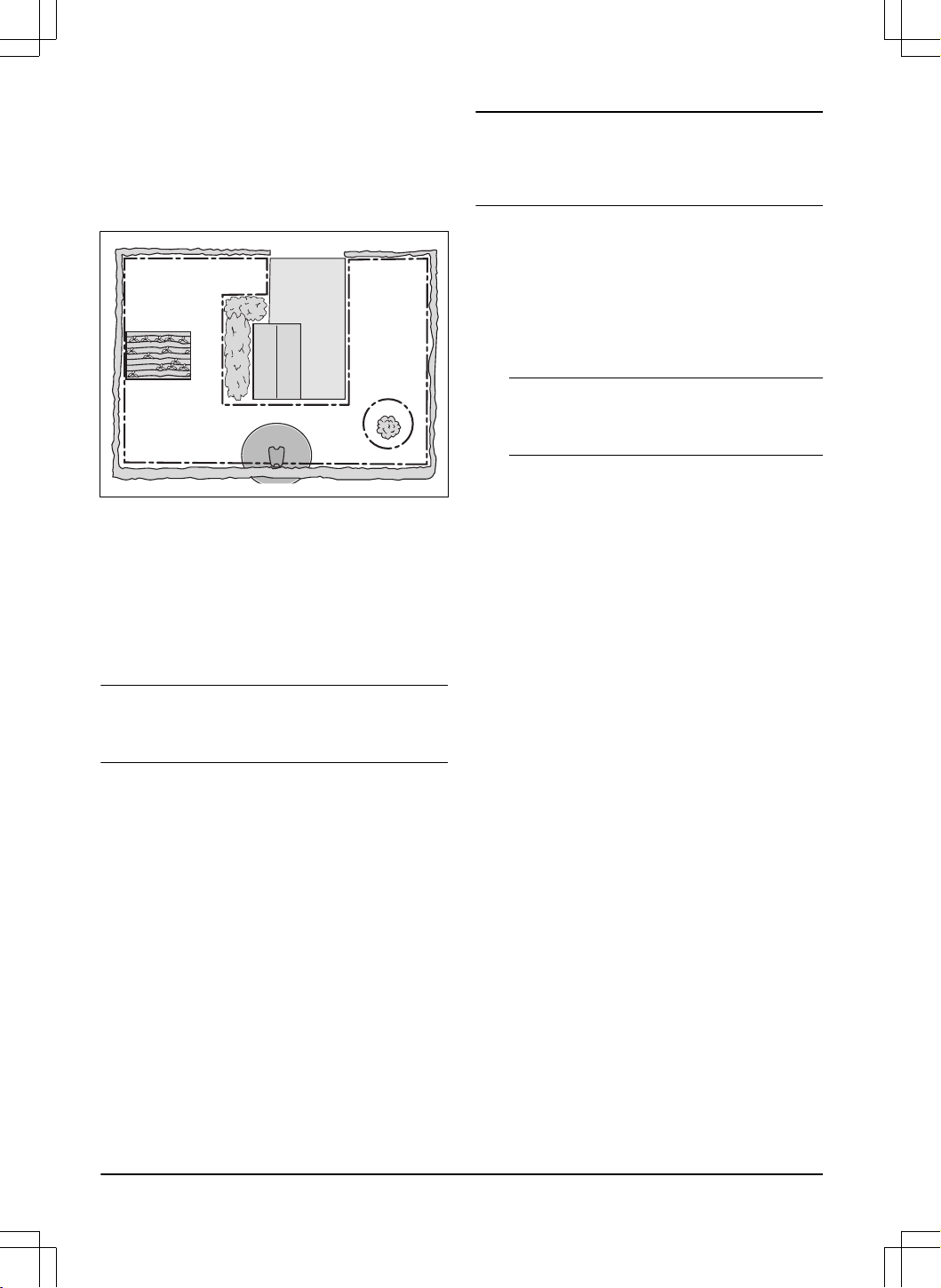
5.13 Automower
®
Intelligent Mapping
(AIM)
Automower
®
Intelligent Mapping (AIM) is available in
the Automower
®
Connect app. The technology uses
different sensors, GPS included, in the product. The
precision of the map is approximately 1 m / 3.3 ft.
B
A
C
Some of the functions with AIM are:
• It shows a map of the lawn in Automower
®
Connect app with charging station, boundary wire,
guide wire and islands.
• You can make work areas (A) and (B) in the
installation where you can set a schedule and
cutting height for each work area.
• You can make stay-out zones (C) in which the
product cannot enter and cut grass.
Note:
With the AIM function you can set work areas
and stay-out zones with a precision of approximately 1
m / 3.3 ft.
The data collection for the AIM map starts automatically.
The product collects data while it operates and the
map is completed in 1-2 weeks. Remove temporary
obstacles on the lawn when the product operates and
collects data. If you change the installation of the wires
or charging station, you must do a new map. Read more
about AIM in the Automower
®
Connect app.
5.14 To reinstall the charging station on
the map
Reinstall the charging station on the map if you move
or replace the charging station. You can also reinstall
it if the product cannot dock or connect to the charging
station.
1. Select
Map objects > Charging station
in the app.
2. Select
Reinstall charging station
and follow the
instructions.
Note:
Other devices with Bluetooth
®
enabled can
cause interference with the pairing operation. Disable
Bluetooth
®
on the other devices if it causes interference
with the pairing operation.
5.15 To reinstall the reference station
on the map
Reinstall the reference station on the map if you move or
replace the reference station.
1. Select
Map objects > Reference station
in the app.
2. Select
Reinstall reference station
and follow the
instructions.
Note: If you move the reference station, you
must make a factory reset and install all the maps
again.
36 - Settings 1404 - 017 -
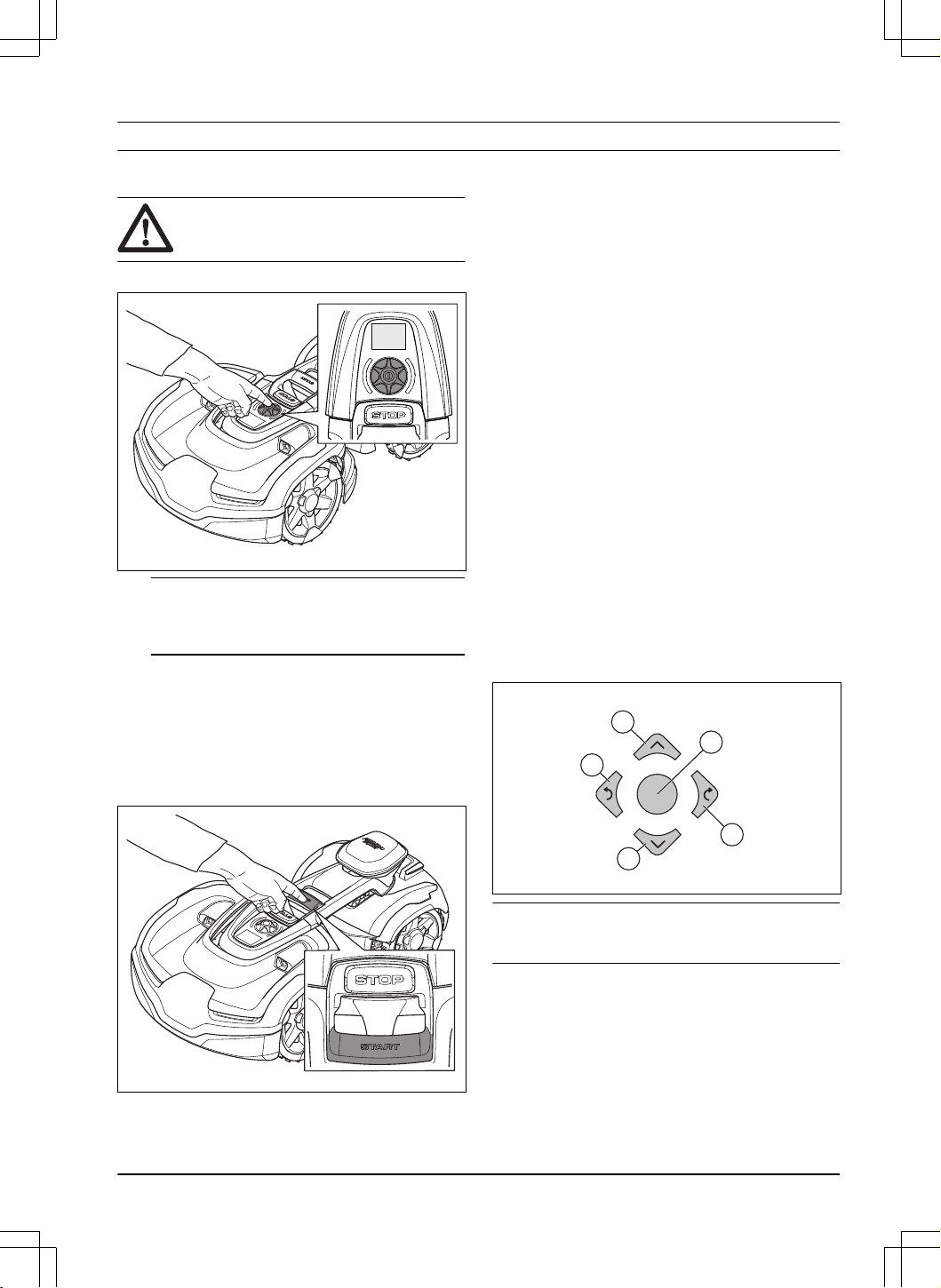
6 Operation
6.1 To set the product to ON
WARNING: Read and understand the
safety chapter before you use the product.
1. Push the jog wheel for 3 seconds.
3 sec
Note: Make sure that the STOP button is
pushed down. If the STOP button is not pushed
down a STOP symbol shows on the display.
2. Use the jog wheel to enter the PIN code. The
correct PIN code must be entered to get access
to the menu. If the incorrect PIN code is entered 5
times, the product is locked for a time. The lock is
extended for each new incorrect try.
3. Select an operating mode and push the jog wheel.
Refer to
Operation on page 37
.
4. Push the START button to start the product.
The product can only go from the charging station
when the battery is full and if the
Schedule
is set to
let the product to operate.
6.2 To select operation mode Start
1. Open the app on your mobile device.
2. Select
Start
and select an operation mode:
Resume Schedule
,
appDrive
or
Select work area
.
6.2.1 Resume Schedule
The product will continue to operate on the scheduled
work area where it cuts the grass and charges
automatically.
6.2.2 appDrive
Use the appDrive to operate the product manually.
6.2.2.1 To operate the product with appDrive
Use the buttons to operate the product:
• Use the up button (A) to move the product forward.
• Use the down button (B) to move the product
rearward.
• Use the left arrow button (C) to rotate the product
to the left.
• Use the right arrow button (D) to rotate the product
to the right.
• Use the center button (E) as a joystick to move and
rotate the product in any direction.
A
D
B
C
E
Note: Walk 2-3 m / 6.5-9.8 ft. behind the product
when you operate the product with appDrive.
6.2.3 Select work area
This function lets the product temporarily operate in a
selected work area. For work areas with irregular pattern
you can select a time limit for this function. After that
time period, the product continues to operate as it is
set in the schedule. For work areas with systematic
pattern the product cuts until the selected work area is
completed. When the product has cut the work area, it
continues to operate as it is set in the schedule.
1404 - 017 -
Operation - 37
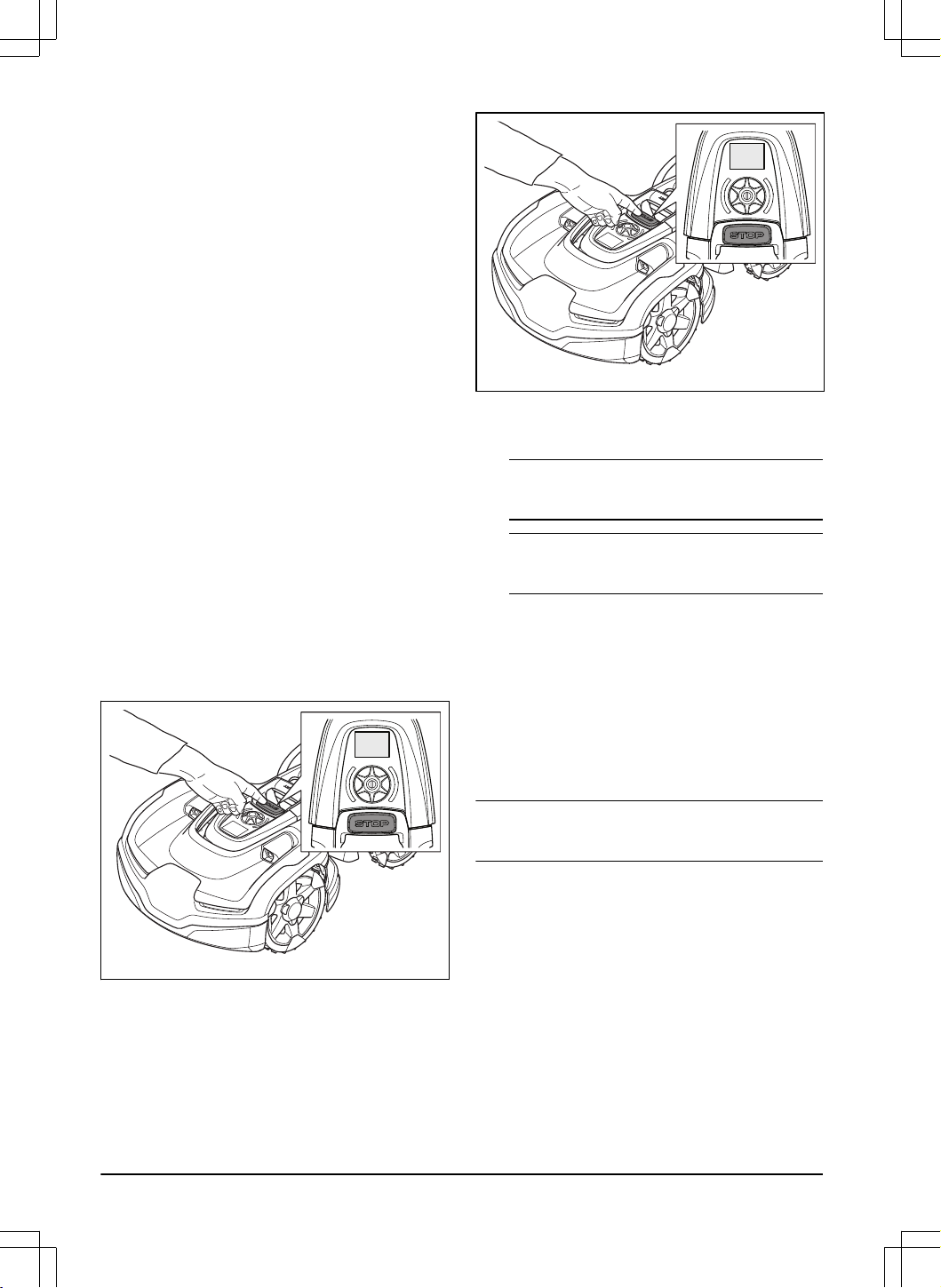
6.2.3.1 Secondary area
For the product to operate in a secondary area, you
must move the product manually to and from the
secondary area. The product cuts for a selected period
of time or until the battery is empty.
6.3 Operating mode - Park
When you select
Park
in the app you can select the
operation selections that follow:
•
Park until further notice
•
Select duration
6.3.1 Park until further notice
The operation mode
Park
means that the product goes
back to the charging station where it stays until a new
operation mode is selected and the START button is
pushed.
6.3.2 Select duration
The product goes back to the charging station and
stays for the selected park duration. Use the operation
selection to temporary stop an ongoing mowing cycle
and let the product to stay in the charging station.
6.3.3 Operating mode - Pause
When selecting
Pause
in the Automower
®
Connect app,
the product stop the current activity and pause. The
product is paused until either
Park
or
Start
is selected
in the Automower
®
Connect app.
6.4 To stop the product
1. Push the STOP button on top of the product.
The product stops and the cutting motor stops.
6.5 To set the product to OFF
1. Push the STOP button to stop the product.
2. Enter the PIN code if it is necessary.
3. Push the jog wheel for 3 seconds. Make sure that
the LED status indicator goes off.
Note: If the LED indicator is on or if it flashes.
Refer to
LED status indicator on page 10
.
Note: The product cannot be set to OFF when it
is in the charging station.
6.6 To charge the battery
When the product is new or after long-term storage, the
battery can be empty. Charge the battery before you
start the product.
1. Put the product in the charging station.
2. Put the product into the charging station until the
charging plates touch the contact plates.
3. Do a check that the product charges in the display
of the product.
Note:
If the battery is empty the product must charge
for a longer period of time before the product can start.
38 - Operation 1404 - 017 -
7 Maintenance
7.1 Introduction - maintenance
WARNING: Set the product to OFF
before you do maintenance on the product.
WARNING: Use protective gloves.
For better operation and lifetime of the product, make
sure to clean the product regularly and replace worn
parts.
When the product is new, examine the blade disc and
blades each week. If the wear is low, you can increase
the interval for the next time you examine the blade
disc and blades. Examine the blade disc and the blades
more regularly if there is much wear.
It is important that the blade disc rotates easily and that
the edges of the blades are not damaged. The usual
lifetime of the blades are 3 to 6 weeks. The conditions
that follow can increase or decrease the lifetime of the
blades:
• Operation time and dimension of the work area.
• Length and thickness of the grass.
• Soil, sand and use of fertilizers.
• Objects such as cones, tools, stones and roots in
the work area.
Note: The cut result can be unsatisfactory if the
blades are blunt. Refer to
Replacement of the blades
on page 41
on how to replace the blades.
7.2 Maintenance schedule
The maintenance schedule shows how to do
servicing and maintenance on the product. Follow the
maintenance schedule for a better operation and to
increase the lifetime of the product.
X = The instructions are given in this operator's manual.
O = The instructions are not given in this operator's
manual. Speak to your approved servicing dealer.
To prepare Weekly Every
year
Every
third year
Clean the product. Refer to
Clean the product on page 40
. X
Examine the product for damage and wear. X
Do an update of the firmware. O
Do a check of the servicing messages for recommended upgrades. O
Servicing
Examine the blades and replace the blades and blade screws if it is necessary.
Refer to
Replacement of the blades on page 41
.
X
Examine and polish the contact plates on the charging station. X
Examine and polish the charging plates on the product. X
Charge the battery fully before you put the product into storage. Refer to
To
charge the battery on page 38
.
X
Examine the wheels for wear. O
Examine and clean the collision columns. Do a check of the tightening torque on
the front and rear collision columns.
O
Make sure that the product is docking and charging correctly. O
Examine the cable and connector to the charging plates on the body of the
product.
O
1404 - 017 - Maintenance - 39
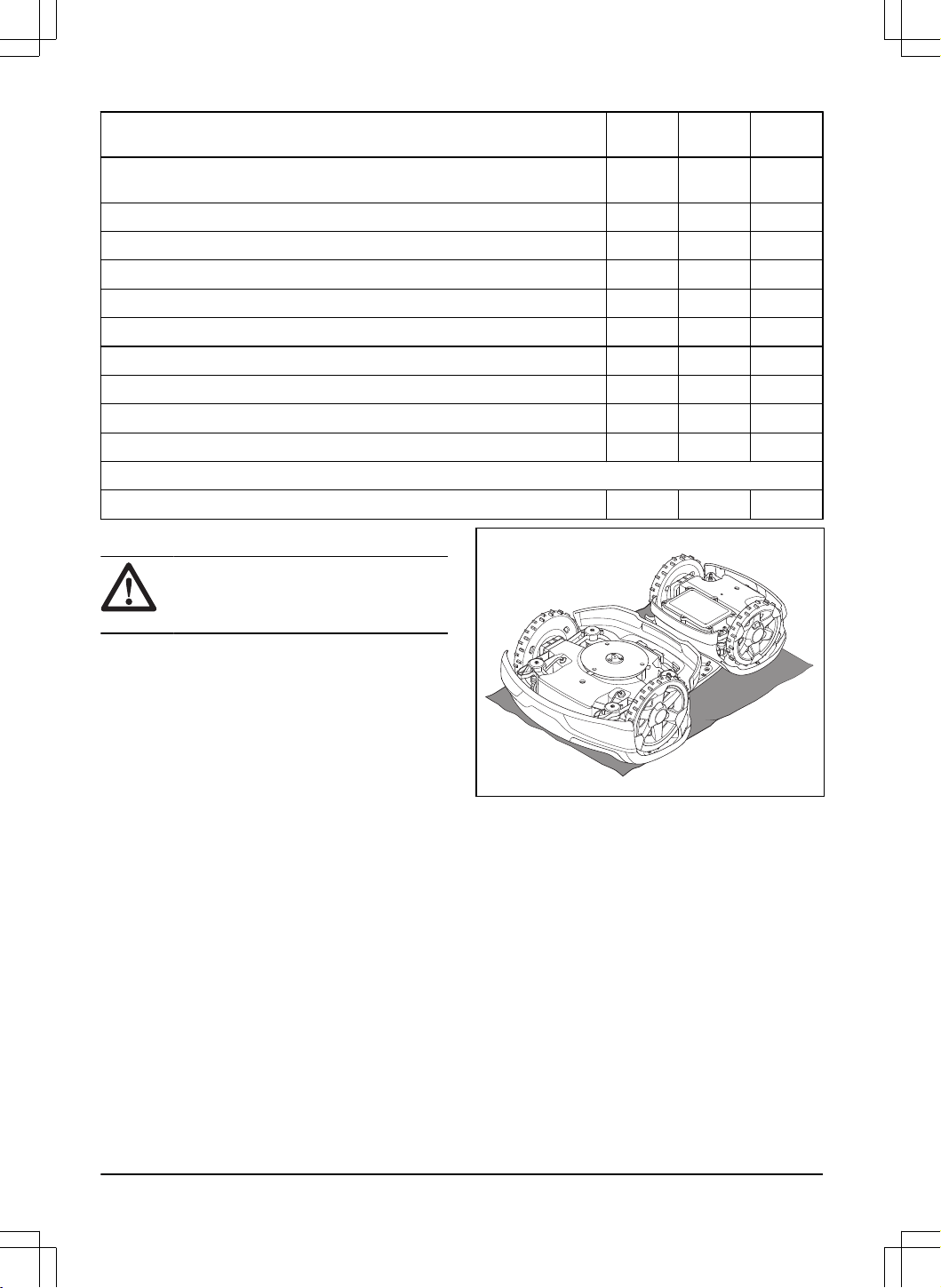
To prepare Weekly Every
year
Every
third year
Examine the rubber grommets on the chassis to make sure that it is sealed
correctly.
O
Examine the skid plate and skid plate bearing. O
Examine the rubber bellows in the cutting height adjustment system. O
Examine the rubber bellows for the collision columns. O
Replace the rubber bellows for the collision columns. O
Examine and clean the airflow filter. O
Replace the airflow filter. O
Do a check of the tightening torque of chassis screws. O
Open the chassis and replace all sealing strips. O
Examine the front/rear wheel bearings and link arm bearings. O
Last step
Use a software service tool to do a function test of the functions of the product. O
7.3 Clean the product
CAUTION: Do not use a high-pressure
washer or running water to clean the
product. Do not use solvents for cleaning.
The product does not operate satisfactorily in slopes if
the wheels are blocked with grass. Use a soft brush to
clean the product.
Husqvarna recommends to use a special cleaning and
maintenance kit, available as accessory. Speak to your
Husqvarna representative for more information.
7.3.1 To clean the blade disc
Examine the blade disc and blades weekly.
1. Set the product to OFF. Refer to
To set the product
to OFF on page 38
.
2. Put the product with the blade disc up on a soft
and clean surface.
3. Clean the blade disc with a brush.
40 - Maintenance 1404 - 017 -
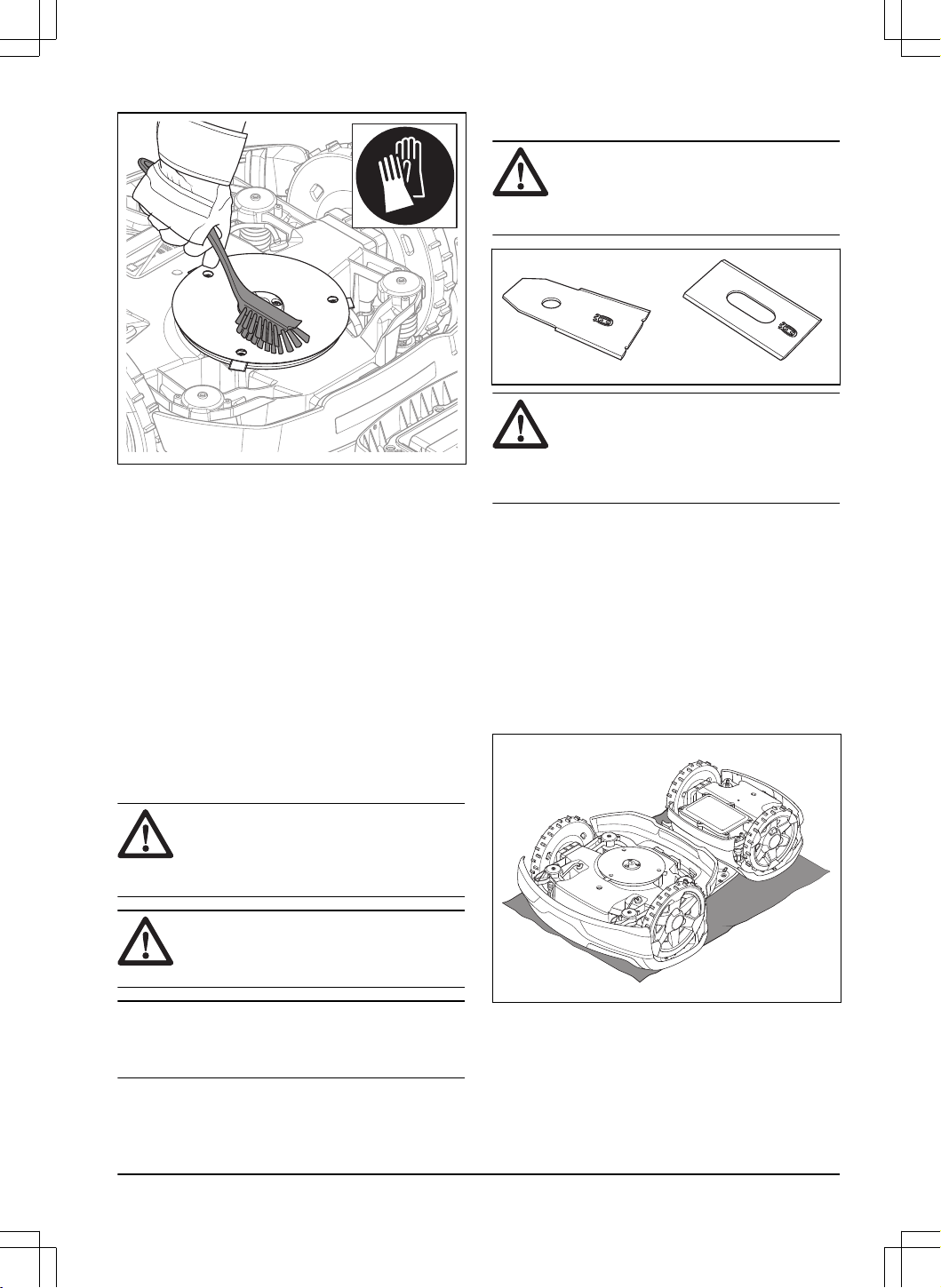
4. Make sure that the blade disc can rotate freely.
5. Make sure that the blades are not damaged and
can pivot freely.
7.3.2 To clean the chassis
• Clean the bottom of the chassis with a brush or a
moist cloth.
7.3.3 To clean the wheels
The product does not operate satisfactorily in slopes if
the wheels are blocked with grass.
• Use a soft brush to clean the wheels.
7.3.4 To clean the body of the product
• Use a moist cloth and a weak soap solution to
clean the body of the product.
7.3.5 To clean the charging station
WARNING:
Disconnect the power
supply from the power outlet before
maintenance, or when you clean the
charging station or power supply.
CAUTION: Do not use a high-pressure
washer or running water to clean the
charging station.
Note: The product cannot enter the charging station
if there are objects in the charging station. Clean the
charging station regularly.
• Remove grass, twigs and other objects from the
charging station.
7.4 Replacement of the blades
WARNING: Husqvarna can only
guarantee safety if you use Husqvarna
original blades with the embossed crowned
H-mark logotype.
WARNING: You must replace the
screws when you replace the blades. The
used screws can wear quickly and make the
blade come loose, this can cause serious
injury.
Replace worn or damaged blades for a safe operation.
Replace the blades regularly for a satisfactory cut result
and a low energy use. All 3 blades and screws must
be replaced at the same time to get a balanced cutting
system.
7.4.1 To replace the blades
1. Set the product to OFF. Refer to
To set the product
to OFF on page 38
.
2. Put on protective gloves.
3. Put the product with the blade disc up on a soft
and clean surface.
4. Rotate the skid plate until its holes align with the
screws for the blade.
1404 - 017 -
Maintenance - 41
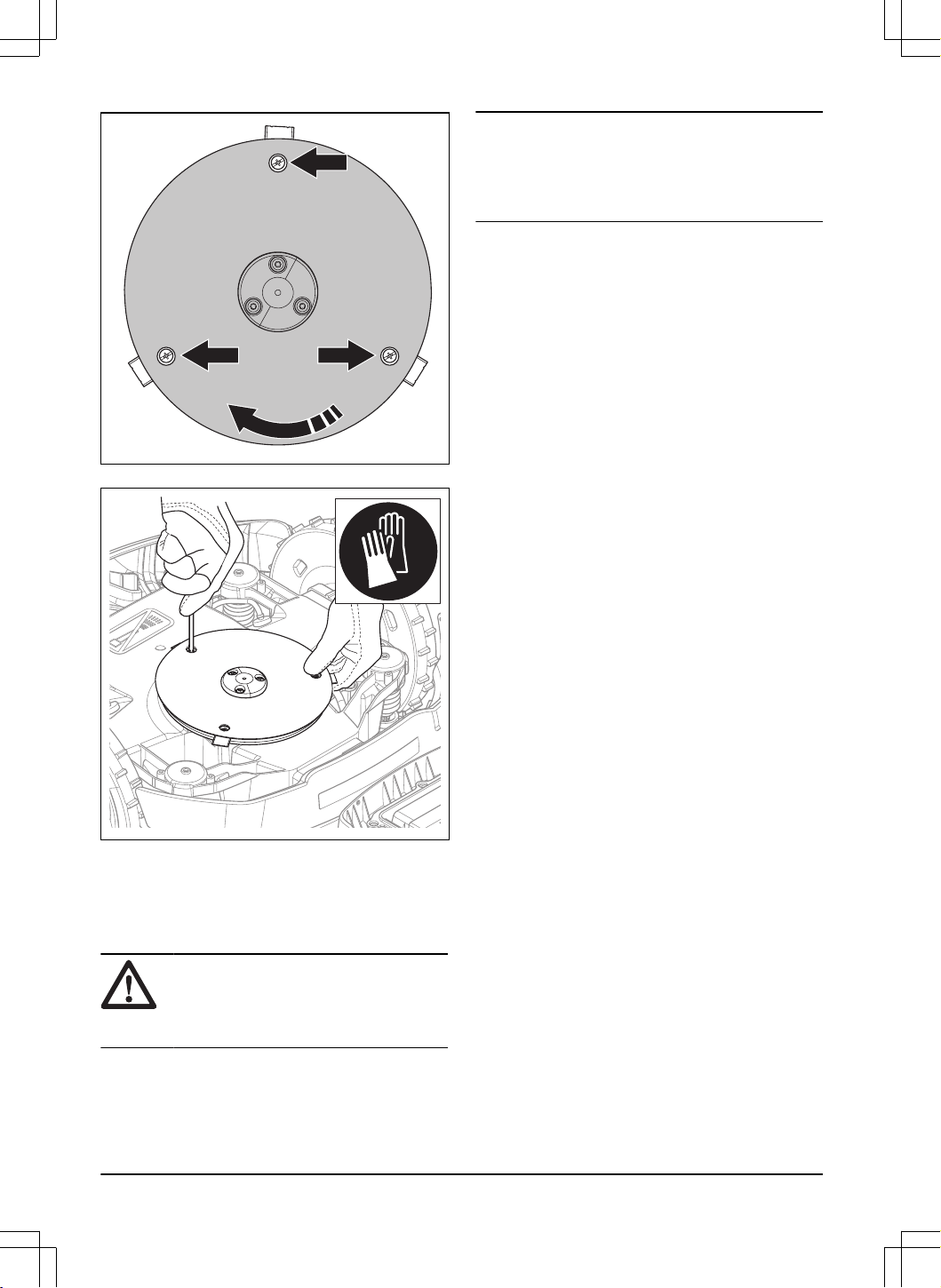
5. Remove the 3 screws.
6. Remove each blade and screw.
7. Install new blades and screws.
8. Make sure that the blades can pivot freely.
7.5 Battery
CAUTION:
Charge the battery fully
before you put the product into storage. If
the battery is not fully charged it can cause
damage to the battery.
If the operating time of the product is shorter than usual
between charges, this means that the battery is at the
end of its life cycle. Replace the battery to extend the
operating time.
Note:
The battery life is related to the length of
the season and how many hours a day the product
operates. A long season or many hours of operation
a day means that the battery must be replaced more
regularly.
7.6 Winter service
Take your product to your Husqvarna central service for
service prior to winter storage. Regular winter service
will maintain the product in good condition and create
the best conditions for a new season without any
disruptions.
Service usually includes the following:
• Thorough cleaning of the body, the chassis, the
blade disc and all other moving parts.
• Testing of the product’s function and components.
• Checking and, if required, replacing wear items
such as blades and bearings.
• Testing the product’s battery capacity as well as a
recommendation to replace battery if necessary.
• If new firmware is available, the product is
updated.
42 - Maintenance 1404 - 017 -
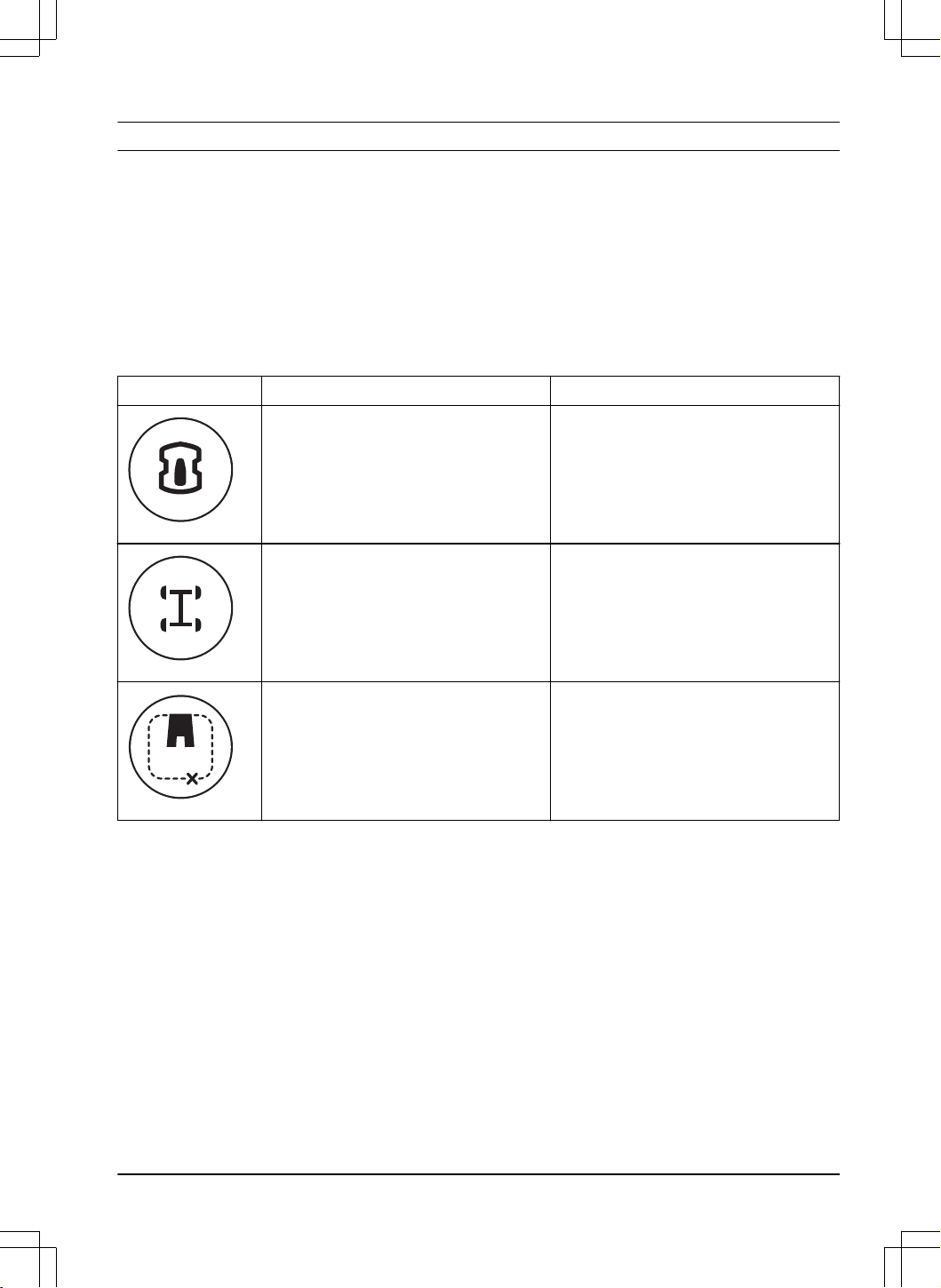
8 Troubleshooting
8.1 Introduction - troubleshooting
In this chapter, a number of messages are listed which may be shown in Automower
®
Connect and Automower
®
Access if there is a malfunction. There is a proposal action to the cause and steps to take for each message.
This chapter also presents some symptoms that can guide you if the product does not work as expected. More
suggestions for steps to take in the event of malfunction or symptoms can be found on www.husqvarna.com.
8.2 Error symbols in the Automower
®
Access display
If an error symbol is shown in the Automower
®
Access display, push the STOP button to go to the main menu. More
information about the error can be found in Automower
®
Connect.
Error symbol Description Action
The product stopped. Examine the cause of the problem. For ex-
ample, if the product is not in the work area
or if the product is on top of an object.
Start the product.
The product stopped because of grass or
other object around the drive wheels.
Examine the drive wheels and remove grass
or other objects. Start the product. If the
problem stays, speak to your local Husqvar-
na representative.
The product stopped because it cannot find
the loop signal.
Refer to the error message
No loop signal
in
Messages on page 45
.
1404 - 017 - Troubleshooting - 43
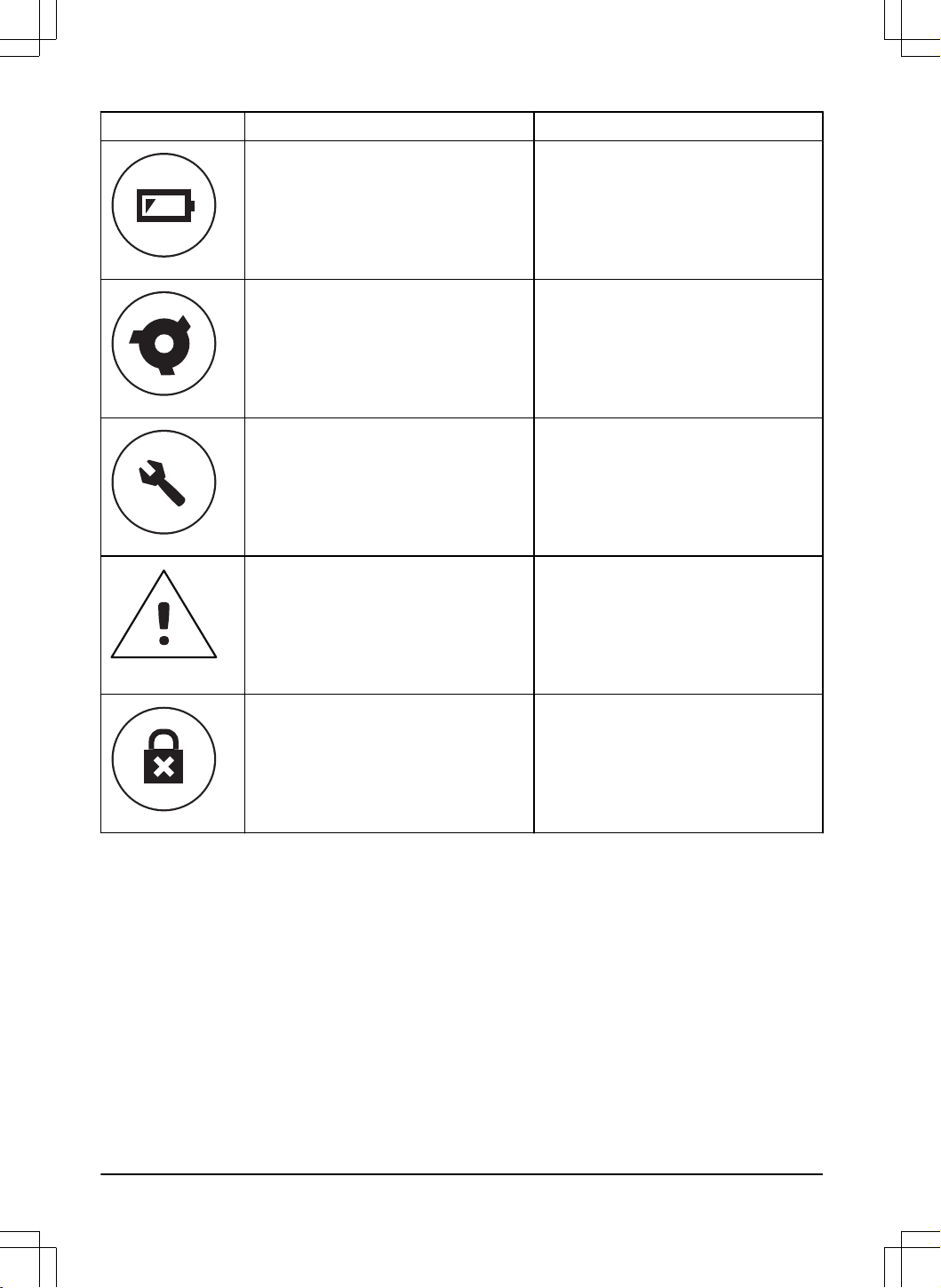
Error symbol Description Action
The product stopped because the battery is
low.
Refer to the error message
Empty Battery
in
Messages on page 45
.
The product stopped because of a blockage
to the cutting system.
Examine the blade disc and its adjacent
area. Remove grass or other objects that can
cause blockage to the cutting system.
The product stopped because of a temporary
electronic or firmware problem.
Restart the product. If the problem stays,
speak to your local Husqvarna representa-
tive.
The product stopped because the alarm star-
ted.
Start the product. You can change the set-
tings for the alarm in the
Security
menu in
the Automower
®
Connect app.
The product stopped because an incorrect
PIN code was entered.
Enter the correct PIN code. If the PIN code is
forgotten, use the app to send the PIN code
to your registered e-mail address. If you have
not registered your e-mail address, speak to
your local Husqvarna representative.
44 - Troubleshooting 1404 - 017 -
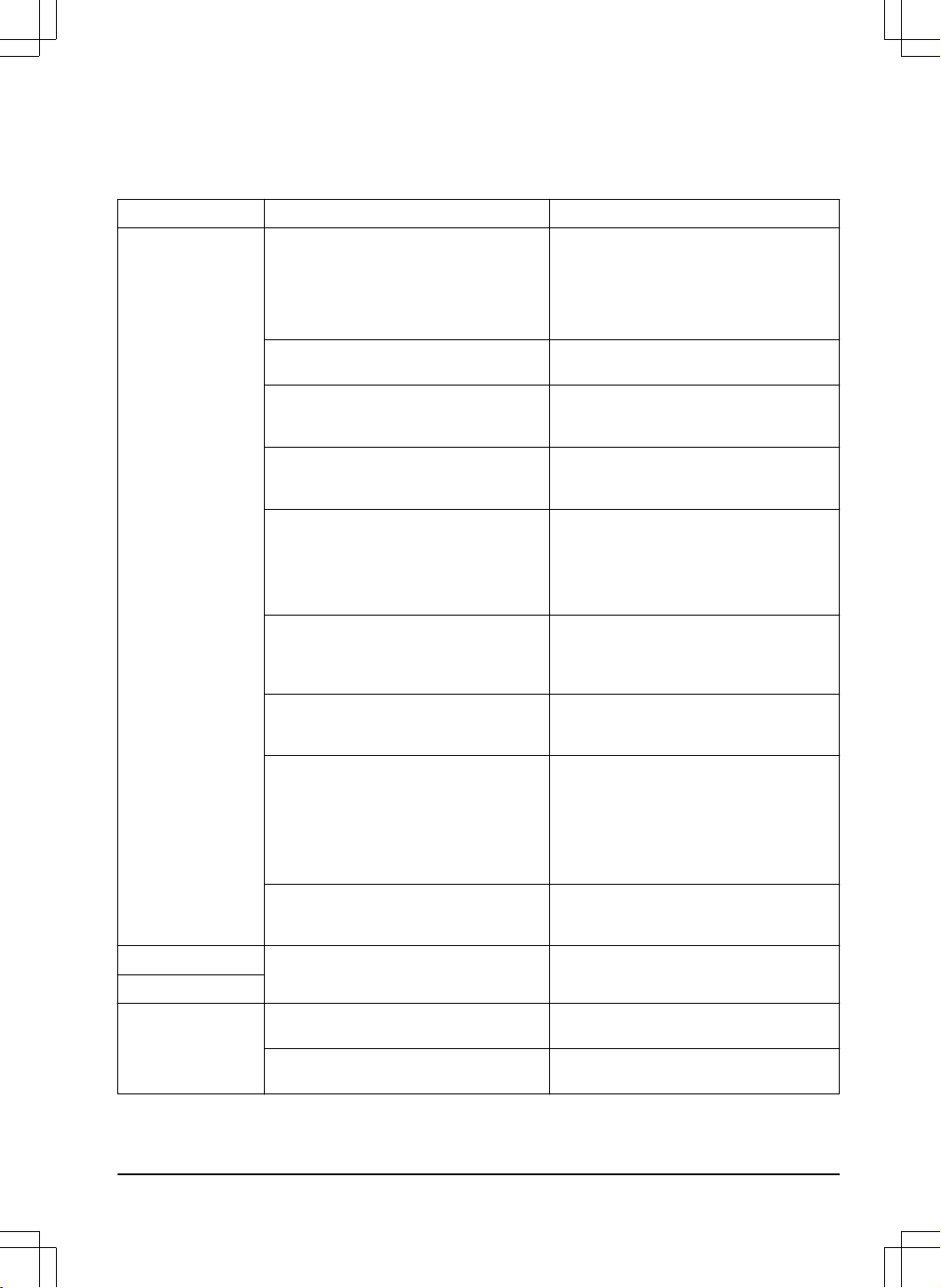
8.3 Messages
The messages in the table below are shown in Automower
®
Connect and Automower
®
Access. Speak to your
Husqvarna representative if the same message shows frequently.
Message Cause Action
No loop signal
The power supply or the low-voltage cable
are not connected.
Examine the LED status on the charging sta-
tion. If the LED is not lit, it indicates that there
is no power. Examine the power outlet con-
nection and whether an earth-fault breaker
has tripped. Make sure that the low-voltage
cable is connected to the charging station.
The power supply or low-voltage cable are
damaged.
Replace the power supply or low-voltage ca-
ble.
ECO mode
is activated and the product has
attempted to start outside the charging sta-
tion.
Put the product in the charging station. Start
the product.
The product does not find the loop signal
from the charging station.
Put the product in the charging station and
generate a new loop signal. Refer to
New
loop signal on page 35
.
Disturbances from metal objects (fences, re-
inforcement steel) or buried cables.
For a wire installation, move the boundary
wire and/or make more islands in the work
area to increase the signal strength.
For an EPOS
™
installation, change the posi-
tion of the charging station.
For a wire installation, the boundary wire is
not connected to the charging station.
Make sure that the boundary wire connectors
are fitted properly to the charging station. Re-
place connectors if damaged. Refer to
To in-
stall the boundary wire on page 29
.
For a wire installation, the boundary wire is
crossed on its way to and from an island.
Make sure that the boundary wire is installed
correctly. Refer to
To install the boundary
wire on page 29
.
For a wire installation, the boundary wire is
broken.
Check the signal given by the LED on the
charging station. If the LED indicates break in
the boundary wire, find out where the break
is. Replace the damaged section of the loop
with a new loop wire and splice using an orig-
inal coupler. Refer to
Find breaks in the loop
wire on page 55
.
For a wire installation, the product is too far
from the boundary wire.
Redo the installation of the boundary wire so
that all parts of the work area is maximum 35
m / 115 ft. from the boundary wire.
Wheel motor blocked
Grass or other object has wrapped around
the drive wheel.
Examine the drive wheel and remove the
grass or other object.
Wheel drive problem
Cutting system
blocked
Grass or other object has wrapped around
the blade disc.
Examine the blade disc and remove the
grass or other object.
The blade disc lies in a pool of water. Move the product and prevent the collection
of water in the work area.
1404 - 017 - Troubleshooting - 45
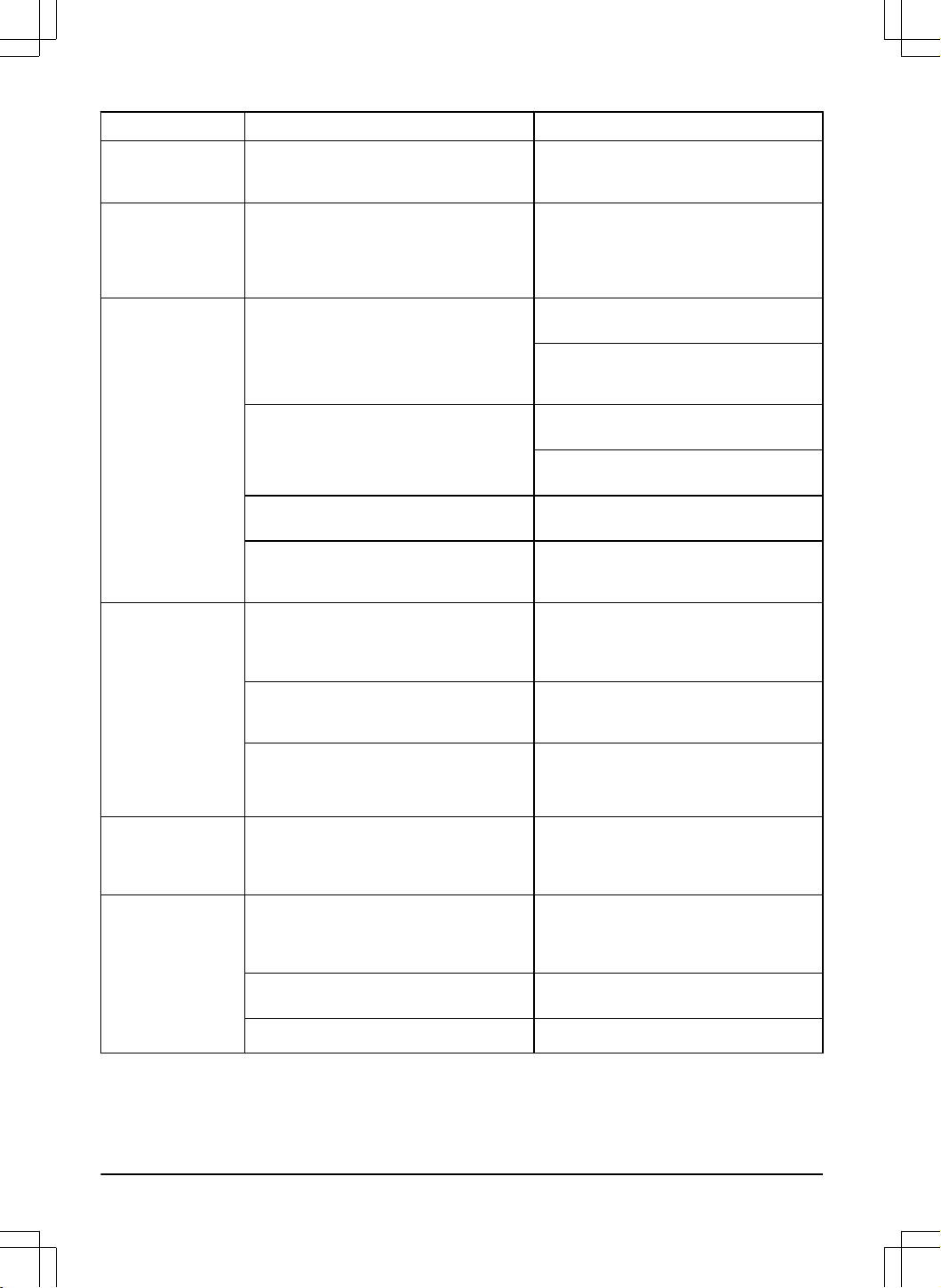
Message Cause Action
Trapped
The product is stuck in a small area behind a
number of obstacles.
Examine if there are any obstacles which
make it hard for the product to move away
from this location.
Wrong PIN code
Wrong PIN code has been entered. Five at-
tempts are permitted, and the product is then
blocked for a period of time.
Enter the correct PIN code. If the PIN code is
incorrect, use the link in the app to send the
PIN code to your registered e-mail address.
If you have not registered the e-mail address,
contact your local Husqvarna representative.
Empty battery
For an installation with boundary wire:
The product cannot find the charging station.
Change the position of the guide wire. Refer
to
To install the guide wire on page 29
.
Check the installation settings about how to
find the charging station. Refer to
To find the
charging station on page 33
.
For an EPOS
™
installation:
The product cannot find the charging station.
The product has no accurate position and
cannot find the charging station.
There is an obstacle that causes the product
to not find the charging station.
The battery is spent. Replace the battery. Refer to
Disposal on
page 57
.
The charging station’s antenna is defective. Check if the indicator lamp in the charging
station flashes red. Refer to
LED indicator of
the charging station on page 52
.
Slipped
The product is caught in something and has
been slipping.
Free the product and rectify the reason for
the lack of drive. If it is due to wet grass,
wait until the lawn has dried before using the
product.
The work area includes a steep slope. Maximum guaranteed slope is 70%. Steeper
slopes should be isolated. Refer to
To put
the boundary wire in a slope on page 25
.
For an installation with boundary wire:
The guide wire is not installed correctly in a
slope.
Make sure that the guide wire is installed di-
agonally across the slope. Refer to
To install
the guide wire on page 29
.
Wheel motor overloa-
ded
The product is caught in something. Free the product and rectify the reason for
the lack of drive. If it is due to wet grass,
wait until the lawn has dried before using the
product.
Charging station
blocked
The contact between the charging strips and
contact strips may be poor and the product
has made a number of attempts to charge.
Put the product in the charging station and
check that the charging strips and contact
strips make good contact. Clean the contact
and charging plates.
An object causes a blockage and the product
cannot enter the charging station.
Remove the object.
The baseplate is tilted or bent.
Make sure that the baseplate is put on level
ground.
46 - Troubleshooting 1404 - 017 -
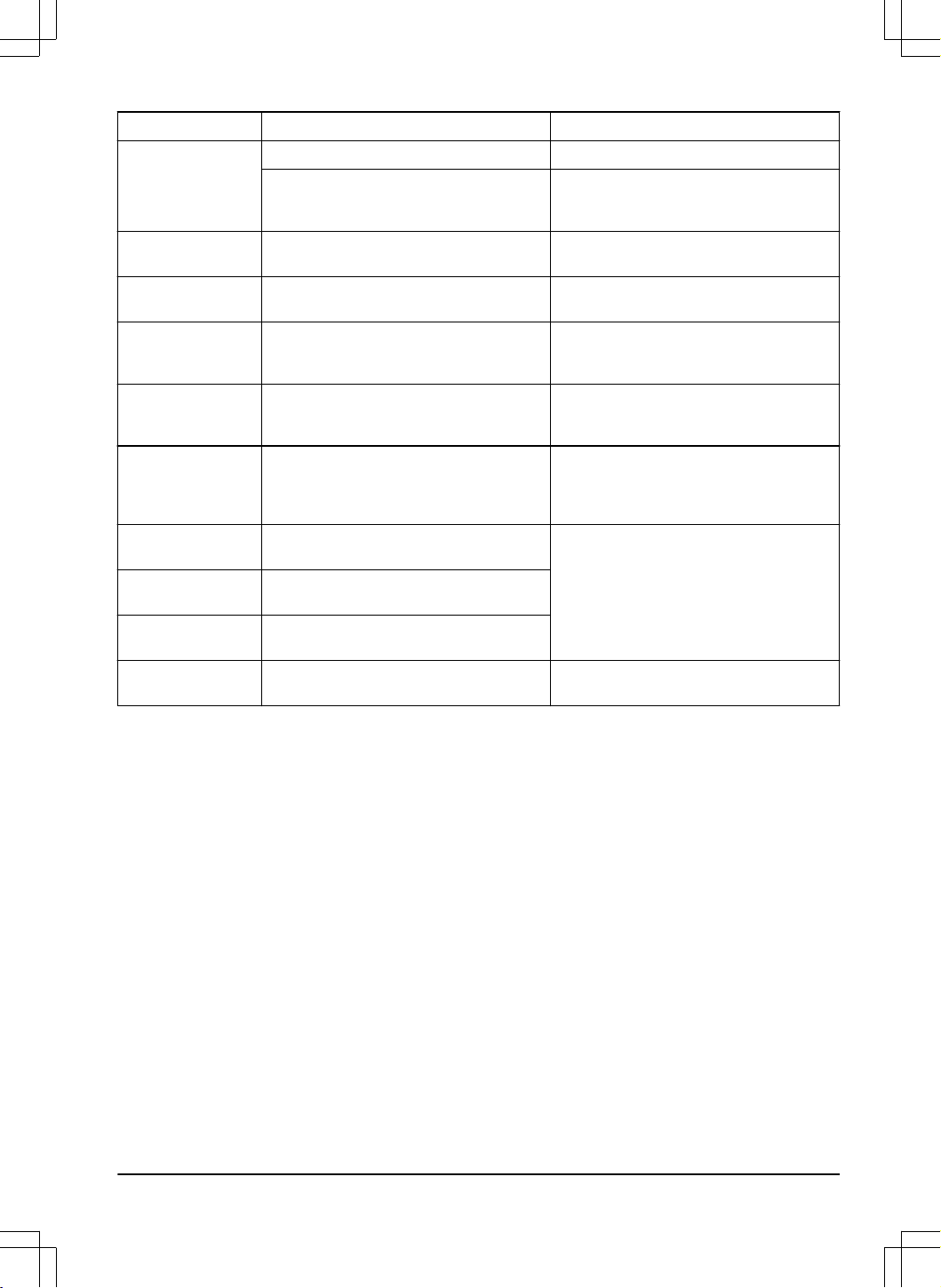
Message Cause Action
Stuck in charging sta-
tion
The product slips on the baseplate. Clean the baseplate.
There is an object in the way of the product
preventing it from leaving the charging sta-
tion.
Remove the object.
Upside down
The product is leaning too much or has
turned over.
Turn the product the right way up.
Mower tilted
The product is tilted more than the permitted
slope.
Move the product to a flat area.
Lifted
A blockage has activated the lift senors and
caused the product to stop.
Remove the product from the blockage. If the
problem remains it requires action by author-
ized service technician.
Lifted in link arm
A blockage has activated the lift senor in the
link arm and caused the product to stop.
Remove the product from the blockage. If the
problem remains it requires action by author-
ized service technician.
Slope too steep
The product stopped because the slope is
too steep.
Change the installation of the work area to
exclude this steep part of the work area. Re-
fer to
To examine where to put the boundary
wire on page 24
.
Alarm! Mower switch-
ed off
The alarm was activated because the prod-
uct was set to OFF.
Adjust the security level in the
Security
menu, refer to
Security on page 35
.
Alarm! Mower stop-
ped
The alarm was activated because the prod-
uct was stopped.
Alarm! Mower was
moved
The alarm was activated because the prod-
uct was moved.
Alarm! Outside geo-
fence
The alarm was activated because the mower
was outside its GeoFence.
Adjust the theft protection area (GeoFence)
in the
Automower
®
Connect
menu.
1404 - 017 - Troubleshooting - 47
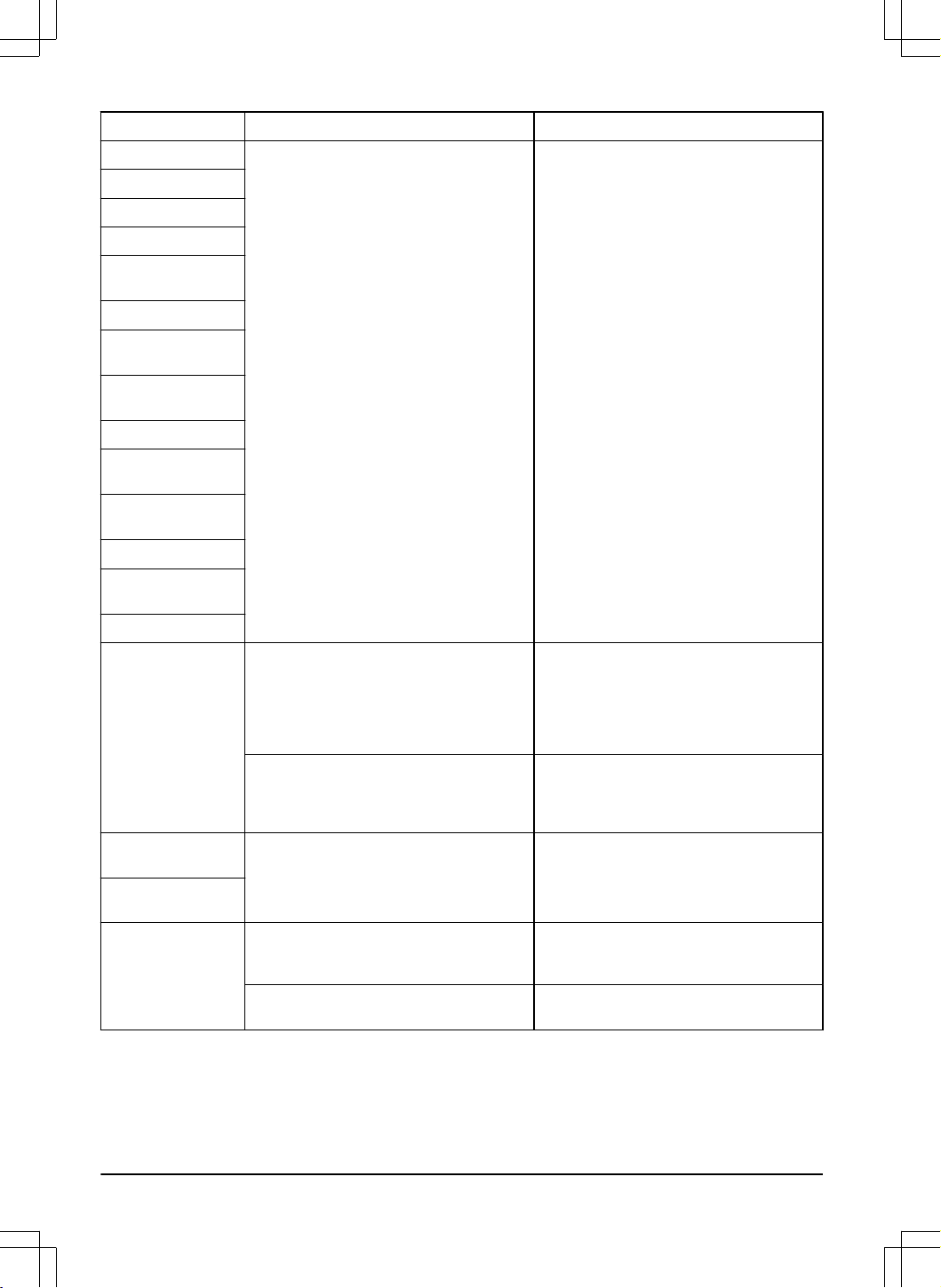
Message Cause Action
Electronic problem
Temporary electronic or firmware related is-
sue.
Restart the product. If the problem remains,
the message requires action by authorized
service technician.
Loop sensor problem
Tilt sensor problem
Temporary problem
STOP button prob-
lem
Ultrasonic problem
GPS navigation prob-
lem
Angular sensor prob-
lem
Switch cord problem
Invalid sub-device
combination
Invalid system config-
uration
Lift sensor problem
Collision sensor
problem
Safety function faulty
FlexiFence problem
The battery of the FlexiFence accessory is
low. The FlexiFence accessory does not op-
erate when the battery is empty. The product
can cut in the stay-out zone if you start the
product before you charge the FlexiFence
accessory.
Park the product and charge the FlexiFence
accessory before you start the product.
The temperature of the FlexiFence accesso-
ry is higher than the maximum limit and is set
to off.
Put the product in an area with protection
from the sun. Let the temperature of the
FlexiFence accessory decrease before you
start the product.
Temporary battery
problem
Temporary battery or firmware related issue. Restart the product.
If the problem remains, the message re-
quires action by authorized service techni-
cian.
Battery problem
Charging system
problem
There is corrosion or dirt on the charging
plates and contact plates.
Restart the product. Clean the charging
plates on the product and the contact plates
on the charging station.
Temporary electronic or firmware problem in
the product.
Restart the product. If the problem stays,
speak to your approved servicing dealer.
48 - Troubleshooting 1404 - 017 -
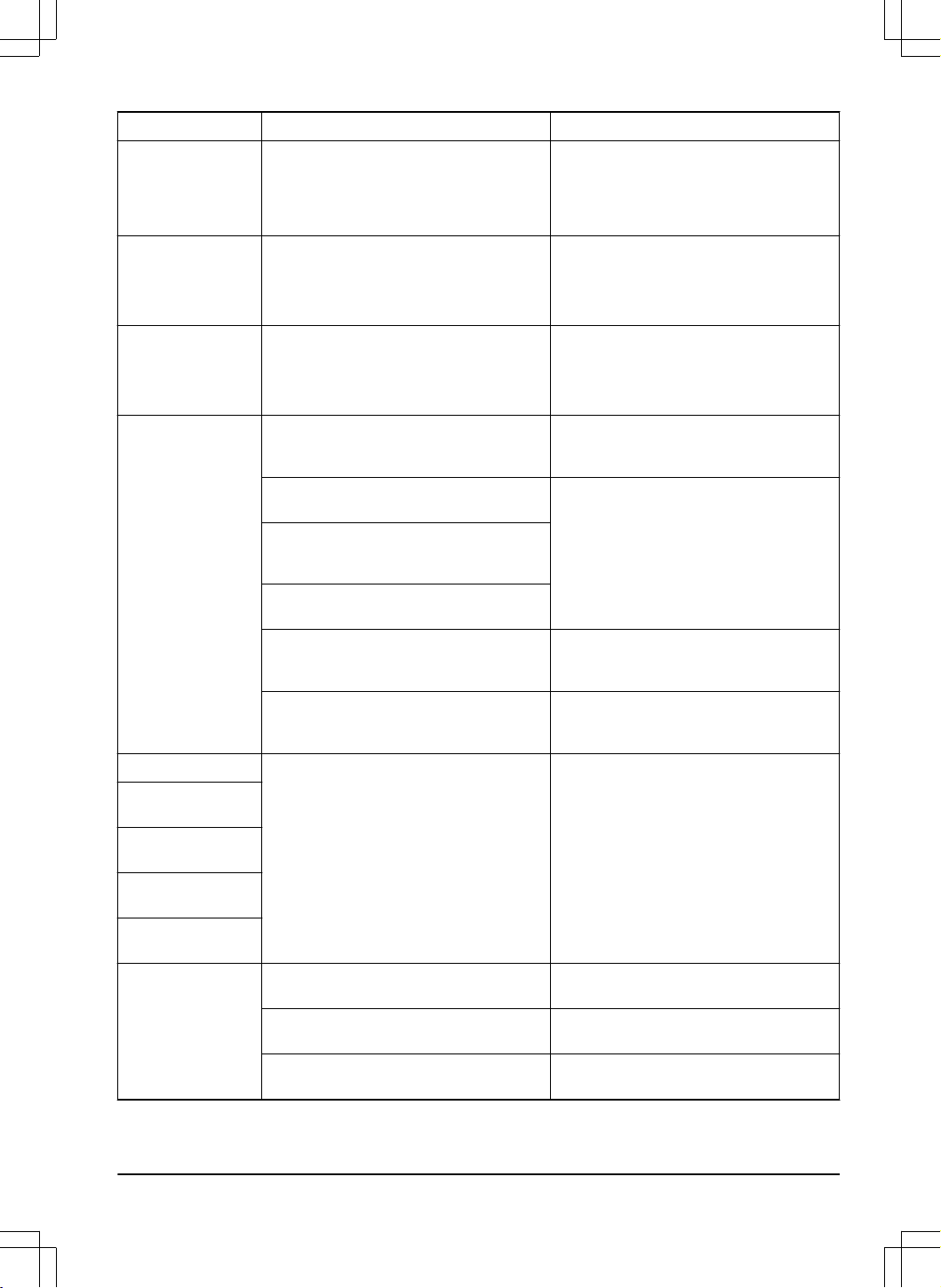
Message Cause Action
Battery temperature
outside limits
The product does not operate if the battery
temperature is too high or too low.
The product starts to operate again when the
temperature is between the set limits and the
schedule settings let the product to operate.
Make sure that the charging station is put in
an area with protection from the sun.
Charging current too
high
Wrong or faulty power supply unit. Restart the product.
If the problem remains, the message re-
quires action by authorized service techni-
cian.
Connectivity problem
Problem with the Automower
®
Connect mod-
ule.
Restart the product.
If the problem remains, the message re-
quires action by authorized service techni-
cian.
Outside work area
The boundary wire connections to the charg-
ing station are crossed.
Make sure that the boundary wire is connec-
ted correctly. Refer to
To examine where to
put the boundary wire on page 24
.
The boundary wire is too close to the edge of
the work area.
Make sure that the boundary wire has been
laid according to the instructions. Refer to
To
install the boundary wire on page 29
.
The boundary wire, virtual boundary or virtual
transport paths are installed in an area with
too steep slope.
The boundary wire is laid in the wrong direc-
tion around an island.
Disturbances from metal objects (fences, re-
inforcement steel) or buried cables close by.
Move the boundary wire and/or make more
islands in the work area to increase the sig-
nal strength.
The product finds it hard to distinguish the
signal from another product installation close
by.
Put the product in the charging station and
generate a new loop signal. Refer to
New
loop signal on page 35
.
Limited cutting height
The cutting height adjustment cannot move. Examine the cutting height adjustment and
remove grass and other unwanted materi-
al. If the problem remains, the message re-
quires action by authorized service techni-
cian.
Unexpected cutting
height
Cutting height prob-
lem, drive
Cutting height
blocked
Cutting height prob-
lem, direction
No power in charging
station
Wrong or faulty power supply unit. Examine the power supply. If it is necessary,
replace the power supply.
Power failure. Find and rectify the cause of the power fail-
ure.
No contact between the contact plates and
the charging plates.
Make sure that the charging plates and the
contact plates are connected.
1404 - 017 - Troubleshooting - 49
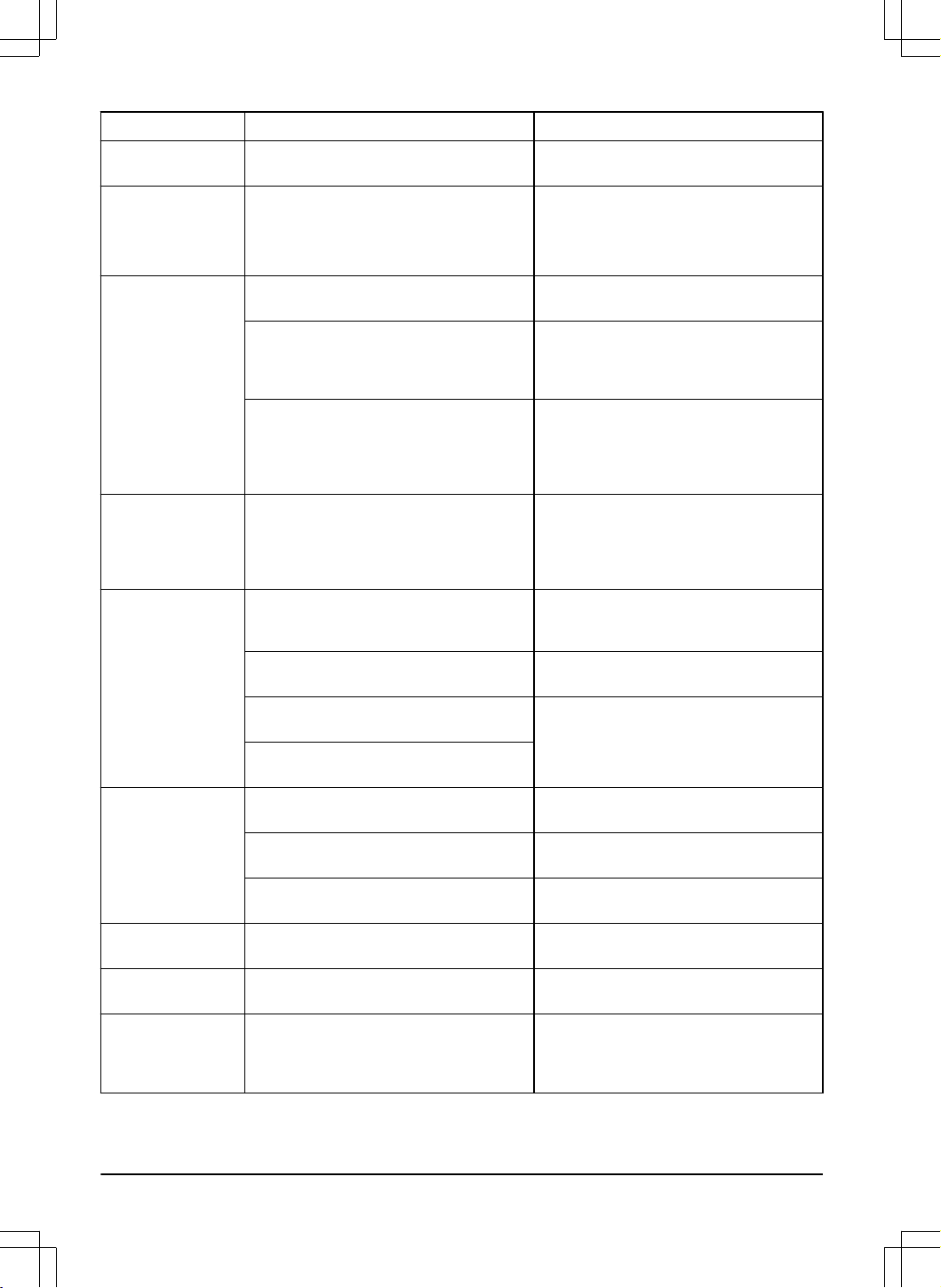
Message Cause Action
Cutting system imbal-
ance
Too few or too many blades. Examine the blades on the blade disc.
Weak GPS signal
The sky is obstructed in large parts of the
work area.
If possible, remove obstructing objects.
Disable the GPS navigation function and use
the lawn coverage function instead. Refer to
Lawn coverage on page 33
.
Collision sensor
problem, front/rear
Collision
A blockage has caused the product to stop. Remove the product from the blockage and
examine the cause of the stop.
The body of the product cannot move freely
around the chassis.
Remove dirt and unwanted material between
the chassis and the body to make sure that
the body of the product can move freely
around the chassis.
The body of the product is not installed cor-
rectly in the rubber dampers.
Make sure that the rubber dampers are at-
tached correctly in the body of the product
and in the chassis. If the problem remains,
the message requires action by authorized
service technician.
Chassis collision
The product sensed a collision in the
EPOS
™
module.
Remove the object that the product collides
with. If removal of the object is not possible,
make a stay-out zone. For a boundary wire
installation, make an island around the ob-
ject.
Destination not
reachable
The product cannot reach the destination be-
cause there is a stay-out blocking the way to
the work area.
Edit or remove the stay-out zone or make a
new installation of the work area.
For EPOS
™
installation, there is no transport
path to the work area.
Edit or remove the stay-out zone or make a
new installation of the work area.
For EPOS
™
installation, the way back to the
charging station is blocked by an obstacle.
Remove the obstacle.
For EPOS
™
installation, the way to the main-
tenance point is blocked by an obstacle.
Destination blocked
The way of the destination is blocked by an
obstacle.
Remove the obstacle that blocks the way to
the destination.
The way of the destination is blocked by a
stay-out zone.
Edit or remove the stay-out zone or make a
new installation of the work area.
For EPOS
™
installation, there is no transport
path to the work area.
Make a transport path to the work area.
Battery needs re-
placement
The battery state of health is low. Replace the battery. Speak to your author-
ized service technician.
Battery near end of
life
The battery state of health is critically low. Replace the battery. Speak to your author-
ized service technician.
Invalid firmware con-
figuration
The firmware in the product is invalid. Put the product in the charging station and
update the firmware via FOTA. If the problem
remains, speak to your authorized service
technician.
50 - Troubleshooting 1404 - 017 -
Message Cause Action
Map problem
The map object file is incorrect Do a check of the map in the app. Adjust the
map and save it.
Delete the map and do a new installation.
No correction data
available
Technical problems with EPOS
™
through the
Husqvarna
®
Cloud.
Restart the product. If the problem remains,
the message requires action by authorized
service technician.
The product does not have cellular connec-
tion and cannot receive correction data.
Make sure that you have cellular coverage in
all parts of the area where the product oper-
ates.
Message Cause Action
Work area tampered
with
The charging station or the reference station
was moved.
Do a new installation of the map.
Guide 1/2/3 not found
The guide wire is not connected to the charg-
ing station.
Check that the guide wire’s connector is
tightly connected to the charging station. Re-
fer to
To install the guide wire on page 29
.
Break in the guide wire. Find out where the break is. Replace the
damaged section of the guide wire with a
new loop wire and splice using an original
coupler.
The guide wire is not connected to the boun-
dary loop.
Check that the guide wire is connected cor-
rectly to the boundary loop. Refer to
To in-
stall the guide wire on page 29
.
Searching for posi-
tion
Weak satellite signal to the reference station. The satellite signal is temporarily weak. The
product will start to operate when the satellite
signals are good.
Examine the installation of the reference sta-
tion.
Weak satellite signal to the product. The satellite signal is temporarily weak. The
product will start to operate when the satellite
signal is good.
Examine if there is an object between the
product and the sky that causes interference
with the satellite signal. Remove the object
or do a new installation to not include these
parts in the work area. Refer to
Installation of
the map objects on page 18
.
1404 - 017 - Troubleshooting - 51
Message Cause Action
Reference station
communication prob-
lem
The product is not connected to the refer-
ence station.
Do a pairing operation between the product
and the reference station.
The reference station is not installed correct-
ly.
Examine the installation of the reference sta-
tion.
The product does not receive the radio signal
from the reference station in all areas where
the product operates.
Test if the product has radio signal from the
reference station in all of the work area. If
not, make a new installation of the reference
station or a new installation of the map. Refer
to
To install objects on the map on page 19
.
Power failure. Examine and correct the cause for the power
failure of the reference station.
There is an error in the reference station and
the LED indicator flashes red.
Disconnect the power to the reference sta-
tion and connect it again to restart the refer-
ence station. If the problem stays, speak to
your approved servicing dealer.
There is interference with another reference
station or other radio systems in the area.
Restart the product. If the problem stays,
speak to your approved servicing dealer.
Connection changed
New loop signal successfully changed. No action.
Connection NOT
changed
Failed to change the loop signal. Create a new loop signal, try several times. If
the problem remains, the message requires
action by authorized service technician. Re-
fer to
New loop signal on page 35
.
8.4 LED indicator of the charging station
The LED indicator of the charging station is green when
the installation is correct. If the LED indicator of the
charging station is not green, follow the troubleshooting
table below.
Speak to your local Husqvarna representative or go to
www.husqvarna.com for more information.
LED indicator Cause Action
Constant green The signals of the charging station are good. No procedure is necessary.
Flashes green The signals of the charging station are good
and
ECO mode
is enabled.
No procedure is necessary.
Flashes blue The boundary wire is not connected to the
charging station.
Connect the boundary wire to the charging
station.
The boundary wire is damaged. Replace the damaged section of the boun-
dary wire with new boundary wire.
Flashes red Interference in the antenna of the charging
station.
Speak to your local Husqvarna representa-
tive.
Constant red Error in the circuit board or incorrect power
supply in the charging station.
The error must be corrected by an authorized
service technician. Speak to your local Husq-
varna representative.
52 - Troubleshooting 1404 - 017 -
8.5 Symptoms
If your product does not work as expected, follow the symptoms guide below.
There is a FAQ (Frequently Asked Questions) on www.husqvarna.com which provides more detailed answers to a
number of standard questions. Speak to your local Husqvarna representative if you still cannot find the reason for the
fault.
Symptoms Cause Action
The product has diffi-
culty docking.
The boundary wire is not laid in a long
straight line that is far enough out from the
charging station.
Check that the charging station has been in-
stalled according to the instructions. Refer to
To install the charging station on page 28
The charging station is on a slope. Place the charging station on a surface that
is entirely level. Refer to
To examine where
to put the charging station on page 14
.
The product runs at
the wrong time.
The clock needs to be set. Set the clock. Refer to
Time & date on page
34
.
The start and stop times for mowing are in-
correct.
Reset the start time and change the
Sched-
ule
settings. Refer to
Schedule on page 32
.
The product vibrates. Damaged blades lead to imbalance in the
cutting system.
Inspect the blades and screws and replace
them if necessary. Refer to
Replacement of
the blades on page 41
.
Too many blades in the same position lead
to imbalance in the cutting system.
Check that only one blade is fitted at each
screw.
Different versions (thickness) of Husqvarna
blades are used.
Check if the blades are of different versions.
The product runs, but
the blade disc does
not rotate.
The product searches for the charging sta-
tion.
No action. The blade disc does not rotate
when the product is searching for the charg-
ing station.
The battery is empty
and you put the prod-
uct in the charging
station, but it does
not charge and can-
not be set to ON.
If the battery has been deeply discharged,
it will take a long time to charge the battery
and before the product can be set to ON.
Keep the product in the charging station for
24 hours and test if the product can be set
to ON. If the problem remains, speak to your
authorized service technician.
The product mows
for shorter periods
than usual between
charges.
Grass or other foreign object blocks the
blade disc.
Remove and clean the blade disc. Refer to
Replacement of the blades on page 41
.
The battery is spent. Replace the battery. Refer to
To remove the
battery on page 57
.
Both the mowing and
charging times are
shorter than usual.
The battery is spent. Replace the battery. Refer to
To remove the
battery on page 57
.
The product is
parked for hours in
the charging station.
The STOP button has been activated. Make sure that the START button is pushed
down.
Parking mode is activated. Select the operating mode in Automower
®
Access or Automower
®
Connect.
The product is not allowed to operate if the
battery temperature is too high or too low.
Check that the charging station is placed in
an area with protection from the sun.
1404 - 017 - Troubleshooting - 53
Symptoms Cause Action
Uneven mowing re-
sults.
The product works too few hours per day. Increase the mowing time. Refer to
Schedule
on page 32
.
The settings for
Lawn coverage
function are
incorrect in relation to the layout of the work
area.
Do a check of the settings for the
Lawn cov-
erage
function. Refer to
Lawn coverage on
page 33
.
The shape of the work area requires the use
of
Area 1-5
for the product to find its way to
all remote areas.
Use
Area 1-5
to steer the product to a re-
mote area. Refer to
Lawn coverage on page
33
.
The work area is too large. Try to limit the work area or extend the work
time. Refer to
Schedule on page 32
.
Blunt blades. Replace all the blades. Refer to
Replace-
ment of the blades on page 41
.
Long grass in relation to the set cutting
height.
Increase the cutting height and then succes-
sively lower it.
Accumulation of grass by the blade disc or
around the motor shaft.
Check that the blade disc rotates freely and
easily. If not, screw off the blade disc and
remove grass and foreign objects. Refer to
To clean the blade disc on page 40
.
The product is not
connected to the Au-
tomower
®
Connect
app.
The product has not been connected to the
app before and the product is not included in
the list
My mowers
in the Automower
®
Con-
nect app.
Do a pairing operation between the product
and the mobile device.
To do a pairing oper-
ation with the Automower
®
Connect app on
page 31
.
The product only
has Bluetooth
®
(short
range) connection
with the Automower
®
Connect app and not
cellular (long range)
connection.
The product does not have cellular connec-
tion to the Automower
®
Connect app.
Enter the Automower
®
Connect app on your
mobile device. Select Automower
®
Connect
and do a new pairing operation.
You cannot connect
with the product with
an additional mobile
device.
Only one mobile device can be connected
to the product with Bluetooth
®
at the same
time.
Disable the Automower
®
Connect app in
all other connected devices. If the problem
stays, set the connected mobile device to
OFF and start it again. If the problem stays,
speak to your dealer.
The cellular connec-
tion has worked be-
fore, but does not
work now.
There is a problem with the cellular connec-
tivity.
• Make sure that you have cellular cover-
age in the area.
• Disable Automower
®
Connect in the
app and enable it again. Wait 1 hour
and try again.
• Restart the product.
• If a new firmware is available in the
app, install it to make sure that you
have the newest firmware.
• Make sure that you have the newest
version of the Automower
®
Connect
app installed.
• If the problem stays, speak to your
dealer.
54 - Troubleshooting 1404 - 017 -
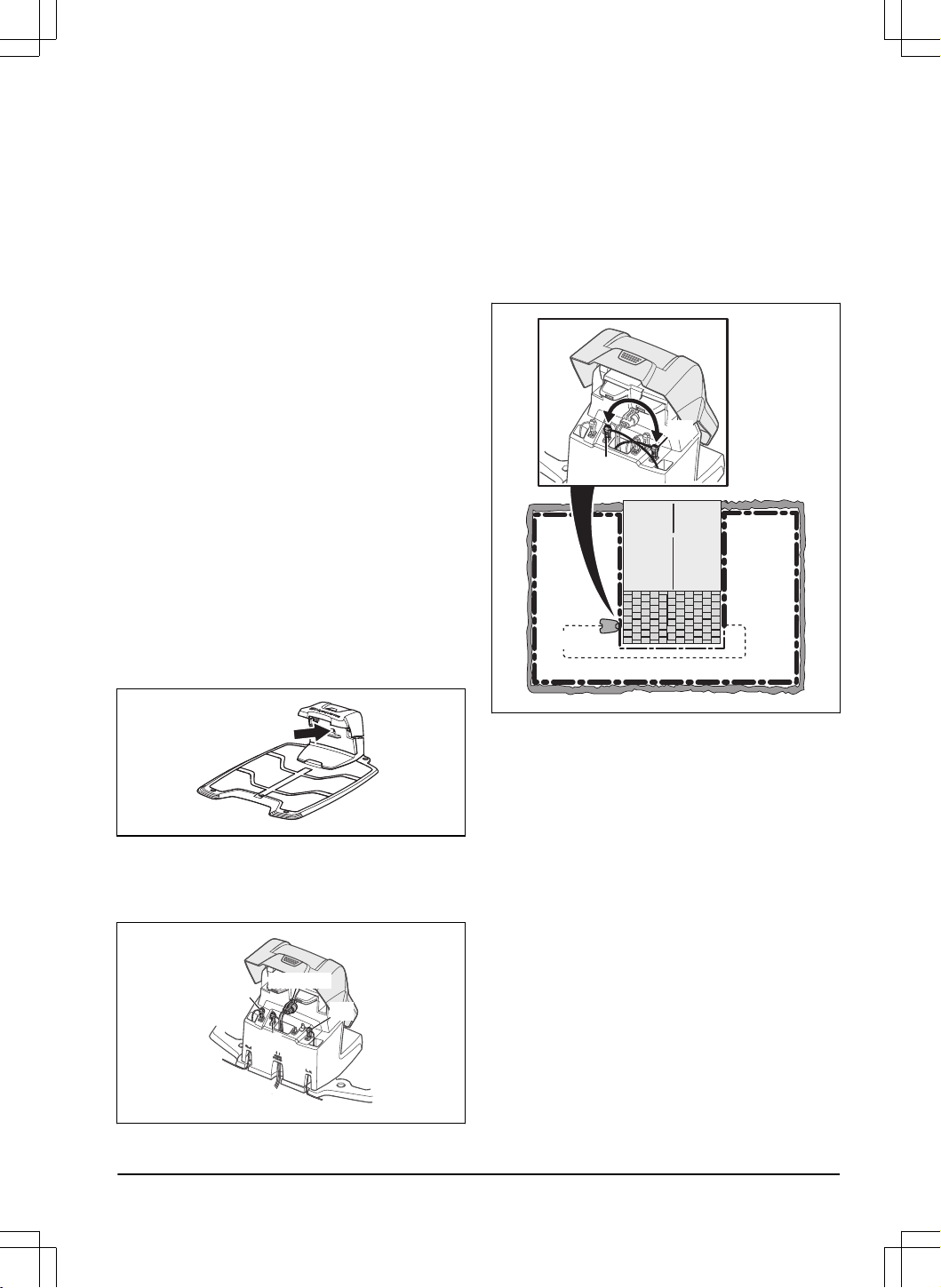
8.6 Find breaks in the loop wire
Breaks in the loop wire are usually the result of
unintentional physical damage to the wire such as when
gardening with a shovel. In countries with ground frost,
also sharp stones that move in the ground can damage
the wire. Breaks can also occur due to the wire being
stretched excessively during installation.
Mowing the grass too low right after the installation can
damage wire insulation. Damage to the insulation may
not cause disruptions until several weeks or months
later. To avoid this, always select the maximum cutting
height the first weeks after installation and then lower
the height one step at a time every second week until
the desired cutting height has been reached.
A defective splicing of the loop wire can also lead to
disruptions several weeks after the splice was done.
A faulty splice can, for example, be the result of the
coupler not being pressed together hard enough with a
pair of pliers, or that a coupler of lower quality than the
original coupler has been used. Please first check all
known splices before further troubleshooting is done.
A wire break can be located by gradually halving the
distance of the loop where the break may have occurred
until there is only a very short section of the wire left.
The following method does not work if
ECO mode
is
activated. Make sure first that
ECO mode
is turned off.
Refer to
ECO mode on page 33
.
1. Check that the indicator lamp in the charging
station flashes blue, which indicates a break in
the boundary loop. Refer to
LED indicator of the
charging station on page 52
.
2. Check that the boundary wire connections to the
charging station are properly connected and not
damaged. Check that the indicator lamp in the
charging station is still flashing blue.
AR
AL
G1
POWER
3. Switch the connections between the guide wire
and the boundary wire in the charging station.
Start by switching connection AL and G1. Some
models have additional guide wires (G2, G3). The
same procedure can be followed for them.
If the indicator lamp is lit with a solid green light,
then the break is somewhere on the boundary wire
between AL and the point where the guide wire is
connected to the boundary wire (thick black line in
the illustration).
Guide
GUIDE
AL
To rectify the fault you will need boundary wire,
connector(s) and coupler(s):
a) If the suspected boundary wire is short then it
is easiest to exchange all of the boundary wire
between AL and the point where the guide wire is
connected to the boundary wire (thick black line).
b) If the suspected boundary wire is long (thick
black line) then do as follows: Put AL and G1
back to their original positions. Then disconnect
AR. Connect a new loop wire to AR. Connect the
other end of this new loop wire at the middle of the
suspected wire section.
1404 - 017 -
Troubleshooting - 55
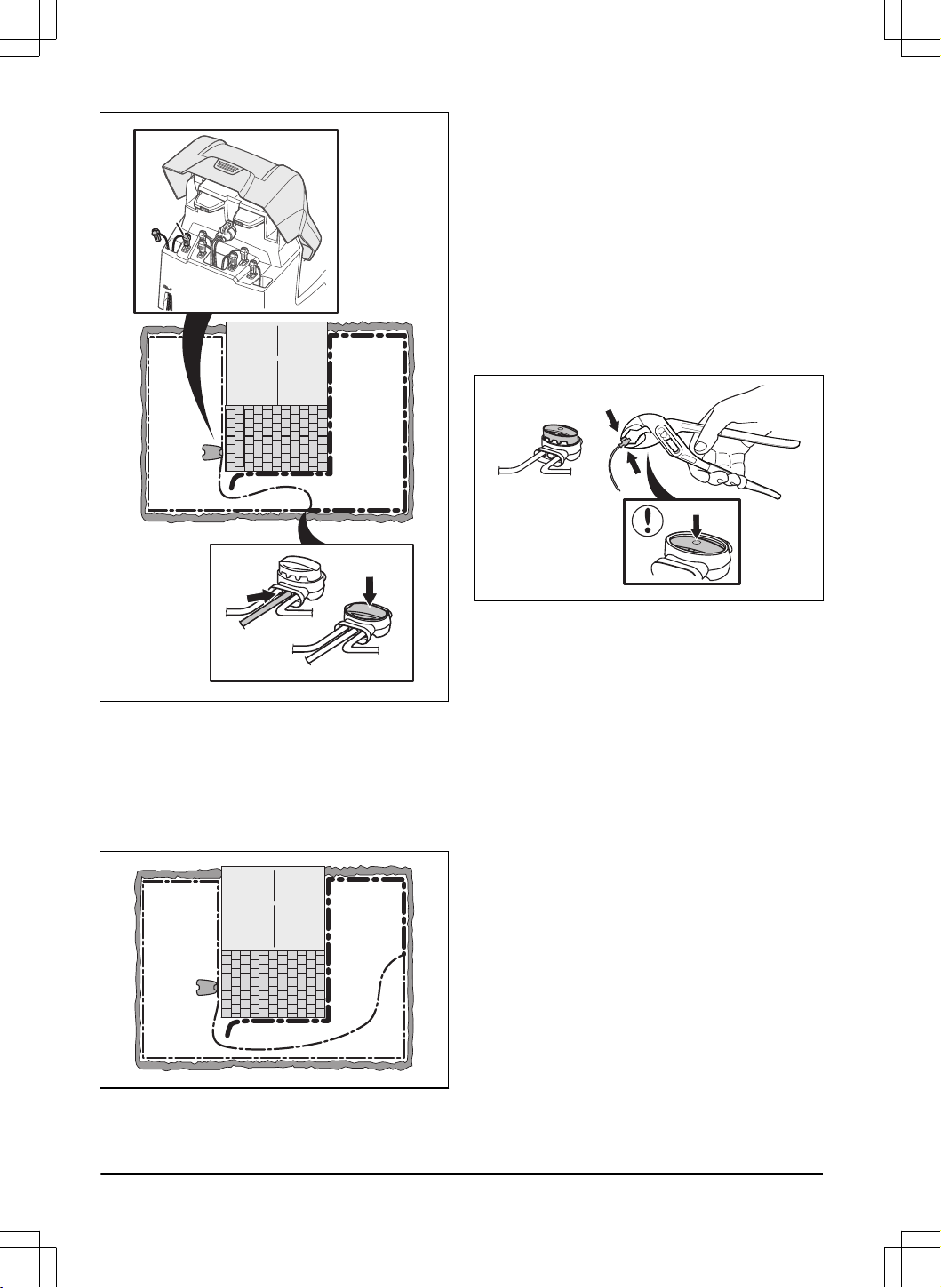
AR
If the indicator lamp now is green, then the
break is somewhere in the wire between the
disconnected end to the point where the new wire
is connected (thick black line below). In that case,
move the connection for the new wire closer to
the disconnected end (roughly at the middle of
the suspected wire section) and check again if the
indicator lamp is green.
Continue until only a very short section of the wire
remains which is the difference between a solid
green light and a flashing blue light. Then follow
instruction in step 5 below.
4. If indicator lamp still flashes blue in step 3
above:Put AL and G1 back in their original
positions. Then switch AR and G1. If indicator lamp
now is lit with a solid green light then disconnect
AL and connect a new boundary wire to AL.
Connect the other end of this new wire at the
middle of the suspected wire section. Follow the
same approach as in 3a) and 3b) above.
5. When the break is found, the damaged section
must be replaced with a new wire. Always use
original couplers.
56 - Troubleshooting 1404 - 017 -
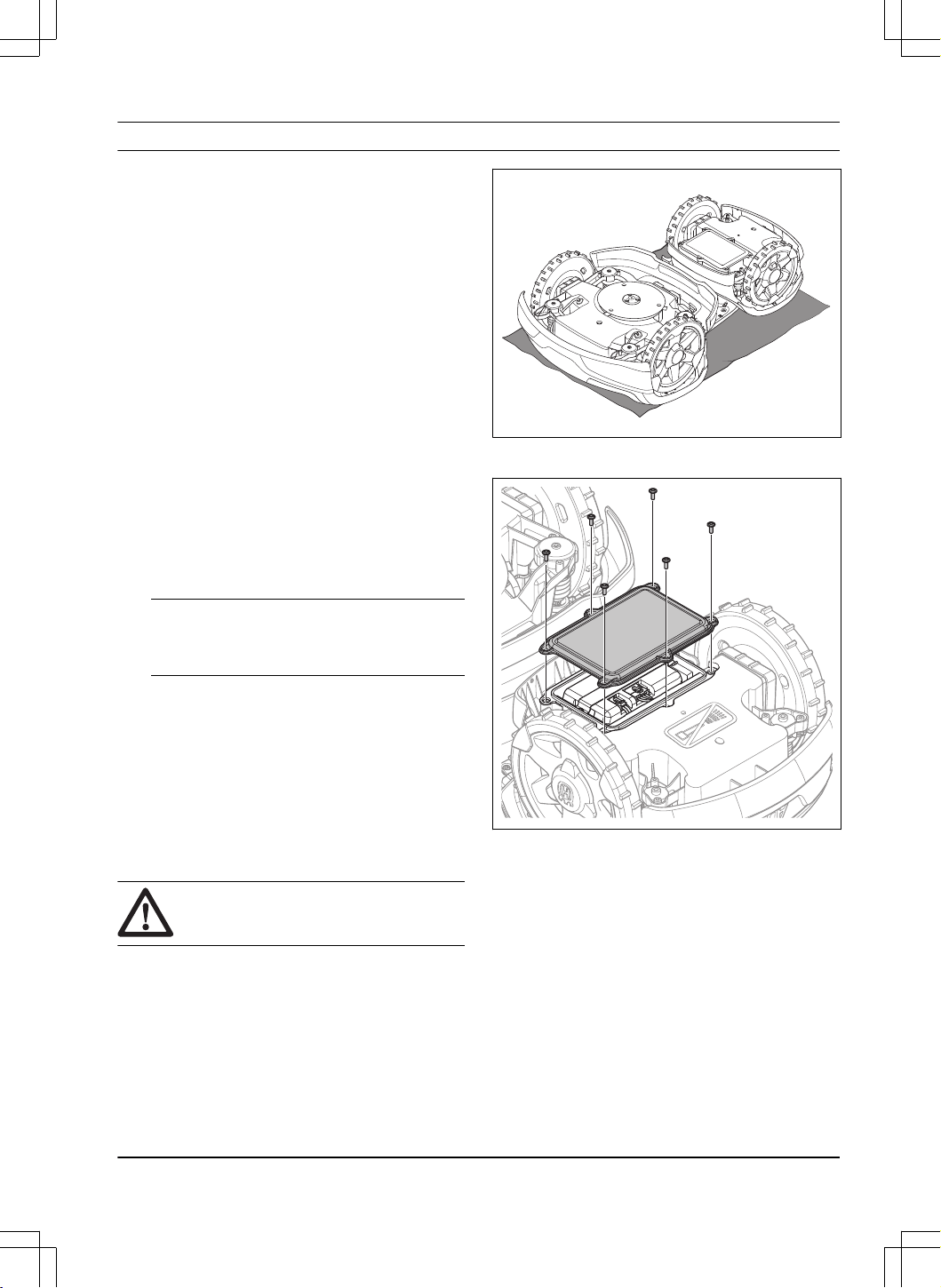
9 Transportation, storage and disposal
9.1 Transportation
The supplied Li-ion batteries obey the Dangerous Goods
Legislation requirements.
• Obey all applicable national regulations.
• Obey the special requirement on package and
labels for commercial transportations, including by
third parties and forwarding agents.
9.2 Storage
• Fully charge the product. Refer to
To charge the
battery on page 38
.
• Set the product to OFF. Refer to
To set the product
to OFF on page 38
.
• Clean the product. Refer to
Clean the product on
page 40
.
• Keep the product in a dry, frost free space.
• Keep the product with all wheels on level ground.
• If you keep the charging station indoors,
disconnect and remove the power supply and
all the connectors from the charging station. Put
the end of each connector wire in a connector
protection box.
Note: If you keep the charging station outdoors,
do not disconnect the power supply and the
connectors.
• Speak to your Husqvarna service for information
about available storage accessories for your
product.
9.3 Disposal
• Obey the local recycling requirements and
applicable regulations.
• For questions about how to remove the battery,
refer to
To remove the battery on page 57
.
9.3.1 To remove the battery
CAUTION: Only remove the battery
when you dispose the product.
1. Set the product to OFF. Refer to
To set the product
to OFF on page 38
.
2. Put the product with the blade disc up on a soft
and clean surface.
3. Remove the 6 screws and remove the battery
cover.
4. Remove the 2 screws and remove the bracket.
1404 - 017 -
Transportation, storage and
disposal - 57
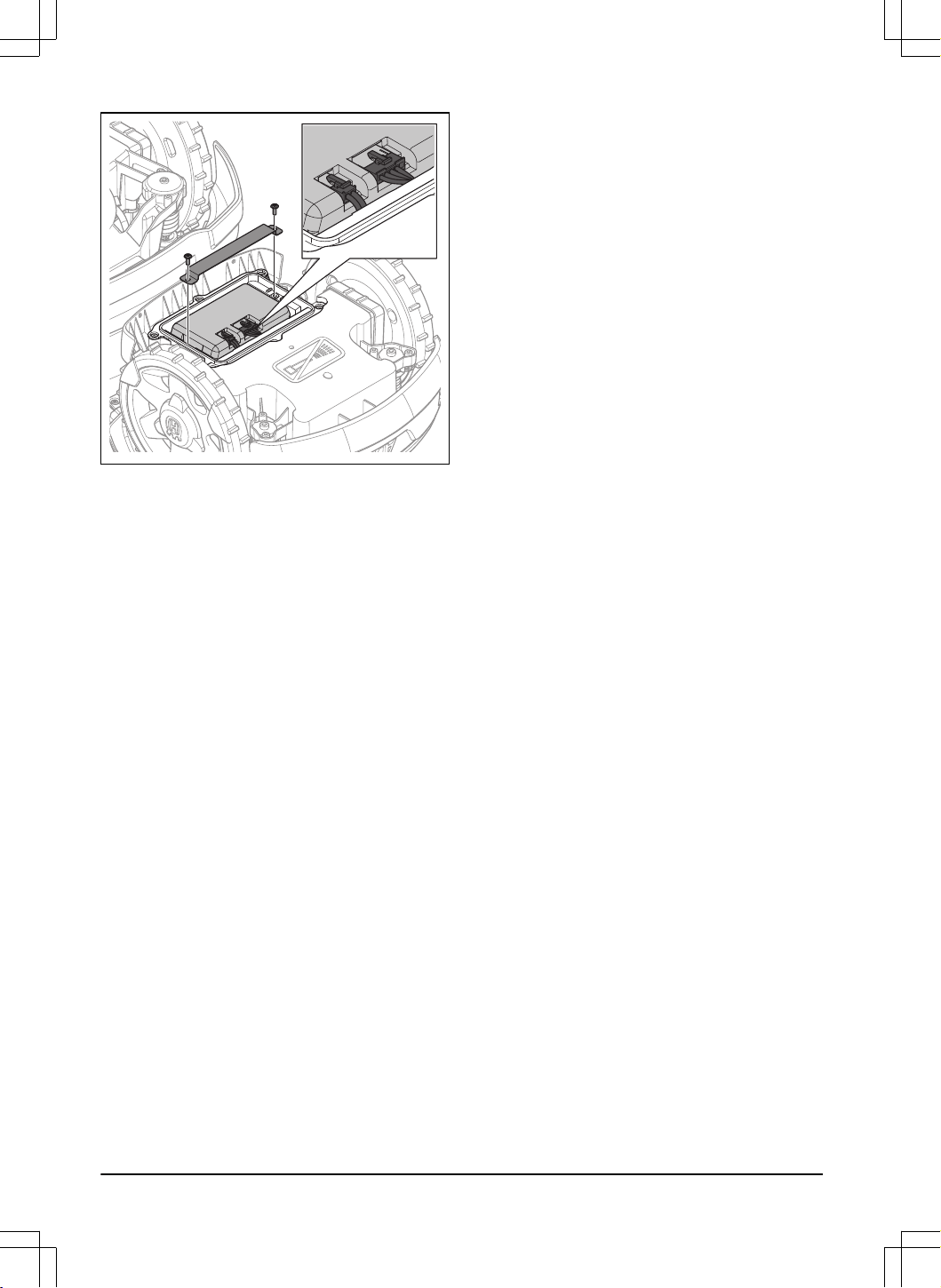
5. Disconnect the 2 cables from the battery and
remove the battery.
58 - Transportation, storage and disposal 1404 - 017 -
10 Technical data
10.1 Technical data
Dimensions Automower
®
435X AWD NERA
Length, cm / in. 93 / 36.6
Width, cm / in. 55 / 21.7
Height, cm / in. 33 / 13.1
Weight, kg / lbs 18.1 / 39.9
Electrical system Automower
®
435X AWD NERA
Battery, Lithium-Ion 18.0 V/8.0 Ah Art. No. 534 19 93-01
Battery, Lithium-Ion 18.0 V/8.4 Ah Art. No. 534 19 93-02
Power supply (28 V DC), V AC 100-240
Low-voltage cable length, m / ft 10 / 33
Mean energy consumption at maximum use 25 kWh/month in a 3500m
2
Charge current, A DC 7
Type of Power Supply Unit
9
FW7458/28/D/XX/Y, ADP-200MR XX
Typical mowing time, min 145
Typical charging time, min 45
Boundary wire antenna Automower
®
435X AWD NERA
Operating Frequency Band, Hz 100-80000
Maximum magnetic field, dBuA/m
10
82
Maximum Radio-frequency power
11
, mW @60m <25
Sound data
12
Automower
®
435X AWD NERA
Sound level perceived, dB (A) 60
Measured sound power noise level, dB (A) 60
Guaranteed sound power noise level, dB (A) 62
Noise emissions uncertainties KWA, dB (A) 2
Sound pressure noise level at the operator’s ear
13
, dB (A) 49
9
XX, YY can be any alphanumeric characters or blank for marketing purpose only, no technical differences.
The "XX" specifies the country version, such as JP, and the "Y" specifies the product revision, such as V
10
Measured according to EN 303 447.
11
Maximum active output power to antennas in the frequency band in which the radio equipment operates.
12
Determined according to Directive 2006/42/EC and standard EN 50636-2-107. Except Sound level, perceived
that is measured according to ISO 11094:1991.
13
Sound pressure noise uncertainties K
pA
, 2-4 dB (A)
1404 - 017 - Technical data - 59
Mowing Automower
®
435X AWD NERA
Cutting system 3 pivoted cutting blades
Maximum cutting motor speed, rpm 2475
Power consumption during cutting, W +/- 20 % 42
Cutting height, cm / in. 3-7 / 1.2-2.8
Cutting width, cm / in. 22 / 8.7
Narrowest possible passage for wire installation, cm / in. 60 / 24
Narrowest possible passage for EPOS
™
installation, cm / in. 200 / 80
Maximum slope for work area, % 70
Maximum slope for boundary wire, % 50
Number of guides 3
Maximum length boundary wire, m / ft 800 / 2600
Maximum length guide loop
14
, m / ft 400 / 1300
Area capacity - irregular, m
2
/ acre 3500 / 0.9
Area capacity - systematic with EPOS
™
, m
2
/ acre 5000 / 1.25
IP-code Automower
®
435X AWD NERA
Robotic lawn mower IPX4
Charging station IPX1
Power supply IP44
Frequency Band Support
Bluetooth
®
Frequency range 2400.0-2483.5 MHz
Automower
®
Connect 2G GSM 850 MHz, E-GSM 900 MHz, DCS 1800 MHz, PCS 1900 MHz
Automower
®
Connect 4G Band 12 (700 MHz), Band 28 (700 MHz), Band 13 (700 MHz), Band 20 (800 MHz),
Band 26 (850 MHz), Band 5 (850 MHz), Band 19 (850 MHz), Band 8 (900 MHz),
Band 4 (1700 MHz), Band 3 (1800 MHz), Band 2 (1900 MHz), Band 25 (1900
MHz), Band 1 (2100 MHz), Band 18 (850 MHz), Band 66 (1700 MHz), Band 85
(700 MHz)
SRD868 (Europe) 863-870 MHz
SRD915 (North America) 902-928 MHz
SRD915 (Australia) 915-928 MHz
SRD915 (New Zealand) 915-928 MHz
14
The guide loop is the loop that if formed by the guide wire and the part of the boundary wire from the junction
with the guide wire to the right connection in the charging station.
60 - Technical data 1404 - 017 -
Power Class
Bluetooth
®
Output power 8 dBM
Automower
®
Connect 2G Power Class 4 (GSM/E-GSM) 33 dBm
Power Class 1 (DCS/PCS) 30 dBm
Power Class E2 (GSM/E-GSM) 27 dBm
Power Class E2 (DCS/PCS) 26 dBm
Automower
®
Connect 3G Power Class 3 24 dBm
Automower
®
Connect 4G Power Class 3 23 dBm
SRD868 (Europe) 13 dBm
SRD915 (North America) 13 dBm
SRD915 (Australia) 13 dBm
SRD915 (New Zealand) 13 dBm
Deviations from this general technical data are included in the country specific chapters.
Husqvarna AB does not guarantee full compatibility between the product and other types of wireless systems such as
remote controls, radio transmitters, hearing loops, underground electric animal fencing or similar.
The products are made in England or the Czech Republic. See information on the rating plate. Refer to
Introduction
on page 7
.
10.2 Registered trademarks
The
Bluetooth
®
word mark and logos are registered trademarks owned by
Bluetooth SIG, inc.
and any use of such
marks by Husqvarna is under license.
1404 - 017 -
Technical data - 61
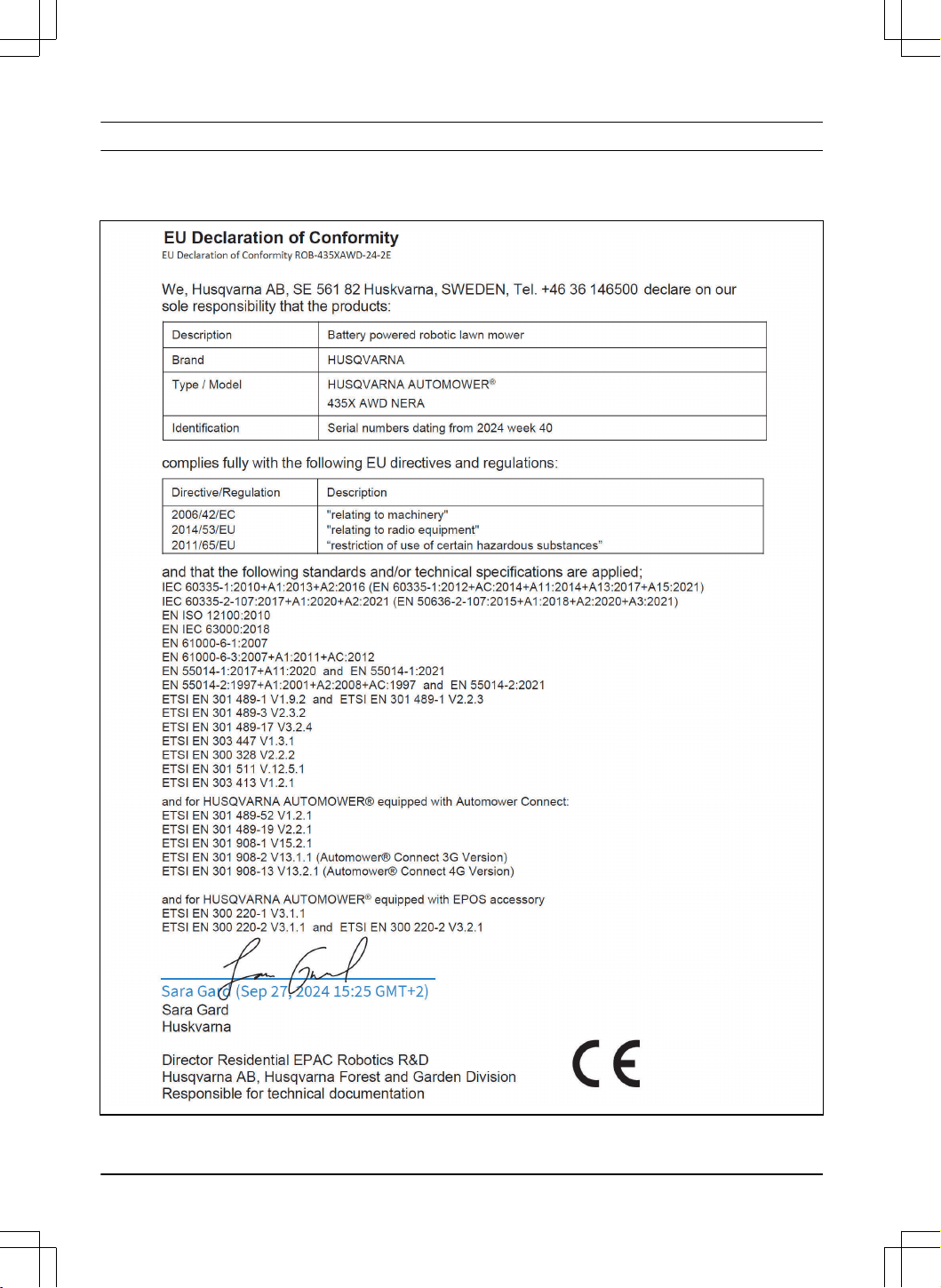
11 Declaration of Conformity
11.1 Original EU Declaration of Conformity
62 - Declaration of Conformity 1404 - 017 -
11.2 Translated EU Declaration of Conformity
We, Husqvarna AB, SE 561 82 Huskvarna, SWEDEN,
Tel. +46 36 146500 declare on our sole responsibility
that the product:
Description Robotic lawn mower
Brand Husqvarna
Type/Model HUSQVARNA AUTOMOWER
®
435X AWD NERA
Identification Serial numbers dating from 2024 week 40
complies fully with the following EU directives and
regulations:
Directive/Regulation Description
2006/42/EC "Relating to machinery"
2014/53/EU "Relating to radio equipment"
2011/65/EU "Restriction of use of certain hazardous substances"
and that the following harmonized standards and/or
technical specifications are applied;
• IEC 60335-1:2010+A1:2013+A2:2016
(EN 60335-1:2012+AC:2014+A11:2014
+A13:2017+A15:2021)
• IEC 60335-2-107:2017+A1:2020+A2:202 1 (EN
50636-2-107:2015+A1:2018 +A2:2020+A3:2021)
• EN ISO 12100:2010
• EN IEC 63000:2018
• EN 61000-6-1:2007
• EN 61000-6-3:2007+A1:2011+AC:2012
• EN 55014-1:2017+A11:2020 and EN
55014-1:2021
• EN 55014-2:1997+A1:2001+A2:2008 +AC:1997
and EN 55014-2:2021
• ETSI EN 301 489-1 V1.9.2 and ETSI EN 301
489-1 V2.2.3
• ETSI EN 301 489-3 V2.3.2
• ETSI EN 301 489-17 V3.2.4
• ETSI EN 303 447 V1.3.1
• ETSI EN 300 328 V2.2.2
• ETSI EN 301 511 V.12.5.1
• ETSI EN 303 413 V1.2.1
and for HUSQVARNA AUTOMOWER
®
equipped with
Automower
®
Connect:
• ETSI EN 301 489-52 V1.2.1
• ETSI EN 301 489-19 V2.2.1
• ETSI EN 301 908-1 V15.2.1
• ETSI EN 301 908-2 V13.1.1 (Automower
®
Connect 3G Version)
• ETSI EN 301 908-13 V13.2.1 (Automower
®
Connect 4G Version)
and for HUSQVARNA AUTOMOWER
®
equipped with
EPOS
™
accessory:
• ETSI EN 300 220-1 V3.1.1
• ETSI EN 300 220-2 V3.1.1 and ETSI EN 300
220-2 V3.2.1
Sara Gard
Huskvarna
Director Residential EPAC Robotics R&D Husqvarna
AB. Husqvarna Forest and Garden Division.
Responsible for technical documentation.
1404 - 017 - Declaration of Conformity - 63

12 Applicable to UK market
12.1 Original UK Declaration of Conformity
64 - Applicable to UK market 1404 - 017 -

12.2 Statement of compliance
This product complies with the UK Product Security
and Telecommunications Infrastructure Regulation.
Statement of compliance for your product can be found
at www.husqvarna.com/uk/support/.
1404 - 017 - Applicable to UK market - 65

66 - Applicable to UK market 1404 - 017 -

1404 - 017 - Applicable to UK market - 67
www.husqvarna.com
AUTOMOWER
®
is a trademark owned by Husqvarna AB.
Copyright
©
2024 HUSQVARNA. All rights reserved.
Original instructions
1144023-26
2024-10-30
