
www.lg.com
Read this owner’s manual thoroughly before operating the
appliance and keep it handy for reference at all times.
Owner's Manual
AiR PuRifieR
Model name: as95GD series
MFl69726825
Copyright © 2017 - 2020 lG electronics. all rights reserved.
rev.03_021820


Table of Contents
This manual is produced for a group of
products and may contain images or content
different from the model you purchased.
This manual is subject to revision by the
manufacturer.
Safety instructions ........................ 04
unpacking .......................................10
Parts......................................................10
removing Packing Materials ................ 11
remote Control setup ..........................13
installation ......................................14
Transporting or Moving the Product .....14
Installing the Product ............................14
Operation ........................................15
Product Overview .................................15
Getting started......................................21
using smart Mode ................................ 21
using Booster Mode .............................22
using Dual Mode ..................................22
using single Mode ...............................23
adjusting the Fan speed ......................23
adjusting the Clean Booster Fan speed
..............................................................24
rotating the Clean Booster ..................24
Checking the air Quality .......................25
using the air Ionizer .............................28
setting the sleep Timer ........................28
locking the Control Panel Buttons ....... 29
Smart functions ............................ 30
lG ThinQ application ............................30
smart Diagnosis ...................................32
Maintenance ................................... 33
Cleaning the exterior ...........................34
Cleaning the Filter ................................35
replacing the Filter ............................... 35
Cleaning the Dust sensor ....................36
storage ................................................37
Before Calling for Service............38
Product Specifications .................42
04
Safety instructions
READ THESE INSTRUCTIONS CAREFULLY
This guide contains many important safety messages. always read and obey all safety messages.
This is the safety alert symbol. It alerts you to safety messages that inform you of hazards
that can kill or hurt you or others, or cause damage to the product.
all safety messages will be preceded by the safety alert symbol and the hazard signal word
warnInG or CauTIOn. These words mean:
WARNING
-
You can be killed or seriously injured if you do not follow these instructions.
CAUTION
- Indicates an imminently hazardous situation which, if not avoided, may
result in minor or moderate injury or product damage.
This equipment is home (class B) eMI suitable equipment, which is mainly for home use, and it can
be used in all regions.
Warning
To reduce the risk of re, electric shock or personal injury when
using this product, follow basic safety precautions including the
following:
CHiLDReN iN THe HOuSeHOLD
This appliance is not intended for use by persons (including
children) with reduced physical, sensory or mental capabilities or
lack of experience and knowledge, unless they have been given
supervision or instruction concerning use of the appliance by a
person responsible for their safety. Children should be supervised
to ensure that they do not play with the appliance.
iNSTALLATiON
•
Install the product near an easily accessible electrical outlet.
•
Do not install the product on an uneven or inclined surface.
•
Do not install the product in a damp area and keep away from
splashing rain or water.

05
•
Do not install the product in an area exposed to direct sunlight or
near heat-generating equipment.
•
Do not install the product in a place where combustible gas may
leak or industrial oil or metallic particulates are present.
POWeR
•
This product is for aC 220–240 V. always check the supply
voltage before using it.
•
Be careful not to let the power plug pressed by the back of the
product.
•
remove the power plug when you clean the product or replace
the lter.
•
Do not touch the power plug with wet hands.
•
Insert the plug into the outlet tightly after removing the moisture
and dust on it completely.
•
when unplugging the power cord, always pull it by the plug.
•
unplug the product during thunder or lightning or when not in
use for a long time.
•
Do not bend the power cable excessively or place a heavy
object on top of it.
•
Do not extend the length of the power cable or alter it.
•
Do not use several devices on a multi-socket extension outlet.
•
The appliance shall be disconnected from its power source
during service and when replacing parts.
•
Take care to ensure that power cable could not be pulled out or
damaged during operation. There is risk of re or electric shock.

06
•
If the supply cord is damaged, it must be replaced by the
manufacturer, its service agent or similarly qualied person using
only genuine replacement parts in order to avoid a hazard.
uSe
•
If the product is immersed in water, stop using it and contact the
lG electronics service center.
•
If there is a gas leakage (isobutane, propane, lnG, etc.), do
not touch the product or power plug and ventilate the area
immediately.
•
Do not clean the product with brushes, cloths or sponges with
rough surfaces or which are made of metallic material.
•
If you detect any abnormal noise, odor or smoke, unplug the
product immediately and contact an lG electronics service
center.
•
Only an authorized repair person from lG electronics service
center should disassemble, repair, or modify the product.
•
Do not use or store re, combustibles (ether, benzene, alcohol,
drugs, propane, butane, combustible spray, insecticide, air
freshener, cosmetics etc.) or ammable materials (candles,
lamps etc.) near the product.
•
Do not place the power cord under rugs, carpeting or mats.
•
Do not allow animals or pets to chew on the power cord.
•
Do not allow children to climb on or play with the product.
•
Do not move the product when it is in operation.
•
Do not place coffee, ower vase or drinks on top of the product.
•
Do not insert hands or metal objects into the air inlet or outlet.
•
Do not impact the product.

07
•
Be careful not to allow any part of your body to be pinched when
you detach and re-attach parts of the product.
•
unplug the product when not in use for a long time.
•
Do not install and use broken parts.
•
Do not clean the product when it is plugged in.
•
Do not put ammables into the product.
•
Do not operate the product while its cover is open.
DiSPOSAL
•
Dispose of the packing materials (vinyl, styrofoam etc.) to keep
them out of reach of children.
08
iNSTALLATiON
•
Do not tilt the product to pull or push it while transporting.
•
Do not install the product in transportation equipment (vehicle/
vessel etc.).
•
Do not place the product near a TV or a stereo equipment.
•
Do not place the product under bright light.
•
The appliance shall be installed in accordance with national
wiring regulations.
uSAGe
•
Do not use the product for removal of toxic gas such as carbon
monoxide.
•
Do not use the product for ventilation purposes.
•
Do not use the product for a long time in a region with unstable
voltage.
•
Do not place obstacles around the air inlet or outlet.
•
For safe use of the product, children or others with reduced
mental capabilities need to be closely monitored by a person
who is responsible for their safety.
•
Do not place the product near curtains.
•
Do not use the product for special purposes such as preserving
plants, precision instrument, artworks etc.
•
Do not climb or place objects on top of the product.
Caution
To reduce the risk of re, electric shock, or personal injury when
using the product, follow basic safety precautions, including the
following:

09
•
Do not operate the product with wet hands.
•
Do not let the moisture from the humidier directly touch the
product.
•
Do not use the product while it is not in upright position.
•
Do not use the product near objects vulnerable to heat.
•
Use the lter only for its intended purpose.
•
Do not use detergents, cosmetics, chemicals, air fresheners, or
disinfectants in the product.
•
Do not place magnetic or metal objects on top of the product.
•
Do not clean with strong detergents of solvent types, but use
soft cloth.
•
Do not operate the Booster arbitrarily.
•
Do not insert any objects into the Booster.
•
Do not operate the product while the Booster cover and grill are
separated.
•
Do not insert hands or metal objects into the Booster.
10
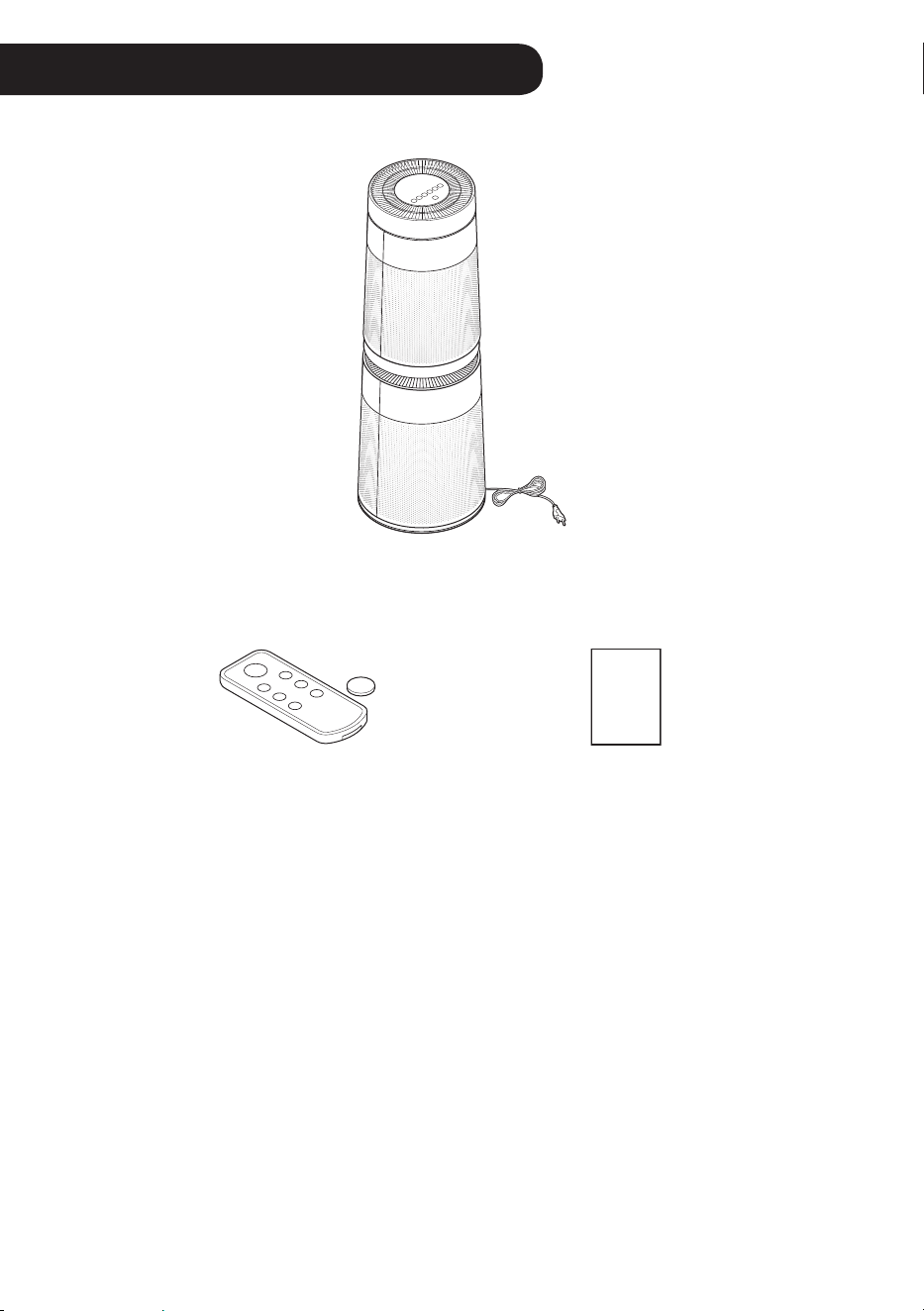
Parts
Air Purier
remote Control /
Battery (Cr2025, 1 unit)
Owner’s Manual
•
The appearance or components of the product may differ depending on the model.
•
The shape of the power plug differs depending on the country.
unpacking
Owner’s
Manual
11
Removing Packing
Materials
unpack the product and remove any packing
tape or protective vinyl before using the
product.
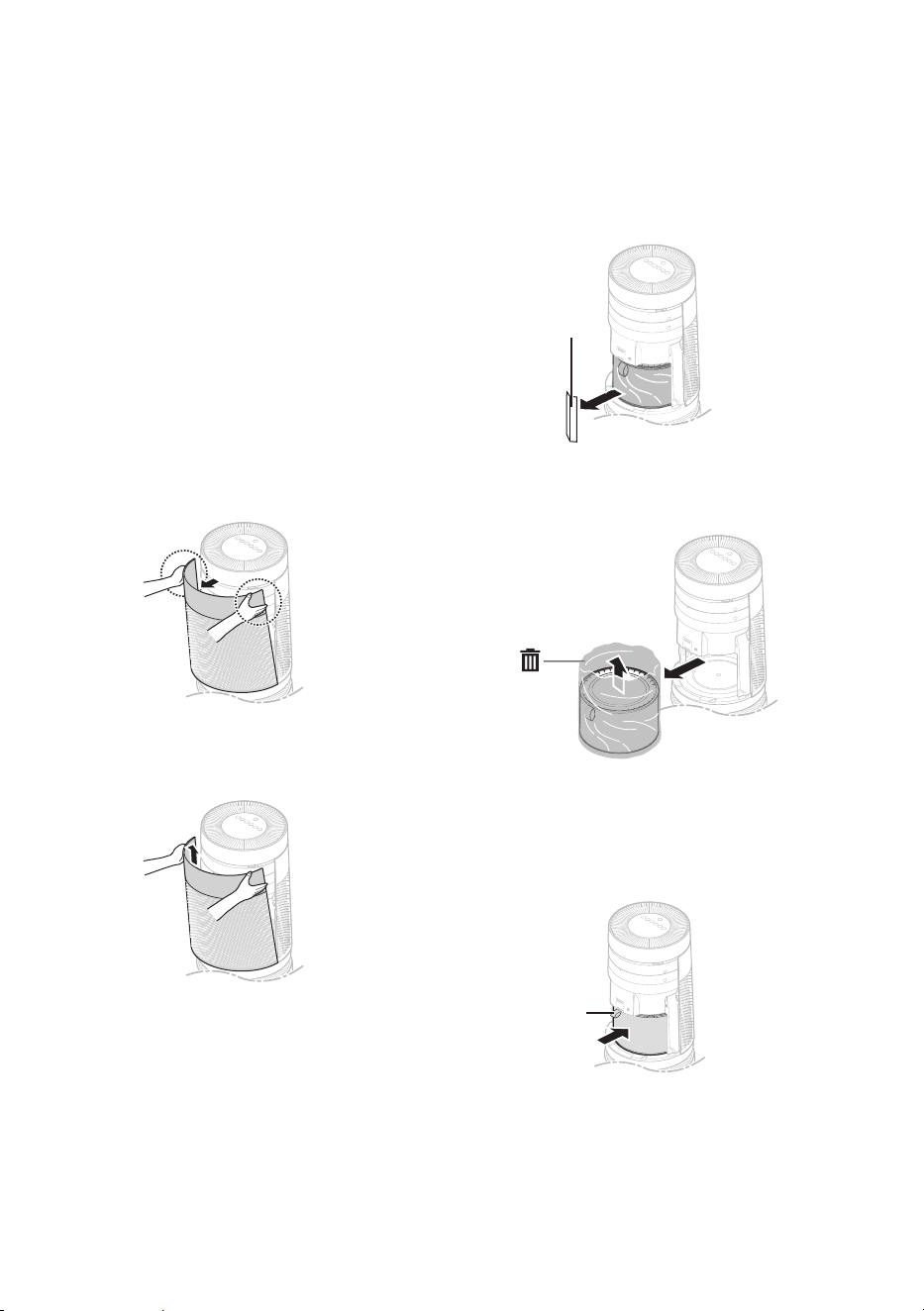
1
Pull out the product from the
packaging and remove the xing tape
attached on the product.
2
Grab the top end of the back cover
and gently pull it.
•
You will see "PM 1.0 & Gas
sensOr sYsTeM" on the back
cover of the product.
3
remove the cover from the product.
4
remove the support located at the
lter inlet.
•
Upper lter inlet: 1 support
•
Lower lter inlet: 1 support
support
5
Remove the lter and its protective
vinyl.
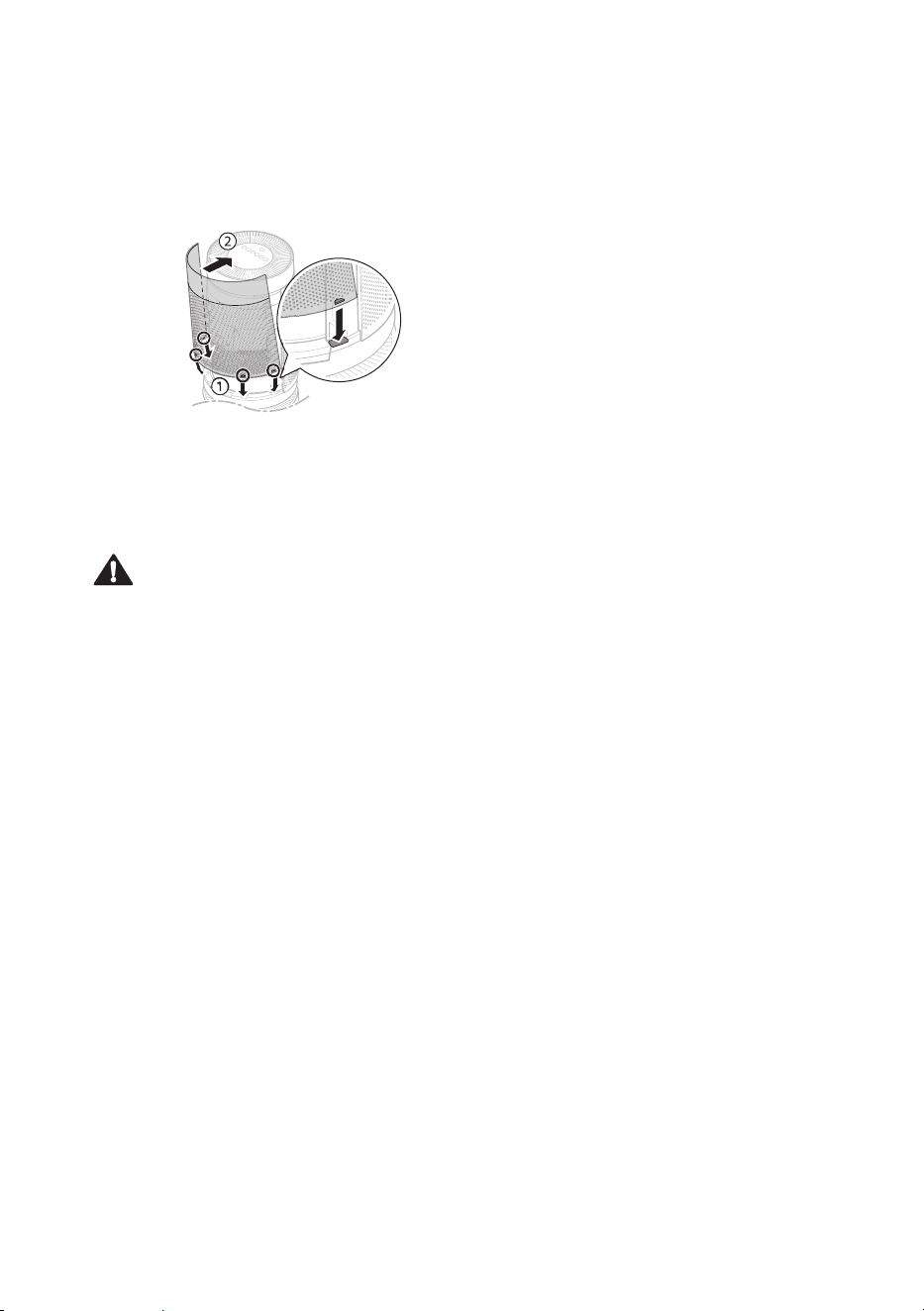
6
Install the lter in the product.
•
Make sure that the handle faces
upward.
Handle
12
7
Insert the xing parts at the bottom of
the cover into the holes at the bottom
of the product before you close the
cover.
8
remove the protective vinyl from the
lter at the lower part of the product in
the same way.
Caution
•
Failure to remove the supports may affect
the performance of the product. Please be
sure to remove it before use.
•
Make sure that you remove the lter’s
protective vinyl prior to use otherwise it
may result in product malfunction.
•
Pay attention to the direction of the lter
when you install the lter otherwise it may
cause malfunction or failure of the product.
13
Warning
•
a button/coin-shaped battery is used in the
remote control of the product.
•
Do not swallow the battery. It may cause
injury, including damage to the internal
organs or death.
•
If you accidentally swallowed the
battery, go to the doctor immediately for
emergency treatment. If you fail to receive
rst aid within 2 hours after you swallowed
it, you may experience damage to your
internal organs or death in severe cases.
•
Keep the battery out of reach of children.
•
If the battery tray is not secured rmly,
stop using the product instantly and keep it
away from children.
Caution
•
Do not modify the battery arbitrarily. It may
cause a re or electric shock.
•
Misplaced battery may cause an explosion.
•
Do not recharge or take apart the battery.
It may result in explosion.
•
Do not throw the battery in the re for
disposal or leave it near the heat. It may
result in explosion.
Note
•
If the battery runs out of charge, replace it
with a new one (Cr2025).
•
If the remote control does not work as
expected, try to replace the battery or
check the polarity (+, -) of the battery. If
the problem continues, contact the service
Center.
•
Dispose of the used battery according to
the environmental regulations.
Remote Control Setup
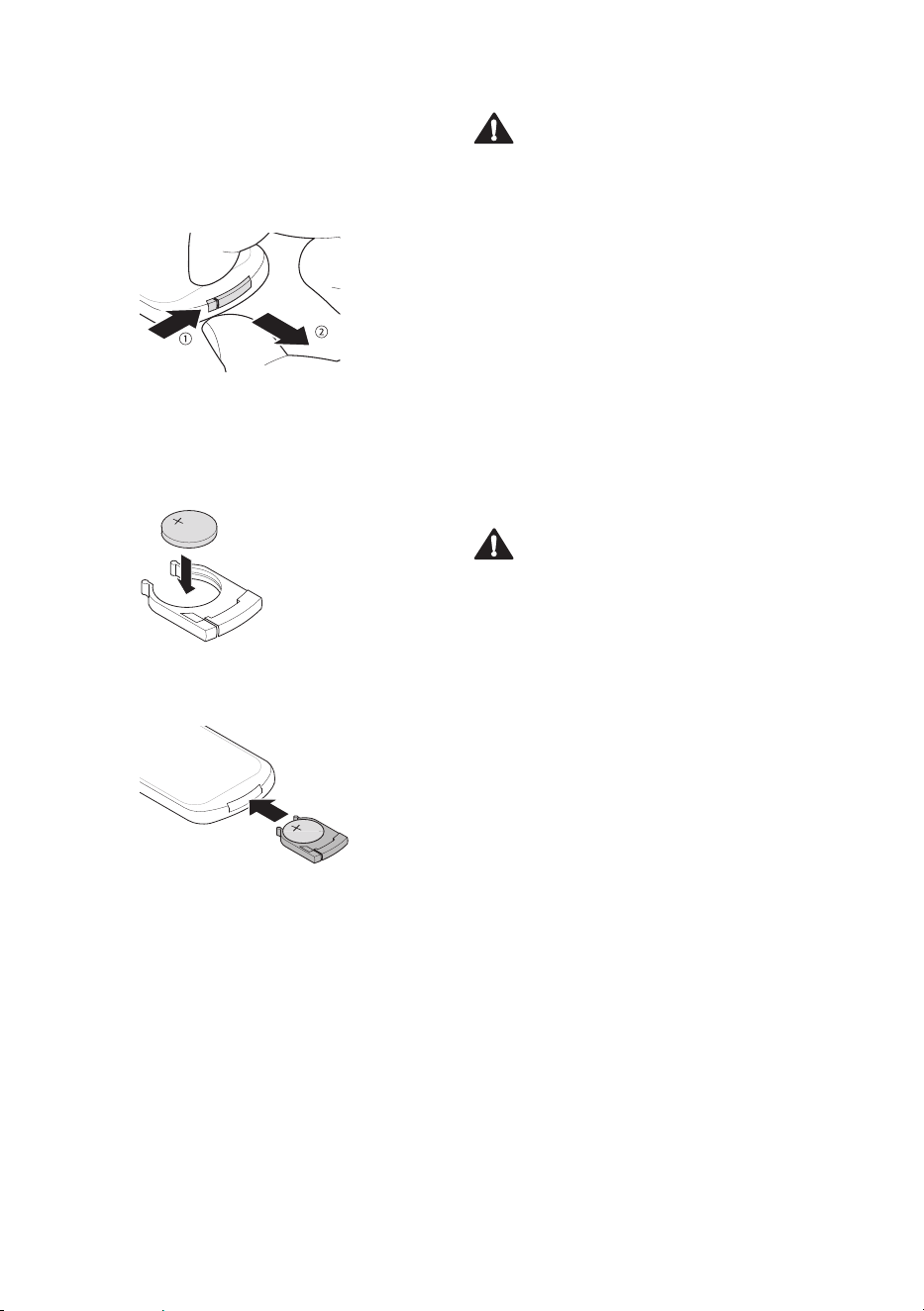
1
with the backside of the remote
controller facing up, remove the
battery tray from the remote control.
2
Insert the battery provided with the
product to the tray.
•
The (+) electrode of the battery
must face upward.
3
Insert the battery tray to the remote
control.
Back
14
installation
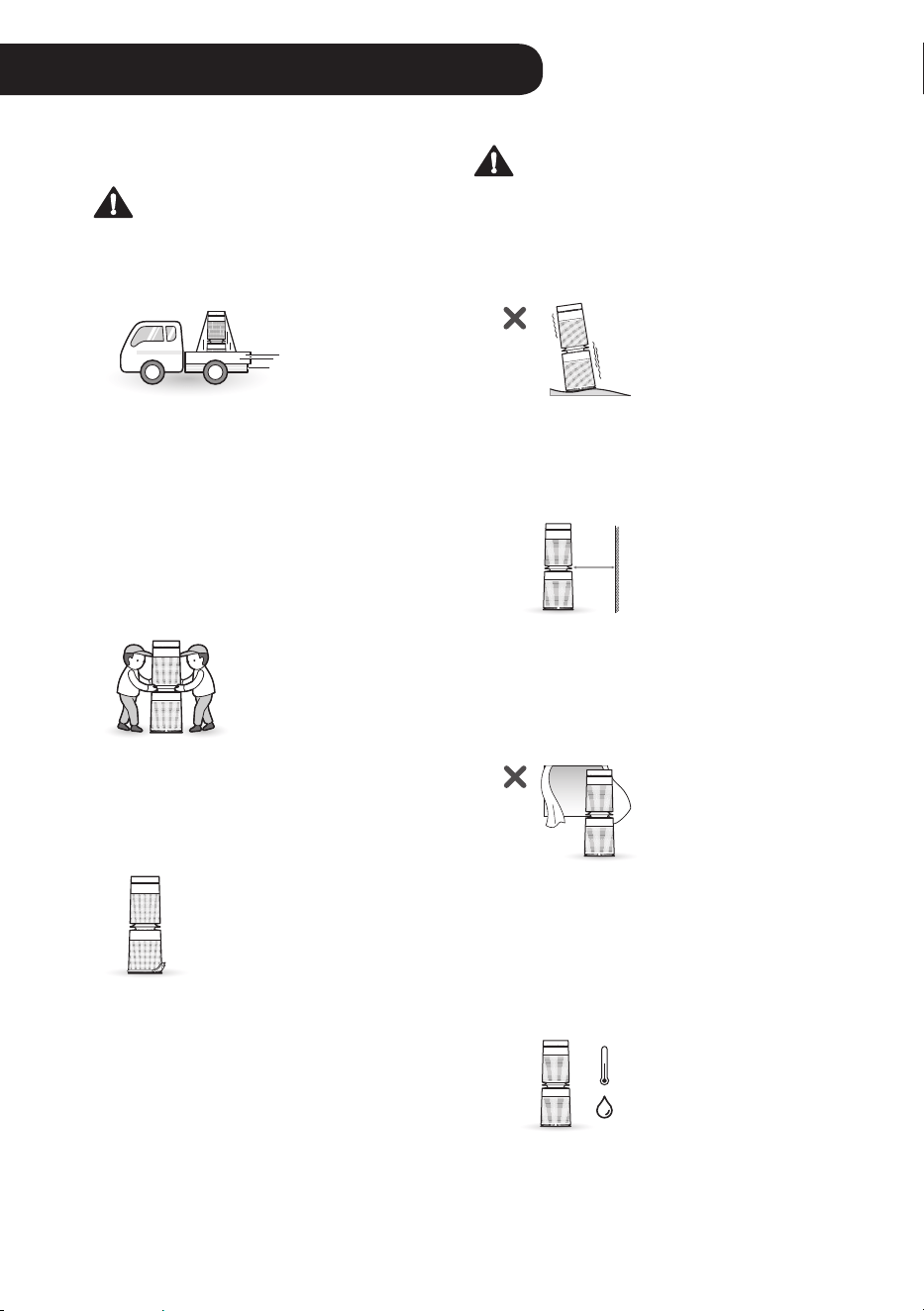
Transporting or Moving the
Product
Caution
Transport the product in a well-secured
and upright position. Impacts may cause
product damage.
The product is heavy. use two people
when moving it.
•
Dropping the product may cause
personal injury or product malfunction.
•
Do not hold the outer cover when you
carry the product. The cover may open
accidentally, causing the product to
drop.
when moving or storing the product, wrap
the power cord around the base of the
product to prevent personal injury, damage
to the cord or damage to oors.
installing the Product
Caution
Install the product on a strong level
surface. Installing the product on a weak
or tilted surface may cause noise and
vibration or tipping, resulting in injury.
allow a 1 m clearance between the product
and surrounding surfaces or objects. The
air inlet needs space to function properly.
1 m
Do not install the product near curtains
which could block the air inlet or outlet.
Doing so may result in product malfunction
or failure.
The performance of the product may differ
depending on the operating environment
(such as temperature and humidity).
•
40 – 70 % of humidity is recommended for
optimal performance.
%
15
Product Overview
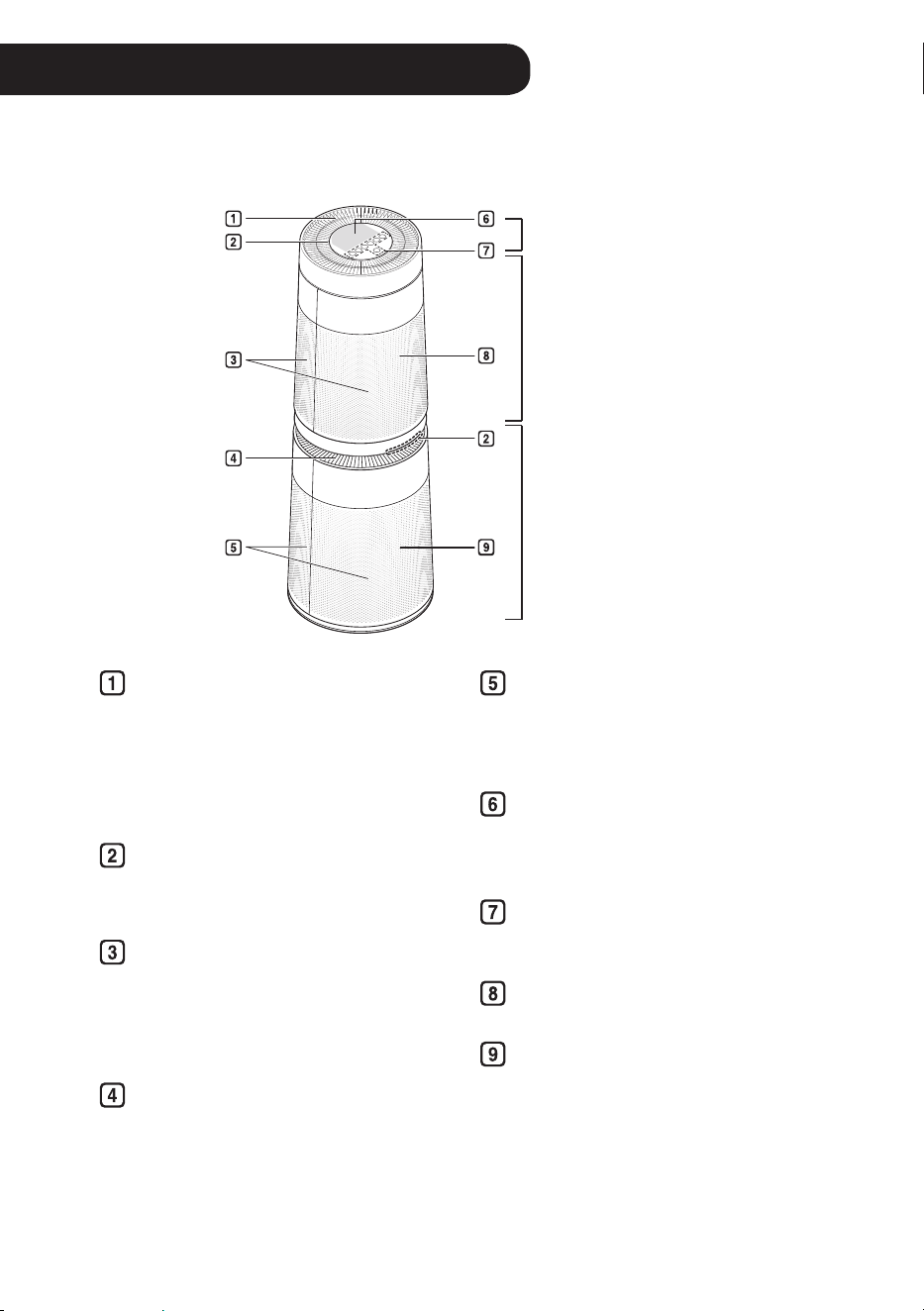
front View
upper part of the
air purier
Clean booster
Lower part of the
air purier
upper air outlet/Clean booster
•
It discharges puried air through
the upper lter.
•
You can control the direction of the
air so that it reaches every corner
of the room.
Light Lamp
It displays the overall air quality using
a colored light.
upper air inlet (top cover)
•
air goes into the upper part of the
purier through the inlet. You may
remove the front or rear cover
separately.
Lower air outlet
It discharges puried air through the
lower lter.
Operation
Lower air inlet (bottom cover)
•
Air goes into the lower part of the purier
through the inlet. You may remove the
front or rear cover separately.
Status Panel
use it to check the settings of the
product and the air quality.
Control Panel
use it to set the product functions.
Receiver for Remote Control Signal
Air ionizer
•
It generates negative ions and
removes harmful bacteria in the air.
•
It is built in the lower part of the air
purier.
•
The appearance or components of the product may differ depending on the model.
16
Back View
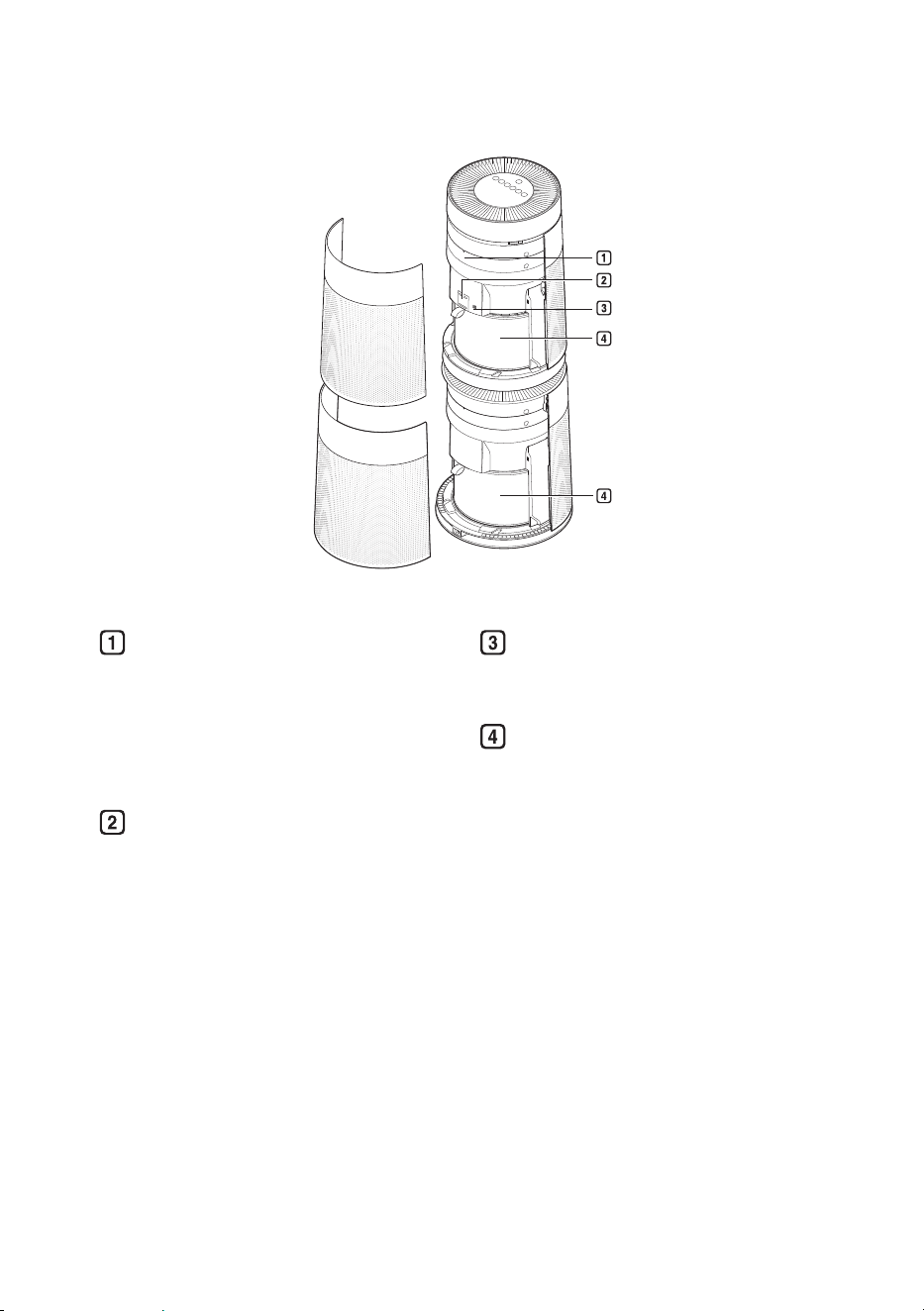
Smart Diagnosis Part
In the event of a malfunction or failure,
you can use the smart Diagnosis
option to check the product condition.
(see Smart functions.)
PM 1.0 (super ultra-ne dust)
sensor
It detects the concentration of dust.
Smell (Gas) Sensor
It detects a smell (gas).
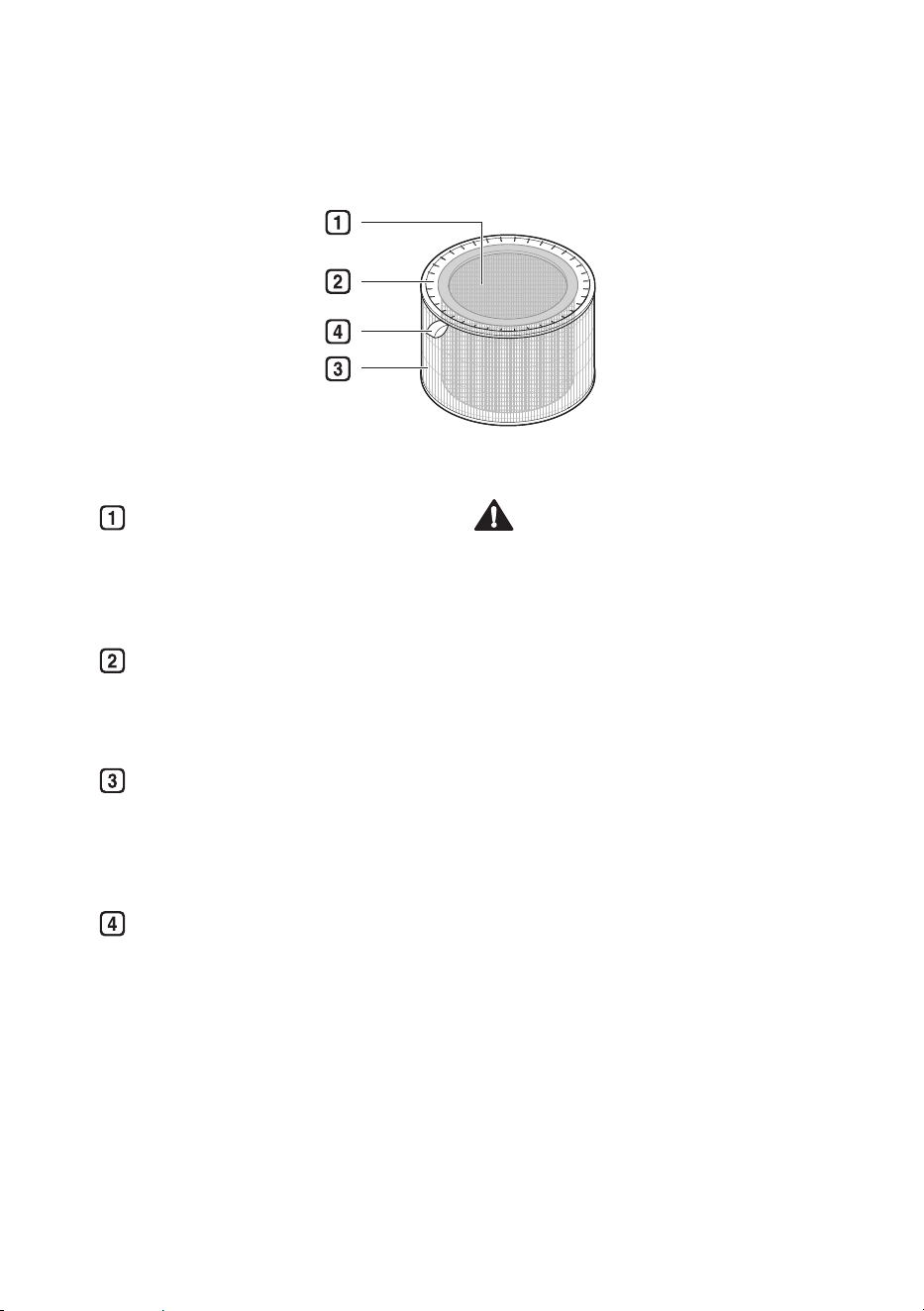
filter
It removes allergic materials, yellow
dust/ultra-ne dust, possible sources
of sick house syndrome, smog and
other odor.
17
Total Harmful Gas Care filter
It removes harmful smells (gas) that
are generated in everyday life such
as bathroom smell, cigarette smoke
(smell) and food smell.
Total Allergen Collection Care filter
It removes super ultra-ne dust,
yellow dust and cigarette smoke
particles from the air.
Ultra-ne Filter
It is attached on the exterior of the
Total allergen Collection Care Filter,
primarily removing large particles
oating in the air, including pet hair.
filter Handle
Use it to separate the lter from the
product.
filter System
Caution
•
The Total Harmful Gas Care Filter and
Total allergen Collection Care Filter are
assembled together. Do not try to detach
them from each other.
•
Do not throw the lter or use it for other purposes.
Note
•
Keep the windows or doors closed while
using the product. However, if you operate
the product for a long time in a closed space,
carbon dioxide concentration may rise. so
be sure to ventilate the indoor air regularly.
•
Carbon monoxide (CO) is a harmful gas
that is mainly introduced from outside and
cannot be removed with a lter.
•
The deodorization function of the air
purier operates by trapping the smell (gas)
in the lter. If you use the product for a
long time in a room with excessive smell,
the performance of the lter may drop
signicantly. The Total Harmful Gas Care
Filter may sometimes become the source
of excessive smell if used for a long time
in a room with excessive smell.
•
If excessive smell is present in the room,
rst ventilate the indoor air to remove the
smell. Then use the air purier to remove
the remaining smell.
18
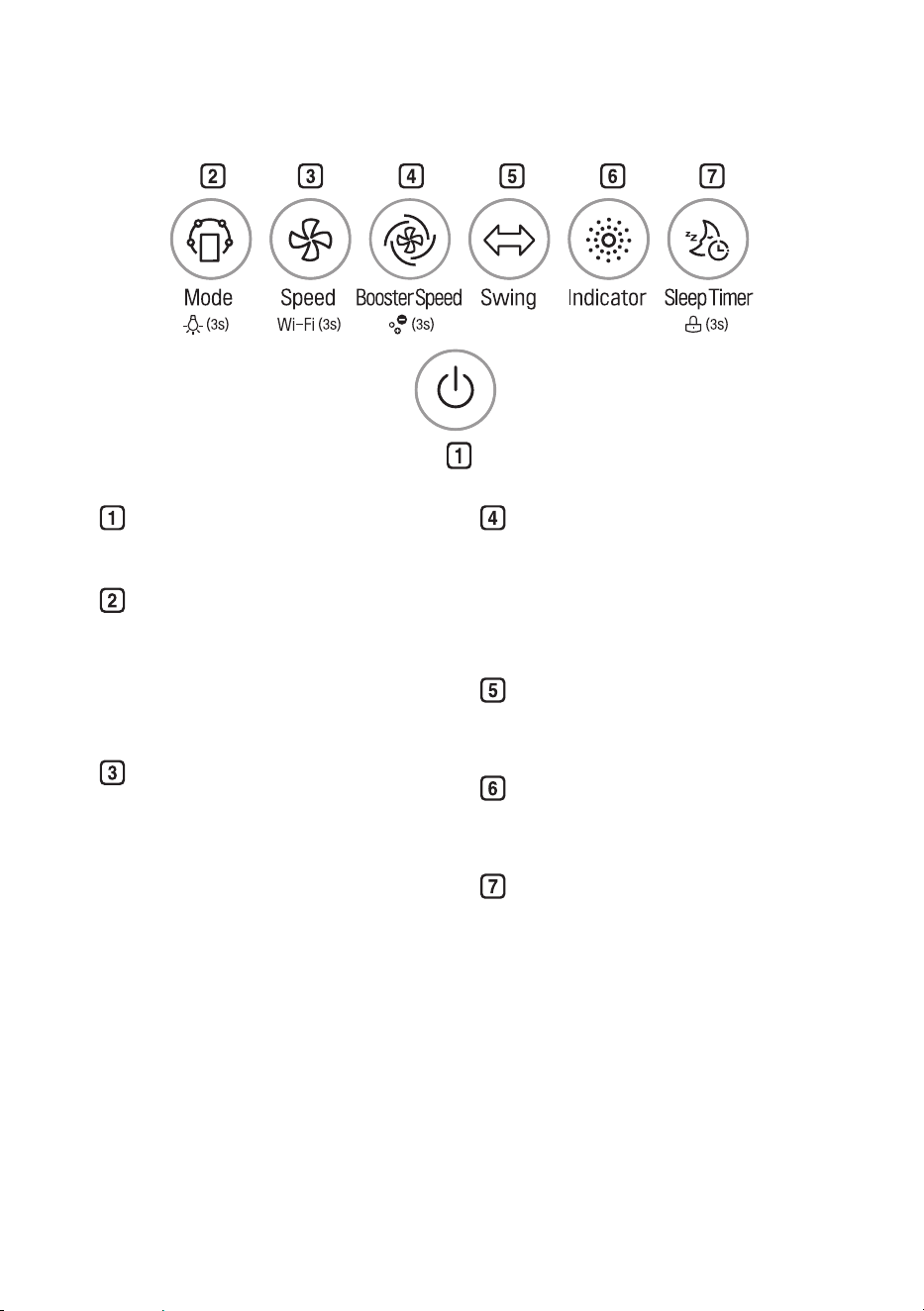
Control Panel
Start/Stop Button
You can start or stop the operation.
Mode Button
use it to set the operation mode.
•
Press and hold the button for 3
seconds or more to turn on/off the
light lamp. (see Turning on/off
the Light Lamp.)
Speed Button
It allows you to adjust the wind
strength of the product.
•
Press and hold the button for more
than 3 seconds to activate the wi-
Fi registration mode.
•
Turning off Wi-fi
Press and hold the Start/Stop
button and the Speed button at the
same time for more than 3 seconds
to turn off wi-Fi.
After nishing the product
registration and while wi-Fi is off,
press and hold the Speed button
for more than 3 seconds just once
to turn on wi-Fi and to control the
product using the registered smart
phone.
Booster Speed Button
It allows you to adjust the wind
strength of the clean booster.
•
Press and hold it for 3 seconds or
more to turn on or off the ionizer.
(see using the Air ionizer.)
Swing Button
It allows you to set the clean booster
to turn left or right.
indicator Button
You can check the concentration of
the airborne dust by its particle size.
Sleep Timer Button
use it to schedule the time to turn off
the product.
•
Press and hold it for 3 seconds or
more to lock or unlock the Control
Panel buttons. (see Locking the
Control Panel Buttons.)
19
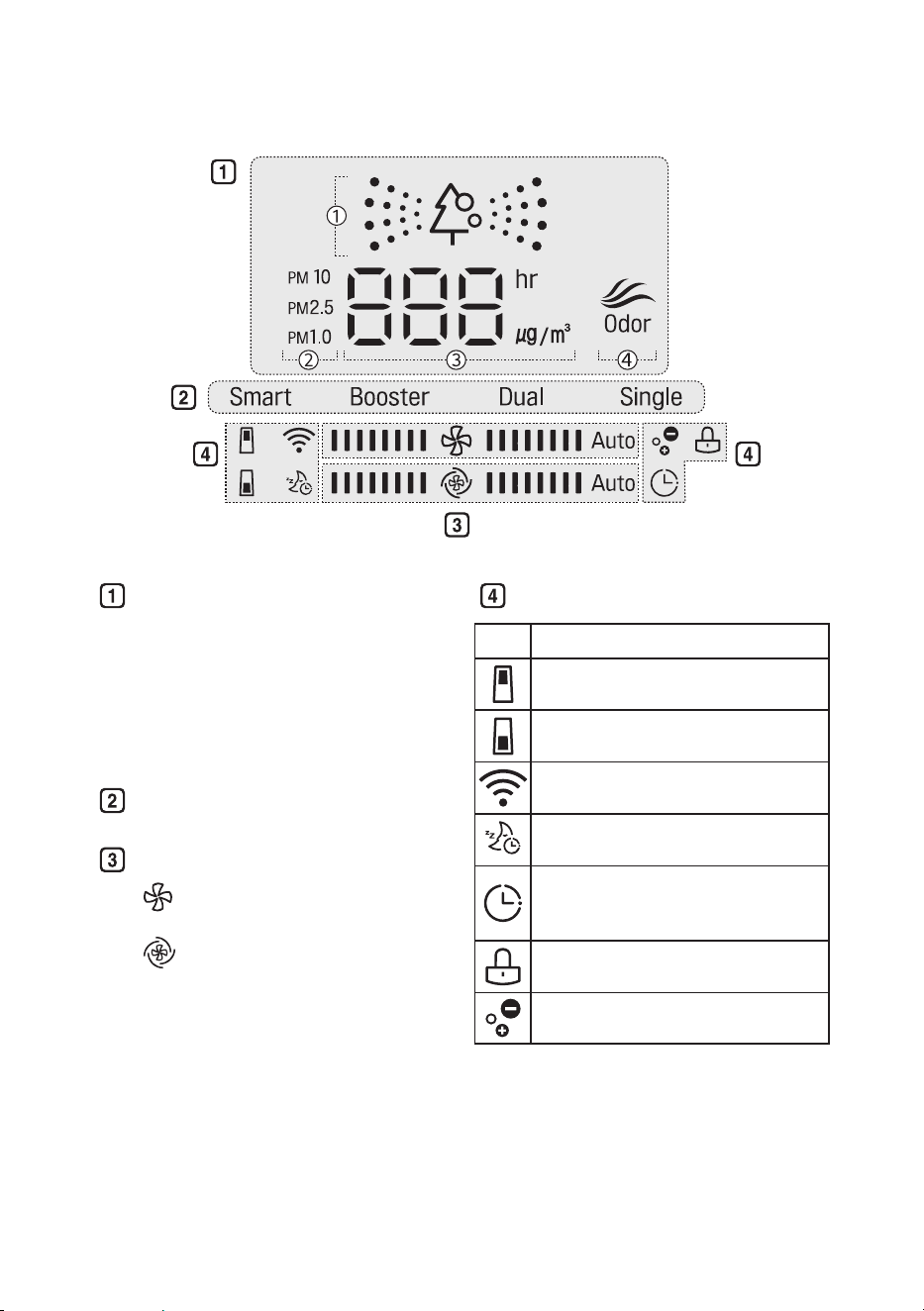
Display of air quality
①
Overall air quality (color)
②
Dust particle size and dust
concentration (color)
③
Dust concentration or sleep timer
time
④
smell concentration (color)
Displays operating mode
Displays speed and booster speed
Speed: Displays the air purier's
wind strength.
Booster speed: Displays the
clean booster's wind strength.
Status Display Panel
icons
icon Description
It turns on when it is time to replace
the upper lter.
It turns on when it is time to replace
the lower lter.
It turns on when the wi-Fi function
is activated.
It turns on when the sleep timer
function is activated.
It turns on when the 'On/Off
reservation' is set in the lG ThinQ
application.
It turns on when the control panel is
locked.
It turns on when the ionizer turns on.
20
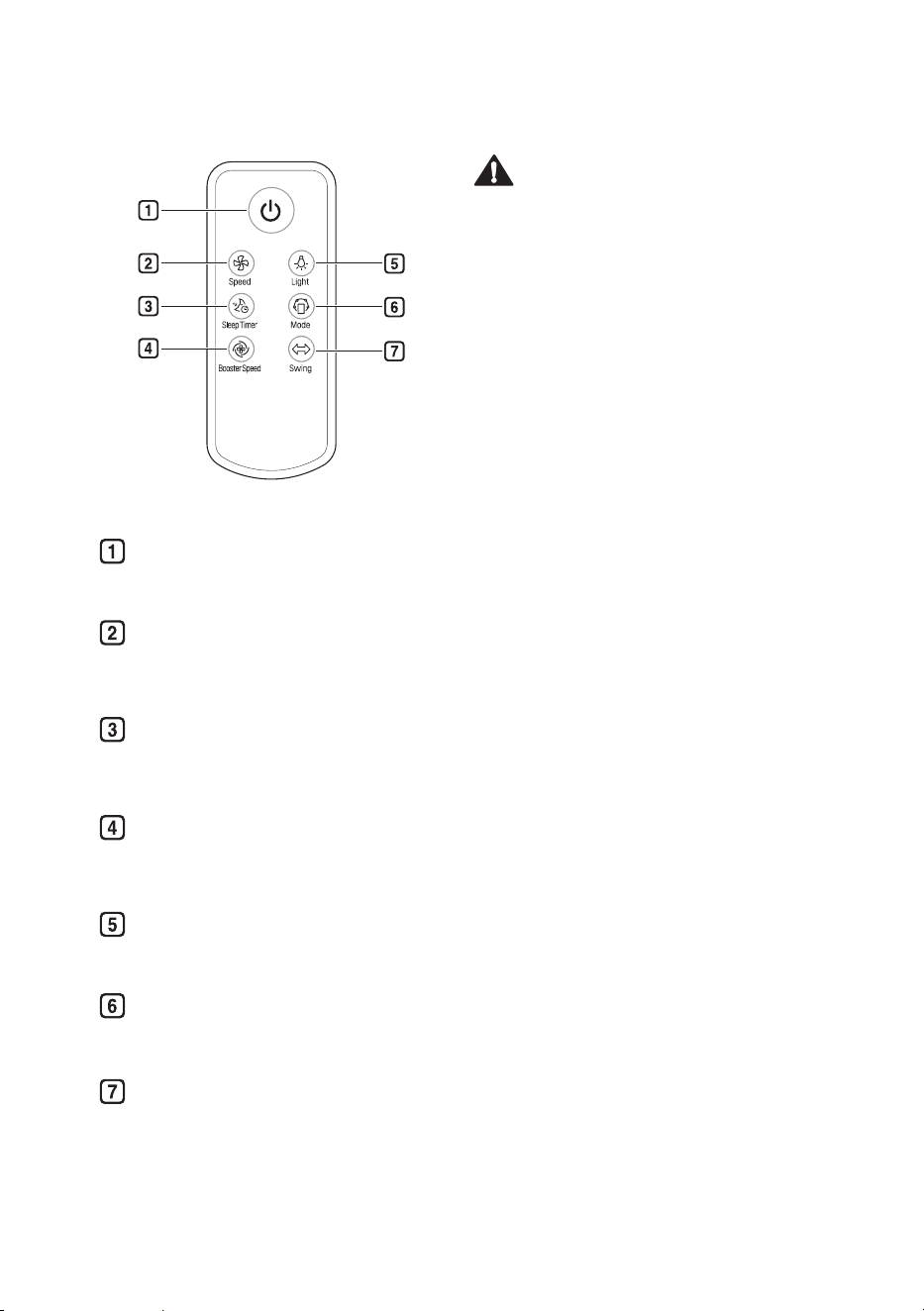
Remote Control
Start/Stop Button
You can start or stop the operation.
Speed Button
It allows you to adjust the wind
strength of the product.
Sleep Timer Button
use it to schedule the time to turn off
the product.
Booster Speed Button
It allows you to adjust the wind
strength of the clean booster.
Light Button
use it to turn on or off the light lamp.
Mode Button
use it to set the operation mode.
Swing Button
It allows you to set the clean booster
to turn left or right.
Caution
•
Do not press multiple buttons at the same
time. It may cause the product to stop
operating or malfunction.
•
Do not kick or step on the remote control.
It may result in damage.
•
Do not use it where there is too much
water or moisture. It may result in re or
electric shock.
•
Do not use it where there is re or heat. It
may result in a re or product deformation.
•
remove and store the battery in a safe
location if you don't intend to use the
remote control for a long time. It may result
in leakage of the battery liquid and lead to
a failure.
Note
•
To use the remote control, direct the signal
sending area of the remote control toward
the signal reception area of the product.
•
If you are away from the product (front) by
more than 7 m, the remote control may not
work.
•
If the remote control does not work even
after replacing the battery, contact the
nearest service center.
•
The remote control may not work properly
where there is a strong light, such as those
from a 3-wavelength uorescent lamp or a
neon sign.
•
If you lost the remote control, you can
purchase a new one in a nearby service
center.
21
Getting Started
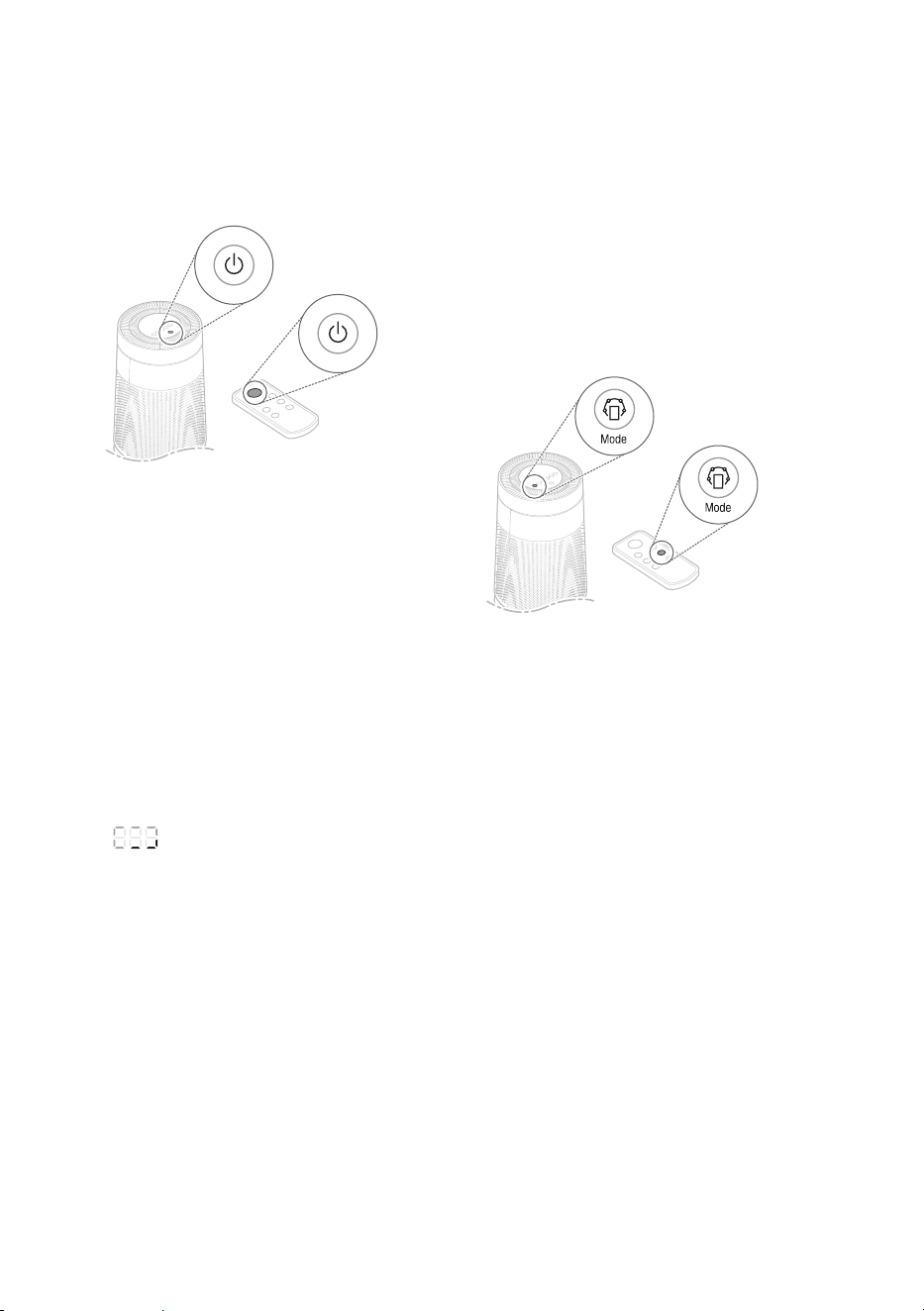
Press the Start/Stop button to start the
operation.
Note
•
If you operate the product for the rst time,
it enters Booster mode.
•
If you stop and resume the operation, it
starts cleaning with the mode you selected
last time. even if power is lost due to a
blackout, the product remembers the mode
you used last time.
•
Once the operation starts, the sensor
stabilizes (for approx. 30 seconds) before
the dust concentration is displayed. During
the sensor stabilization period, you will see
(ready) on the status panel.
You can specify the sensor stabilization
time in the 'air Quality sensor Operation
Time' option in the lG ThinQ application.
– 'always On': The sensor stabilization
turns on only once at the beginning.
– 'Only During Operation': The sensor
stabilization turns on every time you
start/stop the operation.
using Smart Mode
It automatically controls the operation mode
and wind strength based on the overall air
quality.
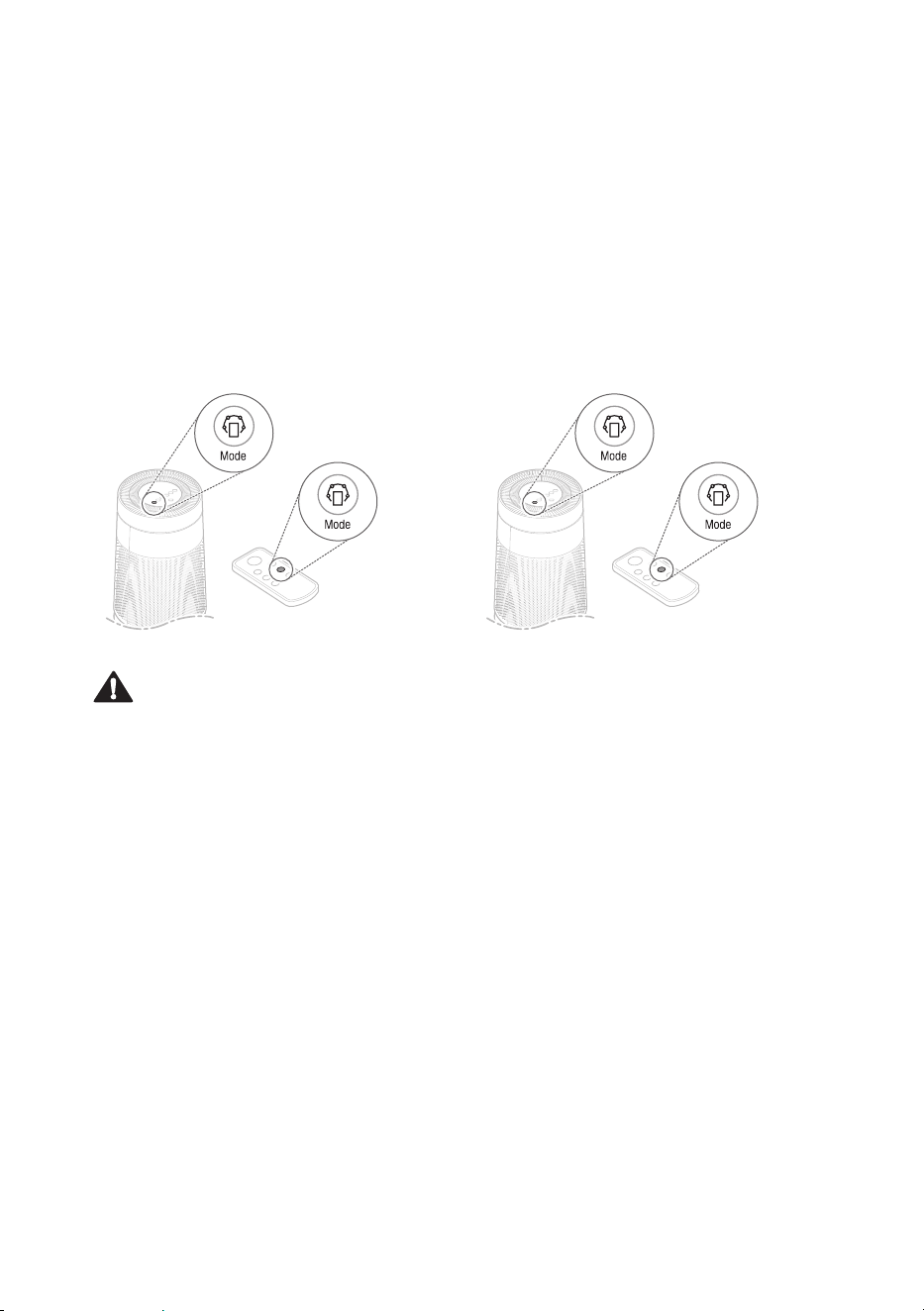
Press Mode button to choose Smart mode.
•
each time you press the button, the
operation mode changes in the following
order: Smart → Booster → Dual →
Single.
Note
•
while in Smart mode, the Speed, Boost
Speed and Swing buttons do not work.
•
Smart mode operates either the clean
booster, upper purier or lower purier to
adapt to the air quality.
22
using Booster Mode
The clean booster cleans the air and quickly
sends it to a long distances to circulate the
indoor air.
Press the Mode button to choose Booster
mode.
•
each time you press the button, the
operation mode changes in the following
order: Smart → Booster → Dual →
Single.
Caution
Keep your hands out of the moving part of
the clean booster.
Note
•
If you choose Booster mode, the clean
booster rises at the degree of 55 and
pushes the air forward to circulate the
indoor air.
•
For more information on how to control
the wind strength of the clean booster, see
Adjusting the Clean Booster fan Speed.
•
To rotate the clean booster left and right,
see Rotating the Clean Booster.
•
If you happen to unplug the power cord
from the outlet before the Clean Booster
closes completely, plug in the cord again.
The Clean Booster will swing left and right
and then close completely.
using Dual Mode
It uses both the upper part and lower part of
the purier simultaneously to quickly clean
the indoor air.
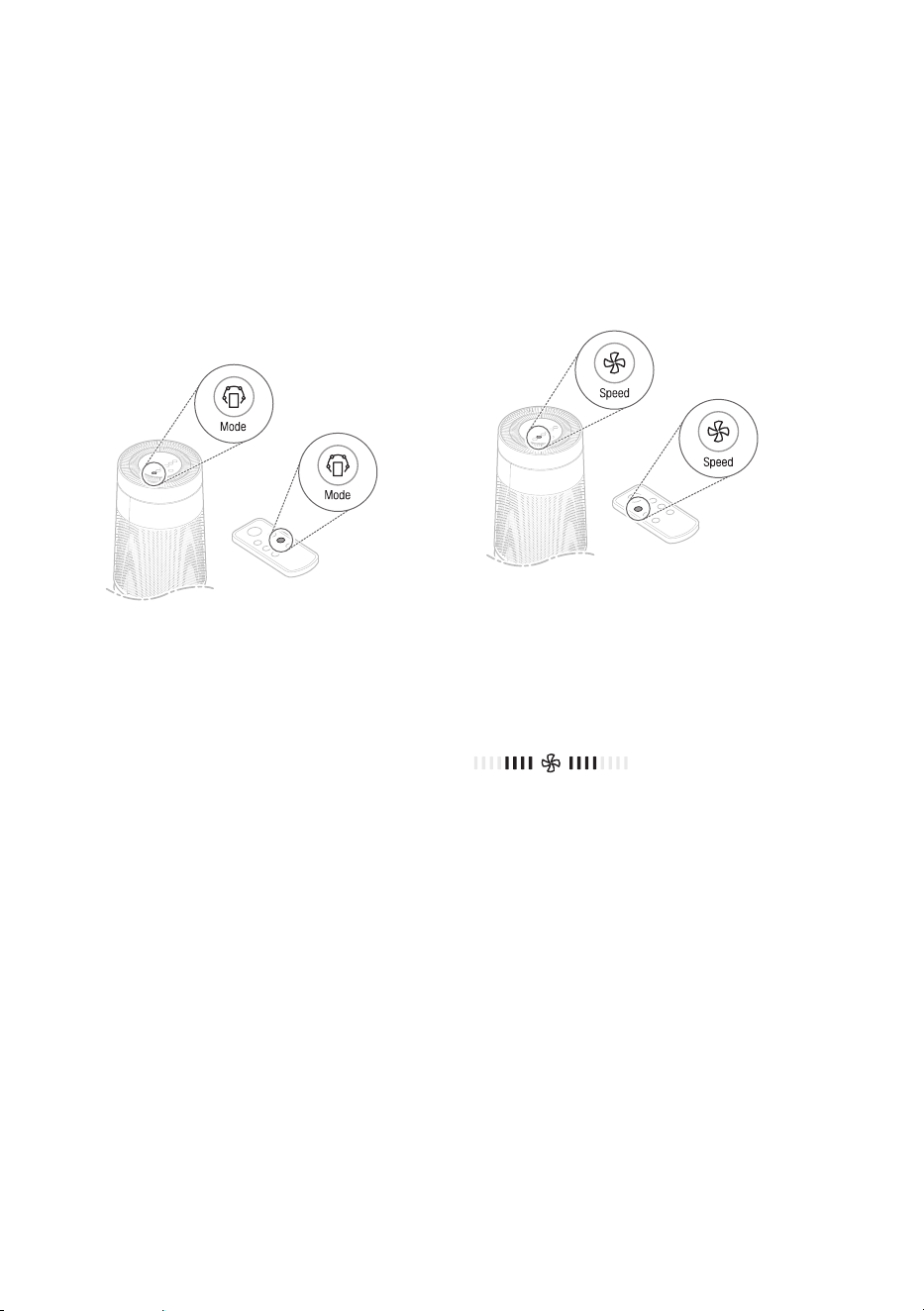
Press the Mode button to choose Dual
mode.
•
each time you press the button, the
operation mode changes in the following
order: Smart → Booster → Dual →
Single.
23
using Single Mode
It cleans the indoor air using the lower part of
the purier.
Press the Mode button to choose Single
mode.
•
each time you press the button, the
operation mode changes in the following
order: Smart → Booster → Dual →
Single.
Note
The upper part of the purier runs with gentle
wind for optimal performance.
Adjusting the fan Speed
You can adjust the wind amount of the
purier.
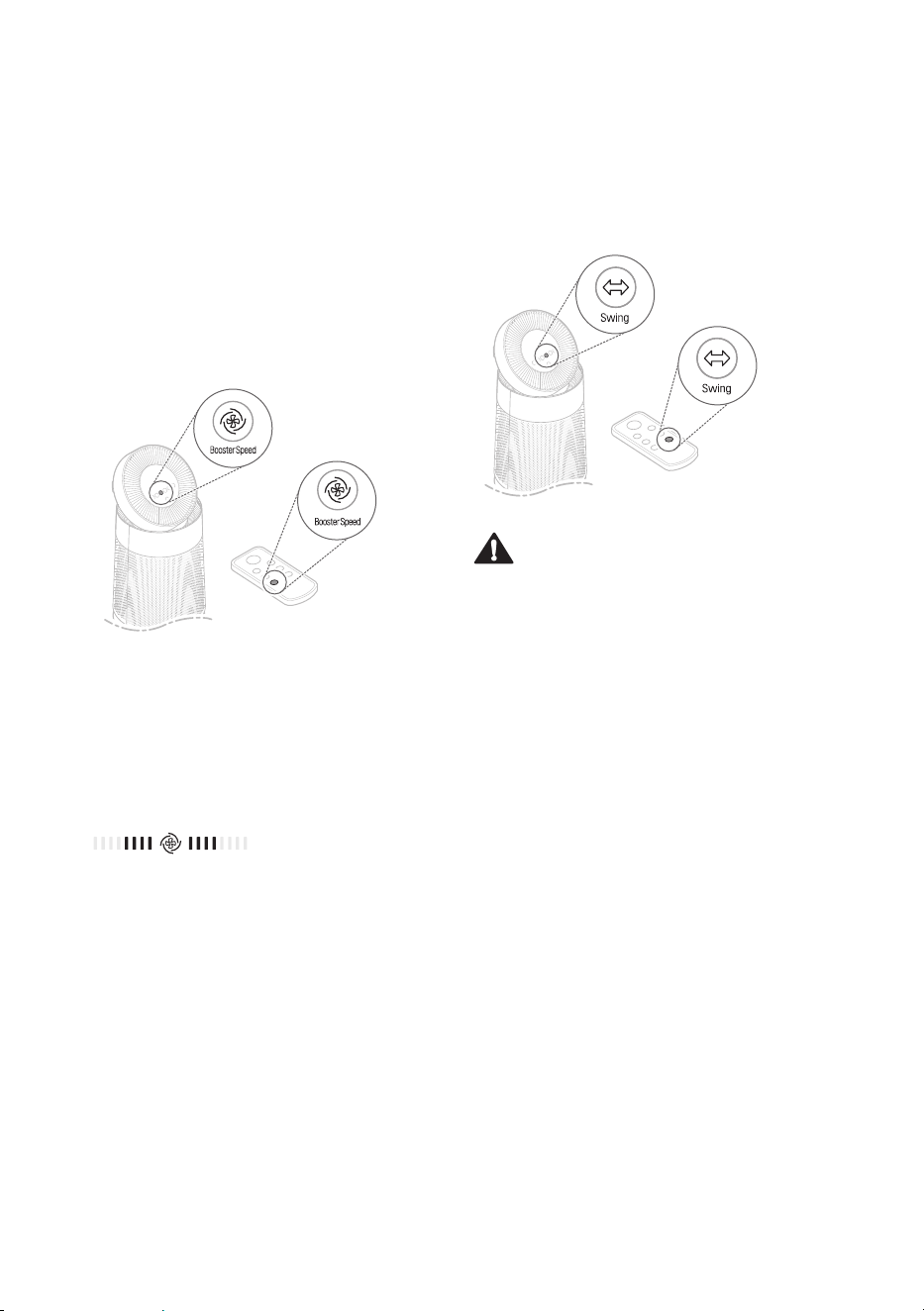
Press the Speed button during the operation.
•
each time you press the button, the speed
changes in the following order: Auto →
Low → Middle → High → Turbo.
Displaying Purier Speed
If you adjust the speed, it is displayed on the
status panel. It increases by 2 grids at a time.
[Example of Purier Speed 'Middle']
Note
•
The speed is set to Auto when you rst
start the operation. Auto mode controls
the wind speed automatically according to
the contamination level of the indoor air.
•
You can control the wind speed only in the
Booster, Dual, and Single modes.
24
Adjusting the Clean
Booster fan Speed
You can adjust the wind amount of the clean
booster.
while in Booster mode, press the Booster
Speed button.
•
each time you press the button, the speed
changes in the following order: Auto →
Low → Middle → High → Turbo.
Displaying Booster Speed
If you adjust the booster fan speed, it is
displayed on the status panel. It increases by
2 grids at a time.
[Example of Booster Speed 'Middle']
Note
•
If you choose Auto, the fan inside the
clean booster is adjusted according to the
speed of the purier. For example, if you
change the speed of the purier to 'Low',
the booster fan speed is changed to 'low'
as well.
•
You may control the booster fan speed
only in Booster mode. In the other modes,
you will hear a warning sound and won't
be able to control the function.
Rotating the Clean Booster
The clean booster rotates left and right.
while in Booster mode, press the Swing
button.
Caution
Keep your hands out of the moving part of
the clean booster.
Note
•
The rotating angle of the clean booster is
35°.
•
You may use the clean booster rotation
function only in Booster mode. In the other
modes, you will hear a warning sound and
won't be able to control the function.
25
Checking the Air Quality using
the Light Lamp
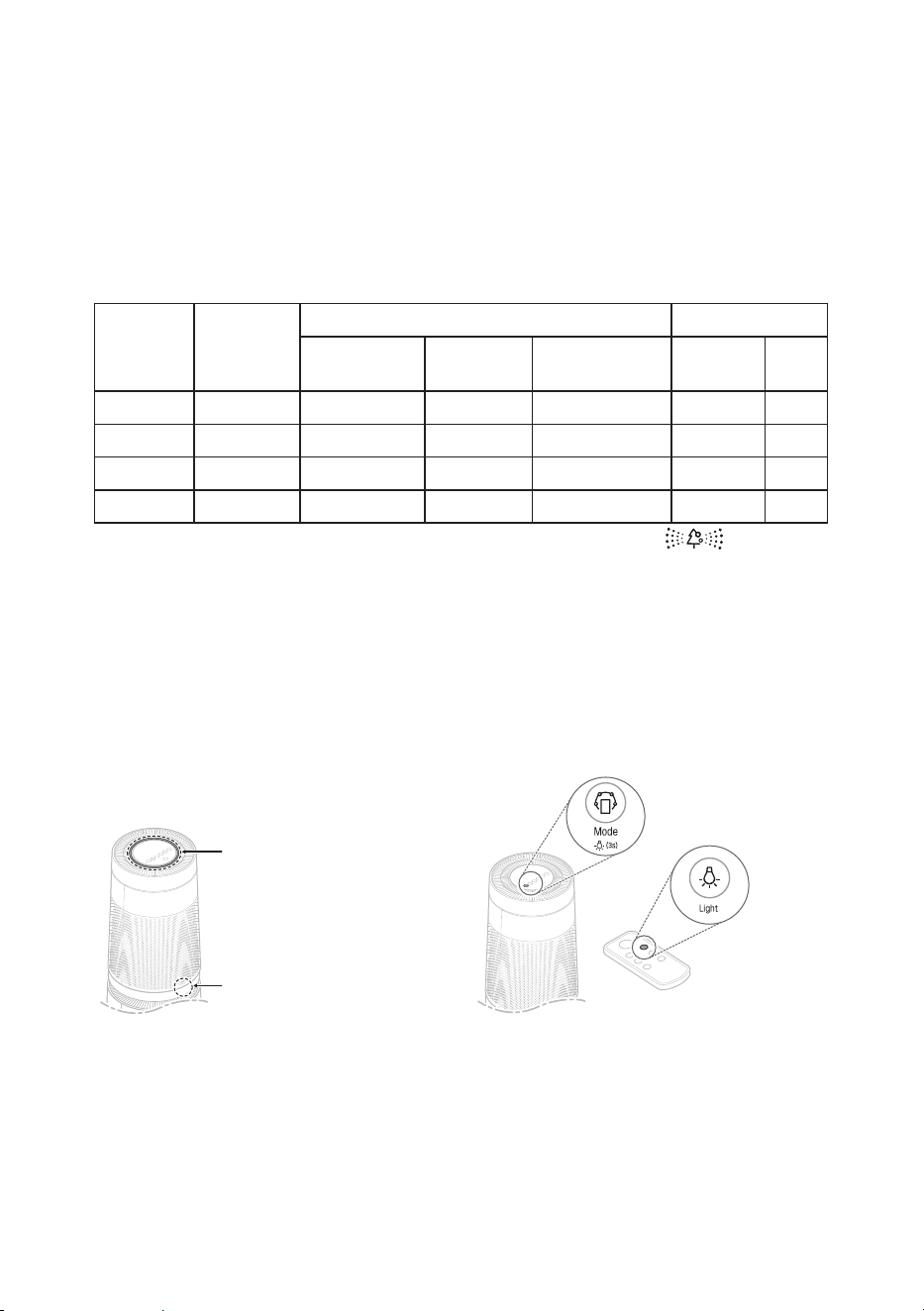
Four different colors are used to indicate
the overall air quality based on the dust
concentration and smell (gas) concentration.
upper light
lamp
lower light
lamp
Note
The light lamp turns on white for the sensor
stabilization period (30 seconds). The smell
(gas) sensor is stabilized 2 minutes after you
start the operation. During this period, the
smell (gas) concentration is not reected in
the overall air quality.
Checking the Air Quality
You can check the cleanliness of the indoor air by looking at the light lamp and the status panel.
understanding the Overall Air Quality
The overall air quality is calculated based on the dust and smell (gas) concentrations
and is categorized into 4 levels including green, yellow, orange or red depending on the
contamination of the air.
Overall Air
Quality
State
PM density (μg/m
³
) Odor Level
PM10
(ne dust)
PM2.5
(ultra ne dust)
PM1.0
(super ultra ne dust)
State Level
red Poor 255 or more 56 or more 56 or more Very strong 4
Orange unhealthy 155~254 36~55 36~55 strong 3
Yellow Moderate 55~154 13~35 13~35 normal 2
Green Good 54 or less 12 or less 12 or less weak 1
•
Overall air quality can be determined based on the light lamp and the color (overall
air quality) on the status panel.
•
The color of overall air quality is determined based on whichever is worse between the dust
concentration and smell (gas) concentration.
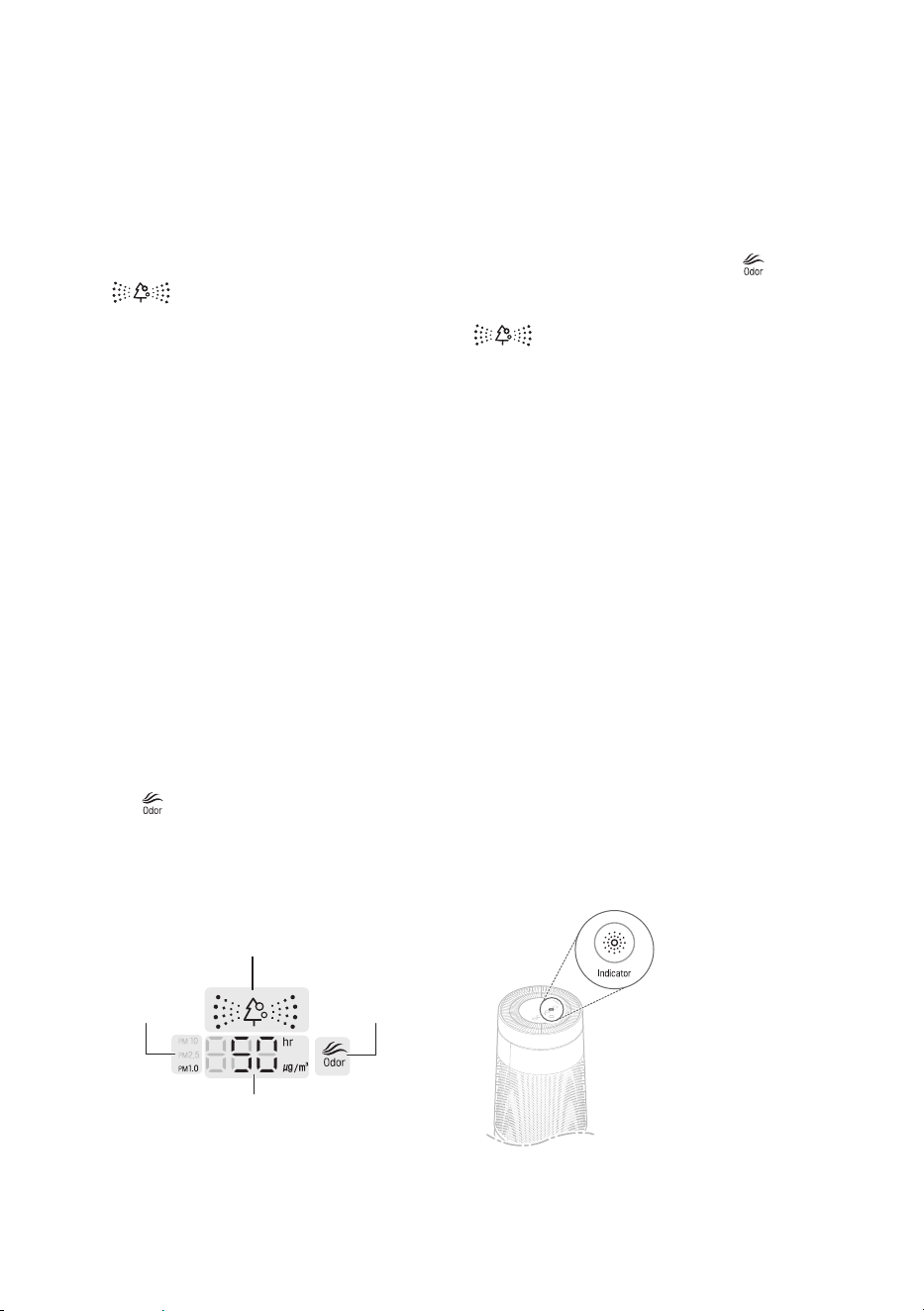
Turning on/off the Light Lamp
You can press and hold the Mode button for
3 seconds or more to turn it on/off.
Note
•
when the sleep timer is set, the light lamp
turns off.
•
If you turn on the light lamp after setting
the sleep timer, you will see the overall air
quality on the status panel as well as on
the light lamps.
26
Checking Air Quality on the Sta-
tus Panel
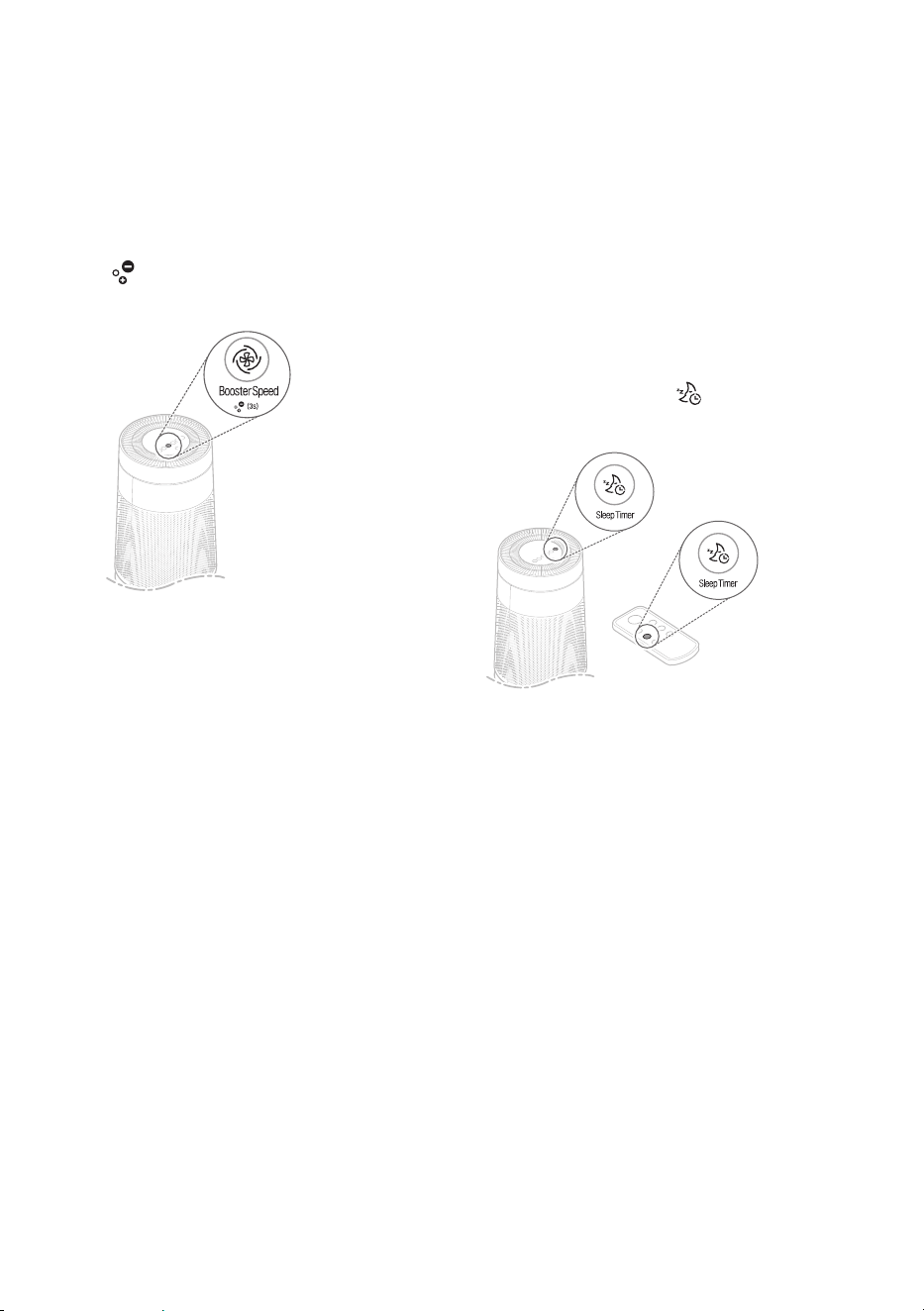
You may check the overall air quality, dust
concentration, and smell concentration on
the status panel.
•
Overall air quality: You can check the
color (overall air quality) on the
status panel to determine the overall air
quality.
•
Dust concentration: You can check the
dust concentration by looking at the dust
concentration value and the particle size
indicator color. It shows the worst status
among the PM 10 (ne) / PM 2.5 (ultra-ne)
/ PM 1.0 (super ultra-ne dust).
– If the dust concentrations of all
categories are 'good', the concentration
of the 'PM 10' is displayed.
– If it is worse than '
moderate
', the color
and concentration of the dust with
the highest contamination level are
displayed. If they share the same
contamination level, the contamination
level is displayed according to the
following order: PM 1.0, PM 2.5 and
PM 10.
•
Smell concentration: You can check
the
color (smell concentration) on
the status panel to determine the smell
concentration.
[example of the Display Showing Air
Quality]
Overall air quality
smell
concentration
color
Dust particle
size and
concentration
color
Dust concentration
The above picture displays PM10/PM2.5/
PM1.0, meaning that the concentration of
super ultra-ne dust is higher than those of
ne dust and ultra-ne dust.
while the color of the dust particle size
is solely determined based on the dust
concentration and the color of the
(smell
concentration) is solely determined based
on the smell concentration, the color of the
(overall air quality) is determined
based on the worse cause between the dust
and smell.
If the smell is '
normal
' and the PM 1.0 (super
ultra-ne dust) concentration is 50 μg/m
3
,
which is '
unhealthy
', the overall air quality is
displayed in orange as the worst cause is the
dust. On the other hand, if the smell is 'very
strong', the overall air quality is displayed in red
because the smell becomes the worst cause.
Checking the Dust
Concentration
You can check the airborne dust
concentration by its particle size.
Press the indicator button during the
operation.
•
whenever you press the button, the
display changes in the following order:
PM10 → PM2.5 → PM1.0.
•
The concentration of the selected dust
particle is displayed for about 10 seconds.

27
Note
•
PM (particulate matter) density is displayed
in increments of 1 unit, from 8 to 999. PM
density values are based on the data sheet
provided by the sensor manufacturer.
•
The PM10 and PM2.5 air quality values
follow those provided by the united states
ePa (environmental Protection agency) for
2015.
– The overall air quality level displayed
on the product may differ from the level
announced by the ePa.
•
The PM1.0 density is displayed in the
same manner as the PM2.5 density and is
based on lG electronics standards.
•
The PM10 and PM2.5 densities displayed
by the product could differ from the ePa
forecast and from densities measured by
other products or devices.
– Differences in PM density values may
be the result of different methods of
measuring or differences in the actual
PM density levels.
– The PM density measurement was
tested using lG electronics’ standard
test materials.
•
Using the product near a humidier, mist
generator, air-conditioner or other device
which generates steam or micro-particles
could affect the PM densities.
•
The overall air quality level is a result of
both PM densities and the odor level. It
may differ from the PM10, PM2.5 and
PM1.0 density levels.
•
even two products placed in the same
space could measure the PM10 density
differently due to air circulation.
•
The chemicals contained in air fresheners,
perfumes, deodorizers or cosmetics may
affect the overall air quality display.
•
The dust density displayed may change
with environmental factors such as the
presence of sofas, beds, carpets, vacuum
cleaners, humidity, smoke, bugs, pets or
cooking oils.
•
The PM densities may be affected by
changes in the outside environment such
as construction, heavy trafc or pollen.
•
The micro dust density could be higher
near outside doors, windows, vents or in
areas where outside air enters.
•
use OnlY water to clean the sensor.
using anything else could cause product
failure.
•
The ne dust density could be affected
by cooking or using humidiers, sprays or
other products which generate steam or
ne particles.
28
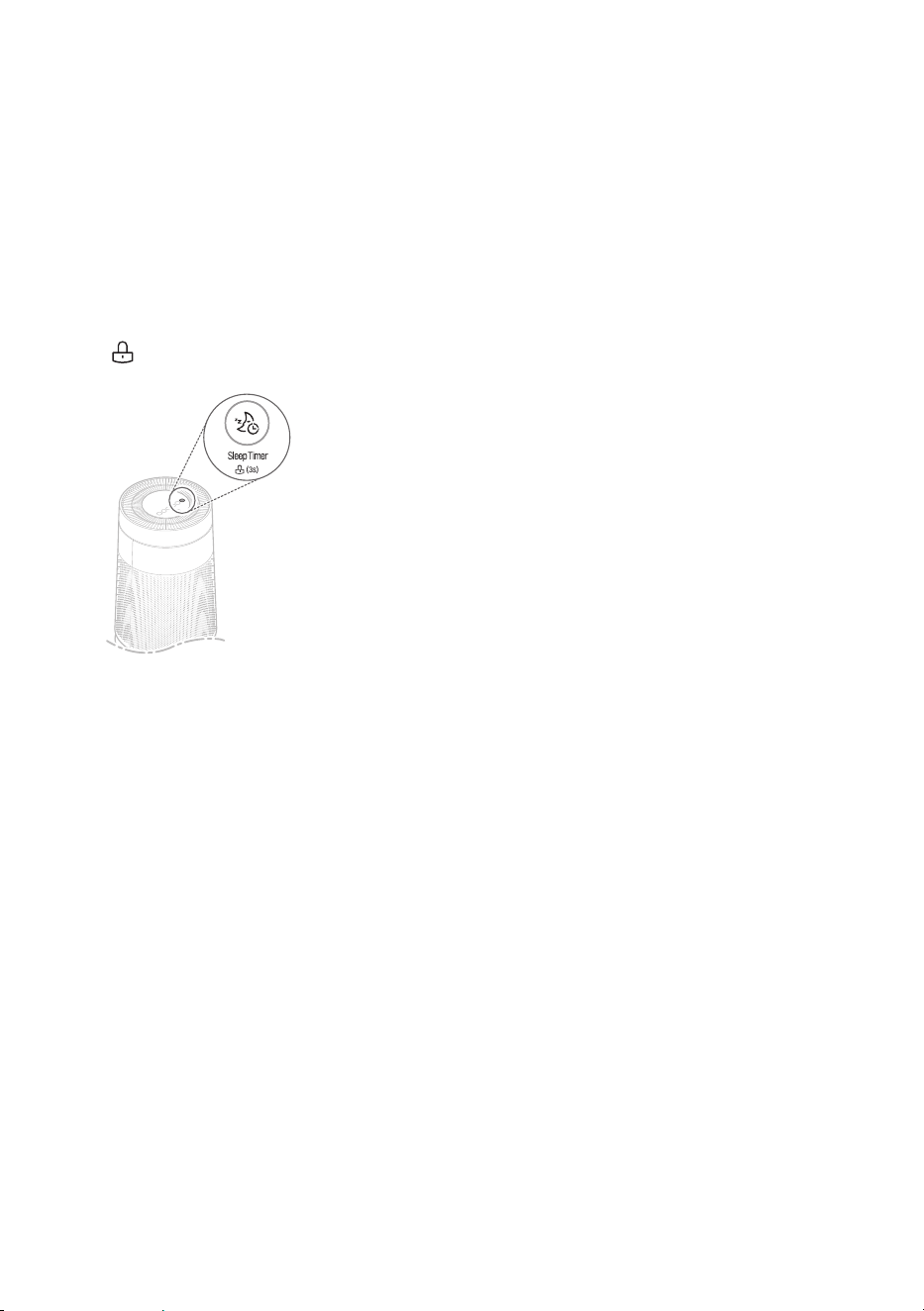
using the Air ionizer
To generate ions to remove various bacteria
from the air.
Press the Booster Speed button for more
than 3 seconds while operating.
•
(Ionizer) is displayed on the status
display.
Note
• when the operation is stopped, the ionizer
function can not be used.
• The ionizer function is available in all
operating modes.
Setting the Sleep Timer
You can set the product to stop automatically
after running for the duration you set.
Press the Sleep Timer button during the
operation.
•
each time you press the button, the sleep
Timer changes in the following order: after
2 hours→ After 4 hours → After 8 hours →
after 12 hours → Cancel.
•
Once the sleep timer is set, the status
panel displays only the
sleep timer icon
except for a few other icons.
Note
•
For your deep sleep, the speed is set
to low by default for a certain period of
time. after the time passes, the speed is
controlled automatically depending on the
air quality.
•
even when the sleep timer is set, you can
still change the speed by pressing the
Speed button.
•
If you press the Sleep Timer button once
more while the sleep timer is set, you can
check the preset time and press the button
repeatedly to cancel the sleep timer.
•
The sleep timer remains on even if the
power goes off or if there is a blackout.
29
Locking the Control Panel
Buttons
You can lock the buttons on the Control
Panel to prevent the product from operating
due to unforeseen reasons, such as a child
manipulating the buttons.
Press the Sleep Timer button for at least 3
seconds during the operation.
•
(lock) is displayed on the status panel.
Note
•
You can turn off the lock function in the
same way as turning it on.
•
The control panel can be locked even
when the product is off.
•
If you pull out the power plug in lock set
status, the lock function is cleared.
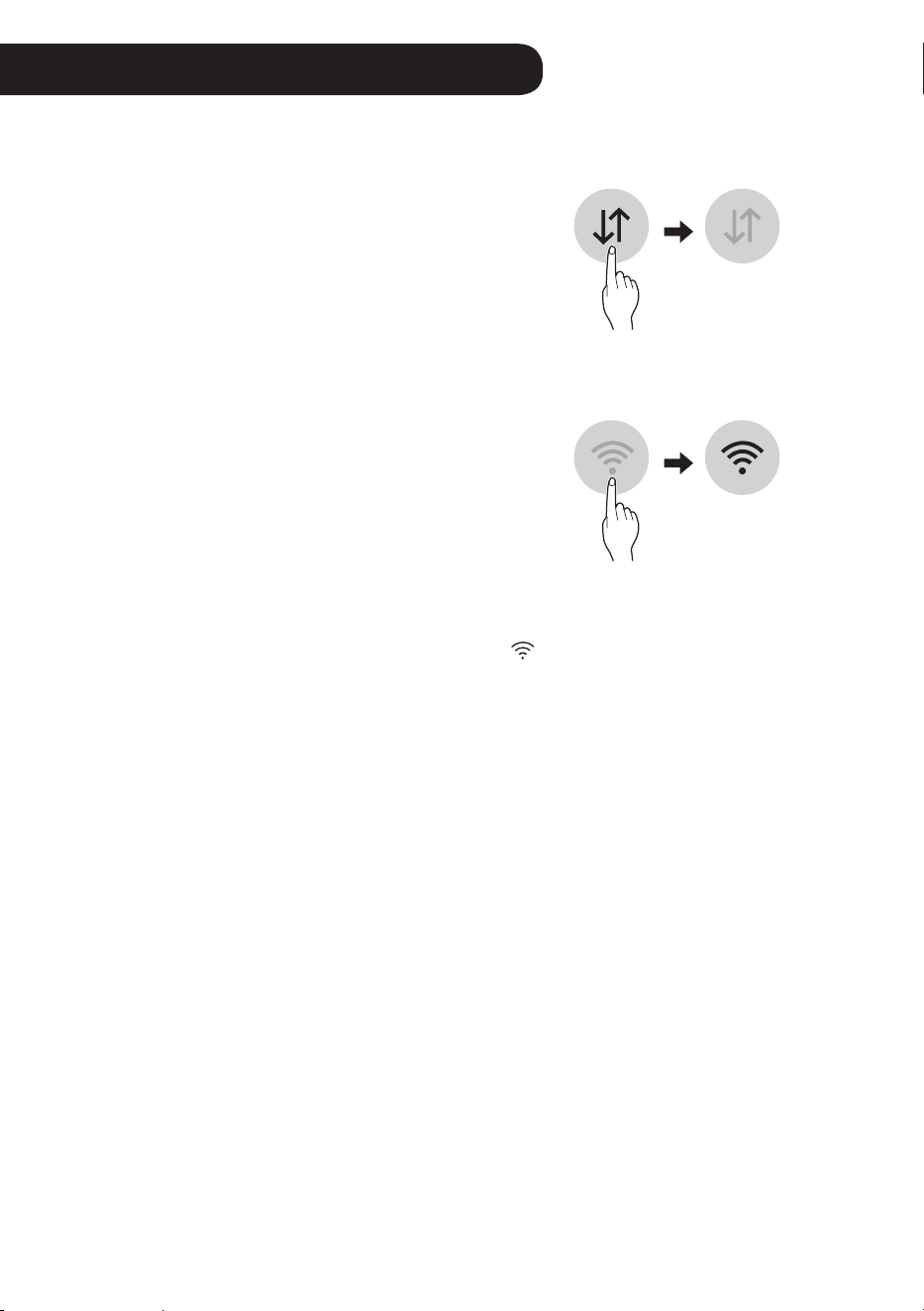
30
LG ThinQ Application
The lG ThinQ application allows you to
communicate with the appliance using a
smartphone.
LG ThinQ Application features
Smart Diagnosis
If you experience a problem while using the
appliance, this smart diagnosis feature will
help you diagnose the problem.
Settings
allows you to set various options on the
appliance and in the application.
NOTe
•
If you change your wireless router, Internet
service provider, or password, delete the
registered appliance from the lG ThinQ
application and register it again.
•
The application is subject to change for
appliance improvement purposes without
notice to users.
•
Functions may vary by model.
Before using LG ThinQ
Application
This feature is only available on models with
wi-Fi function.
1
Check the distance between the
appliance and the wireless router (wi-
Fi network).
•
If the distance between the
appliance and the wireless router is
too far, the signal strength becomes
weak. It may take a long time to
register or installation may fail.
Smart functions
2
Turn off the Mobile data or Cellular
Data on your smartphone.
3
Connect your smartphone to the
wireless router.
NOTe
•
To verify the wi-Fi connection, check that wi-
Fi
icon on the control panel is lit.
•
The appliance supports 2.4 GHz wi-
Fi networks only. To check your network
frequency, contact your Internet service
provider or refer to your wireless router
manual.
•
lG ThinQ is not responsible for any
network connection problems or any faults,
malfunctions, or errors caused by network
connection.
•
If the appliance is having trouble connecting
to the wi-Fi network, it may be too far from
the router. Purchase a wi-Fi repeater (range
extender) to improve the wi-Fi signal strength.
•
The wi-Fi connection may not connect or may
be interrupted because of the home network
environment.
•
The network connection may not work
properly depending on the Internet service
provider.
•
The surrounding wireless environment can
make the wireless network service run slowly.

31
•
The appliance cannot be registered due
to problems with the wireless signal
transmission. unplug the appliance and wait
about a minute before trying again.
•
If the rewall on your wireless router is
enabled, disable the rewall or add an
exception to it.
•
The wireless network name (ssID) should be
a combination of english letters and numbers.
(Do not use special characters.)
•
smartphone user interface (uI) may vary
depending on the mobile operating system
(Os) and the manufacturer.
•
If the security protocol of the router is set
to weP, you may fail to set up the network.
Please change it to other security protocols
(wPa2 is recommended) and register the
product again.
installing the LG ThinQ
Application
search for the lG ThinQ application from the
Google Play store or apple app store on a
smartphone. Follow instructions to download
and install the application.
Wi-Fi Module Specications
as the wireless equipment may cause radio
interference, it must not be used to provide
life-saving services.
Open Source Software Notice
information
To obtain the source code under GPl, lGPl,
MPl, and other open source licenses, that is
contained in this product, please visit http://
opensource.lge.com.
In addition to the source code, all referred
license terms, warranty disclaimers and
copyright notices are available for download.
lG electronics will also provide open
source code to you on CD-rOM for a
charge covering the cost of performing
such distribution (such as the cost of media,
shipping, and handling) upon email request
to [email protected]. This offer is valid
for a period of three years after our last
shipment of this product. This offer is valid to
anyone in receipt of this information.
32
Smart Diagnosis
This feature is only available on models with
the
logo.
use this feature to help you diagnose and
solve problems with your appliance.
NOTe
•
For reasons not attributable to lGe’s
negligence, the service may not operate
due to external factors such as, but not
limited to, wi- Fi unavailability, wi-Fi
disconnection, local app store policy, or
app unavailability.
•
The feature may be subject to change
without prior notice and may have a
different form depending on where you are
located.
using LG ThinQ to Diagnose
issues
If you experience a problem with your wi-
Fi equipped appliance, it can transmit
troubleshooting data to a smartphone using
the LG ThinQ application.
•
launch the LG ThinQ application and
select the Smart Diagnosis feature in the
menu. Follow the instructions provided in
the LG ThinQ application.
using Audible Diagnosis to
Diagnose issues
Follow the instructions below to use the
audible diagnosis method.
•
launch the LG ThinQ application and
select the smart Diagnosis feature in the
menu. Follow the instructions for audible
diagnosis provided in the LG ThinQ
application.
1
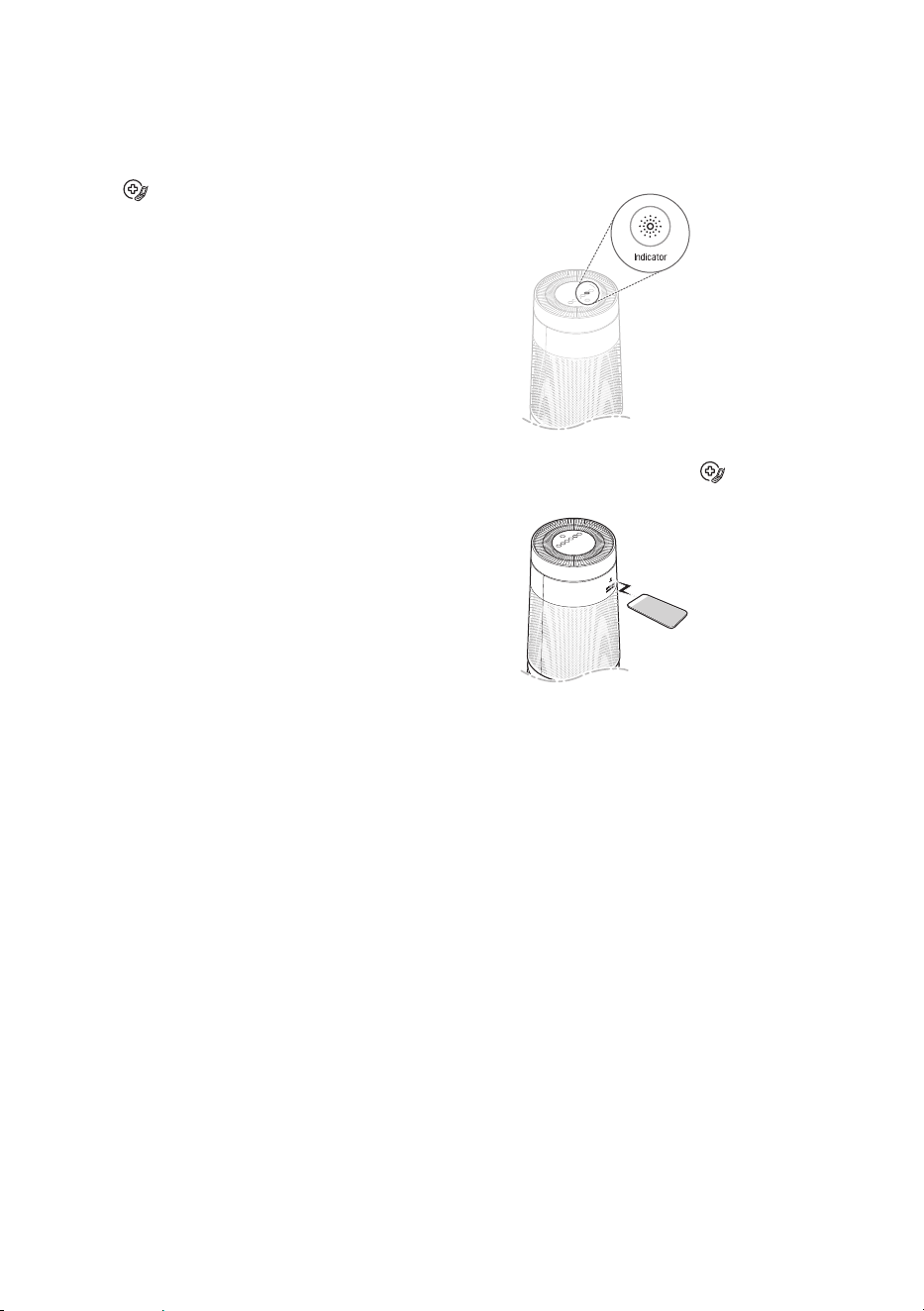
Press and hold the indicator button
for 5 seconds or more to execute the
smart Diagnosis function.
2
Hold the phone on the logo on the
back of the appliance.
3
after the data transfer is complete,
the diagnosis will be displayed in the
application.
NOTe
•
For best results, do not move the phone
while the tones are being transmitted.
33
Maintenance
Caution
•
You must stop operating the product and
unplug it before you clean and replace the
lter.
•
Do not spray water directly on the product.
•
assemble the product in the reverse order
of disassembly after cleaning the product
and replacing the lter.
•
How to distinguish between the front
and back of the product: There is an lG
logo on the front, while 'PM 1.0 & Gas
sensOr sYsTeM' is written on the back.
Scheduled Maintenance
Component
Cleaning
frequency
Replacement
frequency
Only ultra-ne
lter
If contaminated,
clean the ultra-
ne lter with a
vacuum cleaner
or soft brush.
The whole lter
1 year
Filter
2 months -
PM 1.0 (super
ultra-ne dust)
sensor
Note
•
The operating environment and operation
hours may affect the cleaning frequency.
we recommend that you should clean it
more often in a dusty environment.
•
If you do not clean the product according
to the cleaning frequency, you may
experience a bad odor and poor
performance.
•
Filters are sold at the nearest service
Center or via the Consumables shop on
the lG electronics site (www.lg.com).
•
You may also request cleaning or
replacement of the lter to the Service
Center. You will be charged a certain
fee for lter cleaning and replacement
services.
•
If there are no changes to the dust
concentration on the status panel, clean
the sensor regardless of the cleaning
frequency (2 months) of the PM 1.0
sensor. For more information on cleaning
the PM1.0 sensor, please see Cleaning
the Dust Sensor.
Alerts on the Status Panel
when you see an alert message on the
status panel, do the following:
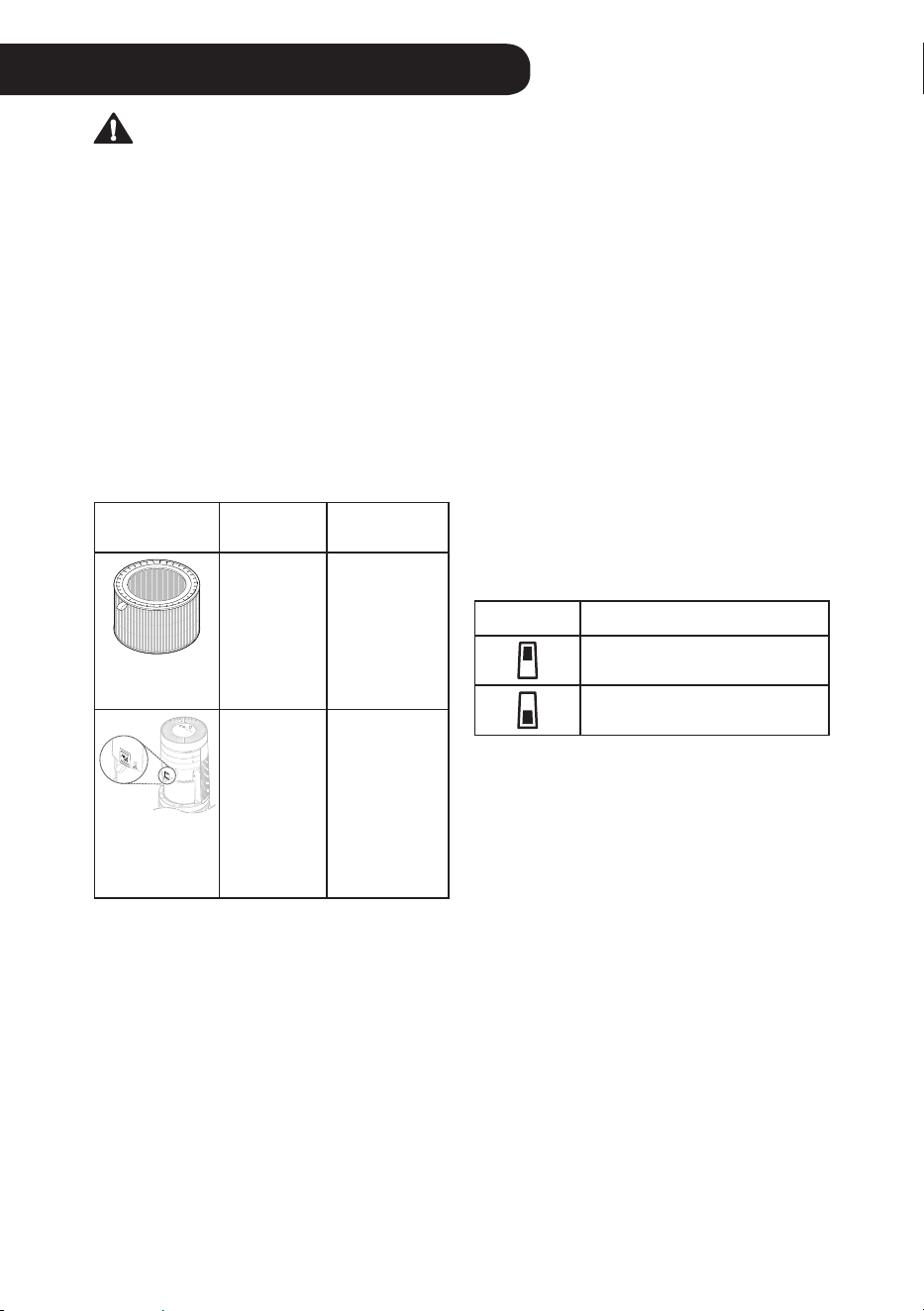
Alert Measures
•
Replace the upper lter.
•
Replace the lower lter.
Note
•
Filter replacement alerts appear based
on the maximum usage time, taking into
account the operating hours of the product.
The replacement frequency is determined
by the operating hours and environment.
•
For more information on how to disable a
lter replacement alert, see Replacing the
filter.
•
A lter is a consumable item. Therefore
you must buy a new one for replacement
when it has reached the end of its lifespan
even during the warranty period.
34
Caution
•
Do not disassemble the clean booster
arbitrarily.
•
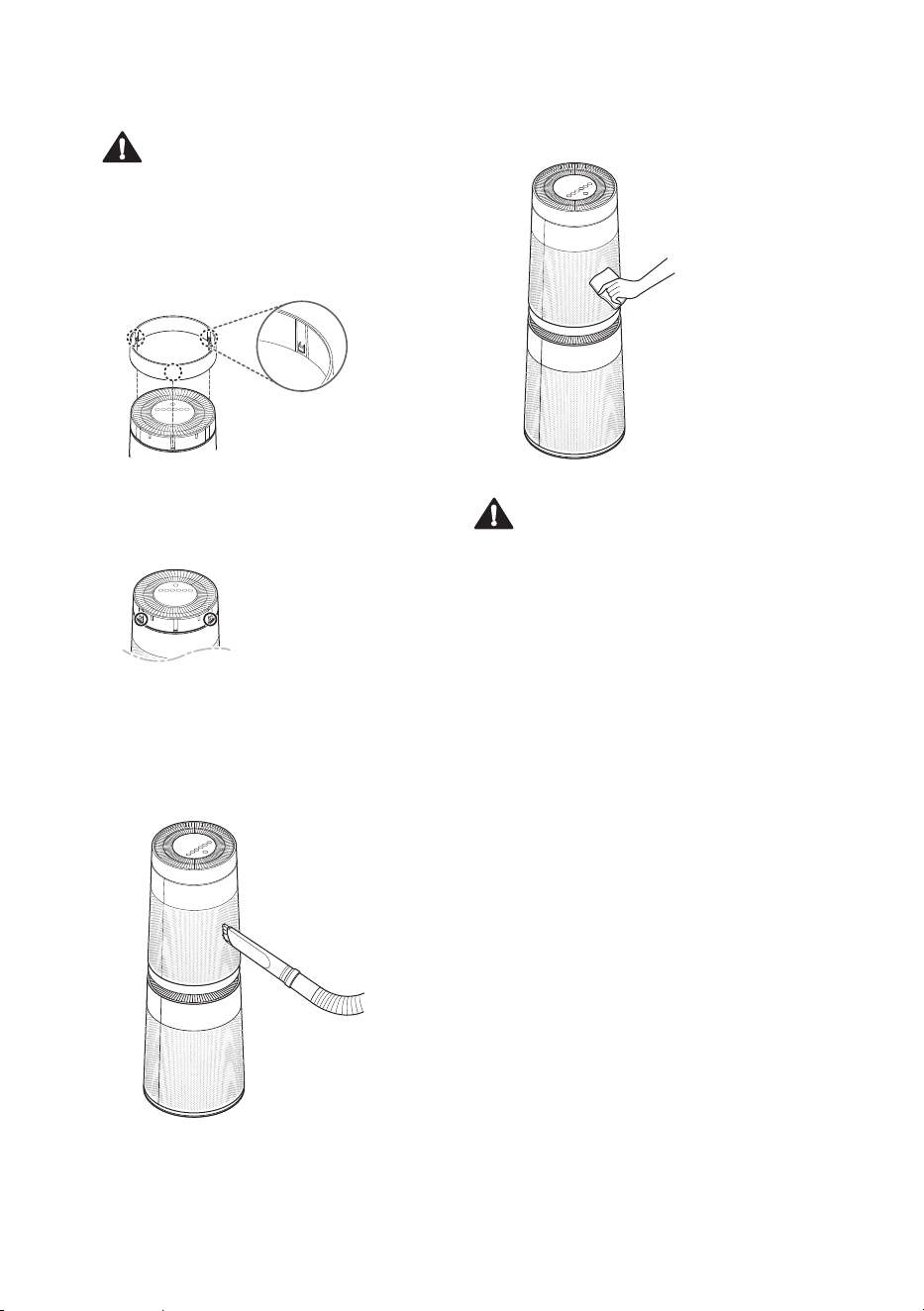
If the clean booster cover comes apart,
secure it by aligning the 3 hooks with the
slots before you use the product.
•
Do not unscrew the 2 screws xing the
clean booster grille on the back while
the product is running.
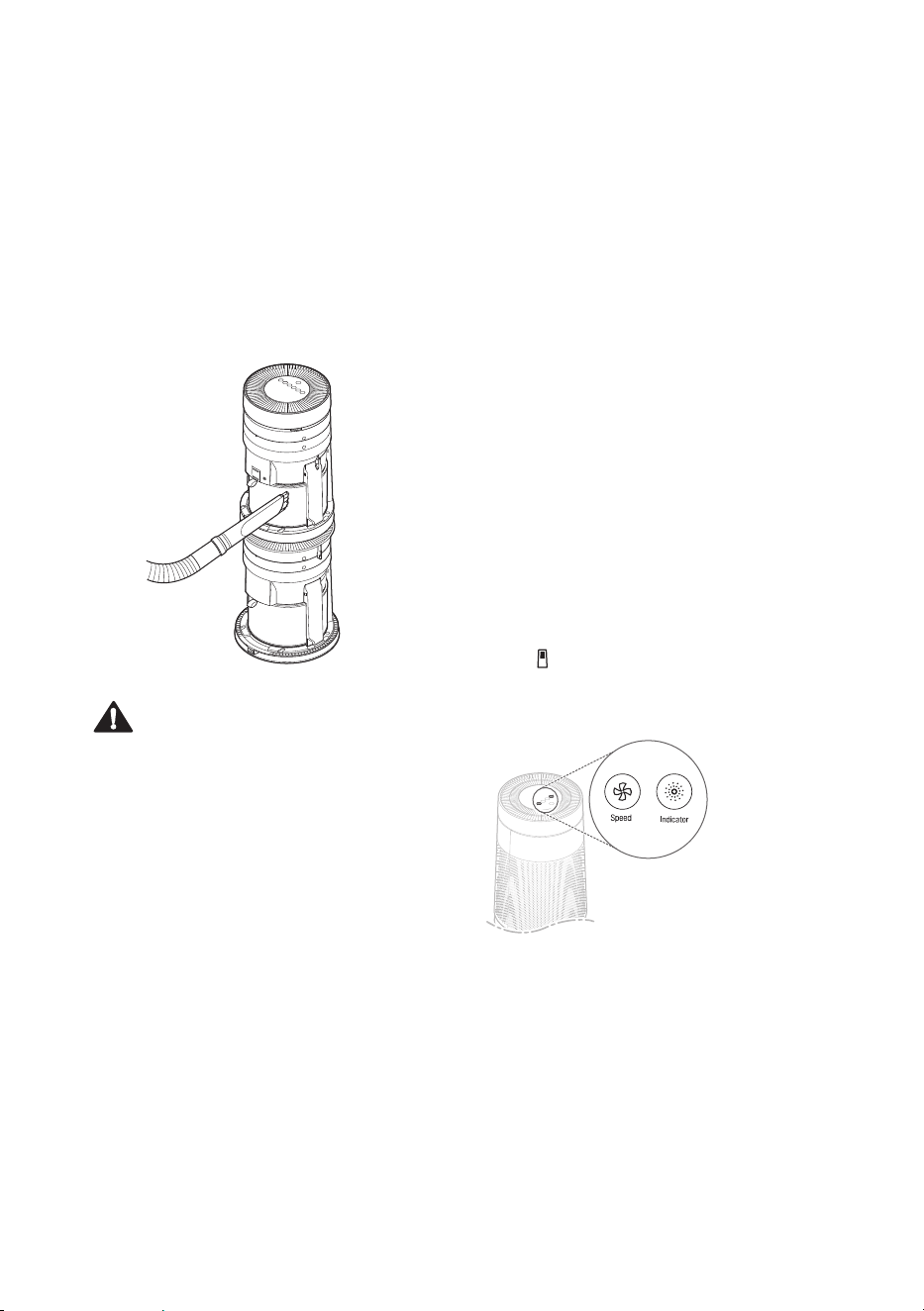
Cleaning the exterior
1
remove dust from the air inlet and
outlet using a vacuum cleaner.
2
wipe the exterior with soft cloth.
Caution
•
Do not clean the product with an alkaline
detergent.
•
Do not wipe the product surface using
sulfuric acid, hydrochloric acid or organic
solvent (thinner, kerosene etc.) or attach
a sticker on the product. Otherwise the
product surface may get damaged.
•
Do not allow the water enter inside the
product.
Note
If you nd it difcult to clean the front and
rear covers, separate them rst and wash
with water. Then, dry them completely under
the shade.
35
Cleaning the filter
1
separate the cover from the product.
•
For more information on how to
remove and mount the cover,
please see Removing Packing
Materials.
2
Remove dust from the ultra-ne lter
with a vacuum cleaner or soft brush.
Caution
•
Do not wash the lter with water. It may
reduce the lifespan of the lter.
•
Be careful not to damage the ultra ne
lter when you use a vacuum cleaner.
Replacing the filter
1
remove the cover and replace the
lter.
•
For more information on how to
remove the cover and replace
the lter, please see Removing
Packing Materials.
•
To avoid polluting the surroundings
when replacing the lter, place a
newspaper on the oor before you
remove the lter.
2
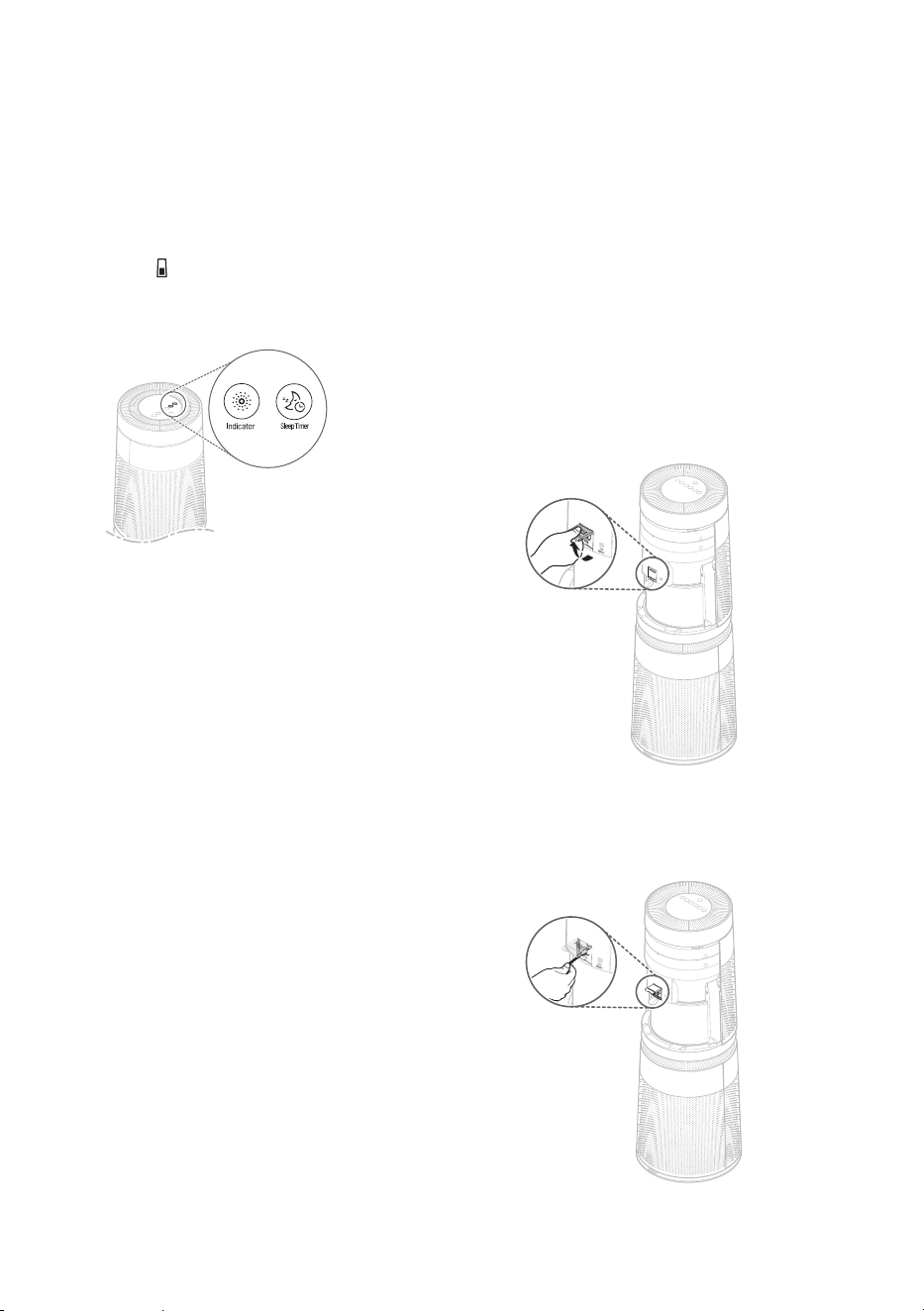
Once you have replaced the lter,
disable the lter replacement alert.
Disabling an upper filter
Replacement Alert
Press and hold the Speed and indicator
buttons simultaneously for 3 seconds or
more.
•
The
(upper Filter replacement alert)
is disabled and the replacement alarm is
reset.
36
Disabling a Lower filter
Replacement Alert
Press and hold the indicator and Sleep
Timer buttons simultaneously for 3
seconds or more.
•
The
(lower Filter replacement alert)
is disabled and the replacement alarm is
reset.
Note
•
The lter replacement alert is disabled
automatically if 24 hours have passed
since it was displayed or if the product is
disconnected from the power source.
Cleaning the Dust Sensor
PM 1.0 (super ultra- ne dust) sensor
detects the ne dust as well as coarse
dust. Therefore, you need to clean its lens
regularly.
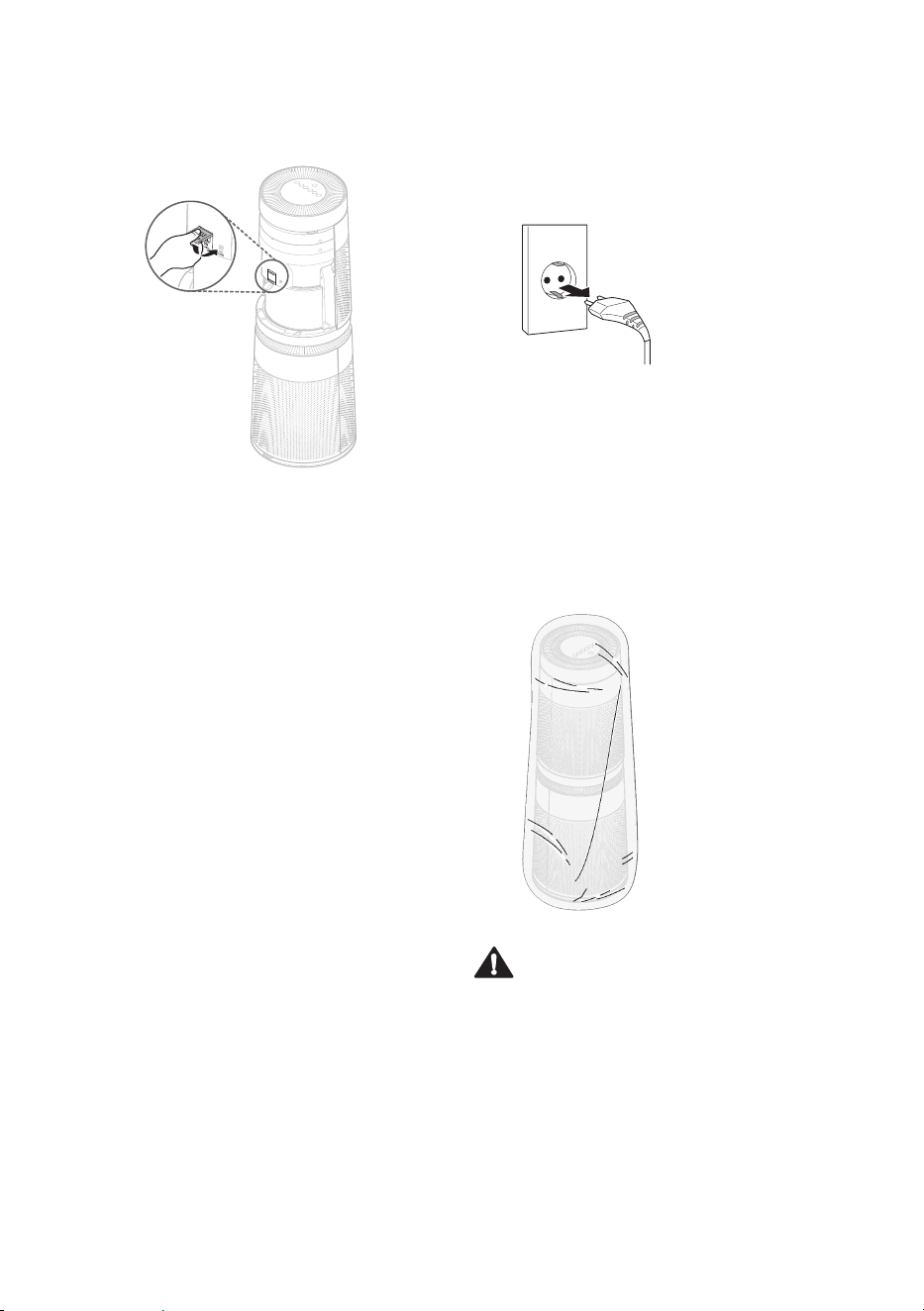
1
remove the rear cover from the
product.
•
For more information on how to
remove and mount the cover,
please see Removing Packing
Materials.
2
Open the sensor cover.
3
Clean the lens with the cotton swab
soaked with water and clean it again
with a dry cotton swab.
37
4
Close the sensor cover.
Note
Do not wipe the sensor with material other
than water. It may cause a product failure.
Storage
If the product is not used for a long period of
time, store it at a shaded and dry place.
1
Operate the product in Dual mode for
one hour or more on a ne day.
•
This removes the moisture and
prevents molds from building up
inside the product.
2
Turn off the power and unplug it from
the electrical outlet.
•
wind the power cord around the
bottom of the product.
Note
The shape of the power plug differs
depending on the country.
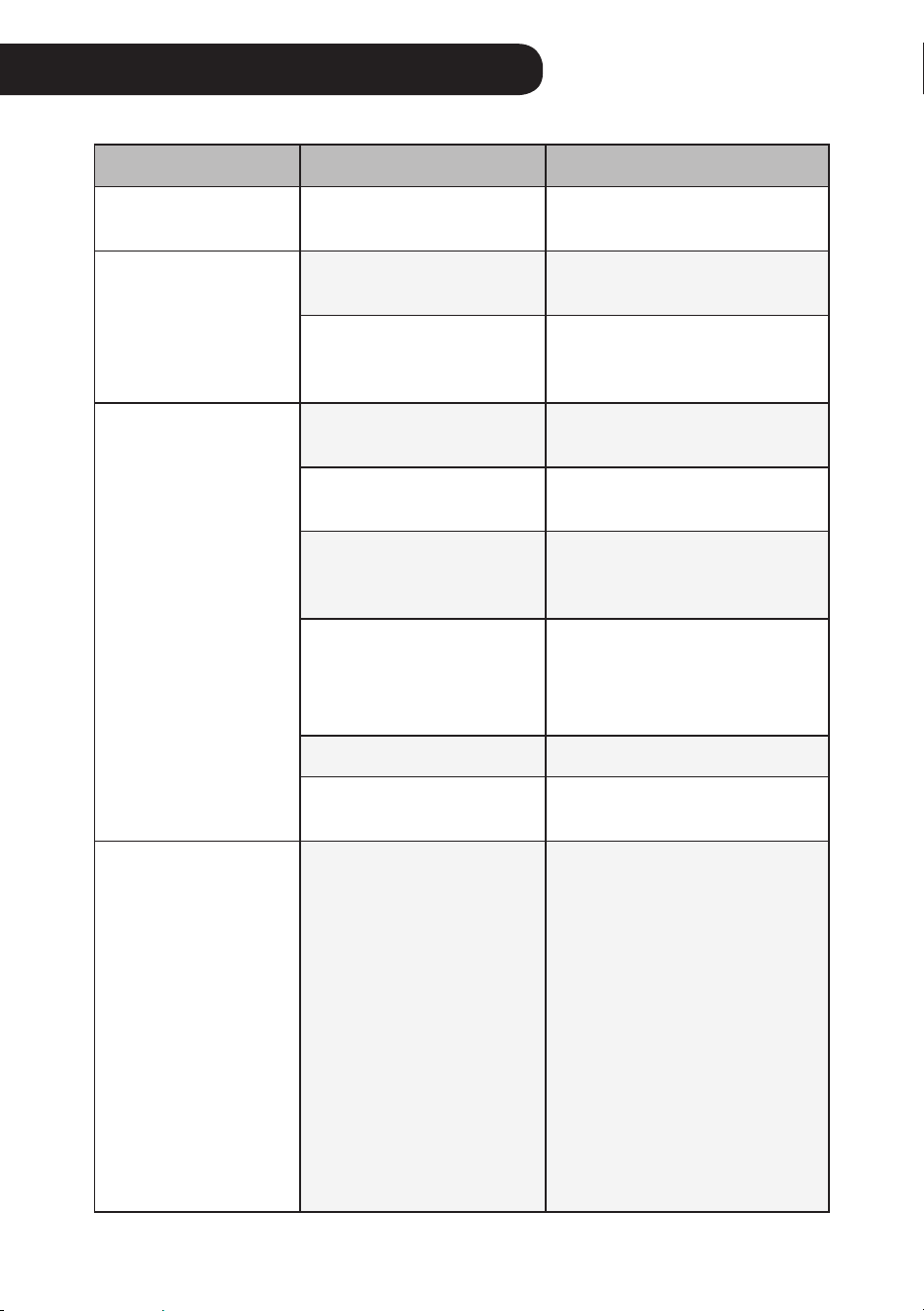
3
Package the product to prevent
the dust or foreign substance from
entering the product. store the
packaged product at a shaded place.
Caution
Do not store the product at a humid place
or at a place exposed to the direct sunlight.
Otherwise the product may be deformed,
malfunction or generate odor.
38
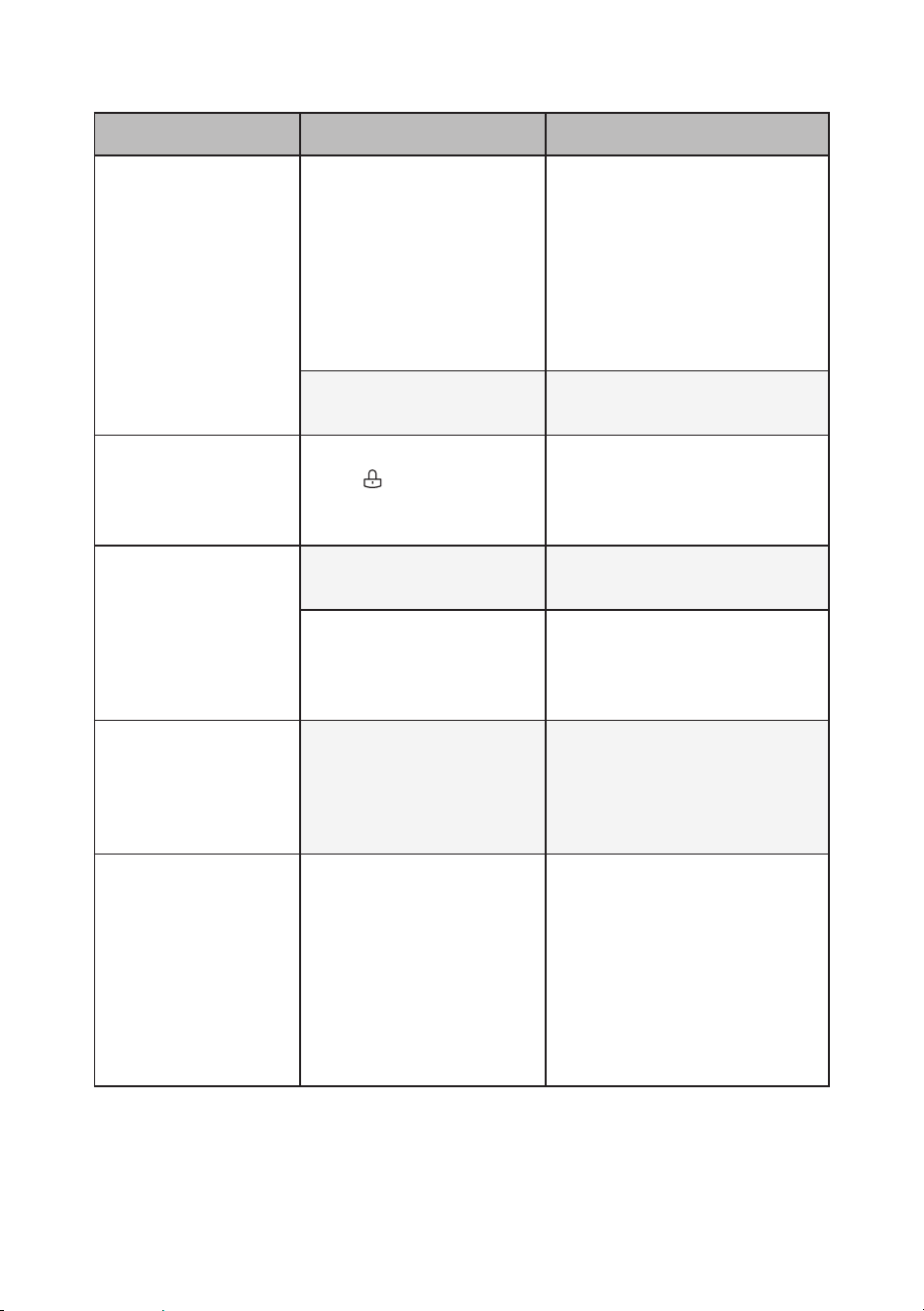
If a failure occurs in the product, check the following before contacting the service Center.
Symptom Cause Solution
The product does not
operate.
is the power plug
unplugged from the outlet?
•
Plug it into the outlet properly.
fan is noisy even on
the lowest speed.
Did dust accumulate in
the ultra ne lter?
•
Clean the ultra ne lter
properly.
Did dust accumulate
in the Total Allergen
Collection Care filter?
•
Replace the whole lter.
The indoor air is not
puried well enough.
is the indoor
contamination severe?
•
Ventilate the indoor air before
you use the product.
Did dust accumulate in
the ultra ne lter?
•
Clean the ultra ne lter
properly.
Did dust accumulate
in the Total Allergen
Collection Care filter?
•
Replace the lter.
Are you using it in a place
that is too spacious or too
open?
•
Use a product that ts the size
of the room.
•
avoid a well-ventilated place
such as a gate, window, etc.
is there any obstacle nearby?
•
remove the obstacle.
is the product installed at
a corner?
•
Move the product and install it
again.
There is a smell, but
the Light lamp does
not change.
is the Light lamp turned
on red or orange?
•
The color of overall air quality
is determined based on
whichever is worse between
the dust concentration and
smell (gas) concentration.
Check if the dust concentration
is worse than before.
•
The smell (gas) sensor
detects the gas that causes
contamination, so it may not
react to the food smell Indian
food such as curry and breads
etc. But the Total Harmful Gas
Care Filter does remove the
odor.
Before Calling for Service
39
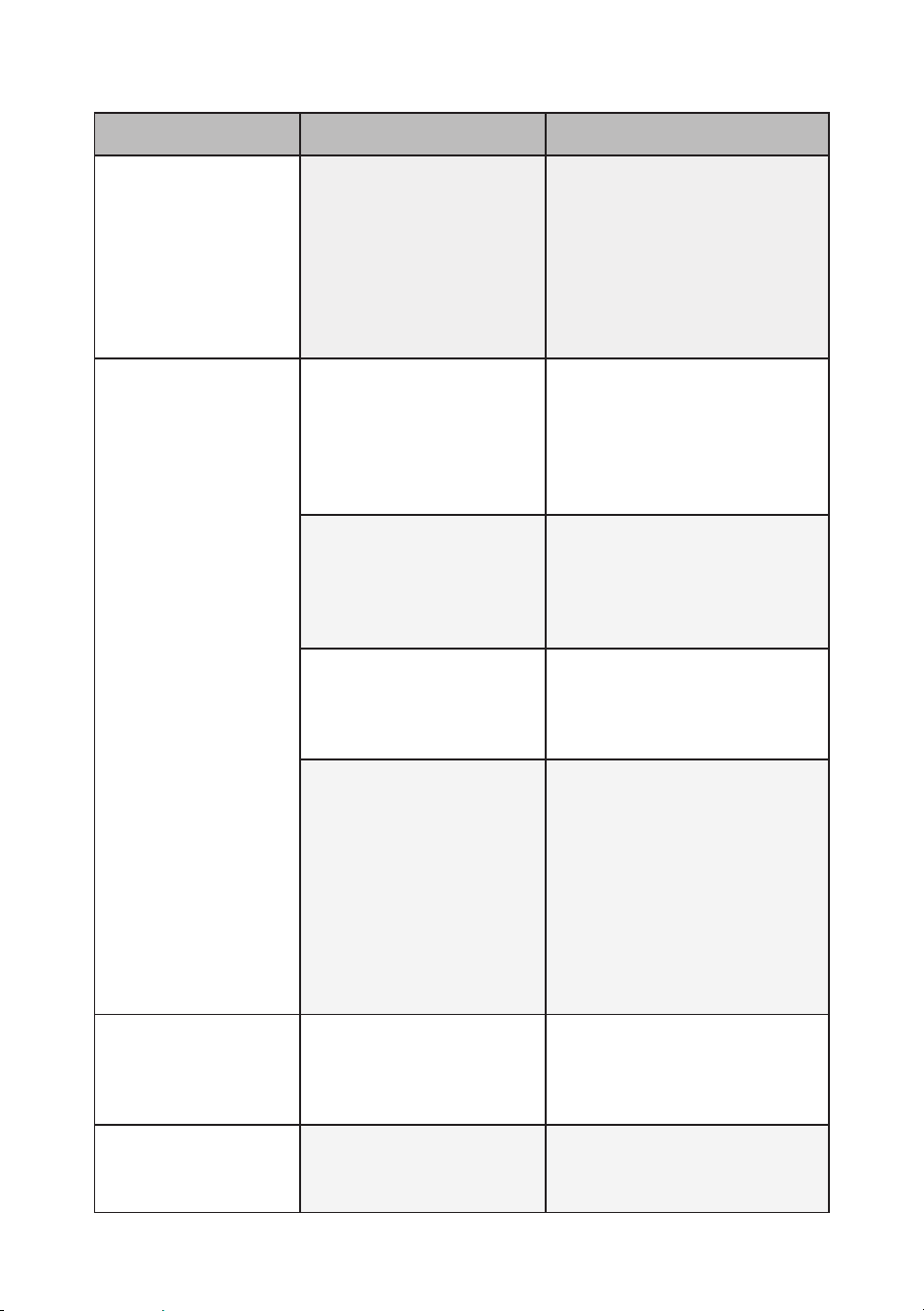
Symptom Cause Solution
The Light lamp
continues to stay
red.
Doesn’t the color change
even if it is moved to a
clean room?
•
If the amount of the smell is
more than the capacity of the
product, the display may not
change.
•
Clean the sensor area.
•
remove the power plug from
the outlet and reconnect it one
minute later.
Did you use a spray near
the product?
•
Do not use a spray near the
product.
The buttons on the
control panel do not
work.
is the
(Lock) turned on
on the status panel?
•
Press and hold the Sleep
Timer button for 3 sec. or
longer to disable the lock
function.
The concentration
of the ne dust does
not change.
is there a foreign
substance on the sensor?
•
Clean the PM 1.0 (super ultra-
ne dust) sensor.
is the product used in a
closed space?
•
In a closed space, the
cleanliness level may continue
to stay the same without
change.
The concentration of
ne dust continues
to remain high.
Does the air continue to
ow in from the outside
to the location where the
product is installed?
•
In an environment where
outside air is supplied
continuously, the
concentration may continue to
remain high.
The overall air
quality color does
not match the dust
concentration value.
Does the color of the
overall air quality match
the color that indicates
the smell concentration?
•
The overall air quality is
displayed by evaluating the
smell and dust concentration
comprehensively.
•
even if the dust concentration
is low, if the odor is strong,
the overall air quality color
may not match the dust
concentration value.
40
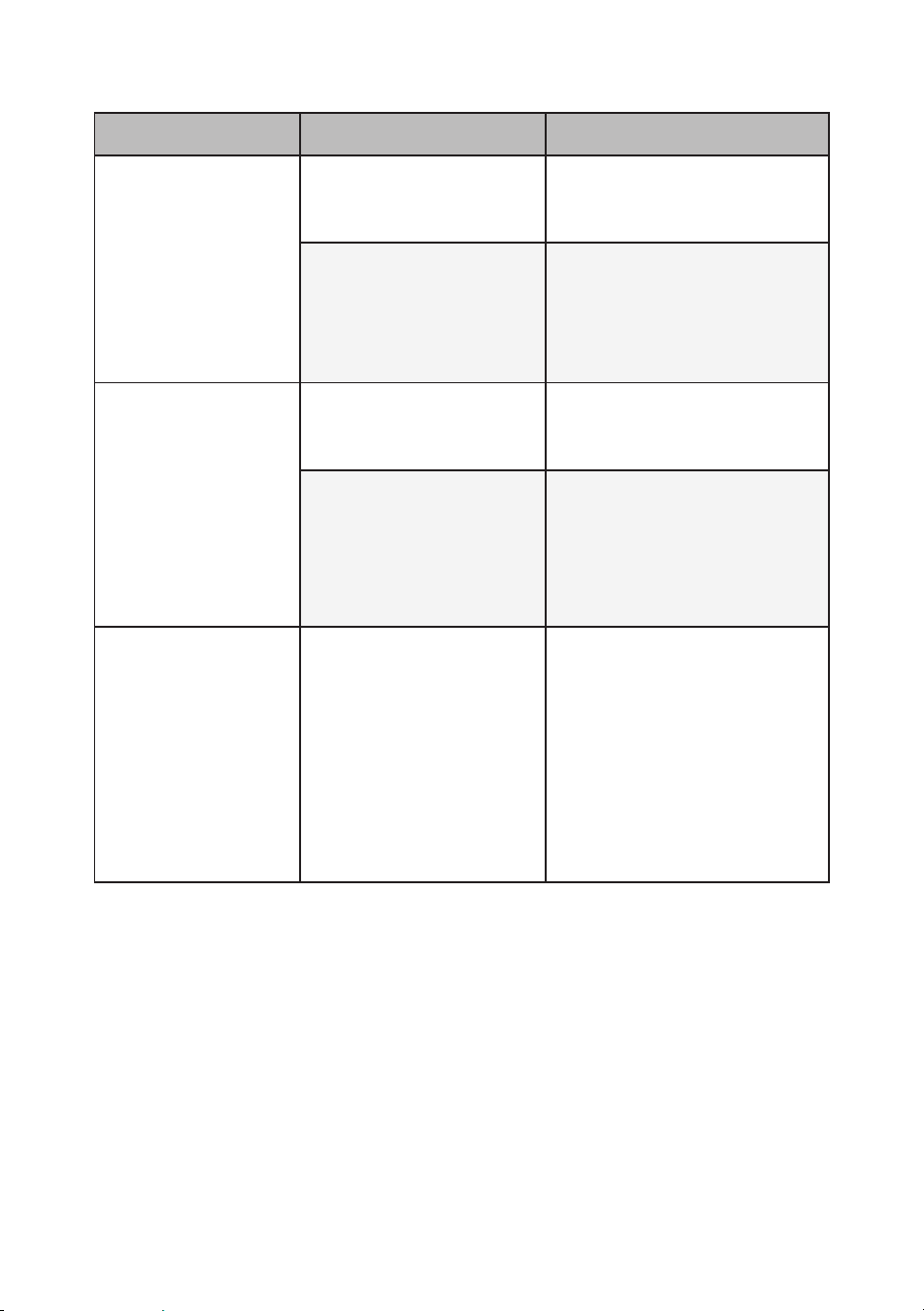
Symptom Cause Solution
The overall air quality
is different from that
of the Ministry of
environment guide.
is the guide from the
Ministry of environment
different from the product
dust concentration?
•
The Ministry of environment
guide shows the average
value over a certain period of
time, but the overall air quality
displayed on the product is
measured in real time. so they
may be different from each
other.
A strange smell
comes out from the
air outlet as well as
the lter.
Did you purchase the
product lately?
•
The odor of activated
charcoal is not harmful. This
is similar to the smell you may
experience in a brand new
car. we assure it will go way
1-2 weeks after its rst use.
is the product used at a
place with a lot of smoke
or smell?
•
In a place with a lot of smoke
or smell, the air cleaning
function may deteriorate.
Ventilate the room rst and
then use the product.
Does the lter have a bad
smell?
•
Replace the lter. The lter
replacement frequency may
differ depending on the usage
environment.
is the product installed in
an environment where a
lot of odor occurs?
•
If you use the product for a
long period of time while you
cook or broil sh/meat, the
lter lifespan may be rapidly
decreased.
•
If possible, open the window
for ventilation while cooking,
and use the product to
remove the smell left after the
ventilation.
The clean booster is
not working.
is the operation mode
set to the Clean Booster
mode?
•
The booster fan speed and
booster fan rotation functions
work only in the Clean Booster
mode.
A noise is generated
when i start or stop
the clean booster.
-
•
It means that the clean
booster is trying to look for the
correct location.
41
Symptom Cause Solution
I can't connect to
the product in the
LG ThinQ app.
is the power plug
unplugged from the
outlet?
•
Plug in the power cord of the
product.
is the wireless router
connected with the
product not working?
•
Power off the wireless router
and on again.
•
Check if there is an Internet
connection problem with the
router.
I can't register the
product in the LG
ThinQ app.
is the product too far
away from the wireless
router?
•
Move the wireless router near
the product.
is your wireless router
working properly?
•
some carriers provide routers
that are available to their
members only. If you have an
outdated model, contact your
carrier to have it replaced with
a newer one.
The dust
concentration levels
are different between
the product and the
LG ThinQ app.
Are you looking at the
same dust particle?
•
Make sure that the levels
of the super ultra-ne/ultra-
ne/ne dust are displayed
consistently between the lG
ThinQ app and your product.
•
The difference in the values
could be caused by the
difference in update time
between the lG ThinQ app
and the product.
42
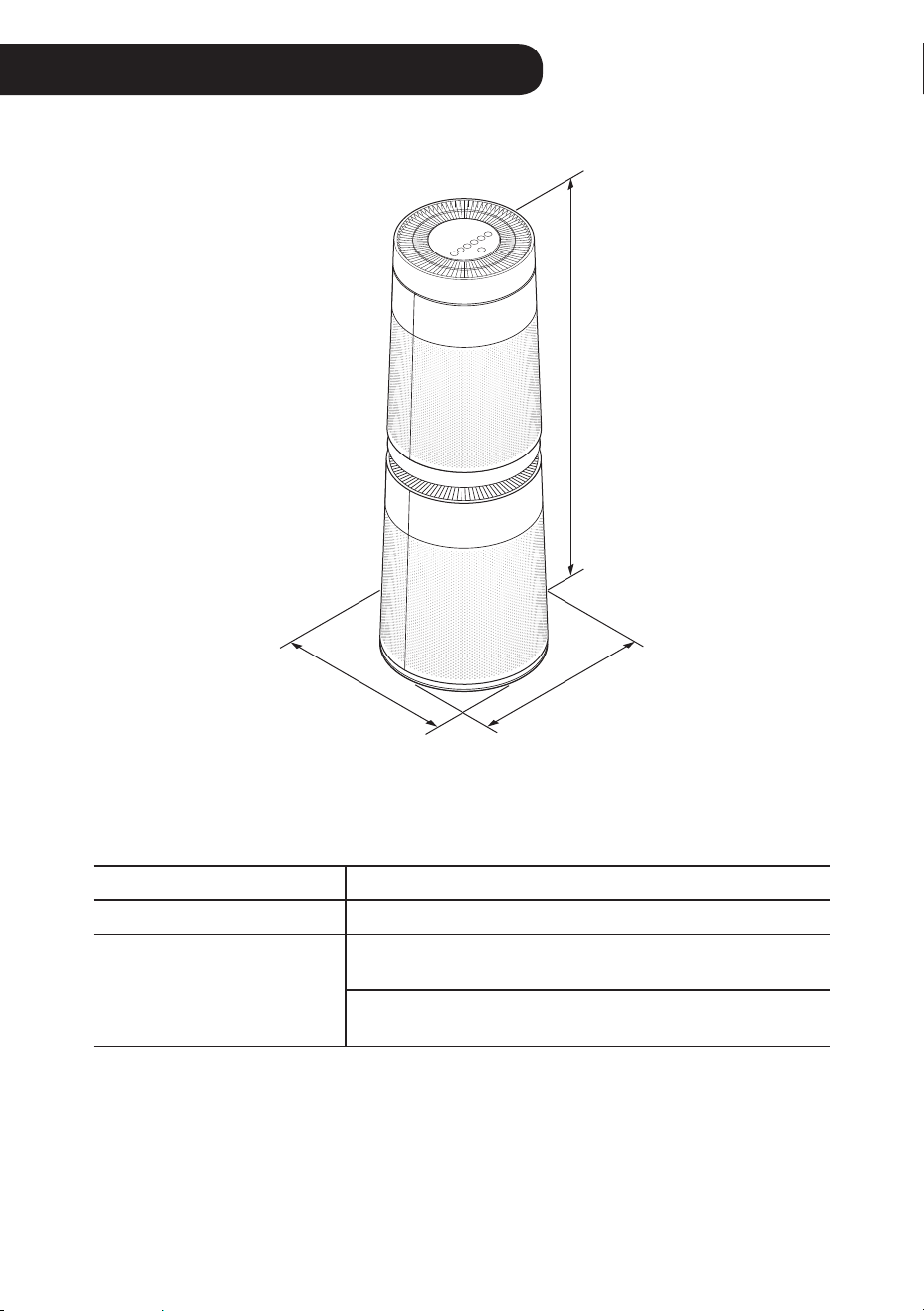
Product Specications
Height
widthDepth
The external appearance and dimensions of the product are subject to change without prior
notice.
Model as95GD series
Power aC 220–240 V 50 / 60 Hz
exterior dimensions
(Width X Height X Depth)
when the clean booster is not running:
373 mm x 1,073 mm x 373 mm
when the clean booster is running:
373 mm x 1,310 mm x 373 mm