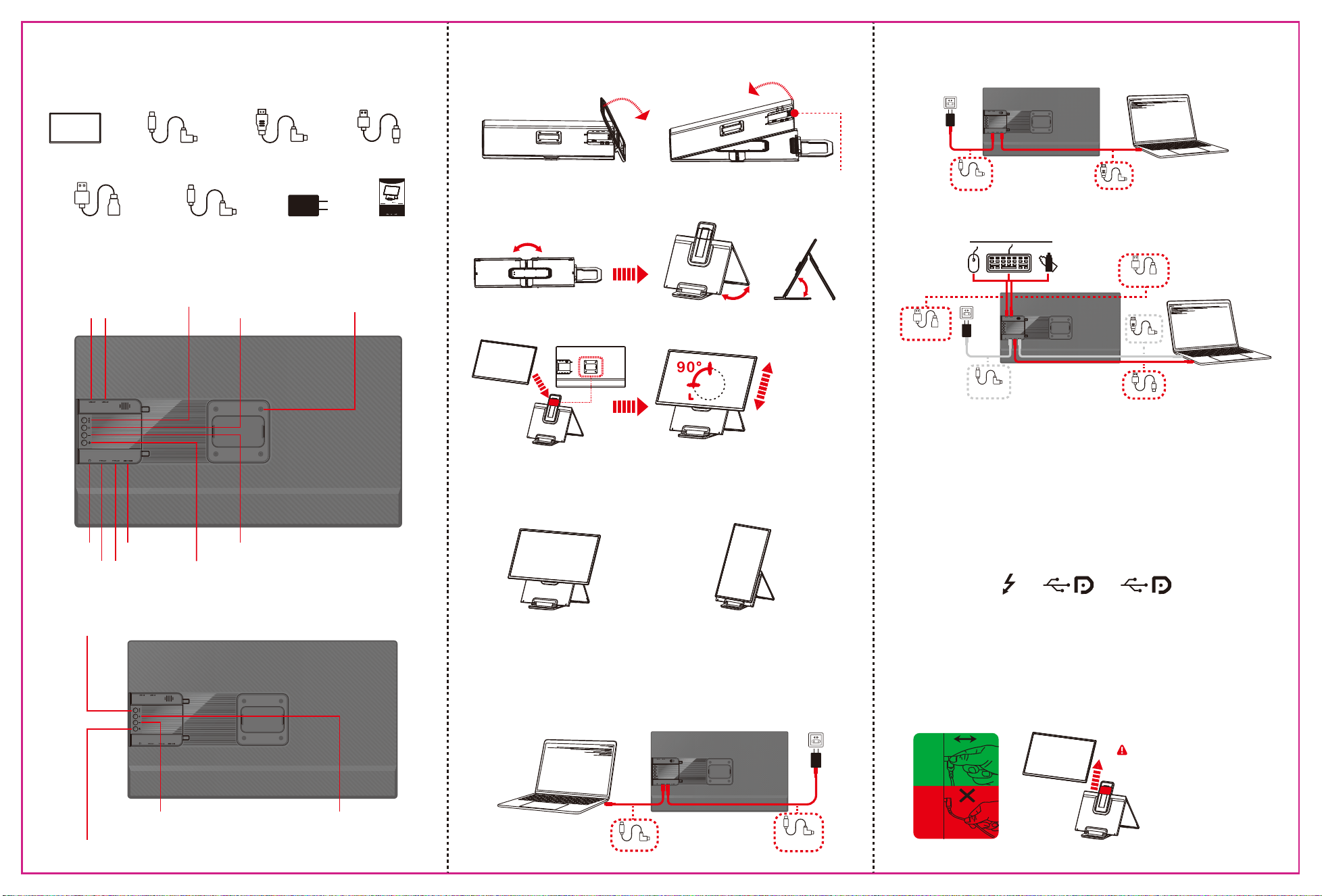
These Ports You Need to Know
How to Connect
Packing List
Operation Steps
Key Definitions
Please refer to the pictures below to plug and unplug the data cable to avoid damage.
Tips for Use
For more detailed information, please refer to the product brochure.
Q2: Why does the monitor show ''No Signal'' ?
Q3: The screen does not light up after connecting?
Q&A
A1: A USB-C port with one of the following symbols is a full-featured one.
Thunderbolt 3 or Thunderbolt 4 ports are also full-featured ports.
You can view the port parameters in the manual or on the Web.
A2: There may be a connection failure or the computer port does not
support video output. Please contact us for troubleshooting.
We will provide you with a solution as soon as possible!
A3: It is possible that your computer does not have enough power. Please
charge the portable monitor with an external power supply that provides
PD 30W power or above. You can also contact us for further solutions.
Q1: How can I tell if the USB-C port on my computer is full-featured?
ss
10
ss
Display Angle
Portrait Display
Landscape Display
1. Expand the monitor
2. Mounting Bracket/Screen
*NOTE: Please follow the direction to expand the monitor to avoid damage.
Step 1
Step 1
Step 3
Step 4
Step 2
Step 2
Disassemble the screen here
Align the screen mounting holes
with the suction cup bracket and
secure into place.
1. The screen can only rotate 90° to the left to
switch between landscape and portrait modes.
2.The screen can only rotate when it reaches
the highest point of the telescopic stand.
Handle folds approximately
70°for tabletop placement
Maximum opening
angle: 0-75°
Supports 0-145MM
free suspension
Foldable Stand
1.Connect D1 with Laptop
TYPE-C Connection:
If your laptop has a full-featured Type-C port, use a USB-C to USB-C cable to connect the
device to the laptop. Simultaneously, power the device via the included PD adapter and
USB-C to USB-C charging cable.
HDMI Port Connection:
If your laptop has an HDMI port, connect the screen using an HDMI-to-Mini HDMI cable.
Simultaneously, power the device via the included PD adapter and USB-C to USB-C
charging cable.
USB-C to USB-C
USB-C to USB-C
(POWER ONLY)
USB-A Male to USB-A Female Cable Connection:
If your devices such as mouse and hard disk cannot be directly connected to the USB-A
interface of the product, please use a USB-A male to USB-A female cable for connection;
1.When the product is connected with an HDMI cable, you have to use the USB-A to TYPE-C
cable to connect the product TYPE-C interface and the computer USB-A interface,
otherwise the USB-A interface of the product (D1)cannot transmit data.
2.The product can only function properly when connected to an external adapter of 30W PD
or above!
3.To achieve a slimmer product design, the USB interface clearance has been reduced,
which may prevent direct connection of devices such as USB flash drives. Please utilize a
USB-A male-to-female extension cable for connectivity.
HD to MINI HD
USB-C to USB-C
(POWER ONLY)
HD to MINI HD
USB-A to USB-C
USB3.0 5Gbp/s
USB-A male to USB-A
female adapte
USB-A male to USB-A
female adapte
USB-C to USB-C
(POWER ONLY)
OK
NG
Item 8
Item 2
USB-C to USB-C *1
Item 3
HD to MINI HD *1
Item 1
Monitor
Item 4
USB-A to USB-C *1
Power Adapter *1
Multi-functional Smart Display
Item 7
USB-C to USB-C *1
(POWER ONLY)
Item 6
USB-A male to USB-A
female adapter *2
User Manual
Item 9
D1 USER GUIDE
Warm tips:
1. Please ensure type-c data cable is connected well with device interface.
2. Due to the high power consumption of the D1 screen,if the screen brightness
is insufficient or the screen cannot be turned on, a standard adapter in the gift
box should be connected to adjust the brightness.
23.8
Inches
Multi-functional Smart Display
TYPE-C1
USB-A1 USB-A2
AUX 3.5
TYPE-C2
MINI HDMI
VESA Standard M4 75MM*75MM
Mounting Holes *4
UP
DOWN
POWER
Multi-Function button
"Minus”
Backlight Adjustment
Power button: Press and hold for 3 seconds to shut down
"Plus”
Volume Adjustment
“Press and hold for 1 second to confirm”
Menu/Selection/Confirmation Button
Press and hold for 2 seconds to return
30W
Slide the screen to the top
before disassembly to avoid
injury/damage from the
magnetic parts bouncing back.