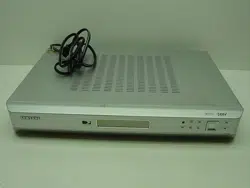
Owner’s
Manual
DIRECTV
®
HD Receiver
................................................................................................................
.............
SIR-TS360
SIR-TS360-COVER 2(only pdf) 9/27/03 2:19 PM Page 3
2
Warning! Important Safety Instructions
Note to CATV system installer: This reminder is provided to call CATV system installer’s
attention to Article 820-40 of the National Electrical Code that provides guidelines for proper
grounding and, in particular, specifies that the cable ground shall be connected to the grounding
system of the building as close to the point of cable entry as practical.
Caution: Any changes or modifications in construction of this device which are not expressly
approved by the party responsible for compliance could void the user’s authority to operate the
equipment.
Caution: To prevent electric shock, match the wide blade of plug to the wide slot, and fully
insert the plug.
Important: One Federal Court has held that unauthorized recording of copyrighted TV programs is
an infringement of U.S. copyright laws.
To prevent damage which may result in fire or electric shock hazard, do not expose this appliance to
rain or moisture.
Always be careful when using this product. To reduce the risk of fire, electrical
shock, and other injuries, keep these safety precautions in mind when installing,
using, and maintaining your DIRECTV
®
HD Receiver.
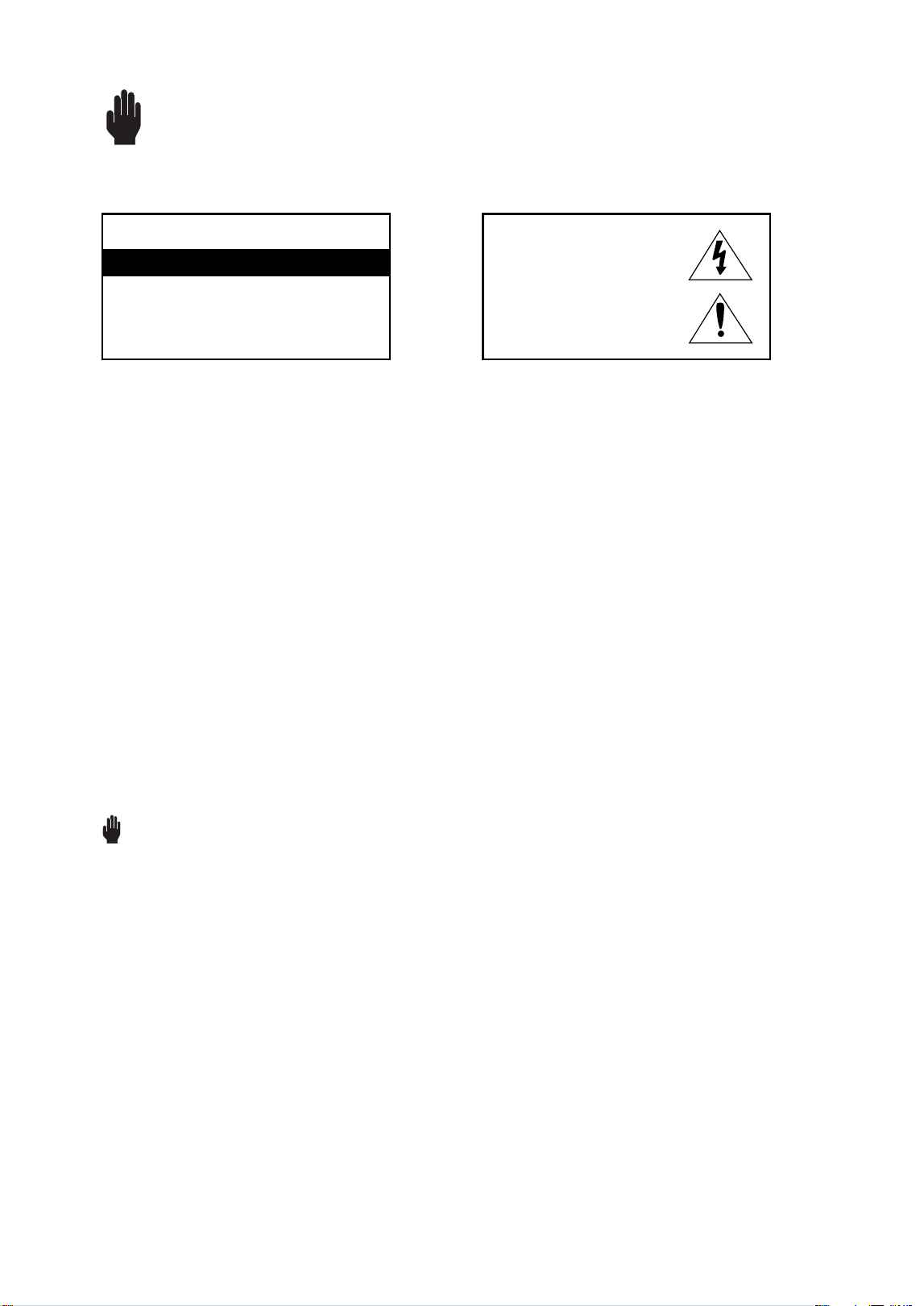
CAUTION
RISK OF ELECTRIC SHOCK DO NOT OPEN
CAUTION: TO REDUCE THE RISK OF ELEC
TRIC SHOCK, DO NOT REMOVE COVER
(OR BACK). NO USER SERVICEABLE PARTS
INSIDE. REFER SERVICING TO QUALIFIED
SERVICE PERSONNEL.
This symbol indicates high voltage is
present inside. It is dangerous to make
any kind of contact with any inside part
of this product.
This symbol alerts you that important
literature concerning operation and
maintenance have been included with this
product.
SIR-TS360-CHAPTER 0 11/18/03 11:16 AM Page 2
3
Important Safety Information
1) Read these instructions.
2) Keep these instructions.
3) Heed all warnings.
4) Follow all instructions.
5) Do not use this apparatus near water.
6) Clean only with dry cloth.
7) Do not block any ventilation openings, Install in accordance with the manufacturer’s instructions.
8) Do not install near any heat sources such as radiators, heat registers, or other apparatus
(including amplifiers) that produce heat.
9) Do not defeat the safety purpose of the polarized or grounding-type plug. A polarized plug has
two blades with one wider than the other. A grounding type plug has two blades and a third
grounding prong. The wide blade or the third prong are provided for your safety.
If the provided plug does not fit into your outlet, consult an elec trician for replacement of the
obsolete outlet.
10) Protect the power cord from being walked on or pinched particu
larly at plugs, convenience receptacles, and the point where they
exit from the apparatus.
11) Only use attachments/accessories specified by the manufacturer.
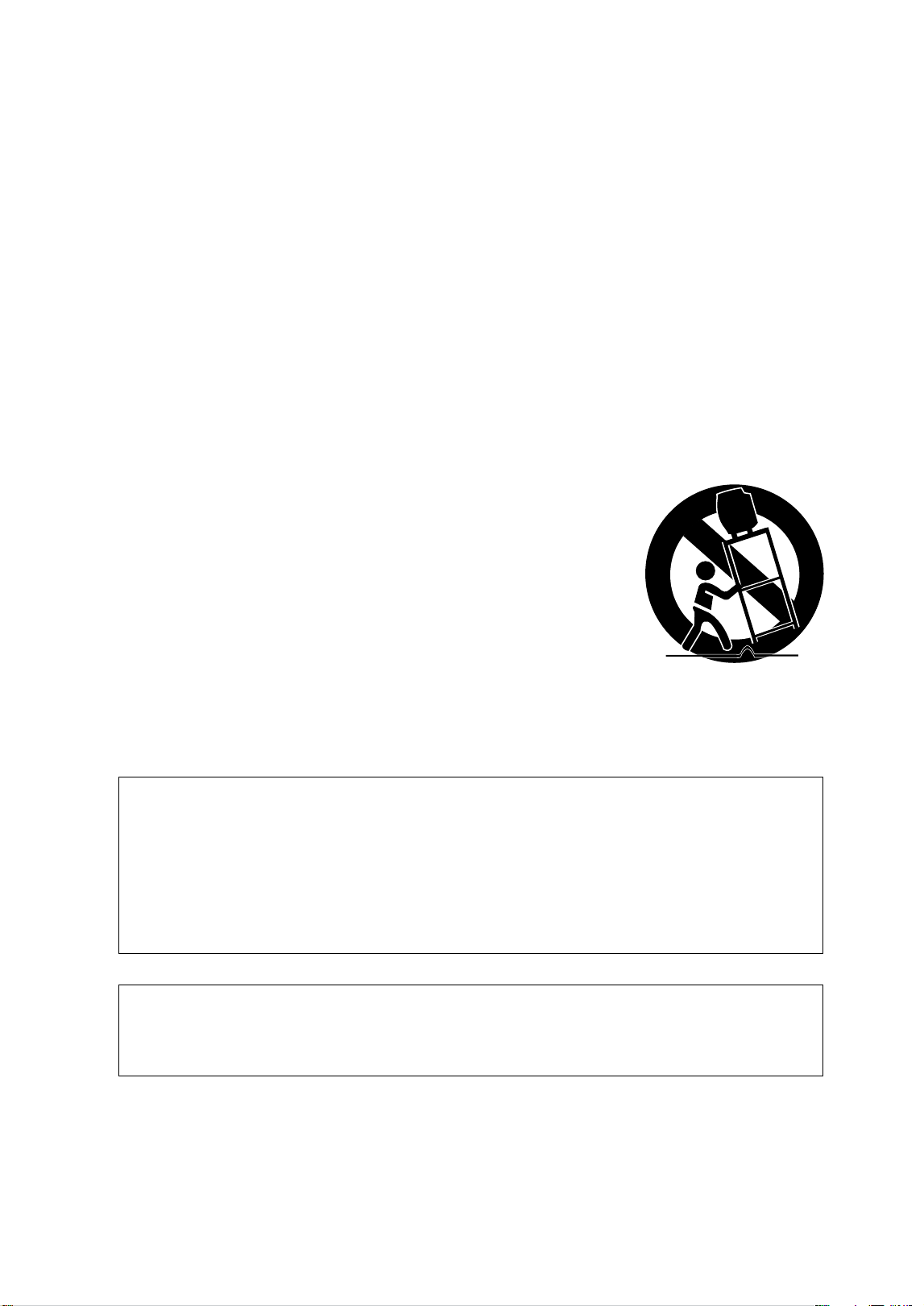
12) Use only with cart, stand, tripod, bracket, or table specified by
the manufacturer, or sold with the apparatus. When a used,
caution when moving the cart/apparatus combination to avoid
injury from tip-over.
13) Unplug this apparatus during lightning storms or when unused
for long periods of time.
14) Refer all servicing to qualified service personnel. Servicing is
required when the apparatus has been damaged in any way, such
as power-supply cord or plug is damaged, liquid has been spilled or
objects have fallen into the apparatus, the apparatus has been exposed
to rain or moisture, does not operate normally, or has been dropped.
This device complies with part 15 of the FCC Rules.
Operation is subject to the following two conditions:
(1) This device may not cause harmful interference, and
(2) This device must accept any interference that may cause undesired operation.
This satellite receiver provides display of television closed captioning in
accordance with §15.119 of the FCC rules.
Note you should use the Telephone line cord which is supplied with the machine.
If you are replacing it with the other vendor's part, it should be minimum AWG #26 or larger
gage.
SIR-TS360-CHAPTER 0 11/18/03 11:16 AM Page 3

4
Notices
Attention
Telephone Line Interruption
A continuous land-based phone line connection is required for DIRECTV
®
Pay Per View
functionality and DIRECTV subscriptions. Any calls generated by the DIRECTV
®
HD
Receiver are toll free. These calls are typically made in the middle of the night;
your phone is in use for approximately 30 seconds.
NOTE This equipment has been tested and found to comply with the limits for a Class B
digital device, pursuant to part 15 of the FCC Rules. These limits are designed to
provide reasonable protection against harmful interference in a residential
installation. This equipment generates, uses and can radiate radio frequency
energy and, if not installed and used in accordance with the instructions, may
cause harmful interference to radio communications. However, there is no
guarantee that interference will not occur in a particular installation.
If this equipment does cause harmful interference to radio or television reception,
which can be determined by turning the equipment off and on, the user is
encouraged to try to correct the interference by one or more of the following
measures:
- Reorient or relocate the receiving antenna.
- Increase the separation between the equipment and receiver.
- Connect the equipment into an outlet on a circuit different from that to which the
receiver is connected.
- Consult the dealer or an experienced radio/TV technician for help.
This device complies with part 15 of the FCC Rules.
Operation is subject to the following two conditions:
(1) This device may not cause harmful interference, and
(2) This device must accept any interference that may cause undesired operation.
This satellite receiver provides display of television closed captioning in accordance
with
§
15.119 of the FCC rules.
Note you should use the Telephone line cord which is supplied with the machine.
If you are replacing it with the other vendor's part, it should be minimum AWG #26 or
larger gage.
Trademark and copyright statements
Samsung is a trademark of Samsung Electronics. ©2003 DIRECTV, Inc. DIRECTV and
the Cyclone Design logo are registered trademarks of DIRECTV, Inc., a unit of Hughes
Electronics Corp, and are used with permission. All other trademarks and service marks
are the property of their respective owners.
Manufactured under license from Dolby Laboratories. “Dolby” and the double-D symbol
are trademarks of Dolby Laboratories. Confidential Unpublished Works. ©1992–1997
Dolby Laboratories Inc. All rights reserved.
SIR-TS360-CHAPTER 0 11/18/03 9:39 AM Page 4

5
Macrovision Information
This equipment incorporates copyright protection technology that is protected by U.S.
patents and other intellectual property rights. Use of this copyright protection technology
is granted by Macrovision for home and other limited DBS IRD pay per view uses only.
Reverse engineering or disassembly is prohibited.
Program Recording Restrictions
All other taping is expressly prohibited. Some programming may not be taped.
An additional taping fee may be applied. Call your program provider for details.
High definition broadcast copyright limitations
Due to copyright restrictions, you may not be able to view some high definition programs
in high definition format using this product. (Also, whenever possible you should connect
both HD and SD interfaces to permit SD viewing of programs if HD viewing is restricted
due to copyright restrictions.)
Owner's Record
The model number, serial numbers, Access Card Number and Receiver ID are located on
the rear panel of the DIRECTV
®
HD Receiver. The number for the Access Card is on the
back of the card and on the carton label. Record these numbers for reference when calling
your sales or service representative regarding this product.
Model Number: ____________________________________
Serial Number: ____________________________________
Access Card Number: _______________________________
Receiver ID: ________________________________________
Customer Support
For DIRECTV
®
Programming
For subscription information, or to resolve problems related to programming, call:
DIRECTV at 1-800-DIRECTV (1-800-347-3288) or visit the DIRECTV Web site
(DIRECTV.com).
For Installation
To arrange for the installation of your DIRECTV
®
HD Receiver, call the dealer from whom
you purchased your system.
For Hardware
To resolve problems related to this DIRECTV
®
HD Receiver, call Samsung Customer Support
at 1-800-522-2946.
SIR-TS360-CHAPTER 0 11/18/03 9:39 AM Page 5

6
SAMSUNG DIGITAL SATELLITE RECEIVER
LIMITED WARRANTY TO ORIGINAL PURCHASER
This SAMSUNG manufactured product, as supplied and distributed by Samsung
Electronics America, Inc. (SAMSUNG) and delivered new, in the original carton to
the original consumer purchaser, is warranted by SAMSUNG against manufacturing
defects in materials and workmanship for a limited warranty period of:
One (1) Year Parts and Labor*
(*90 Days Parts and Labor for Commercial Use)
This limited warranty begins on the original date of purchase, and is valid only on
products purchased and used in the United States. To receive warranty service, the
purchaser must contact SAMSUNG for problem determination and service procedures.
Warranty service can only be performed by a SAMSUNG authorized service center.
The original dated bill of sale must be presented upon request as proof of purchase to
SAMSUNG or SAMSUNG’s authorized service center. Transportation of the product to
and from the service center is the responsibility of the purchaser.
SAMSUNG will repair or replace this product, at our option and at no charge as
stipulated herein, with new or reconditioned parts or products if found to be defective
during the limited warranty period specified above. All replaced parts and products
become the property of SAMSUNG and must be returned to SAMSUNG. Replacement
parts and products assume the remaining original warranty, or ninety (90) days, which
ever is longer.
SAMSUNG’s obligations with respect to software products distributed by SAMSUNG
under the SAMSUNG brand name are set forth in the applicable end user license
agreement. Non-SAMSUNG hardware and software products are provided on an
“AS IS” basis. However, non-SAMSUNG manufacturers, suppliers, publishers, and service
providers may provide their own warranties.
This limited warranty covers manufacturing defects in materials and workmanship
encountered in normal, and except to the extent otherwise expressly provided for in this
statement, noncommercial use of this product, and shall not apply to the following,
including, but not limited to: damage which occurs in shipment; delivery and installation;
applications and uses for which this product was not intended; altered product or serial
numbers; cosmetic damage or exterior finish; accidents, abuse, neglect, fire, water,
lightning or other acts of nature; use of products, equipment, systems, utilities, services,
parts, supplies, accessories, applications, installations, repairs, external wiring or
connectors not supplied and authorized by SAMSUNG, or which damage this product
or result in service problems; incorrect electrical line voltage, fluctuations and surges;
customer adjustments and failure to follow operating instructions, cleaning, maintenance
and environmental instructions that are covered and prescribed in the instruction book;
product removal or reinstallation; reception problems and distortion related to noise,
echo, interference or other signal transmission and delivery problems. SAMSUNG
does not warrant uninterrupted or error-free operation of the product.
SIR-TS360-CHAPTER 0 11/18/03 9:39 AM Page 6

7
THERE ARE NO EXPRESS WARRANTIES OTHER THAN THOSE LISTED AND DESCRIBED
ABOVE, AND NO WARRANTIES WHETHER EXPRESS OR IMPLIED, INCLUDING, BUT
NOT LIMITED TO, ANY IMPLIED WARRANTIES OF MERCHANTABILITY OR FITNESS
FOR A PARTICULAR PURPOSE, SHALL APPLY AFTER THE EXPRESS WARRANTY
PERIODS STATED ABOVE, AND NO OTHER EXPRESS WARRANTY OR GUARANTY
GIVEN BY ANY PERSON, FIRM OR CORPORATION WITH RESPECT TO THIS PRODUCT
SHALL BE BINDING ON SAMSUNG. SAMSUNG SHALL NOT BE LIABLE FOR LOSS OF
REVENUE OR PROFITS, FAILURE TO REALIZE SAVINGS OR OTHER BENEFITS, OR ANY
OTHER SPECIAL, INCIDENTAL OR CONSEQUENTIAL DAMAGES CAUSED BY THE USE,
MISUSE OR INABILITY TO USE THIS PRODUCT, REGARDLESS OF THE LEGAL THEORY
ON WHICH THE CLAIM IS BASED, AND EVEN IF SAMSUNG HAS BEEN ADVISED OF
THE POSSIBILITY OF SUCH DAMAGES. NOR SHALL RECOVERY OF ANY KIND
AGAINST SAMSUNG BE GREATER IN AMOUNT THAN THE PURCHASE PRICE OF THE
PRODUCT SOLD BY SAMSUNG AND CAUSING THE ALLEGED DAMAGE. WITHOUT
LIMITING THE OREGOING, PURCHASER ASSUMES ALL RISK AND LIABILITY FOR LOSS,
DAMAGE OR INJURY TO PURCHASER AND PURCHASER’S PROPERTY AND TO OTHERS
AND THEIR PROPERTY ARISING OUT OF THE USE, MISUSE OR INABILITY TO USE THIS
PRODUCT SOLD BY SAMSUNG NOT CAUSED DIRECTLY BY THE NEGLIGENCE OF
SAMSUNG. THIS LIMITED WARRANTY SHALL NOT EXTEND TO ANYONE OTHER THAN
THE ORIGINAL PURCHASER OF THIS PRODUCT, IS NONTRANSFERABLE AND STATES
YOUR EXCLUSIVE REMEDY.
Some states do not allow limitations on how long an implied warranty lasts, or the
exclusion or limitation of incidental or consequential damages, so the above limitations
or exclusions may not apply to you. This warranty gives you specific legal rights, and you
may also have other rights which vary from state to state.
To obtain warranty hardware service, please contact SAMSUNG at:
SAMSUNG CUSTOMER SERVICE
400 VALLEY ROAD, SUITE 201, MT ARLINGTON, NJ 07856,
TEL: 973-601-6000, FAX: 973-601-6001
1-800-522-2946 and SAMSUNGUSA.COM
SIR-TS360-CHAPTER 0 11/18/03 9:39 AM Page 7

8
TABLE OF C ONTENTS
Chapter 1: Technical overview . . . . . . . . . . . . . . . . . . . . . . . . . . . . . . . . . . . . . . . . . . . . . . . . .10
What are Analog TV, DTV, NTSC, ATSC, SDTV, and HDTV? . . . . . .10
What kinds of TV programming can I watch
with the DIRECTV
®
HD Receiver? . . . . . . . . . . . . . . . . . . . . . . . . . .11
What equipment is required to view HDTV programming? . . . . . . . .11
Resolution and interlacing . . . . . . . . . . . . . . . . . . . . . . . . . . . . . . .12
Video output/input options . . . . . . . . . . . . . . . . . . . . . . . . . . . . . .12
Aspect ratio . . . . . . . . . . . . . . . . . . . . . . . . . . . . . . . . . . . . . . . . .15
Screen formats . . . . . . . . . . . . . . . . . . . . . . . . . . . . . . . . . . . . . . .15
Dolby
®
Digital 5.1 . . . . . . . . . . . . . . . . . . . . . . . . . . . . . . . . . . . . .19
Chapter 2: Getting started . . . . . . . . . . . . . . . . . . . . . . . . . . . . . . . . . . . . . . . . . . . . . . . . . . .20
Box contents . . . . . . . . . . . . . . . . . . . . . . . . . . . . . . . . . . . . . . . . .20
Front panel controls and lights . . . . . . . . . . . . . . . . . . . . . . . . . . . .21
Back of the DIRECTV
®
HD Receiver . . . . . . . . . . . . . . . . . . . . . . . . .22
Installing the batteries in the remote control . . . . . . . . . . . . . . . . . . .24
Inserting the Access Card . . . . . . . . . . . . . . . . . . . . . . . . . . . . . . .25
Chapter 3: Setting up and connecting . . . . . . . . . . . . . . . . . . . . . . . . . . . . . . . . . . . . . . . . . . .26
Before making connections . . . . . . . . . . . . . . . . . . . . . . . . . . . . . .26
Jacks and cables . . . . . . . . . . . . . . . . . . . . . . . . . . . . . . . . . . . . . .27
Connecting your DIRECTV
®
HD Receiver . . . . . . . . . . . . . . . . . . . . .31
Connecting the VCR control cable . . . . . . . . . . . . . . . . . . . . . . . . .36
Turning on the DIRECTV
®
HD Receiver for the first time . . . . . . . . . . .37
Memorizing Channels . . . . . . . . . . . . . . . . . . . . . . . . . . . . . . . . . .37
Acquiring the correct dish pointing angles . . . . . . . . . . . . . . . . . . . .38
Checking the satellite signal strength . . . . . . . . . . . . . . . . . . . . . . . .39
Setting the dish type . . . . . . . . . . . . . . . . . . . . . . . . . . . . . . . . . . .40
Using Auto Detection to set the dish type . . . . . . . . . . . . . . . . . . . . .42
Testing the DIRECTV
®
HD Receiver . . . . . . . . . . . . . . . . . . . . . . . . .43
Testing the Signal Strength . . . . . . . . . . . . . . . . . . . . . . . . . . . . . . .44
Setting up local networks . . . . . . . . . . . . . . . . . . . . . . . . . . . . . . . .45
Scanning off-air and cable TV channels . . . . . . . . . . . . . . . . . . . . .46
Activating your DIRECTV account . . . . . . . . . . . . . . . . . . . . . . . . . .47
Upgrades . . . . . . . . . . . . . . . . . . . . . . . . . . . . . . . . . . . . . . . . . . .47
Chapter 4: Watching TV . . . . . . . . . . . . . . . . . . . . . . . . . . . . . . . . . . . . . . . . . . . . . . . . . . . . .48
Remote control overview . . . . . . . . . . . . . . . . . . . . . . . . . . . . . . . .48
Changing channels . . . . . . . . . . . . . . . . . . . . . . . . . . . . . . . . . . . .50
Adjusting the volume . . . . . . . . . . . . . . . . . . . . . . . . . . . . . . . . . . .50
Getting help . . . . . . . . . . . . . . . . . . . . . . . . . . . . . . . . . . . . . . . . .50
Getting information on the TV program you are watching . . . . . . . .51
Finding out what’s on: the Guides . . . . . . . . . . . . . . . . . . . . . . . . .54
Searching for programs in the Guide . . . . . . . . . . . . . . . . . . . . . . .63
Choosing an alternate audio format for a program . . . . . . . . . . . . .65
Changing the User setting . . . . . . . . . . . . . . . . . . . . . . . . . . . . . . .66
Pay per view programs . . . . . . . . . . . . . . . . . . . . . . . . . . . . . . . . .66
SIR-TS360-CHAPTER 0 11/18/03 9:39 AM Page 8

9
TABLE OF C ONTENTS
Chapter 5: Program reminders and recording timers . . . . . . . . . . . . . . . . . . . . . . . . . . . . . . .70
Setting up the VCR control . . . . . . . . . . . . . . . . . . . . . . . . . . . . . . .70
Scheduling program reminders and recording timers . . . . . . . . . . . .71
Reviewing and modifying reminders and recording timers . . . . . . . .72
Chapter 6: User profiles . . . . . . . . . . . . . . . . . . . . . . . . . . . . . . . . . . . . . . . . . . . . . . . . . . . . . 74
User profiles basics . . . . . . . . . . . . . . . . . . . . . . . . . . . . . . . . . . . .74
Editing user profile names . . . . . . . . . . . . . . . . . . . . . . . . . . . . . . .75
Editing channel lists . . . . . . . . . . . . . . . . . . . . . . . . . . . . . . . . . . . .77
Setting ratings limits . . . . . . . . . . . . . . . . . . . . . . . . . . . . . . . . . . . .78
Allowing or blocking pay per view purchases . . . . . . . . . . . . . . . . .81
Setting a pay per view spending limit . . . . . . . . . . . . . . . . . . . . . . .82
Setting the screen color and translucency . . . . . . . . . . . . . . . . . . . .83
Setting the current user profile . . . . . . . . . . . . . . . . . . . . . . . . . . . .84
Locking and unlocking your DIRECTV
®
System . . . . . . . . . . . . . . . . .84
Chapter 7: Settings, preferences, upgrades, and extras . . . . . . . . . . . . . . . . . . . . . . . . . . . . . 86
Reading your mail . . . . . . . . . . . . . . . . . . . . . . . . . . . . . . . . . . . . .86
Setting system preferences . . . . . . . . . . . . . . . . . . . . . . . . . . . . . . .87
Reviewing and controlling caller ID . . . . . . . . . . . . . . . . . . . . . . . . .95
Setting the Local Time options . . . . . . . . . . . . . . . . . . . . . . . . . . . . .97
Adjusting the Raster(Picture) Centering . . . . . . . . . . . . . . . . . . . . . .99
Installing a new Access Card . . . . . . . . . . . . . . . . . . . . . . . . . . . .100
Setting Remote control type . . . . . . . . . . . . . . . . . . . . . . . . . . . . .101
Setting RF Remote control ID (Option) . . . . . . . . . . . . . . . . . . . . . .102
Viewing important information and a list of features
supported by your DIRECTV
®
HD Receiver . . . . . . . . . . . . . . . . . .103
Viewing information on automatic system upgrades . . . . . . . . . . .103
Viewing fun system extras . . . . . . . . . . . . . . . . . . . . . . . . . . . . . .103
Testing the DIRECTV
®
HD Receiver . . . . . . . . . . . . . . . . . . . . . . . .103
Chapter 8: Programming the remote control . . . . . . . . . . . . . . . . . . . . . . . . . . . . . . . . . . . . .104
Programming IR the remote control . . . . . . . . . . . . . . . . . . . . . . . .104
Operating a device with your programmed remote control . . . . . .104
Programming the RF remote control (optional) . . . . . . . . . . . . . . . .105
Operating a device with your programmed remote control (RF) . . .105
Code lists . . . . . . . . . . . . . . . . . . . . . . . . . . . . . . . . . . . . . . . . . .106
Appendix: Troubleshooting and specifications . . . . . . . . . . . . . . . . . . . . . . . . . . . . . . . . . . . . 112
Troubleshooting . . . . . . . . . . . . . . . . . . . . . . . . . . . . . . . . . . . . .112
Specifications . . . . . . . . . . . . . . . . . . . . . . . . . . . . . . . . . . . . . . .114
SIR-TS360-CHAPTER 0 11/18/03 9:39 AM Page 9

10
CHAPTER 1
Technical overview
1
1
Chapter 1: Technical overview
This chapter explains the technical capabilities of the DIRECTV
®
HD Receiver, and provides
background information on digital television. Topics covered here include:
What are Analog TV, Digital TV, NTSC, ATSC, SDTV, and HDTV?
What kinds of TV programming can I watch with the DIRECTV
®
HD Receiver?
What equipment is required to view HDTV programming?
Resolution and interlacing
Video output options
Aspect ratio
Screen formats
Dolby
®
Digital 5.1
What are Analog TV, Digital TV, NTSC, ATSC, SDTV, and HDTV?
Analog TV
Analog TV is the TV you’re probably most familiar with. Most of the TV broadcasts you receive via a standard off-air
antenna or from your local cable company are analog TV broadcasts.
Digital TV
Digital television (sometimes called DTV) is a newer method of broadcasting TV signals that delivers higher quality
audio and video. Digital TV is broadcast in two sets of formats, SDTV and HDTV.
NTSC
NTSC (National Television Standards Committee) refers to the group that first established the standards used for
conventional analog television broadcasts and TV equipment.
ATSC
ATSC (Advanced Television Systems Committee) is the group who have been working to establish the standards for
digital television broadcasts and digital television equipment — including both SDTV and HDTV.
SDTV
SDTV is a digital TV format that provides a high quality picture at resolutions that can be displayed on standard
TV sets (see more on resolutions later in this chapter).
HDTV
HDTV is a digital TV format that provides the highest quality picture at resolutions that can be displayed on
computer monitors and HDTV-ready TV displays.
SIR-TS360-CHAPTER 1 11/18/03 9:41 AM Page 10

11
CHAPTER 1
Technical overview
1
1
What kinds of TV programming can I watch with the DIRECTV
®
HD
Receiver?
The DIRECTV
®
HD Receiver provides you with the ability to receive television programs from
a wide range of sources, and to display them on virtually any TV or monitor.
Using the Air In, Satellite In, and Cable In jacks on the back of the DIRECTV
®
HD Receiver,
you can receive television programs from:
HDTV and SDTV DIRECTV
®
programming via digital satellites (through the Satellite In jack).
Local off-air analog television broadcasts (NTSC), and local off-air digital broadcasts (ATSC) (through the Air In jack).
Unscrambled analog cable TV services for unscrambled cable programming (through the Cable In jack).
To view cable TV or DIRECTV
®
programming, programming subscriptions are also required.
What equipment is required to view HDTV programming?
To view HDTV programming, in addition to your DIRECTV
®
HD Receiver, you will need an
HDTV monitor or television set.
For DIRECTV
®
High-Definition programming, you’ll also need an oval triple LNB multi-satellite
dish, including a Sat C LNB (a dish that can receive signals from all 3 of the satellite
locations providing DIRECTV programming).
To receive analog and digital off-air television broadcasts, you’ll need an off-air antenna.
To receive cable TV programming, you’ll need a cable TV connection (provided by your local
cable TV service provider).
SIR-TS360-CHAPTER 1 11/18/03 9:41 AM Page 11

12
CHAPTER 1
Technical overview
1
1
Resolution and interlacing
Two of the elements that determine the quality of a TV picture are resolution and
interlacing.
Resolution: For TV equipment and broadcasts, resolution is defined by the number of horizontal lines displayed to make up
each frame of a video image. The more lines of resolution used to draw each frame of video, the more detailed
and sharp the picture will be. Standard TV resolution uses 480 horizontal lines to make up each frame of video.
HDTV uses either 720 lines, or 1080 lines to make each video frame.
Interlacing: When TVs display video, they display a new video frame at a rate that is faster than your eye can see (from 24 to 60
frames per second, depending on the TV and broadcast). Interlacing refers to whether each of those frames contains
all of the lines of video for each frame or every other line. Interlaced signals take every other line from 2 frames of
video (each lasting 1/60th of a second), and combine them into one frame lasting 1/30th of a second. In this way,
interlacing tricks your eye into thinking it is seeing twice the resolution that is actually being displayed.
In non-interlaced video, (referred to as progressive scan video), video frames are displayed every 1/60th of a second
containing all of the lines of video information for each frame.
The specifications for video resolutions are usually stated by giving the number of
horizontal lines, followed by either the letter i, for interlaced video, or p for progressive
scan video. Most standard TV broadcasts are 480i (480 lines of interlaced video
resolution). Some DVDs and non-HDTV digital TV broadcasts use 480p.
The ATSC specification for HDTV broadcasts and equipment requires either 1080i or
720p. While there is some debate as to whether it is better to have more lines that are
interlaced (1080i), or fewer lines that are progressively scanned (720p), it is generally
accepted that 1080i is the highest quality video format.
Video output/input options
The DIRECTV
®
HD Receiver is able to receive broadcasts in any of the resolutions
mentioned above. It can also display programs on TVs capable of displaying any of
those resolutions.
To set up your DIRECTV
®
HD Receiver to handle the combinations of incoming video
formats and TV display capabilities, you simply set the Resolution button on the front
panel to match the highest resolution your TV is capable of displaying. (If you’re not sure
about your TV’s resolution, see your TV’s manual for this specification.)
The DIRECTV
®
HD Receiver will then do the appropriate conversion from input signal
format to display format.
SIR-TS360-CHAPTER 1 11/18/03 9:41 AM Page 12
13
CHAPTER 1
Technical overview
1
1
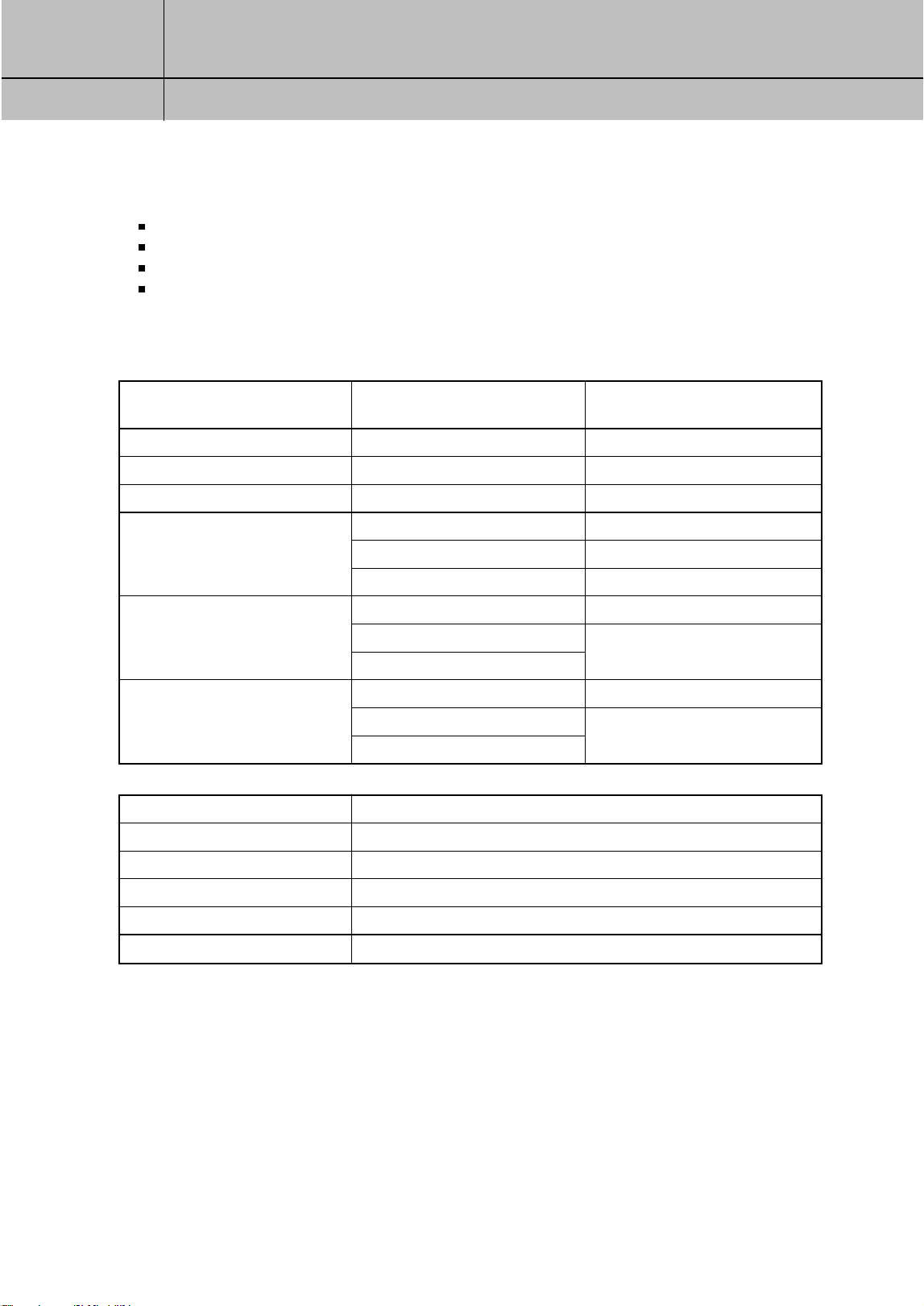
The table below details the results you get with each combination of input signal format
and TV display format.
HDTV and SDTV DIRECTV
®
programming via digital satellites (through the Satellite In jack).
Local off-air analog television broadcasts (NTSC), and local off-air digital broadcasts (ATSC) (through the Air In jack).
Unscrambled analog cable TV services for unscrambled cable programming (through the Cable In jack).
Various external input signals received through the external input terminal (i.e., DVD, DVHS)
The DIRECTV
®
HD Receiver provides several display formats as shown in the following
table. It also shows the formats available at each output terminal.
When you press the Resolution button on the front panel or the remote control, the display
format will be switched between 1080i, 720p, 480p/i, Native 1, Native 2 and Native 3.
All input signal formats in the 1080i, 720p and 480p/i modes will be converted to the
selected display format. The output display format in the Native 1, Native 2 and Native 3
modes will be automatically changed according to the input signal format as shown in the
above table.
With the Resolution
button set to :
1080i mode
720p mode
480p/i mode
Native 1 mode
Native 2 mode
Native 3 mode
Input Signal format
all formats
all formats
all formats
480p/i
720p
1080i
480p/i
720p
1080i
480p/i
720p
1080i
Output Display format
1080i
720p
480p/i
480p/i
720p
1080i
480p/i
1080i
480p/i
720p
Output Connection
YPbPr
RGB
DVI
S-Video
Video
Available Formats
1080i/720p/480p/i/Native1/ Native2/ Native3
1080i/720p/480p/i/Native1/ Native2/ Native3
1080i/720p/480p/i/Native1/ Native2/ Native3
480i
480i
SIR-TS360-CHAPTER 1 11/18/03 9:41 AM Page 13

14
CHAPTER 1
Technical overview
1
1
For example, if you have a standard resolution TV, you would set the Resolution button
to 480p/i.
Then programs received by the DIRECTV
®
HD Receiver at any resolution would be
converted to a resolution of 480p or 480i for display on your television.
This information can also be helpful when deciding how to connect your TV and VCR to
the DIRECTV
®
HD Receiver. For example, if you have a High Definition TV capable of
displaying 1080i, and a standard VCR, you would want to use the COMPONENT, RGB
or DVI jacks (whichever your TV accepts) to connect the DIRECTV
®
HD Receiver to your TV.
You would then use the VIDEO OUT jack to connect your VCR.
This will provide each device with the highest quality video signal it is capable of using.
NOTE
•
If you connect your TV to one of the composite video out jacks (VIDEO OUT, S-VIDEO OUT), and
you view a HD program with the DIRECTV
®
HD Receiver’s RESOLUTION button set to either 720p
or 1080i, the picture will be slightly cropped at the top and bottom (the very top and bottom
edges of the image will not appear on the TV screen).
To avoid this problem, set the RESOLUTION button to the 480p/i position if your TV is connected
to one of the composite video outputs. Also, since the RGB, COMPONENT and DVI jacks do not
output the 480i video format, do not connect a standard definition TV capable of displaying only
480i video to the RGB, COMPONENT or DVI jacks. If you use the DVI jack, for the best access to
HD programming, connect the DVI/HDCP output to the corresponding DVI/HDCP input on your
HD Television (HDTV) or HDTV Monitor that supports High-bandwidth Digital Content
Protection (HDCP) technology.
SIR-TS360-CHAPTER 1 11/18/03 9:41 AM Page 14

15
CHAPTER 1
Technical overview
1
1
Aspect ratio
In addition to resolution and interlacing, HDTV is also defined by the aspect ratio of its
broadcasts.
Aspect ratio means the shape of the screen as defined by the ratio of the screen’s width
to its height. For analog TV and SDTV, the aspect ratio is 4 units wide by 3 units high
(usually written 4:3).
This is the familiar shape of conventional TVs — slightly wider than they are tall.
For HDTV broadcasts, the aspect ratio is 16:9 (nearly twice as wide as it is tall).
This is, not coincidentally, more like the shape of movies shown in theaters.
This makes HDTV an ideal format for broadcasting and viewing movies on a TV.
But what happens if you are watching a nearly square-shaped 4:3 broadcast on a
rectangular 16:9 TV, or vice-versa? The DIRECTV
®
HD Receiver allows you to choose from
a variety of screen formats to help you deal with those scenarios.
Screen formats
To deal with the mismatches that can occur between the shapes of TVs and the aspect
ratios of program broadcasts, the DIRECTV
®
HD Receiver provides you with a set of screen
format controls.
These controls allow you to pick a format to use for both 4:3 TVs showing 16:9 programs,
and for 16:9 TVs showing 4:3 programs.
Here is an explanation of the options. (Details for setting this preference are included in
Chapter 7.)
SIR-TS360-CHAPTER 1 11/18/03 9:41 AM Page 15
16
CHAPTER 1
Technical overview
1
1
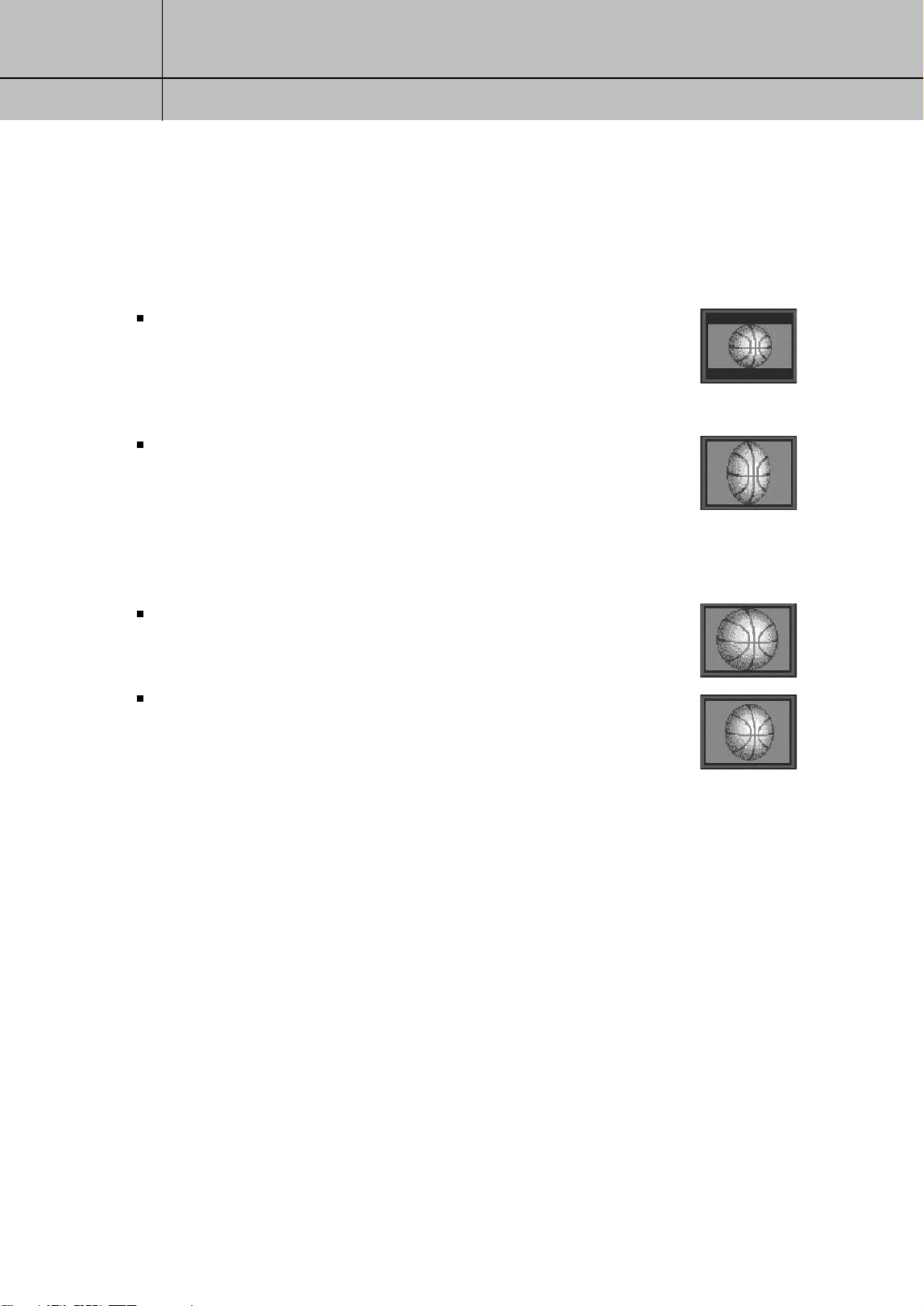
4:3 TVs showing 16:9 programs
For a standard 4:3 TV showing a widescreen program, the program is too wide to fit on
the screen. The DIRECTV
®
HD Receiver gives you 4 ways to fix the problem:
Letter box: If you choose the letter box format, the 16:9 image is shrunk
until the entire width of the program fits on your TV.
Since the aspect ratio of the program is maintained, the image
is no longer tall enough to fill your screen, so black/gray bars
are seen at the top and bottom of the screen.
Full: If you set your DIRECTV
®
HD Receiver to the Full setting, 16:9
images are stretched to fit the height of the screen, like in the
Letter box format. But instead of applying black/gray bars to
the top and bottom of the screen, the program image is stretched
vertically until it is tall enough to fill your screen.
Your entire TV screen is full, but the program images are a little
stretched to compensate for the program – to – screen mismatch.
Zoom 1: This format stretches the top and bottom edges of the image at
an equal ratio, keeping the 16:9 aspect ratio intact.
The left and right portions of the image will be cut.
Zoom 2: This format breaks the 16:9 aspect ratio and stretches the top
and bottom edges more than the left and right edges of the
image to view less distorted image than the one in Zoom1.
The top, bottom, left and right portions of the image will be
cut, but less than Zoom 1.
SIR-TS360-CHAPTER 1 11/18/03 9:41 AM Page 16
17
CHAPTER 1
Technical overview
1
1
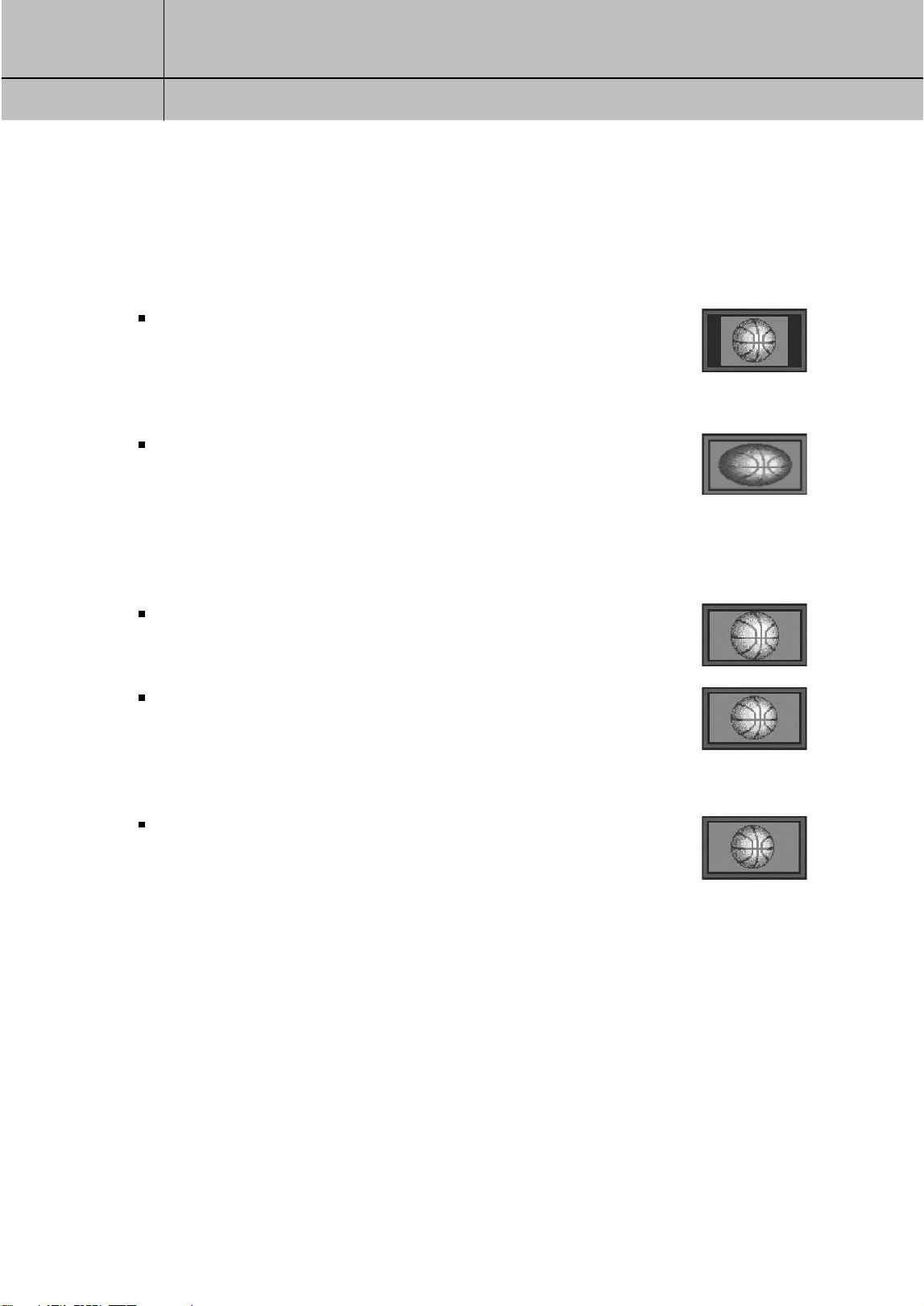
16:9 TVs showing 4:3 programs
For a wide screen 16:9 TV showing a standard 4:3 TV program, the program is too tall
to fit on the screen. The DIRECTV
®
HD Receiver gives you 5 ways to fix the problem:
Pillar box: If you choose the pillar box format, the 4:3 image is shrunk until
the entire height of the program fits on your TV. Since the aspect
ratio of the program is maintained, the image is no longer wide
enough to fill your screen, so black/gray bars are seen at the
left and right edges of the screen.
Full: If you set your DIRECTV
®
HD Receiver to the Full setting, 4:3
images are stretched to fit the width of the screen, like in the
Pillar box format. But instead of applying black/gray bars to
the sides of the screen, the program image is stretched
horizontally until it is wide enough to fill your screen.
Your entire TV screen is full, but the program images are a little
stretched to compensate for the program – to – screen mismatch.
Zoom 1: This format stretches the left and right edges of the image at an
equal ratio, keeping the 4:3 aspect ratio intact.
The top and bottom portions of the image will be cut.
Zoom 2: This format breaks the 4:3 aspect ratio and stretches the left and
right edges more than the top and bottom edges of the image to
view less distorted image than the one in Zoom1.
The top, bottom, left and right portions of the image will be cut,
but less than Zoom 1.
Panorama: This format stretches the left and right edges of the image at a
certain ratio, keeping the center of the image intact.
The center of the screen will keep the equal ratio and the
expansion ratio increases toward the horizontal direction at
both sides.
SIR-TS360-CHAPTER 1 11/18/03 9:41 AM Page 17
18
CHAPTER 1
Technical overview
1
1
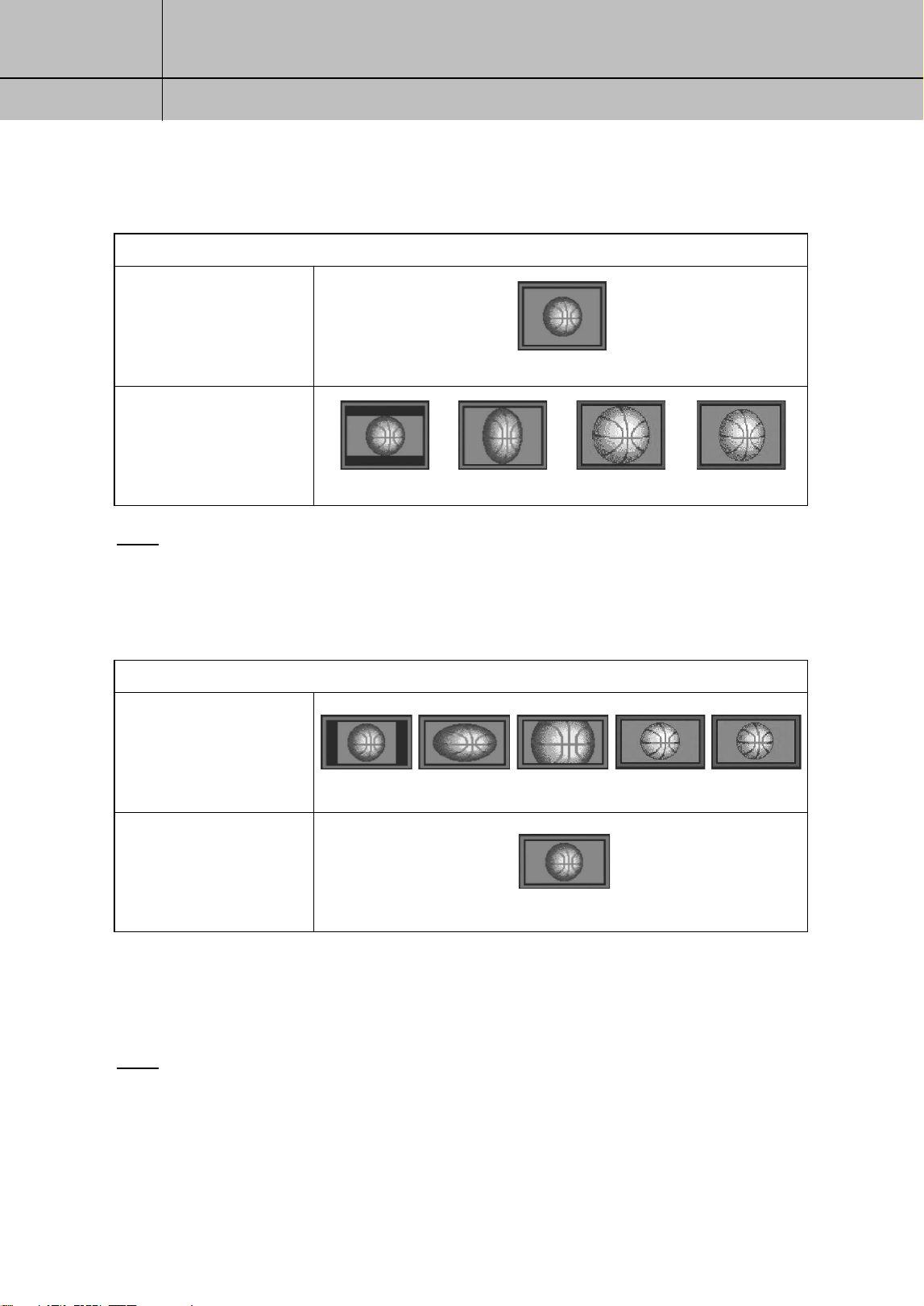
These 2 tables summarize your screen format options:
NOTE
•
Letter box is not available through the composite output jacks (Video Out, S-Video Out, and TV
Out jacks) when the RESOLUTION SELECT button is set to 1080i and the source signal is 1080i.
If your display is a 4:3 format TV or monitor, your format options include these:
For 4:3 program signals:
For 16:9 program signals:
Full
Full
*Letter box Full Zoom 1 Zoom 2
For either of these scenarios, the option you choose is a matter of preference.
The FORMAT button on your remote control allows you to cycle through the formats
available for your display type.
NOTE
•
You can set the color of the horizontal or vertical bars displayed for Letter box and Pillar box
screen formats to either black or gray. See Chapter 7 for details.
If your display is a 16:9 format TV or monitor, your format options include these:
For 4:3 program signals:
For 16:9 program signals:
Pillar box Full Zoom 1 Zoom 2 Panorama
SIR-TS360-CHAPTER 1 11/18/03 9:41 AM Page 18

19
CHAPTER 1
Technical overview
1
1
Dolby
®
Digital 5.1
Just as the ATSC has specified 1080i or 720p as the video formats required for HDTV,
they have also specified a recommended audio format: Dolby Digital 5.1.
Dolby Digital 5.1 provides 5 discrete channels of digital audio information for use by
A/V receivers capable of decoding the 5.1 channel signal.
The audio signals are broken into left-front, center, right-front, left-rear, right-rear and a
low-frequency effects channel (designed for subwoofers).
The result when connected to a compatible Dolby Digital 5.1 channel A/V receiver and
speaker setup is a home theater experience that provides much of the dynamic range,
360-degree imaging, and sonic excitement of a real theater.
Not all Digital TV programming is broadcast using Dolby Digital 5.1.
For DIRECTV
®
programming, you can see which programs are broadcast using this
high-quality audio standard by checking the Info Banners and Program Guides for the
Dolby Digital icon ( ).
To take full advantage of the Dolby Digital 5.1 capabilities of the DIRECTV
®
HD Receiver,
you will need a Dolby Digital 5.1 compatible A/V receiver connected to the DIRECTV
®
HD
Receiver through the Dolby Digital Optical jack or the Dolby Digital Coaxial jack.
SIR-TS360-CHAPTER 1 11/18/03 9:41 AM Page 19
20
CHAPTER 2
Getting started
2
2
Chapter 2: Getting started
This chapter tells you everything you need to know before you start setting up and
using your DIRECTV
®
HD Receiver. It includes information on:
Box contents
Front panel controls and lights
Back of the DIRECTV
®
HD Receiver
Installing the batteries in the remote control
Inserting the Access Card
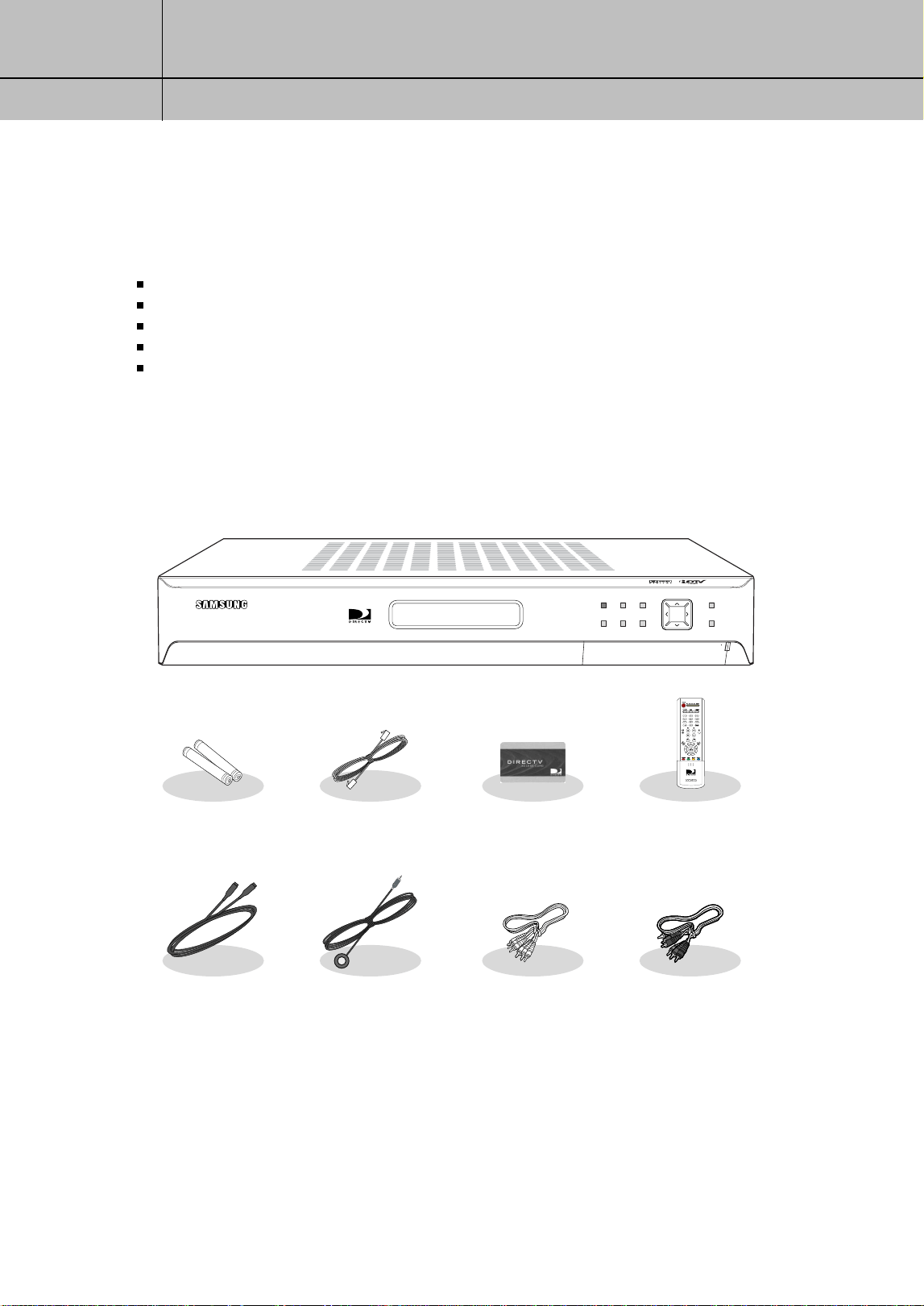
Box contents
Welcome! The first step in setting up your DIRECTV
®
HD Receiver is to unpack the box and
familiarize yourself with its contents. If you are missing any items, contact your dealer.
STANDBY INFO EXIT
MENU SELECT
OUTPUT MODE
RESOLUTION
OPEN
< DIRECTV
®
HD Receiver >
AAA size
batteries
RJ-11
Telephone cord
Access Card
S-Video cable VCR control cable A/V cable
Component cable
(Y/P
B/PR cable)
Remote control (IR)
SIR-TS360-CHAPTER 2 11/18/03 9:41 AM Page 20
21
CHAPTER 2
Getting started
2
2
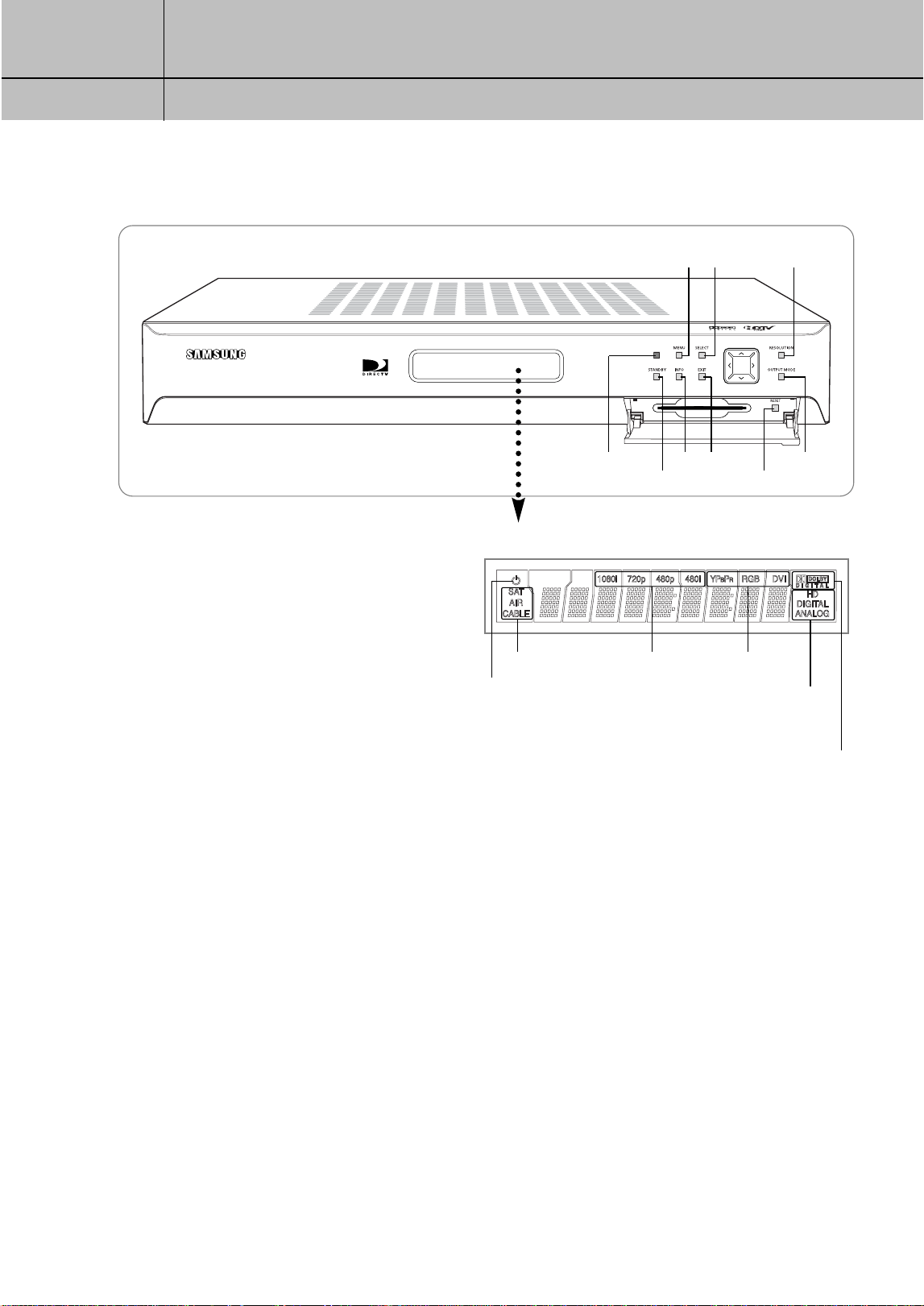
Display Window
Displays information about your Digital Satellite Receiver.
Remote Control Sensor
Point your remote control at this sensor when operating your receiver.
STANDBY
Turns your Digital Satellite Receiver on and off.
MENU
displays the Main Menu.
INFO
displays TV program information.
SELECT
selects highlighted items on Guide and Menu screens.
EXIT
clears on-screen displays and return to TV program viewing.
ARROW
The arrow buttons navigate in the on-screen Guide and menu system.
RESOLUTION
Sets the video resolution output by the DIRECTV
®
HD Receiver to match the resolution of your TV or monitor (480p/i).
Affects the signal output from the COMPONENT OUT, RGB OUT, and DVI/HDCP OUT jacks.
OUTPUT MODE
This button determines the signal type output by either DVI/HDCP OUT and RGB OUT, or COMPONENT OUT jacks.
Access Card slot
This slot holds the Access Card (which allows you to view DIRECTV
®
programming).
RESET
Resets your Digital Satellite Receiver.
Front panel controls and lights
< Display Window >
Stand by mode indicator
Remote Control Sensor
STANDBY RESET
INFO
MENU
SELECT RESOLUTION
EXIT OUTPUT MODE
Signal antenna indicator
Dolby Digital indicator
Display format
indicator
Display Interface
indicator
Broadcaster
signal
indicator
SIR-TS360-CHAPTER 2 11/18/03 9:41 AM Page 21
22
CHAPTER 2
Getting started
2
2
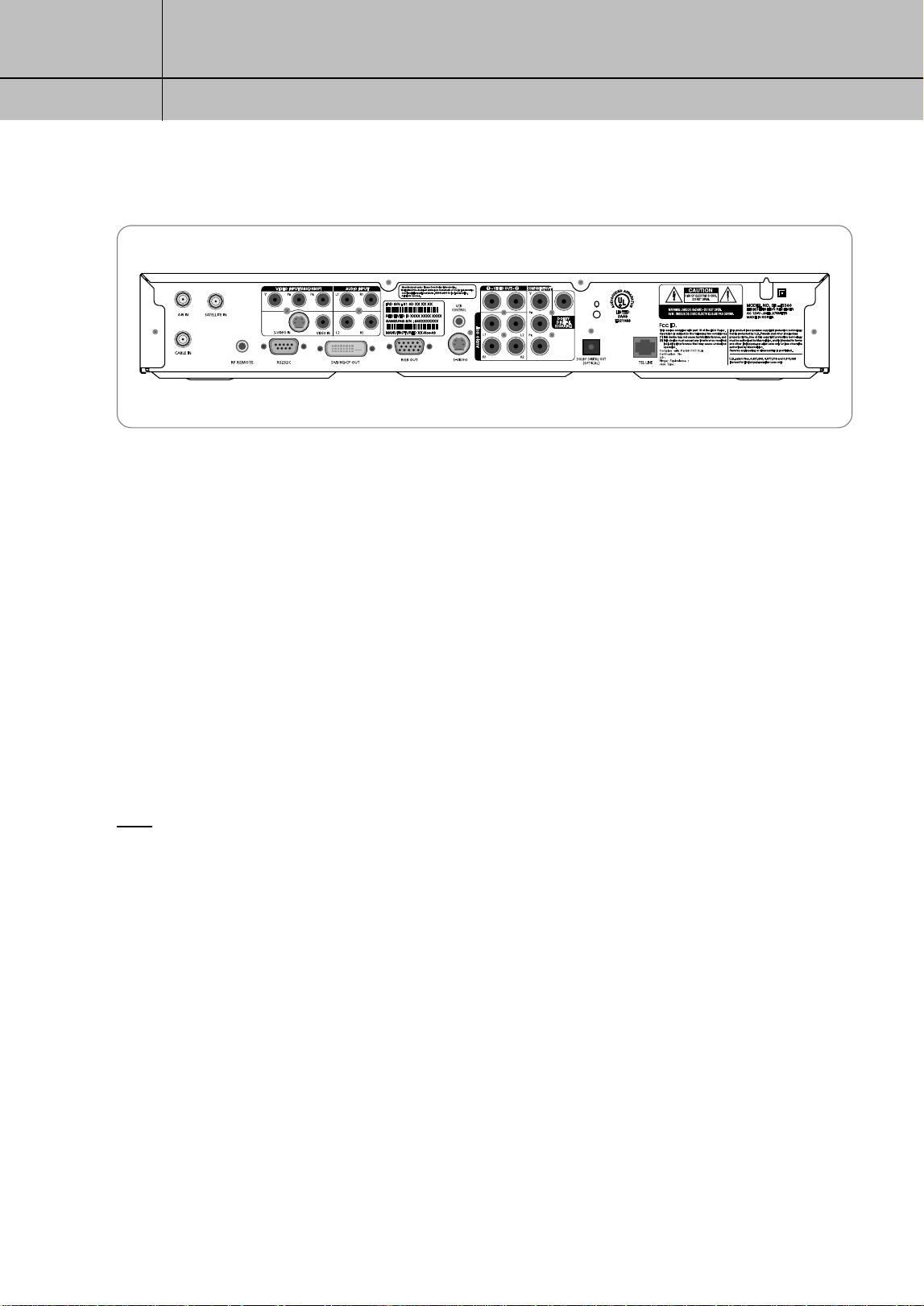
AIR IN
The cable from an off-air TV antenna (not from the satellite dish) connects to this jack. Both standard analog (NTSC) and high definition
digital (ATSC) program broadcasts can be received through a single antenna connected to this jack.
CABLE IN
The RG-6 cable from cable TV provider (if you have one) connects to this jack.
SATELLITE IN
The RG-6 cable from the satellite dish connects to this jack.
RF REMOTE (Optional)
Inputs remote control signals using the RF receiver.
VIDEO INPUT (480p/i)
Connect an optional component video source, such as a DVD player.
AUDIO INPUT(L1, R1, L2, R2)
Inputs audio signals to your DIRECTV
®
HD Receiver from TV, digital monitor, DVD, VCR, or other audio equipment.
NOTE
Connect the audio jack to L1 and R1 when using the component terminal (Y, PB or PR).
Connect the audio jack to L2 and R2 when using the S-Video or Video terminal.
RS232C
This is used to connect your receiver to a computer for reading and loading data information.
DVI/HDCP OUT
Using a digital DVI cable, this jack connects your DIRECTV
®
HD Receiver to a TV that accepts the unconverted DVI signal from a HD digital
broadcast (from satellite, or antenna). Supports HDCP content protection. (For the best access to HD programming, connect this output to the
corresponding DVI/HDCP input that supports HDCP technology on your HDTV or HDTV Monitor.)
RGB OUT
Using an RGB monitor cable, this jack connects your DIRECTV
®
HD Receiver to a TV that accepts HD RGB video input.
VCR CONTROL
The VCR control cable connects to this jack.
S-VIDEO
This jack connects your DIRECTV
®
HD Receiver to a TV or VCR that accepts S-Video input.
Back of the DIRECTV
®
HD Receiver
SIR-TS360-CHAPTER 2 11/18/03 9:41 AM Page 22

23
CHAPTER 2
Getting started
2
2
VIDEO OUT
Using standard video cables, these jacks connect your DIRECTV
®
HD Receiver to your TV or VCR.
AUDIO OUT(L1,R1,L2,R2)
Using standard stereo audio cables, these jacks provide an A/V receiver capable of decoding Dolby Prologic signals with
the left, right, center, and surround audio channel signals.
COMPONENT OUT(YP
B
P
R
)
Using standard A/V cables, these jacks connect your DIRECTV
®
HD Receiver to a TV or VCR that accepts
HD component video input.
DOLBY DIGITAL(COAXIAL)
Using a coaxial digital audio cable, this jack allows you to connect your DIRECTV
®
HD Receiver to an A/V receiver that
accepts coaxial digital audio input.
DOLBY DIGITAL OUT(OPTICAL)
Using an optical digital audio cable, this jack allows you to connect your DIRECTV
®
HD Receiver to an A/V receiver
that accepts optical digital audio input.
TEL LINE
A telephone line connected to this jack allows you to order pay per view programming.
SIR-TS360-CHAPTER 2 11/18/03 9:41 AM Page 23
24
CHAPTER 2
Getting started
2
2
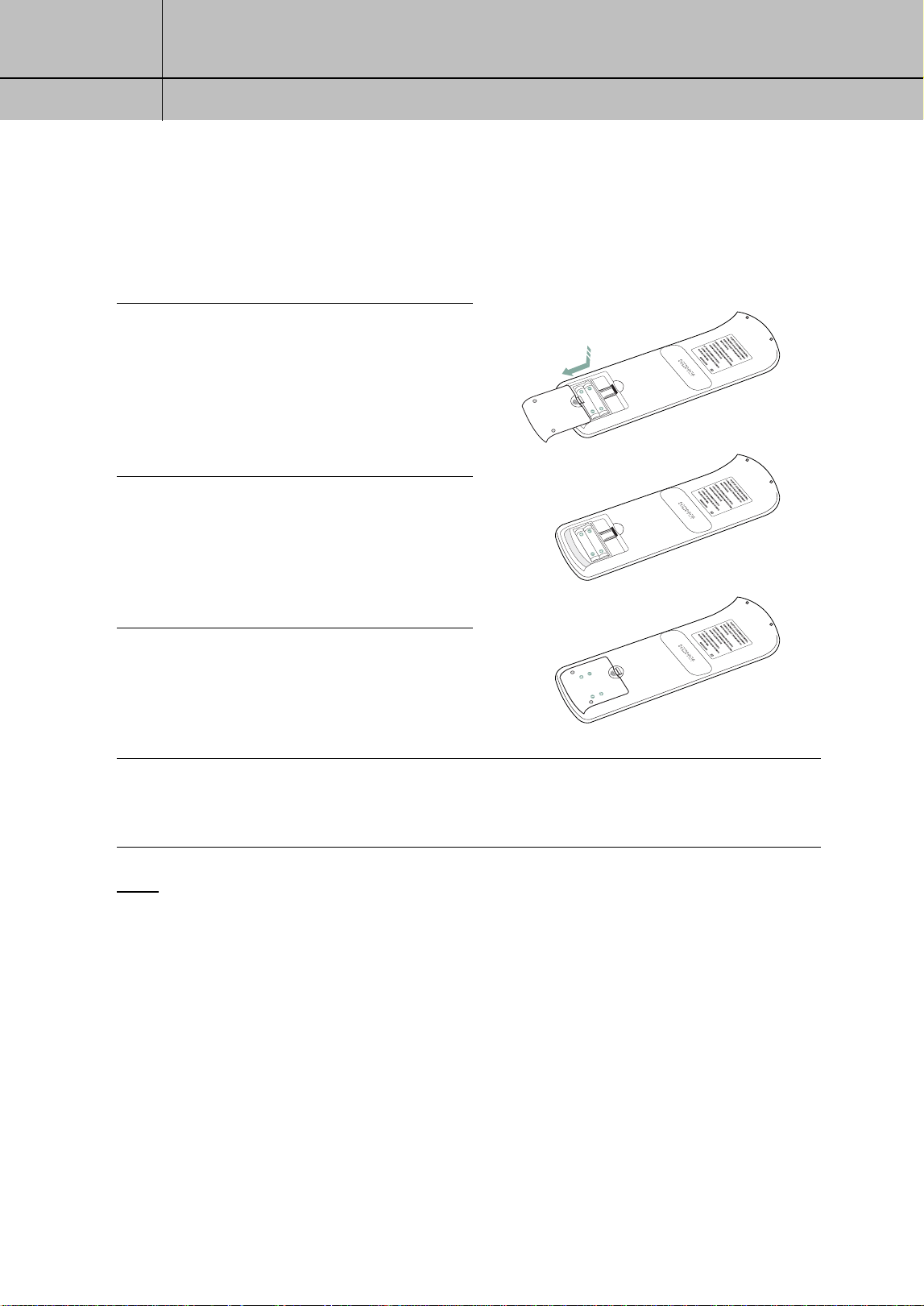
Installing the batteries in the remote control
You’ve unpacked the receiver and reviewed its front and back panels.
Now it’s time to start setting up.
The first step is to install the batteries in your remote control.
1
Unlatch the battery compartment cover on the
back of remote control.
2
Insert 2 AAA batteries as shown, making
sure the + and – ends of each battery
line up with the corresponding marks in
the battery compartment.
3
Snap the cover back onto the remote control.
4
Press the DIRECTV button on the Remote Control unit and make sure the button lights up.
If it does not light up, check the orientation of the batteries.
NOTE
Alkaline batteries are strongly recommended for this remote control.
SIR-TS360-CHAPTER 2 11/18/03 9:41 AM Page 24
25
CHAPTER 2
Getting started
2
2
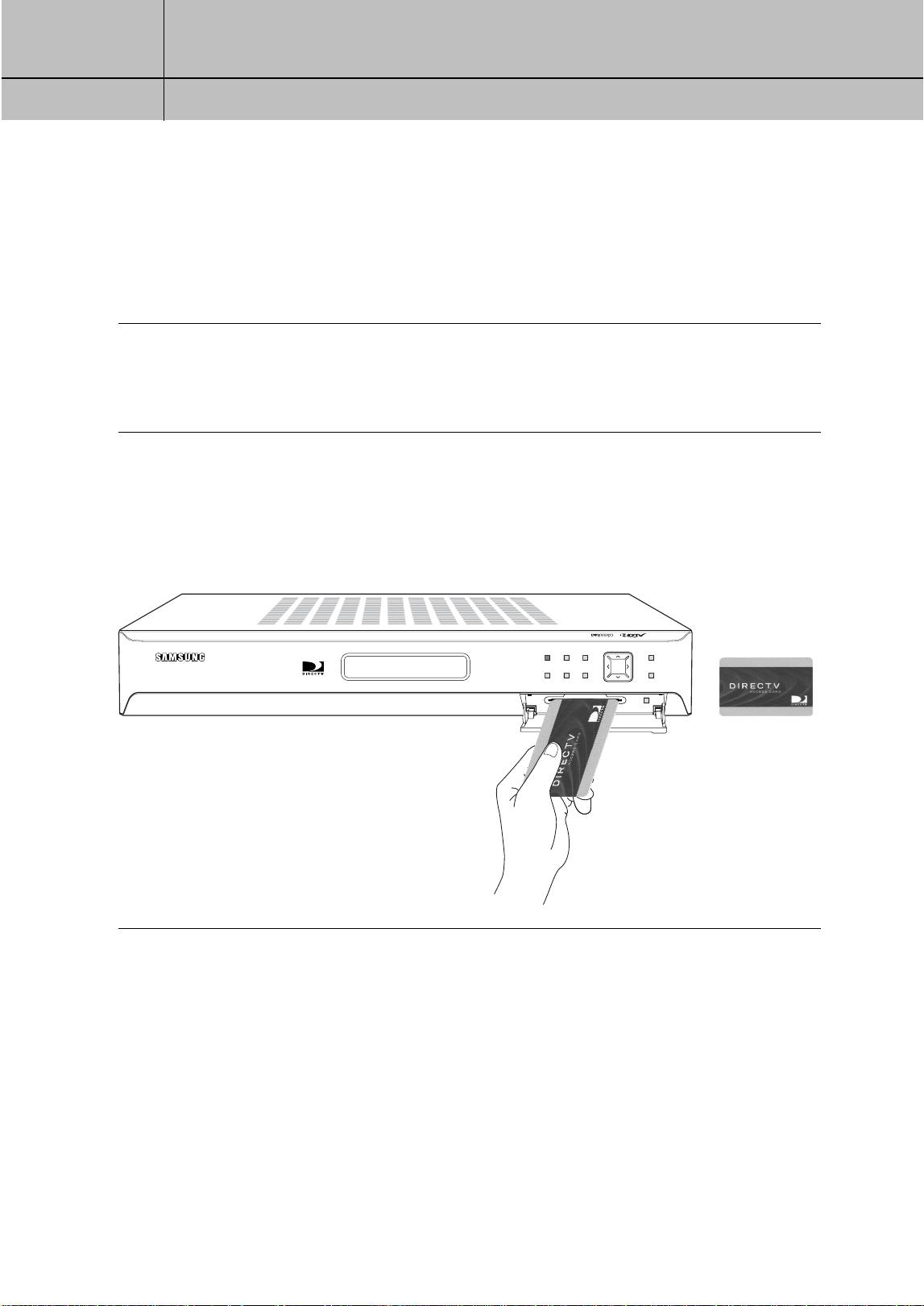
Inserting the Access Card
The next step is to insert your Access Card into your receiver. (You will not be able to view
DIRECTV
®
programming unless the Access Card is properly inserted into the DIRECTV
®
HD
Receiver.)
For some receivers, the card may already be inserted when you unpack the box.
1
Locate the ACCESS CARD slot.
The slot is located on the front of the DIRECTV
®
HD Receiver.
2
Insert the Access Card.
Make sure the side with the bar code is facing down, and the arrow is pointing
away from you.
The Access Card should only be removed when replacing the card with a new one provided
by DIRECTV or your program provider.
STAND BY INFO EXIT
MENU SELECT
OUTPUT MODE
RESOLUTION
RESET
Access Card
(Top view)
SIR-TS360-CHAPTER 2 11/18/03 9:41 AM Page 25

26
CHAPTER 3
Setting up and connecting
3
3
Chapter 3: Setting up and connecting
This chapter explains how to setup and start using your DIRECTV
®
HD Receiver.
Contents include:
Before making connections
Jacks and cables
Connecting your DIRECTV
®
HD Receiver
Connecting the VCR control cable
Turning on the DIRECTV
®
HD Receiver for the first time
Adjusting the satellite dish
Testing your DIRECTV
®
HD Receiver
Setting up local networks
Programming local channels
Activating your DIRECTV account
Upgrades
Before making connections
The next step is to make the necessary connections.
Before you begin, please note the following important safety and setup tips.
Protect your components from power surges
Always turn off and unplug your DIRECTV
®
HD Receiver, TV, and any other components before connecting or
disconnecting any of the cables.
Position all cables correctly to avoid audio hum or interference
After connecting the components, please run the audio/video cables along the side of the TV set, rather than straight down
the back of the TV.
Make sure that all cables are plugged or screwed tightly into their jacks.
Please make sure that all antennas and cables are properly grounded.
Whenever possible, route audio and video cables away from power cords.
Protect your components from overheating
Do not block ventilation holes in the top of the DIRECTV
®
HD Receiver, or any other components.
Make sure to position the components so that air can circulate freely.
If you are positioning the components in a stand or rack, make sure to allow for proper ventilation.
Do not stack components.
If you have a stereo amplifier or receiver as a system component, please place it on the top shelf or top rack so that
hot air rising from it will not flow around other components.
SIR-TS360-CHAPTER 3 11/18/03 9:42 AM Page 26
27
CHAPTER 3
Setting up and connecting
3
3
Make strong connections
Make sure you securely connect cables when making connections. When a tight fit makes a secure connection difficult,
you can sometimes make it easier by gently twisting the cable-end while pushing it onto the jack. (Important: never twist
S-Video or Optical Digital Audio cables — they have specially shaped ends that must be correctly oriented before connecting.)
Avoid cable damage
Never kink, bend, or twist optical digital audio cables; doing so might break the fragile optical fibers they contain,
rendering them unable to carry a signal.
Jacks and cables
The illustrations in this section show the various types of jacks and cables used to connect
your DIRECTV
®
HD Receiver.
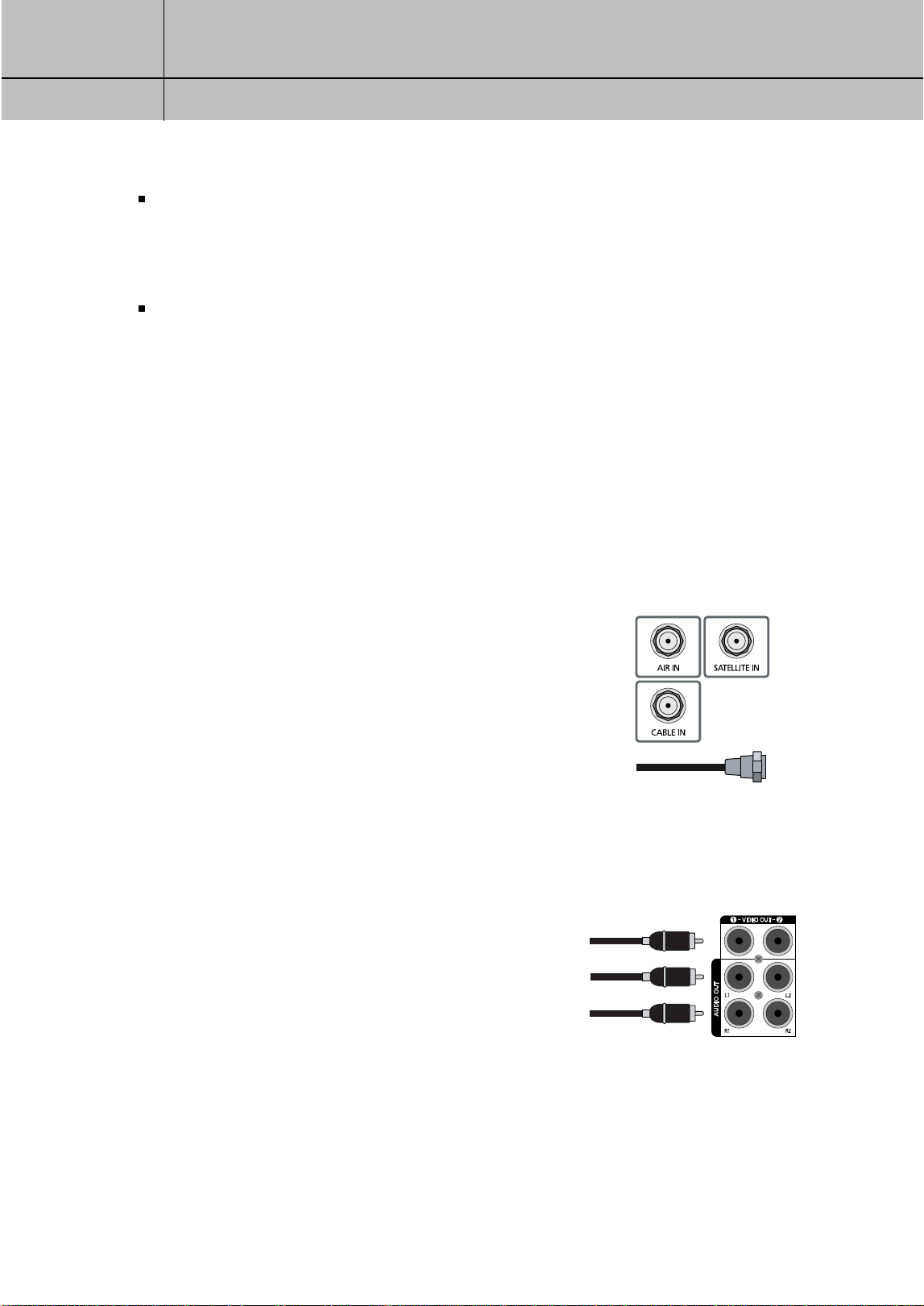
ANTENNA terminals (cable not included)
Use AIR IN and CABLE IN terminals to receive a signal
from VHF/UHF antennas or your cable system using an
RG-6 coaxial cable, SATELLITE IN terminals can be used
to connect Satellite dish input.
Audio/Video out jacks and cables (RCA-type)
Use these jacks and cables to connect your receiver
to a TV, VCR, or to other components such as a stereo
receiver or amplifier. The Video out jacks provide a
basic quality composite video signal using RCA-type
cables. Audio jacks can be used to connect the
DIRECTV
®
HD Receiver to an A/V receiver.
The audio/video jacks on the back of the receiver
and the audio/video cable connectors are color coded
(yellow for video, red for right audio, and white for
left audio).
SIR-TS360-CHAPTER 3 11/18/03 9:42 AM Page 27
28
CHAPTER 3
Setting up and connecting
3
3
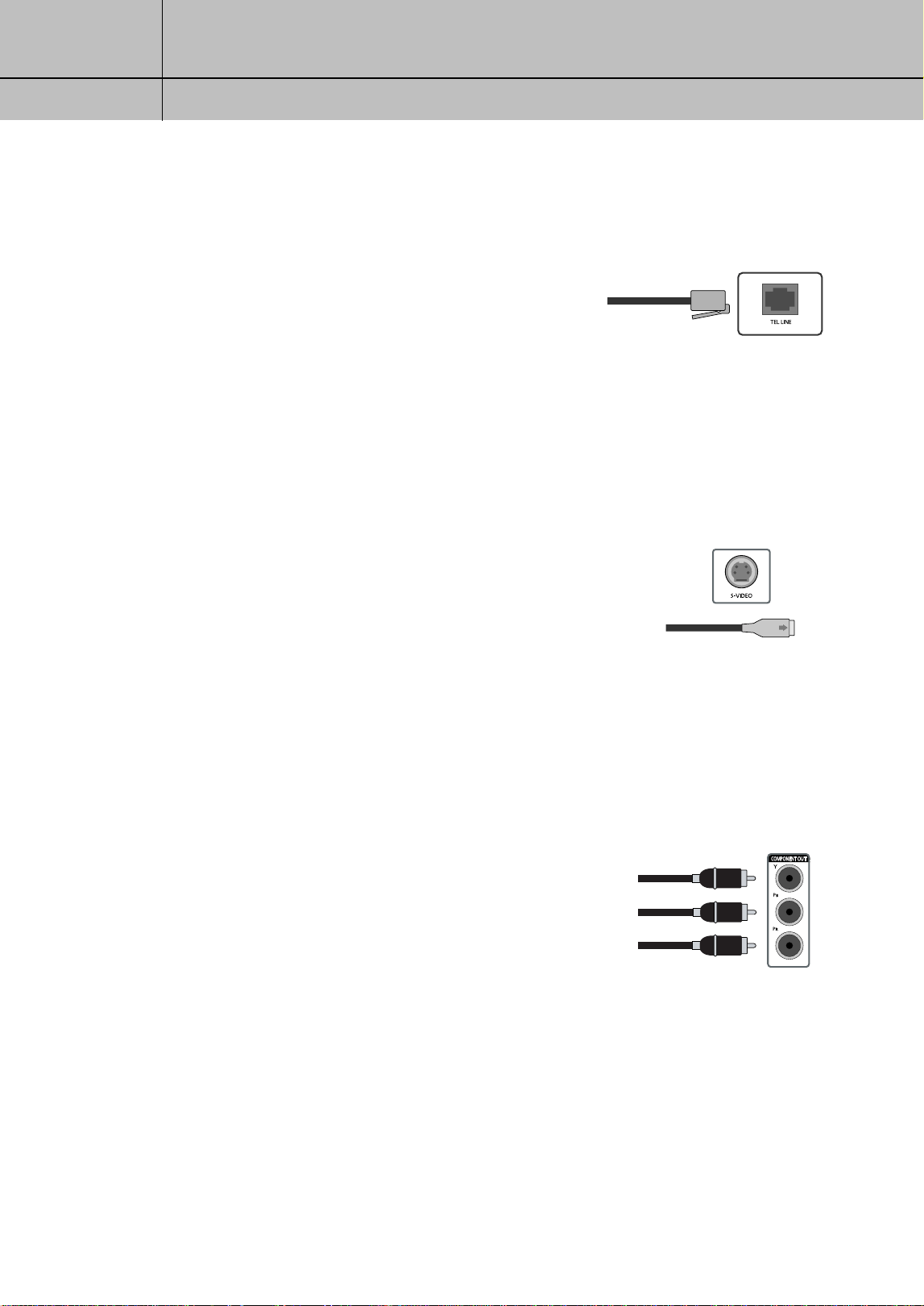
Telephone jack and cord
The TEL LINE jack and the included telephone cord connect
your DIRECTV
®
HD Receiver to a phone line.
If your home does not have RJ-11 type phone jacks,
please contact your phone company to get one installed.
A continuous land-based phone line connection is required
for DIRECTV
®
Pay Per View functionality and DIRECTV
subscriptions. Any calls generated by the DIRECTV
®
HD
Receiver are toll-free.
These calls are typically made in the middle of the night;
your phone is in use for approximately 30 seconds.
S-Video jack and cable
S-Video cables and jacks are used to connect to TVs, VCRs,
and other video devices equipped with S-Video input jacks.
S-Video connections provide a high-quality TV picture (better
than RCA-type A/V jacks and cables).
S-Video connectors must be correctly aligned before you can
plug in the cable.
Maximum resolution via this jack is 480i. (This cable carries
the video signal only; use with audio cables for the audio
signal.)
Component video jacks and cables
Component video cables and jacks (“Y, P
B
, P
R
”) are used to
connect the DIRECTV
®
HD Receiver to TVs, VCRs, and A/V
receivers equipped with component video input jacks.
Component video connections provide a TV picture superior to
S-Video connections. Component video jacks use 3 RCA-type
cables to carry the signal. This connection is capable of
displaying Digital TV and HDTV video resolutions.
(These cables carry video only; use with audio cables for
the audio signal.)
SIR-TS360-CHAPTER 3 11/18/03 9:42 AM Page 28
29
CHAPTER 3
Setting up and connecting
3
3
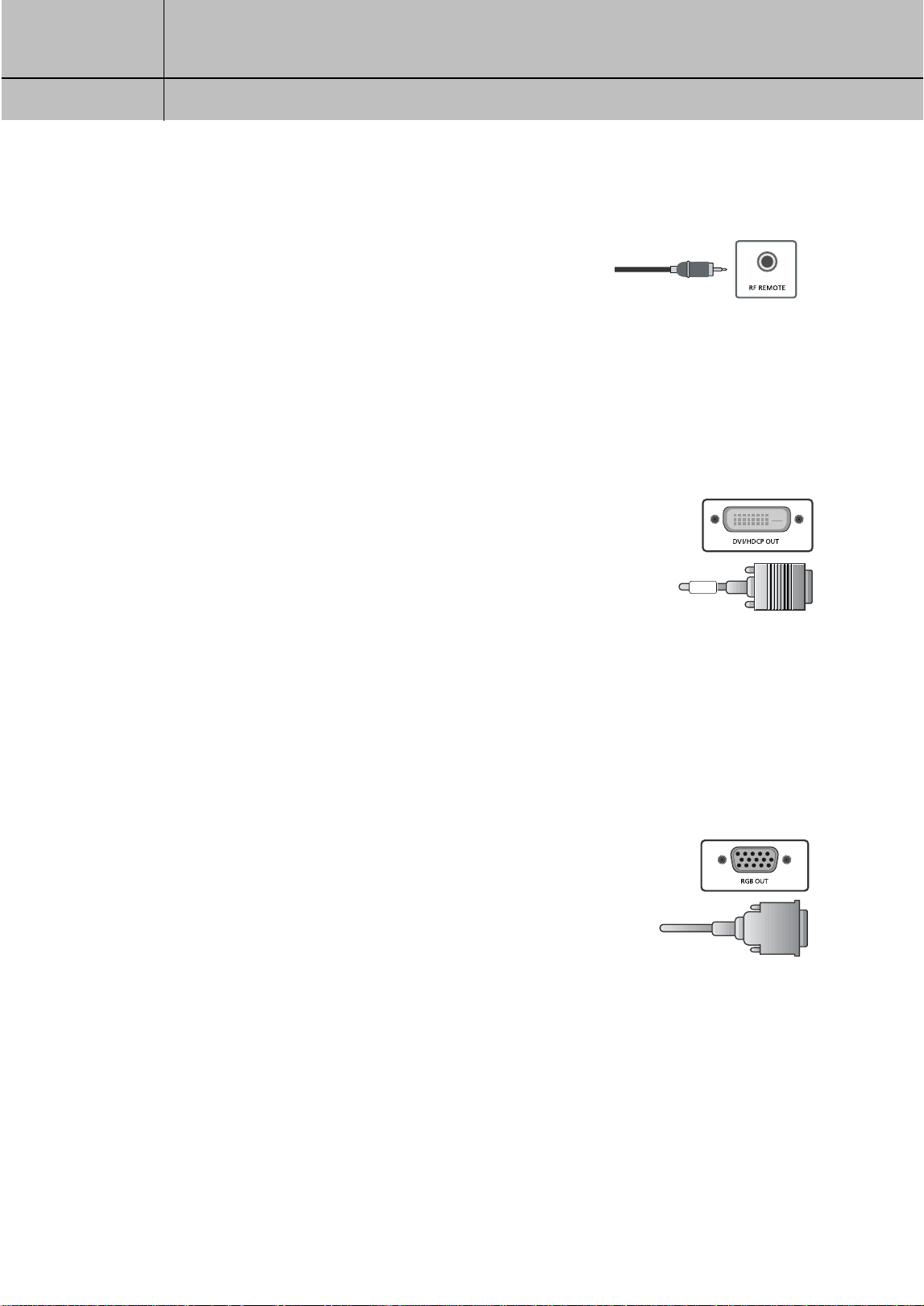
RF REMOTE jack and cable
RF REMOTE jack and cable are used to operate the
Digital Satellite Receiver when installed in a cabinet or
from another room in your house using the RF remote
control.
Use this jack and cable to connect the RF Receiver to the
RF REMOTE jack of the Digital Satellite Receiver.
DVI jack and cable (cable not included)
Using the DVI jack and a digital DVI cable, your DIRECTV
®
HD
Receiver can provide the unconverted digital signal from digital
off-air, cable, or DIRECTV
®
programming directly to A/V devices
that are capable of decoding the digital video information.
The DVI jack uses HDCP content protection to allow you to view
HD programming that has been encoded using the HDCP
protection system.
For the best access to HD programming at the highest available
resolution, connect this to a HDTV that supports HDCP technology.
(This cable carries video only; use with audio cables for the audio
signal.)
RGB OUT jack and cable (cable not included)
RGB OUT jack and cable use a computer-standard 15-pin VGA
video connection.
Each main video color, Red, Green, and Blue uses a separate
pin; and other pins are used to carry vertical and horizontal
sync signals.
Using the RGB OUT jack and an RGB cable, you can connect
your DIRECTV
®
HD Receiver to devices equipped with RGB input
jacks (computer monitors, for example).
The RGB Out jack can carry any of the Digital TV and HDTV
video resolutions. (This cable carries video only; use with audio
cables for the audio signal.)
SIR-TS360-CHAPTER 3 11/18/03 9:42 AM Page 29
30
CHAPTER 3
Setting up and connecting
3
3
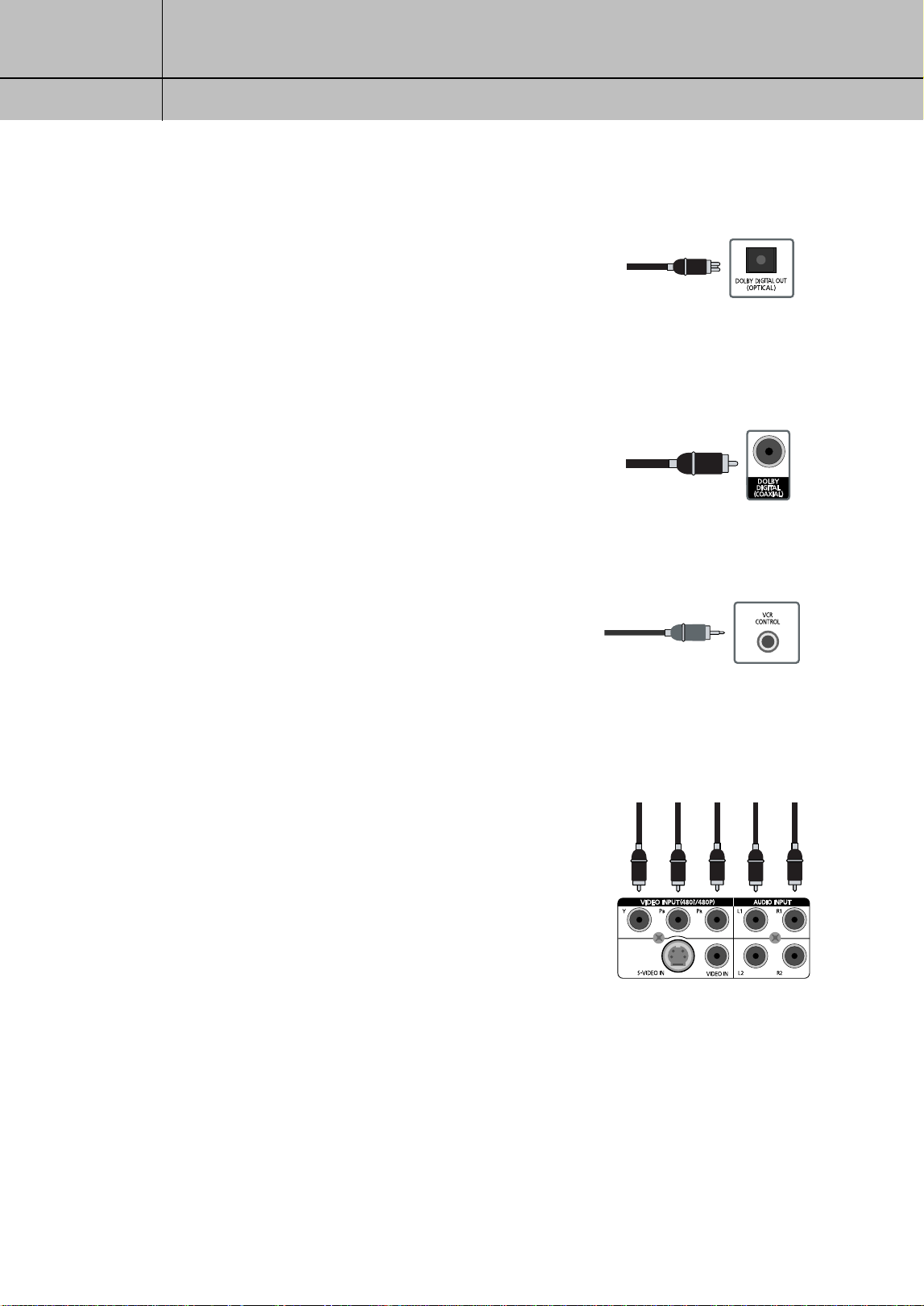
Optical digital audio jack and cable (cable not included)
Optical digital jack and cable use light to send digital audio
data to A/V receivers equipped to receive and interpret this
data. The jack and cable must be aligned before you plug
in the cable.
The jack and cable may also be covered by protective caps
which you must remove before making connections.
Coaxial digital audio jack and cable (cable not included)
Coaxial digital audio jacks and cables send digital audio
data to A/V receivers equipped with coaxial digital audio
input jacks.
VCR control jack and cable
The VCR control jack and cable allow your DIRECTV
®
HD Receiver to send signals to your VCR’s remote
sensor, giving you the ability to program your VCR to
tape programs for you using simple on-screen controls.
Audio/Video input jacks and cables (RCA-type)
Use these jacks and cables to connect your receiver to a
TV, VCR, DVD, or to other components such as a stereo
receiver or amplifier.
The Video input jacks provide a high quality composite
video signal using RCA-type cables.
Audio jacks can be used to connect the DIRECTV
®
HD
Receiver to an A/V receiver.
The audio/video input jacks on the back of the receiver
and the audio/video cable connectors are color coded
(yellow for video, red for right audio, and white for left
audio). Receivable resolution modes are 480p/i.
SIR-TS360-CHAPTER 3 11/18/03 9:42 AM Page 30
31
CHAPTER 3
Setting up and connecting
3
3
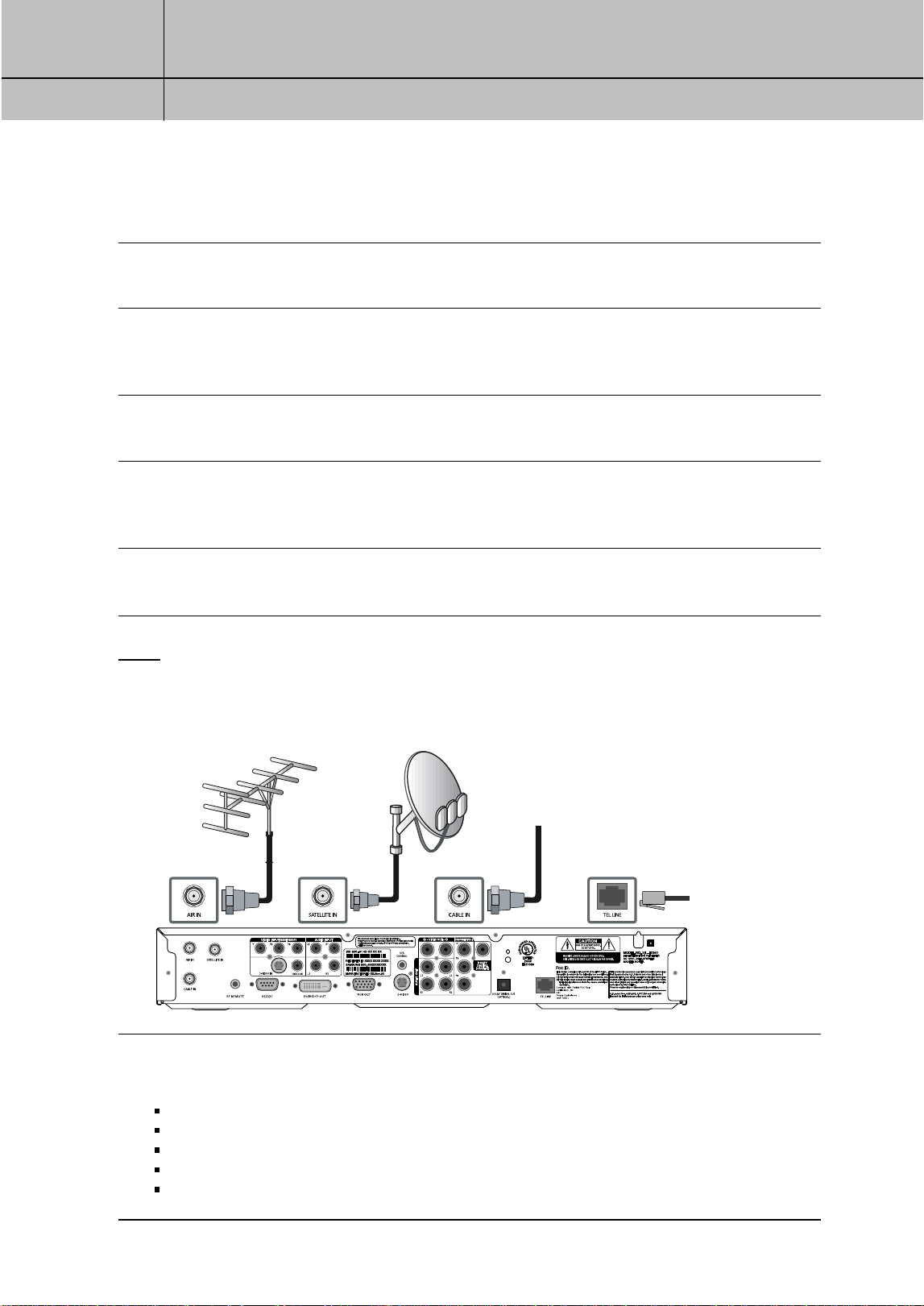
Connecting your DIRECTV
®
HD Receiver
1
Make sure your TV, A/V receiver, and DIRECTV
®
HD Receiver are turned off and unplugged.
2
If you plan to use the DIRECTV
®
HD Receiver to watch DIRECTV
®
programming, connect the
RG-6 coaxial cable running from your satellite dish to the SATELLITE IN jack on the back of
your DIRECTV
®
HD Receiver.
3
If you plan to watch cable TV programming, connect the coaxial cable running from your
cable TV system to the CABLE IN jack on the back of the DIRECTV
®
HD Receiver.
4
If you plan to watch off-air TV programming (analog or digital), connect the coaxial cable
running from your off-air TV antenna to the AIR IN jack on the back of the DIRECTV
®
High-
Definition Receiver.
5
Connect the supplied phone cord to a telephone wall jack and to the TEL LINE jack on the
back of the DIRECTV
®
HD Receiver.
NOTE
A triple LNB multi-satellite dish antenna including a Sat C LNB is required to receive HD
programming from DIRECTV.
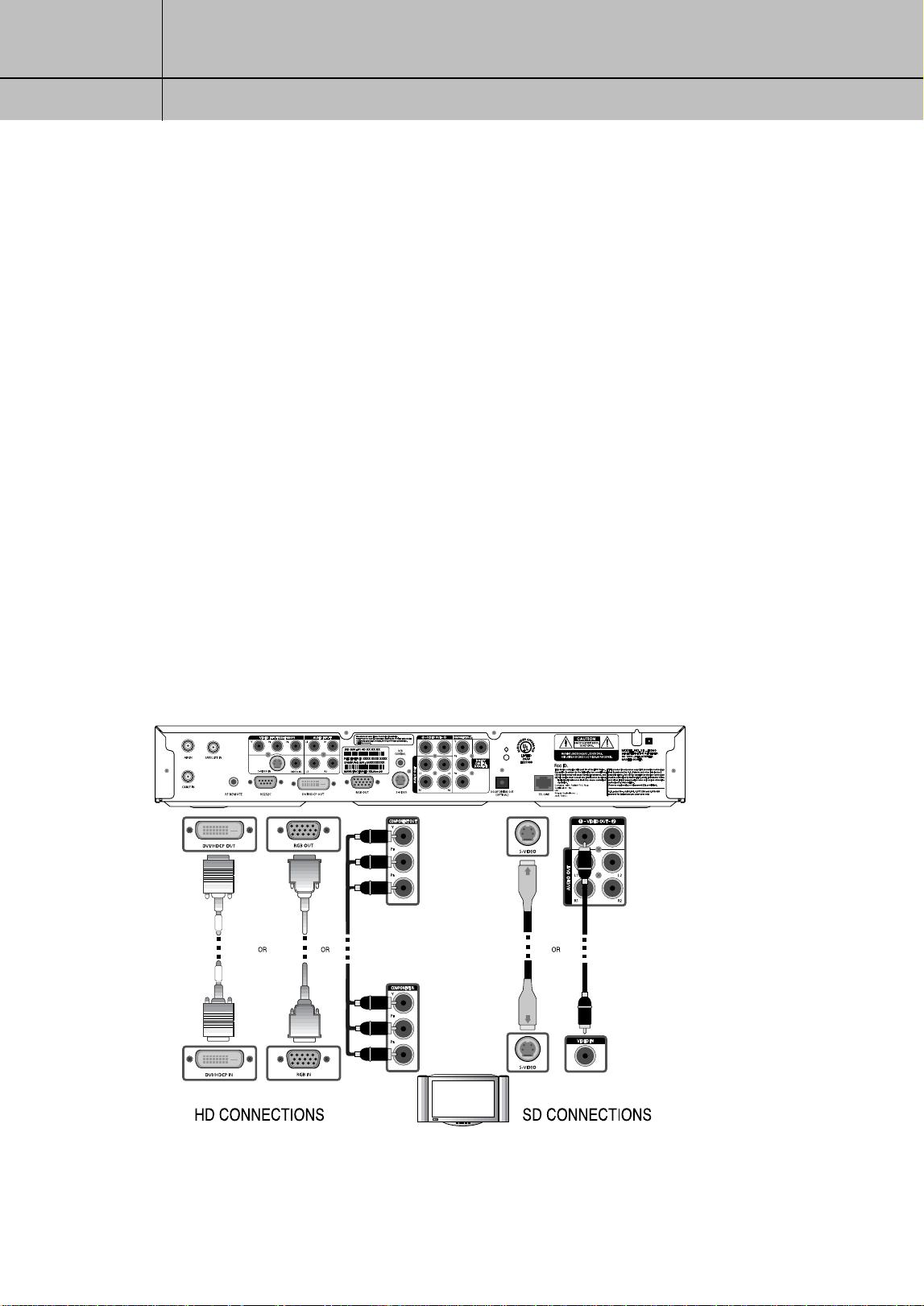
6
Make video connections to your TV.
Your DIRECTV
®
HD Receiver supports the following kinds of video connections:
DVI
RGB
component (Y, P
B
, P
R
)
S-Video
composite (standard A/V jacks)
SIR-TS360-CHAPTER 3 11/18/03 9:42 AM Page 31
32
CHAPTER 3
Setting up and connecting
3
3
Choose the highest quality connection that your TV supports. (See Chapter 1 for
information on video connectors. See your TV owner’s manual for information on your
TV’s capabilities.) The RGB, Component, and DVI jacks can carry any of the Digital TV
and HDTV video resolutions. S-Video provides the next best video quality, followed by
the standard A/V video outputs.
Since the RGB, component and DVI jacks do not output the 480i video format, do not
connect a standard definition TV capable of displaying only 480i to the RGB, componet
and DVI jacks.
Due to copyright restrictions, you may not be able to view some high definition programs
in high definition format using this product. Whenever possible, you should connect both
HD (RGB, Component, DVI) and SD (S-Video, A/V) interfaces to permit SD viewing of
programs if HD viewing is restricted.
For the best access to high-definition programming at the highest available resolution
broadcast by DIRECTV, connect the DVI/HDCP output to the corresponding DVI/HDCP
input that supports High-bandwidth Digital Content Protection (HDCP) technology on a
HD Television (HDTV) or HDTV Monitor. Please check your HDTV or HDTV Monitor user
manual or contact the television manufacturer to find out if your HDTV or HDTV Monitor
supports HDCP.
Whichever connection you choose, connect one end of the video cable(s) to the
appropriate OUT jack(s) on the back of the DIRECTV
®
HD Receiver.
Connect the other end of the video cable(s) to the video input(s) on your TV.
SIR-TS360-CHAPTER 3 11/18/03 9:42 AM Page 32
33
CHAPTER 3
Setting up and connecting
3
3
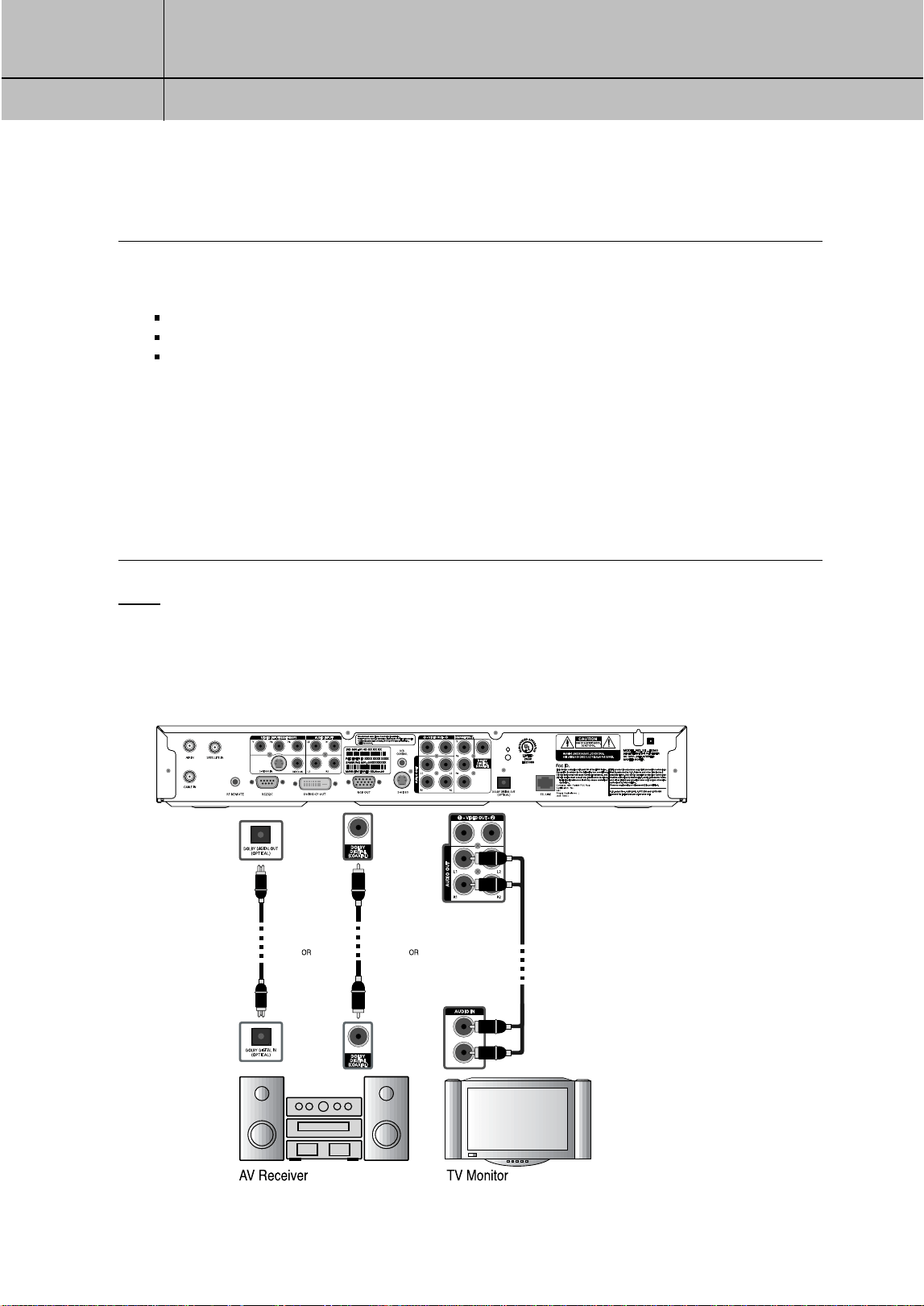
7
Make audio connections to your TV or A/V receiver.
Your DIRECTV
®
HD Receiver supports the following kinds of audio connections:
optical digital
coaxial digital
standard A/V audio jacks
Choose the highest quality connection that your TV (or A/V receiver, if you are using one)
supports (see your TV or A/V receiver owner’s manual for information). The optical and
coaxial digital audio outputs provide the highest quality audio (see Dolby Digital 5.1 in
Chapter 1). The standard A/V audio jacks provide the next best audio quality.
Whichever connection you choose, connect one end of the audio cable(s) to the appropriate
OUT jack(s) on the back of the DIRECTV
®
HD Receiver. Connect the other end of the audio
cable(s) to the audio input(s) on your TV.
NOTE
If you use the OPTICAL DIGITAL AUDIO OUT jack, remove the protective plug from the jack
before making connections. RGB, Component, DVI and S-Video jacks do not output audio.
SIR-TS360-CHAPTER 3 11/18/03 9:42 AM Page 33
34
CHAPTER 3
Setting up and connecting
3
3
8
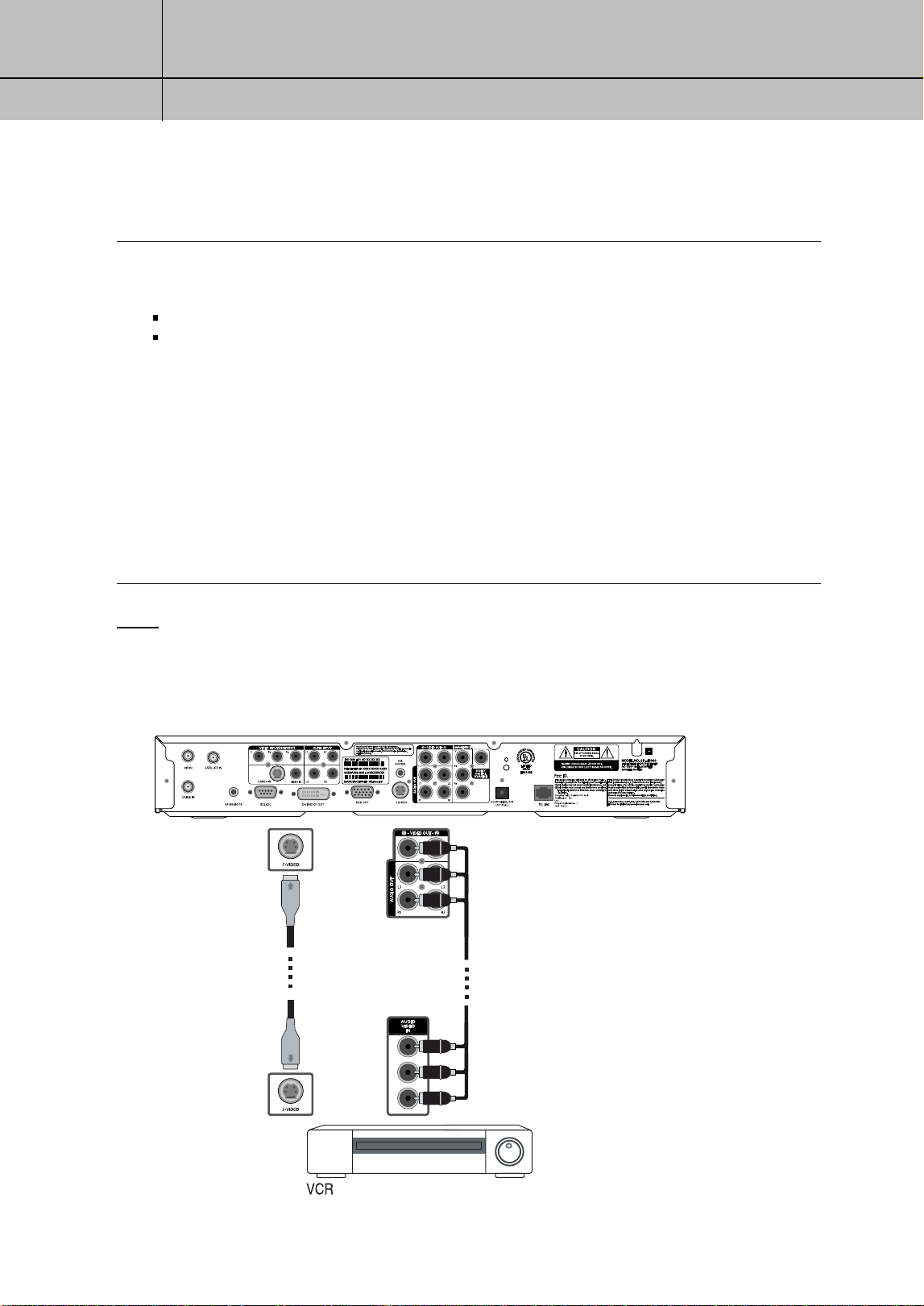
(Optional) connect your VCR.
To connect your VCR to your DIRECTV
®
HD Receiver, you can use
S-Video jack for video with the A/V audio jack for audio
A/V jacks for both audio and video
Choose the best quality connection that is supported by your VCR (and that you did not
already use to connect your TV). The S-Video jack provides the highest quality video for your
VCR connection. The A/V jacks provide the next best video quality and high quality audio for
your VCR.
Whichever connection you choose, connect one end of the audio and video cables
to the appropriate OUT jack(s) on your DIRECTV
®
HD Receiver. Connect the other
end of the audio and video cable(s) to the audio and video inputs on your VCR.
Finally, connect your VCR to your TV by connecting audio and video output jacks on
your VCR to available audio and video input jacks on your TV.
NOTE
If you use the OPTICAL DIGITAL AUDIO OUT jack, remove the protective plug from the jack
before making connections. RGB, Component, DVI and S-Video jacks do not output audio.
SIR-TS360-CHAPTER 3 11/18/03 9:42 AM Page 34
35
CHAPTER 3
Setting up and connecting
3
3
9
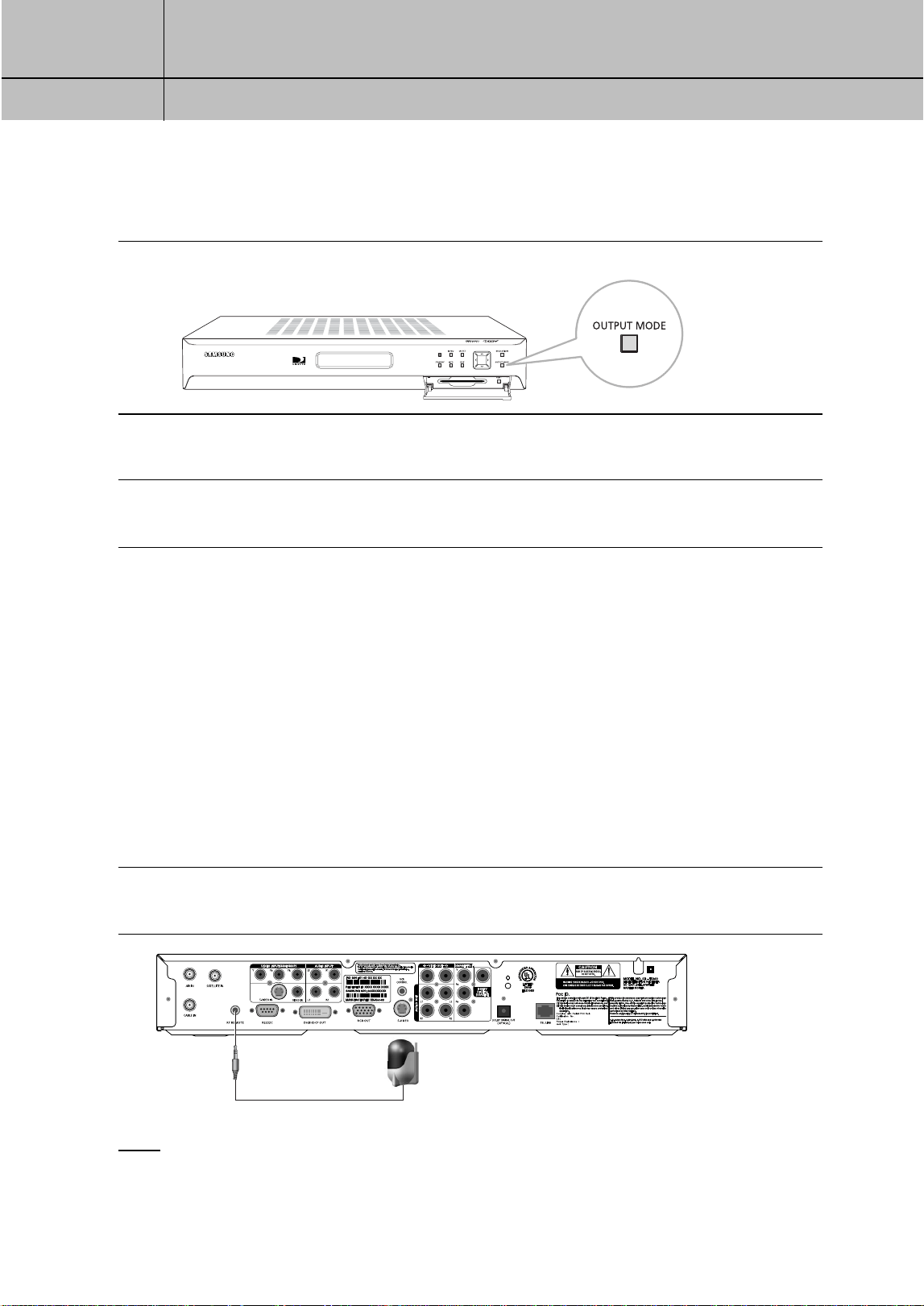
If you connected your TV using RGB/DVI or YP
B
P
R
output, press the output mode button to
select RGB/DVI or YP
B
P
R
output mode.
10
(Optional) follow the instructions on the next page if you have a VCR and
want to hook up the VCR control.
11
Plug in the power cords for your TV, A/V receiver, and DIRECTV
®
HD Receiver.
Setting your TV input button
To view any of the programming from your DIRECTV
®
HD Receiver (satellite, cable, or
off-air), set your TV to display the input from the video input jack you used to connect the
DIRECTV
®
HD Receiver. (This is a setting on your TV usually controlled by a Video, Input,
or Mode button. See your TV manual for help.)
Also, if necessary, set your A/V receiver to play the audio from the audio input jack you
used to make the audio connection. See your A/V receiver manual for help.
Connecting the RF remote cable with RF receiver.
You can operate the Digital Satellite Receiver when installed in a cabinet or from another
room in your house using the RF remote control. (Optional)
1
Connect the RF Receiver to the RF REMOTE jack of the Digital Satellite Receiver.
NOTE
The operating range of the remote control is about 100 feet when connecting the RF receiver.
This may decrease due to ambient reception conditions, weak batteries, obstacle, etc...
SIR-TS360-CHAPTER 3 11/18/03 9:42 AM Page 35
36
CHAPTER 3
Setting up and connecting
3
3
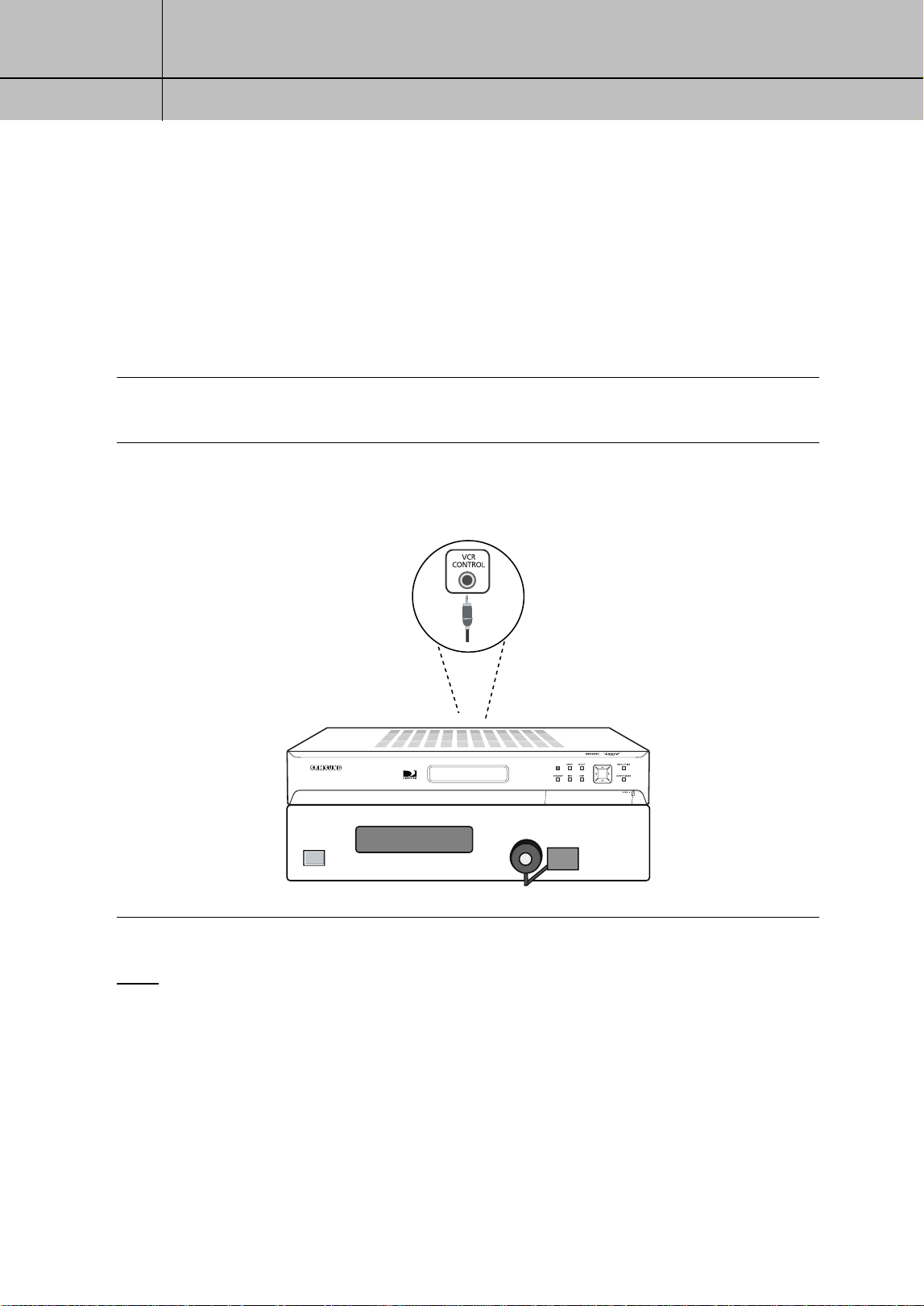
Connecting the VCR control cable
The VCR control cable allows your DIRECTV
®
HD Receiver to automatically program your
VCR to record a TV program.
By selecting a Record option from the on-screen Program Guide, you can direct the VCR
control cable to flash signals to the VCR’s remote control sensor programming the VCR to
tape a TV program for you.
To connect the VCR control cable to your DIRECTV
®
HD Receiver, follow these steps:
1
Plug the VCR control cable into the VCR CONTROL jack on the back of the
DIRECTV
®
HD Receiver.
2
Remove the backing tape from the adhesive on the other end of the VCR control cable.
Stick the VCR control next to the remote control sensor on your VCR. (See the manual for
your VCR if you are not sure where its remote sensor is located.)
NOTE
Before you can use the VCR control cable to program your VCR, you must set up the VCR control.
See Setting up the VCR control in Chapter 5 for details.
SIR-TS360-CHAPTER 3 11/18/03 9:42 AM Page 36
37
CHAPTER 3
Setting up and connecting
3
3
Turning on the DIRECTV
®
HD Receiver for the first time
You have completed the connection steps and are ready to start using your DIRECTV
®
HD
Receiver. The first step is to turn on the DIRECTV
®
HD Receiver.
1
Turn on your TV and set it to display the signal from your DIRECTV
®
HD Receiver.
If you connected the DIRECTV
®
HD Receiver to video input jacks on your TV, you will need to
set your TV to display the input from these jacks.
Usually this is done by pressing a Video, Input, or Mode button on your TV’s remote control.
(See the manual for your TV if you need help.)
2
Press the POWER button on the DIRECTV
®
HD Receiver’s
remote control or on the front of the DIRECTV
®
HD Receiver.
Characters will be displayed on the VFD in the front panel.
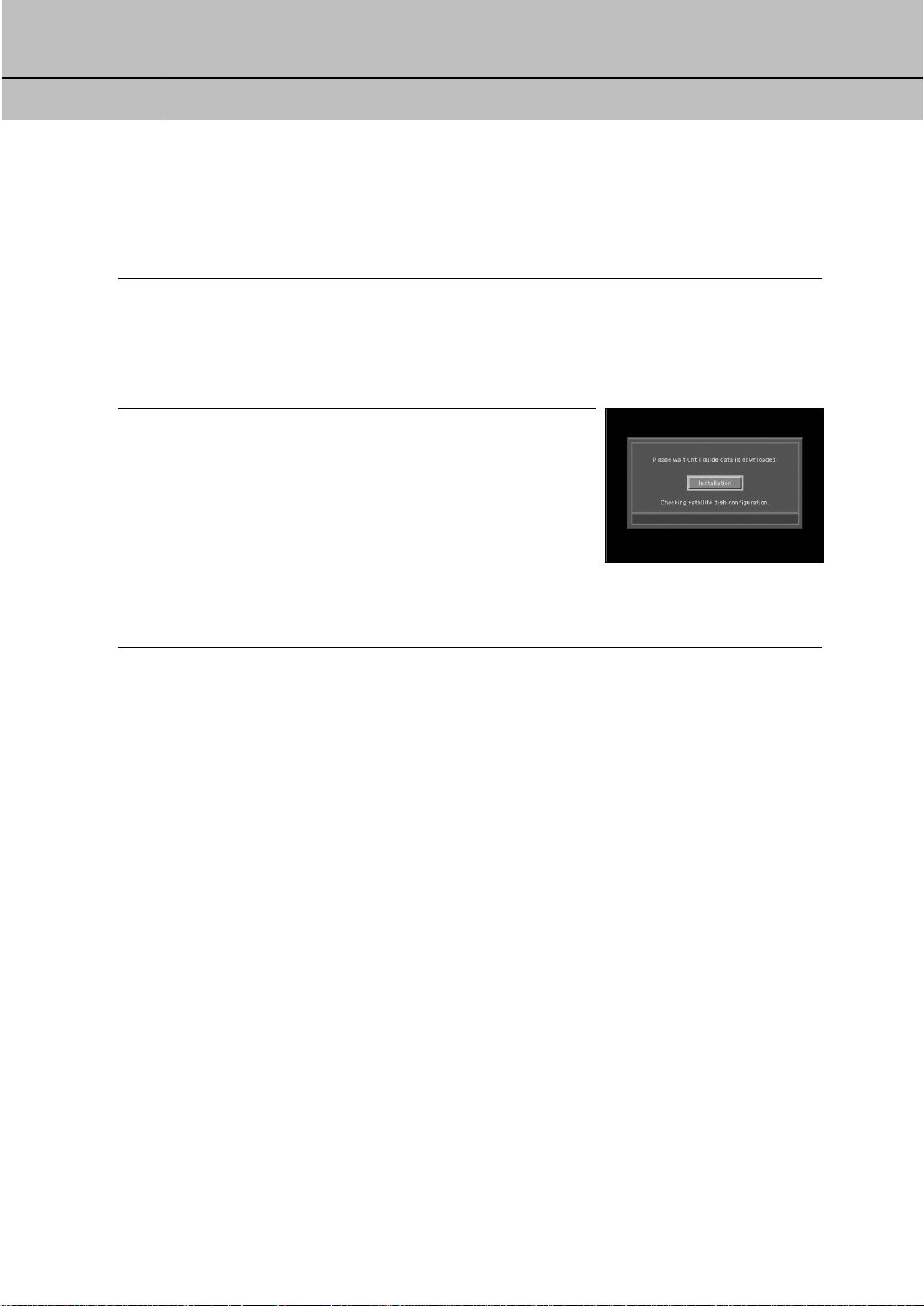
If this is the first time you have turned on your DIRECTV
®
HD
Receiver, it will take a few moments to acquire the program
guide from the satellite. During this process, the Progress
screen appears. When the program guide has been fully
acquired, the Progress screen clears and the TV screen is
displayed. You are ready to continue setting up your
DIRECTV System.
Memorizing Channels
If your DIRECTV
®
HD Receiver is able to acquire the program guide and display TV
programs, your satellite dish is setup and working.
You can skip ahead to the section on Setting the dish type.
If your DIRECTV
®
HD Receiver cannot acquire the program guide, and you intend to watch
DIRECTV
®
programming, you may need to adjust the way your satellite dish is installed.
To do this, first make sure your TV and DIRECTV
®
HD Receiver are turned on and
connected to each other properly.
Then follow the instructions below to use your DIRECTV
®
HD Receiver’s Menu system to
set up your satellite dish.
SIR-TS360-CHAPTER 3 11/18/03 9:42 AM Page 37
38
CHAPTER 3
Setting up and connecting
3
3
The Installation option in the SETUP menu provides access to a variety of important setup
controls. The first of these is the Set Dish menu. The Set Dish menu allows you to:
Acquire the exact azimuth, elevation, and tilt angles to help you point your dish
accurately based on your ZIP code.
Check the setup of your satellite dish using an on-screen signal meter.
Set the dish type (to tell your DIRECTV
®
HD Receiver what kind of
satellite dish you are using).
Set your dish type automatically.
The sections that follow detail each of these procedures.
Acquiring the correct dish pointing angles
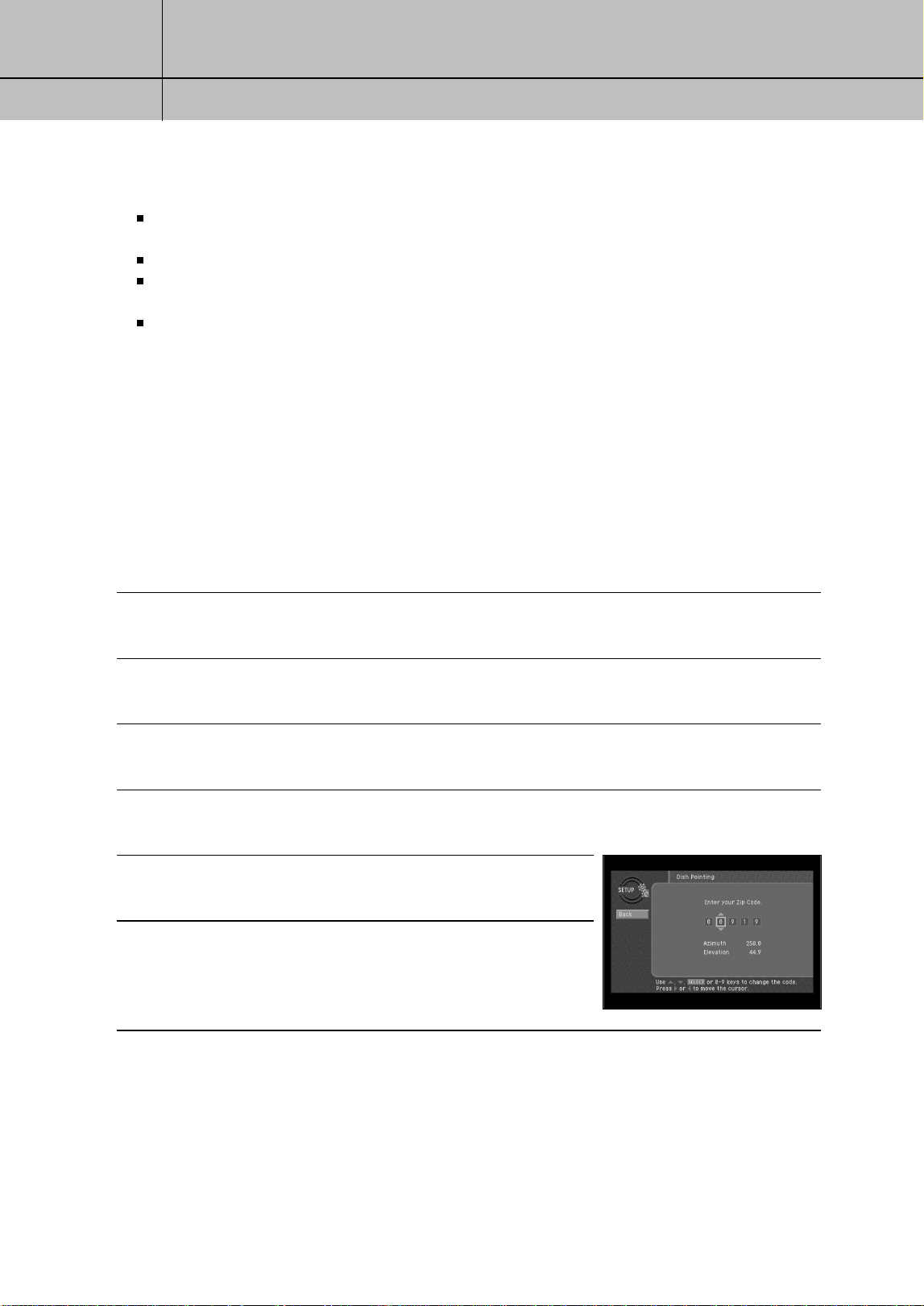
The Dish Pointing menu item in the Set Dish menu allows you to find out exactly how to
point your satellite dish by entering your ZIP code.
If you have not yet successfully aligned your satellite dish, or if you need to realign it,
follow these instructions to find the exact angles you should use to point your dish:
1
Press the MENU button on your remote control.
The Main menu appears.
2
Highlight the SETUP menu item, then press the SELECT button.
The SETUP menu appears.
3
Highlight the Installation menu item, then press the SELECT button.
The Installation menu appears.
4
Highlight the Set Dish menu item, then press the SELECT button.
The Set Dish menu appears.
5
Highlight the Dish Pointing menu item, then press the
SELECT button. The Dish Pointing screen appears.
6
Use the right-arrow button on your remote control to highlight
the space for the first digit in the ZIP code.
SIR-TS360-CHAPTER 3 11/18/03 9:42 AM Page 38
39
CHAPTER 3
Setting up and connecting
3
3
7
Use the 0 - 9 buttons on your remote control to enter your five-digit ZIP code.
When you have entered all five digits, the screen updates to display the correct azimuth,
elevation, and (for oval dish types only) tilt.
Azimuth refers to the left-to-right angle to which you should point your dish.
Elevation refers to the up-and-down angle to which you should point your dish.
Tilt (for oval dishes only) refers to the amount off-horizontal you should twist the dish on its axis.
Write down these numbers and use them to accurately point your satellite dish.
8
To return to the Set Dish menu, press the BACK button on your remote control.
To exit the Menu system, press the EXIT button on your remote control.
Checking the satellite signal strength
The Signal Meter allows you to check the strength of the signal from the satellite to your
satellite dish.
This is useful while setting up your satellite dish, and while troubleshooting any reception
problems you may encounter.
Satellite signal strength can be affected by how accurately you have pointed the satellite
dish, and by any obstructions between the satellite and the satellite dish (tree limbs, for
example).
NOTE
If you connected your DIRECTV
®
HD Receiver to an off-air antenna, you can check the strength of
any digital signals received by that antenna using the Digital Off-Air Signal Strength meter.
Follow the instructions in Programming local channels later in this chapter.
To check your satellite signal strength, follow these steps:
1
Press the MENU button on your remote control.
2
Highlight the SETUP menu item, then press the SELECT button.
3
Highlight the Installation menu item, then press the SELECT button.
4
Highlight the Set Dish menu item, then press the SELECT button.
SIR-TS360-CHAPTER 3 11/18/03 9:42 AM Page 39
40
CHAPTER 3
Setting up and connecting
3
3
5
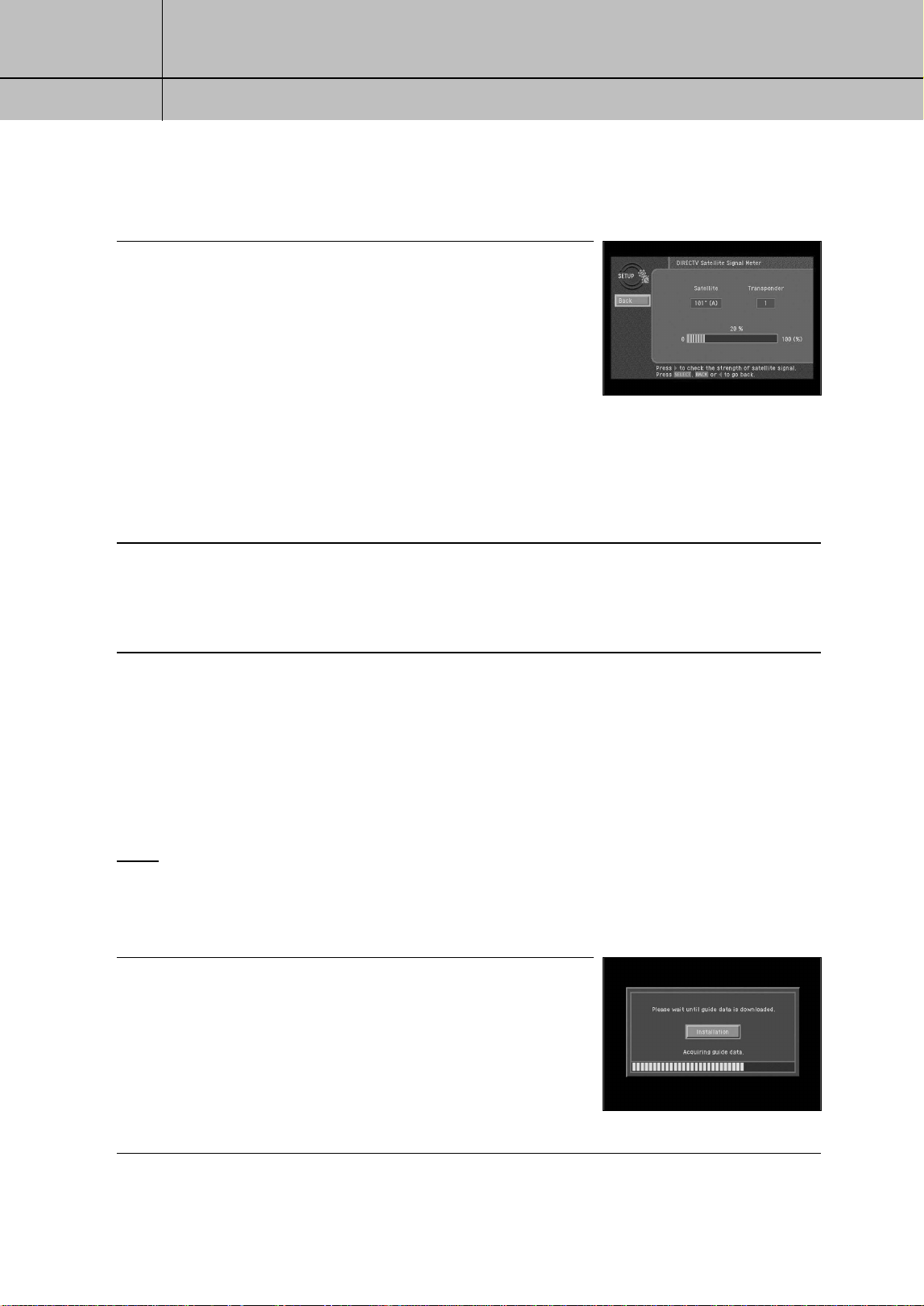
Highlight the Signal Meter menu item, then press the SELECT
button. The Signal Meter screen appears.
The signal meter starts checking the satellite signal strength
immediately. The signal strength (from 0-to-100%) is indicated
at the bottom of the screen. The Signal Meter screen allows
you to check signal strengths from different Satellites, and
different Transponders. The Satellites option applies only to
oval-shaped satellite dishes which receive signals from multiple
satellites. On round dishes, the Satellite setting is fixed. Transponders are the equipment on
satellites that receive the signal from the earth-based program providers and relay it back to
earth to your satellite dish. Different transponders handle the signals for different TV channels.
When setting up your satellite dish, you should try to maximize the signal strength across all
of the satellites and transponders.
6
To check the signal strength for different satellites (oval dishes only), or different transponders,
use the left- and right-arrow buttons on your remote control to highlight the on-screen Satellite
or Transponder option, then use the up- and down-arrow buttons to change the setting.
The signal meter updates to show you the signal strength for the new satellite or transponder.
Setting the dish type
To function properly, your DIRECTV
®
HD Receiver needs to know what type of satellite
dish you are using.
You can specify the dish type using the instructions here, or you can follow the steps on
page 33 to use the Auto Detection menu item to automatically set the dish type.
NOTE
For DIRECTV
®
High-Definition programming, you will need an oval triple LNB satellite dish antenna.
To manually set the dish type:
1
If the Progress screen (shown here) is on your TV screen,
select Installation by pressing the SELECT button.
If this screen is not displayed, access the Main Menu
by pressing the MENU button on your remote control.
Then use the arrow buttons on your remote control to
highlight the Setup menu, and press the SELECT button.
Then highlight the Installation menu, and press the
SELECT button. The Installation menu appears.
SIR-TS360-CHAPTER 3 11/18/03 9:42 AM Page 40
41
CHAPTER 3
Setting up and connecting
3
3
2
Highlight the Set Dish menu item, then press the SELECT button.The Set Dish menu appears.
3
Highlight the Select Dish Type menu item, then press the SELECT button.
The Select Dish Type screen appears.
4
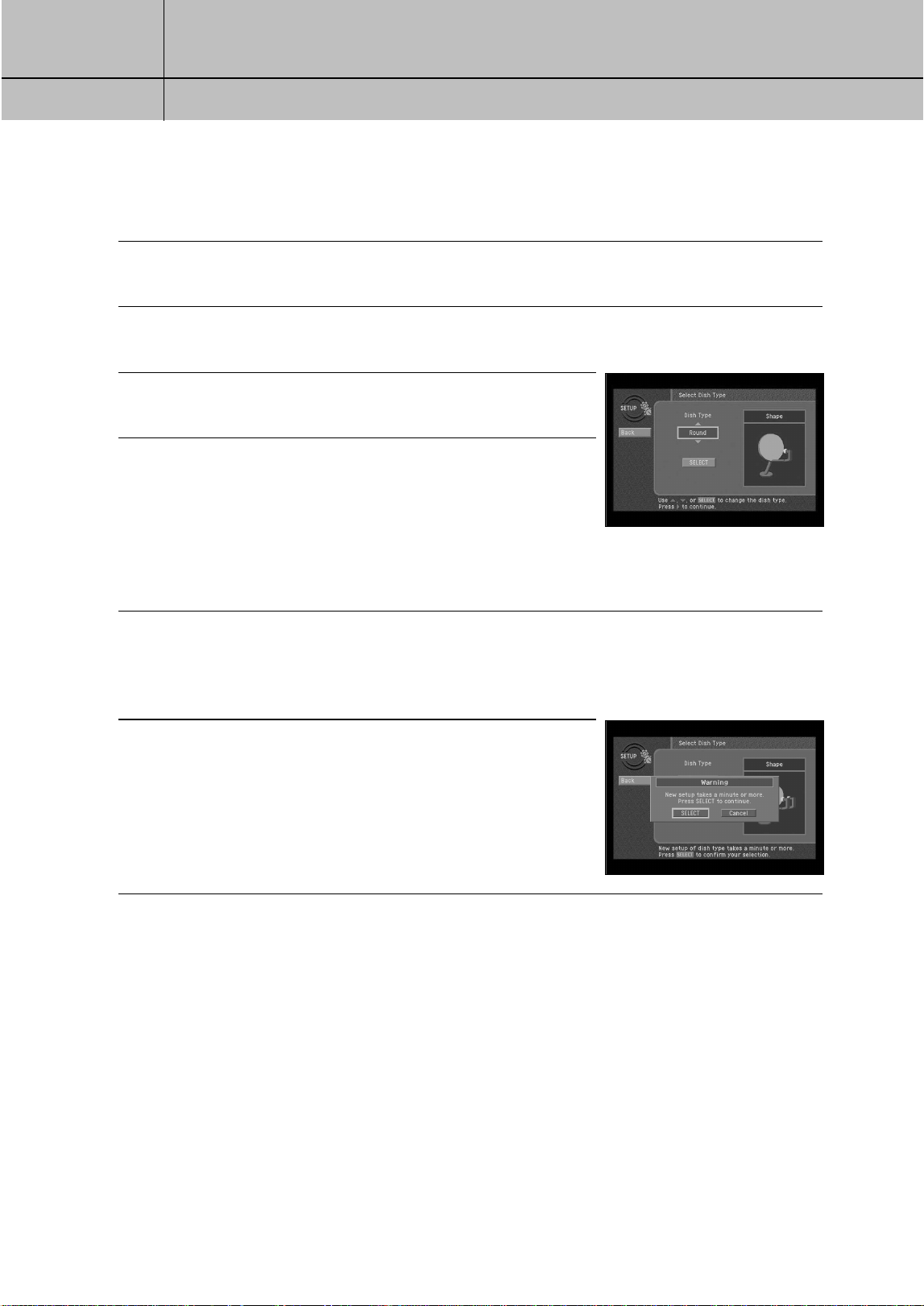
Use the right-arrow button on your remote control to highlight
the Dish Type option on the Select Dish Type screen.
5
Use the up- and down-arrow buttons on your remote control
to display the dish type you are using (Round, Oval-2, Oval-3,
or No Dish). As you display each dish type, the on-screen
pictures update showing you what each of these dish types
look like. If you plan to use your DIRECTV
®
HD Receiver for
local off-air or cable TV programs, but do not plan to receive
DIRECTV
®
programming, select No Dish.
6
A message appears warning you that your DIRECTV
®
HD Receiver needs to reboot (turn itself
off and on) for the Dish Type setting to take effect. When you have displayed the correct dish
type, use the right-arrow button on your remote control to highlight the on-screen SELECT
button, then press the SELECT button.
7
To change the Dish Type to the new setting, highlight the
on-screen SELECT button, then press the SELECT button.
To leave the Dish Type setting unchanged, highlight the
on-screen Cancel button, and press the SELECT button.
After you select the on-screen SELECT button, the DIRECTV
®
HD Receiver will reboot.
If you selected No Dish, the DIRECTV
®
HD Receiver will perform an auto-scan to put your
cable and off-air channels into its memory so you can tune them and see them in the
on-screen Guide.
SIR-TS360-CHAPTER 3 11/18/03 9:42 AM Page 41
42
CHAPTER 3
Setting up and connecting
3
3
Using Auto Detection to set the dish type
To function properly, your DIRECTV
®
HD Receiver needs to know what type of satellite
dish you are using.
You can specify the dish type using the instructions on page 31, or you can follow the
steps below to use the Auto Detection menu item to automatically set the dish type.
Before you can use Auto Detection to set the dish-type, the dish must be correctly aligned
and the DIRECTV
®
HD Receiver must be receiving a strong signal from the satellite (that is,
signal-lock must be established).
To check the satellite signal, use the signal meter — see page 30 for details.
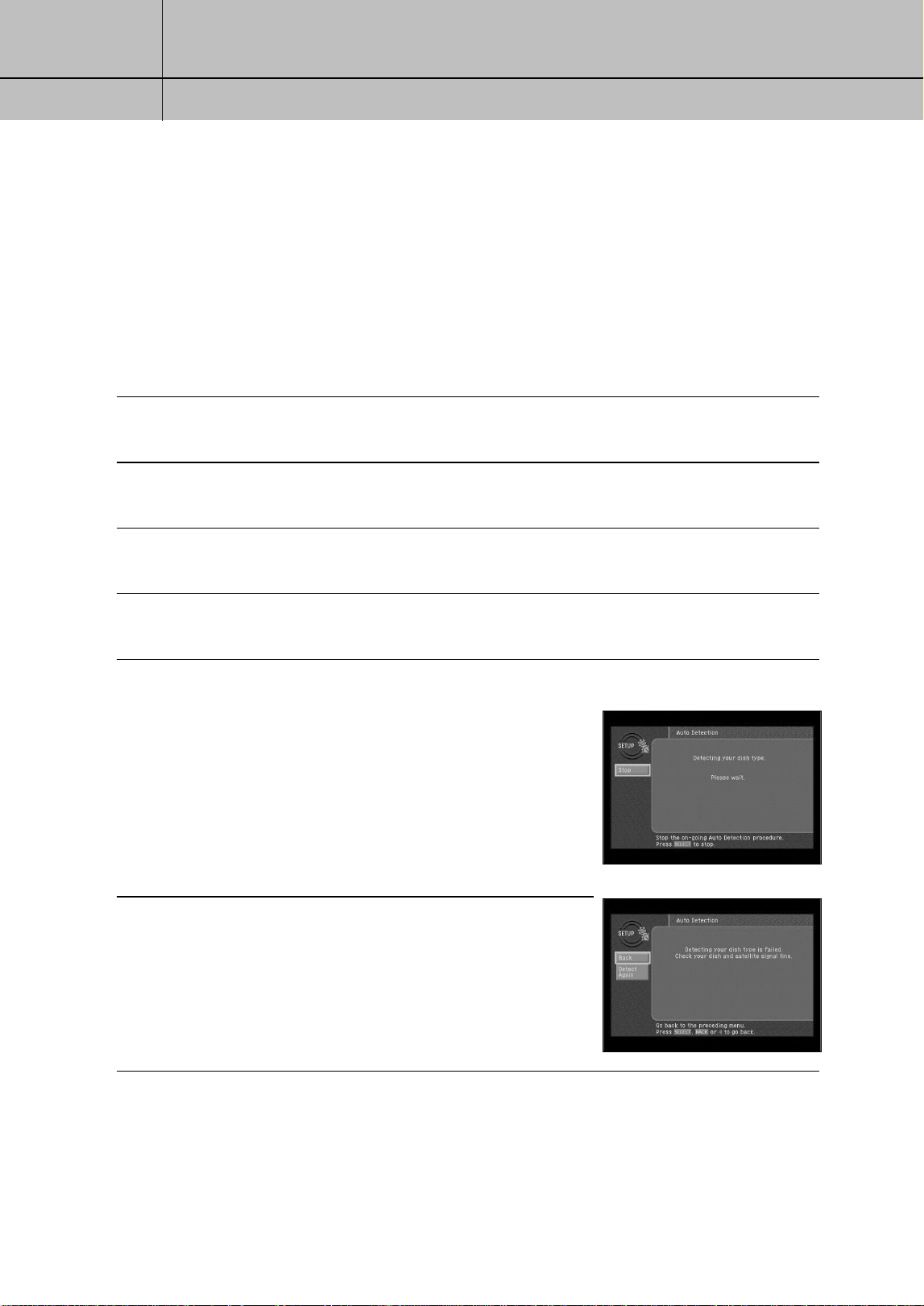
1
Press the MENU button on your remote control.
2
Highlight the SETUP menu item, then press the SELECT button.
3
Highlight the Installation menu item, then press the SELECT button.
4
Highlight the Set Dish menu item, then press the SELECT button.
5
Highlight the Auto Detection menu item, then press the SELECT button.
The Auto Detection screen appears.
The DIRECTV
®
HD Receiver starts attempting to identify the
dish type. You can stop the detection process by using the
arrow buttons on your remote control to highlight the
on-screen Cancel button, then press the SELECT button.
Once the dish type has been identified, a screen appears
telling you what type of satellite dish you have.
6
To accept the detected dish type setting, use the arrow buttons
on your remote control to highlight the on-screen BACK button,
then press the SELECT button. The DIRECTV
®
HD Receiver will
reboot.
SIR-TS360-CHAPTER 3 11/18/03 9:42 AM Page 42
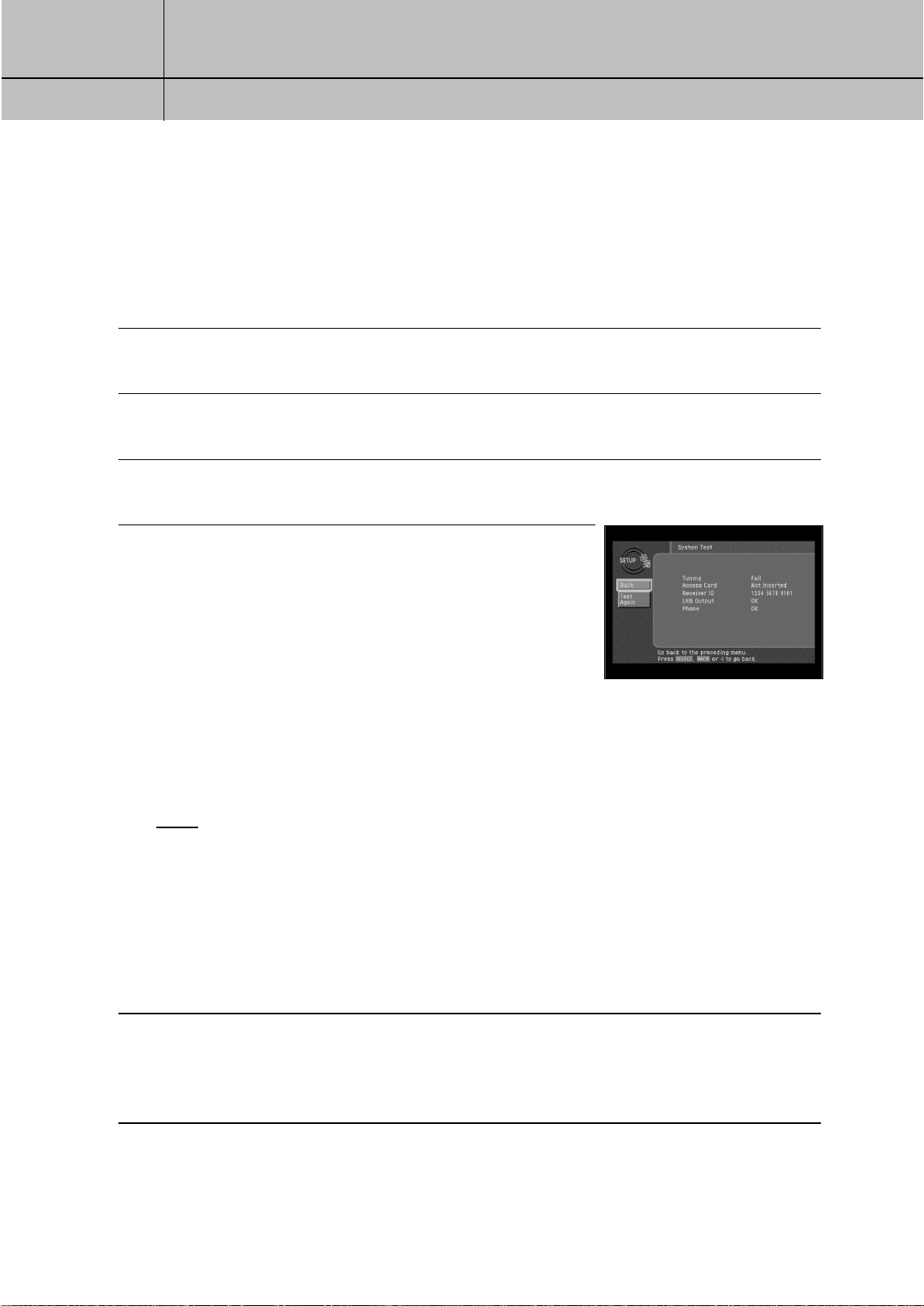
43
CHAPTER 3
Setting up and connecting
3
3
Testing the DIRECTV
®
HD Receiver
The System Test feature allows you to quickly check the status of the satellite signal, your
Access Card, Receiver ID, LNB Output, and your Phone line connection. This is helpful
while troubleshooting any problem you may experience with your DIRECTV
®
HD receiver.
To start the System Test, follow these steps:
1
Press the MENU button on your remote control.
2
Highlight the SETUP menu item, then press the SELECT button.
3
Highlight the System menu item, then press the SELECT button.
4
Highlight the System Test menu item, then press the SELECT
button. The System Test screen appears.
The test will begin as soon as the screen appears.
Results are displayed in a moment.
If the test discovers a problem with the satellite tuning, check
that the satellite dish is pointed properly, and that nothing is
obstructing the direct view to the satellite.
If the test discovers a problem with the Access Card, check
that the card is properly inserted. (See Inserting the Access
Card in Chapter 2 for details.)
If the test discovers a problem with the Receiver ID, contact an authorized call center.
NOTE
The Receiver ID is printed on the rear panel of your receiver and consists of twelve digits.
If the test discovers a problem with the LNB output, check an antenna signal operates before
contacting an authorized call center.
For problems with the phone line connection, be sure that the DIRECTV
®
HD Receiver is
connected to a phone line, and that the phone line is working. (Try plugging a telephone into
the line you are using for the DIRECTV
®
HD Receiver; check to see if the phone gets a dial
tone. If so, the line is working.)
5
When you have finished the Signal Strength test, you can run the test again using the on-screen
Test Again button, exit the Menu system by pressing the EXIT button on your remote control,
or use the arrow keys to highlight on-screen BACK button, then press the SELECT button to
return to the System menu.
SIR-TS360-CHAPTER 3 11/18/03 9:42 AM Page 43
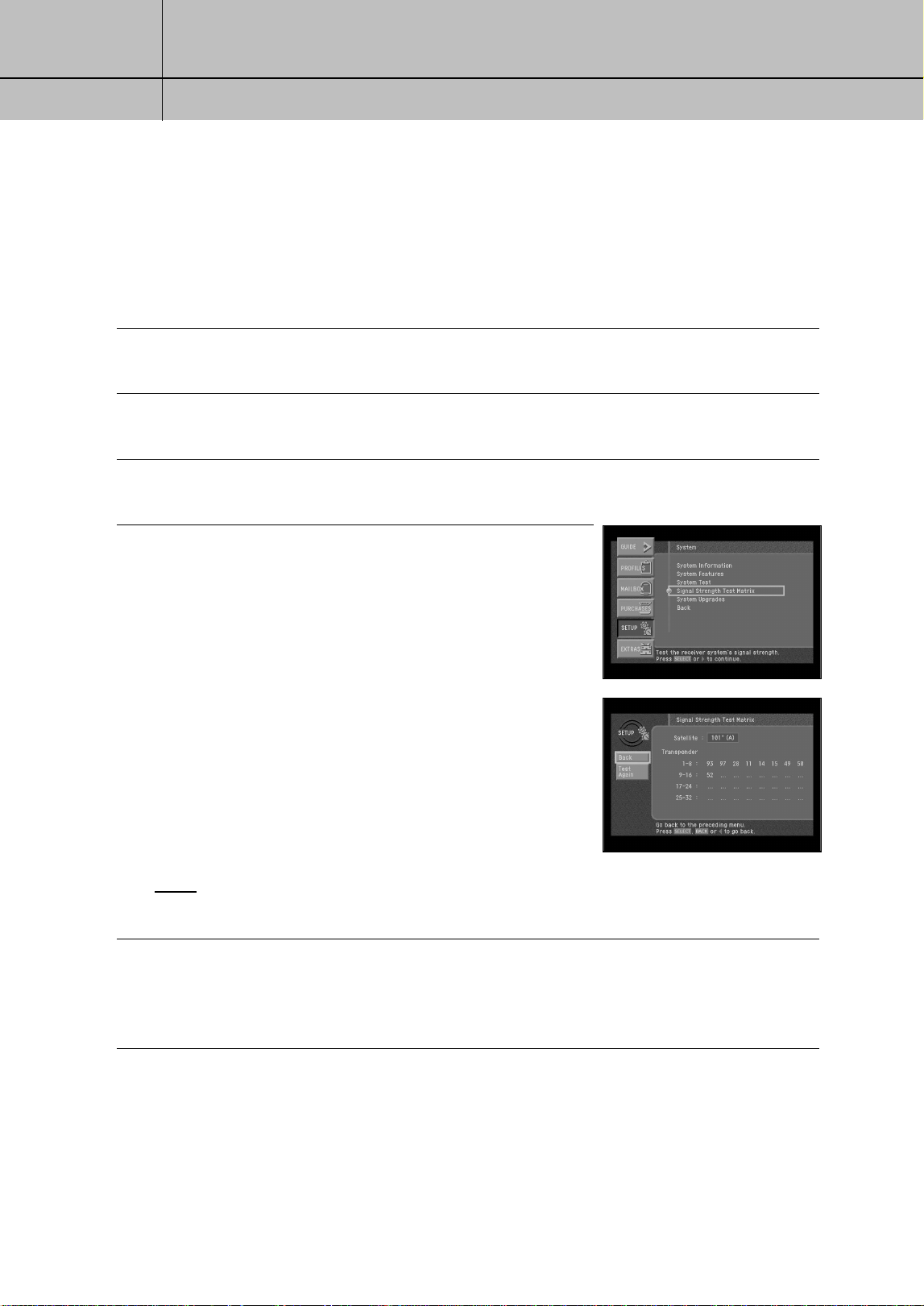
44
CHAPTER 3
Setting up and connecting
3
3
Testing the Signal Strength
The DIRECTV HD Receiver shall have a matrix that shows the signal strength of all
transponders per orbital position in one table. This matrix is in addition to showing the
signal strength of each active transponder individually in the system setup menu.
To start the Signal Strength test, follow these steps:
1
Press the MENU button on your remote control.
2
Highlight the SETUP menu item, then press the SELECT button.
3
Highlight the System menu item, then press the SELECT button.
4
Highlight the Signal Strength Test Matrix item, then press
the SELECT button. The Signal Strength Test Matrix screen
appears. The test will begin as soon as the screen appears.
Results are displayed in a moment.
NOTE
Transponders that are inactive shall have “n/a” in place of a signal strength number.
5
When you have finished the system test, you can run the test again using the on-screen
Test Again button, exit the Menu system by pressing the EXIT button on your remote control,
or use the arrow keys to highlight on-screen BACK button, then press the SELECT button to
return to the System menu.
SIR-TS360-CHAPTER 3 11/18/03 9:42 AM Page 44
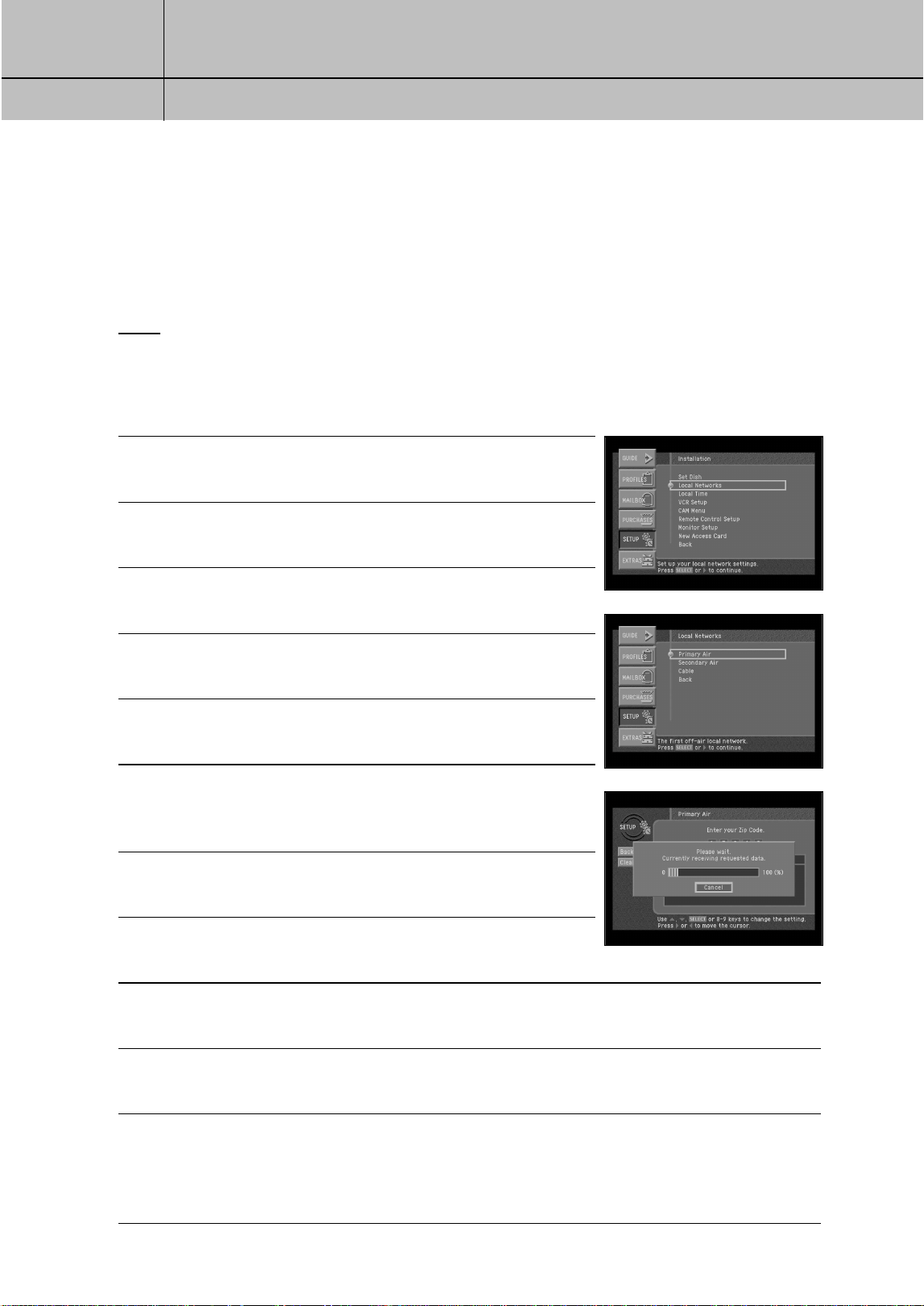
45
CHAPTER 3
Setting up and connecting
3
3
Setting up local networks
You can use your DIRECTV
®
HD Receiver to receive Guide information via satellite for
local off-air and cable TV channels. To use this feature, you must connect your DIRECTV
®
HD Receiver to a satellite dish as described earlier in this chapter, and you must set up the
Local Networks option in the menu system.
NOTE
If you do not connect your DIRECTV
®
HD Receiver to a satellite dish and subscribe to
DIRECTV
®
programming, you can still add local channels to the Guide by following the instructions
in the next section.
To set up the Local Networks menu option:
1
Press the MENU button on your remote control.
2
Highlight Setup, and press the SELECT button.
3
Highlight Installation, and press the SELECT button.
4
Highlight Local Networks, and press the SELECT button.
5
Highlight Primary Air, and press the SELECT button.
6
Highlight the first box in the ZIP code area, then use the
number buttons on your remote control to enter your ZIP code.
After a while, a list of cities appears below your ZIP code.
7
Highlight the name of the city from which your local channels
are broadcast, and press the SELECT button.
8
Highlight the on-screen BACK button, and press the SELECT
button. You return to the Local Networks screen.
9
(Optional) If you receive off-air broadcasts from a second city, highlight Secondary Air, and
press the SELECT button. Repeat steps 6 - 8 for the second city.
10
(Optional) If you receive programming from a cable TV service, highlight Cable, and press
the SELECT button. Repeat steps 6 - 8 for the cable service.
11
When you have finished entering your local broadcast and cable TV information, press the
EXIT button on your remote control. The DIRECTV
®
HD Receiver will reboot (turn itself off
and then back on). After rebooting, the DIRECTV
®
HD Receiver will acquire and provide
Guide information for your local off-air and cable TV channels.
SIR-TS360-CHAPTER 3 11/18/03 9:42 AM Page 45
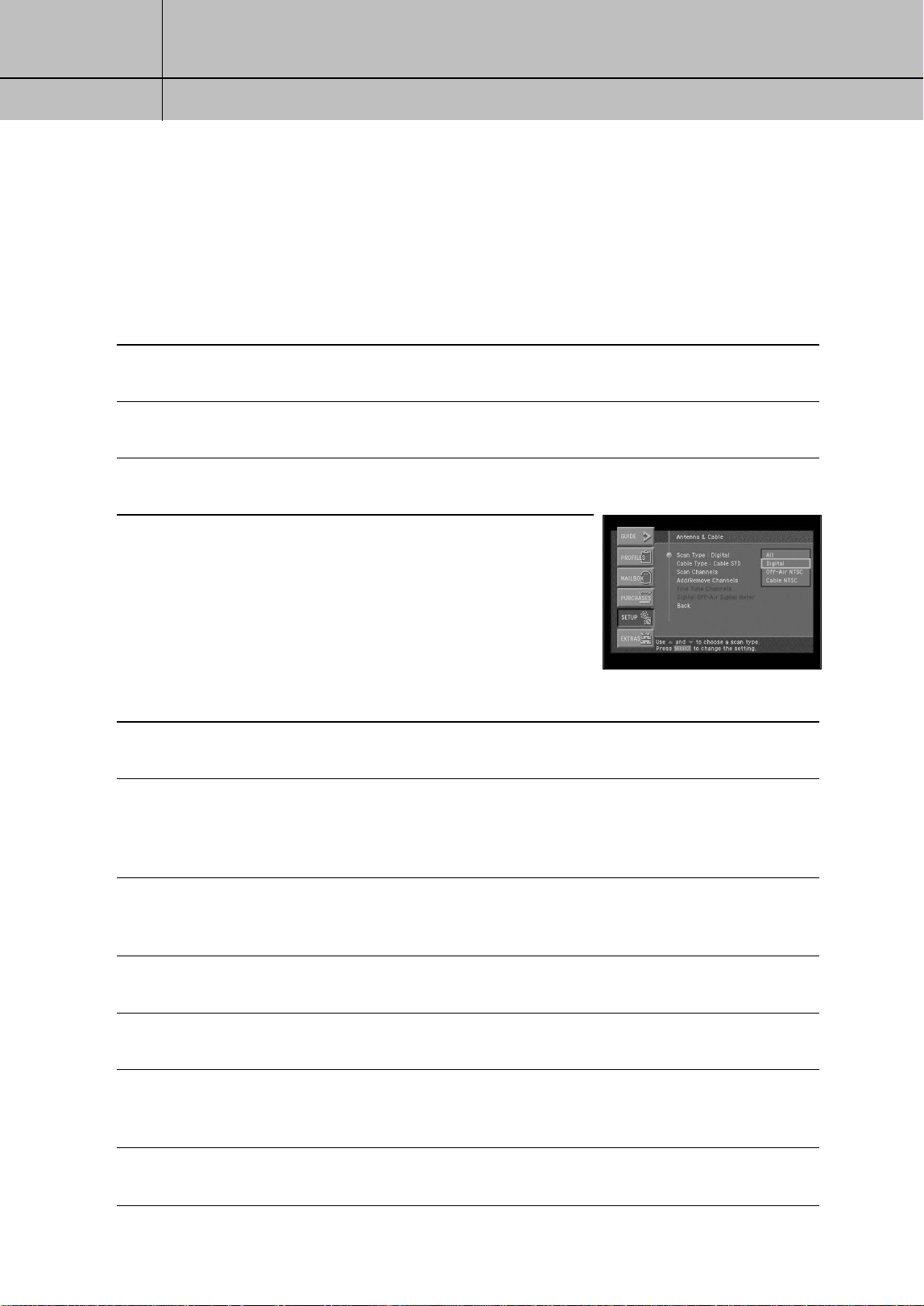
46
CHAPTER 3
Setting up and connecting
3
3
Scanning off-air and cable TV channels
The Guide can receive programming information for local and cable channels via satellite
(as described in the previous section). Your DIRECTV
®
HD Receiver can also add off-air
and cable TV channels to the Guide by scanning for signals from any off-air antenna or
cable TV service connections you have provided.
Follow this procedure to scan for channels from an off-air antenna and cable TV service
connected to your DIRECTV
®
HD Receiver.
1
Press the MENU button on your remote control.
2
Highlight the SETUP menu item, and press the SELECT button.
3
Highlight the Antenna & Cable menu item, and press the SELECT button.
4
Highlight the Scan Type menu item and press the SELECT
button to display the list of available channel types. The Scan
Type list appears allowing you to choose to set your DIRECTV
®
HD Receiver to automatically scan for channels from Digital
sources (off-air ATSC broadcasts), Off-Air NTSC sources
(standard TV broadcasts), Cable NTSC (standard cable TV
services), or all of these. If this is the first time you are setting
up this DIRECTV
®
HD Receiver to receive local channels, the
All setting is recommended.
5
Highlight the Scan Type option that matches the type of broadcasts you would like to program
into your DIRECTV
®
HD Receiver, then press the SELECT button.
6
Next, set your cable TV type by highlighting the Cable Type menu item and pressing SELECT.
Then highlight the type of cable signal your cable TV service provides (STD, HRC, or IRC),
and press the SELECT button. STD, HRC and IRC are signal formats used by cable TV services.
Contact your Cable TV service provider to determine which signal type they use.
7
Highlight the Scan Channels menu item, and press the SELECT button. The Scan Channels
screen appears and the DIRECTV
®
HD Receiver automatically starts looking for all available
channels of the type you specified in the Scan Type list. Wait until the scan is completed.
8
If the automatic scan included any channels that you do not intend to watch, you can edit the
channel list by using the Add/Remove Channels menu item in the Antenna & Cable menu.
9
If any of the off-air antenna channels appear out-of-tune, you can fine tune them using the Fine
Tune Channels item in the Antenna & Cable menu.
10
If you have added digital channels from an off-air antenna, you can check the signal
strength for that channel by using the Digital Off-Air Signal Strength menu item in the
Antenna & Cable menu.
11
To exit the Menu system press the EXIT button on your remote control.
SIR-TS360-CHAPTER 3 11/18/03 9:42 AM Page 46

47
CHAPTER 3
Setting up and connecting
3
3
Activating your DIRECTV account
After you have installed and connected the the satellite dish and DIRECTV
®
HD Receiver,
you must contact your service provider to create an account.
To order programming from DIRECTV, please call 1-800-DIRECTV (1-800-347-3288).
Check with your retailer or visit www.DIRECTV.com for information on availability of local
channels from DIRECTV in your area.
DIRECTV
®
programming is provided in accordance with the terms and conditions of the
DIRECTV Customer Agreement, which is provided at DIRECTV.com or with your first
DIRECTV bill.
Activation of programming may be subject to credit approval and requires valid service
address, social security number and/or major credit card. Deposit or prepayment may be
required.
Programming subject to change.
You must be physically located in the U.S. to receive DIRECTV service.
DIRECTV services not available outside the U.S.
DIRECTV programming is sold separately and independently of DIRECTV
®
System
hardware.
A valid programming subscription is required to operate DIRECTV System hardware.
Upgrades
Your digital satellite receiver is able to receive upgrades or modifications to some of its
features and functions.
These modifications will occur automatically, usually at times
when the receiver would likely be turned off.
If your receiver is on when an upgrade or modification is sent, you may experience a
disruption in reception for a minute or two.
Your reception should return to normal after the modification is complete.
Your receiver must be plugged in to receive any
upgrades. Do not unplug your receiver while an upgrade is in progress.
Please consult the System Upgrades menu item (in the System section of the Setup menu)
to find a schedule of upgrades or modifications planned by DIRECTV.
SIR-TS360-CHAPTER 3 11/18/03 9:42 AM Page 47
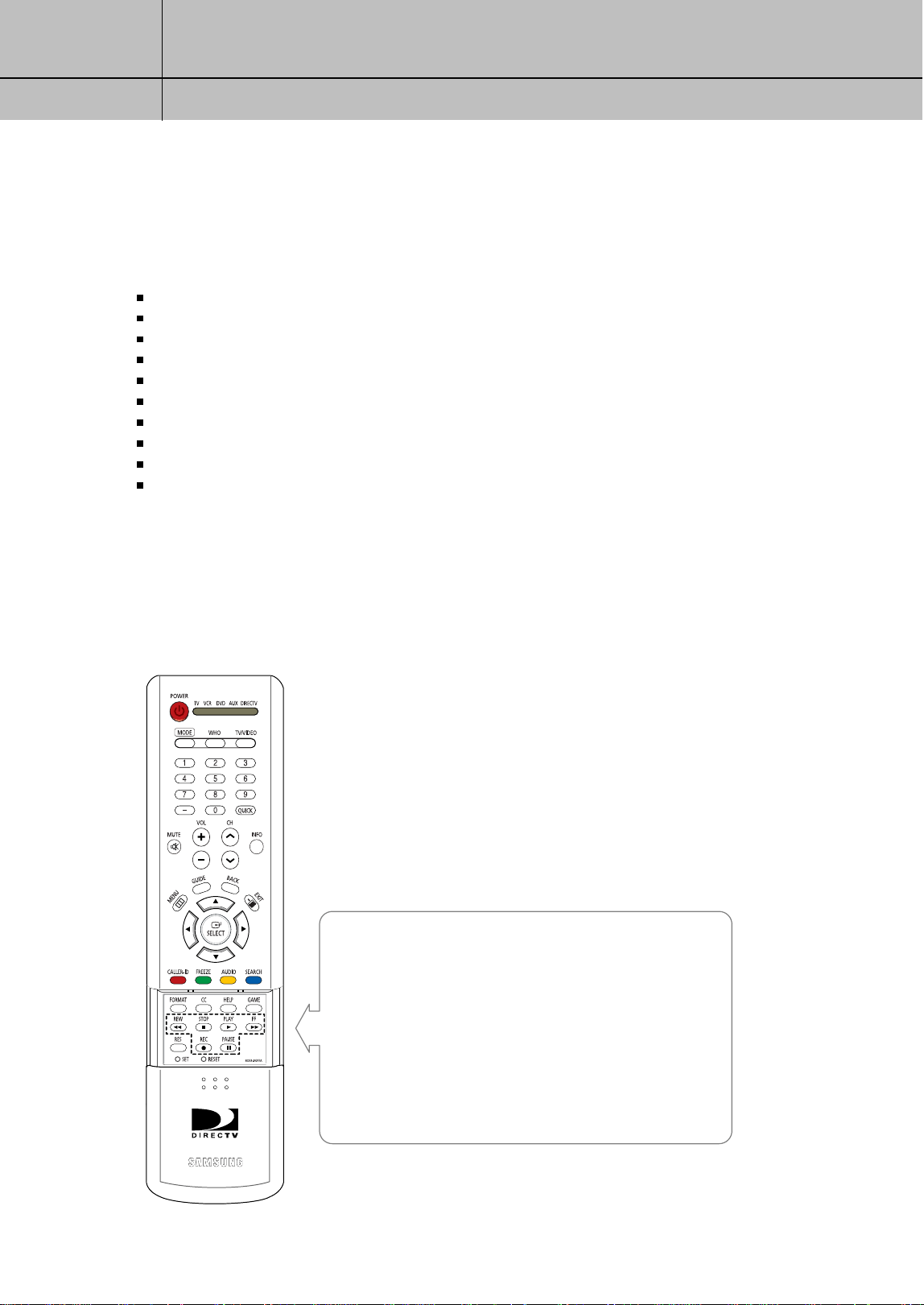
48
CHAPTER 4
Watching TV
4
4
Chapter 4: Watching TV
This chapter covers all of the things you can do with the Program Guides and
other features that let you control the way you watch TV.
Specifically, it contains information on:
Remote control overview
Changing channels
Adjusting the volume
Getting help
Getting information on the TV program you are watching
Finding out what’s on: the Guides
Searching for programs in the Guide
Choosing an alternate audio format for a program
Changing the User setting
Pay per view programs
Remote control overview
Here is a quick review of the buttons on your DIRECTV
®
HD Receiver’s remote control.
Before your DIRECTV HD Receiver’s remote control can operate your TV, VCR, DVD
player, or other device, you must first program the remote control to operate that device.
See Chapter 8: Programming the remote control.
VCR Control Buttons
œœ
Used for rewinding
√
Plays the videotape or DVD disc
√√
Used for fast-forwarding
●
Saves the current channel to the VCR
■
Used for stopping play
❙❙
To pause or play video.
SIR-TS360-CHAPTER 4 11/18/03 11:19 AM Page 48

49
CHAPTER 4
Watching TV
4
4
POWER
Turns the device you are controlling on or off.
SET
Use this button when programming your remote control to
operate your TV, VCR, DVD player, or an auxiliary device (AUX).
See Chapter 8, Programming the remote control.
MODE
These buttons tell the current state of your remote control.
Selects a target device to be controlled i.e., TV, VCR, DVD,
AUX, DIRECTV.
These buttons work only after the remote control has been
programmed.
VOL+/-
Adjust the volume level of your TV (once the remote control
has been programmed). You can control the volume when in TV,
DIRECTV, or VCR mode.
MUTE
Mute or unmute the TV audio (once the remote control has
been programmed).
TV/VIDEO
Button the TV between its video input modes (Once the remote
control has been programmed) if the TV mode is selected.
In the DIRECTV mode, it will be used for external input switching.
CH
Change channels on your DIRECTV HD Receiver or your TV
(once the remote control has been programmed).
INFO
Display the Channel Banner and information about the
current program.
HELP
Display instructions about the screen or menu currently
displayed.
WHO
Press to change the current user profile.
QUICK
Press this button to view the Quick Guide.
MENU
Press this button to display the on-screen Menu.
GUIDE
Press to view the on-screen Program Guide.
Up/Down/Left/Right arrows
These buttons move the highlight to any on-screen
Guide or Menu selection.
SELECT
Select highlighted items in the on-screen Menu or Guide.
BACK
Return to the channel you were last watching, or return to a
previous Menu.
EXIT
Exit any Guide or Menu screen and return to the TV program
you were watching.
CALLER ID (red button)
Displays the phone numbers of callers who called you on the
phone line connected to your DIRECTV
®
HD Receiver (works only
if you subscribe to your telephone service’s caller ID service).
While in the Guide, this button lets you change the Guide style.
FREEZE (green button)
Takes a still picture of the TV screen. Press it again to resume
the program you were watching. In the Guide, this button lets
you see program listings for different times.
AUDIO (yellow button)
While watching TV, press this button to select an alternate
audio track. While in the Guide, this button lets you view
programs in selected categories.
SEARCH (blue button)
Press this button to search for a program listing in the Guide.
Number and delimiter buttons (0-9, – )
Press the number buttons to tune to a channel or to enter
numbers on Menu screens. Press the delimiter button (-) to
separate parts of a number.
GAME
Accesses games you can play.
FORMAT
Cycles through the formats available for your display type.
CC
Displays and hides Closed Caption text.
VCR control buttons
VCR control buttons operate your VCR with the Play, Rewind,
Fast-Forward, Record, Stop and Pause buttons (once the remote
control has been programmed).
RES
Changes the screen resolution.
RESET
Resets the remote control.
SIR-TS360-CHAPTER 4 11/18/03 9:43 AM Page 49
50
CHAPTER 4
Watching TV
4
4
Changing channels
Your DIRECTV HD Receiver can tune in DIRECTV programming, and, if you have
connected an off-air antenna or cable TV cable, it can tune in your local off-air NTSC and
digital broadcasts or cable TV programs.
All available channels from any of these sources will appear in the Guide, and can be
tuned in using the CH buttons and the 0 - 9 number buttons on your remote control.
The Channel Banners that appear on the screen as you change channels (or when you
press the INFO button) indicate the signal type for the program you are watching
(Satellite, Analog, or Digital). Satellite indicates the program on the current channel is
being received through your satellite dish. Analog indicates that the program is an NTSC
program from a cable company or off-air antenna. Digital indicates the program is a
Digital TV broadcast (either HDTV or SDTV) being received from a cable TV connection
or off-air antenna. (See Chapter 1 for discussions of the types of TV programming your
DIRECTV
®
HD Receiver can receive.)
To change the channel you are watching:
1
Press the CH button on the remote control to tune to a higher channel number.
Press the CH button to tune to a lower channel number.
2
Enter a channel number directly with the 0 - 9 number buttons. After entering a number,
press the SELECT button or wait a few seconds for the system to tune to the new channel.
For some broadcasts, you may need to enter a two-part number to specify a channel and
a sub-channel (entering 5–1, for example, would tune you to channel 5, sub-channel 1).
To enter two-part channel numbers, use the number buttons to enter the first number, then
press the delimiter button ( – ), then enter the second number.
3
Use the Quick Guide or full-screen Program Guide to change channels.
Adjusting the volume
To adjust the volume while watching DIRECTV programming, you simply press the
VOL + button on the remote control to increase the volume or the VOL - button to
decrease the volume. In order for the DIRECTV
®
HD Receiver’s remote control to adjust
your TV’s volume setting, you will have to program the remote control to operate
your TV. (See Chapter 8: Programming the remote control.)
Getting help
While using the Guide or Menu systems, you will often see a line of text at the bottom
of the screen explaining what you are seeing on-screen, or telling you what your next
step is. When this brief explanation is not enough, you can view more detailed Help
screens by pressing the HELP button on your remote control.
SIR-TS360-CHAPTER 4 11/18/03 9:43 AM Page 50
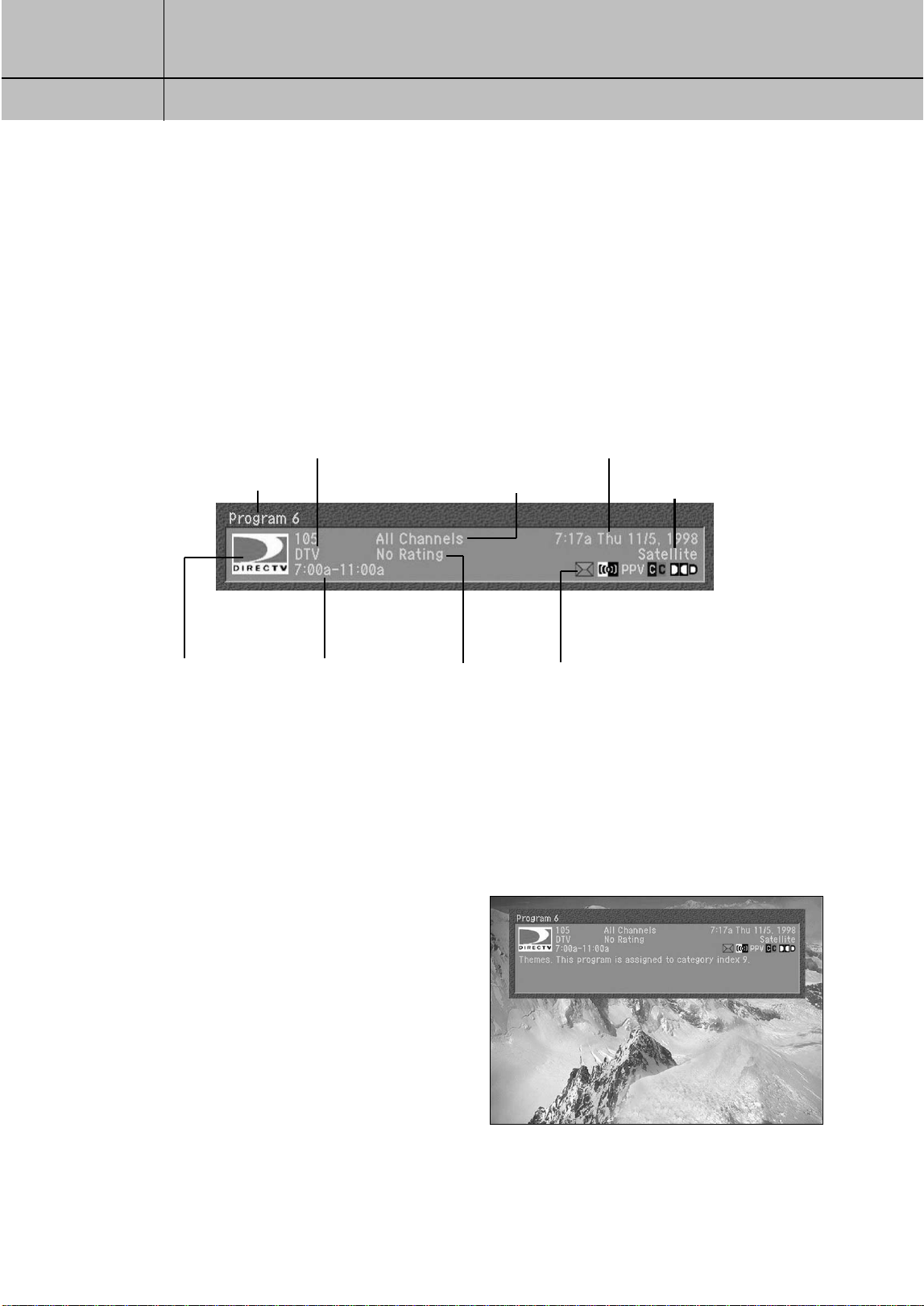
51
CHAPTER 4
Watching TV
4
4
Getting information on the TV program you are watching
Your DIRECTV
®
HD Receiver provides several layers of information about the TV programs
you watch.
The Channel Banner
As you change channels you will see a Channel Banner on each channel you tune to.
After a few seconds, the Channel Banner disappears. If you want to clear it right away,
press the EXIT button on your remote control.
The Channel Banner provides the following information:
The Full Channel Banner
The Channel Banner provides quick information as you button channels on your DIRECTV
®
HD Receiver. If you want to see information about the channel you are currently watching,
simply press the INFO button on your DIRECTV
®
HD Receiver’s remote control. Pressing the
INFO button displays the Full Channel Banner.
The Full Channel Banner displays all the
information in the Channel Banner, plus
more details about the program.
For example, the Full Channel Banner for
a movie might display the category for the
movie (drama, comedy, action/adventure,
etc.), the cast, the year it was released, and
a short description of the plot. You can clear
the Full Channel Banner from your screen by
pressing the EXIT button on your remote
control.
Channel number and name
Channel logo Program start
and end times
Program rating Information icons
(See next page for details.)
Current time and date
Current user profile
Signal type and
audio format
Program title
SIR-TS360-CHAPTER 4 11/18/03 9:43 AM Page 51
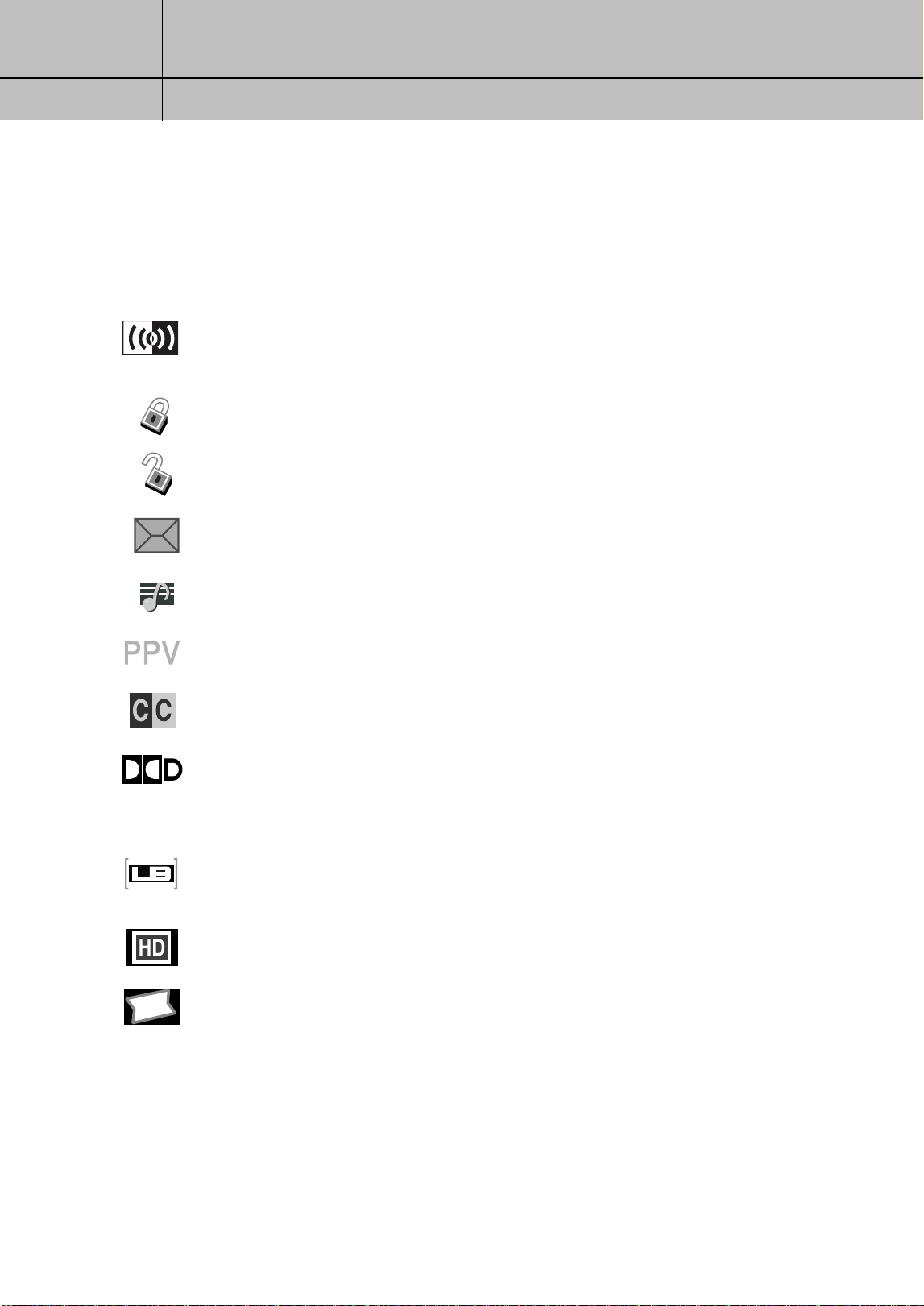
52
CHAPTER 4
Watching TV
4
4
Information icons
In addition to the basic channel and program information contained in the Channel
Banners (program title, channel name, rating, etc.), there are a set of information icons.
These icons tell you more about the program you are watching and about the status of
your DIRECTV
®
HD Receiver. Here are descriptions of each icon:
The Program Detail Screen
If you want to see more information than is presented in either the Channel Banner or
the Full Channel Banner, you can press the INFO button twice to display the Program
Detail Screen.
The Program Detail Screen displays all of the information provided in the Channel
Banner and Full Channel Banner, plus complete details about the program and a list of
actions you can take related to the program.
Multi-language
This icon appears when additional audio tracks are available.
Press the yellow AUDIO button to choose an alternate audio track.
Locked
This icon appears when the system is locked.
Unlocked
This icon appears when the system is temporarily unlocked.
Mail
This icon appears when there are unread mail messages from DIRECTV in your system mailbox.
Music channel
This icon appears when the channel is a music-only channel.
Pay per view program
This icon appears when the program is a pay per view program.
Closed caption
This icon appears when closed captioning is available for a program.
Dolby
®
Digital
This icon indicates that the current program is being broadcast using a Dolby Digital audio track.
Because all high-definition broadcasts use Dolby Digital audio, the icon does not appear for
HDTV broadcasts.
Letterbox
This icon indicates that the current program is being broadcast using the
letterbox widescreen video format.
High definition
This icon indicates that the current program is a High Definition broadcast (HDTV).
All Day Ticket
This icon will appear when you purchase All Day Ticket.
SIR-TS360-CHAPTER 4 11/18/03 9:43 AM Page 52
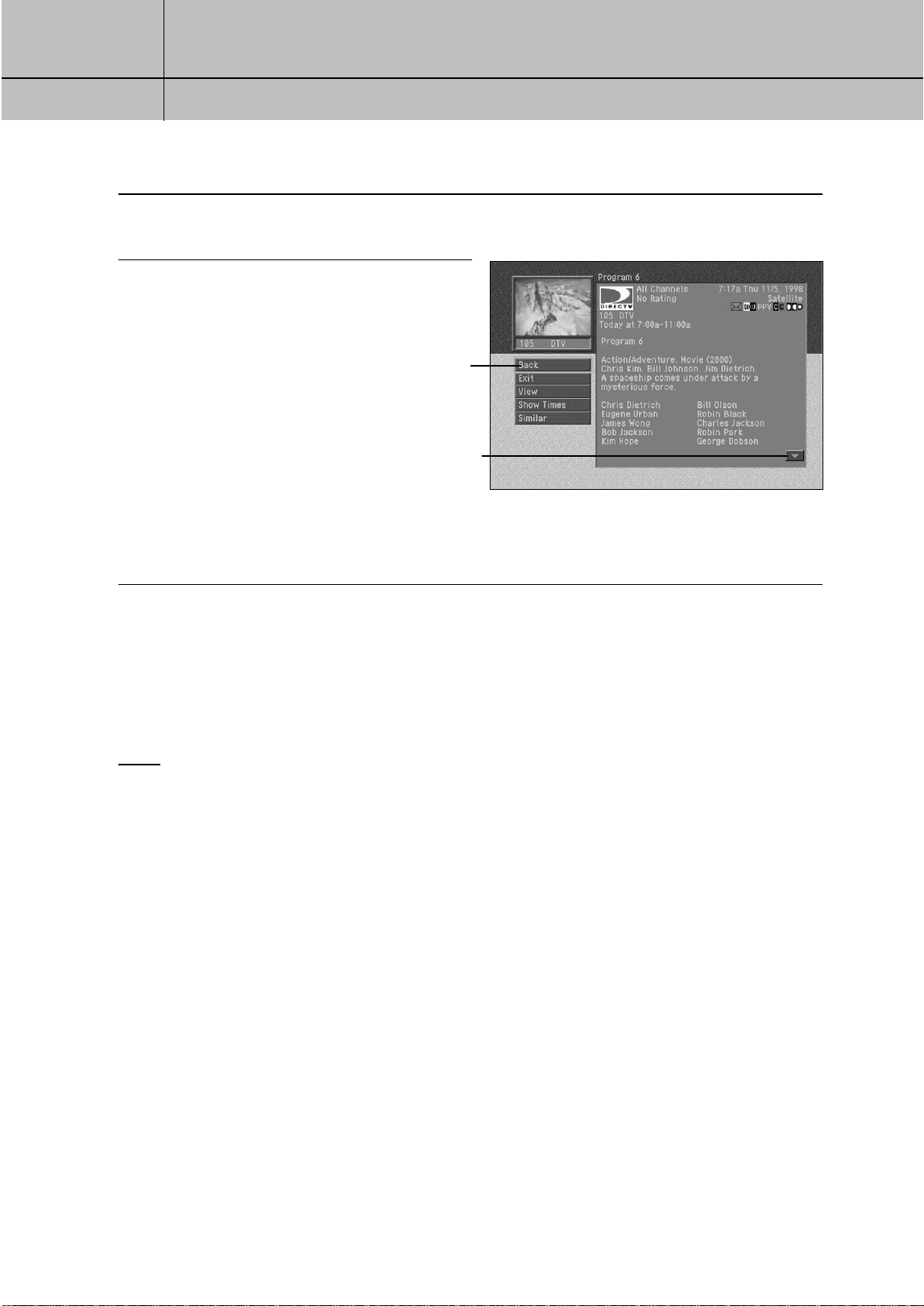
53
CHAPTER 4
Watching TV
4
4
To view the Program Detail Screen:
1
While watching a TV program, press the INFO button on your remote control.
The Full Channel Banner appears.
2
Press the INFO button again.
The Program Detail Screen appears.
Another way to view the Program Detail screen is to enter the Program Guide, highlight the
program listing you are interested in, then press the INFO button.
Program Detail Screen actions
In addition to a description of the program you are watching, the Program Detail
Screen provides a list of actions you can take related to that program. Here are
descriptions of the actions that might be available for a program.
NOTE
not all actions are available for every program.
Back: Displays the last screen you viewed before entering the Program Detail Screen.
Exit: Clears the screen and displays the last channel you were viewing.
Buy $(Price): For pay per view programs, allows you to purchase the program.
Cancel $(Price): For pay per view programs that you have previously purchased but that have
not yet aired, lets you cancel your purchase.
View: Displays the channel airing the program described.
Schedule: For future programs, allows you to set your DIRECTV HD Receiver to remind
you when the program is about to start, or to set your DIRECTV
®
HD Receiver
and VCR to record the program.
Unschedule: For programs you have previously scheduled for a reminder or recording,
allows you to cancel the reminder or recording.
Episodes: For programs broadcast as episodes, allows you to view a list of other
episodes in that program’s series.
Show Times: Displays a list of times and channels for viewing the program.
Similar: Displays a list of programs that have aspects in common with the program.
Actions list
Select this arrow and press the
SELECT button to scroll down.
SIR-TS360-CHAPTER 4 11/18/03 9:43 AM Page 53
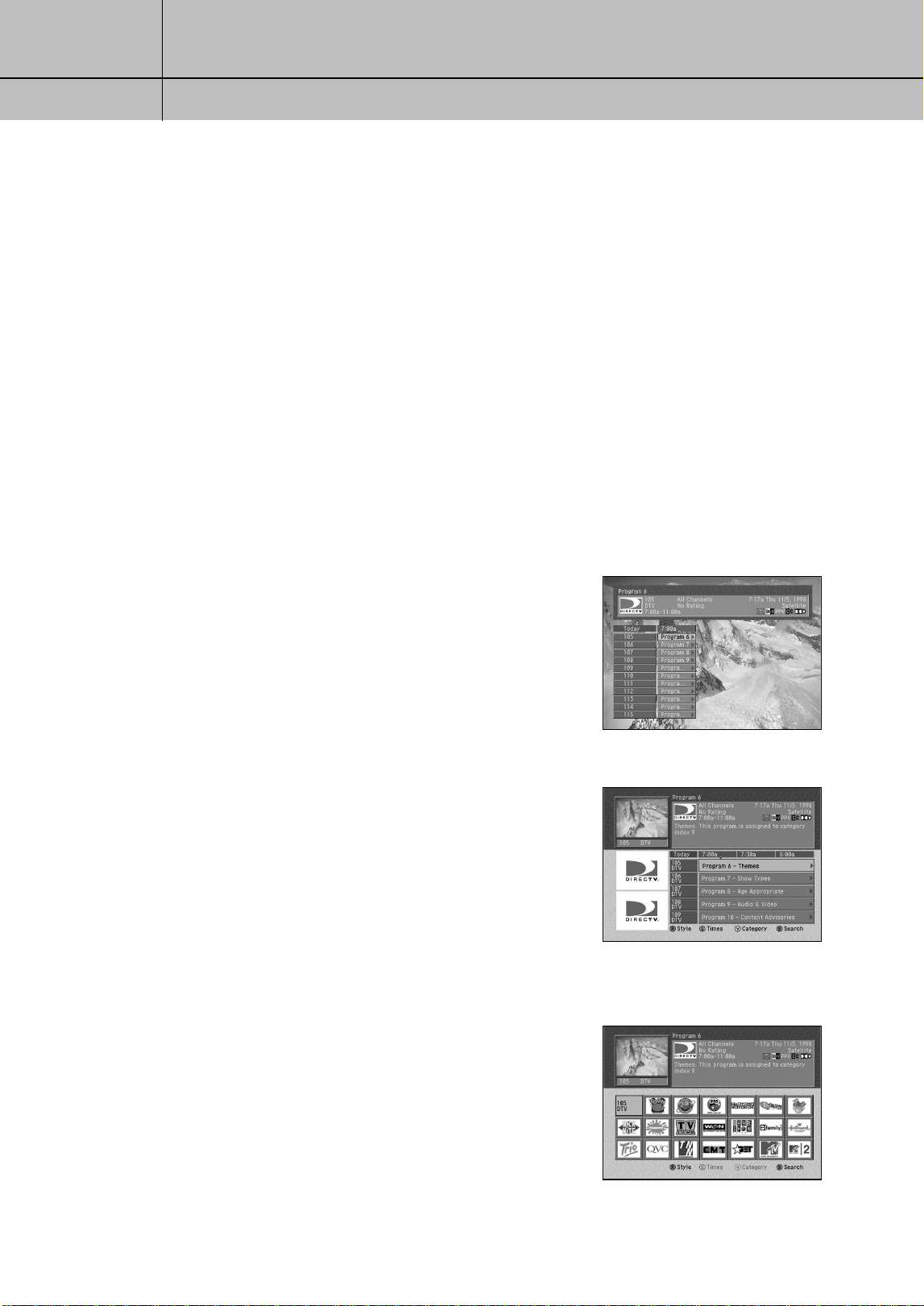
54
CHAPTER 4
Watching TV
4
4
Finding out what’s on: the Guides
Your DIRECTV HD Receiver provides access to detailed information about
TV schedules. If you want to know what’s on, just use the Guide.
The Guides provide scheduling information for all types of programming (satellite,
off-air, or cable TV).
There are several types of Guides you can access, each suited to a particular set of
needs and preferences.
Types of Guides
When you want to find out what’s on, you can use the simple, fast Quick Guide;
the detailed, informative Grid Guide; or the graphics-rich Logo Guide.
The pages that follow tell you how to access and use each of these Guide types.
Quick Guide
The Quick Guide allows you to quickly scan to see what
is on right now while still viewing the channel you are
watching. Great for those times when you just want to
quickly check out what’s showing on that favorite channel.
Grid Guide
The Grid Guide is the most complete, detailed Guide type.
It lets you see the programs for each channel in a scrollable
schedule (sorted by channel number, or by channel name).
If you don’t know what you want to watch, and you want
to browse a broad range of channels, the Grid Guide may
be for you.
Logo Guide
The Logo Guide lets you find out what’s on by browsing
through the channels by highlighting the channels’
logos — perfect for those of us who prefer pictures to text.
SIR-TS360-CHAPTER 4 11/18/03 9:43 AM Page 54
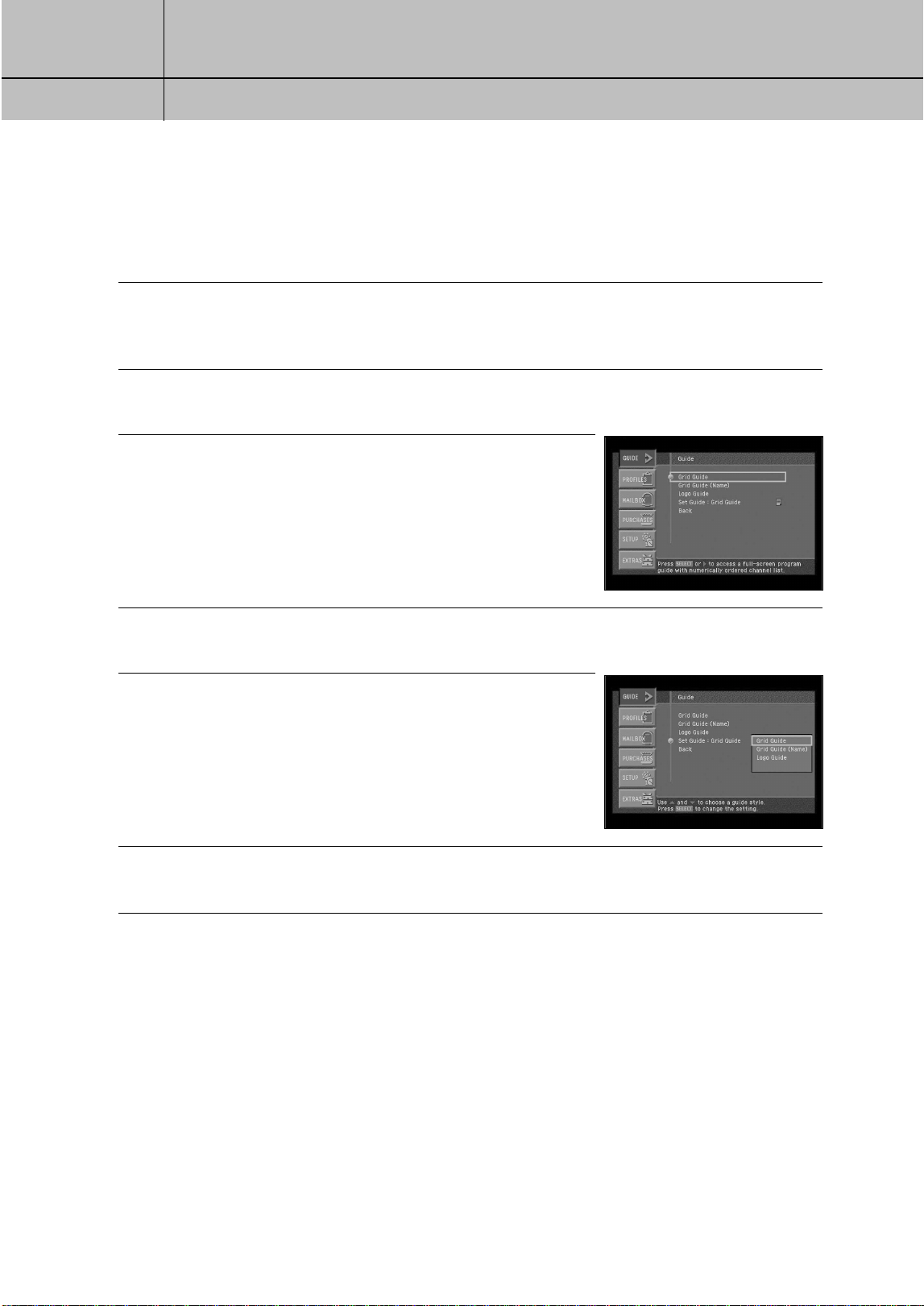
55
CHAPTER 4
Watching TV
4
4
Setting the default Guide style
The Guide menu item allows you to set which style of Guide is displayed when you
press the GUIDE button on your remote control. Here’s how:
1
Press the MENU button on your remote control.
The Main menu appears on your screen.
When you display the Main menu, the Guide item is highlighted.
2
Press the SELECT button.
The Guide menu appears.
3
Use the up- and down-arrow buttons on your remote control to
highlight the Set Guide menu item. The page icon to the right
of the Set Guide item indicates selecting this item will display
a list of options.
4
Press the SELECT button on your remote control.
A list of Guide Styles appears.
5
Highlight the Guide style you wish to have displayed anytime
you press the GUIDE button, then press the SELECT button.
The list of Guide styles disappears, and the style you chose
is displayed in the Set Guide menu item.
6
To exit the Menu, press the EXIT button on your remote control.
Pressing the GUIDE button will now display the Guide style you selected.
SIR-TS360-CHAPTER 4 11/18/03 9:43 AM Page 55
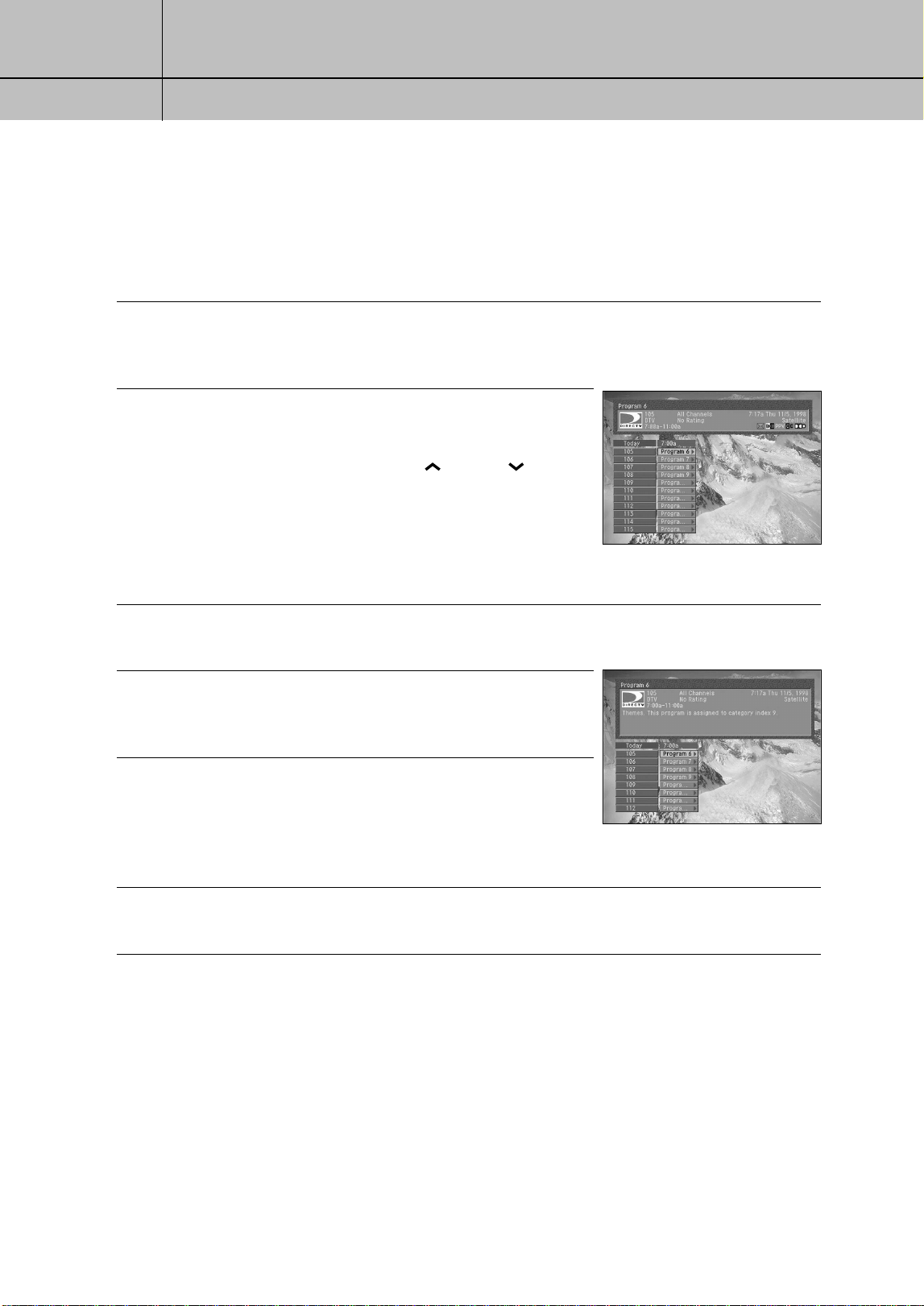
56
CHAPTER 4
Watching TV
4
4
Using the Quick Guide
The Quick Guide is made up of a Channel Banner and a channel list. This Guide is
small and transparent so that you can continue to watch a TV program while you are
browsing the Guide. Follow these steps to use the Quick Guide.
1
To display the Quick Guide, press the QUICK button on your remote control.
The Quick Guide appears, displaying a small Channel Banner and a channel list showing
the current half-hour time block.
2
Use the arrow buttons on your remote control to move up or
down in the channel list, or forward (and then backward) in
time. You can move up and down through the channel list a
full page at a time by pressing the CH and CH buttons
on your remote control. You can also use the number buttons
on your remote control to move the Quick Guide directly to a
specific channel.
As you highlight each program listing, its information appears
in the Channel Banner.
3
To see more information on a highlighted program, press the INFO button on your remote
control. The Full Channel Banner appears.
4
To get information on a channel (rather than a program), use
the arrow keys on the remote control to highlight the channel
number.
5
To expand the program listings to show more time, press the
right-arrow button on your remote control.
Each time you press the right arrow, the Quick Guide
expands by 30 minutes (up to a maximum 2-hour display).
To reduce the Quick Guide in 30-minute blocks, press the left-arrow button.
6
To watch a program you see listed in the Quick Guide, highlight that program,
then press the SELECT button.
SIR-TS360-CHAPTER 4 11/18/03 9:43 AM Page 56
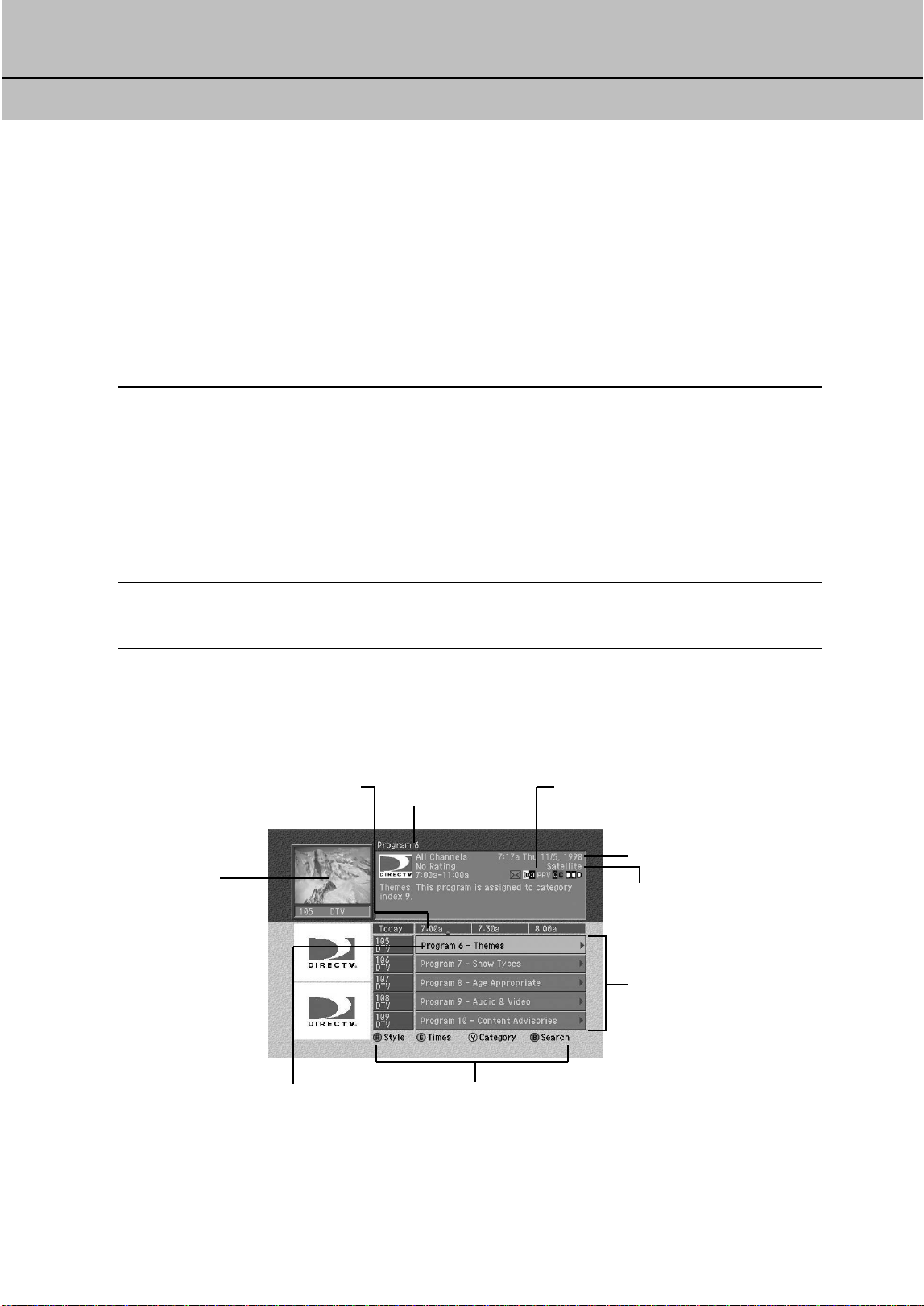
57
CHAPTER 4
Watching TV
4
4
Using the Grid Guide
The Grid Guide displays a Channel Banner and a channel list. It provides access to the
complete set of Guide features including the ability to search for programs, schedule
reminders and recordings, etc.
Displaying and clearing the Grid Guide
To display or clear the Grid Guide:
1
To display the Grid Guide, press the GUIDE button on your remote control.
The Grid Guide appears. (Pressing the GUIDE button displays the Guide style —
Grid Guide, Grid Guide (Name), or Logo Guide — established in the Set Guide
option in the Guide menu. The default setting is Grid Guide).
2
You can also display the Grid Guide by pressing the MENU button on your remote control.
Then highlight Guide and press the SELECT button. Then highlight Grid Guide and press the
SELECT button again.
3
To clear the Grid Guide from your screen, press the EXIT button on your remote control.
Grid Guide overview
This diamond marks the current
time (so you can see how close you
are to a program start or end time).
Title of the
highlighted program
or channel
This Banner shows information
about the channel or program
highlighted in the Guide.
Picture-in-
Guide
shows you
the program
you are
watching.
The program
currently highlighted.
Icons to remind you about the Guide functions of
the red, green, yellow, and blue buttons on your
remote control.
Current time and date
Signal type
The program list;
use the arrow buttons
on your remote control to
highlight different areas.
SIR-TS360-CHAPTER 4 11/18/03 9:43 AM Page 57
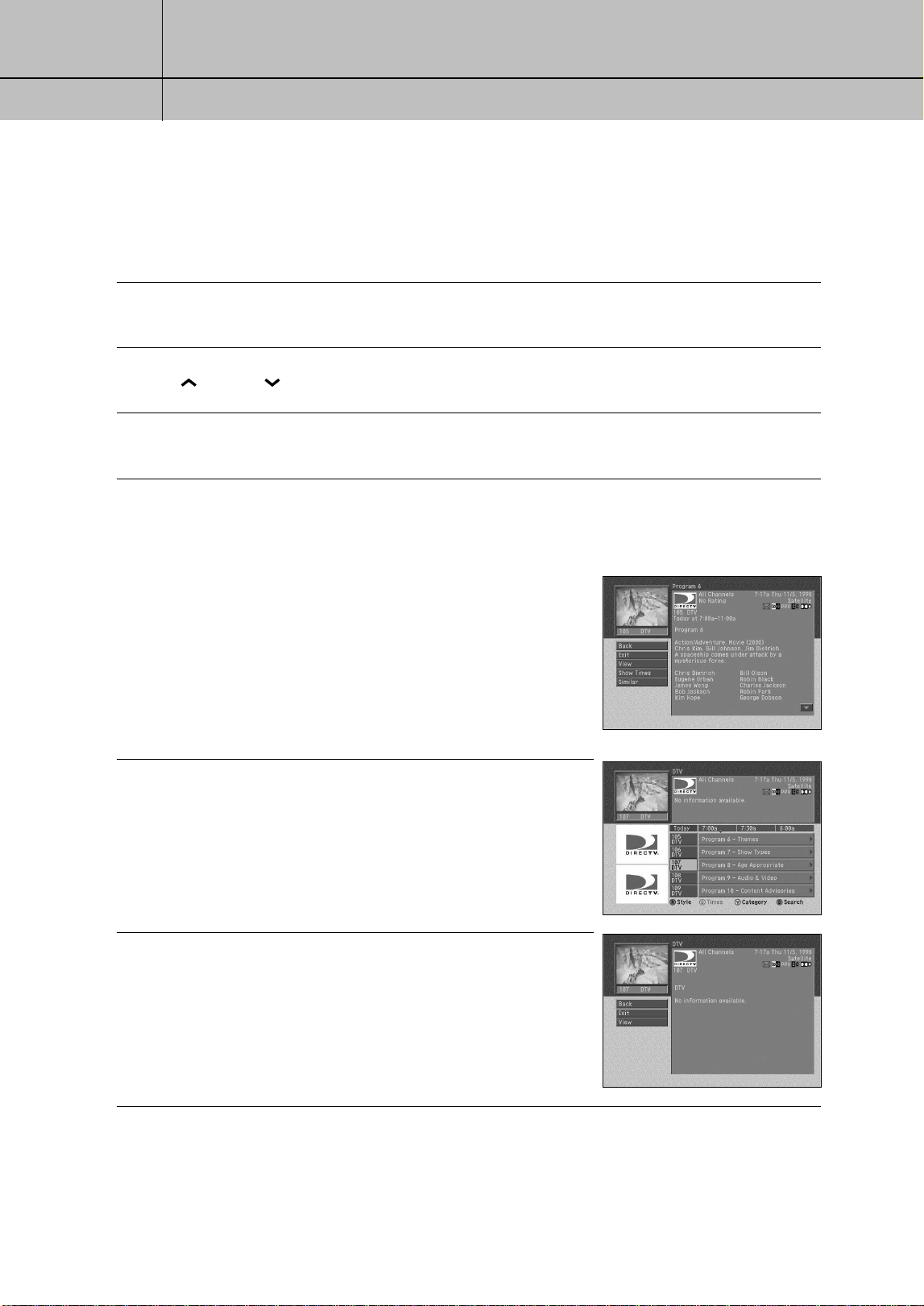
58
CHAPTER 4
Watching TV
4
4
Getting around in the Grid Guide
You can use the Grid Guide to get detailed information about the channels and programs
it contains. Here’s how:
1
To highlight different program listings in the Grid Guide, use the arrow buttons on your
remote control to move up or down in the channel list, or forward and backward in time.
2
To move up and down through the channel list a full page at a time, press the
CH and CH buttons on your remote control.
3
To move the Grid Guide directly to a specific channel, press the 0-9 number buttons on
your remote control to enter the desired channel number.
4
As you highlight each program listing in the Grid Guide, information about the
program appears in the Channel Banner. To see more information on a highlighted
program, press the INFO button on your remote control.
The Program Detail screen appears, showing complete
information about the highlighted program and a list of
actions you might want to take related to that program.
To return to the Grid Guide, highlight the Back item from
the on-screen list and press the SELECT button.
5
To get information on a channel (rather than a program),
use the arrow keys on the remote control to highlight the
channel entry in the Guide.
The Channel Banner displays information about the high
lighted channel.
6
Press the INFO button on your remote control while a channel
entry is highlighted to see a Channel Detail Screen containing
more information about the highlighted channel.
SIR-TS360-CHAPTER 4 11/18/03 9:43 AM Page 58
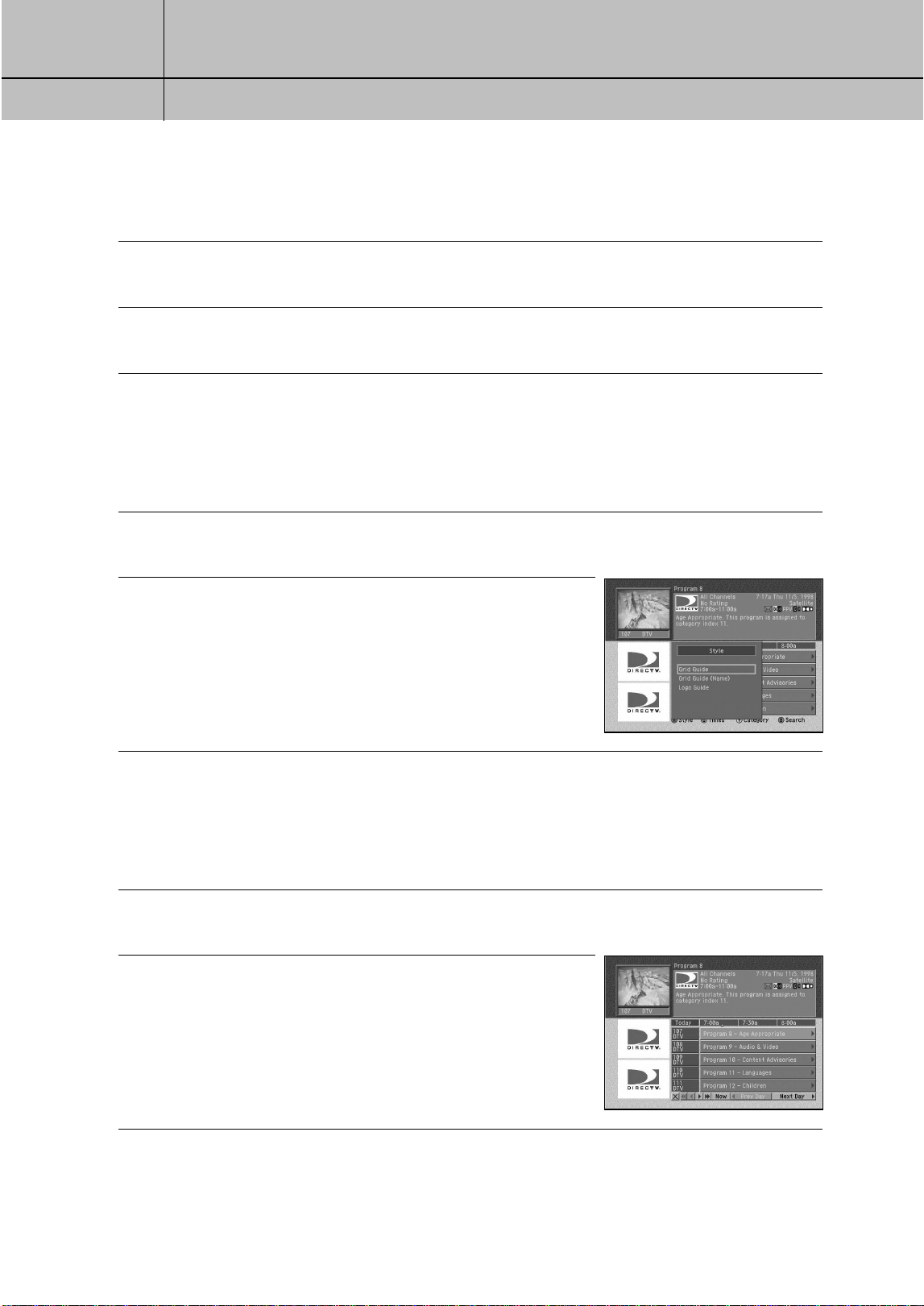
59
CHAPTER 4
Watching TV
4
4
Tuning to a channel with the Grid Guide
To tune to a program or channel listed in the Grid Guide:
1
Highlight the program or channel you want to watch.
2
Press the SELECT button.
The Guide disappears, and the channel you selected fills the screen.
Switching to another Guide style
You can button from the Grid Guide to the Grid Guide (Name) or Logo Guide while
viewing the Grid Guide. Here’s how:
1
With the Guide displayed on your screen, press the RED button on your remote control.
A list of Guide Styles appears on your screen.
2
Highlight the Guide style you wish to view, then press the
SELECT button. The Guide Style list disappears, and the
Guide appears in the style you chose.
Viewing the Guide for a different time
You can view the TV programming for different times by using the Guide’s time
control bar. Here’s how:
1
With the Guide displayed on your screen, press the GREEN button on your remote control.
The time control bar appears across the bottom of the Guide.
2
Highlight the time controls.
Press the SELECT button to select the controls you wish to use.
SIR-TS360-CHAPTER 4 11/18/03 9:43 AM Page 59
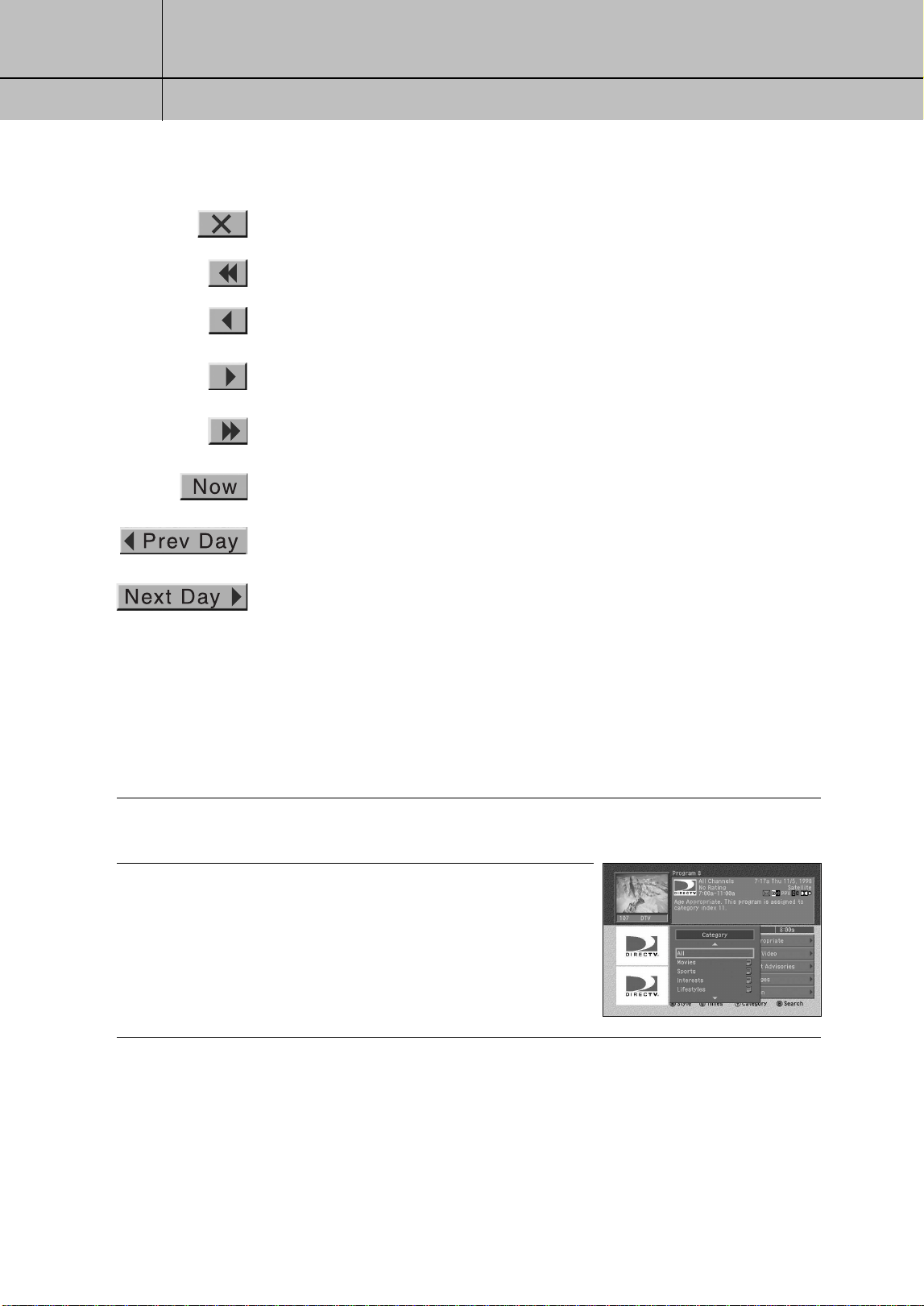
60
CHAPTER 4
Watching TV
4
4
Here is an explanation of each time control.
Viewing a category of programs in the Guide
You can set your Guide to show you all channels, or only channels showing programs
in a specific category (for example, only channels showing sports, or only channels
showing movies). Here’s how:
1
With the Guide displayed on your screen, press the YELLOW button on your remote control.
A list of Guide Categories appears on your screen.
2
Highlight the Guide category you wish to view, then press
the SELECT button. The Guide Category list disappears and
the Guide appears, displaying channels showing programs
that match the category you chose.
Exits the time control bar.
Moves the Guide view back 6 hours (unavailable when
viewing the current time).
Moves the Guide view back 30 minutes (unavailable
when viewing the current time).
Moves the Guide view ahead 30 minutes.
Moves the Guide view ahead 6 hours.
Moves the Guide view to the current time.
Moves the Guide view back 24 hours (unavailable when
viewing the current time).
Moves the Guide view ahead 24 hours.
Now
Prev Day
Next Day
SIR-TS360-CHAPTER 4 11/18/03 9:43 AM Page 60
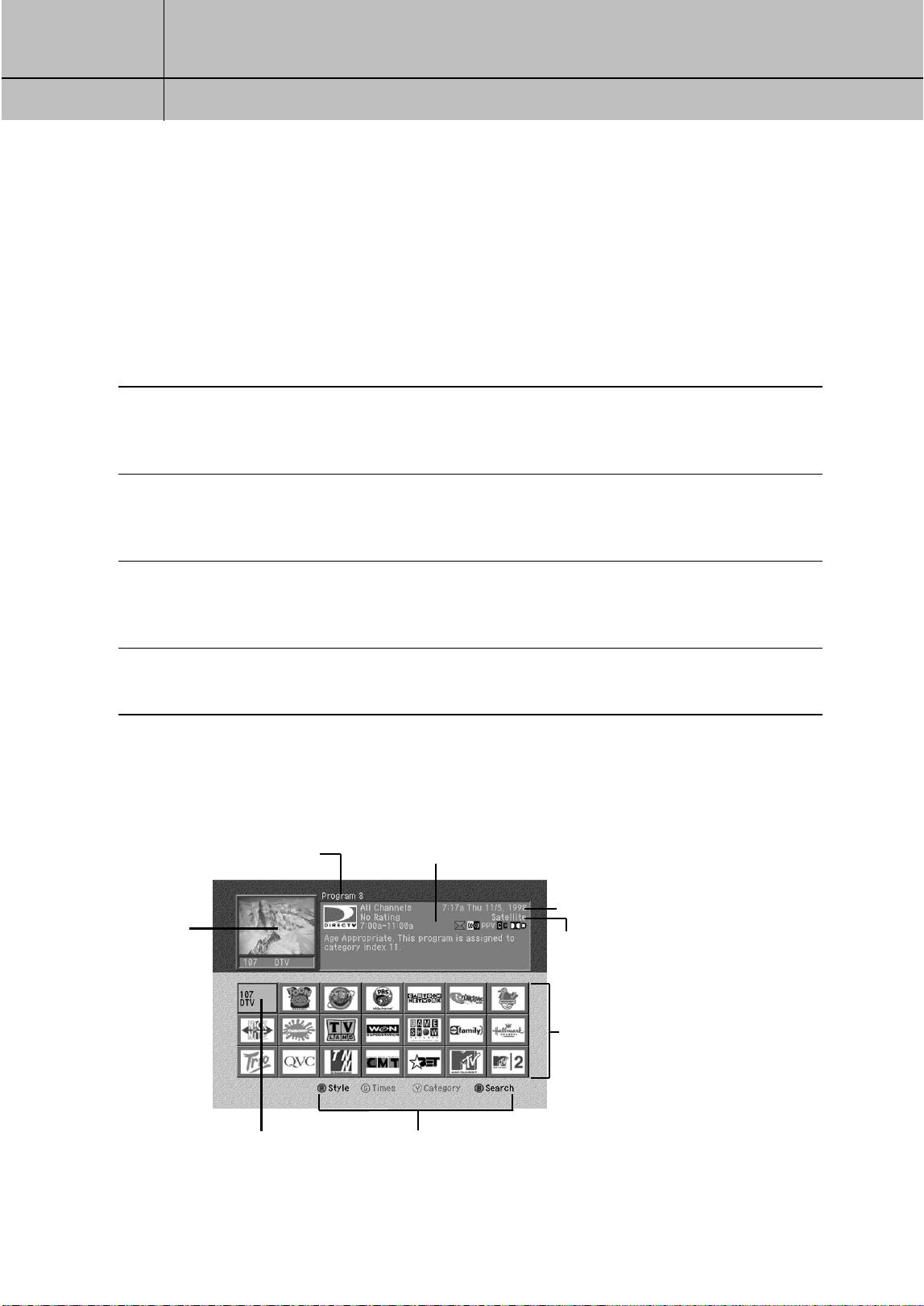
61
CHAPTER 4
Watching TV
4
4
Using the Logo Guide
The Logo Guide displays 21 channel logos and a Channel Banner showing information
about the program currently showing on the highlighted channel. Follow the steps in
this section to use the Logo Guide.
Displaying and clearing the Logo Guide
To display or clear the Logo Guide:
1
Press the MENU button on your remote control. Then highlight the Guide menu item, and press
the SELECT button. Then highlight the Logo Guide menu item, and press the SELECT button.
The Logo Guide appears on your screen.
2
Or, press the GUIDE button on your remote control. Then press the RED button to display the
list of Guide styles. Then highlight the Logo Guide option, and press the SELECT button.
The Logo Guide appears.
3
Or, you can set the default Guide Style so that the Logo Guide always appears whenever
you press the GUIDE button on your remote control. See Setting the default Guide style on
page 45 for details on setting the default Guide Style.
4
To clear the Logo Guide from your screen, press the EXIT button on your remote control.
Logo Guide overview
Title of the program on
the highlighted channel.
This Banner shows information about the
program showing on the highlighted channel.
Picture-in-
Guide
shows you
the program
you are
watching.
The channel currently
highlighted.
These icons remind you about the Guide functions
of the red, green, yellow, and blue buttons on
your remote control.
Current time and date
Signal Type
The channel logo list;
use the arrow buttons on
your remote control to
highlight different logos.
SIR-TS360-CHAPTER 4 11/18/03 9:43 AM Page 61
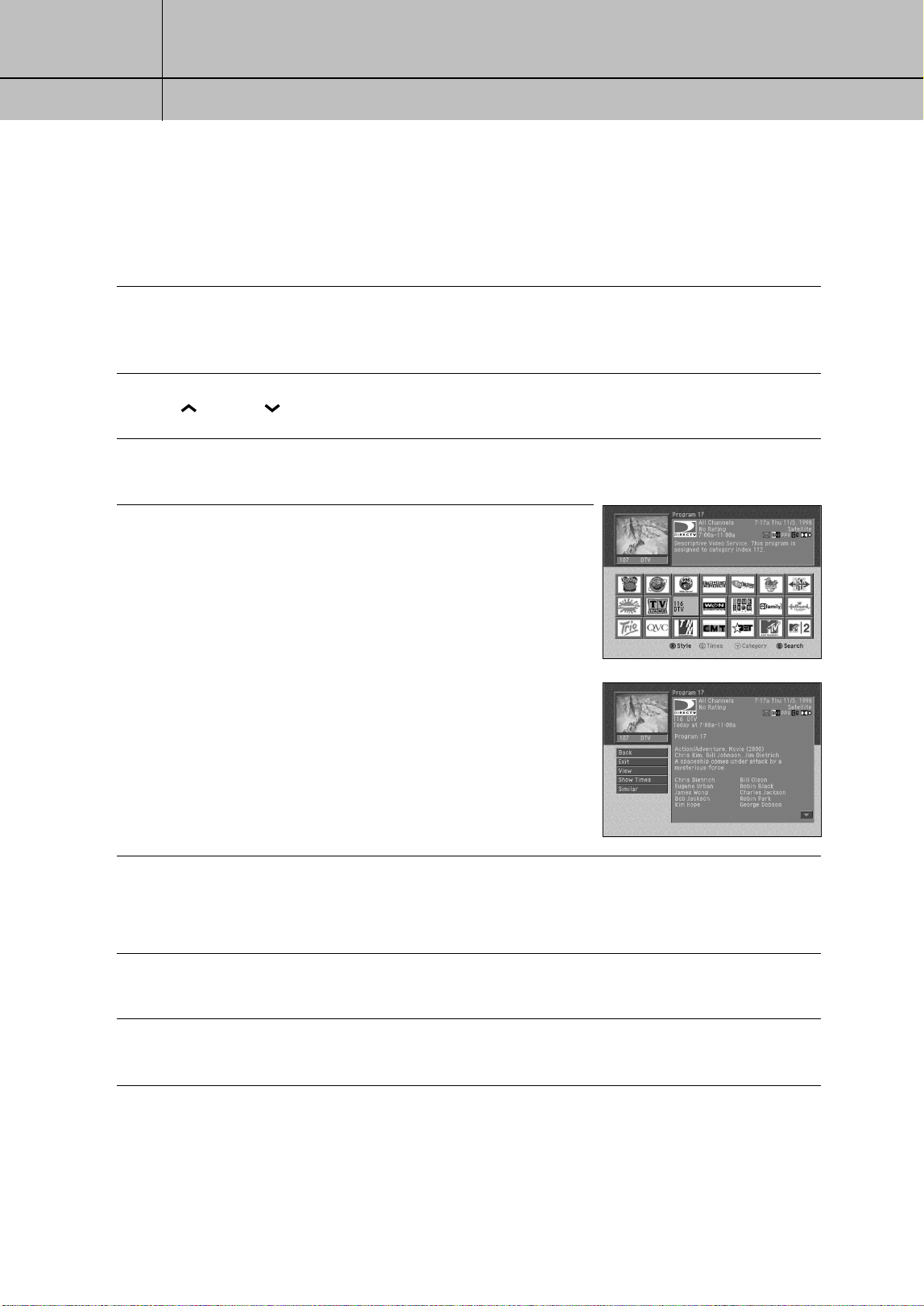
62
CHAPTER 4
Watching TV
4
4
Getting around in the Logo Guide
You can use the Logo Guide to get information about the programs currently showing
on your DIRECTV HD Receiver. Here’s how:
1
To highlight different program listings in the Logo Guide, use the arrow buttons on your
remote control to move up, down, left, or right in the logo list. When you highlight a logo,
it is replaced by the channel name and number in the Logo Guide.
2
To move up and down through the channel logos a full page at a time, press the
CH and CH buttons on your remote control.
3
To move the Logo Guide directly to a specific channel, press the 0-9 number buttons
on your remote control to enter the desired channel number.
4
As you highlight each channel logo in the Logo Guide,
information about the program currently showing on the
highlighted channel appears in the Channel Banner.
To see more information on a highlighted program,
press the INFO button on your remote control.
The Program Detail Screen appears, showing complete
information about the program on the highlighted channel,
and a list of actions you might want to take related to that
program. To return to the Logo Guide, highlight the Back
item from the on-screen list and press the SELECT button.
Tuning to a channel with the Logo Guide
To tune to a program or channel listed in the Logo Guide:
1
Highlight the channel you want to watch.
2
Press the SELECT button.
The Logo Guide disappears, and the channel you selected fills the screen.
SIR-TS360-CHAPTER 4 11/18/03 9:43 AM Page 62
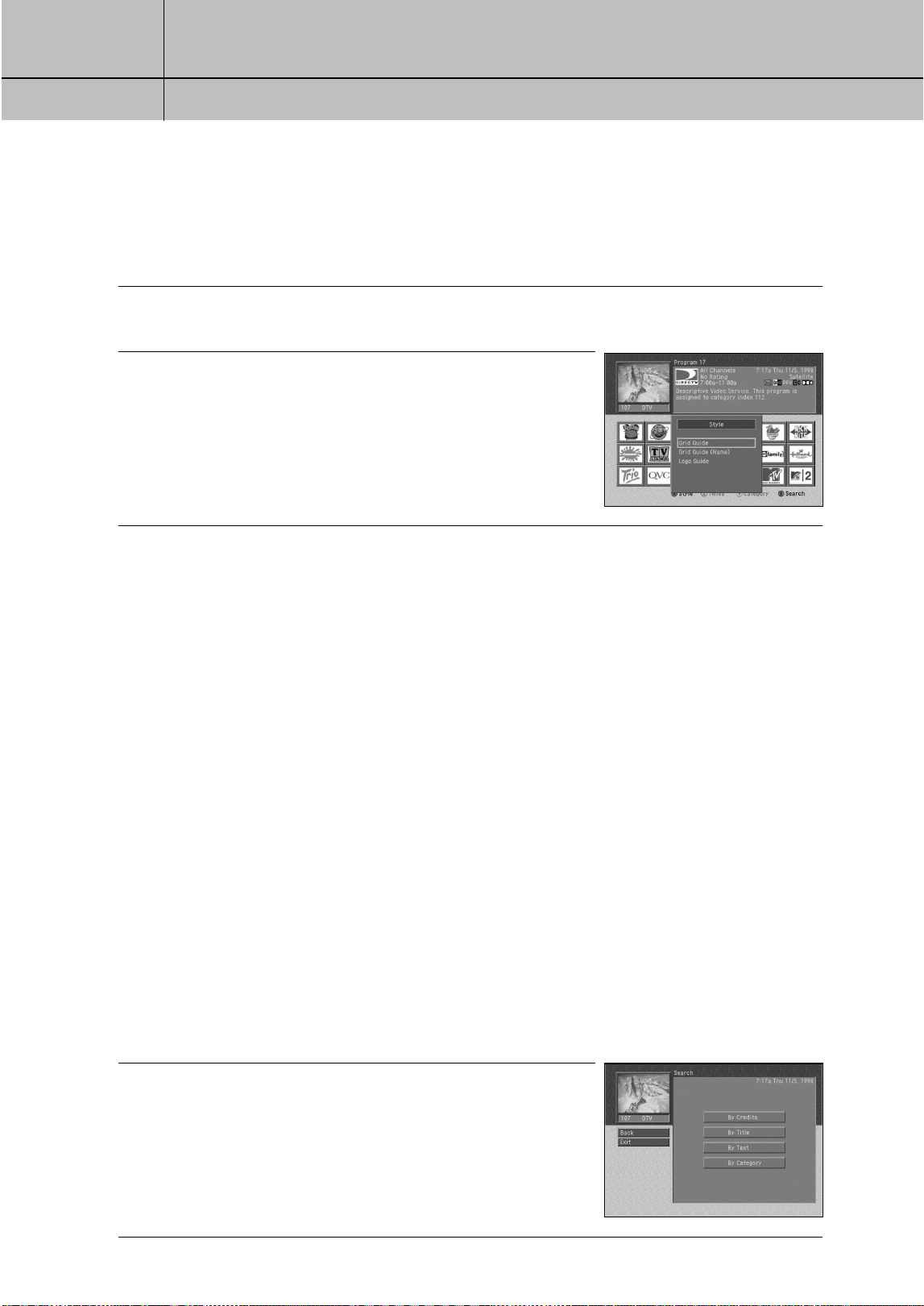
63
CHAPTER 4
Watching TV
4
4
Switching to another Guide style
You can button from the Logo Guide to the Grid Guide or Grid Guide (Name) while
viewing the Guide. Here’s how:
1
With the Guide displayed on your screen, press the RED button on your remote control.
A list of Guide Styles appears.
2
Highlight the Guide style you wish to view, then press the
SELECT button. The Guide Style list disappears, and the
Guide appears in the style you chose.
Searching for programs in the Guide
You can search the entire list of programs stored in your DIRECTV HD Receiver’s program
guide to find exactly the program you wish to see. There are four ways to search the
Guide:
By Credits: Lets you find programs that match the actor, director, role, award, or
year you type using an on-screen keyboard.
By Title: Lets you find programs that match the program title you type using an
on-screen keyboard.
By Text: Lets you find programs for which either the credits or the title match
the search term you type using an on-screen keyboard.
By Category: Lets you find programs that match the program categories and subcategories
you select from an on-screen list.
These search techniques are described in the sections that follow.
Searching by Credits, Title, or Text
To find programs that star a certain actor, share a director, have a particular character,
have won a specific award, or were created in a certain year, search By Credits.
To search for a program whose title you know, search by title. Searching by text looks
at both credits and titles to find programs that match your search terms.
1
While viewing the Guide, press the BLUE button on your
remote control. A search list appears, allowing you to choose
a type of search.
SIR-TS360-CHAPTER 4 11/18/03 9:43 AM Page 63
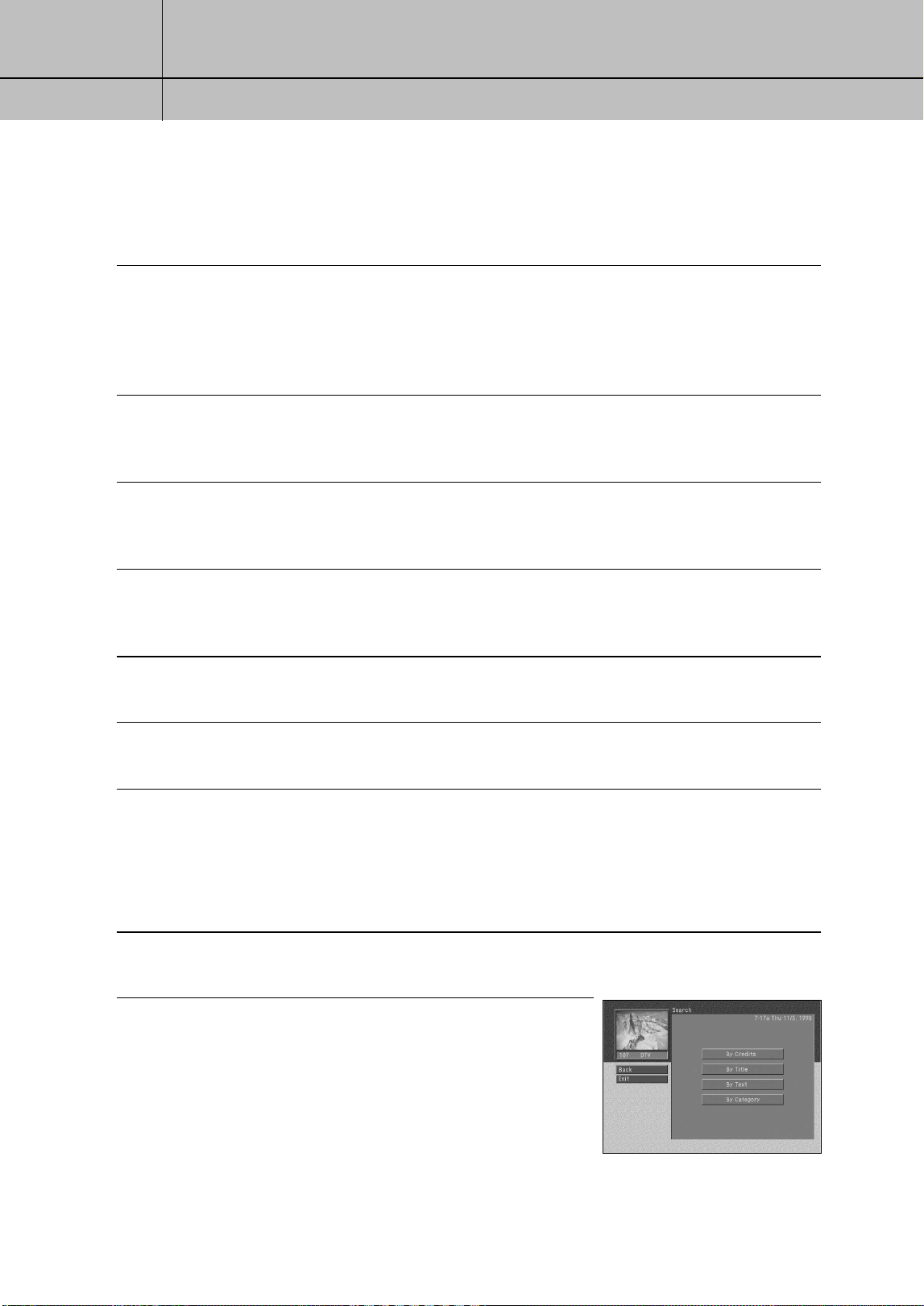
64
CHAPTER 4
Watching TV
4
4
2
Highlight By Credits, By Title, or By Text, then press the SELECT button.
The search screen you selected appears.
If you chose to search By Credits, the screen allows you to select a type of credit to search by.
Highlight one of the five Credit types (Actor, Director, Role, Award,or Year), and press the
SELECT button.
3
Highlight the first letter in the word you wish to search for, then press the SELECT button.
To erase a letter, highlight the on-screen left arrow and press the SELECT button.
To clear the entire entry, highlight the on-screen Clear button and press the SELECT button.
4
Continue to select letters from the on-screen keyboard until you have completed your search
term. As you enter letters, an on-screen list shows you matches for the text you have entered
so far.
5
To execute the search you can either highlight the on-screen Search button and press the
SELECT button, or you can highlight an item from the on-screen list and press the SELECT
button. A list of programs related to your search terms appears.
6
To see a list of show times for one of the search results, highlight that program,
then press the SELECT button.
7
To see information about one of the search results, highlight that program, then press the
INFO button.
Searching by Category
When you search by category, you narrow down the list of programs by choosing from
program categories and sub-categories.
1
While viewing the Guide, press the BLUE button on your remote control.
A search list appears, allowing you to choose a type of search.
2
Highlight By Category, then press the SELECT button.
SIR-TS360-CHAPTER 4 11/18/03 9:43 AM Page 64
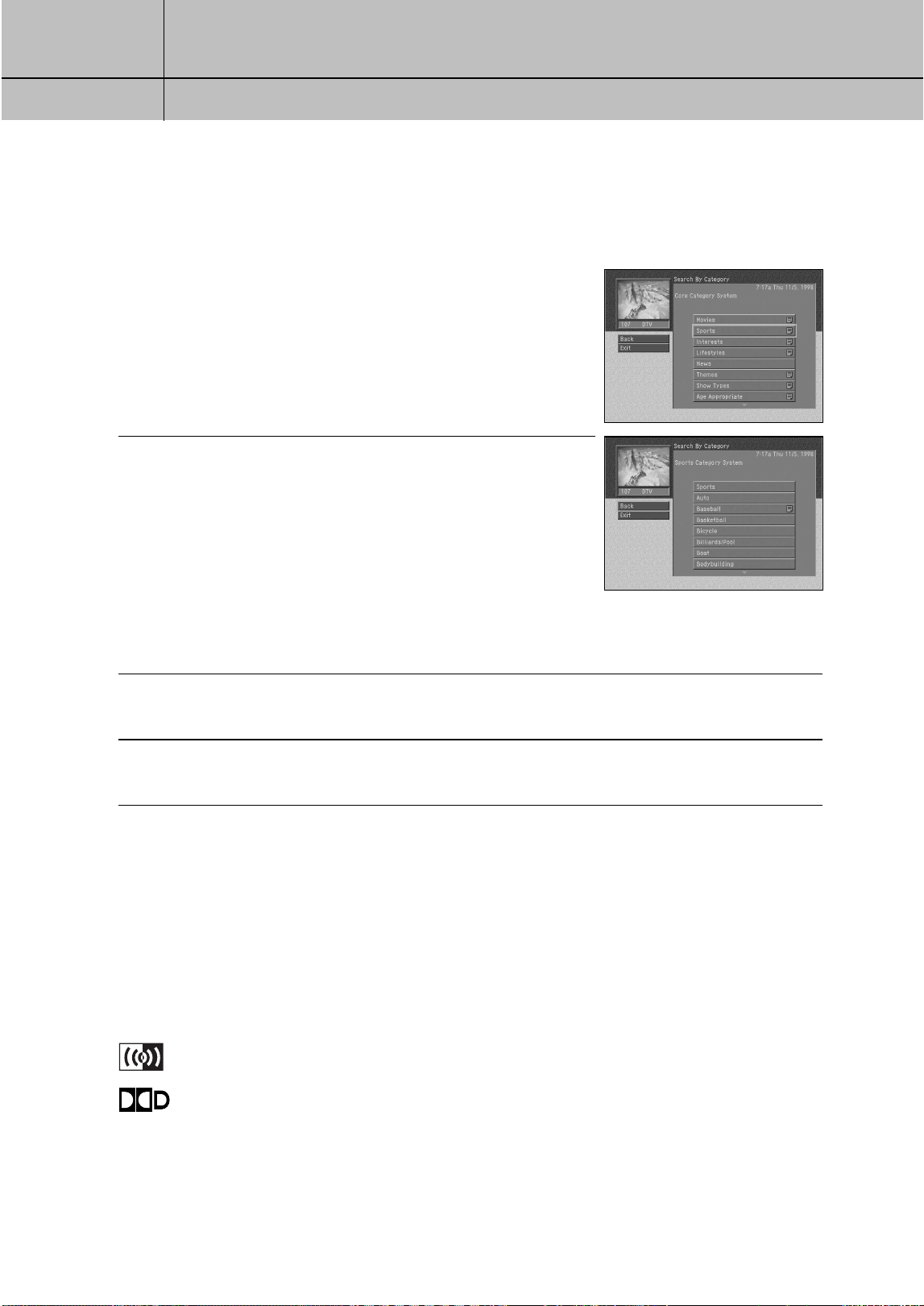
65
CHAPTER 4
Watching TV
4
4
The Search By Category screen appears.
Categories that contain subcategories have a page icon to
the right of the category name.
3
Highlight a category, then press the SELECT button.
If you select a category that contains sub-categories,
the subcategory list appears. Continue to narrow your
search by selecting from the sub-category list until there
are no more sub-categories.
If you select a category that contains no sub-categories,
the search results appear displaying the programs in the
category you selected.
To return to a previous category list, highlight the on-screen
BACK button and press the SELECT button.
4
To see a list of show times for one of the search results, highlight that program,
then press the SELECT button.
5
To see information about one of the search results, highlight that program,
then press the INFO button.
Choosing an alternate audio format for a program
Many programs on your DIRECTV HD Receiver offer several audio formats.
For example, some programs are available in alternative languages. Some are available
in Dolby Digital format (a high-quality digital audio format).
You can tell if a program offers alternative audio formats by pressing the INFO button
on your remote control while watching a program. If one of these icons appears in the
Channel Banner, an alternative audio format is available:
This icon indicates that one or more alternative languages are available
for the program.
This icon indicates that a Dolby Digital version of the audio for the program
is available.
SIR-TS360-CHAPTER 4 11/18/03 9:43 AM Page 65
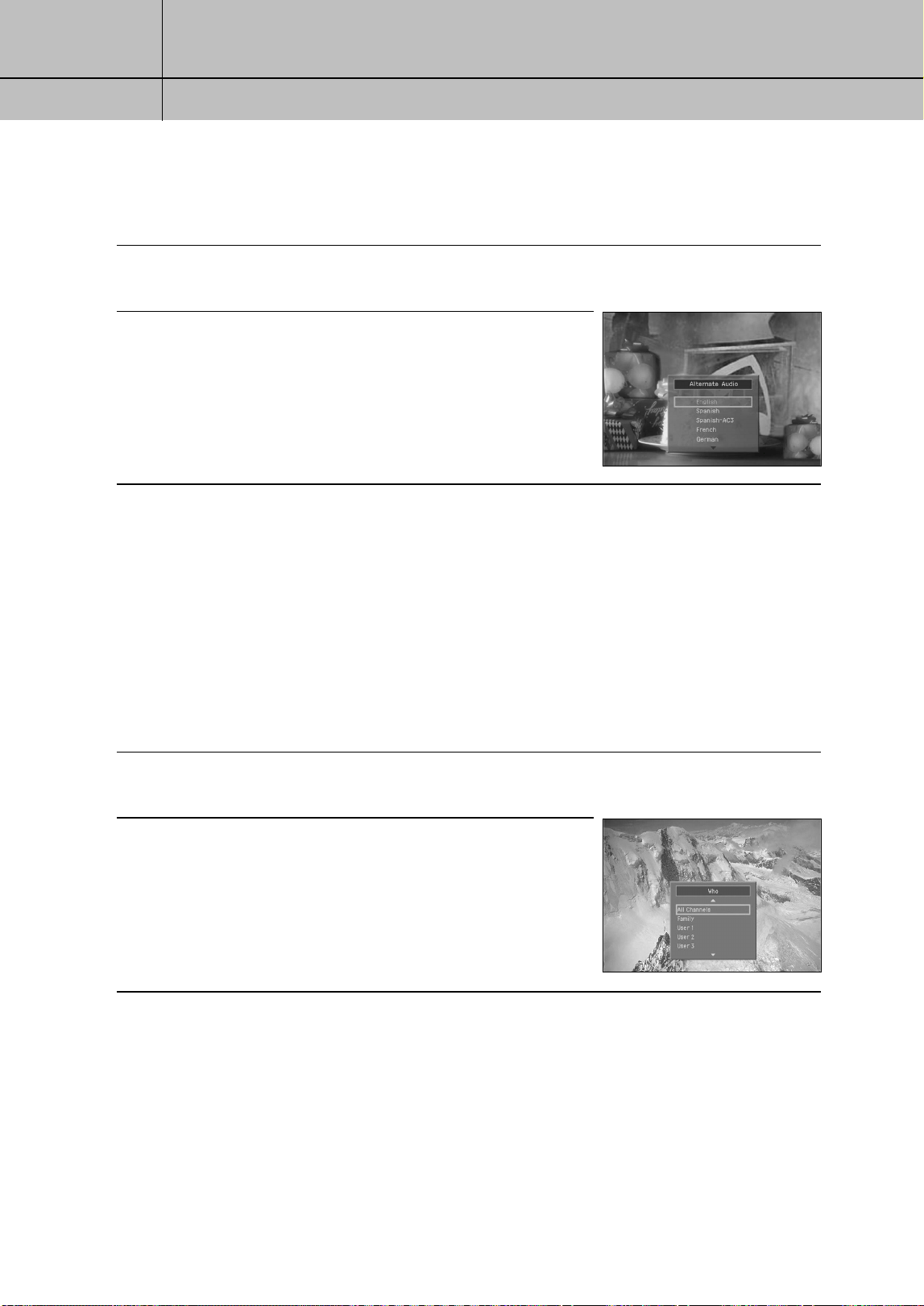
66
CHAPTER 4
Watching TV
4
4
To change the audio format for a program you are watching, follow these steps:
1
While viewing a program, press the AUDIO button on your remote control.
A list of available audio formats for the program you are watching appears.
2
Highlight the audio format you wish to hear for the program,
then press the SELECT button. The list of audio formats
disappears and the program audio is now played in the
format you selected.
Changing the User setting
Your DIRECTV HD Receiver allows you to establish groups of preferences for your family,
and for up to four individuals. For each of these users, you can specify the user name, a
unique channel list, and the color and translucency of the on-screen Guides and Menus.
(Detailed instructions for modifying these user-settings are in Chapter 6.)
To set your DIRECTV HD Receiver to operate using the settings specified for one of the
users, follow these steps:
1
While viewing a program, press the WHO button on your remote control.
The Who list appears.
2
Highlight the name of the user whose settings you wish to
activate, then press the SELECT button.
The Who list disappears, and the selected user’s settings
take effect.
To clear the Who list without changing the current user,
press the WHO or EXIT button on your remote control.
Pay per view programs
Your DIRECTV HD Receiver gives you access to many pay per view movies, sporting
events, concerts, etc. All you need to order these events is your DIRECTV account, a
land-based telephone line connected to your DIRECTV HD Receiver, and your remote
control.
SIR-TS360-CHAPTER 4 11/18/03 9:43 AM Page 66
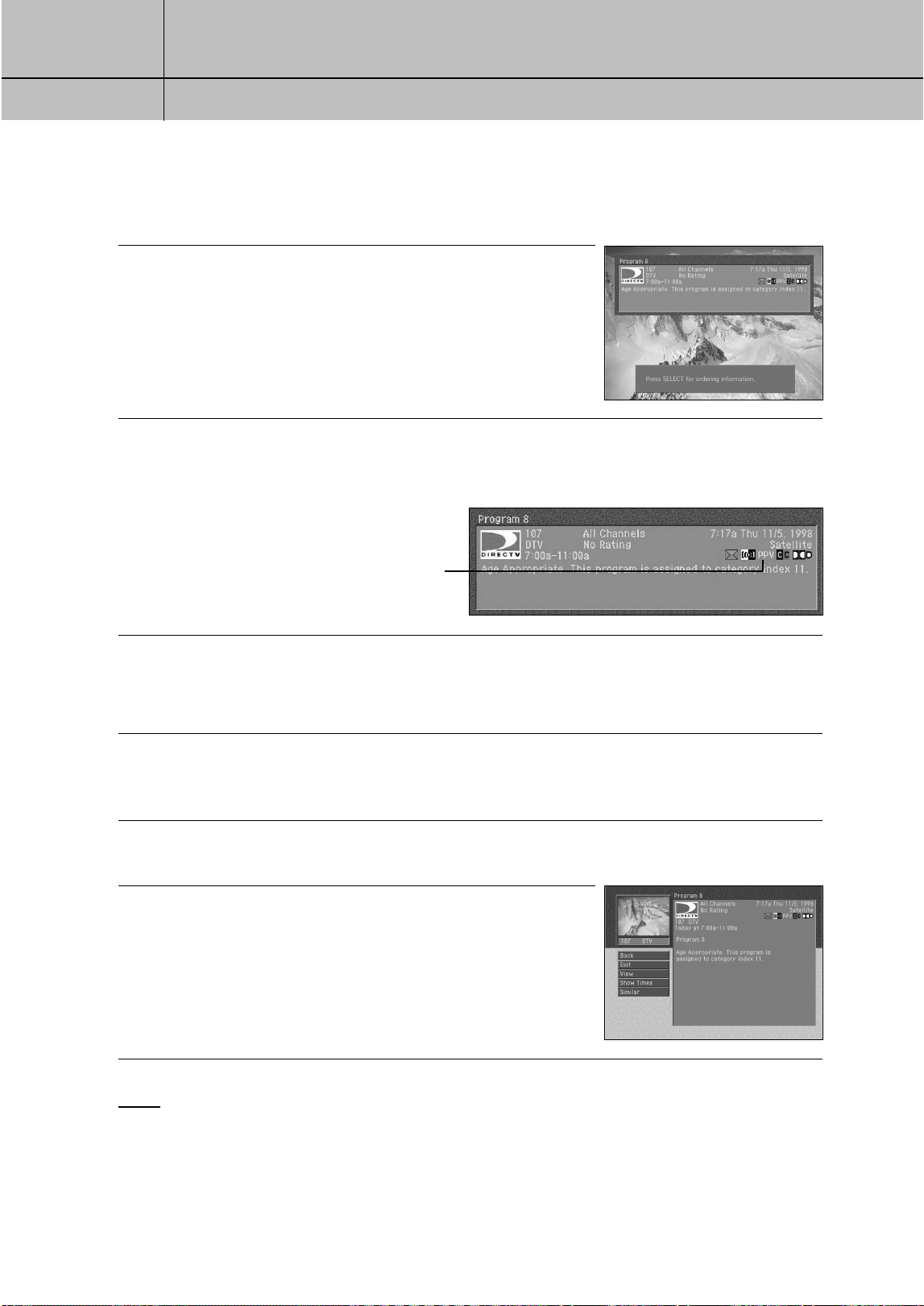
67
CHAPTER 4
Watching TV
4
4
Identifying pay per view programs
There are several ways to identify pay per view programs.
1
If you tune to a channel currently showing a pay per view
program which you have not yet purchased, a message
appears telling you how to order the program.
2
If you press the INFO button on your remote control to view information about a program in
the Guide or about a program you are currently tuned to, you will see the pay per view icon
in the Channel Banner for that program.
Ordering pay per view programs
To order a pay per view program:
1
Locate and highlight the program you wish to purchase in the Guide.
You can purchase current programs (as long as the program is less than half over)
or future programs.
2
Press the INFO button on your remote control.
The Program Details screen appears, with the list of available actions for that program.
3
Use the arrow keys on your remote control to highlight the
Buy item from the list, then press the SELECT button.
A confirmation screen appears in which you can confirm
or cancel your purchase.
Pay per view purchases are billed with your regular monthly
statement for DIRECTV programming.
NOTE
You can set spending limits for pay per view purchases using your DIRECTV HD Receiver’s Menu
system. See Chapter 6 for details.
Pay per view icon
SIR-TS360-CHAPTER 4 11/18/03 9:43 AM Page 67
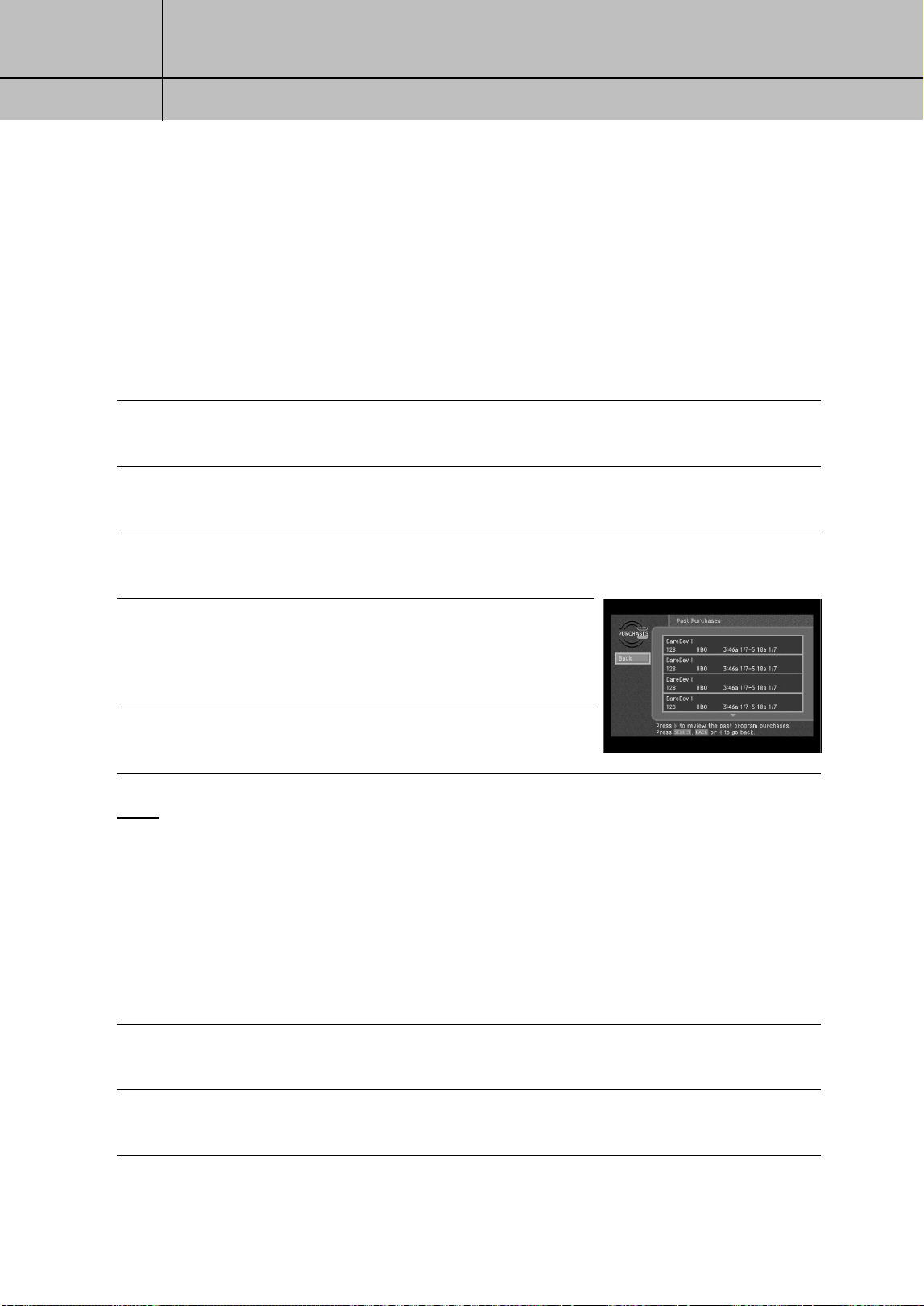
68
CHAPTER 4
Watching TV
4
4
Reviewing your pay per view purchases
Your DIRECTV HD Receiver allows you to review your past pay per view purchases, to
view a list of upcoming pay per view purchases, and to cancel upcoming pay per view
purchases.
Viewing your Past Purchase list
To see a list of pay per view programs that you purchased and watched, follow these
steps:
1
Press the MENU button on your remote control.
2
Highlight the Purchases menu item, then press the SELECT button.
The Purchases menu appears. The Past Purchases menu item is highlighted.
3
Press the SELECT button on your remote control to view a list of your past pay per view
purchases. The Past Purchases screen appears.
4
To see details for the listed purchases, highlight a purchase,
then press the SELECT button.
A screen displaying program details for the selected
purchase appears.
5
To return to the Past Purchases screen, press the BACK button
on your remote control.
NOTE
The Past Purchases screen only displays pay per view programs which you
purchased and watched. Pay per view programs that you purchased but
did not watch appear on the Future Purchases screen.
Viewing your Future Purchase list
To see a list of pay per view programs that you purchased but have not yet watched,
follow these steps:
1
Press the MENU button on your remote control.
2
Highlight the Purchases menu item, then press the SELECT button. The Purchases menu appears.
3
Highlight the Future Purchases menu item, then press the SELECT button.
SIR-TS360-CHAPTER 4 11/18/03 9:43 AM Page 68
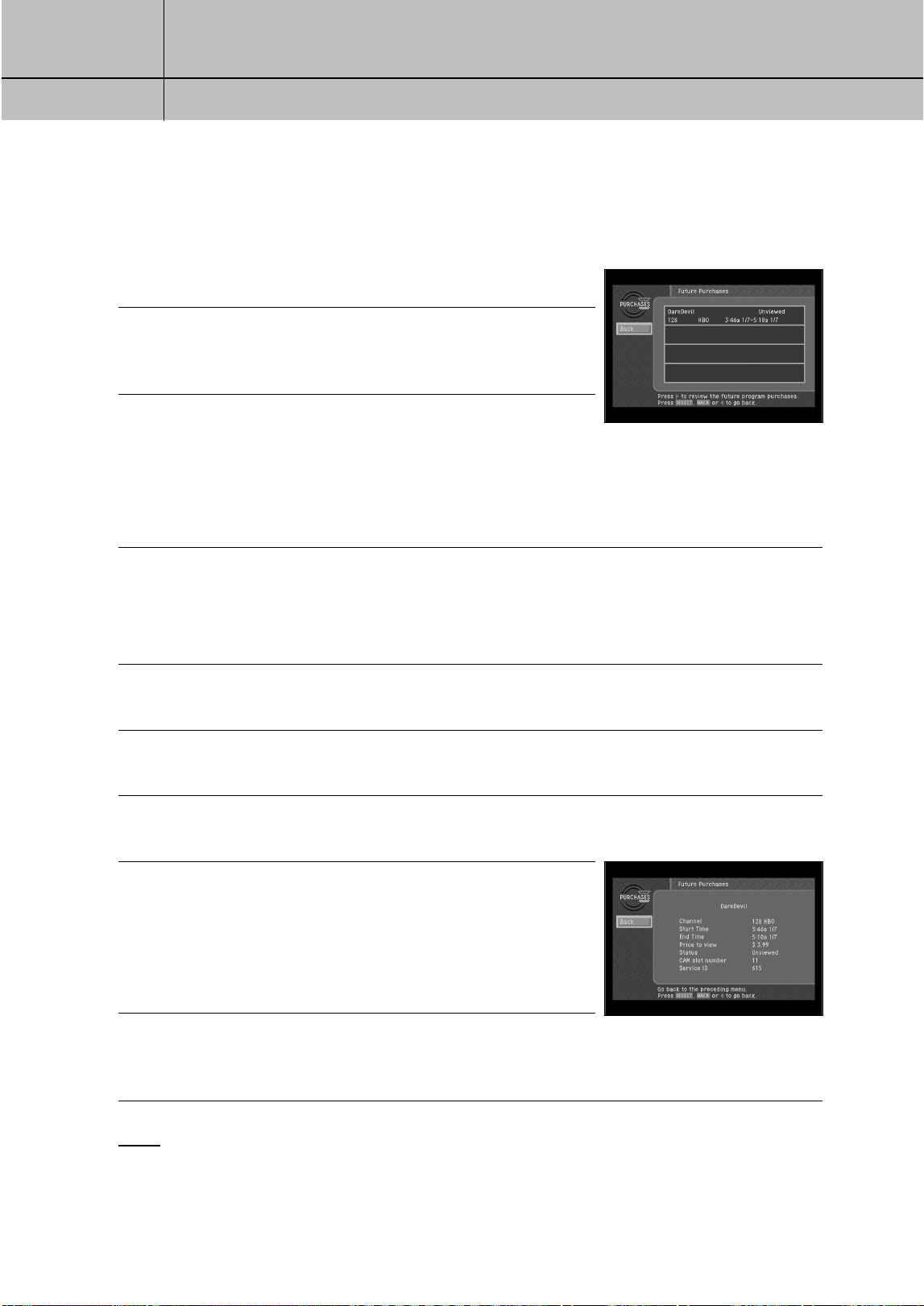
69
CHAPTER 4
Watching TV
4
4
The Future Purchases screen appears.
4
To see details for the listed purchases, highlight a purchase,
then press the SELECT button. A screen displaying program
details for the selected purchase appears.
5
To return to the Past Purchases screen, press the BACK button
on your remote control.
The Future Purchases screen displays both purchases you have made for programs that have not yet
aired, and purchases for past programs which you never watched. Purchases which you have made
that have not yet aired can be canceled following the instructions below.
Canceling a pay per view purchase
To cancel the purchase of a pay per view program that you purchased but have not
yet watched, follow these steps:
1
Press the MENU button on your remote control.
2
Highlight the Purchases menu item, then press the SELECT button.
3
Highlight the Future Purchases menu item, then press the SELECT button.
4
To cancel a purchase, highlight the program purchase you
wish to cancel, then press the SELECT button.
A screen displaying program details for the selected purchase
appears.
5
Highlight the on-screen Cancel Purchase button, then press
the SELECT button. The Program Detail screen disappears.
The Future Purchase screen appears; the purchase you canceled is now listed as canceled.
NOTE
Past programs which you purchased but never watched cannot be canceled.
Only PPV purchases made from the DIRECTV HD Receiver may be canceled.
SIR-TS360-CHAPTER 4 11/18/03 9:43 AM Page 69
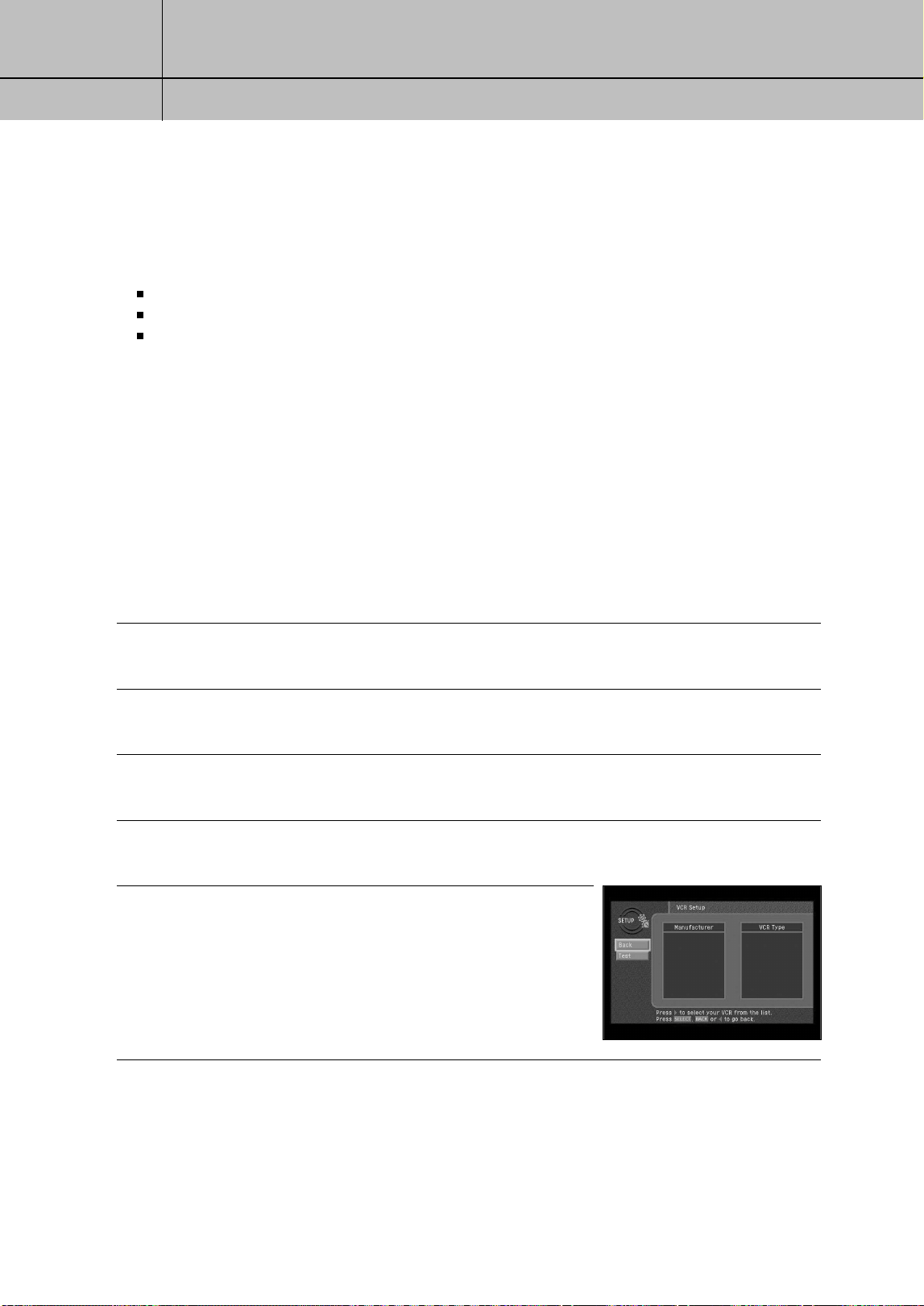
70
CHAPTER 5
Program reminders and recording timers
5
5
Chapter 5: Program reminders and recording timers
This chapter tells you how to use your DIRECTV HD Receiver to set timers that can remind
you when a program is about to begin, and record a program for you on your VCR.
The sections of this chapter include:
Setting up the VCR control
Scheduling program reminders and recording timers
Reviewing and modifying reminders and recording timers
Setting up the VCR control
Your DIRECTV
®
HD Receiver can use the supplied VCR control cable to automatically
program your VCR to record programs for you. (Instructions on setting recording timers
appear later in this chapter).
Before your DIRECTV
®
HD Receiver can program your VCR, you must have correctly
connected and aligned the VCR control cable (see Connecting the VCR control cable in
Chapter 3), and you must tell your DIRECTV
®
HD Receiver what kind of VCR you have.
Here’s how:
1
Press the MENU button on your remote control.
2
Highlight the SETUP menu item, then press the SELECT button.
3
Highlight the Installation menu item, then press the SELECT button.
4
Highlight the VCR Setup menu item, then press the SELECT button.
The VCR Setup screen appears.
5
Highlight the manufacturer of your VCR from
the list on the left side of the screen.
SIR-TS360-CHAPTER 5 11/18/03 9:44 AM Page 70
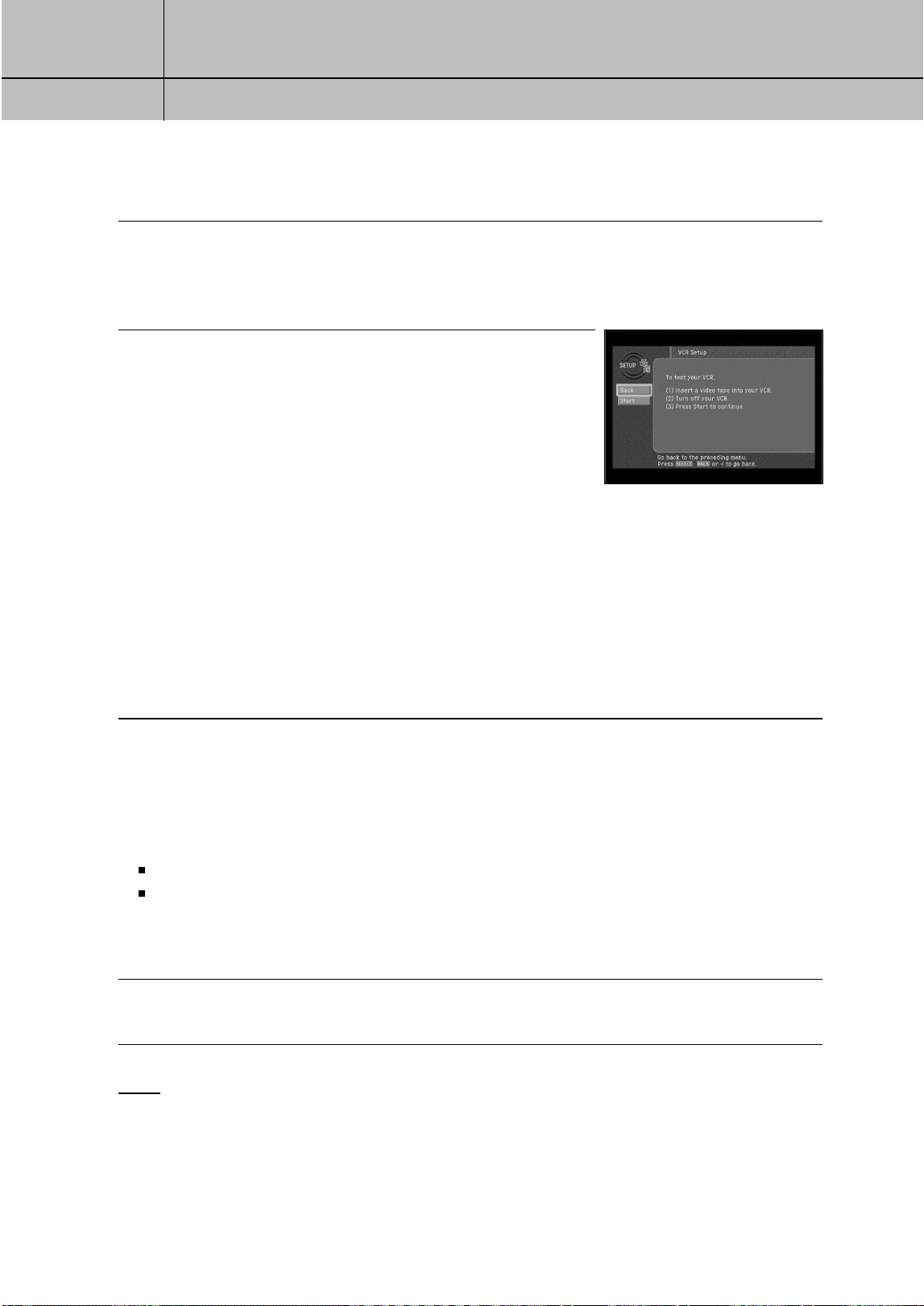
71
CHAPTER 5
Program reminders and recording timers
5
5
6
If the VCR type list on the right side of the screen contains more than one type, highlight a
type from this list.
Some manufacturers distribute more than one type of VCR.
Try them in order until you find the one that passes the test below.
7
Highlight the on-screen Test button from the left side of the
screen, then press the SELECT button.
A screen appears displaying instructions for testing the VCR
setup. Follow the on-screen instructions to see if the VCR
manufacturer and Type settings you selected work for your
VCR.
During the test, the DIRECTV
®
HD Receiver will attempt to program the VCR to record for a short
time. When the on-screen instructions tell you to do so, check the tape to see if your VCR was able to
record the test. If so, your VCR setup is complete. If not, go through the steps in this process again
and at this time select the next VCR type from the list.
Check VCR cable connection if the above method doesn’t work.
Once you have set up the VCR control, you are ready to use the VCR control to record programs
for you. The rest of this chapter describes how to schedule and modify timers that allow you to
record programs and set program reminders.
Scheduling program reminders and recording timers
There are two kinds of timers you can set to help you manage your TV viewing:
You can schedule a reminder to alert you when a program is about to begin.
You can schedule a timer that will automatically record a program on your VCR.
To set your DIRECTV
®
HD Receiver to remind you when a program is about to begin,
or to record a program for you on your VCR, follow these steps:
1
Press the GUIDE button on your remote.
The Guide appears.
NOTE
Timers are not available in the Logo Guide. If you are viewing the Logo Guide, use the RED button
on your remote control, and select Grid Guide.
You can only set timers for future programs (not for programs that are currently under way).
SIR-TS360-CHAPTER 5 11/18/03 9:44 AM Page 71
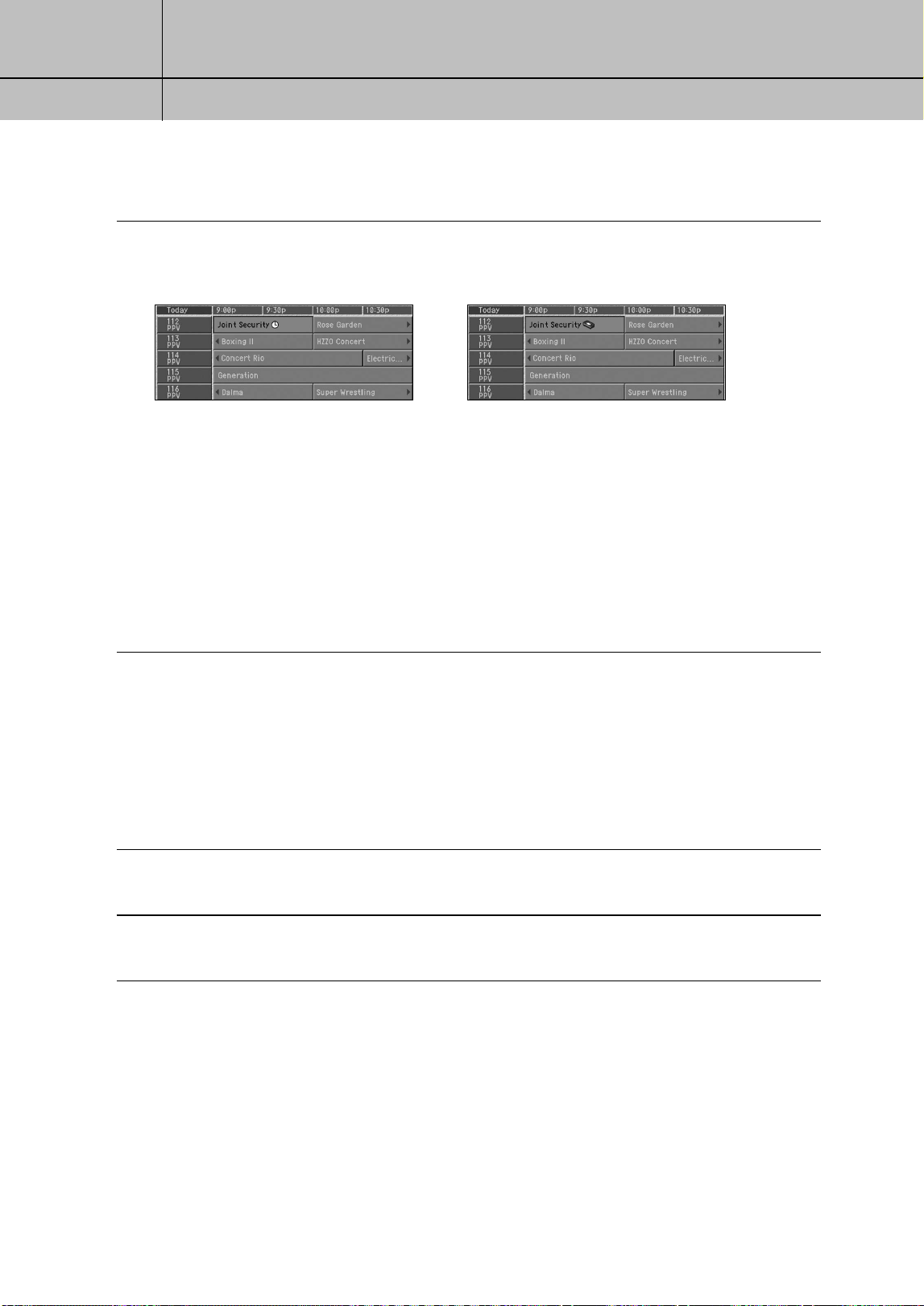
72
CHAPTER 5
Program reminders and recording timers
5
5
2
Highlight the program you wish to record or be reminded about, and press the SELECT button.
Pressing the SELECT button once sets a program reminder. Pressing it again sets the program
to be recorded on your VCR.
Once you have set a reminder, when the program is about to begin, the DIRECTV
®
HD
Receiver displays a message reminding you about the program.
To use the program recording feature, you must have correctly connected and positioned the
VCR control cable. You must also set up the DIRECTV
®
HD Receiver to communicate with your
VCR (see the first section of this chapter).
Make sure there is a tape in your VCR and that the VCR is turned off before the start time of
any programs you have set to be recorded.
Reviewing and modifying reminders and recording timers
The Timers item in the SETUP menu allows you to review, modify, or create new program
reminders and program recording timers.
Here’s how:
1
Press the MENU button on your remote control.
2
Highlight the Setup menu item, then press the SELECT button.
The Setup menu appears.
3
Highlight the Timers menu item, then press the SELECT button.
A clock icon is added to the
program listing when a program
reminder is scheduled.
A videotape icon replaces the clock
icon when a recording timer has
been scheduled.
SIR-TS360-CHAPTER 5 11/18/03 9:44 AM Page 72
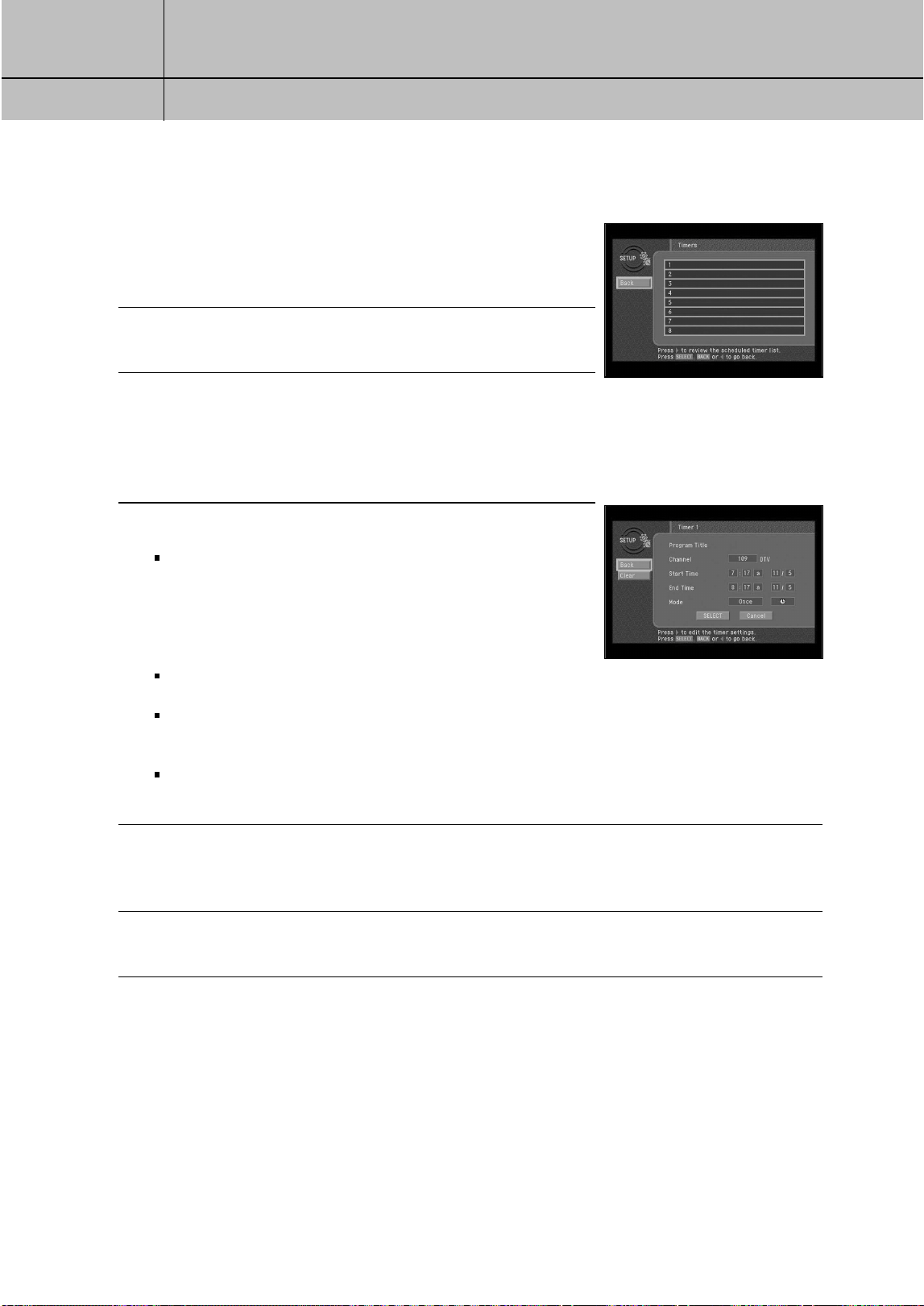
73
CHAPTER 5
Program reminders and recording timers
5
5
The Timers screen appears.
If you have previously scheduled program reminders or
recording timers, they are listed here.
4
To review your previously scheduled program reminders and
recording timers, look through this list.
5
To modify or check the details for any previously scheduled
timers, highlight that timer from the list, then press the SELECT button.
To schedule a new program reminder or recording timer, highlight a blank line from the list,
then press the SELECT button.
The Timer No. screen appears.
6
Highlight the option you wish to change.
For new timers or for timers you previously scheduled
using the Timers screen in the SETUP menu, you can
modify the channel number, the start time and date,
the end time and date, the frequency, and the mode
for the timer (whether it is a program reminder or a
recording timer).
For timers that you scheduled using the on-screen Guide,
you can only change the frequency and mode setting.
Once you have highlighted the option you wish to modify, use the up- or down-arrow buttons
on your remote control to edit the option setting. Use the left- and right-arrow buttons to
highlight different options.
To delete the selected timer, use the right-arrow button on your remote control to highlight
the on-screen Clear button, then press the SELECT button.
7
When you have finished reviewing or modifying the timer, use the right-arrow button on your
remote control to highlight the on-screen Back button, then press the SELECT button.
The Edit Timer screen disappears, and you return to the Timers screen.
8
To return to the SETUP menu, highlight the on-screen Back button, then press the SELECT button.
To exit the Menu system and return to TV viewing, press the EXIT button on your remote control.
SIR-TS360-CHAPTER 5 11/18/03 9:44 AM Page 73
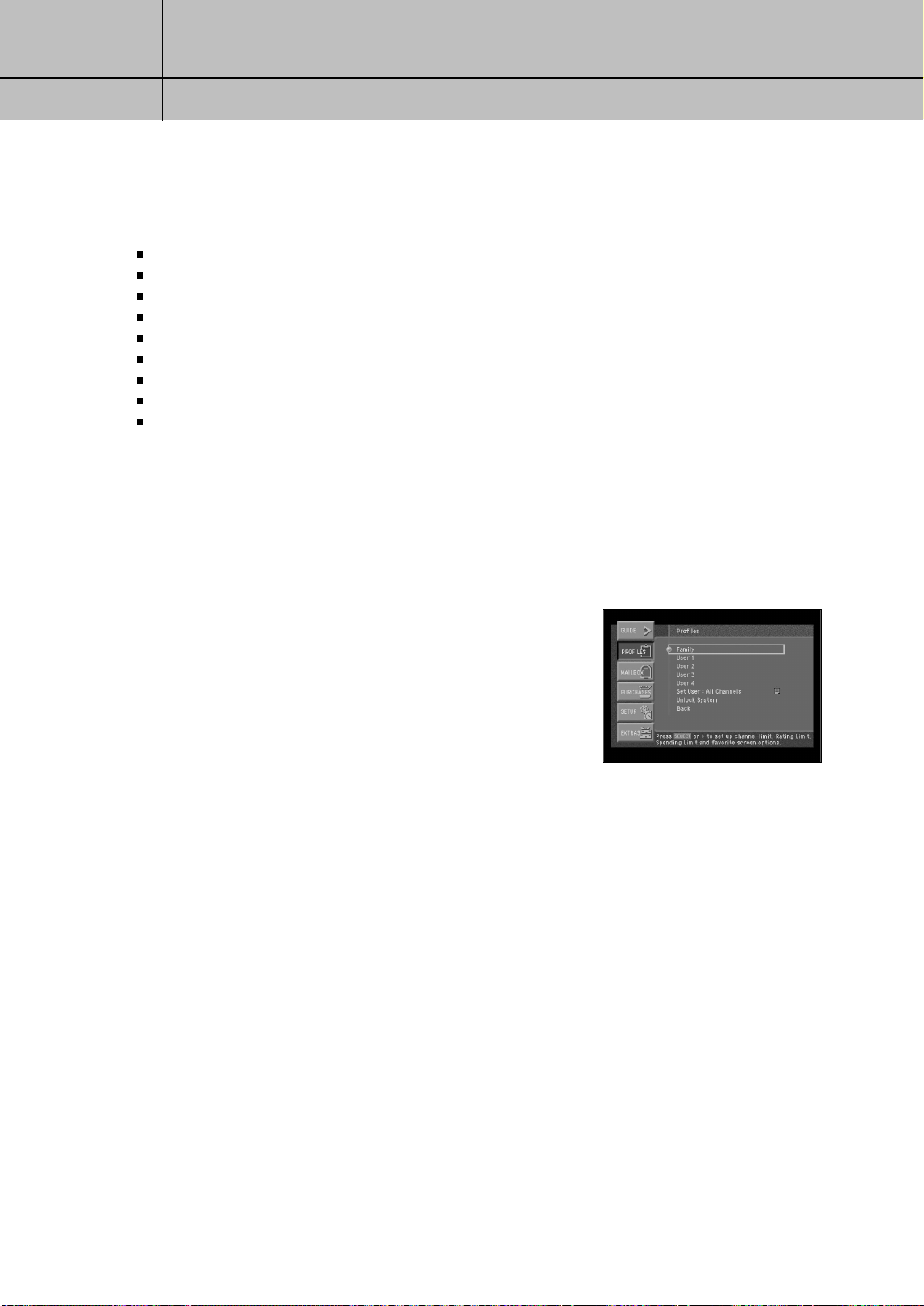
74
CHAPTER 6
User profiles
6
6
Chapter 6: User profiles
This chapter tells you how to modify and select user profiles. Its contents include:
User profiles basics
Editing user profile names
Editing channel lists
Setting ratings limits
Allowing or blocking pay per view purchases
Setting a pay per view spending limit
Setting the screen color and translucency
Setting the current user profile
Locking and unlocking your DIRECTV
®
System
User profile basics
If your DIRECTV
®
HD Receiver is going to be used by more than one person in your
household, you should consider setting up user profiles for each user.
The Profiles section of the Menu system allows you to:
•
Set ratings limits for the DIRECTV
®
HD Receiver (applies to all
users).
•
Set pay per view spending limits for the DIRECTV
®
HD Receiver
(applies to all users).
•
Edit channel lists for the DIRECTV System, and customized
lists for individual users.
•
Change the color and translucency of the Menu and Guide
screens for each user profile.
•
Set which user profile is currently active.
•
Lock and unlock the system (controlling when the ratings limits,
spending limits, and channel restrictions are active).
SIR-TS360-CHAPTER 6 11/18/03 9:44 AM Page 74
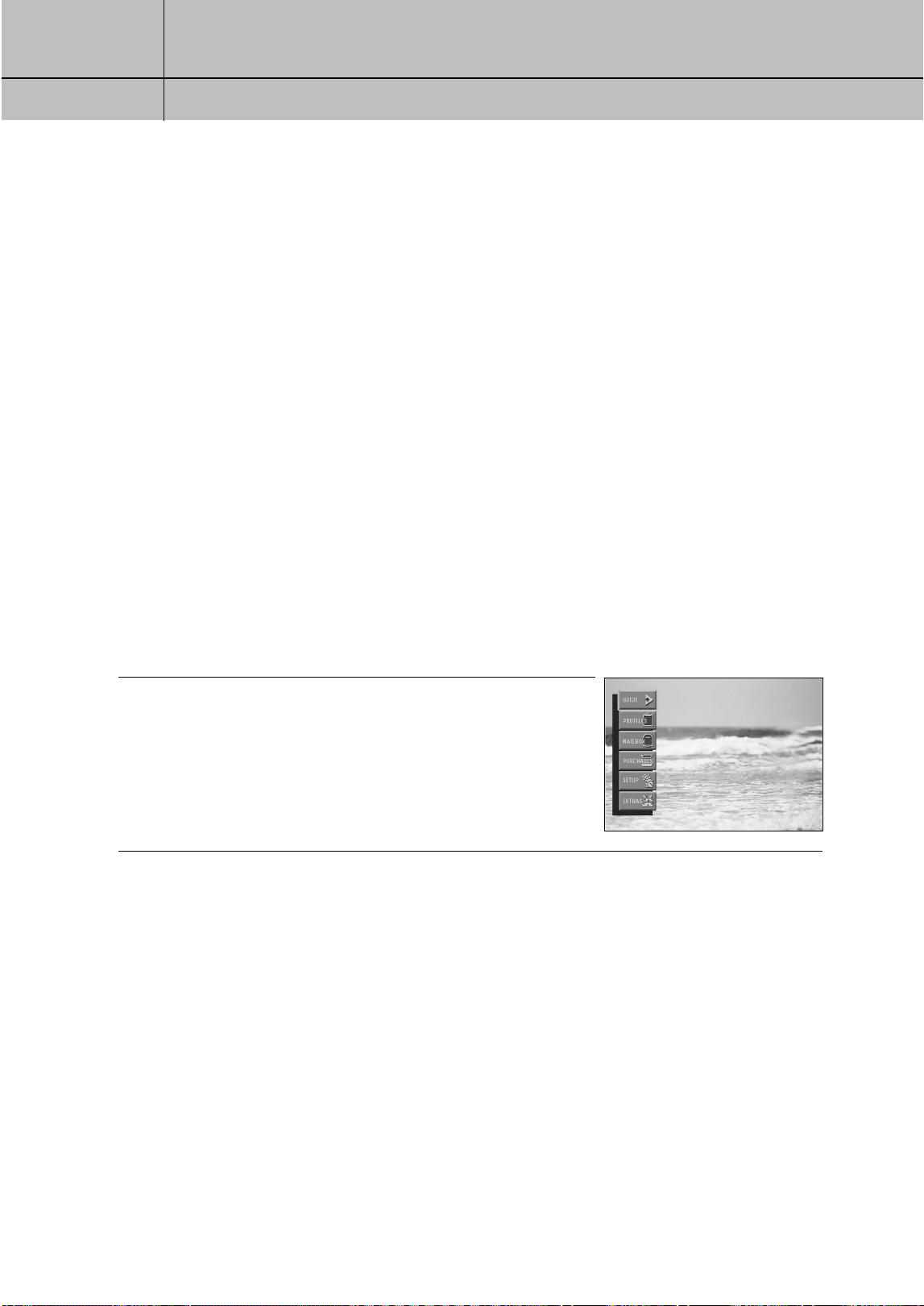
75
CHAPTER 6
User profiles
6
6
There are five user profiles you can choose:
FAMILY: The FAMILY user profile is the master profile for your DIRECTV
®
HD Receiver.
The ratings limits, channel restrictions, and pay per view spending
restrictions you set in the FAMILY profile apply to all of the user profiles.
USER 1 - USER 4: These four user profiles allow individuals in your household to
create custom channel lists and custom screen appearances for
their own use. These profiles can be renamed to identify them
with members of your household. Ratings, spending, and channel
restrictions set in the FAMILY profile still apply when one of these
four user profiles is the active profile and the system is locked.
ALL CHANNELS: You can change the Screen color or Translucency in the preferences
of the set up menu.
Editing user profile names
The four profiles named User 1 - 4 can be renamed for members of your household.
The FAMILY and ALL CHANNELS profiles cannot be renamed. You can change the
names of User 1 - 4 profiles to anything you wish, using up to eight letters and numbers.
1
Press the MENU button on your remote control.
The Main menu appears.
SIR-TS360-CHAPTER 6 11/18/03 9:44 AM Page 75
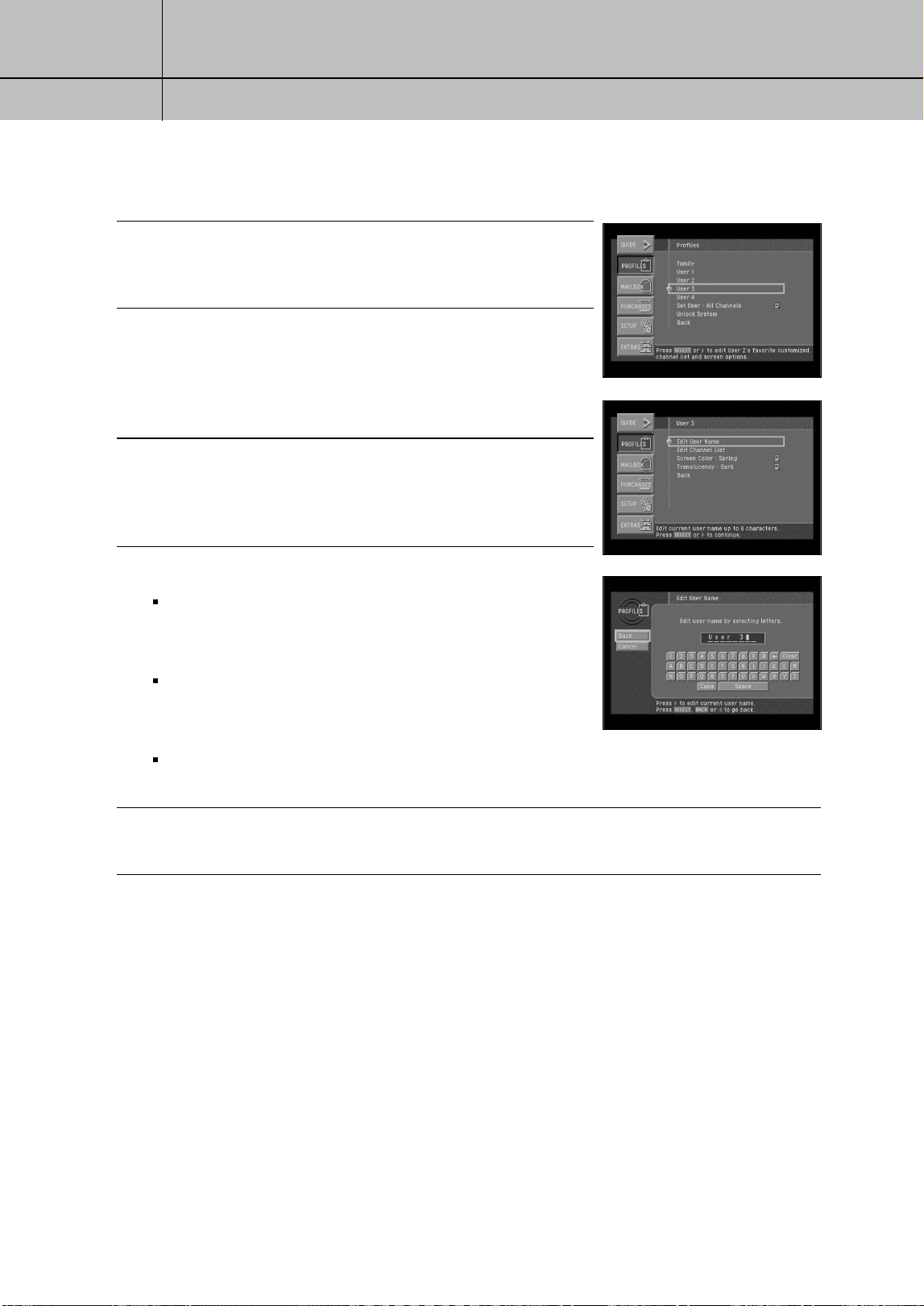
76
CHAPTER 6
User profiles
6
6
2
Highlight the PROFILES menu item, then press the SELECT
button. The PROFILES menu appears.
3
Highlight the profile you wish to rename, then press the
SELECT button.
The menu for that user profile appears.
The Edit User Name item is highlighted.
4
Press the SELECT button to start editing the user name for
that profile.
The Edit User Name screen appears.
5
Type a new name for the user profile as described below:
To type each letter or number in the new name, highlight a
key on the on-screen keyboard, then press the SELECT button.
Repeat this until you have typed the entire name.
If you need to erase a letter or two, highlight the on-screen
left arrow (near the top-right corner of the keyboard),
then press the SELECT button.
To erase the entire name, highlight the on-screen Clear key,
then press the select button.
6
When you have finished typing the user profile name, highlight the on-screen Back button,
then press the SELECT button.
SIR-TS360-CHAPTER 6 11/18/03 9:44 AM Page 76
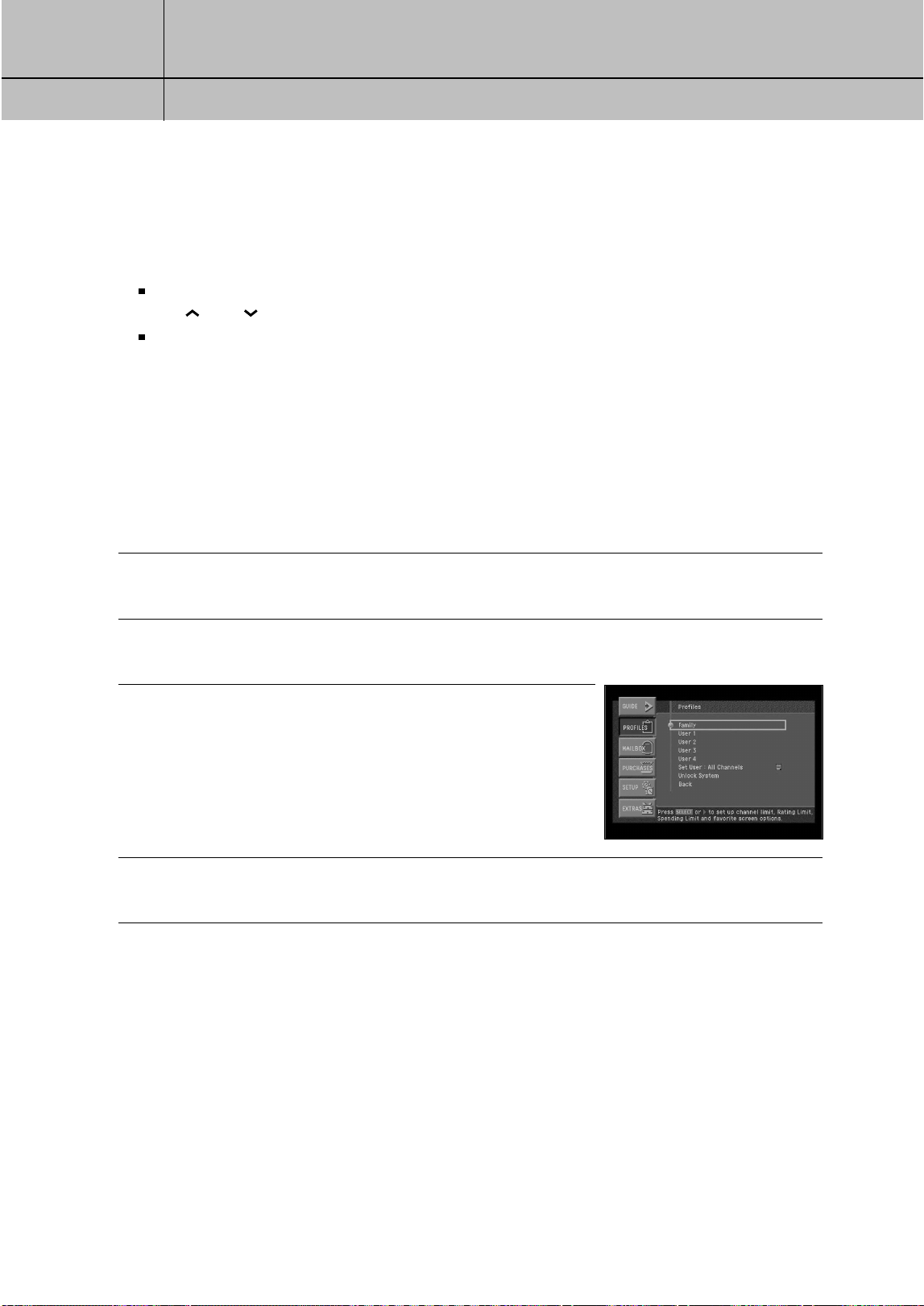
77
CHAPTER 6
User profiles
6
6
Editing channel lists
You can edit channel lists to simplify your channel surfing by removing channels that
you never watch from your channel list. Editing a channel list for a user profile has
two effects :
When that user profile is the active profile, it sets which channels are skipped as you change channels with
the CH and CH buttons on your remote control.
When that user profile is the active profile, it determines which channels appear and do not appear in the Program Guide.
It is possible to tune to a channel directly by pressing the 0 - 9 buttons on your
remote control even when that channel is removed from the channel list for
that profile.
The FAMILY profile is the master profile — channel restrictions set in the FAMILY
profile apply to the entire DIRECTV
®
System (when the system is locked), regardless
of which user profile is active. Channels that are removed from the channel list in the
FAMILY profile are “blocked” for all profiles — that is, these channels cannot be
viewed even when tuned directly using the 0 - 9 buttons on your remote control.
Here are the steps for editing a channel list:
1
Press the MENU button on your remote control.
2
Highlight the PROFILES menu item, then press the SELECT button.
The PROFILES menu appears.
3
Highlight the profile containing the channel list you wish to
edit (FAMILY, or USER 1 - 4), then press the SELECT button.
The menu for that user profile appears.
The Edit Channel List item is highlighted.
Editing the FAMILY channel list changes channel access for
all profiles. The ALL CHANNELS profile cannot be edited.
4
Press the SELECT button to start editing the channel list.
The Edit Channel List screen appears.
SIR-TS360-CHAPTER 6 11/18/03 9:44 AM Page 77
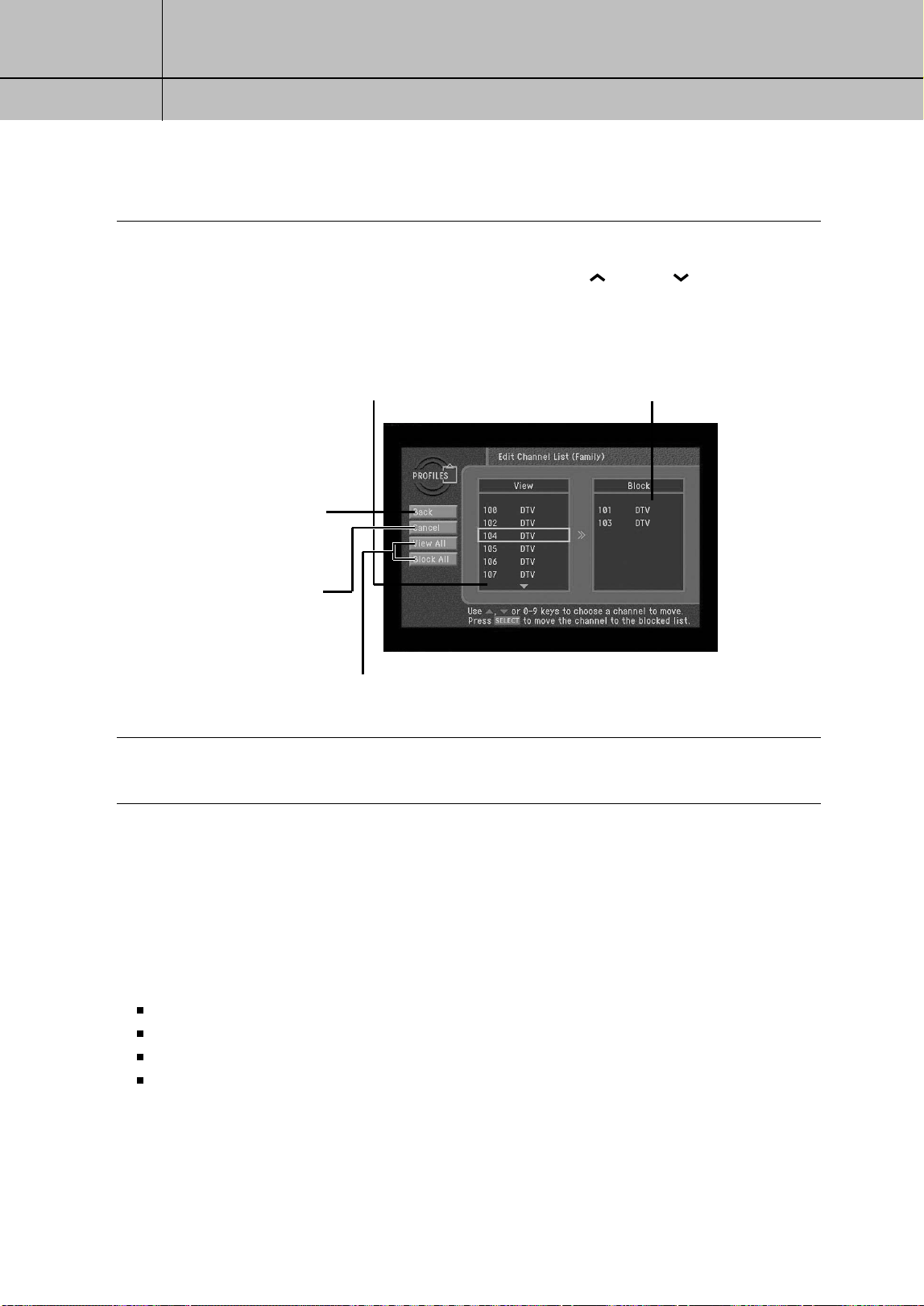
78
CHAPTER 6
User profiles
6
6
5
Edit the list using the controls as described below.
Channels that are removed from the channel list do not appear in the Program Guide,
and they are skipped when you change channels with the CH and CH buttons.
6
When you have finished editing the list, highlight the on-screen Back button,
then press the SELECT button.
Setting ratings limits
To control the ratings of the programs your family can watch, set ratings limits in the
FAMILY profile. Ratings limits set in the FAMILY profile apply to the entire DIRECTV
®
System no matter which user profile is active (as long as the system is locked).
There are various systems used to rate TV programs. Your DIRECTV
®
HD Receiver allows
you to set limits for the following kinds of ratings:
TV program ratings for the Entire Audience.
TV program ratings specifically for Children.
TV program ratings for unrated programs (TV rating of none).
Movie ratings based on the MPAA (Motion Picture Association of America) ratings.
If you have younger TV viewers in your home, you should set the maximum rating
for each of these program-types to ensure the most effective ratings control.
Channels included in the channel
list. To remove a channel from
the list, highlight it, then press
SELECT on your remote control.
Channels not included in the
channel list. To add a channel to the
channel list, highlight it here, then
press SELECT on your remote control.
When you have finished
editing the channel list,
highlight Back, then
press the SELECT button.
Cancel returns you to
the previous screen
without changing the
channel list.
Move all channels into the View list or Block list.
SIR-TS360-CHAPTER 6 11/18/03 9:44 AM Page 78
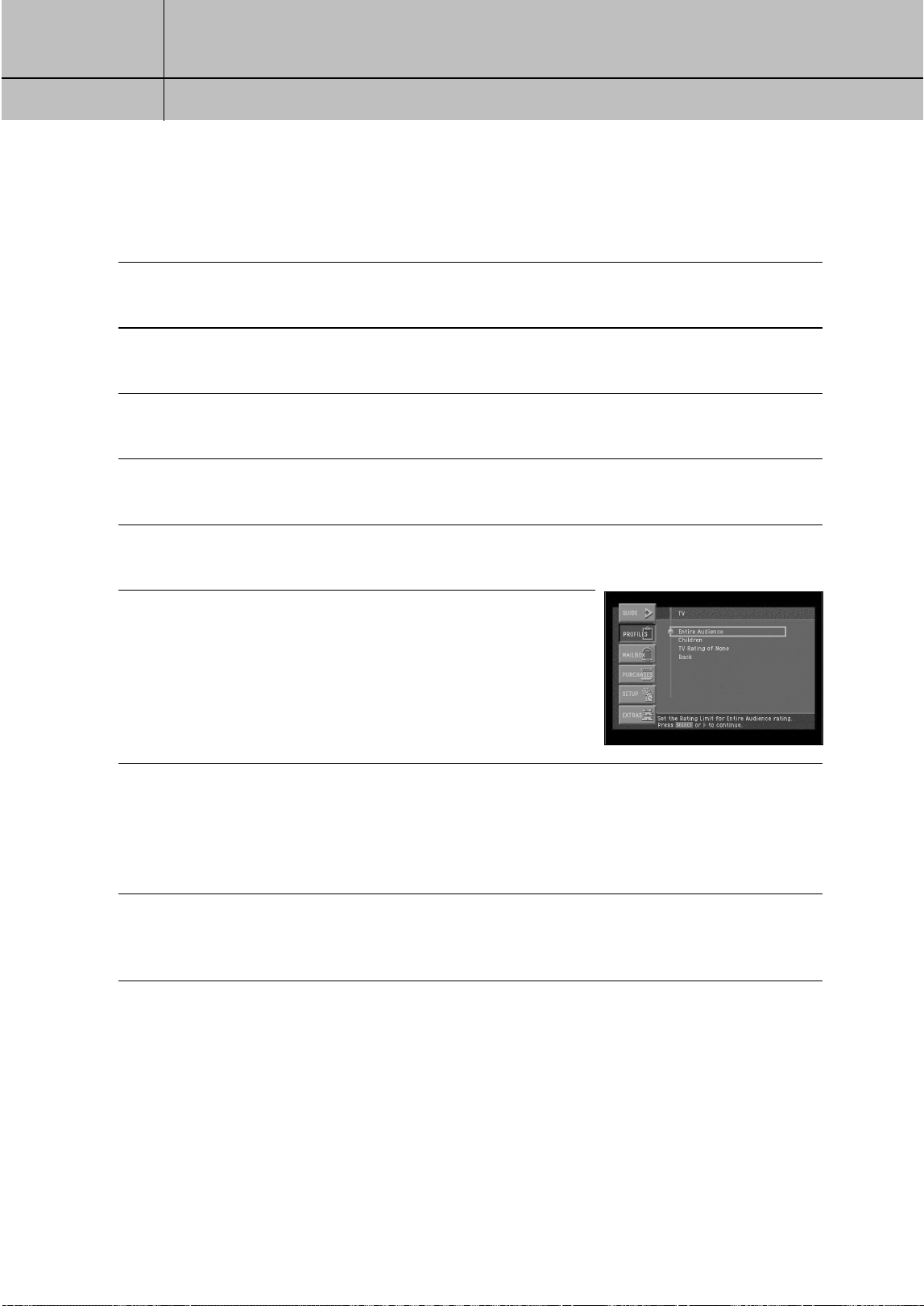
79
CHAPTER 6
User profiles
6
6
Setting the ratings limits for TV programs
To set the maximum viewable TV program rating for the TV programs, follow these steps:
1
Press the MENU button on your remote control.
2
Highlight the PROFILES menu item, then press the SELECT button.
The PROFILES menu appears. The FAMILY profile is highlighted.
3
Press the SELECT button to display the FAMILY profile menu.
The FAMILY profile menu appears.
4
Highlight the Rating Limit menu item, then press the SELECT button.
The Rating Limit menu appears.
5
Highlight the TV menu item, then press the SELECT button.
The TV menu appears.
6
Highlight the rating option you wish to set, then press the
SELECT button.
The screen you selected appears.
7
Use the arrow and SELECT buttons on your remote control to select the buttons, ratings, or the
specific types of content you wish to block your family from viewing.
Programs containing blocked content or that are rated at or above the level you select will be
blocked when your system is locked. (See Locking and unlocking your DIRECTV
®
System later
in this chapter.)
8
When you have finished setting the ratings on one screen, select the on-screen Back button.
You return to the TV menu. From there you can select the next rating type and continue to set
the ratings as described in step 7.
SIR-TS360-CHAPTER 6 11/18/03 9:44 AM Page 79

80
CHAPTER 6
User profiles
6
6
Here are descriptions of the ratings and abbreviations used on the Entire Audience rating
screen:
TV-G: General audience. Although not specifically designed for children, most parents
would find this program suitable for all ages.
TV-PG: Parental guidance suggested. This program may not be suitable for younger
children.
TV-14: Parents strongly cautioned. This program may contain material parents would find
unsuitable for children under 14 years of age.
TV-MA: Mature audience only. This program is specifically designed to be viewed by adults,
and is therefore unsuitable for anyone under 17 years of age.
D: Suggestive dialog.
L: Coarse language.
S: Intense sexual situations.
V: Violence.
Here are descriptions of the ratings and abbreviations used on the Children rating
screen:
TV-Y: All children. This program is designed to be appropriate for all children.
TV-Y7: Directed to older children. This program is designed to be viewed by children age 7
and above.
TV-Y7-FV: Similar to TV-Y7, but may include strong fantasy violence (such as fighting by
animated characters).
The TV Rating of None screen allows you to allow or block programs that are unrated or
have a rating of “None.”
Setting ratings limits for movies
To set the maximum viewable rating for movies, follow these steps:
1
Press the MENU button on your remote control.
2
Highlight the PROFILES menu item, then press the SELECT button.
The PROFILES menu appears. The FAMILY profile is highlighted.
3
Press the SELECT button to display the FAMILY profile menu.
The FAMILY profile menu appears.
SIR-TS360-CHAPTER 6 11/18/03 9:44 AM Page 80
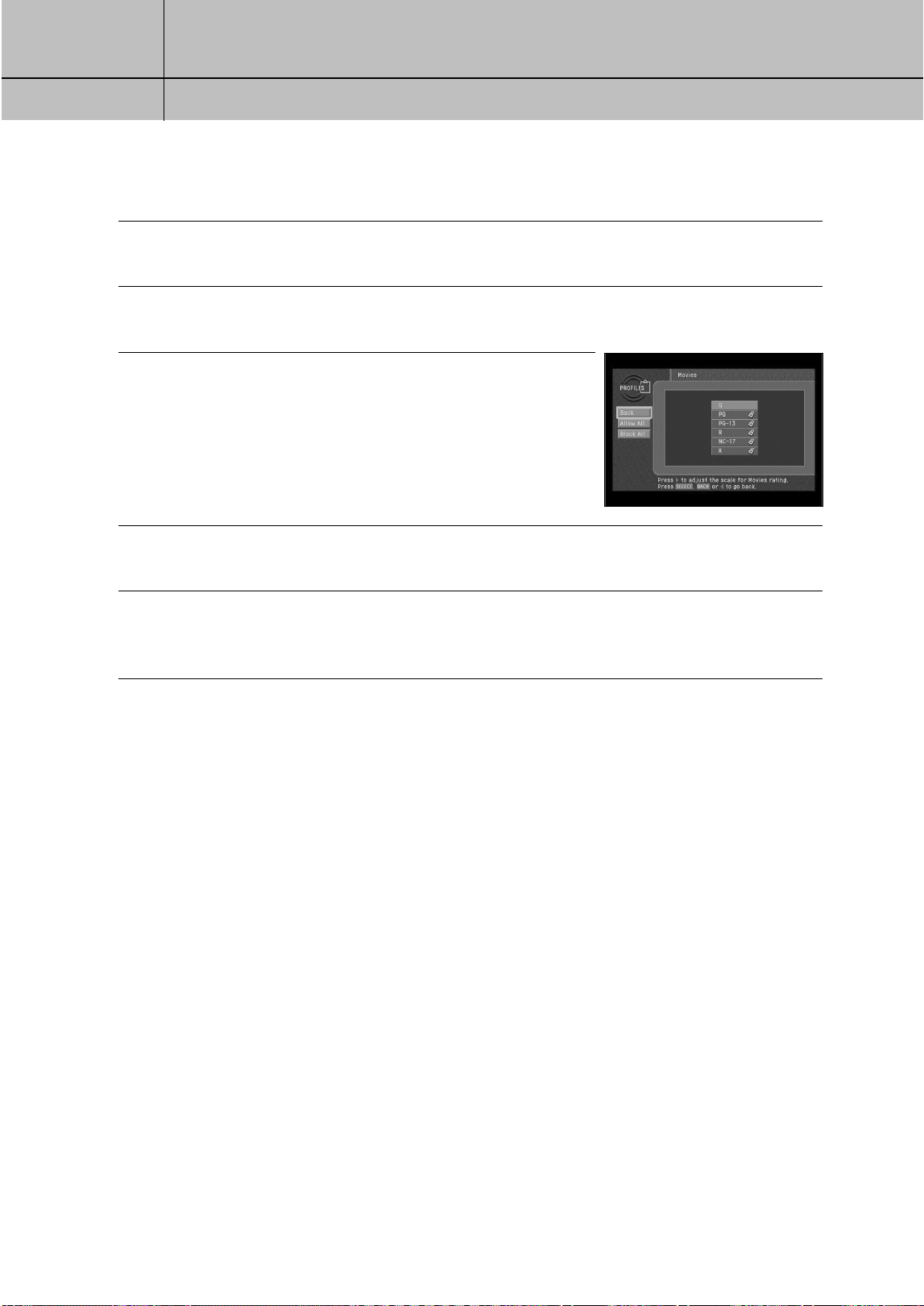
81
CHAPTER 6
User profiles
6
6
4
Highlight the Rating Limit menu item, then press the SELECT button.
The Rating Limit menu appears. Movies is highlighted.
5
Press the SELECT button to display the Movies screen.
The Movies screen appears.
6
Use the arrow and SELECT buttons on your remote control to
select the ratings you wish to block your family from viewing.
Programs that are rated at or above the level you select will
be blocked when your system is locked. (See Locking and
unlocking your DIRECTV
®
System later in this chapter.)
7
To unblock all of the ratings and content types, select the on-screen Allow All button.
To block all of the ratings and content types, select the on-screen Block All button.
8
When you have finished setting the ratings on the Movies screen, select the on-screen
Back button.
You return to the Rating Limit menu.
Here are descriptions of the ratings used on the Movies rating screen:
G: General Audiences. This rating is generally suitable for all audiences.
PG: Parental Guidance Suggested. Indicates that some parents may find material in
this film unsuitable for children.
PG-13: Parents Strongly Cautioned. Movies with this rating should be investigated by
parents before they let children under 13 years of age view the film.
R: Restricted. Some material not suitable for children 17 years of age or younger.
Parents are strongly urged to investigate this film before allowing children to view
it with them.
NC-17: This film contains material that is intended to be viewed by adults only.
X: This film contains explicit sexual material, and is intended to be viewed by adults
only.
Allowing or blocking pay per view purchases
To set whether pay per view programs can be purchased on your DIRECTV
®
HD Receiver,
use the Pay Per View option in the FAMILY profile menu.
The Pay Per View Allow/Block setting in the FAMILY profile applies any time the system
is locked, regardless of which user profile is active.
SIR-TS360-CHAPTER 6 11/18/03 9:44 AM Page 81
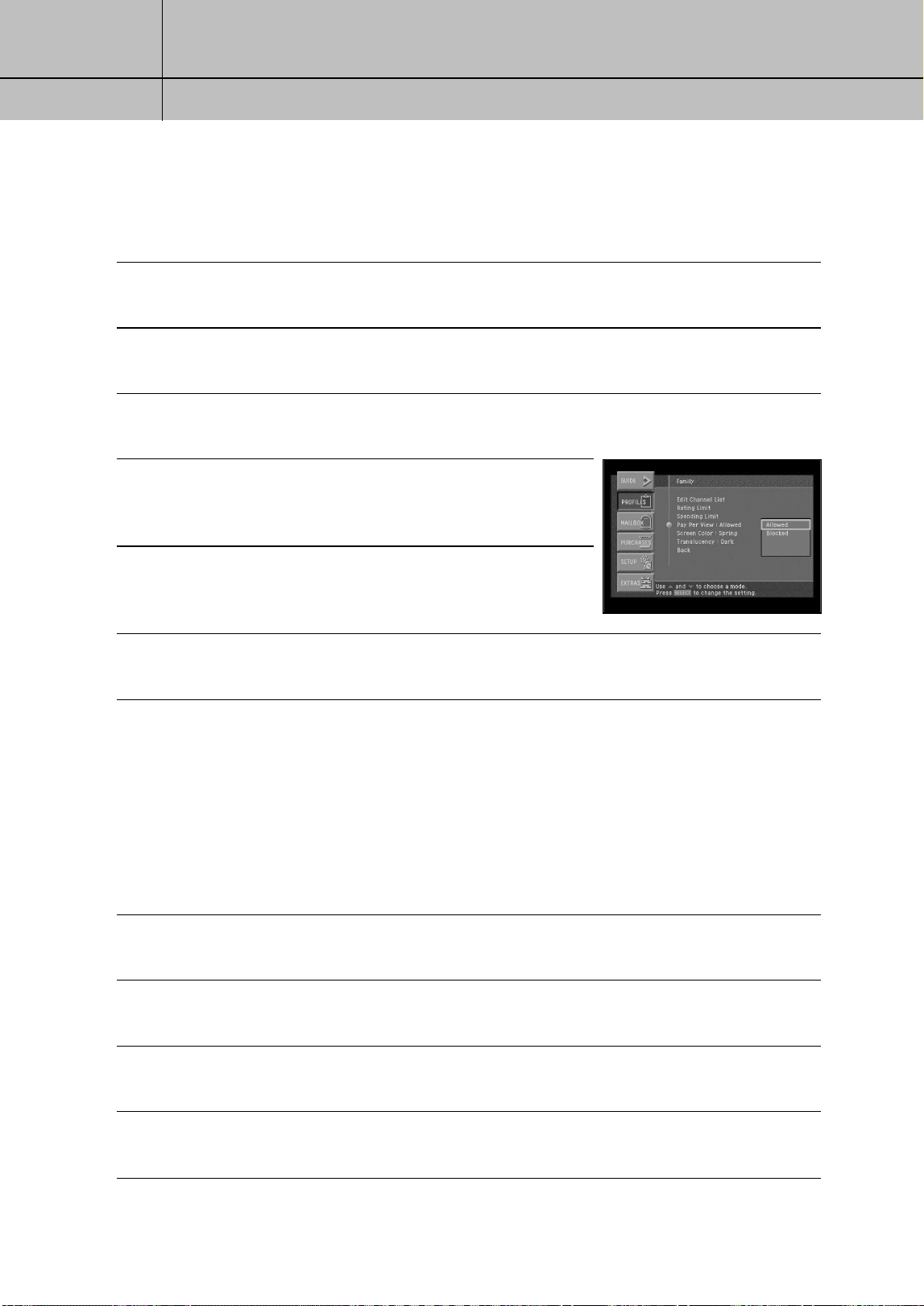
82
CHAPTER 6
User profiles
6
6
To set your DIRECTV HD Receiver to allow or block pay per view purchases:
1
Press the MENU button on your remote control.
2
Highlight the PROFILES menu item, then press the SELECT button.
The PROFILES menu appears. The FAMILY profile is highlighted.
3
Press the SELECT button to display the FAMILY profile menu.
The FAMILY profile menu appears.
4
Highlight the Pay Per View menu item, then press the SELECT
button. A list appears, from which you can choose to Allow or
Block pay per view purchases.
5
Highlight Allow or Block, then press the SELECT button.
The list disappears, and the Pay Per View menu item indicates
your choice.
6
To clear the Menu from your screen, press the EXIT button on your remote control.
Setting a pay per view spending limit
To limit the dollar amount that can be spent for each pay per view program, use the
Spending Limit option in the FAMILY profile menu. Spending Limit sets in the FAMILY
profile apply any time the system is locked, regardless of which user profile is active.
Here’s how to set a spending limit:
1
Press the MENU button on your remote control.
2
Highlight the PROFILES menu item, then press the SELECT button.
The PROFILES menu appears. The FAMILY profile is highlighted.
3
Press the SELECT button to display the FAMILY profile menu.
The FAMILY profile menu appears.
4
Highlight the Spending Limit menu item, then press the SELECT button.
The Spending Limit screen appears.
SIR-TS360-CHAPTER 6 11/18/03 9:44 AM Page 82
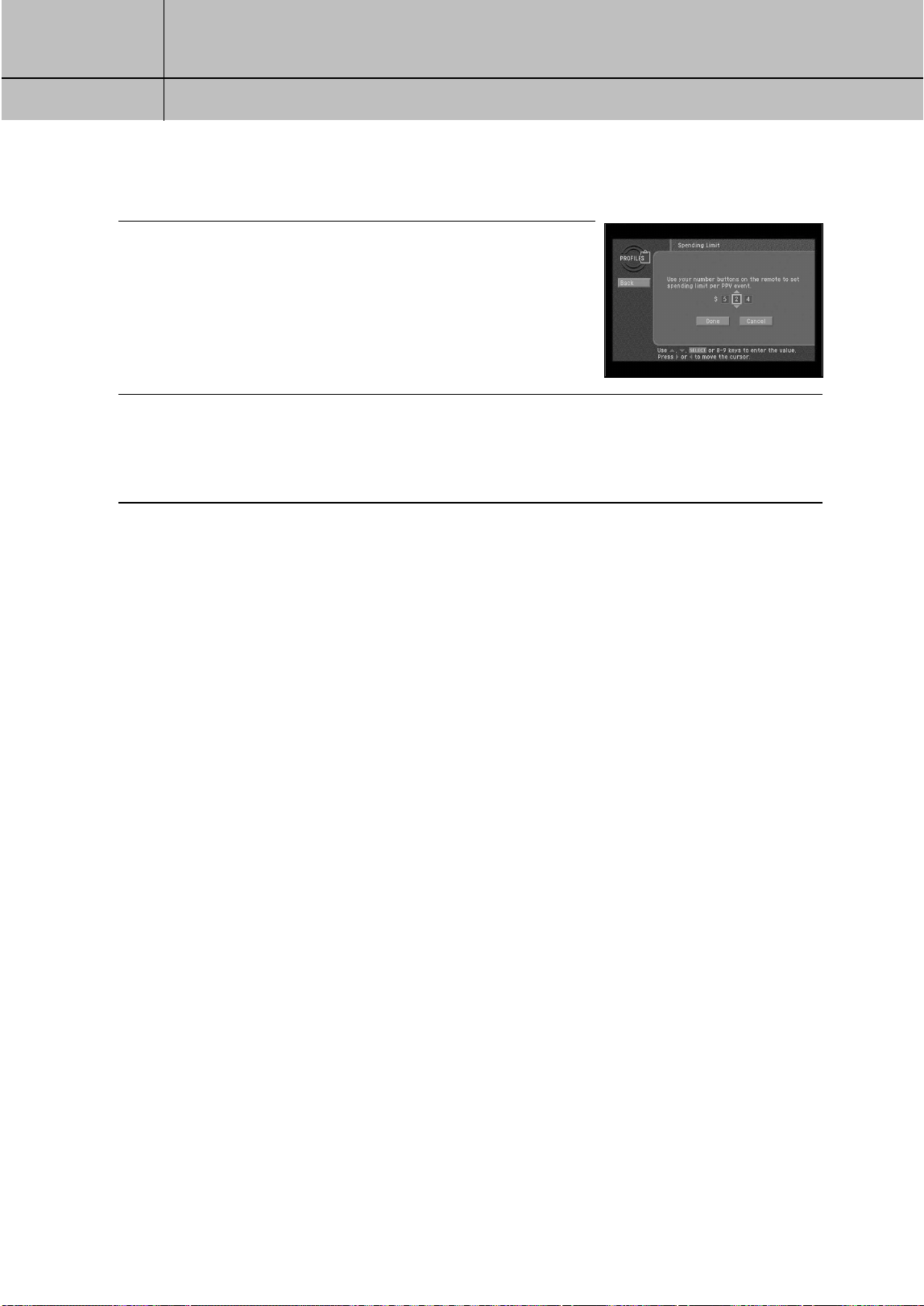
83
CHAPTER 6
User profiles
6
6
5
Use the 0 - 9 buttons on your remote control to enter the
maximum price allowed for a pay per view program.
For example, to block programs that cost over twenty dollars
each, you would press 0, 2, 0.
As you press the number buttons the highlight moves to the
next digit.
6
When you have entered the spending limit, highlight the on-screen Done button, then press
the SELECT button.
Your spending limit will now be in effect when the system is locked.
(See Locking and unlocking your DIRECTV
®
System later in this chapter.)
Setting the screen color and translucency
For each of the profiles, you can set the screen color and translucency level used to
display Menu and Guide screens. Screen colors can be set for the FAMILY profile and
the four USER profiles. You can also choose from four levels of translucency:
Translucency can be set for the FAMILY profile and the four USER profiles.
To set these screen display options use the Screen Color and Translucency menu items in
the menu for the profile you wish to change.
SIR-TS360-CHAPTER 6 11/18/03 9:44 AM Page 83
84
CHAPTER 6
User profiles
6
6
Setting the current user profile
To set the current user profile (making that profile’s channel list, screen color and screen
translucency settings active) follow these steps:
1
Press the MENU button on your remote control.
2
Highlight the PROFILES menu item, then press the SELECT button.
The PROFILES menu appears.
3
Highlight the Set User menu item, then press the SELECT button.
The user profile list appears.
4
Highlight the profile you wish to make active, then press the SELECT button.
When you select a user profile, the list disappears, and the profile you selected becomes the
current user profile.
5
To exit the Menu, press the EXIT button on your remote control.
NOTE
The user profile can also be changed by pressing the WHO button on your remote control while
you are watching TV.
Locking and unlocking your DIRECTV
®
System
If you have set ratings limits, spending limits, or channel lists for your DIRECTV
®
System,
you need to lock the system to make those settings take effect.
To later change those settings, you will need to unlock the system to access the controls
for those settings. Locking the system involves entering a four-digit password.
You will need to remember this password to unlock the system. Write down the password
and keep it in a safe place. If you forget your password, call DIRECTV or your service
provider for assistance.
SIR-TS360-CHAPTER 6 11/18/03 9:44 AM Page 84
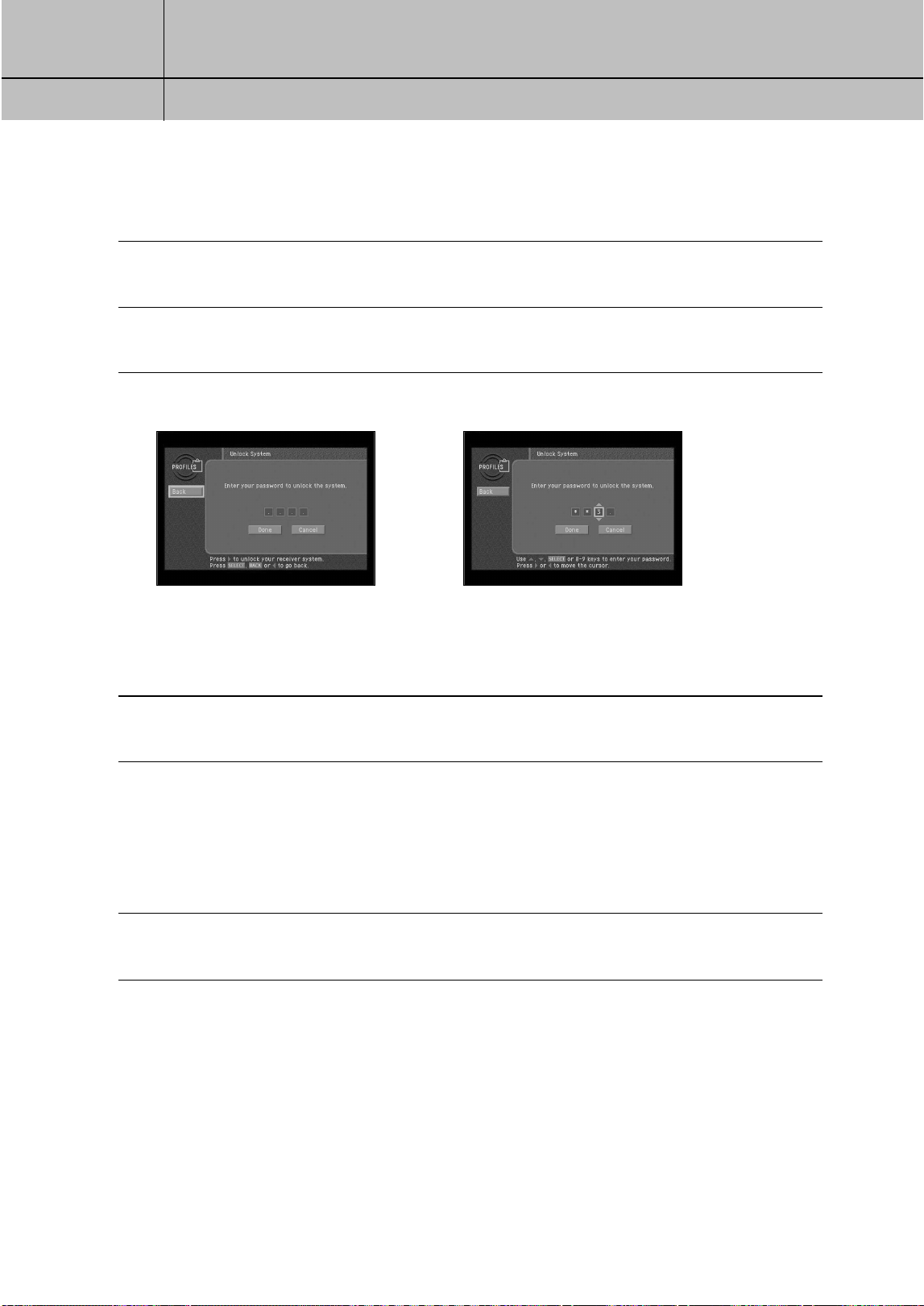
85
CHAPTER 6
User profiles
6
6
To lock or unlock the system, follow these steps:
1
Press the MENU button on your remote control.
2
Highlight the PROFILES menu item, then press the SELECT button.
The PROFILES menu appears.
3
Highlight the Lock System or Unlock System menu item, then press the SELECT button.
4
Highlight the first digit in the password.
5
Use the 0 - 9 buttons, up or down arrow button on your remote control to enter a four-digit
password. Then highlight the on-screen Done button and press the SELECT button.
If you are locking the system, you will see a second screen asking you to confirm your
password (to make sure you entered it correctly).
When you have finished locking or unlocking the system, the Lock System/Unlock System
screen disappears, and the PROFILES menu is displayed.
6
To clear the Menu from your screen, press the EXIT button on your remote control.
When the system is unlocked, the Lock
System menu item is displayed. Selecting
Lock System displays a screen where you
can lock the system.
When the system is locked, the Unlock
System menu item is displayed. Selecting
Unlock System displays a screen where
you can unlock the system.
SIR-TS360-CHAPTER 6 11/18/03 9:44 AM Page 85
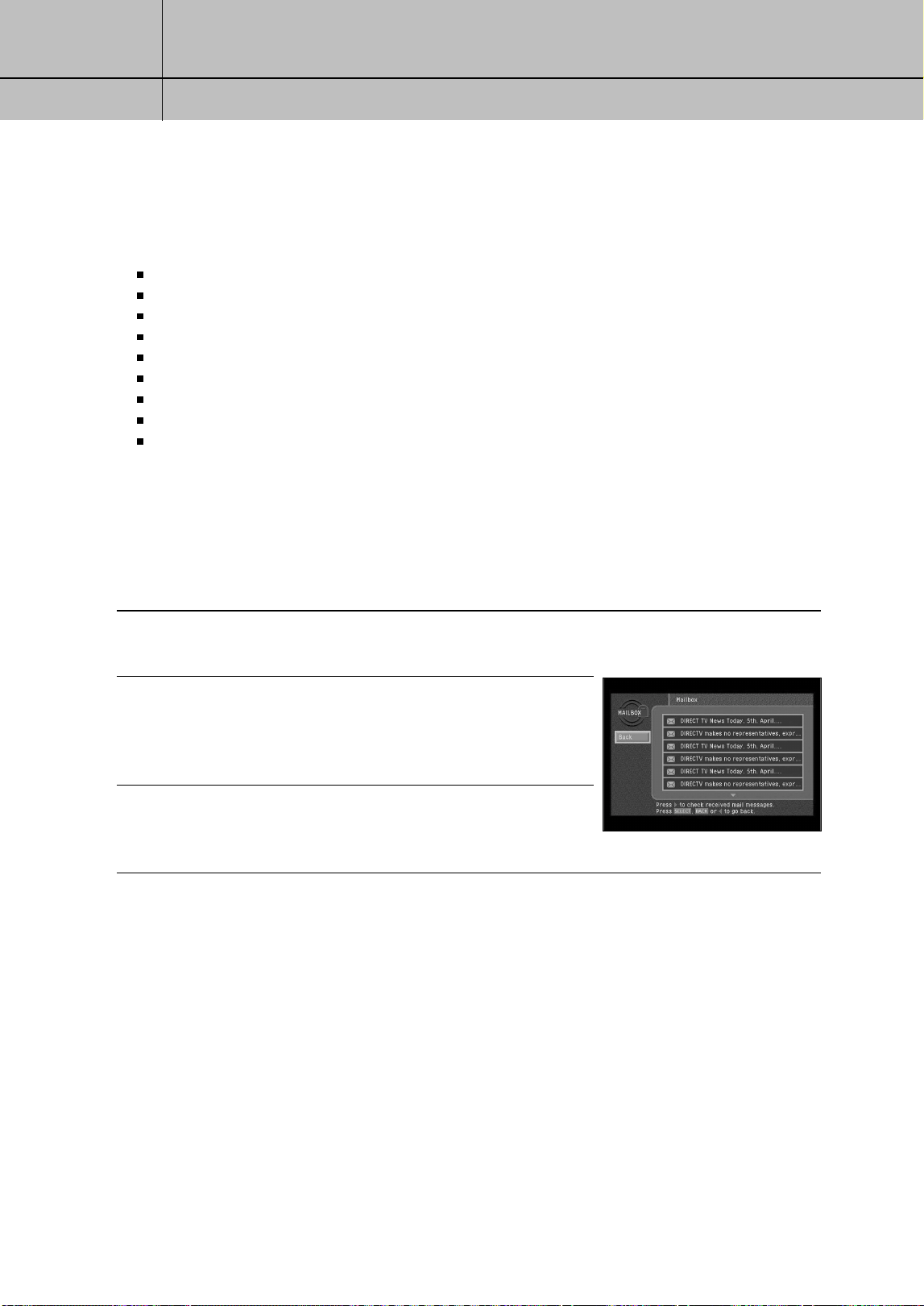
86
CHAPTER 7
Settings, preferences, upgrades, and extras
7
7
Chapter 7: Settings, preferences, upgrades, and extras
This chapter tells you how to use the DIRECTV menu system to control the way your
DIRECTV
®
HD Receiver operates. Its contents include:
Reading your mail
Setting system preferences
Reviewing and controlling caller ID
Setting the Local Time options
Installing a new Access Card
Viewing important information and a list of features supported by your DIRECTV
®
HD Receiver
Viewing information on automatic system upgrades
Viewing fun system extras
Remote Control setup
Reading your mail
The MAILBOX menu item allows you to read the mail sent to you by DIRECTV or your
service provider. Here’s how:
1
Press the MENU button on your remote control.
2
Highlight the MAILBOX menu item, then press the SELECT
button. The MAILBOX screen appears, displaying all of the
mail you have received (both read and unread).
3
To read one of the pieces of mail, highlight that piece of
mail in your mailbox, then press the SELECT button.
The selected mail message appears.
SIR-TS360-CHAPTER 7 11/18/03 9:45 AM Page 86
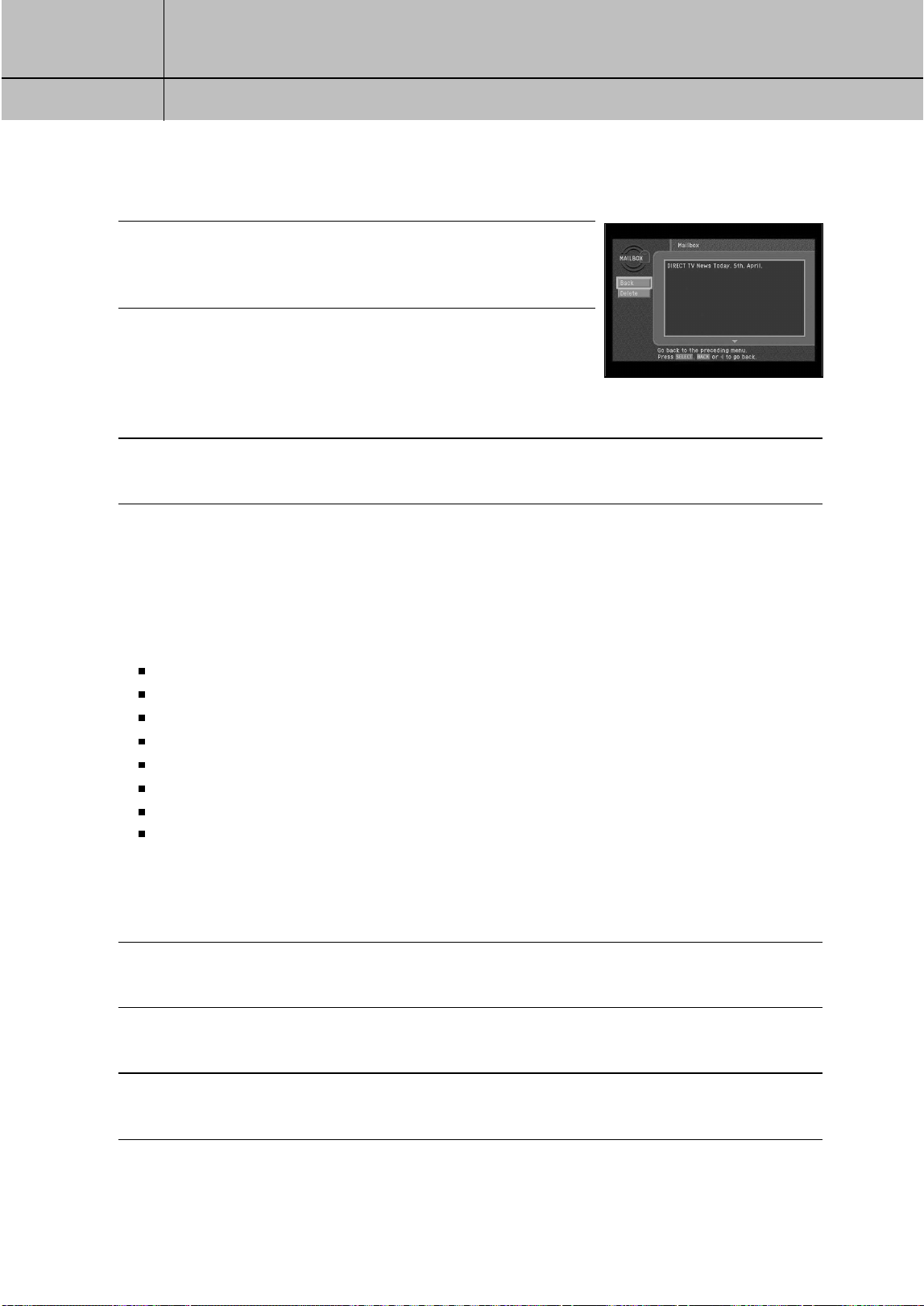
87
CHAPTER 7
Settings, preferences, upgrades, and extras
7
7
4
To delete the mail message (permanently removing it from
your MAILBOX), highlight the on-screen Delete button and
press the SELECT button on your remote control.
5
To leave the message in your MAILBOX and return to the
MAILBOX screen, highlight the on-screen BACK button and
press the SELECT button on your remote control.
The mail message disappears, and the MAILBOX screen
appears.
6
To clear the Menu from your screen, press the EXIT button on your remote control.
Setting system preferences
The Setup menu in your DIRECTV
®
HD Receiver’s Menu system allows you to control many
of the functions of the DIRECTV
®
HD Receiver. The first set of items you can control are
system preferences. Specifically, these preferences you can set include:
The language for the on-screen menu system.
The screen format to use for widescreen program broadcasts.
The color of bars in Letter box and Pillar box screen formats.
The closed caption settings.
The default screen color for Menu and Guide screens.
The default translucency for Menu and Guide screens.
A pair of audio settings (language, and PCM or Dolby Digital for digital audio broadcasts)
Input source setting
Setting the language for on-screen Menus and Guides
To choose a language for the Menu and Guide screens, follow these steps:
1
Press the MENU button on your remote control.
2
Highlight the Setup menu item, then press the SELECT button.
3
Highlight the Preferences menu item, then press the SELECT button.
SIR-TS360-CHAPTER 7 11/18/03 9:45 AM Page 87
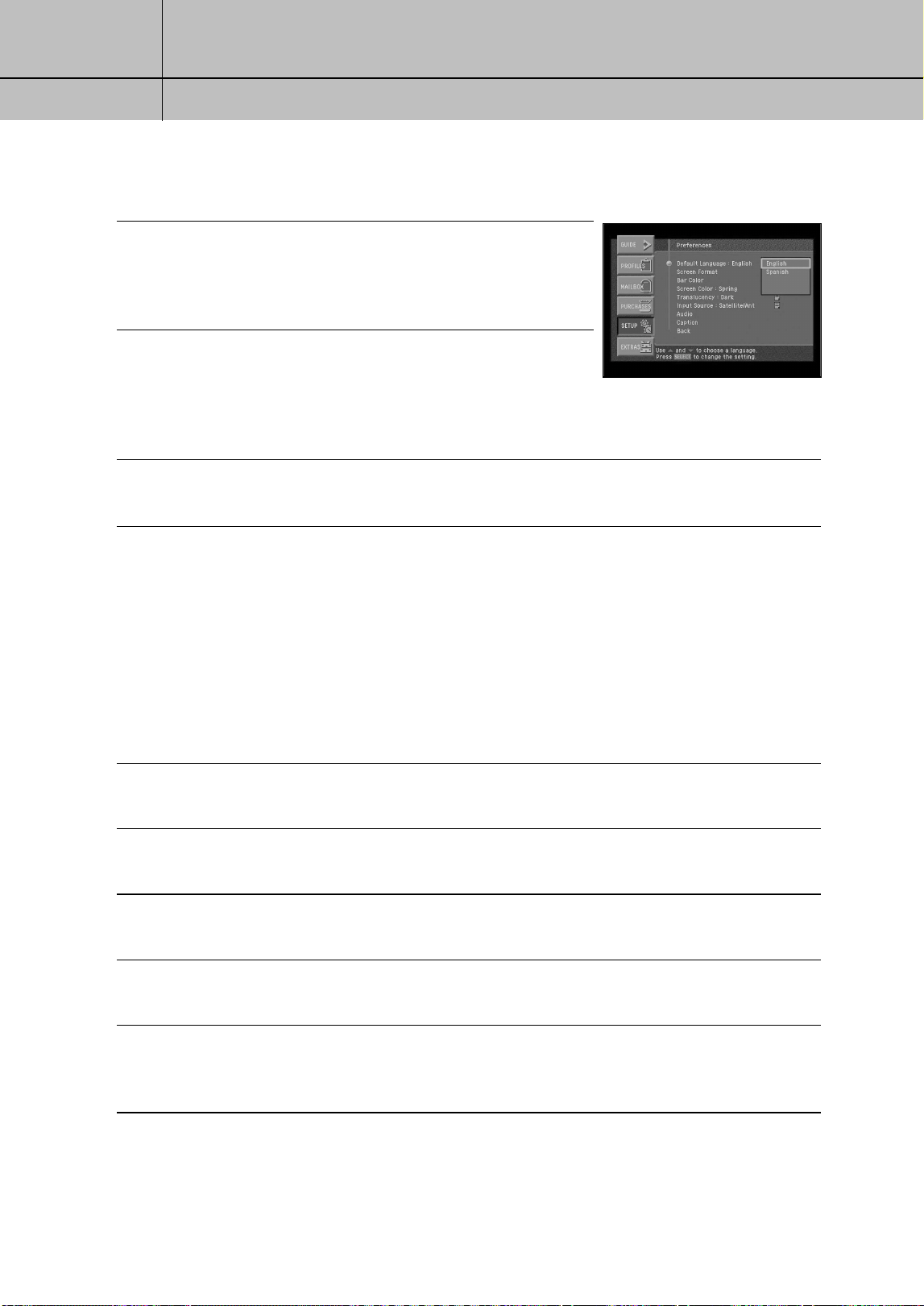
88
CHAPTER 7
Settings, preferences, upgrades, and extras
7
7
4
Highlight the Default Language menu item, then press the
SELECT button.
A list of languages you can use for Guide and Menu screens
appears.
5
Highlight the language you wish to use to display Menu and
Guide screens, then press the SELECT button.
A message appears warning you that your DIRECTV
®
HD
Receiver needs to reboot (turn itself off and on) for the Default
Language to take effect.
6
To change the Default Language to the new setting, highlight the on-screen SELECT button,
then press the SELECT button on your remote control.
Setting the screen format
There are two screen formats used in manufacturing TVs and in broadcasting TV
programs. These are standard TV format (in which the ratio of the screen width to the
screen height is 4:3), and widescreen format (in which the ratio of width to height is
16:9). The Screen Format preference tells your DIRECTV
®
HD Receiver how to display a
program when the program format does not match your TV format. (Chapter 1 contains
a discussion of aspect ratios and screen format options.)
To set the Screen Format preference, follow these steps:
1
Press the MENU button on your remote control.
2
Highlight the Setup menu item, then press the SELECT button.
The Setup menu appears.
3
Highlight the Preferences menu item, then press the SELECT button.
The Preferences menu appears.
4
Highlight the Screen Format menu item, then press the SELECT button.
The Screen Format screen appears.
5
Highlight the Select your TV screen Type box, then use the up or down arrows buttons on your
remote control to set the screen type to match the type of TV you have.
Choose 4:3 for a standard TV, or 16:9 for a widescreen TV.
6
Use the left and right arrow buttons to highlight the format you wish to use to display
programs that do not match your TV screen shape.
SIR-TS360-CHAPTER 7 11/18/03 9:45 AM Page 88
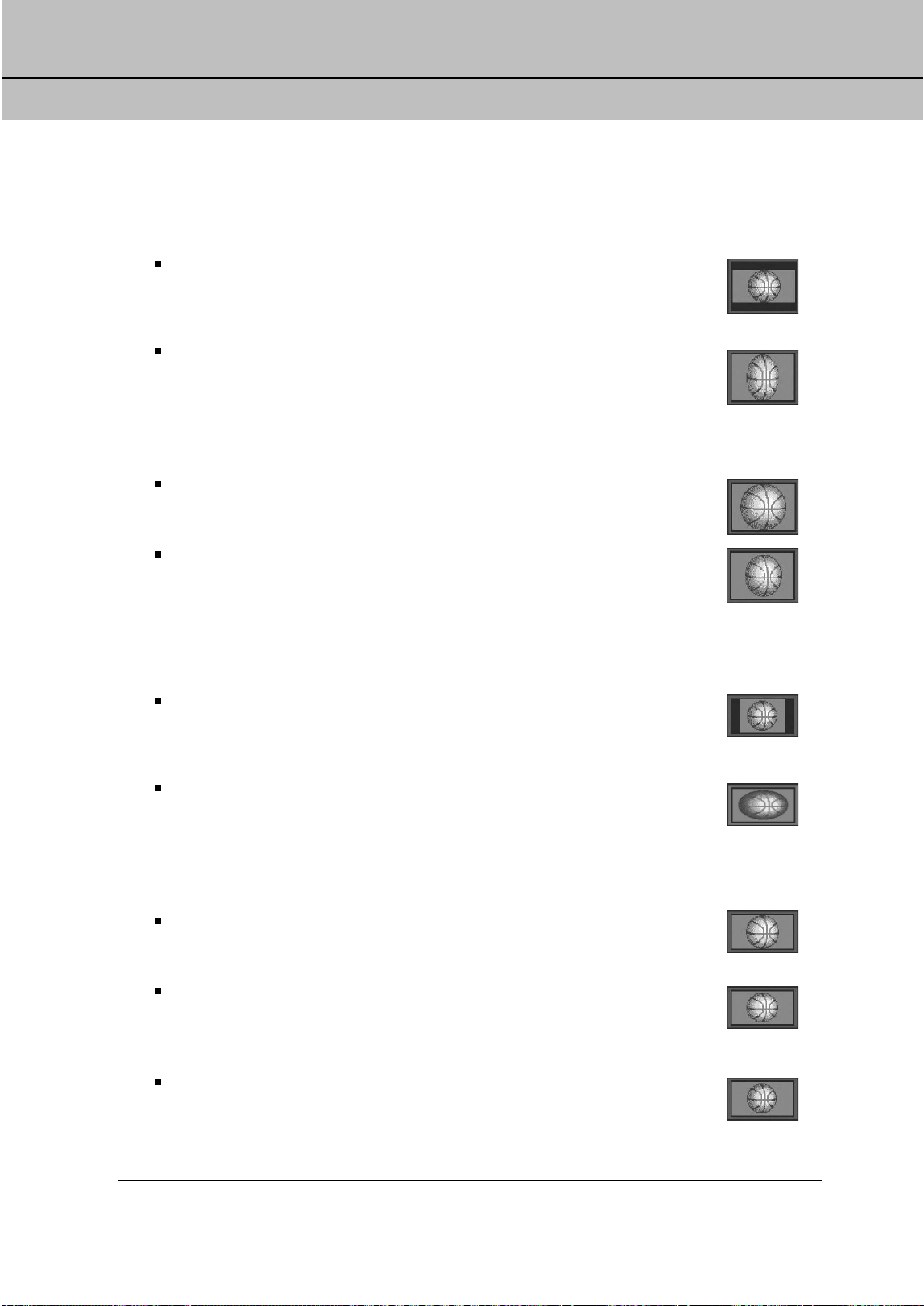
89
CHAPTER 7
Settings, preferences, upgrades, and extras
7
7
For standard 4:3 TVs displaying widescreen broadcasts, your choices are:
Letter box: If you choose the letter box format, the 16:9 image is shrunk
until the entire width of the program fits on your TV. Since the aspect ratio of
the program is maintained, the image is no longer tall enough to fill your
screen, so black/gray bars are seen at the top and bottom of the screen.
Full: If you set your DIRECTV
®
HD Receiver to the Full setting, 16:9 images
are stretched to fit the height of the screen, like in the Letter box format. But
instead of applying black/gray bars to the top and bottom of the screen, the
program image is stretched vertically until it is tall enough to fill your screen.
Your entire TV screen is full, but the program images are a little stretched to
compensate for the program – to – screen mismatch.
Zoom 1: This format stretches the top and bottom edges of the image at an
equal ratio, keeping the 16:9 aspect ratio intact. The left and right portions
of the image will be cut.
Zoom 2: This format breaks the 16:9 aspect ratio and stretches the top and
bottom edges more than the left and right edges of the image to view less
distorted image than the one in Zoom1. The top, bottom, left and right
portions of the image will be cut, but less than Zoom 1.
For widescreen 16:9 TVs displaying standard 4:3 programs, your choices are:
Pillar box: If you choose the pillar box format, the 4:3 image is shrunk until
the entire height of the program fits on your TV. Since the aspect ratio of the
program is maintained, the image is no longer wide enough to fill your screen,
so black/gray bars are seen at the left and right edges of the screen.
Full: If you set your DIRECTV
®
HD Receiver to the Full setting, 4:3 images are
stretched to fit the width of the screen, like in the Pillar box format. But instead
of applying black/gray bars to the sides of the screen, the program image is
stretched horizontally until it is wide enough to fill your screen.
Your entire TV screen is full, but the program images are a little stretched to
compensate for the program – to – screen mismatch.
Zoom 1: This format stretches the left and right edges of the image at an
equal ratio, keeping the 4:3 aspect ratio intact. The top and bottom portions
of the image will be cut.
Zoom 2: This format breaks the 4:3 aspect ratio and stretches the left and
right edges more than the top and bottom edges of the image to view less
distorted image than the one in Zoom1. The top, bottom, left and right
portions of the image will be cut, but less than Zoom 1.
Panorama: This format stretches the left and right edges of the image at
a certain ratio, keeping the center of the image intact. The center of the
screen will keep the equal ratio and the expansion ratio increases toward
the horizontal direction at both sides.
SIR-TS360-CHAPTER 7 11/18/03 9:45 AM Page 89
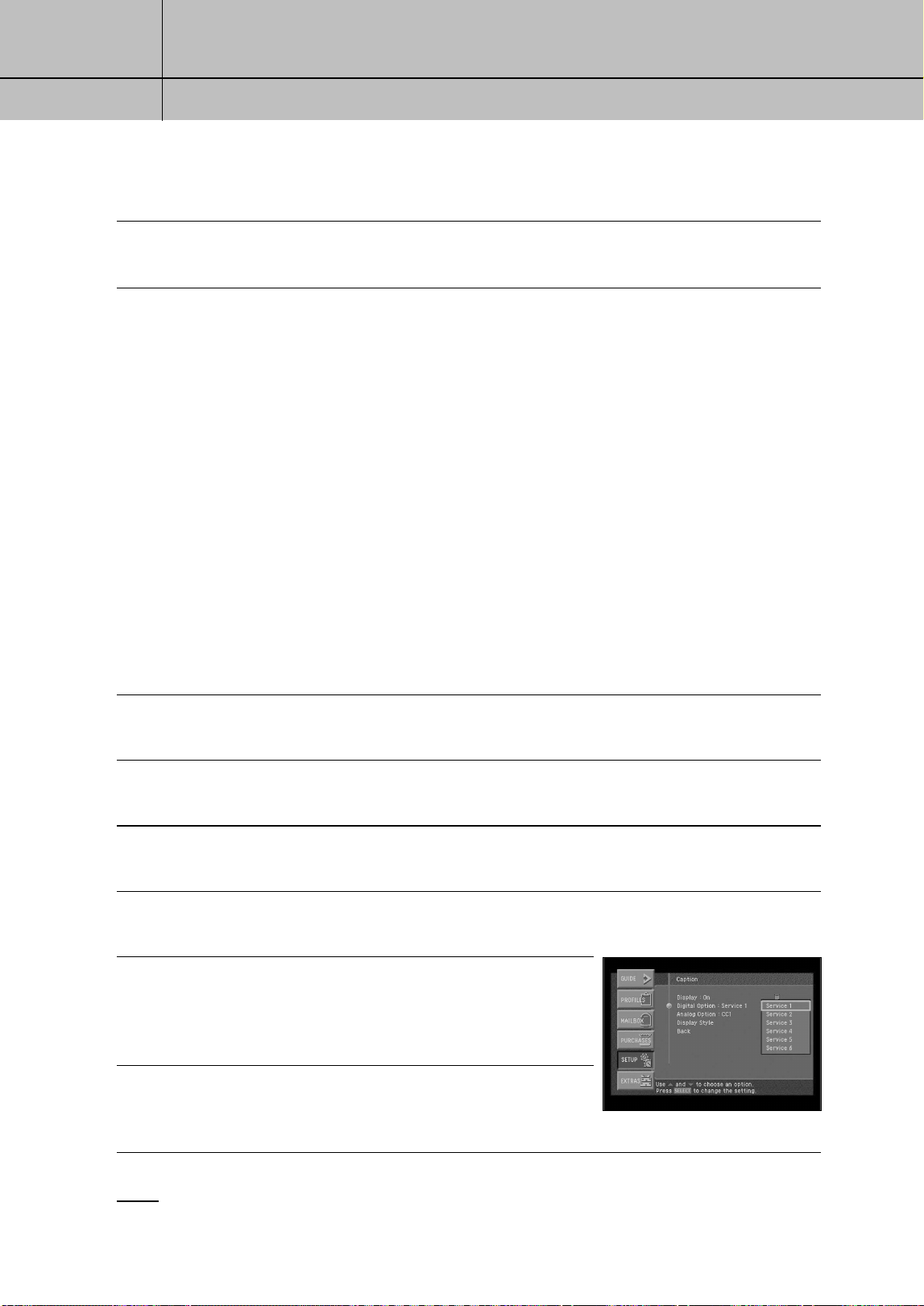
90
CHAPTER 7
Settings, preferences, upgrades, and extras
7
7
7
Highlight the on-screen Back button, and press the SELECT button.
Setting the bar color for Letter box and Pillar box
You can set the color of the horizontal and vertical bars displayed in Letter box and
Pillar box screen formats by using the Bar Color option in the Preferences section of
the Setup menu. The bar color can be set to either black or gray. The gray bar color is
already set and is recommended to avoid screen burn-in. Screen burn-in is a problem
that can occur on some TV displays when a dark, stable image is displayed on the screen
for an extended period, “burning” the image permanently into the screen. The gray bar
color is recommended because lighter colors are less likely to cause burn-in.
Setting the closed caption options
Closed captions are on-screen text versions of the audio content for programs.
The Caption item in the Preferences menu allows you to turn closed captions on and off,
to set a language for the closed captions, and to choose a closed caption format (CC1,
CC2, CC3, or CC4 which may provide varying closed caption displays for some
programs).
1
Press the MENU button on your remote control.
2
Highlight the Setup menu item, then press the SELECT button.
3
Highlight the Preferences menu item, then press the SELECT button.
4
Highlight the Caption menu item, then press the SELECT button.
The Caption menu appears.
5
Highlight the setting you wish to change, and press the
SELECT button. Then use the up or down arrows buttons on
your remote control to highlight an option for that setting.
Press the SELECT button to confirm your selection.
6
To exit the Menu system, press the EXIT button on your
remote control.
NOTE
If you select the analog caption, you can select the caption for the external input source and the
analog channel. If you select the digital caption, you can select the caption for the digital channel.
SIR-TS360-CHAPTER 7 11/18/03 9:45 AM Page 90
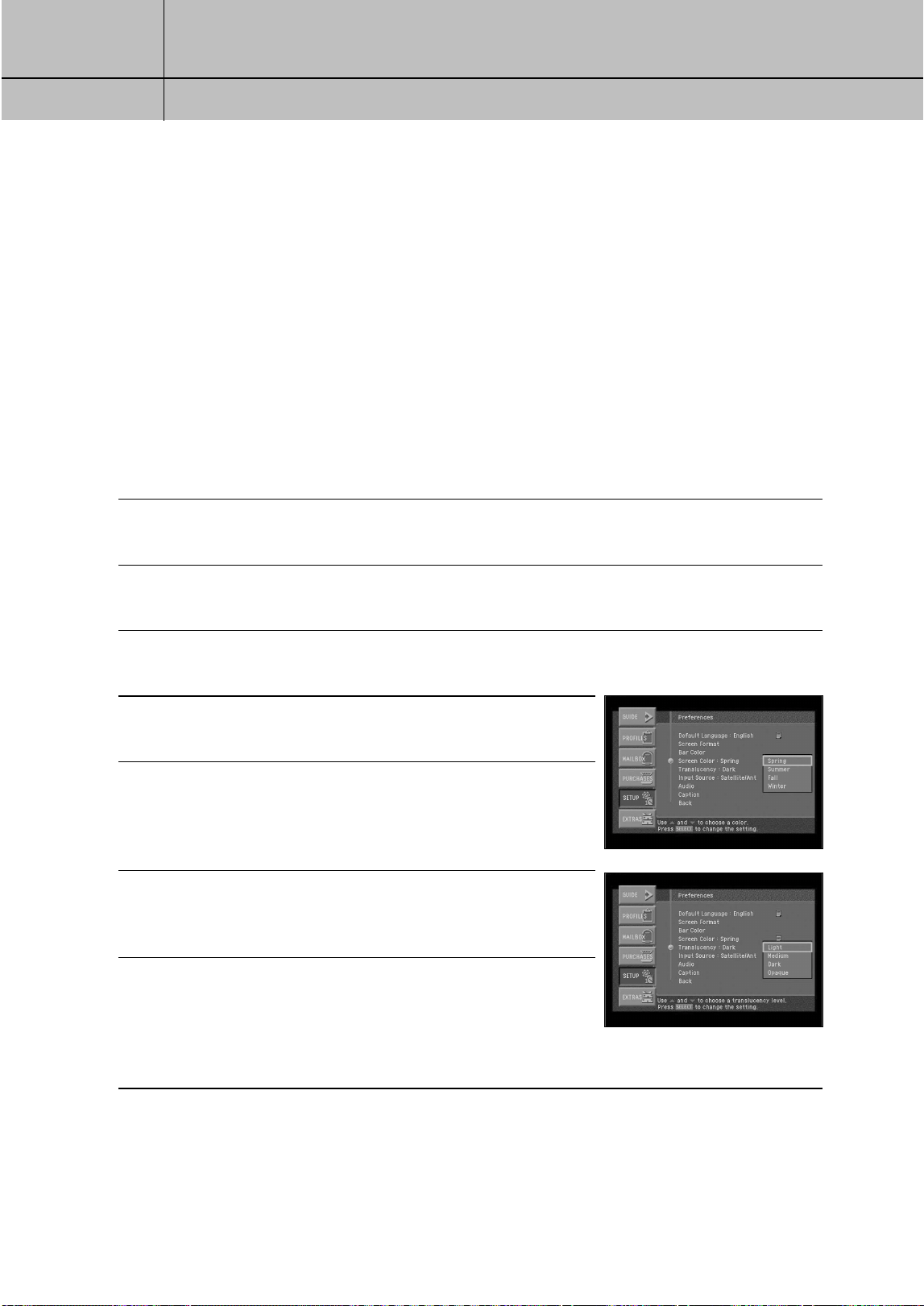
91
CHAPTER 7
Settings, preferences, upgrades, and extras
7
7
Setting the default screen color and translucency
The Screen Color menu item in the Preferences menu allows you to set a default screen
color that will be used to display the Menu and Guide screens. There are four color
choices named for the four seasons: Spring (green), Summer (blue), Fall (amber), Winter
(violet). Screen colors can also be set for the FAMILY profile and the four USER profiles;
those choices will override the default screen color selection you set here when those
profiles are active. The Translucency menu item in the Preferences menu allows you to
set a default translucency level that will be used to display the Menu and Guide screens
(controlling how much TV program content you can view through the on-screen Menu and
Guide screens). You can choose from four levels of translucency: Light, Medium, Dark,
and Opaque (no translucency). Translucency can also be set for the FAMILY profile and
the four USER profiles; those choices will override the default translucency selection you
set here when those profiles are active.
To set a default screen color and translucency, follow these steps:
1
Press the MENU button on your remote control.
2
Highlight the Setup menu item, then press the SELECT button.
3
Highlight the Preferences menu item, the press the SELECT button.
4
Highlight the Screen Color menu item, then press the SELECT
button. A list appears, showing you the screen color options.
5
Highlight a color option, then press the SELECT button.
When you select a color, the screen color list disappears, and
your color choice is indicated on the Screen Color menu item.
6
Highlight the Translucency menu item, then press the SELECT
button. A list appears, showing you the translucency options.
7
Highlight Light, Medium, Dark, or Opaque.
Then press the SELECT button.
When you select a translucency option, the Translucency list
disappears, and your choice is indicated on the Translucency
menu item.
SIR-TS360-CHAPTER 7 11/18/03 9:45 AM Page 91
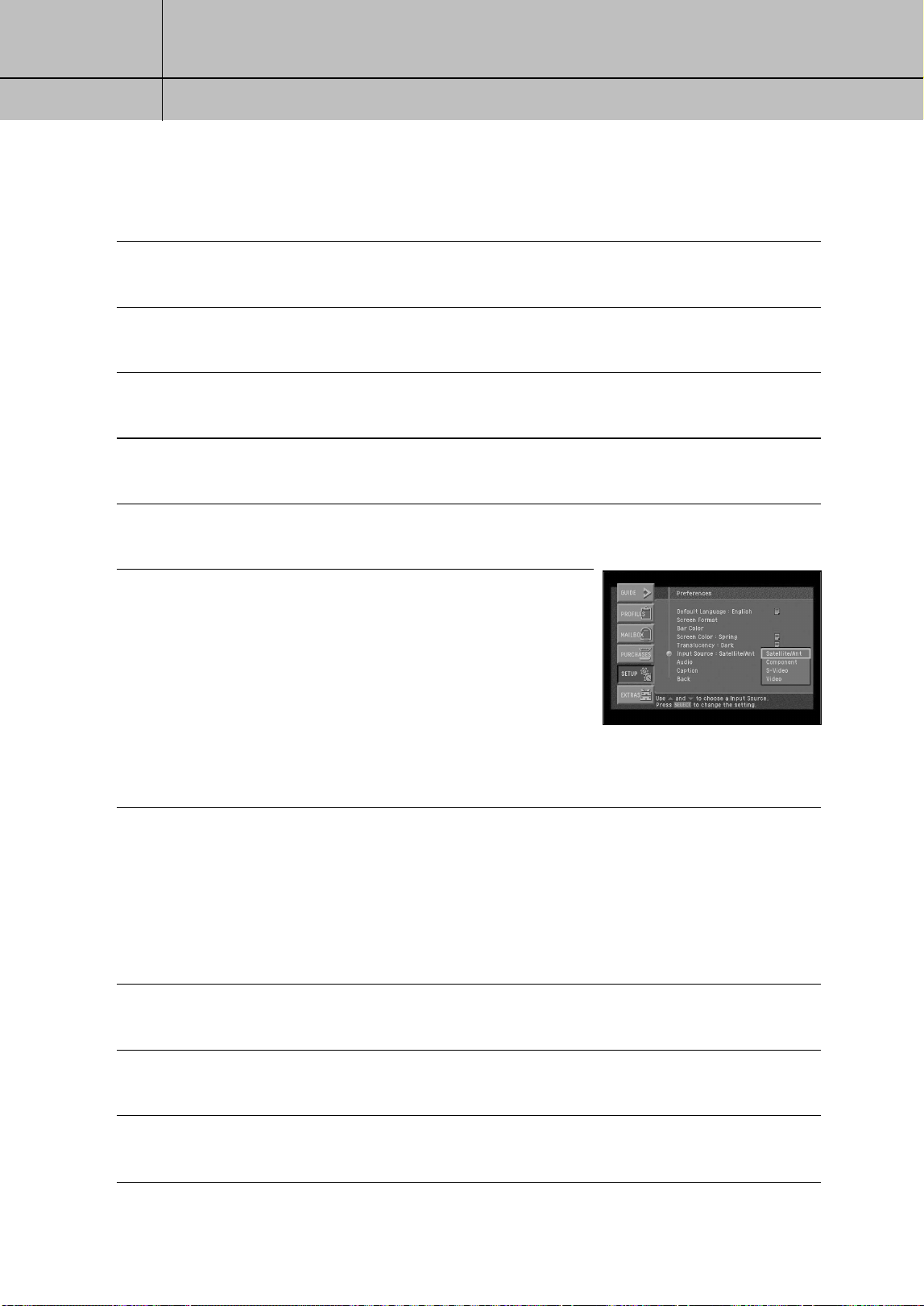
92
CHAPTER 7
Settings, preferences, upgrades, and extras
7
7
Selecting an Input Signal
You can use to view a signal from an external source, such as a VCR.
1
Press the MENU button on your remote control.
2
Highlight the Setup menu item, then press the SELECT button.
3
Highlight the Preferences menu item, then press the SELECT button.
4
Highlight the Input Source menu item, then press the SELECT button.
The Input Source menu appears. The Input Source menu item is highlighted.
5
Press the SELECT button on your remote control to display the list of available Input sources.
A list of input source appears.
6
Highlight the input source you wish to use, then press the
SELECT button.
A list appears from which you can choose Satellite/Antenna
Component, S-Video, or Video.
When you select an input source, the list disappears.
Your selection is indicated in the Input Source line on the
Input Source menu.
For easy selection, press TV/VIDEO button on the Remote Control unit.
Setting the Default Language preference
Programs broadcast with digital audio often provide a number of language choices.
This preference setting tells your DIRECTV
®
HD Receiver which language to use for digital
audio broadcasts offering a choice of formats.
To set the Default Language preference, follow these steps:
1
Press the MENU button on your remote control.
2
Highlight the Setup menu item, then press the SELECT button.
3
Highlight the Preferences menu item, then press the SELECT button.
SIR-TS360-CHAPTER 7 11/18/03 9:45 AM Page 92
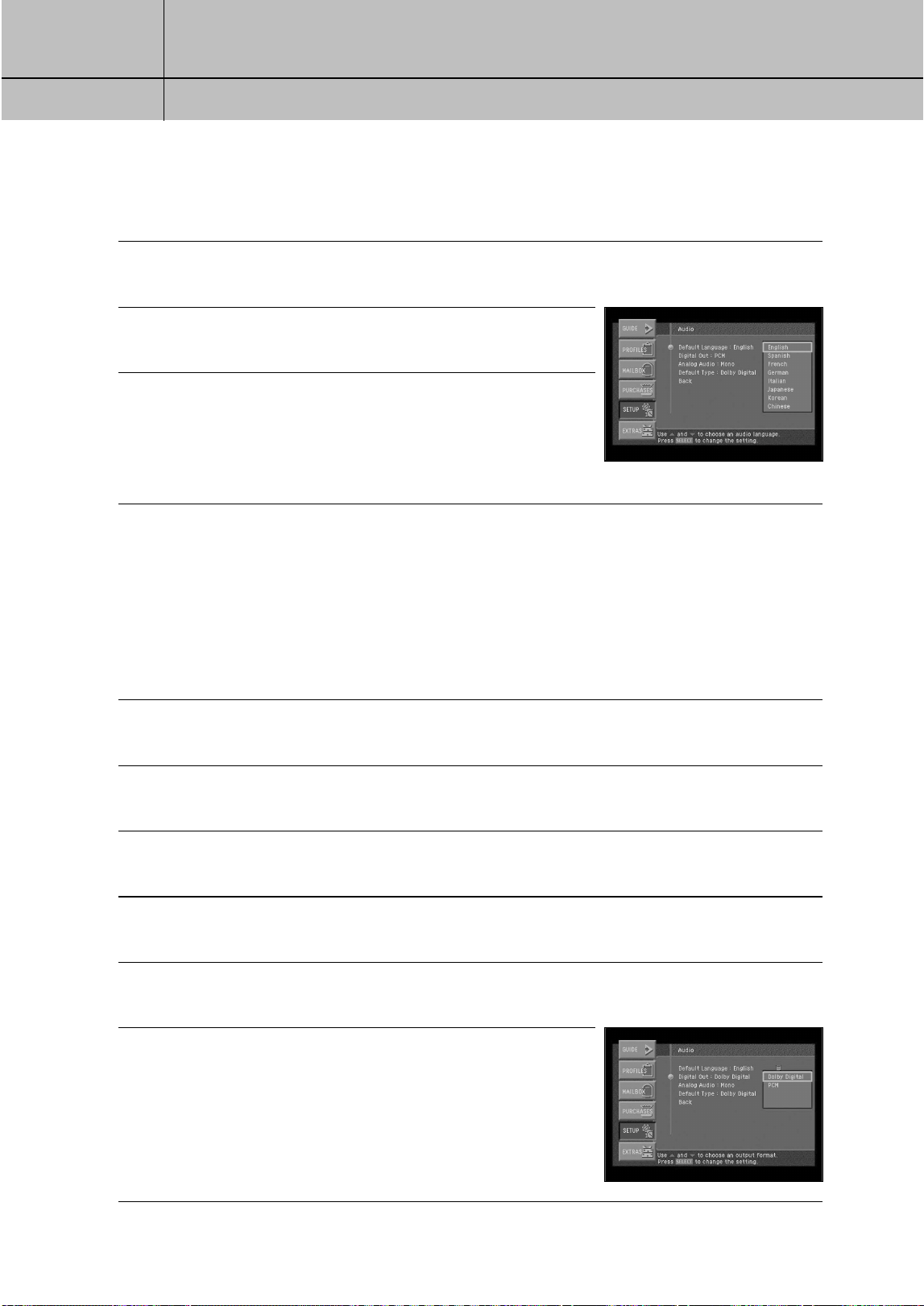
93
CHAPTER 7
Settings, preferences, upgrades, and extras
7
7
4
Highlight the Audio menu item, then press the SELECT button.
The Audio menu appears. The Default Language menu item is highlighted.
5
Press the SELECT button on your remote control to display the
list of available languages. A list of languages appears.
6
Highlight the language you wish to use for digital audio
broadcasts, then press the SELECT button.
When you select a language, the language list disappears.
Your selection is indicated in the Default Language line on the
Audio menu.
Setting the Digital Out format
If you are using the optical digital audio out jack to connect your DIRECTV
®
HD Receiver to
a digital audio receiver, you should use this preference setting to tell your DIRECTV
®
HD
Receiver whether your audio receiver processes PCM digital audio signals or Dolby Digital
audio signals. See the manual for your audio receiver if you are not sure.
To set the Digital Out format preference, follow these steps:
1
Press the MENU button on your remote control.
2
Highlight the Setup menu item, then press the SELECT button.
3
Highlight the Preferences menu item, then press the SELECT button.
4
Highlight the Audio menu item, then press the SELECT button.
The Audio menu appears.
5
Highlight the Digital Out menu item, then press the SELECT button.
A list appears from which you can choose Dolby Digital or PCM audio formats.
6
Highlight the format supported by your audio receiver,
then press the SELECT button.
When you select a format the Digital Out list disappears.
Your selection is indicated in the Digital Out line on the
Audio menu.
SIR-TS360-CHAPTER 7 11/18/03 9:45 AM Page 93
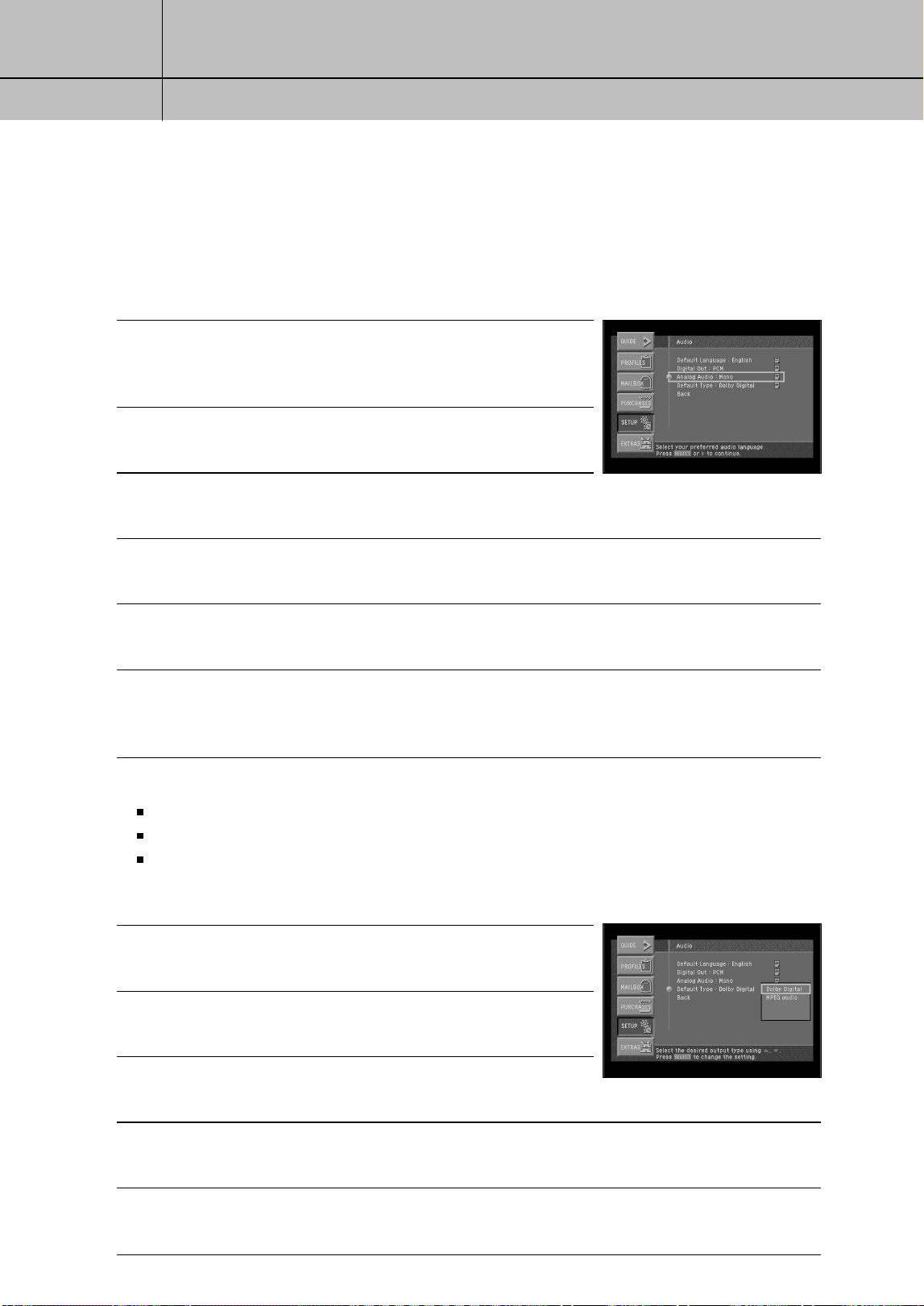
94
CHAPTER 7
Settings, preferences, upgrades, and extras
7
7
Setting the analog out preference
Depending on the particular program being broadcast, you can listen to stereo, mono,
or a Separate Audio Program. (SAP audio is usually a foreign-language translation.
Sometimes SAP has unrelated information like news or weather.)
To set the Analog Audio preference, follow these steps:
1
Press the MENU button on your remote control.
2
Highlight the Setup menu item, then press the SELECT button.
3
Highlight the Preferences menu item, then press the SELECT
button.
4
Highlight the Audio menu item, then press the SELECT button. The Audio menu appears.
The Analog Audio menu item is highlighted.
5
Press the SELECT button on your remote control to display the list of available audio format.
A list of audio format appears.
6
Highlight the audio format you wish to use, then press the SELECT button. A list appears from
which you can choose Mono, Stereo, or SAP. When you select an audio format, the list
disappears. Your selection is indicated in the Analog Audio line on the Audio menu.
Guide to MTS Settings
Choose Stereo for channels that are broadcasting in stereo.
Choose Mono for channels that are broadcasting in mono, or if you are having difficulty receiving a stereo signal.
Choose SAP to listen to the Separate Audio Program, which is usually a foreign-language translation.
Setting the Default Type audio
1
Press the MENU button on your remote control.
2
Highlight the Setup menu item, then press the SELECT button.
3
Highlight the Preferences menu item, the press the SELECT
button.
4
Highlight the Audio menu item, then press the SELECT button. The Audio menu appears.
5
Highlight the Default Type menu item, then press the SELECT button.
A list of Default Type appears from which you can choose Dolby Digital or MPEG audio.
SIR-TS360-CHAPTER 7 11/18/03 9:45 AM Page 94
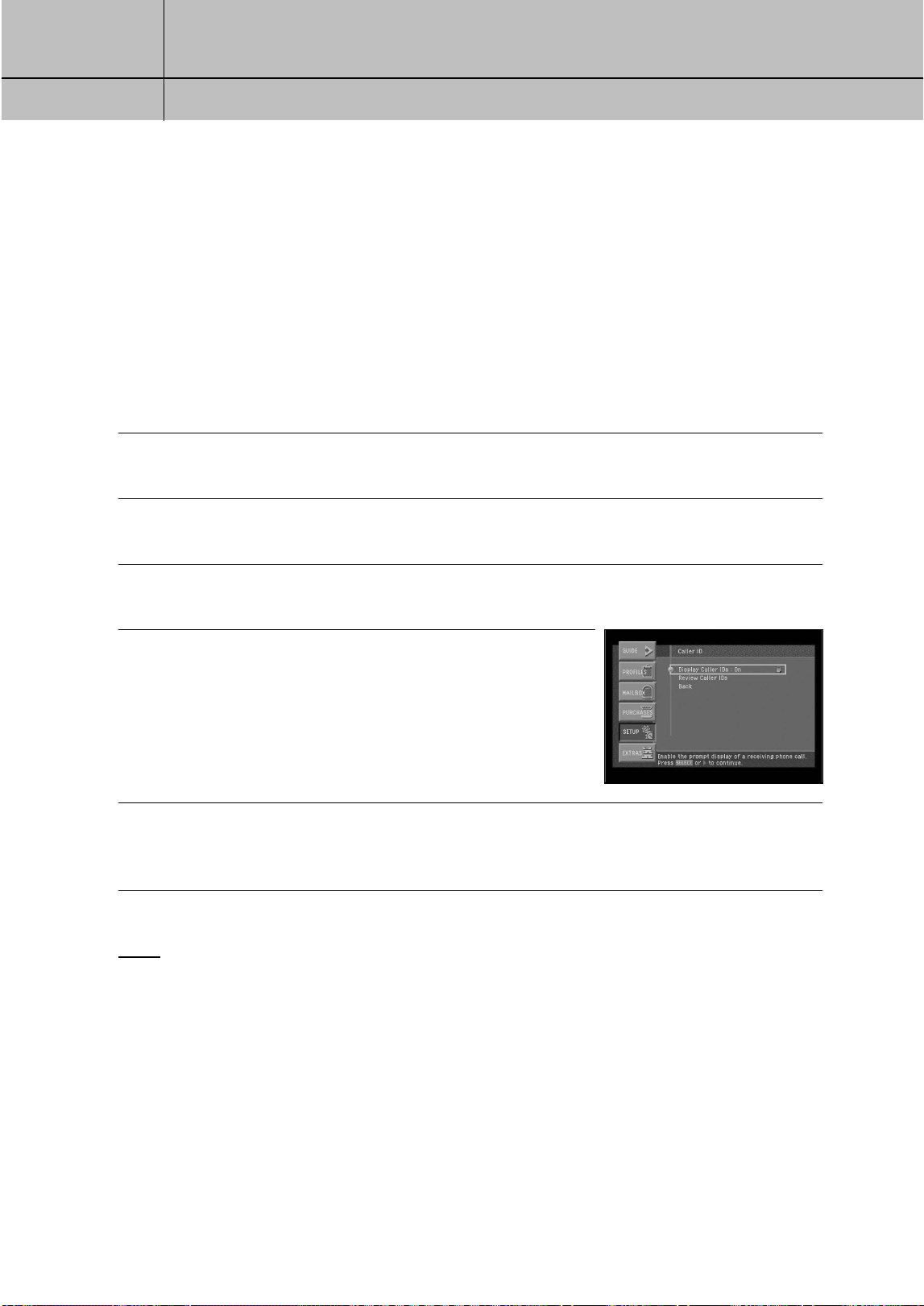
95
CHAPTER 7
Settings, preferences, upgrades, and extras
7
7
Reviewing and controlling Caller ID
The Caller ID item in the SETUP menu allows you to view a list of calls that you have
received on the telephone line connected to your DIRECTV
®
HD Receiver. It also allows
you to control whether the Caller ID feature is turned on or off. The Caller ID feature only
works if you subscribe to the caller ID service provided by your local telephone service.
Turning the Caller ID feature on or off
To control whether your DIRECTV
®
HD Receiver captures caller ID information, follow these
steps:
1
Press the MENU button on your remote control.
2
Highlight the SETUP menu item, then press the SELECT button.
3
Highlight the Caller ID menu item, then press the SELECT button.
The Caller ID menu appears.
4
Highlight the Display Caller IDs menu item, then press the
SELECT button.
A list appears, allowing you to select whether you would like
the Caller ID feature to be On or Off.
5
Highlight On or Off from the list, then press the SELECT button.
The list disappears, and the Display Caller IDs menu item on the Caller ID menu reflects your
choice.
NOTE
Caller ID messages for incoming calls that occur while you are taping a program will be recorded
on your tape. You might want to turn Caller ID off while you are recording a program.
SIR-TS360-CHAPTER 7 11/18/03 9:45 AM Page 95
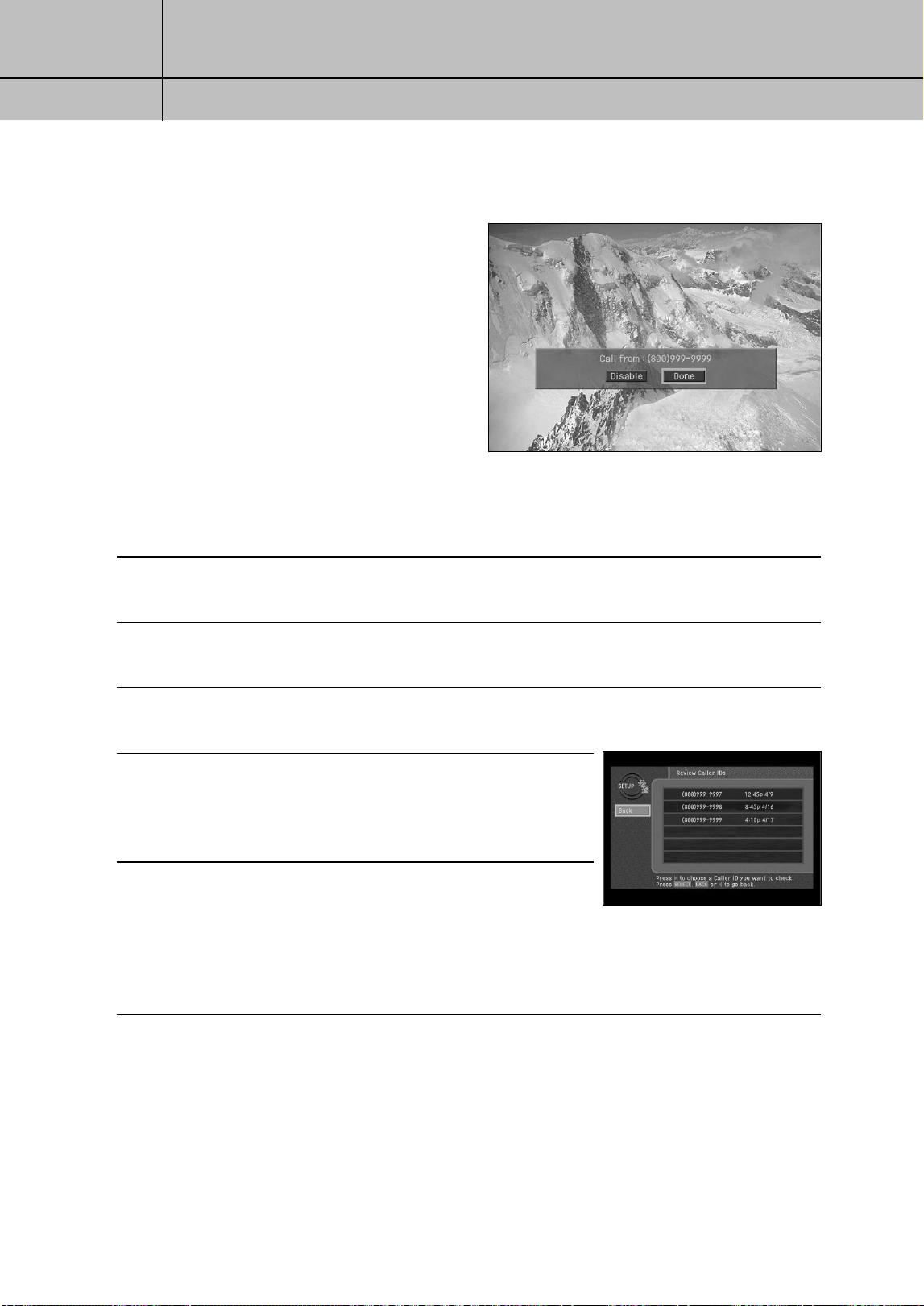
96
CHAPTER 7
Settings, preferences, upgrades, and extras
7
7
Identifying callers
With Caller ID turned on, when a call is
made to the phone line connected to your
DIRECTV
®
HD Receiver, a message appears
on your TV screen telling you the number of
the caller.
To clear the message from your screen, press
the SELECT button.
To set your DIRECTV
®
HD Receiver not to
display caller ID messages, highlight the
on-screen Disable button, then press the
SELECT button.
Reviewing your Caller ID list
To see a list of calls you have received, follow these steps:
1
Press the MENU button on your remote control.
2
Highlight the SETUP menu item, then press the SELECT button.
3
Highlight the Caller ID menu item, then press the SELECT button.
The Caller ID menu appears.
4
Highlight the Review Caller IDs menu item, then press the
SELECT button.
The Review Caller IDs screen appears.
The calls on the list are sorted in time order.
5
To see details about any of the listed calls, highlight the call
from the list, then press the SELECT button.
A screen appears displaying the total number of calls received
from that phone number and the times and dates for the three
most recent calls.
SIR-TS360-CHAPTER 7 11/18/03 9:45 AM Page 96
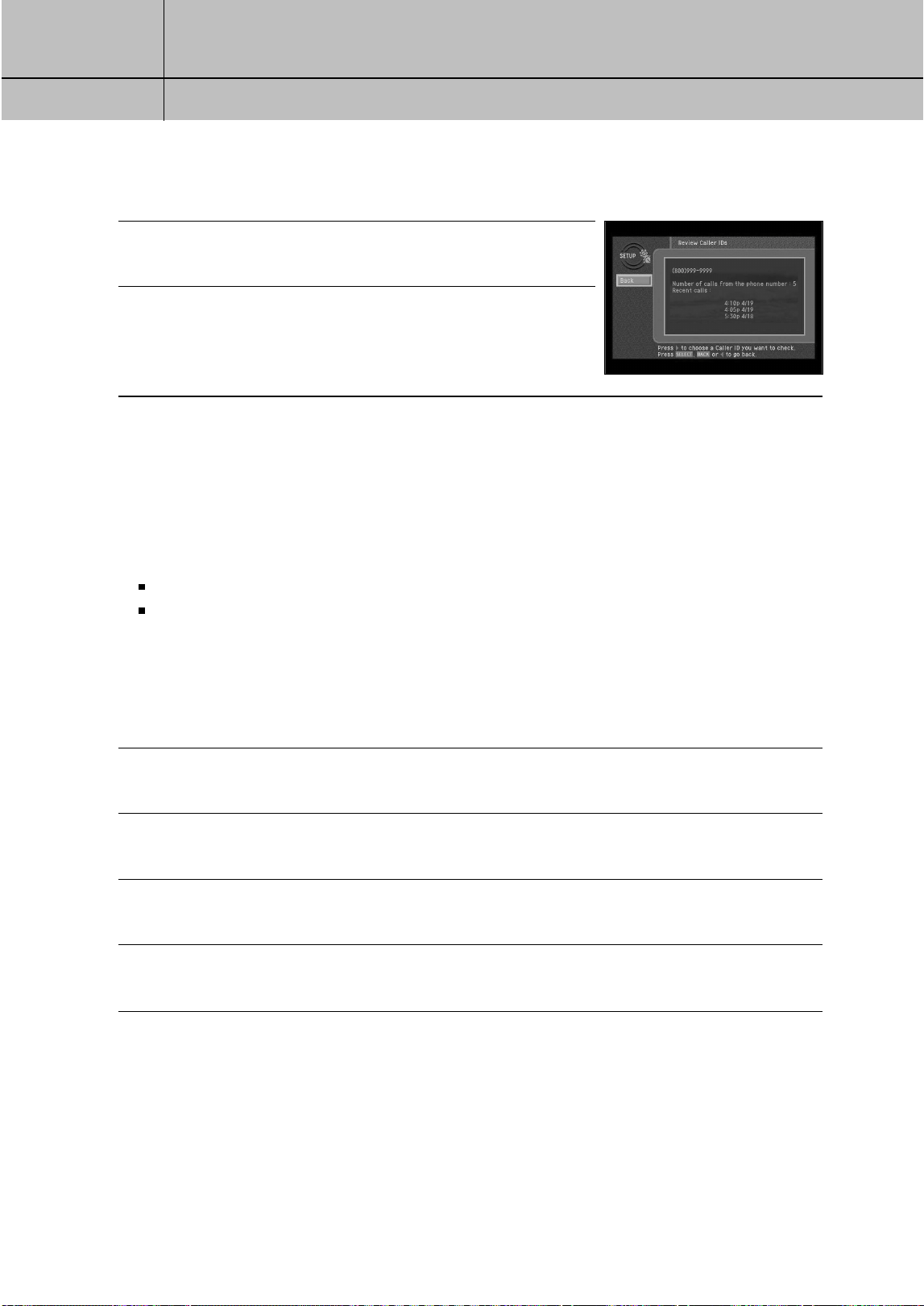
97
CHAPTER 7
Settings, preferences, upgrades, and extras
7
7
6
To delete a Caller ID record, highlight the on-screen
Delete button, then press the SELECT button.
7
To return to the Review Caller IDs list, highlight the on-screen
Back button, then press the SELECT button.
Setting the Local Time options
The Local Time setting (in the Installation section of the Setup menu) allows you to
control whether to allow your service provider to automatically control two
time settings:
the time zone your DIRECTV
®
HD Receiver uses, and
whether your DIRECTV
®
HD Receiver observes Daylight Savings Time.
If you turn the Local Time Setting on, you can choose a time zone and decide
whether or not to observe Daylight Savings Time. With the Local Time setting off,
your service provider automatically controls these settings for you.
Follow these steps to turn the Local Time Setting on or off, and (if you turn it on) to
set your Time Zone and Daylight Savings Time observance.
1
Press the MENU button on your remote control.
2
Highlight the SETUP menu item, then press the SELECT button.
3
Highlight the Installation menu item, then press the SELECT button.
4
Highlight the Local Time menu item, then press the SELECT button.
SIR-TS360-CHAPTER 7 11/18/03 9:45 AM Page 97
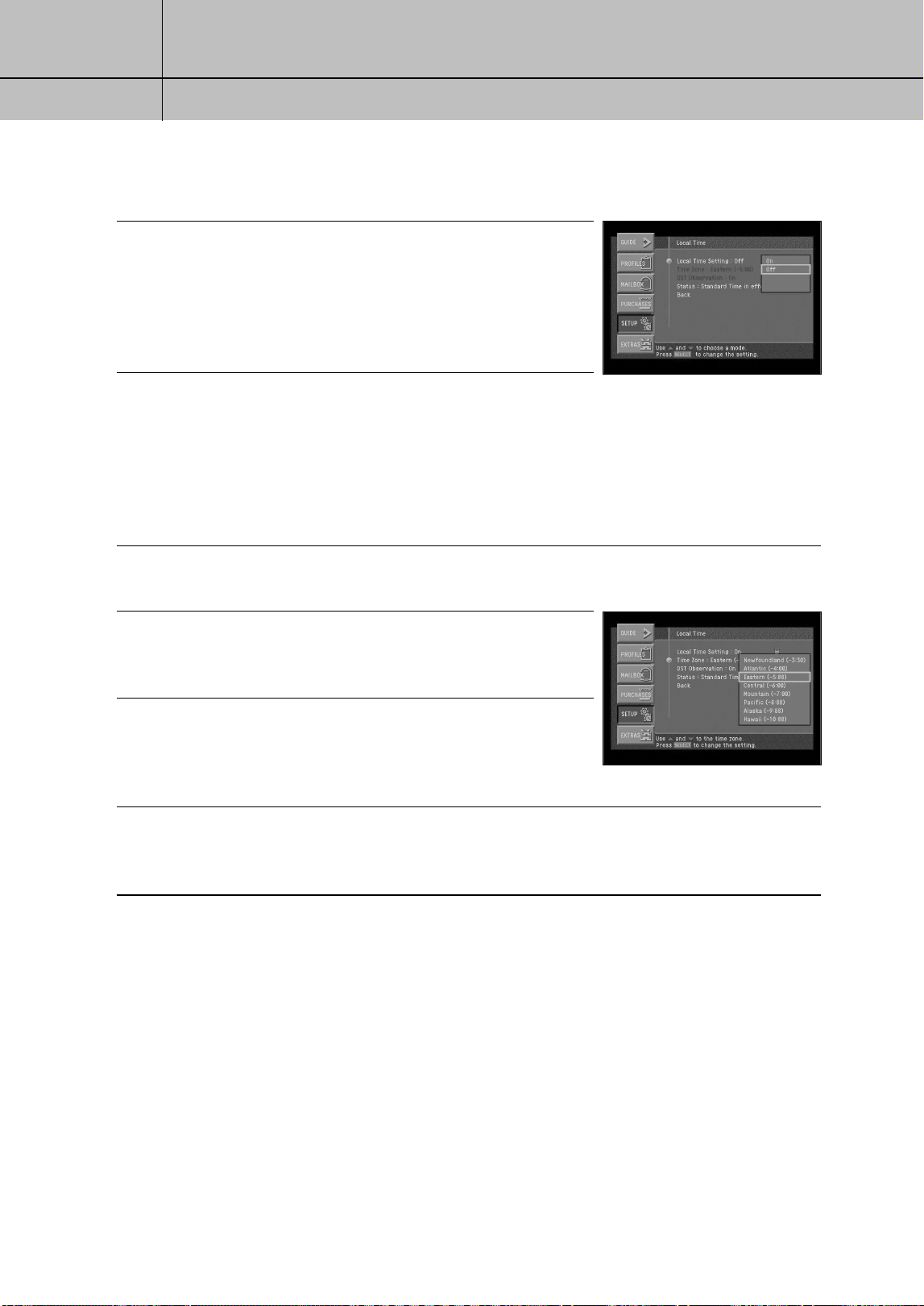
98
CHAPTER 7
Settings, preferences, upgrades, and extras
7
7
5
To change the Local Time Setting, highlight it using the arrow
buttons on your remote control, then press the SELECT button.
A list appears from which you can indicate whether you want
the local time setting on (you set the time zone and daylight
savings time observance), or off (your program provider
controls the time settings).
6
Highlight On or Off, then press the SELECT button.
The list disappears, and the Local Time Setting menu item reflects your choice.
If you turn the Local Time Setting off, the Time Zone and Daylight Savings
Time options are controlled by your program provider; these menu items
become unavailable.
If you turn the Local Time Setting on, continue with the following steps to set
your time zone and whether you wish to observe daylight savings time.
7
Highlight Time Zone menu item, then press the SELECT button.
A list appears from which you can choose your local time zone.
8
Highlight your Time Zone, then press the SELECT button.
The list disappears, and the Time Zone menu item reflects
your choice.
9
Highlight the DST Observation menu item, then press the
SELECT button.
A list appears from which you can choose to turn Daylight
Savings Time observance on or off.
10
Highlight On or Off, then press the SELECT button.
The list disappears, and the Status line indicates either DST in effect or
Standard time in effect.
SIR-TS360-CHAPTER 7 11/18/03 9:45 AM Page 98
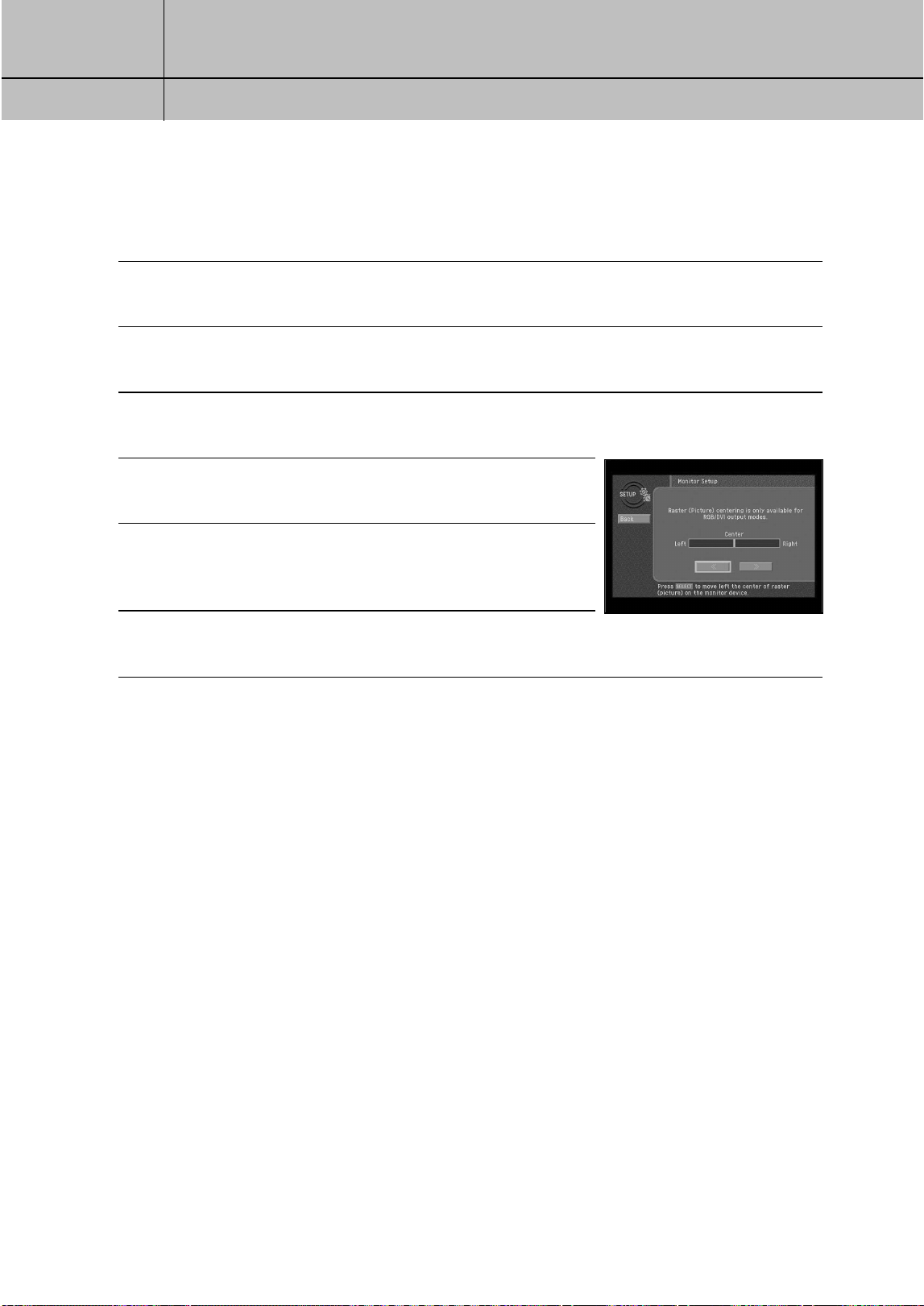
99
CHAPTER 7
Settings, preferences, upgrades, and extras
7
7
Adjusting the Raster (Picture) Centering
In this menu you can adjust the Raster (picture) on the monitor to be centered.
The Raster (picture) centering is only available for RGB/DVI output modes.
1
Press the MENU button on your remote control.
2
Highlight the SETUP menu item, then press the SELECT button.
3
Highlight the Installation menu item, then press the SELECT button.
4
Highlight the Monitor Setup menu item, then press the SELECT
button.
5
Press Right arrow button to adjust the center of raster (picture).
6
Press SELECT to move left or right center of raster (picture) on
the monitor device.
SIR-TS360-CHAPTER 7 11/18/03 9:45 AM Page 99
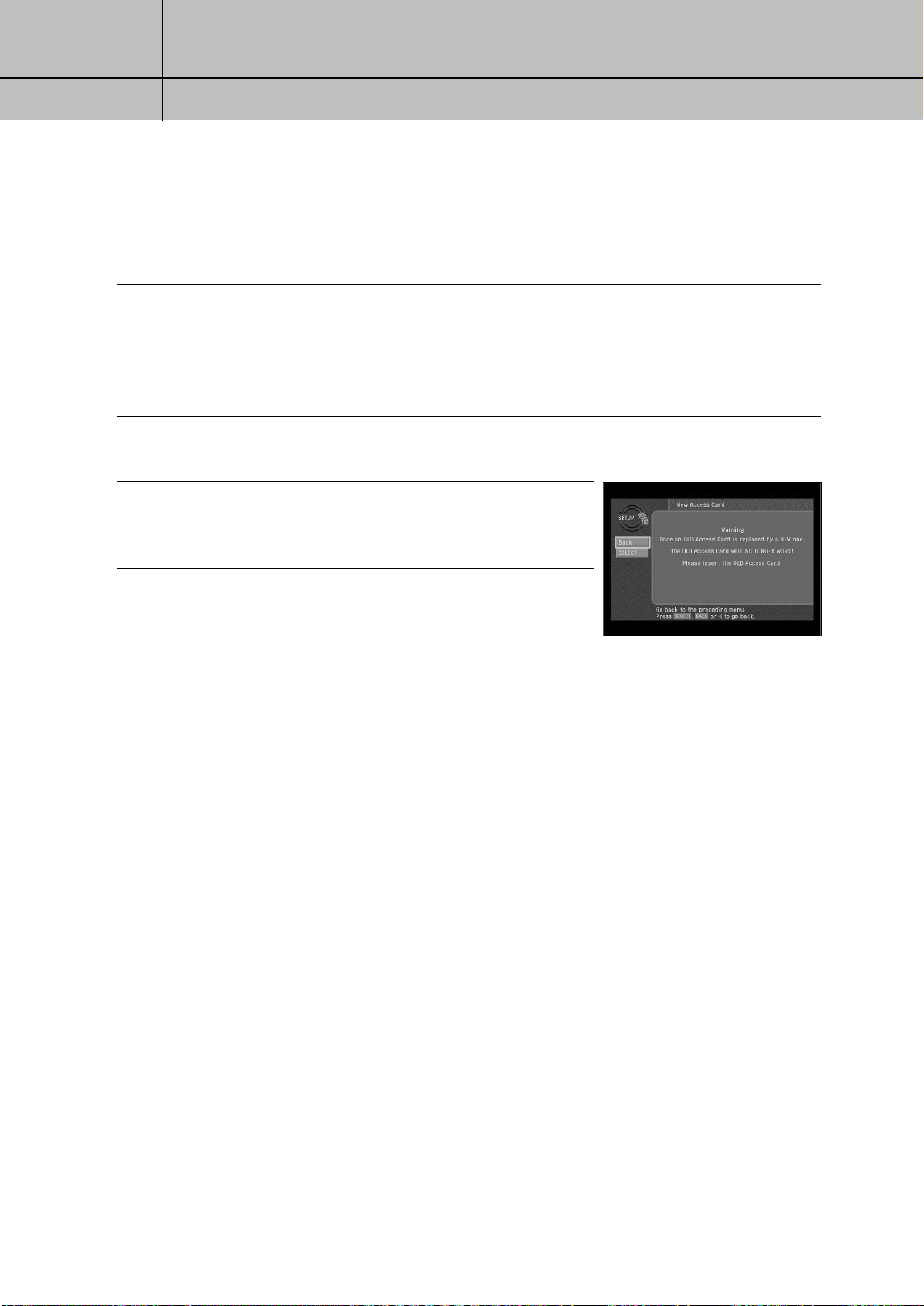
100
CHAPTER 7
Settings, preferences, upgrades, and extras
7
7
Installing a new Access Card
Your DIRECTV service provider may send you a new, replacement Access Card.
When you receive a new card, follow these steps to continue your DIRECTV
®
service without interruption:
1
Press the MENU button on your remote control.
2
Highlight the SETUP menu item, then press the SELECT button.
3
Highlight the Installation menu item, then press the SELECT button.
4
Highlight the New Access Card menu item, then press the
SELECT button.
The New Access Card screen appears.
5
To start replacing your Access Card, highlight the on-screen
SELECT button, then press the SELECT button.
On-screen instructions tell you how to replace your old card
with the new one. Follow these instructions.
SIR-TS360-CHAPTER 7 11/18/03 9:45 AM Page 100
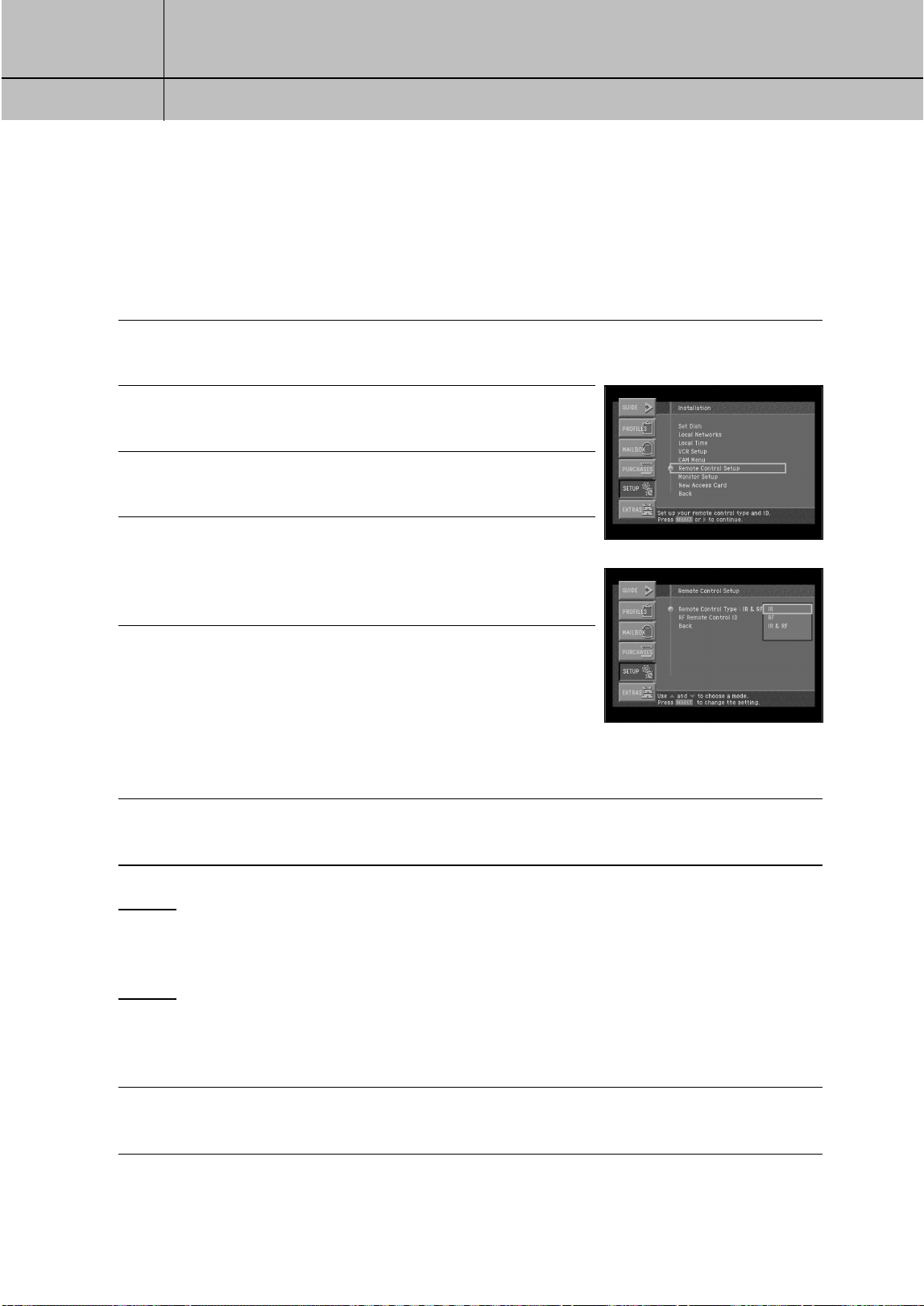
101
CHAPTER 7
Settings, preferences, upgrades, and extras
7
7
Setting Remote control type
The DIRECTV
®
HD Receiver supports both IR remote (default) and RF remote (optional).
You can use this menu to set the type of the remote to use. Most of the cases, it is
recommended to set as IR & RF. However, sensitivity of the IR remote can be deteriorated
in the area where much RF noise or other noise occurs. In this case, set to the IR remote.
To set the remote control type setting, follow these steps:
1
Press the MENU button on your remote control.
2
Highlight the Setup menu item, then press the SELECT button.
3
Highlight the Installation menu item, then press the SELECT
button.
4
Highlight the Remote Control Setup menu item, then press the
SELECT button. The Remote Control Setup menu appears.
5
Highlight the Remote Control Type menu item, then press the
SELECT button. A list appears from which you can choose
Remote Control Type.
IR: Select this option when you have only one IR remote.
RF: Select this option when you have only one RF remote.
IR & RF: Select this option to use both IR remote and RF remote.
6
Move the highlighted bar to the intended setting value using the arrow button and press the
SELECT button. Then, the warning message will appear on the screen.
NOTE 1
If you select the IR remote, your RF remote will be disabled. If you have a RF remote, press the
[Cancel] button in the message window that appears after this operation.
NOTE 2
If you select the RF remote, your IR remote will be disabled.
If you have a RF remote, it is recommended to set the RF remote control ID first and change this
menu. Press the [Cancel] button in the message window that appears after this operation
7
You may select [Done] or [Cancel] in the warning message window. Select the [Done] and
press the [Select] button to complete selection of the remote control to use.
SIR-TS360-CHAPTER 7 11/18/03 9:45 AM Page 101
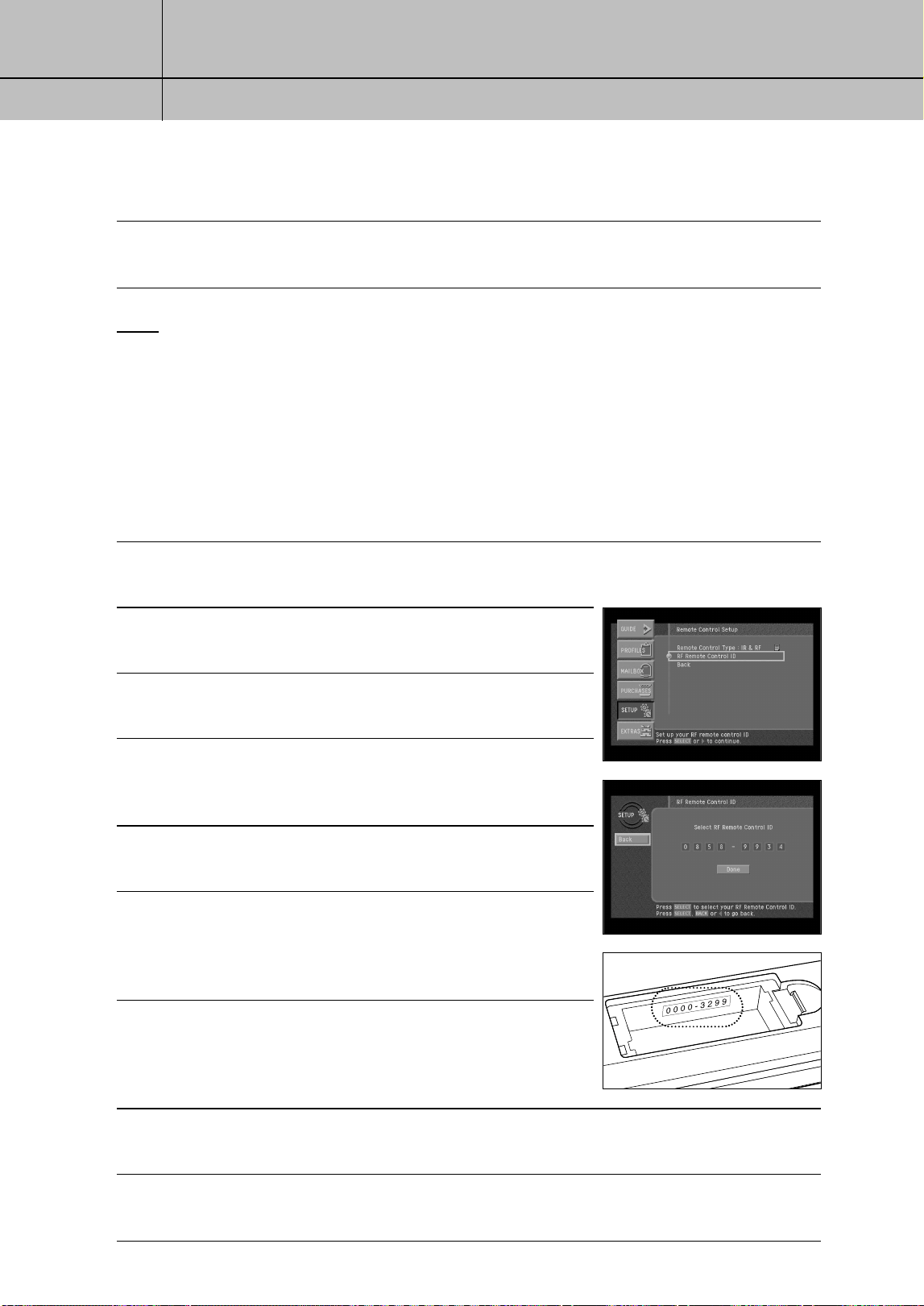
102
CHAPTER 7
Settings, preferences, upgrades, and extras
7
7
8
When you have finished setting the remote control type screen, select the on-screen Back
button.
NOTE
The factory setting for the remote control type is IR & RF. If you set the remote control type to RF and
use the IR remote control only, the IR remote control may not work. Use the keys in the front
panel to enter the menu and set the remote control type as IR & RF.
Setting RF Remote Control ID (Optional)
This set-up procedure only pertains to the optional Samsung RF remote.
You should set the ID number for your own RF code transmission to use the RF remote.
To set the RF remote control ID setup, follow these steps:
1
Press the MENU button on your remote control.
2
Highlight the Setup menu item, then press the SELECT button.
3
Highlight the Installation menu item, then press the SELECT
button.
4
Highlight the Remote Control Setup menu item, then press the
SELECT button. The Remote Control Setup menu appears.
5
Highlight the RF Remote Control ID menu item, then press the
SELECT button.
6
Input eight-digit serial number to enter into the RF remote
control ID menu as shown in the below figure.
The eight-digit serial number is displayed inside the battery
box of the RF remote control unit.
7
Input all of the eight-digit serial number displayed inside the
remote battery box using the numeric button or the arrow key.
Then, move the highlighted bar to the [Done] and press the
SELECT button.
8
Press the SELECT button to finish setting when the “Setting complete successfully” message
appears.
9
When you have finished setting the RF remote control ID screen, select the on-screen
Back button.
eight-digit serial number
†
SIR-TS360-CHAPTER 7 11/18/03 9:45 AM Page 102

103
CHAPTER 7
Settings, preferences, upgrades, and extras
7
7
Viewing important information and a list of features
supported by your DIRECTV
®
HD Receiver
The System menu allows you to view a list of important details about your DIRECTV
HD Receiver, as well as a list of features supported by your DIRECTV HD Receiver.
To view this information, use the System Information and System Features items in the
System portion of the Setup menu.
Viewing information on automatic system upgrades
The System Upgrades menu item in the System menu provides information about the
current software on your DIRECTV HD Receiver, and a history of when previous upgrades
have been downloaded to your Receiver. To View this information, use the System
Upgrades item in the System portion of the Setup menu.
Viewing fun system extras
The Extras menu contains a useful calendar, a fun biorhythm charting tool, and games you
can play. To view the system extras on your DIRECTV HD Receiver, use the items in the
Extras menu.
Testing the DIRECTV HD Receiver
The System Test feature allows you to quickly check the status of the satellite signal, your
Access Card, and your phone line connection. This is helpful while troubleshooting any
problem you may experience with your DIRECTV HD Receiver.
SIR-TS360-CHAPTER 7 11/18/03 9:45 AM Page 103
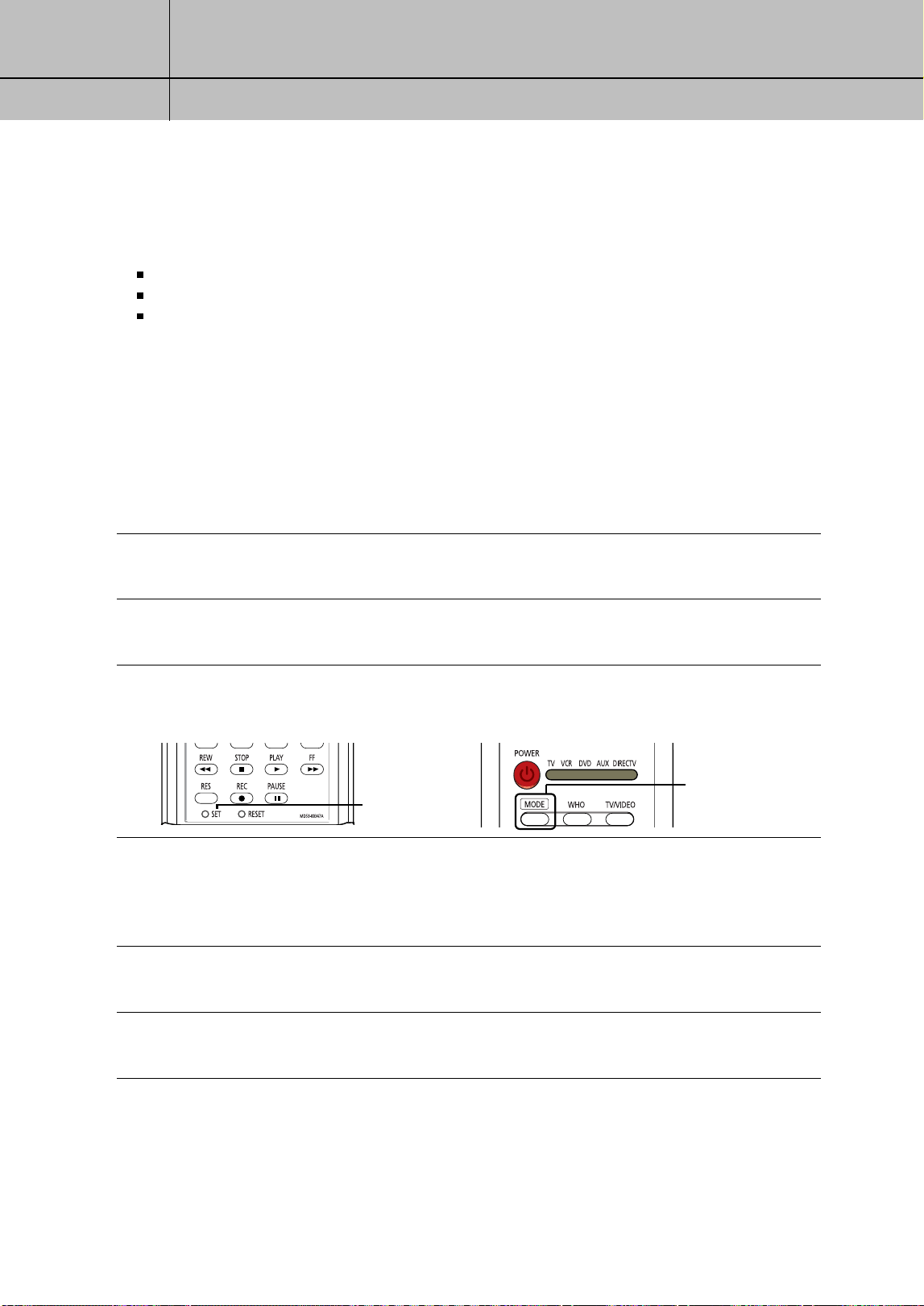
104
CHAPTER 8
Programming the remote control
8
8
Chapter 8: Programming the remote control
This chapter explains how to program your remote control so that you can use it to
operate your TV, VCR, or other A/V equipment. Chapter sections include:
Programming the remote control
Operating a device with your programmed remote control
Code lists
Programming IR the remote control
Your DIRECTV
®
HD Receiver’s remote control can be programmed to operate your TV,
VCR, DVD player and other A/V equipment. You use the code lists provided in this
chapter to enter the code for your brand of TV, VCR, etc.
Method
To use the manual method to program your DIRECTV
®
HD Receiver’s remote control, follow
these steps:
1
Turn on the device you want to control.
2
Aim the DIRECTV
®
HD Receiver’s remote control at the device.
3
After pressing a device mode button to operate the remote control in a desired device mode
(for example, when TV is selected, first LED will light on.), press the SET button once again with
a sharp thing, like pen. The LED of selected device lights up.
4
Enter the three-digit code for your device (see the code lists on the following pages). If the
entered code is correct, the device will be turn off. If the brand number that you have pressed
is not correct, the device will not be turned off. Enter the three-digit code again (The LED still
lights up).
5
If the device is turned off, press the SET button again to save your brand number in the remote
control.
6
Repeat the procedure for other devices you wish to operate with your DIRECTV
®
HD Receiver’s
remote control.
The SET button
The mode button
Operating a device with your programmed remote control
To operate a device using your programmed remote control, you should turn on the LED of
the device using the MODE button. (TV, VCR, DVD, AUX, or DIRECTV). Then use the remote
control to operate that device. The remote control will continue to operate that device until
you press the MODE button twice. Each time you want to button to a different device with
your remote control, set the intended device using the MODE button before starting.
SIR-TS360-CHAPTER 8 11/18/03 9:45 AM Page 104
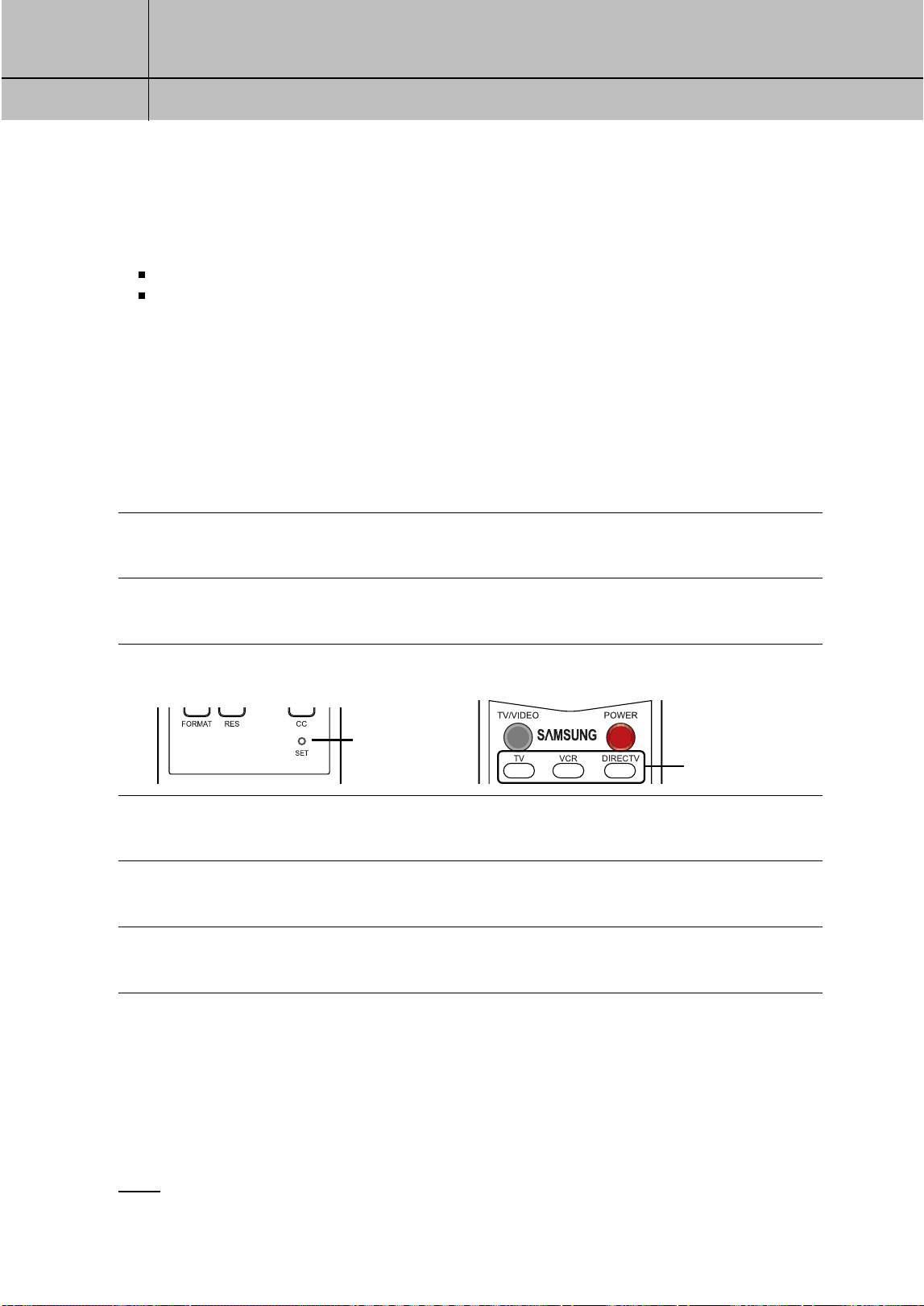
105
CHAPTER 8
Programming the remote control
8
8
Programming the RF remote control (optional)
This chapter explains how to program your RF remote control so that you can use it to
operate your TV, VCR. Chapter sections include:
Programming the RF remote control
Operating a device with your programmed remote control
Programming the RF remote control
Your DIRECTV
®
HD Receiver’s remote control can be programmed to operate your TV, VCR.
You use the code lists provided in your “RF Remote Control” manual to enter the code for your brand
of TV, VCR.
Method
To use the manual method to program your DIRECTV
®
HD Receiver’s remote control, follow
these steps:
1
Turn on the device you want to control.
2
Aim the DIRECTV
®
HD Receiver’s remote control at the device.
3
After pressing a device button to operate the remote control in a desired device mode, press
the SET button once again with a sharp thing, like pen. The device button lights up.
4
Enter the three-digit code for your device (see the code lists on the “Remote Control” manual)
If the entered code is correct, the device will turn off.
5
Press the device button again. The button should blink twice and then turn off.
6
Repeat the procedure for other devices you wish to operate with your DIRECTV
®
HD Receiver’s
RF remote control.
Operating a device with your programmed remote control (RF)
To operate a device using your programmed RF remote control, you must first press the
corresponding device button (TV, VCR or DIRECTV). Then use the RF remote control to
operate that device. The RF remote control will continue to operate that device until you
press another device button. Each time you want to button to a different device with your
RF remote control, you start by pressing a device button.
NOTE
When working with the TV and VCR device remote control, the IR signal will be transmitted.
Therefore, you need to at the device to work with.
The SET button
The device buttons
SIR-TS360-CHAPTER 8 11/18/03 9:45 AM Page 105

106
CHAPTER 8
Programming the remote control
8
8
Code lists
Use these lists to find the codes you need to program your DIRECTV
®
HD Receiver’s remote
control to operate your other A/V devices. For brands with multiple codes listed, try the
codes in order until you find one that works for your device.
TV
Brand names Code numbers
ADMIRAL
A MARK
AKAI
AMSTRAD
ANAM
AOC
AUDIOVOX
BLAUPUNKT
CAIRN
CANDLE
CAPEHART
CCE
CETRONIC
CITIZEN
CLASSIC
CONCERTO
CONTEC
CORONADO
CRAIG
CROWN
CURTIS MATHES
CXC
DAEWOO
DAYTRON
DYNASTY
DYNATECH
ELECTROHOME
072 081 160 161
112 143
070 146
052
043 054 056 080
112
070 004 058 112
076 120
088
206
070 002 003 004
058
001 004 024
043
070 002 003 004
043 101 103 143
043
004
043 050 051
143
043 054 191
043 143
070 101 143 004
043
076 103 004 016
043 114 120 127
143 128 136 192
044
004 143
043
062
024 076 120 143
TV (continued)
Brand names Code numbers
EMERSON
FISHER
FUJITSU
FUNAL
FUTURETECH
GE
GOLDSTAR / LG
GRADIENTE
HALL MARK
HITACHI
INFINITY
JBL
JCPENNEY
JENSEN
JVC
KEC
KENWOOD
KLOSS
KMC
KTV
LODGENET
004 005 028 043
047 048 050 051
076 120 143 151
153 154 155 070
096 191
007 057
198
028 043
043
160 165 161 070
008 009 034 056
073 074 130 155
167
004 145
004 106 110 112
119 127 143 193
004 038 106
004
011 004 009 010
012 023 075 143
007 072 158
164
164
070 004 008 009
030 065 101 160
024 143 156
013
038 001 083 034
199
043
070 001
002 059
143
043 143 154 070
072
SIR-TS360-CHAPTER 8 11/18/03 9:45 AM Page 106

107
CHAPTER 8
Programming the remote control
8
8
TV (continued)
Brand names Code numbers
LOGIK
LAUXMAN
LXI
MAGNAVOX
MARANTZ
MATSUI
MEMOREX
METZ
MGA
MINERVA
MITSUBISHI
MTC
NAD
NEC
NIKEI
ONKING
ONWA
OPTONICA
ORION
PANASONIC
PHILCO
PHILIPS
PIONEER
PORTLAND
PROSCAN
072
004
007 015 052 081
160
164 059 070 003
004 060 061 063
064 022 094 127
160
070 164
164
004 007 072
088
024 070 004 024
028 042
088
024 004 040 042
028 146
070 004 062 101
015 025
070 040 016 056
024 130 134 019
004
043
043
043
019 081
201 202 203 204
205
034 080 056 164
164 070 003 059
060 064 004 056
063 024
164 093 038 005
059 127 070 003
004
025 070 004 018
023 190
004 143 065
160 161 167 145
065
TV (continued)
Brand names Code numbers
PROTON
QUASAR
RADIO SHACK
RCA
REALISTIC
RUNCO
SAMPO
SAMSUNG
SANYO
SCOTT
SEARS
SELECO
SHARP
SIEMENS
SIGNATURE
SONY
SOUNDESIGN
SPECTRICON
SSS
SUPRE MACY
SYLVANIA
SYMPHONICS
TANDY
TATUNG
TECHNICS
TECHWOOD
004 058 112 143
171 173
034 056 080 164
004 019 043 127
143
160 161 145
167156 165 065
070 004 023 024
056 074 152
007 019 043 047
072 130
207 070 004 058
000 101 004 050
089 105 160 127
143 133
007 020 053 057
082
004 028 043 048
143
015 030 028 094
004 007 057 082
143 160 167
200
081 004 014 019
022 028 143
088
072
001 085 126 166
079
028 003 004 043
112
004 043
002
070 003 059 060
063 064 127 160
164 044
194 052
081
056 062
034 080
004
SIR-TS360-CHAPTER 8 11/18/03 9:45 AM Page 107

108
CHAPTER 8
Programming the remote control
8
8
TV (continued)
Brand names Code numbers
TEKNIKA
TELERENT
TERA
TMK
TOSHIBA
UNIVERSAL
VIDEO CONCEPTS
VIDTECH
WARDS
WESTING HOUSE
YAMAHA
YORK
YUPITERU
ZENITH
ZONDA
002 003 004 024
028 043 072 101
143
072
173
004
015 030 007 040
062 101
008 009
146
004
004 019 064 008
009 028 060 061
063 072 074 143
164 165
076 120
070 004
004
043
072 073 095 103
112
VCR
Brand names Code numbers
AIWA
AKAI
AMPRO
ANAM
AUDIO DYNAMICS
BROOKSONIC
CANON
CAPEHART
CRAIG
CURTIS MATHES
DEAWOO
034
016 043 046 124
125 142 146
072
031
012 023 039 043
035 037 044 129
152
028 031
108
003 040 135
031 041 156
117 119 005 116
007 010 065 108
110 112
VCR (continued)
Brand names Code numbers
DAYTRON
DIMENSIA
DBX
DYNATECH
ELECTROHOME
EMERSON
FISHER
FUNAI
GE
GO VIDEO
GOLDSTAR / LG
HARMAN KARDON
HITACHI
HUGHES
INSTANTREPLAY
JCL
JCPENNY
JENSEN
JVC
KENWOOD
LLOYD
LXI
MAGIN
MAGNAVOX
MARANTZ
MARTA
108
156
012 023 039 043
034 053
059
006 029 035 025
027 034 036 037
046 101 129 131
138 017 031
044 152 153 157
003 008 009 010
034
031 072 144 147
063 151 107 109
156 126
040 132 136
101 123 012 001
114
012 045
001 026 034 063
137 150 156
001
031
031
012 001 040 101
156 066
043
048 050 043 130
060 012 031 150
055 158
014 034 047 048
023
034
034 003 009 017
040
067 031 034 041
068 154 160 064
067 069 031 067
012 023
101
SIR-TS360-CHAPTER 8 11/18/03 9:45 AM Page 108

109
CHAPTER 8
Programming the remote control
8
8
VCR (continued)
Brand names Code numbers
MATSUI
MEI
MEMOREX
MGA
MINOLTA
MITSUBISHI
MTC
MULTITECH
NEC
NORDMENDE
OPTONICA
PANASONIC
PENTAX
PHILCO
PHILIPS
PILOT
PIONEER
PORTLAND
QUARTZ
QUASAR
RADIO SHACK
RCA
REALISTIC
RICO
SALORA
SAMSUNG
027 030
031
102 101 003 010
014 031 034 053
072 139 134
045 046 059
001 156
059 061 046 051
142 001 045 162
034 040
024 034
012 023 043 048
039
043
053 054
070 133 031 066
160 161
001 031 063 156
031 034 067
031 067 034 101
054 071
101
021 001 048
108
002 014
070 133 161 031
066 160
123
107 109 144 147
151 001 041 034
040 156 031 140
003 008 010 014
031 034 040 053
054 101
058 078
014
000 040 032 104
107 109 112 113
115 120 122 125
159
VCR (continued)
Brand names Code numbers
SANSUI
SANYO
SCOTT
SEARS
SHARP
SHINTOM
SIGNATURE
SONY
SOUNDESIGN
STS
SYLVANIA
SYMPHONIC
TANDY
TATUNG
TEAC
TECHNICS
TEKNIKA
TMK
TOSHIBA
TOTEVISION
UNITECH
VECTOR RESEARCH
VIDEO CONCEPTS
VIDEOSONIC
WARDS
YAMAHA
ZENITH
043 048 135 022
003 010 102 007
014 134
017 037 044 129
131 112 159
003 008 009 010
001 014 017 081
101
031 054 053
024
034
056 057 058 003
052 149 031 155
034
001
031 059 034 067
034
010 034
039 043 023
034 039 043 023
031 070
031 019 034 101
006
112 008 131 047
059 082 001 042
040 101
040
012
012 046 034 141
040
003 001 024 031
034 040 053 054
017 131
012 043 034 039
072 080 056 048
034 101 058
SIR-TS360-CHAPTER 8 11/18/03 9:45 AM Page 109

110
CHAPTER 8
Programming the remote control
8
8
AUX-AUDIO
Brand names Code numbers
ADCOM
AMC
ARCAM
AUDIO FILE
AUDIO TECHINICA
AIWA
AKAl
ANAM
BOSE
B & K
CARVER
CLARION
DENON
Enlightened Audio
FISHER
Fosgate Audionics
GE
HARMAN KARDON
HAITAl
HITACHl
JCPENNY
JENSEN
JERROLD
JVC
KENWOOD
KRELL
LEXICON
LUXMAN
LXI
MAGNAVOX
146 149 227 244
083 084
100
093 098
221
111 114 117 156
170 199 203 219
231 241 254
181 233
180
064 137 219
150 152
013 098 107 126
129 160 163 220
245 249
151 169
101 133 191 202
208 246 247
078 153
107 129 157 163
176
228 248
216 123
073 195 248 249
119
088
109 154 178
099
141
112 198 252
096 104 119 125
148 151 163 171
173 242
223
215 250
066 120 205 229
123 177
126 162 185 186
224 228
AUX-AUDIO (continued)
Brand names Code numbers
MARANTZ
MCINTOSH
MONDIAL
MCS
MITSUBISHI
MERIDIAN
NAD
NAKAMICHI
NILES
ONKYO
OPTIMUS
PANASONIC
PARASOUND
PHILIPS
PIONEER
QUASAR
RCA
REALISTIC
ROTEL
SANSUI
SANYO
SAMSUNG
SCOTT
SHARP
SHERWOOD
SONY
SOUNDSTREAM
STARCOM
SYMPHONIC
074 105 126 128
139 155 162 186
232
251
069 225
178
253
013 067
128
072 212 234 235
236
094 115 116 209
211 255
121 125 140 181
131 144 187 200
085 086 090
136 186 126 197
093 132 138 210
165 189 195 201
081 230
131 187
109 213 166
103 122 123 124
172 174 177 179
180 194
204 218 239
196 214 126 139
075 197
157 129
068
180 190
096 125 151 161
169 182 193
089 127
097 117 147 183
200 253 237 238
188 192
197
141
124
SIR-TS360-CHAPTER 8 11/18/03 9:45 AM Page 110
111
CHAPTER 8
Programming the remote control
8
8
AUX-AUDIO (continued)
Brand names Code numbers
TEAC
TECHNICS
TOSHIBA
WARDS
YAMAHA
ZENITH
102 159 180 062
131 184 187 200
202 208 165
175
163
092 120 166 240
125 169 216
222 061
AUX-CATV
Brand names Code numbers
HAMLIN
JERROLD / G.I
OAK
PIONEER
Scientific/Atlanta
TOCOM
ZENITH
015 017 022
010 021 025
008 016 023
007 026 027
002 006 013
003
004
DVD
Brand names Code numbers
ALPINE
APEX DIGITAL
DENON
GE
GOLDSTAR / LG
HARMAN KARDON
HITACHI
JVC
MAGNAVOX
MARANTZ
MITSUBISHI
NAD
ONKYO
PANASONIC
PHILIPS
PIONEER
PROSCAN
009
075 076
030 226
035 036
028 041
217
011
031
038 042 008
006 007
032
077
207
003 039
038 042 006 007
034 005 010
035 036
DVD (continued)
Brand names Code numbers
RCA
SAMSUNG
SHARP
SONY
TOSHIBA
YAMAHA
ZENITH
035 036
000 040
004
037
038 001 206
039 079
028 041
DVD-LDP
Brand names Code numbers
CALIFORNIA AUDIO
DENON
FISHER
KENWOOD
MAGNAVOX
MITSUBISHI
NAD
PANASONIC
PHILIPS
PIONEER
QUASAR
RCA
SANYO
SHARP
SONY
TECHNICS
TOSHIBA
YAMAHA
047
043 044
047
060
048 057
057
057
047 051 054
048
055 057
047
046
052
060
050 053
047 051 054
060
045 059
SIR-TS360-CHAPTER 8 11/18/03 9:45 AM Page 111

112
APPENDIX
Troubleshooting and specifications
A
A
Appendix: Troubleshooting and specifications
Use the tips below to help solve any problems you have with the DIRECTV
®
HD Receiver:
Troubleshooting
Q
I have no picture and no sound and
the POWER light does not light.
I have sound but no picture.
I have picture but no sound.
I have no picture and no sound.
The top and bottom of the
program image is cut off.
I see the message on my TV:
“(Due to) Copyright restrictions......”
A
Make sure your DIRECTV
®
HD Receiver is plugged into
a working power outlet. If the outlet is switched, make
sure it it turned on. If your DIRECTV
®
HD Receiver is
plugged into a power strip, make sure it is plugged in
and turned on. Check the batteries in the remote
control.
Make sure your TV input (A/V mode) is set properly.
Make sure the A/V cables are properly connected.
Make sure the TV is not being muted.
Make sure the TV is turned on. Make sure your
DIRECTV
®
HD Receiver is turned on. Make sure your
Access Card is inserted properly into your receiver.
Check the signal strength from the satellite (see
Checking the satellite signal strength in Chapter 3).
Make sure the coaxial cable is properly connected to
the satellite dish. Check the connections between your
DIRECTV
®
HD Receiver and your TV. Turn your receiver
off, unplug it, wait 10 to 20 seconds, then plug it back
in, and turn it on.
If you connect your TV to one of the composite video
out jacks (Video Out, S-Video Out, or TV out), and you
view a high-definition program with the DIRECTV
®
HD
Receiver’s RESOLUTION button set to either 720p or
1080i, the picture will be slightly cropped at the top
and bottom (the very top and bottom edges of the
image will not appear on the TV screen). To avoid this
problem, set the RESOLUTION button to the 480p/i
position if your TV is connected to one of the composite
video outputs.
This means that the program you are trying to watch
may not be viewed on some outputs. Use a different
connection from the DIRECTV
®
HD Receiver to your TV.
See the section Connecting your DIRECTV
®
HD Receiver
in Chapter 3 for more information.
(continued...)
SIR-TS360-CHAPTER 8 11/18/03 9:45 AM Page 112
113
APPENDIX
Troubleshooting and specifications
A
A
Q
I do not see any video with my TV
connected to the DVI OUT jack.
I see overlapping closed caption
displays for some programs.
I have a frozen screen and the
POWER button doesn’t work.
I cannot view a program.
I cannot purchase a pay per view
program.
I forgot my password.
The left/right side of the screen
does not match with the TV in the
RGB/DVI mode.
The IR or RF remote control does not
work after setting up the remote
control type.
A
If your TV has a DVI input jack, but is not HDCP
compatible, you may not be able to view video from
your DIRECTV
®
HD Receiver’s DVI OUT jack.
You need to connect your TV using one of the other
video output jack on the DIRECTV
®
HD Receiver.
If you turn on closed captions on both your DIRECTV
®
HD Receiver and your TV, you may see overlapping
closed caption displays.
To avoid this problem, turn on closed captions on either
the TV or the DIRECTV
®
HD Receiver, not both.
Unplug your receiver for 10 to 20 seconds; then plug it
back in and turn it on.
Check the batteries in the remote control.
Make sure your subscription includes the channel you
want to watch.
Call your service provider if you are not sure.
Make sure your system is not locked by looking for the
locked icon ( ) in the channel banner.
It may be too late to purchase the program.
Try purchasing another showing of the same program.
Make sure the telephone line is properly connected.
If your system is locked, make sure the purchase does
not exceed your spending or rating limit.
Your Access Card may be full.
Call your service provider for assistance.
If you have forgotten your password, call your service
provider for assistance.
You can adjust left/right side of the screen using this
function because different TV vendor uses a different
screen offset.
Use the “Monitor Setup” menu in the installation menu.
The default setting is “Samsung Electronics DLP
products”.
Use the keys in the front panel to enter into the menu
and set the remote control type as IR & RF.
See the page 101 for more details on setting the remote
control type.
SIR-TS360-CHAPTER 8 11/18/03 9:45 AM Page 113
114
APPENDIX
Troubleshooting and specifications
A
A
Specifications
Here are the technical specifications for the DIRECTV
®
HD Receiver.
Power supply
Physical Specification
Video Decoder
Audio Decoder
Input Voltage AC 120V, 60Hz (SMPS type)
Power Consumption 37W max
Audio Decoding MPEG Layer II & Dolby Digital
Sampling Frequency 48 kHz
Size (W X H X D) 16.93 in.(W) X 2.64in.(H) X 12.28 in.(D)
(430mm x 67mm x 312mm)
Weight (Net) 3.51 Kg (around 7.74 lbs.)
Operation Temp +32° F (0° C) to +104° F (+40° C)
Storage Temp -40° F (-40° C) to +150° F (+66° C)
Transport stream MPEG-2 ISO/IEC 13818
SIR-TS360-CHAPTER 8 11/18/03 9:45 AM Page 114
115
APPENDIX
Troubleshooting and specifications
A
A
Input/Output Interface
Accessories
Specifications are subject to change without notice.
LNB 1 input (SATELLITE IN)
RF input 2 input(AIR IN, CABLE IN)
Video 2 RCA / Cinch
output 1 Component video output (Y, P
B
, P
R
)
1 RGB output
1 DVI output
1 S-Video
Video input 1 Component
1 Video
1 S-Video
Audio output 4 RCA / Cinch (2 pairs X Left & Right),
1 Optical digital audio output
1 Coaxial digital audio output
Audio input 4 RCA / Cinch (2 pairs for L/R)
VCR control 1 VCR control output
Modem RJ 11 connector
Resolution select button 480p/i, 720p, 1080i, Native 1, Native 2, Native 3
Output mode button DVI, RGB/Y, P
B
, P
R
Access Card 1 Access Card slot
RF Remote (optional) 1 RF Remote Receiver
1 RF Remote Control
Cables: 1 phone cable
1 A/V (RCA) cable
1 S-VIDEO cable
1 Component cable
1 VCR control cable
Remote control 1 universal remote control (with 2 batteries)
Card 1 Conditional Access Card
Manual 1 Owner’s manual
Optional RF remote control (SRC-S401RF/A)
RF remote receiver (SRC-S401RF/B)
SIR-TS360-CHAPTER 8 11/18/03 9:45 AM Page 115
Samsung Electronics America inc.
SERVICE DIVISION
400 Valley Road, Suite 201
Mount Arlington, NJ 07856
TEL: 1-800-SAMSUNG (1-800-726-7864)
www.samsungusa.com
SIR-TS360-COVER 2(only pdf) 9/27/03 2:18 PM Page 2
