

About This Document
This manual is intended for administrators and users of AXIS Camera
Station, and is applicable for software release 5.0 and later. It covers
conguration of AXIS Camera Station Server and AXIS Camera Station
Client as well as instructions for using and managing AXIS Camera
Station on your network. The latest version of this document will be
available on www.axis.com. See also the product’s help pages.
Intellectual Property Rights
Axis AB has intellectual property rights relating to technology embodied
in the product described in this document. In particular, and without
limitation, these intellectual property rights may include one or more
of the patents listed at www.axis.com/patent.htm and one or more
additional patents or pending patent applications in the US and other
countries.
Legal Considerations
Video and audio surveillance can be regulated by laws that vary from
country to country. Check the laws in your local region before using
this product for surveillance purposes.
Liability
Every care has been taken in the preparation of this document. Please
inform your local Axis ofce of any inaccuracies or omissions. Axis
Communications AB cannot be held responsible for any technical or
typographical errors and reserves the right to make changes to the
product and manuals without prior notice. Axis Communications AB
makes no warranty of any kind with regard to the material contained
within this document, including, but not limited to, the implied
warranties of merchantability and tness for a particular purpose. Axis
Communications AB shall not be liable nor responsible for incidental or
consequential damages in connection with the furnishing, performance
or use of this material. This product is only to be used for its intended
purpose.
Trademark Acknowledgments
AXIS COMMUNICATIONS, AXIS, ETRAX, ARTPEC and VAPIX are
registered trademarks or trademark applications of Axis AB in various
jurisdictions. All other company names and products are trademarks or
registered trademarks of their respective companies.
Microsoft, Windows, Windows Vista, WWW, Internet Explorer, DirectX,
Intel, Intel Core, Pentium and Xeon are registered trademarks of the
respective holders.
Support
Should you require any technical assistance, please contact your Axis
reseller. If your questions cannot be answered immediately, your
reseller will forward your queries through the appropriate channels to
ensure a rapid response. If you are connected to the Internet, you can:
• download user documentation and software updates
• nd answers to resolved problems in the FAQ database. Search
by product, category, or phrase
• report problems to Axis support staff by logging in to your private
support area
• chat with Axis support staff
• visit Axis Support at www.axis.com/techsup/

AXIS Camera Station
Table of Contents
System Recommendations . . . . . . . . . . . . . . . . . . . . . . . . . . . . . . . . . . . . 5
Overview . . . . . . . . . . . . . . . . . . . . . . . . . . . . . . . . . . . . . . . . . . . . . . . . . . 7
AXIS Camera Station Server . . . . . . . . . . . . . . . . . . . . . . . . . . . . . . . . . . . . . . . 7
AXIS Camera Station Client . . . . . . . . . . . . . . . . . . . . . . . . . . . . . . . . . . . . . . . 8
AXIS Mobile Viewing App . . . . . . . . . . . . . . . . . . . . . . . . . . . . . . . . . . . . . . . . . 8
Workspaces . . . . . . . . . . . . . . . . . . . . . . . . . . . . . . . . . . . . . . . . . . . . . . . . . . . . 9
Multiple Servers . . . . . . . . . . . . . . . . . . . . . . . . . . . . . . . . . . . . . . . . . . . . . . . . 10
Get Started . . . . . . . . . . . . . . . . . . . . . . . . . . . . . . . . . . . . . . . . . . . . . . . . 12
Add Cameras . . . . . . . . . . . . . . . . . . . . . . . . . . . . . . . . . . . . . . . . . . . . . . . . . . . 12
Congure Recording . . . . . . . . . . . . . . . . . . . . . . . . . . . . . . . . . . . . . . . . . . . . . 12
Congure AXIS Camera Station . . . . . . . . . . . . . . . . . . . . . . . . . . . . . . . . . . . . 13
Live View Workspace . . . . . . . . . . . . . . . . . . . . . . . . . . . . . . . . . . . . . . . . 14
Cameras and Views . . . . . . . . . . . . . . . . . . . . . . . . . . . . . . . . . . . . . . . . . . . . . . 14
Tools in Live View . . . . . . . . . . . . . . . . . . . . . . . . . . . . . . . . . . . . . . . . . . . . . . . 16
Recordings Workspace . . . . . . . . . . . . . . . . . . . . . . . . . . . . . . . . . . . . . . . 19
Search and Play Recordings . . . . . . . . . . . . . . . . . . . . . . . . . . . . . . . . . . . . . . . 19
Smart Search . . . . . . . . . . . . . . . . . . . . . . . . . . . . . . . . . . . . . . . . . . . . . . . . . . . 21
Bookmarks . . . . . . . . . . . . . . . . . . . . . . . . . . . . . . . . . . . . . . . . . . . . . . . . . . . . . 22
Camera Management Workspace . . . . . . . . . . . . . . . . . . . . . . . . . . . . . . . 23
Logs Workspace . . . . . . . . . . . . . . . . . . . . . . . . . . . . . . . . . . . . . . . . . . . . 26
Conguration Workspace . . . . . . . . . . . . . . . . . . . . . . . . . . . . . . . . . . . . . 27
Alarms and Tasks Tabs . . . . . . . . . . . . . . . . . . . . . . . . . . . . . . . . . . . . . . . 28
Alarms Tab . . . . . . . . . . . . . . . . . . . . . . . . . . . . . . . . . . . . . . . . . . . . . . . . . . . . . 28
Task Tab . . . . . . . . . . . . . . . . . . . . . . . . . . . . . . . . . . . . . . . . . . . . . . . . . . . . . . . 28
Licenses . . . . . . . . . . . . . . . . . . . . . . . . . . . . . . . . . . . . . . . . . . . . . . . . . . . 30
How to... . . . . . . . . . . . . . . . . . . . . . . . . . . . . . . . . . . . . . . . . . . . . . . . . . . 31
Register an Axis account . . . . . . . . . . . . . . . . . . . . . . . . . . . . . . . . . . . . . . . . . 31
License a system that is connected to the Internet . . . . . . . . . . . . . . . . . . . . . 31
License a system with no Internet connection . . . . . . . . . . . . . . . . . . . . . . . . . 31
Congure Recording . . . . . . . . . . . . . . . . . . . . . . . . . . . . . . . . . . . . . . . . . . . . . 33
Congure Recording Storage . . . . . . . . . . . . . . . . . . . . . . . . . . . . . . . . . . . . . . 37
Add Cameras and Video Encoders . . . . . . . . . . . . . . . . . . . . . . . . . . . . . . . . . . 38
Add Auxiliary Devices . . . . . . . . . . . . . . . . . . . . . . . . . . . . . . . . . . . . . . . . . . . . 39
Add third-party devices . . . . . . . . . . . . . . . . . . . . . . . . . . . . . . . . . . . . . . . . . . 40
Create Views . . . . . . . . . . . . . . . . . . . . . . . . . . . . . . . . . . . . . . . . . . . . . . . . . . . 40
Create Action Buttons . . . . . . . . . . . . . . . . . . . . . . . . . . . . . . . . . . . . . . . . . . . . 43
Add a PTZ Preset Position . . . . . . . . . . . . . . . . . . . . . . . . . . . . . . . . . . . . . . . . . 43
Congure Video & Audio Settings . . . . . . . . . . . . . . . . . . . . . . . . . . . . . . . . . . 44
Use Audio from an Auxiliary Device . . . . . . . . . . . . . . . . . . . . . . . . . . . . . . . . . 45
Add Inputs and Outputs . . . . . . . . . . . . . . . . . . . . . . . . . . . . . . . . . . . . . . . . . . 46
Set Up Schedules . . . . . . . . . . . . . . . . . . . . . . . . . . . . . . . . . . . . . . . . . . . . . . . . 46
Send E-Mail Notication on System Alarm . . . . . . . . . . . . . . . . . . . . . . . . . . . 47
Camera Applications . . . . . . . . . . . . . . . . . . . . . . . . . . . . . . . . . . . . . . . . . . . . . 47
Export Recordings . . . . . . . . . . . . . . . . . . . . . . . . . . . . . . . . . . . . . . . . . . . . . . . 48
Upgrade Firmware . . . . . . . . . . . . . . . . . . . . . . . . . . . . . . . . . . . . . . . . . . . . . . . 49
Assign IP Addresses . . . . . . . . . . . . . . . . . . . . . . . . . . . . . . . . . . . . . . . . . . . . . . 49
Congure Devices . . . . . . . . . . . . . . . . . . . . . . . . . . . . . . . . . . . . . . . . . . . . . . . 50
Event Conguration . . . . . . . . . . . . . . . . . . . . . . . . . . . . . . . . . . . . . . . . . 53
Triggers . . . . . . . . . . . . . . . . . . . . . . . . . . . . . . . . . . . . . . . . . . . . . . . . . . . . . . . 53
Actions . . . . . . . . . . . . . . . . . . . . . . . . . . . . . . . . . . . . . . . . . . . . . . . . . . . . . . . . 54
Create a Rule . . . . . . . . . . . . . . . . . . . . . . . . . . . . . . . . . . . . . . . . . . . . . . . . . . . 54
Add Triggers . . . . . . . . . . . . . . . . . . . . . . . . . . . . . . . . . . . . . . . . . . . . . . . . . . . . 55
Add Actions . . . . . . . . . . . . . . . . . . . . . . . . . . . . . . . . . . . . . . . . . . . . . . . . . . . . 56
Set a Schedule . . . . . . . . . . . . . . . . . . . . . . . . . . . . . . . . . . . . . . . . . . . . . . . . . . 58
Rule Details . . . . . . . . . . . . . . . . . . . . . . . . . . . . . . . . . . . . . . . . . . . . . . . . . . . . 58
Input Devices . . . . . . . . . . . . . . . . . . . . . . . . . . . . . . . . . . . . . . . . . . . . . . 59
Hotkeys . . . . . . . . . . . . . . . . . . . . . . . . . . . . . . . . . . . . . . . . . . . . . . . . . . . . . . . 59
AXIS T8311 Video Surveillance Joystick . . . . . . . . . . . . . . . . . . . . . . . . . . . . . . 59
AXIS T8312 Video Surveillance Keypad . . . . . . . . . . . . . . . . . . . . . . . . . . . . . . 60
AXIS T8313 Video Surveillance Jog Dial . . . . . . . . . . . . . . . . . . . . . . . . . . . . . . 61
AXIS 295 Video Surveillance Joystick . . . . . . . . . . . . . . . . . . . . . . . . . . . . . . . . 62
3

AXIS Camera Station
Table of Contents
Network and Security Conguration . . . . . . . . . . . . . . . . . . . . . . . . . . . . 64
Security Considerations . . . . . . . . . . . . . . . . . . . . . . . . . . . . . . . . . . . . . . . . . . 64
NAT and Firewall . . . . . . . . . . . . . . . . . . . . . . . . . . . . . . . . . . . . . . . . . . . . . . . . 64
Server Proxy Settings . . . . . . . . . . . . . . . . . . . . . . . . . . . . . . . . . . . . . . . . . . . . 64
Client Proxy Settings . . . . . . . . . . . . . . . . . . . . . . . . . . . . . . . . . . . . . . . . . . . . . 65
Server Port Conguration . . . . . . . . . . . . . . . . . . . . . . . . . . . . . . . . . . . . . . . . . 66
User Permissions . . . . . . . . . . . . . . . . . . . . . . . . . . . . . . . . . . . . . . . . . . . . . . . . 66
AXIS Camera Station Service Control . . . . . . . . . . . . . . . . . . . . . . . . . . . 68
General . . . . . . . . . . . . . . . . . . . . . . . . . . . . . . . . . . . . . . . . . . . . . . . . . . . . . . . 69
Database . . . . . . . . . . . . . . . . . . . . . . . . . . . . . . . . . . . . . . . . . . . . . . . . . . . . . . 70
Troubleshooting . . . . . . . . . . . . . . . . . . . . . . . . . . . . . . . . . . . . . . . . . . . . 71
Contact Customer Support . . . . . . . . . . . . . . . . . . . . . . . . . . . . . . . . . . . . . . . . 78
4

AXIS Camera Station
System Recommendations
System Recommendations
System recommendations for AXIS Camera Station. Hardware requirements are strongly dependent on the number of cameras.
For the latest information, recommendations for different system sizes and supported operating systems, see the hardware guidelines
and release notes available at http://www.axis.com/products/axis-camera-station/hardware-guidelines
Small system
System size: Up to 100 Mbit/s.
AXIS Camera Station client & server
OS: Windows® 8.1 Pro 64-bit, Windows® 10 Pro 64-bit
CPU: Intel® Core™ i5 2.9 GHz or above, such as Intel Core
i5-4590 Quad Core 3.3 Ghz
RAM: 8 GB, DDR3–1600
Graphics card: 1 GB dedicated video memory, such as NVIDIA
GeForce GTX 750 1 GB
Hard drive: SATA 6 Gb/s 7200 RPM Enterprise Class – Up to
48Mbps per drive for optimal performance
AXIS Camera Station client
OS: Windows 8.1 Pro 64-bit, Windows 10 Pro 64-bit
CPU:Intel Core i7, such as Intel Core i7-4770 Quad Core 3.4 Ghz
RAM: 8 GB, DDR3–1600
Network: 1 Gbps
Graphics card: 1 GB dedicated video memory, such as GeForce
GTX 750 1 GB
Large system
System size: Up to 256 Mbit/s.
AXIS Camera Station server
OS: Windows 8.1 Pro 64-bit, Windows 10 Pro 64-bit
CPU: Intel Core i7, such as Intel Core i7-4770 Quad Core 3.4 Ghz
RAM: 8 GB, DDR3-1600
Network: 1 Gbps
Hard drives: SATA 6 Gb/s 7200 RPM Enterprise Class – Up to
48Mbps per drive for optimal performance
Multi-server system
System size: Above 256 Mbit/s
All systems with higher performance requirements should
use multiple servers. Add more AXIS Camera Station servers
and divide bandwidth load equally per server, each within the
specications for small and large systems.
5

AXIS Camera Station
System Recommendations
Note
• Use the latest graphics card drivers.
• Use latest service pack from Microsoft.
• Additional monitors may require extra processing power.
• For multi-screen support (up to 3 monitors per graphic card) or multi-4K stream support, it is recommended to use graphic
cards with more dedicated video memory than 1 GB (HDMI 2.0 or Display Port 1.2 support required). For example, NVIDIA
GeForce GTX 950 2 GB or NVIDIA Quadro K1200 (for 24x7 operation).
• Allowing Windows Updates to download and install automatically may downgrade network performance and cause the
system to reboot, which can corrupt the AXIS Camera Station database. Make sure to disable automatic Windows Updates.
6
AXIS Camera Station
Overview
Overview
AXIS Camera Station is a monitoring and recording system for small and midsize installations, such as retail shops, hotels,
manufacturing sites and schools. AXIS Camera Station is a video management software optimized to take full advantage of Axis
network cameras and video encoders, and combines easy installation and intuitive operation with powerful features for effective
video investigation.
In addition to the computer client, you can monitor your surveillance site from other locations through Axis Mobile viewing app. Axis
Mobile viewing app allows you to access multiple systems and use features such as live view with selectable streaming proles,
timeline visualization of recorded events as well as snapshots in live view and playback.
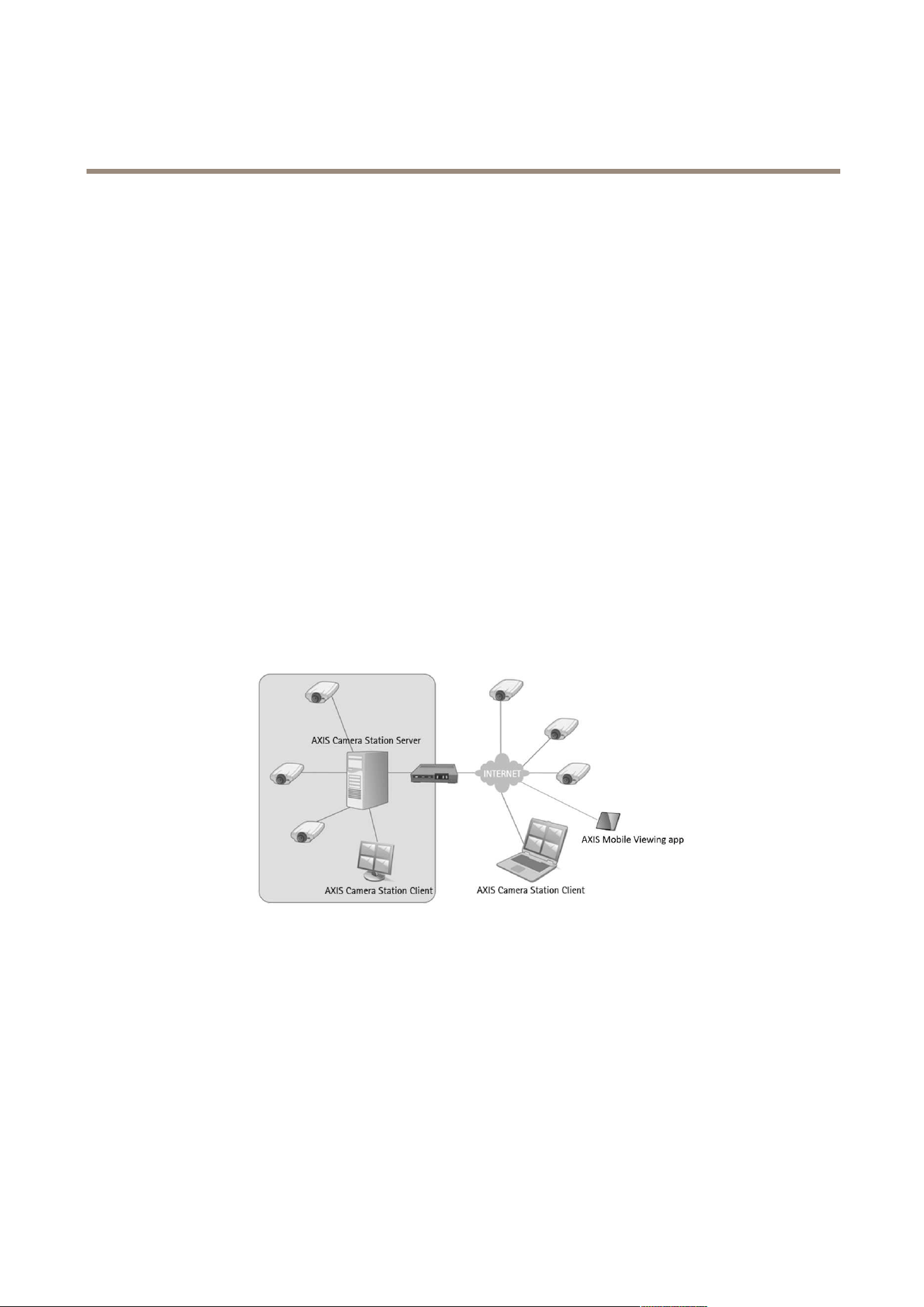
AXIS Camera Station is comprised of
• AXIS Camera Station Server — handles all communication with cameras, video encoders and auxiliary devices in the system.
The number of cameras and encoders that each Server can communicate with is limited by the total bandwidth available.
• AXIS Camera Station Client — provides access to recordings, live video, logs and conguration. The Client can be installed
on any computer enabling remote viewing and control from anywhere on the Internet or corporate network.
• AXIS Mobile Viewing App — provides access to recordings and live video on multiple systems. The app can be installed
on Android and iOS devices, and enable remote viewing from other locations.
Several Clients can be connected to the same Server, and each Client can be connected to several Servers. See Multiple Servers on
page 10.
AXIS Camera Station is available in multiple languages. The language is selected during installation but can also be changed later
by selecting Customize from the Options menu.
Installation scenario. AXIS Camera Station Server, installed on a dedicated computer, handles the communication with cameras both
inside and outside the local (corporate) network. The cameras are monitored and controlled from two AXIS Camera Station Clients
— one on the local network and one connected via the Internet. The cameras can also be monitored from mobile devices using AXIS
Mobile viewing app.
AXIS Camera Station Server
AXIS Camera Station Server handles all communication with cameras, video encoders and auxiliary devices in the system. The Server
also handles recordings, event management and user management.
The Server should be installed on a dedicated computer. Once installed, the Service Control can be used to start and stop the Server
and to modify settings if needed. See AXIS Camera Station Service Control on page 68.
7

AXIS Camera Station
Overview
An icon in Windows notication area shows if the service is running , is starting or has stopped . Double-click the icon
to open the Service Control.
Note
If AXIS Camera Station Server and the devices are separated by a proxy server, the server proxy settings in the Service Control
might need to be modied. See Network and Security Conguration on page 64.
AXIS Camera Station Client
AXIS Camera Station Client provides access to recordings and live video from the cameras in the system and is used to congure
AXIS Camera Station, for example to manage cameras and auxiliary devices, enable recording, set up rules and to manage licenses
and users. The Client can be installed on the same computer as the Server or on a different computer.
To start the Client:
• Windows 8.1, Windows Server 2012: Go to the Start screen and type “AXIS Camera Station”.
• Windows 10, Windows 7, Windows Vista, Windows Server 2008: Go to Start > All Programs > AXIS Camera Station >
AXIS Camera Station Client
Log on to AXIS Camera Station Server
When starting the Client for the rst time, the Client automatically attempts to log on to the AXIS Camera Station Server installed
on the same computer as the Client. If the Client and Server are installed on different computers, select Remote server and enter
the host name or IP address of the server computer and a user name and password (see below). When starting the Client the
next time, the previously selected Server will be remembered.
Note
If the Client and Server are installed on different computers, it might be necessary to congure proxy and/or rewall settings.
For more information, see Network and Security Conguration on page 64.
Users
To log on to an AXIS Camera Station Server, a user name and password is required. By default (local security disabled), all
administrators on the computer on which the Server is installed will be given administrator rights to AXIS Camera Station. The
administrator can enable local security and restrict access to trusted users and groups. It is also possible to set different access
levels. For more information, see User Permissions on page 66.
Users with viewer or operator rights do not have access to all functionality described in this manual.
AXIS Mobile Viewing App
AXIS Mobile viewing app for AXIS Camera Station provides access to recordings and live video on multiple systems and is
used keep up with events from the surveillance sites from a remote location. Axis Mobile viewing app can be downloaded
on www.axis.com/products/axis-camera-station
The viewing app for AXIS Camera Station uses HTTPS to communicate with the AXIS Camera Station server. The port number for
the mobile app is calculated by adding 4 to the server port number. The port number for video streaming is calculated by adding 5
to the server port number.
Examples:
• If you use the default server HTTP port 55752, the mobile app defaults to HTTPS port 55756. And the video stream
uses HTTP over RTSP port 55757.
• If the server HTTP port is modied to 55755, the mobile app uses HTTPS port 55759. And the video stream uses HTTP
over RTSP port 55760.
8

AXIS Camera Station
Overview
Workspaces
AXIS Camera Station has the following workspaces:
The Live View workspace shows live video from connected cameras. See Live View Workspace on page 14.
The Recordings workspace handles recording search, playback and export. See Recordings Workspace on page 19.
The Camera Management workspace provides tools for administration and maintenance of connected devices. See
Camera Management Workspace on page 23.
The Logs workspace contains alarm, event and audit logs. See Logs Workspace on page 26.
The Conguration workspace is a collection the most important settings. See Conguration Workspace on page 27.
To go to a workspace, click on the button in the toolbar.
Note
The Camera Management workspace is hidden by default. See Camera Management Workspace on page 23.
Full Screen Mode
Full screen mode is optimized for monitoring activities and available in the Live View, Recordings and Logs workspaces. In this mode,
some functionality is hidden and can only be accessed in normal mode.
To show a camera or view in full screen mode, either press F11 on the keyboard or click
. To return to normal mode, either
press ESC or F11 on the keyboard or click
In full screen mode, the top and bottom navigation panels are hidden during inactivity. Move the cursor to the top or bottom of
the screen to display the following:
Show the workspaces for Live View, Recordings and Logs.
Show the View navigation panel.
Devices and Cameras
In AXIS Camera Station, the terms “device” and “camera” are used as follows:
Device A network product that has its own IP address. A device can be:
• a network camera
• a video encoder (video server)
• an auxiliary device, for example an I/O audio device, a network speaker or a door controller
• a door station
Camera
A video source, that is:
• a network camera
• a video port (with a connected analog camera) on a video encoder
• a view area in a network camera or video encoder
Auxiliary device A network device without video ports.
Example
9
AXIS Camera Station
Overview
A 4-port video encoder is one device with four cameras.
Note
Some video encoders have one IP address for each video port. In this case, each video port is treated as one device with
one camera.
Multiple Servers
AXIS Camera Station Client can be connected to multiple AXIS Camera Station Servers. Servers can be organized in server lists,
see Server Lists, below.
To connect to a new Server:
1. Go to
> Servers > New Connection.
2. Select Remote server and enter the IP address or DNS name of the computer on which the Server is installed.
3. Click Log On.
To display information about connected Servers, go to
> Servers > Connection Status.
When connected to more than one Server, the Selected server drop-down list is displayed in the toolbar in the Live View, Recordings
and Logs workspaces and in several dialogs. When Selected server is shown, the Client displays devices, recordings, logs etc on the
selected Server. Select another Server to access devices and recordings on that Server.
The Camera Management workspace and the Alarms and Tasks tabs display devices and alarms from all connected Servers.
Server Lists
Server lists are useful when working with a large number of Servers, and when using the same Servers for Clients on different
computers.
To create and edit server lists, go to File > Server Lists. A Server can belong to more than one list.
To connect to all Servers in a server list:
1. Go to
> Log Off to log off from the current Servers or server list.
2. From the log-on screen, select Server list and select a list.
3. Click Log On.
Server lists can be exported and then imported to an AXIS Camera Station Client installed on another computer:
1. Go to
> Servers > Server Lists. Select the server list and click Export Lists to save the server list le to the local
computer.
2. Copy the server list le to the other computer.
3. At the other computer, go to
> Log Off to log off from the current Servers or server list.
10

AXIS Camera Station
Overview
4. At the log on screen, click ImportImport
Import
serverserver
server
listlist
list
and browse to the server list le.
11

AXIS Camera Station
Get Started
Get Started
When using AXIS Camera Station for the rst time, Get Started with AXIS Camera Station is started automatically. Get Started with
AXIS Camera Station provides a quick way to add cameras and to congure and enable recording:
1. Select cameras and video encoders to add. See Add Cameras.
2. Select recording method and where to store recordings. See Congure Recording.
3. Review settings and click Finish to add cameras and start recording.
All settings can be changed later, see Congure AXIS Camera Station on page 13.
Add Cameras
AXIS Camera Station automatically searches the network for connected cameras and displays a list of cameras found. Use the
Type to search eld to nd cameras in the list.
1. Select the cameras to add. A camera can be added if its Status eld is empty. For information about different statuses and
how to solve problems, see the built-in help.
2. To change the camera name, click on the name in the list and enter a new name.
3. Click Next to continue.
4. If some cameras do not have a password, Enter camera password is displayed. Enter a password and re-enter it to
conrm the spelling. The password will be set on all cameras that do not have a password. The password is used by
AXIS Camera Station to communicate with the cameras. Make sure to use a strong password.
If a camera cannot be found:
• Check that the camera is connected to the network and that power has been applied. Then click Search Again to repeat
the search. It is also possible to add cameras manually. Click Add Manually and enter the camera’s IP address or host
name. If the camera does not use the default port 80, the port number must also be specied.
• If AXIS Camera Station Client, AXIS Camera Station Server and/or cameras are located on different networks, then proxy
and rewall settings might need to be congured. See Network and Security Conguration on page 64.
Congure Recording
On the “Congure Recording” page, select recording method and where to store recordings. All recording settings can also be
changed later.
The selected recording method and the other recording settings will be enabled on all selected cameras. Video will be recorded in
video format H.264 if supported by the camera.
1. Select recording method:
- Motion recording — Record video when motion is detected. When a camera detects a moving object,
AXIS Camera Station will start record video from that camera. Recording continues until motion stops.
- Continuous recording — Record video continuously. Continuous recording requires more disk space than
motion recording.
- I want to congure this later — Do not enable recording.
2. Select the number of days to keep recordings, or select Unlimited to keep recordings until the disk is full.
3. Under Recording location, select the disks to store recordings on:
- Drives on the local computer. It is not recommended to use the disk on which the operating system is installed.
12

AXIS Camera Station
Get Started
- Network shares. To use a network share, click Add Network Share and enter the path to the share.
4. When satised, click Next to continue.
It is not recommended to use more than 10 cameras per disk or to use disks with less than 15 GB free space. Write-protected disks
cannot be used. If using multiple disks, newly added cameras will be automatically distributed among the disks.
Congure AXIS Camera Station
After completing Get Started with AXIS Camera Station, cameras have been added and recording is enabled.
• To view live video from the added cameras, go to the Live View workspace. See Live View Workspace on page 14.
• To search for and play recordings, go to the Recordings workspace. See Recordings Workspace on page 19.
If required, settings can be modied. Some examples:
• To change recording method, to schedule recording or to disable recording on some cameras, go to Conguration >
Event Conguration. See Congure Recording on page 33.
• To modify motion detection settings, go to Conguration > Event Conguration, select the camera, click Motion
Detection and then Motion Settings. See Motion Recording on page 33.
• To change recording settings such as video format, resolution and frame rate, go to Conguration > Event Conguration,
select the camera and recording method and then select the desired prole. See Congure Video & Audio Settings on
page 44.
• To add more recording disks or to congure recording storage settings for individual cameras, go to Conguration >
Recording Storage. See Congure Recording Storage on page 37.
• To add more cameras, go to Conguration > Add/Edit Cameras. See Add Cameras and Video Encoders on page 38.
• To add auxiliary devices such as AXIS P8221 and AXIS A1001, go to Conguration > Add/Edit Aux Devices. See Add
Auxiliary Devices on page 39.
See also How to... on page 31 and the built-in help.
13
AXIS Camera Station
Live View Workspace
Live View Workspace
The Live View workspace shows live video from connected cameras.
To congure video and audio settings such as video format, resolution, compression and frame rate, go to Video & Audio from the
Conguration menu.
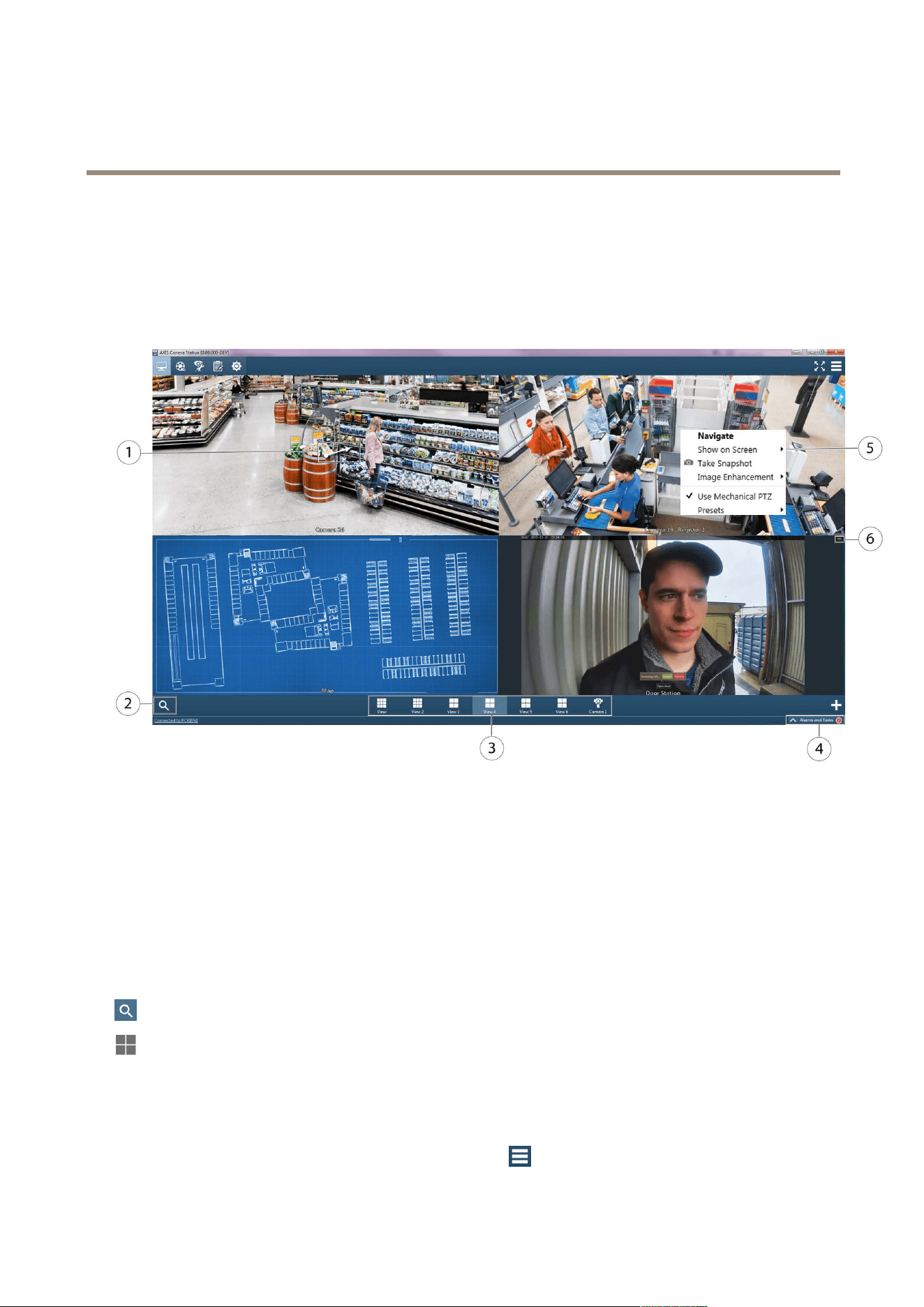
Live View workspace
1
PTZ control, see Pan, Tilt and Zoom in Live View on page 17.
2
Find Camera, see Find Camera on page 15.
3
Views, see page 15.
4
Alarms and Tasks tabs, see page 28.
5
Tools (right-click to display menu), see page 16.
6
REC button for starting a manual recording, see page 16.
Cameras and Views
To display live video, select a camera from Find Camera or select a View.
Find Camera shows all the cameras added to AXIS Camera Station. See Find Camera.
Views provide access to all the cameras and devices added to AXIS Camera Station. A view can consist of one or several cameras,
a sequence of items, a map, a web page or a folder. See Views.
Tree view navigation for a large system shows all the cameras and devices in a folder structure that consists of two tabs, Views and
Cameras. A search eld is used to nd specic views, sequences, maps, web pages, folders or cameras in the tabs. In the Views
tab, you can create, edit and delete views, sequences, maps ,web pages and folders.
Tree view navigation is not shown per default, and must be activated in
> Options > Customize > General.
14

AXIS Camera Station
Live View Workspace
Find Camera
Click
to show a list with all the cameras that have been been added to AXIS Camera Station. The cameras are listed with their
camera names. By default, the model names are used as camera names.
Use the Search Cameras eld to nd a specic camera in the list. Click the camera name to show the camera as a camera view in
the workspace.
If you are connected to more than one server, the listed cameras are grouped per server.
Note
The shown camera view is not connected to any split views.
Keyboard shortcuts
• Press CTRL + F on the keyboard to show the list.
• Press ESC on the keyboard to close the list. If the list shows search results, pressing ESC clears the list of search results.
Views
Views are generated automatically when cameras and devices are added to Axis Camera Station, and the number of views are
optimized for the number of installed devices.
To display a view, click one of the view icons, for example
in the view navigation panel or drag the view to the main window or to
another monitor. It is also possible to drag a single camera view, sequence, map or web page to a frame in a split view.
When cameras and devices are added to AXIS Camera Station, new cameras and devices are added as new views.
When cameras and devices are removed from AXIS Camera Station, their split views and camera views display a message that the
cameras and devices are removed from the server. No views are removed automatically.
To edit a view, right-click
and select Edit View.
To delete a view, right-click
and select Delete View.
The following view types are available:
Split View Displays multiple views in one window. One frame can be set as a hotspot that automatically loads the view from
another frame when clicking in that frame.
Sequence Switches automatically between selected views, with variable dwell times.
Camera View Live video from one camera or video encoder. Camera views can be added to split views, sequences and maps.
Map Imported image, for example a oor plan, on which camera views, split views, sequences, web pages and other
maps can be placed. Providing a visual overview, maps make it easy to quickly locate and access individual
cameras in the network video installation.
Web Page
External web application integrated into AXIS Camera Station. Web pages can be shown in a split view or a
sequence together with live video.
Folder Folders are used to categorize items in a tree view navigation. Folders can contain split views, sequences,
camera views, maps, web pages and other folders.
For information about how to create views, sequences, maps, web pages and folders, see Create Views on page 40.
Views can be accessed by all users. For information about user access rights, see User Permissions on page 66.
For Tree view navigation for a large system, see Cameras and Views on page 14.
15

AXIS Camera Station
Live View Workspace
Note
My Views (private views) that were created in earlier versions of Axis Camera Station are still available after an upgrade of
Axis Camera Station, but can only be edited and removed.
Tools in Live View
The Live View workspace provides a number of tools:
• Full Screen Mode on page 9 .
• Views on page 15.
• Recording and Instant Replay on page 16.
• Pan, Tilt and Zoom in Live View on page 17.
• Audio in Live View on page 17.
Note
All tools are not supported by all camera models.
Right-click a live view area in the workspace to display the following tools:
Show on Screen - Available when using multiple monitors. Show the view on another screen. It is also possible to drag views to
another screen.
Take snapshot. Take a snapshot image from the selected camera. The snapshot is saved to the snapshot folder specied
under Options > Customize.
Image Enhancement on page 18.
Use Mechanical PTZ, see Pan, Tilt and Zoom in Live View on page 17.
Presets, see Pan, Tilt and Zoom in Live View on page 17.
Set Focus, see Focus Control on page 17.
Recording and Instant Replay
In the Live View workspace, an ongoing recording is indicated by a recording indicator in the lower part of the image:
• Red — Motion detection or rule triggered recording
• Yellow — Manual recording
• Blue — Continuous recording
• Green — Failover recording
To play an ongoing recording, hover the mouse pointer over the image and click the
Instant replay button below the REC/STOP
button. The Recordings workspace will open and the last 5 seconds of the recording will be played.
To record manually from the Live View workspace, hover the mouse pointer over the image and click the REC button. Click STOP to
stop recording.
Note
Administrators can disable manual recording for selected users, see User Permissions on page 66.
16

AXIS Camera Station
Live View Workspace
Audio in Live View
Audio is available if the camera has audio capabilities and if audio has been enabled in the prole used for live view. If audio is
available, the audio control will be displayed when hovering the mouse pointer over the image. Use the slider to control audio volume.
Click on the control to mute audio.
Note
Administrators can disable audio for selected users, see User Permissions on page 66.
See also Use Audio from an Auxiliary Device on page 45.
Pan, Tilt and Zoom in Live View
Pan, tilt, zoom (PTZ) is the ability to pan (move left and right), tilt (move up and down) and zoom in and out. PTZ can be used with all
cameras. Mechanical PTZ can be used with PTZ cameras and cameras where digital PTZ has been enabled in the camera’s Setup
pages, see Mechanical PTZ.
Zoom – Use the mouse wheel to zoom in and out. Alternatively, press CTRL and (+) to zoom in and CTRL and (-) to zoom out.
Digital PTZ – Use the mouse wheel to zoom in, and then click to pan and tilt.
Mechanical PTZ – For mechanical PTZ, see Mechanical PTZ.
Note
Administrators can disable mechanical PTZ for selected users. See User Permissions on page 66.
Mechanical PTZ
Mechanical PTZ is available for:
• PTZ cameras, that is, cameras with built-in mechanical PTZ.
• Fixed cameras where digital PTZ has been enabled.
To enable digital PTZ in a xed camera, open the camera’s Setup pages in a web browser. To open the Setup pages, go the Camera
Management workspace, select the camera and click on the link in the Address column. For information about how to enable digital
PTZ, see the camera’s User Manual.
Mechanical PTZ is enabled by default when available (Use Mechanical PTZ is checked in the right-click menu). Use the mouse to
zoom, pan and tilt:
• Area zoom –To magnify a selected area in the image, click in the desired area and drag to draw a rectangle surrounding
the area to be magnied. To zoom out gradually, use the mouse wheel. To zoom out fully, use CTRL + 0.
• Pan and tilt – Click a desired area in the image to pan or tilt to that area. To pan and tilt continuously in the live view
image, move the cursor to the center of the image to show the navigation arrow. Then click and hold to pan in the direction
of the navigation arrow. To pan and tilt the image at a higher pace, click and hold to make the navigation arrow longer.
To go to a preset position, right-click in the image, select Presets and then select the preset position. For information about how to
set up preset positions, see Add a PTZ Preset Position on page 43.
Note
• Area zoom: To magnify an area near the center of the image, use the right mouse button and drag to draw a rectangle.
• For information on using a joystick, see Input Devices on page 59.
• Administrators can disable audio for selected users, see User Permissions on page 66.
Focus Control
To adjust camera focus:
1. In the Live View workspace, right-click in the image and select Set Focus.
17

AXIS Camera Station
Live View Workspace
2. Click AF to focus the camera automatically.
3. If the result is not satisfactory, click the Near and Far buttons to adjust focus manually. Use Near to focus on objects
close to the camera. Use Far to focus on objects far away.
Note
• Focus control is not available for all camera models.
• Some cameras also have focus and/or zoom pullers on the lens.
Image Enhancement
Image enhancement can make details in the image more visible, for example in challenging conditions such as fog, smoke, heavy
rain or snow.
To enable image enhancement, right-click in the image and select Image Enhancement. Use the slider to adjust the amount of
enhancement.
Note
When zooming in, image enhancement will be disabled temporarily, unless the mechanical PTZ tools are used. When
zooming out, enhancement is re-applied automatically.
18
AXIS Camera Station
Recordings Workspace
Recordings Workspace
The Recordings workspace handles recording search, playback and export.
To enable or disable recording, to change recording method or to modify recording settings such as resolution, compression and frame
rate, open Recording Settings from the Conguration menu.
To show the Recordings workspace in full screen mode, see Full Screen Mode on page 9 .
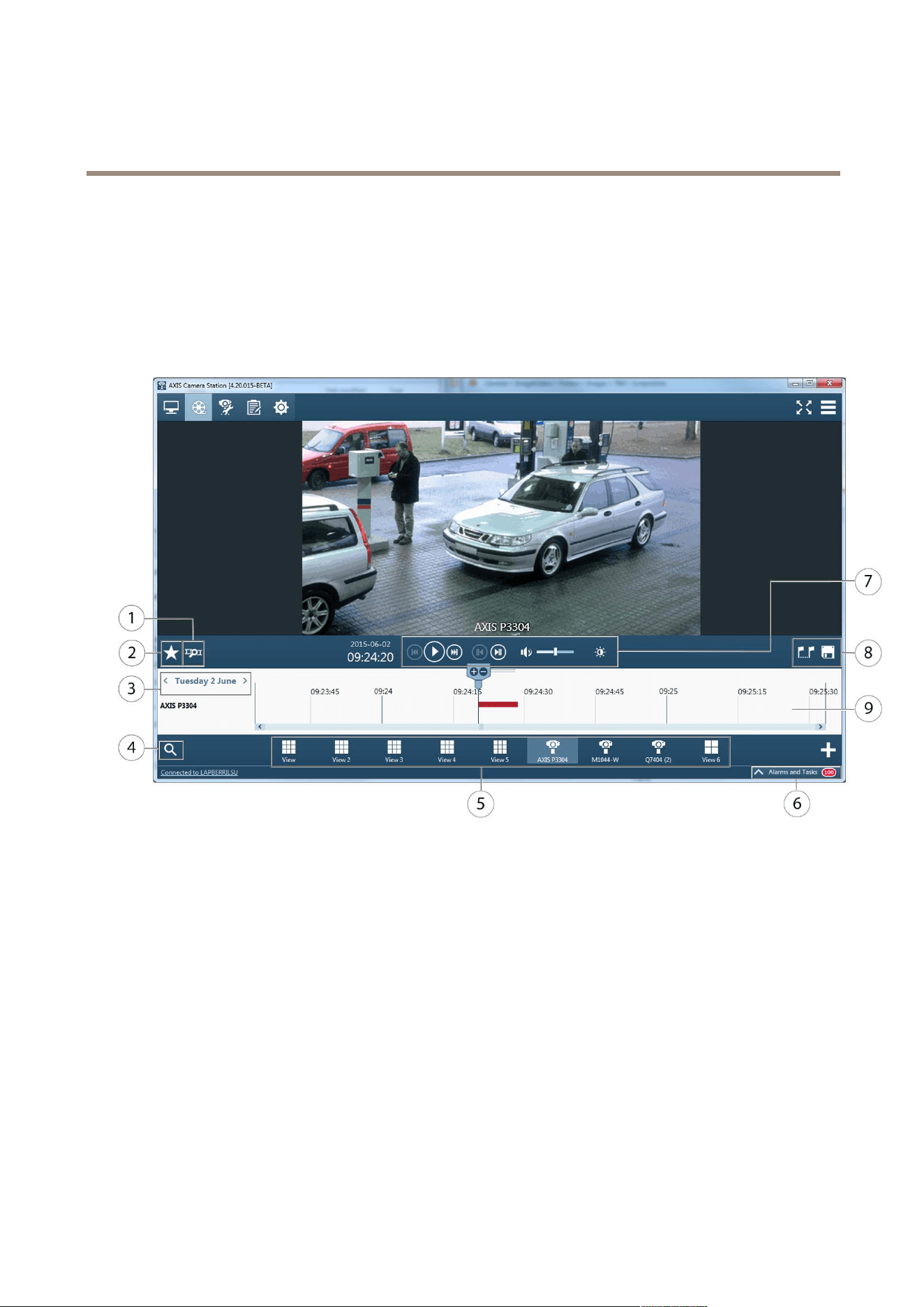
Recordings workspace
1
Smart search, see page 21.
2
Bookmarks, see page 22.
3
Date selector, see Search and Play Recordings.
4
Find Camera, see Search and Play Recordings and Find Camera on page 15.
5
Views, see Search and Play Recordings and Views on page 15.
6
Alarms and Tasks tabs, see page 28.
7
Control panel, see page 21.
8
Playback tools, see page 20.
9
Timeline, see page 20.
See also Export Recordings on page 48.
For Tree view navigation for a large system, see Cameras and Views on page 14.
Search and Play Recordings
To search and play recordings:
19

AXIS Camera Station
Recordings Workspace
1. Select a view that contains the recordings that you want to search.
2. Click on the recording in the timeline below the playback window.
3. Use the slider and the playback control panel to play the recording. See Playback Control Panel on page 21.
To show recordings from a different day, click on the arrows next to the current date to move between days, or click on the date to
show the calendar and select a new date.
To search for recordings from a specic time interval, for example a few hours or a range of days, see Recording Search.
Recording Search
1. Click the current date to show the calendar.
2. Select a date from the calendar. To select a range of dates, keep the SHIFT key pressed while selecting the dates.
3. Select the Start time and End time from the drop-down lists.
4. Click Search.
5. Found recordings are shown in the timeline.
Playback Tools
Recordings from multiple cameras can be played at the same time if the playback marker is positioned over several timeline
recordings. To view recordings in cameras that are listed with timelines but not shown in the view, drag a camera from the timeline
to a playback window in the view.
If using multiple monitors, live video can be displayed at the same time as recorded video. To display a view in another monitor,
drag the desired view from the view navigation panel and drop it in another monitor.
The following tools are available in the toolbar:
Export
Export the recording. Recordings can be exported to a local disk or a network location, or be
burned to a CD or DVD. To export a part of a recording, use the selection markers. For more
information, see Export Recordings on page 48.
Selection markers
Insert or remove selection markers. Use the mouse to move the markers to the desired start
and end time. Selection markers are used to select a time interval, for example to export a
part of a recording.
Pan, tilt and zoom during playback by clicking in the image and scrolling in and out with the mouse wheel. To zoom in on an area,
place the cursor in the desired area and use the mouse wheel to zoom. It is also possible to use CTRL and (+) to zoom in and CTRL
and (-) to zoom out.
If audio was included in the recording, a volume control appears in the playback window.
For information about how to prevent recording deletion, see Lock Recordings on page 22.
Playback Timeline
The timeline below the playback window displays the search result. Recordings are color coded:
• Red — Motion detection or rule triggered recording
• Yellow — Manual recording
• Blue — Continuous recording
• Green — Failover recording
To start playback from a specic time, click in the timeline to move the playback marker to the desired time. Click the Play button to
start playback.
20

AXIS Camera Station
Recordings Workspace
Use the mouse wheel to zoom in and out in the timeline. To move to a different day, use the arrows next to the date.
Playback Control Panel
The playback control panel is displayed below the timeline.
Play — Start playback
Pause — Pause playback
Speed control — Hover the mouse pointer over the Play/Pause button to display the speed control. Use the needle or the
mouse wheel to adjust playback speed.
Jump to previous — Jump to the start of the ongoing or previous recording.
Jump to next — Jump to the start of the next recording.
Jump backward — (Displayed during playback) Jump 5 seconds back.
Jump forward — (Displayed during playback) Jump 5 seconds forward.
Step to previous frame — (Displayed when paused) Step to previous frame in the selected recording.
Step to next frame — (Displayed when paused) Step to next frame in the selected recording.
Mute — Mute audio. Use the slider to control audio volume.
Image enhancement — Image enhancement can make details in the image more visible. Click the button to enable and use the
slider to adjust the amount of enhancement. Applied enhancement will be included in snapshots but not in exported video. When
zooming in, image enhancement will be disabled temporarily. When zooming out, enhancement is re-applied automatically.
Smart Search
Smart search is a motion search used to quickly locate important events in recorded video. Instead of going through hours of recorded
video manually, smart search nds the points in time when there is movement in a selected area in the recorded video.
To use smart search:
1. In the Recordings workspace, select a view that contains the recordings that you want to search.
2. Click on the recording in the timeline or select the camera in its split view.
3. Click
to expand Smart Search.
4. If required, adjust the area of interest to reduce or increase the number of hits. See below.
5. Click on the current date shown in the timeline to specify a time interval for the search results.
6. Click Search.
7. When the search result is displayed, click on the thumbnail image to move the playback marker to the time when motion
was detected.
The area of interest is the area in which moving objects will be detected. The area is a polygon displayed on top of the recorded
video. The polygon can have 3 to 20 corners. Use the mouse to move and resize the area. To add a new corner, click on the line
between two corners. To remove a corner, right-click on the corner.
21

AXIS Camera Station
Recordings Workspace
For cameras with rmware 5.50 and later, smart search can be optimized to deliver search results faster by installing the camera
application AXIS Video Content Stream 1.0 on the camera.
The application is automatically installed on new cameras added to AXIS Camera Station but can also be installed from the Camera
Management workspace, see Camera Applications on page 47. The application enables AXIS Video Content Stream in the camera. The
use of AXIS Video Content Stream is only permitted through AXIS Camera Station.
For cameras that do not use AXIS Video Content Stream 1.0, the Sensitivity slider can be used to adjust smart search sensitivity.
Bookmarks
In the Recordings workspace, click
to expand Bookmarks.
Click Date to sort bookmarks by date. Click Title to sort bookmarks by title. Use the Type to search eld to nd a particular bookmark.
To play a recording from the bookmarked time, click on the bookmark. Use the Type to search eld to nd bookmarks.
To add a bookmark:
1. To search and play a recording, see Search and Play Recordings on page 19.
2. In the playback timeline, click on the time to bookmark.
3. Click
to expand Bookmarks.
4. Click
to add the bookmark.
5. Enter a Name and a Description.
To edit a bookmark, select the bookmark and click
.
To remove a bookmark, select the bookmark and click
. To select multiple bookmarks, press SHIFT or CTRL while selecting
the bookmarks.
Lock Recordings
To prevent deletion, recordings can be locked.
To lock a recording, create a bookmark and select the Prevent recording deletion option. For information about how to create a
bookmark, see Bookmarks.
To unlock a recording, remove the bookmark or click
to edit the bookmark and clear the Prevent recording deletion option.
If a recording has more than one bookmark with Prevent recording deletion enabled, the recording will not be unlocked until
all bookmarks have been removed.
Note
• Locked recordings will be deleted if the camera is removed from AXIS Camera Station.
• To prevent the disk from becoming full, do not lock too many recordings and avoid locking continuous recordings. Locking a
large amount of video may cause the disk to run out of space. If required, recordings can be exported and stored on another
disk. It is also possible to export a part of a longer recording. See Export Recordings on page 48.
22

AXIS Camera Station
Camera Management Workspace
Camera Management Workspace
The Camera Management workspace provides tools for management, administration and maintenance of connected devices,
Note
A device is a network product with its own IP address, see page 9 .
The Camera Management workspace is hidden by default. To show the workspace:
1. Go to
> Options > Customize.
2. Under General: Select Show Camera Management workspace
3. Click OK to save.
Camera Management displays information about connected devices. Use the search eld to nd devices in the list.
To hide or show columns, right-click in the header row and select which columns to show. Drag and drop the headers to display the
columns in different order.
Name Device name.
If the device is a video encoder with multiple connected cameras, or a network camera with multiple view
areas, Name displays a list of all associated camera names.
• To change a device name, go to
> Conguration > Add/Edit Cameras and click Edit.
• To change an auxiliary device name, go to
> Conguration > Add/Edit Aux Devices
and click Edit.
Serial Number
The device serial number. The serial number (S/N) is printed on the product label.
Status Device status. See the built-in help for information about status codes.
Address
The device address. Click the link to open the device’s conguration web page.
Host Name
The device host name, if available. Click the link to open the device's conguration web page. The host
name displayed is the fully qualied domain name.
Model Device model.
Firmware The rmware version installed on the device.
DHCP If the device is connected to the server using DHCP.
Server The AXIS Camera Station Server the device is connected to.
Tags
(Hidden by default) The tags added to the device.
UPnP Friendly Name
(Hidden by default) The UPnP name. This is a descriptive name used to make it easier to identify the device.
23
AXIS Camera Station
Camera Management Workspace
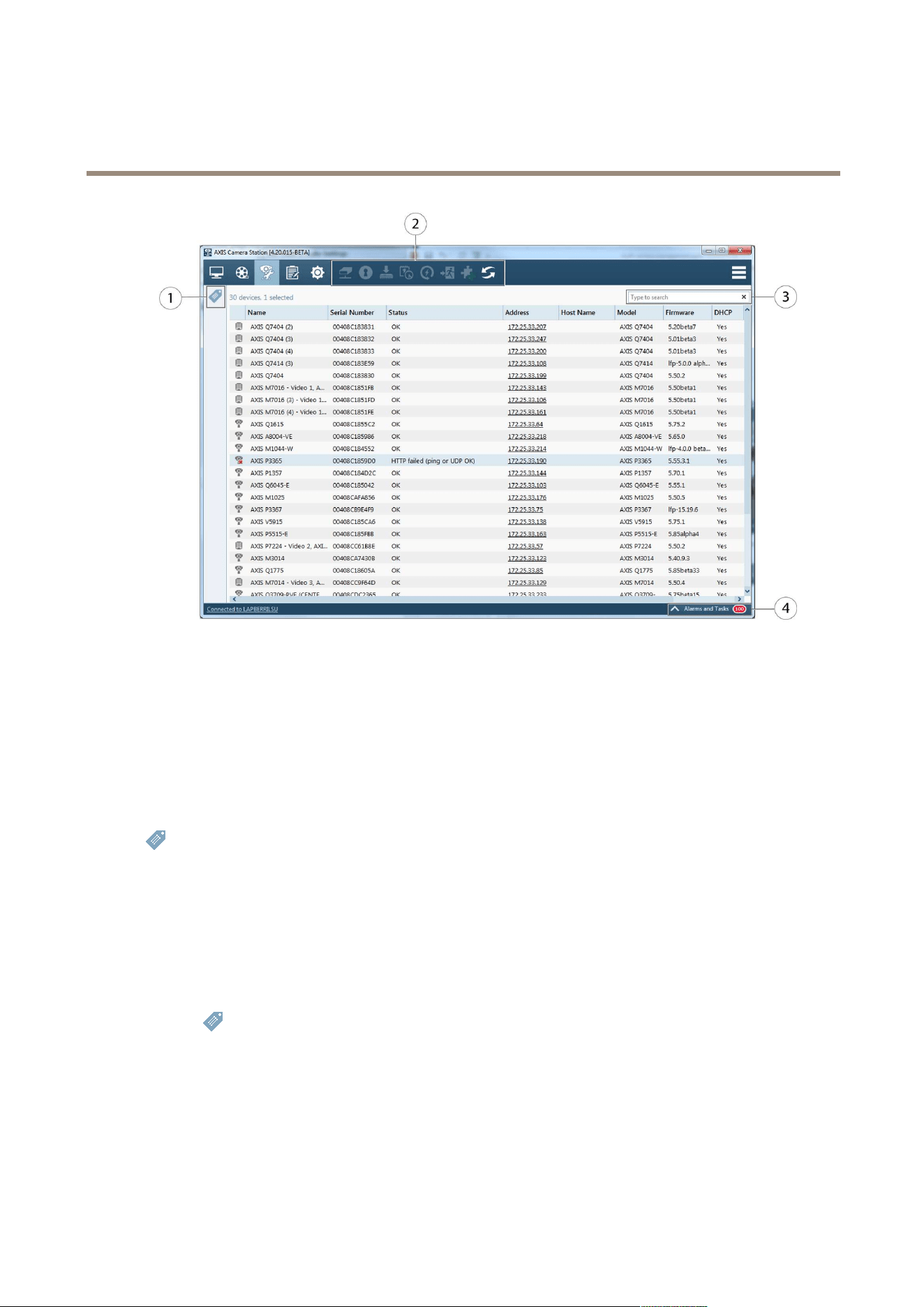
Camera Management workspace
1
Tags, see page 24.
2
Tasks, see page 25.
3
Search eld.
4
Alarms and Tasks tabs, see page 28.
Tags
Tags are used to organize devices in the Camera Management workspace. Devices can for example be tagged according to model or
location. A device can have more than one tag.
Click
to expand Device Tags. Click a tag to display all devices associated with the tag.
To tag devices:
1. Select the devices to tag.
2. Right-click and select Tag Devices.
3. Select Create a new tag to create a new tag, or select Use existing tag and select a tag from the list.
To remove a tag from one or more devices:
1. Click
to expand Device Tags.
2. Select the tag. All devices associated with the tag are now displayed.
3. Select the devices.
4. Right-click and select Untag devices.
24

AXIS Camera Station
Camera Management Workspace
Tasks
Tasks can be performed on one or multiple devices.
To perform a task, select the devices and click the task icon in the toolbar, or right-click and select the task.
Assign IP address to selected devices, see page 49.
Set password for selected devices.
Upgrade rmware for selected devices, see page 49.
Set date and time on selected devices.
Restart selected devices.
Restore selected devices. This will reset most settings, including the password, to their factory default values. The
following settings are not reset: uploaded camera applications, boot protocol (DHCP or static), static IP address, default
router, subnet mask, product interface language, system time, IEEE 802.1x settings.
Install camera application. A camera application is software that can be uploaded to and installed on devices. For
more information, see Camera Applications on page 47.
Reload selected devices. If settings have been changed from the device’s Setup pages, click this button to update
AXIS Camera Station.
Additional tasks (available when right-clicking):
• User Management. Add, remove and list users on selected devices.
• Parameter Management. See .
The status of nished and ongoing tasks is shown in the Tasks tab at the bottom of the workspace. See Alarms and Tasks Tabs on
page 28.
When connected to multiple AXIS Camera Station Servers, devices on all servers are displayed in the Camera Management workspace.
With the exception of assigning IP addresses, tasks can be performed on different servers at the same time.
25

AXIS Camera Station
Logs Workspace
Logs Workspace
The Logs workspace contains the following logs:
Alarms
System alarms, alarms generated by event conguration rules and, if enabled, motion detection alarms. Listed are
the date and time of the alarm, the alarm title and an alarm description. For information about how to set up
rules, see Event Conguration on page 53.
Events Displays camera and server events, for example recordings, triggers, alarms, errors and system messages. Listed are
the date and time of the event, the event category and an event message.
Audit Displays all user actions, for example manual recordings, video streaming started or stopped and event conguration.
Live logs is selected by default and shows live alarms, unacknowledged alarms, events and audit logs from the current session. To
search for logs:
1. Select Search under Log Search to search for logs.
2. Select a date from the calendar. To select a range of dates, keep the SHIFT key pressed while selecting the dates.
3. Select the Start time and End time from the drop-down lists.
4. Click Search.
The tools are available in the toolbar and when right-clicking on an alarm:
Go to recordings
(Alarms log only) Go to the Recordings workspace and play the recording.
Show alarm procedure for
selected alarm
(Alarms log only) Open the alarm procedure.
Acknowledge selected alarms
(Alarms log only) Notify other clients that the alarms have been noticed.
Export alarm log
Save the log as a text le.
26

AXIS Camera Station
Configuration Workspace
Configuration Workspace
The Conguration workspace is a collection of the most important settings.
Add/Edit Cameras
Add, edit or remove cameras and video encoders.
Video & Audio
Congure prole settings such as video format, resolution, frame rate and compression.
Image Conguration
Congure image settings such as brightness, white balance, wide dynamic range and image
rotation.
PTZ
Congure pan, tilt and zoom (PTZ) settings.
Event Conguration
Congure rules with triggers and actions. Also congure recording settings such as recording
type, video format, resolution, frame rate and compression.
Recording Storage Congure where to store recordings and number of days to keep recordings.
Schedules Congure schedules to be used in event conguration and recording settings.
Scheduled Export Congure scheduled recording export.
User Permissions Manage user permissions.
Licenses Manage licenses.
Customize Customize AXIS Camera Station.
27
AXIS Camera Station
Alarms and Tasks Tabs
Alarms and Tasks Tabs
The Alarms and Tasks tabs at the bottom of the Live View, Recordings, Camera Management and Conguration workspaces display
recent alarms and tasks.
Click
to show the tabs.
Alarms Tab
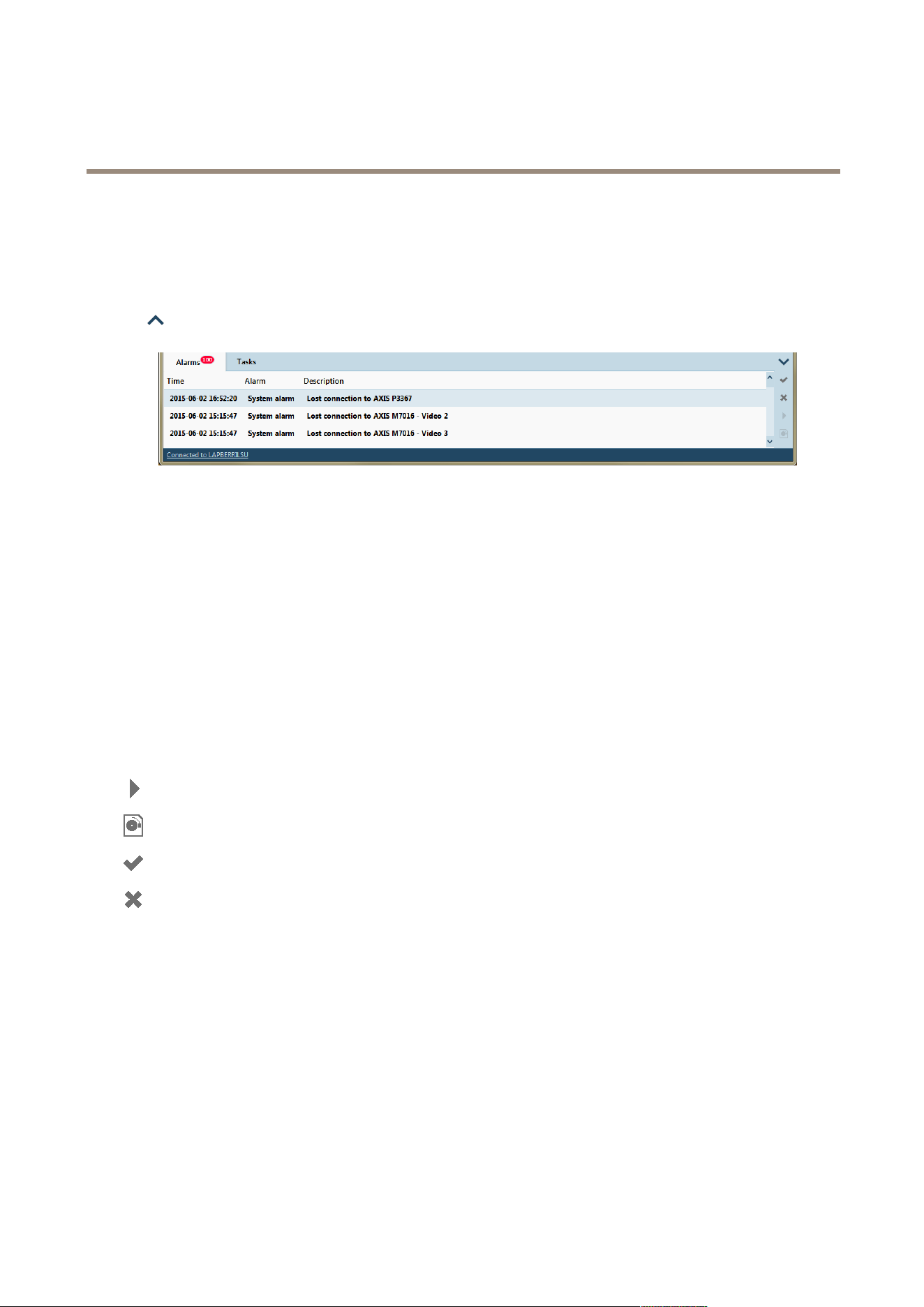
The Alarms tab lists the event and system alarms that have been triggered.
Time The time the alarm was triggered or took place according to a schedule.
Alarm What kind of alarm was triggered.
Description A brief description of the alarm.
Server
(Displayed when connected to more than one AXIS Camera Station Server.) The AXIS Camera Station Server
where the alarm occurred.
Alarm Procedure Lists if there is a procedure congured to take place if an alarm is triggered.
Recording
Shows if the alarm contains a recording.
When an alarm occurs, right-click the alarm in the list and select:
Go to Recordings Open the Recordings workspace and play the recording generated by the alarm.
Show Alarm Procedure Display instructions for the AXIS Camera Station user.
Acknowledge Alarms Acknowledge the alarm to notify other clients that the alarm has been taken care of.
Clear Alarm Entries
Remove the alarm from the list.
Task Tab
The Tasks tab lists tasks from the Camera Management workspace.
28

AXIS Camera Station
Alarms and Tasks Tabs
Task The name of the task
Status Shows if the task is:
• Cancel pending (Clean up after the task when the user pressed cancel)
• Canceled (Cleaning is complete and the task is canceled)
• Error (Task completed with errors, that is, the task failed on one or more of the selected cameras)
• Finished (Task completed)
• Finished during lost connection (Task completed. Displayed if the Client lost connection with the Server
while the task was running.)
• Lost connection (Displayed if the Client lost connection with the Server while the task was running.
Task status could not be determined.)
• Running (Performing the task)
• Waiting (Waiting for another task to be completed on the server)
Start Time
When the task was started
Owner
Who initiated the task
Progress
Shows how much of the task is left to be completed.
Server
(Displayed when connected to more than one AXIS Camera Station Server.) The AXIS Camera Station Server
performing the task
Right-click on one or more tasks and select:
Show
Display additional information about the task.
Cancel Cancel selected tasks.
Remove Remove one or more tasks from the task list.
29

AXIS Camera Station
Licenses
Licenses
From AXIS Camera Station 5.0, there are two license types:
• Core Device licenses: Core Device licenses apply to Axis devices such as Axis network cameras. A maximum of 32 Core
Device licenses may be used on a system *.
• Universal Device licenses: Universal Device licenses add scalability above 32 devices per system * and third party device
support.
* A system may consist of one or more servers. When an AXIS Camera Station viewing client is connected to two or more AXIS Camera
Station servers at the same time, these servers are considered as part of the same system and share a common pool of maximum 32
Core Device licenses in total.
Before you purchase any licenses, you can evaluate AXIS Camera Station when adding new devices to the system. A 30-day trial
period is offered for each added device. For detailed information about how to purchase licenses and how to upgrade existing
AXIS Camera Station licenses to Core and Universal licenses, see www.axis.com/products/axis-camera-station/license.
30
AXIS Camera Station
How to...
How to...
When using AXIS Camera Station for the rst time, Get Started with AXIS Camera Station is started automatically. After completing
Get Started with AXIS Camera Station, cameras have been added and recording is enabled on all cameras.
This chapter describes how to congure recording settings for individual cameras, how to congure live view settings and how to
add more cameras and auxiliary devices. In addition, the chapter gives examples of how to congure AXIS Camera Station to get
the most out of the system.
Register an Axis account
Your Axis account is used to activate and manage AXIS Camera Station licenses on the AXIS Camera Station License Portal.
With an Axis account, you can also download rmware and free software applications, submit questions to customer support,
subscribe to electronic newsletters and so on.
To register an account, go to www.axis.com/reg/register.php and enter the required information.
License a system that is connected to the Internet
Both the AXIS Camera Station client and the server must be connected to the Internet.
1. In the AXIS Camera Station client: Go to
> Options > Licenses > License Status tab.
2. In the AXIS Camera Station client: Click Manage licenses online.
3. On AXIS Camera Station License Portal: Log in with your Axis account.
4. On AXIS Camera Station License Portal: Enter your license key and click Add licenses.
5. In the AXIS Camera Station client: Check that your license keys are shown in
> Options > Licenses > License Keys tab.
License a system with no Internet connection
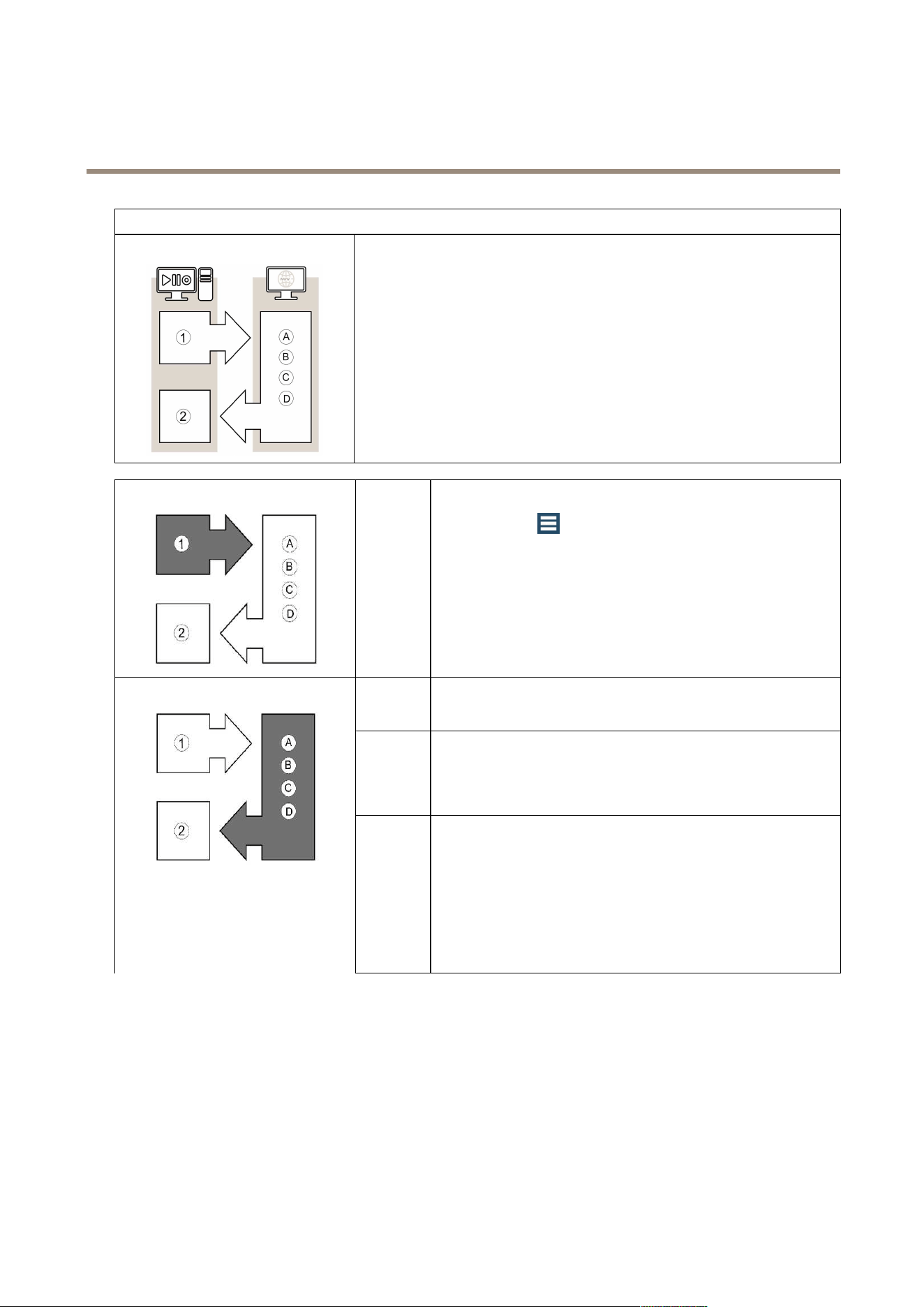
To license a system with no Internet connection, you need to visit two different platforms:
The AXIS Camera Station client installed on your ofine system.
The online AXIS Camera Station License Portal.
31
AXIS Camera Station
How to...
Go to the two platforms in the following order:
• Start the licensing process in the AXIS Camera Station client (step 1).
• Continue by accessing the AXIS Camera Station License Portal online
(steps A-D).
• Complete the process by returning to the AXIS Camera Station client
(step 2).
1
Export system le
1. Go to > Options > Licenses > License Status tab.
2. Click Export system le.
3. Save your system le on a USB ash drive.
A
Log in to the AXIS Camera Station License Portal
Log in to www.axis.com/licenses with your Axis account.
B
Upload system le
1. Click UploadUpload
Upload
systemsystem
system
lele
le
and select the system le on your
USB ash drive.
2. Click ManageManage
Manage
systemsystem
system
.
C
Add licenses
In Enter license key: Enter your license key and click Add licenses.
For AXIS S10 recorder systems:
Your system is automatically registered when you upload the system
le and you can nd your license details under License keys. It is
recommended that you write them down, or save them in a digital
format on a USB memory stick for future reference.
32
AXIS Camera Station
How to...
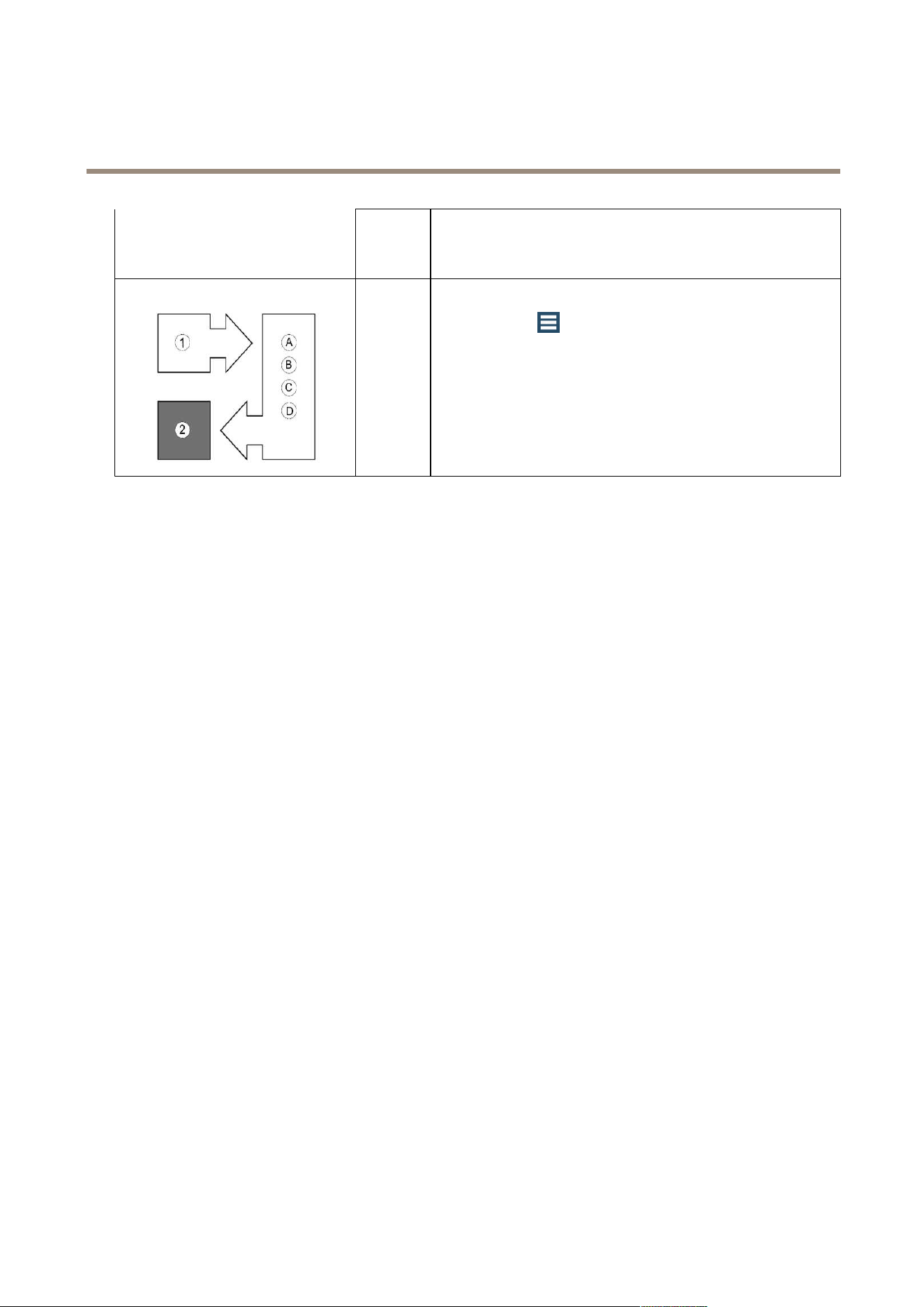
D
Download license le
In License keys: Click Download license le and save the le to a USB
ash drive.
2
Import license le
1. Go to
> Options > Licenses > License Status tab.
2. Click Import license le and select the license le on your
USB ash drive.
3. Check that your license keys are shown in the License Keys
tab.
Congure Recording
Motion recording or continuous recording is enabled automatically when cameras are added to AXIS Camera Station. To adjust
recording settings, or to disable recording for some cameras, go to Conguration > Event Conguration.
AXIS Camera Station supports the following recording options:
• Motion recording, see page 33.
• Continuous and scheduled recording, see page 36.
• Manual recording, see page 37.
• Rule triggered recording. A rule triggered recording is started and stopped according to a rule set up in Event Conguration,
see page 53.
• Failover recording, see page 37. A failover recording starts automatically if the connection between the camera and
AXIS Camera Station is lost during an ongoing recording.
To congure prole settings such as video format, resolution and frame rate for recordings, see Congure Video & Audio Settings.
Motion Recording
Motion recording can be used with all Axis network cameras and video encoders. Recording only when motion is detected saves
considerably on disk space compared to continuous recording.
To enable or disable motion recording, or to modify settings, follow these steps:
1. From the Conguration menu, select Event Conguration.
2. In Basic settings: Select one or more cameras and click Motion Detection. If selecting several cameras, motion recording
can be enabled or disabled and schedule settings can be modied. Prole settings can be modied if selecting cameras of
the same model. Motion detection settings can be modied if selecting a single camera.
3. To enable motion recording, select Enabled. To disable, clear the box.
4. To adjust motion detection settings such as the area in which moving objects are detected, click Motion Settings. For
more information about motion settings, see Motion Detection on page 34.
5. To change settings such as video format, resolution, compression and frame rate, select a prole. See also Congure
Video & Audio Settings on page 44.
6. To schedule motion recording, click Custom schedule and select a schedule or create a new schedule.
33

AXIS Camera Station
How to...
7. When satised, click OK.
If too many - or too few - moving objects are detected, use Motion Settings to modify the area in which moving objects are
detected, or use Trigger period under Conguration > Event Conguration > Motion Detection > Advanced to set the minimum
number of seconds between two successive triggers.
If the size of the recorded les is too large for the available disk space, try the following:
• Select a prole with lower resolution, lower frame rate or higher compression. Video format H.264 results in smaller
les than the other formats.
• Use a schedule to only record during specic time periods.
• Modify the Motion Settings to reduce the number of detected objects.
Note
View areas do not support motion recording.
Motion Detection
Axis network cameras and video encoders can detect motion using
• AXIS Video Motion Detection 2.1
• Built-in motion detection
AXIS Video Motion Detection 2.1 is a camera application that can be installed on products with support for AXIS Camera Application
Platform and that have rmware 5.60 or higher.
If motion recording is selected when cameras are added to AXIS Camera Station, AXIS Video Motion Detection 2.1 will only be
installed on cameras with rmware 5.60 or higher. Other cameras will use the built-in motion detection.
Available motion detection settings depend on the used detection method, see
• Congure AXIS Video Motion Detection 2.1
• Congure Built-In Motion Detection
It is also possible to install AXIS Video Motion Detection 2.1 from the Camera Management workspace, see Camera Applications on
page 47.
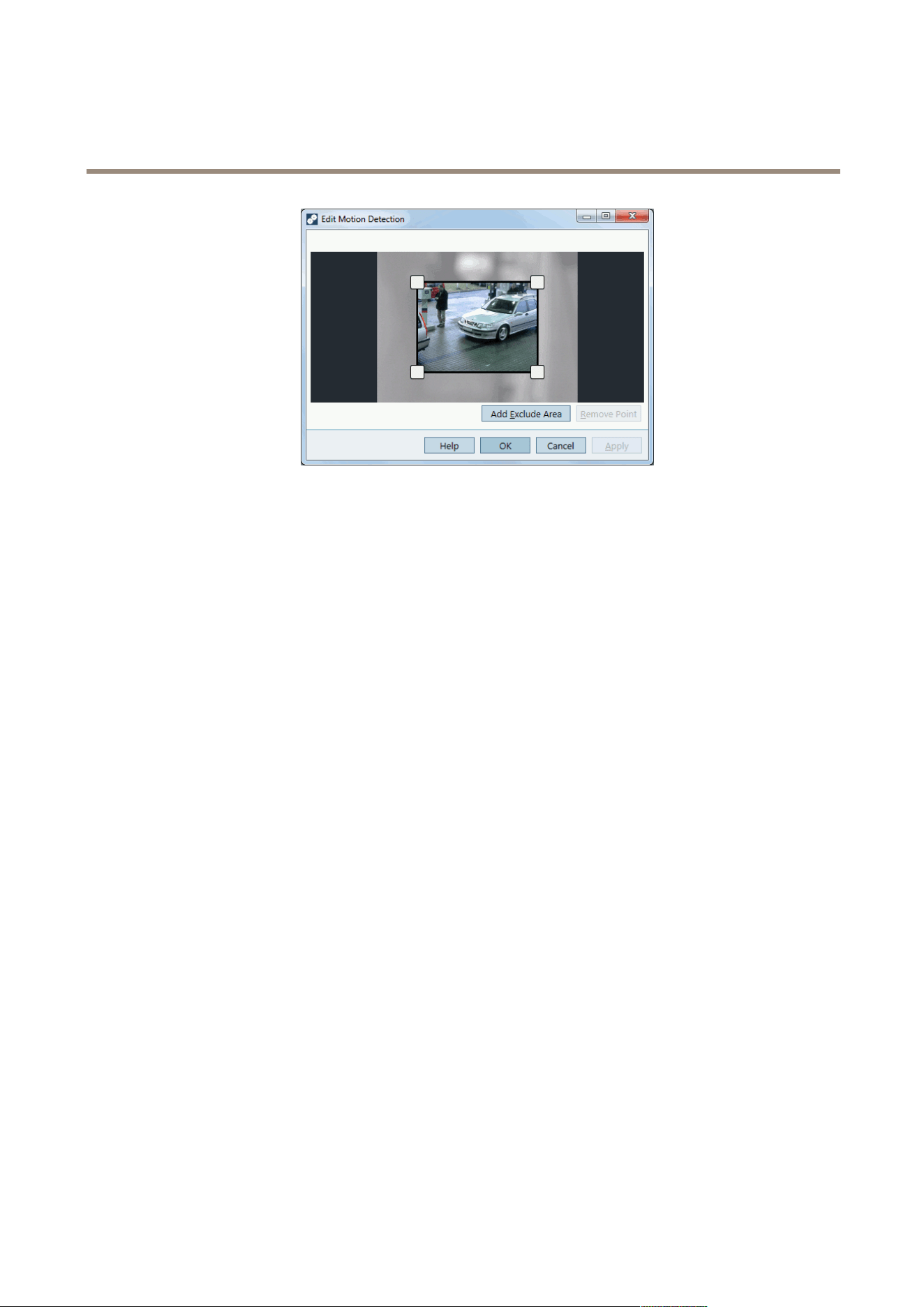
Congure AXIS Video Motion Detection 2.1
AXIS Video Motion Detection 2.1 detects moving object within an area of interest. The area of interest is a polygon dened by 3
to 20 points (corners). If required, an exclude area can be added. The exclude area is an area within the area of interest in which
moving objects are ignored.
To congure AXIS Video Motion Detection 2.1, follow these steps:
1. In Edit Motion Detection Recording Settings, click Motion Settings to open Edit Motion Detection.
2. The area of interest is displayed on top of the video image. Use the mouse to move and resize the area.
- To add a new point, click on the line between two points.
- To remove a point, right-click on the point or select the point and click Remove Point.
3. Optionally, click Add Exclude Area to add an exclude area. The exclude area can be moved and resized in the same
way as the area of interest.
4. When satised, click Apply.
5. To verify the settings, create motion in front of the camera. The line will turn red and ash when motion is detected.
34
AXIS Camera Station
How to...
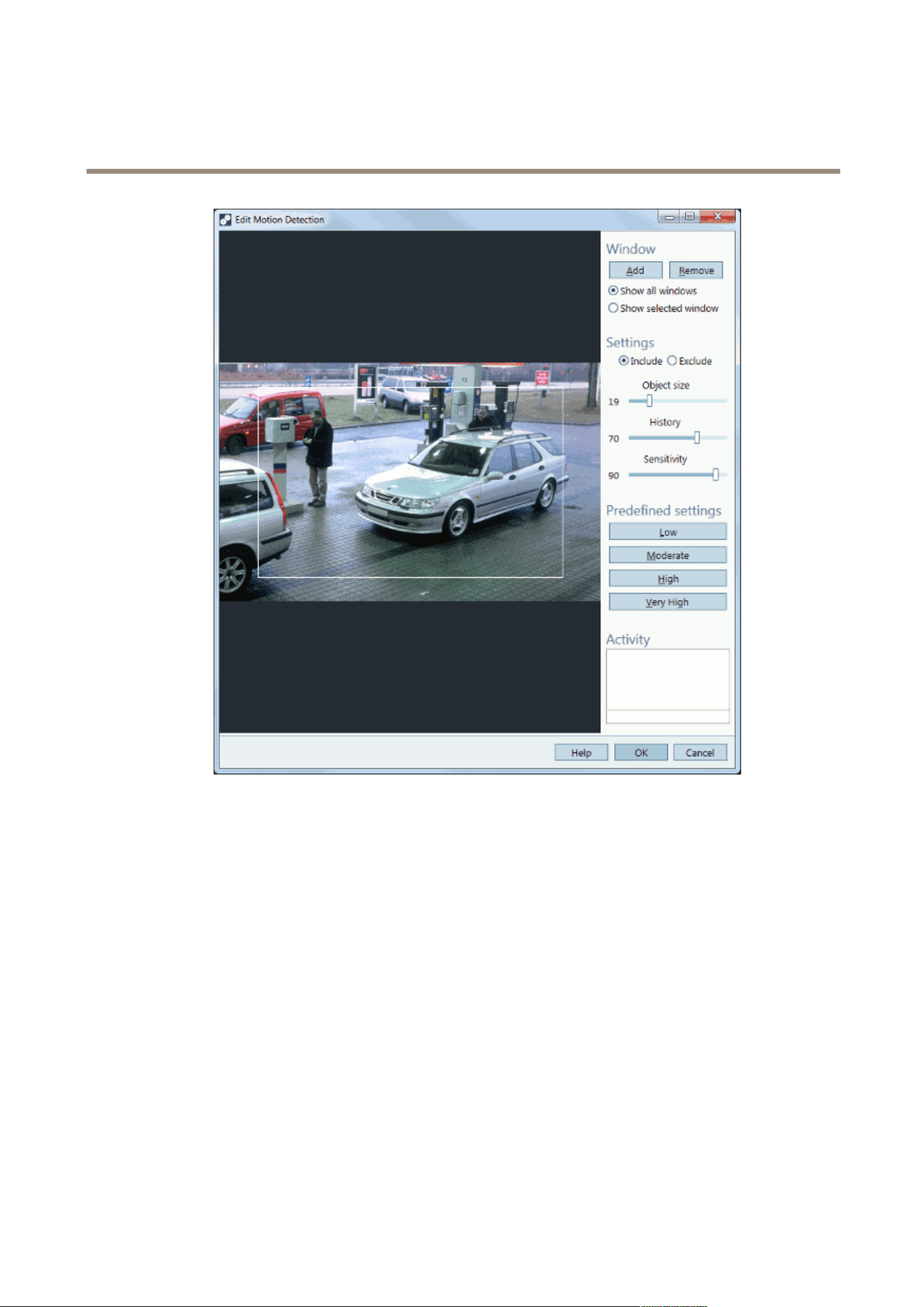
Congure Built-In Motion Detection
The motion detection built into Axis network cameras and video encoders detects moving objects within congured motion
detection windows:
• Include windows dene areas where motion should be detected
• Exclude windows dene areas within an include window that should be ignored (areas outside include windows are
always ignored)
For each motion detection window you can congure:
Object size - Object size is relative to the region size. At a high level, only very large objects are detected. At a low level even
very small objects trigger an event.
History - History denes how long an object needs to be in a region before it is considered to be non-moving. At a high level an
object that appears in the region will trigger the motion detection for a long period before it is considered a non-moving part of the
image. At a low level an object that appears in the region will trigger motion detection for only a very short period.
Sensitivity - Sensitivity denes the difference in luminance between the background and the object. At a high level, an ordinary
colored object on ordinary backgrounds will trigger motion. At a low level, only very bright objects on a dark background or
very dark objects on a light background will trigger an event.
To set up motion detection windows, follow these steps:
1. In Edit Motion Detection Recording Settings, click Motion Settings to open Edit Motion Detection.
2. Click Add to create a new motion detection window. Select Include to create an include window or select Exclude
to create an exclude window, as required.
3. Use the mouse to drag the window to the desired area. To resize, drag the sides of the window.
4. Set the Object size, History and Sensitivity. Begin with a predened setting and if needed ne adjust the settings using
the sliders while looking in the Activity window while there is a desired amount of motion in the motion detection window.
5. Click OK to save settings.
35
AXIS Camera Station
How to...
Continuous and Scheduled Recordings
A continuous recording saves images continuously. This requires more disk space than the other recording options.
To enable or disable continuous recording, or to modify settings, follow these steps:
1. From the Conguration menu, select Event Conguration.
2. Select one or more cameras and click Continuous. If selecting several cameras, recording can be enabled or disabled and
schedule settings can be modied. Prole settings can be modied if selecting cameras of the same model.
3. To enable continuous recording, select Enabled. To disable, clear the box.
4. To change settings such as video format, resolution, compression and frame rate, select a prole. To customize a prole,
see Congure Video & Audio Settings on page 44.
5. To schedule the recording, click Custom schedule and select a schedule or create a new schedule.
6. When satised, click OK. If continuous recording was enabled, recording will now start. If continuous recording was
disabled, recording will stop.
If the size of the recorded les is too large for the available disk space, try the following:
• Select a prole with lower resolution, lower frame rate or higher compression. Video format H.264 results in smaller
les than the other formats.
36

AXIS Camera Station
How to...
• Use a schedule to only record during specic time periods.
• Consider using motion recording.
Manual Recording
To record manually:
1. Go to the Live View workspace.
2. Hover the mouse pointer over the camera's live view frame.
3. Click the REC button in the upper right hand corner.
4. A yellow indicator appears while the camera is recording.
5. Click STOP to stop the recording.
Manual recording can also be started and stopped from the Actions menu.
To congure manual recording settings, follow these steps:
1. From the Conguration menu, select Event Conguration.
2. Select one or more cameras and click Manual.
3. To change settings such as video format, resolution, compression and frame rate, select a prole. See also Congure
Video & Audio Settings on page 44.
4. Use the sliders to set the Prebuffer and Postbuffer, that is, the number of seconds to include before starting (prebuffer)
and after stopping (postbuffer) the manual recording.
5. When satised, click OK.
Failover Recordings
A failover recording starts automatically if the connection between the camera and AXIS Camera Station is lost during an ongoing
recording. No new recordings can be started while the connection is lost.
Failover recordings will only affect H.264 recordings and can be enabled on cameras with support for storage (SD card) and rmware
5.20 or later.
To set up a failover recording, follow these steps:
1. From the Conguration menu, select Recording Storage.
2. Under Cameras, select the camera and click Edit.
3. Check Enable failover recording.
4. Click OK to save settings.
Congure Recording Storage
Recording storage is congured when cameras are added to AXIS Camera Station. If required, storage settings for individual
cameras can be modied and additional disks can be added.
For more information, see
• Congure Storage Settings for Individual Cameras
• Add and Congure a Recording Disk
37

AXIS Camera Station
How to...
Congure Storage Settings for Individual Cameras
When cameras are added to AXIS Camera Station, the cameras are distributed among the selected recording disks. To change the
recording disk or the number of days to keep recordings for a camera, follow these steps:
1. From the Conguration menu, select Recording Storage.
2. Select a camera from Cameras.
3. Click Edit to open the Edit Camera Recording Storage Settings dialog.
4. Select the disk to save recordings to.
5. Set the maximum number of days to keep recordings. Alternatively, select Unlimited to keep recordings until the disk is full.
6. Optional: enable failover recordings, see Failover Recordings on page 37.
7. Click OK.
Note
Maximum disk space has precedence over the number of days to keep recordings. Recordings will be deleted if there is no
room left in the allotted drive space.
Add and Congure a Recording Disk
Recordings can be stored on hard disk drives on the local computer or on a network share. To prevent the disk from becoming full, a
maximum disk usage should be set.
To add and congure a recording disk, follow these steps:
1. From the Conguration menu, select Recording Storage.
2. Click Add Disk.
Note
• It is not recommended to use the disk on which the operating system is installed.
• The recommended minimum disk space for hard disk drives and network shares added to AXIS Camera Station is 32 GB, with
at least 15 GB of free disk space available.
• If there is less than 15 GB of free disk space available, AXIS Camera Station will automatically start deleting old recordings
to free up disk space.
3. Select a hard disk drive or enter the path to a network share (for example \\ip_address\share) and click OK.
4. If authentication is required, enter the neccessary username and password to access the disk.
5. To set the maximum disk space allowed to be used by AXIS Camera Station, select the disk and use the AXIS Camera
Station Recordings Limit slider.
6. To change the folder where recordings are stored, select the disk and click Edit to specify a new folder.
Note
It is not possible to remove disks that contain recordings.
Add Cameras and Video Encoders
Cameras and video encoders are added the rst time AXIS Camera Station is started, see Get Started on page 12. To add additional
cameras and video encoders:
1. From the Conguration menu, select Add/Edit Cameras.
2. Click Add.
38

AXIS Camera Station
How to...
3. Follow the on-screen instructions in the Add New Cameras dialog. The steps are the same as in Get Started with AXIS
Camera Station. See Get Started on page 12.
Note
• To add door controllers (AXIS A1001 Network Door Controller) or I/O audio modules (AXIS P8221 Network I/O Audio Module),
select Conguration > Add/Edit Aux Devices. See Add Auxiliary Devices on page 39.
• For information about how to add view areas, see Using View Areas on page 39.
• For information about third-party devices, see Add third-party devices on page 40.
Using View Areas
View areas are supported by selected camera models. To use view areas with AXIS Camera Station, view areas must rst be enabled
in the camera:
1. Go to the Camera Management workspace.
2. Select the camera and click on the link in the Address column.
3. The camera's Setup pages are opened in a web browser. Enter the user name and password to log in.
4. In the Setup pages, go to Video & Audio > Camera Settings and click Enable View Areas.
5. Go to Video & Audio > View Areas to add and congure view areas. For instructions, see the online help.
To add view areas to AXIS Camera Station:
1. From the Conguration menu, select Add/Edit Cameras.
2. Click Add to start searching for cameras.
3. View areas congured in the camera will be displayed in the search result. Select the view areas to add.
Note
View areas do not support motion recording.
Add Auxiliary Devices
Auxiliary devices are devices without video capabilities, for example door controllers and audio devices.
Auxiliary devices can be added to AXIS Camera Station in the following ways:
• By searching for devices on the network, see Add Auxiliary Devices — Using Search.
• By specifying the device IP address or host name manually, see Add Auxiliary Devices — Manually.
See also Use Audio from an Auxiliary Device on page 45.
Add Auxiliary Devices — Using Search
To add auxiliary devices using the search function follow these steps:
1. From the Conguration menu, select Add/Edit Aux Devices.
2. Click Search. The Aux Device Search window opens with a list of all auxiliary devices found on the network.
3. Select the desired devices and click OK.
Note
Select Use host name when possible to use host names instead of IP addresses when adding auxiliary devices. If an
auxiliary device is added using its host name, the host name will be used for all further communication with the device. If a
host name is not available, the IP address will be used.
39

AXIS Camera Station
How to...
Add Auxiliary Devices — Manually
To add auxiliary devices manually follow these steps:
1. From the Conguration menu, select Add/Edit Aux Devices.
2. Click Add to open the Add Aux Device dialog.
3. Under Settings, enter the required information.
Address — Enter the device’s IP address or host name.
Port — Enter the port number, if different than the default port 80.
4. Under Credentials, enter a user name and password for an administrator account on the device.
5. Click OK to add the device.
Add third-party devices
The following applies for third-party devices that are added to AXIS Camera Station:
• Third-party devices are added to AXIS Camera Station in the same way as Axis products. See Add Cameras and Video
Encoders on page 38 All third-party devices must pass the AXIS Camera Station Device Compatibility Test tool before
they can be added.
• Only a number of functions are available for third-party devices. See Support for third-party devices.
Support for third-party devices
AXIS Camera Station 5 supports ONVIF Prole S conformant devices according to denitions in the IEC62676-2-3 standard. The
following functionality is supported for third-party devices:
• Camera discovery
• Video encoding: MJPEG, H264
• Audio encodings: G.711 (one-way, from the device to AXIS Camera Station)
• One video prole per camera
• Live view
• Continuous and Manual recordings
• Recordings exports
For detailed information about support for third-party devices, see the latest technical paper about third-party device support in AXIS
Camera Station: www.axis.com/products/axis-camera-station/support-and-documentation
AXIS Camera Station Device Compatibility Tool
Download and run the AXIS Camera Station Device Compatibility Tool to verify if your network video products are compatible with
AXIS Camera Station 5 and above: www.axis.com/support/downloads/axis-camera-station-device-compatibility-tool
The tool checks if AXIS Camera Station can communicate and decode video streams from your network video products.
Create Views
AXIS Camera Station supports different view types: split view, sequence, camera view, map, web page and folder, see Views on page
15. The views can be organized into view groups, see Cameras and Views on page 14.
40

AXIS Camera Station
How to...
Create a Split View
A split view displays multiple views in the same window. You can use camera views, sequences, web pages, maps and other split
views in the split view. One frame can be set as a hotspot that automatically loads the view from another frame when clicking in
that frame. Hotspots are particularly useful for asymmetric split views with one large and several small frames. The largest frame
is typically dened as the hotspot.
To add a new split view:
1. In the Live View or Recordings workspace, click
.
2. Select New Split View.
3. Enter a name for the split view
4. Select a layout from the drop-down list:
- Standard — optimized for standard resolution cameras (4:3 format)
- Wide — optimized for HDTV and megapixel cameras (16:9 format)
- Corridor — optimized for cameras using Axis’ Corridor Format (16:9 format, 90 degree rotation)
5. Double-click views in the tabs Cameras and Views to add them in the split view. It is also possible to drag views from the
tabs Cameras and Views and drop them in the empty cells in the split view.
6. Optional: To set a hotspot, select a frame in the split view and click Set Hotspot.
7. When satised, click OK to create the split view.
Note
Split views and multiple servers: When connected to more than one AXIS Camera Station Server, cameras from other servers
can be used in the split view. The split view is saved on the server selected in the main window. To add a camera from
another server, select the server from the server drop-down list under Camera.
Create a Sequence
A sequence view automatically switches between included views. The dwell time, that is, the number of seconds to show a view,
before switching to the next, can be set individually for each view. For cameras with PTZ capabilities, PTZ presets can be included in
the sequence.
To create a sequence, follow these steps:
1. In the Live View or Recordings workspace, click
.
2. Select New Sequence.
3. Enter a name for the sequence.
4. Double-click desired views in the tabs Cameras and Views to add them to Sequence views. It is also possible to drag
views from the tabs Cameras and Views and drop them in Sequence views.
5. Optional: To set a dwell time, select a view in the sequence and click Set Properties. Enter the desired dwell time.
6. Optional: To include a PTZ preset, select a view in the sequence and click Set Properties. Select a PTZ preset from
the drop-down list.
7. When satised, click OK to create the sequence.
Note
PTZ presets must rst be added. See Add a PTZ Preset Position on page 43.
41

AXIS Camera Station
How to...
Note
Sequence views and multiple servers: When connected to more than one AXIS Camera Station Server, cameras from other
servers can be used in the sequence view. The sequence view is saved on the server selected in the main window. To add a
camera from another server, select the server from the server drop-down list under Camera.
Create a Map
A map is an imported image on which camera views, split views, sequences, web pages and other maps can be placed. The map gives
a visual overview and makes it easy to quickly locate and access individual cameras. To open a camera or view from a map, click on
the corresponding icon. Action buttons from Event Conguration can also be used with maps.
To create a map, follow these steps:
1. In the Live View or Recordings workspace, click
.
2. Select New Map.
3. Enter a name for the map.
4. Click Import Map and browse to locate the le.
5. Drag views from the tabs Cameras and Views and drop them on the map. It is also possible to double-click views in
the Cameras and Views tabs to add them to the map.
6. When satised, click OK to create the map.
Note
Map views and multiple servers: When connected to more than one AXIS Camera Station Server, cameras from other servers
can be used in the map view. The map view is saved on the server selected in the main window.To add a camera from another
server, select the server from the server drop-down list under Camera.
Create a Web Page View
External web applications can be integrated into AXIS Camera Station by creating a web page view. Web pages can, for example,
be shown in a split or a sequence together with live video.
To create a web page view, follow these steps:
1. In the Live View or Recordings workspace, click
.
2. Select New Web Page.
3. Enter a name for the web page.
4. Enter the Internet address in the Url eld.
Note
Web pages cannot contain other views.
Create a folder
Folders are used to categorize items in a tree view structure, see Cameras and Views on page 14.
You can drag and drop the following items to a folder: split views, sequences, camera views, maps, web pages and other folders.
To create a folder, follow these steps:
1. In the Live View or Recordings workspace, click
.
2. Select New Folder.
42

AXIS Camera Station
How to...
3. Enter a name for the folder.
4. Click OK.
Create Action Buttons
Action buttons are used to start and stop actions in Live View. Action buttons are displayed on top of the live view or in a map. When
clicking the button, the action will be performed. The same button can be used with multiple cameras and maps.
There are two types of action buttons:
Command buttons - A command button is used to manually start an action. Use command buttons for actions that do not require a
stop button. Examples: Activate an output for a predened time (use output action with pulse set to the number of seconds the
output should be active), raise an alarm, send e-mail.
Toggle buttons - A toggle button is used to manually start and stop an action. The button has two states: toggle and untoggle.
Clicking the button switches between the two states. Examples: Open and Close Door (use output action with pulse set to "as
long as any trigger is active").
To create an action button, follow these steps:
1. From the Conguration menu, select Event Conguration.
2. Click New to create a new rule and then click Add to add a trigger.
3. Select Action Button.
4. Select Command button or Toggle button and click Next.
5. For command buttons, enter a button label and a tooltip. For toggle buttons, enter a toggle label, an untoggle label and a
tooltip. The tooltip will be displayed when hovering the mouse pointer over the button.
6. Select the Camera or Map to add the button to. Click the links to add the button to multiple cameras or maps.
7. When satised, click Next to return to the New Rule dialog.
8. Click Next to go to the Add Actions step. Click Add and select the action to use for the button.
9. Click Next to go to the Schedule step. Select a schedule and then click Next to go to the Details step. Click Finish
to create the buttons and enable the rule.
If a camera has multiple buttons, the order of the buttons can be modied. Click Arrange when adding the button to the cameras. To
arrange buttons on a map, go to the Live View workspace and edit the map.
Note
A rule can have multiple triggers but only one action button trigger.
Add a PTZ Preset Position
A PTZ preset is a saved pan, tilt and zoom position. Presets can be selected in Live View and can be used in sequences.
Presets can be created for cameras with PTZ cameras and cameras where digital PTZ has been enabled in the camera’s Setup
pages, see Mechanical PTZ on page 17.
To add a preset position, follow these steps:
1. From the Conguration menu, select PTZ.
2. Select a PTZ camera and click Congure.
3. Click in the preview window or use the PTZ controls to move the camera view to the desired position.
43

AXIS Camera Station
How to...
4. Click Add and type a name for the preset.
Note
• Presets congured in AXIS Camera Station are stored in the camera together with presets congured in the camera’s
Setup pages.
• The Presets list includes preset positions congured both in AXIS Camera Station and in the camera. Click Refresh
to update the list.
Congure Video & Audio Settings
To customize prole settings for resolution, frame rate, compression, video format and audio, go to Conguration > Video &
Audio Settings, select the camera to congure and click Edit.
For cameras of the same model that have the same conguration capabilities, multiple cameras can be congured at the same time.
To customize prole settings for recordings, see Continuous and Scheduled Recordings on page 36 and Motion Recording on page 33.
Note
The resolution and frame rate used in Live View can be limited to reduce bandwidth consumption, for example if a slow
connection is used between the AXIS Camera Station Client and AXIS Camera Station Server.
To optimize prole settings for low bandwidth:
1. Go to
> Options > Customize.
2. Click the Live View tab and check the Low bandwidth mode box.
3. Click OK.
When Low bandwidth mode is selected, the Low prole is used for all cameras in all views.
Video Proles:
A maximum number of three default proles are created for each camera. These proles are used for recordings as well as live
view. In live view, the proles are used as follows:
High - Used to display single camera screens - optimized for the highest quality and resolution.
Medium - Used to display 2-4 camera split screens - optimized to balance high quality with performance.
Low - Used to display 5 or more camera split screens - optimized for performance.
Note
To enable prole settings in recordings, see Continuous and Scheduled Recordings on page 36 and Motion Recording
on page 33.
Resolution - Select resolution. Available options depend on camera model. A higher resolution gives an image with more details but
requires more bandwidth and disk space.
Frame rate - Set the desired frame rate. The actual frame rate depends on camera model, network conditions and computer
conguration.
Compression - Set compression level. Lower compression improves image quality, but requires more bandwidth and disk space.
Format - Select video format. Available options depend on camera model. H.264 is supported by most camera models and requires
less bandwidth and disk space compared to, for example, M-JPEG.
Note
Cameras congured for MPEG-4 can only have one MPEG-4 prole at a time.
44

AXIS Camera Station
How to...
Audio:
Microphone - Select a camera microphone to enable audio in the prole. Audio can be used with MPEG-4 and H.264 video, and
is available for cameras with built-in audio and for cameras used together with an external audio device. SeeUse Audio from an
Auxiliary Device on page 45.
Use microphone for - Enable microphone audio for one or two streams. Audio can be enabled for Live view and recording, Live
view only or Recording only.
Speaker - Select a speaker to enable audio transmissions through camera speakers or auxiliary devices. Use a microphone connected
to the computer to make spoken announcements. See Use Audio from an Auxiliary Device on page 45.
The microphone
indicates that the selected camera has an enabled microphone (built-in, line-in, auxiliary device). The
microphone transmits audio from the camera to live view and recordings.
The speaker
indicates that the selected camera has an enabled speaker (built-in or external auxiliary device). In live view, use the
Speak button to transmit spoken messages through the speaker.
Note
Any built-in microphones or speakers cannot be shared with other cameras.
Advanced:
Include analytics data for Smart Search - Check this option to allow data to be gathered for smart search during video streaming.
Note
Data gathering for Smart Search can add latency in live video streaming. For Smart Search, see Smart Search on page 21.
Use Audio from an Auxiliary Device
Audio from an auxiliary device can be used together with video from a network camera or video encoder for live viewing or recording:
Follow these steps:
1. Add the auxiliary device to AXIS Camera Station, see Add Auxiliary Devices on page 39.
2. Congure the camera to use audio from the auxiliary device.
3. Enable audio for Live View or Recording.
Enable audio:
To congure proles for audio:
1. Go to
> Conguration > Video & Audio Settings.
2. Select the camera and click Edit.
3. Select MPEG-4 or H.264 under Format in the video prole settings.
4. Select a microphone under Microphone in the audio settings.
5. Select when to enable audio under Use microphone for in the audio settings. Audio can be applied for Live view and
recording, Live view only or Recording only.
6. If applicable, select a speaker under Speaker in the audio settings.
7. Click OK.
45

AXIS Camera Station
How to...
Add Inputs and Outputs
Many cameras and video encoders have I/O ports for connection of external devices. Auxiliary devices can also have I/O ports.
There are two types of I/O ports:
• Input port — connection of devices that can toggle between an open and closed circuit. Examples: door and window
contacts, smoke detectors, glass break detectors and PIRs (Passive Infrared Detector).
• Output port — connection to devices such as relays, doors, locks and alarms. Devices connected to output ports can be
controlled from AXIS Camera Station.
I/O ports are used in rules set up in Event Conguration, see page 53. Input ports are used as triggers, that is, when
AXIS Camera Station receives a signal from a device connected to an input port, specied actions will be performed. Output ports are
used as actions, that is, when a rule is activated, AXIS Camera Station can activate or deactivate a device connected to an output port.
It is also possible to control output ports manually from Actions > I/O Monitoring.
For information about how to connect devices and how to congure I/O ports, see the Axis product's User Manual or Installation
Guide. Some products have ports that can be congured to act as input or output.
To add an input or output port, follow these steps:
1. From the Conguration menu, select I/O Settings.
2. To add ports, click Add.
3. A list showing available I/O ports in devices added to AXIS Camera Station is now displayed. Select the port to add
and click OK.
4. Enter a name for the port and names for the active and inactive states. The names will appear under Logs, I/O Monitoring
dialog and in Event Conguration.
5. Output ports: To set the initial state of the output port, select On startup set to and then select the state to use as initial
state. The port will be set to the initial state each time AXIS Camera Station establishes contact with the device.
6. Click OK to add the port.
Note
Multiple ports can be added at the same time. If selecting multiple ports, the port names and names of the active and
inactive states will be set to default values.
Set Up Schedules
Schedules can be used in Recording Settings and Event Conguration. Once a schedule has been entered, it can be used as many
times as needed. Schedules can also be overridden on special dates, for example public holidays.
To set up a schedule, follow these steps:
1. From the Conguration menu, select Schedules.
2. Click Add to open the Schedule Editor.
3. Enter a name for the schedule.
4. Click in the timeline and drag to dene when the schedule should be on and off. Colored areas indicate that the
schedule is on.
5. To use a different schedule for special dates, click Override. Use the arrows to select the month, then select the special
dates and click Edit. To select several dates, keep the SHIFT or CTRL key pressed while selecting the dates.
6. Click OK.
46
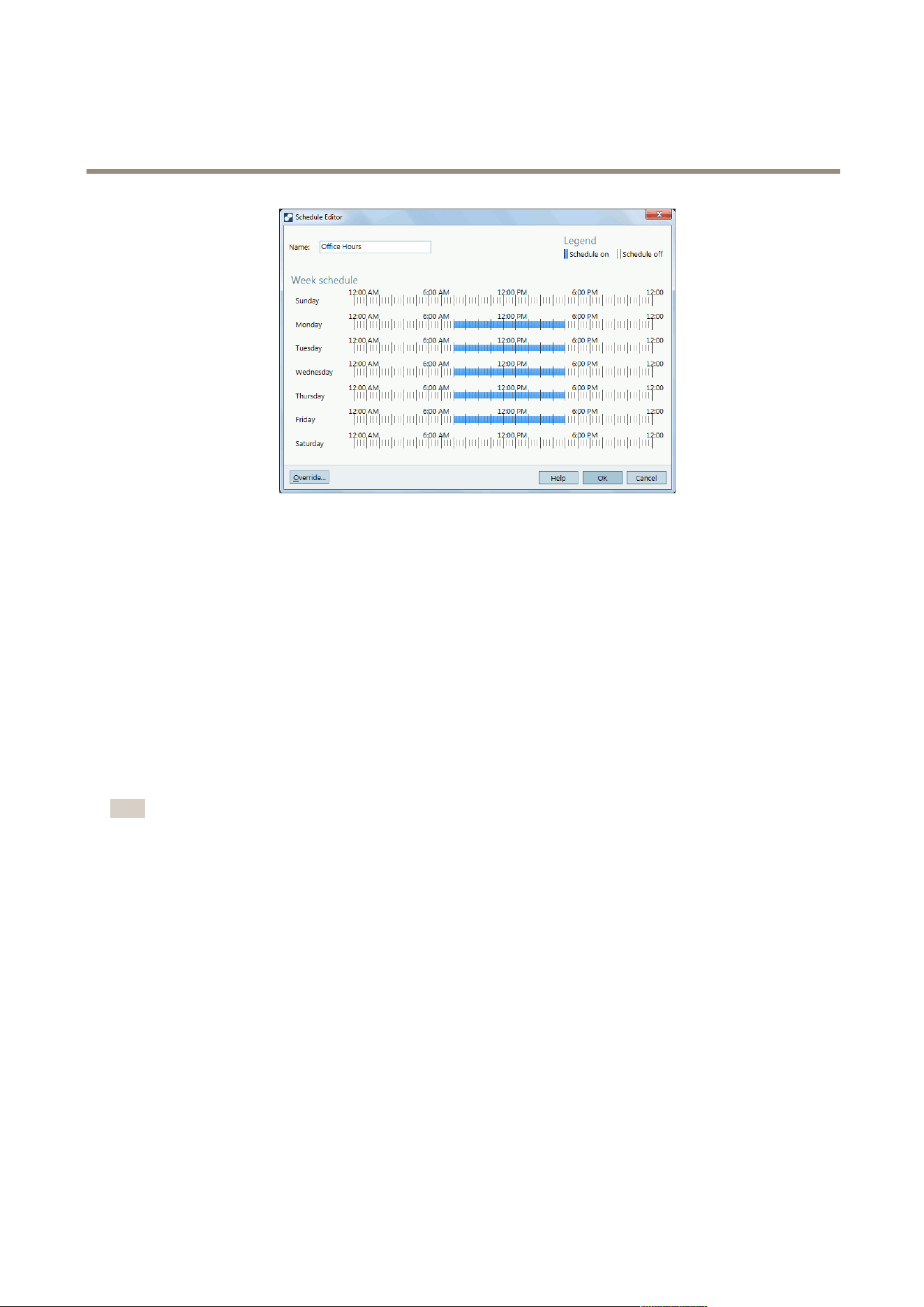
AXIS Camera Station
How to...
Send E-Mail Notication on System Alarm
A system alarm occurs when connection to a device is lost, when access to a recording disk is denied, when a recording disk is full, on
recording errors, etc. An e-mail notication can be sent when a system alarm occurs.
To set up e-mail notication, follow these steps:
1. From the Conguration menu, open System Alarm
2. Check Send e-mail on system alarm to the following recipients.
3. Enter the e-mail addresses alarm messages should be sent to.
4. Under New recipient, choose if the address should be in the To, Cc or Bcc eld of the e-mail and enter the e-mail address.
5. Click Add to enter the e-mail address into the Recipients box.
6. Click OK to save.
Note
To send emails, an SMTP server must rst be added. To add an SMTP server, select SMTP Servers from the Options menu.
Camera Applications
A camera application is software that can be uploaded to and installed on Axis network video products. Applications add functionality
to the device, for example detection, recognition, tracking or counting capabilities.
The following applications are installed automatically when cameras (that support these applications) are added to
AXIS Camera Station:
• AXIS Video Motion Detection 2.1 is an application that detects moving objects within an area of interest. The application
does not require any license and can be installed on cameras with rmware 5.60 and later.
• AXIS Video Content Stream 1.0 is an application that improves smart search. The application enables AXIS Video Content
Stream in the camera and can be installed on cameras with rmware 5.50 and later. The use of AXIS Video Content
Stream is only permitted through AXIS Camera Station.
Other applications must rst be downloaded from www.axis.com/applications or from the application vendor's web site.
Applications can be installed on devices with support for AXIS Camera Application Platform. Some applications also require a specic
rmware version or camera model. If the application requires a license, the license key le can be installed at the same time as the
application or it can be installed later using the devices' Setup pages.
47

AXIS Camera Station
How to...
To obtain the license key le, the license code included with the application must be registered at
www.axis.com/techsup/compatible_applications
To install an application, follow these steps:
1. Go to the Camera Management workspace.
2. Select the devices to install the application on. Multiple devices can be selected.
3. Right-click and select Install Camera Application.
4. Select the application to install and click Next.
5. The Install licenses page is displayed when installing an application other than AXIS Video Motion Detection 2.1 or
AXIS Video Content Stream 1.0.
- To install licenses, select Yes and click Next. Click Browse and browse to the license le.
- If the application does not require any license, or if licenses should be installed later, select No.
6. Click Next.
7. Check that all settings are correct and click Finish to install the application.
Important
If the application is already installed, the existing application will be overwritten. Overwriting removes all application settings.
If an application cannot be installed, go to www.axis.com and check if the device model and rmware version support
AXIS Camera Application Platform.
Export Recordings
Recordings can be exported to a local disk, a network location or burned to a CD or DVD. Multiple recordings can be exported at
the same time.
Recordings are exported in ASF format and can be played by Windows Media Player or AXIS File Player. AXIS File Player is free software
for video and audio playback. AXIS File Player is automatically included with the exported recordings. No installation is required.
To play recordings, open AXIS File Player and select the recordings to play.
To export a recording:
1. To search and play a recording, see Search and Play Recordings on page 19.
2. Go to the Recordings workspace.
3. Select the recording in the timeline:
- To select a single recording, click on the recording in the timeline.
- To select all recordings in a time interval, or to select a part of a longer recording, click
to display the
selection markers. Move the selection markers to the desired time.
- To select recordings from multiple cameras, keep the SHIFT or CTRL key pressed while selecting cameras in the
timeline. Then click on the recording or use the selection markers.
4. Click
to open the Export dialog.
5. Select the location to export the recordings to.
6. Optionally, select Create playlist to create a playlist for Windows Media Player.
7. Optionally, add a digital signature. A digital signature is used to ensure image authenticity and integrity.
48

AXIS Camera Station
How to...
8. Click Export.
Note
Recording export can also be scheduled. Go to Conguration > Scheduled Recording Export.
Upgrade Firmware
Firmware is software that determines the functionality of the Axis product. Using the latest rmware ensures that the device will
have the latest functionality and improvements.
New rmware can be:
• downloaded from Axis via AXIS Camera Station. Requires Internet connection.
• imported from a le (for example on the hard drive or on a memory stick).
Devices will be ofine during rmware upgrade. When upgrading multiple devices, the upgrade can be run in
• Sequence — one device at a time
• Parallel — upgrade all devices. This option is faster but all selected devices will be ofine at the same time
To upgrade one or more devices, follow these steps:
1. Go to the Camera Management workspace, see Camera Management Workspace on page 23.
2. Select the devices. Multiple devices can be selected.
3. Right-click and select Upgrade Firmware.
4. To check if new rmware versions are available for download, click Check for Updates. Enter the user name and password
for your MyAxis account. If you do not yet have an account, you can create one from this dialog.
6. For each device model, click the arrow under Upgrade To and select the rmware versions the devices should be upgraded
to. The following options can be available in the drop-down list:
- Firmware that has already been downloaded or imported is shown with its version number.
- Firmware that is available for download is shown with the text (Download) after its version number. The
rmware will be downloaded automatically when you click OK to start the upgrade operation.
- Browse — Select this option to browse to a rmware le.
7. Click OK to start upgrading the devices.
Note
To select upgrade order for rmware, go to > Options > Upgrade Firmware Settings and select Parallel or Sequence.
Assign IP Addresses
AXIS Camera Station can assign IP addresses to multiple devices. New IP addresses can be:
• obtained automatically from a DHCP server
• assigned from an IP address range.
To assign IP addresses to multiple devices, follow these steps:
1. Go to the Camera Management workspace.
2. Select the devices to congure. Multiple devices can be selected.
49

AXIS Camera Station
How to...
3. Right-click and select Assign IP Address.
4. Select one of the following options:
- Obtain IP addresses automatically (DHCP)
- Assign the following IP address range:
Specify the IP address range, the subnet mask and the default router. Wildcards can be used, for example 10.93.*
5. Click Next.
6. The current IP address and the new IP address are displayed under New IP addresses. To modify the IP address for a
device, select the device and click Edit IP.
7. Click Finish when satised with the new IP addresses.
Congure Devices
Multiple devices can be congured at the same time by copying device settings from one device, or by applying a conguration le.
• For information about how to congure devices, see Choose Conguration Method on page 50.
• For information about which settings can be copied, see Conguration Settings on page 51.
• For information about how to create a conguration le, see Create Conguration File on page 52.
Choose Conguration Method
There are different methods to congure selected devices. AXIS Camera Station will attempt to congure all devices according to
the selected settings in the method.
For more information about settings, see Conguration Settings on page 51.
Use Conguration of Selected Device
Note
This method is only available for conguration of a single device by reusing some or all existing settings.
To use conguration of a selected device:
1. Open the Camera Management workspace.
2. Select one device to congure with existing settings.
3. Right-click and select Congure Devices > Congure.
4. Select the settings to be applied.
5. Click Next to verify the settings to be applied.
6. Click Finish to apply the selected settings to the selected device.
Copy Conguration From Another Device
To copy a conguration from another device:
1. Open the Camera Management workspace.
2. Select the devices to congure with copied settings from another device. Devices of different models and rmware can
be selected.
3. Right-click and select Congure Devices > Congure.
50

AXIS Camera Station
How to...
4. Click Device to show devices with reusable congurations.
5. Select a device to copy settings from and click OK.
Note
The details for the selected device are shown in a the Congure Devices dialogue.
6. Select the settings to be applied.
7. Click Next to verify the settings to be applied.
8. Click Finish to apply the selected settings to the selected devices.
Use Conguration File
A conguration le contains selected settings from one device. To create a conguration le, see Create Conguration File on page 52.
Conguration les can be used to:
• congure multiple devices at the same time,
• recongure a device, for example if the device is reset to its factory default settings.
To apply a conguration le to devices:
1. Open the Camera Management workspace.
2. Select the devices to congure with the conguration le. Devices of different models and rmware can be selected.
3. Right-click and select Congure Devices > Congure.
4. Click Conguration File to go to the conguration le.
5. Browse to the .cfg le and click Open.
6. Click Next to verify the settings to be applied.
7. Click Finish to apply the selected settings to the selected devices.
Note
A conguration le created from a device can be applied to devices with different model or rmware even if some settings do
not exist on all selected devices. This option should only be used by experienced users.
If some settings do not exist or cannot be applied, the task status will show as Error in the Tasks tab at the bottom of
the Camera Management workspace. Right-click the task and select Show to display information about the settings
that could not be applied.
Conguration Settings
Parameters Parameters are internal device parameters that are used to control device
behavior. Parameters should only be modied by experienced users.
Note
All device parameters are not accessible from AXIS Camera Station.
For general information about parameters, see the product's User Manual
available at www.axis.com
Variables It is possible to insert variables in some text elds. To insert a variable,
right-click in the text eld and select a variable.
The variables will be replaced by text before they are applied to a device.
51

AXIS Camera Station
How to...
There are three variables available:
• $(Properties.System.SerialNumber) - This variable will
be replaced with the serial number of the device that the
conguration le is applied to.
• $(mgr.ServerName) - This variable will be replaced with the
name of the server used when applying the conguration le.
The server name can be found in the Server column in the
Camera Management workspace. To rename a server, use AXIS
Camera Station Service Control.
• $(mgr.POSIXTimeZone) - This variable will be replaced with
the POSIX time zone of the server used when applying the
conguration le. This can be used with the POSIX time zone
parameter to set the correct time zone of all devices in a
network with servers in different time zones.
Action Rules Action rules can be copied between devices. Action rules should only be
modied by experienced users.
For general information about action rules, see the product's User Manual
available at www.axis.com
Additional Settings Stream Proles - A stream prole is a pre-programmed live view
conguration prole for video encoding, image and audio settings. Stream
proles can be copied between devices.
Motion Detection Windows - Motion detection windows are used to dene
specic areas in the camera's eld of view. Typically, alarms are generated
whenever movement occurs (or stops) within the specied areas. Motion
detection windows can be copied between devices.
Create Conguration File
A conguration le contains selected settings from one device. These settings can then be applied to other devices. For information
on how to use the conguration le, see Choose Conguration Method on page 50.
The displayed settings are the device settings that can be accessed using AXIS Camera Station. To nd a particular setting, use the
Type to search eld.
To create a conguration le:
1. Open the Camera Management workspace.
2. Select the device to create the conguration le from.
3. Right-click and select Congure Devices > Create Conguration File.
4. Select the settings to include and modify their values as required. For more information, see Conguration Settings
on page 51.
5. Click Next to verify the settings to be saved.
6. Click Finish to create the conguration le.
7. Click Save to save the selected settings to a .cfg le.
52

AXIS Camera Station
Event Configuration
Event Configuration
Event conguration is a powerful tool to reduce the number of recordings, to interact with devices connected to I/O ports and to alert
operators about important events.
To congure events, AXIS Camera Station uses rules. A rule is a set of conditions that dene how and when actions should be
performed. A rule consists of triggers and actions. Triggers dene when the rule should be activated. A rule can have multiple
triggers and will be active as long as any of the triggers is active. If the rule has multiple actions, all actions will be performed
when the rule is activated.
Triggers
The following triggers are available:
Motion Detection The motion detection trigger is activated when the selected camera detects motion within a
dened area. Detection is performed by the camera which means that no processing load to
AXIS Camera Station Server.
Avoid using the motion detection trigger to start recordings if motion recording is enabled in the
camera. To nd out if motion recording is enabled, go to Conguration > Recording Settings.
Active Tampering Alarm The tampering trigger is activated when the selected camera is repositioned or when the lens is
covered, sprayed or severely defocused. Tampering detection is preformed by the camera which
means that no processing load is added to AXIS Camera Station Server.
Active Tampering Alarm is available for cameras with support for Camera Tampering and with
rmware 5.11 or later.
AXIS Cross Line Detection AXIS Cross Line Detection is an application that can be installed on cameras and video encoders.
The application detects moving objects that cross a virtual line and can, for example, be used to
monitor entrance and exit points.
Before using AXIS Cross Line Detection as a trigger, the application must be installed on the
camera. Download the application from www.axis.com. Then go to the Camera Management
workspace, select the camera, right-click and select Install camera application. See Camera
Applications on page 47.
The trigger is activated when an application detects a moving object. Since detection is performed
by the application on the camera, no processing load is added to AXIS Camera Station Server.
AXIS Cross Line Detection can be installed on products with support for AXIS Camera Application
Platform.
System Event and Error
A system event an error trigger is activated when recording errors occur, when a disk becomes full,
when a network share cannot be contacted or when connection to one or more devices is lost.
Input/Output
The Input/Output (I/O) trigger is activated when a device’s I/O port receives a signal from, for
example, a connected door, smoke detector or switch.
Before using an I/O trigger, the I/O port must be added to AXIS Camera Station. Go to
Conguration > I/O Settings. See Add Inputs and Outputs on page 46.
Device Event The device event trigger is intended for advanced users. The trigger uses events from the camera
or auxiliary device and can be used if no other trigger is applicable. Supported by products
with rmware 5.40 and later.
Action Button Action buttons are used to start and stop actions in Live View. Action buttons are displayed on
top of the live view or in a map. When clicking the button, the action will be performed. For more
information, see Create Action Buttons on page 43.
53

AXIS Camera Station
Event Configuration
Actions
The following actions are available:
Record The record action starts a recording from the selected camera. The recording can be accessed and played
from the Recordings workspace.
The recording is saved to the disk specied under Conguration > Recording Storage.
Raise alarm
The raise alarm action sends an alarm to all connected AXIS Camera Station Clients. The alarm will be
displayed in the Alarms tab (see Alarms and Tasks Tabs on page 28) and as a taskbar notication. Instructions
in form of a le with alarm procedures can be included with the alarm.
Send e-mail The e-mail action sends an e-mail to one or multiple recipients. Snapshots from selected cameras can be sent
as e-mail attachments. To be able to send e-mails, an SMTP server must rst be congured,
Live View The live view action opens the Live View workspace with a specied camera, view or preset position. The Live
View workspace will open in all connected AXIS Camera Station Clients.
If the Live View workspace shows a split view with a hotspot, the camera selected in the live view action
will be loaded in the hotspot.
The live view action can also be used to restore open AXIS Camera Station Clients from the taskbar or
bring the clients to the front of other applications.
Set Output
The output action sets the state of an output port. This is used to control the device connected to the output
port, for example to switch on a light or lock a door.
Before using the output action, an output port must be added to AXIS Camera Station. Go to Conguration >
I/O Settings. See Add Inputs and Outputs on page 46.
Send HTTP
Notication
The HTTP notication action sends an HTTP request to a camera, a door controller or an external web server.
HTTP notications can for example be used to enable or disable a feature in the camera, or to open, close, lock
or unlock a door connected to a door controller.
Create a Rule
The example described in this chapter demonstrates how to use Event Conguration to create a rule that starts a recording,
raises an alarm and sends an e-mail each time a door is opened. The door switch is connected to an input port of the camera
monitoring the door.
Start by creating a new rule:
1. Open the Conguration menu and select Event Conguration.
2. Click New to open the New Rule dialog.
54
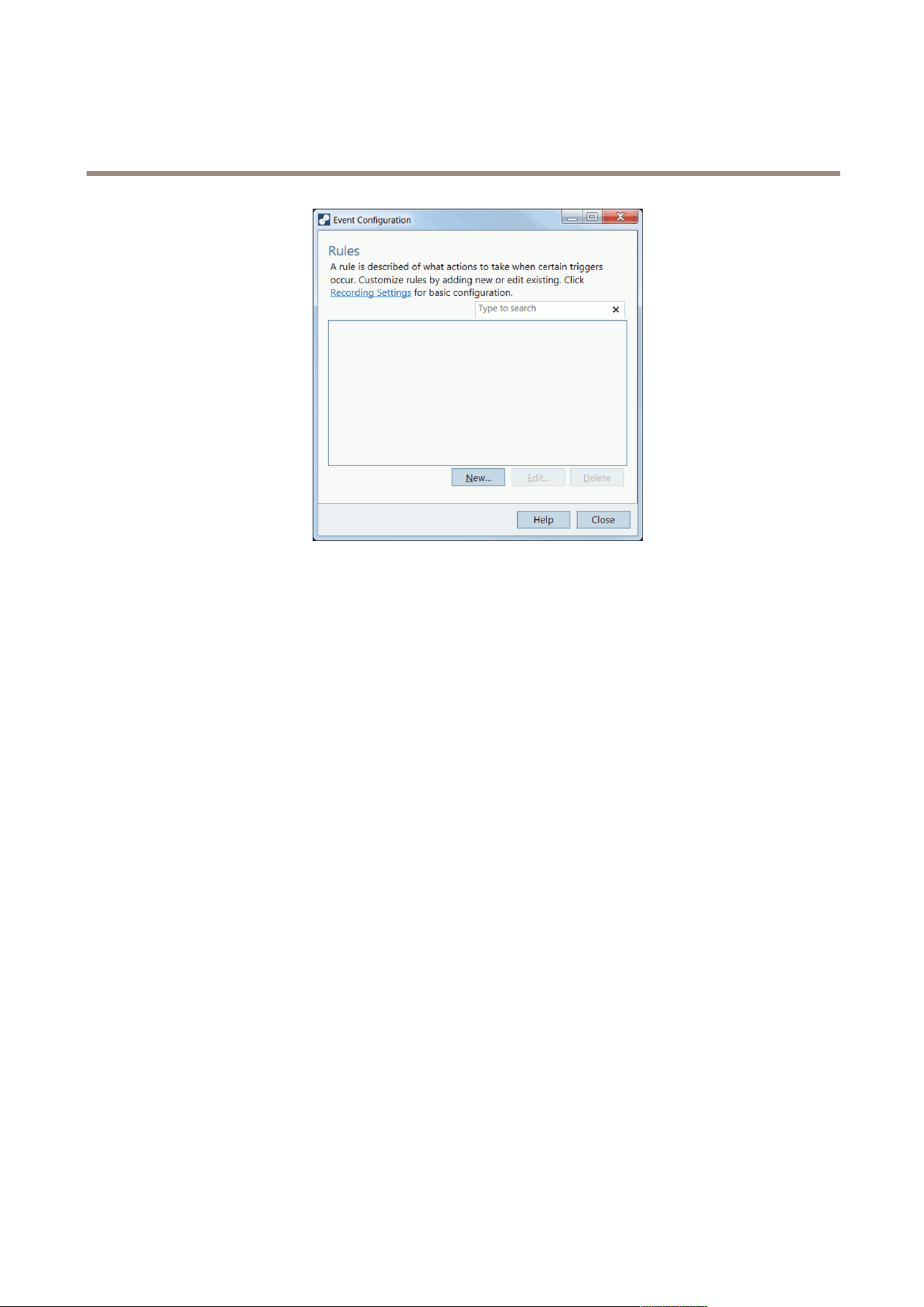
AXIS Camera Station
Event Configuration
The rule is congured in four steps, described in the following sections:
• Triggers — add one or more triggers
• Actions — add one or more actions
• Schedule — select a schedule for the rule
• Details — check settings and enable the rule
Add Triggers
A rule can have one or more triggers. When using several triggers, only one of the triggers needs to become active to activate the rule.
In this example, an I/O trigger will be created.
Add an I/O Trigger
To create an I/O trigger, follow these steps:
1. In the New Rule dialog, click Add to open the Add Trigger dialog.
2. Click Advanced and select Input/Output. The Create I/O Trigger dialog opens.
3. Select the input port on the camera monitoring the door and select the trigger state that will activate the rule when
the door is open (the state Active in this example). Available values depend on how the I/O port was dened under
Conguration > I/O Settings. See Add Inputs and Outputs on page 46 for more information.
4. Since the trigger can go off many times and create unwanted events, an option is to set the Trigger period slider so that
any triggers that come in under this period will be treated as one trigger.
5. Click OK to save the trigger settings.
6. When all triggers have been added, click Next to move to the Actions step.
55
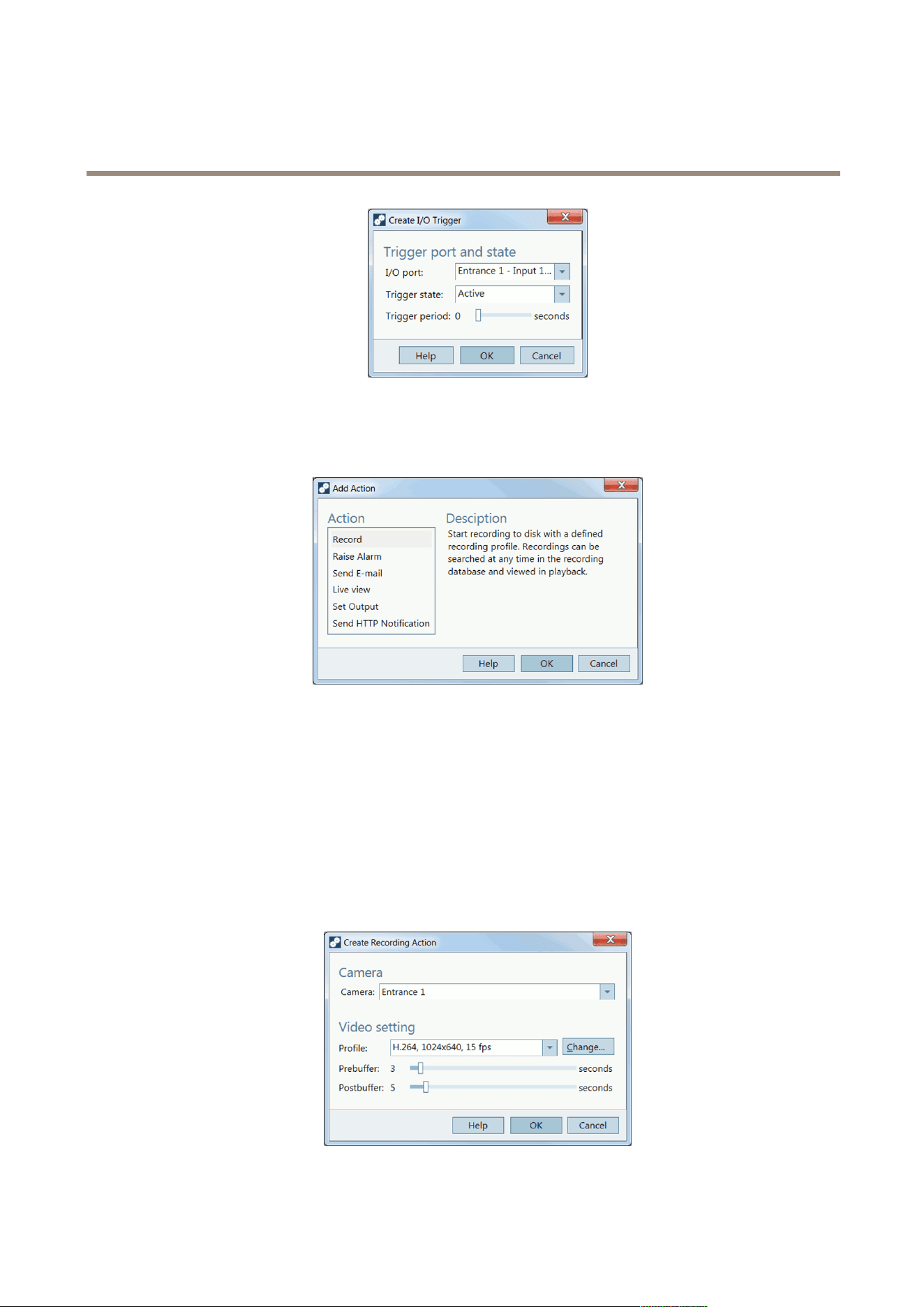
AXIS Camera Station
Event Configuration
Add Actions
The rule can have one or more actions. In this example, three actions will be created: record, raise alarm and send e-mail.
Add a Recording Action
To create a recording action, follow these steps:
1. In the New Rule dialog, Actions step, click Add and select Record.
2. In Create Recording Action select the camera that should start recording. In this example, Entrance.
3. Select the Video setting prole from the drop-down list or click Change to enter a new prole. See for more information.
4. With the sliders select the number of seconds to include before the trigger (Prebuffer) and after the trigger stops
(Postbuffer).
5. Click OK.
56
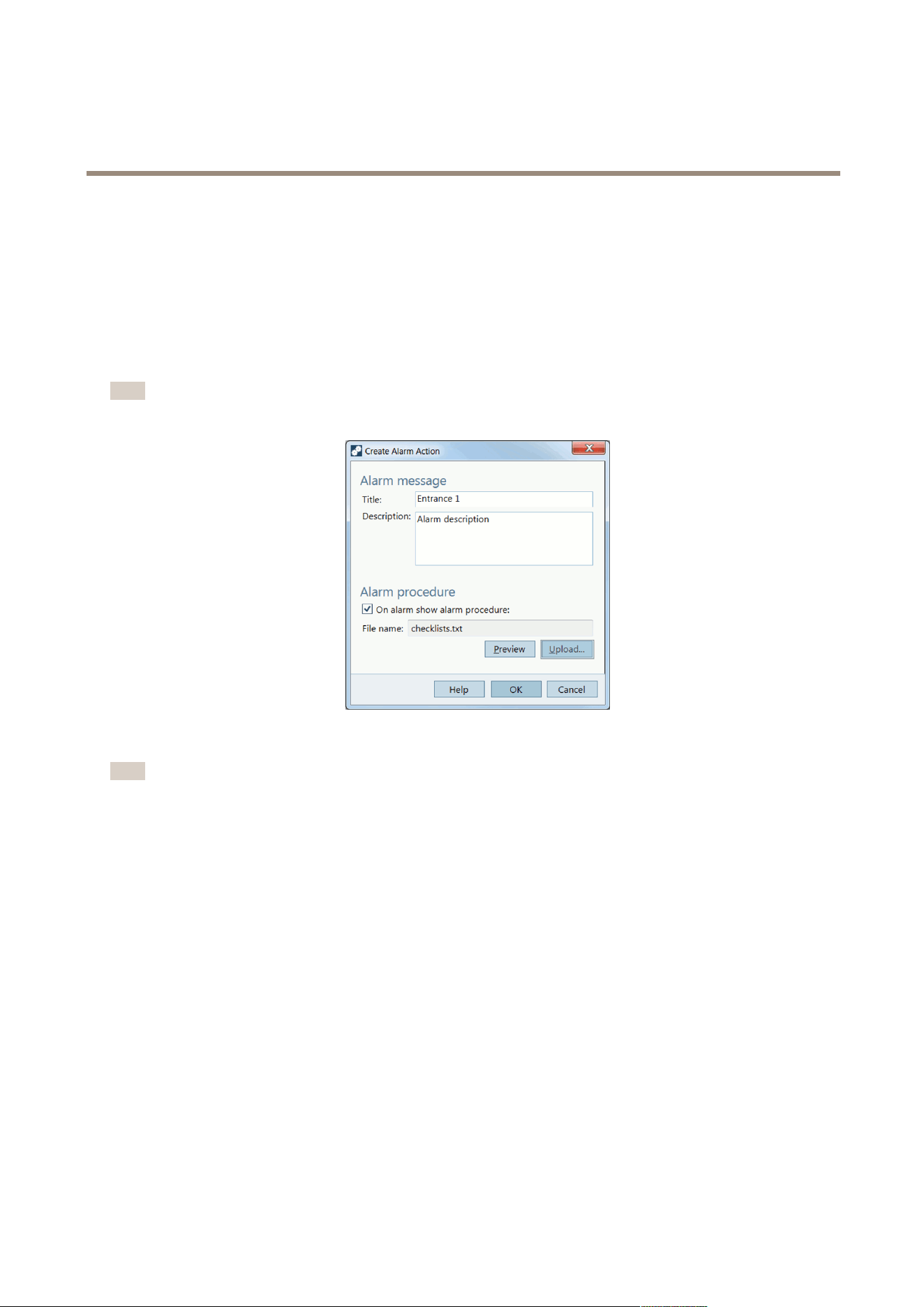
AXIS Camera Station
Event Configuration
Add a Raise Alarm Action
To create a raise alarm action, follow these steps:
1. In the New Rule dialog, Actions step, click Add and select Raise alarm.
2. Type a title for the alarm message and a description.
3. To include an alarm procedure, select Alarm procedure, click Upload and browse to locate the le.
4. Click OK to save.
Note
An alarm procedure is an uploaded le, for example a text or image le.
Add a Send E-Mail Action
Note
To send e-mails from AXIS Camera Station an SMTP server must rst be added. Open the Options menu and select SMTP
servers.
To create a send e-mail action, follow these steps:
1. In the New Rule dialog, Actions step, click Add and select Send e-mail.
2. Enter the e-mail addresses that alarm messages should be sent to. Under New Recipient, choose if the address should be
in the To, Cc or Bcc eld of the e-mail and enter the e-mail address.
3. Click Add to enter the e-mail address into the Recipients box.
4. Enter a subject for the e-mail in the Subject eld.
5. Enter a message to the recipient.
6. To attach camera snapshots, select Attach snapshots and click Cameras to select the cameras to include snapshots from.
7. To reduce the number of e-mails, select Send one e-mail for each event or Don’t send another e-mail for.
8. Click OK to save.
57
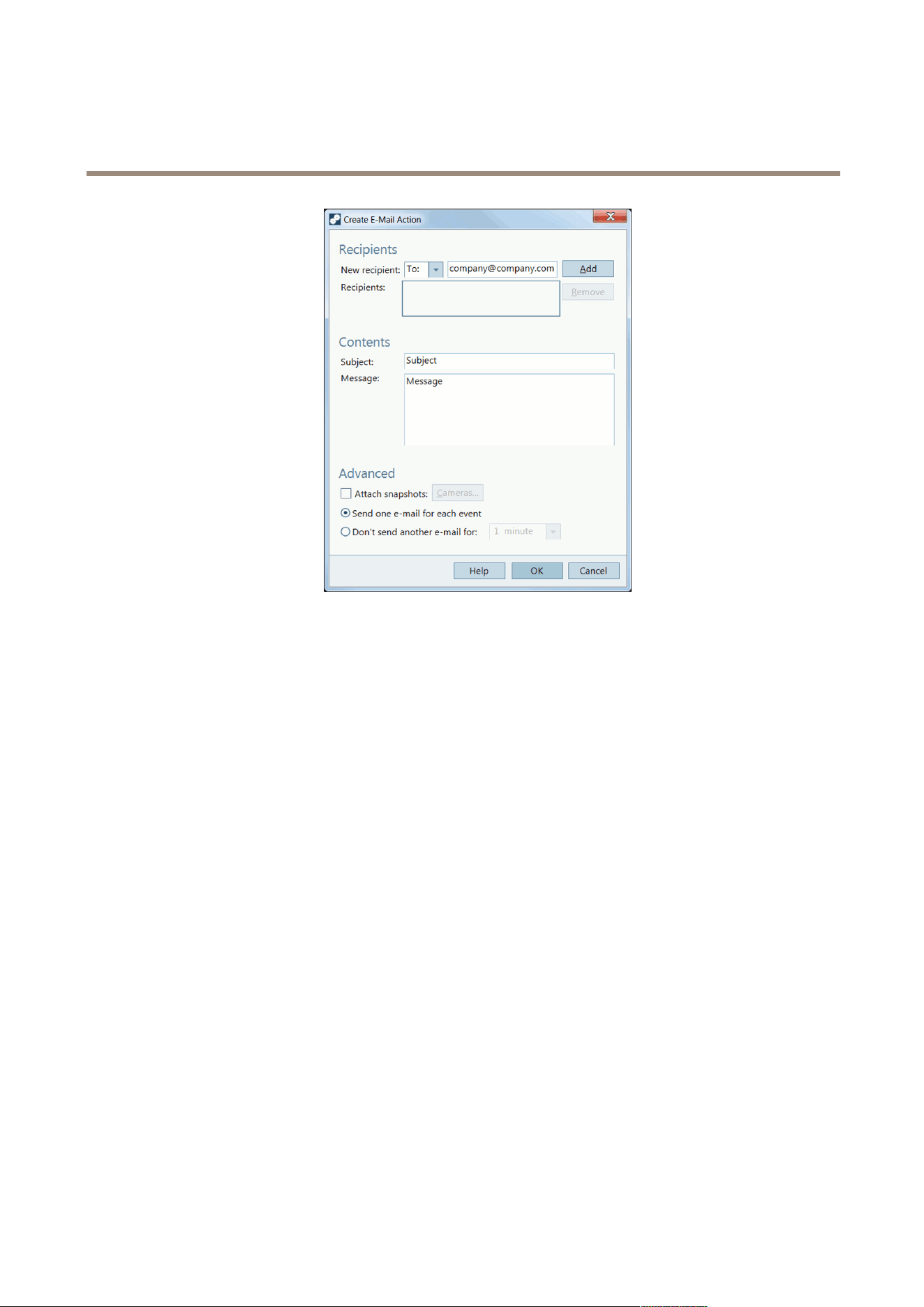
AXIS Camera Station
Event Configuration
Set a Schedule
The rule can be congured to be active at all times or according to a schedule. For more information about schedules, see Set Up
Schedules on page 46.
To set a schedule, follow these steps:
1. When all actions have been added, click Next to move to the Schedule step.
2. Select Always to let the rule be active at all times or select a Custom Schedule
3. Click Next to go to the Details step.
Rule Details
The nal Details step shows the rule settings.
1. Enter a Name for the rule.
2. Check that all settings are correct.
3. Make sure that Enable this rule is selected and click Finish to save the rule.
58

AXIS Camera Station
Input Devices
Input Devices
The following input devices can be used with AXIS Camera Station:
• AXIS T8311 Video Surveillance Joystick
• AXIS T8312 Video Surveillance Keypad
• AXIS T8313 Video Surveillance Jog Dial
• AXIS 295 Video Surveillance Joystick
Hotkeys
Hotkeys give quick access to commonly used actions. A hotkey can be
• a keyboard combination
• a keypad combination
• a joystick button
• a jog dial button
To display a list of all currently assigned hotkeys for all input devices, open Assigned hotkeys from the Help menu.
Hotkeys dened as Global are available in all workspaces; other hotkeys are available in only one workspace.
To add, edit and remove hotkeys, open Hotkeys from the Options menu. Click Restore defaults to reset the hotkey conguration to
default.
AXIS T8311 Video Surveillance Joystick
AXIS T8311 Video Surveillance Joystick is a USB device that can used
• to pan, tilt and zoom in the camera view (cameras with mechanical PTZ only)
• as a computer mouse
Connect the joystick before starting AXIS Camera Station. The joystick is detected and installed automatically.
The joystick can be congured to toggle between the PTZ and mouse modes. Go to
> Options > Hotkeys, select Joystick and
then Add. Select Global, Turn on/off joystick PTZ controlling and assign an unused joystick button.
The table below lists the default conguration for joystick hotkeys.
59
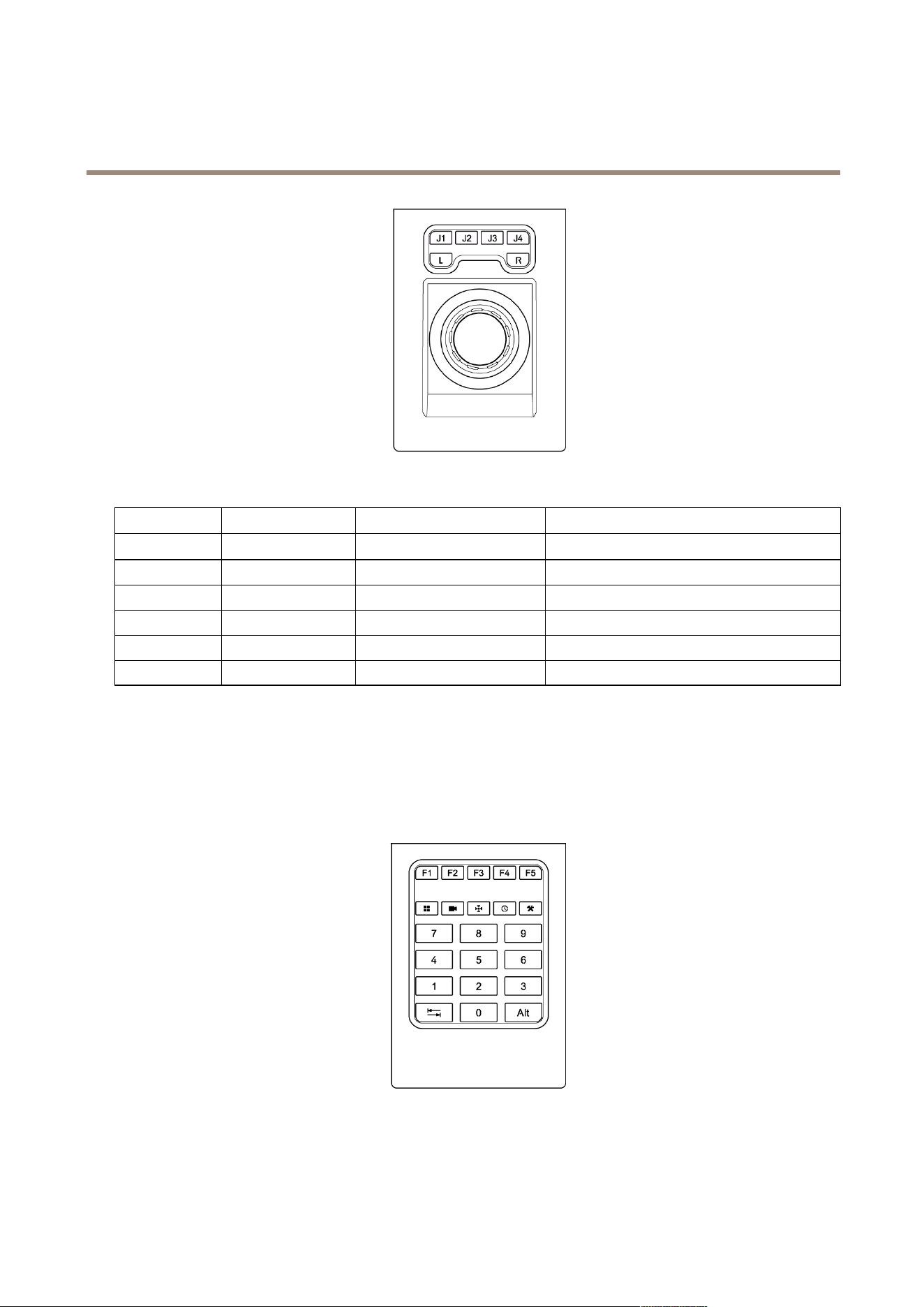
AXIS Camera Station
Input Devices
AXIS T8311
Button
Function (Global) Function (Live View) Function (Recordings)
J1
Go to preset 1
Play/Pause
J2
Go to preset 2 Stop
J3
Go to preset 3
Jump to previous recording start
J4
Go to preset 4
Jump to next recording start
L Left mouse button
R Right mouse button
AXIS T8312 Video Surveillance Keypad
AXIS T8312 Video Surveillance Keypad is a USB device used to quickly navigate between workspaces, cameras, views and PTZ presets.
Connect the keypad before starting AXIS Camera Station. The keypad is detected and installed automatically.
The table below lists the default conguration for keypad hotkeys.
AXIS T8312
60
AXIS Camera Station
Input Devices
Key
Function (Global) Function (Live View) Function (Recordings)
F1 Navigate to Live View
F2 Navigate to Recordings
F3 Navigate to Logs
F4
Navigate to Conguration
View
Go to the next user-created
view.
Press 3+
to go to view
number 3.
Press ALT+
to go to the
previous view.
Camera Go to next camera view.
Press 3+
to go to camera
number 3.
Press ALT+ to go to the
previous camera view.
Preset
Go to the next PTZ preset of the
currently selected camera.
Press 3+
to go to PTZ preset 3.
Time
Enter a time (format hhmm) and press this
key to start playback from the corresponding
time.
Example: 2000+
starts playback from
20:00 (8 pm).
Tool
Select the next alarm in the
alarm list.
Press ALT+
to select the
previous alarm in the list.
Tab
Navigate forward in a split view.
Press ALT+
to navigate
backward.
The View, Camera, Preset, Time and Tool keys are backlit when the keys can be used. For example, the Time key is backlit when
you are in the Recordings workspace.
AXIS T8313 Video Surveillance Jog Dial
AXIS T8313 Video Surveillance Jog Dial is a USB device used to jog and shuttle through recorded video.
Connect the jog dial before starting AXIS Camera Station. The jog dial is detected and installed automatically.
The table below lists the default conguration for jog dial hotkeys.
61

AXIS Camera Station
Input Devices
AXIS T8313
Button
Function (Global) Function (Live View) Function (Recordings)
Bookmark
Add a bookmark
Go to previous
Go to the previous recording.
Play/Pause
Play/pause the recording.
Go to next
Go to the next recording.
L Take a snapshot
R Toggle search
AXIS 295 Video Surveillance Joystick
AXIS 295 Video Surveillance Joystick is a USB device that can used
• to pan, tilt and zoom in the camera view (cameras with mechanical PTZ only)
• as a computer mouse
Connect the joystick before starting AXIS Camera Station. The joystick is detected and installed automatically.
The joystick can be congured to toggle between the PTZ and mouse modes. Go to
> Options > Hotkeys, select Joystick and
then Add. Select Global, Turn on/off joystick PTZ controlling and assign an unused joystick button.
62
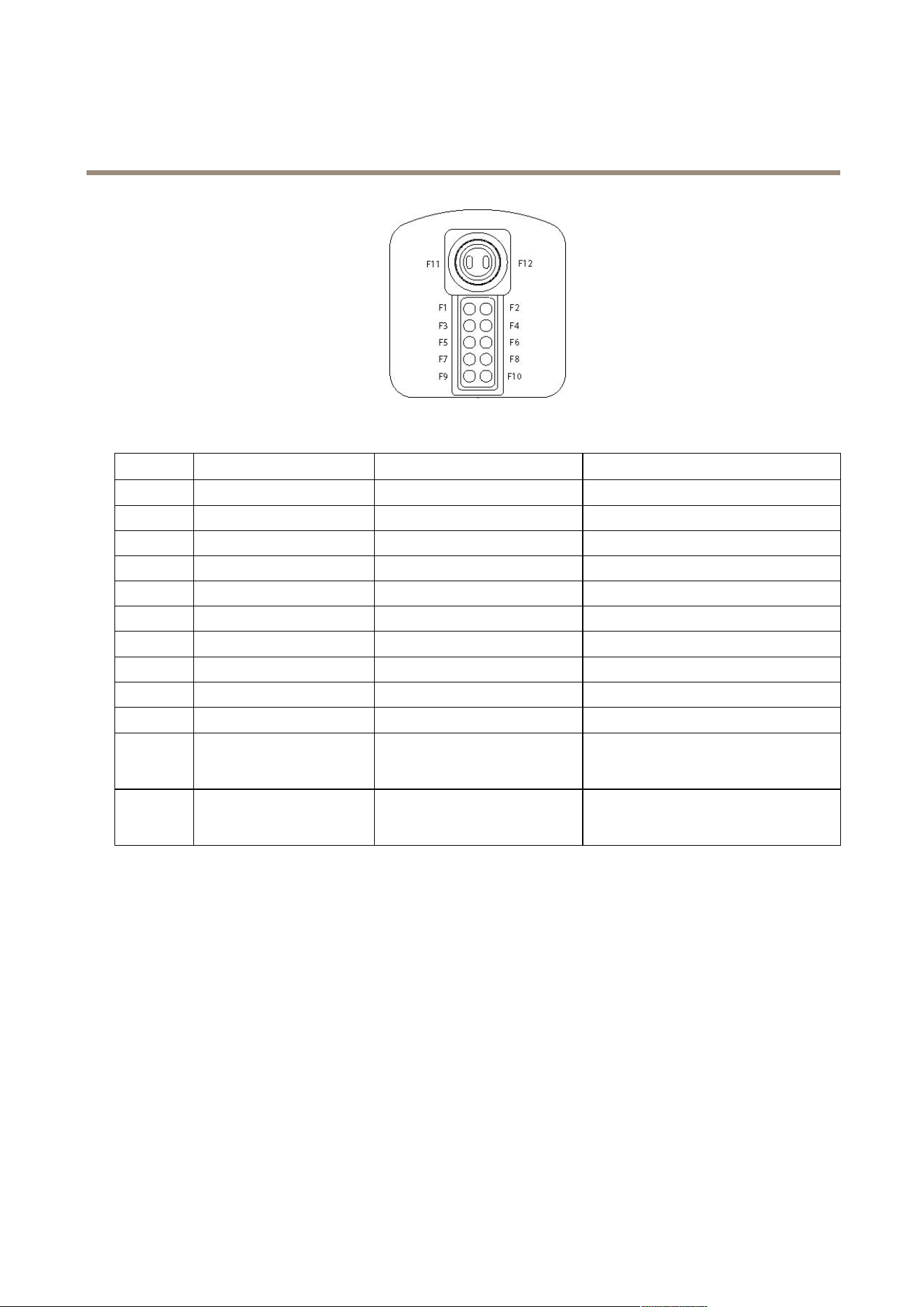
AXIS Camera Station
Input Devices
AXIS 295
Button
Function (Global) Function (Live View) Function (Recordings)
F1
Go to preset 1
Play/Pause
F2
Go to preset 2 Stop
F3
Go to preset 3
Jump to previous recording start
F4
Go to preset 4
Jump to next recording start
F5 Left mouse button
F6 Right mouse button
F7
Show split/single view Show split/single view
F8 Toggle full screen Take a snapshot
F9 Navigate back
F10
Start/Stop manual recording
F11 Increase joystick speed. Keep
the button pressed while
moving the joystick.
F12 Reduce joystick speed. Keep
the button pressed while
moving the joystick.
63

AXIS Camera Station
Network and Security Configuration
Network and Security Configuration
If AXIS Camera Station Client, AXIS Camera Station Server and the connected network devices are installed on different networks, it
might be necessary to congure proxy and/or rewall settings.
• If the Client and the Server are separated by a proxy server, the client proxy settings should be modied, see Client
Proxy Settings on page 65.
• If the Client and the Server are separated by a NAT, rewall or similar, the NAT or rewall should be modied, see NAT
and Firewall, below.
• If network devices and the Server are separated by a proxy server, the server proxy settings should be modied, see
Server Proxy Settings, below.
If the local network uses a proxy for Internet connection, it might be necessary to congure the proxy settings to:
• register licenses using the automatic registration option (server proxy settings)
• check for and download rmware updates (client proxy settings).
Security Considerations
To prevent unauthorized access to cameras and recordings, keep the following in mind:
• Use strong passwords for all network devices (cameras, video encoders and auxiliary devices).
• Install AXIS Camera Station Server, cameras, video encoders and auxiliary devices on a secure network separated from
the ofce network. AXIS Camera Station Client can be installed on a computer on another network, for example
a network with Internet access.
• Make sure all users have strong passwords. Using Windows Active Directory a high level of security can be implemented,
see User Permissions on page 66.
NAT and Firewall
If there is a NAT, rewall or similar that separates AXIS Camera Station Server from AXIS Camera Station Client, it might be necessary
to congure the NAT and/or rewall to allow access to the network. Make sure that the HTTP port, TCP port and streaming port
specied in AXIS Camera Station Service Control are allowed to pass through the rewall and/or NAT.
For information about the Service Control, see AXIS Camera Station Service Control on page 68. For instructions how to congure the
NAT or rewall, contact the network administrator.
Note
Some antivirus programs also block applications from accessing the network, similar to a rewall. To congure the antivirus
program to allow the Client and/or Server to access the network, refer to the documentation provided with the program.
Server Proxy Settings
The server proxy settings need to be congured if:
• AXIS Camera Station Server and the network devices are separated by a proxy server
• the network uses a proxy for Internet connection and you want to register licenses.
64
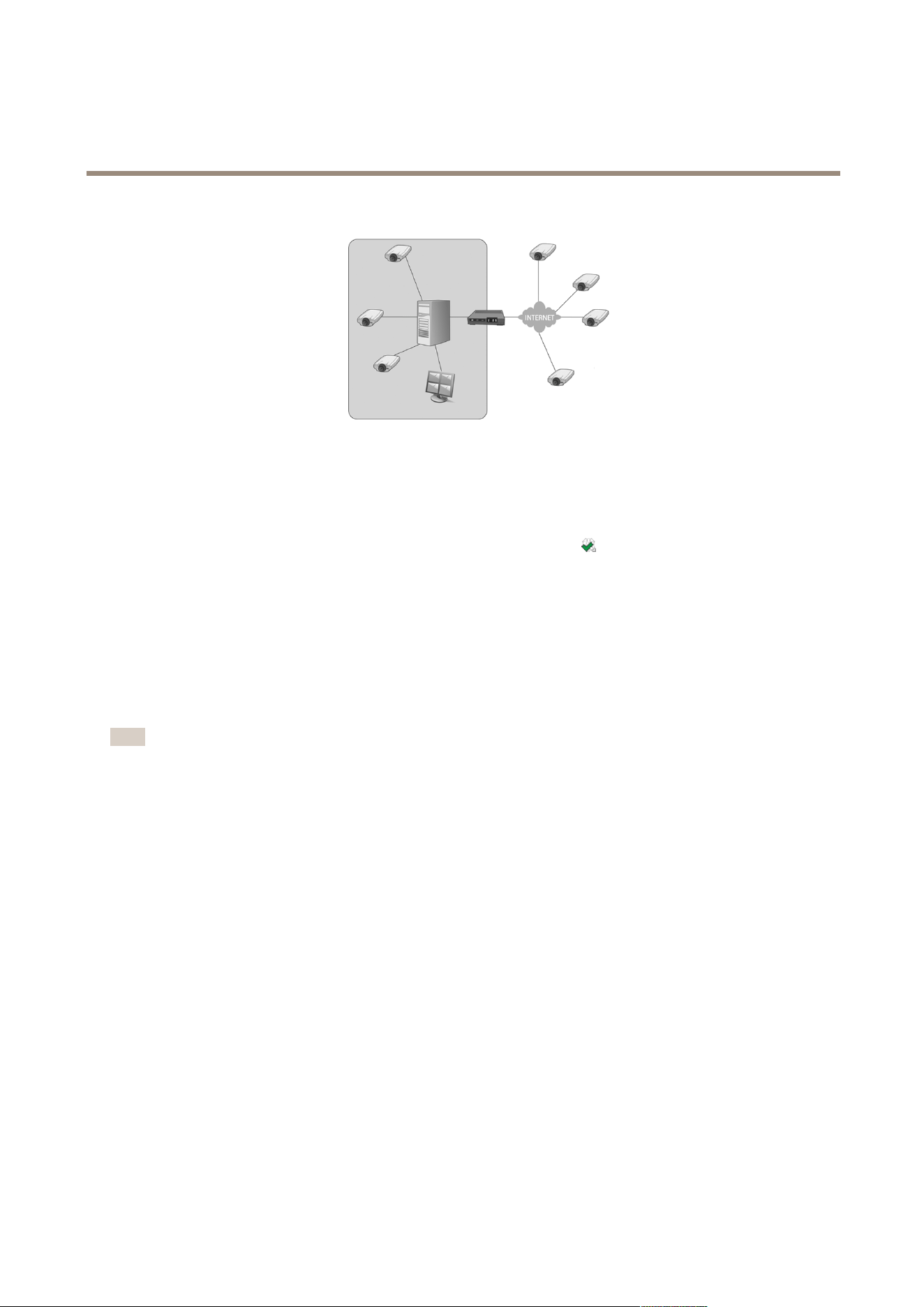
AXIS Camera Station
Network and Security Configuration
Devices outside of the local network. To access the devices on the other side of the proxy server from AXIS Camera Station, the
server proxy settings must be congured.
To congure the server proxy settings, follow these steps:
1. Open the AXIS Camera Station Service Control by double-clicking the icon
in Windows notication area. See AXIS
Camera Station Service Control on page 68.
2. Select Modify settings.
3. Under Proxy settings, select Use manual proxy settings.
4. Enter the address and port number of the proxy server. This is usually the same address and port number as in Internet
Options in Windows Control Panel.
5. If there are local devices that do not go through the proxy server, select Bypass proxy for local addresses and enter the
devices’ addresses in the box separated by semicolons.
Note
If you don’t know the proxy server settings contact the network administrator.
For more information on AXIS Camera Station Service Control, see page 68.
Client Proxy Settings
The client proxy settings need to be congured if:
• AXIS Camera Station Client and AXIS Camera Station Server are separated by a proxy server
• the network uses a proxy for Internet connection and you want to check for and download rmware updates.
65
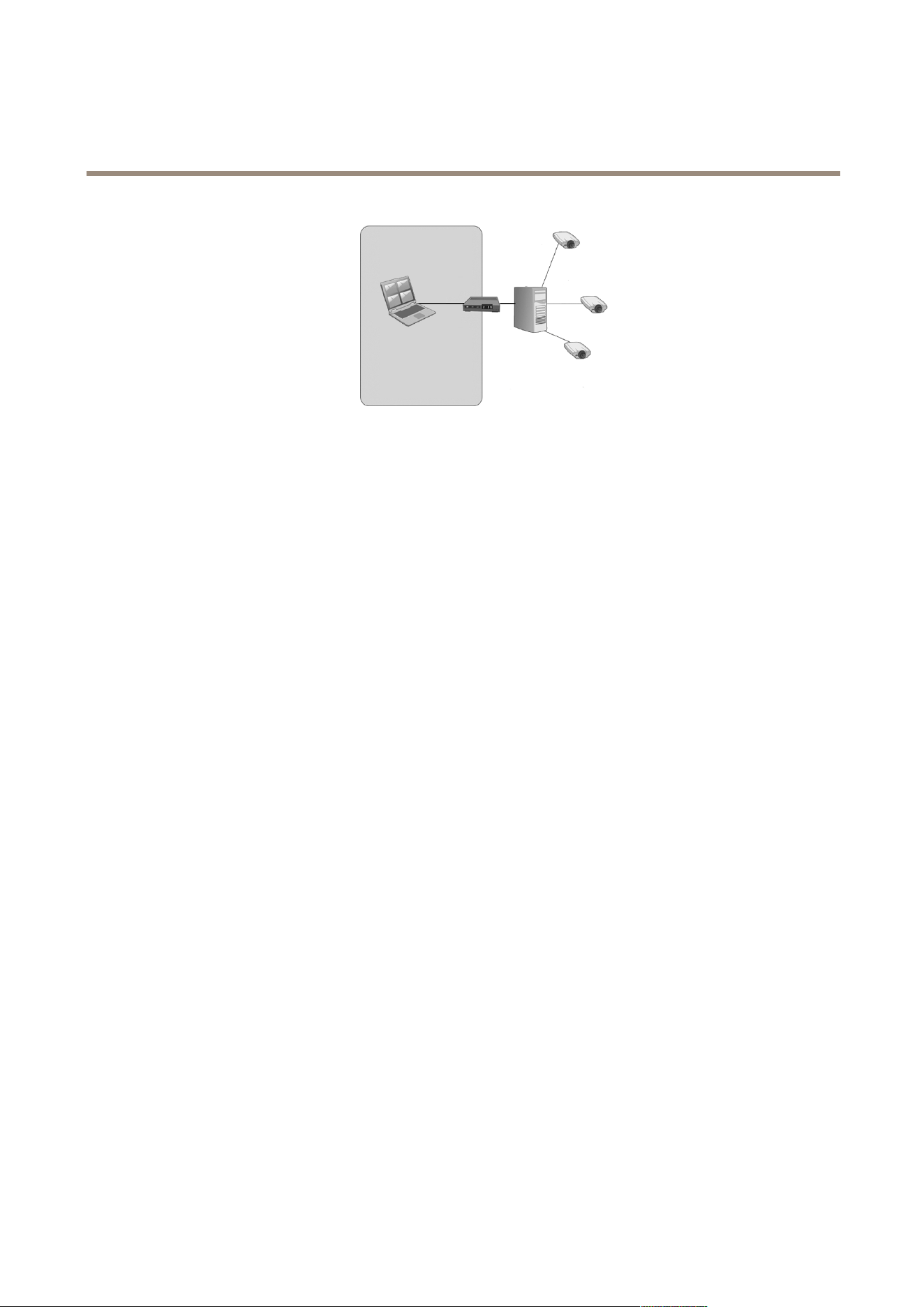
AXIS Camera Station
Network and Security Configuration
AXIS Camera Station Client behind a proxy. To connect to an AXIS Camera Station Server on the other side of the proxy, the client proxy
settings must be congured.
To congure the client proxy settings, follow these steps:
1. From the File menu, select Log Off to open the Log on screen.
2. Click Change client proxy settings.
3. Select the appropriate option:
- Direct connection — Select this option if there is no proxy server between AXIS Camera Station Client and
AXIS Camera Station Server.
- Use Internet Explorer settings — AXIS Camera Station will use the same proxy settings as Internet Explorer.
- Use manual proxy settings — Select this option to specify proxy settings manually.
4. If using manual proxy settings, enter the proxy server’s IP address or host name and port number under Manual settings. It
is also possible to bypass the proxy server for devices on the local network:
- Select Do not use proxy server for addresses beginning with to exclude certain servers from access by the
proxy. Use semicolons to separate entries.
- Select Always bypass proxy server for local addresses to bypass the proxy server when connecting to the
AXIS Camera Station Server installed on same computer as the Client.
Server Port Conguration
The ports 55752 (HTTP), 55754 (TCP) and 55753 (streaming) are used on the AXIS Camera Station Server computer for communication
between the Server and the AXIS Camera Station Client. If required, the ports can be changed from AXIS Camera Station Service
Control, see AXIS Camera Station Service Control on page 68.
User Permissions
Using Windows Active Directory, a high level of security can be implemented in AXIS Camera Station when granting user permissions.
Before users can be granted access to AXIS Camera Station, they must be added to the local computer or have an Active Directory
user account.
A user can be granted access as an individual or as part of a group. In cases where a user is granted access as an individual he will
retain this right plus receive the rights he receives as part of a group. For example, a user is given access to camera X as an individual.
The user is also a member of a group. The group is given access to cameras Y and Z. The user then has access to cameras X, Y and Z.
Administrators of the computer on which the AXIS Camera Station Server is installed are automatically given administrator privileges
to AXIS Camera Station. It is not possible to change or remove the administrators group's privileges.
66

AXIS Camera Station
Network and Security Configuration
To congure user access rights, open the Conguration menu and select User Permissions.
Local Security
By default, local security is Disabled which means all users, who log onto AXIS Camera Station Server installed on the same computer
as the AXIS Camera Station Client, will be given Administrator access. When local security is Enabled, access to AXIS Camera Station
is restricted to trusted users and groups for both remote and local clients. For remote clients, local security is always enabled.
To change the local security settings, open the Conguration menu, select User Permissions and click Security Settings.
Add a User or a Group
To add a user or a group, follow these steps:
1. Open the Conguration menu and select User Permissions.
2. Click Add to open the Add User/Group dialog.
3. Select the AXIS Camera Station Server or Domain. The available users and groups are listed under Available domain
users/groups. To narrow the list, select Users or Groups.
4. Select a user or group from the list and click Add to open the User/Group Privileges dialog.
5. Select a role for the user or group:
- Administrator - Full access to all functionality and all added devices.
- Operator - Full access to all functionality except Conguration menu, Conguration workspace, Camera
Management workspace and Audit logs. Full access to selected cameras and I/O ports. Access to playback
and recording export can be restricted.
- Viewer - Access to live video from selected cameras and access to selected I/O ports.
6. For users with viewer or operator rights, click Cameras and select the cameras and camera features to give access to.
Click Advanced to view all options
7. For users with viewer or operator rights, click I/O and select the I/O ports to give access to. Click Advanced to view all
options.
8. For users with operator rights, click Playback to restrict playback access.
9. When satised, click OK.
Note
• If the domain user search fails, make sure that AXIS Camera Station Service is logged on as a Windows user with access
to the Active Directory. To change the user account for AXIS Camera Station Service, open Windows Control Panel,
select Administrative Tools and then Services.
• For Input/Output ports to be visible here, they must rst be added to AXIS Camera Station. See Add Inputs and Outputs
on page 46.
67

AXIS Camera Station
AXIS Camera Station Service Control
AXIS Camera Station Service Control
AXIS Camera Station Service Control is the application that controls the AXIS Camera Station Service. The Service Control is started
when the user logs on to Windows.
An icon in Windows notication area shows if the service is running
, is starting or has stopped .
To open the Service Control, double-click the icon.
Note
The Service Control can also be opened from:
Windows 8.1, Windows Server 2012: Go to the Start screen and type “Service Control”.
Windows 7, Windows Vista, Windows Server 2008: Open the Start menu and select All Programs > AXIS Camera
Station > AXIS Camera Station Tools > Service Control.
The Server Control settings are divided on tabs:
• General — Start and stop the server, see page 69. Modify server settings, see page 69. Modify server proxy settings,
see page 69.
• Database — Start database maintenance and modify backup settings. See page 70.
• Developer API — Settings for AXIS Camera Station SDK users.
To change service settings, rst select the Modify settings option. Click Restore Default Settings to restore the default values for
the server, streaming ports and proxy settings.
When satised, click Save to save the settings. The service will be restarted for the changes to take effect.
68
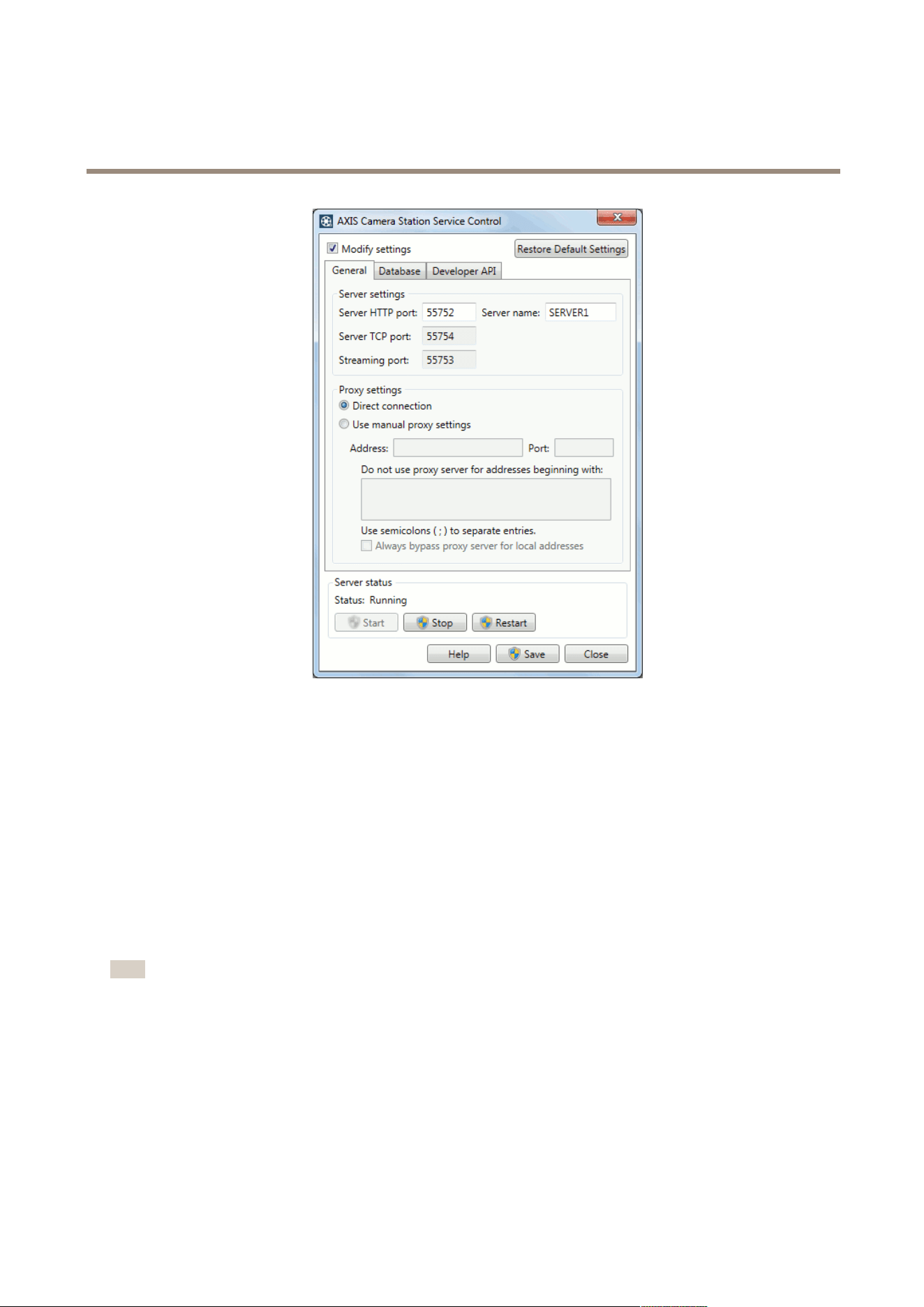
AXIS Camera Station
AXIS Camera Station Service Control
General
Start and Stop the Server
To start, stop or restart AXIS Camera Station Server, open the Service Control and click Start, Stop or Restart.
Server Settings
The server name and server ports can be changed from the General tab in the Service Control.
Server name is the name of the Server. The name is displayed in AXIS Camera Station Client.
Server HTTP port, Server TCP port and Streaming port are the ports that the Server uses to communicate with the Client. If
there is a NAT, rewall or similar between the Server and the Client, the NAT and/or rewall must be congured to allow these
ports to pass through.
Note
The server port number must lie in the range 1024-65534.
Proxy Settings
Proxy settings in the Service Control are the proxy settings for AXIS Camera Station Server.
Select Direct connection if the Server is in direct connection with the network devices in the system.
Select Use manual proxy settings if the Server and devices are separated by a proxy server. Enter the proxy server’s address and port
number. These settings are usually the same as those under Internet Options in Windows Control Panel.
69

AXIS Camera Station
AXIS Camera Station Service Control
If there are local devices that do not go through the proxy server, select Bypass proxy for local addresses and enter the device’s
addresses or host names.
For more information about proxy settings, see Network and Security Conguration on page 64.
Database
The AXIS Camera Station database stores recording and conguration information that is needed for the system to work properly.
The database is backed up every night. See Database Backup on page 70.
Database maintenance should be performed if the alarm "Database maintenance is required" is displayed or if the system was shut
down unexpectedly, for example after a power outage. See Database Maintenance on page 70.
For information about database best practice, see page 77.
For information about how to recover the database, see Recover Lost Data on page 76.
Database Backup
The AXIS Camera Station database is backed up every night. The backups can be stored on the local computer or the network. To
change the Backup folder, open the Service Control and select the Database tab. The oldest backups will be deleted after the
number of days specied in Days to keep backups.
Important
Recordings are stored in the location specied in Conguration > Recording storage and not in the database. Recordings
should be backed up separately.
Note
• The backup will be saved to the default location if it cannot be written to the folder specied, for example if the Server
cannot access the folder. The default location is:
C:\ProgramData\Axis Communications\AXIS Camera Station Server\backup
• The backup les are named acs_system_<date_time>.fdb and license_system_<date_time>.fdb
For information on how to restore the database, see Recover Lost Data on page 76.
Database Maintenance
Database maintenance should be performed if the alarm "Database maintenance is required" is displayed or if the system was
shut down unexpectedly, for example after a power outage.
During maintenance, AXIS Camera Station Server and all ongoing recordings will be stopped. The Server is started automatically after
maintenance.
To start database maintenance:
1. Open the Service Control, see page 68.
2. Go to Tools > Database maintainer.
3. Click Run.
4. The estimated downtime will be displayed. Click Yes to continue or click No to cancel. Note: Once started, the process
cannot be canceled.
Important
Do not turn off the computer during maintenance.
70

AXIS Camera Station
Troubleshooting
Troubleshooting
Audio Problems
Problem
Solution
No audio in Live View If there is no audio in Live View, check the following:
• Check that the camera has audio capabilities.
• Check that the computer has an audio card and that the card is enabled.
• Check that audio is enabled in Live View, see Audio in Live View on page 17.
• Make sure the user has access rights to audio.
To check and modify user access rights:
Note: To follow these steps you must have administrator rights to AXIS Camera Station
1. Go to Conguration > User Permissions.
2. Select the user or group and click Edit
3. Click Advanced. Make sure that Audio is selected
No audio in sequence views Make sure that audio is enabled in the prole used by the rst view in the sequence. This
prole is used for all views in the sequence.
No audio in playback Audio is available in playback if audio was enabled in the prole used for the recording.
Note: Audio cannot be used with M-JPEG video. Select another video format.
Continuous, motion detection and manual recordings
To enable audio:
1. Go to Conguration > Recording Settings.
2. Select the camera and click Continuous, Motion Detection or Manual.
3. Select a prole where audio is enabled.
Rule-triggered recordings
To enable audio in an existing rule:
1. Go to Conguration > Event Conguration.
2. Select the rule and click Edit
3. In step Actions, select the Record action and click Edit.
4. Select a prole where audio is enabled.
5. Click Finish to save.
AXIS Cross Line Detection
Problem
Solution
AXIS Cross Line Detection does
not work
AXIS Cross Line Detection is an application that can be used with network cameras and video
encoders that support AXIS Camera Application Platform.
To use AXIS Cross Line Detection as a trigger, the application must rst be installed as
described in Camera Applications on page 47.
For instructions how to congure and use the application, see AXIS Cross Line Detection
User Guide.
71

AXIS Camera Station
Troubleshooting
Domain User Search Fails
Problem
Solution
Cannot nd domain users If the domain user search fails, change the Service logon account:
1. Open Windows Control Panel.
2. From the System & Security category, select Administrative Tools and then
Services.
3. Right-click AXIS Camera Station and select Properties.
4. Select the Log On tab.
5. Change from Local System account to This account.
6. Select a user with access to Windows Active Directory.
Graphics Card Problems
Problem
Solution
The graphics card driver is more
than 6 months old
See Update Graphics Card Driver on page 75.
Graphics card error See Update Graphics Card Driver on page 75.
Graphics card warning The graphics card does not meet the minimum system requirements, see System
Recommendations on page 5 .
The graphics card must support DirectX 9.0c and support Windows Presentation Foundation
tier 2.
To check the graphics card’s tier level, open the Help menu and select Client Conguration
Sheet. Render Capability Tier is listed in the General Conguration Information section.
It is also possible to use the CPU for video rendering, instead of using the graphics card,
see Hardware decoding on page 76.
Live View Problems
Problem
Solution
Repeated error message "Media
Failed"
Try the following:
Reduce the CPU load. Go to Conguration > Video & Audio Settings. Reduce the resolution,
increase compression and lower the frame rate.
Check that the computer is not running low on memory.
Check that the graphics card has been updated with the latest driver, see Update Graphics
Card Driver on page 75.
Firewall and antivirus software sometimes block video signals. Check that your rewall and
antivirus program do not block the following les:
• AcsAdmin.exe
• AcsAdminConsole.exe
• ACSService.exe
• Server.exe
• AcsClient.exe
• All content of C:\Program Files\Axis Communications\Components
72

AXIS Camera Station
Troubleshooting
Empty “ActiveMovie Window”
popup
An empty "ActiveMovie Window" popup indicates problems with the graphics card's video
memory and hardware acceleration.
Possible solutions:
Install the latest graphics card driver, see Update Graphics Card Driver on page 75.
Upgrade to a graphics card with more video memory and higher performance.
Use the CPU for video rendering, see .
Repeated message "Reconnecting
to camera in 15 seconds"
A repeated message "Reconnecting to camera in 15 seconds" might indicate that:
• The network is overloaded.
• The camera is not accessible. Check that the camera is still connected to the
network and that power is applied.
• Problems with the graphics card.
Possible solutions for graphics card problems:
• Install the latest graphics card driver, see Update Graphics Card Driver on page 75.
• Upgrade to a graphics card with more video memory and higher performance.
• Use the CPU for video rendering, see .
• Modify the live view settings, for example, resolution or frame rate.
Log On and Connection Problems
Problem
Solution
User name or password is
incorrect
If the user name or password is reported as "incorrect":
• Check that the user name and password are valid.
• Check that the user has access rights to AXIS Camera Station Server.
• Check that the clocks in AXIS Camera Station Server and Client are synchronized.
For domain users, also check that the domain server clock is synchronized with
the Server and Client.
• A user who has not been added to the Server, but is a member of the local
administrators group on the Server, must run the Client as administrator on
Windows 8.1, Windows 7 and Windows Vista.
For information about user access rights, see User Permissions on page 66.
AXIS Camera Station Server was
unable to verify message security.
Please make sure server and
client UTC times are reasonably
synchronized
The clocks in AXIS Camera Station Server and Client are not synchronized. When the Server
and Client are installed on different computers, the computer clocks should be synchronized
to use the same UTC time. Adjust the clock in either the Server or Client so that they have
the same date and time properties.
Unable to connect to server. If the message "Unable to connect to server" is displayed:
• Check that the address and port of the AXIS Camera Station Server are correct.
• Check that there is no NAT, rewall or antivirus software blocking the connection
to the Server.
• Use AXIS Camera Station Service Control to check that the Server is running.
Open the Service Control by double-clicking the icon
in Windows notication
area. See AXIS Camera Station Service Control on page 68. The server status is
displayed on the General tab. If status is "Stopped", click Start to start the Server.
• Verify that the computers the Server and Client are installed on are up to date
and have the latest service packs/patches.
• Verify that the network is correctly installed and congured on the Server and
Client computers.
Unable to locate the server
computer. Please make sure that
If the message "Unable to locate the server computer. Please make sure that the server
computer is connected to the network." is displayed:
• Check that the server computer is connected to the network.
73
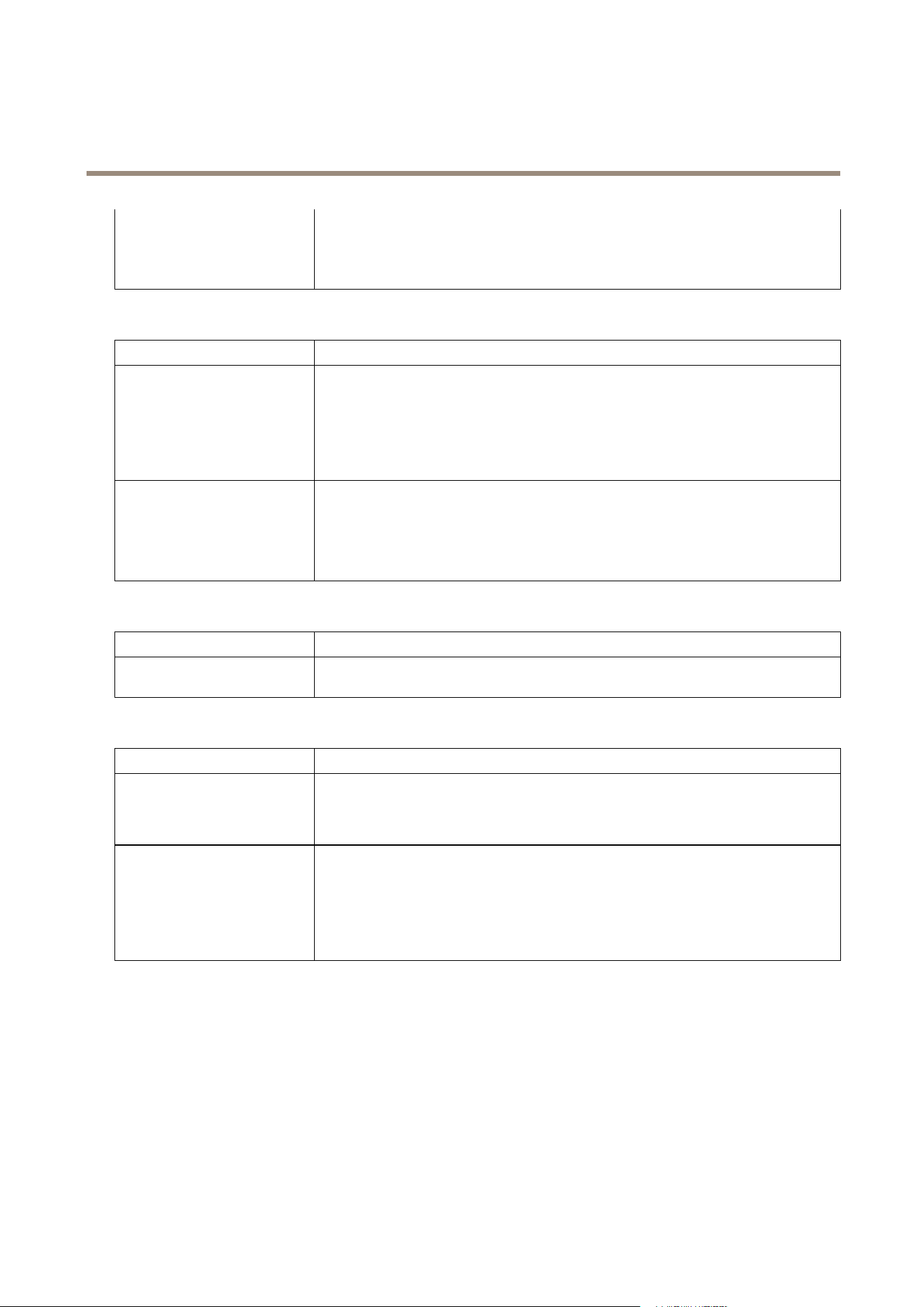
AXIS Camera Station
Troubleshooting
the server computer is connected
to the network.
• Check that the address and port of the AXIS Camera Station Server are correct.
• Check that there is no NAT, rewall or antivirus software blocking the connection
to the Server.
License Problems
Problem
Solution
License registration problems If automatic registration fails, try the following:
• Check that the license key has been entered correctly.
• Modify the client proxy settings to allow AXIS Camera Station to access the
Internet.
• Select the option The server is not connected to the Internet. Make a note of
the Server ID and activate AXIS Camera Station from www.axis.com/techsup/acs.
License registered too many times If the initial installation and license registration was successful, but the computer or software
needs to be reinstalled, ask Axis Customer Support to deactivate the license. Include the
original license key and the name of the company and person the license is registered to. Use
AXIS Camera Station in grace mode until the request has been processed.
For information about how to register licenses, see AXIS Camera Station Installation Guide.
Menu Item
Problem
Solution
I can't see the Conguration
menu
You do not have administrator privileges. Menu items are hidden from users that are not
granted access under User Permissions.
Playback Problems
Problem
Solution
Not enough disk space to buffer Increase the buffer size:
1. From the Options menu, open Customize and select the Recordings tab
2. Under Playback buffering select Use at most and use the slider to increase the
buffer size
How do I play exported
recordings?
Exported recordings can be played using:
• Windows Media Player
• AXIS File Player
AXIS File Player is free software for video and audio playback, and is automatically included
with the exported recordings. No installation is required. To play recordings, open AXIS
File Player and select the recordings to play.
74

AXIS Camera Station
Troubleshooting
PTZ Problems
Problem
Solution
Mechanical PTZ and presets are
not available
Mechanical PTZ and PTZ presets are available for PTZ cameras and for cameras where digital
PTZ has been enabled in the camera's web pages. For information about how to enable
digital PTZ, see the camera's User Manual.
Mechanical PTZ and PTZ presets are not available if the camera's control queue is enabled.
The control queue can be disabled from the camera's web pages. For more information about
the control queue, see the camera's User Manual.
Area zoom does not work
Area zoom is not supported by AXIS 209MFD and AXIS 212 PTZ.
Recording Storage Problems
Problem
Solution
Network share is not accessible
To use network shares on other computers, the Local System account cannot be used to log on
to AXIS Camera Station Service. To change the service login account, follow these instructions:
1. Open Windows Control Panel.
2. From the System & Security category, select Administrative Tools and then
Services.
3. Right-click AXIS Camera Station and select Properties.
4. Select the Log On tab.
5. Change from Local System account to This account.
6. Select a user with access to Windows Active Directory.
Network share is listed as
"Unavailable"
The computer that AXIS Camera Station Server is installed on should be part of the same
domain as the shared folder that is entered as a network share.
Can't reconnect to a network
share with new username and
password
If your network share requires authentication, it is important to disconnect the network share
from all ongoing connections before you change your username and password.
To change the username and password for a network share and reconnect:
1. Disconnect your network share from all ongoing connections.
2. When your network share is disconnected: Change the username and password.
3. Go to
> Conguration > Recording Storage and reconnect your network
share using your new username and password.
Recordings are deleted Recordings will be deleted after the number of days set as "days to keep". To change the
number of days, go to
Conguration > Recording Storage.
If the disk becomes full, recordings will be deleted before designated the number of days. If
so, try the following:
• Add more disks. See Congure Recording Storage on page 37.
• Change the amount of disk space reserved for AXIS Camera Station. Congure
Recording Storage on page 37.
• Reduce the size of recorded les by modifying for example resolution or frame
rate. Video format H.264 results in smaller les than MJPEG. See Congure
Recording on page 33.
Update Graphics Card Driver
For AXIS Camera Station to run properly, the graphics card in the computer must use the latest driver.
Update the graphics card driver if "The graphics card is more than 12 months old" or "Graphics card error" is displayed.
To nd out what graphics card is installed in the computer, the diagnostic program dxdiag can be used.
1. Open dxdiag.exe
75

AXIS Camera Station
Troubleshooting
- Windows 8.1, Windows Server 2012: Go to the Start screen and type dxdiag.
- Windows 7, Windows Vista, Windows Server 2008: Open the Start menu and type dxdiag in the search eld.
2. If a prompt appears for the Diagnostic Tool, click Yes.
3. Select the Display tab. The name of the graphics card appears under Device.
To download the latest driver go to the graphics card manufacturer's web site. Some of the more common ones are
• nVidia - www.nvidia.com
• ATI - www.ati.com
• S3 - www.s3graphics.com
To upgrade the graphics card driver:
1. Download the driver from the manufacturer's web site.
2. Make sure that there are no other programs running on the computer.
3. Run the installer and follow the wizard to install necessary les.
4. Restart the computer.
Hardware decoding
Hardware decoding makes use of your graphics card to decode video. If you have a high performance graphics card, hardware
decoding is a good way to improve performance and reduce CPU usage, especially when streaming high-resolution video.
To use hardware decoding, follow these steps:
1. Go to
> Options > Customize > General.
2. Under Hardware Decoding: Select a Mode.
- Automatic - Streams with a resolution above 3840x2160p@25fps (also known as 4K or UHD) are decoded with
hardware if the graphics card supports it.
- On - Streams with a resolution above 1920x1080p@25fps (also known as 1080p or HD) are decoded with
hardware if the graphics card supports it.
- Off - Hardware decoding is turned off and AXIS Camera Station uses the CPU to decode video.
3. Under Hardware Decoding: Select a Graphics card.
4. Click OK.
Note
• For cameras with a resolution below 1080p: Hardware decoding is not used for these cameras, even if hardware decoding
is turned On.
• For cameras with 4K streaming: If your graphics card does not support 4K decoding, hardware decoding is only used on
1080p streams and not for 4K streams, even if hardware decoding is turned On.
Recover Lost Data
If AXIS Camera Station database is lost due to hardware failure or other problems, the database can be restored from a saved
backup. By default, backup les are kept for 14 days.
Important
Recordings are stored in the location specied in Conguration > Recording storage and not in the database. Recordings
should be backed up separately.
76

AXIS Camera Station
Troubleshooting
To restore the database, follow these steps:
1. Open AXIS Camera Station Service Control by double-clicking the icon
in Windows notication area. See AXIS Camera
Station Service Control on page 68.
2. Click Stop to stop the service.
3. Go to the folder where the backup les are stored. The backup folder is specied on the Database tab in the Service Control.
The backup folder contains timestamped backup les named acs_system_<date_time>.fdb and
license_system_<date_time>.fdb
4. Copy acs_system_<date_time>.fdb and license_system_<date_time>.fdb to
C:\ProgramData\AXIS Communication\AXIS Camera Station Server\
5. Delete the les ACS.FDB and LICENSE.FDB.
6. Rename acs_system_<date_time>.fdb to ACS.FDB.
7. Rename license_system_<date_time>.fdb to LICENSE.FDB.
8. Go back to the Service Control and click Start to start the service.
For information about the database and database backups, see page 70.
Database Best Practice
To avoid problems with the database, keep the following in mind:
Database maintenance: Run database maintenance a regularly, for example a few times per year. For instructions, see Database
Maintenance on page 70.
Check for disk errors: Disk errors can cause database corruption. Use a tool such as chkdsk (Check disk, also known as Error checking)
to check for damaged sectors on the hard drive where the database is located. To start chkdsk, go to Windows Start screen (Windows
8.1, Windows Server 2012) or Start menu and type “chkdsk” in the search eld. Run chkdsk regularly.
Antivirus software and external backups: Some antivirus software can corrupt the database. Exclude the database from virus scans
and external backups. Instead, external backups can be run from the AXIS Camera Station backup folder.
Power failure: An unexpected shutdown, for example due to power failure, can corrupt the database. Use a UPS (uninterruptible
power supply) for critical installations.
Out of space: The database can become corrupted if the hard drive runs out of space. To avoid this, install AXIS Camera Station
Server on a dedicated computer with sufcient memory. For hardware recommendations, see System Recommendations on page 5 .
Corrupted RAM memory: Run Windows Memory Diagnostic regularly to check for errors in the RAM memory.
Move AXIS Camera Station Installation
To move the current installation to another computer, follow these steps:
1. Install AXIS Camera Station (same version) on the new computer.
2. Open AXIS Camera Station at the new location. If license registration fails, ask Axis Customer Support to deactivate the
license. Use AXIS Camera Station in grace mode until the request has been processed.
3. At the old location, open the Service Control by double-clicking the icon
in Windows notication area. See AXIS
Camera Station Service Control on page 68.
4. Click Stop to stop the service.
5. Move the le ACS.FDB to the new location. The le is located at:
C:\ProgramData\AXIS Communication\AXIS Camera Station Server
77

AXIS Camera Station
Troubleshooting
6. Move the recordings from the old location to the new location. The recording paths must be exactly the same on the
new computer.
Contact Customer Support
Technical support is available for licensed versions of AXIS Camera Station.
If you contact Axis Customer Support, please help us resolve your problem expediently by attaching the following les to your
online support case.
System Report The system report is a .zip le containing parameters and log les that helps Axis Customer Support to
analyze your system. Always include a system report when contacting Customer Support.
To generate a system report, follow these steps:
1. Open AXIS Camera Station Client.
2. From the Help menu, select System Report.
3. Click OK to save the system report as a zip le.
Screenshots
To copy what is currently displayed on the screen to a le, follow these steps:
1. Press ALT - PRT SCR.
2. Open the Paint program included with Microsoft Windows.
3. In Paint, open the Edit menu and select Paste.
4. Save the le.
5. Attach the screenshot to your support case.
System Report Cannot Be Generated
If a system report cannot be generated, for example if AXIS Camera Station Server does not start, follow the steps below based
on your version of AXIS Camera Station, and attach the les to your support case:
For AXIS Camera Station 4.30 or later: If the server cannot be accessed for unexpected reasons, generate a partial system
report as described below.
Partial System Report 1. Right-click AXIS Camera Station Service Control in the Windows taskbar.
2. Select Open AXIS Camera Station Service Control.
3. Go to Tools > System Report.
4. Click Run to generate a partial system report with the System Report Tool.
For AXIS Camera Station 4.20 or earlier: Run DirectX Diagnostic Tool as described below and provide debug logs and Windows
Event Logs with your support case.
DirectX Diagnostic
Tool
To generate information about DirectX components and drivers, follow these steps:
1. Open dxdiag.exe
- Windows 8.1, Windows Server 2012: Go to the Start screen and type dxdiag.
- Windows 10, Windows 7, Windows Vista, Windows Server 2008: Open the Start
menu and type dxdiag in the search eld.
2. If a prompt appears for the Diagnostic Tool, click Yes.
3. Click Save All Information and save as a text (txt) le.
4. Attach the text le to the support case.
Debug logs To create debug logs, zip the following folder:
C:\ProgramData\Axis Communications\AXIS Camera Station\4.xx
Note: ProgramData is a hidden folder. Activate “Show hidden les and folders” to display it.
Windows Event Logs:
Application and
System
To generate event logs, follow these steps:
1. Open Windows Control Panel.
2. From the System & Security category, select Administrative Tools and then Event Viewer.
3. Select Windows Logs and then Application.
4. From the Action menu, select Save All Events As and save as an event log (evt) le.
5. Repeat steps 3 and 4 but select System instead of Application.
6. Zip both les and attach them to the support case.
78

User Manual Ver. M7.2
AXIS Camera Station
Date: June 2016
© Axis Communications AB, 2004 - 2016
Part No. 1509369