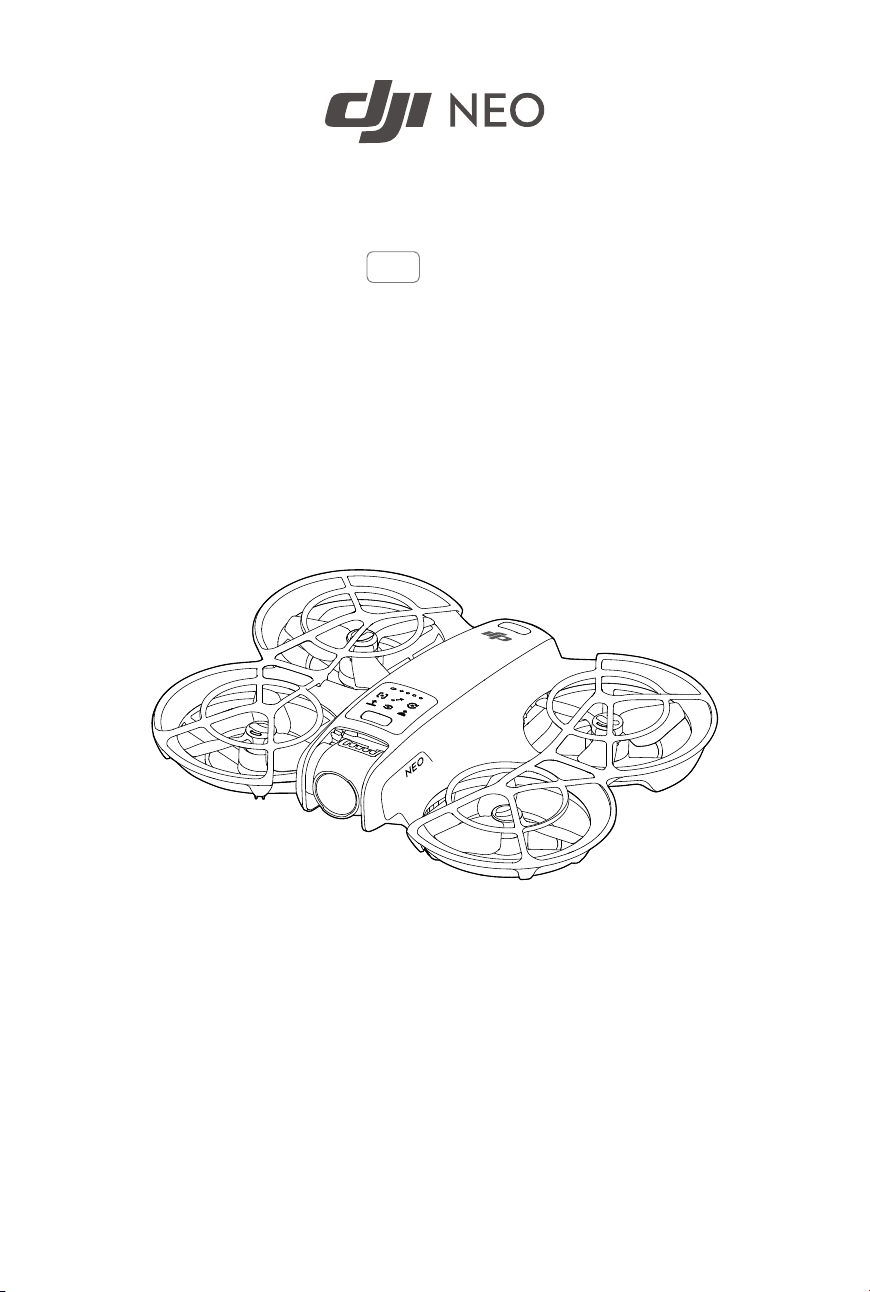
User Manual
v1.0 2024.09
This document is copyrighted by DJI with all rights reserved. Unless otherwise authorized
by DJI, you are not eligible to use or allow others to use the document or any part of
the document by reproducing, transferring or selling the document. Only refer to this
document and the content thereof as instructions to operate DJI UAVs. The document
should not be used for other purposes.
Searching for Keywords
Search for keywords such as “battery” and “install” to nd a topic. If you are
using Adobe Acrobat Reader to read this document, press Ctrl+F on Windows or
Command+F on Mac to begin a search.
Navigating to a Topic
View a complete list of topics in the table of contents. Click on a topic to navigate to
that section.
Printing this Document
This document supports high resolution printing.
2 © 2024 DJI All Rights Reserved.
Using this Manual
Legend
Important
Hints and Tips
Reference
Read Before First Flight
DJI
™
provides you with tutorial videos and the following documents:
1. Safety Guidelines
2. Quick Start Guide
3. User Manual
It is recommended to watch all the tutorial videos and read the Safety Guidelines before
using for the rst time. Prepare for your rst ight by reviewing the Quick Start Guide and
refer to this User Manual for more information.
Video Tutorials
Go to the address below or scan the QR code to watch the tutorial videos, which
demonstrate how to use the product safely.
https://www.dji.com/neo/video
Downloading the DJI Fly App
Make sure to use DJI Fly with this product. Scan the QR code to download the latest
version.
DJI Neo User Manual
© 2024 DJI All Rights Reserved. 3
• To check the Android and iOS operating system versions supported by DJI Fly,
visit https://www.dji.com/downloads/djiapp/dji-y.
• The interface and functions of DJI Fly may vary as the software version is
updated. Actual usage experience is based on the software version used.
[1] For increased safety, ight is restricted to a height of 98.4 ft (30 m) and a range of 164 ft (50 m)
when not connected or logged into the app during ight.
[2] For Palm Control and Mobile App Control, takeo is disabled when DJI Neo is not connected to the
app for longer than 90 days or the smartphone with the app has no access to the internet during
the period. To enable takeo, reconnect DJI Neo to the app when the smartphone is connected to
the internet.
Downloading DJI Assistant 2
Download DJI ASSISTANT
™
2 at:
https://www.dji.com/downloads
• The operating temperature of this product is -10° to 40° C. It does not meet
the standard operating temperature for military-grade application (-55° to
125°C), which is required to endure greater environmental variability. Operate
the product appropriately and only for applications that meet the operating
temperature range requirements of that grade.
DJI Neo User Manual
4 © 2024 DJI All Rights Reserved.

DJI Neo User Manual
© 2024 DJI All Rights Reserved. 5
Contents
Using this Manual 3
Legend 3
Read Before First Flight 3
Video Tutorials 3
Downloading the DJI Fly App 3
Downloading DJI Assistant 2 4
1 Product Prole 8
1.1 Using for the First Time 8
Preparing DJI Neo 8
Activation 9
Firmware Update 9
1.2 Overview 10
DJI Neo 10
2 Flight Safety 12
2.1 Flight Restrictions 12
GEO (Geospatial Environment Online) System 12
2.2 Flight Environment Requirements 12
2.3 Pre-Flight Checklist 13
3 Flight Operation 16
3.1 Palm Control 16
Notice 16
Switching Modes 17
Palm Takeo/Landing and Smart Snaps 20
3.2 Mobile App Control 22
Notice 22
Connecting DJI Neo 23
Smart Snaps 23
View Album 26
Manual Control 27
Recording Audio via App 28
Voice Control 28
3.3 Video Recording Suggestions and Tips 28
4 DJI Neo 31
4.1 Flight Modes 31
4.2 Status Indicator 31
4.3 Auto Landing 32

DJI Neo User Manual
6 © 2024 DJI All Rights Reserved.
Trigger Method 32
Landing Protection 32
4.4 Vision System and Infrared Sensing System 33
4.5 Propellers and Propeller Guards 35
Removing and Installing 35
Notice 38
4.6 Intelligent Flight Battery 39
Notice 39
Inserting and Removing the Battery 40
Using the Battery 41
Charging the Battery 43
Using a Charger 44
Using the Charging Hub 44
Battery Protection Mechanisms 47
4.7 Gimbal and Camera 47
Camera Notice 47
Gimbal Notice 47
Gimbal Angle 48
Gimbal Operation Modes 48
4.8 Exporting Photos and Videos 49
4.9 QuickTransfer 49
5 Appendix 51
5.1 Specications 51
5.2 Compatibility 51
5.3 Firmware Update 51
5.4 Flight Recorder 52
5.5 Aftersales Information 52

Product Prole
© 2024 DJI All Rights Reserved. 7
1 Product Prole
1.1 Using for the First Time
Click the link below or scan the QR code to watch the tutorial video before rst time use.
https://www.dji.com/neo/video
Preparing DJI Neo
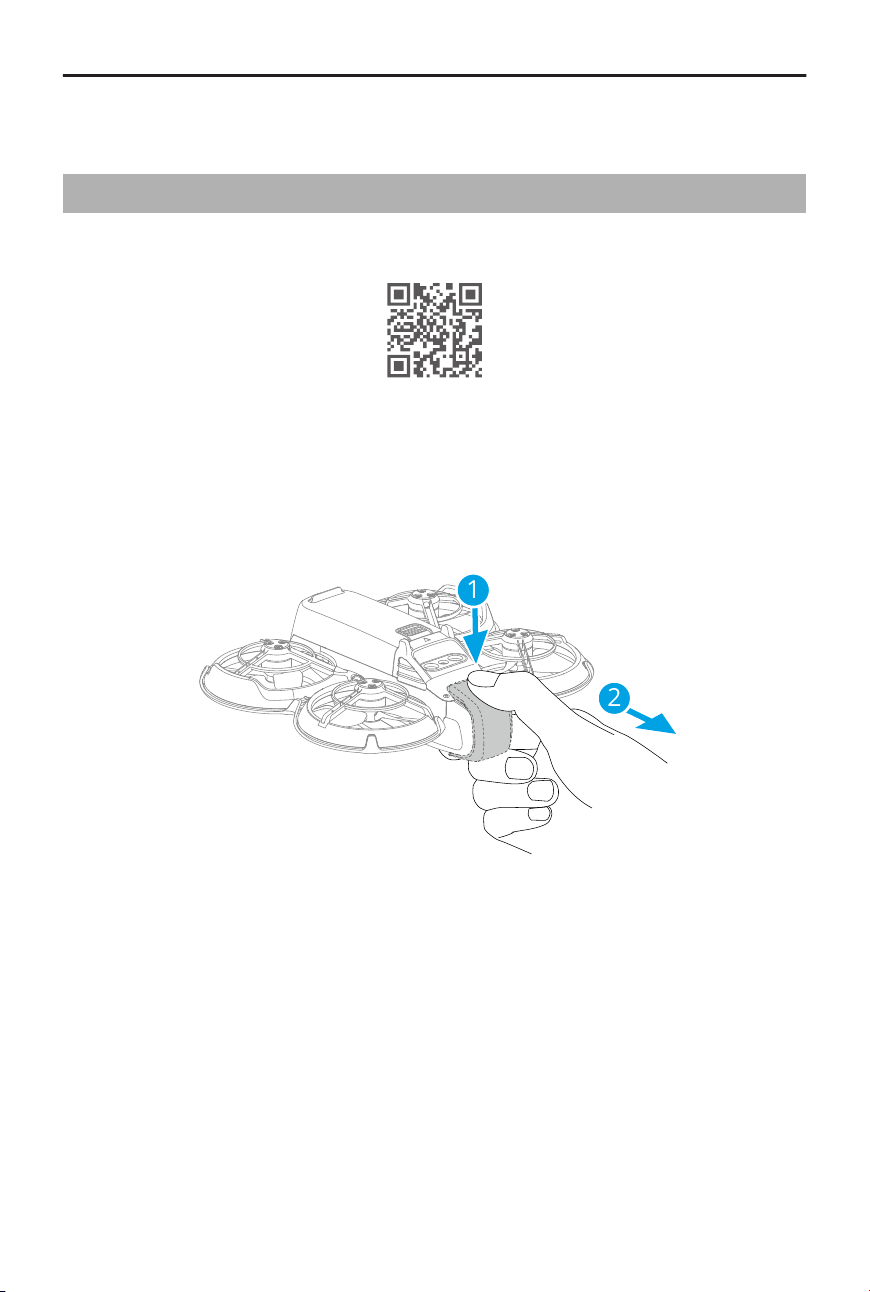
1. Press down to remove the gimbal protector.
2
1
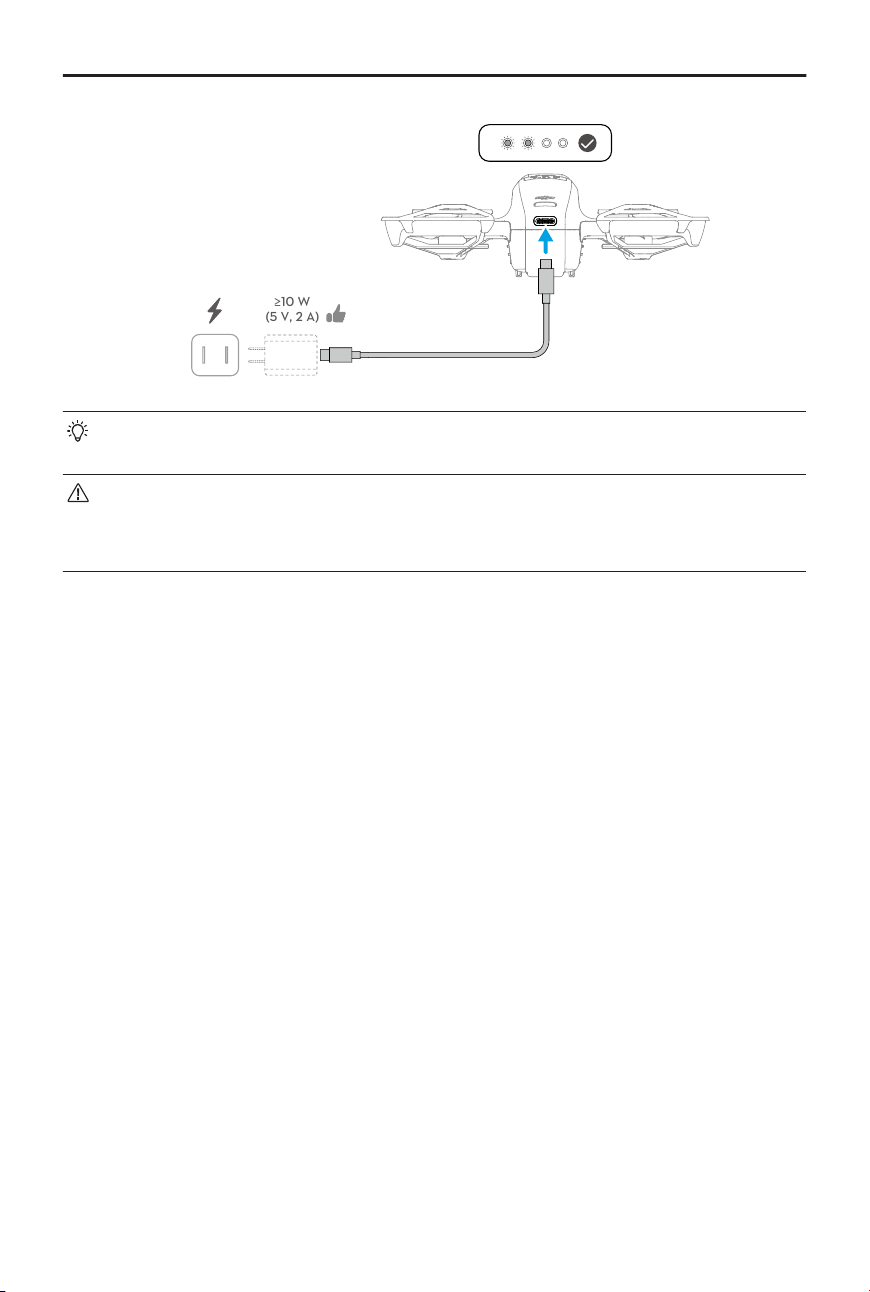
2. All Intelligent Flight Batteries are in hibernation mode before shipment to ensure
safety. Activate the batteries by connecting a USB charger to the USB-C port on DJI
Neo. The battery is activated when it begins charging.
DJI Neo User Manual
8 © 2024 DJI All Rights Reserved.
≥10 W
(5 V, 2 A)
• It is recommended to attach the gimbal protector to protect the gimbal when DJI
Neo is not in use.
• The maximum charging power supported for the USB-C port on DJI Neo is 15W.
• Make sure to remove the gimbal protector before powering on DJI Neo.
Otherwise, it may aect the system performing self-diagnostics.
Activation
The product must be activated using the DJI Fly app before being used for the rst time.
An internet connection is required for activation.
Press, then press and hold the power button to power on DJI Neo. Tap Connection Guide
on the bottom right corner of the home screen in DJI Fly, select the device model, and
then follow the on-screen instructions to complete connection and activation.
Firmware Update
A prompt will appear in DJI Fly when a rmware update is available. Update the rmware
whenever prompted to ensure the optimal user experience.
DJI Neo User Manual
© 2024 DJI All Rights Reserved. 9
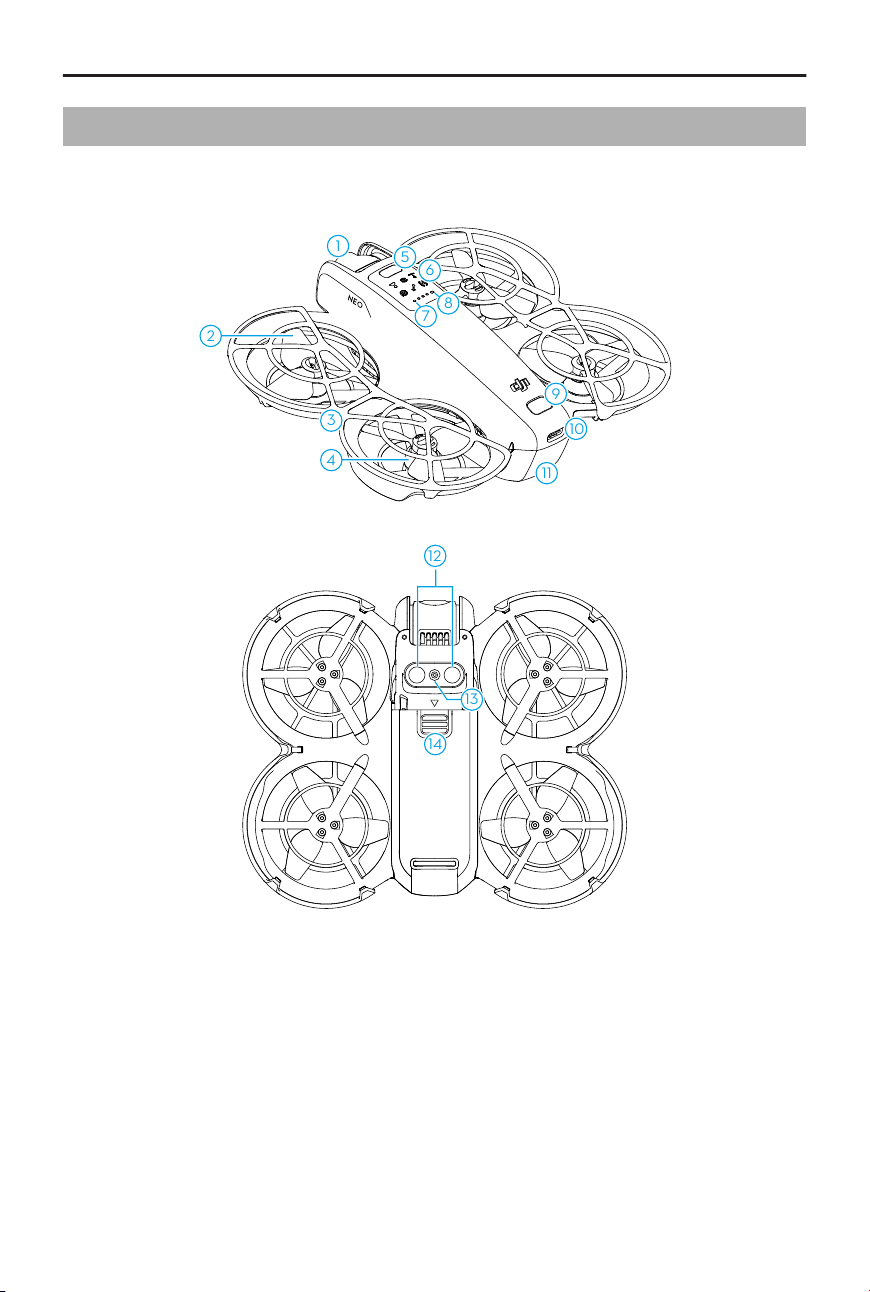
1.2 Overview
DJI Neo
1
5
6
9
10
11
4
8
7
3
2
14
12
13
1. Gimbal and Camera
2. Propellers
3. Propeller Guard
4. Motors
5. Mode Button
6. Mode Indicators
7. Battery Level LEDs
8. Status Indicator
9. Power Button
10. USB-C Port
11. Intelligent Flight Battery
12. Infrared Sensing System
13. Downward Vision System
14. Battery Latch
DJI Neo User Manual
10 © 2024 DJI All Rights Reserved.

Flight Safety
© 2024 DJI All Rights Reserved. 11
2 Flight Safety
After completing pre-ight preparations, it is recommended to train your ying skills
and practice ying safely. Pick a suitable area to y in according to the following ight
requirements and restrictions. Strictly abide by local laws and regulations when ying.
Read the Safety Guidelines before ight to ensure safe use of the product.
2.1 Flight Restrictions
GEO (Geospatial Environment Online) System
The DJI Geospatial Environment Online (GEO) System is a global information system that
provides real-time information on ight safety and restriction updates and prevents UAVs
from ying in restricted airspace. Under exceptional circumstances, restricted areas can
be unlocked to allow ights. Prior to that, you must submit an unlocking request based
on the current restriction level in the intended ight area. The GEO system may not fully
align with local laws and regulations. You are responsible for your own ight safety and
must consult with the local authorities on the relevant legal and regulatory requirements
before requesting to unlock a restricted area.
2.2 Flight Environment Requirements
1. DO NOT operate DJI Neo in severe weather conditions including in wind speeds
exceeding 8 m/s, snow, rain, and fog.
2. Only y in open areas. Tall buildings, large metal structures, mountains, and wooded
areas may obstruct signals and cause electromagnetic wave interference or magnetic
interference, which can lead to poor positioning or a positioning error. Therefore, DO
NOT take o from a balcony or anywhere within 15 m of buildings. Keep a distance of
at least 15 m from buildings during ight.
3. Fly DJI Neo in environments that have good lighting and clearly textured surfaces,
without strong reections and dynamic changes. The vision system may not work
properly in the following scenarios: in poor lighting conditions, over surfaces without
clear textures, surfaces with strong reections (such as car roofs, monochrome
ceramic tiles, and glass), scenes with dynamic changes (such as above water, moving
people, swaying shrubs, and grass). Only y DJI Neo in the daytime.
4. Fly DJI Neo within visual line of sight (VLOS). Any ight beyond visual line of
sight (BVLOS) can be conducted only when the device performance, the pilot’s
knowledge and skills, and the operational safety management are compliant with
local regulations for BVLOS. Avoid ying near obstacles and crowds. DO NOT y near
DJI Neo User Manual
12 © 2024 DJI All Rights Reserved.
airports, highways, railway stations, railway lines, city centers, or other sensitive areas,
unless a permit or approval is obtained under local regulations.
5. Try to keep a distance of more than 200 m from strong electromagnetic
wave interference sites, such as radar stations, microwave relay stations, mobile
communication base stations, and communication jamming equipment.
6. Minimize interference by avoiding areas with high levels of electromagnetism, such as
locations near power lines, base stations, electrical substations, broadcasting towers,
Wi-Fi hotspots, routers, and Bluetooth devices. Avoid ying more than one DJI Neo in
the area.
7. DJI Neo uses only the vision system for positioning in polar regions.
8. DO NOT take o from moving objects, such as cars and boats.
9. DO NOT take o when there is a signicant change in the ground level (such as near
clis).
10. Be careful when taking o in the desert or from a beach to avoid sand entering DJI
Neo.
11. DO NOT operate DJI Neo in an environment at risk of a re or explosion.
12. Operate DJI Neo, battery, battery charger, and the battery charging hub in a dry
environment.
13. DO NOT use DJI Neo, battery, battery charger, and the battery charging hub near
accidents, res, explosions, oods, tsunamis, avalanches, landslides, earthquakes,
dust, sandstorms, salt spray, or fungus.
14. DO NOT operate DJI Neo near bird ocks.
2.3 Pre-Flight Checklist
1. Make sure the gimbal protector has been removed.
2. Make sure the Intelligent Flight Battery and the propellers are mounted correctly and
are rmly secure.
3. Make sure all the devices are fully charged.
4. Make sure the gimbal and camera are functioning normally.
5. Make sure that there is nothing obstructing the motors and that they are functioning
normally.
6. Make sure all camera lenses and sensors are clean.
7. When using Palm Control, make sure that DJI Neo has previously connected to DJI Fly
on your smartphone via Wi-Fi and the app works properly.
DJI Neo User Manual
© 2024 DJI All Rights Reserved. 13

8. Only use genuine DJI parts or DJI-authorized parts. Unauthorized parts may cause DJI
Neo to malfunction and compromise the safety of the product.
DJI Neo User Manual
14 © 2024 DJI All Rights Reserved.

Flight Operation
© 2024 DJI All Rights Reserved. 15
3 Flight Operation
DJI Neo supports multiple control methods for various scenarios to meet your needs.
Make sure you are familiar with the notice and usage for each control method before
ight.
• DJI Neo does not feature obstacle sensing. Fly with caution.
• DO NOT touch DJI Neo mid-ight. Otherwise, DJI Neo may drift and a collision
may occur.
• DO NOT y DJI Neo immediately after it has been in a collision or severely
knocked or shaken. DJI Neo may not be able to perform stable ight.
3.1 Palm Control
In Palm Control, palm takeo and landing is supported. You can use the mode button
on DJI Neo to achieve multiple Smart Snaps. DJI Neo will y while recording automatically
after subject conrmation.
*
Connect to the DJI Fly app using the Wi-Fi function to adjust
the parameters for each mode. Refer to the
Mobile App Control section to learn more.
The default settings are used as an example.
* Smart Snaps only supports the tracking of people.
Notice
• Power o the other devices connected to DJI Neo before using Palm Control.
• Make sure that the ight environment meets the ight requirements and that
you can control and retrieve DJI Neo immediately when an issue occurs or in an
emergency. In situations where DJI may not be able to analyze the cause of the
incident, it may not be possible for DJI to provide warranty and other aftersales
services.
• Before using Palm Control, make sure that DJI Neo has previously connected to
DJI Fly on your smartphone via Wi-Fi. When using Palm Control without the app,
if DJI Neo malfunctions mid-ight, you can choose to connect it to DJI Fly via
Wi-Fi and control it manually to avoid an accident.
• Make sure to y in an open and unobstructed environment without Wi-Fi signal
interference.
• When using Palm Control, the max ight altitude of DJI Neo is 30 m and the max
ight distance is 50 m.
DJI Neo User Manual
16 © 2024 DJI All Rights Reserved.

• Return to Home (RTH) is not supported in Palm Control. Maintain visual line of
sight (VLOS) within a controlled area.
• DO NOT y over water.
• DJI Neo will land automatically in the following situations. Make sure to observe
the operating environment to avoid DJI Neo being lost or damaged due to the
landing.
◆
Critical low battery.
◆
Positioning fails and DJI Neo enters Attitude mode.
◆
DJI Neo detects a collision but does not crash.
• Observe the following rules when taking o from or landing on the palm of your
hand:
◆
Operate DJI Neo in a windless environment whenever possible.
◆
Extend your ngers and keep still. DO NOT place your ngers in the
propeller guards or the propeller rotation range to avoid injury or damage.
◆
DO NOT perform takeo or landing when moving. Otherwise, DJI Neo may
drift and a collision may occur. During landing, DJI Neo may fail to stop the
motors when your hand is moving.
◆
DO NOT throw DJI Neo during takeo.
◆
DO NOT grab DJI Neo by hand.
◆
To land on your palm, place your hand right under DJI Neo to prevent it from
falling after landing.
◆
Take o in an environment with sucient lighting and a richly textured
surface. DO NOT y to an environment that has a signicant dierence in
lighting from the current location.
◆
If DJI Neo fails to perform palm takeo or landing, follow the voice prompt
of DJI Neo for troubleshooting or connect to the DJI Fly app for details. Voice
prompt supports English or Mandarin according to the app language setting
for the lastest connection. Other languages are not supported.
Switching Modes
The default mode is Follow Me after powering on the device for the rst time. Press the
mode button once to switch to Dronie, Circle, Rocket, Spotlight, or Custom.
The default Custom mode is DirectionTrack Me.
*
Connect DJI Neo to the mobile app via
Wi-Fi to select Helix or Boomerang. You can also adjust the parameters for each mode in
the app accordingly before ight.
DJI Neo User Manual
© 2024 DJI All Rights Reserved. 17
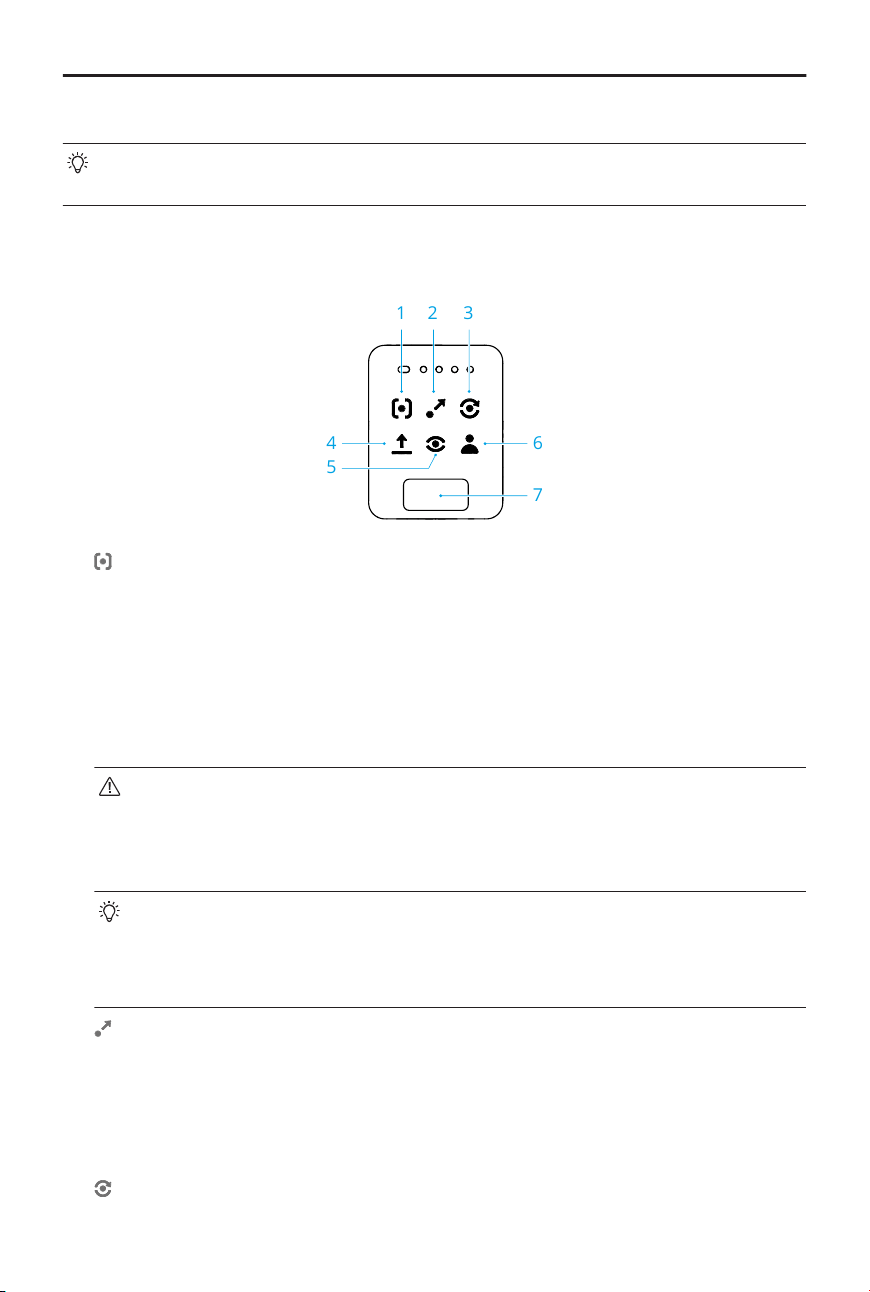
* Update rmware to the latest version. Otherwise, the function may not be supported.
• When using DirectionTrack Me for the rst time, connect DJI Neo to the DJI Fly
app and follow the tutorial to unlock this mode.
After switching the mode, DJI Neo will voice prompt the selected mode, and the
corresponding mode indicator on top of DJI Neo will light up.
1 2 3
4 6
7
5
1. Follow Me
DJI Neo will follow the subject from behind while recording automatically. When the
subject moves away from DJI Neo, it will follow the subject and y forward. When
the subject moves toward DJI Neo, it will hover in place and does not y backward.
Perform with caution to avoid collision. The max horizontal ight speed in Follow Me
mode is 5.5 m/s.
You can set the follow distance and height in the DJI Fly app.
• DJI Neo does not support obstacle sensing. To ensure ight safety, it is
recommended to y within visual line of sight.
• Make sure the ight environment is open and unobstructed with sucient
lighting.
• When the subject is not in the camera eld of view, such as when a sharp
turn is made or the subject is obstructed by an obstacle, DJI Neo will hover
due to losing the subject. The subject should return to the camera eld of
view for successful subject conrmation.
2. Dronie
DJI Neo will keep the camera facing the original position of the subject, record a
video while ying backward, and then record another video while ying forward. It will
hover at the takeo point after recording.
You can set the max distance and height in the DJI Fly app.
3.
Circle
DJI Neo User Manual
18 © 2024 DJI All Rights Reserved.
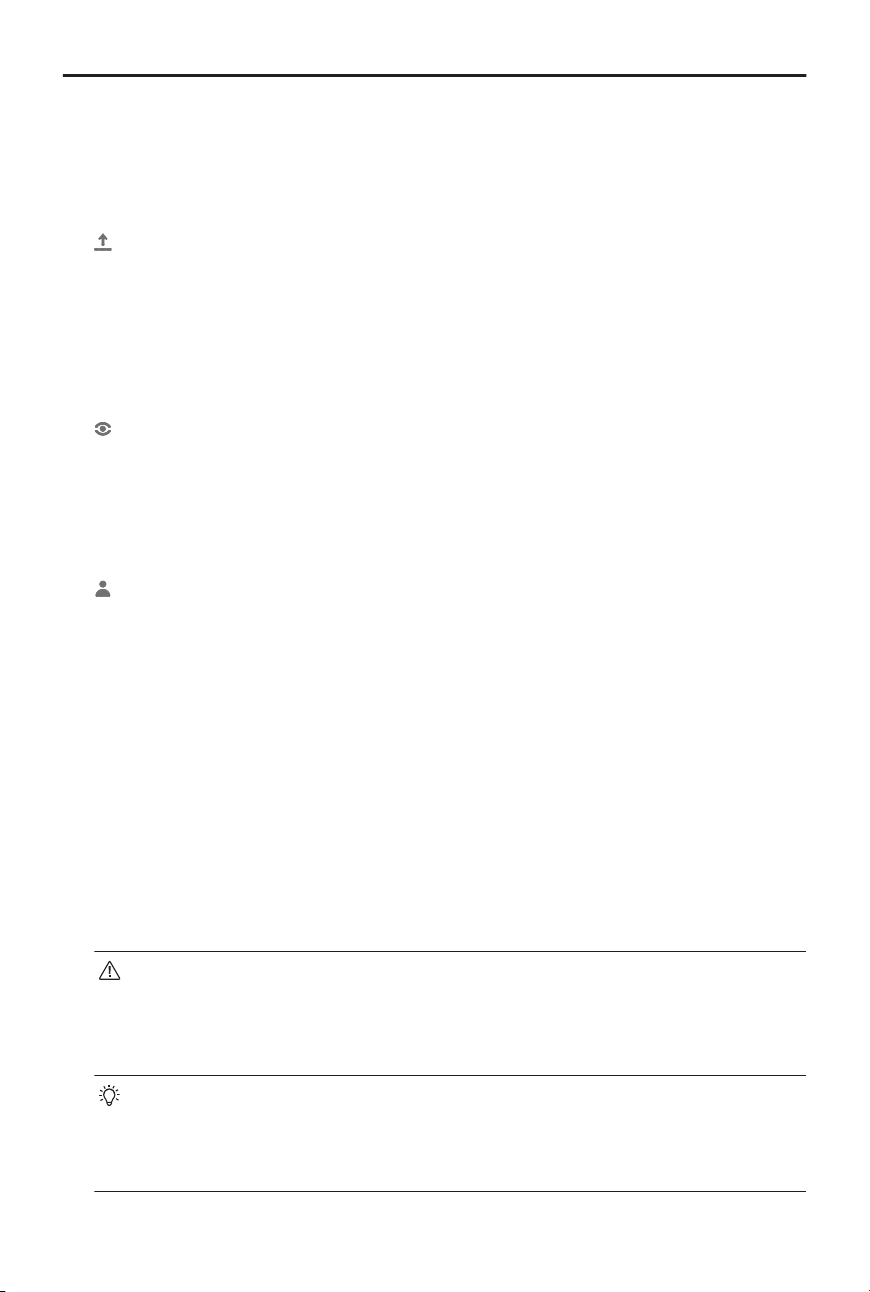
DJI Neo will keep the camera facing the subject, y backward to the preset distance,
and then begin circling the subject once, while recording automatically. It will hover at
the takeo point after recording.
You can set the distance in the DJI Fly app.
4.
Rocket
DJI Neo will keep the camera facing the original position of the subject, record a video
while ascending, and then record another a video while descending. It will hover at
the takeo point after recording.
You can set the max height and enable or disable the rotation of DJI Neo when
ascending and descending in the DJI Fly app.
5.
Spotlight
DJI Neo will hover after takeo and record a video with the camera facing the subject.
You can set the camera mode to Photo or Video in the DJI Fly app. When set to Photo,
the subject can trigger DJI Neo to take a photo automatically by maintaining a xed
pose for 3 seconds.
6.
Custom
DirectionTrack Me
DJI Neo will y backward for a distance after takeo and then determine the
movement direction of the subject to conrm the tracking direction. Once conrmed,
DJI Neo will follow the subject from the tracking direction relative to the direction of
the subject movements while recording.
You can set the follow distance and height in the DJI Fly app.
DJI Neo may switch to following the subject from behind when the movement or
direction of the subject changes too fast related to DJI Neo. Once DJI Neo conrms the
direction of the subject again, it will switch back to the original tracking direction.
To exit DirectionTrack Me, face DJI Neo and stay still. DJI Neo will y back to the
subject.
• DJI Neo does not support obstacle sensing. To ensure ight safety, it is
recommended to y within visual line of sight.
• Make sure the ight environment is open and unobstructed with sucient
lighting.
• When the subject is not in the camera eld of view, such as when a sharp
turn is made or the subject is obstructed by an obstacle, DJI Neo will hover
due to losing the subject. The subject should return to the camera eld of
view for successful subject conrmation.
DJI Neo User Manual
© 2024 DJI All Rights Reserved. 19
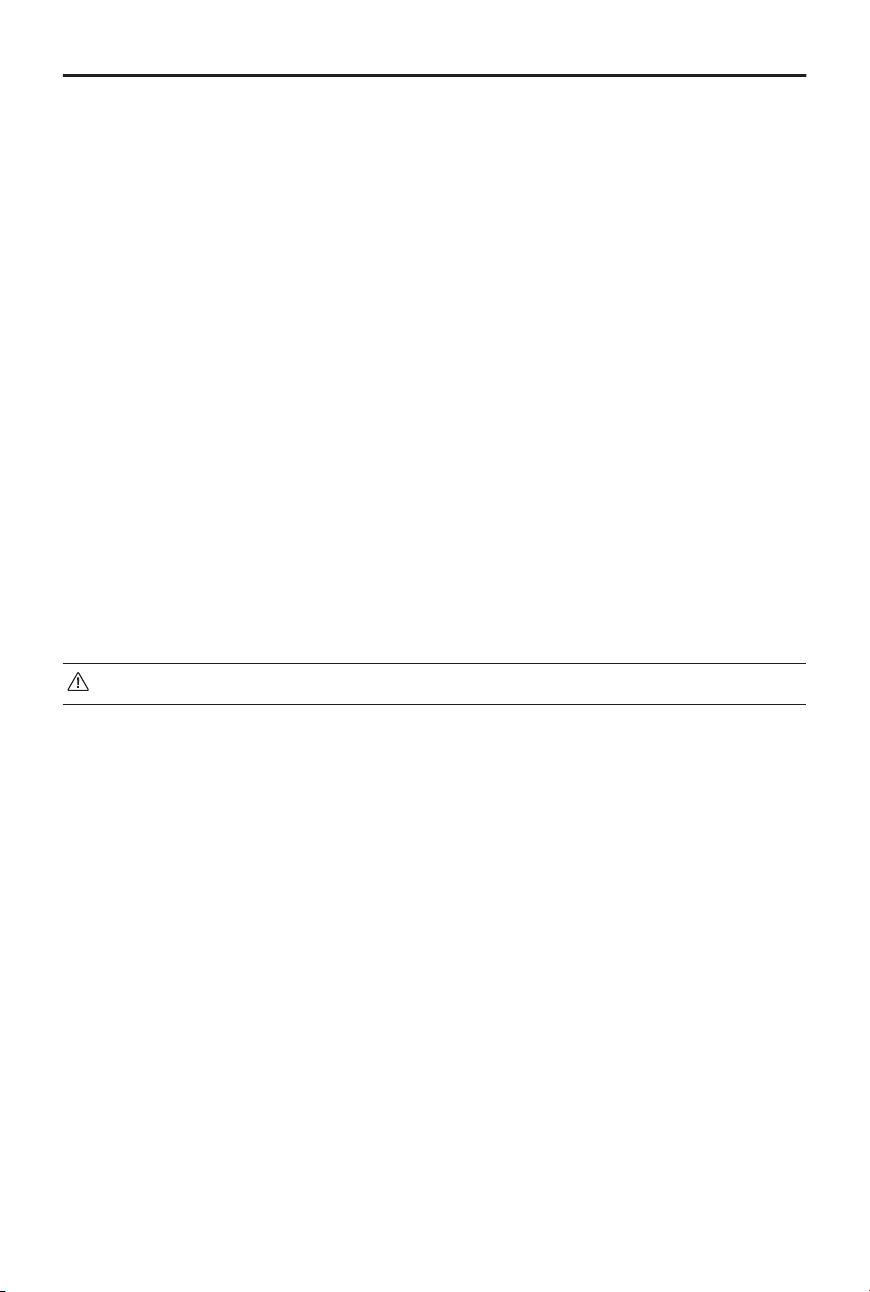
Helix
DJI Neo will keep the camera facing the subject, y backward to a location 2 m from
the takeo point, and ascend while circling the subject once in a spiral curve while
recording automatically. It will hover at the takeo point after recording.
You can set the max distance in the DJI Fly app.
Boomerang
DJI Neo will keep the camera facing the subject and y around the subject along an
oval path while recording automatically. It will ascend and then descend while ying
along the oval path and will reach the max height when ying at the farthest point
away from the takeo point. DJI Neo will hover at the takeo point after recording.
You can set the max distance in the DJI Fly app.
7. Mode Button
Press once to switch the mode. Press and hold to perform palm takeo.
Cancel palm takeo by pressing the mode button once before the countdown voice
prompt ends.
Palm Takeo/Landing and Smart Snaps
• Make sure to follow local privacy laws and regulations when using Smart Snaps.
1. Power on DJI Neo. Keep it still and wait for the system self-diagnostics to complete.
2. Make sure to leave enough room for maneuvering according to the preset parameters
such as distance and height. Press the mode button on top of DJI Neo to select your
desired mode.
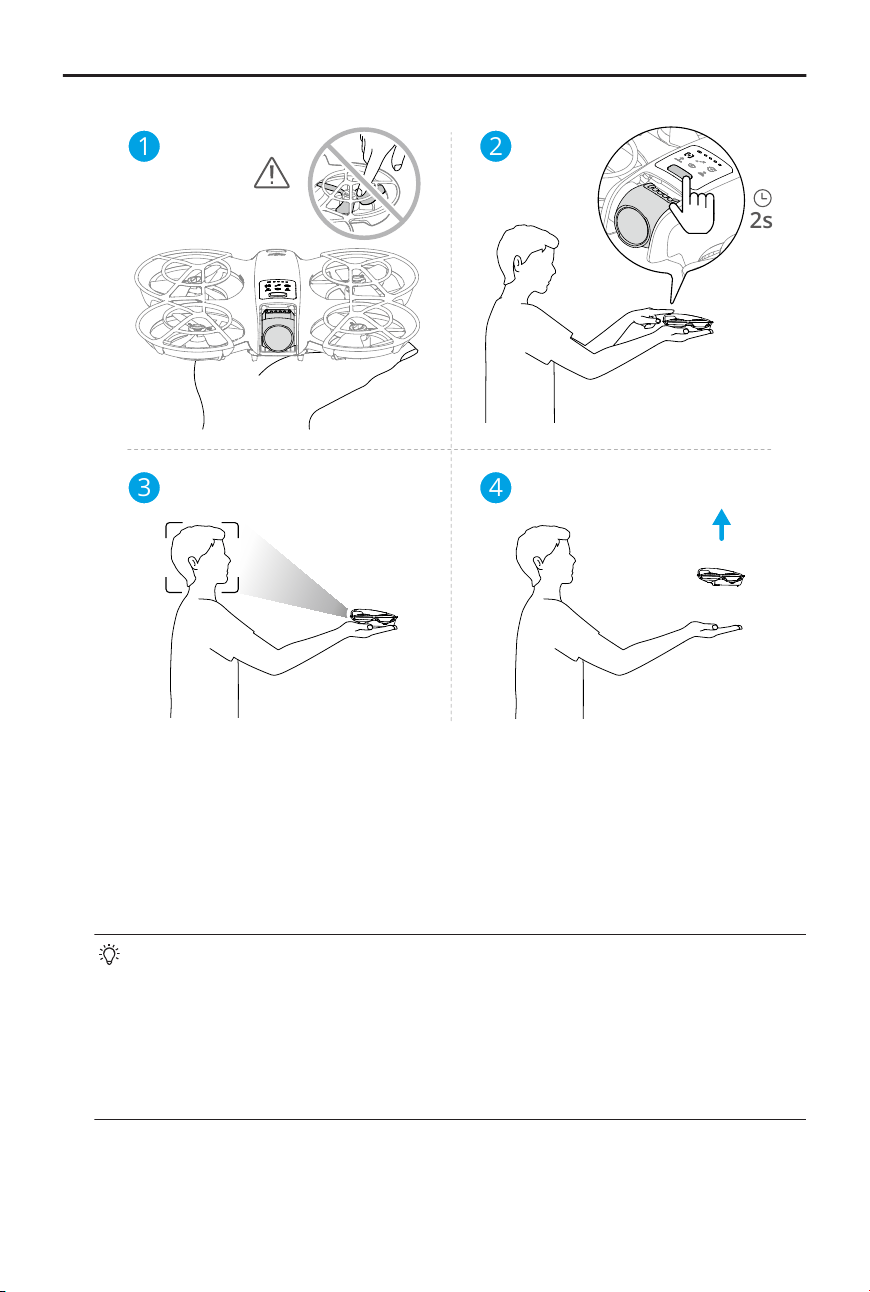
3. Follow the steps below for palm takeo.
DJI Neo User Manual
20 © 2024 DJI All Rights Reserved.
2s
1 2
3 4
a. Palm takeo requires subject conrmation. Place DJI Neo on your hand with the
camera facing the subject. Make sure that your hand does not block the camera
and there are no obstacles obstructing the takeo.
b. Extend your arm, face the camera toward the subject, and keep it steady. Press
and hold the mode button. DJI Neo will voice prompt the selected mode and the
countdown, and then take o automatically.
• When the subject is obstructed by an obstacle or the environment lighting is
not suitable, takeo may fail.
• To cancel palm takeo, press the mode button once before the countdown
voice prompt ends.
• When using palm takeo, DJI Neo will y backward for a short distance after
takeo. Pay attention to the rear of DJI Neo to ensure ight safety.
4. DJI Neo will start recording or take photos according to the selected mode and its
preset parameters.
5. Palm landing:
DJI Neo User Manual
© 2024 DJI All Rights Reserved. 21
In DirectionTrack Me mode, face DJI Neo and keep still. Wait for DJI Neo to y forward
before performing palm landing.
In other modes, make sure that DJI Neo is hovering in place, move toward it, and then
perform palm landing.
Follow the instructions below for palm landing.
a. Make sure that DJI Neo is hovering in place. Move toward DJI Neo, extend your
arm, and then place your hand right under it.
b. Keep your hand still and extend your ngers. Wait for DJI Neo to land
automatically. The eective height range of palm landing is within 0.7 m under
DJI Neo.
• During palm landing, DJI Neo may ascend slighty and then land on the palm.
Keep your hand still and extend your ngers during the process.
6. Connect DJI Neo to DJI Fly to view the footage and create short videos. Refer to the
Mobile App Control section for details.
• In Follow Me, Spotlight, and DirectionTrack Me modes, DJI Neo will hover in
place if the camera loses the subject while recording. Run DJI Fly on your
smartphone via Wi-Fi to connect to DJI Neo mid-ight. The smartphone must
have been connected to DJI Fly previously in order to connect. In the Controls
view, make sure that the task has already stopped, select Manual Control from
the mode list, and then land DJI Neo using the virtual joysticks.
3.2 Mobile App Control
To use Mobile App Control, connect DJI Neo to the DJI Fly app on the smartphone via
Wi-Fi and control DJI Neo in the app. In Mobile App Control, all the functions for Palm
Control are available. You can set parameters and perform Smart Snaps in the app. More
functions such as manual control, audio recording
*
, and voice control
*
are also supported.
* Update rmware to the latest version. Otherwise, the function may not be supported.
Notice
• Power o the other devices that are connected to DJI Neo before using Mobile
App Control. If not powered o, DJI Neo will disconnect from the other devices
DJI Neo User Manual
22 © 2024 DJI All Rights Reserved.
automatically when the smartphone is connected via Wi-Fi and the Controls
view in the app is opened.
• Make sure to y in an open and unobstructed environment without Wi-Fi signal
interference. Otherwise, the app may disconnect from DJI Neo which may aect
ight safety.
• When using Mobile App Control, the max ight altitude of DJI Neo is 30 m and
the max ight distance is 50 m.
• Return to Home (RTH) is not supported in Mobile App Control. Maintain visual
line of sight within a controlled area.
• DO NOT y over water.
• DJI Neo will land automatically in the following situations. Make sure to observe
the operating environment to avoid DJI Neo to be lost or damaged when
landing.
◆
Critical low battery.
◆
Positioning fails and DJI Neo enters Attitude mode.
◆
DJI Neo detects a collision but does not crash.
Connecting DJI Neo
1. Power on DJI Neo and wait for the system self-diagnostics to complete.
2. Enable Bluetooth, Wi-Fi, and location services on the smartphone.
3. Tap Connection Guide on the bottom right corner of the home screen in the app,
select the device model, and select Connect via Mobile Device.
4. Select the desired device in the search results. The Controls view is displayed after
connected successfully. When connecting the smartphone to DJI Neo for the rst time,
press and hold the power button of DJI Neo to conrm.
• You can also tap the QuickTransfer or Wi-Fi Devices panel on the home screen in
DJI Fly for Wi-Fi connection.
• To change the smartphone connected to DJI Neo, disable Bluetooth and Wi-Fi
on the currently connected smartphone before connecting DJI Neo to the new
smartphone.
Smart Snaps
• Make sure to follow local privacy laws and regulations when using Smart Snaps.
DJI Neo User Manual
© 2024 DJI All Rights Reserved. 23
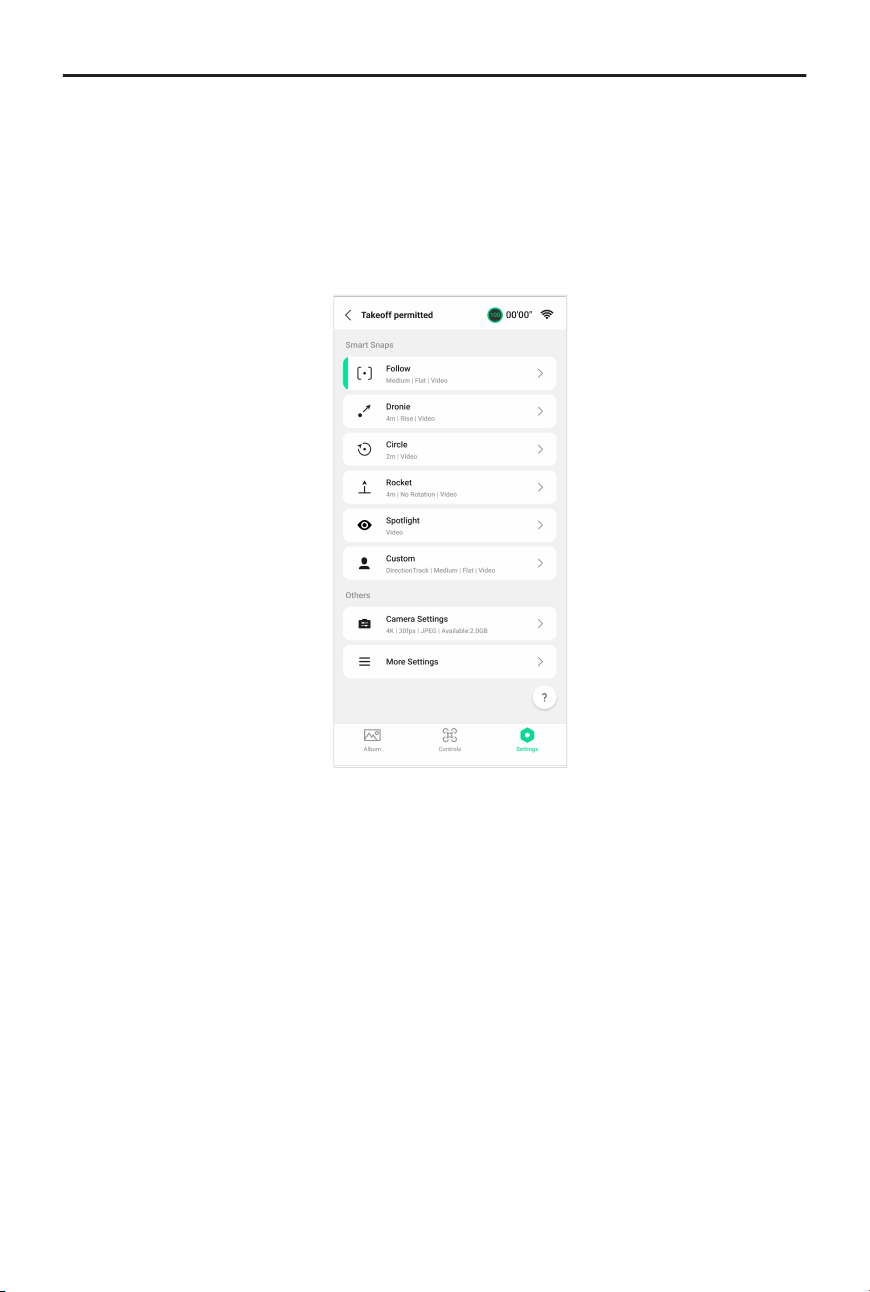
1. Set parameters:
Go to the Settings view. Tap the specic mode to enter the parameter conguration
screen. Tap Custom to set to DirectionTrack Me, Helix, or Boomerang and adjust the
corresponding parameters.
Tap Camera Settings to set the same camera parameters for all the Smart Snaps
modes.
2. Start Smart Snaps:
DJI Neo User Manual
24 © 2024 DJI All Rights Reserved.
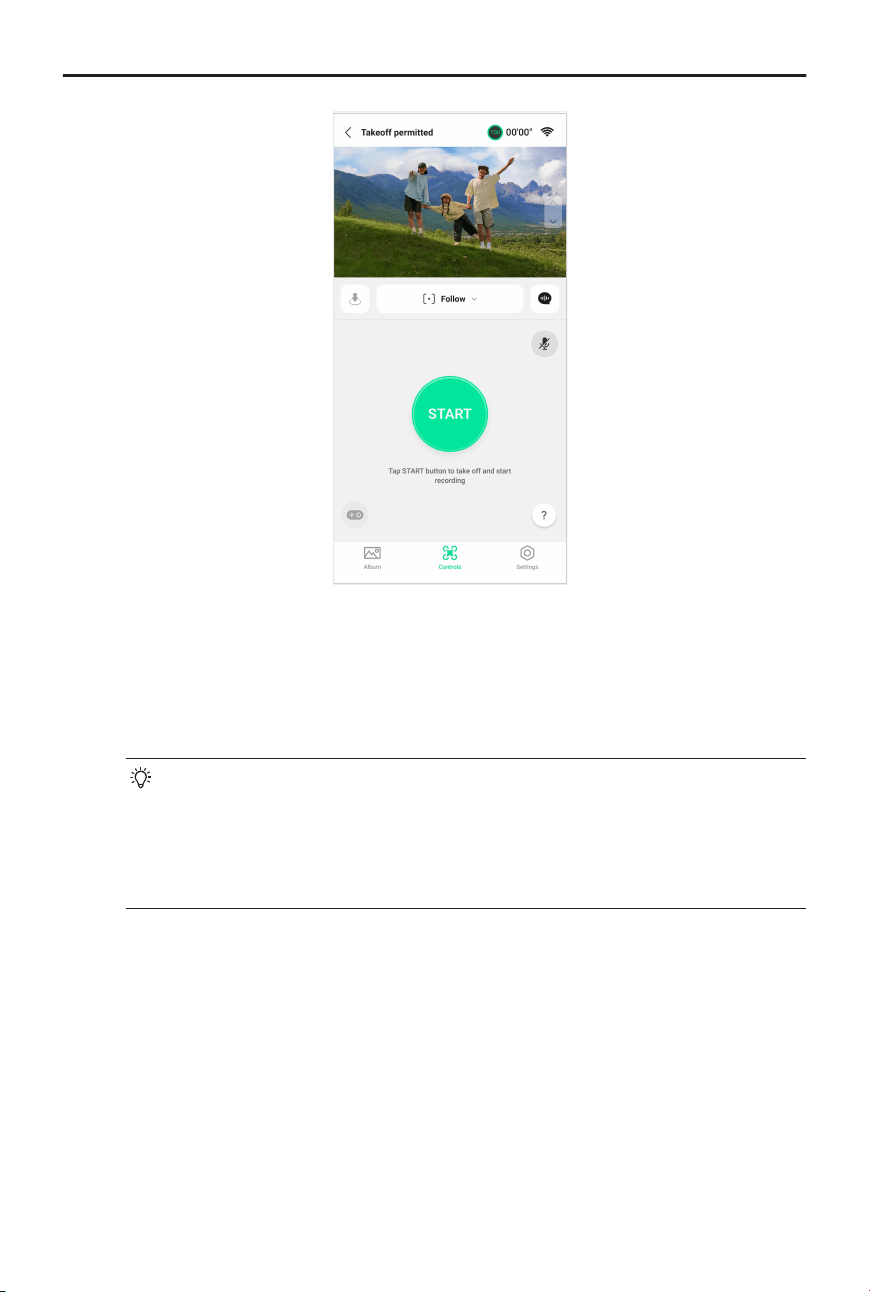
a. Place DJI Neo stably with the camera facing the subject.
b. Go to the Controls view. The current mode is displayed under the liveview. Tap to
expand the option list and select your desired mode.
c. Tap START. DJI Neo will take o automatically after it conrms the subject
successfully and the countdown voice prompt is completed.
• When the subject is obstructed by an obstacle or the environment
lighting is not suitable, subject conrmation may fail.
• You can also press and hold the mode button on top of DJI Neo to
perform palm takeo. Refer to the Palm Control section for related
notices and procedures.
d. DJI Neo will y and record video automatically according to the selected mode and
preset parameters. You can check the liveview and video recording duration.
In Spotlight mode, DJI Neo will hover in place and keep the camera facing the
subject. When the camera mode is set to Photo, the subject can trigger DJI Neo to
take a photo automatically by maintaining a xed pose for 3 seconds.
3. Exit Smart Snaps:
The way to exit Smart Snaps varies for dierent modes.
Dronie, Circle, Rocket, Helix, Boomerang
DJI Neo will exit Smart Snaps after recording. When the recording task is not
completed, you can tap STOP to nish recording. DJI Neo will hover in place.
DJI Neo User Manual
© 2024 DJI All Rights Reserved. 25
Follow Me, Spotlight
During recording, tap STOP to exit Smart Snaps. You can also move toward DJI Neo to
perform palm landing, and the recording will stop automatically. DJI Neo will hover in
place.
DirectionTrack Me
During recording, tap STOP to exit Smart Snaps. DJI Neo will hover in place. The
subject can also face DJI Neo and keep still to exit Smart Snaps. DJI Neo will stop
recording and y toward the subject. Palm landing can now be performed.
If you do not land DJI Neo, you can choose to start the same Smart Snaps task again
in the app after exiting Smart Snaps. You can also land DJI Neo on your palm by
following the instructions in the app. Or, tap
on the left of the mode list, and then
tap and hold to land.
• Refer to the Palm Control section for related notices and procedures of palm
landing.
View Album
Tap Album to view the captured footage.
For Dronie, Circle, Rocket, Helix, and Boomerang modes, tap Create QuickShots to
preview the video. You can also select from other templates or edit the video manually.
• DJI Neo supports ECO mode. When viewing the album in the app via Wi-Fi
connection to DJI Neo, in both Mobile App Control mode and QuickTransfer
mode, ECO mode will be enabled automatically if DJI Neo rises above a certain
temperature. Pay attention to the prompt in the app.
DJI Neo User Manual
26 © 2024 DJI All Rights Reserved.
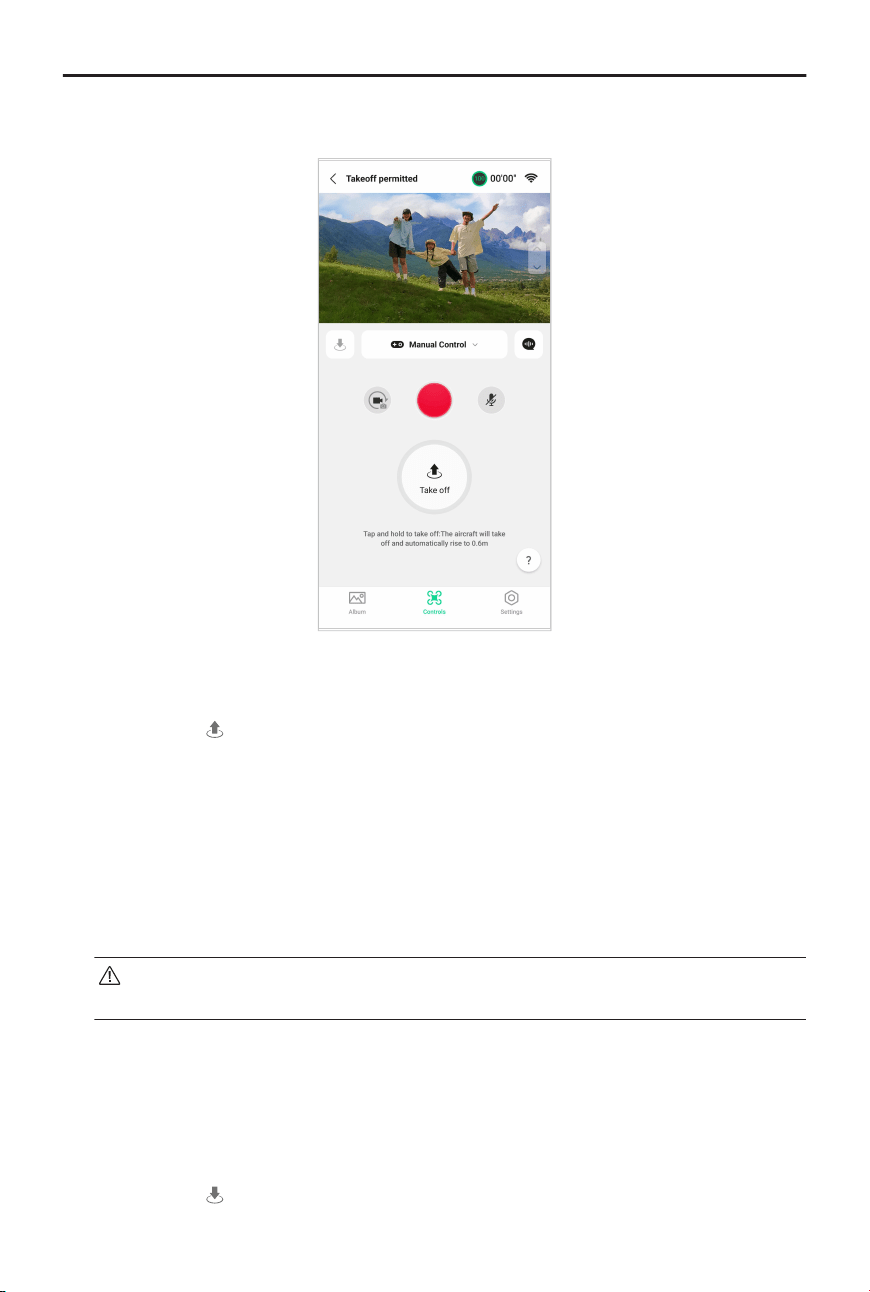
Manual Control
1. Place DJI Neo on at ground.
2. In the Controls view, tap the mode list under the liveview, and select Manual Control.
3. Tap and hold
. DJI Neo will start the motors and automatically rise to a height of 0.6
m.
You can also perform palm takeo. Subject conrmation is not required for palm
takeo in manual control, which diers from Palm Control. Refer to the Palm Control
section for related notices and procedures.
4. Control DJI Neo using the virtual joysticks in the app. The left stick controls the ight
altitude and orientation. The right stick controls the forward, backward, left, and right
movements.
• DJI Neo does not support obstacle sensing. To ensure ight safety, it is
recommended to y within visual line of sight.
5. View the liveview in the camera view. Tap the photo/video toggle button to switch
between photos and videos. Slide the slider on the right of the liveview to control the
gimbal pitch.
6. In Photo mode, tap the shutter button to take a photo. In Video mode, tap the record
button to start recording. Tap again to stop recording.
7. Tap and hold
to land DJI Neo. You can also perform palm landing.
DJI Neo User Manual
© 2024 DJI All Rights Reserved. 27
Recording Audio via App
In the Controls view, tap
on the right of the screen to enable audio recording. The
status will change to
. Allow the microphone permission to record audio following the
prompts.
When using Mobile App Control, audio will be recorded by the corresponding audio
recording device while DJI Neo is recording a video. The microphone icon will be displayed
in liveview.
Supported audio recording devices include the built-in microphone of the smartphone,
DJI Mic 2, and Bluetooth earphones. Audio recording compatibility issues may occur when
using some Bluetooth earphones. Make sure to test them before recording.
• DO NOT turn o the screen or switch to other apps during recording.
• Audio recording can only be enabled or disabled before recording.
• When viewing or downloading the videos in the Album view in DJI Fly, the audio
recorded using the audio recording function will be automatically merged into
the video le.
Voice Control
In the Controls view, tap
on the right of the screen under the liveview to enable voice
control. Use a voice command to control DJI Neo. Tap the corresponding button in the
pop-up window to view the common commands.
You can also enable voice control via voice wake-up. Go to the Settings view, tap More
Settings > Control > Voice Control Settings. Enable Voice Wake-up and allow the
microphone permission following the prompts. When using Mobile App Control, say Hey
Fly to wake up voice control and then control DJI Neo using voice commands. View the
common commands in Voice Control Settings.
• Voice control supports English or Mandarin according to the app language.
• Turn up the volume on the phone for the optimal experience when using voice
control.
3.3 Video Recording Suggestions and Tips
1. The pre-ight checklist is designed to help the user y safely and shoot videos during
ight. Go through the full pre-ight checklist before each ight.
DJI Neo User Manual
28 © 2024 DJI All Rights Reserved.

2. DO NOT y in bad weather such as on rainy or windy days.
3. Choose the camera settings that best suit your needs.
4. Perform ight tests to establish ight routes and preview scenes.
5. Make sure to control DJI Neo gently to ensure a smooth and stable ight.
6. Clear any foreign objects from the air intake on both sides of DJI Neo after ight to
prevent a blockage.
DJI Neo User Manual
© 2024 DJI All Rights Reserved. 29

DJI Neo
30 © 2024 DJI All Rights Reserved.
4 DJI Neo
4.1 Flight Modes
When using Palm Control and Mobile App Control, DJI Neo does not support the switching
of ight modes.
DJI Neo automatically changes to Attitude (ATTI) mode when positioning does not work
properly. In ATTI mode, DJI Neo may drift horizontally, and precise hovering and braking
are unavailable. You should land DJI Neo as soon as possible to avoid any accidents to
occur. Avoid ying in conned spaces or in areas where the lighting is not sucient.
Otherwise, DJI Neo will enter ATTI mode, which may present hazards.
4.2 Status Indicator
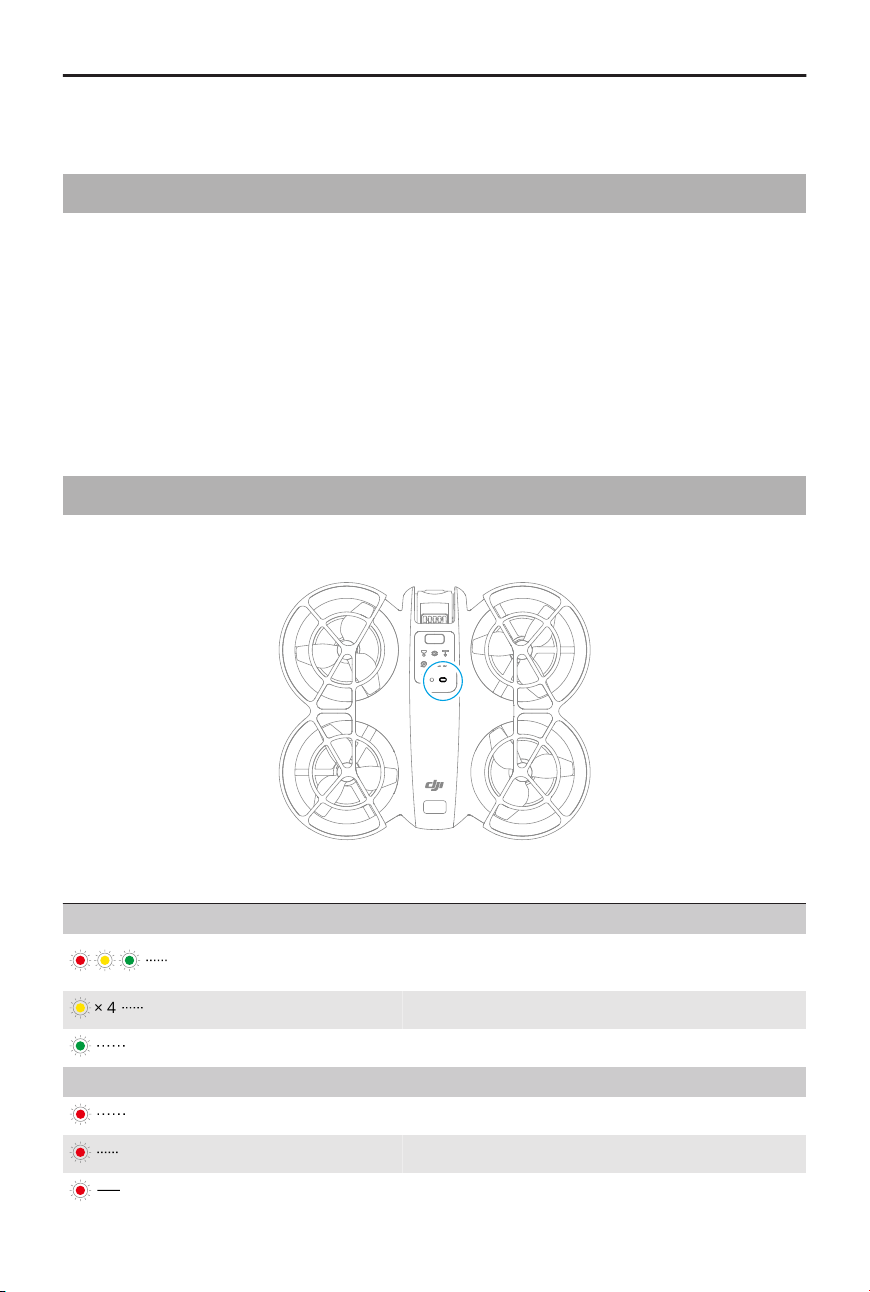
DJI Neo has one status indicator located on top.
Status Indicator Descriptions
Normal States
Blinks red, yellow, and
green alternately
Powering on and performing self-diagnostic
tests
× 4
Blinks yellow four times Warming up
Blinks green slowly Positioning functions properly
Warning States
Blinks red slowly Takeo is disabled (e.g., low battery)
[1]
Blinks red quickly Critically low battery
Solid red Critical error
DJI Neo User Manual
© 2024 DJI All Rights Reserved. 31
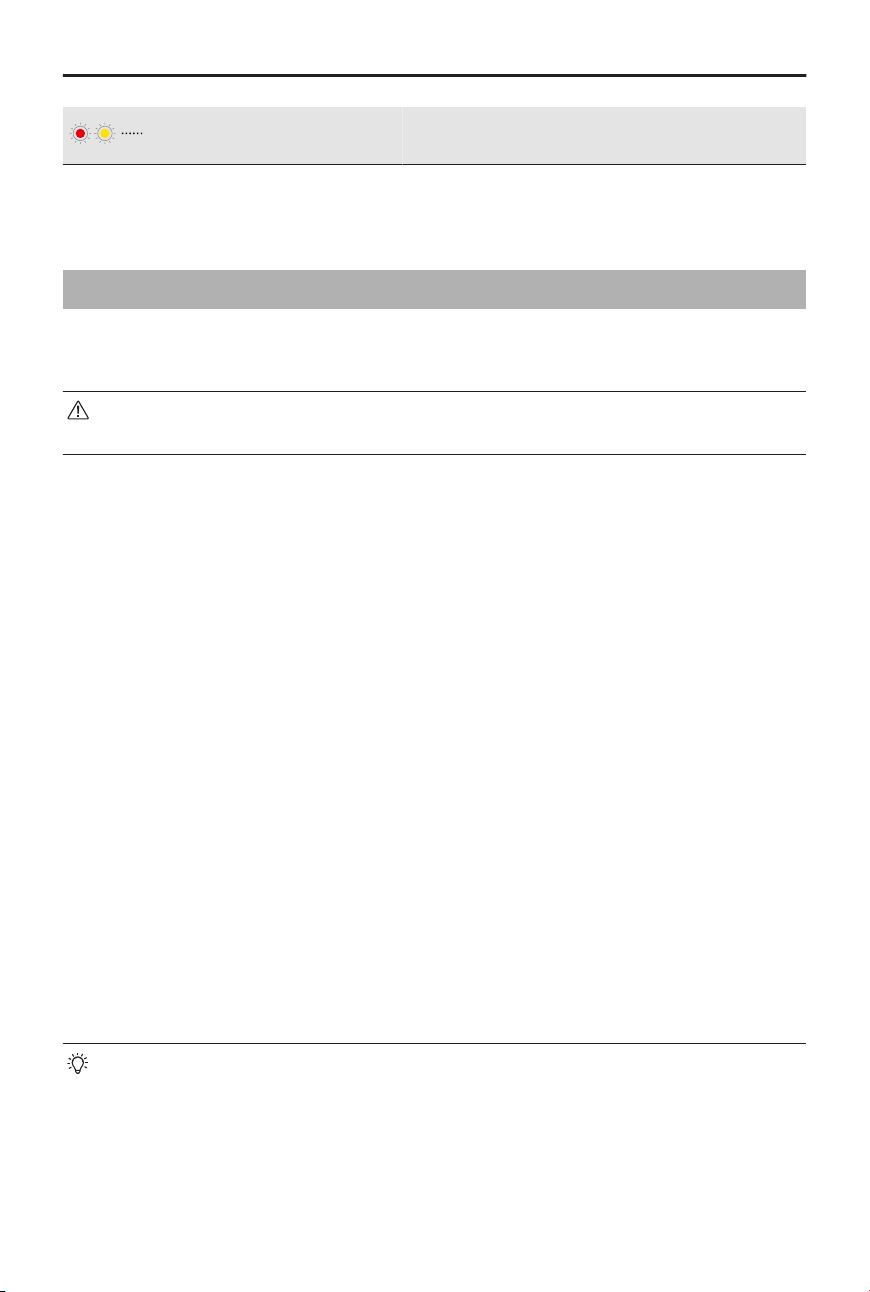
Blinks red and yellow alter-
nately
Compass calibration required
[1] If DJI Neo cannot takeo while the status indicator is blinking red slowly, view the warning prompt
in DJI Fly.
4.3 Auto Landing
In some situations, DJI Neo will land automatically with the landing protection function
supported.
• DO NOT prevent DJI Neo from landing continuously due to a critical low battery.
Otherwise, the battery will be damaged or DJI Neo will crash.
Trigger Method
In the following situations, DJI Neo will land automatically:
• DJI Neo has a critical low battery level.
• In Palm Control and Mobile App Control, positioning fails or DJI Neo detects a collision
but does not crash.
Landing Protection
Landing Protection activates during auto landing
The specic actions of DJI Neo are as follows:
• If the ground is determined suitable for landing, DJI Neo will land directly.
• If the ground is determined unsuitable for landing, DJI Neo will hover and wait for
pilot conrmation. You can perform palm landing or land DJI Neo manually.
• If DJI Neo fails to determine whether the ground environment is suitable for landing,
DJI Fly or the goggles will display a landing prompt when DJI Neo descends to 0.3
m from the ground. Conrm the landing prompt and DJI Neo will land. You can also
perform palm landing or land DJI Neo manually.
• Landing Protection only assists in determining the landing environment. Pay
attention to the surrounding environment during landing to ensure safety.
• In the following situations, Landing Protection may be unavailable and DJI Neo
may land directly on unsuitable ground:
◆
Flying over monochrome, reective, or low-light surfaces, a large area of
surfaces without clear texture, or surfaces with dynamic texture, such as
DJI Neo User Manual
32 © 2024 DJI All Rights Reserved.
smooth ceramic tiles, garage oors with insucient light, and grass blowing
in the wind.
◆
Flying over obstacles without clear texture, such as large rocks, or reective
or monochrome surfaces, such as raised tiles.
◆
Flying over small or ne obstacles, such as power lines and tree branches.
◆
Flying over surfaces that resemble at ground, such as trimmed and at
shrubs, at tree tops, and hemispherical ground.
• In the following situations, Landing Protection may be triggered by mistake
and DJI Neo is unable to land. You can perform palm landing or land DJI Neo
manually.
◆
Flying over surfaces that the vision system may confuse for water, such as
wet ground and areas with puddles.
◆
Flying over at surfaces, but there are surfaces with clear texture (oblique
surfaces or stairs) nearby.
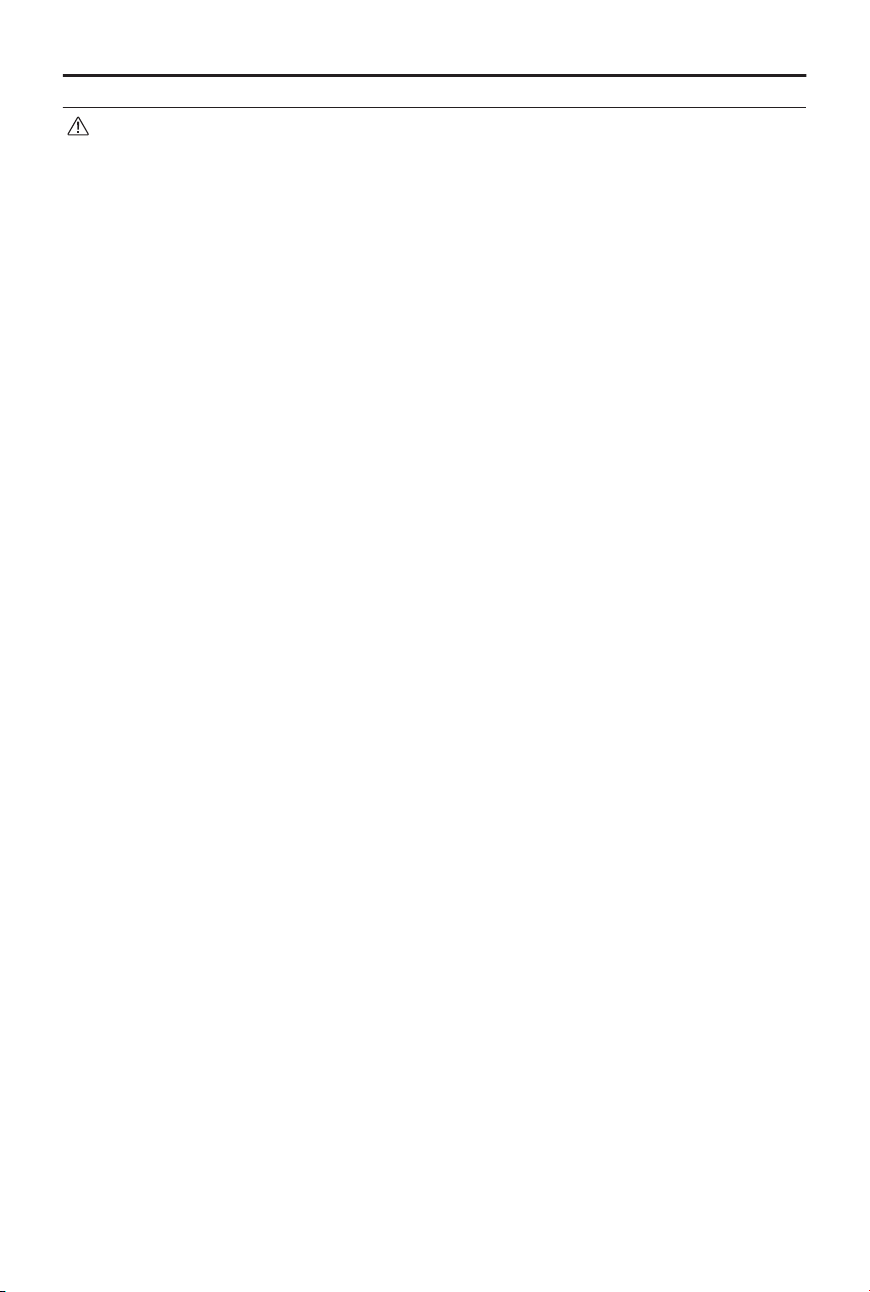
4.4 Vision System and Infrared Sensing System
DJI Neo is equipped with both an infrared sensing system and a downward vision system.
1
2
1. Infrared Sensing System
2. Downward Vision System
The eective operating environments for the vision system and infrared sensing system
are as follows:
• Surfaces under the sensors are diuse reective surfaces with discernible patterns,
diuse reectivity > 20% (such as concrete pavement).
• The lighting conditions are adequate (>15 lux but no more than 10,000 lux, normal
indoor lighting conditions).
DJI Neo User Manual
© 2024 DJI All Rights Reserved. 33
• Pay attention to the ight environment. The vision system and infrared sensing
system only work in certain scenarios and cannot replace human control and
judgment. During ight, always pay attention to the surrounding environment
and to the warning prompts in DJI Fly or the goggles, and be responsible for and
maintain control of DJI Neo at all times.
• The best positioning altitude range of the vision system is 0.5 to 10 m when
using the vision system in an open environment with at surfaces and clear
textures. The vision positioning performance may decrease when ying beyond
this range. Fly with caution.
• The downward vision system may not work properly when ying near water.
Therefore, DJI Neo may not be able to actively avoid water below it when
landing. It is recommended to maintain ight control at all times, make
reasonable judgments based on the surrounding environment, and avoid over-
relying on the downward vision system.
• The downward vision system and infrared sensing system may not function
properly when DJI Neo is ying too fast or at an altitude that is too low.
• The vision system cannot work properly near surfaces without clear pattern
variations or where the light is too bright or too dark. The vision system cannot
work properly in the following situations:
◆
Flying near monochrome surfaces (e.g., pure black, white, red, or green
surfaces).
◆
Flying over highly reective surfaces (e.g., ice, glass, monochrome ceramic
tiles).
◆
Flying near water or transparent surfaces.
◆
Flying near moving surfaces or objects.
◆
Flying in an area with frequent and drastic lighting changes.
◆
Flying near extremely dark (<15 lux) or bright (>10,000 lux) surfaces.
◆
Flying near surfaces that strongly reect or absorb infrared waves (e.g.,
mirrors).
◆
Flying near surfaces without clear patterns or textures.
◆
Flying near surfaces with repeating identical patterns or textures (e.g., tiles
with the same design).
◆
Flying near obstacles with small surface areas (e.g., tree branches and power
lines).
• Keep the sensors clean at all times. DO NOT scratch or tamper with the sensors.
DO NOT use the device in dusty or humid environments.
• DO NOT y when it is rainy, smoggy, or the visibility is lower than 100 m.
DJI Neo User Manual
34 © 2024 DJI All Rights Reserved.
• DO NOT obstruct the infrared sensing system and vision system.
• Check the following each time before takeo:
◆
Make sure there are no stickers or any other obstructions over the glass of
the infrared sensing system or vision system.
◆
Use a soft cloth if there is any dirt, dust, or water on the glass of the vision
system and infrared sensing system. DO NOT use any cleaning product that
contains alcohol.
◆
Contact DJI Support if there is any damage to the lenses of the infrared
sensing and vision system.
4.5 Propellers and Propeller Guards
DJI Neo comes with detachable propeller guards, which reduce damage to the propellers
caused by collisions. It is required to remove the propeller guards on top of DJI Neo
before removing or installing the propellers.
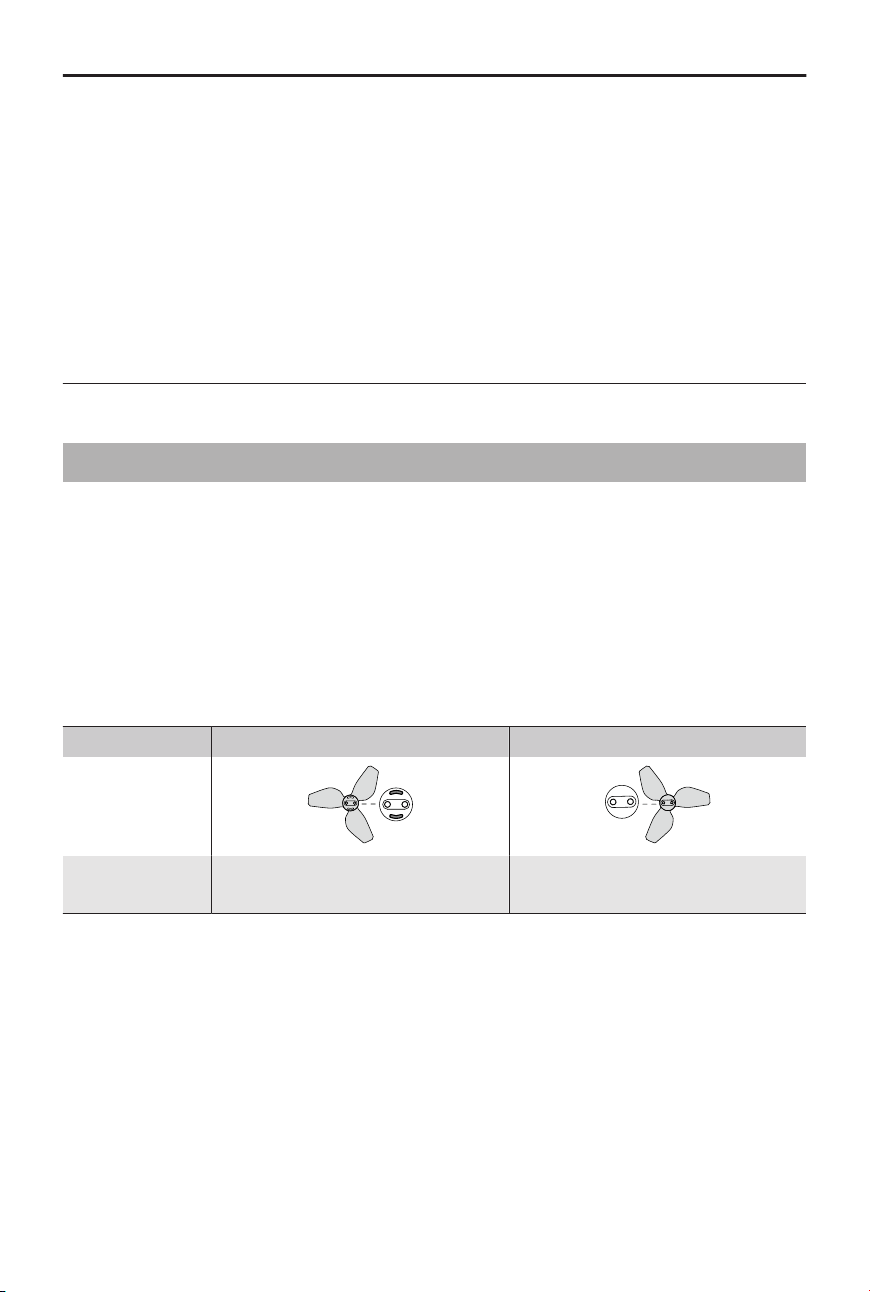
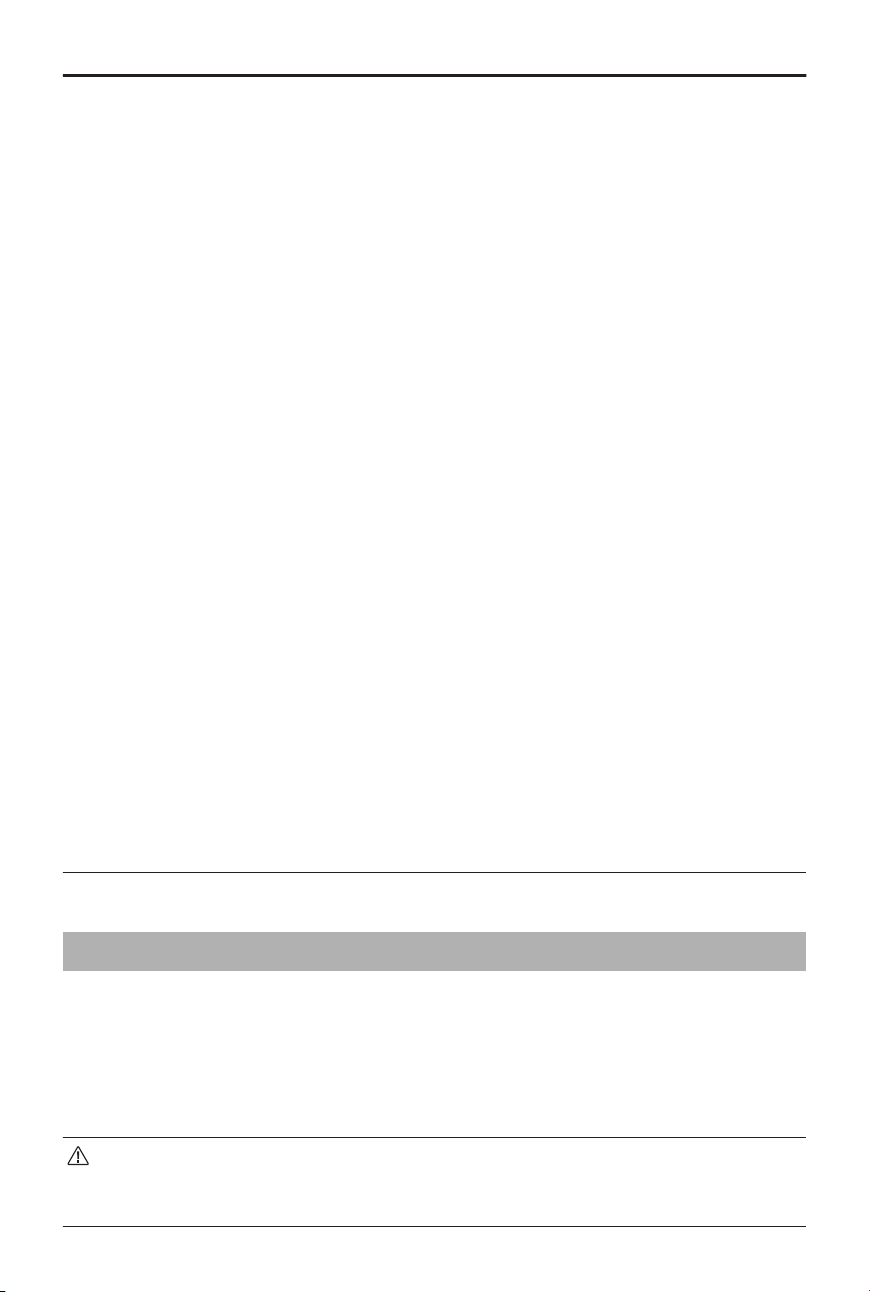
There are spare propellers in the box of DJI Neo. The packaging of the two propeller
types are labelled with A and B respectively, together with the mounting position using
illustrations. There are marks on the center of propeller A, while propeller B does
not have any mark. Make sure to match the propellers and motors by following the
instructions.
Propellers Marked Unmarked
Illustration
Mounting Posi-
tion
Attach to the motors of the
marked arm
Attach to the motors of the un-
marked arm
Removing and Installing
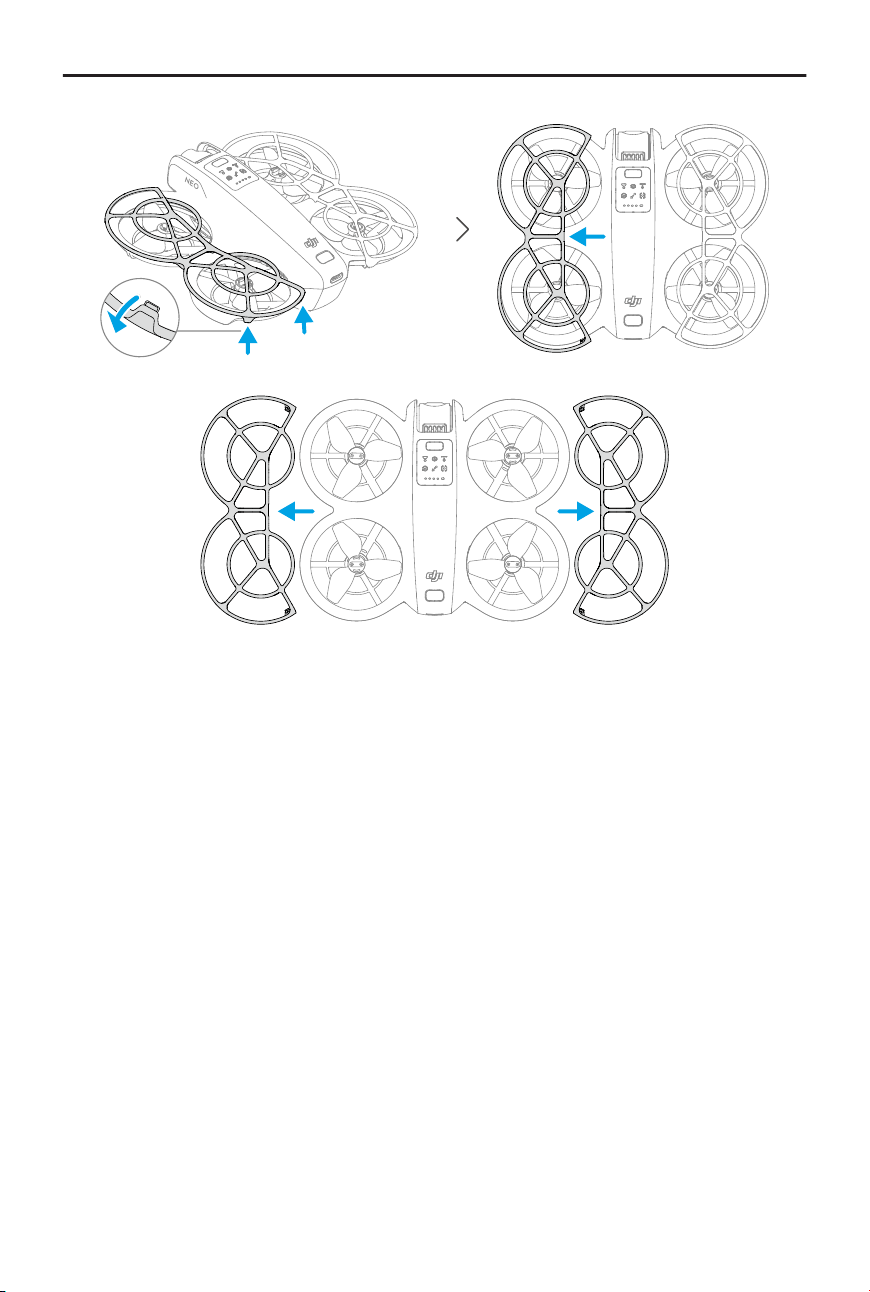
Propeller Guards
Make sure that DJI Neo is powered o. Remove the propeller guards by following the
steps below.
1. Release the hooks on the propeller guards.
2. Push the propeller guard from the center.
3. Remove the other propeller guard in the same way.
DJI Neo User Manual
© 2024 DJI All Rights Reserved. 35
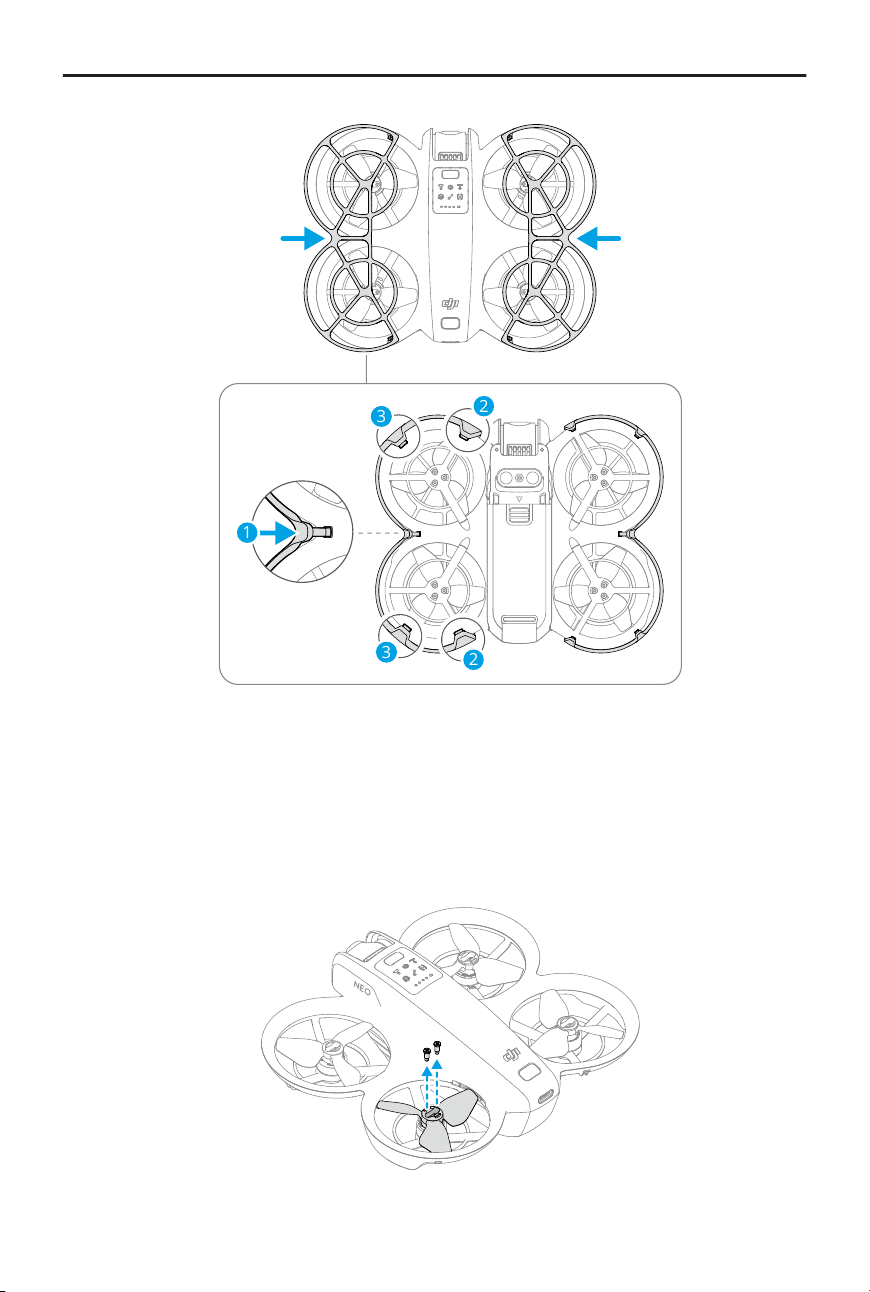
Install the propeller guards by following the steps below.
1. Push the propeller guard toward the body of DJI Neo until the middle hook snaps into
position. Secure the other four hooks by pressing them from above into the holes of
DJI Neo.
DJI Neo User Manual
36 © 2024 DJI All Rights Reserved.
2
2
3
3
1
2. Install the other propeller guard in the same way.
Propellers
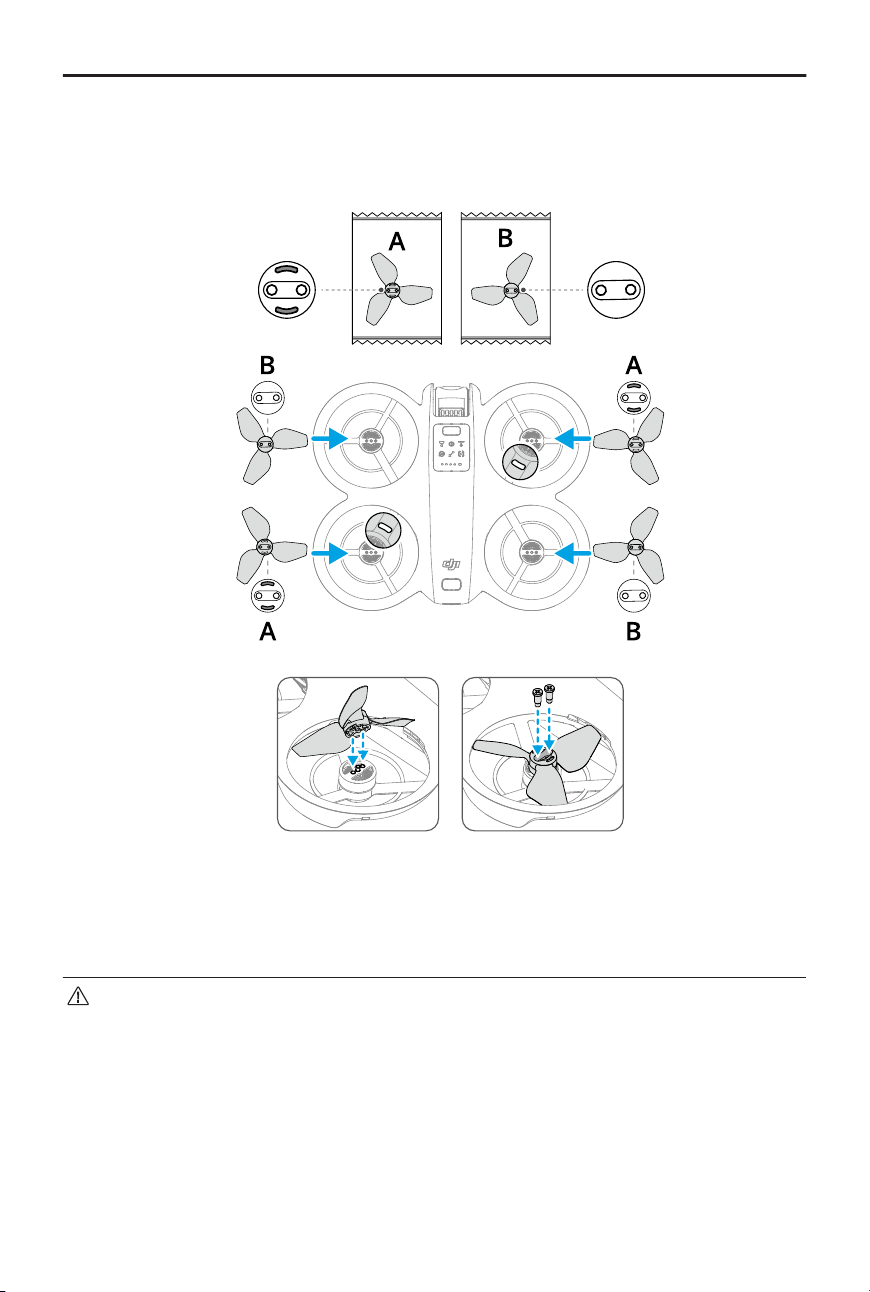
Use the screwdriver in the box of DJI Neo to install and remove the propellers. It is
required to remove the propeller guards before installing and removing the propellers.
1. Use the screwdriver to remove the propellers from the motors.
DJI Neo User Manual
© 2024 DJI All Rights Reserved. 37
2. Install the marked propellers onto the motors of the marked arms and the unmarked
propellers onto the motors of the unmarked arms. Use the screws provided in the
packaging to secure the propellers. Make sure to tighten the screws.
3. Reinstall the propeller guards after installing the propellers.
Notice
• DO NOT install or remove the propeller guard by force to avoid damage.
• Make sure to only use the screwdriver in the box of DJI Neo for installing and
removing propellers. Using other screwdrivers may damage the screws.
• DO NOT use the screwdriver to disassemble DJI Neo.
• Make sure to keep the screws vertical while tightening them. The screws
should not be at a tilted angle to the installation surface. After installation,
check whether the screws are ush and rotate the propellers to check for any
abnormal resistance.
DJI Neo User Manual
38 © 2024 DJI All Rights Reserved.
• The propeller blades are sharp. Handle with care to avoid personal injury or
propeller deformation.
• Make sure that the propellers and motors are installed securely before each
ight. Make sure the screws on the propellers are tightened after every 15 hours
of ying time (approx. 60 ights).
• If a propeller is broken, remove the propeller and screws on the corresponding
motor and discard them.
• Only use ocial DJI propellers. DO NOT mix propeller types.
• Propellers are consumable components. Purchase additional propellers if
necessary.
• Make sure that all propellers are in good condition and clean (without any
foreign matter in or on them) before each ight. DO NOT use aged, chipped,
or broken propellers. Clean the propellers with a soft, dry cloth if there is any
foreign matter attached.
• To avoid injury, stay away from rotating propellers or motors.
• To avoid damaging the propellers, pack the DJI Neo correctly for transportation
or storage. DO NOT squeeze or bend the propellers. If the propellers are
damaged, the ight performance may be aected.
• Make sure the motors are mounted securely and rotating smoothly. Land DJI
Neo immediately if a motor is stuck and unable to rotate freely.
• DO NOT attempt to modify the structure of the motors.
• DO NOT touch or let hands or body parts come in contact with the motors after
ight, as they may be hot.
• DO NOT block any of the ventilation holes on the motors or the body of DJI Neo.
• Make sure the ESCs sound normal when DJI Neo is powered on.
4.6 Intelligent Flight Battery
DJI Neo uses the DJI Neo Intelligent Flight Battery, model BWX521-1435-7.3.
*
* The battery chemical system is LiNiMnCoO2.
Notice
• Read and strictly follow the instructions in this manual, in the Safety Guidelines
and on the battery stickers before using the battery. You shall take full
responsibility for all operations and usage.
DJI Neo User Manual
© 2024 DJI All Rights Reserved. 39

1. DO NOT charge an Intelligent Flight Battery immediately after ight as it may be too
hot. Wait for the battery to cool down to the allowable charging temperature before
charging again.
2. To prevent damage, the battery only charges when the battery temperature is
between 5° and 40°C (41° and 104°F). The ideal charging temperature is from 22° to
28°C (71.6° to 82.4°F). Charging at the ideal temperature range can prolong battery
life. Charging stops automatically if the temperature of the battery cells exceed 55°C
(131°F) during charging.
3. Low-Temperature Notice:
• Batteries cannot be used in extremely low-temperature environments of lower
than -10°C (14°F).
• Battery capacity is signicantly reduced when ying at low temperatures from -10°
to 5°C (14° to 41°F). Make sure to fully charge the battery before takeo. Hover
DJI Neo in place for a while to warm up the battery after takeo.
• It is recommended to warm up the battery to at least 10°C (50°F) before takeo
when ying in low-temperature environments. The ideal temperature to warm up
the battery is above 20°C (68°F).
• The reduced battery capacity in low-temperature environments reduces the wind
speed resistance performance of DJI Neo. Fly with caution.
• Take extra caution when ying at a high elevation with a low temperature.
4. A fully charged battery will automatically discharge when it is idle for a period of time.
Note that it is normal for the battery to emit heat during the discharging process.
5. Fully charge the battery at least once every three months to maintain battery health. If
the battery is not used for an extended period, battery performance may be aected
or may even cause permanent battery damage. If a battery has not been charged or
discharged for three months or more, the battery will no longer be covered by the
warranty.
6. For safety purposes, keep the batteries at a low power level in transit. Before
transportation, it is recommended to discharge the batteries to 30% or lower.
Inserting and Removing the Battery
Insert the Intelligent Flight Battery as shown below. Make sure to fully insert the battery
until you hear a "click", which indicates the battery latch is securely fastened.
DJI Neo User Manual
40 © 2024 DJI All Rights Reserved.
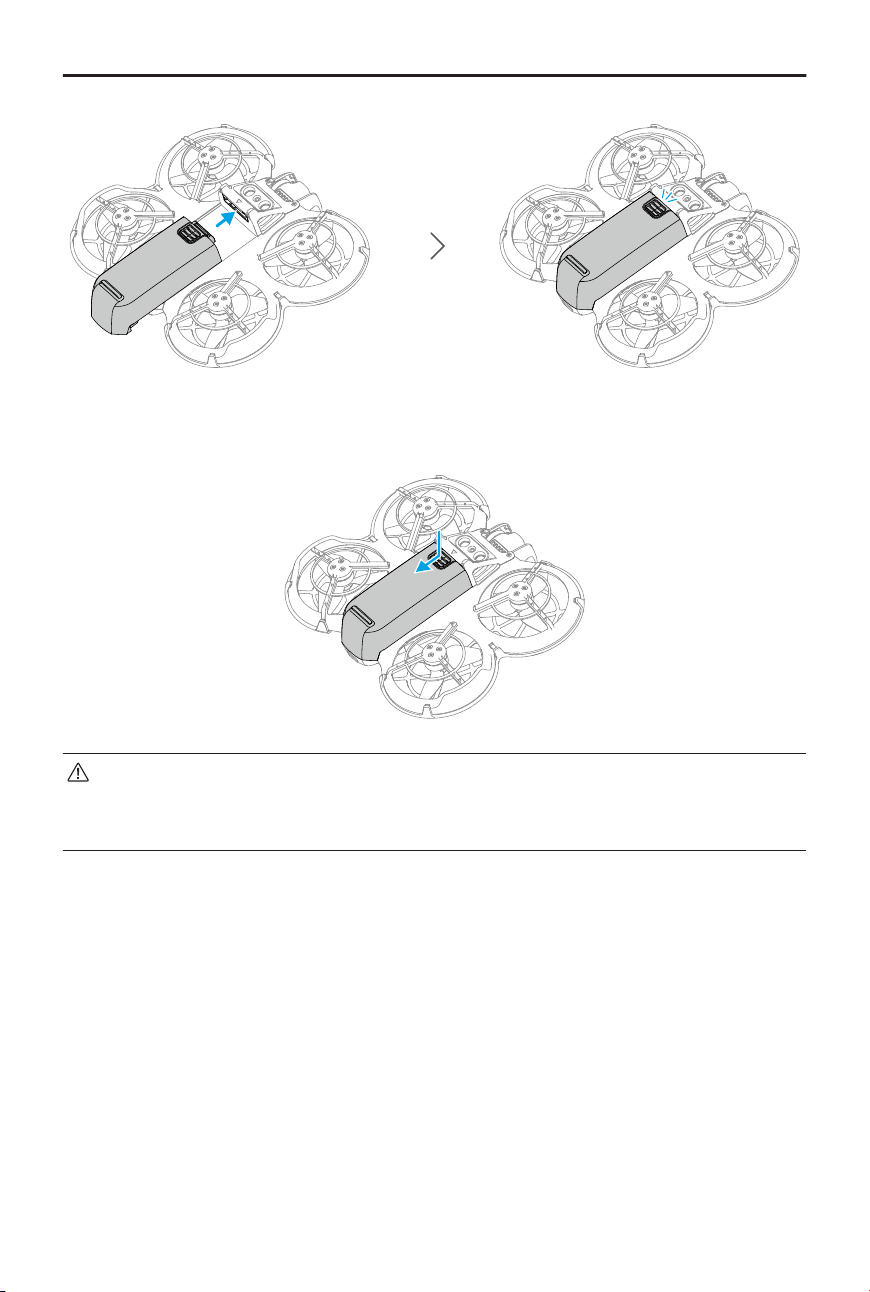
Press the textured part of the battery latch and push the battery to the rear of DJI Neo to
remove it.
• DO NOT insert or remove the battery while the device is powered on.
• Make sure the battery is inserted with a "click". Otherwise, it may cause poor
contact between the battery and DJI Neo after takeo and present hazards.
Using the Battery
Checking the Battery Level
Press the power button once to check the current battery level.
DJI Neo User Manual
© 2024 DJI All Rights Reserved. 41
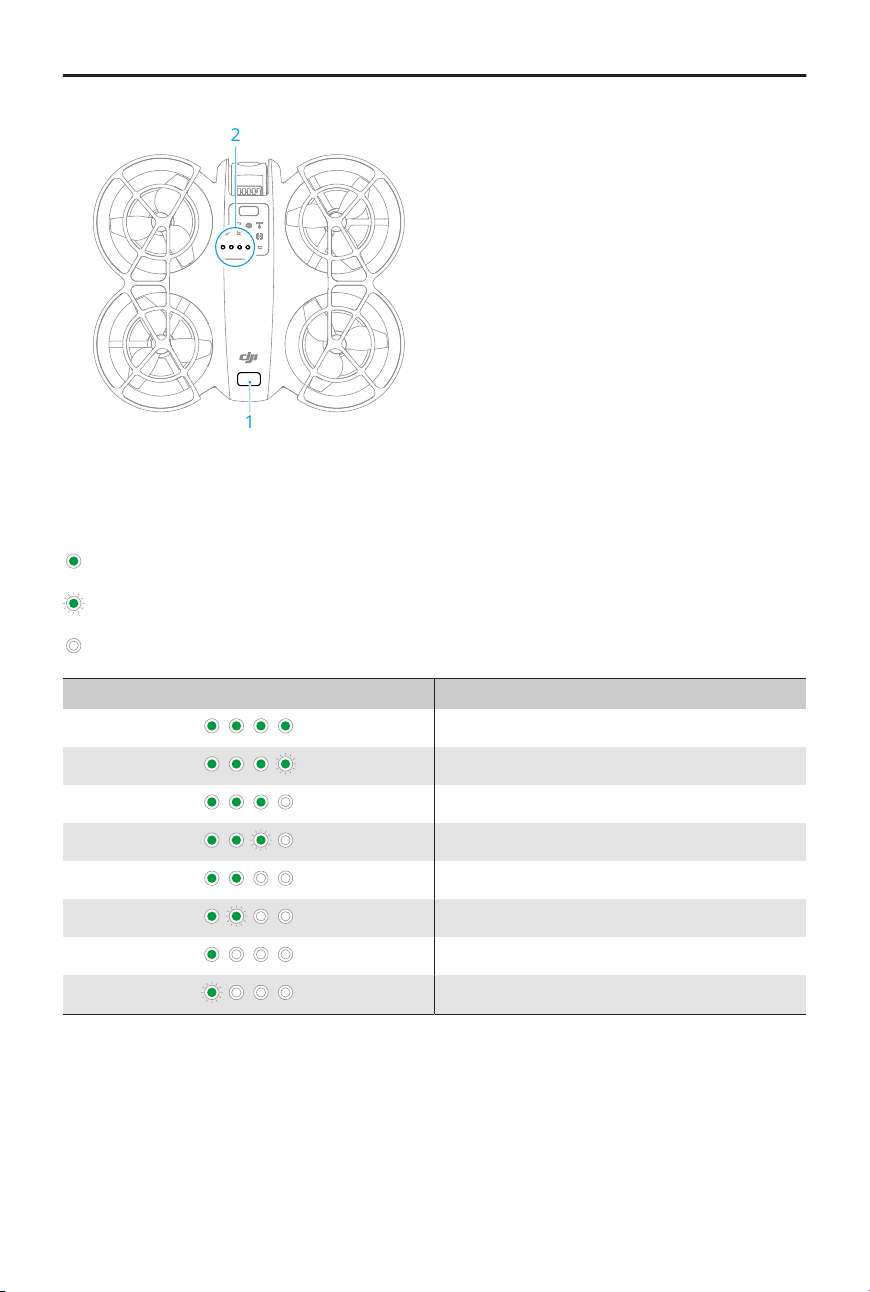
1
2
1. Power Button
2. Battery Level LEDs
The battery level LEDs display the power level of the battery during discharging. The
statuses of the LEDs are dened below:
LED is on
LEDs is ashing
LED is o
Blinking Pattern Battery Level
88-100%
76-87%
63-75%
51-62%
38-50%
26-37%
13-25%
0-12%
Powering On/O
Press, then press and hold the power button on DJI Neo to power it on or o. The battery
level LEDs display the battery level when is powered on. The battery level LEDs turn o
when DJI Neo is powered o.
DJI Neo User Manual
42 © 2024 DJI All Rights Reserved.
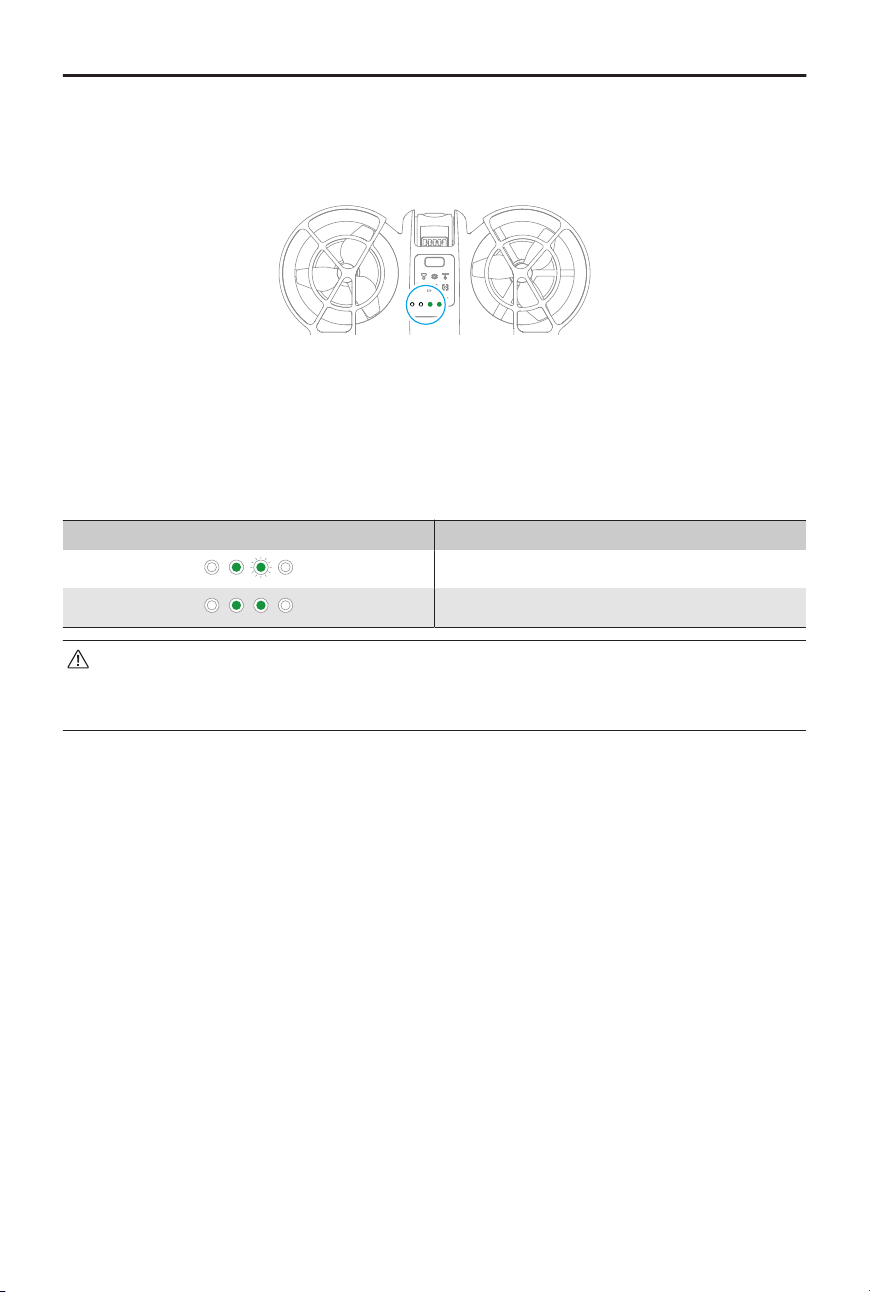
If the two LEDs shown in the picture below blink simultaneously, it indicates the battery
is malfunctioning. Remove the battery from the device, insert the battery again and make
sure that it is securely mounted.
Updating the Firmware
If an additional battery needs to be updated, insert it into DJI Neo and power it on. A
prompt will appear in DJI Fly to update the battery rmware. Make sure to update the
battery rmware before takeo. The table below shows battery information during the
update process and corresponding LED blinking patterns.
Blinking Pattern Information
Updating battery rmware
Firmware update failed
If the update fails, reinsert the battery into DJI Neo and power on the device, and
retry the rmware update using DJI Assistant 2. Refer to the Firmware Update
section in the Appendix for more information.
Charging the Battery
Fully charge the battery before each use. It is recommended to use the charging devices
provided by DJI, such as the DJI Neo Two-Way Charging Hub, DJI 65W Portable Charger, or
other USB Power Delivery chargers. The DJI Neo Two-Way Charging Hub and the DJI 65W
Portable Charger are both optional accessories. Visit the ocial DJI online store for more
information.
DJI Neo User Manual
© 2024 DJI All Rights Reserved. 43
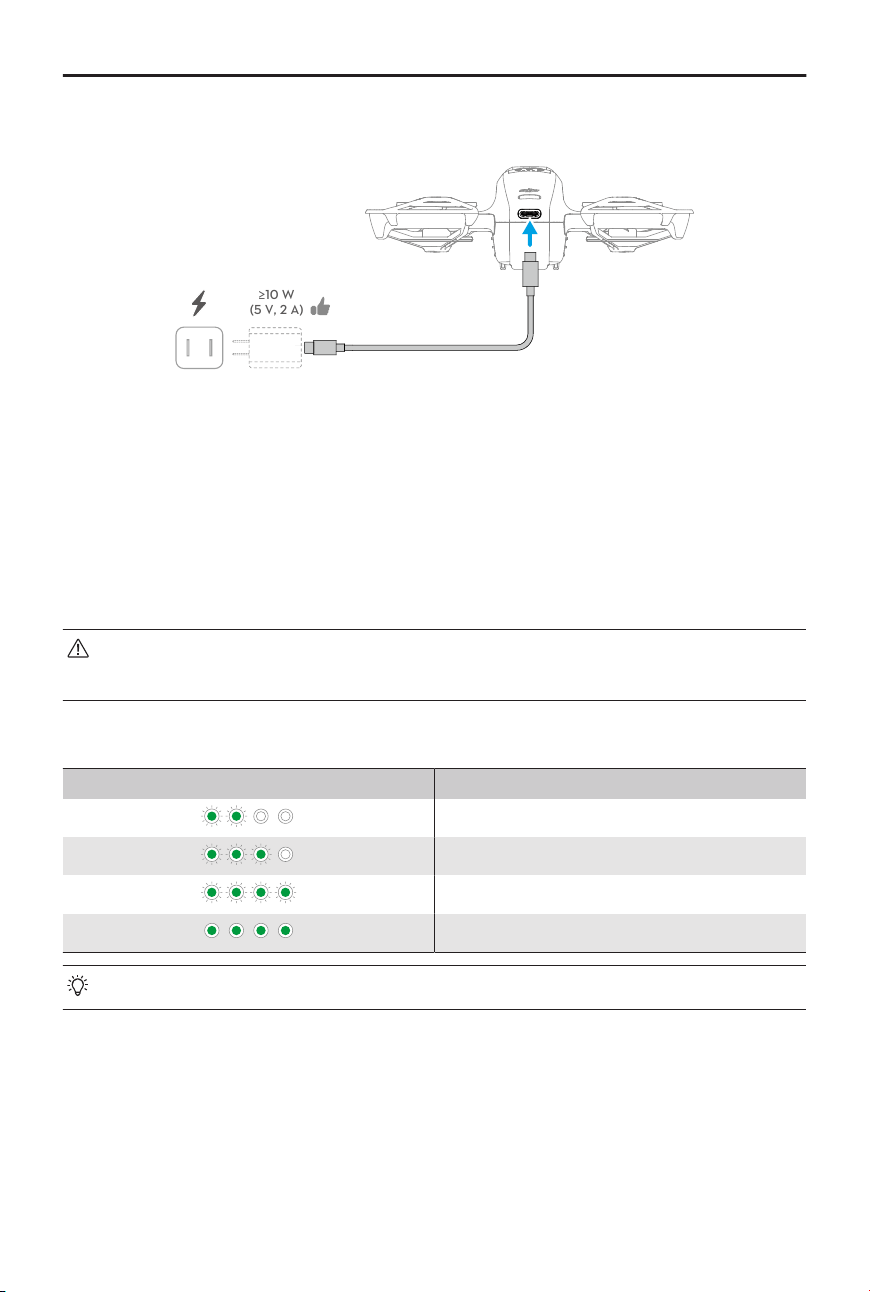
Using a Charger
≥10 W
(5 V, 2 A)
1. Make sure the battery has been securely installed in DJI Neo and is powered o.
2. Connect a charger to an AC power supply (100-240V, 50/60Hz; use a power adapter if
necessary).
3. Connect the charger to the charging port on DJI Neo using a USB-C cable.
4. The battery level LEDs display the current battery level during charging.
5. The battery is fully charged when all the battery level LEDs emit a solid light. Remove
the charger from DJI Neo when the battery is fully charged.
• The battery cannot be charged if the device is powered on.
• The maximum charging power supported for the USB-C port on DJI Neo is 15W.
The table below shows the battery level during charging.
Blinking Pattern Battery Level
0-50%
51-75%
76-99%
100%
• Four LEDs blinking simultaneously indicates the battery is damaged.
Using the Charging Hub
When used with a USB charger, the DJI Neo Two-Way Charging Hub can charge up to
three DJI Neo Intelligent Flight Batteries. When used with the DJI 65W Portable Charger,
the charging hub can fully charge three Intelligent Flight Batteries in approximately 60
minutes.
DJI Neo User Manual
44 © 2024 DJI All Rights Reserved.
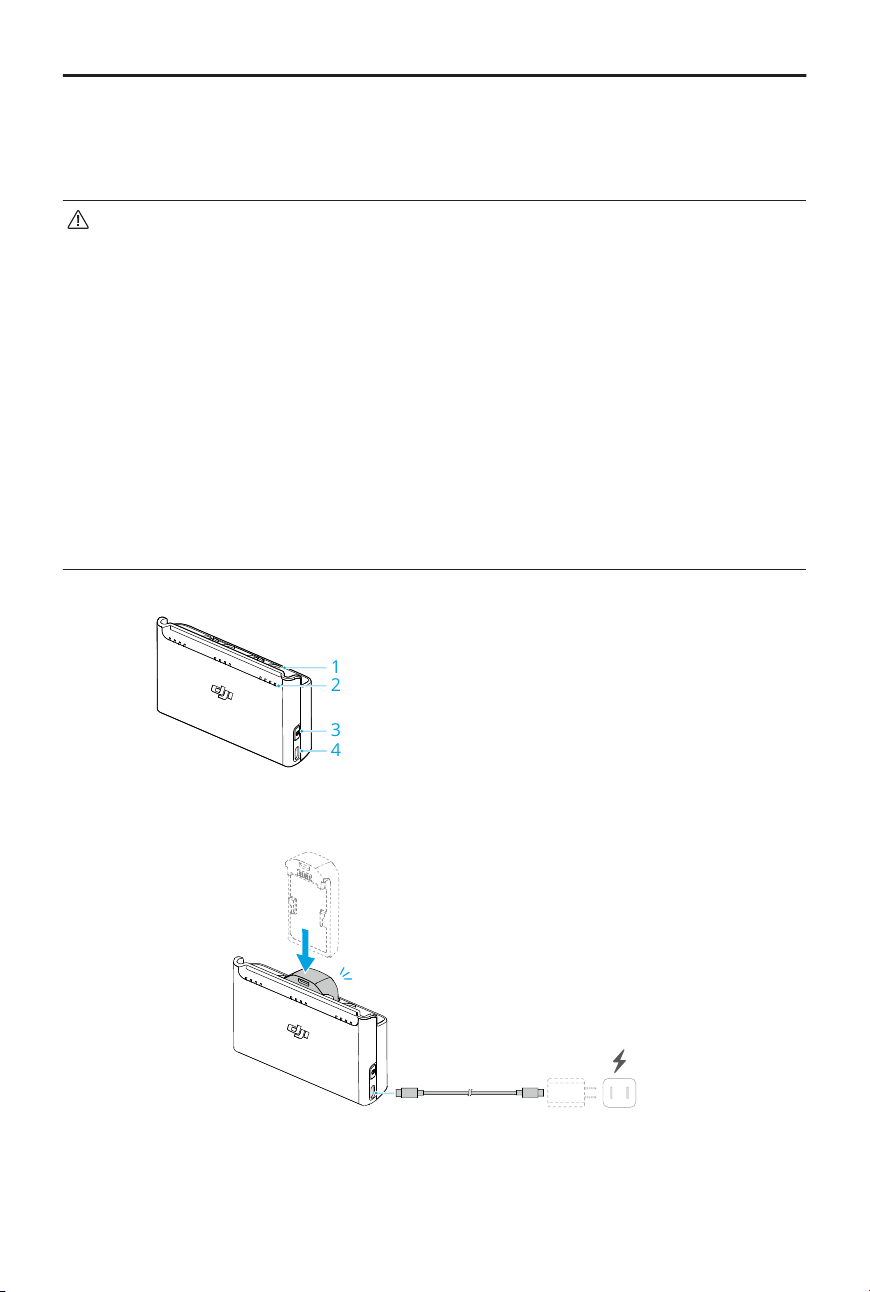
Insert the Intelligent Flight Batteries into the charging hub and connect an external device
to the USB port to charge the device, using the charging hub as a power bank. Refer to
the DJI Neo Two-Way Charging Hub User Guide for more details.
• It is recommended to use a DJI 65W Portable Charger or other USB Power
Delivery chargers to power the charging hub.
• The environmental temperature aects the charging speed. Charging is faster in
a well-ventilated environment at 25° C (77° F).
• The charging hub is only compatible with BWX521-1435-7.3 Intelligent Flight
Battery. DO NOT use the charging hub with other battery models.
• Place the charging hub on a at and stable surface when in use. Make sure the
device is properly insulated to prevent re hazards.
• DO NOT touch the metal terminals on the battery ports. Clean the metal
terminals with a clean, dry cloth if there is any noticeable buildup.
• Make sure to charge batteries with low battery power in time. It is
recommended to store the batteries in the charging hub.
1
3
4
2
1. Battery Ports
2. Status LEDs (LED 1 to LED 4, from right
to left in an array)
3. Function Button
4. USB-C Port
How to Charge
1. Insert the batteries into the battery ports of the charging hub until they click into
place.
DJI Neo User Manual
© 2024 DJI All Rights Reserved. 45
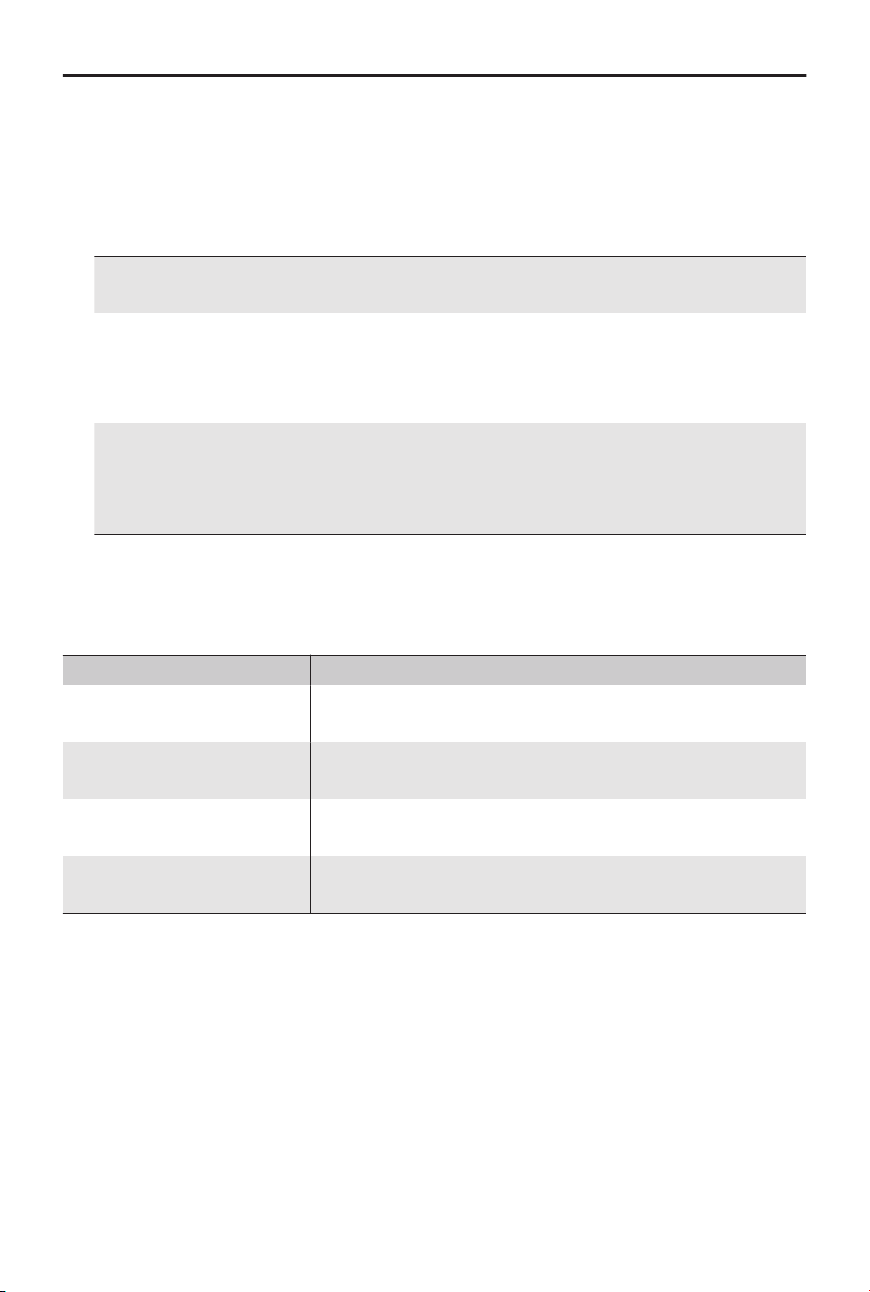
2. Connect the charging hub to a power outlet (100-240V, 50/60Hz) using a USB
charger. The status LEDs indicate the battery status during charging. Refer to the
Status LEDs Descriptions for more information about the blinking patterns.
The charging method varies depending on the power of the charger. Refer to the
table below for details.
10 W ≤ Charger Power
<30W
Charges in sequence from highest to lowest battery lev-
el.
30 W ≤ Charger Power
<45W
Charges two batteries simultaneously: First charges the
battery with a lower battery level to the same level as
the highest one and then charges the two batteries
simultaneously.
Charger Power ≥45W Charges three batteries simultaneously: First charges
the two batteries with a lower battery level to the same
level as the highest one and then charges the batteries
simultaneously.
3. The batteries can be stored in the charging hub after charging.
Status LEDs Descriptions
Charging Status
Blinking Pattern Descriptions
Status LEDs in an array
blink quickly successively
The corresponding battery is being charged using a USB
PD charger.
Status LEDs in an array
blink slowly successively
The corresponding battery is being charged using a nor-
mal charger.
Status LEDs in an array are
solid
The corresponding battery is fully charged.
All status LEDs blink in se-
quence
No battery is inserted.
Battery Level
Each battery port has its corresponding status LED array, from LED1 to LED4 (right to
left). Check the battery levels by pressing the function button once. The battery level
LED statuses are the same as those on DJI Neo. For details, refer to the statuses and
descriptions for battery level LEDs on DJI Neo in the
Using the Battery section.
Abnormal Status
The LED status for battery abnormality is the same as that on DJI Neo. Refer to the
Battery Protection Mechanisms section for details.
DJI Neo User Manual
46 © 2024 DJI All Rights Reserved.
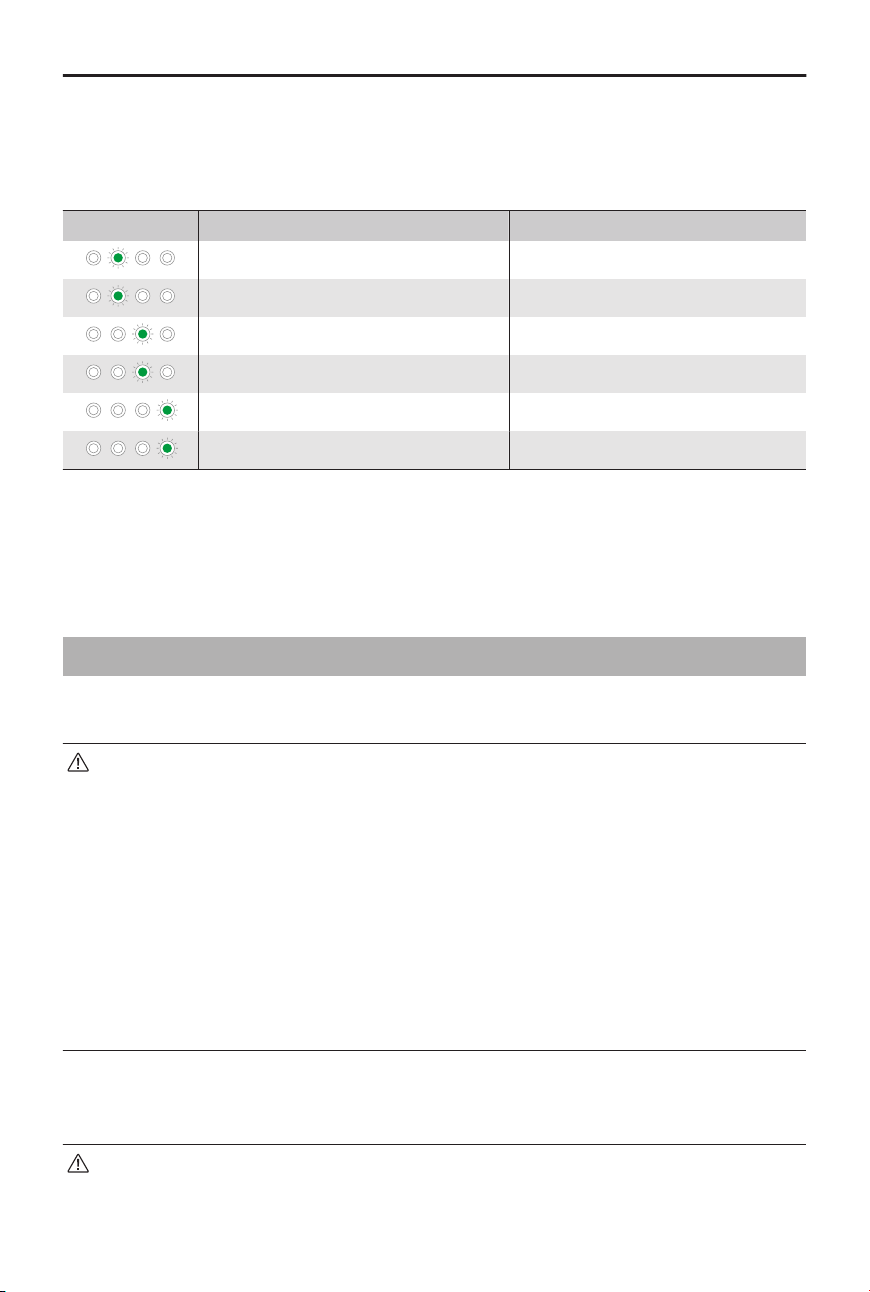
Battery Protection Mechanisms
The battery level LEDs can display battery protection notications triggered by abnormal
charging conditions.
LEDs Blinking Pattern Status
LED2 blinks twice per second Overcurrent detected
LED2 blinks three times per second Short circuit detected
LED3 blinks twice per second Overcharge detected
LED3 blinks three times per second Over-voltage charger detected
LED4 blinks twice per second Charging temperature is too low
LED4 blinks three times per second Charging temperature is too high
If any of the battery protection mechanisms are activated, unplug the charger, and plug it
in again to resume charging. If the charging temperature is abnormal, wait for it to return
to normal. The battery will automatically resume charging without the need to unplug
and plug in the charger again.
4.7 Gimbal and Camera
Camera Notice
• DO NOT expose the camera lens to an environment with laser beams, such as a
laser show, or point the camera at intense light sources for an extended period,
such as the sun on a clear day, in order to avoid damaging the sensor.
• Make sure the temperature and humidity are suitable for the camera during use
and storage.
• Use a lens cleaner to clean the lens to avoid damage or poor image quality.
• DO NOT block any ventilation holes on the camera as the heat generated may
damage the device or cause injury.
• When using goggles with an 4:3 aspect ratio, footage recorded by DJI Neo is not
stabilized, but supports oine stabilization with Gyroow.
Gimbal Notice
• Remove the gimbal protector before powering on the device. Attach the gimbal
protector when the device is not in use.
DJI Neo User Manual
© 2024 DJI All Rights Reserved. 47
• Make sure there are no stickers or objects on the gimbal before taking o. Take
o from a at surface to protect the gimbal and make sure there are no other
objects interfering the gimbal. DO NOT tap or knock the gimbal after the device
is powered on.
• Precision components in the gimbal may be damaged by a collision or impact,
which may cause the gimbal to function abnormally. Make sure to protect the
gimbal from damage.
• Avoid getting dust or sand on the gimbal, especially in the gimbal motors.
• A gimbal motor may enter protection mode if the gimbal is obstructed by other
objects when DJI Neo is put on uneven ground or on grass, or if the gimbal
experiences an excessive external force, such as during a collision. Wait for the
gimbal to recover or restart the device.
• DO NOT apply external force to the gimbal after the device is powered on.
• DO NOT add any extra payload other than an ocial accessory to the gimbal,
as this may cause the gimbal to function abnormally or even lead to permanent
motor damage.
• Flying in heavy fog or clouds may make the gimbal wet, leading to temporary
failure. The gimbal will recover full functionality once it is dry.
• If there are strong winds, the gimbal may vibrate while recording.
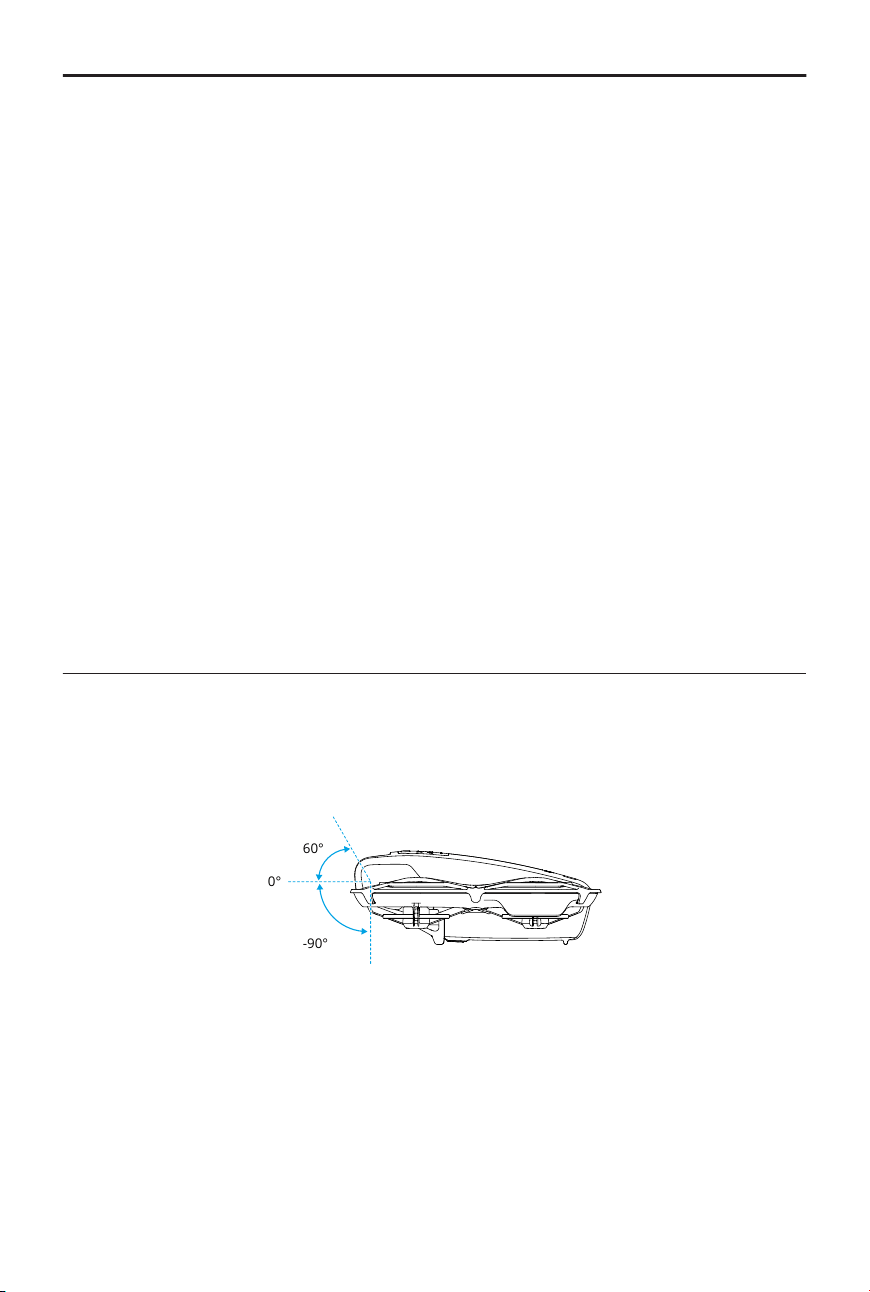
Gimbal Angle
The gimbal has a control tilt range of -90° to +60°.
-90°
0°
60°
Gimbal Operation Modes
The gimbal mode will automatically switch according to the ight mode.
Normal/Sport/Cine mode: The gimbal is in attitude stabilization mode. The tilt angle of
the gimbal remains stable relative to the horizontal plane, which is suitable for shooting
stable images.
DJI Neo User Manual
48 © 2024 DJI All Rights Reserved.
Manual mode: The gimbal is in lock mode. The tilt angle of the gimbal remains stable
relative to the body of DJI Neo.
4.8 Exporting Photos and Videos
Use QuickTransfer to export the footage to a mobile device. Refer to the follow-up section
for more information.
4.9 QuickTransfer
In Mobile App Control, after the smartphone is connected to DJI Neo, enter QuickTransfer
mode by going to the Album view.
When DJI Neo is not connected to the smartphone, you can tap the QuickTransfer or Wi-Fi
Devices card on the home screen in DJI Fly to enter QuickTransfer mode. You can also
go to Album in DJI Fly on your smartphone, and tap
in the upper right corner to enter
QuickTransfer mode.
When connecting the smartphone to DJI Neo for the rst time, press and hold the power
button of DJI Neo to conrm.
• The maximum download rate can only be achieved in countries and regions
where the 5.8 GHz frequency is permitted by laws and regulations, when using
devices that support 5.8 GHz frequency band and Wi-Fi connection, and in an
environment without interference or obstruction. If 5.8 GHz is not allowed by
local regulations (such as in Japan), or your mobile device does not support
the 5.8 GHz frequency band, or the environment has severe interference, then
QuickTransfer will use the 2.4 GHz frequency band and its maximum download
rate will reduce to 6 MB/s.
• When using QuickTransfer, it is not necessary to enter the Wi-Fi password on
the settings page of the mobile device in order to connect. Launch DJI Fly and a
prompt will appear to connect the device.
• Use QuickTransfer in an unobstructed environment with no interference and
stay away from sources of interference such as wireless routers, Bluetooth
speakers, or headphones.
• When viewing the album in QuickTransfer mode, ECO mode will be enabled
automatically if the temperature of DJI Neo raises above a certain value. Pay
attention to the prompt in the app.
DJI Neo User Manual
© 2024 DJI All Rights Reserved. 49

Appendix
50 © 2024 DJI All Rights Reserved.
5 Appendix
5.1 Specications
Visit the following website for specications.
https://www.dji.com/neo/specs
5.2 Compatibility
Visit the following website to get the information on compatible products.
https://www.dji.com/neo/faq
5.3 Firmware Update
Use DJI Fly or DJI Assistant 2 to update the device.
Using DJI Fly
When using Mobile App Control, update the rmware according to the prompt on the
home screen in DJI Fly. An internet connection is required during the rmware update.
Using DJI Assistant 2
Use DJI Assistant 2 to update all your devices separately.
1. Power on the device. Connect the device to a computer with a USB-C cable.
2. Launch DJI Assistant 2 and log in with your DJI account.
3. Select the device and click Firmware Update on the left side of the screen.
4. Select the rmware version.
5. Wait for the rmware to download. The rmware update will start automatically. Wait
for the rmware update to complete.
• The battery rmware is included in DJI Neo rmware. Be sure to update all
batteries.
• Make sure to follow all the steps to update the rmware, otherwise the update
may fail.
• Make sure the computer is connected to the internet during the update.
• DO NOT unplug the USB-C cable during an update.
• Before performing an update, make sure that the device is at least 20% charged.
DJI Neo User Manual
© 2024 DJI All Rights Reserved. 51
• The rmware update will take approximately 10 minutes. During the update
process, it is normal for the gimbal to go limp, the status indicator to blink, and
DJI Neo to reboot. Wait patiently for the update to complete.
Visit the following link and refer to the Release Notes for rmware update information:
https://www.dji.com/neo/downloads
5.4 Flight Recorder
Flight data including ight telemetry, device status information, and other parameters are
automatically saved to the internal data recorder of DJI Neo. The data can be accessed
using DJI Assistant 2.
5.5 Aftersales Information
Visit
https://www.dji.com/support to learn more about aftersales service policies, repair
services, and support.
DJI Neo User Manual
52 © 2024 DJI All Rights Reserved.
WE ARE HERE FOR YOU
Contact
DJI SUPPORT
This content is subject to change without notice.
Download the latest version from
https://www.dji.com/neo/downloads
If you have any questions about this document, please contact DJI by sending a message
DJI and DJI NEO are trademarks of DJI.
Copyright © 2024 DJI All Rights Reserved.