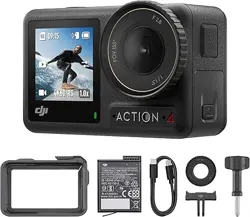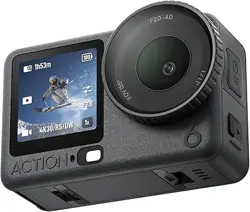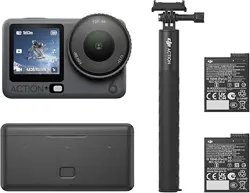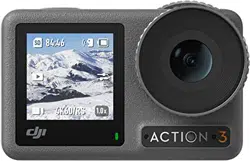
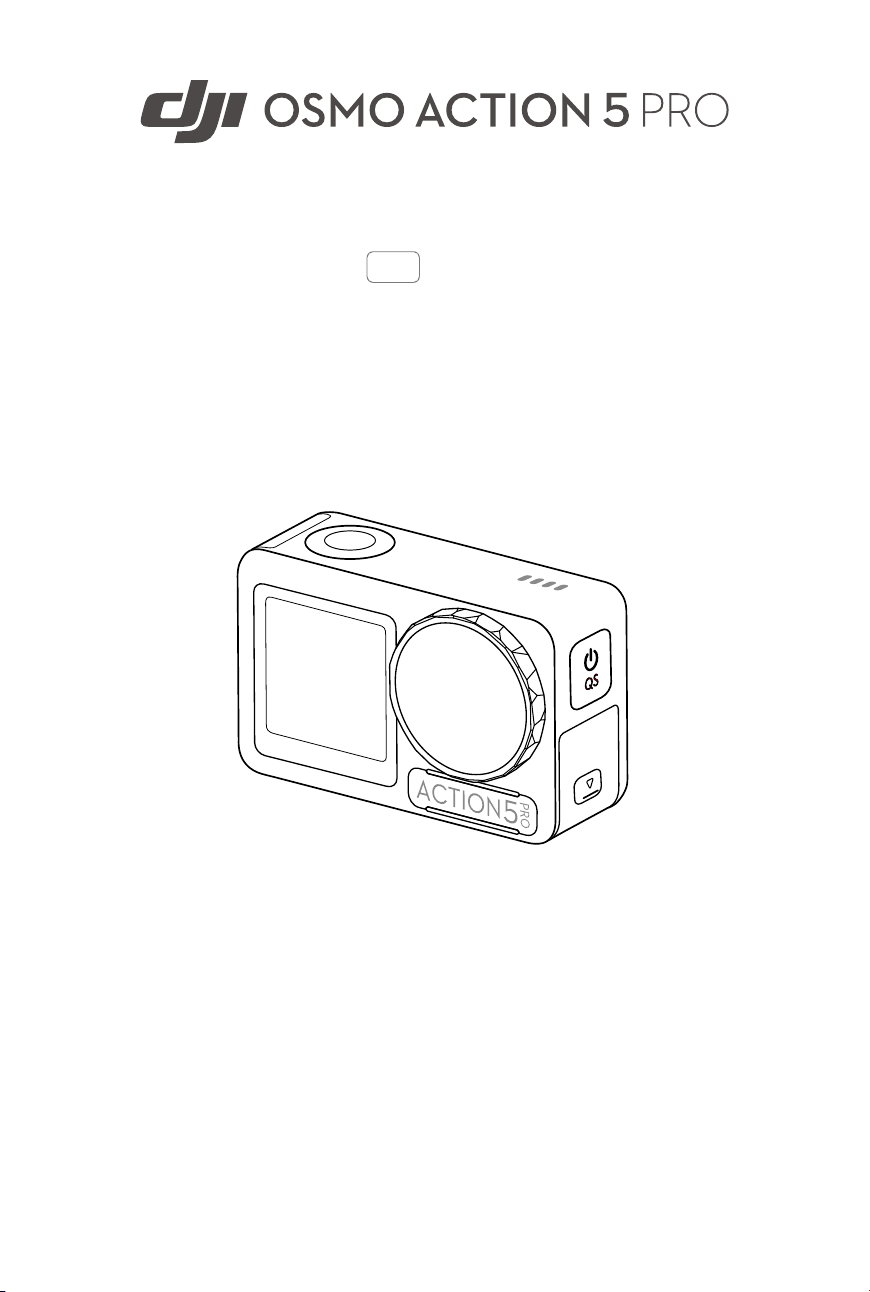
User Manual
v1.0 2024.09

This document is copyrighted by DJI with all rights reserved. Unless otherwise authorized
by DJI, you are not eligible to use or allow others to use the document or any part of the
document by reproducing, transferring, or selling the document. Users should only refer
to this document and the content thereof as instructions to operate DJI products. The
document should not be used for other purposes.
Searching for Keywords
Search for keywords such as Battery or Install to nd a topic. If you are using Adobe
Acrobat Reader to read this document, press Ctrl+F on Windows or Command+F on
Mac to begin a search.
Navigating to a Topic
View a complete list of topics in the table of contents. Click on a topic to navigate to
that section.
Printing this Document
This document supports high resolution printing.
2 © 2024 DJI All Rights Reserved.
Using this Manual
Legend
Important
Hints and Tips
Reference
Read Before Use
DJI
™
provides you with tutorial videos and the following documents:
1. Safety Guidelines
2. Quick Start Guide
3. User Manual
It is recommended to watch all the tutorial videos and read the Safety Guidelines before
using for the rst time. Prepare for your rst ight by reviewing the Quick Start Guide and
refer to this User Manual for more information.
Video Tutorials
Go to the address below or scan the QR code to watch the tutorial videos, which
demonstrate how to use the product safely:
https://www.dji.com/osmo-action-5-pro/video
Downloading the DJI Mimo App
Scan the QR code to download the DJI Mimo App.
Osmo Action 5 Pro User Manual
© 2024 DJI All Rights Reserved. 3

• To check the Android and iOS operating system versions supported by DJI Mimo
visit https://www.dji.com/downloads/djiapp/dji-mimo.
• The interface and functions of DJI Mimo may vary as the software version is
updated. Actual user experience is based on the software version used.
Osmo Action 5 Pro User Manual
4 © 2024 DJI All Rights Reserved.

Osmo Action 5 Pro User Manual
© 2024 DJI All Rights Reserved. 5
Contents
Using this Manual 3
Legend 3
Read Before Use 3
Video Tutorials 3
Downloading the DJI Mimo App 3
1 Product Prole 8
1.1 Overview 8
1.2 Accessories 8
Osmo Action Curved Adhesive Base Kit 9
Osmo Action Horizontal-Vertical Protective Frame 9
Osmo Action Multifunctional Battery Case 10
2 Using for the First Time 13
2.1 Attaching the Battery 13
2.2 Inserting the microSD Card 13
2.3 Powering on 14
2.4 Activation 14
2.5 Charging the Battery 15
3 Basic Operations 17
3.1 Button Features 17
3.2 Operating the Touchscreen 17
3.3 Storing Photos and Videos 18
4 Using the Product 20
4.1 Setting the Shooting Parameters 20
4.2 Setting the Image Parameters 21
4.3 Setting the System Functions 21
4.4 Voice Control 22
4.5 Timecode 22
4.6 Highlight 22
4.7 Super Slow-Motion 23
4.8 Transferring Files 23
4.9 Connecting a Microphone 24
4.10 Webcam Mode 25
4.11 Depth & Altitude 25
5 Maintenance 27
5.1 Updating Firmware 27

Osmo Action 5 Pro User Manual
6 © 2024 DJI All Rights Reserved.
5.2 Underwater Usage Notes 27
5.3 Cleaning Notes 28
5.4 Battery Usage Warnings 29
5.5 Using Other Accessories (Not Included) 30
Osmo 1.5m Extension Rod 30
Osmo Magnetic Ball-Joint Adapter Mount 31
Osmo Action 60m Waterproof Case 31
DJI Floating Handle 31
Osmo Action Suction Cup Mount 32
Osmo Action Helmet Chin Mount 32
Osmo Action Chest Strap Mount 32
Osmo Action Handlebar Mount 33
Osmo Action GPS Bluetooth Remote Controller 33
Osmo Action Multifunctional Charging Handle 34
Osmo Action Cold Shoe Expansion Kit 34
6 Specications 36

Product Prole
© 2024 DJI All Rights Reserved. 7
1 Product Prole
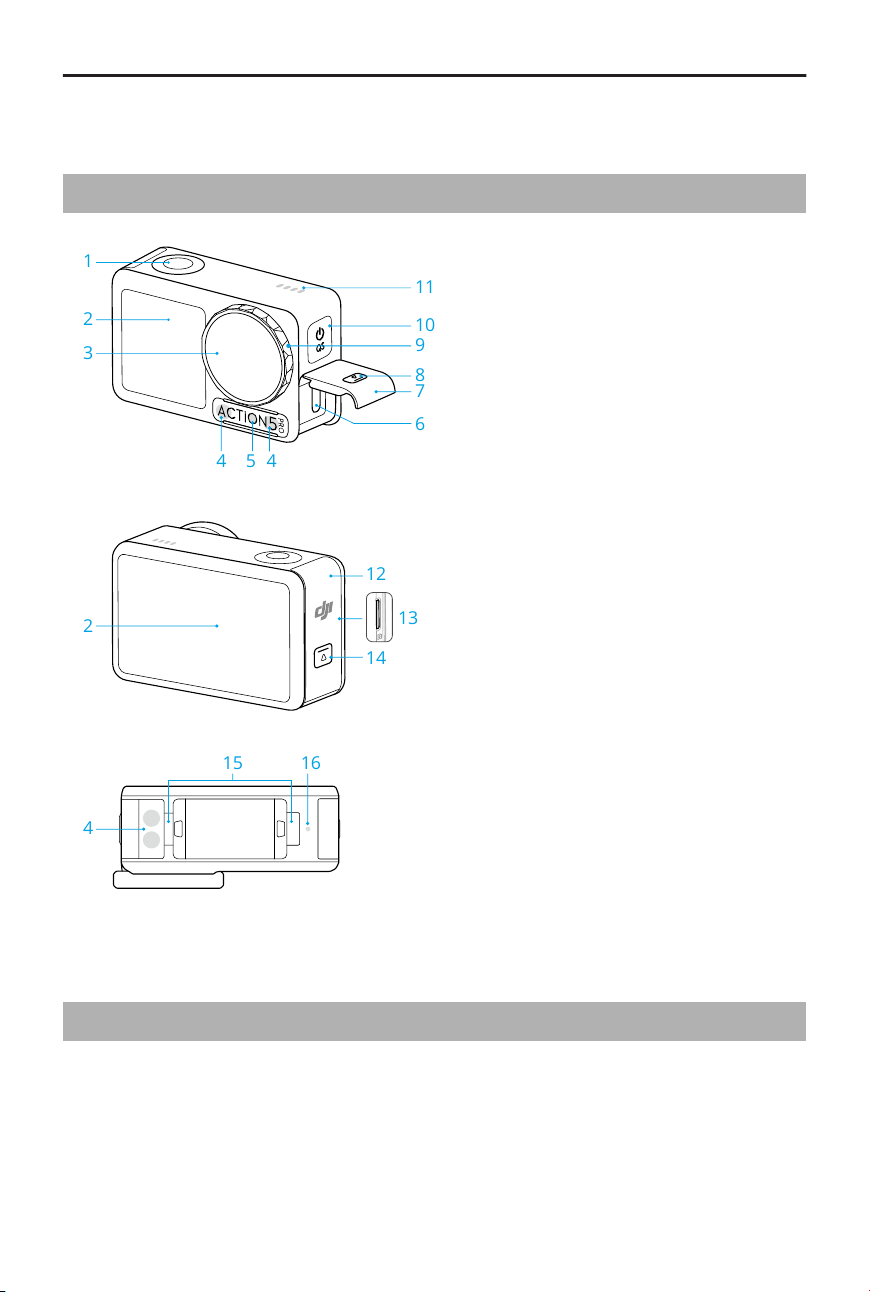
1.1 Overview
12
13
14
1
2
11
10
8
7
6
3
4 5 4
2
15 16
4
9
1. Shutter/Record Button
2. Touchscreen
3. Lens
4. Microphone
5. Color Temperature Sensor
6. USB-C Port
7. USB-C Port Cover
8. USB-C Port Cover Release Button
9. Lens Protective Cover
10. Quick Switch Button
11. Speaker
12. Battery Compartment Cover
13. microSD Card Slot
14. Battery Compartment Cover
Release Button
15. Quick-Release Slot
16. Pressure Sensor
1.2 Accessories
The product is compatible with various accessories to dynamically adjust the position to
shoot various sports scenes.
Osmo Action 5 Pro User Manual
8 © 2024 DJI All Rights Reserved.
Osmo Action Curved Adhesive Base Kit
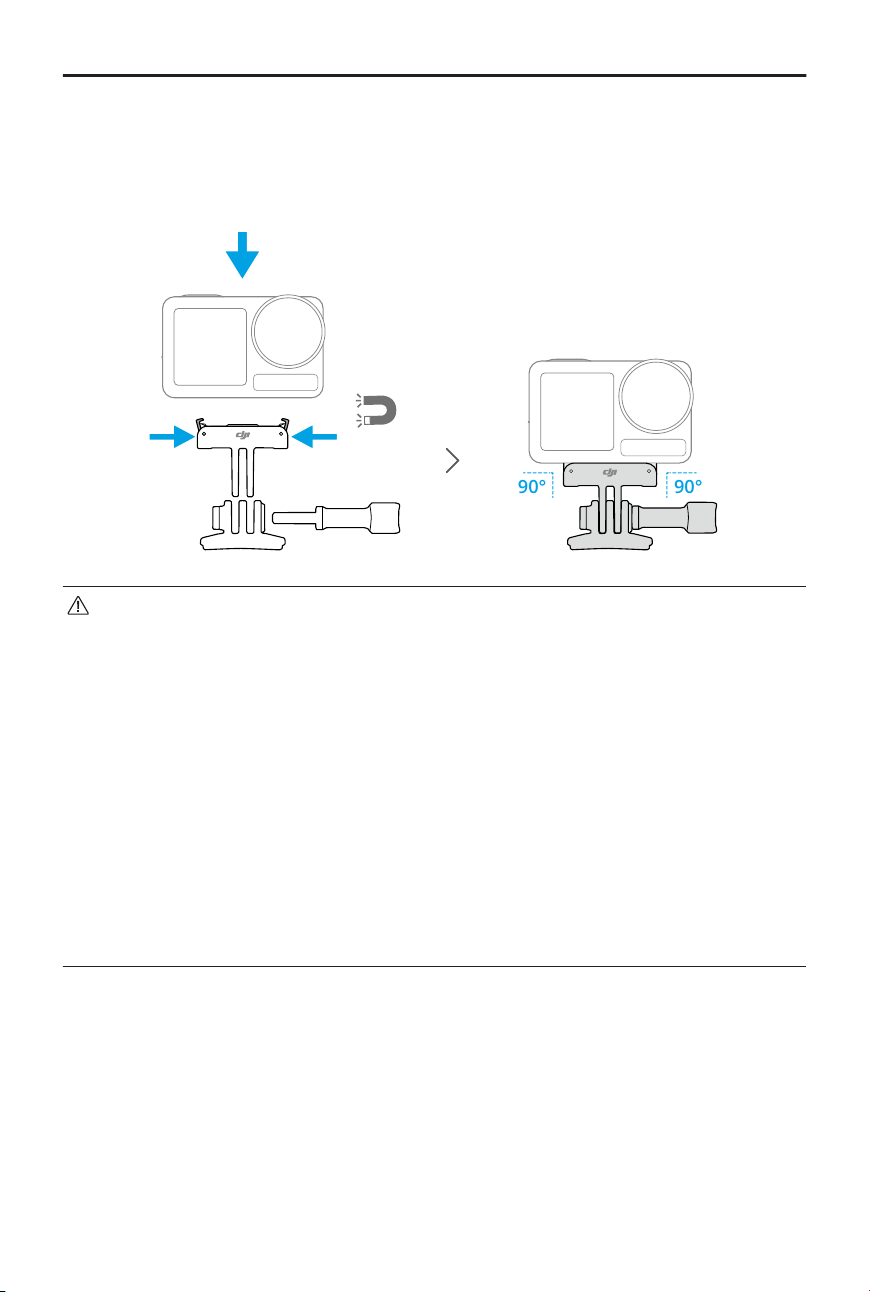
The camera can be securely mounted on smooth and clean curved surfaces using the
curved adhesive base kit.
90° 90°
• Press down on the camera until the clips of the quick-release adapter mount
are rmly inserted into the quick-release slots on the camera, and then tighten
the locking screws. Press both clips of the quick-release adapter mount when
removing the camera.
• Attach and press the adhesive base down rmly, and hold for at least 10
seconds. It is recommended to wait 30 minutes before attaching the camera.
• The adhesive base can only be applied to clean curved surfaces once. DO NOT
attach the adhesive base to surfaces that are at, rough, powdered, peeling,
covered in dust or sand, or have oil, wax, or water stains. Otherwise, the adapter
mount may not be attached rmly.
• The recommended application temperature for the adhesive base is -10° to 40°
C (14° to 104° F). DO NOT attach the adhesive base to a surface with a higher or
lower temperature.
Osmo Action Horizontal-Vertical Protective Frame
With the horizontal-vertical protective frame, users can ip the camera from the
horizontal to the vertical position for dierent shooting angles.
Osmo Action 5 Pro User Manual
© 2024 DJI All Rights Reserved. 9
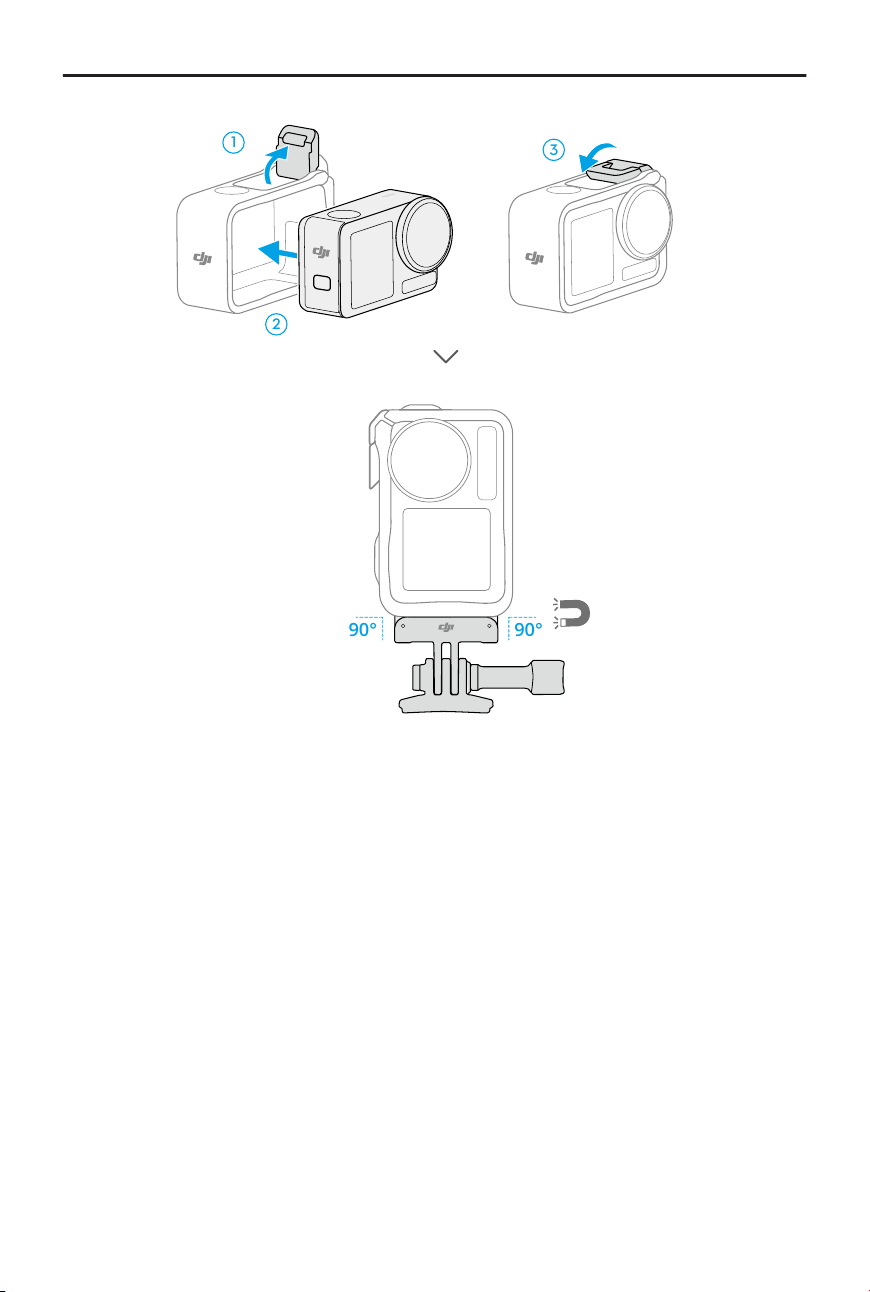
1
3
2
90°90°
Osmo Action Multifunctional Battery Case
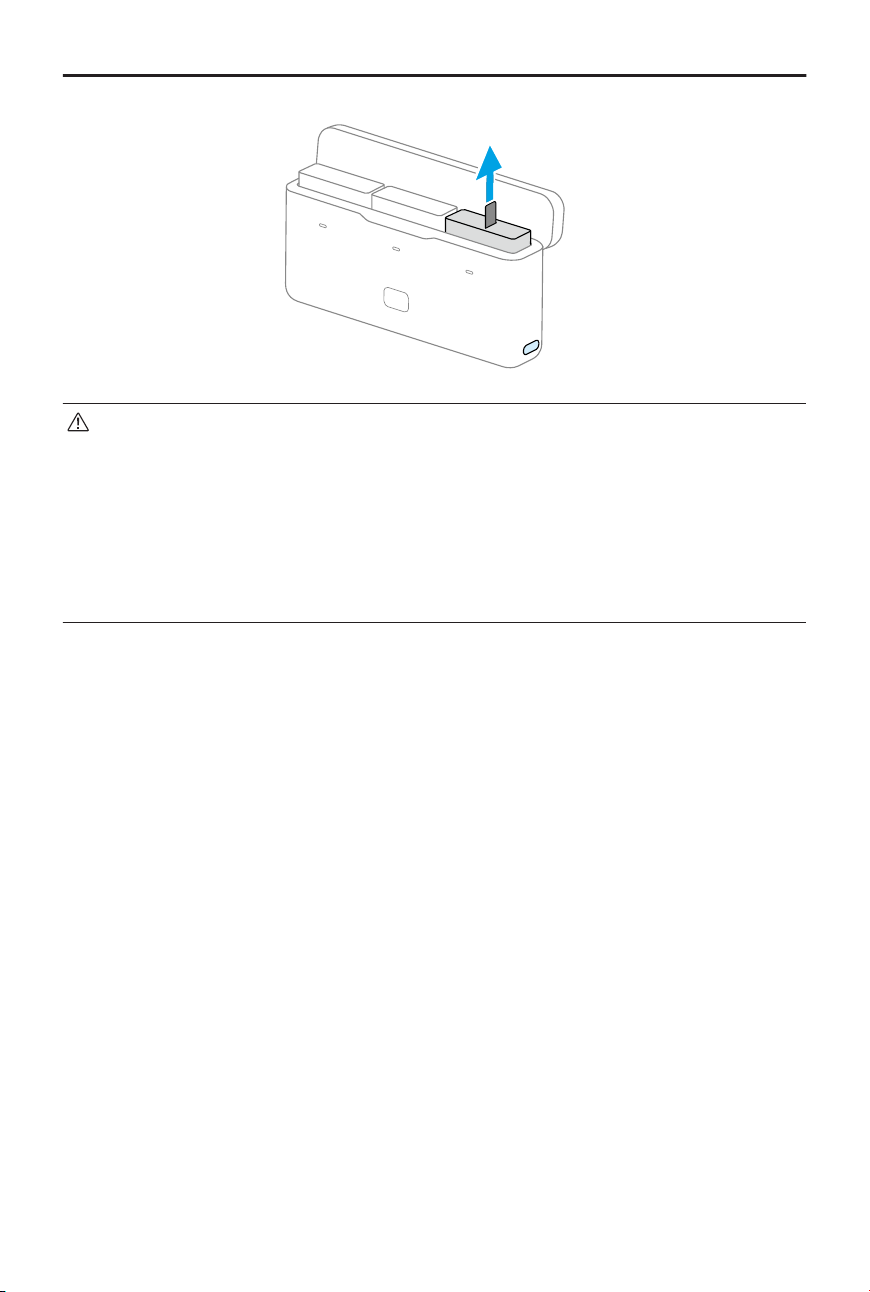
The Osmo Action Multifunctional Battery Case (hereinafter referred to as “the battery
case”) is designed for storing batteries and microSD cards safely. Users can check the
battery levels by pressing the button once or opening the battery case. The status LEDs
will display the battery level.
When a charger is connected to the battery case with batteries inserted, the battery case
will charge the batteries in sequence. The battery with the highest power level will be
charged rst.
When the batteries are inserted into the battery case, with external devices connected
to the USB-C port, the batteries can be used as a power bank to charge the connected
external devices. The battery with the lowest power level will be discharged rst, followed
by the remaining batteries to be discharged in sequence.
When using the battery case to charge the battery, it is recommended to use a USB-C
charger that supports Power Delivery or PPS (Programmable Power Supply).
Osmo Action 5 Pro User Manual
10 © 2024 DJI All Rights Reserved.
• Place the battery case on a at and stable surface when in use. Make sure the
device is properly insulated to prevent re hazards.
• DO NOT touch the metal terminals on the battery ports.
• Clean the metal terminals with a clean, dry cloth if there is any noticeable
buildup.
• The battery case is not waterproof. DO NOT place it in water or spill any liquid
on the case.
Osmo Action 5 Pro User Manual
© 2024 DJI All Rights Reserved. 11

Using for the First
Time
12 © 2024 DJI All Rights Reserved.
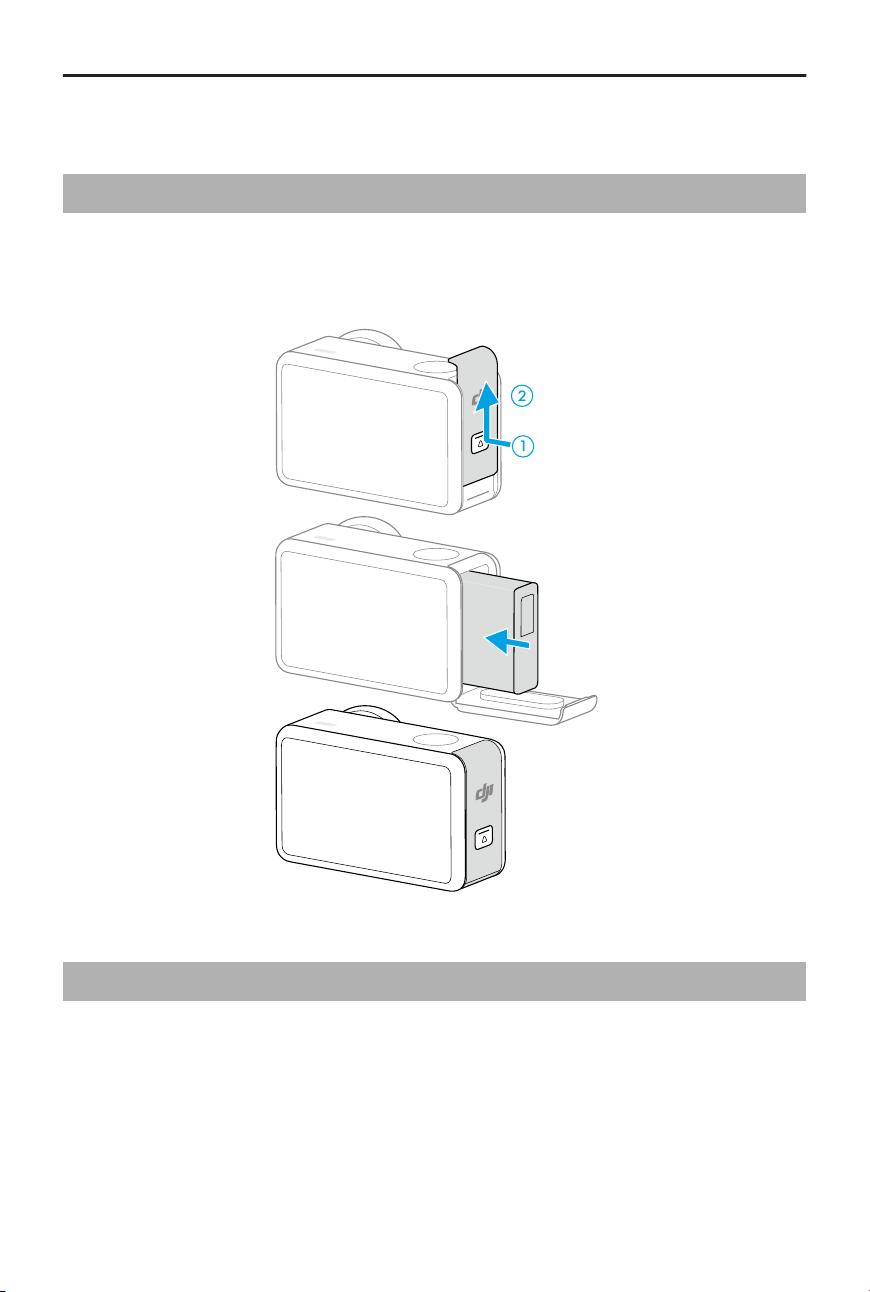
2 Using for the First Time
2.1 Attaching the Battery
Press the release button on the battery compartment cover and slide upward, then insert
the battery into the battery compartment. Make sure the battery is properly inserted,
then close the battery compartment cover.
1
2
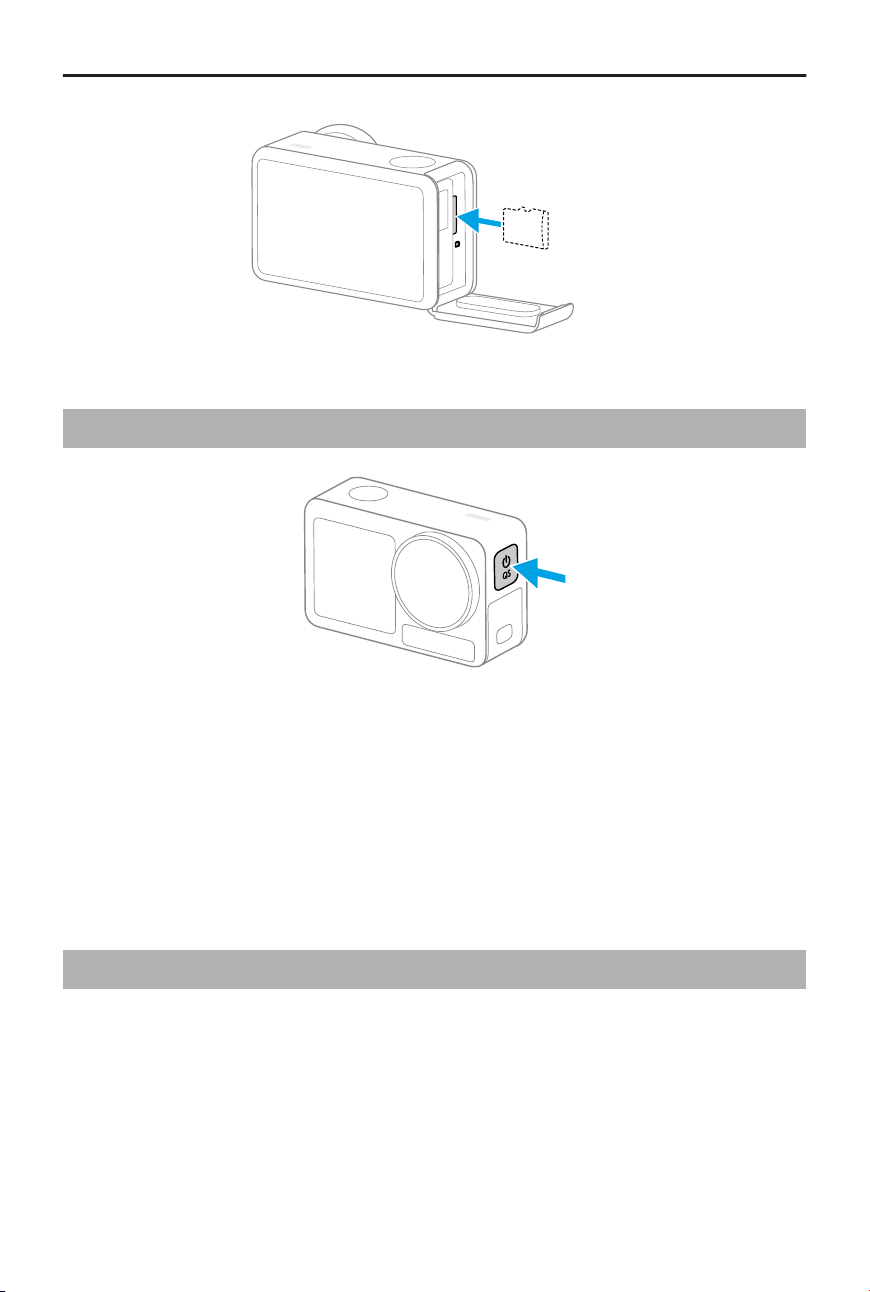
2.2 Inserting the microSD Card
The camera allows for extended storage capacity with microSD cards. Refer to the
recommended microSD card list on the DJI website at https://www.dji.com/osmo-action-5-
pro/specs .
Osmo Action 5 Pro User Manual
© 2024 DJI All Rights Reserved. 13
2.3 Powering on
Press and hold the Quick Switch Button to power on. The SnapShot function on the
camera is enabled by default.
SnapShot is the quickest way to start shooting and never miss a moment of the action.
When the camera is o, you can quickly power it on and start shooting instantly in
SnapShot mode by pressing and holding the Shutter/Record button. After shooting, the
camera will automatically power o if left idle for three seconds.
Users can press and hold the Quick Switch button to power o.
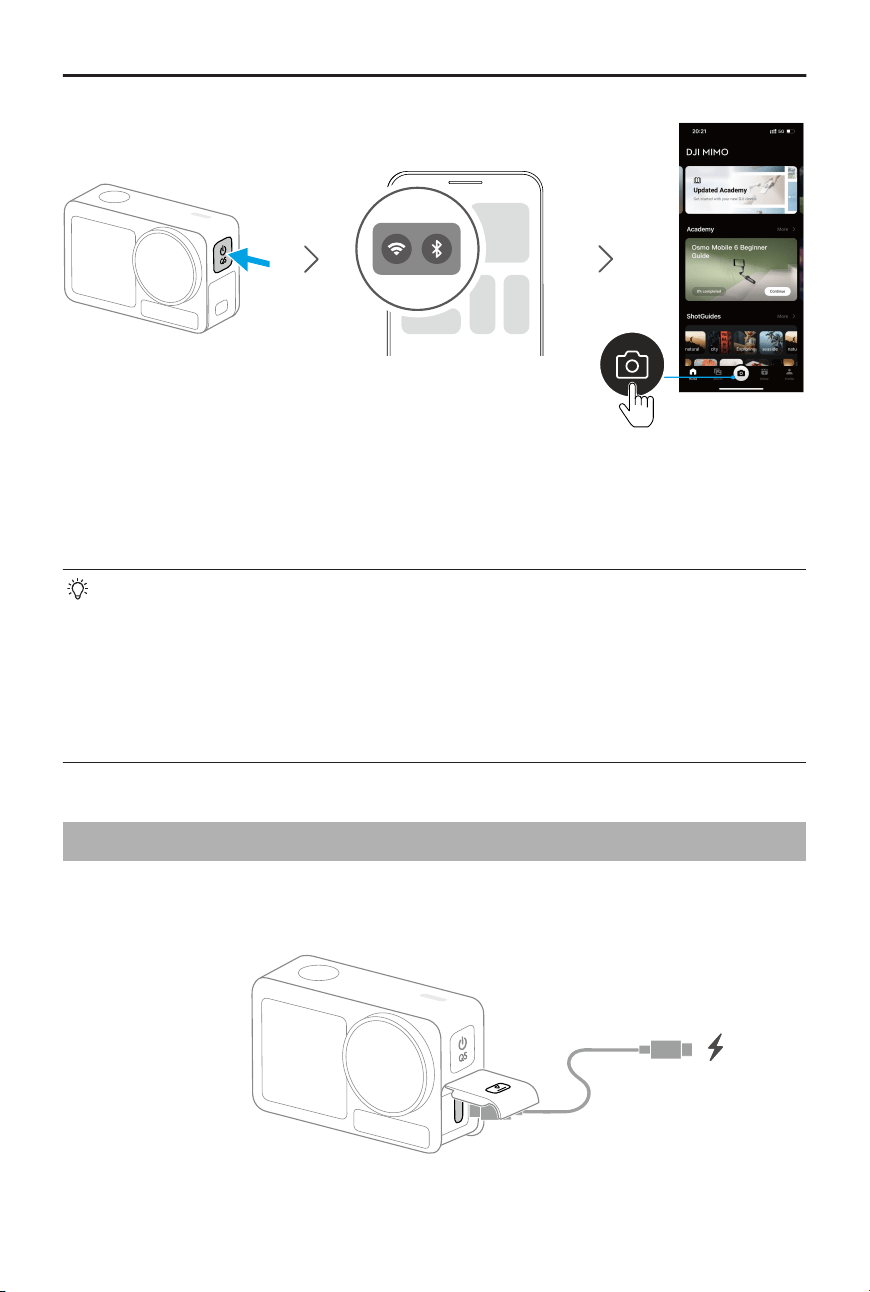
2.4 Activation
Make sure to activate the camera using DJI Mimo before rst use.
1. Press and hold the Quick Switch button to power on.
2. Enable Wi-Fi and Bluetooth on the mobile device.
3. Launch DJI Mimo on the mobile device, tap the camera icon to connect to the camera,
and then follow the instructions to activate the camera.
Osmo Action 5 Pro User Manual
14 © 2024 DJI All Rights Reserved.
When the camera is used with the DJI Mimo app, you can monitor the current camera
view, set the camera parameters, and control the camera with a mobile device. The DJI
Mimo app enables you to get most out of the camera with a series of functions, such as
transferring, editing, sharing les and livestreaming.
If there is a problem when connecting to DJI Mimo, follow the steps below:
1. Make sure both Wi-Fi and Bluetooth are enabled on the mobile device.
2. Make sure the DJI Mimo app has the latest rmware version.
3. Swipe down from the top of the screen to enter the control menu, select
Wireless Connection > Reset Connection. The camera will reset all connections
and Wi-Fi passwords.
2.5 Charging the Battery
It is recommended to use a USB-C charger that supports Power Delivery or PPS
(Programmable Power Supply).
Osmo Action 5 Pro User Manual
© 2024 DJI All Rights Reserved. 15

Basic Operations
16 © 2024 DJI All Rights Reserved.
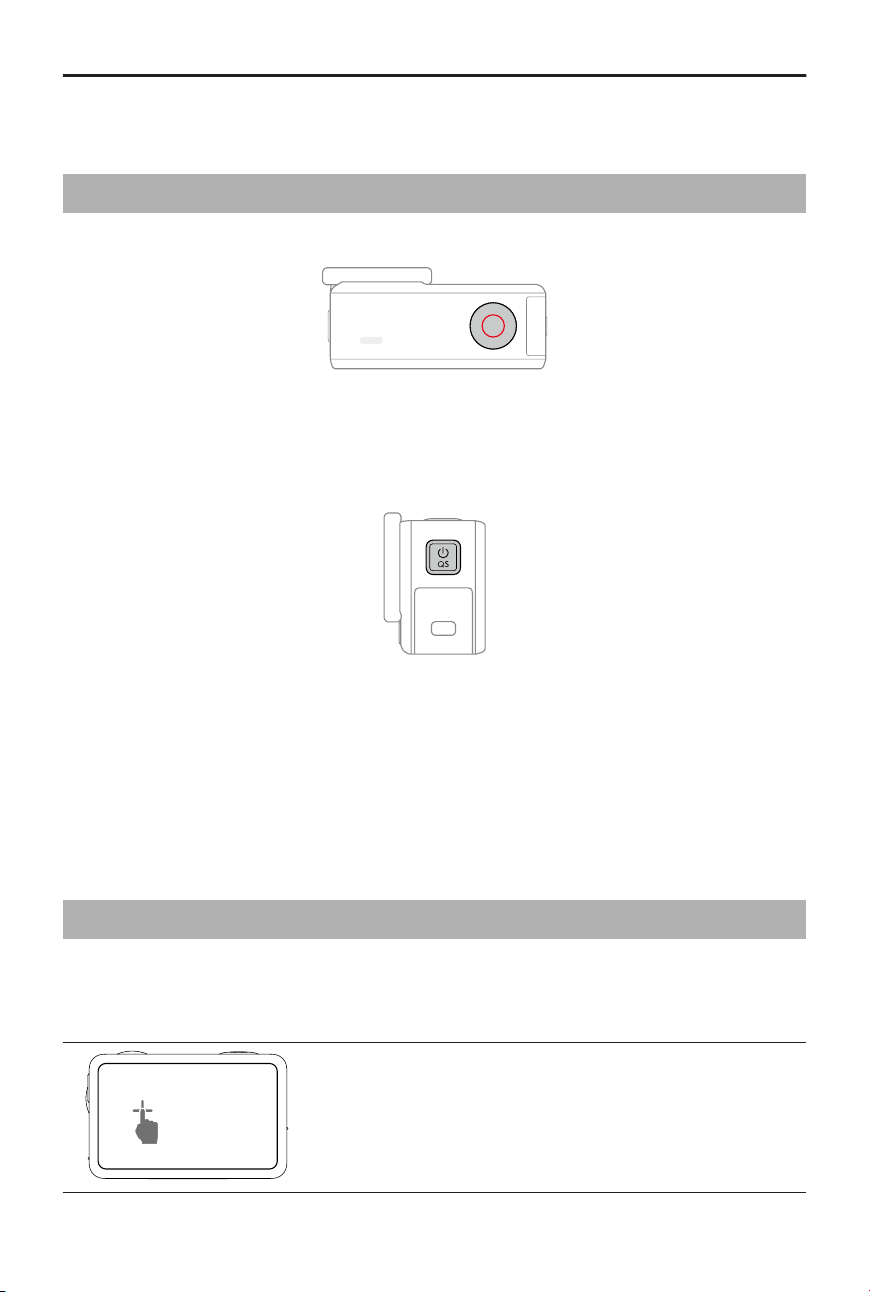
3 Basic Operations
3.1 Button Features
Shutter/Record Button
• Press once: Take a photo or start/stop recording.
• Press and hold when powered o: Power on quickly and begin shooting. The
shooting mode will depend on the SnapShot settings. After shooting, the camera will
automatically power o if left idle for three seconds.
Quick Switch Button
• Press and hold: Power on/o.
• Press once: Switch between shooting modes. During video and slow-motion
recording, press to mark a highlight moment in the footage, allowing to quickly
locate specic shots during post-editing and reducing the time spent searching for
highlights.
3.2 Operating the Touchscreen
After the camera is powered on, both touchscreens of the camera display the liveview as
well as the shooting mode, battery level, and microSD card information. Tap or swipe on
the touchscreen to interact with the camera.
Tap
Select the icons on both sides of the screen to playback
footage and change the camera settings.
Osmo Action 5 Pro User Manual
© 2024 DJI All Rights Reserved. 17
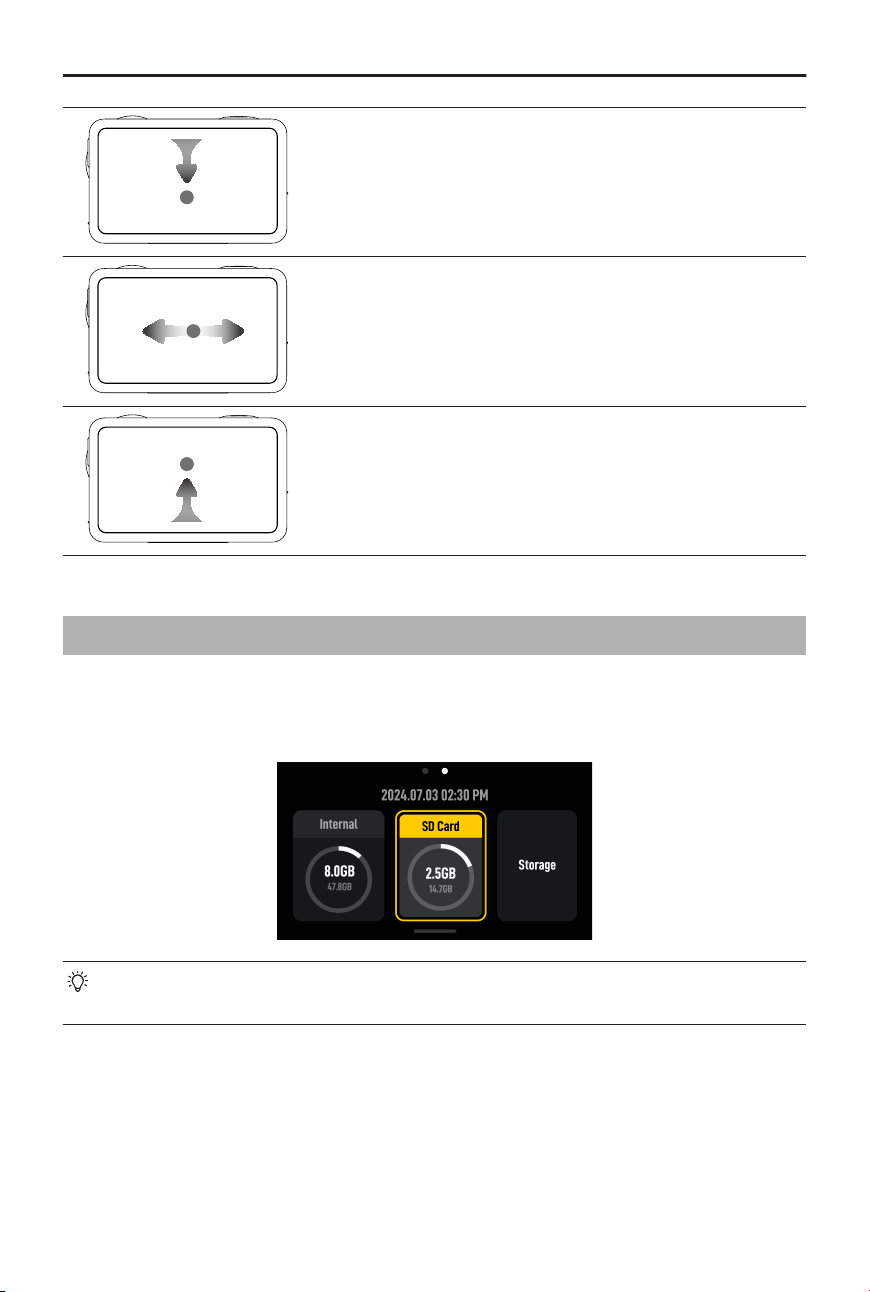
Swipe Down from the top of the Screen
Enters the control menu.
Swipe Left or Right
Switches between video, photo, and other shooting
modes.
Swipe Up from the Bottom of the Screen
To set shooting parameters such as aspect ratio, count-
down time, and resolution.
3.3 Storing Photos and Videos
Swipe down from the top of the screen, and then swipe left to check the storage
information. With a microSD card inserted, all the images can be stored to the microSD
card. Tap Storage to format the internal storage or the microSD card.
• Formatting will permanently delete all data. Make sure to back up all required
data before formatting.
Osmo Action 5 Pro User Manual
18 © 2024 DJI All Rights Reserved.

Using the Product
© 2024 DJI All Rights Reserved. 19

4 Using the Product
4.1 Setting the Shooting Parameters
Swipe up from the bottom of the screen to set the parameters for each shooting mode.
Various parameters can be set in dierent shooting modes.
Burst
Set the aspect ratio and burst rate (frames per second).
When the burst rate is set to O, the camera only takes one photo.
With dierent aspect ratios selected, dierent burst rates (frames per second) can be set.
At this time, the camera will quickly take multiple photos in succession, allowing users
to select the best shot from a series of photos. This is ideal for capturing fast-moving
subjects.
Pre-Rec and Loop Recording
In the video and SuperNight mode, tap the upper left corner to enable Pre-Rec or Loop
Recording and set the time duration.
• Pre-Rec: When enabled, the camera will pre-record footage within the set time
duration. Once the Shutter/Record button is pressed, the camera will save the latest
pre-recorded footage before pressing the Shutter/Record button and keep recording,
then save the footage as a whole video. This function allows the camera to save the
footage before pressing the Shutter/Record button to avoid taking up too much space
on the microSD card, helping capture highlights (especially for shing).
• Loop Recording: When enabled, the camera records a video by overwriting older
footage with new footage at selected time intervals. This function allows the camera
to save space on the microSD card, and is suitable for use in scenes where the user is
waiting to capture unanticipated highlights (such as driving).
EIS Mode
In the video and SuperNight mode, tap on the upper right corner to set the EIS mode.
• Disabled: When selected, record the video with the largest FOV.
• RockSteady: Stabilizes footage while retaining the dynamics of movement, which is
suitable for rst-person perspective shooting.
• RockSteady+: Compared with RockSteady, the edges of these images will be reduced
slightly to obtain a stronger stabilization performance.
• HorizonBalancing: This mode reduces the shaking of images within ±45°.
• HorizonSteady: This mode corrects shakes for any horizontal rotation (360°) and locks
on the leveled horizon in every frame, regardless of how the camera is mounted or
worn.
Osmo Action 5 Pro User Manual
20 © 2024 DJI All Rights Reserved.
• To record videos with Gyro data, disable EIS mode and set the camera FOV to
Wide.
4.2 Setting the Image Parameters
In the camera view, tap to adjust the image and audio parameters. Tap PRO to adjust
pro parameters.
Various parameters can be set in dierent shooting modes, such as the following:
• Image Adjustment: Users can adjust the texture and noise reduction based on their
needs for optimal image quality.
• Colors: Normal 8bit, Normal 10bit, HLG 10bit, and D-Log M 10bit are available. HLG
mode records with wide dynamic range and color gamut which can be displayed on
an HLG-compatible TV or monitor. D-Log M is designed for professional color grading
when post-editing. In high-contrast or multi-color scenarios (e.g., garden, eld, etc.), it
can enlarge the dynamic range for more color-grading in post-production.10-bit color
depth enables smoother color transition. With D-Log M selected, users can turn on
Color Recovery to preview of the color eects in the liveview.
• Audio Parameters: Channel, Wind Noise Reduction, and Microphone are available.
When Wind Noise Reduction is enabled, the camera will reduce the wind noise picked
up by the built-in microphone using algorithms. Note that Wind Noise Reduction does
not work when connected to the external microphone.
4.3 Setting the System Functions
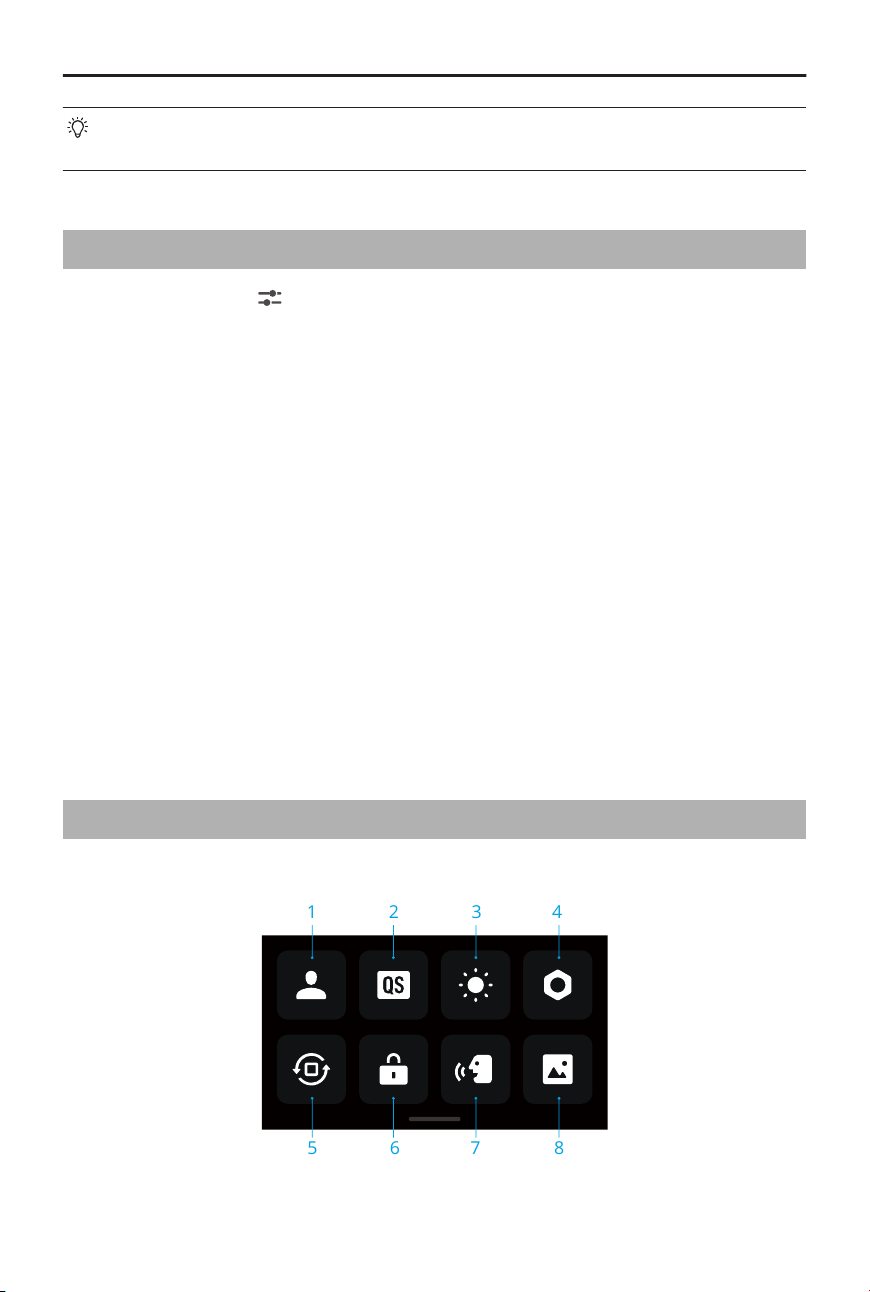
Swipe down from the top of the screen to enter the control menu.
1
5 6 7 8
2 3 4
1. Custom Modes
Osmo Action 5 Pro User Manual
© 2024 DJI All Rights Reserved. 21

Tap to create and manage custom modes. Custom modes can then be used directly to
shoot similar scenes.
2. Quick Switch
Tap the icon to set Voice Prompt and set the modes accessible with the Quick Switch
button. When Voice Prompt is enabled, the camera will broadcast the shooting mode
when changing modes by pressing the the Quick Switch button.When the camera is
installed on a helmet or other hard-to-see locations, users can accurately select the
required mode with Voice Prompt.
3. Brightness
4. Settings
5. Orientation Lock
6. Screen Lock
7. Voice Control
8. Full Front Screen
4.4 Voice Control
Swipe down from the top of the screen to enter the control menu, tap , and select
Voice Control. Enable Voice Control to control the camera with voice commands.
Simplied Chinese and English are supported. Voice commands in English include Start
Recording, Stop Recording, Take Photo, and Shut Down.
4.5 Timecode
Swipe down from the top of the screen to enter the control menu, tap
, and select
Timecode to set the timecode for the camera.
Either reset the timecode or sync with the system time. The camera time code can be
synchronized with a time code synchronizer using the USB-C port.
Tap Timecode Display to display the time code in the liveview.
4.6 Highlight
Tap the to play back the video. During playback, you can tap the icon to mark
highlights, helping to quickly locate specic moments during post-editing, and reducing
Osmo Action 5 Pro User Manual
22 © 2024 DJI All Rights Reserved.

the time to nd highlights. The marked highlights can be viewed during playback in DJI
Mimo.
4.7 Super Slow-Motion
The super slow-motion feature enables frame-by-frame analysis of the footage and
generate slow-motion videos. The feature is particularly suitable for showcasing stunning
and exciting moments in high-speed sports scenes such as cycling and skiing.
When playing back a video, select a specic point and tap the
icon to generate a super
slow-motion video clip. During the generating process, you can tap Preview to preview the
slow-motion eect.
You can tap Cancel to stop the generation of the super slow-motion clip during the
process. To delete a super slow-motion clip, tap the icon in the upper right corner
when playing back the video.
• The camera performs 4x frame interpolation, allowing the camera to generate
slow-motion videos at up to 960fps.
• Up to 6 super slow-motion clips can be added to a single video footage.
• Super slow-motion is only supported for 4K/2.7K/1080p 16:9 video footage with
a frame rate of no less than 100fps. The generated super slow-motion videos
will all be in 1080p format.
• The rst 1.5 seconds and the last 2 seconds of the video do not support
generating super slow-motion clips.
4.8 Transferring Files
Transferring Files to a Mobile Device
Connect the camera to DJI Mimo, tap the Playback icon to preview photos and videos. Tap
the icon to download photos and videos. The photos and videos can be shared directly
from DJI Mimo to social media platforms.
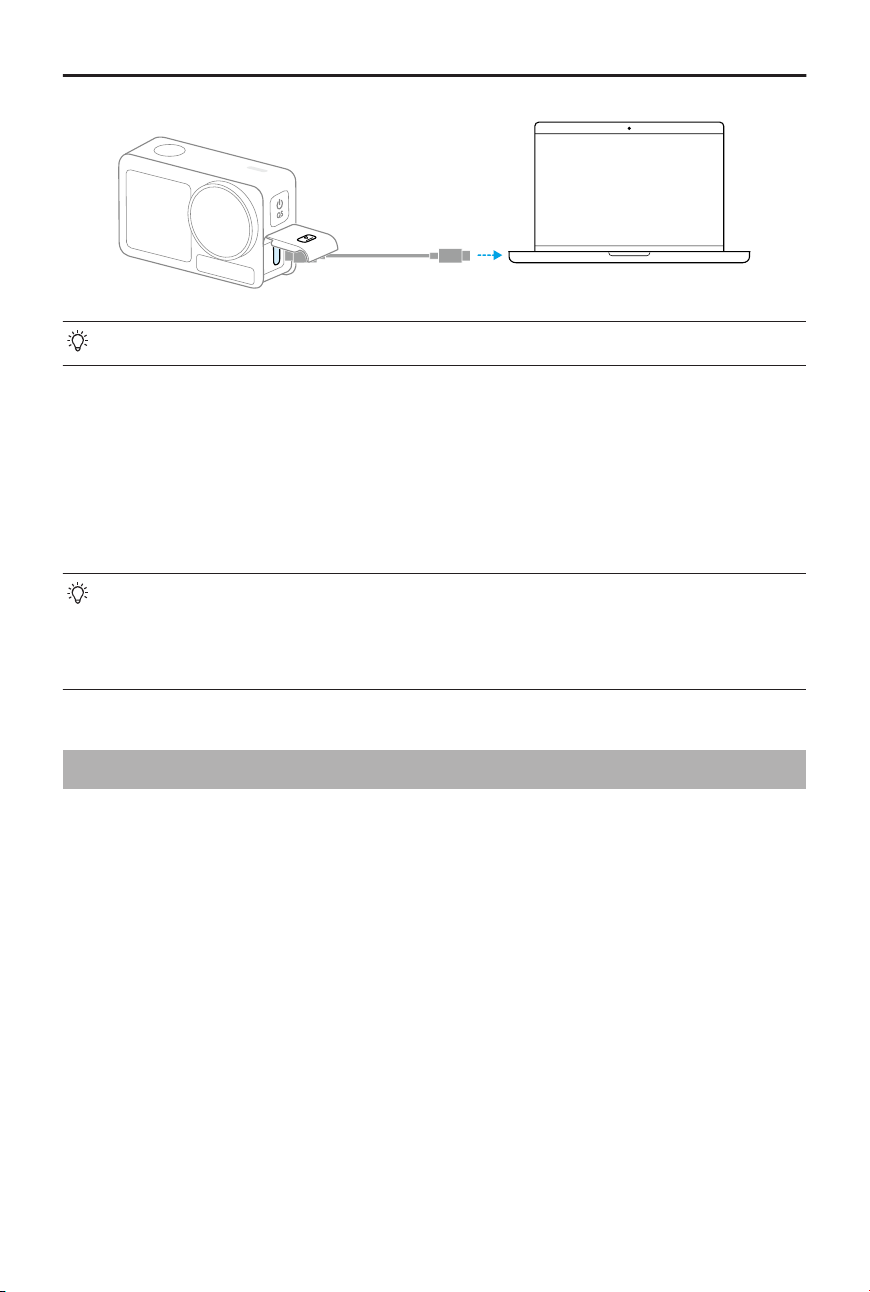
Transferring Files to a Computer
Power on the camera and connect it to a computer using a USB-C cable. When connected
to a computer, a pop-up will appear. Tap Transfer File: USB to download the les from
the camera to the computer. When transferring a le, the camera cannot take photos or
record videos.
Osmo Action 5 Pro User Manual
© 2024 DJI All Rights Reserved. 23
• Reconnect the device to the computer if a le transfer is interrupted.
USB Mode for Transferring Files
For mobile devices that support OTG connection, the les can be transferred from the
camera to the mobile device with USB mode.
Connect the camera to a mobile device with the Type-C to Type-C PD Cable (included).
When connected, view and transfer photos and videos via the device album or le
management.
• If the camera cannot automatically recognize the mobile device in USB mode,
swipe down from the top of the screen and enter the control menu. Tap Settings
> USB Mode, and use the Type-C to Type-C PD cable to connect the camera to
the device.
4.9 Connecting a Microphone
The product supports connecting two DJI wireless microphones simultaneously via
Bluetooth, allowing stable wireless audio recording and remote control of shooting.
Follow the steps below to connect the wireless microphones.
1. Enter the control menu and tap the settings icon. Select Wireless Microphone settings
and the transmitter to be linked, and then the camera is ready to link with a
transmitter.
2. Power on the transmitter and make sure the transmitter is ready to link via Bluetooth.
3. Initiate the transmitter to start searching for nearby Bluetooth devices.
4. When the transmitter is successfully linked with the camera, you can view the
connection status according to the prompt on the screen.
5. Once linked, you can use the transmitter to control the camera to start recording, with
the audio being captured by the transmitter.
Osmo Action 5 Pro User Manual
24 © 2024 DJI All Rights Reserved.

• Visit the DJI website and refer to the user manual of the mic product for more
information.
• Enter the control menu and enable Built-in Mic Audio Backup. When enabled,
the built-in microphone of the camera will also record audio while shooting
video, and save the audio as a separate .wav le.
• When the transmitter is linked to the camera, tap Wireless Microphone settings
to adjust the audio parameters of the transmitter.
4.10 Webcam Mode
The product can work as a webcam on a computer. Power on the product and connect it
to the computer using a USB cable. The product will go into USB mode. Tap Webcam on
the camera to enter the Webcam mode, and the camera will function as a webcam input
device. The bottom of the screen displays Webcam. Press the Shutter/Record button to
start recording. Tap the Image Parameter Settings icon on the right side of the screen to
set the exposure, white balance, and FOV parameters. Users can preview recorded videos
after exiting the Webcam mode.
4.11 Depth & Altitude
When the related settings of depth or altitude are enabled, the recorded video will include
depth or altitude information.
Swipe down from the top of the screen and enter the control menu. Tap the settings
icon, select Depth & Altitude, and then set the parameters for the Diving or Hiking &
Parachuting scenario.
The recorded data can also be added to the video footage in a visualized form using
the dashboard feature on the DJI Mimo app, which can better showcase exciting sports
moments.
Osmo Action 5 Pro User Manual
© 2024 DJI All Rights Reserved. 25

Maintenance
26 © 2024 DJI All Rights Reserved.

5 Maintenance
5.1 Updating Firmware
Use DJI Mimo to update the rmware of the device.
Ensure the battery is fully charged before updating the rmware. Connect the device to
DJI Mimo. If new rmware is available, DJI Mimo will display a prompt. Tap the prompt and
follow the on-screen instructions to update the rmware.
If the update fails, follow the steps for troubleshooting.
1. Restart the camera and DJI Mimo.
2. Enable Wi-Fi and Bluetooth on the mobile device.
3. Connect the camera to DJI Mimo and try the update again.
Contact DJI Support if the update fails again.
5.2 Underwater Usage Notes
The product can be used underwater at depths of up to 20 m. When used with the Osmo
Action 60m waterproof case, the product can be operated underwater up to 60 m deep.
Observe the following precautions before using the product in water.
1. Make sure the battery and battery compartment are dry and clean before inserting
the battery. Otherwise, it may aect the battery contact and waterproong ability.
Make sure the battery compartment cover is rmly fastened after the battery is
inserted. Note that the red marks should not be visible after the cover is properly
fastened.
2. Make sure the USB-C port cover, and lens protective cover are rmly mounted and
fastened, and that the waterproof seal is clean. Otherwise, it will aect the device
waterproong ability. All the holes on the product use a built-in waterproof material.
DO NOT poke the holes.
3. Check if the lens protective cover is in good condition. If damaged, replace it
immediately. Make sure the lens protective cover and lens are dry and clean. Sharp or
hard objects may damage the lens and aect the ability of the camera. Make sure that
the lens protective cover is rmly mounted and the rubber ring at the base of the lens
is not detached.
4. The product is NOT waterproof when used with Osmo Action Lens Hood.
Observe the following precautions when using the product in water.
Osmo Action 5 Pro User Manual
© 2024 DJI All Rights Reserved. 27

1. Avoid jumping into water at high speed with the product. Otherwise, the impact may
result in water seepage.
2. DO NOT use the product in hot springs, corrosive liquids, or extreme underwater
environments.
Observe the following precautions after using the product in water.
1. Rinse the camera with tap water after using it underwater. Allow it to dry naturally
before using again. Wipe the surface of the camera with a soft and dry cloth.
2. DO NOT dry the camera with hot air using a hair dryer, otherwise the microphone
membrane and the built-in breathable membrane will rupture, and the camera will no
longer be waterproof.
3. After using the camera in water, open the battery compartment cover facing
downward to prevent water from entering the gaps in the battery compartment if
you need to replace the battery. Wipe o any water droplets in the gaps of the
battery compartment and clean the red waterproof rubber ring to prevent any foreign
objects from remaining. Otherwise, it will aect the waterproof performance during
subsequent use.
4. When changing the lens protective cover, make sure the camera is dry. After using the
camera in water, let it dry before using it again. This will prevent water from seeping
into the lens protective cover, allowing for the lens to fog up.
Observe the following precautions when using the product with the waterproof case:
1. Make sure the rubber seal is clean and rmly secured during use.
2. Make sure the waterproof case is dry (for best results, place an anti-fog ber in the
case during use) and that the latch is secure.
3. Before use, it is recommended to place the waterproof case underwater for
approximately 5 minutes to ensure it is working properly.
4. Rinse the case with tap water to prevent corrosion after using it in the sea.
• The touchscreens can be used when the surface is wet.
• The touchscreens do not function when fully submerged underwater. Users
can press the camera buttons to start recording. The Shutter/Record button is
disabled automatically when the camera is used without a waterproof case at a
depth of more than 10 m.
5.3 Cleaning Notes
1. DO NOT spill any liquids containing alcohol or cleansing solution on the camera.
Osmo Action 5 Pro User Manual
28 © 2024 DJI All Rights Reserved.

2. If the holes of the microphone, heat dissipation slots, or other parts of the camera are
blocked by sand or other foreign matter, rinse with fresh water while the camera is in
a sealed waterproof state.
3. Clean the lens protective cover with water or a lens cleaning pen, lens air blower, or
lens cleaning cloth. DO NOT remove the lens protective cover frequently to avoid dust
accumulating inside the lens cover, which can aect shooting quality.
4. Clean the lens with a lens cleaning pen, lens air blower, or lens cleaning cloth.
5. Clean the battery and battery compartment with a clean, dry cloth.
6. Make sure the quick-release slots on the camera are clear of dust and sand when
attaching the Quick-Release Adapter Mount.
5.4 Battery Usage Warnings
1. DO NOT use non-DJI Osmo batteries. New batteries can be purchased at www.dji.com.
DJI Osmo shall not be responsible for any fault or damage caused by the use of any
non-DJI OSMO batteries.
2. Use the battery within the temperature range specied at https://www.dji.com/osmo-
action-5-pro/specs . Use of the battery in a high-temperature environment can lead
to a re or explosion. Before using the battery in a low-temperature environment, it
is recommended to charge the battery fully in a normal temperature environment.
Charging the battery at the ideal temperature can prolong battery life.
3. Discharge and charge the battery completely once every three months to keep it in
good condition.
4. The battery is designed to stop charging when it is fully charged. It is good practice
to monitor the charging progress and disconnect the charger when battery is fully
charged.
5. When the battery voltage is too low, the battery will enter low-power state. Charging
the battery will exit low-power mode.
6. DO NOT store the battery for an extended period of time after fully discharging.
Otherwise, the battery may over-discharge and cause irreparable damage to the
battery cell.
7. Discharge the battery to 40-65% if it will not be used for 10 days or more. This can
greatly extend the battery life.
Osmo Action 5 Pro User Manual
© 2024 DJI All Rights Reserved. 29
5.5 Using Other Accessories (Not Included)
Support for DJI devices will be updated continuously. Visit https://www.dji.com/osmo-
action-5-pro for a complete list.
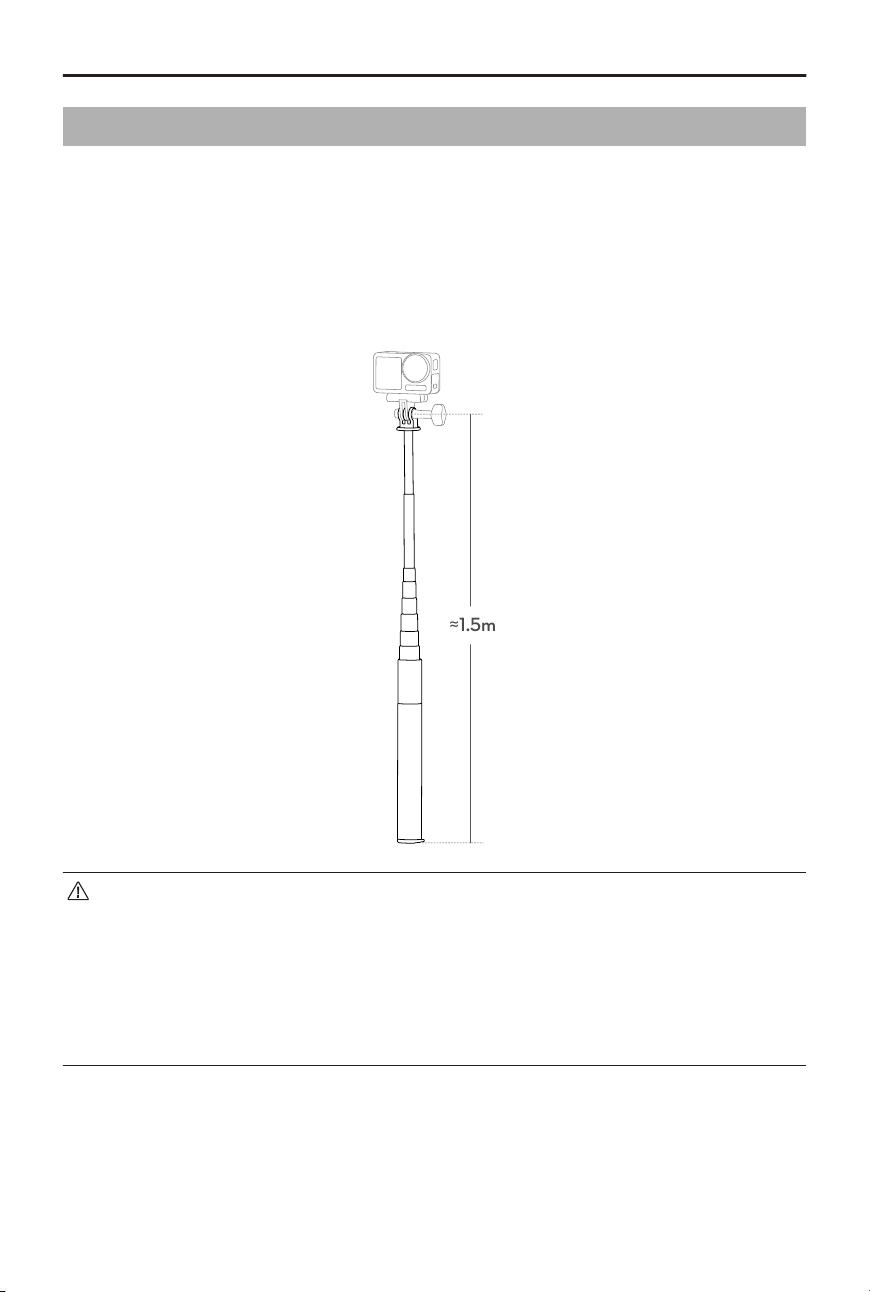
Refer to the gures below to install.
Osmo 1.5m Extension Rod
≈1.5m
• DO NOT drop or strike the extension rod in any way when in use to avoid
damage.
• DO NOT shake the extension rod violently when installed with the camera to
avoid damage.
• Rinse with clean water to remove sand after underwater usage.
• DO NOT use the extension rod during thunderstorms to avoid lightning strikes.
Osmo Action 5 Pro User Manual
30 © 2024 DJI All Rights Reserved.
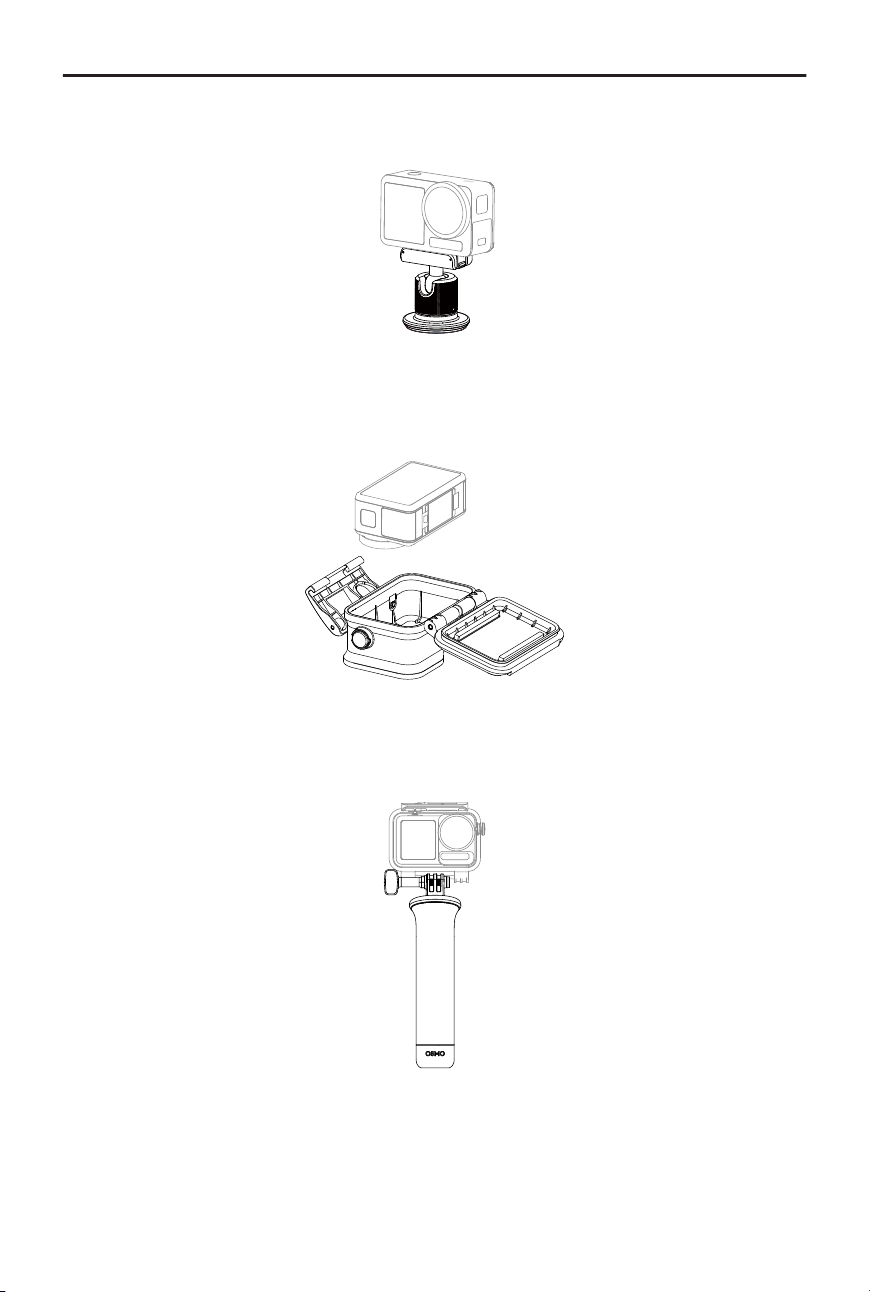
Osmo Magnetic Ball-Joint Adapter Mount
Osmo Action 60m Waterproof Case
DJI Floating Handle
Osmo Action 5 Pro User Manual
© 2024 DJI All Rights Reserved. 31
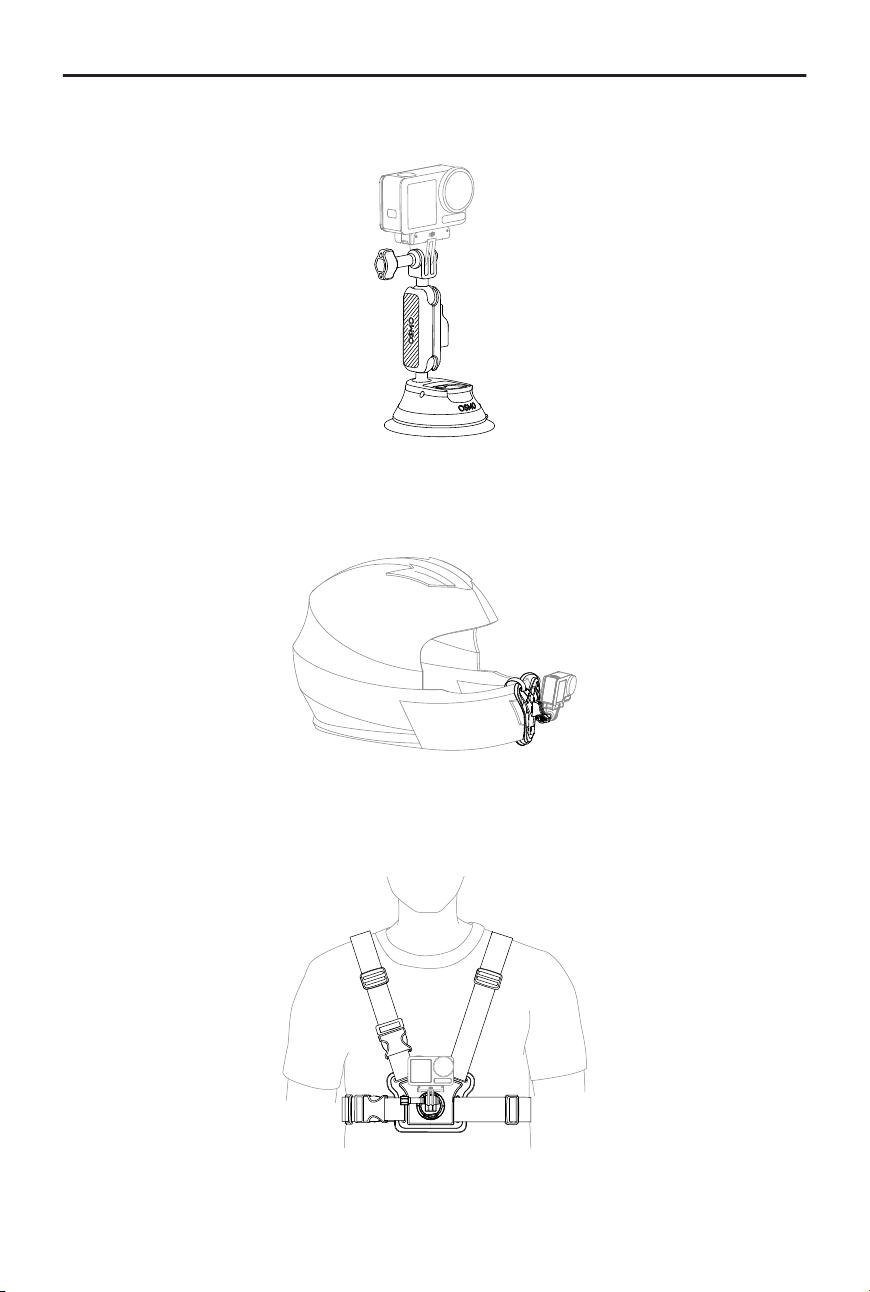
Osmo Action Suction Cup Mount
Osmo Action Helmet Chin Mount
Osmo Action Chest Strap Mount
Osmo Action 5 Pro User Manual
32 © 2024 DJI All Rights Reserved.
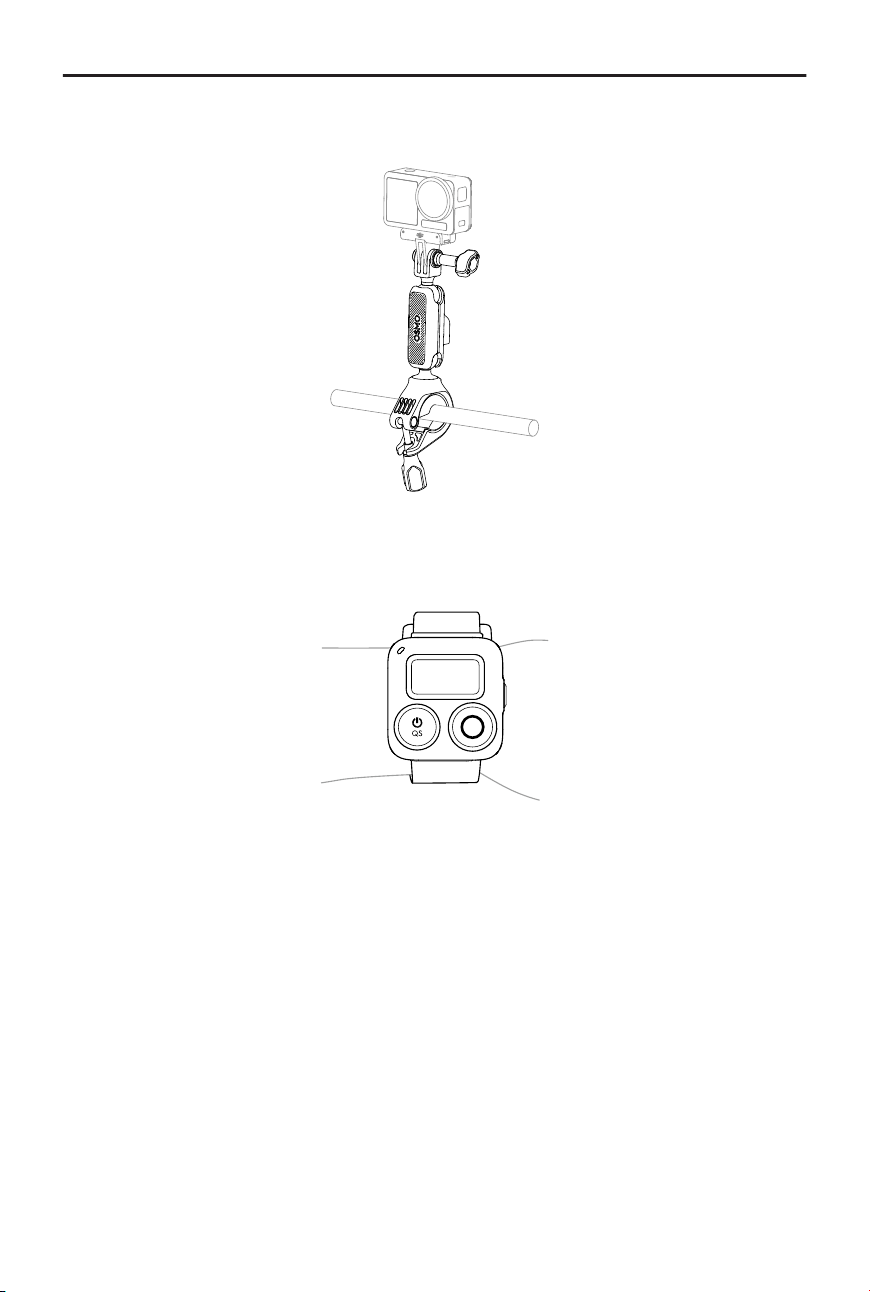
Osmo Action Handlebar Mount
Osmo Action GPS Bluetooth Remote Controller
Osmo Action 5 Pro User Manual
© 2024 DJI All Rights Reserved. 33
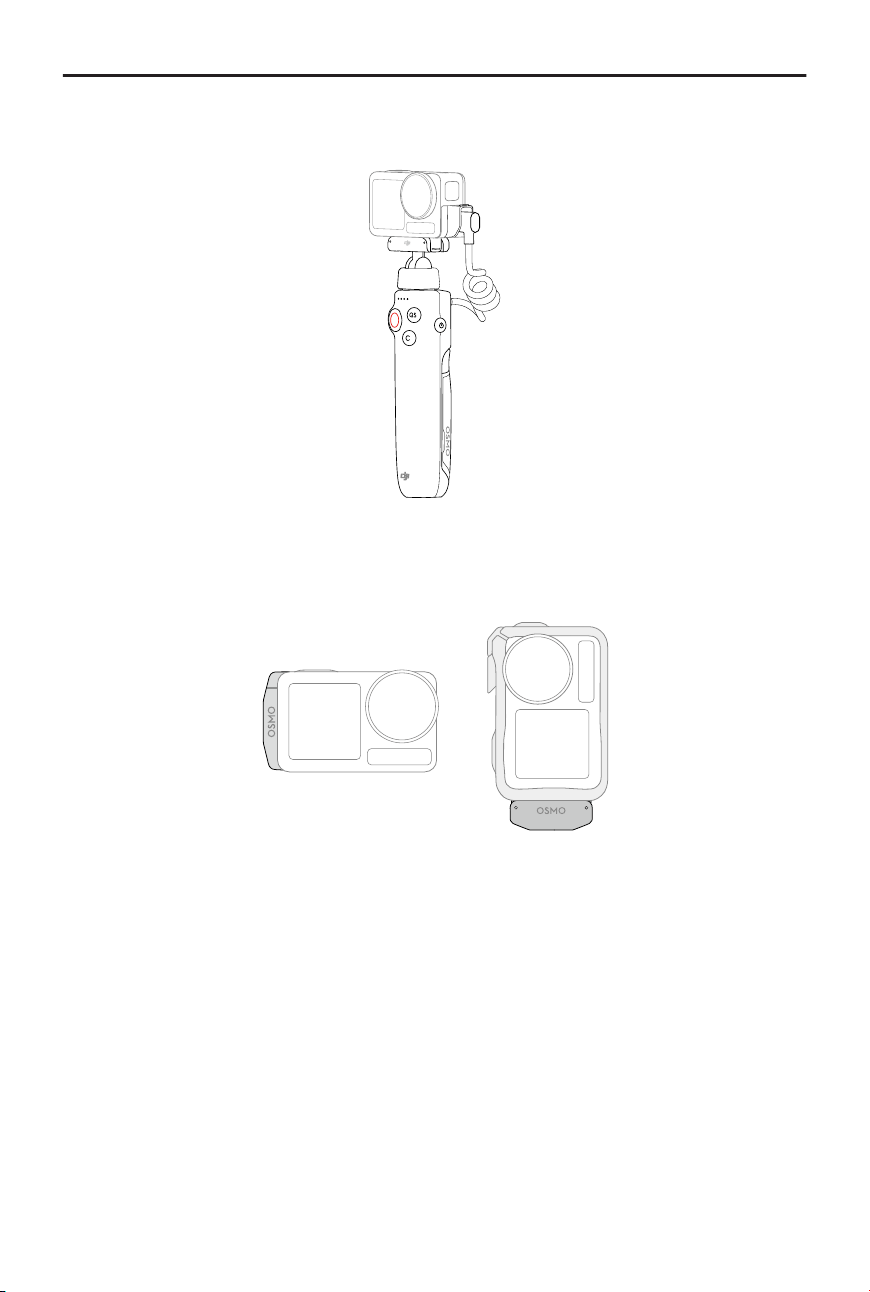
Osmo Action Multifunctional Charging Handle
Osmo Action Cold Shoe Expansion Kit
Osmo Action 5 Pro User Manual
34 © 2024 DJI All Rights Reserved.

Specications
© 2024 DJI All Rights Reserved. 35


DJI Support
Contact
DJI SUPPORT
This content is subject to change without prior notice.
Download the latest version from
https://www.dji.com/osmo-action-5-pro/downloads
If you have any questions about this document, please contact DJI by sending a message
DJI is a trademark of DJI. OSMO is a trademark of DJI OSMO.
Copyright © 2024 DJI All Rights Reserved.