
User Manual
www.samsung.com 01/2018. Rev.1.0
ET-WV530 ET-WV531
ET-WV520 ET-WV521
SAMSUNG Connect Home Pro
SAMSUNG Connect Home

3
Getting started
Read me first
Please read this manual before using the device to ensure safe and proper use.
•
Images may differ in appearance from the actual product. Content is subject to change
without prior notice.
•
Before using the Wi-Fi hub, make sure it is compatible with your device.
•
The Wi-Fi hub’s performance may differ depending on the environment.
•
This product includes certain free/open source software. To see the instructions for
viewing the open source license, go to the Samsung website (opensource.samsung.com).
Instructional icons
Warning: situations that could cause injury to yourself or others
Caution: situations that could cause damage to your device or other equipment
Notice: notes, usage tips, or additional information
English (USA)
1
Getting started
4
About SAMSUNG Connect Home (Pro)
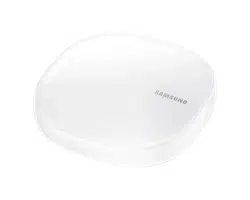
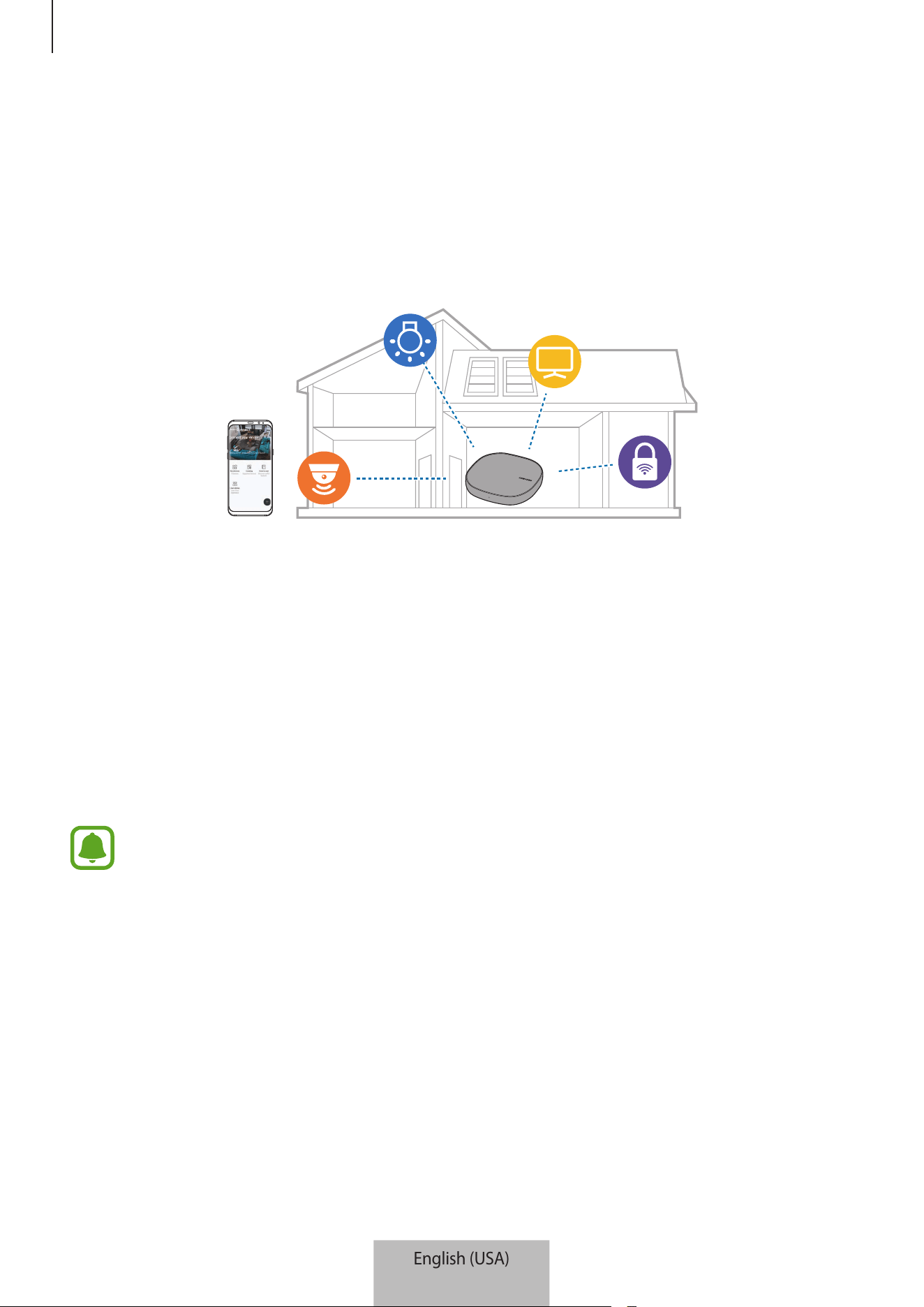
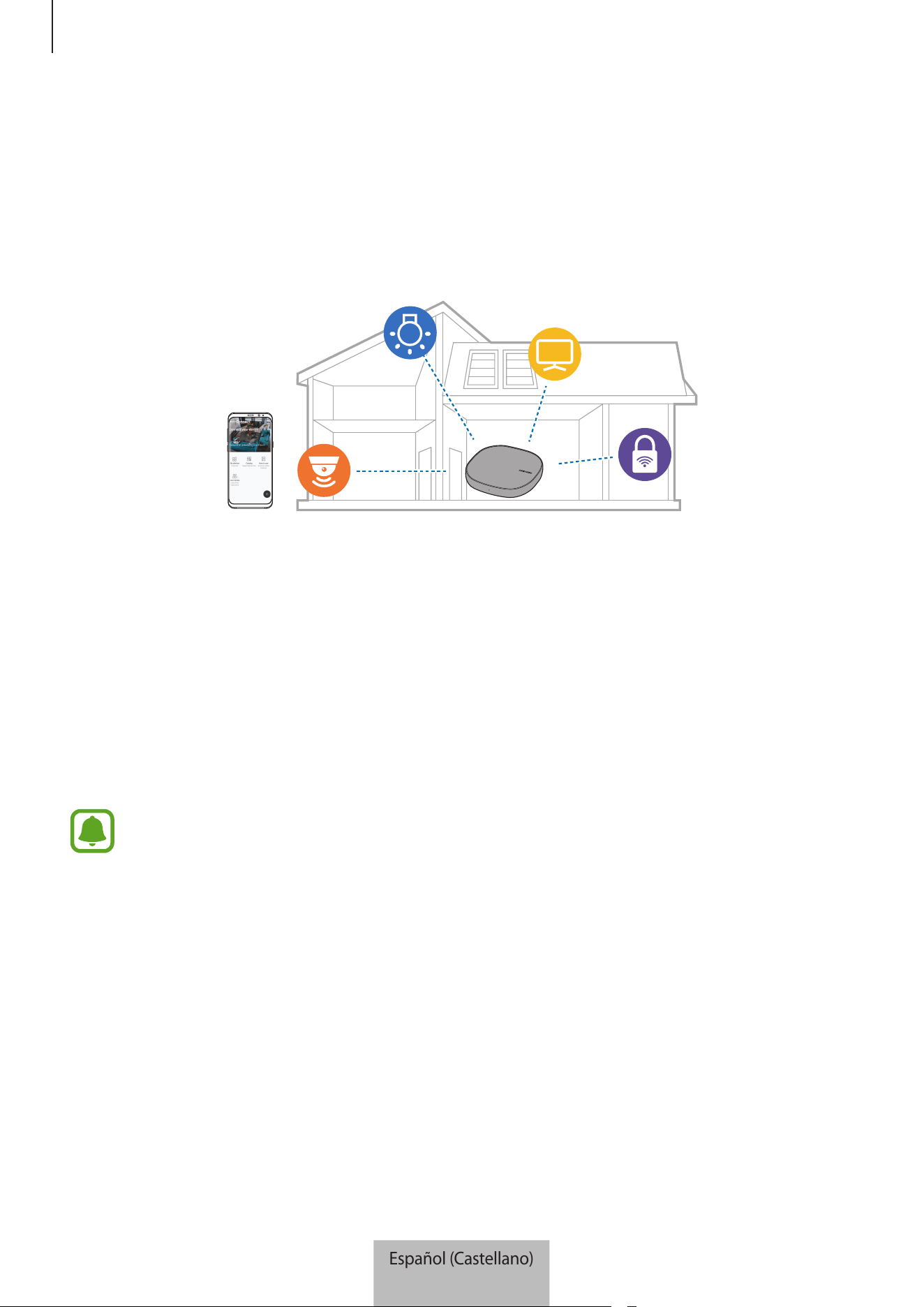
The Samsung Connect Home (Pro) is a Wi-Fi router that can connect your smartphone to your
smart home appliances via Wi-Fi. You can also connect Internet of Things (IoT) devices to this
Wi-Fi hub via the Samsung SmartThings Hub feature.
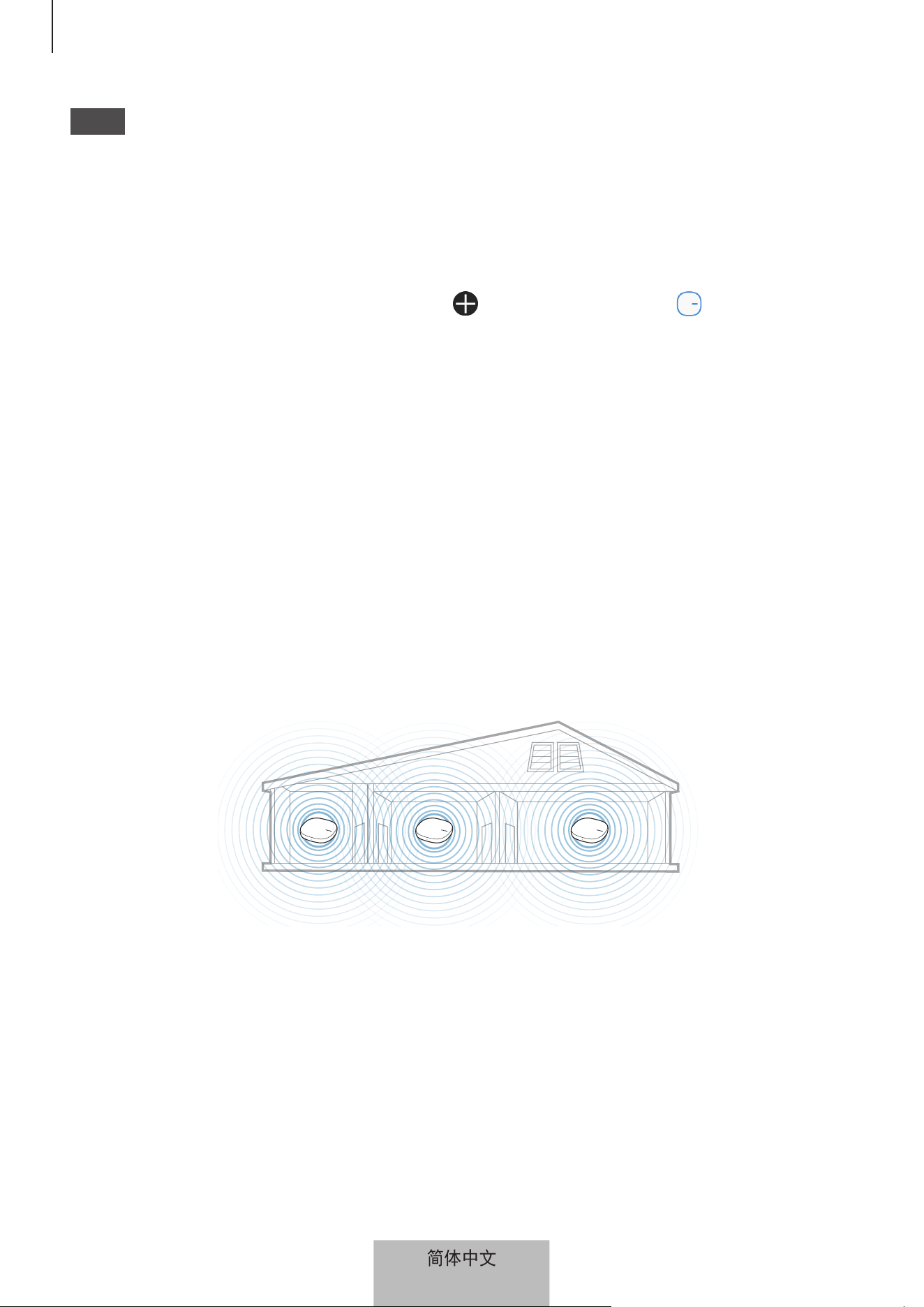
For larger homes, you can connect more Wi-Fi hubs.
Package contents
Check the product box for the following items:
•
Wi-Fi hub
•
Ethernet cable
•
AC/DC adapter (hereafter “adapter”)
•
Quick start guide
•
The items supplied with the device and any available accessories may vary
depending on the region or service provider.
•
The supplied items are designed only for this device and may not be compatible
with other devices.
•
Appearances and specifications are subject to change without prior notice.
•
You can purchase additional accessories from your local Samsung retailer. Make
sure they are compatible with the device before purchase.
•
Use only Samsung-approved accessories. Using unapproved accessories may cause
the performance problems and malfunctions that are not covered by the warranty.
•
Availability of all accessories is subject to change depending entirely on
manufacturing companies. For more information about available accessories, refer
to the Samsung website.
English (USA)
2
Getting started
5
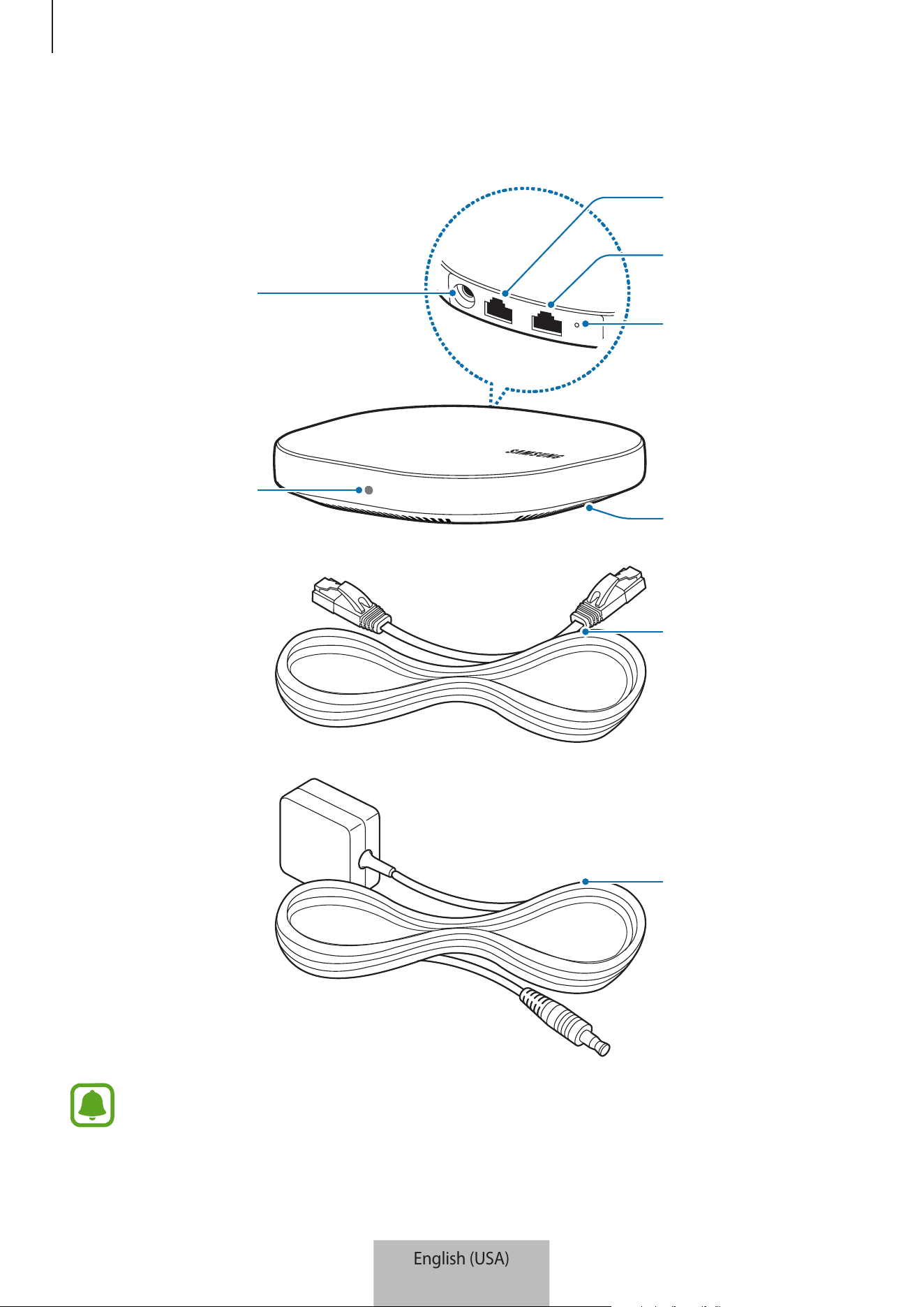
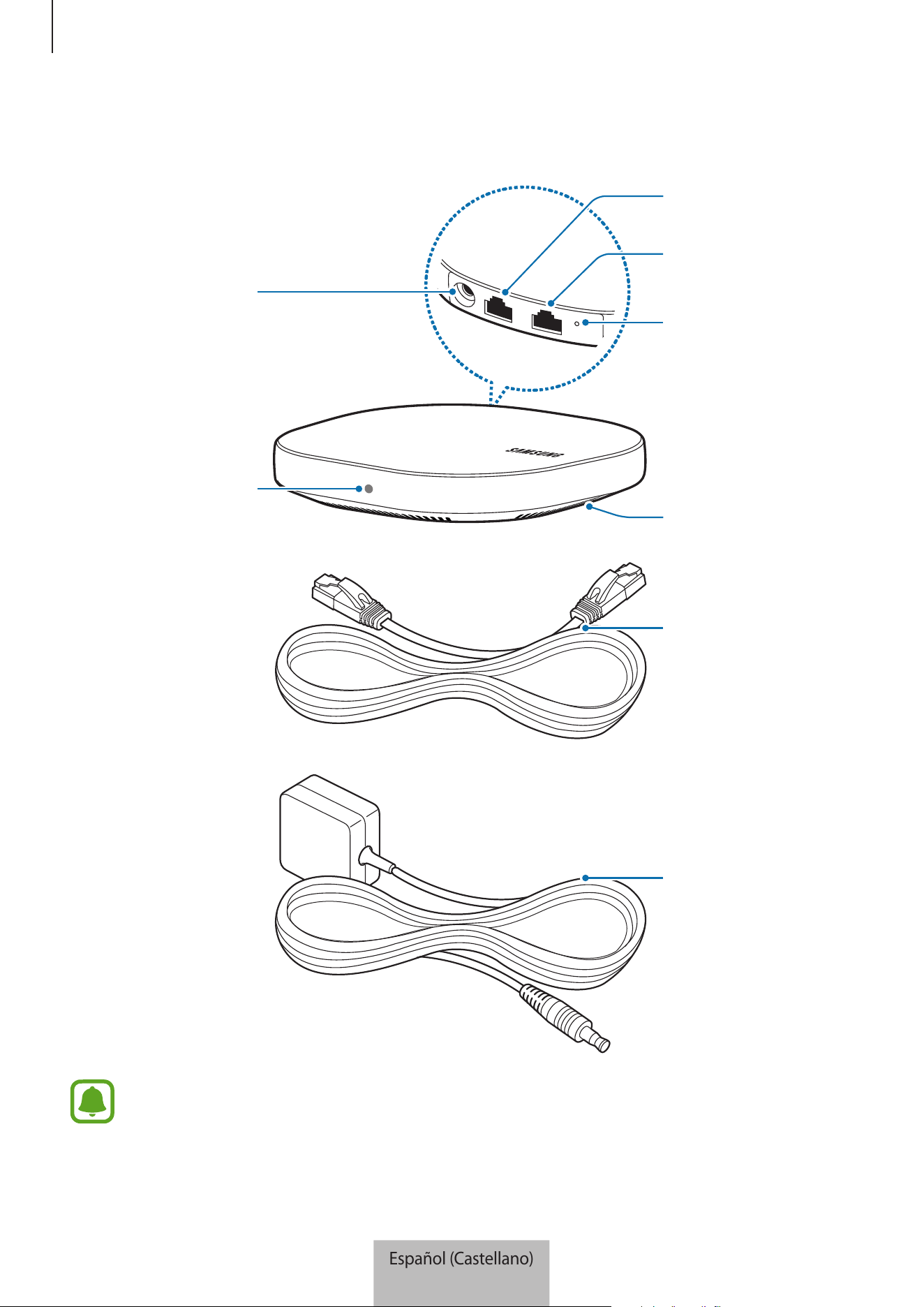
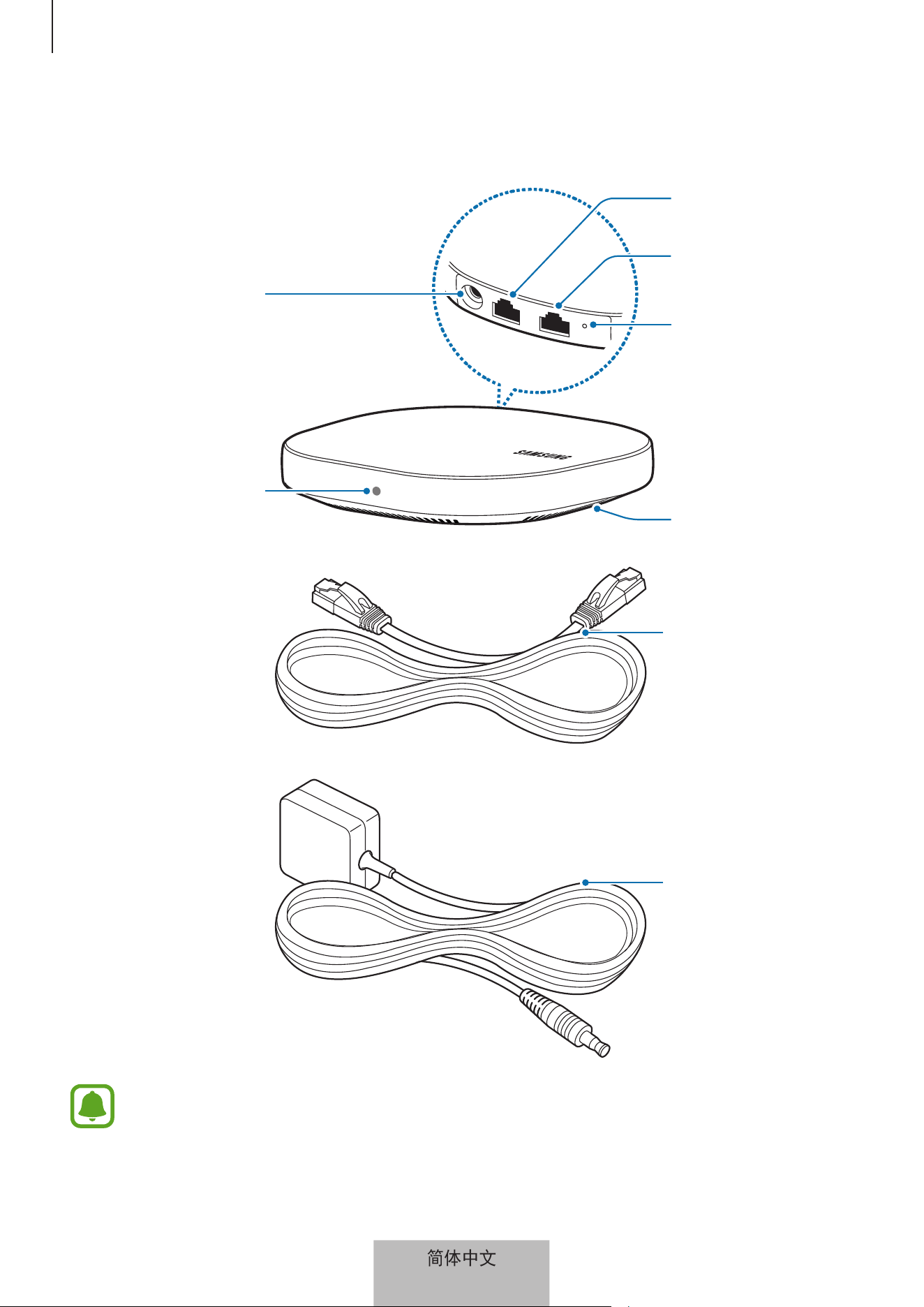
Device layout
AC/DC adapter
connector
WAN port (IN)
LAN port (OUT)
Reset hole
Fan vent
Indicator light
Ethernet cable
AC/DC adapter
The appearance and internal structure of the product may vary depending on the
model.
English (USA)
3
Getting started
6
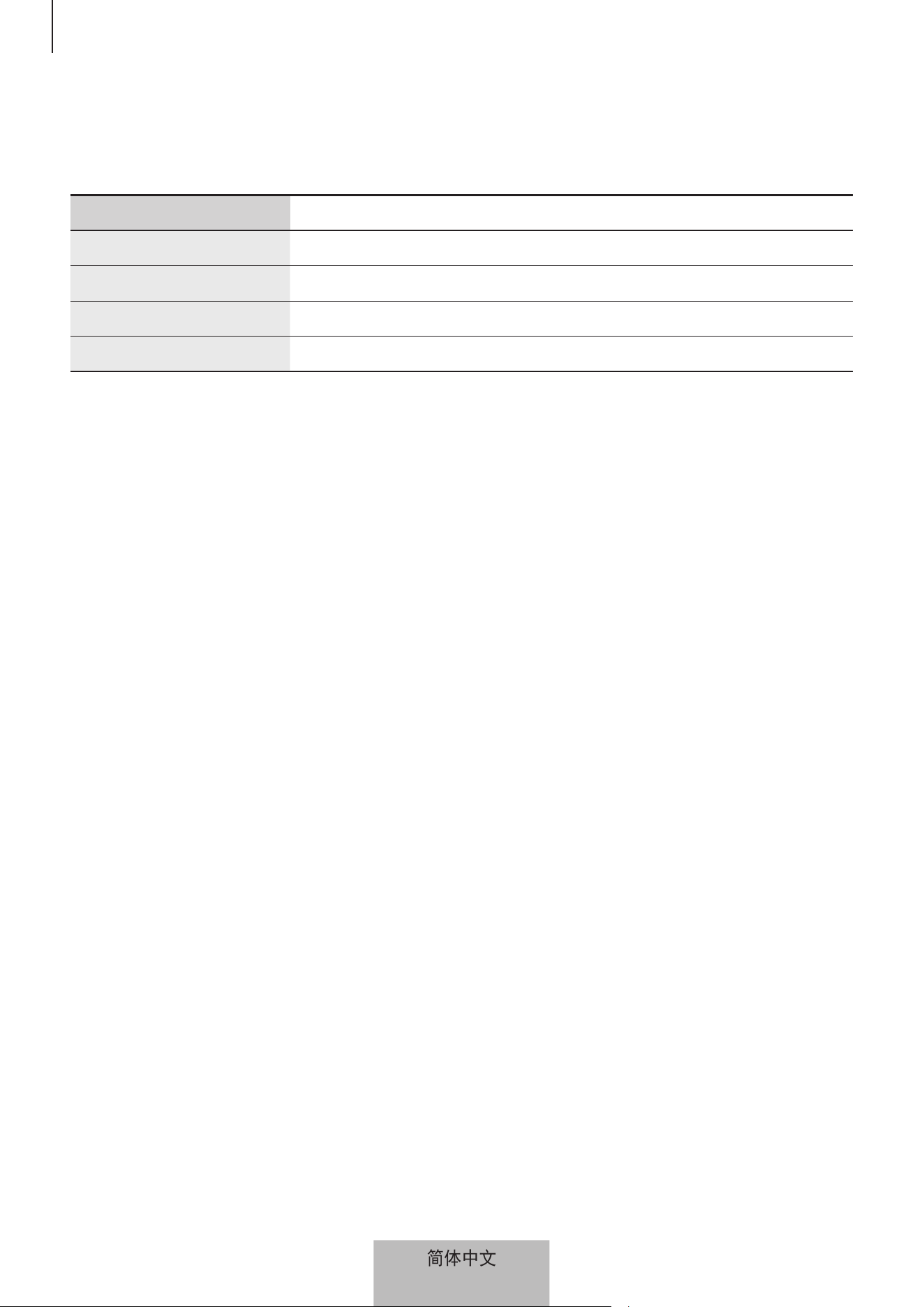
Indicator light
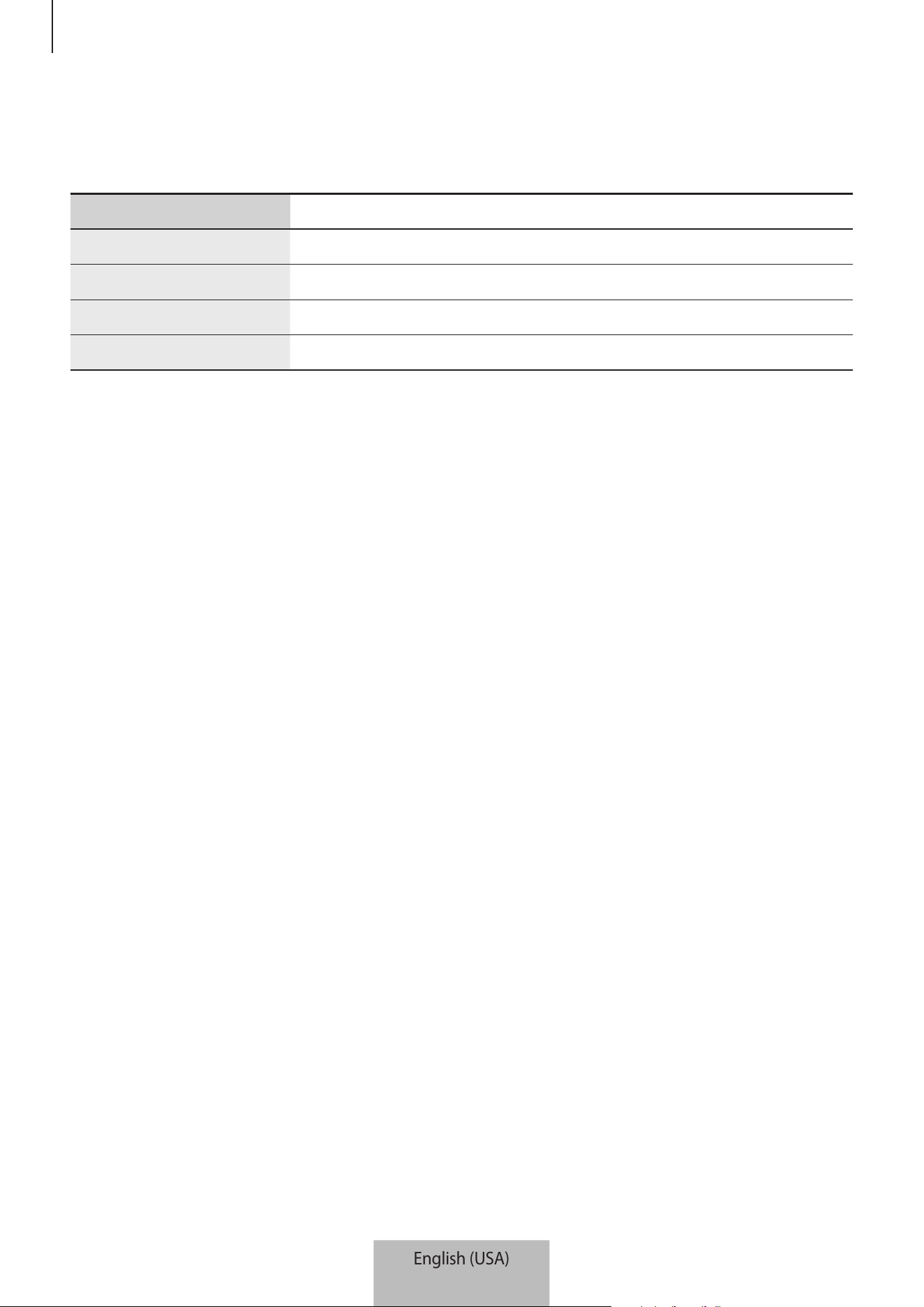
The indicator light alerts you to the Wi-Fi hub status.
Color Status
Green Power on, Working
Flashes green Booting/resetting the system
Flashes green and red Waiting for devices to connect
Flashes red Function error
English (USA)
4
7
Using the Wi-Fi hub
Connecting with a mobile device
To connect the Wi-Fi hub with a mobile device, you must install the Samsung Connect app on
the mobile device. You can download the app from
Galaxy Apps
,
Play Store
, or
App Store
.
•
Visit www.samsung.com to see compatible devices with the Samsung Connect
app.
•
You must register and sign in to your Samsung account to use the Samsung
Connect app.
•
Supported features may vary depending on your mobile device and its operating
system.
Wi-Fi hub
1
Connect one end of the Ethernet cable to the hub’s WAN port (IN) and the other end to
the modem’s LAN port.
2
Connect the adapter to the Wi-Fi hub.
The Wi-Fi hub will turn on and the indicator light will flash green.
Use only Samsung-approved adapters (12 V/2.1 A or higher).
•
You can use the Wi-Fi hub only when you connect the Wi-Fi hub to an adapter.
•
If the SAMSUNG Connect Home Pro’s temperature exceeds 55 °C, the Wi-Fi hub’s
internal fan will automatically activate.
•
If the Wi-Fi hub overheats for a prolonged period, the Wi-Fi hub may automatically
turn off or reset. When this happens continually, disconnect the adapter from the
Wi-Fi hub and contact a Samsung Service Center.
•
To save energy, unplug the adapter when not in use. The adapter does not have a
power switch, so you must unplug the adapter from the electric socket when not in
use to avoid wasting power. The adapter should remain close to the electric socket
and be easily accessible while using it.
English (USA)
5
Using the Wi-Fi hub
8
Mobile device
3
Launch the
Samsung Connect
app on the mobile device.
The Wi-Fi and Bluetooth features will activate automatically and search for available
devices.
4
The Wi-Fi hub will be detected automatically. Tap
ADD NOW
.
If the Wi-Fi hub is not detected, tap
→
ADD DEVICE MANUALLY
→
Wi-Fi Hub
,
and tap your Wi-Fi hub’s name.
5
Enter a network name and password to assign to the Wi-Fi hub.
To register IoT devices via the Samsung SmartThings Hub feature, tick
Set up
SmartThings Hub
to activate it.
6
Follow the on-screen instructions to complete the connection.
Adding additional Wi-Fi hubs
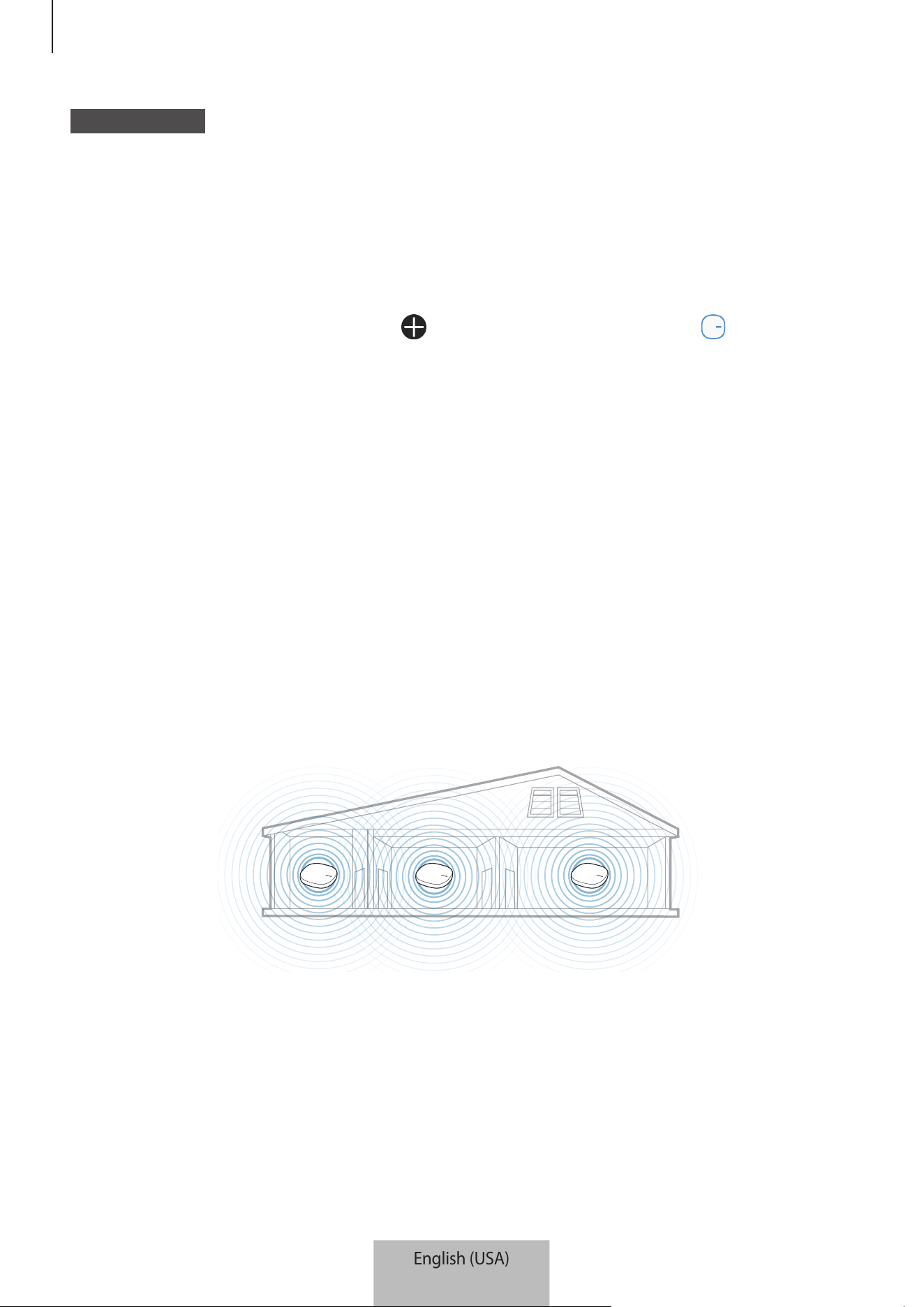
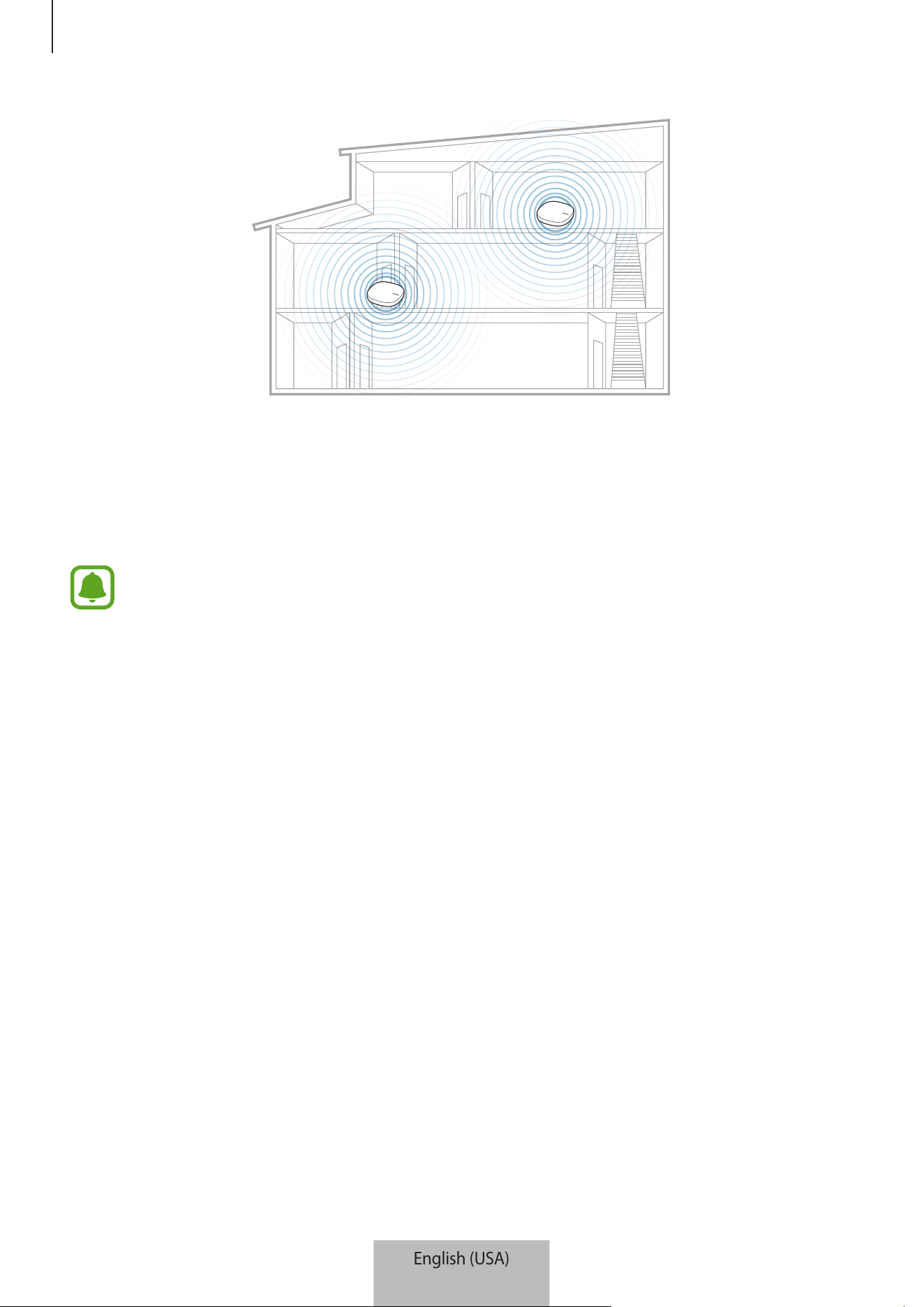
One Wi-Fi hub can cover a 140 m
2
connection range (based on timber buildings) but can
differ depending on the usage environment.
Install an additional Wi-Fi hub to connect to a larger area beyond the connection range with a
Wi-Fi network.
English (USA)
6
Using the Wi-Fi hub
9
1
Connect the AC/DC adapter to the additional Wi-Fi hub.
2
On the mobile device, launch the
Samsung Connect
app and follow the on-screen
instructions to complete the connection.
You can connect up to four additional Wi-Fi hubs.
Notices for connecting a Wi-Fi hub
•
Install a Wi-Fi hub near the devices to be registered.
•
When you add additional Wi-Fi hubs, install them within the connection range.
•
Do not place obstacles between the Wi-Fi hub and the devices to be registered.
•
Obstacles such as the human bodies, walls, corners, or fences can weaken the signals.
•
When using the Wi-Fi hub, it should be connected via the Ethernet cable.
Notices for using Bluetooth
•
To avoid problems when connecting your Wi-Fi hub to another device, place the devices
close to each other.
•
Ensure that your Wi-Fi hub and the other Bluetooth device are within the maximum
Bluetooth range (5 m). The distance may vary depending on the environment the devices
are used in.
English (USA)
7

Using the Wi-Fi hub
10
•
Ensure that there are no obstacles between the Wi-Fi hub and a connected device,
including human bodies, walls, corners, or fences.
•
Do not touch the Bluetooth antenna of a connected device.
•
Bluetooth uses the same frequency as some industrial, scientific, medical, and low power
products and interference may occur when making connections near these types of
products.
•
Some devices, especially those that are not tested or approved by the Bluetooth SIG, may
be incompatible with your Wi-Fi hub.
•
Do not use the Bluetooth feature for illegal purposes (for example, pirating copies of files
or illegally tapping communications for commercial purposes).
Configuring the Wi-Fi router feature
You can configure the detail settings of the Wi-Fi network.
Assigning priority to a connected device
You can set the prior connection for the specified devices connected to the Wi-Fi hub’s Wi-Fi
network.
1
On the Samsung Connect screen, tap
My devices
.
2
On the registered devices list, tap the Wi-Fi hub.
3
Tap the button next to
Devices on network
.
4
On the connected devices list, select a device to give priority to the Wi-Fi hub’s Wi-Fi
network.
5
Tap the
Highest bandwidth priority
switch to activate it.
English (USA)
8

Using the Wi-Fi hub
11
Restricting time for using the Wi-Fi network
You can restrict the time for the connected devices to use the Wi-Fi hub’s Wi-Fi network.
1
On the Samsung Connect screen, tap
My devices
.
2
On the registered devices list, tap the Wi-Fi hub.
3
Tap the button next to
Devices on network
.
4
On the connected devices list, select a device to restrict the time to use the Wi-Fi hub’s
Wi-Fi network.
5
Tap
Restrict usage time
→
Add restricted time
.
6
Set days and time, and then tap
ADD
.
Adding guest network
You can add a guest network separated from the main Wi-Fi network.
1
On the Samsung Connect screen, tap
My devices
.
2
On the registered devices list, tap the Wi-Fi hub.
3
Tap
→
Guest access
→
Add guest network
.
4
Enter a network name and password and tap
DONE
.
English (USA)
9
12
Samsung Connect app
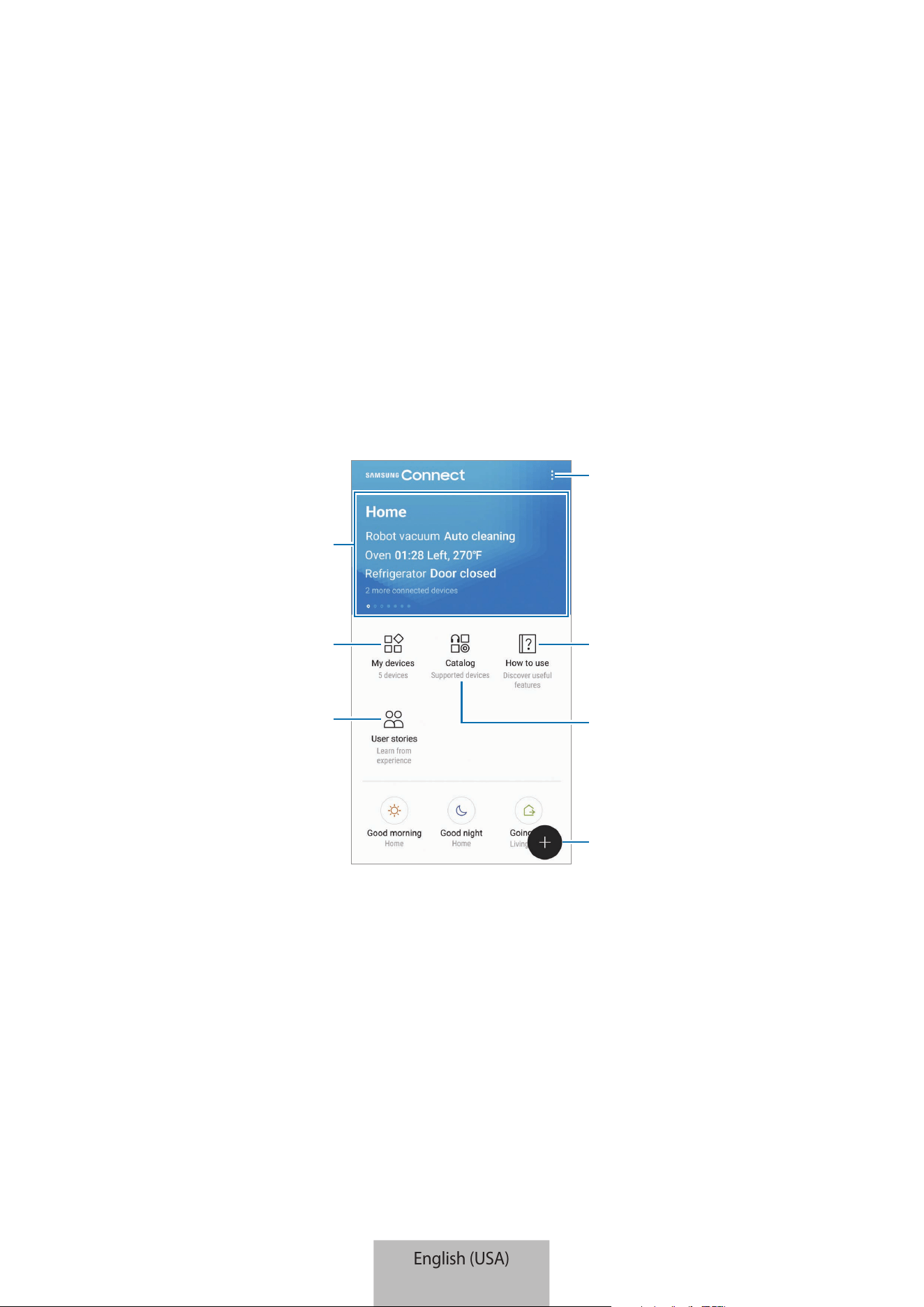
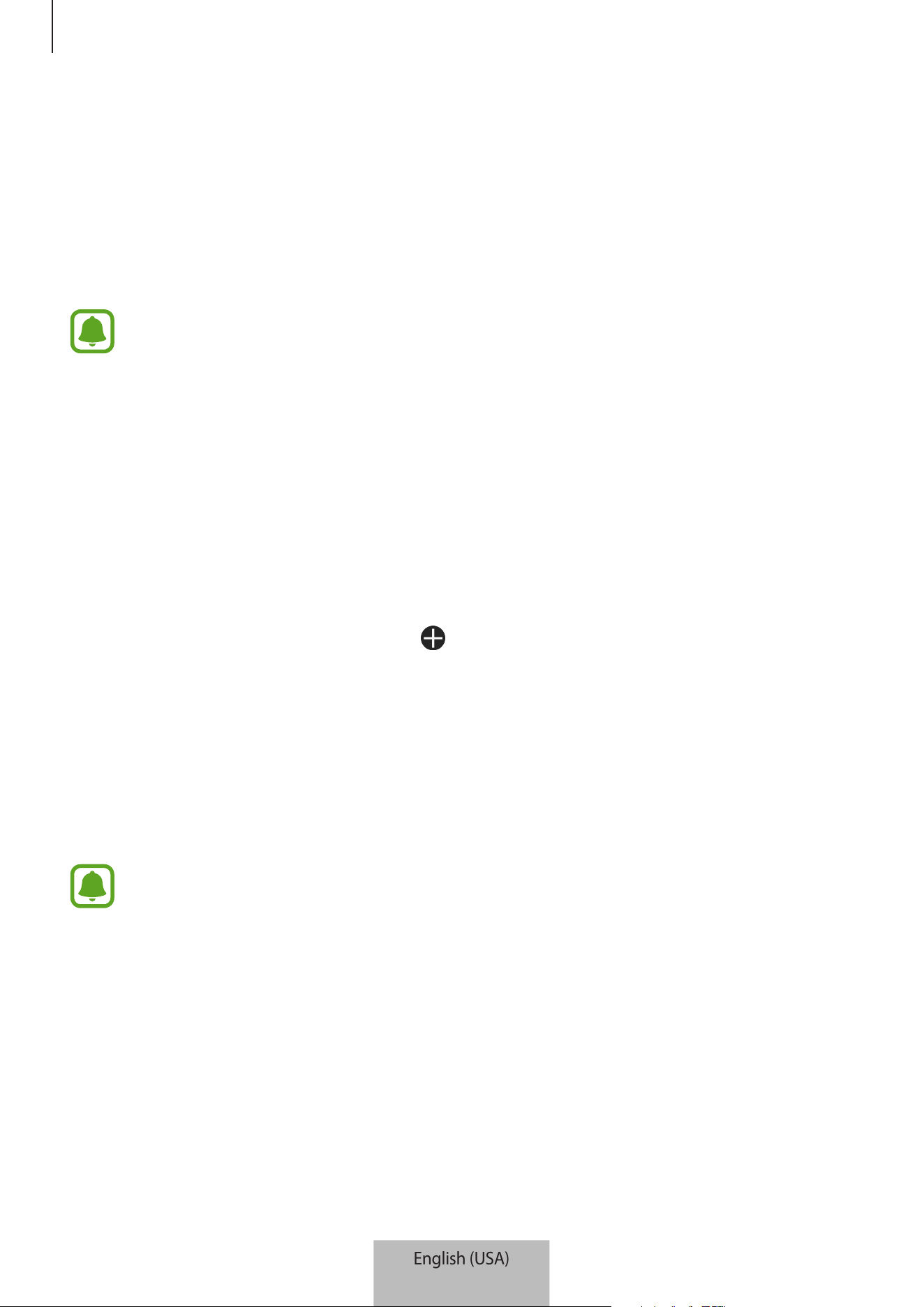
Introduction
Register Internet of Things (IoT) devices and smart home appliances to the Samsung Connect
app on your mobile device, and check their status or control them. To control the devices by
location, such as your home or office, create a location and assign registered devices to it. You
can also set a mode to control many devices at the same time or set a rule to perform actions
automatically at a preset time.
View information about
Samsung Connect and access
favorite locations.
View registered devices.
User stories
Access additional options.
Supported devices
Samsung Connect usage tips
Search for and register nearby
devices.
English (USA)
10
Samsung Connect app
13
Registering devices
Registering smart home appliances via Wi-Fi
Register smart home appliances that support Wi-Fi to the Samsung Connect app and control
them. For instructions on how to register devices, refer to the other devices’ user manuals.
•
To view the supported devices, tap
Catalog
on the Samsung Connect screen.
•
Connected devices’ own errors or defects are not covered by the Samsung
warranty. When errors or defects occur on the connected devices, contact the
device’s manufacturer.
Registering IoT devices via the Samsung SmartThings Hub
feature
Register the Internet of Things (IoT) devices that support Z-Wave, zigbee, LAN, or Cloud-to-
Cloud to the Samsung Connect app and control them.
1
On the Samsung Connect screen, tap .
2
Tap
ADD DEVICE MANUALLY
and select a category of the device to register (for example,
light bulbs).
3
Select the device maker.
4
Follow the on-screen instructions to complete the registration.
•
The Samsung SmartThings Hub feature may not be available depending on the
region. Visit www.samsung.com for details.
•
You can only register the IoT devices approved by Samsung. Visit
www.samsung.com to see a list of compatible devices.
•
Refer to the other devices’ user manuals for instructions on how to pair with them.
English (USA)
11

Samsung Connect app
14
Controlling the registered devices
On the Samsung Connect screen, tap
My devices
.
On the registered devices list, tap a device.
The controller for the device will be downloaded.
With the downloaded controller, remotely control the registered devices via the Samsung
Connect app.
Creating locations
You can register devices by location and manage them.
1
On the Samsung Connect screen, tap
My devices
.
2
Tap
→
Add place
.
3
Enter a location name and tap
ADD
.
4
Tap
ADD DEVICE
to register devices or select devices to assign to the location and tap
MOVE
.
Inviting members to the created location
Invite other members to the created location to control the devices and modes assigned to
that location.
1
On the Samsung Connect screen, tap
My devices
.
2
Scroll the screen to the left or right to select a location.
3
Tap
→
Invite member
.
English (USA)
12
Samsung Connect app
15
4
Tap
Enter Samsung account ID
, enter the Samsung account for the person you want to
invite, and then tap
.
You can invite users by scanning the QR code. Tap
CREATE QR CODE
and invite other
users to scan it.
•
You can only invite the users login the Samsung account via Samsung Connect
app.
•
To accept the invitation, on the Samsung Connect screen, tap the invitation pop-
up and tap
ACCEPT
. To accept the invitation by scanning the QR code, on the
Samsung Connect screen, tap
→
Settings
→
Accept invitation (QR code)
and
then scan the QR code.
5
Follow the on-screen instruction to complete the invitation.
Setting and running modes
Set a mode to operate multiple devices at once. To set a mode, you should create locations.
Refer to Creating locations for more information.
1
On the Samsung Connect screen, tap
My devices
.
2
Scroll the screen to the left or right to select a location.
English (USA)
13
Samsung Connect app
16
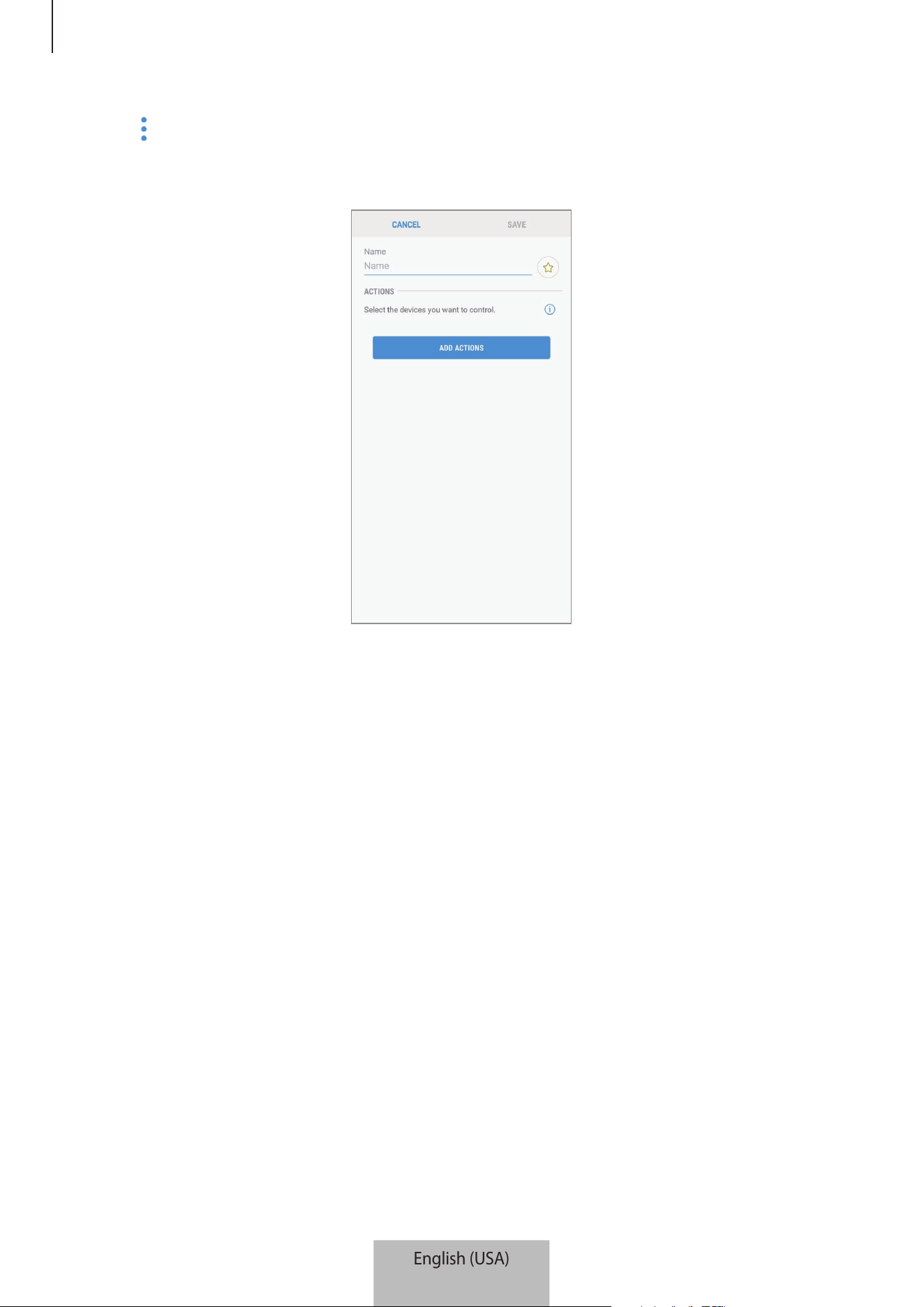
3
Tap
→
Add mode
.
The screen for setting modes will appear.
4
Enter the mode’s title and select an icon for the mode, then tap
ADD ACTIONS
.
English (USA)
14
Samsung Connect app
17
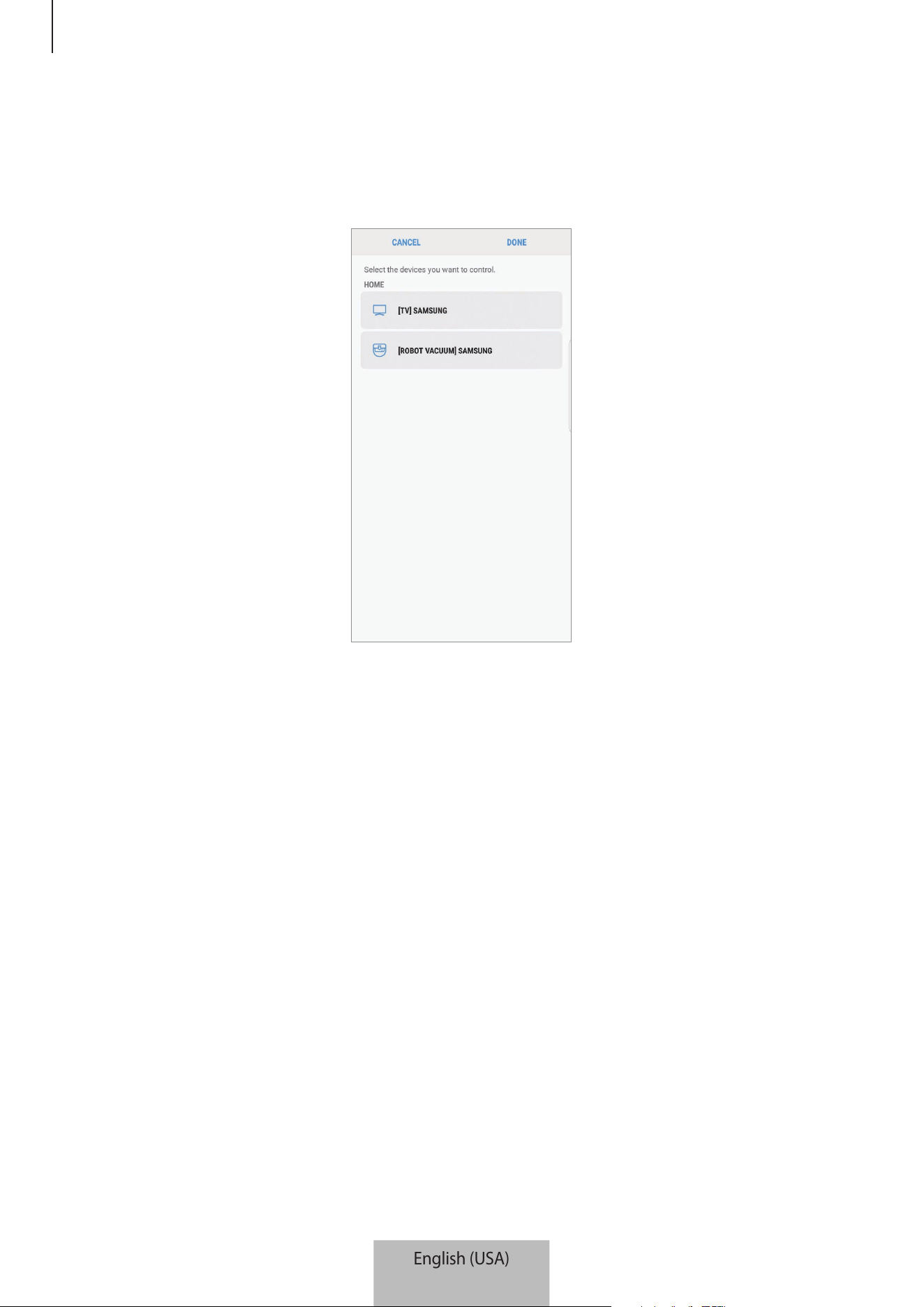
5
Select a device and an action to be operated, and then tap
DONE
.
For example, select a TV and a robot vacuum cleaner and the corresponding actions to
be operated.
6
Tap
SAVE
.
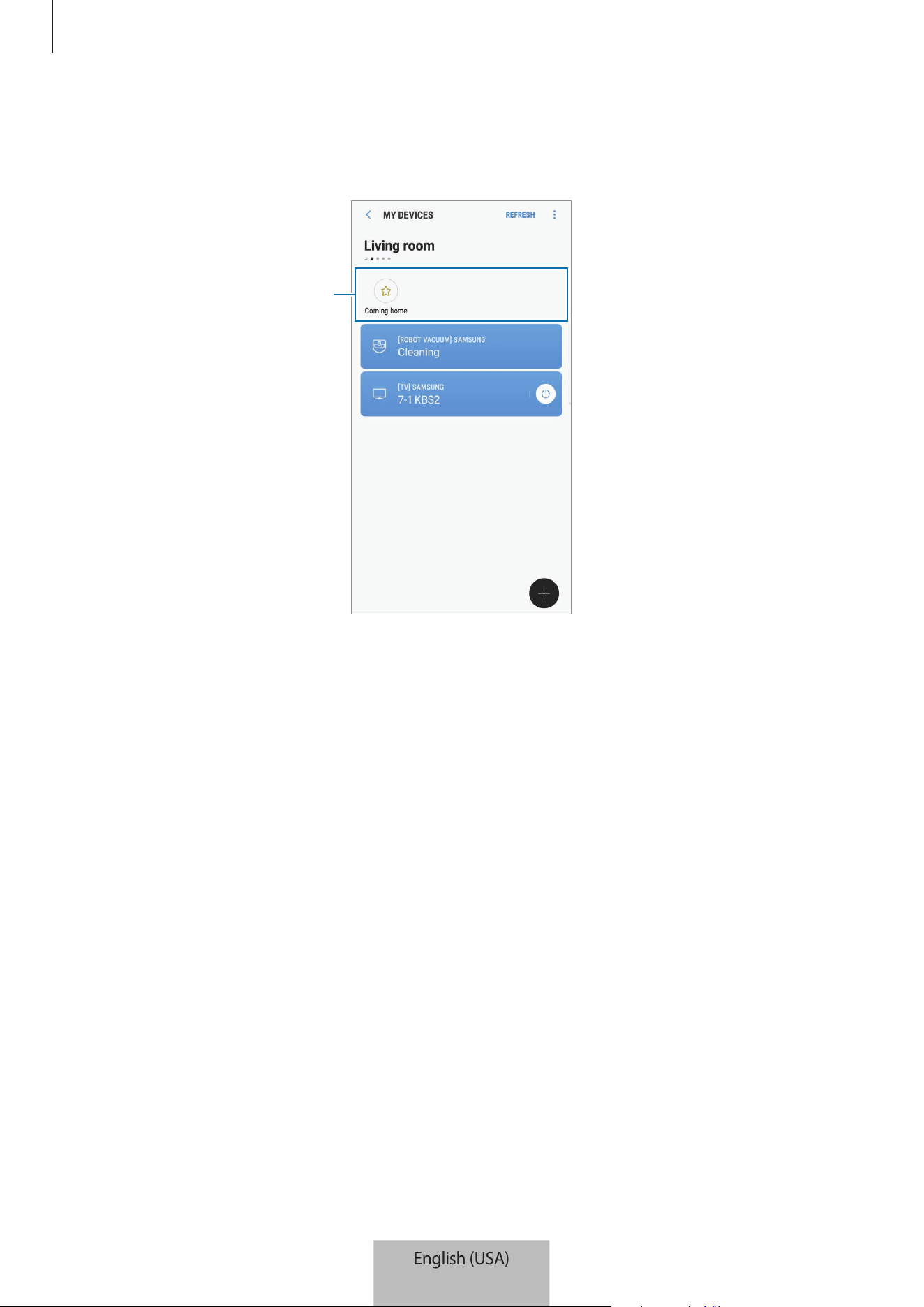
The mode is set. You can view the set mode on the designated location screen.
Activating modes
1
On the Samsung Connect screen, tap
My devices
.
2
Scroll the screen to the left or right to select a location that has the mode you want to
activate.
English (USA)
15
Samsung Connect app
18
3
Select a mode to activate.
The devices you set will operate in accordance with the mode.
Set modes
English (USA)
16
Samsung Connect app
19
Setting rules
Set a rule for devices assigned to a location to automatically perform actions at a specific
time.
1
On the Samsung Connect screen, tap .
2
Tap
Rules
→
ADD RULE
.
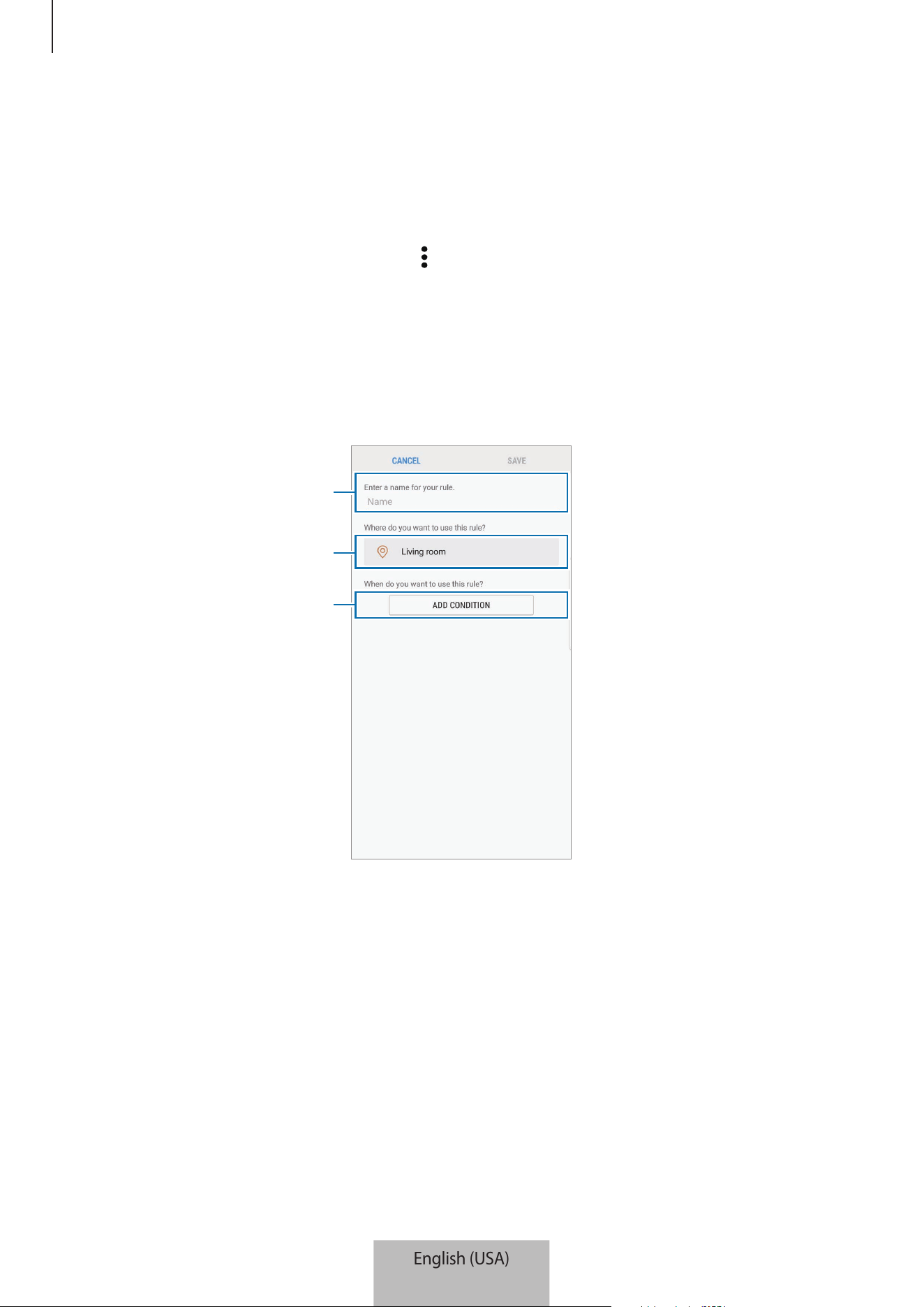
The screen for setting rules will appear.
3
Enter the rule’s title, select a location, and then tap
ADD CONDITION
.
Enter the rule's title.
Select a location.
Select the time and day.
English (USA)
17
Samsung Connect app
20
4
Tap
Time/day (exact)
or
Time/day (period)
, enter the time and day, and then tap
DONE
.
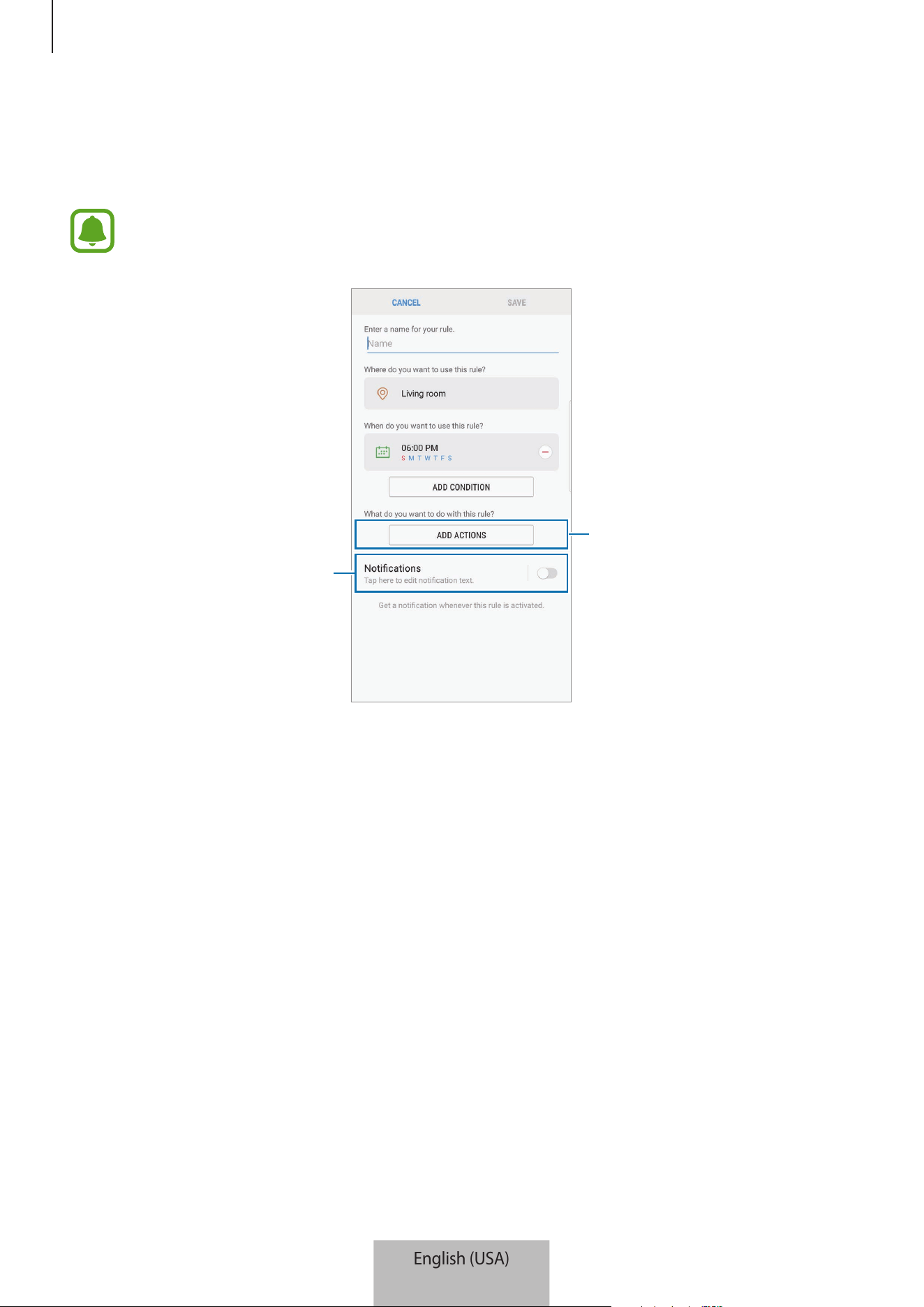
5
Tap
ADD ACTIONS
, select devices and conditions, or modes, and then tap
DONE
.
To receive a notification when the devices perform an action according to the rule,
tap the
Notifications
switch to activate the feature.
Select a device or a mode.
Activate the notification feature.
6
Tap
SAVE
.
The assigned devices will operate in accordance with the set rule.
English (USA)
18
Samsung Connect app
21
Managing devices and locations
You can manage location and its assigned devices and modes.
1
On the Samsung Connect screen, tap
My devices
.
2
Scroll the screen to the left or right to select a location.
3
Tap
→
Edit
and use the following options.
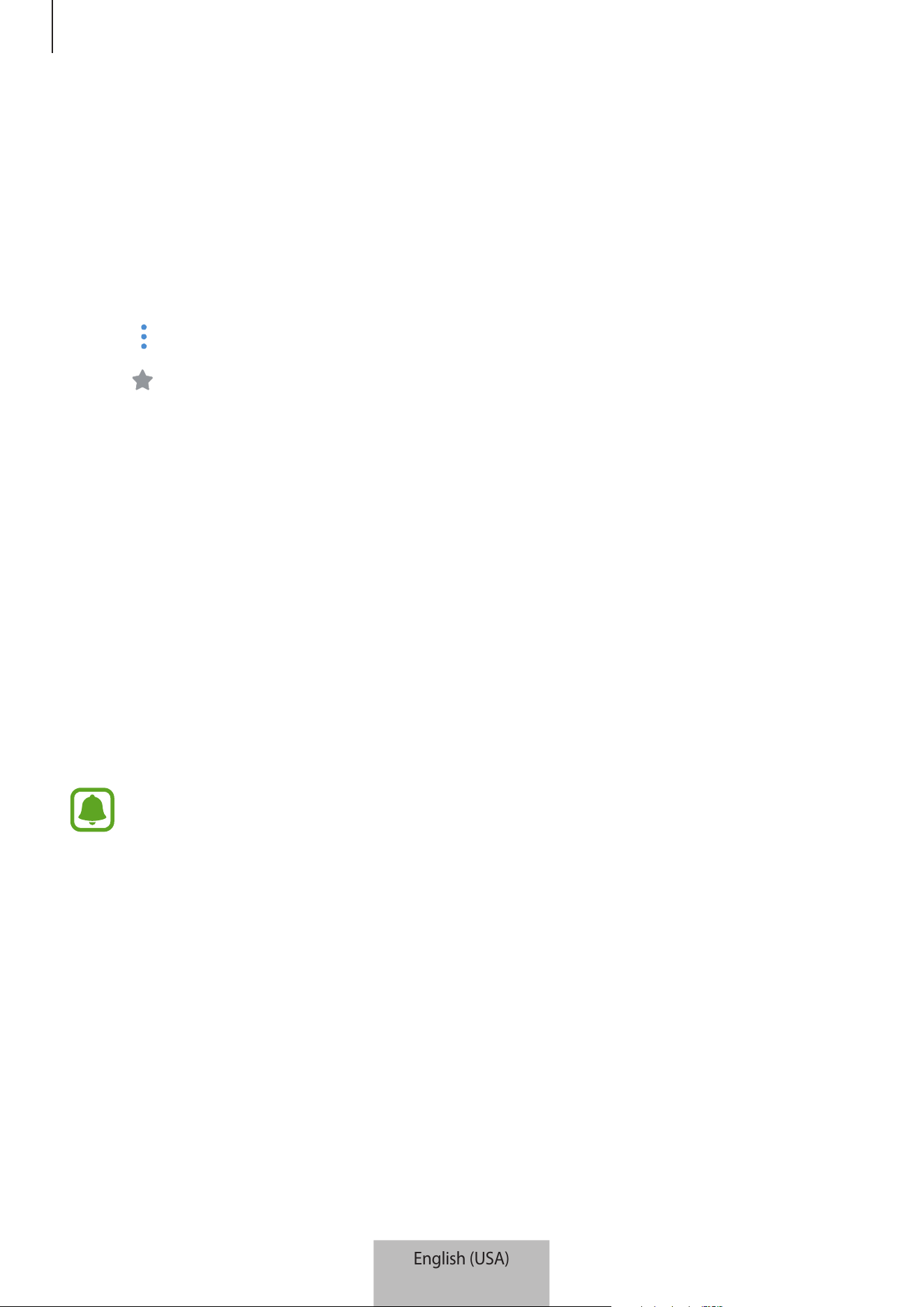
•
: Set the location or mode as a favorite. You can access the favorites on the
Samsung Connect screen.
•
Location name
→
Place name
: Change the location name and its wallpaper color
displayed on the Samsung Connect screen when it is set as a favorite.
•
Location name
→
MEMBERS
: View the members to share the location.
•
Location name
→
REMOVE PLACE
: Delete the location.
•
Location name
→
LEAVE PLACE
: Delete the invited location.
•
Device name
→
Device name
: Change the device name and its icon color displayed
on the location screen.
•
Device name
→
Place
: Assign the device to another location. This option is only
available for the owner of the location.
•
Device name
→
DELETE DEVICE
: Delete the device from the assigned location or
deregister the device.
•
To connect a Z-Wave device to another device, on the currently connected mobile
device, remove the device from the Samsung Connect app to exclude it. When you
remove the device from the Samsung Connect app, the instructions for exclusion
will be provided via a URL. Follow the instructions to exclude the Z-Wave device.
If you reset the Wi-Fi hub, you should exclude the Z-Wave device and reconnect
(re-include) it. For instructions on how to exclude Z-Wave devices, refer respective
Z-Wave device’s user manual or contact the device’s manufacturer.
•
For additional Z-Wave network utility functions, visit www.smartthings.com.
•
The Wi-Fi hub automatically sends an Association Set for Lifeline/group1 for 4
nodes after adding a device that supports Association.
English (USA)
19
Samsung Connect app
22
•
Mode icon
→
Name
: Change the mode name and its icon.
•
Mode icon
→
device name: Select an action to be operated when the mode is
activated.
•
Mode icon
→
: Delete the device from the mode.
•
Mode icon
→
ADD ACTIONS
: Add devices and actions to the mode.
•
Mode icon
→
DELETE MODE
: Delete the mode.
Configuring the Samsung Connect app
Configure the Samsung Connect app settings. On the Samsung Connect screen, tap and use
the following options.
•
Add place
: Create a new location.
•
Rules
: View the created rules. You can also edit or delete rules.
This option is only available when you have registered devices to the Samsung
Connect app.
•
Notifications
: View the notifications from the Samsung Connect app. You can also
change the notification settings.
•
Settings
: Access information about the Samsung Connect app and Samsung account
information. You can also set the Samsung Connect panel to be displayed on the
notification panel.
•
Contact us
: Samsung Members offers support services to customers, such as device
problem diagnosis, and lets users submit questions and error reports. You can also share
information with others in the Galaxy users’ community or view the latest Galaxy news
and tips.
Samsung Members
can help you solve any problems you might encounter
while using your device.
English (USA)
20

Samsung Connect app
23
Practical usage of the Samsung Connect app
Use the Samsung Connect app to make your life easier and more comfortable. Create rules
based on your routine, or easily control the registered devices from anywhere.
•
If you want to start your day with music every morning, connect speakers to the Samsung
Connect app and create a rule to play your favorite music when you wake up.
•
If you want to ensure that the office is cool when you arrive on a hot summer’s day, turn
on the connected air conditioner via the Samsung Connect app 10 minutes before you
arrive.
•
If you want to come home to a clean house, turn on the connected robot vacuum cleaner
via the Samsung Connect app 30 minutes before you get home.
•
If you want to improve your home security, create a rule for motion sensors to operate
at bedtime and activate the notification feature. When the motion sensors detect
unexpected movements, they will notify you.
To view other usage examples, tap
User stories
on the Samsung Connect screen.
English (USA)
21

24
Appendix
Troubleshooting
Before contacting a Samsung Service Center, please attempt the following solutions.
Your Wi-Fi hub freezes
If the Wi-Fi hub freezes or hangs, disconnect the adapter from the Wi-Fi hub and reconnect it.
Close the Samsung Connect app completely on your mobile device and restart it.
If your Wi-Fi hub is frozen and unresponsive, insert a pin into the Reset hole more than
8 seconds.
If the tips above do not solve the problem, contact a Samsung Service Center.
Your Wi-Fi hub is not connected with a router
This Wi-Fi hub only supports Samsung Connect routers. Connect only the SAMSUNG Connect
Home Pro or the SAMSUNG Connect Home.
Your Wi-Fi hub is not detected by the Samsung Connect app
•
If the Wi-Fi hub freezes or hangs, disconnect the adapter from the Wi-Fi hub and
reconnect it.
•
Close the Samsung Connect app completely on your mobile device and restart it.
•
If your Wi-Fi hub is frozen and unresponsive, insert a pin into the Reset hole.
•
Ensure that the other devices are within the maximum connection range.
If the tips above do not solve the problem, contact a Samsung Service Center.
Other devices cannot connect to the Samsung Connect app
•
On the other device, disconnect from the Wi-Fi network and reconnect to it.
•
Turn the device off and turn it on.
English (USA)
22

Appendix
25
The connection is often disconnected
•
If there are obstacles between the devices, the operating distance may be reduced.
•
Ensure that the other devices are within the maximum connection range.
•
When using the Wi-Fi hub with other devices, the connection may be affected by
electromagnetic waves. Use the Wi-Fi hub in environments with fewer wireless devices
present.
The Wi-Fi hub works differently as described in the manual
Available functions may differ depending on the connected device.
English (USA)
23

Copyright
Copyright © 2018 Samsung Electronics
This manual is protected under international copyright laws.
No part of this manual may be reproduced, distributed, translated, or transmitted in any form
or by any means, electronic or mechanical, including photocopying, recording, or storing
in any information storage and retrieval system, without the prior written permission of
Samsung Electronics.
Trademarks
•
SAMSUNG and the SAMSUNG logo are registered trademarks of Samsung Electronics.
•
Bluetooth
®
is a registered trademark of Bluetooth SIG, Inc. worldwide.
•
Wi-Fi
®
, Wi-Fi CERTIFIED
™
, and the Wi-Fi logo are registered trademarks of the Wi-Fi
Alliance.
•
Z-Wave and Z-Wave Plus are registered trademarks of Sigma Designs and its subsidiaries
in the United States and other countries.
•
All other trademarks and copyrights are the property of their respective owners.
English (USA)
24
1
Para comenzar
Lea la siguiente información antes de utilizar el
producto
Lea este manual antes de utilizar el dispositivo a fin de garantizar el uso correcto y seguro.
•
Es posible que las imágenes no sean exactamente iguales al producto real. El contenido está
sujeto a cambio sin previo aviso.
•
Antes de utilizar la base Wi-Fi, asegúrese de que sea compatible con el dispositivo.
•
El desempeño de la base Wi-Fi puede variar según el entorno.
•
Este producto incluye ciertos programas de software libre o de origen abierto. Para ver las
instrucciones para visualizar la licencia de origen abierto, visite el sitio web de Samsung
(opensource.samsung.com).
Iconos instructivos
Advertencia: Situaciones que pueden provocarle lesiones a usted o a otras personas
Precaución: Situaciones que pueden provocarle daños al dispositivo o a otros equipos
Aviso: Notas, sugerencias de uso o información adicional
Español (Castellano)
1
Para comenzar
2
Acerca de SAMSUNG Connect Home (Pro)
Samsung Connect Home (Pro) es un router Wi-Fi que puede conectar su smartphone con sus
electrodomésticos inteligentes a través de Wi-Fi. También es posible conectar dispositivos Internet
de las cosas (IoT) a esta base Wi-Fi a través de la función Samsung SmartThings Hub.
En el caso de los hogares más grandes, puede conectar más bases Wi-Fi.
Contenidos de la caja
Busque los siguientes elementos en la caja del producto:
•
Base Wi-Fi
•
Cable Ethernet
•
Adaptador CA-CC (de aquí en adelante, "adaptador")
•
Guía de inicio rápido
•
Los elementos que vienen con el dispositivo y los accesorios disponibles pueden variar
según la región o el proveedor de servicios.
•
Los elementos suministrados están diseñados exclusivamente para este dispositivo y
podrían no ser compatibles con otros dispositivos.
•
El aspecto y las especificaciones están sujetos a cambio sin previo aviso.
•
Podrá comprar accesorios adicionales en su distribuidor local de Samsung. Asegúrese de
que sean compatibles con el dispositivo antes de comprarlos.
•
Utilice solo accesorios aprobados por Samsung. El uso de accesorios no aprobados podría
provocar problemas de rendimiento y errores de funcionamiento que no se encuentran
cubiertos por la garantía.
•
La disponibilidad de todos los accesorios se encuentra sujeta a cambio y depende
completamente de las empresas fabricantes. Para obtener más información sobre los
accesorios disponibles, consulte el sitio web de Samsung.
Español (Castellano)
2
Para comenzar
3
Diseño del dispositivo
Luz indicadora
Ventilación
Orificio para restablecer
Puerto LAN (SALIDA)
Puerto WAN (ENTRADA)
Conector adaptador
CA-CC
Cable Ethernet
Adaptador CA-CC
El aspecto y la estructura interna del producto puede variar según el modelo.
Español (Castellano)
3
Para comenzar
4
Luz indicadora
La luz indicadora le comunica el estado de la base Wi-Fi.
Color Estado
Verde Encendido, en funcionamiento
Parpadea de color verde Reiniciando/Restableciendo el sistema
Parpadea de color verde
y rojo
Esperando la conexión de los dispositivos
Intermitente rojo Error de función
Español (Castellano)
4
5
Uso de la base Wi-Fi
Conectarse con un dispositivo móvil
Para conectar la base Wi-Fi con un dispositivo móvil, debe instalar la aplicación Samsung Connect en
el dispositivo móvil. Puede descargar la aplicación de
Galaxy Apps
,
Play Store
o
App Store
.
•
Visite www.samsung.com para ver los dispositivos compatibles con la aplicación
Samsung Connect.
•
Debe registrarse e iniciar sesión en su cuenta Samsung para usar la aplicación Samsung
Connect.
•
Las funciones compatibles pueden variar en función del dispositivo móvil y el sistema
operativo.
Base Wi-Fi
1
Conecte un extremo del cable Ethernet al puerto WAN del hub (ENTRADA) y el otro extremo al
puerto LAN del módem.
2
Conecte el adaptador a la base Wi-Fi.
La base Wi-Fi se enciende y la luz indicadora parpadea de color verde.
Utilice solo adaptadores aprobados por Samsung (12 V/2,1 A o superior).
•
Puede utilizar la base Wi-Fi solo cuando la conecte a un adaptador.
•
Si la temperatura de SAMSUNG Connect Home Pro supera los 55 °C, el ventilador interno
de la base Wi-Fi se activa automáticamente.
•
Si la base Wi-Fi se sobrecalienta durante un período prolongado, es posible que se
apague o se restablezca en forma automática. Cuando esto suceda varias veces,
desconecte el adaptador de la base Wi-Fi y comuníquese con el Centro de Servicios de
Samsung.
•
Para ahorrar energía, desconecte el adaptador cuando no lo esté utilizando. El adaptador
no dispone de interruptor de encendido, por lo que deberá desconectarlo de la toma
eléctrica cuando no esté en uso para evitar el consumo innecesario de energía. El
adaptador deberá permanecer cerca de la toma eléctrica, y deberá poder acceder a él
fácilmente mientras se esté usando.
Español (Castellano)
5
Uso de la base Wi-Fi
6
Dispositivo móvil
3
Abra la aplicación
Samsung Connect
en el dispositivo móvil.
Se activan automáticamente las funciones Wi-Fi y Bluetooth y el dispositivo buscará los
dispositivos cercanos.
4
La base Wi-Fi se detecta automáticamente. Pulse
AÑADIR AHORA
.
Si no se detecta la base Wi-Fi, pulse
→
AÑADIR DISPOSITIVO DE FORMA MANUAL
→
Unidad central Wi-Fi
y pulse el nombre de su base Wi-Fi.
5
Introduzca un nombre de red y contraseña para asignar a la base Wi-Fi.
Para registrar los dispositivos IoT a través de la función Samsung SmartThings Hub, seleccione
Configurar Concentrador de SmartThings
para activarla.
6
Siga las instrucciones que aparecen en la pantalla para completar la conexión.
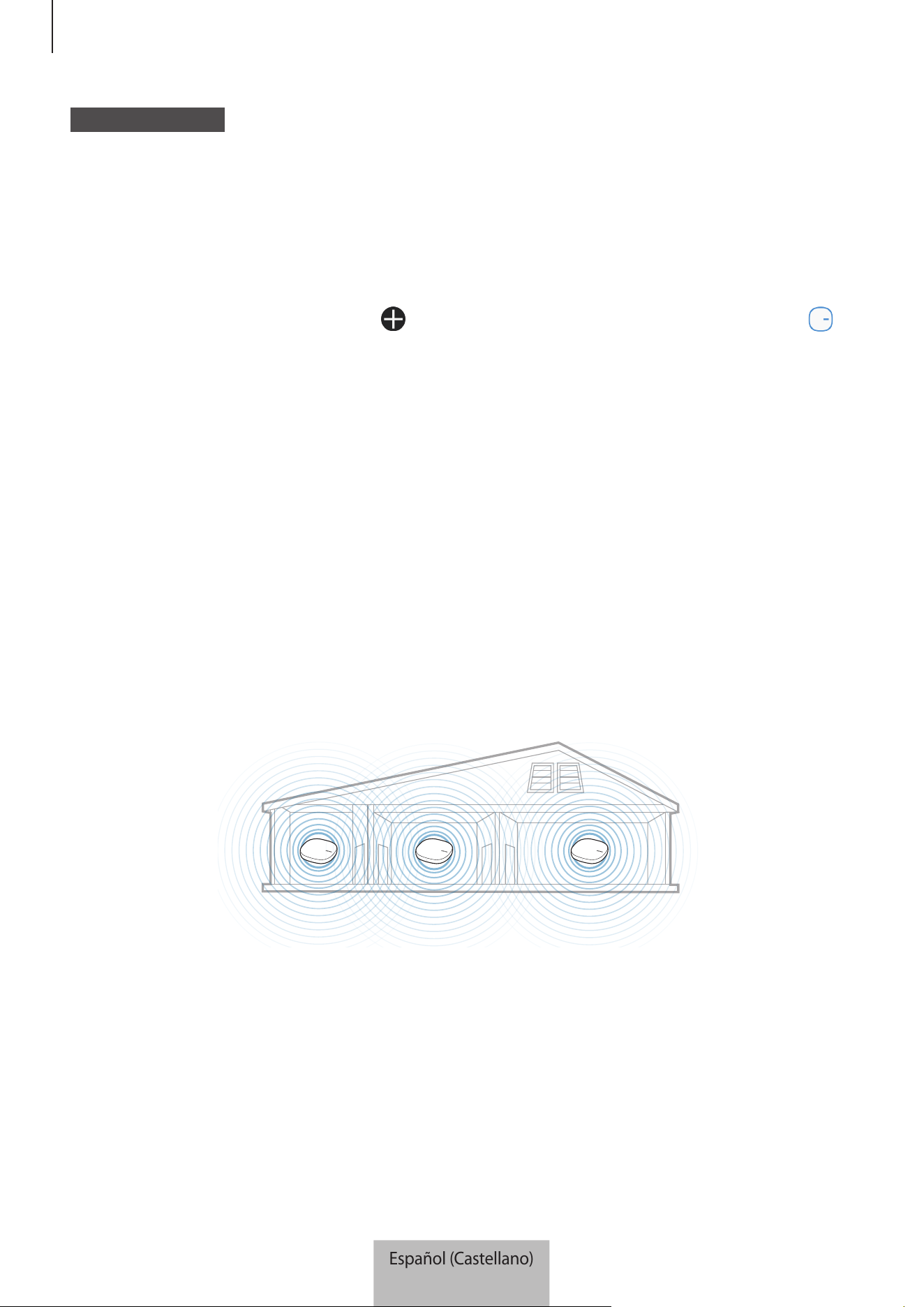
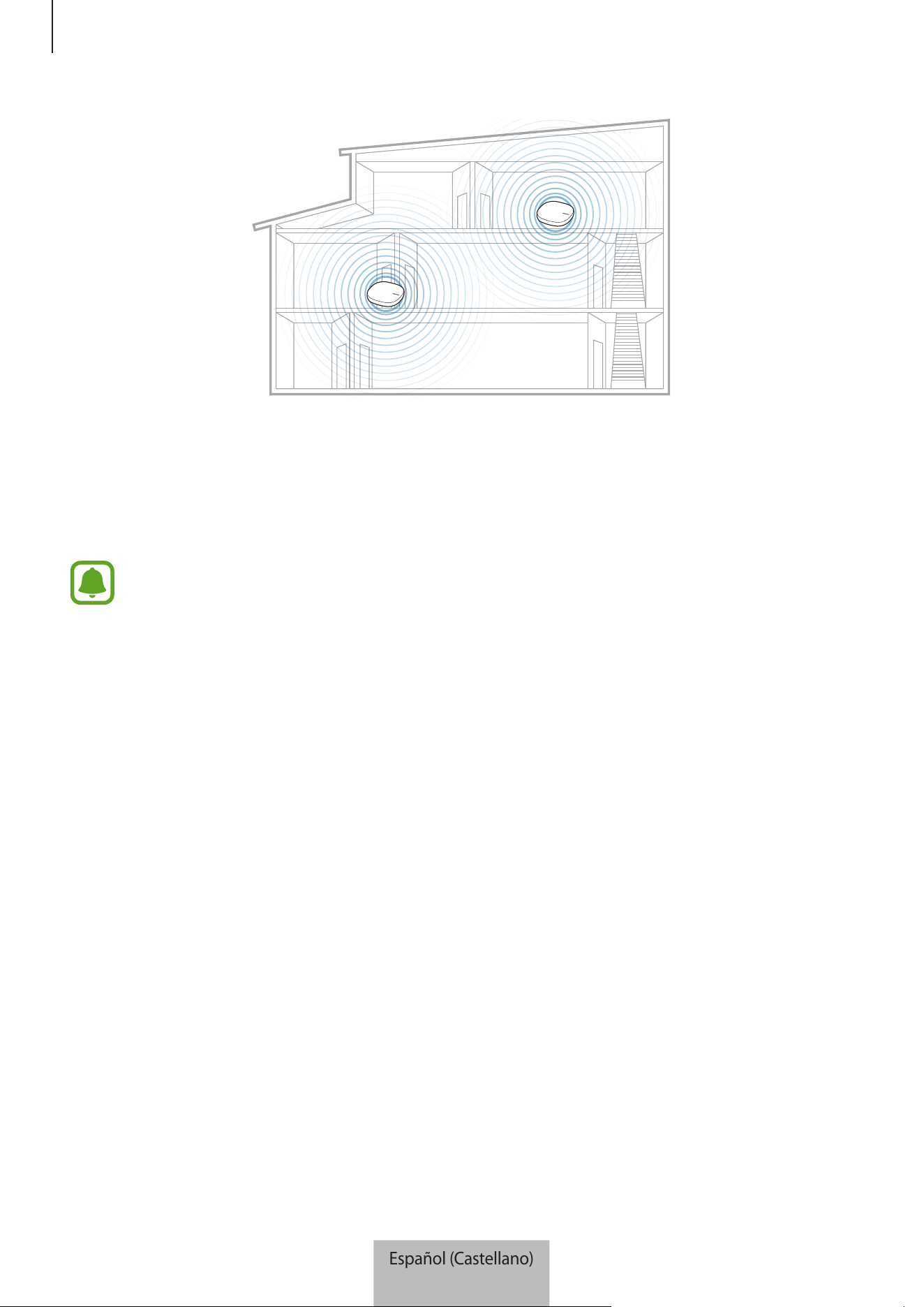
Agregar bases Wi-Fi adicionales
Una base Wi-Fi puede abarcar un rango de conexión de 140 m
2
(construcciones de madera) pero
puede variar según el entorno de uso.
Instale una base Wi-Fi adicional para conectar un área más grande más allá del alcance de conexión
con una red Wi-Fi.
Español (Castellano)
6
Uso de la base Wi-Fi
7
1
Conecte el adaptador CA-CC a la base Wi-Fi adicional.
2
En el dispositivo móvil, abra la aplicación
Samsung Connect
y siga las instrucciones en pantalla
para completar la conexión.
Es posible conectar hasta cuatro bases Wi-Fi adicionales.
Observaciones para la conexión de una base Wi-Fi
•
Instale una base Wi-Fi cerca de los dispositivos a registrar.
•
Al agregar bases Wi-Fi adicionales, instálelas dentro del rango de conexión.
•
No coloque obstáculos entre la base Wi-Fi y los dispositivos a registrar.
•
Los obstáculos tales como personas, paredes, esquinas o cercos pueden debilitar las señales.
•
Al usar la base Wi-Fi, debe conectarse a través del cable Ethernet.
Avisos para el uso de Bluetooth
•
Para evitar problemas al conectar la base Wi-Fi con otro dispositivo, acerque los dispositivos.
•
Asegúrese de que la base Wi-Fi y el otro dispositivo Bluetooth se encuentren dentro del rango
máximo de alcance de Bluetooth (5 m). La distancia puede variar según el entorno en el cual
usen los dispositivos.
Español (Castellano)
7

Uso de la base Wi-Fi
8
•
Asegúrese de que no haya obstáculos entre la base Wi-Fi y el dispositivo conectado, incluyendo
personas, paredes, esquinas o cercos.
•
No toque la zona de la antena Bluetooth del dispositivo conectado.
•
La función Bluetooth utiliza la misma frecuencia que algunos productos industriales, científicos,
médicos o de bajo consumo de energía, y podría producirse interferencia al establecer
conexiones cerca de este tipo de productos.
•
Es posible que algunos dispositivos, en especial aquellos que no están probados o autorizados
por Bluetooth SIG, no sean compatibles con la base Wi-Fi.
•
No use la función Bluetooth con propósitos ilegales (por ejemplo, para piratear copias de
archivos o interceptar comunicaciones de manera ilegal con propósitos comerciales).
Configuración de la función de router Wi-Fi
Puede configurar los ajustes detallados de la red Wi-Fi.
Asignar prioridad a un dispositivo conectado
Es posible establecer la conexión anterior para los dispositivos conectados a la red Wi-Fi de la base
Wi-Fi.
1
En la pantalla Samsung Connect, pulse
Mis disposit.
2
En la lista de dispositivos registrados, pulse la base Wi-Fi.
3
Pulse el botón que se encuentra junto a
Dispositivos en la red
.
4
En la lista de dispositivos conectados, seleccione un dispositivo al cual dar prioridad en la red
Wi-Fi de la base Wi-Fi.
5
Pulse el interruptor
Máxima prioridad de ancho de banda
para activarlo.
Español (Castellano)
8

Uso de la base Wi-Fi
9
Restringir el tiempo de uso de la red Wi-Fi
Es posible restringir el tiempo que los dispositivos conectados utilizan la red Wi-Fi de la base Wi-Fi.
1
En la pantalla Samsung Connect, pulse
Mis disposit.
2
En la lista de dispositivos registrados, pulse la base Wi-Fi.
3
Pulse el botón que se encuentra junto a
Dispositivos en la red
.
4
En la lista de dispositivos conectados, seleccione un dispositivo al cual desea restringir el tiempo
de uso de la red Wi-Fi de la base Wi-Fi.
5
Pulse
Restringir tiempo de uso
→
Añadir horario restringido
.
6
Configure los días y la hora y, a continuación, pulse
AÑADIR
.
Agregar red de invitado
Es posible agregar una red de invitado separada de la red Wi-Fi principal.
1
En la pantalla Samsung Connect, pulse
Mis disposit.
2
En la lista de dispositivos registrados, pulse la base Wi-Fi.
3
Pulse
→
Acceso de invitados
→
Añadir red para invitados
.
4
Introduzca el nombre de la red y la contraseña y pulse
REALIZADO
.
Español (Castellano)
9
10
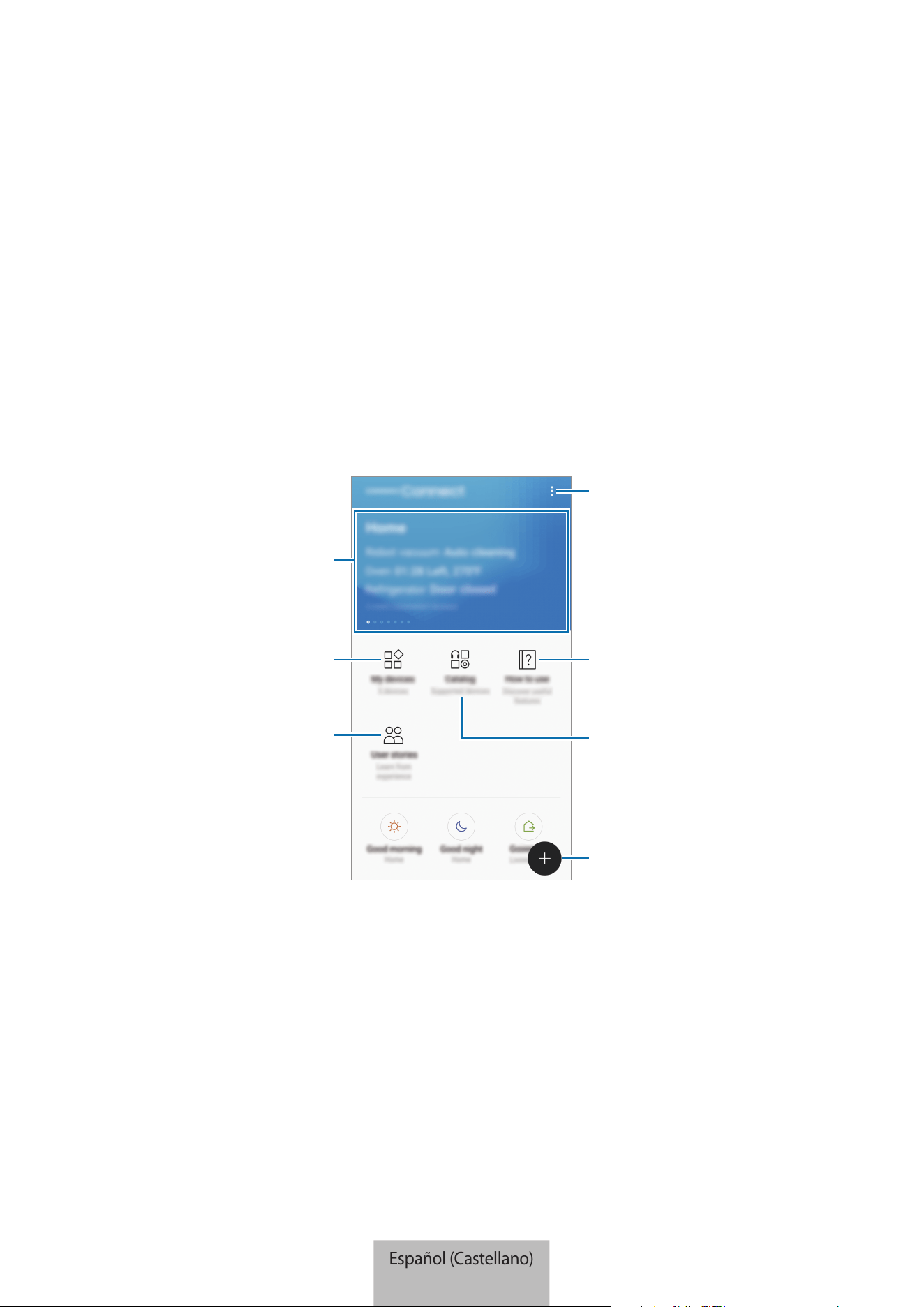
Aplicación Samsung Connect
Presentación
Registre los dispositivos Internet de las cosas (IoT) y los electrodomésticos inteligentes en la
aplicación Samsung Connect de su dispositivo móvil y compruebe su estado o contrólelos. Para
controlar los dispositivos por su ubicación, como su hogar o la oficina, cree una ubicación y
asígnele los dispositivos registrados. También es posible configurar un modo para controlar varios
dispositivos al mismo tiempo o establecer una regla para llevar a cabo acciones en forma automática
en un momento predeterminado.
Permite buscar y registrar
dispositivos cercanos.
Sugerencias de uso para Samsung
Connect
Dispositivos compatibles
Permite acceder a las opciones
adicionales.
Historias del usuario
Permite ver los dispositivos
registrados.
Permite ver la información sobre
Samsung Connect y acceder a las
ubicaciones favoritas.
Español (Castellano)
10
Aplicación Samsung Connect
11
Registrar los dispositivos
Registro de electrodomésticos inteligentes a través de Wi-Fi
Registre los electrodomésticos inteligentes que admiten Wi-Fi en la aplicación Samsung Connect y
contrólelos. Para las instrucciones sobre cómo registrar los dispositivos, consulte los manuales del
usuario de los otros dispositivos.
•
Para ver los dispositivos admitidos, pulse
Catálogo
en la pantalla Samsung Connect.
•
Los defectos o errores propios de los dispositivos conectados no se encuentran bajo
la cobertura de la garantía Samsung. Cuando se produzcan defectos o errores en los
dispositivos conectados, comuníquese con los fabricantes de esos dispositivos.
Registrar dispositivos IoT a través de la función Samsung
SmartThings Hub
Registre los dispositivos Internet de las cosas (IoT) que admiten Z-Wave, zigbee, LAN o Cloud-to-
Cloud en la aplicación Samsung Connect para controlarlos.
1
En la pantalla Samsung Connect, pulse .
2
Pulse
AÑADIR DISPOSITIVO DE FORMA MANUAL
y seleccione una categoría del dispositivo a
registrar (por ejemplo, iluminación).
3
Seleccione el fabricante del dispositivo.
4
Siga las instrucciones que aparecen en la pantalla para completar el registro.
•
Es posible que la función Samsung SmartThings Hub no esté disponible según la región.
Para obtener más información, visite www.samsung.com.
•
Solo puede registrar los dispositivos IoT aprobados por Samsung. Para ver una lista
completa de los dispositivos compatibles, visite www.samsung.com.
•
Para obtener información sobre cómo vincularlos, consulte los manuales del usuario de
los otros dispositivos.
Español (Castellano)
11

Aplicación Samsung Connect
12
Controlar los dispositivos registrados
En la pantalla Samsung Connect, pulse
Mis disposit.
En la lista de dispositivos registrados, pulse un dispositivo.
Se descargará el controlador para el dispositivo.
Con el controlador descargado, controle en forma remota los dispositivos registrados a través de la
aplicación Samsung Connect.
Crear ubicaciones
Es posible registrar dispositivos según la ubicación y administrarlos.
1
En la pantalla Samsung Connect, pulse
Mis disposit.
2
Pulse
→
Añadir lugar
.
3
Introduzca el nombre de la ubicación y pulse
AÑADIR
.
4
Pulse
AÑADIR DISPOSITIVO
para registar dispositivos o seleccionar dispositivos para asignar a
la ubicación y pulse
MOVER
.
Invitar a miembros a la ubicación creada
Invite a otros miembros a la ubicación creada para controlar los dispositivos y los modos asignados a
esa ubicación.
1
En la pantalla Samsung Connect, pulse
Mis disposit.
2
Desplace la pantalla hacia la izquierda o hacia la derecha para seleccionar una ubicación.
3
Pulse
→
Invitar miembro
.
Español (Castellano)
12
Aplicación Samsung Connect
13
4
Pulse
Introduzca el ID de la cuenta Samsung
, introduzca la cuenta Samsung para la persona
que desea invitar y, a continuación, pulse
.
Puede invitar usuarios escaneando el código QR. Pulse
CREAR CÓDIGO QR
e invite a que otros
usuarios lo escaneen.
•
Solo puede invitar a los usuarios a iniciar sesión en la cuenta Samsung a través de la
aplicación Samsung Connect.
•
Para aceptar la invitación, en la pantalla Samsung Connect, pulse el elemento emergente
de la invitación y pulse
ACEPTAR
. Para aceptar la invitación escaneando el código QR, en
la pantalla Samsung Connect, pulse
→
Ajustes
→
Aceptar invitación (código QR)
y, a
continuación, escanee el código QR.
5
Siga las instrucciones que aparecen en la pantalla para completar la invitación.
Configurar y ejecutar modos
Configure un modo para operar varios dispositivos al mismo tiempo. Para configurar un modo, debe
crear las ubicaciones. Consulte Crear ubicaciones para obtener más información.
1
En la pantalla Samsung Connect, pulse
Mis disposit.
2
Desplace la pantalla hacia la izquierda o hacia la derecha para seleccionar una ubicación.
Español (Castellano)
13
Aplicación Samsung Connect
14
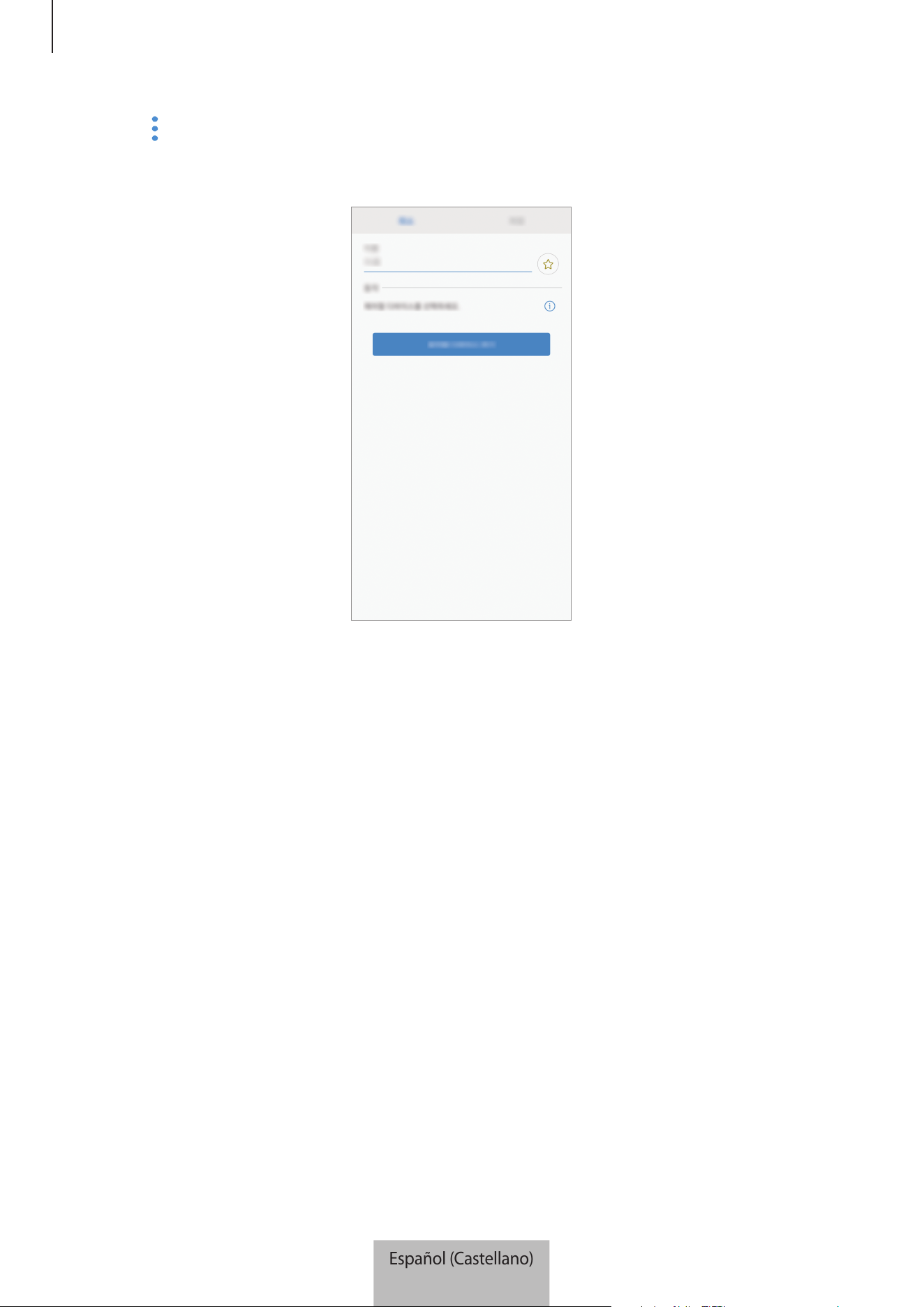
3
Pulse
→
Añadir modo
.
Se muestra la pantalla para configurar modos.
4
Ingrese el título del modo y seleccione un ícono para el modo; a continuación, pulse
AÑADIR
ACCIONES
.
Español (Castellano)
14
Aplicación Samsung Connect
15
5
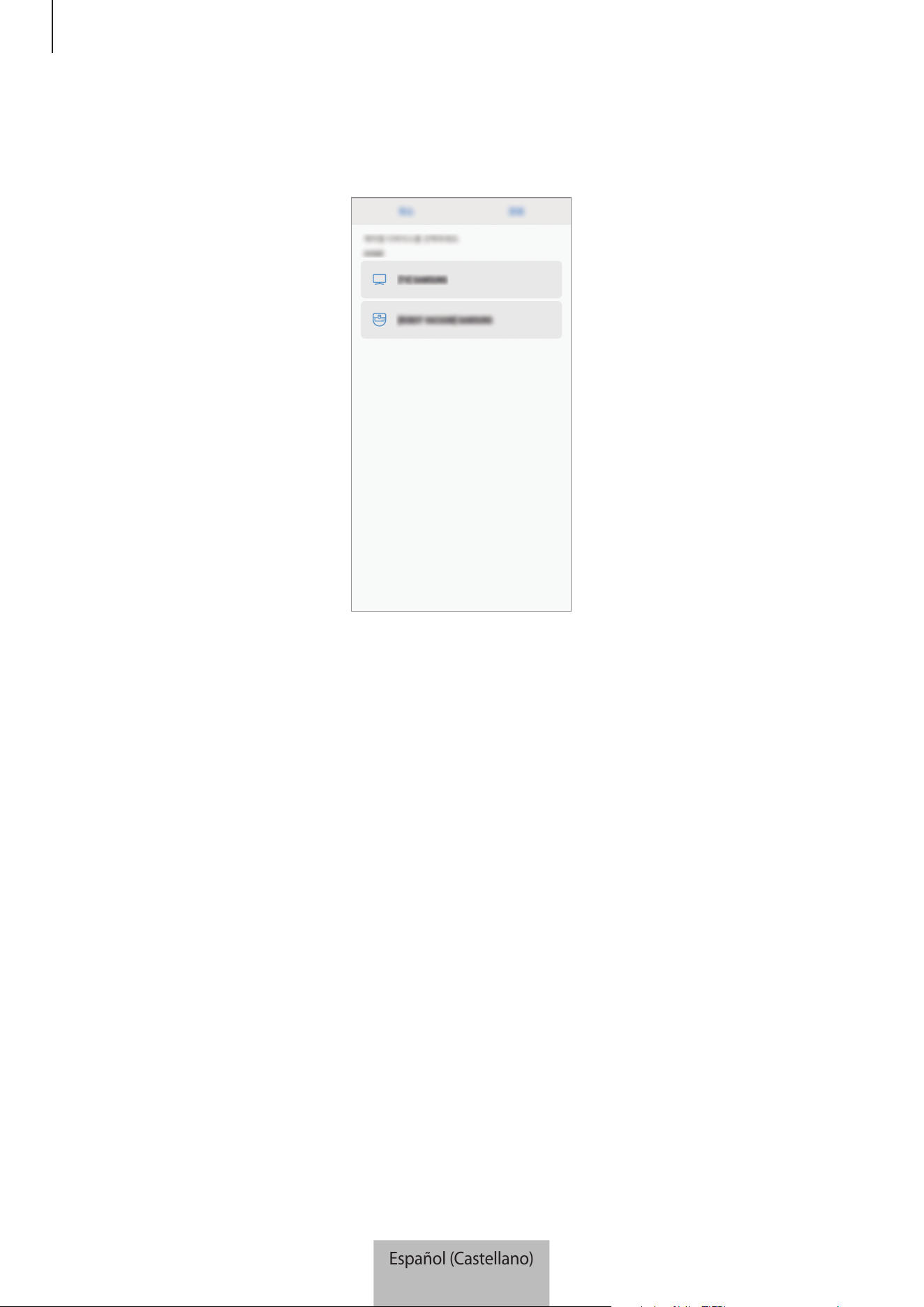
Seleccione un dispositivo y una acción para operar y, a continuación, pulse
REALIZADO
.
Por ejemplo, seleccione una TV y una aspiradora robot y las acciones correspondientes a realizar.
6
Pulse
GUARDAR
.
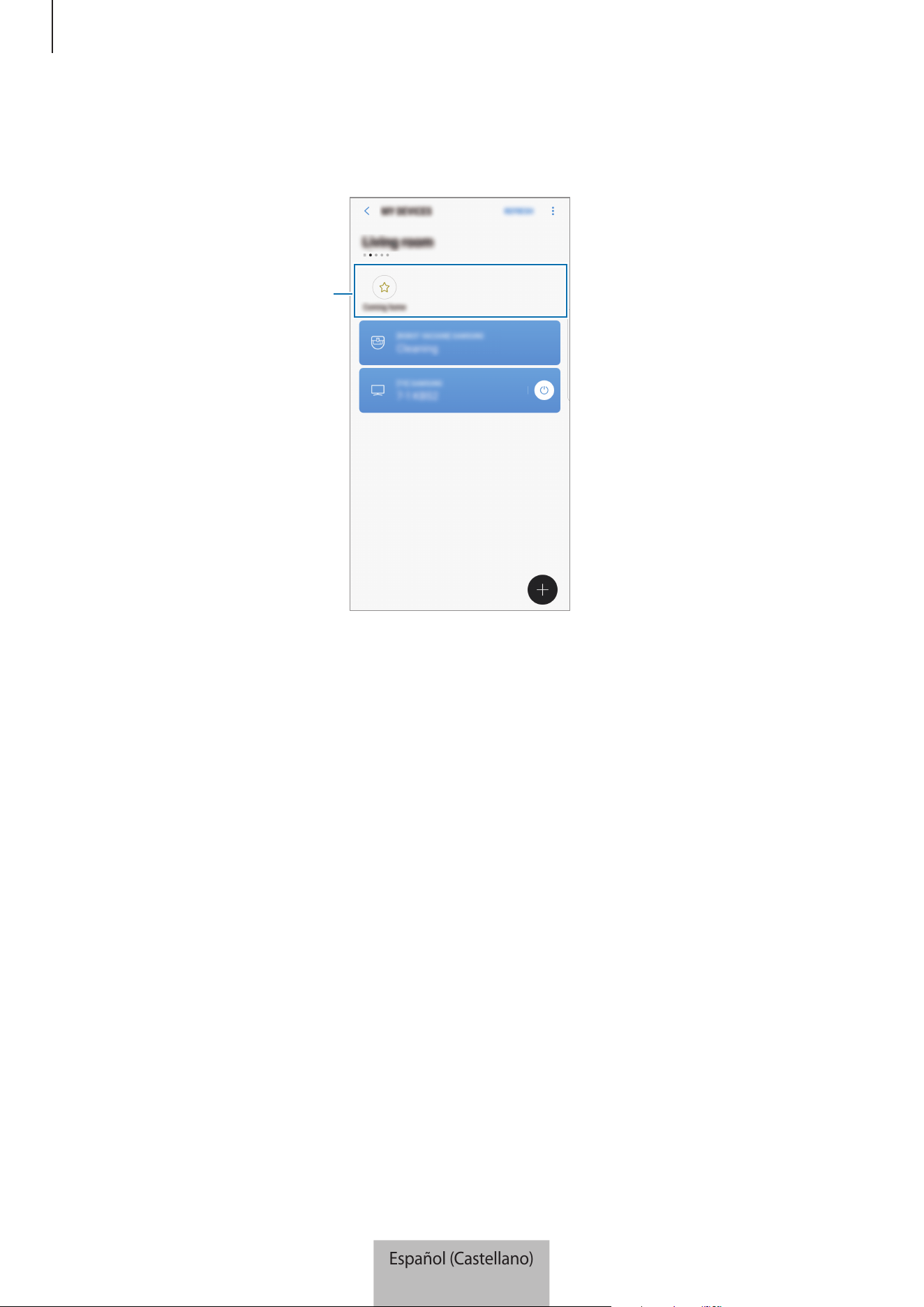
Se configura el modo. Puede visualizar el modo configurado en la pantalla de ubicación
designada.
Activar modos
1
En la pantalla Samsung Connect, pulse
Mis disposit.
2
Desplace la pantalla hacia la izquierda o hacia la derecha para seleccionar una ubicación que
tenga el modo que desea activar.
Español (Castellano)
15
Aplicación Samsung Connect
16
3
Seleccione un modo para activar.
Los dispositivos que configura operan según el modo.
Configurar modos
Español (Castellano)
16
Aplicación Samsung Connect
17
Configurar reglas
Configure una regla para los dispositivos asignados a una ubicación para que lleve a cabo acciones
en forma automática en un momento específico.
1
En la pantalla Samsung Connect, pulse .
2
Pulse
Reglas
→
AÑADIR REGLA
.
Se muestra la pantalla para configurar las reglas.
3
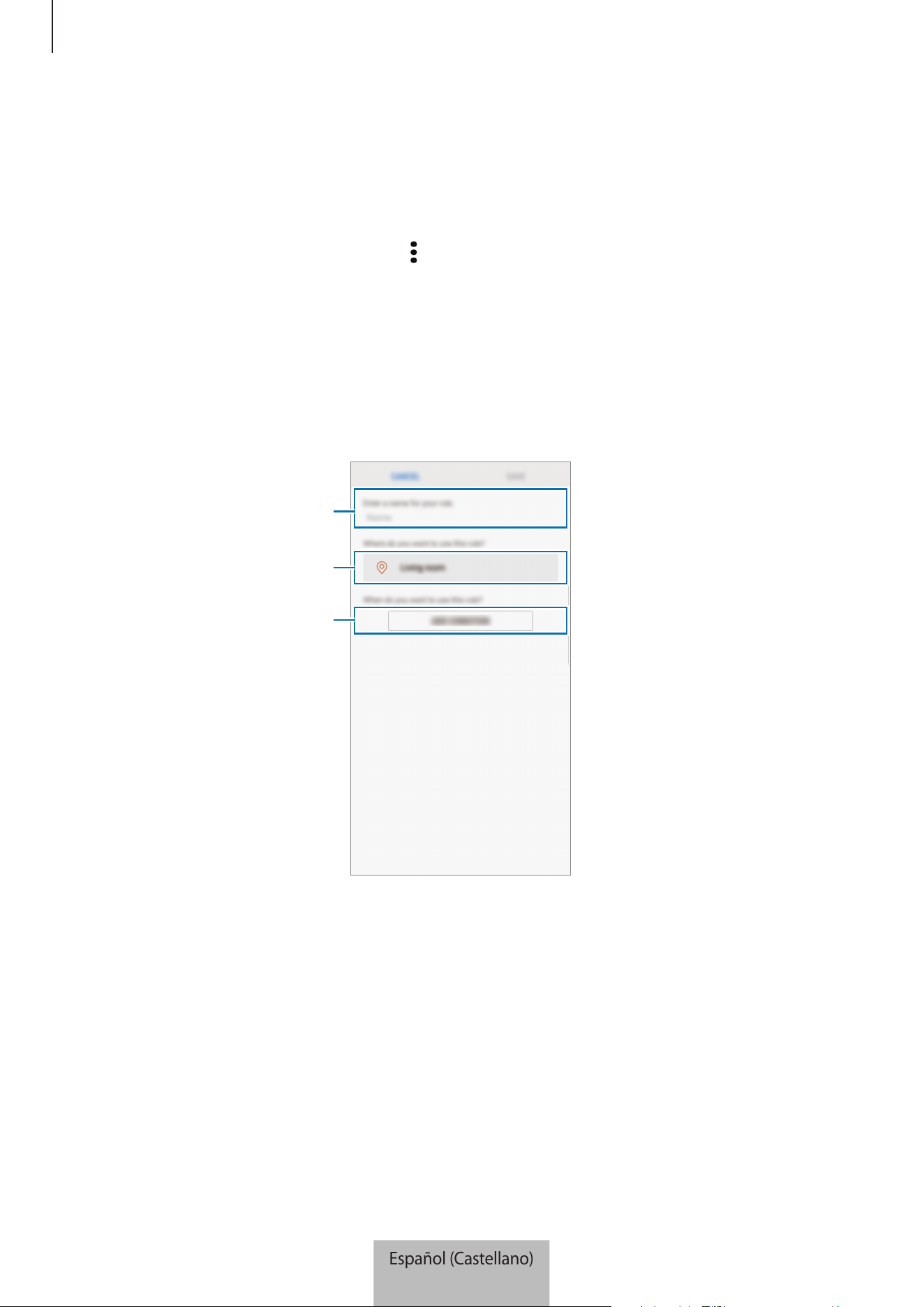
Ingrese el título de la regla, seleccione una ubicación y, a continuación, pulse
AÑADIR
CONDICIÓN
.
Seleccionar la fecha y la hora.
Seleccionar una ubicación.
Ingresar el título de la regla.
Español (Castellano)
17
Aplicación Samsung Connect
18
4
Pulse
Hora/día (exactos)
o
Hora/día (período)
, introduzca la fecha y la hora y, a continuación,
pulse
REALIZADO
.
5
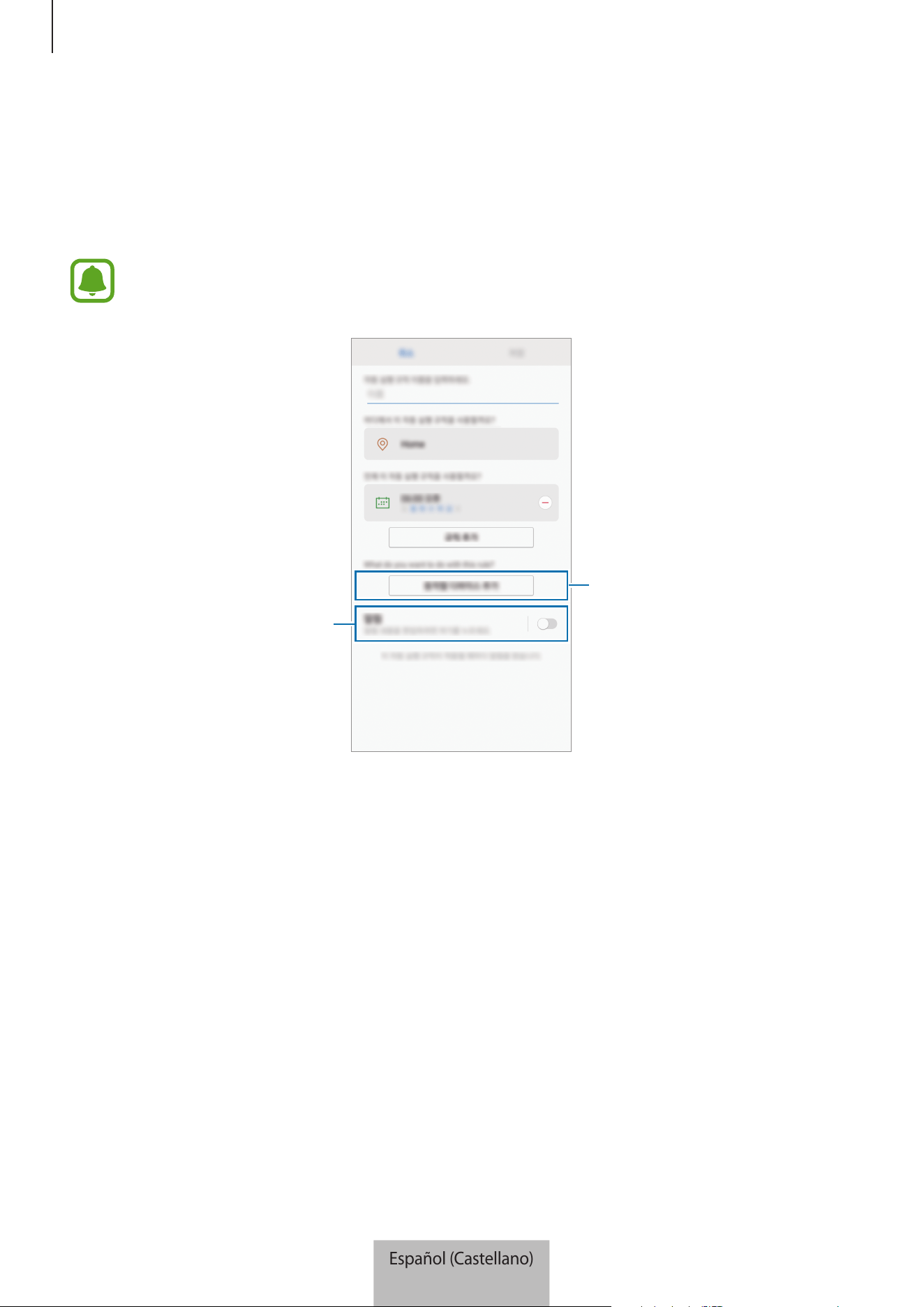
Pulse
AÑADIR ACCIONES
, seleccione dispositivos y condiciones, o modos, y a continuación
pulse
REALIZADO
.
Para recibir una notificación cuando los dispositivos realizan una acción según la regla, pulse
el interruptor
Notificaciones
para activar la función.
Activar la función de notificación.
Seleccionar un dispositivo o un
modo.
6
Pulse
GUARDAR
.
Los dispositivos asignados operan según la regla establecida.
Español (Castellano)
18
Aplicación Samsung Connect
19
Administrar dispositivos y ubicaciones
Puede administrar la ubicación y sus dispositivos y modos asignados.
1
En la pantalla Samsung Connect, pulse
Mis disposit.
2
Desplace la pantalla hacia la izquierda o hacia la derecha para seleccionar una ubicación.
3
Pulse
→
Editar
y utilice las siguientes opciones.
•
: Permite configurar la ubicación o el modo como favorito. Es posible acceder a los
favoritos en la pantalla Samsung Connect.
•
Nombre de la ubicación
→
Nombre del lugar
: Permite modificar el nombre de la ubicación
y el color del fondo de pantalla que se muestra en la pantalla Samsung Connect cuando se
configura como favorito.
•
Nombre de la ubicación
→
MIEMBROS
: Permite visualizar los miembros para compartir la
ubicación.
•
Nombre de la ubicación
→
ELIMINAR LUGAR
: Permite eliminar la ubicación.
•
Nombre de la ubicación
→
ABANDONAR EL LUGAR
: Permite eliminar la ubicación invitada.
•
Nombre del dispositivo
→
Nombre del dispositivo
: Cambie el nombre del dispositivo y el
color de su ícono que se muestra en la pantalla de ubicación.
•
Nombre del dispositivo
→
Lugar
: Permite asignar el dispositivo a otra ubicación. Esta opción
solo está disponible para el dueño de la ubicación.
•
Nombre del dispositivo
→
ELIMINAR DISPOSITIVO
: Permite eliminar el dispositivo de la
ubicación asignada o eliminar el registro del dispositivo.
•
Para conectar un dispositivo Z-Wave a otro dispositivo, en el dispositivo móvil
actualmente conectado, elimine el dispositivo de la aplicación Samsung Connect
para excluirlo. Cuando elimina el dispositivo de la aplicación Samsung Connect, las
instrucciones para la exclusión de proveen mediante una URL. Siga las instrucciones para
excluir el dispositivo Z-Wave. Si restablece la base Wi-Fi, debe excluir el dispositivo Z-Wave
y volver a conectarlo (volver a incluirlo). Para obtener instrucciones sobre cómo excluir los
dispositivos Z-Wave, consulte el manual del usuario del dispositivo Z-Wave respectivo o
comuníquese con el fabricante del dispositivo.
•
Para conocer las funciones de los servicios adicionales de red Z-Wave, visite
www.smartthings.com.
•
La base Wi-Fi automáticamente envía un grupo de asociación para ayuda/grupo1 para 4
nodos tras agregar un dispositivo que admite asociación.
Español (Castellano)
19
Aplicación Samsung Connect
20
•
Ícono del modo
→
Nombre
: Permite cambiar el nombre del modo y su ícono.
•
Ícono del modo
→
nombre del dispositivo: Permite seleccionar una acción para operar
cuando el modo está activado.
•
Ícono del modo
→
: Permite eliminar el dispositivo del modo.
•
Ícono del modo
→
AÑADIR ACCIONES
: Permite agregar dispositivos y acciones al modo.
•
Ícono del modo
→
ELIMINAR MODO
: Permite eliminar el modo.
Configuración de la aplicación Samsung Connect
Configure los parámetros de la aplicación Samsung Connect. En la pantalla Samsung Connect, pulse
y utilice las siguientes opciones.
•
Añadir lugar
: Permite crear una nueva ubicación.
•
Reglas
: Permite ver las reglas creadas. También puede editar o eliminar reglas.
Esta opción solo está disponible cuando ha registrado dispositivos en la aplicación Samsung
Connect.
•
Notificaciones
: Permite visualizar las notificaciones desde la aplicación Samsung Connect.
También podrá modificar los parámetros de las notificaciones.
•
Ajustes
: Permite acceder a la información de la aplicación Samsung Connect y a la información
de la cuenta Samsung. También es posible configurar el panel de Samsung Connect para que se
muestre en el panel de notificaciones.
•
Contáctenos
: Miembros de Samsung ofrece servicios de soporte a los clientes, como el
diagnóstico de problemas del dispositivo, y permite a los usuarios enviar preguntas e informes
de error. También puede compartir información con otros usuarios de la comunidad Galaxy
o visualizar las últimas novedades y sugerencias de Galaxy.
Miembros de Samsung
puede
ayudarle a resolver cualquier problema que surja mientras utiliza su dispositivo.
Español (Castellano)
20

Aplicación Samsung Connect
21
Uso práctico de la aplicación Samsung Connect
Utilice la aplicación Samsung Connect para que su vida sea más fácil y más cómoda. Cree reglas en
función de su rutina o controle fácilmente los dispositivos registrados desde cualquier lugar.
•
Si todas las mañanas desea empezar su día con música, conecte altavoces a la aplicación
Samsung Connect y cree una regla para reproducir la música que prefiere al despertarse.
•
Si desea garantizar que la oficina esté climatizada cuando llega en un día caluroso de verano,
encienda el aire acondicionado a través de la aplicación Samsung Connect 10 minutos antes de
llegar.
•
Si desea llegar a su casa y que esté limpia, encienda la aspiradora robot conectada a través de la
aplicación Samsung Connect 30 minutos antes de llegar.
•
Si desea mejorar la seguridad de su hogar, cree una regla para que los sensores de movimiento
se activen a la hora de ir a dormir y active la función de notificación. Cuando los sensores de
movimiento detecten movimientos inesperados, le enviarán una notificación.
Para ver otros ejemplos de uso, pulse
Usar historias
en la pantalla Samsung Connect.
Español (Castellano)
21

22
Apéndice
Solución de problemas
Antes de comunicarse con un Centro de Servicios de Samsung, intente las siguientes soluciones.
Su base Wi-Fi se congela
Si la base Wi-Fi se congela o se cuelga, desconecte el adaptador de la base Wi-Fi y vuelva a
conectarlo.
Cierre la aplicación Samsung Connect por completo en su dispositivo móvil y reiníciela.
Si la base Wi-Fi no responde y se congela, inserte un pasador en el orificio para restablecer durante
más de 8 segundos.
Si, una vez seguidas las sugerencias, el problema persiste, póngase en contacto con un Centro de
Servicio técnico de Samsung.
La base Wi-Fi no está conectada con un router
Esta base Wi-Fi solo admite routers de Samsung Connect. Conecte solo SAMSUNG Connect Home
Pro o SAMSUNG Connect Home.
La base Wi-Fi no se detecta con la aplicación Samsung Connect
•
Si la base Wi-Fi se congela o se cuelga, desconecte el adaptador de la base Wi-Fi y vuelva a
conectarlo.
•
Cierre la aplicación Samsung Connect por completo en su dispositivo móvil y reiníciela.
•
Si la base Wi-Fi no responde y se congela, inserte un pasador en el orificio para restablecer.
•
Asegúrese de que los otros dispositivos se encuentren dentro del rango máximo de conexión.
Si, una vez seguidas las sugerencias, el problema persiste, póngase en contacto con un Centro de
Servicio técnico de Samsung.
Otros dispositivos no pueden conectarse con la aplicación Samsung
Connect
•
En el otro dispositivo, desconecte la red Wi-Fi y vuelva a conectarse.
•
Apague el dispositivo y enciéndalo.
Español (Castellano)
22

Apéndice
23
La conexión se interrumpe con frecuencia
•
Si hay obstáculos entre los dispositivos, la distancia de operación podría reducirse.
•
Asegúrese de que los otros dispositivos se encuentren dentro del rango máximo de conexión.
•
Al utilizar la base Wi-Fi junto con otros dispositivos, la conexión podría verse afectada por
las ondas electromagnéticas. Utilice la base Wi-Fi en entornos en los cuales no haya tantos
dispositivos inalámbricos.
La base Wi-Fi no funciona de acuerdo con la descripción del manual
Las funciones disponibles podrían variar según el dispositivo conectado.
Español (Castellano)
23

Derechos de autor
Copyright © 2018 Samsung Electronics
Este manual está protegido por las leyes internacionales de derechos de autor.
No está permitido reproducir, distribuir, traducir o transmitir ninguna parte de este manual de
ninguna forma o por ningún medio, ya sea electrónico o mecánico, incluyendo fotocopiado,
grabación o almacenamiento en cualquier sistema de almacenamiento y recuperación de
información, sin el permiso previo por escrito de Samsung Electronics.
Marcas comerciales
•
SAMSUNG y el logotipo de SAMSUNG son marcas comerciales registradas de Samsung
Electronics.
•
Bluetooth
®
es una marca comercial registrada de Bluetooth SIG, Inc. en todo el mundo.
•
Wi-Fi
®
, Wi-Fi CERTIFIED
™
y el logotipo Wi-Fi son marcas comerciales registradas de Wi-Fi
Alliance.
•
Z-Wave y Z-Wave Plus son marcas comerciales registradas de Sigma Designs y de sus
subsidiarias en los Estados Unidos y en otros países.
•
El resto de las marcas comerciales y derechos de autor son propiedad de sus respectivos dueños.
Español (Castellano)
24
1
准备开始
使用前必读
使用此设备前,请先阅读本手册以确保安全和正确使用。
•
图片可能和实际产品有差异。本手册的内容如有变更,恕不提前通知。
•
使用 Wi-Fi Hub 前,请确保其与您的设备兼容。
•
Wi-Fi Hub 的性能可能因环境而异。
•
本产品包含某些免费/开源软件。如欲了解有关如何查看开源许可方面的说明,
请访问三星网站 (opensource.samsung.com)。
指示图标
警告:指示可能导致自己或他人受伤的情况
小心:指示可能导致您的设备或其他设备损坏的情况
注意:指示备注、使用技巧或其他信息
简体中文
1
准备开始
2
关于 SAMSUNG Connect Home (Pro)
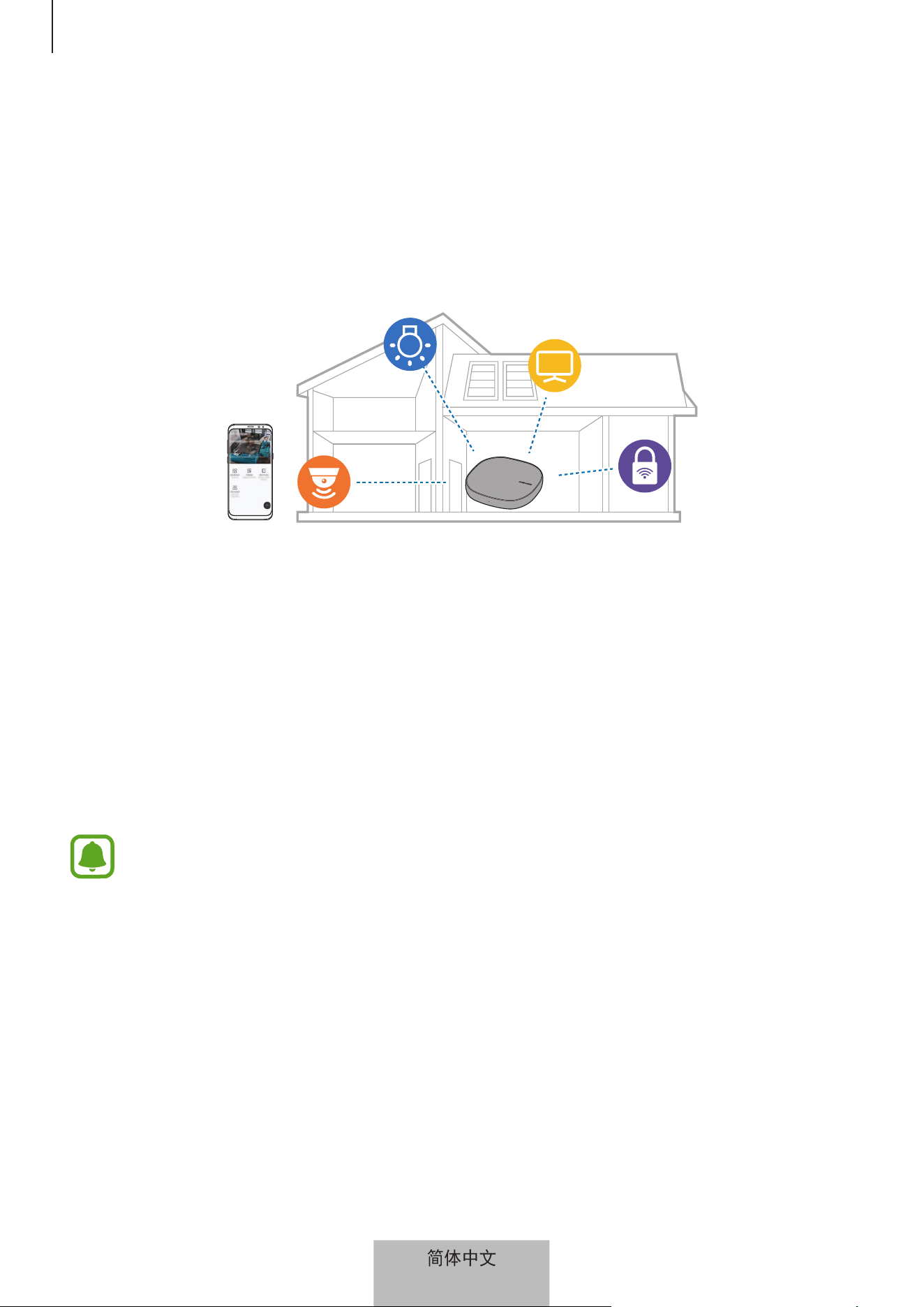
Samsung Connect Home (Pro) 是一种 Wi-Fi 路由器,可通过 Wi-Fi 将智能手机连
接至智能家用电器。您还可通过 Samsung SmartThings Hub 功能将物联网 (IoT)
设备连接至该 Wi-Fi Hub。
对于较大的房子,您可连接更多 Wi-Fi Hub。
包装内容
检查产品包装盒内是否有以下物品:
•
Wi-Fi Hub
•
以太网电缆
•
交流电/直流电适配器 (以下简称“适配器”)
•
快速入门指南
•
对于不同的地区或服务提供商,设备随附的物品和可用配件可能会不同。
•
随附的物品仅供本设备使用,可能不兼容其他设备。
•
外观和规格如有变更,恕不事先通知。
•
您可从当地三星零售商处购买其他配件。购买前,请确保其兼容本设备。
•
仅使用三星认可的配件。使用未经认可的配件可能会引起不在保修范围内
的性能问题和故障。
•
各种配件的可用性会有不同,完全取决于生产企业。如欲了解更多关于可
用配件的信息,请参阅三星网站。
简体中文
2
准备开始
3
设备部位图
指示灯
风扇排气孔
重置孔
LAN 端口 (输出)
WAN 端口 (输入)
交流电/
直流电适配器连接器
以太网电缆
交流电/
直流电适配器
产品外观和内部结构可能因型号而异。
简体中文
3
准备开始
4
指示灯
指示灯向您指示 Wi-Fi Hub 的状态。
颜色 状态
绿色 启动,工作中
闪烁绿色 正在启动/正在重置系统
闪烁绿色和红色 正在等待连接设备
闪烁红色 功能错误
简体中文
4
5
使用 Wi-Fi Hub
连接移动设备
如欲连接 Wi-Fi Hub 和移动设备,您必须在移动设备上安装 Samsung Connect 应
用程序。您可从应用商店、Play 商店或 App Store 中下载该应用程序。
•
请访问 www.samsung.com 以查看与 Samsung Connect 应用程序兼容的
设备。
•
您必须注册并登录至三星帐户才能使用 Samsung Connect 应用程序。
•
支持的功能可能因移动设备及其操作系统而异。
Wi-Fi Hub
1
将以太网电缆一端连接至 WiFi Hub 的 WAN 端口 (输入),另一端连接至调制
解调器的 LAN 端口。
2
将适配器连接至 Wi-Fi Hub。
Wi-Fi Hub 将开启,且指示灯将闪烁绿色。
仅使用三星认可的适配器 (12 V/2.1 A 或更高)。
•
将 Wi-Fi Hub 连接至适配器时,可仅使用 Wi-Fi Hub。
•
如果 SAMSUNG Connect Home Pro 的温度超过 55 ℃,Wi-Fi Hub 的内
部风扇将自动启动。
•
如果 Wi-Fi Hub 长时间过热,Wi-Fi Hub 可能会自动关闭或重置。当这种
情况不断发生时,请将适配器从 Wi-Fi Hub 断开连接并联系三星服务中
心。
•
为了节省能源,在不使用时请拔下适配器。适配器没有电源开关,所以在
不使用时,您必须要将适配器从电源插座上拔下,以免浪费电。使用时,
适配器应保持紧贴电源插座并易于拔插。
简体中文
5
使用 Wi-Fi Hub
6
设备
3
在移动设备上启动 Samsung Connect 应用程序。
Wi-Fi 和蓝牙功能将自动启动并搜索可用设备。
4
Wi-Fi Hub 将被自动检测到。点击立即添加。
如果没有检测到 Wi-Fi Hub,请点击
→
手动添加设备
→
Wi-Fi 连接中
心,然后点击您 Wi-Fi Hub 的名称。
5
输入分配给该 Wi-Fi Hub 的网络名称和密码。
如欲通过 Samsung SmartThings Hub 功能注册物联网 (IoT) 设备,请勾选设
置 SmartThings 智能中心以将其激活。
6
按照屏幕上的指示完成连接。
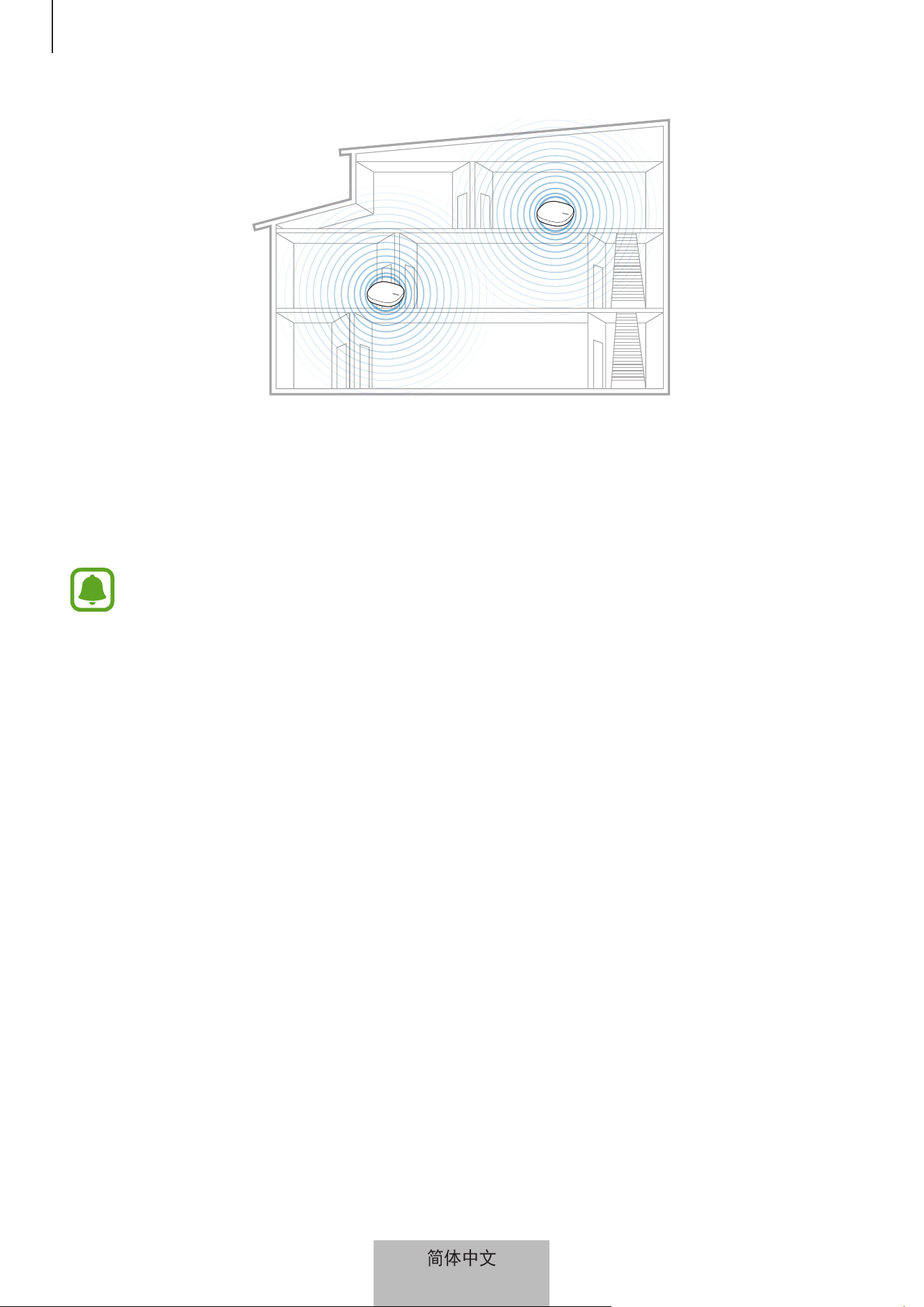
添加额外的 Wi-Fi Hub
一个 Wi-Fi Hub 可覆盖 140 m
2
的连接范围 (基于木材建筑),但可因使用环境而
异。
安装额外的 Wi-Fi Hub 以连接比一个 Wi-Fi 网络覆盖的连接范围更大的区域。
简体中文
6
使用 Wi-Fi Hub
7
1
将交流电/直流电适配器连接至额外的 Wi-Fi Hub。
2
在移动设备上,启动 Samsung Connect 应用程序并按照屏幕上的指示完成连
接。
您最多可连接四个额外的 Wi-Fi Hub。
连接 Wi-Fi Hub 的注意事项
•
将 Wi-Fi Hub 安装在注册设备附近。
•
当您添加额外 Wi-Fi Hub 时,请在连接范围内安装。
•
请勿在 Wi-Fi Hub 与待注册设备之间放置障碍物。
•
人体、墙壁、转角或栅栏等障碍物会使信号变弱。
•
当使用 Wi-Fi Hub 时,应通过以太网电缆连接。
使用蓝牙的注意事项
•
为了避免连接 Wi-Fi Hub 和其他设备时出现问题,请将设备相互靠近。
•
确保 Wi-Fi Hub 与另一个蓝牙设备间的距离在最大蓝牙连接范围 (5 m) 内。此
距离取决于使用设备的环境。
简体中文
7

使用 Wi-Fi Hub
8
•
确保 Wi-Fi Hub 和所连接的设备之间没有障碍物,包括人体、墙壁、转角或栅
栏。
•
不要触摸所连接设备的蓝牙天线。
•
蓝牙和某些工业、科学、医疗设备和低功率产品使用相同的频率,所以这类产
品附近进行连接时可能会产生干扰。
•
某些设备,特别是未经 Bluetooth SIG 测试或认可的设备可能与您的 Wi-Fi
Hub 不兼容。
•
请勿将蓝牙功能用于非法用途 (例如盗取文件副本或出于商业目的而非法窃听
通讯)。
配置 Wi-Fi 路由器功能
您可配置 Wi-Fi 网络的详细设置。
为所连接设备分配优先级
您可为连接至 Wi-Fi Hub Wi-Fi 网络的特定设备设置优先连接。
1
在 Samsung Connect 屏幕上,点击我的设备。
2
在所注册设备列表中,点击 Wi-Fi Hub。
3
点击网络中的设备旁的按钮。
4
在所连接设备列表中,选择要优先连接 Wi-Fi Hub Wi-Fi 网络的设备。
5
点击最高带宽优先级开关以将其激活。
简体中文
8

使用 Wi-Fi Hub
9
限制使用 Wi-Fi 网络的时间
您可限制所连接设备使用 Wi-Fi Hub Wi-Fi 网络的时间。
1
在 Samsung Connect 屏幕上,点击我的设备。
2
在所注册设备列表中,点击 Wi-Fi Hub。
3
点击网络中的设备旁的按钮。
4
在所连接设备列表中,选择要限制使用 Wi-Fi Hub Wi-Fi 网络的时间的设备。
5
点击限制使用时间
→
添加限制时间。
6
设置天数和时间,然后点击添加。
添加访客网络
您可添加一个与主 Wi-Fi 网络隔离的访客网络。
1
在 Samsung Connect 屏幕上,点击我的设备。
2
在所注册设备列表中,点击 Wi-Fi Hub。
3
点击
→
访客访问
→
添加访客网络。
4
输入网络名称和密码,然后点击完成。
简体中文
9
10
Samsung Connect 应用程
序
简介
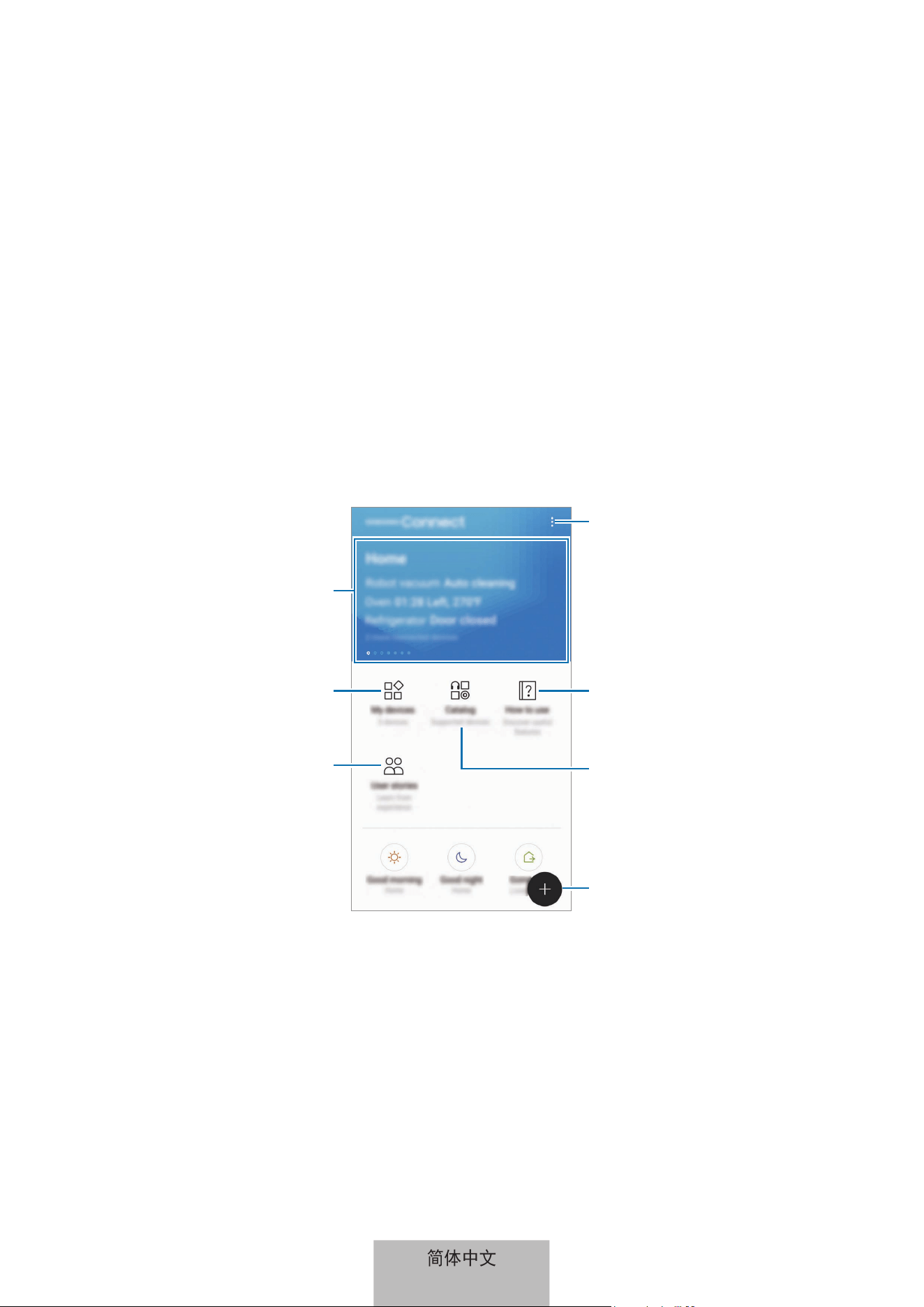
将物联网 (IoT) 设备和智能家用电器注册至您移动设备上的 Samsung Connect 应
用程序,以查看其状态或进行控制。要按处所 (例如家或办公室) 控制这些设备,
请创建处所并为其分配所注册的设备。您还可设置同时控制多台设备的模式,或在
预定时间自动执行操作的规则。
搜索和注册附近设备。
Samsung Connect 使用技巧
受支持设备
访问附加选项。
用户故事
查看所注册的设备。
查看 Samsung Connect 相关
信息和访问所收藏的处所。
简体中文
10
Samsung Connect 应用程序
11
注册设备
通过 Wi-Fi 注册智能家用电器
将支持 Wi-Fi 的智能家用电器注册至 Samsung Connect 应用程序以控制这些电
器。有关如何注册设备的说明,请参阅其他设备的用户手册。
•
要查看受支持的设备,请点击 Samsung Connect 屏幕上的类别。
•
所连接设备自身的错误或缺陷不在三星保修范围内。当所连接设备出现错
误或缺陷时,请联系设备制造商。
通过 Samsung SmartThings Hub 功能注册 IoT 设备
将支持 Z-Wave、Zigbee、LAN 或 Cloud-to-Cloud 的物联网 (IoT) 设备注册至
Samsung Connect 应用程序以控制这些设备。
1
在 Samsung Connect 屏幕上,点击
。
2
点击手动添加设备并选择要注册的设备类型 (例如电灯泡)。
3
选择设备制造商。
4
按照屏幕上的指示完成注册。
•
视乎地区而定,Samsung SmartThings Hub 功能可能不可用。请访问
www.samsung.com 以了解详细信息。
•
您仅可注册三星认可的 IoT 设备。请访问 www.samsung.com 以查看兼
容的设备列表。
•
请参阅其他设备的用户手册以了解有关如何将其配对的说明。
简体中文
11

Samsung Connect 应用程序
12
控制所注册的设备
在 Samsung Connect 屏幕上,点击我的设备。
在所注册设备列表中,点击一台设备。
将下载该设备的控制器。
利用所下载的控制器通过 Samsung Connect 应用程序远程控制所注册的设备。
创建处所
您可按处所注册设备以便管理。
1
在 Samsung Connect 屏幕上,点击我的设备。
2
点击
→
添加地点。
3
输入处所名称,然后点击添加。
4
点击添加设备以注册设备或选择分配至该处所的设备,然后点击移动。
邀请成员至所创建处所
邀请其他成员至所创建处所,以便其控制设备和分配给该处所的模式。
1
在 Samsung Connect 屏幕上,点击我的设备。
2
向左或向右滚动屏幕来选择处所。
3
点击
→
邀请成员。
简体中文
12
Samsung Connect 应用程序
13
4
点击请输入三星帐户 ID,输入您想要邀请的成员的三星账户,然后点击 。
您可通过扫描二维码来邀请用户。点击创建二维码,邀请其他用户扫描该二维
码。
•
您仅可通过 Samsung Connect 应用程序邀请用户登录三星账户。
•
要接受邀请,请点击 Samsung Connect 屏幕上的弹出邀请框,然后点击
接受。要通过扫描二维码接受邀请,请点击 Samsung Connect 屏幕上的
→
设置
→
接受邀请 (二维码),然后扫描二维码。
5
按照屏幕上的指示完成邀请。
设置和运行模式
设置同时操作多台设备的模式。要设置模式,您应当创建处所。如欲了解更多信
息,请参阅创建处所。
1
在 Samsung Connect 屏幕上,点击我的设备。
2
向左或向右滚动屏幕来选择处所。
简体中文
13
Samsung Connect 应用程序
14
3
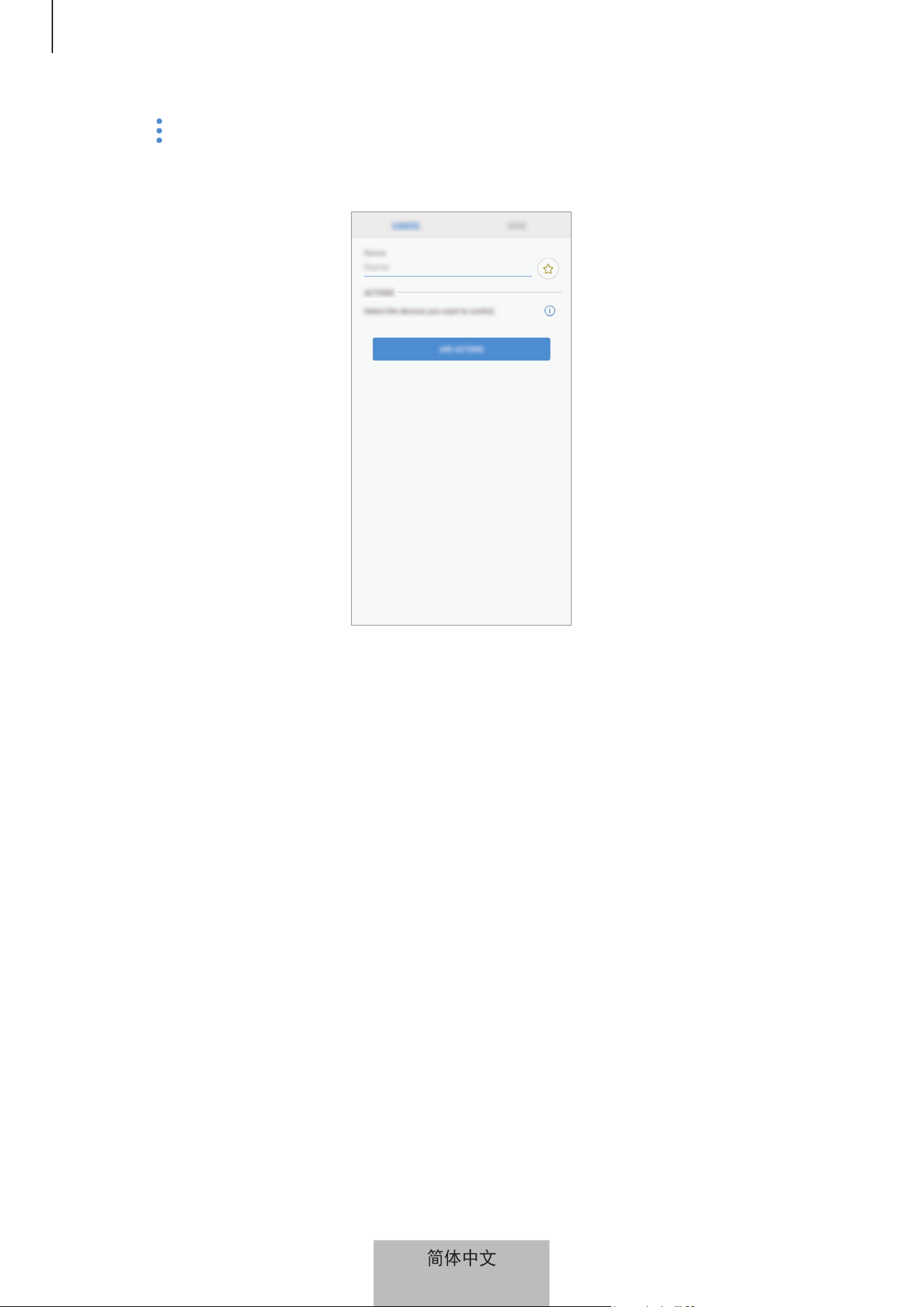
点击
→
添加模式。
模式设置屏幕将出现。
4
输入模式名称,选择模式图标,然后点击添加动作。
简体中文
14
Samsung Connect 应用程序
15
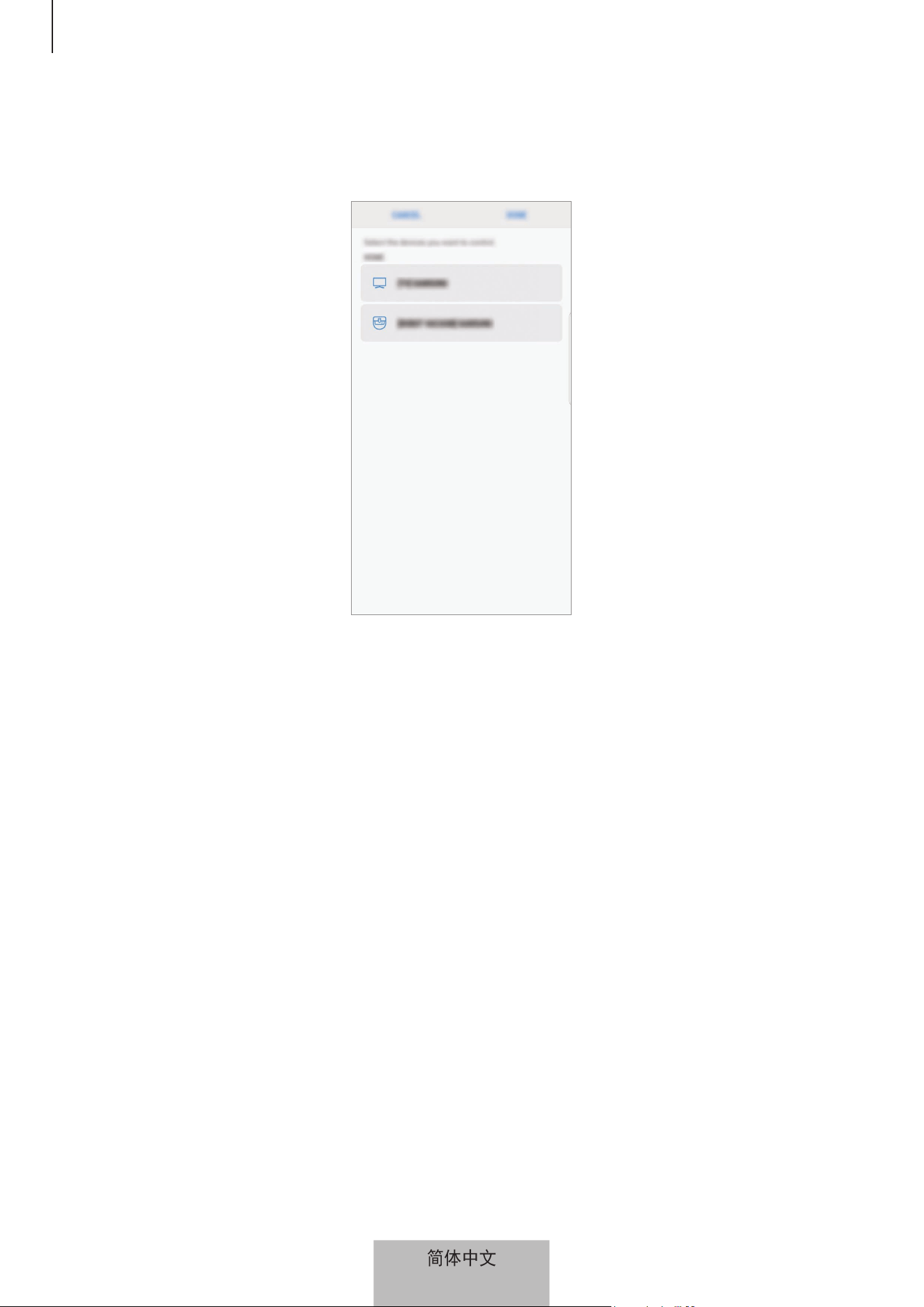
5
选择设备和要执行的操作,然后点击完成。
例如,选择电视机和机器人真空吸尘器以及要执行的相应操作。
6
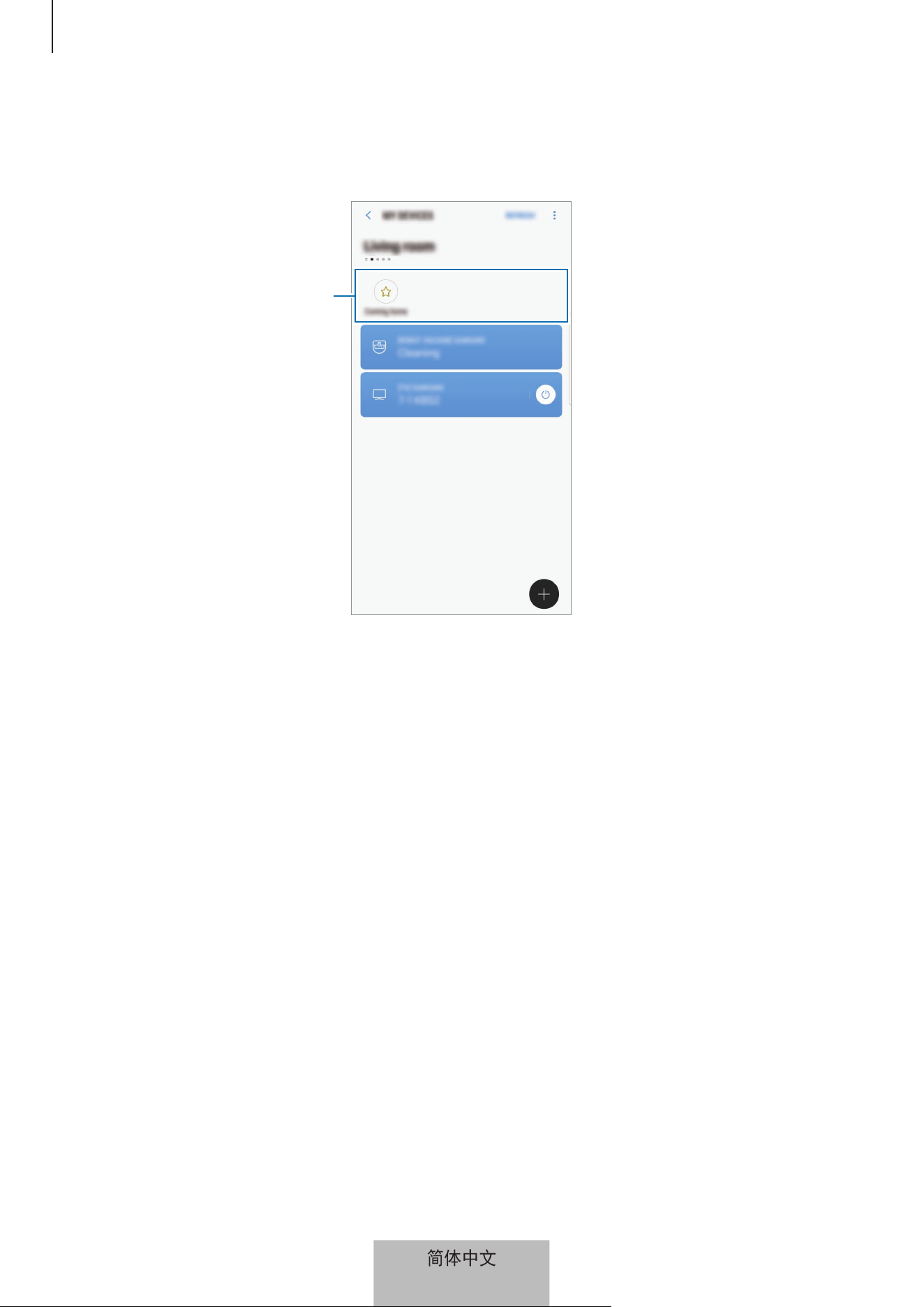
点击保存。
模式已设置完成。您可在指定处所屏幕上查看所设定的模式。
激活模式
1
在 Samsung Connect 屏幕上,点击我的设备。
2
向左或向右滚动屏幕来选择具备您想要激活的模式的处所。
简体中文
15
Samsung Connect 应用程序
16
3
选择要激活的模式。
您设定的设备将根据该模式操作。
设置模式
简体中文
16
Samsung Connect 应用程序
17
设置规则
为分配至某一处所的设备设置在特定时间自动执行操作的规则。
1
在 Samsung Connect 屏幕上,点击 。
2
点击规则
→
添加规则。
规则设置屏幕将出现。
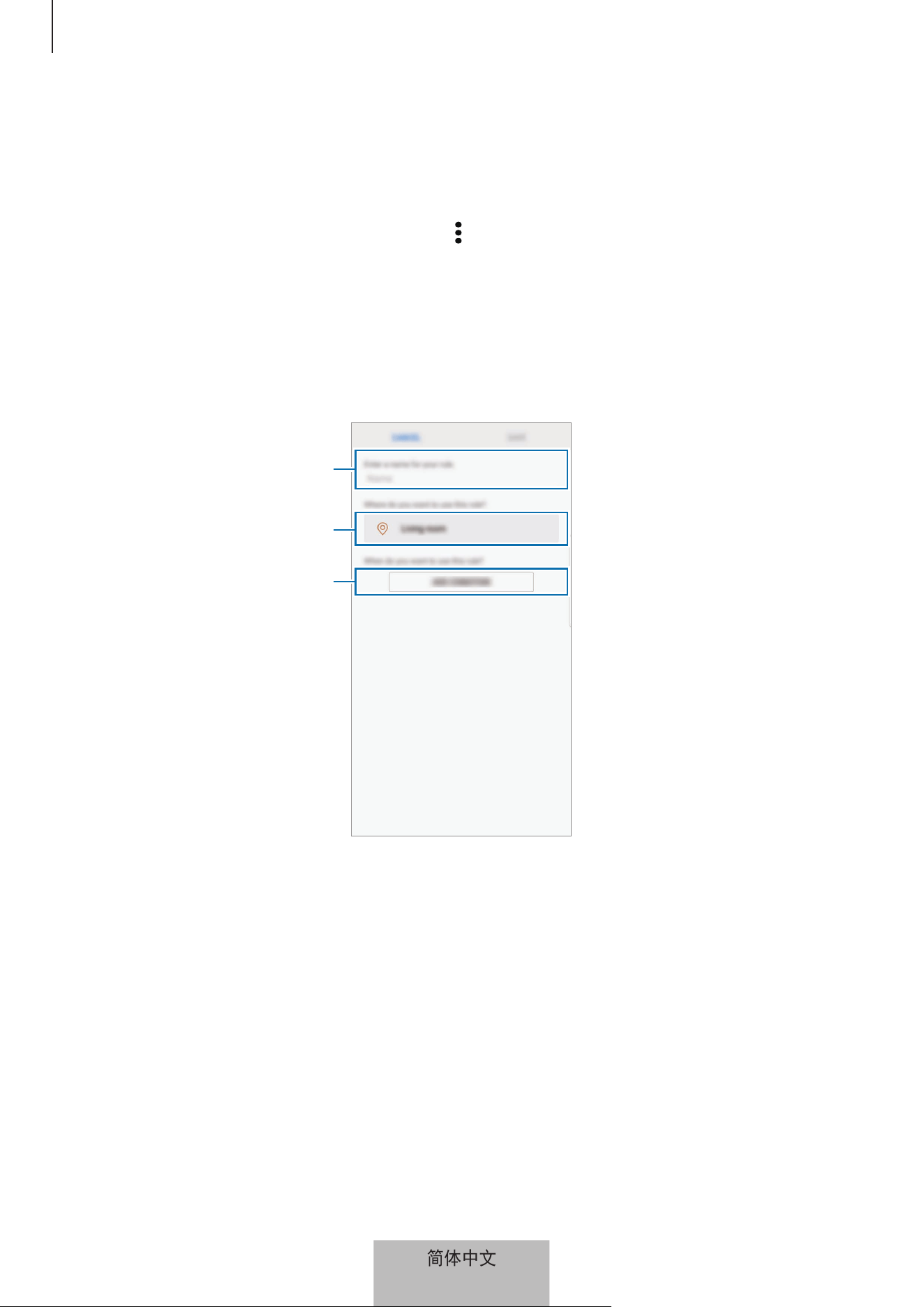
3
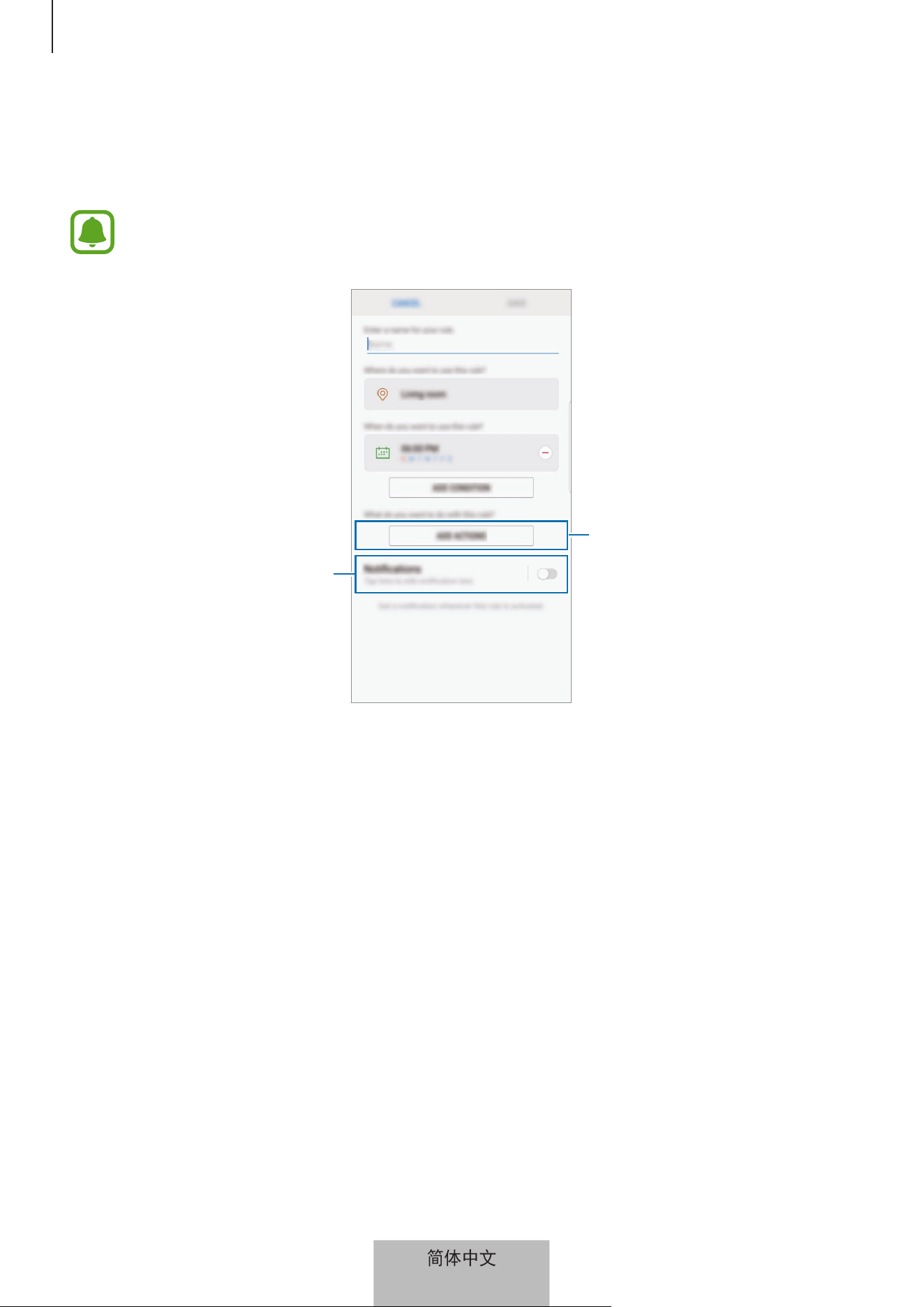
输入规则名称,选择处所,然后点击添加条件。
选择时间和日期。
选择处所。
输入规则名称。
简体中文
17
Samsung Connect 应用程序
18
4
点击时间/日期 (准确) 或时间/日期 (区间),输入时间和日期,然后点击完成。
5
点击添加动作,选择设备和条件或模式,然后点击完成。
要在设备按规则执行操作时接收通知,请点击通知开关激活该功能。
激活通知功能。
选择设备或模式。
6
点击保存。
所分配的设备将按照设定规则操作。
简体中文
18
Samsung Connect 应用程序
19
管理设备和处所
您可管理处所及为其分配的设备和模式。
1
在 Samsung Connect 屏幕上,点击我的设备。
2
向左或向右滚动屏幕来选择处所。
3
点击
→
编辑,使用以下选项。
•
:将处所或模式添加至收藏夹。您可在 Samsung Connect 屏幕上访问收
藏夹。
•
处所名称
→
地点名称:更改添加至收藏夹的处所在 Samsung Connect 屏
幕上显示的名称和壁纸颜色。
•
处所名称
→
成员:查看共享处所的成员。
•
处所名称
→
移除地点:删除处所。
•
处所名称
→
离开地点:删除所邀请的处所。
•
设备名称
→
设备名称:更改设备在处所屏幕上显示的名称及其图标颜色。
•
设备名称
→
地点:将设备分配至另一处所。该选项仅可供处所所有者使
用。
•
设备名称
→
删除设备:从所分配的处所删除设备,或重新注册设备。
•
要将 Z-Wave 设备连接至另一设备,在当前连接的移动设备上将该
Z-Wave 设备从 Samsung Connect 应用程序中删除。当您从 Samsung
Connect 应用程序删除该设备时,将通过 URL 提供删除说明。按照说明
删除 Z-Wave 设备。如果您重设 Wi-Fi Hub,您应当删除 Z-Wave 设备后
再重新连接 (重新包含)。有关如何删除 Z-Wave 设备的说明,请参阅相关
Z-Wave 设备用户手册或联系设备制造商。
•
有关更多的 Z-Wave 网络实用程序功能,请访问 www.smartthings.com。
•
在添加支持关联的设备后,Wi-Fi Hub 自动发送具有 4 个节点的生命
线/组 1 关联集。
简体中文
19
Samsung Connect 应用程序
20
•
模式图标
→
名字:更改模式名称和图标。
•
模式图标
→
设备名称:激活模式时选择待执行的操作。
•
模式图标
→
:将设备从该模式删除。
•
模式图标
→
添加动作:添加设备和操作至该模式。
•
模式图标
→
删除模式:删除该模式。
配置 Samsung Connect 应用程序
配置 Samsung Connect 应用程序。在 Samsung Connect 屏幕上,点击 ,使用
以下选项。
•
添加地点:创建新处所。
•
规则:查看所创建的规则。您还可编辑或删除规则。
仅当您已将设备注册至 Samsung Connect 应用程序时才可使用该选项。
•
通知:查看来自 Samsung Connect 应用程序的通知。您还可更改通知设置。
•
设置:访问有关 Samsung Connect 应用程序的信息和三星账户信息。您还可
设置在通知面板上显示的 Samsung Connect 面板。
•
联系我们:Samsung Members 为客户提供支持服务,例如设备故障诊断,
客户可提交问题和错误报告。您还可与 Galaxy 用户社区内的其他用户共享信
息,或浏览最新 Galaxy 新闻和提示。盖乐世空间可帮助您解决您在使用设备
过程中可能遇到的任何问题。
简体中文
20

Samsung Connect 应用程序
21
Samsung Connect 应用程序的实用用途
利用 Samsung Connect 应用程序让您的生活更简单舒适。根据您的日常行程创建
规则,在任何地方都能轻易控制所注册的设备。
•
如果您想要在每个清晨让美妙的音乐开启新的一天,只要将扬声器连接至
Samsung Connect 应用程序,创建当您起床时播放您最喜爱的音乐的规则即
可。
•
如果您想要确保当您在炎炎夏日到达办公室时就能消热解暑,只要在您到达之
前 10 分钟通过 Samsung Connect 应用程序打开所连接的空调即可。
•
如果您想要回到家就能有一个干净整洁的环境,只要在您到家之前 30 分钟通
过 Samsung Connect 应用程序打开所连接的机器人真空除尘器即可。
•
如果您想要提高家居安全,只要创建让运动传感器在您睡眠时运行的规则和激
活通知功能即可。当运动传感器检测到意外运动时,将通知您。
要查看其他用途示例,请点击 Sams
ung Connect 屏幕上的用户故事。
简体中文
21

22
附录
故障排除
在联系三星服务中心之前,请尝试以下解决办法。
Wi-Fi Hub 冻屏
如果 Wi-Fi Hub 冻屏或死机,将适配器从 Wi-Fi Hub 断开连接后再重新连接。
完全关闭您移动设备上的 Samsung Connect 应用程序,然后重启。
如果 Wi-Fi Hub 冻屏且无响应,将插针插入重置孔中 8 秒钟以上。
如果上述提示仍未解决问题,请联系三星服务中心。
Wi-Fi Hub 未连接路由器
本 Wi-Fi Hub 仅支持 Samsung Connect 路由器。请仅连接 SAMSUNG Connect
Home Pro 或 SAMSUNG Connect Home。
Samsung Connect 应用程序未检测到 Wi-Fi Hub
•
如果 Wi-Fi Hub 冻屏或死机,将适配器从 Wi-Fi Hub 断开连接后再重新连接。
•
完全关闭您移动设备上的 Samsung Connect 应
用程序,然后重启。
•
如果 Wi-Fi Hub 冻屏且无响应,将插针插入重置孔中。
•
确保其他设备在最大连接范围内。
如果上述提示仍未解决问题,请联系三星服务中心。
其他设备无法连接至 Samsung Connect 应用程序
•
在其他设备上,断开 Wi-Fi 网络连接后再重新连接。
•
关闭设备后再重启。
简体中文
22

附录
23
连接经常断开
•
如果设备之间存在障碍物,可能会缩短操作距离。
•
确保其他设备在最大连接范围内。
•
当与其他设备一同使用 Wi-Fi Hub 时,连接可能受电磁波影响。请在无线设备
较少的环境中使用 Wi-Fi Hub。
Wi-Fi Hub 功能与手册所述不相同
可用功能可能因所连接设备而异。
简体中文
23

版权
版权 © 2018 Samsung Electronics
本手册受国际版权法的保护。
未经 Samsung Electronics 事先书面许可,不得以任何形式或方式 (电子或机械)
复制、分发、转译或传播本手册中的任何内容,包括影印、录制或存储在任何信息
存储器和检索系统中。
商标
•
SAMSUNG 和 SAMSUNG 徽标均为 Samsung Electronics 的注册商标。
•
蓝牙
®
是 Bluetooth SIG, Inc. 在全球的注册商标。
•
Wi-Fi
®
、Wi-Fi CERTIFIED
™
和 Wi-Fi 徽标是 Wi-Fi Alliance 的注册商标。
•
Z-Wave 和 Z-Wave Plus 是 Sigma Designs 及其子公司在美国和其他国家或地
区的注册商标。
•
其他所有商标和版权的所有权归各自所有者所有。
简体中文
24
1
Pour commencer
À lire en premier
Veuillez lire le présent guide avant d’utiliser l’appareil afin de vous assurer d’en faire une utilisation
sécuritaire et adéquate.
•
Les images peuvent différer de l’aspect réel du produit. Le contenu pourrait faire l’objet de
modifications sans préavis.
•
Avant d’utiliser le concentrateur Wifi, assurez-vous qu’il est compatible avec votre appareil.
•
Le rendement du concentrateur Wifi peut varier selon l’environnement d’utilisation.
•
Ce produit comprend certains éléments logiciels libres ou gratuits. Pour obtenir des instructions
d’affichage de la licence libre, consultez le site Web de Samsung (opensource.samsung.com).
Liste des icônes
Avertissement: situations où il y a risque de blessure pour vous ou pour les autres.
Attention: situations pouvant endommager votre appareil ou tout autre équipement.
Note: remarques, astuces ou toute autre information complémentaire.
Français (Canada)
1
Pour commencer
2
À propos de SAMSUNG Connect Home (Pro)
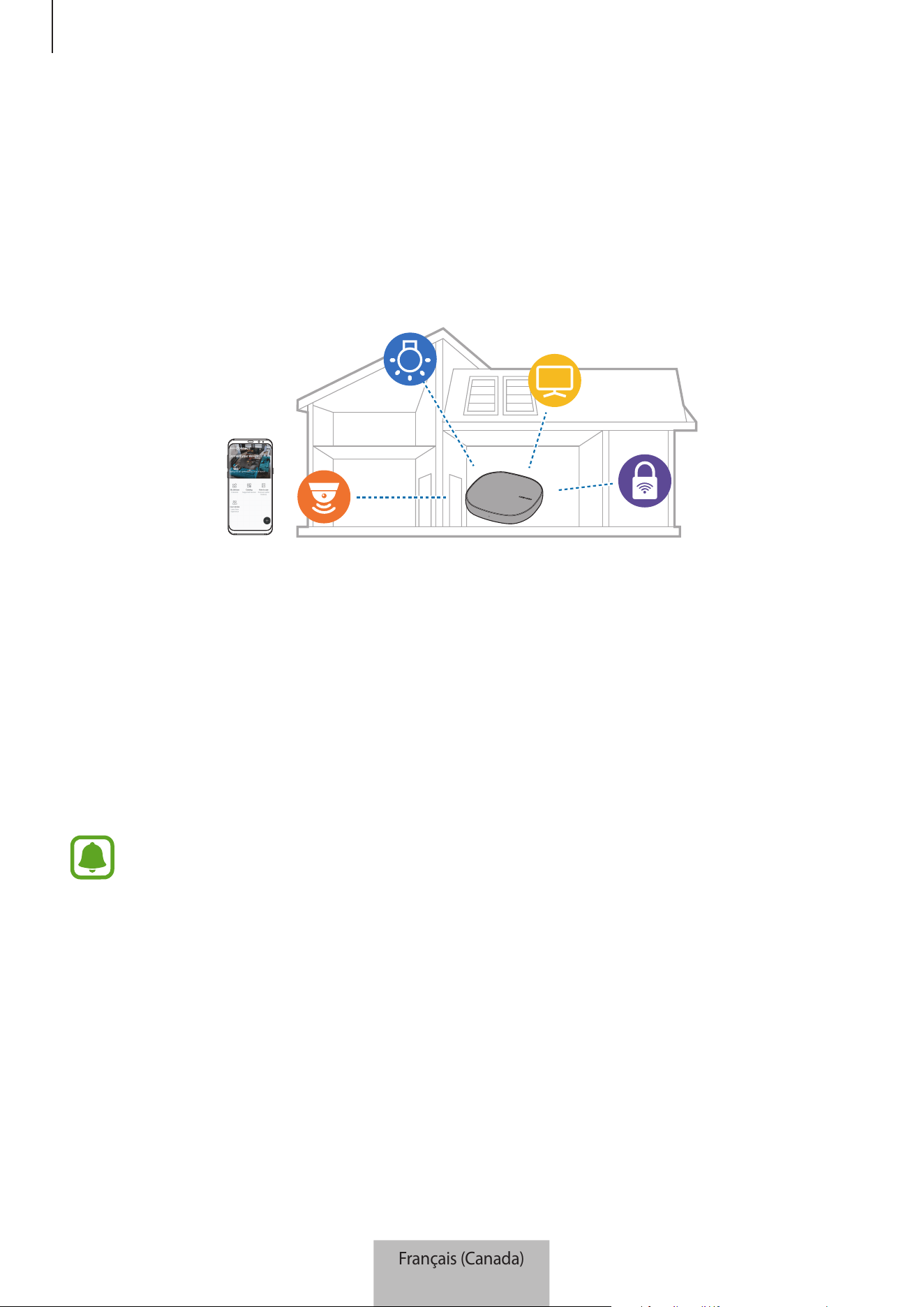
Le Samsung Connect Home (Pro) est un routeur Wi-Fi qui vous permet de connecter votre téléphone
intelligent à vos appareils ménagers intelligents par Wi-Fi. Vous pouvez aussi connecter des appareils
compatibles avec l’Internet des objets (IdO) à ce concentrateur Wifi avec la fonction Samsung
SmartThings Hub.
Pour les maisons de grande superficie, vous pouvez connecter d’autres concentrateurs Wifi.
Contenu de l’emballage
Veuillez vous assurer que la boîte contient les éléments suivants :
•
Concentrateur Wifi
•
Câble Ethernet
•
Adaptateur CA/CC (dans ce document: «adaptateur»)
•
Guide de démarrage rapide
•
Les articles fournis avec l’appareil et les accessoires offerts pourraient varier selon votre
région ou votre fournisseur de services.
•
Les articles fournis sont conçus uniquement pour cet appareil et pourraient ne pas être
compatibles avec d’autres appareils.
•
L’apparence et les caractéristiques techniques pourraient changer sans préavis.
•
Vous pouvez acheter des accessoires supplémentaires auprès de votre détaillant local
Samsung. Assurez-vous qu’ils sont compatibles avec l’appareil avant de les acheter.
•
N’utilisez que des accessoires approuvés par Samsung. L’utilisation d’accessoires non
approuvés peut entraîner des problèmes de rendement et de mauvais fonctionnement
qui ne seront pas couverts par la garantie.
•
La disponibilité de tous les accessoires peut varier puisqu’elle dépend entièrement des
entreprises qui les fabriquent. Pour en savoir davantage sur les accessoires offerts, visitez
le site Web de Samsung.
Français (Canada)
2
Pour commencer
3
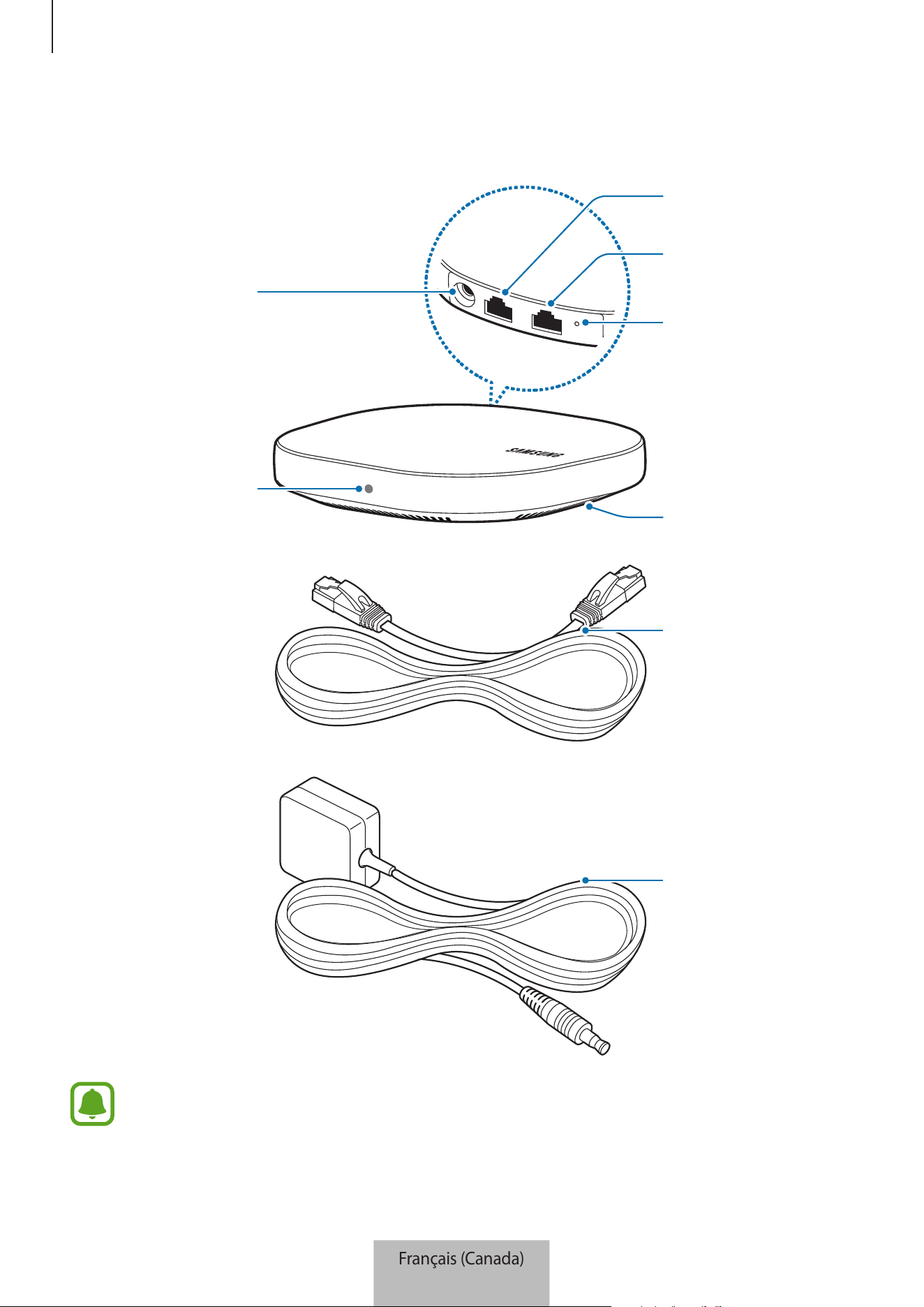
Présentation de l’appareil
Témoin lumineux
Évent du ventilateur
Orifice de
réinitialisation
Port de réseau local
LAN (OUT)
Port de réseau étendu
WAN (IN)
Connecteur
d’adaptateur CA/CC
Câble Ethernet
Adaptateur CA/CC
L’apparence et la structure interne du produit peuvent varier en fonction du modèle.
Français (Canada)
3
Pour commencer
4
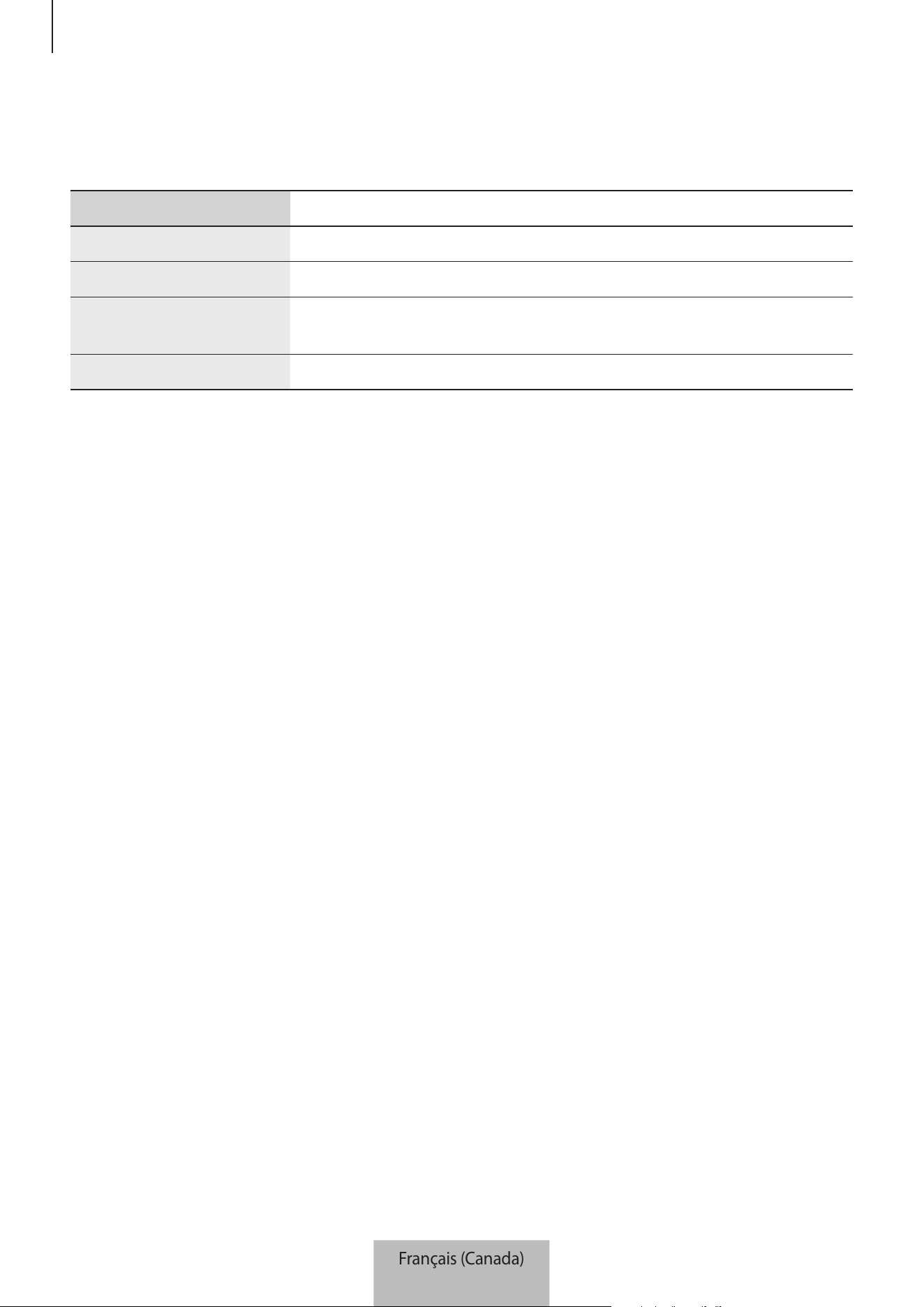
Témoin lumineux
Le témoin lumineux indique l’état du concentrateur Wifi.
Couleur État
Vert Appareil allumé, actif
Clignote en vert Démarrage/réinitialisation du système
Clignote en vert et en
rouge
En attente de la connexion des appareils
Clignote en rouge Erreur de fonction
Français (Canada)
4
5
Utilisation du concentrateur Wifi
Connexion à un appareil mobile
Pour connecter le concentrateur Wifi à un appareil mobile, installez l’application Samsung Connect
sur l’appareil mobile. Téléchargez l’application à partir de
Galaxy Apps
,
Play Store
ou
App Store
.
•
Visitez le site www.samsung.com pour consulter la liste des appareils compatibles avec
l’application Samsung Connect.
•
Vous devez vous enregistrer et vous connecter à votre compte Samsung pour utiliser
l’application Samsung Connect.
•
Les caractéristiques prises en charge peuvent varier en fonction de votre appareil mobile
et de son système d’exploitation.
Concentrateur Wifi
1
Branchez une des extrémités du câble Ethernet dans le port WAN (IN) du concentrateur et l’autre
extrémité au port LAN du modem.
2
Branchez l’adaptateur au concentrateur Wifi.
Le concentrateur Wifi se met en marche et le témoin lumineux clignote en vert.
Utilisez seulement des adaptateurs approuvés par Samsung (12 V/2,1 A ou plus).
•
Vous pouvez utiliser le concentrateur Wifi seulement quand le concentrateur Wifi est
branché à un adaptateur.
•
Si la température du SAMSUNG Connect Home Pro dépasse 55 °C, le ventilateur interne
du concentrateur Wi-Fi s’active automatiquement.
•
Si le concentrateur Wi-Fi surchauffe pendant une période prolongée, il est possible que
le concentrateur Wi-Fi s’éteigne automatiquement ou se réinitialise. Si cela se produit
continuellement, débranchez l’adaptateur du concentrateur Wi-Fi et communiquez avec
un centre de service Samsung.
•
Pour économiser de l’énergie, débranchez l’adaptateur quand vous ne l’utilisez pas.
Puisque l’adaptateur ne comporte aucun interrupteur d’alimentation, vous devez
débrancher l’adaptateur de la prise de courant quand il n’est pas utilisé pour éviter le
gaspillage d’énergie. Pendant l’utilisation, l’adaptateur doit rester à proximité de la prise
de courant et être facile d’accès.
Français (Canada)
5
Utilisation du concentrateur Wifi
6
Appareil mobile
3
Démarrez l’application
Samsung Connect
sur l’appareil mobile.
Les fonctions Wifi et Bluetooth s’activent automatiquement et recherchent les appareils
disponibles.
4
Le concentrateur Wifi sera détecté automatiquement. Touchez
AJOUTER MAINTENANT
.
Si le concentrateur Wifi n’est pas détecté, touchez
→
AJOUTER L’APPAREIL
MANUELLEMENT
→
Concentrateur Wifi
, puis touchez le nom de votre concentrateur Wifi.
5
Saisissez un nom de réseau et un mot de passe pour désigner le concentrateur Wifi.
Pour enregistrer des appareils compatibles IdO au moyen de la fonction Samsung SmartThings
Hub, cochez
Configurer SmartThings Hub
pour l’activer.
6
Suivez les instructions à l’écran pour établir la connexion.
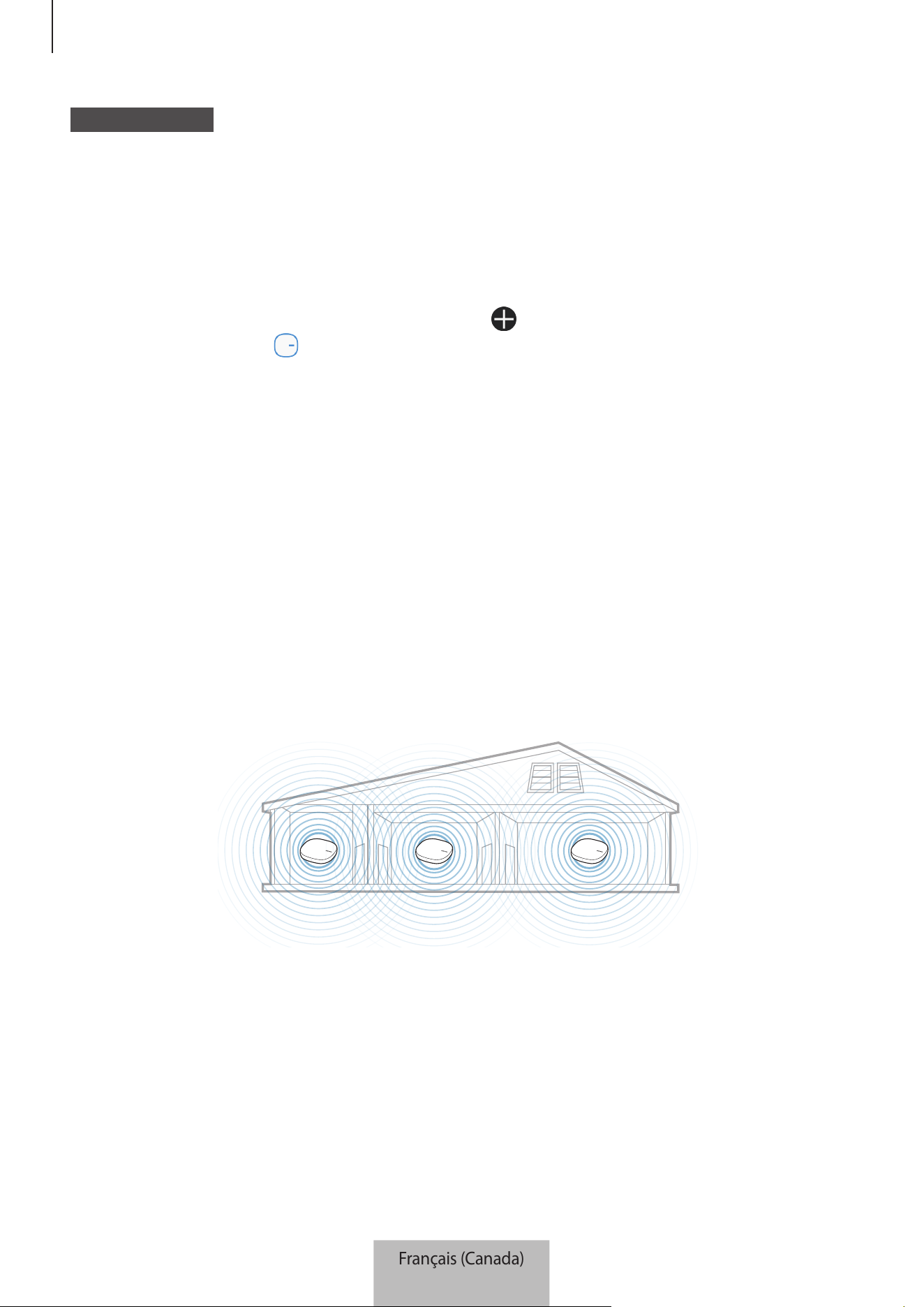
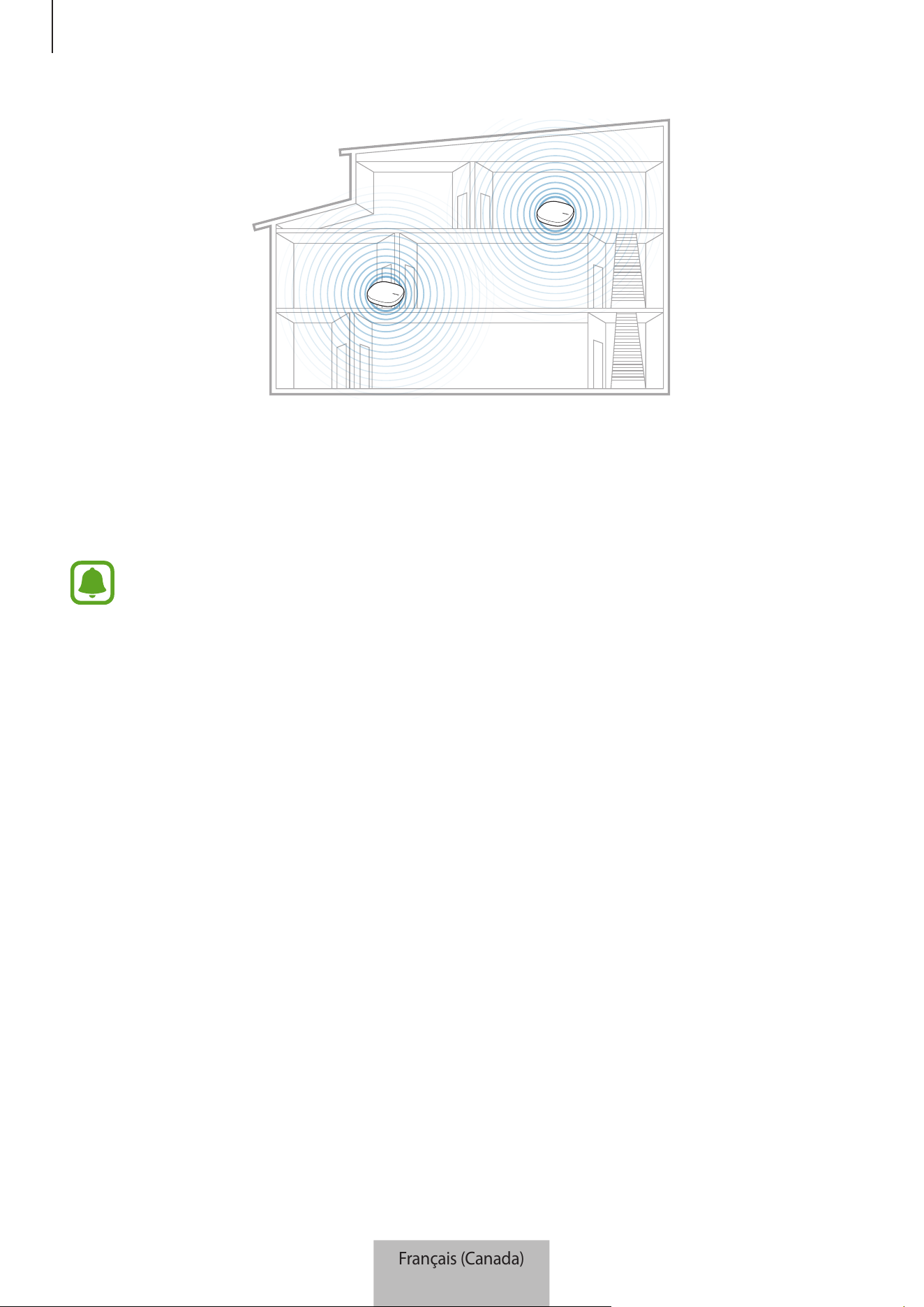
Ajout de concentrateurs Wifi supplémentaires
Un concentrateur Wifi permet de couvrir une superficie de connexion de 140 m
2
(dans des édifices
en bois), mais cette valeur peut varier selon l’environnement d’utilisation.
Installez un concentrateur Wifi supplémentaire pour relier une plus grande superficie avec un réseau
Wifi.
Français (Canada)
6
Utilisation du concentrateur Wifi
7
1
Connectez l’adaptateur CA/CC au concentrateur Wifi supplémentaire.
2
Sur l’appareil mobile, démarrez l’application
Samsung Connect
puis suivez les instructions à
l’écran pour établir la connexion.
Vous pouvez connecter jusqu’à quatre concentrateurs Wifi supplémentaires.
Consignes pour la connexion d’un concentrateur Wifi
•
Installez un concentrateur Wifi près des appareils à enregistrer.
•
Lorsque vous ajoutez d’autres concentrateurs Wifi, installez-les à à l’intérieur de la portée de
connexion.
•
Ne mettez pas d’obstacles entre le concentrateur Wifi et les appareils à enregistrer.
•
Les obstacles comme les corps humains, les murs, les coins ou les clôtures peuvent affaiblir les
signaux.
•
Lorsque vous utilisez le concentrateur Wifi, il doit être connecté avec le câble Ethernet.
Avis concernant l’utilisation de Bluetooth
•
Pour éviter tout problème lorsque vous connectez votre concentrateur Wifi à un autre appareil,
placez les appareils l’un près de l’autre.
•
Assurez-vous que votre concentrateur Wifi et l’autre appareil Bluetooth se trouvent à une
distance maximale de 5 m l’un de l’autre (portée maximale de la liaison Bluetooth). La portée
peut varier en fonction de l’environnement dans lequel les appareils sont utilisés.
Français (Canada)
7

Utilisation du concentrateur Wifi
8
•
Assurez-vous qu’il n’y a aucun obstacle entre le concentrateur Wifi et l’appareil connecté, y
compris des personnes, des murs, des coins ou des clôtures.
•
Ne touchez pas l’antenne Bluetooth d’un appareil connecté.
•
Bluetooth utilise la même fréquence que certains produits industriels, scientifiques, médicaux
et à faible consommation d’énergie. Il pourrait donc y avoir de l’interférence lorsque vous
établissez des connexions près de ces types de produits.
•
Certains appareils, surtout ceux qui ne sont pas testés ou approuvés par Bluetooth SIG,
pourraient être incompatibles avec votre concentrateur Wifi.
•
N’utilisez pas la fonction Bluetooth à des fins illégales (par exemple, en piratant des données ou
en interceptant des communications à des fins commerciales).
Configuration de la fonction de routeur du
concentrateur Wifi
Vous pouvez configurer les paramètres détaillés du réseau Wifi.
Accorder la priorité à un appareil connecté
Vous pouvez régler la priorité de connexion des appareils définis connectés au réseau Wifi du
concentrateur Wifi.
1
Sur l’écran Samsung Connect, touchez
Mes appareils
.
2
Sur la liste des appareils enregistrés, touchez le nom du concentrateur Wifi.
3
Touchez le bouton
Appareils du réseau
.
4
Sur la liste des appareils connectés, sélectionnez l’appareil qui aura priorité dans le réseau Wifi
du concentrateur Wifi.
5
Touchez le bouton
Priorité de bande passante la plus élevée
pour l’activer.
Français (Canada)
8

Utilisation du concentrateur Wifi
9
Restreindre le temps d’utilisation du réseau Wifi
Vous pouvez restreindre le temps d’utilisation pour les appareils connectés au réseau Wifi du
concentrateur Wifi.
1
Sur l’écran Samsung Connect, touchez
Mes appareils
.
2
Sur la liste des appareils enregistrés, touchez le nom du concentrateur Wifi.
3
Touchez le bouton
Appareils du réseau
.
4
Sur la liste des appareils connectés, sélectionnez l’appareil pour lequel vous souhaitez
restreindre le temps d’utilisation du réseau Wifi du concentrateur Wifi.
5
Touchez
Limitation durée d’utilisation
→
Ajout période de temps limitée
.
6
Réglez les jours et l’heure, puis touchez
AJOUTER
.
Ajouter un réseau pour les invités
Vous pouvez ajouter un réseau pour les invités qui est séparé du réseau Wifi principal.
1
Sur l’écran Samsung Connect, touchez
Mes appareils
.
2
Sur la liste des appareils enregistrés, touchez le nom du concentrateur Wifi.
3
Touchez
→
Accès invité
→
Ajout d’un réseau d’invité
.
4
Saisissez un nom et un mot de passe pour le réseau, puis touchez
TERMINÉ
.
Français (Canada)
9
10
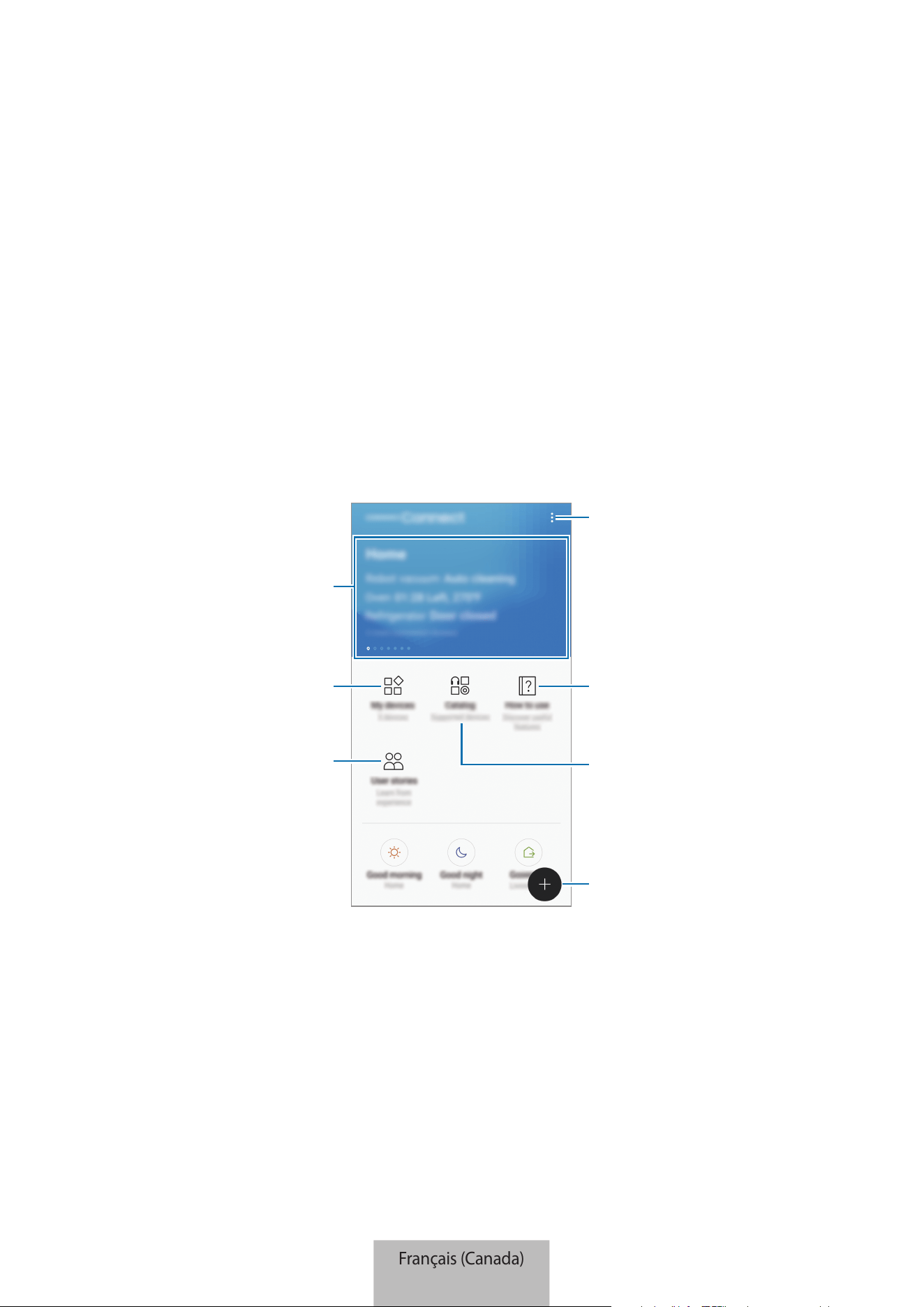
Application Samsung Connect
Introduction
Enregistrez des appareils compatibles avec l’Internet des objets (IdO) et des appareils
électroménagers intelligents à l’application Samsung Connect sur votre appareil mobile, puis
consultez l’application pour vérifier leur état ou en commander les fonctions. Pour commander les
appareils par emplacement, par exemple votre domicile ou votre bureau, créez un emplacement,
puis assignez des appareils enregistrés. Vous pouvez aussi régler un mode qui vous permet de
commander plusieurs appareils simultanément ou définir une règle qui permet d’effectuer des
actions automatiquement à une heure que vous aurez définie.
Recherchez et enregistrez des
appareils à proximité.
Conseils d’utilisation de Samsung
Connect
Appareils compatibles
Accédez à des options
supplémentaires.
Histoires des utilisateurs
Affichez les appareils enregistrés.
Accédez à l’information sur
Samsung Connect et accédez à vos
emplacements favoris.
Français (Canada)
10
Application Samsung Connect
11
Enregistrement des appareils
Enregistrement des appareils ménagers intelligents par Wifi
Enregistrez les appareils électroménagers intelligents compatibles avec Wifi à l’application Samsung
Connect pour en commander les fonctions. Pour des instructions sur l’enregistrement des appareils,
consultez les guides d’utilisation de ces autres appareils.
•
Pour consulter la liste des appareils compatibles, touchez
Catalogue
sur l’écran Samsung
Connect.
•
Les erreurs et les défectuosités des appareils connectés ne sont pas couverts par la
garantie de Samsung. Lorsque des erreurs ou des défectuosités se produisent sur les
appareils connectés, communiquez avec le fabricant de l’appareil.
Enregistrement d’appareils compatibles IdO avec la fonction
Samsung SmartThings Hub
Pour commander les fonctions des appareils compatibles avec l’Internet des objets (IdO) et qui
prennent en charge Z-Wave, zigbee, LAN ou Cloud-to-Cloud, enregistrez-les dans l’application
Samsung Connect.
1
Sur l’écran Samsung Connect, touchez .
2
Touchez
AJOUT MANUEL D’UN APPAREIL
et sélectionnez une catégorie d’appareil à enregistrer
(par exemple, des ampoules).
3
Sélectionnez le fabricant de l’appareil.
4
Suivez les instructions à l’écran pour compléter l’enregistrement.
•
La fonction Samsung SmartThings Hub pourrait ne pas être disponible en fonction de la
région. Visitez le site www.samsung.com pour plus de détails.
•
Vous pouvez seulement enregistrer les appareils compatibles IdO qui sont approuvés
par Samsung. Visitez le site www.samsung.com pour consulter la liste des appareils
compatibles.
•
Reportez-vous aux guides d’utilisation des autres appareils pour obtenir des instructions
sur la façon de les associer.
Français (Canada)
11

Application Samsung Connect
12
Commande des appareils enregistrés
Sur l’écran Samsung Connect, touchez
Mes appareils
.
Sur la liste des appareils enregistrés, touchez le nom d’un appareil.
L’outil de commande de cet appareil sera téléchargé.
Avec l’outil de commande téléchargé, commandez à distance les fonctions des appareils enregistrés
par l’intermédiaire de l’application Samsung Connect.
Créer des emplacements
Vous pouvez enregistrer des appareils par emplacement et les gérer.
1
Sur l’écran Samsung Connect, touchez
Mes appareils
.
2
Touchez
→
Ajouter un lieu
.
3
Saisissez un nom d’emplacement, puis touchez
AJOUTER
.
4
Touchez
AJOUTER UN APPAREIL
pour enregistrer des appareils ou sélectionner des appareils à
ajouter à l’emplacement, puis touchez
DÉPLACER
.
Inviter des membres à l’emplacement créé
Invitez d’autres membres à l’emplacement créé pour commander les appareils et les modes assignés
à cet emplacement.
1
Sur l’écran Samsung Connect, touchez
Mes appareils
.
2
Faites défiler l’écran vers la gauche ou la droite pour sélectionner un emplacement.
3
Touchez
→
Inviter un membre
.
Français (Canada)
12
Application Samsung Connect
13
4
Touchez
Saisir l’ID de compte Samsung
, saisissez les renseignements du compte Samsung de
la personne que vous souhaitez inviter, puis touchez
.
Vous pouvez inviter des utilisateurs en numérisant le code QR. Touchez
CRÉER UN CODE QR
et
invitez d’autres utilisateurs à le lire.
•
Vous pouvez seulement inviter les utilisateurs à se connecter à un compte Samsung par
l’application Samsung Connect.
•
Pour accepter une invitation, sur l’écran Samsung Connect, touchez la fenêtre d’invitation,
puis touchez
ACCEPTER
. Pour accepter une invitation en numérisant un code QR, sur
l’écran Samsung Connect, touchez
→
Paramètres
→
Acceptation d’une invitation
(code QR)
puis numérisez le code QR.
5
Suivez les instructions à l’écran pour terminer l’invitation.
Définition et exécution des modes
Définissez un mode pour commander les fonctions de plusieurs appareils à la fois. Pour définir un
mode, vous devez créer des emplacements. Veuillez consulter Créer des emplacements pour plus de
détails.
1
Sur l’écran Samsung Connect, touchez
Mes appareils
.
2
Faites défiler l’écran vers la gauche ou la droite pour sélectionner un emplacement.
Français (Canada)
13
Application Samsung Connect
14
3
Touchez
→
Ajouter un mode
.
L’écran permettant de définir des modes s’affiche.
4
Saisissez le titre du mode, sélectionnez une icône pour le mode et touchez
AJOUTER DES
ACTIONS
.
Français (Canada)
14
Application Samsung Connect
15
5
Sélectionnez un appareil et une action à commander, puis touchez
TERMINÉ
.
Par exemple, sélectionnez une télévision et un aspirateur robot, puis les actions
correspondantes à effectuer.
6
Touchez
ENREGISTRER
.
Le mode est défini. Vous pouvez consulter les modes définis à partir de l’écran des
emplacements désignés.
Activer les modes
1
Sur l’écran Samsung Connect, touchez
Mes appareils
.
2
Faites défiler l’écran vers la gauche ou vers la droite pour sélectionner un emplacement avec le
mode que vous voulez activer.
Français (Canada)
15
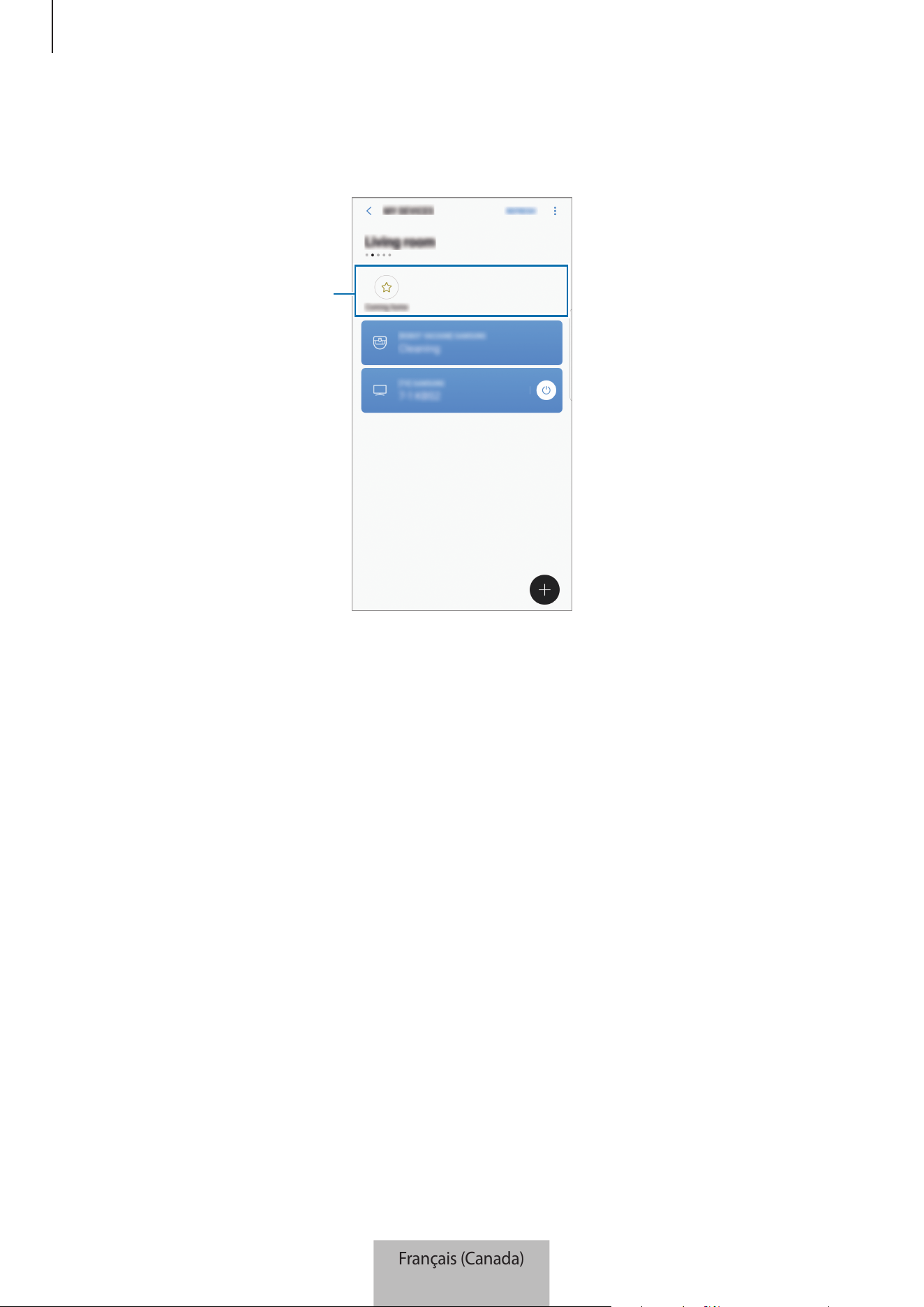
Application Samsung Connect
16
3
Sélectionnez le mode à activer.
Les appareils que vous avez réglés fonctionneront selon le mode sélectionné.
Modes définis
Français (Canada)
16
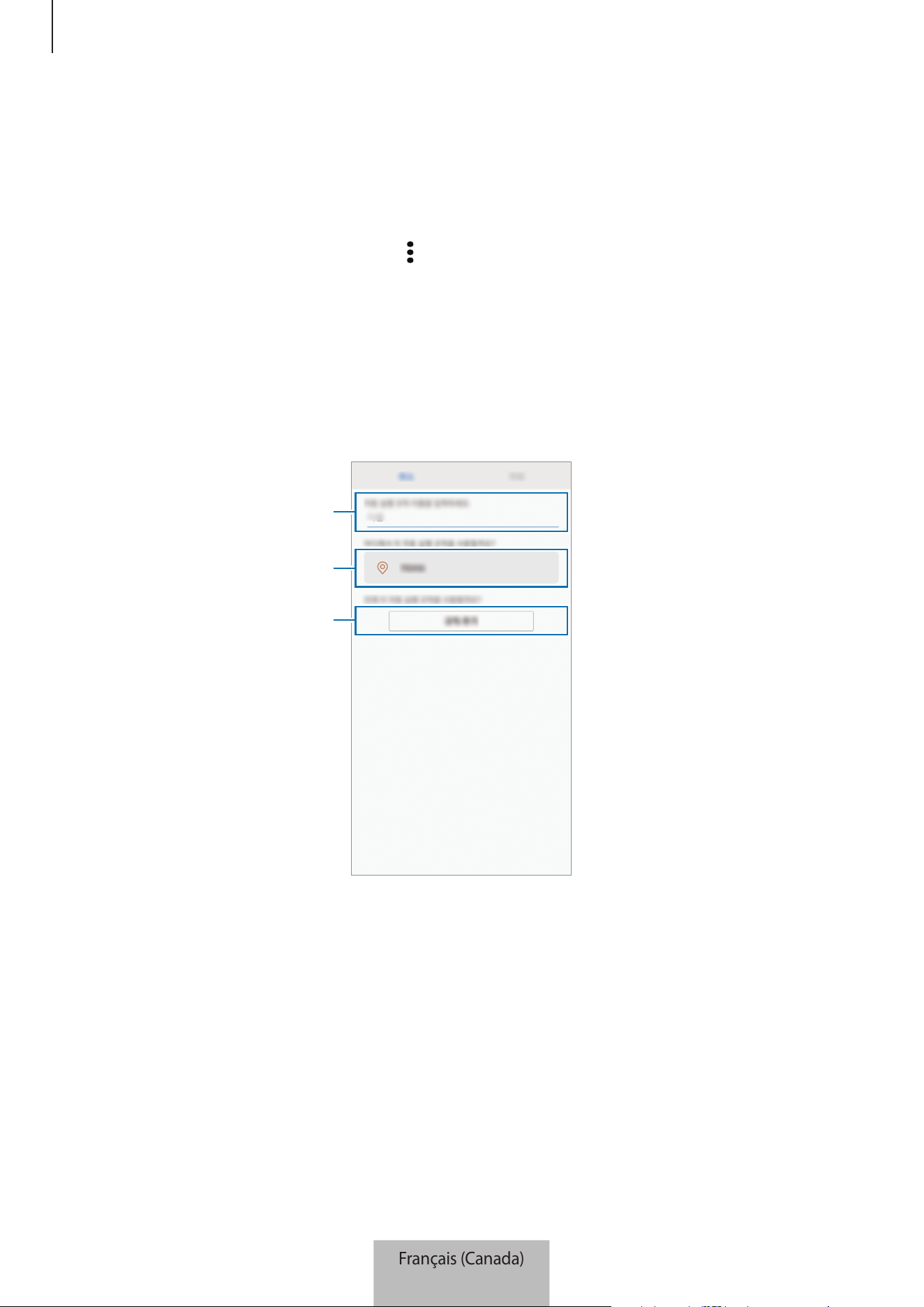
Application Samsung Connect
17
Définition des règles
Définissez une règle pour que les appareils assignés à un emplacement effectuent des actions
automatiquement à une heure que vous aurez définie.
1
Sur l’écran Samsung Connect, touchez .
2
Touchez
Règles
→
AJOUT D’UNE RÈGLE
.
L’écran permettant de définir des règles s’affiche.
3
Saisissez le titre de la règle, sélectionnez un emplacement, puis touchez
AJOUTEZ UNE
CONDITION
.
Saisissez le titre de la règle.
Sélectionnez un emplacement.
Sélectionnez l’heure et la date.
Français (Canada)
17
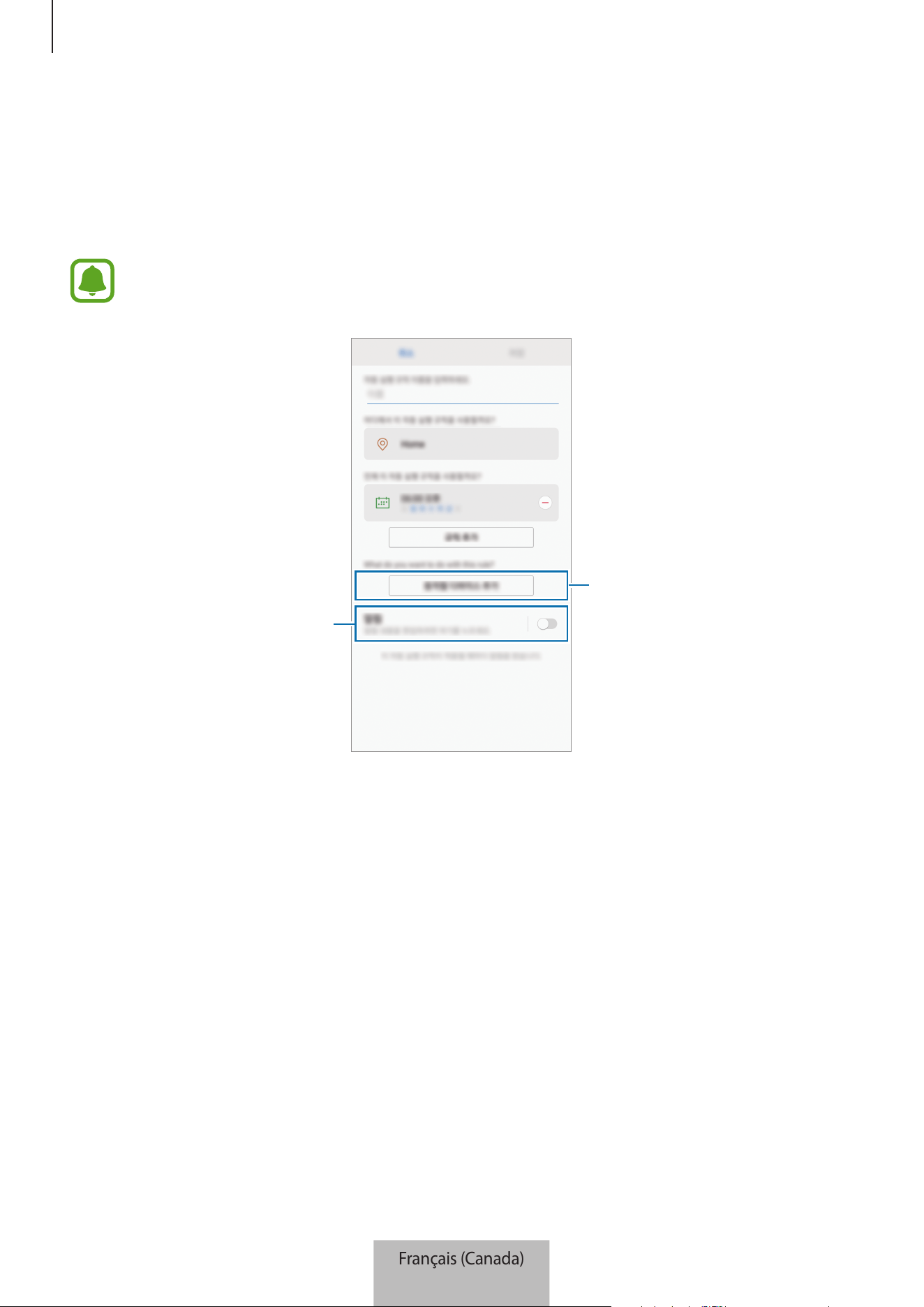
Application Samsung Connect
18
4
Touchez
Heure/jour (exacte)
ou
Heure/jour (période)
, entrez la date et le jour, puis touchez
TERMINÉ
.
5
Touchez
AJOUTER DES ACTIONS
, sélectionnez les appareils et les conditions, ou les modes, puis
touchez
TERMINÉ
.
Pour recevoir une notification lorsque les appareils effectuent une action selon la règle,
touchez le bouton
Notifications
pour activer cette fonction.
Sélectionnez un appareil ou un
mode.
Activez la fonction de notification.
6
Touchez
ENREGISTRER
.
Les appareils assignés fonctionneront selon la règle définie.
Français (Canada)
18
Application Samsung Connect
19
Gestion des appareils et des emplacements
Vous pouvez gérer les emplacements et les appareils et modes qui y sont assignés.
1
Sur l’écran Samsung Connect, touchez
Mes appareils
.
2
Faites défiler l’écran vers la gauche ou la droite pour sélectionner un emplacement.
3
Touchez
→
Modifier
et choisissez l’une des options suivantes.
•
: pour définir l’emplacement ou le mode en tant que favori. Vous pouvez accéder aux
favoris sur l’écran Samsung Connect.
•
Nom de l’emplacement
→
Nom du lieu
: pour changer le nom de l’emplacement et la
couleur de son papier peint affiché sur l’écran Samsung Connect quand il est réglé dans les
favoris.
•
Nom de l’emplacement
→
MEMBRES
: pour afficher les membres avec qui partager
l’emplacement.
•
Nom de l’emplacement
→
SUPPRIMER LE LIEU
: pour supprimer l’emplacement.
•
Nom de l’emplacement
→
QUITTER LE LIEU
: pour supprimer l’emplacement lié à
l’invitation.
•
Nom de l’appareil
→
Nom de l’appareil
: pour changer le nom de l’appareil et la couleur de
son icône affichée sur l’écran de l’emplacement.
•
Nom de l’appareil
→
Lieu
: pour assigner l’appareil à un emplacement. Cette option est
seulement accessible pour le propriétaire de l’emplacement.
•
Nom de l’appareil
→
SUPPRIMER L’APPAREIL
: pour supprimer l’appareil de l’emplacement
assigné ou annuler l’enregistrement de l’appareil.
•
Pour connecter un appareil Z-Wave à un autre appareil, sur l’appareil mobile actuellement
connecté, retirez l’appareil de l’application Samsung Connect pour l’exclure. Si vous
retirez un appareil de l’application Samsung Connect, les instructions d’exclusion
seront fournies par une URL. Suivez les instructions pour exclure l’appareil Z-Wave.
Si vous réinitialisez le concentrateur Wifi, vous devrez exclure l’appareil Z-Wave puis
le reconnecter (l’inclure de nouveau). Pour des instructions sur la façon d’exclure des
appareils Z-Wave, reportez-vous au guide d’utilisation de chacun des appareils Z-Wave ou
communiquez avec le fabricant de l’appareil.
•
Pour en savoir plus sur les fonctions utilitaires de réseau Z-Wave, visitez le site
www.smartthings.com.
•
Le concentrateur Wi-Fi envoie automatiquement un ensemble d’association Ligne de vie/
groupe 1 pour 4 nœuds après avoir ajouté un appareil prenant en charge l’association.
Français (Canada)
19
Application Samsung Connect
20
•
Icône de mode
→
Nom
: pour changer le nom du mode et son icône.
•
Icône de mode
→
Nom de l’appareil : pour sélectionner une action à faire quand le mode est
activé.
•
Icône de mode
→
: pour supprimer l’appareil du mode.
•
Icône de mode
→
AJOUT D’ACTIONS
: pour ajouter des appareils et des actions au mode.
•
Icône de mode
→
SUPPRIMER LE MODE
: pour supprimer le mode.
Configuration de l’application Samsung Connect
Configurez les paramètres de l’application Samsung Connect. Sur l’écran Samsung Connect, touchez
et choisissez l’une des options suivantes.
•
Ajouter un lieu
: pour créer un nouvel emplacement.
•
Règles
: pour consulter les règles créées. Vous pouvez également modifier ou supprimer des
règles.
Cette option est seulement accessible quand vous avez enregistré des appareils avec
l’application Samsung Connect.
•
Notifications
: pour consulter les notifications de l’application Samsung Connect. Vous pouvez
également changer les paramètres de notification.
•
Paramètres
: pour accéder à l’information sur l’application Samsung Connect et les
renseignements de compte Samsung. Vous pouvez aussi régler le panneau Samsung Connect
pour qu’il s’affiche sur le panneau des notifications.
•
Nous contacter
: Samsung Members offre des services de soutien à ses clients, comme le
diagnostic des problèmes des appareils, et permet aux utilisateurs de soumettre des questions
et des rapports d’erreur. Vous pouvez aussi partager de l’information avec d’autres utilisateurs
de la communauté Galaxy ou consulter les dernières nouvelles et astuces à propos du Galaxy.
Samsung Members
peut vous aider à résoudre n’importe quel problème que vous pourriez
rencontrer pendant l’utilisation de votre appareil.
Français (Canada)
20

Application Samsung Connect
21
Utilisation pratique de l’application Samsung
Connect
Utilisez l’application Samsung Connect pour vous faciliter la vie et augmenter votre confort. Créez
des règles qui suivent votre routine ou commandez à distance les fonctions des appareils enregistrés.
•
Par exemple, pour commencer votre journée en musique chaque matin, connectez des haut-
parleurs à l’application Samsung Connect et créez une règle pour lancer la lecture de votre
musique préférée à votre réveil.
•
Si vous voulez que votre bureau soit frais quand vous arrivez au travail l’été, activez un
climatiseur connecté par l’application Samsung Connect 10 minutes avant votre arrivée.
•
Pour que votre maison soit bien propre quand vous arrivez, activez un aspirateur robotisé
connecté par l’application Samsung Connect 30 minutes avant votre retour.
•
Pour optimiser la sécurité de votre domicile, créez une règle pour que vos détecteurs de
mouvement s’activent à l’heure du coucher, puis activez la fonction de notification. Si les
détecteurs de mouvement détectent des mouvements inattendus, vous recevrez une
notification.
Pour consulter d’autre exemples d’utilisation, touchez
Histoires d’utilisateur
sur l’écran Samsung
Connect.
Français (Canada)
21

22
Annexe
Dépannage
Avant de communiquer avec un centre de service Samsung, veuillez essayer les solutions suivantes.
Votre concentrateur Wifi gèle
Si le concentrateur Wifi gèle ou ne répond pas, débranchez l’adaptateur du concentrateur Wifi, puis
rebranchez-le.
Fermez complètement l’application Samsung Connect sur votre appareil mobile, puis redémarrez-la.
Si votre concentrateur Wifi est gelé ou ne répond pas, insérez une aiguille dans l’orifice de
réinitialisation et appuyez pendant plus de 8 secondes.
Si les conseils ci-dessus ne permettent pas de régler le problème, communiquez avec un centre de
service Samsung.
Votre concentrateur Wifi n’est pas connecté à un routeur
Ce concentrateur Wifi est seulement compatible avec les routeurs Samsung Connect. Connectez
seulement le SAMSUNG Connect Home Pro ou le SAMSUNG Connect Home.
Votre concentrateur Wifi n’est pas détecté par l’application Samsung
Connect
•
Si le concentrateur Wifi gèle ou ne répond pas, débranchez l’adaptateur du concentrateur Wifi,
puis rebranchez-le.
•
Fermez complètement l’application Samsung Connect sur votre appareil mobile, puis
redémarrez-la.
•
Si votre concentrateur Wifi est gelé ou ne répond pas, insérez une aiguille dans l’orifice de
réinitialisation.
•
Assurez-vous que les autres appareils se trouvent à l'intérieur de la portée maximale de
connexion.
Si les conseils ci-dessus ne permettent pas de régler le problème, communiquez avec un centre de
service Samsung.
Français (Canada)
22

Annexe
23
D’autres appareils ne peuvent pas se connecter à l’application
Samsung Connect
•
Sur l’autre appareil, déconnectez la connexion au réseau Wifi, puis rétablissez la connexion.
•
Éteignez l’appareil, puis rallumez-le.
La connexion est souvent interrompue
•
La présence d’obstacles entre les appareils pourrait réduire la distance de fonctionnement.
•
Assurez-vous que les autres appareils se trouvent à l'intérieur de la portée maximale de
connexion.
•
Lorsque le concentrateur Wifi est utilisé avec d’autres appareils, la connexion peut être altérée
par les ondes électromagnétiques. Utilisez le concentrateur Wifi dans des environnements dans
lesquels il y a moins d’appareils sans fil.
Le concentrateur Wifi ne fonctionne pas de la façon décrite dans le
guide
Les fonctions disponibles pourraient différer selon l’appareil connecté.
Français (Canada)
23

Droits d’auteur
© Samsung Electronics, 2017.
Le présent guide est protégé par les lois internationales sur le droit d’auteur.
Aucune partie du présent guide d’utilisation ne peut être reproduite, distribuée, traduite ou
transmise sous quelque forme que ce soit, électronique ou mécanique, notamment par photocopie,
enregistrement ou stockage dans tout système de stockage et de récupération d’information, sans
l’autorisation écrite préalable de Samsung Electronics.
Marques de commerce
•
SAMSUNG et le logo SAMSUNG sont des marques déposées de Samsung Electronics.
•
Bluetooth
®
est une marque déposée de Bluetooth SIG, Inc. partout dans le monde.
•
Wi-Fi
®
, Wi-Fi CERTIFIED
™
et le logo Wi-Fi sont des marques déposées de Wi-Fi Alliance.
•
Z-Wave et Z-Wave Plus sont des marques déposées de Sigma Designs et de ses filiales aux États-
Unis et dans d’autres pays.
•
Toutes les autres marques de commerce et tous les autres droits d’auteur sont la propriété de
leurs titulaires respectifs.
Français (Canada)
24