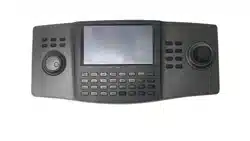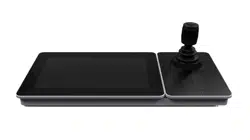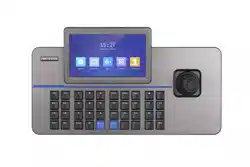


DS-1100KI & DS-1105KI Network Keyboard User Manual
i
Preface
This section is to ensure that you can avoid danger or property loss in the process of using the
product. Before using the product, please read the user manual carefully and keep it for future
reference.
Get More Information
Visit our website (http://www.hikvision.com/) for user manuals, application tools and
development materials.
Applicable Model
This manual is applicable to DS-1100KI and DS-1105KI Network Keyboard.
Important Clause
Please strictly abide by the applicable laws and regulations for the use and maintenance of
monitoring interface. It is illegal to use video monitoring device for illegal purposes, or to explore
other people's privacy.
Symbol Conventions
The symbols that may be found in this document are defined as follows.
Symbol
Description
Danger
Indicates a hazardous situation which, if not avoided, will or could
result in death or serious injury.
Caution
Indicates a potentially hazardous situation which, if not avoided,
could result in equipment damage, data loss, performance
degradation, or unexpected results.
Note
Provides additional information to emphasize or supplement
important points of the main text.

DS-1100KI & DS-1105KI Network Keyboard User Manual
ii
Operation Convention
The following operations may be found in this document are defined as follows.
Operation
Description
Press Number + REGION
● Press a numeric button and REGION button to select a region.
● Number represents region ID. Go to region menu for the ID.
Press Number + WALL
● Press a numeric button and WALL button to select a video wall.
● Number represents video wall ID. Go to video wall client for the
ID.
Press Number + WIN
● Press a numeric button and WIN button to select a sub-window.
● In video wall mode, if the monitor is divided in to multiple
windows, the number represents sub-window ID.
Press Number + MON
● If device is video wall or decoder:
○ Press a numeric button and MON button to select a monitor.
○ Number represents monitor ID. Go to video wall client for the
ID.
●
● If device is video recorder:
○ Press a numeric button and MON button to select an output
channel.
○ Number represents output channel ID. Go to Keyboard →
Channel → Output Channel for the ID.
Press Number + CAM
Keyboard mode:
○ Press a numeric button and CAM button to select an output
channel.
○ Number represents input channel ID. Go to Keyboard →
Channel → Input Channel for the ID.
● HikCentral/iSecure mode:
○ Press a numeric button and CAM button to select a camera.
○ Number represents camera ID. Check camera ID in resource
list.
Press Number + CAM-G
● Press a numeric button and CAM-G button to select an input
channel group.
● Number represents input channel group ID. Go to Keyboard →

DS-1100KI & DS-1105KI Network Keyboard User Manual
iii
Operation
Description
Channel → Camera Group for the ID.
Press Number + MACRO
● Press a numeric button and MACRO button to select a macro.
● Number represents macro ID. Go to Keyboard → Macro for the
ID.
Press Number + GROUP
● Press a numeric button and GROUP button to select a group.
● Number represents group ID. Go to Keyboard > Group for the ID.
Press Number + MULT
● Press a numeric button and MULT button to divide monitor.
● Number represents sub-window quantity.
Press Number + SCENE
● Press a numeric button and SCENE button to switch video wall
scene.
● Number represents scene ID. Check the ID in video wall mode.

DS-1100KI & DS-1105KI Network Keyboard User Manual
iv
Contents
Chapter 1 Product Introduction .................................................................................................. 1
Chapter 2 Activation................................................................................................................... 2
2.1 Local Menu Activation ........................................................................................................... 2
2.2 SADP Activation ..................................................................................................................... 3
2.3 Web Activation ...................................................................................................................... 3
Chapter 3 Network ..................................................................................................................... 4
Chapter 4 Keyboard ................................................................................................................... 5
4.1 Login ....................................................................................................................................... 5
4.2 Add Devices ........................................................................................................................... 6
4.2.1 Manually Add ............................................................................................................. 6
4.2.2 Add in Batches ............................................................................................................ 8
4.3 Local Live View ...................................................................................................................... 9
4.3.1 Preview by Operating Touchscreen ........................................................................... 9
4.3.2 Preview by Operating Keyboard Shortcut ................................................................. 9
4.3.3 PTZ Control ............................................................................................................... 10
4.4 Video Wall ........................................................................................................................... 14
4.4.1 Video Wall Configuration ......................................................................................... 14
4.4.2 Video Wall Control ................................................................................................... 16
4.4.3 PTZ Control ............................................................................................................... 19
4.4.4 Group and Macro ..................................................................................................... 19
4.5 Playback ............................................................................................................................... 20
4.5.1 Local Playback .......................................................................................................... 20
4.5.2 Video Wall Playback ................................................................................................. 21
4.6 Channel Management ......................................................................................................... 22
4.6.1 Edit Channel .............................................................................................................. 22
4.6.2 Output Channel ........................................................................................................ 23
4.6.3 Camera Group .......................................................................................................... 23
4.7 User Management ............................................................................................................... 25
4.8 Video Recorder .................................................................................................................... 26

DS-1100KI & DS-1105KI Network Keyboard User Manual
v
4.8.1 Remote Panel ........................................................................................................... 26
4.8.2 Live View ................................................................................................................... 29
4.8.3 PTZ Control ............................................................................................................... 29
4.8.4 Playback .................................................................................................................... 29
4.9 Connect the Device Through Serial Ports ........................................................................... 29
4.9.1 Connect Video Recorders ......................................................................................... 29
4.9.2 Connect Analog Matrix ............................................................................................ 31
4.9.3 Connect Analog Dome .............................................................................................. 32
Chapter 5 iSecure Mode ........................................................................................................... 35
5.1 Login ..................................................................................................................................... 35
5.2 Resource List ........................................................................................................................ 36
5.3 Local Live View .................................................................................................................... 37
5.3.1 Enable Local Live View ............................................................................................. 37
5.3.2 PTZ Operation ........................................................................................................... 37
5.4 Video Wall Operation .......................................................................................................... 37
5.4.1 Region Configuration ............................................................................................... 37
5.4.2 Video Wall Control ................................................................................................... 38
5.4.3 PTZ Operation ........................................................................................................... 38
5.5 Video Wall Playback ............................................................................................................ 39
Chapter 6 HikCentral Mode ...................................................................................................... 40
6.1 Login ..................................................................................................................................... 40
6.2 Resource List ........................................................................................................................ 41
6.3 Local Live View .................................................................................................................... 41
6.3.1 Enable Local Live View ............................................................................................. 41
6.3.2 PTZ Operation ........................................................................................................... 42
6.4 Video Wall Operation .......................................................................................................... 43
6.4.1 Region Configuration ............................................................................................... 43
6.4.2 Video Wall Control ................................................................................................... 43
6.4.3 PTZ Operation ........................................................................................................... 44
6.5 Video Wall Playback ............................................................................................................ 44

DS-1100KI & DS-1105KI Network Keyboard User Manual
vi
Chapter 7 System ..................................................................................................................... 45
7.1 Language .............................................................................................................................. 45
7.2 Hardware ............................................................................................................................. 45
7.3 Storage ................................................................................................................................. 46
7.3.1 FTP Storage ............................................................................................................... 46
7.3.2 USB Storage .............................................................................................................. 47
7.4 Upgrade ............................................................................................................................... 47
7.4.1 FTP Upgrade ............................................................................................................. 47
7.4.2 USB Flash Drive Upgrade ......................................................................................... 48
7.5 Import/Export Configuration File ....................................................................................... 48
7.6 Factory Default .................................................................................................................... 48
7.7 Auxiliary Key ........................................................................................................................ 49
7.8 Lock Keyboard ..................................................................................................................... 49
Chapter 8 Web Configuration ................................................................................................... 50
8.1 Login ..................................................................................................................................... 50
8.2 Add Devices ......................................................................................................................... 50
8.2.1 Manually Add ........................................................................................................... 50
8.2.2 Import Input Channels in Batches ........................................................................... 53
8.3 Channel Management ......................................................................................................... 53
8.3.1 Edit Channel .............................................................................................................. 53
8.3.2 Camera Group .......................................................................................................... 54
8.4 Serial Port Settings .............................................................................................................. 55
8.5 Network ............................................................................................................................... 56
8.6 System Settings ................................................................................................................... 57
8.6.1 Version ...................................................................................................................... 57
8.6.2 User Management .................................................................................................... 57
8.6.3 System Maintenance ................................................................................................ 59
8.6.4 Log Management ...................................................................................................... 60
8.6.5 Security Settings ....................................................................................................... 61

DS-1100KI & DS-1105KI Network Keyboard User Manual
1
Chapter 1 Product Introduction
DS-1100KI and DS-1105KI are network keyboard independently developed by Hikvision. It features
in 7-inch full view multi-touch LCD screen and four-dimensional joystick. It supports network
access to DVR, DVS, NVR, network camera, network dome, video integrated platform, decoder,
iSecure, HikCentral and other platform software, with powerful functions and quick and simple
operations. It can be widely used in finance, public security, telecommunication, transportation,
electric power, education, water conservancy and other fields.

DS-1100KI & DS-1105KI Network Keyboard User Manual
2
Chapter 2 Activation
You can activate network keyboard via local menu, SADP client or Web interface.
2.1 Local Menu Activation
For the first-time access, you need to activate the network keyboard by setting an admin
password.
Steps
1. Connect your network keyboard power supply to an electrical outlet, and turn on the network
keyboard.
The activation interface will be popped up automatically.
2. Set password and confirm it.
Caution
We highly recommend you create a strong password of your own choosing (Using a minimum of
8 characters, including at least three of the following categories: upper case letters, lower case
letters, numbers, and special characters.) in order to increase the security of your product. And
we recommend you reset your password regularly, especially in the high security system,
resetting the password monthly or weekly can better protect your product.
Figure 2-1 Activation
3. Tap Activate.

DS-1100KI & DS-1105KI Network Keyboard User Manual
3
2.2 SADP Activation
SADP software is used for detecting the online device, activating the device, and resetting its
password.
Get the SADP software from the supplied disk or the official website, and install the SADP
according to the prompts.
Steps
1. Connect your network keyboard power supply to an electrical outlet, and turn on the network
keyboard.
2. Run the SADP software downloaded from our website to search the online devices.
3. Check the keyboard status from the device list, and select the inactive keyboard.
4. Enter the new password in the password field, and confirm it.
Caution
We highly recommend you create a strong password of your own choosing (Using a minimum of
8 characters, including at least three of the following categories: upper case letters, lower case
letters, numbers, and special characters.) in order to increase the security of your product. And
we recommend you reset your password regularly, especially in the high security system,
resetting the password monthly or weekly can better protect your product.
5. Click Activate.
2.3 Web Activation
After editing the PC and the network keyboard to the same network segment, you can directly log
in to the web interface of the network keyboard to activate.

DS-1100KI & DS-1105KI Network Keyboard User Manual
4
Chapter 3 Network
Network parameters must be properly configured before you can add network devices and
operate the network keyboard over network.
Steps
1. Go to System → Network.
2. Configure network parameters.
● Enable DHCP to obtain IP settings automatically.
● Manually enter IP address, subnet mask, and gateway.
● Enable SADP to search devices, change IP addresses through SADP software.
3. Tap Save.
Figure 3-1 Network Parameters

DS-1100KI & DS-1105KI Network Keyboard User Manual
5
Chapter 4 Keyboard
Keyboard mode is mainly applied to small-sized projects. Network keyboard works as a control
center and manages security devices in it.
4.1 Login
Steps
1. Tap Keyboard at home page.
Figure 4-1 Login
2. Enter user name and password.
3. Optional: Check Remember.
4. Tap Login.
Note
If you enter the wrong password 7 times for administrator or 5 times for operator, the current
user account will be locked for 30 minutes.
DS-1100KI & DS-1105KI Network Keyboard User Manual
6
4.2 Add Devices
Up to 4000 devices can be added.
4.2.1 Manually Add
Steps
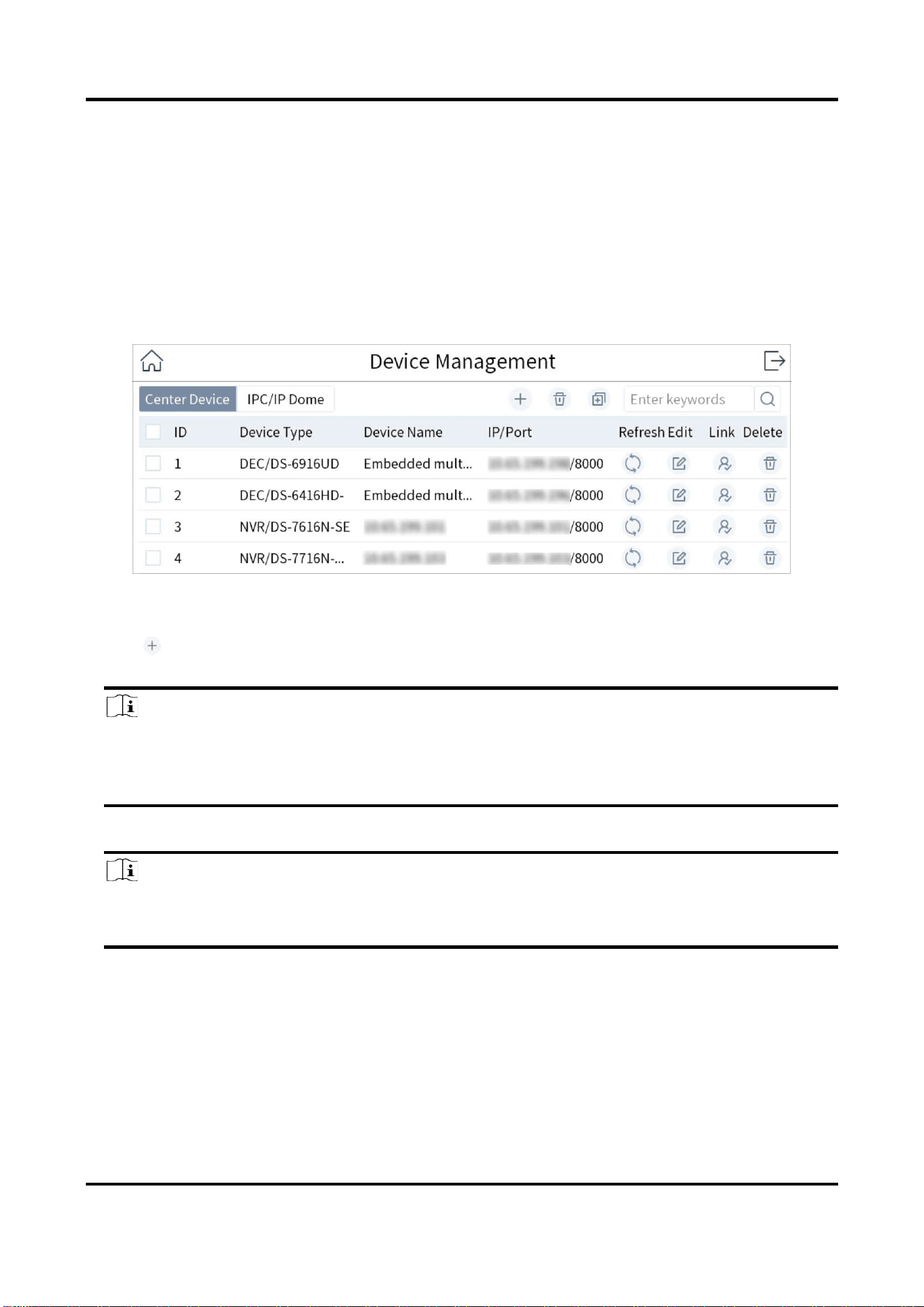
1. Go to Keyboard → Device.
Figure 4-2 Device Management
2. Tap Center Device or IPC/IP Dome as desired.
3. Tap .
4. Enter device IP address, port, user name, and password.
Note
● The device name is obtained automatically or can be configured as required.
● If you enable the stream encryption for the device, you need to enter the verification code
when adding the device.
5. Check or uncheck Add Video Recorder Output.
Note
Check Add Video Recorder Output, and the output port type, channel number and other
information will be listed in the output port list.
6. Tap OK.

DS-1100KI & DS-1105KI Network Keyboard User Manual
7
Figure 4-3 Add Center Device
Figure 4-4 Add Network Camera
DS-1100KI & DS-1105KI Network Keyboard User Manual
8
4.2.2 Add in Batches
Add Online Devices in Batches
You can add the devices with the same user name and password in batches.
Steps
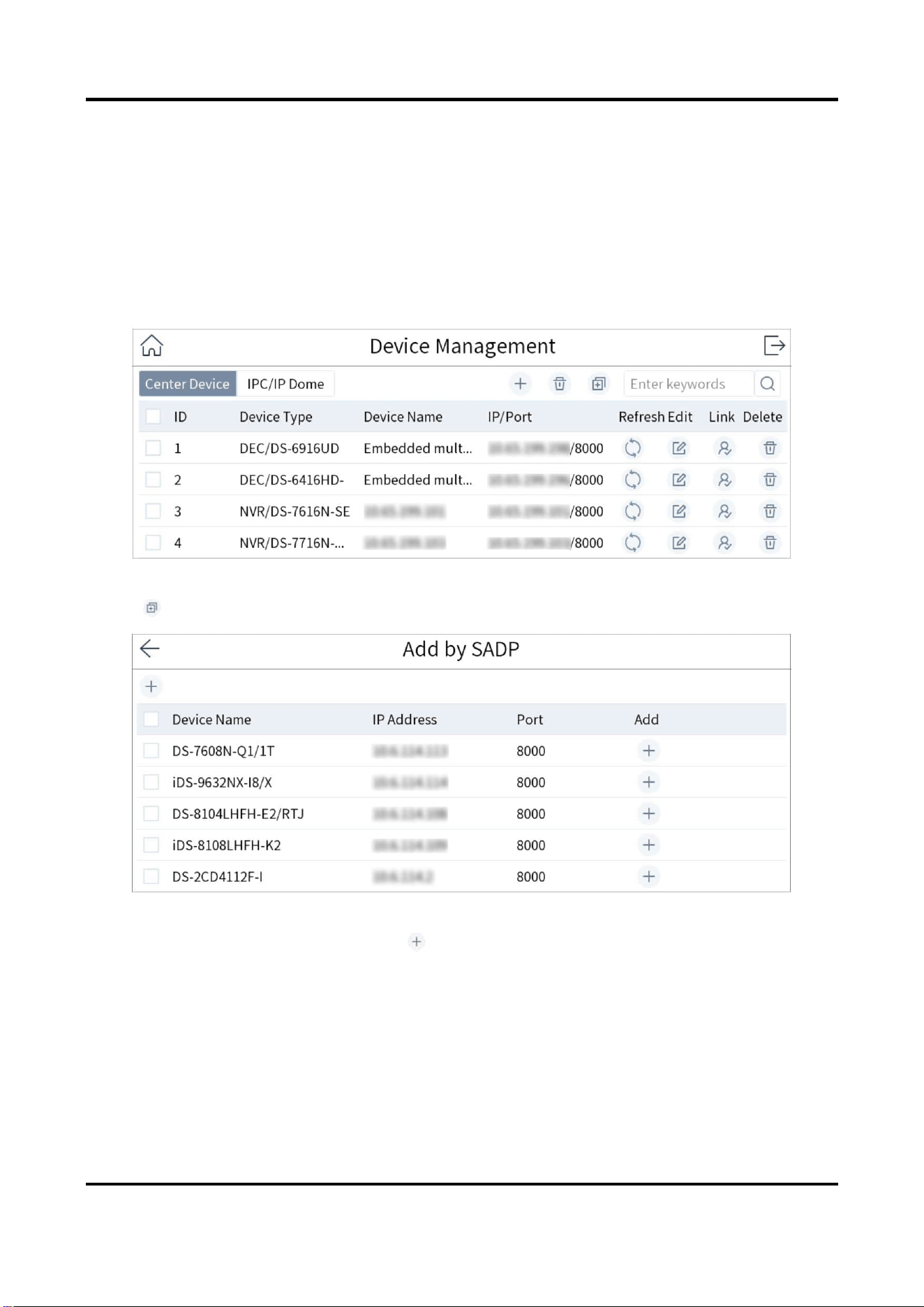
1. Go to Keyboard → Device.
Figure 4-5 Device Management
2. Tap to enter Add by SADP interface.
Figure 4-6 Online Devices
3. Check the devices to be added and tap .
4. Enter user name and password.
5. Tap Add.
Import Input Channels in Batches
The information of added input channel can be generated into an excel file and exported to the

DS-1100KI & DS-1105KI Network Keyboard User Manual
9
USB flash drive for backup.
Before You Start
Connect an USB flash drive to the network keyboard.
Steps
1. Go to Keyboard → Channel.
2. Export input channel template.
1) Tap to export an excel file.
2) Edit the file on your computer, like adding or deleting input channels.
3) Copy the file to an USB flash drive and connect it to your network keyboard.
3. Tap to import input channels.
4.3 Local Live View
Preview an input channel in keyboard touchscreen.
4.3.1 Preview by Operating Touchscreen
Steps
1. Go to Keyboard → Channel.
2. Select the channel and tap to preview.
4.3.2 Preview by Operating Keyboard Shortcut
Press the keys of the keyboard to preview the input channel.
Steps
1. Press 0+MON.
2. Preview the channel as desired.
● Press Num + CAM to preview the signal of the corresponding channel.
● Press Num + CAM-G to preview the camera group.
● Tap in the touchscreen and select the channel or the camera group as desired to
preview.

DS-1100KI & DS-1105KI Network Keyboard User Manual
10
Figure 4-7 Local Live View
3. You can do the following operations.
4-Screen Preview
● Press 4 + MULT to switch the current image into 4 screens, and tap
any screen to preview the images of different cameras.
● Press 1 + MULIT to return the previous image.
Switch Channels
Press PREV/NEXT to switch to the previous or next channel.
Full Screen
Press ESC to switch to the full screen.
Capture Images
Press the top of the rocker to capture a image.
Clip Videos
Press to start clipping and press it again to stop clipping.
4. Press 0+CAM to stop previewing.
Note
● You can preview the channel with up to 4K resolution.
● Press Num + CAM to control PTZ without previewing images from speed domes.
● The captured image and the recording can be saved in USB flash drive or uploaded to FTP
server. For FTP configuration, see Storage.
4.3.3 PTZ Control
You can control the added speed dome. For example, you can control PTZ movement, turn on/off
light, turn on/off wiper, zoom in/out, increase/decrease focus, increase/decrease iris, and set/call

DS-1100KI & DS-1105KI Network Keyboard User Manual
11
preset, patrol and pattern.
General Operation
Steps
1. Preview speed dome image.
Note
For detailed steps, see Preview by Operating Touchscreen and Preview by Operating Keyboard
Shortcut.
2. Move joystick and press buttons of keyboard to control PTZ.
Table 4-1 Buttons Description
Button
Description
Button
Description
LIGHT
Turn on/off light.
WIPER
Turn on/off wiper.
FOCUS+
Increase focus.
FOCUS-
Decrease focus.
IRIS+
Increase iris.
IRIS-
Decrease iris.
ZOOM+
Zoom in.
ZOOM-
Zoom out.
PRESET
Set/call preset.
PATROL
Set/call patrol.
PATTERN
Set/call pattern and
start/stop auto-scan.
Joystick
Rotate PTZ.
Set and Call Preset
You can record the horizontal positions, vertical positions, and lens magnification of the preset
point by setting a preset point. To quickly monitor a certain target, you can call out the preset
position by operating the keyboard.
By Operating Touchscreen
1. Preview speed dome image. For detailed steps, see Preview by Operating Touchscreen and
Preview by Operating Keyboard Shortcut.
2. Set a preset.
1) Tap .
2) Tap Preset.
3) Rotate the joystick to move PTZ to a desired position.
4) Tap to set a preset.
3. Tap to call the preset.

DS-1100KI & DS-1105KI Network Keyboard User Manual
12
By Operating Keyboard Shortcut
1. Preview speed dome image. For detailed steps, see Preview by Operating Touchscreen and
Preview by Operating Keyboard Shortcut.
2. Rotate the joystick to move PTZ to a desired position.
3. Set a preset.
1) Press SET to start setting. The SET button turns red.
2) Press Num + PRESET to set the current position as corresponding preset.
3) Press SET to finish setting.
4. Press Num + PRESET to call the preset.
Set and Call Patrol
Patrol means that PTZ moves among several presets. PTZ will stay in a preset for a duration before
moving on to the next preset.
By Operating Touchscreen
1. Preview speed dome image. For detailed steps, see Preview by Operating Keyboard Shortcut
and Preview by Operating Touchscreen.
2. Set a patrol.
1) Tap .
2) Tap Patrol.
3) Tap of a desired patrol.
4) Tap Add Preset to add presets, including their speed and duration time, in the patrol.
5) Tap OK.
3. Tap to call the patrol.
By Operating Keyboard Shortcut
1. Preview speed dome image. For detailed steps, see Preview by Operating Keyboard Shortcut
and Preview by Operating Touchscreen.
2. Press SET to start setting.
The SET button turns red.
3. Press Num + PATROL to select which patrol to set.
Preset
It determines the order at which the PTZ will follow while moving through the patrol.
Speed
It defines the speed at which the PTZ will move from one preset to the next.
Duration
It refers to the time span to stay at the preset.

DS-1100KI & DS-1105KI Network Keyboard User Manual
13
Figure 4-8 Edit Patrol
4. Press Num + ENTER to select preset.
5. Press Num + ENTER to set duration.
6. Press Num + ENTER to set speed.
Note
If you press Num + PATROL during steps 4 to 6, the settings will be cleared.
7. Repeat steps 4 to 6 to set more points of the patrol.
8. Press SET to finish setting.
Note
Press Num + PATROL again to clear all parameters set. Press SET to reset.
9. Press Num + PATROL to call the patrol.
Note
You can also tap in Local Live View interface to select Patrol, set and call patrol.
Set and Call Pattern
Pattern records the movement of the PTZ. You can call the pattern to automatically move the PTZ
according to the predefined path.
By Operating Touchscreen
1. Preview speed dome image. For detailed steps, see Preview by Operating Touchscreen and
Preview by Operating Keyboard Shortcut.

DS-1100KI & DS-1105KI Network Keyboard User Manual
14
2. Set a pattern.
1) Tap .
2) Tap Pattern.
3) Tap of a desired pattern.
4) Tap OK.
5) Rotate the joystick to control PTZ. The movement will be recorded.
6) Tap to save the pattern.
3. Tap to call the pattern.
By Operating Keyboard Shortcut
1. Preview speed dome image. For detailed steps, see Preview by Operating Touchscreen and
Preview by Operating Keyboard Shortcut.
2. Press SET to start setting.
The SET button turns red.
3. Press Num + PATTERN to select a pattern to set.
4. Rotate the joystick to control PTZ. The movement will be recorded.
5. Press SET to stop setting.
6. Press Num + PATTERN to call the pattern.
Note
You can also tap in Local Live View interface to select Pattern, set and call pattern.
4.4 Video Wall
4.4.1 Video Wall Configuration
Configure Region
Divide a video wall into several regions to manage video wall by region.
Steps
1. Go to Keyboard → Region.
Figure 4-9 Region Management
2. Tap .
DS-1100KI & DS-1105KI Network Keyboard User Manual
15
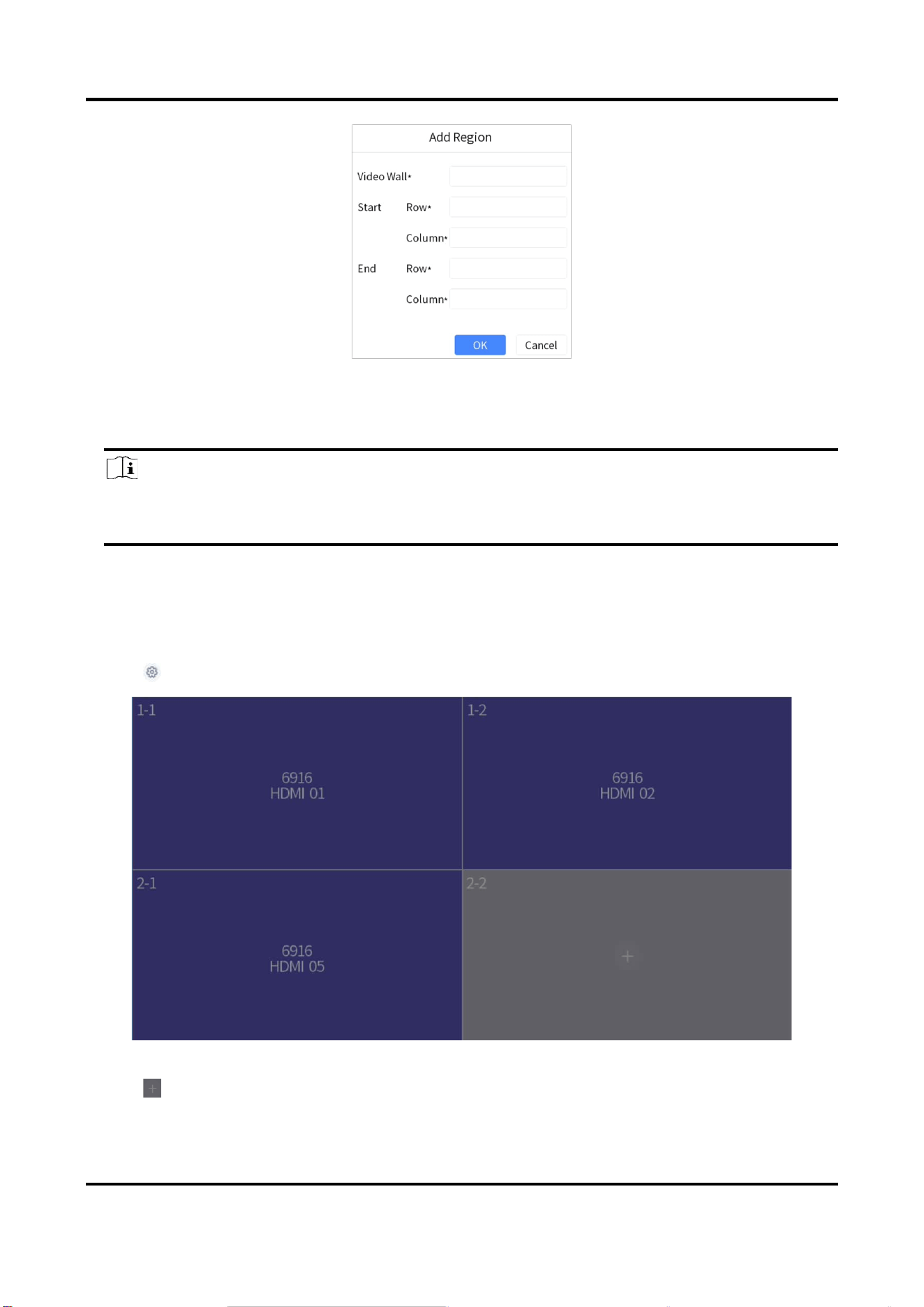
Figure 4-10 Add Region
3. Enter video wall ID, start coordinate, and end coordinate.
4. Tap OK.
Note
● Up to 16 regions can be added.
● Region size cannot be larger than 6 × 8 (row × column).
Link Output Channel to Video Wall
Steps
1. Tap of region to configure.
Figure 4-11 Region Configuration
2. Tap of a grid.
3. Select a decoding device and select its output channel.

DS-1100KI & DS-1105KI Network Keyboard User Manual
16
4. Tap OK to finish setting.
Note
Region output channel layout should be the same with the actual video wall.
Figure 4-12 Add Output
4.4.2 Video Wall Control
Layout Operation
Select a monitor to open, close, resize, and divide windows.
Steps
1. Press Num + REGION, or press Num + WALL.
2. Tap to select a monitor.
3. Operate the window as desired.
Open window
Press Num + CAM or Num + CAM-G to display an input channel or
camera group on the monitor.
Window roaming
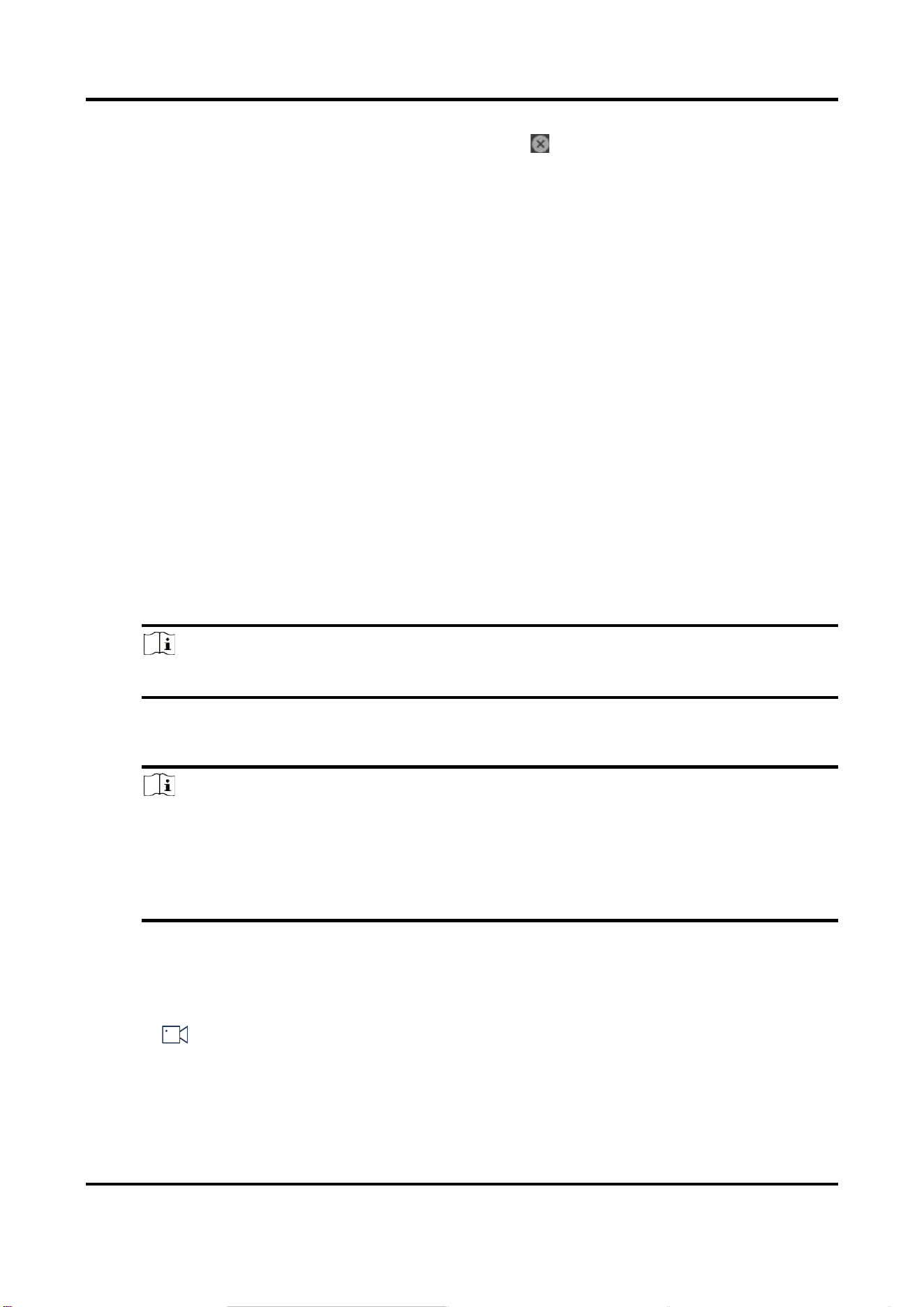
Long press a window, and you can move it.
DS-1100KI & DS-1105KI Network Keyboard User Manual
17
Close window
Long press a window, and tap to close the window.
Resize window
● Double tap a window to expand it to cover all the grids it overlays.
Double tap the window again to restore it to the previous size.
● Drag the four corners of the window to resize the window.
Divide window
Press Num + MON and press Num + MULT to divide the window.
Expand/restore sub-
window
Press Num + MON, press Num + WIN to select a sub-window, and
press F2 to expand the sub-window to cover the whole monitor. Press
F2 again to restore the sub-window.
Window Operation
Display an input channel or camera group on a monitor.
Steps
1. Select a monitor to display. Three methods are provided. You are recommended to use the first
one.
● Press Num + REGION to show monitors on the region and video wall layout.
● Press Num + MON. Or tap to select a monitor.
● Press Num + DEVICE.
Note
You can check the device number in Device Management interface.
● Press Num + WALL. For roaming devices, WALL refers to video wall. For decoder, WALL
refers to spliced screen.
Note
○ For the roaming device supporting one video wall, always keyboard selects the number 1
video wall, whatever the Num is.
○ For B20, B21, C20N, C10S decoders (roaming device supporting multiple video walls,
select the corresponding video wall.
○ For the device supporting spliced screen, select the corresponding joined screen.
● Press Num + MON. Or tap to select a monitor. Press Num + MON: Select a monitor directly.
2. Select an input channel or camera group to preview.
● Press Num + CAM to preview the input channel.
● Press Num + CAM-G to preview the camera group.
● Tap on the upper right corner of the touchscreen and select an input channel to
preview.
3. During live view, you can switch live view input channel, capture images, and clip videos.
Switch Channels
Press PREV/NEXT to switch to previous/next online input channel.
DS-1100KI & DS-1105KI Network Keyboard User Manual
18
Capture Images
Press the button on the top of joystick to capture a picture.
Clip Videos
Press to start clipping and press it again to stop clipping.
Scene Operation
You can switch the scene for a region or video wall.
Steps
1. Press Num + REGION, or press Num + WALL.
2. Select a monitor or window on touchscreen.
3. Select a scene as desired.
● Tap on the upper right corner and select a desired scene.
Figure 4-13 Scene
Table 4-2 Icon Description
Icon
Description
Switch scene.
Save scene.

DS-1100KI & DS-1105KI Network Keyboard User Manual
19
Icon
Description
Note
You can also press SET + Num + SCENE + SET to save scene.
● Press Num + SCENE to switch scenes.
4.4.3 PTZ Control
You can control the added speed dome, like control PTZ movement, turn on/off light, turn on/off
wiper, zoom in/out, increase/decrease focus, increase/decrease iris, set/call preset, patrol and
pattern.
Steps
1. Display speed dome image on video wall. For detailed steps, see Window Operation.
2. Control PTZ. For detailed steps, see PTZ Control.
4.4.4 Group and Macro
You can execute a series of continuous actions in sequence by calling a macro or group. Steps of
setting group and macro are the same, we take setting and calling macro as the example to
describe the steps.
Steps
1. Go to Keyboard → Macro.
2. Tap .
3. Enter macro name.
4. Press keyboard buttons to enter commands.
Note
You can add up to 256 keys in one macro. A number may contain several keys, e.g., 369 contains
3 keys. A functional button is one key.
5. Tap Save.
6. Press Num + MACRO to call the macro.
DS-1100KI & DS-1105KI Network Keyboard User Manual
20
4.5 Playback
4.5.1 Local Playback
Play videos on the touchscreen.
Instant Playback
Play videos in 3/5/10/15 minutes.
Steps
1. Start local live view. For detailed steps, see Preview by Operating Touchscreen and Preview by
Operating Keyboard Shortcut.
2. Press to start playing the video within 5 minutes. Or tap , tap Instant, and select the
playback time.
Playback by Time
Steps
1. Start local live view. For detailed steps, see Preview by Operating Touchscreen and Preview by
Operating Keyboard Shortcut.
2. Tap .
3. Tap By Time.
4. Select a day in calendar.
Playback Control
During playback, you can clip videos, capture images, control playback speed, etc.
Before You Start
You need to connect a USB flash drive or configure keyboard FTP settings. Clipped videos and
captured pictures will be saved to USB flash drive or FTP server. For steps of storage configuration,
see Storage.
Note
DS-1100KI supports speed control via both outer shuttle and the joystick. DS-1105KI supports
speed control via the joystick only.
Table 4-3 Button Description
Button
Description
Button
Description
Time bar
Drag time bar to quickly locate
on a certain time to play.
Pause/resume playback.

DS-1100KI & DS-1105KI Network Keyboard User Manual
21
Button
Description
Button
Description
Stop playback.
Jump backward for 30
seconds.
During playback, press it to
start clipping. Press it again to
stop clipping.
Jump forward for 30 seconds.
Outer shuttle
● Rotate it clockwise for 2/4/8
times faster.
● Rotate it anticlockwise for
1/2, 1/4, or 1/8 times
slower.
Inner shuttle
Reserved
Capture
Press the button on the top of
joystick to capture the images.
Joystick
● Left: 1/2, 1/4, or 1/8 times
slower.
● Right: 2/4/8 times faster.
● Clockwise: Jump forward for
30 seconds.
● Anticlockwise: Jump
backward for 30 seconds.
4.5.2 Video Wall Playback
Play videos on video wall.
Instant Playback
Play videos in 3/5/10/15 minutes.
Steps
1. Start video wall live view. For detailed steps, see Window Operation.
2. Press to start playing the video within 5 minutes. Or tap , tap Instant, and select the
playback time.
Playback by Time
Steps
1. Start video wall live view. For detailed steps, see Window Operation.
2. Tap , tap By Time, and select a day in calendar.
Playback Control
For detailed steps, see Playback Control.

DS-1100KI & DS-1105KI Network Keyboard User Manual
22
Note
Capturing, clipping, recording, jumping forward or backward for 30 seconds are not supported in
Video Wall Playback.
4.6 Channel Management
4.6.1 Edit Channel
We take editing input channel as the example to describe the steps.
Steps
1. Go to Keyboard → Channel.
2. Tap of input channel/output channel to edit.
Figure 4-14 Edit Input Channel
3. Edit parameters.
ID
The unique identification for input channel. It is valid in local and video wall live view mode.
Stream
The stream to preview in local and video wall live view mode.
Protocol
It is valid for video wall preview.
4. Tap OK.

DS-1100KI & DS-1105KI Network Keyboard User Manual
23
4.6.2 Output Channel
When adding decoders or video recorders, their output channels will be added and displayed in
output channel list. You can press Num + MON to operate an output channel, and the number
refers to output channel ID. Video wall also need to link to these output channels.
Figure 4-15 Output Channel
4.6.3 Camera Group
Camera group enables you to preview a group of cameras (input channels) in sequence.
Steps
1. Go to Keyboard → Channel → Camera Group.
Figure 4-16 Camera Group
2. Tap .
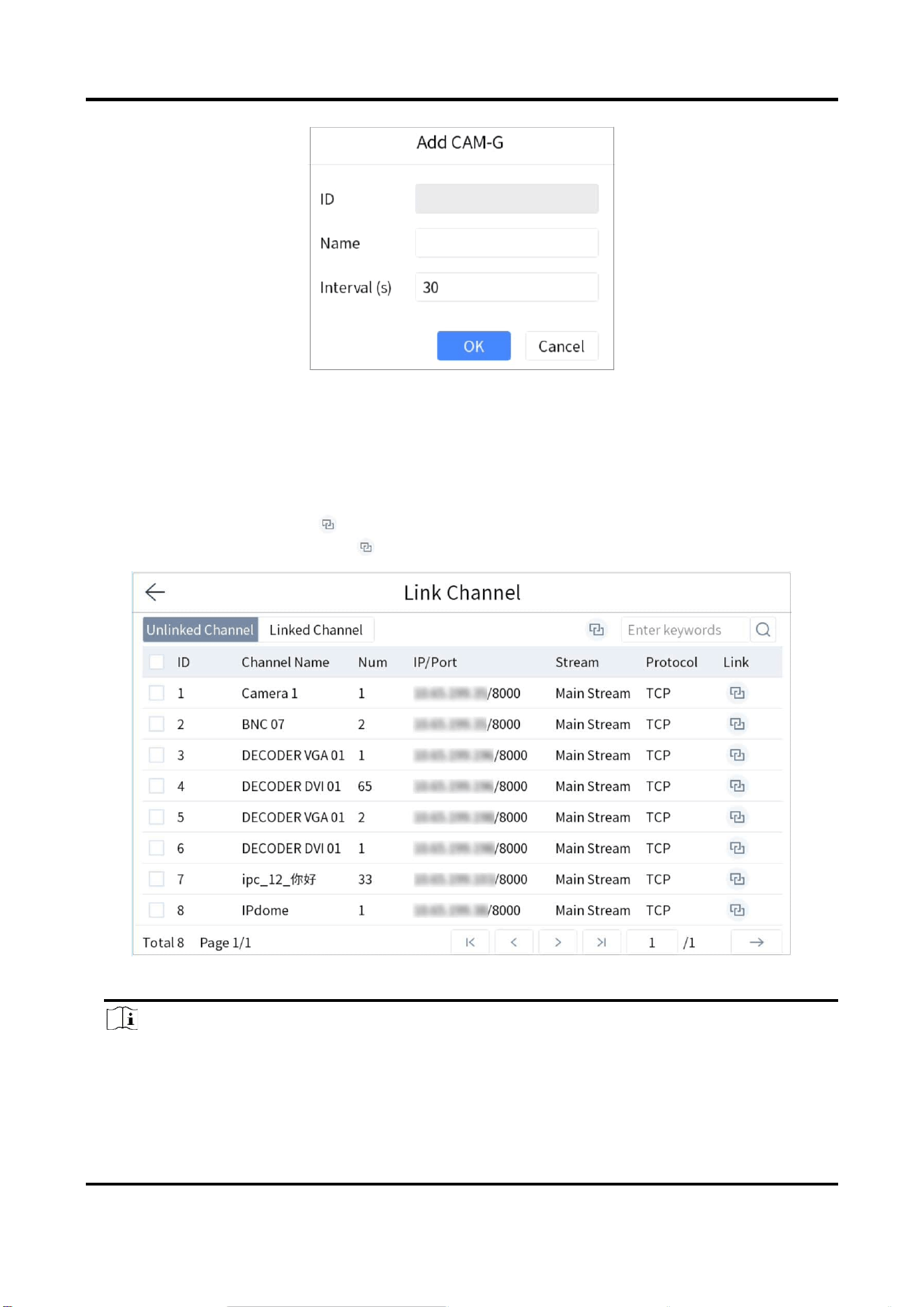
DS-1100KI & DS-1105KI Network Keyboard User Manual
24
Figure 4-17 Add Camera Group
3. Enter group name and interval.
Interval: The time to dwell in each input channel before switching to next channel.
4. Tap OK.
5. Add input channel to camera group.
● Select a channel and tap on the right.
● Check input channels and tap on the upper-right corner.
Figure 4-18 Link Channel
Note
● Up to 16 camera groups can be added.
● Each camera group can link up to 64 input channels.
● Interval range: 10 to 65535 seconds.
● The camera groups set by different users are independent. Namely, users can only view and

DS-1100KI & DS-1105KI Network Keyboard User Manual
25
edit their own camera groups.
6. Optional: Tap Linked Channel, check input channels to be unlinked and tap to unlink the
input channel.
4.7 User Management
Administrator can add operator and allocate devices to operator. Operator permissions are as
follows:
● Add, edit, and delete macro and group.
● Add, edit, and delete region.
● Deleting, editing, and adding devices are not allowed.
Steps
1. Go to Keyboard → System → User.
2. Tap .
3. Enter user name and password for an operator, and tap OK.
Figure 4-19 Add User
Caution
We highly recommend you create a strong password of your own choosing (Using a minimum of
8 characters, including at least three of the following categories: upper case letters, lower case
letters, numbers, and special characters.) in order to increase the security of your product. And
we recommend you reset your password regularly, especially in the high security system,
resetting the password monthly or weekly can better protect your product.
4. Allocate devices to operator.
● Tap of device to be linked.
● Check devices as desired and tap on the upper-right corner.

DS-1100KI & DS-1105KI Network Keyboard User Manual
26
Note
● Keyboard supports up to 32 users: 1 administrator and 31 operators.
● The operator can only operate on the devices allocated.
5. Optional: Tap Linked Device, check the devices to be unlinked and tap to unlink the devices.
4.8 Video Recorder
Control video recorder by operating video record remote panel.
4.8.1 Remote Panel
Press Num + DEVICE to show video recorder remote panel. Num refers to video recorder ID. Go to
Device for video recorder ID.
Figure 4-20 Remote Panel (Disable PTZ)
Table 4-4 Button Description
Button
Description
Disable PTZ
Exit PTZ control mode.
Numeric Key
● In editing mode, tap it to enter number 1 to 16.
● In live view or PTZ mode, tap it to switch channel.
● During playback, tap it to switch channel.
ESC
Exit the current menu.

DS-1100KI & DS-1105KI Network Keyboard User Manual
27
Button
Description
REC
Start/stop manual recording.
PLAY
● In live view mode, tap it to enter Instant Playback interface.
● During playback, tap it to select a day in the calendar.
ABC
In editing mode, tap it to switch input method among digits, letters, and
characters.
EDIT
● In editing mode, tap it to delete the content before the cursor.
● Check/uncheck a checkbox.
● In setting menu, tap it to enter editing mode.
MENU
● Enter main menu interface.
● In second-level menu, tap it to go back to Live View interface.
● During playback, tap it to hide the control bar.
F1
● During playback, tap it to switch between play and reverse play.
● In live view mode, tap it to start instant playback.
F2
● Tap it to switch tab page.
● During playback, tap it to switch playback mode between playback by
channel and playback by file.
● During simultaneous playback, tap it to switch channel.
MAIN/SPOT
Tap it to switch the output between main port and auxiliary port.
MULT
In live view mode, tap it to switch image division.
Directional Button
● Move the active selection in a menu. Tap it to move the selection up
and down.
● In live view mode, tap it to switch different channels.
● In playback mode:
○ Up (corresponds to in playback menu): Tap it to speed up.
○ Down (corresponds to in playback menu): Tap it to slow
down.
○ Left (corresponds to in playback menu): Tap it to switch to
previous file/event/tag/day.
○ Right (corresponds to in playback menu): Tap it to switch to
next file/event/tag/day.
Enter
● Confirm an operation.
● Check a checkbox and switch ON/OFF.
● During playback, tap it to stop/resume playback.
● In single frame playback mode, tap it to play next frame.

DS-1100KI & DS-1105KI Network Keyboard User Manual
28
Figure 4-21 Remote Panel (Enable PTZ)
Table 4-5 Button Description
Button
Description
Enable PTZ
In PTZ live view mode, enable PTZ to enter PTZ control mode.
Numeric Button
Switch to the corresponding channel.
PRESET
Tap PRESET + Num to call the preset.
AUTO
Enter auto-scan mode.
ZOOM+
Zoom in.
FOCUS+
Increase focus.
IRIS+
Increase iris.
WIPER
Turn on/off PTZ wiper.
LIGHT
Turn on/off PTZ light.
AUX
Reserved.
ZOOM-
Zoom out.
FOCUS-
Decrease focus.
IRIS-
Decrease iris.
Directional Button
Control PTZ movement.
Enter
In auto-scan mode, tap it to stop/resume auto-scan.

DS-1100KI & DS-1105KI Network Keyboard User Manual
29
4.8.2 Live View
Video Recorder (Version before 4.0)
Whatever interface the video recorder is in, tap ESC till you enter the live view mode.
Video Recorder (Version: 4.0 and above)
Whatever interface the video recorder is in, tap directional button to enter the live view mode.
4.8.3 PTZ Control
You can control the added speed dome, like control PTZ movement, turn on/off light, turn on/off
wiper, increase/decrease iris, increase/decrease focus, zoom in/out, call preset. But setting preset,
setting and calling pattern, and setting and calling patrol are not supported.
General Operation
Operate the joystick and buttons to control PTZ.
Call a Preset
Tap PRESET + Num to call the preset.
4.8.4 Playback
Video Recorder (Version before 4.0)
In live view mode, tap PLAY.
Video Recorder (Version 4.0 and above)
● In live view mode, tap PLAY.
● In other menu, tap directional button to navigate to playback menu.
4.9 Connect the Device Through Serial Ports
The network keyboard can be connected to the device through RS-232 and RS-485 serial port.
After the connection, the keyboard can be used to control the video recorder, analog dome and
analog matrix.
4.9.1 Connect Video Recorders
The keyboard can be connected to the video recorder through RS-485 serial port to realize
preview, playback, PTZ control and other functions.
Steps
1. Connect the KB port of the video recorder with the RS-485 interface of the keyboard.

DS-1100KI & DS-1105KI Network Keyboard User Manual
30
Note
T+ and T- of RS-485 interface correspond to D+ and D- of KB port respectively.
2. Enter Serial Port Control, and select DVR/NVR.
3. Select Device Address.
4. Select Device Version.
Note
● The device version is the firmware version of the corresponding device.
● Please select according to the actual device version. Wrong version selection will cause some
function exceptions.
5. Control video recorder through remote panel of video recorder. For details, see Remote Panel.
Note
You can only control the video recorder through the joystick and touchscreen, and the shortcut
of network keyboard cannot be used to control the video recorder.
Figure 4-22 Connect Video Recorder (PTZ Disabled)

DS-1100KI & DS-1105KI Network Keyboard User Manual
31
Figure 4-23 Connect Video Recorder (PTZ Enabled)
4.9.2 Connect Analog Matrix
The keyboard can be connected to the analog matrix through RS-232 serial port.
Steps
1. Connect the analog matrix to the RS-232 interface on the keyboard.
2. Enter Serial Port Control, select Analog Dome/Analog Matrix, and tap OK.
3. Tap on the upper-right corner and select RS232.
4. Set the parameters of RS232 serial port.

DS-1100KI & DS-1105KI Network Keyboard User Manual
32
Figure 4-24 Setting Parameters of RS232 Serial Port
5. Optional: Switch one input port of the analog matrix to the output port.
1) Part of the analog matrix needs to enter the device number in the keyboard.
2) Press 1+MON.
3) Press 2+CAM to switch the input port 2 to the output port 1.
4.9.3 Connect Analog Dome
The keyboard can be connected to the analog dome through RS-485 serial port to control PTZ
control, set and call preset, call patrol and pattern, etc.
Before You Start
Connect the analog dome to RS-485/RS-232 interface on the keyboard.
Steps
1. Tap Serial Port Control, select Analog Dome/Analog Matrix and tap OK.
2. Select a serial port.

DS-1100KI & DS-1105KI Network Keyboard User Manual
33
Figure 4-25 Select Serial Port
3. Tap on the upper-right corner.
● Set the parameters of RS-485 serial port.
Figure 4-26 Setting Parameters of RS-485 Serial Port
● Set the parameters of RS-232 serial port.

DS-1100KI & DS-1105KI Network Keyboard User Manual
34
Figure 4-27 Setting Parameters of RS-232 Serial Port
Note
Among all RS-232 protocols, only Visca supports the control of analog domes.
4. Press NUM+CAM and select analog dome.
Note
One RS-485 serial port can be connected to multiple analog domes. The longer the serial port
cable is, the fewer analog domes can be connected at the same time.
5. Control PTZ through the joystick.
Note
● Setting and calling preset, and calling patrol and pattern are supported. For details, see PTZ
Control.
● Calling and setting patrol are supported, and the specific number of analog domes supported
varies with the protocols of the analog domes.

DS-1100KI & DS-1105KI Network Keyboard User Manual
35
Chapter 5 iSecure Mode
5.1 Login
Steps
1. Tap iSecure at home page.
Figure 5-1 Log in to iSecure
2. Tap Server IP on the upper right corner.
Figure 5-2 Server IP Configuration
3. Select Http or Https as the login mode.
4. Enter the IP address and port No. of the server, and tap OK.
5. Enter the user name and password of the server.
6. Optional: Check Remember.
7. Tap Login.
Note
● After several failed login attempts, you need to enter verification code. The details are
subject to the actual interface.
● When you attempt to log into the platform for the first time, you will be prompted to log into
the client first.
● If a platform is cascaded with other platforms, you can view all cameras and video walls of
the platform and its cascading platforms when you log in to the platform through the

DS-1100KI & DS-1105KI Network Keyboard User Manual
36
keyboard.
● Different users have different kinds of permissions. Please refer to the messages on the
interface.
5.2 Resource List
Resource list interface appears after you log in to iSecure. Resource list contains control center,
region, video wall, and camera. Tap a control center or region, you can view its subordinate
control center, region, and camera.
Figure 5-3 Resource List (iSecure)
● Tap the drop-down list on the upper right corner to view video wall ID and select a video wall.
Tap the drop-down list in the red box to select TVMS server.
● Tap to select a control center or region to view its subordinate camera ID.
● The camera ID can be only edited in the platform client. For details, please refer to the user
manual of the platform.

DS-1100KI & DS-1105KI Network Keyboard User Manual
37
5.3 Local Live View
You can preview the cameras on iSecure platform on the touchscreen.
5.3.1 Enable Local Live View
Preview the images of cameras by operating keyboard shortcut.
Steps
1. Press 0 + MON to enter local live view.
2. Preview operations.
● Press Num + CAM to perform the preview operation.
● Select on the upper-right corner on the touchscreen, and select a channel under the
node to display.
3. During preview, switch channels, capture images, or clip videos.
4-Window Preview
● Press 4 + MULT to switch the current image into 4 windows, and
tap any window to preview more cameras.
● Press 1 + MULIT to return to the previous image.
Switch Channels
Press PREV/NEXT to switch to the previous or next channel.
Capture Images
Press the top of the joystick to capture an image.
Clip Videos
Press to start clipping and press it again to stop clipping.
5.3.2 PTZ Operation
You can control the added speed dome, like control PTZ movement, turn on/off light, turn on/off
wiper, zoom in/out, increase/decrease iris, increase/decrease focus, set and call preset, and call
patrol/pattern.
For detailed steps, see PTZ Control.
5.4 Video Wall Operation
5.4.1 Region Configuration
The whole video wall can be divided into different regions.
Steps
1. Tap on the upper-right corner.
2. Tap .

DS-1100KI & DS-1105KI Network Keyboard User Manual
38
Figure 5-4 Add Region
3. Enter video wall ID, start and end coordinates.
4. Tap OK.
Note
● Up to 16 regions are supported.
● The maximum region specification is 6 × 8.
● If you do not configure the region, region 1 will be set correspond to video wall 1, region 2 to
video wall 2, and region 16 to video wall 16 by default.
5.4.2 Video Wall Control
● Select a coordinate grid that has been linked with an output interface, and perform operations
such as opening a window, closing a window, resizing a window, and dividing a window.
● Select a video wall to switch scenes and display the current layout.
● Switch the designated camera to the designated monitor or sub-window of the video wall.
● Do not support camera group.
For detailed steps, see Video Wall Control.
5.4.3 PTZ Operation
You can control the added speed dome, like control PTZ movement, turn on/off light, turn on/off
wiper, zoom in/out, increase/decrease iris, increase/decrease focus, set and call preset, call
patrol/pattern.
For detailed steps, see PTZ Control.

DS-1100KI & DS-1105KI Network Keyboard User Manual
39
5.5 Video Wall Playback
On the keyboard video wall, you can play back video files from cameras on iSecure platform.
Note
● You can play back video files from the central or local cameras by choosing Central Storage or
Local Storage after tapping . Some operations in the process of playback are not supported.
Please follow the interface prompt messages.
● Only playback from VNSC components of the platform through standard RTSP is supported.
● The progress bar will be displayed during playback. You can drag the progress bar back and forth
to view the playback image.
Method 1
1. Press Num + REGION to select a region, or press Num + WALL to select a wall.
2. Tap to select a window to start playback. For detailed steps, see Video Wall Playback.
Method 2
1. Select a wall in the wall list.
2. Press Num + MON.
3. Select a channel with records to start playback.

DS-1100KI & DS-1105KI Network Keyboard User Manual
40
Chapter 6 HikCentral Mode
The keyboard is accessible to HikCentral platform, and the images of the cameras accessible to
HikCentral platform can be displayed on the video wall and previewed locally.
6.1 Login
Steps
1. Tap HikCentral at home page.
Figure 6-1 HikCentral Login
2. Tap Server IP on the upper right corner.
Figure 6-2 Configure Server IP (HikCentral)
3. Select Http or Https as the login mode.
4. Enter server IP address and port, and tap OK.
5. Enter server user name and password.
6. Optional: check Remember.
7. Tap Login.
Note
After several failed login attempts, you need to enter verification code. The login attempt times
are decided by platform.

DS-1100KI & DS-1105KI Network Keyboard User Manual
41
6.2 Resource List
Resource list interface appears after you log into HikCentral platform. Resource list contains
control center, region, video wall, and camera. Tap a control center or region, and you can view its
subordinate control center, region, and camera.
Figure 6-3 Resource List (HikCentral)
● Tap the dropdown list on the upper right corner to view video wall ID and select a video wall.
● Tap on the upper right corner to divide the whole video wall into regions.
● Select a site, and tap to select a control center or region to view its subordinate camera ID.
● The camera ID can be only edited in the platform client.
6.3 Local Live View
You can preview the cameras on HikCentral platform on the touchscreen.
6.3.1 Enable Local Live View
Preview the images of cameras by operating keyboard shortcut.
Steps
1. Press 0 + MON to enter local live view.
2. Preview operations.
● Press NUM + CAM to perform the preview operation.
● Select on the upper-right corner on the touchscreen, and select a channel under the
node to preview.

DS-1100KI & DS-1105KI Network Keyboard User Manual
42
Figure 6-4 Local Live View
3. During preview, use the joystick to control the pattern of PTZ.
4. During preview, switch channels, capture images, or clip videos.
4-Window Preview
● Press 4 + MULT to switch the current image into 4 windows, and
tap any window to preview more cameras.
● Press 1 + MULIT to return to the previous image.
Switch Channels
Press PREV/NEXT to switch to the previous or next channel.
Capture Images
Press the top of the joystick to capture an image.
Clip Videos
Press to start clipping and press it again to stop clipping.
Note
In HikCentral interface, press Num + CAM to control PTZ without previewing the images from
speed domes.
6.3.2 PTZ Operation
You can control the added speed dome, like control PTZ movement, turn on/off light, turn on/off
wiper, zoom in/out, increase/decrease iris, increase/decrease focus, set and call preset, and call
patrol/pattern.
For detailed steps, see PTZ Control.

DS-1100KI & DS-1105KI Network Keyboard User Manual
43
6.4 Video Wall Operation
6.4.1 Region Configuration
The whole video wall can be divided into different regions for management.
Steps
1. Tap on the upper-right corner.
2. Tap .
Figure 6-5 Add Region
3. Enter video wall ID, start and end coordinates.
4. Tap OK.
Note
● Up to 16 regions are supported.
● The maximum region specification is 6 × 8.
● If you do not configure the region, region 1 will be set correspond to video wall 1, region 2 to
video wall 2, and region 16 to video wall 16 by default
6.4.2 Video Wall Control
● When you press Num + CAM to preview, the stream type adapts to the platform by default. But
you can switch the stream type.
● Select a coordinate grid that has been linked with an output interface, and perform operations

DS-1100KI & DS-1105KI Network Keyboard User Manual
44
such as opening a window, closing a window, resizing a window, and dividing a window.
● For LED video walls, you can open a window or batch open windows by tapping icons on the
upper right corner.
● Select a video wall to switch scenes and display the current layout.
● Switch the specified camera to the specified monitor or sub-window of the video wall.
● Do not support camera group.
For detailed steps, see Video Wall Control.
6.4.3 PTZ Operation
You can control the added speed dome, like control PTZ movement, turn on/off light, turn on/off
wiper, zoom in/out, increase/decrease iris, increase/decrease focus, set and call preset, call
patrol/pattern.
For detailed steps, see PTZ Control.
6.5 Video Wall Playback
On the keyboard video wall, you can play back video files from cameras on HikCentral platform.
Note
● Local storage and device storage are supported.
● Fast playback, slow playback, and pause/resume playback are supported. The progress bar will
be displayed during playback. You can drag the progress bar back and forth to view the playback
screen.
Method 1
1. Press Num + REGION to select a region, or press Num + WALL to select a wall.
2. Tap to select a window to start playback. For detailed steps, see Video Wall Playback.
Method 2
1. Select a wall in the wall list.
2. Press Num + MON.
3. Select a channel with records to start playback.

DS-1100KI & DS-1105KI Network Keyboard User Manual
45
Chapter 7 System
Tap System at home page to enter system interface. You can configure keyboard network,
hardware, time, etc.
Note
Restoring default settings, importing/exporting configuration files, and remote upgrades require
the administrator password to be verified.
7.1 Language
Select System → Maintenance → Language to view the language.
7.2 Hardware
Go to System → Hardware, and set the following parameters.
Figure 7-1 Hardware Parameters (DS-1100KI)

DS-1100KI & DS-1105KI Network Keyboard User Manual
46
Figure 7-2 Hardware Parameters (DS-1105KI)
Transparency
Select menu transparency. Available only in local live view.
Performance
You can select minimum delay, medium (default) or default according to the actual network.
Alarm
Keyboard alarms when network disconnected or IP conflicted.
7.3 Storage
7.3.1 FTP Storage
Captured images and clipped videos will be saved to FTP server. And when you upgrade keyboard
via FTP server, the upgrade file from FTP server will be uploaded to the keyboard.
Before You Start
Build a FTP server.
Steps
1. Go to System → Storage → FTP.

DS-1100KI & DS-1105KI Network Keyboard User Manual
47
Figure 7-3 FTP Storage
2. Configure FTP server information.
● IP Address: IP address of FTP server.
● Folder: The folder name to be created in FTP server.
● User Name and Password: User name and password of FTP server.
Note
The following special characters are not allowed: / \ : * ? ' " < > | %.
3. Tap Save.
7.3.2 USB Storage
Save captured images and clipped videos in USB flash drive.
Steps
1. Go to System → Storage → USB.
2. Tap Save.
7.4 Upgrade
You are recommended to upgrade your keyboard under the help of professional technical support.
Export configuration file of the keyboard before upgrade.
For detailed steps, see Import/Export Configuration File.
7.4.1 FTP Upgrade
Steps
1. Configure FTP server. For detailed steps, see Storage.

DS-1100KI & DS-1105KI Network Keyboard User Manual
48
2. Turn on FTP server and input upgrade file into FTP root folder.
3. Go to System → Maintenance and select FTP upgrade.
4. Enter admin password to confirm.
7.4.2 USB Flash Drive Upgrade
Steps
1. Save upgrade file in USB flash drive.
2. Connect USB flash drive to keyboard USB interface.
3. Go to System → Maintenance and select USB Flash Drive upgrade.
4. Enter admin password to confirm.
7.5 Import/Export Configuration File
You can export the configuration file to the computer or import the configuration file from the
computer to the keyboard. In case of keyboard failure, you need to back up the data by exporting
the configuration file first, and then repair the failure. When you need to copy the data of this
keyboard to another keyboard, you can also import/export the configuration file.
Steps
1. Go to System → Maintenance.
2. Import/export configuration file.
● Import Configuration File:
● Tap Import.
● Enter admin password.
● Select the database file (kbConfig) to import.
● Export Configuration File:
● Tap Export.
● Enter admin password.
● Select the folder to export configuration file (kbConfig).
7.6 Factory Default
Restore keyboard to factory default settings.
Go to System → Maintenance.
● Simple: Restore all parameters, except the network (including IP address, subnet mask,
gateway, MTU, NIC working mode, default route, server port, etc.) and user account
parameters, to the factory default settings.
● Complete: Restore all settings to factory default settings.

DS-1100KI & DS-1105KI Network Keyboard User Manual
49
7.7 Auxiliary Key
You can set F1 or F2 as Two-way Audio or Enlarge/Restore Sub-Window. If users at the keyboard
side want to have an audio call with users at the device side, set an auxiliary key as two-way audio
to enable audio call.
7.8 Lock Keyboard
Steps
1. Hold LOCK for 3 seconds to exit to home page and lock keyboard.
2. Press LOCK again to unlock keyboard.

DS-1100KI & DS-1105KI Network Keyboard User Manual
50
Chapter 8 Web Configuration
You can add devices, manage channels or configure basic parameters through the web interface of
the network keyboard. It is convenient to remotely configure and maintain the network keyboard.
8.1 Login
Before You Start
Ensure that the network keyboard is connected to the network and the IP address of the network
keyboard is obtained.
Steps
1. Open the browser, enter the IP address of the network keyboard (HTTPS://IP address) in the
address bar, and enter the login interface.
Figure 8-1 Login
2. Enter user name and password.
3. Click Login.
8.2 Add Devices
8.2.1 Manually Add
When the network keyboard is used as the control center and you select the keyboard operation
mode, add the device first according to this section.
Steps
1. In Device Management interface, select to add Center Device or IPC/Network Dome.
DS-1100KI & DS-1105KI Network Keyboard User Manual
51
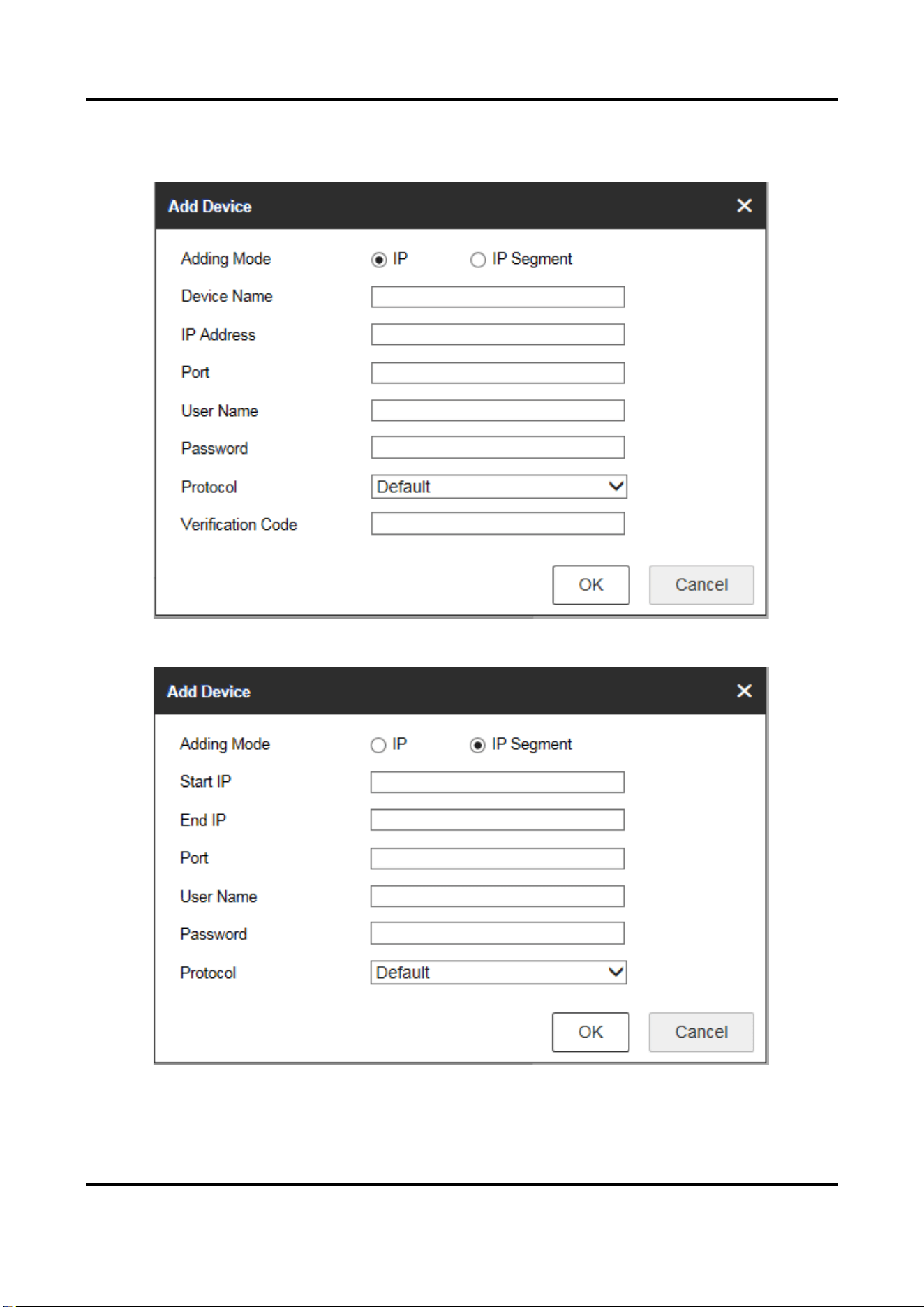
2. Click Add, select to add devices by IP address or IP segment, and enter IP Address, Port, User
Name and Password, and select protocol type.
Figure 8-2 Add Device by IP Address
Figure 8-3 Add Device by IP Segment

DS-1100KI & DS-1105KI Network Keyboard User Manual
52
Note
● It takes a long time to add devices by IP segment. Please wait patiently.
● After adding devices in IP segment mode, you need to refresh manually to get the added
devices.
3. If you enable stream encryption for the device, you need to enter the verification code when
adding the device by IP address.
4. Check or uncheck Add Video Recorder Output as desired.
Note
Check Add Video Recorder Output, and the output port type, channel number and other
information will be listed in the output port list.
5. Optional: In Device Management interface, click Add SADP, enter user name and password,
check the device to be added, and click OK to add online devices on the same network segment.
Figure 8-4 Add SADP
Note
● SADP search can only add devices in the same network segment.
● After adding devices in batches by SADP, you need to refresh manually to get the added
devices.
DS-1100KI & DS-1105KI Network Keyboard User Manual
53
8.2.2 Import Input Channels in Batches
Before You Start
1. Add several devices manually. Go to Channel Management → Input Channel, click Export,
enter password, and then export channel information.
2. Edit the device channel information based on the exported template, and save the exported
channel information into the local PC.
Steps
1. Go to Channel Management → Input Channel.
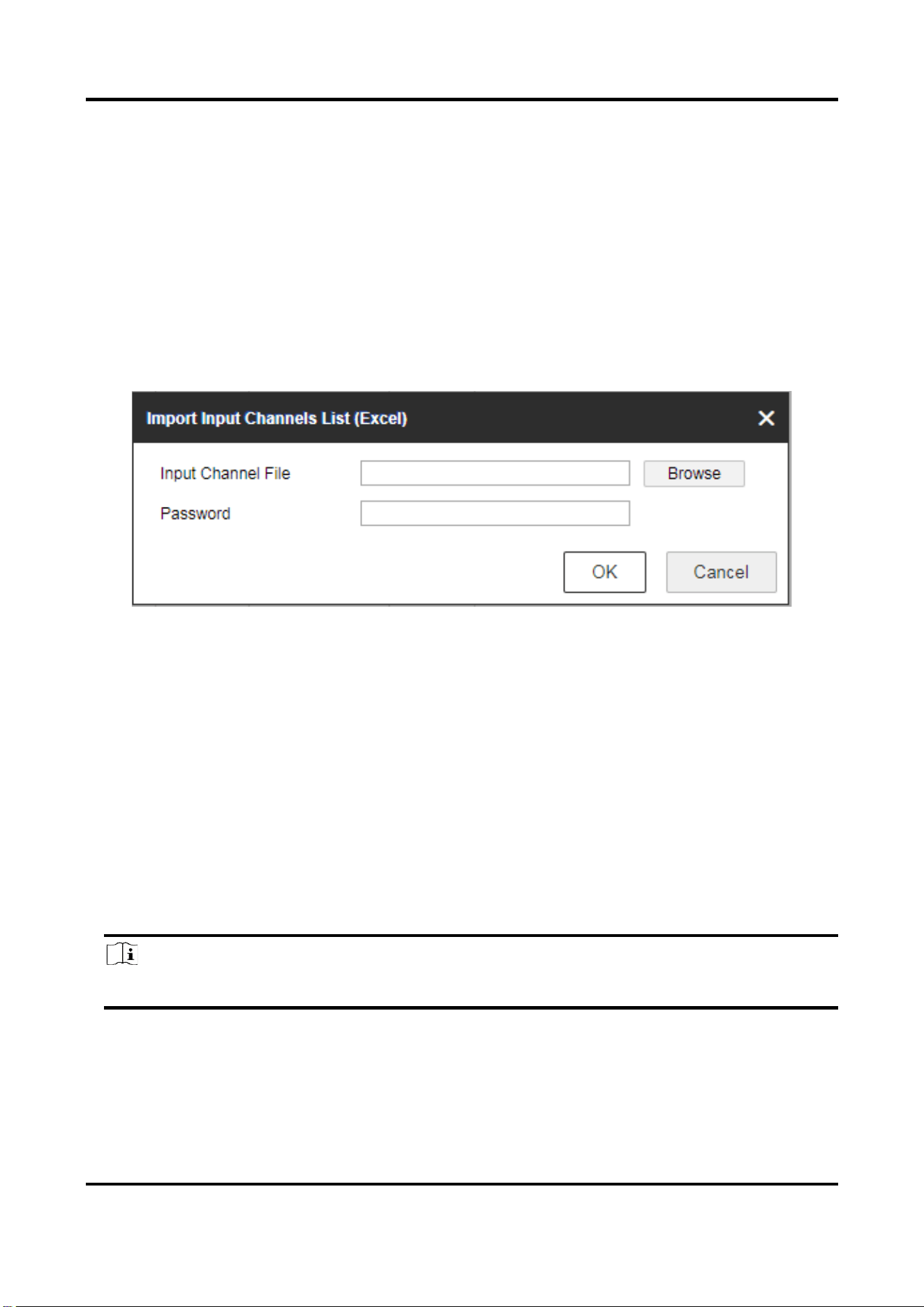
2. Click Import.
Figure 8-5 Import Input Channel in Batches
3. Click Browse and select the imported template.
4. Enter password and click OK.
The channels in the template will be added into network keyboards.
8.3 Channel Management
8.3.1 Edit Channel
Steps
1. Go to Channel Management → Input Channel.
Note
Input and output channels can be edited. This section takes input channels as an example.
2. Select the input channel to be edited and click Edit.

DS-1100KI & DS-1105KI Network Keyboard User Manual
54
Figure 8-6 Edit Input Channel
3. Edit channel parameters.
Input Channel ID
Each input channel corresponds to a unique number, which is valid for video wall and local
live view.
Stream Type
Code stream for local live view and video wall preview.
Transmission Protocol
Available for video wall preview.
4. Click OK.
8.3.2 Camera Group
Camera group enables you to preview a group of cameras (input channels) in sequence.
Steps
1. Go to Channel Management → Camera Group.
2. Click Add.

DS-1100KI & DS-1105KI Network Keyboard User Manual
55
Figure 8-7 Add Camera Group
3. Enter Name and Interval(s).
4. Check input channels to be linked and click OK.
Note
● Up to 16 camera groups can be added.
● Each camera group can link up to 64 input channels.
● Interval range: 10 to 65535 seconds.
● The camera groups set by different users are independent. Namely, users can only view and
edit their own camera groups.
5. Click Edit in Camera Group interface, uncheck input channels to be unlinked and click OK to
unlink the input channel.
8.4 Serial Port Settings
RS-485 and RS-232 serial port parameters can be set in the Serial Port Settings interface. You can
set baud rate, data bit, protocol type, stop bit, parity and other parameters of RS232 and RS485,

DS-1100KI & DS-1105KI Network Keyboard User Manual
56
edit the address of RS485 serial port, and copy RS485 serial port settings to all.
● Configure the parameters of RS-485 port when the serial port is connected to analog dome.
● Configure the parameters of RS-232 port when the serial port is connected to the analog matrix.
Figure 8-8 RS485 Serial Port Settings
Figure 8-9 RS232 Serial Port Settings
8.5 Network
Steps
1. Select Network Management at the main interface.
2. Configure network parameters.
● Check DHCP to obtain IP address and related network parameters automatically.
● Uncheck DHCP and enter IP address, gateway, subnet mask.
3. Click Save.

DS-1100KI & DS-1105KI Network Keyboard User Manual
57
Figure 8-10 Network Parameters
8.6 System Settings
8.6.1 Version
Go to System Management → Version to view system version information, including device type,
serial No., firmware version, decoding version, MCU version and web version.
Figure 8-11 Version Information
8.6.2 User Management
Administrator can add operator and allocate devices to operator. Operator permissions are as
follows:

DS-1100KI & DS-1105KI Network Keyboard User Manual
58
● Add, edit, and delete macro and group.
● Add, edit, and delete region.
● Deleting, editing, and adding devices are not allowed.
Steps
1. Go to System Management → User Management.
2. Click Add.
Figure 8-12 Add User

DS-1100KI & DS-1105KI Network Keyboard User Manual
59
3. Enter user name and password for an operator, and click OK.
Caution
We highly recommend you create a strong password of your own choosing (Using a minimum of
8 characters, including at least three of the following categories: upper case letters, lower case
letters, numbers, and special characters.) in order to increase the security of your product. And
we recommend you reset your password regularly, especially in the high security system,
resetting the password monthly or weekly can better protect your product.
4. Check devices to be linked as desired and click OK.
Note
● Keyboard supports up to 32 users: 1 administrator and 31 operators.
● The operator can only operate on the devices allocated.
5. Optional: Click Edit, uncheck the devices to be unlinked and click OK to unlink the devices.
8.6.3 System Maintenance
Go to System Management → System Maintenance to restart the device, restore defaults,
export/import configuration file, etc.
Note
Restoring default settings, importing/exporting configuration files, and remote upgrades require
the administrator password to be verified.
Restart
You can restart the network keyboard.
Restore Defaults
● Simply Restore: Keep the activation state (administrator password) and the network
parameters of the network keyboard, and the remaining parameters will be restored to the
default settings.
● Completely Restore: Completely restore the parameters to default settings.
Import/Export Configuration File
You can export the configuration file to the computer or import the configuration file from the
computer to the keyboard. In case of keyboard failure, you need to back up the data by exporting
the configuration file first, and then repair the failure. To copy the data of this keyboard to
another keyboard, you can also import/export the configuration file.
Note
● Please set the key for the configuration file when exporting it.

DS-1100KI & DS-1105KI Network Keyboard User Manual
60
● The configuration file encrypted and exported is named as configurationdata.
● If the configuration file is encrypted, you need to enter the key of the configuration file when
importing it.
Remote Upgrade
Click Browse to select the upgrade file in the computer, and click Upgrade to upgrade the network
keyboard remotely.
Note
The upgrade file must be named as digicap.dav.
8.6.4 Log Management
Go to System Management → System Maintenance → Log, select the major and minor types and
start and end time of the log, and then search and export the log.
Figure 8-13 View Logs

DS-1100KI & DS-1105KI Network Keyboard User Manual
61
8.6.5 Security Settings
Go to System Management → Security Settings, and enable or disable SSH and SADP.
● SSH is disabled by default after the network keyboard is restarted.
● When you enable SADP, the keyboard can be searched. When you disable SADP, the keyboard
cannot be searched.

UD34066B