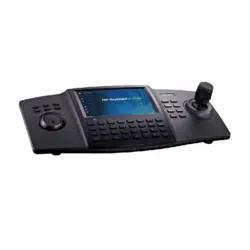

0
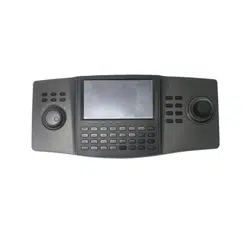
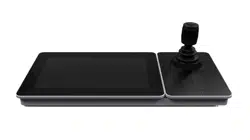
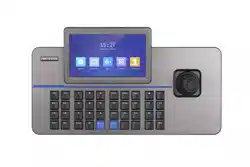
DS-1200KI/DS-1006KI Keyboard
User Manual

DS-1200KI/1006KI Keyboard User Manual
i
About this Document
● This Document includes instructions for using and managing the Product. Pictures, charts,
images and all other information hereinafter are for description and explanation only.
● The information contained in the Document is subject to change, without notice, due to
firmware updates or other reasons. Please find the latest version of the Document at the
Hikvision website (https://www.hikvision.com). Unless otherwise agreed, Hangzhou Hikvision
Digital Technology Co., Ltd. or its affiliates (hereinafter referred to as "Hikvision") makes no
warranties, express or implied.
● Please use the Document with the guidance and assistance of professionals trained in
supporting the Product.
About this Product
● This product can only enjoy the after-sales service support in the country or region where the
purchase is made.
● If the product you choose is a video product, please scan the following QR code to obtain the
"Initiatives on the Use of Video Products", and read it carefully.
Acknowledgment of Intellectual Property Rights
● Hikvision owns the copyrights and/or patents related to the technology embodied in the
Products described in this Document, which may include licenses obtained from third parties.
● Any part of the Document, including text, pictures, graphics, etc., belongs to Hikvision. No part
of this Document may be excerpted, copied, translated, or modified in whole or in part by any
means without written permission.
● and other Hikvision’s trademarks and logos are the properties of Hikvision in
various jurisdictions.
● Other trademarks and logos mentioned are the properties of their respective owners.
LEGAL DISCLAIMER
● TO THE MAXIMUM EXTENT PERMITTED BY APPLICABLE LAW, THIS DOCUMENT AND THE
PRODUCT DESCRIBED, WITH ITS HARDWARE, SOFTWARE AND FIRMWARE, ARE PROVIDED "AS
IS" AND "WITH ALL FAULTS AND ERRORS". HIKVISION MAKES NO WARRANTIES, EXPRESS OR
IMPLIED, INCLUDING WITHOUT LIMITATION, MERCHANTABILITY, SATISFACTORY QUALITY, OR
FITNESS FOR A PARTICULAR PURPOSE. THE USE OF THE PRODUCT BY YOU IS AT YOUR OWN RISK.
IN NO EVENT WILL HIKVISION BE LIABLE TO YOU FOR ANY SPECIAL, CONSEQUENTIAL,
INCIDENTAL, OR INDIRECT DAMAGES, INCLUDING, AMONG OTHERS, DAMAGES FOR LOSS OF

DS-1200KI/1006KI Keyboard User Manual
ii
BUSINESS PROFITS, BUSINESS INTERRUPTION, OR LOSS OF DATA, CORRUPTION OF SYSTEMS, OR
LOSS OF DOCUMENTATION, WHETHER BASED ON BREACH OF CONTRACT, TORT (INCLUDING
NEGLIGENCE), PRODUCT LIABILITY, OR OTHERWISE, IN CONNECTION WITH THE USE OF THE
PRODUCT, EVEN IF HIKVISION HAS BEEN ADVISED OF THE POSSIBILITY OF SUCH DAMAGES OR
LOSS.
● YOU ACKNOWLEDGE THAT THE NATURE OF THE INTERNET PROVIDES FOR INHERENT SECURITY
RISKS, AND HIKVISION SHALL NOT TAKE ANY RESPONSIBILITIES FOR ABNORMAL OPERATION,
PRIVACY LEAKAGE OR OTHER DAMAGES RESULTING FROM CYBER-ATTACK, HACKER ATTACK,
VIRUS INFECTION, OR OTHER INTERNET SECURITY RISKS; HOWEVER, HIKVISION WILL PROVIDE
TIMELY TECHNICAL SUPPORT IF REQUIRED.
● YOU AGREE TO USE THIS PRODUCT IN COMPLIANCE WITH ALL APPLICABLE LAWS, AND YOU ARE
SOLELY RESPONSIBLE FOR ENSURING THAT YOUR USE CONFORMS TO THE APPLICABLE LAW.
ESPECIALLY, YOU ARE RESPONSIBLE, FOR USING THIS PRODUCT IN A MANNER THAT DOES NOT
INFRINGE ON THE RIGHTS OF THIRD PARTIES, INCLUDING WITHOUT LIMITATION, RIGHTS OF
PUBLICITY, INTELLECTUAL PROPERTY RIGHTS, OR DATA PROTECTION AND OTHER PRIVACY
RIGHTS. YOU SHALL NOT USE THIS PRODUCT FOR ANY PROHIBITED END-USES, INCLUDING THE
DEVELOPMENT OR PRODUCTION OF WEAPONS OF MASS DESTRUCTION, THE DEVELOPMENT OR
PRODUCTION OF CHEMICAL OR BIOLOGICAL WEAPONS, ANY ACTIVITIES IN THE CONTEXT
RELATED TO ANY NUCLEAR EXPLOSIVE OR UNSAFE NUCLEAR FUEL-CYCLE, OR IN SUPPORT OF
HUMAN RIGHTS ABUSES.
● IN THE EVENT OF ANY CONFLICTS BETWEEN THIS DOCUMENT AND THE APPLICABLE LAW, THE
LATTER PREVAILS.
© Hangzhou Hikvision Digital Technology Co., Ltd. All rights reserved.

DS-1200KI/1006KI Keyboard User Manual
iii
Applicable Models
This manual is applicable to DS-1200KI and DS-1006KI keyboard models.
Symbol Conventions
The symbols that may be found in this document are defined as follows.
Symbol
Description
Provides additional information to emphasize or supplement
important points of the main text.
Indicates a potentially hazardous situation, which if not avoided,
could result in equipment damage, data loss, performance
degradation, or unexpected results.
Indicates a hazard with a high level of risk, which if not avoided, will
result in death or serious injury.

DS-1200KI/1006KI Keyboard User Manual
iv
TABLE OF CONTENTS
Getting Started .................................................................................................................... 1
Activate Your Device ........................................................................................................... 1
Login ................................................................................................................................... 2
Local Login ................................................................................................................. 2
Remote Login (via Web browser) .............................................................................. 2
System Menu ...................................................................................................................... 3
Web Configuration .............................................................................................................. 5
Device Mangement ............................................................................................................ 5
Add Devices ............................................................................................................... 5
Manage Input/Output Channels ............................................................................... 6
System Management ....................................................................................................... 10
View Version Information ....................................................................................... 10
User Management .................................................................................................. 10
Maintenance ........................................................................................................... 11
Security .................................................................................................................... 14
Network Management ..................................................................................................... 15
Serial Port Settings ........................................................................................................... 15
Matrix Access Gateway .................................................................................................... 16
Platform Access ................................................................................................................ 17
Connect to KPS ........................................................................................................ 17
Connect to Third-Party Platform ............................................................................. 17
Connect to HikCentral ............................................................................................. 17
Keyboard Operation .......................................................................................................... 19
Keyboard Operation ........................................................................................................ 20
Video Wall Control .................................................................................................. 20
Call Presets/Patrols/Patterns .................................................................................. 21
Call Scenes ............................................................................................................... 22
MAG by IP ......................................................................................................................... 22
DVR by IP .......................................................................................................................... 23
MAG by RS-422 ................................................................................................................ 24
DVR by RS-485 .................................................................................................................. 25
To Analog Device .............................................................................................................. 26
Dome by RS-485 ...................................................................................................... 26

DS-1200KI/1006KI Keyboard User Manual
v
Dome by RS-232 ...................................................................................................... 27
Analog Matrix by RS-232 ......................................................................................... 28
Platform Access ................................................................................................................ 29
Access to KPS by Network ....................................................................................... 29
Access to Third-Party Platform by Network ............................................................ 29
Access to HikCentral ................................................................................................ 30
Shortcut Operation .......................................................................................................... 32
System Menu Configuration .............................................................................................. 34
Version .............................................................................................................................. 34
Network ............................................................................................................................ 34
DHCP ....................................................................................................................... 34
SADP ........................................................................................................................ 34
SSH .......................................................................................................................... 34
User Management ........................................................................................................... 35
Serial Port Settings ........................................................................................................... 35
Hardware .......................................................................................................................... 36
Time Settings .................................................................................................................... 36
Maintenance .................................................................................................................... 36

DS-1200KI/1006KI Keyboard User Manual
1
Getting Started
Activate Your Device
Purpose:
For the first-time access, you need to activate the device by setting an admin password. No
operation is allowed before activation. You can also activate the device via SADP as well.
In edit mode, you can press the FOCUS+/A button on the keyboard panel to switch the character
input mode: numerals (123), upper case (ABC) and lower case (abc).
STRONG PASSWORD RECOMMENDED–We highly recommend that you create a strong password
of your own choosing (8 to 16 characters, including upper case letters, lower case letters, and
numbers) in order to increase the security of your product. And we recommend that you reset
your password regularly, especially in the high security system, resetting the password monthly or
weekly can better protect your product.

DS-1200KI/1006KI Keyboard User Manual
2
After the device is activated, you need to adjust the date and time settings.
If you have restored the device to default settings, you need to reactivate the device.
Login
Purpose:
You must log in to the device before configuring the keyboard, and operating the menu and other
functions. DS-1200KI keyboards support two ways of login: local login and remote login (by Web
browser). DS-1006KI keyboards support local login only.
Local Login
In the Login dialog box, if you enter the wrong password 7 times for admin user or 5 times for
operators, the current user account will be locked for 30 minutes.
If you select Remember Password, the system will remember the password for the current user
without remembering the previous one.
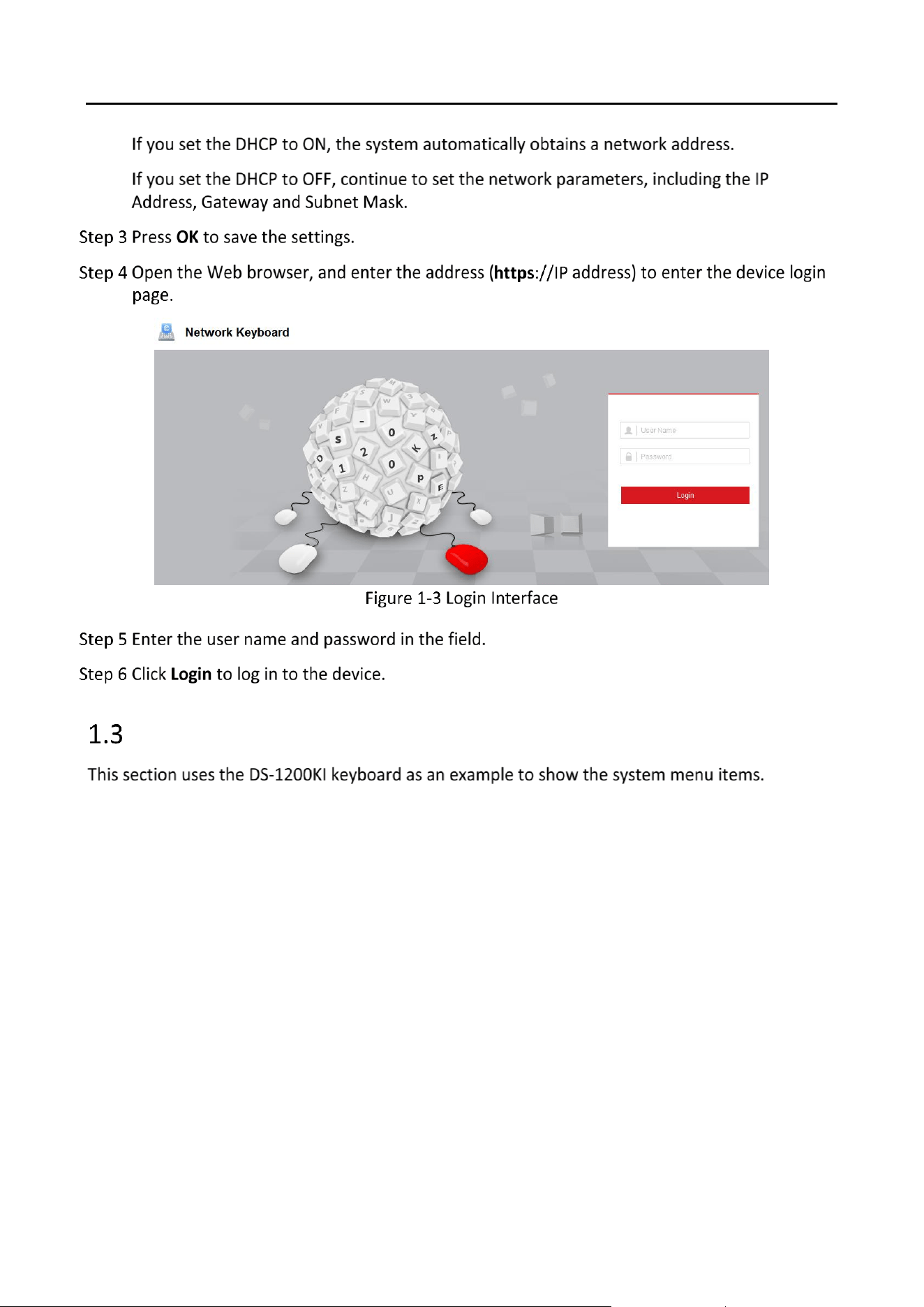
Remote Login (via Web browser)
This section applies to DS-1200 KI keyboards.
DS-1200KI/1006KI Keyboard User Manual
4

DS-1200KI/1006KI Keyboard User Manual
5
Web Configuration
This section applies to DS-1200KI keyboards only.
Device Mangement
Add Devices
Purpose:
In Keyboard Operation mode, follow instructions in this section to add devices first before realizing
the operation and control of the devices on the keyboard.
You are recommended to back up and edit the channel list using an Excel file. For adding devices
for the first time, add a couple of devices first and then export it as a template. For details, see
section 2.1.2 Manage Input/Output Channels.

DS-1200KI/1006KI Keyboard User Manual
6
You can add devices of ONVIF protocol.
You can also click the Add SADP to add the online devices in the same network segment.
Manage Input/Output Channels
Purpose:
You can manage the importing and exporting of input channels in batch, input group, and output
channels via web browser.

DS-1200KI/1006KI Keyboard User Manual
7
Import and Export Input Channel List

DS-1200KI/1006KI Keyboard User Manual
8
You are recommended to save the exported list first, and then open it. Opening it directly is not
recommended.
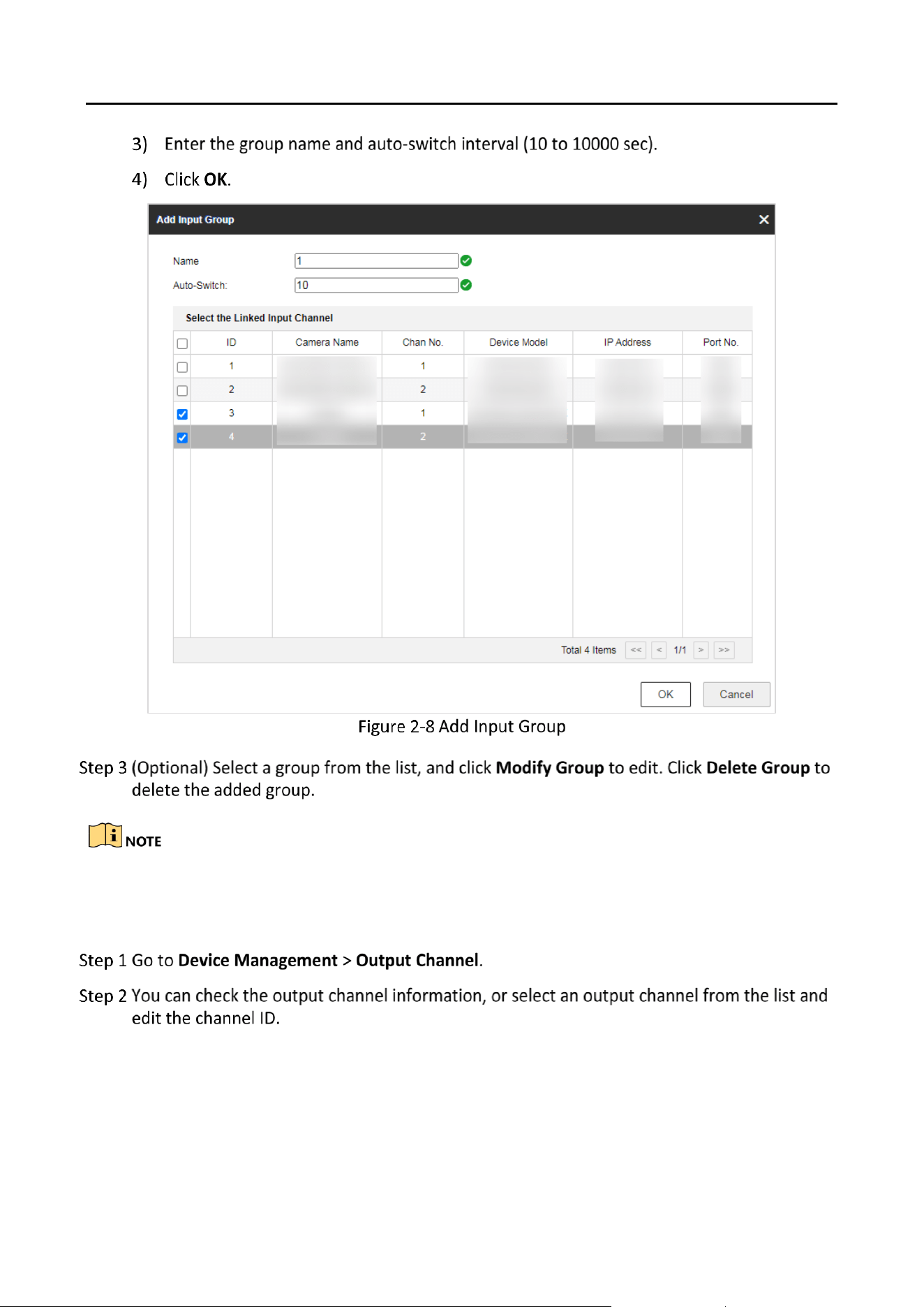
Add Auto-Switch Groups
Purpose:
You can classify the input channels, and realize the auto switch of one group of cameras.
DS-1200KI/1006KI Keyboard User Manual
9
Up to 16 input groups can be added, and up to 64 input channels can be added for each group.
Manage Output Channel

DS-1200KI/1006KI Keyboard User Manual
10
System Management
View Version Information
Go to System Management > Version > Version to view the device version information. Go to
System Management > Version > About, and click View License to view the open source software
license.
User Management
The default user account of the device is admin (administrator), and the password is set when you
start the device for the first time. The admin user account has the permission to add and delete
operator accounts and configure user parameters, and add the related devices for the added users.
You can set 1 administrator and 15 operator accounts.
STRONG PASSWORD RECOMMENDED–We highly recommend that you create a strong password
of your own choosing (using a minimum of 8 to 16 characters, including upper case letters, lower
case letters, and numbers) in order to increase the security of your product. And we recommend
that you reset your password regularly, especially in the high security system, resetting the
password monthly or weekly can better protect your product.

DS-1200KI/1006KI Keyboard User Manual
11
Maintenance
Reboot Device
Restore Device to Factory Settings

DS-1200KI/1006KI Keyboard User Manual
12
Export Configuration File
You can export the parameters of one device, and import them to another device to set the two
devices with the same parameters.
The password is used for importing the configuration file of the current device to other devices.
Import Configuration File
Import the configuration file of another device to the current device to set the same parameters.
Before You Start
Save the configuration file to the computer.
Importing configuration file is only available to the devices of the same model and same version.
The configuration file is in the format of BIN.
Result

DS-1200KI/1006KI Keyboard User Manual
13
Upgrade
Upgrade the system when you need to update the device version.
Before You Start
Prepare the upgrade file. It is named as “digicap.dav”.
Note
The upgrade process will take 1 to 10 minutes. Do not cut off the power supply.
Result
The device will reboot automatically after upgrade.
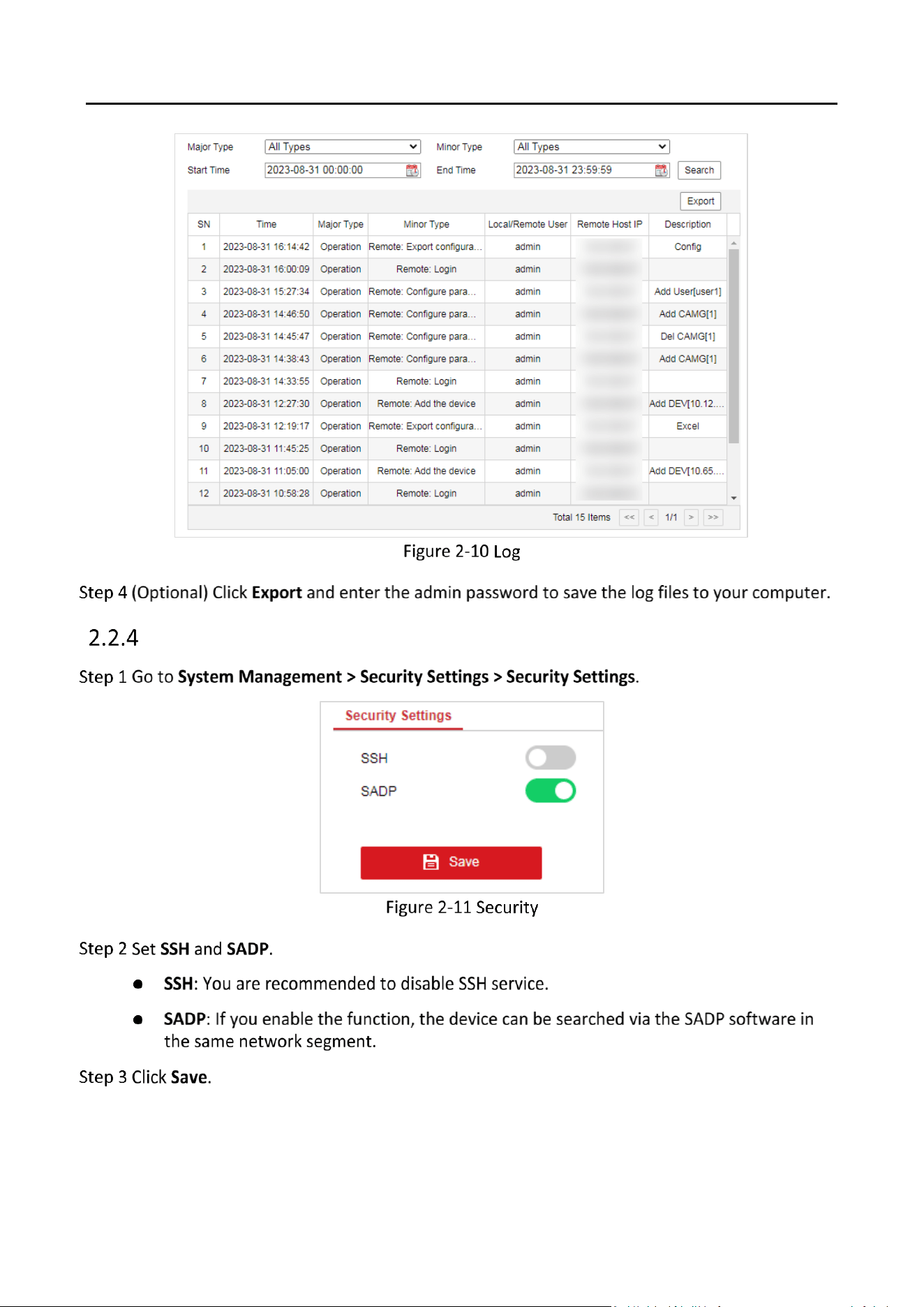
Search Log
Log helps to locate and troubleshoot problems.
The matched logs will be displayed on the log list.
DS-1200KI/1006KI Keyboard User Manual
14
Security

DS-1200KI/1006KI Keyboard User Manual
15
Network Management
Set the IP address of the device.
The network that the device is connected to should support DHCP (Dynamic Host Configuration
Protocol).
Serial Port Settings
Set the RS-485, RS-422, and RS-232 serial port parameters. Use RS-485 serial port when connecting
with analog speed domes and DVR/NVRs. Use RS-422 serial port when connecting with gateways
and iVMS. Use RS-232 serial port when connecting with analog matrixes or speed domes via VISCA.

DS-1200KI/1006KI Keyboard User Manual
16
Matrix Access Gateway
The device can connect with the matrix access gateway, and realize the video wall control, PTZ
control, etc.

DS-1200KI/1006KI Keyboard User Manual
17
Platform Access
Connect to KPS
KPS refers to Keyboard Proxy Service. DS-1200KI keyboard can be used as a control terminal to
connect to KPS to perform video wall and PTZ control.
Connect to Third-Party Platform
The keyboard can be used as a control terminal to connect to the third-party platform to realize
the configuration via the third-party platform.
Connect to HikCentral
The keyboard can be used as a control terminal to connect to the HikCentral client to perform
video wall and PTZ control.

DS-1200KI/1006KI Keyboard User Manual
18

DS-1200KI/1006KI Keyboard User Manual
19
Keyboard Operation
This section describes how to control devices using the keyboard.
On the keyboard, Press the MODE button on the panel to enter the operation for different devices.
DS-1200KI keyboards support the following 9 operation modes, while DS-1006KI keyboards
support mode 4, 5, and 6.
See the following table for the description of each keyboard mode.
Description of Keyboard Mode
SN
Operation Mode
Description
1
Keyboard
The keyboard can be used for managing the devices (including
the IPC, IP dome, DVR/NVR, MVC, decoder, video wall controller,
etc.) for control. The keyboard can add the devices via Web
browser and assign each of them the unique device ID, and
finally manage to communicate with and realize the video wall
or PTZ control through the device ID+command operation.
2
MAG by IP
The keyboard can connect with the matrix access gateway, and
realize the video wall control, PTZ control, etc.
3
DVR by IP
The keyboard can connect with the DVR/NVR and remotely call
the device menu and realize PTZ control through the virtual
panel.
4
MAG by RS-422
The keyboard can connect with the matrix access gateway via
RS-422 serial port, and realize the video wall control, PTZ control,
etc.
5
DVR by RS-485
The keyboard can connect with the DVR/NVR via RS-485 serial
port, and remotely call the device menu and realize PTZ control
through the virtual panel.
6
To Analog Dev
The keyboard can connect with the analog dome or PTZ unit via
RS-485 serial port, and realize PTZ control; or connect to analog
matrix via RS-232 port.

DS-1200KI/1006KI Keyboard User Manual
20
SN
Operation Mode
Description
7
KPS
DS-1200KI keyboard can be used as a control terminal to connect
to KPS (Keyboard Proxy Service) to perform video wall and PTZ
control.
8
Private VMS
Use the keyboard as terminal to connect to a third-party
platform and support video operations through the platform.
9
HikCentral
The keyboard can be used as a control terminal to connect to the
HikCentral client to perform video wall and PTZ control.
Keyboard Operation
The keyboard can be used for managing the devices (including the IPC, IP dome, DVR/NVR, MVC,
decoder, video wall controller, etc.) for control.
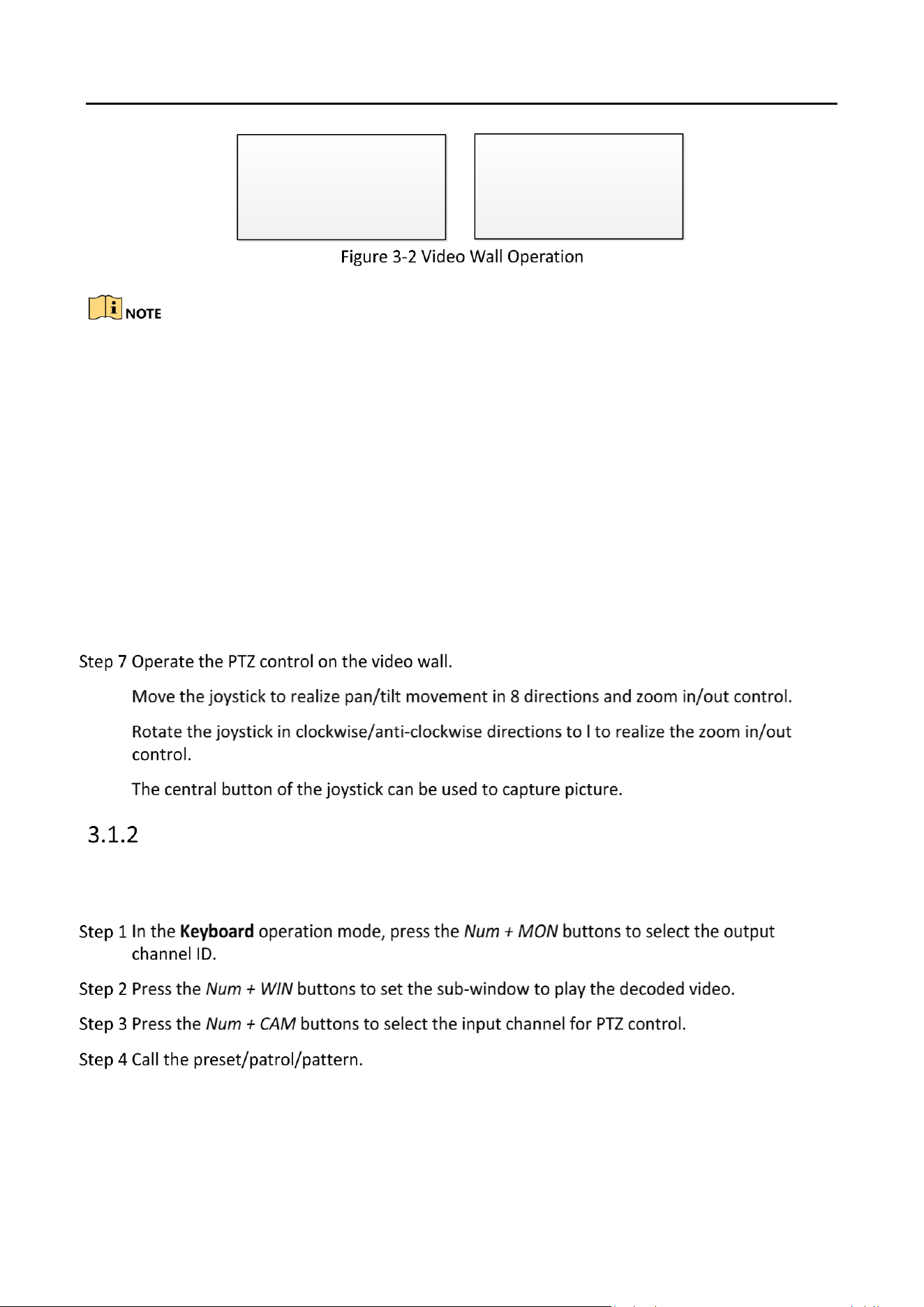
Video Wall Control
Purpose:
You can select different window-division display modes for the selected output channel. The
configurable multi-division display modes depend on the decoders, video wall controller, or MVCs.
The 1/2/4/6/8/9/12/16/25/32/36 window-division display modes are configurable.
DS-1200KI/1006KI Keyboard User Manual
21
When you enter no device ID (DEV), the first decoder found is set for control by default. And if
you enter no WIN ID, the window 01 is set to play the decoded video by default.
To directly operate the PTZ control, press the Num + CAM buttons. Press the 0 + CAM buttons to
stop decoding of the current camera, or press the 0 + CAM-G buttons to stop cycle decoding of
the camera group.
To control the local decoding channels of NVRs/DVRs, firstly go to the Web interface of the
NVRs/DVRs and view the input channel IDs, and then press Num + CAM buttons to control the
channels.
For DS-9600 series NVRs, if a decoding card is used for decoding output, you need to firstly drag
the output channel to the corresponding display window on the video wall using a client
software. Then press Num + DEV + Num + WIN + Num + CAM/CAM-G to control the camera
without pressing the MON ID.
Call Presets/Patrols/Patterns
The keyboard can be used to control the PTZ function of the connected IP dome camera, including
the pan/tilt movement, zoom/iris/focus adjustment, and preset/patrol/pattern calling.
Press the Num + PRESET buttons on the keyboard panel to call the defined preset.
Press the Num + PATROL buttons on the keyboard panel to call the defined patrol.
Press the Num + PATTERN buttons on the keyboard panel to call the defined pattern.
DEV: 2 WALL: 1
MON: 2 [02]
CAM: 6
DEV: 5 WALL: 1
MON: 2 [02]
CAMG: 4

DS-1200KI/1006KI Keyboard User Manual
22
The preset/patrol/pattern must be pre-configured.
Whether PTZ functions are available or not depends on the capabilities of speed domes. If the
speed domes do not support a PTZ function, the keyboard does not respond.
Call Scenes
Purpose:
For the MVC, video wall controller, and decoder added to the keyboard, you can configure the
scene via the client software first and follow the steps below to switch the scene.
The scene of the video wall must be pre-configured for the decoder or MVC via client software.
MAG by IP
The keyboard can connect with the matrix access gateway, and realize the video wall control, PTZ
control, etc.
DEV: 2 WALL: 1
MON: 2 [02]
CAM: 6
PRESET: 1
WALL: 1
DEV: 1
SCENE: 2

DS-1200KI/1006KI Keyboard User Manual
23
For the initial use of MAG, you must use the configuration kits software to configure the
input/output channel ID of the MAG. Please see the related user manual for details. The
input/output channel ID is used for switching on the video wall or PTZ control during keyboard
operation.
DVR by IP
The keyboard can connect with the DVR/NVR and remotely call the device menu and realize PTZ
control through the virtual panel.

DS-1200KI/1006KI Keyboard User Manual
24
MAG by RS-422
The keyboard can connect with the matrix access gateway via RS-422 serial port, and realize the
video wall control, PTZ control, etc.
Before you start:
Check the connection between the MAG and the keyboard. Connect the T+ ad T- terminals of the
RS-422 serial port of the keyboard with that of the MAG.
See the following figure:
See the following figure as an example for the network cable (568B). The pin 3 and pin 4 are
colored in green-white and blue.

DS-1200KI/1006KI Keyboard User Manual
25
You can also press the Num + CAM buttons to select the input channel, and operate the PTZ
control.
For the initial use of MAG, you must use the configuration kits software to configure the
input/output channel ID of the MAG. Please see the related user manual for details. The
input/output channel ID is used for switching on the video wall or PTZ control during keyboard
operation.
DVR by RS-485
In DVR by RS-485 mode, the keyboard screen will display a prompt message asking you to confirm
your device version. If your NVR is of a 4.1.50 or later version, select Yes; otherwise, select No. If
your DVR is of a 3.5.35 or later version, select Yes; otherwise, select No. Please note that selecting
an incorrect device version may result in function unavailability.
If you encounter a camera control problem, try to change the device ID of your NVR or DVR to a
digit from 1 to 16.
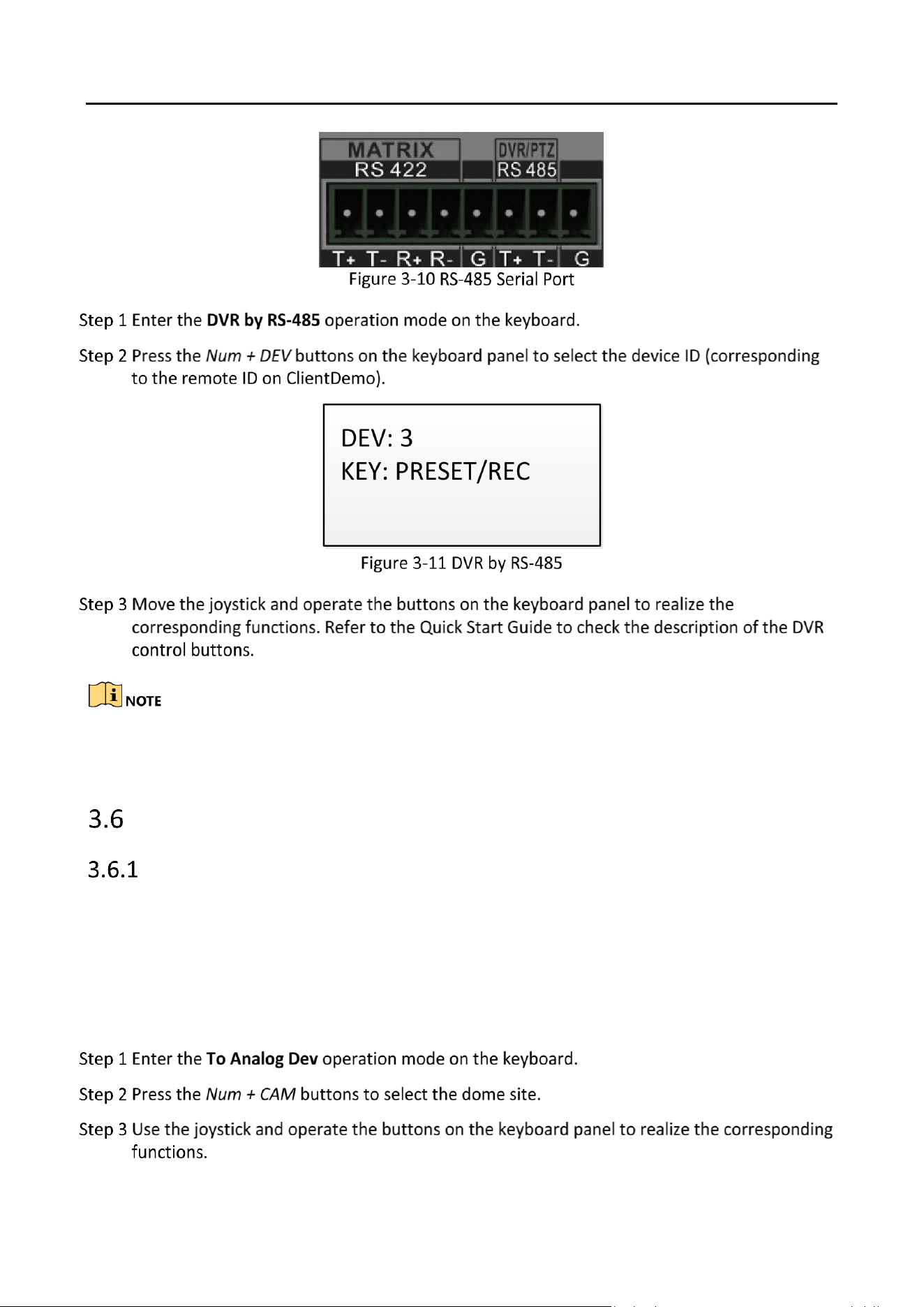
The keyboard can connect with the DVR/NVR via RS-485 serial port, and remotely call the device
menu and realize PTZ control through the virtual panel.
Before you start:
Check the connection between the DVR/NVR and the keyboard. Connect the T+ ad T- terminals of
the RS-485 serial port of the keyboard with the KB port on the DVR/NVR rear panel respectively.
Our keyboard products support DVR/NVR with KB ports only.
DS-1200KI/1006KI Keyboard User Manual
26
The baud rate, protocol and other parameters of RS-485 of the keyboard must be configured to
9600, 8, 1, and none parity.
To Analog Device
Dome by RS-485
The keyboard can connect with the analog dome or PTZ unit via RS-485 serial port, and realize PTZ
control.
Before you start:
Check the connection between the dome and the Keyboard. Connect the T+ ad T- terminals of the
keyboard's RS-485 serial port with the RS485+ and RS485- terminals of the dome respectively.

DS-1200KI/1006KI Keyboard User Manual
27
The address, baud rate, protocol, and other parameters of RS-485 must be configured the same
with those of the dome.
Dome by RS-232
The keyboard can connect with the analog dome via RS-232 serial port, and control the dome via
VISCA protocol.
The address, baud rate, protocol, and other parameters of RS-232 must be configured the same
with those of the dome.
SITE: 3

DS-1200KI/1006KI Keyboard User Manual
28
Analog Matrix by RS-232
SITE: 3
RS232
DEV: 1
MON: 2
CAM: 1

DS-1200KI/1006KI Keyboard User Manual
29
Platform Access
Access to KPS by Network
The parameters configurable through Web are also available when you log in to the keyboard
and select Mode > iVMS Platform.
Log in to the iVMS platform to check which device is corresponding to the number entered for
MON and CAM. For details about the operations, see the related iVMS platform operation
manual.
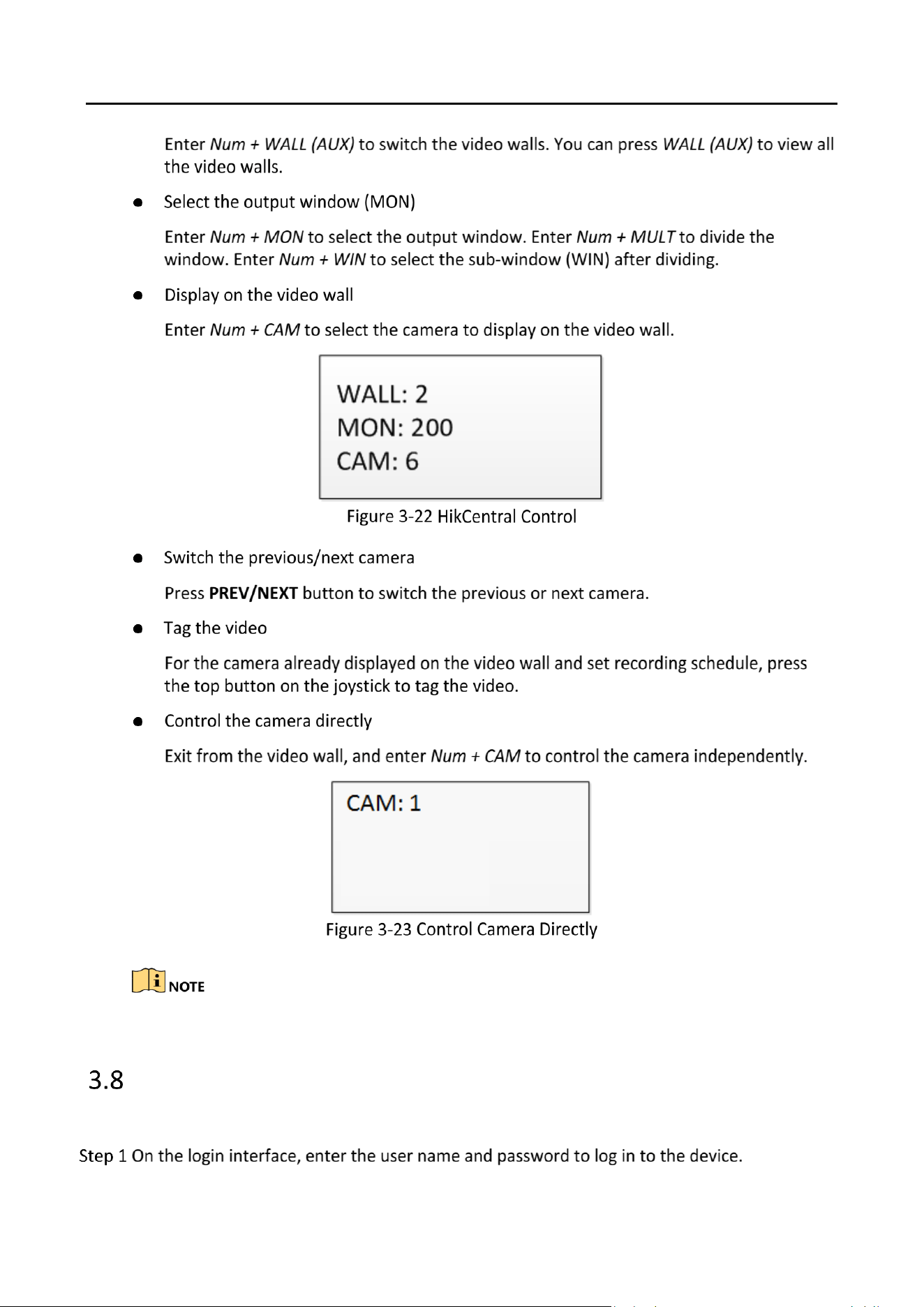
Access to Third-Party Platform by Network
WALL: 2
MON: 2
CAM: 6
MON: 5
WIN: 4
CAM: 2


DS-1200KI/1006KI Keyboard User Manual
31
DS-1200KI/1006KI Keyboard User Manual
32
Refer to the Quick Start Guide for the detailed descriptions of the functions of keyboard buttons.
Shortcut Operation
The device control via keyboard can be realized by shortcut operation.

DS-1200KI/1006KI Keyboard User Manual
33

DS-1200KI/1006KI Keyboard User Manual
34
System Menu Configuration
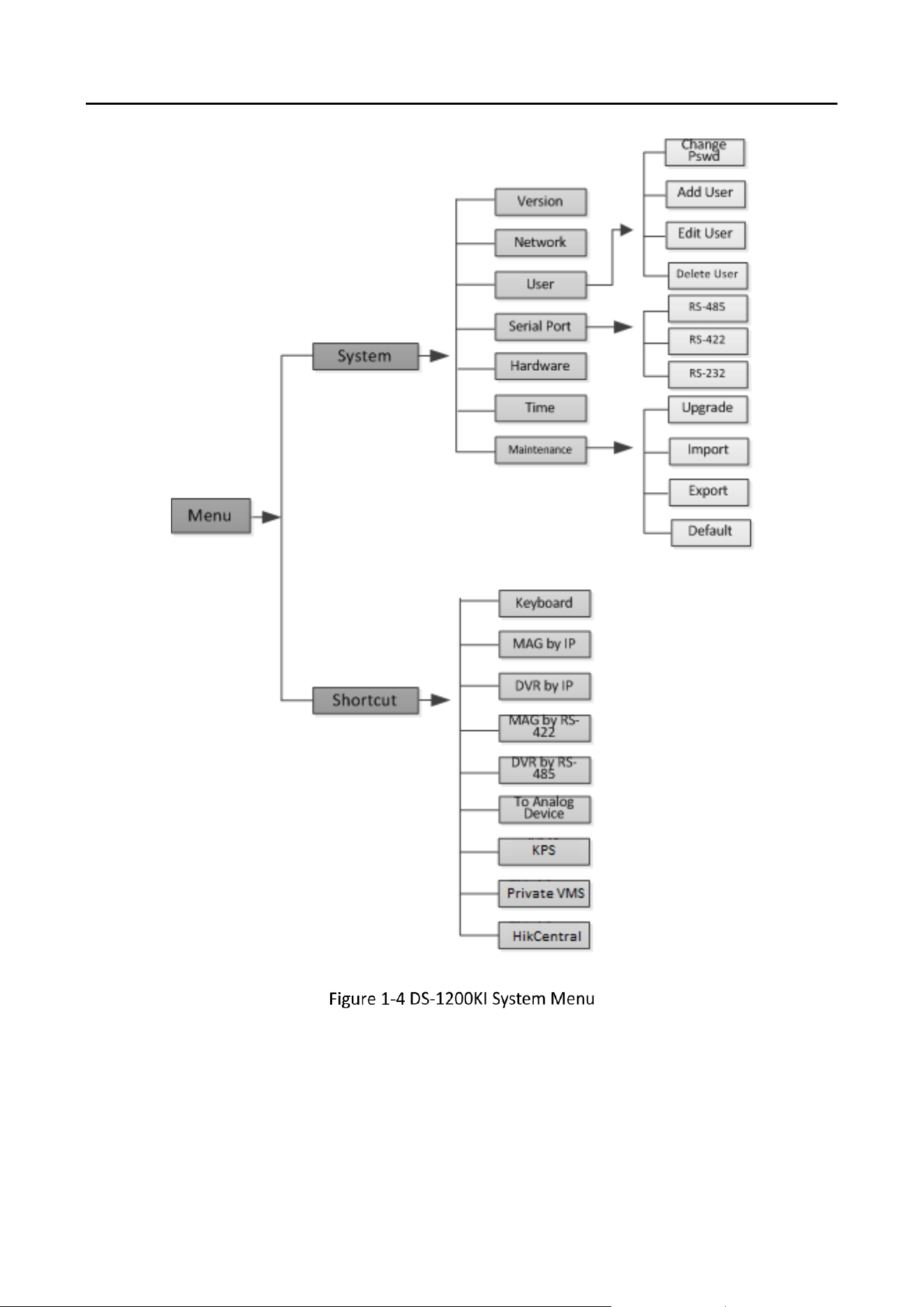
On the main menu after login, you can select System to check the version, and configure the
system configuration, including network, user, RS-485, RS-422, hardware, time and maintenance.
Version
Select Version to check the version information of the keyboard, including the firmware version,
panel version, hardware version, core version, and serial No.
Network
DHCP
If you enable DHCP, you can set the IP address manually. Set IP Address, Gateway, and Subnet
Mask.
SADP
If you enable SADP, the device can be searched via the SADP software in the same network
segment. It is enabled by default.
SSH
You are recommended to disable SSH service to guarantee the security.
1. Version
2. Network
3. User
4. Serial Port
5. Hardware
6. Time
7. Maintenance

DS-1200KI/1006KI Keyboard User Manual
35
User Management
Select User to enter the user management interface. You can change the password (admin), add
new user, edit user or delete the user.
Click OK button or the central button of joystick to save the settings.
Only the admin user is allowed to add/edit/user the user (operator).
Serial Port Settings
You can connect analog dome or DVR with the keyboard via RS-484 serial port, MVC/MAG via RS-
422 serial port and analog matrix via RS-232 serial port.
Select Serial Port to enter the settings. You can configure the address bit (RS-485 only), baud rate,
data bit, protocol, stop bit, parity, and copy all settings. When you set the Copy All to Yes for RS-
485 serial port, the current settings will be copied to the connection of all other RS-485 devices.
Click the OK button or the central button of joystick to save the settings.
The RS-485/RS-422/RS-232 parameters configured here must be the same with the connected
dome/DVR or MAG.
DS-1200KI/1006KI Keyboard User Manual
36
Hardware
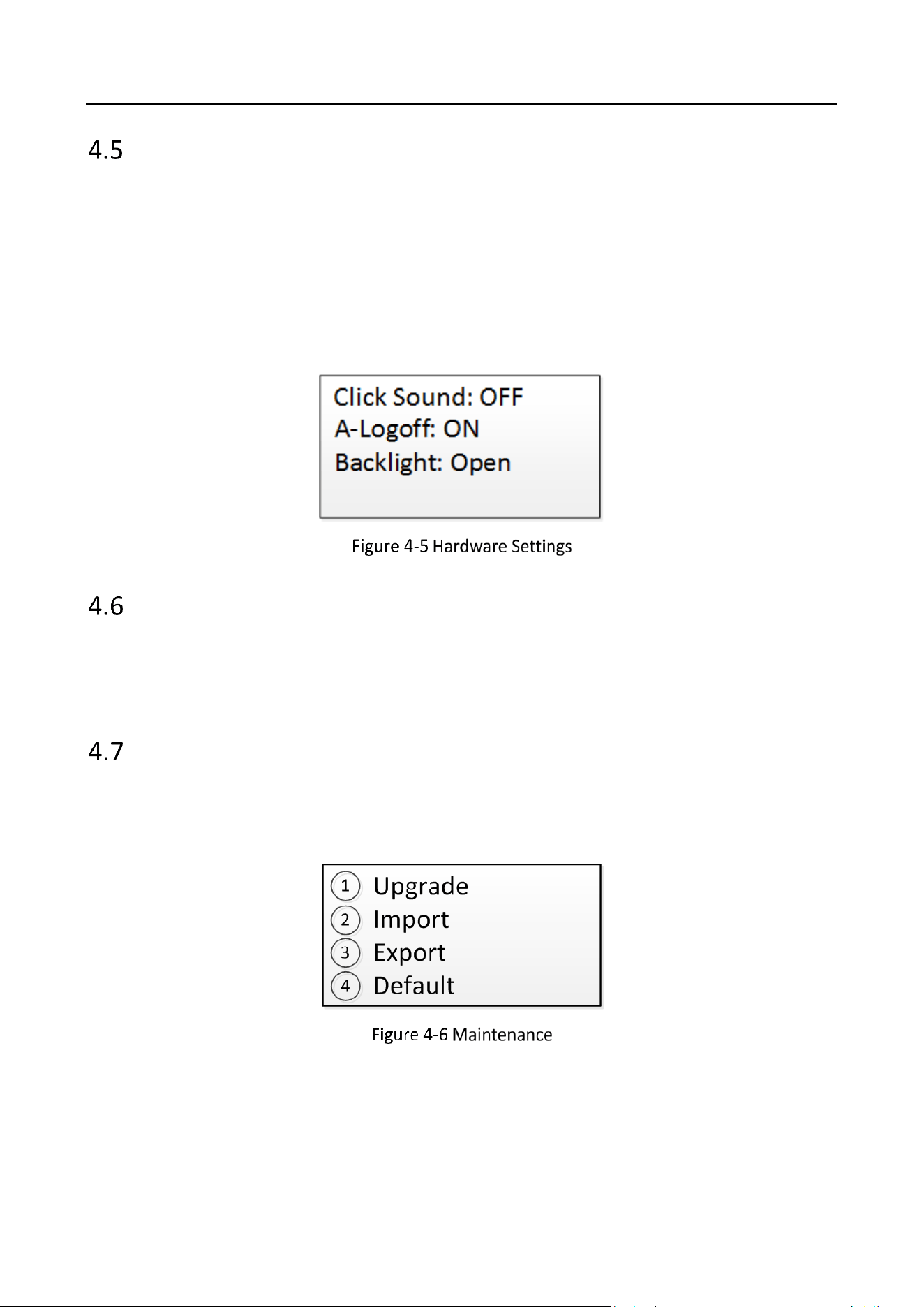
You can set the click sound, auto-logoff, and backlight feature of the keyboard.
Select Hardware to enter the following interface, and move (left/right) the joystick to set the
function. Click OK button or the central button of joystick to save the settings.
If you enable Click Sound, there will be sound when you press the keyboard buttons. When the
auto-logoff is set to ON, the system will automatically log off after the device is not operated for 30
minutes. The duration of backlight can be set as Open (always turned on), 5min, 10min, 30min,
and 60min.
Time Settings
Select Time to enter the system time settings interface. You can set the value of year, month, date,
time format, hour, minute and second. Click OK button or the central button of joystick to save the
settings.
Maintenance
Select Maintenance to enter the system maintenance settings interface. You can upgrade the
device, import and export the configuration files, and recover the device to the factory default
settings.

DS-1200KI/1006KI Keyboard User Manual
37
You should connect the U-flash disk to the keyboard before upgrading, and importing/exporting
the files.
The upgrade file and configuration file must be located in the root directory of the U-flash disk.
The upgrade file must be in digicap.dav; and the configuration file in kbCfg.bin.

DS-1200KI/1006KI Keyboard User Manual
38
UD34861B-A