User Manual
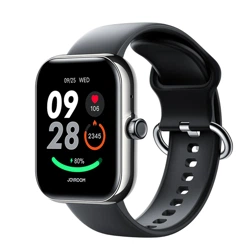
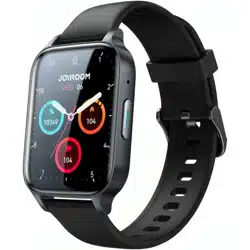
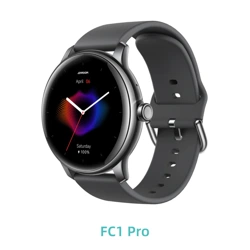
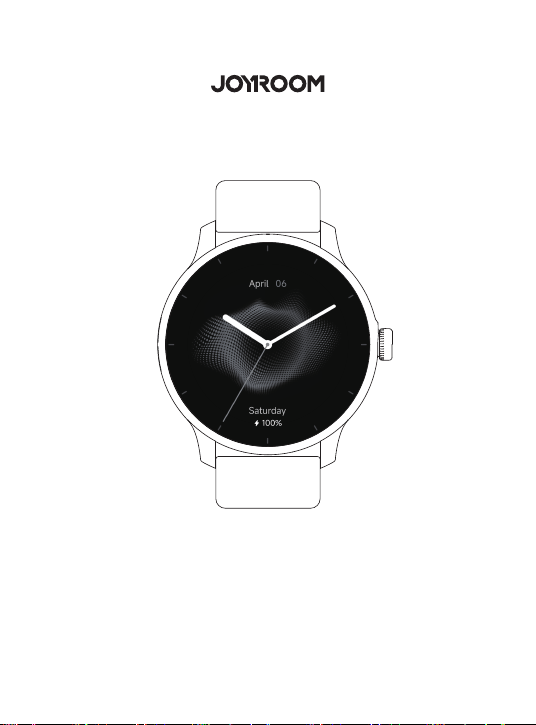
Classic Series JR-FC1 Pro Smart Watch
(Answer/Make Call)
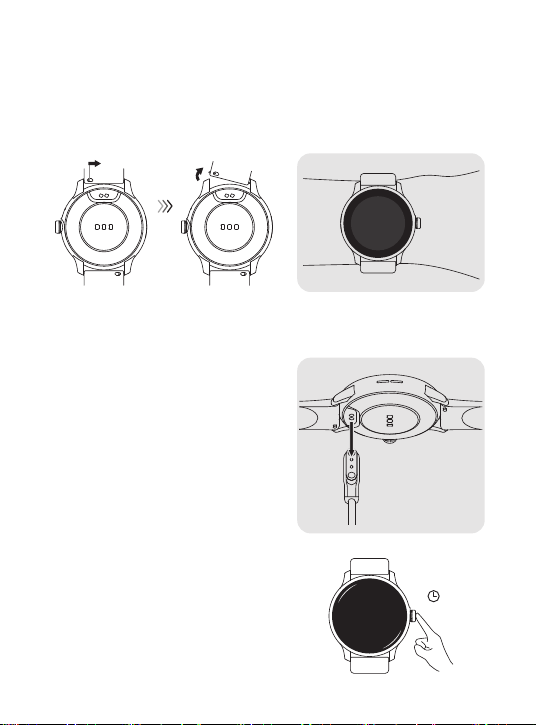
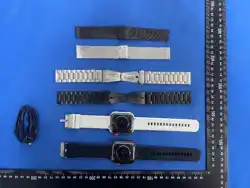
Assembling/disassembling watch band & wearing the watch
1. To assemble/disassemble the watch band, please refer to the figure below:
2. To wear the watch properly, please refer to the figure below:
Note: When wearing the watch, please keep it in comfortable contact with wrist skin (in proper
tightness). Do not wear it on the wrist joint
Charging & turning on/off the watch
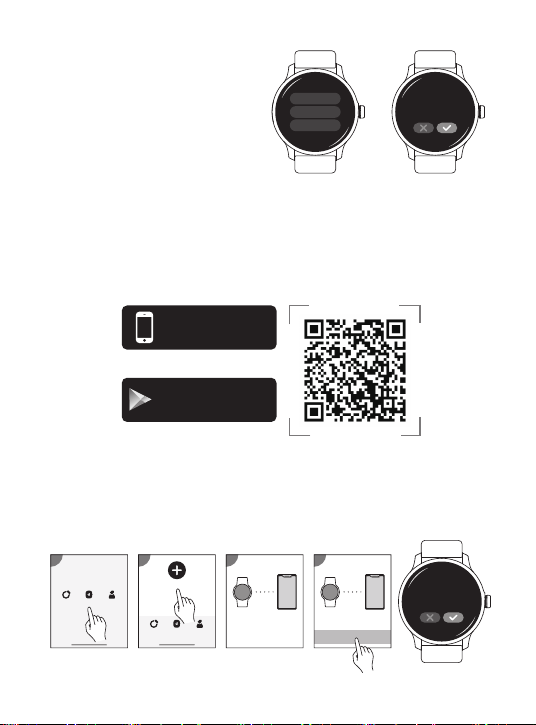
1. Charging the watch: Align the magnetic charging
cable with the metal charging contacts of the watch,
connect the other end to the charger and connect
power until the screen displays charging capacity
Notes:
① No operation is allowed during the charging
process other than viewing the charging interface
② When the watch indicates low battery, please
charge it in time. It is recommended to use a charger
with a rated output of 5V/1A or a computer USB port
together with the included cable to charge it
2. Turning on the watch in turned off status:
① Press and hold the power button for 2s to turn it
on manually
② Charge the watch to have it turn on automatically
2S
3. Turning off the watch in turned on status
(display on status):
① Press and hold the power button for 3s or
enter Settings, select “Power off”→“√”
② The watch will turn off automatically if not
bound to the phone and no operation is
made within 30 minutes after it is turned on
Downloading APP, pairing the watch & factory reset
1. Scan the QR code below or the QR code on the watch with your mobile phone to download
the JR Smart APP, register an account and log in
Note: The phone system is required to be Android 6.0 or iOS 11.0 or above
2. Open the APP, select “Device”→“Add device”→select “Joyroom Classic FC1 Pro_xxxx”→
click Connect→click √ on your watch” to finish connection (or you can scan the QR code on the
watch via the APP to finish connection)
Note: When connecting for the first time, Android users need to complete “BT connection”
according to the operation tips of the APP
Power o ?
App Store
APP Store: JR Sma
Google Play:
JR Sma
Google Play
Download on the
Android app on
Reboot
Power o
Reset
Pair with this
device?
Bind device
Searching device
Bring the device
close to the phone
3
Me
1
DeviceHealth
Add device
2
MeDeviceHealth
Bind device
Search complete
4
Joyroom Classic FC1 Pro_xxxx

1. Operation of the buttons:
① Under display off status: short press the power button to activate it
② Under display on status: short press the power button on the home screen to enter the APP
menu
(Note: Short press the power button NOT on the home screen to return to previous level)
③ During workout, short press the power button to choose “Continue” or “Stop” the sport
④ During a heart rate/stress measurement, short press the power button to choose “Continue”
or “Exit” the measurement
(Note: The measured data is for reference only and cannot be taken as clinical evidence)
⑤ If the watch is not set with a password and the screen is locked, long press the power button to
unlock it
⑥ Under display on or off status: 5-click the power button quickly, the watch will enter Call
Emergency Contacts confirm interface (Note: SOS function is disabled by default. If you need to use
it, please go to JR Smart APP→select “Device”→enable SOS)
⑦ Under display on status: press and hold the power button for 3s, you can choose to
Reboot/Power off/Reset the watch
Operation instructions
3. After binding successfully, you can start to use all the functions of the watch, and the data
generated by it can also be saved to the APP synchronously
Notes:
① Please keep the phone’s BT function on during use, otherwise the messages on the phone cannot
be synchronized to the watch
② Select "Device"→"Message notification"→Enable related APP permissions on the phone APP, then
relevant messages will be synchronized to the watch, such as call reminders and message
reminders, etc
4. Factory reset
① Open JR Smart APP, select “Device”→“Unbind”
② Select “Settings” on the watch→select “Reset”
③ Under display on status, press and hold the power button for 3s→select “Reset”
(Note: After unbinding from an iOS phone, please disable the BT function of the phone, and then
make connections to other phones)
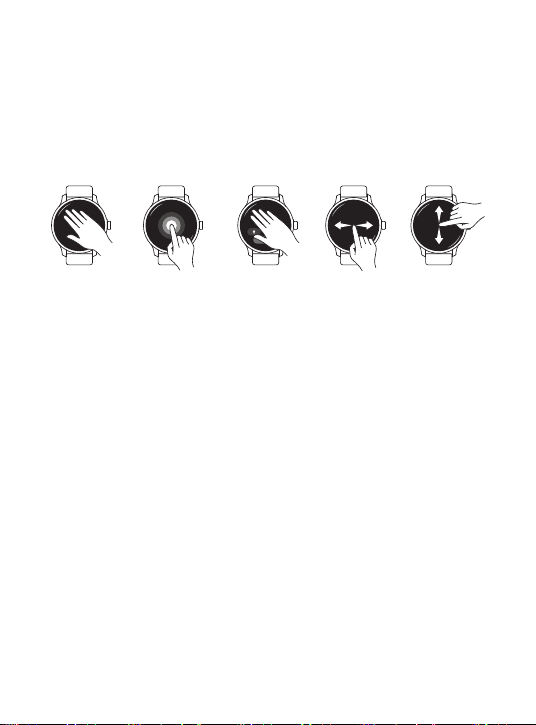
2. Operation of the display:
① Under display on status: cover the display with your hand, it will go off
② Under display on status: long press the display on the home screen to enter watch face selection
interface
③ Under incoming call status: cover the display with your hand to mute it
④ If you are playing music on your phone, you can volume up/down and play/pause the music, or
skip to previous/next track via the watch
⑤ Swipe left/right or up/down to navigate the watch

Operation instructions:
(1) Short press the power button on the home page, select “Sports” in the APP
list→select a desired sports mode.
(Please wear the watch properly when doing sports, and you can check such
data as sports time, heart rate, distance, calories, steps, etc. on the watch)
(2) To quit sports mode, just short press the power button and select “End”.
(3)You can add, delete or sort the sports modes in the phone APP: select
"Device"→"Settings"→"Sports Modes".
Check sports record
(1) Short press the power button on the home page, select “Sports Record” in
the APP list, you can check recent sports data.
(2) After binding the watch to phone APP, the sports data will be synchronized to
the APP. You can check the sports data in “Health”. Click a sports record to
check the detailed sports data.
Set sports goals
Short press the power button on the home screen, select “Sports” in the APP list
→select the desired sports mode→click “Set goals” before starting the sport,
after setting sports goals (time, distance, calorie, etc.), click “ ” to complete
setting.
110+ sports modes available in the JR Smart APP
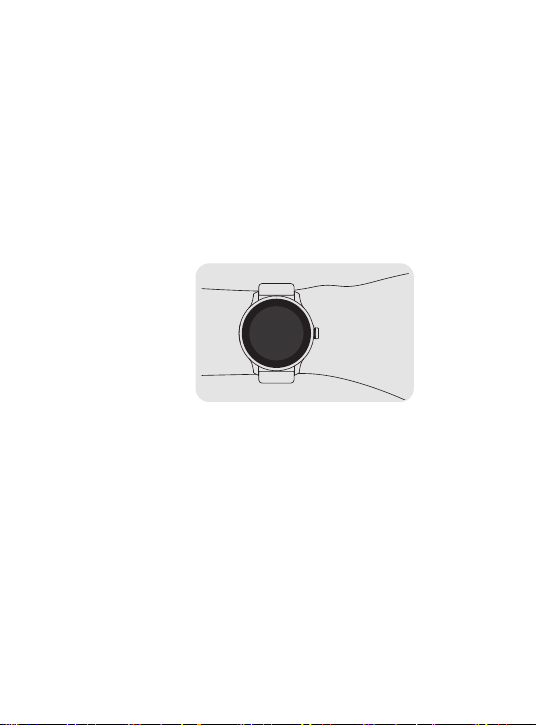
Operation instructions
(1) Short press the power button on the home page, select “Heart Rate” or “Blood
Oxygen” in the APP list for measurement (or select “Rapid Health” for one-tap
measurement of heart rate, blood oxygen, stress)
(2) After completing measurement on the watch, open the JR Smart APP on the phone to
check the latest measurement data and history data by day, week, and month.
To ensure the accuracy of the measurement, please keep the wrist skin clean. During
measuring, keep your body still, keep the screen upward, and keep the watch in close
contact with your wrist.
Operation instructions:
Wear the watch, short press the power button on the home page, select “Stress” in the
APP list for measurement. After the measurement is completed, you can check the stress
data on the APP by day, week, and month.
The measurement
results are for reference
only and should not be
taken as the basis for
medical diagnosis. If
you feel unwell, please
see a doctor in time.
Heart Rate & Blood Oxygen Measurement
Stress is calculated by the change of HRV values, which is used to measure the body
status. The higher the value is, the higher the stress is. In case of high stress, you should
take some rest to have your body recovered.
Stress Monitoring

Operation instructions
Short press the power button on the home page, select “Breathe”, click “Start”,
breathing test will start after a 3-second countdown. After the test is completed, you can
check the test data.
Note: The breathing time can be set to 1-3 minutes (1 minute by default), and the
breathing speed can be set to three levels: fast, moderate, and slightly slow (moderate
by default)
Slight slow: exhale for 8s and inhale for 8s each time.
Moderate: exhale for 6s and inhale for 6s each time.
Fast: exhale for 4s and inhale for 4s each time.
Breathing Test
(1) Sleep monitoring is to monitor the state of people from they fall asleep to wake up
naturally. The watch can record the time of deep sleep and light sleep.
① Deep sleep refers to such a state as small body movement and low heart rate during
sleep.
② Light sleep refers to such a state as big body movement and high heart rate during
sleep.
(2) The default sleep monitoring starts from 18:00 p.m. to 10:00 a.m. of the next day.
When sleeping out of this time period, the sleep data will not be recorded or displayed.
When sleeping, you need to wear the watch properly. The monitoring results may differ
due to different watch wearing status.
Sleep Quality Monitoring
Open the JR Smart APP on the phone, you can check the latest night sleep data and
history sleep data by day, week, and month.
Check Sleep Data:

1. Calling
The watch supports calling function. After BT connection to the phone, you can make,
answer or reject calls on the watch; or check call history, dial a number, call back, use the
contacts and other functions on the watch (Refer to the User Manual for connection
method)
Note: when using this function, you need to keep:
① The phone’s BT function turned on normally.
② The phone APP and the watch connected normally.
Operation instructions
(1) Dial: Short press the power button on the home page, select “Dial Pad” in the APP
list. Enter the phone number in the dialing interface, then press to make a call.
(2) Contacts: After adding contact information to the phone APP, select "Contacts" in the
watch APP list, then click the desired contact to make a call.
(3) Call Log: Short press the power button on the home page, select "Call History" in the
APP list, slide up or down to check the call history, and click any desired record to make a
call.
2. Message Notifications
The watch can synchronously receive calls, text messages, QQ & WeChat messages sent
to the phone, as well as messages sent to other application software of the phone, and
remind you by vibration.
Note: when using this function, you need to keep:
① The phone’s BT function turned on normally
② The phone APP and the watch connected normally
Operation instructions
(1) Open the JR Smart APP on the phone, select “Device”→“Message Notification”
and enable related notification permissions.
(2) When there is a new message notification on the phone, the watch will remind you by
vibration. You can swipe down on the home page of the watch to enter the Message
Notification Interface and check the unread message.

3. Music Control
When playing music on the phone, you can control the music (play/pause, skip to
previous/next track, volume up/down) via the watch.
Note: when using this function, you need to keep:
① The phone’s BT function turned on normally
② The phone APP and the watch connected normally
Operation instructions
(1) Short press the power button on the home page, select “Music” in the APP list.
(2) Open the music APP on your phone and play music.
(3) Now you can control the music playing on the phone (play/pause, skip to
previous/next track, volume up/down) via the watch.
4. Female Health Monitoring
The female health monitoring function is used for female cycle tracking. When the
menstrual period is coming, the watch will remind you by vibration.
Note: Female Health is only available to female users. If you are a male user, this feature
will not be displayed on the APP and watch.
Operation instructions
(1) Open the JR Smart APP on the phone, select "Health"→"Female Health", you can set
menstrual period length, cycle time, menstrual period reminder time, etc.
(2) Short press the power button on the home page, select "Cycle Tracker" in the APP list
to set menstrual period length and cycle time etc.
5. Stopwatch
The watch supports lap time, split time and reset operation. For split time, the watch can
store up to 50 records (maximum)

Operation instructions
(1) Short press the power button on the home page, select “Stopwatch” in the APP list.
(2) Click “ ” to start timing.
(3) Click “ ” to record split time.
(4) Click “ ” to pause the stopwatch.
(5) Under pause status, click “ ” to return to the original status.
(6) During the timing process, swipe right or short press the power button, the watch will
prompt “Stopwatch can’t run in background. Exit?”
6. Timer
The watch supports specifying time length and customizing timer operation.
Operation instructions
(1) Short press the power button on the home page, select “Timer” in the APP list.
(2) Select time length as needed and start the timer.
(3) During the countdown process, click “ ” to stop the countdown.
(4) Under pause status, click “ ” to continue the countdown; or click “ ” to
return to the countdown home page.
7. Alarm
You can set an alarm on the watch, so that it can remind you by vibration at the set time.
Operation instructions
(1) Short press the power button on the home page, select “Alarm” in the APP list.
(2) After setting the time and repetition period, click "√".
(3) You can also set an alarm on the phone APP, "Device"→"Reminder Setup"→"Alarm
Reminder".

8. World Clock
You can check the time of 5 different cities on the watch
Operation instructions
(1) Open the lnfoWear APP on the phone, select “Device”→“World Clock”, short
press to add a city (5 at most)
(2) Short press the power button on the home page, select "World Clock" in the APP list,
you can check the time of 5 different cities at most (If no city is added on the phone APP,
the watch will prompt: Open the APP to add a city)
9. Reminders
(1) Open the JR Smart APP on the phone, select “Device”→"Reminder Setup"→
“Reminders”, set the reminder name, reminder date and time, and click “Save”. After
saving successfully, the reminder will be synchronized to the watch. When the time
arrives, the watch will remind you by vibration (You can set 5 reminders at most)
(2) Short press the power button on the home page, select “Reminders" in the APP list,
you can check 5 reminders (maximum) on the watch (If no reminder is added on the
phone APP, the watch will prompt: Please add or edit reminders on the APP)
10. Change View Style
The watch has 4 built-in view styles, you can switch between them freely.
Operation instructions
(1) Short press the power button on the home page, select "Settings"→"Menu View" in the
APP list to switch to grid、list、surround、crescent view.
(2) Slide the home screen from bottom to top, and click " " in the status panel to
automatically switch to grid, list, surround, or crescent view.
Note: Grid view is enabled by default.
(3) Click the desired view, then return to the APP list to see the current view style.

11. Switch Watch Faces
The watch supports 7 local watch faces + 1 custom watch face.
Operation instructions (Watch)
(1) Short press the power button on the home page, select “Watch Face” in the APP list,
click the desired watch face, then you can check the new watch face on the home page.
(2) Under display on status, long press the home page to switch watch faces.
Operation instructions (Phone)
Open the JR Smart APP on the phone, select “Device”→"Watch Face Center"→“My
Watch Face”, select the desired watch face, click “Set as Current Watch Face”, then the
new watch face will be transferred to the watch.
Note: when using this function, you need to keep:
① The phone's BT function turned on normally
② The phone APP and the watch connected normally
12. Change Watch Language
The watch supports switching between 18 languages, including English, Arabic, Polish,
Simplified Chinese, Spanish, Italian, Persian, German, French, Russian, Portuguese, Czech,
Hebrew, Thai, Vietnamese, Turkish, Dutch, Malay.
Operation instructions (watch)
You can choose the language you need after turning on the watch for the first time.
Operation instructions (phone)
Open the JR Smart APP on the phone, select “Device”→“Device Language”, click the
desired language, the language on the watch will automatically change with the phone
system.

13. Find the Watch
Open the JR Smart APP on the phone, select “Device”→“Find the Device”, the watch
will play the ringtone for you to locate it.
14. Find the Phone
Swipe up on the home page, find in the status panel, click to find, the phone will
play the ringtone for you to locate it.
15. Taking Picture Control
The watch supports controlling the phone to take pictures.
Operation instructions
(1) Wear the watch properly on your wrist.
(2) Open the JR Smart APP on the phone, select “Device”→“Shake to Take Pictures",
The APP initiates a photo shoot, and the watch receives a prompt: Shake & take that
perfect shot. At this time, the user can control the phone to take a picture by shaking the
watch.
16. Flashlight
Short press the power button on the home page, select “Flashlight” in the APP list to
turn on/off the flashlight.
17. Weather
Short press the power button on the home page, select “Weather” in the APP list, you
can check the current temperature and the temperatures for the next 3 days of the city.

18. Calculator
Short press the power button on the home page, select "Calculator" in the APP list to use
the calculator functions.
19. Lock Screen Passcode
You can set a lock screen passcode on the watch to protect your privacy.
Operation instructions
(1) Short press the power button on the home page, select "Device Passcode"→"Turn
Passcode On" in the APP list. After the password is successfully set, you need to enter the
passcode to unlock the screen before you can use it.
(2) You can also change or turn off the lock screen passcode following above steps.

1. Turning on and connecting
Q: Why can’t the watch be turned on?
A: ① It may be that you did not press it long enough or you pressed at a wrong position. Please
press and hold the power button for more than 2 seconds.
② Or that the battery of the watch is too low. Please charge the watch for 1 hour before use.
Q: Why the BT function is not connected or cannot be connected?
A: ① The address code may be incorrect. Please check whether the BT address code of the watch is
consistent with that of the phone APP.
② The watch may be connected to another phone. You need to delete or disconnect the device
name from the phone before using. A watch can only be connected to one mobile phone. Please
restart the BT function on your phone and connect again.
③ Please restart the BT function of the watch and the phone and make a reconnection.
2. Accuracy of measurement
Q: Why is the measurement of heart rate/blood oxygen inaccurate?
A: Generally, it is caused by poor contact between the sensor of the watch and the human body.
During measurement, please keep the sensing area of the watch in full contact with the wrist, no
foreign matter is allowed between. Do not wear it on the wrist joint or wear it too loosely. When
doing sports, please wear the watch a little bit more tightly than usual.
Q: Why is sleep data inaccurate?
A: ① Sleep monitoring is to monitor the state of people from they fall asleep to wake up. The watch
must be worn properly during sleep.
② If you go to sleep too late or start to wear it just before falling asleep, the sleep data may be
inaccurate.
③ The default sleep monitoring starts from 18:00 p.m. to 10:00 a.m. of the next day. When sleeping
out of this time period, the sleep data will not be recorded or displayed.

3. Message synchronization
Q: Why can't the watch sync phone message?
A: ① The message reminder permission may not be enabled. Please open JR Smart APP, select
“Device”→“Message Notification” , and check whether the message reminder permission of
relevant application software is enabled.
② The watch may be in "Do Not Disturb" Mode. Please swipe up on the Home Page→ , and turn
off "Do Not Disturb" mode.
③ Please check whether "Allow APP to Run in the Background" is opened on the mobile phone. If
not, after the background exits the watch APP, the mobile phone will not synchronize its data and
connections. You need to reopen and refresh the APP to have it synchronize data.
4. Battery and charging
Q: Why can't the watch be charged?
A: ① Please check whether the charging contacts of the watch and that of the charging cable are
blocked by foreign matters. If so, use an alcohol cotton swab to clean them before charging.
② When charging, align the magnetic charging cable with the metal charging contacts of the
watch, connect the other end to the charger and connect power until the screen displays charging
capacity.
③ We recommend using a computer USB port or a brand charger together with the included cable
to charge the watch.
For more FAQs, please check the App: Me ->Help Center