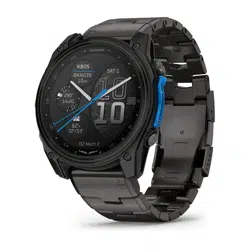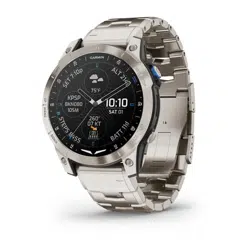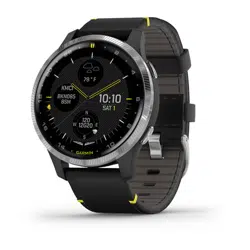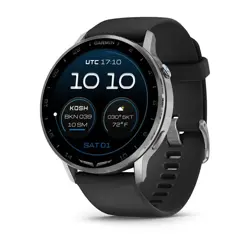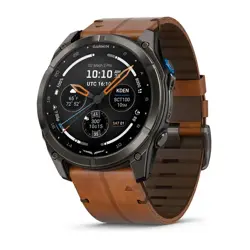
D2
™
MACH 2 SERIES
Aviator Smartwatch
Owner's
Manual

Table of Contents
Introduction......................................6
Getting Started................................ 6
Button Functions............................. 6
Touchscreen Functions.....................7
Enabling and Disabling the
Touchscreen................................8
Customizing the Watch Face.............. 8
Apps and Activities...........................9
Apps............................................. 9
Workouts...................................10
Using the Saved App.................... 14
Recording a Voice Note................ 14
Using Voice Commands............... 15
Using the Messenger App............. 16
Calling from the Messenger Calls
App.......................................... 17
GarminPay
™
...............................17
Setting Personal Minimum Alerts... 18
Viewing PLANESYNC
™
Data...........19
Applied Ballistics
®
........................19
Using the Xero
®
Chronograph App...26
Dive Planning............................. 26
Viewing Tide Information.............. 27
Marking Your Anchor Location....... 28
Trolling Motor Remote................. 28
Activities...................................... 29
Starting an Activity...................... 30
Stopping an Activity..................... 31
Flying....................................... 31
Outdoor Activities........................35
Running.................................... 42
Swimming................................. 45
Cycling......................................47
Multisport..................................47
Gym Activities............................ 49
Diving....................................... 50
Winter Sports............................. 56
Water Sports.............................. 57
Other Activities........................... 59
Customizing Activities and Apps....... 62
Customizing the App List.............. 62
Customizing Your Favorite Activities
List.......................................... 62
Customizing the Data Screens....... 63
Creating a Custom Activity............ 63
Activity Settings.......................... 64
Controls......................................... 70
Customizing the Controls Menu........ 72
Using the LED Flashlight.................. 72
Editing the Custom Flashlight
Strobe.......................................73
Clearing User Data with the Kill Switch
Feature........................................ 73
Glances.......................................... 74
Viewing Glances............................ 76
Customizing the Glances List............76
Creating a Glances Folder............. 77
Body Battery
™
................................ 77
Tips for Improved Body Battery
™
Data......................................... 77
Performance Measurements............ 77
About VO2 Max. Estimates............78
Viewing Your Predicted Race
Times....................................... 79
Heart Rate Variability Status.......... 79
Performance Condition................ 79
Running Economy....................... 79
Getting Your FTP Estimate............ 80
Lactate Threshold....................... 80
Viewing Your Real-Time Stamina.... 80
Viewing Your Power Curve............ 81
Training Status.............................. 81
Training Status Levels.................. 82
Acute Load................................ 82
Recovery Time............................84
Heat and Altitude Performance
Acclimation............................... 84
Pausing and Resuming Your Training
Status.......................................84
Training Readiness......................... 84
Running Tolerance......................... 85
Endurance Score............................85
Hill Score......................................86
Viewing Cycling Ability.................... 86
Race Calendar and Primary Race....... 86
Training for a Race Event.............. 86
Adding a Stock.............................. 87
Adding Weather Locations............... 87

Viewing Aviation Weather
Information...................................87
Lifestyle Logging............................88
Tracking Lifestyle Logging
Behaviors.................................. 88
Using the Jet Lag Adviser................ 89
Planning a Trip in the Garmin
Connect
™
App.............................89
Viewing the Scuba Diving Glance.......89
Clocks............................................ 90
Setting an Alarm............................ 90
Editing an Alarm......................... 90
Using the Countdown Timer............. 90
Deleting a Countdown Timer..........91
Using the Stopwatch.......................91
Adding Alternate Time Zones............92
Editing an Alternate Time Zone...... 92
Adding a Countdown Event.............. 92
Editing a Countdown Event............92
History........................................... 94
Using History.................................94
Multisport History....................... 94
Personal Records........................... 94
Viewing Your Personal Records......94
Restoring a Personal Record..........94
Clearing Personal Records............ 95
Viewing Data Totals........................95
Aviation Settings............................ 96
Aviation Weather Settings................ 96
Adding Favorite Airports.................. 96
Notifications and Alerts Settings.... 97
Health and Wellness Alerts...............97
Setting an Abnormal Heart Rate
Alert......................................... 97
Move Alert................................. 97
Morning Report..............................98
Customizing Your Morning Report.. 98
Evening Report.............................. 98
Customizing Your Evening Report... 98
Setting Time Alerts......................... 98
Setting a Storm Alert.......................98
Turning On Phone Connection Alerts.. 99
Sound and Vibration Settings....... 100
Display and Brightness Settings... 101
Connectivity................................. 102
Sensors and Accessories............... 102
Wireless Sensors.......................102
Phone Connectivity Features...........106
Pairing Your Phone.................... 106
Calling from the Phone App......... 106
Using the Phone Assistant...........106
Enabling Phone Notifications....... 107
Turning Off the Bluetooth
®
Phone
Connection.............................. 108
Turning On and Off Find My Phone
Alerts...................................... 108
Wi‑Fi
®
Connectivity Features............108
Connecting to a Wi‑Fi
®
Network.... 108
LTE and Satellite Connected Features for
D2
™
Mach 2 Pro............................109
Connecting to Communication
Satellites................................. 109
Sending a Test Message............. 110
Sending a Check-In Message....... 110
Checking for Messages.............. 111
LTE and Satellite Settings............111
Garmin Share...............................111
Sharing Data with Garmin Share... 111
Receiving Data with Garmin Share 112
Garmin Share Settings................ 112
Viewing inReach
®
Plan Details and
Usage........................................ 112
Phone Apps and Computer
Applications................................ 112
Garmin Connect
™
.......................112
Connect IQ Features...................114
Garmin Dive
™
App...................... 115
Garmin Explore
™
........................ 115
Garmin Messenger
™
App............. 115
Garmin Golf
™
App...................... 116
Connecting to the Garmin Pilot
™
App........................................ 116
Focus Modes................................ 117
Customizing a Default Focus Mode.. 117
Creating a Custom Focus Mode.......117

Health and Wellness Settings....... 119
Wrist Heart Rate...........................119
Wearing the Watch.................... 119
Tips for Erratic Heart Rate Data.... 119
Wrist Heart Rate Monitor Settings. 120
Pulse Oximeter............................ 120
Getting Pulse Oximeter Readings.. 121
Setting the Pulse Oximeter Mode.. 121
Tips for Erratic Pulse Oximeter
Data....................................... 121
Auto Goal....................................122
Intensity Minutes..........................122
Earning Intensity Minutes............ 122
Sleep Tracking............................. 122
Using Automated Sleep Tracking.. 122
Breathing Variations...................122
Map.............................................. 124
Viewing the Map.......................... 124
Saving or Navigating to a Location on
the Map......................................124
Tracking Your Location on the Map.. 124
Map Settings............................... 124
Managing Maps........................ 125
Showing and Hiding Map Data........ 126
Navigation.................................... 127
Navigating to a Destination.............127
Navigating to a Nearby Point of
Interest................................... 127
Navigating to Your Starting Point
During an Activity...................... 127
Marking and Starting Navigation to a
Man Overboard Location.............128
Stopping Navigation...................128
Saving Locations.......................... 128
Saving Your Location................. 128
Saving a Dual Grid Location......... 128
Sharing a Location From a Map Using
the Garmin Connect
™
App............129
Courses......................................129
Creating a Course on Garmin
Connect
™
................................. 129
Creating and Following a Course on
Your Watch.............................. 130
Setting the Compass Heading......... 131
Setting a Reference Point............... 131
Projecting a Waypoint....................131
Safety and Tracking Features....... 132
Adding Emergency Contacts........... 132
Adding Contacts.......................... 132
Turning Incident Detection On and
Off.............................................133
Requesting Assistance.................. 133
SOS for D2
™
Mach 2 Pro.................133
Initiating an SOS Rescue............. 134
Canceling an SOS Request.......... 134
Spectator Messaging.................... 134
Blocking Spectator Messages...... 134
Starting a GroupTrack Session........ 135
Tips for GroupTrack Sessions...... 135
Music........................................... 136
Connecting to a Third-Party Provider 136
Downloading Audio Content from a
Third-Party Provider................... 136
Downloading Personal Audio
Content...................................... 136
Listening to Music........................ 136
Music Playback Controls................137
Connecting Bluetooth
®
Headphones. 137
Changing the Audio Mode.............. 137
User Profile.................................. 138
Setting Up Your User Profile............138
Gender Settings........................ 138
Viewing Your Fitness Age...............138
About Heart Rate Zones.................138
Fitness Goals............................138
Setting Your Heart Rate Zones..... 138
Letting the Watch Set Your Heart Rate
Zones..................................... 139
Heart Rate Zone Calculations.......139
Setting Your Power Zones.............. 139
Detecting Performance Measurements
Automatically.............................. 140
Power Manager Settings.............. 141
Customizing the Battery Saver
Feature.......................................141
Customizing the Power Mode for an
Activity....................................... 141
Customizing Power Modes.............141

Accessibility Settings................... 143
System Settings........................... 144
Customizing the Button Shortcuts....144
Setting Your Watch Passcode......... 144
Changing Your Watch Passcode... 144
Compass.................................... 145
Compass Settings..................... 145
Altimeter and Barometer................ 145
Altimeter and Barometer Settings. 145
Depth Sensor...............................146
Depth Sensor Settings................ 146
Time Settings.............................. 146
Syncing the Time.......................146
Advanced System Settings............. 146
Changing the Units of Measure.....146
Data Recording Settings..............147
Restore and Reset Settings.............147
Restoring Your Settings and Data from
Garmin Connect
™
.......................147
Resetting All Default Settings....... 147
Viewing Device Information............ 148
Viewing E-label Regulatory and
Compliance Information............. 148
Device Information....................... 149
About the AMOLED Display.............149
Charging the Watch...................... 149
Specifications..............................149
Battery Information.................... 150
Device Care.................................151
Cleaning the Watch....................152
Cleaning the Leather Bands......... 152
Changing the QuickFit
®
Bands......... 152
Metal Watch Band Adjustment........ 152
Troubleshooting........................... 153
Product Updates.......................... 153
Contacting Garmin
®
Aviation Product
Support...................................... 153
Getting More Information............... 153
My device is in the wrong language.. 153
Tips for Maximizing the Battery Life. 153
Restarting Your Watch...................154
Is my phone compatible with my
watch?....................................... 154
My phone will not connect to the
watch.........................................154
Can I use my Bluetooth
®
sensor with my
watch?....................................... 154
My headphones will not connect to the
watch.........................................154
My music cuts out or my headphones
won't stay connected.................... 154
The speaker or microphone is quiet after
water exposure............................ 155
How can I undo a lap button press?..155
Diving........................................ 155
Resetting Your Tissue Load......... 155
Resetting the Surface Pressure.... 155
Acquiring Satellite Signals.............. 155
Improving GPS Satellite Reception 155
The heart rate on my watch is not
accurate..................................... 156
The activity temperature reading is not
accurate..................................... 156
Exiting Demo Mode.......................156
Activity Tracking...........................156
My step count does not seem
accurate.................................. 156
The step counts on my watch and my
Garmin Connect
™
account don't
match..................................... 156
The floors climbed amount does not
seem accurate.......................... 156
Appendix...................................... 157
Color Gauges and Running Dynamics
Data.......................................... 157
Ground Contact Time Balance
Data....................................... 157
Vertical Oscillation and Vertical Ratio
Data....................................... 157
VO2 Max. Standard Ratings............ 158
Running Economy Ratings..............158
FTP Ratings.................................158
Endurance Score Ratings............... 159
Wheel Size and Circumference........ 159
Data Fields................................... 160
Introduction
WARNING
See the Important Safety and Product Information guide in the product box for product warnings and other
important information.
Always consult your physician before you begin or modify any exercise program.
NOTICE
The LTE and satellite connected features, including SOS, require an active inReach
®
service plan, and are only
available for the D2
™
Mach 2 Pro watch.
Getting Started
When using your watch the first time, you should complete these tasks to set it up and get to know the basic
features.
1 Hold to turn on the watch (Button Functions, page6).
2 Follow the on-screen instructions to complete the initial setup.
During the initial setup, you can pair your phone with your watch to receive notifications, sync your activities,
and more (Pairing Your Phone, page106). If you are upgrading from a compatible watch, you can migrate
your watch settings, saved courses, and more when you pair your new D2
™
Mach 2 watch with your phone.
3
If you have a D2 Mach 2 Pro watch, complete the inReach
®
service plan activation in the Garmin Messenger
™
app to use LTE and satellite connected features (LTE and Satellite Connected Features for D2
™
Mach 2 Pro,
page109).
4 Charge the watch (Charging the Watch, page149).
5 Check for software updates (System Settings, page144).
For the best experience, you should keep the software on your watch up to date. Software updates provide
changes and improvements to privacy, security, and features.
6 Start an activity (Starting an Activity, page30).
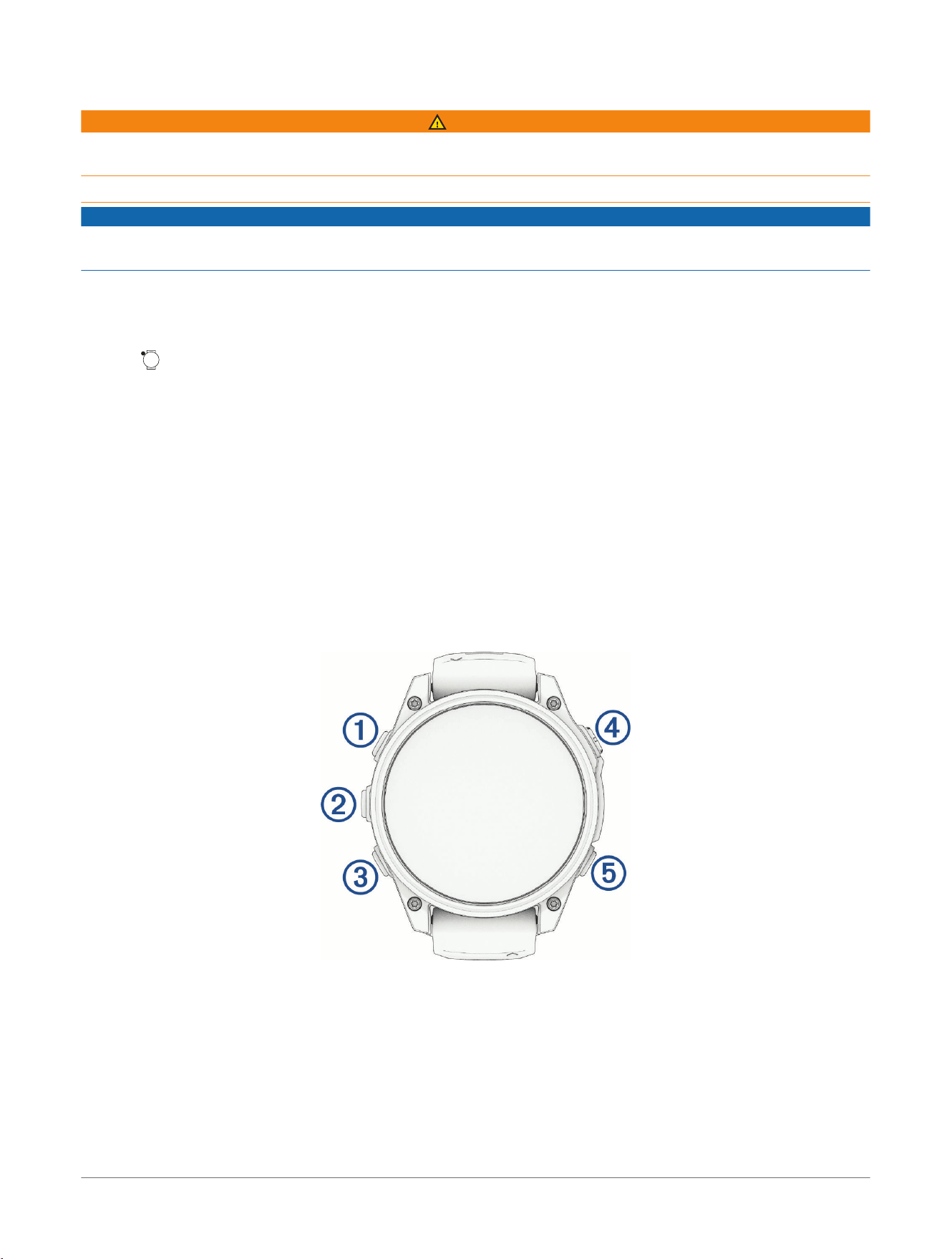
Button Functions
TIP: You can customize some button hold functions and create new button shortcuts (Customizing the Button
Shortcuts, page144).
6
D2™ Mach 2 Series Aviator Smartwatch
Owner's Manual
Introduction
1
Upper-left
button
● Press to illuminate the screen.
● Quickly press twice to turn the flashlight on or off (Using the LED Flashlight, page72).
● Hold for three seconds to turn on the device.
● Hold for two seconds to view the controls menu (Controls, page70).
●
On a D2
™
Mach 2 watch, hold for five seconds to request assistance (Requesting Assistance,
page133).
● On a D2 Mach 2 Pro watch with an active inReach
®
service plan, hold for five seconds to initiate
an SOS rescue (SOS for D2
™
Mach 2 Pro, page133).
2
Middle-left
button
● From the watch face, press to view the notification center (Viewing Notifications, page107).
● Press to scroll through the menus or data screens.
● From the watch face, hold to access the main menu.
● Hold to access a contextual menu, if one is available in that part of the user interface.
3
Lower-left
button
● From the watch face, press to scroll through the glances list (Viewing Glances, page76).
● Press to scroll through the menus or data screens.
● Hold to view the music controls (Listening to Music, page136).
4
Upper-right
button
● Press to choose an option in a menu.
● From the watch face, press to open the apps and activities menu (Apps and Activities, page9).
● Press to start or stop an activity (Starting an Activity, page30).
● Hold to navigate to an airport or aviation waypoint (Starting Direct-To Navigation, page34).
5
Lower-right
button
● Press to return to the previous screen.
● During an activity, press to record a lap, rest, or advance to the next workout step.
● Hold to view a list of your recently used apps.
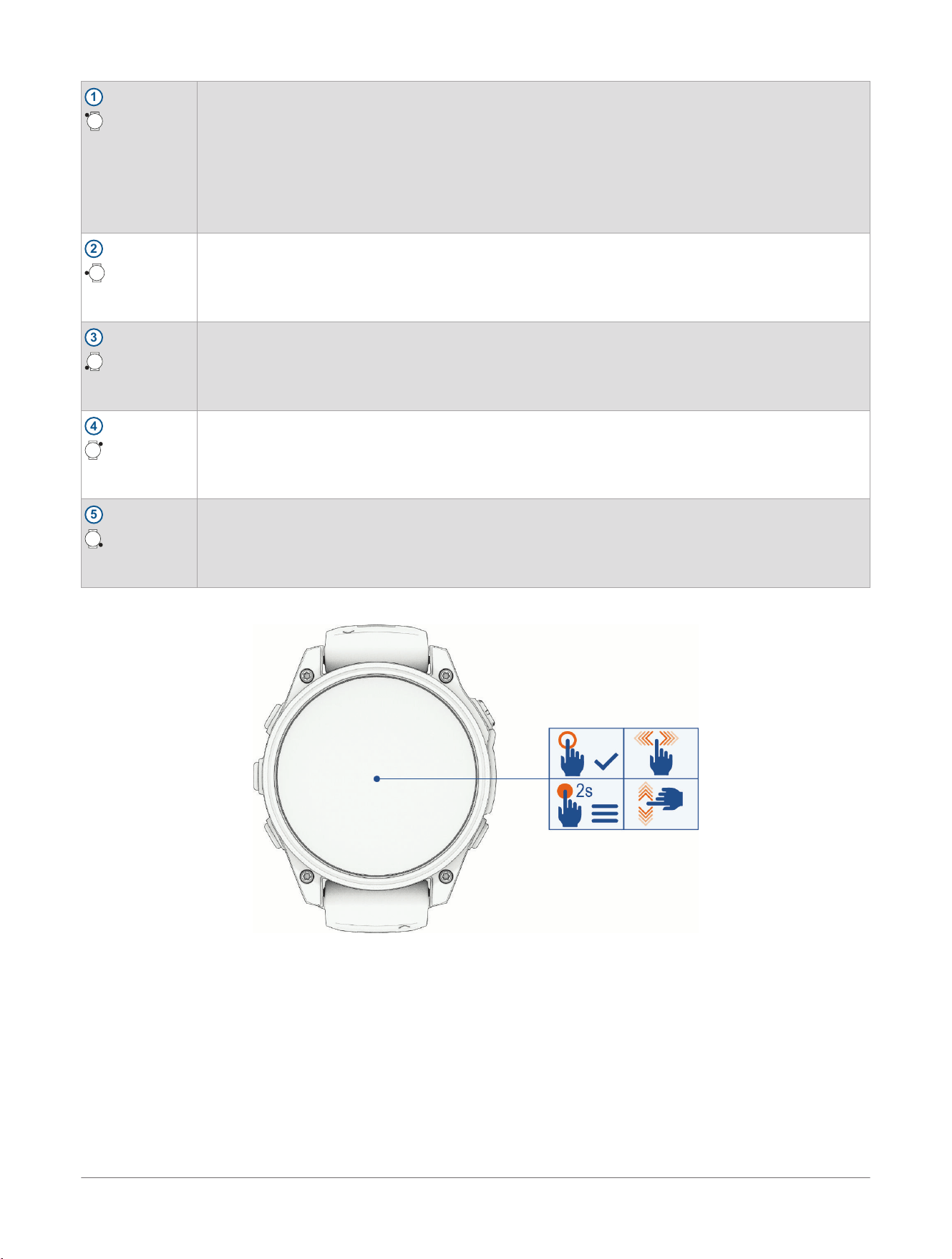
Touchscreen Functions
● Tap to choose an option in a menu.
● Hold to view the menu.
● Hold the watch face data to open the glance or feature.
NOTE: This feature is not available on all watch faces.
● Tap an icon at the top of the watch face to resume using the active app or activity.
● From the watch face, swipe down to view the notification center.
● From the watch face, swipe up to scroll through the glances list.
● From the controls, glances, or apps menu, hold the watch face to edit, add to, or reorder the options.
● Swipe up or down to scroll through the menus.
● Swipe right to return to the previous screen.
● Cover the screen with your palm to return to the watch face and turn down the screen brightness.
Introduction
D2™ Mach 2 Series Aviator Smartwatch
Owner's Manual
7
Enabling and Disabling the Touchscreen
● Hold , and select .
● Hold , select Watch Settings> Display & Brightness> Touch, and select an option.
Customizing the Watch Face
You can customize the watch face information and appearance, or activate an installed Connect IQ
™
watch face
(Connect IQ Features, page114).
1 From the watch face, hold .
2 Select Watch Face.
3 Press or to preview the watch face options.
4 Select Add New to choose from additional watch face options.
5 Scroll to a watch face, press , and select .
6 Select an option:
NOTE: Not all options are available for all watch faces.
● To activate the watch face, select Apply.
● To change the styles of fonts and graphics, select Styles.
● To change the data that appears on the watch face, select Data, select a field to edit, and select an
option.
● To add or change an accent color for the watch face, select Accent Color.
● To change the color of the data that appears on the watch face, select Data Color.
● To change the color of the universal coordinated time (UTC) indicator, select UTC Indicator Color.
● To change the location to use for aviation weather data, select Weather Station, and select a location.
● To change the time for the digital clock, select Digital Clock, and select an option.
NOTE: The analog watch hands continue to show the time from the system settings (System Settings,
page144).
● To change the number of ticks per second for the second hand, select Second Hand Update Rate.
● To change the time zone used for the alternate time zone pointer on the watch face, select Alt. Time
Zones.
NOTE: The alternate time zone pointer uses the alternate time zone you set as your favorite (Editing an
Alternate Time Zone, page92).
● To remove the watch face, select Delete.
8
D2™ Mach 2 Series Aviator Smartwatch
Owner's Manual
Introduction
Apps and Activities
Your watch includes a variety of preloaded apps and activities.
Apps: Apps provide interactive features for your watch, such as viewing workouts or calling someone from your
watch (Apps, page9).
Activities: Your watch comes preloaded with indoor and outdoor activity apps, including running, cycling,
strength training, pool swimming, and more (Activities, page29). When you start an activity, the watch
displays and records sensor data, which you can save and share with the Garmin Connect
™
community.
For more information about activity tracking and fitness metric accuracy, go to garmin.com/ataccuracy.
Connect IQ
™
Apps: You can add features to your watch by installing apps from the Connect IQ app (Connect IQ
Features, page114).
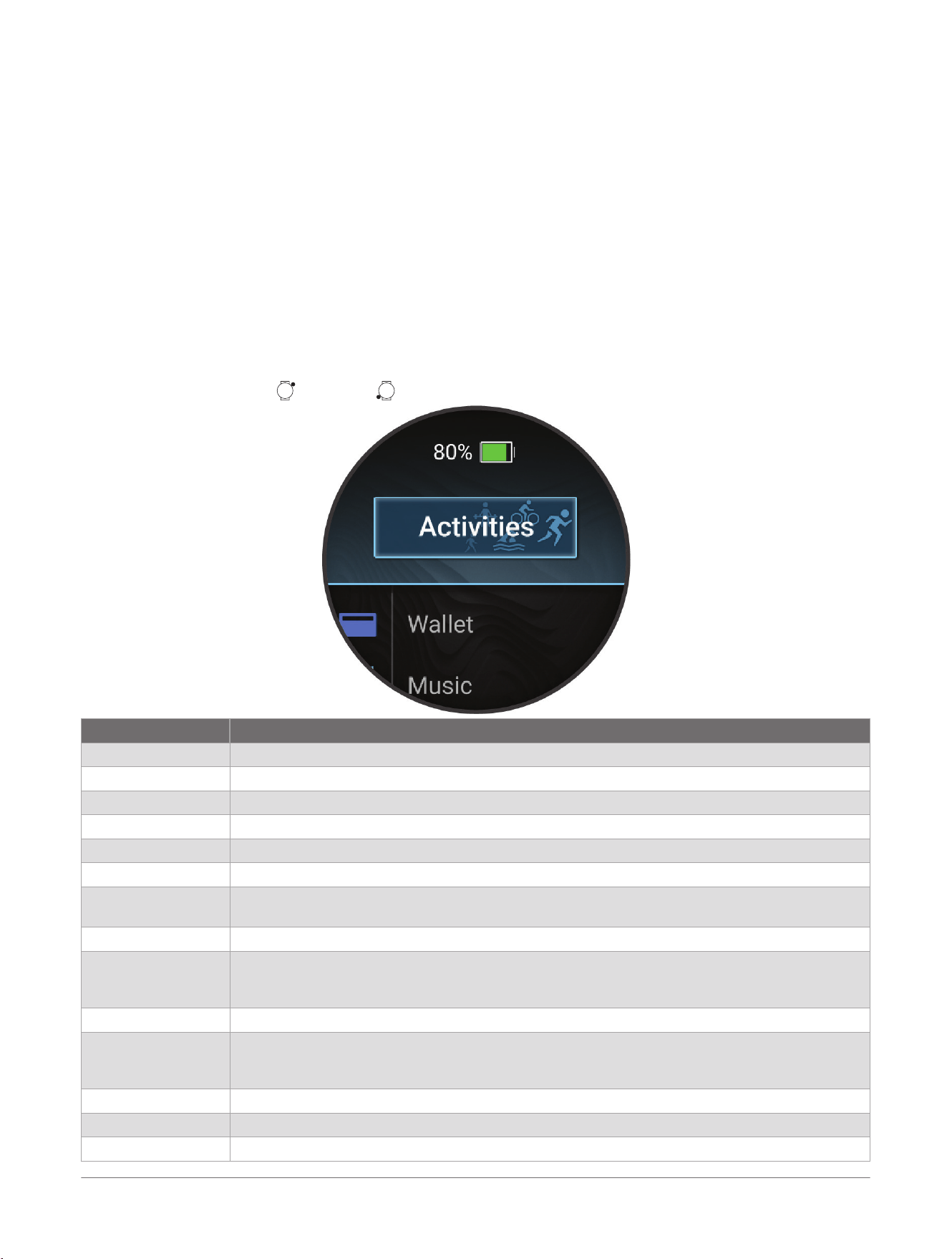
Apps
You can customize your watch using the apps menu, which lets you quickly access watch features and options.
Some apps require a Bluetooth
®
connection to a compatible phone. Many apps can also be found in the glances
(Glances, page74) or controls (Controls, page70).
From the watch face, press , and press to scroll through the apps.
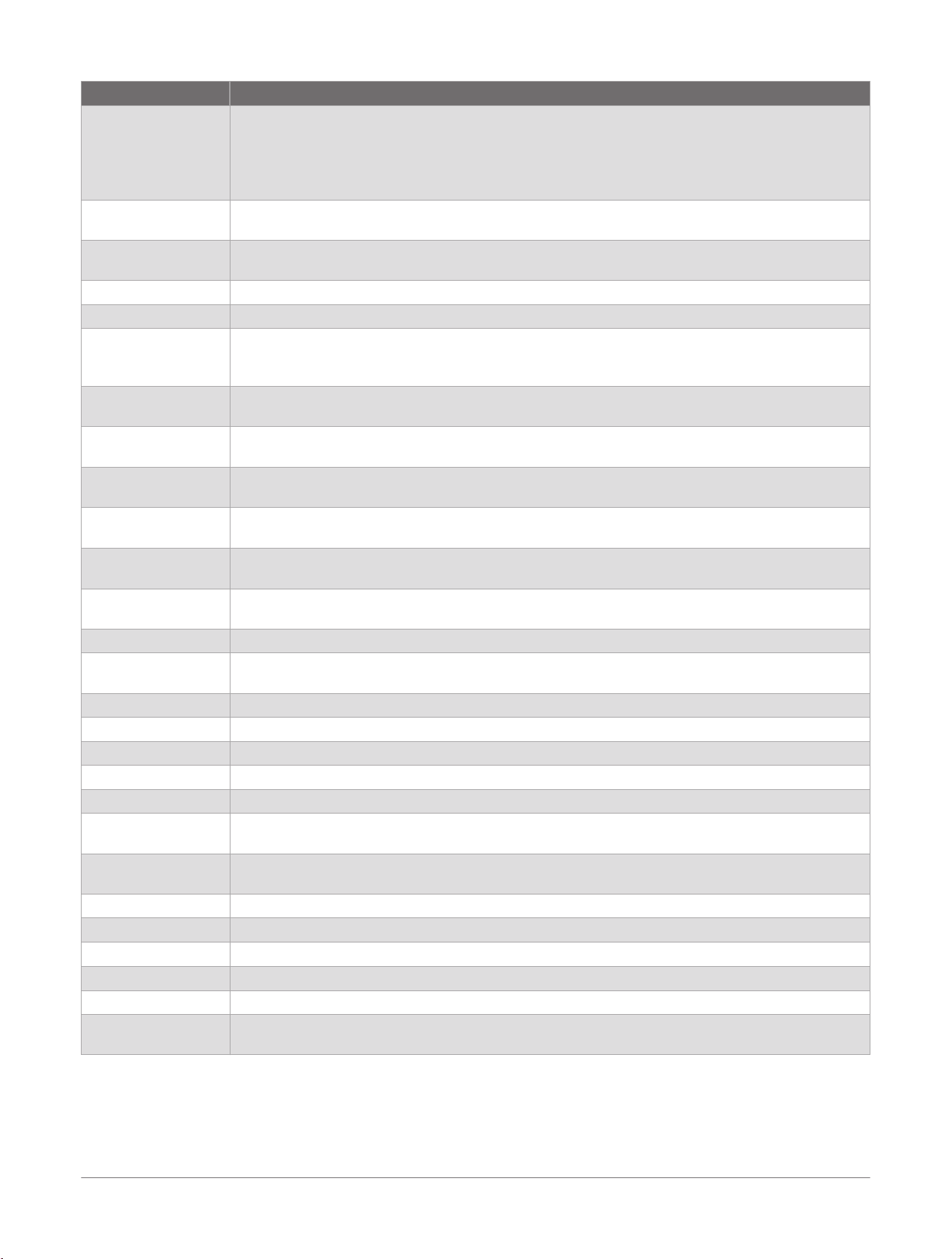
Name More Information
ABC Select to view combined altimeter, barometer, and compass information.
Anchor Select to mark an anchor location (Marking Your Anchor Location, page28).
Applied Ballistics
®
Select to view aiming solutions for long-range rifle shooting (Applied Ballistics
®
, page19).
Broadcast Heart Rate Select to broadcast heart rate data to a paired device (Broadcasting Heart Rate Data, page120).
Calculator Select to use the calculator, including the tip calculator.
Calendar Select to view upcoming events from your phone calendar.
Clocks Select to set an alarm, timer, stopwatch, alternate time zone, or countdown event (Clocks,
page90).
Connect IQ
™
Select to use the Connect IQ Store on your watch (Connect IQ Features, page114).
Fish Forecast Select to display predictions for the best days and times for fishing based on your location, the
moon's position, and the moon rise and set times. You can view the rating for the day and major
and minor feeding times.
Garmin Share Select to send or receive data with other Garmin
®
devices (Garmin Share, page111).
Health Snapshot
™
Select to record several key health metrics, such as your average heart rate, stress level, and
respiration rate, while you hold still for two minutes. It provides a glimpse of your overall
cardiovascular status.
History Select to view your recorded activity history, records, and totals (Using History, page94).
Map Select to view the map (Viewing the Map, page124).
Map Manager Select to view and manage downloaded maps (Managing Maps, page125).
Apps and Activities D2™ Mach 2 Series Aviator Smartwatch
Owner's Manual
9
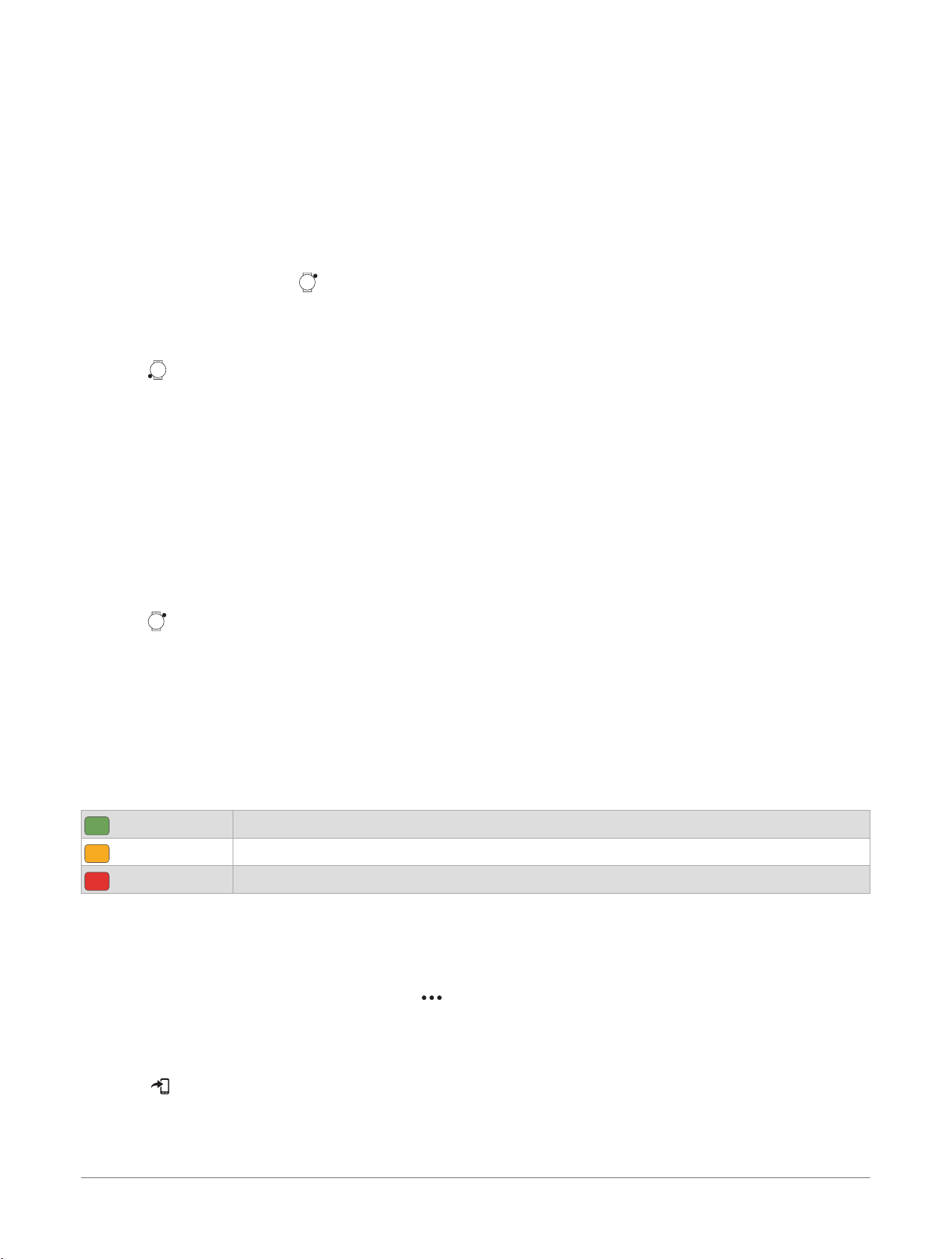
Name More Information
Messenger
Select to view and send messages using the Garmin Messenger
™
phone app (Using the
Messenger App, page16).
On a D2
™
Mach 2 Pro watch with an active inReach
®
service plan, you can use the watch's LTE or
communication satellite connection to send messages, send check-in messages, or check for
new messages.
Messenger Calls On a D2 Mach 2 Pro watch with an active inReach service plan, select to view call history or
make a voice call (Calling from the Messenger Calls App, page17).
Moon Phase Select to view the moonrise and moonset times, along with the moon phase, based on your GPS
position.
Music Select to control audio playback using your watch (Listening to Music, page136).
Notifications Select to view your phone notifications (Viewing Notifications, page107).
Nutrition Select to track your daily nutrition, including calories and macronutrients. You can also log your
food intake. You must have an active Garmin Connect+
™
subscription to track and view your
nutrition (Garmin Connect+
™
Subscription, page113).
Personal Minimums Select to set and view alerts for aviation visibility and weather conditions (Setting Personal
Minimum Alerts, page18).
Phone Select to open the phone controls, such as contacts and the dial pad (Calling from the Phone
App, page106).
Phone Assistant Select to speak a command for your phone's voice assistant (Using the Phone Assistant,
page106).
Plan Dive Select to calculate the maximum operating depth, breathing gas, or no decompression limit
time for a dive (Dive Planning, page26).
PLANESYNC
™
Select to view avionics data from your connected aircraft (Viewing PLANESYNC
™
Data,
page19).
Project Wpt. Select to save a new location by projecting the distance and bearing from your current location
(Projecting a Waypoint, page131).
Pulse Ox Select to take a pulse oximeter reading (Pulse Oximeter, page120).
Reference Point Select to set a reference point to provide the heading and distance to a location or bearing
(Setting a Reference Point, page131).
Saved Select to view your saved locations, courses, and waypoints (Using the Saved App, page14).
Settings Select to open the settings menu.
Sports Scores Select to track college or professional sports teams with scores and live data.
Sunrise & Sunset Select to view sunrise, sunset, and twilight times.
Tides Select to view tide information for a location (Viewing Tide Information, page27).
Tips Select to view interactive watch tips and scan a direct link to support.garmin.com to access the
owner's manual for your watch.
Trolling Motor Select to use your watch as a remote control for a Garmin trolling motor (Pairing Your Watch
and Trolling Motor, page28).
Voice Command Select to speak a command for your watch to perform (Using Voice Commands, page15).
Voice Notes Select to record a voice note (Recording a Voice Note, page14).
Wallet
Select to open your GarminPay
™
wallet (GarminPay
™
, page17).
Weather Select to view the current weather forecast and conditions.
Workouts Select to view your saved workouts (Workouts, page10).
Xero Chronograph Select to access Xero
®
chronograph session controls and view ballistics data (Using the Xero
®
Chronograph App, page26).
Workouts
You can create custom workouts that include goals for each workout step and for varied distances, times, and
calories. During your activity, you can view workout-specific data screens that contain workout step information,
such as the workout step distance or current pace.
10
D2™ Mach 2 Series Aviator Smartwatch
Owner's Manual
Apps and Activities
On your watch: You can open the workouts app from the apps list to show all workouts currently loaded on your
watch (Apps and Activities, page9).
You can also view your workout history.
On the app: You can create and find more workouts, or select a training plan that has built-in workouts and
transfer them to your watch (Following a Workout From Garmin Connect
™
, page11).
You can schedule workouts.
You can update and edit your current workouts.
Starting a Workout
Your device can guide you through multiple steps in a workout.
1 From the watch face, press .
TIP: If you already have a scheduled or suggested workout for today, you can scroll down and select
Workouts.
2 Select Activities, and select an activity.
3 Press , and select Training.
4 Select an option:
● To start an interval workout or a workout with a training target, select Quick Workout (Starting an Interval
Workout, page12, Setting a Training Target, page13).
● To start a preloaded or saved workout, select Workout Library (Following a Workout From Garmin
Connect
™
, page11).
●
To start a scheduled workout from your Garmin Connect
™
training calendar, select Training Calendar
(About the Training Calendar, page14).
NOTE: Not all options are available for all activity types.
5 Select a workout.
NOTE: Only workouts that are compatible with the selected activity appear in the list.
6 If necessary, select Do Workout.
7 Press to start the activity timer.
After you begin a workout, the device displays each step of the workout, step notes (optional), the target
(optional), and the current workout data. For strength, yoga, cardio, or Pilates activities, an instructional
animation appears.
Workout Execution Score
After you complete a workout, the watch displays your workout execution score based on how accurately you
completed the workout. The active workout steps are prioritized the highest, measuring how closely your effort
level matches the step target, and also that you completed all the steps. Warm up and recovery steps have a
lower impact on your score. The cool down step does not impact your workout execution score at all.
Your workout execution score appears only for running or cycling workouts.
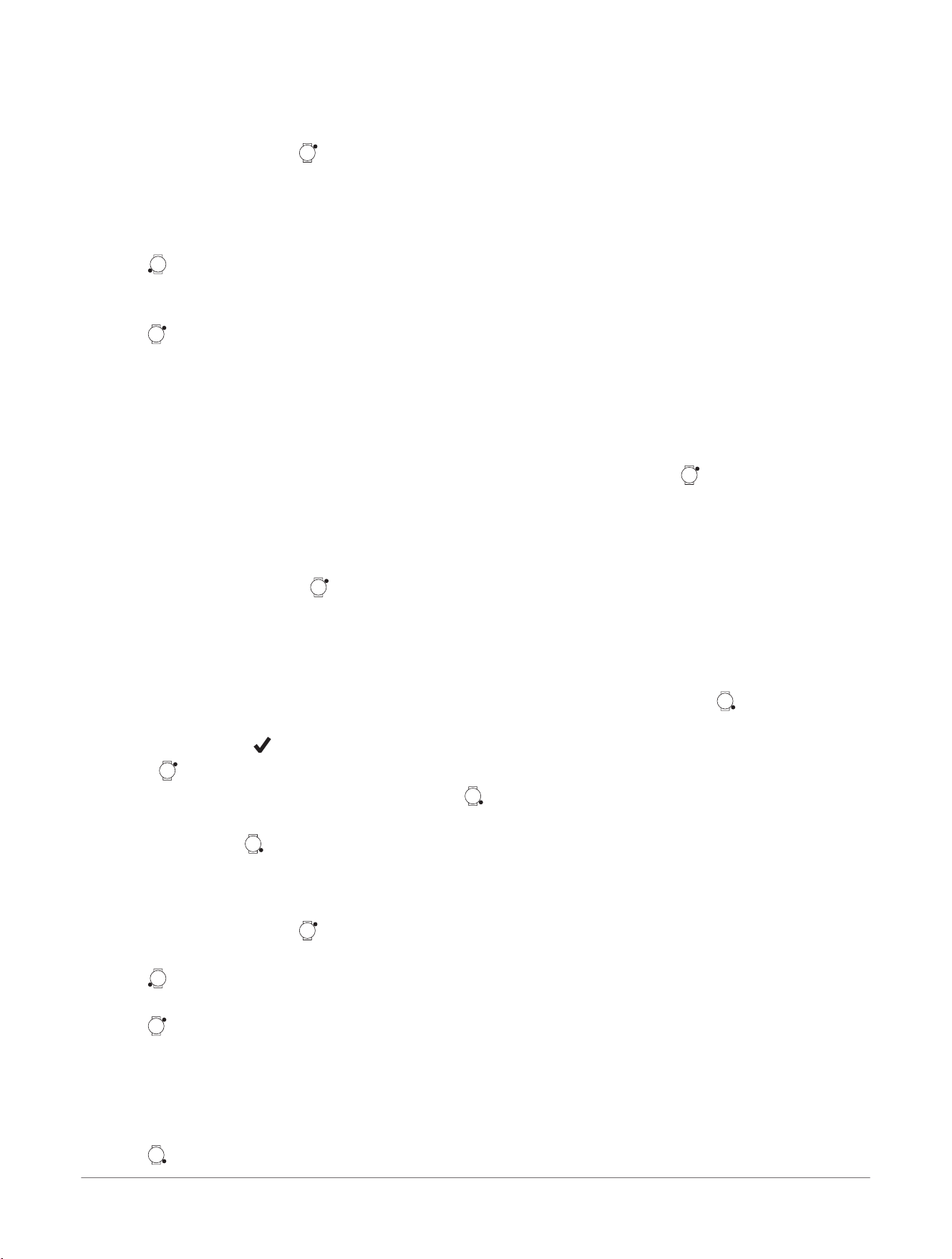
Good, 67 to 100%
Average, 34 to 66%
Low, 0 to 33%
Following a Workout From Garmin Connect
™
Before you can download a workout from Garmin Connect, you must have a Garmin Connect account (Garmin
Connect
™
, page112).
1 Select an option:
● Open the Garmin Connect app, and select .
● Go to connect.garmin.com.
2 Select Training & Planning> Workouts.
3 Find a workout, or create and save a new workout.
4 Select or Send to Device.
5 Follow the on-screen instructions.
Apps and Activities
D2™ Mach 2 Series Aviator Smartwatch
Owner's Manual
11
Following a Daily Suggested Workout
Before the watch can suggest a daily run or bike workout, you must have a VO2 max. estimate for that activity
(About VO2 Max. Estimates, page78).
1 From the watch face, press .
2 Select Activities.
3 Select an option:
● Select Running, and select an activity.
● Select Cycling, and select an activity.
4 Press , and select the daily suggested workout.
No suggested workout appears if you have a scheduled rest day, or are following another training plan.
5 Scroll down to view details about the workout, such as the steps and estimated benefit.
6 Press , and select an option:
● To do the workout, select Do Workout.
● To skip the workout, select Dismiss.
● To view workout suggestions for the upcoming week, select More Suggestions.
● To view the workout settings, such as training days, target type, and workout prompts, select Settings,
and select an option.
TIP: If you disable the Workout Prompt option, you can enable prompts again later. From the activity,
select Training> Workout Library> Daily Suggestions, select a workout, press , and select Settings>
Workout Prompt.
The suggested workout updates automatically to changes in training habits, recovery time, and VO2 max.
Starting an Interval Workout
NOTE: This feature is not available for all activities.
1 From the watch face, press .
2 Select Activities, and select an activity.
3 Scroll down.
4 Select Training> Quick Workout> Intervals.
5 Select an option:
● Select Open Repeats to mark your intervals and rest periods manually by pressing .
● Select Structured Repeats> Do Workout to use an interval workout based on distance or time.
6 If necessary, select to include a warm up before the workout.
7 Press to start the activity timer.
8 When your interval workout has a warm up, press to begin the first interval.
9 Follow the on-screen instructions.
10 At any time, press to stop the current interval or rest period and transition to the next interval or rest
period (optional).
After you complete all of the intervals, a message appears.
Customizing an Interval Workout
1 From the watch face, press .
2 Select Activities, and select an activity.
3 Press .
4 Select Training> Quick Workout> Intervals> Structured Repeats.
5 Press , and select Edit Workout.
6 Select one or more options:
● To set the interval duration and type, select Interval.
● To set the rest duration and type, select Rest.
● To set the number of repetitions, select Repeat.
● To add an open-ended warm up to your workout, select Warm Up> On.
7 Press .
12
D2™ Mach 2 Series Aviator Smartwatch
Owner's Manual
Apps and Activities
The watch saves your custom interval workout until you edit the workout again.
Recording a Critical Swim Speed Test
Your Critical Swim Speed (CSS) value is the result of a time-trial-based test expressed as a pace per 100 meters.
Your CSS is the theoretical speed you can maintain continuously without exhaustion. You can use your CSS to
guide your training pace and monitor your improvement.
1 From the watch face, press .
2 Select Activities> Swimming> Pool Swim.
3 Scroll down.
4 Select Training> Workout Library> Critical Swim Speed> Do Critical Swim Speed Test.
5 Scroll down to preview the workout steps (optional).
6 Press .
7 Press to start the activity timer.
8 Follow the on-screen instructions.
Using Virtual Partner
®
The Virtual Partner feature is a training tool designed to help you meet your goals. You can set a pace for the
Virtual Partner feature and race against it.
NOTE: This feature is not available for all activities.
1 From the watch face, press .
2 Select Activities, and select an activity.
3 Scroll down, and select the activity settings.
4 Select Data Screens> Add New> Virtual Partner.
5 Enter a pace or speed value.
NOTE: You can change the order of the data screens (optional).
6 Start your activity (Starting an Activity, page30).
7 Scroll to the Virtual Partner screen, and see who is leading.
Setting a Training Target
The training target feature works with the Virtual Partner
®
feature so you can train toward a set distance,
distance and time, distance and pace, or distance and speed goal. During your training activity, the watch gives
you real-time feedback about how close you are to achieving your training target.
1 From the watch face, press .
2 Select Activities, and select an activity.
3 Scroll down.
4 Select Training.
5 Select an option:
● Select Set a Target.
● Select Quick Workout.
NOTE: Not all options are available for all activity types.
6 Select an option:
● Select Intervals to select time- or distanced-based repeats.
● Select Distance and Time to select a distance and time target.
● Select Distance and Pace or Distance and Speed to select a distance and pace or speed target.
● Select Distance Only to select a preset distance or enter a custom distance.
7 Press to start the activity timer.
Racing a Previous Activity
You can race a previously recorded activity or a downloaded course activity time. This feature works with the
Virtual Partner
®
feature so you can see how far ahead or behind you are during the activity.
NOTE: This feature is not available for all activities.
1 From the watch face, press .
2 Select Activities, and select an activity.
3 Scroll down.
Apps and Activities
D2™ Mach 2 Series Aviator Smartwatch
Owner's Manual
13
4 Select Training> Race Yourself.
5 Select an option:
● Select From History to select a previously recorded activity from your device.
●
Select Downloaded to select a course you downloaded from your Garmin Connect
™
account.
6 Select the activity.
7 If necessary, press . and select Race.
8 Press to start the activity timer.
9 After you complete your activity, press , and select Save.
About the Training Calendar
The training calendar on your watch is an extension of the training calendar or schedule you set up in your
Garmin Connect
™
account. After you have added a few workouts to the Garmin Connect calendar, you can send
them to your device. All scheduled workouts sent to the device appear in the calendar glance. When you select
a day in the calendar, you can view or do the workout. The scheduled workout stays on your watch whether
you complete it or skip it. When you send scheduled workouts from Garmin Connect, they overwrite the existing
training calendar.
Adaptive Training Plans
Your Garmin Connect
™
account has an adaptive training plan and Garmin
®
coach to fit your training goals. For
example, you can answer a few questions and find a plan to help you complete a 5 km race. The plan adjusts
to your current level of fitness, coaching and schedule preferences, and race date. When you start a plan, the
Garmin coach glance is added to the glances list on your D2
™
Mach 2 watch.
Using the Saved App
You can use the saved app to view your saved locations and courses.
1 From the watch face, press .
2 Select Saved.
3 Select a saved item.
4 Select an option:
● To navigate to the location, select Go To.
● To navigate the course, select Do Course.
● To navigate the course in reverse, select More> Do Course in Reverse.
● To view location details, select More> Details.
● To edit the location or course details, select More> Edit.
● To view a list of ascents in the course, select More> View Climbs.
● To show the course on the map, even when you are not navigating, select More> Show on Map.
● To share the location or course with the Garmin Share feature, select More> Share (Garmin Share,
page111).
● To delete the location or course, select More> Delete.
Recording a Voice Note
You can record and listen to voice notes using your watch's built-in speaker and microphone.
1 Select an option:
● From the watch face, press .
● Hold .
2 Select Voice Notes.
3 Select .
4 Select an option:
● Select Location to save your GPS location with the voice note.
● Select Volume to adjust the speaker volume.
5 Select .
6 Say your voice note.
7 Select .
8 Select an option:
14
D2™ Mach 2 Series Aviator Smartwatch
Owner's Manual
Apps and Activities
● Select to play the voice note.
● Select to rename or delete the voice note.
● Press , and select to view your voice note library.
Using Voice Commands
1 Select an option:
● Hold and .
● From the watch face, press , and select Voice Command.
● Hold , and select Voice Command.
NOTE: You can customize the controls menu (Customizing the Controls Menu, page72).
2 Say a voice command for the watch to perform (Watch Voice Commands, page15).
Watch Voice Commands
The voice command system is designed to detect natural speech. This is a list of commonly used voice
commands, but the watch does not require these exact phrases. You can try saying variations of these
commands in a way that is natural to you. Go to garmin.com/voicecommand/tips for voice command tips
and troubleshooting information.
Voice Help Command Function
What can I say? Shows a list of common voice commands
Device and Screen Functions
Voice Command Function
Find my phone Plays an audible alert on your paired phone, if it is within Bluetooth
®
range.
Disable do not disturb Disables do not disturb mode to dim the screen and disable alerts and notifications.
Turn on airplane mode Enables airplane mode to turn off all wireless communications.
Increase brightness Raises the brightness level.
Decrease brightness Lowers the brightness level.
Set brightness to 80 Sets the brightness level to a specified percent. Available numbers are 0-100%.
Clock Functions
Voice Command Function
Set a timer for fifteen minutes Sets a countdown timer for the specified time.
Pause timer Pauses the currently running countdown timer.
Resume timer Resumes the paused countdown timer.
Cancel timer Cancels the currently running countdown timer.
Start stopwatch Starts the stopwatch.
Stop stopwatch Stops the stopwatch.
Wake me up at 3:15 a.m. Sets a one-time alarm for the specified time.
App and Activity Functions
Voice Command Function
Show me the weather Opens the weather app.
Open the calendar Opens the calendar app.
Start a run Starts a Run activity.
Start hiking Starts a Hike activity.
Open the triathlon app Starts a Triathlon activity.
Fly to {airport identifier} Starts a Fly activity and begins navigation to the airport. Use the NATO designa
tion when you speak the airport identifier.
Show the METAR at {airport identifier} Opens the weather app and shows the METAR information for the airport. Use
the NATO designation when you speak the airport identifier.
Apps and Activities D2™ Mach 2 Series Aviator Smartwatch
Owner's Manual
15
NOTE: The apps and activities listed are examples, but you can control all of the default apps and activities with
voice commands (Apps, page9, Activities, page29).
Navigation Functions
Voice Command Function
Begin navigation Opens the Navigate menu to navigate to a destination.
Save location Saves your current location.
Switch to the compass app Opens the compass.
Media Functions
Voice Command Function
Change volume to 8 Adjusts the volume to the specified level. Available numbers are 0-10 or 0-100%.
Increase volume Raises the audio volume.
Decrease volume Lowers the audio volume.
Play music Plays the currently selected media.
Next song Plays the next media track.
Previous song Plays the previous media track.
Pause music Pauses the currently playing media.
Mute Silences all audio.
Unmute Unsilences all audio.
Using the Messenger App
CAUTION
The non-satellite messaging features of the Garmin Messenger
™
app on your phone should not be solely relied
upon as a primary method to obtain emergency assistance.
NOTICE
To use the Messenger app, your D2
™
Mach 2 or D2 Mach 2 Pro watch without an active inReach
®
service
plan must be connected to the Garmin Messenger app on your compatible phone using Bluetooth
®
technology
(Garmin Messenger
™
App, page115).
The Messenger app on your watch allows you to view, compose, and reply to messages from the Garmin
Messenger app on your phone. On a D2 Mach 2 Pro watch with an active inReach service plan, you can use
the watch's LTE or satellite connection to send custom messages, send check-in messages, or check for new
messages.
1 Select an option:
● From the watch face, press .
● From the watch face, press .
● Hold .
2 Select Messenger.
3 If this is your first time using the Messenger feature, scan the QR code with your phone, and follow the
on-screen instructions to complete the pairing and setup process.
4 On your watch, select an option:
● To compose a new message, select , select a recipient, and either select a message from the list or
compose your own.
TIP: On a D2 Mach 2 Pro watch, you can select to record a voice message.
● To send a check-in message on a D2 Mach 2 Pro watch, select .
● To check for new messages on a D2 Mach 2 Pro watch, select .
● To view a conversation, scroll down, and select a conversation.
● To reply to a message, select a conversation, select Reply, and either select a message from the list or
compose your own.
TIP: On a D2 Mach 2 Pro watch, you can select Send My Location to send a message with your
location. You can select More> Include Location to select an option for including your location with your
messages.
16
D2™ Mach 2 Series Aviator Smartwatch
Owner's Manual
Apps and Activities
Calling from the Messenger Calls App
NOTICE
This feature is only available on a D2
™
Mach 2 Pro watch with an active inReach
®
service plan.
On a D2 Mach 2 Pro watch with an active inReach service plan, you can view your Messenger Calls call history
or make a voice call. If your paired phone is connected and in range, the call is made using the phone's LTE
connection. If your phone is not connected, the call is made using the watch's LTE connection.
1 Select an option:
● From the watch face, press , and select Messenger Calls.
● Hold , and select Messenger Calls.
2 Select an option:
● To call a contact from the Garmin Messenger
™
app contacts list on your phone, select , and select a
contact name.
● To call a recent Messenger Calls contact, scroll down, and select a contact name.
3 Wait while the call connects.
4 Swipe up for call options.
5 Select an option:
● To mute the watch microphone, select .
● To adjust the watch speaker volume, select .
● To send a text message through the Messenger app, select .
● To change the audio source from the watch to your connected headphones, select .
● To transfer the call from your watch to your connected phone, select .
6 Select to end the call.
GarminPay
™
The GarminPay feature allows you to use your watch to pay for purchases in participating locations using credit
or debit cards from a participating financial institution.
Setting Up Your GarminPay
™
Wallet
You can add one or more participating credit or debit cards to your GarminPay wallet. Go to garmin.com/
garminpay/banks to find participating financial institutions.
1 From the Garmin Connect
™
app, select .
2 Select Garmin Pay> Get Started.
3 Follow the on-screen instructions.
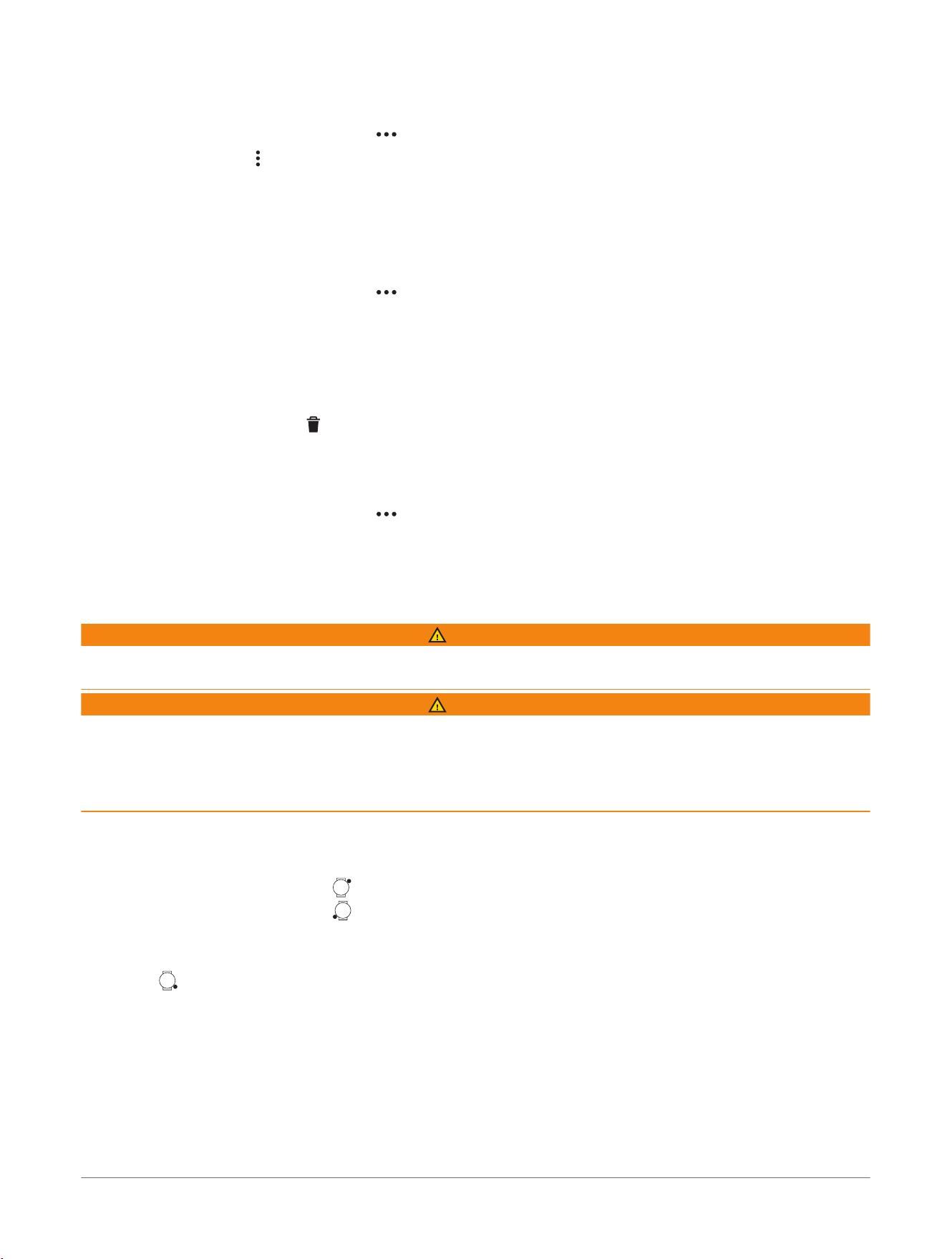
Paying for a Purchase Using Your Watch
Before you can use your watch to pay for purchases, you must set up at least one payment card.
You can use your watch to pay for purchases in a participating location.
1 Select an option:
● From the watch face, press .
● Hold .
2 Select Wallet.
3 Enter your four-digit passcode.
NOTE: If you enter your passcode incorrectly three times, your wallet locks, and you must reset your
passcode in the Garmin Connect
™
app.
Your most recently used payment card appears.
4 If you have added multiple cards to your GarminPay
™
wallet, press to change to another card (optional).
5 Within 60 seconds, hold your watch near the payment reader, with the watch facing the reader.
The watch vibrates and displays a check mark when it is finished communicating with the reader.
6 If necessary, follow the instructions on the card reader to complete the transaction.
TIP: After you successfully enter your passcode, you can make payments without a passcode for 24 hours while
you continue to wear your watch. If you remove the watch from your wrist or disable heart rate monitoring, you
must enter the passcode again before making a payment.
Apps and Activities
D2™ Mach 2 Series Aviator Smartwatch
Owner's Manual
17
Adding a Card to Your GarminPay
™
Wallet
You can add up to 10 credit or debit cards to your GarminPay wallet.
1 From the Garmin Connect
™
app, select .
2 Select Garmin Pay> > Add Card.
3 Follow the on-screen instructions.
After the card is added, you can select the card on your watch when you make a payment.
Managing Your GarminPay
™
Cards
You can temporarily suspend or delete a card.
NOTE: In some countries, participating financial institutions may restrict the GarminPay features.
1 From the Garmin Connect
™
app, select .
2 Select Garmin Pay.
3 Select a card.
4 Select an option:
● To temporarily suspend or unsuspend the card, select Suspend Card.
The card must be active to make purchases using your D2
™
Mach 2 watch.
● To delete the card, select .
Changing Your GarminPay
™
Passcode
You must know your current passcode to change it. If you forget your passcode, you must reset the GarminPay
feature for your D2
™
Mach 2 watch, create a new passcode, and reenter your card information.
1 From the Garmin Connect
™
app, select .
2 Select Garmin Pay> Change Passcode.
3 Follow the on-screen instructions.
The next time you pay using your D2 Mach 2 watch, you must enter the new passcode.
Setting Personal Minimum Alerts
WARNING
This watch is not intended to provide primary flight information and is to be used for supplemental purposes
only.
WARNING
This feature allows users to view weather data and set alerts for information that is provided and maintained
by third parties. Garmin
®
makes no representations about the accuracy, reliability, completeness, or timeliness
of weather data provided by third parties. It is your responsibility to review weather reports and conditions,
to remain aware of your surroundings, and to use safe judgment, especially during times of potential severe
weather.
You can set personal aviation visibility and weather condition threshold values, and create custom aviation
alerts based on your thresholds.
1 Select an option:
● From the watch face, press .
● From the watch face, press .
2 Select Personal Minimums> My Minimums.
3 Select an option, and enter a threshold value.
4 Press .
5 Select Alerts.
6 Select an option:
● Select the nearest airport from the list, and select Add Alert.
● Select Add Airport, and select an airport.
7 Select an alert type.
The alert threshold value populates with the value you set for My Minimums, if available. If you have not set
a personal minimum value, you can enter one.
8 If necessary, edit the threshold value or sound and vibration options.
18
D2™ Mach 2 Series Aviator Smartwatch
Owner's Manual
Apps and Activities
9 Select Save Alert.
10 Select Add Alert to add additional alerts for the airport, and repeat steps 7 through 9 (optional).
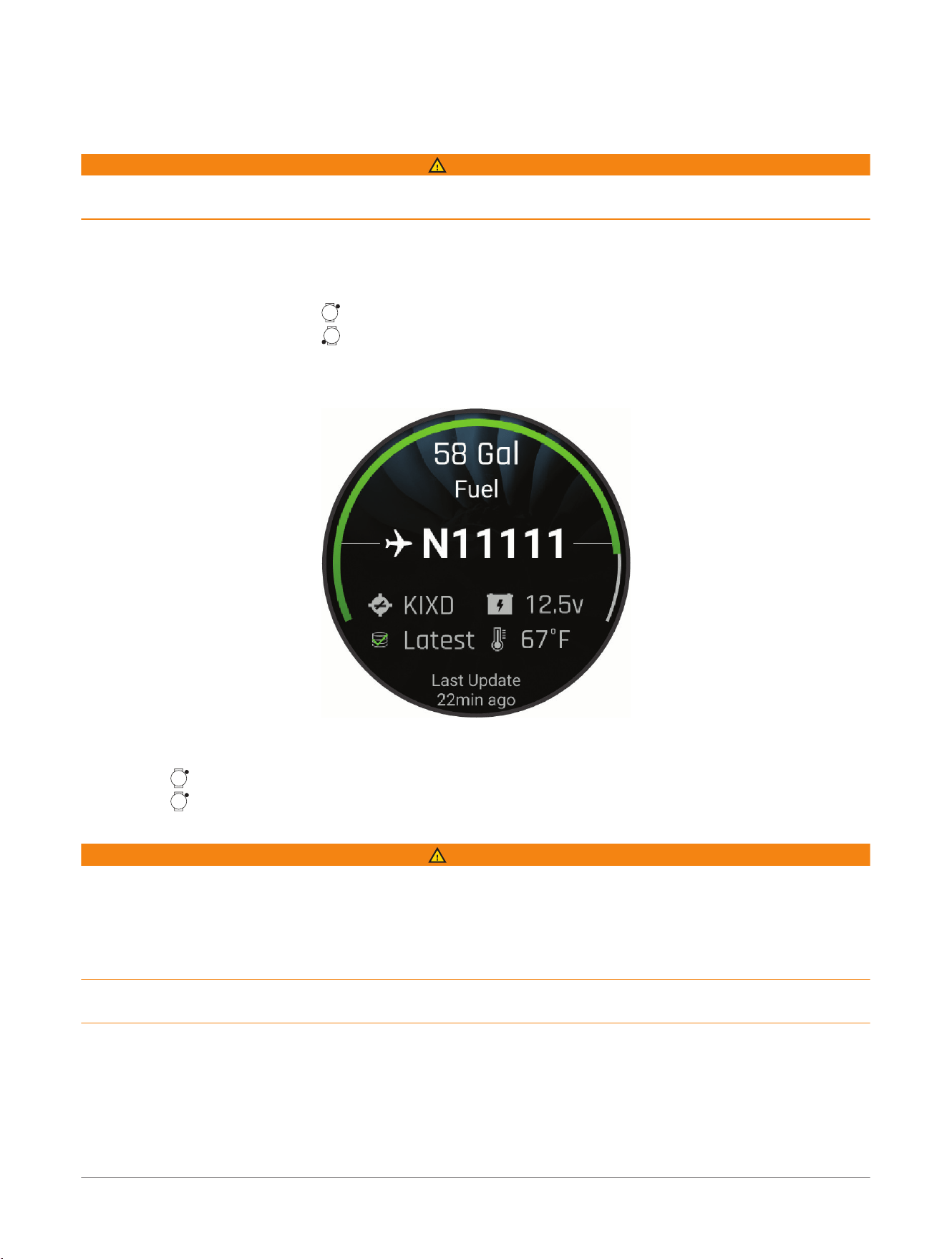
Viewing PLANESYNC
™
Data
WARNING
This watch is not intended to provide primary flight information and is to be used for supplemental purposes
only.
When you connect your watch, a compatible GDL
®
60 datalink, and an aircraft with an active PLANESYNC
subscription to your flyGarmin.com account, you can remotely view the aircraft status on your watch. Go to
buy.garmin.com for more information about compatible devices.
1 Select an option:
● From the watch face, press .
● From the watch face, press .
NOTE: You can customize the app list (Customizing the App List, page62) and glance list (Customizing the
Glances List, page76).
2 Select PlaneSync.
3 Select an option:
● Scroll down to view the aircraft status, location, and sensor data.
● Press , and select Sync with Aircraft to refresh the connection to the aircraft.
● Press , and select Show on Map to view the aircraft location on the map.
Applied Ballistics
®
WARNING
The Applied Ballistics feature is intended to provide accurate elevation and windage solutions based on gun and
bullet profiles and measurements of current conditions only. Depending on your environment, conditions may
change rapidly. Changes in environmental conditions, like wind gusts or downrange winds, may have an effect
on the accuracy of your shot. Elevation and windage solutions are suggestions only based upon your input into
the feature. Take readings often and carefully, and allow the readings to stabilize after significant changes in
environmental conditions. Always allow a margin of safety for changing conditions and reading errors.
Always understand your target and what lies beyond your target before taking a shot. Failure to account for your
shooting environment could cause property damage, injury, or death.
The Applied Ballistics feature offers customized aiming solutions for long-range shooting based on your
rifle characteristics, bullet characteristics, and various environmental conditions. You can enter parameters
including wind, temperature, humidity, range, and firing direction.
This feature provides the information you need to fire long-range projectiles, including elevation
holdover, windage, and time of flight. It also includes custom drag models for your bullet type. Go to
appliedballisticsllc.com for more details about this feature. See the Applied Ballistics
®
Glossary of Terms,
page23 for descriptions of the terms and data fields.
Apps and Activities
D2™ Mach 2 Series Aviator Smartwatch
Owner's Manual
19
NOTE: You may need to upgrade the ballistic solver in the Applied Ballistics Quantum
™
app to unlock all Applied
Ballistics features (Applied Ballistics Quantum
™
App, page20).
Applied Ballistics Quantum
™
App
The Applied Ballistics Quantum app allows you to manage ballistic profiles on your D2
™
device, or upgrade your
ballistic solver, if necessary. You can download the Applied Ballistics Quantum app from the app store on your
phone.
Applied Ballistics
®
Options
From the watch face, press , select Applied Ballistics, and press .
Quick Edit: Sets the range, direction of fire, and wind information (Quickly Editing Shooting Conditions,
page20).
Range Card: Displays data for various ranges based on user input parameters. You can change fields
(Customizing the Range Card Fields, page20), edit the range increment (Editing the Range Increment,
page21), and set the base range (Setting the Base Range, page21).
Target Card: Sets the long-range shooting conditions for your current target, including range, elevation, and
windage (Editing the Target, page21). You can change the selected target and customize conditions for up
to 26 targets (Changing the Target, page21).
Environment: Sets the atmospheric conditions for your current environment. You can enter custom values, use
the pressure and latitude values from the internal sensor in the device, or values from a connected wireless
sensor (Environment, page21).
Profile: Sets the bullet, gun, and scope properties for your current profile (Editing a Profile, page22). You can
change the selected profile
(Selecting a Different Profile, page22) and add additional profiles (Adding a
Profile, page22).
Change Fields: Customizes the data fields on the profile data screen (Customizing the Profile Data Screen,
page22).
Settings: Sets the units of measure, decimal place precision, target labels, and fire control options for windage
and elevation.
Quickly Editing Shooting Conditions
You can edit the range, direction of fire, and wind information.
1 From the Applied Ballistics
®
app, press .
2 Select Quick Edit.
TIP: You can press or to edit each value, and press to move to the next field.
3 Set the RNG value to the target distance.
4 Set the DOF value to your actual direction of fire.
TIP: To use the compass to set the direction of fire, you can press , then point the top of the device toward
the target, and press to select the current compass value.
5 Set the W 1 value to the low wind speed.
6 Set the W 2 value to the high wind speed.
7 Set the DIR value to the direction the wind is coming from.
8 Press to save your settings.
Range Card
Customizing the Range Card Fields
1 From the Applied Ballistics
®
app, press .
2 Select Range Card.
3 Press , and select Change Fields.
4 Press or to change the field.
5 Press to select the field to customize.
6 Select a field.
7 Press to save your changes.
20
D2™ Mach 2 Series Aviator Smartwatch
Owner's Manual
Apps and Activities
Editing the Range Increment
1 From the Applied Ballistics
®
app, press .
2 Select Range Card.
3 Press , and select Range Increment.
4 Enter a value.
Setting the Base Range
1 From the Applied Ballistics
®
app, press .
2 Select Range Card.
3 Press , and select Base Range.
4 Enter a value.
Target Card
Adding a Target
You can add up to 26 targets.
1 From the Applied Ballistics
®
app, press .
2 Select Target Card> Add.
The new target appears at the bottom of the list.
Editing the Target
1 From the Applied Ballistics
®
app, press .
2 Select Target Card.
3 Select a target.
4 Select an option to edit.
Changing the Target
1 From the Applied Ballistics
®
app, press .
2 Select Target Card.
3 Select a target.
4 Select Set as current.
Setting the Target Location Using GPS
1 While at the target location, hold , and select Save Location.
2 Wait while the watch locates satellites.
3 Save the target location.
4 Go to the firing location.
5 From the Applied Ballistics
®
app, press .
6 Select Target Card.
7 Select a target.
8 Select Use Saved Location Data.
9 Wait while the watch locates satellites.
10 Select the target location.
Environment
Editing the Environment
1 From the Applied Ballistics app, press .
2 Select Environment.
3 Select an option to edit.
Enabling Auto Update
You can use the auto update feature to update the latitude and pressure values automatically. When connected
to a wireless sensor, such as a temperature sensor or weather meter, the other environment fields also update
(Pairing Your Wireless Sensors, page103). The values update every minute.
1 From the Applied Ballistics
®
app, press .
Apps and Activities
D2™ Mach 2 Series Aviator Smartwatch
Owner's Manual
21
2 Select Environment> Auto Update> On.
Profile
Adding a Profile
You can add a .pro file that contains profile information by creating it using the Applied Ballistics Quantum
™
app
and transferring the file to the AB folder on the device. You can also create a profile using your Garmin
®
device.
1 From the Applied Ballistics
®
app, press .
2 Select Profile.
3 Select an option:
● To create a brand new profile, select + Profile
● To create a new profile based on an existing profile, select the profile, select Copy, and enter a name.
Editing a Profile
1 From the Applied Ballistics
®
app, press .
2 Select Profile.
3 Select a profile.
4 If necessary, select Rename, and enter a name.
5 Select Properties.
6 Select an option:
NOTE: Some options only appear when you enable the Advanced Settings option.
● To enter the bullet properties, select Bullet Data, and select an option.
TIP: You can select Bullet Library to automatically enter bullet properties from the Applied Ballistics
bullet database. If you manually enter the bullet properties, you can find the information on the bullet
manufacturer's website.
● To enter the gun properties, select Gun Data, and select an option.
● To enter the scope properties, select Scope, and select an option.
● To calibrate the muzzle velocity to provide a more accurate solution in the supersonic range for your
firearm, select Calibrate Muzzle Velocity, select an option, and select Apply.
● To calibrate the custom drag factor, select Calibrate Custom Drag Factor, select an option, and select
Apply.
● To edit the muzzle velocity temperature table, select MV Temp Table, press , select Edit, and select a
value to edit.
NOTE: If necessary, you can select Clear MV-Temp to reset the muzzle velocity temperature table back to
the default values.
● To calibrate the drop scale factor to provide a more accurate solution at or beyond the transonic range
for your firearm, select Drop Scale Factor> Calibrate DSF, select an option, and select Apply.
NOTE: Garmin
®
recommends you calibrate the muzzle velocity prior to the drop scale factor. After you
calibrate the drop scale factor, you can select View DSF Table to view the drop scale factor table. If
necessary, you can select Clear DSF Table to reset the drop scale factor table to the default values.
Deleting a Profile
NOTE: You cannot delete your current profile.
1 From the Applied Ballistics
®
app, press .
2 Select Profile.
3 Select a profile.
4 Select Delete.
Selecting a Different Profile
1 From the Applied Ballistics
®
app, press .
2 Select Profile.
3 Select a profile.
4 Select Set as current.
Customizing the Profile Data Screen
1 During an Applied Ballistics
®
activity, press to scroll to the profile data screen.
2 Press , and select Change Fields.
22
D2™ Mach 2 Series Aviator Smartwatch
Owner's Manual
Apps and Activities
3 Press or to scroll to a field.
4 Press to select the field to change.
5 Press or to scroll through the fields.
6 Select a field.
7 Press to save your changes.
Applied Ballistics
®
Glossary of Terms
Quick Edit Fields
DIR: The direction from which the wind is coming. For example, a 9:00 wind blows from your left to your right.
Input field.
DOF: The direction of fire, with north at 0 degrees and east at 90 degrees. Input field.
Elevation: The vertical portion of the aiming solution, displayed in inches, milliradians (mrad/mil), or minute of
angle (MOA).
RNG: The distance to the target, displayed in yards or meters. Input field.
W 1: The wind speed used in the shooting solution, displayed in miles per hour (mph), kilometers per hour
(km/h), or meters per second (m/s). Input field.
W 2: An optional, additional wind speed used in the shooting solution, displayed in miles per hour (mph),
kilometers per hour (km/h), or meters per second (m/s). Input field.
TIP: You can use two wind speeds to calculate a windage solution that contains a high and low value. The
actual windage to apply for the shot should fall in this range. Using both wind speed 1 and wind speed 2 is
not an effective way to account for different wind speeds at different distances between you and the target.
Windage 1: The horizontal portion of the aiming solution based on the wind speed 1 and wind direction,
displayed in inches, milliradians (mrad/mil), or minute of angle (MOA).
Windage 2: The horizontal portion of the aiming solution based on the wind speed 2 and wind direction,
displayed in inches, milliradians (mrad/mil), or minute of angle (MOA).
Range Card Fields
Bullet Drop: The total drop the bullet experiences along its flight path, displayed in inches or centimeters.
Elevation: The vertical portion of the aiming solution, displayed in inches, milliradians (mrad/mil), or minute of
angle (MOA).
H. Cor. Effect: The horizontal Coriolis effect. The horizontal Coriolis effect is the amount of the windage
solution attributed to the Coriolis effect. This is always calculated by the device, although the impact may be
minimal if you are not shooting at extended range.
Lead: The horizontal correction needed to hit a target moving left or right at a given speed.
TIP: When you enter the speed of your target, the device factors the necessary windage required into the total
windage value.
Remaining Energy: The remaining energy of the bullet at target impact, displayed in foot-pounds of force (ft. lbf)
or joules (J).
Spin Drift: The amount of the windage solution attributed to the spin drift (gyroscopic drift). For example, in the
northern hemisphere, a bullet shot out of a right-hand twist barrel will always deflect slightly to the right as it
travels.
Time of Flight: The time of flight, which indicates the time required for a bullet to reach its target at a given
range.
V. Cor. Effect: The vertical Coriolis effect. The vertical Coriolis effect is the amount of the elevation solution
attributed to the Coriolis effect. This is always calculated by the device, although the impact may be minimal
if you are not shooting at extended range.
Velocity: The estimated velocity of the bullet when it impacts the target.
Velocity Mach: The estimated velocity of the bullet when it impacts the target, displayed as a factor of mach
speed.
Windage 1: The horizontal portion of the aiming solution based on the wind speed 1 and wind direction,
displayed in inches, milliradians (mrad/mil), or minute of angle (MOA).
Windage 2: The horizontal portion of the aiming solution based on the wind speed 2 and wind direction,
displayed in inches, milliradians (mrad/mil), or minute of angle (MOA).
Target Card Fields
Direction of Fire: The direction of fire, with north at 0 degrees and east at 90 degrees. Input field.
Apps and Activities
D2™ Mach 2 Series Aviator Smartwatch
Owner's Manual
23

TIP: You can use the compass to set this value by pointing the top of the device toward the direction of fire.
The current compass value appears in the DOF field. You can press to use this value.
Inclination: The angle of inclination of the shot. A negative value indicates a downhill shot. A positive values
indicates an uphill shot. The shooting solution multiplies the vertical portion of the solution by the cosine of
the inclination angle to calculate the adjusted solution for an uphill or downhill shot. Input field.
Range: The distance to the target, displayed in yards or meters. Input field.
Speed: The speed of a moving target, displayed in miles per hour (mph), kilometers per hour (km/h), or meters
per second (m/s). A negative value indicates a target moving left. A positive value indicates a target moving
right. Input field.
Environment Fields
Direction: The direction from which the wind is coming. For example, a 9:00 wind blows from your left to your
right. Input field.
Humidity: The percentage of moisture in the air. Input field.
Latitude: The horizontal location on the Earth's surface. Negative values are below the equator. Positive values
are above the equator. This value is used to calculate the vertical and horizontal Coriolis drift. Input field.
TIP: You can select the Use Current Position option to use the GPS coordinates from your device.
NOTE: The Latitude is used only for calculating the Coriolis effect. If you are shooting at a target less than
1,000 yards away, this input field is optional.
Pressure: The ambient (station) pressure. Ambient pressure is not adjusted to represent sea level (barometric)
pressure. Ambient pressure is required for the ballistics shooting solution. Input field.
TIP: You can manually enter this value, or you can select the Use Current Pressure option to use the pressure
value from the internal sensor in the device.
Temperature: The temperature at your current location, displayed in Fahrenheit (F) or Celsius (C). Input field.
TIP: You can manually enter the temperature reading from a connected tempe
™
sensor or other temperature
source. This field does not automatically update when connected to a tempe sensor.
Wind Direction Mode: Sets the wind direction setting (Direction) relative to your direction of fire (Relative to
DOF) or relative to true north (True Wind Dir).
NOTE: When you are engaging multiple targets at different DOFs, the True Wind Dir option is useful because
you only have to adjust your DOF, and your wind direction remains the same.
Wind Speed 1: The wind speed used in the shooting solution, displayed in miles per hour (mph), kilometers per
hour (km/h), or meters per second (m/s). Input field.
Wind Speed 2: An optional, additional wind speed used in the shooting solution, displayed in miles per hour
(mph), kilometers per hour (km/h), or meters per second (m/s). Input field.
TIP: You can use two wind speeds to calculate a windage solution that contains a high and low value. The
actual windage to apply for the shot should fall in this range.
Profile Fields - Bullet Data
Ballistic Coefficient: The manufacturer's ballistic coefficient for your bullet. Input field.
Diameter: The bullet diameter, displayed in inches or centimeters. Input field.
NOTE: The diameter of the bullet may vary from the common name of the round. For example, a 300 Win
Mag is actually .308 inches in diameter.
Length: The length of the bullet, displayed in inches or centimeters. Input field.
Model: The G1 or G7 standard projectile models for drag curve. Input field.
NOTE: Most long range rifle bullets are closer to the G7 standard.
Weight: The bullet weight, displayed in grains (gr) or grams (g). Input field.
Profile Fields - Gun Data
Muzzle Velocity: The speed of the bullet as it leaves the muzzle, displayed in feet per second (f/s) or meters per
second (m/s). Input field.
NOTE: This field is required for accurate calculations by the shooting solution. If you calibrate the muzzle
velocity, this field may be updated automatically for a more accurate firing solution.
Sight Height: The distance from the center axis of the rifle barrel to the center axis of the scope, displayed in
inches or centimeters. Input field.
TIP: You can easily determine this value by measuring from the top of the bolt to the center of the windage
turret, and adding half of the diameter of the bolt.
Twist Direction: The direction that the rifling of your barrel spirals. Most rifles have a right-handed twist. Input
field.
24
D2™ Mach 2 Series Aviator Smartwatch
Owner's Manual
Apps and Activities

Twist Rate: The distance it takes for the rifling of your barrel to make one full rotation, displayed in inches or
centimeters. Rifle twist is often provided by the gun or barrel manufacturer. Input field.
Zero Range: The range at which the rifle was zeroed, displayed in yards or meters. Input field.
Profile Fields - Scope
Scope Units: The units of measure for your scope, displayed in inches, milliradians (mrad/mil), or minute of
angle (MOA). Input field.
Sight in Condition: The environmental conditions while sighting in your gun. These are optional modifications
recommended when sighting in your gun 300 yards and beyond. Toggle field.
SSF Elevation: A linear multiplier that accounts for vertical scaling. Not all rifle scopes track perfectly, so the
ballistics solution requires a correction to scale according to a particular rifle scope. For example, if a turret is
moved 10 mil but the impact is 9 mil, the sight scale is 0.9. Input field.
SSF Windage: A linear multiplier that accounts for horizontal scaling. Not all rifle scopes track perfectly, so the
ballistics solution requires a correction to scale according to a particular rifle scope. For example, if a turret is
moved 10 mil but the impact is 9 mil, the sight scale is 0.9. Input field.
Zero Height: An optional modification to impact elevation at zero range. This is often used when adding a
suppressor or using a subsonic load. For example, if you add a suppressor and your bullet impacts the target
1 inch higher than expected, your Zero Height is 1 inch. You must set this to zero when you remove the
suppressor. Input field.
Zero Humidity: The humidity while sighting in your gun. This is an optional modification recommended when
sighting in your gun at 300 yards and beyond. Input field.
Zero Offset: An optional modification to impact windage at zero range. This is often used when adding a
suppressor or using a subsonic load. For example, if you add a suppressor and your bullet impacts the target
1 inch to the left of the expected impact, your Zero Offset is -1 inch. You must set this to zero when you
remove the suppressor. Input field.
Zero Pressure: The ambient pressure while sighting in your gun. This is an optional modification recommended
when sighting in your gun at 300 yards and beyond. Input field.
Zero Temperature: The temperature while sighting in your gun. This is an optional modification recommended
when sighting in your gun at 300 yards and beyond. Input field.
Profile Fields - Calibrate Muzzle Velocity
Range: The distance from the muzzle to the target, displayed in yards or meters. Input field.
TIP: You should enter a value as close as possible to the range suggested in the shooting solution. This is the
range where the bullet slows to Mach 1.2 and begins to enter the transonic range.
True Drop: The actual distance the bullet falls while in flight to the target, displayed in milliradians (mrad/mil) or
minute of angle (MOA). Input field.
Profile Fields - Calibrate Custom Drag Factor
Range: The range from which you are shooting. Input field.
TIP: In most cases, the calibrated custom drag factor should not exceed a 10% correction.
True Drop: The actual distance the bullet falls when fired at a specific range, displayed in milliradians (mrad/
mil) or minute of angle (MOA). Input field.
Profile Fields - Calibrate Drop Scale Factor
Range: The range from which you are shooting. Input field.
TIP: This range should be within 90% of the recommended range suggested in the shooting solution. Values
that are less than 80% of the recommended range will not provide a valid adjustment.
True Drop: The actual distance the bullet falls when fired at a specific range, displayed in milliradians (mrad/
mil) or minute of angle (MOA). Input field.
Profile Data Screen Fields
Aero. Jump. Effect: The amount of the elevation solution attributed to aerodynamic jump. Aerodynamic jump is
the vertical deflection of the bullet due to a crosswind. Aerodynamic jump is calculated based on the wind
speed 1 value. If there is no crosswind component or wind value, this value is zero.
Bullet Drop: The total drop the bullet experiences along its flight path.
Cos. Incl. Ang.: The cosine of the inclination angle to the target.
Elevation: The vertical portion of the aiming solution, displayed in milliradians (mrad/mil) or minute of angle
(MOA).
H. Cor. Effect: The horizontal Coriolis effect. The horizontal Coriolis effect is the amount of the windage
solution attributed to the Coriolis effect. This is always calculated by the device, although the impact may be
minimal if you are not shooting at extended range.
Apps and Activities
D2™ Mach 2 Series Aviator Smartwatch
Owner's Manual
25
Lead: The horizontal correction needed to hit a target moving left or right at a given speed.
TIP: When you enter the speed of your target, the device factors the necessary windage required into the total
windage value.
Max. Ord.: The maximum ordinance, displayed in inches or centimeters. The maximum ordinance is the
maximum height above the axis of the barrel that a bullet will reach along its flight path.
Max. Ord. Range: The range at which the bullet will reach its maximum ordinance, displayed in yards or meters.
Remaining Energy: The remaining energy of the bullet at target impact, displayed in foot-pounds of force (ft. lbf)
or joules (J).
Spin Drift: The amount of the windage solution attributed to the spin drift (gyroscopic drift). For example, in the
northern hemisphere, a bullet shot out of a right-hand twist barrel will always deflect slightly to the right as it
travels.
Time of Flight: The time of flight, which indicates the time required for a bullet to reach its target at a given
range.
V. Cor. Effect: The vertical Coriolis effect. The vertical Coriolis effect is the amount of the elevation solution
attributed to the Coriolis effect. This is always calculated by the device, although the impact may be minimal
if you are not shooting at extended range.
Velocity: The estimated velocity of the bullet when it impacts the target, displayed in feet per second (f/s) or
meters per second (m/s).
Velocity Mach: The estimated velocity of the bullet when it impacts the target, displayed as a factor of mach
speed.
Windage 1: The horizontal portion of the aiming solution based on the wind speed 1 and wind direction,
displayed in inches, milliradians (mrad/mil), or minute of angle (MOA).
Windage 2: The horizontal portion of the aiming solution based on the wind speed 2 and wind direction,
displayed in inches, milliradians (mrad/mil), or minute of angle (MOA).
Using the Xero
®
Chronograph App
You can use your watch to view ballistics data during a Xero chronograph session and access session controls.
See your chronograph manual for more information about compatibility and how to use the chronograph.
1 Pair your watch and Xero chronograph (Pairing Your Wireless Sensors, page103).
2 From the watch face, press .
3 Select Xero Chronograph.
4 Wait while the watch and chronograph connect.
5 Select an option:
● On your watch, press , and select New Session.
● On your Xero chronograph, start a new session.
6 On either device, follow the on-screen instructions to select the weapon mode and weapon details.
7 During the session, use your watch to select an option:
● Press to view the shot list.
● Press to view the options menu.
Dive Planning
You can plan for future dives using your dive computer, such as calculating your breathing gas or no-
decompression limit (NDL) times.
Calculating NDL Time
You can calculate the no-decompression limit (NDL) time or maximum depth for a future dive. These
calculations are not saved or applied to your next dive.
1 Press .
2 Select Plan Dive> Compute NDL.
3 Select an option:
● To calculate NDL based on your current tissue load, select Diving Now.
● To calculate NDL based on your tissue load at a future time, select Enter Surf. Interval, and enter your
surface interval time.
4 Enter an oxygen percentage.
5 Select an option:
26
D2™ Mach 2 Series Aviator Smartwatch
Owner's Manual
Apps and Activities
● To calculate the NDL time, select Enter Depth, and enter the planned depth for your dive.
● To calculate the maximum depth, select Enter Time, and enter your planned dive time.
The NDL countdown clock, depth, and maximum operating depth (MOD) appear.
NOTE: If the planned depth exceeds the MOD of the dive computer or the breathing gas, a warning message
appears, and the gas MOD appears in red.
6 Press .
7 Select an option:
● To exit, select Done.
● To add intervals to your dive, select Add Repeat Dive, and follow the on-screen instructions.
Calculating Your Breathing Gas
You can calculate the PO2 value, oxygen percentage, or maximum depth for a dive by adjusting two of the three
values. The calculations are affected by the water type setting in the dive settings (Dive Settings, page54).
1 Press .
2 Select Plan Dive> Calculate Gas.
3 Press or , and select an option to calculate:
● Select PO2.
● Select O2%.
● Select Depth.
4 Press or to edit the first value.
5 Press , then press or to edit the second value.
As you edit the values, the device calculates an adjusted value for the highlighted option.
6 If necessary, press to calculate the value for a different option.
Viewing Tide Information
WARNING
Tide information is for information purposes only. It is your responsibility to heed all posted water-related
guidance, to remain aware of your surroundings, and to use safe judgment in, on, and around the water at all
times. Failure to heed this warning could result in serious personal injury or death.
You can view information about a tide station, including the tide height and when the next high and low tides will
occur. You can save up to ten tide stations.
1 From the watch face, press .
2 Select Tides.
3 Select an option:
● To use your current location when you are near a tide station, select Add> Current Location.
● To select a location on the map, select Add> Use Map.
● To enter the name of a city, select Add> City Search.
● To select a saved location, select Add> Saved Locations.
● To enter coordinates for a location, select Add> Coordinates.
A 24-hour tide chart appears for the current date with the current tide height
1
and information about the
next high and low tides
2
.
Apps and Activities
D2™ Mach 2 Series Aviator Smartwatch
Owner's Manual
27
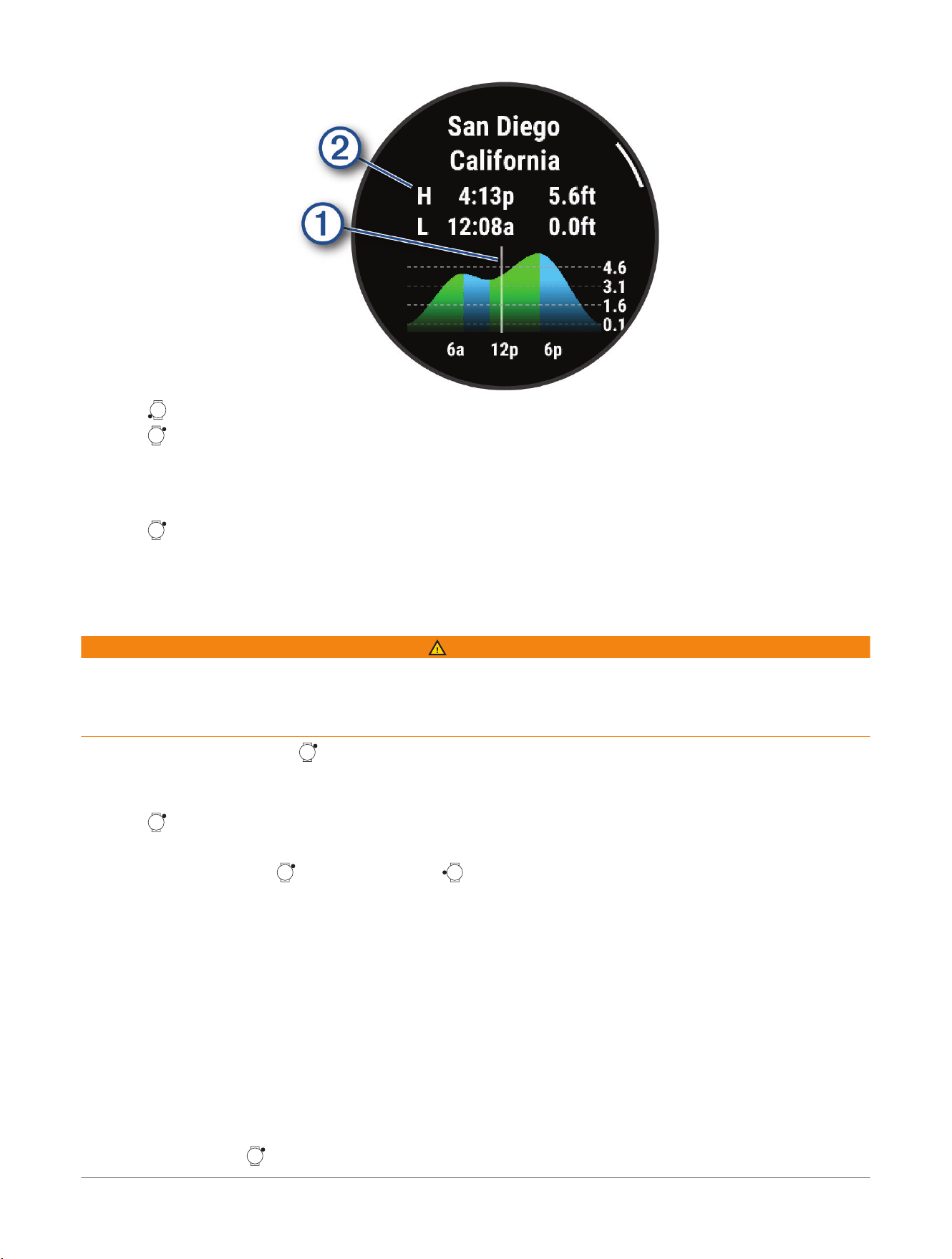
4 Press to see tide information for upcoming days.
5 Press , and select Set as Favorite to set this location as your favorite tide station.
Your favorite tide station appears at the top of the list in the app and in the glance.
Setting a Tide Alert
1 From the Tides app, select a saved tide station.
2 Press , and select Set Alerts.
3 Select an option:
● To set an alarm to sound before the peak tide, select Til High Tide.
● To set an alarm to sound before the low tide, select Til Low Tide.
Marking Your Anchor Location
WARNING
The anchor feature is a tool for situational awareness only and may not prevent groundings or collisions in all
circumstances. You are responsible for the safe and prudent operation of your vessel, for remaining aware of
your surroundings, and for using safe judgment on the water at all times. Failure to heed this warning could
result in property damage, serious personal injury, or death.
1 From the watch face, press .
2 Select Anchor.
3 Wait while the watch locates satellites.
4 Press , and select Drop Anchor.
Anchor Settings
From the watch face, press , select Anchor, hold , and select the app settings.
Drift Radius: Sets the allowable drift distance while anchored.
Update Interval: Sets the time interval for updating anchor data.
Anchor Alarm: Enables an alarm for when the boat moves beyond the drift radius.
Anchor Alarm Duration: Sets the anchor alarm duration. When the anchor alarm is enabled, an alert appears
each time the boat moves beyond the drift radius during the specified alarm duration.
Trolling Motor Remote
Pairing Your Watch and Trolling Motor
You can use your watch as a remote control for your paired Garmin
®
trolling motor. Once the devices are paired,
you can control the trolling motor using the Trolling Motor app, the Boat activity, or the Fish activity. For more
information about using a remote control, see your trolling motor owner's manual.
1 Turn on the trolling motor.
2 Bring the watch within 1m (3ft.) of the display panel on the trolling motor.
3 On the watch, press , and select Trolling Motor.
28
D2™ Mach 2 Series Aviator Smartwatch
Owner's Manual
Apps and Activities
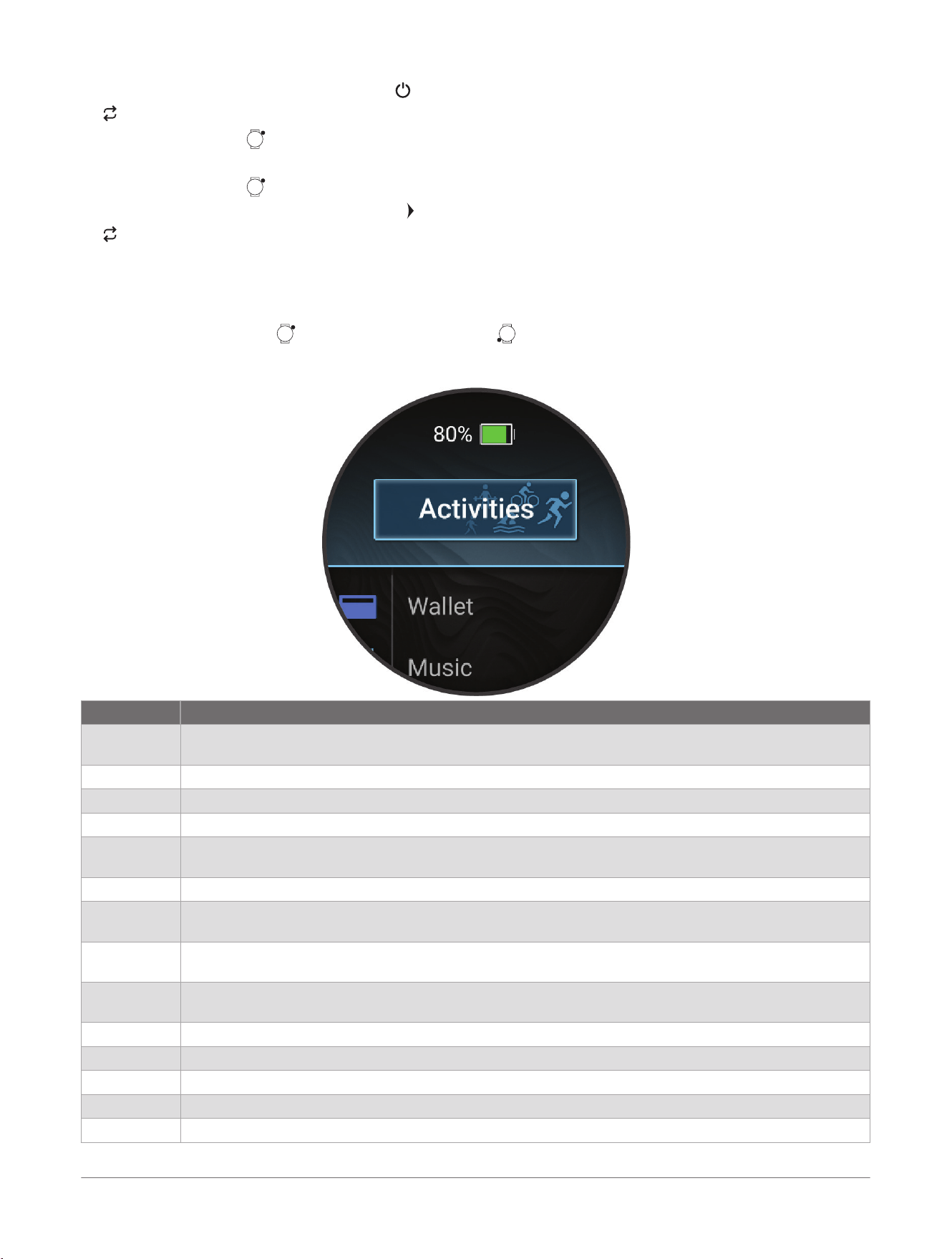
4 On the trolling motor display panel, press three times to enter pairing mode.
on the trolling motor display panel illuminates blue as it searches for a connection.
5 On the watch, press to enter pairing mode.
6 Verify that the passkey shown on your trolling motor remote control matches your watch.
7 On the watch, press to confirm the passkey.
8 On the trolling motor remote control, press to confirm the passkey.
on the trolling motor display panel illuminates green when the connection to your watch is successful.
TIP: If necessary, you can pair your watch with another trolling motor later from the Sensors & Accessories
menu (Pairing Your Wireless Sensors, page103).
Activities
From the watch face, press , select Activities, and press to scroll through the activities. Your favorite
activities list appears at the top of the list (Customizing Your Favorite Activities List, page62).
NOTE: Some activities appear in more than one category.
Category Activities
Outdoor Archery, Bouldering, Disc Golf, Expedition, Fish, Golf, Hike, Horseback, Hunt, Inline Skating, Mountaineer
ing, Rucking, Walk
Running Indoor Track, Run, Track Run, Trail Run, Treadmill, Obstacle Racing, Ultra Run, Virtual Run
Cycling Bike, Bike Commute, Bike Indoor, Bike Tour, BMX, Cyclocross, eBike, eMTB, Gravel Bike, MTB, Road Bike
Swimming Open Water, Pool Swim
Gym Boxing, Cardio, Climb Indoor, Elliptical, Floor Climb, HIIT, Jump Rope, Mixed Martial Arts, Mobility,
Pilates, Row Indoor, Stair Stepper, Strength, Walk Indoor, Yoga
Diving Apnea Dive, Scuba Dive, Snorkel
Winter Sports Backcountry Ski, Backcountry Snowboard, Ice Skating, Ski, Snowboard, Snowmobile, Snowshoe, XC
Classic Ski, XC Skate Ski
Water Sports Boat, Kayak, Kiteboard, Row, Sail, Sail Expedition, Sail Race, SUP, Surf, Tube, Wakeboard, Wakesurf,
Water Ski, Whitewater, Windsurf
Team Sports American Football, Baseball, Basketball, Cricket, Field Hockey, Ice Hockey, Lacrosse, Rugby, Soccer/
Football, Softball, Volleyball, Ultimate Disc
Racket Sports Badminton, Padel, Pickleball, Platform Tennis, Racquetball, Squash, Table Tennis, Tennis
Motorsports ATV, Motocross, Motorcycle, Overland
Multisport Mixed Session, Swimrun, Triathlon
Aviation Fly
Other Breathwork, Gaming, Jumpmaster, Meditation, Tactical, Tempo Training, Track Me
Apps and Activities D2™ Mach 2 Series Aviator Smartwatch
Owner's Manual
29
Starting an Activity
When you start an activity, GPSturns on automatically (if required).
1 From the watch face, press .
2 Select Activities.
3 Select an option:
● Select an activity from your favorites.
● Scroll to the More activities list, select an activity category, and select an activity.
4 If the activity requires GPS signals, go outside to an area with a clear view of the sky, and wait until the GPS
status bar is filled.
The watch is ready after it establishes your heart rate, acquires GPSsignals (if required), and connects to
your wireless sensors (if required).
5 Press to start the activity timer.
The watch records activity data only while the activity timer is running.
Tips for Recording Activities
● Charge the watch before starting an activity (Charging the Watch, page149).
● Press to record laps, start a new set or pose, or advance to the next workout step.
You can select to discard a lap for certain activities (How can I undo a lap button press?, page155).
● Press or to view additional data screens.
● Swipe up or down to view additional data screens.
TIP: You can swipe down from the top of the screen to unlock the touchscreen during an activity.
● Swipe right or left to view the music controls or activity settings.
● During an activity, hold , and select Change Sport to transition to a different activity type.
When your activity includes two or more sports, it is recorded as a multisport activity.
● Hold , select the activity settings, and select Power Mode to use a power mode to extend battery life
(Customizing Power Modes, page141).
GPS Status and Status Icons
For outdoor activities, the status bar turns green when GPS is ready. A flashing icon means the watch is
searching for a signal. A solid icon means the signal was found or the sensor is connected.
GPS GPS status
Battery status
Phone connection status
Wi‑Fi
®
technology status
LiveTrack status
GroupTrack status
LTE status
Heart rate status
Running Dynamics Pod status
Speed and cadence sensor status
Bike lights status
Bike radar status
Extended display mode status
Smart trainer status
Power meter status
tempe
™
sensor status
30 D2™ Mach 2 Series Aviator Smartwatch
Owner's Manual
Apps and Activities
Stopping an Activity
Not all options are available for all activity types.
1 Press .
2 Select an option:
● To resume your activity, select Resume.
● To switch to the next activity type during a Mixed Session activity, select Next Activity (Recording a Mixed
Session Activity, page48).
● To save the activity and view the details, select Save, and select an option.
NOTE: After you save the activity, you can enter self-evaluation data (Evaluating an Activity, page31).
● To suspend your activity and resume it at a later time, select Resume Later.
● To mark a lap, select Lap.
You can select to discard a lap for certain activities (How can I undo a lap button press?, page155).
● To navigate back to the starting point of your activity along the path you traveled, select Back to Start>
TracBack.
NOTE: This feature is available only for activities that use GPS.
● To navigate back to the starting point of your activity by the most direct path, select Back to Start>
Route.
NOTE: This feature is available only for activities that use GPS.
● To measure the difference between your heart rate at the end of the activity and your heart rate two
minutes later, select Recovery Heart Rate, and wait while the timer counts down (Recovery Heart Rate,
page84).
● To discard the activity, select Discard, and press .
NOTE: After stopping the activity, the watch saves it automatically after 30 minutes.
Evaluating an Activity
NOTE: This feature is not available for all activities.
You can customize the self-evaluation setting for certain activities (Activity Settings, page64).
1 After you complete an activity, select Save (Stopping an Activity, page31).
2 Select a number that corresponds with your perceived effort.
NOTE: You can select to skip the self evaluation.
3 Select how you felt during the activity.
You can view evaluations in the Garmin Connect
™
app.
Flying
WARNING
Do not use this watch as a primary means of navigation. See the Important Safety and Product Information
document in the product box for product warnings and other important information prior to use.
This watch is not intended to provide primary flight information and is to be used for supplemental purposes
only.
Starting a Flight
When you pair your watch with the Garmin Pilot
™
app, you can connect to compatible Connext
®
devices that
you have paired with the Garmin Pilot app (Connecting to the Garmin Pilot
™
App, page116). With Connext
connectivity, you can view avionics data during the flight (Connext
®
Avionics Connectivity, page116).
TIP: Using the Garmin Pilot app, you can create and transfer flight plans that you can follow on your watch
(Sending a Flight Plan to Your Watch, page34).
1 From the watch face, press .
2 Select Activities> Aviation> Fly.
3 Wait while the watch locates satellites.
4 If necessary, open the Garmin Pilot app and wait while your Connext devices connect.
appears on the watch screen, and some data fields show the avionics and sensor data.
NOTE: Your mobile device running the Garmin Pilot app must keep the app active throughout the flight. You
should enable the setting in the Garmin Pilot app that prevents the device from locking.
5 Press to start the activity timer.
Apps and Activities
D2™ Mach 2 Series Aviator Smartwatch
Owner's Manual
31
TIP: You can enable the Auto Fly option to start a Fly activity automatically (Activity Settings, page64).
6 Hold , and select Flight Timer to start a flight timer that is separate from the activity timer (optional).
The flight timer data screen appears in the data screen loop.
7 If necessary, press , select Nearest Airports, and select a location to view the weather, map, or navigate to
the location.
8 After you complete your activity, press , and select Stop Fly> Save.
Setting Aviation Alerts
1 From the watch face, press .
2 Select Activities> Aviation> Fly> In-flight Alerts.
3 Select an option:
● To receive an alert about the electronic systems of the connected aircraft, select Avionics Alerts.
● To receive an alert at a specified altitude, select Altitude Alert.
●
To receive a carbon monoxide alert from avionics with a connected GCO
™
sensor, select GCO Alerts.
● To receive an oxygen level alert at a specified cabin altitude, select O2 Alert.
● To receive a reminder to check the fuel tank after a specified time, select Fuel Tank Reminder.
● To receive an alert when you deviate from your course by a specified distance, select Cross Track Alert.
● To receive an alert when you reach a waypoint, select Appr. Waypoint.
NOTE: You can prevent all aviation alerts from appearing during a flight by selecting Inhibit All.
4 If necessary, select Active to turn on the alert.
5 If necessary, enter a value for the alert.
6 Select Vibe to enable vibration for the alert.
Setting the Barometric Pressure Manually
You can set the current barometric pressure manually to help improve the accuracy of the pressure altitude
reading.
1 From the watch face, press .
2 Select Activities> Fly.
3 Select the activity settings.
4 Select Altimeter Settings> Barometer> Manual.
5 Select an option:
● To use the standard barometric pressure at sea level, select Set to STD.
● To use the barometric pressure at your current elevation, select Sync to Elevation.
● To use the current local barometric pressure from your watch, select Sync to Device.
● To set the units of measure, select Pressure.
Horizontal Situation Indicator
WARNING
This watch is not intended to provide primary flight information and is to be used for supplemental purposes
only.
32
D2™ Mach 2 Series Aviator Smartwatch
Owner's Manual
Apps and Activities
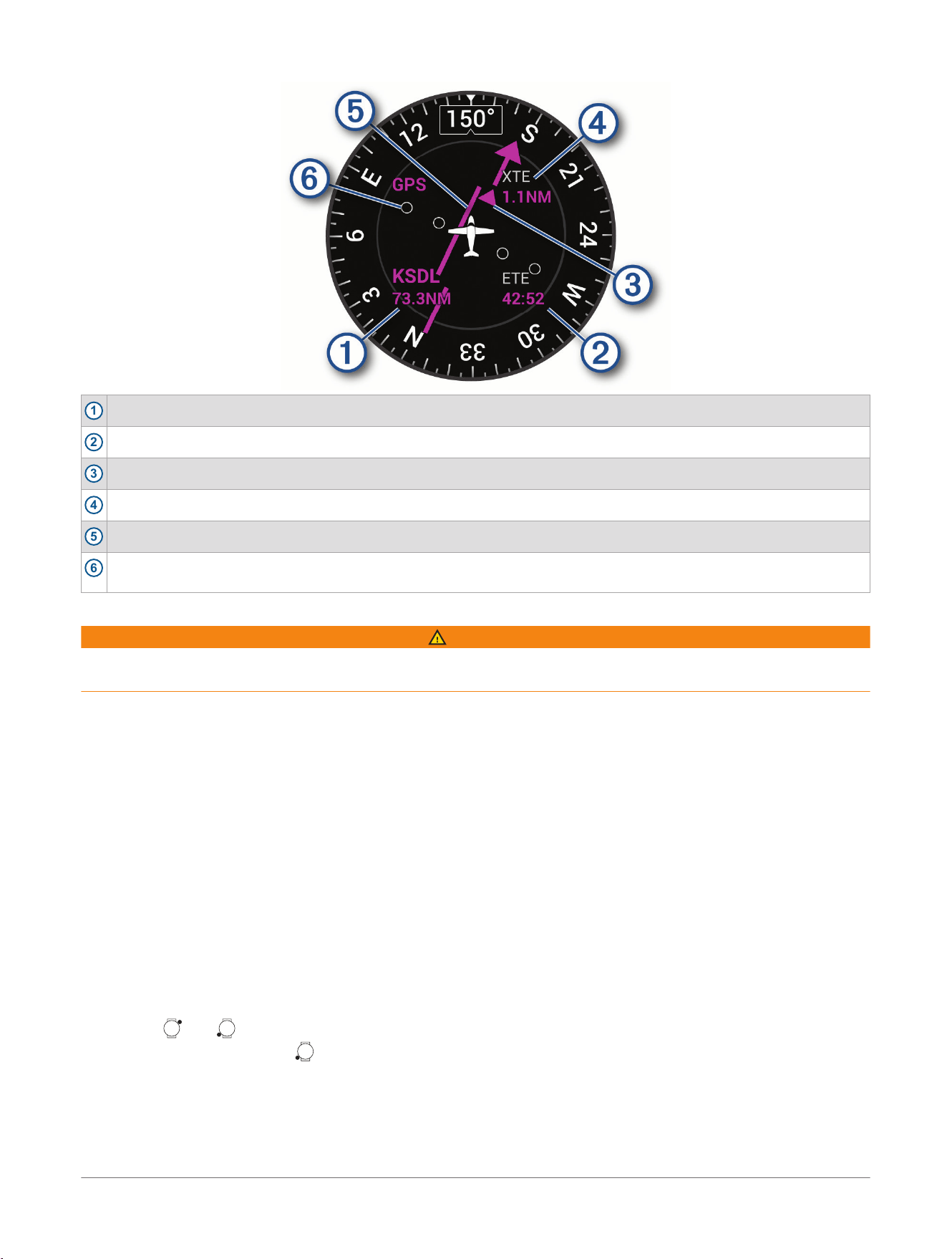
1
Destination airport identifier and distance.
2
Estimated time en route (ETE).
3
To-and-from indicator. Indicates whether you are headed toward or away from the waypoint.
4
Cross-track distance.
5
Course deviation indicator (CDI). Indicates the location of the desired course line in relation to your location.
6
Course deviation distance. The dots indicate your distance off course. The maximum of two dots equals 2.5
nautical miles.
Viewing Your SpO2 Readings in Flight
WARNING
The SpO2 readings are intended for supplemental information only. Always defer to applicable flight
instruments for primary awareness.
The watch has a wrist-based pulse oximeter to gauge the saturation of oxygen in your blood (SpO2). Knowing
your oxygen saturation can help you determine how your body is adjusting to high altitudes. As your altitude
increases, the level of oxygen in your blood can decrease. During a flight, the watch automatically takes pulse
oximeter readings more frequently, so you can monitor your SpO2 percentage.
TIP: You can improve the accuracy of your SpO2 readings by turning on the All Day pulse oximeter mode
(Setting the Pulse Oximeter Mode, page121).
1 Start a Fly activity.
Your most recent reading appears as an oxygen saturation percentage and position on the color gauge.
NOTE: If you are too active for the watch to determine your oxygen saturation, dashes appear instead of a
percentage. You should remain stationary for up to 30 seconds while the watch reads your blood oxygen
saturation.
2 If necessary, scroll up or down to view the pilot health data screen with hourly pulse oximeter trends.
Viewing the NEXRAD Weather Radar Map
When you pair your watch with your phone, you can view the NEXRAD weather radar map and nearest aviation
waypoints for your current location.
Select an option:
● Hold and .
● From watch face, press to view the weather glance, select the glance, and scroll to the map.
Flight Navigation
You can use the direct-to navigation feature to navigate directly to an airport or waypoint, or you can follow a
more detailed flight plan with multiple locations.
Apps and Activities
D2™ Mach 2 Series Aviator Smartwatch
Owner's Manual
33
Starting Direct-To Navigation
You can use the Direct-To navigation feature to quickly navigate to an airport or waypoint. When you search for
a destination, you can view the distance, bearing and pointer, and flight conditions for each location.
1 Select an option:
● Hold .
● From any screen, hold , and select .
● Hold and , select a location, and select Direct-To.
● From the watch face, press , select Activities> Aviation> Fly, press , and select Navigate>
Direct-To.
● During a flight, press , and select Direct-To.
2 Select an option:
● To navigate to a favorite airport, select Favorite Airports.
● To navigate to a nearby airport, select Nearest Airports.
● To navigate to a nearby navigational aid, select Nearest Navaids.
● To navigate to a nearby intersection, select Nearest Intersection.
● To navigate to a waypoint on a saved flight plan, select Flight Plan Waypoints.
● To navigate to a saved waypoint, select User Waypoints.
● To search for a location, select Search by Ident., and enter all or part of the alphanumeric identifier.
3 Select a location.
Navigation information appears in the Fly activity.
Sending a Flight Plan to Your Watch
You can use the Garmin Pilot
™
app to create flight plans and send them to your D2
™
Mach 2 watch.
1
Connect your watch to the Garmin Pilot app (Connecting to the Garmin Pilot
™
App, page116).
2 In the Garmin Pilot app, select Home> Flight Plan.
3 Create a flight plan.
4 Select .
5 Select Send To to send the flight plan to your watch (Following a Flight Plan, page34).
Following a Flight Plan
After you send a flight plan to your watch from the Garmin Pilot
™
app, you can navigate the flight plan using your
watch.
1 From the watch face, press .
2 Select Activities> Aviation> Fly> Navigate> Saved.
TIP: To start following a flight plan after you start a flight, hold , and select Navigate> Saved.
3 Select a flight plan.
4 Swipe down to view the flight plan on the map (optional).
5 Select Load Flt. to begin following the flight plan.
6 Press to start the Fly activity.
Editing a Flight Plan
1 From the watch face, press .
2 Select Activities> Aviation> Fly> Navigate> Saved.
3 Select a flight plan.
4 Select More> Edit.
5 Select an option:
● To change the order of a location on the route, select the location, scroll up or down, and press .
● To remove a location from the route, select the location, and select .
● To add a location to the route, select Add, select a category, and select a location.
6 Select Done to save the flight plan.
Deleting a Flight Plan
1 From the watch face, press .
34
D2™ Mach 2 Series Aviator Smartwatch
Owner's Manual
Apps and Activities
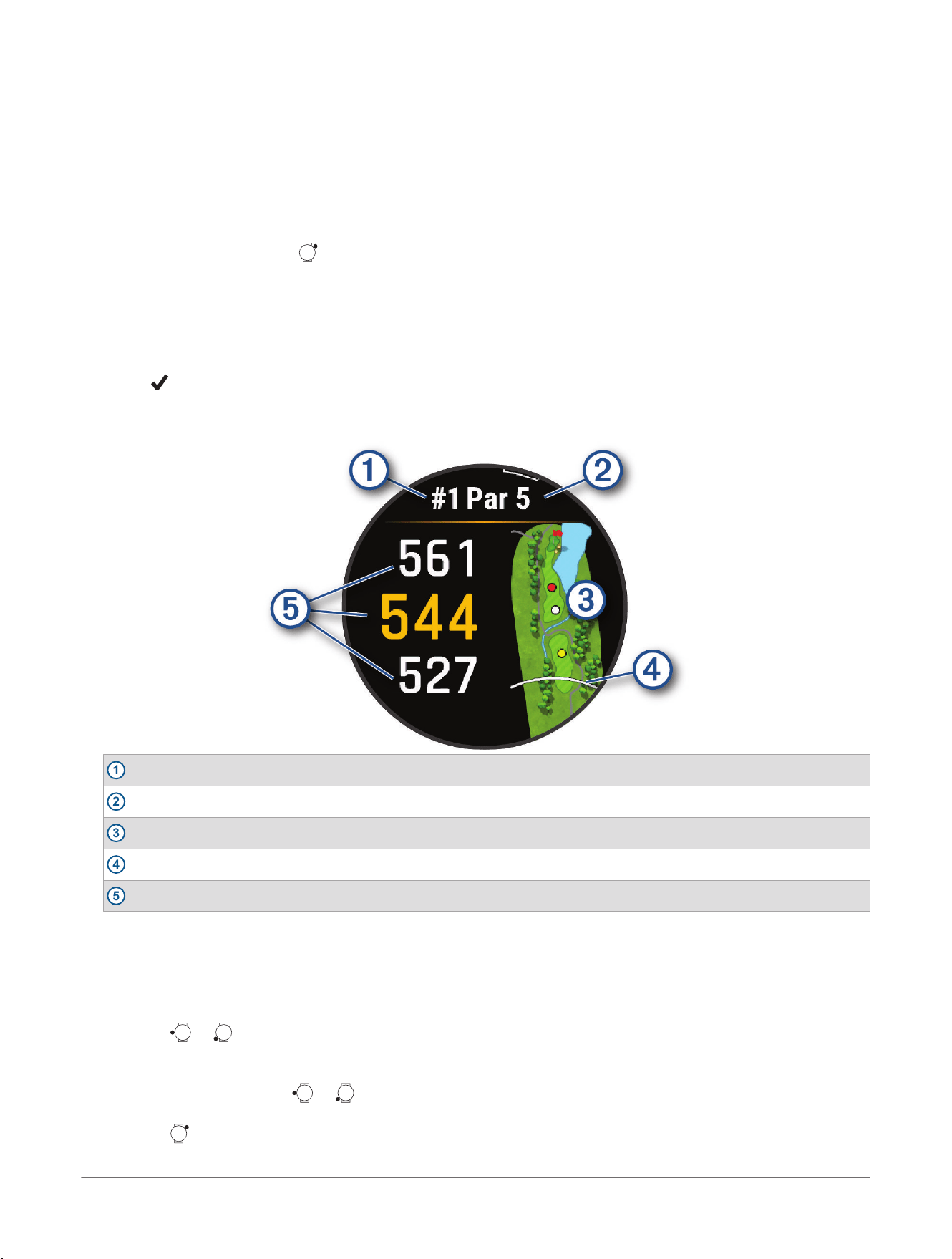
2 Select Activities> Aviation> Fly> Navigate> Saved.
3 Select a flight plan.
4 Select More> Delete.
Outdoor Activities
Golfing
Playing Golf
Before you play golf, you should charge the watch (Charging the Watch, page149).
1 From the watch face, press .
2 Select Activities> Outdoor> Golf.
The device locates satellites, calculates your location, and selects a course if there is only one course
nearby.
3 If the course list appears, select a course from the list.
4 If necessary, set your driver distance.
5 Select to keep score.
6 Select a tee box.
The hole information screen appears.
1
Current hole number
2
Par for the hole
3
Map of the hole
4
Driver distance from the tee box
5
Distances to the front, middle, and back of the green
NOTE: Because pin locations change, the watch calculates the distance to the front, middle, and back of the
green, but not the actual pin location.
7 Select an option:
● Tap the front, middle, or back distances to the green to view the PlaysLike distance (PlaysLike Distance
Icons, page37).
● Press or to view additional data, including your handicap rating and the PlaysLike factors.
● Tap the map to view more detail or measure distance with touch targeting (Measuring Distance with
Touch Targeting, page38).
● Tap the map and press or to view the location and distance to a layup or to the front and back of a
hazard.
● Press to open the golf menu (Golf Menu, page36).
When you move to the next hole, the watch automatically transitions to display the new hole information.
Apps and Activities
D2™ Mach 2 Series Aviator Smartwatch
Owner's Manual
35

Golf Menu
During a round, you can press to access additional features in the golf menu.
View Green: Allows you to move the pin location to get a more precise distance measurement (Moving the Flag,
page36).
Virtual Caddie: Requests a club recommendation from the virtual caddie (Virtual Caddie, page37).
Change Hole: Allows you to manually change the hole.
Change Green: Allows you to change the green when more than one green is available for a hole.
Scorecard: Opens the scorecard for the round (Keeping Score, page38).
PinPointer: The PinPointer feature is a compass that points to the pin location when you are unable to see the
green. This feature can help you line up a shot even if you are in the woods or in a deep sand trap.
NOTE: Do not use the PinPointer feature while in a golf cart. Interference from the golf cart can affect the
accuracy of the compass.
Wind: Opens a pointer that shows the wind direction and speed relative to the pin (Viewing the Wind Speed and
Direction, page39).
Round Info: Shows the recorded time, distance, and steps traveled. This automatically starts and stops when
you start or end a round.
Measure Shot: Shows the distance of your previous shot recorded with the Garmin AutoShot
™
feature (Viewing
Measured Shots, page38). You can also manually record a shot (Manually Measuring a Shot, page38).
Custom Targets: Allows you to save a location, such as an object or obstacle, for the current hole (Saving
Custom Targets, page39).
Club Stats: Shows your statistics with each golf club, such as distance and accuracy information. Appears when
you pair compatible Approach
®
club tracking sensors or enable the Club Prompt setting.
Sunrise & Sunset: Shows the sunrise, sunset, and twilight times for the current day.
Settings: Allows you to customize the golf activity settings (Golf Settings, page36).
End Round: Ends the current round.
Golf Settings
During a round, you can press , and select Settings to customize the golf settings.
Scoring: Allows you to set the scoring options (Scoring Settings, page39).
Driver Distance: Sets the average distance the ball travels from the tee box on your drive. The driver distance
appears as an arc on the map.
PlaysLike: Sets preferences for the "plays like" distance feature, which shows adjusted distances to the green
while playing golf (PlaysLike Distance Icons, page37).
Virtual Caddie: Allows you to select automatic or manual virtual caddie club recommendations. Appears after
you play five rounds of golf, track your clubs, and upload your scorecards to the Garmin Golf
™
app.
Big Numbers: Changes the size of the numbers on the hole view screen.
Tournament Mode: Disables the PinPointer and PlaysLike distance features. These features are not allowed
during sanctioned tournaments or handicap calculation rounds.
Golf Distance: Sets the unit of measure for distance while playing golf.
Golf Wind Speed: Sets the unit of measure for wind speed while playing golf.
Club Prompt: Prompts you to enter which golf club you used after each detected shot to record your club
statistics (Recording Statistics, page38).
Satellites: Sets the satellite system to use for the activity (Satellite Settings, page68).
Record Activity: Enables activity FIT file recording. FIT files record fitness information that is tailored for the
Garmin Connect
™
website and app.
Club Sensors: Allows you to set up your compatible Approach
®
club tracking sensors.
Pair Rangefinder: Allows you to pair the watch to your compatible rangefinder.
Moving the Flag
You can take a closer look at the green and move the pin location.
1 From the hole information screen, press .
2 Select View Green.
3 If necessary, use the slider on the right side of the screen to zoom in or out.
4 Tap or drag to move the pin location.
36
D2™ Mach 2 Series Aviator Smartwatch
Owner's Manual
Apps and Activities
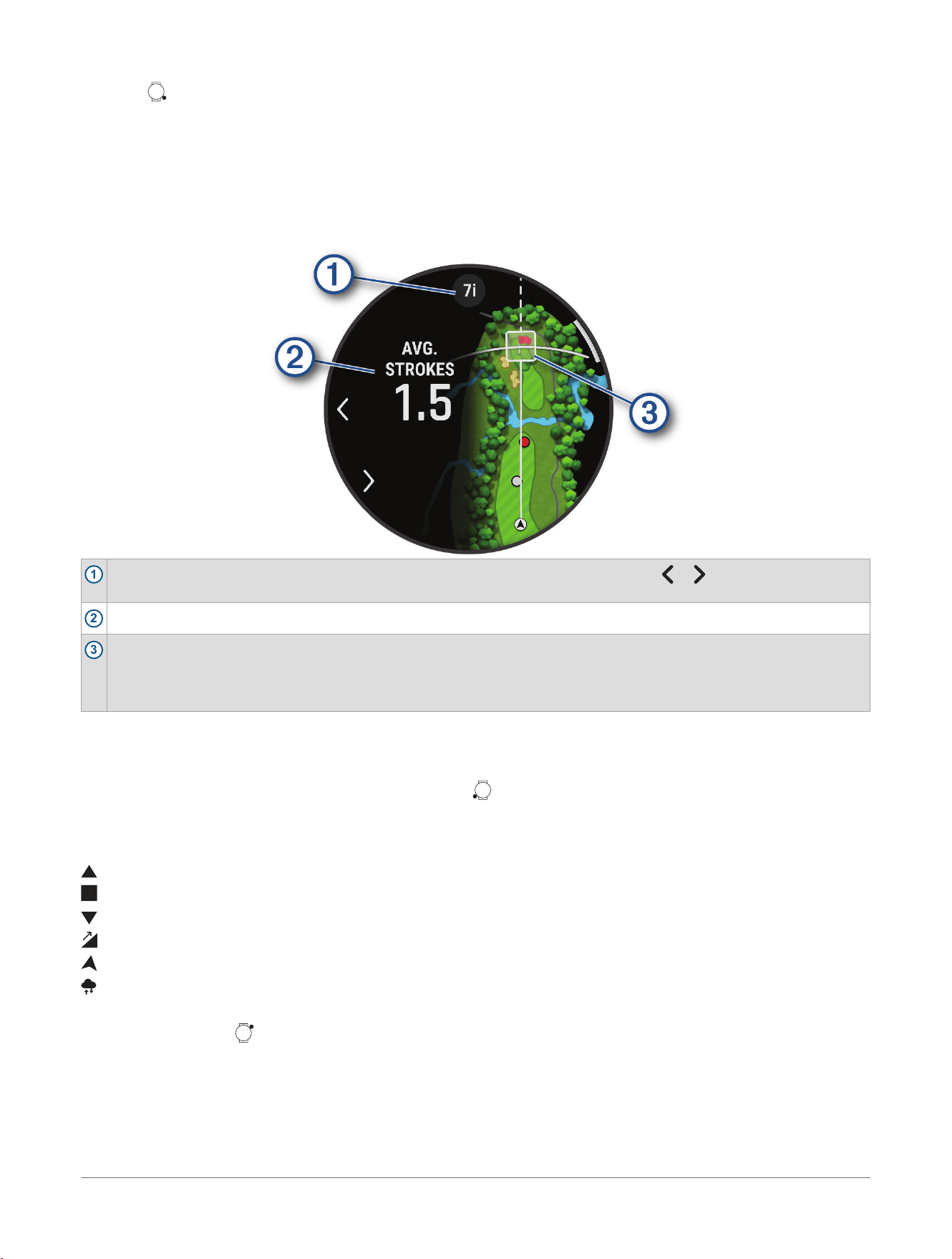
5 Press .
The distances on the hole information screen are updated to show the new pin location. The pin location is
saved for only the current round.
Virtual Caddie
Before you can use the virtual caddie, you must play five rounds with Approach
®
club tracking sensors or enable
the Club Prompt setting (Activity Settings, page64), and upload your scorecards. For each round, you must
connect to a paired phone with the Garmin Golf
™
app. The virtual caddie provides recommendations based on
the hole, wind data, and your past performance with each club.
1
Displays the club or club combination recommendation for the hole. You can select or to view other club
options.
2
Displays the average number of strokes expected to score with the club recommendation.
3
Displays the shot dispersion area for your next shot with the club recommendation, based on your shot history
with the club.
NOTE: If the shot dispersion area overlaps with the green, the shot's chances of reaching the green will display as
a percentage.
PlaysLike Distance Icons
The PlaysLike distance feature accounts for elevation changes on the course, wind speed, wind direction, and
air density by showing the adjusted distance to the green. During a round, you can tap a distance to the green to
view the PlaysLike distance. You can swipe up or press to see how much the distance has changed due to
each of the factors.
TIP: You can configure what data is factored into the PlaysLike adjustments in the activity settings (PlaysLike
Settings, page37).
: Distance plays longer than expected.
: Distance plays as expected.
: Distance plays shorter than expected.
: The difference in the distance due to elevation changes.
: The difference in the distance due to the wind speed and direction.
: The difference in the distance due to the air density.
PlaysLike Settings
During a round, press , and select Settings> PlaysLike.
Wind: Enables wind speed and direction to be included in the PlaysLike distance adjustments.
Weather: Enables air density to be included in the PlaysLike distance adjustments.
Home Conditions: Allows you to manually change the altitude, temperature, and humidity settings used for the
air density.
NOTE: It can be helpful to set weather conditions that match where you typically play. If they do not match
the conditions at your normal course locations, the air density adjustments may seem inaccurate.
Apps and Activities
D2™ Mach 2 Series Aviator Smartwatch
Owner's Manual
37
Measuring Distance with Touch Targeting
While playing a game, you can use touch targeting to measure the distance to any point on the map.
1 While playing golf, tap the map.
2 Tap or drag your finger to position the target circle .
You can view the distance from your current position to the target circle, and from the target circle to the pin
location.
3 If necessary, use the slider on the right side of the screen to zoom in or out.
Viewing Measured Shots
Your device features automatic shot detection and recording. Each time you take a shot along the fairway, the
device records your shot distance so you can view it later.
TIP: Automatic shot detection works best when you wear the device on your leading wrist and make good
contact with the ball. Putts are not detected.
1 While playing golf, press .
2 Select Measure Shot.
Your last shot distance appears.
NOTE: The distance automatically resets when you hit the ball again, putt on the green, or move to the next
hole.
3 Press and select Previous Shots to view all recorded shot distances.
The distance from the most recent shot also displays at the top of the hole information screen.
Manually Measuring a Shot
You can manually add a shot if the watch doesn't detect it. You must add the shot from the location of the
missed shot.
1 Take a shot and watch where your ball lands.
2 From the hole information screen, press .
3 Select Measure Shot.
4 Press .
5 Select Add Shot> .
6 If necessary, enter the club you used for the shot.
7 Walk or drive to your ball.
The next time you take a shot, the watch automatically records your last shot distance. If necessary, you can
manually add another shot.
Keeping Score
1 From the hole information screen, press .
2 Select Scorecard.
The scorecard appears when you are on the green.
3 Press or to scroll through the holes.
4 Press to select a hole.
5 Press or to set the score.
Your total score is updated.
Recording Statistics
Before you can record statistics, you must enable statistics tracking (Scoring Settings, page39).
1 From the scorecard, select a hole.
2 Enter the total number of strokes taken, including putts, and press .
3 Set the number of putts taken, and press .
NOTE: The number of putts taken is used for statistics tracking only and does not increase your score.
4 If necessary, select an option:
NOTE: If you are on a par 3 hole, fairway information does not appear.
● If your ball hit the fairway, select In Fairway.
● If your ball missed the fairway, select Missed Right or Missed Left.
38
D2™ Mach 2 Series Aviator Smartwatch
Owner's Manual
Apps and Activities
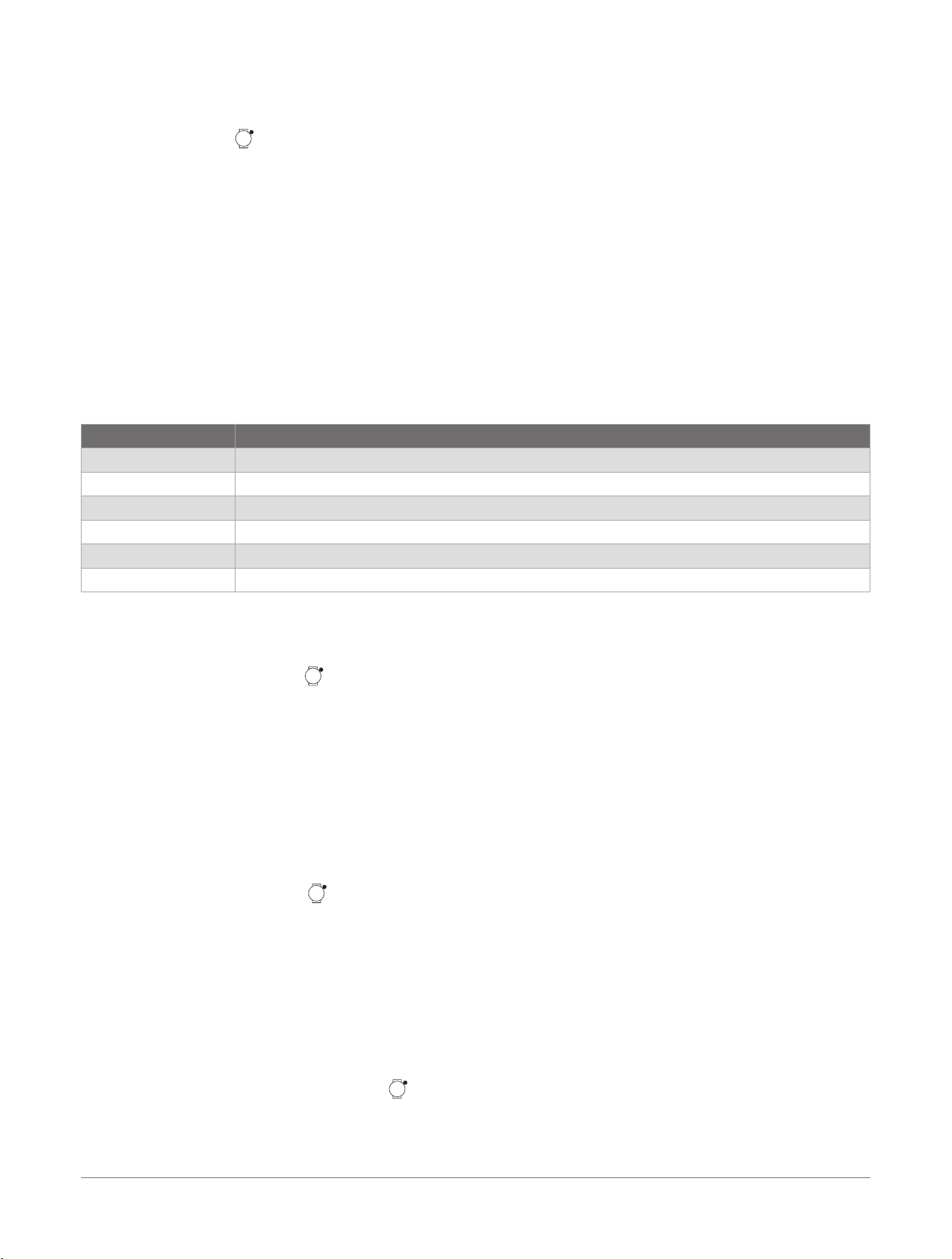
5 If necessary, enter the number of penalty strokes.
Scoring Settings
During a round, press , and select Settings> Scoring.
Scoring Method: Changes the method the device uses to keep score.
Handicap Scoring: Enables handicap scoring.
Set Handicap: Sets your handicap when handicap scoring is enabled.
Show Score: Displays your total score for the round at the top of the scorecard (Keeping Score, page38).
Stat Tracking: Enables statistics tracking for the number of putts, greens in regulation, and fairways hit while
playing golf.
Penalties: Enables penalty stroke tracking while playing golf (Recording Statistics, page38).
Prompt: Enables the prompt at the start of a round asking if you want to keep score.
About Stableford Scoring
When you select the Stableford scoring method (Activity Settings, page64), points are awarded based on the
number of strokes taken relative to par. At the end of a round, the highest score wins. The device awards points
as specified by the United States Golf Association.
The scorecard for a Stableford scored game shows points instead of strokes.
Points Strokes Taken Relative to Par
0 2 or more over
1 1 over
2 Par
3 1 under
4 2 under
5 3 under
Viewing the Wind Speed and Direction
The wind feature is a pointer that shows the wind speed and direction relative to the pin. The wind feature
requires a connection with the Garmin Golf
™
app.
1 While playing a round, press .
2 Select Wind.
The arrow points to the wind direction relative to the pin.
TIP: You can also view the wind speed and direction from the wind icon on the hole view screen (Playing
Golf, page35).
Viewing the Direction to the Pin
The PinPointer feature is a compass that provides directional assistance when you are unable to see the green.
This feature can help you line up a shot even if you are in the woods or in a deep sand trap.
NOTE: Do not use the PinPointer feature while in a golf cart. Interference from the golf cart can affect the
accuracy of the compass.
1 While playing a round, select .
2 Select PinPointer.
The arrow points to the pin location.
Saving Custom Targets
While playing a round, you can save up to five custom targets for each hole. Saving a target is useful for
recording objects or obstacles that are not shown on the map. You can view the distances to these targets from
the hazards and layups screen (Playing Golf, page35).
1 Stand near the target you want to save.
NOTE: You cannot save a target that is far from the currently selected hole.
2 From the hole information screen, press .
3 Select Custom Targets.
4 Select a target type.
Apps and Activities
D2™ Mach 2 Series Aviator Smartwatch
Owner's Manual
39
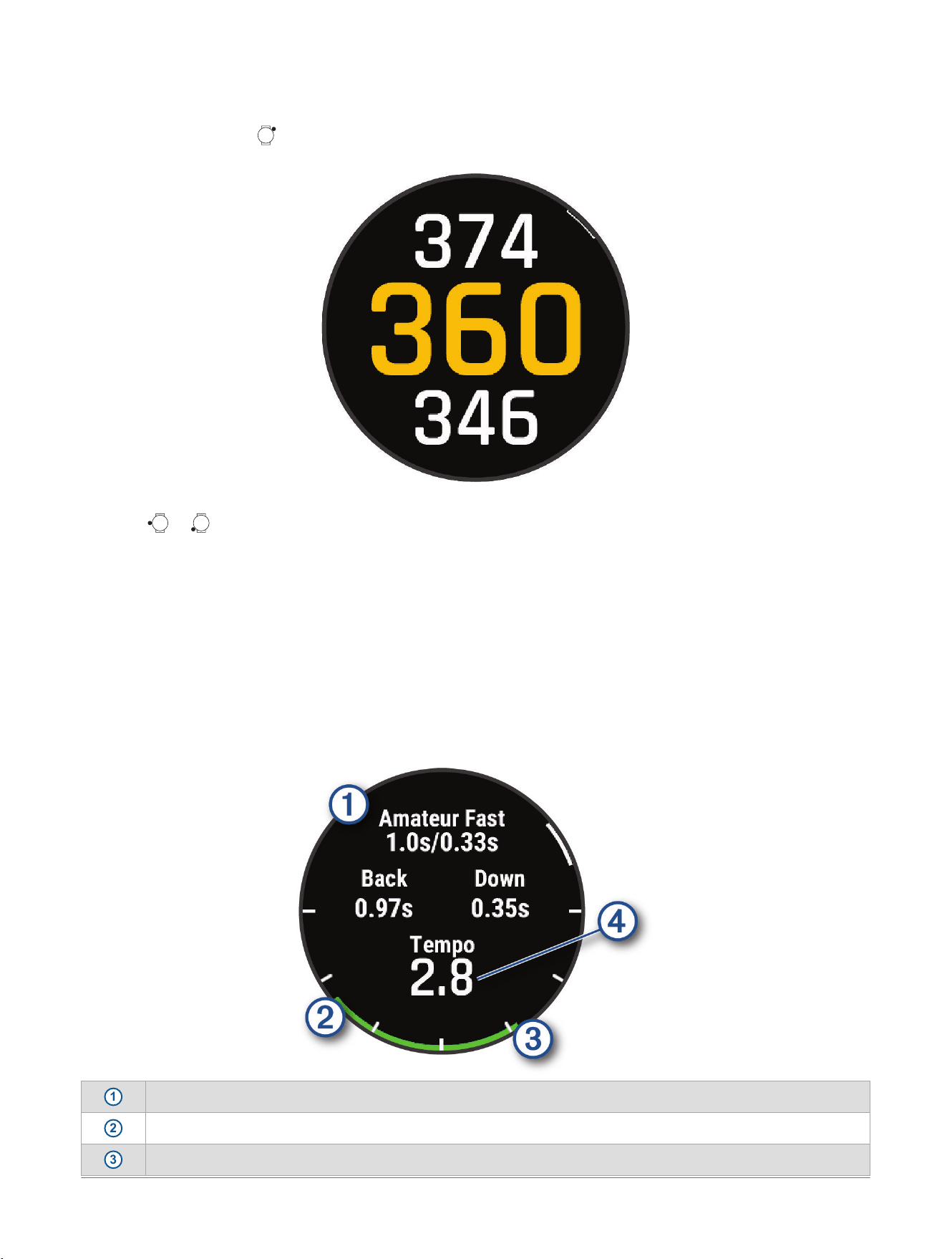
Big Numbers Mode
You can change the size of the numbers on the hole information screen.
1 During a round, press .
2 Select Settings> Big Numbers.
The distances to the front, middle, and back of the green appear in large font on the hole information screen.
3 Press or to view additional data, such as your handicap rating. Data also includes the PlaysLike
distance to the middle of the green, and wind speed and direction.
Swing Tempo Training
The Tempo Training activity helps you perform a more consistent swing. The device measures and displays
your backswing time and downswing time. The device also displays your swing tempo. Swing tempo is the
backswing time divided by the downswing time, expressed in a ratio. A 3 to 1 ratio, or 3.0, is the ideal swing
tempo based on studies of professional golfers.
The Ideal Swing Tempo
You can achieve the ideal 3.0 tempo using different swing timings, for example, 0.7 sec./0.23 sec. or 1.2 sec./
0.4 sec. Each golfer may have a unique swing tempo based on their ability and experience. Garmin
®
provides six
different timings.
The device displays a graph that indicates if your backswing or downswing times are too fast, too slow, or just
right for the selected timing.
1
Timing choices (backswing to downswing time ratio)
2
Backswing time
3
Downswing time
40 D2™ Mach 2 Series Aviator Smartwatch
Owner's Manual
Apps and Activities
4
Your tempo
Good timing
Too slow
Too fast
To find your ideal swing timing, you should start with the slowest timing and try it for a few swings. When
the tempo graph is consistently green for both your backswing and downswing times, you can move up to the
next timing. When you find a timing that is comfortable, you can use it to achieve more consistent swings and
performance.
Analyzing Your Swing Tempo
You must hit a ball to view your swing tempo.
1 Press .
2 Select Activities> Other> Tempo Training .
3 Press .
4 Select Settings> Swing Speed, and select an option.
5 Complete a full swing, and hit the ball.
The watch displays your swing analysis.
Viewing the Tip Sequence
The first time you use the Tempo Training activity, the watch displays a tip sequence to explain how your swing
is analyzed.
1 During your activity, press .
2 Select Tips.
3 Press to view the next tip.
Recording a Bouldering Activity
You can record routes during a bouldering activity. A route is a climbing path along a boulder or small rock
formation.
1 From the watch face, press .
2 Select Activities> Outdoor> Bouldering.
3 Select a grading system.
NOTE: The next time you start a bouldering activity, the watch uses this grading system. You can scroll
down, select the activity settings, and select Grading System to change the system.
4 Select the difficulty level for the route.
5 Press to start the route timer.
6 Start your first route.
7 Press to finish the route.
8 Select an option:
● To save a successful route, select Completed.
● To save an unsuccessful route, select Attempted.
● To delete the route, select Discard.
9 When you are done resting, press to start your next route.
10 Repeat this process for each route until your activity is complete.
11 After your last route, press to stop the route timer.
12 Select Save.
Starting an Expedition
You can use the Expedition activity to prolong the battery life while recording a multi-day activity.
1 From the watch face, press .
2 Select Activities> Outdoor> Expedition.
3 Press to start the activity timer.
Apps and Activities
D2™ Mach 2 Series Aviator Smartwatch
Owner's Manual
41
The device enters low power mode and collects GPS track points once an hour. To maximize battery life, the
device turns off all sensors and accessories, including the connection to your smartphone.
Recording a Track Point Manually
During an expedition, track points are recorded automatically based on the selected recording interval. You can
manually record a track point at any time.
1 During an expedition, press .
2 Select Add Point.
Viewing Track Points
1 During an expedition, press .
2 Select View Points.
3 Select a track point from the list.
4 Select an option:
● To start navigating to the track point, select Go To.
● To view detailed information about the track point, select Details.
Going Fishing
1 From the watch face, press .
2 Select Activities> Outdoor> Fish.
3 Press .
4 Press , and select an option:
● To add the catch to your fish count and save the location, select Log Catch.
● To save your current location, select Save Location.
● To set an interval timer, end time, or end time reminder for the activity, select Fish Timers.
● To navigate back to the starting point of your activity, select Back to Start, and select an option.
● To view your saved locations, select Saved Locations.
● To navigate to a destination, select Navigation, and select an option.
● To edit the activity settings, select Settings, and select an option (Activity Settings, page64).
5 After you complete your activity, press , and select End Fish.
Going Hunting
You can save locations relevant to your hunt and view a map of saved locations. During a hunting activity, the
device uses a GNSS mode that conserves battery life.
1 From the watch face, press .
2 Select Activities> Outdoor> Hunt.
3 Press , and select Start Hunt.
4 Press , and select an option:
● To navigate back to the starting point of your activity, select Back to Start, and select an option.
● To save your current location, select Save Location.
● To view locations saved during this hunt activity, select Hunt Locations.
● To view all previously saved locations, select Saved Locations.
● To navigate to a destination, select Navigation, and select an option.
● To edit the activity settings, select Settings, and select an option (Activity Settings, page64).
5 After you complete your hunt, press , and select End Hunt.
Running
Going for a Track Run
Before you go for a track run, make sure you are running on a standard-shape, 400 m track.
You can use the track run activity to record your outdoor track data, including distance in meters and lap splits.
1 Stand on the outdoor track.
2 From the watch face, press .
3 Select Activities> Running> Track Run.
4 Wait while the watch locates satellites.
42
D2™ Mach 2 Series Aviator Smartwatch
Owner's Manual
Apps and Activities
5 If you are running in lane 1, skip to step 8.
6 Select Lane Number.
7 Select a lane number.
8 Press .
9 Run around the track.
10 After you complete your activity, press , and select Save.
Tips for Recording a Track Run
The Garmin
®
track database contains over 10,000 tracks from all over the world.
● Wait until the watch acquires satellite signals before starting a track run.
● If your watch does not recognize the track, run four laps to calibrate your track distance.
You should run slightly past your starting point to complete the lap.
● Run each lap in the same lane.
NOTE: The default Auto Lap
®
distance is 1600 m, or four laps around the track.
● If you are running in a lane other than lane 1, set the lane number in the activity settings.
Going for a Virtual Run
You can pair your watch with a compatible third-party app to transmit pace, heart rate, or cadence data.
1 From the watch face, press .
2 Select Activities> Running> Virtual Run.
3
On your tablet, laptop, or phone, open the Zwift
™
app or another virtual training app.
4 Follow the on-screen instructions to start a running activity and pair the devices.
5 Press to start the activity timer.
6 After you complete your activity, press , and select Save.
Calibrating the Treadmill Distance
To record more accurate distances for your treadmill runs, you can calibrate the treadmill distance after you run
at least 2.4km (1.5mi.) on a treadmill. If you use different treadmills, you can manually calibrate the treadmill
distance on each treadmill or after each run.
1 Start a treadmill activity (Starting an Activity, page30).
2 Run on the treadmill until your watch records at least 2.4km (1.5mi.).
3 After you finish the activity, press to stop the activity timer.
4 Select an option:
● To calibrate the treadmill distance the first time, select Save.
The device prompts you to complete the treadmill calibration.
● To manually calibrate the treadmill distance after the first-time calibration, select Calibrate & Save> .
5 Check the treadmill display for the distance traveled, and enter the distance on your watch.
Recording an Ultra Run Activity
1 From the watch face, press .
2 Select Activities> Running> Ultra Run.
3 Press to start the activity timer.
4 Start running.
5 Press to record a lap and start the rest timer.
TIP: You can configure how the Auto Rest setting records rest splits and laps (Ultra Run Auto Rest Settings,
page43).
6 When you are done resting, press to resume running.
7 Press or to view additional data screens (optional).
8 After you complete your activity, press , and select Save.
Ultra Run Auto Rest Settings
You can customize the options for automatically starting and stopping the rest timer for the Ultra Run activity.
Status: Enables automatically recording rest splits.
Apps and Activities
D2™ Mach 2 Series Aviator Smartwatch
Owner's Manual
43
Rest Start: Automatically starts the rest timer when you stop running. You can use the Manual Only option to
start the rest timer only when you press .
Rest End: Sets the pace required to end a rest split.
Minimum Time: Sets the amount of time before a rest split starts or ends.
Lap Key: Sets the button to record a lap and start the rest timer, start the rest timer only, or record a lap only.
Recording an Obstacle Racing Activity
When you participate in an obstacle course race, you can use the Obstacle Racing activity to record your time on
each obstacle and your time running between obstacles.
1 From the watch face, press .
2 Select Activities> Running> Obstacle Racing.
3 Press to start the activity timer.
4 Press to manually mark the beginning and end of each obstacle.
NOTE: You can configure the Obstacle Tracking setting to save obstacle locations from your first loop of the
course. On repeat loops of the course, the watch uses the saved locations to switch between obstacle and
running intervals.
5 After you complete your activity, press , and select Save.
PacePro
™
Training
Many runners like to wear a pace band during a race to help achieve their race goal. The PacePro feature allows
you to create a custom pace band based on distance and pace or distance and time. You can also create a pace
band for a known course to optimize your pace effort based on elevation changes.
You can create a PacePro plan using the Garmin Connect
™
app. You can preview the splits and elevation plot
before you run the course.
Downloading a PacePro
™
Plan from Garmin Connect
™
Before you can download a PacePro plan from Garmin Connect, you must have a Garmin Connect account
(Garmin Connect
™
, page112).
1 Select an option:
● Open the Garmin Connect app, and select .
● Go to connect.garmin.com.
2 Select Training & Planning> PacePro Pacing Strategies.
3 Follow the on-screen instructions to create and save a PacePro plan.
4 Select or Send to Device.
Creating a PacePro
™
Plan on Your Watch
Before you can create a PacePro plan on your watch, you must create a course (Creating a Course on Garmin
Connect
™
, page129).
1 From the watch face, press .
2 Select Activities, and select an outdoor running activity.
3 Scroll down to select Training> PacePro Plans> Create New.
4 Select a course.
5 Select an option:
● Select Goal Pace, and enter your target pace.
● Select Goal Time, and enter your target time.
Scroll down to view your custom pace band and preview the splits.
6 Press .
7 Select an option:
● Select Use Plan to start the plan.
● Select Map to view the course on the map.
● Select Delete to discard the plan.
Starting a PacePro
™
Plan
Before you can start a PacePro plan, you must download a plan from your Garmin Connect
™
account, or create a
PacePro plan on your watch (Creating a PacePro
™
Plan on Your Watch, page44).
44
D2™ Mach 2 Series Aviator Smartwatch
Owner's Manual
Apps and Activities
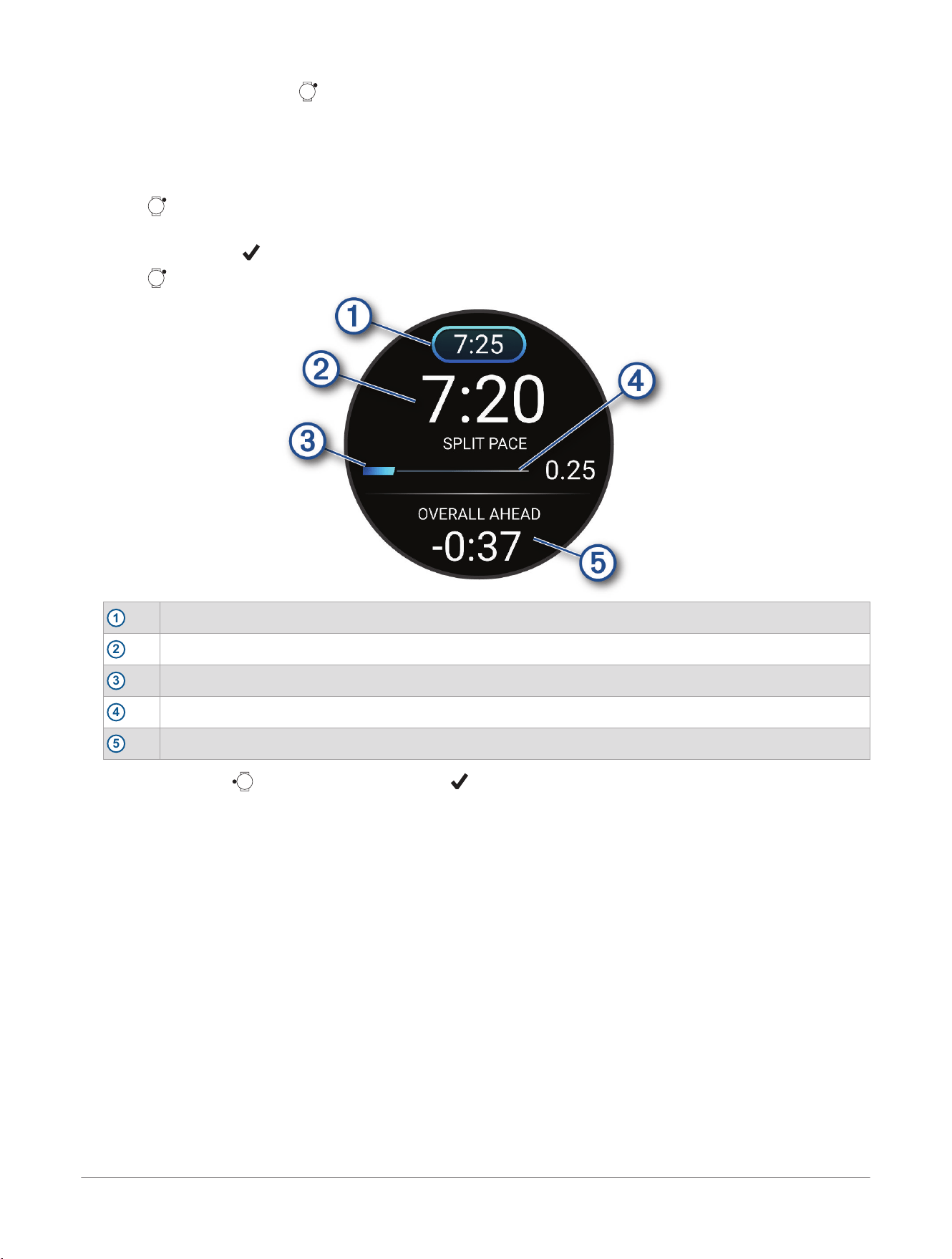
1 From the watch face, press .
2 Select an outdoor running activity.
3 Scroll down to select Training> PacePro Plans.
4 Select a plan.
TIP: You can scroll down to preview the splits and elevation plot before you accept the PacePro plan.
5 Press .
6 Select Use Plan to start the plan.
7 If necessary, select to enable course navigation.
8 Press to start the activity timer.
1
Target split pace
2
Current split pace
3
Completion progress for the split
4
Distance remaining in the split
5
Overall time ahead of or behind your target time
TIP: You can hold , and select Stop PacePro> to stop the PacePro plan. The activity timer continues
running.
Swimming
NOTE: The watch has wrist-based heart rate enabled for swim activities. The watch is also compatible with
chest heart rate monitors, such as the HRM-Pro
™
series accessories. If both wrist-based heart rate and chest
heart rate data are available, your watch uses the chest heart rate data.
Swim Terminology
Length: One trip down the pool.
Interval: One or more consecutive lengths. A new interval starts after a rest.
Stroke: A stroke is counted every time your arm wearing the watch completes a full cycle.
Swolf: Your swolf score is the sum of the time for one pool length and the number of strokes for that length.
For example, 30 seconds plus 15 strokes equals a swolf score of 45. For open water swimming, swolf is
calculated over 25 meters. Swolf is a measurement of swimming efficiency and, like golf, a lower score is
better.
Critical swim speed (CSS): Your CSS is the theoretical speed that you can maintain continuously without
exhaustion. You can use your CSS to guide your training pace and monitor your improvement.
Apps and Activities
D2™ Mach 2 Series Aviator Smartwatch
Owner's Manual
45
Stroke Types
Stroke type identification is available only for pool swimming. Your stroke type is identified at the end of a
length. Stroke types appear in your swimming history and in your Garmin Connect
™
account. You can also select
stroke type as a custom data field (Customizing the Data Screens, page63).
Free Freestyle
Back Backstroke
Breast Breaststroke
Fly Butterfly
Mixed More than one stroke type in an interval
Drill Used with drill logging (Training with the Drill Log, page46)
Tips for Swimming Activities
● Press to record an interval during open water swimming.
● Before starting a pool swimming activity, follow the on-screen instructions to select your pool size or enter a
custom size.
The watch measures and records distance by completed pool lengths. The pool size must be correct to
display accurate distance. The next time you start a pool swimming activity, the watch uses this pool size.
You can scroll down to select the activity settings, and select Pool Size to change the size.
● For accurate results, swim the entire pool length, and use one stroke type for the entire length. Pause the
activity timer when resting.
● Press to record a rest during pool swimming (Swim Auto Rest and Manual Rest, page46).
The watch automatically records swim intervals and lengths for pool swimming.
● To help the watch count your lengths, use a strong push off the wall and glide before your first stroke.
● When doing drills, you must either pause the activity timer or use the drill logging feature (Training with the
Drill Log, page46).
Swim Auto Rest and Manual Rest
The auto rest feature is available only for pool swimming. Your watch automatically detects when you are
resting, and the rest screen appears. If you rest for more than 15 seconds, the watch automatically creates a
rest interval. When you resume swimming, the watch automatically starts a new swim interval.
TIP: For best results using the auto rest feature, minimize your arm motions while resting.
To use manual rests instead, you can turn off the auto rest feature in the activity options (Activity Settings,
page64). During a pool or open water swim activity, you can manually mark a rest interval by pressing .
Swim data is not recorded during a rest interval.
TIP: Use manual rests if you are taking short rests or you want very precise swim interval timing.
Training with the Drill Log
The drill log feature is available only for pool swimming. You can use the drill log feature to manually record kick
sets, one-arm swimming, or any type of swimming that is not one of the four major strokes.
1 During your pool swim activity, scroll up or down to view the drill log screen.
2 Press to start the drill timer.
3 After you complete a drill interval, press .
The drill timer stops, but the activity timer continues to record the entire swim session.
4 Select a distance for the completed drill.
Distance increments are based on the pool size selected for the activity profile.
5 Select an option:
● To start another drill interval, press .
● To start a swim interval, scroll up or down to return to the swim training screens.
After you complete the drill, the activity enters rest mode.
6 Select an option:
● To resume the activity, press .
● To end the activity, press .
46
D2™ Mach 2 Series Aviator Smartwatch
Owner's Manual
Apps and Activities
Cycling
Using an Indoor Trainer
Before you can use a compatible indoor trainer, you must pair the trainer with your watch using Bluetooth
®
or
ANT+
®
technology (Pairing Your Wireless Sensors, page103).
You can use your watch with an indoor trainer to simulate resistance while following a course, ride, or workout.
While using an indoor trainer, GPS is turned off automatically.
1 From the watch face, press .
2 Select Activities> Cycling> Bike Indoor.
3 Hold .
4 Select Smart Trainer Options.
5 Select an option:
● Select Free Ride to go for a ride.
● Select Follow Workout to follow a saved workout (Workouts, page10).
● Select Follow Course to follow a saved course (Courses, page129).
● Select Set Power to set the target power value.
● Select Set Grade to set the simulated grade value.
● Select Set Resistance to set the resistance force applied by the trainer.
6 Press to start the activity timer.
The trainer increases or decreases resistance based on the elevation information in the course or ride.
Power Guide
You can create and use a power strategy to plan your effort on a course. Your D2
™
device uses your FTP, the
course elevation, and the projected time it will take you to complete the course to create a customized power
guide.
One of the most important steps in planning a successful power guide strategy is choosing your effort level.
Putting a harder effort into the course will increase the power recommendations, while choosing an easier effort
will reduce them (Creating and Using a Power Guide, page47). The primary goal of a power guide is to help you
complete the course based on what is known about your ability, not to achieve a specific target time. You can
adjust the effort level during your ride.
Power guides are always associated with a course and cannot be used with workouts or segments. You
can view and edit your strategy in the Garmin Connect
™
app and sync it with compatible Garmin
®
devices.
This feature requires a power meter, which must be paired with your device (Pairing Your Wireless Sensors,
page103).
Creating and Using a Power Guide
Before you can create a power guide, you must pair a power meter with your watch (Pairing Your Wireless
Sensors, page103). You must also have a course loaded to your Garmin Connect
™
account (Creating a Course
on Garmin Connect
™
, page129).
1 From the Garmin Connect app, select .
2 Select Training & Planning> Power Guide> Create Power Guide Strategy.
3 Follow the on-screen instructions to create the power guide.
4
Select .
5 Select your watch.
6 From the watch face, press .
7 On your watch, select an outdoor biking activity.
8 Scroll down to select Training> Power Guide.
9 Select a power guide.
10 Press , and select Use Plan.
TIP: You can preview the map, elevation plot, effort, settings, and splits. You can also adjust the effort,
terrain, riding position, and gear weight before you start riding.
Multisport
Triathletes, duathletes, and other multisport competitors can take advantage of the multisport activities, such
as Triathlon or Swimrun. During a multisport activity, you can transition between activities and continue to view
Apps and Activities
D2™ Mach 2 Series Aviator Smartwatch
Owner's Manual
47
your total time. For example, you can switch from biking to running and view your total time for biking and
running throughout the multisport activity.
You can customize a multisport activity, or you can use the default triathlon activity set up for a standard
triathlon.
Recording a Mixed Session Activity
You can use the mixed session activity to record multiple sports in a row, without having to end one sport and
start another.
Not all activities are available during a mixed session.
1 From the watch face, press .
2 Select Activities> Multisport> Mixed Session.
3 Select an activity.
4 Press to start the activity timer.
5 After completing the activity, press to stop the activity timer.
6 Select Next Activity.
7 Select your next activity.
8 Repeat steps 4-7 until the mixed session activity is complete.
While the activity timer is running, you can swipe right to return to the previous activity.
9 Press to stop the activity timer.
10 Select Save> .
11 Select an option:
● Scroll to view the time for each leg of the activity and performance measurements for the entire mixed
session activity.
● Press to view additional options, such as activity data for each leg, or to delete the activity.
Triathlon Training
When you participate in a triathlon, you can use the triathlon activity to quickly transition to each sport segment,
to time each segment, and to save the activity.
1 From the watch face, press .
2 Select Activities> Multisport> Triathlon.
3 Press to start the activity timer.
NOTE: The first time you start a triathlon activity, you can turn on Auto Sport Change so the watch will
automatically detect sport changes and advance to the next transition or sport (Activity Settings, page64).
4 If necessary, press at the beginning and end of each transition (How can I undo a lap button press?,
page155).
The transition feature is on by default, and the transition time is recorded separately from the activity time.
The transition feature can be turned on or off in the triathlon activity settings. If transitions are turned off,
press to change sports.
5 After you complete your activity, press , and select Save.
Creating a Multisport Activity
1 From the watch face, press .
2 Select Activities> Edit> Add> Multisport.
3 Select a multisport activity type, or select Custom and enter a name.
Duplicate activity names include a number. For example, Triathlon(2).
4 Select two or more activities.
5 Select an option:
● Select an option to customize specific activity settings. For example, you can select whether to include
transitions.
● Select Done to save and use the multisport activity.
48
D2™ Mach 2 Series Aviator Smartwatch
Owner's Manual
Apps and Activities
Gym Activities
The watch can be used for training indoors, such as running on an indoor track or using a stationary bike or
indoor trainer. GPS is turned off for indoor activities (Activity Settings, page64).
When running or walking with GPS turned off, speed and distance are calculated using the accelerometer in the
watch. The accelerometer is self-calibrating. The accuracy of the speed and distance data improves after a few
outdoor runs or walks using GPS.
TIP: Holding the handrails of the treadmill reduces accuracy.
When cycling with GPS turned off, speed and distance data are not available unless you have an optional sensor
that sends speed and distance data to the watch, such as a speed or cadence sensor.
Recording a Strength Training Activity
You can record sets during a strength training activity. A set is multiple repetitions (reps) of a single move. You
can create and find strength workouts in your Garmin Connect
™
account and send them to your watch.
1 From the watch face, press .
2 Select Activities> Gym> Strength.
3 Select an option:
● To do an open-ended workout, select Free.
TIP: You can enable the Rest Countdown option to alert you after a specified rest timer duration.
● To follow a structured workout, select a workout, scroll down and select a step to view the exercise
animation (if available), and when you have finished viewing the workout, press , and select Do
Workout.
TIP: You can view the required equipment, edit the workout, and more before you start the workout.
4 Press to start the activity.
5 Start your first set.
The watch counts your reps. Your rep count appears when you complete at least four reps.
TIP: The watch can only count reps of a single move for each set. When you want to change moves, you
should finish the set and start a new one.
6 Press to finish the set and move to the next exercise, if available.
The watch displays the total reps for the set.
7 If necessary, edit the set, the number of reps, and the weight used for the set.
8 If necessary, press when you are done resting to start your next set.
9 Repeat for each strength training set until your activity is complete.
TIP: During your workout, you can press to edit your previous sets. For structured workouts, you have
options to skip a set or change the next set.
10 After your last set, press , and select Stop Workout.
11 Select Save.
Recording a HIIT Activity
You can use specialized timers to record a high-intensity interval training (HIIT) activity.
1 From the watch face, press .
2 Select Activities> Gym> HIIT.
3 Select an option:
● Select Free to record an open, unstructured HIIT activity.
● Select HIIT Timers> AMRAP to record as many rounds as possible during a set time period.
● Select HIIT Timers> EMOM to record a set number of moves every minute on the minute.
● Select HIIT Timers> Tabata to alternate between 20-second intervals of maximum effort with 10
seconds of rest.
● Select HIIT Timers> Custom to set your move time, rest time, number of moves, and number of rounds.
● Select Workouts to follow a saved workout.
4 If necessary, follow the on-screen instructions.
5 Press to start your first round.
The watch displays a countdown timer and your current heart rate.
Apps and Activities
D2™ Mach 2 Series Aviator Smartwatch
Owner's Manual
49
6 If necessary, press to manually move to the next round or rest.
7 After you finish the activity, press to stop the activity timer.
8 Select Save.
Recording an Indoor Climbing Activity
You can record routes during an indoor climbing activity. A route is a climbing path along an indoor rock wall.
1 From the watch face, press .
2 Select Activities> Gym> Climb Indoor.
3 Select to record route statistics.
4 Select a grading system.
NOTE: The next time you start an indoor climbing activity, the device uses this grading system. You can
hold , select the activity settings, and select Grading System to change the system.
5 Select the difficulty level for the route.
6 Press .
7 Start your first route.
NOTE: When the route timer is running, the device automatically locks the buttons to prevent accidental
button presses. You can hold any button to unlock the watch.
8 When you finish the route, descend to the ground.
The rest timer starts automatically when you are on the ground.
NOTE: If necessary, you can press to finish the route.
9 Select an option:
● To save a successful route, select Completed.
● To save an unsuccessful route, select Attempted.
● To delete the route, select Discard.
10 Enter the number of falls for the route.
11 When you are done resting, press and begin your next route.
12 Repeat this process for each route until your activity is complete.
13 Press .
14 Select Save.
Diving
Dive Warnings
WARNING
● The diving features of this device are for use by certified divers only. This device should not be used as
a sole dive computer. Failure to input the appropriate dive-related information into the device can lead to
serious personal injury or death.
● Do not exceed the maximum dive depth rating for the device (Specifications, page149).
● Make sure that you fully understand the use, displays, and limitations of your device. If you have questions
about this manual or the device, always resolve any discrepancies or confusion before diving with the device.
Always remember that you are responsible for your own safety.
● There is always a risk of decompression illness (DCI) for any dive profile even if you follow the dive plan
provided by the dive tables or a diving device. No procedure, diving device, or dive table will eliminate the
possibility of DCI or oxygen toxicity. An individual's physiological make up can vary from day to day. This
device cannot account for these variations. You are strongly advised to remain well within the limits provided
by this device to minimize the risk of DCI. You should consult a physician regarding your fitness before
diving.
● Always use backup instruments, including a depth gauge, submersible pressure gauge, and timer or watch.
You should have access to decompression tables when diving with this device.
● Perform pre-dive safety checks, such as checking proper device function and settings, display function,
battery level, tank pressure, and bubble checks to check hoses and connections for leaks.
● This device should not be shared between multiple users for diving purposes. Diver profiles are user specific,
and using another diver's profile can result in misleading information that could lead to injury or death.
50
D2™ Mach 2 Series Aviator Smartwatch
Owner's Manual
Apps and Activities
● For safety reasons, you should never dive alone. Dive with a designated buddy, even if you have someone
monitoring your dive from the surface. You should also stay with others for an extended time after a dive,
because the potential onset of decompression illness (DCI) may be delayed or triggered by surface activities.
● Apnea diving requires appropriate training. Pool apnea diving carries many of the same risks as apnea diving
in open water. Never dive alone.
● This device is not intended for commercial or professional dive activities. It is for recreational purposes only.
Commercial or professional dive activities can expose the user to extreme depths or conditions that increase
the risk of DCI.
● Do not dive with a gas if you have not personally verified its contents and input the analyzed value to
the device. Failure to verify tank contents and input the appropriate gas values to the device will result in
incorrect dive planning information and could result in serious injury or death.
● Diving with more than one gas mixture presents a much greater risk than diving with a single gas mixture.
Mistakes related to the use of multiple gas mixtures may lead to serious injury or death.
● Always ensure a safe ascent. A rapid ascent increases the risk of DCI.
● Disabling the deco lockout feature on the device can result in an increased risk of DCI, which can result in
personal injury or death. Disable this feature at your own risk.
● Violating a required decompression stop may result in serious injury or death. Never ascend above the
displayed decompression stop depth.
● Always perform a safety stop between 3 and 5 meters (9.8 and 16.4 feet) for 3 minutes, even if no
decompression stop is required.
Going Diving
1 From the watch face, press .
2 Select Activities.
3 Select Diving, and select Scuba Dive or Apnea Dive.
NOTE: The first time you do a diving activity, you must select the Diving category before choosing a dive
type. The selected dive type is added to your favorite activities list (Customizing Your Favorite Activities List,
page62).
4 While keeping your wrist out of the water, wait until the watch acquires GPS signals and the status bar is
filled (optional).
The watch requires GPS signals to save your dive entry location.
5 Review the settings on the dive pre-check screen, and press until the primary dive data screen appears.
NOTE: If necessary, you can press to edit the dive activity options, such as the gas, water type, and
alerts.
6 Descend to start your dive.
The activity timer starts automatically when you reach a depth of 1.2 m (4 ft.).
NOTE: If you start a dive without selecting a dive mode, the watch uses the most recently used dive mode
and settings, and your dive entry location is not saved.
7 Select an option:
● Press to scroll through the data screens and dive compass.
● Press to view the in-dive menu.
8 When you are ready to end the dive, ascend to the surface.
Your rate of ascent appears on the gauge.
Green Good. Ascent is less than 7.9 m (26 ft.) per minute.
Yellow Moderately high. Ascent is between 7.9 and 10.1 m (26 and 33 ft.) per minute.
Red Too high. Ascent is greater than 10.1 m (33 ft.) per minute.
9 Keep your wrist out of the water until the watch acquires GPS signals and saves your dive exit location
(optional).
10 Select an option:
● For a Scuba Dive activity, wait for the Auto Save Timeout timer to count down.
NOTE: When you ascend to 1 m (3.3 ft.), the Auto Save Timeout timer begins counting down. You can
press , and select Stop Dive to save the dive before the timer finishes counting down.
● For an Apnea Dive activity, press , and select Stop Dive.
Apps and Activities
D2™ Mach 2 Series Aviator Smartwatch
Owner's Manual
51
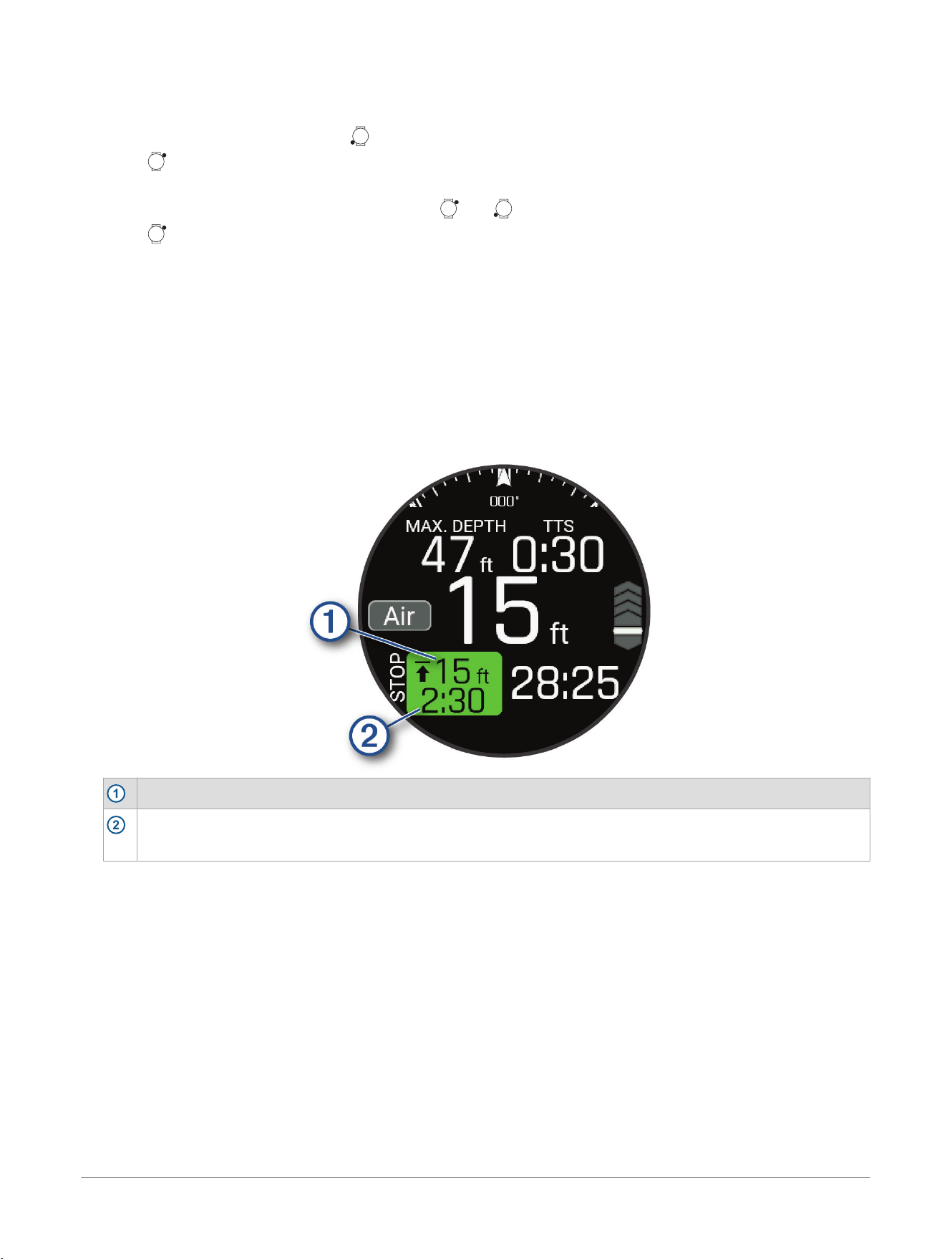
The watch saves the dive activity.
Navigating with the Dive Compass
1 During a Scuba Dive activity, press to view the dive compass.
2 Press , and select Compass> Set Heading to set the heading.
The compass indicates your directional heading with a green mark.
TIP: You can quickly set the heading by holding and .
3 Press , and select Compass.
4 Select an option:
● To set the heading again, select Change Heading.
● To change the heading by 180 degrees, select Set to Recip..
NOTE: The compass indicates the reciprocal heading with a red mark.
● To set to a 90-degree heading left or right, select Set to 90L or Set to 90R.
● To delete the heading, select Clear Heading.
Performing a Safety Stop
You should perform a safety stop during every dive to help reduce the risk of decompression sickness.
1 After a dive of at least 11 m (35 ft.), ascend to 5 m (15 ft.).
Safety stop information appears on the data screens.
1
The safety stop ceiling depth.
2
The safety stop timer.
When you are within 1 m (5 ft.) of the ceiling depth, the timer starts counting down.
2 Stay within 2 m (8 ft.) of the safety stop ceiling depth until the safety stop timer reaches zero.
NOTE: If you ascend more than 3 m (8 ft.) above the safety stop ceiling depth, the safety stop timer pauses,
and the device alerts you to descend below the ceiling depth. If you descend below 11 m (35 ft.), the safety
stop timer resets.
3 Continue ascending to the surface.
Performing a Decompression Stop
You should always perform all the required decompression stops during a dive to help reduce the risk of
decompression sickness. Missing a decompression stop adds significant risk.
1 When you exceed the no-decompression limit (NDL) time, begin your ascent.
Decompression stop information appears on the data screens.
52
D2™ Mach 2 Series Aviator Smartwatch
Owner's Manual
Apps and Activities
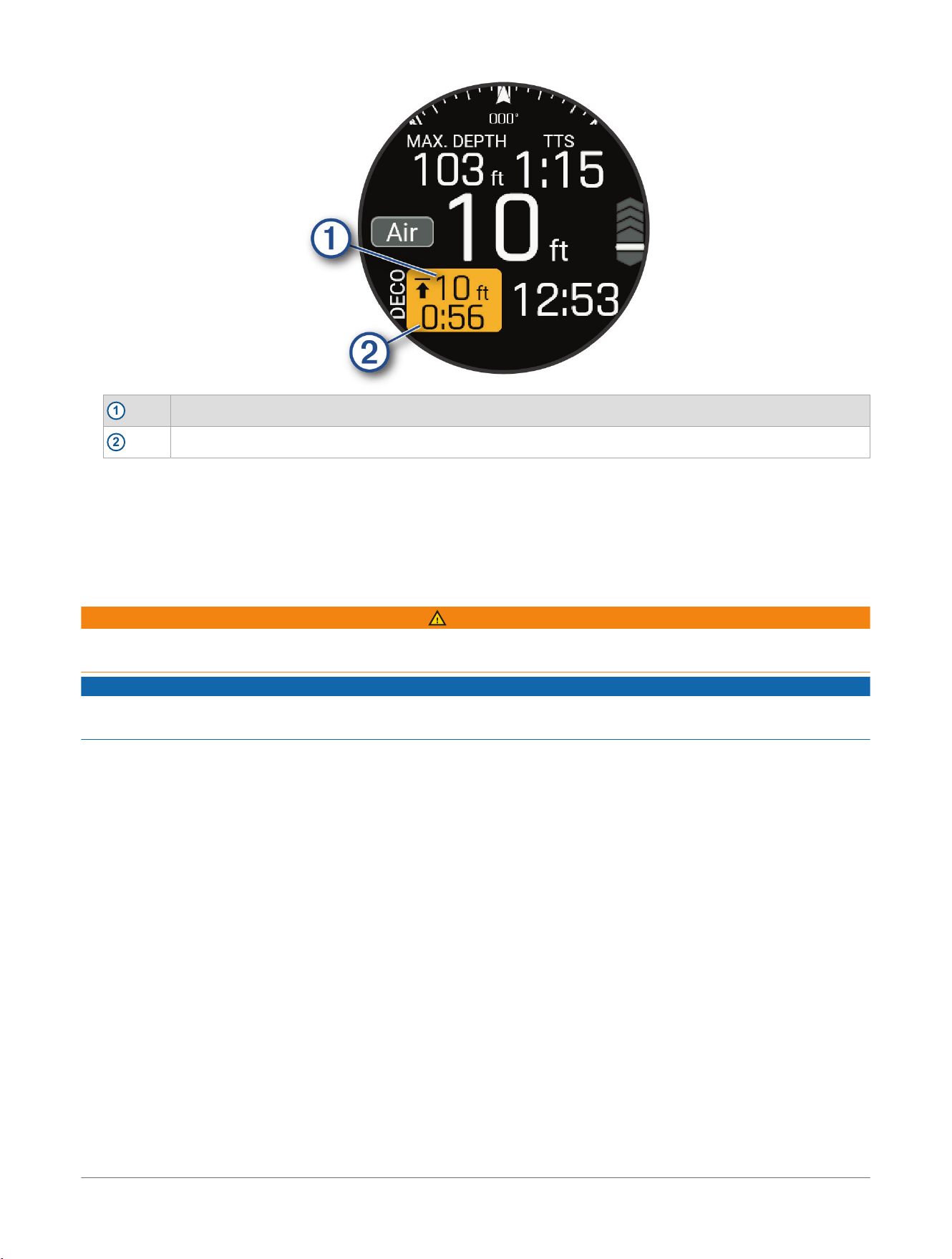
1
The decompression stop ceiling depth.
2
The decompression stop timer.
2 Stay within 0.6 m (2 ft.) of the decompression stop ceiling depth until the decompression stop timer reaches
zero.
NOTE: If you ascend more than 0.6 m (2 ft.) above the decompression stop ceiling depth, the decompression
stop timer pauses, and the device alerts you to descend below the ceiling depth. The depth and ceiling depth
flash red until you are within the safe margin.
3 Continue ascending to the surface or the next decompression stop.
Exceeding the Depth Limit
WARNING
If your watch exceeds its dive depth rating of 40 m (131.2 ft) and a dive depth limit of 45 m (147.6 ft), the watch
will stop reporting depth measurements until you ascend above the depth limit.
NOTICE
If your watch exceeds the depth limit of 45 m (147.6 ft) during a dive, you will be unable to start any additional
scuba diving activities for the next 24 hours.
Your watch is dive certified up to a dive depth rating of 40 m (131.2 ft.). When you exceed a dive depth limit
of 45 m (147.6 ft.), the watch stops reporting the depth, and No Guidance appears on the screen. When you
ascend above 45 m (147.6 ft.), the watch continues reporting the depth. Information that requires accurate
tissue loading is unavailable for the remainder of the dive, including no decompression limit (NDL) time, stop
times, and time to surface (TTS).
After exceeding the depth limit in a dive, the Scuba Dive activity is unavailable for 24 hours to prevent inaccurate
guidance. You cannot disable the Deco Lockout feature after violating the dive depth rating of the watch
(Advanced Dive Settings, page54).
Apps and Activities
D2™ Mach 2 Series Aviator Smartwatch
Owner's Manual
53
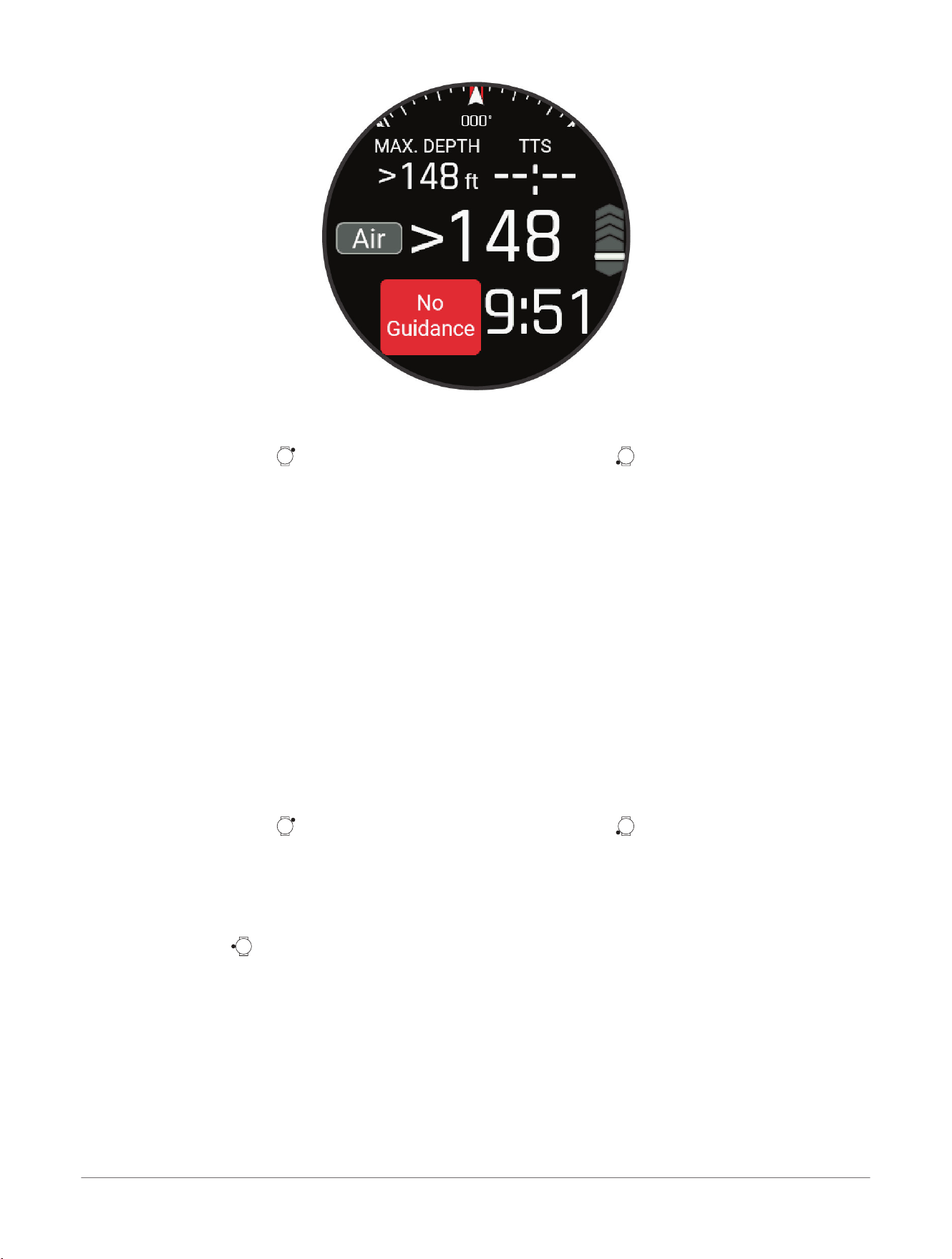
Dive Settings
You can customize the dive settings based on your needs. Not all settings are applicable for all dive modes.
From the watch face, press , select Activities, select a dive activity, press , and select the activity settings.
Advanced Settings: Customizes advanced settings for diving activities (Advanced Dive Settings, page54).
Apnea Discipline: Sets the discipline type for apnea diving.
Auto Save Timeout: Sets the length of time before the watch ends and saves a dive after surfacing.
Conservatism: Sets the level of conservatism for decompression calculations for scuba diving. Higher
conservatism provides a shorter bottom time and a longer ascent time.
Display Settings: Sets the screen brightness and timeout for diving activities.
Gas: Sets the gas blend used for scuba diving.
PO2: Sets the partial pressure of oxygen (PO2) thresholds, in bar, for warnings and critical alerts for scuba
diving (Dive Alerts, page55). The PO2 Warning value is the threshold for the highest oxygen concentration
level that you are comfortable reaching. The PO2 Critical value is the threshold for the maximum oxygen
concentration level that you should reach.
Pool Mode: Enables pool mode for scuba diving. When the watch is in pool dive mode, the decompression
lockout feature functions normally, but dives are not saved to the dive log.
Safety Stop: Sets the safety stop duration for scuba diving.
Water Type: Set the water type for diving activities.
Advanced Dive Settings
You can customize the dive settings based on your needs. Not all settings are applicable for all dive modes.
From the watch face, press , select Activities, select a dive activity, press , select the activity settings, and
select Advanced Settings.
Auto Dive: Automatically starts a dive activity based on your last dive type when you begin your descent. You
can use the Snooze option to temporarily disable this feature.
Double Tap to Scroll: Scrolls through the dive data screens when you double tap the watch. If you notice
accidental scrolling, you can use the Sensitivity option to adjust the responsiveness.
UP Key: Disables the button during dive activities to prevent inadvertent button presses.
Wrist Heart Rate: Enables the wrist-based heart rate monitor for dives.
Compass: Calibrates and sets the north reference for the compass (Calibrating the Compass Manually,
page145).
Satellites: Sets the satellite system to use for dive entry and exit locations (Satellite Settings, page68).
Deco Lockout: Enables the decompression lockout feature. This feature prevents scuba dives for 24 hours if
you violate a decompression ceiling for more than three minutes.
NOTE: You can still disable the decompression lockout feature after violating a decompression ceiling. You
cannot disable the decompression lockout feature after violating the dive depth limit of the watch (Exceeding
the Depth Limit, page53).
54
D2™ Mach 2 Series Aviator Smartwatch
Owner's Manual
Apps and Activities
Altitude Diving
At higher altitudes, the atmospheric pressure is lower, and your body contains a larger amount of nitrogen than
it would at the start of a dive at sea level. The dive computer accounts for altitude changes automatically using
the barometric pressure sensor. The absolute pressure value used by the decompression model is not affected
by the altitude or the gauge pressure displayed on the dive computer.
Custom Dive Alerts
You can set custom dive alerts to help you train toward a specific goal or to increase your awareness of your
environment.
Alert Name Dive Mode Description
Depth Scuba dive or apnea dive The alert occurs when you reach the selected depth.
Neutral Buoyancy Apnea dive The alert occurs when you reach the selected depth.
Start/Stop Apnea dive The alert occurs when you start or stop a dive.
Surface Timer Apnea dive The alert occurs when the selected time interval elapses.
Target Depth Apnea dive The alert occurs when you reach the selected depth.
Time Scuba dive or apnea dive The alert occurs when the selected time interval elapses.
Variometer Apnea dive The alert occurs every time you reach the selected depth interval.
Dive Alerts
Alert Message Cause Watch Action
None You completed the decompression stop. The decompression stop depth and time flash
blue for five seconds.
None Your partial pressure of oxygen (PO2) value
is above the specified warning value.
Your PO2 value flashes yellow.
%1 OTU accumulated.
End your dive now.
Your oxygen toxicity units are above the safe
limit. During a dive, "%1" is replaced with the
number of units accumulated.
The alert appears every two minutes, up to
three times.
250 OTU accumulated. Your oxygen toxicity units (OTU) are at 250
units, and you are nearing the safe limit of
300 units.
None
Approaching Deco Stop You are within one stop interval (3m or
9.8ft.) of the decompression stop depth.
None
Approaching NDL You have 10 minutes of no decompression
limit (NDL) time remaining.
The alert appears again when you have 5
minutes of NDL time remaining.
Ascending too fast. Slow
your ascent.
You are ascending faster than 9.1m/min.
(30ft./min.) for more than 5 seconds.
None
Battery critically low.
End your dive now.
Less than 10% battery power remains. The alert appears when the watch is below
10% battery power and on the dive pre-check
screen for your next dive.
Battery is low. Less than 20% battery power remains. The alert appears when the watch is below
20% battery power and on the dive pre-check
screen for your next dive.
CNS toxicity at %1%. End
your dive now.
Your CNS oxygen toxicity is too high. During
a dive, "%1" is replaced with your current
CNS percentage.
The alert appears every two minutes, up to
three times.
CNS toxicity at 80%. Your central nervous system (CNS) oxygen
toxicity is at 80% of the safe limit.
The alert appears during a dive and on the
dive pre-check screen for your next dive.
Deco/NDL guidance
unavailable.
You have exceeded the dive depth limit for
the watch.
Information that requires accurate tissue
loading is unavailable for the remainder of the
dive, including NDL time, stop times, and time
to surface (TTS). The NDL field is replaced
with a warning message.
Decompression Cleared You completed all decompression stops. None
Apps and Activities D2™ Mach 2 Series Aviator Smartwatch
Owner's Manual
55
Alert Message Cause Watch Action
Descend below deco
ceiling.
You are more than 0.6m (2ft.) above the
decompression ceiling.
The current depth and stop depth flash red.
If you remain above the decompression
ceiling for more than three minutes, the
decompression lockout feature goes into
effect.
Descend to complete
safety stop.
You are more than 2 m (8 ft.) above the
safety stop ceiling.
The current depth and stop depth flash yellow.
Dive will end in %1
seconds.
The watch will automatically end and save
the dive. During a dive, "%1" is replaced by
the number of seconds.
None
Do not dive. Failed to
read depth sensor.
The watch has invalid or missing depth
sensor data before you start a dive activity.
Do not start a dive. Call Garmin
®
Product
Support.
Failed to read depth
sensor. End your dive
now.
The watch has invalid or missing depth
sensor data after you have started a dive
activity.
Use a backup dive computer or dive plan and
end your dive. Call Garmin Product Support.
NDL exceeded. Decom
pression now required.
You have exceeded your NDL time. The watch begins providing decompression
stop guidance.
PO2 is high. Your PO2 value is above the specified critical
value.
Your PO2 value flashes red.
The alert appears every 30 seconds, up to
three times, until you ascend to a safe level.
Safety Stop Cleared You completed the safety stop. None
Safety Stop Started You ascended above 6 m (20 ft.) without
other decompression guidance.
The safety stop countdown timer begins, if
configured.
Watch rebooted.
Evaluate dive conditions.
The watch rebooted during the dive. The watch simulates the dive for the time
it was rebooting. Since other alerts may not
have been triggered, evaluate your current
depth and dive conditions.
Winter Sports
Viewing Your Ski Runs
Your watch records the details of each downhill skiing or snowboarding run using the auto run feature. This
feature is turned on by default for downhill skiing and snowboarding. It automatically records new ski runs when
you start moving down hill.
1 Start a skiing or snowboarding activity.
2 Hold .
3 Select View Runs.
4 Press and to view details of your last run, your current run, and your total runs.
The run screens include time, distance traveled, maximum speed, average speed, and total descent.
Recording a Backcountry Skiing or Snowboarding Activity
The backcountry skiing or snowboarding activity lets you switch between climbing and descending tracking
modes so you can accurately track your statistics. You can customize the Mode Tracking setting to
automatically or manually switch tracking modes (Activity Settings, page64).
1 From the watch face, press .
2 Select an option:
● Select Activities> Winter Sports> Backcountry Ski.
● Select Activities> Winter Sports> Backcountry Snowboard.
3 Select an option:
● If you are starting your activity on a climb, select Climbing.
● If you are starting your activity moving downhill, select Descending.
4 Press to start the activity timer.
5 If necessary, press to switch between climbing and descending tracking modes.
6 After you complete your activity, press , and select Save.
56
D2™ Mach 2 Series Aviator Smartwatch
Owner's Manual
Apps and Activities
Cross-Country Skiing Power Data
NOTE: The HRM-Pro
™
series accessory must be paired to the D2
™
Mach 2 watch using ANT+
®
technology.
You can use your compatible D2 Mach 2 watch paired with the HRM-Pro series accessory to provide real-time
feedback about your cross-country skiing performance. The power output is measured in watts. Factors that
affect power include your speed, elevation changes, wind, and snow conditions. You can use power output to
measure and improve your skiing performance.
NOTE: Skiing power values are generally lower than cycling power values. This is normal and occurs because
humans are less efficient at skiing than they are at cycling. It is common for ski power values to be 30 to 40
percent lower than cycling power values at the same training intensity.
Water Sports
Viewing Your Water Sport Runs
NOTE: This feature is not available for all water sport activity types.
Your watch records the details of each water sport run using the auto run feature. This feature automatically
records new runs based on your movement. The activity timer pauses when you stop moving. The activity timer
starts automatically when your movement speed increases. You can view run details from the paused screen or
while the activity timer is running.
1 Start a water sport activity.
2 Hold .
3 Select View Runs.
4 Press and to view details of your last run, your current run, and your total runs.
The run screens include time, distance traveled, maximum speed, and average speed.
Sailing
Tack Assist
CAUTION
The watch uses GPS-based course over ground to determine your course in the tack assist feature, and
does not account for other factors that can affect your boat's direction, such as currents and tides. You are
responsible for the safe and prudent operation of your vessel.
While cruising or racing into the wind, the tack assist feature can help you determine if your boat is being
lifted or headed. When you calibrate tack assist, the watch captures your course over ground (COG) when on
starboard tack
1
and when on port tack
2
. The watch uses the average of the two values to estimate the mean
true wind direction
3
and the boat's tack angle
4
.
The watch uses this data to determine whether your boat is being lifted or headed due to wind shifts.
By default, the tack assist feature is set to automatic. Each time you calibrate the port or starboard COG, the
watch recalibrates the opposite side and true wind direction. You can change the tack assist settings to enter a
fixed tack angle or true wind direction.
Apps and Activities
D2™ Mach 2 Series Aviator Smartwatch
Owner's Manual
57
Tips for Getting the Best Lift Estimate
To get the best lift estimate when using the tack assist feature, you can try these tips. See Setting the True Wind
Direction, page58 and Calibrating the Tack Assist, page58 for more information.
● Enter a fixed tack angle, and calibrate the port tack.
● Enter a fixed tack angle, and calibrate the starboard tack.
● Reset the tack angle, and calibrate both the port and starboard side.
Calibrating the Tack Assist
You can calibrate the port, starboard, or both sides of the vessel for the tack assist feature.
1 From the watch face, press .
2 Select Activities> Water Sports.
3 Select Sail or Sail Race.
4 Press or to view the tack assist screen.
NOTE: You may need to add the tack assist screen to the data screens for the activity (Customizing the Data
Screens, page63).
5 Select CONTROLS.
6 Select an option:
● To calibrate the starboard side, select STARBOARD.
● To calibrate the port side, select PORT.
TIP: If the wind is coming from the starboard side of the vessel, you should calibrate starboard. If the wind is
coming from the port side of the vessel, you should calibrate port.
7 Wait while the device calibrates the tack assist.
An arrow appears and indicates if your boat is being lifted or headed.
8 (Optional) Repeat steps 6 and 7 for the other side of the vessel.
9 Press when the calibration is complete.
Entering a Fixed Tack Angle
If you use the tack assist to calibrate only one side of the vessel, you should manually enter the tack angle.
1 From the watch face, press .
2 Select Activities> Water Sports.
3 Select Sail or Sail Race.
4 Hold .
5 Select Tack Angle> Angle.
6 Enter the value.
Setting the True Wind Direction
If you use the tack assist to calibrate only one side of the vessel, you should manually enter the true wind
direction. If you calibrate both sides of the vessel, you should configure the watch to automatically set the true
wind direction.
1 From the watch face, press .
2 Select Activities> Water Sports.
3 Select Sail or Sail Race.
4 Hold .
5 Select True Wind Direction.
6 Select an option:
● Select Auto.
● Select Fixed, and enter a value.
Sail Racing
You can use the device to help you cross the start line of a race exactly when the race begins. When you
synchronize the regatta timer in the sail racing app with the official race countdown timer, you are alerted at
one-minute intervals as the race start approaches. When you set the starting line, the device uses GPS data to
indicate whether your boat will cross the start line before, after, or at the correct time to start the race.
58
D2™ Mach 2 Series Aviator Smartwatch
Owner's Manual
Apps and Activities
Setting the Starting Line
1 From the watch face, press .
2 Select Activities> Water Sports> Sail Race.
3 Wait while the device locates satellites.
4 Hold .
5 Select Start Line Settings.
6 Select an option:
● Select Mark Port to mark the port starting line mark as you sail past it.
● Select Mark Starboard to mark the starboard starting line mark as you sail past it.
● Select Time to Burn to enable or disable the time to burn data on the regatta timer data screen.
● Select Distance to Start to set the distance to the start line, preferred distance units, and length of your
boat.
Starting a Race
Before you can view the time to burn, you must set the starting line (Setting the Starting Line, page59).
1 From the watch face, press .
2 Select Activities> Water Sports> Sail Race.
3 Wait while the watch locates satellites.
The screen displays the regatta timer
1
and time to burn
2
.
4 If necessary, hold , and select an option:
● To set a fixed timer, select Regatta Time> Fixed, and enter a length of time.
● To set a start time within the next 24 hours, select Regatta Time> GPS, and enter a time of day.
5 Press .
6 Press and to synchronize the regatta timer with the official race countdown.
NOTE: When the burn time is negative, you will arrive at the start line after the race starts. When the burn
time is positive, you will arrive at the start line before the race starts.
7 Press to start the activity timer.
Other Activities
Recording a Breathwork Activity
1 From the watch face, press .
2 Select Activities> Other> Breathwork.
3 Select an option:
● Select Coherence to achieve a state of calm alertness.
● Select Relax and Focus to relax your body and focus the mind.
● Select Relax and Focus (Short) to relax your body and focus the mind in a shorter time frame.
● Select Tranquility to lower your stress level and get ready for sleep.
Apps and Activities
D2™ Mach 2 Series Aviator Smartwatch
Owner's Manual
59
4 If necessary, select Do Workout.
5 Press to start the activity.
6 Follow the on-screen instructions as the watch guides you through the breathing exercises.
7 Press to skip to the next step in the breathwork phase.
8 After you complete your activity, press , and select Save.
Your average respiration rate and heart rate appear.
9 Press .
10 Select All Stats.
Your average heart rate, maximum heart rate, average respiration rate, and stress change appear.
Recording a Meditation Activity
You can use a guided session or create your own meditation activity.
1 From the watch face, press .
2 Select Activities> Other> Meditation.
3 Select an option:
● Select Free to record an open, unstructured meditation activity.
● Select Session to follow a guided session with audio.
● Select Custom to create a custom session with audio.
4 If necessary, press , or follow the on-screen instructions.
5 Press to start the activity timer.
The watch displays a countdown timer or intention.
6 Select an option:
● Select to listen to the meditation audio from the external speaker and set the speaker volume.
● Connect your headphones to listen to the meditation audio (Connecting Bluetooth
®
Headphones,
page137).
NOTE: Notifications are disabled during the meditation activity.
7 After you complete your activity, press , and select Save.
Gaming
Using the Garmin GameOn
™
App
When you pair your watch with your computer, you can record a gaming activity on your watch and view
real-time performance metrics on your computer.
1 On your computer, go to www.overwolf.com/app/Garmin-Garmin_GameOn and download the Garmin
GameOn app.
2 Follow the on-screen instructions to complete the installation.
3 Launch the Garmin GameOn app.
4 When the Garmin GameOn app prompts you to pair your watch, press , and select Activities> Other>
Gaming on your watch.
NOTE: While your watch is connected to the Garmin GameOn app, notifications and other Bluetooth
®
features
are disabled on the watch.
5 Select Pair Now.
6 Select your watch from the list, and follow the on-screen instructions.
TIP: You can click > Settings to customize your settings, reread the tutorial, or remove a watch. The
Garmin GameOn app remembers your watch and settings the next time you open the app. If necessary, you
can pair your watch to another computer (Pairing Your Wireless Sensors, page103).
7 Select an option:
● On your computer, start a supported game to automatically start the gaming activity.
● On your watch, start a manual gaming activity (Recording a Manual Gaming Activity, page60).
The Garmin GameOn app shows your real-time performance metrics. When you complete your activity, the
Garmin GameOn app displays your gaming activity summary and match information.
Recording a Manual Gaming Activity
You can record a gaming activity on your watch and manually enter stats for each match.
60
D2™ Mach 2 Series Aviator Smartwatch
Owner's Manual
Apps and Activities
1 From the watch face, press .
2 Select Activities> Other> Gaming.
3 Press , and select a game type.
4 Press to start the activity timer.
5 Press at the end of the match to record your match result or placement.
6 Press to start a new match.
7 After you complete your activity, press , and select Save.
Jumpmaster
WARNING
The jumpmaster feature is for use by experienced skydivers only. The jumpmaster feature should not be used
as a primary skydiving altimeter. Failure to input the appropriate jump related information can lead to serious
personal injury or death.
The jumpmaster feature follows military guidelines for calculating the high altitude release point (HARP). The
watch detects automatically when you have jumped to begin navigating toward the desired impact point (DIP)
using the barometer and electronic compass.
Planning a Jump
1 Select a jump type (Jump Types, page61).
2 Enter the jump information (Entering Jump Information, page61).
The device calculates the HARP.
3 Select Go To HARP to start navigation to the HARP.
Jump Types
The jumpmaster feature allows you to set the jump type to one of three types: HAHO, HALO, or Static. The jump
type selected determines what additional setup information is required. For all jump types, drop altitudes and
opening altitudes are measured in feet above ground level (AGL).
HAHO: High Altitude High Opening. The jumpmaster jumps from a very high altitude and opens the parachute
at a high altitude. You must set a DIP and a drop altitude of at least 1,000 feet. The drop altitude is assumed
to be the same as the opening altitude. Common values for a drop altitude range from 12,000 to 24,000 feet
AGL.
HALO: High Altitude Low Opening. The jumpmaster jumps from a very high altitude and opens the parachute at
a low altitude. The required information is the same as the HAHO jump type, plus an opening altitude. The
opening altitude must not be greater than the drop altitude. Common values for an opening altitude range
from 2,000 to 6,000 feet AGL.
Static: The wind speed and direction are assumed to be constant for the duration of the jump. The drop altitude
must be at least 1,000 feet.
Entering Jump Information
1 Press .
2 Select Activities> Outdoor> Jumpmaster.
3 Select a jump type (Jump Types, page61).
4 Complete one or more actions to enter your jump information:
● Select DIP to set a waypoint for the desired landing location.
● Select Drop Alt. to set the drop altitude AGL (in feet) when the jumpmaster exits the aircraft.
● Select Open Alt to set the open altitude AGL (in feet) when the jumpmaster opens the parachute.
● Select Forward Throw to set the horizontal distance traveled (in meters) due to aircraft speed.
● Select Crs. to HARP to set the direction traveled (in degrees) due to aircraft speed.
● Select Wind to set the wind speed (in knots) and direction (in degrees).
● Select Constant to fine-tune some information for the planned jump. Depending on the jump type, you
can select Percent Max., Safety Factor, K-Open, K-Freefall, or K-Static and enter additional information
(Constant Settings, page62).
● Select Auto to DIP to enable navigation to the DIP automatically after you jump.
● Select Go To HARP to start navigation to the HARP.
Apps and Activities
D2™ Mach 2 Series Aviator Smartwatch
Owner's Manual
61
Entering Wind Information for HAHO and HALO Jumps
1 Press .
2 Select Activities> Outdoor> Jumpmaster.
3 Select a jump type (Jump Types, page61).
4 Select Wind> Add.
5 Select an altitude.
6 Enter a wind speed in knots and select Done.
7 Enter a wind direction in degrees and select Done.
The wind value is added to the list. Only wind values included in the list are used in calculations.
8 Repeat steps 5–7 for each available altitude.
Resetting Wind Information
1 Press .
2 Select Activities> Outdoor> Jumpmaster.
3 Select HAHO or HALO.
4 Select Wind> Reset.
All wind values are removed from the list.
Entering Wind Information for a Static Jump
1 Press .
2 Select Activities> Outdoor> Jumpmaster> Static> Wind.
3 Enter a wind speed in knots and select Done.
4 Enter a wind direction in degrees and select Done.
Constant Settings
Select Jumpmaster, select a jump type, and select Constant.
Percent Max.: Sets the jump range for all jump types. A setting less than 100% decreases the drift distance to
the DIP, and a setting greater than 100% increases the drift distance. More experienced jumpmasters may
want to use smaller numbers, and less experienced skydivers may want to use larger numbers.
Safety Factor: Sets the margin of error for a jump (HAHO only). Safety factors are usually integer values of two
or greater, and are determined by the jumpmaster based on specifications for the jump.
K-Freefall: Sets the wind drag value for a parachute during freefall, based on the parachute canopy rating (HALO
only). Each parachute should be labeled with a K value.
K-Open: Sets the wind drag value for an open parachute, based on the parachute canopy rating (HAHO and
HALO). Each parachute should be labeled with a K value.
K-Static: Sets the wind drag value for a parachute during a static jump, based on the parachute canopy rating
(Static only). Each parachute should be labeled with a K value.
Customizing Activities and Apps
You can customize the activities and apps list, data screens, data fields, and other settings.
Customizing the App List
1 From the watch face, press .
2 Select Edit.
3 Select an option:
● To change the location of an app in the list, select an app, press or to move the app, and press
to select the new location.
● To remove an app from the list, select the app, and select .
● To add an app, select Add, and select one or more apps.
Customizing Your Favorite Activities List
Your favorite activities list appears at the top of the list, and it provides quick access to the activities you use
frequently. You can add or remove favorite activities at any time.
1 From the watch face, press .
2 Select Activities.
62
D2™ Mach 2 Series Aviator Smartwatch
Owner's Manual
Apps and Activities
Your favorite activities appear at the top of the list.
3 Select Edit.
4 Select an option:
● To change the location of an activity in the list, select an activity, press or to move the activity, and
press to select the new location.
● To remove a favorite activity, select the activity, and select > Remove.
● To add a favorite activity, select Add, and select one or more activities.
Pinning a Favorite Activity to the List
You can pin up to three favorite activities to the top of the app and activity lists.
1 From the watch face, press .
2 Select Activities.
3 Scroll to a favorite activity (Customizing Your Favorite Activities List, page62).
4 Hold , and select Pin Activity.
The next time you press from the watch face to open the app and activity lists, the pinned activity appears at
the top of the list.
Customizing the Data Screens
You can show, hide, and change the layout and content of data screens for each activity.
1 From the watch face, press .
2 Select Activities, and select an activity.
3 Scroll down, and select the activity settings.
4 Select Data Screens.
5 Scroll to the data screen you want to customize.
6 Select .
7 Select an option:
● Select Layout to adjust the number of data fields on the data screen.
● Select Data Fields, and select a field to change the data that appears in the field.
TIP: For a list of all the available data fields, go to Data Fields, page160. Not all data fields are available
for all activity types.
● Select Reorder to change the location of the data screen in the loop.
● Select Remove to remove the data screen from the loop.
NOTE: Not all options are available for dive activities.
8 If necessary, select Add New to add a data screen to the loop.
You can add a custom data screen, or select one of the predefined data screens.
Adding the Map Data Screen
You can add the map to the data screens loop for a GPS activity.
1 From the watch face, press .
2 Select Activities, and select a GPS activity.
3 Scroll down, and select the activity settings.
4 Select Data Screens> Add New> Map.
Creating a Custom Activity
1 From the watch face, press .
2 Select Activities> Edit> Add.
3 Select an option:
● Select Copy Activity to create your custom activity starting from one of your saved activities.
● Select Other> Other to create a new custom activity.
4 If necessary, select an activity type.
5 Select a name or enter a custom name.
Duplicate activity names include a number, for example: Bike(2).
Apps and Activities
D2™ Mach 2 Series Aviator Smartwatch
Owner's Manual
63
6 Select an option:
● Select an option to customize specific activity settings. For example, you can customize the data screens
or auto features.
● Select Done to save and use the custom activity.
Activity Settings
These settings allow you to customize each preloaded activity based on your needs. For example, you can
customize data screens and enable alerts and training features. Not all settings are available for all activity
types. Some activity types have separate settings lists (Golf Settings, page36, Dive Settings, page54).
From the watch face, press , select Activities, select an activity, press , and select the activity settings.
3D Distance: Calculates your distance traveled using your elevation change as well as your horizontal
movement over ground.
3D Speed: Calculates your speed using your elevation change as well as your horizontal movement over ground.
Accent Color: Sets the accent color for the activity icon.
Add Activity: Adds an activity type to a multisport activity.
Alerts: Sets the training or navigation alerts for the activity (Activity Alerts, page66).
Altimeter Settings: Displays the flight altitude based on ambient pressure or GPS altitude.
Audio Output: Sets the audio device to use for voice alerts (Playing Voice Alerts During an Activity, page67).
Auto Climb: Detects elevation changes using the built-in altimeter and automatically displays relevant climb
data (Enabling Auto Climb, page68).
Auto Fly: Starts a Fly activity automatically when the watch detects a flight. You can adjust the climb rate
sensitivity and enable
Garmin Pilot
™
app data to prevent false detections.
Auto Lap: Sets the options for the Auto Lap
®
feature to automatically mark laps. The By Distance option marks
laps at a specific distance. The By Position option marks laps at a location where you previously pressed
. The Auto Select option triggers lap alerts on mile or kilometer course points when running a course with
timing gates, such as some certified marathons, or at the distance set in the Auto Distance setting. When
you complete a lap, a customizable lap alert message appears. This feature is helpful for comparing your
performance over different parts of an activity.
TIP: You can create your own course with timing gates by turning on Auto Lap by Timing Gates when you
create a course on the Garmin Connect
™
app (Creating a Course on Garmin Connect
™
, page129).
Auto Pause: Sets the options for the Auto Pause
®
feature to stop recording data when you stop moving or when
you drop below a specified speed. This feature is helpful if your activity includes stop lights or other places
where you must stop.
Auto Rest: Automatically creates a rest interval when you stop moving during a pool swim activity (Swim Auto
Rest and Manual Rest, page46). Sets the options for automatically starting and stopping the rest timer for the
ultra run activity (Ultra Run Auto Rest Settings, page43).
Auto Run: Automatically detects ski or water sport runs using the built-in accelerometer (Viewing Your Ski Runs,
page56, Viewing Your Water Sport Runs, page57).
Auto Scroll: Automatically scrolls through all of the activity data screens while the activity timer is running.
Auto Set: Automatically starts and stops exercise sets during a strength training activity.
Auto Sport Change: Automatically detects a transition to the next sport in a multisport activity, such as a
triathlon.
Auto Start: Automatically starts a motocross or BMX activity when you start moving.
Broadcast Heart Rate: Automatically broadcasts heart rate data from your watch to paired devices when you
start the activity (Broadcasting Heart Rate Data, page120).
Broadcast to GameOn: Automatically broadcasts biometrics data to the Garmin GameOn
™
app when you start a
gaming activity (Using the Garmin GameOn
™
App, page60).
ClimbPro: Displays ascent information for upcoming and current climbs while navigating a course (Using
ClimbPro, page67).
Countdown Start: Enables a countdown timer for pool swimming intervals.
Data Screens: Customizes data screens and adds new data screens for the activity (Customizing the Data
Screens, page63).
Edit Weight: Prompts you to add the weight used for an exercise set during a strength training or cardio activity.
Ending Alerts: Sets an alert for two or five minutes before the end of your meditation activity.
Flashlight Strobe: Sets the LED flashlight strobe mode, speed, and color during the activity.
64
D2™ Mach 2 Series Aviator Smartwatch
Owner's Manual
Apps and Activities

Gear Selection: After you complete an activity, prompts you to select the gear or equipment you used during the
activity. You can add and delete gear in your Garmin Connect account (Garmin Connect
™
, page112).
Grading System: Sets the grading system for rating the route difficulty for a rock climbing activity.
In-flight Alerts: Sets the aviation alerts for the flight activity (Setting Aviation Alerts, page32).
Jump Mode: Sets the jump rope activity target to a set time, number of reps, or open ended.
Lane Number: Sets your lane number for track running.
Laps: Configures the settings for the Auto Lap, Lap Key, and Lap Alert options.
Lap Alert: Sets the data fields to show for laps.
Lap Key: Enables the button for recording a lap or rest during an activity. You can also define the default
behavior for the button during a multisport activity.
Lock Device: Locks the touchscreen and buttons during a multisport activity to prevent inadvertent button
presses and touchscreen swipes.
Map Settings: Sets the display preferences for the map data screen for the activity (Map Settings, page124).
Map Layers: Sets the map data to show on the map (Showing and Hiding Map Data, page126).
Metronome: Plays tones or vibrates at a steady rhythm to help you improve your performance by training at a
faster, slower, or more consistent cadence. You can set the beats per minute (bpm) of the cadence you want
to maintain, beat frequency, and sound settings.
Mode Tracking: Sets the ascent and descent tracking mode to automatic or manual for backcountry skiing and
snowboarding.
Obstacle Tracking: Saves obstacle locations from your first loop of the course. On repeat loops of the course,
the watch uses the saved locations to switch between obstacle and running intervals
(Recording an Obstacle
Racing Activity, page44).
Pack Weight: Sets the weight of the pack you are carrying.
Performance Condition: Enables the performance condition feature during an activity (Performance Condition,
page79).
Pool Size: Sets the pool length for pool swimming.
Power Averaging: Controls whether the watch includes zero values for bike power data that occur when you are
not pedaling.
Power Mode: Sets the default power mode for the activity.
Power Save Timeout: Sets the timeout limit for the watch to stay in activity mode while waiting for you to start
the activity, for example, when you are waiting for a race to start. The Normal option sets the watch to enter
low-power watch mode after 5 minutes of inactivity. The Extended option sets the watch to enter low-power
watch mode after 25 minutes of inactivity. The extended mode can result in shorter battery life between
charges.
Record After Sunset: Sets the watch to record track points after sunset during an expedition.
Record Temperature: Records the ambient temperature around the watch or from a paired temperature sensor.
Record VO2 Max.: Records a VO2 max. estimate for trail run and ultra run activities.
Recording Interval: Sets the frequency for recording track points during an expedition. By default, GPS track
points are recorded once an hour, and they are not recorded after sunset. Recording track points less
frequently maximizes battery life.
Rename: Sets the activity name.
Rep Counting: Records rep counts during a workout. The Workouts Only option records rep counts during
guided workouts only.
Repeat: Records repeats for multisport activities. For example, you can use this option for activities that include
multiple transitions, such as a swimrun.
Restore Defaults: Resets the activity settings.
Route Stats: Records route statistics for indoor climbing activities.
Routing: Sets the preferences for calculating routes for the activity (Routing Settings, page67).
Running Power: Records running power data and customizes the settings (Running Power Settings, page104).
Runs: Configures the settings for the Auto Run, Lap Key, and Lap Alert options.
Satellites: Sets the GNSS satellite system to use for the activity (Satellite Settings, page68).
Segment Alerts: Notifies you about approaching saved segments (Segments, page68).
Self Evaluation: Sets how often you evaluate your perceived effort for the activity (Evaluating an Activity,
page31).
Apps and Activities
D2™ Mach 2 Series Aviator Smartwatch
Owner's Manual
65
SpeedPro: Records advanced speed metrics for windsurf activity runs.
Stroke Detection: Automatically detects your stroke type for pool swimming.
Touch: Enables the touchscreen during an activity or only for the map screen.
Touch Lock: Enables swiping down from the top of the screen to unlock the touchscreen.
Track Detection: Automatically detects if you are on a track for running.
Transitions: Enables transitions for multisport activities.
Units: Sets the units of measure for the activity.
Vibration Alerts: Notifies you to inhale or exhale during a breathwork activity.
Workout Videos: Plays instructive workout animations for a strength, cardio, yoga, or Pilates activity.
Animations are available for pre-installed workouts and workouts downloaded from your Garmin Connect
account.
Activity Alerts
You can set alerts for each activity, which can help you to train toward specific goals, to increase your
awareness of your environment, and to navigate to your destination. Some alerts are available only for specific
activities. There are three types of alerts: event alerts, range alerts, and recurring alerts.
Event alert: An event alert notifies you one time. The event is a specific value. For example, you can set the
watch to alert you when you burn a specified number of calories.
Range alert: A range alert notifies you each time the watch is above or below a specified range of values. For
example, you can set the watch to alert you when your heart rate is below 60beats per minute (bpm) and
over 210bpm.
Recurring alert: A recurring alert notifies you each time the watch records a specified value or interval. For
example, you can set the watch to alert you every 30minutes.
Alert Name Alert Type Description
Cadence Range You can set minimum and maximum cadence values.
Calories Event, recurring You can set the number of calories.
Custom Event, recurring You can select an existing message or create a custom message and select an alert
type.
Distance Event, recurring You can set a distance interval.
Elevation Range You can set minimum and maximum elevation values.
Heart Rate Range You can set minimum and maximum heart rate values or select zone changes. See
About Heart Rate Zones, page138 and Heart Rate Zone Calculations, page139.
Pace Range You can set minimum and maximum pace values.
Pacing Recurring You can set a target swim pace.
Power Range You can set the high or low power level.
Proximity Event You can set a radius from a saved location.
Run/Walk Recurring You can set timed walking breaks at regular intervals.
Running Power Event, range You can set minimum and maximum power zone values.
Speed Range You can set minimum and maximum speed values.
Stroke Rate Range You can set high or low strokes per minute.
Time Event, recurring You can set a time interval.
Track Timer Recurring You can set a track time interval in seconds.
Setting an Alert
1 From the watch face, press .
2 Select Activities, and select an activity.
NOTE: This feature is not available for all activities.
3 Scroll down, and select the activity settings.
4 Select Alerts.
5 Select an option:
● Select Add New to add a new alert for the activity.
● Select the alert name to edit an existing alert.
66
D2™ Mach 2 Series Aviator Smartwatch
Owner's Manual
Apps and Activities
6 If necessary, select the type of alert.
7 Select a zone, enter the minimum and maximum values, or enter a custom value for the alert.
8 If necessary, turn on the alert.
For event and recurring alerts, a message appears each time you reach the alert value. For range alerts, a
message appears each time you exceed or drop below the specified range (minimum and maximum values).
Playing Voice Alerts During an Activity
Your watch can play motivational status announcements during a run or other activity. During a voice alert, the
watch or phone lowers the volume of the primary audio to play the announcement.
NOTE: This feature is not available for all activities.
1 From the watch face, hold .
2 Select Watch Settings> Focus Modes> Activity> Voice Alerts.
3 Select an option:
● To set voice alerts to play through the watch speaker, select Audio Output> Watch.
● To set voice alerts to play through your phone or connected Bluetooth
®
headphones, if available, select
Audio Output> Connected Devices.
● To hear turn-by-turn alerts during navigation, select Guidance Alerts.
● To hear an alert for each lap, select Lap Alert.
● To customize alerts with your pace and speed information, select Pace/Speed Alert.
● To customize alerts with your heart rate information, select Heart Rate Alert.
● To customize alerts with power data, select Power Alert.
● To hear alerts when you start and stop the activity timer, including the Auto Pause
®
feature, select Timer
Events.
● To hear workout alerts play as a voice alert, select Workout Alerts.
● To hear activity alerts play as a voice alert, select Activity Alerts (Activity Alerts, page66).
●
To hear cycling safety alerts from connected Varia
™
radar and bike light sensors play as a voice alert,
select Cycling Safety Alerts (Wireless Sensors, page102).
Routing Settings
You can change the routing settings to customize the way the watch calculates routes for each activity.
NOTE: Not all settings are available for all activity types.
From the watch face, press , select Activities, select an activity, press , select the activity settings, and
select Routing.
Popularity Routing: Calculates routes based on the most popular runs and rides from Garmin Connect
™
.
Courses: Sets how you navigate courses using the watch. Use the Follow Course option to navigate a course
exactly as it appears, without recalculating. Use the Use Map option to navigate a course using routable
maps, and recalculate the route if you stray from the course.
Calculation Method: Sets the calculation method to minimize the time, distance, or ascent in routes.
Avoidances: Sets the road or transportation types to avoid in routes.
Type: Sets the behavior of the pointer that appears during direct routing.
Using ClimbPro
The ClimbPro feature helps you manage your effort for the upcoming climbs on a course. You can view climb
details, including gradient, distance, and elevation gain, before or in real time while following a course. Cycling
climb categories, based on length and gradient, are indicated by color.
1 From the watch face, press .
2 Select Activities, and select an activity.
NOTE: This feature is not available for all activities.
3 Scroll down, and select the activity settings.
4 Select ClimbPro> Status> When Navigating.
5 Select an option:
● Select Data Field to customize the data field that appears on the ClimbPro screen.
● Select Alert to set alerts at the start of a climb or at a certain distance from the climb.
● Select Descents to turn descents on or off for running activities.
● Select Climb Detection to choose the types of climbs detected during cycling activities.
Apps and Activities
D2™ Mach 2 Series Aviator Smartwatch
Owner's Manual
67
6 Review the climbs and course details for the course (Using the Saved App, page14).
7 Start following a saved course (Navigating to a Destination, page127).
Enabling Auto Climb
You can use the auto climb feature to detect elevation changes automatically. You can use it during activities
such as hiking, running, or biking.
1 From the watch face, press .
2 Select Activities, and select an activity.
NOTE: This feature is not available for all activities.
3 Scroll down, and select the activity settings.
4 Select Auto Climb> Status.
5 Select Always or When Not Navigating.
6 Select an option:
● Select Run Screen to identify which data screen appears while running.
● Select Climb Screen to identify which data screen appears while climbing.
● Select Vertical Speed to set the rate of ascent over time.
● Select Mode Switch to set how quickly the device changes modes.
NOTE: The Current Screen option allows you to automatically switch to the last screen you were viewing
before the auto climb transition occurred.
Satellite Settings
You can change the GNSS satellite settings to customize the satellite systems used for each activity. For more
information about GNSS satellite systems, go to garmin.com/aboutGPS.
From the watch face, press , select Activities, select an activity, scroll down and select the activity settings,
and select Satellites.
NOTE: This feature is not available for all activities.
Off: Disables GNSS satellite systems for the activity.
Use Default: Enables the watch to use the default activity focus mode setting for GNSS satellites (Customizing a
Default Focus Mode, page117).
GPS Only: Enables the GPS satellite system.
All Systems: Enables multiple GNSS satellite systems. Using multiple GNSS satellite systems together offers
increased performance in challenging environments and faster position acquisition than using GPS only.
However, using multiple GNSS systems can reduce battery life more quickly than using GPS only.
All + Multi-Band: Enables multiple GNSS satellite systems on multiple frequency bands. Multi-band GNSS
systems use multiple frequency bands and allow for more consistent track logs, improved positioning,
improved multi-path errors, and fewer atmospheric errors when using the watch in challenging environments.
Auto Select: Enables the watch to use SatIQ
™
technology to dynamically select the best multi-band GNSS
system based on your environment. The Auto Select setting offers the best positioning accuracy while still
prioritizing battery life.
UltraTrac: Records track points and sensor data less frequently. Enabling the UltraTrac feature increases
battery life but decreases the quality of recorded activities. You should use the UltraTrac feature for activities
that demand longer battery life and for which frequent sensor data updates are less important.
Segments
You can send running or cycling segments from your Garmin Connect
™
account to your device. After a segment
is saved to your device, you can race a segment, trying to match or exceed your personal record or other
participants who have raced the segment.
NOTE: When you download a course from your Garmin Connect account, you can download all of the available
segments in the course.
Strava
™
Segments
You can download Strava segments to your D2
™
Mach 2 device. Follow Strava segments to compare your
performance with your past rides, friends, and pros who have ridden the same segment.
To sign up for a Strava membership, go to the segments menu in your Garmin Connect
™
account. For more
information, go to www.strava.com.
The information in this manual applies to both Garmin Connect segments and Strava segments.
68
D2™ Mach 2 Series Aviator Smartwatch
Owner's Manual
Apps and Activities
Viewing Segment Details
1 From the watch face, press .
2 Select Activities, and select an activity.
NOTE: This feature is not available for all activities.
3 Press .
4 Select the activity settings.
5 Select Segments.
6 Select a segment.
7 Select an option:
● Select Race Times to view the time and average speed or pace for the segment leader.
● Select Map to view the segment on the map.
● Select Elevation Plot to view an elevation plot of the segment.
Racing a Segment
Segments are virtual race courses. You can race a segment, and compare your performance to past activities,
others' performance, connections in your Garmin Connect
™
account, or other members of the running or cycling
communities. You can upload your activity data to your Garmin Connect account to view your segment position.
NOTE: If your Garmin Connect account and Strava
™
account are linked, your activity is automatically sent to your
Strava account so you can review the segment position.
1 From the watch face, press .
2 Select an activity.
3 Go for a run or ride.
When you approach a segment, a message appears, and you can race the segment.
4 Start racing the segment.
A message appears when the segment is complete.
Apps and Activities
D2™ Mach 2 Series Aviator Smartwatch
Owner's Manual
69
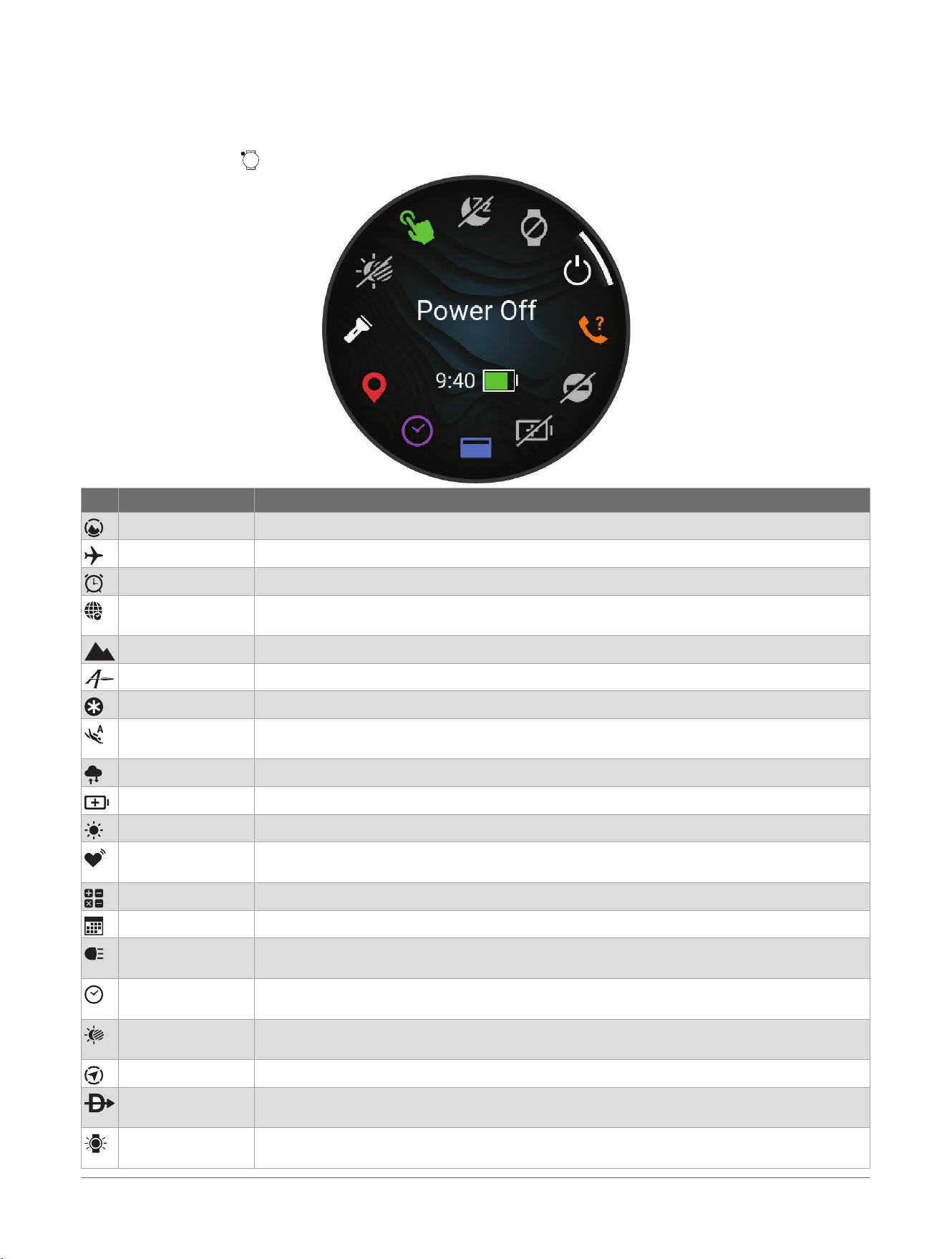
Controls
The controls menu lets you quickly access watch features and options. You can add, reorder, and remove the
options in the controls menu (Customizing the Controls Menu, page72).
From any screen, hold .
Icon Name Description
ABC Select to open the altimeter, barometer, and compass app.
Airplane Mode Select to enable airplane mode to turn off all wireless communications.
Alarm Clock Select to add or edit an alarm (Setting an Alarm, page90).
Alt. Time Zones Select to view the current time of day in additional time zones (Adding Alternate Time Zones,
page92).
Altimeter Select to open the altimeter screen.
Applied Ballistics Select to open the Applied Ballistics app (Applied Ballistics
®
, page19).
Assistance Select to send an assistance request (Requesting Assistance, page133).
Auto Dive Select to set the type of dive activity that starts automatically when you begin your descent.
You can use the Snooze option to temporarily disable this feature.
Barometer Select to open the barometer screen.
Battery Saver Select to enable the battery saver feature (Customizing the Battery Saver Feature, page141).
Brightness Select to adjust the screen brightness (Display and Brightness Settings, page101).
Broadcast Heart
Rate
Select to turn on heart rate broadcasting to a paired device (Broadcasting Heart Rate Data,
page120).
Calculator Select to use the calculator, including the tip calculator.
Calendar Select to view upcoming events from your phone calendar.
Camera Controls
Select to manually take a photo and record a video clip (Using the Varia
™
Camera Controls,
page105).
Clocks Select to open the Clocks app to set an alarm, timer, stopwatch, or view alternate time
zones (Clocks, page90).
Color Shift Select to turn the screen to shades of red, green, or orange to use the watch in low light
conditions.
Compass Select to open the compass screen.
Direct-To Select to navigate directly to an airport or aviation waypoint (Starting Direct-To Navigation,
page34).
Display Select to turn off the screen for alerts, gestures, and Always On Display mode (Display and
Brightness Settings, page101).
70 D2™ Mach 2 Series Aviator Smartwatch
Owner's Manual
Controls
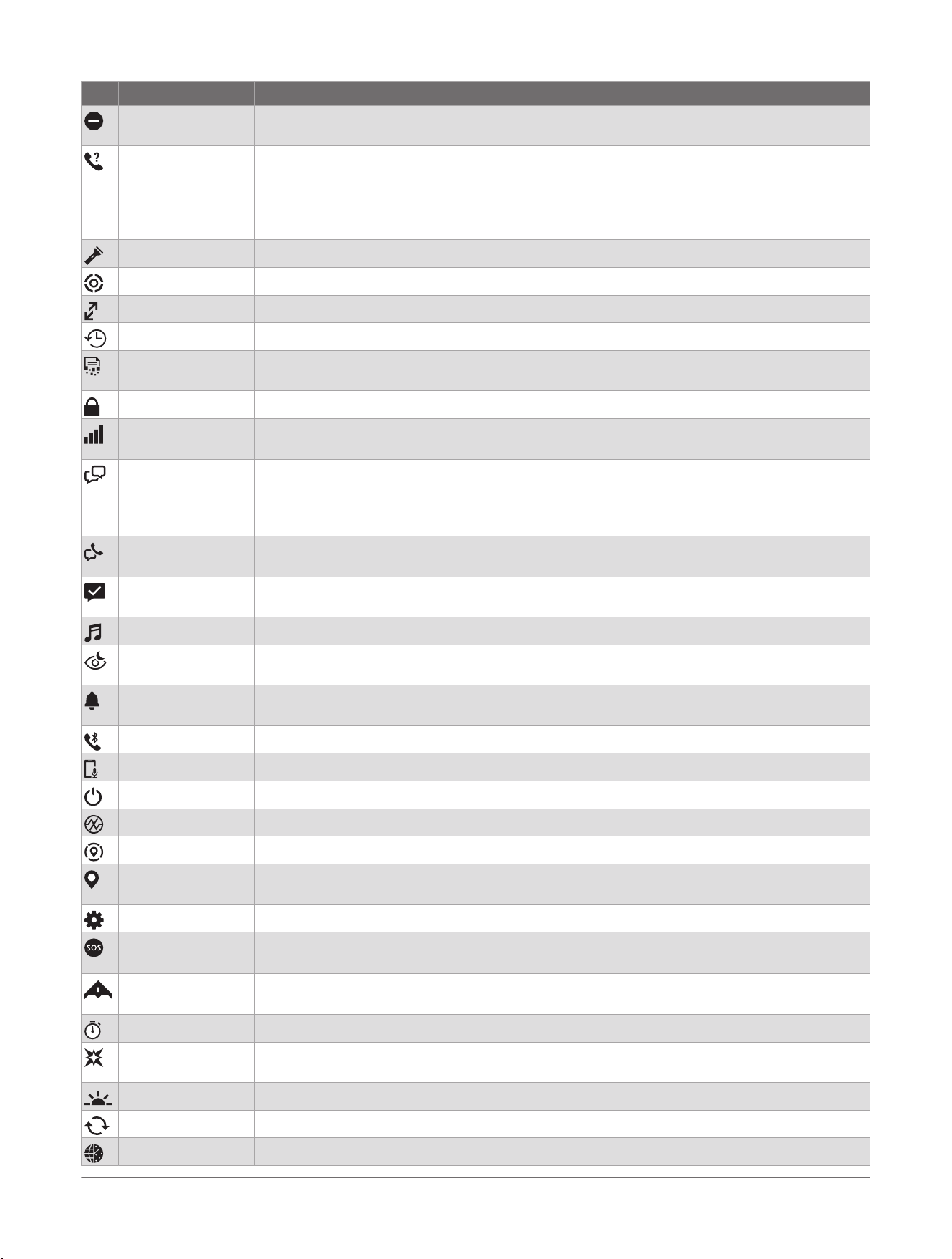
Icon Name Description
Do Not Disturb Select to enable do not disturb mode to dim the screen and disable alerts and notifications.
For example, you can use this mode while watching a movie.
Find My Phone Select to play an audible alert on your paired phone, if it is within Bluetooth
®
range. The
Bluetooth signal strength appears on the D2
™
watch screen, and it increases as you move
closer to your phone.
Select to navigate to your lost phone during a GPS activity (Locating a Phone Lost During a
GPS Activity, page108).
Flashlight Select to turn on the LED flashlight (Using the LED Flashlight, page72).
Focus Mode Select to change the current focus mode (Focus Modes, page117).
Garmin Share Select to open the Garmin Share app (Garmin Share, page111).
History Select to view your activity history, records, and totals.
Kill Switch Select to quickly remove all saved user data and reset all settings to the factory default
values (Clearing User Data with the Kill Switch Feature, page73).
Lock Device Select to lock the buttons and the touchscreen to prevent inadvertent presses and swipes.
LTE On a D2 Mach 2 Pro watch with an active inReach
®
service plan, select to change the LTE
mode (LTE and Satellite Settings, page111).
Messenger Select to view and send messages using the Messenger app (Using the Messenger App,
page16).
On a D2 Mach 2 Pro watch with an active inReach service plan, you can use the watch's LTE
or satellite connection to send messages or check for new messages.
Messenger Calls On a D2 Mach 2 Pro watch with an active inReach service plan, select to view call history or
make a voice call (Calling from the Messenger Calls App, page17).
Messenger Check-
in
On a D2 Mach 2 Pro watch with an active inReach service plan, select to send a check-in
message (Sending a Check-In Message, page110).
Music Select to control music playback on your watch or phone.
Night Vision Select to adjust the screen for compatibility with night vision goggles and disable the wrist
heart rate monitor.
Notifications Select to view calls, texts, social network updates, and more, based on your phone notifica
tion settings (Enabling Phone Notifications, page107).
Phone Select to disable Bluetooth technology and your connection to your paired phone.
Phone Assistant Select to connect to your phone's voice assistant (Using the Phone Assistant, page106).
Power Off Select to turn off the watch.
Pulse Oximeter Select to open the pulse oximeter app (Pulse Oximeter, page120).
Reference Point Select to set a reference point for navigation (Setting a Reference Point, page131).
Save Location Select to save your current location to navigate back to it later (Using the Saved App,
page14).
Settings Select to open the settings menu.
SOS On a D2 Mach 2 Pro watch with an active inReach service plan, select to initiate an
emergency rescue from the Garmin Response
SM
center (SOS for D2
™
Mach 2 Pro, page133).
Stealth Mode Select to enable stealth mode to turn off wireless communications, disable the speaker and
microphone, and prevent the storage and sharing of your GPS position.
Stopwatch Select to start the stopwatch (Using the Stopwatch, page91).
Strobe Select to turn on the LED flashlight strobe. You can create a custom strobe mode (Editing
the Custom Flashlight Strobe, page73).
Sunrise & Sunset Select to view sunrise, sunset, and twilight times.
Sync Select to sync your watch with your paired phone.
Time Sync Select to sync your watch with the time on your phone or using satellites.
Controls D2™ Mach 2 Series Aviator Smartwatch
Owner's Manual
71
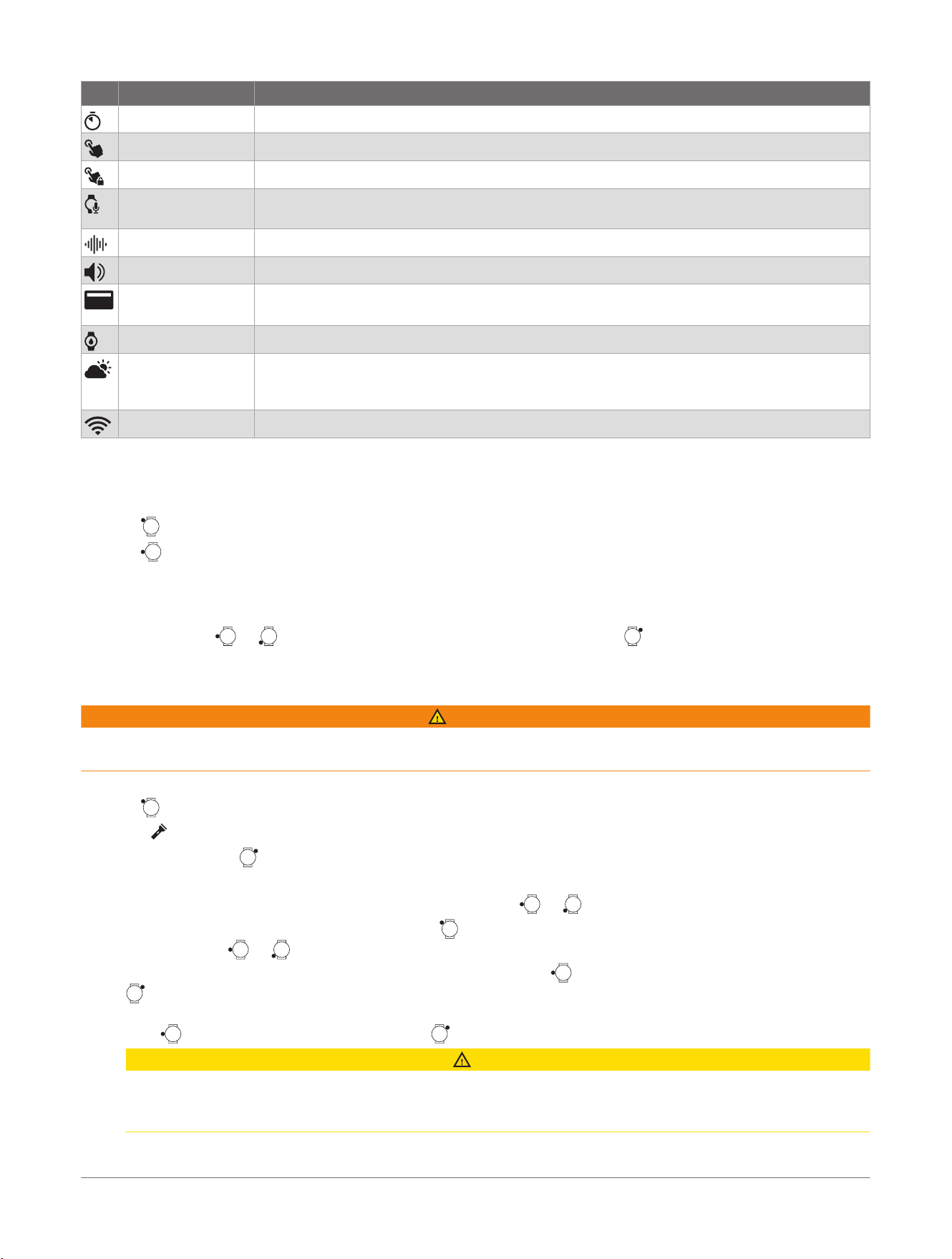
Icon Name Description
Timer Select to set a countdown timer (Using the Countdown Timer, page90).
Touch Select to disable touchscreen controls.
Touch Lock Select to enable swiping down from the top of the screen to unlock the touchscreen.
Voice Command Select to open the voice command app and say a command (Using Voice Commands,
page15).
Voice Notes Select to open the voice notes app and record a note (Recording a Voice Note, page14).
Volume Select to open the watch volume controls.
Wallet
Select to open your GarminPay
™
wallet and pay for purchases with your watch
(GarminPay
™
, page17).
Water Ejection Select to play tones to eject water from the speaker and microphone ports.
Weather Select to view the current weather forecast and current conditions. You can view the current
meteorological aerodrome reports (METAR) and terminal aerodrome forecasts (TAF) for the
nearest airports (Viewing Aviation Weather Information, page87).
Wi-Fi Select to disable Wi‑Fi
®
communications.
Customizing the Controls Menu
You can add, remove, and change the order of the shortcut menu options in the controls menu (Controls,
page70).
1 Hold to open the controls menu.
2 Hold .
3 Select an option:
● To add a control to the menu, select Add Controls, and select a control to add.
● To change the location of a shortcut in the controls menu, select Reorder Controls, select a control to
move, press or to move the control to a new position, and press to select the new location.
● To remove shortcut from the controls menu, select Remove Controls, and select a control to remove.
Using the LED Flashlight
WARNING
This device may have a flashlight that can be programmed to flash at various intervals. Consult your physician if
you have epilepsy or are sensitive to bright or flashing lights.
Using the flashlight reduces battery life. You can decrease the brightness to extend the life of the battery.
1 Hold .
2 Select .
3 If necessary, press to turn on the flashlight.
4 Select an option:
● To adjust the brightness or color of the flashlight, press or .
TIP: From any screen, you can quickly press twice to turn on the flashlight. For the first three seconds,
you can press or to adjust the brightness or color of the flashlight.
● To program the flashlight to flash in a selected pattern, hold , select Strobe, select a mode, and press
.
● To display your emergency contact information and program the flashlight to flash in a distress pattern,
hold , select Distress Pattern, and press .
CAUTION
Programming the flashlight to flash in a distress pattern will not contact your emergency contacts or
emergency services on your behalf. Your emergency contact information will only appear if it has been
configured in the Garmin Connect
™
app.
72
D2™ Mach 2 Series Aviator Smartwatch
Owner's Manual
Controls
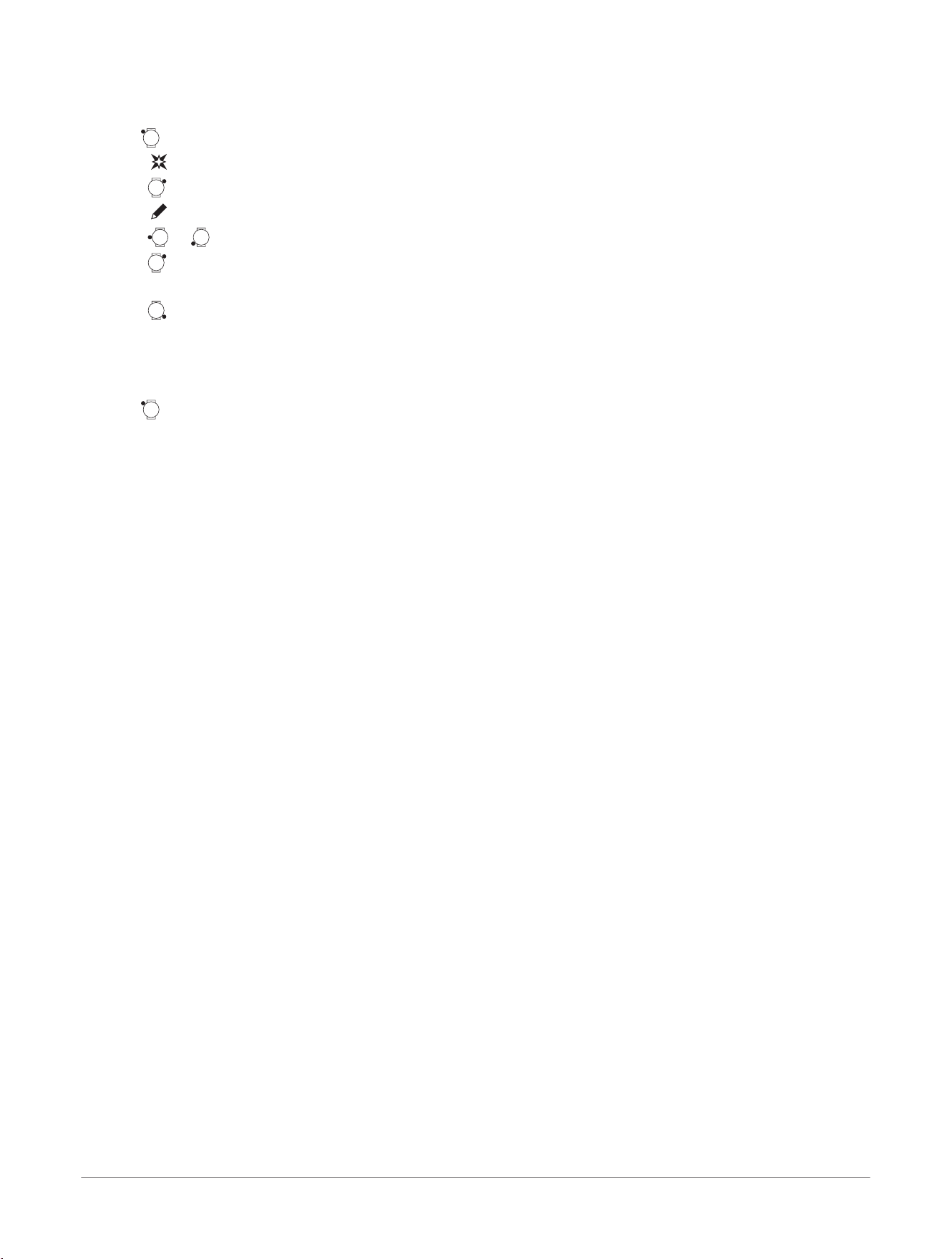
Editing the Custom Flashlight Strobe
Using the flashlight strobe reduces battery life.
1 Hold .
2 Select > Custom.
3 Press to turn on the flashlight strobe (optional).
4 Select .
5 Press or to scroll to a strobe setting.
6 Press to scroll through the setting options.
You can select slow blink to have a lower impact on battery life.
7 Press to save.
Clearing User Data with the Kill Switch Feature
The Kill Switch feature quickly removes all saved user-entered data and resets all settings to the factory default
values.
Hold , and select Kill Switch.
TIP: You can press any button to cancel the Kill Switch feature during a 10-second countdown.
After 10 seconds, the watch deletes all user-entered data.
Controls
D2™ Mach 2 Series Aviator Smartwatch
Owner's Manual
73
Glances
Your watch comes preloaded with glances that provide quick information (Viewing Glances, page76). Some
glances require a Bluetooth
®
connection to a compatible phone.
Some glances are not visible by default. You can add them to the glances list manually (Customizing the
Glances List, page76). Some glances appear in a grouping of related metrics, such as health or activity
performance.
TIP: You can also download glances from the Connect IQ
™
Store (Connect IQ Features, page114).
Name Description
ABC Displays combined altimeter, barometer, and compass information.
Alternate time zones Displays the current time of day in additional time zones (Adding Alternate Time Zones,
page92).
Altitude acclimation At altitudes above 800 m (2625 ft.), displays graphs showing altitude-corrected values for your
average pulse oximeter reading, respiration rate, and resting heart rate for the last seven days.
Altimeter Displays the approximate elevation based on pressure changes.
Battery
Displays the estimated battery life and recent battery usage data, including a breakdown of
battery use by activity and feature.
Barometer Displays the environmental pressure data based on elevation.
Body Battery
™
With all-day wear, displays your current Body Battery level and a graph of your level for the last
several hours (Body Battery
™
, page77).
Calendar Displays upcoming meetings from your phone calendar.
Calories Displays your calorie information for the current day.
Camera controls Allows you to manually take a photo and record a video clip when paired with a compatible
Varia
™
headlight or tail light camera (Using the Varia
™
Camera Controls, page105).
Compass Displays an electronic compass.
Countdowns Displays upcoming countdown events.
Cycling ability Displays your rider type, aerobic endurance, aerobic capacity, and anaerobic capacity (Viewing
Cycling Ability, page86).
Cycling performance Displays cycling performance metrics, such as your VO2 max. and FTP estimates (Performance
Measurements, page77).
Dog tracking Displays your dog's location information when you have a compatible dog tracking device
paired with your D2
™
Mach 2 watch.
Endurance score Displays a score, graph, and a short message that describes your overall endurance based on
all recorded activities (Endurance Score, page85).
Fish forecast Displays predictions for the best days and times for fishing based on your location, the moon's
position, and the moon rise and set times. You can view the rating for the day and major and
minor feeding times.
Floors climbed Tracks your floors climbed and progress toward your goal.
Garmin
®
coach Displays scheduled workouts when you select a Garmin coach adaptive training plan in your
Garmin Connect
™
account. The plan adjusts to your current level of fitness, coaching and
schedule preferences, and race date if applicable.
Golf Displays golf scores and statistics for your last round.
Health Snapshot
™
Starts a Health Snapshot session on your watch that records several key health metrics while
you hold still for two minutes. It provides a glimpse of your overall cardiovascular status. The
watch records metrics such as your average heart rate, stress level, and respiration rate.
Displays summaries of your saved Health Snapshot sessions.
Health status
Displays health metrics, such as your respiration and skin temp.
Heart rate Displays your current heart rate in beats per minute (bpm) and a graph of your average resting
heart rate (RHR).
Hill score Displays a score, graph, contributing metrics, and a short message that describes your hill
climbing performance based on your recorded running activities (Hill Score, page86).
History Displays your activity history and a graph of your recorded activities (Using History, page94).
74 D2™ Mach 2 Series Aviator Smartwatch
Owner's Manual
Glances
Name Description
HRV status Displays your seven-day average of your overnight heart rate variability (Heart Rate Variability
Status, page79).
Intensity minutes Tracks your time spent participating in moderate to vigorous activities, your weekly intensity
minutes goal, and progress toward your goal.
inReach
®
controls Sends messages through your paired inReach device (Using the inReach
®
Remote, page105).
Jet lag adviser Displays your internal clock during travel, and provides guidance to help you acclimate to the
time zone of your destination (Using the Jet Lag Adviser, page89).
Last activity Displays a brief summary of your last recorded activity.
Last flight Displays a brief summary of your last recorded flight.
Last ride
Last run
Last swim
Displays a brief summary of your last recorded activity and history of the specified sport.
Lifestyle logging Tracks your day-to-day behaviors, and allows you to see how the behaviors affect certain health
metrics in the Garmin Connect app.
Messenger
Displays your Garmin Messenger
™
app conversations and allows you to reply to messages from
your watch (Garmin Messenger
™
App, page115).
Moon phase Displays the moonrise and moonset times, along with the moon phase, based on your GPS
position.
Music Provides music player controls for your phone or watch music.
Naps Displays total nap time and Body Battery level gains. You can start the nap timer and set an
alarm to wake you up (Customizing a Default Focus Mode, page117).
Notifications Alerts you to incoming calls, texts, social network updates, and more, based on your phone
notification settings (Enabling Phone Notifications, page107).
Nutrition Displays your daily nutritional overview, including calories and macronutrients. You can also log
your food intake. You must have an active Garmin Connect+ subscription to track and view your
nutrition (Garmin Connect+
™
Subscription, page113).
Personal minimums Displays custom aviation visibility and weather condition alerts (Setting Personal Minimum
Alerts, page18).
PLANESYNC
™
Displays avionics data from a connected aircraft in your Garmin Pilot
™
account (Viewing
PLANESYNC
™
Data, page19).
Primary race Displays the race event you designate as the primary race in your Garmin Connect calendar
(Race Calendar and Primary Race, page86).
Pulse oximeter Allows you to take a manual pulse oximeter reading (Getting Pulse Oximeter Readings,
page121). If you are too active for the watch to determine your pulse oximeter reading, the
measurements are not recorded.
Race calendar Displays your upcoming race events set in your Garmin Connect calendar (Race Calendar and
Primary Race, page86).
Recovery Displays your recovery time. The maximum time is four days.
Respiration Your current respiration rate in breaths per minute and seven-day average. You can do a
breathing activity to help you relax.
Running economy Displays the energy cost of aerobic running. Several key metrics contribute to your running
economy estimate (Running Economy, page79).
Running perform
ance
Displays running performance metrics, such as your VO2 max. estimate and lactacte threshold
(Performance Measurements, page77).
Running tolerance Tracks your capacity to handle running activities while balancing the risk of injury with perform
ance gains (Running Tolerance, page85).
Scuba diving Displays your surface interval time, no-fly time remaining, oxygen toxicity units (OTU), central
nervous system (CNS) oxygen toxicity percentage, and tissue load, after a dive (Viewing the
Scuba Diving Glance, page89).
Sleep coach Provides recommendations for your sleep need based on sleep and activity history, circadian
rhythm, HRV status, and naps.
NOTE: You can view sleep insights, enable sleep mode, set alarms, and update sleep settings.
Glances D2™ Mach 2 Series Aviator Smartwatch
Owner's Manual
75
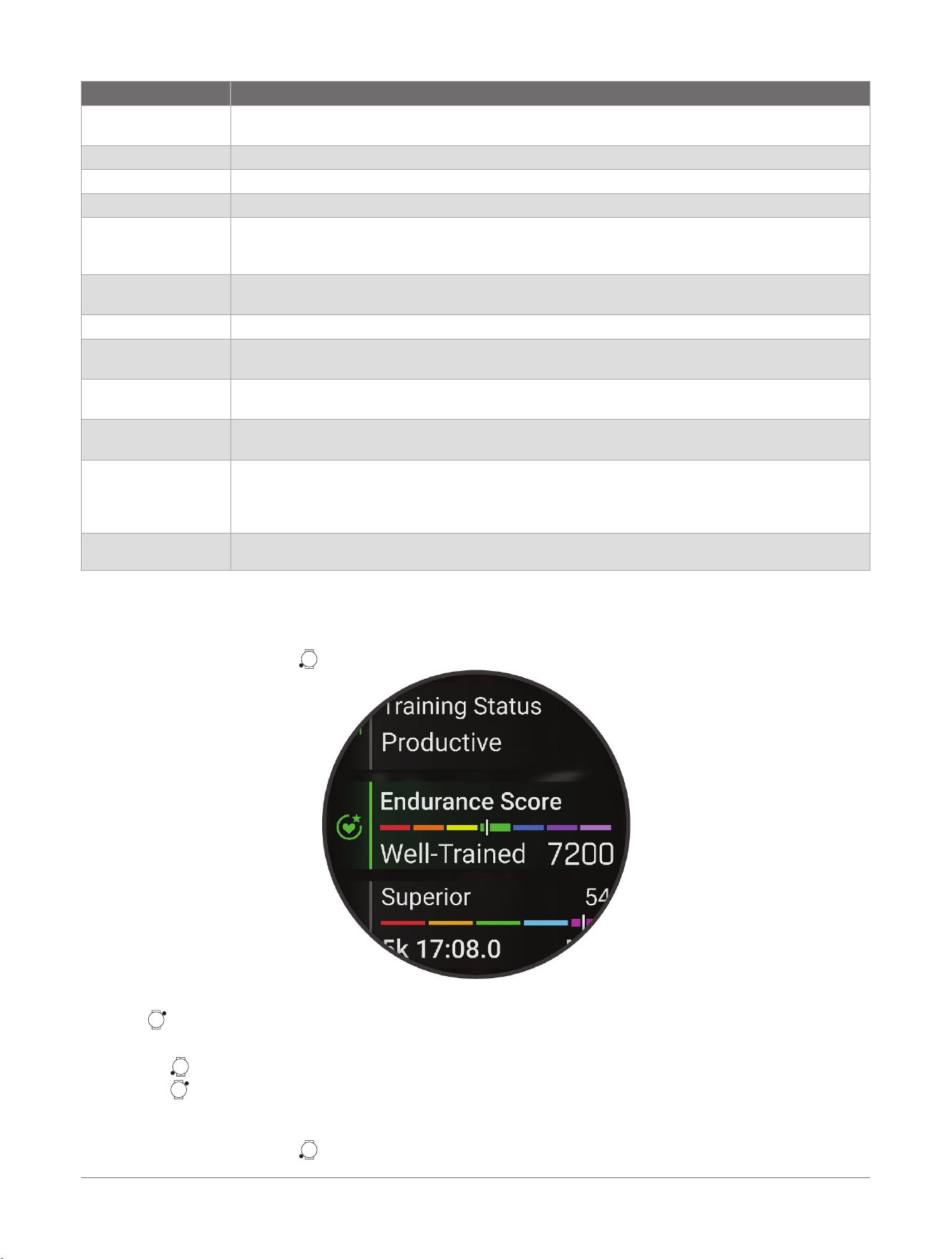
Name Description
Sleep score Displays total sleep time, a sleep score, and sleep stage information for the previous night. You
can also view any overnight breathing variations (Sleep Tracking, page122).
Sports scores Tracks college or professional sports teams with scores and live data.
Steps Tracks your daily step count, step goal, and data for previous days.
Stocks Displays a customizable list of stocks (Adding a Stock, page87).
Stress Displays your current stress level and a graph of your stress level. You can do a breathing
activity to help you relax. If you are too active for the watch to determine your stress level,
stress measurements are not recorded.
Sunrise and sunset Displays sunrise, sunset, dawn, and dusk times, along with a map of the sun's current position
and a graph of the day's sunlight.
Temperature Displays temperature data from the internal temperature sensor.
Tides Displays information about a tide station, such as the tide height and when the next high and
low tides will occur (Viewing Tide Information, page27).
Training readiness Displays a score and a short message that helps you determine how ready you are for training
each day (Training Readiness, page84).
Training status Displays your current training status and training load, which shows you how your training
affects your fitness level and performance (Training Status, page81).
Weather Displays the current temperature and weather forecast. You can view the current weather
conditions on the map using several map overlays. You can view the current meteorological
aerodrome reports (METAR) and terminal aerodrome forecasts (TAF) for the nearest airports
(Viewing Aviation Weather Information, page87).
Weight tracking
Displays your recent weight trends and history. You can enter your weight manually. If you have
an Index
™
scale paired to your Garmin Connect account, your weight data appears in the glance.
Viewing Glances
Glances provide quick access to health data, activity information, built-in sensors, and more. When you pair your
watch, you can view data from your phone, such as health information, weather, and calendar events.
1 From the watch face, press to scroll through the glances list.
TIP: You can also swipe to scroll or tap to select options.
2 Press to view more information.
3 Select an option:
● Press to view details about a glance.
● Press to view additional options and functions for a glance.
Customizing the Glances List
1 From the watch face, press to view the glances list.
76
D2™ Mach 2 Series Aviator Smartwatch
Owner's Manual
Glances
2 Select Edit.
3 Select an option:
● To change the location of a glance in the list, select a glance, press or to move the glance, and
press to select the new location.
● To remove a glance from the list, select a glance, and select .
● To add a glance to the list, select Add, and select one or more glances.
TIP: You can select Create Folder to create a folder that contains multiple glances (Creating a Glances
Folder, page77).
Creating a Glances Folder
You can customize the glances list to create folders of related glances.
1 From the watch face, press to view the glances list.
2 Select Edit> Add> Create Folder.
3 Select the glances to include in the folder, and select Done.
NOTE: If the glances are already in the glance list, you can move or copy them into the folder.
4 Select or enter a name for the folder.
5 Select an icon for the folder.
6 If necessary, select an option:
● To edit the folder, scroll to the folder in the glances list, and hold .
● To edit the glances in the folder, open the folder and select Edit (Customizing the Glances List, page76) .
Body Battery
™
Your watch analyzes your heart rate variability, stress level, sleep quality, and activity data to determine your
overall Body Battery level. Like a gas gauge on a car, it indicates your amount of available reserve energy. The
Body Battery level range is from 5 to 100, where 5 to 25 is very low reserve energy, 26 to 50 is low reserve
energy, 51 to 75 is medium reserve energy, and 76 to 100 is high reserve energy.
You can sync your watch with your Garmin Connect
™
account to view your most up-to-date Body Battery level,
long-term trends, and additional details (Tips for Improved Body Battery
™
Data, page77).
Tips for Improved Body Battery
™
Data
● For more accurate results, wear the watch while sleeping.
● Good sleep charges your Body Battery.
● Strenuous activity and high stress can cause your Body Battery to drain more quickly.
● Food intake, as well as stimulants like caffeine, has no impact on your Body Battery.
Performance Measurements
These performance measurements are estimates that can help you track and understand your training activities
and race performances. The measurements require a few activities using wrist-based heart rate or a compatible
chest heart rate monitor. Cycling performance measurements require a heart rate monitor and a power meter.
These estimates are provided and supported by Firstbeat Analytics
™
. For more information, go to garmin.com/
performance-data/running.
NOTE: The estimates may seem inaccurate at first. The watch requires you to complete a few activities to learn
about your performance.
Functional threshold power (FTP): The watch uses your user profile information from the initial setup to
estimate your FTP (Getting Your FTP Estimate, page80).
HRV status: The watch analyzes your wrist heart rate readings while you are sleeping to determine your heart
rate variability (HRV) status based on your personal, long-term HRV averages (Heart Rate Variability Status,
page79).
Lactate threshold: Lactate threshold is the point where your muscles start to rapidly fatigue. Your watch
measures your lactate threshold level using heart rate data and pace (Lactate Threshold, page80).
Predicted race times: The watch uses the VO2 max. estimate and your training history to provide a target race
time based on your current state of fitness (Viewing Your Predicted Race Times, page79).
Performance condition: Your performance condition is a real-time assessment after 6 to 20 minutes of activity.
It can be added as a data field so you can view your performance condition during the rest of your activity. It
compares your real-time condition to your average fitness level (Performance Condition, page79).
Glances
D2™ Mach 2 Series Aviator Smartwatch
Owner's Manual
77
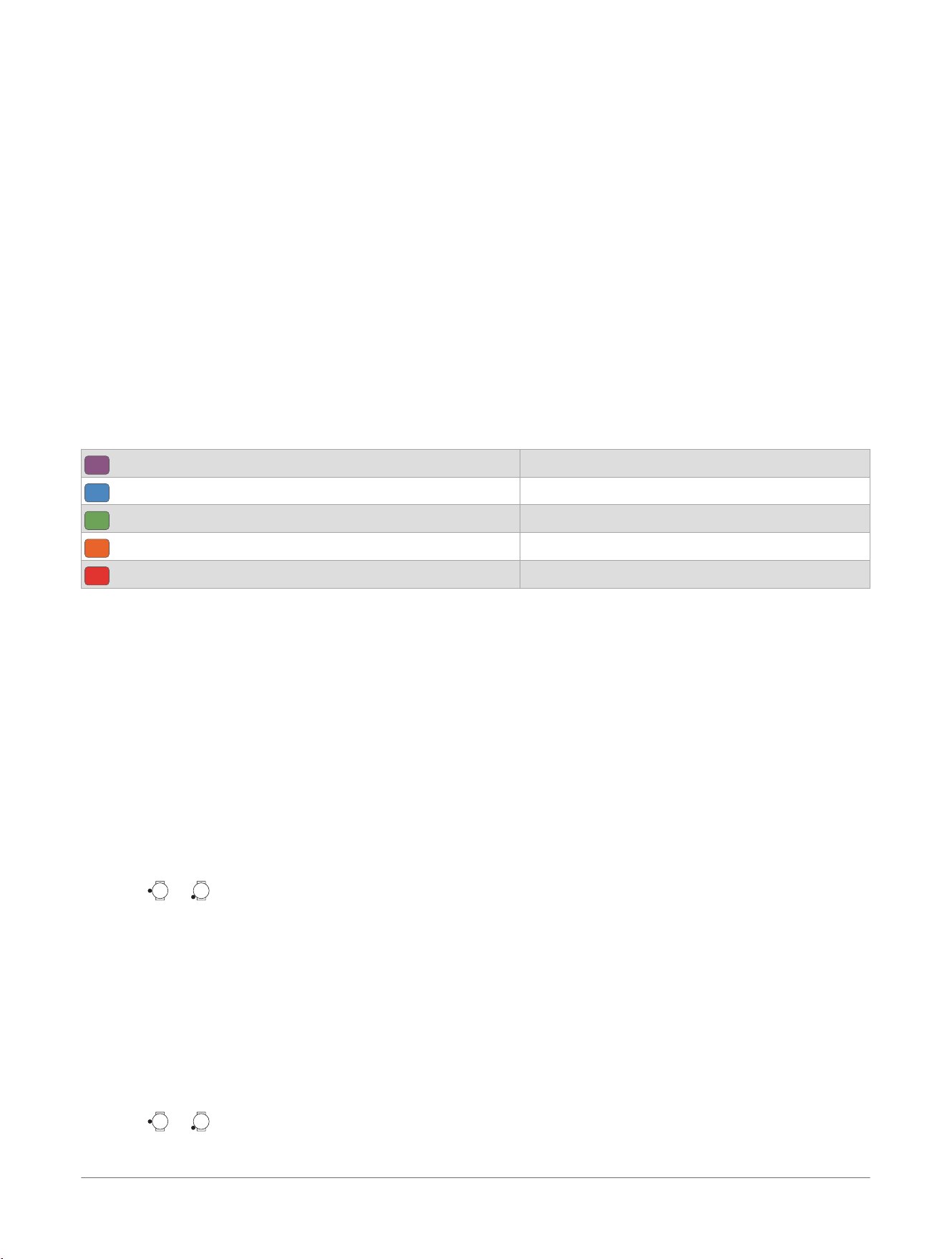
Power curve (cycling): The power curve displays your sustained power output over time. You can view your
power curve for the previous month, three months, or twelve months (Viewing Your Power Curve, page81).
Running economy: Running economy refers to the energy efficiency of a runner. Several key metrics contribute
to your running economy estimate (Running Economy, page79).
Stamina: The watch uses your VO2 max. estimate and heart rate data to provide real-time stamina estimates.
It can be added as a data screen so you can view your potential and current stamina during your activity
(Viewing Your Real-Time Stamina, page80).
VO2 max.: VO2 max. is the maximum volume of oxygen (in milliliters) you can consume per minute per kilogram
of body weight at your maximum performance (About VO2 Max. Estimates, page78).
About VO2 Max. Estimates
VO2 max. is the maximum volume of oxygen (in milliliters) you can consume per minute per kilogram of body
weight at your maximum performance. In simple terms, VO2 max. is an indication of athletic performance and
should increase as your level of fitness improves. The D2
™
Mach 2 device requires wrist-based heart rate or
a compatible chest heart rate monitor to display your VO2 max. estimate. The device has separate VO2 max.
estimates for running and cycling. You must run either outside with GPS or ride with a compatible power meter
at a moderate level of intensity for several minutes to get an accurate VO2 max. estimate.
On the device, your VO2 max. estimate appears as a number, description, and position on the color gauge. On
your Garmin Connect
™
account, you can view additional details about your VO2 max. estimate, such as where it
ranks for your age and sex.
Purple
Superior
Blue
Excellent
Green
Good
Orange
Fair
Red
Poor
VO2 max. data is provided by Firstbeat Analytics
™
. VO2 max. analysis is provided with permission from The
Cooper Institute
®
. For more information, see the appendix (VO2 Max. Standard Ratings, page158), and go to
www.CooperInstitute.org.
Getting Your VO2 Max. Estimate for Running
This feature requires wrist-based heart rate or a compatible chest heart rate monitor. If you are using a chest
heart rate monitor, you must put it on and pair it with your watch (Pairing Your Wireless Sensors, page103).
For the most accurate estimate, complete the user profile setup (Setting Up Your User Profile, page138), and set
your maximum heart rate (Setting Your Heart Rate Zones, page138). The estimate may seem inaccurate at first.
The watch requires a few runs to learn about your running performance. You can disable VO2 max. recording
for ultra run and trail run activities if you do not want those run types to affect your VO2 max. estimate (Activity
Settings, page64).
1 Start a running activity.
2 Run outdoors at a moderate or high intensity, reaching at least 70% of your maximum heart rate.
3 After at least 10 minutes, select Save.
4 Press or to scroll through the performance measurements.
Getting Your VO2 Max. Estimate for Cycling
This feature requires a power meter and wrist-based heart rate or a compatible chest heart rate monitor. The
power meter must be paired with your watch (Pairing Your Wireless Sensors, page103). If you are using a chest
heart rate monitor, you must put it on and pair it with your watch.
For the most accurate estimate, complete the user profile setup (Setting Up Your User Profile, page138) and set
your maximum heart rate (Setting Your Heart Rate Zones, page138). The estimate may seem inaccurate at first.
The watch requires a few rides to learn about your cycling performance.
1 Start a cycling activity.
2 Ride at a steady, high intensity for at least 20 minutes.
3 After your ride, select Save.
4 Press or to scroll through the performance measurements.
78
D2™ Mach 2 Series Aviator Smartwatch
Owner's Manual
Glances
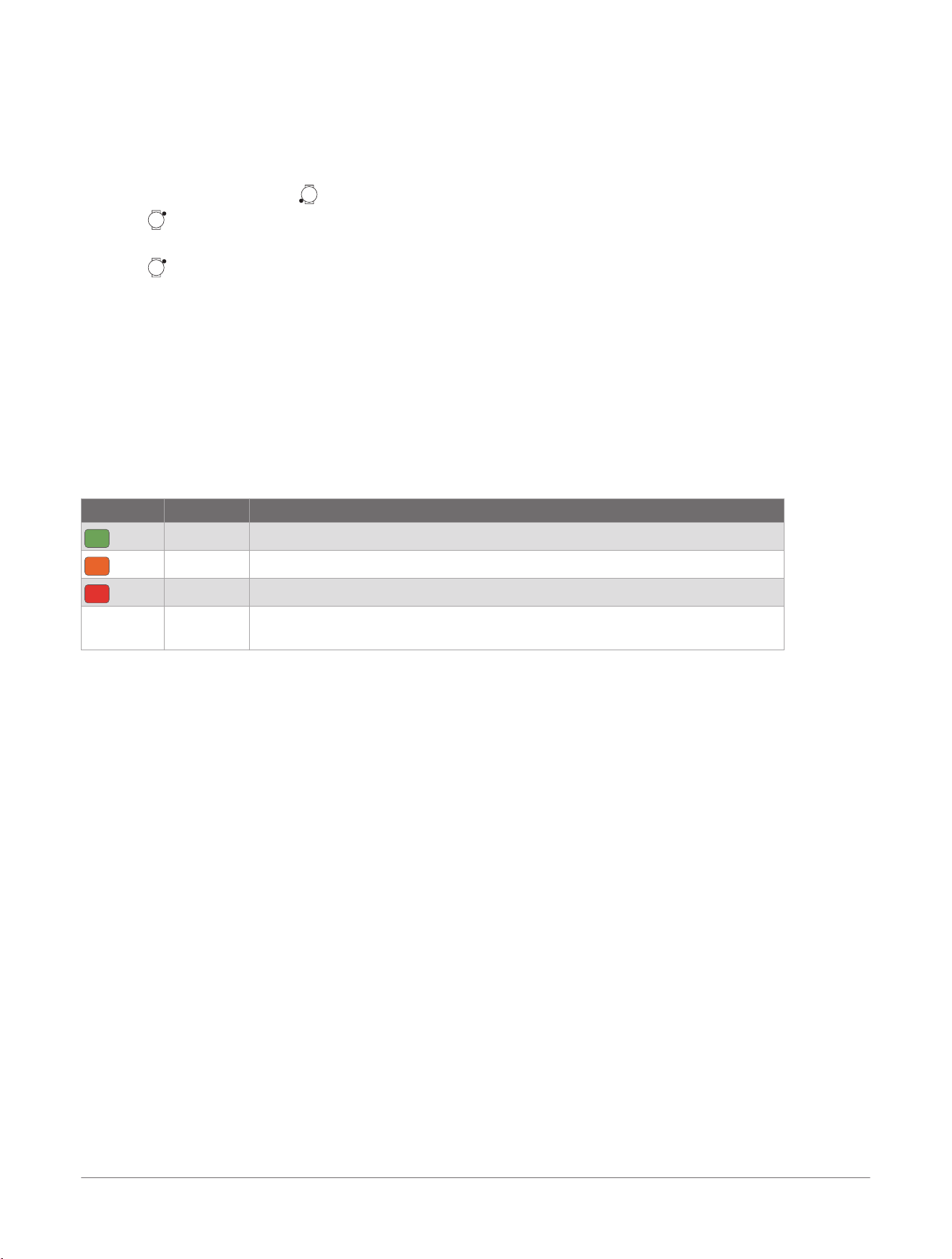
Viewing Your Predicted Race Times
For the most accurate estimate, complete the user profile setup (Setting Up Your User Profile, page138), and set
your maximum heart rate (Setting Your Heart Rate Zones, page138).
Your watch uses the VO2 max. estimate and your training history to provide a target race time (About VO2 Max.
Estimates, page78). The watch analyzes several weeks of your training data to refine the race time estimates.
1 From the watch face, press to view the running performance glance.
2 Press .
3 Scroll to view a predicted race time.
4 Press to view more details.
5 Scroll to view predictions for other distances.
NOTE: The predictions may seem inaccurate at first. The watch requires a few runs to learn about your
running performance.
Heart Rate Variability Status
Your watch analyzes your wrist heart rate readings while you are sleeping to determine your heart rate variability
(HRV). Training, physical activity, sleep, nutrition, and healthy habits all impact your heart rate variability. HRV
values can vary widely based on gender, age, and fitness level. A balanced HRV status may indicate positive
signs of health such as good training and recovery balance, greater cardiovascular fitness, and resilience to
stress. An unbalanced or poor status may be a sign of fatigue, greater recovery needs, or increased stress. For
best results, you should wear the watch while sleeping. The watch requires three weeks of consistent sleep data
to display your heart rate variability status.
Color Zone Status Description
Green
Balanced Your seven-day average HRV is within your baseline range.
Orange
Unbalanced Your seven-day average HRV is above or below your baseline range.
Red
Low Your seven-day average HRV is well below your baseline range.
No color Poor
No status
Your HRV values are averaging well below the normal range for your age.
No status means that there is insufficient data to generate a seven-day average.
You can sync your watch with your Garmin Connect
™
account to view your current heart rate variability status,
trends, and educational feedback.
Performance Condition
As you complete your activity, such as running or cycling, the performance condition feature analyzes your pace,
heart rate, and heart rate variability to make a real-time assessment of your ability to perform compared to
your average fitness level. It is approximately your real-time percentage deviation from your baseline VO2 max.
estimate.
Performance condition values range from -20 to +20. After the first 6 to 20 minutes of your activity, the device
displays your performance condition score. For example, a score of +5 means that you are rested, fresh, and
capable of a good run or ride. You can add performance condition as a data field to one of your training screens
to monitor your ability throughout the activity. Performance condition can also be an indicator of fatigue level,
especially at the end of a long training run or ride.
NOTE: The device requires a few runs or rides with a heart rate monitor to get an accurate VO2 max. estimate
and learn about your running or riding ability (About VO2 Max. Estimates, page78).
Viewing Your Performance Condition
This feature requires wrist-based heart rate or a compatible chest heart rate monitor.
1 Add Performance Condition to a data screen (Customizing the Data Screens, page63).
2 Go for a run or ride.
After 6 to 20 minutes, your performance condition appears.
3 Scroll to the data screen to view your performance condition throughout the run or ride.
Running Economy
Running economy measures the energy cost of running. While VO2 max. measures the maximum amount
of oxygen your body can utilize during intense exercise, running economy reflects how efficiently your
body converts that energy into running performance. Running economy is expressed in milliliters of oxygen
Glances
D2™ Mach 2 Series Aviator Smartwatch
Owner's Manual
79
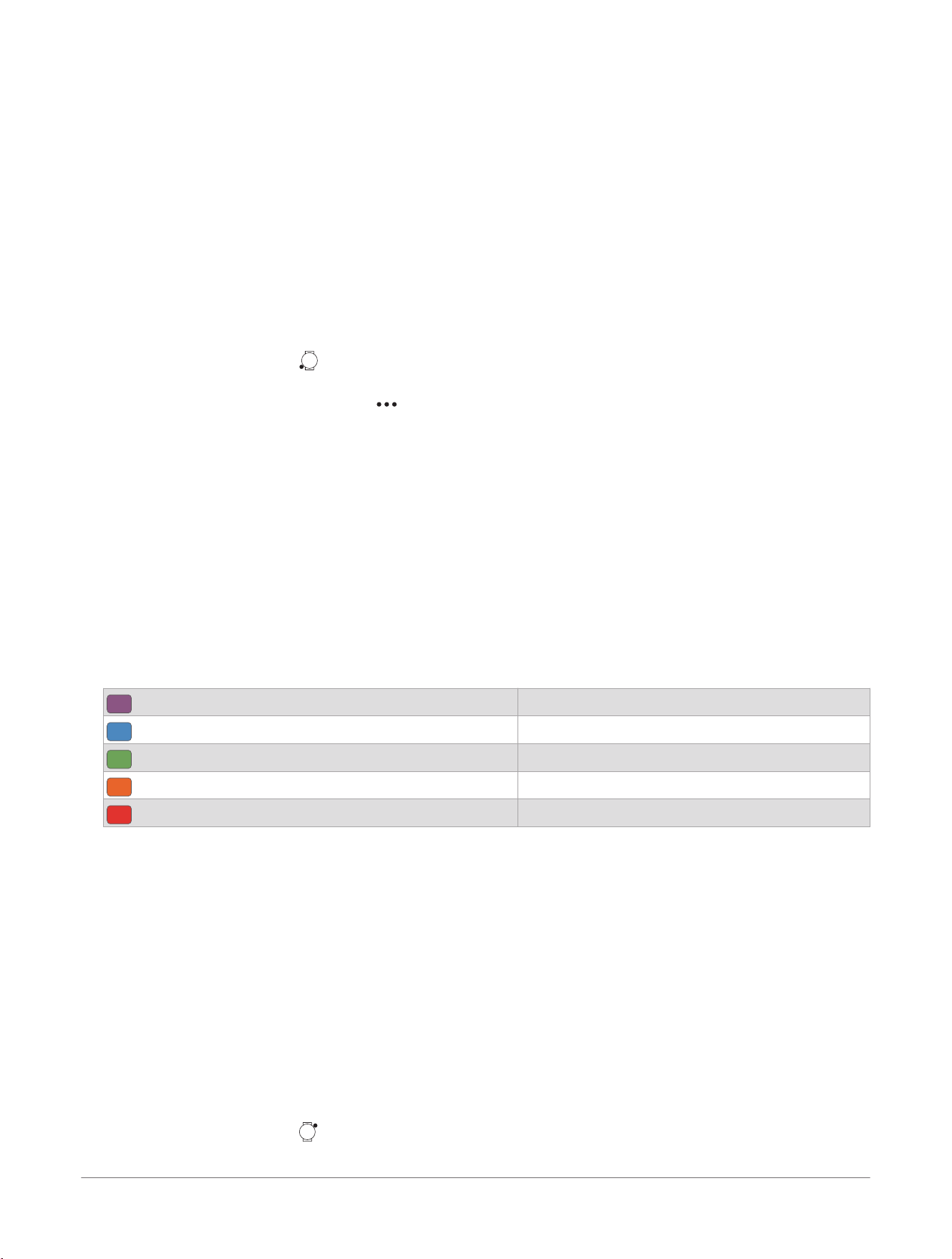
consumed per kilogram of body weight per kilometer (ml/kg/km). Lower numbers mean that less energy was
used.
Requirements: You must record several outdoor run or track run activities using a compatible accessory that
measures step speed loss, such as the HRM 600.
Key factors: Running economy uses your profile information, run history, heart rate, speed, and running
dynamics. Step speed loss is an essential factor, because it captures how much you slow down when
your foot hits the ground (Running Dynamics, page103). For best results, make sure your height and weight
settings are correct (Setting Up Your User Profile, page138).
Understanding the results: Keep in mind that running economy is ultimately all about aerobic performance.
Easy runs of at least 30 minutes on a track or over flat terrain offer the maximum opportunity for gaining
insight into this metric. Indoor runs and trail runs are not used to estimate or update your running economy.
For more information, go to garmin.com/performance-data/running, and see the appendix (Running Economy
Ratings, page158).
Viewing Your Running Economy
● From the watch face, press to view the running performance glance.
NOTE: You may need to add the glance to your glances list (Customizing the Glances List, page76).
● From the Garmin Connect
™
app, select > Performance Stats> Running Economy.
You can also add running economy to your home screen data.
Getting Your FTP Estimate
Before you can get your functional threshold power (FTP) estimate, you must pair a power meter with your
watch
(Pairing Your Wireless Sensors, page103), and you must get your VO2 max. estimate (Getting Your VO2
Max. Estimate for Cycling, page78).
The watch uses your user profile information from the initial setup and your VO2 max. estimate to estimate your
FTP. The watch will automatically detect your FTP during steady, high intensity rides with a power meter. For
best results, you should also ride with a heart rate monitor.
1 From the watch face, scroll down to view the performance glance.
2 Select the glance to view your performance data.
3 Scroll to view your FTP estimate.
Your FTP estimate appears as a value measured in watts per kilogram, your power output in watts, and a
position on the color gauge.
Purple Superior
Blue Excellent
Green Good
Orange Fair
Red Untrained
For more information, see the appendix (FTP Ratings, page158).
Lactate Threshold
Lactate threshold is the exercise intensity at which lactate (lactic acid) starts to accumulate in the bloodstream.
In running, this intensity level is estimated in terms of pace, heart rate, or power. When a runner exceeds the
threshold, fatigue starts to increase at an accelerating rate. For experienced runners, the threshold occurs at
approximately 90% of their maximum heart rate and between 10 km and half-marathon race pace. For average
runners, the lactate threshold often occurs well below 90% of maximum heart rate. Knowing your lactate
threshold can help you determine how hard to train or when to push yourself during a race.
If you already know your lactate threshold heart rate value, you can enter it in your user profile settings (Setting
Your Heart Rate Zones, page138). You can turn on the Auto Detection feature to automatically record your
lactate threshold during an activity.
Viewing Your Real-Time Stamina
Your watch can provide real-time stamina estimates based on your heart rate data and VO2 max. estimate
(About VO2 Max. Estimates, page78).
1 From the watch face, press .
2 Select Activities.
80
D2™ Mach 2 Series Aviator Smartwatch
Owner's Manual
Glances
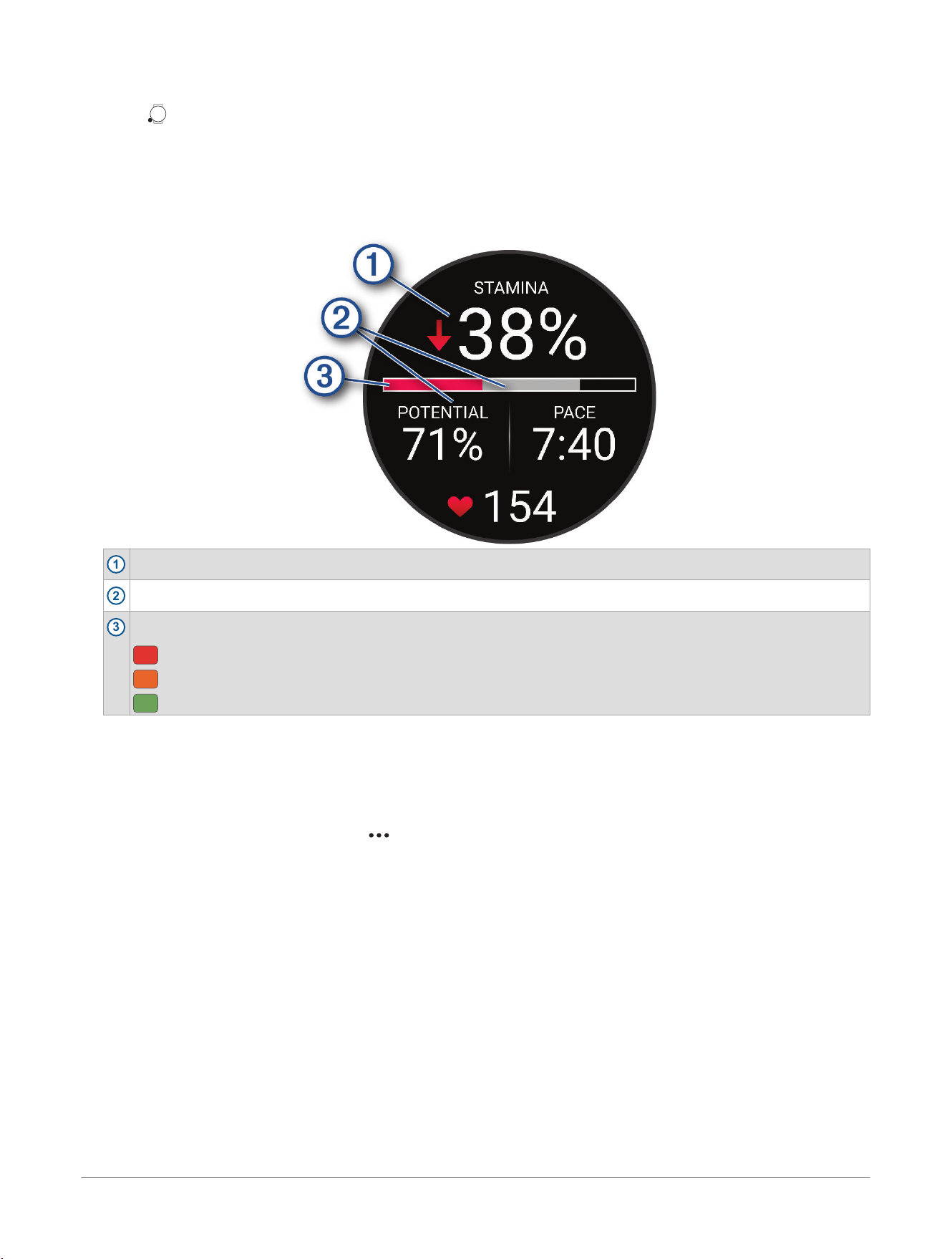
3 Select a run or bike activity.
4 Press .
5 Select the activity settings.
6 Select Data Screens> Add New> Stamina.
NOTE: You can change the order of the data screens and edit the primary stamina data field (optional).
7 Start your activity (Starting an Activity, page30).
8 Scroll to the data screen.
1
Primary stamina data field. Shows your current stamina percentage, distance remaining, or time remaining.
2
Potential stamina.
3
Current stamina.
Red: Stamina is depleting.
Orange: Stamina is steady.
Green: Stamina is recharging.
Viewing Your Power Curve
Before you can view your power curve, you must record a ride that's at least one hour long using a power meter
in the last 90 days (Pairing Your Wireless Sensors, page103).
You can create workouts in your Garmin Connect
™
account. The power curve displays your sustained power
output over time. You can view your power curve for the previous month, three months, or twelve months.
1 From the Garmin Connect app, select .
2 Select Performance Stats> Power Curve.
Training Status
These measurements are estimates that can help you track and understand your training activities. The
measurements require you to complete activities for two weeks using wrist-based heart rate or a compatible
chest heart rate monitor. Cycling performance measurements require a heart rate monitor and a power meter.
The measurements may seem inaccurate at first when the watch is still learning about your performance.
These estimates are provided and supported by Firstbeat Analytics
™
. For more information, go to garmin.com/
performance-data/running.
Training status: Training status shows you how your training affects your fitness and performance. Your
training status is based on changes to your VO2 max., acute load, and HRV status over an extended time
period.
VO2 max.: VO2 max. is the maximum volume of oxygen (in milliliters) you can consume per minute per kilogram
of body weight at your maximum performance (About VO2 Max. Estimates, page78). Your watch displays
heat and altitude corrected VO2 max. values when you are acclimating to high heat environments or high
altitude (Heat and Altitude Performance Acclimation, page84).
HRV: HRV is your heart rate variability status over the last seven days (Heart Rate Variability Status, page79).
Glances
D2™ Mach 2 Series Aviator Smartwatch
Owner's Manual
81

Acute load: Acute load is a weighted sum of your recent exercise load scores including exercise duration and
intensity. (Acute Load, page82).
Training load focus: Your watch analyzes and distributes your training load into different categories based on
the intensity and structure of each activity recorded. Training load focus includes the total load accumulated
per category, and the focus of the training. Your watch displays your load distribution over the last 4 weeks
(Training Load Focus, page82).
Recovery time: The recovery time displays how much time remains before you are fully recovered and ready for
the next hard workout (Recovery Time, page84).
Training Status Levels
Training status shows you how your training affects your fitness level and performance. Your training status is
based on changes to your VO2 max., acute load, and HRV status over an extended time period. You can use
your training status to help plan future training and continue improving your fitness level.
No Status: The watch needs you to record multiple activities over two weeks, with VO2 max. results from
running or cycling, to determine your training status.
Detraining: You have a break in your training routine or you are training much less than usual for a week
or more. Detraining means that you are unable to maintain your fitness level. You can try increasing your
training load to see improvement.
Recovery: Your lighter training load is allowing your body to recover, which is essential during extended periods
of hard training. You can return to a higher training load when you feel ready.
Maintaining: Your current training load is enough to maintain your fitness level. To see improvement, try adding
more variety to your workouts or increasing your training volume.
Productive: Your current training load is moving your fitness level and performance in the right direction. You
should plan recovery periods into your training to maintain your fitness level.
Peaking: You are in ideal race condition. Your recently reduced training load is allowing your body to recover
and fully compensate for earlier training. You should plan ahead, since this peak state can only be maintained
for a short time.
Overreaching: Your training load is very high and counterproductive. Your body needs a rest. You should give
yourself time to recover by adding lighter training to your schedule.
Unproductive: Your training load is at a good level, but your fitness is decreasing. Try focusing on rest, nutrition,
and stress management.
Strained: There is imbalance between your recovery and training load. It is a normal result after a hard training
or major event. Your body may be struggling to recover, so you should pay attention to your overall health.
Tips for Getting Your Training Status
The training status feature depends on updated assessments of your fitness level, including at least one VO2
max. measurement per week (About VO2 Max. Estimates, page78). Indoor run activities do not generate a VO2
max. estimate in order to preserve the accuracy of your fitness level trend. You can disable VO2 max. recording
for ultra run and trail run activities if you do not want those run types to affect your VO2 max. estimate (Activity
Settings, page64).
To get the most out of the training status feature, you can try these tips.
● At least one time per week, run or ride outdoors with a power meter, and reach a heart rate higher than 70%
of your maximum heart rate for at least 10 minutes.
After using the watch for one or two weeks, your training status should be available.
● Record all of your fitness activities on your primary training device, allowing your watch to learn about your
performance (Syncing Activities and Performance Measurements, page114).
● Wear the watch consistently while you sleep, to continue generating an up-to-date HRV status. Having a valid
HRV status can help maintain a valid training status when you do not have as many activities with VO2 max.
measurements.
Acute Load
Acute load is a weighted sum of your excess post-exercise oxygen consumption (EPOC) for the last several
days. The gauge indicates whether your current load is low, optimal, high, or very high. The optimal range is
based on your individual fitness level and training history. The range adjusts as your training time and intensity
increase or decrease.
Training Load Focus
In order to maximize performance and fitness gains, training should be distributed across three categories: low
aerobic, high aerobic, and anaerobic. Training load focus shows you how much of your training is currently in
each category and provides training targets. Training load focus requires at least 7 days of training to determine
82
D2™ Mach 2 Series Aviator Smartwatch
Owner's Manual
Glances
if your training load is low, optimal, or high. After 4 weeks of training history, your training load estimate will
have more detailed target information to help you balance your training activities.
Below targets: Your 4-week training load is lower than optimal in all intensity categories.
Low aerobic shortage: Try adding more low aerobic activities to provide recovery and balance for your higher
intensity activities.
High aerobic shortage: Try adding more high aerobic activities to help improve your lactate threshold and VO2
max. over time.
Anaerobic shortage: Try adding a few more intense, anaerobic activities to improve your speed and anaerobic
capacity over time.
Balanced: Your training load is balanced and provides all-around fitness benefits as you continue training.
Low aerobic focus: Your training load is mostly low aerobic activity. This provides a solid foundation and
prepares you for adding more intense workouts.
High aerobic focus: Your training load is mostly high aerobic activity. These activities help to improve lactate
threshold, VO2 max., and endurance.
Anaerobic focus: Your training load is mostly intense activity. This leads to rapid fitness gains, but should be
balanced with low aerobic activities.
Above targets: Your 4-week training load is higher than optimal.
Load Ratio
Load ratio is the ratio of your acute (short-term) training load to your chronic (long-term) training load. It's
helpful for tracking your training load changes.
Status Value Description
No Status None Load ratio will be visible after 2 weeks of training.
Low Lower than 0.8 Your short-term training load is lower than your long-term training load.
Optimal
0.8 to 1.4 The short-term and long-term training loads are balanced. The optimal range is based on
your individual fitness level and training history.
High 1.5 to 1.9 Your short-term training load is higher than your long-term training load.
Very High 2.0 or higher Your short-term training load is significantly higher than your long-term training load.
About Training Effect
Training Effect measures the impact of an activity on your aerobic and anaerobic fitness. Training Effect
accumulates during the activity. As the activity progresses, the Training Effect value increases. Training Effect
is determined by your user profile information and training history, and heart rate, duration, and intensity of your
activity. There are seven different Training Effect labels to describe the primary benefit of your activity. Each
label is color coded and corresponds to your training load focus (Training Load Focus, page82). Each feedback
phrase, for example, "Highly Impacting VO2 Max." has a corresponding description in your Garmin Connect
™
activity details.
Aerobic Training Effect uses your heart rate to measure how the accumulated intensity of an exercise affects
your aerobic fitness and indicates if the workout had a maintaining or improving effect on your fitness level.
Your excess post-exercise oxygen consumption (EPOC) accumulated during exercise is mapped to a range of
values that account for your fitness level and training habits. Steady workouts at moderate effort or workouts
involving longer intervals (>180 seconds) have a positive impact on your aerobic metabolism and result in an
improved aerobic Training Effect.
Anaerobic Training Effect uses heart rate and speed (or power) to determine how a workout affects your ability
to perform at very high intensity. You receive a value based on the anaerobic contribution to EPOC and the
type of activity. Repeated high-intensity intervals of 10 to 120 seconds have a highly beneficial impact on your
anaerobic capability and result in an improved anaerobic Training Effect.
You can add Aerobic Training Effect and Anaerobic Training Effect as data fields to one of your training screens
to monitor your numbers throughout the activity.
Training Effect Aerobic Benefit Anaerobic Benefit
From 0.0 to 0.9 No benefit. No benefit.
From 1.0 to 1.9 Minor benefit. Minor benefit.
From 2.0 to 2.9 Maintains your aerobic fitness. Maintains your anaerobic fitness.
From 3.0 to 3.9 Impacts your aerobic fitness. Impacts your anaerobic fitness.
Glances D2™ Mach 2 Series Aviator Smartwatch
Owner's Manual
83
Training Effect Aerobic Benefit Anaerobic Benefit
From 4.0 to 4.9 Highly impacts your aerobic fitness. Highly impacts your anaerobic fitness.
5.0 Overreaching and potentially harmful without
enough recovery time.
Overreaching and potentially harmful without
enough recovery time.
Training Effect technology is provided and supported by Firstbeat Analytics
™
. For more information, go to
firstbeat.com.
Recovery Time
You can use your Garmin
®
device with wrist-based heart rate or a compatible chest heart rate monitor to display
how much time remains before you are fully recovered and ready for the next hard workout.
The recovery time recommendation uses your VO2 max. estimate and may seem inaccurate at first. The device
requires you to complete a few activities to learn about your performance.
The recovery time appears immediately following an activity. The time counts down until it is optimal for you to
attempt another hard workout. The device updates your recovery time throughout the day based on changes in
sleep, stress, relaxation, and physical activity.
Recovery Heart Rate
If you are training with wrist-based heart rate or a compatible chest heart rate monitor, you can check your
recovery heart rate value after each activity. Recovery heart rate is the difference between your exercising heart
rate and your heart rate two minutes after the exercise has stopped. For example, after a typical training run,
you stop the timer. Your heart rate is 140bpm. After two minutes of no activity or cool down, your heart rate
is 90 bpm. Your recovery heart rate is 50 bpm (140 minus 90). Some studies have linked recovery heart rate to
cardiac health. Higher numbers generally indicate healthier hearts.
TIP: For best results, you should stop moving for two minutes while the device calculates your recovery heart
rate value.
NOTE: Your recovery heart rate is not calculated for low-impact activities, such as yoga.
Heat and Altitude Performance Acclimation
Environmental factors such as high temperature and altitude impact your training and performance. For
example, high altitude training can have a positive impact on your fitness, but you may notice a temporary
VO2 max. decline while exposed to high altitudes. Your D2
™
Mach 2 watch provides acclimation notifications
and corrections to your VO2 max. estimate and training status when the temperature is above 22ºC (72ºF) and
when the altitude is above 800 m (2625 ft.). You can keep track of your heat and altitude acclimation in the
training status glance.
NOTE: The heat acclimation feature is available only for GPS activities and requires weather data from your
connected phone.
Pausing and Resuming Your Training Status
If you are injured or sick, you can pause your training status. You can continue to record fitness activities,
but your training status, training load focus, recovery feedback, and workout recommendations are temporarily
disabled.
You can resume your training status when you are ready to start training again. For best results, you need at
least one VO2 max. measurement each week (About VO2 Max. Estimates, page78).
1 When you want to pause your training status, select an option:
● From the training status glance, hold , and select Options> Pause Training Status.
● From your Garmin Connect
™
settings, select Performance Stats> Training Status> > Pause Training
Status.
2 Sync your watch with your Garmin Connect account.
3 When you want to resume your training status, select an option:
● From the training status glance, hold , and select Options> Resume Training Status.
● From your Garmin Connect settings, select Performance Stats> Training Status> > Resume Training
Status.
4 Sync your watch with your Garmin Connect account.
Training Readiness
Your training readiness is a score and a short message that helps you determine how ready you are for training
each day. The score is continuously calculated and updated throughout the day using these factors:
84
D2™ Mach 2 Series Aviator Smartwatch
Owner's Manual
Glances
● Sleep score (last night)
● Recovery time
● HRV status
● Acute load
● Sleep history (last 3 nights)
● Stress history (last 3 days)
Color Zone Score Description
Purple
95 to 100 Prime
Best possible
Blue
75 to 94 High
Ready for challenges
Green
50 to 74 Moderate
Good to go
Orange
25 to 49 Low
Time to slow down
Red
1 to 24 Poor
Let your body recover
To view historical training readiness scores, go to your Garmin Connect
™
account.
Running Tolerance
Running tolerance is a feature designed to help you build mileage while balancing the risk of injury with
performance gains. The running tolerance glance on your watch displays your acute impact load for today, a
mileage estimate for the current training week, and a chart of your running tolerance and impact load trends
over several weeks.
Impact load (mile or kilometer): Your impact mile (equivalent) is the amount of mechanical load on the body
generated by running 1 mile on even ground, at an easy pace (baseline). Impact load is estimated using
factors such as running intensity, whether you're running uphill or downhill, and running dynamics data. For
example, if you run 5 hard miles with hills, your impact load could be 8, meaning that the actual strain was
equivalent to running 8 baseline miles. Similarly, if you run 3 slow and easy miles, it could have an impact
load of 2.5.
Acute impact load: Acute impact load is a helpful indicator in the capacity you have to run that day, in the
context of your weekly running tolerance. The impact load of each new run you record is added directly to
your acute impact load, and the influence of that load diminishes gradually as time passes.
Weekly impact load: This value represents the unweighted sum impact of your runs for each training week. You
can set the training week in your Garmin Connect
™
settings. For the current training week, it displays how
your "bucket" is filling throughout the week. It also provides the basis for the weekly historical view of impact
load and running tolerance.
Tolerance: Tolerance reflects the maximum acute load your body can manage based on your running history.
It is personalized, and it is adjusted at the beginning of each training week according to a science-based
interpretation of your recent and long-term running history. For more information, go to garmin.com/
performance-data/running.
Understanding the results: Hard, fast running produces higher ground reaction forces and puts more wear and
tear on your body than easy jogging. Walking segments during a run produce only half the impact of normal
running. You can review a chart of the actual mileage plotted next to the impact load in your run activity
history. A healthy approach to running will always involve listening to your body and using data together.
Endurance Score
Your endurance score helps you understand your overall endurance based on all recorded activities with heart
rate data. You can view recommendations for improving your endurance score, and the top sports contributing
to your score over time.
Color Zone Description
Pink
Elite
Purple
Superior
Blue
Expert
Glances D2™ Mach 2 Series Aviator Smartwatch
Owner's Manual
85
Color Zone Description
Green
Well Trained
Yellow
Trained
Orange
Intermediate
Red
Recreational
For more information, see the appendix (Endurance Score Ratings, page159).
Hill Score
Your hill score helps you understand your current capacity for uphill running based on your training history and a
VO2 max. estimate from the last two months. Your watch detects uphill segments with 2% grade or more during
an outdoor running, walking, or hiking activity. You can view your hill endurance, hill strength, and changes to
your hill score over time.
Color Zone Score Description
Pink
95 to 100 Elite
Purple
85 to 94 Expert
Blue
70 to 84 Skilled
Green
50 to 69 Trained
Orange
25 to 49 Challenger
Red
1 to 24 Recreational
Viewing Cycling Ability
Before you can view your cycling ability, you must have a 7-day training history, VO2 max. data recorded in your
user profile (About VO2 Max. Estimates, page78), and power curve data from a paired power meter (Viewing
Your Power Curve, page81).
Cycling ability is a measurement of your performance across three categories: aerobic endurance, aerobic
capacity, and anaerobic capacity. Cycling ability includes your current rider type, such as climber. Information
you enter in your user profile, such as body weight, also helps determine your rider type (Setting Up Your User
Profile, page138).
1 From the watch face, press to view the cycling ability glance.
NOTE: You may need to add the glance to your glances list (Customizing the Glances List, page76).
2 Press to view your current rider type.
3 Press to view a detailed analysis of your cycling ability (optional).
Race Calendar and Primary Race
When you add a race event to your Garmin Connect
™
calendar, you can view the event on your watch by adding
the primary race glance (Glances, page74). The event date must be in the next 365 days. The watch displays a
countdown to the event, your goal time or predicted finish time (running events only), and weather information.
NOTE: Historical weather information for the location and date is available right away. Local forecast data
appears approximately 14 days before the event.
If you add more than one race event, you are prompted to choose a primary event.
Depending on the available course data for your event, you can view elevation data, the course map, and add a
PacePro
™
plan (PacePro
™
Training, page44).
Training for a Race Event
Your watch can suggest daily workouts to help you train for a running or cycling event, if you have a VO2 max.
estimate (About VO2 Max. Estimates, page78).
1 From the Garmin Connect
™
app, select .
2 Select Training & Planning> Races & Events> Find an Event.
3 Search for an event in your area.
You can also select Create an Event to create your own event.
86
D2™ Mach 2 Series Aviator Smartwatch
Owner's Manual
Glances
4 Select Add to Calendar.
5 Sync your watch with your Garmin Connect account.
6 On your watch, scroll to the primary race glance to see a countdown to your primary race event.
7 From the watch face, press , and select a running or cycling activity.
NOTE: If you have completed at least one outdoor run with heart rate data or one ride with heart rate and
power data, daily suggested workouts appear on your watch.
Adding a Stock
Before you can customize the stocks list, you must add the stocks glance to the glances list (Customizing the
Glances List, page76).
1 From the watch face, press to view the stocks glance.
2 Press .
3 Select Edit> Add.
4 Enter the company name or stock symbol for the stock you want to add, and select .
The watch displays search results.
5 Select the stock you want to add.
6 Select the stock to view more information.
TIP: To display the stock on the glances list, you can press , and select Set as Favorite.
Adding Weather Locations
1 From the watch face, scroll to view the weather glance.
2 On the first glance screen, press .
3 Select Add Location, and search for a location.
4 If necessary, repeat steps 2 and 3 to add more locations.
Viewing Aviation Weather Information
WARNING
This watch is not intended to provide primary flight information and is to be used for supplemental purposes
only.
WARNING
This feature allows users to view weather data and set alerts for information that is provided and maintained
by third parties. Garmin
®
makes no representations about the accuracy, reliability, completeness, or timeliness
of weather data provided by third parties. It is your responsibility to review weather reports and conditions,
to remain aware of your surroundings, and to use safe judgment, especially during times of potential severe
weather.
1 From the watch face, press to view the weather glance.
NOTE: You may need to add the glance to your glance list (Customizing the Glances List, page76).
2 Select the glance to view the current weather for your location.
Glances
D2™ Mach 2 Series Aviator Smartwatch
Owner's Manual
87
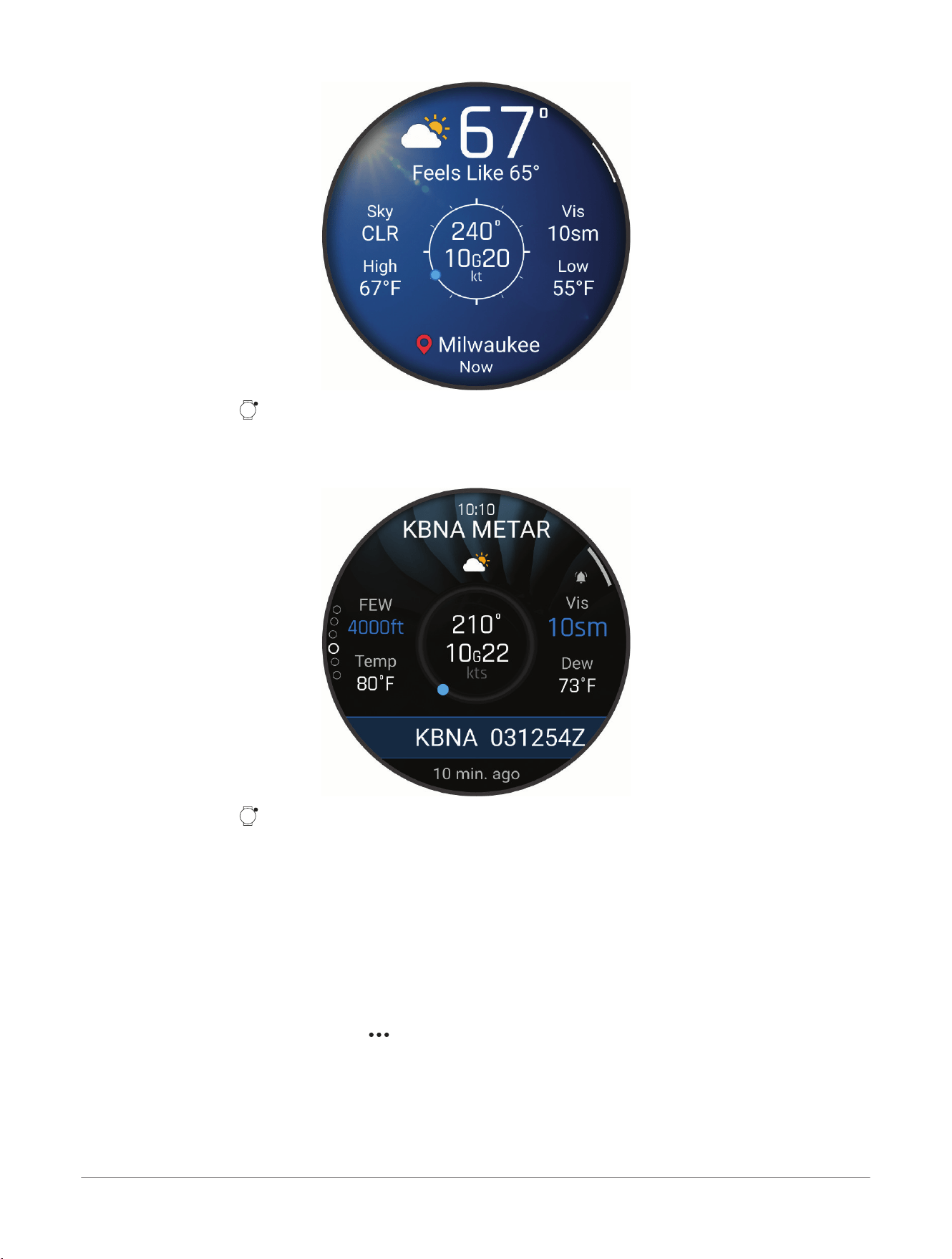
3 If necessary, press to set your location, view weather alerts, or update weather options.
4 Scroll down to view meteorological aerodrome report (METAR) information and terminal aerodrome
forecasts (TAF).
5 Tap the METAR or TAF report to view more details.
6 If necessary, press to enable METAR, special weather report (SPECI), or TAF alerts.
Lifestyle Logging
Use the lifestyle logging glance on your D2
™
Mach 2 watch to discover how everyday behaviors affect several
health metrics, such as your sleep score, resting heart rate, and more. You can log and track behaviors that
reflect your daily habits and actions, such as late caffeine intake, cold plunges, or reading before bedtime, on the
Garmin Connect
™
app (Tracking Lifestyle Logging Behaviors, page88). You can even create and track custom
behaviors.
Tracking Lifestyle Logging Behaviors
Before you can use the lifestyle logging feature, you must have a Garmin Connect
™
account, download the
Garmin Connect app, and pair your Garmin
®
watch with the Garmin Connect app.
1 From the Garmin Connect app, select .
2 Select Health Stats> Lifestyle Logging.
3 Follow the on-screen instructions.
4 Set up logging reminders (optional).
You can view detailed lifestyle logging reports on the Garmin Connect app.
TIP: You can enable the lifestyle logging glance on your watch to view and log lifestyle behaviors (Customizing
the Glances List, page76).
88
D2™ Mach 2 Series Aviator Smartwatch
Owner's Manual
Glances
Using the Jet Lag Adviser
Before you can use the Jet Lag Adviser glance, you must plan a trip in the Garmin Connect
™
app (Planning a Trip
in the Garmin Connect
™
App, page89).
You can use the Jet Lag Adviser glance while traveling to see how your internal clock compares to the local
time, and to receive guidance on how to reduce the effects of jet lag.
1 From the watch face, press to view the Jet Lag Adviser glance.
2 Press to see how your internal clock compares to the local time, and the overall level of your jet lag.
3 Select an option:
● To see an informational message about your current jet lag level, press .
● To see a timeline for recommended actions to help reduce symptoms of jet lag, press .
Planning a Trip in the Garmin Connect
™
App
1 From the Garmin Connect app, select .
2 Select Training & Planning> Jet Lag Adviser> Add a Trip.
3 Follow the on-screen instructions.
Viewing the Scuba Diving Glance
You can use the scuba diving glance to monitor your body's recovery after a dive. After a dive, you may need to
wait several hours before it is safe to fly on an airplane.
1 From the watch face, press to view the scuba diving glance.
2 Press to view your surface interval (SI) time, no-fly time remaining, and the time of day the no-fly period
ends.
3 Press to view your tissue load details, current oxygen toxicity units (OTU), and central nervous system
(CNS) percentage.
NOTE: The OTU accumulated during a dive expire after 24 hours.
OTU Green: 0 to 249 OTU.
Yellow: 250 to 299 OTU.
Red: 300 or greater OTU.
CNS Green: 0 to 79% CNS oxygen toxicity.
Yellow: 80 to 99% CNS oxygen toxicity.
Red: 100% or greater CNS oxygen toxicity.
4 Press to view the dive log of your recently recorded dives.
Glances
D2™ Mach 2 Series Aviator Smartwatch
Owner's Manual
89
Clocks
Setting an Alarm
You can set multiple alarms.
1 Select an option:
● From the watch face, hold .
● From the watch face, press .
● Hold .
2 Select Clocks> Alarms.
3 Select an option:
● To set and save an alarm for the first time, enter the alarm time.
● To set and save additional alarms, select Add Alarm, and enter the alarm time.
4 Scroll down for more options.
5 Select Save.
Editing an Alarm
1 Select an option:
● From the watch face, hold .
● From the watch face, press .
● Hold .
2 Select Clocks> Alarms.
3 Select an alarm.
4 Select an option:
● To turn the alarm on or off, select Status.
● To change the alarm time, select Time.
● To set an alarm to gently wake you in the 30-minute window before your scheduled alarm based on
optimal sleep timing, select Smart Wake.
NOTE: Your alarm will always go off at your selected time in addition to any earlier alarms. For example,
if you set your alarm for 8:00 am, the alarm may gently alert you to wake up some time between 7:30 and
8:00 am.
● To set the alarm to repeat regularly, select Repeat, and select when the alarm should repeat.
● To select the type of alarm notification, select Sound & Vibe.
NOTE: You can also preview the alarm sound, adjust the volume, and select vibration options. Select
Quiet Start if you want your alarm to start quietly and then get louder.
● To change the time zone for the alarm, select Time Zone, and select a time zone.
● To select a description for the alarm, select Label.
5 Select an option:
● To save your edits, select Done.
● To delete the alarm, select Delete.
Using the Countdown Timer
1 Select an option:
● From the watch face, hold .
● From the watch face, press .
● Hold .
2 Select Clocks> Timers.
3 If you have never saved a timer, enter the time using the touchscreen or the and buttons.
4 If you previously saved a timer, select an option:
● To set a new countdown timer without saving it, select Quick Timer, and enter the time.
● To set and save a new countdown timer, select Edit> Add Timer, and enter the time.
● To set a saved countdown timer, select the saved timer.
5 Press to start the timer.
90
D2™ Mach 2 Series Aviator Smartwatch
Owner's Manual
Clocks
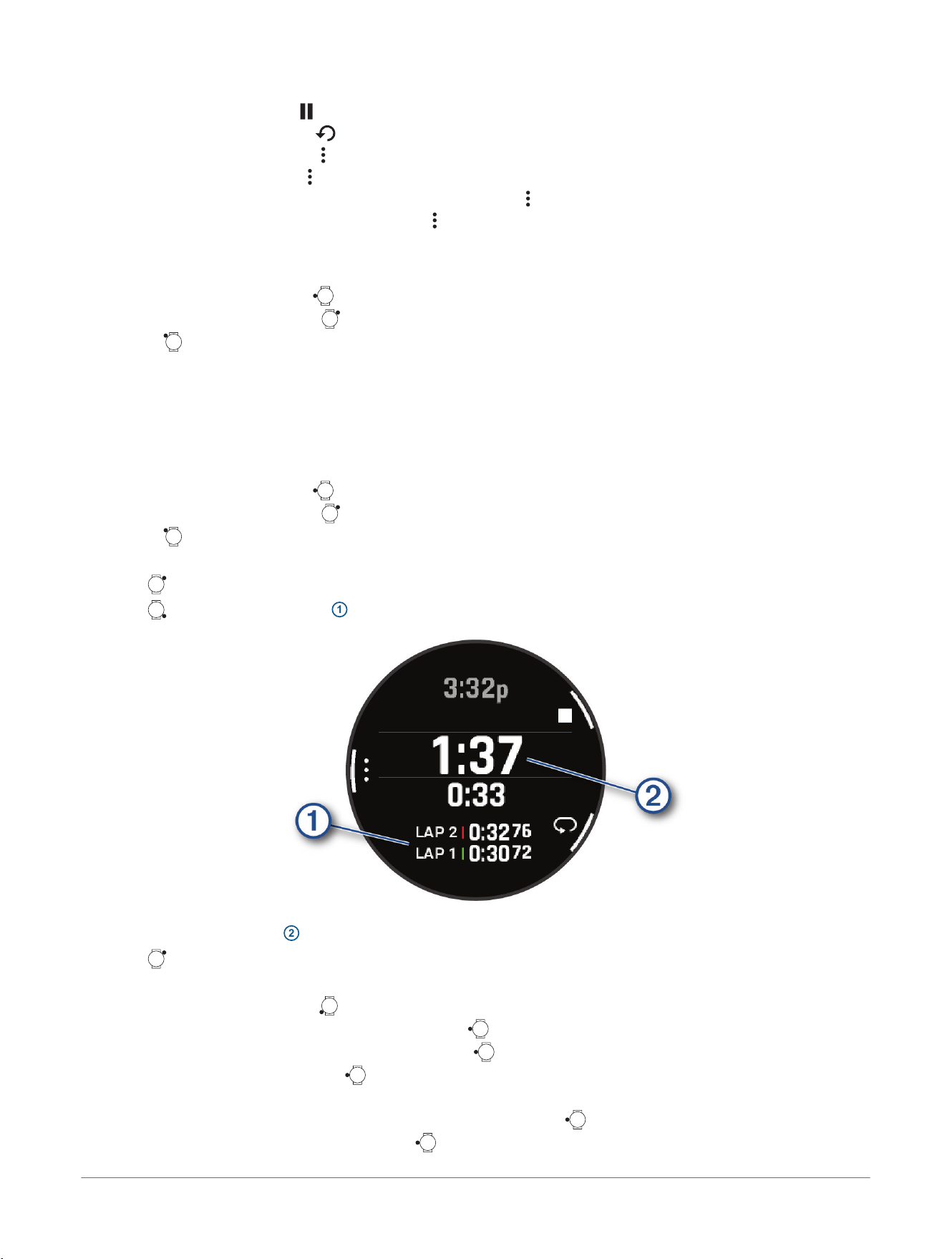
6 If necessary, select an option:
● To stop the timer, select .
● To restart the timer, select .
● To cancel the timer, select > Cancel Timer.
● To save the timer, select > Save Timer.
● To automatically restart the timer after it expires, select > Auto Restart> On.
● To customize the timer notification, select > Sound & Vibe.
Deleting a Countdown Timer
1 Select an option:
● From the watch face, hold .
● From the watch face, press .
● Hold .
2 Select Clocks> Timers> Edit.
3 Select a timer.
4 Select Delete.
Using the Stopwatch
1 Select an option:
● From the watch face, hold .
● From the watch face, press .
● Hold .
2 Select Clocks> Stopwatch.
3 Press to start the timer.
4 Press to restart the lap timer
1
.
The total stopwatch time
2
continues running.
5 Press to stop both timers.
6 Select an option:
● To reset both timers, press .
● To save the stopwatch time as an activity, press , and select Save Activity.
● To reset the timers and exit the stopwatch, press , and select Done.
● To review the lap timers, press , and select Review.
NOTE: The Review option only appears if there have been multiple laps.
● To return to the watch face without resetting the timers, press , and select Go to Watchface.
● To enable or disable lap recording, press , and select Lap Key.
Clocks
D2™ Mach 2 Series Aviator Smartwatch
Owner's Manual
91
Adding Alternate Time Zones
You can display the current time of day in additional time zones.
1 Select an option:
● From the watch face, hold .
● From the watch face, press .
● Hold .
TIP: You can also view your alternate time zones in the glances list (Customizing the Glances List, page76).
2 Select Clocks> Alt. Time Zones> Add.
3 Press or to highlight a region, and press to select it.
4 Select a time zone.
Editing an Alternate Time Zone
1 Select an option:
● From the watch face, hold .
● From the watch face, press .
● Hold .
TIP: You can also view your alternate time zones in the glances list (Customizing the Glances List, page76).
2 Select Clocks> Alt. Time Zones.
3 Select a time zone.
4 Press .
5 Select an option:
● To set the time zone to display on the glances list, select Set as Favorite.
● To enter a custom name for the time zone, select Rename.
● To enter a custom abbreviation for the time zone, select Abbreviate.
● To change the time zone, select Change Zone.
● To delete the time zone, select Delete.
Adding a Countdown Event
1 Select an option:
● From the watch face, hold .
● From the watch face, press .
● Hold .
TIP: You can also view your countdown events in the glances list (Customizing the Glances List, page76).
2 Select Clocks> Countdowns> Add.
3 Enter a name.
4 Select a year, month, and day.
5 Select an option:
● Select All Day.
● Select Specific Time, and enter a time.
6 Select an icon.
Editing a Countdown Event
1 Select an option:
● From the watch face, hold .
● From the watch face, press .
● Hold .
TIP: You can also view your countdown events in the glances list (Customizing the Glances List, page76).
2 Select Clocks> Countdowns.
3 Select a countdown event.
4 Press , and select Set as Favorite to show the countdown event in the glances list (optional).
92
D2™ Mach 2 Series Aviator Smartwatch
Owner's Manual
Clocks
5 Press , and select Edit Countdown.
6 Select an option to edit:
● To rename the event, select Name.
● To change the date, select Date.
● To change the time, select Time.
● To change the icon, select Icon.
● To add an abbreviated name for the event, select Abbreviation.
● To add an event location, select Location.
● To add event reminders, select Reminders.
● To repeat the event every year, select Repeat Annually.
● To remove the event, select Delete Countdown.
Clocks
D2™ Mach 2 Series Aviator Smartwatch
Owner's Manual
93
History
History includes time, distance, calories, average pace or speed, lap data, and optional sensor information.
NOTE: When the device memory is full, your oldest data is overwritten.
Using History
History contains saved activity data, records, and totals.
The watch has a history glance for quick access to your activity data (Glances, page74).
1 From the watch face, hold .
2 Select History.
A bar graph of your recent activities appears.
3 Press to view options.
4 Select an option:
● To change the time period for the bar graph, select Graph Options.
● To view your personal records by sport, select Records (Personal Records, page94).
● To view your weekly or monthly totals, select Totals (Viewing Data Totals, page95).
5 Press to return to the bar graph.
6 Scroll down to view your activity history.
7 Select an activity.
8 Press to view options.
Multisport History
Your device stores the overall multisport summary of the activity, including overall distance, time, calories, and
optional accessory data. Your device also separates the activity data for each sport segment and transition so
you can compare similar training activities and track how quickly you move through the transitions. Transition
history includes distance, time, average speed, and calories.
Personal Records
When you complete an activity, the watch displays any new personal records you achieved during that activity.
Personal records include your fastest time over several typical race distances, highest strength activity weight
for major movements, and longest run, ride, or swim.
NOTE: For cycling, personal records also include most ascent and best power (power meter required).
Viewing Your Personal Records
1 From the watch face, hold .
2 Select History.
3 Press to view options.
4 Select Records.
5 Select a sport.
6 Select a record.
7 Select View Record.
Restoring a Personal Record
You can set each personal record back to the one previously recorded.
1 From the watch face, hold .
2 Select History.
3 Press to view options.
4 Select Records.
5 Select a sport.
6 Select a record to restore.
7 Select Previous> .
NOTE: This does not delete any saved activities.
94
D2™ Mach 2 Series Aviator Smartwatch
Owner's Manual
History
Clearing Personal Records
1 From the watch face, hold .
2 Select History.
3 Press to view options.
4 Select Records.
5 Select a sport.
6 Select an option:
● To delete one record, select a record, and select Clear Record> .
● To delete all records for the sport, select Clear All Records> .
NOTE: This does not delete any saved activities.
Viewing Data Totals
You can view the accumulated distance and time data saved to your watch.
1 From the watch face, hold .
2 Select History.
3 Press to view options.
4 Select Totals.
5 Select an activity.
6 Select an option to view weekly or monthly totals.
History
D2™ Mach 2 Series Aviator Smartwatch
Owner's Manual
95
Aviation Settings
WARNING
This watch is not intended to provide primary flight information and is to be used for supplemental purposes
only.
From the watch face, hold , and select Watch Settings> Aviation.
Units: Sets the units of measure used for aviation data.
Weather Options: Customizes how the weather information appears in the glances and manages weather data
downloads (Aviation Weather Settings, page96).
Favorite Airports: Sets your favorite airports (Adding Favorite Airports, page96).
Airport Filter: Sets the airport options that appear when searching for airports. For example, you can set
the minimum runway length and surface material, and indicate whether private airports and heliports are
displayed in search results.
Map Settings: Sets the ownship aircraft type, and enables METAR and airspace information on the map.
Aviation Weather Settings
WARNING
This feature allows users to view weather data and set alerts for information that is provided and maintained
by third parties. Garmin
®
makes no representations about the accuracy, reliability, completeness, or timeliness
of weather data provided by third parties. It is your responsibility to review weather reports and conditions,
to remain aware of your surroundings, and to use safe judgment, especially during times of potential severe
weather.
From the watch face, hold , and select Watch Settings> Aviation> Weather Options.
Update Current Location: Updates weather data for your current GPS location.
Units: Sets the units of measure for temperature, visibility, and wind speed.
Flt. Conditions: Sets the flight condition colors to a standard or classic color scheme.
Adding Favorite Airports
You can add your favorite airports so you can quickly select them in the menu. For example, you can quickly
choose a favorite airport for direct-to navigation.
1 From the watch face, hold .
2 Select Watch Settings> Aviation> Favorite Airports> Add.
3 Select an option:
● To search for an airport near you, select Nearest Airports, and wait while the watch locates satellites.
● To search for an airport by its identifier, select Search by Ident., and enter all or part of the alphanumeric
identifier.
A list of airports appears.
4 Select an airport.
5 Select Add to add another favorite airport (optional).
96
D2™ Mach 2 Series Aviator Smartwatch
Owner's Manual
Aviation Settings
Notifications and Alerts Settings
From the watch face, hold , and select Watch Settings> Notifications & Alerts.
Smart Notifications: Customizes the smart notifications that appear on your watch (Enabling Phone
Notifications, page107).
Health & Wellness: Customizes the health and wellness alerts that appear on your watch (Health and Wellness
Alerts, page97).
Report Settings: Enables reports, and customizes the report data and theme. You can select Morning Report
to create and edit daily messages in the morning report (Customizing Your Morning Report, page98). You
can select Evening Report to set the schedule for the evening report (Customizing Your Evening Report,
page98). You can select Choose Theme to customize the background theme for your reports.
Messenger: Sets the sound and vibration options for Messenger calls and texts.
System Alerts: Sets time (Setting Time Alerts, page98), barometer (Setting a Storm Alert, page98), or phone
connection alerts (Turning On Phone Connection Alerts, page99).
Notification Center: Enables the notification center for viewing new notifications (Viewing Notifications,
page107).
Health and Wellness Alerts
From the watch face, hold , and select Watch Settings> Notifications & Alerts> Health & Wellness.
Daily Summary: A Body Battery
™
daily summary appears a few hours before the start of your sleep window. The
daily summary provides insight on how your daily stress and activity history impacted your Body Battery level
(Body Battery
™
, page77).
Stress Alerts: Notifies you when periods of stress have drained your Body Battery level.
Rest Alerts: Notifies you after you have a restful period and its impact on your Body Battery level.
Abnormal Heart Rate Alerts: Notifies you when your heart rate exceeds or drops below a target value (Setting an
Abnormal Heart Rate Alert, page97).
Jet Lag Adviser: Provides jet lag symptom advice for a trip, such as sleep and exercise recommendations
(Using the Jet Lag Adviser, page89).
Move Alert: Reminds you to keep moving (Move Alert, page97) (Customizing Move Alerts, page97).
Goal Alerts: Notifies you when you reach your daily steps goal, daily floors climbed goal, and weekly intensity
minutes goal.
Setting an Abnormal Heart Rate Alert
CAUTION
This feature only alerts you when your heart rate exceeds or drops below a certain number of beats per minute,
as selected by the user, after at least ten minutes of inactivity. This feature does not notify you when your heart
rate drops below the selected threshold during your chosen sleep window configured in the Garmin Connect
™
app. This feature does not notify you of any potential heart condition and is not intended to treat or diagnose
any medical condition or disease. Always defer to your health care provider for any heart-related issues.
You can set the heart rate threshold value.
1 From the watch face, hold .
2 Select Watch Settings> Notifications & Alerts> Health & Wellness> Abnormal Heart Rate Alerts.
3 Select High Alert or Low Alert.
4 Set the heart rate threshold value.
Each time your heart rate exceeds or drops below the threshold value, a message appears and the watch
vibrates.
Move Alert
Sitting for prolonged periods of time can trigger undesirable metabolic state changes. The move alert reminds
you to keep moving. After one hour of inactivity, a message appears. The watch also beeps or vibrates if audible
tones are turned on (System Settings, page144). You can customize your move alert to be dismissed by walking
or other types of movement.
Customizing Move Alerts
1 Hold .
2 Select Watch Settings> Notifications & Alerts> Health & Wellness> Move Alert> On.
Notifications and Alerts Settings
D2™ Mach 2 Series Aviator Smartwatch
Owner's Manual
97
3 Select an option:
● Select Alert Type to set the alert based on steps or other types of movement.
● Select Movements to allow sitting moves or free motion moves to clear the alert.
● Select Movement Duration to set the alert to be cleared after 30, 45, or 60 seconds.
Morning Report
Your watch displays a morning report based on your normal wake time. Scroll to view the report, which includes
weather, sleep, overnight heart rate variability status, and more (Customizing Your Morning Report, page98).
Customizing Your Morning Report
NOTE: You can customize these settings on your watch or in your Garmin Connect
™
account.
1 From the watch face, hold .
2 Select Watch Settings> Notifications & Alerts> Report Settings> Morning Report.
3 Select an option:
● To enable or disable the morning report, select Show Report.
● To customize the order and type of data that appears in your morning report, select Edit Report.
● To write and add custom messages to your morning report, select Customize Daily Messages> Edit
Messages.
Evening Report
Your watch displays an evening report prior to your sleep time. Scroll to view the report, which includes your
Body Battery
™
details, tomorrow's workout and weather, sleep coach recommendation, and more (Customizing
Your Evening Report, page98).
Customizing Your Evening Report
NOTE: You can customize these settings on your watch or in your Garmin Connect
™
account.
1 From the watch face, hold .
2 Select Watch Settings> Notifications & Alerts> Report Settings> Evening Report.
3 Select an option:
● Select Show Report to enable or disable the evening report.
● Select Edit Report to customize the order and type of data that appears in your evening report.
● Select Schedule Report to set the amount of time between the report and your sleep start (Customizing a
Default Focus Mode, page117).
Setting Time Alerts
1 From the watch face, hold .
2 Select Watch Settings> Notifications & Alerts> System Alerts> Time.
3 Select an option:
● To set an alert to sound a specific number of minutes or hours before the actual sunset occurs, select Til
Sunset> Status> On, select Time, and enter the time.
● To set an alert to sound a specific number of minutes or hours before the actual sunrise occurs, select Til
Sunrise> Status> On, select Time, and enter the time.
● To set an alert to sound every hour, select Hourly> On.
Setting a Storm Alert
WARNING
This alert is an informational feature and is not intended to be the primary source for tracking changes
in the weather. It is your responsibility to review weather reports and conditions, to remain aware of your
surroundings, and to use safe judgment, especially during times of severe weather. Failure to heed this warning
could result in serious personal injury or death.
1 From the watch face, hold .
2 Select Watch Settings> Notifications & Alerts> System Alerts> Barometer> Storm Alert.
3 Select an option:
● Select Status to turn the alert on or off.
● Select Rate to update the rate of barometric pressure change that triggers a storm alert.
98
D2™ Mach 2 Series Aviator Smartwatch
Owner's Manual
Notifications and Alerts Settings
Turning On Phone Connection Alerts
You can set your watch to alert you when your paired phone connects and disconnects using Bluetooth
®
technology.
1 From the watch face, hold .
2 Select Watch Settings> Notifications & Alerts> System Alerts> Phone.
Notifications and Alerts Settings D2™ Mach 2 Series Aviator Smartwatch
Owner's Manual
99
Sound and Vibration Settings
From the watch face, hold , and select Watch Settings> Sound & Vibe. You can also customize these
settings for different situations, such as sleep and activities (Focus Modes, page117).
Volume: Mutes all sounds or adjusts the speaker volume.
Alert Tones: Plays a tone for alerts.
Button Tones: Plays a tone when you press a button.
Vibration: Sets watch vibrations for alerts and button presses.
100 D2™ Mach 2 Series Aviator Smartwatch
Owner's Manual
Sound and Vibration Settings
Display and Brightness Settings
From the watch face, hold , and select Watch Settings> Display & Brightness. You can also customize these
settings for different situations, such as sleep and activities (Focus Modes, page117).
Brightness: Sets the brightness level of the screen.
Always On Display: Sets the watch face data to remain visible and turn down the brightness and background.
This option impacts the battery and display life (About the AMOLED Display, page149).
Watch Face Seconds: Sets how often the watch face seconds appear when the Always On Display setting is
turned on. This option impacts the battery and display life (About the AMOLED Display, page149).
Text Size: Adjusts the size of the text on the screen.
Color Shift: Turns the screen to shades of red, green, or orange so that you can use the watch in low light
conditions and help preserve your night vision or reduce eye strain. You can select Mode> Blue Light Filter
to reduce the amount of blue light emitting from the watch. You can select Schedule to set the timing of the
filters, such as Before Sleep Start.
Wake On Alert: Turns on the screen when you receive a notification or alert.
Wake On Gesture: Turns on the screen when you raise and turn your arm to look at your wrist.
Timeout: Sets the length of time before the screen turns off.
Touch: Enables the touchscreen. You can select Map Only to enable the touchscreen only on the map screen.
Touch Lock: Locks the touchscreen after the screen turns off. When this setting is enabled, you can swipe down
to unlock the touchscreen.
Display and Brightness Settings
D2™ Mach 2 Series Aviator Smartwatch
Owner's Manual
101
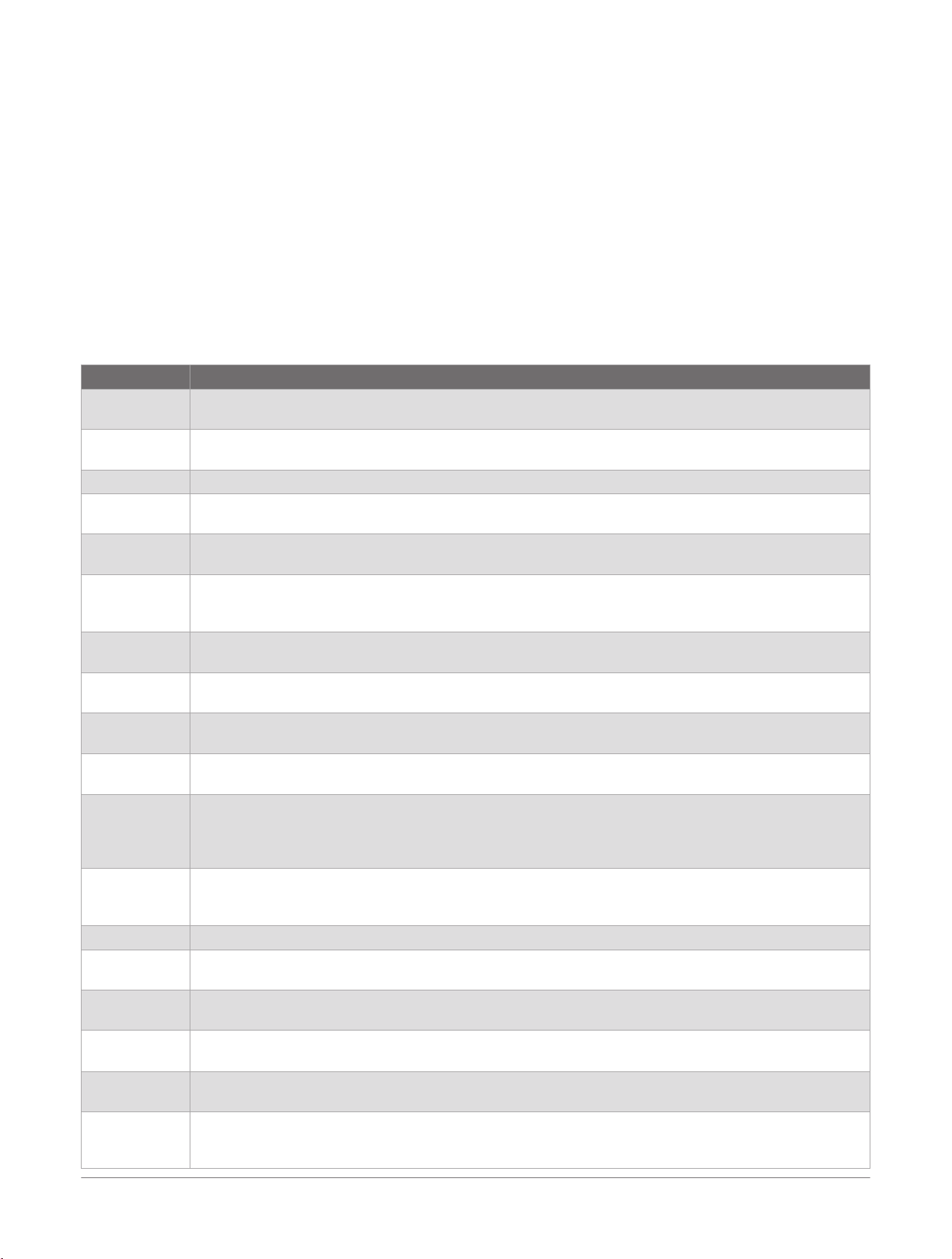
Connectivity
Connectivity features are available for your watch when you pair with your compatible phone (Pairing Your
Phone, page106). Additional features are available when you connect your watch to a Wi‑Fi
®
network
(Connecting to a Wi‑Fi
®
Network, page108).
Sensors and Accessories
The D2
™
Mach 2 watch has several internal sensors, and you can pair additional wireless sensors for your
activities.
Wireless Sensors
Your watch can be paired and used with wireless sensors using ANT+
®
or Bluetooth
®
technology (Pairing
Your Wireless Sensors, page103). After the devices are paired, you can customize the optional data fields
(Customizing the Data Screens, page63). If your watch was packaged with a sensor, they are already paired.
For information about specific Garmin
®
sensor compatibility, purchasing, or to view the owner's manual, go to
buy.garmin.com for that sensor.
Sensor Type Description
Applied Ballis
tics
You can use Applied Ballistics
®
devices, such as rangefinders or wind sensors, and view additional
ballistics information on your watch.
Club Sensors You can use Approach
®
golf club sensors to automatically track your golf shots, including location,
distance, and club type.
DogTrack Allows you to receive data from a compatible handheld dog tracking device.
eBike You can use your watch with your eBike and view bike data, such as battery and range information,
during your rides.
Extended
Display
You can use the Extended Display mode to display data screens from your D2
™
Mach 2 watch on a
compatible Edge
®
bike computer during a ride or triathlon.
External HR
You can use an external sensor, such as the HRM 200, HRM 600, HRM-Fit
™
, or HRM-Pro
™
series heart
rate monitor, to view heart rate data during your activities. Some heart rate monitors can also store
data or provide advanced running data (Running Dynamics, page103) (Running Power, page104).
Foot Pod You can use a foot pod to record pace and distance instead of using GPS when you are training
indoors or when your GPS signal is weak.
Headphones You can use Bluetooth headphones to listen to music loaded onto your D2 Mach 2 watch (Connecting
Bluetooth
®
Headphones, page137).
inReach The inReach
®
remote function allows you to control your inReach satellite communicator using your
D2 watch (Using the inReach
®
Remote, page105).
Lights
You can use Varia
™
smart bike lights to improve situational awareness. With a Varia headlight camera,
you can also take photos and record video during a ride (Using the Varia
™
Camera Controls, page105).
Power
You can use the Rally
™
or Vector
™
power meter bike pedals to view your power data on your watch.
You can adjust your power zones to match your goals and abilities (Setting Your Power Zones,
page139), or use range alerts to be notified when you reach a specified power zone (Setting an Alert,
page66).
Radar You can use a Varia rearview bike radar to improve situational awareness and send alerts about
approaching vehicles. With a Varia radar camera tail light, you can also take photos and record video
during a ride (Using the Varia
™
Camera Controls, page105).
Rangefinder You can use a compatible laser rangefinder to view your distance to the flag while golfing.
RD Pod You can use a Running Dynamics Pod to record running dynamics data and view it on your watch
(Running Dynamics, page103).
Shifting You can use electronic shifters to display shifting information during a ride. The D2 Mach 2 watch
displays current adjustment values when the sensor is in adjustment mode.
Shimano Di2
You can use Shimano
®
Di2
™
electronic shifters to display shifting information during a ride. The D2
Mach 2 watch displays current adjustment values when the sensor is in adjustment mode.
Smart Trainer You can use your watch with an indoor bike smart trainer to simulate resistance while following a
course, ride, or workout (Using an Indoor Trainer, page47).
Spd./Cad. You can attach speed or cadence sensors to your bike and view the data during your ride.
If necessary, you can manually enter your wheel circumference (Wheel Size and Circumference,
page159).
102 D2™ Mach 2 Series Aviator Smartwatch
Owner's Manual
Connectivity
Sensor Type Description
Tempe
You can attach the tempe
™
temperature sensor to a secure strap or loop where it is exposed to
ambient air, so it provides a consistent source of accurate temperature data.
Trolling Motor You can use your device as a remote control for your Garmin trolling motor (Pairing Your Watch and
Trolling Motor, page28).
Vectronix You can use Vectronix
®
rangefinders, and view additional ballistics information on your watch.
Xero Chrono
graph
You can pair with a Xero
®
chronograph to access session controls and view ballistics data (Using the
Xero
®
Chronograph App, page26).
Pairing Your Wireless Sensors
The first time you connect a wireless sensor to your watch using ANT+
®
or Bluetooth
®
technology, you must
pair the watch and sensor. After they are paired, the watch connects to the sensor automatically when you
start an activity and the sensor is active and within range. For more information about connection types, go to
garmin.com/hrm_connection_types.
1 Put on the heart rate monitor, install the sensor, or press the button to wake up the sensor.
NOTE: See your wireless sensor owner's manual for pairing information.
2 Bring the watch within 3m (10ft.) of the sensor.
NOTE: Stay 10m (33ft.) away from other wireless sensors while pairing.
3 From the watch face, hold .
4 Select Watch Settings> Connectivity> Sensors & Accessories> Add New.
5 Select an option:
● Select Search All.
● Select your sensor type.
After the sensor is paired with your watch, the sensor status changes from Searching to Connected. Sensor
data appears in the data screen loop or a custom data field. You can customize the optional data fields
(Customizing the Data Screens, page63).
Heart Rate Accessory Running Pace and Distance
The HRM 600, HRM-Fit
™
, and HRM-Pro
™
series accessories calculate your running pace and distance based
on your user profile and the motion measured by the sensor on every stride. The heart rate monitor provides
running pace and distance when GPS is not available, such as during treadmill running. You can view your
running pace and distance on your compatible D2
™
Mach 2 watch when connected using ANT+
®
technology or
secure Bluetooth
®
technology. You can also view it on compatible third-party training apps.
The pace and distance accuracy improves with calibration.
Automatic calibration: The default setting for your watch is Auto Calibrate. The heart rate accessory calibrates
each time you run outside with it connected to your compatible D2 Mach 2 watch.
NOTE: Automatic calibration does not work for indoor, trail, or ultra run activities (Tips for Recording Running
Pace and Distance, page103).
Manual calibration: You can select Calibrate & Save after a treadmill run with your connected heart rate
accessory (Calibrating the Treadmill Distance, page43).
Tips for Recording Running Pace and Distance
●
Update your D2
™
Mach 2 watch software (Product Updates, page153).
●
Complete several outdoor runs with GPS and your connected HRM 600, HRM-Fit
™
, or HRM-Pro
™
series
accessory. It's important that your outdoor range of paces matches your range of paces on the treadmill.
● If your run includes sand or deep snow, go to the sensor settings, and turn off Auto Calibrate.
● If you previously connected a compatible foot pod using ANT+
®
technology, set the foot pod status to Off, or
remove it from the list of connected sensors.
● Complete a treadmill run with manual calibration (Calibrating the Treadmill Distance, page43).
● If automatic and manual calibrations don't seem accurate, go to the sensor settings, and select HRM Pace &
Distance> Reset Calibration Data.
NOTE: You can try turning off Auto Calibrate, and then manually calibrate again (Calibrating the Treadmill
Distance, page43).
Running Dynamics
Running dynamics is real-time feedback about your running form. Your D2
™
Mach 2 watch has an accelerometer
to calculate five running form metrics. To view all of the running form metrics, you must pair your D2 Mach
Connectivity
D2™ Mach 2 Series Aviator Smartwatch
Owner's Manual
103
2 watch with the HRM 600, HRM-Fit
™
, HRM-Pro
™
series accessory, or other running dynamics accessory that
measures torso movement. For more information, go to garmin.com/performance-data/running.
Metric Sensor Type Description
Cadence Watch or compatible
accessory
Cadence is the number of steps per minute. It displays the total steps (right
and left combined).
Stride length Watch or compatible
accessory
Stride length is the length of your stride from one footfall to the next. It is
measured in meters.
Vertical oscilla
tion
Watch or compatible
accessory
Vertical oscillation is your bounce while running. It displays the vertical motion
of your torso, measured in centimeters.
Vertical ratio Watch or compatible
accessory
Vertical ratio is the ratio of vertical oscillation to stride length. It displays a
percentage. A lower number typically indicates better running form.
Ground contact
time
Watch or compatible
accessory
Ground contact time is the amount of time in each step that you spend on the
ground while running. It is measured in milliseconds.
NOTE: Ground contact metrics are not available while walking.
Ground contact
time balance
Compatible
accessory only
Ground contact time balance displays the left/right balance of your ground
contact time while running. It displays a percentage. For example, 53.2 with an
arrow pointing left or right.
Step speed
loss
HRM 600 only Step speed loss is how much you slow down when your foot hits the ground
while running. It is measured in centimeters per second. A lower number is
typically better, as it indicates you have to do less propulsive work to speed
back up.
NOTE: Step speed loss metrics are not available while walking.
Step speed
loss percent
age
HRM 600 only Step speed loss percent is how much you slow down when your foot hits the
ground as a percentage of your running speed. This accounts for step speed
loss typically increasing with faster running speed.
Tips for Missing Running Dynamics Data
This topic provides tips for using a compatible running dynamics accessory. If the accessory is not connected
to your watch, the watch automatically switches to wrist-based running dynamics.
●
Make sure you have a running dynamics accessory, such as the HRM 600, HRM-Fit
™
, or HRM-Pro
™
series
accessory.
● Pair the running dynamics accessory with your watch again, according to the instructions.
● If you are using an HRM 600 accessory, pair it with your watch using the secure Bluetooth
®
connection, rather
than the open connection.
For more information about connection types, go to garmin.com/hrm_connection_types.
● If you are using an HRM-Fit or HRM-Pro series accessory, pair it with your watch using ANT+
®
technology,
rather than Bluetooth technology.
● If the running dynamics data display shows only zeros, make sure the accessory is worn right-side up.
NOTE: Some metrics do not appear while walking (Running Dynamics, page103).
Running Power
Garmin
®
running power is calculated using measured running dynamics information, user mass, environmental
data, and other sensor data. The power measurement estimates the amount of power a runner applies to the
road surface, and it is displayed in watts. Using running power as a gauge of effort may suit some runners
better than using either pace or heart rate. Running power can be more responsive than heart rate for indicating
the level of effort, and it can account for the uphills, downhills, and wind, which a pace measurement does not
do. For more information, go to garmin.com/performance-data/running.
Running power can be measured using a compatible running dynamics accessory or the watch sensors. You
can customize the running power data fields to view your power output and make adjustments to your training
(Data Fields, page160). You can set up power alerts to be notified when you reach a specified power zone
(Activity Alerts, page66).
Running power zones use default values based on gender, weight, and average ability, and may not match your
personal abilities. You can manually adjust your zones on the watch or using your
Garmin Connect
™
account
(Setting Your Power Zones, page139).
Running Power Settings
From the watch face, press , select Activities, select a running activity, press , select the activity settings,
and select Running Power.
104
D2™ Mach 2 Series Aviator Smartwatch
Owner's Manual
Connectivity
Status: Enables or disables recording Garmin
®
running power data. You can use this setting if you prefer to use
third-party running power data.
Source: Allows you to select which device to use to record running power data. The Smart Mode option
automatically detects and uses the running dynamics accessory, when available. The watch uses wrist-based
running power data when an accessory is not connected.
Account for Wind: Enables or disables using wind data when calculating your running power. Wind data is a
combination of the speed, heading, and barometer data from your watch and the available wind data from
your phone.
Chest Heart Rate While Swimming
The HRM 600, HRM-Pro
™
series, HRM-Swim
™
, and HRM-Tri
™
heart rate accessories record and store your heart
rate data while you are swimming. To view your heart rate data, you can add heart rate data fields (Customizing
the Data Screens, page63).
NOTE: Chest heart rate data is not visible on compatible watches while the heart rate monitor is underwater.
You must start a timed activity on your paired watch to view stored heart rate data later. During rest intervals
when out of the water, the heart rate accessory sends your heart rate data to your watch. Your watch
automatically downloads stored heart rate data when you save your timed swim activity. Your heart rate
accessory must be out of the water, active, and within range of the watch (3m) while data downloads. Your
heart rate data can be reviewed in the watch history and on your Garmin Connect
™
account.
If both wrist-based heart rate and chest heart rate data are available, your watch uses the chest heart rate data.
Using the Varia
™
Camera Controls
NOTICE
Some jurisdictions may prohibit or regulate the recording of video, audio, or photographs, or may require that
all parties have knowledge of the recording and provide consent. It is your responsibility to know and follow all
laws, regulations, and any other restrictions in jurisdictions where you plan to use this device.
Before you can use the Varia camera controls, you must pair the accessory with your watch (Pairing Your
Wireless Sensors, page103).
1 Select an option:
● Add the Camera Controls control to your watch (Customizing the Controls Menu, page72).
● Add the Camera Controls glance to your watch (Customizing the Glances List, page76).
2 From the Camera Controls control or glance, select an option:
● Select > to view the camera settings.
● Select > to record the ride.
● Select to take a photo.
● Select to save a clip.
inReach
®
Remote
The inReach remote function allows you to control your inReach satellite communicator using your D2
™
watch.
Go to buy.garmin.com for more information about compatible devices.
Using the inReach
®
Remote
Before you can use the inReach remote function, you must pair your inReach satellite communicator (Pairing
Your Wireless Sensors, page103), then add the inReach glance to the glances list (Customizing the Glances List,
page76).
1 Turn on the inReach satellite communicator.
2 On your D2
™
watch, press from the watch face to view the inReach glance.
3 Press to search for your inReach satellite communicator.
4 Press to pair your inReach satellite communicator.
5 Press , and select an option:
● To send an SOS message, select Initiate SOS.
NOTE: You should only use the SOS function in a real emergency situation.
● To send a text message, select Messages> New Message, select the message contacts, and enter the
message text or select a quick text option.
● To send a preset message, select Send Preset, and select a message from the list.
● To view the timer and distance traveled during an activity, select Tracking.
Connectivity
D2™ Mach 2 Series Aviator Smartwatch
Owner's Manual
105
Phone Connectivity Features
Phone connectivity features are available for your D2
™
watch when you pair it using the Garmin Connect
™
app
(Pairing Your Phone, page106).
●
App features from the Garmin Connect app (Garmin Connect
™
, page112)
●
App features from the Connect IQ
™
app, and more (Phone Apps and Computer Applications, page112)
● Glances (Glances, page74)
● Controls menu features (Controls, page70)
● Safety and tracking features (Safety and Tracking Features, page132)
● Phone interactions, such as notifications (Enabling Phone Notifications, page107)
Pairing Your Phone
To use the connected features on your watch, you must pair it directly through the Garmin Connect
™
app,
instead of from the Bluetooth
®
settings on your phone.
1 Select an option:
● During the initial setup on your watch, select when you are prompted to pair with your phone.
● If you previously skipped the pairing process, from the watch face, hold , and select Watch Settings>
Connectivity> Pair Phone.
● If you want to pair a new phone, from the watch face, hold , and select Watch Settings> Connectivity>
Phone> Pair Phone.
2 Scan the QR code with your phone, and follow the on-screen instructions to complete the pairing and setup
process.
3
To use the LTE and satellite connected features of your D2
™
Mach 2 Pro watch, download and install the
Garmin Messenger
™
app using your phone (Garmin Messenger
™
App, page115), and follow the on-screen
instructions to activate an inReach
®
service plan.
Calling from the Phone App
NOTE: This feature is available only if your watch is connected to a compatible phone using Bluetooth
®
technology.
1 From the watch face, press .
2 Select Phone.
3 Select an option:
● To dial a phone number using the dial pad, select , dial the phone number, and select .
● To call a phone number from your contacts, select , select a contact name, and select a phone number
(Adding Contacts, page132).
● To view recent calls made or received on the watch, swipe up.
NOTE: The watch does not sync with the recent calls list on your phone.
4 Wait while the call connects.
5 Swipe up for call options.
6 Select an option:
● To mute the watch microphone, select .
● To adjust the watch speaker volume, select .
● To transfer the call from your watch to your connected phone, select .
7 Select to end the call.
Using the Phone Assistant
To use the phone assistant, your watch must be connected to a compatible phone using Bluetooth
®
technology
(Pairing Your Phone, page106). Go to garmin.com/voicefunctionality for information about compatible phones.
You can communicate with the your phone's voice assistant using the integrated speaker and microphone in
your watch. Go to garmin.com/voicefunctionality/tips for tips about how to set up your phone assistant.
1 Select an option:
● From the watch face, press .
● Hold .
NOTE: You can customize the controls menu (Customizing the Controls Menu, page72).
2 Select Phone Assistant.
106
D2™ Mach 2 Series Aviator Smartwatch
Owner's Manual
Connectivity
When connected to your phone's voice assistant, appears.
3 Say a command phrase, such as Call Mom or Send a text message.
NOTE: Communication from the phone assistant is audible only.
Enabling Phone Notifications
You can customize how notifications from your paired phone sound and appear on your watch during normal
use.
NOTE: You can customize notifications during sleep or activities in the Focus Modes settings (Focus Modes,
page117).
1 From the watch face, hold .
2 Select Watch Settings> Connectivity> Phone> Notifications.
3 Select an option:
● To enable phone notifications, select Status> On.
● To enable notifications for phone calls, select Calls, and select status and alert options.
● To enable notifications for text messages, select Texts, and select status and alert options.
● To enable notifications for phone apps, select Apps, and select status and alert options.
● To configure notifications for each phone app, select Apps> Connected Apps, select an app, and select
an option.
NOTE: You can manage app notifications in your phone settings. When your phone and watch receive a
notification from an app, the app appears in the Connected Apps list on your watch.
For Android
™
phones, you can also use the Garmin Connect
™
app to manage which app notifications
appear on your watch. In the Garmin Connect app, you can select > Settings> Notifications> App
Notifications.
● To hide notification details until you perform an action, select Privacy, and select an option.
● To change how long the watch displays notifications, select Timeout.
● To add a signature to your text message replies from your watch, select Signature.
NOTE: This feature is available only for compatible Android phones.
Viewing Notifications
You can view your phone notifications on your watch from several menu locations.
1 Select an option:
● From the watch face, swipe down to view the notification center.
● From the watch face, swipe up to view the notifications glance.
TIP: From the glance, you can swipe left to dismiss a notification.
● From the watch face, press , and select Notifications to view the notifications app.
● Hold , and select Notifications to view the notifications control.
2 Select a notification.
3 Press for more options.
4 Scroll to the top of the notifications, and select Dismiss All to dismiss all notifications.
Receiving an Incoming Phone Call
When you receive a phone call on your connected phone, the D2
™
watch displays the name or phone number of
the caller.
● To accept the call, select .
● To decline the call, select .
● To decline the call and immediately send a text message reply, select Reply, and select a message from the
list.
NOTE: To send a text message reply, you must be connected to a compatible Android
™
phone using
Bluetooth
®
technology.
Replying to a Text Message
NOTE: This feature is available only for compatible Android
™
phones.
When you receive a text message notification on your watch, you can send a quick reply by selecting from a list
of messages. You can customize messages in the Garmin Connect
™
app.
Connectivity
D2™ Mach 2 Series Aviator Smartwatch
Owner's Manual
107
NOTE: This feature sends text messages using your phone. Regular text message limits and charges from your
carrier and phone plan may apply. Contact your mobile carrier for more information about text message charges
or limits.
1 From the watch face, press to view the notification center.
2 Select a text message notification.
3 Press .
4 Select Reply.
5 Select a message from the list.
Your phone sends the selected message as an SMS text message.
Turning Off the Bluetooth
®
Phone Connection
You can turn off the Bluetooth phone connection from the controls menu.
NOTE: You can customize the controls menu (Customizing the Controls Menu, page72).
1 Hold to view the controls menu.
2 Select .
Refer to the owner's manual for your phone to turn off Bluetooth technology on your phone.
Turning On and Off Find My Phone Alerts
1 From the watch face, hold .
2 Select Watch Settings> Connectivity> Phone> Find My Phone Alerts.
Locating a Phone Lost During a GPS Activity
Your D2
™
Mach 2 watch automatically stores a GPS location when your paired phone is disconnected during a
GPS activity. You can use this feature to help locate a phone that is lost during an activity.
For more information, see garmin.com/findmyphonewithgps.
1 Start a GPS activity.
2 When prompted to navigate to the last known location of your device, select .
3 Navigate to the location on the map (Saving or Navigating to a Location on the Map, page124).
4 Press to view a compass pointing to the location (optional).
5 When your watch is within Bluetooth
®
range of your phone, the Bluetooth signal strength appears on the
screen.
The signal strength increases as you move closer to your phone.
Wi‑Fi
®
Connectivity Features
Activity uploads to your Garmin Connect
™
account: Automatically sends your activity to your Garmin Connect
account as soon as you finish recording the activity.
Audio content: Allows you to sync audio content from third-party providers.
Course updates: Allows you to download and install golf course updates.
Map downloads: Allows you to download and install maps.
Software updates: You can download and install the latest software.
Workouts and training plans: You can browse for and select workouts and training plans on your Garmin
Connect account. The next time your watch has a Wi‑Fi connection, the files are sent to your watch.
Connecting to a Wi‑Fi
®
Network
You must connect your watch to the Garmin Connect
™
app on your phone or to the Garmin Express
™
application
on your computer before you can connect to a Wi‑Fi network.
1 From the watch face, hold .
2 Select Watch Settings> Connectivity> Wi-Fi> My Networks> Search for Networks.
The watch displays a list of nearby Wi‑Fi networks.
3 Select a network.
4 If necessary, enter the password for the network.
The watch connects to the network, and the network is added to the list of saved networks. The watch
reconnects to this network automatically when it is within range.
108
D2™ Mach 2 Series Aviator Smartwatch
Owner's Manual
Connectivity
LTE and Satellite Connected Features for D2
™
Mach 2 Pro
NOTICE
The LTE and satellite connected features, including SOS, require an active inReach
®
service plan, and are only
available for the D2 Mach 2 Pro watch.
On a D2 Mach 2 Pro watch with an active inReach service plan, you can stay connected while leaving your
phone at home. By default, when your phone is within Bluetooth
®
range, your watch uses your phone's LTE
connection. When your phone is not within range, your watch connects to the LTE network. If an LTE network is
not available, some features are available through communication satellites.
Feature
Available Using
Phone Connec
tion
Available Using
D2 Mach 2 Pro
LTE Connection
Available Using D2 Mach
2 Pro Communication
Satellite Connection
Messenger app check-ins and text messages (Using
the Messenger App, page16)
Yes Yes Yes
Messenger app photo messages Yes Yes No
Messenger app voice messages (Using the
Messenger App, page16)
Yes Yes No
Messenger Calls voice calls (Calling from the
Messenger Calls App, page17)
Yes Yes No
Safety and tracking features, such as assistance,
incident detection, and LiveTrack (Safety and
Tracking Features, page132)
Yes Yes No
SOS (SOS for D2
™
Mach 2 Pro, page133)
Yes Yes Yes
Weather Yes Yes Yes, only on the Garmin
Messenger
™
app on your
phone
Connecting to Communication Satellites
On a D2
™
Mach 2 Pro watch with an active inReach
®
service plan, you can connect to a two-way communication
satellite when you are outside of an LTE coverage area. Communication satellites travel in a geostationary orbit,
and are much farther away than the GNSS satellites in low Earth orbit that are used for navigation. In order to
connect to a communication satellite, you must be in an area of coverage and point the antenna on your watch
directly at the satellite.
1 While outside of an LTE coverage area, select an option:
● Initiate an SOS rescue (Initiating an SOS Rescue, page134).
● Send a Messenger text message (Using the Messenger App, page16).
● Send a check-in message (Sending a Check-In Message, page110).
● Check for new messages (Checking for Messages, page111).
The watch prompts you to turn towards the satellite.
2 Hold your arm up, and turn until you are facing the satellite with the highlighted region on the compass
1
covering the icon.
Connectivity
D2™ Mach 2 Series Aviator Smartwatch
Owner's Manual
109
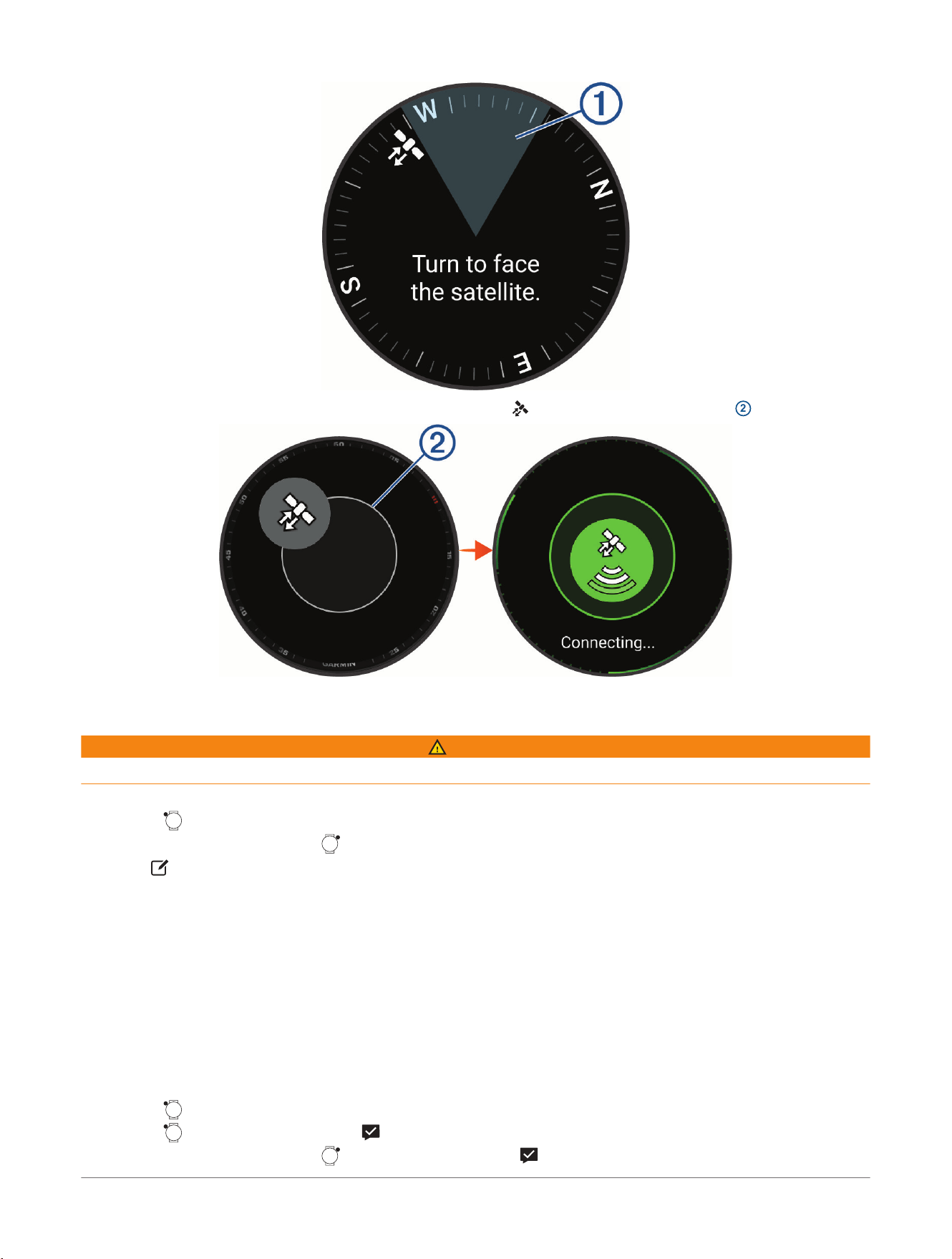
3 Rotate your arm away from or towards your body until the icon is enclosed in the circle
2
.
4 Wait while the watch connects to the satellite and sends your communication data.
Sending a Test Message
WARNING
You should send a test message outdoors before using the watch on a trip to ensure your service plan is active.
1 Select an option:
● Hold , and select Messenger.
● From the watch face, press , and select Messenger.
2 Select .
NOTE: Your watch should automatically receive a message from this address after activating your service
plan.
4 Wait while the watch sends a test message.
When you receive a confirmation message, your watch is ready to use.
Sending a Check-In Message
Check-in messages are messages with predefined text and recipients.
TIP: You can customize check-in message recipients in the Garmin Messenger
™
app. From the Device tab in the
app, select Check-In> Edit Check-in Contacts.
1 Select an option:
● Hold , and select Messenger Check-in.
● Hold , and select Messenger> .
● From the watch face, press , and select Messenger> .
110
D2™ Mach 2 Series Aviator Smartwatch
Owner's Manual
Connectivity
2 Select a message.
3 If you are outside of an LTE coverage area, connect to a communication satellite (Connecting to
Communication Satellites, page109).
Checking for Messages
Your watch continuously checks for new messages in Always On LTE mode (LTE and Satellite Settings,
page111). In Auto LTE mode, when you use an LTE feature, such as the Messenger or Messenger Calls app,
your watch temporarily turns on LTE connectivity and checks for new messages.
When you are not connected to an LTE network, the watch does not automatically check for messages, but you
can manually check for messages. During a manual check, your watch connects to the LTE or satellite network
and receives messages waiting to be sent to your watch.
1 Select an option:
● Hold , and select Messenger> .
● From the watch face, press , and select Messenger> .
2 If you are outside of an LTE coverage area, connect to a communication satellite (Connecting to
Communication Satellites, page109).
LTE and Satellite Settings
From the watch face, hold , and select Watch Settings> Connectivity> LTE & Satellite.
Status: Enables LTE and communication satellite connectivity. You can enable one, both, or neither connectivity
type.
LTE Mode: Sets the LTE connectivity mode. The Auto option temporarily turns on LTE connectivity when you
use an LTE feature, such as the Messenger or Messenger Calls apps.
Garmin Share
NOTICE
It is your responsibility to use discretion when sharing information with others. Always ensure you are aware of
and comfortable with the individual with whom you share information.
The Garmin Share feature allows you to use Bluetooth
®
technology to wirelessly share your data with other
compatible Garmin
®
devices. With Garmin Share enabled and compatible Garmin devices in range of each other,
you can select saved locations, courses, and workouts to transfer to another device through a direct, secured
device-to-device connection, without the need for a phone or Wi‑Fi
®
connectivity.
Sharing Data with Garmin Share
Before you can use this feature, you must have Bluetooth
®
technology enabled on both compatible devices, and
they must be within 3m (10 ft.) of each other. When prompted, you must also consent to share your data with
other Garmin
®
devices using Garmin Share.
Your D2
™
watch can send and receive data when connected to another compatible Garmin device (Receiving
Data with Garmin Share, page112). You can also transfer your data between different devices. For example, you
can share a favorite course from your Edge
®
bike computer to your compatible Garmin watch.
1 From the watch face, press .
2 Select Garmin Share> Share.
3 Select a category, and select one item.
4 Select an option:
● Select Share.
● Select Add More> Share to select more than one item to share.
5 Wait while the device locates compatible devices.
6 Select a device.
7 Confirm the six-digit PIN matches on both devices, and select .
8 Wait while the devices transfer the data.
9 Select Share Again to share the same items with another user (optional).
10 Select Done.
Connectivity
D2™ Mach 2 Series Aviator Smartwatch
Owner's Manual
111
Receiving Data with Garmin Share
Before you can use this feature, you must have Bluetooth
®
technology enabled on both compatible devices, and
they must be within 3m (10 ft.) of each other. When prompted, you must also consent to share your data with
other Garmin
®
devices using Garmin Share.
1 From the watch face, press .
2 Select Garmin Share.
3 Wait while the device locates compatible devices in range.
4 Select .
5 Confirm the six-digit PIN matches on both devices, and select .
6 Wait while the devices transfer the data.
7 Select Done.
Garmin Share Settings
From the watch face, hold , and select Watch Settings> Connectivity> Garmin Share.
Status: Enables the watch to send and receive items through Garmin Share.
Forget Devices: Removes all of the devices the watch has previously shared items with.
Viewing inReach
®
Plan Details and Usage
You can view inReach service plan details and data use on the D2
™
Mach 2 Pro watch. Data use includes the
number of satellite messages and check-in messages sent during the billing cycle. The data use counters reset
automatically at the beginning of each billing cycle.
1 From the watch face, hold .
2 Select Watch Settings> Connectivity> inReach Plan Usage.
3
If you have made changes to your service plan in the Garmin Messenger
™
app, select Refresh.
Phone Apps and Computer Applications
You can connect your watch to multiple Garmin
®
phone apps and computer applications using the same Garmin
account.
Garmin Connect
™
You can connect with your friends on Garmin Connect. Garmin Connect gives you the tools to track, analyze,
share, and encourage each other. Record the events of your active lifestyle including runs, walks, rides, swims,
hikes, triathlons, and more. To sign up for a free account, you can download the app from the app store on your
phone (garmin.com/connectapp), or go to connect.garmin.com.
Store your activities: After you complete and save an activity with your watch, you can upload that activity to
your Garmin Connect account and keep it as long as you want.
Analyze your data: You can view more detailed information about your activity, including time, distance,
elevation, heart rate, calories burned, cadence, running dynamics, an overhead map view, pace and speed
charts, and customizable reports.
NOTE: Some data requires an optional accessory such as a heart rate monitor.
112
D2™ Mach 2 Series Aviator Smartwatch
Owner's Manual
Connectivity
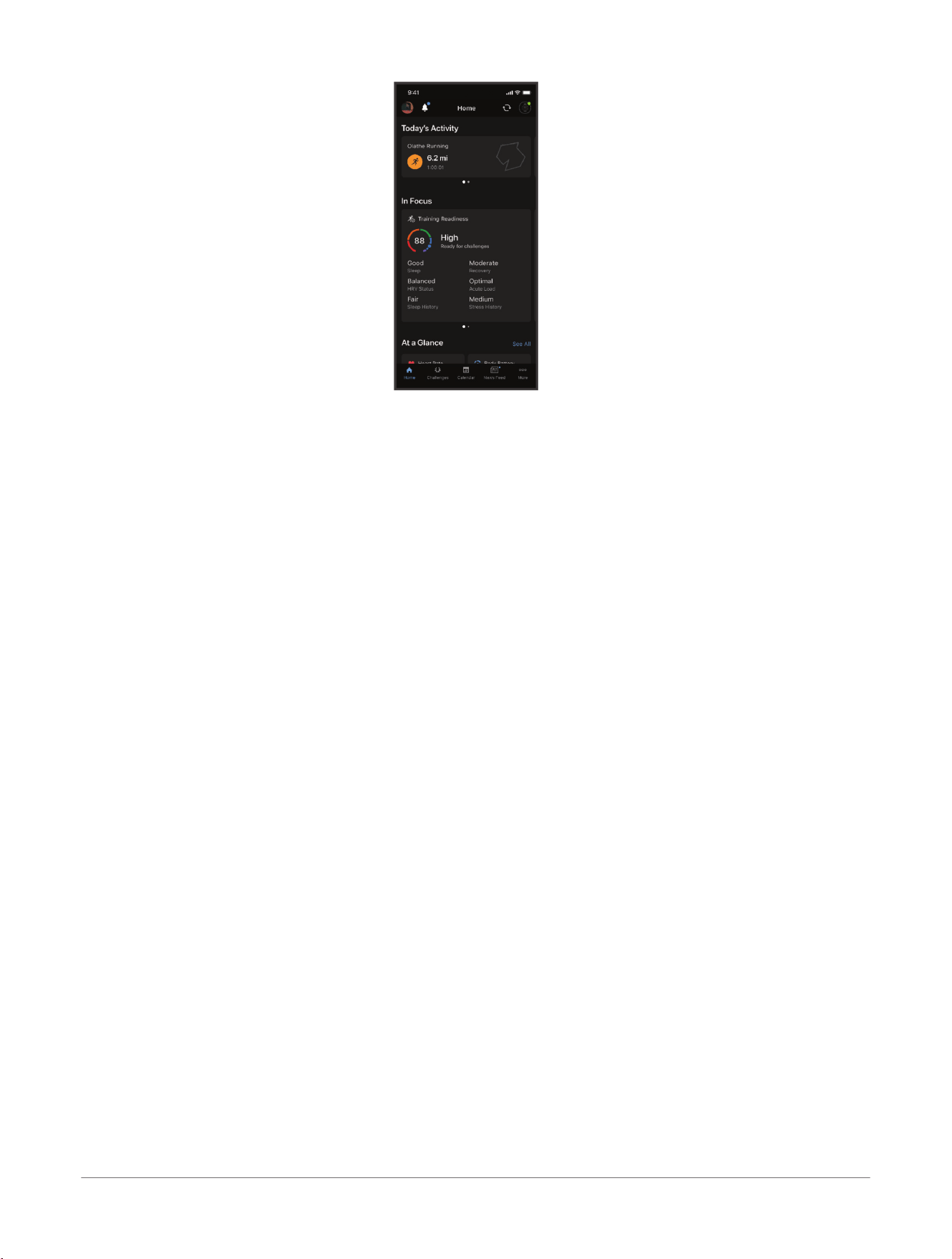
Plan your training: You can choose a fitness goal and load one of the day-by-day training plans.
Track your progress: You can track your daily steps, join a friendly competition with your connections, and meet
your goals.
Share your activities: You can connect with friends to follow each other's activities or share links to your
activities.
Manage your settings: You can customize your watch and user settings on your Garmin Connect account.
Garmin Connect+
™
Subscription
You can enhance the data, connections, and training available on your Garmin Connect account with a Garmin
Connect+ subscription. To sign up, you can download the Garmin Connect app from the app store on your
phone, or go to connect.garmin.com.
Active Intelligence (AI): Receive AI insights about your data and activities, including nutrition.
LiveTrack+: Send LiveTrack text messages, receive a personalized profile page, and view previous LiveTrack
sessions.
Follow Garmin Trails: Access outdoor trails and courses recommended by Garmin
®
databases and other Garmin
users, with pictures, ratings, trip reports, and more.
Track indoor activities: View your indoor activity and workout data in real time, enabling you to adjust your
performance during the activity.
Training guidance: Get additional expert support and guidance for select Garmin Coach training plans.
Nutritional logging: Track your daily nutrition with extensive food databases and view detailed reports on
macronutrients and calories consumed. From your compatible Garmin watch, you can easily view your daily
nutritional overview, log food manually, and receive morning and evening nutrition reports. From the Garmin
Connect app, you can scan the UPC, log new food items, create nutrition goals, and more.
Performance dashboard: View your training data your way with customized charts and graphs, including
nutrition metrics.
Social features: Gain access to exclusive badges, badge challenges, and double points for challenges. You can
update your profile avatar with customizable frames.
Using the Garmin Connect
™
App
After you pair your watch with your phone (Pairing Your Phone, page106), you can use the Garmin Connect app
to upload all of your activity data to your Garmin Connect account.
1 Verify the Garmin Connect app is running on your phone.
2 Bring your watch within 10m (30ft.) of your phone.
Your watch automatically syncs your data with the Garmin Connect app and your Garmin Connect account.
Updating the Software Using the Garmin Connect
™
App
Before you can update your watch software using the Garmin Connect app, you must have a Garmin Connect
account, and you must pair the watch with a compatible phone (Pairing Your Phone, page106).
Sync your watch with the Garmin Connect app (Using the Garmin Connect
™
App, page113).
When new software is available, the Garmin Connect app automatically sends the update to your watch.
Connectivity
D2™ Mach 2 Series Aviator Smartwatch
Owner's Manual
113
Unified Training Status
When you use more than one Garmin
®
device with your Garmin Connect
™
account, you can choose which device
is the primary data source for everyday use and for training purposes.
From the Garmin Connect app, select > Settings.
Primary Training Device: Sets the priority data source for training metrics like your training status and load
focus.
Primary Wearable: Sets the priority data source for daily health metrics like steps and sleep. This should be the
watch you wear most often.
TIP: For the most accurate results, Garmin recommends that you sync often with your Garmin Connect account.
Syncing Activities and Performance Measurements
You can sync activities and performance measurements from other Garmin
®
devices to your D2
™
Mach 2 watch
using your Garmin Connect
™
account. This allows your watch to more accurately reflect your training and
fitness. For example, you can record a ride with an Edge
®
bike computer, and view your activity details and
recovery time on your D2 Mach 2 watch.
Sync your D2 Mach 2 watch and other Garmin devices to your Garmin Connect account.
TIP: You can set a primary training device and primary wearable in the Garmin Connect app (Unified Training
Status, page114).
Recent activities and performance measurements from your other Garmin devices appear on your D2 Mach 2
watch.
Using Garmin Connect
™
on Your Computer
The Garmin Express
™
application connects your watch to your Garmin Connect account using a computer.
You can use the Garmin Express application to upload your activity data to your Garmin Connect account and
to send data, such as workouts or training plans, from the Garmin Connect website to your watch. You can
also add music to your watch (Downloading Personal Audio Content, page136). You can also install software
updates and manage your Connect IQ
™
apps.
1 Connect the watch to your computer using the USB cable.
2 Go to garmin.com/express.
3 Download and install the Garmin Express application.
4 Open the Garmin Express application, and select Add Device.
5 Follow the on-screen instructions.
Updating the Software Using Garmin Express
™
Before you can update your device software, you must have a Garmin Connect
™
account, and you must
download the Garmin Express application.
1 Connect the device to your computer using the USB cable.
When new software is available, Garmin Express sends it to your device.
2 Follow the on-screen instructions.
3 Do not disconnect your device from the computer during the update process.
If you have already set up your device with Wi‑Fi connectivity, Garmin Connect can automatically download
available software updates to your device when it connects using Wi‑Fi.
Manually Syncing Data with Garmin Connect
™
NOTE: You can add options to the controls menu (Customizing the Controls Menu, page72).
1 Hold to view the controls menu.
2 Select Sync.
Connect IQ Features
You can add Connect IQ
™
apps, glances, music providers, watch faces, and more to your watch using the
Connect IQ store on your watch or phone (garmin.com/connectiqapp).
NOTE: For your safety, Connect IQ features are not available while diving. This ensures that all dive capabilities
function as designed.
Watch Faces: Customize the appearance of the clock.
Device Apps: Add interactive features to your watch, such as glances and new outdoor and fitness activity
types.
114
D2™ Mach 2 Series Aviator Smartwatch
Owner's Manual
Connectivity
Data Fields: Download new data fields that present sensor, activity, and history data in new ways. You can add
Connect IQ data fields to built-in features and pages.
Music: Add music providers to your watch.
Downloading Connect IQ
™
Features
Before you can download features from the Connect IQ app, you must pair your Garmin
®
watch or bike computer
with your phone (Pairing Your Phone, page106).
1 From the app store on your phone, install and open the Connect IQ app.
2 If necessary, select your watch or bike computer.
3 Select a Connect IQ feature.
4 Follow the on-screen instructions.
Downloading Connect IQ
™
Features Using Your Computer
1 Connect the watch to your computer using a USB cable.
2 Go to apps.garmin.com, and sign in.
3 Select a Connect IQ feature, and download it.
4 Follow the on-screen instructions.
Garmin Dive
™
App
The Garmin Dive app allows you to upload your dive logs from your compatible Garmin
®
device. You can
add more detailed information about your dives, including environmental conditions, photos, notes, and dive
buddies. You can use the map to browse for new dive locations, and view the location details and photos shared
by other users.
The Garmin Dive app syncs your data with your Garmin Connect
™
account. You can download the Garmin Dive
app from the app store on your phone (garmin.com/diveapp).
Garmin Explore
™
The Garmin Explore website and app allow you to create courses, waypoints, and collections, plan trips, sync
tracks, upload activities, and use cloud storage. They offer advanced planning both online and offline, allowing
you to share and sync data with your compatible Garmin
®
device. You can use the app to download maps for
offline access, and then navigate anywhere without using your cellular service.
You can download the Garmin Explore app from the app store on your phone (garmin.com/exploreapp), or you
can go to explore.garmin.com.
Garmin Messenger
™
App
WARNING
The inReach
®
features of the Garmin Messenger app on your phone, including SOS, tracking, and inReach
Weather, are not available without a connected inReach device and an active inReach service plan. Always test
the app outdoors before using it on a trip.
CAUTION
The non-satellite messaging features of the Garmin Messenger app on your phone should not be solely relied
upon as a primary method to obtain emergency assistance.
NOTICE
The app works over both the internet (using a wireless connection or cellular data on your phone) and the
satellite network (using an inReach device). If you are using cellular data, your paired phone must be equipped
with a data plan and be in an area of network coverage where data is available. If you are in an area without
network coverage, you must have an active inReach service plan for your device to use the satellite network.
You can use the app to message other Garmin Messenger app users, including friends and family without
Garmin
®
devices. Anyone can download the app and connect their phone, allowing them to communicate with
other app users over the internet (no login is required). App users can also create group messaging threads
with other SMS phone numbers. New members added to the group message can download the app to see what
others are saying.
Messages sent using a wireless connection or cellular data on your phone do not incur data charges or
additional charges on your inReach service plan. Messages received may incur charges if message delivery is
attempted over both the satellite network and the internet. Standard text messaging rates for your cellular data
plan apply.
You can download the Garmin Messenger app from the app store on your phone (garmin.com/messengerapp).
Connectivity
D2™ Mach 2 Series Aviator Smartwatch
Owner's Manual
115

Garmin Golf
™
App
The Garmin Golf app allows you to upload scorecards from your D2
™
Mach 2 device to view detailed statistics
and shot analyses. Golfers can compete with each other at different courses using the Garmin Golf app. More
than 43,000 courses have leaderboards that anyone can join. You can set up a tournament event and invite
players to compete. With a Garmin Golf membership, you can access additional features, such as green contour
data and more.
The Garmin Golf app syncs your data with your Garmin Connect
™
account. You can download the Garmin Golf
app from the app store on your phone (garmin.com/golfapp).
Connecting to the Garmin Pilot
™
App
When you pair your watch with the Garmin Pilot app, you can transfer flight plans to your watch. With
Connext
®
connectivity, you can view aircraft information at a glance for a connected cockpit solution (Connext
®
Avionics Connectivity, page116). The Garmin Pilot app is available from the app store for some mobile devices
(garmin.com/pilotapp). See the app store for your mobile device for availability and compatibility information.
Your D2
™
Mach 2 watch connects to the Garmin Pilot app using Bluetooth
®
technology. Go to garmin.com/ble
for compatibility information.
1 Pair your phone with your D2 Mach 2 watch (Pairing Your Phone, page106).
2 From the app store on your phone, install and open the Garmin Pilot app.
3 Sign in to the Garmin Pilot app with your Garmin
®
account login credentials.
4 In the Garmin Pilot app, select Devices> All Devices, and select your watch.
Connext
®
Avionics Connectivity
Connext connectivity delivers a connected cockpit solution. When you pair your watch with the Garmin Pilot
™
app, you can transfer flight plans and follow them using your watch (Sending a Flight Plan to Your Watch,
page34). When you also pair a compatible GDL
®
60 datalink or Flight Stream 510 wireless gateway, you can
enable automatic flight plan updates and view flight data on your watch, such as alerts, altitude, GPS position,
and more (Starting a Flight, page31).
116
D2™ Mach 2 Series Aviator Smartwatch
Owner's Manual
Connectivity
Focus Modes
Focus modes adjust the watch settings and behavior for different situations, such as sleep and activities. When
you change the settings with a focus mode enabled, the settings are updated only for that focus mode.
Customizing a Default Focus Mode
1 From the watch face, hold .
2 Select Watch Settings> Focus Modes.
3 Select a focus mode.
4 Select an option:
NOTE: Not all options are available for all focus modes.
● Select Status to turn the focus mode on or off.
● Select Schedule to configure the schedule.
● Select Watch Face to change the watch face.
● Select Satellites to set the GNSS satellite systems to use for all activities.
TIP: You can customize the Satellites setting for individual activities (Activity Settings, page64).
● Select Voice Alerts to enable voice alerts during activities (Playing Voice Alerts During an Activity,
page67).
● In the Notifications & Alerts section, select an option to configure phone notifications, health and
wellness alerts, or system alerts (Notifications and Alerts Settings, page97).
● In the Sound & Vibe section, select an option to configure tones and vibration settings (Sound and
Vibration Settings, page100).
● In the Display & Brightness section, select an option to configure the screen settings (Display and
Brightness Settings, page101).
● In the Connectivity section, select an option to configure the LTE and communication satellite settings
(LTE and Satellite Settings, page111).
● Select Name to edit the name of the focus mode.
● Select Icon to update the icon symbol or color.
● Select Add to add more customizations.
● Select Delete Focus to remove the focus mode.
● Select Defaults to restore the default settings.
Creating a Custom Focus Mode
1 From the watch face, hold .
2 Select Watch Settings> Focus Modes> Add.
3 Select an option:
● Select Standard to create a custom focus mode to be used any time.
● Select Activity to configure a focus mode for a specific activity.
4 Enter a name for the focus mode, and select .
5 Select an icon and color.
6 Select an option:
● Select Notifications & Alerts to configure the phone and watch notifications and alerts (Notifications and
Alerts Settings, page97).
● Select Sound & Vibe to configure the settings for tones, volume, and vibration (Sound and Vibration
Settings, page100).
● Select Display & Brightness to configure the screen settings (Display and Brightness Settings, page101).
● Select Connectivity to configure LTE and satellite settings (LTE and Satellite Settings, page111).
7 Select Done.
8 Select an option:
Not all options are available for both Standard and Activity focus modes.
● Select Status to turn the custom focus mode on or off.
● Select Schedule to configure the schedule.
● Select Watch Face to update the watch face
● Select Auto-Triggered to choose which activity will trigger the custom activity focus mode.
Focus Modes
D2™ Mach 2 Series Aviator Smartwatch
Owner's Manual
117

● Select Satellites to set the GNSS satellite option.
● Select Voice Alerts to enable voice alerts.
● Select Name to edit the name of the custom focus mode.
● Select Icon to edit the custom focus mode icon symbol and color.
118 D2™ Mach 2 Series Aviator Smartwatch
Owner's Manual
Focus Modes
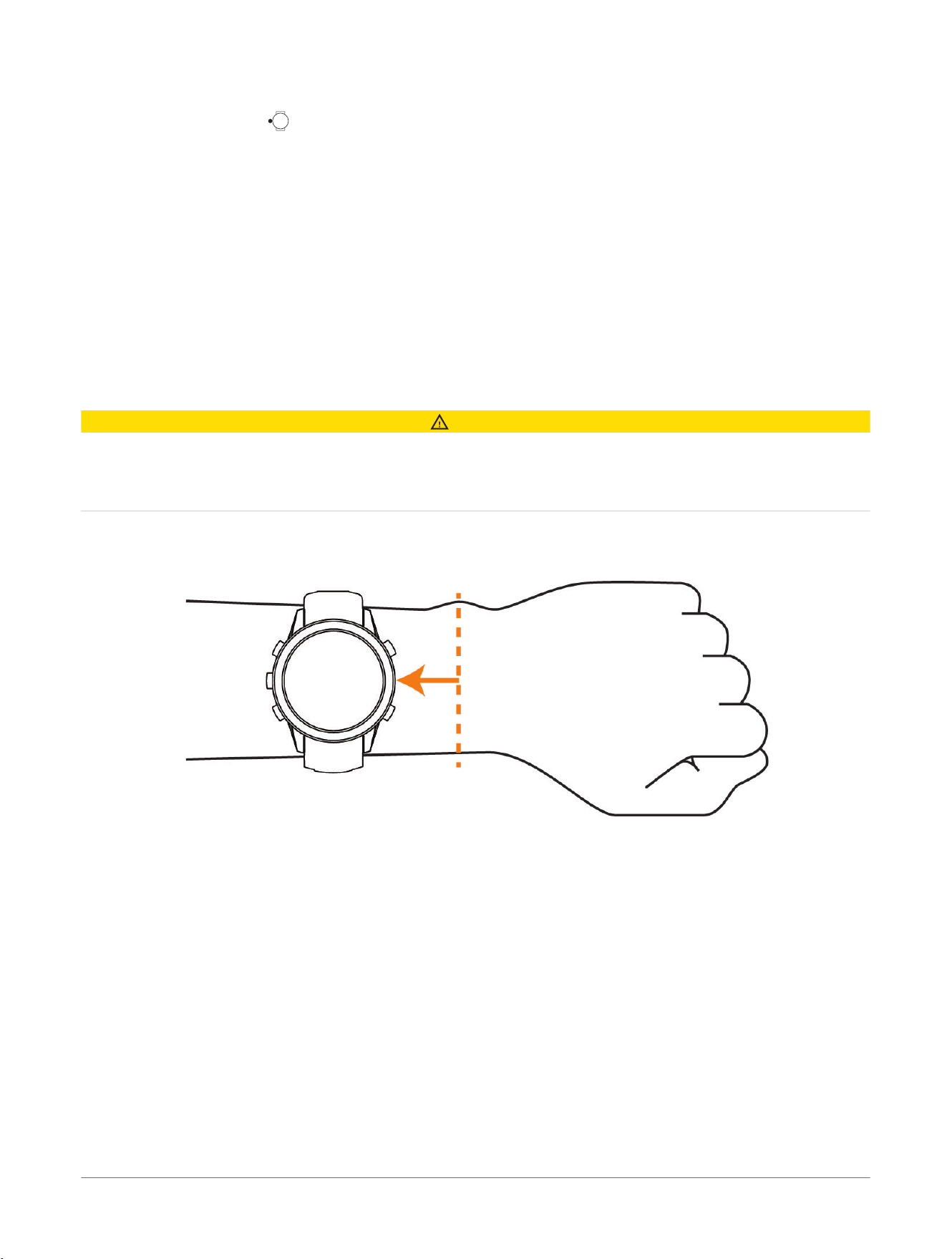
Health and Wellness Settings
From the watch face, hold , and select Watch Settings> Health & Wellness.
Wrist Heart Rate: Customizes the wrist heart rate monitor settings (Wrist Heart Rate Monitor Settings,
page120).
Pulse Oximeter: Sets the pulse oximeter mode (Setting the Pulse Oximeter Mode, page121).
Move IQ: Enables Move IQ
®
events. When your movements match familiar exercise patterns, the Move IQ
feature automatically detects the event and displays it in your timeline. The Move IQ events show activity
type and duration, but they do not appear in your activities list or newsfeed. For more detail and accuracy, you
can record a timed activity on your device.
Wrist Heart Rate
Your watch has a wrist-based heart rate monitor, and you can view your heart rate data on the heart rate glance
(Viewing Glances, page76).
The watch is also compatible with chest heart rate monitors. If both wrist-based heart rate and chest heart rate
data are available when you start an activity, your watch uses the chest heart rate data.
Wearing the Watch
CAUTION
Some users may experience skin irritation after prolonged use of the watch, especially if the user has sensitive
skin or allergies. If you notice any skin irritation, remove the watch and give your skin time to heal. To help
prevent skin irritation, ensure the watch is clean and dry, and do not overtighten the watch on your wrist. For
more information, go to garmin.com/fitandcare.
● Wear the watch above your wrist bone.
NOTE: The watch should be snug but comfortable. For more accurate heart rate readings, the watch should
not shift while running or exercising. For pulse oximeter readings, you should remain motionless.
NOTE: While diving, the watch should stay in contact with your skin, and it should not bump into other
wrist-worn devices.
NOTE: The optical sensor is located on the back of the watch.
● See Tips for Erratic Heart Rate Data, page119 for more information about wrist-based heart rate.
● See Tips for Erratic Pulse Oximeter Data, page121 for more information about the pulse oximeter sensor.
● For more information about accuracy, go to garmin.com/ataccuracy.
● For more information about watch wear and care, go to garmin.com/fitandcare.
Tips for Erratic Heart Rate Data
If the heart rate data is erratic or does not appear, you can try these tips.
● Clean and dry your arm before putting on the watch.
● Avoid wearing sunscreen, lotion, and insect repellent under the watch.
● Avoid scratching the heart rate sensor on the back of the watch.
● Wear the watch above your wrist bone. The watch should be snug but comfortable.
● Warm up for 5 to 10 minutes and get a heart rate reading before starting your activity.
NOTE: In cold environments, warm up indoors.
● Rinse the watch with fresh water after each workout.
● While exercising, use a silicone or nylon band.
Health and Wellness Settings
D2™ Mach 2 Series Aviator Smartwatch
Owner's Manual
119
Wrist Heart Rate Monitor Settings
From the watch face, hold , and select Watch Settings> Health & Wellness> Wrist Heart Rate.
Status: Enables the wrist heart rate monitor. The default value is Auto, which automatically uses the wrist heart
rate monitor unless you pair an external heart rate monitor.
NOTE: Disabling the wrist heart rate monitor also disables the wrist-based pulse oximeter sensor. You can
perform a manual reading from the pulse oximeter glance.
Source Switching: Selects the best source of heart rate data when wearing your watch and an external heart
rate monitor. For more information, go to www.garmin.com/dynamicsourceswitching/.
Broadcast Heart Rate: Broadcasts your heart rate data to a paired device (Broadcasting Heart Rate Data,
page120).
Broadcasting Heart Rate Data
You can broadcast your heart rate data from your watch and view it on paired devices. Broadcasting heart rate
data decreases battery life.
TIP: You can customize the activity settings to broadcast your heart rate data automatically when you begin
an activity (Activity Settings, page64). For example, you can broadcast your heart rate data to an Edge
®
bike
computer while cycling.
Broadcasting heart rate data is not available for dive activities.
1 Select an option:
● Hold , and select Watch Settings> Health & Wellness> Wrist Heart Rate> Broadcast Heart Rate.
● Hold to open the controls menu, and select .
NOTE: You can add options to the controls menu (Customizing the Controls Menu, page72).
2 Press .
The watch starts broadcasting your heart rate data.
3 Pair your watch with your compatible device.
NOTE: The pairing instructions differ for each Garmin
®
compatible device. See your owner's manual.
4 Press to stop broadcasting your heart rate data.
Pulse Oximeter
Your watch has a wrist-based pulse oximeter to gauge the peripheral saturation of oxygen in your blood (SpO2).
As your altitude increases, the level of oxygen in your blood can decrease. Knowing your oxygen saturation
can help you determine how your body is adjusting to high altitudes. During a flight, the watch automatically
takes pulse oximeter readings more frequently, so you can monitor your SpO2 percentage (Viewing Your SpO2
Readings in Flight, page33).
You can manually begin a pulse oximeter reading by viewing the pulse oximeter glance (Getting Pulse Oximeter
Readings, page121). You can also turn on all-day readings (Setting the Pulse Oximeter Mode, page121). When
you view the pulse oximeter glance while you are not moving, your watch analyzes your oxygen saturation and
your elevation. The elevation profile helps indicate how your pulse oximeter readings are changing, relative to
your to elevation.
On the watch, your pulse oximeter reading appears as an oxygen saturation percentage and color on the graph.
On your Garmin Connect
™
account, you can view additional details about your pulse oximeter readings, including
trends over multiple days.
For more information about pulse oximeter accuracy, go to garmin.com/ataccuracy.
120
D2™ Mach 2 Series Aviator Smartwatch
Owner's Manual
Health and Wellness Settings
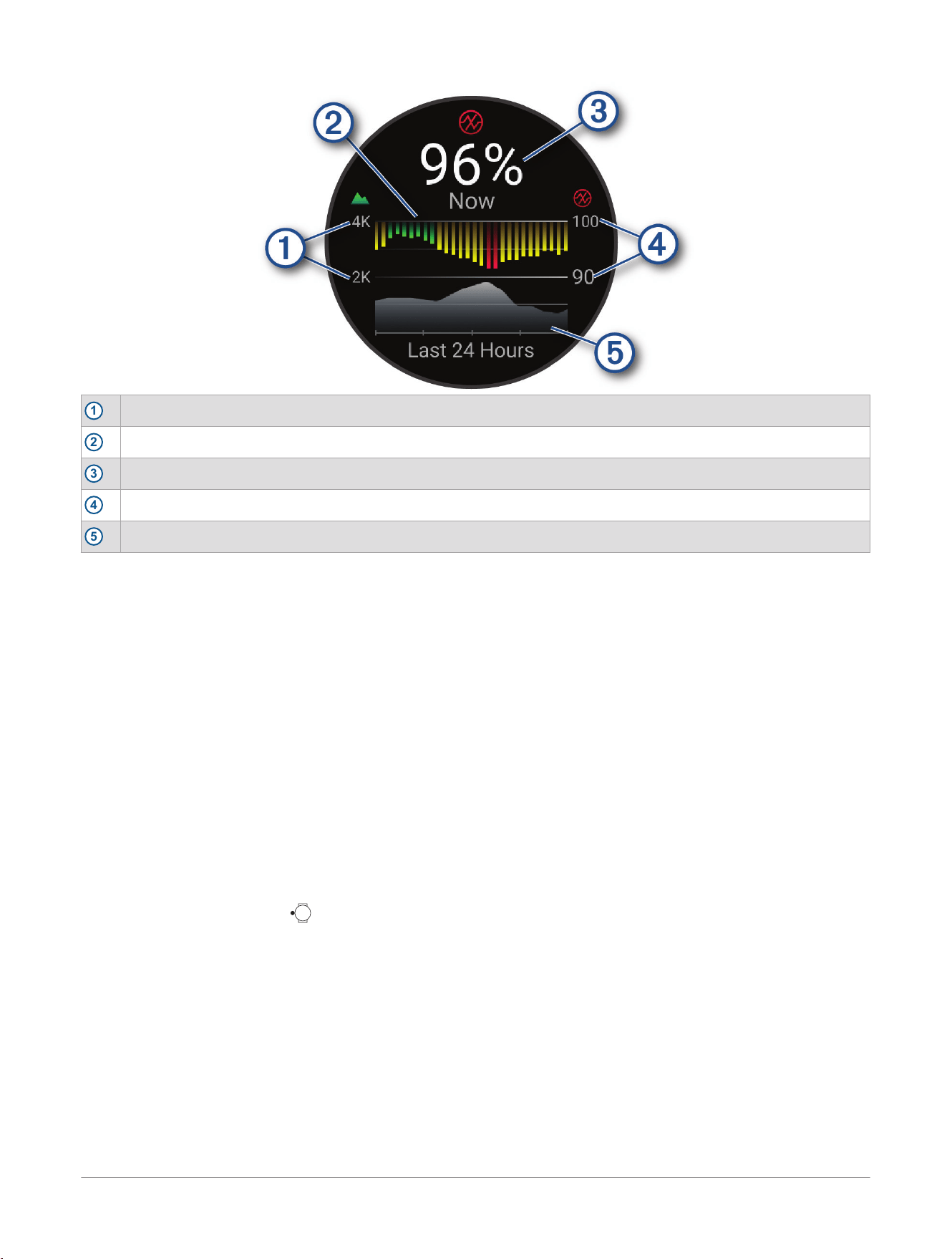
1
The elevation scale.
2
A graph of your average oxygen saturation readings for the last 24 hours.
3
Your most recent oxygen saturation reading.
4
The oxygen saturation percentage scale.
5
A graph of your elevation readings for the last 24 hours.
Getting Pulse Oximeter Readings
You can manually begin a pulse oximeter reading by viewing the pulse oximeter glance. The glance displays
your most recent blood oxygen saturation percentage, a graph of your hourly average readings for the last 24
hours, and a graph of your elevation for the last 24 hours.
NOTE: The first time you view the pulse oximeter glance, the watch must acquire satellite signals to determine
your elevation. You should go outside, and wait while the watch locates satellites.
1 While you are sitting or inactive, swipe up from the watch face.
2 Scroll to the pulse oximeter glance.
3 Select the pulse oximeter glance.
The watch begins a pulse oximeter reading.
4 Remain motionless for up to 30 seconds.
NOTE: If you are too active for the watch to get a pulse oximeter reading, a message appears instead of a
percentage. You can check again after several minutes of inactivity. For best results, hold the arm wearing
the watch at heart level while the watch reads your blood oxygen saturation.
5 Scroll down to view a graph of your pulse oximeter readings for the last seven days.
Setting the Pulse Oximeter Mode
1 From the watch face, hold .
2 Select Watch Settings> Health & Wellness> Pulse Oximeter.
3 Select an option:
● To turn on measurements while you are inactive during the day, select All Day.
NOTE: Turning on All Day mode decreases battery life.
● To turn on continuous measurements while you sleep, select During Sleep.
NOTE: Unusual sleep positions can cause abnormally low sleep-time SpO2 readings.
● To turn off automatic measurements, select On Demand.
Tips for Erratic Pulse Oximeter Data
If the pulse oximeter data is erratic or does not appear, you can try these tips.
● Remain motionless while the watch reads your blood oxygen saturation.
● Wear the watch above your wrist bone. The watch should be snug but comfortable.
Health and Wellness Settings
D2™ Mach 2 Series Aviator Smartwatch
Owner's Manual
121
● Hold the arm wearing the watch at heart level while the watch reads your blood oxygen saturation.
● Use a silicone or nylon band.
● Clean and dry your arm before putting on the watch.
● Avoid wearing sunscreen, lotion, and insect repellent under the watch.
● Avoid scratching the optical sensor on the back of the watch.
● Rinse the watch with fresh water after each workout.
Auto Goal
Your device creates a daily step goal automatically, based on your previous activity levels. As you move during
the day, the device shows your progress toward your daily goal.
If you choose not to use the auto goal feature, you can set a personalized step goal on your Garmin Connect
™
account.
Intensity Minutes
To improve your health, organizations such as the World Health Organization recommend at least 150 minutes
per week of moderate intensity activity, such as brisk walking, or 75 minutes per week of vigorous intensity
activity, such as running.
The watch monitors your activity intensity and tracks your time spent participating in moderate to vigorous
intensity activities (heart rate data is required to quantify vigorous intensity). The watch adds the amount of
moderate activity minutes with the amount of vigorous activity minutes. Your total vigorous intensity minutes
are doubled when added.
Earning Intensity Minutes
Your D2
™
Mach 2 watch calculates intensity minutes by comparing your heart rate data to your average resting
heart rate. If heart rate is turned off, the watch calculates moderate intensity minutes by analyzing your steps
per minute.
● Start a timed activity for the most accurate calculation of intensity minutes.
● Wear your watch all day and night for the most accurate resting heart rate.
Sleep Tracking
While you are sleeping, the watch automatically detects your sleep and monitors your movement during your
normal sleep hours. You can set your normal sleep hours in the Garmin Connect
™
app or in the watch settings
(Customizing a Default Focus Mode, page117). Sleep statistics include total hours of sleep, sleep stages, sleep
movement, and sleep score. Your sleep coach provides sleep need recommendations based on your sleep
and activity history, circadian rhythm, HRV status, and naps (Glances, page74). Naps are added to your sleep
statistics, and can also impact your recovery. You can view detailed sleep statistics on your Garmin Connect
account.
NOTE: You can use do not disturb mode to turn off notifications and alerts, with the exception of alarms
(Controls, page70).
Using Automated Sleep Tracking
1 Wear your watch while sleeping.
2
Upload your sleep tracking data to your Garmin Connect
™
account (Using the Garmin Connect
™
App,
page113).
You can view your sleep statistics on your Garmin Connect account.
You can view sleep information, including naps, on your D2
™
Mach 2 watch (Glances, page74).
Breathing Variations
WARNING
The D2
™
Mach 2 device is not a medical device and is not intended for use in the diagnosis or monitoring of any
medical condition. For more information on pulse oximeter accuracy, go to garmin.com/ataccuracy.
The optical heart rate sensor on the D2 Mach 2 device has a pulse oximeter feature that can measure your
overnight breathing variations. Breathing variation insights are provided to enhance awareness of your sleep
environment and general wellness. Occasional or frequent breathing variations may be due to your individual
lifestyle factors or your sleeping environment. Contact your doctor or healthcare provider if you're concerned
about your level of breathing variations.
You must turn on pulse oximeter sleep tracking to detect breathing variations (Setting the Pulse Oximeter Mode,
page121).
122
D2™ Mach 2 Series Aviator Smartwatch
Owner's Manual
Health and Wellness Settings

The sleep score glance displays your current breathing variations data.
You may need to add the glance to your glances list (Customizing the Glances List, page76).
On your Garmin Connect
™
account, you can view additional details about breathing variations, including trends
over multiple days.
Health and Wellness Settings D2™ Mach 2 Series Aviator Smartwatch
Owner's Manual
123
Map
Your watch can display several types of Garmin
®
map data, including topographical contours, nearby points of
interest, ski maps, and golf courses. You can use the Map Manager to download additional maps or manage
map storage.
To purchase additional map data and view compatibility information, go to garmin.com/maps.
represents your location on the map. When you are navigating to a destination, your route is marked with a
line on the map.
Viewing the Map
1 Select an option to open the map:
● Press , and select Map to view the map without starting an activity.
● Go outside, start a GPS activity (Starting an Activity, page30), and scroll to the map screen.
2 If necessary, wait while the watch locates satellites.
3 Select an option to zoom on the map:
● In the Map app, select or .
● In an activity, swipe down to unlock the touchscreen (if necessary), tap the map, and select or .
● In an activity, hold , select Map Controls, and select or .
4 Select an option to pan the map:
● Swipe down to unlock the touchscreen (if necessary), tap the map, and tap and drag to position the
crosshairs.
● In the Map app, select > Pan/Zoom, and press to toggle between panning up and down, panning
left and right, or zooming. You can press to exit panning mode.
● In an activity, hold , select Map Controls> > Pan/Zoom, and press to toggle between panning up
and down, panning left and right, or zooming. You can press to exit panning mode.
Saving or Navigating to a Location on the Map
You can select any location on the map. You can save the location or start navigating to it.
1 Pan and zoom the map to position the crosshairs (Viewing the Map, page124).
2 Select an option:
● Tap the location or coordinates at the bottom of the screen to select the point indicated by the
crosshairs.
● Hold to select the point indicated by the crosshairs.
3 If necessary, select a nearby point of interest.
4 Select an option:
● To start navigating to the location, select Go.
● To save the location, select Save Location.
● To view information about the location, select Review.
Tracking Your Location on the Map
You can track your location on the map and start a tracking activity.
1 From the watch face, press .
2 Select Map.
3 Press .
4 Select Start Tracking.
The activity timer starts, and your location and track line appear on the map.
5 Press , and select Stop Tracking to stop the activity timer (Stopping an Activity, page31).
Map Settings
You can customize how the map appears in the map app and data screens.
NOTE: If necessary, you can customize the map settings for specific activities instead of using the system
settings (Activity Settings, page64).
From the watch face, hold , and select Watch Settings> Map & Navigation.
124
D2™ Mach 2 Series Aviator Smartwatch
Owner's Manual
Map
Map Manager: Shows the downloaded map versions and allows you to download additional maps (Managing
Maps, page125).
Aviation Map Settings: Sets the ownship aircraft type, and enables METAR and airspace information on the
map.
Dark Mode: Sets the map colors to either a white or black background for daytime or nighttime visibility. The
Auto option adjusts the map colors based on the time of day.
Marine Chart Mode: Enables the nautical chart when displaying marine data. This option displays various map
features in different colors so the marine data is more readable and the map reflects the drawing scheme of
paper charts.
High Contrast: Sets the map to display data with higher contrast, for better visibility in challenging
environments.
Orientation: Sets the orientation of the map. The North Up option shows north at the top of the screen. The
Track Up option shows your current direction of travel at the top of the screen.
Lock on Road: Locks the position icon, which represents your position on the map, onto the nearest road.
Detail: Sets the amount of detail shown on the map. Showing more detail may cause the map to redraw more
slowly.
Symbol Set: Sets the chart symbols in marine mode. The NOAA option displays the National Oceanic and
Atmospheric Administration chart symbols. The International option displays the International Association of
Lighthouse Authorities chart symbols.
Managing Maps
1 From the watch face, hold .
2 Select Watch Settings> Map & Navigation> Map Manager.
3 Select an option:
● To download premium maps and activate your Outdoor Maps+ subscription for this device, select
Outdoor Maps+ (Downloading Maps with Outdoor Maps+, page125).
● To download TopoActive maps, select TopoActive Maps (Downloading TopoActive Maps, page126).
Downloading Maps with Outdoor Maps+
Before you can download maps to your device, you must connect to a wireless network (Connecting to a Wi‑Fi
®
Network, page108).
1 From the watch face, hold .
2 Select Watch Settings> Map & Navigation> Map Manager> Outdoor Maps+.
3 If necessary, press , and select Check Subscription to activate your Outdoor Maps+ subscription for this
watch.
NOTE: Go to garmin.com/outdoormaps for information about purchasing a subscription.
4 Select Add Map, and select a location.
A preview of the map region appears.
5 From the map, complete one or more actions:
● Drag the map to view different areas.
● Pinch or spread two fingers on the touchscreen to zoom in and out of the map.
● Select and to zoom in and out of the map.
6 Press , and select .
7 Select .
8 Select an option:
● To edit the map name, select Name.
● To change the map layers to download, select Layers.
TIP: You can select to view details about the map layers.
● To modify the map region, select Selected Area.
9 Select to download the map.
NOTE: To prevent battery drain, the watch queues the map download for later, and the download starts when
you connect the watch to an external power source.
Map
D2™ Mach 2 Series Aviator Smartwatch
Owner's Manual
125
Downloading TopoActive Maps
Before you can download maps to your device, you must connect to a wireless network (Connecting to a Wi‑Fi
®
Network, page108).
1 From the watch face, hold .
2 Select Watch Settings> Map & Navigation> Map Manager> TopoActive Maps> Add Map.
3 Select a map.
4 Press , and select Download.
NOTE: To prevent battery drain, the watch queues the map download for later, and the download starts when
you connect the watch to an external power source.
Deleting Maps
You can remove maps to increase the available device storage.
1 From the watch face, hold .
2 Select Watch Settings> Map & Navigation> Map Manager.
3 Select an option:
● Select TopoActive Maps, select a map, press , and select Remove.
● Select Outdoor Maps+, select a map, press , and select Delete.
Showing and Hiding Map Data
You can choose the map data to show on the map and save map data themes for multiple activities.
1 From the watch face, press .
2 Select Map.
3 Press .
4 Select Map Layers.
5 Select an option:
● To customize the map data for an activity type, select Activity Theme, and select an activity.
Changes you make to the map data settings are saved to the selected activity theme.
● To select the installed map product to display, select Map Type, and select a map product.
● To turn on specific map features, such as activity lines or saved locations, select the map feature, and
select Status> On.
TIP: You can select Apply to all Activities to apply the setting to all activity themes.
● To view your downloaded map versions or download additional maps, select Get More Maps (Managing
Maps, page125).
126
D2™ Mach 2 Series Aviator Smartwatch
Owner's Manual
Map
Navigation
Navigating to a Destination
You can use your device to navigate to a destination or follow a course.
1 From the watch face, press .
2 Select Map.
3 Press .
4 Select Navigate.
5 Select a category.
6 Respond to the on-screen prompts to choose a destination.
7 Select Go To.
8 Select the activity you want to use while following the course.
Navigation information appears.
9 Press to begin navigation.
Navigating to a Nearby Point of Interest
If the map data installed on your watch includes points of interest, you can navigate to them.
1 From the watch face, press .
2 Select Map.
3 Press .
4 Select Navigate> Explore Nearby.
A list of points of interest near your current location appears.
5 Select an option:
● Select a category and, if necessary, follow the on-screen prompts.
● Press to open the keyboard, and enter a location name.
● Select to open the keyboard, and enter a location name.
6 Select a point of interest from the search results.
7 Select Go To.
8 Select the activity you want to use while following the course.
Navigation information appears.
9 Press to begin navigation.
Navigating to Your Starting Point During an Activity
You can navigate back to the starting point of your current activity in a straight line or along the path you
traveled. This feature is available only for activities that use GPS.
1 During an activity, press .
2 Select Back to Start, and select an option:
● To navigate back to the starting point of your activity along the path you traveled, select TracBack.
● If you do not have a supported map or are using direct routing, select Route to navigate back to the
starting point of your activity in a straight line.
● If you are not using direct routing, select Route to navigate back to the starting point of your activity using
turn-by-turn directions.
Navigation
D2™ Mach 2 Series Aviator Smartwatch
Owner's Manual
127
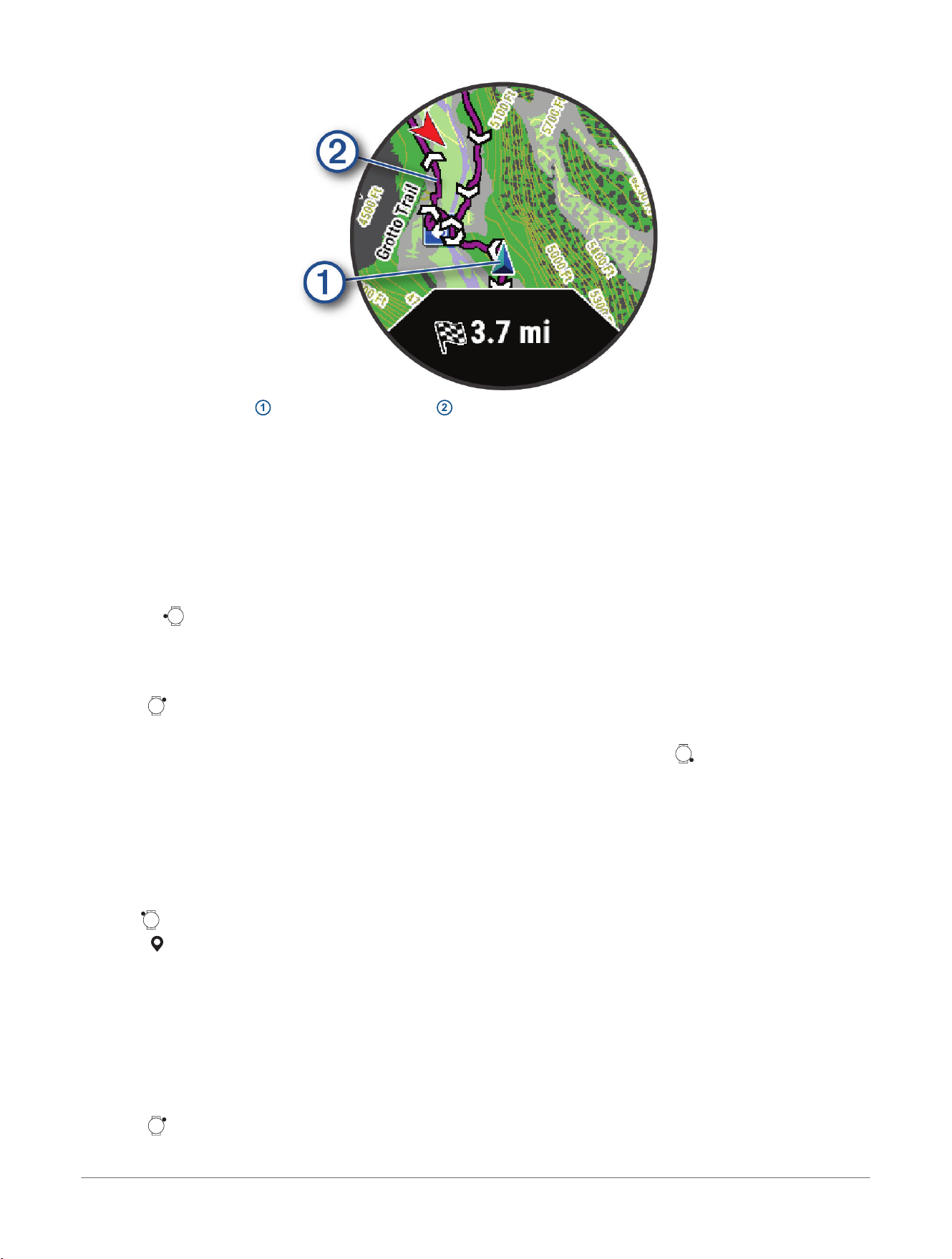
Your current location
1
and the track to follow
2
appear on the map.
Marking and Starting Navigation to a Man Overboard Location
You can mark a man overboard (MOB) location, and automatically start navigation back to it.
1 Customize a button or button combination for the MOB feature (Customizing the Button Shortcuts,
page144).
2 Hold the button or button combination you customized for the MOB feature.
Navigation information appears.
Stopping Navigation
1 While navigating, select an option:
● Hold .
● Swipe right.
2 Select the destination.
Destination details appear.
3 Press .
4 Select Stop Navigation.
Navigation to your destination stops, but your activity remains active. You can press to return to the activity
timer.
Saving Locations
Saving Your Location
You can save your current location to navigate back to it later from the Saved app (Using the Saved App,
page14).
NOTE: You can add options to the controls menu (Customizing the Controls Menu, page72).
1 Hold .
2 Select .
3 Follow the on-screen instructions.
Saving a Dual Grid Location
You can save your current location using dual grid coordinates to navigate back to the same location later.
1 Customize a button or button combination for the Dual Grid feature (Customizing the Button Shortcuts,
page144).
2 Hold the button or button combination you customized to save a dual grid location.
3 Wait while the watch locates satellites.
4 Press to save the location.
You can edit the location details.
128
D2™ Mach 2 Series Aviator Smartwatch
Owner's Manual
Navigation
Sharing a Location From a Map Using the Garmin Connect
™
App
NOTICE
It is your responsibility to use discretion when sharing location information with others. Always ensure you are
aware of and comfortable with the individual with whom you share location information.
NOTE: This feature is available only if your course-compatible Garmin
®
device is connected to an iPhone
®
device
using Bluetooth
®
technology.
You can share location information and data from Apple
®
Maps to your compatible Garmin device.
1 From Apple Maps, select a location.
2 Select > .
3 If necessary, from the Garmin Connect app, select the Garmin device.
A notification appears in the Garmin Connect app indicating that the location in now available on your device
(Starting a GPS Activity From a Shared Location, page129).
Starting a GPS Activity From a Shared Location
You can use the Garmin Connect
™
app to share a location from Apple
®
Maps to your watch, and navigate to that
location (Sharing a Location From a Map Using the Garmin Connect
™
App, page129).
1 When you receive the location notification on your watch, select .
Your watch displays location information.
TIP: The location is saved in the Saved app (Using the Saved App, page14).
2 Select Go To, and choose an activity.
3 Follow the on-screen instructions to proceed to your destination.
Navigating to a Shared Location During an Activity
This feature is designed for activities using GPS. If GPS is turned off for your activity, you can view the location
later.
TIP: The location is saved in the Saved app (Using the Saved App, page14).
You can receive shared locations on your watch during a GPS activity and navigate to those locations (Sharing a
Location From a Map Using the Garmin Connect
™
App, page129).
1 If a shared location notification appears during a GPS activity, select to navigate to the shared location.
2 Follow the on-screen instructions to proceed to your destination.
Courses
WARNING
This feature allows users to download courses created by other users. Garmin
®
makes no representations about
the safety, accuracy, reliability, completeness, or timeliness of courses created by third parties. Any use or
reliance on courses created by third parties is at your own risk.
You can send a course from your Garmin Connect
™
account to your device. After it is saved to your device, you
can navigate the course on your device.
You can follow a saved course simply because it is a good route. For example, you can save and follow a bike
friendly commute to work.
You can also follow a saved course, trying to match or exceed previously set performance goals. For example, if
the original course was completed in 30 minutes, you can race against a Virtual Partner
®
trying to complete the
course in under 30 minutes.
Creating a Course on Garmin Connect
™
Before you can create a course on the Garmin Connect app, you must have a Garmin Connect account (Garmin
Connect
™
, page112).
1 From the Garmin Connect app, select .
2 Select Training & Planning> Courses> Create Course.
3 Select a course type.
4 Follow the on-screen instructions.
5 Select Done.
NOTE: You can send this course to your device (Sending a Course to Your Device, page130).
Navigation
D2™ Mach 2 Series Aviator Smartwatch
Owner's Manual
129
Sending a Course to Your Device
You can send a course you created using the Garmin Connect
™
app to your device (Creating a Course on Garmin
Connect
™
, page129).
1 From the Garmin Connect app, select .
2 Select Training & Planning> Courses.
3 Select a course.
4 Select .
5 Select your compatible device.
6 Follow the on-screen instructions.
Creating and Following a Course on Your Watch
1 From the watch face, press .
2 Select Map.
3 Press .
4 Select Navigate> Create a Course.
5 Enter a name using the keyboard.
6 Follow the on-screen prompts to add locations.
7 Press , and select to save the course.
8 Select Do Course.
9 Select the activity you want to use while following the course.
10 Press to begin navigation.
Creating a Round-Trip Course
The watch can create a round-trip course based on a specified distance and direction of navigation.
1 From the watch face, press .
2 Select Map.
3 Press .
4 Select Navigate> Round-Trip Course.
5 Select the activity you want to use while following the course.
6 Enter the total distance for the course.
7 Select a direction heading.
The watch creates up to three courses. You can press to view the courses.
8 Press to select a course.
9 Select an option:
● To begin navigation, select Go.
● To view the course on the map and pan or zoom the map, select Map.
● To view a list of turns in the course, select Turn By Turn.
● To view an elevation plot of the course, select Elevation.
● To save the course, select Save.
● To view a list of ascents in the course, select View Climbs.
Navigating with Sight 'N Go
You can point the device at an object in the distance, such as a water tower, lock in the direction, and then
navigate to the object.
1 From the watch face, press .
2 Select Map.
3 Press .
4 Select Navigate> Sight 'N Go.
5 Point the top of the watch at an object, and press .
Navigation information appears.
6 Press to begin navigation.
130
D2™ Mach 2 Series Aviator Smartwatch
Owner's Manual
Navigation
Setting the Compass Heading
1 Select an option:
● From the watch face, scroll to view and open the compass glance.
● From the watch face, scroll to view and open the ABC glance, and scroll to view the compass.
● Hold , and select the compass control.
● Hold , select the ABC control, and scroll to view the compass.
2 Press to view options.
3 Select Lock Heading.
4 Point the top of the watch toward your heading, and press .
When you deviate from the heading, the compass displays the direction from the heading and degree of
deviation.
Setting a Reference Point
You can set a reference point to provide the heading and distance to a location or bearing.
1 Select an option:
● Hold .
TIP: You can set a reference point while you are recording an activity.
● From the watch face, press .
2 Select Reference Point.
3 Wait while the watch locates satellites.
4 Press , and select Add Point.
5 Select a location or bearing to use as a reference point for navigation.
The compass arrow and distance to your destination appear.
6 Point the top of the watch toward your heading.
When you deviate from the heading, the compass displays the direction from the heading and degree of
deviation.
7 If necessary, press , and select Change Point to set a different reference point.
Projecting a Waypoint
You can create a new location by projecting the distance and bearing from your current location to a new
location.
NOTE: You may need to add the Project Wpt. app to the activities and apps list.
1 From the watch face, press .
2 Select Project Wpt..
3 Press or to set the heading.
4 Press .
5 Press to select a unit of measure.
6 Press to enter the distance.
7 Press to save.
The projected waypoint is saved with a default name.
Navigation
D2™ Mach 2 Series Aviator Smartwatch
Owner's Manual
131
Safety and Tracking Features
CAUTION
The safety and tracking features available through the Garmin Connect
™
app are supplemental features and
should not be relied on as a primary method to obtain emergency assistance. The Garmin Connect app does not
contact emergency services on your behalf.
NOTICE
To use the safety and tracking features, the D2
™
Mach 2 or D2 Mach 2 Pro watch without an inReach
®
service
plan must be connected to the Garmin Connect app using Bluetooth
®
technology. The D2 Mach 2 Pro watch
with an active inReach service plan can use the LTE network. Your paired phone must be equipped with a data
plan and be in an area of network coverage where data is available. You can enter emergency contacts in your
Garmin Connect account.
For more information about safety and tracking features, go to garmin.com/safety.
Assistance: When you request assistance, the watch sends a message with your name, LiveTrack link, and GPS
location (if available) to your emergency contacts (Requesting Assistance, page133).
GroupTrack: Keeps track of your connections using LiveTrack directly on screen and in real time (Starting a
GroupTrack Session, page135).
Incident Detection: When the D2 Mach 2 watch detects an incident during certain outdoor activities, the watch
sends an automated message with a LiveTrack link and GPS location (if available) to your emergency
contacts (Turning Incident Detection On and Off, page133).
Live Event Sharing: Sends messages to friends and family during an event, providing real-time updates.
NOTE: This feature is available only if your watch is connected to a compatible Android
™
phone.
LiveTrack: Sends a web page link to friends and family to follow your races and training activities in real time.
You can use the Garmin Connect app to invite followers using email or social media, allowing them to view
your live data.
SOS:
NOTICE
The SOS feature requires an active inReach service plan, and it is only available on the D2 Mach 2 Pro watch.
You can sign up for service using the Garmin Messenger
™
app. Always test your device outdoors before using
it on a trip.
When you initiate an SOS rescue, your watch or connected phone sends an automated message to the
Garmin Response
SM
team, and they notify the appropriate emergency responders of your situation (SOS for
D2
™
Mach 2 Pro, page133). You can communicate with the Garmin Response team during your emergency
while you wait for help to arrive.
Adding Emergency Contacts
Emergency contact phone numbers are used for the safety and tracking features.
1 From the Garmin Connect
™
app, select .
2 Select Safety & Tracking> Safety Features> Emergency Contacts> Add Emergency Contacts.
3 Follow the on-screen instructions.
Your emergency contacts receive a notification when you add them as an emergency contact, and can accept or
decline your request. If a contact declines, you must choose another emergency contact.
Adding Contacts
You can add up to 50 contacts to the Garmin Connect
™
app. Contact emails can be used with the LiveTrack
feature. Three of these contacts can be used as emergency contacts (Adding Emergency Contacts, page132).
1 From the Garmin Connect app, select .
2 Select Contacts.
3 Follow the on-screen instructions.
After you add contacts, you must sync your data to apply the changes to your D2
™
Mach 2 device (Using the
Garmin Connect
™
App, page113).
132
D2™ Mach 2 Series Aviator Smartwatch
Owner's Manual
Safety and Tracking Features
Turning Incident Detection On and Off
CAUTION
Incident detection is a supplemental feature available only for certain outdoor activities. Incident detection
should not be relied on as a primary method to obtain emergency assistance. The Garmin Connect
™
app does
not contact emergency services on your behalf.
NOTICE
Before you can enable incident detection on your watch, you must set up emergency contacts in the Garmin
Connect app (Adding Emergency Contacts, page132). Your paired phone or D2
™
Mach 2 Pro watch with an
active inReach
®
service plan must be in an area of network coverage where data is available. Your emergency
contacts must be able to receive emails or text messages (standard text messaging rates may apply).
1 From the watch face, hold .
2 Select Watch Settings> Safety & Tracking> Incident Detection.
3 Select a GPS activity.
NOTE: Incident detection is available only for certain outdoor activities.
When an incident is detected by your D2 Mach 2 watch and your phone is connected, the Garmin Connect
app can send an automated text message and email with your name and GPS location (if available) to your
emergency contacts. A message appears on your device and paired phone indicating your contacts will be
informed after 15 seconds have elapsed. If assistance is not needed, you can cancel the automated emergency
message. If you have a D2 Mach 2 Pro watch with an active inReach service plan, incident detection can be
enabled for activities without your phone.
Requesting Assistance
CAUTION
Assistance is a supplemental feature and should not be relied upon as a primary method to obtain emergency
assistance. The Garmin Connect
™
app does not contact emergency services on your behalf.
NOTICE
Before you can request assistance, you must set up emergency contacts in the Garmin Connect app (Adding
Emergency Contacts, page132). If your watch is not a D2
™
Mach 2 Pro watch with an active inReach
®
service
plan, your paired phone must be equipped with a data plan and be in an area of network coverage where data is
available. Your emergency contacts must be able to receive emails or text messages (standard text messaging
rates may apply).
1 Select an option:
● On a D2 Mach 2 or D2 Mach 2 Pro watch without an inReach service plan, hold for five seconds.
● On a D2 Mach 2 Pro watch with an active inReach service plan, hold , and select Assistance.
The watch vibrates when the assistance feature is activated.
2 Wait for the countdown timer.
The watch sends a message to your emergency contacts.
TIP: Before the countdown is complete, you can hold any button to cancel the message.
SOS for D2
™
Mach 2 Pro
WARNING
Before you can use the SOS function, you must have a D2 Mach 2 Pro watch with an active inReach
®
service
plan. Always test your device outdoors before using it on a trip.
If you are using a communication satellite connection, ensure you have a clear view of the sky when using the
SOS function.
NOTICE
Some jurisdictions regulate or prohibit the use of satellite communications devices. It is the responsibility of the
user to know and follow all applicable laws in the jurisdictions where the device is intended to be used.
During an emergency, you can use your D2 Mach 2 Pro device to contact the Garmin Response
SM
center to
request help. Initiating an SOS rescue sends a message to the Garmin Response team, and they notify the
appropriate emergency responders of your situation. You can communicate with the Garmin Response team
Safety and Tracking Features
D2™ Mach 2 Series Aviator Smartwatch
Owner's Manual
133
during your emergency while you wait for help to arrive. You should only use the SOS function in a real
emergency situation.
Initiating an SOS Rescue
When you initiate an SOS rescue on your D2
™
Mach 2 Pro watch, you can correspond with the Garmin
Response
SM
team to communicate the nature of your emergency. Your replies let the emergency response
service know that you are capable of interacting with them during the rescue.
NOTE: You can also initiate an SOS rescue and interact with the Garmin Response team using the Garmin
Messenger
™
app. You must have an active inReach
®
service plan to use the SOS feature in the Garmin
Messenger app. To view a demonstration of the SOS feature, you can hold , and select Safety & Tracking>
Satellite SOS Demo.
1 Select an option:
● Hold for five seconds.
● Hold , and select SOS.
The watch vibrates and sounds an alarm.
2 Wait for the SOS countdown.
If you are connected to the LTE network, your watch sends a default message to the emergency response
service with details about your location.
TIP: Before the countdown is complete, you can hold any button to cancel the SOS message.
3 If you are outside of an LTE coverage area, connect to a communication satellite (Connecting to
Communication Satellites, page109).
When you connect to a communication satellite, your watch sends a default message to the emergency
response service with details about your location.
4 In the SOS message thread, select Reply.
5 Select an option:
● To reply with a default message, select a message.
● To compose a custom message, select Keyboard, and enter your message.
● To reply with a voice message, select , and record your message.
NOTE: Voice messages are only available with an LTE connection.
Canceling an SOS Request
If you no longer need assistance, you can cancel an SOS request after it is sent to the Garmin Response
SM
team.
1 Open the SOS message thread.
2 Select End Emergency.
3 Select a reason for ending the SOS request.
If you are connected to the LTE network, your watch sends the cancellation request.
4 If you are outside of an LTE coverage area, connect to a communication satellite (Connecting to
Communication Satellites, page109).
When you connect to a communication satellite, your watch sends the cancellation request.
5 Wait until you receive a confirmation message from the Garmin Response team.
The watch returns to normal operation.
Spectator Messaging
NOTICE
Spectator messaging is available when your D2
™
Mach 2 Pro watch has an active inReach
®
service plan or when
your paired phone has a data plan and is in an area of network coverage where data is available.
Spectator messaging is a feature that allows your LiveTrack followers to send you audio and text messages
during your run activity. You can set up this feature in the LiveTrack settings of the Garmin Connect
™
app.
Blocking Spectator Messages
If you want to block spectator messages, Garmin
®
recommends turning it off before you start the activity.
1 From the watch face, hold .
2 Select Watch Settings> Safety & Tracking> LiveTrack> Spectator Messaging.
134
D2™ Mach 2 Series Aviator Smartwatch
Owner's Manual
Safety and Tracking Features
TIP: If you have already started an activity, you can press , and select Disable to block spectator
messages from the incoming message.
Starting a GroupTrack Session
NOTICE
If your watch is not a D2
™
Mach 2 Pro watch with an active inReach
®
service plan, your paired phone must be
equipped with a data plan and be in an area of network coverage where data is available.
Before you can start a GroupTrack session, you must pair the watch with a compatible phone (Pairing Your
Phone, page106).
These instructions are for starting a GroupTrack session with a D2 Mach 2 watch. If your connections have
other compatible devices, you can see them on the map. The other devices may not be able to display
GroupTrack riders on the map.
1 From the watch face, hold .
2 Select Watch Settings> Safety & Tracking> LiveTrack> GroupTrack.
3 Select an option:
●
Select Visible To to enable GroupTrack sessions for all of your Garmin Connect
™
connections or only
invited connections.
● Select Show on Map to enable viewing connections on the map screen
● Select Activity Types to select which activity types appear on the map screen during a GroupTrack
session.
4 On the watch, start an outdoor activity.
5 Scroll to the map to view your connections.
Tips for GroupTrack Sessions
The GroupTrack feature allows you to keep track of other connections in your group using LiveTrack directly on
the screen. All members of the group must be your connections in your Garmin Connect
™
account.
● Start your activity outside using GPS.
●
Pair your D2
™
Mach 2 device with your phone using Bluetooth
®
technology.
● In the Garmin Connect app, select > Connections to update the list of connections for your GroupTrack
session.
● Make sure all of your connections pair with their phones and start a LiveTrack session in the Garmin Connect
app.
● Make sure all your connections are in range (40km or 25mi.).
● During a GroupTrack session, scroll to the map to view your connections (Adding the Map Data Screen,
page63).
Safety and Tracking Features
D2™ Mach 2 Series Aviator Smartwatch
Owner's Manual
135
Music
NOTE: There are three different music playback options for your D2
™
Mach 2 watch.
● Third-party provider music
● Personal audio content
● Music stored on your phone
On a D2 Mach 2 watch, you can download audio content to your watch from your computer or from a third-party
provider, so you can listen when your phone is not nearby. To listen to audio content stored on your watch, you
can connect Bluetooth
®
headphones. You can also listen to audio content directly through the speaker in your
watch.
Connecting to a Third-Party Provider
Before you can download music or other audio files to your watch from a supported third-party provider, you
must connect the provider to your watch.
For more options, you can download the Connect IQ
™
app on your phone (Downloading Connect IQ
™
Features,
page115).
1 From the watch face, press .
2 Select Connect IQ Store.
3 Follow the on-screen instructions to install a third-party music provider.
4 Hold from any screen to open the music controls.
5 Select the music provider.
NOTE: If you want to select another provider, hold , select Watch Settings> Music> Music Providers, and
follow the on-screen instructions.
Downloading Audio Content from a Third-Party Provider
Before you can download audio content from a third-party provider, you must connect to a Wi‑Fi
®
network
(Connecting to a Wi‑Fi
®
Network, page108).
1 Hold from any screen to open the music controls.
2 Hold .
3 Select Music Providers.
4
Select a connected provider, or select Add Music Apps to add a music provider from the Connect IQ
™
store.
5 Select a playlist or other item to download to the watch.
6 If necessary, press until you are prompted to sync with the service.
NOTE: Downloading audio content can drain the battery. You may be required to connect the watch to an
external power source if the battery is low.
Downloading Personal Audio Content
Before you can send your personal music to your watch, you must install the Garmin Express
™
application on
your computer (garmin.com/express).
You can load your personal audio files, such as .mp3 and .m4a files, to a D2
™
Mach 2 watch from your
computer. For more information, go to garmin.com/musicfiles.
1 Connect the watch to your computer using the included USB cable.
2 On your computer, open the Garmin Express application, select your watch, and select Music.
TIP: For Windows
®
computers, you can select and browse to the folder with your audio files. For Apple
®
computers, the Garmin Express application uses your iTunes
®
library.
3 In the My Music or iTunes Library list, select an audio file category, such as songs or playlists.
4 Select the checkboxes for the audio files, and select Send to Device.
5 If necessary, in the D2 Mach 2 list, select a category, select the checkboxes, and select Remove From Device
to remove audio files.
Listening to Music
1 Hold from any screen to open the music controls.
2 Hold .
136
D2™ Mach 2 Series Aviator Smartwatch
Owner's Manual
Music
3 Select an option:
● If this is your first time listening to music, select Settings> Music> Music Providers.
● If this is not your first time listening to music, select Music Providers.
4 Select an option:
● To listen to music downloaded to the watch from your computer, select My Music, and select an option
(Downloading Personal Audio Content, page136).
● To listen to music from a third-party provider, select the name of the provider, and select a playlist.
● To control music playback on your phone, select Control Phone.
5 If necessary, connect your Bluetooth
®
headphones (Connecting Bluetooth
®
Headphones, page137).
6 Select .
Music Playback Controls
NOTE: During an activity, you can swipe left to view the music playback controls.
Music playback controls may look different, depending on the selected music source.
Select to view more music playback controls.
Select to browse the audio files and playlists for the selected source.
Select to adjust the volume.
Select to play and pause the current audio file.
Select to skip to the next audio file in the playlist.
Hold to fast forward through the current audio file.
Select to restart the current audio file.
Select twice to skip to the previous audio file in the playlist.
Hold to rewind through the current audio file.
Select to change the repeat mode.
Select to change the shuffle mode.
Connecting Bluetooth
®
Headphones
1 Bring the headphones within 2m (6.6ft.) of your watch.
2 Enable pairing mode on the headphones.
3 From the watch face, hold .
4 Select Watch Settings> Music> Audio Output> Add New.
5 Select your headphones to complete the pairing process.
Changing the Audio Mode
You can change the music playback mode from stereo to mono.
1 From the watch face, hold .
2 Select Watch Settings> Music> Audio.
3 Select an option.
Music
D2™ Mach 2 Series Aviator Smartwatch
Owner's Manual
137
User Profile
You can update your user profile on your watch or on the Garmin Connect
™
app.
Setting Up Your User Profile
You can update your personal information, such as height, weight, training zones, and more. The watch uses
this information to calculate accurate training data.
1 From the watch face, hold .
2 Select Watch Settings> User Profile.
3 Select an option.
Gender Settings
When you first set up the watch, you must choose a sex. Most fitness and training algorithms are binary. For the
most accurate results, Garmin
®
recommends selecting your sex assigned at birth. After the initial setup, you can
customize the profile settings in your Garmin Connect
™
account.
Profile & Privacy: Enables you to customize the data on your public profile.
User Settings: Sets your sex. If you select Not Specified, the algorithms that require a binary input will use the
sex you specified when you first set up the watch.
Viewing Your Fitness Age
Your fitness age gives you an idea of how your fitness compares with a person of the same sex. Your watch
uses information, such as your age, body mass index (BMI), resting heart rate data, and vigorous activity history
to provide a fitness age. If you have an Index
™
scale, your watch uses the body fat percentage metric instead of
BMI to determine your fitness age. Exercise and lifestyle changes can impact your fitness age.
NOTE: For the most accurate fitness age, complete the user profile setup (Setting Up Your User Profile,
page138).
1 From the watch face, hold .
2 Select Watch Settings> User Profile> Fitness Age.
About Heart Rate Zones
Many athletes use heart rate zones to measure and increase their cardiovascular strength and improve their
level of fitness. A heart rate zone is a set range of heartbeats per minute. The five commonly accepted
heart rate zones are numbered from 1 to 5 according to increasing intensity. Generally, heart rate zones are
calculated based on percentages of your maximum heart rate.
Fitness Goals
Knowing your heart rate zones can help you measure and improve your fitness by understanding and applying
these principles.
● Your heart rate is a good measure of exercise intensity.
● Training in certain heart rate zones can help you improve cardiovascular capacity and strength.
If you know your maximum heart rate, you can use the table (Heart Rate Zone Calculations, page139) to
determine the best heart rate zone for your fitness objectives.
If you do not know your maximum heart rate, use one of the calculators available on the Internet. Some gyms
and health centers can provide a test that measures maximum heart rate. The default maximum heart rate is
220 minus your age.
Setting Your Heart Rate Zones
The watch uses your user profile information from the initial setup to determine your default heart rate zones.
You can set separate heart rate zones for sport profiles, such as running, cycling, and swimming. For the most
accurate calorie data during your activity, set your maximum heart rate. You can also set each heart rate zone
and enter your resting heart rate manually. You can manually adjust your zones on the watch or using your
Garmin Connect
™
account.
1 From the watch face, hold .
2 Select Watch Settings> User Profile> Heart Rate & Power Zones> Heart Rate.
3 Select Max. Heart Rate, and enter your maximum heart rate.
You can use the Auto Detection feature to automatically record your maximum heart rate during an activity
(Detecting Performance Measurements Automatically, page140).
138
D2™ Mach 2 Series Aviator Smartwatch
Owner's Manual
User Profile
4 Select LTHR, and enter your lactate threshold heart rate (Lactate Threshold, page80).
You can use the Auto Detection feature to automatically record your lactate threshold during an activity
(Detecting Performance Measurements Automatically, page140).
5 Select Resting HR> Set Custom, and enter your resting heart rate.
You can use the average resting heart rate measured by your watch, or you can set a custom resting heart
rate.
6 Select Zones> Based On.
7 Select an option:
● Select BPM to view and edit the zones in beats per minute.
● Select %Max. HR to view and edit the zones as a percentage of your maximum heart rate.
● Select %HRR to view and edit the zones as a percentage of your heart rate reserve (maximum heart rate
minus resting heart rate).
● Select %LTHR to view and edit the zones as a percentage of your lactate threshold heart rate.
8 Select a zone, and enter a value for each zone.
9 Select Sport Heart Rate, and select a sport profile to add separate heart rate zones (optional).
10 Repeat the steps to add sport heart rate zones (optional).
Letting the Watch Set Your Heart Rate Zones
The default settings allow the watch to detect your maximum heart rate and set your heart rate zones as a
percentage of your maximum heart rate.
● Verify that your user profile settings are accurate (Setting Up Your User Profile, page138).
● Run often with the wrist or chest heart rate monitor.
●
View your heart rate trends and time in zones using your Garmin Connect
™
account.
Heart Rate Zone Calculations
Zone
% of Maximum Heart
Rate
Perceived Exertion Benefits
1 50–60% Relaxed, easy pace, rhythmic breathing Beginning-level aerobic training, reduces
stress
2 60–70% Comfortable pace, slightly deeper breathing,
conversation possible
Basic cardiovascular training, good
recovery pace
3 70–80% Moderate pace, more difficult to hold conver
sation
Improved aerobic capacity, optimal car
diovascular training
4 80–90% Fast pace and a bit uncomfortable, breathing
forceful
Improved anaerobic capacity and
threshold, improved speed
5 90–100% Sprinting pace, unsustainable for long period
of time, labored breathing
Anaerobic and muscular endurance,
increased power
Setting Your Power Zones
The power zones use default values based on gender, weight, and average ability, and may not match your
personal abilities. If you know your functional threshold power (FTP) or threshold power (TP) value, you can
enter it and allow the software to calculate your power zones automatically. You can manually adjust your
zones on the watch or using your Garmin Connect
™
account.
1 From the watch face, hold .
2 Select Watch Settings> User Profile> Heart Rate & Power Zones> Power.
3 Select an activity.
4 Select Based On.
5 Select an option:
● Select Watts to view and edit the zones in watts.
● Select % of FTP or % of TP to view and edit the zones as a percentage of your threshold power.
6 Select FTP or Threshold Power, and enter your value.
You can use the Auto Detection feature to automatically record your threshold power during an activity
(Detecting Performance Measurements Automatically, page140).
7 Select a zone, and enter a value for each zone.
User Profile
D2™ Mach 2 Series Aviator Smartwatch
Owner's Manual
139
8 If necessary, select Minimum, and enter a minimum power value.
Detecting Performance Measurements Automatically
The Auto Detection feature is turned on by default. The watch can automatically detect your maximum heart
rate and lactate threshold during an activity. When paired with a compatible power meter, the watch can
automatically detect your functional threshold power (FTP) during an activity.
1 From the watch face, hold .
2 Select Watch Settings> User Profile> Heart Rate & Power Zones> Auto Detection.
3 Select an option.
140 D2™ Mach 2 Series Aviator Smartwatch
Owner's Manual
User Profile
Power Manager Settings
From the watch face, hold , and select Watch Settings> Power Manager.
Battery Saver: Customizes system settings to extend battery life in watch mode (Customizing the Battery Saver
Feature, page141).
Activity Power Modes: Customizes system settings to extend battery life during an activity (Customizing Power
Modes, page141).
Battery Percentage: Displays remaining battery life as a percentage.
Battery Estimates: Displays remaining battery life as an estimated number of days or hours.
Low Battery Alert: Notifies you when the battery level is low.
Customizing the Battery Saver Feature
The battery saver feature allows you to quickly adjust system settings to extend battery life in watch mode.
You can turn on the battery saver feature from the controls menu (Controls, page70).
1 From the watch face, hold .
2 Select Watch Settings> Power Manager> Battery Saver.
The watch displays the hours of battery life gained with each setting change.
3 Select Status to turn on the battery saver feature.
4 Select Edit, and select an option:
● Select Watch Face to enable a low-power watch face that updates once per minute.
● Select Music to disable listening to music from your watch.
● Select Phone to disconnect your paired phone.
● Select Wi-Fi to disconnect from a Wi‑Fi
®
network.
●
On a D2
™
Mach 2 Pro watch, select LTE to disconnect from the LTE network.
● Select Wrist Heart Rate to turn off the wrist heart rate monitor.
● Select Pulse Oximeter to turn off the pulse oximeter sensor.
● Select Always On Display to turn off the screen when not in use.
● Select Brightness to reduce the screen brightness.
The watch displays the hours of battery life gained with each setting change.
5 Select Low Battery Alert to receive an alert when the battery level is low.
Customizing the Power Mode for an Activity
You can customize the power mode settings for individual activities.
1 From the watch face, press .
2 Select Activities, and select an activity.
3 Press .
4 Select the activity settings.
5 Select Power Mode.
6 Select an option.
The watch displays the hours of battery life available with the selected power mode.
7 Select an option:
● To change the default power mode for the activity, select Default Mode.
● To change when the low battery alert appears for the activity, select Low Battery Alert.
● To change when the power mode automatically changes when the battery is low, select Auto Enable
Time.
● To automatically change the power mode when the low battery alert appears, select Auto Enable Mode.
Customizing Power Modes
Your device comes preloaded with several power modes, allowing you to quickly adjust system settings, activity
settings, and GPS settings to extend battery life during an activity. You can customize existing power modes
and create new custom power modes.
1 From the watch face, hold .
2 Select Watch Settings> Power Manager> Activity Power Modes.
Power Manager Settings
D2™ Mach 2 Series Aviator Smartwatch
Owner's Manual
141

3 Select an option:
● Select a power mode to customize.
● Select Add New to create a custom power mode.
4 If necessary, enter a custom name.
5 Select an option to customize specific power mode settings.
For example, you can change the GPS setting or disconnect your paired phone.
The watch displays the hours of battery life gained with each setting change.
6 If necessary, select Done to save and use the custom power mode.
142 D2™ Mach 2 Series Aviator Smartwatch
Owner's Manual
Power Manager Settings
Accessibility Settings
From the watch face, hold , and select Watch Settings> Accessibility.
Spoken Watch Face: Enables your watch to speak data from your watch face. You can select the Time and Date
Only or Entire Watch Face options.
Color Filters: Sets the color mode for all screens, increasing color visibility for colorblindness. You can remove
specific colors such as red, green, or blue, or select Grayscale to remove all color.
Hourly Alert: Enables an alert at the start of each hour. Your can set this alert as a watch tone or vibration,
spoken time of day, or any combination.
Accessibility Settings D2™ Mach 2 Series Aviator Smartwatch
Owner's Manual
143
System Settings
From the watch face, hold , and select Watch Settings> System.
Shortcuts: Assigns shortcuts to buttons (Customizing the Button Shortcuts, page144).
Passcode: Sets a four-digit passcode to secure your personal information when the watch is not on your wrist
(Setting Your Watch Passcode, page144).
Do Not Disturb: Enables do not disturb mode to dim the screen and disable alerts and notifications.
Night Vision: Enables night vision mode for compatibility with night vision goggles and customizes the mode
settings for the notifications (Notifications and Alerts Settings, page97), sounds (Sound and Vibration
Settings, page100), and display (Display and Brightness Settings, page101).
Compass: Calibrates the internal compass and customizes the settings (Compass, page145).
Altimeter & Barometer: Calibrates the internal barometric altimeter and customizes the settings (Altimeter and
Barometer, page145).
Depth Sensor: Customizes the depth sensor settings (Depth Sensor, page146).
Time: Adjusts the time settings (Time Settings, page146).
Language: Sets the language displayed on the watch.
Voice: Sets the watch voice dialect, voice type, and your dialect for voice controls. You can also set voice alerts
during an activity (Playing Voice Alerts During an Activity, page67).
Advanced: Opens the advanced system settings for setting the units of measure, data recording mode, and USB
mode (Advanced System Settings, page146).
Restore & Reset: Configures watch data backups and resets user data and settings (Restore and Reset Settings,
page147).
Software Update: Installs downloaded software updates, enables automatic updates, and allows you to
manually check for updates (Product Updates, page153).
About: Displays device, software, license, and regulatory information (Viewing Device Information, page148).
Customizing the Button Shortcuts
You can customize the hold function of individual buttons and combinations of buttons.
1 From the watch face, hold .
2 Select Watch Settings> System> Shortcuts.
3 Select a button or combination of buttons to customize.
4 Select a function.
Setting Your Watch Passcode
NOTICE
If you enter your passcode incorrectly three times, the watch locks temporarily. After five incorrect attempts, the
watch locks until you reset your passcode in the Garmin Connect
™
app. If you have not paired your watch with
your phone, the watch deletes your data and resets to the factory default settings after five incorrect attempts.
You can set up a watch passcode to secure your personal information when the watch is not on your wrist.
If you are using the GarminPay
™
feature, the watch uses the same four-digit passcode required to open your
wallet (GarminPay
™
, page17).
1 From the watch face, hold .
2 Select Watch Settings> System> Passcode> Set Passcode.
3 Enter a four-digit passcode.
The next time you remove the watch from your wrist, you must enter the passcode before you can view any
information.
Changing Your Watch Passcode
You must know your existing watch passcode to change it. If you forget your passcode or make too many
incorrect passcode attempts, you must reset it in the Garmin Connect
™
app.
1 From the watch face, hold .
2 Select Watch Settings> System> Passcode> Change Passcode.
3 Enter your existing four-digit passcode.
4 Enter a new four-digit passcode.
144
D2™ Mach 2 Series Aviator Smartwatch
Owner's Manual
System Settings
The next time you remove the watch from your wrist, you must enter the passcode before you can view any
information.
Compass
The watch has a 3-axis compass with automatic calibration. The compass features and appearance change
depending on your activity, whether GPS is enabled, and whether you are navigating to a destination. You
can change the compass settings manually (Compass Settings, page145). You can view the compass from
the controls menu (Controls, page70), glances list (Glances, page74), or a data screen during an activity
(Customizing the Data Screens, page63).
Compass Settings
From the watch face, hold , and select Watch Settings> System> Compass.
Calibrate: Manually calibrates the compass sensor (Calibrating the Compass Manually, page145).
Display: Sets the directional heading on the compass to letters, degrees, or milliradians.
North Ref.: Sets the north reference of the compass (Setting the North Reference, page145).
Mag. Variation: Sets the magnetometer variation for the north reference if the North Ref. option is set to User.
Mode: Sets the compass to use a combination of GPS and electronic-sensor data when moving (Auto), GPS
data only, or the magnetometer.
Calibrating the Compass Manually
NOTICE
Calibrate the electronic compass outdoors. To improve heading accuracy, do not stand near objects that
influence magnetic fields, such as vehicles, buildings, and overhead power lines.
The watch uses automatic calibration by default. If you experience irregular compass behavior, for example,
after moving long distances or after extreme temperature changes, you can manually calibrate the compass.
1 From the watch face, hold .
2 Select Watch Settings> System> Compass> Calibrate.
3 Move your wrist in a small figure eight motion until a message appears.
Setting the North Reference
You can set the directional reference used in calculating heading information.
1 From the watch face, hold .
2 Select Watch Settings> System> Compass> North Ref..
3 Select an option:
● To set geographic north as the heading reference, select True.
● To set magnetic north as the heading without declination, select Magnetic.
● To set grid north (000º) as the heading reference, select Grid.
● To set the magnetic variation value manually, select User> Mag. Variation, enter the magnetic variation,
and select Done.
Altimeter and Barometer
The watch contains an internal altimeter and barometer. The watch collects elevation and pressure data
continuously, even in low-power mode. The altimeter displays your approximate elevation based on pressure
changes. The barometer displays environmental pressure data based on the fixed elevation where the altimeter
was most recently calibrated (Altimeter and Barometer Settings, page145). You can view the altimeter and
barometer from the controls menu (Controls, page70), glances list (Glances, page74), or apps list (Apps,
page9).
Altimeter and Barometer Settings
From the watch face, hold , select Watch Settings> System> Altimeter & Barometer.
Calibrate: Manually calibrates the altimeter and barometer sensor.
Auto Cal.: Self-calibrates the sensor each time you use satellite systems.
Sensor Mode: Sets the mode for the sensor. The Auto option uses both the altimeter and barometer according
to your movement. You can use the Altimeter Only option when your activity involves changes in altitude, or
the Barometer Only option when your activity does not involve changes in altitude.
Elevation: Sets the units of measure for elevation.
Pressure: Sets the units of measure for pressure.
System Settings
D2™ Mach 2 Series Aviator Smartwatch
Owner's Manual
145
Barometer Plot: Sets the length of time to show on the graph for the barometer glance.
Calibrating the Barometric Altimeter
Your watch was already calibrated at the factory, and the watch uses automatic calibration at your GPS starting
point by default. You can manually calibrate the barometric altimeter if you know the correct elevation.
1 From the watch face, hold .
2 Select Watch Settings> System.
3 Select Altimeter & Barometer.
4 Select Calibrate.
5 Select an option:
● To enter the current elevation manually, select Enter Manually.
● To calibrate automatically from the digital elevation model, select Use DEM.
● To calibrate automatically from your GPS location, select Use GPS.
Depth Sensor
Your watch contains a depth sensor for diving. When you descend to start a dive, the depth sensor detects the
increase in pressure and the watch starts a dive activity.
Depth Sensor Settings
From the watch face, hold , and select Watch Settings> System> Depth Sensor.
Auto Dive: Automatically starts a dive activity based on your last dive type when you begin your descent.
Snooze: Temporarily pauses the Auto Dive feature.
Time Settings
From the watch face, hold , and select Watch Settings> System> Time.
Time Format: Sets the watch to show time in a 12-hour, 24-hour, or military format.
Date Format: Sets the display order for the day, month, and year for dates.
Set Time: Sets the time zone for the watch. The Auto option sets the time zone automatically based on your
GPS position.
Time: Sets the time if the Set Time option is set to Manual.
Time Sync: Syncs the time when you change time zones, and updates the time for daylight saving time (Syncing
the Time, page146).
Syncing the Time
Each time you turn on the watch and acquire satellites or open the Garmin Connect
™
app on your paired phone,
the watch automatically detects your time zone and the current time of day. You can also manually sync the
time when you change time zones, and to update for daylight saving time.
1 From the watch face, hold .
2 Select Watch Settings> System> Time> Time Sync.
3 Wait while the watch connects to your paired phone or locates satellites (Acquiring Satellite Signals,
page155).
TIP: You can press to switch the source.
Advanced System Settings
From the watch face, hold , and select Watch Settings> System> Advanced.
Format: Sets general format preferences, such as the units of measure, pace and speed shown during activities,
and the start of the week (Changing the Units of Measure, page146). You can also set geographical position
format and datum options.
Data Recording: Configures how the watch records activity data (Data Recording Settings, page147).
USB Mode: Sets the watch to use MTP (media transfer protocol) or Garmin
®
mode when connected to a
computer.
Changing the Units of Measure
You can customize units of measure for distance, pace and speed, elevation, and more.
1 From the watch face, hold .
146
D2™ Mach 2 Series Aviator Smartwatch
Owner's Manual
System Settings
2 Select Watch Settings> System> Advanced> Format> Units.
3 Select a measurement type.
4 Select a unit of measure.
Data Recording Settings
From the watch face, hold , and select Watch Settings> System> Advanced> Data Recording.
Frequency: Sets how often the watch records activity data. The Smart frequency recording option (default)
allows for longer activity recordings. The Every Second recording option provides more detailed activity
recordings, but may not record entire activities that last for longer periods of time. It records key points where
you change direction, pace, or heart rate. Your activity record is smaller, allowing you to store more activities
on the device memory.
Log HRV: Enables the watch to record your heart rate variability during an activity (Heart Rate Variability Status,
page79).
Position Enhancement: Enables the watch to record more position details for certain activities, such as running
or hiking.
Restore and Reset Settings
You can back up the settings from an existing Garmin
®
watch and restore those settings to a different,
compatible Garmin watch using the Garmin Connect
™
app (Restoring Your Settings and Data from Garmin
Connect
™
, page147). Settings include sport profiles, glances, user settings, workouts, and more.
From the watch face, hold , and select Watch Settings> System> Restore & Reset.
Automatic Backups: Periodically backs up your settings to your Garmin Connect account.
Back Up Now: Manually backs up your settings to your Garmin Connect account.
View Report: Displays any issues from when your watch last restored settings.
This setting only appears if some watch settings did not restore properly.
Backup Contents: Displays the type of data that is saved.
Reset: Resets the selected settings to the factory default values (Resetting All Default Settings, page147).
Restoring Your Settings and Data from Garmin Connect
™
1 From the Garmin Connect app, select .
2 Select Garmin Devices, and select your watch.
3 Select System> Restore & Reset> Device Backups.
4 Select a backup from the list.
5 Select Restore from Backup> Restore.
6 Follow the on-screen instructions.
7 Wait for your watch to sync with the app.
8 On your watch, press , and select .
The watch restarts and restores your settings and data.
9 Follow the on-screen instructions.
Resetting All Default Settings
Before you reset all default settings, you should sync the watch with the Garmin Connect
™
app to upload your
activity data.
You can reset all of the watch settings to the factory default values.
1 From the watch face, hold .
2 Select Watch Settings> System> Restore & Reset> Reset.
3 Select an option:
● To reset all of the watch settings to the factory default values and save all user-entered information and
activity history, select Reset Default Settings.
● To delete all activities from the history, select Delete All Activities.
● To delete all messages in the Messenger app, select Delete All Messages.
● To reset all distance and time totals, select Reset Totals.
● To delete your tissue load data for scuba diving, select Reset Dive Computer.
System Settings
D2™ Mach 2 Series Aviator Smartwatch
Owner's Manual
147
NOTE: You should reset your tissue load only if you do not plan to use the device again in the future. This
can be useful for dive shops that provide devices for rent.
● To reset all of the watch settings to the factory default values and delete all user-entered information and
activity history, select Delete Data and Reset Settings.
NOTE: If you have set up a GarminPay
™
wallet, this option deletes the wallet from your watch. If you have
music stored on your watch, this option deletes your stored music.
● To delete all temporary files from the watch, select Delete Temporary Files.
Viewing Device Information
You can view device information, such as the unit ID, software version, regulatory information, and license
agreement.
1 From the watch face, hold .
2 Select Watch Settings> System> About.
Viewing E-label Regulatory and Compliance Information
The label for this device is provided electronically. The e-label may provide regulatory information, such as
identification numbers provided by the FCC or regional compliance markings, as well as applicable product and
licensing information.
1 From the watch face, hold .
2 From the settings menu, select System.
3 Select About.
148 D2™ Mach 2 Series Aviator Smartwatch
Owner's Manual
System Settings
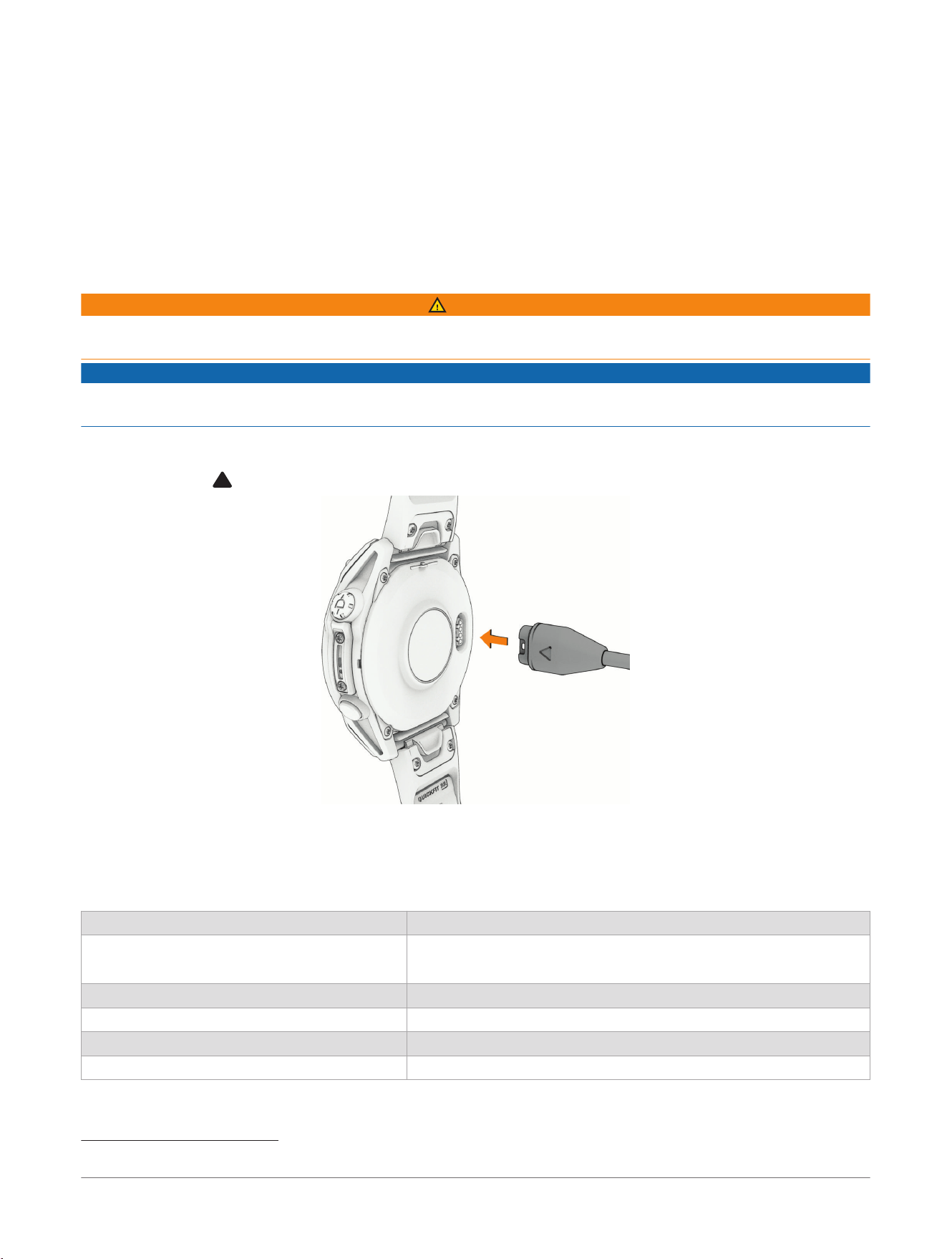
Device Information
About the AMOLED Display
By default, the watch settings are optimized for battery life and performance (Tips for Maximizing the Battery
Life, page153).
Image persistence, or pixel "burn-in," is normal behavior for AMOLED devices. To extend the AMOLED display
life, you should avoid displaying static images at high brightness levels for long time periods. To minimize
burn-in, the D2
™
Mach 2 display turns off after the selected timeout (Display and Brightness Settings, page101).
You can turn your wrist toward your body, tap the touchscreen, or press a button to wake the watch.
Charging the Watch
WARNING
This device contains a lithium-ion battery. See the Important Safety and Product Information guide in the product
box for product warnings and other important information.
NOTICE
To prevent corrosion, thoroughly clean and dry the contacts and the surrounding area before charging or
connecting to a computer. Refer to the cleaning instructions (Device Care, page151).
Your watch comes with a proprietary charging cable. For optional accessories and replacement parts, go to
buy.garmin.com, or contact your Garmin
®
dealer.
1 Plug the cable ( end) into the charging port on your watch.
2 Plug the other end of the cable into a USB-C
®
computer port or AC adapter (5 W minimum power rating).
The watch displays the current battery charge level.
3 Disconnect the watch after the battery charge level reaches 100%.
Specifications
Battery type Rechargeable, built-in lithium-ion battery
Water rating
10ATM
1
4 ATM Dive (EN 13319)
2
Operating and storage temperature range From -20º to 45ºC (from -4º to 113ºF)
Charging temperature range From 0º to 45ºC (from 32º to 113ºF)
Underwater operating temperature range From 0° to 40°C (from 32° to 104°F)
Decompression model Bühlmann ZHL-16C
1
The device withstands pressure equivalent to a depth of 100m. For more information, go to www.garmin.com/waterrating.
2
Designed to comply with CSN EN 13319.
Device Information D2™ Mach 2 Series Aviator Smartwatch
Owner's Manual
149
Depth sensor Accurate from 0 m to 40 m (0 ft. to 131 ft.) complying with EN 13319
Resolution (m): 0.1 m until 45 m
Resolution (ft.): 1 ft.
Inspection interval
Inspect parts before each use for damage. Replace parts as needed.
1
D2
™
Mach 2 wireless frequencies and transmit
power
M/N: A04806
2,4 GHz: < 13,60 dBm; 13,56 MHz: < -30 dBuA/m @ 10 m
M/N: A04808
2,4 GHz: < 13,70 dBm; 13,56 MHz: < -30 dBuA/m @ 10 m
D2 Mach 2 SAR values M/N: A04806
0,22 W/kg torso; 0,10 W/kg limb; 0,11 W/kg head
M/N: A04808
0,31 W/kg torso; 0,14 W/kg limb; < 0,10 W/kg head
D2 Mach 2 Pro wireless frequencies and
transmit power
M/N: A04809
2,4 GHz: < 20 dBm
13,56 MHz: < 42 dBuA/m @ 10 m
LTE (B3, B8, B20): < 25 dBm
NTN (n255, n256): < 25 dBm
D2 Mach 2 Pro SAR values M/N: A04809
< 4,0 W/kg limb; < 2,0 W/kg head
Battery Information
The actual battery life depends on the features enabled on your watch, such as wrist-based heart rate,
smartphone notifications, GPS, internal sensors, and connected sensors.
D2
™
Mach 2 Series
Mode D2 Mach 2 - 47 mm Battery Life D2 Mach 2 - 51 mm Battery Life
Smartwatch mode Up to 14 days with Gesture
Up to 7 days with Always On Display
Up to 26 days with Gesture
Up to 13 days with Always On Display
Battery saver watch mode Up to 23 days with Gesture
Not applicable for Always On Display
Up to 41 days with Gesture
Not applicable for Always On Display
GPS only mode Up to 47 hours with Gesture
Up to 37 hours with Always On Display
Up to 84 hours with Gesture
Up to 65 hours with Always On Display
All satellite systems mode Up to 38 hours with Gesture
Up to 30 hours with Always On Display
Up to 68 hours with Gesture
Up to 54 hours with Always On Display
All satellite systems plus multi-band
mode
Up to 35 hours with Gesture
2
Up to 28 hours with Always On Display
2
Up to 62 hours with Gesture
2
Up to 49 hours with Always On Display
2
All satellite systems with music
mode
Up to 10 hours with Gesture
Up to 10 hours with Always On Display
Up to 18 hours with Gesture
Up to 18 hours with Always On Display
Max. battery GPS mode Up to 81 hours with Gesture
Not applicable for Always On Display
Up to 145 hours with Gesture
Not applicable for Always On Display
Expedition GPS mode Up to 17 days with Gesture
Not applicable for Always On Display
Up to 31 days with Gesture
Not applicable for Always On Display
Fly activity with GPS and in-flight
pulse oximeter
Up to 37 hours with Always On Display
Not applicable for Gesture
Up to 58 hours with Always On Display
Not applicable for Gesture
1
Aside from normal wear and tear, performance is not affected by aging.
2
Assuming typical use with SatIQ
™
technology
150 D2™ Mach 2 Series Aviator Smartwatch
Owner's Manual
Device Information
D2 Mach 2 Pro Series
Mode D2 Mach 2 Pro - 51 mm Battery Life
Smartwatch mode Up to 24 days with Gesture
Up to 12 days with Always On Display
Battery saver watch mode Up to 34 days with Gesture
Not applicable for Always On Display
GPS only mode Up to 78 hours with Gesture
Up to 56 hours with Always On Display
All satellite systems mode Up to 60 hours with Gesture
Up to 47 hours with Always On Display
All satellite systems plus multi-band mode
Up to 53 hours with Gesture
1
Up to 41 hours with Always On Display
1
All satellite systems plus multi-band mode and LTE LiveTrack
Up to 21 hours with Gesture
1
Up to 19 hours with Always On Display
1
All satellite systems plus multi-band mode and music
Up to 23 hours with Gesture
1
Up to 21 hours with Always On Display
1
All satellite systems plus multi-band mode, LTE LiveTrack, and music
Up to 15 hours with Gesture
1
Up to 14 hours with Always On Display
1
Max. battery GPS mode Up to 123 hours with Gesture
Not applicable for Always On Display
Expedition GPS mode Up to 24 days with Gesture
Not applicable for Always On Display
Fly activity with GPS and in-flight pulse oximeter
Up to 59 hours with Always On Display
1
Not applicable for Gesture
1
Device Care
CAUTION
Do not remove the exterior guard piece on the right side of the watch between the two buttons. Doing so
could damage the watch barometer and cause degraded barometer performance and/or adversely affect other
measurements, such as air pressure and dive features, which could result in property damage or personal injury.
NOTICE
Do not use a sharp object to clean the device.
Never use a hard or sharp object to operate the touchscreen, or damage may result.
Do not expose the microphone and speaker openings to sunscreen or other chemicals. Doing so could clog or
otherwise adversely affect the microphone and speaker, degrading their performance.
Avoid chemical cleaners, solvents, and insect repellents that can damage plastic components and finishes.
Thoroughly rinse the device with fresh water after exposure to chlorine, salt water, sunscreen, cosmetics,
alcohol, or other harsh chemicals. Prolonged exposure to these substances can damage the case.
Do not wash the device under high pressure, because jets of water or air may cause damage to the depth
sensor or barometer.
Keep the leather band clean and dry. Avoid swimming or showering with the leather band. Exposure to water or
sweat can damage or discolor the leather band. Use silicone bands as an alternative.
Avoid extreme shock and harsh treatment, because it can degrade the life of the product.
Do not store the device where prolonged exposure to extreme temperatures can occur, because it can cause
permanent damage.
1
Assuming typical use with SatIQ
™
technology
Device Information D2™ Mach 2 Series Aviator Smartwatch
Owner's Manual
151
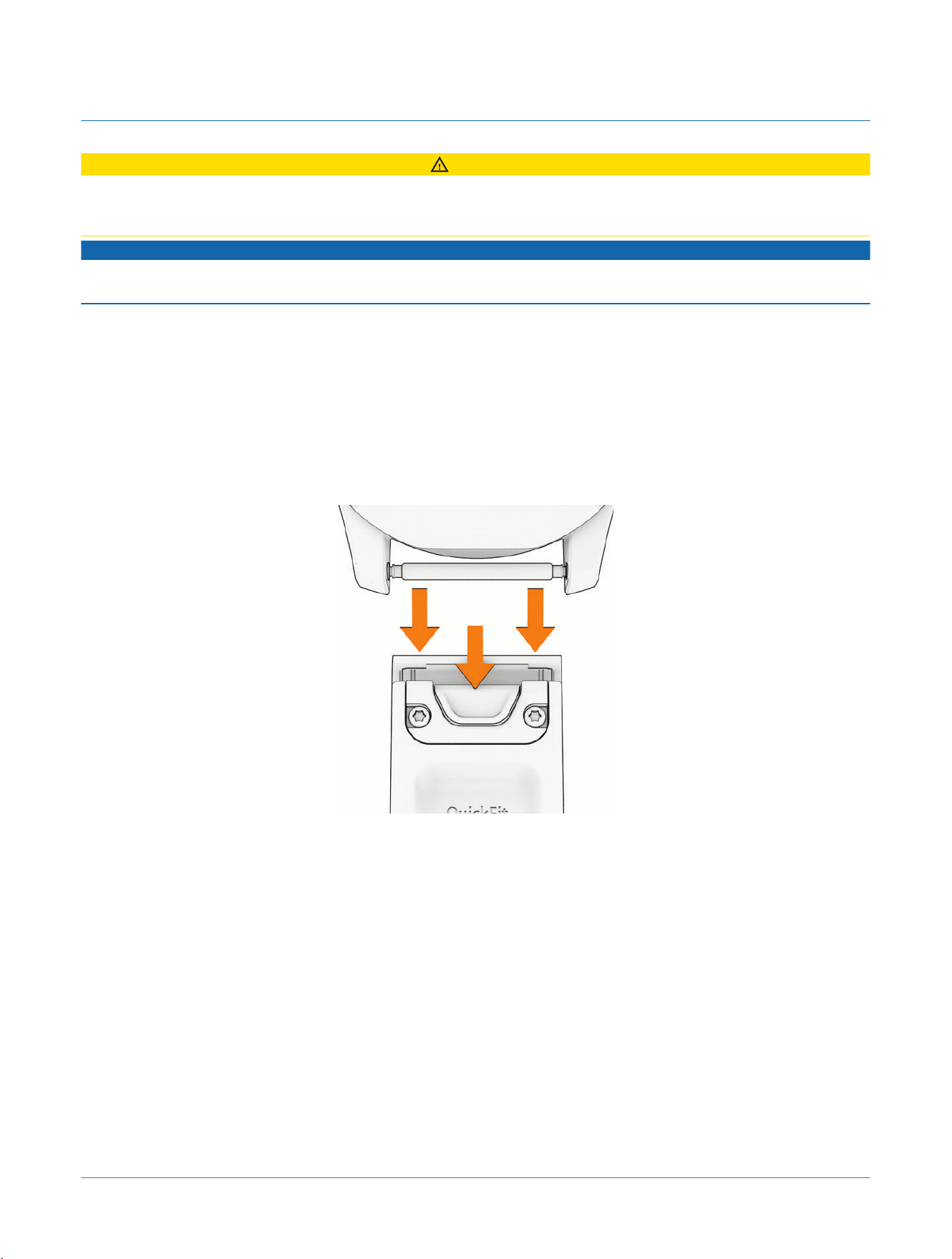
Discontinue use if the device is damaged or if it is stored at a temperature outside the specified storage
temperature range.
Cleaning the Watch
CAUTION
Some users may experience skin irritation after prolonged use of the watch, especially if the user has sensitive
skin or allergies. If you notice any skin irritation, remove the watch and give your skin time to heal. To help
prevent skin irritation, ensure the watch is clean and dry, and do not overtighten the watch on your wrist.
NOTICE
Even small amounts of sweat or moisture can cause corrosion of the electrical contacts when connected to a
charger. Corrosion can prevent charging and data transfer.
TIP: For more information, go to garmin.com/fitandcare.
1 Rinse with water, or use a damp lint-free cloth.
2 Allow the watch to dry completely.
Cleaning the Leather Bands
1 Wipe the leather bands with a dry cloth.
2 Use a leather conditioner to clean the leather bands.
Changing the QuickFit
®
Bands
1 Slide the latch on the QuickFit band, and remove the band from the watch.
2 Align the new band with the watch.
3 Press the band into place.
NOTE: Make sure the band is secure. The latch should close over the watch pin.
4 Repeat steps 1 through 3 to change the other band.
Metal Watch Band Adjustment
If your watch includes a metal watch band, Garmin
®
recommends taking your watch to a jeweler or other
professional to adjust the length of the metal band. For videos about adjusting the metal watch band, see
garmin.com/videos/QuickFitMetalBand.
152
D2™ Mach 2 Series Aviator Smartwatch
Owner's Manual
Device Information
Troubleshooting
Product Updates
Your device automatically checks for updates when paired with a phone using Bluetooth
®
technology or when
connected to Wi‑Fi
®
. You can manually check for updates from the system settings (System Settings, page144).
On your computer, install Garmin Express
™
(garmin.com/express). On your phone, install the Garmin Connect
™
app.
This provides easy access to these services for Garmin
®
devices:
● Software updates
● Map updates
NOTE: Map updates are available through Garmin Express.
● Course updates
● Data uploads to the Garmin Connect app on your phone
● Product registration
Contacting Garmin
®
Aviation Product Support
● Go to aviationsupport.garmin.com for in-country support information.
Getting More Information
You can find more information about this product on the Garmin
®
website.
● Go to support.garmin.com for additional manuals, articles, and software updates.
● Go to buy.garmin.com, or contact your Garmin dealer for information about optional accessories and
replacement parts.
● Go to www.garmin.com/ataccuracy for information about feature accuracy.
This is not a medical device.
My device is in the wrong language
You can change the watch language selection if you have accidentally selected the wrong language.
1 From the watch face, hold .
2 Select .
3 Select .
4 Scroll to the bottom of the list, and press to select the sixth option from the end.
5 Select your language.
Tips for Maximizing the Battery Life
To extend the life of the battery, you can try these tips.
● Change the power mode during an activity (Customizing the Power Mode for an Activity, page141).
● Turn on the battery saver feature from the controls menu (Controls, page70).
● Use the battery glance to view usage details and adjust system settings (Glances, page74).
● Reduce the screen timeout (Display and Brightness Settings, page101).
● Decrease the flashlight brightness and edit the strobe settings (Editing the Custom Flashlight Strobe,
page73).
● Stop using the Always On Display screen timeout option, and select a shorter timeout (Display and
Brightness Settings, page101).
● Reduce the screen brightness (Display and Brightness Settings, page101).
●
On a D2
™
Mach 2 Pro watch with an active inReach
®
service plan, disable the LTE connection or set the LTE
mode to Auto (LTE and Satellite Settings, page111).
● Use UltraTrac GNSS satellite mode for your activity (Satellite Settings, page68).
● Turn off Bluetooth
®
technology when you are not using connected features (Controls, page70).
● When pausing your activity for a longer period of time, use the Resume Later option (Stopping an Activity,
page31).
● Use a watch face that is not updated every second.
For example, use a watch face without a second hand (Customizing the Watch Face, page8).
● Limit the phone notifications the watch displays (Enabling Phone Notifications, page107).
Troubleshooting
D2™ Mach 2 Series Aviator Smartwatch
Owner's Manual
153

● Stop broadcasting heart rate data to paired devices (Broadcasting Heart Rate Data, page120).
● Turn off wrist-based heart rate monitoring (Wrist Heart Rate Monitor Settings, page120).
NOTE: Wrist-based heart rate monitoring is used to calculate vigorous intensity minutes and calories burned.
● Turn on manual pulse oximeter readings (Setting the Pulse Oximeter Mode, page121).
Restarting Your Watch
If your watch stops responding, you can try these steps to restart it.
● Hold until the watch turns off, and hold to turn on the watch.
● Plug the watch into a USB-C
®
charging port for at least 30 seconds, unplug the cable, and plug the cable in
again.
Is my phone compatible with my watch?
The D2
™
Mach 2 watch is compatible with phones using Bluetooth technology.
Go to garmin.com/ble for Bluetooth compatibility information.
Go to garmin.com/voicefunctionality for voice functionality compatibility information.
My phone will not connect to the watch
If your phone will not connect to the watch, you can try these tips.
● Turn off your phone and your watch, and turn them back on again.
● Enable Bluetooth
®
technology on your phone.
●
Update the Garmin Connect
™
app to the latest version.
● Remove your watch from the Garmin Connect app and the Bluetooth settings on your phone to retry the
pairing process.
● If you bought a new phone, remove your watch from the Garmin Connect app on the phone you intend to
stop using.
● Bring your phone within 10m (33ft.) of the watch.
● On your phone, open the Garmin Connect app, and select > Garmin Devices> Add Device to enter pairing
mode.
● From the watch face, hold , and select Watch Settings> Connectivity> Phone> Pair Phone.
Can I use my Bluetooth
®
sensor with my watch?
The watch is compatible with some Bluetooth sensors. The first time you connect a sensor to your Garmin
®
watch, you must pair the watch and sensor. After they are paired, the watch connects to the sensor
automatically when you start an activity and the sensor is active and within range.
1 From the watch face, hold .
2 Select Watch Settings> Connectivity> Sensors & Accessories> Add New.
3 Select an option:
● Select Search All.
● Select your sensor type.
You can customize the optional data fields (Customizing the Data Screens, page63).
My headphones will not connect to the watch
If your Bluetooth
®
headphones were previously connected to your phone, they may connect to your phone
automatically instead of connecting to your watch. You can try these tips.
● Turn off Bluetooth technology on your phone.
Refer to the owner's manual for your phone for more information.
● Stay 10m (33ft.) away from your phone while connecting your headphones to your watch.
● Pair your headphones with your watch (Connecting Bluetooth
®
Headphones, page137).
My music cuts out or my headphones won't stay connected
When using a D2
™
Mach 2 watch connected to Bluetooth
®
headphones, the signal is strongest when there is a
direct line of sight between the watch and the antenna on the headphones.
● If the signal passes through your body, you may experience signal loss or your headphones may become
disconnected.
154
D2™ Mach 2 Series Aviator Smartwatch
Owner's Manual
Troubleshooting
● If you wear your D2 Mach 2 watch on your left wrist, you should make sure the headphone's Bluetooth
antenna is on your left ear.
● Since headphones vary by model, you can try wearing the watch on your other wrist.
● If you are using metal or leather watch bands, you can switch to silicone watch bands to improve signal
strength.
The speaker or microphone is quiet after water exposure
After swimming, bathing, or exposing the watch to water, residual water in the speaker and microphone ports
may cause the watch to be temporarily quieter than usual. The water does not cause harm to the watch, but it
may take up to 24 hours for the water to evaporate. Follow the device care instructions when you clean your
watch after water exposure (Device Care, page151). You can use the water ejection feature to help remove
water from the ports (Controls, page70).
How can I undo a lap button press?
During an activity, you might accidently press the lap button. In most cases, appears on the screen next to
a button, and you will have a few seconds to press the button and discard the most recent lap or sport change.
The lap undo feature is available for activities that support manual laps, manual sport changes, and automatic
sport changes. The lap undo feature is not available for activities that trigger automatic laps, runs, rests, or
pauses, such as gym activities, pool swimming, and workouts.
Diving
Resetting Your Tissue Load
You can reset your current tissue load saved on the dive computer. You should reset your tissue load only if you
do not plan to use the dive computer again in the near future. This can be useful for dive shops that provide dive
computers for rent.
1 From the watch face, hold .
2 Select Watch Settings> System> Restore & Reset> Reset> Reset Dive Computer.
Resetting the Surface Pressure
The device automatically determines the surface pressure using the barometric altimeter. Large pressure
changes, such as during a flight, can cause the dive computer to automatically start a dive activity. If the dive
computer starts a dive activity incorrectly, you can reset the surface pressure by connecting the dive computer
to a computer. If you do not have access to a computer, you can reset the surface pressure manually.
1 Hold until the dive computer turns off.
2 Hold to turn on the dive computer.
3 When the product logo appears, hold until you are prompted to reset the surface pressure.
Acquiring Satellite Signals
The device may need a clear view of the sky to acquire satellite signals. The time and date are set automatically
based on the GPS position.
TIP: For more information about GPS, go to garmin.com/aboutGPS.
1 Go outdoors to an open area.
The front of the device should be oriented toward the sky.
2 Wait while the device locates satellites.
It may take 30–60 seconds to locate satellite signals.
Improving GPS Satellite Reception
● Frequently sync the device to your Garmin
®
account:
●
Connect your device to a computer using the USB cable and the Garmin Express
™
application.
●
Sync your device to the Garmin Connect
™
app using your Bluetooth
®
enabled phone.
● Connect your device to your Garmin account using a Wi‑Fi
®
wireless network.
While connected to your Garmin account, the device downloads several days of satellite data, allowing it to
quickly locate satellite signals.
● Take your device outside to an open area away from tall buildings and trees.
● Remain stationary for a few minutes.
Troubleshooting
D2™ Mach 2 Series Aviator Smartwatch
Owner's Manual
155
The heart rate on my watch is not accurate
For more information on your heart rate sensor, go to garmin.com/heartrate.
The activity temperature reading is not accurate
Your body temperature affects the temperature reading for the internal temperature sensor. To get the most
accurate temperature reading, you should remove the watch from your wrist and wait 20 to 30 minutes.
You can also use an optional tempe
™
external temperature sensor to view accurate ambient temperature
readings while wearing the watch.
Exiting Demo Mode
Demo mode shows a preview of features on your watch.
1 Quickly press eight times.
2 Select .
Activity Tracking
For more information about activity tracking accuracy, go to garmin.com/ataccuracy.
My step count does not seem accurate
If your step count does not seem accurate, you can try these tips.
● Wear the watch on your non-dominant wrist.
● Carry the watch in your pocket when pushing a stroller or lawn mower.
● Carry the watch in your pocket when actively using your hands or arms only.
NOTE: The watch may interpret some repetitive motions, such as washing dishes, folding laundry, or
clapping your hands, as steps.
The step counts on my watch and my Garmin Connect
™
account don't match
The step count on your Garmin Connect account updates when you sync your watch.
1 Select an option:
●
Sync your step count with the Garmin Express
™
application (Using Garmin Connect
™
on Your Computer,
page114).
●
Sync your step count with the Garmin Connect app (Using the Garmin Connect
™
App, page113).
2 Wait while your data syncs.
Syncing can take several minutes.
NOTE: Refreshing the Garmin Connect app or the Garmin Express application does not sync your data or
update your step count.
The floors climbed amount does not seem accurate
Your watch uses an internal barometer to measure elevation changes as you climb floors. A floor climbed is
equal to 3m (10ft.).
● Avoid holding handrails or skipping steps while climbing stairs.
● In windy environments, cover the watch with your sleeve or jacket as strong gusts can cause erratic
readings.
156
D2™ Mach 2 Series Aviator Smartwatch
Owner's Manual
Troubleshooting
Appendix
Color Gauges and Running Dynamics Data
The running dynamics screen displays a color gauge for the primary metric. You can customize the primary
metric. The color gauge shows you how your running dynamics data compare to those of other runners. The
color zones are based on percentiles.
Garmin
®
has researched many runners of all different levels. The data values in the red or orange zones are
typical for less experienced or slower runners. The data values in the green, blue, or purple zones are typical
for more experienced or faster runners. More experienced runners tend to exhibit shorter ground contact times,
lower vertical oscillation, lower vertical ratio, lower step speed loss, and higher cadence than less experienced
runners. However, taller runners typically have slightly slower cadences, longer strides, and slightly higher
vertical oscillation. Vertical ratio is your vertical oscillation divided by stride length. It is not correlated with
height.
Go to garmin.com/runningdynamics for more information on running dynamics. For additional theories and
interpretations of running dynamics data, you can search reputable running publications and websites.
Color Zone Percentile in Zone Cadence Range
Ground Contact
Time Range
Step Speed Loss Range
Purple
>95 >185spm <218ms <8.2 cm/s
Blue
70–95 174–185spm 218–248ms 8.2-12.1 cm/s
Green
30–69 163–173spm 249–277ms 12.2-19.7 cm/s
Orange
5–29 151–162spm 278–308ms 19.8-25.9 cm/s
Red
<5 <151spm >308ms >25.9 cm/s
Ground Contact Time Balance Data
Ground contact time balance measures your running symmetry and appears as a percentage of your total
ground contact time. For example, 51.3% with an arrow pointing left indicates the runner is spending more time
on the ground when on the left foot. If your data screen displays both numbers, for example 48–52, 48% is the
left foot and 52% is the right foot.
Color Zone
Red Orange Green Orange Red
Symmetry Poor Fair Good Fair Poor
Percent of Other Runners 5% 25% 40% 25% 5%
Ground Contact Time Balance >52.2%L 50.8–52.2%L 50.7%L–50.7%R 50.8–52.2%R >52.2%R
While developing and testing running dynamics, the Garmin
®
team found correlations between injuries and
greater imbalances with certain runners. For many runners, ground contact time balance tends to deviate
further from 50–50 when running up or down hills. Most running coaches agree that a symmetrical running
form is good. Elite runners tend to have quick and balanced strides.
You can watch the gauge or data field during your run or view the summary on your Garmin Connect
™
account after your run. As with the other running dynamics data, ground contact time balance is a quantitative
measurement to help you learn about your running form.
Vertical Oscillation and Vertical Ratio Data
The data ranges for vertical oscillation and vertical ratio are slightly different depending on the sensor and
whether it is positioned at the chest (HRM 600, HRM-Fit
™
, or HRM-Pro
™
series accessories) or at the waist
(Running Dynamics Pod accessory).
Color Zone
Percentile in
Zone
Vertical Oscillation
Range at Chest
Vertical Oscillation
Range at Waist
Vertical Ratio at
Chest
Vertical Ratio at
Waist
Purple
>95 <6.4cm <6.8cm <6.1% <6.5%
Blue
70–95 6.4–8.1cm 6.8–8.9cm 6.1–7.4% 6.5–8.3%
Green
30–69 8.2–9.7cm 9.0–10.9cm 7.5–8.6% 8.4–10.0%
Appendix D2™ Mach 2 Series Aviator Smartwatch
Owner's Manual
157
Color Zone
Percentile in
Zone
Vertical Oscillation
Range at Chest
Vertical Oscillation
Range at Waist
Vertical Ratio at
Chest
Vertical Ratio at
Waist
Orange
5–29 9.8–11.5cm 11.0–13.0cm 8.7–10.1% 10.1–11.9%
Red
<5 >11.5cm >13.0cm >10.1% >11.9%
VO2 Max. Standard Ratings
These tables include standardized classifications for VO2 max. estimates by age and sex.
Males Percentile 20–29 30–39 40–49 50–59 60–69 70–79
Superior 95 55.4 54 52.5 48.9 45.7 42.1
Excellent 80 51.1 48.3 46.4 43.4 39.5 36.7
Good 60 45.4 44 42.4 39.2 35.5 32.3
Fair 40 41.7 40.5 38.5 35.6 32.3 29.4
Poor 0–40 <41.7 <40.5 <38.5 <35.6 <32.3 <29.4
Females Percentile 20–29 30–39 40–49 50–59 60–69 70–79
Superior 95 49.6 47.4 45.3 41.1 37.8 36.7
Excellent 80 43.9 42.4 39.7 36.7 33 30.9
Good 60 39.5 37.8 36.3 33 30 28.1
Fair 40 36.1 34.4 33 30.1 27.5 25.9
Poor 0–40 <36.1 <34.4 <33 <30.1 <27.5 <25.9
Data reprinted with permission from The Cooper Institute
®
. For more information, go to
www.CooperInstitute.org.
Running Economy Ratings
Color Zone Rating Males Females
Pink
Elite <185 <190
Purple
Superior 185 to 189 190 to 194
Blue
Expert 190 to 194 195 to 199
Green
Well Trained 195 to 204 200 to 209
Yellow
Trained 205 to 214 210 to 219
Orange
Intermediate 215 to 224 220 to 229
Red
Recreational > 224 > 229
FTP Ratings
These tables include classifications for functional threshold power (FTP) estimates by sex.
Males Watts per Kilogram (W/kg)
Superior 5.05 and greater
Excellent From 3.93 to 5.04
Good From 2.79 to 3.92
Fair From 2.23 to 2.78
Untrained Less than 2.23
Females Watts per Kilogram (W/kg)
Superior 4.30 and greater
Excellent From 3.33 to 4.29
Good From 2.36 to 3.32
158 D2™ Mach 2 Series Aviator Smartwatch
Owner's Manual
Appendix
Females Watts per Kilogram (W/kg)
Fair From 1.90 to 2.35
Untrained Less than 1.90
FTP ratings are based on research by Hunter Allen and Andrew Coggan, PhD, Training and Racing with a Power
Meter (Boulder, CO: VeloPress, 2010).
Endurance Score Ratings
These tables include classifications for endurance score estimates by age and sex.
Males Recreational Intermediate Trained Well Trained Expert Superior Elite
18-20 Less than 4999 5000-5699 5700-6299 6300-6999 7000-7599 7600-8299 8300 and greater
21-39 Less than 5099 5100-5799 5800-6599 6600-7299 7300-8099 8100-8799 8800 and greater
40-44 Less than 5099 5100-5799 5800-6499 6500-7199 7200-7899 7900-8599 8600 and greater
45-49 Less than 4999 5000-5699 5700-6399 6400-6999 7000-7699 7700-8399 8400 and greater
50-54 Less than 4899 4900-5499 5500-6099 6100-6799 6800-7399 7400-7999 8000 and greater
55-59 Less than 4599 4600-5099 5100-5699 5700-6199 6200-6799 6800-7299 7300 and greater
60-64 Less than 4299 4300-4799 4800-5299 5300-5699 5700-6199 6200-6699 6700 and greater
65-69 Less than 4099 4100-4499 4500-4899 4900-5399 5400-5799 5800-6199 6200 and greater
70-74 Less than 3799 3800-4199 4200-4599 4600-4899 4900-5299 5300-5699 5700 and greater
75-80 Less than 3599 3600-3899 3900-4299 4300-4599 4600-4999 5000-5299 5300 and greater
80 and older Less than 3299 3300-3599 3600-3999 4000-4299 4300-4699 4700-4999 5000 and greater
Females Recreational Intermediate Trained Well Trained Expert Superior Elite
18-20 Less than 4599 4600-5099 5100-5499 5500-5999 6000-6399 6400-6899 6900 and greater
21-39 Less than 4699 4700-5199 5200-5699 5700-6299 6300-6799 6800-7299 7300 and greater
40-44 Less than 4699 4700-5199 5200-5699 5700-6199 6200-6699 6700-7199 7200 and greater
45-49 Less than 4599 4600-5099 5100-5599 5600-6099 6100-6599 6600-7099 7100 and greater
50-54 Less than 4499 4500-4999 5000-5399 5400-5899 5900-6299 6300-6799 6800 and greater
55-59 Less than 4299 4300-4699 4700-5099 5100-5599 5600-5099 6000-6399 6400 and greater
60-64 Less than 4099 4100-4499 4500-4899 4900-5299 5300-5699 5700-6099 6100 and greater
65-69 Less than 3799 3800-4199 4200-4599 4600-4899 4900-5299 5300-5699 5700 and greater
70-74 Less than 3699 3700-4099 4100-4399 4400-4799 4800-5099 5100-5499 5500 and greater
75-80 Less than 3499 3500-3799 3800-4199 4200-4499 4500-4899 4900-5199 5200 and greater
80 and older Less than 3199 3200-3499 3500-3799 3800-4099 4100-4399 4400-4699 4700 and greater
These estimates are provided and supported by Firstbeat Analytics
™
.
Wheel Size and Circumference
When used for cycling, your speed sensor automatically detects your wheel size. If necessary, you can manually
enter your wheel circumference in the speed sensor settings.
The tire size for cycling is marked on both sides of the tire. You can measure the circumference of your wheel or
use one of the calculators available on the internet.
Appendix D2™ Mach 2 Series Aviator Smartwatch
Owner's Manual
159
Data Fields
WARNING
The aviation data fields are not intended to provide primary flight information and are to be used for
supplemental purposes only.
NOTE: Not all data fields are available for all activity types. Some data fields require ANT+
®
or Bluetooth
®
accessories to display data. Some data fields appear in more than one category on the watch.
TIP: You can also customize the data fields from the watch settings in the Garmin Connect
™
app.
Altitude Fields
Name Description
ALT AGL The current altitude above ground level.
Auto Altitude The current altitude based on either the BARO Altitude or the GPS Altitude, whichever is calculated to
be more relevant.
BARO Altitude The current altitude based on the barometric altimeter and any manual barometric pressure adjust
ments.
Baro Setting The current barometric altimeter setting. For example, based on the nearest METAR location or manual
adjustment.
Cabin Altitude The altitude of the air pressure inside an airplane's cabin.
Glide Ratio In a flying activity, the horizontal distance an aircraft travels forward for every unit of altitude it loses.
GPS Altitude The current altitude according to your GPS position.
Cadence Fields
Name Description
Average Cadence Cycling. The average cadence for the current activity.
Average Cadence Running. The average cadence for the current activity.
Cadence Cycling. The number of revolutions of the crank arm. Your device must be connected to a cadence
accessory for this data to appear.
Cadence Running. The steps per minute (right and left).
Lap Cadence Cycling. The average cadence for the current lap.
Lap Cadence Running. The average cadence for the current lap.
Last Lap Cadence Cycling. The average cadence for the last completed lap.
Last Lap Cadence Running. The average cadence for the last completed lap.
Charts
Name Description
Altitude Chart A chart showing your altitude throughout the flying activity.
Barometer Chart A chart showing the barometric pressure over time.
Elevation Chart A chart showing the elevation over time.
Ground Speed Chart A chart showing your ground speed throughout the flying activity.
Heart Rate Chart A chart showing your heart rate throughout the activity.
Pace Chart A chart showing your pace throughout the activity.
Power Chart A chart showing your power throughout the activity.
Speed Chart A chart showing your speed throughout the activity.
Compass Fields
Name Description
Bearing to NRST The direction from your current location to a the nearest aviation location. You must be navigat
ing for this data to appear.
Bearing to Waypoint The direction from your current location to a waypoint. You must be navigating for this data to
appear.
Compass Heading The direction you are moving based on the compass.
160 D2™ Mach 2 Series Aviator Smartwatch
Owner's Manual
Data Fields
Name Description
Desired Track The desired path in degrees to the selected aviation location. You must be navigating for this
data to appear.
GPS Heading The direction you are moving based on GPS.
Heading The direction you are moving.
Track The path of an aircraft over the ground, influenced by wind.
Distance Fields
Name Description
Distance The distance traveled for the current track or activity.
Distance to NRST The distance to the nearest aviation location.
Int. Distance The distance traveled for the current interval.
Lap Distance The distance traveled for the current lap.
Last Lap Distance The distance traveled for the last completed lap.
Nautical Distance The distance traveled in nautical meters or nautical feet.
Diving Fields
Name Description
Ascent Rate The current rate of ascent toward the surface.
CNS Your current central nervous system oxygen toxicity percentage.
Current Gas PO2 The partial pressure of oxygen (PO2) of the diluent gas during a closed-circuit rebreather (CCR) dive.
Dive Number The number of dives you have completed.
Last Dive Depth The maximum depth achieved during the last dive.
Last Dive Time The amount of time you spent below the surface during the last dive.
Maximum Depth The maximum depth descended during a dive.
OTU Your current oxygen toxicity units.
Surface Time The amount of time elapsed since surfacing from a dive.
Time to Surface The amount of time required to safely ascend to the surface.
Elevation Fields
Name Description
Average Ascent The average vertical distance of ascent since the last reset.
Average Descent The average vertical distance of descent since the last reset.
Elevation The altitude of your current location above or below sea level.
Glide Ratio The ratio of horizontal distance traveled to the change in vertical distance.
GPS Elevation The altitude of your current location using GPS.
Grade The calculation of rise (elevation) over run (distance). For example, if for every 3m (10ft.) you
climb you travel 60m (200ft.), the grade is 5%.
Lap Ascent The vertical distance of ascent for the current lap.
Lap Descent The vertical distance of descent for the current lap.
Last Lap Ascent The vertical distance of ascent for the last completed lap.
Last Lap Descent The vertical distance of descent for the last completed lap.
Maximum Ascent The maximum rate of ascent in feet per minute or meters per minute since the last reset.
Maximum Descent The maximum rate of descent in meters per minute or feet per minute since the last reset.
Maximum Elevation The highest elevation reached since the last reset.
Minimum Elevation The lowest elevation reached since the last reset.
Total Ascent The total elevation distance ascended since the last reset.
Total Descent The total elevation distance descended since the last reset.
Data Fields D2™ Mach 2 Series Aviator Smartwatch
Owner's Manual
161
Floors Fields
Name Description
Floors Climbed The total number of floors climbed up for the day.
Floors Descended The total number of floors climbed down for the day.
Floors per Minute The number of floors climbed up per minute.
Force Fields
Name Description
3s Force The 3-second moving average of force applied to the pedal platforms, in Newtons.
10s Force The 10-second moving average of force applied to the pedal platforms, in Newtons.
30s Force The 30-second moving average of force applied to the pedal platforms, in Newtons.
Avg Force The average force applied to the pedal platforms during the activity, in Newtons.
Force The force applied to the pedal platforms, in Newtons.
Lap Force The average force applied to the pedal platforms during the current lap, in Newtons.
Lap Norm. Force The normalized force applied to the pedal platforms during the current lap, in Newtons.
Last Lap Force The average force applied to the pedal platforms during the previous lap, in Newtons.
Last Lap Norm. Force The normalized force applied to the pedal platforms during the previous lap, in Newtons.
Max. Force The maximum force applied to the pedal platforms during the activity, in Newtons.
Max. Lap Force The maximum force applied to the pedal platforms during the current lap, in Newtons.
Normalized Force The normalized force applied to the pedal platforms, in Newtons.
Gears
Name Description
Di2 Battery The remaining battery power of a Di2 sensor.
Front The front bike gear from a gear position sensor.
Gear Battery The battery status of a gear position sensor.
Gear Combo The current gear combination from a gear position sensor.
Gears The front and rear bike gears from a gear position sensor.
Gear Ratio The number of teeth on the front and rear bike gears, as detected by a gear position sensor.
Rear The rear bike gear from a gear position sensor.
Graphical
Name Description
Cadence Gauge Running. A color gauge showing your current cadence range.
Compass Gauge The direction you are moving based on the compass.
GCT Balance Gauge A color gauge showing the left/right balance of ground contact time while running.
Ground Contact Time Gauge A color gauge showing the amount of time in each step that you spend on the ground
while running, measured in milliseconds.
Heart Rate Gauge A color gauge showing your current heart rate zone.
Heart Rate Zones Ratio A color gauge showing the ratio of time spent in each heart rate zone.
PacePro Gauge Running. Your current split pace and your target split pace.
Power Gauge A color gauge showing your current power zone.
Stamina Gauge (Dist.) A gauge showing your current stamina distance remaining.
Stamina Gauge (Time) A gauge showing your current stamina time remaining.
Step Speed Loss Gauge A color gauge showing your current step speed loss while running.
Step Speed Loss % Gauge A color gauge showing your average step speed loss percent.
Total Ascent/Descent Gauge The total elevation distances ascended and descended during the activity or since the
last reset.
162 D2™ Mach 2 Series Aviator Smartwatch
Owner's Manual
Data Fields
Name Description
Training Effect Gauge The impact of the current activity on your aerobic and anaerobic fitness levels.
Vertical Oscillation Gauge A color gauge showing the amount of bounce while you are running.
Vertical Ratio Gauge A color gauge showing the ratio of vertical oscillation to stride length.
Heart Rate Fields
Name Description
% Heart Rate Reserve The percentage of heart rate reserve (maximum heart rate minus resting heart rate).
Aerobic Training Effect The impact of the current activity on your aerobic fitness level.
Anaerobic Training Effect The impact of the current activity on your anaerobic fitness level.
Avg. %HRR The average percentage of heart rate reserve (maximum heart rate minus resting heart rate)
for the current activity.
Average HR The average heart rate for the current activity.
Avg. HR %Max. The average percentage of maximum heart rate for the current activity.
Heart Rate Your heart rate in beats per minute (bpm). Your device must have wrist-based heart rate or
be connected to a compatible heart rate monitor.
HR %Max. The percentage of maximum heart rate.
HR Zone The current range of your heart rate (1 to 5). The default zones are based on your user
profile and maximum heart rate (220 minus your age).
Int. Avg. %HRR The average percentage of heart rate reserve (maximum heart rate minus resting heart rate)
for the current swim interval.
Int. Avg. %Max. The average percentage of maximum heart rate for the current swim interval.
Int. Avg. HR The average heart rate for the current swim interval.
Int. Max. %HRR The maximum percentage of heart rate reserve (maximum heart rate minus resting heart
rate) for the current swim interval.
Int. Max. %Max. The maximum percentage of maximum heart rate for the current swim interval.
Int. Max. HR The maximum heart rate for the current swim interval.
Lap %HRR The average percentage of heart rate reserve (maximum heart rate minus resting heart rate)
for the current lap.
Lap HR The average heart rate for the current lap.
Lap HR %Max. The average percentage of maximum heart rate for the current lap.
Last Lap %HRR The average percentage of heart rate reserve (maximum heart rate minus resting heart rate)
for the last completed lap.
Last Lap HR The average heart rate for the last completed lap.
L. Lap HR %Max. The average percentage of maximum heart rate for the last completed lap.
Time in Zone The time elapsed in each heart rate zone.
Lengths Fields
Name Description
Interval Lengths The number of pool lengths completed during the current interval.
Lengths The number of pool lengths completed during the current activity.
Navigation Fields
Name Description
Bearing The direction from your current location to a destination. You must be navigating for this data to
appear.
Course The direction from your starting location to a destination. Course can be viewed as a planned or
set route. You must be navigating for this data to appear.
Crosstrack The horizontal distance between an aircraft's actual position and its intended flight path. You
must be navigating for this data to appear.
Data Fields D2™ Mach 2 Series Aviator Smartwatch
Owner's Manual
163
Name Description
Destination ETA The estimated time of day when you will reach the final destination (adjusted to the local time of
the destination). You must be navigating for this data to appear.
Destination ETE The estimated time remaining until you reach the final destination. You must be navigating for
this data to appear.
Destination Location The position of your final destination.
Destination
Waypoint
The last point on the route to the destination. You must be navigating for this data to appear.
Distance Remaining The remaining distance to the final destination. You must be navigating for this data to appear.
Distance To Next The remaining distance to the next waypoint on the route. You must be navigating for this data
to appear.
Distance to
Waypoint
The remaining distance to the next waypoint on the route. You must be navigating for this data
to appear.
Estimated Total
Distance
The estimated distance from the start to the final destination. You must be navigating for this
data to appear.
ETA at Next The estimated time of day when you will reach the next waypoint on the route (adjusted to the
local time of the waypoint). You must be navigating for this data to appear.
ETA The estimated time of day when you will reach the final destination (adjusted to the local time of
the destination). You must be navigating for this data to appear.
ETE The estimated time remaining until you reach the final destination. You must be navigating for
this data to appear.
Glide Ratio to Desti
nation
The glide ratio required to descend from your current position to the destination elevation. You
must be navigating for this data to appear.
Lat/Lon The current position in latitude and longitude regardless of the selected position format setting.
Location The current position using the selected position format setting.
Next Fork
The distance to the next fork on a trail based on the NextFork
™
map guide.
Next Waypoint The next point on the route. You must be navigating for this data to appear.
NRST Airport The airport identifier of the current nearest airport.
Off Course The distance to the left or right by which you have strayed from the original path of travel. You
must be navigating for this data to appear.
Time to Next The estimated time remaining before you reach the next waypoint in the route. You must be
navigating for this data to appear.
Velocity Made Good The speed at which you are closing on a destination along a route. You must be navigating for
this data to appear.
Vertical Dist. to Dest. The elevation distance between your current position and the final destination. You must be
navigating for this data to appear.
Vertical Speed to
Target
The rate of ascent or descent to a predetermined altitude. You must be navigating for this data
to appear.
Waypoint ETA The estimated time of day when you will reach the next waypoint on the route (adjusted to the
local time of the waypoint). You must be navigating for this data to appear.
Waypoint ETE The estimated time remaining until you reach the next point in your route. You must be navigat
ing for this data to appear.
Other Fields
Name Description
Active Calories The calories burned during the activity.
Ambient Pressure The uncalibrated environmental pressure.
Barometric Pressure The current calibrated environmental pressure.
Battery Hours The number of hours remaining before the battery power is depleted.
Battery Level The remaining battery power.
COG The actual direction of travel, regardless of the course steered and temporary variations in
heading.
164 D2™ Mach 2 Series Aviator Smartwatch
Owner's Manual
Data Fields
Name Description
Destination LCL The local time at the arrival airport.
Distance to Start Line The remaining distance to the race starting line. You must be navigating for this data to
appear.
eBike Battery The remaining battery power of an ebike.
eBike Range The estimated remaining distance the ebike can provide assistance.
Flow The measurement of how consistently you maintain speed and smoothness through turns in
the current activity.
GPS The strength of the GPS satellite signal.
Grit The measurement of difficulty for the current activity based on elevation, gradient, and rapid
changes in direction.
Intervals The number of intervals completed for the current activity.
Lap Flow The overall flow score for the current lap.
Lap Grit The overall grit score for the current lap.
Laps The number of laps completed for the current activity.
Last Round Reps The number of repetitions in the last round of the activity.
Lift The angle of lift during a sailing activity.
Load The training load for the current activity. Training load is the amount of excess post-exercise
oxygen consumption (EPOC), which indicates the strenuousness of your workout.
LTE The strength of the LTE signal.
Performance Condition The performance condition score is a real-time assessment of your ability to perform.
Pulse Ox Your current blood oxygen saturation percentage (SpO2) according to the pulse oximeter.
Reps During a gym activity, the number of repetitions in a workout set.
Respiration Rate Your respiration rate in breaths per minute (brpm).
Rounds The number of exercise groups performed in an activity, such as jump rope.
Steps The number of steps taken during the current activity.
Stress Your current stress level.
Sunrise The time of sunrise based on your GPS position.
Sunset The time of sunset based on your GPS position.
Tack Assist A gauge to help you determine if your boat is being lifted or headed.
Time of Day The time of day based on your current location and time settings (format, time zone, daylight
saving time).
Total Calories The amount of total calories burned for the day.
UTC Time The current coordinated universal time (UTC).
Pace Fields
Name Description
500m Pace The current rowing pace per 500 meters.
Average 500m Pace The average rowing pace per 500meters for the current activity.
Average Pace The average pace for the current activity.
Grade Adjusted Pace The average pace adjusted by the steepness of the terrain.
Int. Pace The average pace for the current interval.
Lap 500m Pace The average rowing pace per 500meters for the current lap.
Lap Pace The average pace for the current lap.
Last Lap 500m Pace The average rowing pace per 500meters for the last lap.
Last Lap Pace The average pace for the last completed lap.
Last Len. Pace The average pace for your last completed pool length.
Pace The current pace.
Data Fields D2™ Mach 2 Series Aviator Smartwatch
Owner's Manual
165
PacePro Fields
Name Description
Next Split Distance Running. The total distance of the next split.
Next Split Target Pace Running. The target pace for the next split.
Split Distance Running. The total distance of the current split.
Split Distance Remaining Running. The remaining distance of the current split.
Split Pace Running. The pace for the current split.
Split Target Pace Running. The target pace for the current split.
Power Fields
Name Description
% FTP The current power output as a percentage of functional threshold power.
3s Avg. Balance The 3-second moving average of the left/right power balance.
3s Power The 3-second moving average of power output.
3s Power to Weight The 3-second average power measured in watts per kilogram for the current activity.
10s Avg. Balance The 10-second moving average of the left/right power balance.
10s Power The 10-second moving average of power output.
10s Power to Weight The 10-second average power measured in watts per kilogram for the current activity.
30s Avg. Balance The 30-second moving average of the left/right power balance.
30s Power The 30-second moving average of power output.
30s Power to Weight The 30-second average power measured in watts per kilogram for the current activity.
Avg. Balance The average left/right power balance for the current activity.
Average Left PP The average power phase angle for the left leg for the current activity.
Avg. Power The average power output for the current activity.
Avg. Right PP The average power phase angle for the right leg for the current activity.
Avg. Left PPP The average power phase peak angle for the left leg for the current activity.
Avg. PCO The average platform center offset for the current activity.
Avg. Power to Weight The average power measured in watts per kilogram for the current activity.
Avg. Right PPP The average power phase peak angle for the right leg for the current activity.
Balance The current left/right power balance.
Intensity Factor
The Intensity Factor
™
for the current activity.
Lap Balance The average left/right power balance for the current lap.
Lap Left PPP The average power phase peak angle for the left leg for the current lap.
Lap Left PP The average power phase angle for the left leg for the current lap.
Lap Max. Power The top power output for the current lap.
Lap NP
The average Normalized Power
™
for the current lap.
Lap PCO The average platform center offset for the current lap.
Lap Power The average power output for the current lap.
Lap Power to Weight The average power measured in watts per kilogram for the current lap.
Lap Right PPP The average power phase peak angle for the right leg for the current lap.
Lap Right PP The average power phase angle for the right leg for the current lap.
Last Lap Max. Power The top power output for the last completed lap.
Last Lap NP The average Normalized Power for the last completed lap.
Last Lap Power The average power output for the last completed lap.
Left PPP The current power phase peak angle for the left leg. Power phase peak is the angle range over
which the rider produces the peak portion of the driving force.
166 D2™ Mach 2 Series Aviator Smartwatch
Owner's Manual
Data Fields
Name Description
Left PP The current power phase angle for the left leg. Power phase is the pedal stroke region where
positive power is produced.
Max. Power The top power output for the current activity.
NP The Normalized Power for the current activity.
Pedal Smooth. The measurement of how evenly a rider is applying force to the pedals throughout each pedal
stroke.
PCO The platform center offset. Platform center offset is the location on the pedal platform where
force is applied.
Power The current power output in watts. For skiing activities, your device must be connected to a
compatible heart rate monitor.
Power to Weight The current power measured in watts per kilogram.
Power Zone The current range of power output based on your FTP or custom settings.
Right PPP The current power phase peak angle for the right leg. Power phase peak is the angle range over
which the rider produces the peak portion of the driving force.
Right PP The current power phase angle for the right leg. Power phase is the pedal stroke region where
positive power is produced.
Time in Zone The time elapsed in each power zone.
Time Seat. The time spent seated while pedaling for the current activity.
Time Seat. Lap The time spent seated while pedaling for the current lap.
Time Stand. The time spent standing while pedaling for the current activity.
Time Stand. Lap The time spent standing while pedaling for the current lap.
TSS
The Training Stress Score
™
for the current activity.
Torque Eff. The measurement of how efficiently a rider is pedaling.
Work The accumulated work performed (power output) in kilojoules.
Rest Fields
Name Description
Repeat On The timer for the last interval plus the current rest (pool swimming).
Rest Timer The timer for the current rest (pool swimming).
Run Dynamics
Name Description
Average GCT Balance The average ground contact time balance for the current session.
Average Ground Contact Time The average amount of ground contact time for the current activity.
Average Step Speed Loss The average measure of step speed loss for the current activity.
Avg. Step Speed Loss Percent The average ratio of step speed loss over speed for the current activity.
Average Stride Length The average stride length for the current session.
Average Vertical Oscillation The average amount of vertical oscillation for the current activity.
Average Vertical Ratio The average ratio of vertical oscillation to stride length for the current session.
GCT Balance The left/right balance of ground contact time while running.
Ground Contact Time The amount of time in each step that you spend on the ground while running, measured
in milliseconds. Ground contact time is not calculated while walking.
Lap GCT Balance The average ground contact time balance for the current lap.
Lap Ground Contact Time The average amount of ground contact time for the current lap.
Lap Step Speed Loss The average step speed loss for the current lap.
Lap Step Speed Loss Percent The average ratio of step speed loss over speed for the current lap.
Lap Stride Length The average stride length for the current lap.
Lap Vertical Oscillation The average amount of vertical oscillation for the current lap.
Data Fields D2™ Mach 2 Series Aviator Smartwatch
Owner's Manual
167
Name Description
Lap Vertical Ratio The average ratio of vertical oscillation to stride length for the current lap.
Step Speed Loss The measure of step speed loss in centimeters per second while running.
Step Speed Loss Percent The ratio of step speed loss over speed while running.
Stride Length The length of your stride from one footfall to the next, measured in meters.
Vertical Oscillation The amount of bounce while you are running. The vertical motion of your torso,
measured in centimeters for each step.
Vertical Ratio The ratio of vertical oscillation to stride length.
Speed Fields
Name Description
Avg. Moving Speed The average speed when moving for the current activity.
Avg. Overall Speed The average speed for the current activity, including both moving and stopped speeds.
Average Speed The average speed for the current activity.
Avg. SOG The average speed of travel for the current activity, regardless of the course steered and
temporary variations in heading.
Ground Speed Your current speed based on changes in GPS position.
Indicated Airspeed The airspeed of an aircraft as shown on the aircraft's instruments. You must be connected to the
avionics using the Garmin Pilot
™
app for this data to appear.
Lap SOG The average speed of travel for the current lap, regardless of the course steered and temporary
variations in heading.
Lap Speed The average speed for the current lap.
Last Lap SOG The average speed of travel for the last completed lap, regardless of the course steered and
temporary variations in heading.
Last Lap Speed The average speed for the last completed lap.
Max. SOG The maximum speed of travel for the current activity, regardless of the course steered and
temporary variations in heading.
Maximum Speed The top speed for the current activity.
Speed The current rate of travel.
SOG The actual speed of travel, regardless of the course steered and temporary variations in heading.
Vertical Speed The rate of ascent or descent over time.
Stamina Fields
Name Description
Stamina The current remaining stamina.
Distance Remaining The current stamina distance remaining at the current effort.
Stamina Potential The remaining potential stamina.
Time Remaining The current stamina time remaining at the current effort.
Stroke Fields
Name Description
Average Distance Per Stroke Swimming. The average distance traveled per stroke during the current activity.
Average Distance Per Stroke Paddle sports. The average distance traveled per stroke during the current activity.
Average Stroke Rate Paddle sports. The average number of strokes per minute (spm) during the current
activity.
Average Strokes Per Length The average number of strokes per pool length during the current activity.
Distance Per Stroke Paddle sports. The distance traveled per stroke.
Interval Strokes Per Length The average number of strokes per pool length during the current interval.
Interval Stroke Type The current stroke type for the interval.
Lap Distance Per Stroke Swimming. The average distance traveled per stroke during the current lap.
168 D2™ Mach 2 Series Aviator Smartwatch
Owner's Manual
Data Fields
Name Description
Lap Distance Per Stroke Paddle sports. The average distance traveled per stroke during the current lap.
Lap Stroke Rate Swimming. The average number of strokes per minute (spm) during the current lap.
Lap Stroke Rate Paddle sports. The average number of strokes per minute (spm) during the current lap.
Lap Strokes Swimming. The total number of strokes for the current lap.
Lap Strokes Paddle sports. The total number of strokes for the current lap.
Last Lap Distance Per Stroke Swimming. The average distance traveled per stroke during the last completed lap.
Last Lap Distance Per Stroke Paddle sports. The average distance traveled per stroke during the last completed lap.
Last Lap Stroke Rate Swimming. The average number of strokes per minute (spm) during the last completed
lap.
Last Lap Stroke Rate Paddle sports. The average number of strokes per minute (spm) during the last
completed lap.
Last Lap Strokes Swimming. The total number of strokes for the last completed lap.
Last Lap Strokes Paddle sports. The total number of strokes for the last completed lap.
Last Length Strokes The total number of strokes for the last completed pool length.
Last Length Stroke Type The stroke type used during the last completed pool length.
Stroke Rate Swimming. The number of strokes per minute (spm).
Stroke Rate Paddle sports. The number of strokes per minute (spm).
Strokes Swimming. The total number of strokes for the current activity.
Strokes Paddle sports. The total number of strokes for the current activity.
Swolf Fields
Name Description
Average Swolf The average swolf score for the current activity. Your swolf score is the sum of the time for one
length plus the number of strokes for that length (Swim Terminology, page45). In open water
swimming, 25 meters is used to calculate your swolf score.
Interval Swolf The average swolf score for the current interval.
Lap Swolf The swolf score for the current lap.
Last Lap Swolf The swolf score for the last completed lap.
Last Length Swolf The swolf score for the last completed pool length.
Temperature Fields
Name Description
24-Hour Maximum The maximum temperature recorded in the last 24hours from a compatible temperature sensor.
24-Hour Minimum The minimum temperature recorded in the last 24hours from a compatible temperature sensor.
Avg Temperature The average temperature during the activity.
Max Temperature The maximum temperature during the activity.
Min Temperature The minimum temperature during the activity.
Temperature The temperature of the air. Your body temperature affects the temperature sensor. You can pair a
tempe
™
sensor with your device to provide a consistent source of accurate temperature data.
Timer Fields
Name Description
Average Lap Time The average lap time for the current activity.
Average Move Time The average move time for the current activity.
Average Pose Time The average pose time for the current activity.
Elapsed Time The total time recorded. For example, if you start the activity timer and run for 10 minutes, then
stop the timer for 5 minutes, then start the timer and run for 20 minutes, your elapsed time is
35 minutes.
Estimated Finish Time The estimated finish time of the current activity.
Data Fields D2™ Mach 2 Series Aviator Smartwatch
Owner's Manual
169
Name Description
Flight Timer During a flying activity, the amount of time spent in the current flight.
Hobbs Time The aircraft's total operating time, including flight time, in hours. You must be connected to the
avionics using the Garmin Pilot app and have compatible devices for this data to appear.
Interval Time The stopwatch time for the current interval.
Lap Time The stopwatch time for the current lap.
Last Lap Time The stopwatch time for the last completed lap.
Last Move Time The stopwatch time for the last completed move.
Last Pose Time The stopwatch time for the last completed pose.
Move Time The stopwatch time for the current move.
Moving Time The total time moving for the current activity.
Overall Ahead/Behind The overall time ahead or behind of the target pace or speed.
Pose Time The stopwatch time for the current pose.
Race Timer The time elapsed in the current sail race.
Set Timer During a strength training activity, the amount of time spent in the current workout set.
Stopped Time The total time stopped for the current activity.
Swim Time The swimming time for the current activity, not including rest time.
Timer The current time of the activity timer.
Workout Fields
Name Description
Reps to Go During a workout, the remaining repetitions.
Step Duration The time or distance remaining for the workout step.
Step Pace The current pace during the workout step.
Step Speed The current speed during the workout step.
Step Time The time elapsed for the workout step.
170 D2™ Mach 2 Series Aviator Smartwatch
Owner's Manual
Data Fields


support.garmin.com
© 2025 Garmin Ltd. or its subsidiaries
Garmin
®
, the Garmin logo, ANT+
®
, Approach
®
, Auto Lap
®
, Auto Pause
®
, Connext
®
, Edge
®
, GDL
®
, inReach
®
, Move IQ
®
, QuickFit
®
, TracBack
®
, Virtual Partner
®
,
and Xero
®
are trademarks of Garmin Ltd. or its subsidiaries, registered in the USA and other countries. D2
™
, Body Battery
™
, Connect IQ
™
, Firstbeat
Analytics
™
, Garmin AutoShot
™
, Garmin Connect
™
, Garmin Connect+
™
, Garmin Dive
™
, Garmin Explore
™
, Garmin Express
™
, Garmin GameOn
™
, Garmin Golf
™
,
Garmin Messenger
™
, GarminPay
™
, Garmin Pilot
™
, Garmin Response
SM
, GCO
™
, Health Snapshot
™
, HRM-Fit
™
, HRM-Pro
™
, HRM-Swim
™
, HRM-Tri
™
, Index
™
, NextFork
™
,
PacePro
™
, PLANESYNC
™
, Rally
™
, SatIQ
™
, tempe
™
, Varia
™
, and Vector
™
are trademarks of Garmin Ltd. or its subsidiaries. These trademarks may not be used
without the express permission of Garmin.
Android
™
is a trademark of Google LLC. Applied Ballistics Quantum
™
is a trademark, and Applied Ballistics
®
is a registered trademark of Applied Ballistics,
LLC. Apple
®
, iPhone
®
, and iTunes
®
are trademarks of Apple Inc., registered in the U.S. and other countries and regions. The Bluetooth
®
word mark and logos
are owned by the Bluetooth SIG, Inc. and any use of such marks by Garmin is under license. The Cooper Institute
®
, as well as any related trademarks, are
the property of The Cooper Institute. Di2
™
is a trademark of Shimano, Inc. Shimano
®
is a registered trademark of Shimano, Inc. iOS
®
is a registered trademark
of Cisco Systems, Inc. used under license by Apple Inc. Overwolf
™
is a trademark of Overwolf Ltd. STRAVA and Strava
™
are trademarks of Strava, Inc.
Training Stress Score
™
(TSS), Intensity Factor
™
(IF), and Normalized Power
™
(NP) are trademarks of Peaksware, LLC. USB-C
®
is a registered trademark of USB
Implementers Forum. Vectronix
®
is a trademark registered in the U.S. and owned by Safran Vectronix AG Corporation. Wi‑Fi
®
is a registered mark of Wi-Fi
Alliance Corporation. Windows
®
is a registered trademark of Microsoft Corporation in the United States and other countries. Zwift
™
is a trademark of Zwift,
Inc. Other trademarks and trade names are those of their respective owners.
April 2026 GUID-EA112C95-8563-4EED-AADF-2AADFBB95646 v3