English
Du kan hente en brugerhåndbog på dansk/norsk og svensk fra ovenstående websted.
Du kan gå till ovanstående webbplats om du vill hämta användarhandboken på
danska/norska och svenska.
Voit ladata edellä mainitusta osoitteesta myös käyttöoppaan norjan-, ruotsin- tai
tanskankielisen version.
Thank you for choosing Philips.
Need help fast?
Read your Quick Start Guide and/or User Manual rst for quick
tips that make using your Philips product more enjoyable.
Register your product and get support at www.philips.com/welcome
You can also visit the above website to download
User Manual in Danish/Norwegian, Finnish and Swedish.
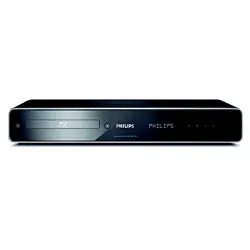
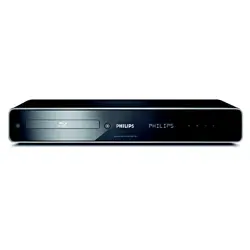
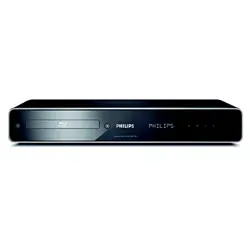
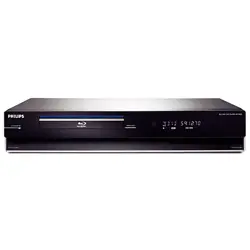
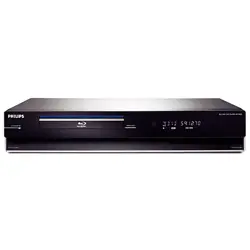
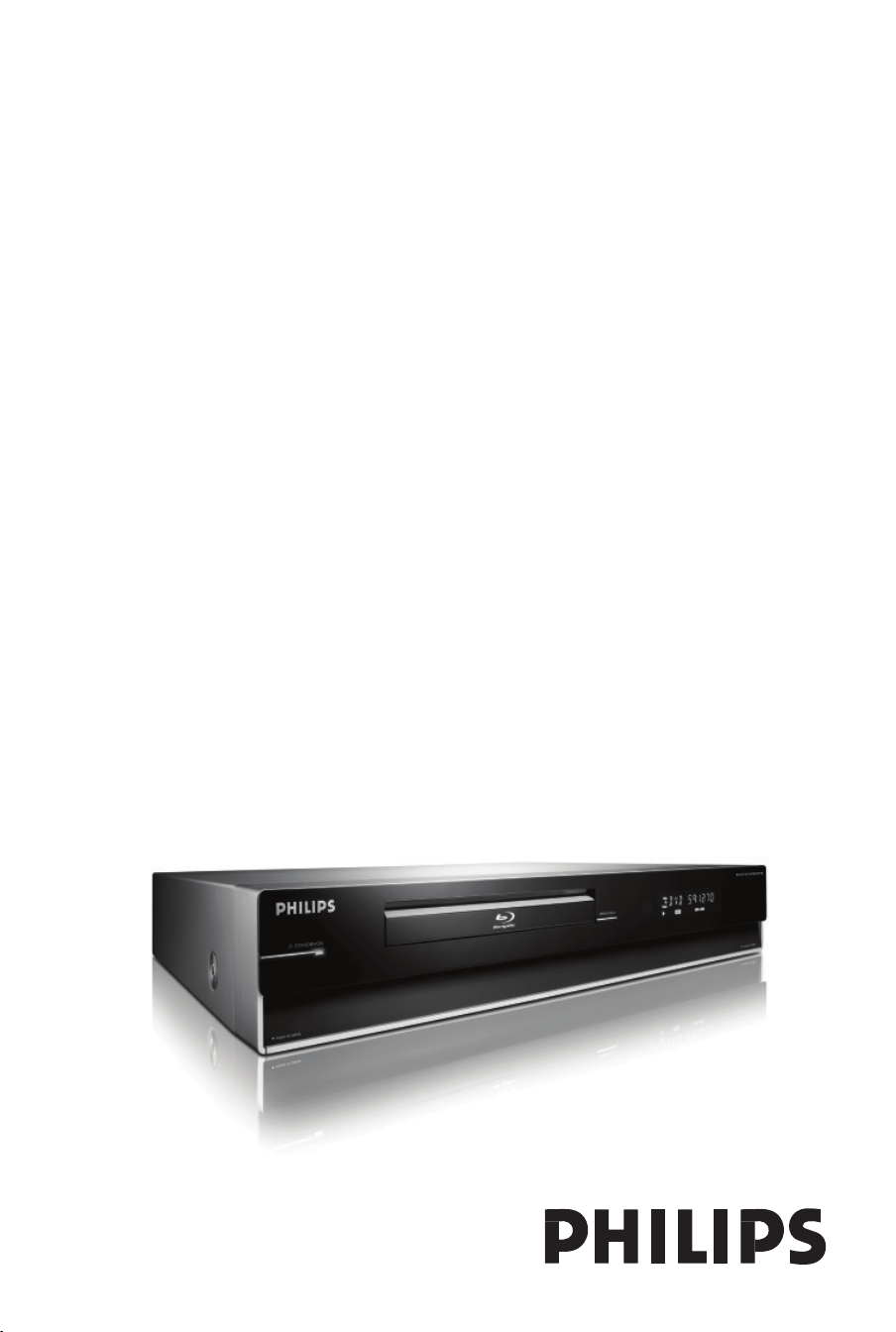
BLU-RAY DISC PLAYER BDP7100
User Manual
2
Important notes for users in the
U.K.
Mains plug
This apparatus is tted with an approved 13
Amp plug. To change a fuse in this type of
plug proceed as follows:
1 Remove fuse cover and fuse.
2 Fix new fuse which should be a BS1362
5 Amp, A.S.T.A. or BSI approved type.
3 Re t the fuse cover.
If the tted plug is not suitable for your socket
outlets, it should be cut off and an appropriate
plug tted in its place.
If the mains plug contains a fuse, this should
have a value of 5 Amp. If a plug without a fuse
is used, the fuse at the distribution board
should not be greater than 5 Amp.
Note: The severed plug must be disposed of to
avoid a possible shock hazard should it be
inserted into a 13 Amp socket elsewhere.
How to connect a plug
The wires in the mains lead are coloured with
the following code: blue = neutral (N),
brown = live (L).
z
As these colours may not correspond with the
colour markings identifying the terminals in
your plug, proceed as follows:
– Connect the blue wire to the terminal
marked N or coloured black.
– Connect the brown wire to the terminal
marked L or coloured red.
– Do not connect either wire to the earth
terminal in the plug, marked E (or e) or
coloured green (or green and yellow).
Before replacing the plug cover, make certain
that the cord grip is clamped over the sheath
of the lead - not simply over the two wires.
Copyright in the U.K.
Recording and playback of material may
require consent. See Copyright Act 1956 and
The Performer’s Protection Acts 1958 to
1972.
ATTENTION!
For Customer Use:
Read carefully the information located at the
bottom or rear of your Blu-ray Disc Player and
enter below the Serial No. Retain this
information for future reference.
Model No. BDP7100
Serial No. _______________
Norge
Typeskilt nnes på apparatens underside.
Observer: Nettbryteren er
sekundert innkoplet. Den innebygde
netdelen er derfor ikke frakoplet
nettet så lenge apparatet er
tilsluttet nettkontakten.
For
å redusere faren for brann eller elektrisk
støt, skal apparatet ikke utsettes for regn eller
fuktighet.
Italia
DICHIARAZIONE DI CONFORMITA’
Si dichiara che l’apparecchio BDP7100, Philips
risponde alle prescrizioni dell’art. 2 comma 1
del D.M. 28 Agosto 1995 n. 548.
Fatto a Eindhoven
Philips Consumer Electronics
Philips, Glaslaan 2
5616 JB Eindhoven, The Netherlands
3
This product complies with the radio
interference requirements of the
European Community.
This product complies with
the requirements of the
following directives and
guidelines: 2006/95/EC +
2004/108/EC
DK
Advarsel: Usynlig laserstråling ved
åbning når sikkerhedsafbrydere er ude
af funktion. Undgå utsættelse for
stråling.
Bemærk: Netafbryderen er sekundært
indkoblet og ofbryder ikke strømmen
fra nettet. Den indbyggede netdel er
derfor tilsluttet til lysnettet så længe
netstikket sidder i stikkontakten.
S
Klass 1 laseraparat
Varning! Om apparaten används på
annat sätt än i denna bruksanvisning
speci cerats, kan användaren utsättas
för osynlig laserstrålning, som
överskrider gränsen för laserklass 1.
Observera! Stömbrytaren är sekundärt
kopplad och bryter inte strömmen från
nätet. Den inbyggda nätdelen är därför
ansluten till elnätet så länge
stickproppen sitter i vägguttaget.
SF
Luokan 1 laserlaite
Varoitus! Laitteen käyttäminen muulla
kuin tässä käyttöohjeessa mainitulla
tavalla saattaa altistaa käyttäjän
turvallisuusluokan 1 ylittävälle
näkymättömälle lasersäteilylle.
Oikeus muutoksiin varataan. Laite ei
saa olla alttiina tippu-ja roiskevedelle.
Huom. Toiminnanvalitsin on kytketty
toisiopuolelle, eikä se kytke laitetta irti
sähköverkosta. Sisäänrakennettu
verkko-osa on kytkettynä
sähköverkkoon aina silloin, kun pistoke
on pistorasiassa.
CAUTION
VISIBLE AND INVISIBLE LASER RADIATION
WHEN OPEN. AVOID EXPOSURE TO BEAM
ADVARSEL
SYNLIG OG USYNLIG LASERSTRÅLING VED
ÅBNING UNDGÅ UDSÆTTELSE FOR
STRÅLING
VARNING
SYNLIG OCH OSYNLIG LASERSTRÅLNING
NÄR DENNA DEL ÄR ÖPPNAD BETRAKTA
EJ STRÅLEN
VARO!
AVATTAESSA OLET ALTTIINA NÄKYVÄLLE
JA NÄKYMÄTTÖMÄLLE LASER SÄTEILYLLE.
ÄLÄ KATSO SÄTEESEEN
VORSICHT
SICHTBARE UND UNSICHTBARE
LASERSTRAHLUNG WENN ABDECKUNG
GEÖFFNET NICHT DEM STRAHL
AUSSETZEN
ATTENTION
RAYONNEMENT LASER VISIBLE ET
INVISIBLE EN CAS D’OUVERTURE
EXPOSITION DANGEREUSE AU FAISCEAU
4
Disposal of your old product
Your product is designed and manufactured with high quality materials
and components, which can be recycled and reused.
When this crossed-out wheeled bin symbol is attached to a product it
means the product is covered by the European Directive 2002/96/EC.
Please inform yourself about the local separate collection system for
electrical and electronic products.
Please act according to your local rules and do not dispose of your old products with
your normal household waste. The correct disposal of your old product will help
prevent potential negative consequences for the environment and human health.
‘CONSUMERS SHOULD NOTE THAT NOT ALL HIGH
DEFINITION TELEVISION SETS ARE FULLY
COMPATIBLE WITH THIS PRODUCT AND MAY CAUSE
ARTIFACTS TO BE DISPLAYED IN THE PICTURE. IN
CASE OF 525 OR 625 PROGRESSIVE SCAN PICTURE
PROBLEMS, IT IS RECOMMENDED THAT THE USER
SWITCH THE CONNECTION TO THE ‘STANDARD
DEFINITION’ OUTPUT. IF THERE ARE QUESTIONS
REGARDING OUR TV SET COMPATIBILITY WITH THIS
MODEL 525p AND 625p DVD PLAYER, PLEASE
CONTACT OUR CUSTOMER SERVICE CENTER.’
This product incorporates copyright protection
technology that is protected by method claims of
certain U.S. patents and other intellectual property
rights owned by Macrovision Corporation and
other rights owners. Use of this copyright
protection technology must be authorized by
Macrovision Corporation, and is intended for
home and other limited viewing uses only unless
otherwise authorized by Macrovision Corporation.
Reserve engineering or disassembly is prohibited.
5
EnglishFrançaisEspañolDeutsch
Index
HDMI, and HDMI logo and High-De nition
Multimedia Interface are trademarks or
registered trademarks of HDMI licensing LLC.
Manufactured under license from Dolby
Laboratories. “Dolby” and the double-D
symbol are trademarks of Dolby Laboratories.
Manufactured under license under U.S.
Patent #’s: 5,451,942; 5,956,674; 5,974,380;
5,978,762; 6226,616; 6,487,535 & other U.S.
and worldwide patents issued & pending.
DTS is a registered trademark & the DTS
logos and Symbol are trademarks of DTS,
Inc. © 1996−2007 DTS, Inc. All Rights
Reserved.
English ------------------------------------ 6

6
English
Table of contents
General
General Information ........................................................................................................8
Setup precautions .................................................................................................................................................8
Accessories supplied ...........................................................................................................................................8
Cleaning discs ........................................................................................................................................................8
About recycling .....................................................................................................................................................8
Your Product ..................................................................................................................... 9
BDP7100 Blu-ray Disc player ............................................................................................................................9
Product Overview
Main Unit ...................................................................................................................10~11
Remote Control ........................................................................................................ 12~14
Preparing the remote control .........................................................................................................................14
Connections
Connect .......................................................................................................................15-19
Connect to the TV ......................................................................................................................................15~17
Option 1 - HDMI (best quality) ..............................................................................................................15
Option 2 - HDMI to DVI (best quality) ................................................................................................15
Option 3 - Component video (good quality) ......................................................................................16
Option 4 - Composite video (standard quality) .................................................................................16
Option 5 - S-Video (standard quality) ..................................................................................................17
Connect to the audio system (optional) .............................................................................................17~19
Option 1 - Digital audio, optical connection (good quality) ..........................................................17
Option 2 - Digital audio, coaxial connection (good quality) ..........................................................18
Option 3 - 5.1 analog audio (standard quality) ...................................................................................18
Option 4 - Stereo analog audio (standard quality) ............................................................................19
Connect to the power outlet ........................................................................................................................19
Basic Setup
Set Up ........................................................................................................................20-28
Set the TV connection .................................................................................................................................... 20
Set the audio connection ............................................................................................................................... 20
On-Screen menu navigation .......................................................................................................................... 20
Open the Settings menu .................................................................................................................................21
Con gure the languages ...........................................................................................................................21~22
Open the language menu .........................................................................................................................21
Change the preferred audio language ..................................................................................................21
Change the preferred subtitle language ............................................................................................. 22
Change the preferred disc menu language .......................................................................................... 22
Change the player language .................................................................................................................... 22
Con gure the audio output ................................................................................................................... 22~24
Open the audio menu .............................................................................................................................. 22
Change the format of the digital audio signal ...................................................................................23
Enable PCM downsampling .....................................................................................................................23
Enable dynamic range compression .......................................................................................................23
Change the set up of your speakers .....................................................................................................24

7
English
Table of contents
Con gure the video output ...................................................................................................................24~26
Open the video menu ...............................................................................................................................24
Change the aspect ratio ...........................................................................................................................24
Enable 24fps (frame per second) .......................................................................................................... 25
Change the resolution ..............................................................................................................................26
Enable screen messages ...........................................................................................................................26
Con gure the front display .....................................................................................................................26
About HDMI CEC (Consumer Electronics Control) .............................................................................27
Enable HDMI Setup ...................................................................................................................................27
Change the parental setup ............................................................................................................................. 28
Open the parental setup menu ............................................................................................................. 28
Enable the PIN ........................................................................................................................................... 28
Change the rating level ............................................................................................................................. 28
Change the PIN .......................................................................................................................................... 28
Playback Functions
Enjoy .......................................................................................................................... 29-33
Turn on the Blu-ray disc player .....................................................................................................................29
Load a disc ...........................................................................................................................................................29
Videos ...................................................................................................................................................................29
Play a title .....................................................................................................................................................29
Control titles ............................................................................................................................................. 30
Jump to the next or previous title ....................................................................................................... 30
Jump to the next or previous chapter ................................................................................................ 30
Jump to a point of time ..............................................................................................................................31
Search through a chapter ........................................................................................................................31
Play a title in slow motion .......................................................................................................................31
Change the audio language ......................................................................................................................31
Change the camera angle .........................................................................................................................31
Change the subtitle language ..................................................................................................................31
Music .....................................................................................................................................................................32
Play a track ...................................................................................................................................................32
Control tracks ............................................................................................................................................32
Pictures ........................................................................................................................................................ 32~33
View a picture .............................................................................................................................................32
Start a slideshow ........................................................................................................................................32
Rotate a picture ..........................................................................................................................................33
Zoom in and out on a picture ................................................................................................................33
Set to stand-by ...................................................................................................................................................33
Others
Troubleshooting ....................................................................................................... 34 ~35
Speci cations ...........................................................................................................36~37
Glossary..................................................................................................................... 38~39

8
English
General Information
WARNING!
This product does not contain any
user-serviceable parts. Please leave
all maintenance work to quali ed
personnel.
Setup precautions
Finding a suitable location
– Place this product on a at, hard and
stable surface. Never place the product
on a carpet.
– Never place this product on top of
other equipment that might heat it up (e.
g., receiver or ampli er).
– Never put anything under this product
(e.g., CDs, magazines).
– Never place any equipment or heavy
objects on top of this product.
– Install this product near the AC outlet
where the AC power plug can be easily
reached.
Space for ventilation
– Place this product in a location with
adequate ventilation to prevent internal
heat build up. Allow at least 10 cm (4”)
clearance from the rear and the top of
this product and 5cm (2”) from the left
and right to prevent overheating.
Avoid high temperature, moisture,
water and dust
– This product must not be exposed to
dripping or splashing.
– Never place any object or items that
can damage this product (e.g., liquid lled
objects, lighted candles).
Accessories supplied
– 1 Remote control with batteries
– 1 Audio/Video cable
– 1 Quick Start Guide
Cleaning discs
To clean a disc, use a micro ber cleaning
cloth and wipe the disc from the centre
to the edge in a straight line.
CAUTION!
Never use solvents such as benzene,
thinner, commercially available cleaners,
or anti-static sprays intended for discs.
About recycling
These operating instructions have been
printed on non-polluting paper. The
electronic equipment contains a large
number of materials that can be recycled.
If you are disposing of an old machine,
please take it to a recycling centre.
Please observe the local regulations
regarding disposal of packaging materials,
exhausted batteries and old equipment.

9
English
Your Product
BDP7100 Blu-ray Disc player
Watch movies in the highest picture
quality available for your HDTV The
BDP7100 Blu-ray Disc player offers full
high-de nition video playback up to
1080p resolution for an amazing viewing
experience. A highly detailed picture and
increased sharpness delivers a more true-
to-life picture.
Upconvert DVDs for enhanced
picture quality
Your current DVDs will look even
better than before thanks to video
upconversion. Upconversion will increase
the resolution of standard de nition
DVDs to high de nition up to 1080p over
an HDMI connection. The picture will be
less jagged and more realistic for a near
high-de nition experience.
Enjoy your content on different
kinds of media
Full backwards compatibility with DVDs,
CDs ensures that you can continue to
enjoy your current audio-video
collection. Additionally, you can view
JPEG digital pictures or listen to MP3
music les.
Listen to rich uncompressed multi-
channel surround sound
The BDP7100 supports 5.1 channels of
uncompressed audio, which realizes real-
to-life sound and makes you feel that you
are really there.
Intuitive User interface and Remote
control
The Philips logical user interface allows
you to easily navigate through your
content and settings, so you can quickly
nd what you are looking for.
Easy and simple connection to your
HDTV via HDMI
Connect your BDP7100 to your HDTV
with one single HDMI (High De nition
Multimedia Interface) cable. The high
de nition video output signal will be
transferred to your HDTV without
conversion to analogue signals, so you
will get an excellent picture and sound
quality, completely free from noise.
Thanks to other multiple outputs, you
can also easily connect to your home
theater system or ampli er.
About HDMI CEC (Consumer
Electronics Control)
HDMI CEC allows linked functions of this
player with HDMI CEC compliant TVs.
Note:
Philips does not guarantee 100%
interoperability with all HDMI CEC
devices.
10
English
Main Unit
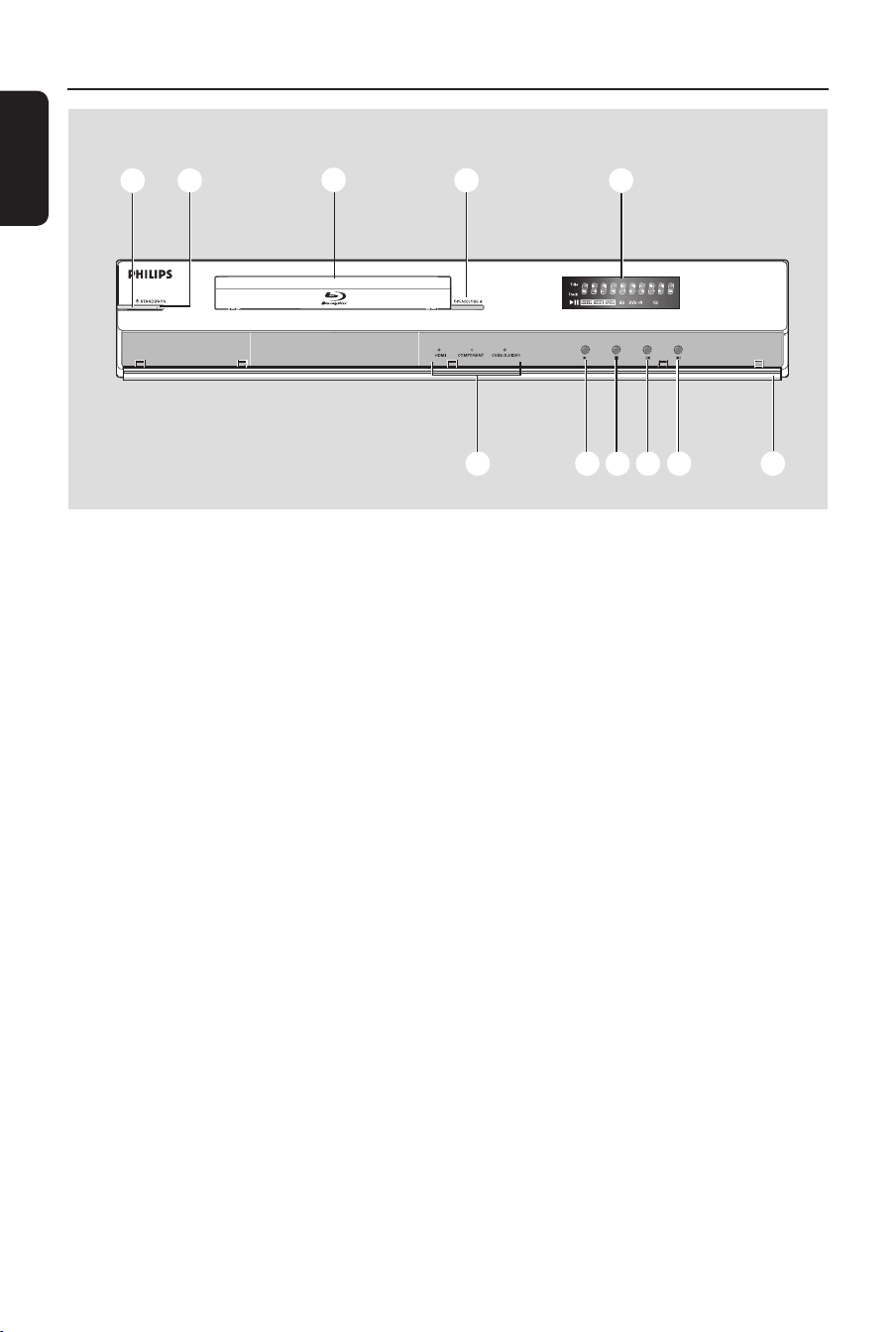
a 2 STANDBY-ON
Turns on the player or turns off to
standby mode.
b Standby-on light
Shows the on/off status of the player.
y Off - Not connected to a power
supply
y Red - Stand-by mode
y Blue - On
c Disc tray
d OPEN/CLOSE ç
Opens and closes the disc tray.
e Front display
Shows information about the player and
the disc.
f Cover
Opens the user access panel.
g ë (Next/Forward)
y Videos, music, pictures - Next (short
press)
y Videos, music - Forward (long press)
h í (Previous/Rewind)
y Videos, music, pictures - Previous
(short press)
y Videos, music - Rewind (long press)
i x (Stop)
j B (Play)
k Video output lights
The video output lights show the video
output.
ab c d e
fg
hi
jk
Front panel
11
English
Main Unit (continued)
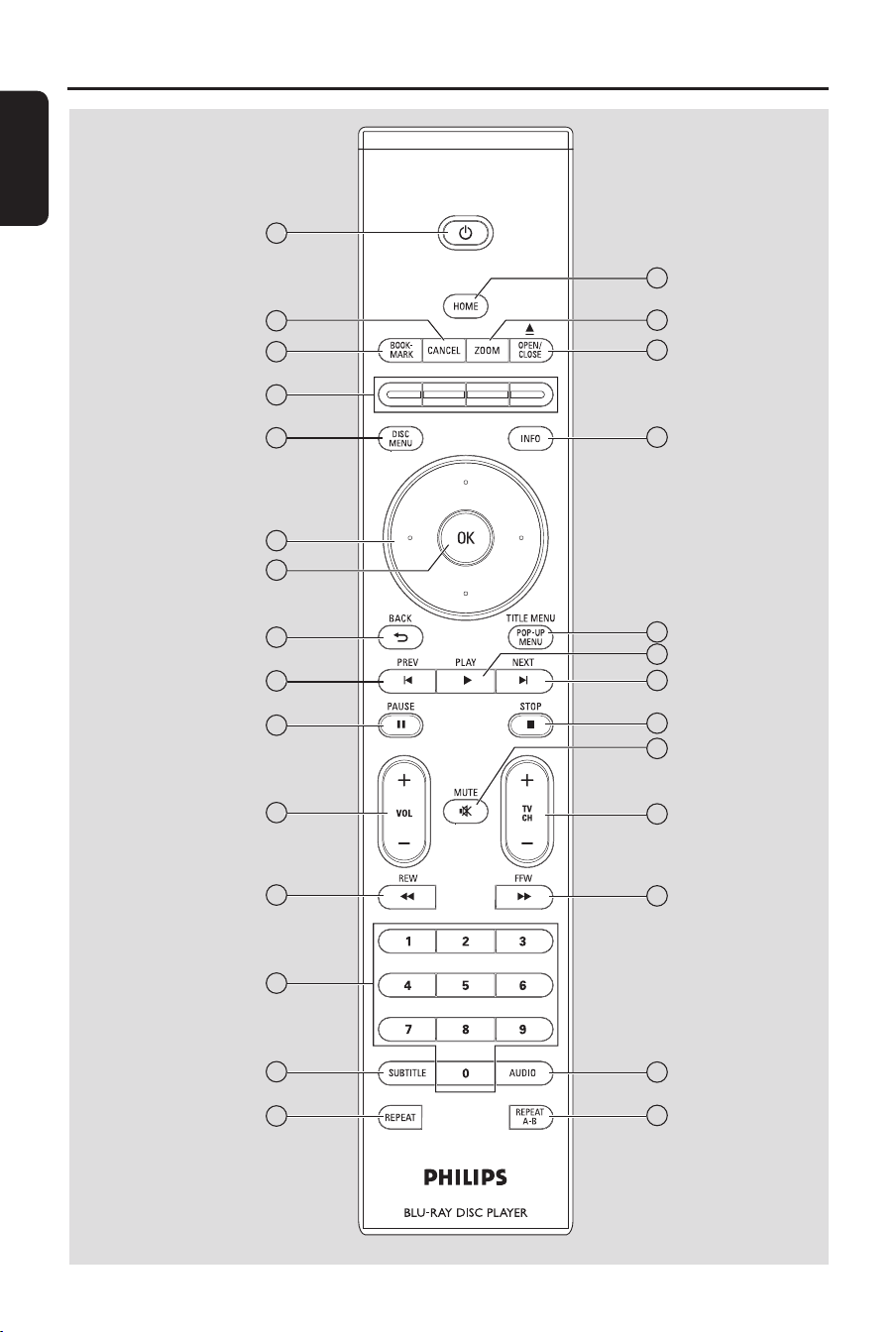
a Title/Track indicator
b Status indicator
Shows the information about playing
time, clock and status.
c Disc type indicator
d Video output resolution indicator
e Play mode indicator
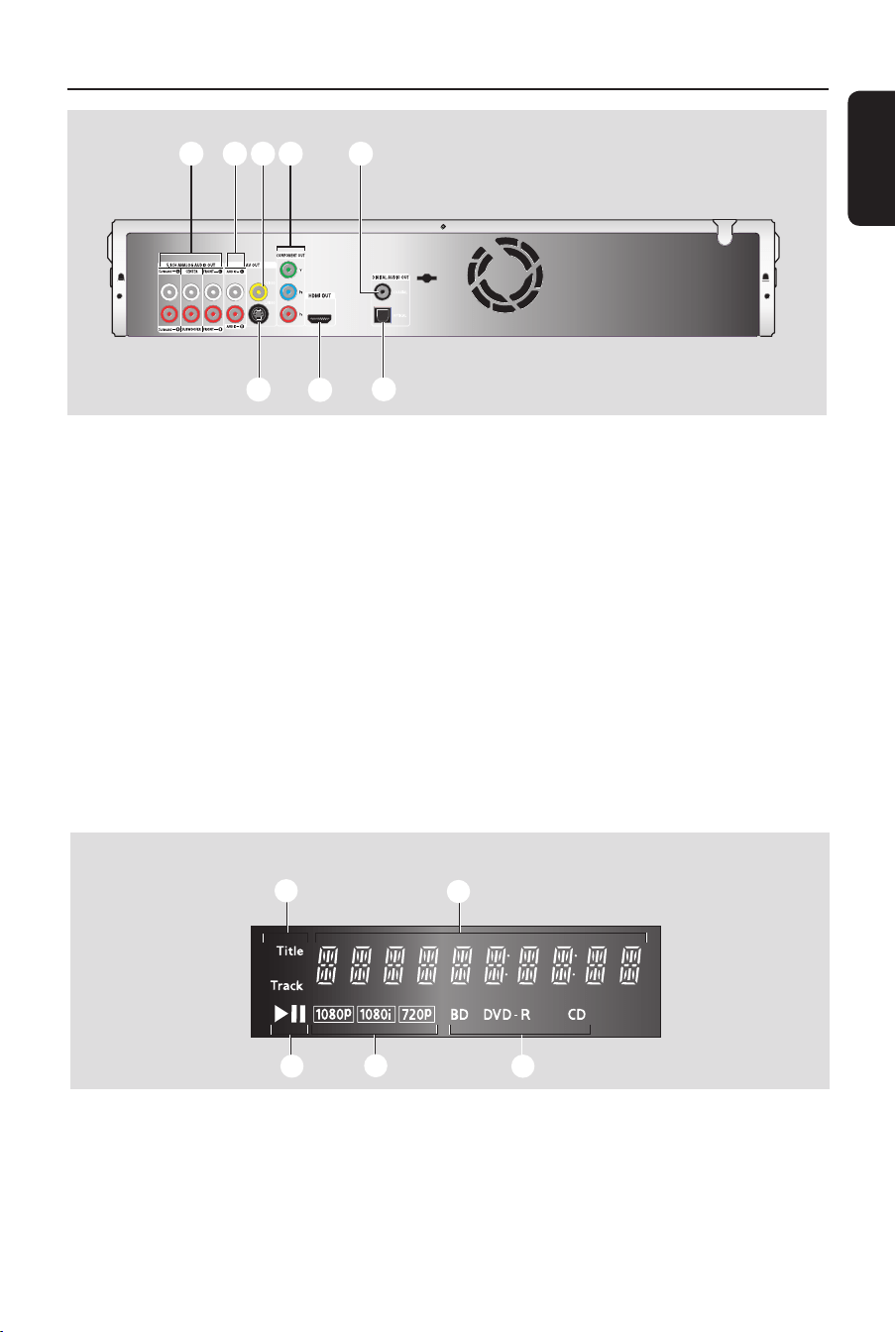
l 5.1CH ANALOG AUDIO OUT
Connects the audio output to an
ampli er.
m Stereo analogue audio sockets
Connects the audio output to an
ampli er or TV.
n Composite VIDEO socket (CVBS)
o COMPONENT OUT (YPbPr)
sockets
p DIGITAL AUDIO OUT - COAXIAL
Connects the audio output to an
ampli er.
q DIGITAL AUDIO OUT - OPTICAL
Connects the audio output to an
ampli er.
r HDMI OUT
Connects the video and audio signals to a
HDMI TV or HDTV.
s S-VIDEO socket
lm onp
q
r
s
Back panel
ab
cde
Display
12
English
Remote Control
5
6
8
9
10
11
12
14
15
7
28
27
26
25
23
22
20
19
18
24
21
17
16
13
1
2
3
4

13
English
Remote Control (continued)
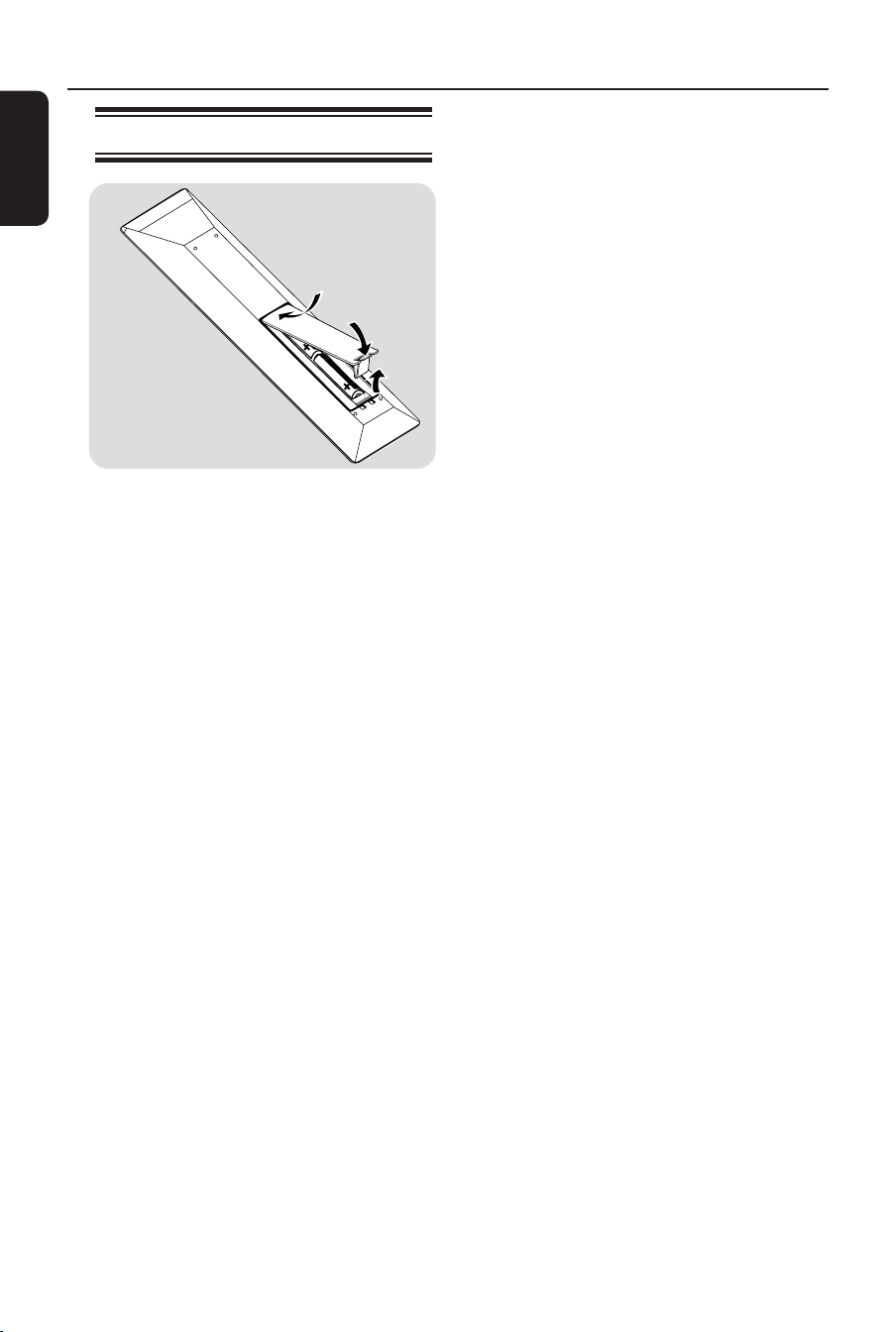
a
Standby-On 2
y Turns the player on or to standby
mode (short press).
b CANCEL
Activates cancel action.
c BOOKMARK
Bookmarks a position or scene on the
disc.
d Colour buttons
Activates short cut keys on BD-ROM
(when available) or BD-Java’s interactive
operations.
e DISC MENU
y BD, DVD – Access disc menu.
f Cursor keys – Up, down, left and
right
Navigates on screen display and menu.
g OK
Con rms a choice or selection.
h BACK 2
Returns to previous screen or menu.
i PREV í
y BD, DVD, CD – Goes to previous
chapter or track.
j PAUSE II
Pauses disc playback.
k VOL +-
Adjusts TV volume. (Philips TV only)
l REW m
Scans backward.
m Number keys
Enter digits: Selects numbered options in
the menu (title/chapter numbers, etc.)
n SUBTITLE
y BD, DVD – Selects a subtitle language.
o REPEAT
Repeats title, chapter, track or disc.
p HOME
Access home menu.
q ZOOM
y JPEG picture – Zoom in or out.
r OPEN/CLOSE ç
Opens and closes the disc tray.
s INFO
Access information menu.
t TITLE MENU/POP-UP MENU
y BD – Access pop-up menu.
y DVD – Access title menu.
u PLAY B
Starts disc playback.
v NEXT ë
y BD, DVD, CD – Goes to next chapter
or track.
w STOP x
Stops disc playback.
x MUTE H
Mutes or restores the TV volume.
(Philips TV only)
y TV CH +-
Selects TV channel. (Philips TV only)
z FFW M
Scans forward.
AUDIO
y BD, DVD – Selects an audio language.
REPEAT A-B
Repeats playback a de ned sequence.
14
English
Remote Control (continued)
Preparing the remote control
A Open the battery compartment.
B Insert two batteries type R06 or AA,
following the indications (+-) inside
the compartment.
C Close the cover.
CAUTION!
y Remove batteries if they are
exhausted or if the remote
control is not to be used for a
long time.
y Never mix batteries (old and new
or carbon and alkaline, etc.).
y Batteries contain chemical
substances, they should be
disposed of properly.
15
English
Connect
Connect to the TV
This player is designed for high-de nition
televisions (HDTV).
Need help?
Refer to the documentation that came
with your TV for information about:
y The devices that you can connect to
your TV.
y The type of cables that you can
connect to your TV.
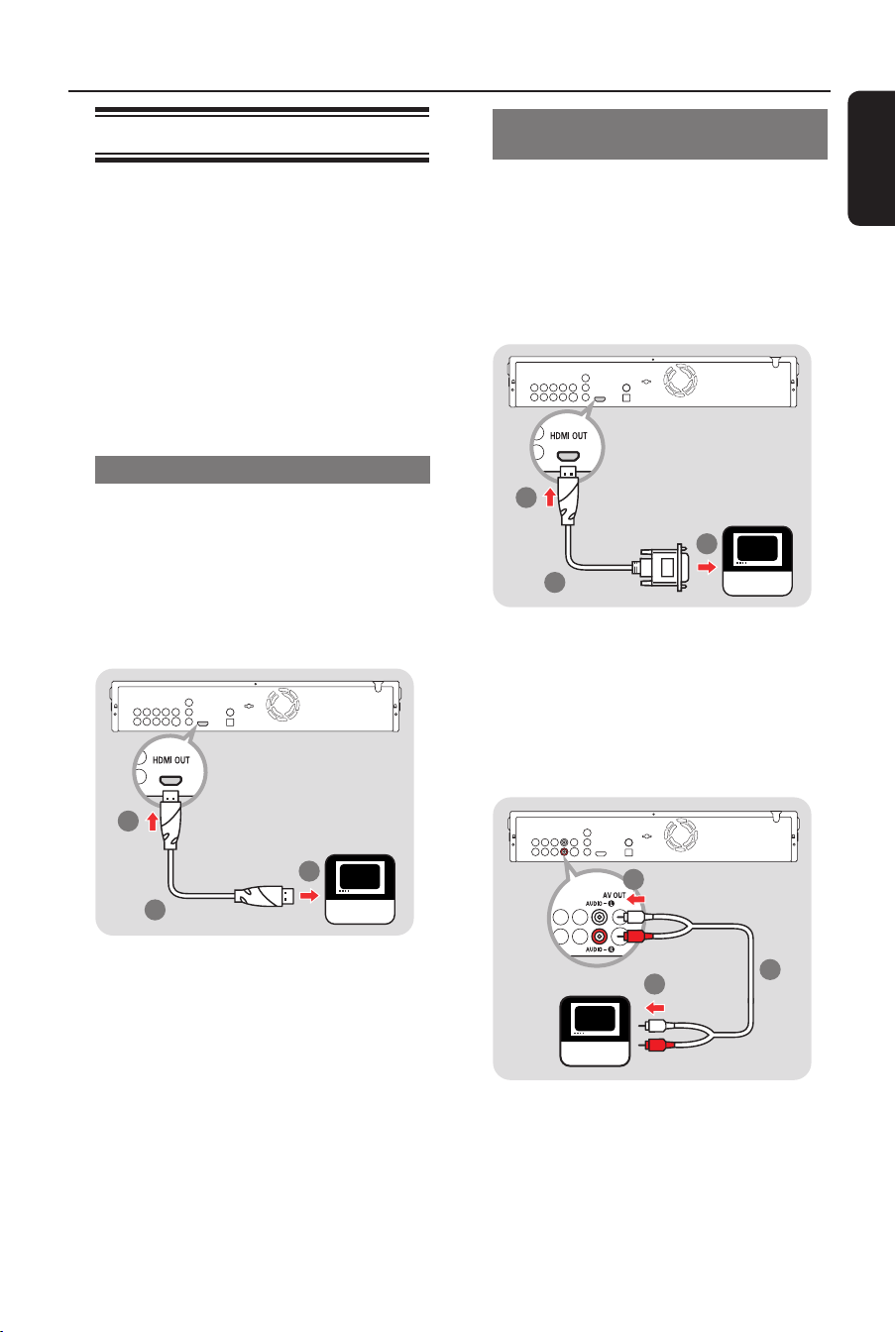
Option 1 - HDMI (best quality)
A Take a HDMI cable (not supplied).
B Plug one end of the HDMI cable into the
HDMI OUT socket.
C Plug the other end of the HDMI cable
into the HD compliant TV.
1
2
3
HDTV
Helpful Hint:
– This type of connection requires no audio
connection.
Option 2 - HDMI to DVI (best
quality)
A Take a HDMI-DVI cable (not supplied).
B Plug one end of the HDMI-DVI cable into
the HDMI OUT socket.
C Plug the other end of the HDMI-DVI
cable into the HD compliant TV.
1
2
3
HDTV
D Take the supplied audio cable.
E Plug one end of the audio cable into the
AUDIO-L and AUDIO-R sockets.
F Plug the other end of the audio cable into
the TV.
4
5
6
HDTV
Helpful Hint:
– HD TV must support HDCP (High
de nition content protection) in order for the
connection to work. Refer to your television
operating instructions for more details.
16
English
Connect (continued)
operating instructions for more details.
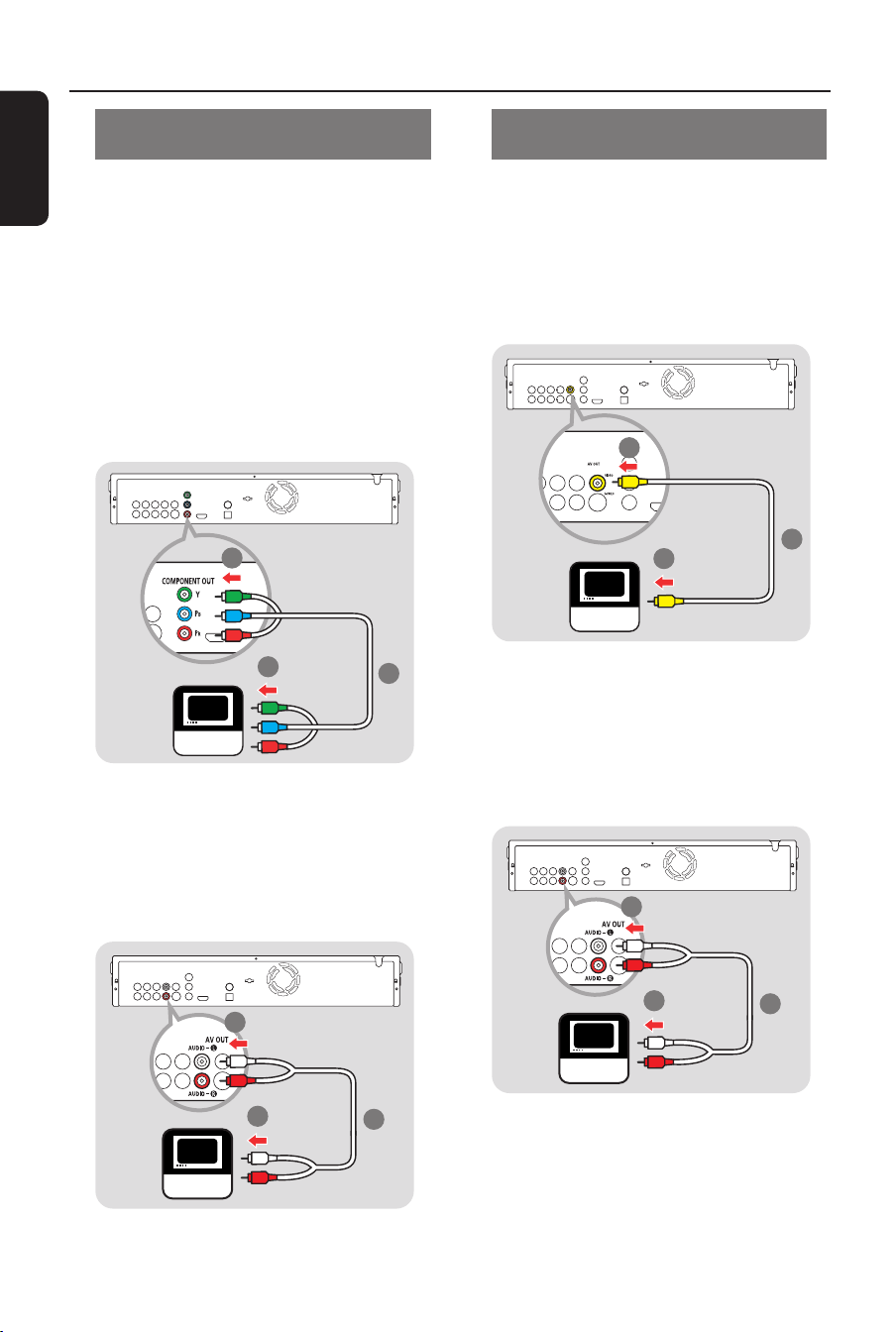
Option 3 - Component video (good
quality)
Note:
When a BD with Image Constraint Token
or Digital Only Token is played, the
output is disabled.
A Take a component video cable (not
supplied).
B Plug one end of the component video
cable into the Y, Pb and Pr sockets.
C Plug the other end of the component
video cable into the TV.
TV
1
3
2
D Take the supplied audio cable.
E Plug one end of the audio cable into the
AUDIO-L and AUDIO-R sockets.
F Plug the other end of the audio cable into
the TV.
4
5
6
TV
Option 4 - Composite video
(standard quality)
A Take the supplied composite video cable.
B Plug one end of the composite video
cable into the VIDEO socket.
C Plug the other end of the composite
video cable into the TV.
TV
1
3
2
D Take the supplied audio cable.
E Plug one end of the audio cable into the
AUDIO-L and AUDIO-R sockets.
F Plug the other end of the audio cable into
the TV.
4
5
6
TV
17
English
Connect (continued)
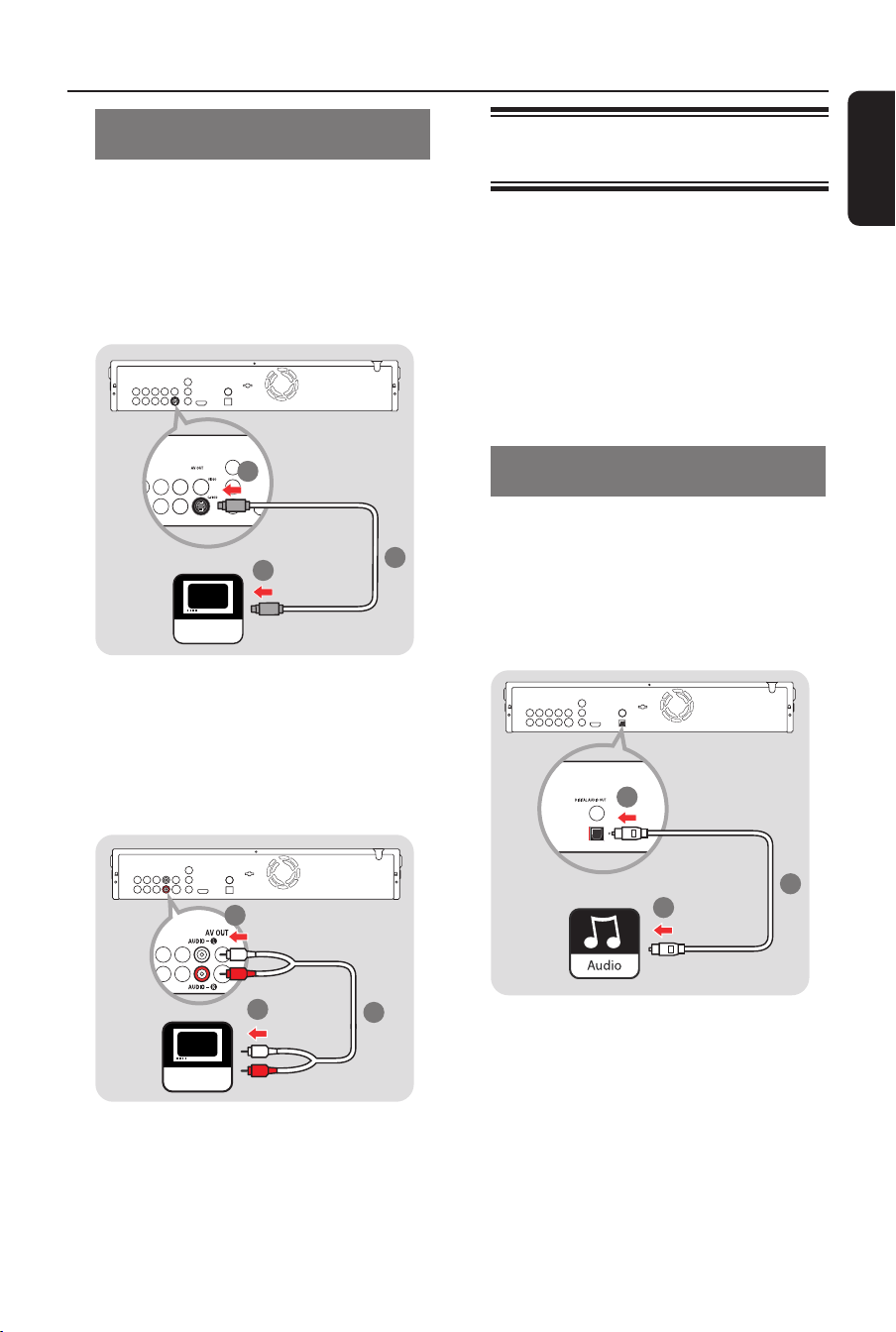
Option 5 - S-Video (standard
quality)
A Take an S-Video cable (not supplied).
B Plug one end of the S-Video cable into
the S-VIDEO socket.
C Plug the other end of the S-Video cable
into the TV.
TV
1
3
2
D Take the supplied audio cable.
E Plug one end of the audio cable into the
AUDIO-L and AUDIO-R sockets.
F Plug the other end of the audio cable into
the TV.
4
5
6
TV
Connect to the audio system
(optional)
Need help?
Refer to the documentation that came
with your audio system for information
about:
y The devices that you can connect to
your audio system.
y The type of cables that you can
connect to your audio system.
Option 1 - Digital audio, optical
connection (good quality)
A Take an optical audio cable (not supplied).
B Plug one end of the optical audio cable
into the OPTICAL socket.
C Plug the other end of the optical audio
cable into the audio system.
1
3
2
18
English
Connect (continued)
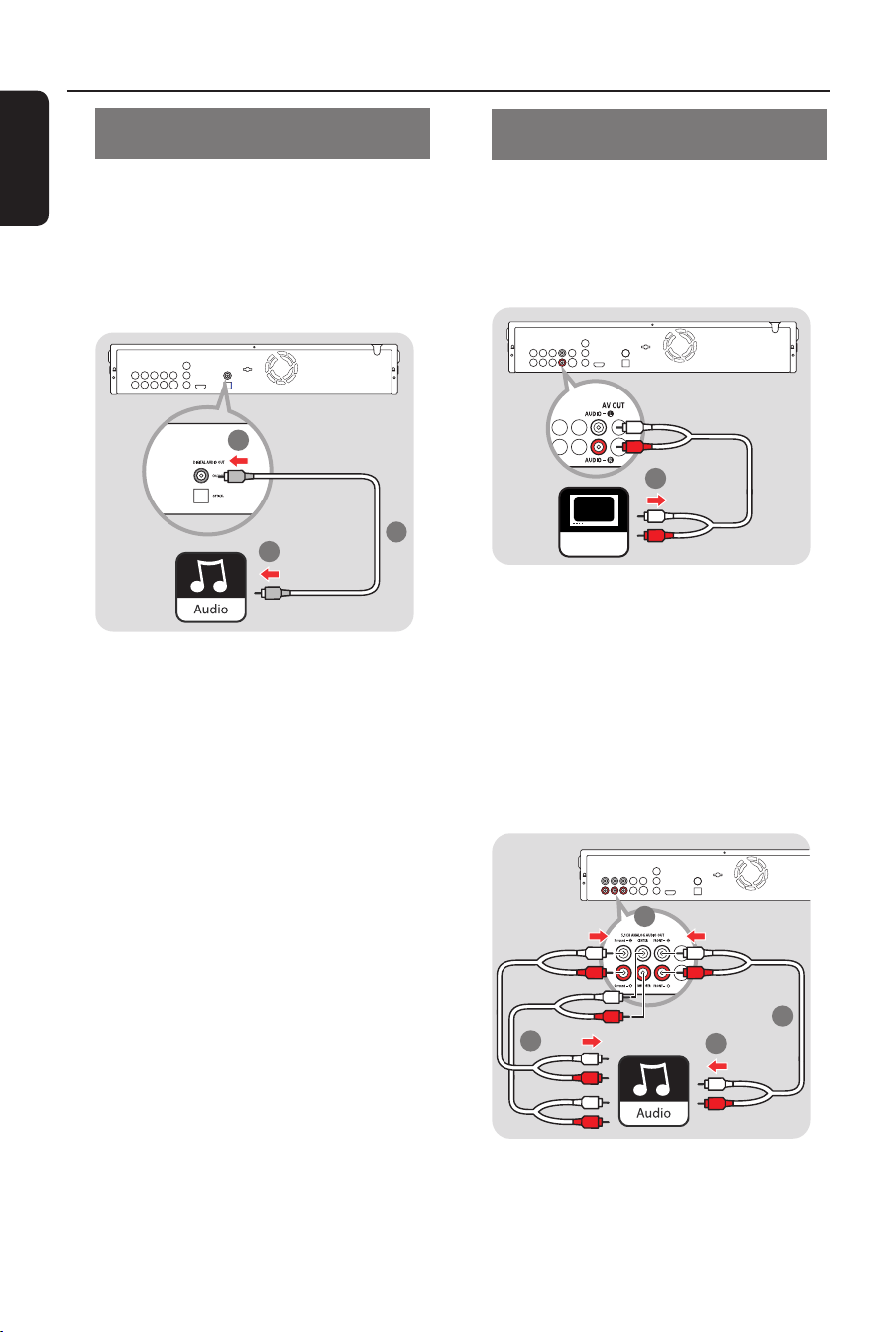
Option 2 - Digital audio, coaxial
connection (good quality)
A Take a coaxial audio cable (not supplied).
B Plug one end of the coaxial audio cable
into the COAXIAL socket.
C Plug the other end of the coaxial audio
cable into the audio system.
1
3
2
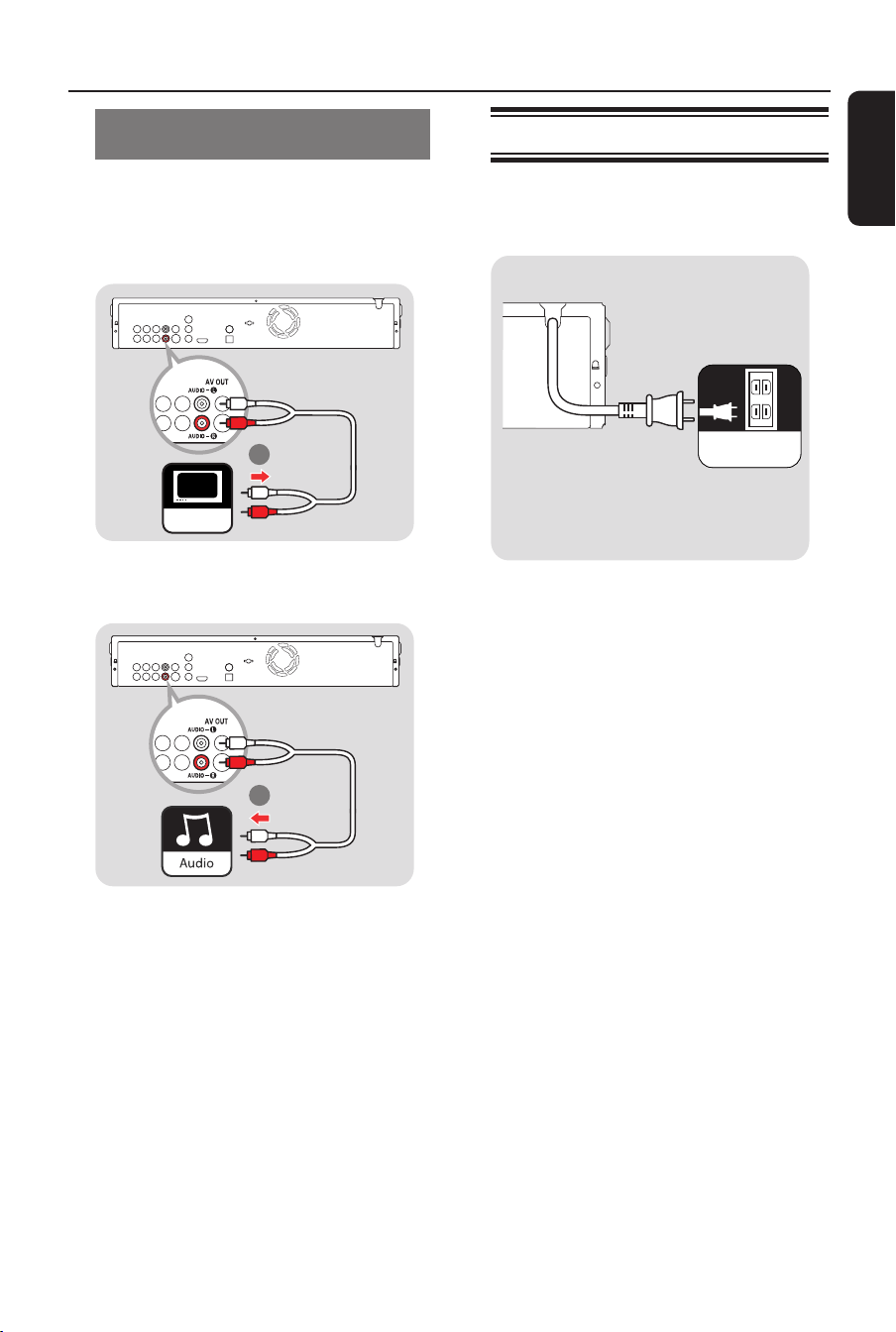
Option 3 - 5.1 analogue audio
(standard quality)
A If you connected the TV to the
COMPONENT OUT, VIDEO or
S-VIDEO sockets or used a HDMI-DVI
cable, remove the audio cable between
the Blu-ray Disc player and the TV.
1
TV
B Take the supplied audio cable.
C Take another two audio cables (not
supplied).
D Plug the three audio cables into the
5.1CH ANALOG AUDIO OUT
sockets.
E Plug the other ends of the three audio
cables into the audio system.
2
3
4
5
19
English
Connect (continued)
Option 4 - Stereo analogue audio
(standard quality)
A If you connected the TV to the
COMPONENT OUT, VIDEO or
S-VIDEO sockets or used a HDMI-DVI
cable, unplug the audio cable on the TV.
1
TV
B Plug the ends of the audio cable into the
audio system.
2
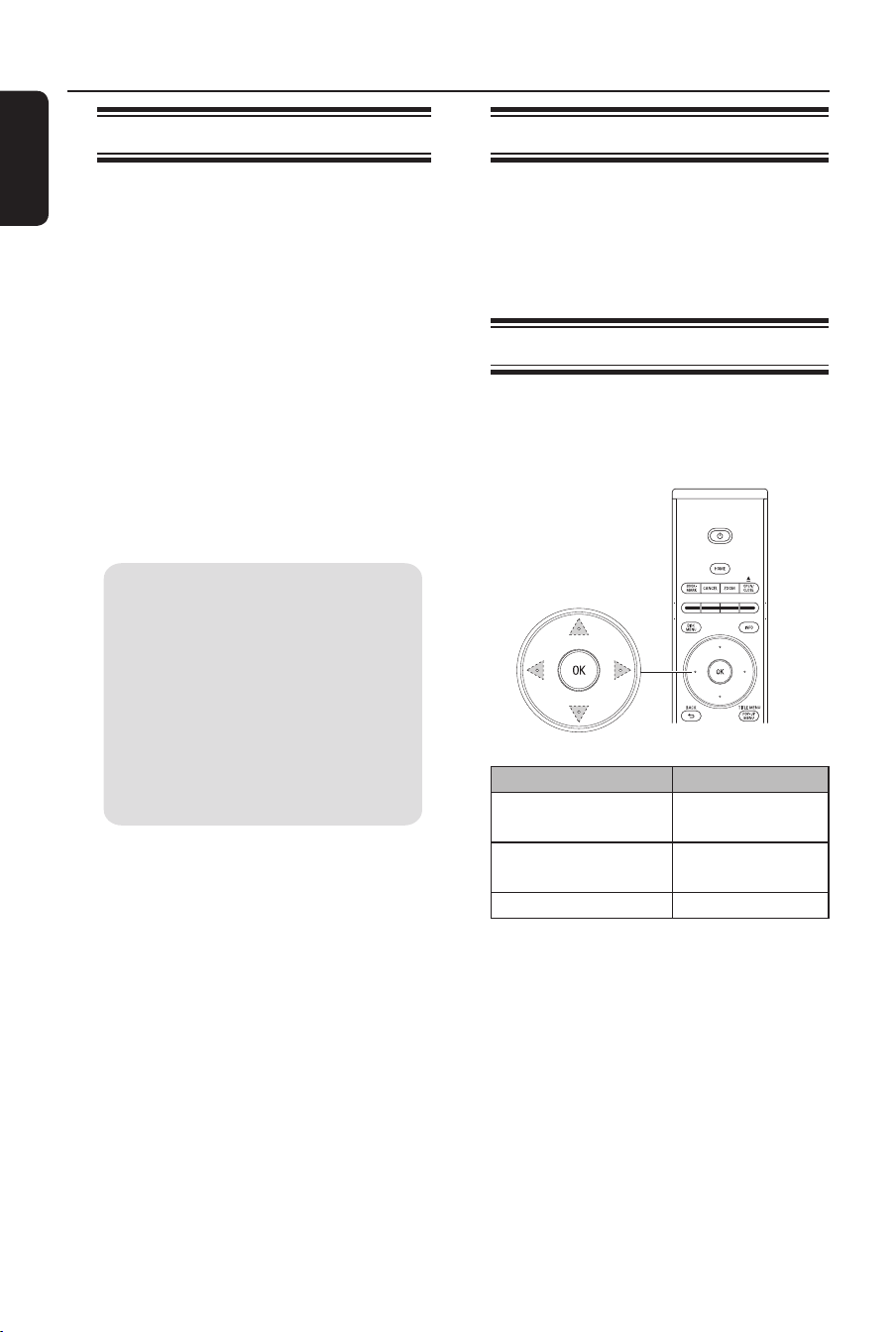
Connect to the power outlet
The Standby-on light on the front of the
player comes on as red.
AC
20
English
Set the audio connection
A Turn the audio system on.
B Set the audio system to the correct
external input.
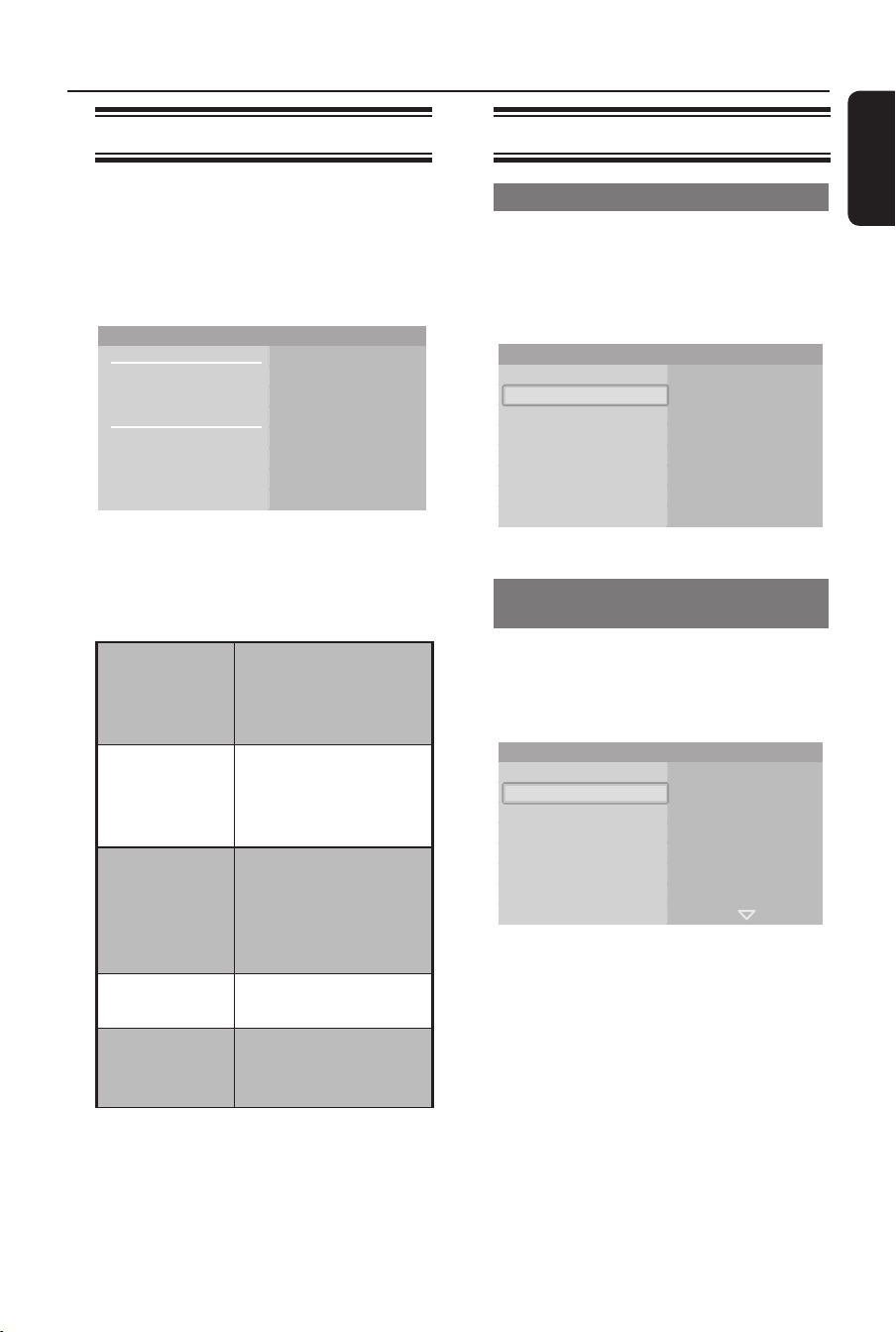
On-screen menu navigation
Use the following buttons on the remote
control to open and navigate through the
on-screen menus.
Action Button
Go up or down in a
list
cursor keys:
up/down
Move a cell in the
list
cursor keys:
left/right
Con rm a selection OK
Set the TV connection
Important Note:
After you have connected the BDP7100
to your TV and turn on for the rst time,
follow the instructions on the TV to
complete the initial setup for this player.
You will not be able to open the disc
tray unless the initial setup is completed.
A Connect the BDP7100 to your TV.
B Press 2 STANDBY-ON button to
turn on this player.
C Turn on your TV and set it to the
correct viewing channel. You should see
the { MENU LANGUAGE
SELECTION } appearing on the TV.
Press 1 for English
Pulsar 2 para Español
Touche 3 pour Français
Drücken Sie 4 für Deutsch
Premere 5 per Italiano
Druk op 6 voor Nederlands
Prima 7 para Português
MENU LANGUAGE SELECTION
Note:
To search for the correct viewing
channel, press the Channel Down button
on the TVs remote control repeatedly
(or AV, SELECT,
° button) until you
see the signal from the player appears on
your TV.
D Use the number keys on the remote
control to select the preferred player
OSD (On Screen Display) language.
E Wait a few seconds for the player to
nish initialising the system.
The BDP7100 is now ready for use.
Set Up
21
English
Set Up (continued)
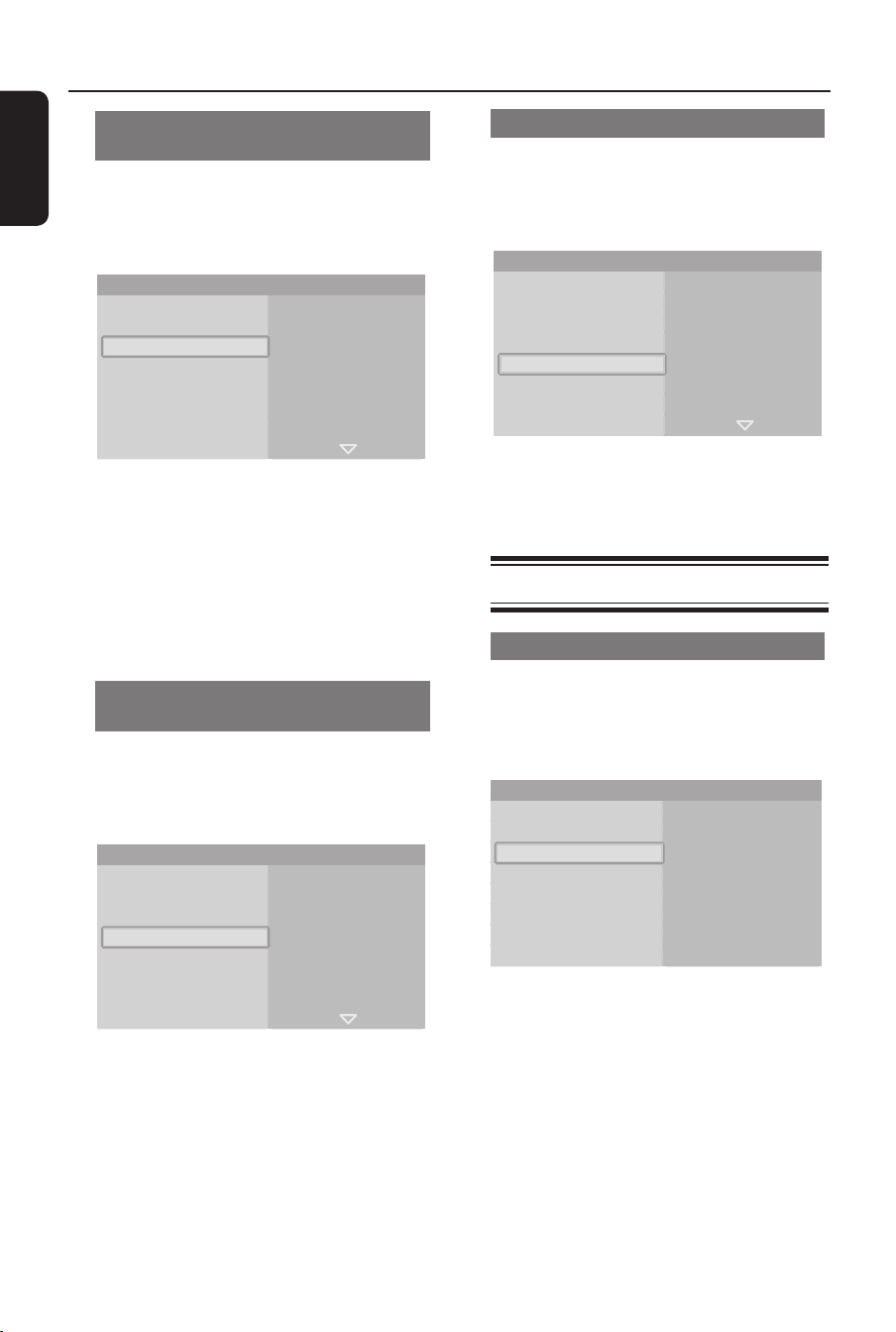
Open the Settings menu
With the Settings menu, you can change
the set up of this player.
A Press the HOME button on the remote
control.
Î The home menu shows.
Disc Video
Music
Pictures
Settings
Blu-ray Disc player
B Select { Settings } and press OK.
Î The settings menu shows.
Settings menu overview
Language
Setup
Audio
Subtitle
Disc menu
Player menu
Audio Ssetup Digital output
PCM downsampling
Dynamic compression
Speaker setup
Display Setup TV shape
Movie frame (24fps)
Resolution
Screen message
Front display
HDMI Setup HDMI CEC
Format
Parental Setup Use PIN
Rating level
New PIN
Con gure the languages
Open the language menu
A Open the { Settings } menu.
B Select { Language Setup } and press
OK.
Î The language setup menu shows.
Language Setup
Display Setup
Parental Setup
HDMI Setup
Audio Setup
Audio
Player menu
Disc menu
Subtitle
Settings
Change the preferred audio
language
A Open the { Language Setup } menu.
B Select { Audio } and press OK.
Î The available languages show.
Original
Deutsch
English
Español
Français
Italiano
Audio
Disc menu
Player menu
Subtitle
Language setup
C Choose the preferred language and press
OK.
Helpful Hint:
– When the preferred language is not
available, the default language of the disc will
be used.
22
English
Set Up (continued)
Change the preferred subtitle
language
A Open the { Language Setup } menu.
B Select { Subtitle } and press OK.
Î The available languages show.
English
Español
Deutsch
Français
Italiano
Audio
Player menu
Subtitle
Disc menu
Automatic
Language setup
C Choose the preferred language and press
OK.
Helpful Hint:
– When the preferred language is not
available, the default language of the disc
will be used.
Change the preferred disc menu
language
A Open the { Language Setup } menu.
B Select { Disc menu } and press OK.
Î The available languages show.
Español
Deutsch
English
Français
Nederlands
Italiano
Audio
Player menu
Subtitle
Disc menu
Language setup
C Choose the preferred language and press
OK.
Helpful Hint:
– When the preferred language is not
available, the default language of the disc
will be used.
Change the player language
A Open the { Language Setup } menu.
B Select { Player menu } and press OK.
Î The available languages show.
English
Español
Deutsch
Français
Italiano
Nederlands
Audio
Player menu
Subtitle
Disc menu
Language setup
C Choose the preferred language and press
OK.
Con gure the audio output
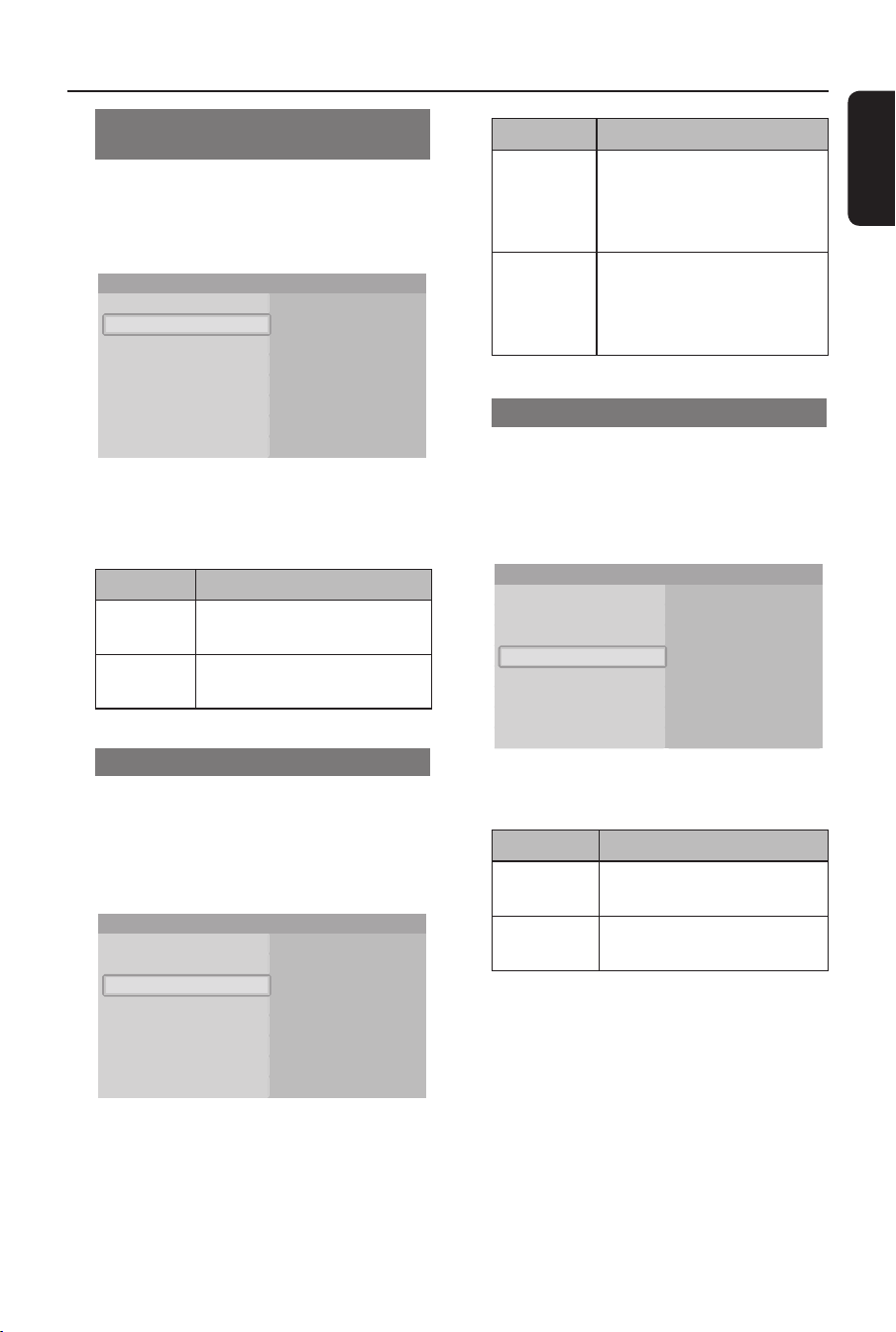
Open the audio menu
A Open the { Settings } menu.
B Select { Audio Setup } and press OK.
Î The audio setup menu shows.
Language Setup
Parental Setup
HDMI Setup
Audio Setup
Digital output
Speaker setup
Dynamic compression
PCM downsampling
Display Setup
Settings
23
English
Set Up (continued)
Change the format of the digital
audio signal
A Open the { Audio Setup } menu.
B Select { Digital output } and press OK.
Î The available options show.
PCM
Bitstream
Digital output
Speaker setup
Dynamic compression
PCM downsampling
Audio setup
C Choose the preferred option and press
OK. See ‘Audio Output’ on Speci cation
chapter for details.
Option Description
PCM The format of the digital
audio signal is PCM.
Bitstream The format of the digital
audio signal is bitstream.
Enable PCM downsampling
A Open the { Audio Setup } menu.
B Select { PCM downsampling } and
press OK.
Î The available options show.
On
Off
Digital output
Speaker setup
Dynamic compression
PCM downsampling
Audio setup
C Choose the preferred option and press
OK.
Option Description
On If the format of the digital
audio signal is 96 kHz
PCM, the audio is
downsampled to 48 kHz.
Off Regardless of the sampling
frequency of the digital
audio signal, the audio is
never downsampled.
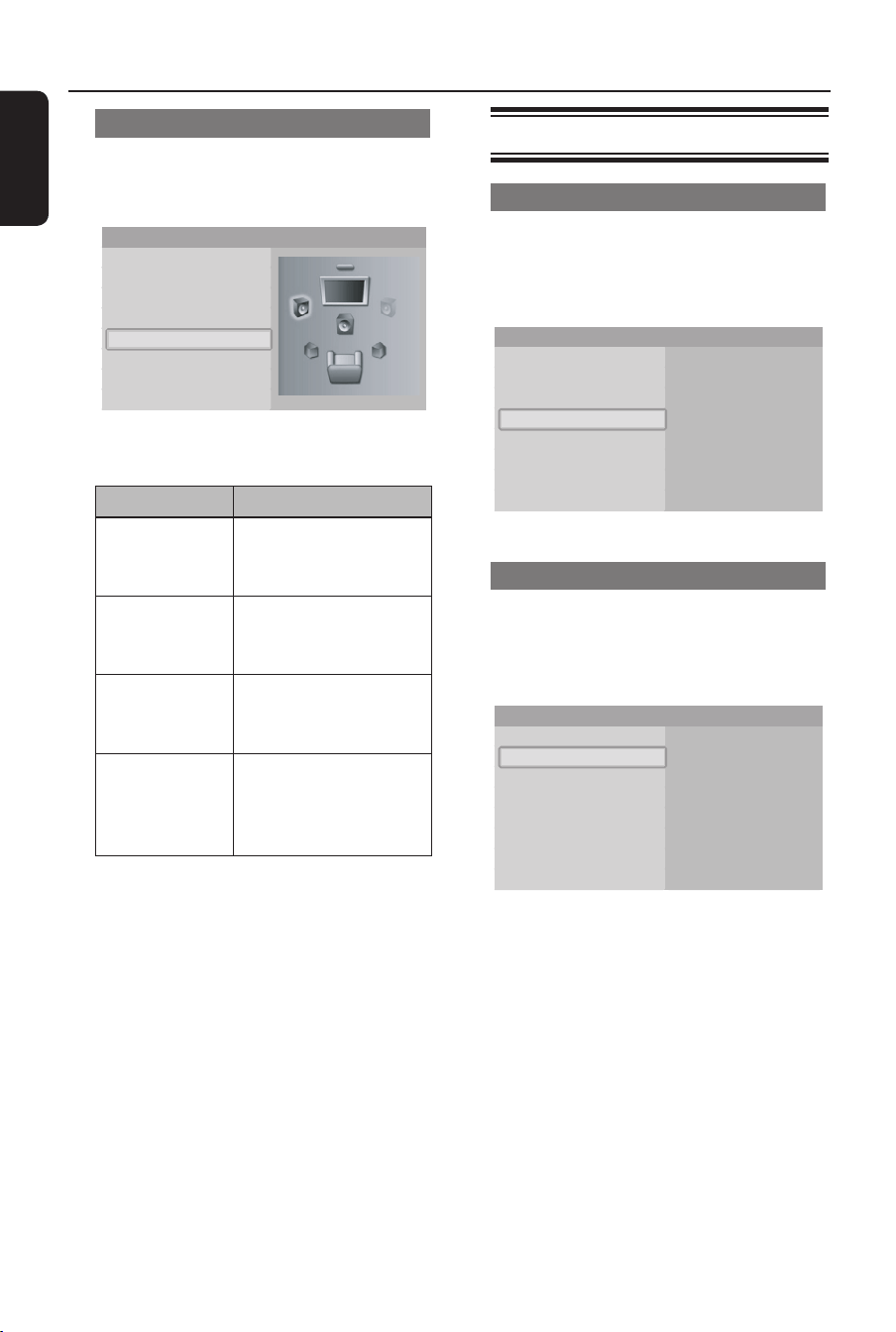
Enable dynamic range compression
A Open the { Audio Setup } menu.
B Select { Dynamic compression } and
press OK.
Î The available options show.
On
Off
Digital output
Speaker setup
Dynamic compression
PCM downsampling
Audio setup
C Choose the preferred option and press
OK.
Option Description
On The dynamic range
compression is enabled.
Off The dynamic range
compression is disabled.
24
English
Change the set up of your speakers
A Open the { Audio Setup } menu.
B Select { Speaker setup } and press OK.
Digital output
Speaker setup
Dynamic compression
PCM downsampling
Audio setup
C Select the speakers to change and press
OK.
Option Description
Front Choose between
large or small
speakers.
Centre Choose between no
speaker, a large or a
small speaker.
Rear Choose between no
speakers, large or
small speakers.
Subwoofer Choose between on
or off. Available when
front speakers are set
to large.
D Change the size of your speakers and
press OK.
Helpful Hint:
– When the front speakers are set to large
and the subwoofer is on, the subwoofer is
used for the output of bass sounds (below
100 Hz). Set the subwoofer to off for output
of the bass sounds through the front
speakers.
Set Up (continued)
Con gure the video output
Open the video menu
A Open the { Settings } menu.
B Select { Display Setup } and press OK.
Î The display setup menu shows.
Language Setup
Display Setup
Parental Setup
HDMI Setup
Audio Setup
TV shape
Resolution
Movie frame (24fps)
Front display
Screen message
Settings
Change the aspect ratio
A Open the { Display Setup } menu.
B Select { TV shape } and press OK.
Î The available options show.
4:3 Letterbox
16:9 Widescreen
4:3 Panscan
TV shape
Resolution
Movie frame (24fps)
Front display
Screen message
Display setup
25
English
C Choose the preferred option and press
OK.
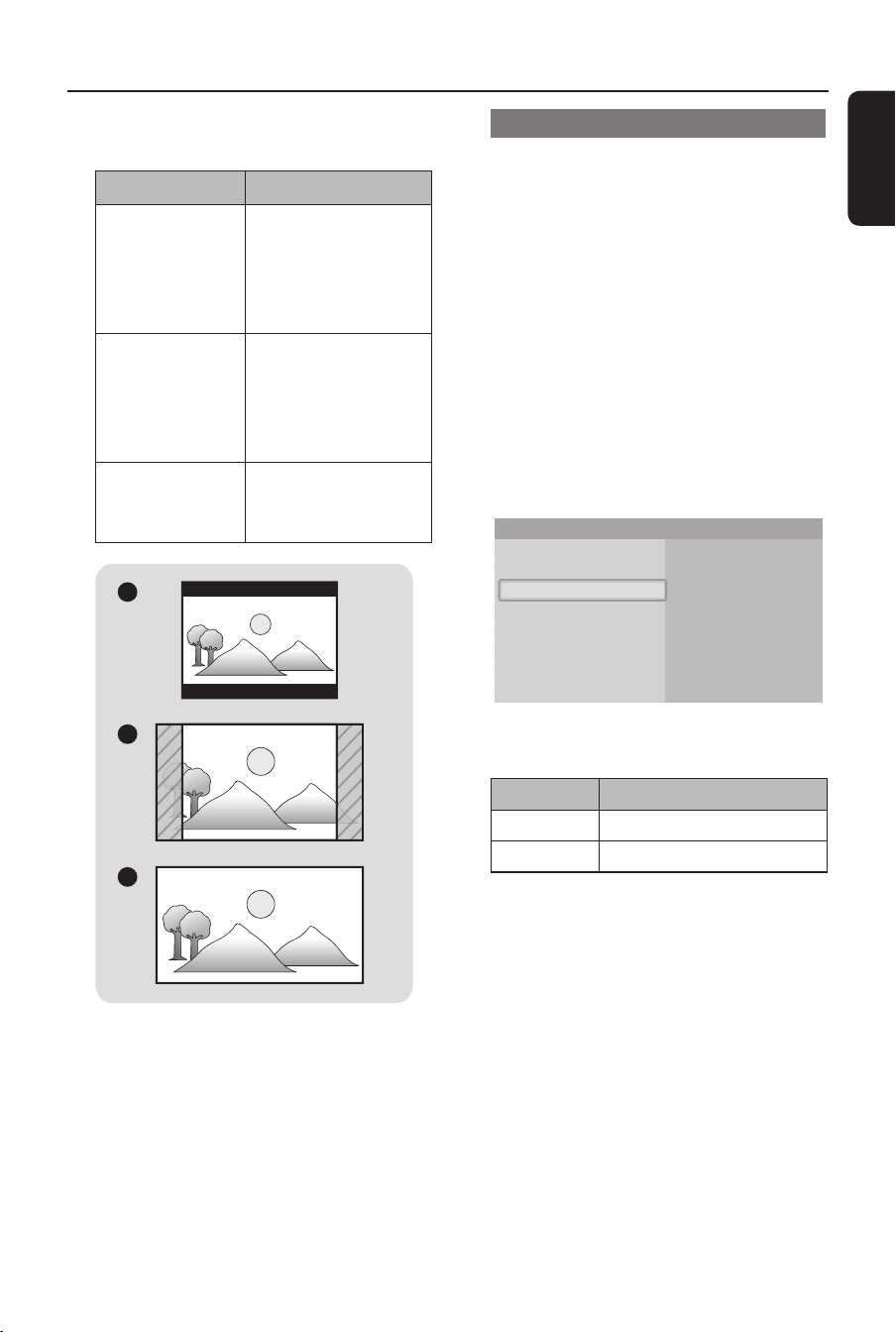
Option Description
4:3 Letterbox The TV shape is 4:3.
The top and bottom
parts of widescreen
images show black
bars. Refer to A.
4:3 Panscan The TV shape is 4:3.
The left and right
parts of widescreen
images do not show.
Refer to B.
16:9
Widescreen
The TV shape is 16:9
(widescreen). Refer
to C.
A
B
C
Set Up (continued)
Enable 24fps (frame per second)
Movies are usually lmed at 24fps.
It only applies to TV which can support
24fps. If your TV does not support this
frame rate, this menu cannot be selected.
Setting the 24fps feature to { On }
enables the 24fps for smooth movement
in Blu-ray disc lm material video. This
menu can only be selected in 1080i or
1080p HDMI output resolution mode.
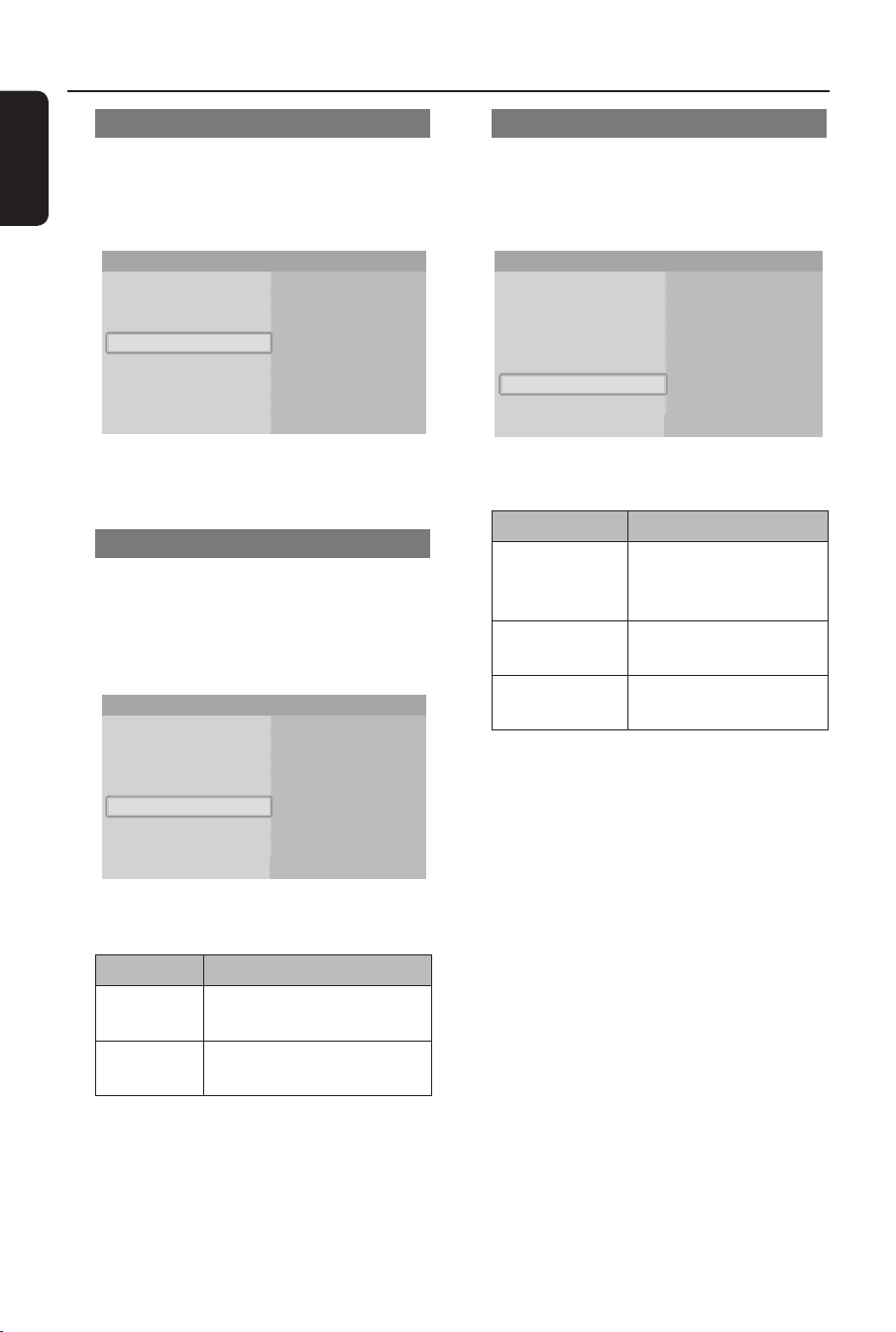
A Open the { Display Setup } menu.
B Select { Movie frame (24fps) } and
press OK.
Î The available options show.
On
Off
TV shape
Resolution
Movie frame (24fps)
Front display
Screen message
Display setup
C Choose the preferred option and press
OK.
Option Description
On Enables 24fps output.
Off Disable 24fps output.
26
English
Change the resolution
A Open the { Display Setup } menu.
B Select { Resolution } and press OK.
Î The available options show.
1080p
1080i
720p
576p/480p
576i/480i
TV shape
Resolution
Movie frame (24fps)
Front display
Screen message
Display setup
C Choose the preferred option and press
OK.
Enable screen messages
A Open the { Display Setup } menu.
B Select { Screen message } and press
OK.
Î The available options show.
On
Off
TV shape
Resolution
Movie frame (24fps)
Front display
Screen message
Display setup
C Choose the preferred option and press
OK.
Option Description
On The screen messages are
enabled.
Off The screen messages are
disabled.
Set Up (continued)
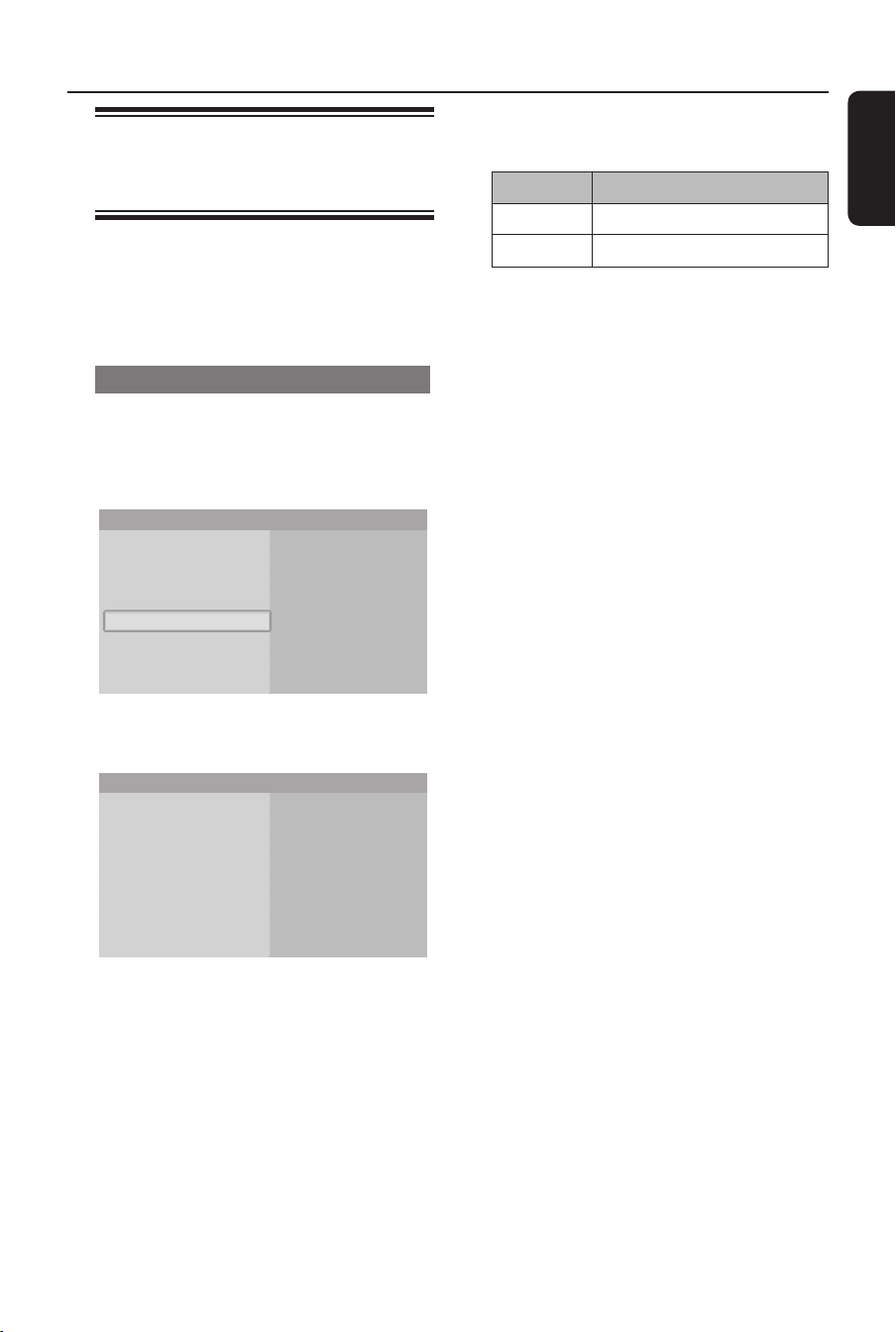
Con gure the front display
A Open the { Display Setup } menu.
B Select { Front display } and press OK.
Î The available options show.
Automatic
Dim
Bright
TV shape
Resolution
Movie frame (24fps)
Front display
Screen message
Display setup
C Choose the preferred option and press
OK.
Option Description
Automatic Low brightness of the
front display during
playback.
Dim Low brightness of the
front display.
Bright High brightness of the
front display.
27
English
Set Up (continued)
About HDMI CEC
(Consumer Electronics
Control)
HDMI CEC allows linked functions of this
player with HDMI CEC compliant TVs.
Connect the Blu-ray player to a HDMI
CEC complaint TV with a HDMI cable.
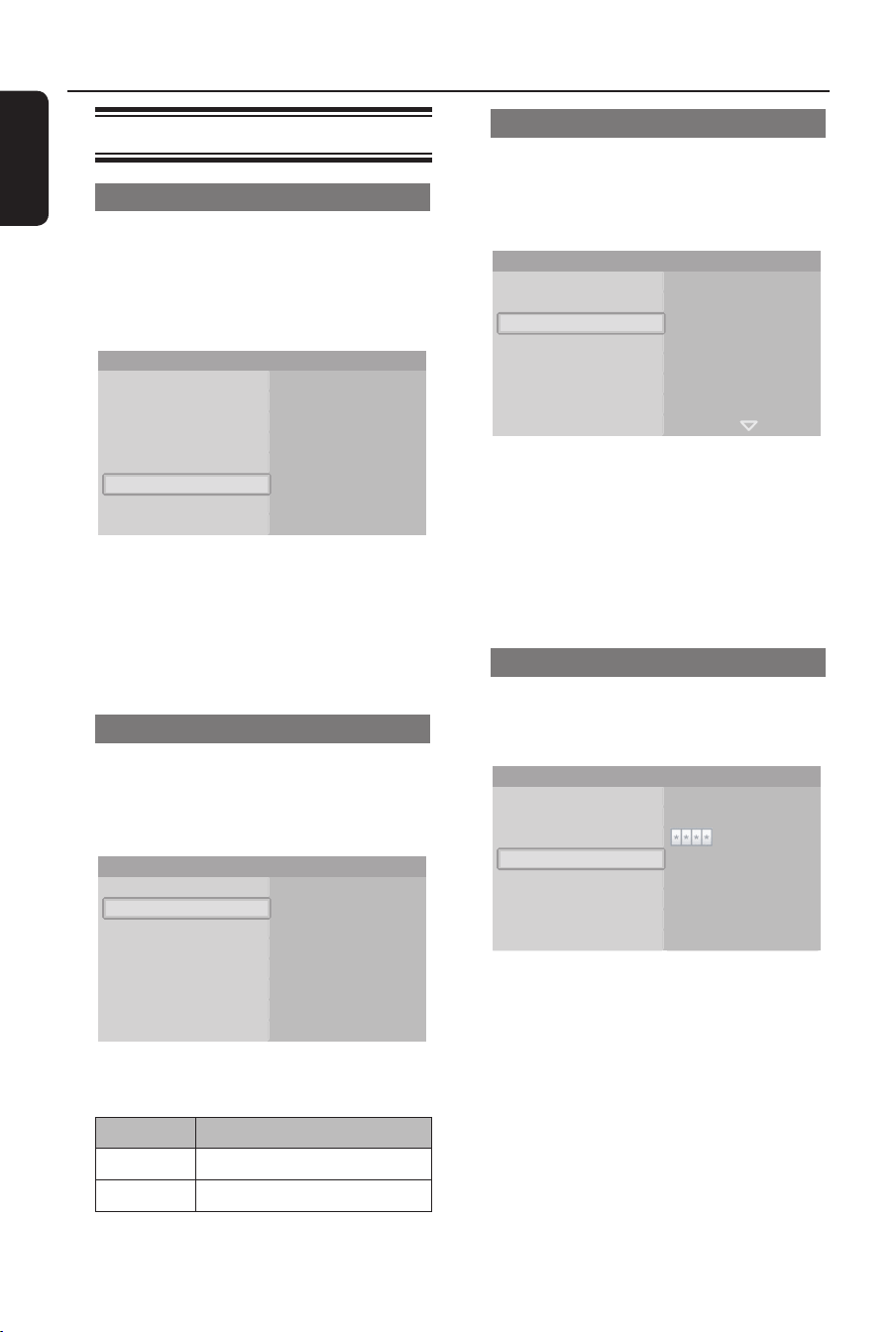
Enable HDMI Setup
A Open the { Settings } menu.
B Select { HDMI Setup } and press OK.
Î The HDMI setup menu shows.
Language setup
HDMI Setup
Display setup
Parental setup
Audio setup
HDMI CEC
Format
Settings
C Select { HDMI CEC } and press OK.
Î The HDMI CEC menu shows.
HDMI-CEC On
Off
HDMI Setup
D Choose the preferred option and press
OK.
Option Description
On The HDMI CEC enable.
Off The HDMI CEC disabled.
If HDMI CEC is set to { On }:
y When the player is turned on, the
HDMI CEC compliant TV will be
turned on automatically and switch to
HDMI mode.
y The connected HDMI CEC compliant
TV can be turn off by press and hold
the 2 button on the Blu-ray player
remote control.
Note:
Philips does not guarantee 100%
interoperability with all HDMI CEC
devices.
28
English
Set Up (continued)
Change the rating level
A Open the { Parental Setup } menu.
B Select { Rating level } and press OK.
Î The available options show.
8 (Adults)
7
6
5
4
3
Use PIN
New PIN
Rating level
Parental Setup
C Choose the preferred option and press
OK.
Helpful Hint:
– For example, when you set the rating level
to 6, discs with rating levels 7 and 8 cannot
be played.
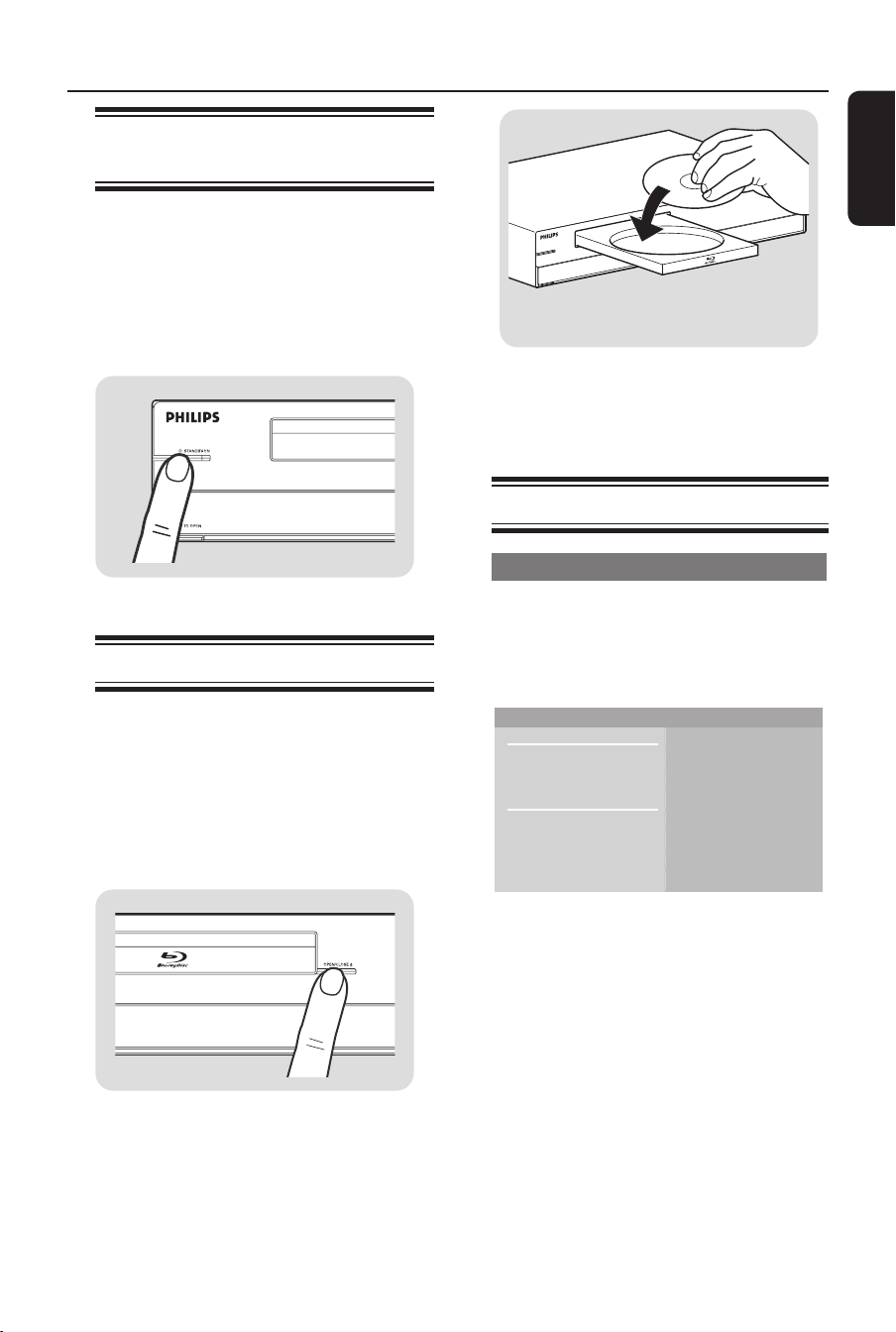
Change the PIN
A Open the { Parental Setup } menu.
B Select { New PIN } and press OK.
Use PIN Enter new PIN
New PIN
Rating level
Parental Setup
C Follow the on-screen instructions.
Change the parental setup
Open the parental setup menu
A Open the { Settings } menu.
B Select { Parental Setup } and press
OK.
Î The parental control menu shows.
Language Setup
HDMI Setup
Display Setup
Parental Setup
Audio Setup
Use PIN
New PIN
Rating level
Settings
C Enter your PIN.
Note:
The default PIN is 0000.
D Follow the on-screen instructions.
Enable the PIN
A Open the { Parental Setup } menu.
B Select { Use PIN } and press OK.
Î The available options show.
On
Off
Use PIN
New PIN
Rating level
Parental Setup
C Choose the preferred option and press
OK.
Option Description
On The PIN is enabled.
Off The PIN is disabled.
29
English
Enjoy
Turn on the Blu-ray disc
player
A Turn on the TV to the correct viewing
channel for this player.
B On the front of the player, press the
2 STANDBY-ON button.
Î The Standby-on light comes on as
blue.
Load a disc
Before you load a disc into the Blu-ray
Disc player, make sure that the disc type
is supported. See ’Playable discs’ on
Speci cations chapter.
A Press the OPEN/CLOSE ç button.
Î The disc tray opens.
B Place the disc in the disc tray.
C Press the OPEN/CLOSE ç button
again.
Î The disc tray closes.
Videos
Play a title
A Turn on the Blu-ray disc player.
B Load the video disc.
Î The home menu shows.
Disc Video
Music
Pictures
Settings
Blu-ray Disc player
C From the home menu, select { Video }.
Î The title list shows.
Note:
Discs that contain a disc menu show the
disc menu. If the disc contains a disc
menu, the rest of the procedure is not
applicable. Refer to the documentation
that came with the disc for instructions
that tell you how to operate the disc
menu.
D Use the remote control to go to the title.
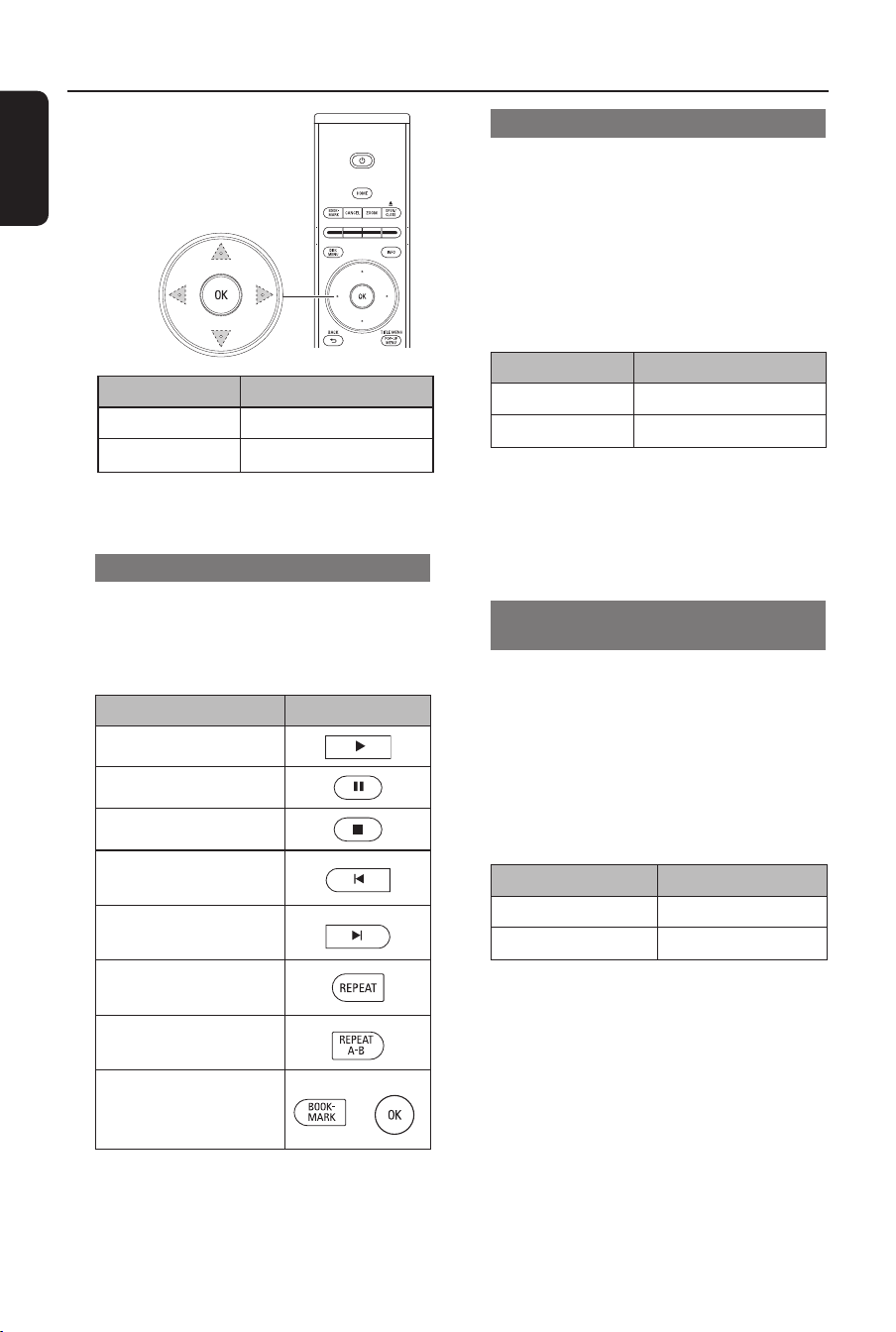
30
English
Action Button
Previous title cursor key: up
Next title cursor key: down
E Press the OK button.
Control titles
A Play the title.
B Use the remote control to control the
title.
Action Button
Play/restart the title
Pause the title
Stop the title
Jump to the previous
title/chapter
Jump to the next
title/chapter
Repeat the title/
chapter
Repeat a de ned
selection
Bookmark a point on
the disc and press
OK to con rm.
Î
Enjoy (continued)
Jump to the next or previous title
A Play the title.
B Press the INFO button.
Î The information menu shows.
C Select { Title }.
D Select the preferred option and press
OK.
Option Button
Previous title cursor key: left
Next title cursor key: right
Helpful Hint:
– You can use the remote control to jump to
the next or previous title. See ‘Control titles’
on the left for instructions.
Jump to the next or previous
chapter
A Play the title.
B Press the INFO button.
Î The information menu shows.
C Select { Chapter }.
D Select the preferred option and press
OK.
Option Button
Previous chapter cursor key: left
Next chapter cursor key: right
Helpful Hint:
– You can use the remote control to jump to
the next or previous chapter. See ‘Control
titles’ on the left for instructions.
31
English
Jump to a point of time
A Play the title.
B Press the INFO button.
Î The Information menu shows.
C Select { Playing time }.
D With the number keys, enter the point of
time.
E Press OK.
Search through a chapter
When you search through a chapter, the
audio is muted.
A Play the title.
B Go to the chapter.
C Set the speed.
Action Button
Search forwards
Search backwards
Play a title in slow motion
When you play a title in slow motion, the
audio is muted. For Blu-ray discs, only
jump slow forward is possible.
A Pause the title.
B Set the speed.
Action Button
Slow forward
Change the audio language
A Play the title.
B Press the AUDIO button.
Î The on-screen display shows.
C Select the audio language.
D Press OK.
Action Button
Up cursor key: up
Down cursor key: down
Change the camera angle
This feature is not applicable to all video
discs.
A Play a title.
B Press the POP-UP MENU button.
Î The disc menu shows.
C Select { Angle }.
Î If this is unable to activate angle
option, refer to the instruction that
comes with the disc for more details.
Change the subtitle language
A Play the title.
B Press the SUBTITLE button.
Î The on-screen display shows.
C Select the subtitle language.
D Press OK.
Action Button
Up cursor key: up
Down cursor key: down
Enjoy (continued)
32
English
Enjoy (continued)
Helpful Hint:
– The player automatically switches to stop
mode if pausing playback for more than 5
minutes. When you press PLAY button, the
track will playback from the beginning.
Pictures
View a picture
A Turn on the Blu-ray disc player.
B Load the disc.
Î The home menu shows.
C From the home menu, select { Picture }.
Î The picture list shows.
D Use the remote control to go to the
picture.
E Press OK.
Start a slideshow
A View the rst picture of the slideshow.
B Press the INFO button.
Î The information menu shows.
C Select { Slideshow }.
Î The available options show.
D Choose the preferred speed and press
OK.
Music
Play a track
A Turn on the Blu-ray disc player.
B Load the audio disc.
Î The home menu shows.
C From the home menu, select { Music }.
Î The music list shows.
D Use the remote control to go to the
track.
Action Button
Next track cursor key: up
Previous track cursor key: down
E Press OK.
Control tracks
A Play the track.
B Use the remote control to control the
track.
Action Button
Play/restart the
track
Pause the track
Stop the track
Play the previous
track
Play the next track
Repeat the track
(1x)
Repeat the audio
disc
(2x)
Play the tracks in
random order
(3x)
33
English
Enjoy (continued)
Rotate a picture
A View the picture or stop the slide show.
B Press the INFO button.
Î The information menu shows.
C Select { Rotate }.
Î The available options show.
D Choose the preferred option and press
OK.
Option Description
Rotate cursor keys: up/down
Helpful Hint:
– You can use cursor left/right keys of the
remote control to move to the previous/next
slide.
Zoom in and out on a picture
A View the photo or stop the slide show.
B Press ZOOM button.
C Press OK to zoom.
or
A View the photo or stop the slide show.
B Press the INFO button.
Î The information menu shows.
C Select { Zoom }.
Î The available options show.
D Choose the preferred option and press
OK.
Option Description
On Zoom in
Off Normal size (100%)
Scroll cursor keys: up/down/left/
right
Set to stand-by
z
On the front of the player, press the
2 STANDBY-ON button.
Î The Standby-on light on the front of
your player comes on as red.
Helpful Hint:
– When the player is switched to stand-by, it
still uses some power. To turn the player off,
remove the power cord from the power
outlet.

34
English
Troubleshooting
WARNING!
Under no circumstances should you try to repair this product yourself, as this will
invalidate the warranty. Do not open this product as there is a risk of electric
shock.
If a fault occurs, rst check the points listed below before taking this product for
repair. If you are unable to solve a problem by following these instructions,
consult your dealer or Philips for help.
Be prepared to give this information:
– A description of the problem and when it occurs
– The type number on the label of the product
– The date of purchase
Problem (General) Solution
No reaction to the
supplied remote control.
No video signal on the
TV.
Bad video signal on the
connected TV.
No high-de nition video
signal on the TV via
component video.
No audio signal.
No 5.1-channel audio
from the loudspeakers of
the audio system.
– Connect the player to the power outlet.
– Point the remote control directly at the sensor of the
player.
– Insert the batteries correctly.
– Insert new batteries in the remote control.
– Turn the TV on.
– Turn on the TV to the correct external input.
– Clean the disc.
– Make sure all cables are rmly inserted.
– Does the disc contain high-de nition video? High-de nition
video is not available when the disc does not contain it.
– Does the TV support high-de nition video? High-de nition
video is not available when the TV does not support it.
– Increase the volume level.
– Make sure that the audio settings of the TV are correct.
Refer to the user manual of your TV.
– Try another track or the disc.
– Does the disc contain 5.1-channel audio? The 5.1-channel
audio is not available when the disc does not contain it.
– Does the audio system support 5.1-channel audio? The 5.1-
channel audio is not available when the audio system does
not contain it.
– In the ‘Settings’ menu, set Digital out to PCM.

35
English
Troubleshooting (continued)
Problem (General) Solution
Cannot play a disc.
Red cross in the upper
right hand corner of the
screen.
Cannot nd a JPEG le.
Cannot nd an MP3 le.
The player gives no
response to any control.
– Make sure that the Blu-ray Disc player supports the disc
type.
– Make sure that the Blu-ray Disc player supports the region
code of the DVD or BD.
– Clean the disc.
– The operation is not possible.
– Make sure that the selected folder does not contain more
than 1500 les. Only the rst 1500 les are shown.
– Make sure that the le extension is .jpg, .JPG, .jpeg or
.JPEG.
– Make sure that the selected folder does not contain more
than 1500 les. Only the rst 1500 les are shown.
– Make sure that the le extension is .mp3 or .MP3
– Press and hold the 2 STANDBY-ON button for 5
seconds to set the player to stand-by.

36
English
Main Unit
Dimensions (w x d x h): 430 x 319 x 79 mm
Weight: 4.3 kg
Operating Environment
Operating temperature:
41 to 104 °F (+5 to 40 °C)
Operating humidity: 10 to 75 % (non-condensing)
Power
Mains power: 220~230 V, 50 Hz
STANDBY-ON switch:
Power consumption: 29 W (< 1.1 W stand-by)
Standby-On light: Red/blue
Video Output
D/A convertor:
Quatization: 12 bit
Sample rates:
- 480i : 54MHz
- 480p60: 108MHz
- 720p60: 74.25MHz
- 1080i: 74.25MHz
HDMI: 480p, 720p, 1080i, 1080p
Component video: 480i, 480p, 720p, 1080i
Y: 1.0 Vp-p (75 Ω load),
Pb: 0.70 Vp-p (75 Ω load),
Pr: 0.70 Vp-p (75 Ω load)
Composite video (480i): 1 channel: 1.0 Vp-p
(75 Ω load)
S-Video (480i): Luminance: 1.0 Vp-p (75 Ω load),
Chrominance: 0.3 Vp-p (75 Ω load)
Audio Output
D/A converter : 24bit / 192kHz
HDMI: PCM multi-channel audio, PCM audio,
bitstream audio
Digital audio output: Optical, coaxial (S/PDIF)
5.1-Channel: Front and rear left,
front and rear right,
centre, subwoofer
2-Channel: Left, right
Frequency response:
4 Hz~44 kHz at sampling rate 96 kHz
Speci cations
Signal-to-noise ratio: 120dB (None Weighting)
Dynamic range: 103dB with DVD Video
Total harmonic distortion: 0.004%
When you play a video from a disc, the audio is
dependent upon:
y
The type of audio connection
y
The disc type and the audio on the disc
y
The selected digital audio format (only for
S/PDIF and HDMI connections)
Playable Discs
Types BD-ROM/R*/RE*, DVD-Video,
DVD-R/RW (Video),
Audio CD, CD-R/RW
Region codes BD: B; DVD: 2
* Due to the intentional progression of the Blu-
ray Disc format by its standard setting authority,
Philips cannot guarantee or warrant the
playability of future extensions of the Blu-ray
Disc format with this product.
Remote Control
Infra-red capabilities
Operating distance 6000 mm (maximum)
Transmitting LEDs 1
Carrier frequency range 36 kHz
Transmission angle ± 15 degrees
Dimensions
Product dimensions (w x d x h)
237 x 46 x 24.5 mm
Product weight (excluding batteries) 176 g
Power
Number of batteries 2
Battery type AA

37
English
PRODUCT IS COMPATIBLE WITH THE
FOLLOWING CURRENT FORMATS:
y
BD-ROM/R*/RE*
y
DVD-Video, DVD-R/RW (Video),
y
Audio CD, CD-R/RW
PRODUCT WILL NOT PLAY DISCS WITH
THE FOLLOWING FORMATS:
y
HD DVD
y
Any other
* Due to the intentional progression of the
Blu-ray Disc format by its standard setting
authority, Philips cannot guarantee or
warrant the playability of future extensions
of the Blu-ray Disc format with this product.
Notes:
– Speci cations are subject to change
without prior notice.
– Weight and dimensions are approximate.
Speci cations (continued)

38
English
Glossary
AUDIO-CD: Audio CD.
BD: Blu-ray Disc.
BD-R: BD Recordable. You can record a
BD-R once and you cannot erase it.
BD-RE: BD Rewritable. You can record a
BD-RE over and over again. For example, you
can use a BD-RE to make sequential back-ups.
BD-ROM: BD Read Only Memory.
A BD-ROM contains recorded data. For
example, high-de nition videos.
CD: Compact Disc.
CD-R: CD Recordable. You can record a
CD-R once and you cannot erase it. For
example, you can use it to archive data.
CD-RW: CD Rewritable. You can record a
CD-RW over and over again. For example,
you can use a CD-RW to make sequential
back-ups.
Chapter: Sections of a video or a music
track.
CVBS: Composite video. A type of video
signal.
Dolby Digital: A surround sound system
developed by Dolby Laboratories containing
up to six channels of digital audio (front left
and right, surround left and right, centre and
subwoofer).
Dolby Digital Plus: The next-generation
audio technology that delivers ‘better-than-
DVD’ sound for all high-de nition media
providing up to 7.1 channels of audio. It is for
the future, but remains fully compatible with
existing Dolby Digital home entertainment
systems.
Dolby TrueHD: Dolby’s next-generation
lossless technology developed for high-
de nition disc-based media that delivers true
high-de nition sound, while providing up to
7.1 channels of lossless audio that is bit-for-bit
identical to the studio master.
DTS: Digital Theater Systems. This is a
surround sound system, but it is different
from the Dolby Digital. The formats were
developed by different companies.
DTS-HD High Resolution Audio: Offers
sound quality signi cantly better than current
DVD, providing up to 7.1 channels of audio
and secondary audio streams. It is also fully
compatible with existing DTS capable home
entertainment systems.
DVD: Digital Versatile Disc.
DVD-VIDEO: DVD Video.

39
English
Glossary (continued)
DVD+/-R: DVD Recordable. You can record
a DVD+/-R once and you cannot erase it. For
example, you can use it to archive data.
DVD+/-RW: DVD Rewritable. You can
record a DVD+/-RW over and over again.
For example, you can use a DVD+/-RW to
make sequential back-ups.
GB: Gigabyte.
HDMI: High De nition Media Interface. It is a
direct digital connection that can carry digital
high-de nition video as well as digital multi-
channel audio.
JPEG: Data compression standard for digital
images.
kbps: Kilobit per second (1000 bit/s).
MP3: Data compression standard for digital
audio.
PCM: Pulse Code Modulation. A digital audio
encoding system.
Title: A complete video on a disc.
Track: A music track on a disc.
CLASS 1
LASER PRODUCT
Meet Philips at the Internet
http://www.philips.com/welcome
AK68-01471A
Sgpjp-0735/12-1
BDP7100