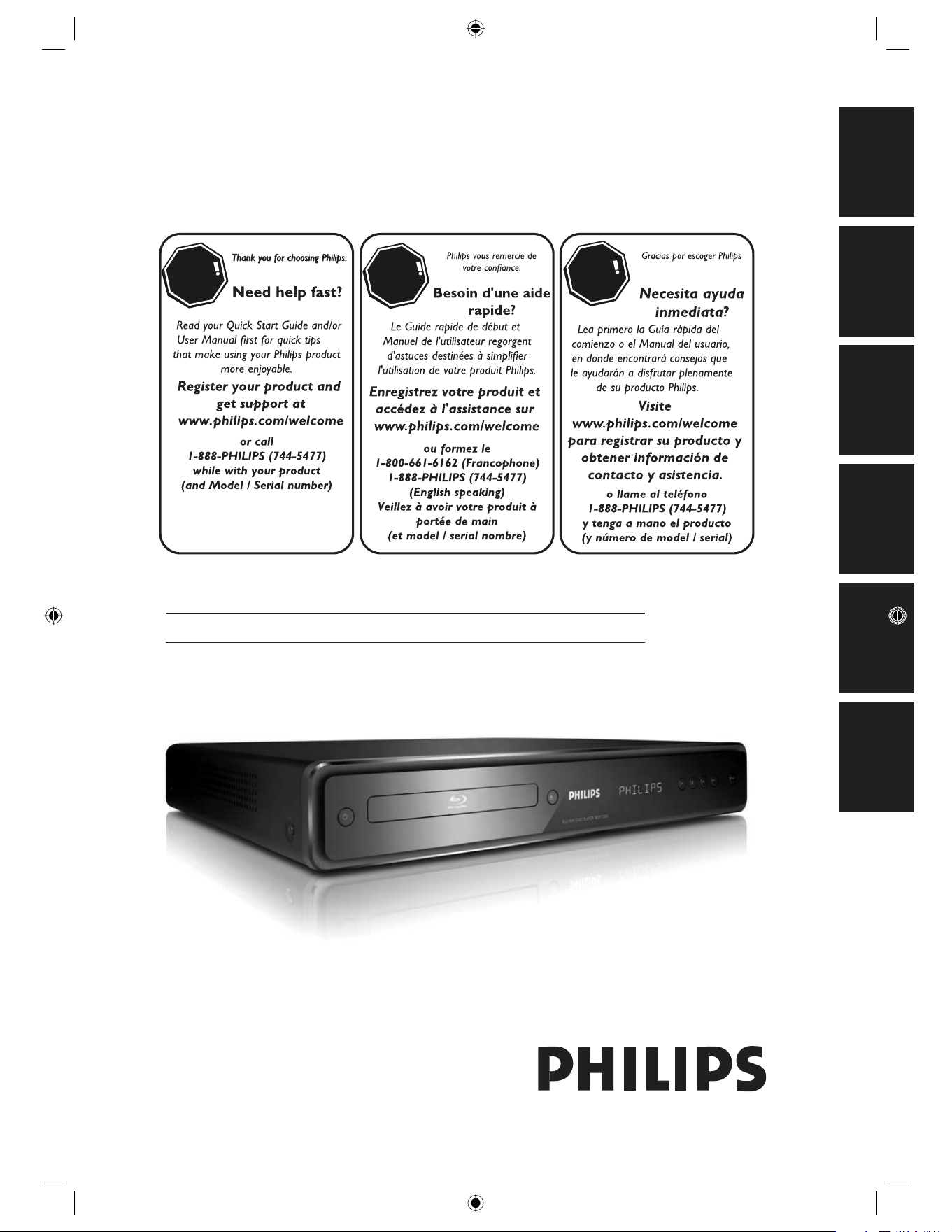
Register your product and get support at
www.philips.com/welcome
BDP7200
BLU-RAY DISC PLAYEREN
STO
P
A
R
RÊT
ALTO
Playback Function Setup Others Introduction Connections Basic Setup
E5E10UD_EN.indb 1E5E10UD_EN.indb 1 12/28/2007 9:25:11 AM12/28/2007 9:25:11 AM
2 EN
PRECAUTIONS
Registering your model with PHILIPS makes you eligible for all of the valuable benefits listed below,
so don't miss out. Complete and return your Product Registration Card at once, or register online at
www.philips.com/welcome to ensure:
Return your Product Registration Card or register online at
www.philips.com/welcome today to get the very most from your purchase.
Know these
safety symbols
CAUTION:
TO REDUCE THE RISK OF ELECTRIC
SHOCK, DO NOT REMOVE COVER (OR BACK). NO
USER-SERVICEABLE PARTS INSIDE. REFER SERVICING
TO QUALIFIED SERVICE PERSONNEL.
CAUTION
RISK OF ELECTRIC SHOCK
DO NOT OPEN
*Proof of
Purchase
Returning the enclosed card guar-
antees that your date of purchase
will be on file, so no additional
paperwork will be required from
you to obtain warranty service.
*Product Safety
Notification
By registering your product, you'll
receive notification - directly from
the manufacturer - in the rare
case of a product recall or safety
defect.
*Additional
Benefits
Registering your product guar-
antees that you’ll receive all of
the privileges to which you're
entitled, including special money-
saving offers.
Visit our World Wide Web Site at http://www.philips.com/welcome
This “bolt of lightning” indicates uninsulated material
within your unit may cause an electrical shock. For
the safety of everyone in your household, please do
not remove product covering.
The “exclamation point” calls attention to features
for which you should read the enclosed literature
closely to prevent operating and maintenance
problems.
WARNING: To reduce the risk of fire or electric
shock, this apparatus should not be exposed to rain or
moisture, and objects filled with liquids, such as vases,
should not be placed on this apparatus.
CAUTION: To prevent electric shock, match wide blade of
plug to wide slot, fully insert.
ATTENTION: Pour éviter les chocs électriques, introduire la
lame la plus large de la fiche dans la borne correspondante de
la prise et pousser jusqu’au fond.
Congratulations on your purchase,
and welcome to the “family!”
Dear PHILIPS product owner:
Thank you for your confidence in PHILIPS.
You’ve selected one of the best-built, best-
backed products available today. We’ll do
everything in our power to keep you happy
with your purchase for many years to come.
As a member of the PHILIPS “family,” you’re
entitled to protection by one of the most
comprehensive warranties and outstanding
service networks in the industry. What’s more,
your purchase guarantees you’ll receive all the
information and special offers for which you
qualify, plus easy access to accessories from
our convenient home shopping network.
Most importantly, you can count on our
uncompromising commitment to your total
satisfaction.
All of this is our way of saying welcome - and
thanks for investing in a PHILIPS product.
P.S. To get the most from your PHILIPS
purchase, be sure to complete and
return your Product Registration Card
at once, or register online at:
www.philips.com/welcome
For Customer Use
Enter below the Serial No. which is located on the rear of
the cabinet. Retain this information for future
reference.
Model No. _______________________________________
Serial No. _______________________________________
E5E10UD_EN.indb 2E5E10UD_EN.indb 2 12/28/2007 9:25:36 AM12/28/2007 9:25:36 AM
3 E N
Playback Function Setup Others
Introduction
Connections Basic Setup
PRECAUTIONS
IMPORTANT SAFETY INSTRUCTIONS
Read before operating equipment
1 . Read these instructions.
2 . Keep these instructions.
3 . Heed all warnings.
4 . Follow all instructions.
5 . Do not use this apparatus near water.
6 . Clean only with a dry cloth.
7 . Do not block any of the ventilation openings. Install in accordance
with the manufacturers instructions.
8 . Do not install near any heat sources such as radiators, heat registers,
stoves, or other apparatus (including amplifiers) that produce heat.
9 . Do not defeat the safety purpose of the polarized or grounding type
plug. A polarized plug has two blades with one wider than the other.
A grounding type plug has two blades and third
grounding prong. The wide blade or third prong
are provided for your safety. When the provided
plug does not fit into your outlet, consult an
electrician for replacement of the obsolete outlet.
10. Protect the power cord from being walked on or pinched particularly
at plugs, convenience receptacles, and the point where they exit from
the apparatus.
11. Only use attachments/accessories specified by the manufacturer.
12.
Use only with a cart, stand, tripod, bracket, or table specified
by the manufacturer, or sold with the apparatus. When a cart
is used, use caution when moving the cart/apparatus
combination to avoid injury from tip-over.
13. Unplug this apparatus during lightning storms or when unused for
long periods of time.
14. Refer all servicing to qualified service personnel. Servicing is required
when the apparatus has been damaged in any way, such as power-
supply cord or plug is damaged, liquid has been spilled or objects
have fallen into apparatus, the apparatus has been exposed to rain or
moisture, does not operate normally, or has been dropped.
15. This product may contain lead and mercury. Disposal of these
materials may be regulated due to environmental considerations. For
disposal or recycling information, please contact your local authorities
or the Electronic Industries Alliance: www.eia.org
16. Damage Requiring Service - The appliance should be serviced by
qualified service personnel when:
A. The power supply cord or the plug has been damaged; or
B. Objects have fallen, or liquid has been spilled into the appliance; or
C. The appliance has been exposed to rain; or
D. The appliance does not appear to operate normally or exhibits a
marked change in performance; or
E. The appliance has been dropped, or the enclosure damaged.
17. Tilt/Stability - All televisions must comply with recommended
international global safety standards for tilt and stability properties of
its cabinet design.
●
Do not compromise these design standards by applying excessive
pull force to the front, or top, of the cabinet which could ultimately
overturn the product.
●
Also, do not endanger yourself, or children, by placing electronic
equipment/toys on the top of the cabinet. Such items could unsus-
pectingly fall from the top of the set and cause product damage
and/or personal injury.
18. Wall or Ceiling Mounting - The appliance should be mounted to a
wall or ceiling only as recommended by the manufacturer.
19. Power Lines - An outdoor antenna should be located away from
power lines.
20. Outdoor Antenna Grounding - If an outside antenna is connected
to the receiver, be sure the antenna system is grounded so as to
provide some protection against voltage surges and built up static
charges. Section 810 of the National Electric Code, ANSI/NFPA No.
70- 1984, provides information with respect to proper grounding of
the mast and supporting structure, grounding of the lead-in wire to
an antenna discharge unit, size of grounding connectors, location
of antenna-discharge unit, connection to grounding electrodes, and
requirements for the grounding electrode. See Figure below.
21. O
bject and Liquid Entry - Care should be taken so that objects
do not fall and liquids are not spilled into the enclosure through
openings.
a) Warning: To reduce the risk of fire or electric shock, this apparatus
should not be exposed to rain or moisture and objects filled with
liquids, such as vases, should not be placed on this apparatus.
22. Battery Usage CAUTION - To prevent battery leakage that may result
in bodily injury, property damage, or damage to the unit:
●
Install all batteries correctly, with + and - aligned as marked on
the unit.
●
Do not mix batteries (old and new or carbon and alkaline, etc.).
●
Remove batteries when the unit is not used for a long time.
23. Overloading - Do not overload wall outlets, extension cords, or
integral convenience receptacles as this can result in a risk of fire or
electric shock.
24. Object and Liquid Entry - Never push objects of any kind into this
product through openings as they may touch dangerous voltage
points or short-out parts that could result in a fire or electric shock.
Never spill liquid of any kind on the product.
25. Replacement Parts - When replacement parts are required, be sure
the service technician has used replacement parts specified by the
manufacturer or have the same characteristics as the original part.
Unauthorized substitutions may result in fire, electric shock, or other
hazards.
26. Safety Check - Upon completion of any service or repairs to this
product, ask the service technician to perform safety checks to
determine that the product is in proper operating condition.
AC Polarized
Plu
g
E5E10UD_EN.indb 3E5E10UD_EN.indb 3 12/28/2007 9:25:36 AM12/28/2007 9:25:36 AM
4 EN
PRECAUTIONS
Safety Precautions
Warning: To prevent fire or shock hazard, do not expose this device to rain or moisture.
Federal Communications Commission (FCC) Warning: Any unauthorized changes or modifications to this device
void the user’s authority to operate it.
Department of Health and Human Services (DHHS) Certification: Complies with 21 Center for Radiation (CFR)
chapter 1 subchapter J applicable at time of manufacture.
Laser Safety: This unit employs a laser. Only a qualified service person should remove the cover or attempt to
service this device, due to possible eye injury.
CAUTION: USE OF CONTROLS OR ADJUSTMENTS OR PERFORMANCE OF PROCEDURES OTHER THAN THOSE SPECIFIED
HEREIN MAY RESULT IN HAZARDOUS RADIATION EXPOSURE.
CAUTION: VISIBLE AND INVISIBLE LASER RADIATION WHEN OPEN AND INTERLOCK DEFEATED. DO NOT STARE INTO
BEAM. THE BEAM IS LOCATED INSIDE, NEAR THE DECK MECHANISM.
Special Information for Canadian Users: This Class B digital apparatus complies with Canadian ICES-003. Cet
appareil numérique de la classe B est conforme à la norme NMB- 003 du Canada.
Radio/TV Interference: This device has been tested and found to comply with the limits for a Class B digital
device, pursuant to Part 15 of the FCC Rules. These limits are designed to provide reasonable protection against
harmful interference in a residential installation. This device generates, uses, and can radiate radio frequency energy
and, if not installed and used in accordance with the instructions, may cause harmful interference to radio
communications.
However, there is no guarantee that interference will not occur in a particular installation. If this device does cause
harmful interference to radio or television reception, which can be determined by turning the device off and on, the
user is encouraged to try to correct the interference by one or more of the following measures:
1) Reorient or relocate the receiving antenna.
2) Increase the separation between the device and the receiver.
3) Connect the device into an outlet on a circuit different from that to which the receiver is connected.
4) Consult the dealer or an experienced radio/TV technician for help.
Copyright Notice: The making of unauthorized copies of copy-protected material, including computer programs,
files, broadcasts and sound recordings, may be an infringement of copyrights and constitute a criminal offence. This
device should not be used for such purposes.
Copyright Protection: Unauthorized copying, broadcasting, public performance, and lending of Discs are
prohibited.
This product incorporates copyright protection technology that is protected by U.S. patents and other intellectual
property rights. Use of this copyright protection technology must be authorized by Macrovision, and is intended for
home and other limited viewing uses only unless otherwise authorized by Macrovision. Reverse engineering or
disassembly is prohibited.
Declaration of Conformity
Model Number: BDP7200/37
Trade Name: Philips
Responsible Party: PHILIPS CONSUMER ELECTRONICS
A Division of Philips Electronics North America Corp
P.O. Box 671539 Marietta, GA 30006-0026
1-888-PHILIPS (744-5477)
Copyright 2008 Philips. All rights reserved.
Product that have earned ENERGY STAR
®
are designed to protect the environment
through superior energy efficiency.
E5E10UD_EN.indb 4E5E10UD_EN.indb 4 12/28/2007 9:25:37 AM12/28/2007 9:25:37 AM
5 E N
Playback Function Setup Others
Introduction
Connections Basic Setup
PRECAUTIONS
User Manual
Supplied Accessories
Installation Location
For safety and optimum performance of this unit:
Install the unit in a horizontal and stable position. Do
not place anything directly on top of the unit. Do not
place the unit directly on top of the TV.
Shield it from direct sunlight and keep it away from
devices of intense heat. Avoid dusty or humid places.
Avoid places with insufficient ventilation for proper
heat dissipation. Do not block the ventilation holes on
the sides of the unit. Avoid locations subject to strong
vibration or strong magnetic fields.
Be sure to remove the disc and unplug the AC power
cord from the outlet before carrying the unit.
Moisture Condensation Warning
Moisture condensation may occur inside the unit when it
is moved from a cold place to a warm place or after
heating a cold room or under conditions of high
humidity. Do not use this unit at least for 2 hours until its
inside gets dry.
Trademark Information
Manufactured under license from Dolby Laboratories.
Dolby and the double-D symbol are trademarks of Dolby
Laboratories.
HDMI, the HDMI logo and High-Definition Multimedia
Interface are trademarks or registered trademarks of
HDMI Licensing LLC.
Manufactured under license under U.S. Patent #’s:
5,451,942; 5,956,674; 5,974,380; 5,978,762; 6,487,535 &
other U.S. and worldwide patents issued & pending. DTS
and DTS Digital Surround are registered trademarks and
the DTS logos and Symbol are trademarks of DTS, Inc. ©
1996-2007 DTS, Inc. All Rights Reserved.
Java and all other Java trademarks and logos are
trademarks or registered trademarks of Sun Microsystems,
Inc. in the United States and/or other countries.
Windows Media is a trademark of Microsoft Corporation.
“Blu-ray Disc“ and are trademarks.
is a trademark of DVD Format/Logo Licensing Corporation.
DivX, DivX Certified, and associated logos are trademarks
of DivX, Inc. and are used under license.
•
•
•
Maintenance
Servicing
Please refer to relevant topics on “TROUBLESHOOTING”
on page 40 before returning the product.
If you need to call a customer service representative,
please know the model number and serial number
of your product before you call. This information is
displayed on the back of the product. Also, please take
a moment to identify the problem you are having, and
be prepared to explain this to the representative. If
you believe the representative will need to help you
with operations, please stay near the product. Our
representatives will be happy to assist you. For online
reference, please visit our web site at
http://www.philips.com/welcome
Cleaning the cabinet
Wipe the front panel and other exterior surfaces of the
unit with a soft, slightly damp cloth.
Never use a solvent, thinner, benzene or alcohol to
clean the unit. Do not spray insecticide liquid near
the unit. Such chemicals may discolor the surface or
damage the unit.
Cleaning discs
When a disc becomes dirty, clean it with a cleaning
cloth. Wipe the disc from the center to out. Do not wipe
in a circular motion.
Do not use solvents such as benzine, thinner,
commercially available cleaners, detergent, abrasive
cleaning agents or antistatic spray intended for analog
records.
Cleaning the disc lens
If this unit still does not perform properly
although you refer to the relevant sections and to
“TROUBLESHOOTING” in this user manual, the laser
optical pickup unit may be dirty. Consult your dealer
or an Authorized Service Center for inspection and
cleaning of the laser optical pickup unit.
Disc handling
Handle the discs so that fingerprints and dust do not
adhere to the surfaces of the discs.
Always store the disc in its protective case when it is not
used.
Note that discs with special shapes (heart-shaped discs,
octagonal discs, etc.) cannot be played back on this unit.
Do not attempt to play such discs, as they may damage
the unit.
•
•
•
•
•
•
•
•
•
•
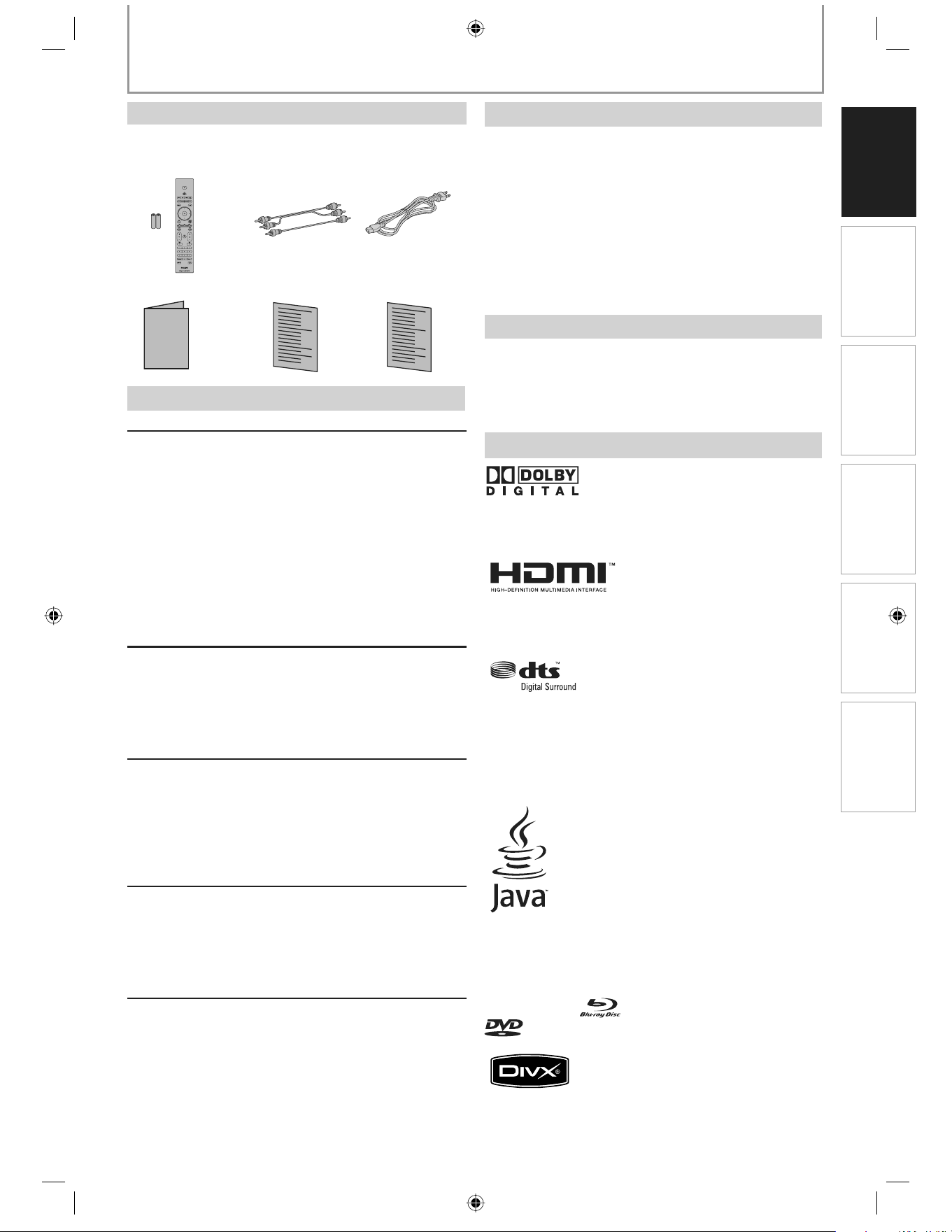
Remote Control
With Batteries
(AAx2)
RCA Audio/Video
Cables
User Manual Quick Start Guide
A C C o r d
Registration Card
E5E10UD_EN.indb 5E5E10UD_EN.indb 5 12/28/2007 9:25:37 AM12/28/2007 9:25:37 AM

6 EN
CONTENTS
Introduction
PRECAUTIONS . . . . . . . . . . . . . . . . . . . . . . . . . . . . . . . . . . . 2
FEATURES . . . . . . . . . . . . . . . . . . . . . . . . . . . . . . . . . . . . . . . 7
Features . . . . . . . . . . . . . . . . . . . . . . . . . . . . . . . . . . . . . . . . . . . .7
Product Info . . . . . . . . . . . . . . . . . . . . . . . . . . . . . . . . . . . . . . . .7
Symbols Used in this User Manual . . . . . . . . . . . . . . . . . . .7
FUNCTIONAL OVERVIEW . . . . . . . . . . . . . . . . . . . . . . . . . 8
Front Panel . . . . . . . . . . . . . . . . . . . . . . . . . . . . . . . . . . . . . . . . .8
Rear Panel . . . . . . . . . . . . . . . . . . . . . . . . . . . . . . . . . . . . . . . . . .9
Remote Control . . . . . . . . . . . . . . . . . . . . . . . . . . . . . . . . . . . 10
Front Panel Display. . . . . . . . . . . . . . . . . . . . . . . . . . . . . . . . 12
Guide to On-Screen Display . . . . . . . . . . . . . . . . . . . . . . . 13
Connections
CONNECTIONS. . . . . . . . . . . . . . . . . . . . . . . . . . . . . . . . . . 14
Connection to the TV. . . . . . . . . . . . . . . . . . . . . . . . . . . . . . 14
Connection to an Audio System . . . . . . . . . . . . . . . . . . . 16
Basic Setup
BEFORE YOU START . . . . . . . . . . . . . . . . . . . . . . . . . . . . . 17
Finding the Viewing Channel on Your TV . . . . . . . . . . 17
How to Insert a Disc . . . . . . . . . . . . . . . . . . . . . . . . . . . . . . . 18
Playback
INFORMATION ON PLAYBACK . . . . . . . . . . . . . . . . . . . 19
Guide to File List . . . . . . . . . . . . . . . . . . . . . . . . . . . . . . . . . . 20
BASIC PLAYBACK . . . . . . . . . . . . . . . . . . . . . . . . . . . . . . . 22
Playing Back a BD or a DVD. . . . . . . . . . . . . . . . . . . . . . . . 22
Playing Back an Audio CD or a Disc with DivX®/MP3/
Windows Media™ Audio/JPEG Files . . . . . . . . . . . . . . . . 23
About DivX® and DivX® VOD. . . . . . . . . . . . . . . . . . . . . . . 24
Playing Back a DivX® with DivX® External Subtitle . . 25
Using the Title / Disc Menu . . . . . . . . . . . . . . . . . . . . . . . . 25
SPECIAL PLAYBACK . . . . . . . . . . . . . . . . . . . . . . . . . . . . . 26
Fast Forward / Fast Reverse. . . . . . . . . . . . . . . . . . . . . . . . 26
Slow Forward Playback. . . . . . . . . . . . . . . . . . . . . . . . . . . . 26
Step by Step Playback. . . . . . . . . . . . . . . . . . . . . . . . . . . . . 26
Zoom . . . . . . . . . . . . . . . . . . . . . . . . . . . . . . . . . . . . . . . . . . . . . 26
Repeat Playback . . . . . . . . . . . . . . . . . . . . . . . . . . . . . . . . . . 27
A-B Repeat. . . . . . . . . . . . . . . . . . . . . . . . . . . . . . . . . . . . . . . . 27
Slide Show . . . . . . . . . . . . . . . . . . . . . . . . . . . . . . . . . . . . . . . . 27
PiP(Picture in Picture) Setting. . . . . . . . . . . . . . . . . . . . . . 27
SEARCH . . . . . . . . . . . . . . . . . . . . . . . . . . . . . . . . . . . . . . . . 28
Title/Chapter Search . . . . . . . . . . . . . . . . . . . . . . . . . . . . . . 28
Time Search. . . . . . . . . . . . . . . . . . . . . . . . . . . . . . . . . . . . . . . 28
SELECTING THE FORMAT OF AUDIO AND VIDEO . . 29
Switching Subtitles. . . . . . . . . . . . . . . . . . . . . . . . . . . . . . . . 29
Switching Audio Soundtrack . . . . . . . . . . . . . . . . . . . . . . 29
Switching Camera Angles . . . . . . . . . . . . . . . . . . . . . . . . . 29
Function Setup
LIST OF SETTINGS . . . . . . . . . . . . . . . . . . . . . . . . . . . . . . 30
SETUPS. . . . . . . . . . . . . . . . . . . . . . . . . . . . . . . . . . . . . . . . . 35
TV Shape . . . . . . . . . . . . . . . . . . . . . . . . . . . . . . . . . . . . . . . . . 35
HDMI Video Resolution. . . . . . . . . . . . . . . . . . . . . . . . . . . . 35
HDMI Audio. . . . . . . . . . . . . . . . . . . . . . . . . . . . . . . . . . . . . . . 36
Digital Out . . . . . . . . . . . . . . . . . . . . . . . . . . . . . . . . . . . . . . . . 37
Speaker Setup . . . . . . . . . . . . . . . . . . . . . . . . . . . . . . . . . . . . 38
Parental. . . . . . . . . . . . . . . . . . . . . . . . . . . . . . . . . . . . . . . . . . . 38
EasyLink (HDMI CEC) . . . . . . . . . . . . . . . . . . . . . . . . . . . . . . 39
Reset to Factory Default . . . . . . . . . . . . . . . . . . . . . . . . . . . 39
Others
TROUBLESHOOTING . . . . . . . . . . . . . . . . . . . . . . . . . . . . 40
GLOSSARY . . . . . . . . . . . . . . . . . . . . . . . . . . . . . . . . . . . . . 41
SPECIFICATIONS . . . . . . . . . . . . . . . . . . . . . . . . . . . . . . . . 42
LIMITED WARRANTY . . . . . . . . . . . . . . . . . . . . . . . . . . . . 43
E5E10UD_EN.indb 6E5E10UD_EN.indb 6 12/28/2007 9:25:38 AM12/28/2007 9:25:38 AM
7 E N
Playback Function Setup Others
Introduction
Connections Basic Setup
FEATURES
Watch movies in the highest picture quality available for your HDTV. The BDP7200 Blu-ray Disc player offers full high-definition
video playback up to 1080p resolution for an amazing viewing experience. A highly detailed picture and increased sharpness
delivers a more true-to-life picture.
Blu-ray Disc
Blu-ray Disc is a next generation optical video disc which is
capable of storing five times more data than a conventional
DVD is. The large capacity makes it possible to benefit from
the features such as high-definition videos, multi-channel
surround sounds, interactive menus and so on.
Java and all other Java trademarks and logos are trademarks
or registered trademarks of Sun Microsystems, Inc. in the
United States and/or other countries.
BD Java
With some BDs which support Java applications, you can
enjoy the interactive functions such as games or interactive
menus.
Upconvert DVD for enhanced picture quality
Your current DVD will look even better than before thanks to
video upconversion. Upconversion will increase the
resolution of standard definition DVD to high definition up to
1080p over an HDMI connection. The picture will be less
jagged and more realistic for a near high definition
experience.
Enjoy your content on different kinds of media
Full backwards compatibility with DVD, CD ensures that you
can continue to enjoy your current audio-video collection.
Additionally, you can view JPEG digital pictures or listen to
MP3 music files.
Listen to the rich multi-channel surround sound
Multi-channel surround sound, which realizes real-to-life
sound and makes you feel that you are really there.
Intuitive User interface and Remote control
The Philips logical user interface allows you to easily navigate
through your content and settings, so you can quickly find
what you are looking for.
Easy and simple connection to your HDTV via HDMI
Connect your BDP7200 to your HDTV with one single HDMI
(High Definition Multimedia Interface) cable. Philips
recommends HDMI category 2 cable for better compatibility.
The high definition video output signal will be transferred to
your HDTV without conversion to analogue signals, so you
will get an excellent picture and sound quality, completely
free from noise.
Thanks to other multiple outputs, you can also easily connect
to your home theater system or amplifier.
About EasyLink (HDMI CEC) (Consumer Electronics
Control)
EasyLink (HDMI CEC) allows you to operate the linked
functions of this player with Philips brand TV with EasyLink
feature.
Philips does not guarantee 100% interoperability with other
brands of HDMI CEC compliant devices.
PiP
Some BD-videos have the PiP (picture-in-picture) function
which enables you to display the secondary video in the
primary video. You can call up the secondary video by
pressing [PiP] whenever the scene contains the secondary
video.
Pop-up menu
Some BD-videos have pop-up menu which is a navigation
menu that can be called up and be operated on the screen
without interrupting the playback. You can call up the pop-
up menu by pressing [DISC MENU/POP-UP MENU].
Contents in the pop-up menu vary depending on the disc.
HDMI Deep color
Deep color reduces the posterization effect of the playback
image. Refer to “HDMI Deep Color” in the “LIST OF SETTINGS”
on page 31.
HDMI
1080p/fps Output (BD only)
This unit is equipped with the feature which can provide the
smooth movement in the playback of film originated
material with the frame rate of 24 frames per second with
progressive. (Available only when the display device is
connected by an HDMI cable.)
Refer to “HDMI
1080p
/
fps” in the “LIST OF SETTINGS” on page
31.
“Product Info” screen provides you with the information on
this unit’s hardware and software version information.
You can also download the latest firm ware from the web site
which is displayed in the “Product Info” screen, and update
the firm ware by yourself.
To access “Product Info”, select “Product Info” in the home
menu.
To specify for which media type each function is, we put the
following symbols at the beginning of each item to operate.
DVD-RW/-R recorded in VR mode or non compatible recording format
are not playable.
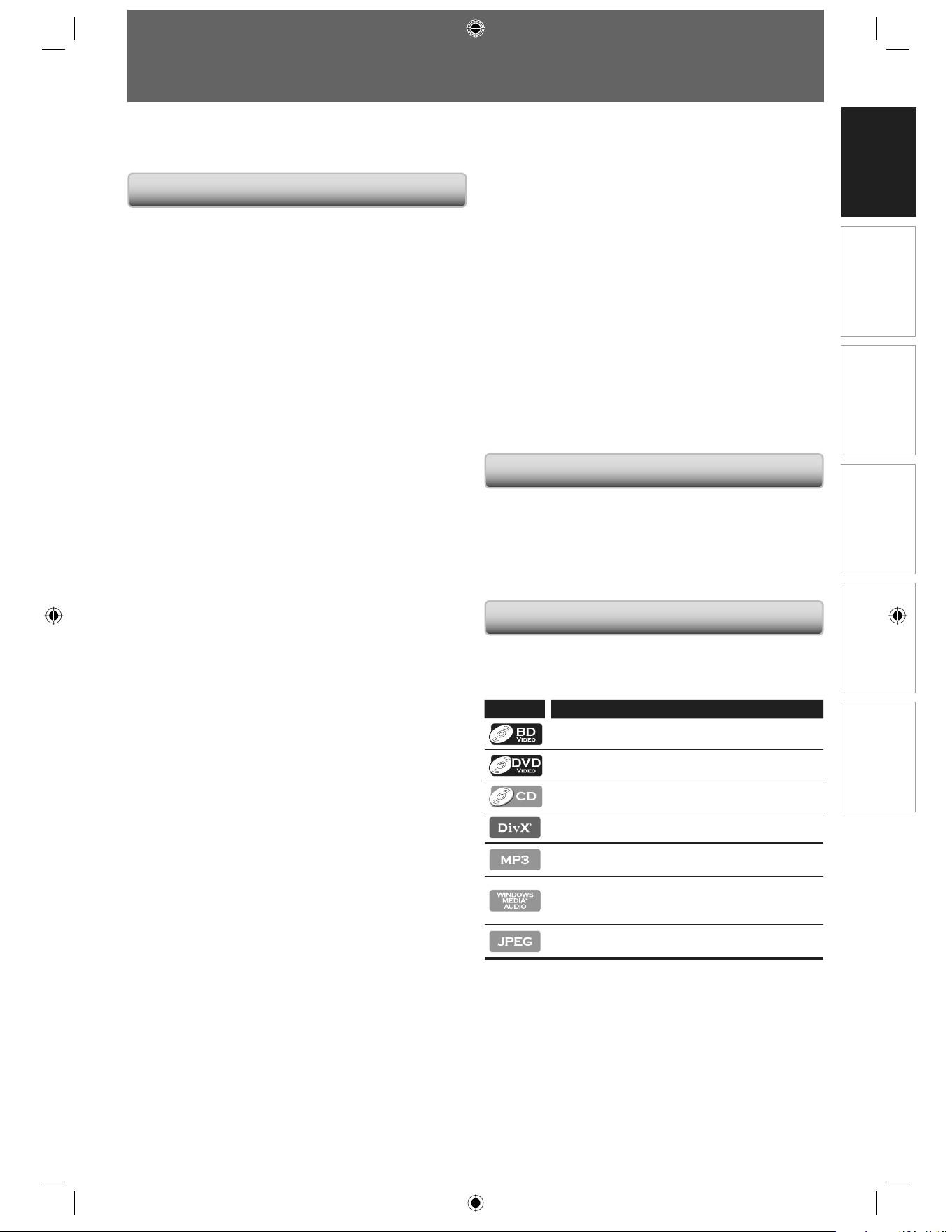
Symbol Description
Description refers to BD-video
Description refers to DVD-video
Description refers to audio CD/dts CD
Description refers to DivX® file
Description refers to DVD+RW/+R, DVD-RW/-R
and CD-RW/-R with MP3 files
Description refers to DVD+RW/+R, DVD-RW/-R
and CD-RW/-R with Windows Media™ Audio
files
Description refers to DVD+RW/+R, DVD-RW/-R
and CD-RW/-R with JPEG files
If you do not find any of the symbols listed above under the
function heading, the operation is applicable to all media.
*
Features
Product Info
Symbols Used in this User Manual
E5E10UD_EN.indb 7E5E10UD_EN.indb 7 12/28/2007 9:25:38 AM12/28/2007 9:25:38 AM
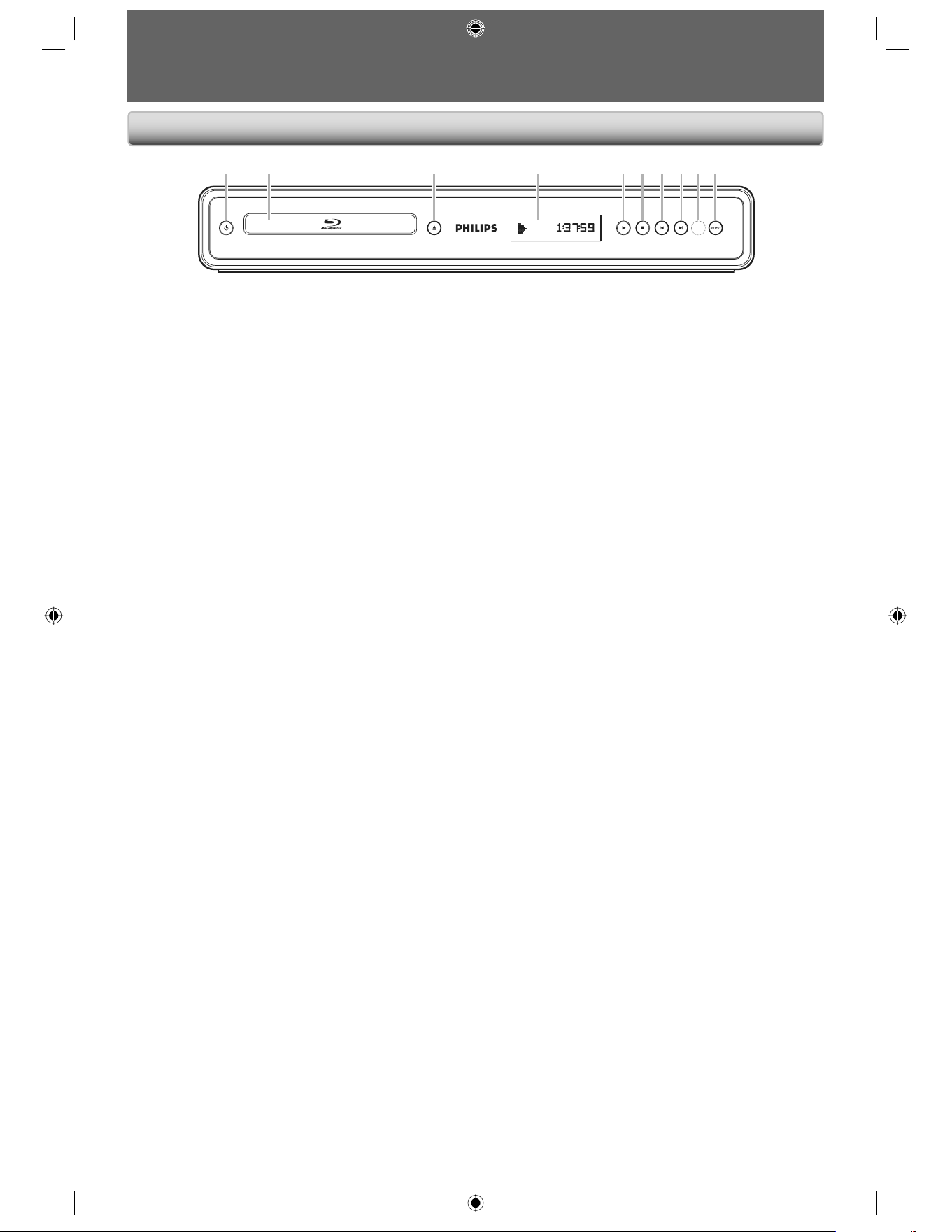
8 EN
FUNCTIONAL OVERVIEW
The unit can also be turned on by pressing these buttons. *
1.
y
(STANDBY-ON) button
Press to turn the unit on and off.
2. Disc tray
Place a disc when opening the disc tray.
3. A (OPEN/CLOSE) button*
Press to open or close the disc tray.
4. Display
Refer to “Front Panel Display” on page 12.
5. B (PLAY) button*
Press to start or resume playback.
•
•
•
•
•
6. C (STOP) button
Press to stop playback.
7. S (PREVIOUS) button
Videos, music, pictures - Previous
8. T (NEXT) button
Videos, music, pictures - Next
9. Infrared sensor window
Receive signals from your remote control so that
you can control the unit from a distance.
10. OUTPUT button
Press to change the resolution of HDMI output.
(Not available during the playback of a BD-video or
while displaying the settings menu)
•
•
•
•
•
1 2 3* 4 5* 6 7 8 109
Front Panel
E5E10UD_EN.indb 8E5E10UD_EN.indb 8 12/28/2007 9:25:38 AM12/28/2007 9:25:38 AM
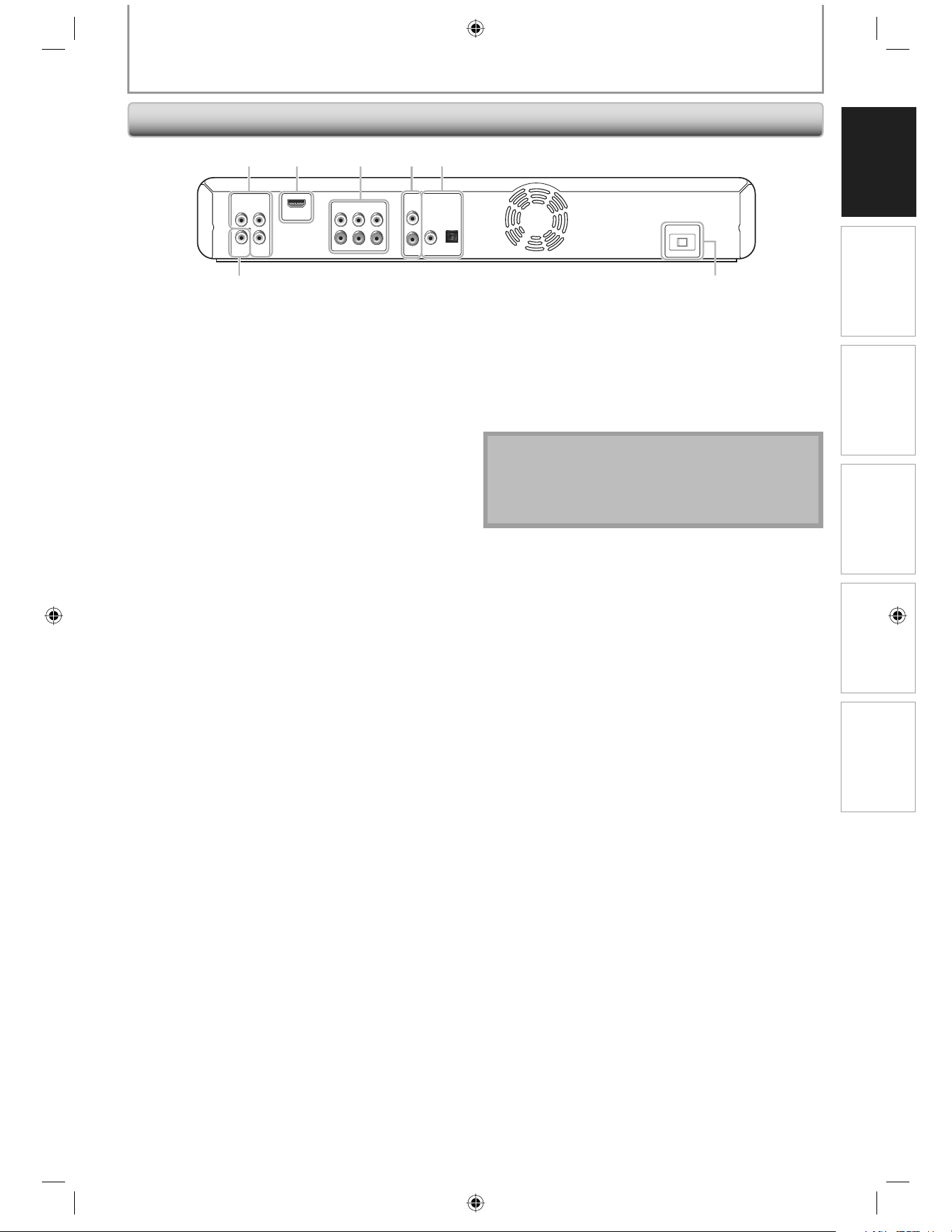
9 E N
Playback Function Setup Others
Introduction
Connections Basic Setup
1. COMPONENT VIDEO OUT jacks
Use to connect a TV monitor with component video
inputs with a component video cable.
2. HDMI OUT jack
Use an HDMI cable to connect to a display with a
HDMI compatible port.
3. 5.1ch ANALOG AUDIO OUT Jacks
Connects the audio output to an AV receiver /
amplifier.
4. AUDIO OUT jacks
Use to connect a TV monitor, an AV receiver /
amplifier or other device with an RCA audio cable.
5. DIGITAL OUT (COAXIAL/OPTICAL) jacks
Use to connect an AV receiver / amplifier, Dolby
Digital/DTS decoder or other device with a digital
audio coaxial/optical input jack with a digital audio
coaxial/optical cable.
•
•
•
•
•
6. AC IN Terminal
Use the AC cord to connect to the AC outlet.
7. VIDEO OUT jack
Use to connect a TV monitor, an AV receiver /
amplifier or other device with an RCA video cable.
Note
Do not touch the inner pins of the jacks on the rear
panel. Electrostatic discharge may cause permanent
damage to the unit.
This unit does not have the RF modulator.
•
•
•
•
FUNCTIONAL OVERVIEW
COMPONENT
VIDEO OUT
VIDEO
OUT
P
B/CB
PR/CRY
HDMI OUT
5.1ch AUDIO OUT
AUDIO
OUT
FL SL C
L
R
FR SR SW
DIGITAL OUT
(
PCM/BITSTREAM
)
COAXIAL
AC IN
OPTICAL
1 2 3 4 5
7 6
Rear Panel
E5E10UD_EN.indb 9E5E10UD_EN.indb 9 12/28/2007 9:25:39 AM12/28/2007 9:25:39 AM
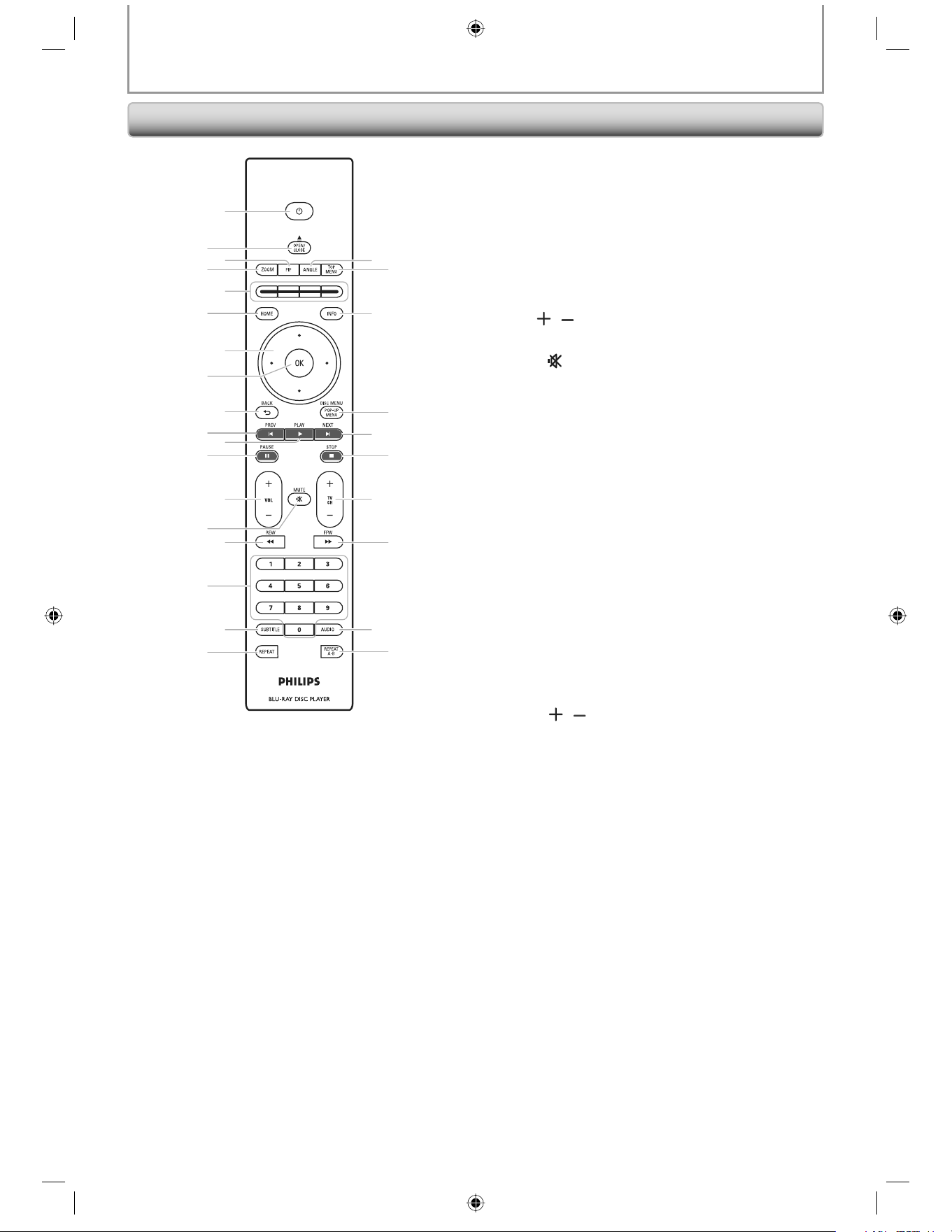
10 EN
FUNCTIONAL OVERVIEW
1
4
5
3
2
11
6
7
9
10
15
14
13
16
8
18
17 20
19
22
23
12
24
25
26
27
28
21
The unit can also be turned on by pressing these buttons.
1.
y
y (STANDBY-ON) button
Press to turn the unit on and off.
2. OPEN/CLOSE A button*
Press to open or close the disc tray.
3. PIP button
Press to switch picture in picture feature on/off
(only applicable to BD-video which supports the
PIP function).
4. ZOOM button
Press to enlarge the picture on the screen.
5. Red/Green/Yellow/Blue button
Press to activate short cut keys on some BD-video
function.
6. HOME button
Press to display the home menu.
7. Cursor K / L / { / B buttons
Press to select items or settings.
8. OK button
Press to confirm or select menu items.
9. BACK U button
Press to return to the previously displayed menu or
screen function.
*
•
•
•
•
•
•
•
•
•
10. PREV S button
During playback, press once to return to the
beginning of the current chapter, track or file.
During playback, press twice to return to the
previous chapter, track or file.
11. PLAY B button*
Press to start playback or resume playback.
12. PAUSE F button
Press to pause playback.
When playback is in pause mode, press repeatedly
to forward the playback step by step.
13. VOL
/ button
Press to adjust the TV volume (only applicable to
the PHILIPS brand TV).
14. MUTE
button
Press to mute the TV volume (only applicable to
the PHILIPS brand TV).
15. REW E button
During playback, press to fast reverse the playback.
16. Number buttons
Press to select a chapter during playback.
Press to enter values in the input field.
17. SUBTITLE button
Press to select subtitles on a disc.
18. REPEAT button
Press to toggle between various repeat modes.
19. REPEAT A-B button
Press to play back a defined section between point
A and B repeatedly.
20. AUDIO button
Press to select the audio channel (such as audio
languages) on a disc.
21. FFW D button
During playback, press to fast forward the
playback.
When playback is in pause, press to slow forward
the playback.
22. TV CH
/ buttons
Press to change the channel up and down (only
applicable to the PHILIPS brand TV).
23. STOP C button
Press to stop playback.
24. NEXT T button
During playback, press to skip to the next chapter,
track or file.
25. DISC MENU/POP-UP MENU button
BD:
Press to display the pop-up menu.
DVD:
Press to display the disc menu.
26. INFO button
Press to display the information display.
27. TOP MENU button
BD:
Press to display the top menu.
DVD:
Press to display the title menu.
28. ANGLE button
Press to select camera angles on a disc.
Press to rotate a picture (JPEG).
•
•
•
•
•
•
•
•
•
•
•
•
•
•
•
•
•
•
•
•
•
•
•
•
•
•
Remote Control
E5E10UD_EN.indb 10E5E10UD_EN.indb 10 12/28/2007 9:25:39 AM12/28/2007 9:25:39 AM
11 E N
Playback Function Setup Others
Introduction
Connections Basic Setup
FUNCTIONAL OVERVIEW
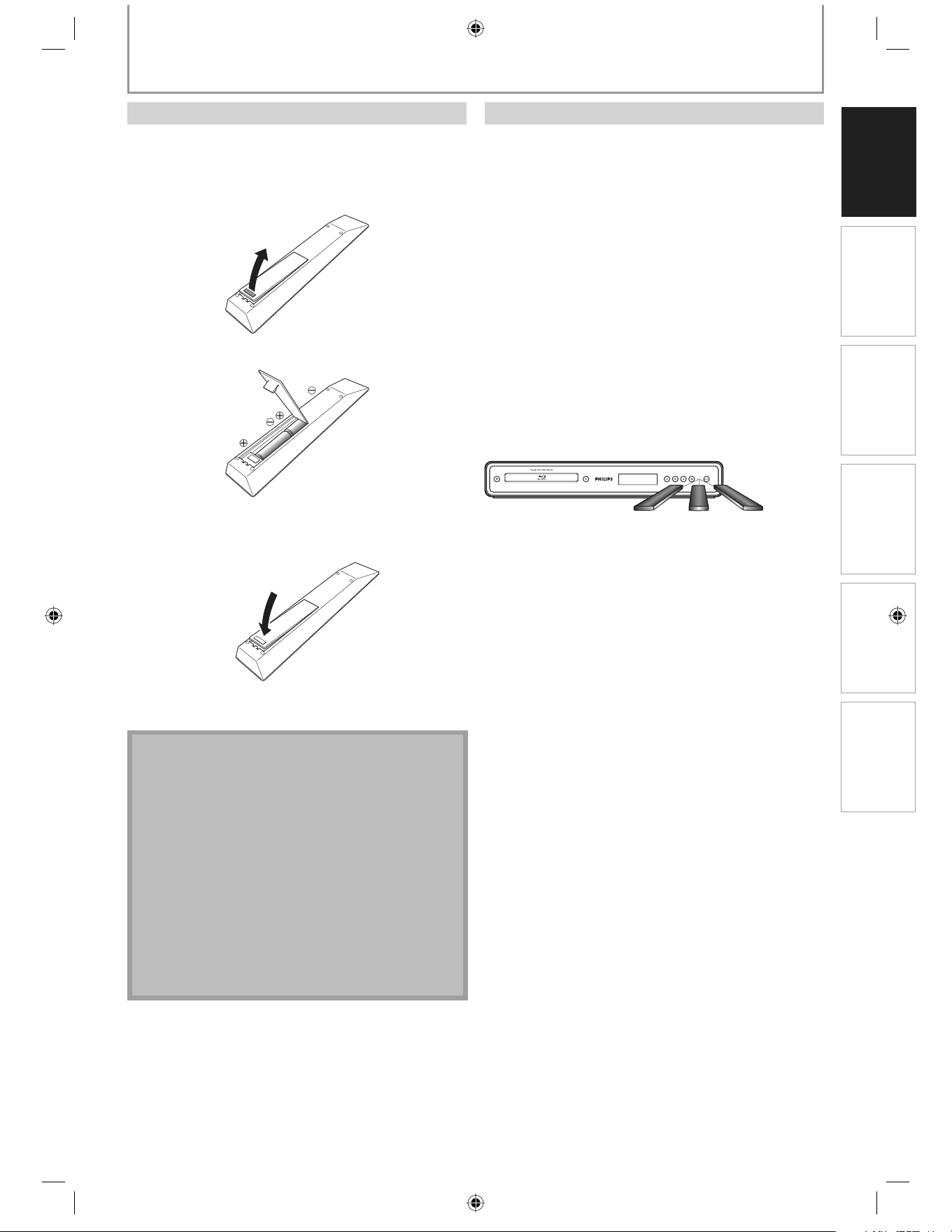
Install the batteries (AAx2) matching the polarity
indicated inside battery compartment of the remote
control.
1) Open the cover.
2) Insert batteries.
Make sure to match + and - on the batteries to the
marks indicated in the battery compartment.
3) Close the cover.
Note
Incorrect use of batteries can result in hazards such as
leakage and bursting. Please observe the following:
Do not mix new and old batteries together.
Do not use different kinds of batteries together.
Although they may look similar, different batteries
may have different voltages.
Make sure that the + and - ends of each battery
match the indications in the battery compartment.
Remove batteries from battery compartment that is
not going to be used for a month or more.
When disposing of used batteries, please comply
with governmental regulations or environmental
public instruction’s rules that apply in your country
or area.
Do not recharge, short-circuit, heat, burn or
disassemble batteries.
•
•
•
•
•
•
Installing the Batteries in the Remote Control Using a Remote Control
Keep in mind the following when using the remote
control:
Make sure that there are no obstacles between the
remote control and the infrared sensor window on the
unit.
Remote operation may become unreliable if strong
sunlight or fluorescent light is shining on the infrared
sensor window of the unit.
Remote control for different devices can interfere with
each other. Avoid using remote control for other device
located close to the unit.
Replace the batteries when you notice a fall off in the
operating range of the remote control.
The maximum operable ranges from the unit are as
follows.
Line of sight: approx. 23 feet (7m)
Either side of the center:
approx. 16 feet (5m) within 30°
Above: approx. 16 feet (5m) within 15°
Below: approx. 10 feet (3m) within 30°
30˚ 30˚
•
•
•
•
•
-
-
-
-
-
16 feet (5m)
23 feet (7m) 16 feet (5m)
E5E10UD_EN.indb 11E5E10UD_EN.indb 11 12/28/2007 9:25:40 AM12/28/2007 9:25:40 AM
12 EN
FUNCTIONAL OVERVIEW
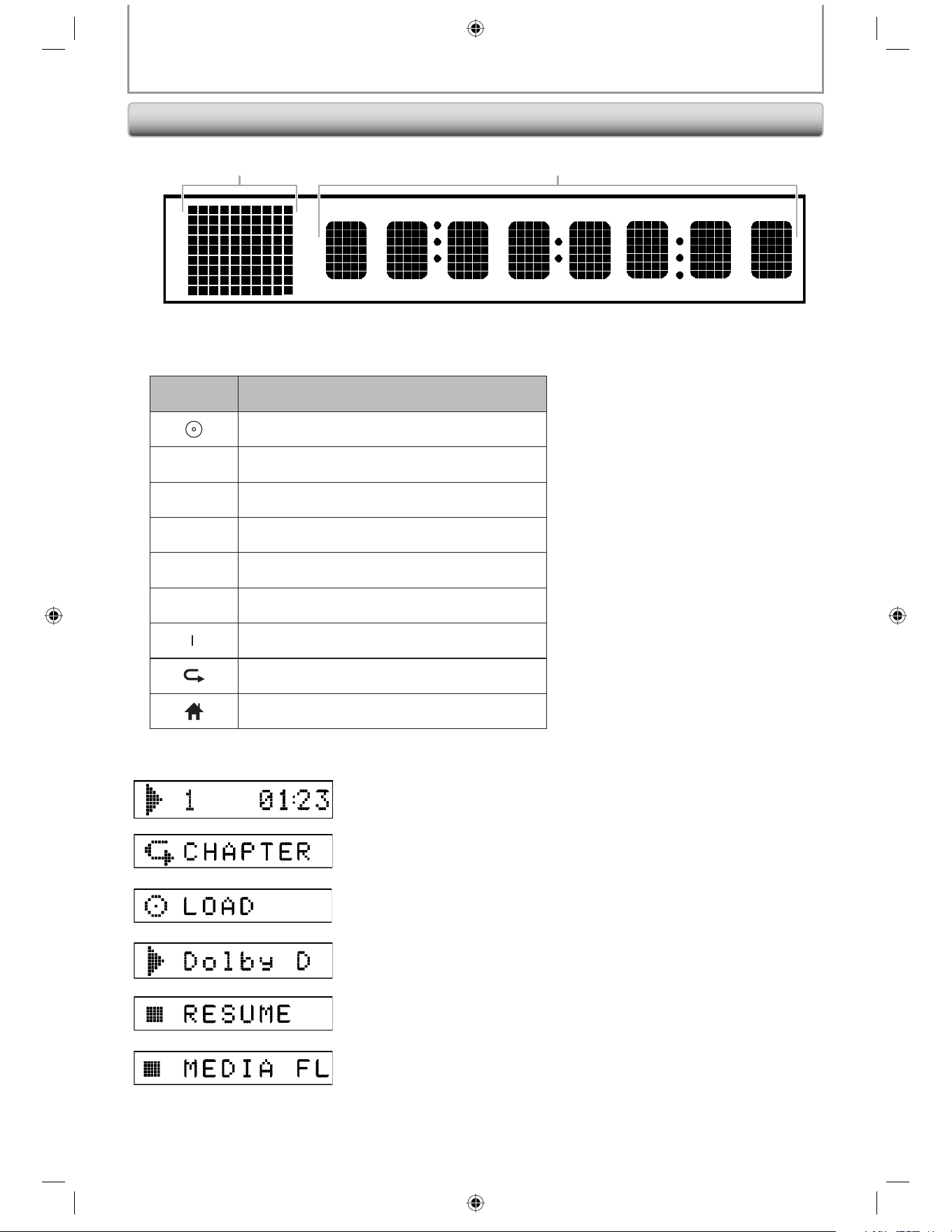
1 2
1. Displays playback status icon. Refer to the table below.
2. Displays various kinds of information such as title number, elapsed playing time, repeat type, menu type, etc.
Playback
Status Icon
Mode
Loading a disc
B
Playback is in progress
C
Stop mode
F
Pause mode
D
Fast forward mode
E
Fast reverse mode
{
Slow forward mode
Appears while repeat function is set
Appears while displaying the home menu
e.g.;
Title is being played back.
Indicating the current title number and the elapsed playing time.
Current chapter is in chapter repeat mode.
Loading a disc
Dolby Digital audio is being output.
Playback is in Resume-On-Stop mode.
Appears while displaying the media filter screen.
Brightness of the display can be adjusted. Refer to “Front Panel Brightness” in “LIST OF SETTINGS” on page 33. *
Front Panel Display
E5E10UD_EN.indb 12E5E10UD_EN.indb 12 12/28/2007 9:25:40 AM12/28/2007 9:25:40 AM
13 E N
Playback Function Setup Others
Introduction
Connections Basic Setup
FUNCTIONAL OVERVIEW
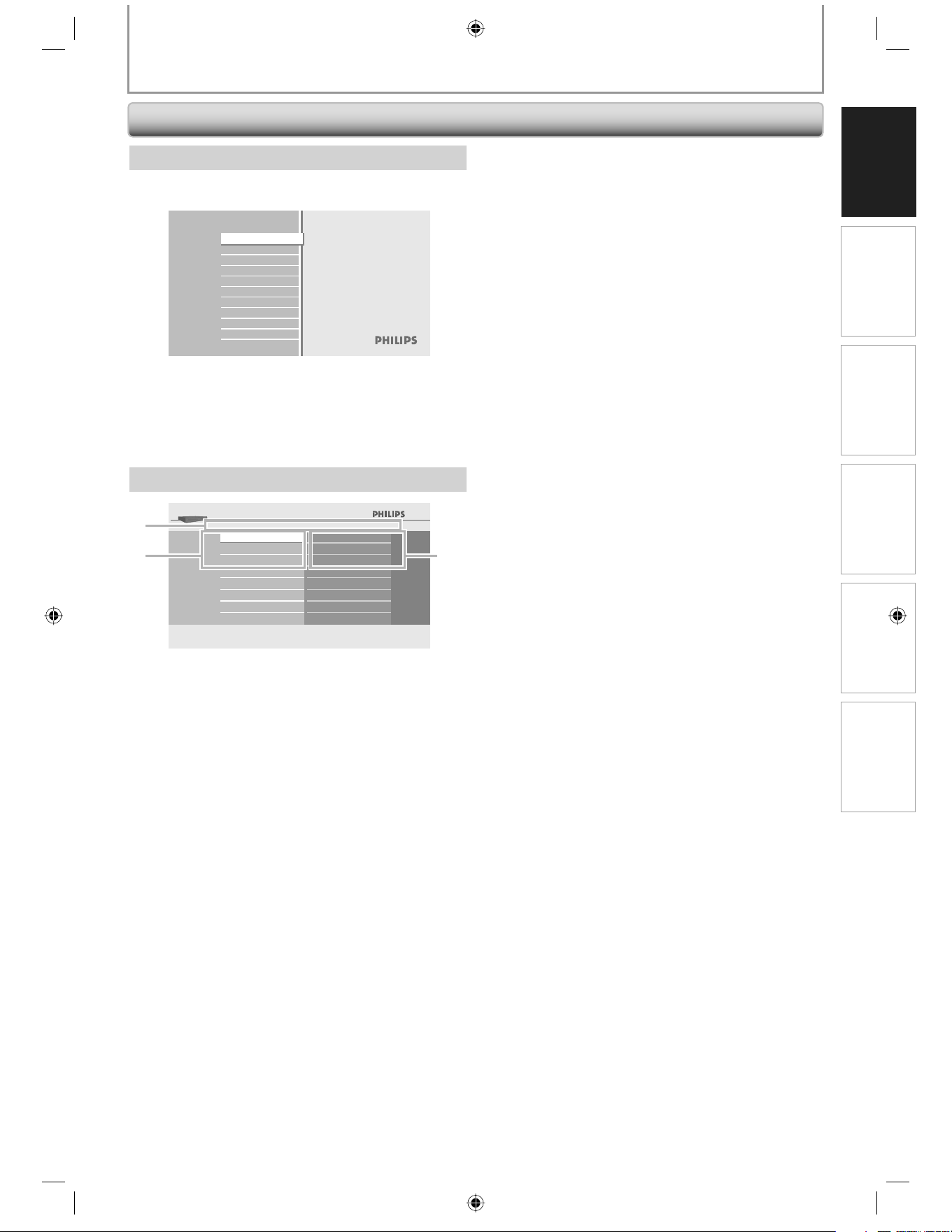
Home Menu
When you turn on the unit, home menu will appear
automatically. Otherwise, press [HOME].
Blu-ray Disc Player
Disc Tray
Settings
Product Info
“Disc Tray” : To access the track/file list or media
filter screen
“Settings” : To access the settings menus
“Product Info” : To access the product information
Menu Screen
TV Shape
Player Menu
HDMI Video Resolution
BD-Player
Settings
Advanced Setup
Factory Default
Quick Setup
23
1
1. Directory
Displays the current hierarchy.
2. Menus
3. Sub menus/Options
Displays sub menus or options for the high-lighted
item on the left whenever available.
Guide to On-Screen Display
E5E10UD_EN.indb 13E5E10UD_EN.indb 13 12/28/2007 9:25:41 AM12/28/2007 9:25:41 AM
14 EN
COMPONENT
VIDEO OUT
P
B
/C
B
P
R
/C
R
Y
COMPONENT
VIDEO IN
Y
PB/CB
PR/CR
AUDIO IN
LR
5.1ch AUDIO OUT
AUDI O
OUT
F
LSL C
L
R
F
RSRSW
DIGITAL OUT
(
PCM/ BITSTREAM
)
COAXIAL OPTICAL
D
IGITAL OUT
(
P
C
M
/
B
IT
S
TREAM
)
CO
AXIA
L
O
PTI
C
AL
AUDIO
OUT
L
R
CONNECTIONS
VIDEO
OUT
VIDEO
IN
HDMI OUT
HDMI IN
HDMI OUT
DVI I N
*
1)
This unit is compatible with the progressive scan system. The feature provides you with the higher quality pictures than traditional
output system does. To utilize this feature, a component or an HDMI connection is required. Refer to the “HDMI Video Resolution”
on page 31 or “Component Output” on page 31 to set the resolution.
*
2)
Analog audio connection is not required for this connection.
Supplied cables used in this connection are as follows:
RCA audio cable (L/R) x 1
RCA video cable x 1
Please purchase the rest of the necessary cables at your local store.
•
•
Note for HDMI connection (Philips recommends HDMI category 2 cable, also known as High
Speed HDMI cable, for optimal audio / video output.)
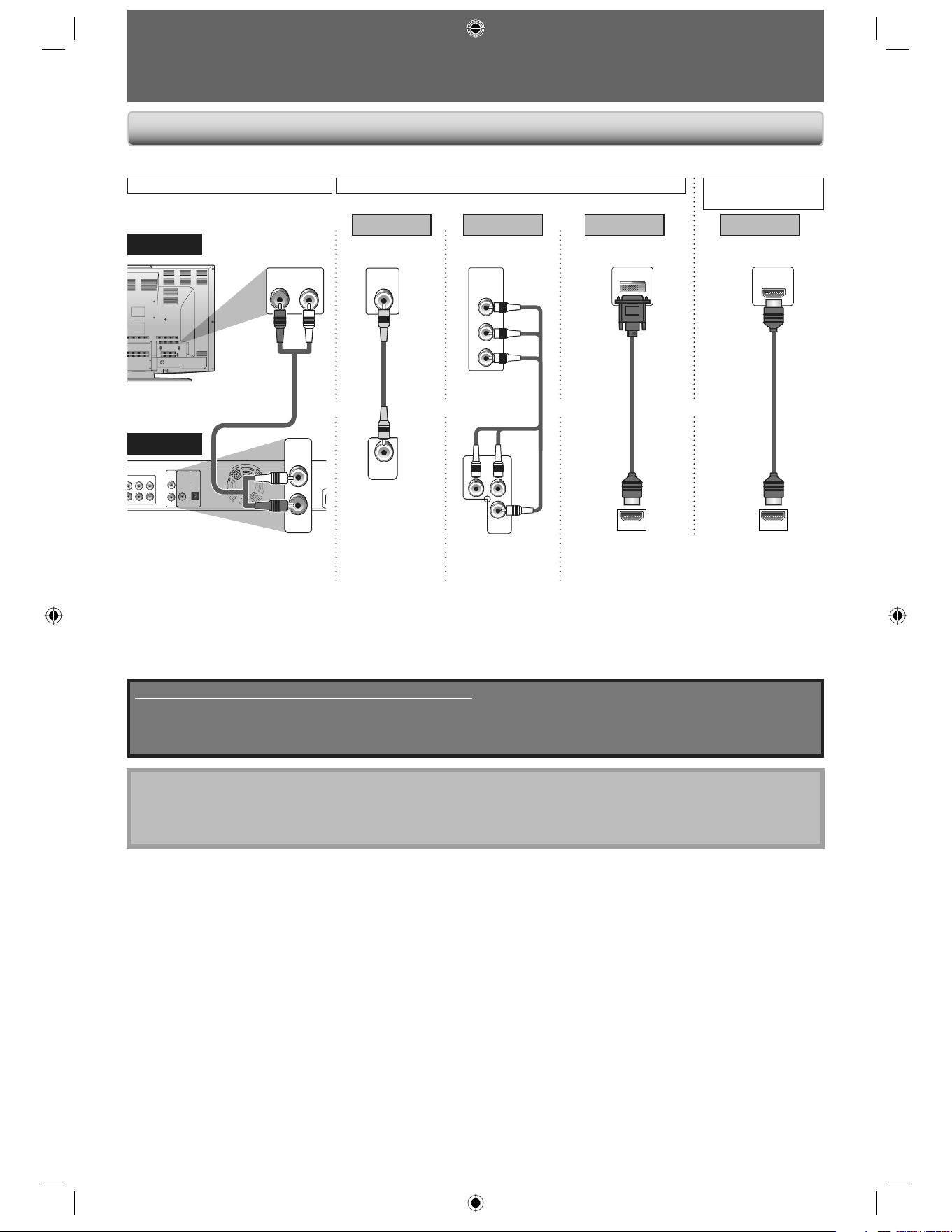
A simple 1-cable connection with a device having an HDMI (High-Definition Multimedia Interface) jack allows
digital transfer of the digital pictures of BD-video, DVD-video and other devices.
•
Make one of the following connections, depending on the capabilities of your existing device.•
T V
this unit
and
HDMI
cable
analog audio
RCA
audio cable
RCA
video
cable
component
video cable
Method 2
better picture
COMPONENT
VIDEO OUT
Method 1
standard picture
VIDEO OUT AUDIO OUT
Method 3
best audio/picture
HDMI OUT
HDMI-DVI
cable
*
1
*
1
AUDIO CONNECTION
VIDEO CONNECTION
AUDIO/VIDEO
CONNECTION
or
best picture
Method 4
*
1, 2
or or
(Red)
(Blue)
(Green)
(Red)
(Blue)
(Green)
Connection to the TV
E5E10UD_EN.indb 14E5E10UD_EN.indb 14 12/28/2007 9:25:41 AM12/28/2007 9:25:41 AM
15 E N
Playback Function Setup Others Introduction
Connections
Basic Setup
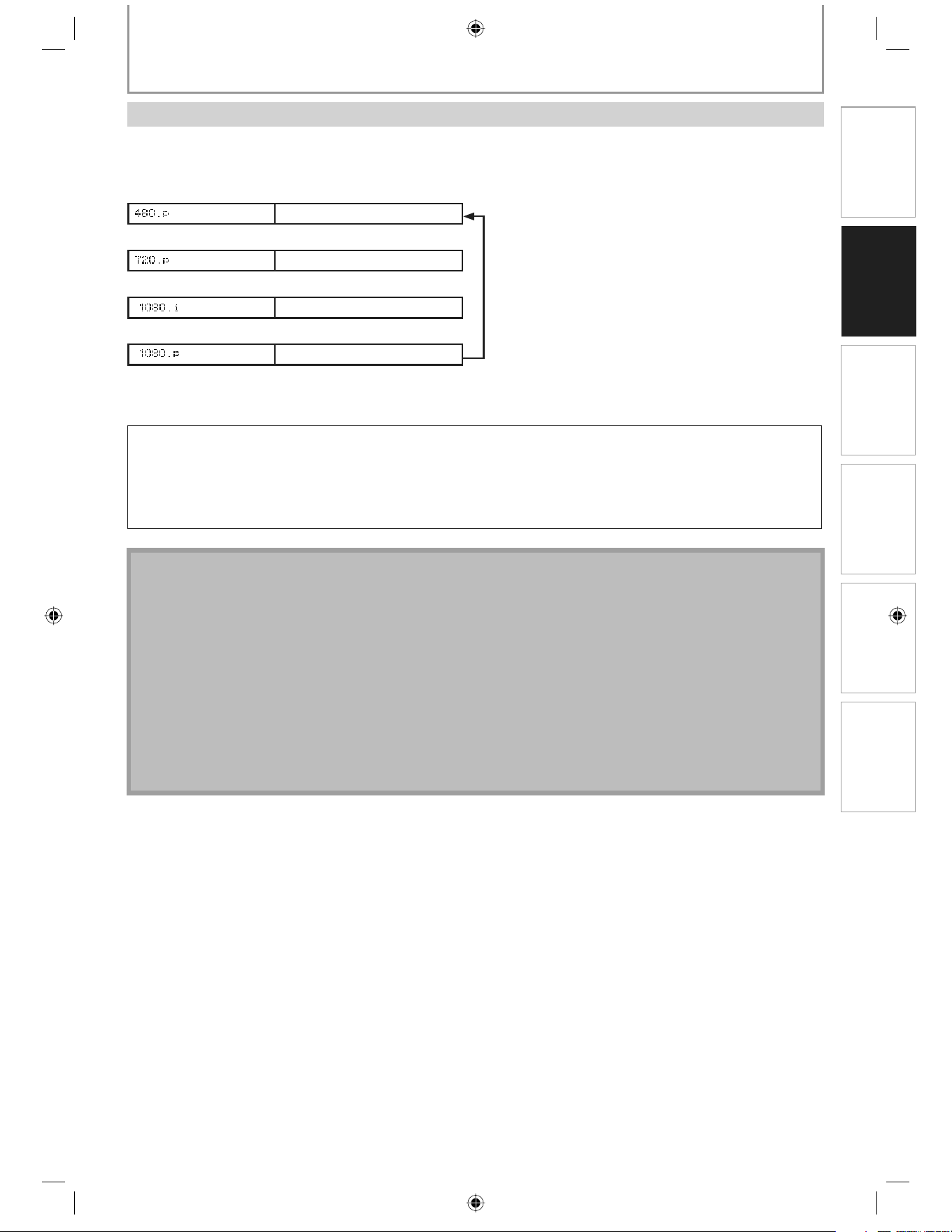
Press [OUTPUT] on the front panel to change the resolution of the video signal being output from the HDMI OUT. The
video resolution changes as follows every time [OUTPUT] is pressed. Or change the setting in the “HDMI Video
Resolution” in the settings menu.
Front Panel Display HDMI Video Resolution
480 Progressive
Press [OUTPUT]
720 Progressive
Press [OUTPUT]
1080 interlaced
Press [OUTPUT]
1080 Progressive
Press [OUTPUT]
Copyright protection system
To play back the digital video images of a BD-video or DVD-video via an HDMI connection, it is necessary that both
the player and the display device (or an AV receiver / amplifier) support a copyright protection system called HDCP
(high-bandwidth digital content protection system). HDCP is copy protection technology that comprises data
encryption and authentication of the connected AV device. This unit supports HDCP. Please read the operating
instructions of your display device (or AV receiver / amplifier) for more information.
HDMI: High Definition Multimedia Interface
Note
When using HDCP-incompatible display device, the picture will not be viewed properly.
The audio signals from the HDMI jack (including the sampling frequency, the number of channels and bit length)
maybe limited by the device that is connected.
Among the display device(s) that support HDMI, some do not support audio output (for example, projectors). In
connections with device such as this unit, audio signals are not output from the HDMI output jack.
When this unit’s HDMI jack is connected to a DVI-D compatible display device(s) (HDCP compatible) with an HDMI-
DVI converter cable, the signals are output in digital RGB.
Pressing [OUTPUT] does not work when HDMI cable is not connected, or when no video signal is being output
from the HDMI OUT jack.
Pressing [OUTPUT] does not work during the playback of a BD-video or while displaying the settings menu.
When you make a selection, the TV monitor temporarily goes blank and then comes back again. If it does not,
press [OUTPUT] repeatedly to change the resolution or press and hold [B (PLAY)] on the front panel for 5 seconds
to change the setting back to its default.
•
•
•
•
•
•
•
*
CONNECTIONS
HDMI Mode and Actual Output Signals
E5E10UD_EN.indb 15E5E10UD_EN.indb 15 12/28/2007 9:25:42 AM12/28/2007 9:25:42 AM
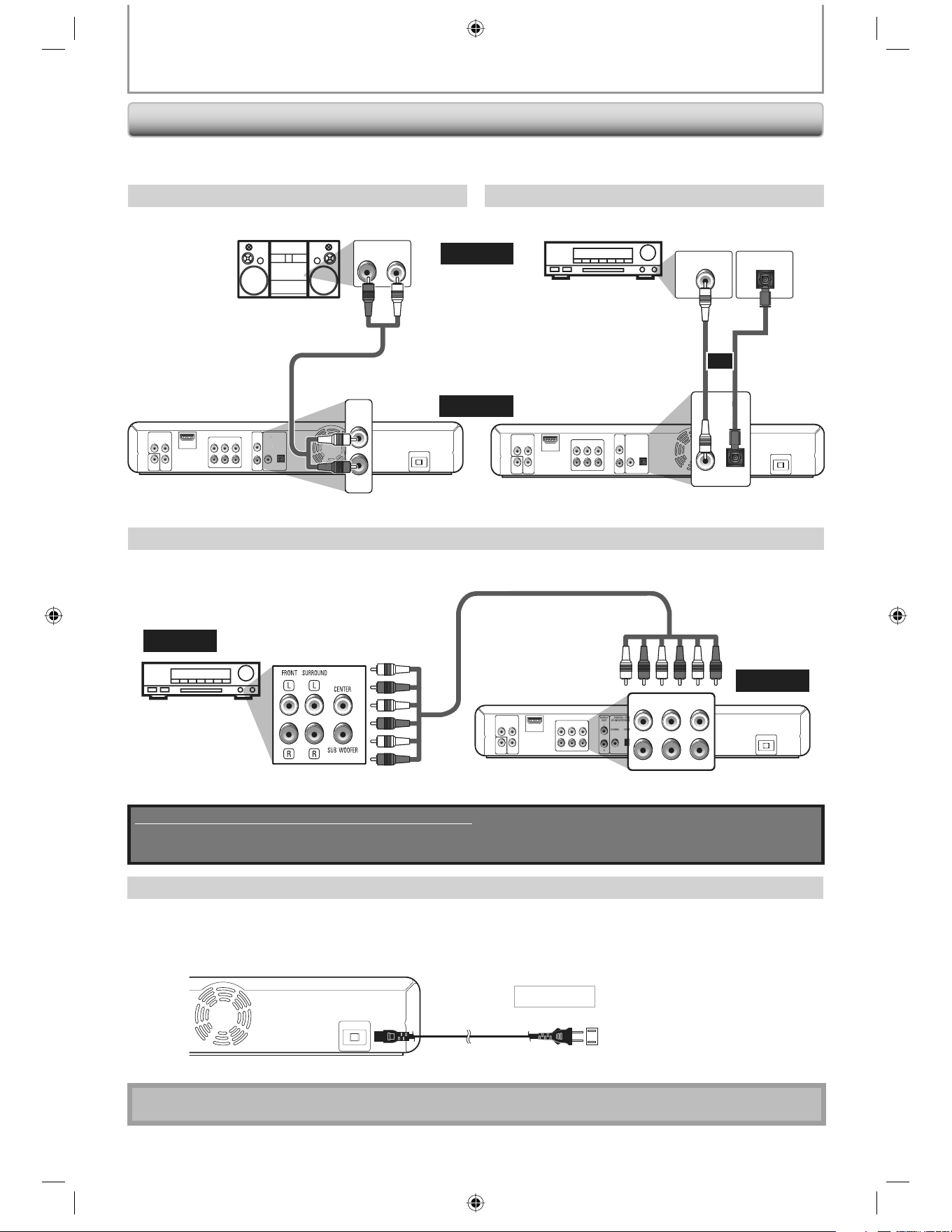
16 EN
When you change the connections, all devices should be turned off.
Refer to the manual accompanying external devices for more information.
•
•
To set up the speakers, refer to “Analog Audio“ on page 33.
Supplied cables used in this connection are as follows:
RCA audio cable (L/R) x 1
Please purchase the rest of the necessary cables at your local store.
•
COMPONENT
VIDEO OUT
VIDEO
OUT
P
B
/C
B
P
R
/C
R
Y
5.1ch AUDIO OUT
AUDI O
OUT
FL SL C
L
R
FR SR SW
DIGITAL OUT
(
PCM/ BITSTREAM
)
COAXIAL
AC IN
OPTICAL
HDMI OUT
AUDIO
OUT
L
R
D
I
G
ITAL
OUT
(
P
C
M
/
B
IT
S
TREAM
)
COAXIA
L
OPTICAL
AUDIO IN
LR
COMPONENT
VIDEO OUT
VIDEO
OUT
P
B
/C
B
P
R
/C
R
Y
5.1ch AUDIO OUT
AUDI O
OUT
FL SL C
L
R
FR SR SW
DIGITAL OUT
(
PCM/ BITSTREAM
)
COAXIAL
AC IN
OPTICAL
HDMI OUT
DIGITAL OUT
(
PCM/ BITSTREAM
)
COAXIAL OPTICAL
COAXIAL
DIGITAL AUDIO INPUT
OPTICAL
DIGITAL AUDIO INPUT
stereo system
2 Channel Analog Audio Connection Digital Audio Connection
Multi-Channel Analog Audio Connection
COMPONENT
VIDEO OUT
VIDEO
OUT
P
B
/C
B
P
R
/C
R
Y
5.1ch AUDIO OUT
FL SL C
FR SR SW
)
AC IN
HDMI OUT
5.1ch AUDIO OUT
FL SL C
FR SR SW
AV receiver/amplifier
AV receiver / amplifier with multi-channel audio input jacks.
or
CONNECTIONS
Connecting the AC cord
After you made all necessary connections, connect the AC cord to the AC IN. Then connect the AC cord to the AC outlet.
Insert the plugs securely. Incomplete connections will result in the generation of noise.
AC IN
Supplied cables used in this connection are as follows:
AC cord x 1•
5.1ch
audio cable
analog audio
input jacks
RCA audio cable
AUDIO OUT DIGITAL OUT (COAXIAL/OPTICAL)
digital audio coaxial / optical
input jacks
digital audio coaxial cable
digital audio
optical cable
audio
this unit
audio
this unit
Connection to an Audio System
AC cord
AC 120V, 60 Hz
AC outlet
E5E10UD_EN.indb 16E5E10UD_EN.indb 16 12/28/2007 9:25:43 AM12/28/2007 9:25:43 AM
17 E N
Connections Playback Function Setup Others Introduction
Basic Setup
BEFORE YOU START
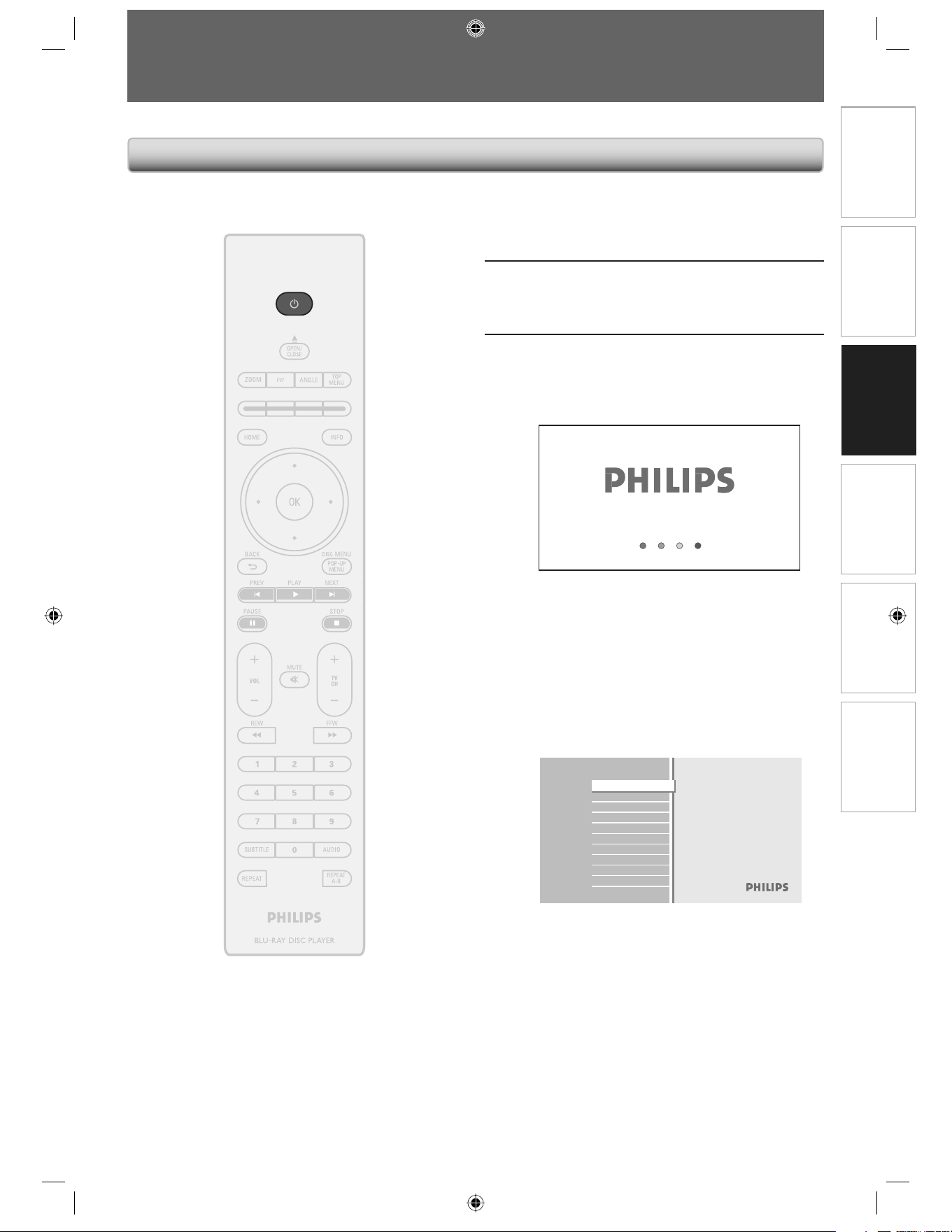
After you have completed all the connections, you must find the viewing channel (external input channel) on your TV.
1
After you have made all the
necessary connections, press [
y
] to
turn on the unit.
2
Turn on your TV.
3
Press “2” on the TV’s remote control,
then press channel down button
repeatedly until you see the PHILIPS
splash screen.
This is the correct viewing channel (external
input channel).
For some TVs, there may be a button on the
TV’s remote control that accesses the external
input channel. It may be labeled “SOURCE”,
“AV”, or “SELECT”. Refer to your TV’s user
manual for details.
If a certain amount of time has past since you
turned on the unit, you may see the home
menu instead of the PHILIPS splash screen.
Home menu:
Blu-ray Disc Player
Disc Tray
Settings
Product Info
•
•
Finding the Viewing Channel on Your TV
E5E10UD_EN.indb 17E5E10UD_EN.indb 17 12/28/2007 9:25:45 AM12/28/2007 9:25:45 AM
18 EN
BEFORE YOU START
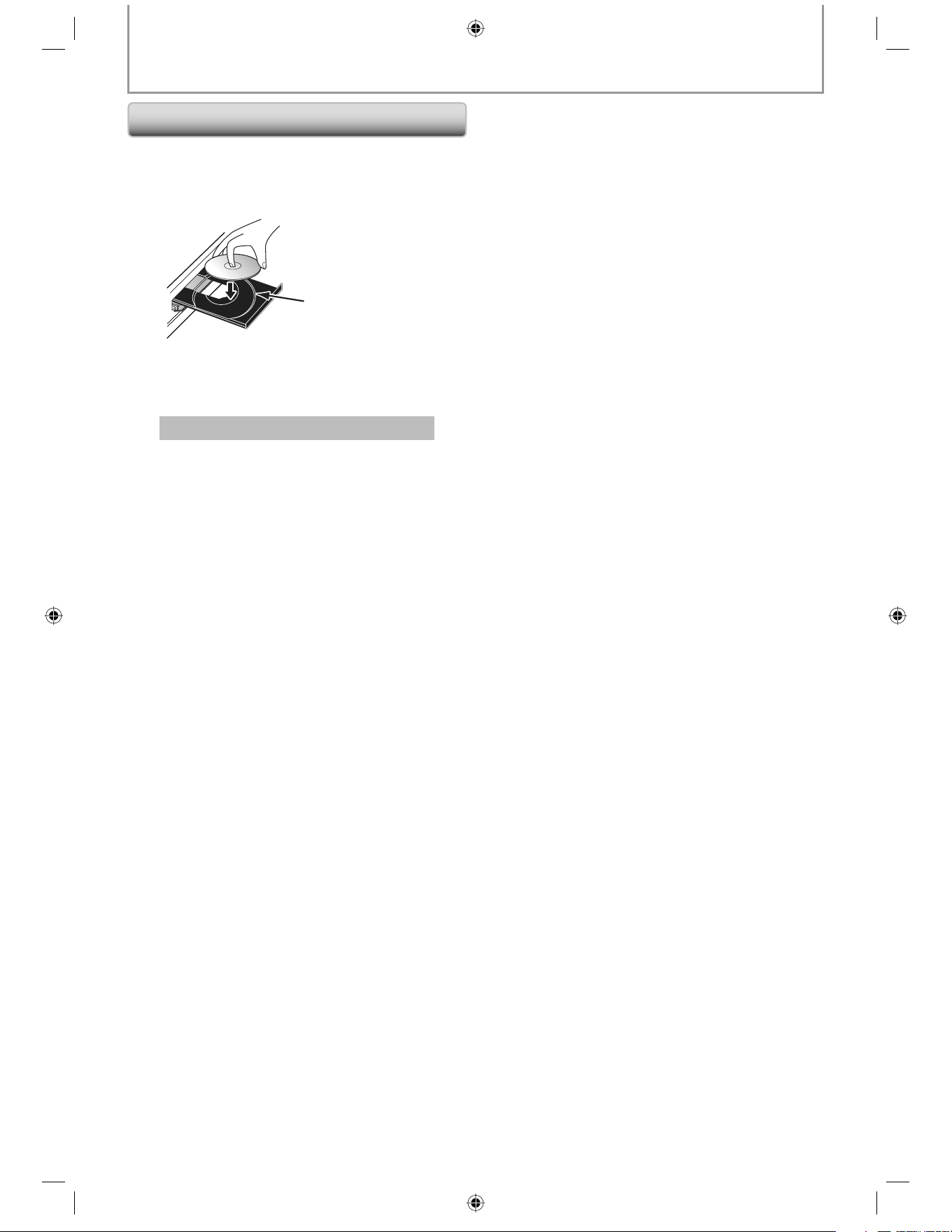
1) Press [OPEN/CLOSE A] to open the disc tray.
2) Place the disc on the disc tray with its label side
facing up.
Make sure the disc is compatible with this unit. (Refer to page 19 for the
list of compatible discs.)
3) Press [OPEN/CLOSE A] to close the disc tray.
It may take a while to load the disc.
To eject the disc:
Press [OPEN/CLOSE A] to open the disc tray.
Remove the disc.
Press [OPEN/CLOSE A] to close the disc tray.
*
How to Insert a Disc
Align the disc to the
disc tray guide.
E5E10UD_EN.indb 18E5E10UD_EN.indb 18 12/28/2007 9:25:45 AM12/28/2007 9:25:45 AM
19 E N
Connections
Playback
Function Setup Others Introduction Basic Setup
INFORMATION ON PLAYBACK
Before you start playing back a disc, read the following information.
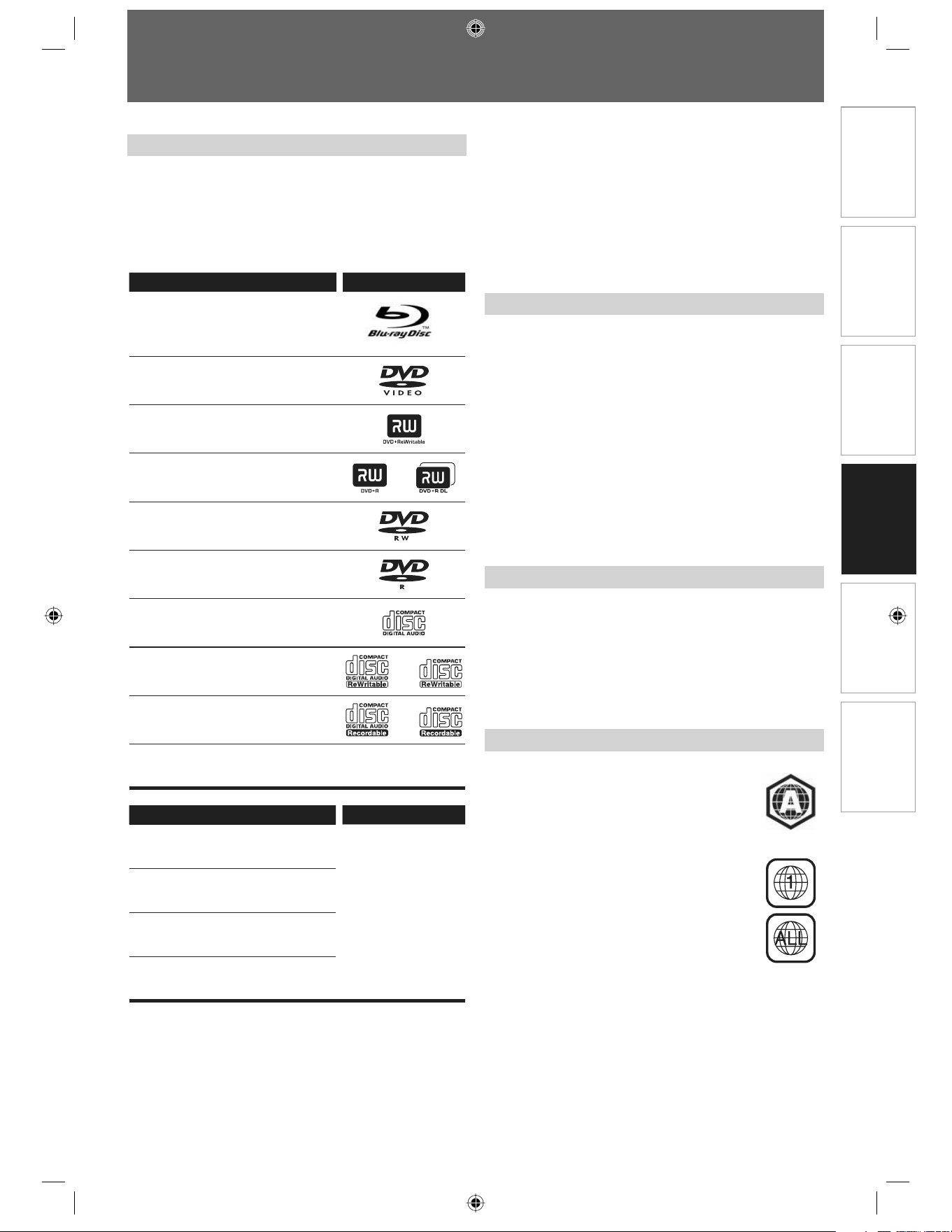
This unit is compatible to play back the following discs.
To play back a disc, make sure that it meets the
requirements for region codes and color systems as
described below. You can play back discs that have the
following logos. Other disc types are not guaranteed to
play back.
Playable discs Logos
BD-video(Single/Double layer)
BD-RE ver.2(Single/Double layer)
BD-R(Single/Double layer)
DVD-video
DVD+RW(Single layer)
DVD+R(Single/Double layer)
DVD-RW(Single layer)
(Finalized video mode discs only)
DVD-R(Single/Double layer)
(Finalized video mode discs only)
CD-DA (audio CD)
CD-RW
CD-R
DTS-CD
Playable discs Logos
DivX®
CD-RW/-R
DVD+RW/+R
DVD-RW/-R
MP3
Windows Media™ Audio
JPEG
Playable Discs and Files
Color Systems
Official DivX® Certified product; Plays all versions of
DivX® video (including DivX® 6) with standard playback
of DivX® media files.
Discs containing the DivX® files with the DivX® GMC
(Global Motion Compensation) playback feature, which
is DivX® supplemental function, cannot be played back
on this unit.
This unit cannot play back the disc contents protected
by Windows Media™ Digital Rights Management (DRM).
•
•
•
BD-video and DVD-video are recorded in different color
systems throughout the world. The most common color
system is NTSC (which is used primarily in the United
States and Canada).
This unit employs NTSC color system, so the disc you play
back must be recorded in the NTSC system. You cannot
play back the disc recorded in other color systems.
The following discs will not play back on this unit.
CD-ROM • Compact Disc-Interactive (CD-I) •
DVD-RAM •
Video Single Disc (VSD)
BD-RE
(ver.1/ ver.3)
•
•
DVD-audio •
HD DVD • Video CD •
Unfinalized disc • SVCD •
DVD-R or DVD-RW recorded in VR mode or non
compatible recording format.
•
Super audio CD - Only the sound on the CD layer can
be heard. The sound on the high-density super audio
CD layer cannot be heard.
•
Playability of dual discs are not guaranteed. •
Unplayable Discs
Region Codes
This unit has been designed to play back
BD-video with region A and DVD-video with
region “1” or “ALL“. You cannot play back
BD-video or DVD-video that are labeled
for other regions. Look for the symbols on
the right on your BD-video or DVD-video.
If these region symbols do not appear on
your BD-video or DVD-video, you cannot
play back the disc in this unit. The letter or
number inside the globe refers to region of
the world. A BD-video or DVD-video labeled
for a specific region can only play back on
the unit with the same region code.
BD-video
DVD-video
E5E10UD_EN.indb 19E5E10UD_EN.indb 19 12/28/2007 9:25:45 AM12/28/2007 9:25:45 AM
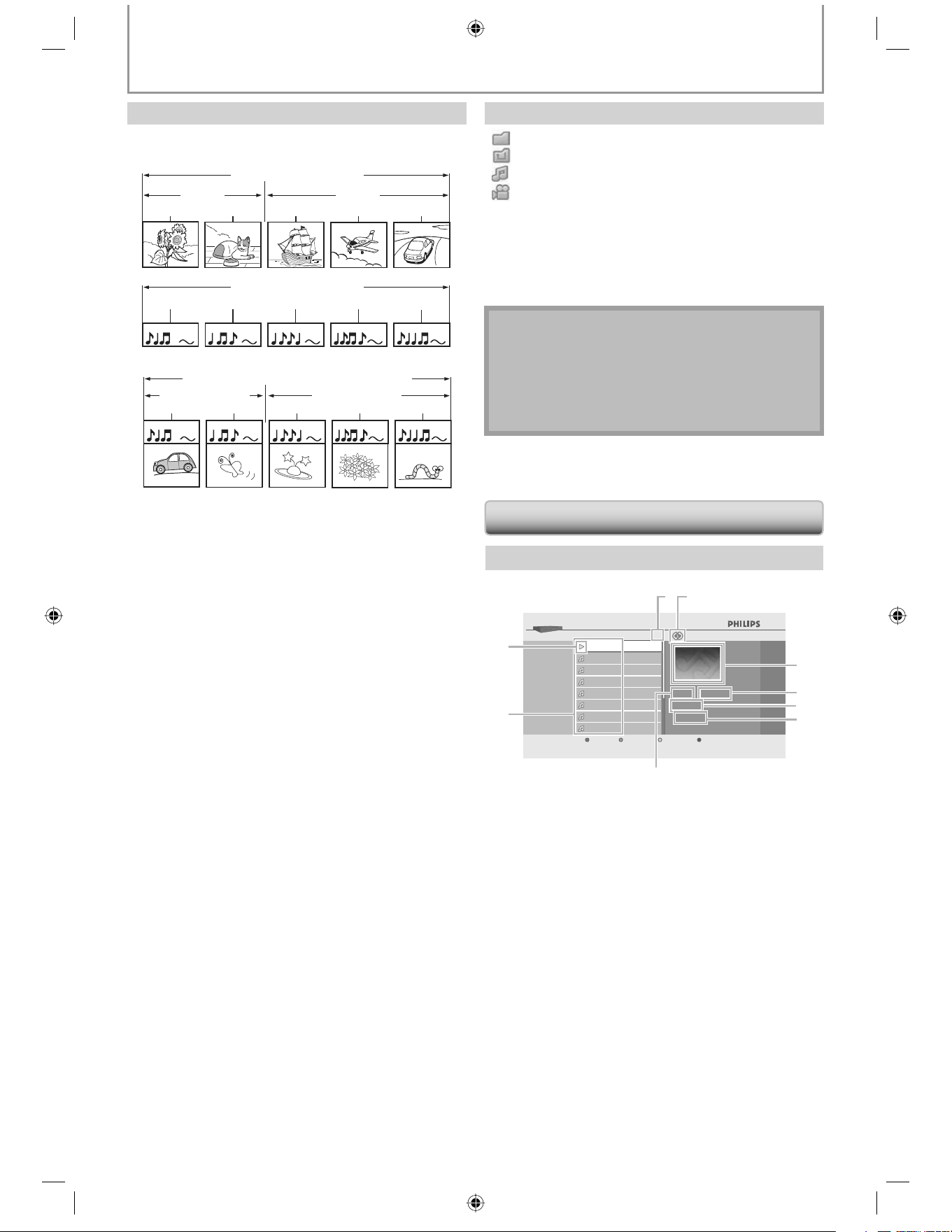
20 EN
The contents of disc are generally divided into sections or
folders (groups of titles/files) as shown below.
Hint for Disc Playback
INFORMATION ON PLAYBACK
[ ] : group(folder) icon
[
] : group(folder) return icon
[
] : Music file icon
[
] : Video file icon
“Folders” refers to the groups of files.
“Tracks” refers to the contents recorded on the audio
CD.
“Files” refers to the contents on a disc which are
recorded in DivX®, MP3, Windows Media™ Audio, or
JPEG file format.
Note
Unrecognizable characters will be replaced by
asterisks.
For DVD, this unit can recognize up to 999 groups
(folders), and 9999 tracks / files.
For CD, this unit can recognize up to 999 groups
(folders), and 999 tracks / files.
•
•
•
Audio CD Track List
Music
BD-Player
Track 002
Track 001
CDDA
Track 001
0 : 03 : 40
0 : 00 : 39
Track 003
Track 004
Track 005
Track 006
Track 007
Track 008
Page Up Page Down
14
7
6
5
4
3
1
9
8
2
1) Total track number
2) Repeat status
3) Image
4) Elapsed playing time of the current track
5) Playing track number
6) Total time of the current track
7) Playing media
8) Track list
9) Playback status
-
-
-
Description for Icons
Guide to File List
BD-video, DVD-video
title 1 title 2
chapter 1 chapter 2 chapter 1 chapter 2 chapter 3
Audio CD
track 1 track 2 track 3 track 4 track 5
DivX®, MP3, Windows Media™ Audio, JPEG
folder(group) 1 folder(group) 2
file 1 file 2 file 3 file 4 file 5
E5E10UD_EN.indb 20E5E10UD_EN.indb 20 12/28/2007 9:25:46 AM12/28/2007 9:25:46 AM
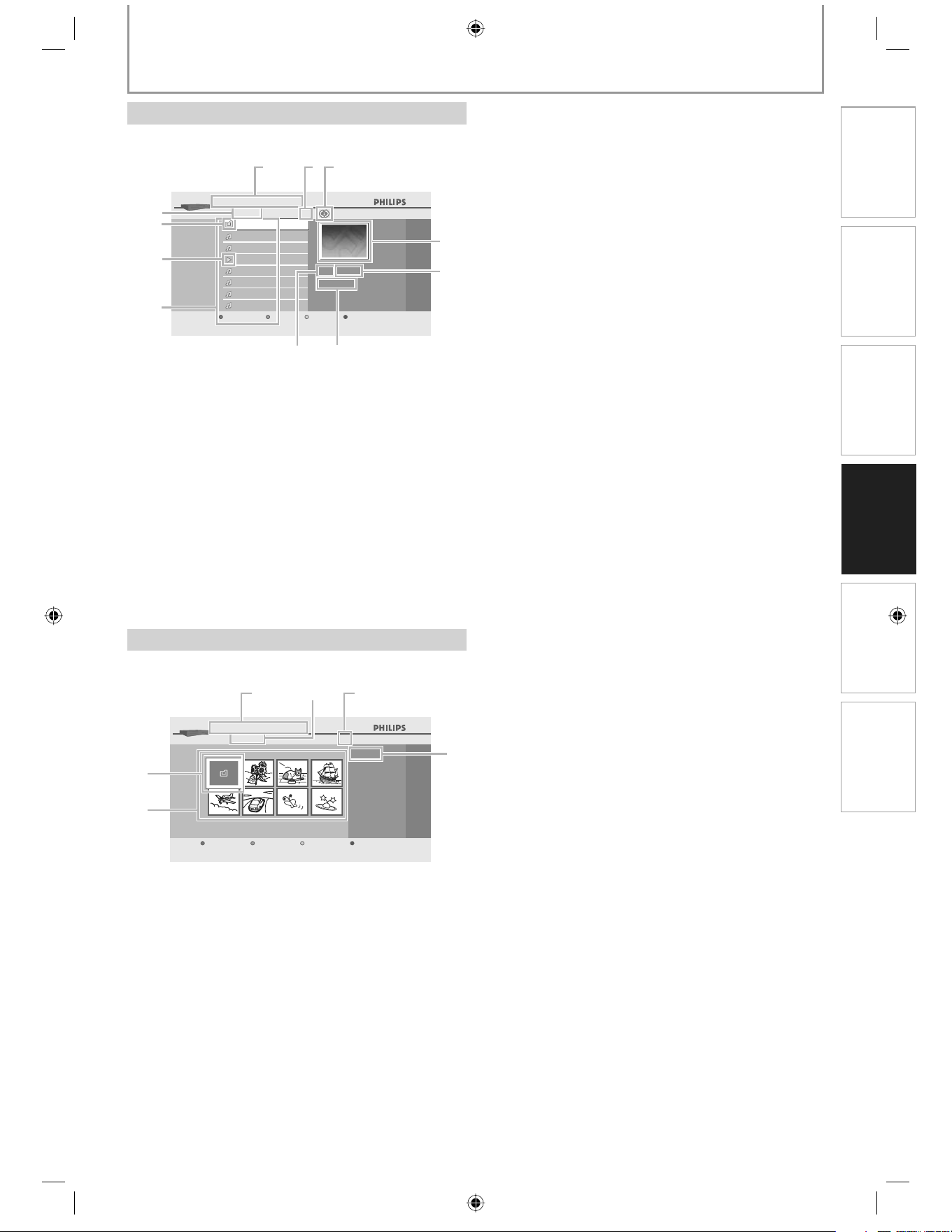
21 E N
Connections
Playback
Function Setup Others Introduction Basic Setup
INFORMATION ON PLAYBACK
e.g., MP3 mode
MP3 File
BD-Player Disc Tray Music||
MP3_1.mp3
MP3
MP3_3.mp3
0:00:13
MP3_2.mp3
MP3_3.mp3
MP3_4.mp3
MP3_5.mp3
MP3_6.mp3
MP3_7.mp3
Media Filter Page Up Page Down
3
111 2
3
4
56
7
8
9
10
1) Number of contents in the current group(folder)
2) Repeat status (Music mode only)
3) Image
4) Elapsed playing time of the current track
5) Current file name
6) Media type
7) Group(folder)/file list
8) Playback status
9) Root folder
10) Group(folder) name
11) Directory
Video/Music Mode File List
e.g., JPEG mode
JPEG File
...
Media Filter Slideshow Page Up Page Down
BD-Player Disc Tray Pictures||
24
123
5
6
4
1) Directory
2) Group(folder) name
3) Number of contents in the group(folder)
4) Current file name
5) Group(folder)/file list(thumbnails)
6) Root folder
Picture Mode File List
E5E10UD_EN.indb 21E5E10UD_EN.indb 21 12/28/2007 9:25:47 AM12/28/2007 9:25:47 AM
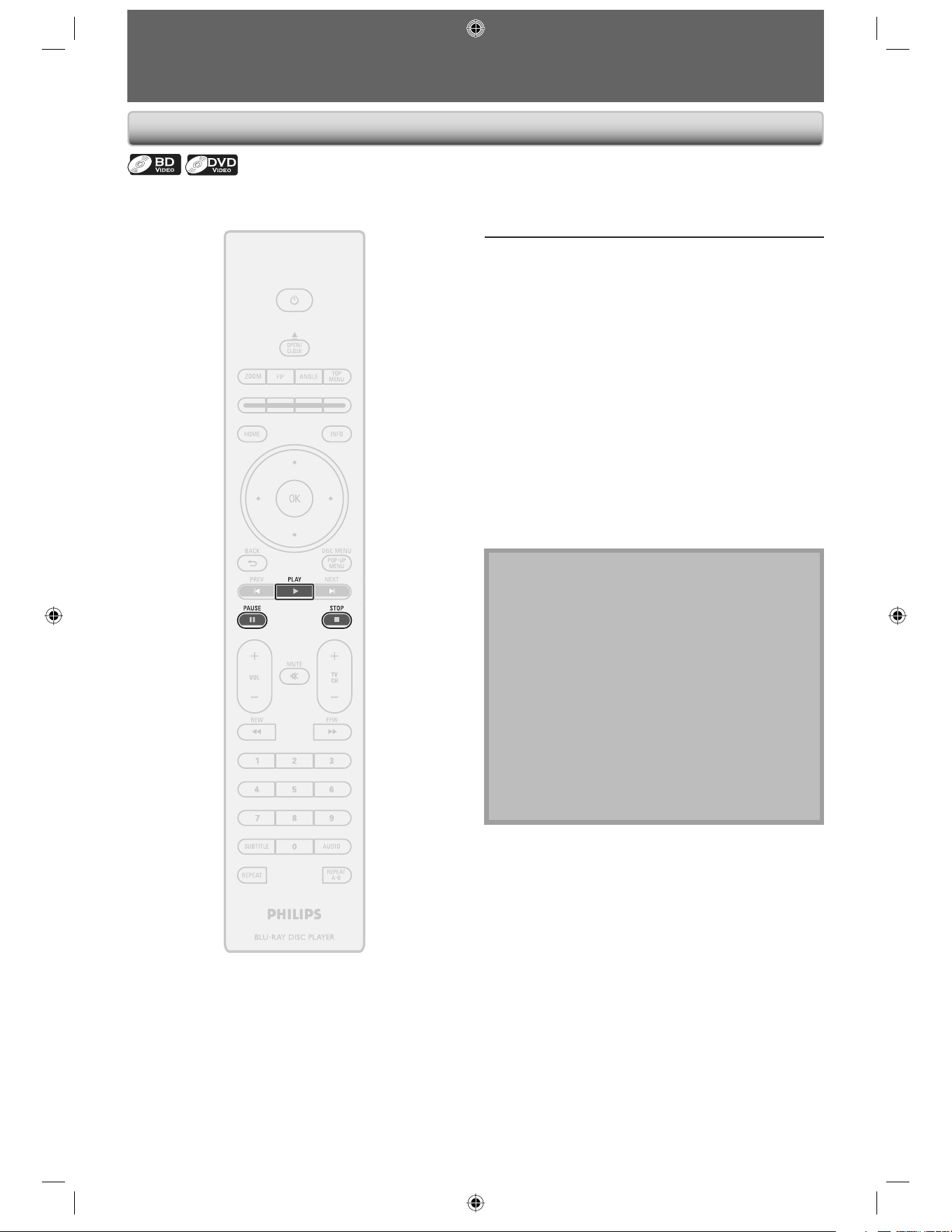
22 EN
BASIC PLAYBACK
1
Insert a disc (refer to page 18 on how
to insert a disc).
2
Playback may start automatically.
If not, press [PLAY B].
Some discs may show a title or a disc menu. In
such case, refer to “Using the Title / Disc Menu”
on page 25.
To pause playback:
Press [PAUSE F].
To return to the normal playback:
Press [PLAY B].
To stop playback:
Press [STOP C].
Playback will be in Resume-On-Stop mode, and
the home menu will appear.
<Resume-On-Stop mode>
When you press [PLAY B] next time, the
playback will start from the point where it has
been stopped.
Note
Playback will also stop and the home menu will
appear when you press [HOME].
For BD Java application, the Resume-On-Stop is not
available.
If you press [OK] instead of [PLAY B], playback can
be started from the beginning of the disc even if it
was in the Resume-On-Stop mode.
You can also start from the beginning of the disc if
you press [PREV S] while the resume message is
displayed.
The resume message can be removed by pressing
[BACK U].
Resume-On-Stop mode remains in effect even after
power is turned off but will be canceled once the disc
is ejected.
•
•
•
•
•
•
Playing Back a BD or a DVD
E5E10UD_EN.indb 22E5E10UD_EN.indb 22 12/28/2007 9:25:47 AM12/28/2007 9:25:47 AM
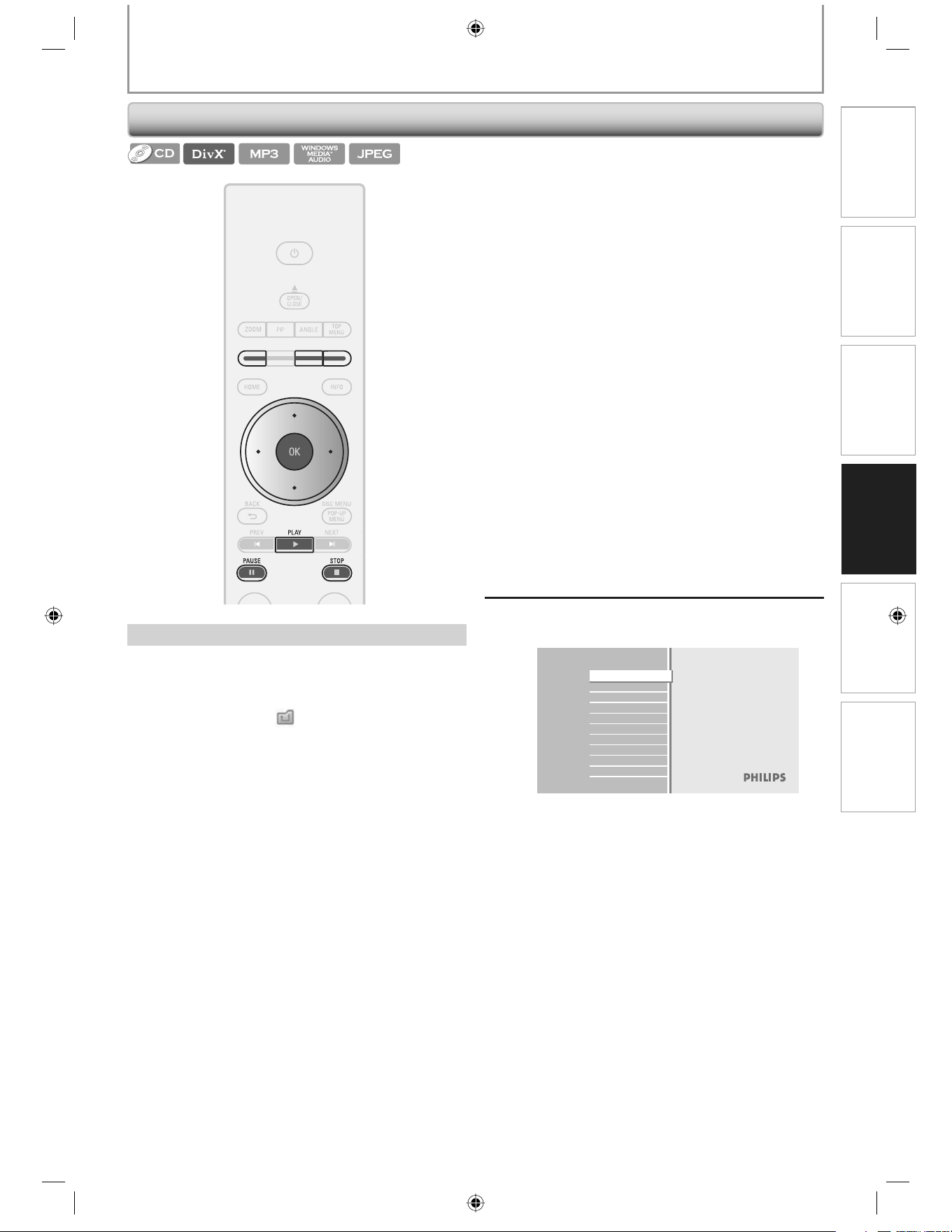
23 E N
Connections
Playback
Function Setup Others Introduction Basic Setup
BASIC PLAYBACK
Use [K / L] to move the highlight up and down in the
list.
To access the files in a group(folder), highlight the
desired group(folder), then press [OK].
Press [{], or highlight [
], then press [OK] to go back
to the previous hierarchy.
Press [{] to go back to the previous screen.
Press [Yellow] or [Blue] to change the page of the list.
Press [Red] to go back to the media filter screen.
Press [HOME] to go back to the home menu.
Recommended specifications:
<DivX®>
Official DivX® Certified product
• Playable codec of AVI files : DivX®3.x, DivX®4.x, DivX®5.x,
DivX®6.0
• Maximum size of a video : 720 x 480 @30 fps
720 x 576 @25 fps
• Sampling frequency of audio : 8 kHz - 48 kHz
• Audio type : MPEG1 audio layer 3(MP3),
MPEG1 audio layer 2, Dolby
Digital
<MP3 / Windows Media™ Audio>
• Sampling frequency : 32 kHz, 44.1 kHz or 48 kHz.
• Constant bit rate : 112 kbps - 320 kbps(MP3),
48 kbps - 192 kbps
(Windows Media™ Audio).
•
•
•
•
•
•
•
How to Navigate through the Track/File List
<JPEG>
Resolution
• Upper limit : 2,560 x 1,900 dots
(sub sampling is 4:4:4)
: 5,120 x 3,840 dots
(sub sampling is up to 4:2:2)
• Lower limit : 32 x 32 dots
• Maximum File size of a picture
: 5 MB.
Folder / File number limitations:
<DVD>
999 folders(groups) and 9,999 files.
<CD>
999 folders(groups) and 999 tracks / files.
1
Insert a disc.
Audio CD:
Track list appears and playback starts
automatically. Proceed to step 4.
Disc with MP3/Windows Media™ Audio/JPEG/
DivX® files:
Home menu appears.
2
With “Disc Tray” selected, press [OK].
Media filter screen will appear.
Blu-ray Disc Player
Disc Tray
Settings
Product Info
•
•
Playing Back an Audio CD or a Disc with DivX®/MP3/Windows Media™ Audio/JPEG Files
E5E10UD_EN.indb 23E5E10UD_EN.indb 23 12/28/2007 9:25:48 AM12/28/2007 9:25:48 AM
24 EN
BASIC PLAYBACK
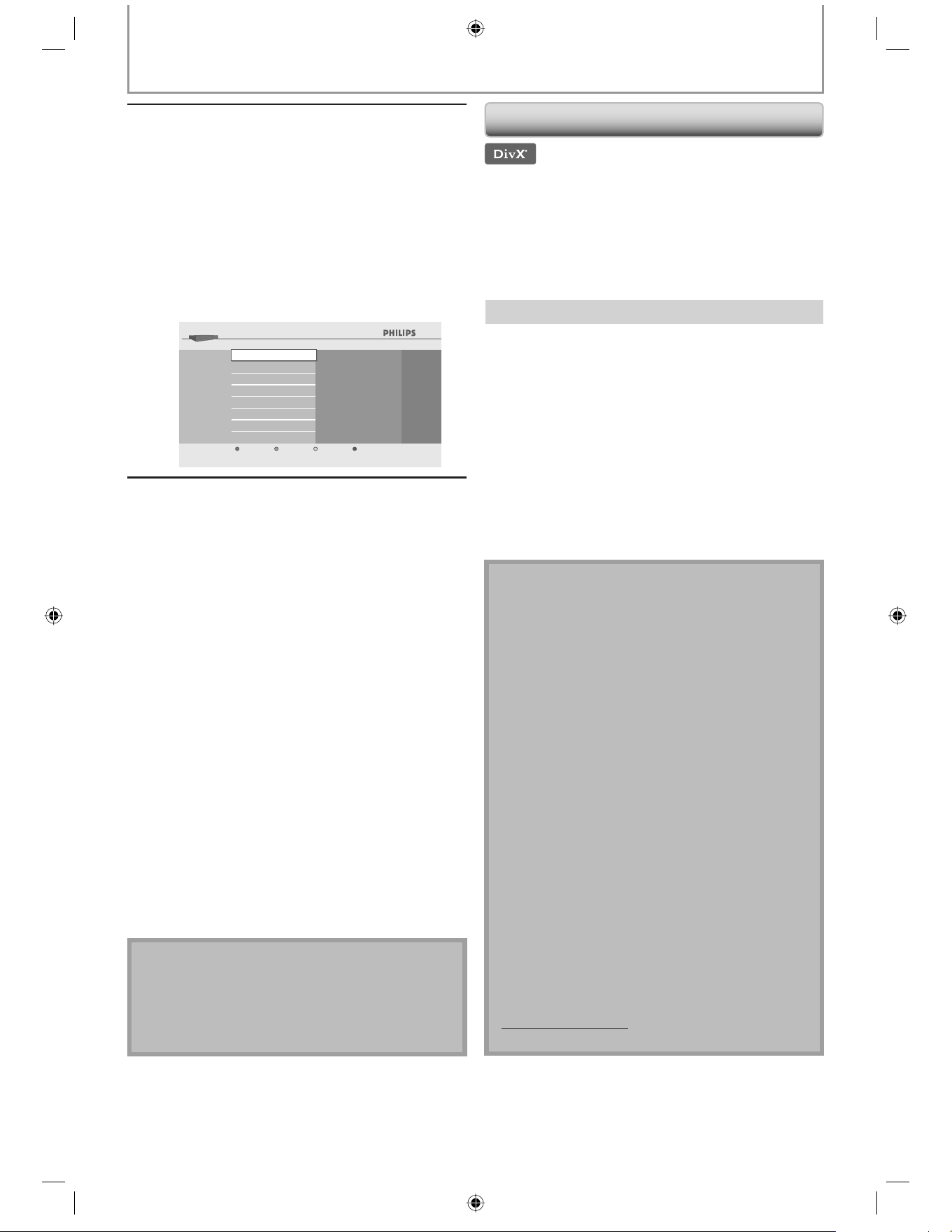
Hint for the purchased or rented official DivX®
Certified product
When you purchase or rent a DivX® file through the
official site of DivX® video which is called DivX® Video-
On-Demand (VOD) services, a registration code is
required every time you get the new file from the DivX®
VOD services. Refer to “DivX® VOD” in “LIST OF SETTINGS”
on page 33.
Possible Errors
“This rental has { views left. Do you want to use one
of your { views now?”
Some DivX® VOD files are restricted with the limited playable
times.
You cannot play them back beyond the limit.
“This player is not authorized to play this video.”
You cannot play back the DivX® VOD files obtained with
different registration codes on this unit.
“This rental is expired.”
You cannot play back the DivX®VOD files with the expired
rental period.
“This player does not support this video format.”
You cannot playback the DivX® files whose image size
exceeds 720 x 480 @ 30fps or 720 x 576 @ 25fps.
Note for DivX®
A file with an extension of “.avi” and “.DivX” is called an
DivX® file. All files with the “.avi” extension are
recognized as MPEG4.
For CD-RW/-R , maximum of 999 group(folder) or 999
files may be recognized.
For DVD+RW/+R and DVD-RW/-R, maximum of 999
group(folder) or 9,999 files may be recognized.
The 10th and deeper hierarchies cannot be displayed.
Unrecognizable characters will be replaced with “”.
When playing back the files recorded in high bit rates,
the images can be interrupted in some occasions.
Although DivX® logo has been obtained for this unit,
it may not be able to play back some data,
depending on the characteristics, bit rates, or audio
format settings, etc.
A DivX® file whose file size exceeds 2 GB cannot be
played back.
If a large-sized DivX® file is selected, it may take a
while to start the playback (over 20 seconds
sometimes).
If DivX® files written on a CD-RW/-R cannot be played
back, rewrite them on a DVD+RW/+R or DVD-RW/-R
and try to play back.
Multi-session burn DivX® DVD cannot be played back
on this unit.
For more information for DivX®, please visit
http://www.divx.com.
•
•
•
•
•
•
•
•
•
•
•
•
•
3
Select the type of the file you want to
play back in the media filter screen.
Then press [OK] to display the file list.
“Video“ : if you want to play back video files
such as DivX® video files, select
“Video”.
“Music“ : if you want to play back music files
such as MP3 or Window Media
TM
Audio, select “Music”.
“Pictures“ : if you want to play back the still
images such as JPEG pictures, select
“Pictures”.
Disc Tray
BD-Player
Music
Pictures
Cancel
Video
4
Select a group(folder) or Track/file
you want to play back. Then press
[PLAY B] or [OK] to start playback.
(Refer to “How to Navigate through the Track/File
List” on page 23.
To pause playback:
Press [PAUSE F].
To return to the normal playback:
Press [PLAY B].
To stop playback:
Press [STOP C].
Playback will be in Resume-On-Stop mode.
<Resume-On-Stop mode for Audio CD/DivX® >
Playback will start from the point where it is
stopped next time you press [PLAY B].
<Resume-On-Stop mode for MP3/Windows
Media™ Audio/JPEG >
Playback will start from the file being played
back last next time you press [PLAY B].
To go back to the media filter screen :
Press [Red].
Note
Playback will also stop and the home menu will
appear when you press [HOME].
If you press [OK] instead of [PLAY B], playback can
start from the beginning instead of resuming from
the stop point.
•
•
About DivX® and DivX® VOD
E5E10UD_EN.indb 24E5E10UD_EN.indb 24 12/28/2007 9:25:49 AM12/28/2007 9:25:49 AM
25 E N
Connections
Playback
Function Setup Others Introduction Basic Setup
BASIC PLAYBACK
Some BD-video or DVD-video may contain a title list
which describes the contents of the disc, or a disc menu
which guides you through the available functions in the
disc.
With such discs, a title list or a disc menu may appear
automatically when you insert the disc. Otherwise, press
[TOP MENU] or [DISC MENU / POP-UP MENU] to call up
the menu. Refer to the disc’s manual on how to navigate
through the menu.
Note
Menus vary among discs. Refer to the information
accompanying the disc for details.
• [TOP MENU] or [DISC MENU / POP-UP MENU] may
not work with some discs.
•
Subtitles created by the user can be displayed during
DivX® playback.
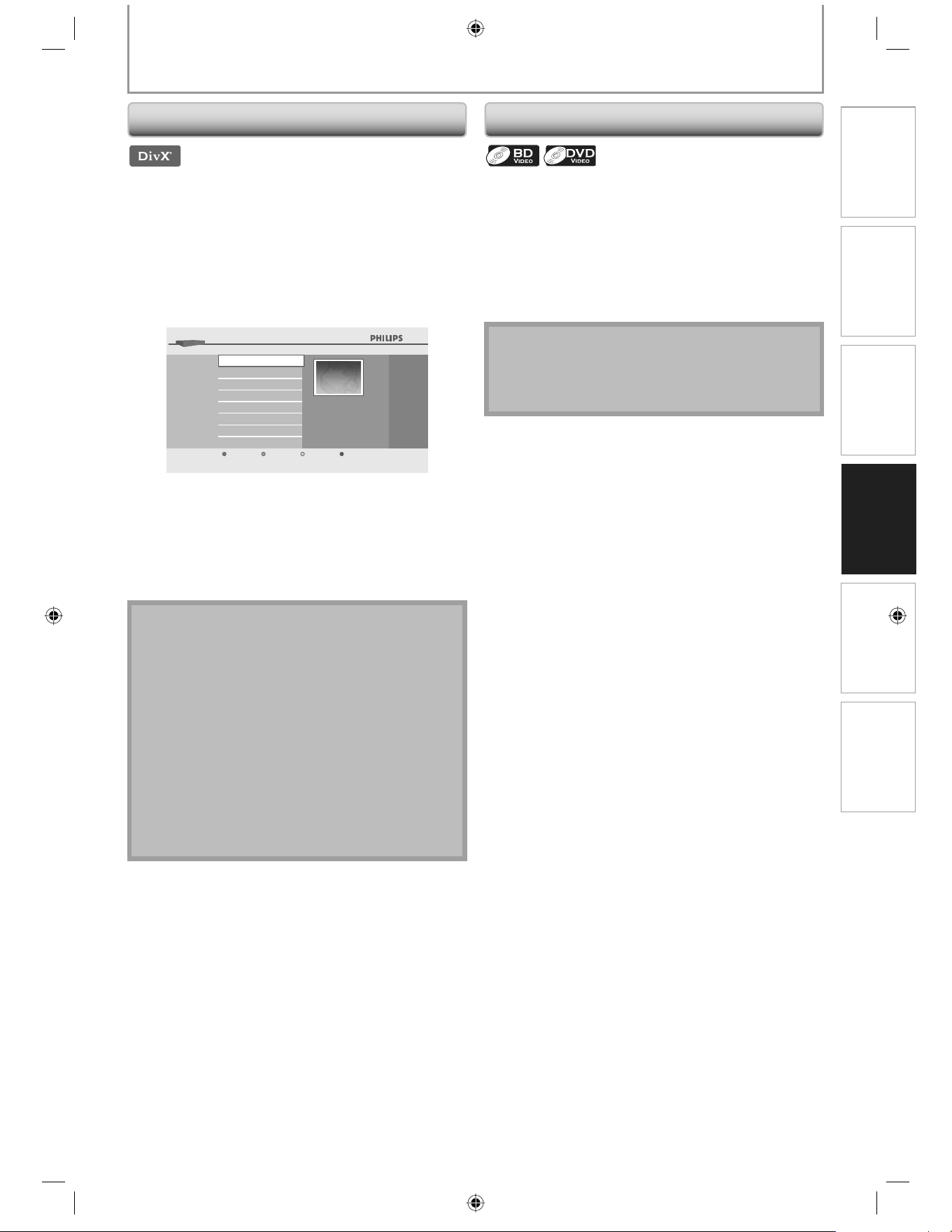
1) Follow steps 1 to 3 in “Playing Back an Audio CD or
a Disc with DivX®/MP3 /Windows Media™ Audio/
JPEG Files” on page 23.
2) Highlight a file you want to play back, then press
[Green].
Subtitle list will appear.
3dolby.avi
Subtitle List
SRT
SUB
Cancel
SMI
”DivX® Subtitle” appears next to “Green” icon only when
DivX® subtitle is available for the selected file.
If you press [PLAY B] or [OK] instead of [Green],
playback without subtitle will start.
3) Highlight the desired subtitle file, then press
[PLAY B] or [OK].
Playback of the DivX® file with DivX® subtitle will start.
Note
To utilize this function, the following conditions must
meet.
– Playback file and the subtitle file must have the same
name.
– Playback file and the subtitle file must locate in the
same folder.
– Only the subtitle files with the following extensions
are supported; .smi (.SMI), .srt (.SRT), .sub (.SUB), .ass
(.ASS), .ssa (.SSA), .txt (.TXT). (.sub (.SUB) and .txt (.TXT)
may not be recognized.)
– The subtitles that exceeds the playback time of the
DivX® file will not be displayed.
If the DivX® subtitle file contains more than one
subtitle language, you can toggle those by pressing
[SUBTITLE] repeatedly.
•
•
•
•
Playing Back a DivX® with DivX® External Subtitle
Using the Title / Disc Menu
E5E10UD_EN.indb 25E5E10UD_EN.indb 25 12/28/2007 9:25:49 AM12/28/2007 9:25:49 AM
26 EN
SPECIAL PLAYBACK
1) During playback, press [FFW D] repeatedly for fast
forward.
During playback, press [REW E] repeatedly for fast
reverse.
Every time you press [FFW D] or [REW E], the
playback speed will change.
2) Press [PLAY B] to return to the normal playback.
Note
The playback speeds are approximate.
For some DivX® files, fast forward/fast reverse may
not function.
•
•
1) While in pause mode, press [PAUSE F] repeatedly.
Every time you press [PAUSE F], playback will advance
one step at a time.
2) Press [PLAY B] to return to the normal playback.
Note
Only step by step forward is available. •
1) During playback, press [PAUSE F]. Then press
[FFW D].
Every time you press [FFW D], approximate speed
will change as follows.
x1/16
x1/8 x1/2 (mute)
2) Press [PLAY B] to return to the normal playback.
Note
The playback speeds are approximate.
Only slow forward is available.
For some DivX® files, slow forward may not function.
•
•
•
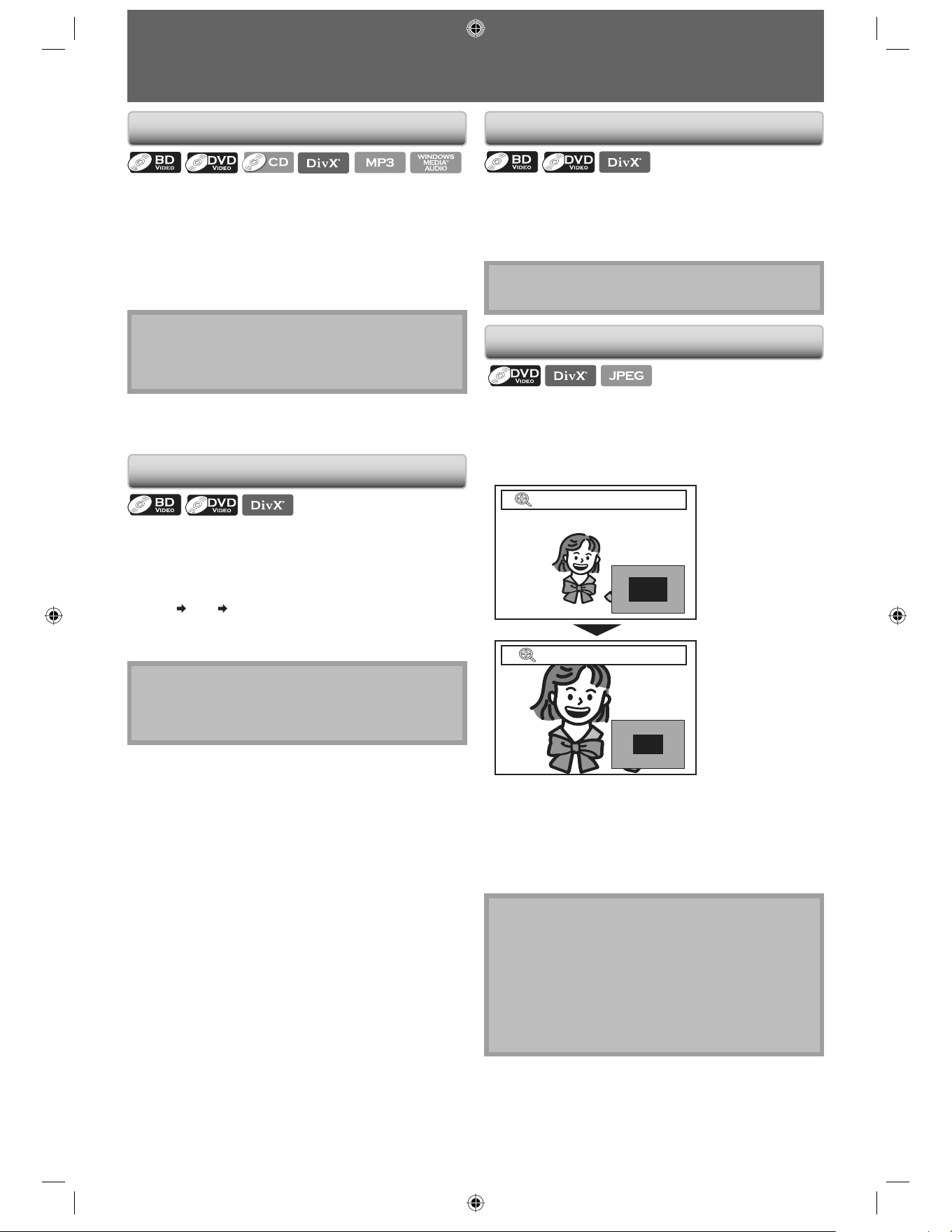
During playback, you can zoom up the picture.
1) During playback, press [ZOOM] repeatedly.
Every time you press [ZOOM], Zoom factor will change.
Example:
x1.2Zoom
x2Zoom
2) You can move over the zoomed picture using
[K / L / { / B].
The grey box with an inner blue box displayed at the
right bottom corner of the zoomed image is the
position guide. The inner blue box indicates the
zoomed area. (Not available for the JPEG playback.)
Note
For JPEG files, slide show of the zoomed picture is not
possible.
For some DivX® files, zoom may not be available.
For DivX® and JPEG files, x4 zoom is not available.
For some DVD, x4 zoom is not available.
• [ZOOM] does not work during the playback of the
BD-video.
• [ZOOM] does not work while DVD menu is displayed.
•
•
•
•
Fast Forward / Fast Reverse Step by Step Playback
Slow Forward Playback
Zoom
E5E10UD_EN.indb 26E5E10UD_EN.indb 26 12/28/2007 9:25:50 AM12/28/2007 9:25:50 AM
27 E N
Connections
Playback
Function Setup Others Introduction Basic Setup
SPECIAL PLAYBACK
1) Follow steps 1 to 3 in “Playing Back an Audio CD and
a Disc with DivX®/MP3/Windows Media™ Audio/
JPEG Files” on page 23.
2) Open the folder which contains the desired JPEG
files.
3) Highlight a file, then press [Green].
Slide show will start from the file you selected.
To skip to the next file:
Press [NEXT T].
To skip to the previous file:
Press [PREV S].
To stop the slide show:
Press [STOP C] for Resume-On-Stop.
To resume the slide show:
Press [Green].
To resume the normal playback:
Press [PLAY B] or [OK] while in the thumbnail screen.
To rotate the picture:
Press [ANGLE] repeatedly.
Note
Large-size JPEG files take a few moments to be
displayed.
•
You can play back the specific part (between point A and
point B) repeatedly.
1) During playback press [REPEAT A-B] once at the
point where you want to set point A.
2) During playback press [REPEAT A-B] again at the
point where you want to set point B.
As soon as you set the point B, the part between point
A and point B will start to play repeatedly.
To cancel A-B repeat:
Press [REPEAT A-B] repeatedly until “Off” appears.
Note
Point B should be set within the same title or track as
point A.
For some DivX® files, A-B repeat playback may not
function.
•
•
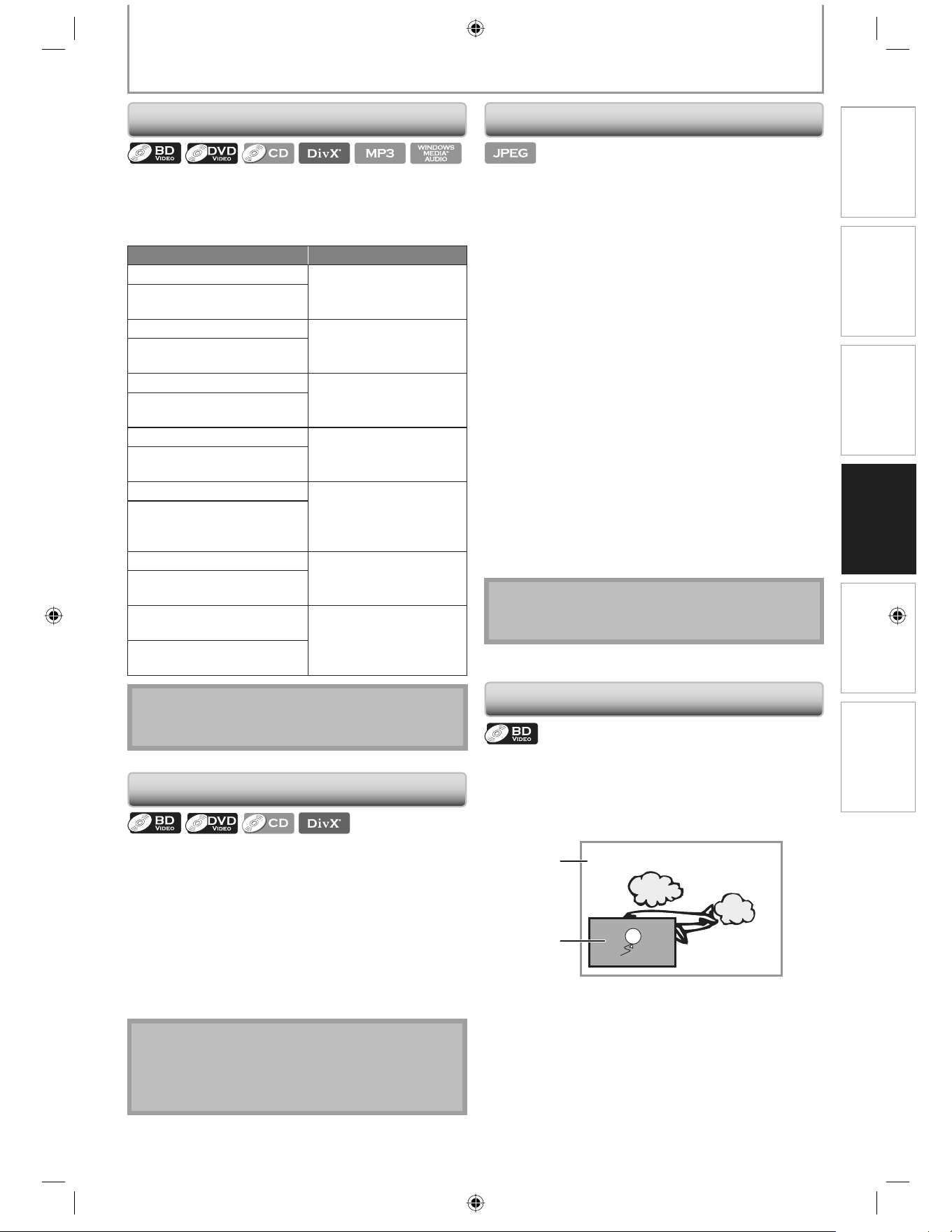
Some BD-videos have the PiP (picture-in-picture) function
which enables you to display the secondary video in the
primary video. You can call up the secondary video by
pressing [PIP] whenever the scene contains the
secondary video.
1) During playback press [PIP].
PiP information will appear.
2) Use [K / L] to select the secondary video you want
to show.
3) Press [BACK U] to remove the PiP information.
Available repeat function vary depending the discs.
1) During playback, press [REPEAT] repeatedly to
select the desired repeat function.
REPEAT MODE AVAILABLE MEDIA
Chapter Repeat
BD-video/DVD-video
The current chapter will be
played back repeatedly.
Title Repeat
BD-video/DVD-video
The current title will be
played back repeatedly.
Track Repeat
Audio CD/DTS CD/DivX®/
MP3/Windows Media™
Audio
The current track or file will
be played back repeatedly.
All Repeat
Audio CD/DTS CD
All tracks in the media will be
played back repeatedly.
Group Repeat
MP3/Windows Media™
Audio
The current group(folder)
will be played back
repeatedly.
Random Repeat (Audio CD)
Audio CD/DTS CD
Repeats the random
playback.
Random Repeat (MP3/
Windows Media™ Audio)
MP3/Windows Media™
Audio
Repeats the random
playback in a folder.
Note
The repeat setting will be canceled when you stop
playback.
•
Slide Show
A-B Repeat
PiP(Picture in Picture) Setting
Repeat Playback
Primary
video
Secondary
video
E5E10UD_EN.indb 27E5E10UD_EN.indb 27 12/28/2007 9:25:51 AM12/28/2007 9:25:51 AM
28 EN
SEARCH
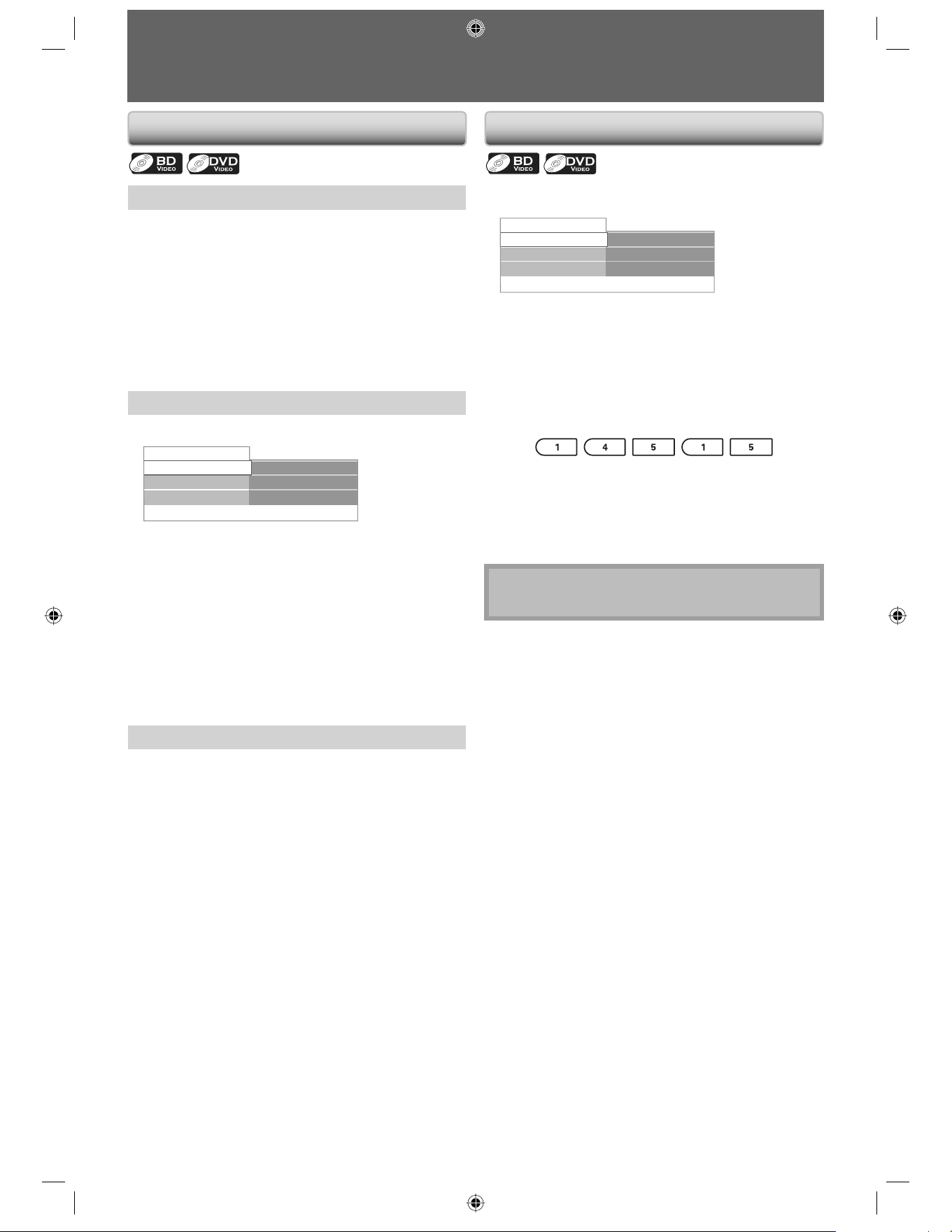
Using [PREV S] / [NEXT T]
1) During playback, press [NEXT S] to skip the
current title or chapter and move to the next.
The title or chapter will move forward by one at a time.
• If there is no chapter in one title, the current title may
be skipped.
To go back to the beginning of the current title or
chapter, press [PREV S].
Press [PREV S] repeatedly to go to the previous title
or chapter. The title or chapter may move backward
one at a time.
Using [INFO]
1) During playback, press [INFO].
Disc
Chapter
001/012
001/023
Playing Time 00:01:31
Title
2) Use [K / L] to Select “Title” or “Chapter”.
3) Use [the Number buttons] or [{ / B] to enter the
title/chapter number.
4) Press [OK].
Playback will start from the beginning of the title/
chapter.
5) Press [INFO] to remove the information display.
Using [the Number buttons] (Direct Search)
Title Search
1) In stop mode, enter the title number you want to
search using [the Number buttons].
Playback of the title will start in a few seconds.
Chapter Search
1) During playback of a title, enter the chapter
number you want to search using [the Number
buttons].
Playback of the chapter will start in a few seconds.
1) During playback, press [INFO].
Disc
Chapter
001/012
001/023
Playing Time 00:01:31
Title
2) Use [K / L] to Select “Playing Time”.
3) Use [the Number buttons] to enter the time count
you want to jump to.
e.g.;
Entering 1 hour 45 minutes and 15 seconds.
Press
4) Press [OK].
Playback will start from the desired time count.
5) Press [INFO] to remove the information display.
Note
For some DivX® files, time search may not function. •
Title/Chapter Search Time Search
E5E10UD_EN.indb 28E5E10UD_EN.indb 28 12/28/2007 9:25:52 AM12/28/2007 9:25:52 AM
29 E N
Connections
Playback
Function Setup Others Introduction Basic Setup
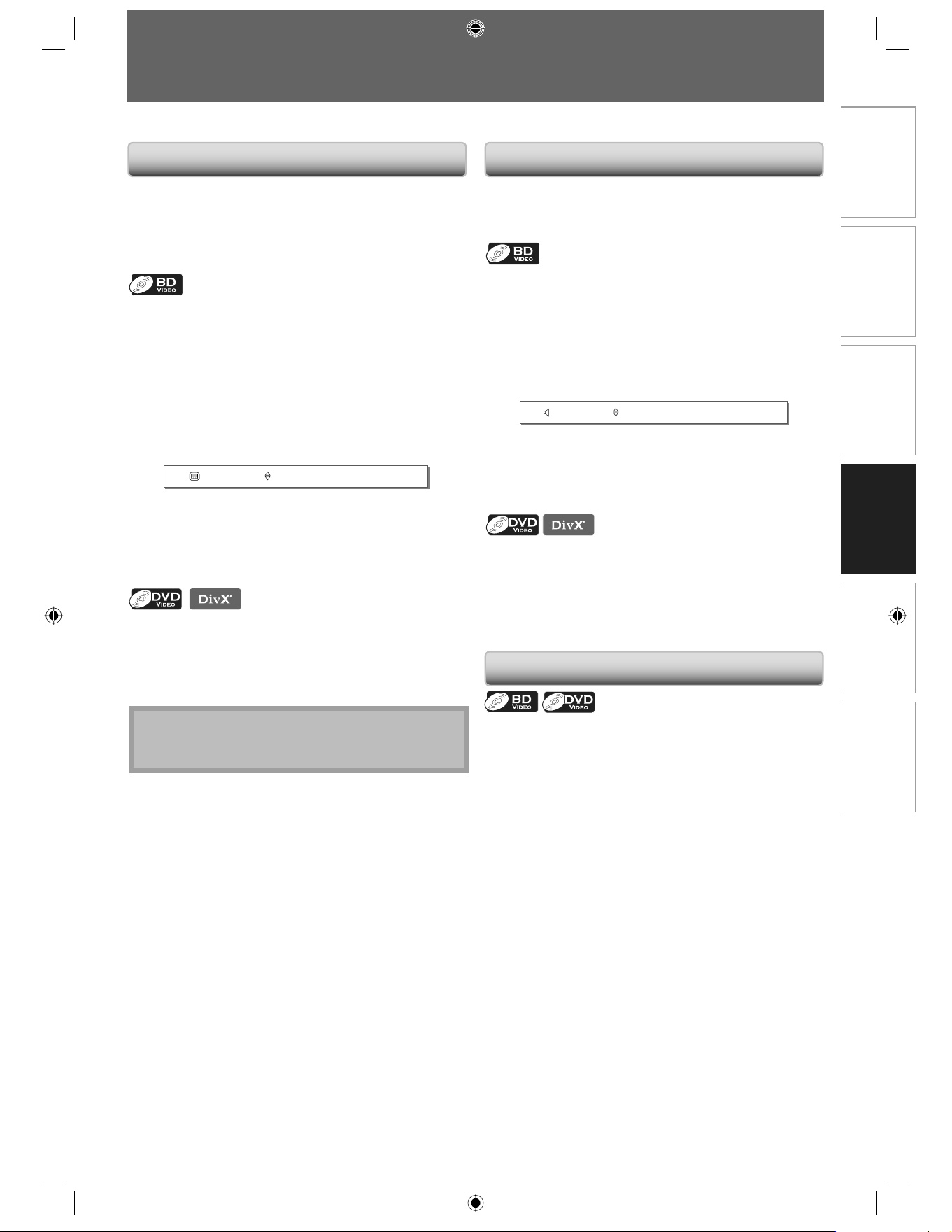
Some video materials may have subtitles in one or more
languages. For commercially available discs, the
supported languages can be found on the disc case.
Follow the steps below to switch the subtitle language
during playback.
1) During playback, press [SUBTITLE] to bring up the
subtitle information.
2) Use [{ / B] to select “Primary”, “Secondary” or
“Subtitle Style”.
”Primary”: sets the subtitle for the primary video.
“Secondary”: sets the subtitle for the secondary video
in the primary video.
“Subtitle Style”: sets the style for the subtitle.
English
Primary
3) Use [K / L] or [SUBTITLE] repeatedly to switch the
subtitle language or style.
1) During playback, press [SUBTITLE] to bring up the
subtitle information.
2) Use [K / L] or [SUBTITLE] repeatedly to switch the
subtitle.
N o t e
For DivX® external subtitle, refer to “Playing Back a
DivX® with DivX® External Subtitle” on page 25.
•
SELECTING THE FORMAT OF AUDIO AND VIDEO
You can select the format of audio and video as you prefer depending on the contents of the disc you are playing back.
When playing back a video material recorded with 2 or
more soundtracks (these are often in different
languages), you can switch them during playback.
1) During playback press [AUDIO] to bring up the
information bar.
2) Use [{ / B] to select “Primary” or “Secondary”.
”Primary”: sets the audio for the primary video.
“Secondary”: sets the audio for the secondary video in
the primary video.
English
Dolby Digital 2ch
Primary
3) Use [K / L] or [AUDIO] repeatedly to switch the
audio soundtrack or audio channel.
1) During playback press [AUDIO] to bring up the
information.
2) Use [K / L] or [AUDIO] repeatedly to switch the
audio soundtrack or audio channel.
Some BD-video or DVD-video have scenes shot from 2 or
more angles. Angle information should be on the disc
case if the disc contains multi-angle scenes.
1) During playback press [ANGLE] to bring up the
camera angle information bar.
2) Use [K / L] or [ANGLE] repeatedly to switch the
angle.
Switching Subtitles Switching Audio Soundtrack
Switching Camera Angles
E5E10UD_EN.indb 29E5E10UD_EN.indb 29 12/28/2007 9:25:52 AM12/28/2007 9:25:52 AM
30 EN
LIST OF SETTINGS
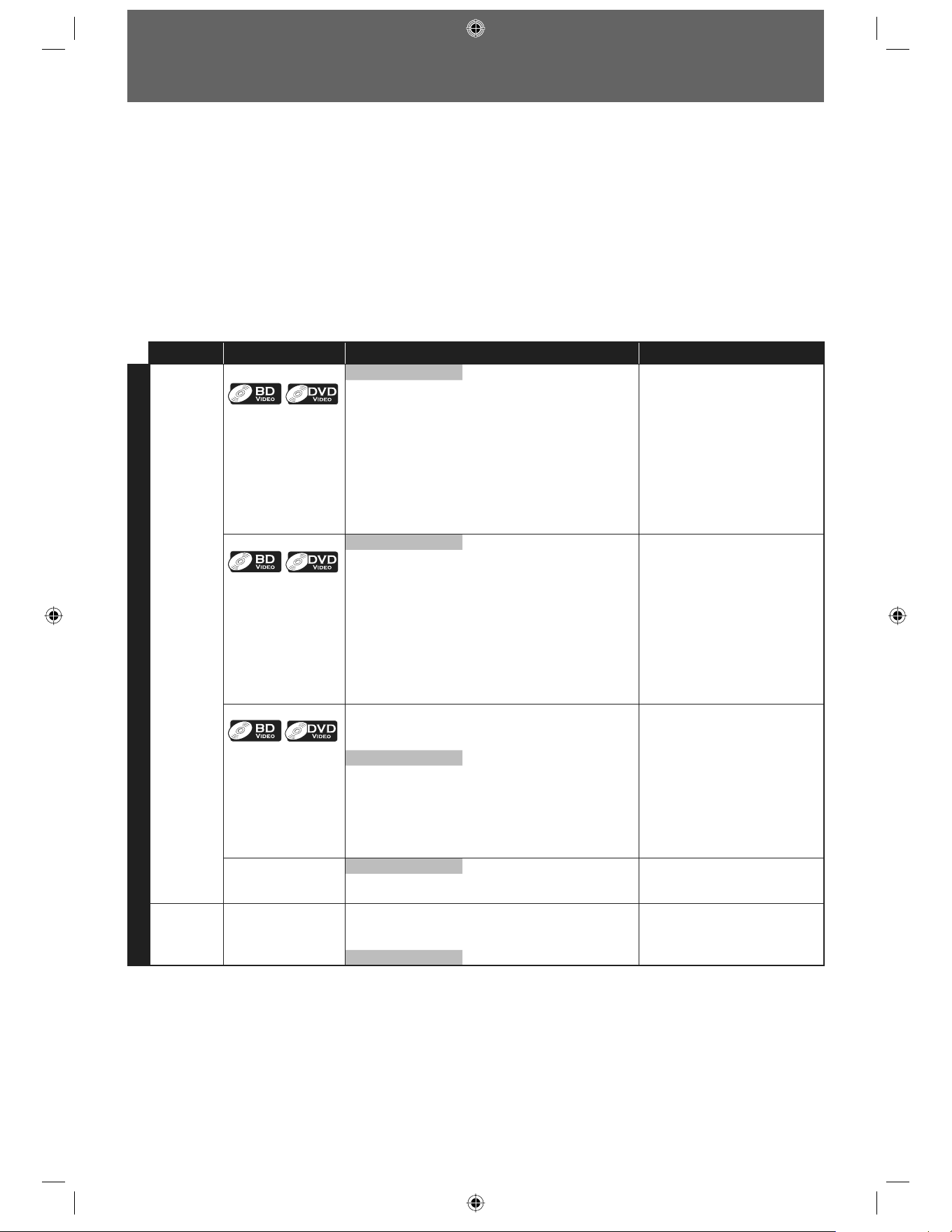
Category Menus Options/Sub-Menus Description
Advanced Setup
Language Audio
Default Set the audio language for BD-
video or DVD-video playback.
If you select “Default”, the disc’s
original language will be in
effect.
•
Čeština Norsk
Dansk Polski
Deutsch Português
English Русский
Español Suomi
Ελληνικά Svenska
Français Türkçe
Italiano
Magyar
Nederlands
Subtitle
Off Set the subtitle language for BD-
video or DVD-video playback.
You can also output the test
tone from each speaker by
pressing [Red].
•
Čeština Norsk
Dansk Polski
Deutsch Português
English Русский
Español Suomi
Ελληνικά Svenska
Français Türkçe
Italiano
Magyar
Nederlands
Disc Menu
Čeština Norsk Set the language for disc menu.
Dansk Polski
Deutsch Português
English Русский
Español Suomi
Ελληνικά Svenska
Français Türkçe
Italiano
Magyar
Nederlands
Player Menu* English Set the language for player menu
(OSD menu).
Español
Français
Video
Output
TV Shape*
Refer to page 35 for
more information.
•
4:3 Letter Box Set the aspect ratio of the
playback image to fit your TV.
4:3 Pan & Scan
16:9 Widescreen
16:9 Squeeze
In the settings menu, you can customize the various kinds of settings as you prefer.
Refer to the following instruction to navigate through the settings menus.
1) Press [HOME] to access the home menu.
2) Use [K / L] to highlight the “Settings”, then press [OK].
3) Use [K / L] to highlight the “Advanced Setup”, then press [OK].
4) Use [K / L] to move the highlight up and down in the list.
Sub menus/options of the highlighted item will be displayed in the list on the right whenever available.
5 )
To make a selection or to access the sub menus/option of an item, highlight the desired item, then press [OK].
6) Press [HOME] to exit.
Refer to the following table for the types of settings you can customize.
Settings with (*) can be accessed from the “Quick Setup” also.
The item highlighted in gray is the default setting.
E5E10UD_EN.indb 30E5E10UD_EN.indb 30 12/28/2007 9:25:53 AM12/28/2007 9:25:53 AM
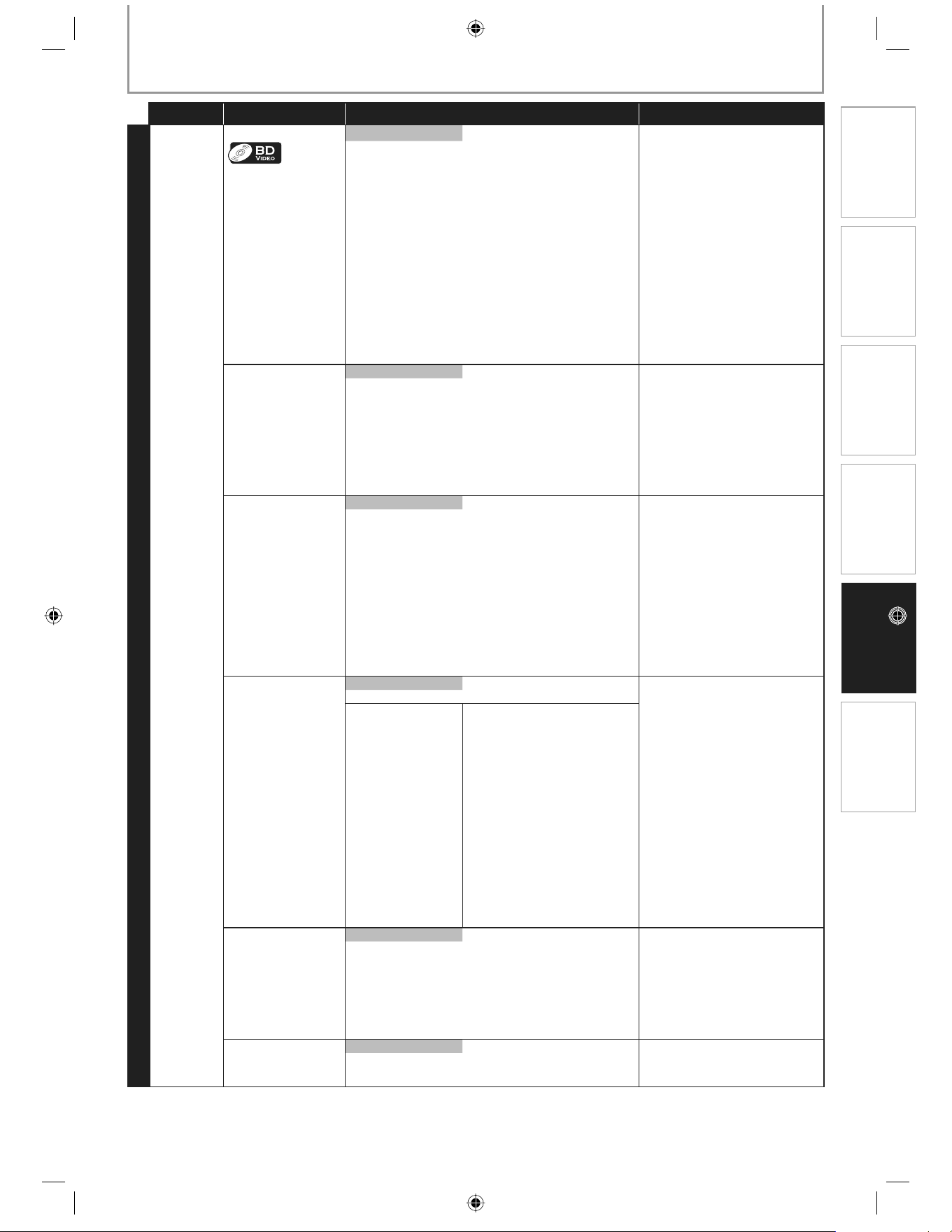
31 E N
Connections Playback
Function Setup
Others Introduction Basic Setup
LIST OF SETTINGS
Category Menus Options/Sub-Menus Description
Advanced Setup
Video
Output
HDMI 1080p/fps
This feature is
available only when
the display device
is connected by an
HDMI cable.
•
Auto “Auto”:
Output the picture in 1080/24p
when it meets all the conditions
listed below:
The video resolution and the
frame rate of the material is
1080/24p (1080 progressive
with 24 frames per second).
“HDMI Video Resolution”
setting is set to “1080p”.
The display device supports
the 24p (24 frames per second,
progressive) output.
“Off”:
Output the picture in 60p. (60
frames per second, progressive)
•
•
•
Off
HDMI Video
Resolution*
This feature is
available only when
the display device
is connected by an
HDMI cable.
Refer to page 35 for
more information.
•
•
Auto Set the resolution of the video
signal being output from the
HDMI OUT.
The selected resolution must
also be supported by your TV
monitor.
•
480p
720p
1080i
1080p
HDMI Deep Color
This feature is
available only when
the display device
is connected by an
HDMI cable, and
when it supports
deep color feature.
•
Auto Deep color reduces the
posterization effect of the
playback picture.
“Auto”:
Reduces the posterization effect
by automatically outputting the
10 bit color whenever the unit
recognizes the connected display
device supports deep color
feature.
“Off”:
Outputs the standard 8 bit color.
Off
Component Output 480i Set the resolution for the
component output picture.
The selected resolution must
also be supported by your TV
monitor.
Refer also to your TV’s manual.
If you have selected the
resolution not supported by
your TV by mistake and the
picture gets disturbed, press
[B(PLAY)] and hold on the
front panel for 5 seconds to
change the setting back to its
default.
When HDMI cable is connected,
only “480i” and the resolution
selected in the “HDMI Video
Resolution” will be available.
•
•
•
•
480P
720P With regard to the DVD-Video
with a copy protection, the
resolution will be set to 480p
regardless of the setting here.
If 480p output is not available,
480i will be output.
1080i
De-interlacing Mode Auto “Auto”:
Automatically detects the film or
the video content, and
appropriately converts it.
“Video”:
Select when the picture is
distorted when using “Auto”.
Video
Black Level On Black level enhances the
blackness of the black part of the
playback picture.
Off
E5E10UD_EN.indb 31E5E10UD_EN.indb 31 12/28/2007 9:25:54 AM12/28/2007 9:25:54 AM
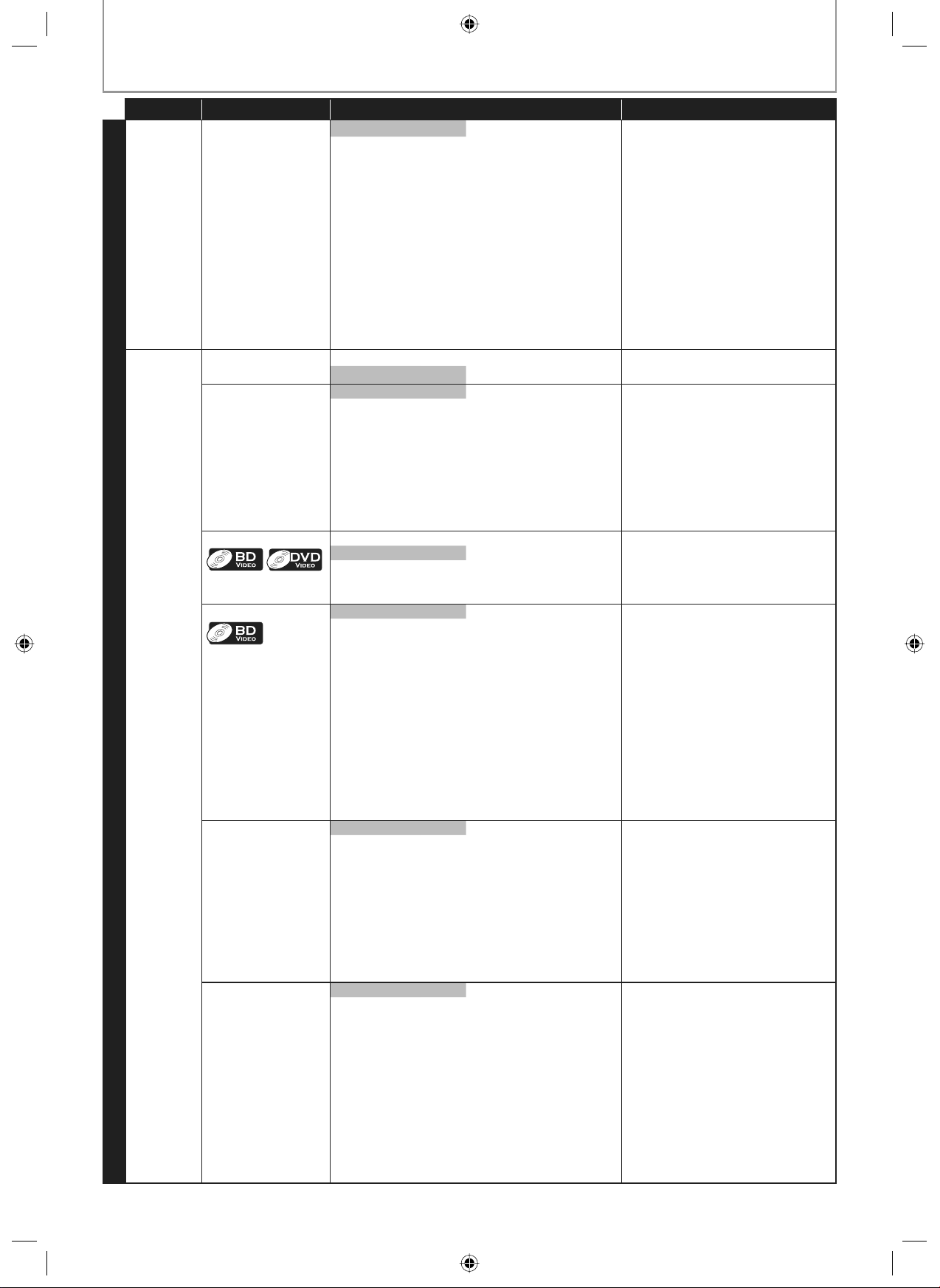
32 ES
LISTA DE CONFIGURACIONES
Categoría Menús Opciones/Sumenús Descripción
Configuración avanzada
Salida de
video
Reducción de ruido
No está disponible
para BD-vídeo.
•
Apdo. La reducción de ruido reduce el
ruido de la imagen de reproducción.
“Apdo.”:
Reducción de ruido desactivada
“MPEG NR”:
Reduce el ruido de bloque que se ve
de manera característica en los
archivos MPEG.
“3D NR”:
Reduce el ruido rudo de fondo para
que puede tener un sentido de
mayor profundidad.
“Combo (3D + MPEG)”:
Activar tanto “MPEG NR” como “3D NR”.
MPEG NR
3D NR
Combo (3D + MPEG)
Audio Modo nocturno Enc. EL modo noche comprime el rango
entre los sonidos suaves y los altos.
Apdo.
Sub Muestreo Enc.
Configura la velocidad de muestreo
para dar como salida el sonido de PCM
desde la salida digital (coaxial/óptica).
“Enc.”:
El sonido 96 kHz PCM se muestrea
con reducción a 48 kHz.
“Apdo.”:
El sonido PCM se da como salida
como es sin muestreo de reducción.
Apdo.
Virtual Surround
Enc. Seleccione para “Enc.” disfrutar del
espacio virtual estereofónico a través
de su sistema actual estéreo de 2
canales durante la reproducción de
BD-vídeo o DVD-vídeo.
Apdo.
Audio disco Blu-ray
Salid audio comb “Salid audio comb”:
El sonido de la imagen secundaria y
la aplicación interactiva se darán
como salida juntos con el sonido de
la imagen principal.
“Sólo audio princip”:
Solamente se da como salida el
sonido de la vídeo principal.
Al reproducir BD-vídeos que contenga
sólo el sonido principal, la salida de
sonido será la misma que en el caso de
“Sólo audio princip” incluso si el “Audio
disco Blu-ray” está configurado a “Salid
audio comb”.
Sólo audio princip
Audio HDMI
Esta función sólo
está disponible
cuando el
dispositivo de
visualización está
conectado a través
de un cable HDMI.
Consulte en la
página 36 para
mayor información.
•
•
HDMI normal Configure el formato de sonido de la
salida de sonido desde salida HDMI
OUT.
PCM
Apdo.
Salida digital
Cuando esté
conectado el cable
HDMI, compruebe
que “configuración
Audio HDMI”
está configurado
a “Apdo.” para
cambiar la
configuración
“Salida digital”.
Consulte en la
página 37 para
mayor información.
•
•
Flujo de bits
Configure el formato de sonido de la
salida de sonido desde DIGITAL OUT
(COAXIAL / OPTICAL).
PCM
E5E10UD_ES.indb 32E5E10UD_ES.indb 32 12/28/2007 10:00:56 AM12/28/2007 10:00:56 AM
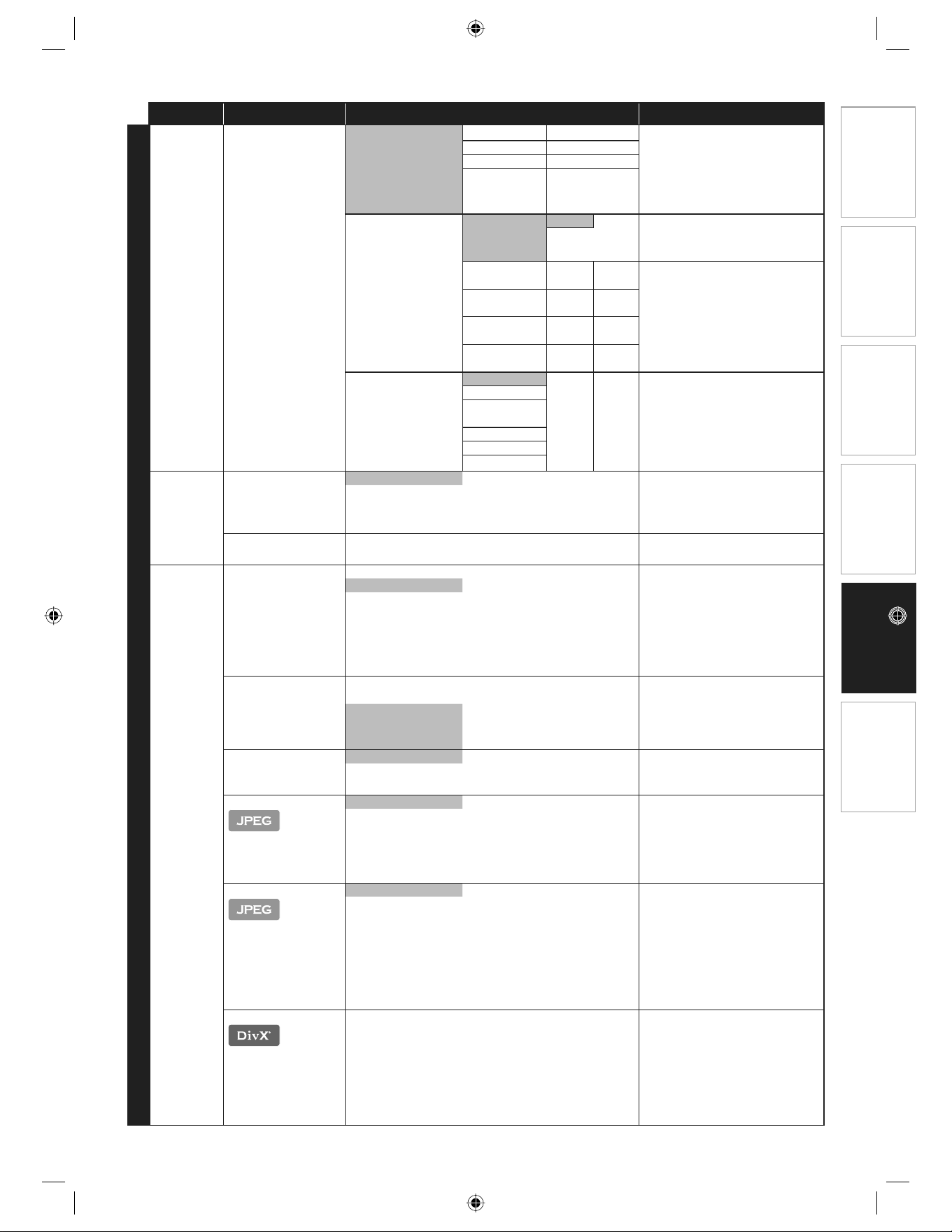
33 E N
Connections Playback
Function Setup
Others Introduction Basic Setup
Category Menus Options/Sub-Menus Description
Advanced Setup
Audio Analog Audio
When HDMI cable
is connected, make
sure “HDMI Audio”
setting is set to
“Off” to change the
“Analog Audio”
setting.
•
Speaker Setup Front (L/R) Large/Small Set the speaker configuration to
suite the size/number of your
speakers.
You can also output the test
tone from each speaker by
pressing [Red].
•
Refer to page
38 for more
information.
•
Center Large/Small/Off
Surround (L/R) Large/Small/Off
Subwoofer On/Off
Speaker Distance Unit Feet Set the desired measure system.
This measure system will be used
for “Speaker Distance” setting
Meters
Front (L/R) 0-60ft default
is 10ft
Select the distance from the
listening point to the speaker to
get the ideal delay time.
Center 5-10ft default
is 10ft
Surround 0-10ft default
is 10ft
Default Yes/No default
is “No”
Speaker Level Front (L) Set the volume level for each
speaker to get the ideal audio
balance.
Center
Front (R) 0-12dB default
is 0dB
Subwoofer
Surround (R)
Surround (L)
Parental
Refer to
page 38
for more
information.
•
Rating Level All Set the rating level for the disc
playback.
8[Adult]
to
1[Kid Safe]
New PIN Set the new password for the
parental setting.
Others Auto Standby On Set whether to turn off the unit
(to the standby mode)
automatically after 25 minutes of
no action since the screen saver is
activated.
If the screen saver is off, the
unit will be turned off after 30
minutes of no action.
•
Off
Front Panel
Brightness
Bright Set the brightness of the front
panel display.
When “Auto” is selected, the front
panel display automatically goes
dim during playback.
Dim
Auto
Screen Saver On Set whether to activate the
screen saver after 5 minutes of no
action on the unit.
Off
Slide Show Interval
5sec Set the amount of time for
displaying one picture before
switching to the next one.
For example, select “5sec” to
switch the picture every 5
seconds.
10sec
Slide Show Transition
Cut In/Out
Set the visual effect for the slide
show transition mode.
“Cut In/Out”:
The pictures will cut in and out
sharply as playback progresses.
“Fade In/Out”:
The pictures will fade in and out
as playback progresses.
Fade In/Out
DivX® VOD
Your registration code is:
cccccccc
To learn more visit
www.divx.com/vod
This menu item provides you
with the DivX® VOD registration
code. The DivX® registration code
is required when downloading
the DivX® VOD files from the
internet. To learn more about
DivX® VOD, visit
www.divx.com/vod.
E5E10UD_EN.indb 33E5E10UD_EN.indb 33 12/28/2007 9:25:54 AM12/28/2007 9:25:54 AM
34 EN
Category Menus Options/Sub-Menus Description
Advanced Setup
Others EasyLink (HDMI CEC)
This feature is
available only when
the display device
is connected by an
HDMI cable.
Refer to page 39 for
more information.
•
•
On Set whether to utilize the
EasyLink (HDMI CEC) function.
EasyLink (HDMI CEC) function
allows your PHILIPS brand
EasyLink TV to act in conjunction
with this unit.
This feature is available only
when the TV monitor is
connected by an HDMI cable, and
when it supports EasyLink (HDMI
CEC) feature.
Off
Factory Default
Settings Yes “Yes”:
Reset all the settings, except for
“Parental”, in “Settings” to the
factory default.
“No”:
Do not perform the initialization.
N o
Local
Storage
Yes “Yes”:
Initialize (clean up) the area used
for BD application.
“No”:
Do not perform the Initialization.
N o
E5E10UD_EN.indb 34E5E10UD_EN.indb 34 12/28/2007 9:25:55 AM12/28/2007 9:25:55 AM
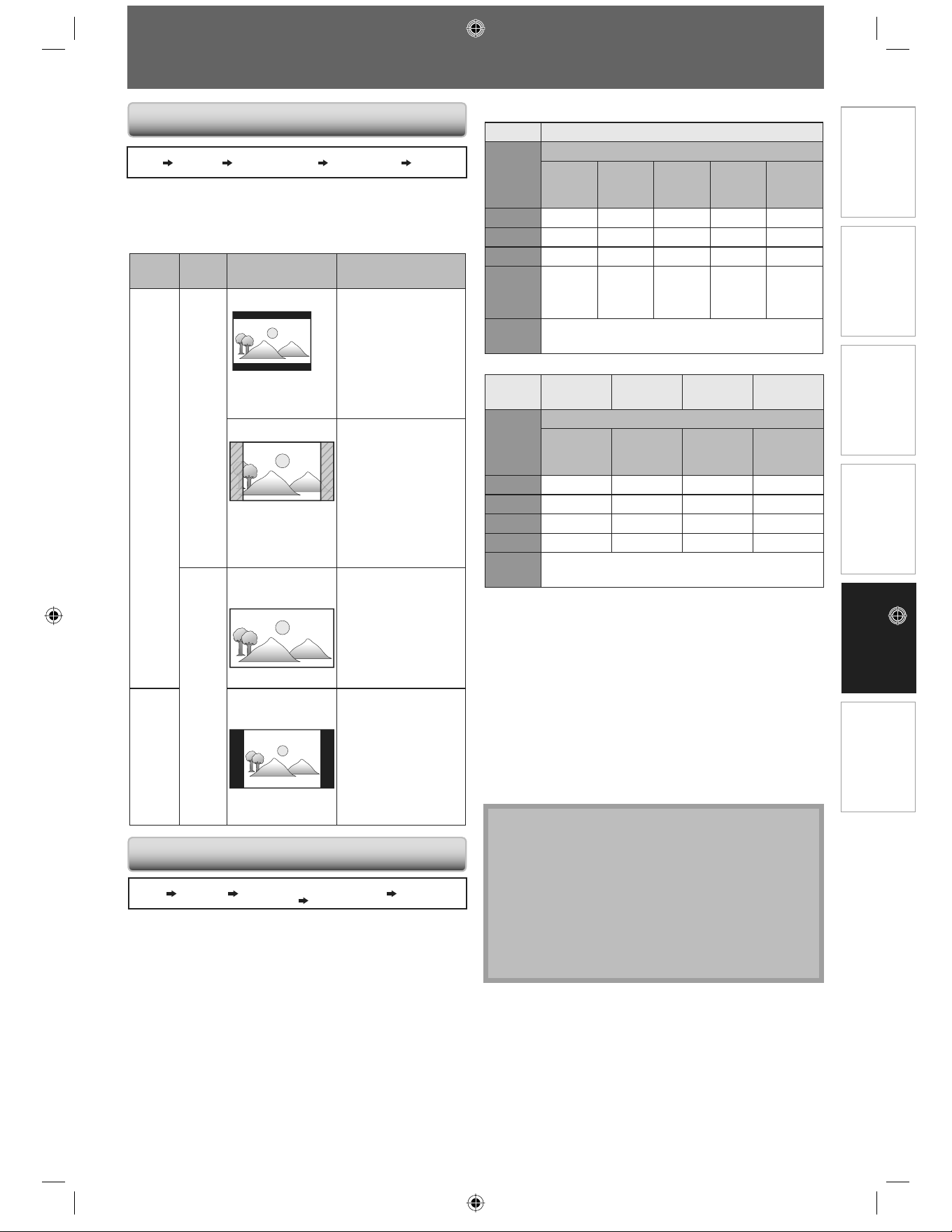
35 E N
Connections Playback
Function Setup
Others Introduction Basic Setup
SETUPS
Use this feature to adjust the aspect ratio of the video
source which is different from your TV’s ratio to fit your
TV monitor without distorting the picture. Descriptions
of each setting are as follows:
Video
source
Your
TV
Option Description
16:9
4:3
4:3 Letter Box To enjoy 16:9
picture on 4:3
monitor:
16:9 picture is
scaled down until
the both sides of
the picture fits the
4:3 TV.
4:3 Pan & Scan
To enjoy 16:9
picture on 4:3
monitor:
Both sides of the
picture are trimmed
to fit the 4:3 TV
without distorting
the aspect ratio of
the picture.
16:9
16:9
Widescreen
To enjoy 16:9
picture on 16:9
monitor:
Select this setting
when you want to
enjoy 16:9 picture
on the 16:9 TV.
4:3
16:9
Squeeze
To enjoy 4:3 picture
on 16:9 monitor:
Use this setting to
display 4:3 picture
on the 16:9 TV
without distorting
the aspect ratio of
the picture.
HOME “Settings” “Advanced Setup” “Video Output” “TV Shape”
HOME “Settings”
“Advanced
Setup”
“Video Output”
“HDMI Video
Resolution”
Set the resolution of the video signal being output from
the HDMI OUT.
You can select the desired “HDMI Video Resolution”
among the settings listed below:
“Auto”/“480p”/“720p”/“1080i”/“1080p”
When you make a selection, the TV monitor temporarily
goes blank and then comes back again. If it does not,
press [OUTPUT] to change the resolution or press and
hold [B (PLAY)] on the front panel for 5 seconds to
change the setting back to its default.
•
Actual Output Resolution by Media:
Media BD
Setting in
the “HDMI
Video
Resolution”
Source
480/60i 720/60p 1080/60i 720/24p
1080/24p
480p 480/60p 480/60p 480/60p 480/60p 480/60p
720p 720/60p 720/60p 720/60p 720/60p 720/60p
1080i 1080/60i 1080/60i 1080/60i 1080/60i 1080/60i
1080p
1080/60p 1080/60p 1080/60p 1080/60p
1080/24
or 60p
(*)(**)
Auto The highest resolution supported by your
display device will be in effect automatically.
Media DVD DivX®
Photo
viewing
OSD-only
viewing
Setting in
the “HDMI
Video
Resolution”
S o u r c e
480/60i
60,30,other
480p 480/60p 480/60p 480/60p 480/60p
720p 720/60p 720/60p 720/60p 720/60p
1080i 1080/60i 1080/60i 1080/60i 1080/60i
1080p
1080/60p 1080/60p 1080/60p 1080/60p
Auto Determine the rightmost resolution supported
by the display device automatically.
The frame rate and interlaced/progressive setting of
the data on Blu-ray Disc is the framerate and interlaced/
progressive setting of the primary video being played.
If no video is being played it is whatever frame rate was
set last by the BD middleware.
The frame rate and resolution of the component output
will follow that of the HDMI output, except when HDMI
resolution is 1080p (in which case the component
output will be at 480i).
Output from the VIDEO OUT will be always at 480/60i,
when supported.
(*) : 24 Hz is preferred, but if EDID shows that 24 Hz not supported, but
60 Hz is, then 60 Hz should be shown.
(**) : When frame rate is 24p, all analog output will be muted.
Note
The selected resolution must also be supported by
your display device.
If your TV and the unit is connected by a DVI cable
and if you select “Auto”, “480p” will be in effect
automatically.
Pressing [B (PLAY)] on the front panel for 5 seconds
changes the setting back to its default. (“Component
Output” setting will also be reset to default (480i).)
Refer also to your TV’s manual.
•
•
•
•
•
•
•
•
TV Shape
HDMI Video Resolution
E5E10UD_EN.indb 35E5E10UD_EN.indb 35 12/28/2007 9:25:55 AM12/28/2007 9:25:55 AM
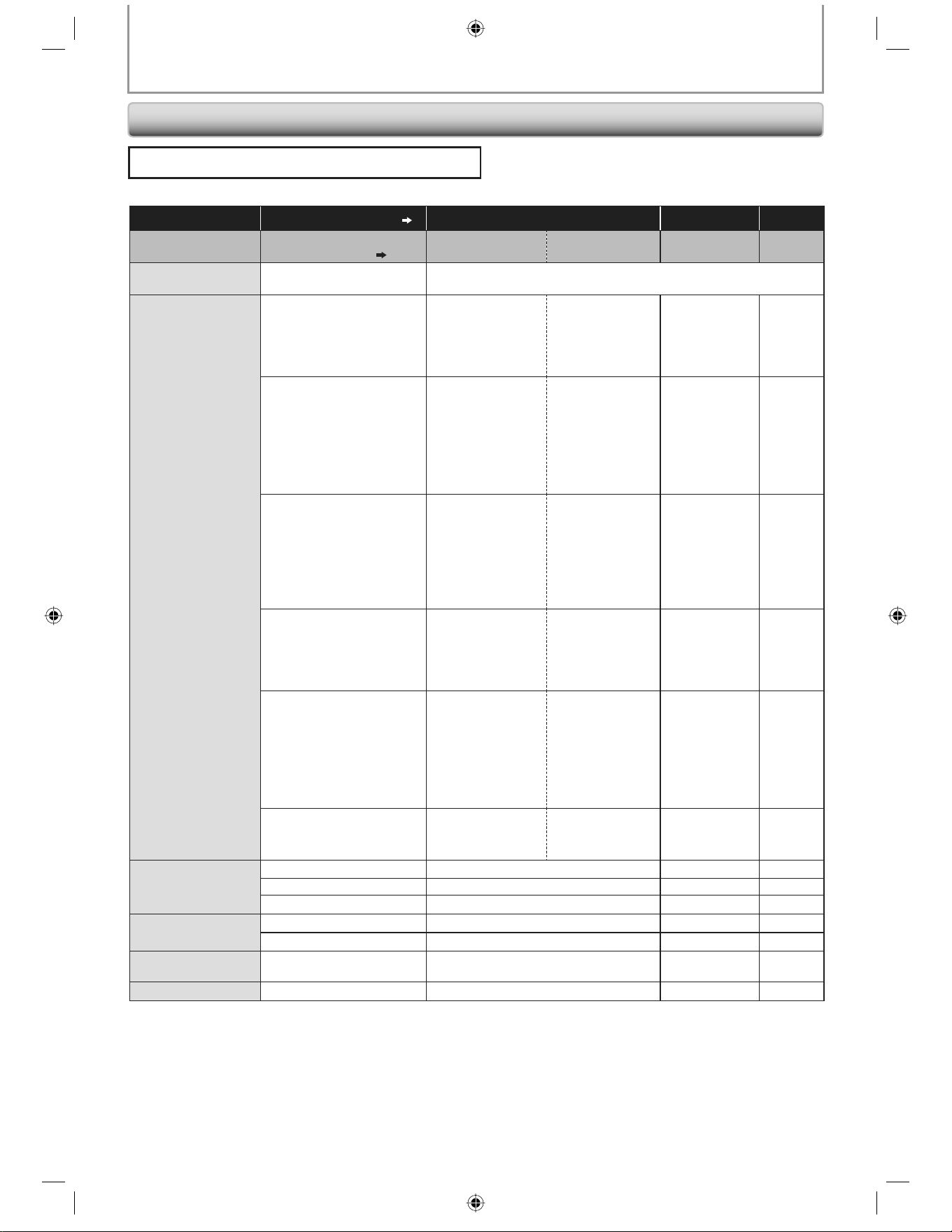
36 EN
Refer to the table below to see which setting you should choose.
“HDMI Audio” setting “HDMI Normal” “PCM” “Off”
“Blu-ray Disc
Audio” setting
“Primary Audio Only” “Mix Audio Output” Regardless Regardless
Media
ª
Audio Source
ª
Which audio format can be output depends on the compatibility of the
connected device.
BD-video
Dolby Digital
Dolby Digital Dolby Digital
or or
PCM PCM PCM
or or or
Mute Mute Mute Mute
Dolby Digital Plus
Dolby Digital Plus
or
Dolby Digital Dolby Digital
or or
PCM PCM
*1
PCM
*1
or or or
Mute Mute Mute Mute
Dolby TrueHD
Dolby TrueHD
or
Dolby Digital Dolby Digital
or or
PCM PCM
*2
PCM
*2
or or or
Mute Mute Mute Mute
DTS
DTS Dolby Digital
or or
PCM PCM PCM
or or or
Mute Mute Mute Mute
DTS-HD
DTS-HD
or
DTS Dolby Digital
or or
PCM PCM
*3
PCM
*3
or or or
Mute Mute Mute Mute
LPCM
PCM PCM PCM
or or or
Mute Mute Mute Mute
DVD-video
Dolby Digital Dolby Digital, PCM or Mute PCM or Mute Mute
DTS DTS, PCM or Mute PCM or Mute Mute
LPCM PCM or Mute PCM or Mute Mute
DivX®
Dolby Digital Dolby Digital, PCM or Mute PCM or Mute Mute
MP3/MP2 2ch PCM or Mute 2ch PCM or Mute Mute
Audio CD/ MP3/
Windows Media™ Audio
PCM 2ch PCM or Mute 2ch PCM or Mute Mute
DTS-CD DTS DTS, PCM or Mute PCM or Mute Mute
* 1
) Only the independent substream is decoded.
* 2
) Only the Dolby Digital Substream is decoded.
* 3
) Only the core substream is decoded.
When playing back a BD-video which only contains the primary audio, the audio output will be the same as case of
“Primary Audio Only” even if the “Blu-ray Disc Audio” is set to “Mix Audio Output”.
•
SETUPS
HOME
¨
“Settings”
¨
“Advanced Setup”
¨
“Audio”
¨
“HDMI Audio”
HDMI Audio
E5E10UD_EN.indb 36E5E10UD_EN.indb 36 12/28/2007 9:25:55 AM12/28/2007 9:25:55 AM
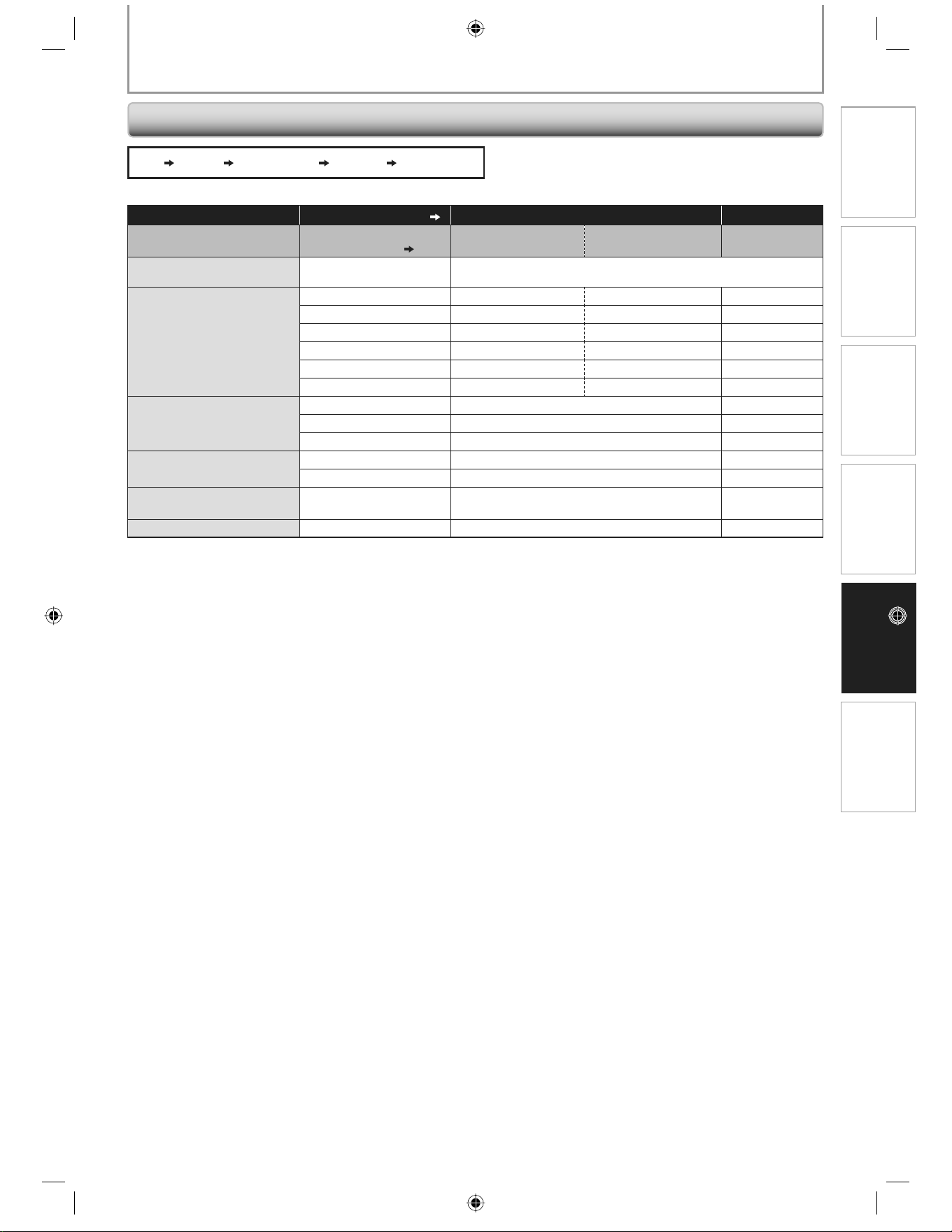
37 E N
Connections Playback
Function Setup
Others Introduction Basic Setup
SETUPS
Refer to the table below to see which setting you should choose.
“Digital Out” setting “Bitstream” “PCM”
“Blu-ray Disc
Audio” setting
“Primary Audio Only” “Mix Audio Output” Regardless
Media
ª
Audio Source
ª
BD-video
Dolby Digital Dolby Digital Dolby Digital DownMix PCM
Dolby Digital Plus
*1
Dolby Digital Dolby Digital DownMix PCM
Dolby TrueHD
*2
Dolby Digital Dolby Digital DownMix PCM
DTS DTS Dolby Digital DownMix PCM
DTS-HD DTS Dolby Digital DownMix PCM
LPCM DownMix PCM DownMix PCM DownMix PCM
DVD-video
Dolby Digital Dolby Digital DownMix PCM
DTS DTS DownMix PCM
LPCM DownMix PCM DownMix PCM
DivX®
Dolby Digital Dolby Digital DownMix PCM
MP3/MP2 2ch PCM 2ch PCM
Audio CD/MP3/Windows
Media™ Audio
PCM 2ch PCM 2ch PCM
DTS-CD DTS DTS DownMix PCM
* 1
) Only the independent substream can be output.
* 2
) Only the Dolby Digital Substream can be output.
When playing back a BD-video which only contains the primary audio, the audio output will be the same as case of
“Primary Audio Only” even if the “Blu-ray Disc Audio” is set to “Mix Audio Output”.
•
HOME “Settings” “Advanced Setup” “Audio” “Digital Out”
Digital Out
E5E10UD_EN.indb 37E5E10UD_EN.indb 37 12/28/2007 9:25:56 AM12/28/2007 9:25:56 AM
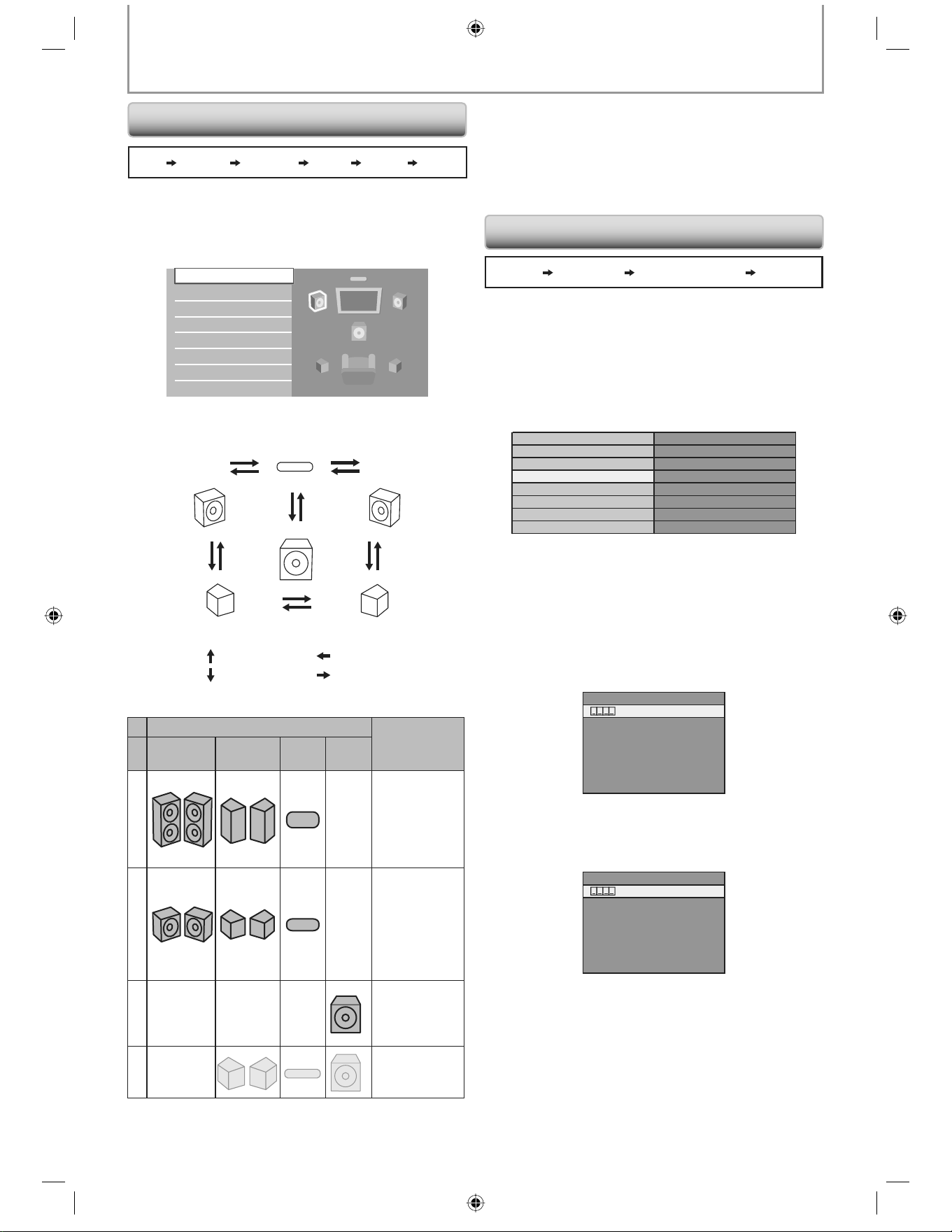
38 EN 38 EN
SETUPS
HOME “Settings” “Advanced Setup” “Parental”
HOME “Settings”
“Advanced
Setup”
“Audio”
“Analog
Audio”
“Speaker
Setup”
Set the speaker configuration to suite the size/number of
your speakers.
1) Highlight the speaker you want to set in the
illustration on the right.
Speaker Distance
Speaker Setup
Speaker Level
If you press [Red], each speaker outputs the test tone
for 2 seconds in rotation.
You can move among the speakers as illustrated below:
2) Press [OK] repeatedly to change the setting.
Setting
Suitable for
Front
(L/R)
Surround
(L/R)
C e n t e r
sub
woofer
L
A
R
G
E
Large
speakers with
the capacity
for powerful
low frequency
sound.
S
M
A
L
L
Small
speakers
which do not
bare the
powerful low
frequency
sound.*
O
N
When
subwoofer
speaker is
connected.
O
F
F
No speakers.
With regard to the low frequency sound which is less than 100Hz, the
sound will be output from the Subwoofer.
•
*
: [ K ]
: [ L ]
: [ { ]
: [ B ]
• For subwoofer, only on/off is available. (You cannot
change the size of the subwoofer.)
• When the front speakers are set to “small”, subwoofer
setting remains “on” and cannot be changed.
• When subwoofer is set to “off”, the front speaker setting
remains “large” and cannot be changed.
Some BD-video or DVD-video feature a parental lock level.
Playback will stop if the ratings exceed the levels you set,
it will require you to enter a password before the disc will
playback. This feature prevents your children from
viewing inappropriate material.
1) With “Parental” selected in the “Advanced Setup”
menu, press [OK].
Language
Rating level
Audio
Video Output
New PIN
Parental
Others
2) If a PIN code has not been set yet, proceed to step 2-a.
If a PIN code has already been set, proceed to step 2-b.
If you want to change the PIN code, proceed to step 2-c.
If you forget the PIN code, proceed to step 2-d.
2-a) Enter 4 digit PIN code using [the Number buttons],
then press [OK].
Enter new PIN
• “4737” cannot be used.
• Press [Red] to return to the menu screen.
2-b) Enter 4 digit PIN code using [the Number buttons].
Enter your PIN
2-c) Follow step 2-b. Then enter the new PIN code. Press
[OK] when finish entering.
2-d) Enter “4737”, then press [OK]. Current PIN code is
now cleared. Follow step 1. and step 2-a. to create
a new PIN code.
Parental
Speaker Setup
Center
Front (L) Front (R)
Subwoofer
Surround (L)
Surround (R)
E5E10UD_EN.indb 38E5E10UD_EN.indb 38 12/28/2007 9:25:56 AM12/28/2007 9:25:56 AM
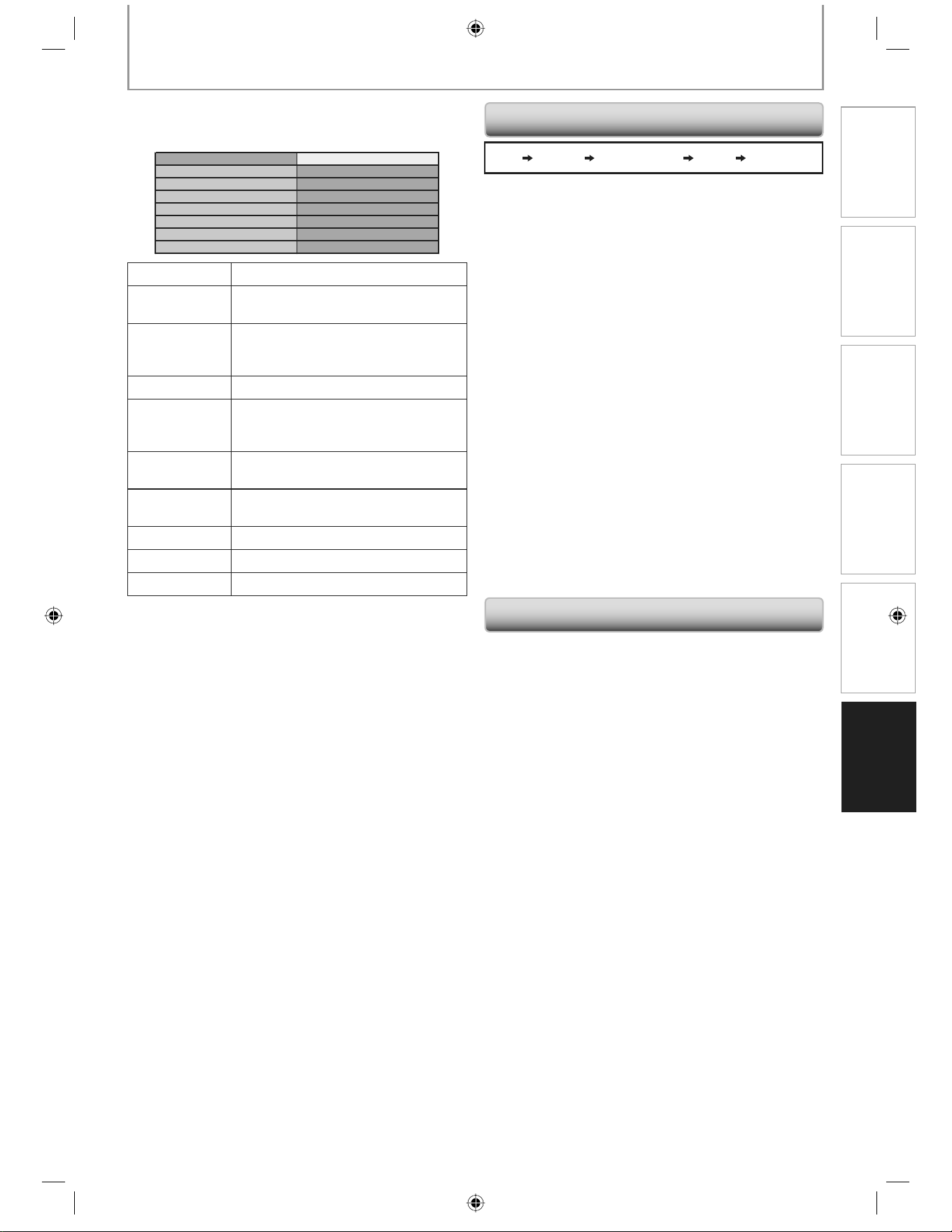
39 E N 39 E N
Connections Playback Function Setup
Others
Introduction
Basic Setup
SETUPS
You can reset the settings to default.
1) Use [K / L] to highlight “Settings” in the home
menu, then press [OK].
2) Use [K / L] to highlight “Factory Default”, then press
[OK].
3) Use [K / L] to highlight the desired setting, then
press [OK].
“Settings”:
All the settings except for the “Parental” setting will be
reset to default.
“Local Storage”:
Local storage used for BD-Java will be reformatted.
4) Press [OK] to go back to the settings menu, or press
[HOME] to go back to the home menu.
HOME “Settings” “Advanced Setup” “Others”
“EasyLink
(HDMI CEC)”
EasyLink (HDMI CEC) function allows your TV (limited to
PHILIPS brand EasyLink TV) to act in conjunction with
this unit.
When “EasyLink (HDMI CEC)” setting is set to “On”,
functions listed below will be available.
One Touch Play
When this unit is turned on, the TV also is turned on
and the appropriate external input channel will be
selected automatically. The appropriate external input
channel can also be selected on your TV automatically,
when you press [B (PLAY)] of this unit when the unit’s
power is on.
Standby
When you press and hold [Q (STANDBY-ON)] on the
front panel for 2 seconds, it turns off the power of the
TV first and then turns off the power of this unit also.
System Information
Get & Set Menu Language
This unit recognizes the OSD language set for the TV
and automatically set the same language as the player
menu language (OSD menu language) for this unit.
3) After entering the PIN code, “Rating Level” appears.
Select desired rating level then press [OK].
Rating Level
All
8[Adult]
7
6
5
4
New PIN
3
2
RATING EXPLANATIONS
All Parental Control is inactive; all discs
can playback.
•
8 [Adult] DVD software of any grades (adult/
general/children) can be played
back.
•
7 [NC-17] No one under 17 admitted. •
6 [R] Restricted; under 17 requires
accompanying parent or adult
guardian.
•
5 [PGR] Parental Guidance
Recommended.
•
4 [PG13] Unsuitable for children
under 13.
•
3 [PG] Parental Guidance suggested. •
2 [G] General Audience. •
1 [Kid Safe] Suitable for children. •
To cancel parental lock temporarily
Some discs allow you to cancel the parental lock
temporarily. With those discs, the message below will
appear when you try to play them back.
“Please enter your PIN to unblock content.”
Follow the instruction which appears on the screen to
cancel the parental lock. After entering the PIN code,
“Rating Level” appears.
Select desired rating level then press [OK].
Reset to Factory Default
EasyLink (HDMI CEC)
E5E10UD_EN.indb 39E5E10UD_EN.indb 39 12/28/2007 9:25:57 AM12/28/2007 9:25:57 AM
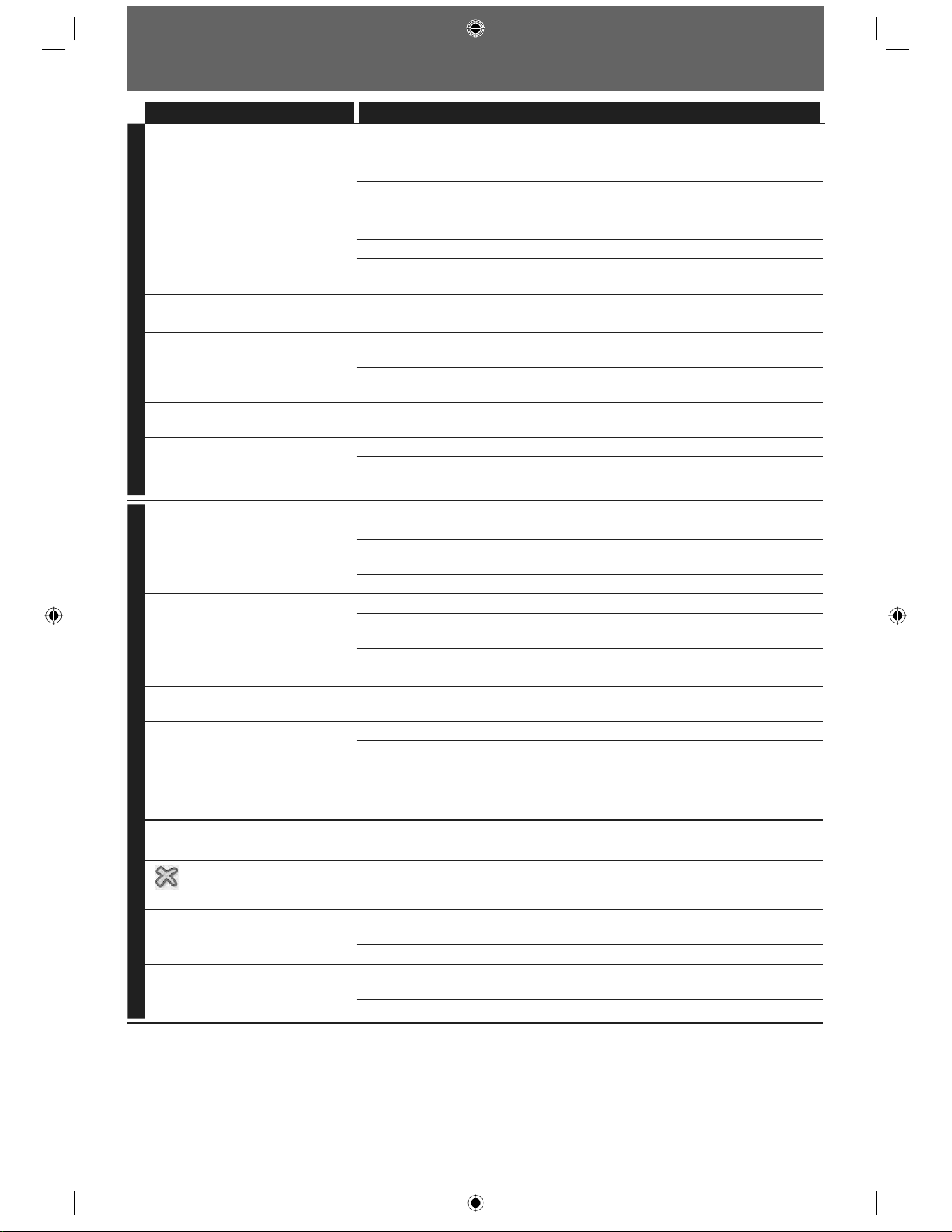
40 EN 40 EN
TROUBLESHOOTING
Problem Tip
POWER
No reaction to the remote
control.
Connect the product to the power outlet.
Point the remote control at the product.
Insert the batteries correctly.
Insert new batteries in the remote control.
No video signal on the display
device.
Turn on the TV.
Set the TV to the correct external input.
Select the correct video resolution using [OUTPUT] on the front panel.
Press and hold [B (PLAY)] on the front panel for 5 seconds to change the
setting back to its default.
No audio / video signal on the
display device via HDMI cable.
If the unit is connected to the unauthorized display device with an HDMI
cable, the audio/video signal may not be output.
No high-definition video signal
on the TV.
Does the disc contain high-definition video? High-definition video is not
available when the disc does not contain it.
Does the TV support high-definition video? High-definition video is not
available when the TV does not support it.
No audio signal from the
loudspeakers of the TV.
Assign the audio input of the TV to the corresponding video input.
No audio signal from the
loudspeakers of the audio
system.
Turn on the audio system.
Set the audio system to the correct external input.
Increase the volume level of the audio system.
GENERAL
No 5.1-channel audio from the
loudspeakers of the audio system
Does the disc contain 5.1-channel audio? The 5.1-channel audio is not
available when the disc does not contain it.
Does the audio system support 5.1-channel audio? The 5.1-channel audio is
not available when the audio system does not contain it.
In the settings menu, set “HDMI Audio” to “Off”.
Cannot play back a disc. Make sure that the product supports the disc.
Make sure that the Blu-ray Disc player supports the region code of the DVD or BD.
(BD: A: DVD: All or 1)
For DVD+RW/+R or DVD-RW/-R, make sure that the disc is finalized.
Clean the disc.
Cannot play back JPEG files from
a disc.
Make sure that the disc was recorded in the UDF, ISO9660 or JOLIET format.
Cannot play MP3 files from a disc. Make sure that the disc was recorded in the UDF, ISO9660 or JOLIET format.
Make sure that the bit rate of the MP3 files is between 112 and 320 kbps.
Make sure that the sample rate of the MP3 files is 32kHz, 44.1kHz or 48kHz.
Cannot play back Windows Media
TM
Audio files from a disc.
Make sure that the sample rate of the Windows Media
TM
Audio files is
44.1kHz or 48kHz.
Cannot play back DivX® files from
a disc.
Make sure that the file extension is .avi, .AVI, .divx or .DIVX
in the upper right hand
corner of the screen.
The operation is not possible.
Cannot find a JPEG file. Make sure that the selected group (folder) does not contain more than 9,999
files for DVD, and 999 files for CD.
Make sure that the file extension is .wma or .WMA, .jpg, .JPG, .jpeg or .JPEG.
Cannot find an MP3 and Windows
Media
TM
Audio file.
Make sure that the selected folder does not contain more than 9,999 files for
DVD, and 999 files for CD.
Make sure that the file extension is .mp3 or .MP3.
E5E10UD_EN.indb 40E5E10UD_EN.indb 40 12/28/2007 9:25:57 AM12/28/2007 9:25:57 AM
41 E N 41 E N
Connections Playback Function Setup
Others
Introduction
Basic Setup
Analog Audio
An electrical signal that directly represents sound.
Compare this to digital audio which can be an electrical
signal, but is an indirect representation of sound. See also
“Digital Audio”.
Aspect Ratio
The width of a TV screen relative to its height.
Conventional TVs are 4:3 (in other words, the TV screen is
almost square); widescreen models are 16:9 (the TV
screen is almost twice as wide as it is high).
Blu-ray Disc (BD)
Blu-ray Disc is a next generation optical video disc which
is capable of storing much more data than a conventional
DVD is. The large capacity makes it possible to benefit
from the features such as high-definition videos, multi-
channel surround sounds, interactive menus and so on.
Chapter
Just as a book is split up into several chapters, a title on a
BD-video or DVD-video is usually divided into chapters.
See also “Title”.
Component Video Output
Each signal of luminance (Y) and component (PB/CB, PR/
C
R) is independent to output so that you can experience
picture color as it is.
Also, due to compatibility with progressive video
(525p/480p), you can experience higher-density picture
than that in interlace (525i/480i).
Digital Audio
An indirect representation of sound by numbers. During
recording, the sound is measured at discrete intervals
(44,100 times a second for CD audio) by an analog-to-
digital converter, generating a stream of numbers. On
playback, a digital-to-analog converter generates an
analog signal based on these numbers. See also
“Sampling Frequency” and “Analog Audio”.
DivX®
DivX® is a codec (compression/decompression) that can
compress pictures to a very small amount of data.The
software can compress video data from almost any
devices to the size that can be sent on the Internet
without compromising visual quality of the pictures.
DTS (Digital Theater System):
DTS is a multi channel surround sound system. By
connecting to DTS decoder, you can enjoy movie
dynamic and realistic sound like movie theater. DTS
surround sound technologies were developed by DTS,
Inc.
Dolby Digital
The system to compress digital sound developed by
Dolby Laboratories. It offers you sound of stereo(2ch) or
multi-channel audio.
HDMI (high definition multimedia interface)
A digital interface between audio and video source. It can
transmit component video, audio, and control signal with
one cable connection.
JPEG (joint photographic experts group)
JPEG is a method of compressing still picture files. You
can copy JPEG files on CD-RW/-R, DVD-RW/-R or
DVD+RW/+R from a computer and play back the files on
this unit.
MP3 (MPEG audio layer 3)
MP3 is a method of compressing files. You can copy MP3
files on CD-RW/-R, DVD-RW/-R or DVD+RW/+R from the
computer and play back the files on this unit.
PCM (pulse code modulation)
The most common system of encoding digital audio,
found on CD and DAT. Excellent quality, but requires a lot
of data compared to formats such as Dolby Digital and
MPEG audio. For compatibility with digital audio
recorders (CD, MD and DAT) and AV amplifiers with digital
inputs, this unit can convert Dolby Digital and MPEG
audio to PCM. See also “Digital Audio”.
Region Code
Regions associate discs and players with particular areas
of the world. This unit will only play back discs that have
compatible region codes. You can find the region code of
your unit by looking on the rear panel. Some discs are
compatible with more than one region (or all regions).
Sampling Frequency
The rate which sound is measured by a specified interval
to turn into digital audio data. The numbers of sampling
in one second defines as sampling frequency. The higher
the rate, the better the sound quality.
Title
A collection of chapters on BD-video or DVD-video. See
also “Chapter”.
Track
Audio CD use tracks to divide up the content of a disc.
The BD-video or DVD-video equivalent is called a chapter.
See also “Chapter”.
Windows Media™ Audio
Windows Media™ Audio is the audio compressing
technology developed by Microsoft. You can copy
Windows Media™ Audio files on CD-RW/-R, DVD-RW/-R or
DVD+RW/+R from a computer and play them back on
this unit.
GLOSSARY
E5E10UD_EN.indb 41E5E10UD_EN.indb 41 12/28/2007 9:25:57 AM12/28/2007 9:25:57 AM
42 EN 42 EN
SPECIFICATIONS
General
System BD-video, DVD-video, DVD+RW/+R, DVD-RW/-R, CD-DA, CD-RW/-R, DTS CD
Power requirements 120V AC, 60Hz
Power consumption 30W (standby: 0.8W)
Dimensions (width x height x depth) 17.2 x 2.8 x 13.8 inches (435 x 70 x 348mm)
Weight 9.1 lbs. ( 4.1kg )
Operating temperature 41°F (5°C) to 104°F (40°C)
Operating humidity Less than 80% (no condensation)
Terminals
Rear
Audio output (Analog)
RCA jack x 2
RCA jack x 6
L/R: 2Vrms (output impedance: more than 1kΩ)
L/R/SL/SR/C: 2Vrms (output impedance: more than 1kΩ)
SW: 1.15Vrms (output impedance: more than 1kΩ)
Video output
RCA jack x 1 1Vp-p (75Ω)
Component video output
RCA jack x 3 Y: 1Vp-p (75Ω) P
B/CB: 700mVp-p (75Ω) PR/CR: 700mVp-p (75Ω)
Audio output (Digital)
RCA jack x 1
Optical jack x 1
500mVp-p (75Ω)
Digital connector
HDMI output
HDMI jack x 1 Video: 480p, 720p, 1080i, 1080p/Audio
Note
The specifications and design of this product are subject to change without notice. •
E5E10UD_EN.indb 42E5E10UD_EN.indb 42 12/28/2007 9:25:57 AM12/28/2007 9:25:57 AM
43 E N 43 E N
Connections Playback Function Setup
Others
Introduction
Basic Setup
LIMITED WARRANTY
Philips, P.O. Box 671539, Marietta, GA. 30006-0026
PHILIPS LIMITED WARRANTY
ONE (1) YEAR
WARRANTY COVERAGE:
PHILIPS warranty obligation is limited to the terms set forth
below.
WHO IS COVERED:
Philips warrants the product to the original purchaser or the per-
son receiving the product as a gift against defects in materials and
workmanship as based on the date of original purchase
(“Warranty Period”) from an Authorized Dealer. The original
sales receipt showing the product name and the purchase date
from an authorized retailer is considered such proof.
WHAT IS COVERED:
The Philips warranty covers new products if a defect in material
or workmanship occurs and a valid claim is received by Philips
within the Warranty Period. At its option, Philips will either (1)
repair the product at no charge, using new or refurbished
replacement parts, or (2) exchange the product with a product
that is new or which has been manufactured from new, or ser-
viceable used parts and is at least functionally equivalent or most
comparable to the original product in Philips current inventory,
or (3) refund the original purchase price of the product.
Philips warrants replacement products or parts provided under
this warranty against defects in materials and workmanship from
the date of the replacement or repair for ninety (90) days or for
the remaining portion of the original product’s warranty,
whichever provides longer coverage for you. When a product or
part is exchanged, any replacement item becomes your property
and the replaced item becomes Philips’ property. When a refund
is given, your product becomes Philips’ property.
Note: Any product sold and identified as refurbished or
renewed carries a ninety (90) day limited warranty.
Replacement product can only be sent if all warranty
requirements are met. Failure to follow all requirements
can result in delay.
WHAT IS NOT COVERED - EXCLUSIONS AND LIMI-
TATIONS:
This Limited Warranty applies only to the new products manu-
factured by or for Philips that can be identified by the trademark,
trade name, or logo affixed to it. This Limited Warranty does not
apply to any non-Philips hardware product or any software, even
if packaged or sold with the product. Non-Philips manufacturers,
suppliers, or publishers may provide a separate warranty for their
own products packaged with the bundled product.
Philips is not liable for any damage to or loss of any programs,
data, or other information stored on any media contained within
the product, or any non-Philips product or part not covered by
this warranty. Recovery or reinstallation of programs, data or
other information is not covered under this Limited Warranty.
This warranty does not apply (a) to damage caused by accident,
abuse, misuse, neglect, misapplication, or non-Philips product, (b)
to damage caused by service performed by anyone other than
Philips or Philips Authorized Service Location, (c) to a product or
a part that has been modified without the written permission of
Philips, or (d) if any Philips serial number has been removed or
defaced, or (e) product, accessories or consumables sold “AS IS”
without warranty of any kind by including refurbished Philips
product sold “AS IS” by some retailers.
This Limited Warranty does not cover:
• Shipping charges to return defective product to Philips.
• Labor charges for installation or setup of the product, adjust-
ment of customer controls on the product, and installation or
repair of antenna/signal source systems outside of the product.
• Product repair and/or part replacement because of improper
installation or maintenance, connections to improper voltage
supply, power line surge, lightning damage, retained images or
screen markings resulting from viewing fixed stationary con-
tent for extended periods, product cosmetic appearance items
due to normal wear and tear, unauthorized repair or other
cause not within the control of Philips.
• Damage or claims for products not being available for use, or
for lost data or lost software.
• Damage from mishandled shipments or transit accidents when
returning product to Philips.
• A product that requires modification or adaptation to enable
it to operate in any country other than the country for which
it was designed, manufactured, approved and/or authorized, or
repair of products damaged by these modifications.
• A product used for commercial or institutional purposes
(including but not limited to rental purposes).
• Product lost in shipment and no signature verification receipt
can be provided.
• Failure to operate per Owner’s Manual.
TO OBTAIN ASSISTANCE IN THE U.S.A., PUERTO
RICO, OR U.S. VIRGIN ISLANDS…
Contact Philips Customer Care Center at:
1-888-PHILIPS (1-888-744-5477)
TO OBTAIN ASSISTANCE IN CANADA…
1-800-661-6162 (French Speaking)
1-888-PHILIPS (1-888-744-5477) - (English or Spanish
Speaking)
REPAIR OR REPLACEMENT AS PROVIDED UNDER THIS
WARRANTY IS THE EXCLUSIVE REMEDY FOR THE CON-
SUMER. PHILIPS SHALL NOT BE LIABLE FOR ANY INCIDEN-
TAL OR CONSEQUENTIAL DAMAGES FOR BREACH OF
ANY EXPRESS OR IMPLIED WARRANTY ON THIS PROD-
UCT. EXCEPT TO THE EXTENT PROHIBITED BY APPLICABLE
LAW, ANY IMPLIED WARRANTY OF MERCHANTABILITY OR
FITNESS FOR A PARTICULAR PURPOSE ON THIS PRODUCT
IS LIMITED IN DURATION TO THE DURATION OF THIS
WARRANTY.
Some states do not allow the exclusions or limitation of inciden-
tal or consequential damages, or allow limitations on how long an
implied warranty lasts, so the above limitations or exclusions may
not apply to you.
This warranty gives you specific legal rights. You may have other rights which vary from state/province to state/province.
3121 233 48802
E5E10UD_EN.indb 43E5E10UD_EN.indb 43 12/28/2007 9:25:58 AM12/28/2007 9:25:58 AM
Printed in China
JpnCN-0752/37-3
1VMN24453 *****
E5E10UD
BDP7200/37
A Division of Philips Electronics North America Corp
P.O. Box 671539 Marietta, GA 30006-0026
CLASS 1
LASER PRODUCT
PHILIPS CONSUMER ELECTRONICS
Meet Philips at the Internet
http://www.philips.com/welcome
E5E10UD_EN.indb 44E5E10UD_EN.indb 44 12/28/2007 9:25:58 AM12/28/2007 9:25:58 AM