First time set up:
1-Download the application called “PhotoFast” (A) on your smart device
(APP available on the App Store for iOS and Google play for Android).
2-After the app is installed, when launched for the rst time, please grant
app access permission for bluetooth Contacts, Calendar, photos and Notication. So the app can backup your data
correctly.
3- Close the App
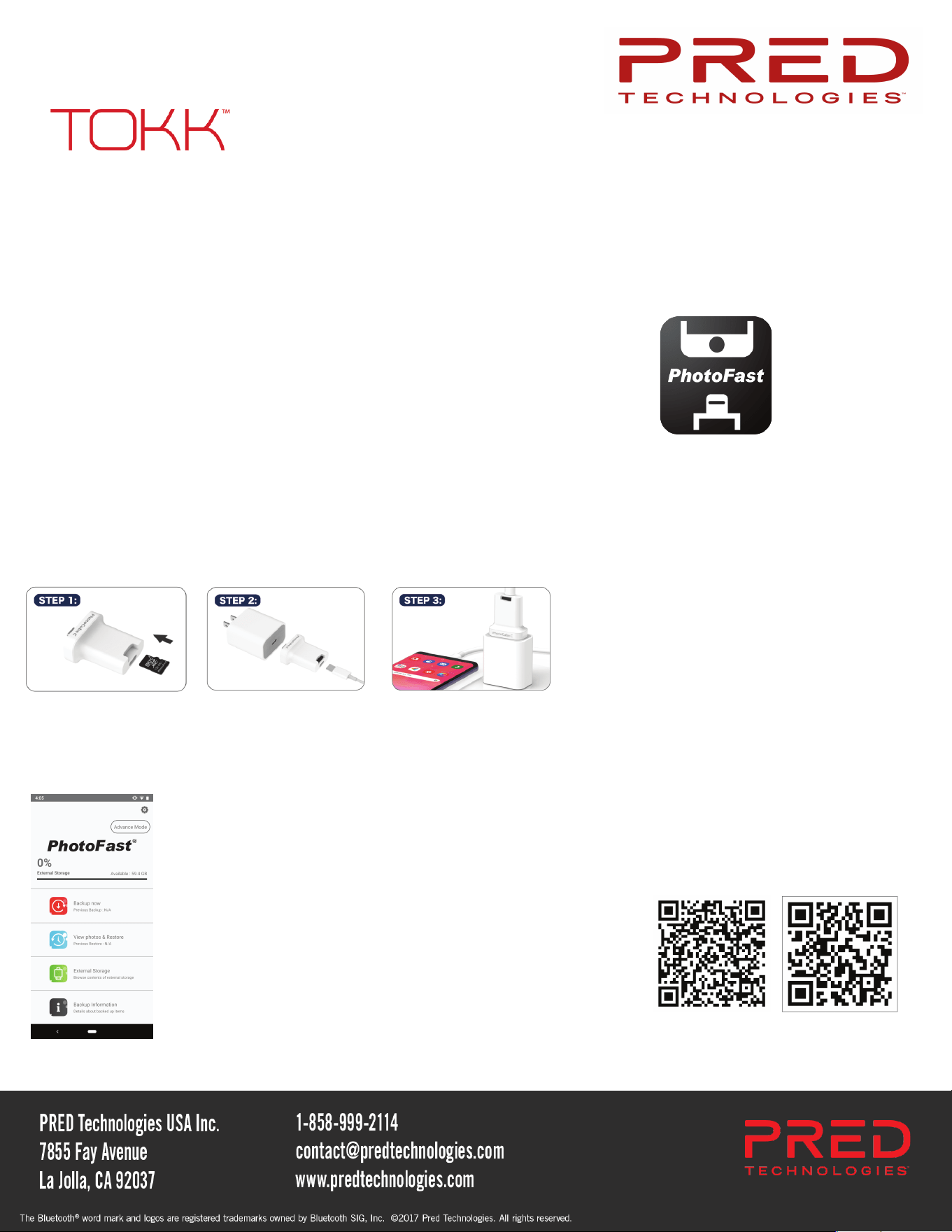
3- Follow below steps (insert SD card, plug the PHOTO CUBE into Wall Charger, plug cable to PHOTO CUBE and Your
device and plug the Wall Charger into an wall outlet to charge.
4- The App will automatically open and start backing up all your pictures, contacts etc... for the rst time this process
might take a few minutes depending on how many pictures you have, but thereafter, the automatic back up process
while charging with PHOTO CUBE will be very fast as it will only back up the new pictures.
PHOTO CUBE
Quick set up guide:
Thank you for your order. We hope you will Enjoy your new TOKK™ PHOTO CUBE.
Below is our quick set up guide. If you want more details please refer to the complete instruction manual.
If you encounter any issues setting up your new camera, please do not hesitate to call us and we will be
very happy to help you. Our customer service phone number is +1 858 999 2114 ext 1.
(A)
Google Play App Store
External Storage Status
Display the memory usage of the microSD, you can tap on the product image (iOS only
feature) to enter the le manager to manage les stored in the microSD.
Backup now
“One-touch-backup” that will backup contacts, calendar and camera roll data of the device to
the external storage.
View photos & Restore
You can browse and select backed up camera roll les to restore to your device.
Backup Information
“Backed-up Camera Roll items” – Accumulated count of backed-up
les from Camera Roll.
“Previous Backup” – The date stamp of previous backup.
“Calendar Restore” – Browse and select calendar le to restore to
your device.
“Contact Restore” – Browse and select contact le to restore to your
device.
“Reset” – Reset the “Backed-up Camera Roll items” counter and
“Previous Backup”.
QR codes to downlaod the app