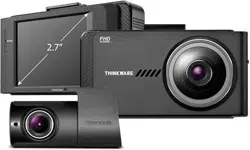
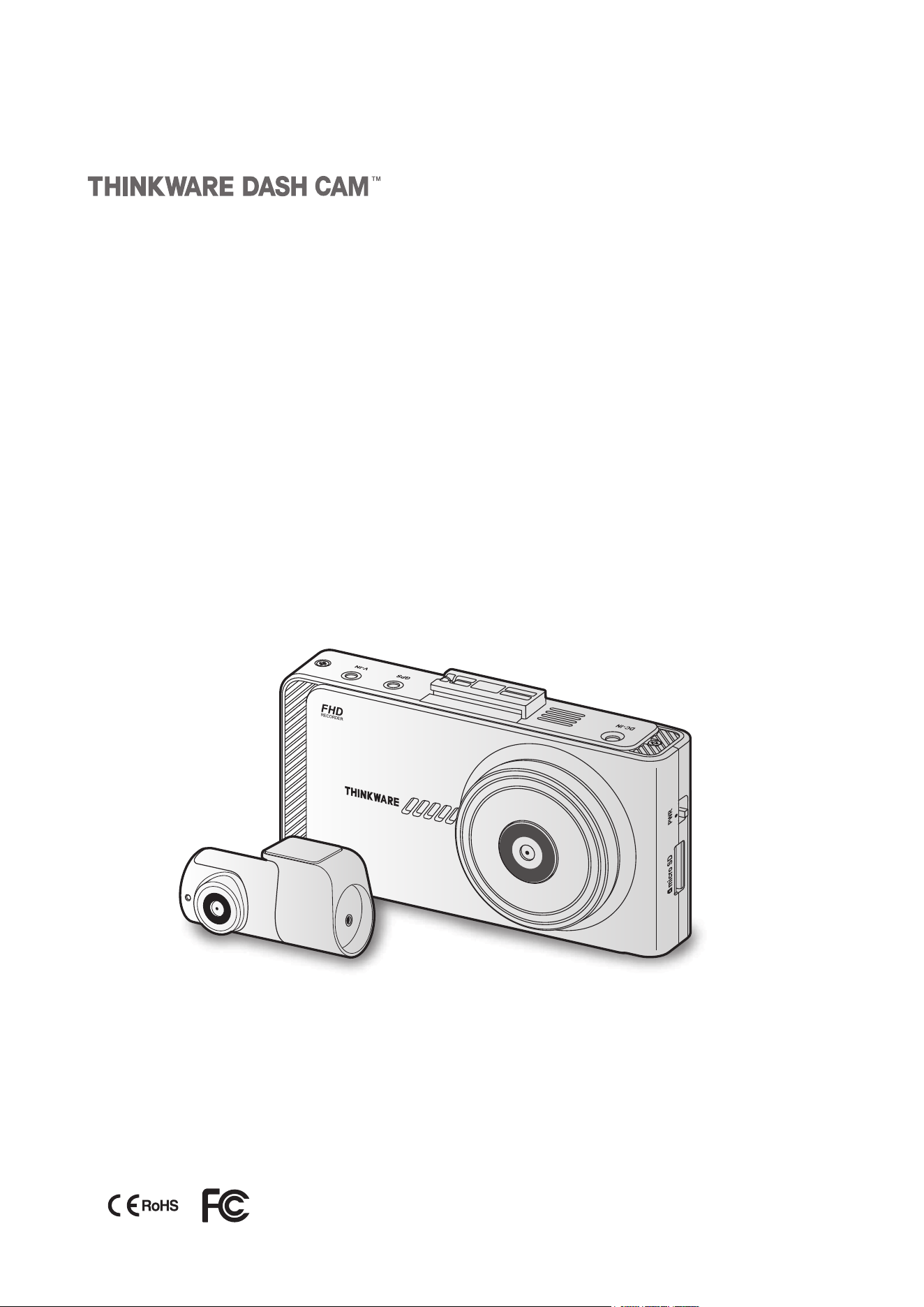
This product records videos while the vehicle is operating.
Read and follow the instructions in this guide to properly use and maintain the product.
User Guide
X700

Before using the product
About the product
This product records videos while the vehicle is operating. Use this product only for reference when
investigating incidents or road accidents. This product is not guaranteed to record or process cloud data
for all events. The device may not record accidents with impacts that are too minor to activate the impact
sensor or accidents with massive impacts that cause the vehicle’s battery voltage to deviate.
Video recording does not begin until the product is completely turned on (booted up). To ensure that all
vehicle events are recorded, wait until the product is completely booted up after turning it on, and then
begin operating the vehicle.
THINKWARE is not responsible for any loss caused by an accident, nor is it responsible for providing any
support regarding the outcome of an accident.
Depending on the vehicle's configuration or operating conditions, such as the installation of remote door
lock devices, ECU settings, or TPMS settings, some product features may not be supported, and different
firmware versions may influence the product's performance or features.
About the user guide
The information provided in the guide may change when the manufacturer updates its service policy. This
user guide is intended for THINKWARE X700 models only, and it may contain technical errors, editorial
errors, or missing information.
Copyrights
All rights for the content and maps in this guide are reserved by THINKWARE and are protected under
copyright laws. All unauthorized duplication, revision, publication, or distribution of this guide without
written consent from THINKWARE is prohibited and is eligible for criminal charges.
Registered trademarks
THINKWARE X700 is a registered trademark of THINKWARE.
Other product logos and service names in this guide are trademarks of the relevant companies.

FCC Statement
This device complies with Part 15 of the FCC Rules. Operation is subject to the following two
conditions: (1) This device may not cause harmful interference, and (2) this device must accept any
interference received, including interference that may cause undesired operation.
FCC CAUTION: Any changes or modifications to the equipment not expressly approved by the party
responsible for compliance could void your authority to operate the equipment.
Information to user : RSS-247
This device complies with Industry Canada’s licence-exempt RSSs.
Please be cautioned the changes or modifications not expressly approved by the party responsible for
compliance could void the user’s authority to operate the equipment.
Notice: Operation is subject to the following two conditions : (1) this device may not cause
interference, and (2) this device must accept any interference, including interference that may cause
undesired operation of the device.
This Class B digital apparatus complies with Canadian ICES-003.

4
Contents
Safety information 6
1. Product overview 7
1.1 Included items 7
1.1.1 Standarditems 7
1.1.2 Accessories(soldseparately) 7
1.2 Part names 8
1.2.1 Frontcamera(mainunit)-frontview 8
1.2.2Frontcamera(mainunit)-rearview 9
1.2.3Rearcamera(optional) 9
1.3 Removing and inserting the memory card 10
2. Installing the product 11
2.1 Installing the front camera (main unit) 11
2.1.1 Selectinganinstallationlocation 11
2.1.2Securingtheproduct 11
2.1.3Connectingthepowercable 13
2.2 Installing the rear camera (optional) 14
2.2.1Selectinganinstallationlocation 14
2.2.2Securingtherearcamera 14
2.2.3Connectingtherearcameracable 15
2.3 Installing the external GPS module (optional) 17
2.4 Installing the THINKWARE Connected Dongle
(optional) 18
3. Using recording features 19
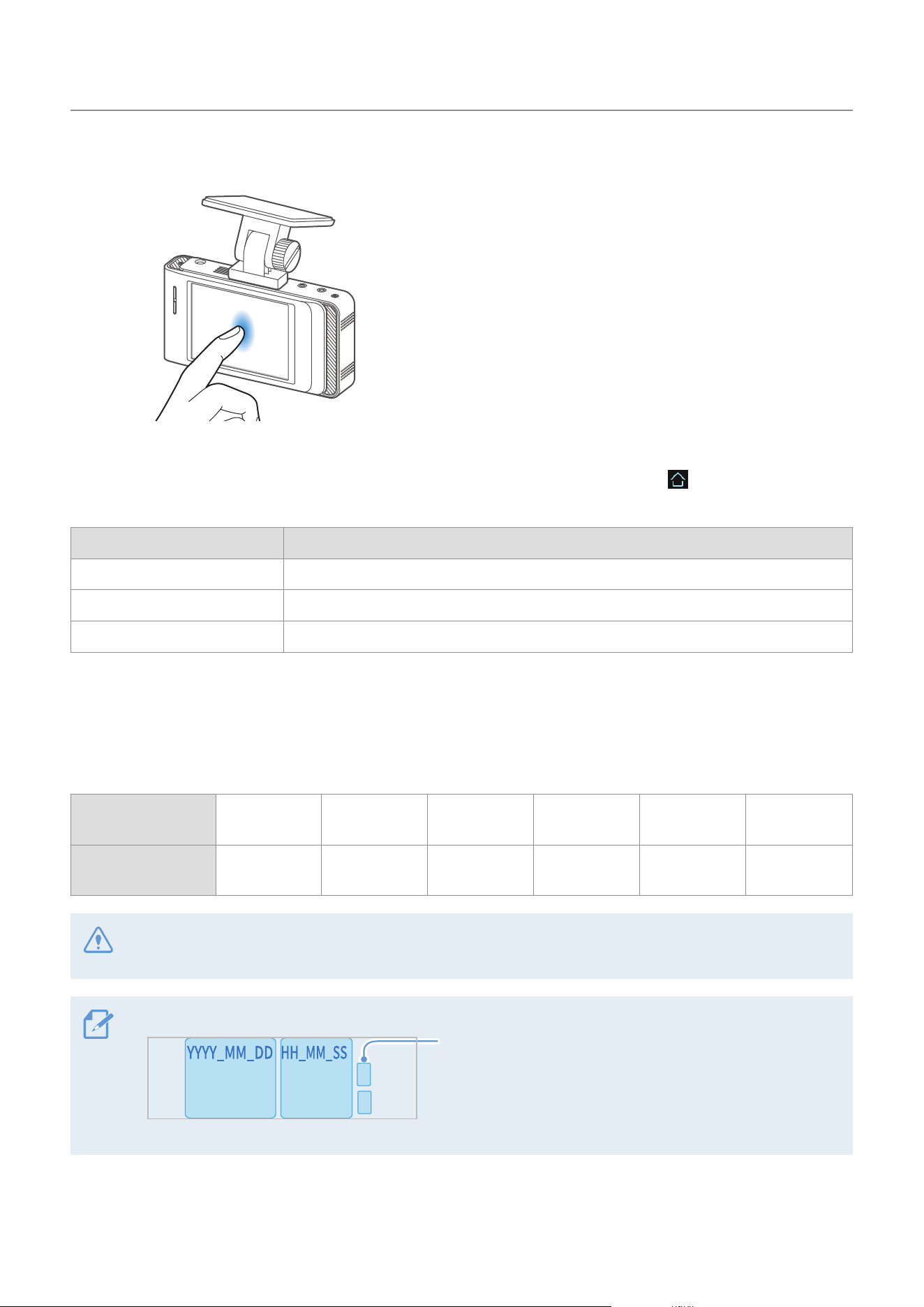
3.1 Turning the product on or off 19
3.2 Turning the LCD on or off 20
3.3 Learning about the file storage location 20
3.4 Using the continuous recording feature 21
3.5 Recording manually 21
3.6 Using parking mode 22
3.7 Using the Super Night Vision 23
3.8 About the screen layout 24
3.8.1Liveviewscreen 24
3.8.2Homescreen 25
3.9 Playing the videos 26
3.9.1Playingontheproduct 26
4. Using Advanced Driver Assistance
Systems (ADAS) 29
4.1 The safety camera alert system (optional
external GPS module or the THINKWARE
Connected Dongle required) 30
4.2 The lane departure warning system (LDWS) 30
4.3 The forward collision warning system (FCWS) 31
4.4 The urban forward collision warning system
(uFCWS) 32
4.5 The front vehicle departure warning (FVDW) 32
5. Settings 33
5.1 Setting the camera 33
5.1.1 Setting the brightness of the camera
(brightnesscamera) 33
5.2 Setting recording features 33
5.2.1 Setting the continuous impact detection
sensitivity(cont.sensitivity) 33
5.2.2Settingparkingmode 34
5.2.3SettingtheSuperNightVisionfeature 34
5.2.4Settingtheparkingimpactsensitivity
(parkingsensitivity) 34
5.2.5 Setting the motion detection sensitivity
(motionsensitivity) 35
5.2.6Settingtherecordtimerfeature(Off
Timer) 35
5.2.7 Setting the battery protection feature
(batteryprotection) 35
5.2.8Settingthebatterycutoffvoltage
feature(Offvoltage) 36
5.2.9Settingthebatteryprotectionfeaturefor
wintertime(WtBtyProtection) 36
5.3 Setting Road Safety Settings (ADAS) 36
5.3.1Settingthesafetycameras 37
5.3.2Settingthemobilezonealert 37
5.3.3Identifyingthevehicletype 37
5.3.4InitializingtheADAScalibrationsetting
(ADASSettings) 37
5.3.5InitializingADAScalibration 38
5.3.6Settingthelanedeparturewarning
feature(LDWS) 38

5
5.3.7 Setting the lane departure detection
speed(LDWSspeed) 38
5.3.8Settingtheforwardcollisiondetection
sensitivity(FCWS) 39
5.3.9Settingthelowspeedforwardcollision
detectionsensitivity(LowSpeedFCWS) 39
5.3.10 Setting front vehicle departure
warning(FVDW) 39
5.3.11 SettingtheADASVolume 40
5.4 Configuring the system settings 40
5.4.1Settingthedisplaylanguage 40
5.4.2Adjustingthesystemvolume 40
5.4.3Resettingthetouchscreen(Calibrate
Touchscreen) 41
5.4.4Adjustingthescreenbrightness(LCD
Brightness) 41
5.4.5SettingtheLCDAuto-Off 41
5.4.6SettingthesecurityLED 42
5.4.7Settingthetimezone 42
5.4.8Settingthedate(SetDate) 42
5.4.9Settingthetime(SetTime) 42
5.4.10Settingthedaylightsavingtime 43
5.4.11 Settingthespeedunit 43
5.4.12Settingthespeedstamp 43
5.4.13SettingTHINKWAREConnectedDongle 44
5.4.14Partitioningthememorycard 44
5.4.15Formattingthememorycard 44
5.4.16Configuringthevideooverwriting
function 45
5.4.17Initializingthesystemsettings(Reset
Settings) 45
6. Accessing the product information 46
6.1 Understanding the product features 46
6.2 Viewing the product information 46
6.3 Accessing and configuring the GPS 46
7. Upgrading the firmware 47
8. Using the PC viewer 48
8.1 System requirements 48
8.2 PC viewer for Windows 48
8.2.1InstallingthePCviewer(forWindows) 48
8.2.2PCviewerscreenlayout(forWindows) 49
8.2.3PlayingrecordedvideosonthePC
viewer(forWindows) 50
8.2.4Videocontrolmenuoverview(for
Windows) 51
8.3 PC viewer for Mac 52
8.3.1InstallingthePCviewer(forMac) 52
8.3.2PCviewerscreenlayout(forMac) 53
8.3.3PlayingrecordedvideosonthePC
viewer(forMac) 54
8.3.4Videocontrolmenuoverview(forMac) 55
9. Troubleshooting 56
10. Specifications 57
6
Safety information
Read the following safety information to properly use the product.
Safety symbols in this guide
"Warning" - Indicates a potential hazard which, if not avoided, may result in injury or death.
"Caution" - Indicates a potential hazard which, if not avoided, may result in minor injury or property damage.
"Note" - Provides useful information to help users better utilize the product's features.
Safety information for proper use
•Do not operate the product while driving a vehicle. Distraction while driving may cause accidents and
result in injury or death.
•Install the product in places where the driver's view is not obstructed. Obstruction of the driver’s vision
may cause accidents and result in injury or death.
•Do not use damaged power cables. Doing so may result in electrical fire or electrocution.
•Disconnect the power cable from the product when it will not be used for an extended period. Failure to do
so may result in electrical fire or battery depletion.
•Ensure that the product is out of the reach of children and pets. If the product breaks, it may result in fatal
damage.
•Do not expose product to direct sunlight or intense light. The lens or internal circuitry may fail otherwise.
•Avoid excessive humidity and do not allow any water to enter the product. Electronic components inside
the product may fail if exposed to humidity or water.
•Do not disassemble the product or subject the product to impact. Doing so may damage the product.
Unauthorized disassembly of the product voids the product warranty.
•Do not apply excessive force when pressing the buttons. Doing so may damage the buttons.
•Ensure you are inserting the memory card correctly before inserting it to the product. The memory card
slot or the memory card may be damaged if it is inserted incorrectly.
•When connecting the power cable to the product, ensure that the connection between the cable plug
and the power cable connector on the product is secure. If the connection is loose, the power cable may
become disconnected due to vehicle vibration. Video recording is not available if the power connector is
disconnected.
7
1. Product overview
1.1 Included items
Ensure that all the items are included when you open the product box.
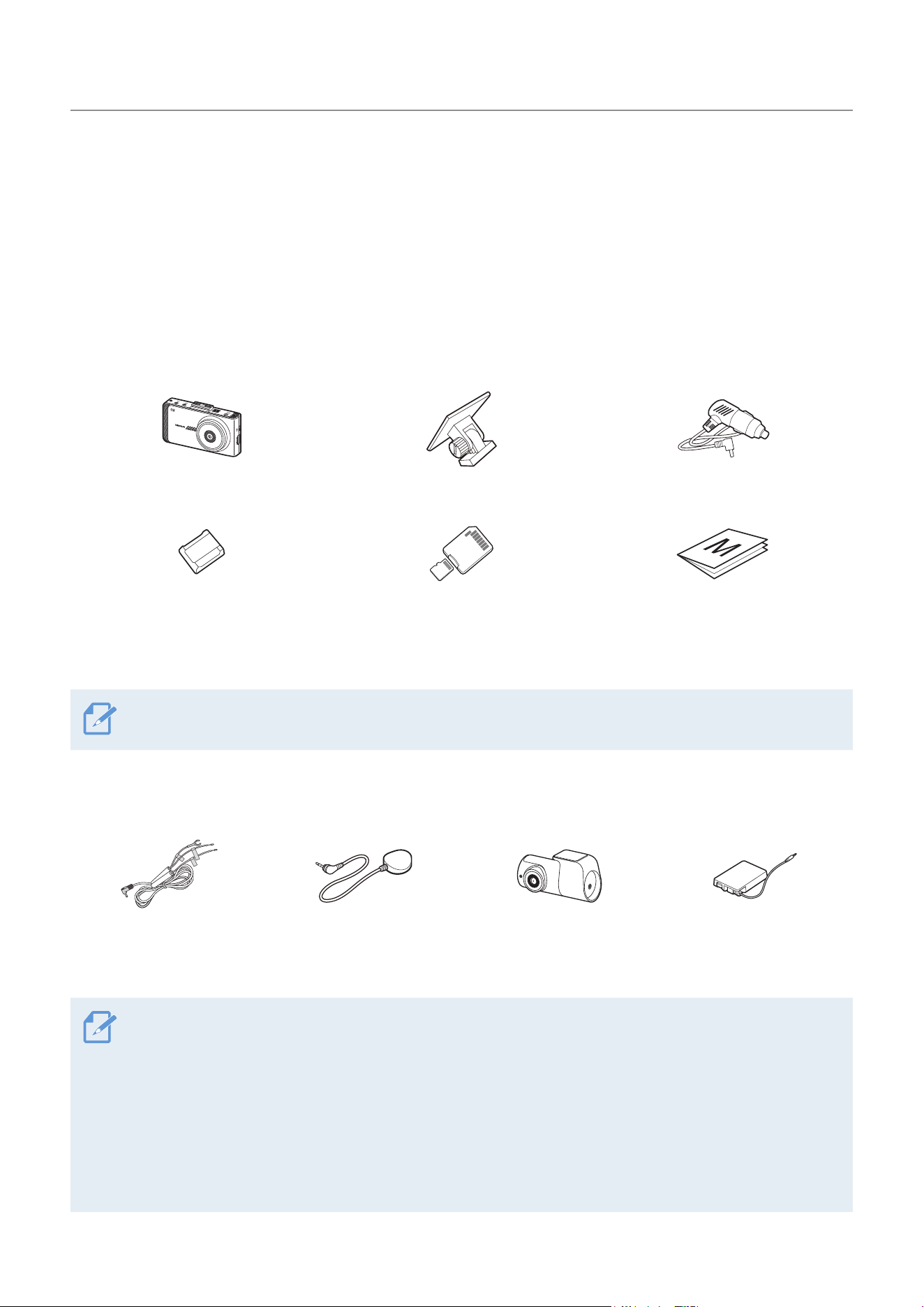
1.1.1 Standard items
Front camera (main unit) Mount
Car charger
Adhesive cable holder
MicroSD memory card
with adapter
(consumable)
Quick start guide & Warranty
/ CS information / User guide
(stored in the microSD card)
The standard items may change without prior notice.
1.1.2 Accessories (sold separately)
GND
ACC
BATTERY
Hardwiring cable External GPS receiver Rear camera THINKWARE Connected
Dongle (TWB-U400)
•GPS reception may be affected by interference from the vehicle's windshield, particularly those treated
with anti-UV protective coating, or built-in defroster. It is recommended that an external GPS receiver is
used when the GPS signal is weak or when you cannot get a GPS signal.
•To connect the external GPS receiver to the front camera, carefully remove the front camera's GPS port
cover with a pry tool or a small flat-head screwdriver to access the port.
•THINKWARE Connected Dongle uses NB-IoT technology and includes GPS functionality . It is one of the
Low-Power Wide-Area (LPWA) Internet technologies using Long Term Evolution (LTE) frequency and is
used for tracking, sensing, and reading of low-capacity data intermittently.
Product overview
8
1.2 Part names
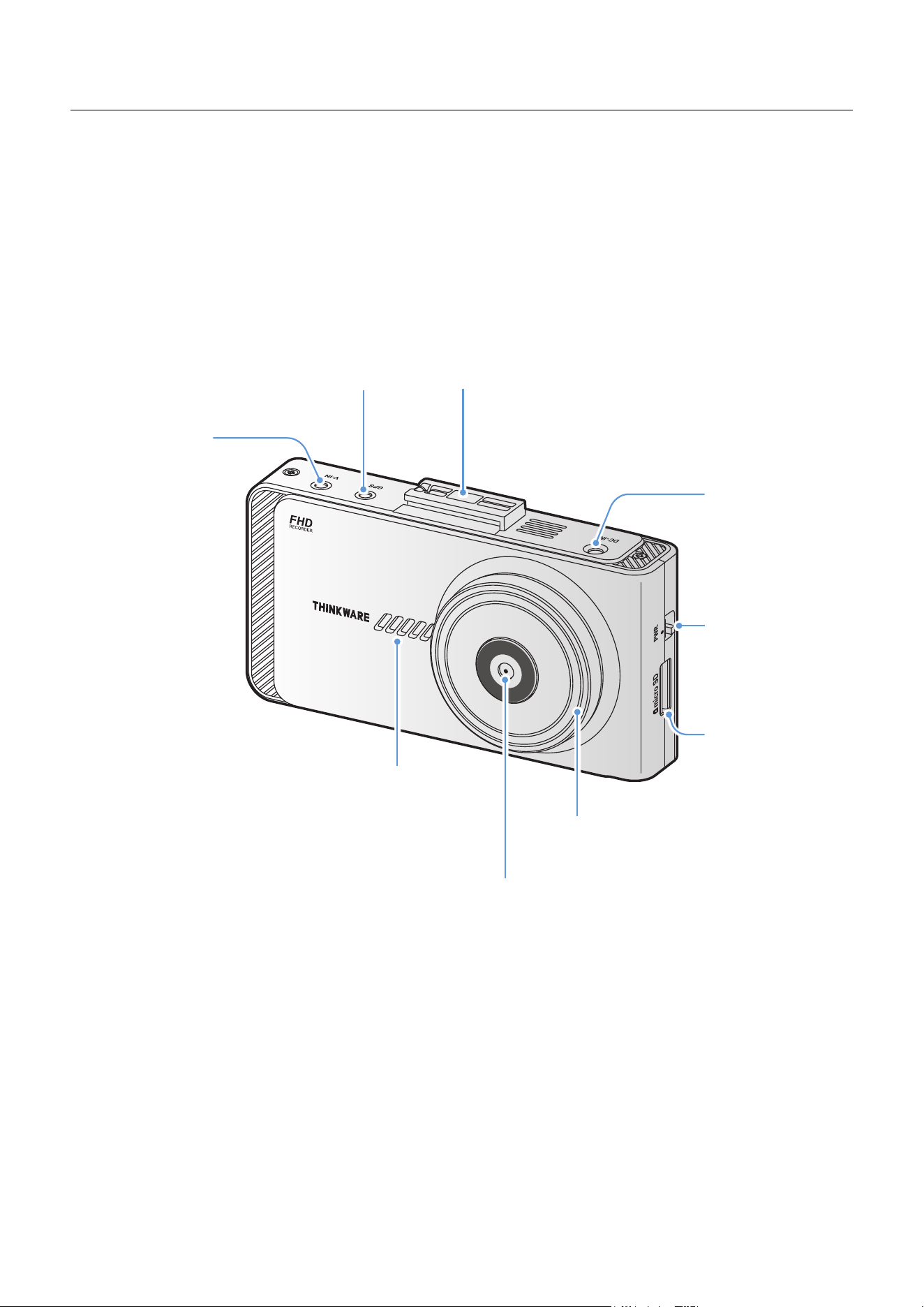
1.2.1 Front camera (main unit) - front view
DC-IN power
connector
Used to connect the
power cable.
V-IN input port
Used to connect the
rear camera.
Fixing bracket connector
Used to connect the fixing bracket.
GPS connector
Used to connect the external
GPS module (optional) or the THINKWARE
Connected Dongle (optional)
for additional features.
Speaker
Outputs the voice guide and buzzer
sounds to indicate the product’s status.
Security LED
Indicates that the video is being recorded.
Front camera lens
Records the front view.
Power switch
Used to turn
on or off the product.
Memory card slot
Insert a memory card
to save recordings.
Product overview
9
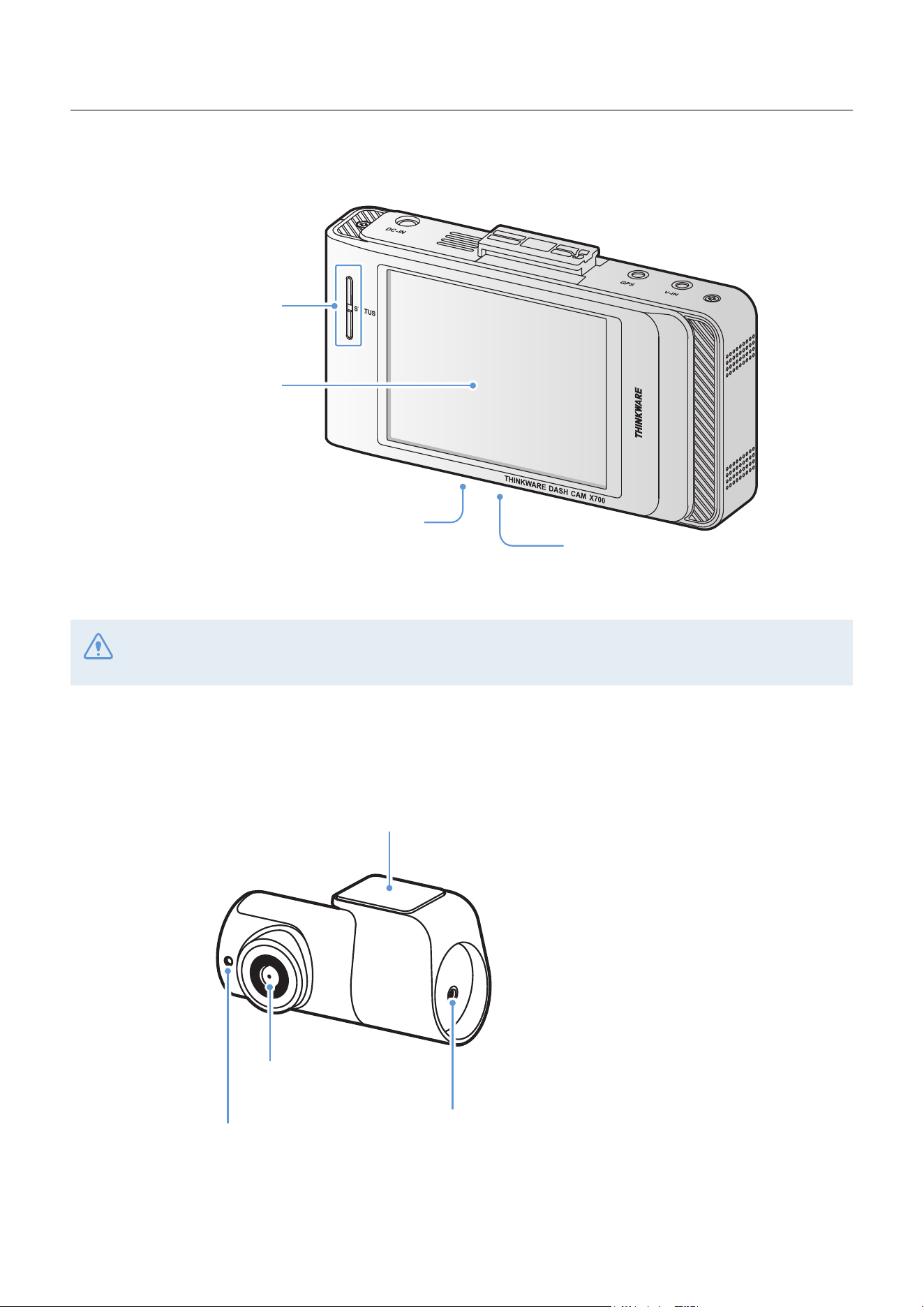
1.2.2 Front camera (main unit) - rear view
Reset button
Insert the tip of a sharp object to reset
the product when an error occurs.
Microphone
Used for voice recording.
Status LED
Indicates the operating
status of the product.
Touchscreen
Used for setting the product or
viewing the recorded videos.
Gently touch the screen to make inputs on the touchscreen. The screen may be damaged if you apply
excessive force to the screen or if you touch the screen with a sharp object.
1.2.3 Rear camera (optional)
Adhesive fixing bracket
Used to fix the rear camera in the vehicle.
Rear camera lens
Records the rear view.
Security LED
Indicates that the video is
being recorded.
Connection port
Used to connect the rear camera cable.
Product overview
10
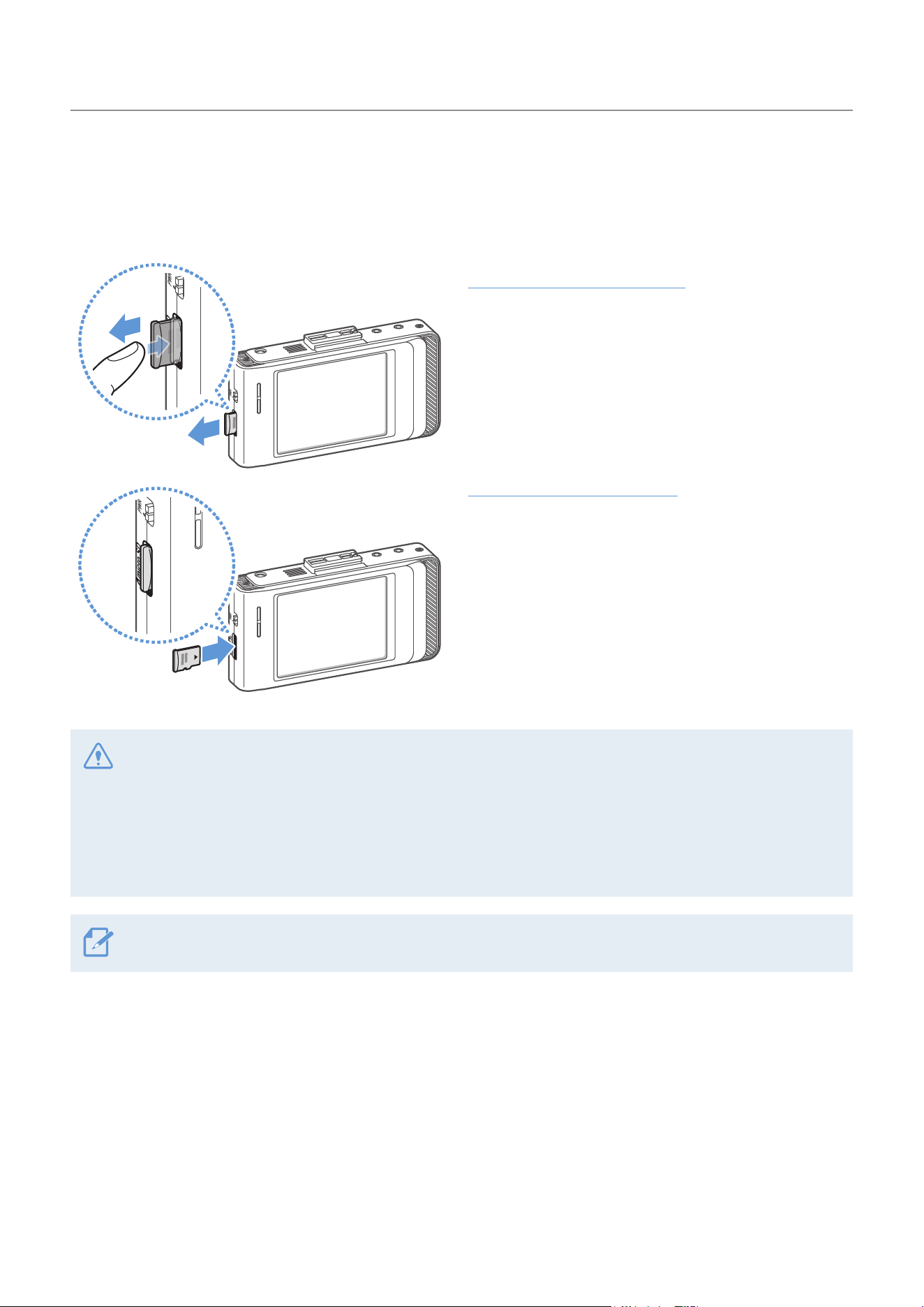
1.3 Removing and inserting the memory card
The memory cards are installed in the product at the factory. Follow the instructions to remove the memory
card from the product or to insert the memory card into the product.
Removing the memory card
Ensure that the product is turned off, and then gently
push the bottom of the memory card with your
fingernail. The lower part of the memory card will be
exposed.
Remove it from the product.
Inserting the memory card
Insert the memory card into the memory card slot,
paying attention to the direction of the memory card,
and then push the memory card into the slot until
you hear a click.
Before inserting the memory card, ensure that the
metal contacts on the memory card are facing
toward the lens of the product.
•Ensure that the product is turned off before removing the memory card. The recorded video files may be
corrupted or lost if you remove the memory card while the product is on.
•Ensure that the memory card is in the correct direction before inserting it into the product. The memory
card slot or the memory card may be damaged if it is inserted incorrectly.
•Use only authentic memory cards from THINKWARE. THINKWARE does not guarantee compatibility and
normal operation of third-party memory cards.
To prevent loss of recorded video files, periodically back up the video files on a separate storage device.
11
2. Installing the product
2.1 Installing the front camera (main unit)
Follow the instructions to properly install the product.
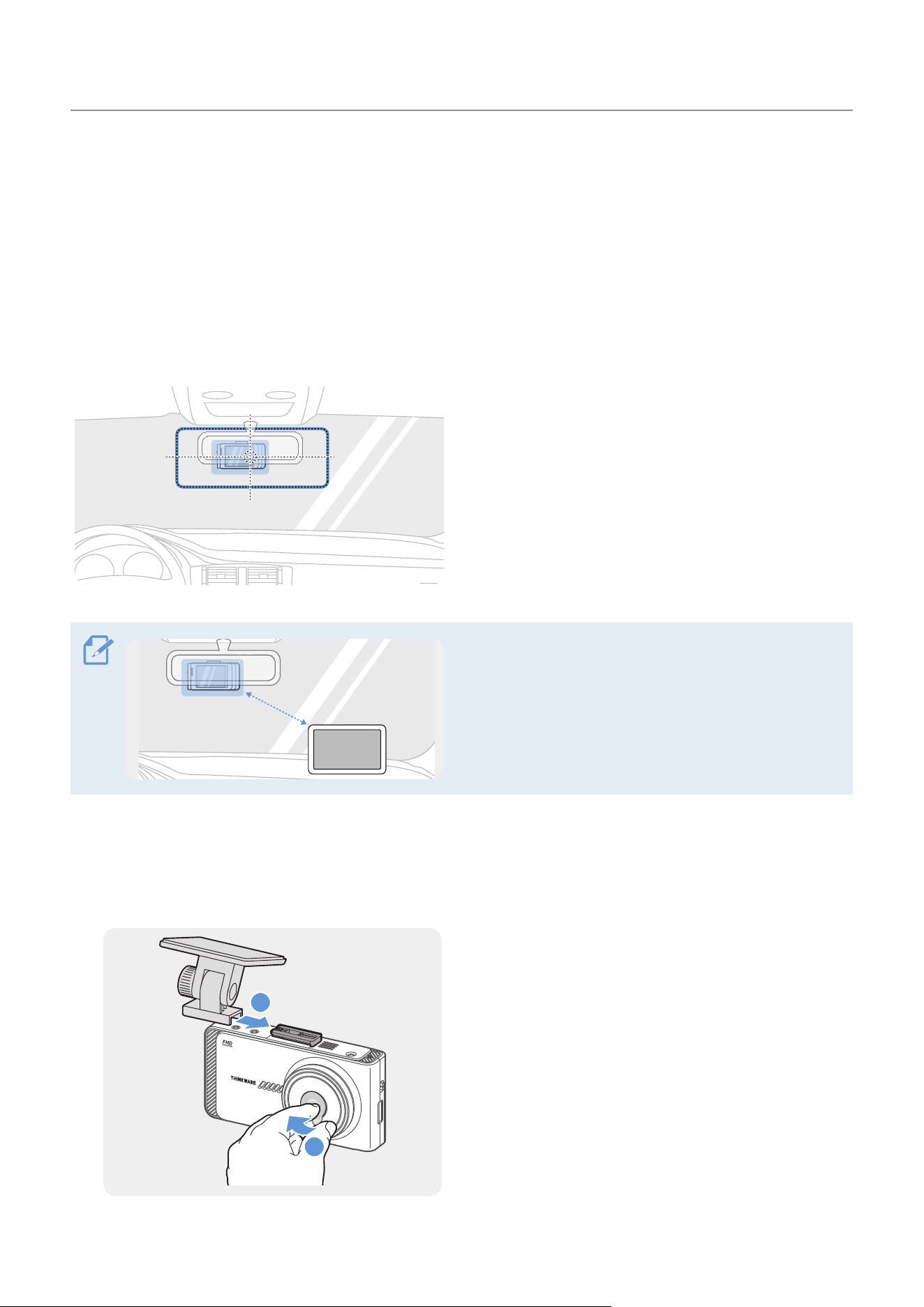
2.1.1 Selecting an installation location
Select an installation location that can record the
entire view in front of the vehicle without obstructive
the driver’s vision. Ensure that the front camera lens
is located in the center of the windshield.
20 cm
If a GPS navigating device installed on the dashboard is
present, its GPS reception may be affected depending
on the dashboard camera's installation location.
Adjust the installation location of the GPS navigating
device to ensure that the two devices are separated by
at least 8 inches.
2.1.2 Securing the product
Follow the instructions to secure the product at the installation location.
1
2
1
Align the fixing bracket to the bracket rail on the
product, and then slide it until you hear a click (
➊
).
Then, carefully remove the protective film keeping
the lens clean (
➋
).
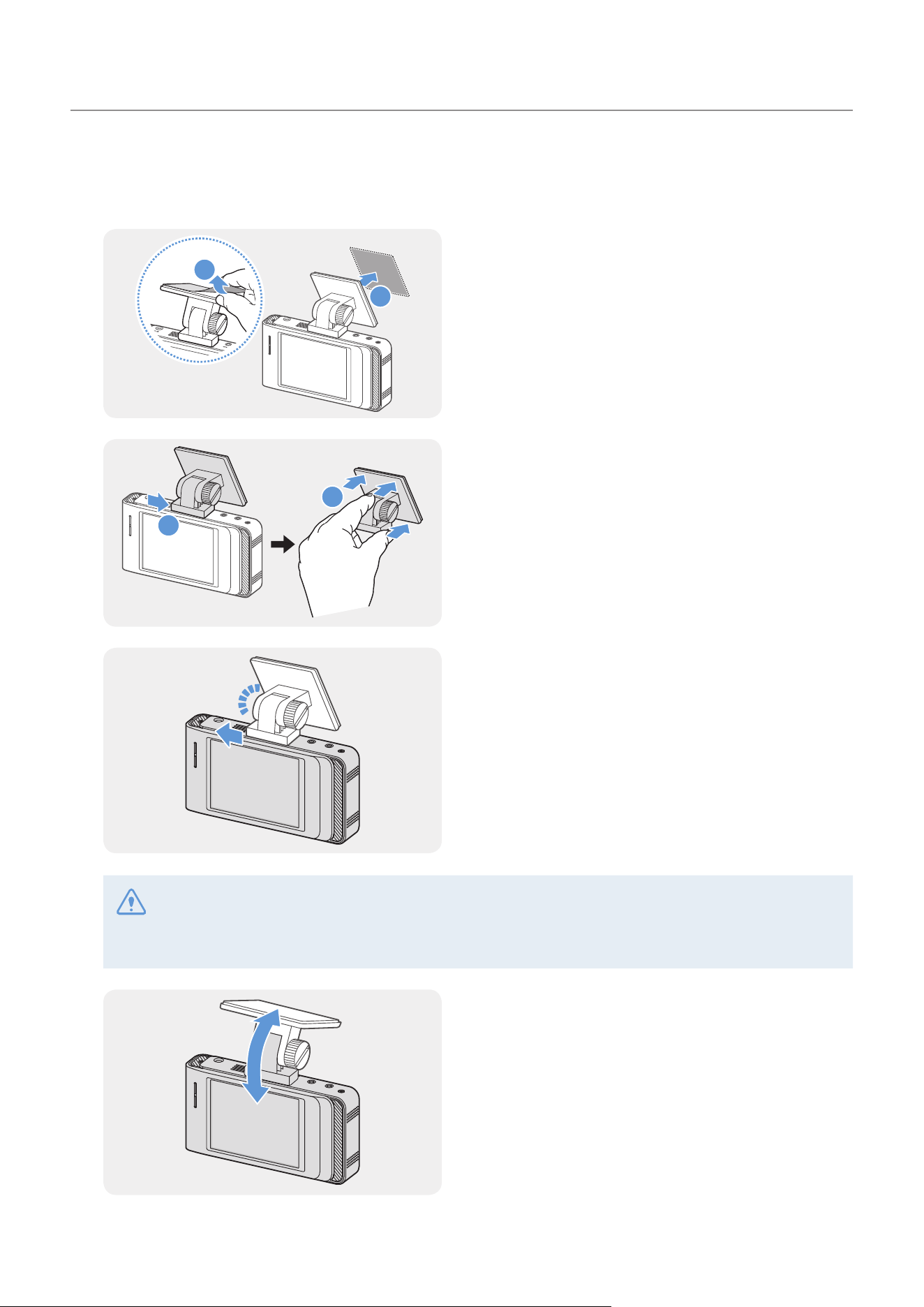
Installing the product
12
2
After determining the installation location, wipe the installation location on the windshield with dry
cloth.
3
1
2
Remove the film from the adhesive tape on the
bracket, and then press the tape to the installation
location.
4
1
2
Remove the product from the bracket and push the
bracket against the windshield to ensure that the
bracket is firmly fixed.
5
Align the product to the bracket, and then slide it
into the locking position until you hear a click.
•The product may fall and be damaged during vehicle operation if it is not firmly fixed to the bracket.
•If you need to remove the bracket from the windshield to alter the installation location, be careful not
to damage the windshield’s film coat.
6
Set the vertical angle of the camera appropriately
and temporarily fix it by lightly turning the fixing
screw.
The camera angle must be adjusted again after the
installation is complete. Do not completely tighten
the fixing screw yet.
Installing the product
13
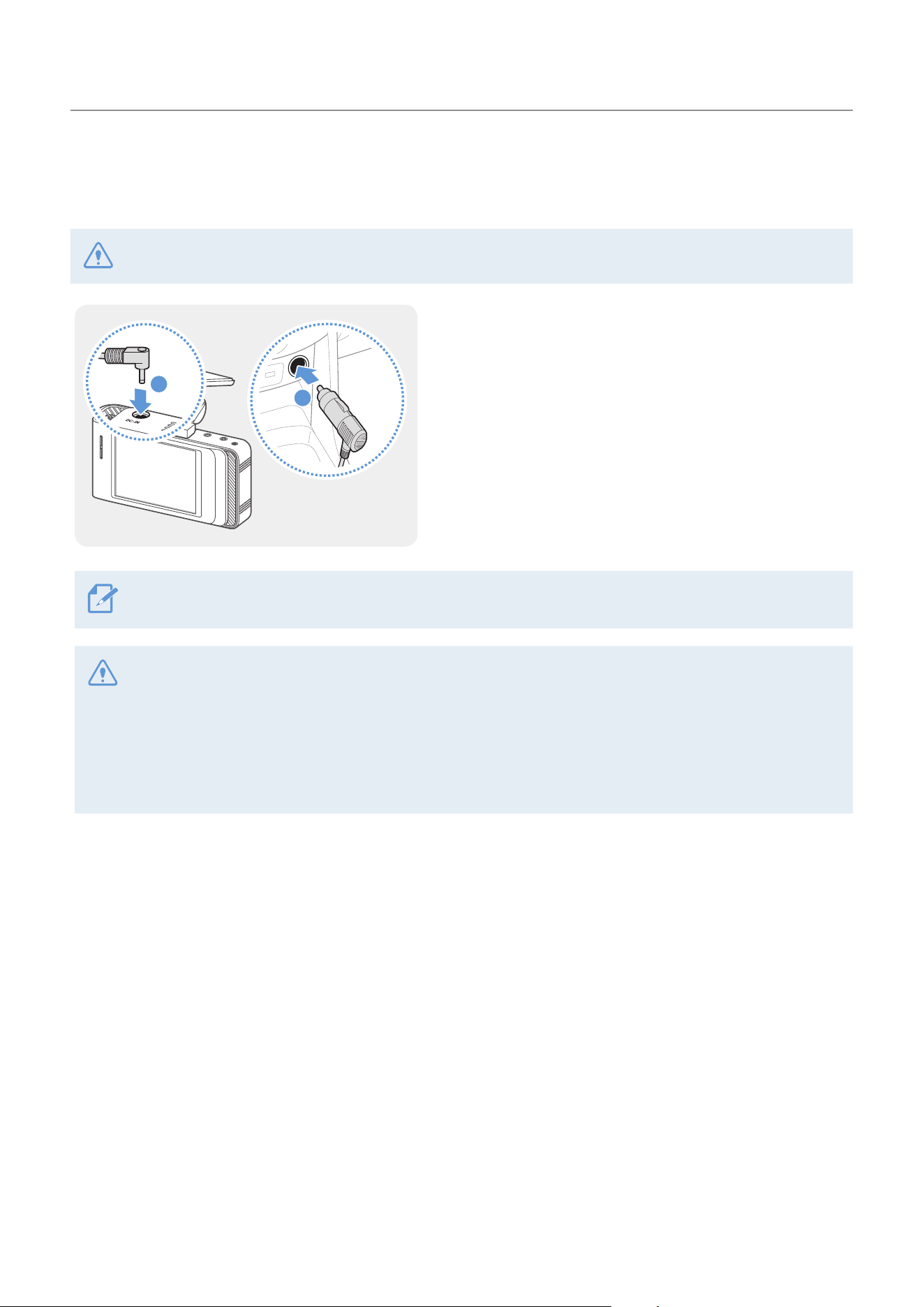
2.1.3 Connecting the power cable
When the engine and electrical accessories are turned off, connect the car charger.
The hardwiring cable (optional) must be professionally installed to the vehicle by a trained mechanic.
2
1
Connect the cigar socket power cable to the product’s
DC-IN power connector and insert the cigar jack into the
vehicle’s power socket.
The location and specifications of the power socket may differ by vehicle make and model.
•Use the authentic THINKWARE cigar socket power cable (optional). If you use another manufacturer's
cable, the product may be damaged or electrical fire or electrocution may result due to the voltage
difference.
•Do not cut or modify the power cable yourself. Doing so may damage the product or the vehicle.
•For safe driving, arrange the cables to prevent the driver's vision from being obstructed or interfering with
driving.
Installing the product
14
2.2 Installing the rear camera (optional)
Refer to the following instructions to properly install the rear camera.
2.2.1 Selecting an installation location
Select the location on the rear windshield where
there is no defrost grid wire and the camera can
record the entire rear view.
•For vehicles with a sunshade attached to the rear windshield, you must select the location where using
the sunshade will not interfere with camera operation.
•The adhesive part of the rear camera should not touch the defrost grid.
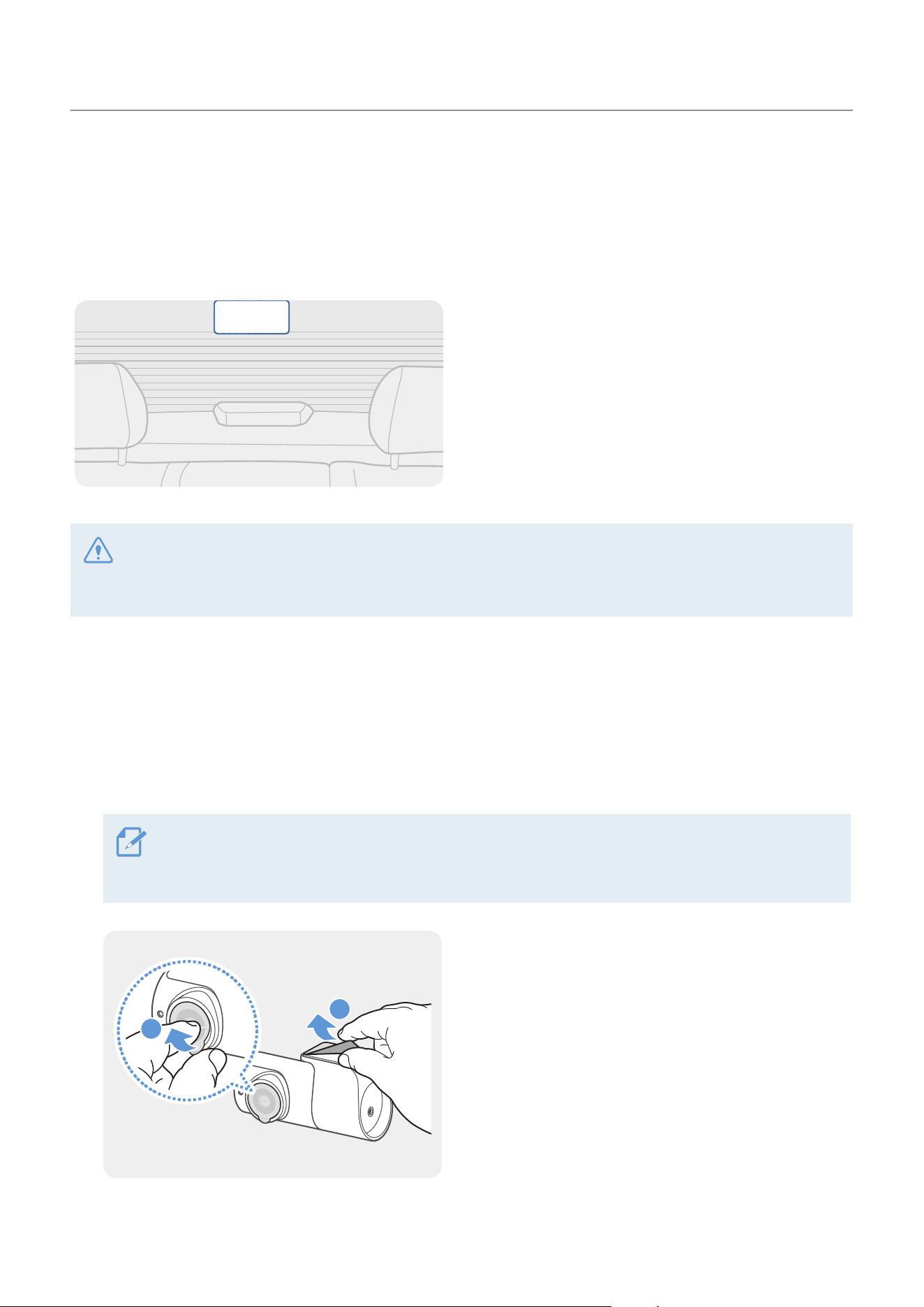
2.2.2 Securing the rear camera
Refer to the following instructions to secure the product to the installation location.
1
After determining the installation location, wipe the installation surface of the windshield with dry
cloth.
Check the installation location before you secure the rear camera to the rear windshield. After
securing the rear camera to the windshield, it is hard to remove the camera or change the installation
location due to the strong adhesive.
2
2
1
Remove the film from the fixing bracket's adhesive
tape and the camera lens.
Installing the product
15
3
THINKWARE
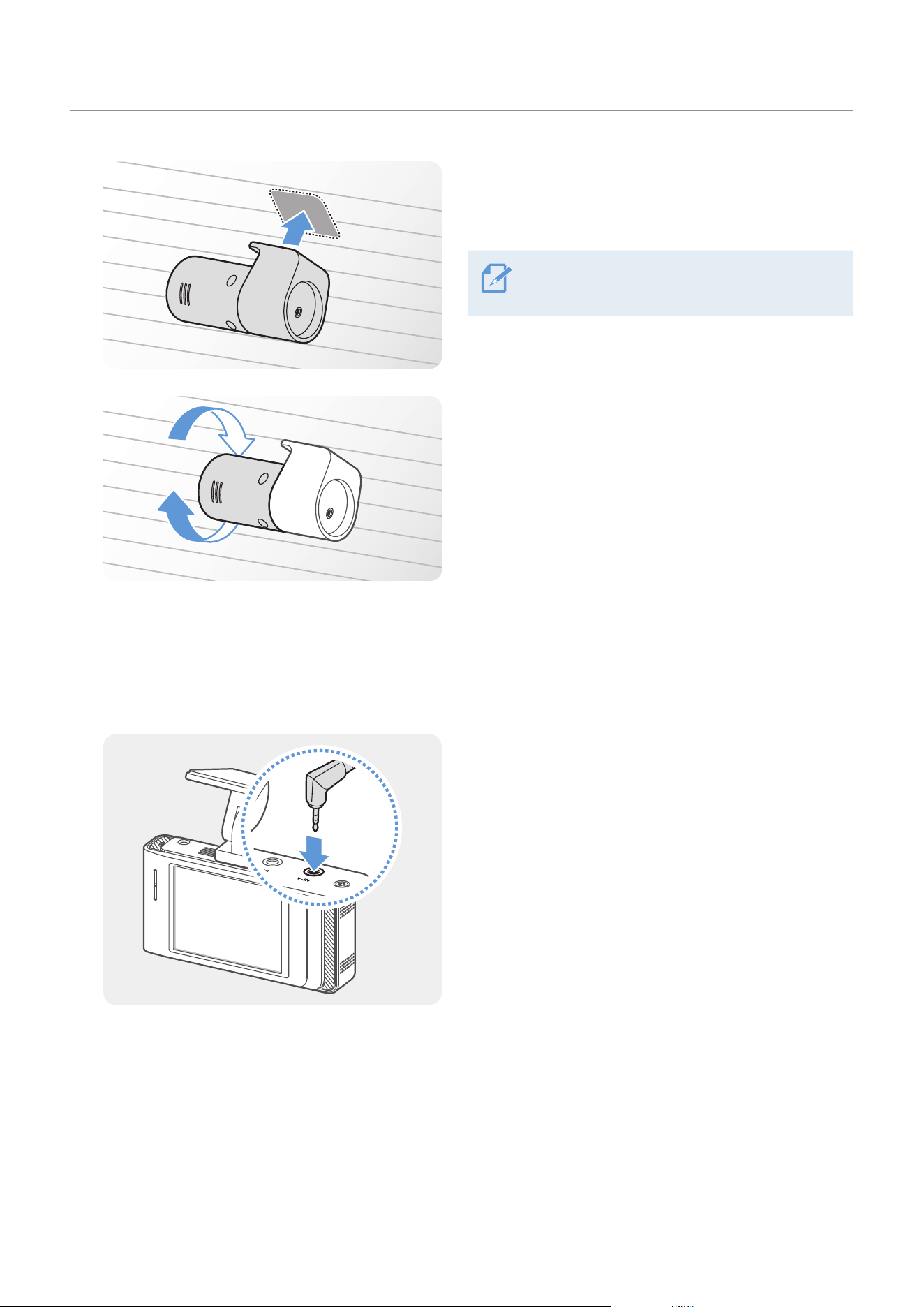
Attach the product with the THINKWARE logo facing
indoors and press the adhesive tape firmly to secure
the camera.
If the product is fixed in reverse, the rear view
will be recorded upside down.
4
THINKWARE
Adjust the camera's vertical angle.
2.2.3 Connecting the rear camera cable
Power off the product and connect the rear camera cable to the front camera (main unit).
1
Connect one end of the rear camera cable to the
front camera’s V-IN connector.
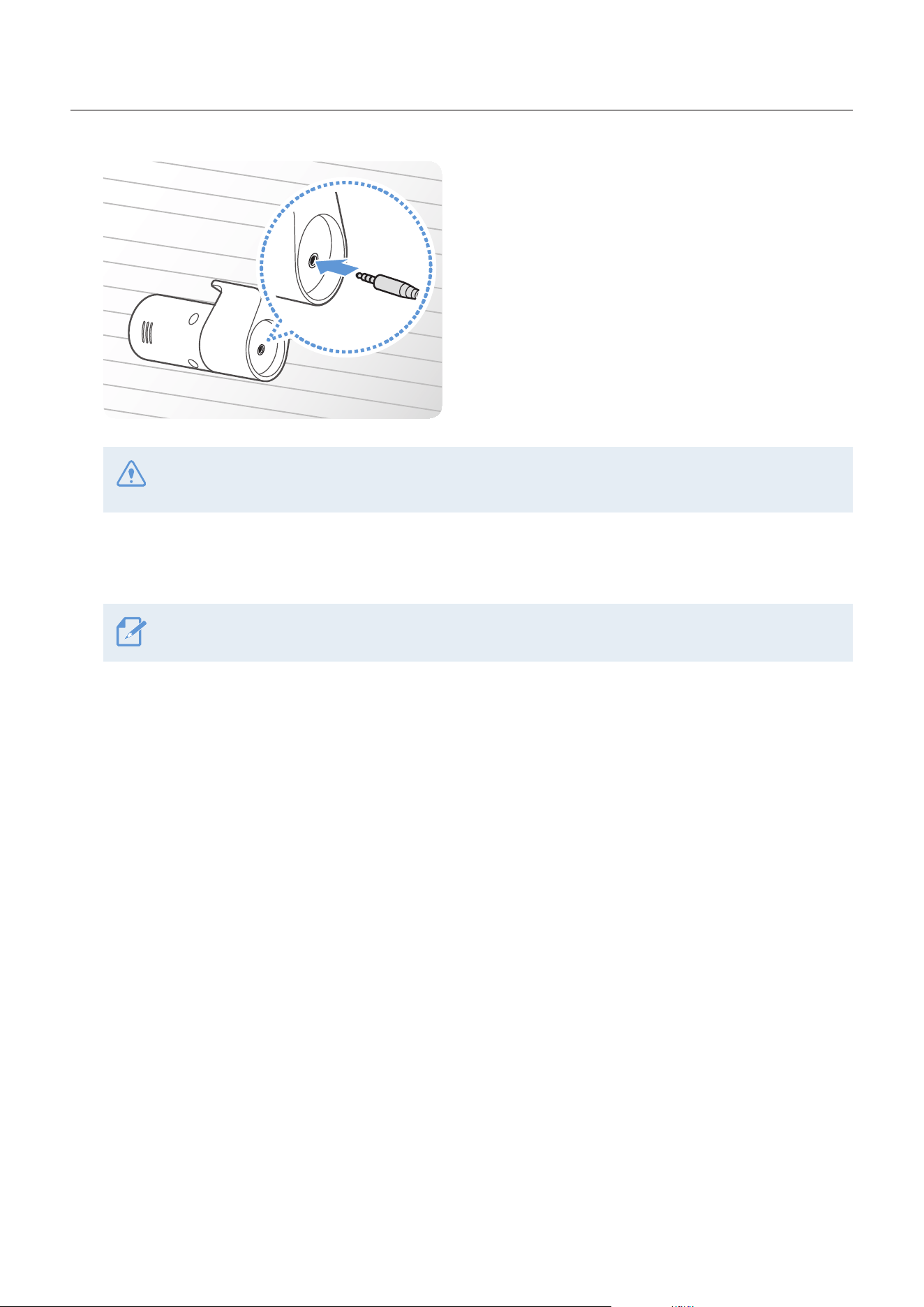
Installing the product
16
2
THINKWARE
Connect the other end of the rear camera cable to
the rear camera’s cable connector.
For safe driving, arrange the cables to prevent the driver's vision from being obstructed or interfering
with driving.
3
Turn on the ACC or starts the engine to check if the product is powered on. After the product is
powered on, the Status LED and the voice guide are turned on.
The product is powered on when electric accessories are turned on or the engine starts.
4
Check the camera angle on the LCD display and adjust the angle if necessary.
Installing the product
17
2.3 Installing the external GPS module (optional)
To activate the ADAS feature or record driving information (the speed and location), follow the instructions
and install the external GPS module on the upper part of the front windshield. Install the external GPS
module near the product, taking the module's cable length into account.
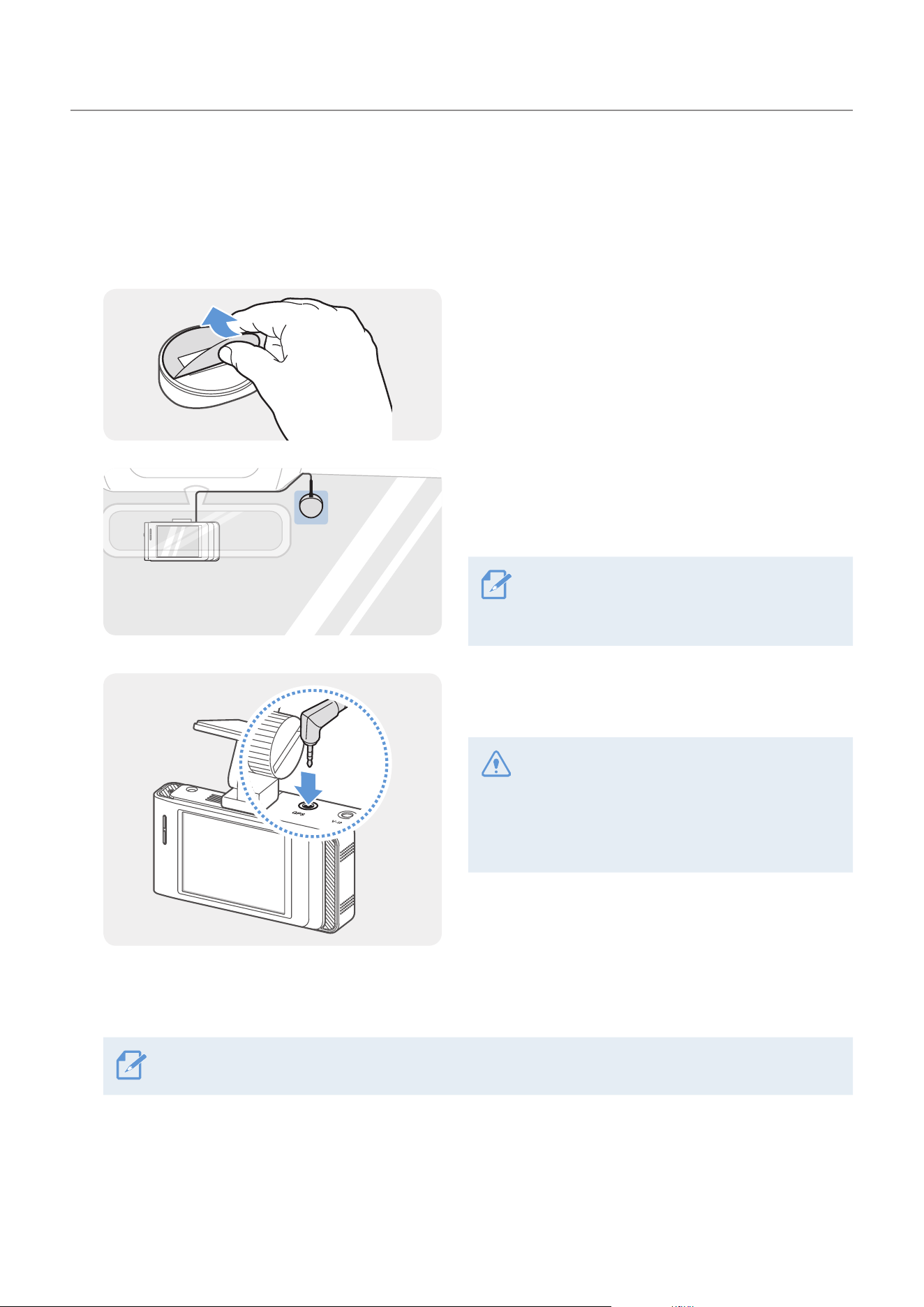
1
Remove the film from the back of the external GPS
module.
2
Attach the external GPS module's adhesive surface
to the upper part of the front windshield and press
the adhesive part firmly to secure it.
Before installation, make sure the external GPS
module's cable length is sufficient and check
the cable routing path.
3
Connect the external GPS module to the product’s
GPS connector.
Check the GPS connector location again
before connecting the module. If you connect
the external GPS module to the DC-IN power
connector, the pins inside the port may be
damaged.
4
Turn on the ACC or starts the engine to check that the product is powered on. After the product is
powered on, the Status LED and the voice guide are turned on.
The product is powered on when electric accessories are turned on or the engine starts.
Installing the product
18
2.4 Installing the THINKWARE Connected Dongle (optional)
Refer to the following instructions to properly install the THINKWARE Connected Dongle. Install the
THINKWARE Connected Dongle near the product, taking the Dongle's cable length into account.
•THINKWARE Connected Dongle is sold separately and the feature and services supported may vary
depending on its type and plan.
•To use THINKWARE Connected service, download and install the THINKWARE Connected app on the Apple
App Store or Google Play Store and sign up and log in with THINKWARE Connected account. On the dash
cam screen, access System Settings and set CONNECTED to ON, and then enter the phone number of the
USIM card in the Device registration on the THINKWARE Connected app.
•For more information about using the THINKWARE Connected Dongle service, refer to the Quick Start Guide
supplied with the THINKWARE Connected Dongle.
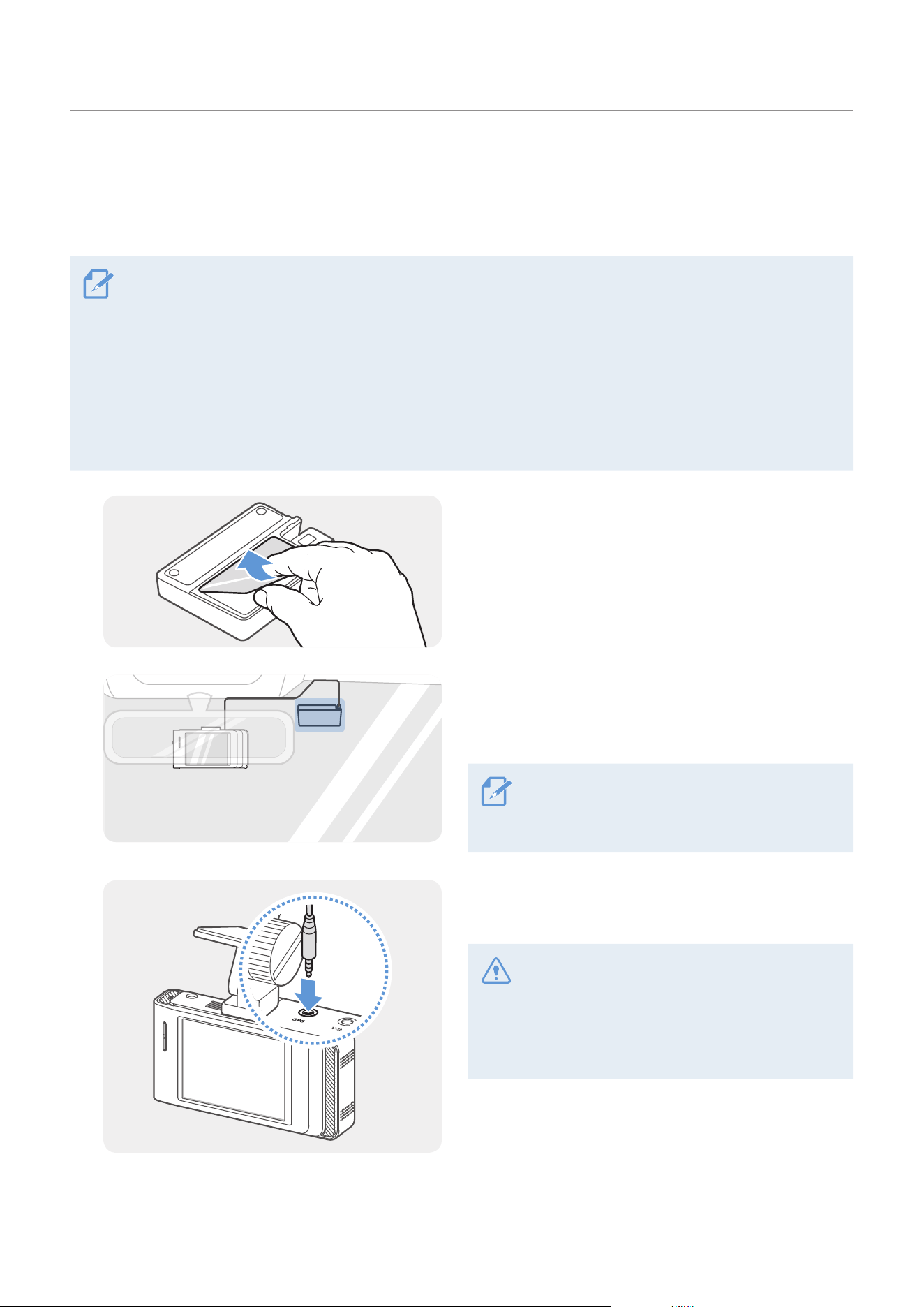
1
Remove the film on the back of the THINKWARE
Connected Dongle.
2
Attach the THINKWARE Connected Dongle’s adhesive
surface to the upper part of the front windshield and
press the adhesive part firmly to secure it.
Before installation, make sure the THINKWARE
Connected Dongle’s cable length is sufficient
and check the cable routing path.
3
Connect the THINKWARE Connected Dongle to the
product’s GPS connector.
Check the GPS connector location again before
connecting the dongle. If you connect the
THINKWARE Connected Dongle to the DC-IN
power connector, the pins inside the port may
be damaged.
4
Turn on the ACC or starts the engine to check that the product is powered on. After the product is
powered on, the Status LED and the voice guide are turned on.
19
3. Using recording features
3.1 Turning the product on or off
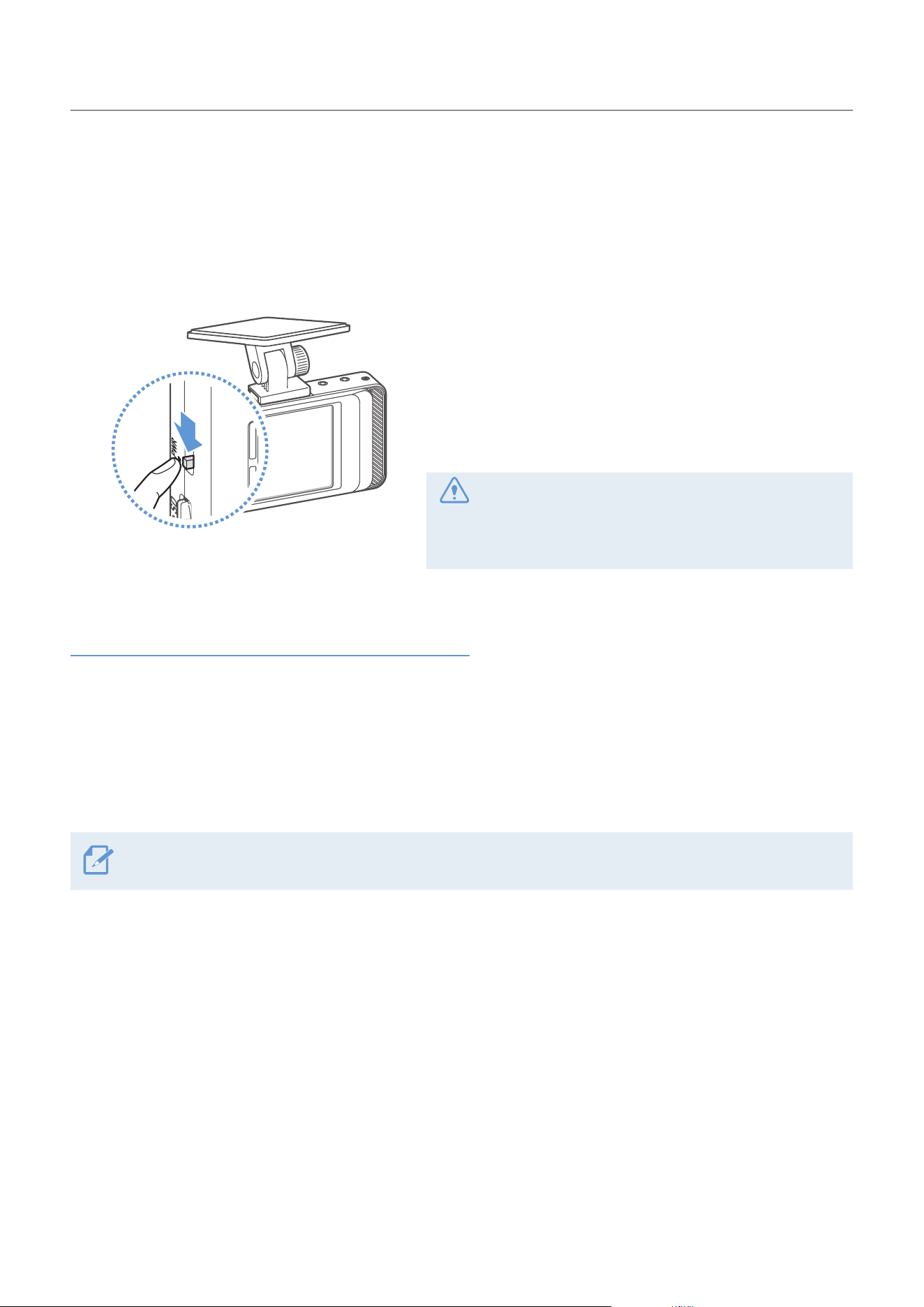
The product is turned on automatically and continuous
recording starts when you turn on the ACC or start the
engine.
If you want to turn off the product, turn the Power switch
up.
To turn the power on again, turn the Power switch down.
Wait until the product is completely booted up after
turning it on, and then begin operating the vehicle.
The video recording does not begin until the product
is completely turned on (booted up).
Continuous recording and parking mode recording
The continuous recording and parking modes are the basic operation modes of the product.
Continuous recording starts when you start driving. While driving, videos are recorded continuously and
stored as 1 minute segments.
When you finish driving and turn off the engine, the recording mode switches to parking mode. In parking
mode, the product detects impacts to the vehicle and nearby motion and records to the SD card.
Parking mode operates only when the hardwiring cable is properly connected.
Using recording features
20
3.2 Turning the LCD on or off
This product allows you to check recorded videos in
realtimeontheLCDdisplaybysupportingtheLiveview
feature.
To turn on the display again, gently touch the display.
YoucansetthetimethattheLCDwillturnoffautomatically.TaptheHomebutton(
)ontheLiveview
screen
>
Settings
>
System settings, and tap the button next to LCD Auto-Off.
LCD Auto-Off option Operation description
30 sec (default) The LCD will turn off automatically if you do not operate the product for 30 seconds.
10 min The LCD will turn off automatically if you do not operate the product for 10 minutes.
OFF The LCD is always on.
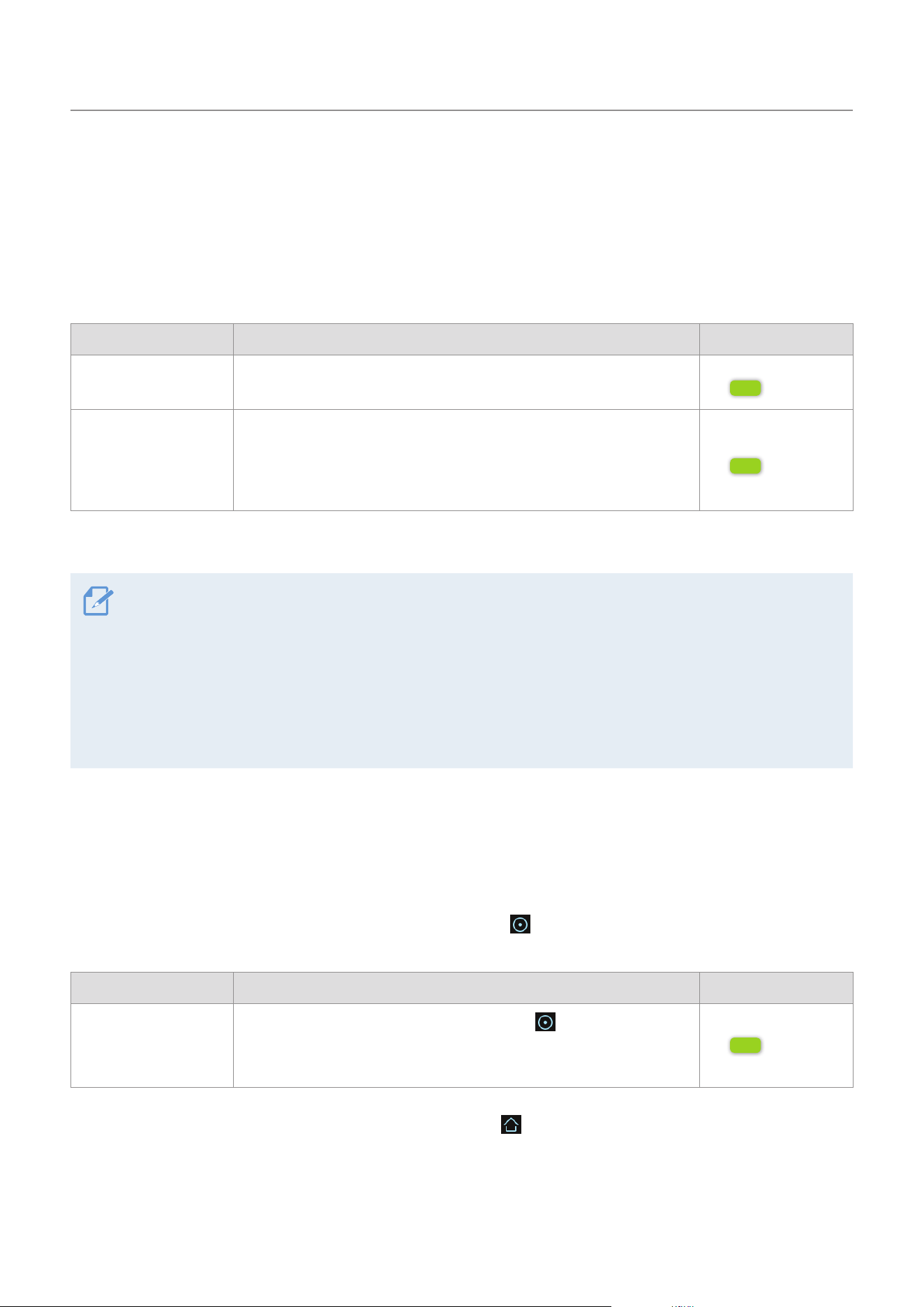
3.3 Learning about the file storage location
Videos are stored in the following folders according to their recording mode. The folder names displayed on
the screen and created in the memory card are the same.
On the screen
Continuous
Continuous
Incident
Manual
Recording
Motion
Detection
Parking
Incident
Saved
Videos
In the memory card
cont_rec evt_rec manual_rec
motion_
timelapse_rec
parking_rec saved_videos
Play videos on the product or a computer only. If you play videos by inserting the memory card in devices
such as a smartphone or a tablet PC, the video files may be lost.
A file name is composed of the recording start date and time, and the recording option.
Recording conditions
•F: Front camera
•R: Rear camera
REC_2019_07_01_10_25_30_
F.MP4
REC_2019_07_01_10_25_30_R.MP4
Using recording features
21
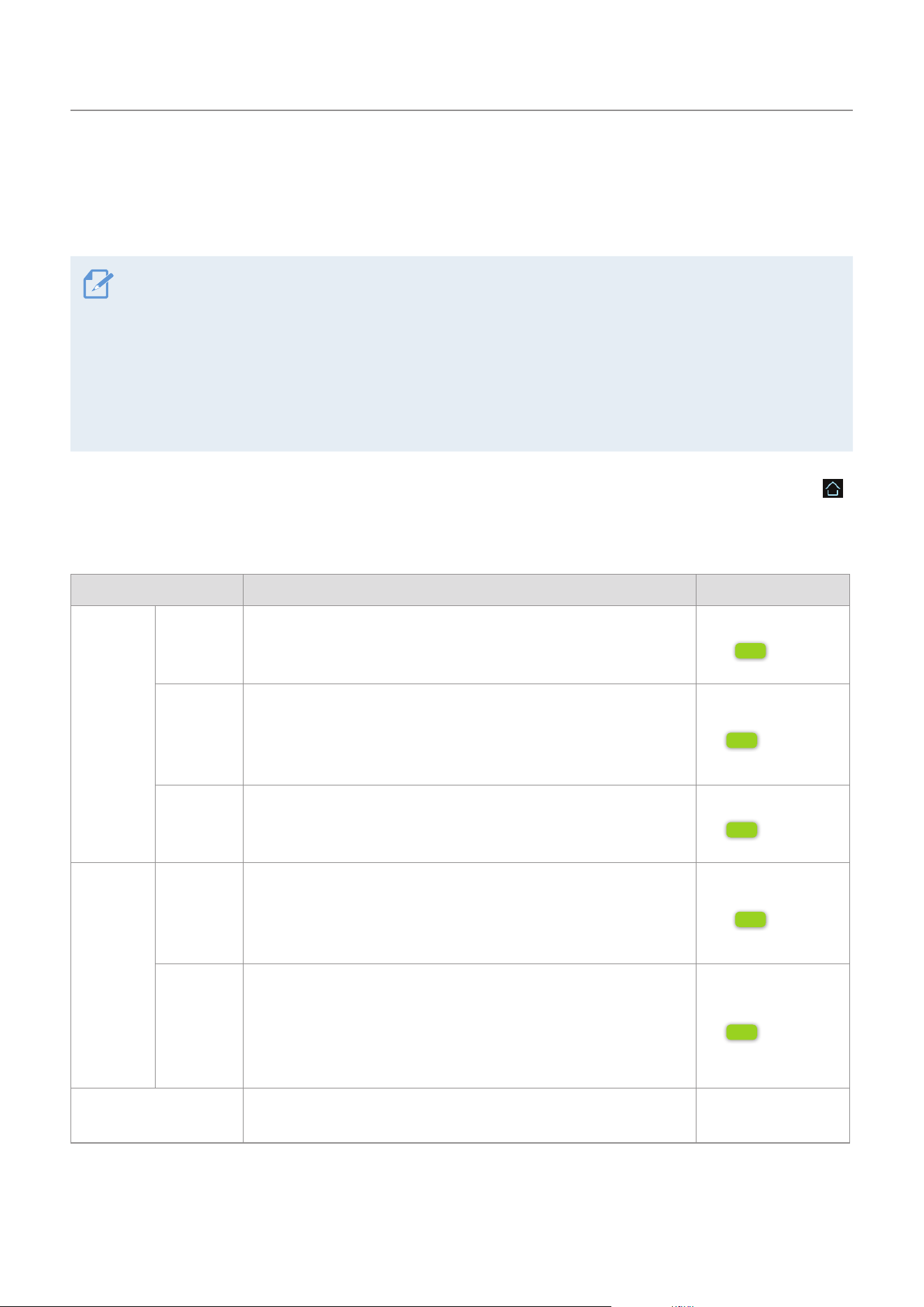
3.4 Using the continuous recording feature
Connect the power cable to the product’s DC-IN power connector and then turn on the vehicle’s electrical
accessoriesorstarttheengine.ThestatusLEDandthevoiceguideareturnedon,andthecontinuous
recording starts.
During continuous recording, the product operates as follows.
Mode Operation description Status LED (STATUS)
Continuous recording
During driving, videos are recorded in 1 minute segments and
stored in the cont_rec folder.
(light on)
Incident continuous
recording*
When an impact to the vehicle is detected, a video is recorded
for 20 seconds, from the moment 10 seconds before the detection
to the moment 10 seconds after the detection, and stored in the
evt_rec folder.
(flickers)
* When an impact to the vehicle is detected during continuous recording, incident continuous recording starts with a
double beep sound.
•Wait until the product is completely booted up after turning it on, and then begin operating the vehicle. The
video recording does not begin until the product is completely turned on (booted up).
•When incident continuous recording starts, a double "beep" sounds as a notification. This function saves
you time when checking the LED indicators to know the operating status of the product.
•To use all recording modes, you must insert a memory card into the product.
•You can record bright and high resolution videos when parking at night by activating the Super night vision
feature.
3.5 Recording manually
You can record a scene you want to capture while driving and store it as a separate file. Manually recorded
videos are stored in the Manual record folder to prevent important data loss due to insufficient storage.
To start manual recording, tap the manual recording button (
)ontheLiveviewscreen.Then,manual
recording will start with the voice guide. During manual recording, the product operates as follows.
Mode Operation description Status LED (STATUS)
Manual recording
When you tap the manual recording button (
) a video will be
recorded for 1 minute, from 10 seconds before to 50 seconds after
pressing the button, and stored in the manual_rec folder.
(flickers)
To watch a manually recorded video, tap the Home button (
)ontheLiveviewscreen
>
File List
>
Manual
Recording, and select a video to play.
Using recording features
22
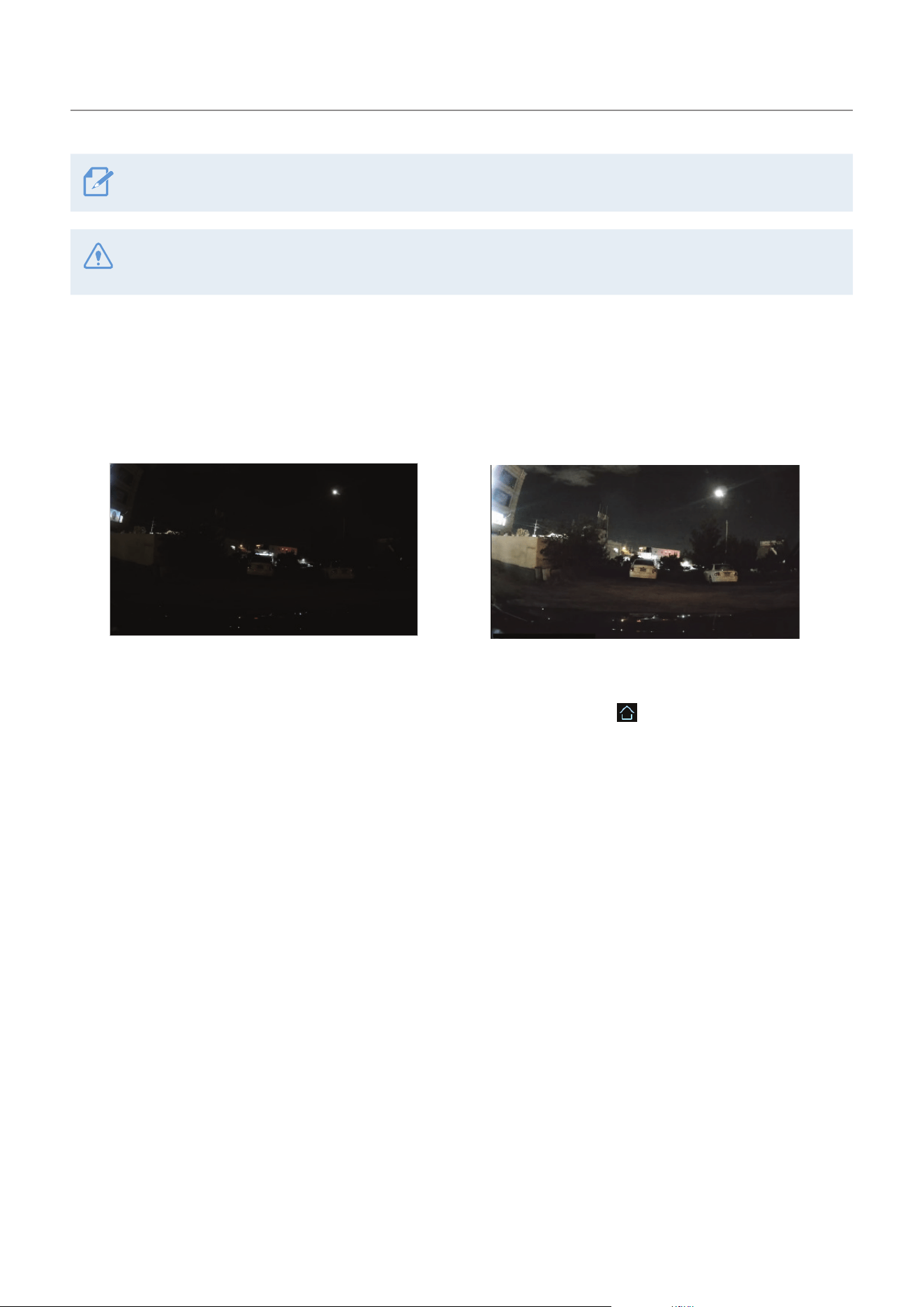
3.6 Using parking mode
When the product is connected to the vehicle via the hardwiring cable (optional), the operating mode is
switched to parking mode with the voice guide after the engine or electrical accessories are turned off.
•Parking mode operates only when the hardwiring cable is connected. The hardwiring cable (optional)
must be professionally installed to the vehicle by a trained mechanic.
•To use all recording modes, you must insert a memory card into the product.
•Depending on the battery charging status of the vehicle, the duration of parking mode may differ. If you
want to use parking mode for an extended period, check the battery level to prevent battery depletion.
•You can record bright and high resolution videos while parking at night by activating the Super Night
Vision.
If you do not want to use parking mode or you want to change the mode settings, tap the Home button (
)
ontheLiveviewscreen
>
Settings
>
Record settings.
Refer to the following table to set the Parking Mode options.
Option Operation description Status LED (STATUS)
Motion
detection
No motion
or impact
detected
Monitors movement in the area or impacts to the vehicle. Video
will be recorded only when motion or an impact is detected.
(solid)
Motion
detected
When a moving objects is detected while parking, a video is
recorded for 20 seconds, from 10 seconds before detection to 10
seconds after detection, and stored in the motion_timelapse_rec
folder.
(flickers)
Impact
detected
When an impact is detected while parking, a video is recorded for
20 seconds, from the moment 10 seconds before detection to 10
seconds after detection, and stored in the parking_rec folder.
(flickers)
Time
Lapse
No impact
detected
A videos is recorded at a rate of 2 fps for 10 minutes, compressed
into a 2-minute long file, and stored in the motion_timelapse_rec
folder. Since the video file recorded with this option is small, you
can record a long video.
(solid)
Impact
detected
When an impact is detected while parking, a video is recorded
for 100 seconds at a rate of 2 fps, from the moment 50 seconds
before detection to 50 seconds after detection, and stored in the
parking_rec folder after being compressed into a 20-second long
file. (The buzzer will sound.)
(flickers)
OFF
The product is powered off when electric accessories and the
engine are turned off.
Off
Using recording features
23
You cannot use Motion detection and Time Lapse at the same time.
If parking mode settings are changed, the videos recorded with the previous settings will be deleted. To
prevent data loss, back up all parking mode videos before changing parking mode settings.
3.7 Using the Super Night Vision
With the Super Night Vision feature, you can record videos that are much brighter than videos recorded
without this feature. This feature is enabled by real-time image signal processing (ISP) to improve the
brightness of videos recorded while parking at night.
<When Super Night Vision is deactivated> <When Super Night Vision is activated>
1
To activate this feature, on the Live view screen, tap the Home button ( )
>
Settings
>
Rec. settings,
and then tap the Setting button next to Super Night Vision.
2
Switch the button to ON or OFF to activate or deactivate the feature. The new setting is applied
automatically.
Using recording features
24
3.8 About the screen layout
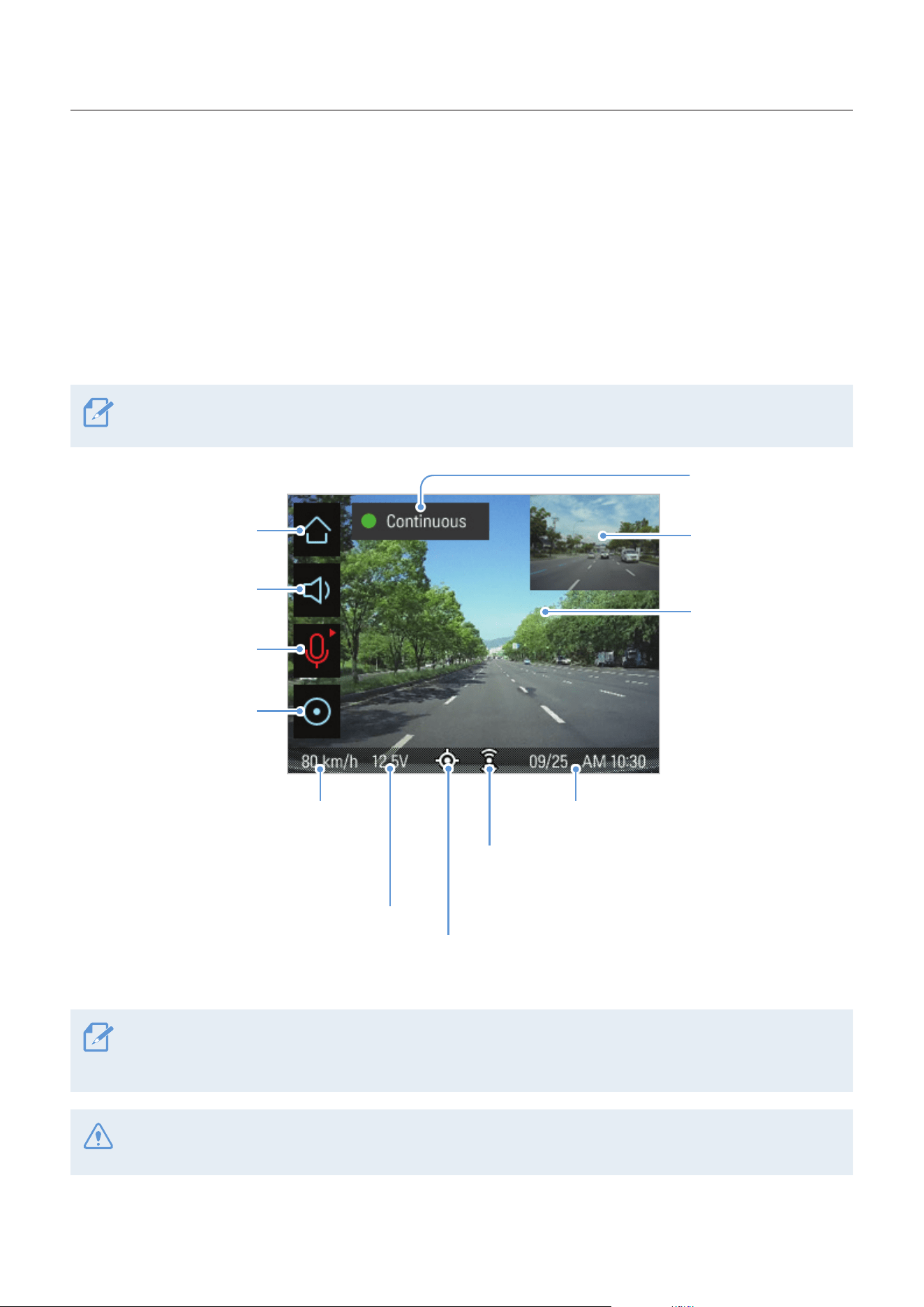
ThefollowingsarelayoutdescriptionsoftheLiveviewandHomescreens.
3.8.1 Live view screen
OntheLiveviewscreen,youcanviewthecurrentlyrecordedvideoandoperatetheproductbytappingon
theLCDdisplay.Whenyouturnonelectricalaccessoriesandstarttheengine,theLiveviewscreenwillbe
displayed.
If the LCD Auto-Off setting is set to OFF, the screen will be kept on, and the power consumption of the
product will increase.
Move to the Home screen.
Displays the video
that the rear camera
(optional) is recording.
Displays the video
that the front camera
is recording. Tap the
screen to hide or display
the Menu buttons.
Displays the current date and time.
Displays the current
recording status.
Turn on or off the voice
guidance.
Activate or deactivate the
voice recording feature.
Start manual recording.
Displays the current driving speed
when the external GPS module
(optional) or the THINKWARE Connected
Dongle (optional) is installed.
Displays the current vehicle voltage.
Displays the THINKWARE Connected
connection icon when the THINKWARE
Connected Dongle (optional) is installed.
Displays the GPS icon when the external GPS module (optional)
or the THINKWARE Connected Dongle (optional) is installed.
YoucanopenthetouchaccuracyresettingwindowbytappingtheLiveviewscreen10times.Resetthe
touchscreenaccuracythroughthetouchaccuracyresettingwindow.Formoreinformation,referto"5.4.3
Resetting the touchscreen (Calibrate Touchscreen)".
Wait until the product is completely booted up after turning it on, and then begin operating the vehicle. The
video recording does not begin until the product is completely turned on (booted up).
Using recording features
25
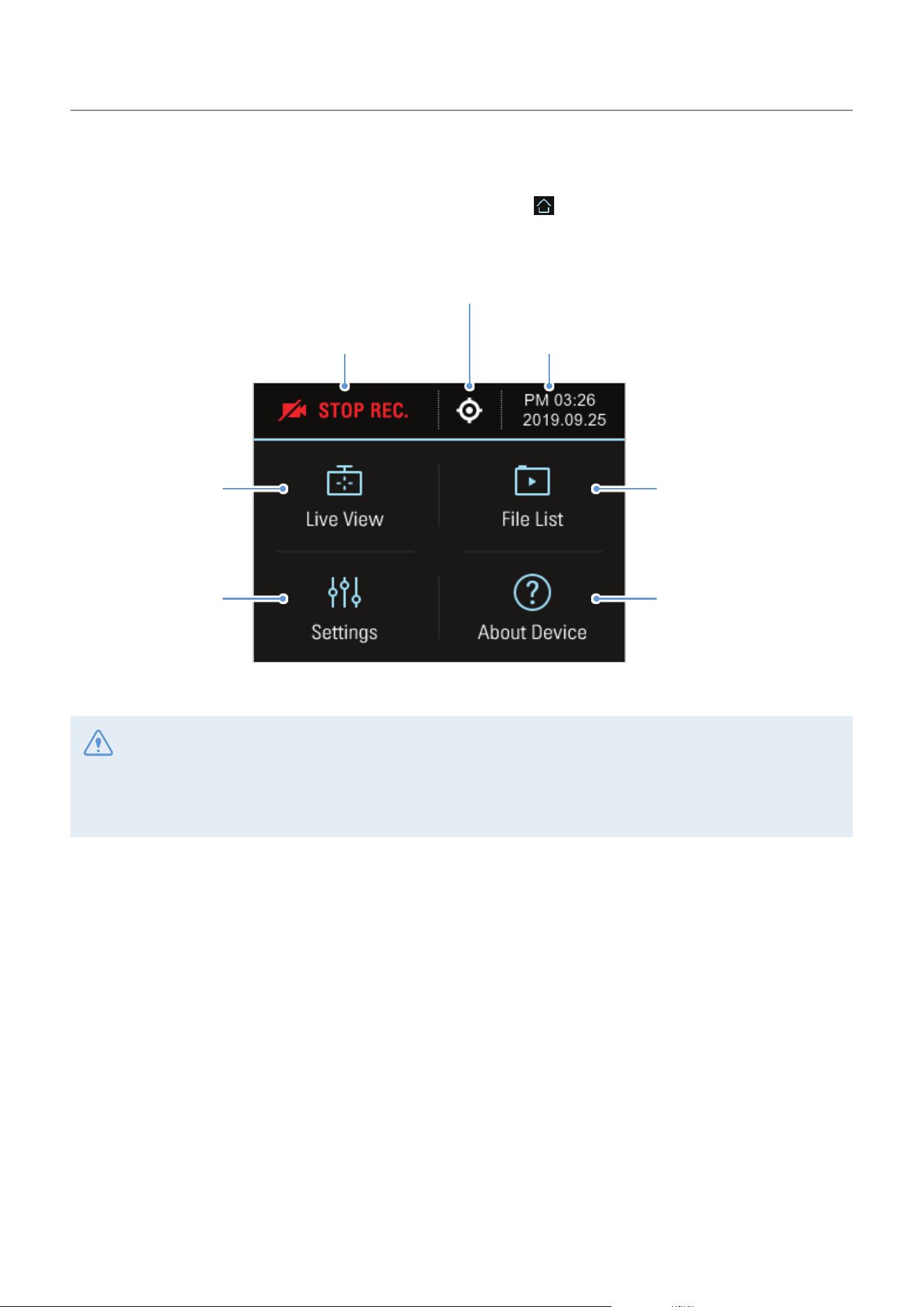
3.8.2 Home screen
You can move to the Home screen by tapping the Home button ( )ontheLiveviewscreen.
Displays the current
recording status.
View and play the recorded
videos.(Referto"3.9Playing
the videos".)
Product information and the
introduction to the product
features are provided. (Refer
to"6.Accessingtheproduct
information".)
MovetotheLiveview
screen.
Configure the system
and features.
(Refer to "5. Settings".)
Displays the GPS icon when the external
GPS module (optional) or the THINKWARE
Connected Dongle (optional) is installed.
Displays the current date and time.
•Stop your vehicle in a safe location before operating the product.
•While operating the Home screen, the product will stop recording.
•Play videos on the product or the computer only. If you play videos by inserting the memory card in devices
such as a smartphone or a tablet PC, the video files may be lost.
Using recording features
26
3.9 Playing the videos
You can play and watch recorded videos on your product or a computer. Follow the instructions to play the
videos.
3.9.1 Playing on the product
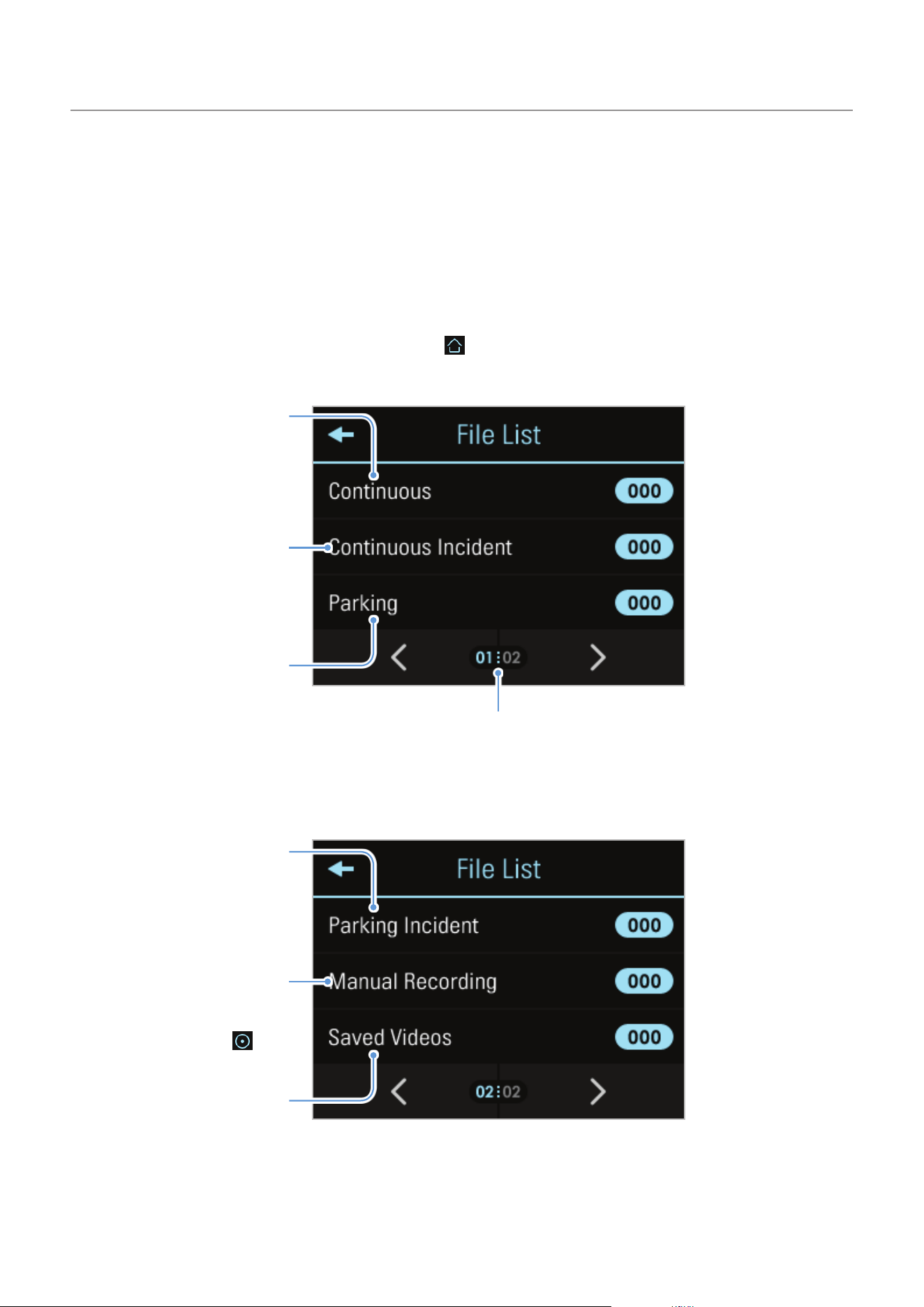
1
On the Live view screen, tap the Home button ( )
>
File List. The number of videos categorized by the
recording mode will be displayed.
Video files that are
manually recorded by
tapping the manual
recording button ( ) on
theLiveviewscreen.
Videos that are recorded
when impacts are
detected during parking
incident.
Videos that are recorded
when impacts are
detected during parking
incident.
Videos that are
recorded when impacts
are detected during
continuous recording.
1-minute long continuous
videos that are recorded
during continuous
recording.
Selected videos moved to
the Saved Videos folder to
not be overwritten.
Tap to display other video file list.
Using recording features
27
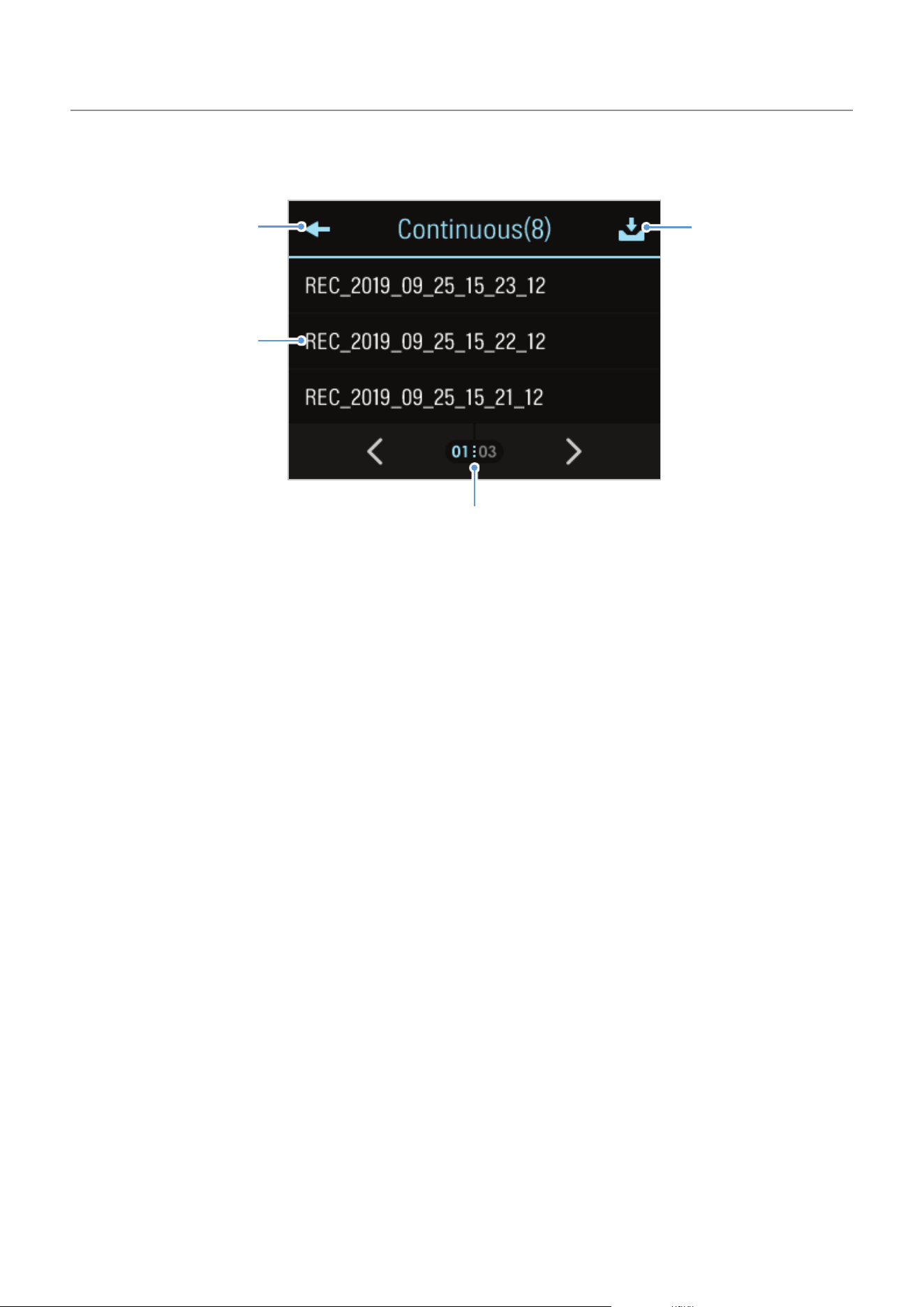
2
When you tap a category, the video file list will appear. Select the video you want to play.
Move the video to the
Archive.
Scroll through the list to
search for a video file.
Move to the File list
screen.
Displays a list of
recorded videos.
Using recording features
28
3
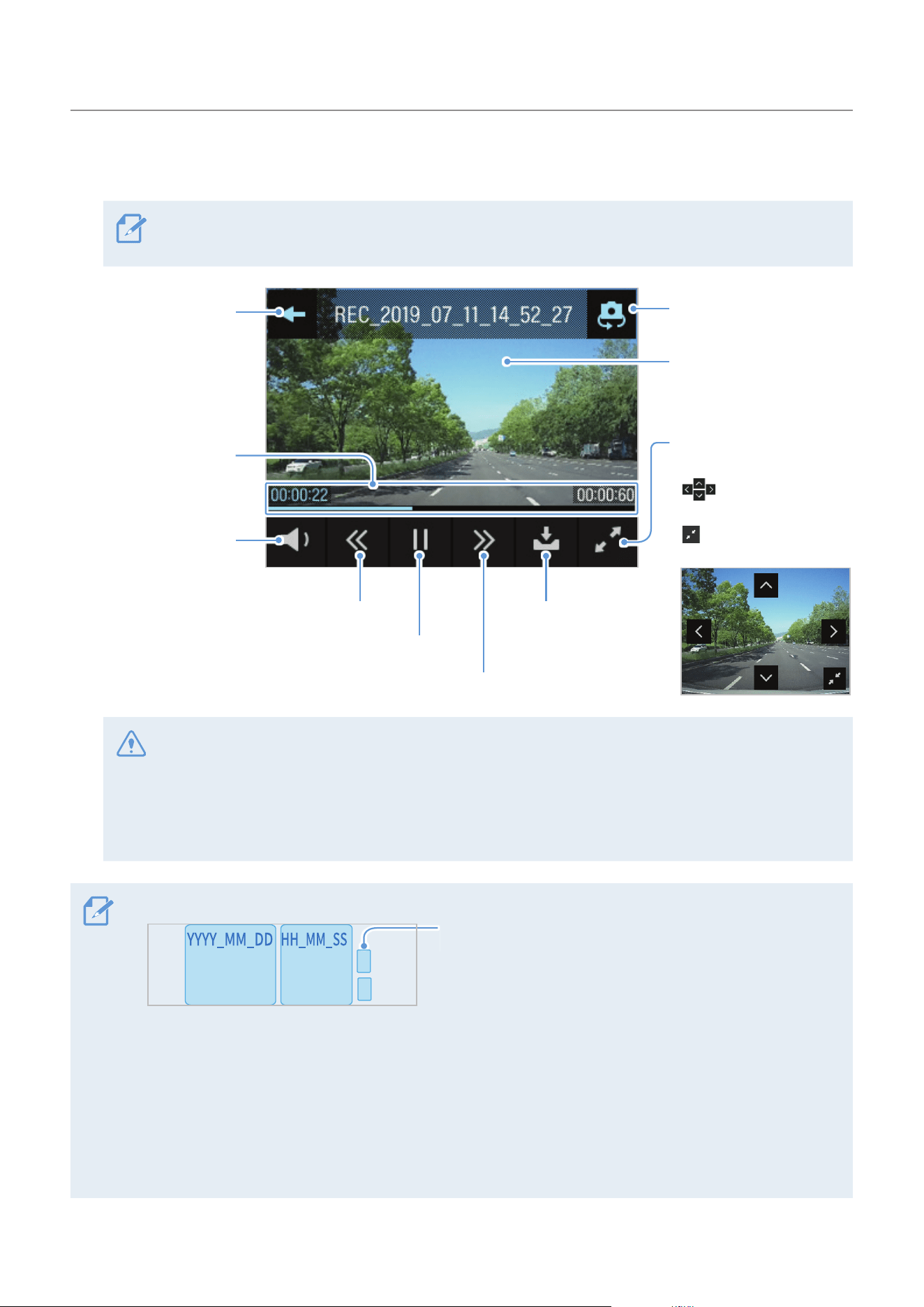
Tap a button on the playback screen to control the video player or other functions.
If you touch the playback area of the LCD display, the screen will be switched to full screen mode. To
exit full screen mode, touch the screen again.
Videos are played here.
Tap the screen to hide or
display the Menu buttons.
Magnify the current video
by 3 times.
•
: Move in the
selected direction
•
: Close the
magnification screen
Move to the File
list screen.
Turn the video
sound on or off.
Displays the
playback status.
Play the previous file.
Move the current
video to the
Archive.
Play or pause a video.
Play the next file.
Switch to the rear camera
video view.
•While you are checking the video file list or playing a video, the product will stop recording.
•Play videos on the product or a computer only. If you play videos by inserting the memory card in
devices such as a smartphone or a tablet PC, the video files may be lost.
•During playback, vehicle license numbers may not be identified due to the relative speed of a vehicle
or lighting conditions.
•A file name is composed of the recording start date and time, and the recording option.
Recording conditions
•F: Front camera
•R: Rear camera
REC_2019_07_01_10_25_30_
F.MP4
REC_2019_07_01_10_25_30_R.MP4
•If the memory card storage gets shortened while recording, the previously recorded videos are deleted for
storage sufficiency. To prevent data loss, back up important videos on additional storage devices.
- When the continuous recording storage is insufficient: The oldest continuous recording file will be
deleted and replaced with a new video file.
Event video files (incident recording and manual recording files) will not be deleted.
- When the storage is insufficient (for event video files only): Event video files will be deleted
chronologically from oldest to most recent.
29
4. Using Advanced Driver Assistance Systems
(ADAS)
ADASusesthesafetycameraalertsystem,alanedeparturewarningsystem(LDWS),aforwardcollision
warning system (FCWS), an urban forward collision warning system (uFCWS), and a front vehicle departure
warning (FVDW).
To use ADAS, you must install the optional external GPS module or the THINKWARE Connected Dongle (to
provide vehicle location and speed related information). For more information, refer to "2.3 Installing the
externalGPSmodule(optional)"or"2.4InstallingtheTHINKWAREConnectedDongle(optional)".
Use the authentic THINKWARE GPS module and Connected dongle. If you use another manufacturer's GPS
module or Connected dongle, the product may be damaged or electrical fire or electrocution may result due
to the voltage difference.
All ADAS Settings are configurable in the dashcam settings. These features will only be activated when the
external GPS module or the THINKWARE Connected Dongle is installed.
Identifying the vehicle type
OntheLiveviewscreen,taptheHomebutton( )
>
Settings
>
Road Safety Settings, and then tap the
button next to Vehicle type under ADAS Features to select a vehicle type among Sedan / SUV / Truck (Bus).
Setting the ADAS settings
To enhance the ADAS accuracy, follow the instructions to calibrate the ADAS settings screen.
1
On the Live view screen, tap the Home button ( )
>
Settings
>
Road Safety Settings, and then tap the
View button next to ADAS settings under ADAS Features.
2
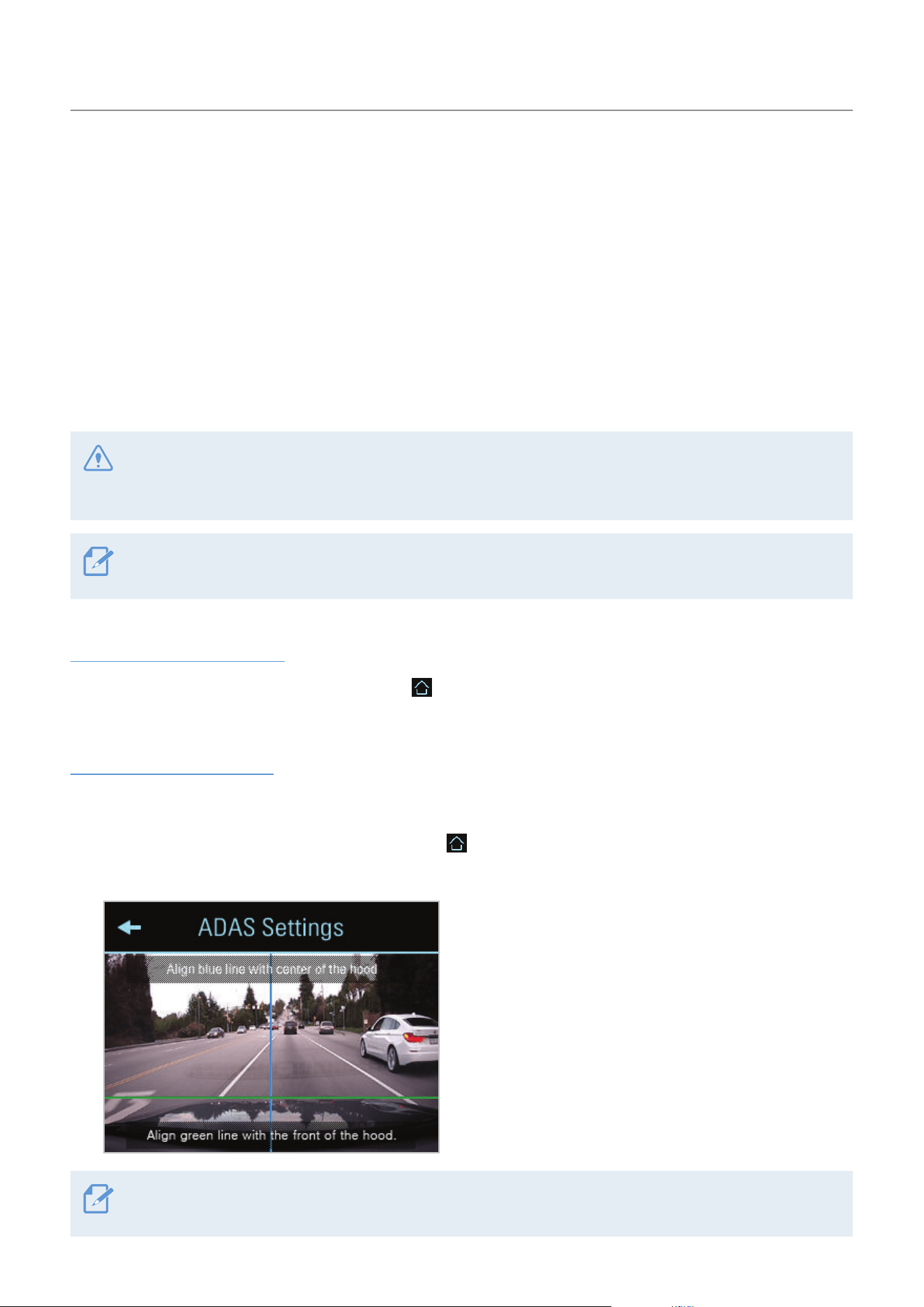
Adjust the product to align the blue line displayed on
the ADAS settings screen with the center of the hood
and the green line just above the hood.
After positioning the product, drive at 30 km/h for
more than 1 minute to finish the alignment.
When you align the ADAS settings screen, adjust the product position within 7 cm of the default installation
location (where the camera lens is located at the center of the front windshield).
Using Advanced Driver Assistance Systems (ADAS)
30
4.1 The safety camera alert system (optional external GPS module or the
THINKWARE Connected Dongle required)
When the vehicle approaches or passes the speed limit zone, the safety camera alert system collects GPS
signals and safety camera data. This system also provides road information about bus only lane, parking
ticket trap zones, and overloading enforcement zone in real time to assist you while driving.
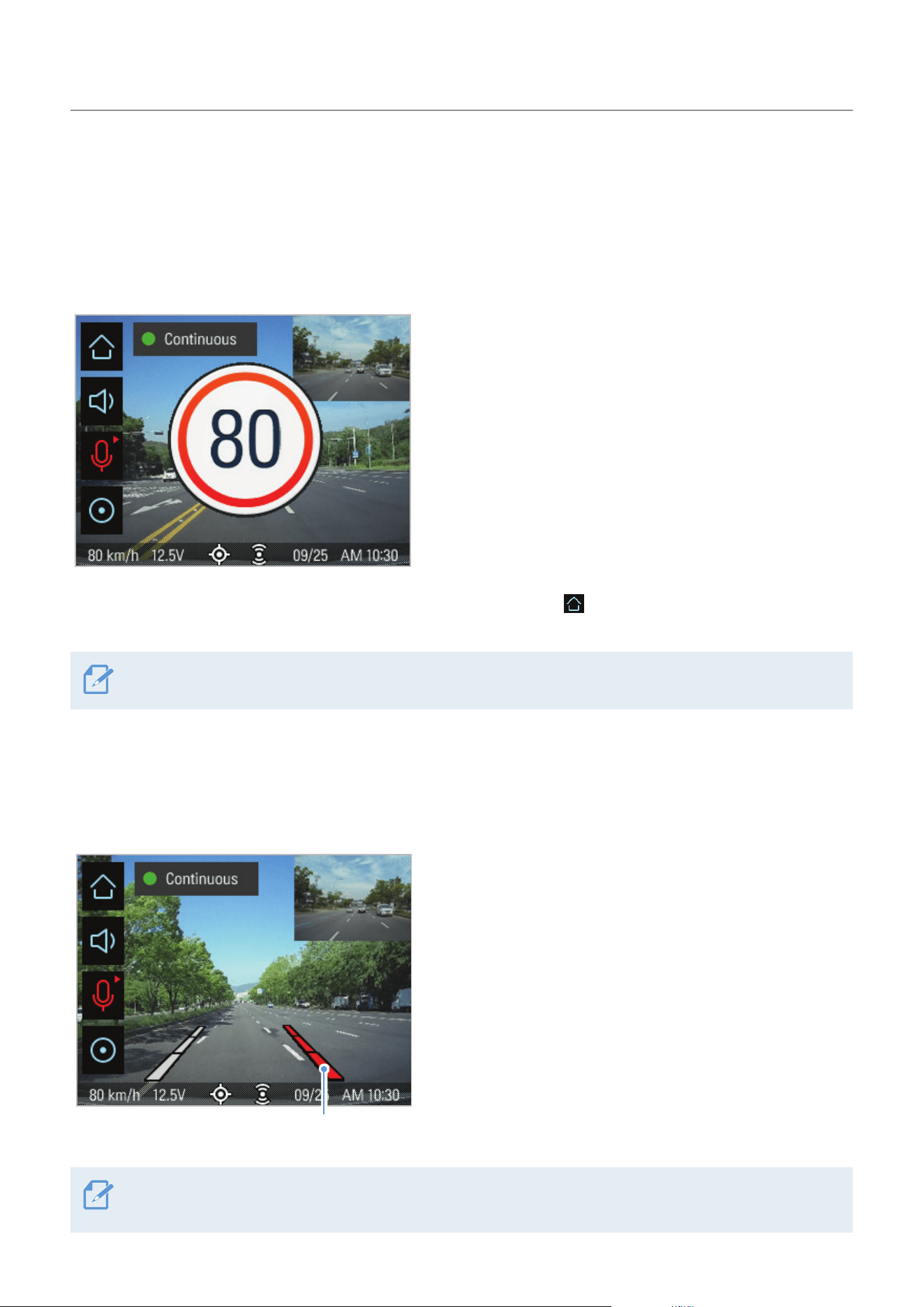
If the vehicle exceeds the speed limit or gets close to
the speed limit zone, the speed limit will be displayed
on the screen.
To deactivate the safety camera alert system, tap the Home button (
)ontheLiveviewscreen
>
Settings
>
Road Safety Settings, and then tap the Setting button next to Safety Camera Alert to switch to OFF.
This feature may not be available in some countries.
4.2 The lane departure warning system (LDWS)
Whenthevehicledepartsitslane,theLDWSdetectsthelanedepartureviathereal-timevideoimageand
warns the driver.
The departed lane is displayed in red.
The lane guide lines are displayed on the screen when
youactivatetheLDWS.
The voice guide warns you and a left or right lane
guide line will display in red when the vehicle enters
either lane.
The on-screen lane guide lines cannot be aligned. The guide lines may not perfectly match the actual lanes
due to the product installation angle, position, or winding roads.
Using Advanced Driver Assistance Systems (ADAS)
31
Lane departure warning methods
If the external GPS module or the THINKWARE Connected Dongle is installed, an alarm will sound when the
turn signals are not turned on and the vehicle leaves its lane at a GPS speed over 50 km/h.
Setting the LDWS
• TodeactivatetheLDWS,taptheHomebutton( )ontheLiveviewscreen
>
Settings
>
Road Safety
Settings, and then tap the Setting button next to LDWS (Lane Departure Warning) to switch to OFF. To set
the warning sensitivity, select a sensitivity option (Low / Mid / High).
• ToalignthelaneguidelinesoftheLDWS,taptheHomemenubutton(
)ontheLiveviewscreen
>
Settings
>
Road Safety Settings, and then tap the Reset button next to Initialize LDWS under ADAS
Features.
• To change the lane departure detection speed, tap the Home button (
)ontheLiveviewscreen
>
Settings
>
Road safety settings, and then tap the button next to LDWS speed under ADAS Features to
switch the speed (50/60/80/100 km, 30/40/50/65 Mph).
If the vehicle is driving on a snow-covered road, in the rain at night, or on a damaged road, the LDWS may
not work as it does under normal conditions.
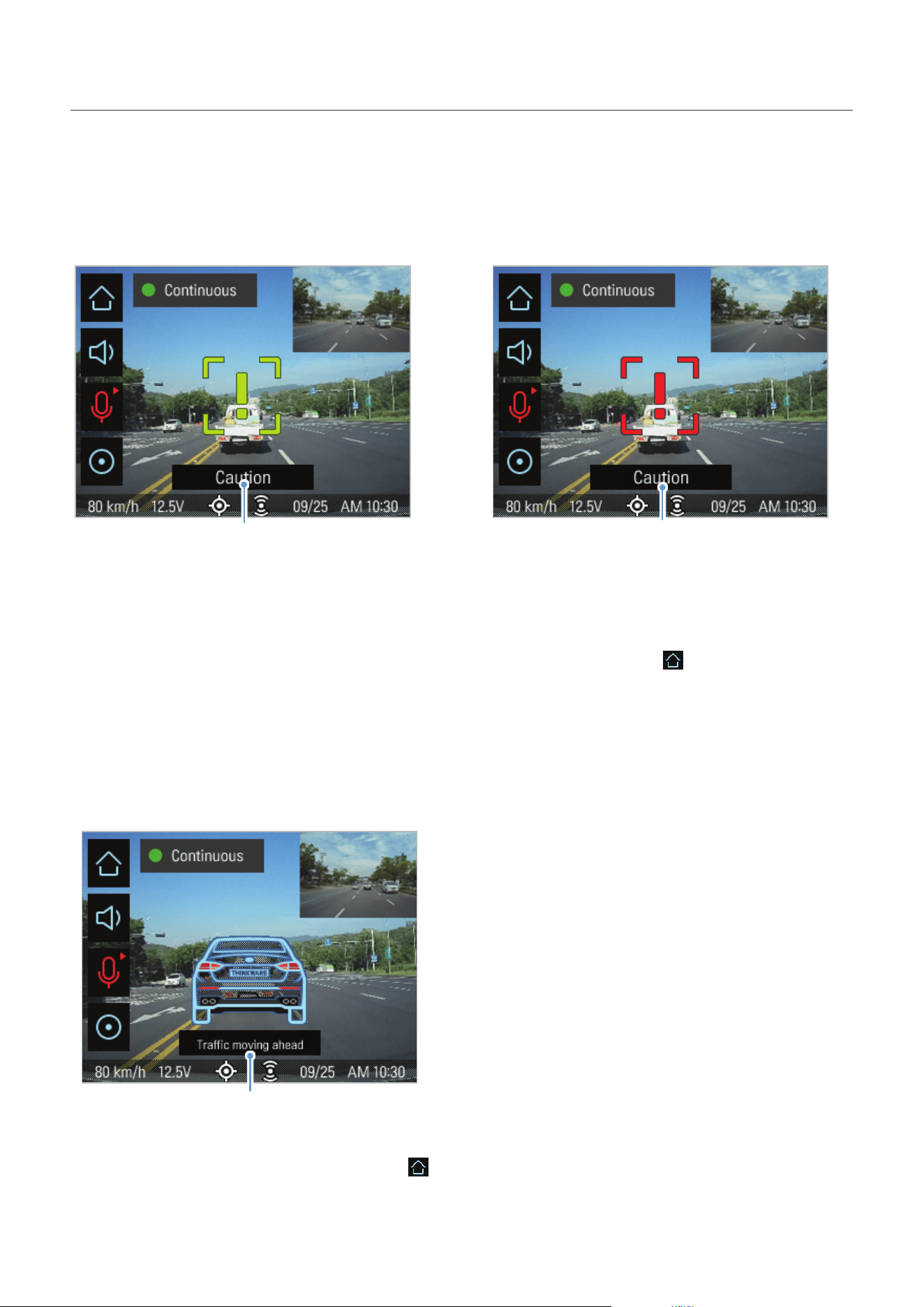
4.3 The forward collision warning system (FCWS)
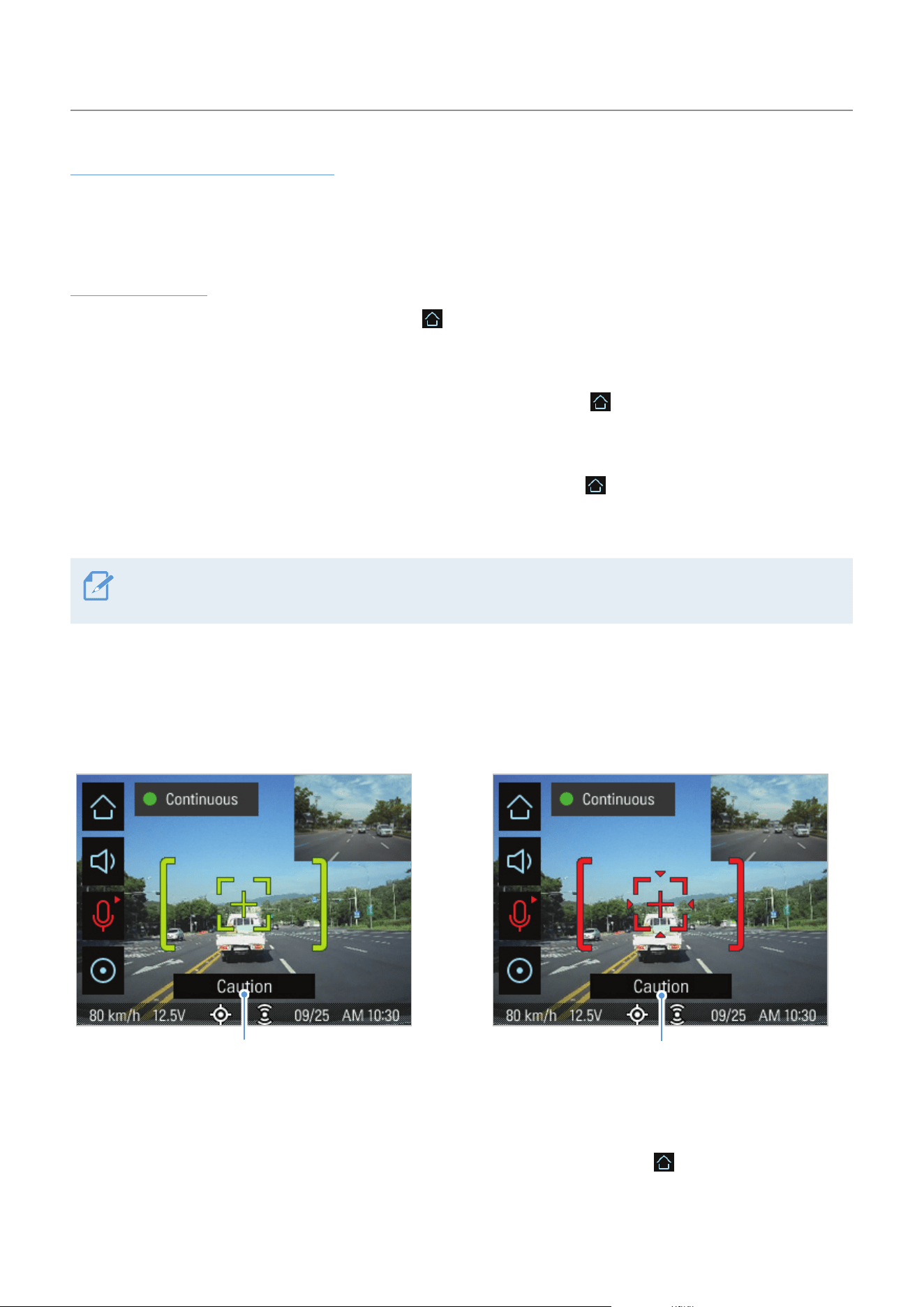
Whenthevehicledrivesat40km/horabove,theFCWSwilldetectforwardcollisiondangerviathereal-
time video image and warn the driver.
Preliminary forward collision warning: Displayed when
a preliminary collision hazard is detected.
Secondary forward collision warning: Displayed
when the distance to the vehicle ahead decreases
after a preliminary collision warning.
To deactivate the FCWS or change the warning sensitivity, tap the Home button ( )ontheLiveview
screen
>
Settings
>
Road Safety Settings, and then tap the button next to FCWS (Forward Collision Warning)
to switch the sensitivity option (Low / Mid / High) or OFF to turn off the warning.
Using Advanced Driver Assistance Systems (ADAS)
32
4.4 The urban forward collision warning system (uFCWS)
When the vehicle drives at 30 km/h or lower, the uFCWS will detect forward collision danger via the real-
time video image and warn the driver.
Preliminary low speed forward collision warning:
Displayed when a preliminary low speed collision
hazard is detected.
Secondary low speed forward collision warning:
Displayed when the distance to the vehicle ahead
decreases after a preliminary low speed collision
warning.
To deactivate the uFCWS or change the warning sensitivity, tap the Home button ( )ontheLiveview
screen
>
Settings
>
Road Safety Settings, and then tap the button next to FCWS (Low Speed) to switch the
sensitivity option (Low / Mid / High) or OFF to turn off the warning.
4.5 The front vehicle departure warning (FVDW)
The FVDW will detect the departure of the vehicle in front via the real-time video image and notify the driver.
Analarmisoutput4secondsafterthevehicleahead
has departed.
When the vehicle is stopped in traffic, this feature will
detect the departure of the vehicle in front and notify
the driver.
To deactivate the FVDW, tap the Home button (
)ontheLiveviewscreen
>
Settings
>
Road Safety
Settings, and then tap the button next to FVDW (Front Vehicle Departure Warning) to switch the setting to
OFF.

33
5. Settings
You can set the product features according to your needs and preferences.
5.1 Setting the camera
You can adjust the brightness of the front and rear view.
5.1.1 Setting the brightness of the camera (brightness camera)
You can set the brightness of the front view recording. Refer to the following instructions to set the
brightness.
1
On the Live view screen, tap the Home button ( )
>
Settings
>
Camera Settings, and then tap the
Setting button next to Brightness-Front.
2
Switch the button to Mid, Dark, or Bright. The new setting is applied automatically.
5.2 Setting recording features
You can set and adjust various features for recording, including the detection sensitivity for recording when
the product detects an impact during continuous recording.
5.2.1 Setting the continuous impact detection sensitivity (cont. sensitivity)
You can set the detection sensitivity for recording when an impact is detected while driving. When you set
the sensitivity, you must consider the road conditions, traffic situation, or your driving style.
1
On the Live view screen, tap the Home button ( )
>
Settings
>
Rec. Settings and then tap the Setting
button next to Cont. sensitivity.
2
Switch the button to OFF, Lowest, LOW, MID, or High. The new setting is applied automatically.
•If the continuous impact detection sensitivity is too high, the product will record a video even when a
minor impact caused by the road condition and your driving is detected. This may shorten the memory
card’s life.
•If the continuous impact detection sensitivity is too low, the product may not record a video when a minor
accident occurs.

Settings
34
5.2.2 Setting parking mode
You can set the operating mode of the product while the vehicle is parked. Follow the instructions to set
parking mode.
To use parking mode, you must install the hardwiring cable. If continuous power is not supplied to the
product, the product will stop recording when the vehicle engine is turned off.
For more information about parking mode, refer to "3.6 Using parking mode"
1
On the Live view screen, tap the Home button ( )
>
Settings
>
Rec. Settings and then tap the Setting
button next to Parking Mode.
2
Select Motion detection, Time Lapse, or OFF, and then tap the Confirmation button ( ).
3
Tap the Confirmation button ( ) on the confirmation screen. The new setting is applied automatically.
5.2.3 Setting the Super Night Vision feature
You can record bright and high resolution videos while parking at night if you activate the Super Night
Vision feature. Follow the instructions to select a recording mode to use the Super Night Vision feature.
1
On the Live view screen, tap the Home button ( )
>
Settings
>
Rec. Settings, and then tap the Setting
button next to Super Night Vision.
2
Switch the button to ON or OFF to activate or deactivate the feature. The new setting is applied
automatically.
5.2.4 Setting the parking impact sensitivity (parking sensitivity)
You can set the detection sensitivity for recording when impact is detected while parking. Refer to the
following instructions to set the parking impact sensitivity.
1
On the Live view screen, tap the Home button ( )
>
Settings
>
Rec. Settings and then tap the Setting
button next to Parking Sensitivity.
2
Switch the button to Lowest, Low, Mid, High, or Highest. The new setting is applied automatically.

Settings
35
5.2.5 Setting the motion detection sensitivity (motion sensitivity)
The Motion detection feature records a video when a moving object is detected near your vehicle. Refer to
the following instructions to set the motion detection sensitivity.
1
On the Live view screen, tap the Home button ( )
>
Settings
>
Rec. Settings and then tap the Setting
button next to Motion Sensitivity.
2
Switch the button to Lowest, Low, Mid, High, or highest. The new setting is applied automatically.
5.2.6 Setting the record timer feature (Off Timer)
When you set activate the record timer feature, the product will record a video in parking mode for a preset
time. Refer to the following instructions to set the time.
1
On the Live view screen, tap the Home button ( )
>
Settings
>
Rec. Settings and then tap the button
next to Off Timer.
2
Switch the button to 3 Hrs., 6 Hrs., 12 Hrs., 24 Hrs., 48 Hrs., or OFF. The new setting is applied
automatically.
The vehicle battery will not be charged while the vehicle is parked. If you record in parking mode for an
extended period, the vehicle’s battery may be depleted and you may not be able to start the vehicle.
5.2.7 Setting the battery protection feature (battery protection)
When the vehicle battery is consumed to a certain level, this feature stops recording to prevent battery
depletion.RefertothefollowinginstructionstosettheLowVoltageOfffeature.
1
On the Live view screen, tap the Home button ( )
>
Settings
>
Rec. Settings and then tap the button
next to Battery Protection.
2
Switch the button to ON or OFF to activate or deactivate the feature. If you have switched the button to
OFF, the caution message will appear. Tap OK on the screen to deactivate the feature. The new setting
is applied automatically.

Settings
36
5.2.8 Setting the battery cutoff voltage feature (Off voltage)
YoucansetthevoltagelimittostoprecordingatwhenusingtheLowVoltageOfffeature.Refertothe
following instructions to set the voltage.
1
On the Live view screen, tap the Home button ( )
>
Settings
>
Rec. Settings and then tap the Setting
button next to Off Voltage.
2
Tap + or - to set the voltage in 0.1 V increment. When the battery's voltage reaches the set value,
recording will stop.
For vehicles using a 12 V battery (most passenger vehicles), set the voltage to 11.6 V–12.3 V. For
vehicles using the 24 V battery (like most passenger vehicles), set the voltage to 23.2 V–24.6 V.
If the Off voltage value is too low, the product may consume the battery completely depending on the
conditions like the vehicle type or temperature.
5.2.9 Setting the battery protection feature for wintertime (Wt Bty Protection)
You can set the month(s) during the cold season (November–March) to apply the low voltage protection
level of the vehicle. Refer to the following instructions to set the month(s).
1
On the Live view screen, tap the Home button ( )
>
Settings
>
Rec. Settings, and then tap the Setting
button next to Wt Bty Protection.
2
Select Nov, Dec, Jan, Feb, Mar, Jun, Jul, Aug, Sep, and / or Oct. The new setting is applied
automatically.
In winter, you must set the vehicle's low voltage protection level higher than other seasons due to battery
capacity loss.
5.3 Setting Road Safety Settings (ADAS)
The ADAS features explained in this section may not be available in some countries, and the setting menus
may be disabled, or may not be displayed at all.
Youcanactivateordeactivateasafetycameraalertsystem,alanedeparturewarningsystem(LDWS),a
forward collision warning system (FCWS), an urban forward collision warning system (uFCWS), and a front
vehicle departure warning (FVDW).

Settings
37
5.3.1 Setting the safety cameras
When the vehicle approaches or passes the speed limit zone, the safety camera alert system will collect
GPS signals and safety camera data. Refer to the following instructions to enable or disable this feature.
1
On the Live view screen, tap the Home button ( )
>
Settings
>
Road Safety Settings, and then tap the
Setting button next to Safety Cameras under Safety Cameras.
2
You can switch the button to ON or OFF to activate or deactivate the feature. The new setting is applied
automatically.
5.3.2 Setting the mobile zone alert
Follow the instructions to turn on or off the mobile zone alert.
1
On the Live view screen, tap the Home button ( )
>
Settings
>
Road Safety Settings, and then tap the
Setting button next to Mobile Zone Alert under Safety Cameras.
2
Switch the button to ON or OFF to activate or deactivate the feature. The new setting is applied
automatically.
5.3.3 Identifying the vehicle type
Refer to the following instructions to identify your vehicle type for using the ADAS feature.
1
On the Live view screen, tap the Home button ( )
>
Settings
>
Road Safety Settings.
2
Tap the Setting button next to Vehicle type under ADAS Features and select Sedan, SUV, or Truck (Bus).
The new setting is applied automatically.
5.3.4 Initializing the ADAS calibration setting (ADAS Settings)
To enhance the ADAS feature's accuracy, follow the instructions to set the alignment on the ADAS settings
screen.
1
On the Live view screen, tap the Home button ( )
>
Settings
>
Road Safety Settings. Tap the View
button next to ADAS Settings under ADAS Features.
2
Adjust the product position to align the blue line displayed on the ADAS settings screen with the
center of the hood and the green line just above the hood.
After positioning the product, drive at 30 km/h for more than 1 minute to finish the alignment.

Settings
38
5.3.5 Initializing ADAS calibration
You can initialize the ADAS calibration screen. Follow the instructions to initialize ADAS calibration.
1
On the Live view screen, tap the Home button ( )
>
Settings
>
Road Safety Settings, and then tap the
button next to Initialize ADAS under ADAS Features.
2
When the confirmation window appears, tap the confirmation button ( ). The ADAS calibration
settings will be initialized.
5.3.6 Setting the lane departure warning feature (LDWS)
Whenthevehicledepartsitslane,theLDWSwilldetectthelanedepartureviathereal-timevideoimage
and warn the driver. Refer to the following instructions to set the detection sensitivity or activate or
deactivate this feature.
1
On the Live view screen, tap the Home button ( )
>
Settings
>
Road Safety Settings, and then tap the
button next to LDWS (Lane Departure Warning) under ADAS Features.
2
Switch the button to Low, Mid, or High to set the detection sensitivity, or OFF to deactivate the feature.
The new setting is applied automatically.
5.3.7 Setting the lane departure detection speed (LDWS speed)
You can change the lane departure detection speed. Refer to the following instructions to set the lane
departure detection speed.
1
On the Live view screen, tap the Home button ( )
>
Settings
>
Road Safety Settings, and then tap the
button next to LDWS speed under ADAS Features.
2
Switch the button to 50km(30mph), 60km(40mph), 70km(50mph), or 80km(65mph). The new setting is
applied automatically.

Settings
39
5.3.8 Setting the forward collision detection sensitivity (FCWS)
When the vehicle drives at 30 km/h or above, the FCWS will detect forward collision danger via the real-
time video image and warn the driver. Refer to the following instructions to set the detection sensitivity or
activate or deactivate this feature.
1
On the Live view screen, tap the Home button ( )
>
Settings
>
Road Safety Settings, and then tap the
Setting button next to FCWS (Forward Collision Warning) under ADAS Features.
2
Switch the button to Low, Mid, or High to set the detection sensitivity, or OFF to deactivate the feature.
The new setting is applied automatically.
5.3.9 Setting the low speed forward collision detection sensitivity (Low Speed
FCWS)
Whenthevehicledrivesat30km/horlower,theLowSpeedFCWSwilldetectforwardcollisiondanger
via the realtime video image and warn the driver. Refer to the following instructions to set the detection
sensitivity or activate or deactivate this feature.
1
On the Live view screen, tap the Home button ( )
>
Settings
>
Road Safety Settings, and then tap the
Setting button next to Low Speed FCWS under ADAS Features.
2
Switch the button to Off, Low, Mid, or High to activate or deactivate the feature. The new setting is
applied automatically.
5.3.10 Setting front vehicle departure warning (FVDW)
When the vehicle is stopped in traffic, this feature will detect the departure of the vehicle in front and notify
the driver. Refer to the following instructions to enable or disable this feature.
1
On the Live view screen, tap the Home button ( )
>
Settings
>
Road Safety Settings, and then tap the
Setting button next to FVDW (Front Vehicle Departure Warning) under ADAS Features.
2
Switch the button to ON or OFF to activate or deactivate the feature. The new setting is applied
automatically.

Settings
40
5.3.11 Setting the ADAS Volume
You can adjust the ADAS volume. Refer to the following instructions to set the ADAS volume.
1
On the Live view screen, tap the Home button ( )
>
Settings
>
Road Safety Settings, and then tap the
Setting button next to ADAS Volume under ADAS Features.
2
Switch the button to 1, 2, or 3 to decrease or increase the volume, or OFF to mute the ADAS volume.
The new setting is applied automatically.
5.4 Configuring the system settings
This menu allows you to configure the hardware settings that are globally applied to the system during
operation.
5.4.1 Setting the display language
You can select a language (Korean, English (US), English (UK), Spanish, French, Chinese (Simplified),
Chinese (Traditional), German, Italian, Japanese, and Thai) to display on the screen. Follow the instructions
to select a language.
1
On the Live view screen, tap the Home button ( )
>
Settings
>
System Settings, and then tap the
button next to Language.
2
Switch the button to a preferred language to select. The new setting is applied automatically.
5.4.2 Adjusting the system volume
You can adjust the voice guidance volume. Follow the instructions to adjust the volume.
1
On the Live view screen, tap the Home button ( )
>
Settings
>
System Settings, and then tap the
Setting button next to Volume.
2
Switch the button to 1, 2, 3, or OFF to select a volume level. The new setting is applied automatically.
If you select OFF, the voice guidance will be disabled.

Settings
41
5.4.3 Resetting the touchscreen (Calibrate Touchscreen)
If the touchscreen accuracy decreases after using the product for an extended period, you can manually
align the touchscreen to make it accurate again. Follow the instructions to reset the touchscreen.
1
On the Live view screen, tap the Home button ( )
>
Settings
>
System Settings, and then tap the
Setting button next to Calibrate Touchscreen.
2
Follow the on-screen instructions to proceed with the screen alignment.
3
A confirmation window will appear when the alignment is complete. Tap the Confirmation button ( )
to apply the alignment. Tap the back button (
) to cancel the alignment.
5.4.4 Adjusting the screen brightness (LCD Brightness)
You can adjust the screen brightness. Follow the instructions to adjust the screen brightness.
1
On the Live view screen, tap the Home button ( )
>
Settings
>
System Settings, and then tap the
Setting button next to LCD Brightness.
2
Switch the button to Mid, Dark, or Bright. The new setting is applied automatically.
5.4.5 Setting the LCD Auto-Off
You can adjust the time until the screen is turned off after operating the product or viewing a recorded
video.FollowtheinstructionstoadjusttheLCDAuto-Offtime.
1
On the Live view screen, tap the Home button ( )
>
Settings
>
System Settings, and then tap the
Setting button next to LCD Auto-Off.
2
Switch the button to 10 min, 30 sec, or OFF. The new setting is applied automatically.
If you set this feature to OFF, the screen will be kept on, and the power consumption of the product will
increase.

Settings
42
5.4.6 Setting the security LED
YoucandecidehowthesecurityLEDoperates.RefertothefollowinginstructionstosetthesecurityLED
operation.
1
On the Live view screen, tap the Home button ( )
>
Settings
>
System Settings, and then tap the
Setting button next to Security LED.
2
Switch the button to Up-Down, Blink, Random, or OFF to select the LED operation. The new setting is
applied automatically.
5.4.7 Setting the time zone
Follow the instructions to set the time zone.
1
On the Live view screen, tap the Home button ( )
>
Settings
>
System Settings, and then tap the
Setting button next to Time Zone.
2
Set the time zone. The new setting is applied automatically.
5.4.8 Setting the date (Set Date)
Follow the instructions to set the date that will be displayed on the screen.
1
On the Live view screen, tap the Home button ( )
>
Settings
>
System Settings, and then tap the
Setting button next to Set Date.
2
Set the year, month, and date. The new setting is applied automatically.
5.4.9 Setting the time (Set Time)
Follow the instructions to set the time that will be displayed on the screen.
1
On the Live view screen, tap the Home button ( )
>
Settings
>
System Settings, and then tap the
Setting button next to Set Time.
2
Select AM/PM, set the hour and minutes. The new setting is applied automatically.

Settings
43
5.4.10 Setting the daylight saving time
Follow the instructions to set the daylight saving time.
1
On the Live view screen, tap the Home button ( )
>
Settings
>
System Settings, and then tap the
Setting button next to Daylight Saving.
2
Switch the button to OFF or ON to set the daylight saving time. The new setting is applied
automatically.
5.4.11 Setting the speed unit
Follow the instructions to select the speed unit that will be displayed on the screen.
1
On the Live view screen, tap the Home button ( )
>
Settings
>
System Settings, and then tap the
Setting button next to Speed Unit.
2
Switch the button to km/h or mph to select the speed unit. The new setting is applied automatically.
5.4.12 Setting the speed stamp
Follow the instructions to turn on or off the speed stamp feature.
1
On the Live view screen, tap the Home button ( )
>
Settings
>
System Settings, and then tap the
Setting button next to Speed Stamp.
2
Switch the button to OFF or ON to turn on or off the feature. The new setting is applied automatically.

Settings
44
5.4.13 Setting THINKWARE Connected Dongle
Follow the instructions to turn on or off the THINKWARE Connected Dongle (optional).
1
On the Live view screen, tap the Home button ( )
>
Settings
>
System Settings, and then tap the
Setting button next to CONNECTED.
2
Switch the button to OFF or ON to activate or deactivate the feature. The new setting is applied
automatically.
If you select OFF, the GPS feature is still on and the GPS connection icon will be displayed on the Live view
screen.
5.4.14 Partitioning the memory card
You can partition the memory card to adjust the storage space for different types of video recordings. Refer
to the following instructions to partition the memory card.
1
On the Live view screen, tap the Home button ( )
>
Settings
>
System Settings, and then tap the
button next to Partition Settings.
2
When the partition setting window appears, select partitioning options from Continuous Recording
Priority (Recomm.) / Incident Recording Priority / Parking Recording Priority / Manual Recording
Priority / Driving Recording Only.
Do not disconnect the power or remove the memory card from the product during memory partitioning.
Doing so may cause serious damage to the data stored in the memory card.
3
A confirmation window will appear when memory partitioning is complete. Tap the confirmation button
(
) to close the window. (The window will disappear after 5 seconds without a user input.)
5.4.15 Formatting the memory card
You can format the memory card that is inserted in the product. Refer to the following instructions to format
the memory card.
1
On the Live view screen, tap the Home button ( )
>
Settings
>
System Settings, and then tap the
button next to Format Memory.
Settings
45
2
Tap the confirmation button ( ) to proceed with memory formatting. All the data stored on the
memory will be erased after the formatting. Tap the back button (
) to cancel memory formatting.
Do not disconnect power or remove the memory card from the product while formatting. Doing so may
cause serious damage to the data stored in the memory card.
3
A confirmation window will appear when memory formatting is complete. Tap the confirmation button
( ) to close the window. (The window will disappear after 5 seconds without a user input.)
5.4.16 Configuring the video overwriting function
You can overwrite the oldest video files for new video files in the storage reserved for each mode. Refer to
the following instructions to select the video file types to overwrite.
1
On the Live view screen, tap the Home button ( )
>
Settings
>
System Settings, and then tap the
button next to Overwrite Videos.
2
Select the video file types to overwrite, and the tap the confirmation button ( ). The new setting is
applied automatically.
5.4.17 Initializing the system settings (Reset Settings)
You can return all the system settings to factory default settings. Follow the instructions to initialize the
system settings.
1
On the Live view screen, tap the Home button ( )
>
Settings
>
System Settings, and then tap the
Reset button next to Reset Settings.
2
Tap the confirmation button ( ) on the confirmation window. All the system settings will be
initialized.
3
A confirmation window will appear when the initialization is complete. Tap the confirmation button
( ) to close the window. (The window will disappear after 5 seconds without a user input.)
Do not disconnect power or remove the memory card from the product during the initialization. Doing so
may cause serious damage to the data stored in the memory card.

46
6. Accessing the product information
New users may benefit from the basic product information that can be accessed from the Menu screen.
6.1 Understanding the product features
OntheLiveviewscreen,taptheHomebutton(
)
>
About Device
>
Functions to view product features.
Brief information about the product's features is displayed on the screen.
6.2 Viewing the product information
OntheLiveviewscreen,taptheHomebutton(
)
>
About Device
>
Device Info to view product
information. The following product information and the menus for initializing will be played on the screen.
• Product name •Firmware version • Safety camera version • Memory capacity
6.3 Accessing and configuring the GPS
AGPSmoduleisusedtoincludethelocationdataintherecordedvideos.OntheLiveviewscreen,tapthe
Home menu button (
)
>
About Device
>
GPS Info to view the GPS features. The connection status, time
(UTC), vehicle speed, current elevation, and Horizontal Dilution of Precision (HDOP) are displayed on the
screen.
Tap the Reset button next to Reset GPS to initialize the GPS, and allow it to locate the current position.
Horizontal Dilution of Precision (HDOP)
HDOP is a value that refers to GPS deviation due to satellite positioning.

47
7. Upgrading the firmware
A firmware upgrade is provided to enhance the product's features, operation or to increase stability. For
optimal operation of the product, ensure that you keep the firmware up to date.
Follow the instructions to upgrade the firmware.
1
On your PC, open a web browser and go to http://www.thinkware.com/Support/Download.
2
Select the product and download the latest firmware upgrade file.
3
Unzip the downloaded file.
4
Disconnect power to the product and remove the memory card.
5
Open the memory card on a PC and copy the firmware upgrade file to the root folder of the memory
card.
6
While the power is disconnected from the product, insert the memory card into the memory card slot
on the product.
7
Connect the power cable to the product, and the turn on the power (ACC ON) or start the engine to
turn on the product. The firmware upgrade starts automatically, and the system will restart once the
firmware update is completed. If the firmware updated is successfully completed, the touch accuracy
resetting window appears.
8
Reset the touchscreen accuracy through the touch accuracy resetting window.
Do not disconnect the power or remove the memory card from the product during the upgrade. Doing
so may cause serious damage to the product, or to the data stored in the memory card.
You can also update the firmware from the mobile viewer and the PC viewer.
48
8. Using the PC viewer
You can view and manage the recorded videos and configure various product features on your PC.
8.1 System requirements
The following are the system requirements for running the PC viewer.
• Processor: Intel Core i5, or higher
• Memory:4GBormore
• Operatingsystem:Windows7orlater(64-bitisrecommended),macOSX10.8MountainLionorlater
• Other:DirectX9.0orhigher/MicrosoftExplorerversion7.0orhigher
The PC viewer will not operate properly on PC systems running an operating system other than those listed
in the system requirements.
8.2 PC viewer for Windows
8.2.1 Installing the PC viewer (for Windows)
You can download the latest PC viewer software from the THINKWARE website (http://www.thinkware.com/
Support/Download).
The PC viewer installation file (setup.exe) is stored in the root folder of the memory card that is provided
with the product. Follow the instructions to install the PC viewer on your PC.
1
Insert the memory card into a memory card reader connected to your PC.
2
Run the installation file, and complete the installation according to the instructions given in the
installation wizard.
After the installation is complete, there will be a shortcut icon to THINKWARE Dashcam Viewer.
Using the PC viewer
49
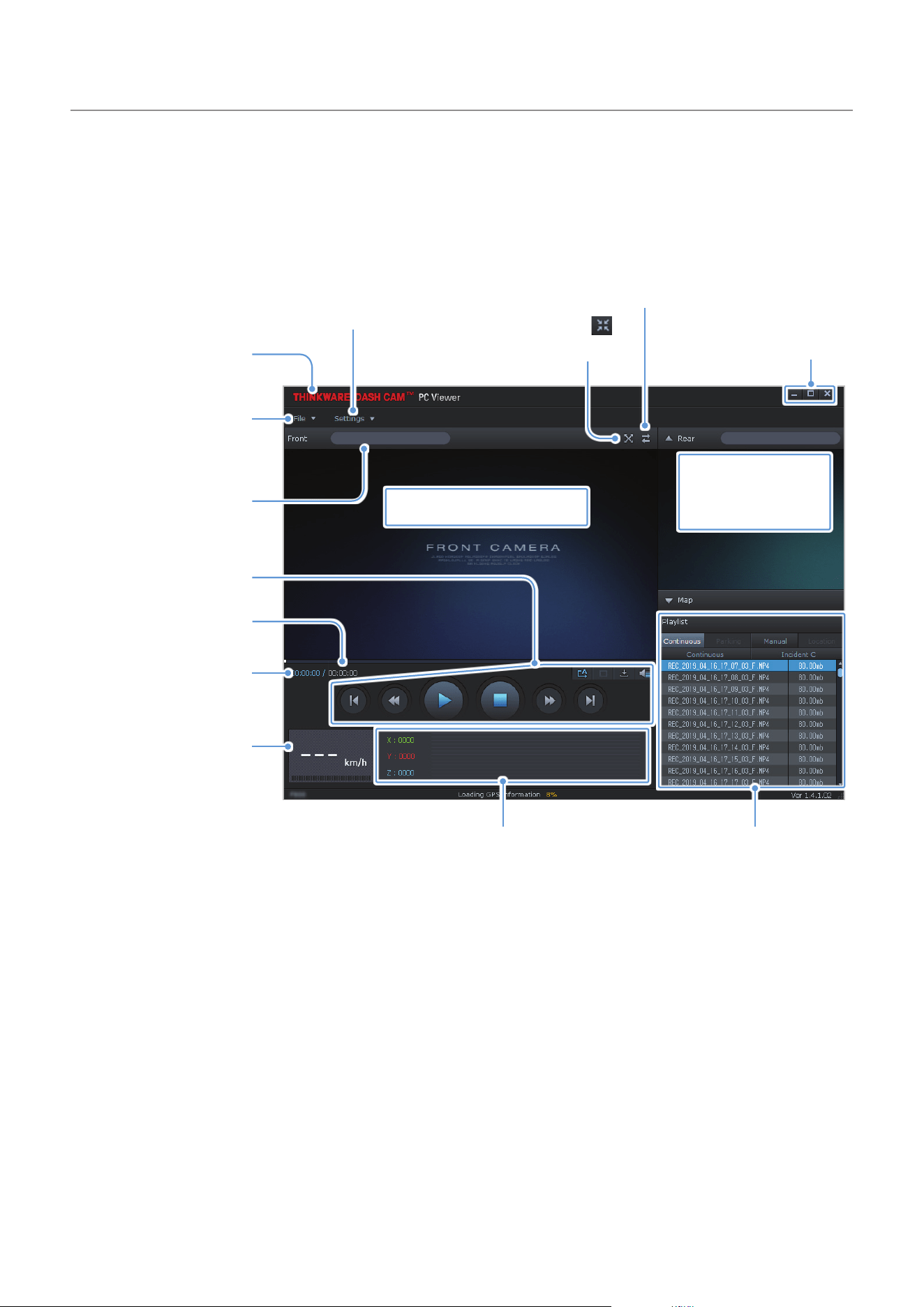
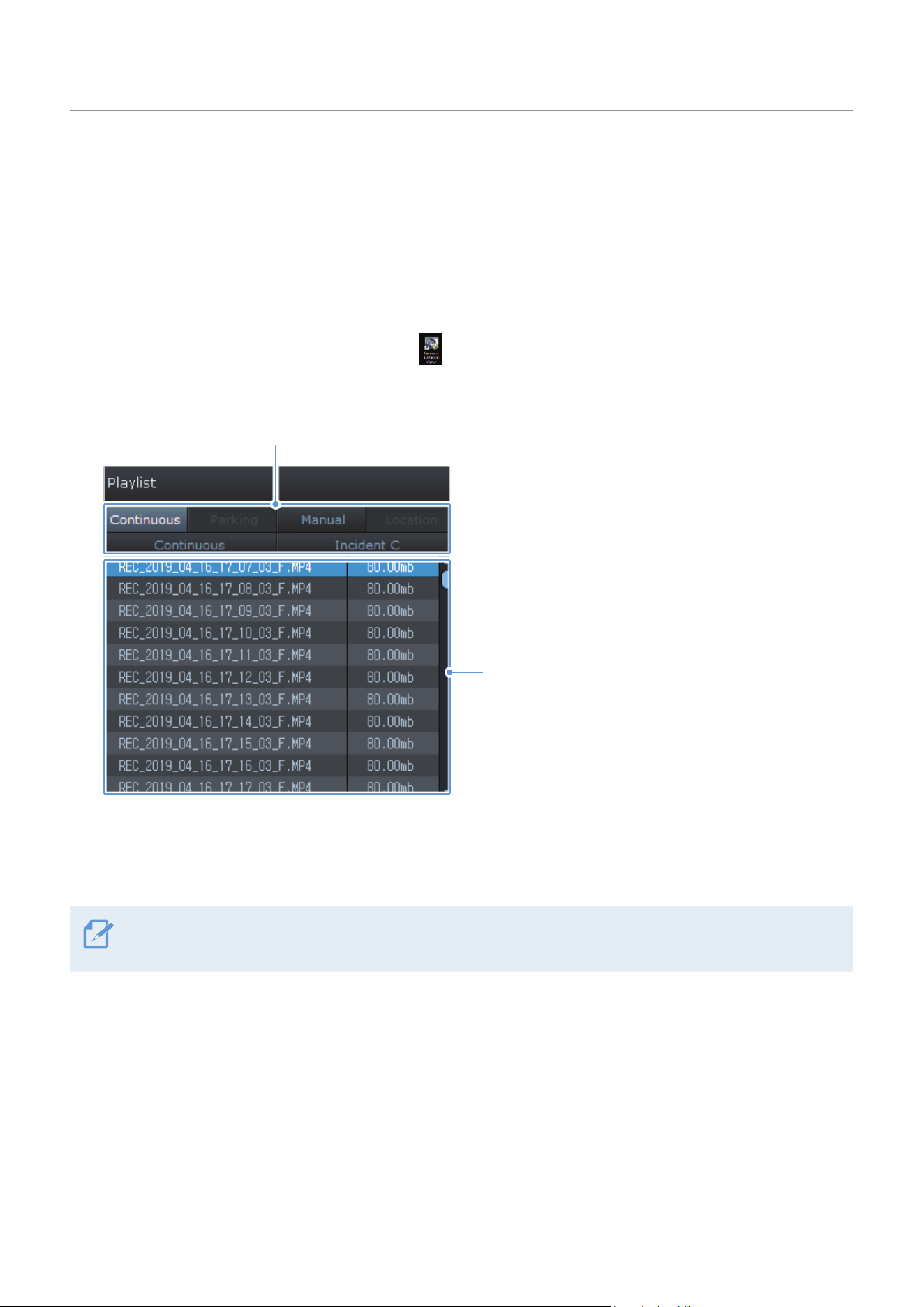
8.2.2 PC viewer screen layout (for Windows)
The following provides brief information about the PC viewer's screen layout.
Visit the THINKWARE
website.
View or configure the dashcam
settings, and set the language
for the PC viewer.
Open a file, or save a
video with a different
name.
Displays the current and
total running time of the
current video.
Indicates the vehicle's
driving speed at the time
of recording.
Displays the progress of
video playback.
Play or control a video.
Displays the video file
name.
Display the current video in full
screen. Tap the Back button (
)
to return to the previous screen.
Switch between the front and
rear videos.
Displays the playlist.
Indicates the G sensor value
at the time of recording.
Minimize, expand, or close
the software.
Displays the current video.
Displays the GPS
information at the
time of recording.
Using the PC viewer
50
8.2.3 Playing recorded videos on the PC viewer (for Windows)
Follow the instructions to play recorded videos.
1
Turn off the product and remove the memory card.
2
Insert the memory card into a memory card reader connected to your PC.
3
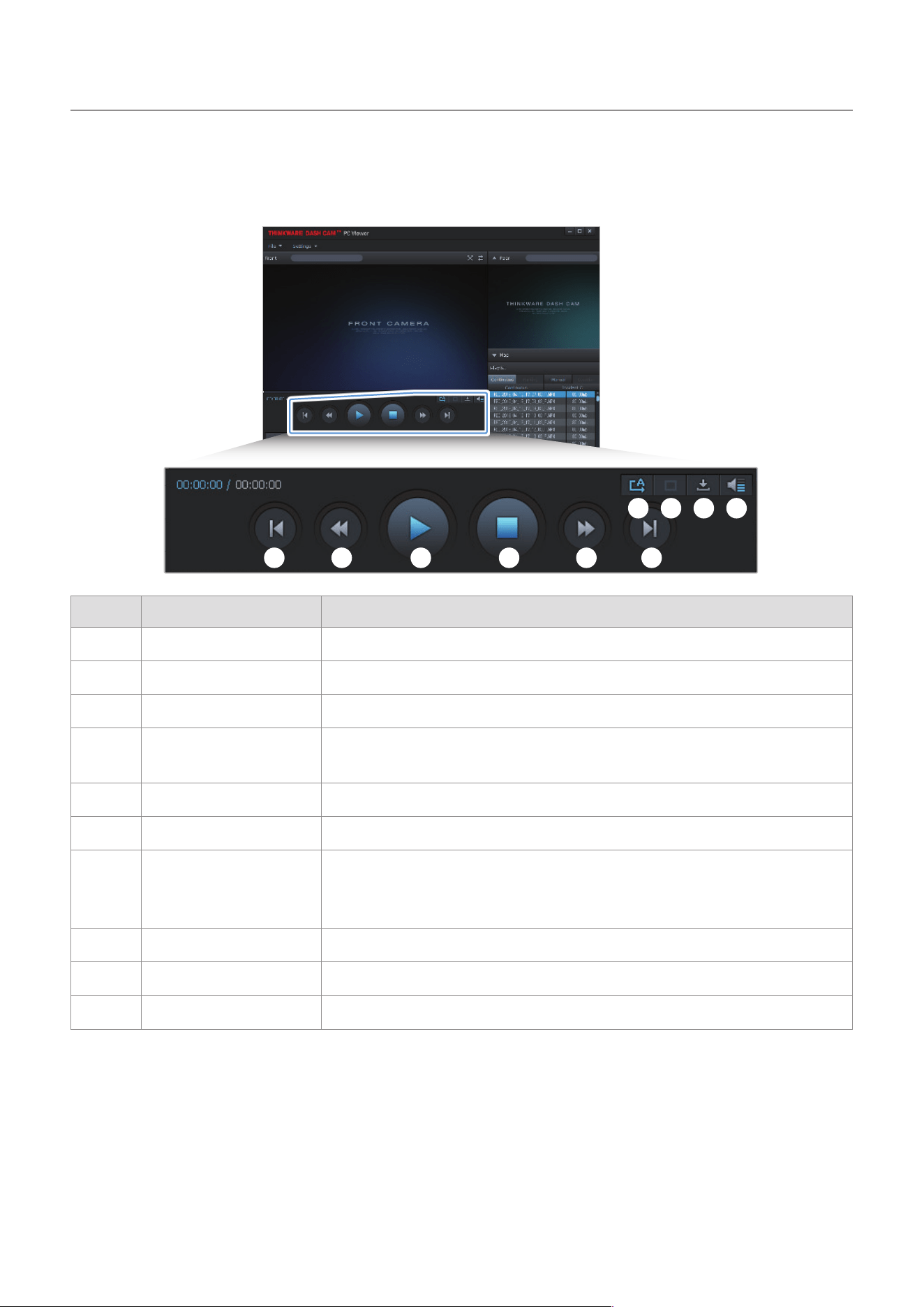
Double-click the shortcut to the PC viewer ( ) to open the program. The video files in the memory
card will be automatically added to the playlist in the bottom-right corner of the PC viewer screen. The
playlist section layout is as follows.
Select a folder.
Displays a list of videos
in the selected folder.
4
Double-clickavideofileafterselectingavideofolder,orclickthePlaybutton(▶)afterselectinga
video file. The selected video file will be played.
If the video files on the memory card are not automatically added to the playlist when you run the PC viewer,
click File▼ > Open, select the removable storage device for the memory card, and click Confirm.
Using the PC viewer
51
8.2.4 Video control menu overview (for Windows)
The following provides brief information about the PC viewer's video control menu.
➊ ➋ ➌ ➍ ➎ ➏
➐ ➑ ➒ ➓
Number Item Description
➊
Play the previous file Play the previous file in the currently selected folder.
➋
Rewind by 10 sec. Rewind the video by 10 sec.
➌
Play/Pause Play or pause the selected video file.
➍
Stop
Stop playing the current video. The progress bar will move to the beginning of
the video.
➎
Skip forward by 10 sec. Fast forward the video by 10 sec.
➏
Play the next file Play the next file in the currently selected folder.
➐
Enable/Disable playing
the next file in the
playlist
Enables or disables the feature for playing the next file in the playlist.
➑
Enlarge/Reduce image Enlarge or reduce the size of the current video.
➒
Save Save the current video on your PC.
➓
Volume Adjust the volume of the current video.

Using the PC viewer
52
8.3 PC viewer for Mac
8.3.1 Installing the PC viewer (for Mac)
You can download the latest PC viewer software from the THINKWARE website (http://www.thinkware.com/
Support/Download).
The PC viewer installation file is stored in the root folder of the memory card that is provided
with the product. Follow the instructions to install the PC viewer on your PC.
1
Insert the memory card into your PC using a SD card reader or SD card adapter provided.
2
Move the file named "dashcam_viewer_X.X.X.dmg" to the desktop.
3
Double-click the dashcam_viewer_X.X.X.dmg and click Open Dashcam Viewer application.
The THINKWARE Dashcam Viewer opens.
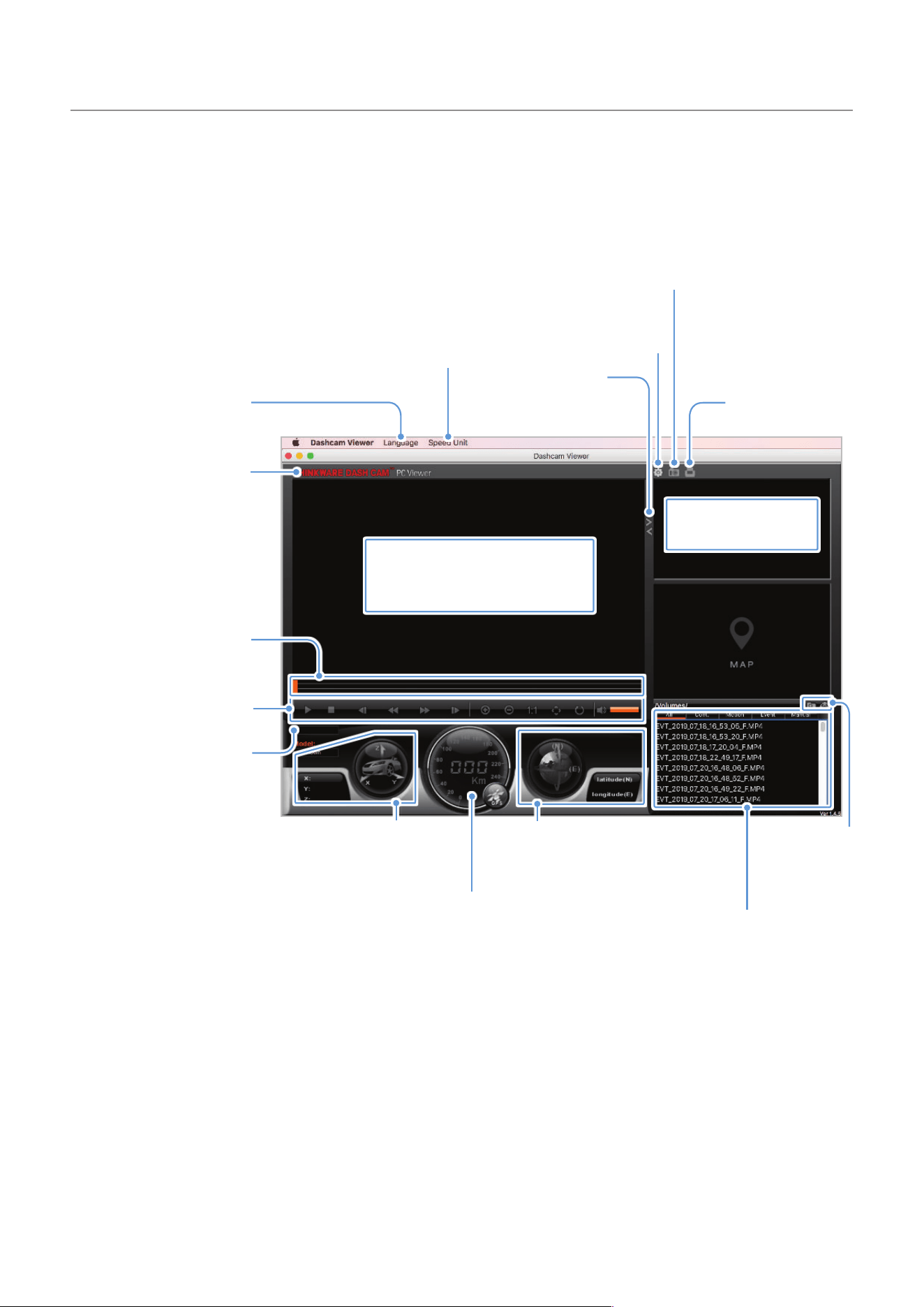
Using the PC viewer
53
8.3.2 PC viewer screen layout (for Mac)
The following provides brief information about the PC viewer's screen layout.
Visit the THINKWARE
website.
View or configure the
dashcam settings.
Displays the current and
total running time of the
current video.
Indicates the vehicle's
driving speed at the time
of recording.
Play or control a video.
Displays the progress of
video playback.
Switch between
the front and rear
videos.
Displays the playlist.
Displays the current front video.
Right-click this pane to display
the current video in full screen.
Displays the current
rear video.
Displays the GPS
information at the time of
recording.
Save the current scene.
Print the current
scene.
Indicates the G sensor value
at the time of recording.
Open a file, or
save a video
with a different
name.
Set the language for the
PC viewer.
Set the speed unit.
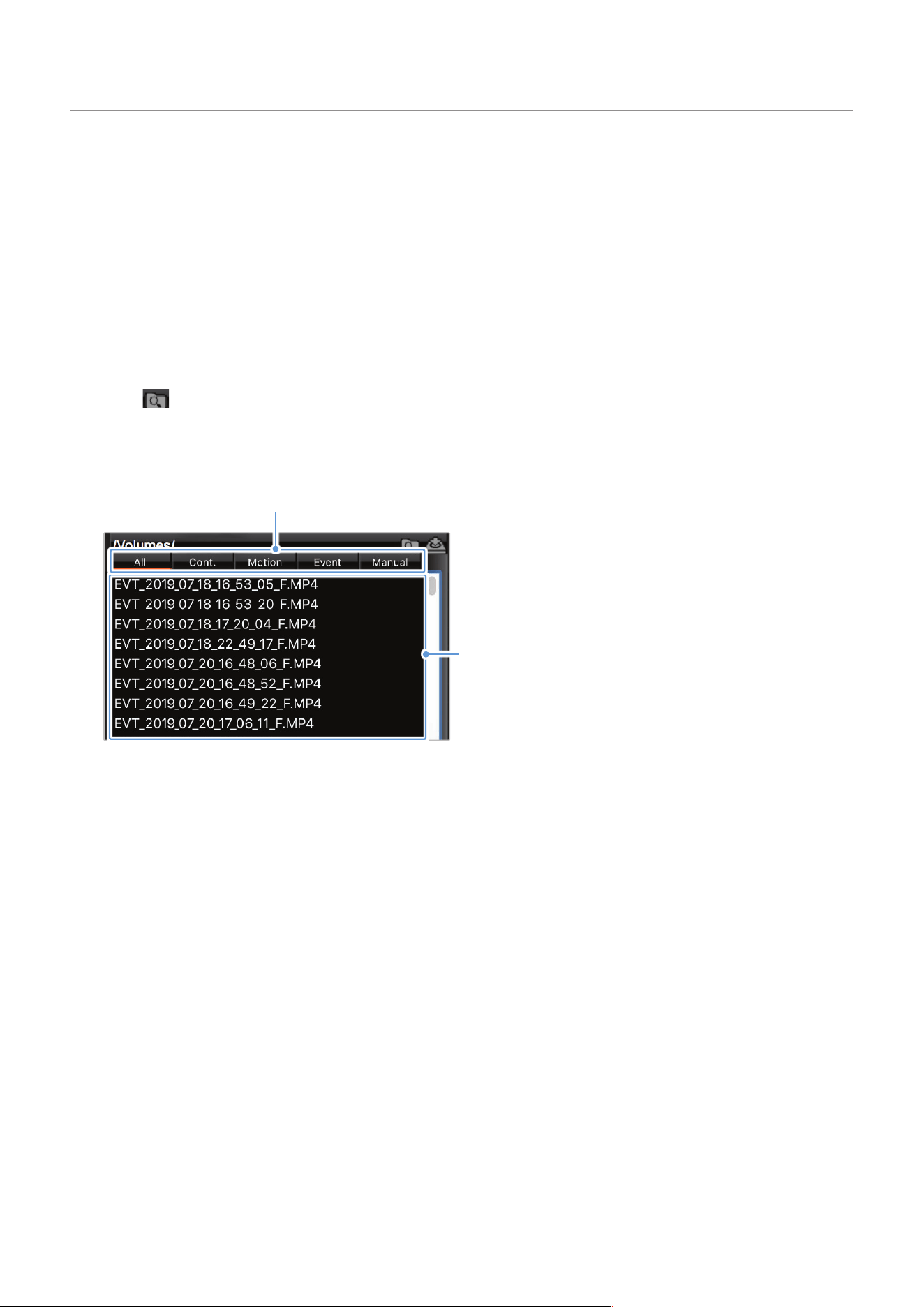
Using the PC viewer
54
8.3.3 Playing recorded videos on the PC viewer (for Mac)
Follow the instructions to play recorded videos.
1
Turn off the product and remove the memory card.
2
Insert the memory card into your Mac using a SD card reader or SD card adapter provided.
3
Open the PC viewer.
4
Click and locate the memory card.
The video files in the memory card will be automatically added to the playlist in the bottom-right
corner of the PC viewer screen. The playlist section layout is as follows.
Select a folder.
Displays a list of videos
in the selected folder.
5
Double-clickavideofileafterselectingavideofolder,orclickthePlaybutton(▶)afterselectinga
video file. The selected video file will be played.
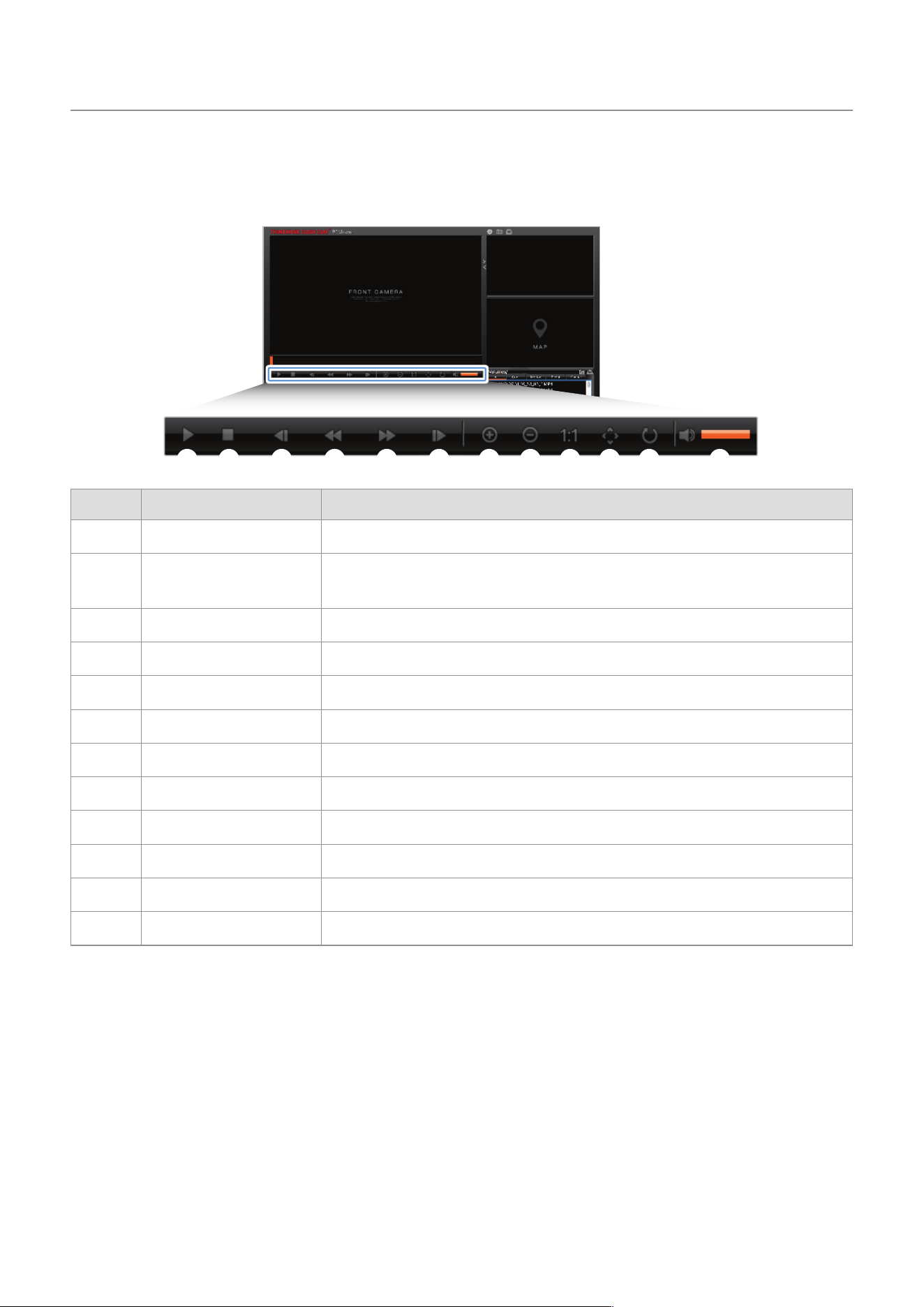
Using the PC viewer
55
8.3.4 Video control menu overview (for Mac)
The following provides brief information about the PC viewer's video control menu.
➊ ➋ ➌ ➍ ➎ ➏ ➐ ➑ ➒ ➓
Number Item Description
➊
Play/Pause Play or pause the selected video file.
➋
Stop
Stop playing the current video. The progress bar will move to the beginning of
the video.
➌
Play the previous file Play the previous file in the currently selected folder.
➍
Rewind by 1 frame Rewind the video by 1 frame.
➎
Skip forward by 1 frame Fast forward the video by 1 frame.
➏
Play the next file Play the next file in the currently selected folder.
➐
Zoom in Zoom into the current video.
➑
Zoom out Zoom out of the current video.
➒
Restore image size Restore the size of the current video to the original size.
➓
Display scrollbar Display the scrollbar when the image is enlarged.
Reverse image Reverse the video upside down.
Volume Adjust the volume of the current video.

56
9. Troubleshooting
The following table lists the problems users may encounter while using the product and measures to
resolve them. If the problem persists after taking the measures provided in the table, contact the customer
service center.
Problems Solution
Cannot power on the product
•Make sure the power cable (the cigar socket power cable or the hardwiring
cable) is connected to the vehicle and the product properly.
•Check the vehicle’s battery level.
The product does not operate
even when touching the display.
Insert a pin into the Reset button pinhole on the side of the product to reset the
product. After resetting the product, the Settings screen and Video playback
screen will not disappear.
The voice guide and/or buzzer
do not sound.
Check if the volume is set to the minimum. For more information about how to
adjust the volume, refer to "5.4.2 Adjusting the system volume".
The video is unclear or hardly
visible.
•Ensure that the protective film on the camera lens has been removed. The
video may look unclear if the protective film is still on the camera lens.
•Check the installation location of the front or rear camera, turn on the product,
and then adjust the camera's viewing angle while monitoring the LCD display.
The memory card cannot be
recognized.
•Ensure that the memory card has been inserted in the correct direction. Before
inserting the memory card, ensure that the metal contacts on the memory card
are facing toward the lens of the product.
•Turn off the power, remove the memory card, and then check to ensure that the
contacts in the memory card slot are not damaged.
•Ensure that the memory card is an authentic product distributed by
THINKWARE. THINKWARE does not guarantee compatibility and normal
operation of third-party memory cards.
The recorded video cannot be
played on a PC.
The recorded videos are stored as MP4 video files. Ensure that the video player
installed on your PC supports the playback of MP4 video files.
GPS signal cannot be received
even though the external
GPS module (optional) or the
THINKWARE Connected Dongle
(optional) is installed.
•Ensure that the external GPS module or the THINKWARE Connected Dongle is
properly connected. For more information, refer to "2.3 Installing the external
GPS module (optional)" or "2.4 Installing the THINKWARE Connected Dongle
(optional)".
•The GPS signal may not be received in out-of-service areas, or if the product is
located between tall buildings. Also, GPS signal reception may not be available
during storms or heavy rain. Try again on a clear day at a location that is
known to have a good GPS reception. It may take up to 5 minutes until GPS
reception is established.

57
10. Specifications
To see the product specifications, refer to the following table.
Item Specification Remarks
Model name X700
Dimension / Weight 102 x 54 x 29 mm / 104 g
Display panel FHD 2 Channel 2.7 inch LCD
Memory microSD Memory card (UHS-I) 16 GB / 32 GB / 64 GB
Recording mode
Continuous Rec
Records videos in 1-minute segments (dual channels
are supported for recording the front and rear view)
Incident Rec
Records 10 seconds before and after the incident
(total 20 seconds)
Manual Rec
Records 10 seconds before and after manually
starting the recording (total 60 seconds)
Parking Rec (parking mode) Requires the hardwiring cable installation
Camera sensor 2.13M Pixels, 1/2.8” CMOS, 1080p
Image sensor IMX291
Angle of view 142.7° (based on the opposite angle)
Video
FHD (1920 X 1080) / H.264 /
file extension: MP4
Frame rate Maximum 30 fps
Audio PCM (pulse code modulation)
Acceleration sensor 3-axis acceleration sensor (3D, ±3G) 5 levels for sensitivity adjustment available
Rear camera V-IN port
Optional accessory that requires separate
purchase
GPS
•External GPS module (optional)
•THINKWARE Connected Dongle
(optional)
•Safety driving section alert supported,
stereo socket 2.5 Ø / quadrupole
•THINKWARE Connected Dongle (optional): Safety
driving section alert, Parking Incident alert, Low
voltage alert, dashcam power off alert, vehicle
battery status, last parking location supported,
stereo socket 2.5 Ø / quadrupole
Power input DC 12 / 24 V supported
Power consumption 2 CH: 3.5 W / 1 CH: 2.5 W (mean)
Except for the fully charged supercapacitor / the
LCD OFF status / GPS
Auxiliary power unit Supercapacitor
LED indicators
•Front: Security LED
•Rear: Status LED, Rec LED (2 ea)
Alarm Built-in speakers Voice guide (buzzer sounds)
Operating / Storage
temperature
-10–60℃

Specifications
58
Before contacting a service center
Please backup all important data stored in the memory card. The data in the memory card may be deleted
during repair. Every product requested for repair is regarded as a device that has had its data backed up.
The customer service center does not back up your data. THINKWARE is not responsible for any loss, such
as data loss, caused by product repair.

http://www.thinkware.com
Ver. 1.4 (July. 2019)
