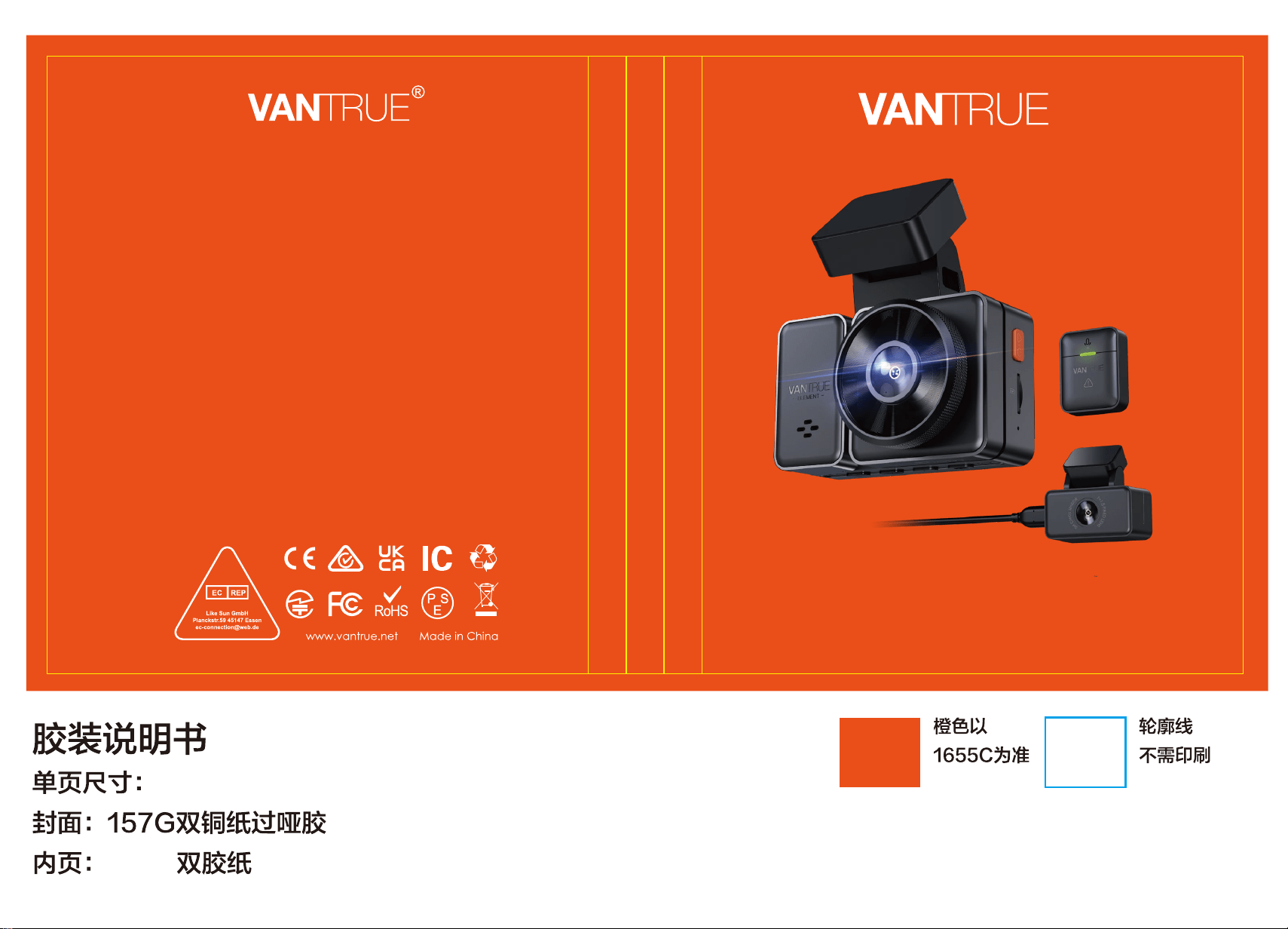
English/Deutsch/Français/Polski Element 2
User Manual
122mmX130mm
70g
Voice-Controlled Dual Dash Cam
更新内容:
20230531更改图文解说错误

Hey, find us here:
www.vantrue.net/contact
facebook.com/vantrue.live
V6

CONTENTS
VERZEICHNIS
CONTENU
SPIS TREŚCI
6
49
Installation
Installation
Installation
Instalacja
3.
94
138
43
88
132
175
Warranty & Support
Garantie und Support
Garantie & Support
Gwarancja & wsparcie
6.
42
87
131
174
Specifications
Spezifikation
Spécification
Dane techniczne
5.
Camera Overview
Die Übersicht über Kamera
Vue d'ensemble de la caméra
Budowa kamery
2
45
90
134
2.
18
61
106
150
Basic Operation
Grundlegende Bedienung
Opérationdebase
Podstawowe funkcje
4.
1
44
89
133
What’s in the box?
Was ist in der Box?
Qu'ya-t-ildanslaboîte?
Co znajdziemy w pudełku?
1.
- 1 -
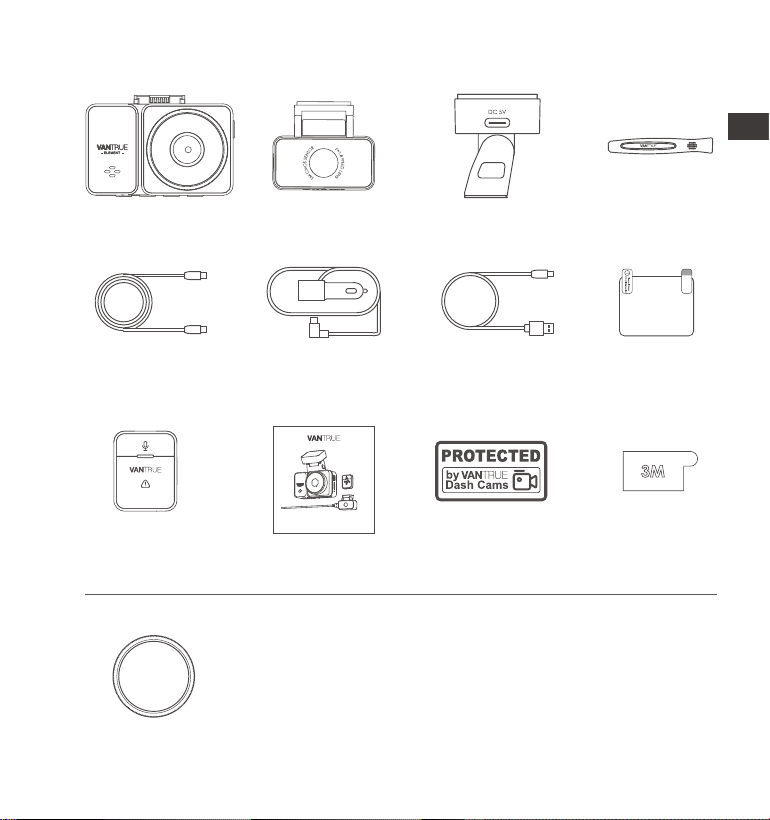
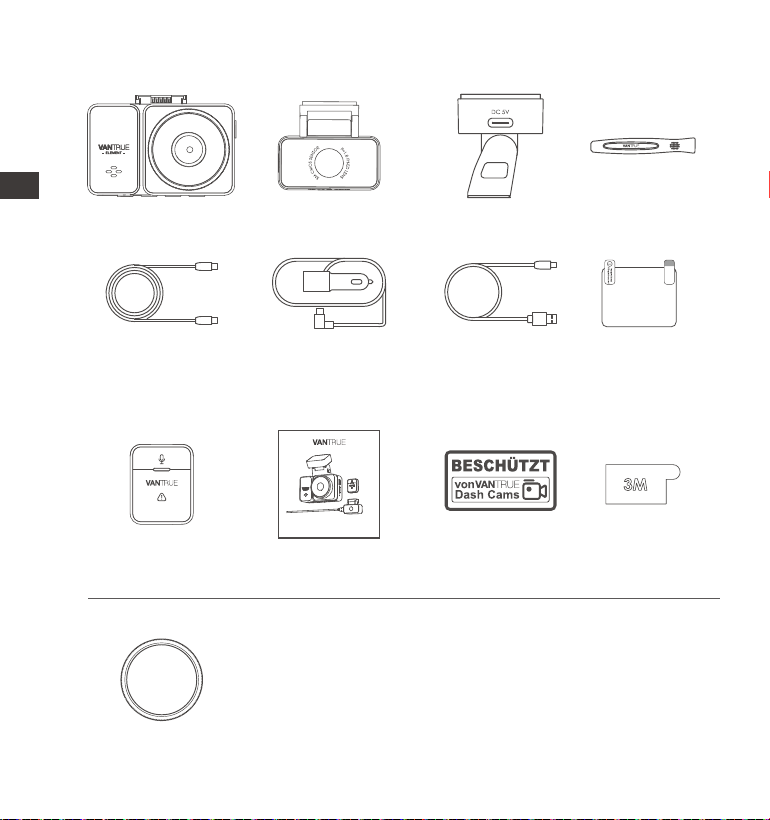
1. What’s in the Box?
H.
3M Adhesive
Stickers
Wireless Remote
Control
L.
CPL Filter
A.
Vantrue E2
Dash Cam
E.
GPS Adhesive
Mount
I.
M.
B.
Rear Camera
G.
User Manual
K.
D.
Crowbar
C.
Type C Data Cable
(3.3ft, for transferring
files only)
F.
Car Charger with
Built-in Type C
Cable(11.5ft)
Cable for Rear
Camera(20ft)
Warning Stickers
J.
Electrostatic
stickers
Optional Accessories
Element 2
User Manual
Voice-Controlled Dual Dash Cam
EN
EN
EN
EN
- 2 -
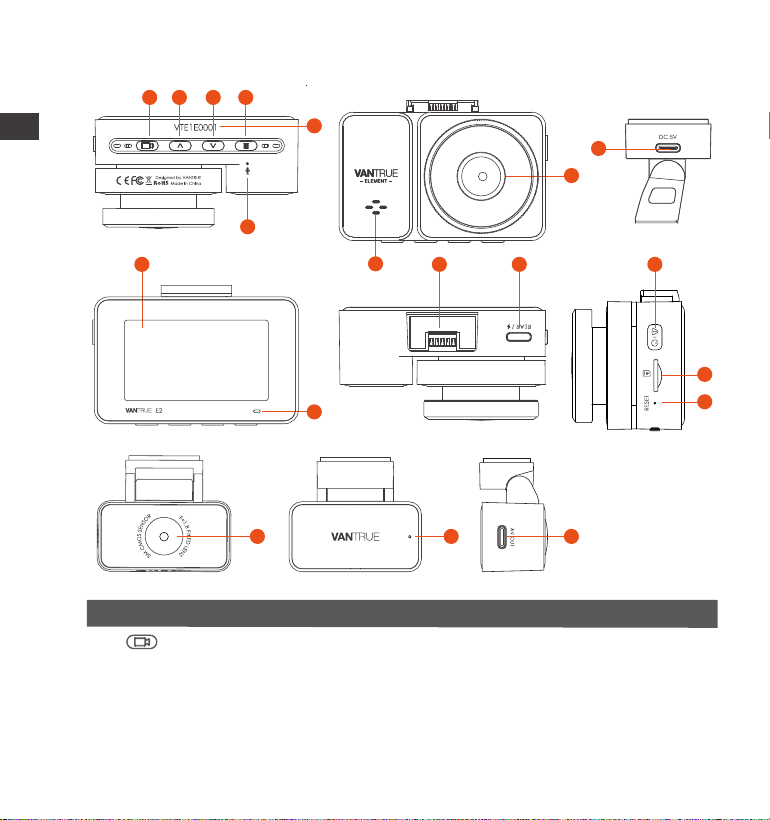
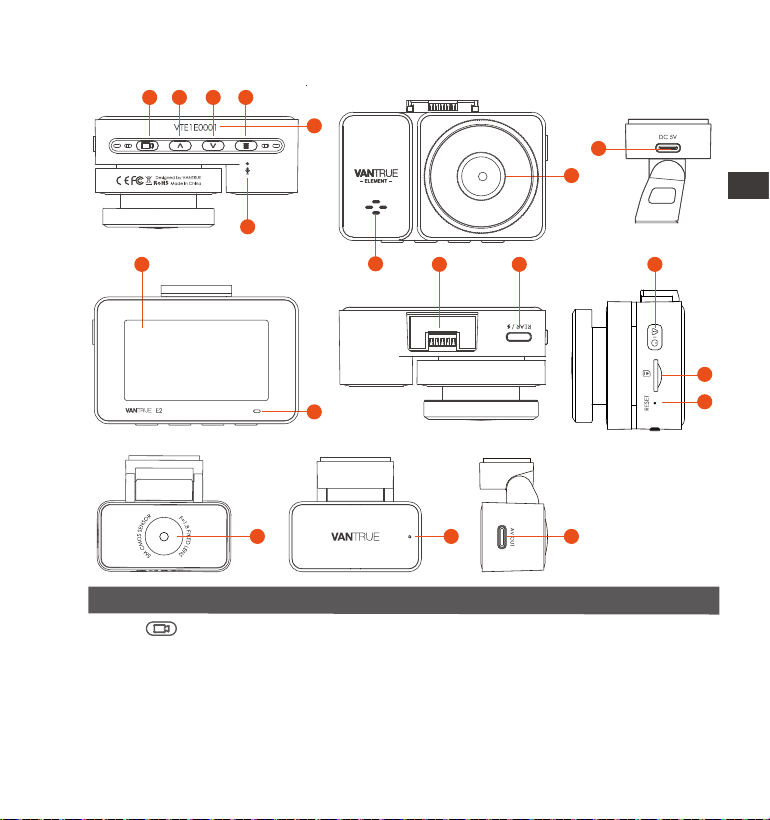
2. Camera Overview
NO. DescriptionName
During video recording, you can long press to turn
off the screen, and short press to stop recording
and enter standby mode; you can confirm the
selected option in the menu; when playing back
a file, press the button to play/pause the file
1 Button
9
8
1 2 3
4
5
6
15
16
10 13
1412
11
17 18 19
7
ENEN

- 3 -
2 During video recording and standby, short press
to switch the video window; in menu setting and
file browsing, short press to display the previous
option, long press to scroll up to display options;
in playback mode, short press to fast forward; in
WiFi mode, press any key to exit WiFi
During video recording and standby, long press
to quickly enter parking mode, and short press to
turn on/off the microphone; in menu settings,
long press to scroll through menu options, and
short press to display the next menu option;
during file browsing, long press to scroll to display
file, short press to display the next file; in playback
mode, short press to pop up the delete file menu;
in WiFi mode, press any key to exit WiFi
During video recording, long press to turn on/off
WiFi; In standby state, short press to enter the
menu or return, and long press to turn on or off
WiFi; in WiFi mode, press any key to exit WiFi
Button
4
5
3 Button
Button
Serial Number Serial number for warranty registration
7 Speaker Delivers sound during video playback
6
Microphone Records clear audio with the video footage
10
Screen 2.45” LCD Screen
11 REC Green light means the camera is powered on
8
Front Camera Front facing camera for video recording road
events.
9
Power Port Connects to Type C cable or car charger for
external power supply
EN
EN
EN
EN
- 4 -
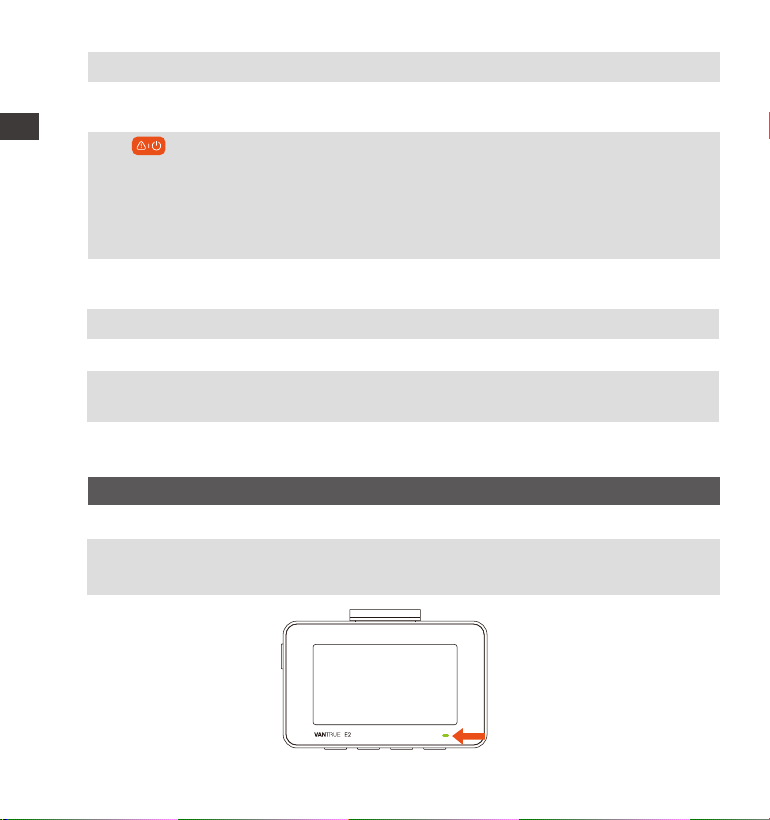
LED Indicator
12
Mount interface Location of the installing mount
13 Type C Port for
Rear Camera
Connects the rear camera into this Port; connects
the data cable for data transfer
14
Button
16
Reset Button Short press to restart the camera
17 Rear Camera Records road events behind the car
18
Indicators for
Rear Camera
A green light indicates that the rear camera is
connected to power
19 Rear Camera
connector
Connection port for rear camera cable
15
SD Card Slot Supports Micro SD Card up to 512GB in FAT32,
Class 10
DescriptionLED
Steady green light
Blinking green light
Instandbystatus, or the REC light is set to off
Camera is recording
During the video recording, short press will lock
the current video and take a picture, long press
to shut down; in standby mode, short press will
capture the picture, long press will shut down; in
WiFi state, short press to exit WiFi, long press to
shut down
LED Status
REC
ENEN
ENEN
1440P+1440P 30FPS
14:39:07 11-18-2022
00:00:37
MP/H
35
- 5 -
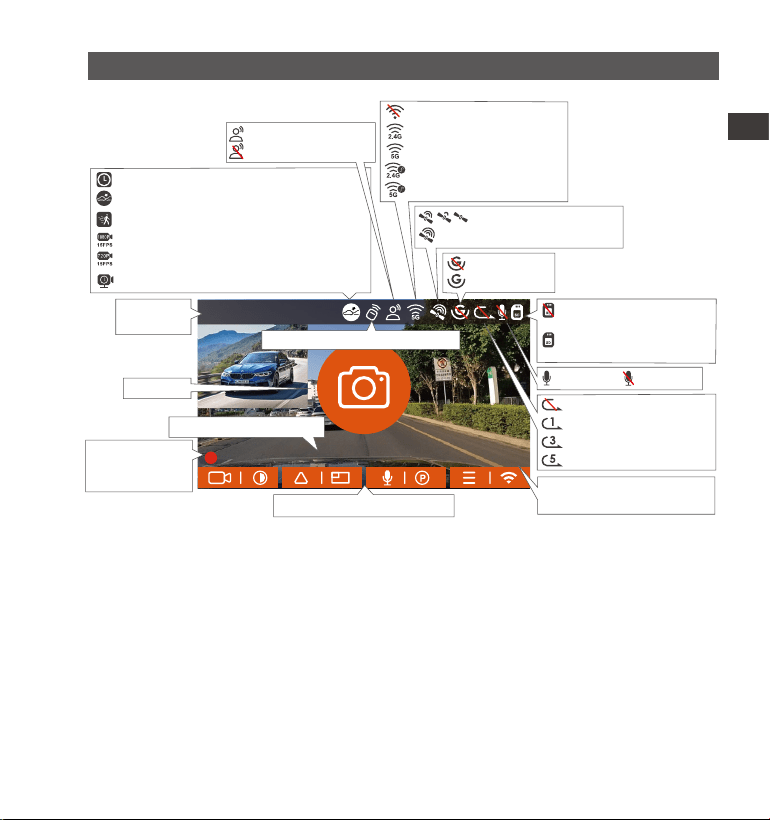
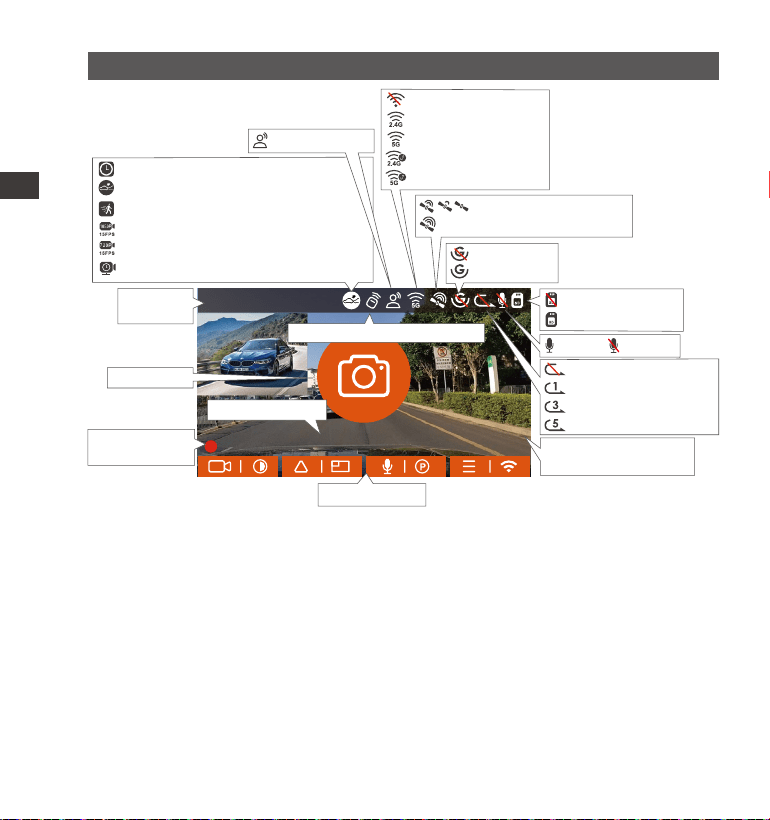
Screen Overview
Mic is ON Mic is OFF
No memory card or the
card is not recognized
G-Sensor OFF
G-Sensor ON
Recorded Driving
Speed (KMH or MPH)
Video
Resolution
Snapshot
Time Lapse On
Collision Detection ON
Motion Detection ON
1080P Low Bitrate Recording ON 15FPS
720P Low Bitrate Recording ON 15FPS
Low Framerate Parking Mode
Wi-Fi is Turned off
2.4G Wi-Fi is On
5G Wi-Fi is On
2.4G Wi-Fi is Connected
5G Wi-Fi is Connected
MP/H
35
Memory card is working
properly
EN
EN
EN
EN
Parking Mode
Recording Time
(Current Clip)
Current Date and Time
Remote control is connected
Icons for Indicating Buttons
Loop recording off
Loop recording for 1 min
Loop recording for 3 mins
Loop recording for 5 mins
Voice control is off
Voice control is on
GPS Signal Connecting
GPS Signal Locked
- 6 -
Before using this card, please follow the steps below to format it properly:
If the camera is recording, please press the button to pause the
recording, then press the button to enter the menu, then enter
“System,” select " Format SD Card " , and confirm to format the memory
card until it prompts "Formatted successfully."
3. Installation
3.1 Installing a Memory Card (Recommended: Vantrue U3 high-speed
microSD card)
Please insert a memory card (memory card capacity: 32GB-512GB, card
speed: U3/Class10/A2). The dashcam has certain requirements on the
card speed of the memory card. For reliable operation, we recommend
using a VANTRUE SD card(sold separately).
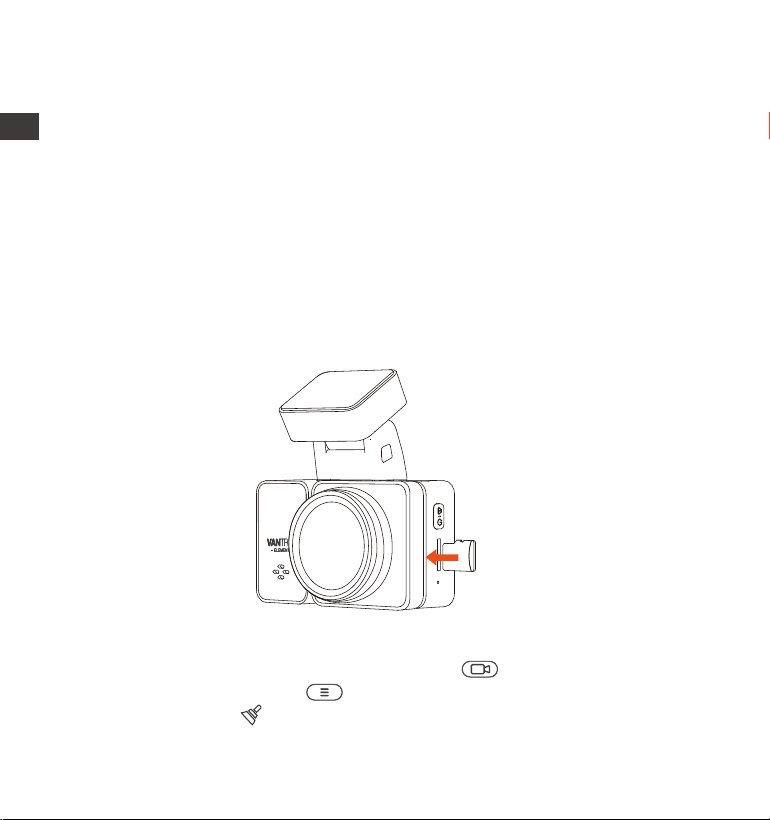
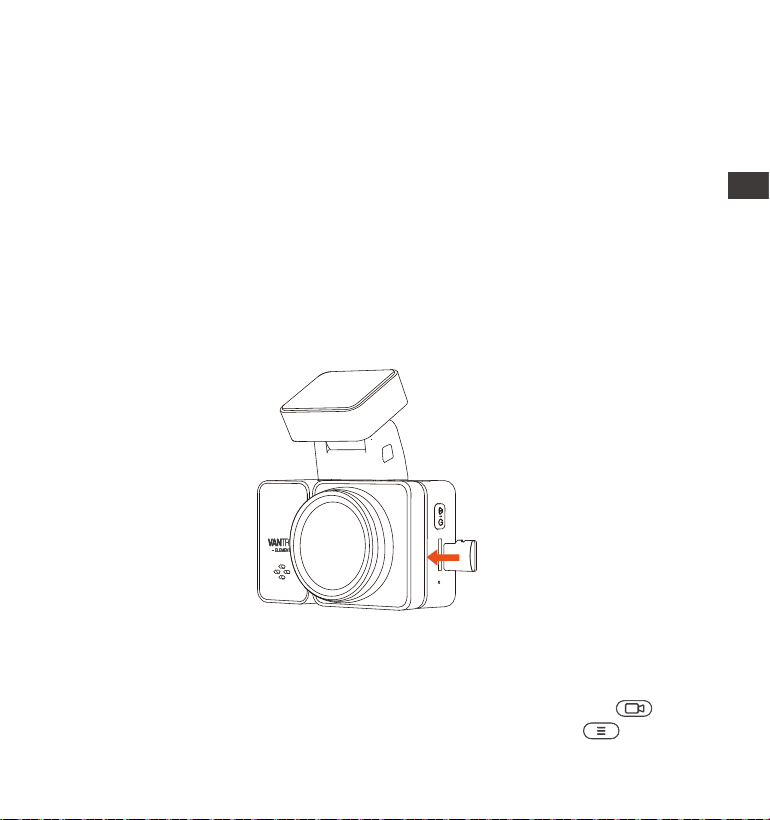
Memory Card Installation: There is an icon indicating the insertion
direction of the memory card. Please push the memory card into the
card slot according to the direction indicated by this icon, until a "click"
sound is heard in the card slot, indicating that the memory card is
inserted properly.
ENEN

- 7 -
After inserting the memory card, if the screen prompts "Card error, please
format" (please note that the camera does not record at this time).
Please directly press the button to enter the menu and start the
formatting process.
We recommend formatting the card once a month to ensure the
normal operation of the dash cam.
Do not remove or insert the memory card during recording to avoid
losing important videos.
Please do not use bad cards or low-speed cards on the dash cam, as it
is easy to stop or lose the recording due to the failure of a memory card.
Before formatting the memory card, please check the event video
folder in the SD card to see if there are any videos that need to be
saved separately, so as not to delete important videos by mistake.
REMINDER:
1.
2.
3.
4.
EN
EN
EN
EN
- 8 -
3.2 Installing the camera onto your windshield
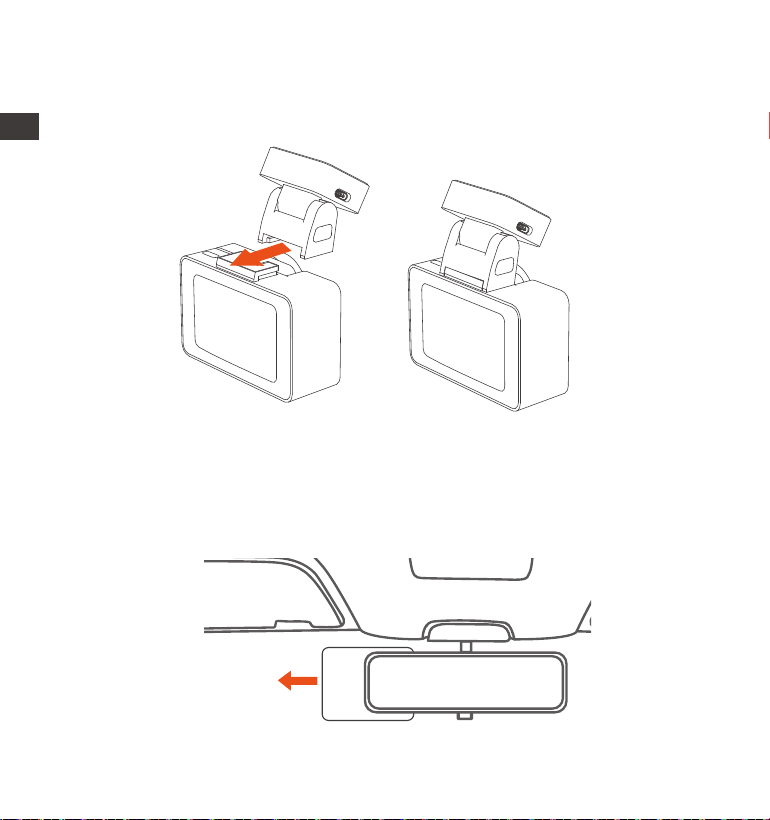
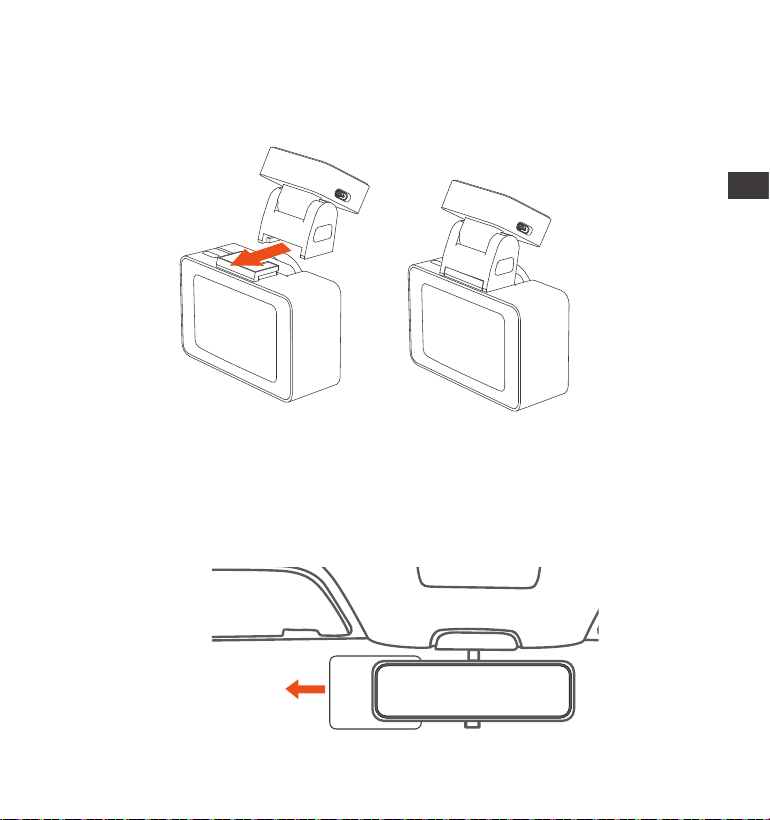
Installation of camera mount: Align the mount with the dash cam
mount interface then push in until the mount is installed.
1.
ENEN
Installation of electrostatic stickers: Thoroughly clean the windshield
with water or alcohol, then wipe it with a dry cloth. Stick the electro-
static sticker behind the rear-view mirror, which is the recommended
position to prevent blocking your view while driving.
2.
Electrostatic sticker
- 9 -
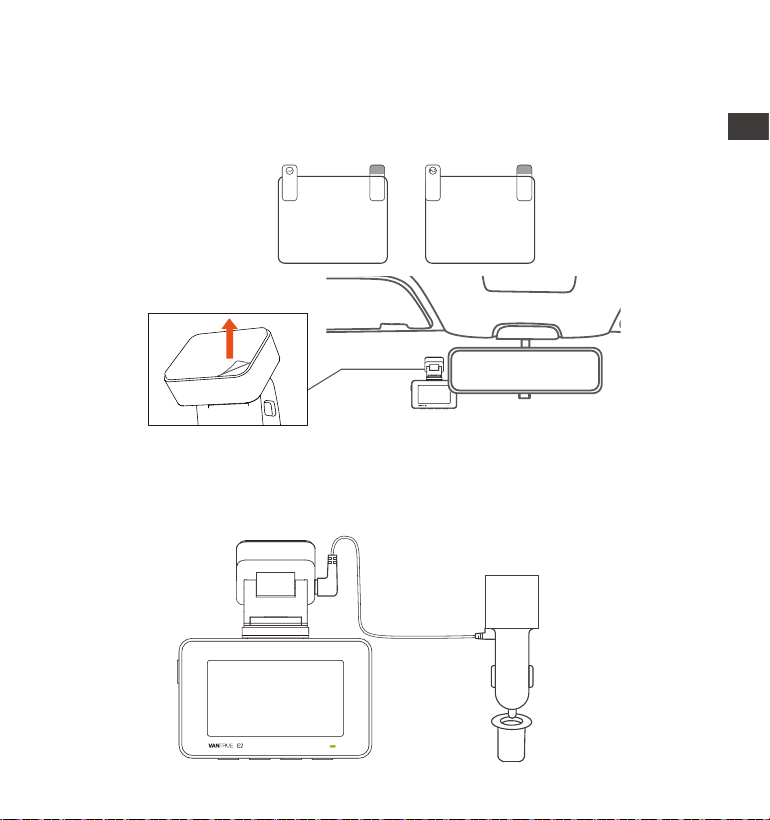
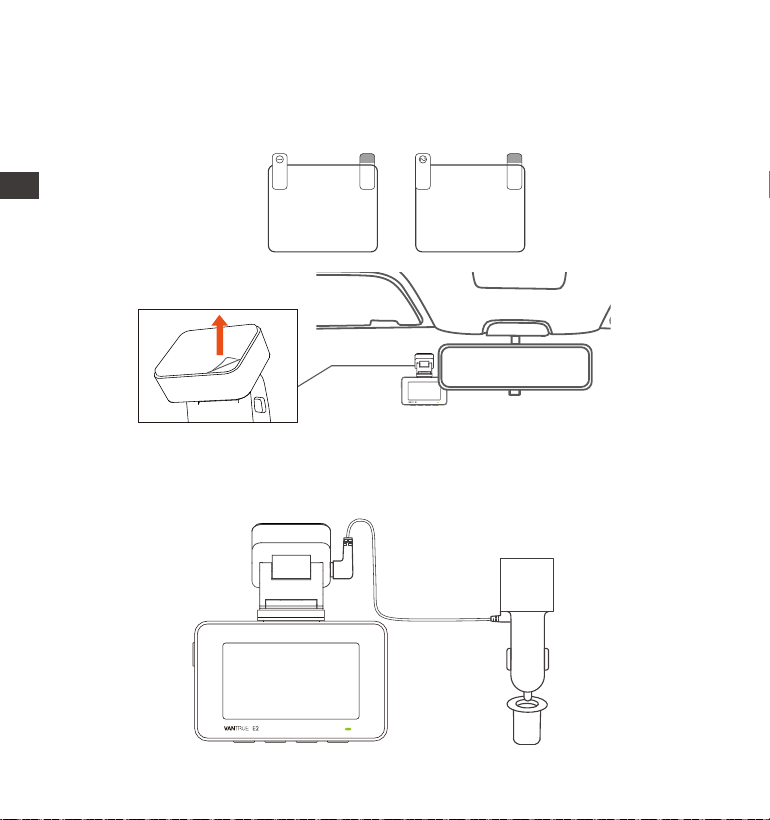
Installation of car charger: Connect one end of the car charger to the
car cigarette lighter and the other end to the Type C port on the front
camera GPS mount. When the green light of car charger is on, it
means it is powered on.
3.
Note: There are two protective films numbered 1 and 2. Please remove
the protective film from No. 1, paste the electrostatic sticker on the
windshield, and then remove the protective film from No.2. Remove
the 3M tape from the mount, then fix the mount and camera on the
electrostatics stickers.
Please peel off this mask
AFTER application completed
Please peel off this
mask BEFORE application
EN
EN
EN
EN
- 10 -
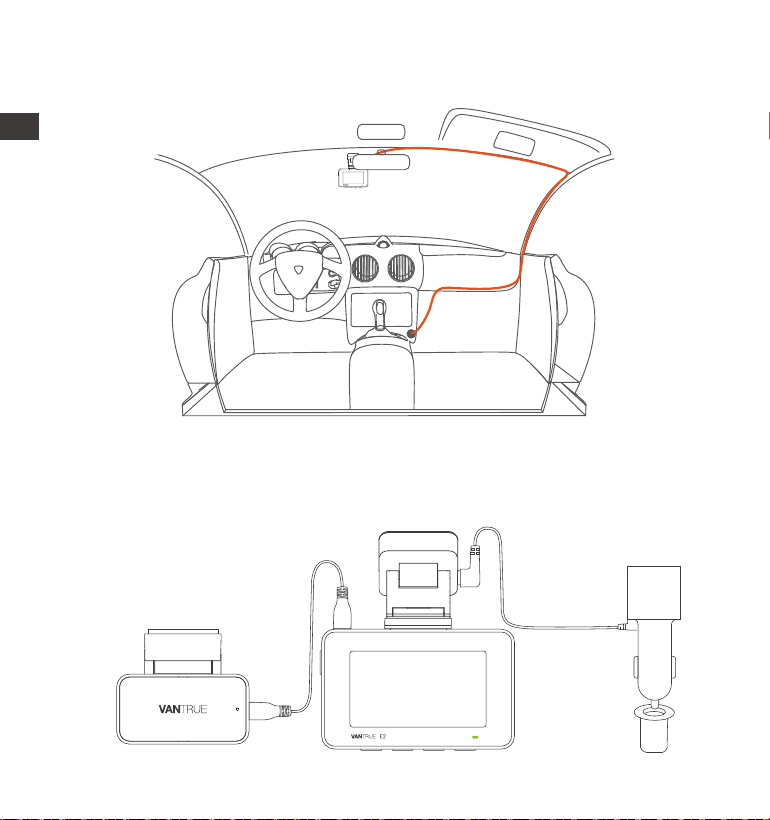
Take out the rear camera cable, connect the main camera and the
rear camera, and take out the car charger to connect it. After the
camera is powered on, choose a suitable location and install it.
4.
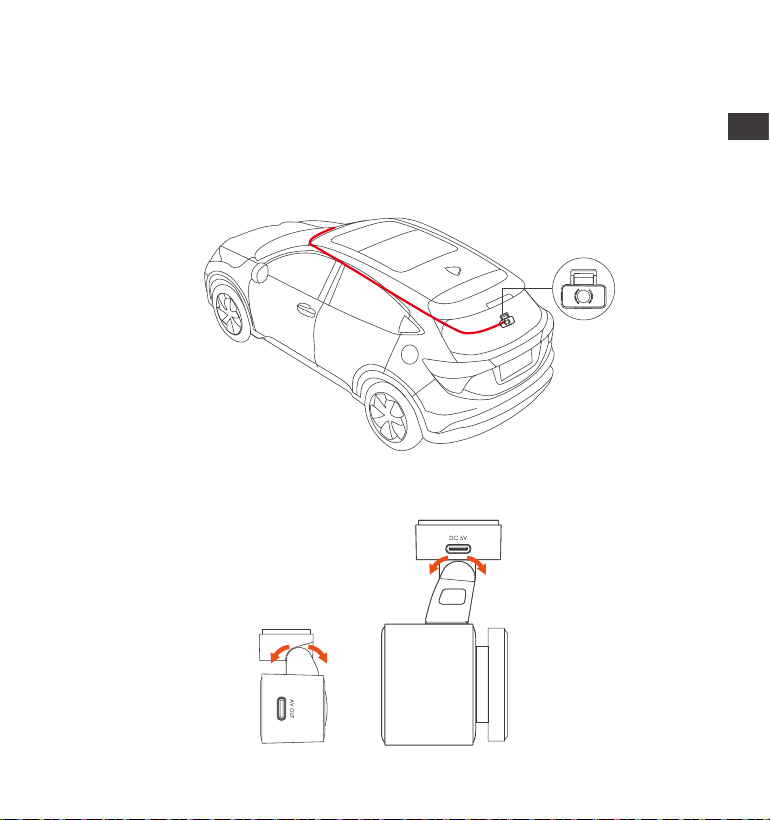
After installing the main camera and rear camera, please arrange the
car charger cable in the direction shown in the figure.
ENEN
- 11 -
Rear Camera Installation : Please select the installation position on the
rear windshield. We recommend that you select a position close to the
center of the rear windshield, and avoid the defogging line on the rear
windshield, so as not to affect the video effect. Remove the protection
film of the sticky pad and rear camera lens. Fix the rear camera in the
selected position and adjust the angle, then use the rear camera
cable to connect the rear camera with the main front camera.
5.
EN
EN
EN
EN
The angle of the window glass of each model is different, please adjust
the recording angle of the main camera and rear camera up and
down according to actual needs.
6.

- 12 -
3.3 APP Download
Please scan the QR code for the relevant version below to download the
app and install it.
Search for the "Vantrue" app in App Store or Google Play Store to find
the app and then download and install it on your phone.
Note: After this camera is successfully connected to your mobile phone
through WiFi, it can perform real-time video preview, change camera
settings, download files without internet connection, and play back
videos on the mobile phone. However, the GPS track playback and
video sharing functions will depend on the internet or telecom
value-added services ( requires you to turn off/disconnect the camera
WiFi).
ENEN
- 13 -
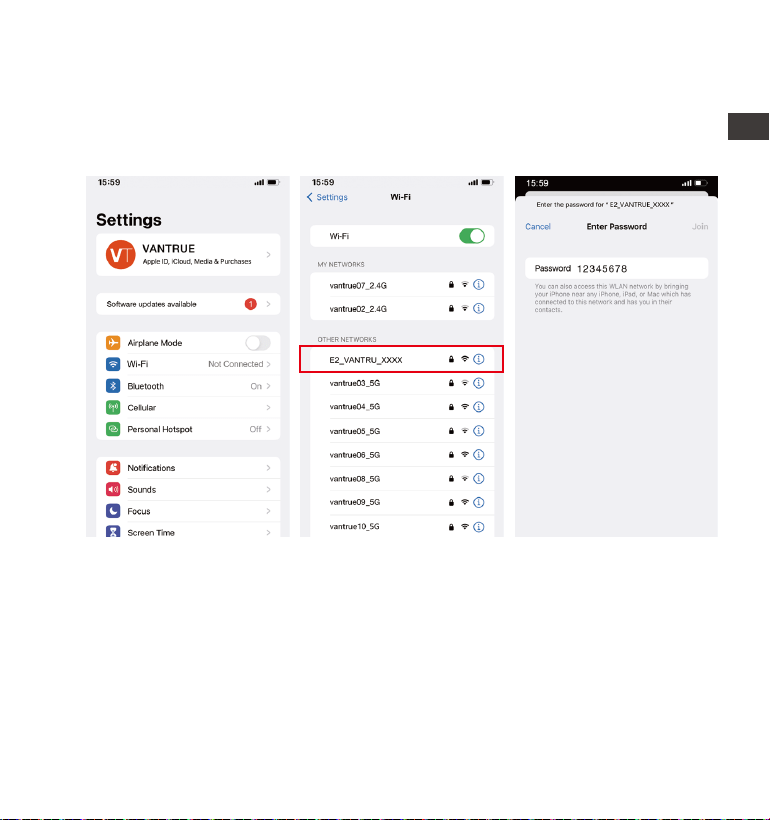
3.4 WiFi Connection
Turn on the WiFi function of the camera, enter the WiFi settings of the
mobile phone, then find the WiFi name, such as: E2_VANTRUE_XXXX, and
enter the WiFi default password: 12345678 to connect to WiFi.
EN
EN
EN
EN
- 14 -
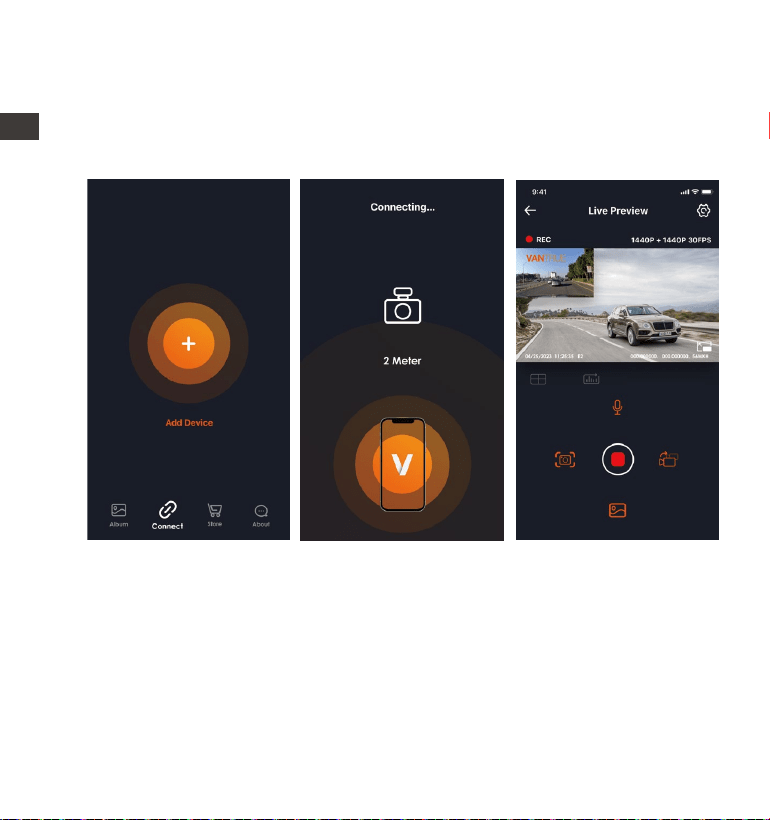
After the WiFi connection is successful, click "+" when opening the app
for the first time, add the camera model, and then the app will automati-
cally connect to the camera and display the current real-time recording
situation of the camera.
3.5 APP Connection
Note:
If you do not connect to WiFi before opening the app, the app will
prompt you by saying "Please connect to WiFi first", and will automati-
cally jump to the WiFi settings. Please complete the steps to connect
to WiFi first.
If the WiFi is already connected, but the app jumps to the application
permissions of the APP after selecting the model, please check
whether the wireless network permission of the app are turned on.
1.
2.
ENEN

- 15 -
3.
4.
5.
The initial password for this device is only used for initial login. In order
to prevent potential security risks, please be sure to change the initial
password after the initial login to prevent others from logging into your
device without authorization or other adverse consequences.
If you forget the WiFi password, you can restore the default setting of
the device, and the Wi-Fi password of the device will also be restored
to the default password(12345678).
For Android system users, there is no need to jump to the Wi-Fi
interface of the mobile system to connect, just operates within the APP
interface.
EN
EN
EN
EN
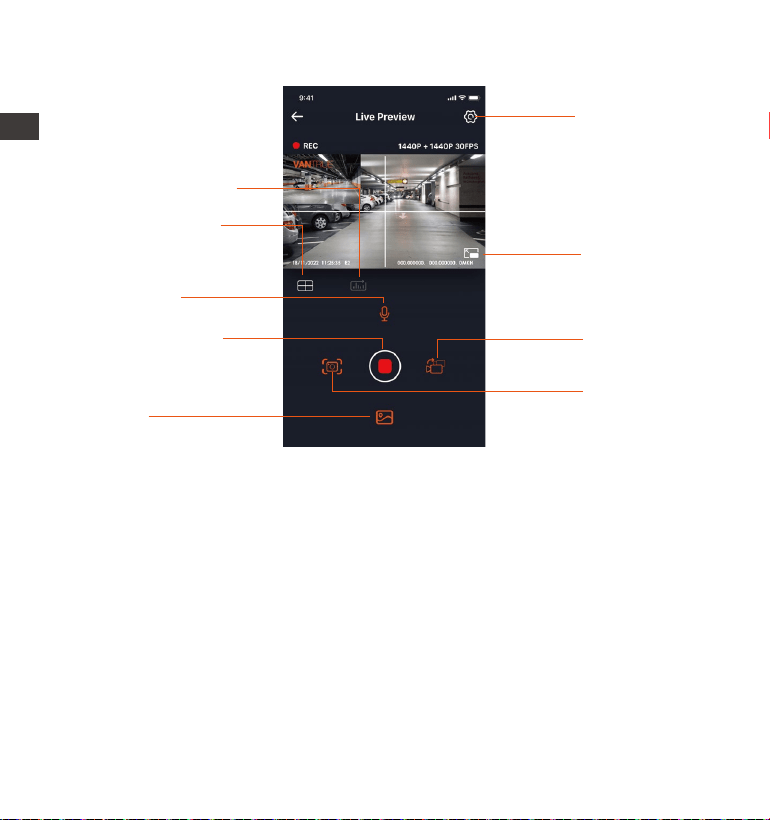
- 16 -
Camera Setting
Full-Screen icon
Front and Rear
Display Switch
Snapshot
Album
Stop Recording
icon
Microphone on/
off setting
Lens correction
line
Mileage Statistics
3.6 App Operation
After entering the App’s real-time preview, you can perform the following
operations:
Video preview: After the app is successfully connected to the camera,
enter the real-time preview page, click the full-screen icon or place the
phone horizontally, and the real-time screen will automatically switch to
the full-screen preview mode. Click the window switch icon to switch the
front and rear video windows, but only multi-channel dash cams can use
this feature.
Video playback: The video and photo files recorded on the SD card can
be viewed in the app, and the video can be played back after clicking
the file.
ENEN
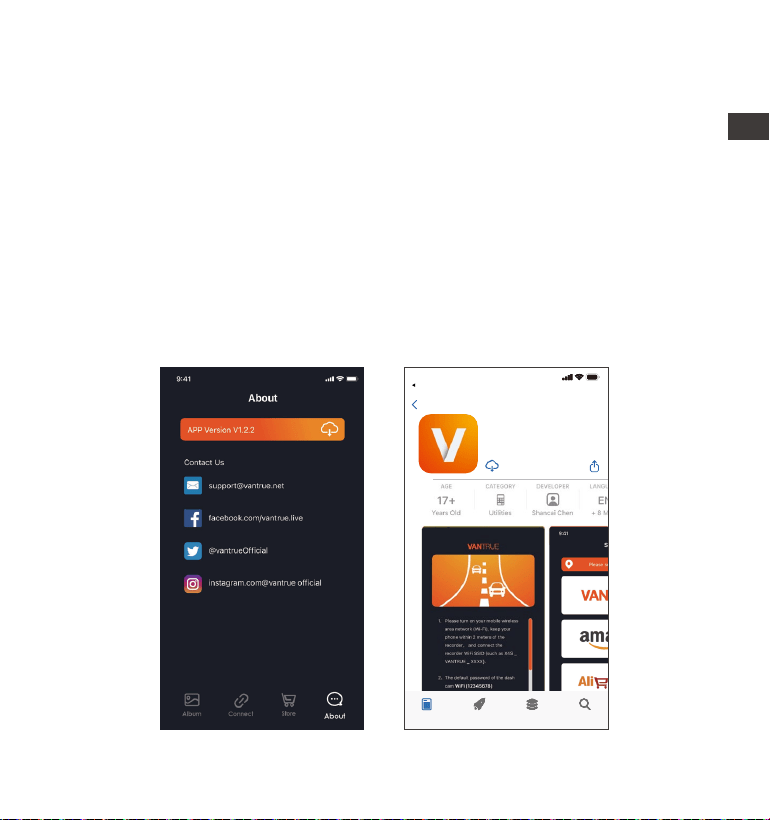
- 17 -
3.7 APP Upgrade
Video download: You can select the video or picture you want to
download in the SD card browsing interface or in the video playback
area. After downloading the video, if you play it in the local file of the
app interface, you can view the GPS track of the video.
Video snapshot: You can capture the current screen in the real-time
preview interface of the app.
Open the "Vantrue" App, connect to the Wi-Fi, and enter "Settings>
About> Detect New Version". The App will automatically detect whether
its version is the latest version. If there is a new version of the app, follow
the prompts and upgrade the version.
EN
EN
EN
EN
Vantrue Ltd.
Vantrue
Vantrue
9:41
Today Games Apps Search
Back
- 18 -
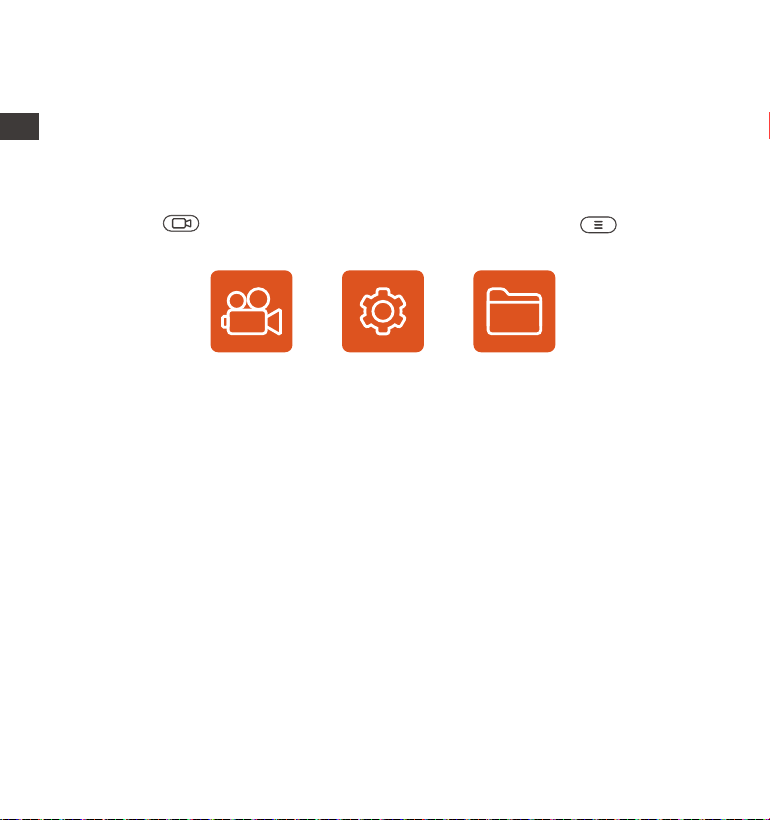
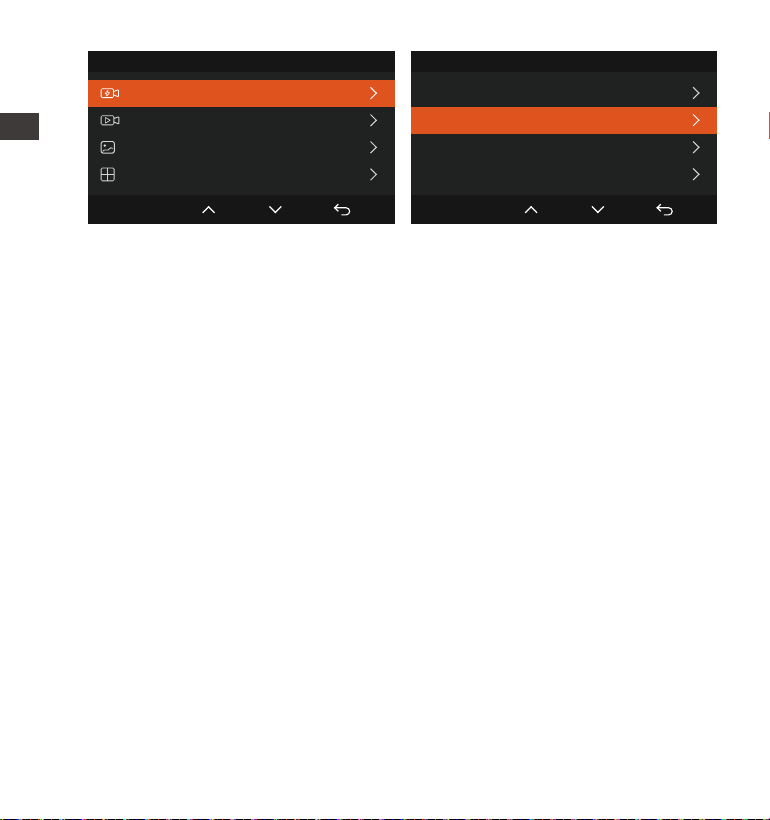
The E2 dash cam has 3 function menus, which are: record settings, system
settings, and file browsing. You can set your dash cam according to your
requirements with these function setting.
Press the button, pause the video first, then press the button to
enter the menu settings.
4. Basic Operation
4.1 Menu Settings
Record System Files
A. Record Setup
-Resolution: The E2 camera has 2 resolution modes: Front + Rear dual
recording mode, or Single front recording mode.
Front+Rear Camera:1944P+1944P 24FPS; 1440P+1440P 30FPS;
1440P+1080P 30FPS; 1080P+1440P 30FPS; 1080P+1080P 30FPS; 1080P+720P
30FPS; 720P+1080P 30FPS; 720P+720P 30FPS
Front Camera only:2592x1944P 30FPS; 2560x1440P 30FPS; 1920x1080P
30FPS; 1280x720P 30FPS
-Loop Recording: Default setting is 3 min. You can choose the options
among 1/3/5 min and OFF.
-G-Sensor: Select the level of G-sensor you need, then you can set 3
directions (Front + Rear/Left + Right/Up + Down). The G-sensor value in
each direction can be selected as 1/2/3/4/5/Off. The higher the sensitivi-
ty level, the easier it is to trigger event recording. G-sensor is most
sensitive when set to 5.
-Audio Recording: The default is ON. Set recording to on or off.
ENEN

- 19 -
-Exposure: The default value is +0.0. Adjust the exposure of the lens.
-REC Status Light: Default setting is ON. You can choose to turn on/off the
recording status light.
-WDR: Default is on. WDR enables the camera to provide near-perfect
exposure under different lighting conditions. You can choose to turn
WDR on/off.
-Rotate Display: Default is off. You can choose to flip the video screen up
and down(180 degrees).
-Rear Mirror: The default is On. After it is turned on, the rear camera
image is displayed in mirror mode.
-Number Plate: Select the number or letter to be set. After setting, your
license plate number can be displayed in the recorded video.
-Stamp: Enable or disable the watermark stamp on video and photos.
The watermark stamp includes time and date label, VANTRUE label,
license plate number, GPS location information, and speed label. All
enabled by default.
-Time Lapse: The default value is disabled. You can choose to enable
1FPS/5FPS/10FPS/15FPS.
-Low-light Night Vision in Parking Mode: Default is on. When turned on, it
can optimize the recording effect of videos in parking mode.
-Parking Mode: You can choose the parking mode you need, including
Collision Detection/Motion Detection/Low Bitrate Recording/Low
Framerate Mode/OFF.
-GPS Settings: GPS is enabled by default. GPS ON/OFF settings, speed
unit settings, and GPS information are all set here.
B. System Setup
-Language: Available languages are Engish/Français/Español/Deutsch/I-
taliano/简体中文/русский/日本語/Polski.
-WiFi: The default is to turn on Wi-Fi automatically. Under this function, you
can set Wi-Fi to automatically turn on or off and view Wi-Fi information.
EN
EN
EN
EN

- 20 -
-Voice Control: The default sensitivity is Standard. Voice commands can
be recognized after the option is turned on. You can choose options
such as low sensitivity/high sensitivity/standard/off.
-Voice Content: Voice recognition commands. You can use different
commands to remote control the camera to work.
-Format Memory Card: Format all data on the memory card.
-Format Reminder Setup: Select the reminder options: 15 Days, 1 Month,
and Off. Default is off.
To prevent you from forgetting to format the memory card regularly, we
have added a format reminder time setting. You can choose to be
reminded after 15 days or 1 month, and calculate 15 days or 1 month
from the set date. When the time is up, you can choose "OK" to format,
or choose "Next."
Note: If you changing the format reminder option, the timing will restart
as soon as the option is changed.
-Date&Time: There are two ways to set the time and date: 1. GPS
automatic update, 2 Manual date/time setting. GPS automatic update is
enabled by default.
GPS automatically updates the date and time based on your time zone,
so you need to select the calibrate time zone first; you can also choose
to turn off GPS automatic update, turn on Manual date/time setting, and
manually calibrate date and time.
The date format and time zone settings can also be set under this menu.
-Auto LCD Off: Set the time to automatically turn off the LCD display after
no operation.
If you set the Auto LCD Off to 3 min, the camera’s LCD screen will auto
light off after 3 min but recording will continue. If the setup is Off, the
screen will not turn off. You can choose the options among 30s, 1Min,
3Min and OFF.
-Device Sound: Set the volume of the device. The default volume level is
3, the lowest is 0, and the highest is 5.
ENEN

- 21 -
-Prompt Tone: According to different situations, the dash cam is set with 5
kinds of prompt tones, which are power-on/off sound, keys sound, file
locked sound, format sound, and abnormal stop recording reminder. All
prompt tones are turned on by default.
-Frequency: Different countries have different frequencies. In order to
avoid affecting the video, you can choose 50Hz or 60Hz frequency
according to different regions.
-System Info: Check the current model, firmware version, and the
Vantrue official website.
-Certifications: You can view the certification information of E2 camera.
-Default Settings: Reset the device back to factory settings.
C. Files
Review the video and photo files recorded by the camera.
-Event: Critical event videos detected by G-Sensor activity or manually
locked by user.
The file name format is 20300128_140633_0008_E_A.MP4
-Normal: Standard videos recorded. This folder saves loop recording
video, parking mode video, and time-lapse video. The file name format
of Loop Recording video is: 20300128_140633_0008_N_A.MP4,
20300128_140633_0008_N_B.MP4; the file name format of Parking Mode
video is: 20300128_140633_0007_P_A.MP4,
20300128_140633_0007_N_B.MP4; the file name format of Time-Lapse
video is: 20300128_140633_0006_T_A.MP4,
20300128_140633_0006_N_B.MP4.
-Photo: Photos files. The file name format of Loop Recording video is:
20300128_140633_0005A.JPEG、20300128_140633_0005B.JPEG.
-All: All the standard videos and critical event videos recorded.
Note: The suffix A represents the files recorded by the front camera, the
suffix B represents the files recorded by the rear camera.
EN
EN
EN
EN

- 22 -
4.2. Main Functions
4.2.1 Loop Recording
After inserting the memory card and connecting the power, the E2 dash
cam will automatically turn on and enter loop recording. The duration of
each recorded video will be saved based on the loop recording time
you set, saved in the normal video folder.
When the capacity of the normal video folder reaches 70% of the total
capacity, the new loop recording file will automatically overwrite the
original loop recording files. After this function is enabled, the video file
will automatically overwrite the loop, so as not to stop recording during
the driving process.
Note:
2.
1.
3.
4.
The normal operation of the loop recording function is very dependent
on the speed of the memory card, so please format the memory card
regularly to avoid problems such as excessive memory card files and
card aging that affect the normal loop recording.
Please check the loop recording video regularly to avoid the necessary
videos being overwritten by loop.
After loop recording is turned off, the lock video function will no longer
work.
After the loop recording is turned off, the duration of each video will be
20 mins. When recording until the memory card is full, the camera will
stop recording, and prompt "Card full!"
ENEN
- 23 -
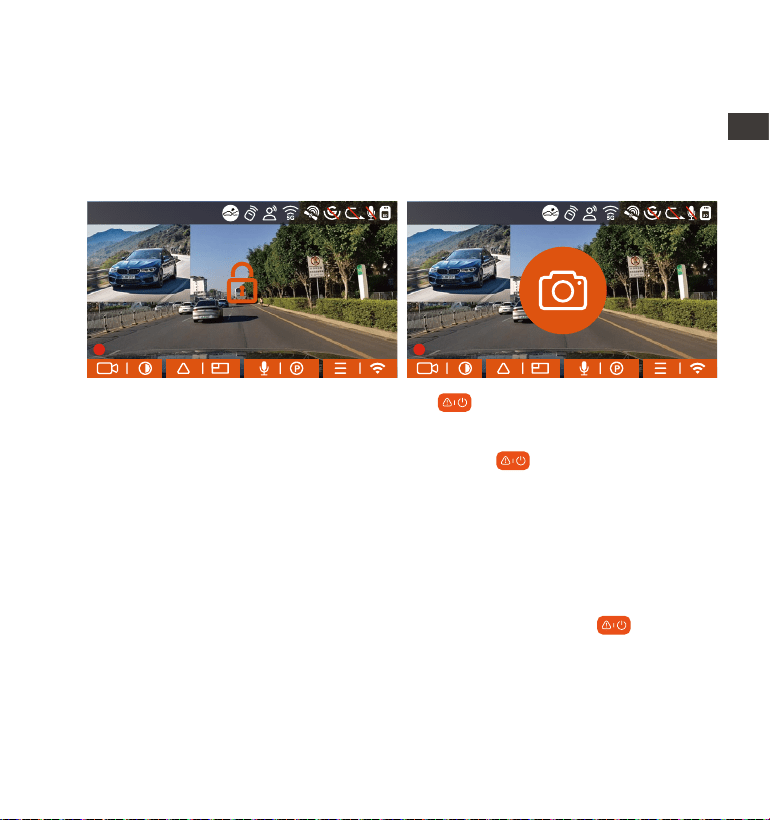
4.2.2 Event Recording
Event video is triggered by the G-sensor(Gravity Sensor), which can be
automatically triggered or manually locked.
During driving, in case of special circumstances, the camera will
automatically lock for event recording or you can manually lock it for
event recording.
To manually lock the video, just press the button to lock the current
video and snapshot.
During the lock video period, you can press the button to capture
multiple times. After recording, the video will be automatically saved in
the event video folder , and the photo will be saved in the photo folder.
Automatic locking event video is triggered when the car is hit/shaken.
The dash cam detects the vibration and automatically locks the current
video, which is saved in the event video folder.
During the locked recording period, you can also press the button to
take a picture. After the event video recording ends, the video will be
saved in the event video folder, and the photo will be saved in the photo
folder.
EN
EN
EN
EN
14:39:07 11-18-2022
00:00:37
MP/H
35
14:39:07 11-18-2022
00:00:37
MP/H
35
1440P+1440P 30FPS
1440P+1440P 30FPS
- 24 -
The sensitivity of the automatic locking video trigger is determined by
the sensitivity of the collision. The higher the sensitivity setting, the
greater the probability of being triggered.
The total capacity of the event video file accounts for 30% of the total
capacity of the current memory card. When the event video file
reaches the upper limit, the new event video file will automatically
overwrite the old event video file. It is recommended to periodically
check and save your event video files to avoid loss.
Lock recording will not trigger in either of the following situations: Loop
recording is off or Time lapse recording is on.
1.
2.
3.
Note:
Files 1/4
Event Video
Normal Video
Photo
All Files
OK
Event Video
20221118_140633_0001_E_A.MP4
20221118_140633_0001_E_B.MP4
20221118_140633_0002_E_A.MP4
20221118_140633_0002_E_B.MP4
2/5
OK
ENEN
- 25 -
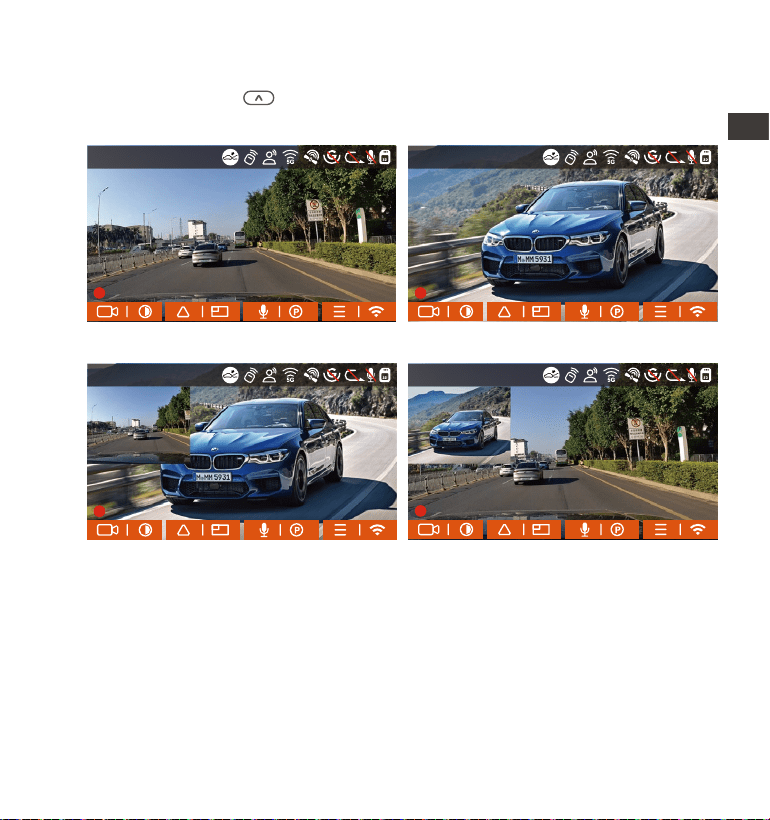
4.2.3 Switch the front and rear camera window display
You can press the button to switch display to make the front or rear
camera shows bigger on the LCD.
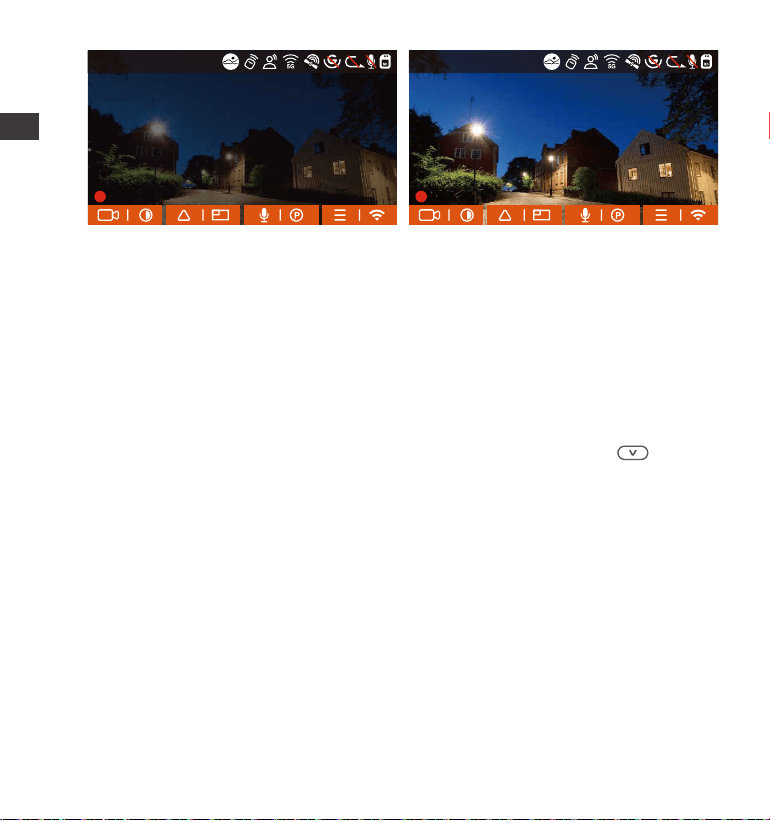
4.2.4 Low-light Night Vision in Parking Mode
In order to enhance the safety of parking at night, we make full use of the
lens performance combined with low-light night vision technology to
improve the night vision effect in parking mode. This function is in the open
mode by default. It will be triggered only after entering the parking mode
and will not affect normal recording.
Single Front Recording Display Single Rear Recording Display
Front(Small)+Rear(Big) Front(Big)+Rear(Small)
EN
EN
EN
EN
14:39:07 11-18-2022
00:00:37
MP/H
35
14:39:07 11-18-2022
00:00:37
MP/H
35
14:39:07 11-18-2022
00:00:37
MP/H
35
14:39:07 11-18-2022
00:00:37
MP/H
35
1440P+1440P 30FPS
1440P+1440P 30FPS 1440P+1440P 30FPS
1440P+1440P 30FPS
- 26 -
4.2.5 Parking Mode(When the parking mode is turned on, the time-lapse
video function will not work. These two functions cannot run at the same
time)
Parking Mode operates as a sentry function under different situations.
You can switch to different parking monitoring modes according to
different parking situations.
After the parking mode is turned on, there are two ways to record: 1. You
can wait for 5 minutes to start automatically; 2. long press the button
to begin manually.
Please use a hardwiring kit or other stable and continuous power supply
to power the camera to ensure that the camera works properly in
parking mode.
When the temperature in the car is as high as 60°C (140°F), it is recom-
mended that you turn off the camera to avoid abnormal operation of
the camera caused by the high temperature.
Time-lapse video recording and parking mode (including collision
detection, motion detection, low bitrate recording, and low framerate
1.
2.
3.
Note:
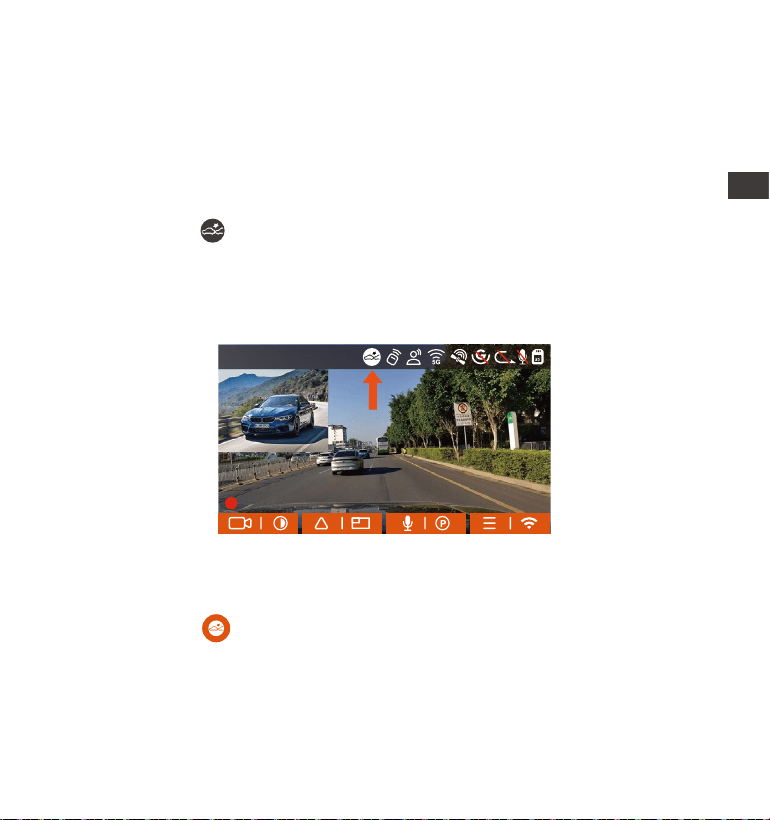
Low-light Night Vision Off Low-light Night Vision On
ENEN
14:39:07 11-18-2022
00:00:37
MP/H
35
14:39:07 11-18-2022
00:00:37
MP/H
35
1440P+1440P 30FPS 1440P+1440P 30FPS
- 27 -
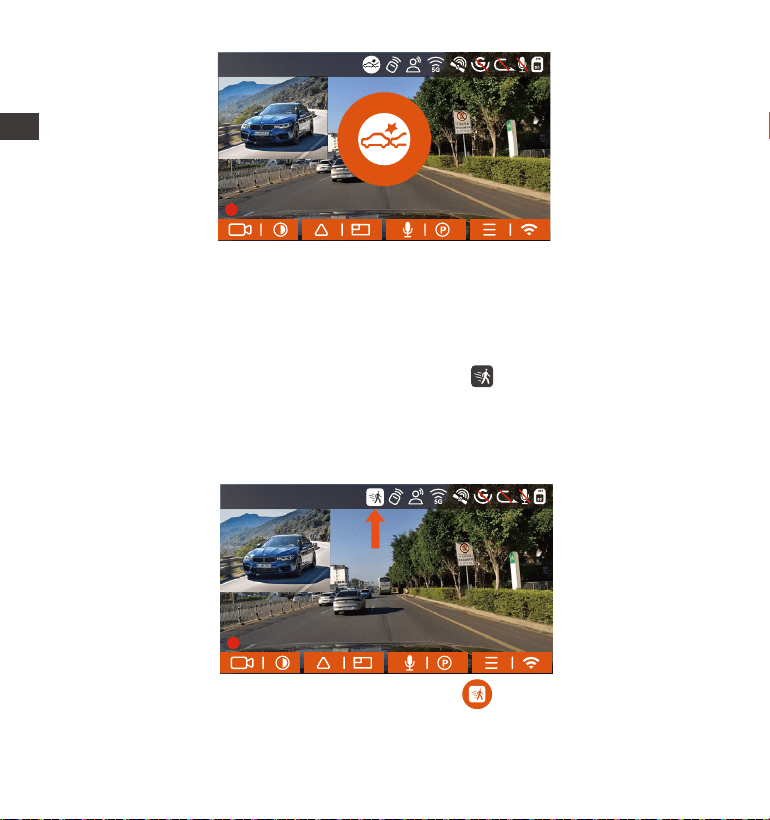
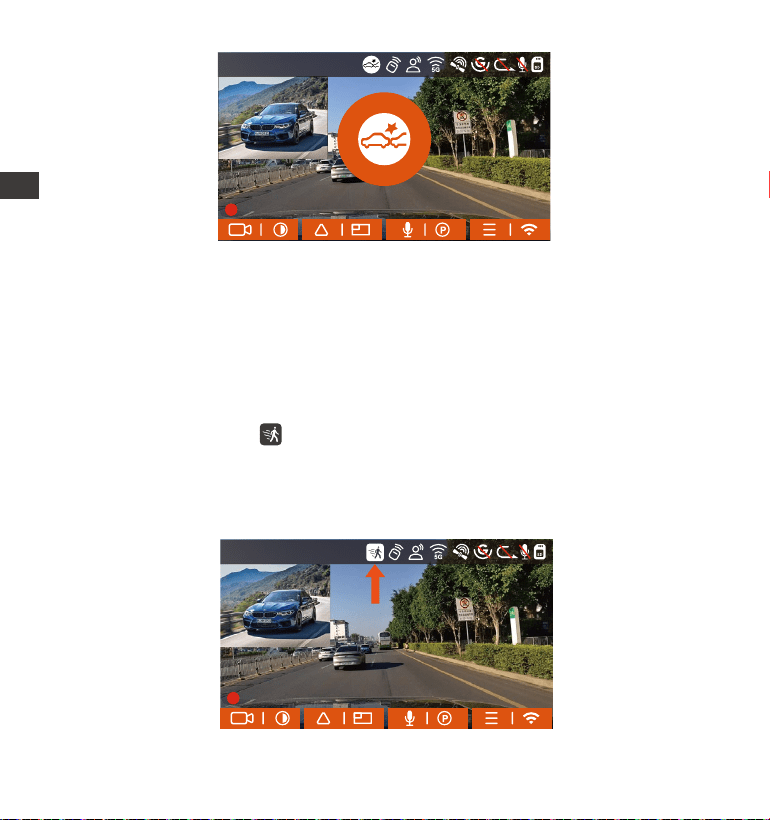
Collision Detection
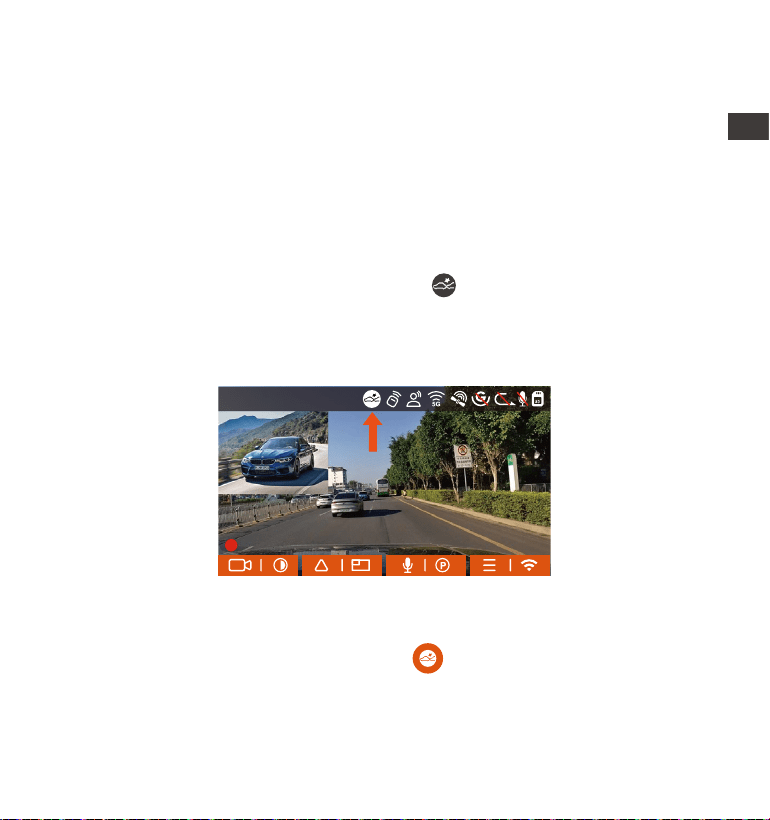
When collision detection is enabled, the icon will be displayed on the
recording interface, indicating that the camera is currently using collision
detection mode. Collision detection sensitivity can be adjusted from 1 to
5 levels. You can adjust according to your habits, as well as the surround-
ings of the car.
When the Collision Detection is turned on, and no movement is detected
after 5 minutes of recording (5-minute entry mechanism for short), then
Collision Detection is activated with a icon in the middle of the screen,
and the camera automatically turn off. When the dash cam is turned off, it
will start to record for 1 minute after being shaken, then turn off the dash
cam again.
4.
mode) can only be enabled one at a time. When one is enabled, the
other will be automatically disabled.
All videos recorded in parking mode(Collison Detection, Motion Detec-
tion, Low Bitrate Recording, Low Framerate mode) will be saved in the
normal video folder. In order to prevent the video in parking mode from
being overwritten in a loop, please check and save the required files in
time to prevent loss.
EN
EN
EN
EN
14:39:07 11-18-2022
00:00:37
MP/H
35
1440P+1440P 30FPS
- 28 -
ENEN
Note: If the dash cam continues to be hit during the collision detection
recording, it will exit the collision detection mode and enter normal
recording, restarting the 5-minute entry mechanism.
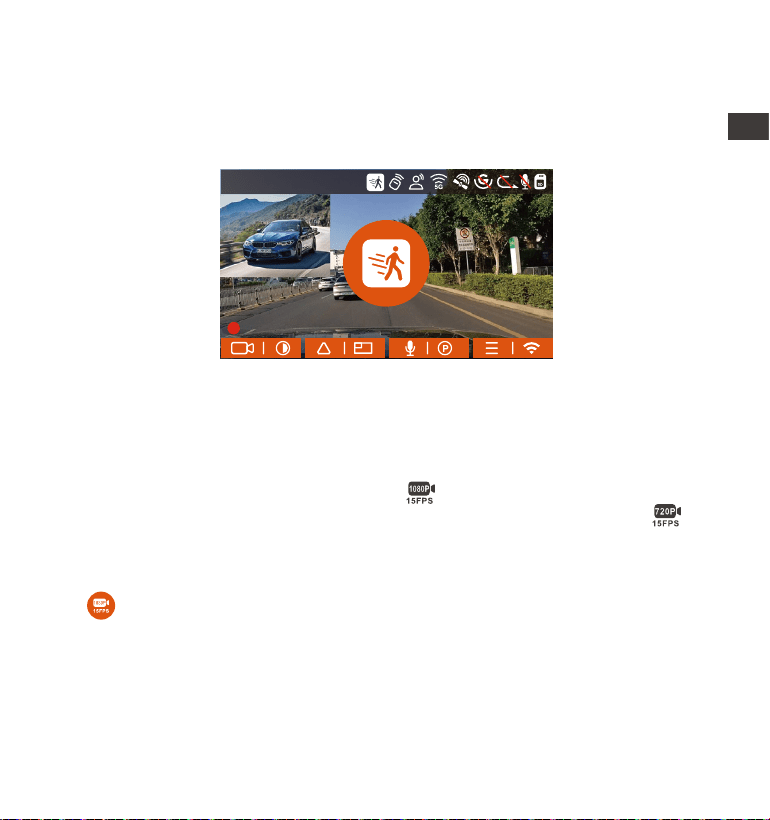
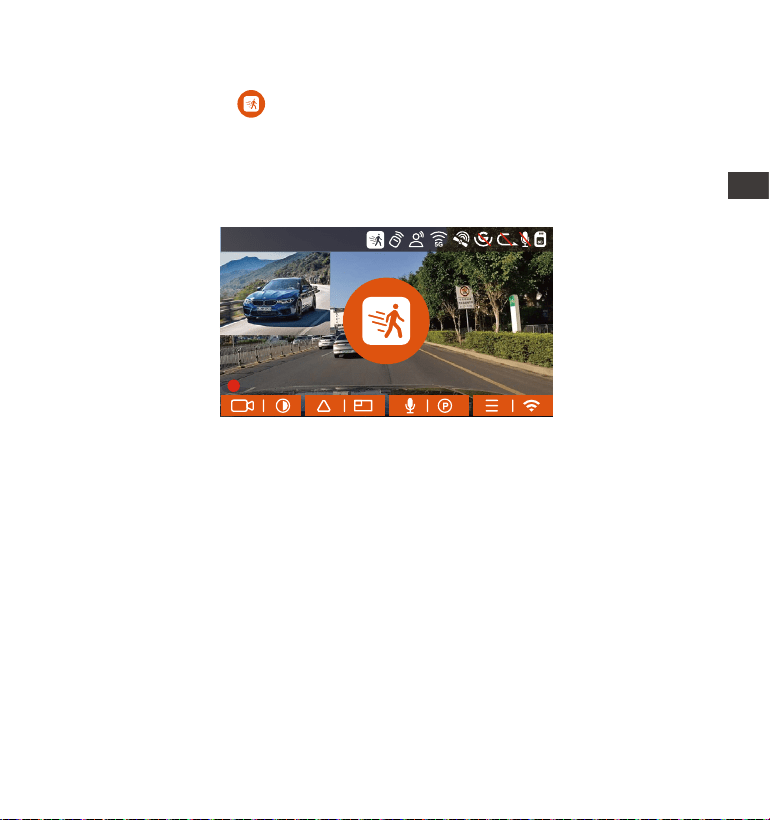
Motion Detection
When the motion detection is turned on, the icon will be displayed on
the recording interface, indicating that the dash cam is currently in
motion detection mode. Motion detection has three levels: low/medi-
um/high that can be adjusted, and the corresponding detection ranges
for motion detection is 6.6ft/13ft/19.7ft.
14:39:07 11-18-2022
00:00:37
MP/H
35
14:39:07 11-18-2022
00:00:37
MP/H
35
1440P+1440P 30FPS
1440P+1440P 30FPS
After entering motion detection mode, the icon will be displayed in
the middle of the screen. The dash cam enters standby mode and the
screen will turn off after 3 minutes with no motion detected.
- 29 -
Note: Motion detection mode can only be engaged when the camera is
turned on. Once the camera is turned off, the motion detection mode will
not work.
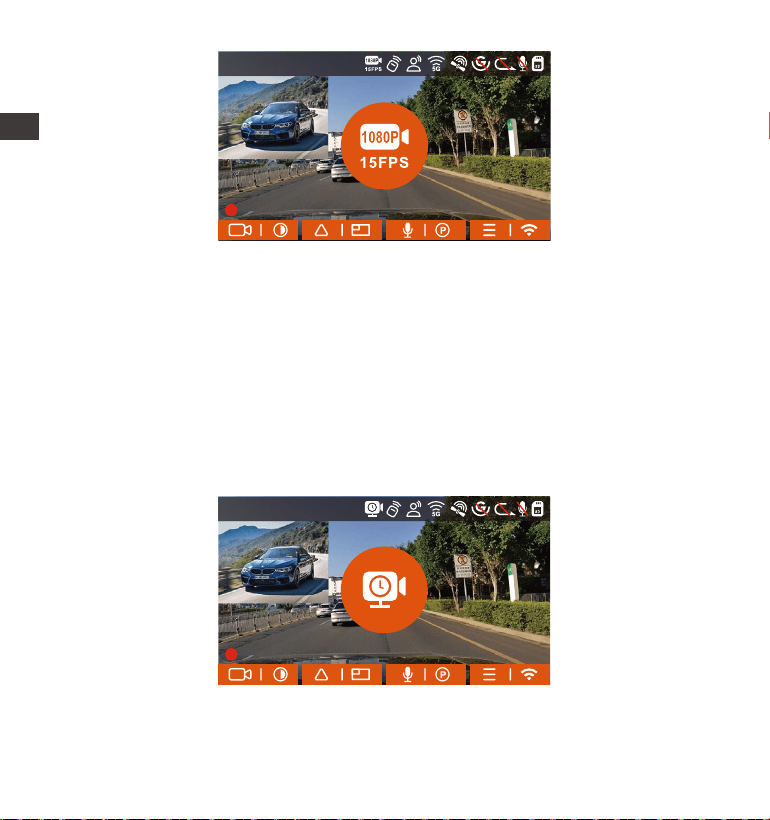
Low Bitrate Recording
When the low bitrate mode is on, the icon will be displayed in the
lower right corner of the screen if 1080P 15FPS is selected, and the icon
will be displayed in the lower right corner of the screen if 720P 15FPS is
selected.
If no movement is detected after 5 minutes of recording, there will be a
icon that appears in the center of the screen. The resolution of all
current video will be automatically switched to 1080P 15FPS or 720P 15FPS
for recording, and the recording duration will be determined according to
the currently set loop recording duration. When the camera is vibrates or is
moved, it will automatically exit, wait 5 minutes, and enter again.
Video recording process: When the camera detects object movement or
car vibration, it will automatically trigger video recording. E2 comes with
a pre-recording function. When the motion detection recording is over,
the camera will load the pre-recorded video into the motion detection
video and save it to the normal folder.
EN
EN
EN
EN
14:39:07 11-18-2022
00:00:37
MP/H
35
1440P+1440P 30FPS
- 30 -
Note: Low Bitrate recording can only be engaged when the camera is
turned on. Once the camera is turned off, the Low Bitrate recording will
not work.
Low Framerate mode
When the low framerate mode is selected, the camera will record
according to your selection among 1FPS/5FPS/10FPS/15FPS.
For example, if you select 1FPS and the current video resolution frame rate
is 30FPS, the camera will generate a 30FPS video per second. Low framer-
ate mode can greatly preserve the integrity of the video and save space
on the memory card.
[Normal Recording Time = Low Framerate Recording Time (Sec) x
Recording Frame Rate FPS x Low Framerate Option]
(Time should be converted into seconds)
ENEN
14:39:07 11-18-2022
00:00:37
MP/H
35
14:39:07 11-18-2022
00:00:37
MP/H
35
1440P+1440P 30FPS
1440P+1440P 30FPS
- 31 -
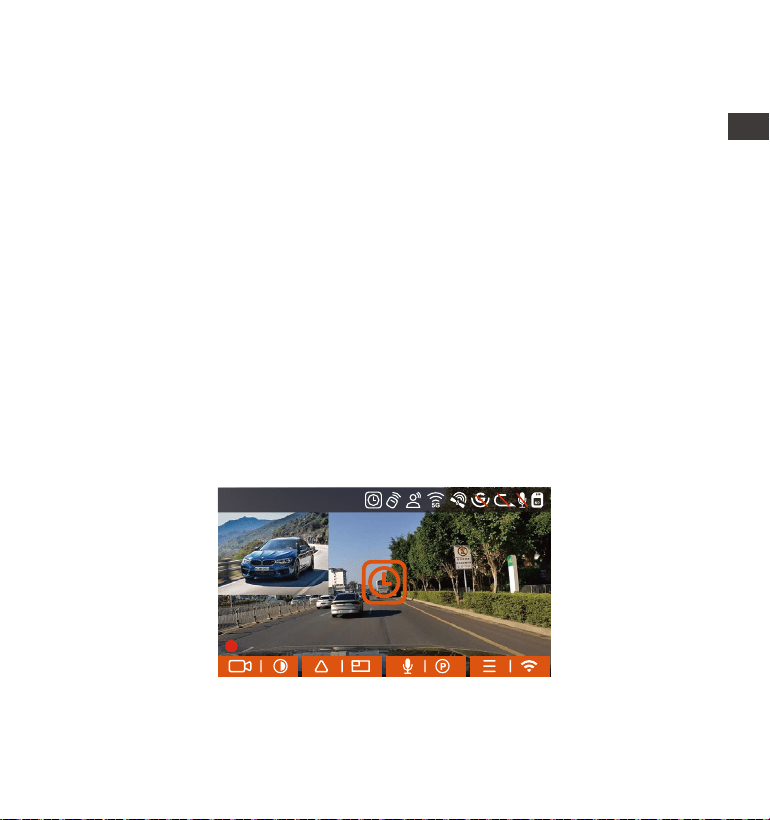
4.2.6 Time Lapse
When time lapse is selected, the camera will record according to your
selection of 1FPS/5FPS/10FPS/15FPS.
For example, if you select 1FPS and the current video resolution framer-
ate is 30FPS, the camera will generate a 30FPS video per second. Low
frame rate mode can greatly preserve the integrity of the video and
save space on the memory card.
The formula for calculating video duration is:
[Normal Recording Time = Time Lapse Recording Time (Sec) x Recording
Frame Rate FPS x Time Lapse Option]
To ensure the camera works properly in park mode, please use the
hardwire kits or other stable and continuous power supply to power the
dash cam.
The low framerate mode is similar to the time-lapse recording function,
but the difference is that there is no 5-minute entry mechanism for
time-lapse recording, which will be directly turned on after setting.
In low framerate mode, the camera also needs a stable power supply.
Once the power is off or exhausted, the camera will shut down.
1.
2.
3.
Note:
EN
EN
EN
EN
14:39:07 11-18-2022
00:00:37
MP/H
35
1440P+1440P 30FPS
- 32 -
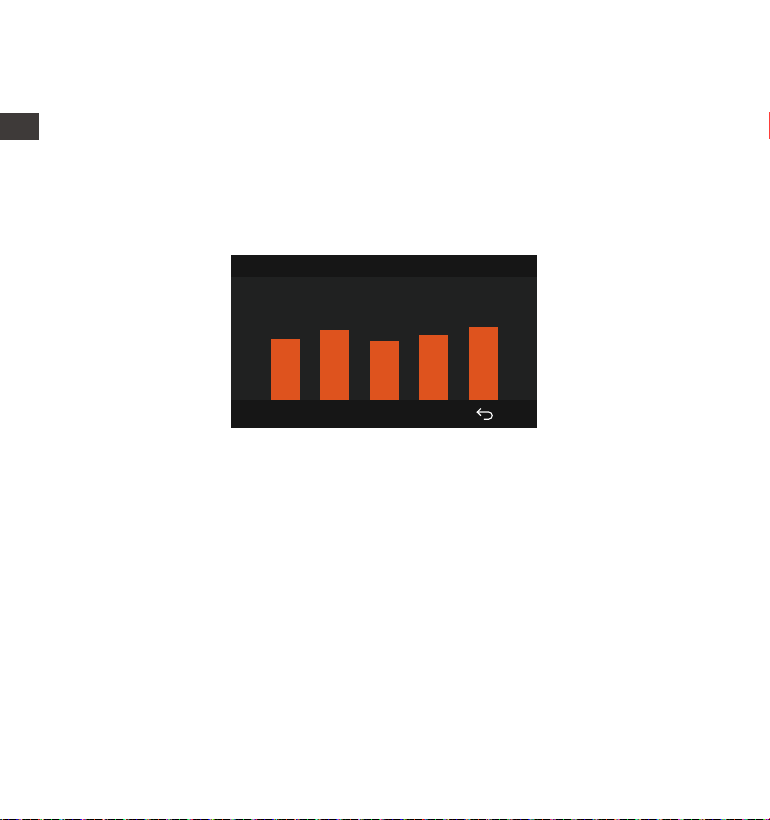
The GPS connection will be completed within 1 minute after you turn
on the device. If the GPS connection is not successful within 1 minute,
please check whether the DEVICE has turned on the GPS function,
whether the GPS bracket is properly connected, and whether your
environment (underground parking lot, densely populated residential
area, subway, tunnel, etc.)is affecting the reception of GPS signal.
GPS information is recorded along with the video. To view it, please
download and install the VANTRUE App and VANTRUE GPS Player
(available for download at www.vantrue.net).
1.
2.
Note:
40
46
39
43
48
GPS Information
(Time should be converted into seconds)
4.2.7 GPS Function
The GPS function is one of the important functions of the dash cam. GPS
is enabled by default, and the camera receives GPS signals through the
GPS mount. It can automatically calibrate the time and date in your
area, recording the location where the video was taken and the speed
of the car at the time.
ENEN
- 33 -
4.2.8 Automatic the Time via GPS
The GPS automatic calibrate time setting for the E2 dash cam is turned
on by default. If your location is Los Angeles, you can select GMT-08:00.
If you do not know the time zone of your location, you can use WIFI to
connect to the Vantrue App, and confirm that the automatic time
adjustment function in the App is turned on.
4.2.9 Wireless Remote Control
The camera is equipped with a remote control, which can be used to
quickly control the camera to snapshot, take event video, set audio
on/off and perform other functions.
Remote control connection:
Remove the insulating strip on the remote control, and the camera will
automatically match the remote control. No manual pairing with the
dash cam is required.
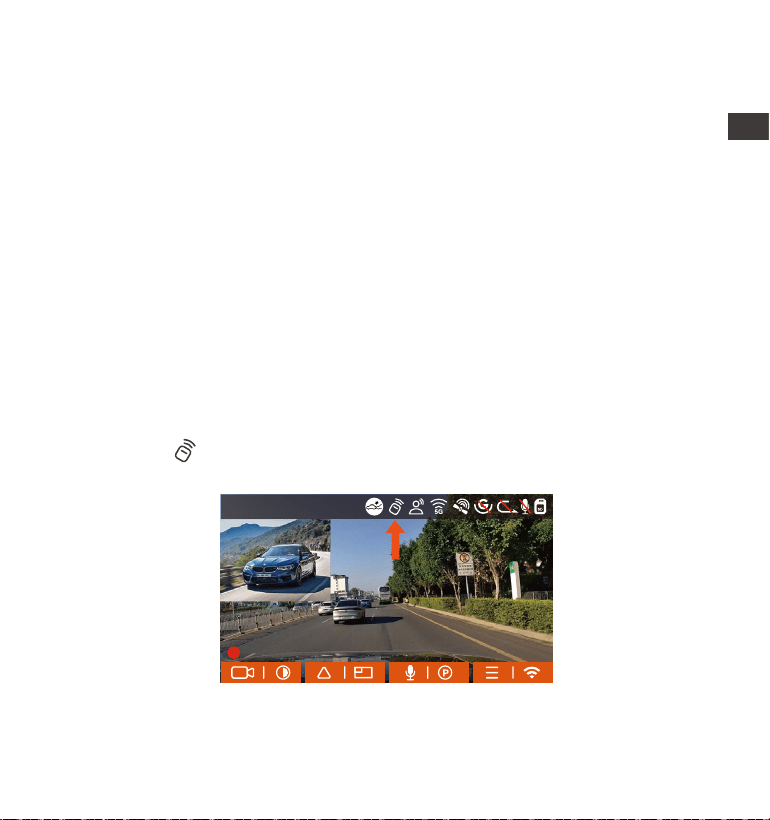
When the icon appears on the screen, it means that the remote
control has been successfully matched.
EN
EN
EN
EN
14:39:07 11-18-2022
00:00:37
MP/H
35
1440P+1440P 30FPS
- 34 -
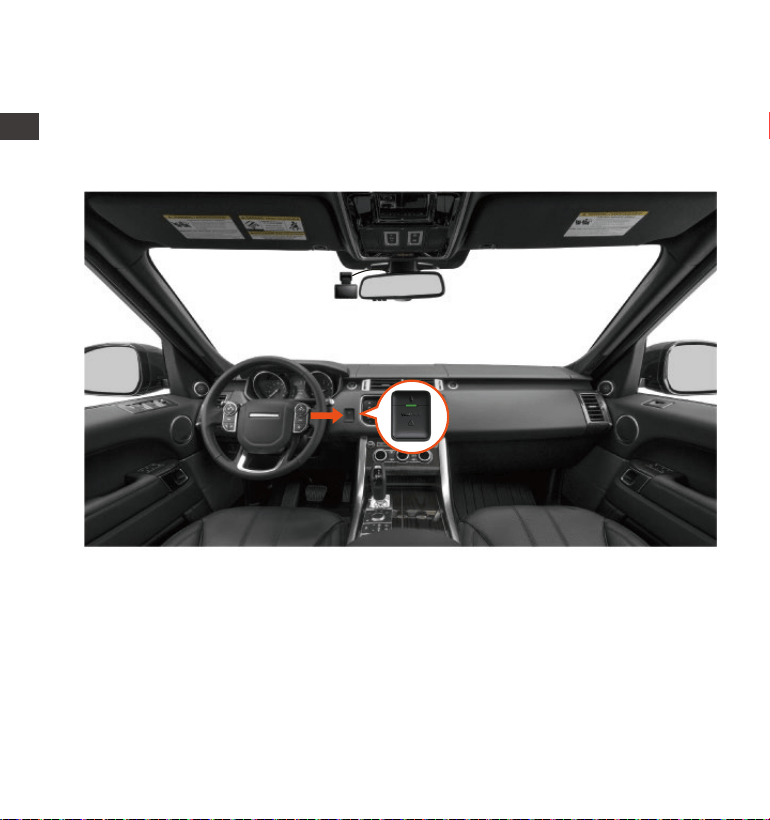
Installation of the remote control:
After the remote control is matched with the camera, please select a
suitable location on your car, then tear off the adhesive sticker from the
remote control and stick it to your selected location. (Note: The remote
control needs to be installed in a position that does not affect safe driving)
ENEN
- 35 -
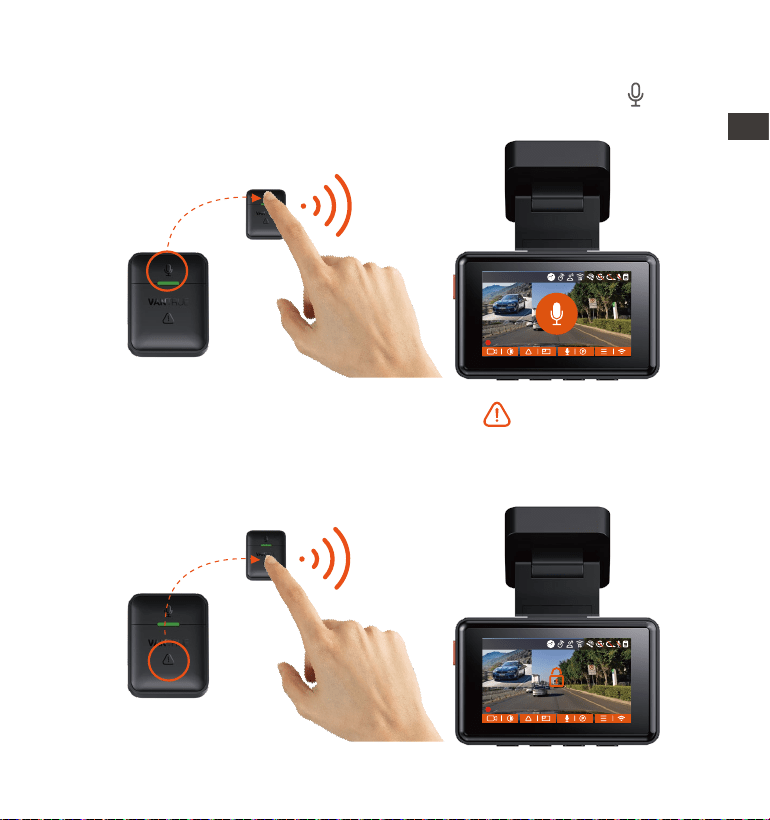
After the remote control is successfully connected, press the button
to enable or disable audio.
1.
Functions of the remote control:
After successful connection, short press the button to lock the
current file and take a snapshot; continue to short press during the
locked video, and continue to capture the photo.
2.
EN
EN
EN
EN
14:39:07 11-18-2022
00:00:37
MP/H
35
14:39:07 11-18-2022
00:00:37
MP/H
35
1440P+1440P 30FPS
1440P+1440P 30FPS
- 36 -
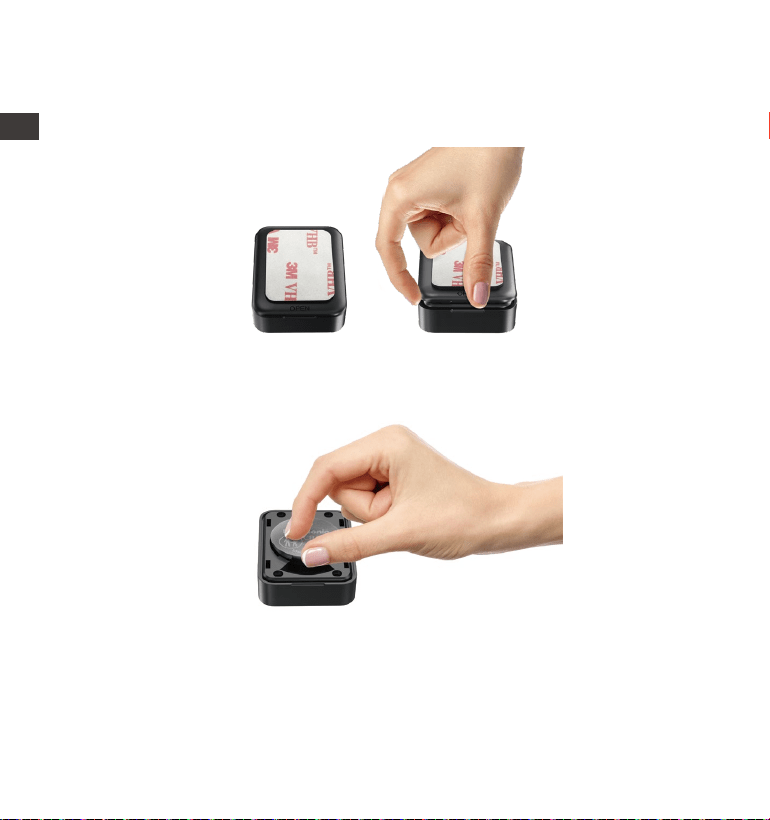
There is an "OPEN" mark on the bottom of the remote control, please
slowly pry open the surrounding gap along the groove position of this
mark to open.
1.
After opening, gently pry the battery out of the notch in front of the
battery compartment, then remove the old battery, then put the new
battery in and put the back cover of the remote control in place.
2.
Replacing the remote control battery:
Note: When the power is low, the battery needs to be replaced(The
battery model of the remote control is a CR2032 battery). It does not
support charging.
ENEN
- 37 -
4.2.11 Viewing Video/Photos
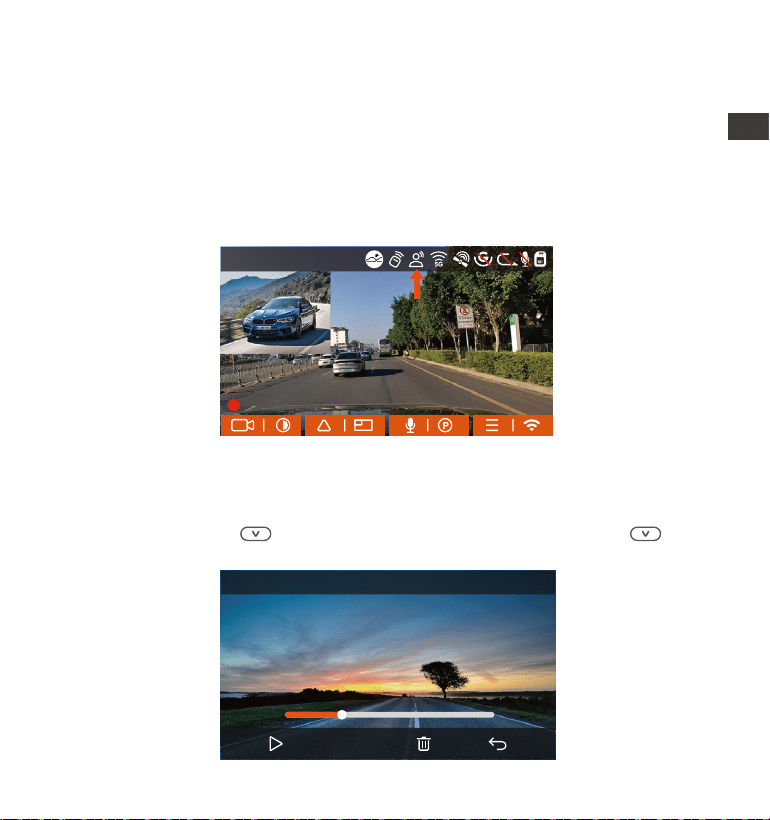
a.Viewing files on the Camera
After clicking "Files," enter any folder, and after opening the video folder,
you can press the button to select the next file, or press the button
to delete the file during playback.
4.2.10 Voice Control
In addition to controlling the camera with the remote control, you can
also control the camera with voice command. Currently supported
languages are English, Japanese, Russian, and Chinese. For more detailed
voice commands, please check System Settings > Voice Content.
The default setting is standard sensitivity. Voice recognition has options
such as low sensitivity/standard/high sensitivity/off. You can control the
camera with voice commands.
00:30
01:07
20221118_140633_0002_E_B.MP4
1X
EN
EN
EN
EN
14:39:07 11-18-2022
00:00:37
MP/H
35
1440P+1440P 30FPS
- 38 -
--Delete Videos
Delete the video on the camera. Press the button in the file browsing
interface to pop up the delete menu.
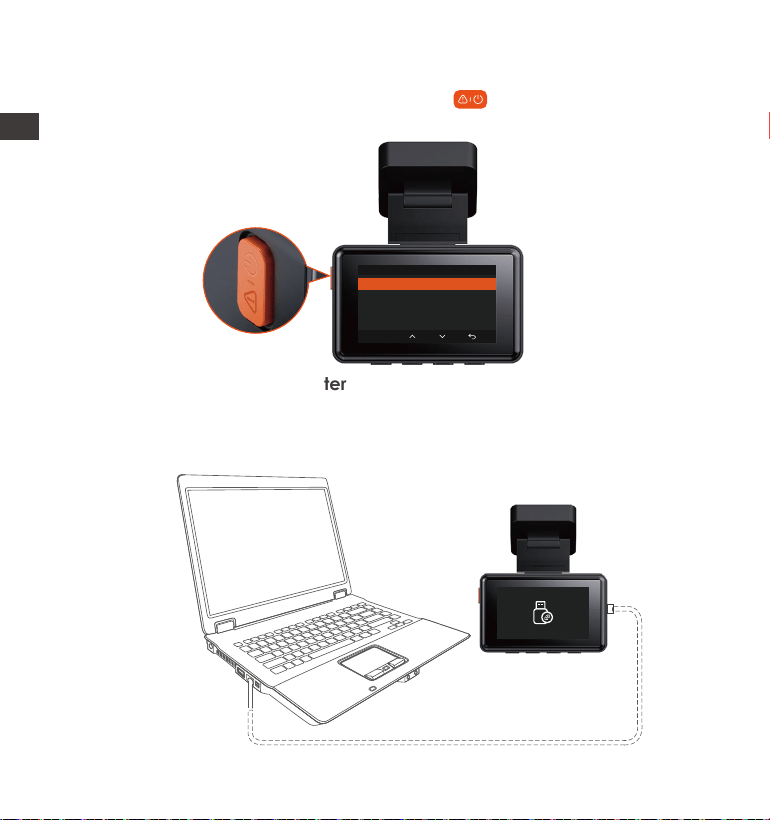
Connect the included TYPE-C USB data cable to the camera and the
computer.
b.Viewing files on a Computer
1.
Event Video
Delete This File?
Delete All Files?
OK
ENEN
- 39 -
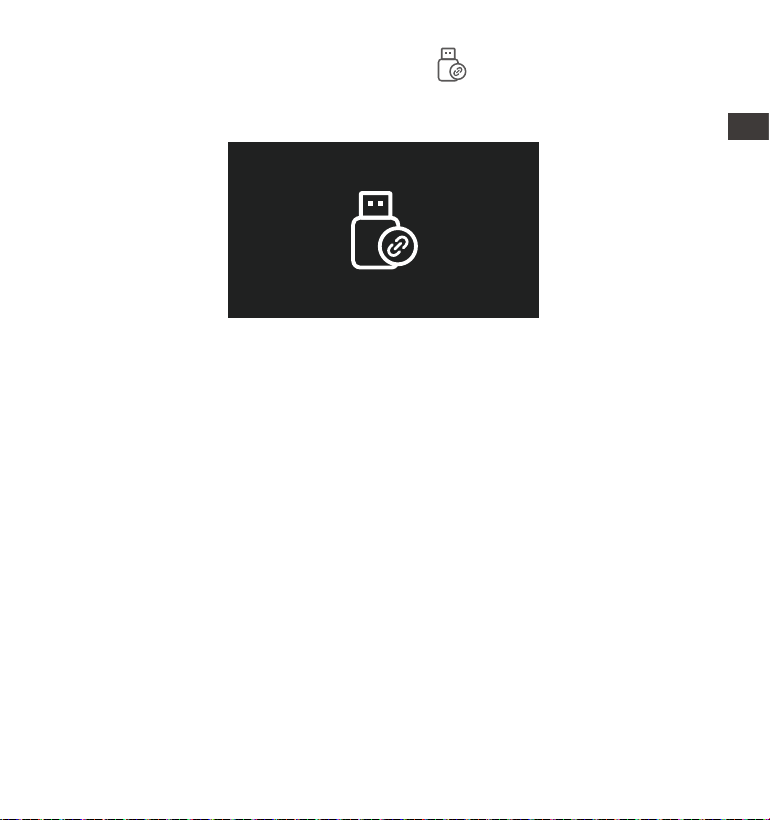
After the connection is successful, the icon will appear on the
display of the camera to transfer data, and then you can view the
video files in the computer folder.
2.
3.
4.
5.
Depending on the computer systems of different users, after the camera
is connected to the computer, it will be displayed as a removable drive
or a removable folder.
To view the files on the computer, you can directly access, right-click to
open the menu and delete them.
You can also use a USB card reader to read the memory card informa-
tion.
EN
EN
EN
EN
- 40 -
Note:
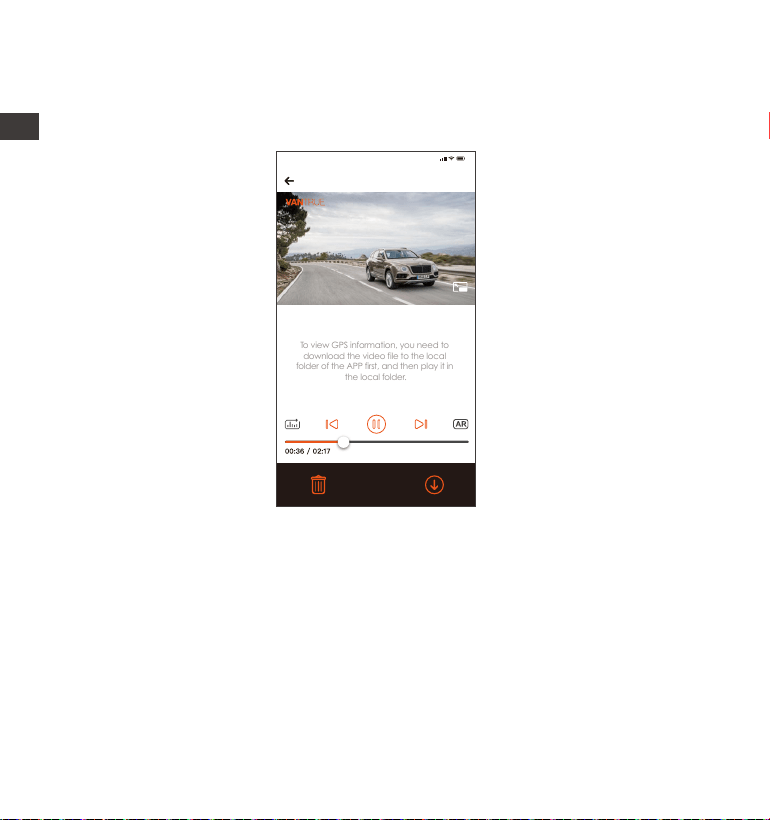
For video playback in the app, or downloads to SD card, there will be
no network traffic consumption.
You can view GPS track information only after the video file is down-
loaded and played back locally. At the same time, you need to
disconnect the WIFI of the dash cam, otherwise the map information
will be blank.
1.
2.
c.View on the ”Vantrue” App
After the camera is successfully connected to the mobile phone through
WiFi, it can play back, download and delete files in the mobile app.
ENEN
20221118_115036_0079_N_A.MP4
11/18/2022 11:5:35 E2 000.000000. 000.000000. 36MK/H
To view GPS information, you need to
download the video file to the local
folder of the APP first, and then play it in
the local folder.
Note:
9:41

- 41 -
4.2.12 Upgrading the Firmware
The system will automatically update with the Micro SD card the firmware
upgrade file. The camera will restart once the upgrade has been
completed.
The latest firmware version is always available at the official VANTRUE
website (www.vantrue.net). We strongly recommend registering your
product (www.vantrue.net/register) to receive a notification email when
a new firmware update is available.
Note: Please do not power off the camera during the upgrade process,
otherwise it will cause the camera upgrade unsuccessful or damage the
camera. If the upgrade fails due to a sudden power failure, please
contact our customer service team and we will solve the problem for you
as soon as possible.
4.2.13 Working Temperature
The camera is designed to operate in temperatures from -4 to 158°F (-20
to 70°C). Temperatures outside this range risk degrading the camera’s
performance work and causing damage.
To avoid damage
Please select the collision detection mode or do not use the camera
when parking for a long time in very hot and high temperature environ-
ment.
In extreme winter conditions, i.e. -4°F (-20°C) or lower, detach the
camera from the windshield when not in use, and store in the glove
box.
1.
2.
EN
EN
EN
EN
EN
EN
EN

- 42 -
5. Specifications
E2Model
Front: F/1. 8 wide aperture
Rear: F/1. 8 wide aperture
Engish/Français/Español/Deutsch/Italiano/
简体中文/русский/ 日本語/Polski
Novatek high-performance processor
Sony CMOS Sensor
2.45” IPS Screen
Built-in 2.4GHz&5GHz
The specifications of this product may change without prior notice due to
product improvements.
Chips
Image Sensor
Screen
WiFi
Front: 160° wide viewing angle;
Rear: 160° wide viewing angle
Aperture
Front + Rear recording mode: 1944P+1944P
24FPS; 1440P+1440P 30FPS; 1440P+1080P 30FPS;
1080P+1440P 30FPS; 1080P+1080P 30FPS;
1080P+720P 30FPS; 720P+1080P 30FPS;
720P+720P 30FPS
Single front recording mode: 2592x1944P
30FPS; 2560x1440P 30FPS; 1920x1080P 30FPS;
1280x720P 30FPS
Video Resolution
External: 32GB-512GB Micro SD Card, U3, Class
10(not included in the package)
Memory Storage
USB Port
Power Source
Languages
Built-in microphone and speakerAudio
Camera Angle
Type C
Built-in super capacitor
ENEN

- 43 -
MP4
DC 5V 2.4A
5W
-4°F to 158°F(-20°C to 70°C)
-22°F to 185°F(-30°C to 85°C)
Video File Format
Supply voltage current
Power
Working Temperature
Storage Temperature
Warranty
The VANTRUE
®
Element 2 Dash Cam comes with a full 12 months warranty.
If you register your product on our official site (www.vantrue.net/register),
you can extend the warranty to 18 months.
Support new
If you have any questions regarding your product, please do not hesitate
to contact us at [email protected], or drop us a message through the
live chat box at www.vantrue.net.
Queries are typically answered within 12-24hours.
Your opinion matters
VANTRUE
®
is firmly committed to always improving our products, services,
and user experience. If you have any thoughts on how we can do even
better, we welcome your constructive feedback and suggestions.
Connect with us today at [email protected].
6. Warranty & Support
EN
EN
EN
EN
- 44 -
1. Was ist in der Box?
H.
3M AufkleberWireless
Fernbedienung
L.
A.
Vantrue E2
Dash Cam
E.
GPS
Klebehalterung
I.
B.
Rückkamera
G.
Benutzer
handbuch
K.
D.
Brechstange
C.
USB-C Daten
Kabel (1Meter)
F.
Auto-Ladegerät
mit mitgeliefertes
USB C Kabel
(3.5Meter)
Kabel für
Rückkamera
(6 Meter)
Warnaufkleber
J.
Elektrostatische
Aufkleber
Element 2
User Manual
Voice-Controlled Dual Dash Cam
CPL Fliter
M.
Optionales Zubehör
ENDE
- 45 -
2. Die Übersicht über Kamera
Num. BeschreibungName
Während der Aufnahme lange drücken, um den
Bildschirm auszuschalten; kurz drücken, um die
Aufnahme zu stoppen und in den Standby-Modus
zu wechseln; Bestätigen die ausgewählte Option
im Menü(OK); Bei der Wiedergabe von Dateien
können die Dateien abspielen/anhalten.
1 Taste
9
8
1 2 3
4
5
6
15
16
10 13
1412
11
17 18 19
7
EN
EN
EN
DE

- 46 -
2 Im Aufnahme- und Standby-Zustand kurz
drücken, um das Videofenster umzuschalten;
Aufwärtstaste; im Wiedergabemodus kurz
drücken, um vorzuspulen; in WLAN-Modus,
drücken Sie eine beliebige Taste, melden Sie sich
vom WLAN ab.
Lange drücken, um den Parkmodus aufzurufen,
während die Kamera
aufzeichnet und des Standby; Kurz drücken,
Mikrofon AN/AUS; Abwärtsauswahl; Im Wieder-
gabemodus kurz drücken, um die Dateien zu
löschen;in WLAN-Modus, drücken Sie eine
beliebige Taste, melden Sie sich vom WLAN ab.
lange drücken während des Videos oder
Standby Status, um WLAN ein-/auszuschalten;
kurz drücken, um das Menü aufzurufen.
Taste
4
5
3 Taste
Taste
7
6
10 Screen
11
REC
Rotes Dauerlicht bedeutet, dass die Kamera
aufzeichnet.
Typ C USB-Anschluss zum Laden.
2.45” LCD Screen
12
13
Kamerasanschluss
USB C Anschluss
für Rückkamera
Verbindet die hintere Kamera mit diesem; schließt
das Datenkabel für die Datenübertragung an.
Verbindet sich mit der Halterung.
8
9 Anschluss auf
der Halterung
Seriennummer für die Garantieregistrierung.
Zeichnet den Ton mit dem Videomaterial auf.
Liefert Ton bei der Wiedergabe von Videos.
Frontkamera für Überwachung der Fahrspuren.
Serien Nummer
Mikrofon
Lautsprecher
Frontkamera
ENDE
- 47 -
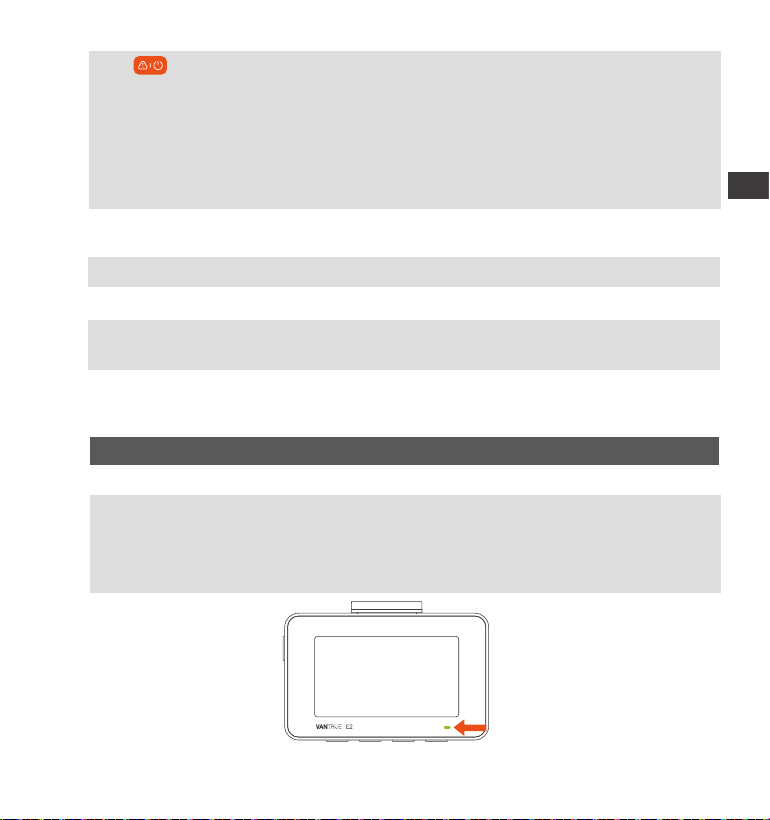
LED Status
14
Taste
16
Reset Taste Kurz drücken, um die Kamera neu zu starten.
17 Rückkamera Zeichnet Straßenereignisse hinter dem Auto auf.
18
Anzeige für
Rückfahrkamera
Ein grünes Licht zeigt an, dass die Rückkamera
mit Strom verbunden ist.
19 Anschluss für
Rückkamera
Anschluss für Rückkamerakabel.
15
MicroSDKarten
steckplatz
Bietet erweiterbaren Speicher (bis zu 512 GB in
FAT32).
BeschreibungLED
Grünes Dauerlicht Im Standby-Status oder die REC-LED ist
ausgeschaltet
Kamera zeichnet auf
Während der Videoaufnahme kurz drücken, um
die aktuelle Datei zu sperren und ein Bild
aufzunehmen, lange drücken zum Ausschalten;
im Standby-Modus kurz drücken, um ein Bild
aufzunehmen, lange drücken, um herunterzu-
fahren; im WLAN-Status kurz drücken, um WLAN
zu beenden, lange drücken zum Herunterfahren.
LED Status
REC
Blinkendes grünes
Licht
EN
EN
EN
DE
1440P+1440P 30FPS
14:39:07 18-11-2022
00:00:37
MP/H
35
Bildschirmübersicht
ENDE
Daueraufnahme AUS
Daueraufnahme 1 Minute
Daueraufnahme 3 Minute
Daueraufnahme 5 Minute
Keine SD Karte
SD Karte eingelegt
G-Sensor AUS
G-Sensor AN
Geschwindigkeit
(KM/H oder MPH)
Video
Auflösung
Snappschuß
Zeitraffer AN
Kollisionserkennung AN
Bewegungserkennung AN
1080P Niedrige Bitraten Modus/15FPS
720P Niedrige Bitraten Modus/15FP
Parkmodus mit niedriger Framerate
GPS-Signal durchsuchen
GPS Signal Gesperrt
Sprachassistent
MP/H
35
Tastenführung
Parkmodus-Zeit
(Aktuelles Clip)
Urzeit Und Datum
Remote control is connected
Mik AN Mik AUS
- 48 -
WiFi AUS
2.4G WiFi AN
5G WiFi AN已
2.4G WiFi Verbunden
5G WiFi Verbunden
- 49 -
Bevor Sie diese Karte verwenden, führen Sie bitte die folgenden Schritte
aus, um sie richtig zu formatieren:
Wenn die Kamera aufzeichnet, drücken Sie bitte das Symbol , um
die Aufnahme anzuhalten, drücken Sie dann das Symbol , um das
3. Installation
3.1 Speicherkarte installieren(VANTRUE U3 MicroSD-Karte empfohlen)
Bitte legen Sie eine Speicherkarte ein (Speicherkartenkapazität:
32GB-512GB, Kartengeschwindigkeit: U3/Klasse10/A2), da die Dashcam
bestimmte Anforderungen an die Kartengeschwindigkeit der Speicherk-
arte stellt. Für einen zuverlässigen Betrieb empfehlen wir die Verwendung
einer VANTRUE SD-Karte (separat erhältlich).
Wie zu installieren: Ein Symbol zeigt die Einschubrichtung der Speicherk-
arte an. Bitte schieben Sie die Speicherkarte in der durch das Symbol
angezeigten Richtung in den Kartensteckplatz, bis ein „Klick“-Geräusch
im Kartensteckplatz zu hören ist, was darauf hinweist, dass die Speicherk-
arte richtig eingesetzt ist
EN
EN
EN
DE

- 50 -
Menü aufzurufen, rufen Sie dann das „System“ auf, wählen Sie die Karte
formatieren aus und bestätigen Sie das Formatieren der Speicherkarte,
bis die Meldung „Formatiert erfolgreich“ angezeigt wird.
Wenn nach dem Einlegen der Speicherkarte der Bildschirm „Kartenfehler,
bitte formatieren“ anzeigt (bitte beachten Sie, dass der Rekorder zu
diesem Zeitpunkt nicht aufzeichnet), drücken Sie bitte direkt die Taste ,
um das Menü aufzurufen und den Formatierungsprozess zu starten.
Wir empfehlen, die Karte einmal im Monat zu formatieren, um die
normale Verwendung der Dashcam sicherzustellen.
Entfernen oder stecken Sie die Speicherkarte nicht während der
Aufnahme, um den Verlust wichtiger Videos zu vermeiden.
Bitte verwenden Sie keine schlechten Karten oder Karten mit niedriger
Geschwindigkeit auf der Dashcam, da die Aufnahme aufgrund des
Ausfalls der Speicherkarte leicht angehalten oder verloren werden
kann.
Bevor Sie die Speicherkarte formatieren, überprüfen Sie bitte den
Notfallvideoordner auf der SD-Karte, ob Videos vorhanden sind, die
separat gespeichert werden müssen, um nicht versehentlich wichtige
Videos zu löschen.
ERINNERUNG:
1.
2.
3.
4.
ENDE
- 51 -
3.2 Installieren Sie die Kamera auf Ihrer Windschutzscheibe
Verbinden Sie die Saughalterung mit der Montagesockel der Kamera
und drücken Sie sie hinein, bis sie einrastet.
1.
Reinigen Sie die Windschutzscheibe gründlich mit Wasser oder Alkohol
und wischen Sie sie dann mit einem trockenen Tuch ab. Kleben Sie den
elektrostatischen Aufkleber hinter den Rückspiegel. Dies ist die
empfohlene Position, um unsere Sicht während der Fahrt nicht zu
beeinträchtigen.
2.
Electrostatic sticker
EN
EN
EN
DE
- 52 -
Installation des Autoladegeräts: Schließen Sie das Autoladegerät und
den Zigarettenanzünder an, das Licht am Autoladegerät leuchtet, was
bedeutet, dass es normal funktioniert
3.
Hinweis: Es gibt zwei elektrostatische Aufkleber mit den Nummern 1 und
2. Bitte entfernen Sie die Schutzfolie von Nr. 1, kleben Sie den elektro-
statischen Aufkleber auf die Windschutzscheibe und entfernen Sie dann
die Schutzfolie von Nr. 2.
Please peel off this mask
AFTER application completed
Please peel off this
mask BEFORE application
ENDE
- 53 -
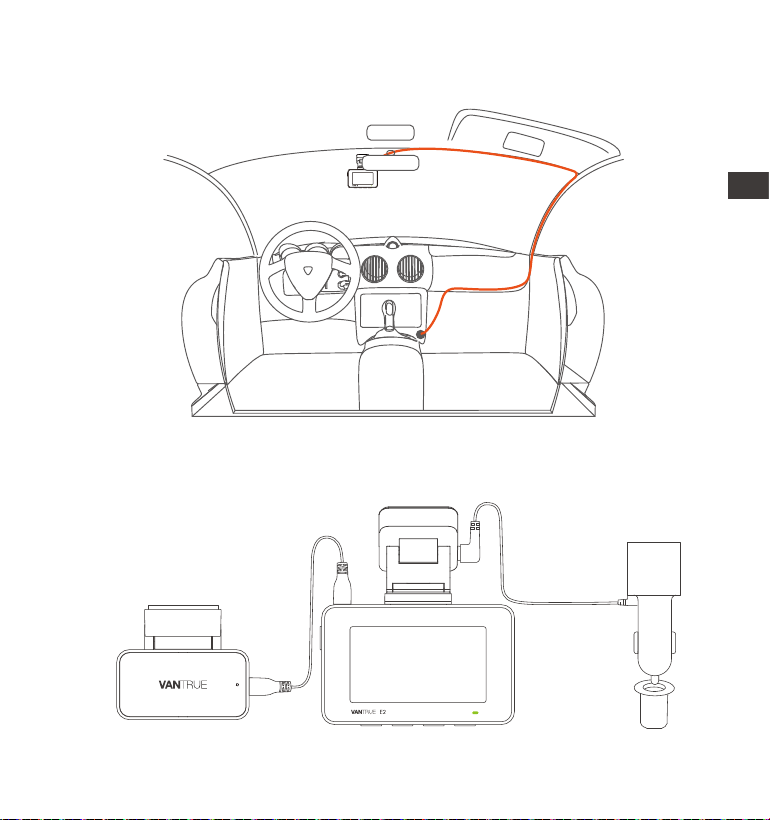
Verbinden Sie die Hauptkamera und Autoladegerät, und die
Verdrahtungsrichtung des Autoladegeräts ist wie folgt:
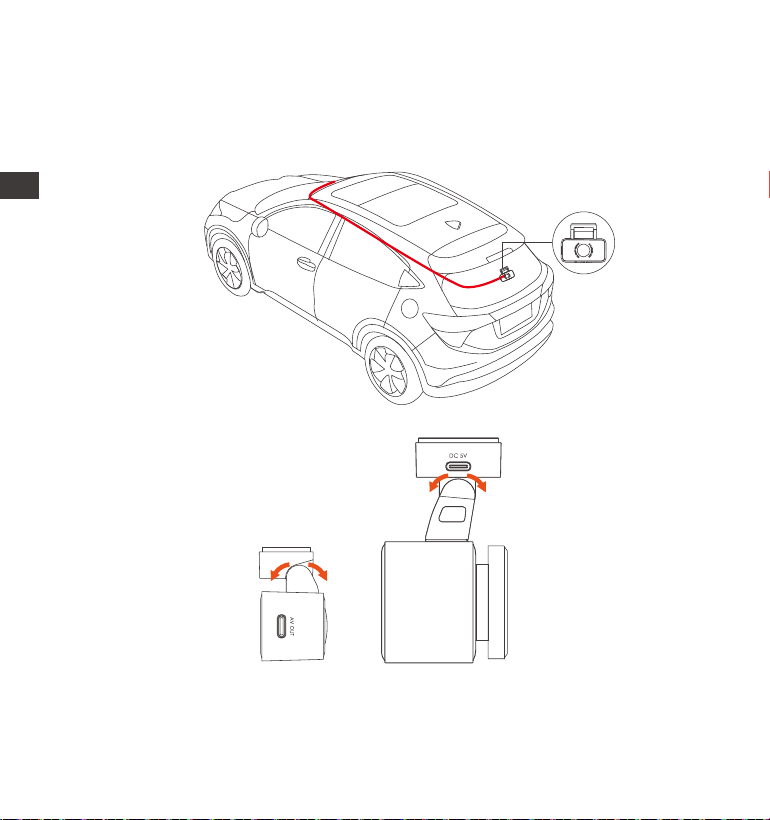
Mithilfe der Rückkamera-Kabel schließen Sie die Hauptkamera und die
Rückkamera an, dann wählen Sie einen geeigneten Ort, um die Kamera
zu installieren.
4.
EN
EN
EN
DE
- 54 -
Einbau der Rückkamera: Wir empfehlen, eine Position nahe der Mitte
der Heckscheibe zu wählen und die Entnebelungslinie auf der
Heckscheibe zu vermeiden, um den Videoeffekt nicht zu beeinträchti-
gen. (Der Winkel des Objektivs kann nach Bedarf eingestellt werden)
5.
ENDE

- 55 -
3.3 APP-Download
Bitte scannen Sie den QR-Code der entsprechenden Version unten, um
die APP herunterzuladen und zu installieren.
Suchen Sie im App Store oder Google Play Store nach der App „Vantrue “,
um die App zu finden, und laden Sie sie dann herunter und installieren Sie
sie auf Ihrem Telefon.
Hinweis: Nachdem diese Kamera erfolgreich über WLAN mit dem
Mobiltelefon verbunden wurde, kann sie eine Echtzeit-Videovorschau
realisieren, Kameraeinstellungen ändern, Dateien ohne Internetverbind-
ung herunterladen und Videos auf dem Mobiltelefon wiedergeben. Die
Wiedergabe von GPS-Tracks und die Video-Sharing-Funktionen hängen
jedoch vom Internet oder den Mehrwertdiensten der Telekom ab
(erfordert das Ausschalten/Trennen des WLAN der Kamera).
EN
EN
EN
DE
- 56 -
3.4 WiFi Verbindung
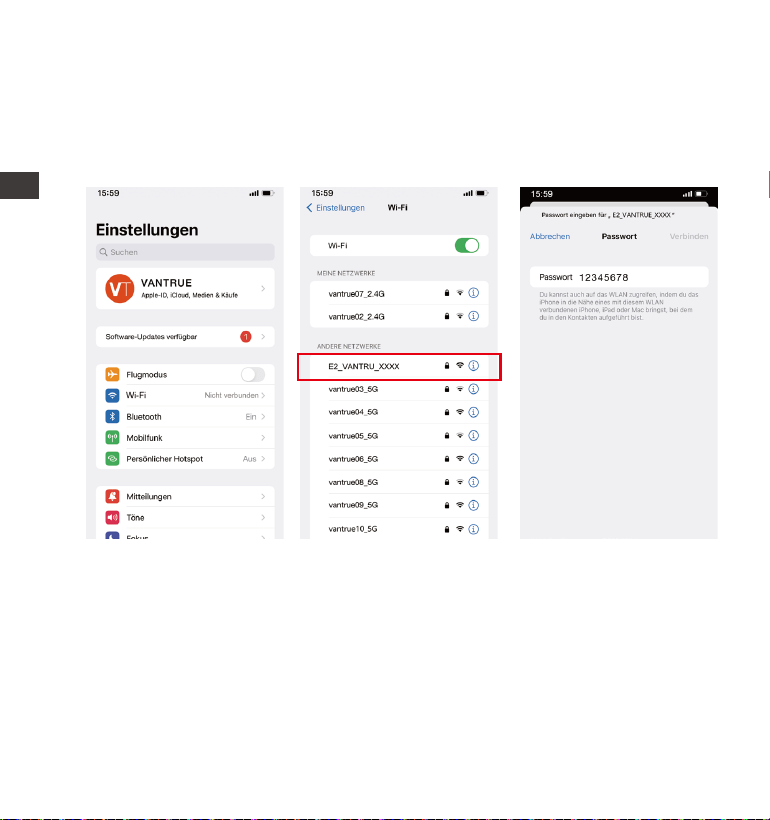
Schalten Sie die WLAN-Funktion der Kamera ein, geben Sie die WLAN-Ein-
stellungen des Mobiltelefons ein und suchen Sie dann den
WLAN-Namen, z. B.: E2_VANTRUE_XXXX, und geben Sie das WLAN-Stan-
dardpasswort ein: 12345678, um eine WLAN-Verbindung herzustellen.
ENDE
- 57 -
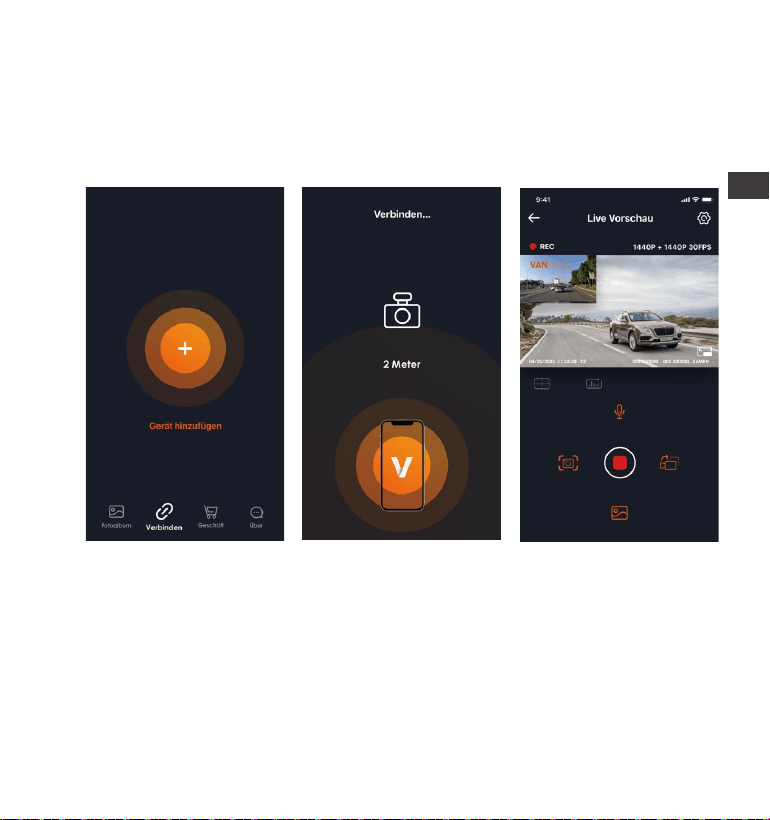
Nachdem die WLAN-Verbindung erfolgreich ist, klicken Sie beim ersten
Öffnen der APP auf „+“, fügen Sie das Kameramodell hinzu, und die APP
verbindet sich automatisch mit der Kamera und zeigt die aktuelle
Echtzeit-Aufnahmesituation der Kamera an.
3.5 APP-Verbindung
Notiz:
Wenn Sie sich vor dem Öffnen der APP nicht mit dem WLAN verbinden,
fordert die APP Sie auf: „Bitte zuerst mit WLAN verbinden“ und springt
automatisch zu den WLAN-Einstellungen. Bitte führen Sie zuerst die
Schritte aus, um sich mit dem WLAN zu verbinden.
Wenn das WLAN bereits verbunden ist, aber die APP nach der Auswahl
des Modells zur Anwendungsberechtigung der APP springt, überprüfen
Sie bitte, ob die drahtlose Netzwerkberechtigung der APP aktiviert ist.
1.
2.
EN
EN
EN
DE

- 58 -
3.
4.
5.
Das Initialpasswort dieses Geräts wird nur für die Erstanmeldung
verwendet. Um potenziellen Sicherheitsrisiken vorzubeugen, ändern Sie
das Initialpasswort bitte rechtzeitig nach der ersten Anmeldung, um zu
verhindern, dass sich andere unbefugt in Ihr Gerät einloggen oder
andere nachteilige Folgen haben.
Wenn Sie das WLAN-Passwort vergessen, können Sie die Standardein-
stellung des Geräts wiederherstellen, und das WLAN-Passwort des
Geräts wird ebenfalls auf das Standardpasswort (12345678) zurückge-
setzt.
Android-Benutzer können den WLAN-Verbindungsvorgang in der APP
abschließen
ENDE
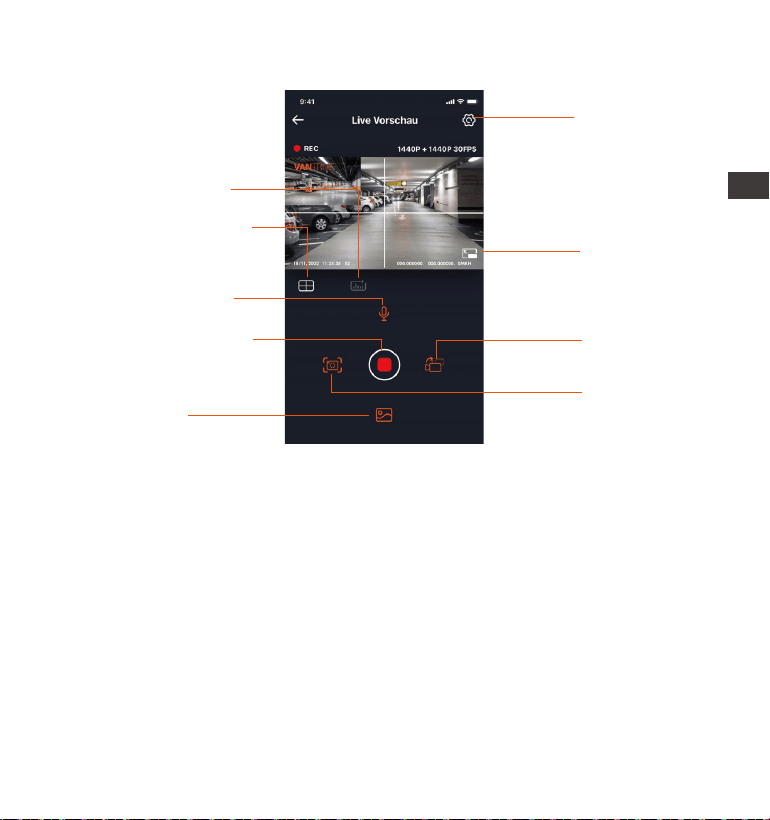
- 59 -
Einstellungen
Vollbild-Schalter
Front und rück
wechseln
Schnappschuss
Fotoalbum
Aufnahme starten/
pausieren
Mikrofonschalter
Linsenkorrekturlinie
Kilometerstatistik
3.6 APP-Betrieb
Nach dem Aufrufen der APP-Echtzeitvorschau können Sie die folgenden
Vorgänge ausführen:
Videovorschau: Nachdem die APP erfolgreich mit der Kamera verbund-
en wurde, rufen Sie die Echtzeit-Vorschauseite auf, klicken Sie auf die
Vollbild-Schaltfläche oder platzieren Sie das Telefon horizontal, und der
Echtzeit-Bildschirm wechselt automatisch in den Vollbild-Vorschaumodus.
Klicken Sie auf die Fensterwechsel-Schaltfläche, um das vordere und
hintere Videofenster umzuschalten.
Videowiedergabe: Die auf der SD-Karte aufgezeichneten Video- und
Fotodateien können in der APP angezeigt werden, und das Video kann
nach dem Klicken auf die Datei wiedergegeben werden.
EN
EN
EN
DE
- 60 -
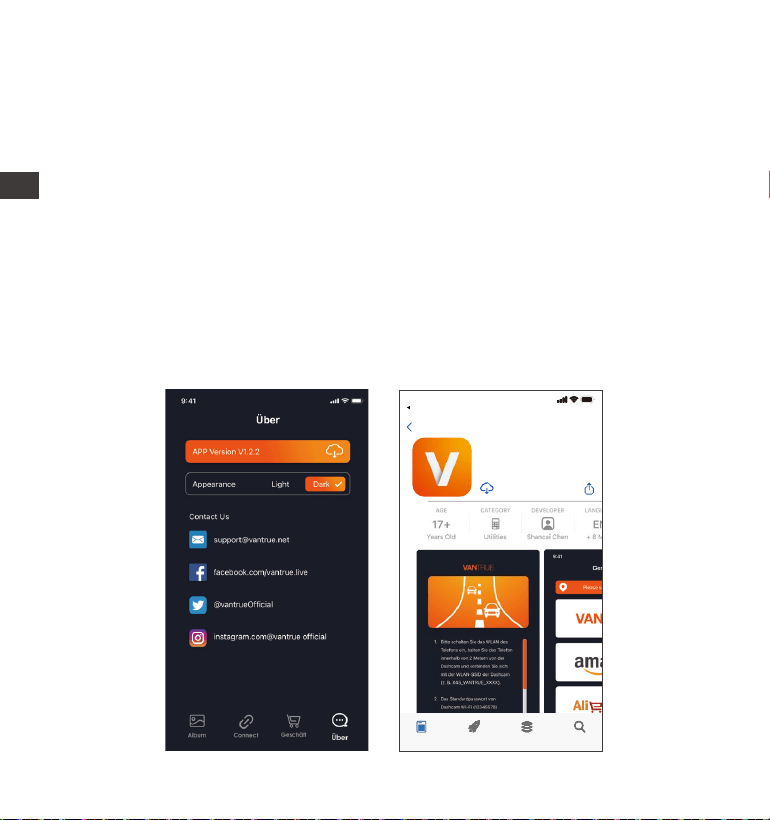
3.7 APP-Upgrade
Öffnen Sie die „Vantrue“-App, stellen Sie eine Verbindung zum WLAN her
und geben Sie „Einstellungen > Info > Neue Version erkennen“ ein. Die
App erkennt automatisch, ob die App-Version die neueste Version ist.
Wenn es eine neue Version der App gibt, befolgen Sie die Anweisungen
der App und aktualisieren Sie die Version.
Video-Download: Sie können das Video oder Bild, das Sie herunterladen
möchten, in der Benutzeroberfläche zum Durchsuchen der SD-Karte oder
in der Videowiedergabe auswählen. Wenn Sie das Video nach dem
Herunterladen in der lokalen Datei der App abspielen, können Sie den
GPS-Track des Videos sehen.
Video-Schnappschuss: Sie können das aktuelle Bild in der Echtzeit-
Vorschauoberfläche der App erfassen.
ENDE
Vantrue Ltd.
Zurück
Vantrue
Vantrue
9:41
Heute Spiele Apps Suche

- 61 -
Die E2 Dash Cam verfügt über 3 Funktionsmenüs, nämlich Video Einstellun-
gen, System Einstellungen und Datei. In dieser Funktionseinstellung können
Sie Ihre Dashcam nach Ihren Wünschen einstellen.
Drücken Sie die Taste, halten Sie zuerst das Video an und drücken Sie
dann die Taste, um die Menüeinstellungen aufzurufen.
4. Grundlegende Bedienung
4.1 Menüeinstellungen
Video System Datei
A.Video Einstellung
-Videoauflösung: Die E2-Kamera verfügt über 2 Auflösungsmodi: Front +
Rück Dual-Aufnahmemodus oder Single Front-Aufnahmemodus.
Front + Rück: 1944P+1944P 24FPS; 1440P+1440P 30FPS; 1440P+1080P 30FPS;
1080P+1440P 30FPS; 1080P+1080P 30FPS; 1080P+720P 30FPS; 720P+1080P
30FPS; 720P+720P 30FPS
Front(Nur): 2592x1944P 30FPS; 2560x1440P 30FPS; 1920x1080P 30FPS;
1280x720P 30FPS
-Daueraufnahme: Die Standardeinstellung ist 3 Minuten. Drücken Sie die
Abwärts-/Aufwärtstaste, um 1 Min/3 Min/5Min oder Aus zu wählen.
-G-Sensor: Wählen Sie die gewünschte Ebene des G-Sensors aus, und Sie
können 3 Richtungen festlegen (Vorne + Zurück/Links + Rechts/Oben +
Unten). Der G-Sensor-Wert in jeder Richtung kann als 1/2/3/4/5/Aus
ausgewählt werden. Je höher die Empfindlichkeitsstufe, desto einfacher
ist es, eine Notfallaufzeichnung auszulösen. Der G-Sensor ist am empfind
EN
EN
EN
DE

- 62 -
lichsten, wenn er auf 5 eingestellt ist. Standardstufe 3.
-Audio Rekord: Die Standardeinstellung ist AN. Audio ein- oder
ausschalten.
-Belichtung: Der Standardwert ist +0,0. Stellen Sie die Belichtung des
Objektivs ein.
-REC Licht: Die Standardeinstellung ist AN, Sie können das Aufnahmesta-
tuslicht ein- oder ausschalten.
-WDR: Standardmäßig geöffnet, es liefert besser ausbalancierter Videoef-
fekt, AN/AUS.
-Bildschirm umdrehen: Standard ist aus. Sie können den Videobildschirm
nach oben und unten drehen (180 Grad).
-Rückspiegelbild: Es ist standardmäßig eingeschaltet. Das Bild der
Rückfahrkamera wird im Spiegelmodus angezeigt.
-Nummernschild: Drücken Sie die Abwärtstaste, um die einzustellende
Zahl oder den einzustellenden Buchstaben auszuwählen. Nach der
Einstellung kann Ihr Kennzeichen im aufgezeichneten Video angezeigt
werden.
-Stempel: Aktivieren oder deaktivieren Sie den Wasserzeichenstempel
des Videos und der Fotos. Der Wasserzeichenstempel enthält Datums-
und Uhrzeitetikett, VANTRUE-Etikett, Nummernschildnummer, GPS-Stan-
dort, Geschwindigkeitsetikett. Alle standardmäßig aktiviert.
-Zeitraffer: Der Standardwert ist deaktiviert. Sie können 1FPS/5FPS/10F-
PS/15FPS aktivieren.
-Sternenlicht Nachtsicht beim Parken: Standard ist eingeschaltet. Es kann
den Videoeffekt von im Parkmodus optimieren.
-Parkmodus:Sie können den gewünschten Parkmodus auswählen,
einschließlich Kollisionserkennung / Bewegungserkennung / Modus mit
niedriger Bitrate / Niedriger Framerate-Modus / AUS.
-GPS-Einstellung: GPS ist standardmäßig aktiviert. Hier werden GPS-Schal-
tereinstellungen, Geschwindigkeitseinheitseinstellungen und GPS-Informa-
tionen eingestellt.
ENDE

- 63 -
B. System Einstellung
-Sprache: Verfügbare Sprachen sind Engish/ Français/ Español/ Deutsch/
Italiano/简体中文/русский/ 日本語/ Polski.
-WiFi: Standardmäßig WiFi autom. An, auch Wi-Fi so einstellen, dass es
automatisch ausgeschaltet wird und WLAN-Informationen angezeigt
werden.
Spracherkennung: Die Standardempfindlichkeit ist Standard. Sprachbe-
fehle können erkannt werden, nachdem die Option aktiviert wurde. Sie
können Optionen wie niedrige Empfindlichkeit/hohe Empfindlichkeit/-
Standard/Aus wählen.
-SprachInhalte: Spracherkennungsbefehle. Nur Englisch, Sie können
verschiedene Befehle verwenden, um die Kamera fernzusteuern, damit
sie funktioniert.
-SD Karte formatieren: Alle Daten auf der Speicherkarte formatieren.
-Formatierungsmeldung: Wählen Sie die Erinnerungsoptionen: 15 Tage, 1
Monat und Aus. Standard ist aus.
Um zu verhindern, dass Sie vergessen, die Speicherkarte regelmäßig zu
formatieren, haben wir eine Formaterinnerungszeiteinstellung hinzuge-
fügt. Sie können wählen, ob Sie nach 15 Tagen oder 1 Monat erinnert
werden möchten, und 15 Tage oder 1 Monat ab dem festgelegten
Datum berechnen. Wenn die Zeit abgelaufen ist, können Sie „OK“ zum
Formatieren oder „Nächste“ wählen.
Hinweis: Wenn Sie die Formaterinnerungsoption ändern, wird die
Zeitmessung neu gestartet, sobald die Option geändert wird.
-Datum & Uhrzeit: Es gibt zwei Möglichkeiten, Uhrzeit und Datum einzustel-
len: 1. Automatische GPS-Aktualisierung; 2 Manuelle Einstellung von
Datum/Uhrzeit. Die automatische GPS-Aktualisierung ist standardmäßig
aktiviert.
GPS aktualisiert automatisch das Datum und die Uhrzeit basierend auf
Ihrer Zeitzone, daher müssen Sie zuerst die richtige Zeitzone auswählen;
EN
EN
EN
DE

- 64 -
Sie können auch die automatische GPS-Aktualisierung deaktivieren, die
manuelle Datums-/Uhrzeiteinstellung aktivieren und Datum und Uhrzeit
manuell korrigieren.
In diesem Menü können auch das Datumsformat und die Zeitzonenein-
stellungen vorgenommen werden.
-Bildschirmschoner: Stellen Sie die Zeit ein, um das LCD-Display nach
Inaktivität automatisch auszuschalten.
Wenn Sie es 3 min einstellen, schaltet sich der LCD-Bildschirm der Kamera
nach 3 min automatisch aus, aber die Aufnahme wird fortgesetzt. Wenn
das Setup Aus ist, wird der Bildschirm nicht ausgeschaltet. Drücken Sie die
Aufwärtstaste, um die gewünschte Option auszuwählen: 30 Sek., 1 Min., 3
Min. und AUS.
-Geräteton: Stellen Sie die Lautstärke des Geräts ein. Die Standardlaut-
stärke ist 3, die niedrigste 0 und die höchste 5.
-Warnton: Je nach Situation ist die Dashcam mit 5 Arten von
Aufforderungstönen eingestellt, nämlich Ein-/Ausschaltton, Tastenton,
Sperrton, Formatierungston und ungewöhnlicher Aufnahmeton. Alle
Eingabeaufforderungstöne sind standardmäßig aktiviert.
-Frequenz: Verschiedene Länder haben unterschiedliche Frequenzen,
um das Video nicht zu beeinträchtigen, können Sie je nach Region
zwischen 50 Hz oder 60 Hz wählen.
-System Info: Überprüfen Sie das aktuelle Modell, die Firmware-Version
und die offizielle Website von Vantrue.
-Standardeinstellung: Setzen Sie das Gerät auf die Werkseinstellungen
zurück.
-Zertifizierungen: Überprüfen Sie alle von der Dashcam bestandenen
Zertifikate.
C. Dateien
Überprüfen Sie die von der Kamera aufgenommenen Videos und
Fotodateien.
ENDE

- 65 -
-Notfall: Kritische Ereignisvideos, die durch G-Sensor-Aktivität erkannt oder
vom Benutzer manuell gesperrt wurden. Das Dateinamenformat ist
20300128_140633_0008_E_A.MP4
-Normal: Standardvideos aufgezeichnet. Dieser Ordner speichert
Loop-Aufzeichnungsvideos, Parkmodusvideos und Zeitraffervideos. Das
Dateinamenformat von Daueraufnhame-Videos ist
20300128_140633_0008_N_A.MP4, 20300128_140633_0008_N_B.MP4; das
Dateinamenformat des Parkmodus-Videos ist
20300128_140633_0007_P_A.MP4, 20300128_140633_0007_N_B.MP4; Das
Dateinamenformat des Zeitraffervideos ist
20300128_140633_0006_T_A.MP4, 20300128_140633_0006_N_B.MP4.
-Foto: Fotodatei. Das format ist 20300128_140633_0005A.JPEG,
20300128_140633_0005B.JPEG.
-Alle: Alle Standardvideos und Videos von kritischen Ereignissen wurden
aufgezeichnet.
Hinweis: Das Suffix A steht für die von der Frontkamera aufgenommenen
Dateien, das Suffix B für die von der Rückkamera aufgenommenen
Dateien.
EN
EN
EN
DE

- 66 -
4.2. Spezifikation
4.2.1 Daueraufnahme
Nach dem Einlegen der Speicherkarte und dem Anschließen der Strom-
versorgung schaltet sich die E2-Dashcam automatisch ein und beginnt mit
der Daueraufnhame. Die Dauer jedes aufgezeichneten Videos wird
basierend auf der von Ihnen eingestellten Daueraufnhamezeit im
normalen Videoordner gespeichert.
Wenn die Kapazität des normalen Videoordners 70% der Gesamtkapazität
erreicht, überschreibt die neue Daueraufnhamedatei automatisch die
ursprüngliche Daueraufnhamedatei. Nachdem diese Funktion aktiviert ist,
überschreibt die Videodatei automatisch die Schleife, um die Aufzeich-
nung während des Fahrvorgangs nicht zu stoppen.
Notiz:
2.
1.
3.
4.
Der normale Betrieb der Daueraufnhamefunktion hängt stark von der
Geschwindigkeit der Speicherkarte ab. Formatieren Sie die Speicherk-
arte daher regelmäßig, um Probleme wie übermäßige Speicherkarten-
dateien und Kartenalterung zu vermeiden, die sich auf die normale
Daueraufnhame auswirken.
Bitte überprüfen Sie regelmäßig das Loop-Aufzeichnungsvideo, um zu
vermeiden, dass das erforderliche Video durch die Schleife überschrie-
ben wird.
Wenn Sie die Daueraufnhame deaktivieren, funktioniert die Videosper-
rfunktion nicht mehr
Nachdem die Daueraufnhame ausgeschaltet wurde, beträgt die
Dauer jedes Videos 20 Minuten, und die Aufnahme wird beendet,
wenn die Kapazität der Speicherkarte voll ist.
ENDE
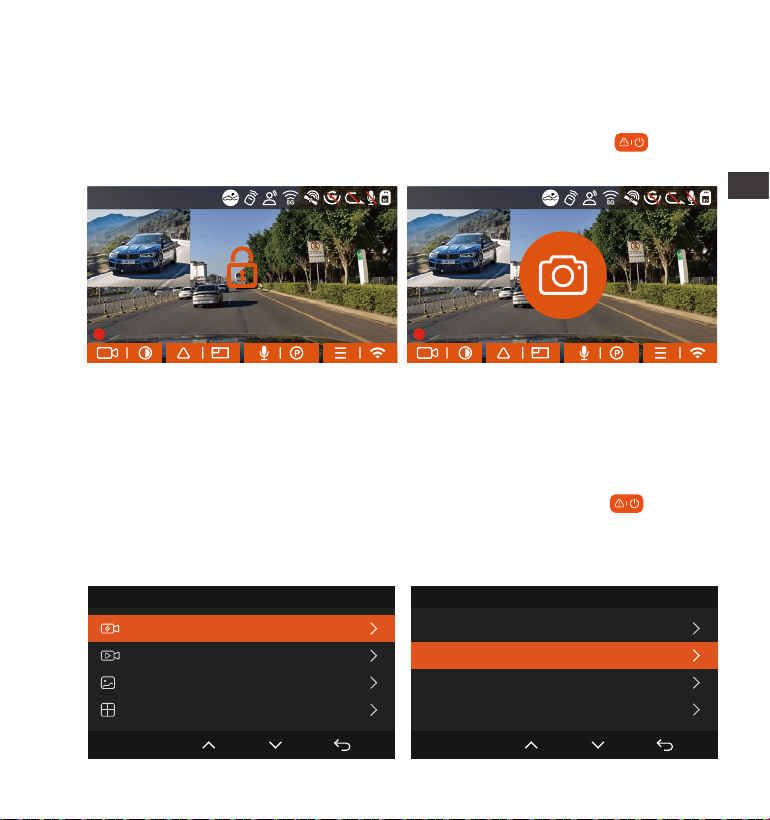
- 67 -
4.2.2 Notfallaufzeichnung
Während des Fahrens können Sie den Rekorder unter besonderen
Umständen manuell oder automatisch für Notfallaufzeichnungen sperren.
Zum manuellen Sperren müssen Sie nur die Notfall-Videotaste drücken,
um das aktuelle Video zu sperren und aufzunehmen.
Das automatische Sperrereignisvideo wird ausgelöst, wenn das Auto
getroffen/gerüttelt wird, die Dashcam erkennt die Vibration und sperrt
automatisch das aktuelle Video, das im Ereignisvideoordner gespeichert
ist.
Während der Sperrvideoperiode können Sie die Notfall-Taste drück-
en, um mehrmals aufzunehmen. Nach der Aufnahme wird das Video
automatisch im Ereignisvideoordner und das Foto im Fotoordner gespe-
ichert.
Datei 1/4
Notfallvideo
Normal Video
Fotos
Alle Dateien
OK
Notfallvideo
20221118_140633_0001_E_A.MP4
20221118_140633_0001_E_B.MP4
20221118_140633_0002_E_A.MP4
20221118_140633_0002_E_B.MP4
2/5
OK
EN
EN
EN
DE
EN
EN
EN
DE
14:39:07 18-11-2022
00:00:37
MP/H
35
14:39:07 18-11-2022
00:00:37
MP/H
35
1440P+1440P 30FPS
1440P+1440P 30FPS
- 68 -
Die Empfindlichkeit des Auslösens des automatischen Sperrens wird
durch die Empfindlichkeit der Kollision bestimmt. Je höher die Empfind-
lichkeitseinstellung, desto größer ist die Wahrscheinlichkeit, ausgelöst zu
werden.
Die Gesamtkapazität der Notfallsvideodatei macht 30% der Gesamt-
kapazität der aktuellen Speicherkarte aus. Wenn die Notfallsvideodatei
die Obergrenze erreicht, überschreibt die neue Notfallsvideodatei
automatisch die ursprüngliche Ereignisvideodatei. Es wird empfohlen,
Ihre Notfall-Videodateien regelmäßig zu überprüfen und zu speichern,
um Verluste zu vermeiden.
Die Sperraufnahme wird in keiner der folgenden Situationen ausgelöst:
Schalten Sie die Daueraufnahme aus oder schalten Sie die
Zeitraffer-Aufnahme ein.
1.
2.
3.
Notiz:
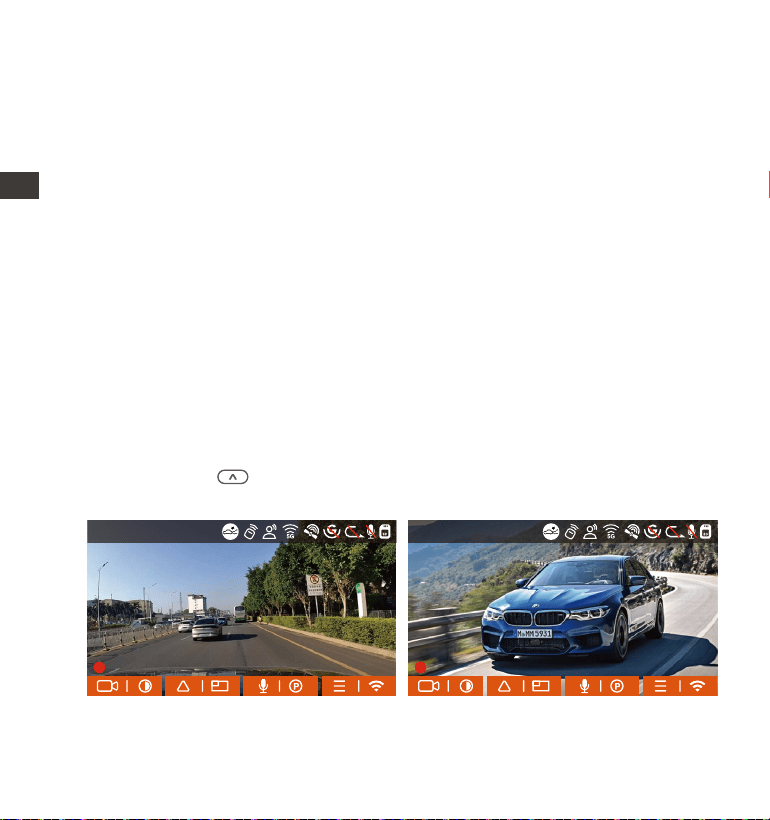
4.2.3 Schalten Sie die Anzeige der Front- und Rückkamera um
Sie können auf Taste drücken, um die Anzeige zu wechseln, und
vergrößert die gewählte Sicht.
Single Front Sicht Single Rück Sicht
ENDE
14:39:07 18-11-2022
00:00:37
MP/H
35
14:39:07 18-11-2022
00:00:37
MP/H
35
1440P+1440P 30FPS 1440P+1440P 30FPS
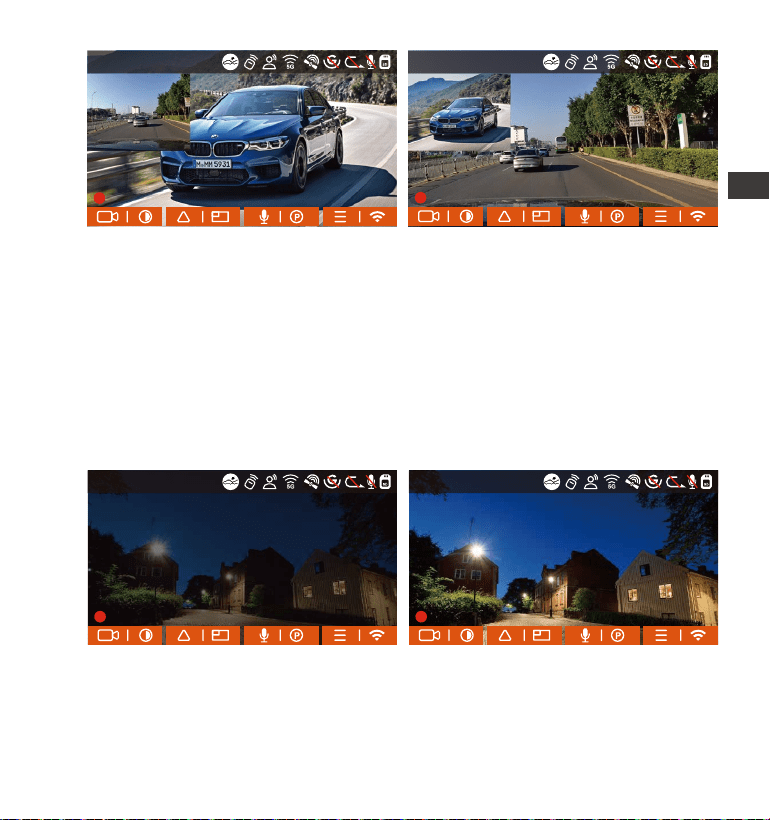
- 69 -
Front+Rück(Grösser) Front(Grösser)+Rück
4.2.4 Parken bei Sternenlicht-Nachtsicht
Um die Sicherheit beim Parken bei Nacht zu erhöhen, nutzen wir die
Linsenleistung in Kombination mit der Sternenlicht-Nachtsichttechnologie
voll aus, um den Nachtsichteffekt im Parkmodus zu verbessern. Diese
Funktion ist standardmäßig aktiviert, sie wird nur nach dem Aufrufen des
Parkmodus ausgelöst und hat keinen Einfluss auf die normale Aufnahme
(Daueraufnahme).
Sternenlicht Nachtsicht im Parken AUS Sternenlicht-Nachtsicht AN
EN
EN
EN
DE
14:39:07 18-11-2022
00:00:37
MP/H
35
14:39:07 18-11-2022
00:00:37
MP/H
35
1440P+1440P 30FPS 1440P+1440P 30FPS
14:39:07 18-11-2022
00:00:37
MP/H
35
14:39:07 18-11-2022
00:00:37
MP/H
35
1440P+1440P 30FPS 1440P+1440P 30FPS

- 70 -
4.2.5 Parkmodus (Wenn der Parkmodus eingeschaltet ist, funktioniert die
Zeitraffer-funktion nicht. Diese beiden Funktionen können nicht gleich-
zeitig ausgeführt werden.)
Der Parkmodus fungiert in verschiedenen Situationen als Wächterfunk-
tion. Sie können je nach Parksituation in verschiedene Parküberwa-
chungsmodi wechseln.
Um den Parkmodus einzuschalten, gibt es zwei Möglichkeiten, ihn
einzugeben. Sie können 5 Minuten warten, um automatisch einzutreten,
oder lange auf die Abwärtstaste drücken, um manuell einzutreten.
Um sicherzustellen, dass die Kamera im Parkmodus ordnungsgemäß
funktioniert, verwenden Sie bitte die Hardwire Kits oder eine andere
stabile und kontinuierliche Stromversorgung, um die Dashcam mit
Strom zu versorgen.
In heißer und sonniger Umgebung im Sommer empfehlen wir Ihnen,
den Kollisionserkennungsmodus zu verwenden. Wenn die Umgebungs-
temperatur im Auto bis zu 60°C beträgt, wird empfohlen, die Kamera
auszuschalten, um einen anormalen Betrieb des Rekorders aufgrund
der hohen Temperatur zu vermeiden.
Zeitraffer-Videoaufzeichnung und Parkmodus (einschließlich Kollision-
serkennung, Bewegungserkennung, Aufzeichnung mit niedriger Bitrate
und Modus mit niedriger Bildrate) können nur für einen von ihnen
aktiviert werden. Wenn einer aktiviert ist, wird der andere automatisch
deaktiviert.
Alle im Parkmodus aufgezeichneten Dateien (einschließlich Kollision-
serkennung, Bewegungserkennung, Modus mit niedriger Bitrate und
1.
2.
3.
4.
HINWEIS:
ENDE
- 71 -
Modus mit niedriger Framerate) werden im Normalen Ordner gespe-
ichert. Um zu vermeiden, dass die Parkmodusdatei durch Dauer
überschrieben wird, überprüfen Sie sie daher bitte regelmäßig, um
Verluste zu vermeiden.
Kollisionserkennung
Wenn die Kollisionserkennung aktiviert ist, wird das Kollisionserken-
nungssymbol auf der Aufzeichnungsoberfläche angezeigt, was darauf
hinweist, dass der Rekorder derzeit den Kollisionserkennungsmodus
verwendet. Die Empfindlichkeit der Kollisionserkennung kann von 1 bis 5
Stufen eingestellt werden, Sie können sie entsprechend der Gewohnheit
sowie der Umgebung des Autos anpassen.
Wenn die Kollisionserkennung eingeschaltet wurde und nach 5 Minuten
Aufzeichnung keine Bewegung erkannt wird (kurz 5-Minuten-Eingabe-
mechanismus), wird die Kollisionserkennung mit einem Kollisionserken-
nungssymbol in der unteren rechten Ecke des Bildschirms und der
Kamera aktiviert automatisch ausschalten. Wenn die Dashcam ausges-
chaltet wird, beginnt sie nach dem Schütteln 1 Minute lang mit der
Aufnahme und schaltet die Dashcam dann wieder aus.
DE
EN
EN
EN
DE
14:39:07 18-11-2022
00:00:37
MP/H
35
1440P+1440P 30FPS
- 72 -
Notiz: Wenn die Dashcam während der Kollisionserkennungsaufzeichnung
weiterhin getroffen wird, verlässt sie den Kollisionserkennungsmodus und
wechselt in die normale Aufzeichnung, wodurch der 5-Minuten-Eingabe-
mechanismus neu gestartet wird.
Bewegungserkennung
Wenn die Bewegungserkennung eingeschaltet ist, wird das Bewegung-
serkennungssymbol auf der Aufnahmeoberfläche angezeigt und zeigt
an, dass sich die Dashcam derzeit im Bewegungserkennungsmodus
befindet. Die Bewegungserkennung hat drei einstellbare Stufen:
niedrig/mittel/hoch, und der entsprechende Erfassungsbereich der
Bewegungserkennung beträgt 2 Meter/ 4Meter /6 Meter.
ENDE
14:39:07 18-11-2022
00:00:37
MP/H
35
14:39:07 18-11-2022
00:00:37
MP/H
35
1440P+1440P 30FPS
1440P+1440P 30FPS
- 73 -
Wenn die Bewegungserkennung eingeschaltet wurde und nach 5
Minuten Aufnahme keine Bewegung erkannt wird, erscheint ein orange-
farbenes Symbol in der Mitte des Bildschirms und der Bildschirm
schaltet sich nach 3 Minuten aus.
Wenn die Front- oder Rückkamera die Bewegung des Objekts erkennt,
beginnt sie automatisch 30 Sekunden lang mit der Aufnahme und einige
Sekunden Video vor der Bewegung, speichert die Aufnahme im Ordner
„Normal“.
Notiz: Der Bewegungserkennungsmodus muss ausgeführt werden, wenn
die Kamera eingeschaltet wird. Sobald die Kamera ausgeschaltet ist,
funktioniert der Bewegungserkennungsmodus nicht.
EN
EN
EN
DE
14:39:07 18-11-2022
00:00:37
MP/H
35
1440P+1440P 30FPS
- 74 -
Modus mit Niedriger Bitrate
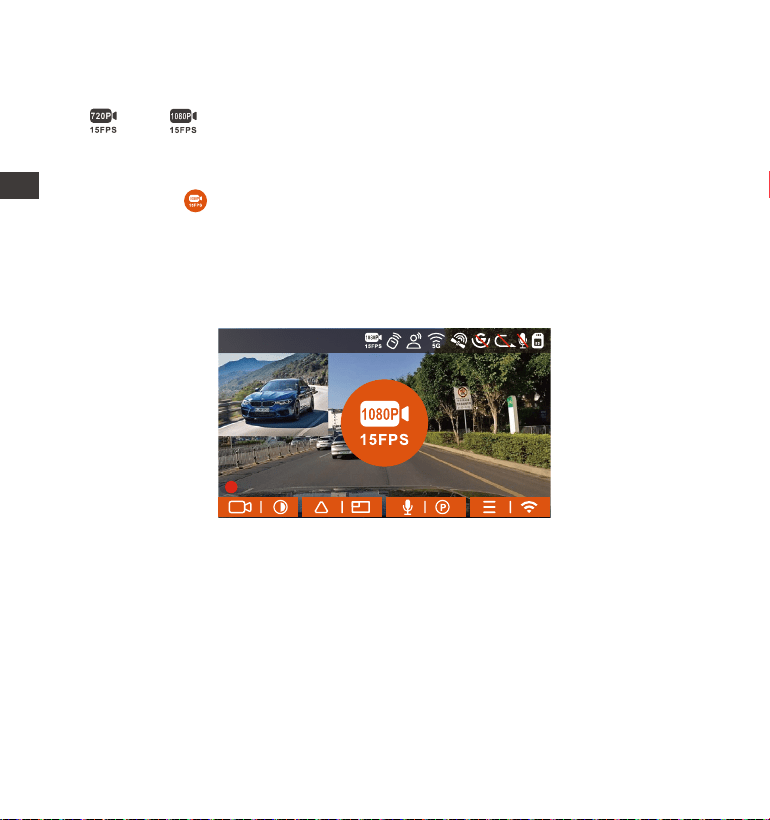
Wenn die Aufzeichnung mit niedriger Bitrate aktiviert ist, wird das Symbol
oder in der unteren rechten Ecke des Bildschirms angezeigt, je
nachdem, ob Sie 1080P 15FPS oder 720P 15FPS wählen.
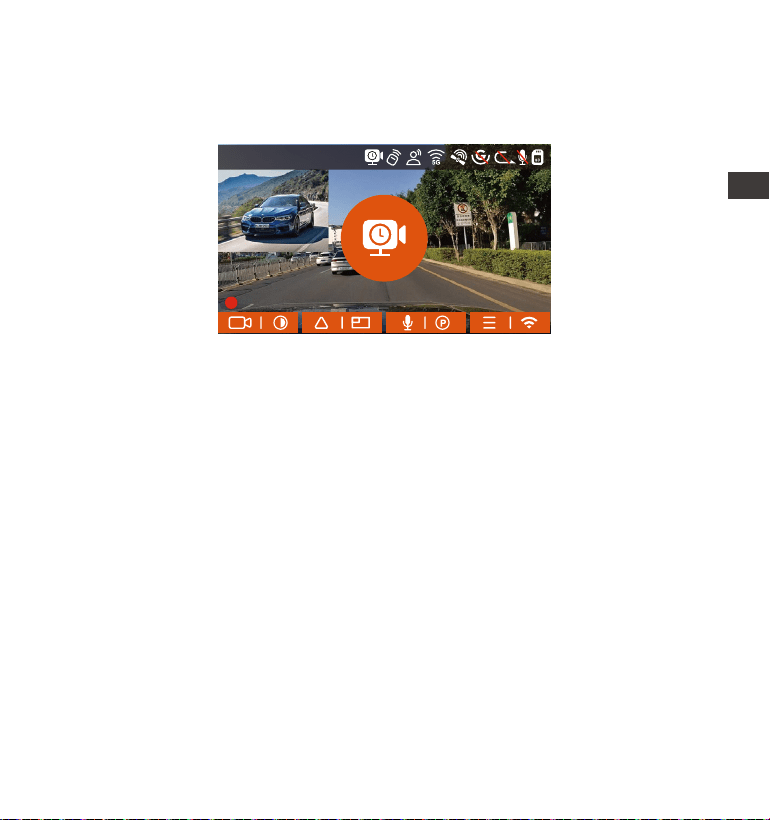
Wenn nach 5 Minuten Aufnahme keine Bewegung erkannt wird, erscheint
ein Symbol in der Mitte des Bildschirms. Die Auflösung aller aktuellen
Videos wird für die Aufnahme automatisch auf 1080P 15FPS oder 720P
15FPS umgeschaltet, und die Aufnahmedauer wird entsprechend der
aktuell eingestellten Daueraufnhamedauer bestimmt. Wenn die Kamera
vibriert oder bewegt wird, wird sie automatisch den Modus verlassen, 5
Minuten warten und wieder eintreten.
Notiz: Die Aufzeichnung mit niedriger Bitrate muss durchgeführt werden,
wenn die Kamera eingeschaltet ist. Sobald die Kamera ausgeschaltet ist,
funktioniert die Aufzeichnung mit niedriger Bitrate nicht.
Modus mit niedriger Framerate
Wenn der niedrige Frameratemodus ausgewählt ist, nimmt die Kamera
entsprechend der Auswahl von 1FPS/5FPS/10FPS/15FPS auf.
ENDE
14:39:07 18-11-2022
00:00:37
MP/H
35
1440P+1440P 30FPS
- 75 -
[Normale Aufnahmezeit = Zeitrafferaufnahmezeit (Sek.) x Aufnahmebil-
drate FPS x Zeitrafferoption]
(Die Zeit sollte in Sekunden umgerechnet werden)
Die Zeiteinheit der Berechnungsformel ist Sekunden, daher beträgt die
berechnete endgültige normale Aufnahmezeit ebenfalls Sekunden.
Wenn Sie es in andere Zeiteinheiten umrechnen müssen, überprüfen
und konvertieren Sie es bitte selbst.
Der Niedrigbildratenmodus ähnelt der Zeitrafferaufnahmefunktion, aber
der Unterschied besteht darin, dass es keinen 5-Minuten-Eingabemech-
anismus für die Zeitrafferaufnahme gibt, der nach der Einstellung direkt
aktiviert wird.
Im Modus mit niedriger Bildrate benötigt die Kamera außerdem eine
stabile Stromversorgung. Sobald die Stromversorgung ausgeschaltet
oder erschöpft ist, wird die Kamera heruntergefahren.
1.
2.
3.
Notiz:
Wenn Sie beispielsweise 1 FPS auswählen und die Bildrate der aktuellen
Videoauflösung 30 FPS beträgt, generiert der Rekorder ein Video mit 30
FPS pro Sekunde. Der Modus mit niedriger Bildrate kann die Integrität des
Videos erheblich bewahren und Speicherplatz auf der Speicherkarte
sparen.
EN
EN
EN
DE
14:39:07 18-11-2022
00:00:37
MP/H
35
1440P+1440P 30FPS
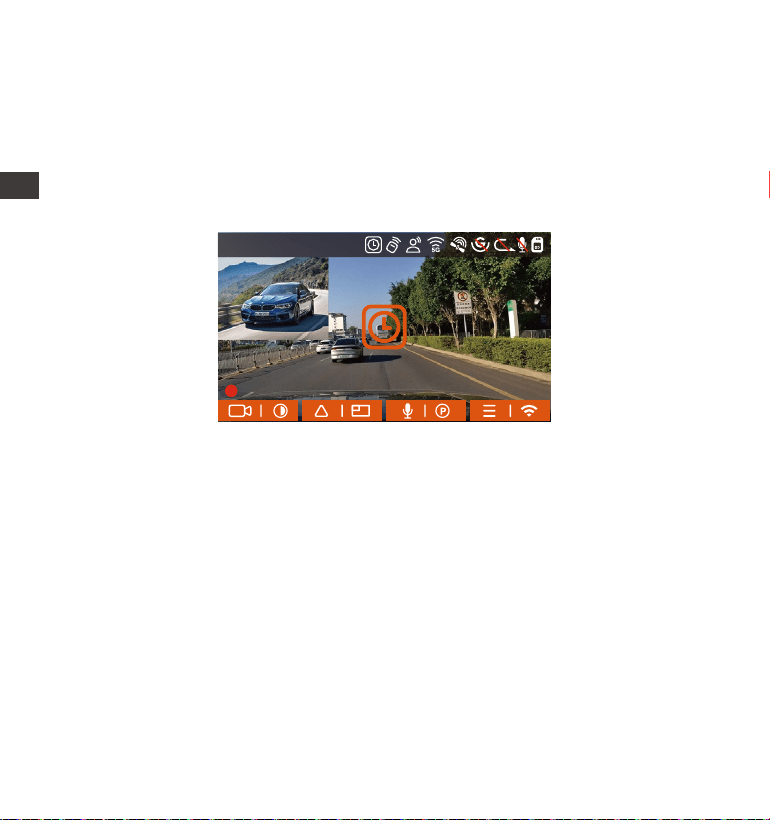
- 76 -
4.2.6 Zeitraffer
Wenn Zeitraffer ausgewählt ist, nimmt die Kamera entsprechend der
Auswahl von 1FPS/5FPS/10FPS/15FPS auf.
Wenn Sie beispielsweise 1 FPS auswählen und die Bildrate der aktuellen
Videoauflösung 30 FPS beträgt, generiert der Rekorder ein Video mit 30
FPS pro Sekunde. Der Modus mit niedriger Bildrate kann die Integrität des
Videos erheblich bewahren und Speicherplatz auf der Speicherkarte
sparen.
[Normale Aufnahmezeit = Zeitrafferaufnahmezeit (Sek.) x Aufnahmebil-
drate FPS x Zeitrafferoption]
(Die Zeit sollte in Sekunden umgerechnet werden)
Note: Gleich wie der Modus mit niedriger Framerate
ENDE
14:39:07 18-11-2022
00:00:37
MP/H
35
1440P+1440P 30FPS

- 77 -
4.2.7 GPS-Funktion
Auch die GPS-Funktion gehört zu den wichtigen Funktionen der Dashcam.
GPS ist standardmäßig aktiviert und die Kamera empfängt GPS-Signale
über die GPS-Halterung. Es kann die Uhrzeit und das Datum in Ihrer Nähe
automatisch korrigieren und den Ort aufzeichnen, an dem das Video
aufgenommen wurde, sowie die Geschwindigkeit des Autos zu diesem
Zeitpunkt.
Die GPS-Verbindung wird innerhalb von 1 Minute nach dem
Einschalten des Geräts hergestellt. Wenn die GPS-Verbindung nicht
innerhalb von 1 Minute erfolgreich ist, überprüfen Sie bitte, ob die
GPS-Funktion des Gerätes eingeschaltet hat, ob die GPS-Halterung
richtig angeschlossen ist und Ihre Umgebung (Tiefgarage, dicht
besiedeltes Wohngebiet, U-Bahn, Tunnel usw. ) wirkt sich auch auf den
Empfang des GPS-Signals aus.
GPS-Informationen werden in dem von Ihnen aufgenommenen Video
aufgezeichnet. Um es anzuzeigen, laden Sie bitte die VANTRUE APP
und den VANTRUE GPS Player herunter und installieren Sie sie (zum
Download verfügbar auf www.vantrue.net).
1.
2.
Notiz:
40
46
39
43
48
GPS Information
DE
EN
EN
EN
DE
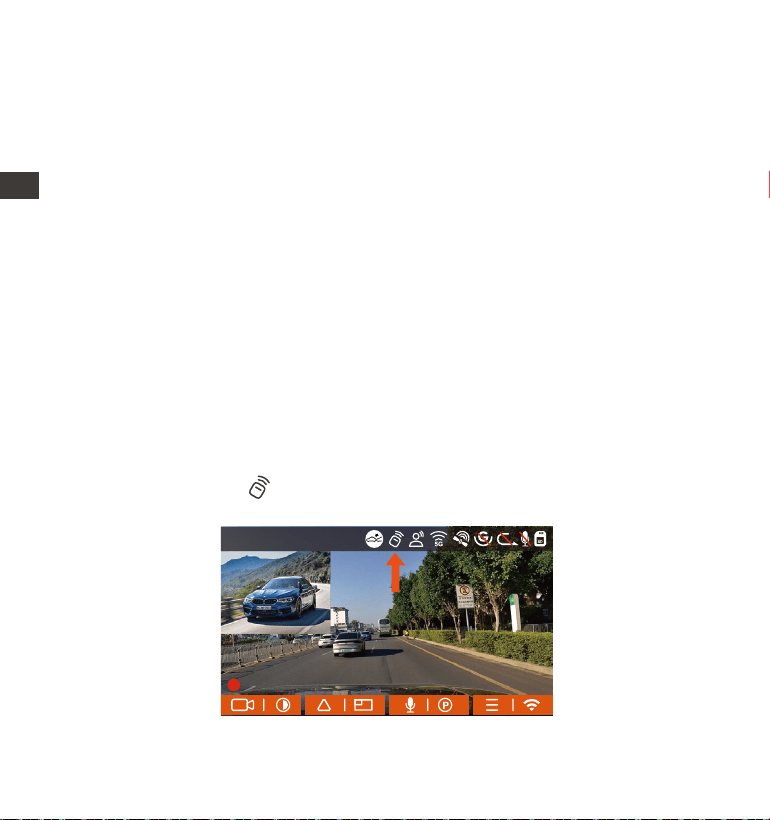
- 78 -
4.2.8 Automatische GPS-Zeitkorrektur
Die automatische GPS-Korrekturzeiteinstellung der E2-Dashcam ist
standardmäßig aktiviert. Sie können GMT-08:00 auswählen, indem Sie Ihre
Zeitzone auswählen, z. B. Los Angeles. Wenn Sie die Zeitzone Ihres
Standorts nicht kennen, können Sie sich über WLAN mit der Vantrue APP
verbinden und bestätigen, dass die automatische Zeitanpassungsfunktion
in der APP aktiviert ist.
4.2.9 Wireless Fernbedienung
Die Kamera ist mit einer Fernbedienung ausgestattet, mit der die Kamera
schnell auf Schnappschuss, Notfallvideo, Aufnahme ein/aus und andere
Funktionen gesteuert werden kann.
Fernbedienungsanschluss:
Entfernen Sie den Batterieabstandshalter an der Fernbedienung, die
Kamera passt sich automatisch der Fernbedienung an. Es ist keine
manuelle Kopplung mit der Dashcam erforderlich.
Wenn das Symbol auf dem Bildschirm erscheint, bedeutet dies, dass
die Fernbedienung erfolgreich angepasst wurde.
ENDE
ENDE
14:39:07 18-11-2022
00:00:37
MP/H
35
1440P+1440P 30FPS
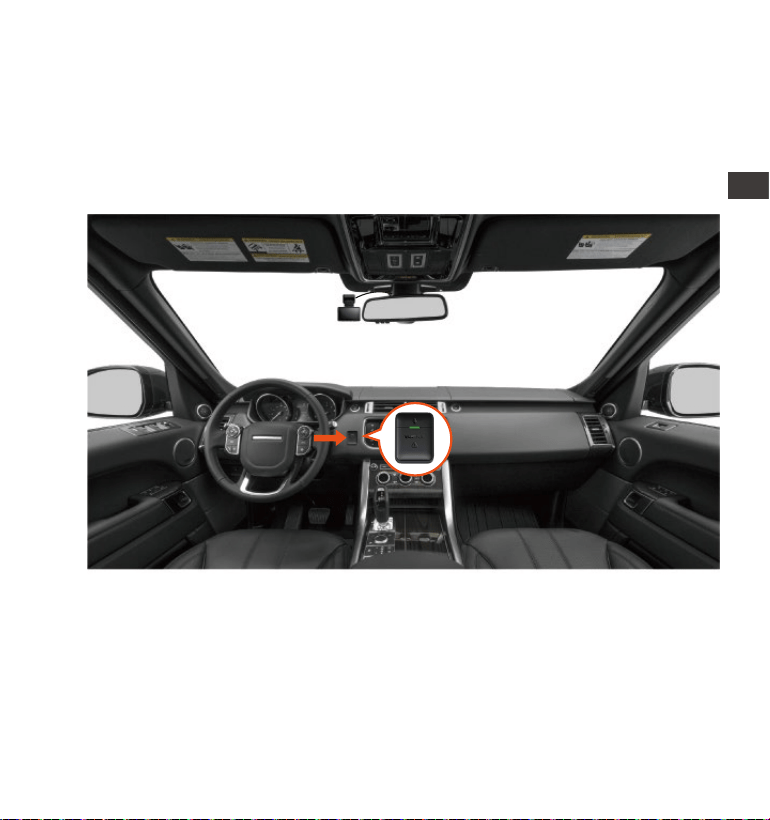
- 79 -
Installation der Fernbedienung:
Nachdem die Fernbedienung mit der Kamera abgeglichen wurde,
wählen Sie bitte eine geeignete Stelle an Ihrem Auto aus, reißen Sie dann
den Aufkleber der Fernbedienung ab und kleben Sie ihn auf die
ausgewählte Stelle. (Hinweis: Die Fernbedienung muss in einer Position
installiert werden, die das sichere Fahren nicht beeinträchtigt.)
EN
EN
EN
DE
EN
EN
EN
DE
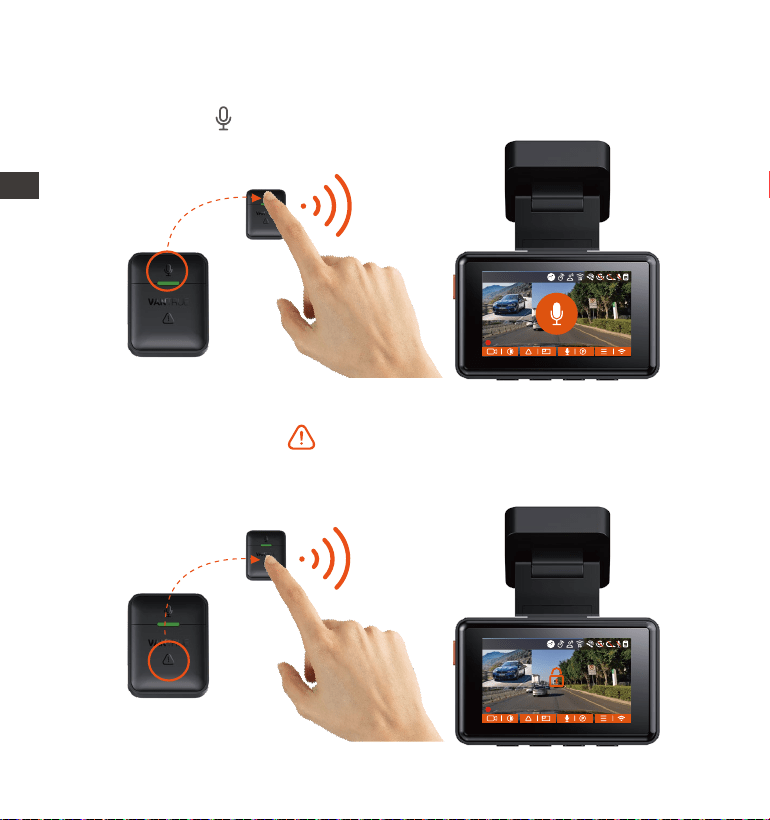
- 80 -
Nachdem die Fernbedienung erfolgreich verbunden wurde, drücken
Sie die Taste , um die Audio zu aktivieren oder zu deaktivieren.
1.
Funktionen der Fernbedienung:
Nachdem die Verbindung erfolgreich hergestellt wurde, drücken Sie
kurz die Notfall-Taste , sperrt die Kamera die aktuelle Datei und
macht einen Video-Schnappschuss; drücken Sie weiter kurz und
nehmen Sie das Foto auf.
2.
ENDE
14:39:07 18-11-2022
00:00:37
MP/H
35
14:39:07 18-11-2022
00:00:37
MP/H
35
1440P+1440P 30FPS
1440P+1440P 30FPS
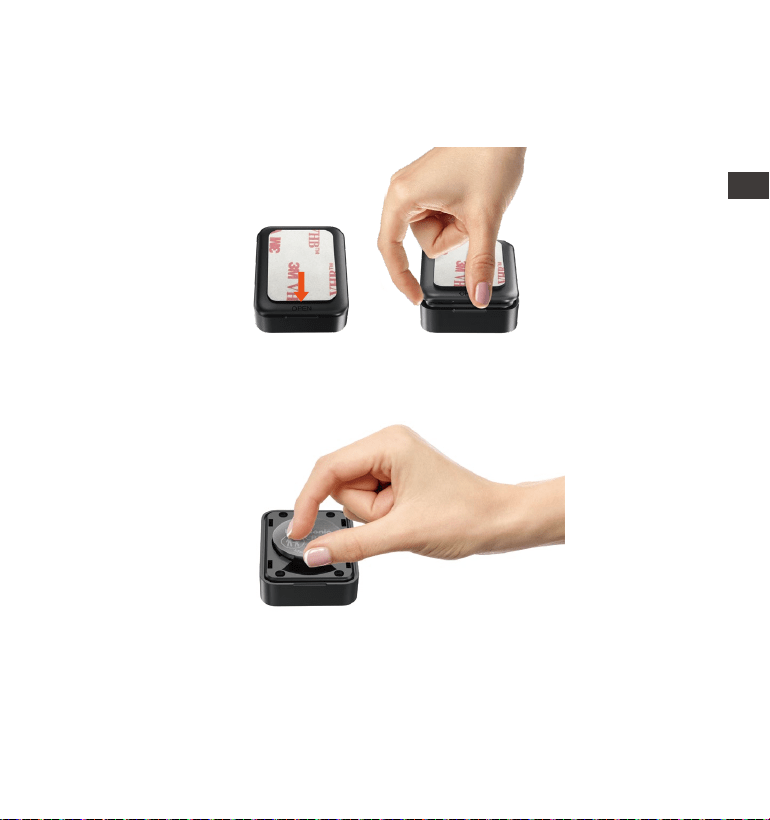
- 81 -
Auf der Unterseite der Fernbedienung befindet sich eine „OPEN“-Mark-
ierung. Bitte öffnen Sie es langsam entlang dieser markierten Position.
1.
Entfernen Sie nach dem Öffnen die alte Batterie, legen Sie die neue
Batterie ein und schließen Sie die hintere Abdeckung der Fernbedi-
enung.
2.
Batterie der Fernbedienung ersetzen:
Notiz: Wenn das Batterie-Status niedrig ist, muss die Batterie ausgetauscht
werden (Das Batteriemodell der Fernbedienung ist eine CR2032-Batterie).
Das Aufladen wird nicht unterstützt.
EN
EN
EN
DE
EN
EN
EN
DE
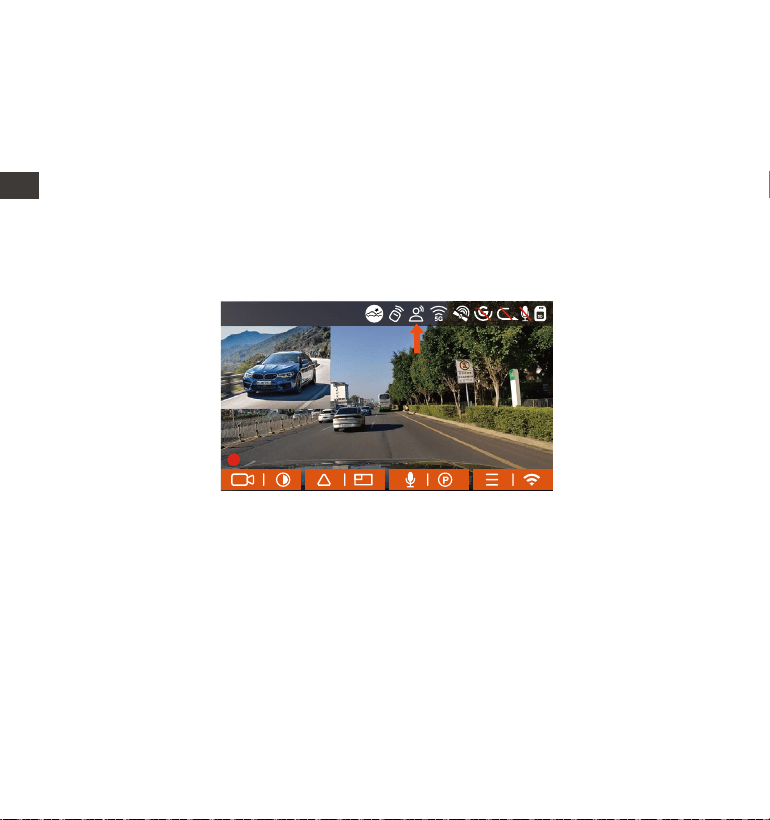
- 82 -
4.2.10 Spracherkennung
Neben der Steuerung der Kamera mit der Fernbedienung können Sie
dem Rekorder über den Sprachassistenten auch Sprachbefehle erteilen,
Derzeit unterstützte Sprachen sind Englisch , Japanisch, Russisch, Chine-
sisch. Detailliertere Sprachbefehle finden Sie unter System Einstellungen >
Sprachinhalt.
Die Standardeinstellung ist Standardempfindlichkeit. Die Spracherkennung
hat Optionen wie niedrige Empfindlichkeit/Standard/hohe Empfindlich-
keit/aus. Sie können die Kamera mit Sprachbefehlen steuern.
ENDE
14:39:07 18-11-2022
00:00:37
MP/H
35
1440P+1440P 30FPS
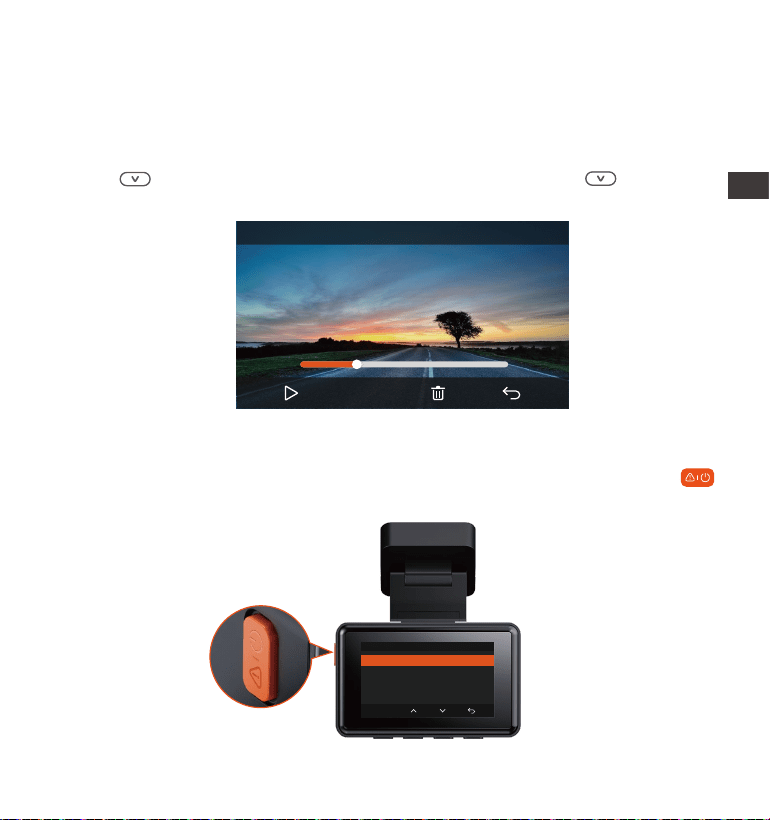
- 83 -
00:30
01:07
20221118_140633_0002_E_B.MP4
1X
4.2.11 Wiedergeben und Löschen von Dateien
a.Anzeigen von Dateien auf der Kamera
Nachdem Sie auf „Dateien“ geklickt haben, geben Sie einen beliebigen
Ordner ein, nachdem Sie den Videoordner geöffnet haben, können Sie
die drücken, um die nächste Datei auszuwählen, und drücken,
um die Datei während der Wiedergabe zu löschen.
- Videos löschen
Löschen Sie das Video auf der Kamera. Drücken Sie die Notfallstaste
in der Benutzeroberfläche zum Durchsuchen von Dateien, um das Menü
„Löschen“ aufzurufen.
Normal Video
Diese Datei Löschen?
Alle Dateien löschen?
OK
EN
EN
EN
DE
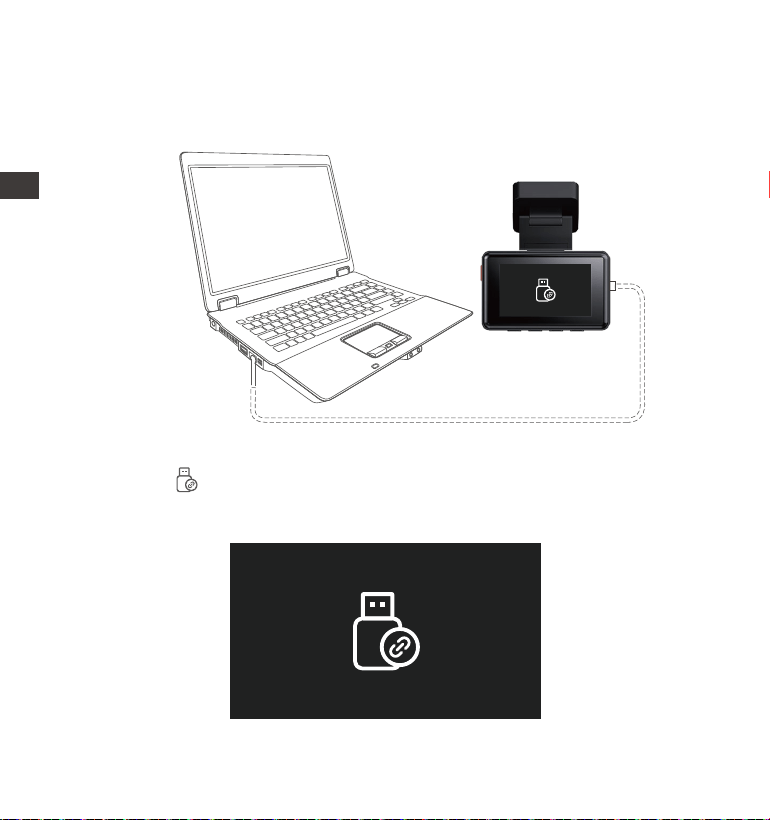
- 84 -
Verbinden Sie über das mitgelieferte USB-C Datenkabel die Kamera
und dem Computer.
b. Anzeigen von Dateien auf einem Computer
1.
Nachdem die Verbindung erfolgreich hergestellt wurde, erscheint das
Symbol auf dem Display der Kamera, um Daten zu übertragen, und
dann können Sie die Videodateien im Computerordner durchsuchen.
2.
ENDE
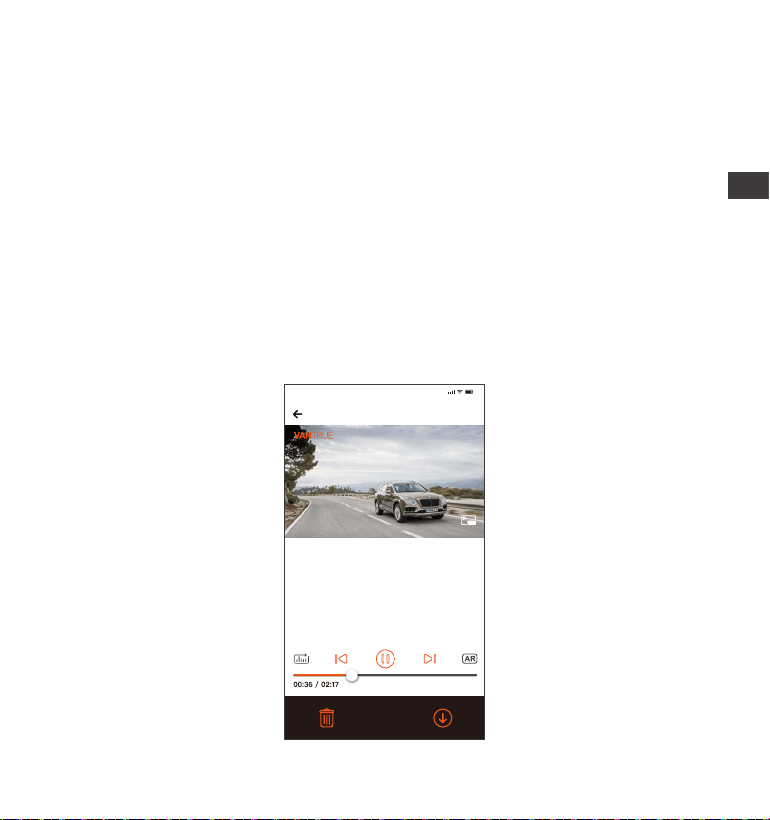
- 85 -
Je nach Computersystem verschiedener Benutzer wird die Kamera
nach dem Anschließen an den Computer als Wechseldatenträger oder
Wechselordner auf dem Computer angezeigt.
Um die Datei auf dem Computer anzuzeigen, können Sie direkt mit der
rechten Maustaste klicken, um das Menü zu öffnen und sie zu löschen.
Sie können auch einen USB-Kartenleser verwenden, um die Speicherk-
arteninformationen zu lesen.
3.
4.
5.
c.View auf „Vantrue“ APP
Nachdem die Kamera erfolgreich über WLAN mit dem Mobiltelefon
verbunden wurde, kann sie Dateien in der mobilen APP wiedergeben,
herunterladen und löschen.
20221118_115036_0079_N_A.MP4
18/11/2022 11:5:35 E2 000.000000. 000.000000. 36MK/H
Hinweis:
9:41
Um GPS-Informationen anzuzeigen,
müssen Sie zuerst die Videodatei in
den lokalen Ordner der APP
herunterladen und dann im lokalen
Ordner abspielen.
EN
EN
EN
DE

- 86 -
4.2.12 Aktualisieren der Firmware
Das System aktualisiert automatisch, wenn die Micro-SD-Karte die
Firmware-Upgrade-Datei enthält. Die Kamera wird neu gestartet, sobald
das Upgrade abgeschlossen ist.
Die neueste Firmware-Version ist immer auf der offiziellen VANTRUE-Web-
site (www.vantrue.net) verfügbar. Wir empfehlen dringend, Ihr Produkt zu
registrieren (www.vantrue.net/register), um eine Benachrichti-
gungs-E-Mail zu erhalten, wenn ein neues Firmware-Update verfügbar ist.
4.2.13 Arbeitstemperatur
Die Kamera ist für den Betrieb bei Temperaturen von -20 bis 70°C (-4 bis
158°F) ausgelegt, Temperaturen außerhalb dieses Bereichs können die
Leistung der Kamera beeinträchtigen und Schäden verursachen.
Um Schäden zu vermeiden
Setzen Sie die Kamera bei heißem Wetter nicht direkt der Sonne aus,
wenn das Auto geparkt ist.
Bei extremen Winterbedingungen, d. h. -20°C (-4°F) oder niedriger,
nehmen Sie die Kamera von der Windschutzscheibe ab, wenn sie nicht
verwendet wird, und bewahren Sie sie im Handschuhfach auf.
Videowiedergabe in APP oder Download auf SD-Karte, es wird kein
Netzwerkverkehr verbraucht.
Videodateien müssen in einen lokalen Ordner heruntergeladen und
abgespielt werden, bevor GPS-Trackinformationen angezeigt werden
können. Gleichzeitig müssen Sie das WLAN des Fahrtenschreibers
trennen, da sonst die GPS-Informationen leer sind.
1.
2.
Notiz:
ENDE

- 87 -
5. Spezifikation
E2Model
Engish/ Français/ Español/ Deutsch/ Italiano/
简体中文/русский/ 日本語/ Polski
Novatek Hochleistungsprozessor
Sony CMOS Sensor
2.45” IPS
Eingebaut 2.4G&5GHz
Die Spezifikationen dieses Produkts können sich aufgrund von Produktver-
besserungen ohne vorherige Ankündigung ändern.
Chips
Bild Sensor
Screen
WiFi
Vorderseite: 160° breiter Betrachtungswinkel;
F1.8Linse
Rückseite: 160° breiter Betrachtungswinkel;
F1.8Linse
Sprache
Front + Rück: 1944P+1944P 24FPS; 1440P+1440P
30FPS; 1440P+1080P 30FPS; 1080P+1440P 30FPS;
1080P+1080P 30FPS; 1080P+720P 30FPS;
720P+1080P 30FPS; 720P+720P 30FPS
Single Front: 2592x1944P 30FPS; 2560x1440P
30FPS; 1920x1080P 30FPS; 1280x720P 30FPS
Extern: 32 GB-512 GB Micro-SD-Karte, U3, Klasse
10 (nicht im Lieferumfang enthalten)
Speicher
Energiequelle
Video Format
Versorgungsspannung
Strom
Videoauflösung
Eingebaut Mikrofon und LautsprecherAudio
Linse
Eingebauter Superkondensator
MP4
DC 5V 2.4A
EN
EN
EN
DE
EN
EN
EN
DE

- 88 -
Betriebsstrom
Arbeitstemperatur
Lagertemperatur
USB Anschluss
5W
-20°C bis 70°C (-4°F bis 158°F)
-30°C to 85°C(-22°F to 185°F)
USB C
Garantie
Auf die VANTRUE
®
E2 On Dash Dashcam erhalten Sie volle 12 Monate
Garantie. Wenn Sie Ihr Produkt auf unserer offiziellen Website (www.vantrue.
net/register) registrieren, können Sie die Garantie auf 18 Monate genießen.
Unterstützung
Wenn Sie Fragen zu Ihrem Produkt haben, zögern Sie bitte nicht, uns unter
[email protected] zu kontaktieren oder uns eine Nachricht über die
Live-Chat-Box auf www.vantrue.net zu senden.
Anfragen werden in der Regel innerhalb von 12-24 Stunden beantwortet.
Ihre Meinung zählt
VANTRUE
®
ist fest entschlossen, unsere Produkte, Dienstleistungen und
Benutzererfahrung ständig zu verbessern. Wenn Sie Ideen haben, wie wir
noch besser werden können, freuen wir uns über Ihr konstruktives Feedback
und Ihre Vorschläge. Kontaktieren Sie uns noch unter [email protected].
6. Garantie und Support
ENDE
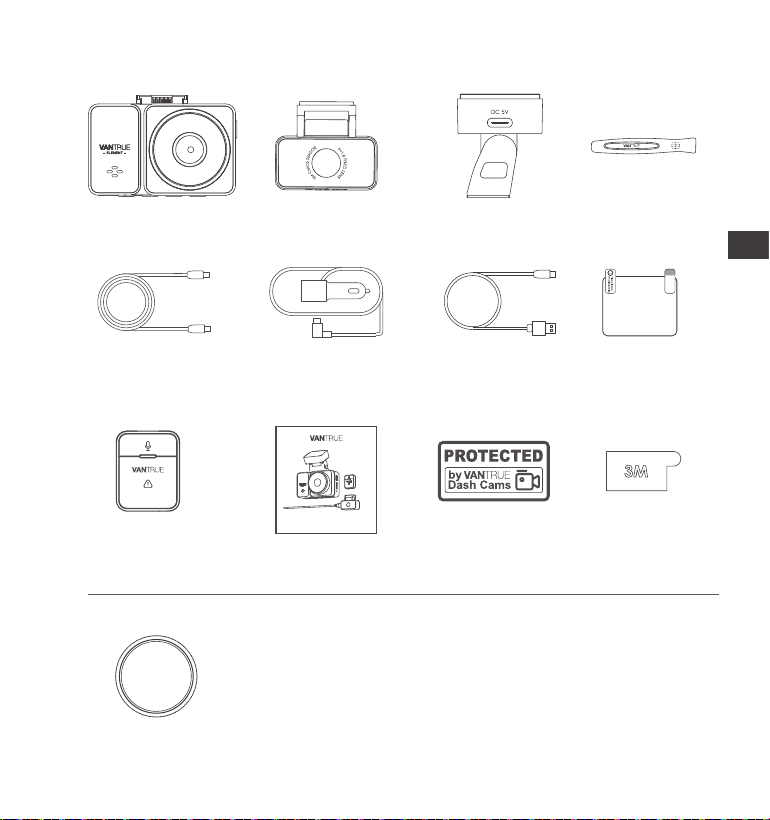
- 89 -
1. Qu'y a-t-il dans la boîte?
H.
Autocollants
adhésifs 3M
Télécommande
sans Fil
L.
Filtre CPL
A.
Dashcam
VANTRUE
®
E2
E.
Support adhésif
GPS
I.
M.
B.
Caméra arrière
G.
Manuel de
l’utilisateur
K.
D.
Pied-de-biche
C.
Câble de
données USB C
( 1m )
F.
Chargeur de
voiture avec
câble USB C (3.5 m)
Câble pour
caméra arrière
(6m)
Avertissement
stickers
J.
Autocollants
électrostatiques
Accessoires Optionnels
Element 2
User Manual
Voice-Controlled Dual Dash Cam
EN
EN
EN
FR
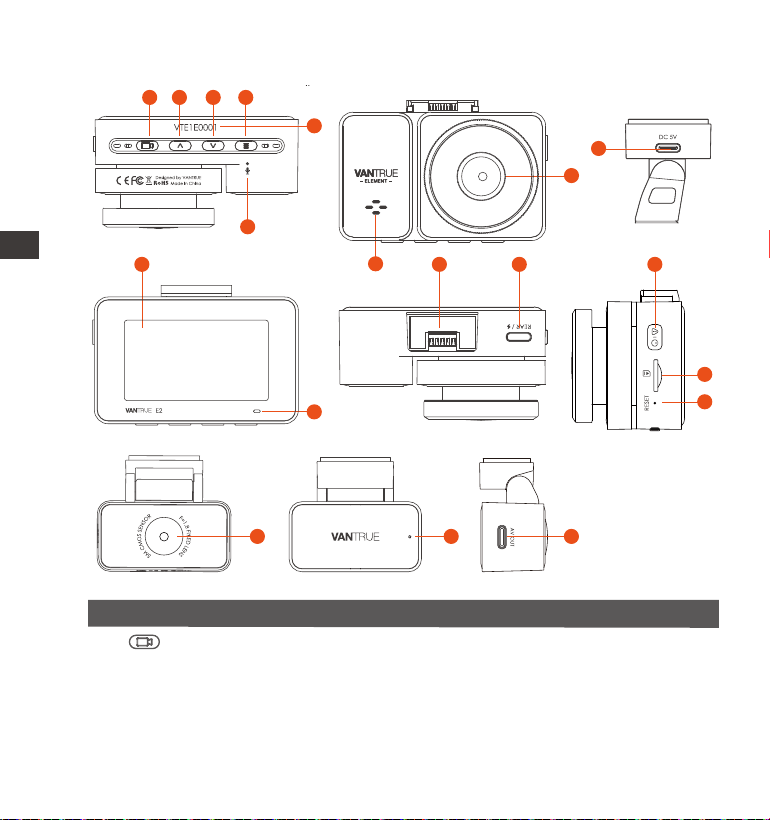
- 90 -
2. Vue d'ensemble de la caméra
Numéro DescriptionNom
Pendant l'enregistrement , Appui long pour
éteindre l'écran, appui court pour arrêter
l'enregistrement vidéo et passer en mode veille ;
Vous pouvez confirmer l'option sélectionnée dans
le menu et lire/mettre en pause des fichiers.
1 Bouton
9
8
1 2 3
4
5
6
15
16
10 13
1412
11
17 18 19
7
ENFR

- 91 -
2 Pendant l'enregistrement vidéo et la veille, Appui
court pour changer de fenêtre vidéo; dans le
réglage du menu et la navigation dans les
fichiers, Appui court pour afficher l'option
précédente, Appui long pour faire défiler vers le
haut pour afficher les options; en mode lecture,
Appui court pour avancer rapidement; En mode
Wi-Fi, appuyez sur n'importe quelle touche pour
quitter le Wi-Fi
Pendant l'enregistrement vidéo et la veille, Appui
long pour entrer rapidement en mode parking et
appui court pour allumer/éteindre le microphone;
Dans le menu et la navigation des fichiers, Appui
long pour faire défiler les options, Appui court pour
afficher l'option suivante; Appui court pour le
supprimer lors de la lecture de fichiers. En mode
Wi-Fi, appuyez sur n'importe quelle touche pour
quitter le Wi-Fi
Pendant l'enregistrement vidéo et le mode veille,
appuyez longuement pour activer/désactiver le
WiFi.
Bouton
4
5
3 Bouton
Bouton
Numéro de Série Numéro de série pour l'enregistrement de la
garantie.
7 Haut-parleur Délivre le son pendant la lecture vidéo.
6
Microphone Enregistre un son clair avec les séquences vidéo.
10
Écrans Écran LCD de 2,45 pouces
8
Caméra frontale Enregistrer une vidéo de la route devant la voiture.
9
Port
d'alimentation
Se connecte au câble USB C ou au chargeur de
voiture pour une alimentation externe.
EN
EN
EN
FR

- 92 -
Indicateur
11 Indicatore Video Une lumière rouge fixe signifie que la caméra
enregistre
12
Interface de
Support
Position d'installation du support
13 Port USB C pour
caméra arrière
Connecte la caméra arrière à ce port; connecte
le câble de données pour le transfert de données.
14
Bouton
16
Bouton de
réinitialisation
Appuyez brièvement pour redémarrer la caméra.
17 Caméra arrière Enregistrer une vidéo de la route derrière la voiture.
18
Indicateurs pour
la caméra arrière
Un voyant vert indique que la caméra arrière est
connectée à l'alimentation
19 Connecteur de
caméra arrière
Port de connexion pour le câble de la caméra
arrière
15
Slot pour carte
MicroSD
Prise en charge de la carte Micro SD jusqu'à 512
Go en FAT32, classe 10
DescriptionLED
Lumière verte fixe Enétat de veille ou le voyant
d'enregistrement est désactivé
La caméra est en train d'enregistrer.
Mise sous/hors tension. Appui long pour allumer
et éteindre, appui court pour verrouiller la vidéo
et prendre des photos pendant l'enregistrement
d'un événement.
État des voyants
Enregistrement
lumière verte
clignotante
ENFR
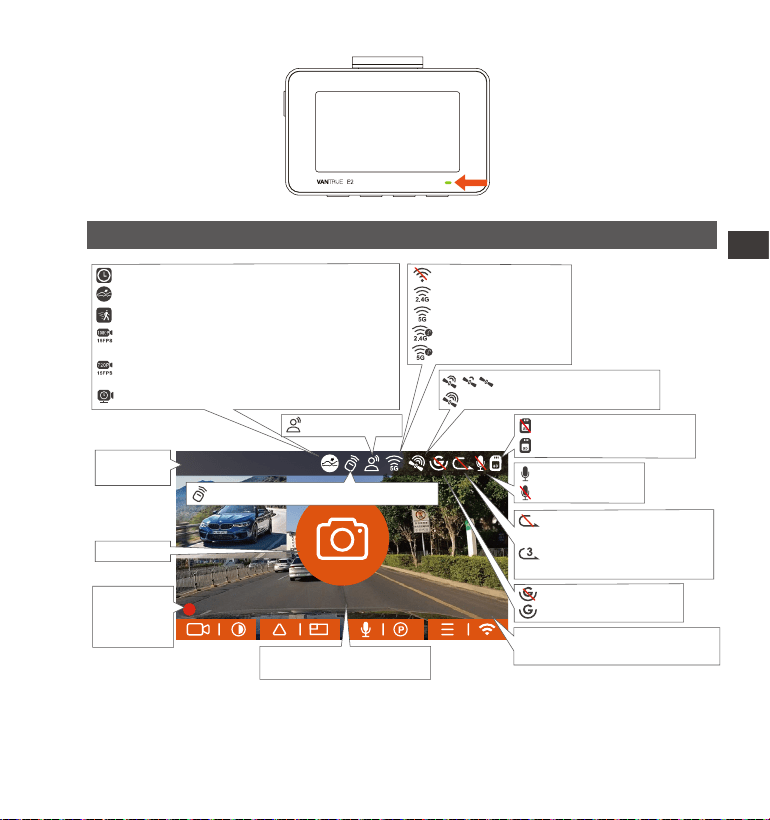
1440P+1440P 30FPS
14:39:07 18-11-2022
00:00:37
MP/H
35
- 93 -
Aperçu de l'écran
EN
EN
EN
FR
Enregistrement en boucle
désactivé
Temps d'enregistrement
en boucle (3 minutes)
MIC activé
MIC désactivé
Sans carte mémoire
Carte mémoire insérée
Capteur G désactivé
Capteur G activé
Vitesse de conduite
enregistrée(KMH ou MPH)
Résolution
vidéo
instantané
La télécommande est connectée
Enregistrement en accéléré activé
Détection de collision activé
Détection de mouvement activée
Mode Parking à faible fréquence d'images
Connexion du signal GPS
Signal GPS verrouillé
MP/H
35
Date actuelle
(MM/JJ/AA)et heure(24H)
Durée
d'enregis-
trement
(clip actuel)
Wi-Fi désactivé
2.4G Wi-Fi activé
5G Wi-Fi activé
2.4G Wi-Fi connecté
5G Wi-Fi connecté
Enregistrement à bas débit (1080P15FPS)
activé
Enregistrement à bas débit (720P 15FPS)
activé
Assistant vocal
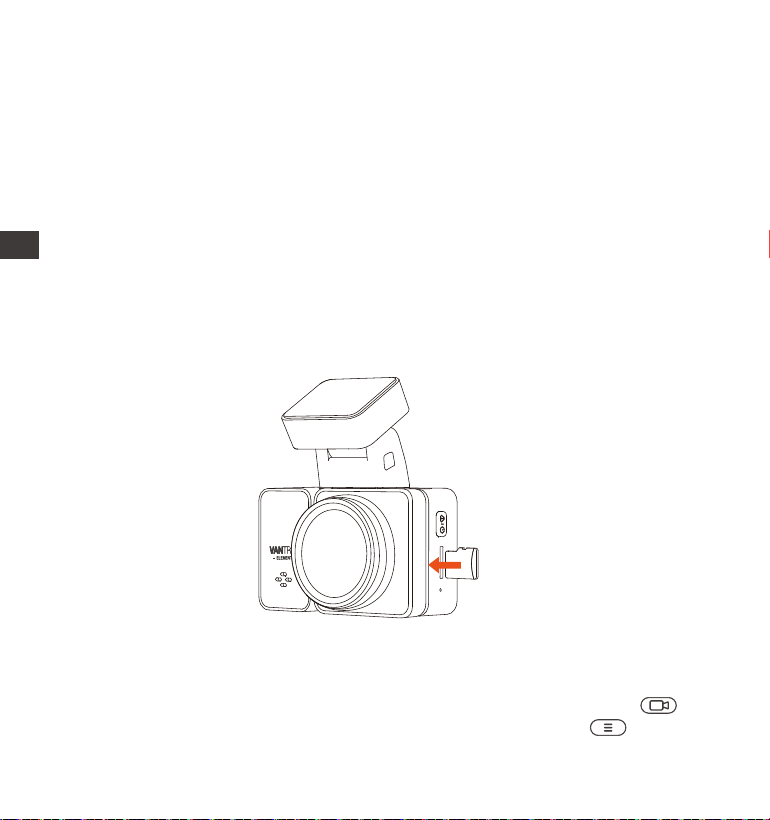
- 94 -
3. Installation
3.1 Installation d'une carte mémoire (Carte microSD VANTRUE recommandée)
Veuillez insérer une carte mémoire (capacité de la carte mémoire : 32
Go-512 Go, vitesse de la carte : U3/Class10/A2), car la dashcam a
certaines exigences sur la vitesse de la carte mémoire. Pour un
fonctionnement fiable, nous vous recommandons d'utiliser la carte SD
VANTRUE (vendue séparément).
Installation de la carte mémoire : Une icône indique le sens d'insertion de
la carte mémoire. Veuillez pousser la carte mémoire dans la fente pour
carte selon la direction indiquée par l'icône, jusqu'à ce qu'un "clic" se
fasse entendre dans la fente pour carte, indiquant que la carte mémoire
est correctement insérée
Avant d'utiliser cette carte, veuillez suivre les étapes ci-dessous pour la
formater correctement:
Si l'appareil est en train d'enregistrer, veuillez appuyer sur l'icône pour
mettre en pause l'enregistrement, puis appuyez sur l'icône pour entrer
ENFR

- 95 -
Nous vous recommandons de formater la carte une fois par mois pour
garantir l'utilisation normale de la caméra de tableau de bord;
Ne retirez pas ou n'insérez pas la carte mémoire pendant l'enregis-
trement pour éviter de perdre des vidéos importantes.
Veuillez ne pas utiliser de mauvaises cartes ou de cartes à faible vitesse
sur la caméra de tableau de bord, car il est facile d'arrêter ou de
perdre l'enregistrement en raison d'une défaillance de la carte
mémoire.
Avant de formater la carte mémoire, veuillez vérifier le dossier vidéo
d'urgence sur la carte SD pour voir s'il y a des vidéos qui doivent être
enregistrées séparément, afin de ne pas supprimer des vidéos impor-
tantes par erreur.
RAPPEL:
1.
2.
3.
4.
dans le menu, puis entrez dans le "Système", sélectionnez la carte de
formatage et confirmez pour formater la carte mémoire jusqu'à ce
qu'il vous demande "Formaté avec succès" .
Après avoir inséré la carte mémoire, si l'écran affiche "Erreur de carte,
veuillez formater" (veuillez noter que l'enregistreur n'enregistre pas à ce
moment), veuillez appuyer directement sur le bouton pour accéder
au menu et démarrer le processus de formatage.
EN
EN
EN
FR
EN
EN
EN
FR
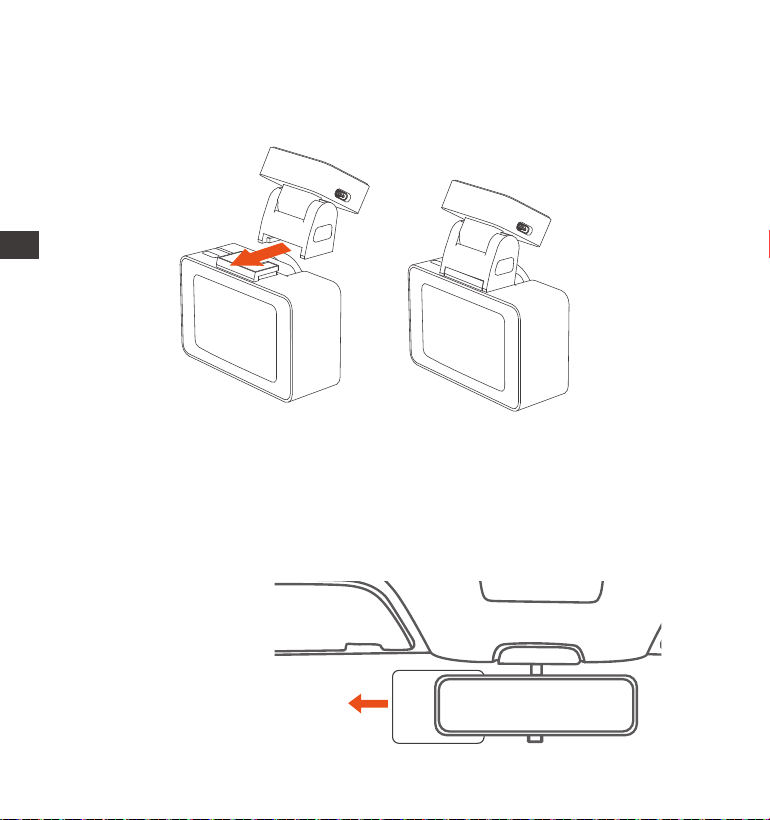
- 96 -
3.2 Installation de la caméra sur votre pare-brise
Installation du support caméra : Alignez le support avec l'interface de
montage de la caméra, puis poussez jusqu'à ce que le support soit
installé.
1.
Installation d'autocollants électrostatiques : Nettoyez soigneusement le
pare-brise avec de l'eau ou de l'alcool, puis essuyez-le avec un chiffon
sec. Collez l'autocollant électrostatique derrière le rétroviseur, qui est la
position recommandée pour éviter de bloquer notre vue pendant la
conduite. Il est recommandé de connecter d'abord l'alimentation
pour observer l'écran de l'objectif afin de choisir la meilleure position
d'installation.
2.
Électrostatique autocollant
ENFR
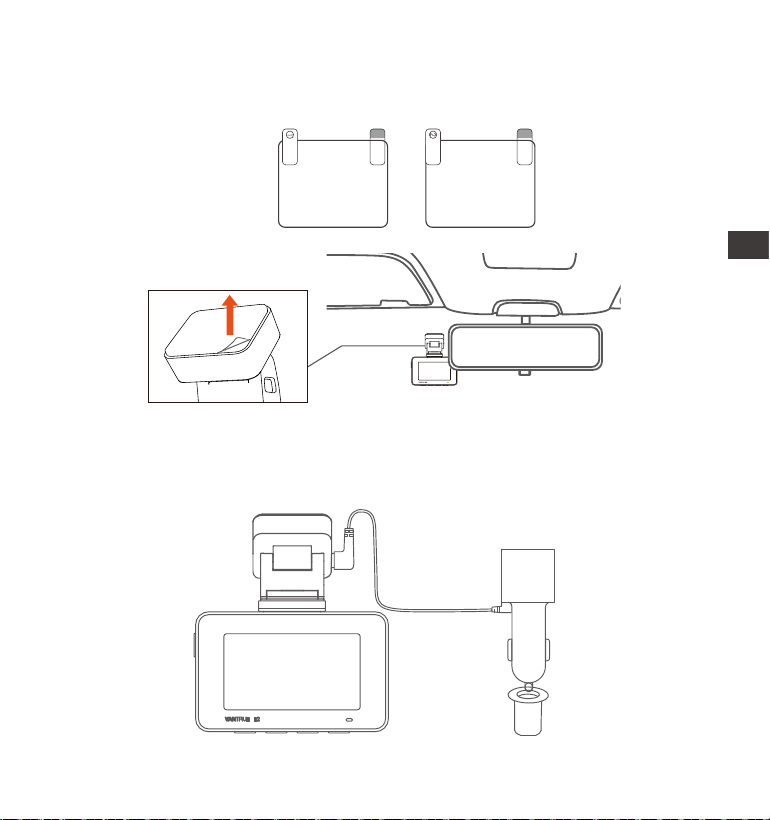
- 97 -
Installation du chargeur de voiture: Connectez le chargeur de voiture
à l'allume-cigare de la voiture, Le voyant allumé indique que l'alimen-
tation est normale.
3.
Remarque : il y a deux autocollants électrostatiques numérotés 1 et 2.
Veuillez retirer le film protecteur du n° 1, coller l'autocollant électrosta-
tique sur le pare-brise, puis retirer le film protecteur du n° 2.
Please peel off this mask
AFTER application completed
Please peel off this
mask BEFORE application
EN
EN
EN
FR
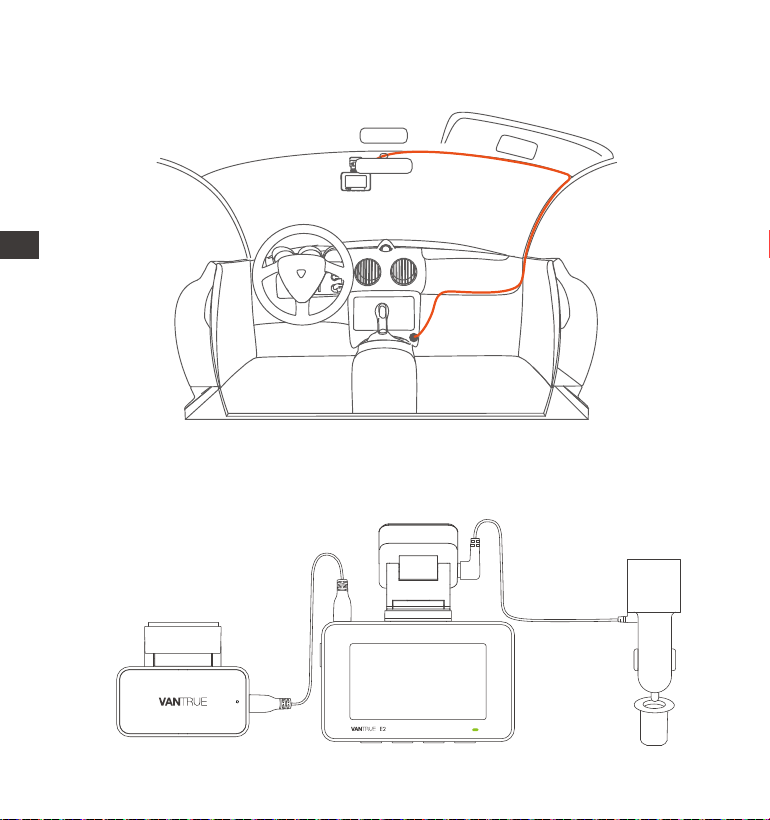
- 98 -
Connectez d’abord les caméras avant et arrière, puis disposez le câble
du chargeur de voiture comme indiqué sur la figure.
Connectez les caméras avant et arrière et allumez-les via le câble de
charge de la voiture, sélectionnez d'abord un emplacement appro-
prié pour installer la caméra avant à l'emplacement où l'autocollant
électrostatique est installé.
4.
ENFR
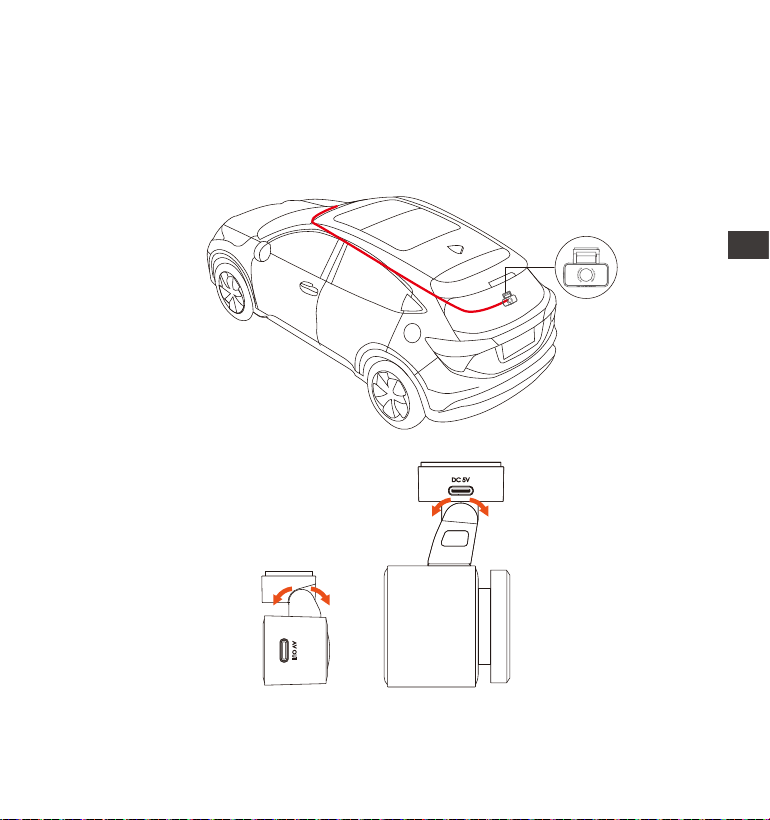
- 99 -
Installation de la caméra arrière: Nous vous recommandons de
sélectionner une position proche du centre du pare-brise arrière.
Veuillez éviter la position où la lunette arrière a des lignes de grille pour
éviter que l'écran ne soit bloqué, et nettoyez la position avant
l'installation. Fixez la caméra arrière à l'emplacement sélectionné et
réglez l'objectif selon vos besions.
5.
EN
EN
EN
FR

- 100 -
3.3 Téléchargement de l'APP
Veuillez scanner le code QR de la version appropriée ci-dessous pour
télécharger l'APP et l'installer.Recherchez l'application "Vantrue" dans
l'App Store ou Google Play Store pour trouver l'application, puis
téléchargez-la et installez-la sur votre téléphone.
Remarque : Une fois la caméra connectée au téléphone mobile via WiFi,
vous pouvez prévisualiser la vidéo en temps réel, modifier les paramètres
de l'enregistreur, télécharger le fichier avec 0 trafic et lire la vidéo sur le
téléphone mobile. Cependant, les fonctions de lecture de piste GPS et
de partage vidéo dépendront des services à valeur ajoutée Internet ou
télécom (nécessite d'éteindre/déconnecter l'enregistreur WiFi).
ENFR
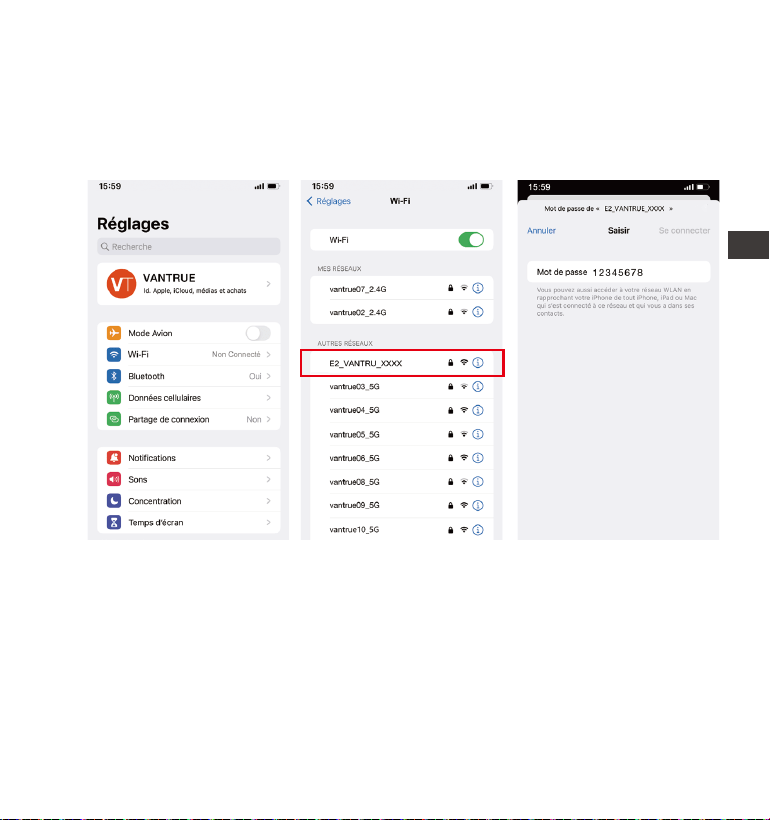
- 101 -
3.4 Connexion Wi-Fi
Activez la fonction WiFi de la dashcam, puis ouvrez les paramètres WiFi
du téléphone mobile, recherchez le nom WiFi tel que:E2_VANTRUE_XXXX,
entrez le mot de passe par défaut du WiFi: 12345678, et le téléphone
mobile peut se connecter avec succès au WiFi.
EN
EN
EN
FR
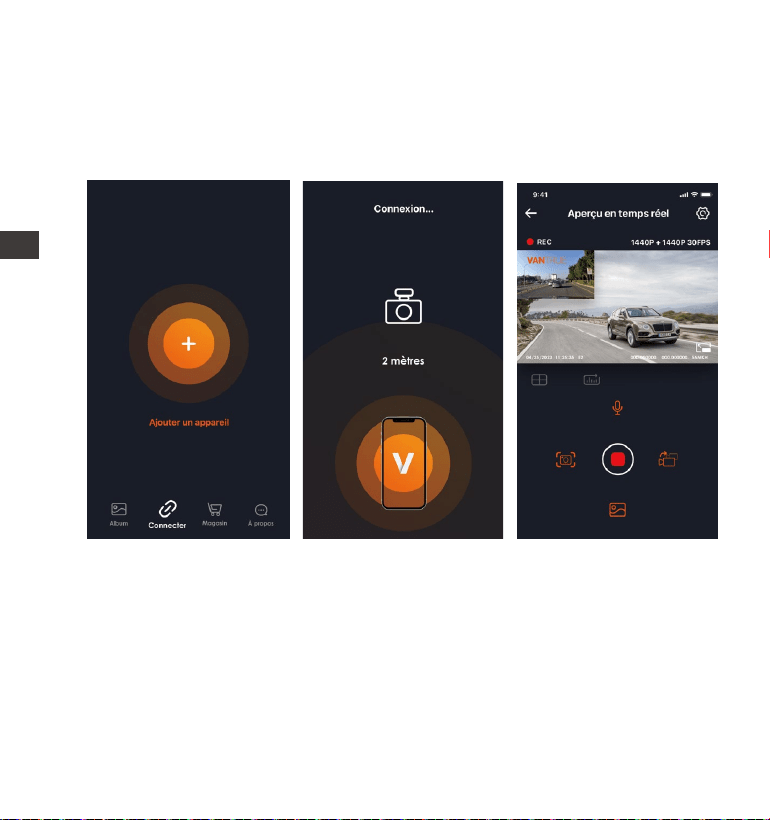
- 102 -
Une fois la connexion WiFi établie, cliquez sur "+" lors de la première
ouverture de l'APP, ajoutez le modèle de caméra, puis l'APP se connect-
era automatiquement à la caméra et affichera la situation d'enregis-
trement en temps réel actuelle de la caméra.
3.5 Connexion APP
Noter:
Si vous ne vous êtes pas connecté au WiFi avant d'ouvrir l'APP, l'APP
vous demandera "Veuillez d'abord vous connecter au WiFi", et passera
automatiquement aux paramètres WiFi, veuillez d'abord suivre les
étapes pour vous connecter au WiFi.
Si vous vous êtes connecté au Wi-Fi, mais passez à l'autorisation
d'application de l'APP après avoir sélectionné le modèle dans l'APP,
veuillez vérifier si l'autorisation de réseau sans fil de l'APP est activée.
1.
2.
ENFR

- 103 -
3.
4.
5.
Le mot de passe initial de cet appareil est uniquement pour la connex-
ion initiale. Afin d'éviter les risques de sécurité potentiels, assurez-vous
de le changer initial à temps après la connexion initiale pour empêcher
d'autres personnes de se connecter à votre appareil sans autorisation
ou d'autres conséquences néfastes.
Si vous oubliez le mot de passe Wi-Fi, vous pouvez restaurer les
paramètres d'usine et le mot de passe sera également restauré par
défaut.
Les utilisateurs d’Android peuvent se connecter au wifi directement
dans l’interface APP.
EN
EN
EN
FR
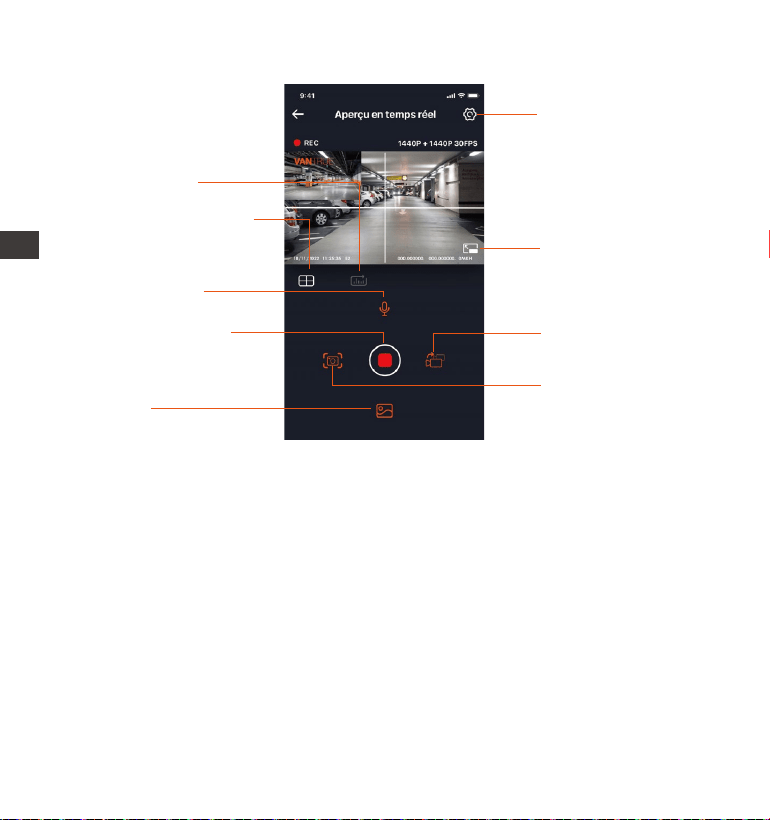
- 104 -
Réglage
Bouton plein écran
Commutateur de
vitre avant et arrière
Instantané
Album
Bouton arrêter
l'enregistrement
Microphone
Statistiques
kilométriques
Ligne de correction
de l'objectif
3.6 Fonctionnement de l'application
Après être entré dans l'aperçu en temps réel de l'APP, vous pouvez
effectuer les opérations suivantes:
Aperçu vidéo : une fois l'appareil connecté avec succès à l'APP, l'enreg-
istreur accède à la page d'aperçu en temps réel, cliquez sur le bouton
plein écran ou placez le téléphone horizontalement, l'image en temps
réel passera automatiquement mode aperçu plein écran.
Cliquez sur le bouton commutation pour basculer les fenêtres vidéo avant
et arrière.
Lecture vidéo : vous pouvez visualiser le fichier vidéo ou photo enregistré
sur la carte SD dans l'APP, et cliquer sur le fichier pour lire la vidéo.
Téléchargement vidéo : vous pouvez choisir de télécharger des vidéos ou
ENFR
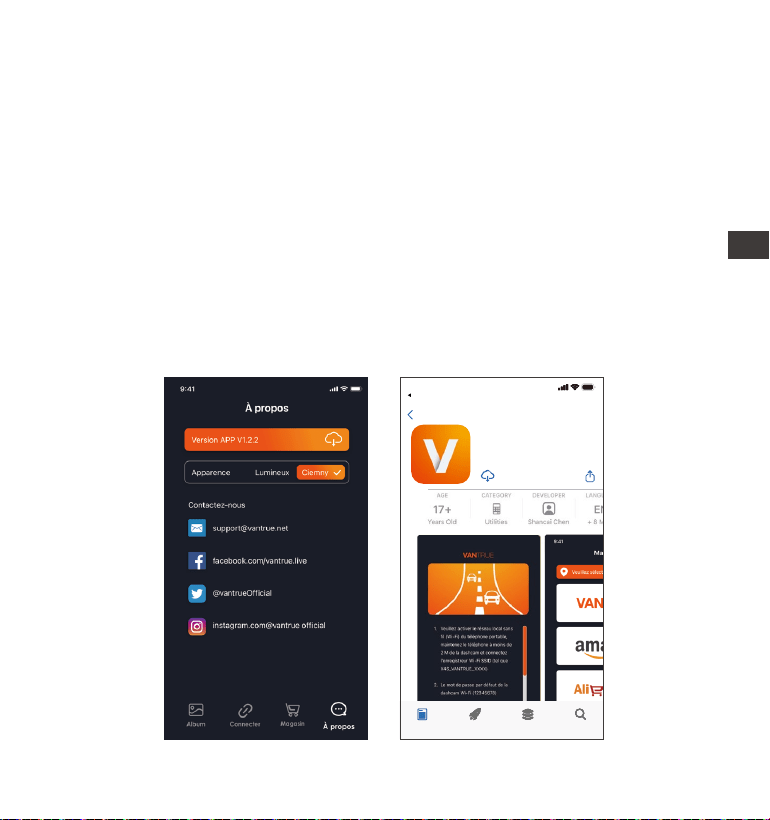
- 105 -
3.7 Mise à niveau de l'application
Ouvrez l'application "Vantrue", entrez "Paramètres> À propos> Détecter
nouveau Version", l'App détectera automatiquement si la version de
l'App est la dernière version. S'il existe une nouvelle version de l'applica-
tion, suivez les invites de l'application et mettez-la à niveau.
des images dans l'interface de navigation des fichiers de la carte SD ou
dans la lecture vidéo. Après avoir téléchargé la vidéo, elle peut être lue
dans le fichier local de l'application et la trace GPS de la vidéo peut être
visualisée.
Capture vidéo : vous pouvez capturer l'image actuelle dans l'interface de
prévisualisation en temps réel de l'application. Veuillez cliquer sur le
bouton d'instantané pour le prendre.
EN
EN
EN
FR
Vantrue Ltd.
Vantrue
Vantrue
9:41
Derrière
Connard Le jeu Apps Recherche
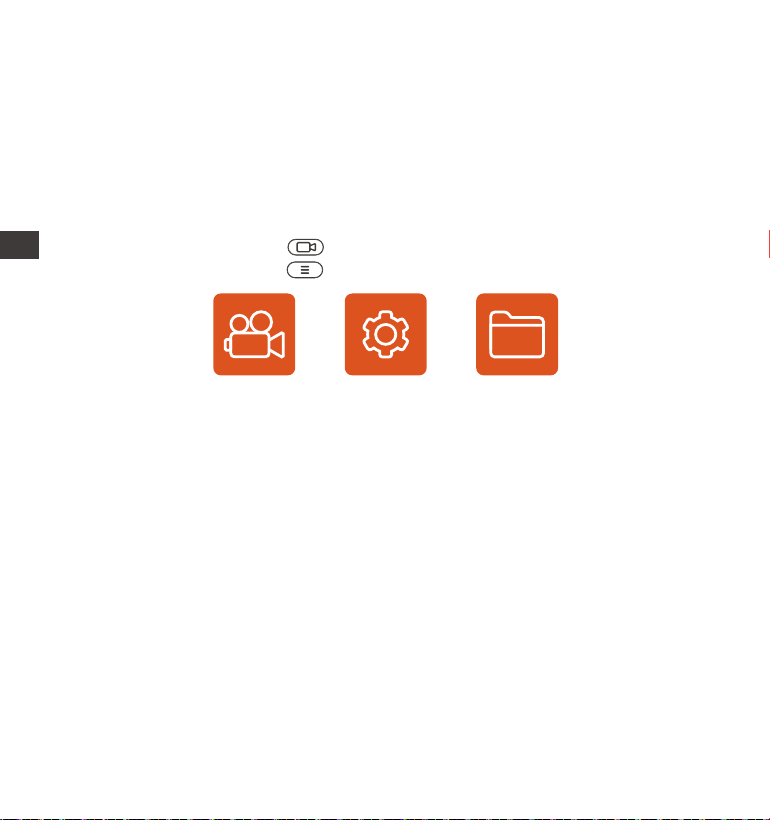
- 106 -
Dashcam E2 dispose de 3 menus de fonctions, qui sont les paramètres
d'enregistrement, les paramètres système et la navigation dans les fichiers.
Vous pouvez régler votre caméra de tableau de bord selon vos besoins
dans ce paramètre de fonction.
Appuyez sur le bouton , mettez d'abord la vidéo en pause, puis
appuyez sur le bouton pour accéder aux paramètres du menu.
4. Opération de base
4.1 Paramètres de Menu
Vidéo Système Fichier
A. Paramètres d’enregistrement
Résolution:
Mode d'enregistrement Avant +
Arrière:
2592x1944P 30FPS
2560x1440P 30FPS
1920x1080P 30FPS
1280x720P 30FPS
1944P+1944P 24FPS
1440P+1440P 30FPS
1440P+1080P 30FPS
1080P+1440P 30FPS
1080P+1080P 30FPS
1080P+720P 30FPS
720P+1080P 30FPS
720P+720P 30FPS
Mode d'enregistrement panorama:
ENFR

- 107 -
Enregistrement en Boucle: Par défaut 3 minutes. Sélectionner les options
de la durée: 1,3,5, Désactive.
Capteur G: La sensibilité aux collisions a 3 dimensions d'une voiture:
En avant & En arrière ; Vers la gauche & la droite ; Vers le haut & Vers le
bas Le niveau par défaut est 3, sélectionner les options de sensibilité:
1,2,3,4,5, Désactive. Une sensibilité élevée signifie qu'une légère collision
déclenchera la détection.
Enregistrement Audio: Activé par défaut. Vous pouvez choisir de le
désactiver si vous ne voulez pas enregistrer le son environnant.
Exposition: Par défaut est +0,0 valeur d'exposition. Réglez l'exposition de
l'objectif avant ou arrière.
Indicateur d'enregistrement : Le réglage par défaut est Actif, vous pouvez
choisir de activer/ désactiver le voyant d'état de l'enregistrement.
WDR : Activé par défaut, pour mieux équilibrer l'effet vidéo, vous pouvez
choisir de désactiver.
Rotation de l'écran: Désactive par défaut. Vous pouvez choisir de faire
pivoter la caméra avant ou arrière, l'écran vidéo sera inversé de 180°
Image miroir arrière: Activée par défaut. Une fois activée, l'image de la
caméra arrière s'affiche en mode miroir.
Plaque d'immatriculation: Après le réglage, votre numéro de plaque
d'immatriculation peut être affiché dans la vidéo enregistrée
Filigrane: Tout sont activés par défaut. Vous pouvez choisir de activer :
Date et heure, modèle et logo, numéro de plaque d'immatriculation,
étiquette de vitesse, localisation GPS.
Enregistrement en accéléré: Désactivé par défaut. Il existe actuellement 4
options: 1FPS/5FPS/10FPS/15FPS. Selon votre choix, la vidéo est enregistrée
à 1 image/5 images/10 images/ 15 images par seconde.
Mode Parking à Faible Luminosité: Par défaut est activée. Lorsqu'il est
activé, il peut optimiser l'effet d'enregistrement des vidéos en mode
parking.
Mode Parking: Désactive par défaut. Vous pouvez modifier les options:
EN
EN
EN
FR

- 108 -
Détection de collision, Détection de mouvement, Enregistrement à faible
débit,Mode à faible fréquence d'images.
GPS: Activé par défaut. Les paramètres de commutation GPS, les
paramètres d'unité de vitesse, les informations GPS sont tous définis ici.
B.Paramètres Système
Langue: English / Français / Italiano / Deutsch / Español / Русский язык /
Polskie / 日本語 / 简体中文
Wi-Fi: Automatique activé par défaut, vous pouvez choisir de démarrer
ou de désactiver automatiquement et d’afficher les informations Wi-Fi.
Commande Vocale:Uniquement en anglais.La sensibilité par défaut est
Standard. Les commandes vocales peuvent être reconnues une fois
l'option activée. Vous pouvez choisir des options telles que faible sensibil-
ité/haute sensibilité/standard/désactivé.
Contenu vocal: Commandes de reconnaissance vocale. Vous pouvez
utiliser différentes commandes pour contrôler à distance la caméra pour
qu'elle fonctionne.
Formater la carte mémoire: Choisir de formater la carte micro SD.
Rappel de format: Désactivé par défaut. Sélectionner les options de
rappel: 15 jours, 1 mois et désactivé.
Heure & Date: Il existe deux méthodes de réglage
①Mise à jour automatique du GPS, ② Réglage manuel de la date/heure.
Mise à jour automatique par défaut. La première méthode est basée sur
votre fuseau horaire, vous devez donc choisir le bon ; vous pouvez
également choisir de le désactiver et de corriger manuellement l'heure
de la date vous-même.
LCD s'éteint Auto: 30 seconds /1minute/3minute/désactivé sont
disponibles. Par défaut est désactivé. En mode auto, l'écran réduira
automatiquement la luminosité, mais ne s'éteindra pas. Sinon, l'écran
s'éteindra après le temps défini. Mais l'enregistrement ne s'arrêtera pas.
Volume de Son: Réglez le volume de l'appareil. Le niveau de volume par
ENFR

- 109 -
défaut est 3, le plus bas est 0 et le plus élevé est 5.
Rappel Sonore: Selon différentes situations, la caméra est réglée avec 5
types de rappel sonore, qui sont: Son de mise en marche, Son des
touches, Son du fichier verrouillé, Son du Format, Rappel d'arrêt d'enreg-
istrement anormal. Tous sont activées par défaut.
Fréquence de la source lumineuse: 50Hz / 60Hz sont disponibles. Choisis-
sez la bonne fréquence selon les différentes régions.
Informations système: Vérifiez le modèle de la machine, la version du
logiciel, l'URL du site officiel
Certification: Vous pouvez afficher les informations de certification de la
caméra E2.
Paramètres Défaut: Vous pouvez restaurer les paramètres d'usine.
C.Parcourir les Documents
Passez en revue et supprimez les vidéos stockées dans des dossiers de
fichiers.
Vidéo d’urgence: Les fichiers vidéo d'urgence sont enregistrés dans ce
dossier. Le nom du fichier est 20300128_140633_0008_E_A.MP4
Vidéo Normal: Ce dossier enregistre la vidéo en boucle courants, la
vidéo en mode parking, la vidéo en accéléré. Les noms de fichiers sont
respectivement:
20300128_140633_0008_N_A.MP4 Vidéo d'enregistrement en boucle
20300128_140633_0007_P_A.MP4 Vidéo du mode parking
20300128_140633_0006_T_A.MP4 Vidéo enregistrée en accéléré
Photo: Le fichier capturé est enregistré ici.
TOUS: Vous pouvez afficher tous les fichiers sur la dashcam.
Remarque : Le suffixe A représente les fichiers enregistrés par la caméra
avant, le suffixe B représente les fichiers enregistrés par la caméra arrière.
EN
EN
EN
FR
EN
EN
EN
FR

- 110 -
4.2. Présentation des fonctions
4.2.1 Enregistrement en Boucle
Avec une carte mémoire insérée, la caméra démarre (par défaut)
immédiatement l'enregistrement vidéo en boucle lorsqu'elle est
connectée à une source d'alimentation.
Selon la taille de la carte mémoire actuelle, une fois que l'enregistrement
atteint le réglage (70% de la capacité totale), le nouvel enregistrement
écrasera automatiquement le plus ancien. L'activation de cette fonction
peut éviter d'arrêter l'enregistrement lorsque le fichier est plein pendant
la conduite.
Remarquer:
2.
1.
3.
4.
Le fonctionnement normal de cette fonction dépend en grande partie
de la vitesse de la carte mémoire. Veuillez donc formater la carte
mémoire régulièrement pour éviter des problèmes tels qu'un trop
grand nombre de fichiers sur la carte mémoire et le vieillissement de la
carte qui affectent le cycle d'enregistrement normal.
Veuillez vérifier régulièrement la vidéo d'enregistrement en boucle
pour éviter de boucler sur la vidéo nécessaire.
Lorsque l'enregistrement en boucle est désactivé, la caméra enregis-
trera la vidéo en 20 minutes chaque clip, mais n'écrasera pas les
anciennes vidéos lorsque la carte de stockage est pleine.
Si l'enregistrement en boucle est désactivé, la fonction de verrouiller les
vidéos ne fonctionnera plus.
ENFR
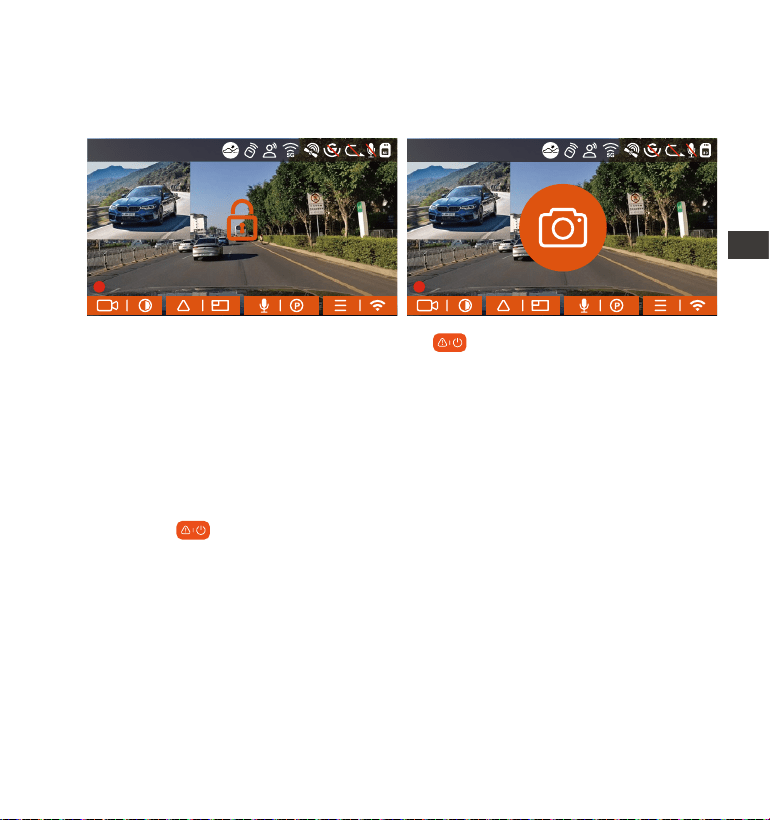
- 111 -
4.2.2 Vidéo d'urgence
L'enregistrement d'urgence est déclenché par G-Sensor, qui peut être
divisé en déclenchement automatique et verrouillage manuel.
Verrouillage manuel : Cliquez sur l'icône pour commencer à verrouiller
l'enregistrement et la vidéo est enregistrée dans le dossier vidéo
d'urgence.
Verrouillage automatiquement: Lorsque la voiture est heurtée par une
collision, le capteur G détecte la vibration et verrouille automatiquement
la vidéo actuelle et l'enregistre dans le dossier vidéo d'urgence.
Pendant la période de verrouillage de la vidéo, vous pouvez appuyer sur
le bouton pour capturer plusieurs fois. Après l'enregistrement, la vidéo
sera automatiquement enregistrée dans le dossier vidéo de l'événement
et la photo sera enregistrée dans le dossier photo.
EN
EN
EN
FR
14:39:07 18-11-2022
00:00:37
MP/H
35
14:39:07 18-11-2022
00:00:37
MP/H
35
1440P+1440P 30FPS
1440P+1440P 30FPS
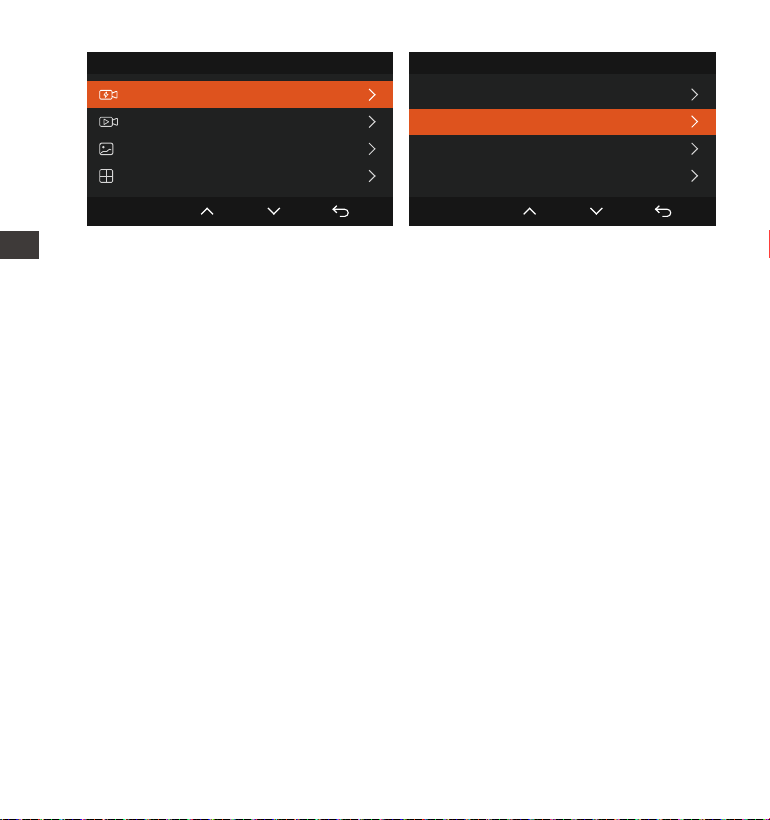
- 112 -
La sensibilité du déclencheur vidéo à verrouillage automatique est
déterminée par la sensibilité de la collision. Plus le réglage de sensibilité
est élevé, plus la probabilité d'être déclenché est grande.
La capacité totale du fichier vidéo d'événement représente 30% de la
capacité totale de la carte mémoire actuelle. Lorsque le fichier vidéo
d'événement atteint la limite supérieure, le nouveau fichier vidéo
d'événement écrasera automatiquement le fichier vidéo d'événement
d'origine. Il est recommandé de vérifier et d'enregistrer périodiquement
vos fichiers vidéo d'événement pour éviter toute perte.
La situation qui ne déclenchera pas l'enregistrement verrouillé :
désactivez le mode d'enregistrement en boucle ou activez le mode
d'enregistrement en accéléré. Dans les deux cas, vous ne pouvez
prendre que des photos
1.
2.
3.
Remarquer:
Fichier 1/4
Vidéo Événement
Vidéo Normale
Photo
Tous les fichiers
OK
Vidéo Événement
20221118_140633_0001_E_A.MP4
20221118_140633_0001_E_B.MP4
20221118_140633_0002_E_A.MP4
20221118_140633_0002_E_B.MP4
2/5
OK
ENFR
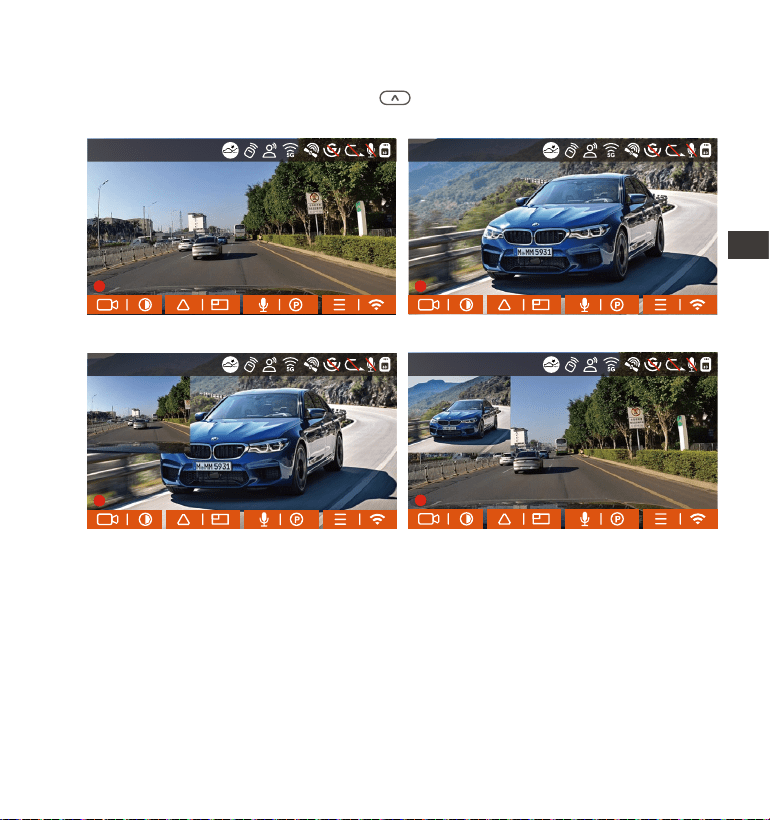
- 113 -
4.2.3 Basculer l'affichage de l'écran/window de la caméra
Vous pouvez cliquer sur le bouton pour changer d'affichage afin
d'agrandir l'affichage de la caméra avant ou arrière sur l'écran LCD.
4.2.4 Mode Parking à Faible Luminosité
Afin d'améliorer la sécurité du stationnement la nuit, nous utilisons
pleinement les performances de l'objectif combinées à la technologie de
vision nocturne à faible luminosité pour améliorer l'effet de vision nocturne
en mode stationnement.
Cette fonction est activée par défaut, elle ne sera déclenchée qu'après
être entrée en mode parking et n'affectera pas l'enregistrement normal.
Image de la caméra frontale Image de la caméra arrière
Caméra arrière plus grande Caméra frontale plus grande
EN
EN
EN
FR
14:39:07 18-11-2022
00:00:37
MP/H
35
14:39:07 18-11-2022
00:00:37
MP/H
35
14:39:07 18-11-2022
00:00:37
MP/H
35
14:39:07 18-11-2022
00:00:37
MP/H
35
1440P+1440P 30FPS
1440P+1440P 30FPS 1440P+1440P 30FPS
1440P+1440P 30FPS
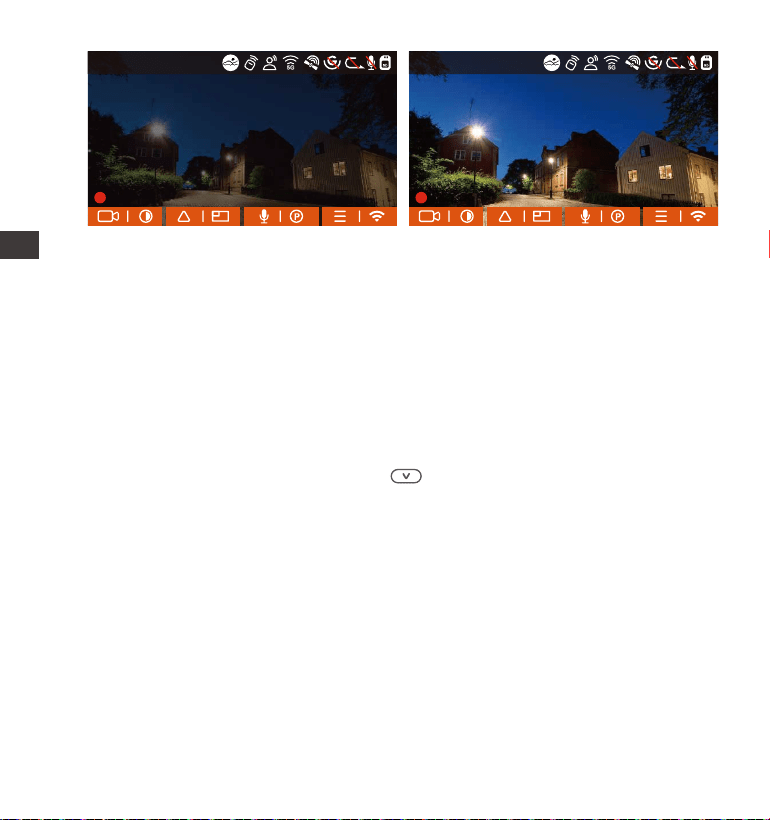
- 114 -
4.2.5 Mode Parking (Ne peut pas être utilisé avec la fonction "Enregis-
trement en Accéléré" en même temps)
Le mode parking fonctionne comme une sentinelle dans différentes
situations. Veuillez choisir le mode de stationnement en fonction de vos
besoins.
Une fois le mode de stationnement activé, il existe deux façons d'entrer.
Vous pouvez attendre 5 minutes pour entrer automatiquement, ou
appuyer longuement sur le bouton pour entrer manuellement.
MP/H
Pour vous assurer que la caméra fonctionne correctement en mode
parc, veuillez utiliser les kits de câblage ou une autre alimentation
stable et continue pour alimenter la caméra de tableau de bord.
Dans un environnement chaud et ensoleillé en été, nous vous recom-
mandons de sélectionner la détection de collision. Lorsque la tempéra-
ture ambiante dans la voiture atteint 60 ℃, il est recommandé de
l’éteindre pour éviter un fonctionnement anormal de la dashcam
causé par la température élevée.
1.
2.
Remarque:
Mode Parking à Faible
Luminosité Désactivé
Mode Parking à Faible
Luminosité Activé
ENFR
14:39:07 18-11-2022
00:00:37
MP/H
35
14:39:07 18-11-2022
00:00:37
MP/H
35
1440P+1440P 30FPS 1440P+1440P 30FPS
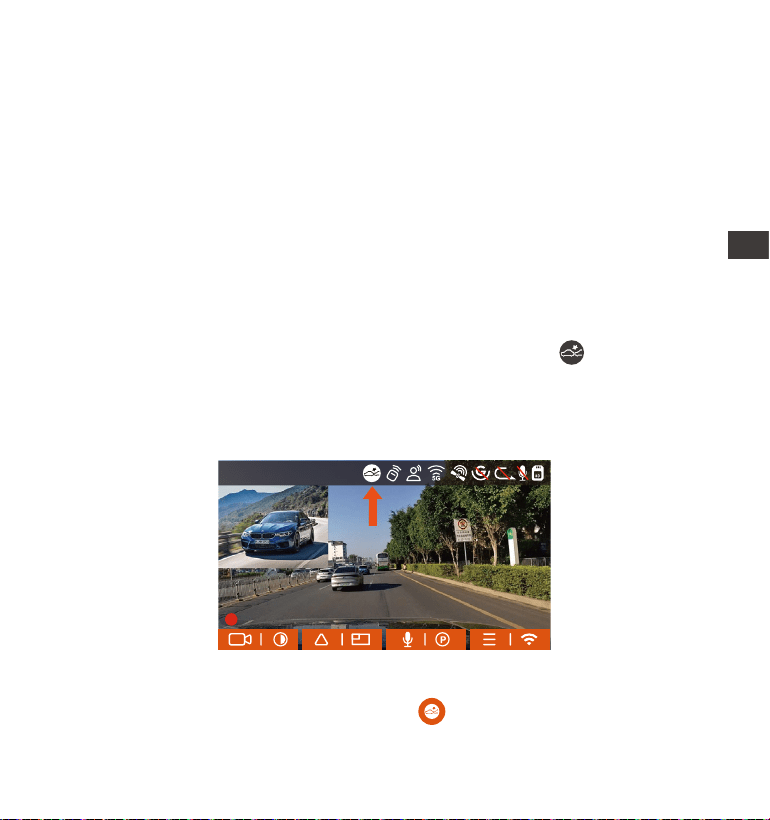
- 115 -
A. Détection de Collision
Lorsque la détection de collision est activée, son icône s'affiche à
l'écran, indiquant que la caméra utilise actuellement le mode de
détection de collision. La sensibilité de détection de collision peut être
ajustée de 1 à 5 niveaux, Une sensibilité élevée signifie qu'une légère
collision peut facilement déclencher l'enregistrement.
Si l'enregistreur de conduite ne détecte pas le mouvement ou la vibration
de l'objet dans les 5 minutes, le mode de détection de collision se
déclenche automatiquement. L'icône apparaît au centre de l'écran,
puis la dashcam s'éteint automatiquement. Pendant cette période, si des
3.
4.
L'enregistrement en accéléré et le mode de stationnement (y compris
la détection de collision, la détection de mouvement, l'enregistrement
à faible débit binaire et le mode à faible fréquence d'images) ne
peuvent être activés que pour l'un d'entre eux. Lorsque l'un est activé,
l'autre sera automatiquement désactivé.
Les fichiers enregistrés en mode parking (y compris la détection de
collision, la détection de mouvement, l'enregistrement à faible débit
binaire et le mode à faible fréquence d'images) seront enregistrés
dans le dossier normal, afin d'éviter que les fichiers ne soient écrasés,
veuillez les vérifier régulièrement pour éviter toute perte.
EN
EN
EN
FR
14:39:07 18-11-2022
00:00:37
MP/H
35
1440P+1440P 30FPS
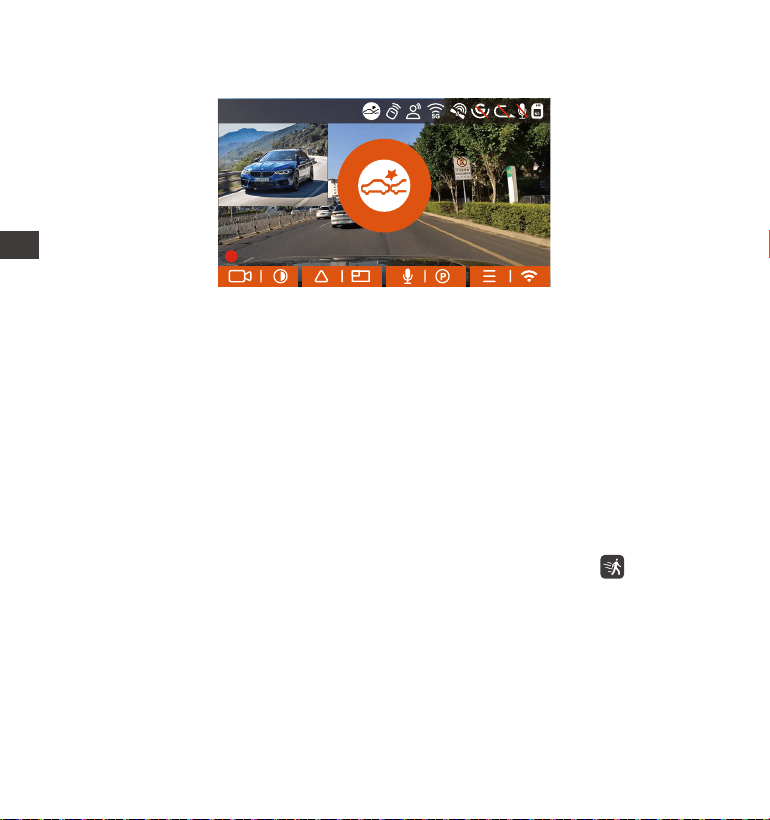
- 116 -
Si l'enregistreur est continuellement en collision pendant le processus
d'enregistrement de détection de collision, il quittera le mode de
détection de collision, entrera dans l'enregistrement normal et
redémarrera le mécanisme d'entrée de 5 minutes.
La vidéo de détection de collision sera enregistrée dans le dossier
Normal. Afin d'éviter que la vidéo ne soit couverte, veuillez la vérifier à
temps et enregistrer le fichier de détection de collision requis pour
éviter toute perte.
B. Détection de Mouvement
Lorsque la détection de mouvement est activée, son icône s'affiche à
l'écran, indiquant que la caméra utilise actuellement le mode de
détection de mouvement. La détection de mouvement est réglable
avec 3 réglages: faible, Moyen et élevé et la plage de détection de
mouvement correspondante est de 2 m/4 m/6 m.
1.
2.
vibrations ou un mouvement de la voiture sont détectés, la caméra sera
allumé et enregistré pendant 1 minute, puis éteint à nouveau.
Remarque :
ENFR
14:39:07 18-11-2022
00:00:37
MP/H
35
1440P+1440P 30FPS
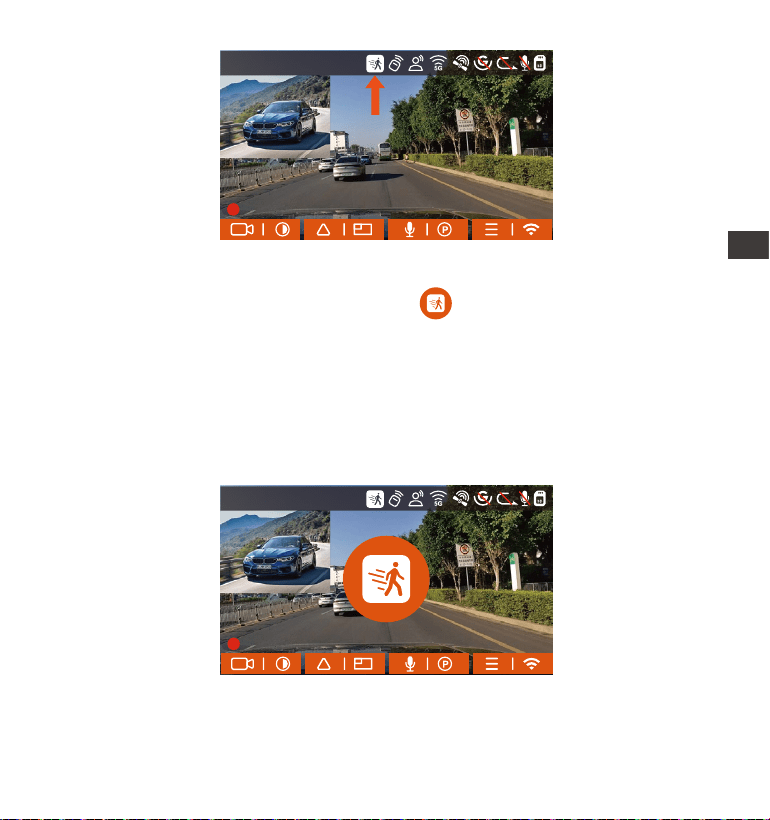
- 117 -
Si l'enregistreur de conduite ne détecte pas le mouvement ou la vibration
de l'objet dans les 5 minutes, le mode de détection de mouvement se
déclenche automatiquement. L'icône apparaît au centre de l'écran,
et l'écran s'éteindra après 3 minutes.
Processus d'enregistrement vidéo: lorsque la caméra détecte un
mouvement d'objet ou une vibration de la voiture, elle déclenche
automatiquement l'enregistrement vidéo. E2 est livré avec une fonction
de pré-enregistrement. Lorsque l'enregistrement de détection de
mouvement est terminé, la caméra charge la vidéo préenregistrée dans
la vidéo de détection de mouvement et l'enregistre dans le dossier
normal.
Remarque : Le mode de détection de mouvement doit être exécuté
lorsque la caméra est allumée. Une fois la caméra éteinte, le mode de
détection de mouvement ne fonctionnera pas.
EN
EN
EN
FR
14:39:07 18-11-2022
00:00:37
MP/H
35
1440P+1440P 30FPS
14:39:07 18-11-2022
00:00:37
MP/H
35
1440P+1440P 30FPS
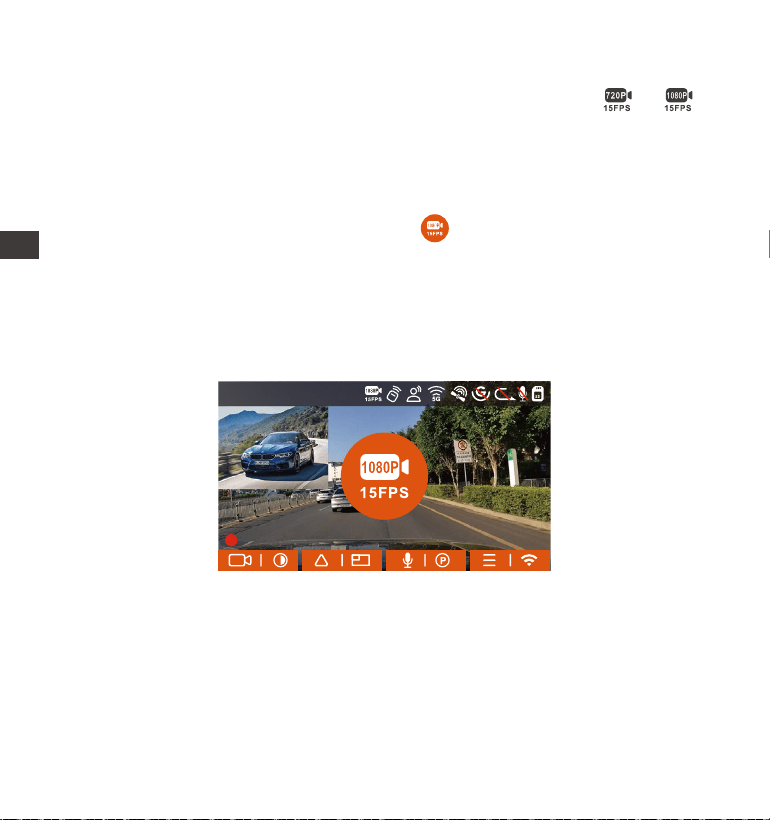
- 118 -
D.Enregistrement à faible débit
Lorsque Enregistrement à faible débit est activée, son icône ou
s'affiche à l'écran, selon l'option que vous choisissez d'être 1080P 15FPS ou
720P 15FPS.
Si l'enregistreur de conduite ne détecte pas le mouvement ou la vibration
de l'objet dans les 5 minutes, le mode de enregistrement à faible débit se
déclenche automatiquement. L'icône apparaît au centre de l'écran.
La résolution de tous les objectifs actuels sera automatiquement
commutée sur 1080P 15FPS ou 720P 15FPS, et la durée d'enregistrement
est déterminée en fonction de la durée d'enregistrement en boucle
définie. Lorsque la dashcam détecte des vibrations ou des mouvements,
il quitte ce mode et passe à l'enregistrement normal. Après 5 minutes
d'absence de mouvement ou de vibration, il passe à nouveau en mode
faible débit.
Remarque:Le mode de enregistrement à faible débit doit être exécuté
lorsque l'appareil est allumé. Une fois la dashcam éteint, ce mode ne
fonctionnera pas.
ENFR
14:39:07 18-11-2022
00:00:37
MP/H
35
1440P+1440P 30FPS
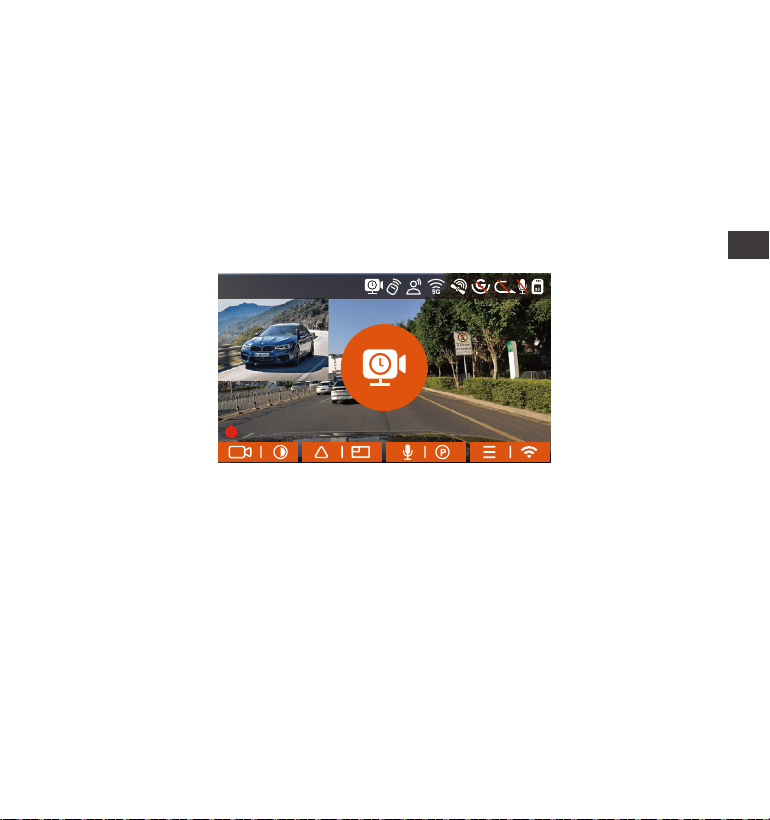
- 119 -
La formule d'enregistrement:
Durée du fichier à faible fréquence d'images * fréquence d'images /
Frame de résolution = Durée réelle du fichier d'enregistrement (Le temps
doit être converti en secondes)
L'unité de temps de la formule de calcul est la seconde, donc la durée
d'enregistrement normale finale calculée est également la seconde. Si
vous avez besoin de le convertir dans d'autres unités de temps, veuillez
vérifier et convertir par vous-même.
Le mode de fréquence d'images faible est similaire à la fonction vidéo
1.
2.
Remarque :
D. Mode à faible fréquence d'images
Lorsque Mode à faible fréquence d'images est avtivé, la dashcam
enregistrera selon la sélection de 1FPS/5FPS/10FPS/15FPS. Par exemple, si
vous sélectionnez 1FPS et que la résolution vidéo actuelle est de 30FPS,
l'enregistreur générera une vidéo de 30FPS toutes les secondes.
Après le stationnement, l'enregistreur activera le mécanisme d'entrée
pendant 5 minutes, puis entrera automatiquement en mode de
fréquence d'images faible. La vidéo accélérée peut grandement
préserver l'intégrité de la vidéo et économiser de l'espace sur la carte
mémoire.
FR
EN
EN
EN
FR
14:39:07 18-11-2022
00:00:37
MP/H
35
1440P+1440P 30FPS
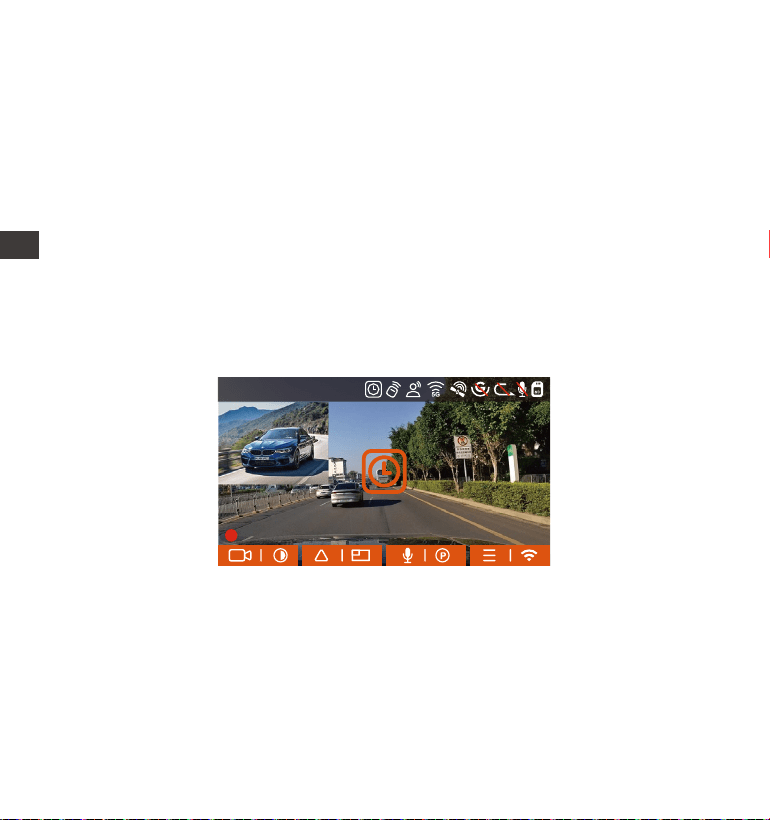
- 120 -
3.
4.2.6. Enregistrement en Accélérée
Lorsque Mode à faible fréquence d'images est avtivé, la dashcam
enregistrera selon la sélection de 1FPS/5FPS/10FPS/15FPS. Par exemple, si
vous sélectionnez 1FPS et que la résolution vidéo actuelle est de 30FPS,
l'enregistreur générera une vidéo de 30FPS toutes les secondes.
La formule d'enregistrement:
Durée du fichier d'enregistrement en accéléré * Frame d'enregistrement
en Accéléré/ Frame de résolution = Durée réelle du fichier d'enregis-
trement (Le temps doit être converti en secondes)
accélérée. La différence entre les deux est le mécanisme d'entrée de
5 minutes. Le mode de fréquence d'images faible attendra cinq
minutes après le réglage, puis entrera dans ce mode. Le mode vidéo
accélérée sera activé directement après le réglage.
Le mode à faible fréquence d'images doit être exécuté lorsque
l'appareil est allumé. Une fois la dashcam éteint, ce mode ne fonction-
nera pas.
ENFR
14:39:07 18-11-2022
00:00:37
MP/H
35
1440P+1440P 30FPS
- 121 -
40
46
39
43
48
Informations GPS
La connexion GPS sera établie dans la minute qui suit la mise sous
tension de l'appareil. Si la connexion GPS échoue dans la minute qui
suit, veuillez vérifier si l'appareil a activé la fonction GPS, si le support
GPS est correctement connecté et votre environnement (parking
souterrain, zone résidentielle densément peuplée, métro, tunnel, etc. )
affectera également la réception du signal GPS.
Les informations GPS sont enregistrées dans la vidéo que vous avez
enregistrée. Pour le voir, veuillez télécharger et installer VANTRUE APP
et VANTRUE GPS Player (disponibles en téléchargement sur www.
vantrue.net.
1.
2.
Remarque :
4.2.7 Fonction GPS
La fonction GPS est également l'une des fonctions importantes de la
caméra de tableau de bord. Le GPS est activé par défaut et la caméra
reçoit des signaux GPS via le support GPS. Il peut corriger automatique-
ment l'heure et la date de votre région, en enregistrant l'endroit où la
vidéo a été enregistrée et la vitesse de la voiture à ce moment-là.
EN
EN
EN
FR
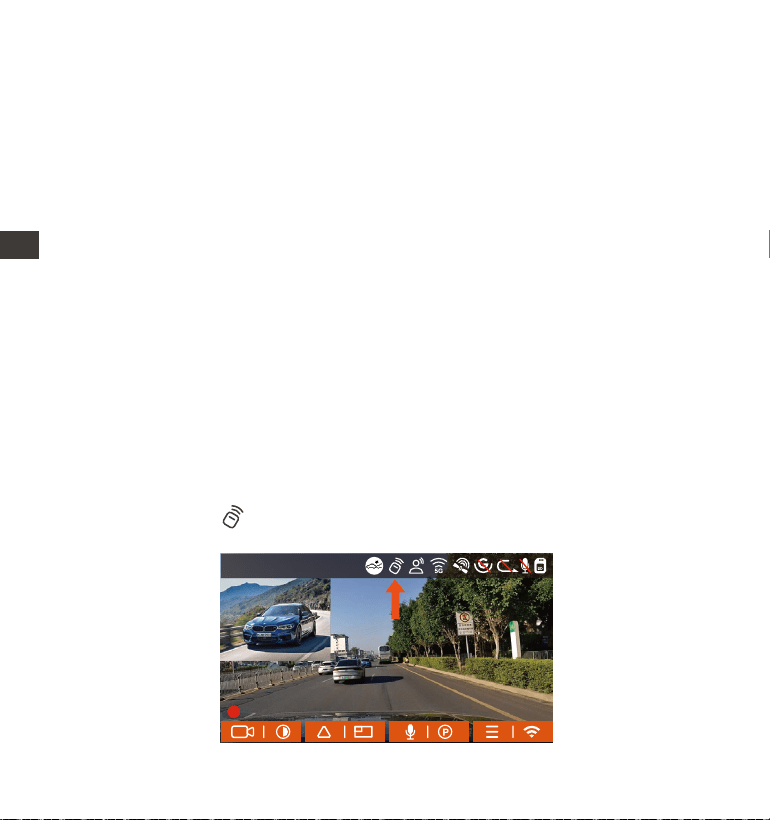
- 122 -
4.2.8 Correction Automatique de l'heure par GPS
Par défaut, l'enregistreur E1 active la correction automatique de l'heure
GPS, veuillez sélectionner votre fuseau horaire, comme Paris, vous pouvez
choisir GMT+2. Si vous ne connaissez pas le fuseau horaire de votre
emplacement, vous pouvez utiliser le Wi-Fi pour vous connecter à
l'application Vantrue et confirmer que la fonction de réglage automa-
tique de l'heure dans l'application est activée. Une fois la connexion
établie, le fuseau horaire du l'enregistreur sera corrigé de force en
fonction du fuseau horaire de votre téléphone mobile.
4.2.9 Télécommande sans Fil
La caméra est équipée d'une télécommande, qui peut être utilisée pour
contrôler rapidement la caméra pour un instantané, une vidéo
d'urgence, l'enregistrement marche/arrêt et d'autres fonctions.
Connexion de la télécommande:
Retirer la feuille isolante de la télécommande, la caméra s'adaptera
automatiquement à la télécommande. Aucun couplage manuel avec la
caméra de tableau de bord n'est requis.
Lorsque l'icône apparaît à l'écran, cela signifie que la télécommande
a été associée avec succès.
ENFR
14:39:07 18-11-2022
00:00:37
MP/H
35
1440P+1440P 30FPS
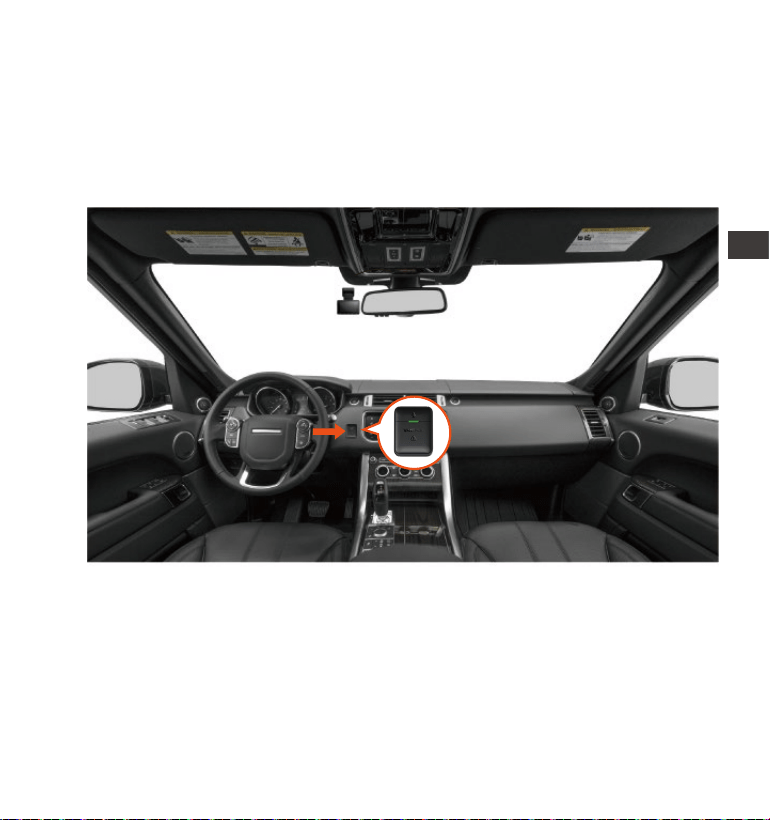
- 123 -
EN
EN
EN
FR
Installation de la télécommande :
Une fois la télécommande associée à l'appareil, veuillez sélectionner un
emplacement approprié sur votre voiture, puis retirez l'autocollant adhésif
de la télécommande et collez-le à l'emplacement sélectionné.
(Remarque: la télécommande doit être installée dans une position qui
n'affecte pas la sécurité de la conduite)
EN
EN
EN
FR
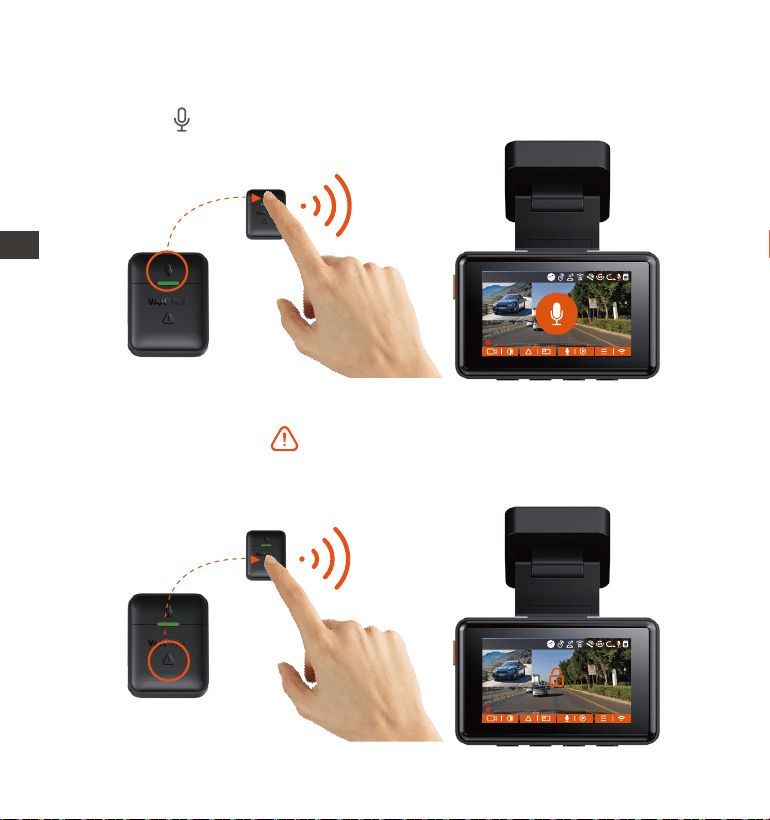
- 124 -
Une fois la télécommande connectée avec succès, appuyez sur le
bouton pour activer ou désactiver l'enregistrement audio.
1.
Fonctions de la télécommande :
Une fois la connexion établie, lorsque vous appuyez brièvement sur le
bouton d'urgence , la caméra verrouille le fichier actuel et prend
un instantané vidéo; continuez à appuyer brièvement pendant la
vidéo verrouillée et continuez à capturer la photo.
2.
ENFR
14:39:07 18-11-2022
00:00:37
MP/H
35
14:39:07 18-11-2022
00:00:37
MP/H
35
1440P+1440P 30FPS
1440P+1440P 30FPS
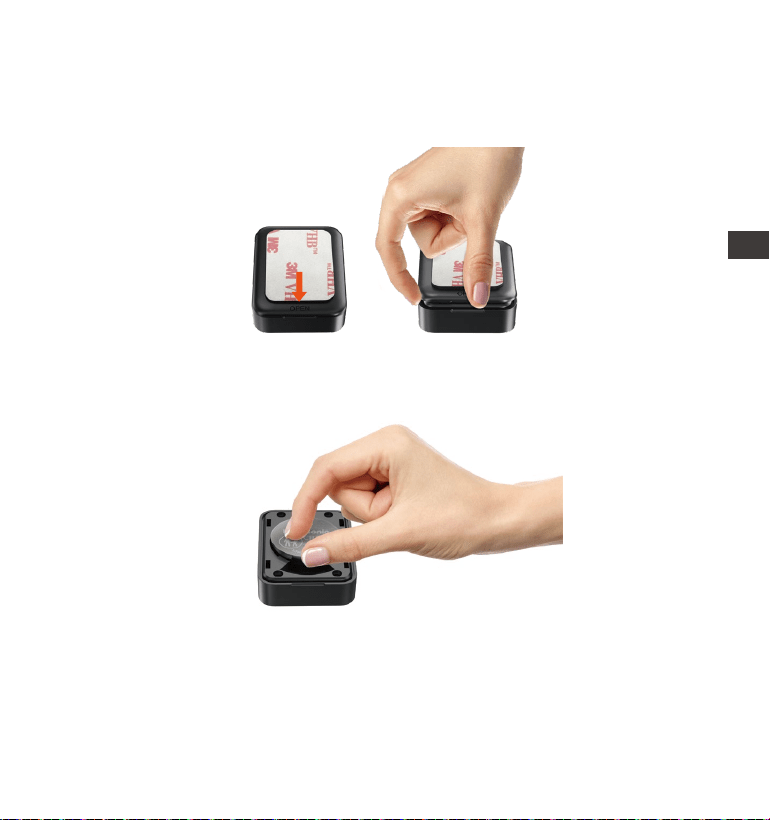
- 125 -
Il y a une marque "OPEN" au bas de la télécommande, veuillez ouvrir
lentement l'espace environnant le long de la position de la rainure de
cette marque pour l'ouvrir.
1.
Après l'ouverture, soulevez délicatement la pile de la rainure située à
l'avant du compartiment de la pile, puis retirez l'ancienne pile, insérez
la nouvelle pile et couvrez le couvercle arrière de la télécommande.
2.
Remplacement de la pile de la télécommande:
Remarque: Lorsque la puissance est faible, la batterie doit être remplacée
(le modèle de batterie de la télécommande est une batterie CR2032). Il
ne prend pas en charge la charge.
EN
EN
EN
FR
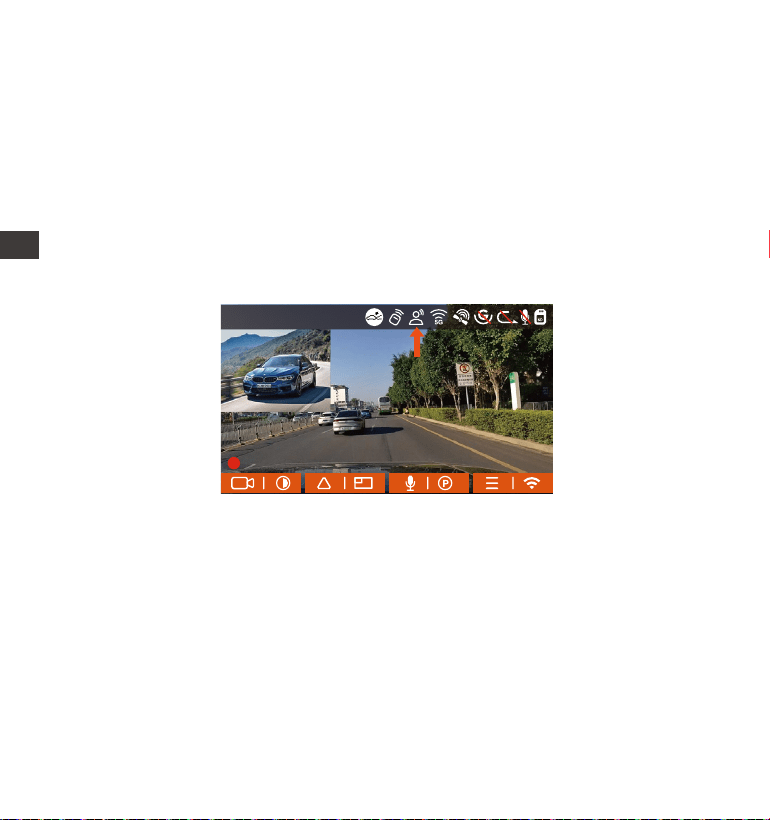
- 126 -
4.2.10. Commande Vocal
En plus de contrôler la caméra avec la télécommande, vous pouvez
également contrôler la caméra avec la commande vocale. Les langues
actuellement prises en charge sont l'anglais, le japonais, le russe et le
chinois. Pour des commandes vocales plus détaillées, veuillez vérifier
Paramètres système > Contenu vocal.
Le réglage par défaut est la sensibilité standard. La reconnaissance
vocale propose des options telles que faible sensibilité/standard/haute
sensibilité/désactivé. Vous pouvez contrôler la caméra avec des
commandes vocales.
ENFR
14:39:07 18-11-2022
00:00:37
MP/H
35
1440P+1440P 30FPS
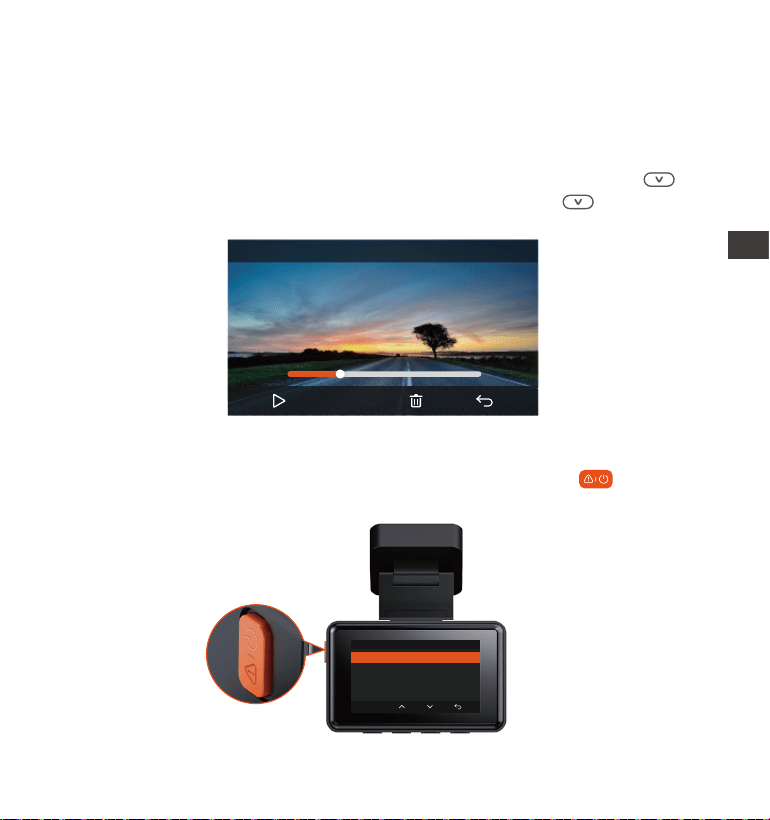
- 127 -
Supprimer les vidéos
Supprimez la vidéo sur la caméra. Appuyez sur le bouton dans
l'interface de navigation des fichiers pour faire apparaître le menu de
suppression
Vidéo Normale
Supprimer ce fichier ?
Supprimer tous les fichiers ?
OK
4.2.11 Lecture et Suppression de Fichiers
a. Regarder sur la caméra
Lire les vidéos
Après avoir cliqué sur "Fichiers", entrez dans n'importe quel dossier, après
avoir ouvert le dossier vidéo, vous pouvez appuyer sur le bouton pour
sélectionner le fichier suivant, et appuyez sur le bouton pour supprim-
er le fichier pendant la lecture.
EN
EN
EN
FR
00:30
01:07
20221118_140633_0002_E_B.MP4
1X
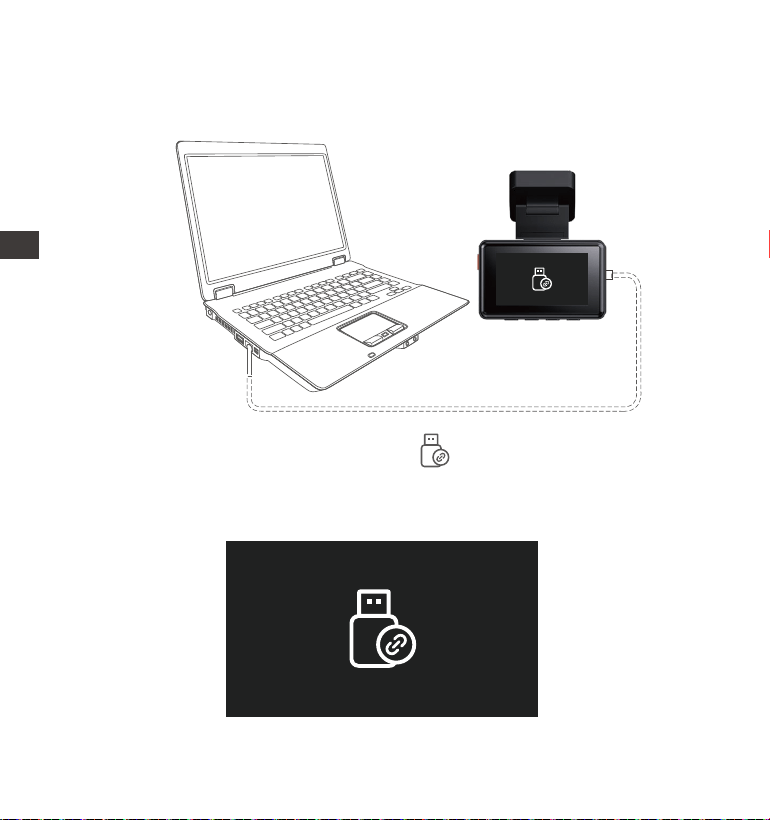
- 128 -
Connectez le câble de données USB C fourni à l'appareil et à l'ordina-
teur.
b. Regarder sur l'ordinateur
1.
Une fois la connexion réussie, l'icône apparaîtra sur l'écran de
l'appareil pour transférer les données, puis vous pourrez visualiser les
fichiers vidéo dans le dossier de l'ordinateur.
2.
ENFR
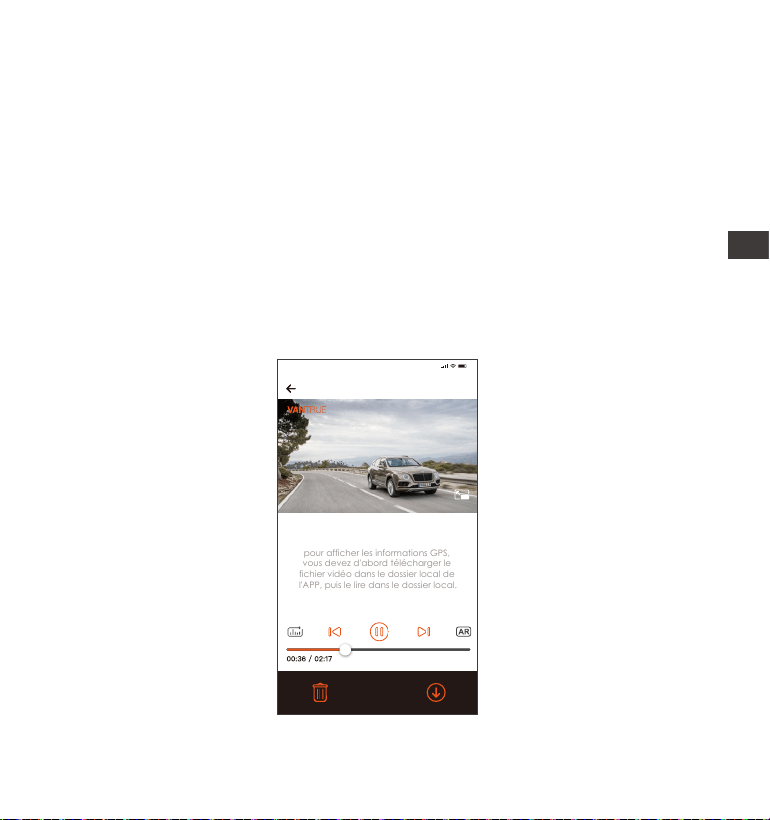
- 129 -
3.
4.
5.
c. Regarder/ suprrimer dans l'application
Une fois que l'appareil est connecté avec succès au téléphone mobile
via WiFi, il peut lire, télécharger et supprimer des fichiers dans l'applica-
tion mobile.
20221118_115036_0079_N_A.MP4
18/11/2022 11:5:35 E2 000.000000. 000.000000. 36MK/H
pour afficher les informations GPS,
vous devez d'abord télécharger le
fichier vidéo dans le dossier local de
l'APP, puis le lire dans le dossier local.
Remarque :
9:41
Selon le système informatique des différents utilisateurs, une fois
l'appareil connecté à l'ordinateur, il s'affichera en tant que lecteur
amovible ou dossier amovible sur l'ordinateur.
Pour afficher le fichier sur l'ordinateur, vous pouvez directement cliquer
avec le bouton droit pour ouvrir le menu et le supprimer.
Vous pouvez également utiliser un lecteur de carte USB pour lire les
informations de la carte mémoire.
EN
EN
EN
FR

- 130 -
Remarque:
La lecture de vidéos dans l'APP ou le téléchargement de fichiers sur la
carte SD ne consommera pas de données.
Une fois le fichier vidéo téléchargé et lu localement, vous pouvez
afficher les informations de suivi GPS.Vous devez déconnecter le WIFI
de l'enregistreur de conduite, sinon les informations cartographiques
seront vides.
1.
2.
4.2.12 Mise à niveau du logiciel
La version du logiciel de la dashcam sera annoncée sur le site officiel de
VANTRUE. Vous pouvez contacter le service client ou télécharger la
dernière version du logiciel à partir du site officiel, et mettre à niveau selon
les invites du site officiel.(www.vantrue.net)
Remarque : pendant le processus de mise à niveau, ne mettez pas hors
tension, sinon la mise à niveau échouera ou la dashcam sera endom-
magé. Si vous rencontrez une panne de courant soudaine qui entraîne
l'échec de la mise à niveau, n'hésitez pas à contacter le service clientèle
pour résoudre le problème pour vous.
4.2.13 Température de fonctionnement
La caméra est conçue pour fonctionner à des températures comprises
entre -4 to 158°F (-20 to 70°C), les températures en dehors de cette plage
risquent de dégrader les performances de la caméra et de causer des
dommages.
Pour éviter les dommages
Par temps chaud, n'exposez pas l'appareil directement au soleil lorsque la
voiture est garée.
ENFR

- 131 -
5. Spécification
E2Modèle
English、简体中文、日本語、Deutsch、Italiano、
Español、Français、Русский язык、Polski
Processeur Novatek haute performance
Capteur CMOS Sony
Écran IPS 2.45 pouces
WiFi intégré 2.4GHz & 5GHz
Microphone et haut-parleur intégrés
Processeur de puce
Capteur d'image
Écran
WiFi
Avant: Objectif grand angle F1.8, 160 degrés
Arrière: Objectif grand angle F1.8, 160 degrés
Résolution avant + arrière : 1944P+1944P 24FPS,
1440P+1440P 30FPS, 1440P+1080P 30FPS,
1080P+1440P 30FPS, 1080P+1080P 30FPS,
1080P+720P 30FPS, 720P+1080P, 70FPS 30FPS
Résolution avant : 2592x1944P 30FPS,
2560x1440P 30FPS, 1920x1080P 30FPS,
1280x720P 30FPS
Résolution vidéo
Langues
Audio
Lentille
Dans des conditions hivernales extrêmes, c'est-à-dire -4°F (-20°C) ou moins,
détachez la caméra du pare-brise lorsqu'elle n'est pas utilisée et rangez-la
dans la boîte à gants
Carte micro SD (U3 ou supérieur,Support 32Go-
512Go)
Interface USB
Type de batterie
Format de vidéo
USB-C (Type-C)
Super condensateur
MP4
Mode de stockage
EN
EN
EN
FR

- 132 -
Garantie
VANTRUE offre une période de service de garantie de 12 mois, pendant
laquelle vous pouvez profiter de services tels que des réparations rapides,
le retour et l'échange de marchandises endommagées, etc.
Si vous vous inscrivez en tant que membre sur le site officiel de VANTRUE,
votre période de service de garantie peut être étendue à 18 mois.
Support
Si vous avez des questions sur le produit, vous pouvez envoyer un e-mail à
notre e-mail officiel [email protected] pour nous contacter. Le
personnel spécialisé répondra aux questions dans les 12 à 24 heures.
Votre opinion compte
VANTRUE
®
s'engage fermement à toujours améliorer notre produits,
services et expérience utilisateur. Si tu as quelque réflexions sur la façon
dont nous pouvons faire encore mieux, nous apprécions vos commen-
taires et suggestions constructifs. Connectez-vous avec nous aujourd'hui
6. Garantie & Support
Tension et courant de
l'alimentation
Puissance
Température de travail
Température de
stockage
DC 5V 2.4A
5W
-4°F à 158°F(-20°C à 70°C)
-22°C à 185°F(-30°C à 85°C)
ENFR
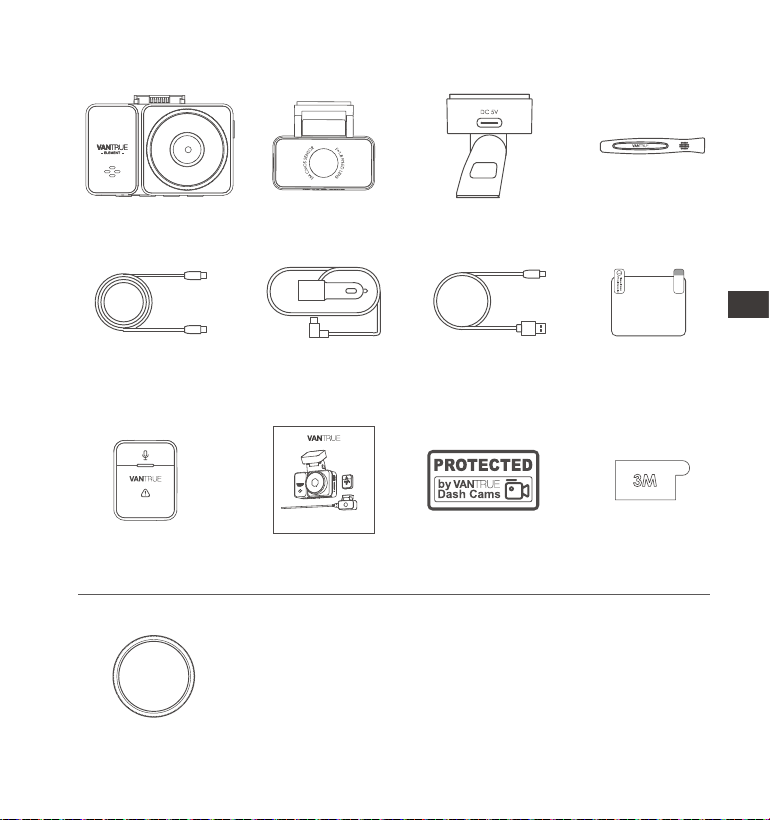
- 133 -
1. Co znajdziemy w pudełku?
H.
Naklejka 3MBezprzewodowy
pilot
L.
A.
Wideorejestrator
Vantrue E2
E.
Uchwyt GPS
I.
M.
Filtr CPL
B.Tylna kamera
G.
Instrukcja
użytkownika
K.
D.
Szpatułka
C.
Kabel USB-C 3 m
(tylko do transferu
plików)
F.
Ładowarka
samochodowa
350 cm
Kabel do tylnej
kamery 6m
Naklejki
ostrzegawcze
J.
Opcjonalne akcesoria
Element 2
User Manual
Voice-Controlled Dual Dash Cam
Naklejki
elektrostaty-
czne
EN
EN
EN
PL
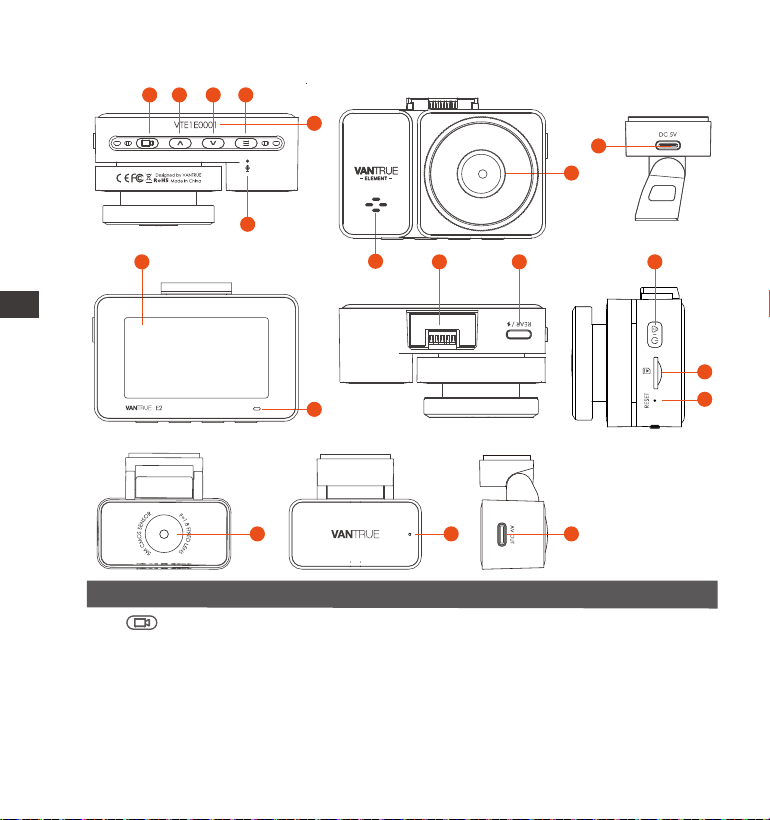
- 134 -
2. Budowa kamery
No. OpisNazwa
Podczas nagrywania wideo krótkie naciśnięcie
zablokuje bieżący plik i zrobi zdjęcie, długie
naciśnięcie spowoduje wyłączenie zasilania; W
stanie gotowości krótkie naciśnięcie zrobi zdjęcie,
długie naciśnięcie wyłączy; W stanie Wi-Fi naciśnij
krótko, aby wyjść z Wi-Fi, naciśnij długo, aby
wyłączyć
1 Przycisk
9
8
1 2 3
4
5
6
15
16
10 13
1412
11
17 18 19
7
ENPL

- 135 -
2 Podczas nagrywania wideo i czuwania krótkie
naciśnięcie powoduje przełączenie okna wideo; w
ustawieniach menu i przeglądaniu plików krótkie
naciśnięcie powoduje wyświetlenie poprzedniej
opcji, długie naciśnięcie powoduje przewinięcie w
górę do wyświetlenia opcji; w trybie odtwarzania
naciśnij krótko, aby przewinąć do przodu; w trybie
Wi-Fi naciśnij dowolny klawisz, aby wyjść z Wi-Fi
Przycisk
5
6
Numer seryjny Numer seryjny urządzenia
Nagrywa dźwięk
Zapewnia dźwięk podczas odtwarzania wideo
Mikrofon
7 Głośnik
Kamera przednia do nagrywania wideo
8 Przednia
kamera
4 Podczas nagrywania wideo i trybu gotowości
naciśnij i przytrzymaj, aby włączyć/wyłączyć Wi-Fi;
W stanie gotowości krótkie naciśnięcie powoduje
wejście do menu lub powrót, a długie naciśnięcie
włącza lub wyłącza WiFi; w trybie Wi-Fi naciśnij
dowolny klawisz, aby wyjść z Wi-Fi
Przycisk
3 Podczas nagrywania wideo i czuwania, długie
naciśnięcie powoduje szybkie przejście do trybu
parkowania, a krótkie naciśnięcie włącza/wyłącza
mikrofon; w ustawieniach menu długie naciśnięcie
powoduje przewijanie opcji menu, krótkie naciśnię-
cie powoduje wyświetlenie następnej opcji menu;
podczas przeglądania plików, długie naciśnięcie,
aby przewinąć do pliku, krótkie naciśnięcie, aby
wyświetlić następny plik; w trybie odtwarzania
krótkie naciśnięcie powoduje wyświetlenie menu
usuwania plików; w trybie Wi-Fi naciśnij dowolny
klawisz, aby wyjść z Wi-Fi
Przycisk
EN
EN
EN
PL
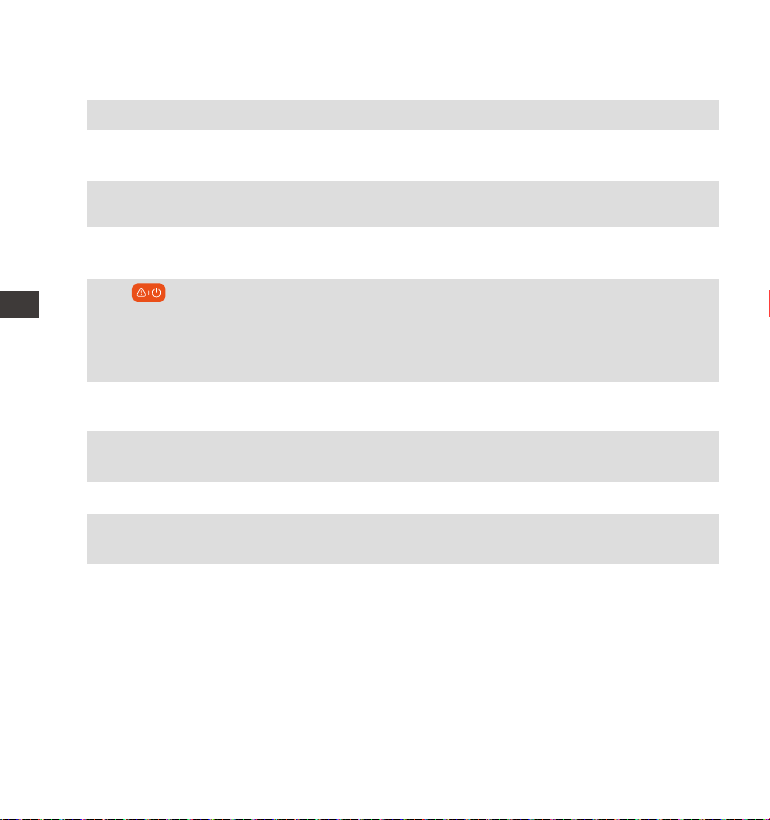
- 136 -
2.45” LCD ekran
Stałe czerwone światło oznacza, że kamera
nagrywa
Lokalizacja uchwytu instalacyjnego
Ekran
Kontrolka
nagrywania
Podłącz do kabla typu USBC lub ładowarki
samochodowej, aby uzyskać zewnętrzne zasilanie
9
10
Krótkie naciśnięcie, aby ponownie uruchomić
kamerę
Reset
16
11
Nagrywaj zdarzenia drogowe za samochodem
Tylna kamera
17
18
12
Port zasilania
14
Zasilanie włącz / wyłącz; długie naciśnięcie, aby
włączyć/wyłączyć kamerę; krótkie naciśnięcie
podczas nagrywania, aby przejść do trybu
nagrywania zdarzeń; krótkie naciśnięcie umożliwia
robienie zdjęć podczas nagrywania zdarzenia
Przycisk
Uchwyt
mocujący
Miejsce na kabel od tylnej kamery; miejsce na
kabel do transmisji danych.
13 Port UsbC do
tylnej kamery
15 Slot kart
pamięci
Wskaźnik tylnej
kamery
Obsługuje Micro SD Card do 512GB w FAT32,
Class 10
Zielone światło wskazuje, że tylna kamera jest
podłączona do zasilania
19
Wyjście na
kabel od tylnej
kamery
Port połączeniowy dla kabla kamery tylnej
ENPL
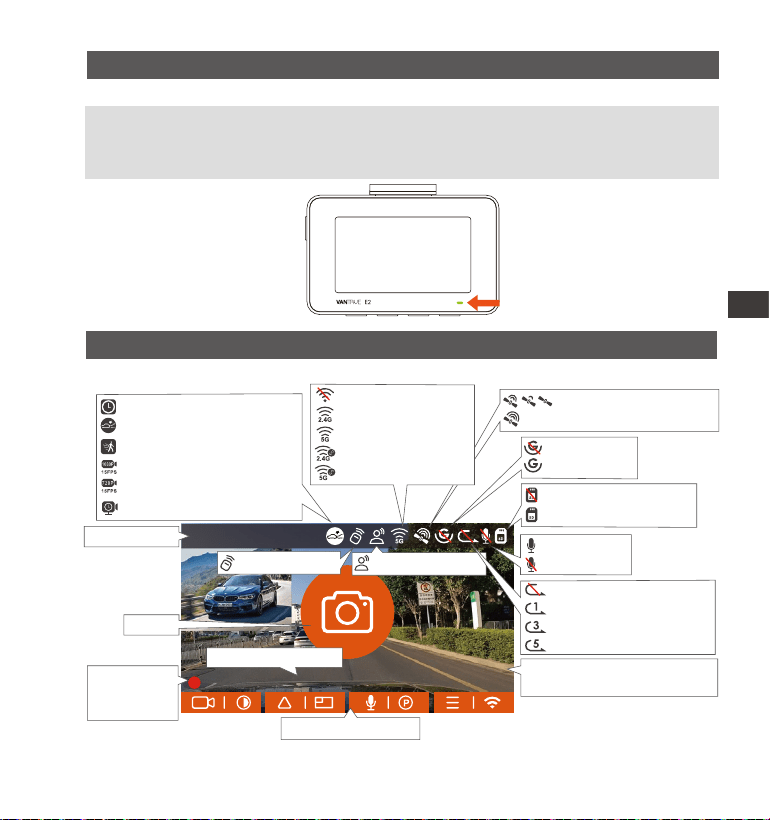
1440P+1440P 30FPS
14:39:07 18-11-2022
00:00:37
MP/H
35
- 137 -
Wskaźnik LED
OpisLED
Stałe zielone światło W stanie czuwania lub kontrolka REC
jest wyłączona
LED Status
REC
Migające zielone światło Kamera nagrywa
Przegląd ekranu
Mikrofon WŁ
Mikrofon WYŁ
Zdjęcie
Pilot połączony
Tryb poklatkowy WŁ
Detekcja kolizji WŁ
Detekcja ruchu WŁ
1080P Low Bitrate WŁ 15FPS
720P Low Bitrate WŁ 15FPS
Tryb poklatkowy WŁ
Bieżąca data I czas
Wskazanie przycisku
MP/H
35
Prędkość (KMH lub MPH)
EN
EN
EN
PL
Czas
nagrywania
(Bieżący klip)
Asystent głosowy
Brak karty pamięci
Karta pamięci włożona
GPS łączenie
GPS sygnał zablokowany
G-Sensor WYŁ
G-Sensor WŁ
Rozdzielczość
Nagrywanie w pętli wył
Nagrywanie w pętli 1 min
Nagrywanie w pętli 3 min
Nagrywanie w pętli 5 min
WiFi WYŁ
2.4G WiFi WŁ
5G WiFi WŁ
2.4G WiFi Połączono
5G WiFi Połączono
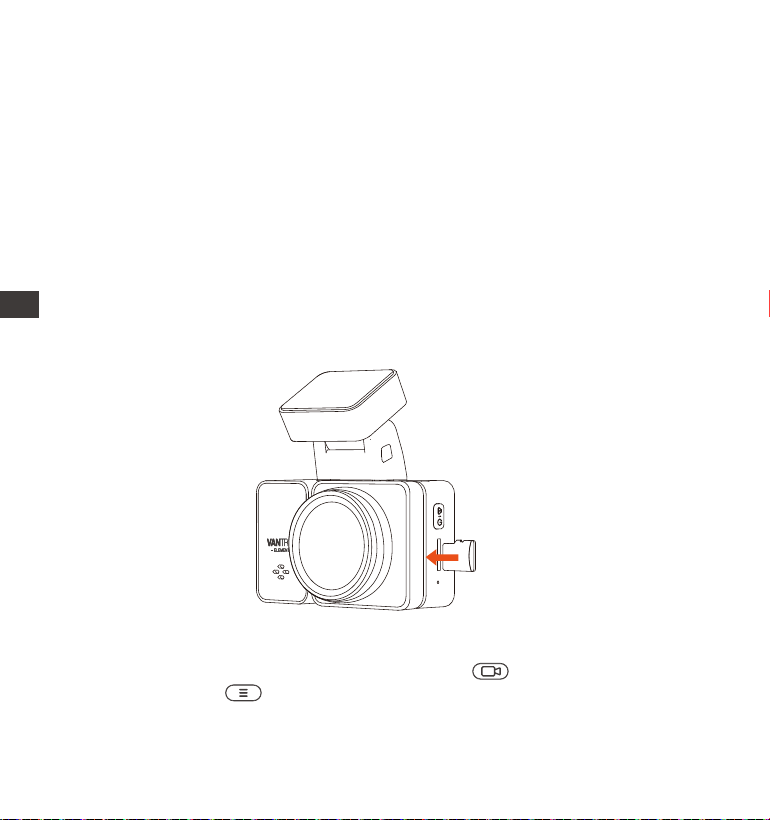
- 138 -
Przed użyciem tej karty wykonaj poniższe czynności, aby ją prawidłowo
sformatować: Jeśli kamera nagrywa naciśnij aby zatrzymać nagry-
wanie a potem aby wejść w menu, ustawienia formatowanie karty, i
potwierdź, aby sformatować kartę pamięci, aż pojawi się komunikat
„Sformatowano pomyślnie”.
3. Instalacja
3.1 Instalowanie karty pamięci (zalecane: szybka karta microSD Vantrue U3).
Proszę włożyć kartę pamięci (pojemność karty pamięci: 32 GB-512 GB,
szybkość karty: U3/Class10/A2). Kamera ma pewne wymagania
dotyczące szybkości karty pamięci. Aby zapewnić niezawodne działanie,
zalecamy użycie karty SD VANTRUE (sprzedawanej oddzielnie) lub
SAMSUNG PRO ENDURANCE.
Instalacja karty pamięci: Jest ikona wskazująca kierunek wkładania karty
pamięci. Wsuń kartę pamięci do gniazda karty zgodnie z kierunkiem
wskazanym przez tę ikonę, aż usłyszysz dźwięk „kliknięcia” w gnieździe
karty, co oznacza, że karta pamięci jest włożona prawidłowo
ENPL

- 139 -
Jeżeli po włożeniu karty pamięci na ekranie pojawi się komunikat „Błąd
karty, proszę sformatować” (należy zwrócić uwagę, że rejestrator w tym
momencie nie nagrywa), należy bezpośrednio nacisnąć aby wejść
do menu i rozpocząć proces formatowania.
Zalecamy formatowanie karty raz w miesiącu, aby zapewnić normalne
działanie kamery.
Nie wyjmuj ani nie wkładaj karty pamięci podczas nagrywania, aby
uniknąć utraty ważnych filmów.
Nie używaj złych kart lub kart o niskiej prędkości w kamerze samocho-
dowej, ponieważ łatwo jest zatrzymać lub utracić nagranie z powodu
awarii karty pamięci.
Przed sformatowaniem karty pamięci sprawdź folder wideo wydarzenia
na karcie SD, aby sprawdzić, czy nie ma żadnych filmów, które należy
zapisać osobno, aby nie usunąć przez pomyłkę ważnych filmów.
UWAGA:
1.
2.
3.
4.
EN
EN
EN
PL
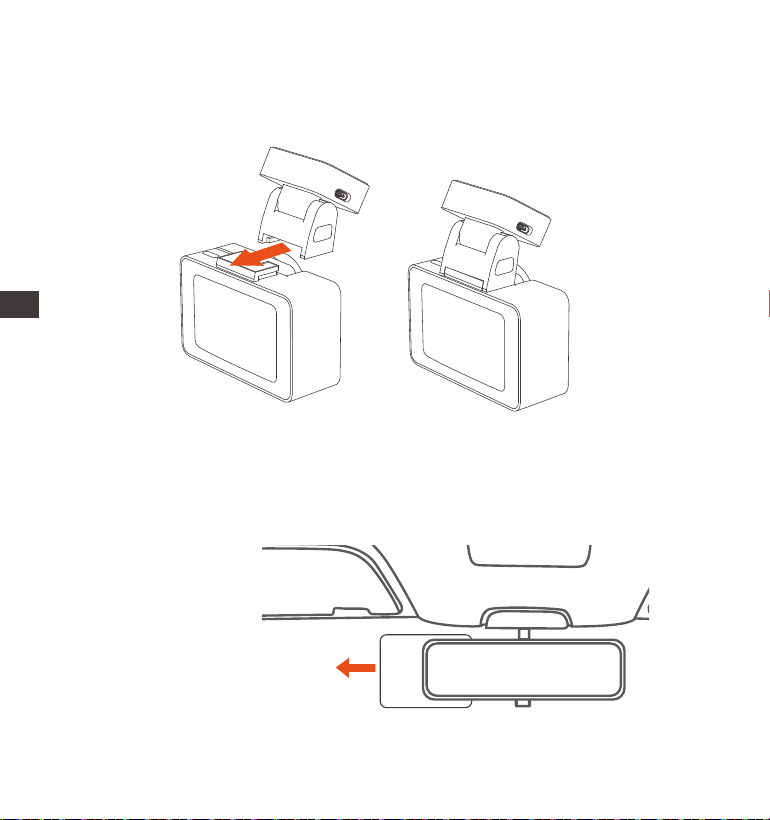
- 140 -
3.2 Instalacja kamery na szybie
Montaż uchwytu kamery: Wyrównaj uchwyt z interfejsem mocowania
kamery, a następnie wciśnij, aż uchwyt zostanie zainstalowany.
1.
Montaż naklejek elektrostatycznych: Dokładnie wyczyść przednią
szybę wodą lub alkoholem, a następnie wytrzyj suchą szmatką. Przyklej
naklejkę elektrostatyczną za lusterkiem wstecznym, co jest zalecanym
miejscem, aby zapobiec blokowaniu widoku podczas jazdy.
2.
Naklejka elektrostatyczna
ENPL
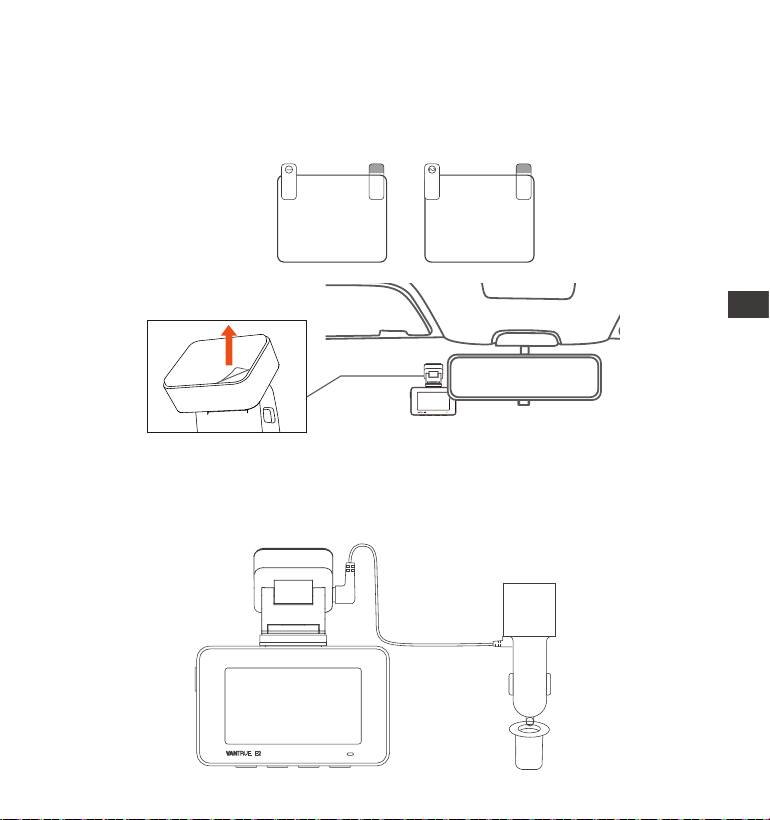
- 141 -
Instalacja ładowarki samochodowej: Podłącz jeden koniec ładowarki
samochodowej do zapalniczki samochodowej, a drugi koniec do portu
typu C na przednim uchwycie GPS kamery. Gdy świeci się zielona
kontrolka ładowarki samochodowej, oznacza to, że jest ona włączona.
3.
UWAGA: Istnieją dwie naklejki elektrostatyczne o numerach 1 i 2. Usuń
folię ochronną z nr 1, wklej naklejkę elektrostatyczną na przednią szybę,
a następnie usuń folię ochronną z nr 2. Usuń taśmę 3M z uchwytu, a
następnie przymocuj uchwyt i kamerę do naklejek elektrostatycznych.
Please peel off this mask
AFTER application completed
Please peel off this
mask BEFORE application
EN
EN
EN
PL
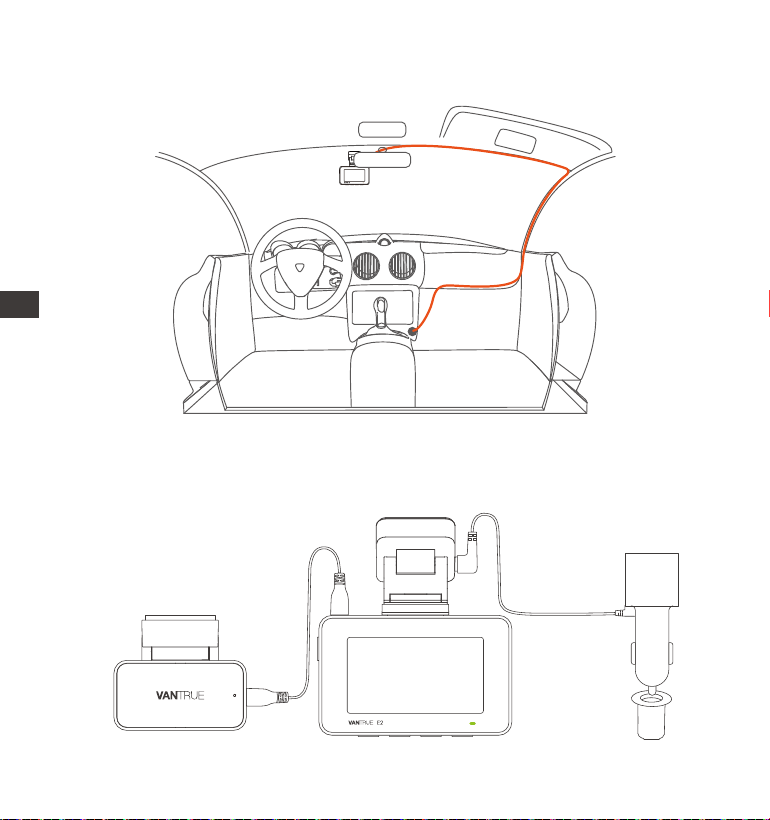
- 142 -
Po zamontowaniu kamery głównej i kamery tylnej należy ułożyć kabel
ładowarki samochodowej w kierunku pokazanym na rysunku.
Wyjmij kabel kamery tylnej, podłącz kamerę główną i kamerę tylną i
wyjmij ładowarkę samochodową, aby ją podłączyć. Po włączeniu
kamery wybierz odpowiednią lokalizację i zainstaluj ją.
4.
ENPL
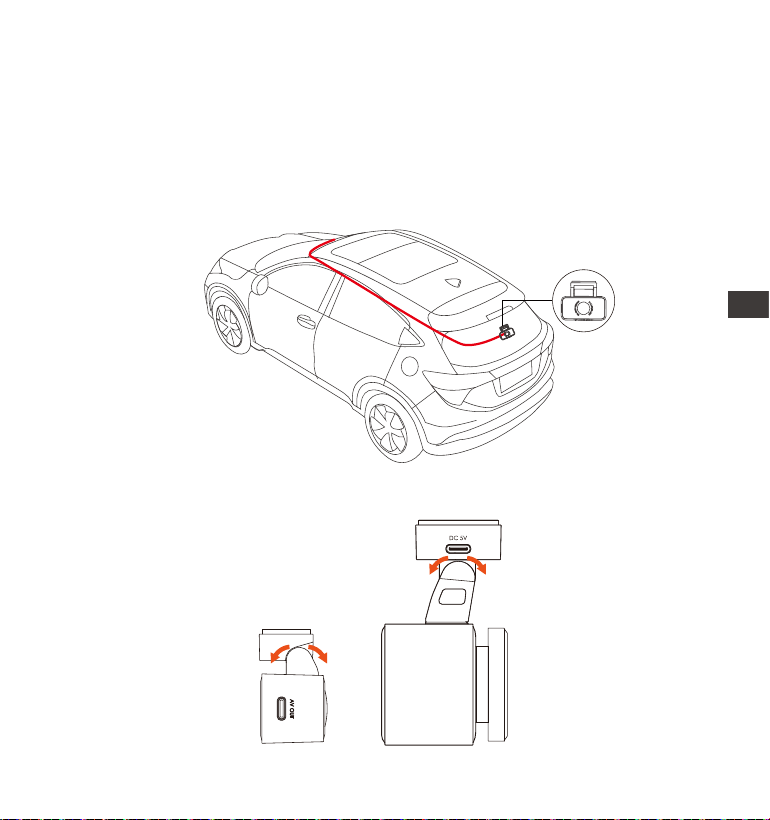
- 143 -
Instalacja kamery tylnej (opcjonalnie): Wybierz pozycję instalacji na
tylnej szybie. Zalecamy wybranie pozycji blisko środka tylnej szyby i
unikanie linii odparowywania na tylnej szybie, aby nie wpływać na
efekt wideo. Usuń folię ochronną z podkładki samoprzylepnej i tylnego
obiektywu kamery. Ustaw tylną kamerę w wybranej pozycji i wyreguluj
kąt, a następnie użyj kabla tylnej kamery, aby połączyć tylną kamerę z
główną przednią kamerą.
5.
Kąt szyby okiennej każdego modelu jest inny, należy dostosować kąt
nagrywania kamery głównej i kamery tylnej w górę iw dół zgodnie z
rzeczywistymi potrzebami.
6.
PL
EN
EN
EN
PL

- 144 -
3.3 Pobieranie aplikacji
Aby pobrać i zainstalować aplikację, zeskanuj poniższy kod QR odpow-
iedniej wersji.
Wyszukaj aplikację „Vantrue” w App Store lub Google Play Store, aby
znaleźć aplikację, a następnie pobierz ją i zainstaluj na swoim telefonie.
UWAGA: Po pomyślnym połączeniu tej kamery z telefonem komórkowym
przez Wi-Fi może on wykonywać podgląd wideo w czasie rzeczywistym,
zmieniać ustawienia kamery, pobierać pliki bez połączenia z Internetem i
odtwarzać filmy na telefonie komórkowym. Jednak funkcje odtwarzania
śladów GPS i udostępniania wideo będą zależeć od usług dodanych do
Internetu lub usług telekomunikacyjnych (wymaga wyłączenia/odłącze-
nia WiFi kamery).
ENPL
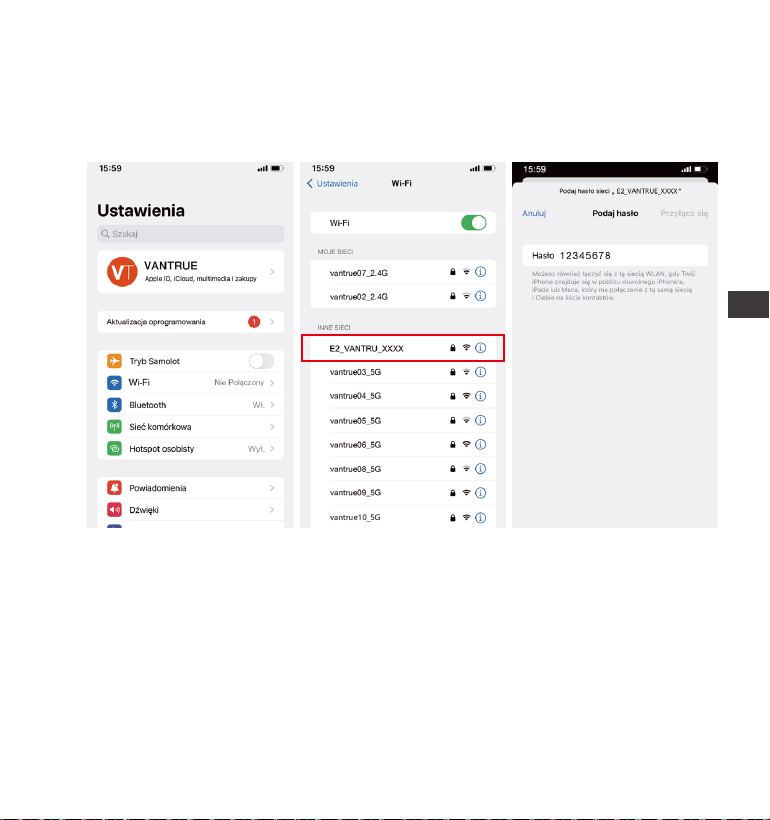
- 145 -
3.4 Połączenie WiFi
Włącz funkcję Wi-Fi kamery, wprowadź ustawienia Wi-Fi telefonu komórko-
wego, a następnie znajdź nazwę Wi-Fi, taką jak: E2_VANTRUE_XXXX, i
wprowadź domyślne hasło Wi-Fi: 12345678, aby połączyć się z Wi-Fi.
EN
EN
EN
PL
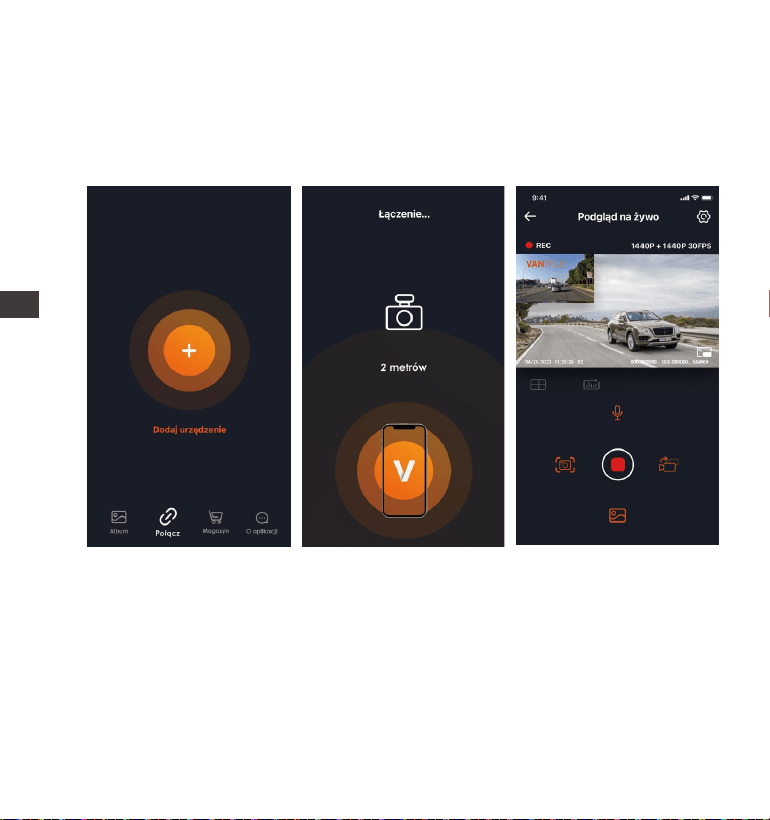
- 146 -
Po pomyślnym nawiązaniu połączenia Wi-Fi kliknij „+” podczas otwiera-
nia aplikacji po raz pierwszy, dodaj model kamery, a następnie aplikacja
automatycznie połączy się z kamerą i wyświetli aktualną sytuację
nagrywania kamery w czasie rzeczywistym.
3.5 APP Łączenie
UWAGA:
Jeśli nie połączysz się z Wi-Fi przed otwarciem aplikacji, aplikacja
wyświetli monit „Najpierw połącz się z Wi-Fi” i automatycznie przejdzie
do ustawień Wi-Fi. Najpierw wykonaj czynności, aby połączyć się z
Wi-Fi.
Eśli Wi-Fi jest już podłączone, ale aplikacja przeskakuje do uprawnień
aplikacji APP po wybraniu modelu, sprawdź, czy uprawnienia aplikacji
sieci bezprzewodowej są włączone.
1.
2.
ENPL

- 147 -
3.
4.
5.
Hasło początkowe dla tego urządzenia jest używane tylko do
pierwszego logowania. Aby zapobiec potencjalnym zagrożeniom
bezpieczeństwa, pamiętaj o zmianie początkowego hasła po
pierwszym zalogowaniu, aby uniemożliwić innym zalogowanie się do
Twojego urządzenia bez autoryzacji lub innych negatywnych konse-
kwencji.
Jeśli zapomnisz hasła Wi-Fi, możesz przywrócić domyślne ustawienia
urządzenia, a hasło Wi-Fi urządzenia również zostanie przywrócone do
hasła domyślnego (12345678).
Jeśli nazwa podłączonego Wi-Fi nie pasuje do Twojego modelu
kamery samochodowej, aplikacja wyświetli monit: „Wybierz właściwy
model” i automatycznie przeskoczy z powrotem do interfejsu wyboru
modelu.
EN
EN
EN
PL
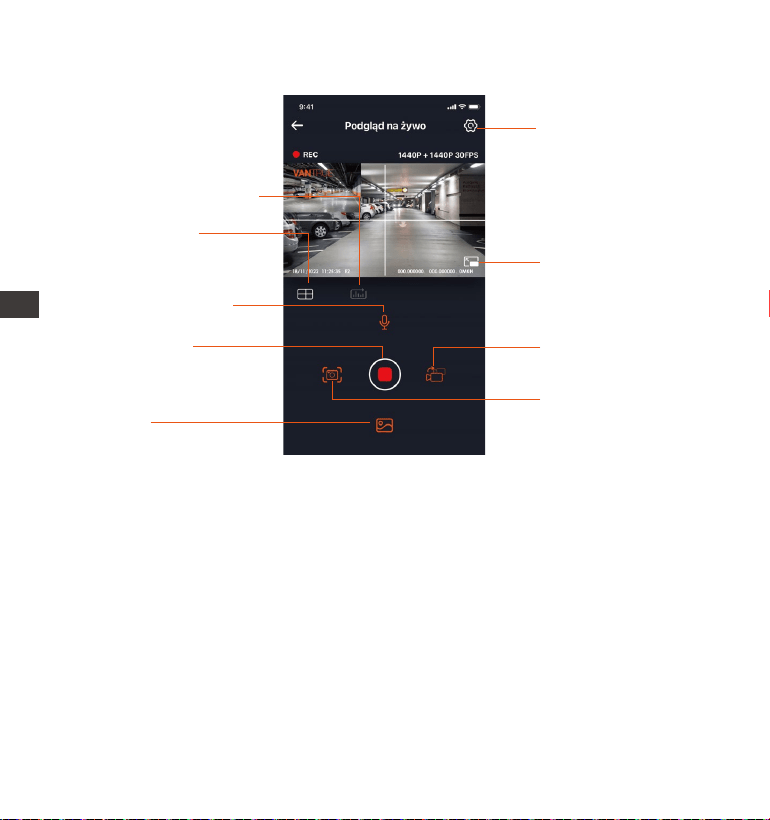
- 148 -
3.6 Aplikacja operacje
Po wejściu do podglądu aplikacji w czasie rzeczywistym możesz wykonać
następujące operacje:
Podgląd wideo: Po pomyślnym podłączeniu aplikacji do kamery wejdź
na stronę podglądu w czasie rzeczywistym, kliknij ikonę pełnego ekranu
lub umieść telefon poziomo, a ekran czasu rzeczywistego automatycznie
przełączy się w tryb podglądu pełnoekranowego. Kliknij ikonę przełączni-
ka okien, aby przełączyć przednie i tylne okna wideo, ale tylko wielo-
kanałowe kamery samochodowe mogą korzystać z tej funkcji.
Odtwarzanie wideo: Pliki wideo i zdjęcia nagrane na karcie SD można
oglądać w aplikacji, a wideo można odtworzyć po kliknięciu pliku.
Ustawienia kamery
Tryb pełnoekranowy
Zmiana podglądu
kamery
Zdjęcie
Album
Zatrzymuje
nagrywanie
Wł/wył mikrofon
Linia korekcji
obiektywu
Statystyki przebiegu
ENPL
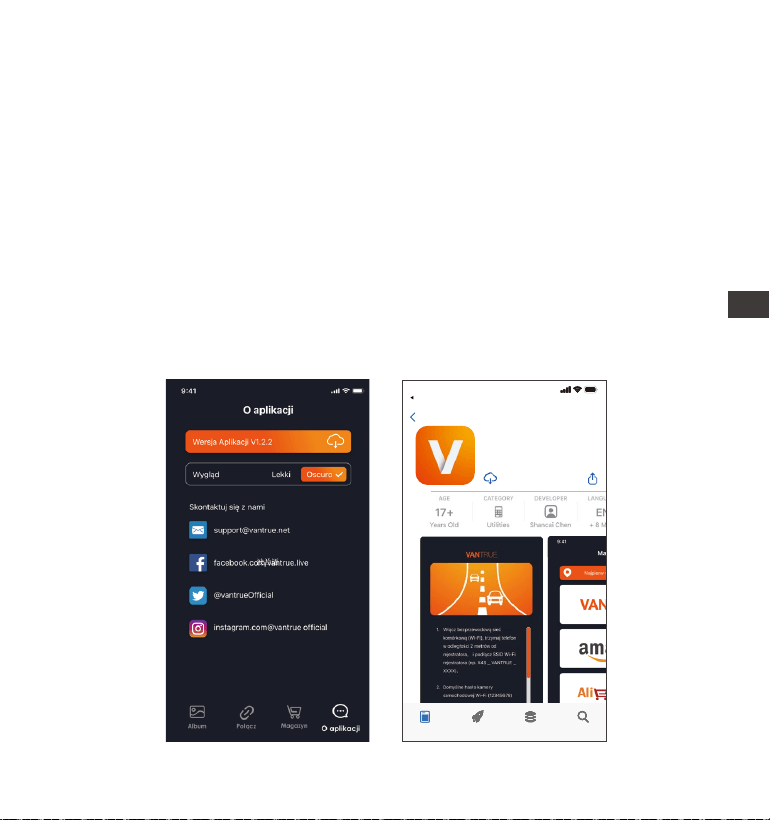
- 149 -
3.7 APP aktualizacja
Otwórz aplikację „Vantrue”, połącz się z Wi-Fi i wejdź w „Ustawienia>
Informacje> Wykryj nową wersję”. Aplikacja automatycznie wykryje, czy
jej wersja jest najnowszą wersją. Jeśli jest nowa wersja aplikacji, postępuj
zgodnie z instrukcjami i uaktualnij wersję.
Pobieranie wideo: Możesz wybrać wideo lub zdjęcie, które chcesz pobrać
w interfejsie przeglądania karty SD lub w obszarze odtwarzania wideo. Po
pobraniu filmu, jeśli odtworzysz go w lokalnym pliku interfejsu aplikacji,
możesz wyświetlić ścieżkę GPS filmu.
Migawka wideo: Możesz przechwycić bieżący ekran w interfejsie podglą-
du aplikacji w czasie rzeczywistym.
EN
EN
EN
PL
Vantrue Ltd.
Vantrue
Vantrue
9:41
Powrót
Dzisiaj Gry Apps Wyszukiwanie
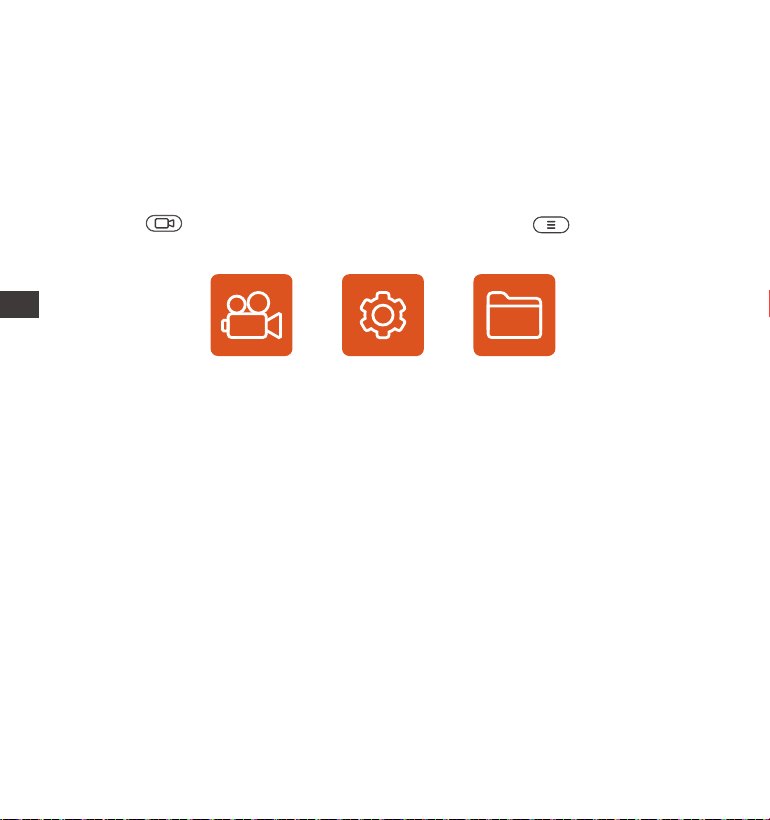
- 150 -
Kamera E2 posiada 3 menu funkcyjne, którymi są: ustawienia nagrywania,
ustawienia systemowe i przeglądanie plików. Dzięki tym ustawieniom
funkcji możesz ustawić kamerę zgodnie z własnymi wymaganiami.
Wciśnij aby zatrzymać nagrywanie a następnie aby wejść w
menu ustawień.
4. Podstawowe funkcje
4.1 Ustawienia menu
NAGRYWANIE USTAWIENIA PLIKI
A. Ustawienia nagrywania
-Rozdzielczość: E2 ma 2 tryby rozdzielczości: tryb podwójnego nagrywan-
ia przód + tył lub tryb nagrywania pojedynczy przód.
Nagrywanie z przodu + z tyłu: 1944P + 1944P 24FPS; 1440P+1440P 30FPS;
1440 P + 1080 P 30 FPS; 1080P + 1440P 30FPS; 1080 P + 1080 P 30 FPS; 1080 P
+ 720 P 30 FPS; 720 P + 1080 P 30 FPS; 720 P + 720 P 30 FPS
Nagrywanie z przodu: 2592x1944P 30FPS; 2560x1440P 30FPS; 1920x1080P
30FPS; 1280x720P 30FPS
- Nagrywanie w pętli: Ustawienie domyślne to 3 min. Możesz wybrać
opcje pomiędzy 1/3/5 min i OFF.
-G-Sensor: Wybierz poziom G-sensora, którego potrzebujesz, a następnie
możesz ustawić 3 kierunki (Przód + Tył/Lewy + Prawy/Góra + Dół). Wartość
G-sensora w każdym kierunku można wybrać jako 1/2/3/4/5/WYŁ. Im
wyższy poziom czułości, tym łatwiej wyzwolić nagrywanie zdarzeń.
G-sensor jest najbardziej czuły, gdy jest ustawiony na 5.
ENPL

- 151 -
-Nagrywanie dźwięku: Domyślnie włączone. Włącz lub wyłącz nagrywan-
ie.
-Ekspozycja: Domyślna wartość to +0.0. Dostosuj ekspozycję obiektywu.
-Kontrolka statusu REC: Ustawienie domyślne to WŁ. Możesz
włączyć/wyłączyć lampkę stanu nagrywania.
-Obróć wyświetlacz: Domyślnie wyłączone. Możesz wybrać obracanie
ekranu wideo w górę iw dół (180 stopni).
-Numer tablicy rej: Wybierz numer lub literę do ustawienia. Po ustawieniu
numer tablicy rejestracyjnej może zostać wyświetlony w nagranym filmie.
-Dodaj do nagrania: Włącz lub wyłącz pieczęć znaku wodnego na
wideo i zdjęciach. Znaczek znaku wodnego zawiera etykietę godziny i
daty, etykietę VANTRUE, numer tablicy rejestracyjnej, informacje o
lokalizacji GPS i etykietę prędkości. Wszystkie włączone domyślnie.
-Tryb poklatkowy: Domyślna wartość jest wyłączona. Możesz włączyć
1FPS/5FPS/10FPS/15FPS.
-Widzenie w nocy przy słabym oświetleniu w trybie parkowania: Domyśl-
nie włączone. Po włączeniu może zoptymalizować efekt nagrywania
filmów w trybie parkowania.
-Tryb parkowania: Możesz wybrać tryb parkowania, którego potrzebujesz,
w tym wykrywanie kolizji/wykrywanie ruchu/nagrywanie z niską szybkością
transmisji/tryb z niską szybkością klatek/WYŁ.
-Ustawienia GPS: GPS jest domyślnie włączony. Tutaj ustawia się ustawie-
nia GPS WŁ/WYŁ, ustawienia jednostek prędkości i informacje GPS.
B. Ustawienia systemu
-Język: Dostępne języki to Engish/Français/Español/Deutsch/Italiano/简体
中文/русский/日本語/Polski.
-WiFi: Domyślnie Wi-Fi jest automatycznie włączone. W ramach tej funkcji
możesz ustawić Wi-Fi tak, aby automatycznie włączało się lub wyłączało,
a także podejrzeć informacje o Wi-Fi.
-Sterowanie głosem: Domyślna czułość to Standard. Polecenia głosowe
EN
EN
EN
PL

- 152 -
można rozpoznać po włączeniu opcji. Możesz wybrać takie opcje, jak
niska czułość/wysoka czułość/standardowa/wyłączona.
- Treść głosowa: Polecenia rozpoznawania głosu. Możesz użyć różnych
poleceń, aby zdalnie sterować kamerą do pracy.
-Formatuj kartę pamięci: Formatuj wszystkie dane na karcie pamięci.
-Konfiguracja przypomnienia formatu: Wybierz opcje przypomnienia: 15
dni, 1 miesiąc i Wył. Domyślnie jest wyłączone.
Aby zapobiec regularnemu zapominaniu o formatowaniu karty pamięci,
dodaliśmy ustawienie czasu przypomnienia o formatowaniu. Możesz
wybrać przypomnienie po 15 dniach lub 1 miesiącu i obliczyć 15 dni lub 1
miesiąc od ustawionej daty. Gdy czas się skończy, możesz wybrać „OK”,
aby sformatować, lub wybrać „Dalej”.
Uwaga: Jeśli zmienisz opcję przypomnienia o formacie, odliczanie czasu
zostanie wznowione natychmiast po zmianie opcji.
-Data i godzina: Istnieją dwa sposoby ustawienia godziny i daty: 1.
Automatyczna aktualizacja GPS, 2 Ręczne ustawienie daty/czasu.
Automatyczna aktualizacja GPS jest domyślnie włączona.
GPS automatycznie aktualizuje datę i godzinę na podstawie Twojej strefy
czasowej, więc najpierw musisz wybrać prawidłową strefę czasową;
możesz także wyłączyć automatyczną aktualizację GPS, włączyć Ręczne
ustawianie daty/godziny oraz ręcznie korygować datę i godzinę.
W tym menu można również ustawić format daty i ustawienia strefy
czasowej.
-Wygaszacz ekranu: Ustaw czas automatycznego wyłączania wyświet-
lacza LCD po braku operacji.
Jeśli ustawisz Wygaszacz na 3 min, ekran LCD kamery wyłączy się
automatycznie po 3 min, ale nagrywanie będzie kontynuowane. Jeśli
konfiguracja jest wyłączona, ekran się nie wyłączy. Możesz wybrać opcje
spośród 30s, 1Min, 3Min i WYŁ.
-Dźwięk urządzenia: Ustaw głośność urządzenia. Domyślny poziom
głośności to 3, najniższy to 0, a najwyższy to 5.
ENPL

- 153 -
-Ton podpowiedzi: W zależności od różnych sytuacji kamera jest ustawio-
na z 5 rodzajami dźwięków podpowiedzi, które są dźwiękiem włącza-
nia/wyłączania, dźwiękiem klawiszy, dźwiękiem blokady pliku, dźwiękiem
formatowania i nienormalnym przypomnieniem o zatrzymaniu nagrywan-
ia. Wszystkie dźwięki monitu są domyślnie włączone.
-Częstotliwość: Różne kraje mają różne częstotliwości. Aby uniknąć
wpływu na wideo, możesz wybrać częstotliwość 50 Hz lub 60 Hz w
zależności od regionu. Dla Polski 50 Hz
-Informacje o systemie: Sprawdź aktualny model, wersję oprogramowan-
ia układowego i oficjalną stronę internetową Vantrue.
-Certyfikaty: Możesz wyświetlić informacje o certyfikacji E2.
-Ustawienia domyślne: Zresetuj urządzenie z powrotem do ustawień
fabrycznych.
C. Pliki
Przejrzyj pliki wideo i zdjęcia nagrane przez E2.
-Zdarzenia: Filmy o zdarzeniach krytycznych wykryte przez aktywność
G-Sensor lub ręcznie zablokowane przez użytkownika.
Format nazwy pliku to 20300128_140633_0008_E_A.MP4
-Normalny: Nagrane standardowe filmy. Ten folder zapisuje nagrania
wideo w pętli, wideo z trybu parkowania i wideo poklatkowe. Format
nazwy pliku wideo nagrywania w pętli to:
20300128_140633_0008_N_A.MP4, 20300128_140633_0008_N_B.MP4; format
nazwy pliku wideo w trybie parkowania to:
20300128_140633_0007_P_A.MP4, 20300128_140633_0007_N_B.MP4; format
nazwy pliku wideo poklatkowego to: 20300128_140633_0006_T_A.MP4,
20300128_140633_0006_N_B.MP4.
-Zdjęcia: Pliki zdjęć. Format nazwy pliku wideo nagrywania w pętli to:
20300128_140633_0005A.JPEG、20300128_140633_0005B.JPEG.
-Wszystko: Nagrane wszystkie standardowe filmy i nagrania z wydarzeń
krytycznych.
EN
EN
EN
PL
EN
EN
EN
PL

- 154 -
Uwaga: Przyrostek A reprezentuje pliki nagrane przez przedni obiektyw,
przyrostek B reprezentuje pliki nagrane przez tylną kamerę.
4.2. Specyfikacje
4.2.1 Nagrywanie w pętli
Po włożeniu karty pamięci i podłączeniu zasilania kamera E2 automaty-
cznie się włączy i przejdzie do nagrywania w pętli. Czas trwania każdego
nagranego wideo zostanie zapisany na podstawie ustawionego czasu
nagrywania w pętli, zapisanego w normalnym folderze wideo.
Gdy pojemność normalnego folderu wideo osiągnie 70% całkowitej
pojemności, nowy plik nagrywania w pętli automatycznie nadpisze
oryginalne pliki nagrywania w pętli. Po włączeniu tej funkcji plik wideo
automatycznie nadpisze pętlę, aby nie zatrzymywać nagrywania
podczas procesu jazdy.
UWAGA:
2.
1.
3.
4.
Normalne działanie funkcji nagrywania w pętli jest bardzo zależne od
szybkości karty pamięci, dlatego należy regularnie formatować kartę
pamięci, aby uniknąć problemów, takich jak nadmierne pliki na karcie
pamięci i starzenie się karty, które wpływają na normalne nagrywanie
w pętli.
Należy regularnie sprawdzać nagrywanie w pętli, aby uniknąć nadpisy-
wania niezbędnych filmów przez pętlę.
Gdy nagrywanie w pętli jest wyłączone, kamera będzie nagrywać
wideo po 5 minutach każdego klipu, ale nie nadpisze starych filmów,
gdy karta pamięci jest pełna.
Po wyłączeniu nagrywania w pętli, czas trwania każdego filmu będzie
ENPL
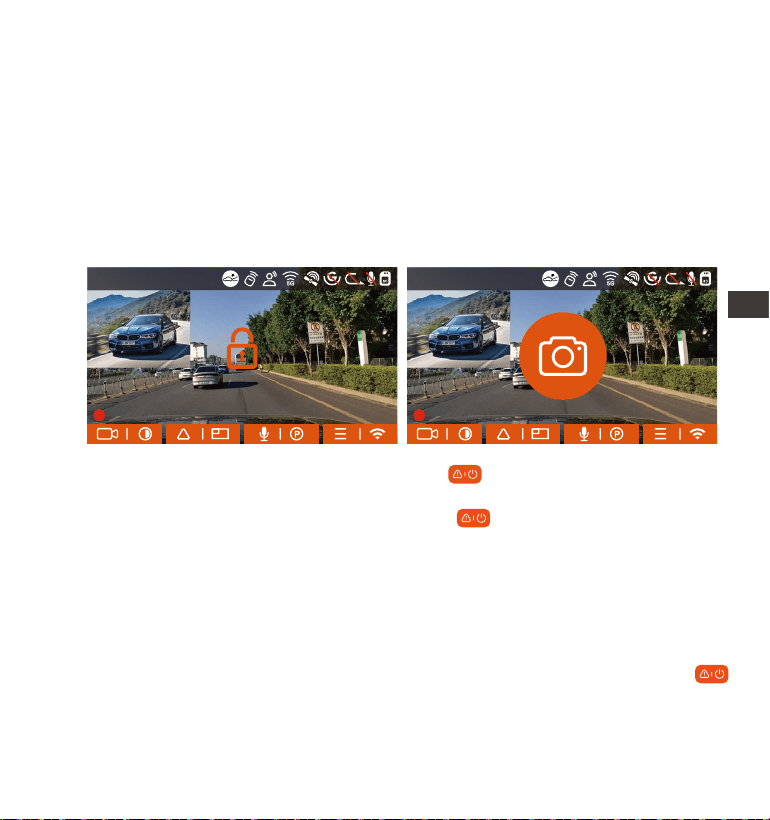
- 155 -
wynosił 20 minut, a nagrywanie zostanie zatrzymane po zapełnieniu
karty pamięci.
4.2.2 Nagrywanie awaryjne / zdarzeń
Wideo zdarzenia jest wyzwalane przez czujnik G (czujnik grawitacyjny),
który może być uruchamiany automatycznie lub ręcznie blokowany.
Podczas jazdy, w szczególnych okolicznościach, kamera zostanie
automatycznie zablokowana w celu nagrywania zdarzenia lub można ją
zablokować ręcznie w celu nagrywania zdarzenia.
Aby zablokować nagranie ręcznie wciśnij przycisk, aby zablokować
bieżący film.
W okresie blokady wideo możesz nacisnąć aby przechwycić wielokrot-
nie. Po nagraniu wideo zostanie automatycznie zapisane w folderze wideo
z wydarzenia , a zdjęcie zostanie zapisane w folderze zdjęć.
Wideo zdarzenia automatycznego blokowania jest wyzwalane, gdy
samochód zostanie uderzony/wstrząśnięty. Kamera wykrywa wibracje i
automatycznie blokuje bieżące wideo, które jest zapisywane w folderze
wideo zdarzeń.
Podczas zablokowanego okresu nagrywania można również nacisnąć
aby zrobić zdjęcie. Po zakończeniu nagrywania wideo wydarzenia, wideo
zostanie zapisane w folderze wideo wydarzenia, a zdjęcie zostanie
zapisane w folderze zdjęć.
EN
EN
EN
PL
14:39:07 18-11-2022
00:00:37
MP/H
35
14:39:07 18-11-2022
00:00:37
MP/H
35
1440P+1440P 30FPS
1440P+1440P 30FPS
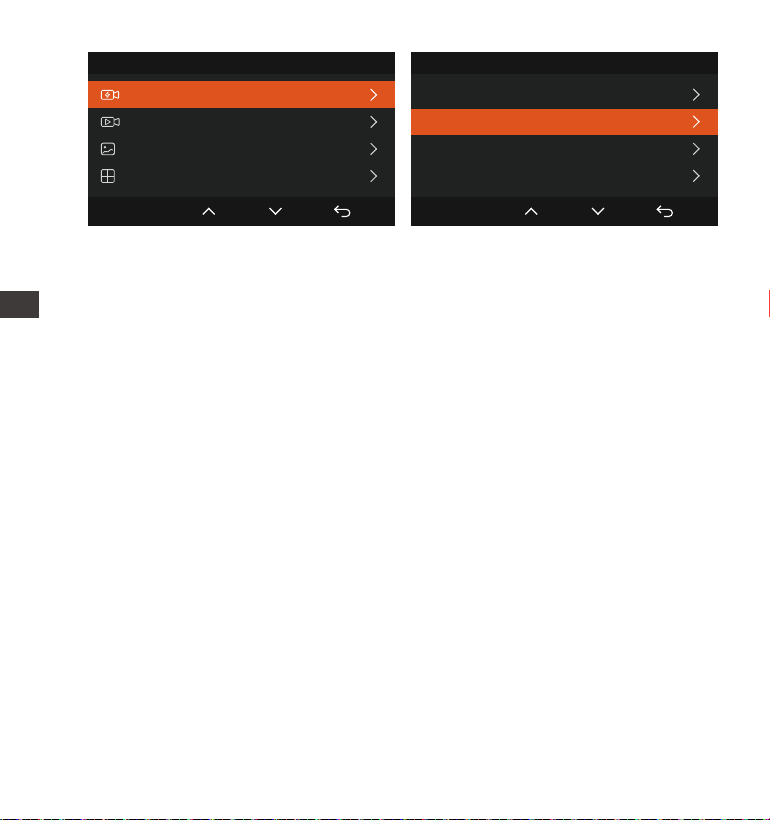
- 156 -
Czułość wyzwalacza automatycznego blokowania wideo jest określona
przez czułość kolizji. Im wyższe ustawienie czułości, tym większe prawdo-
podobieństwo wyzwolenia.
Całkowita pojemność pliku wideo zdarzenia stanowi 30% całkowitej
pojemności bieżącej karty pamięci. Gdy plik wideo wydarzenia
osiągnie górny limit, nowy plik wideo wydarzenia automatycznie zastąpi
stary plik wideo wydarzenia. Zaleca się okresowe sprawdzanie i
zapisywanie plików wideo z wydarzenia, aby uniknąć ich utraty.
Nagrywanie z blokadą nie zostanie uruchomione w żadnej z następują-
cych sytuacji: Nagrywanie w pętli jest wyłączone lub Nagrywanie
poklatkowe jest włączone.
1.
2.
3.
UWAGA:
Pliki 1/4
Zdarzenia
Normalne
Zdjęcia
Wszystkie pliki
OK
Zdarzenia
20221118_140633_0001_E_A.MP4
20221118_140633_0001_E_B.MP4
20221118_140633_0002_E_A.MP4
20221118_140633_0002_E_B.MP4
2/5
OK
PL
ENPL
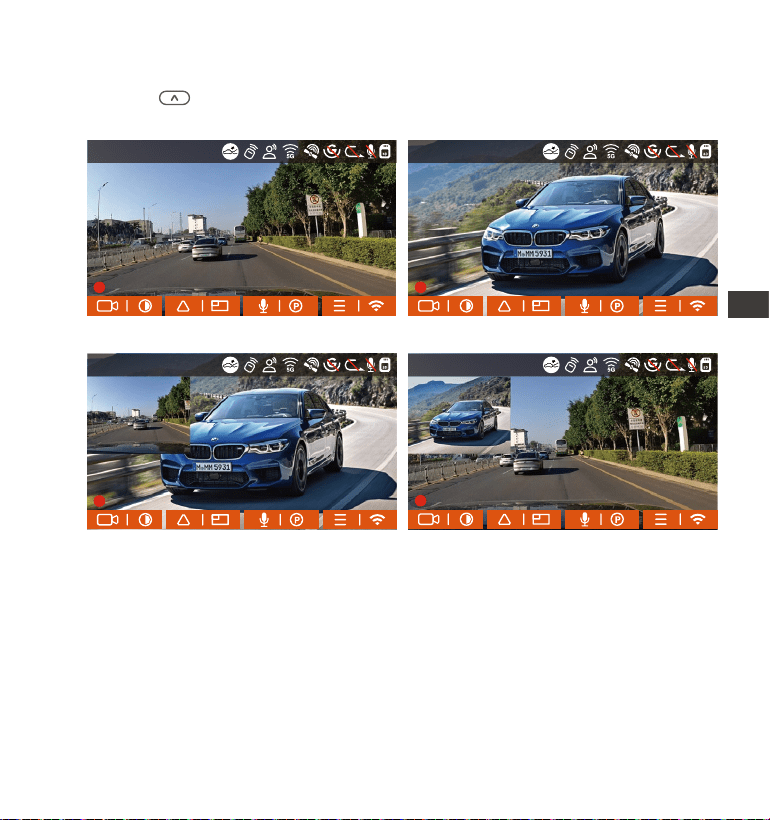
- 157 -
4.2.3 Przełącz wyświetlanie przedniej i tylnej kamery w oknie
Naciśnij przycisk, aby przełączyć wyświetlanie i powiększyć obraz z
przedniej lub tylnej kamery na wyświetlaczu LCD.
4.2.4 Tryb nocny podczas parkowania
Aby zwiększyć bezpieczeństwo parkowania w nocy, w pełni wykorzystuje-
my wydajność obiektywu w połączeniu z technologią noktowizyjną przy
słabym oświetleniu, aby poprawić efekt widzenia w nocy w trybie parkow-
ania. Ta funkcja jest domyślnie w trybie otwartym. Zostanie wyzwolony
dopiero po wejściu w tryb parkowania i nie wpłynie na normalne nagry-
wanie.
Obraz z przedniej kamery Obraz z tylnej kamery
Przód + tył Tył + przód
PL
EN
EN
EN
PL
14:39:07 18-11-2022
00:00:37
MP/H
35
14:39:07 18-11-2022
00:00:37
MP/H
35
14:39:07 18-11-2022
00:00:37
MP/H
35
14:39:07 18-11-2022
00:00:37
MP/H
35
1440P+1440P 30FPS
1440P+1440P 30FPS 1440P+1440P 30FPS
1440P+1440P 30FPS
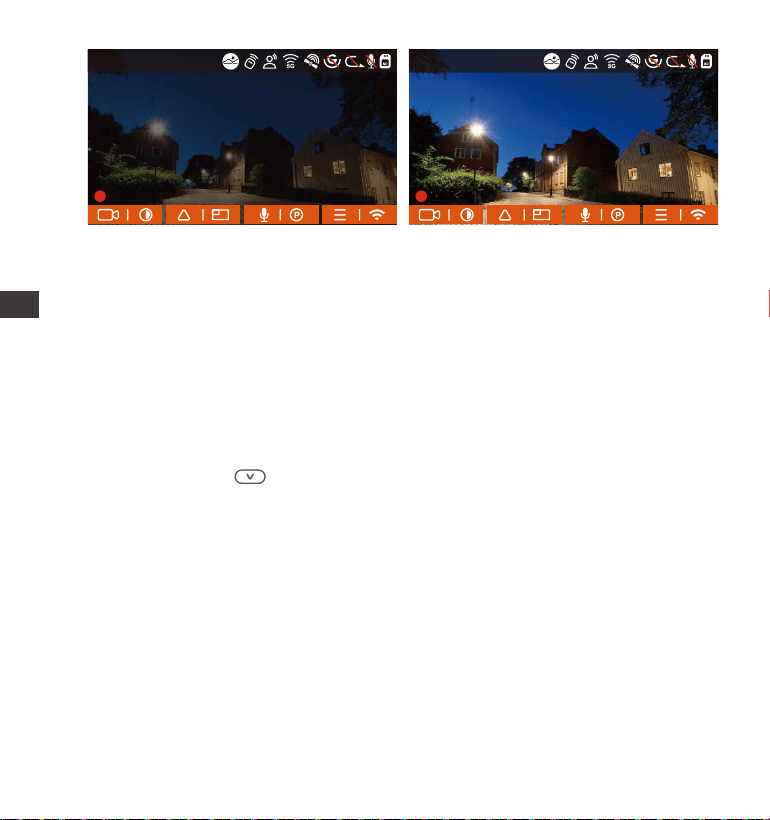
- 158 -
4.2.5 Tryb parkowania (gdy tryb parkowania jest włączony, funkcja wideo
poklatkowego nie będzie działać. Te dwie funkcje nie mogą działać
jednocześnie)
Tryb parkowania działa jako funkcja strażnicza w różnych sytuacjach.
Możesz przełączać się na różne tryby monitorowania parkowania w
zależności od różnych sytuacji parkingowych.
Po włączeniu trybu parkowania istnieją dwa sposoby nagrywania:
1. Możesz odczekać 5 minut, aby rozpocząć automatyczne;
2. długo naciśnij aby rozpocząć manualnie.
Aby upewnić się, że kamera działa poprawnie w trybie parkowania,
użyj zestawów przewodowych lub innego stabilnego i ciągłego źródła
zasilania do zasilania kamery samochodowej.
Gdy temperatura w samochodzie osiąga 60°C (140°F), zaleca się
wyłączenie kamery, aby uniknąć nieprawidłowej pracy kamery
spowodowanej wysoką temperaturą.
Nagrywanie filmów poklatkowych i tryb parkowania (w tym wykrywanie
kolizji, wykrywanie ruchu, nagrywanie z niską szybkością transmisji i tryb
1.
2.
3.
UWAGA:
Tryb nocnego parkowania Wył Tryb nocnego parkowania Wł
ENPL
14:39:07 18-11-2022
00:00:37
MP/H
35
14:39:07 18-11-2022
00:00:37
MP/H
35
1440P+1440P 30FPS 1440P+1440P 30FPS
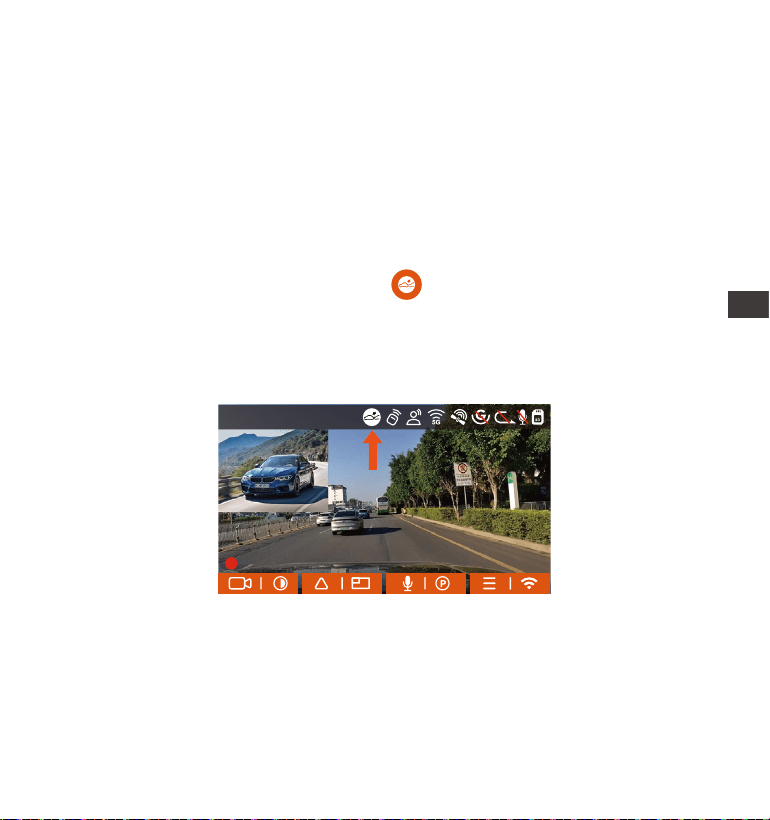
- 159 -
4.
z niską liczbą klatek na sekundę) można włączyć tylko pojedynczo.
Gdy jeden jest włączony, drugi zostanie automatycznie wyłączony.
Wszystkie filmy nagrane w trybie parkowania (wykrywanie kolizji,
wykrywanie ruchu, nagrywanie z niską szybkością transmisji, tryb z niską
szybkością klatek) zostaną zapisane w normalnym folderze wideo. Aby
zapobiec zapętleniu nadpisywania wideo w trybie parkowania,
sprawdź i zapisz wymagane pliki na czas, aby zapobiec utracie.
Detekcja kolizji
Kiedy detekcja kolizji jest włączona na interfejsie nagrywania zostanie
wyświetlona ikona wskazująca, że rejestrator aktualnie korzysta z trybu
wykrywania kolizji. Czułość wykrywania kolizji można regulować w zakresie
od 1 do 5 poziomów. Możesz dostosować się do swoich przyzwyczajeń, a
także otoczenia samochodu.
Gdy funkcja Collision Detection jest włączona i po 5 minutach nagrywan-
ia nie zostanie wykryty żaden ruch (w skrócie 5-minutowy mechanizm
wprowadzania), wówczas Collision Detection jest aktywowana ikoną
Collision Detection w prawym dolnym rogu ekranu, a kamera automaty-
cznie się wyłącza. Gdy kamera jest wyłączona, rozpocznie nagrywanie
przez 1 minutę po potrząśnięciu, a następnie ponownie ją wyłączy.
EN
EN
EN
PL
14:39:07 18-11-2022
00:00:37
MP/H
35
1440P+1440P 30FPS
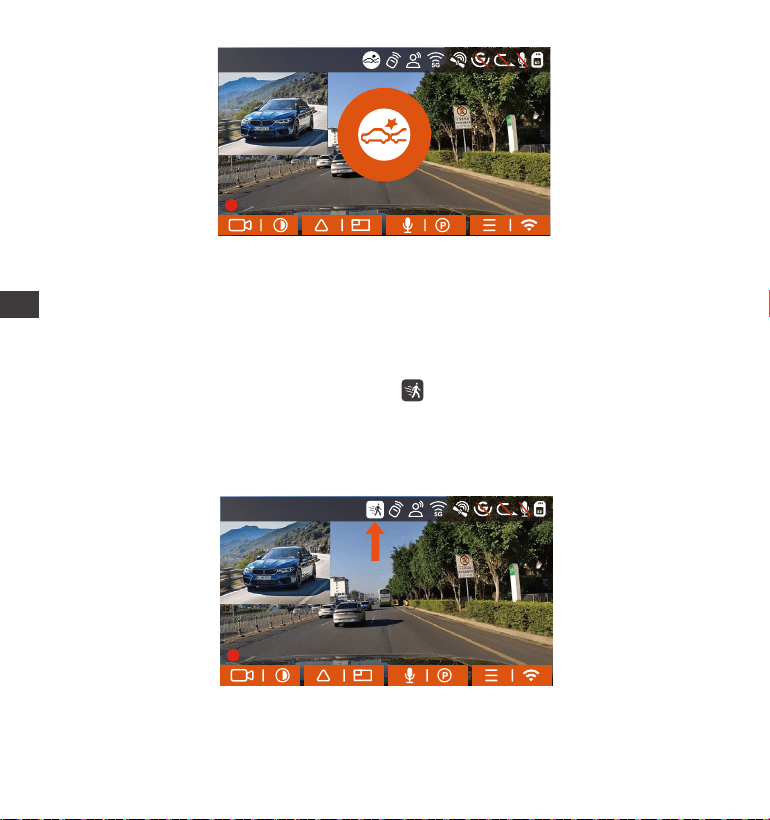
- 160 -
UWAGA: Jeśli kamera na deskę rozdzielczą nadal będzie uderzać
podczas nagrywania wykrywania kolizji, wyjdzie z trybu wykrywania kolizji
i przejdzie do normalnego nagrywania, uruchamiając ponownie
5-minutowy mechanizm wprowadzania.
Detekcja ruchu
Kiedy detekcja ruchu jest włączona Ikona zostanie wyświetlona w
interfejsie nagrywania, wskazując, że kamera na deskę rozdzielczą jest
aktualnie w trybie wykrywania ruchu. Wykrywanie ruchu ma trzy poziomy:
niski/średni/wysoki, które można regulować, a odpowiednie zakresy
wykrywania ruchu to 2m / 4m / 6m.
ENPL
Gdy wykrywanie ruchu jest włączone i po 5 minutach nagrywania nie
zostanie wykryty żaden ruch, na środku ekranu pojawi się pomarańczowa
ikona, a ekran wyłączy się po 3 minutach.
14:39:07 18-11-2022
00:00:37
MP/H
35
1440P+1440P 30FPS
14:39:07 18-11-2022
00:00:37
MP/H
35
1440P+1440P 30FPS
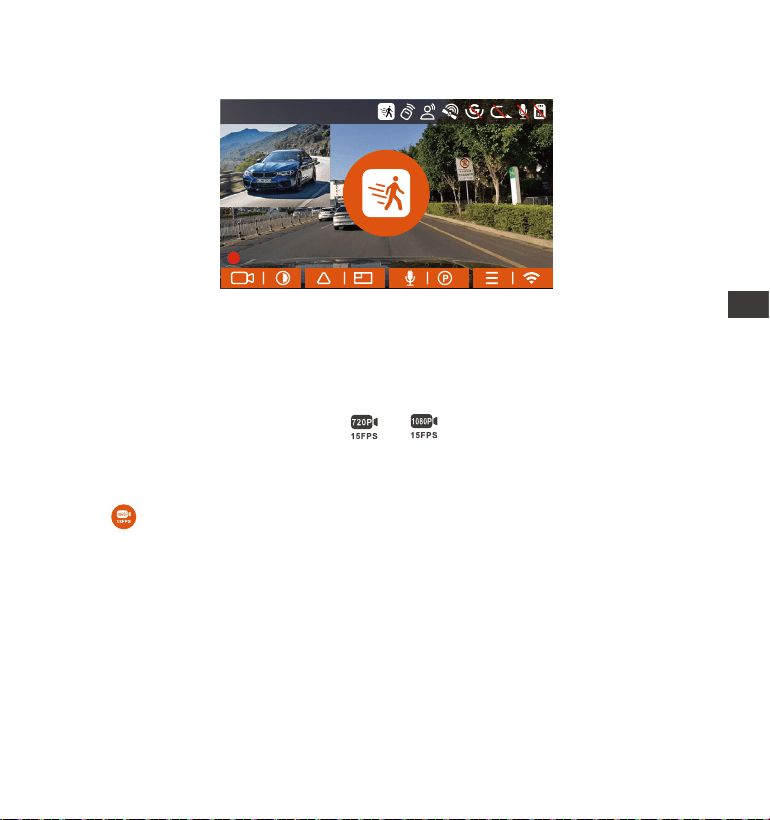
- 161 -
UWAGA: Tryb wykrywania ruchu można włączyć tylko wtedy, gdy kamera
jest włączona. Po wyłączeniu kamery tryb wykrywania ruchu nie będzie
działał.
Low Bitrate nagrywanie
Kiedy lowbitrate jest włączony lub zostanie wyświetlony w prawym
dolnym rogu ekranu, w zależności od tego, czy wybierzesz 1080P 15FPS
czy 720P 15FPS.
Jeśli po 5 minutach nagrywania nie zostanie wykryty żaden ruch, pojawi
się ikona, która pojawia się na środku ekranu. Rozdzielczość wszystkich
bieżących filmów zostanie automatycznie zmieniona na 1080P 15FPS lub
720P 15FPS do nagrywania, a czas nagrywania zostanie określony zgodnie
z aktualnie ustawionym czasem nagrywania w pętli. Gdy kamera wibruje
lub zostanie przesunięta, automatycznie wyjdzie, odczeka 5 minut i
wejdzie ponownie.
Gdy przednia kamera wykryje ruch obiektu, automatycznie rozpocznie
nagrywanie przez 30 sekund i zapisze nagranie w zwykłym folderze wideo.
EN
EN
EN
PL
1440P+1440P 30FPS
14:39:07 18-11-2022
00:00:37
MP/H
35
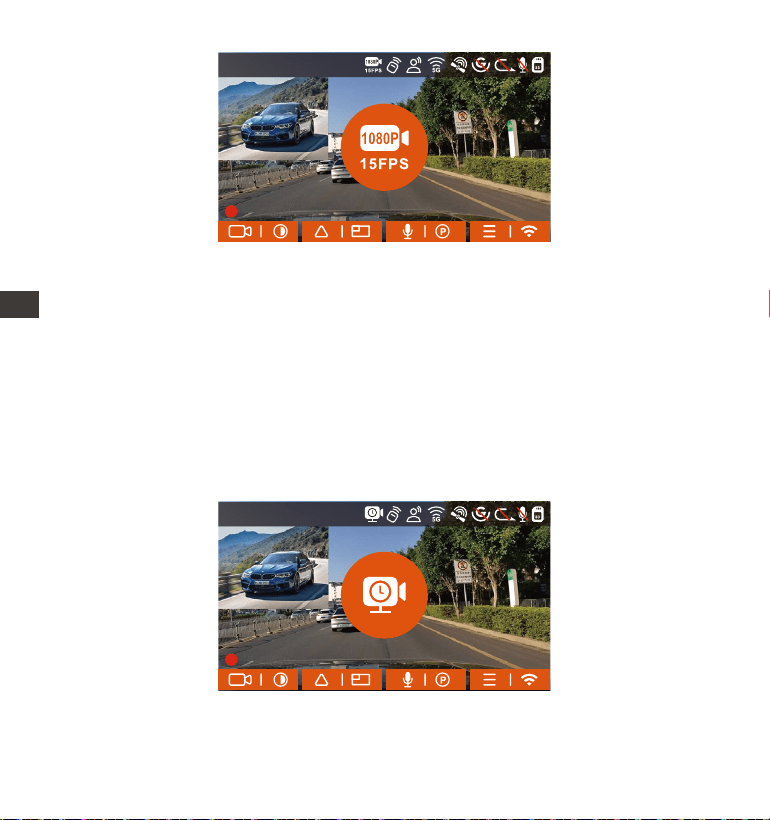
- 162 -
UWAGA: Nagrywanie lowbitrate można włączyć tylko wtedy, gdy kamera
jest włączona. Po wyłączeniu kamery nagrywanie lowbitrate nie będzie
działać.
Tryb niskiej liczby klatek
Gdy wybrany jest tryb niskiej liczby klatek na sekundę, kamera będzie
nagrywać zgodnie z wyborem spośród 1FPS/5FPS/10FPS/15FPS.
Na przykład, jeśli wybierzesz 1 kl./s, a bieżąca rozdzielczość wideo wynosi
30 kl./s, kamera wygeneruje wideo 30 kl./s na sekundę. Tryb niskiej liczby
klatek na sekundę może znacznie zachować integralność wideo i
zaoszczędzić miejsce na karcie pamięci.
[Normalny czas nagrywania = Czas nagrywania poklatkowego (sek) x
Szybkość nagrywania FPS x Opcja nagrywania poklatkowego]
(Czas należy przeliczyć na sekundy)
PL
ENPL
14:39:07 18-11-2022
00:00:37
MP/H
35
1440P+1440P 30FPS
14:39:07 18-11-2022
00:00:37
MP/H
35
1440P+1440P 30FPS
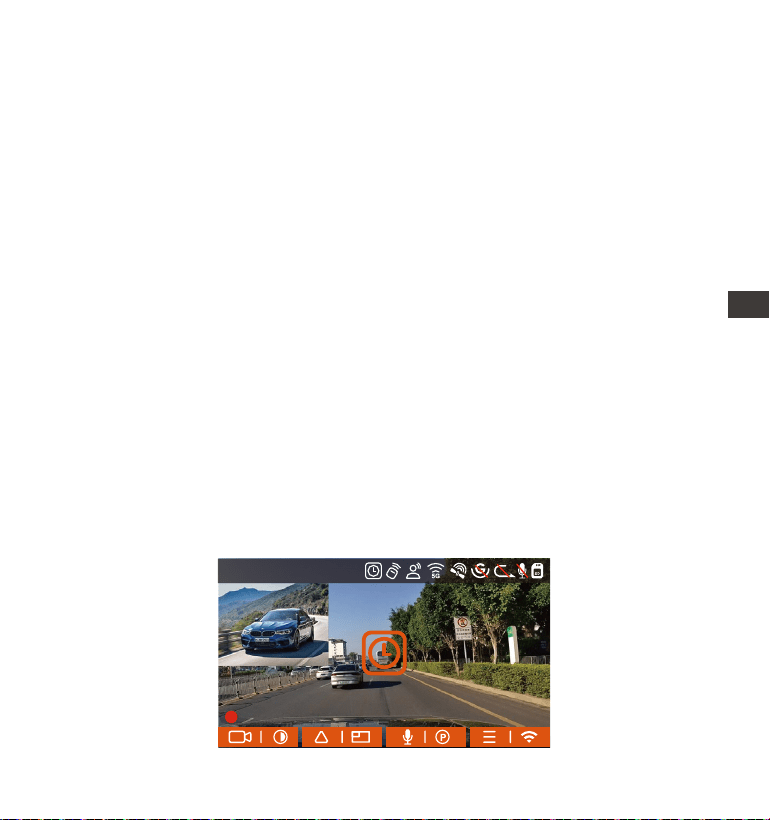
- 163 -
Jednostką czasu we wzorze obliczeniowym są sekundy, więc ostateczny
normalny czas nagrywania obliczony jest również w sekundach. Jeśli
chcesz przeliczyć je na inne jednostki czasu, sprawdź jednostki i przelicz
je samodzielnie.
Tryb niskiej liczby klatek na sekundę jest podobny do funkcji nagrywania
poklatkowego, ale różnica polega na tym, że nie ma 5-minutowego
mechanizmu wejścia do nagrywania poklatkowego, który zostanie
włączony bezpośrednio po ustawieniu.
W trybie niskiej liczby klatek na sekundę kamera potrzebuje również
stabilnego zasilania. Gdy zasilanie zostanie wyłączone lub wyczerpane,
kamera wyłączy się.
1.
2.
3.
Notatka:
4.2.6 Tryb poklatkowy
Po wybraniu trybu poklatkowego kamera będzie nagrywać zgodnie z
wybranym ustawieniem 1FPS/5FPS/10FPS/15FPS.
Na przykład, jeśli wybierzesz 1 kl./s, a bieżąca rozdzielczość wideo wynosi
30 kl./s, rejestrator wygeneruje wideo 30 kl./s na sekundę. Tryb niskiej
liczby klatek na sekundę może znacznie zachować integralność wideo i
zaoszczędzić miejsce na karcie pamięci.
EN
EN
EN
PL
14:39:07 18-11-2022
00:00:37
MP/H
35
1440P+1440P 30FPS
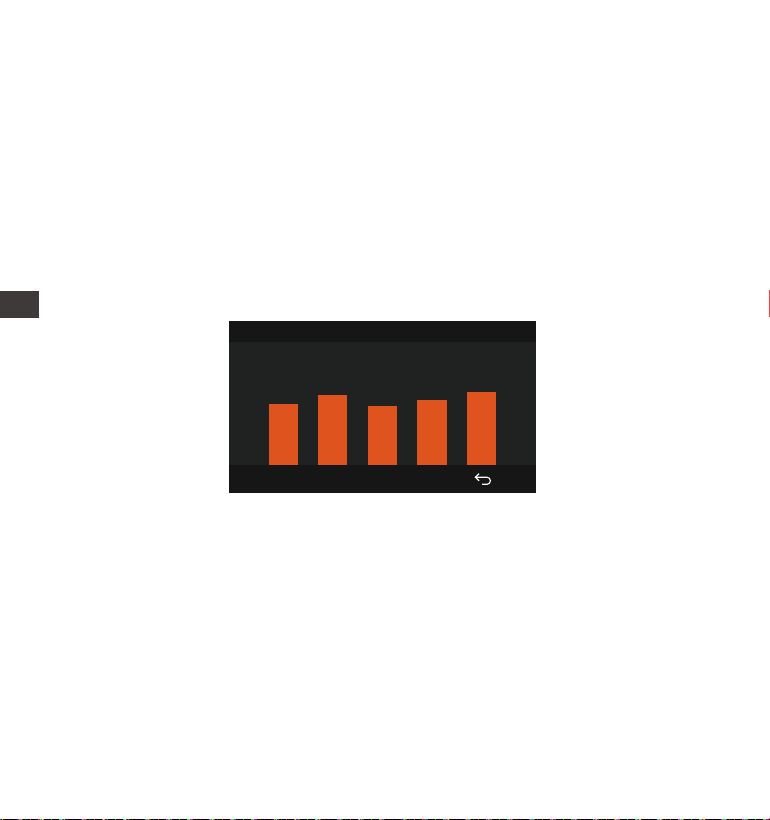
- 164 -
Wzór na obliczanie czasu trwania wideo to:
[Normalny czas nagrywania = Czas nagrywania poklatkowego (sek) x
Szybkość nagrywania FPS x Opcja nagrywania poklatkowego]
(Czas należy przeliczyć na sekundy)
4.2.7 Funkcja GPS
Funkcja GPS jest jedną z ważnych funkcji kamery samochodowej. GPS
jest domyślnie włączony, a kamera odbiera sygnały GPS przez uchwyt
GPS. Może automatycznie korygować godzinę i datę w Twojej okolicy,
rejestrując lokalizację, w której nagranie zostało nagrane, oraz prędkość
samochodu w tym czasie.
Połączenie GPS zostanie zakończone w ciągu 1 minuty od włączenia
urządzenia. Jeśli połączenie GPS nie powiedzie się w ciągu 1 minuty,
sprawdź, czy URZĄDZENIE włączyło funkcję GPS, czy uchwyt GPS jest
prawidłowo podłączony i czy Twoje otoczenie (parking podziemny,
gęsto zaludniony obszar mieszkalny, metro, tunel itp.) wpływa na
odbiór sygnału GPS.
Informacje GPS są rejestrowane wraz z wideo. Aby go wyświetlić,
pobierz i zainstaluj aplikację VANTRUE i VANTRUE GPS Player (dostępne
do pobrania na www.vantrue.net).
1.
2.
UWAGA:
40
46
39
43
48
Informacje GPS
ENPL
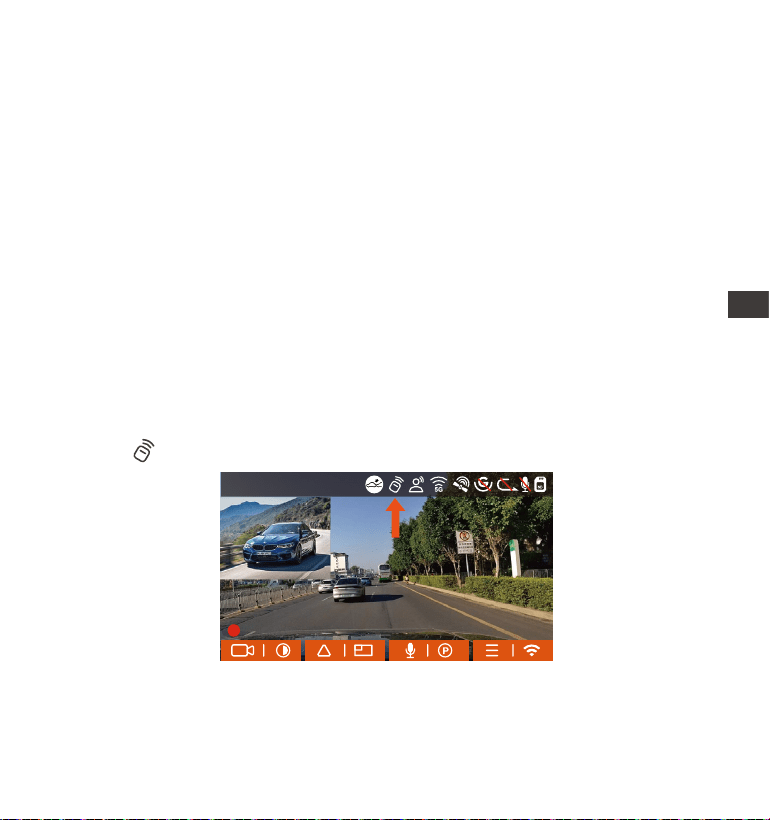
- 165 -
4.2.8 Automatyczny czas z GPS
Ustawienie czasu automatycznej korekcji GPS dla kamery na deskę
rozdzielczą E2 jest domyślnie włączone. Możesz wybrać GMT-08:00,
wybierając swoją strefę czasową, na przykład Los Angeles. Jeśli nie znasz
strefy czasowej swojej lokalizacji, możesz użyć WIFI, aby połączyć się z
aplikacją Vantrue i potwierdzić, że funkcja automatycznej regulacji czasu
w aplikacji jest włączona.
4.2.9 Bezprzewodowy pilot zdalnego sterowania
Kamera jest wyposażona w pilota, za pomocą którego można szybko
sterować kamerą, robić zdjęcia, nagrywać wideo z wydarzeń,
włączać/wyłączać nagrywanie oraz wykonywać inne funkcje.
Połączenie zdalnego sterowania:
Usuń pasek izolacyjny na pilocie, a kamera automatycznie dopasuje się
do pilota. Nie jest wymagane ręczne parowanie z kamerą samochodową.
Kiedy na ekranie pojawi się ikona, oznacza to, że pilot został pomyślnie
dopasowany.
EN
EN
EN
PL
14:39:07 18-11-2022
00:00:37
MP/H
35
1440P+1440P 30FPS
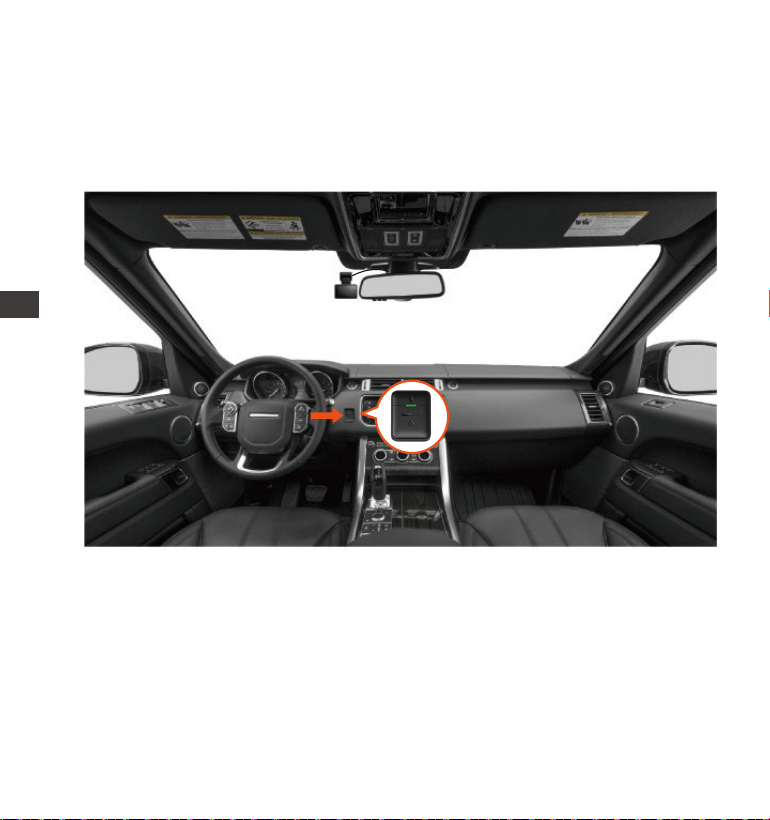
- 166 -
Montaż pilota:
Po dopasowaniu pilota do kamery wybierz odpowiednie miejsce w
samochodzie, a następnie oderwij naklejkę z pilota i przyklej ją w wybra-
nym miejscu. (Uwaga: pilot musi być zainstalowany w pozycji, która nie
wpływa na bezpieczną jazdę)
ENPL
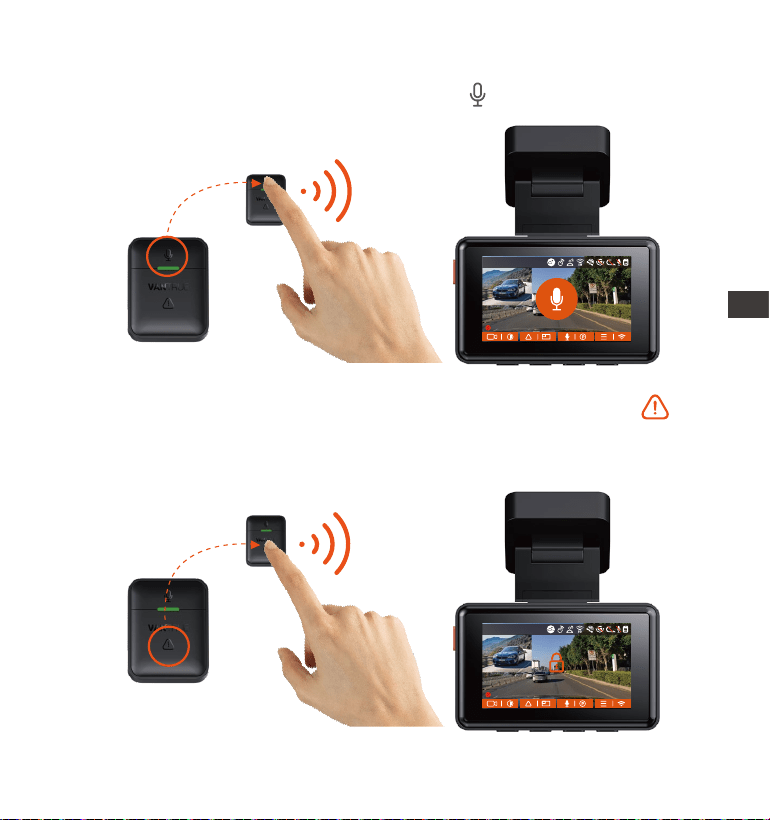
- 167 -
Po pomyślnym podłączeniu pilota naciśnij przycisk, aby włączyć lub
wyłączyć dźwięk.
1.
Funkcje pilota:
Po pomyślnym nawiązaniu połączenia, po krótkim naciśnięciu przy-
cisk, kamera zablokuje bieżący plik i zrobi migawkę wideo; kontynuuj
krótkie naciśnięcie podczas zablokowanego wideo i kontynuuj robienie
zdjęcia.
2.
EN
EN
EN
PL
EN
EN
EN
PL
14:39:07 18-11-2022
00:00:37
MP/H
35
14:39:07 18-11-2022
00:00:37
MP/H
35
1440P+1440P 30FPS
1440P+1440P 30FPS
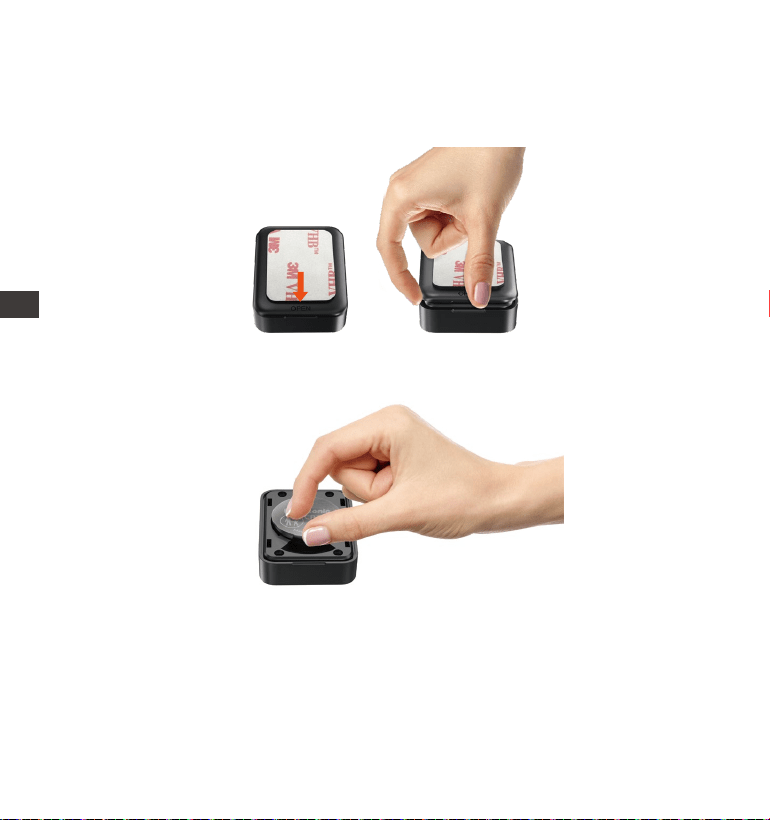
- 168 -
Na spodzie pilota znajduje się znak "OPEN", proszę powoli podważyć,
aby otworzyć otaczającą szczelinę wzdłuż pozycji rowka tego znaku,
aby otworzyć.
1.
Po otwarciu delikatnie podważ baterię z rowka z przodu komory baterii,
a następnie wyjmij starą baterię, włóż nową baterię i zakryj tylną
pokrywę pilota.
2.
Wymiana baterii w pilocie:
UWAGA: Gdy moc jest niska, należy wymienić baterię (model baterii
pilota to bateria CR2032). Nie obsługuje ładowania.
4.2.10 Asystent głosowy
Oprócz sterowania kamerą za pomocą pilota, możesz również sterować
kamerą za pomocą poleceń głosowych. Obecnie obsługiwane języki to
ENPL
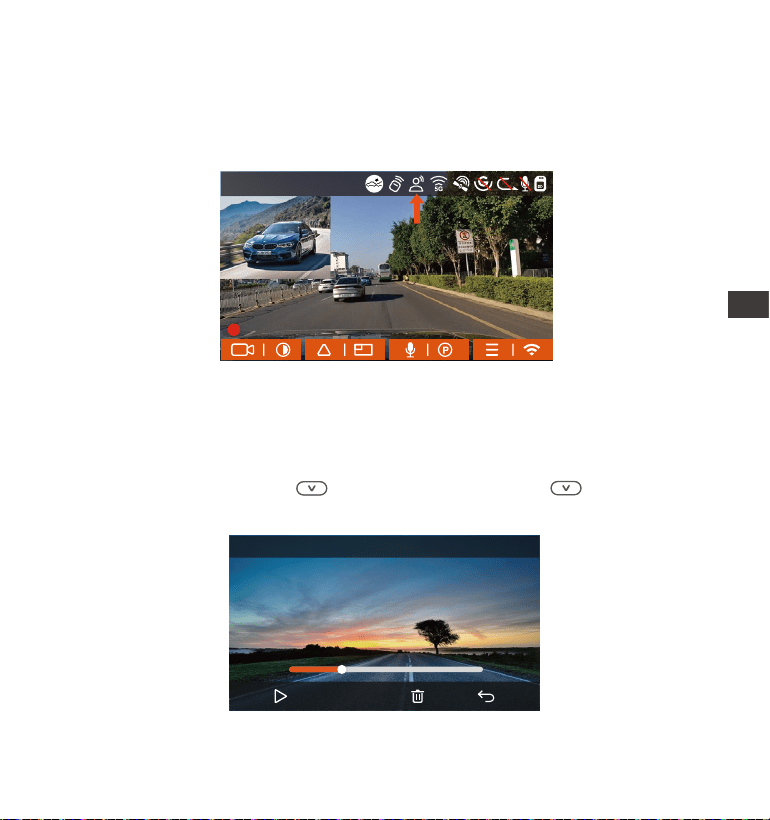
- 169 -
4.2.11 Przeglądanie wideo I zdjęć
a.Przeglądanie plików na kamerze
Po kliknięciu „Pliki” wprowadź dowolny folder, a po otwarciu folderu
wideo możesz nacisnąć wybrać następny plik lub przycisk, aby
usunąć plik podczas odtwarzania.
00:30
01:07
20221118_140633_0002_E_B.MP4
1X
EN
EN
EN
PL
14:39:07 18-11-2022
00:00:37
MP/H
35
1440P+1440P 30FPS
angielski, japoński, rosyjski i chiński. Aby uzyskać bardziej szczegółowe
polecenia głosowe, sprawdź Ustawienia systemu > Treść głosowa.
Domyślnym ustawieniem jest standardowa czułość. Rozpoznawanie głosu
ma opcje takie jak niska czułość/standardowa/wysoka czułość/wyłąc-
zone. Możesz sterować kamerą za pomocą poleceń głosowych.
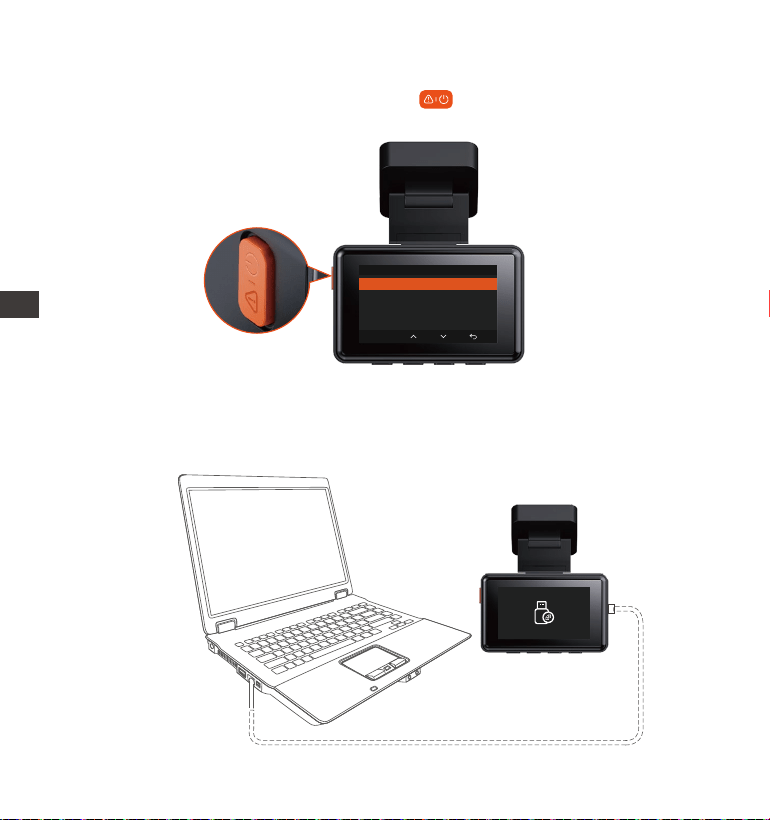
- 170 -
--Kasowanie nagrań
Kasowanie plików na kamerze. Wciśnij w interfejsie przeglądania
plików, aby wyświetlić menu usuwania.
b. Przeglądanie plików na komputerze.
1. Podłącz dołączony do zestawu kabel USB TYPE-C do E2 i komputera.
Normalne
Skasować ten plik?
Skasować wszystkie pliki?
OK
PL
ENPL
- 171 -
Po pomyślnym połączeniu Ikona pojawi się na wyświetlaczu kamery
w celu przesłania danych, a następnie będzie można przeglądać pliki
wideo w folderze komputera.
2.
3.
4.
5.
W zależności od systemów komputerowych różnych użytkowników, po
podłączeniu E2 do komputera, będzie on wyświetlany jako dysk wymien-
ny lub folder wymienny.
Aby wyświetlić pliki na komputerze, możesz uzyskać bezpośredni dostęp,
kliknij prawym przyciskiem myszy, aby otworzyć menu i je usunąć.
Możesz także użyć czytnika kart USB do odczytania informacji o karcie
pamięci.
PL
EN
EN
EN
PL
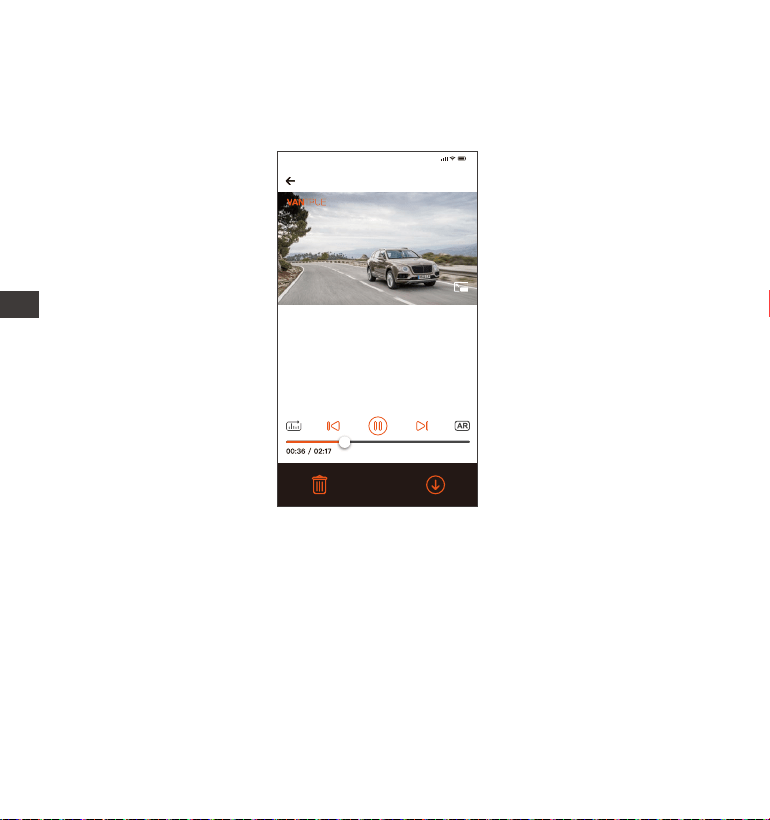
- 172 -
UWAGA:
W przypadku odtwarzania wideo w aplikacji lub pobierania na kartę
SD nie będzie zużycia ruchu sieciowego.
Informacje o ścieżce GPS można wyświetlić dopiero po pobraniu pliku
wideo i odtworzeniu go lokalnie. W tym samym czasie musisz odłączyć
WIFI kamery samochodowej, w przeciwnym razie informacje o mapie
będą puste.
1.
2.
c.Wyświetl w aplikacji „Vantrue
Po pomyślnym połączeniu E2 z telefonem komórkowym przez Wi-Fi, może
odtwarzać, pobierać i usuwać pliki w aplikacji mobilnej.
20221118_115036_0079_N_A.MP4
18/11/2022 11:5:35 E2 000.000000. 000.000000. 36MK/H
Uwaga:
9:41
Aby wyświetlić informacje GPS,
musisz najpierw pobrać plik wideo
do lokalnego folderu aplikacji,
a następnie odtworzyć go w
folderze lokalnym.
ENPL

- 173 -
4.2.12 Aktualizacja oprogramowania
System automatycznie zaktualizuje plik aktualizacji oprogramowania
układowego za pomocą karty Micro SD. Kamera uruchomi się ponownie
po zakończeniu aktualizacji.
Najnowsza wersja oprogramowania jest zawsze dostępna na oficjalnej
stronie internetowej VANTRUE (www.vantrue.pl). Zdecydowanie
zalecamy zarejestrowanie produktu (www.vantrue.net/register), aby
otrzymać wiadomość e-mail z powiadomieniem, gdy dostępna będzie
nowa aktualizacja oprogramowania układowego.
4.2.13 Temperatura pracy urządzenia
Kamera została zaprojektowana do pracy w temperaturach od -20 do
70°C (-4 do 158°F). Temperatury poza tym zakresem mogą obniżyć
wydajność aparatu i spowodować uszkodzenia.
Aby uniknąć uszkodzeń
W czasie upałów nie wystawiaj E2 na bezpośrednie działanie promieni
słonecznych, gdy samochód jest zaparkowany.
W ekstremalnych warunkach zimowych, tj. -4°F (-20°C) lub niższych,
odłącz kamerę od przedniej szyby, gdy nie jest używana, i przechowuj ją
w schowku.
EN
EN
EN
PL

- 174 -
5. Dane techniczne
E2Model
Przód: F/1. 8
Tył: F/1. 8
Engish/Français/Español/Deutsch/Italiano/
简体中文/русский/ 日本語/Polski
Wysokowydajny procesor Novatek
Sony CMOS
2.45” IPS
2.4GHz&5GHz
Specyfikacje tego produktu mogą ulec zmianie bez wcześniejszego
powiadomienia z powodu ulepszeń produktu.
Procesor
Sensor obrazu
Ekran
WiFi
Przód: 160° szerokokątny;
Tył: 160° szerokokątny
Jasność obiektywu
Przód + tył: 1944P+1944P 24FPS; 1440P+1440P
30FPS; 1440P+1080P 30FPS; 1080P+1440P 30FPS;
1080P+1080P 30FPS; 1080P+720P 30FPS;
720P+1080P 30FPS; 720P+720P 30FPS
Przód: 2592x1944P 30FPS; 2560x1440P 30FPS;
1920x1080P 30FPS; 1280x720P 30FPS
Dostępne rozdzielczości
Zewnętrzna: 32GB-512GB Micro SD Card, U3,
Class 10(brak w zestawie)
Pamięć
USB Port
Zasilanie
Video format
Dostępne języki
Wbudowany mikrofon oraz głośnikAudio
Obiektywy
Typ C
Kondensator
MP4
ENPL

- 175 -
DC 5V 2.4A
5W
-4°F to 158°F(-20°C to 70°C)
-22°F to 185°F(-30°C to 85°C)
Prąd napięcia zasilania
Moc
Temperatura pracy
Temperatura pamięci
Gwarancja
Kamera VANTRUE
®
E1 On Dash Dash Cam jest objęta pełną 12-miesięczną
gwarancją. Zarejestruj swój produkt na naszej oficjalnej stronie (www.van-
true.net/register) aby być na bieżąco z aktualizacjami.
Wsparcie
Jeśli masz jakiekolwiek pytania dotyczące produktu, nie wahaj się
skontaktować z nami pod adresem [email protected]
Zapytania są zazwyczaj udzielane w ciągu 12-24 godzin.
Twoja opinia ma znaczenie
Firma VANTRUE
®
jest mocno zaangażowana w ciągłe ulepszanie naszych
produktów, usług i doświadczeń użytkowników. Jeśli masz jakieś przemyśle-
nia na temat tego, jak możemy zrobić jeszcze lepiej, czekamy na Twoje
konstruktywne opinie i sugestie. Skontaktuj się z nami już dziś pod adresem
6. Gwarancja & wsparcie
EN
EN
EN
PL
- 176 -
www.vantrue.pl
facebook.com/vantruePolska
Skontaktuj się z nami:
PL
ENPL