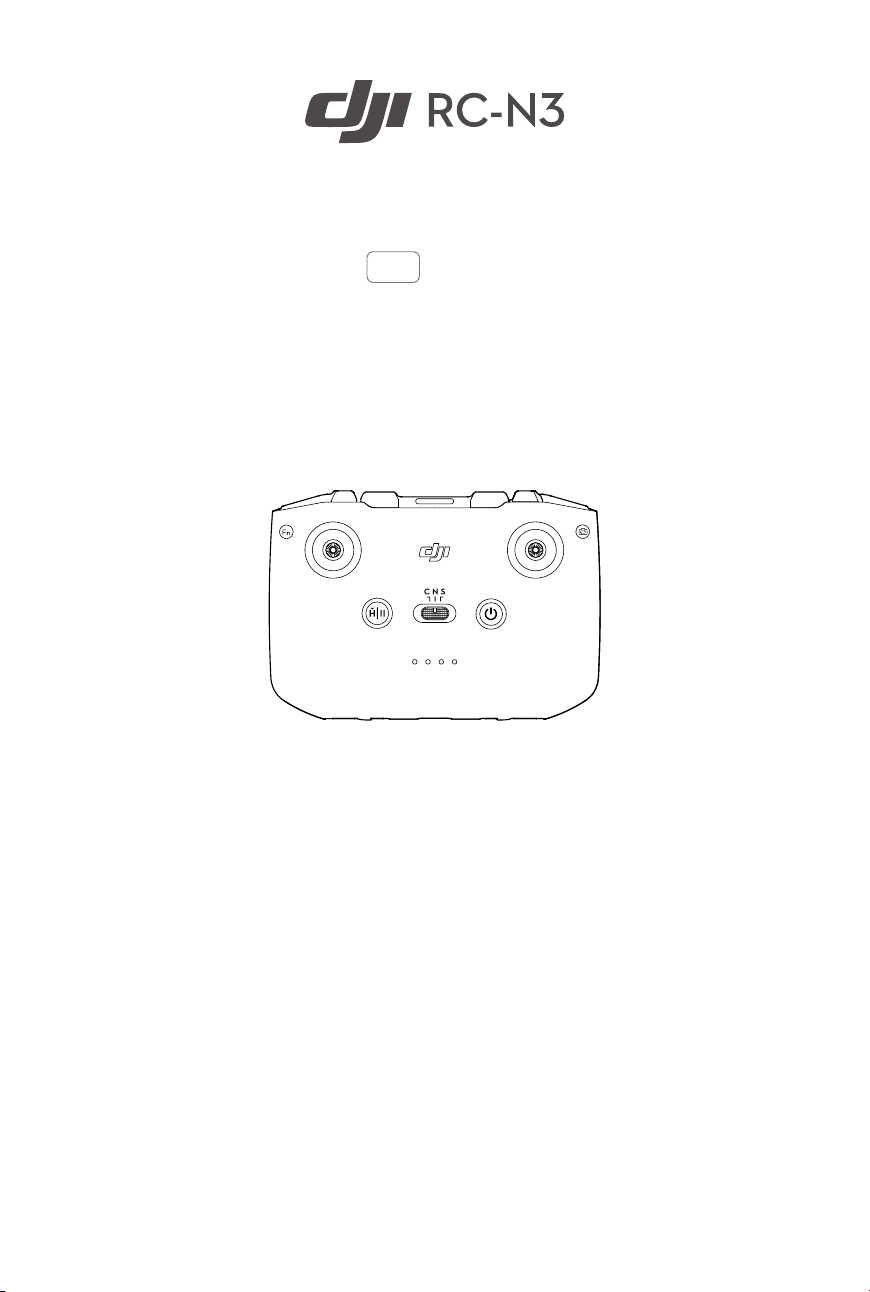
User Manual
v1.0 2024.09
This document is copyrighted by DJI with all rights reserved. Unless otherwise authorized
by DJI, you are not eligible to use or allow others to use the document or any part of
the document by reproducing, transferring or selling the document. Only refer to this
document and the content thereof as instructions to operate DJI UAVs. The document
should not be used for other purposes.
Searching for Keywords
Search for keywords such as “battery” and “install” to nd a topic. If you are
using Adobe Acrobat Reader to read this document, press Ctrl+F on Windows or
Command+F on Mac to begin a search.
Navigating to a Topic
View a complete list of topics in the table of contents. Click on a topic to navigate to
that section.
Printing this Document
This document supports high resolution printing.
2 © 2024 DJI All Rights Reserved.
Using this Manual
Legend
Important
Hints and Tips
Reference
Downloading the DJI Fly App
Make sure to use DJI Fly with this product. Scan the QR code to download the latest
version.
• To check the Android and iOS operating system versions supported by DJI Fly,
visit https://www.dji.com/downloads/djiapp/dji-y.
• The interface and functions of DJI Fly may vary as the software version is
updated. Actual usage experience is based on the software version used.
Downloading DJI Assistant 2
Download DJI ASSISTANT
™
2 (Consumer Drones Series) at:
https://www.dji.com/downloads/softwares/dji-assistant-2-consumer-drones-series
• The operating temperature of this product is -10° to 40° C. It does not meet
the standard operating temperature for military-grade application (-55° to
125°C), which is required to endure greater environmental variability. Operate
the product appropriately and only for applications that meet the operating
temperature range requirements of that grade.
DJI RC-N3 User Manual
© 2024 DJI All Rights Reserved. 3

DJI RC-N3 User Manual
4 © 2024 DJI All Rights Reserved.
Contents
Using this Manual 3
Legend 3
Downloading the DJI Fly App 3
Downloading DJI Assistant 2 3
1 Preparing the Remote Controller 5
2 Linking the Remote Controller 6
3 Overview 7
4 Operations 8
4.1 Powering On/O 8
4.2 Charging the Battery 8
4.3 Controlling the Aircraft 8
4.4 Controlling the Gimbal and Camera 10
4.5 Flight Mode Switch 11
4.6 Flight Pause/RTH Button 11
4.7 Customizable Button 12
5 Battery Level LEDs 13
6 Remote Controller Alert 14
7 Optimal Transmission Zone 15
8 Appendix 16
8.1 Specications 16
DJI RC-N3 Remote Controller 16
8.2 Firmware Update 16
8.3 Aftersales Information 17
1 Preparing the Remote Controller
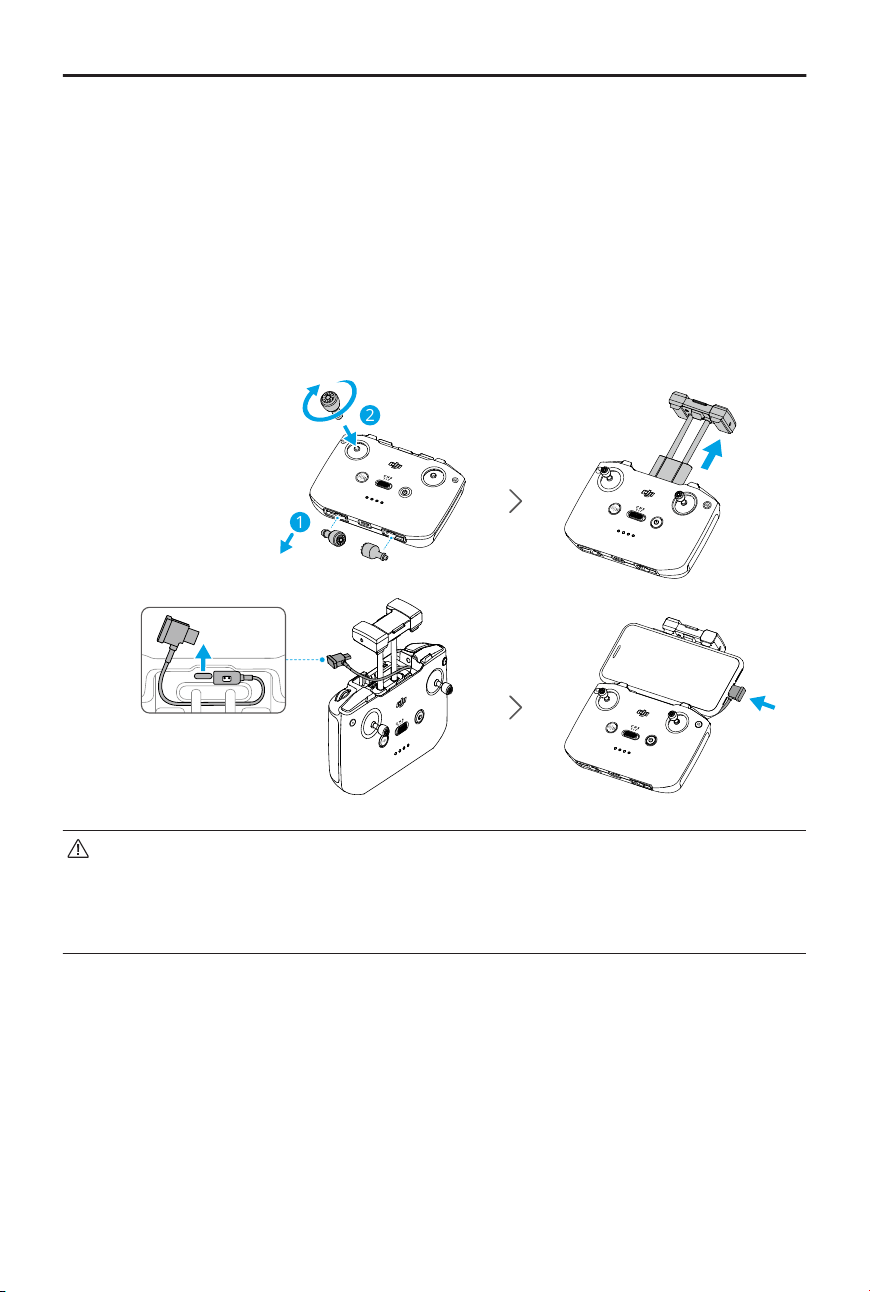
1. Remove the control sticks from the storage slots and mount them on the remote
controller.
2. Pull out the mobile device holder. Choose the appropriate remote controller cable
based on the port type of your mobile device (the cable with a USB-C connector is
connected by default). Place your mobile device in the holder, then connect the end
of the cable without the remote controller logo to your mobile device. Make sure your
mobile device is securely in place.
1
2
• If a USB connection prompt appears when an Android mobile device is used,
select the option to charge only. Other options may cause the connection to fail.
• Adjust the mobile device holder to make sure your mobile device is rmly
secure.
DJI RC-N3 User Manual
© 2024 DJI All Rights Reserved. 5
2 Linking the Remote Controller
The remote controller is already linked to the aircraft when purchased together as a
combo. Otherwise, follow the steps below to link the devices.
1. Power on the aircraft and the remote controller.
2. Launch DJI Fly.
3. In camera view, tap > Control > Re-pair to Aircraft. During linking, the remote
controller beeps.
4. Press and hold the power button of the aircraft for more than four seconds. The
aircraft beeps once, and its battery level LEDs blink in sequence to indicate it is ready
to link. The remote controller will beep twice to indicate linking is successful.
• Make sure the remote controller is within 0.5 m of the aircraft during linking.
• The remote controller will automatically unlink from an aircraft if a new remote
controller is linked to the same aircraft.
• You can also start linking by following the method below. In the home screen
of DJI Fly, tap Connection Guide, select aircraft model, and then select Connect
with RC Only.
DJI RC-N3 User Manual
6 © 2024 DJI All Rights Reserved.
3 Overview
1
6
2
7
3
8
4
9
5
10
11
12
13 14
15
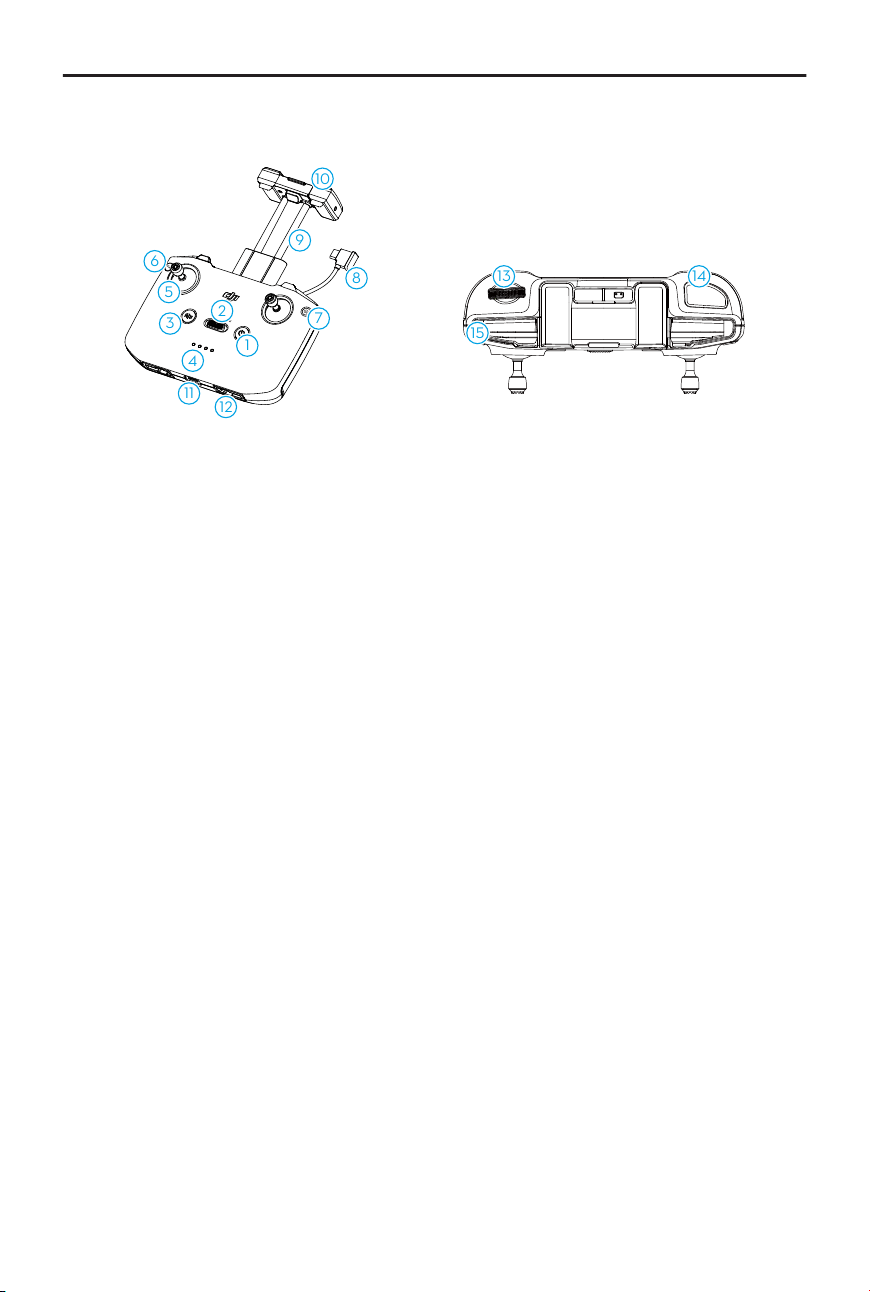
1. Power Button
2. Flight Mode Switch
3. Flight Pause/Return to Home (RTH)
Button
4. Battery Level LEDs
5. Control Sticks
6. Customizable Button
7. Photo/Video Button
8. Remote Controller Cable
9. Mobile Device Holder
10. Antennas
11. USB-C Port
12. Control Stick Storage Slots
13. Gimbal Dial
14. Shutter/Record Button
15. Mobile Device Slot
DJI RC-N3 User Manual
© 2024 DJI All Rights Reserved. 7
4 Operations
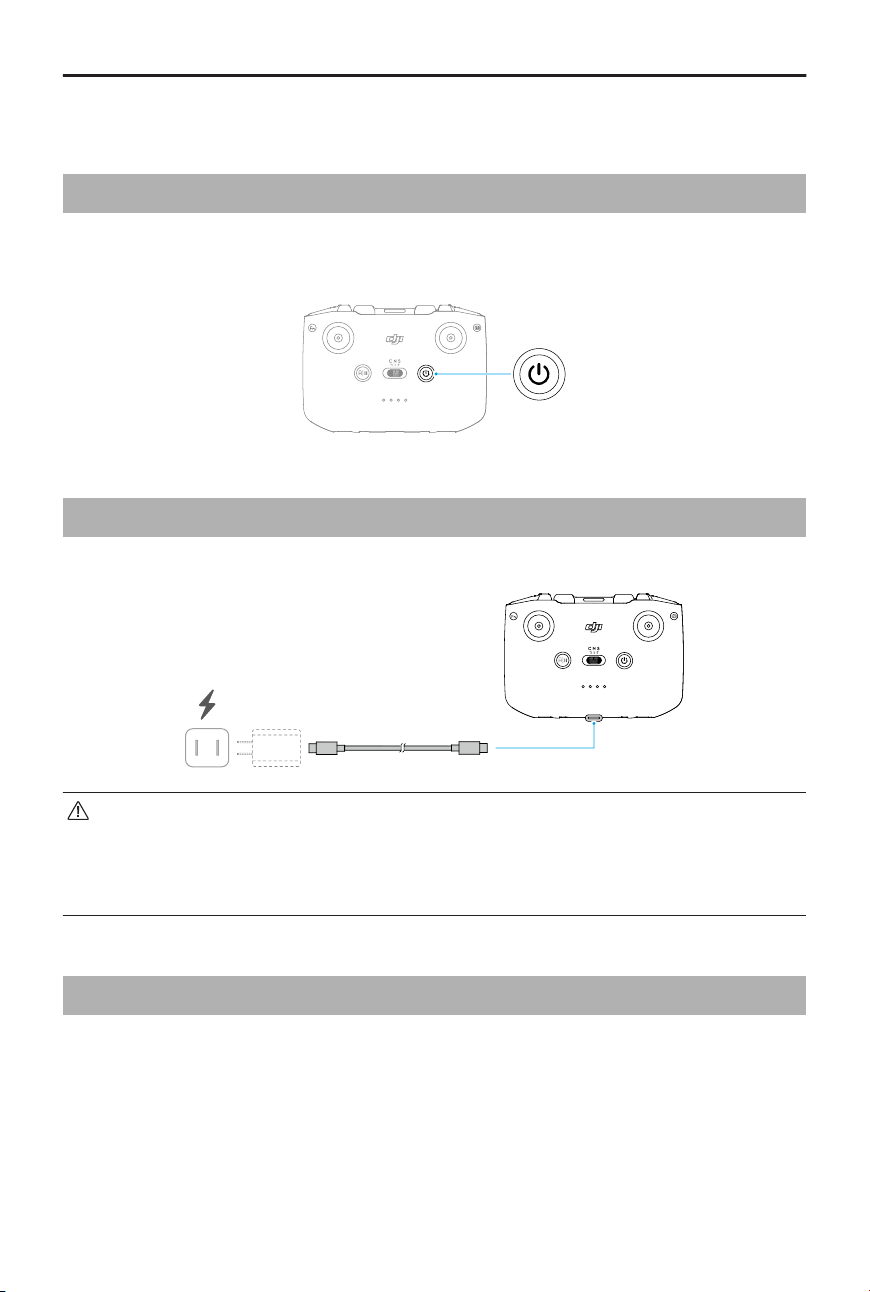
4.1 Powering On/O
Press the power button once to check the current battery level.
Press, then press and hold to power the remote controller on or o.
4.2 Charging the Battery
Connect the charger to the USB-C port on the remote controller.
• Fully charge the remote controller before each ight. The remote controller
sounds an alert when the battery level is low.
• Fully charge the battery at least once every three months to maintain the
battery’s health.
4.3 Controlling the Aircraft
The control sticks of the remote controller can be used to control the aircraft movements.
The control sticks can be operated in Mode 1, Mode 2, or Mode 3, as shown below.
DJI RC-N3 User Manual
8 © 2024 DJI All Rights Reserved.
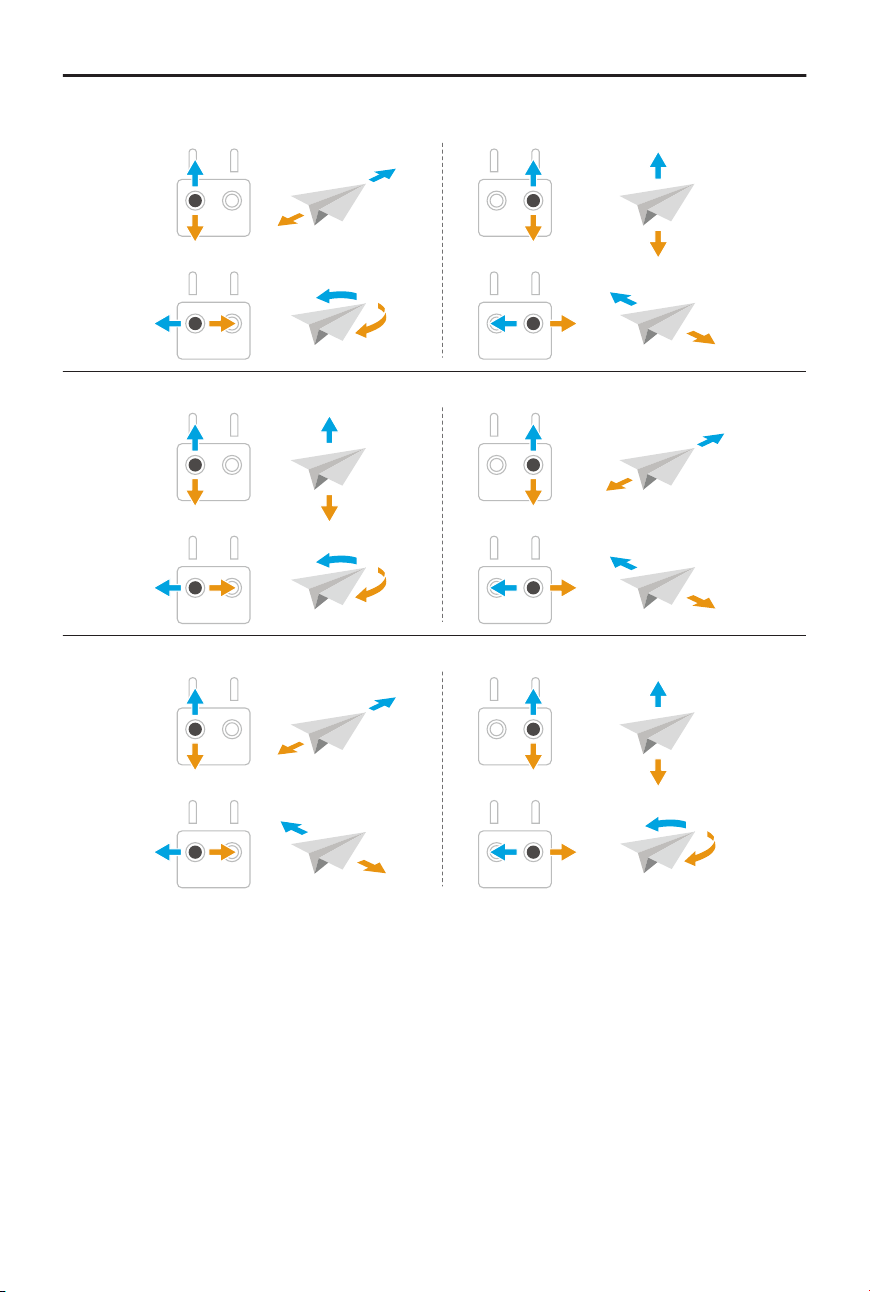
Mode 1
Mode 2
Mode 3
The default control mode of the remote controller is Mode 2. In this manual, Mode 2 is
used as an example to illustrate how to use the control sticks.
DJI RC-N3 User Manual
© 2024 DJI All Rights Reserved. 9
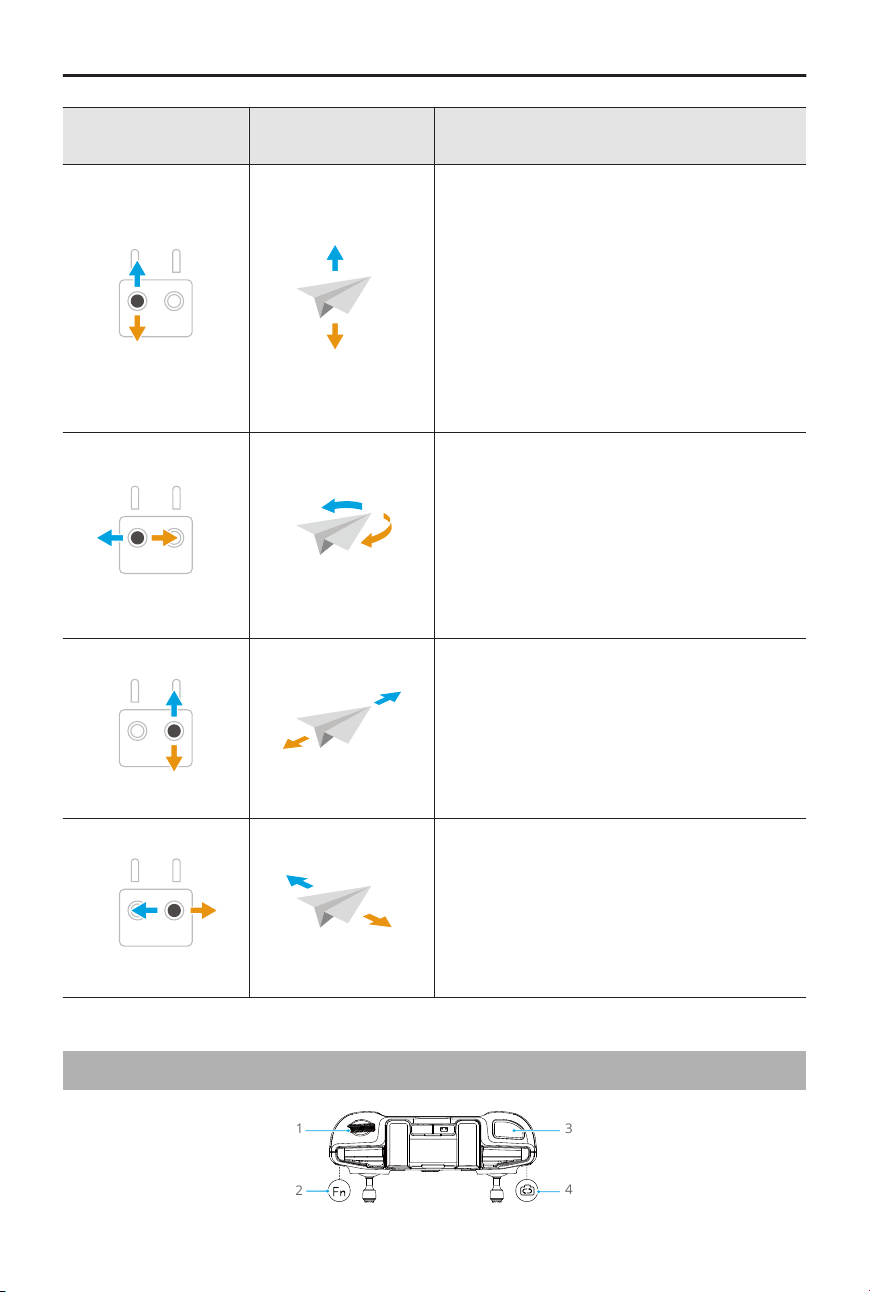
Remote Controller
(Mode 2)
Aircraft Operation
Throttle Stick
• Push the stick up to ascend and down
to descend.
• The more the stick is pushed away
from the center, the faster the aircraft
changes elevation.
Make sure to gently push the stick up
when taking o to prevent sudden and un-
expected changes in altitude.
Yaw Stick
• Push the stick left to rotate the aircraft
counterclockwise and right to rotate
the aircraft clockwise.
• The more the stick is pushed away
from the center, the faster the aircraft
rotates.
Pitch Stick
• Push the stick up to y forward and
down to y backward.
• The more the stick is pushed away
from the center, the faster the aircraft
moves.
Roll Stick
• Push the stick left to y left and right to
y right.
• The more the stick is pushed away
from the center, the faster the aircraft
moves.
4.4 Controlling the Gimbal and Camera
1
2
3
4
DJI RC-N3 User Manual
10 © 2024 DJI All Rights Reserved.
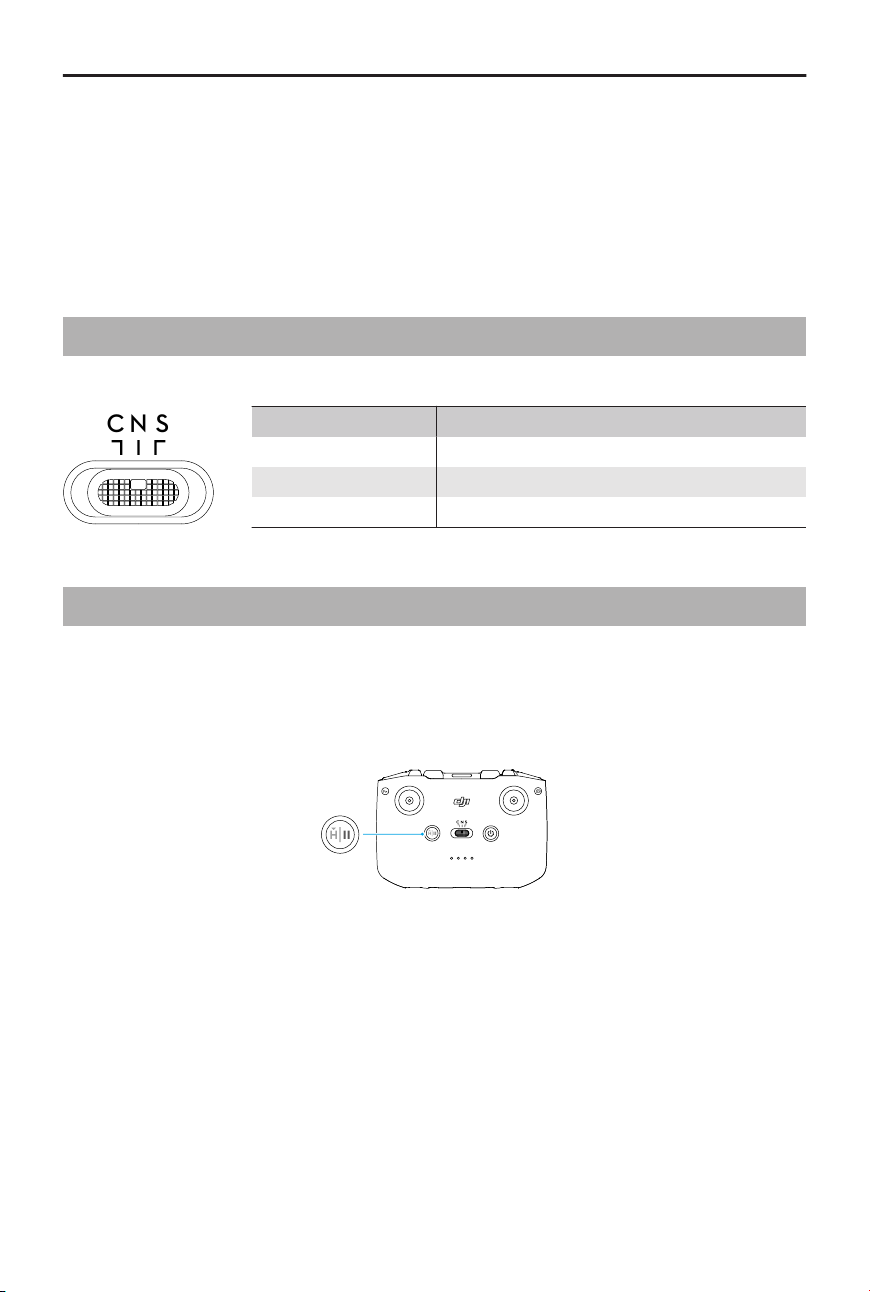
1. Gimbal Dial: Control the tilt of the gimbal.
2. Customizable Button: Press once to recenter the gimbal or point the gimbal
downward by default.
3. Shutter/Record Button: Press once to take a photo or to start or stop recording.
4. Photo/Video Button: Press once to switch between photo and video mode.
4.5 Flight Mode Switch
Toggle the switch to select the desired ight mode.
C N S
Position Flight Mode
S Sport Mode
N Normal Mode
C Cine Mode
4.6 Flight Pause/RTH Button
Press once to make the aircraft brake and hover in place.
Press and hold the button until the remote controller beeps and starts RTH. The aircraft
will return to the last recorded Home Point. Press the button again to cancel RTH and
regain control of the aircraft.
DJI RC-N3 User Manual
© 2024 DJI All Rights Reserved. 11
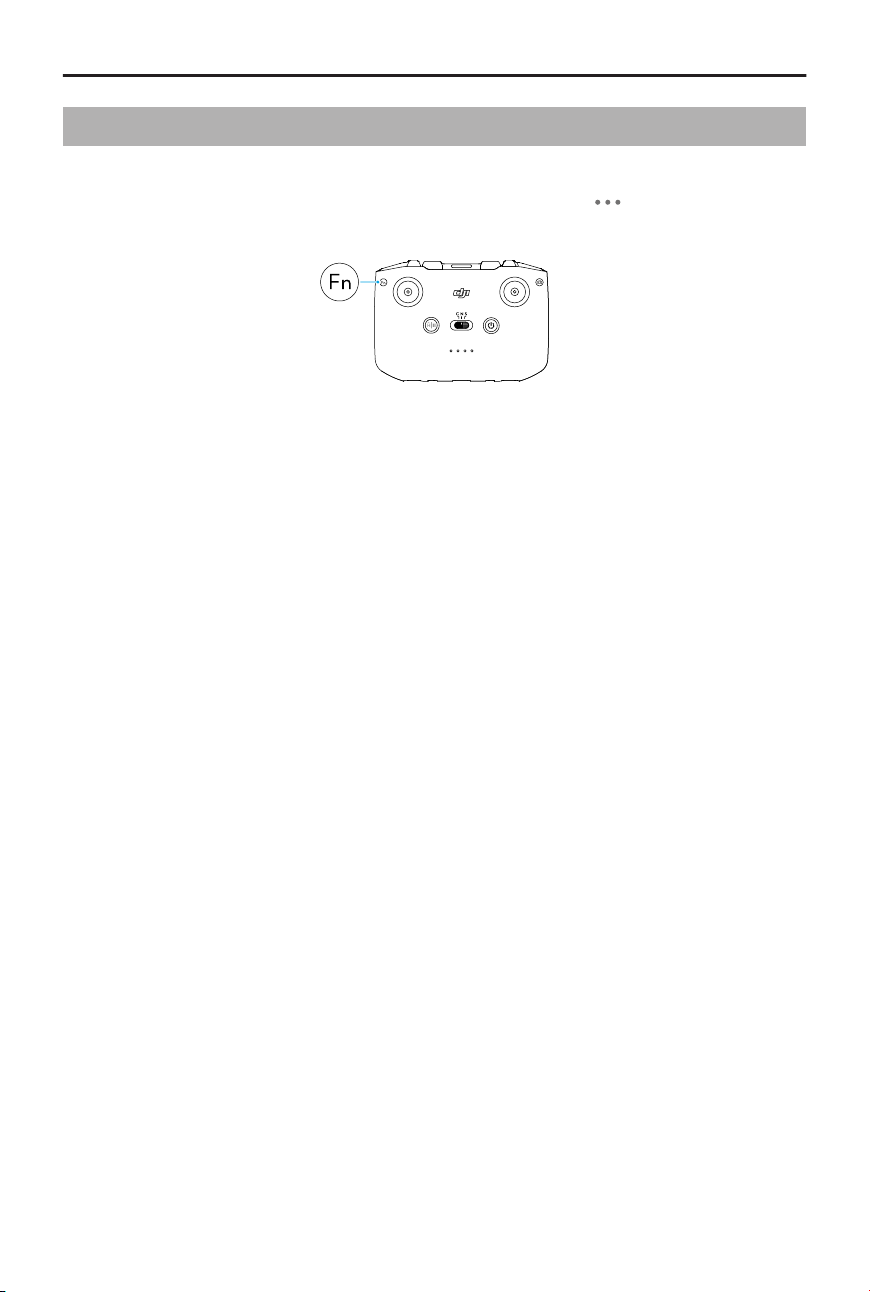
4.7 Customizable Button
Press the customizable button to recenter the gimbal or point the gimbal downward by
default. To set the function, go to camera view in DJI Fly, and tap
> Control > Button
Customization.
DJI RC-N3 User Manual
12 © 2024 DJI All Rights Reserved.
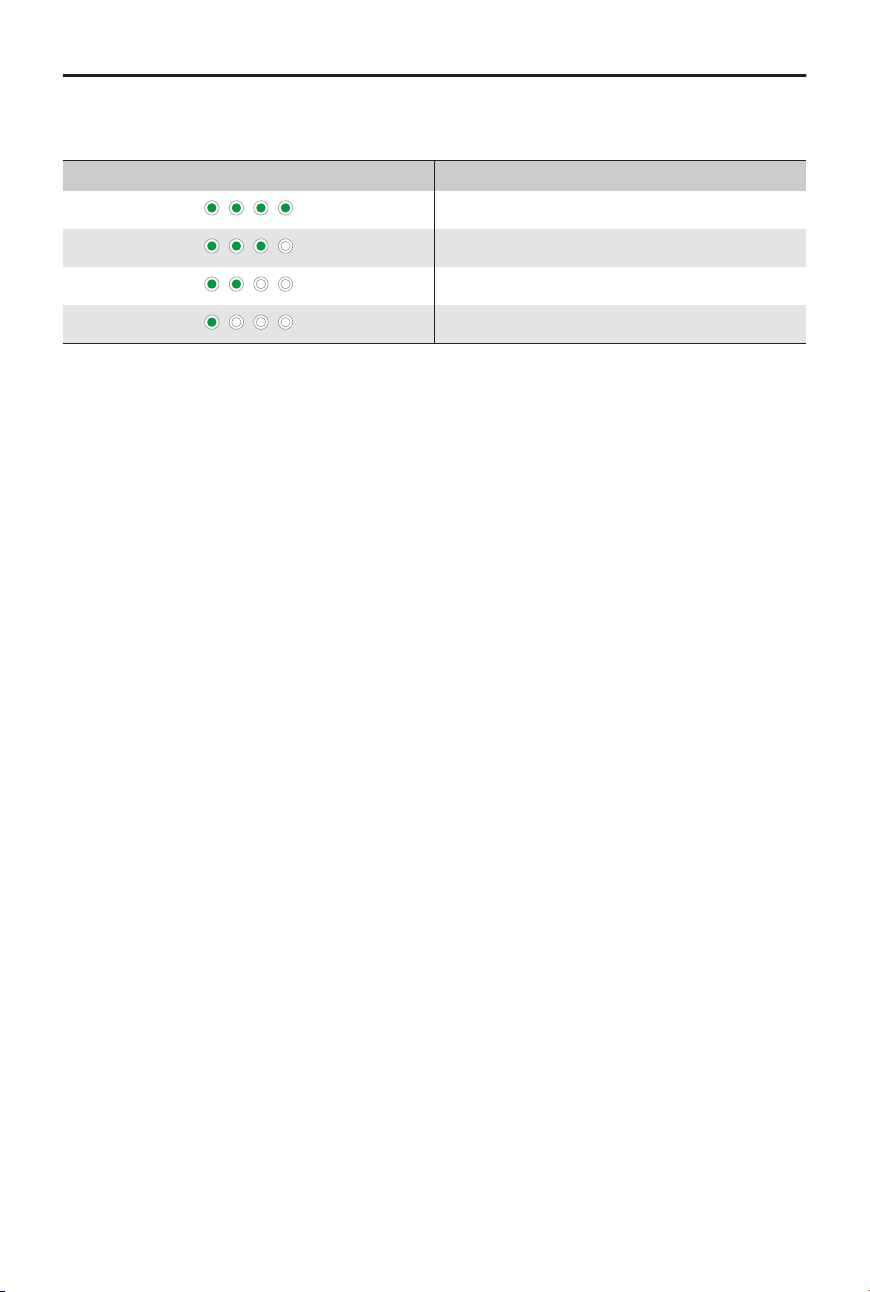
5 Battery Level LEDs
Blinking Pattern Battery Level
76-100%
51-75%
26-50%
0-25%
DJI RC-N3 User Manual
© 2024 DJI All Rights Reserved. 13

6 Remote Controller Alert
The remote controller sounds an alert during RTH, which cannot be cancelled. The remote
controller sounds an alert when the battery level of the remote controller is low. A low
battery level alert can be cancelled by pressing the power button. When the battery level
is critically low, the alert cannot be cancelled.
There will be an alert if the remote controller is not used for a period while it is powered
on but is not connected to the aircraft or the DJI Fly app on the mobile device. The remote
controller will automatically power o after the alert stops. Move the control sticks or
press any button to cancel the alert.
DJI RC-N3 User Manual
14 © 2024 DJI All Rights Reserved.
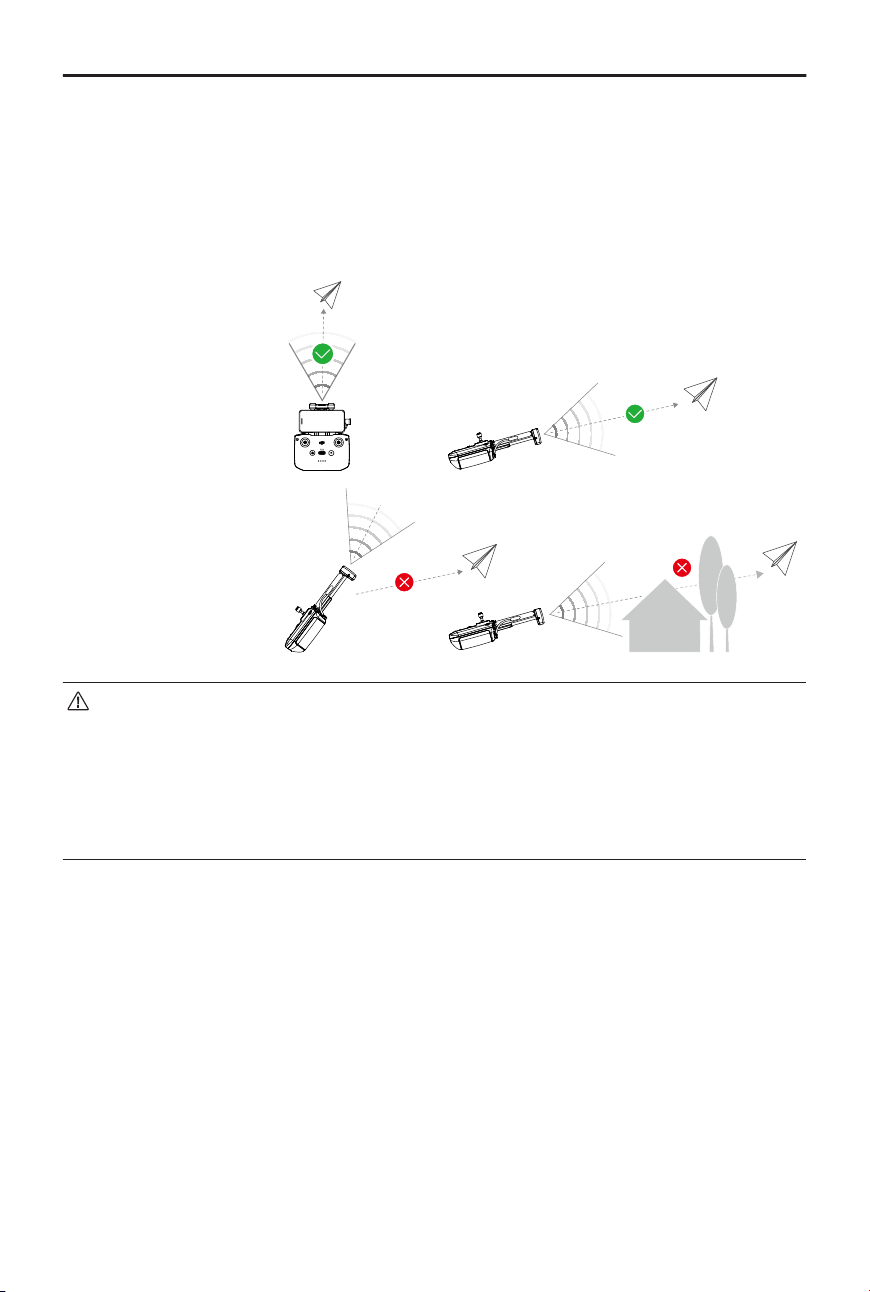
7 Optimal Transmission Zone
The signal between the aircraft and the remote controller is most reliable when the
antennas are positioned in relation to the aircraft as illustrated below. If the signal is
weak, adjust the remote controller orientation or antenna position, or y the aircraft
closer to the remote controller.
Optimal Transmission
Zone
Weak Signal
• DO NOT use other wireless devices operating at the same frequency as the
remote controller. Otherwise, the remote controller will experience interference.
• A prompt will be displayed in DJI Fly if the transmission signal is weak
during ight. Adjust the remote controller orientation according to the attitude
indicator display to make sure that the aircraft is in the optimal transmission
range.
DJI RC-N3 User Manual
© 2024 DJI All Rights Reserved. 15
8 Appendix
8.1 Specications
DJI RC-N3 Remote Controller
Max Operating Time Without Charging Any Mobile Device: 3.5 hours
When Charging a Mobile Device: 1.5 hours
Operating Temperature -10° to 40° C (14° to 104° F)
Charging Temperature 5° to 40° C (14° to 104° F)
Charging Time 2 hours
Charging Type 5 V, 2 A
Battery Capacity 2600 mAh
Weight Approx. 320 g
Dimensions 104.2×150×45.2 mm (L×W×H)
Operating Frequency
[1]
2.400-2.4835 GHz
5.170-5.250 GHz
5.725-5.850 GHz
Transmitter Power
(EIRP)
2.4 GHz:
< 33 dBm (FCC)
< 20 dBm (CE/SRRC/MIC)
5.1 GHz:
< 23 dBm (CE)
5.8 GHz:
< 33 dBm (FCC)
< 14 dBm (CE)
< 30 dBm (SRRC)
[1] Operating frequency allowed varies among countries and regions. Please refer to local laws and
regulations for more information.
8.2 Firmware Update
Use DJI Fly or DJI Assistant 2 (Consumer Drones Series) to update the device.
Using DJI Fly
When using the remote controller, connect the aircraft and remote controller, and run
DJI Fly. You will be notied if a new rmware update is available. Follow the on-screen
instructions to start the update. Note that you cannot update the rmware if the remote
DJI RC-N3 User Manual
16 © 2024 DJI All Rights Reserved.
controller is not linked to the aircraft. An internet connection is required during the
rmware update.
Using DJI Assistant 2 (Consumer Drones Series)
Use DJI Assistant 2 (Consumer Drones Series) to update all your devices separately.
1. Power on the device. Connect the device to a computer with a USB-C cable.
2. Launch DJI Assistant 2 (Consumer Drones Series) and log in with your DJI account.
3. Select the device and click Firmware Update on the left side of the screen.
4. Select the rmware version.
5. Wait for the rmware to download. The rmware update will start automatically. Wait
for the rmware update to complete.
• Make sure to follow all the steps to update the rmware, otherwise the update
may fail.
• Make sure the computer is connected to the internet during the update.
• DO NOT unplug the USB-C cable during an update.
• Before performing an update, make sure that the device is at least 20% charged.
8.3 Aftersales Information
Visit https://www.dji.com/support to learn more about aftersales service policies, repair
services, and support.
DJI RC-N3 User Manual
© 2024 DJI All Rights Reserved. 17
WE ARE HERE FOR YOU
Contact
DJI SUPPORT
This content is subject to change without notice.
Download the latest version from
https://www.dji.com/downloads/products/rc-n3
If you have any questions about this document, please contact DJI by sending a message
DJI is a trademark of DJI.
Copyright © 2024 DJI All Rights Reserved.