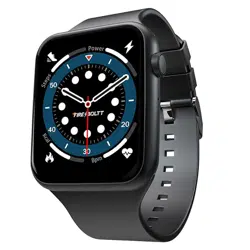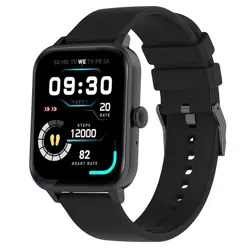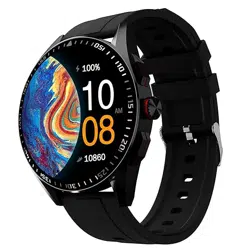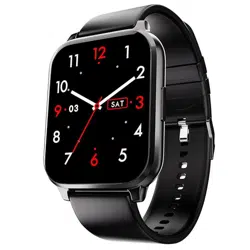
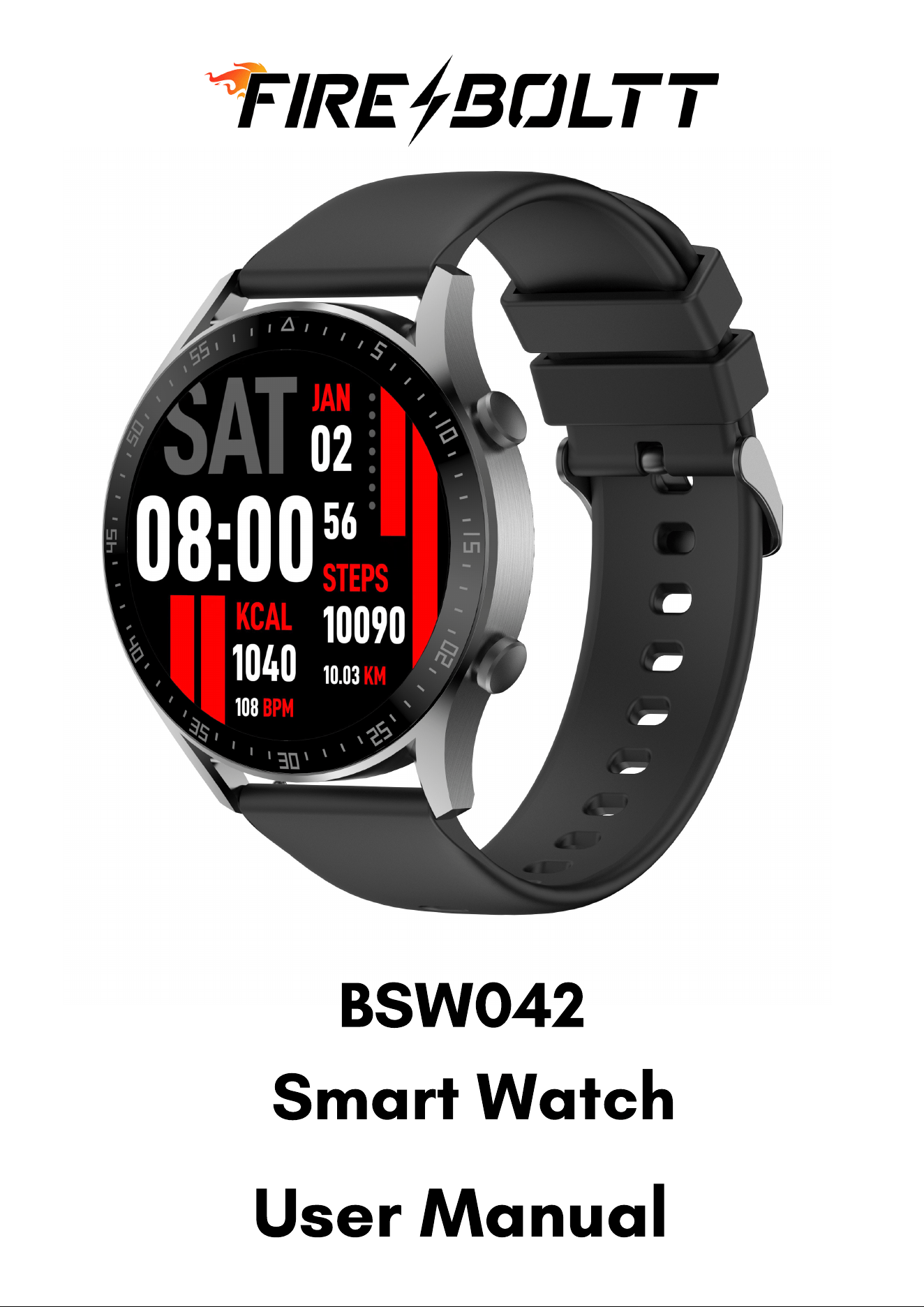
BSW042
User Manual
Smart Watch
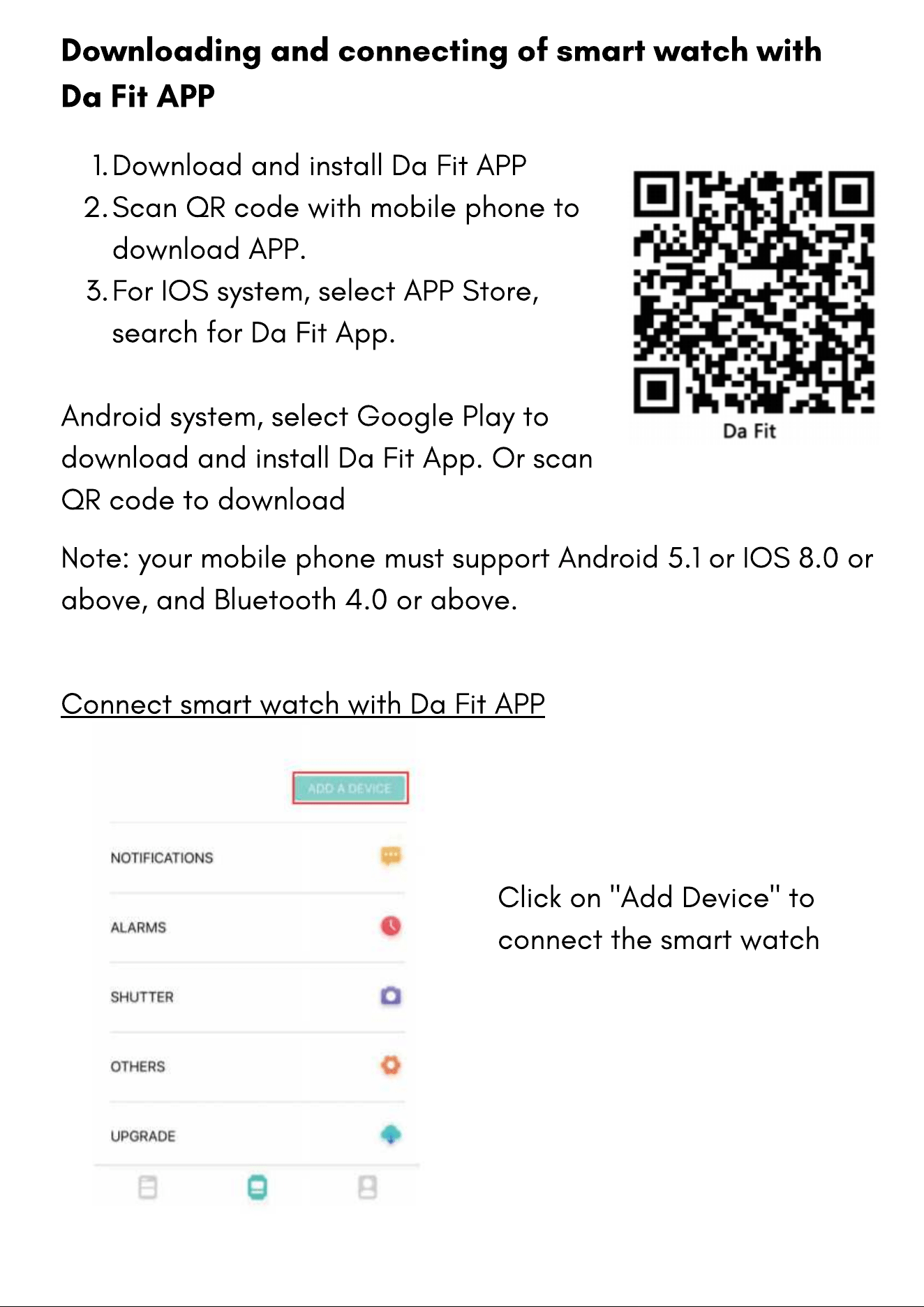
Download and install Da Fit APP
Scan QR code with mobile phone to
download APP.
For IOS system, select APP Store,
search for Da Fit App.
1.
2.
3.
Android system, select Google Play to
download and install Da Fit App. Or scan
QR code to download
Downloading and connecting of smart watch with
Da Fit APP
Connect smart watch with Da Fit APP
Note: your mobile phone must support Android 5.1 or IOS 8.0 or
above, and Bluetooth 4.0 or above.
Click on "Add Device" to
connect the smart watch
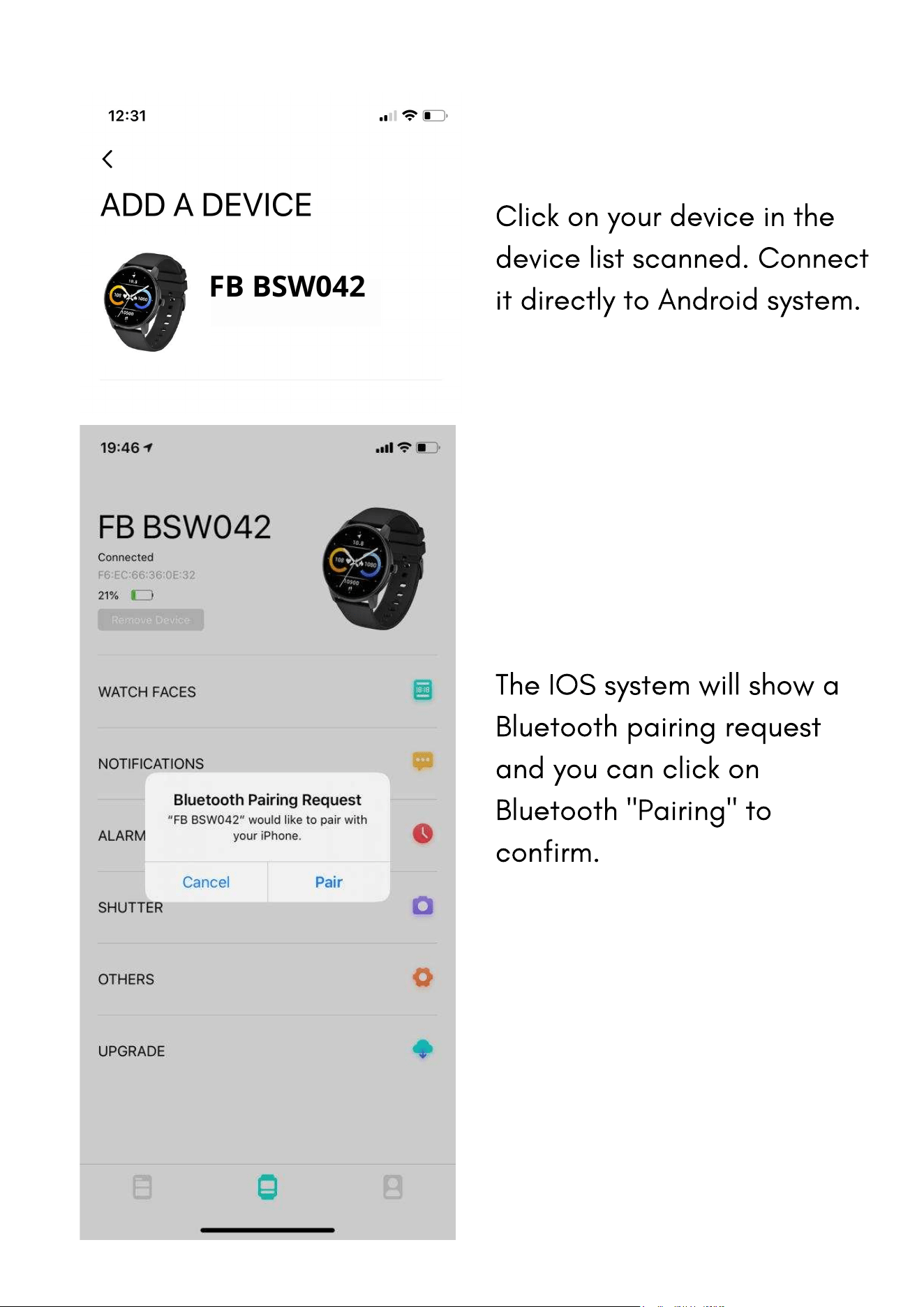
Click on your device in the
device list scanned. Connect
it directly to Android system.
The IOS system will show a
Bluetooth pairing request
and you can click on
Bluetooth "Pairing" to
confirm.
FB BSW042
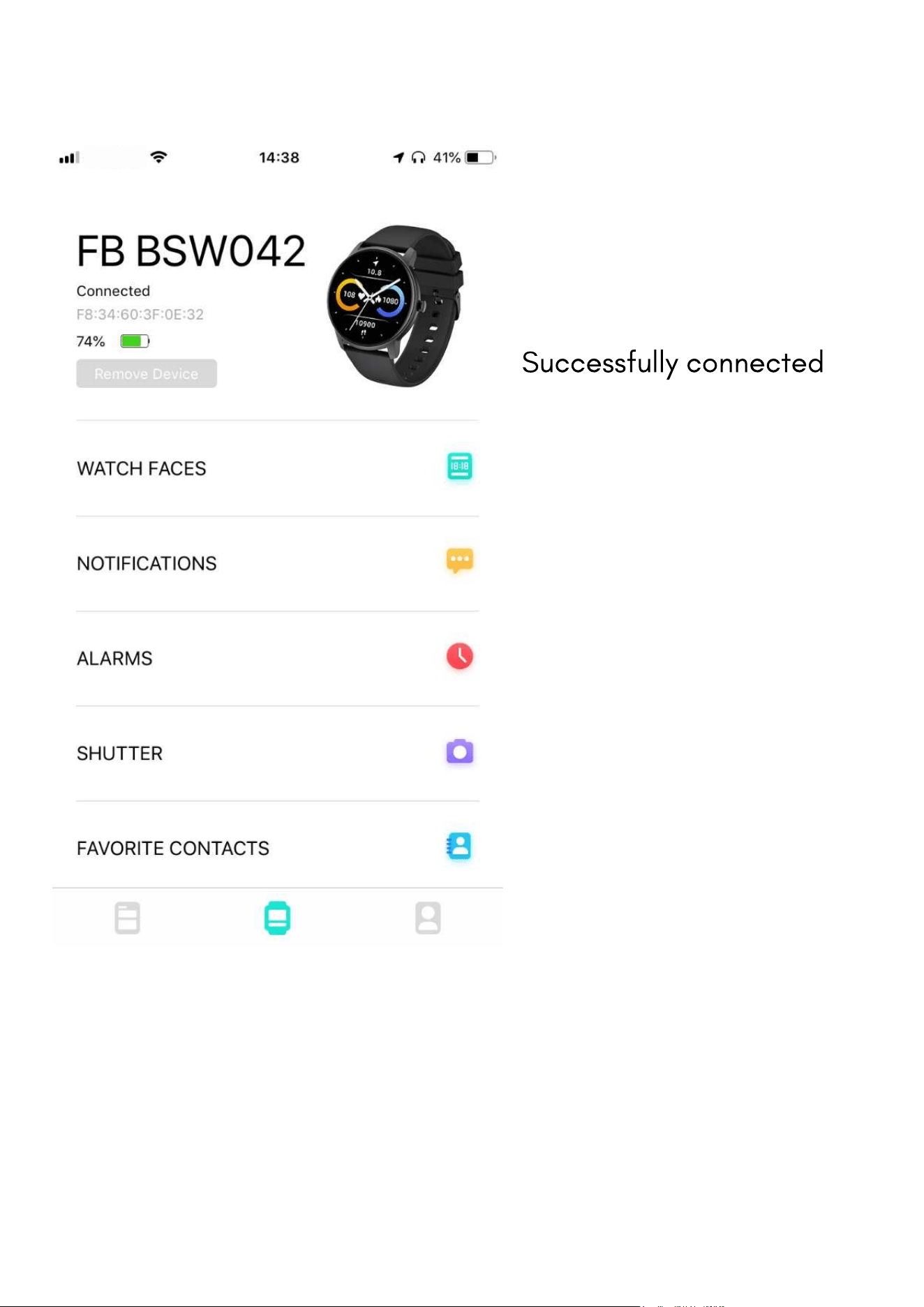
Successfully connected
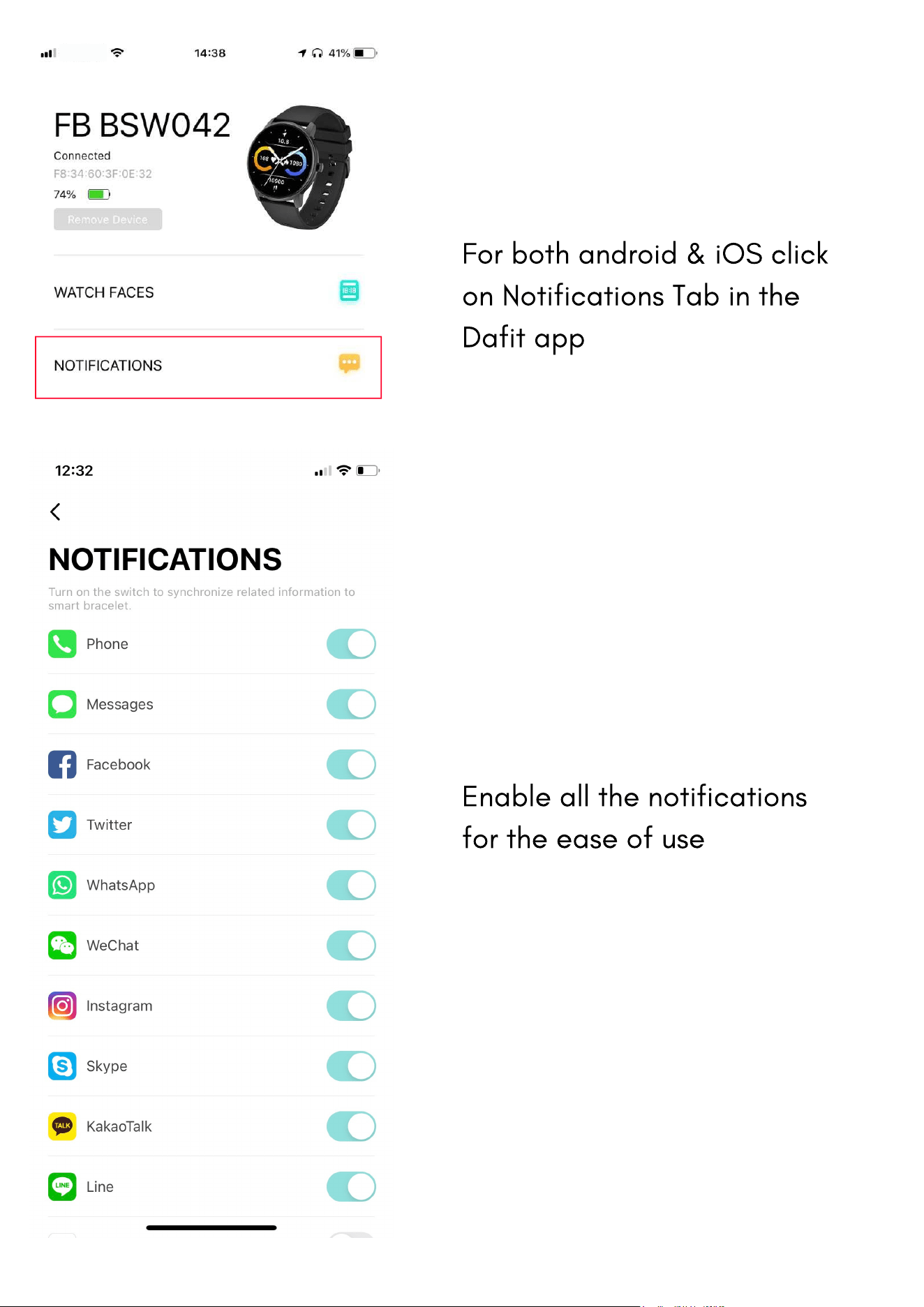
For both android & iOS click
on Notifications Tab in the
Dafit app
Enable all the notifications
for the ease of use
This watch comes with a special feature of Bluetooth calling.
The user can make calls without having to open the phone. You
can also view the call history of the watch. You need to keep
the connection between the watch and the phone stable when
using the Phone Call function.
The watch also has a microphone and a speaker built in for the
ease of talking through the watch and to hear music, phone
calls, and other notifications
Follow the steps to activate the calling function and much more.
Step 1
: After connecting the watch to the Da Fit App, you
need to go the bluetooth settings of the phone and pair the
watch there as shown below.
BLUETOOTH CALLING FUNCTION
Part A - How to connect
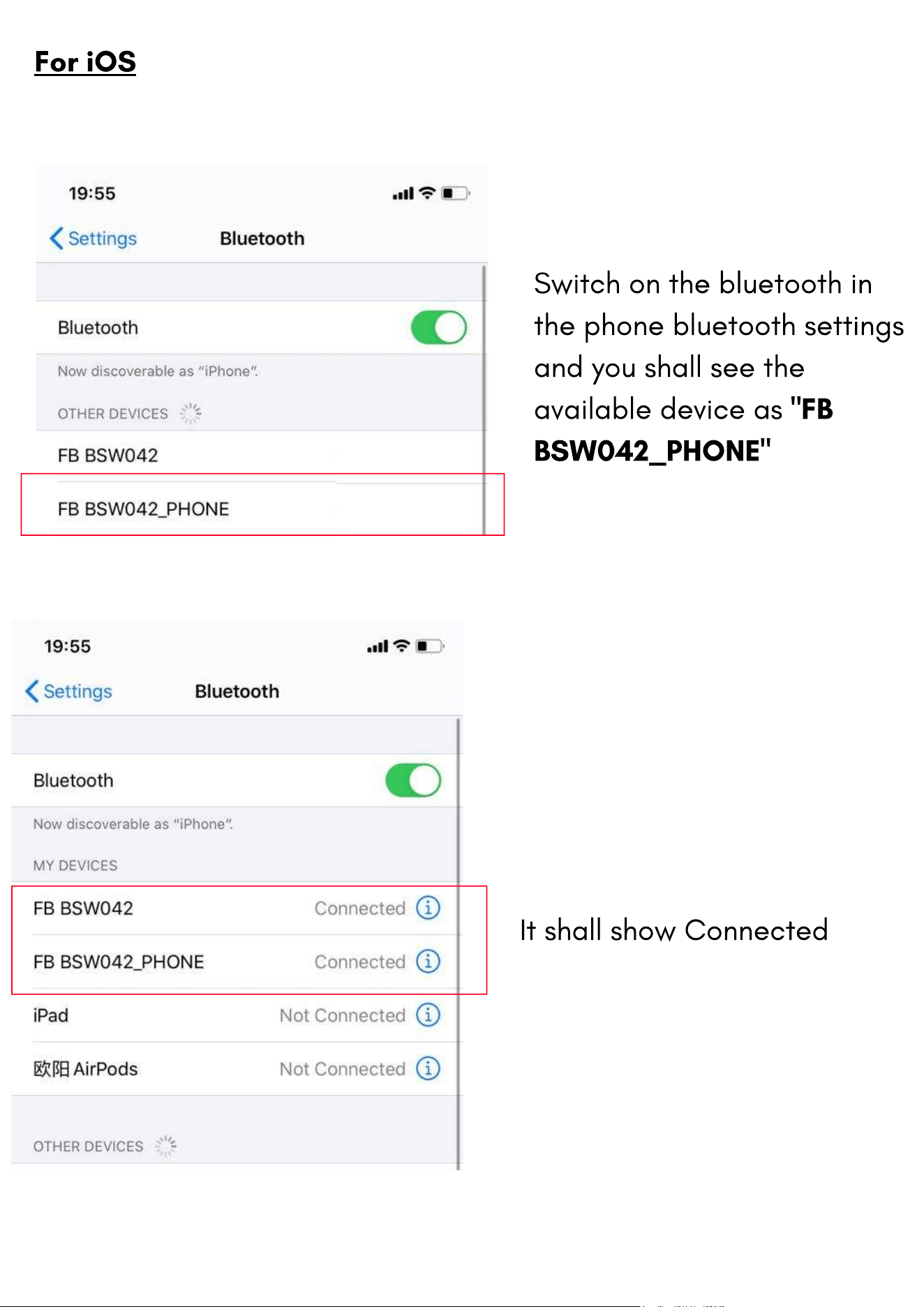
For iOS
Switch on the bluetooth in
the phone bluetooth settings
and you shall see the
available device as
"FB
BSW042_PHONE"
It shall show Connected
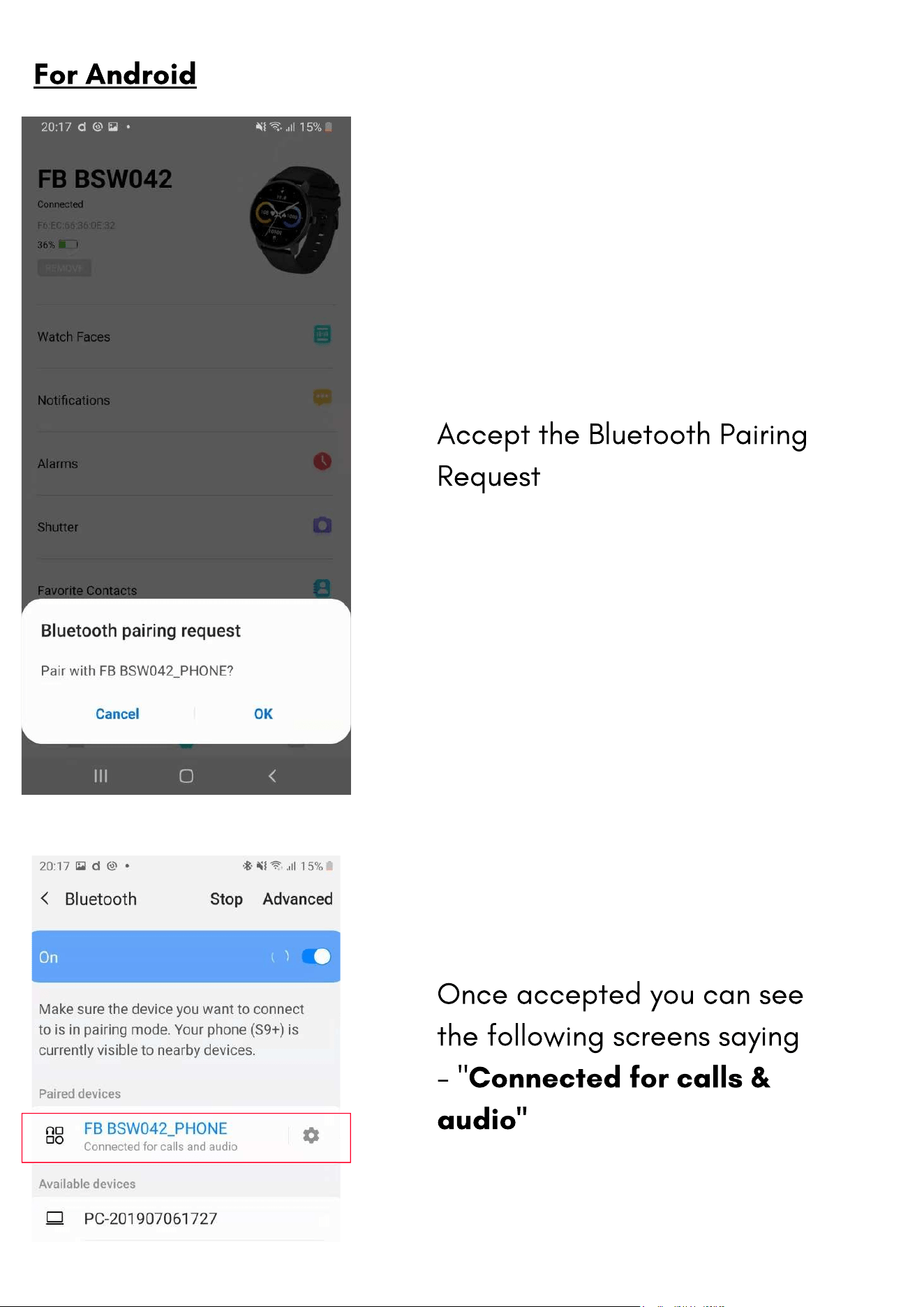
For Android
Accept the Bluetooth Pairing
Request
Once accepted you can see
the following screens saying
- "
Connected for calls &
audio"
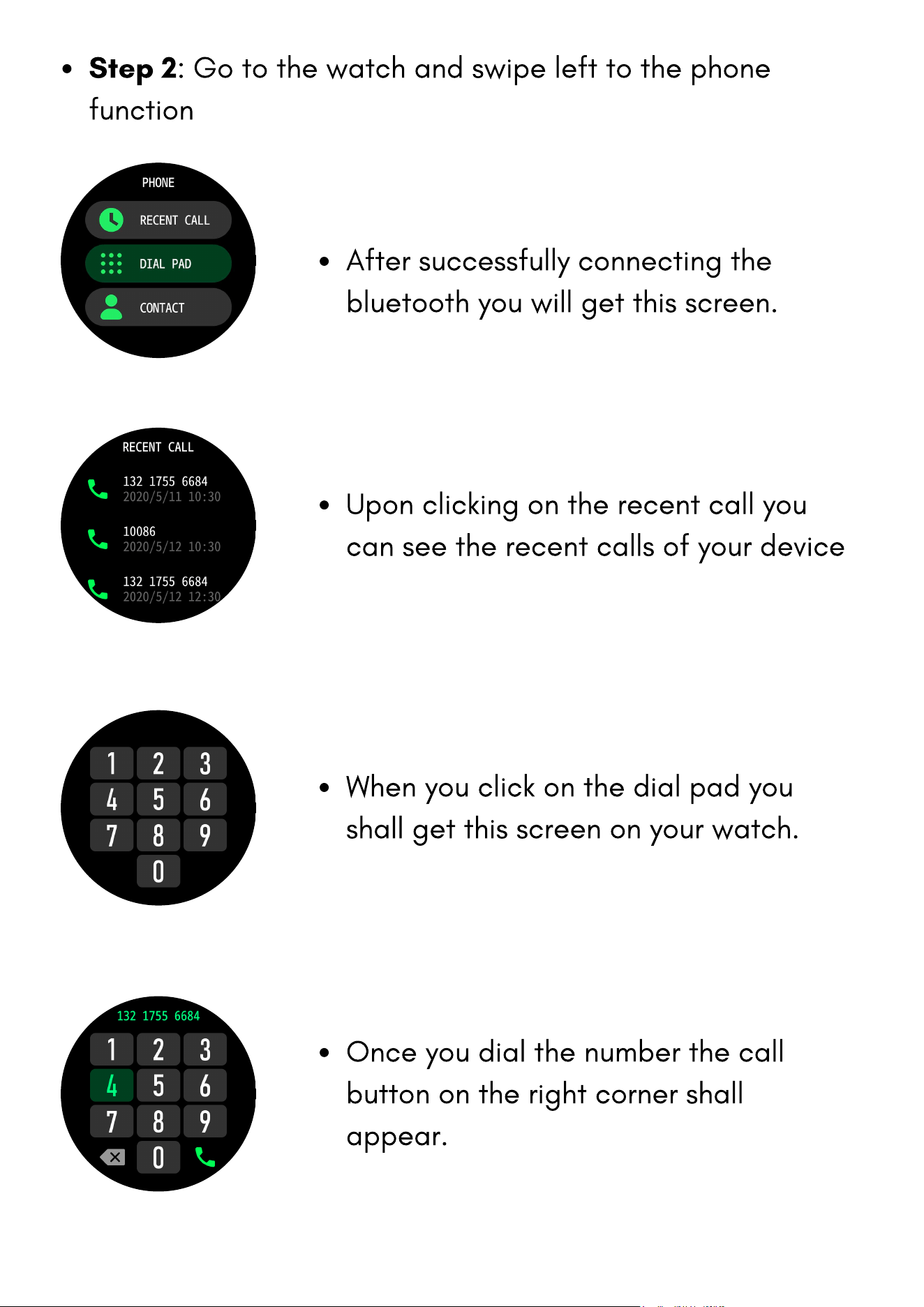
Step 2
: Go to the watch and swipe left to the phone
function
After successfully connecting the
bluetooth you will get this screen.
Upon clicking on the recent call you
can see the recent calls of your device
When you click on the dial pad you
shall get this screen on your watch.
Once you dial the number the call
button on the right corner shall
appear.
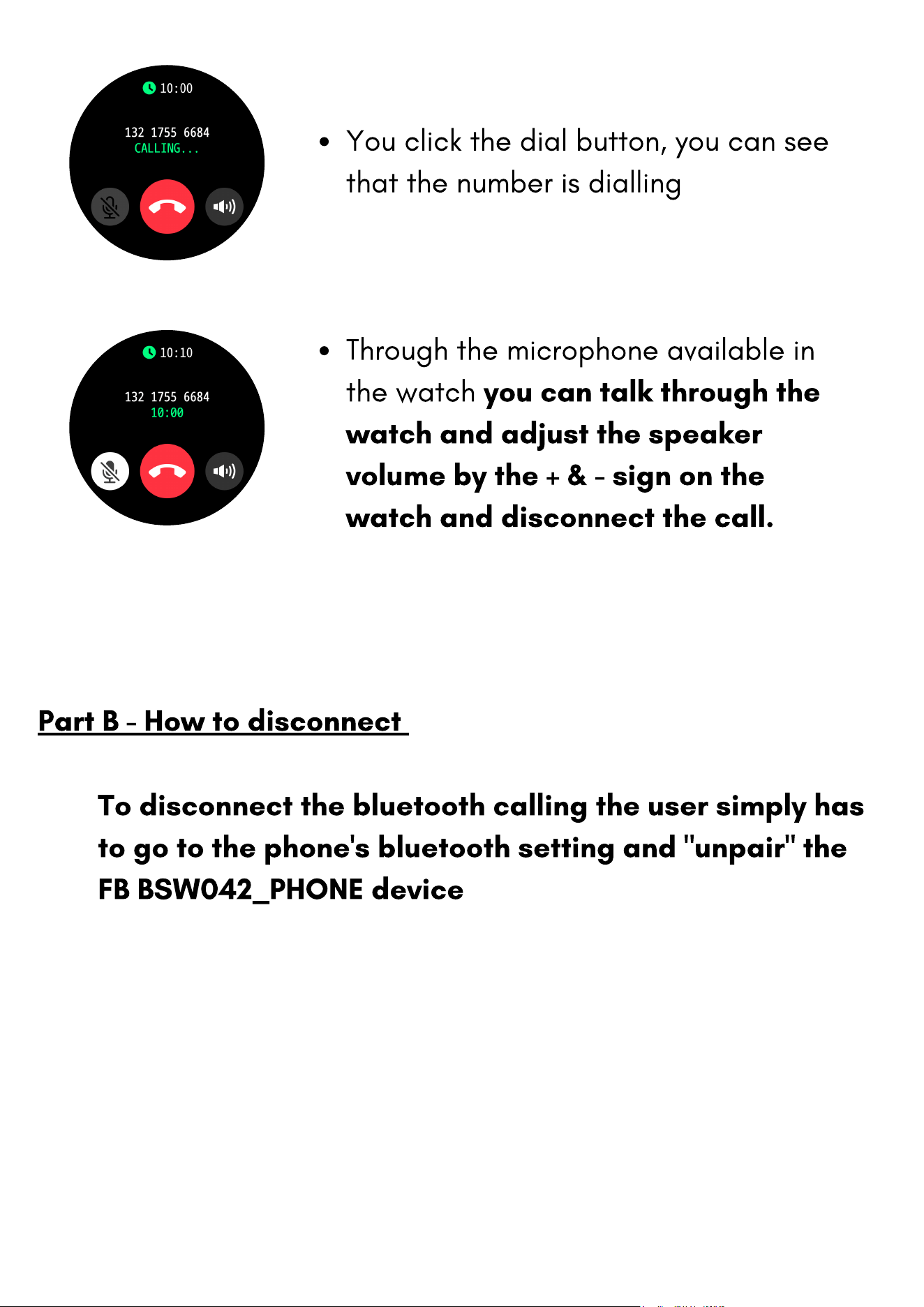
You click the dial button, you can see
that the number is dialling
Through the microphone available in
the watch
you can talk through the
watch and adjust the speaker
volume by the + & - sign on the
watch and disconnect the call.
To disconnect the bluetooth calling the user simply has
to go to the phone's bluetooth setting and "unpair" the
FB BSW042_PHONE device
Part B - How to disconnect
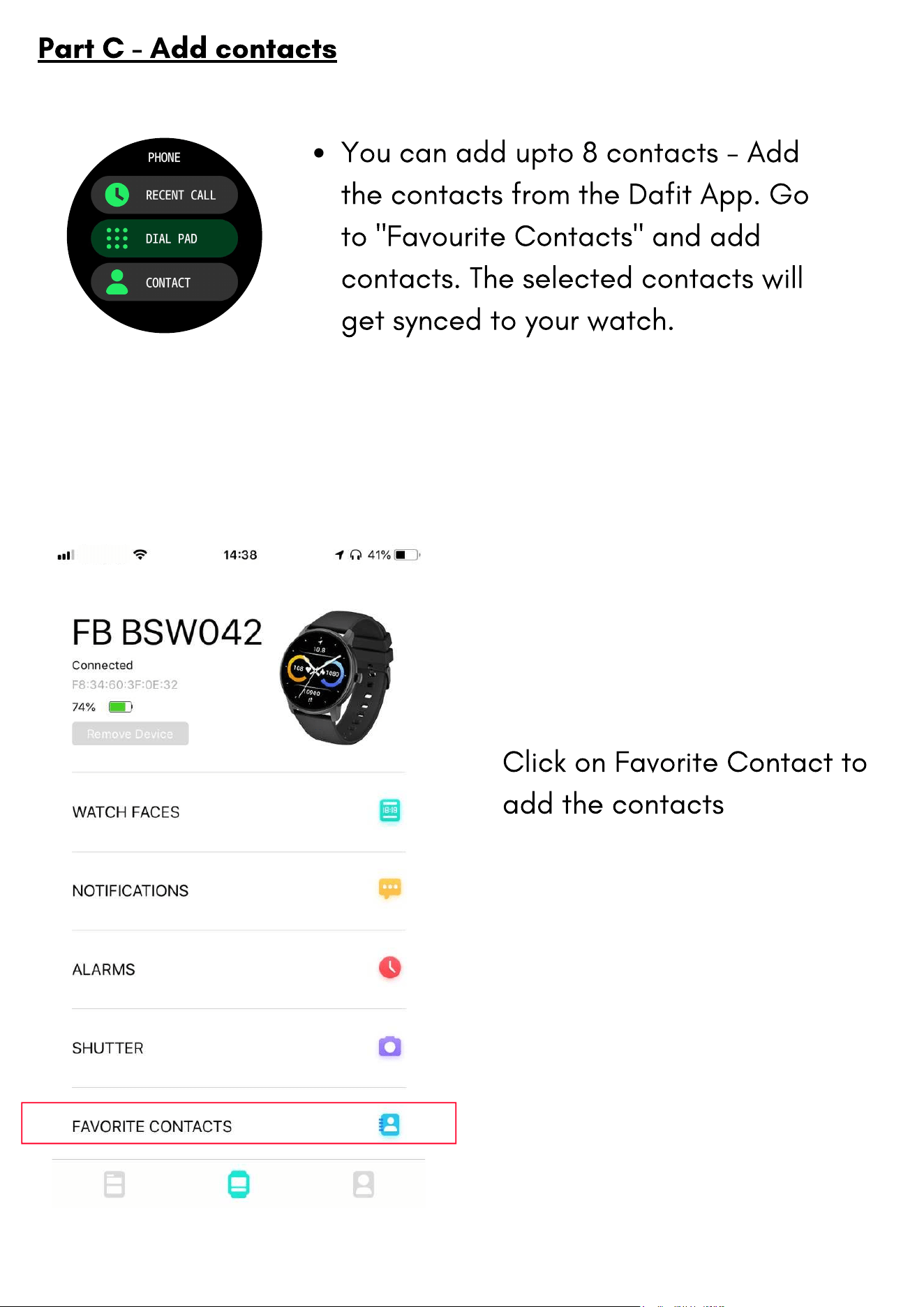
You can add upto 8 contacts - Add
the contacts from the Dafit App. Go
to "Favourite Contacts" and add
contacts. The selected contacts will
get synced to your watch.
Part C - Add contacts
Click on Favorite Contact to
add the contacts
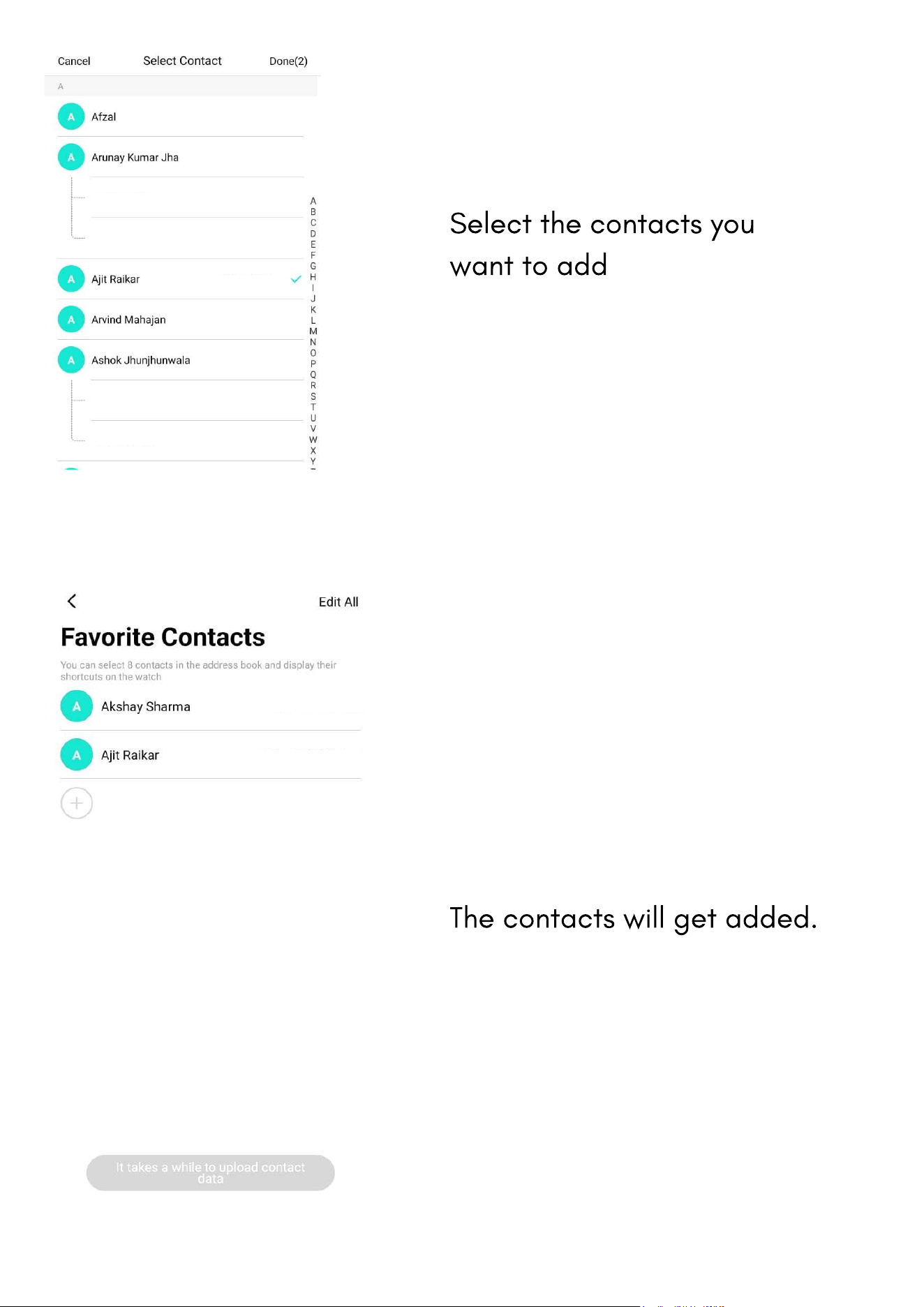
Select the contacts you
want to add
The contacts will get added.
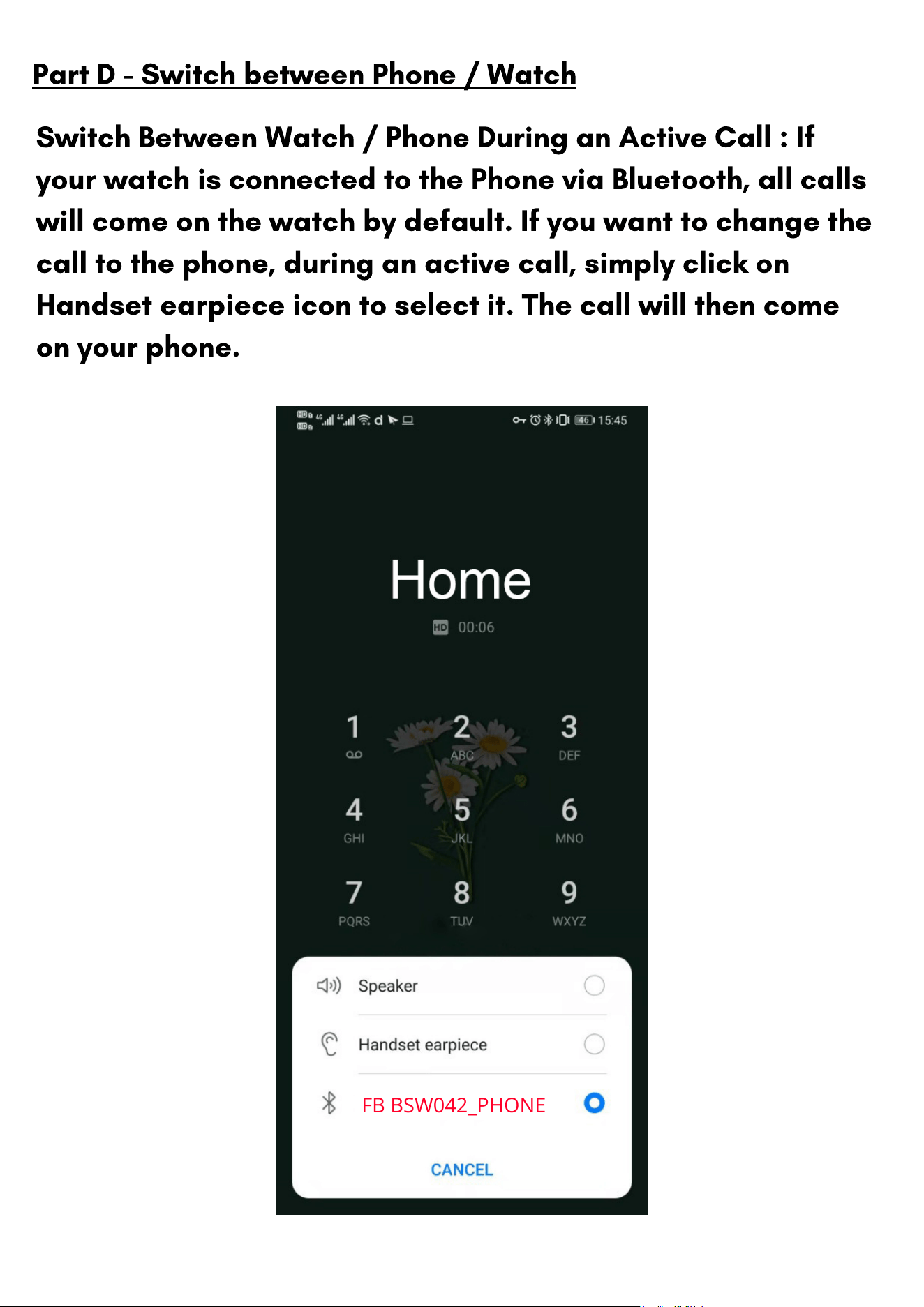
Switch Between Watch / Phone During an Active Call : If
your watch is connected to the Phone via Bluetooth, all calls
will come on the watch by default. If you want to change the
call to the phone, during an active call, simply click on
Handset earpiece icon to select it. The call will then come
on your phone.
Part D - Switch between Phone / Watch
FB BSW042_PHONE
The battery lasts for 3 to 5 days with bluetooth calling mode
enabled.
If the bluetooth calling mode is disabled then the battery
can last for 7 days.
On standby the battery can stay for as long as 20 days.
Advisory- To conserve battery, It is advised to turn off the
bluetooth when not in use.
Battery
Part E - Battery Advisory
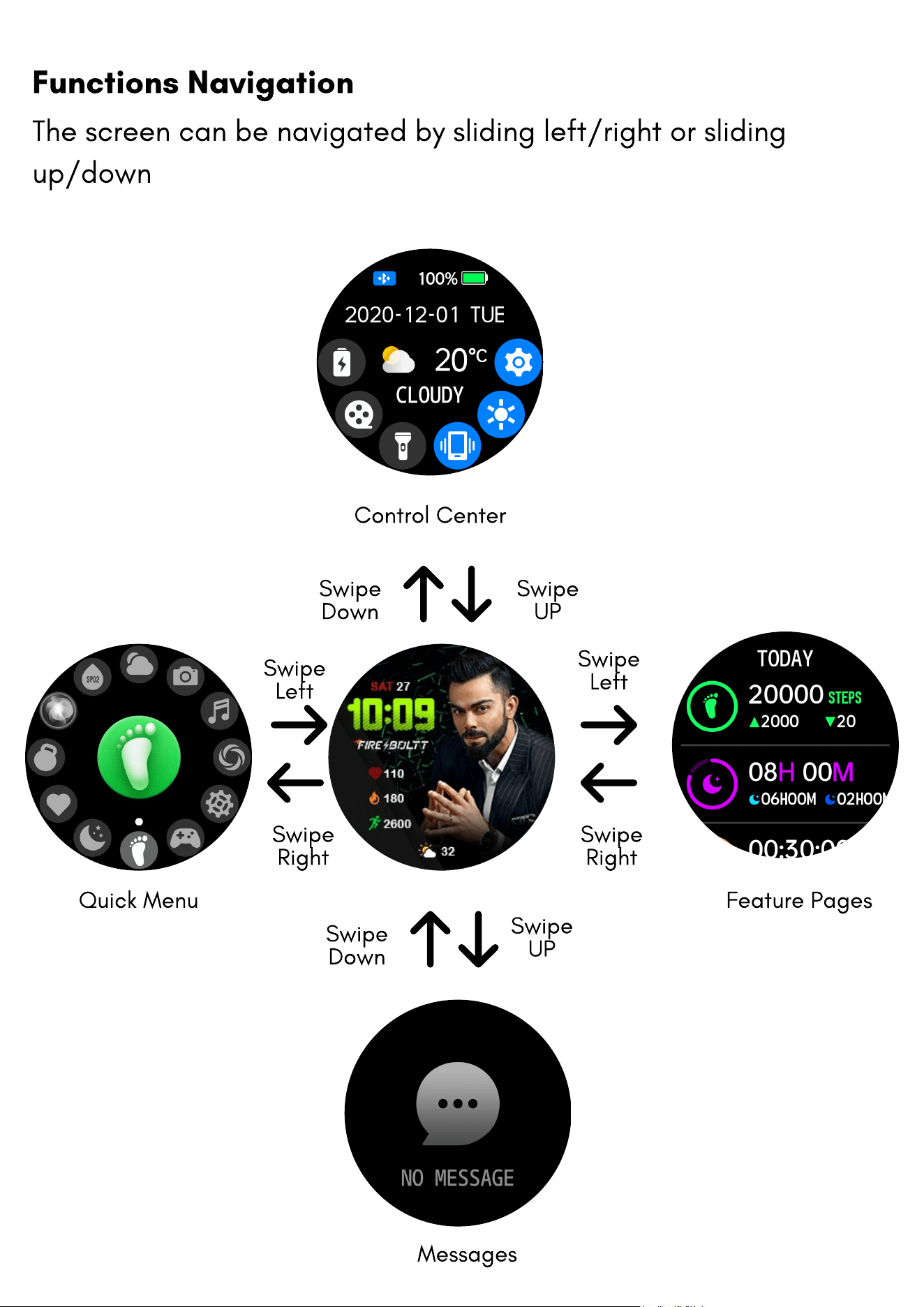
The screen can be navigated by sliding left/right or sliding
up/down
Functions Navigation
Swipe
UP
Swipe
Left
Swipe
Left
Swipe
Right
Swipe
Right
Feature Pages
Control Center
Quick Menu
Swipe
Down
Swipe
UP
Swipe
Down
Messages
Watch Face Functions Navigation and Button Instructions
The watch features a full touch control screen with a reflective
display and two buttons
Functions Navigation
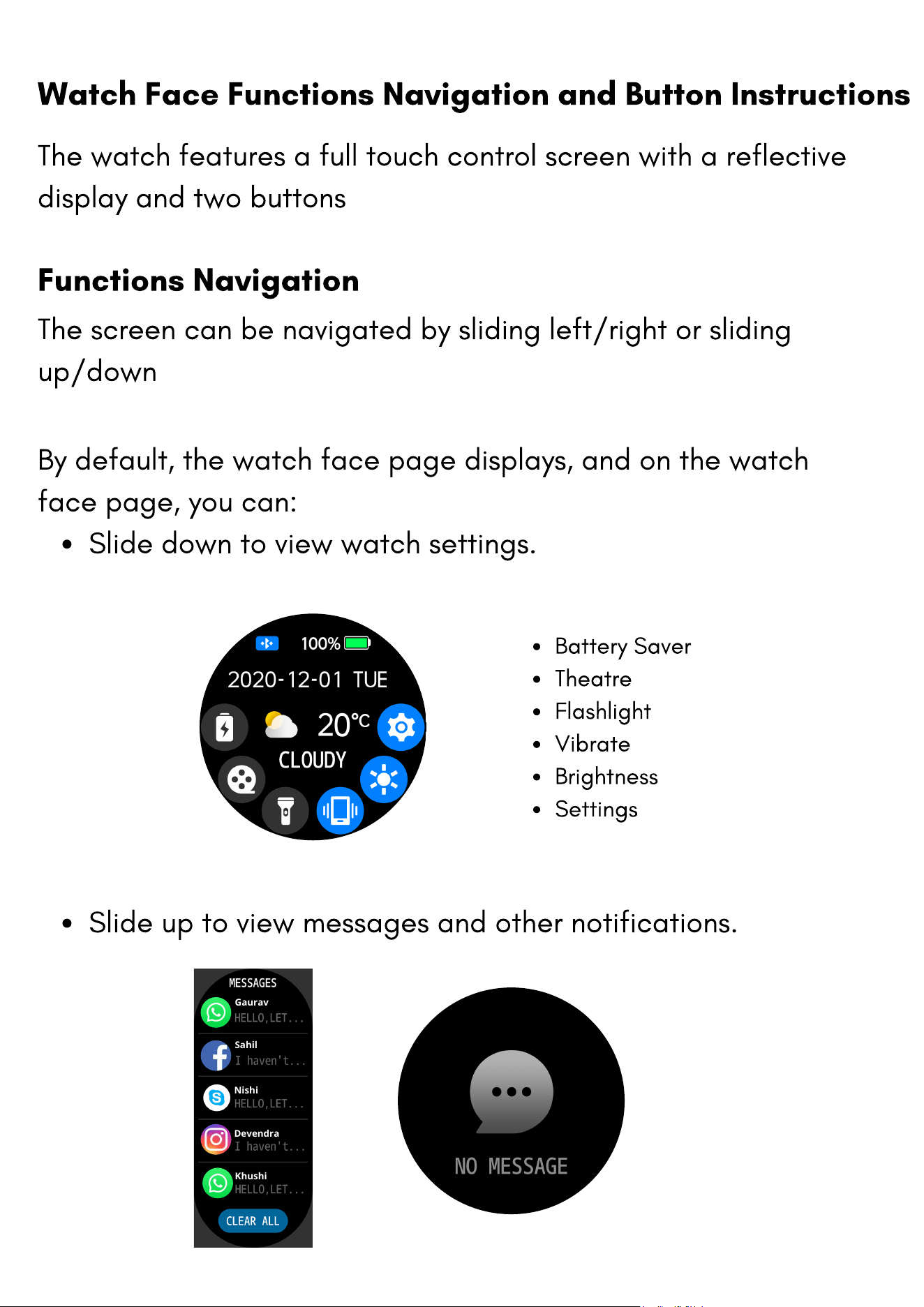
The screen can be navigated by sliding left/right or sliding
up/down
Slide down to view watch settings.
By default, the watch face page displays, and on the watch
face page, you can:
Slide up to view messages and other notifications.
Battery Saver
Theatre
Flashlight
Vibrate
Brightness
Settings
Gaurav
Sahil
Nishi
Devendra
Khushi
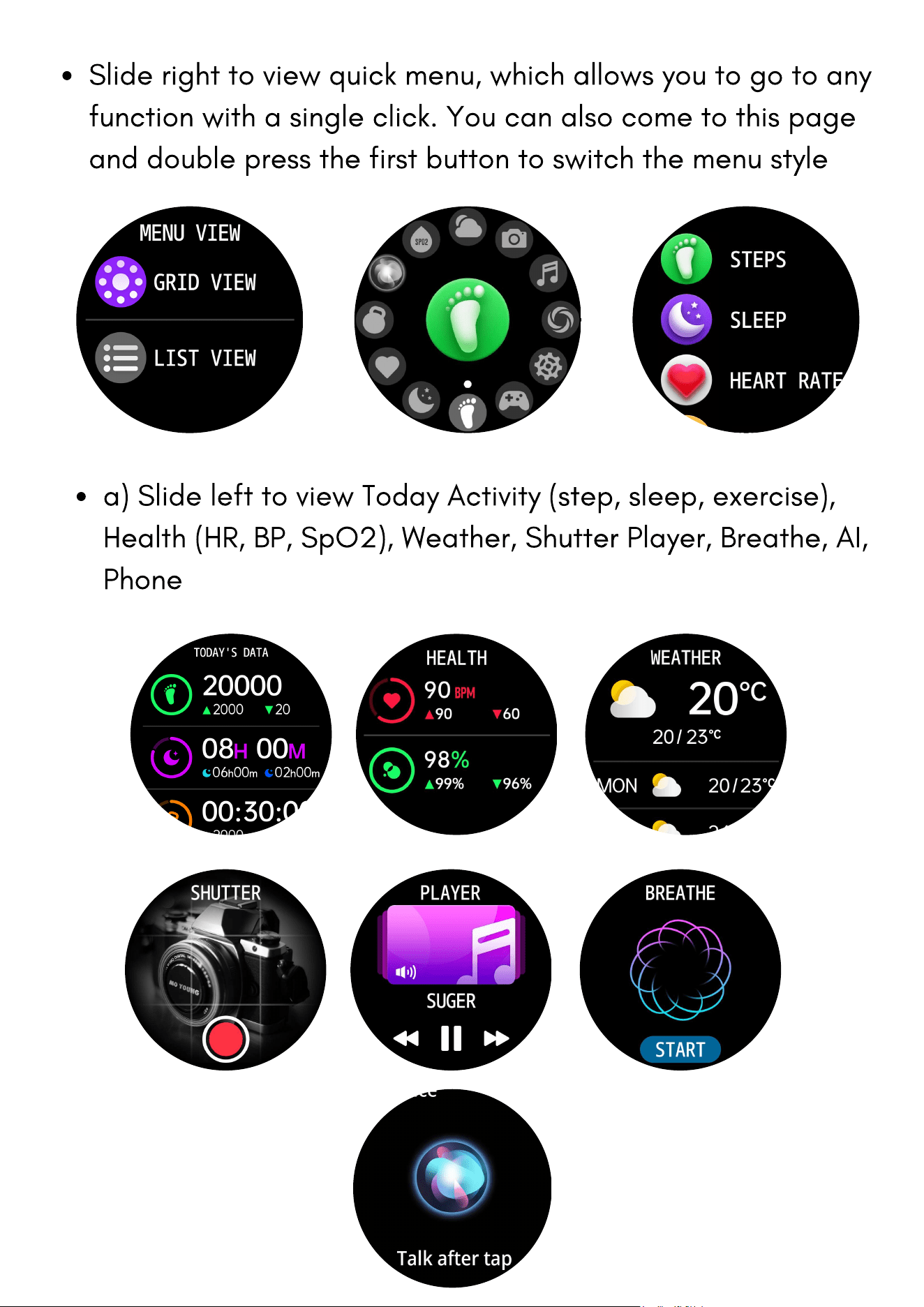
a) Slide left to view Today Activity (step, sleep, exercise),
Health (HR, BP, SpO2), Weather, Shutter Player, Breathe, AI,
Phone
Slide right to view quick menu, which allows you to go to any
function with a single click. You can also come to this page
and double press the first button to switch the menu style
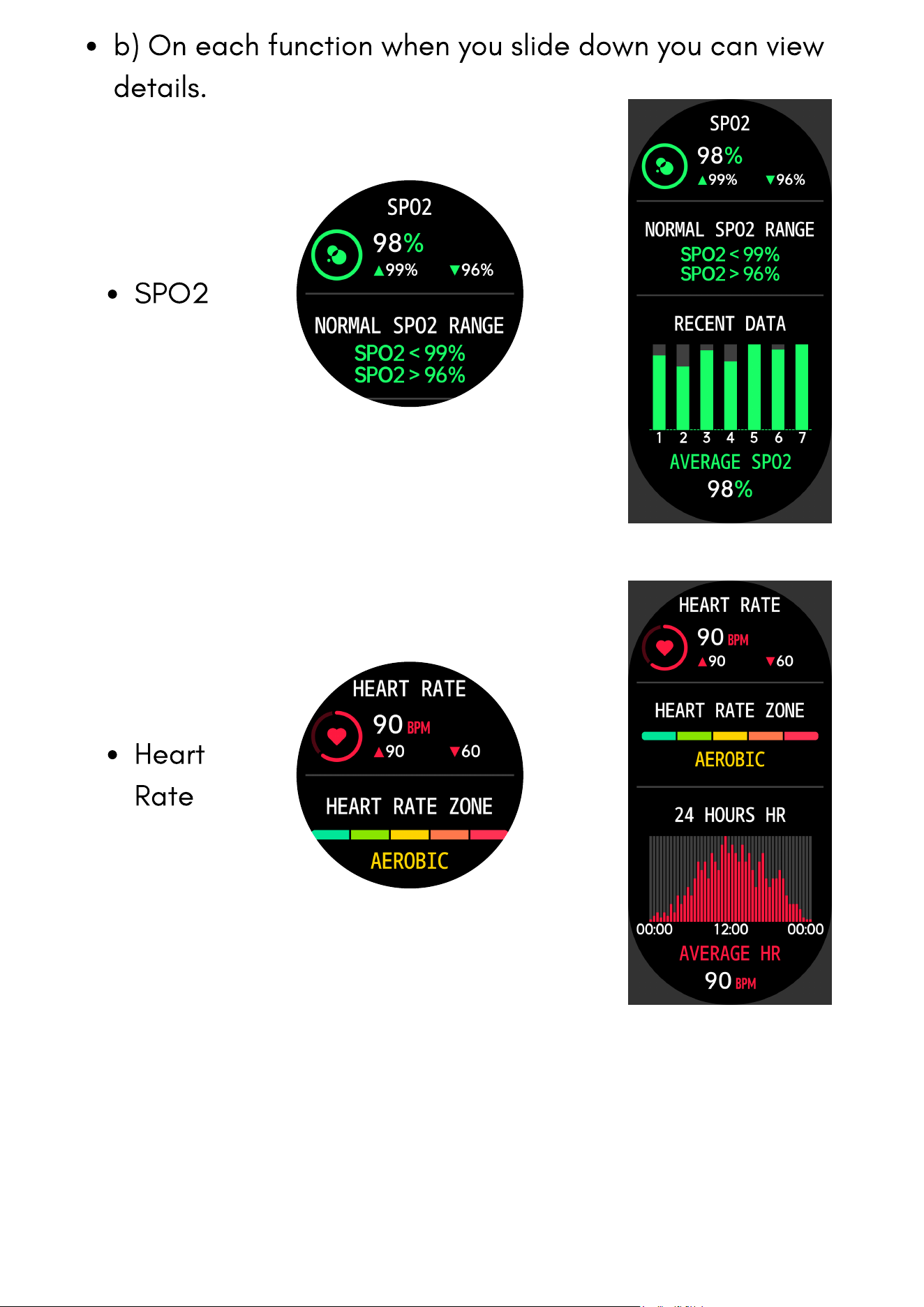
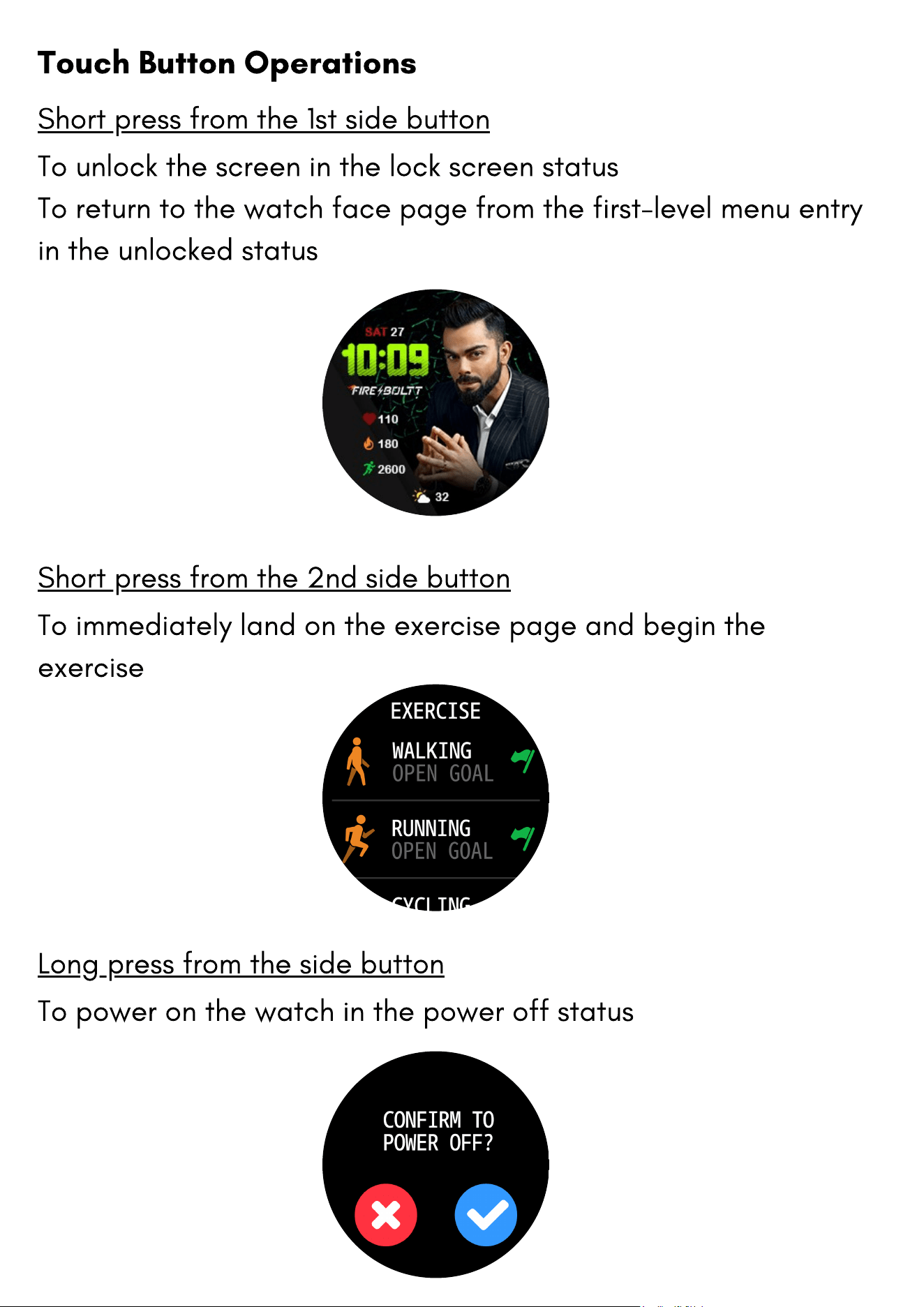
b) On each function when you slide down you can view
details.
SPO2
Heart
Rate
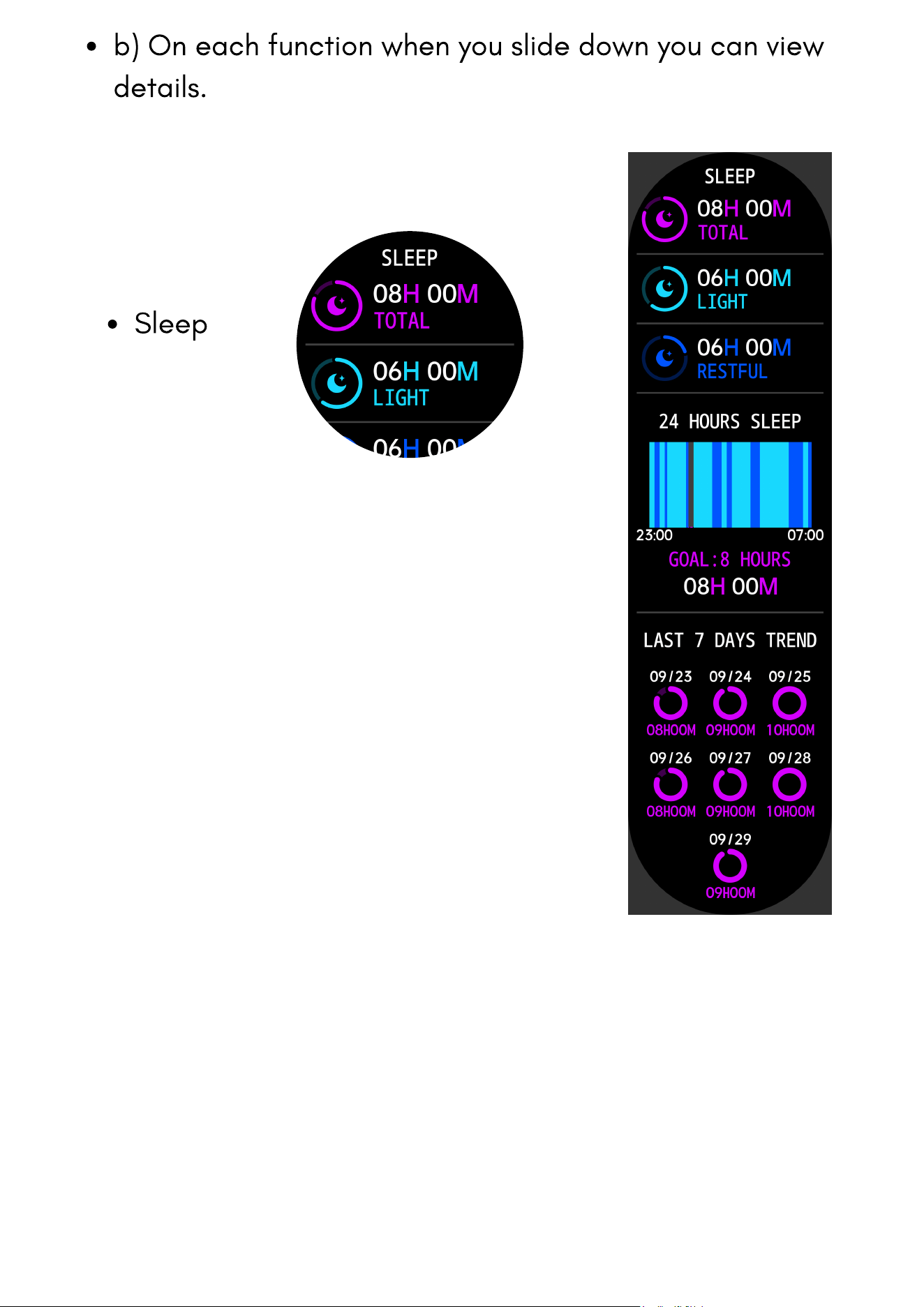
b) On each function when you slide down you can view
details.
Sleep
Touch Button Operations
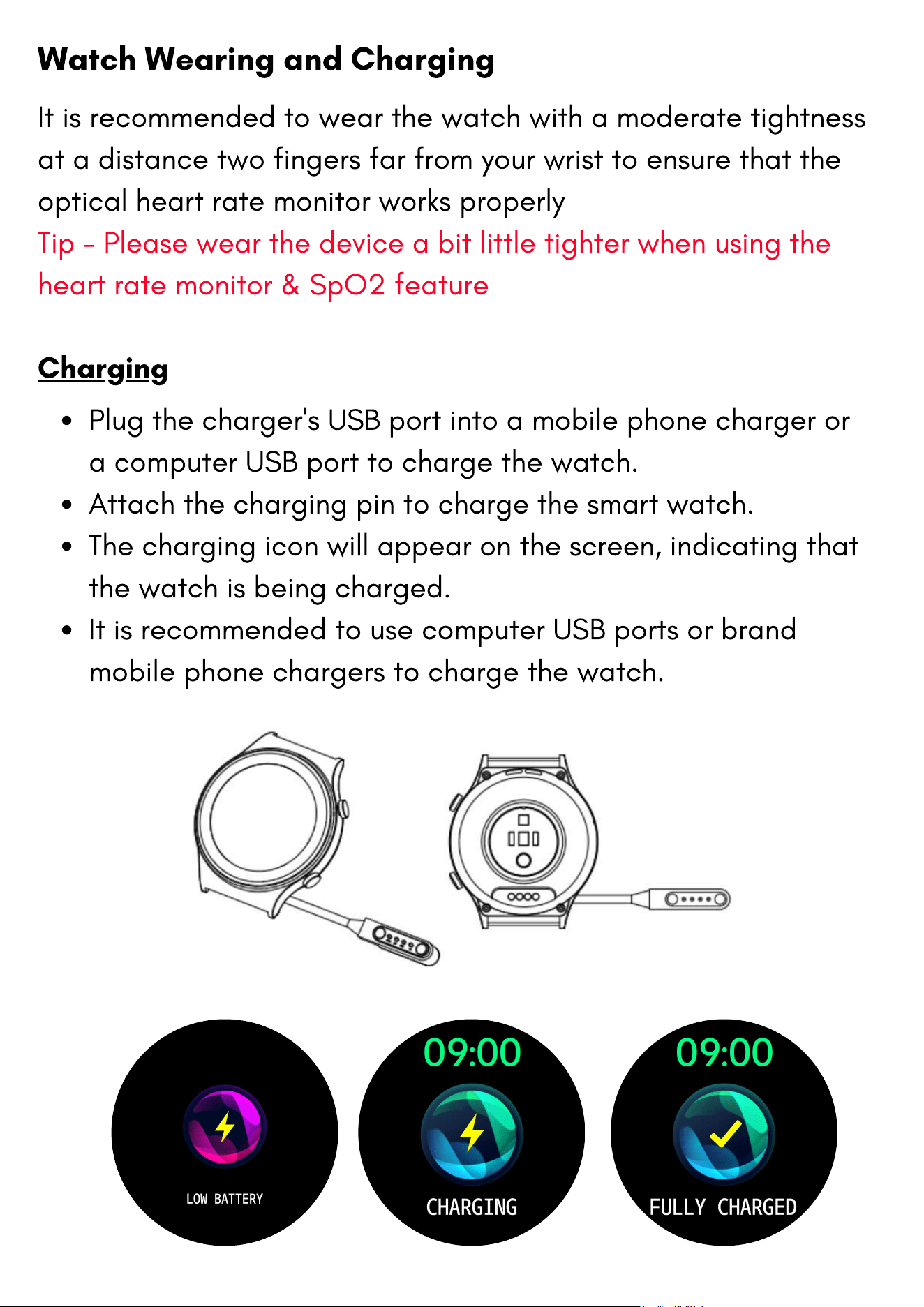
Short press from the 1st side button
To unlock the screen in the lock screen status
To return to the watch face page from the first-level menu entry
in the unlocked status
Long press from the side button
To power on the watch in the power off status
Short press from the 2nd side button
To immediately land on the exercise page and begin the
exercise
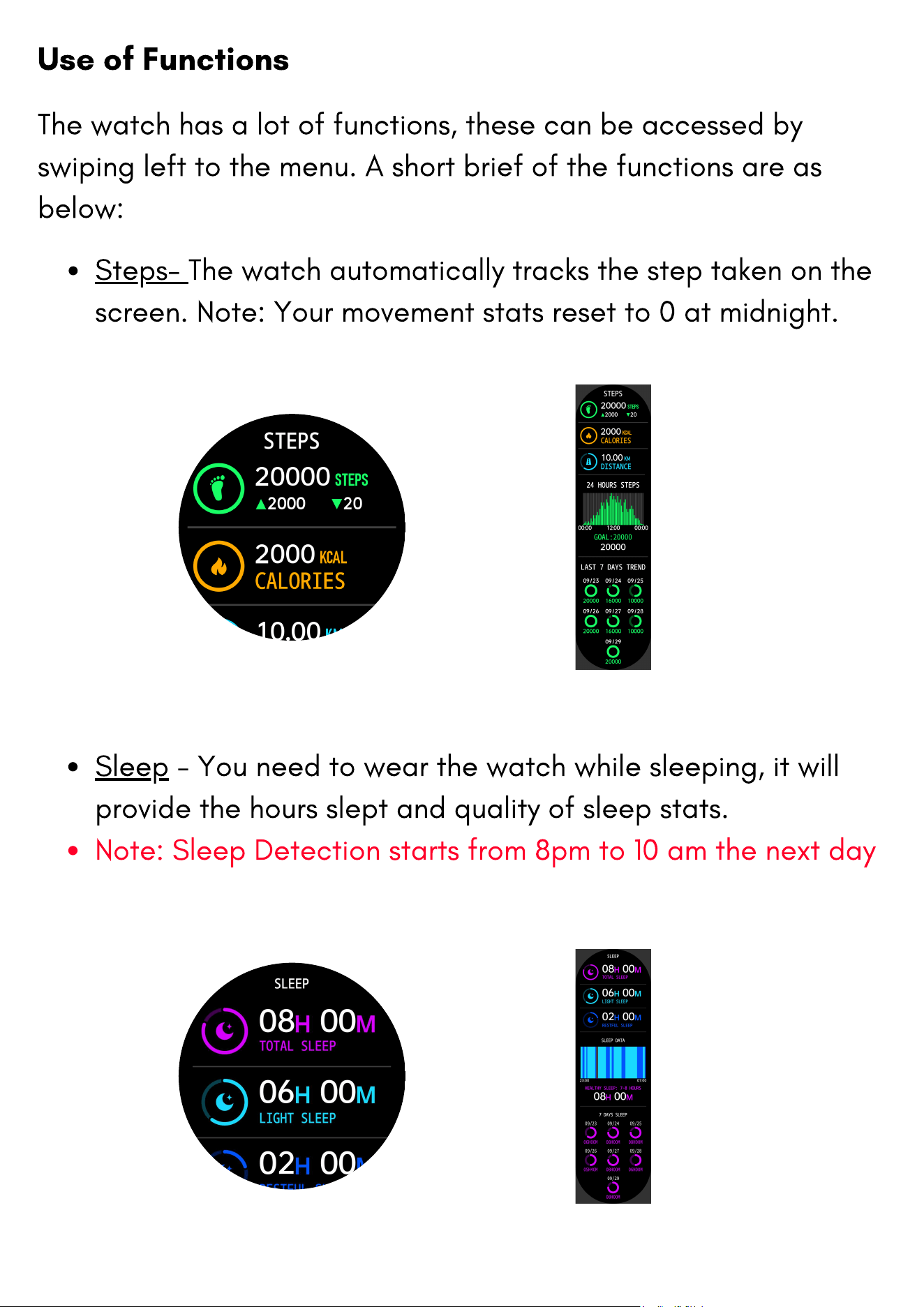
Plug the charger's USB port into a mobile phone charger or
a computer USB port to charge the watch.
Attach the charging pin to charge the smart watch.
The charging icon will appear on the screen, indicating that
the watch is being charged.
It is recommended to use computer USB ports or brand
mobile phone chargers to charge the watch.
Watch Wearing and Charging
It is recommended to wear the watch with a moderate tightness
at a distance two fingers far from your wrist to ensure that the
optical heart rate monitor works properly
Tip - Please wear the device a bit little tighter when using the
heart rate monitor & SpO2 feature
Charging
The watch has a lot of functions, these can be accessed by
swiping left to the menu. A short brief of the functions are as
below:
Use of Functions
Steps- The watch automatically tracks the step taken on the
screen. Note: Your movement stats reset to 0 at midnight.
Sleep - You need to wear the watch while sleeping, it will
provide the hours slept and quality of sleep stats.
Note: Sleep Detection starts from 8pm to 10 am the next day
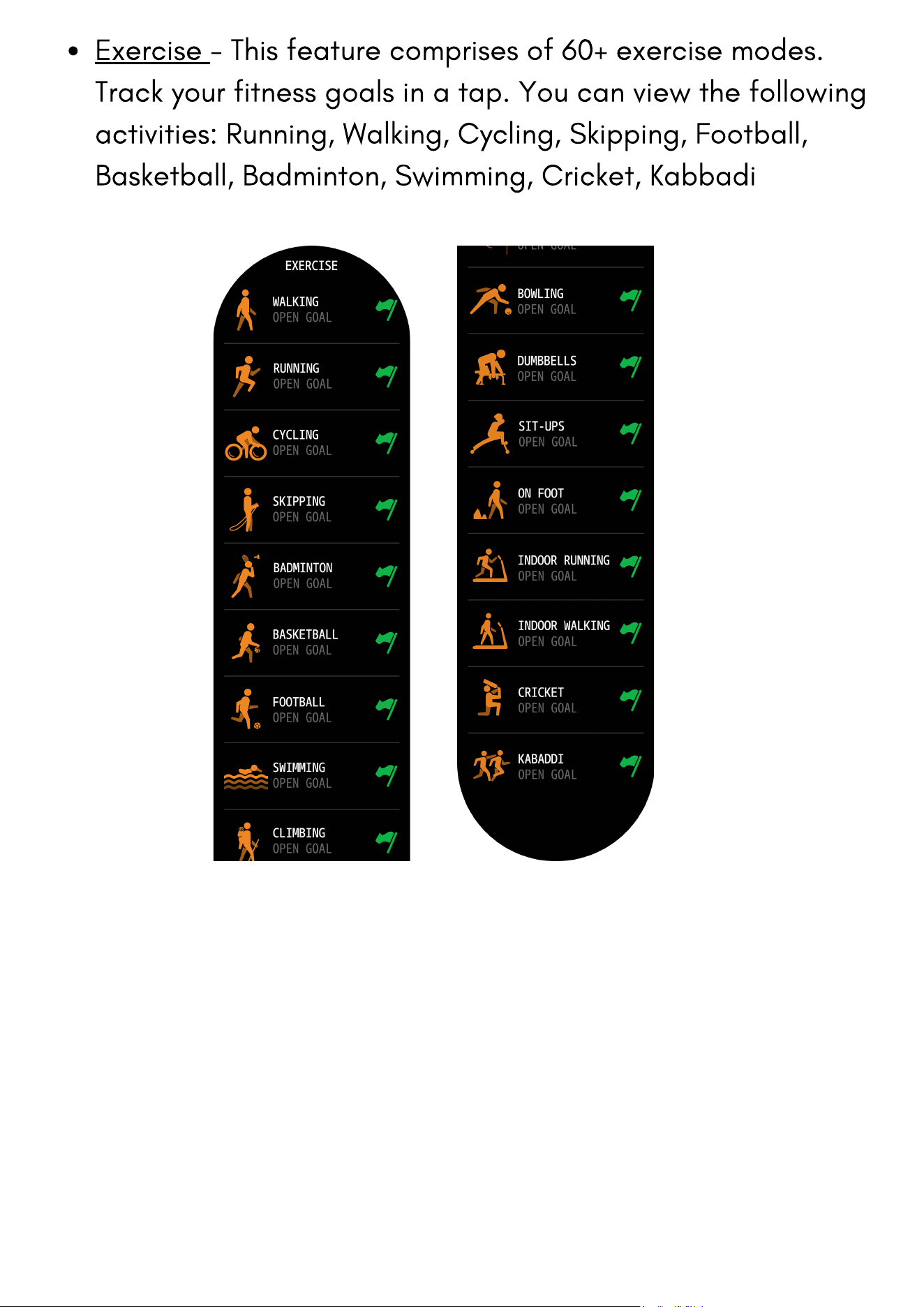
Exercise - This feature comprises of 60+ exercise modes.
Track your fitness goals in a tap. You can view the following
activities: Running, Walking, Cycling, Skipping, Football,
Basketball, Badminton, Swimming, Cricket, Kabbadi
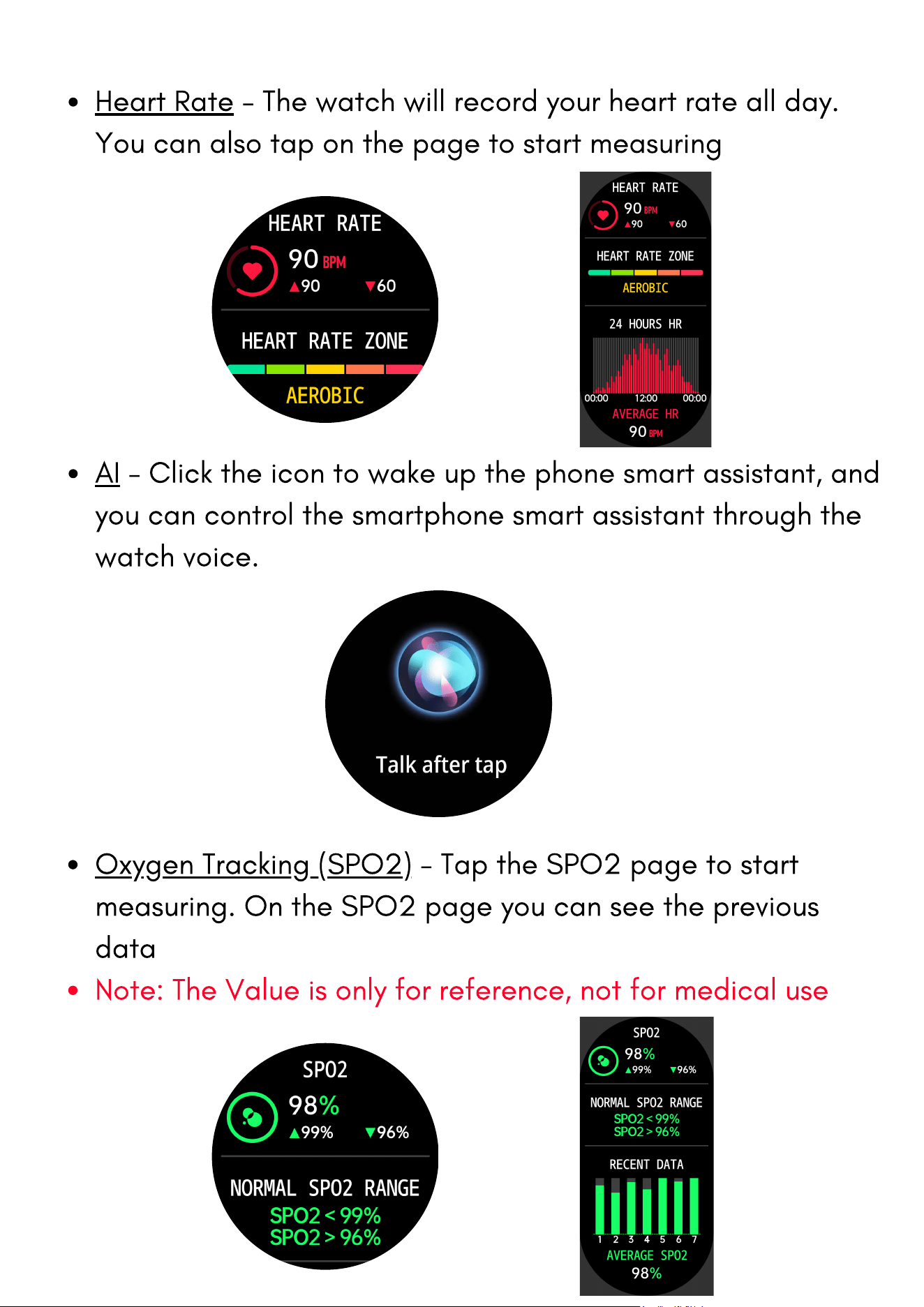
Heart Rate - The watch will record your heart rate all day.
You can also tap on the page to start measuring
Oxygen Tracking (SPO2) - Tap the SPO2 page to start
measuring. On the SPO2 page you can see the previous
data
Note: The Value is only for reference, not for medical use
AI - Click the icon to wake up the phone smart assistant, and
you can control the smartphone smart assistant through the
watch voice.
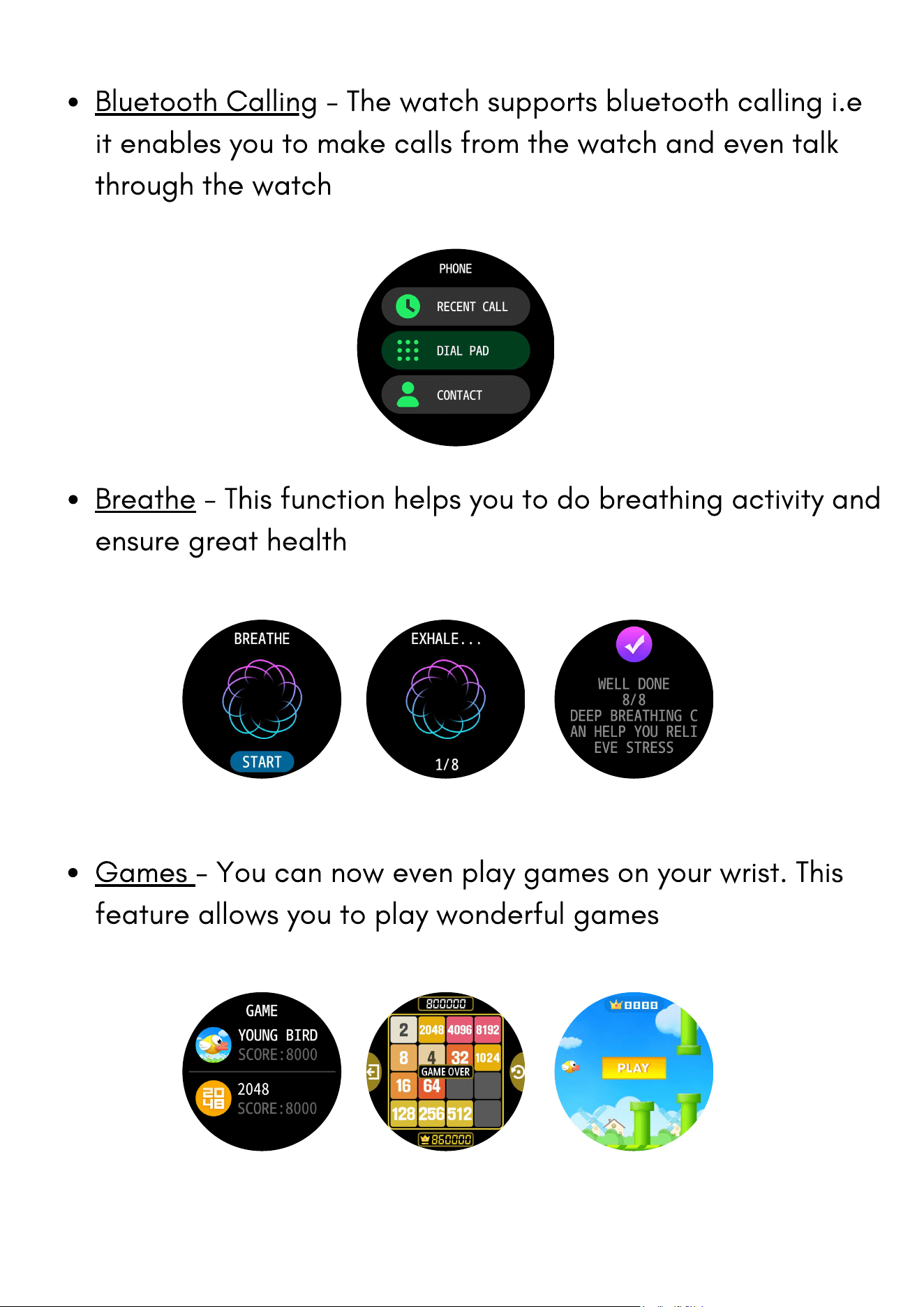
Bluetooth Calling - The watch supports bluetooth calling i.e
it enables you to make calls from the watch and even talk
through the watch
Breathe - This function helps you to do breathing activity and
ensure great health
Games - You can now even play games on your wrist. This
feature allows you to play wonderful games
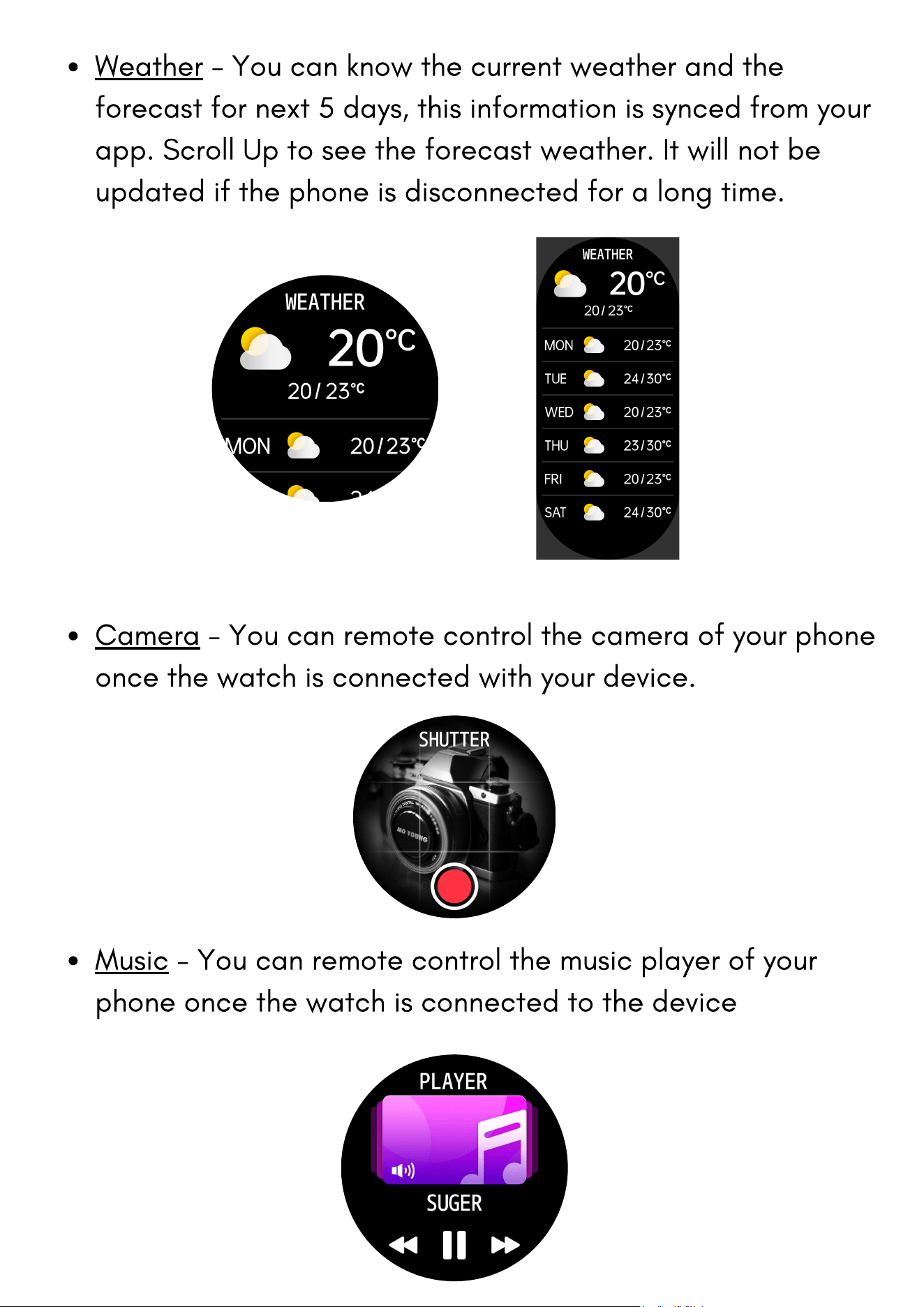
Weather - You can know the current weather and the
forecast for next 5 days, this information is synced from your
app. Scroll Up to see the forecast weather. It will not be
updated if the phone is disconnected for a long time.
Camera - You can remote control the camera of your phone
once the watch is connected with your device.
Music - You can remote control the music player of your
phone once the watch is connected to the device
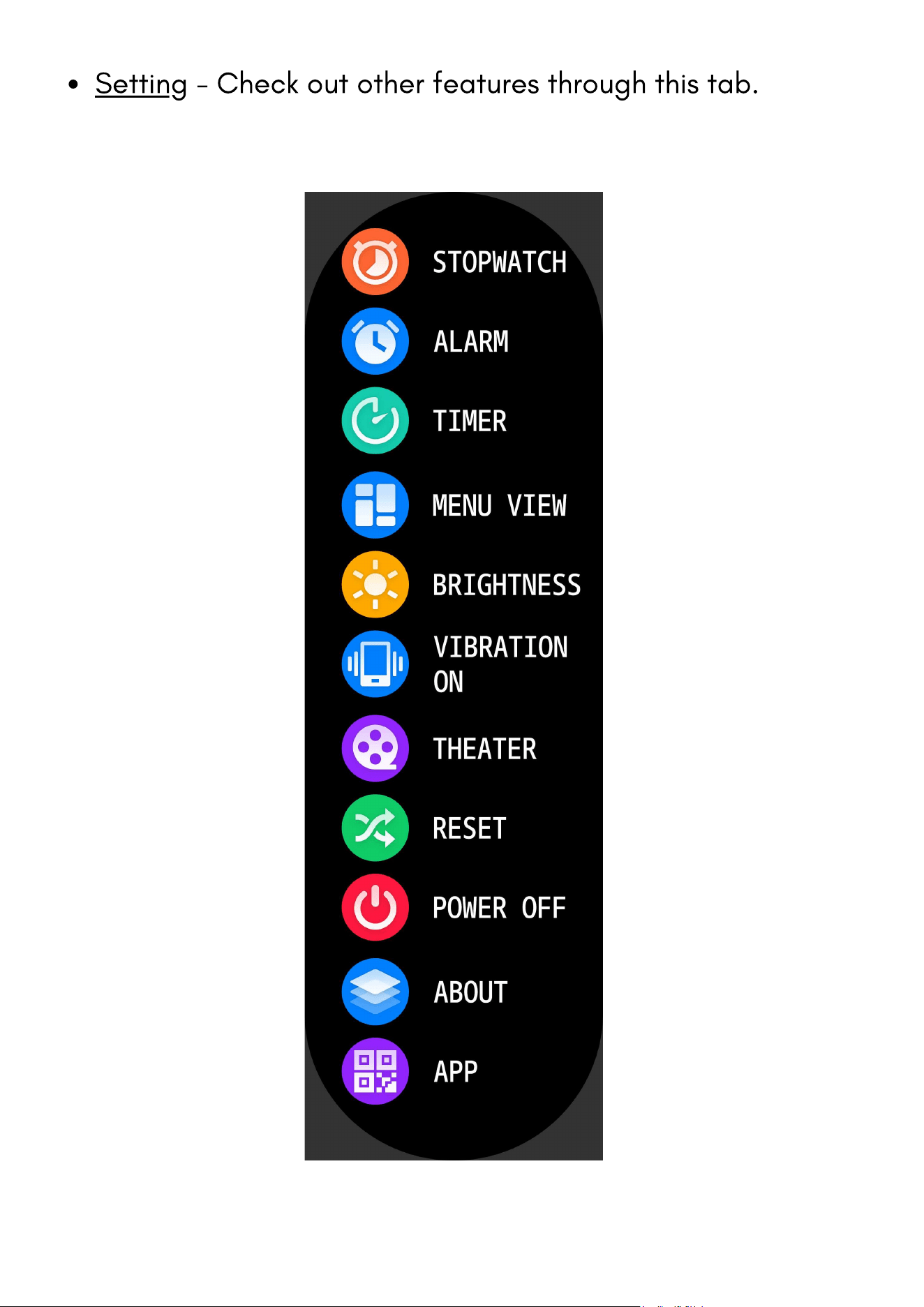
Setting - Check out other features through this tab.
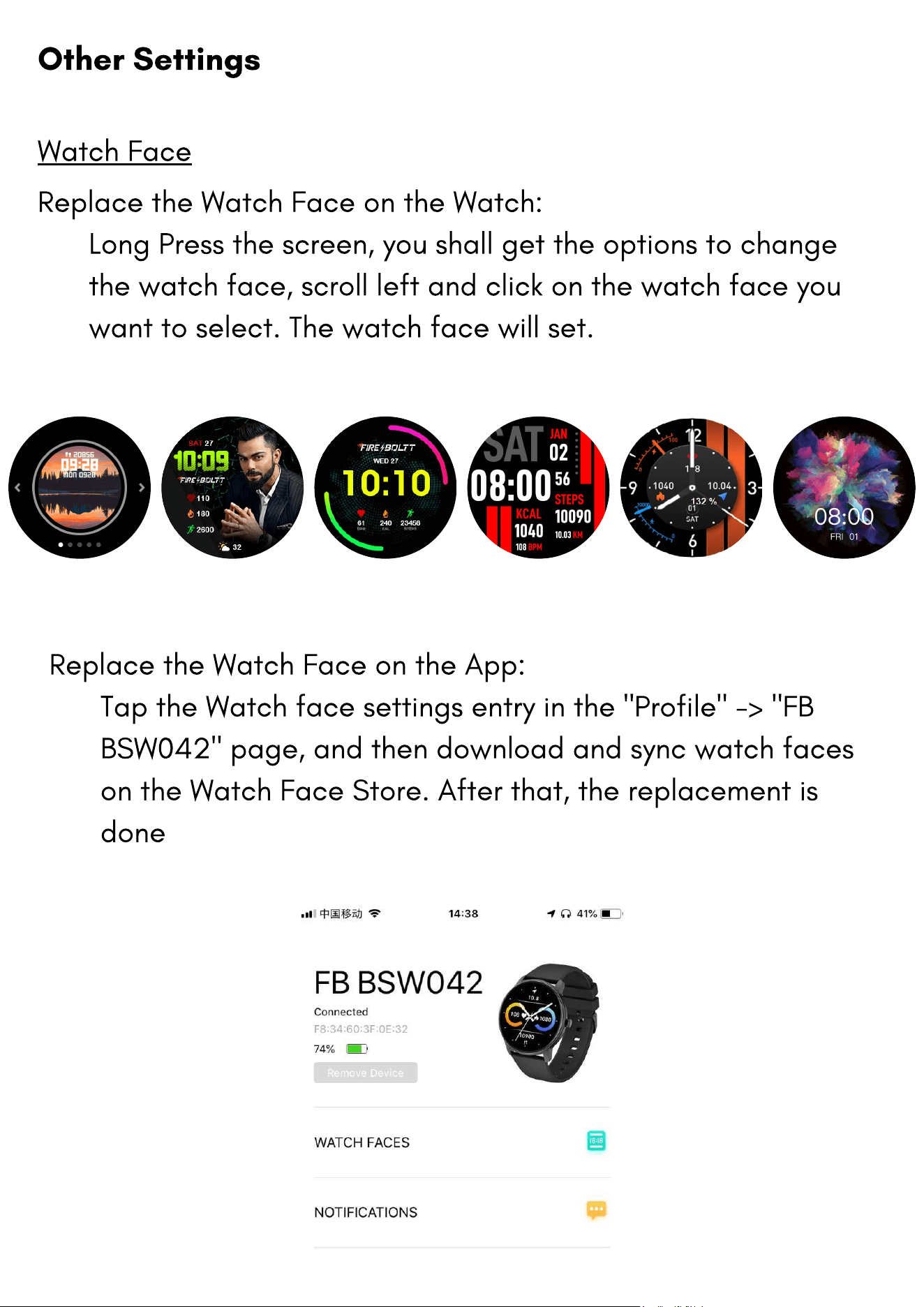
Replace the Watch Face on the App:
Tap the Watch face settings entry in the "Profile" -> "FB
BSW042" page, and then download and sync watch faces
on the Watch Face Store. After that, the replacement is
done
Replace the Watch Face on the Watch:
Long Press the screen, you shall get the options to change
the watch face, scroll left and click on the watch face you
want to select. The watch face will set.
Watch Face
Other Settings
If you are using an Android device, you need to include the App
into the whitelist or self-starting list of the mobile phone in
background settings and keep the App running in the
background to protect it from being detected and killed by the
mobile phone's background processes. Such background
processes could disconnect the watch and the App, and as a
result no reminder will be received. See "Profile" -> "FB
BSW042" - > "Run in background" settings for different mobile
phone systems
Notifications
During use, you need to enable the corresponding "App alerts"
on the Da Fit App, and keep the watch and the mobile phone
connected.
If you are using an iOS device, you need to pair the watch with
the Bluetooth of the mobile phone before use.
Enable Notifications
When the watch receives a notification alert, it will vibrate to
remind you and automatically display the notification content. If
you do not view the notification immediately, you may slide up in
the watch face page to go to messages and check the
notification
View Notifications
Workout
Sliding left in the watch face page can make the Activity app
items visible. For more information, see the "Introduction to the
Workout Function” section below
Weather
In the weather page, you can view the weather for the day and
the weather information for the next 5 days. You can change
location in the app.
The weather displayed by the watch comes from the server.
Therefore, you need to keep the Bluetooth of your mobile phone
on and connect it with the watch to keep abreast of the latest
weather information changes.
In addition, when a weather alert is received, the watch will
receive the alert as well. You may toggle on the weather alert
switch in the "Profile" -> "FB BSW042" -> " Weather settings "
page on the Da Fit App
Settings
In the settings page, the settings items of all stopwatch, alarm,
timer, menu view, brightness, vibration off, theatre mode, reset,
power off and app QR are provided.
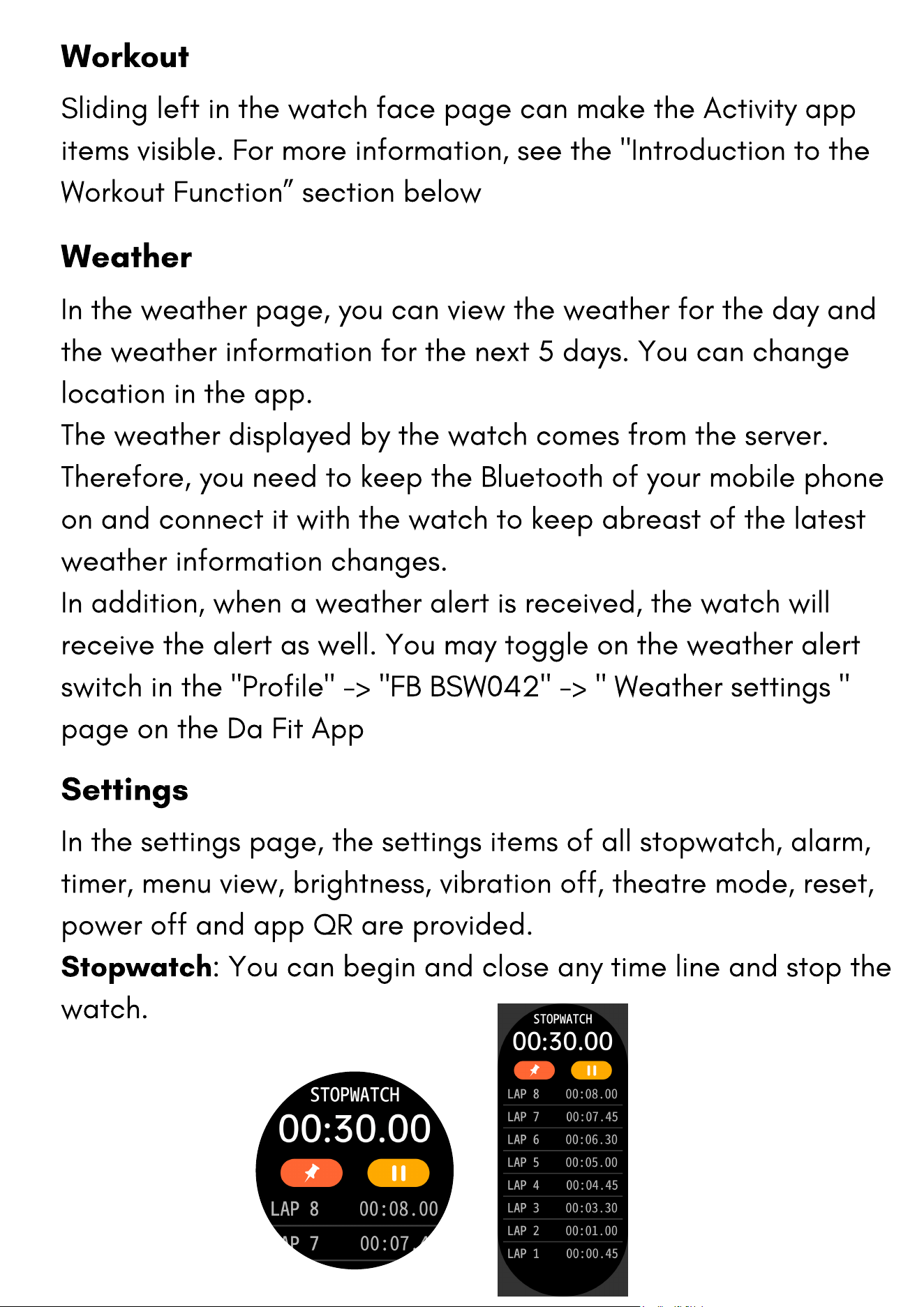
Stopwatch
: You can begin and close any time line and stop the
watch.
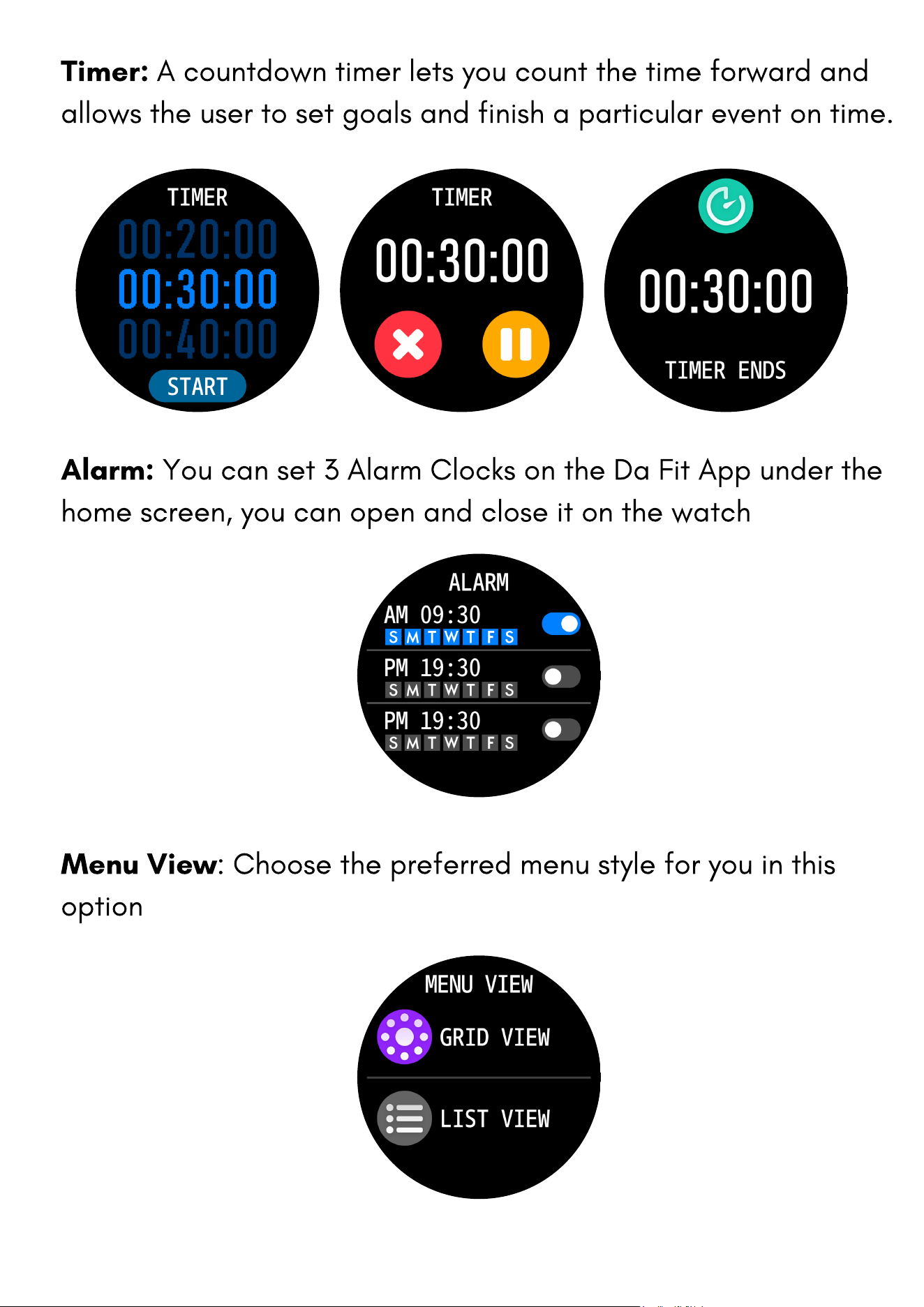
Timer:
A countdown timer lets you count the time forward and
allows the user to set goals and finish a particular event on time.
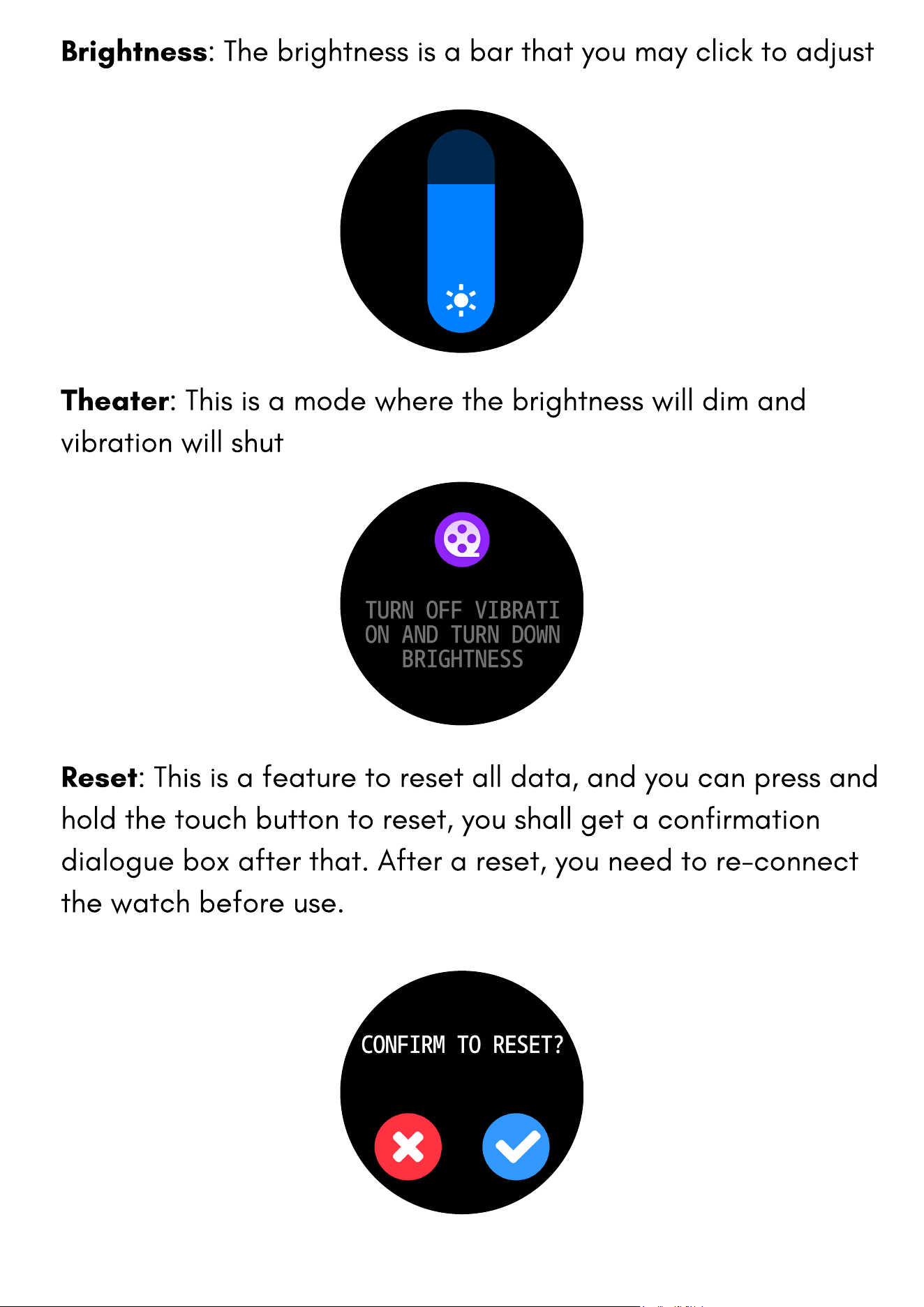
Menu View
: Choose the preferred menu style for you in this
option
Alarm:
You can set 3 Alarm Clocks on the Da Fit App under the
home screen, you can open and close it on the watch
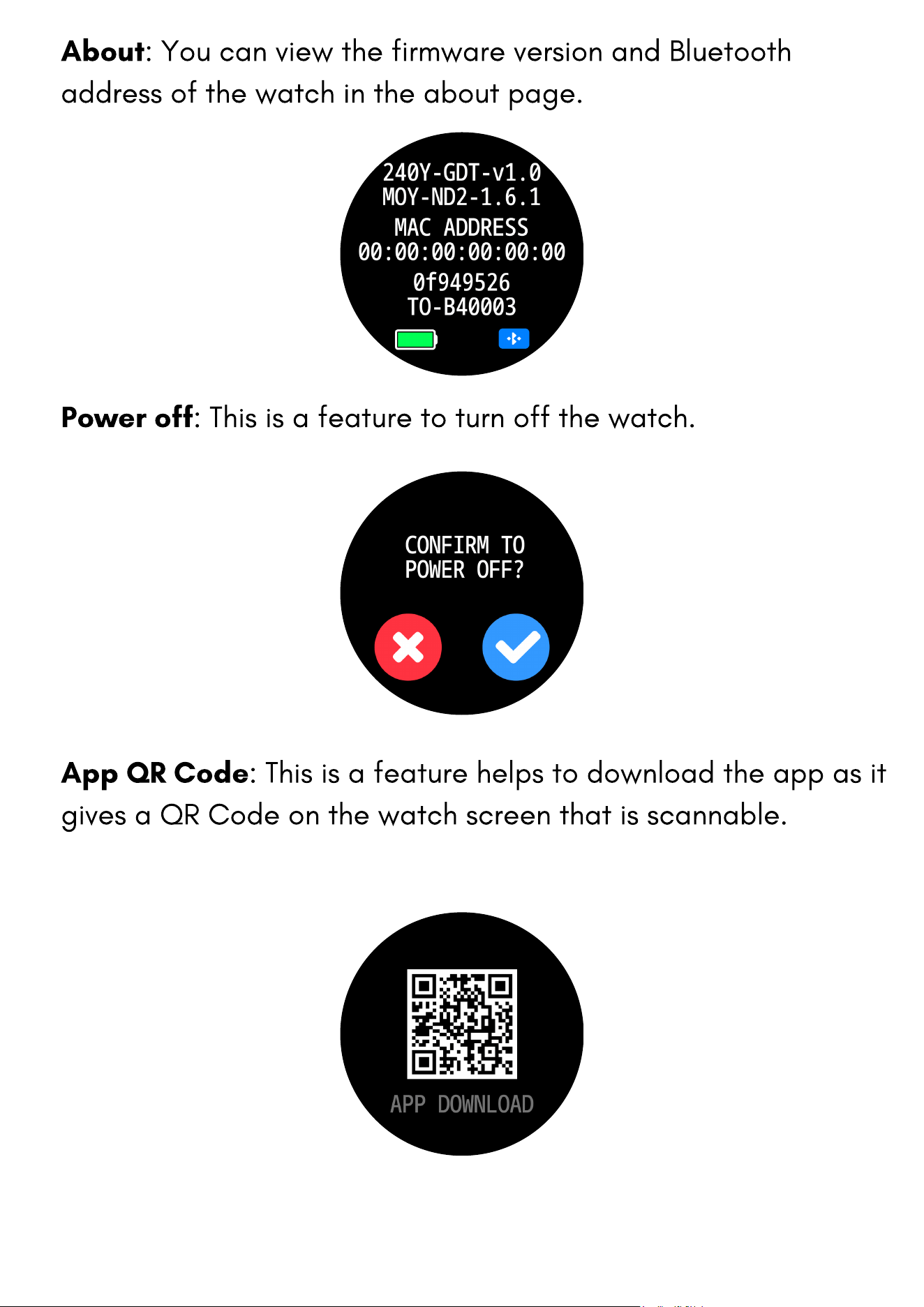
Brightness
: The brightness is a bar that you may click to adjust
Reset
: This is a feature to reset all data, and you can press and
hold the touch button to reset, you shall get a confirmation
dialogue box after that. After a reset, you need to re-connect
the watch before use.
Theater
: This is a mode where the brightness will dim and
vibration will shut
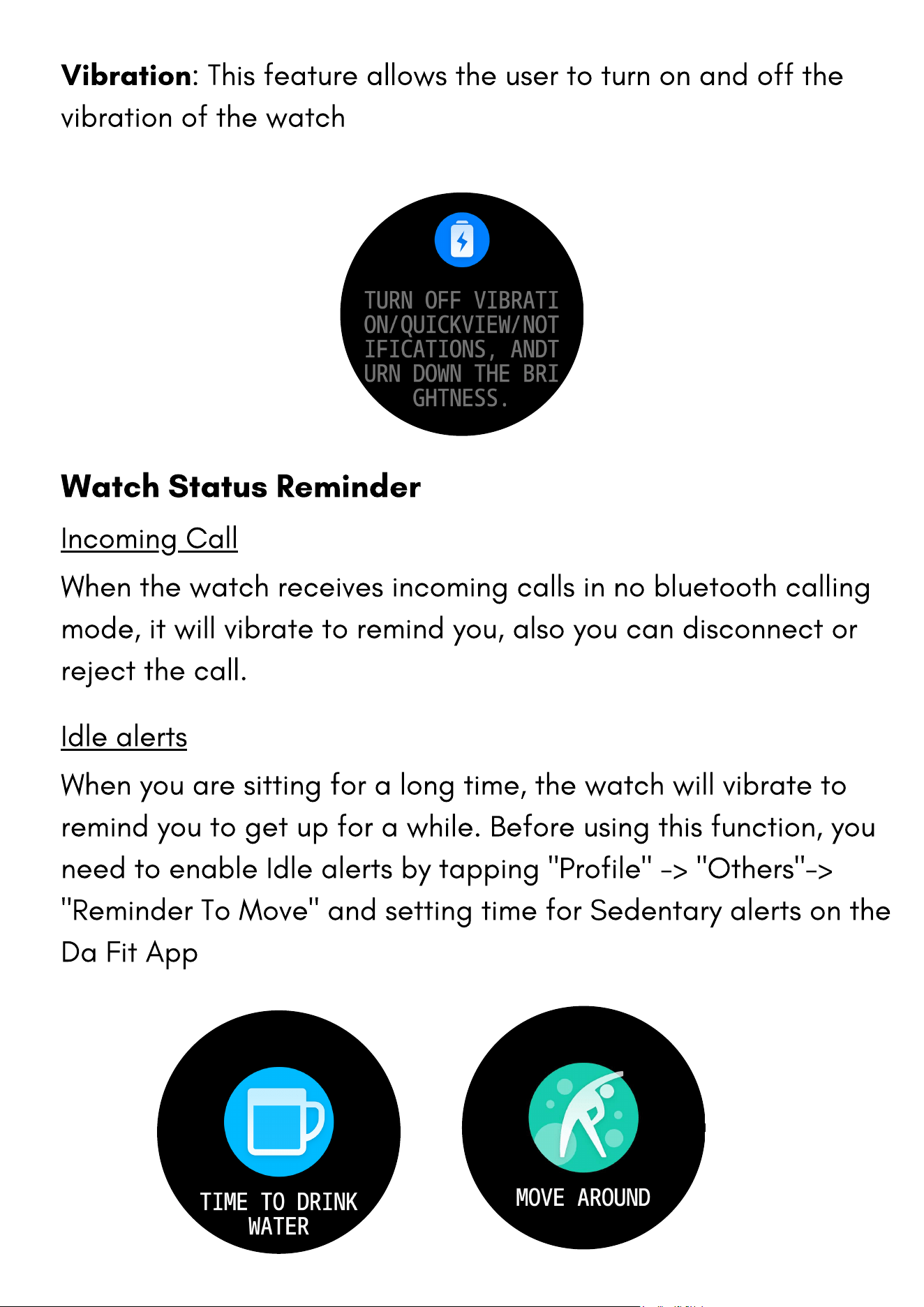
About
: You can view the firmware version and Bluetooth
address of the watch in the about page.
Power off
: This is a feature to turn off the watch.
App QR Code
: This is a feature helps to download the app as it
gives a QR Code on the watch screen that is scannable.
Vibration
: This feature allows the user to turn on and off the
vibration of the watch
Watch Status Reminder
Incoming Call
When the watch receives incoming calls in no bluetooth calling
mode, it will vibrate to remind you, also you can disconnect or
reject the call.
Idle alerts
When you are sitting for a long time, the watch will vibrate to
remind you to get up for a while. Before using this function, you
need to enable Idle alerts by tapping "Profile" -> "Others"->
"Reminder To Move" and setting time for Sedentary alerts on the
Da Fit App
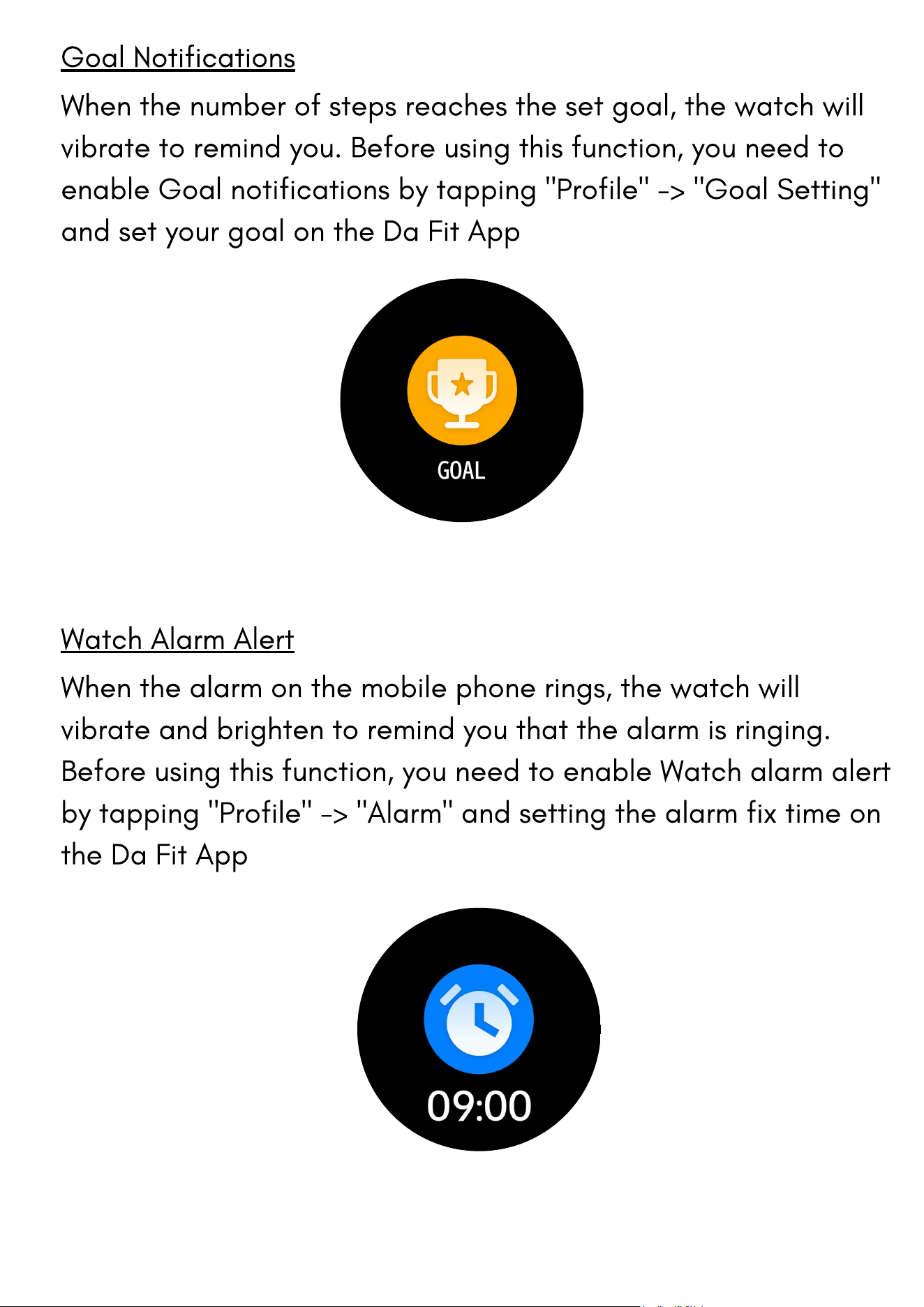
Goal Notifications
When the number of steps reaches the set goal, the watch will
vibrate to remind you. Before using this function, you need to
enable Goal notifications by tapping "Profile" -> "Goal Setting"
and set your goal on the Da Fit App
Watch Alarm Alert
When the alarm on the mobile phone rings, the watch will
vibrate and brighten to remind you that the alarm is ringing.
Before using this function, you need to enable Watch alarm alert
by tapping "Profile" -> "Alarm" and setting the alarm fix time on
the Da Fit App
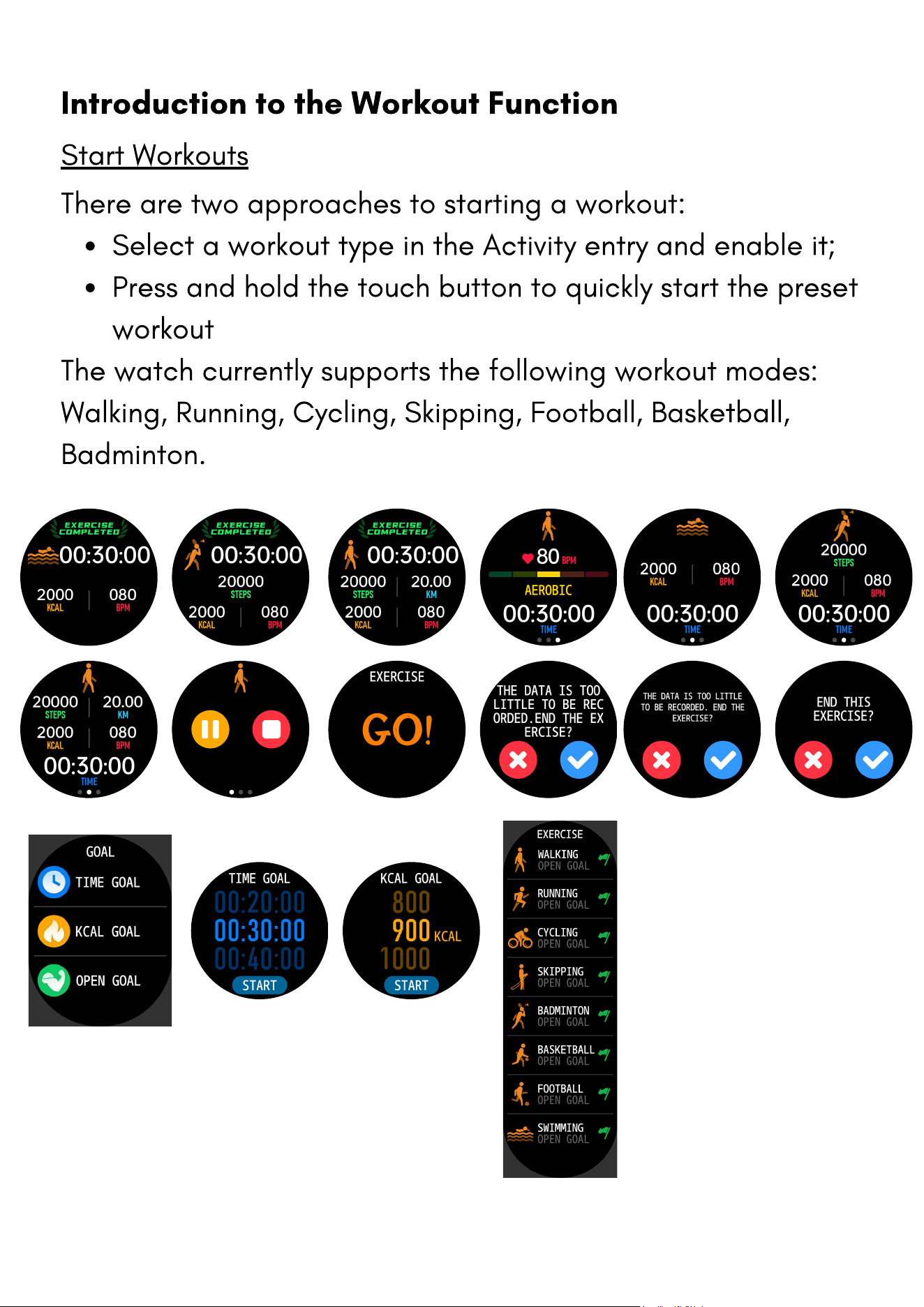
Select a workout type in the Activity entry and enable it;
Press and hold the touch button to quickly start the preset
workout
There are two approaches to starting a workout:
The watch currently supports the following workout modes:
Walking, Running, Cycling, Skipping, Football, Basketball,
Badminton.
Introduction to the Workout Function
Start Workouts