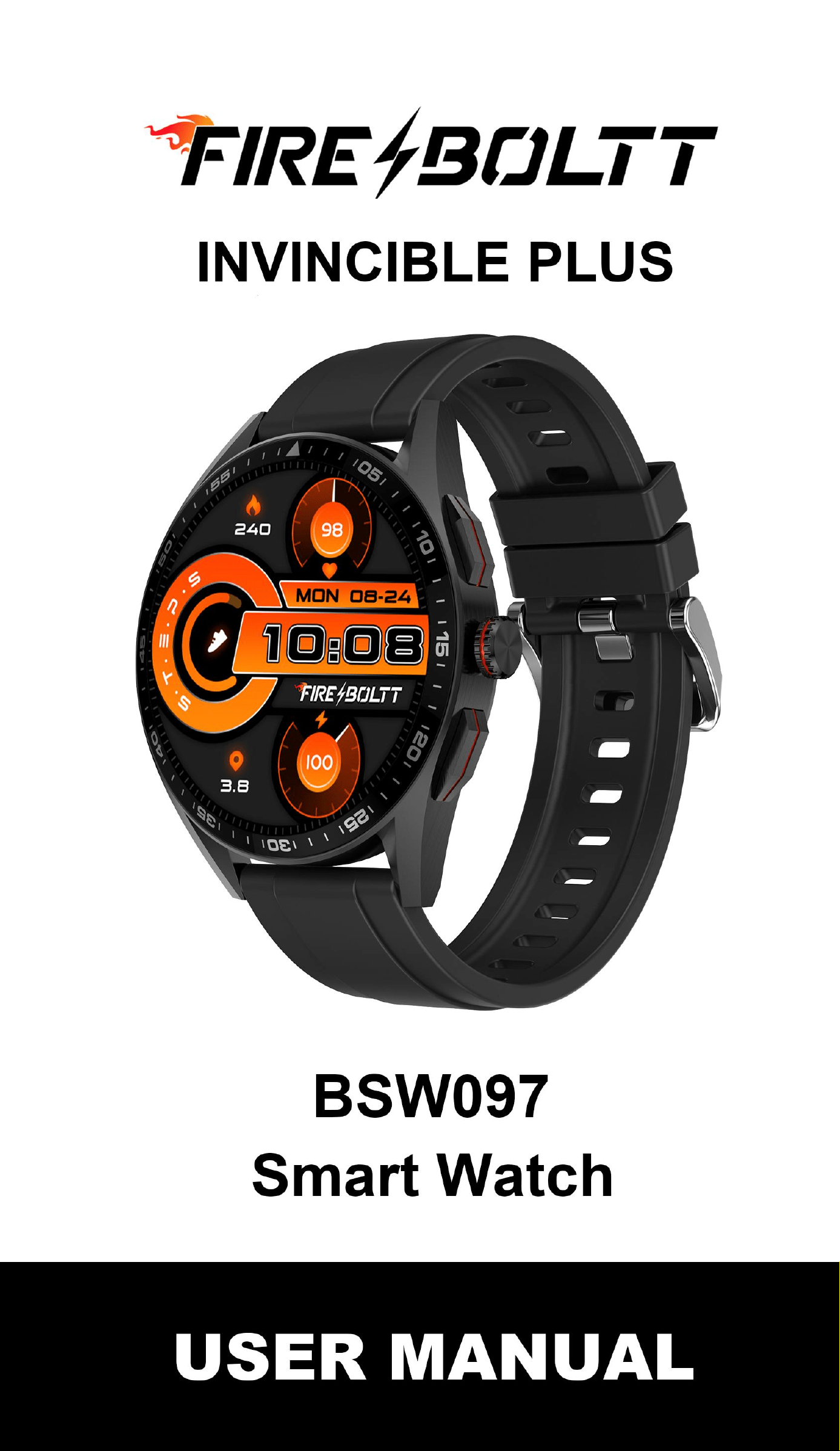


Downloading and connecting of smart
watch with FB Invincible Plus APP
1. Download and install FB Invincible Plus APP.
2.Scan QR code with mobile phone to download
APP.
3. For IOS system, select APP Store, search for
FB Invincible Plus APP.
Android system,select Google Play to download
and install FB Invincible Plus APP. Or scan QR
code to download.
Note: Your mobile phone must support Android
5.0 or iOS 9.0 or above, and Bluetooth 4.0 or
above.
Connect smart watch with FB Invincible Plus
APP
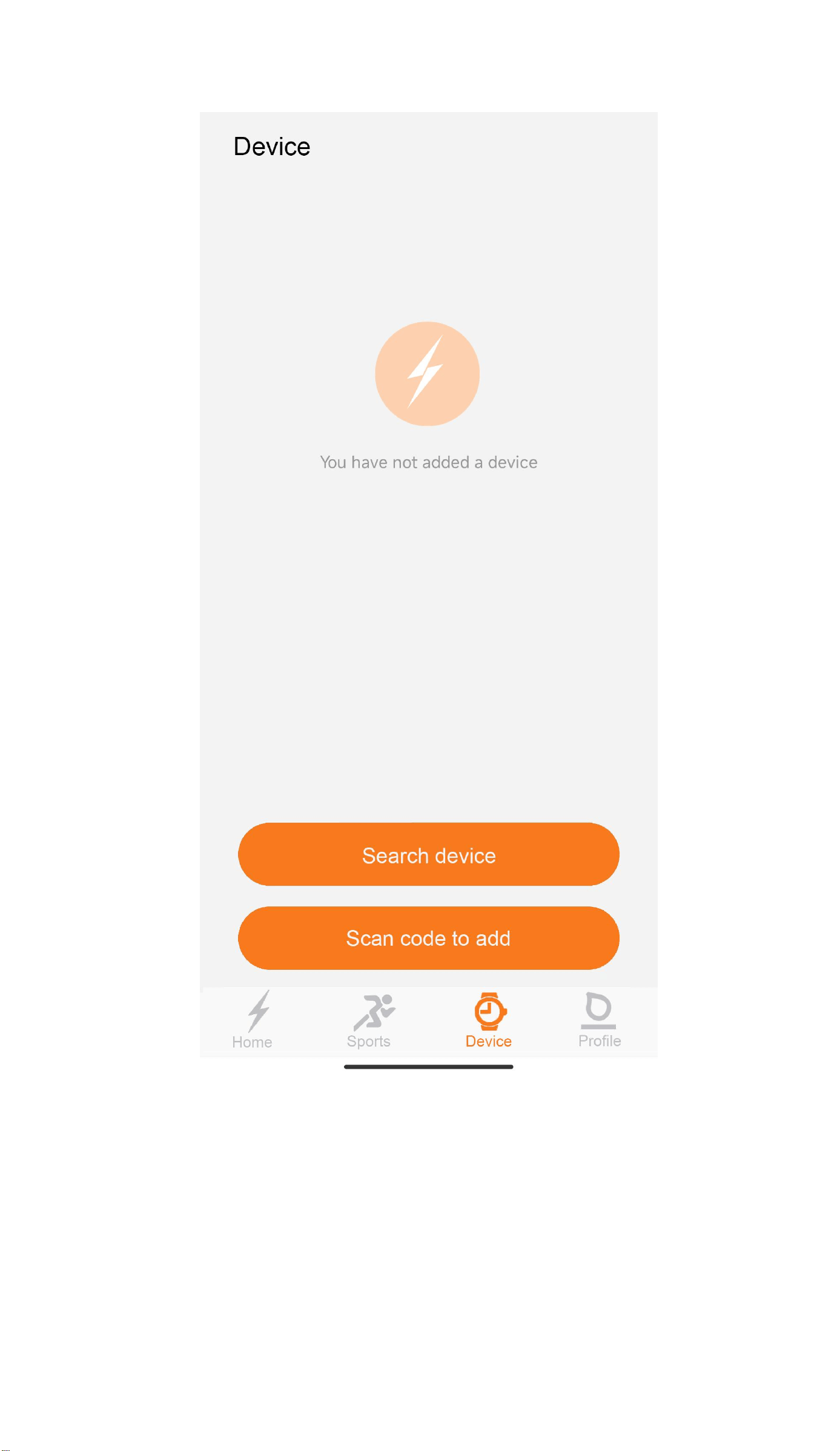
Search Device To Connect
Tap Device icon on navigation bar and click on "Search
Device" to find and connect BSW097 smart watch.(If you
can not connect with APP,please check if you have open the
bluetooth function of your phone,and try again.)

After clicking “Search Device”, APP will search near smart
watch device
After searching device,APP will show the smart
watch name and MAC address
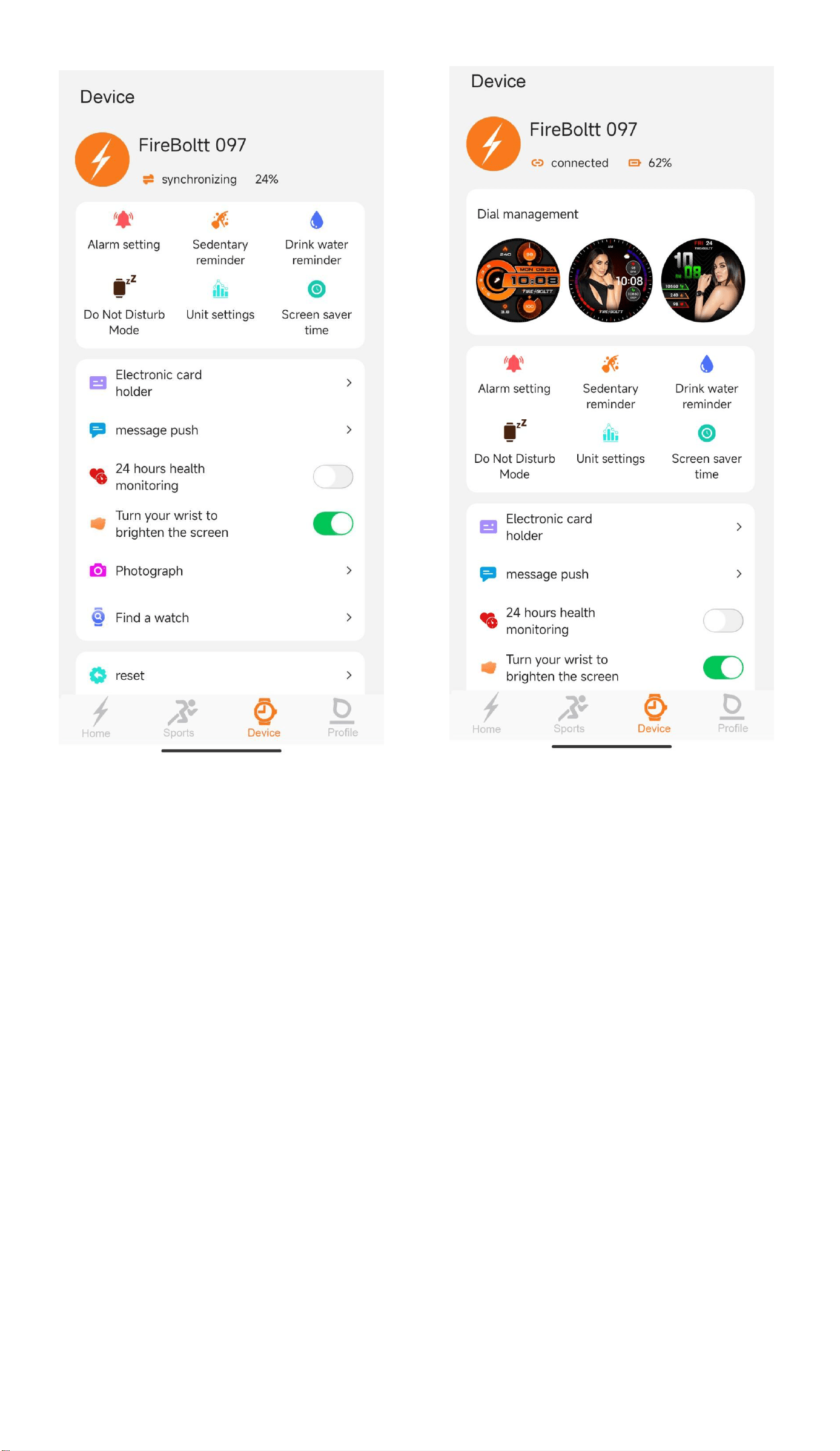
Click the device with corroct After synchronizing the data
Name and MAC address from watch.APP will show
(You can the device name “Connected”.It means the
from watch setting menu- watchmis connected with
”About “).After connecting, FB Invincible Plus App.
APP will show device name.
And dispay “synchronizing”
There are two different contents of APP displaying
after successfully connecting APP with smart watch,
based on Android system and iOS system.
Please check the following contents for Androis
system and iOS system.
How to connect watch with smartphone bluetooth:
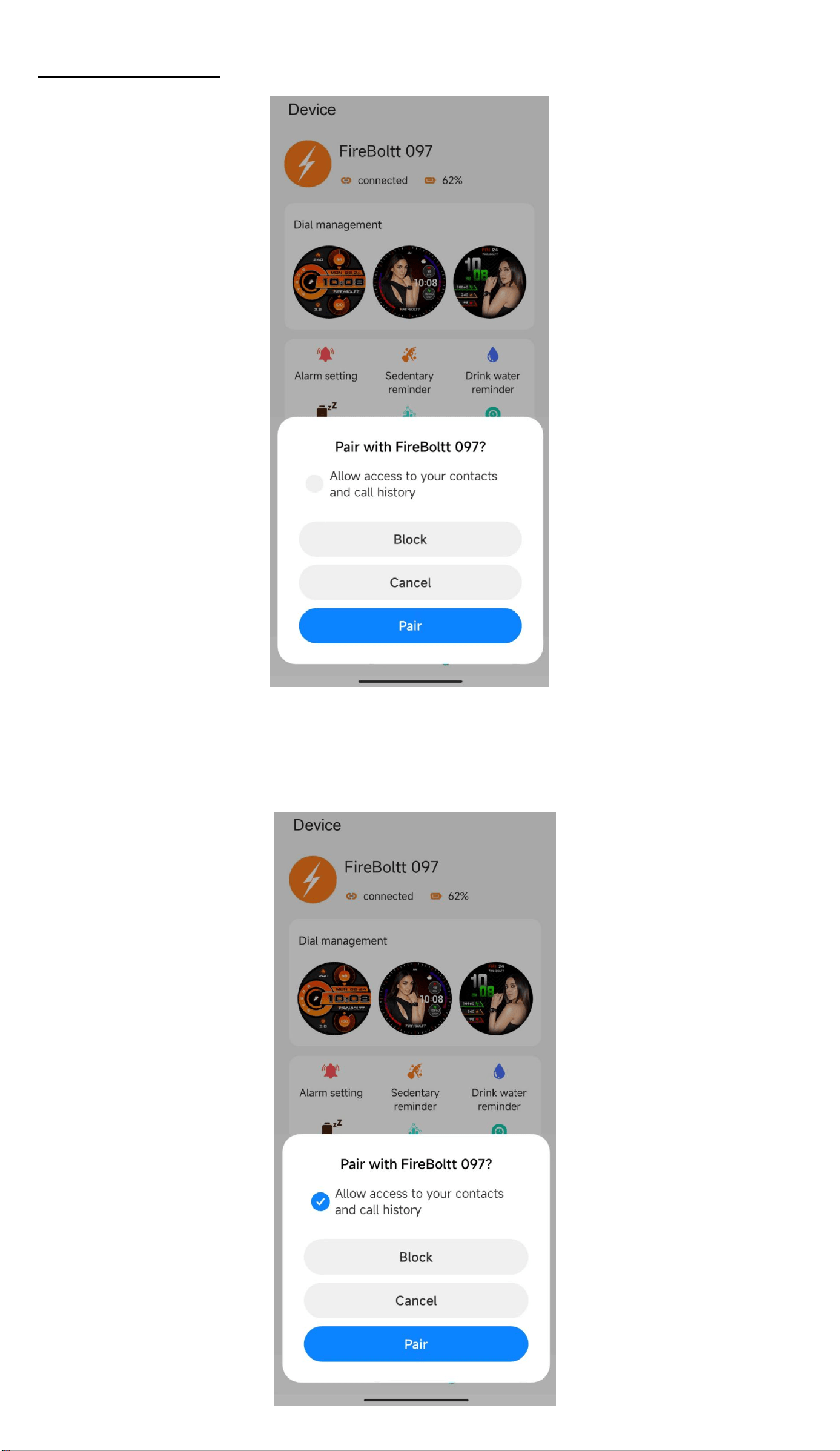
For Android
After synchronizing the date from watch and showing
“Connected”,the APP will show a bluetooth pairing request.
Please mark to “Allow access to your contacts and
history”.And “Pair” smartphone bluetooth with FireBoltt
097.
After connecting watch with FB Invincible Plus APP and
smartphone bluetooth.Please go back to watch and swipe
down at main interface to Hotkey menu to check if the
bluetooth icon and phone bluetooth are both in blue
colour.If the bluetooth icons are both in blue colour,then the
watch is successfully connected with both APP and smart-
phone bluetooth.
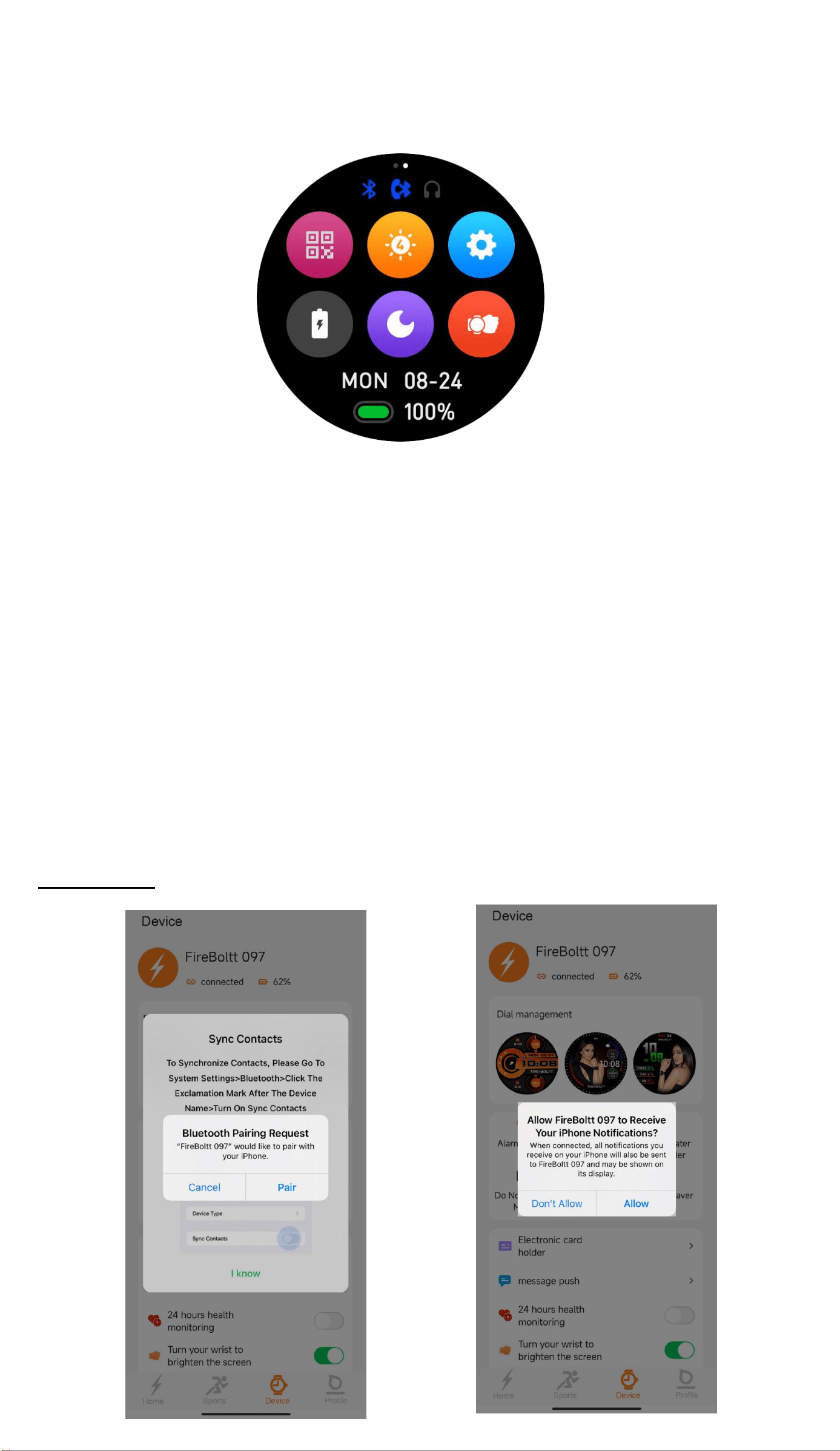
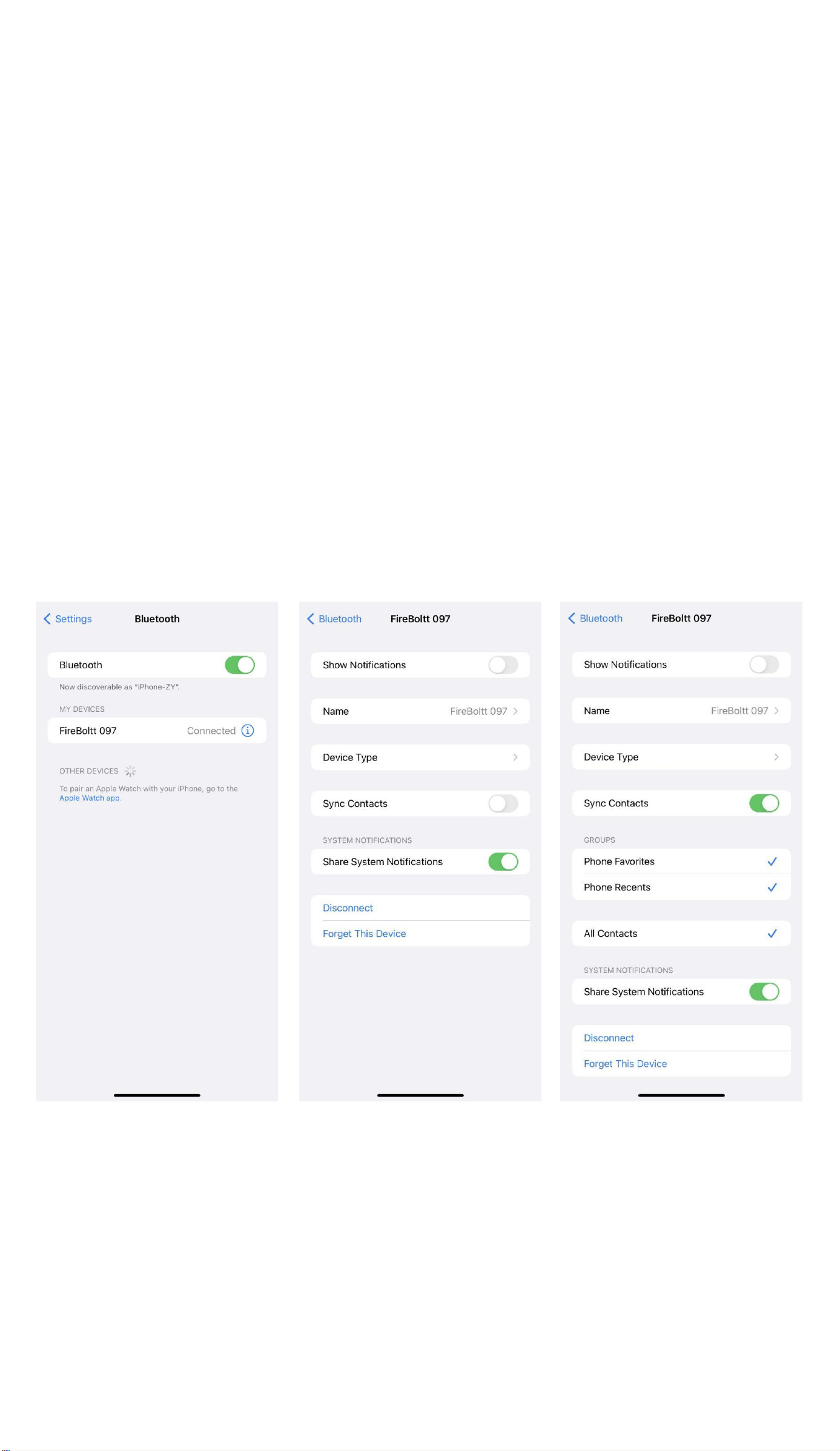
For iOS

After synchronizing the date Please allow to “Pair”the
from watch and showing watch and “Allow Fire-
“Connected”,the APP show Boltt 097 to Receive your
a “Bluetooth Pairing Request”. iPhone Notification”.
After connecting watch with FB Invincible Plus APP and
smartphone bluetooth.Please go back to watch and swipe
down at main interface to Hotkey menu to check if the
bluetooth icon and phone bluetooth are both in blue
colour.If the bluetooth icons are both in blue colour,then the
watch is successfully connected with both APP and smart-
phone bluetooth.
Scan Smartwatch QR Code To Connect
There is another way to connect smartwatch with
smartphone.
You can also scan the smartwatch QR code to
connect smartwatch with smart phone.This a the
way no need to search the device name and
smartwatch MAC address.
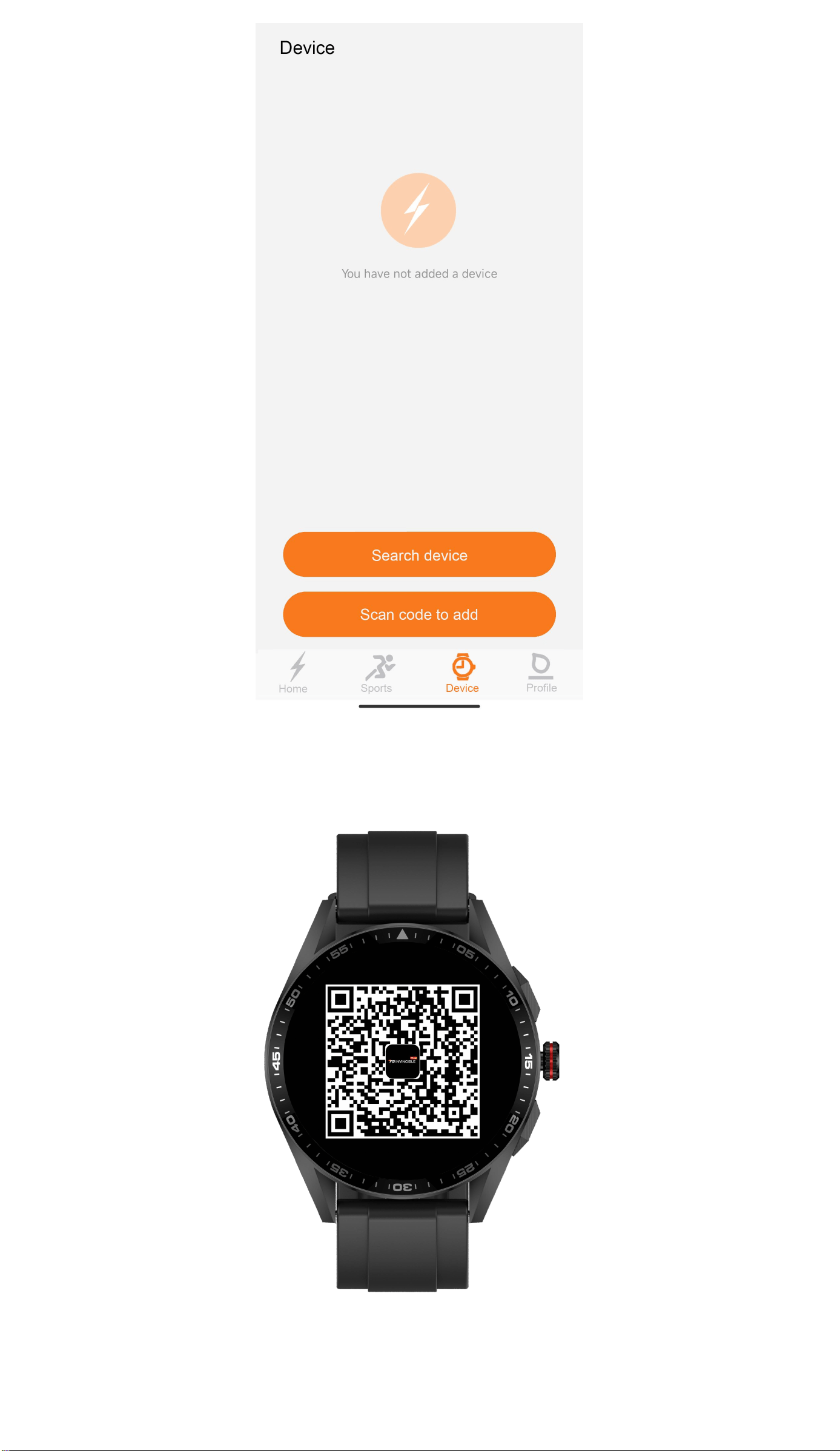
Tap Device icon on navigation bar and click “Scan code to
add”
Swipe down at main interface to Hotkey menu to oprn
smartwatch QR Code
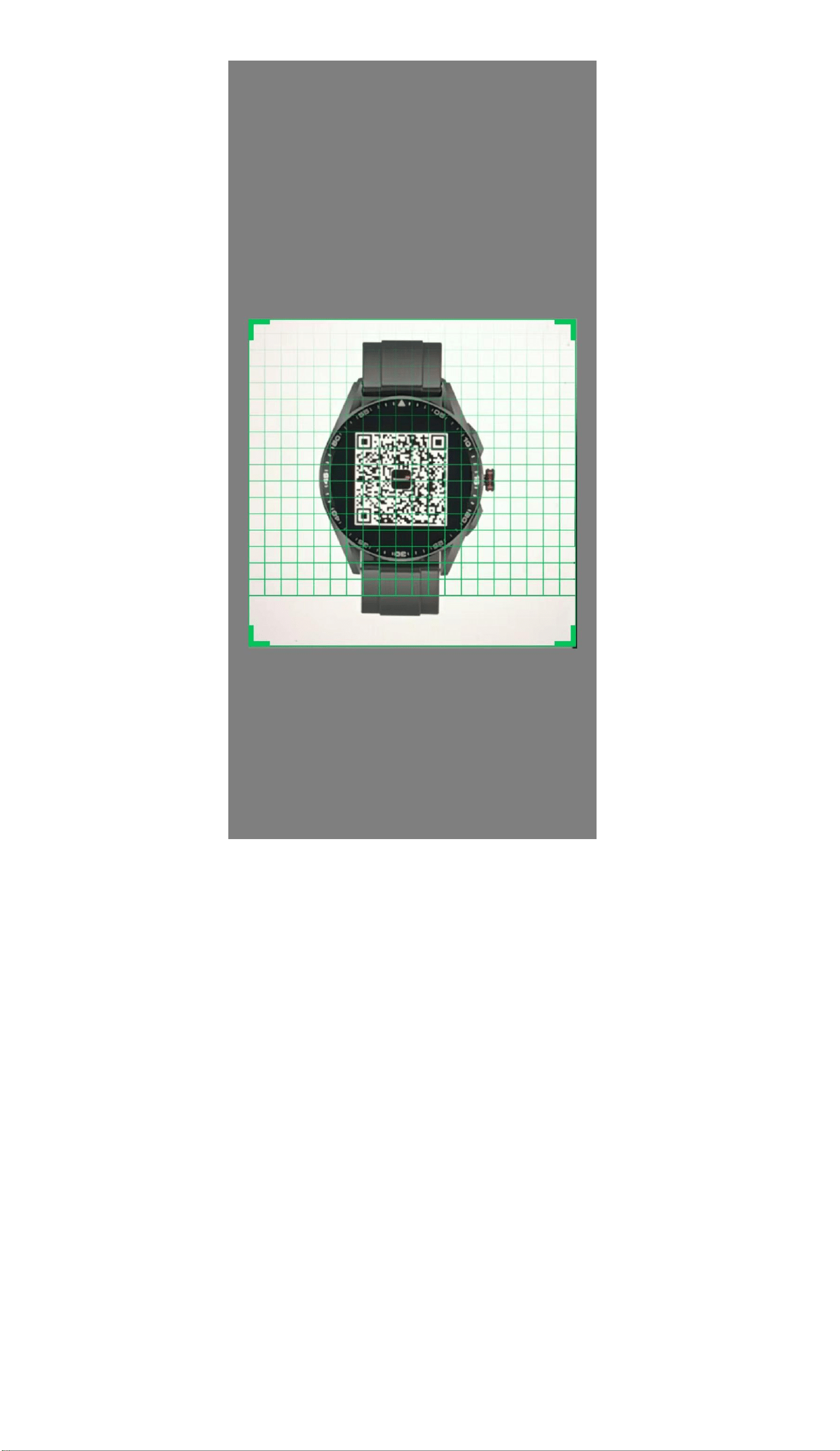
Scan the smartwatch QR Code via FB Invincible APP.Then
follow the same steps by searching device to connect.
Please note:During all connecting process,you
need to keep smartphone Bluetooth open.
Bluetooth Calling Function
After watch connecting with APP and phone
Bluetooth.You can make or receive phone calls,
check call records,check contacts.
Note:Please make sure to connect smart watch
both with FB Invincible Plus APP and Phone Blue-
tooth before you use Bluetooth Calling functions.
For iOS,you need to go to smartphone bluetooth
list and click “FireBoltt 097” to allow smartwatch
use “Sync Contact” data.
Swipe left or tap Bluetooth Calling icon to enter
into Bluetooth Calling interface.It shows Recents,
Contact and Dialpad in Bluetooth Calling inter-
face.
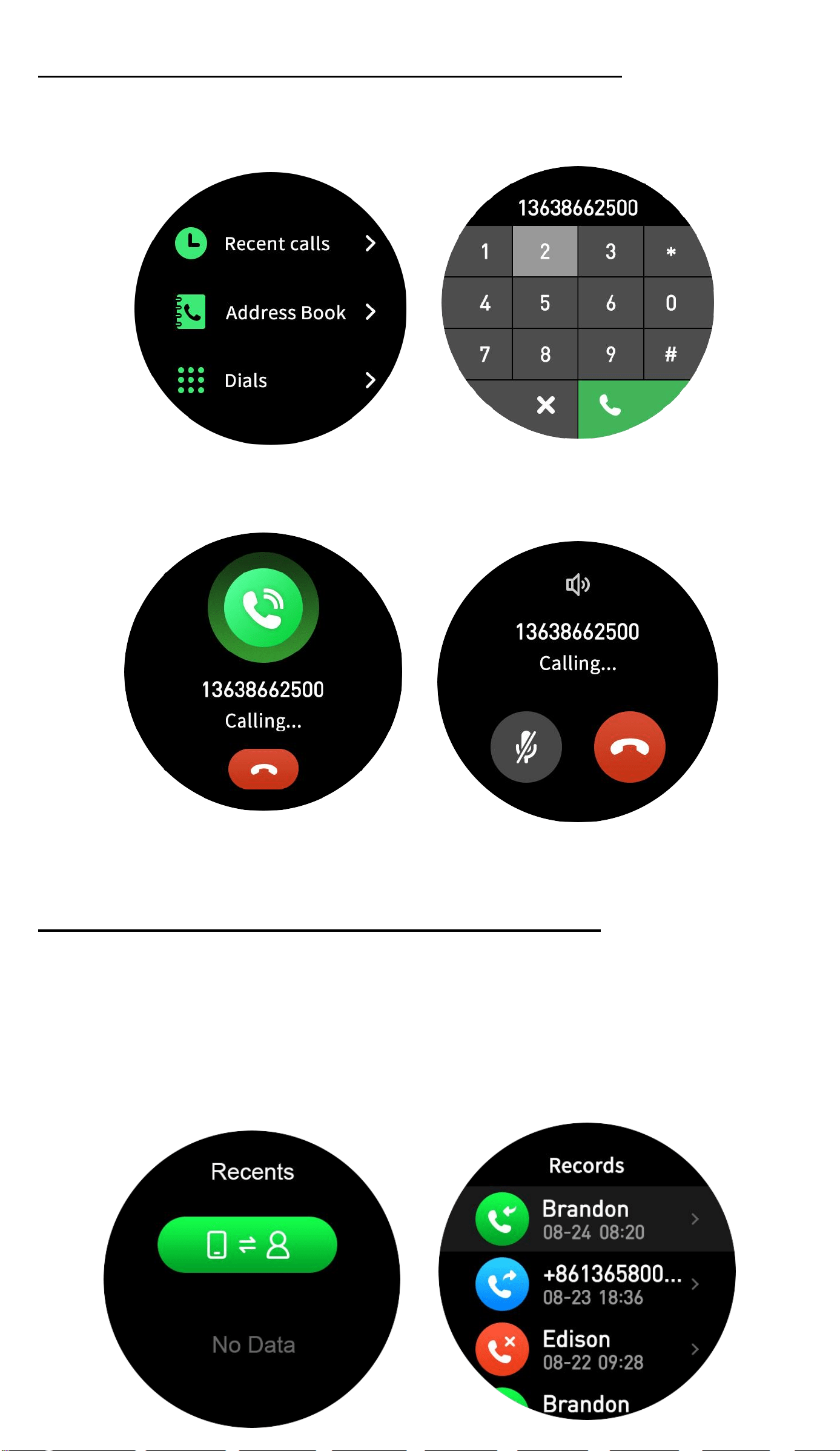
Part A - Making Bluetooth Phone Calls
Tap “Dialpad” icon to enter into Dialpad.
Then you can make bluetooth phone calls via
smartwatch.
Part B - Check and Sync Recent Calls
Tap Recents from Bluetooth Calling interface to
check recent calls. And you can tap the Sync icon
to sync smartphone recent calls to smartwatch.
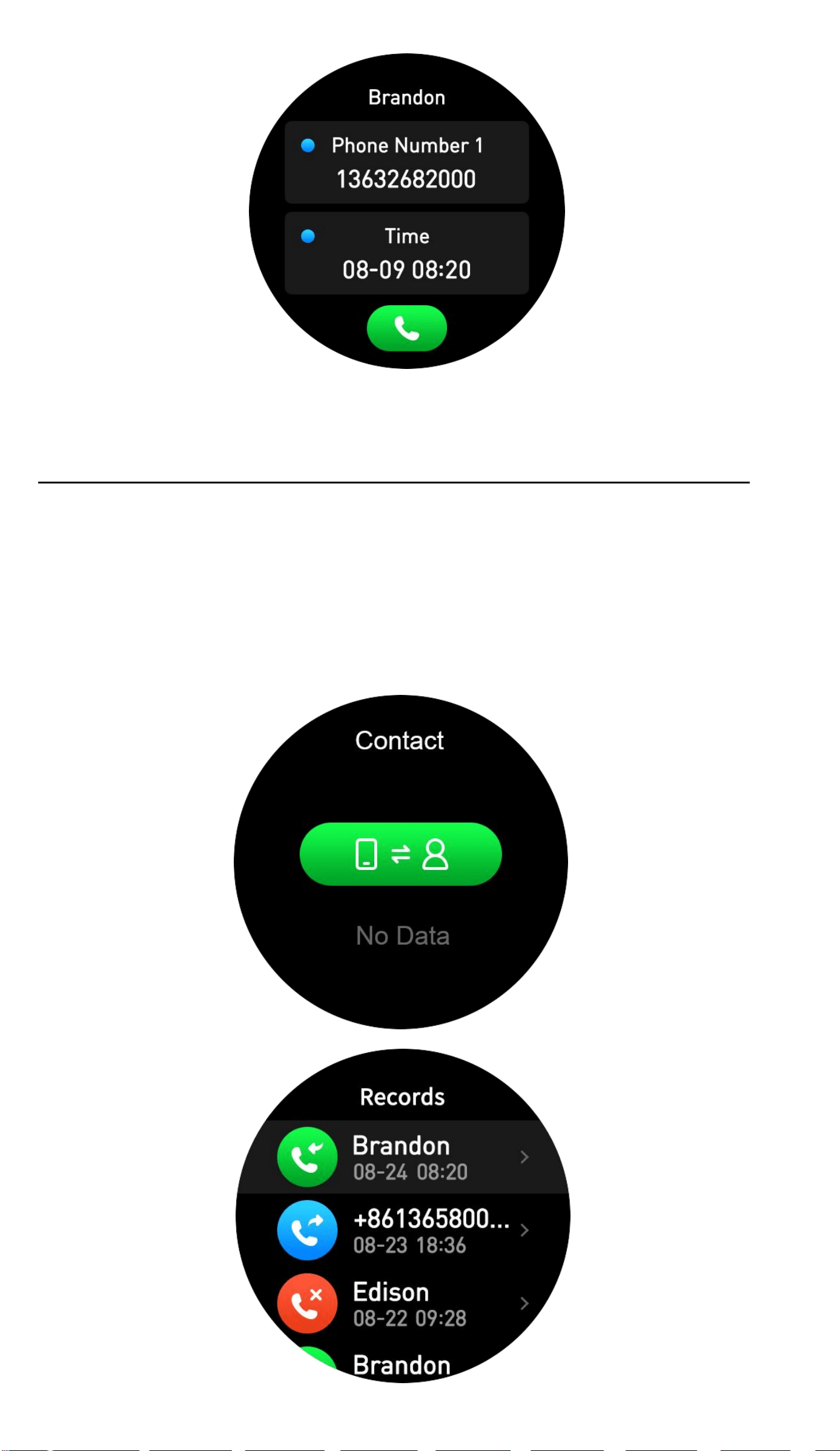
Part C - Sync and Check Smartphone Contacts
Tap Contact from Bluetooth Calling interface to
Sync and check smartphone contacts.You can
tap the Sync icon to sync smartphone contact to
smartwatch.
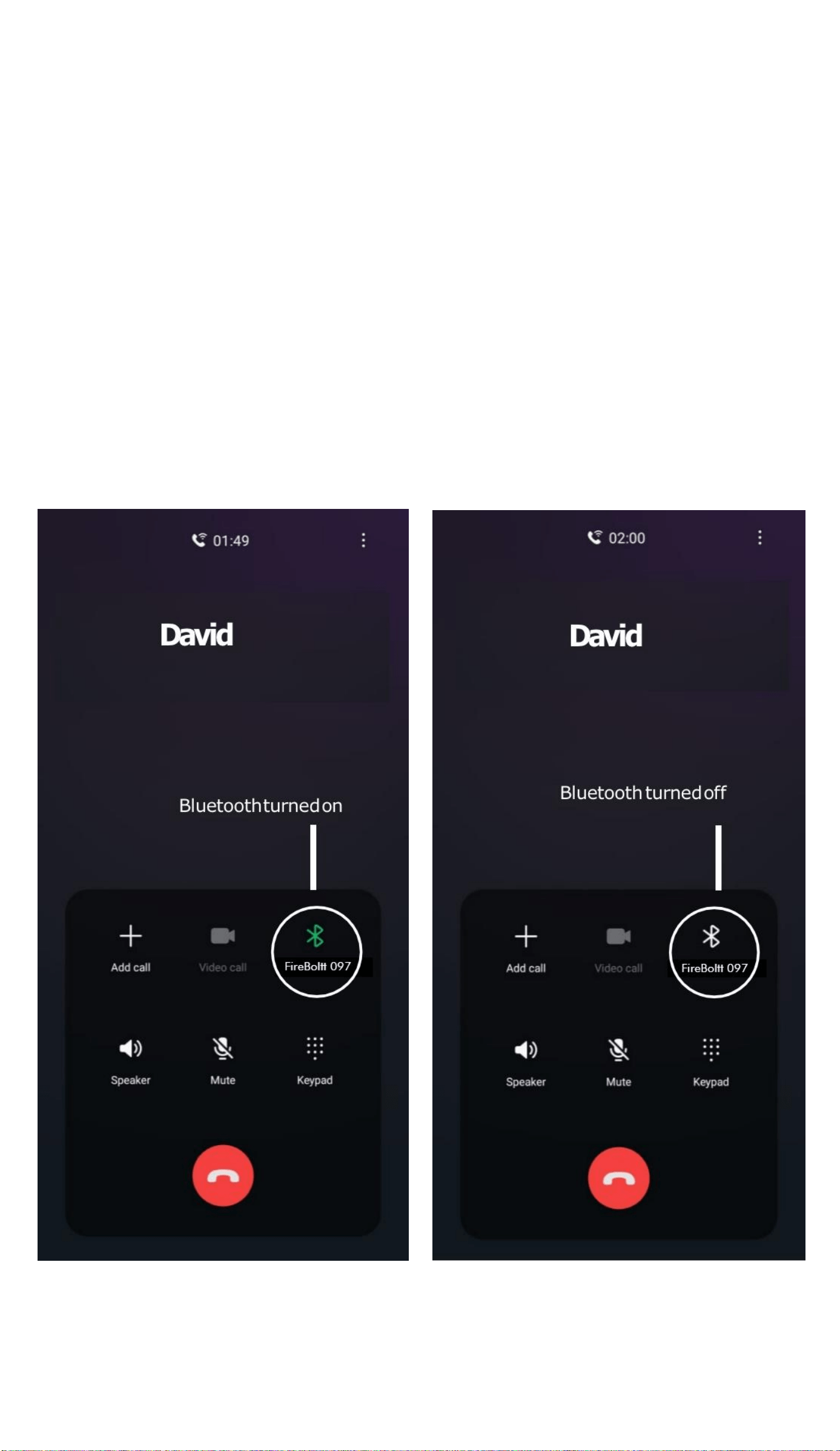
Part D - Switch calls between Phone or Watch
Switch Between Watch or Phone During an Active
Call:
If your watch is connected to the Phone via
Bluetooth,all calls will come on the watch by
default. If you want to change the call to the phone
during an active call, simply click on FireBoltt 097
Bluetooth icon to select. The call will then come on
your phone.
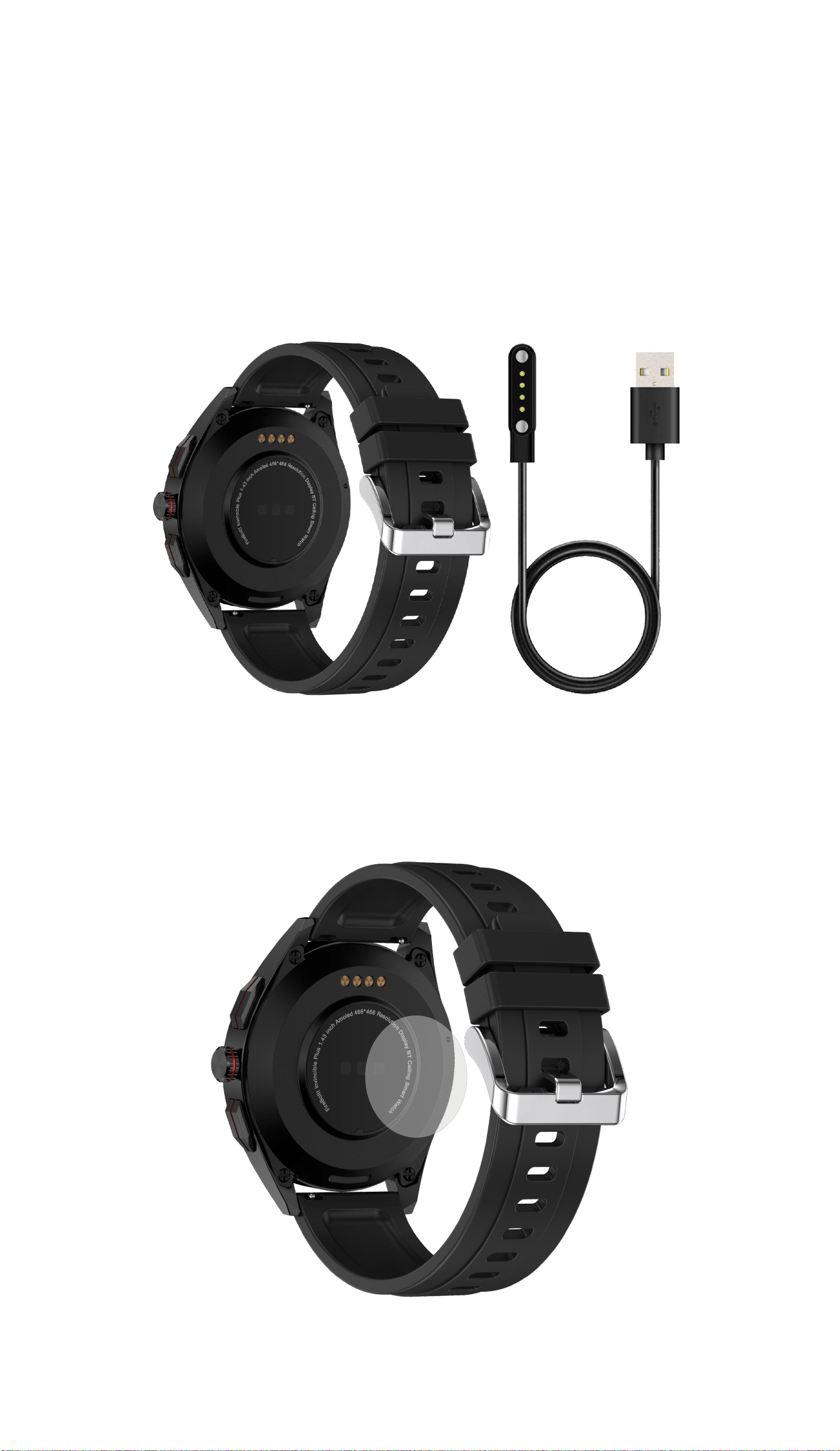
Charge The Battery And Battery Lfie
BSW097 charger is a 4-pin magnetic charger.If
you need to charge smartwatch or load the songs
to smartwatch,you can just put the 4-pin charger
on the charging port of the smart watch.
4-Pin Cable can be used to charge the battery and upload
musics to smartwatch.
There is a heart rate sensor on the sensor,you can take it off
before using smartwatch.

It takes about 3 hours to 3.5 hours to fully charge
the battery.For first using,please charge the batt-
ery for 3.5 hours before using.
The battery life time depends on your usage of the
smartwatch.The below life time is only for your
reference.
General standby time is 15 Days(Not with Screen
Screen Always-on function).
Screen always-on standby time is 2 Days.
Normally using time is 3-4 Days.
Advice: To conserve battery, It is advised to turn off
the bluetooth when not in use.
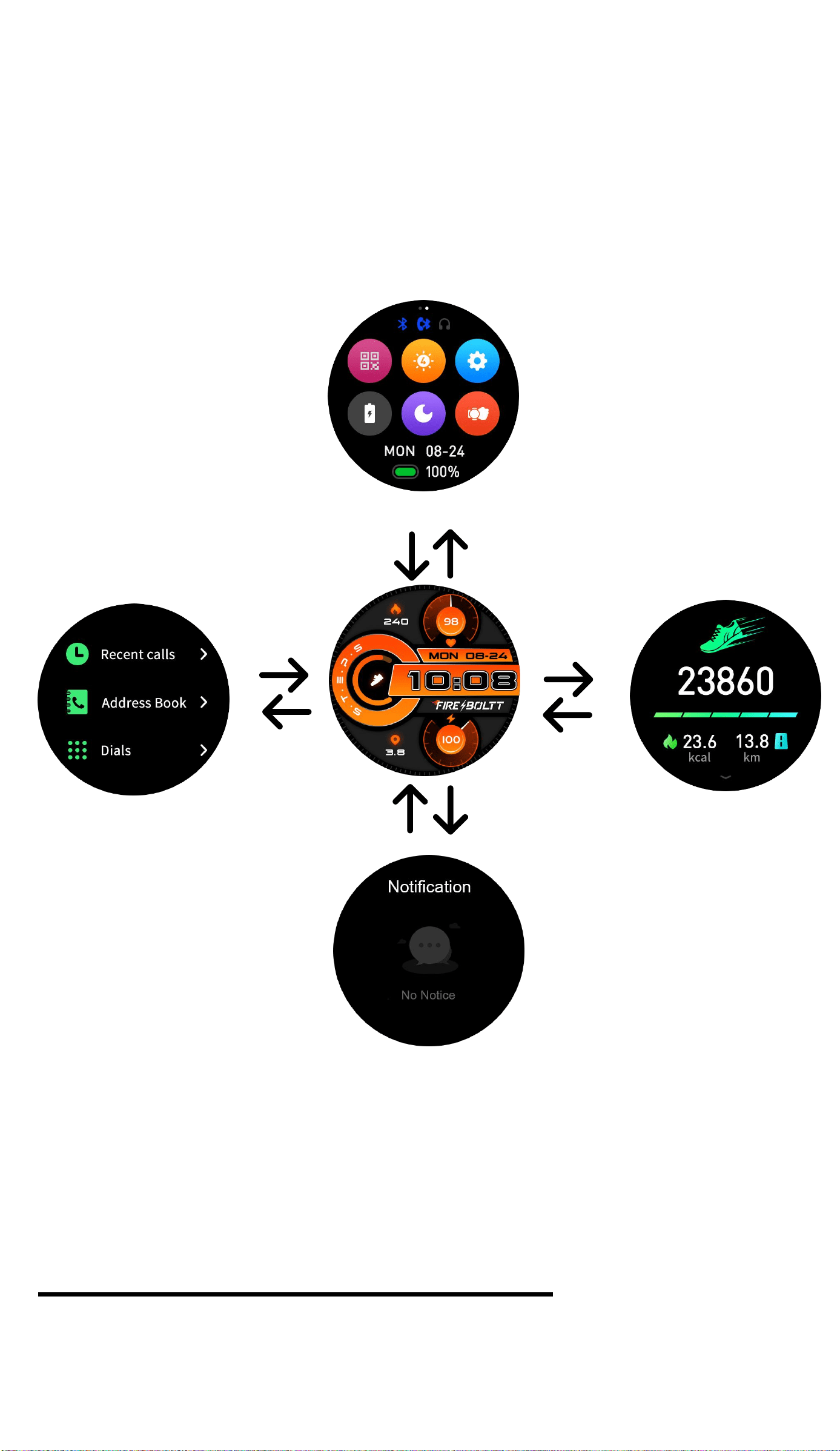
Functions Navigation And Buttons
The screen can be navigated by swiping left/
right or swiping up/down.
Control Center(Hot Keys)
Swipe Up Swipe Down
Swipe Left
Swipe Left
Swipe Right
Swipe Right
Swipe Up Swipe Down
Function Menu
Part A - Control Center (Hot Keys)
Swipe down to view watch settings.
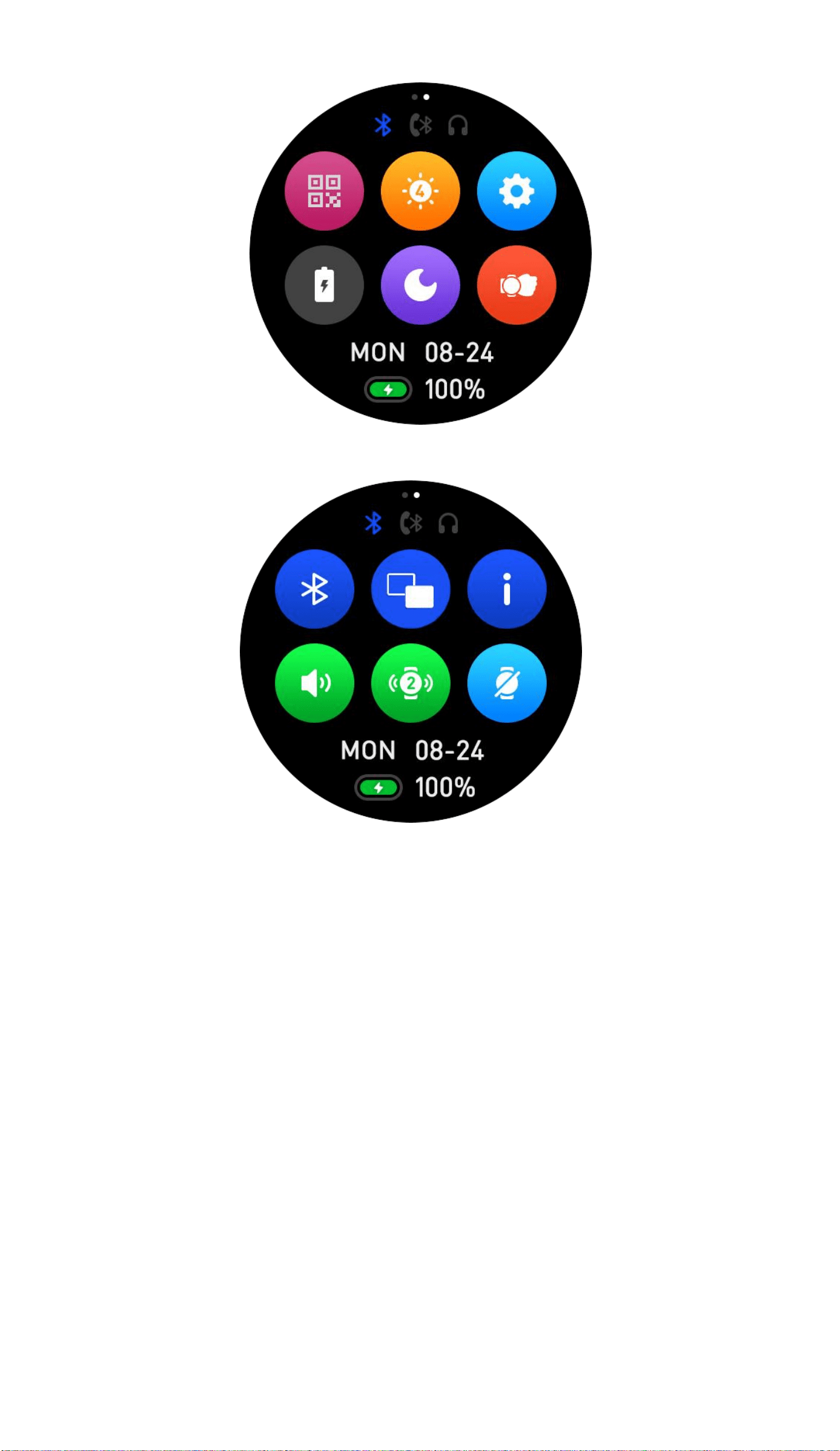
APP QR Code:
Click to download FB Invincible Plus APP.
Scan to connect watch with smartphone via APP.
Brightness:
Adjust the brightness of the screen.
Setting:
Enter into setting center.
Power Save:
Tap the icon to turn on or turn off Power Save
function.

DND Mode:
Tap the icon to turn on or turn off Do Not Disturb
Mode.
Raise Hand To Light Screen:
Tap the icon to turn on or turn off Raise Hand To
Light Up Screen function.
Bluetooth Mode Switch:
Tap the icon to switch the bluetooth mode of Music
Player.
View Menu Switch:
Tap the icon to change different menu styles.
About:
Check the smartwatch information.
Sound Volume:
Tap the icon to adjust smartwatch sound volume.
Vibration Strength:
Tap the icon to adjust smartwatch vibration
strength.
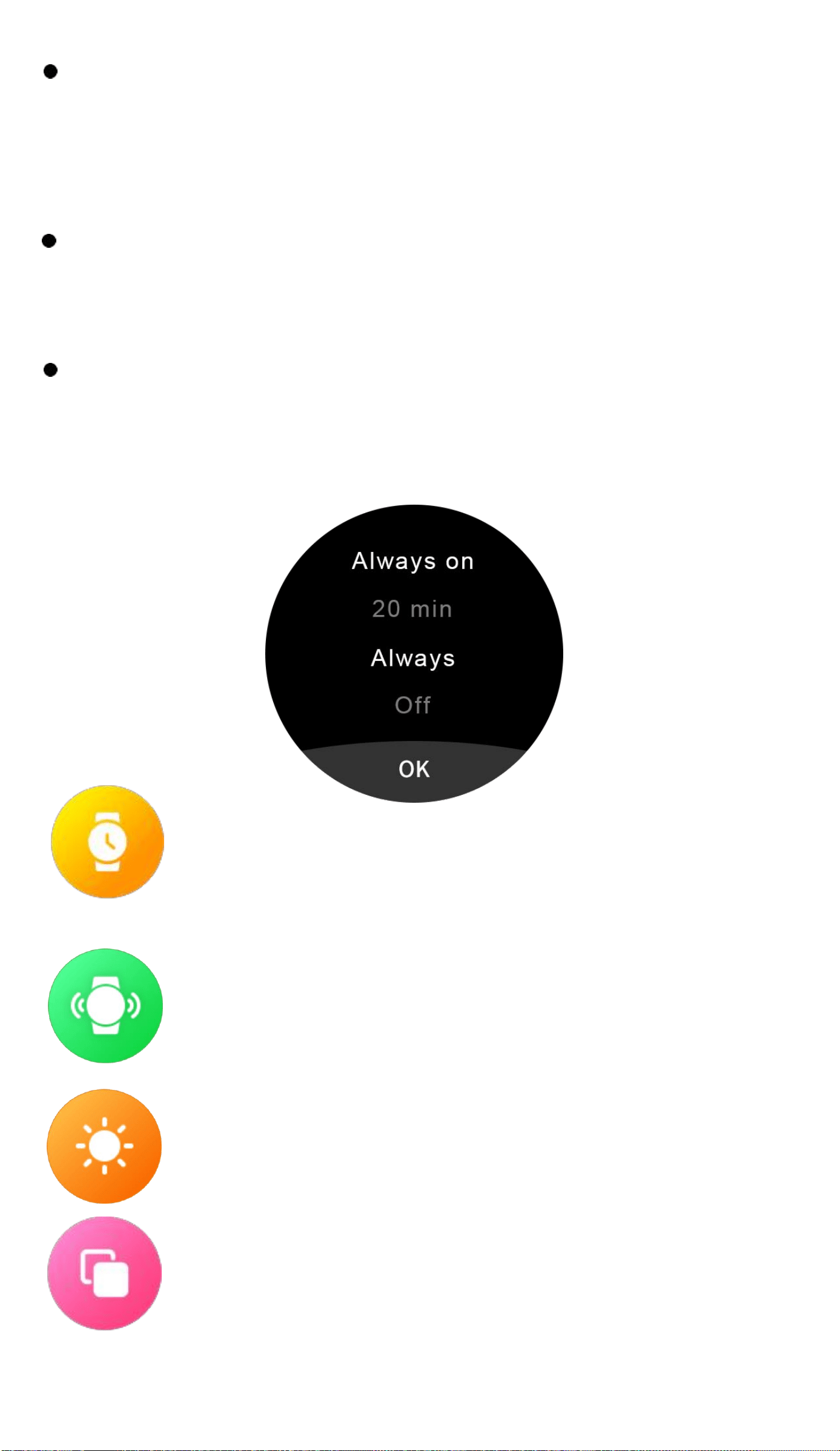
Screen Off Setting:
Tap the icon to set the screen off time.
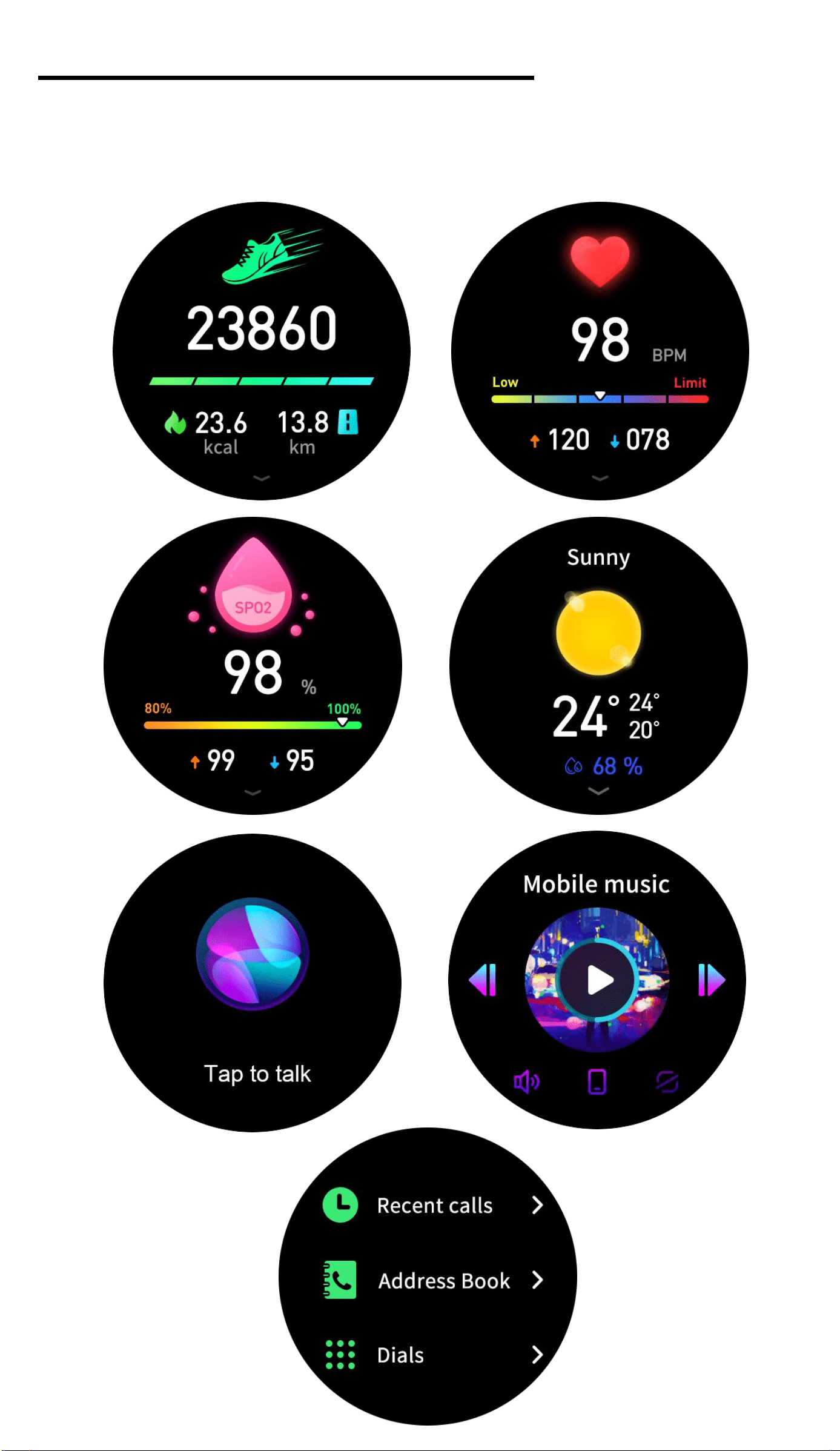
Part B - Basic Functions Interface
Swipe left or right to enter into basic functions
interface.
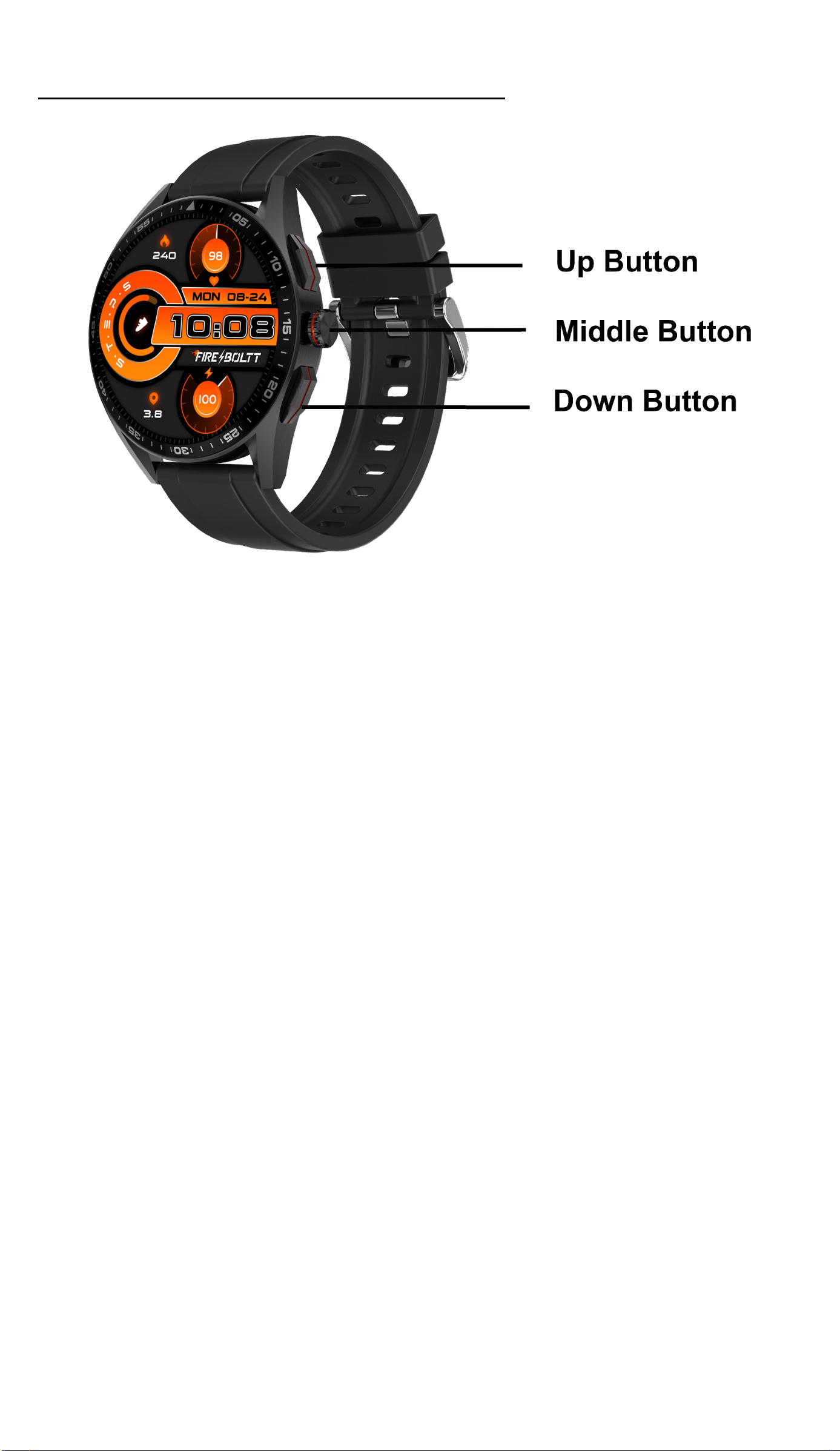
Part C - Side Buttons Functions
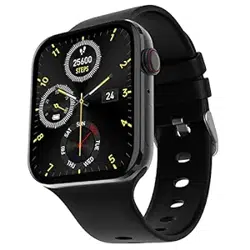
BSW097 is with three buttons,an Up Button,a
Middle Button and a Down Button.
Up Button:
Short Press - Hotkey to enter into functions menu.
Long Press - Enter into music interface.
Middle Button:
Short Press - Turn on or turn off the display,back to
main interface.
Long Prss - Turn on or turn off smartwatch.
Rotate Button to make selections.
Down Button:
Short Press - Enter into Sports Modes interface.
Long Press - Enter into Voice Assistant interface.

Functions
Part A - Basic Functions Interface
Swipe left or right to enter into basic functions
interface.
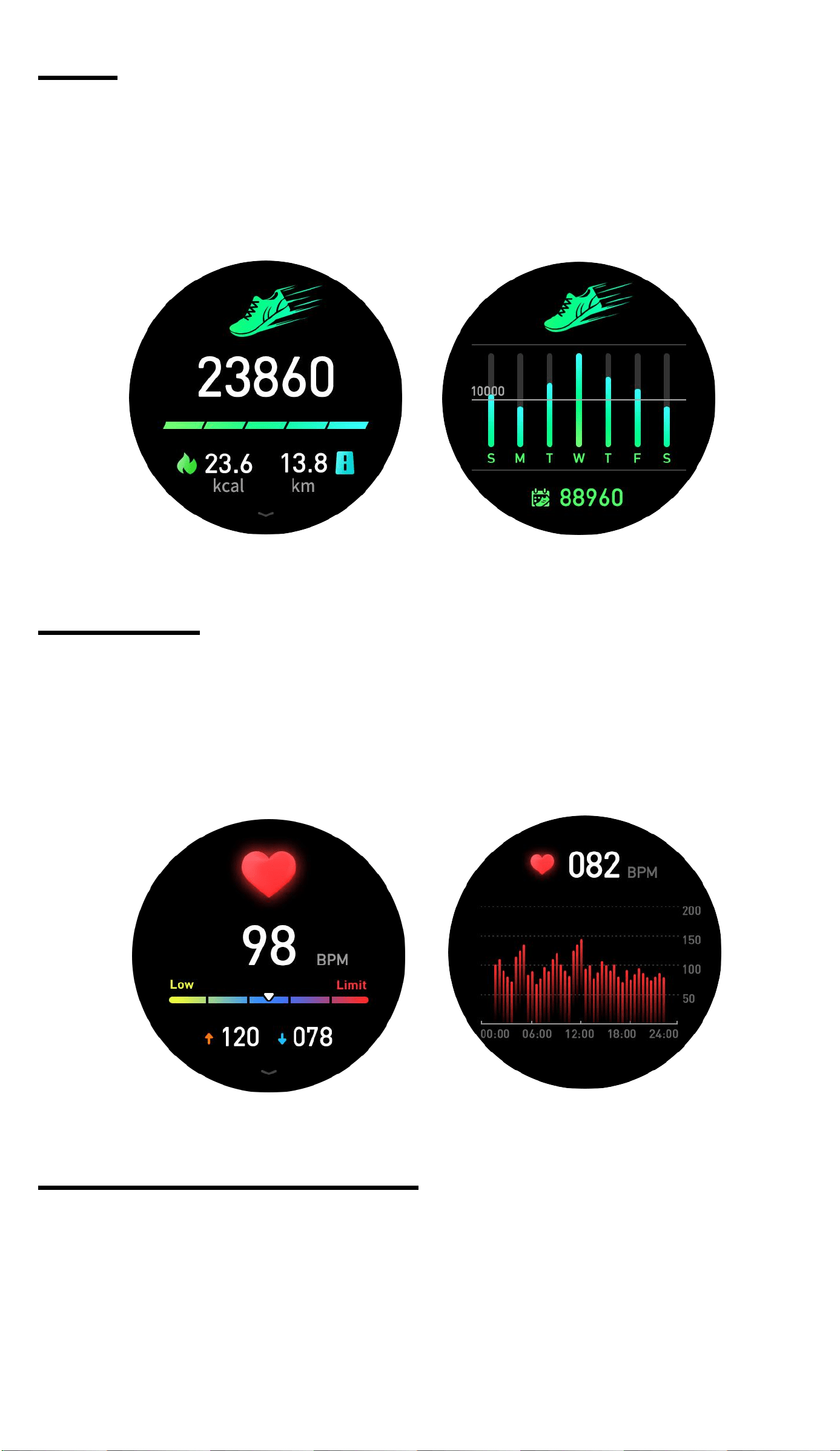
Steps - The watch automatically tracks the step
taken on the screen. Note: Your movement status
reset to 0 at midnight.
Swipe up to check more data.
Heart Rate - The watch will record your heart rate
all day. You can also tap on the page to start
measuring.
Swipe up to check more data.
Oxygen Tracking (SPO2) - Tap the SPO2 page to
start measuring. On the SPO2 page you can see
the previous data.
Swipe up to check more data.
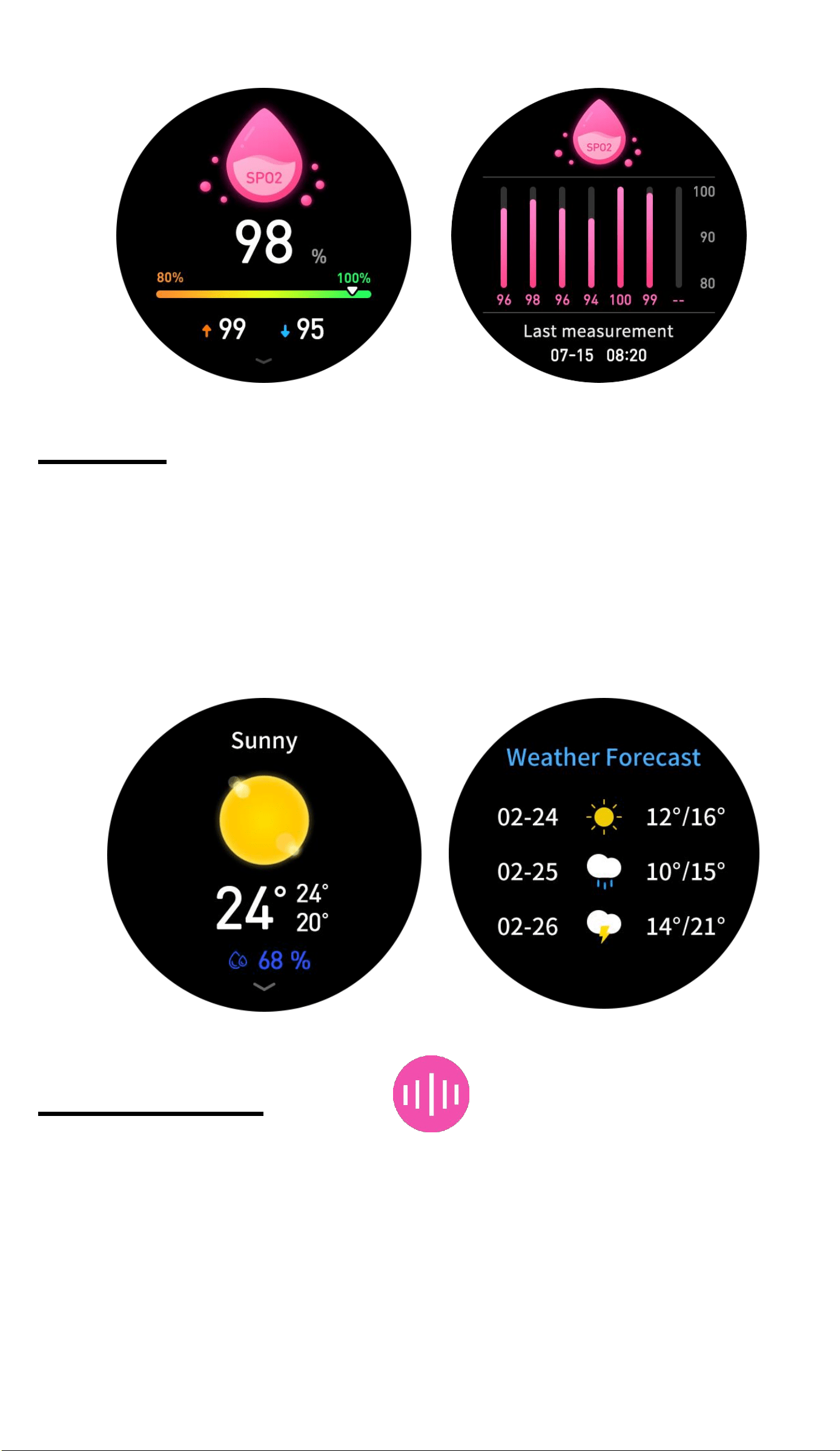
Weather - You can know the current weather and
the forecast for tomorrow, this information is
synced from your app. Scroll Up to see the
forecast weather. It will not be updated if the
phone is disconnected for a long time.
Swipe up to check more data.
Voice Assistant - Click
icon at all functions
interface or long press Down Button for 5
Seconds to enter into Voice Assistant Mode.
Then you can use Voice Assistant to control
your phone.
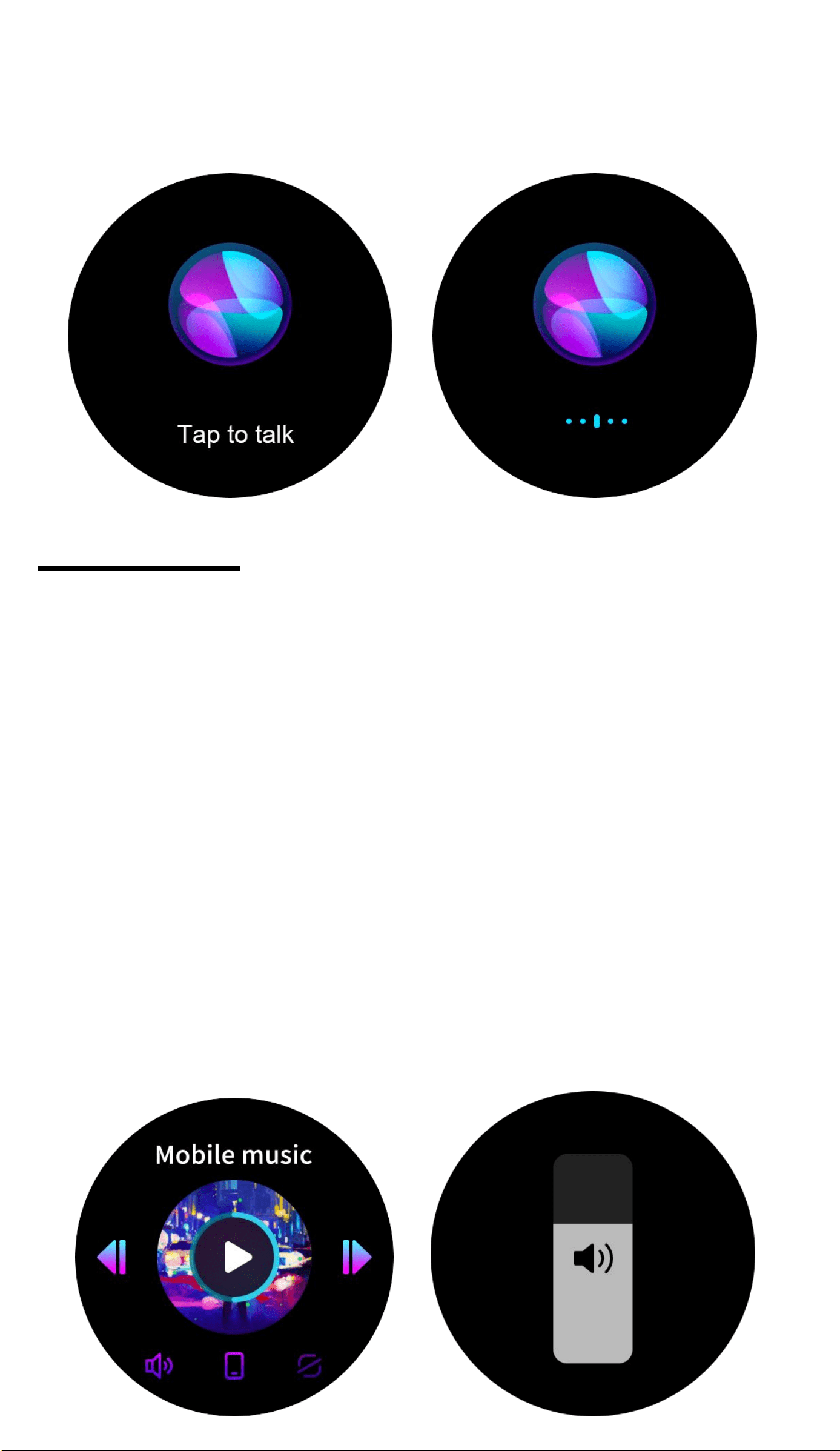
Please make sure watch is connected with FB
Invincible APP and smart-phone bluetooth.
Music Player - BSW097 smart watch supports
Mobile music player,Local music player,TWS
earbud sconnection.You can select to play mobile
music,local musics or connect with TWS earbuds
to play local musics.Swipe right from main inter-
face or clickmusic icon at full functions interface or
long press Up Button 5 seconds to enter smart
watch music player.
The default music player is Mobile music player,
so please make sure smart watch is connected
with APP.Then you can control to play the musics
in your phone through the smart watch.
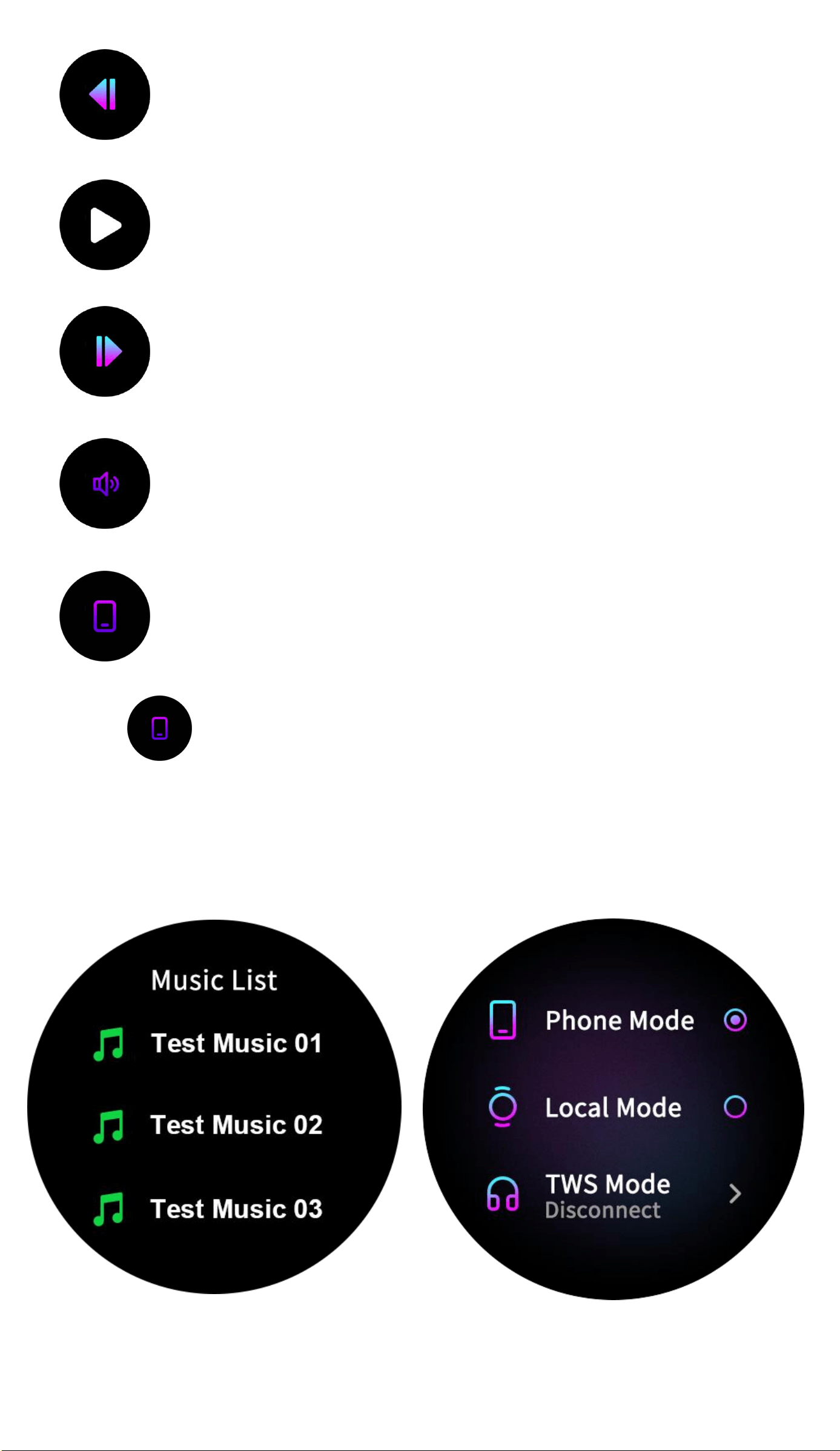
Play the previous music
Play and pause
Play the next music
Adjust the volume level
Switch mode play mode
Click
icon to switch music player mode,you
can select to play local music or connect with TWS
earbuds to play local music.If you switch to local
music,you will see following interface.

Click the music title at Local music mode to enter
Music List to select your musics.We preload 5 test
musics for you.You can load more musics based
4GB storage.
Select TWS Mode to connect with TWS earbuds.
You need to search BT headset device,then click
and connect your BT earbuds.
Note:When you at Local Mode or TWS Mode,the
bluetooth is disconnected.So you need to wait for
5 seconds after turning back to Phone Mode.
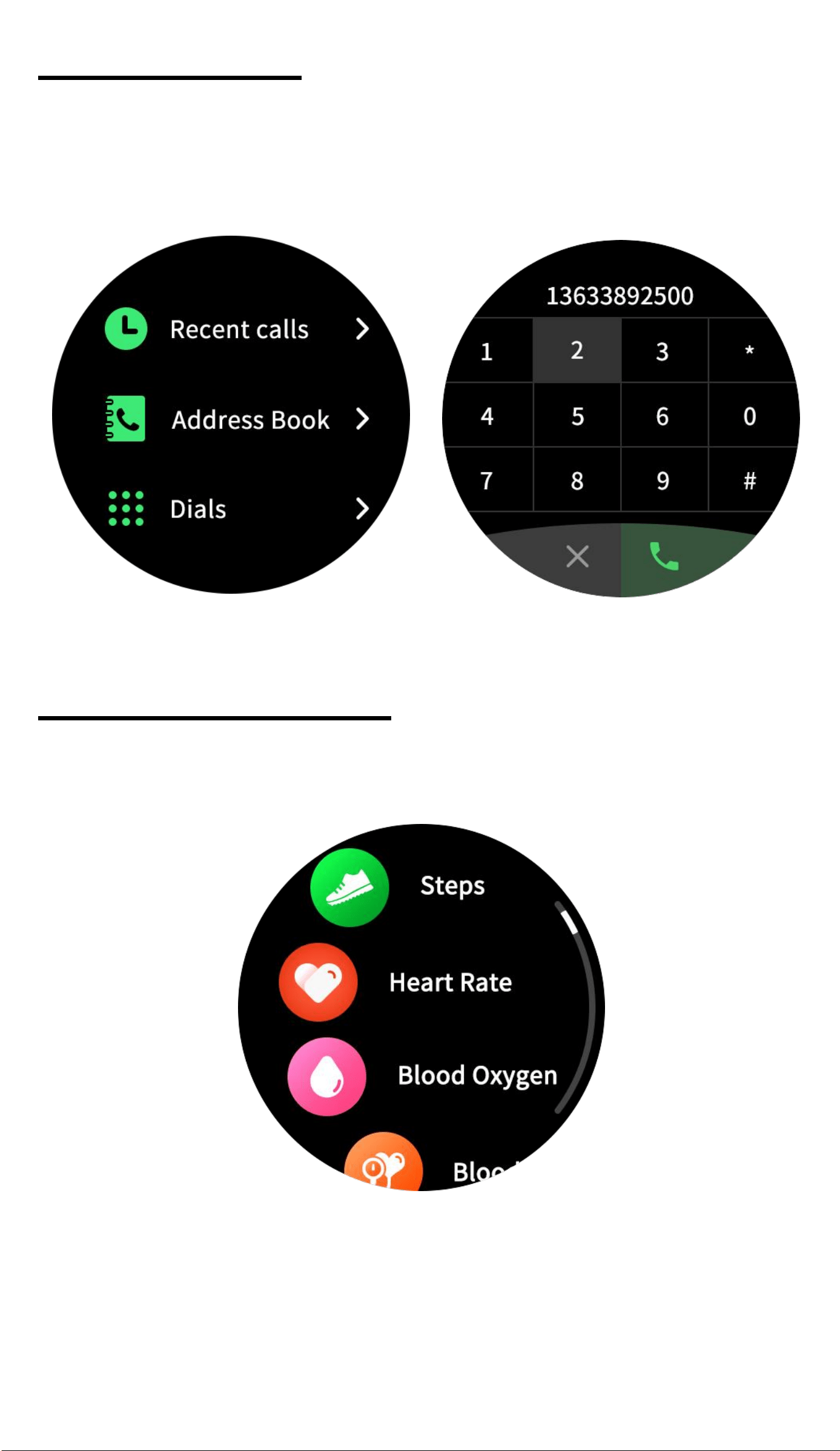
Bluetooth Calling - You can check the recent calls,
dial the numbers and check contacts from BT
Calling interface and enjoy the bluetooth calling
experience.
Part B - Main Functions
Swipe up to enter into all functions interface.
Apart from basic functions as Steps,Heart Rate,
Spo2,Weather,Voice Assistant ,Music and Blue-
tooth Calling functions,you could also use more
functions like Sleep Monitor,Sports,Sport History,
Breathe Training,Messages,Flashlight,Calclator,
Alarm Clock,Stopwatch,Timer,Find Smartphone,
Camera and other settings.
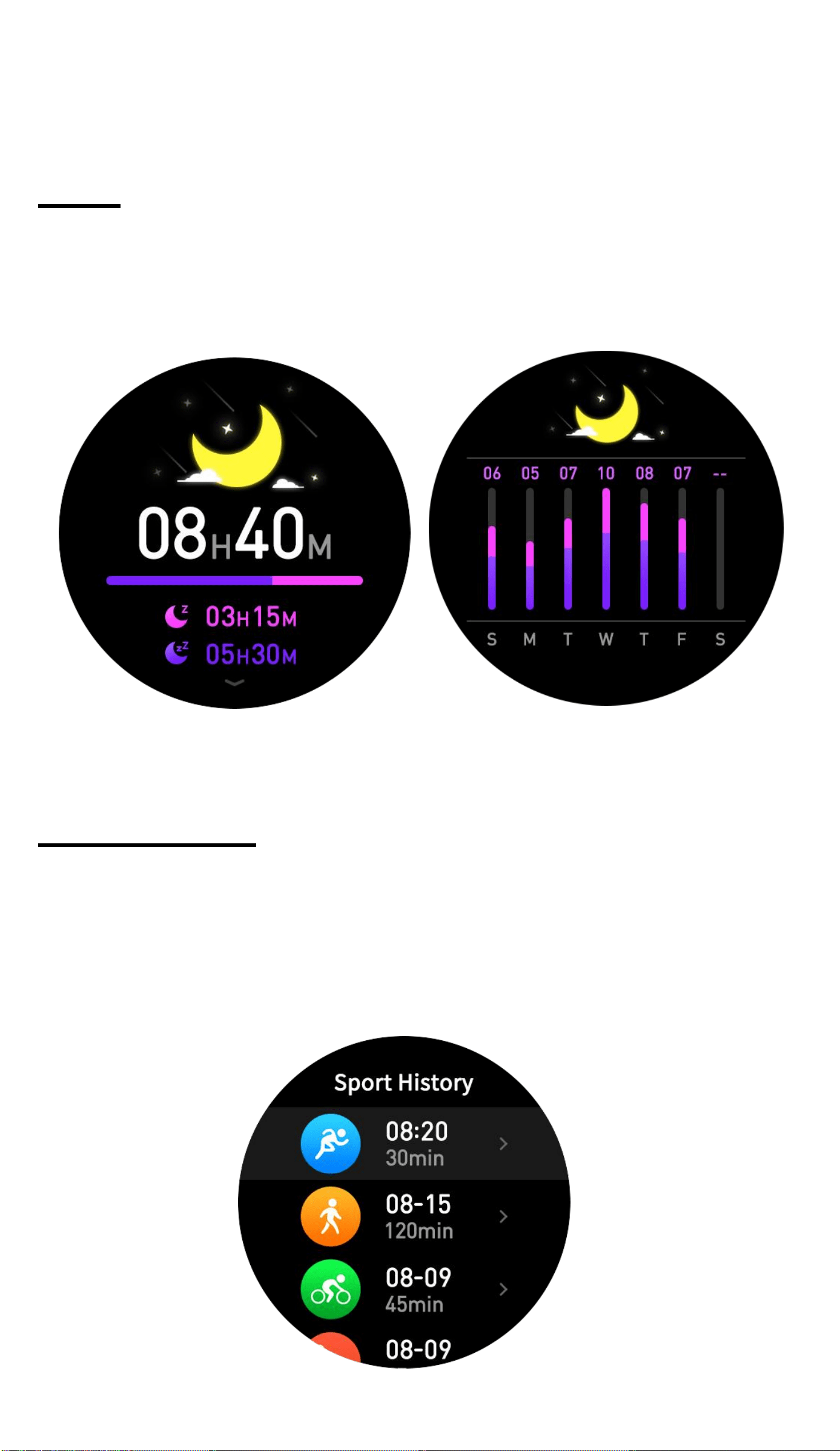
Sleep - You need to wear the watch while sleeping,
it will provide the hours slept and quality of sleep
stats.
Swipe up to check more data.
Sports History - If you select to save the sport
record,the sprot record will be saved,and you can
check the date in Sport History Mode.
This feature allows you to have a overlook of the
sports activity performed for the week.
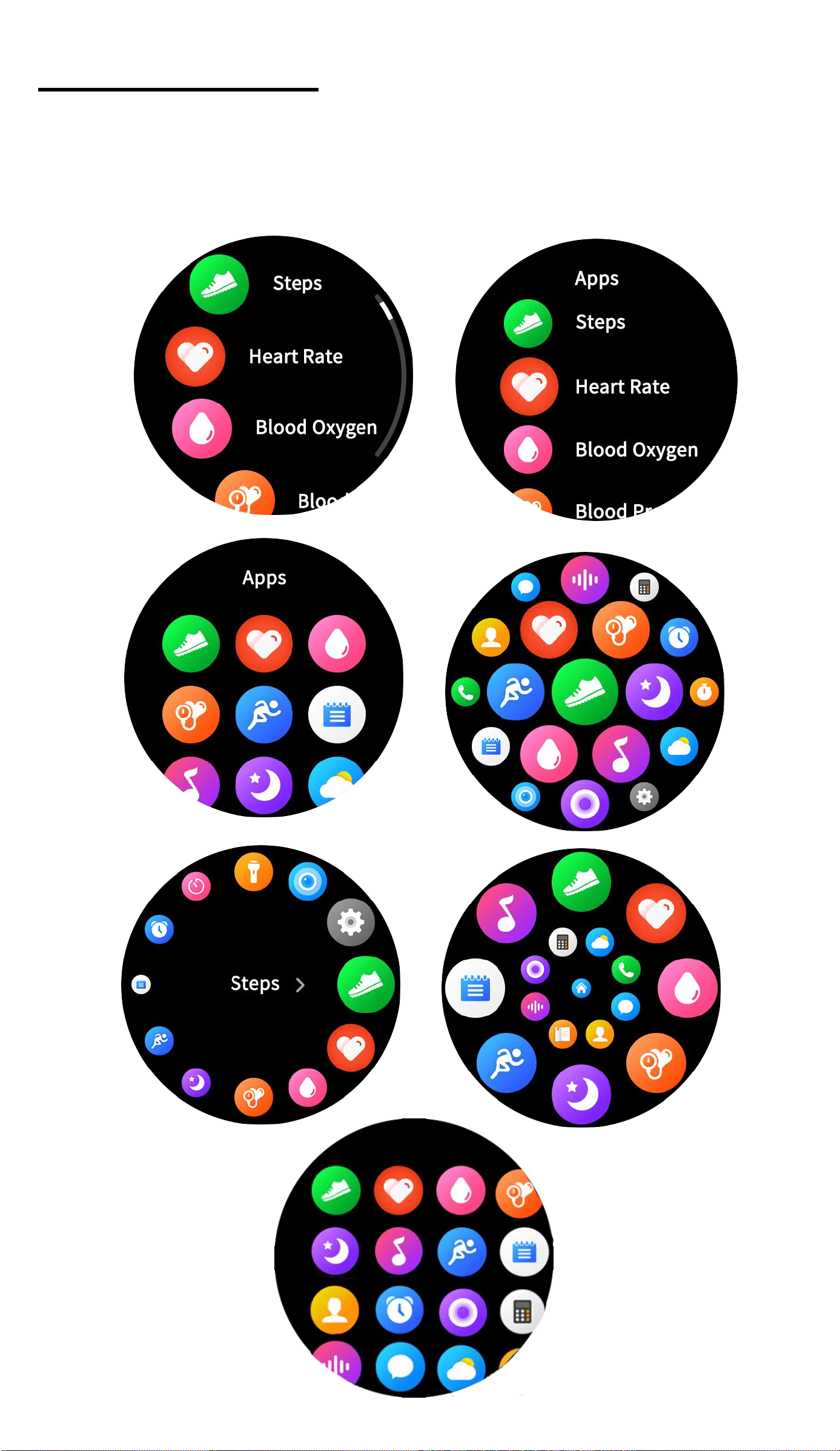
View Menu Setting - There are seven view menu
styles for your selection,you can choose what
you like as view menu style.
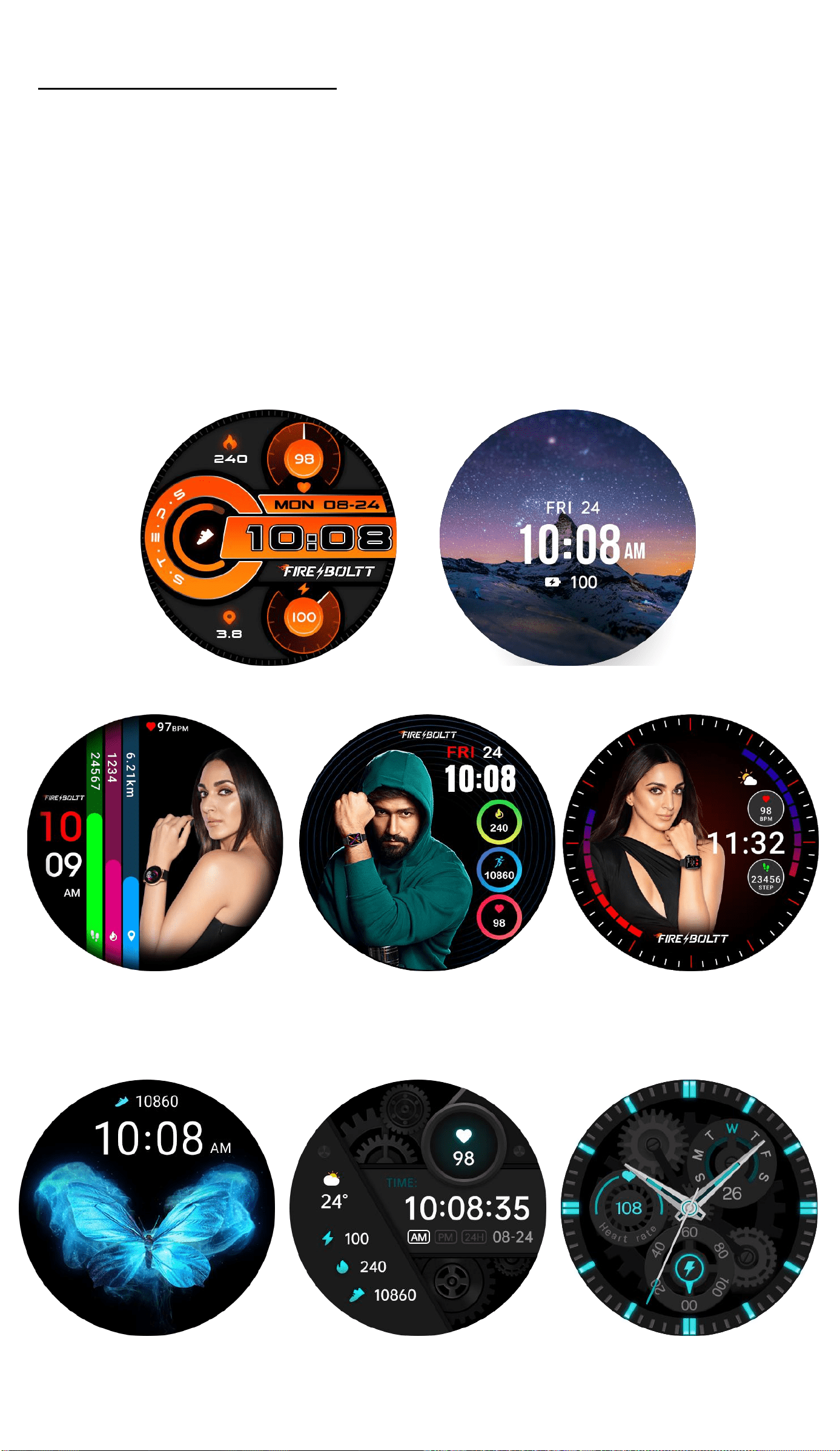
Watchface Settings -
Press the screen for 5
seconds at the main interface or tap watch
face function icon at all functions interface to
enter into Watch Face Mode,there are 120+
watch faces in-built for your selection.Total
122 watch faces includes
121 watch faces and 1 DIY watch face.
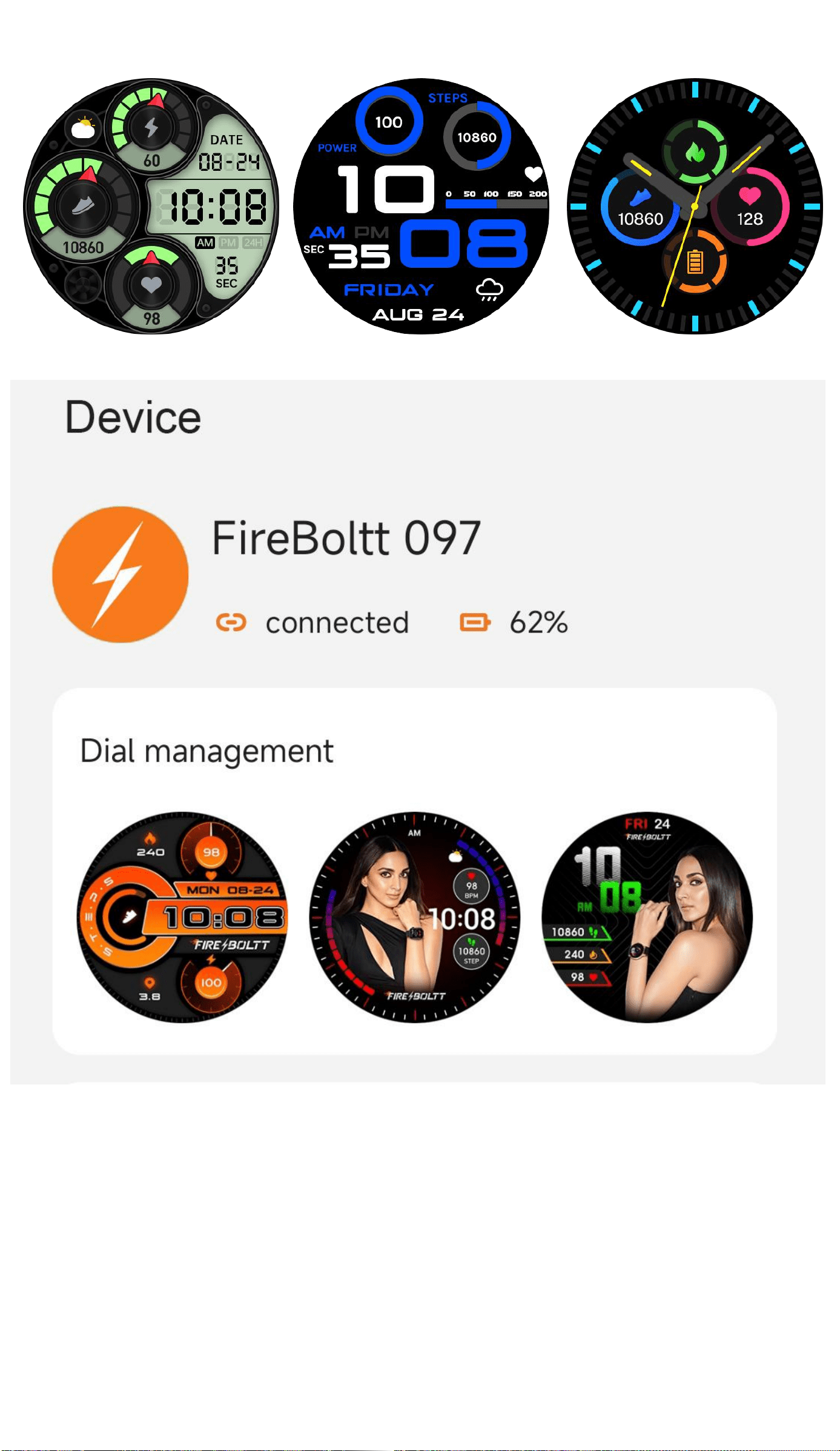
Click “Dial management” to manage all watch
faces on APP.On APP here,you can change built-
in wach faces,set customized watch faces and
download watch faces as well.
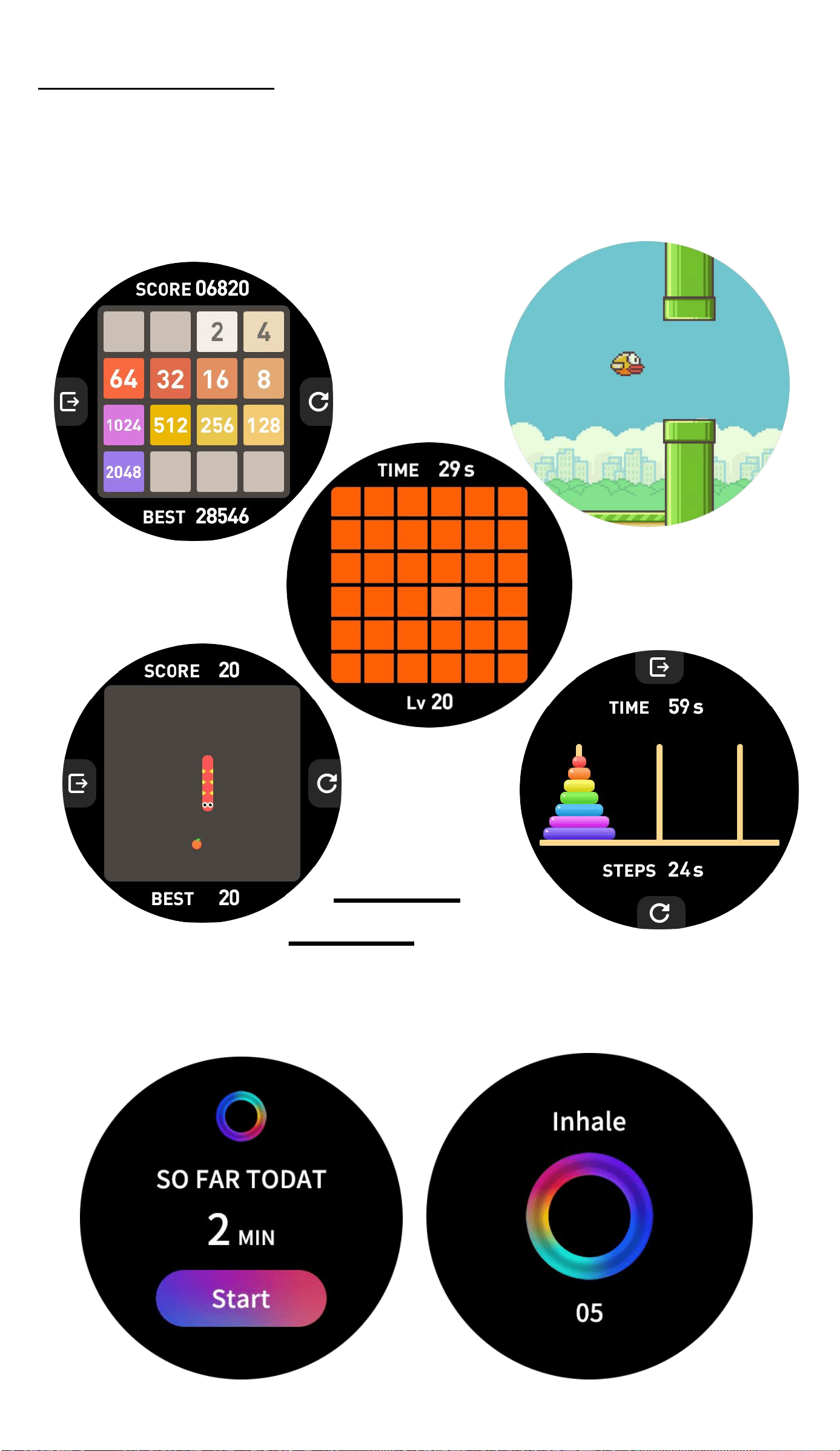
Game Function - There are 5 In-built Games in
the watch.They are 2048,Snake,Flappy Bird,
Color Blind Card and Tower of Hanoi.
Breathe
Training - This
function helps you to do
brea-thing activity and ensure great health.
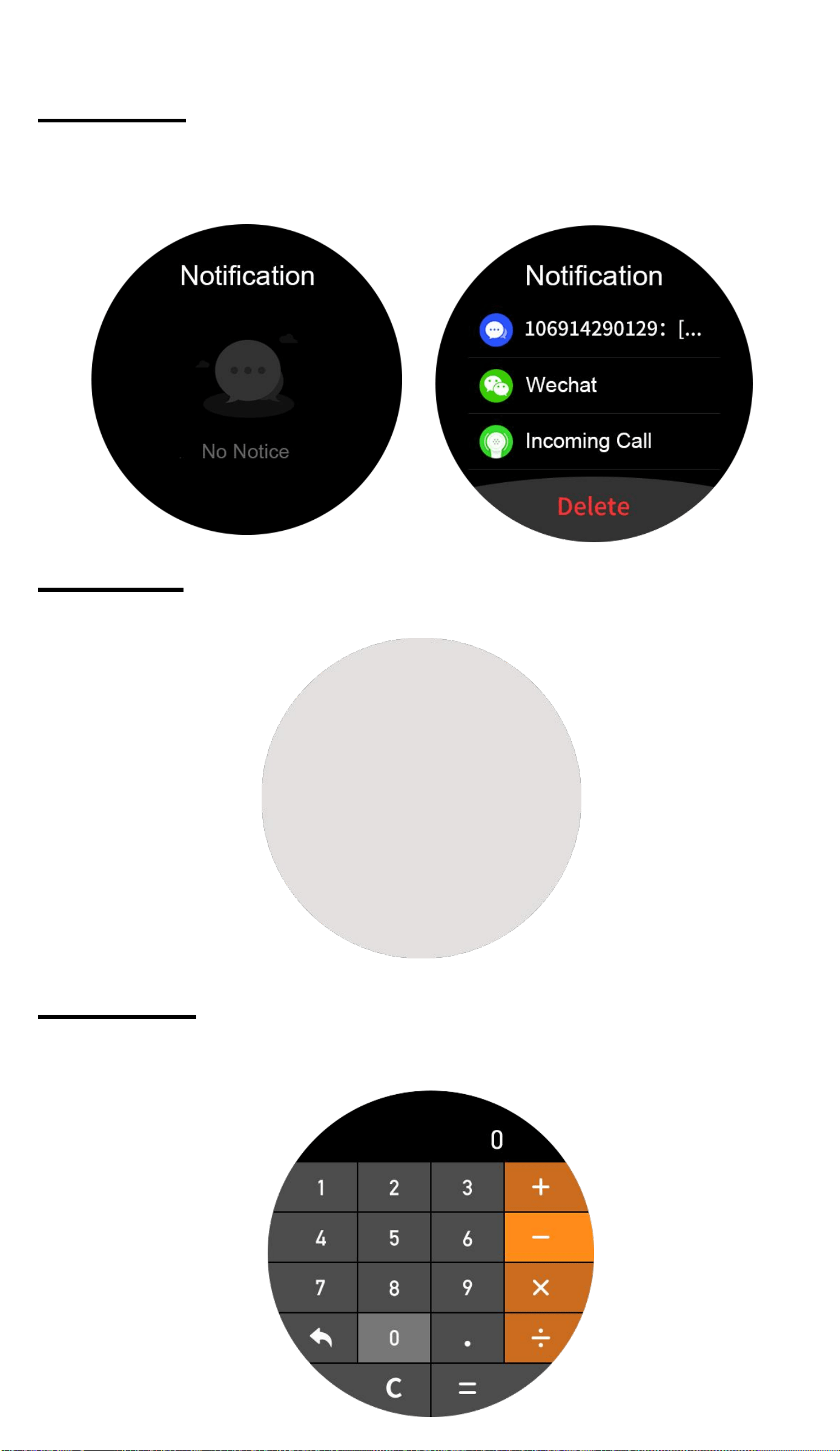
Messages - This function helps you to
keep a track of all notifications and messages
from all social portals.
Flashlight - Make way in the darkness using the in
built flashlight available.
Calculator - This new feature lets you access
the calculator on the watch itself.
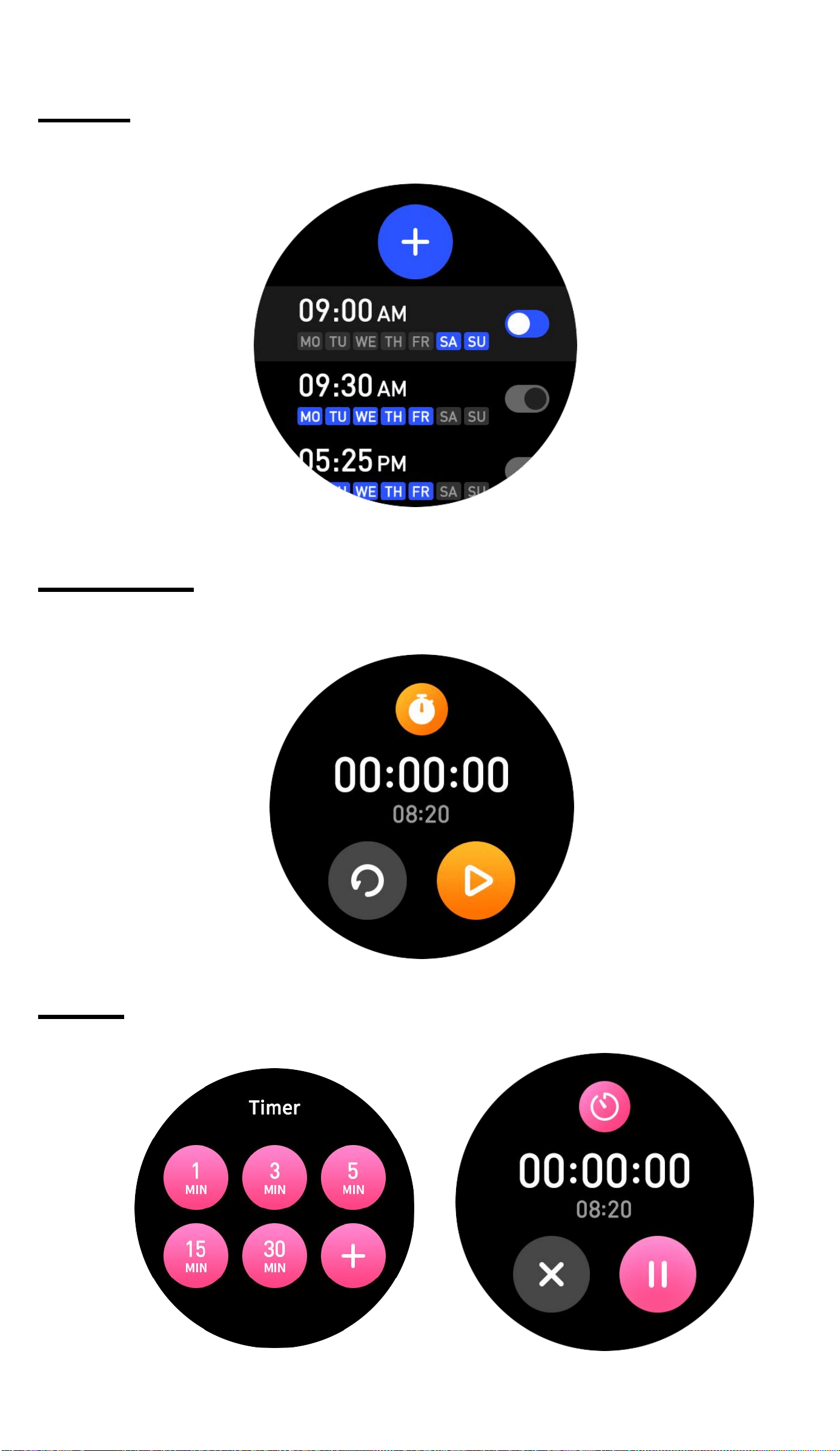
Alarm - Set alarms and let your watch vibrate to
remind you of the alarm.
Stopwatch - This helps to track the time frame for
any given activity.
Timer - This sets a preset timer for the user to track
and given time line.
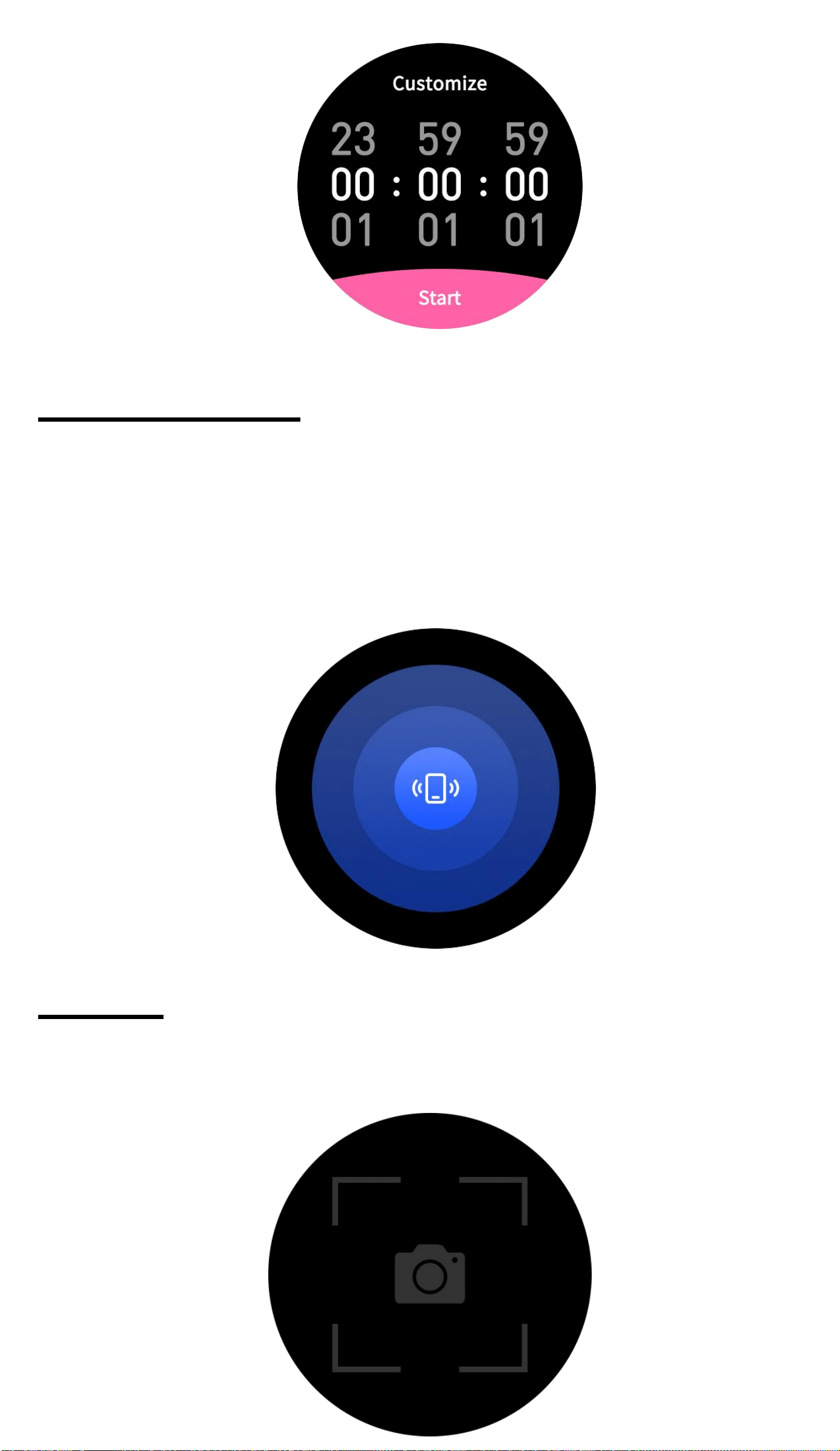
Find Smartphone - You can tape the “Finding”
icon to serch the smartwatch which connected with
FB Invincible PLus APP.
Please note,the smartwatch must be connected
with FB Invincible Plus APP and smartphone
bluetooth.
Camera - You can remote control the camera of
your phone once the watch is connected with your
device.
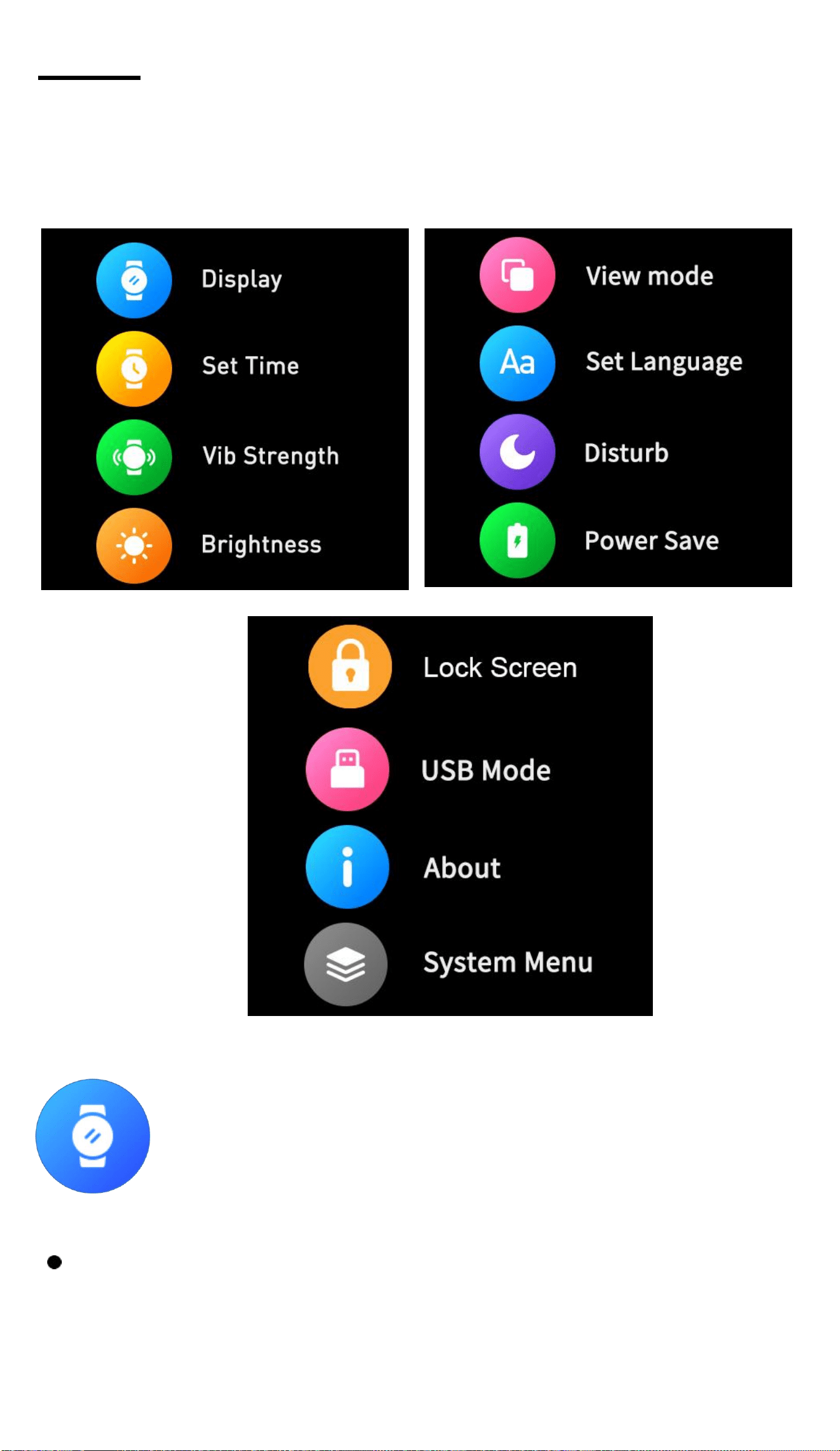
Setting - You can set Display,Time,Vibration
Strength,Brightness,View Mode,Language,DND,
Power Save,Lock Screen,USB Mode,About and
System Menu.
Screen display: Click to enter the screen
display settings.
Change the Clock Style: Click to enter, slide left
and right to view the dial, click the dial setting as
the main interface.
Standby Idle Clock: Click to enter, swipe left and
right to view the standby dial, click to set it as a
rest screen clock.
Screen off time: Click to enter and swipe up and
down to select the screen off time.
Always on: Click to enter and slide up and down
to select shut down display always-on function
or choose Idle clock time.If you want the display
always on,please slide to "Always".
Time Setting: Click to set the date and
time.
Vibration intensity: Click to enter, slide
up and down to select vibration tensity,
click to confirm.
Brightness: Click into it, click to set the
screen brightness.
View Mode: Click to change view mode,
there are 7 modes for your selection.

Set language: Click to enter, slide up and
down to set the language, click OK to set
that language.
Do not disturb: Click to enter to select to
turn on or turn off Do Not Disturb
function.
Power Save: Click to enter to select to turn
on or turn off Power Save function.
Lock Screen:Click to set lock screen and
set up the password.
USB Mode: Click to enter to upload Mass
Storage Mode to Charge Mode, or trans-
fer Charge Mode to Transfer Mode.
About the watch: Click to view the device
name, version number,bluetooth name,
Bluetooth address,etc.
System Menu:Click to do system setting.
You can shutdown the watch,Reboot the
watch and Reset the watch.
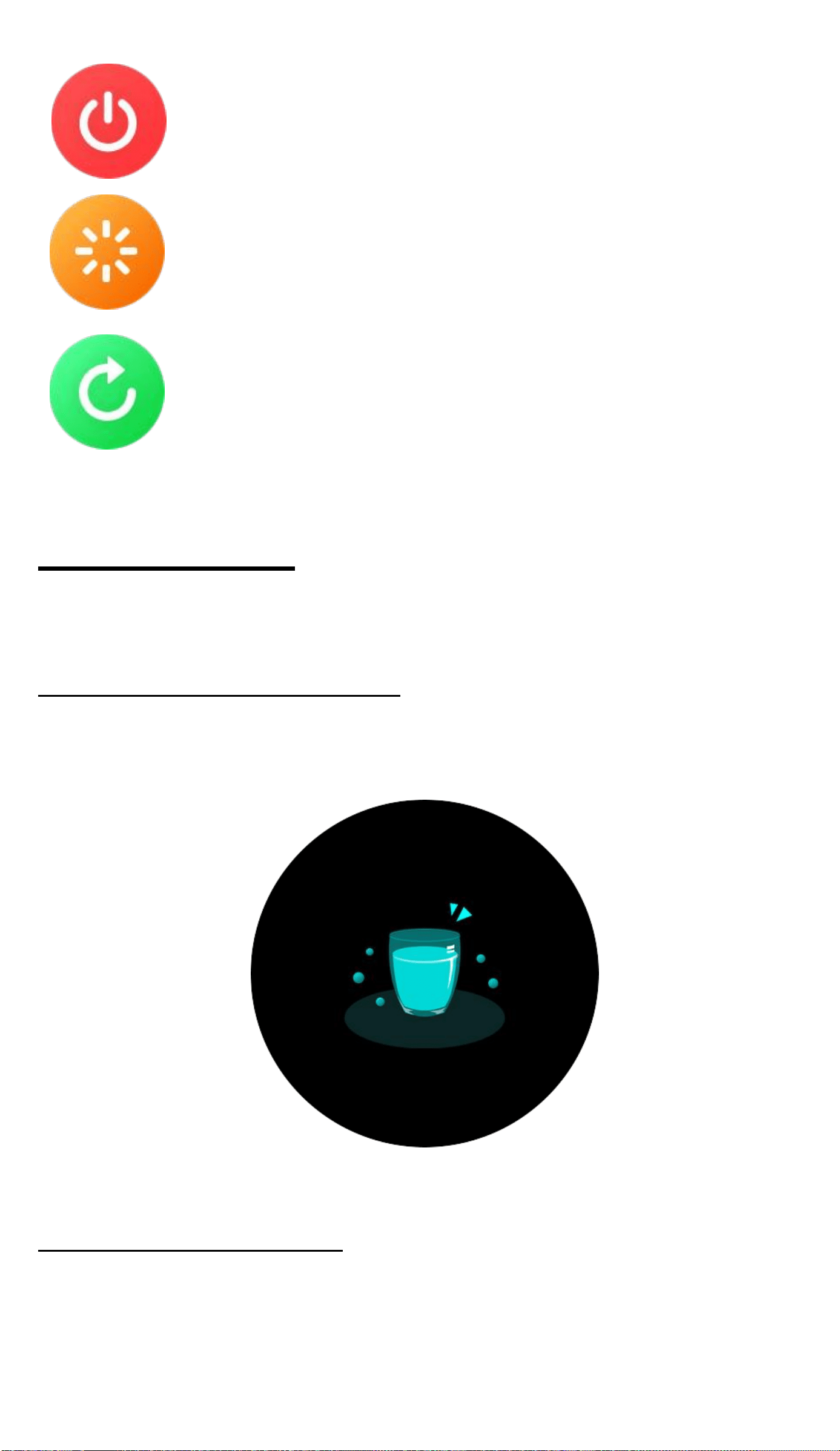
Shutdown: Click to enter to turn off the
smart watch.
Reboot: Click to enter to reboot the smart
watch.
Reset: Click to enter to reset the smart
watch.
Watch Reminder - There are some remiders will
display on the watch once the status is achieved.
Drink Water Reminder - The smart watch will
display “Drink Watch Icon” once drink water status
is achieved.
Sedentary Reminder - The smart watch will display
“Sedentary Reminder“ Icon once sedentary status
is achieved.

Battery Charging Reminder - The smart watch will
display “Battery Charging“ Icons once the battery
need to be charged and fully charged.
Battery need to be charged
Battery is fully charged
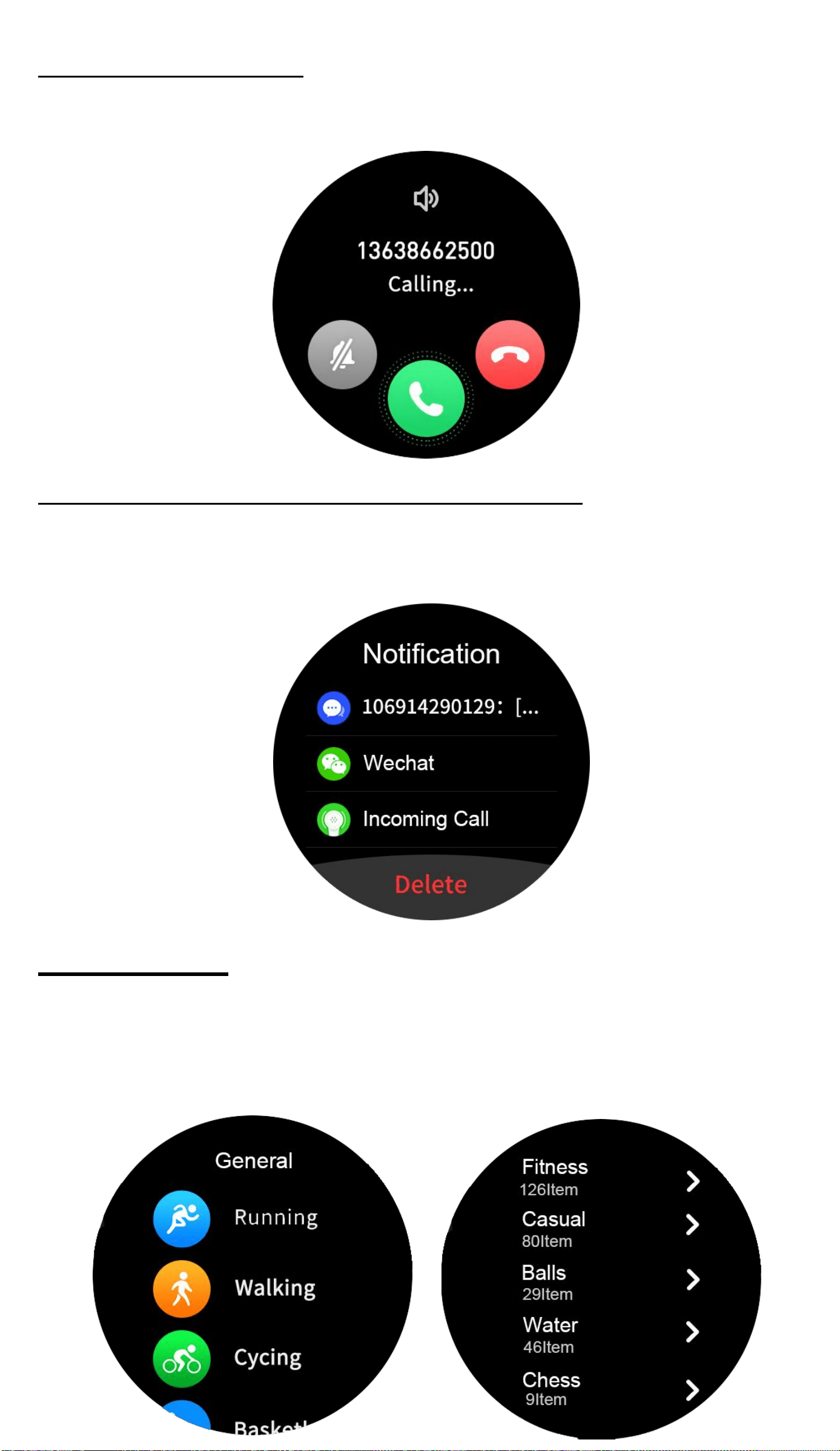
Calling Reminder - If there comes a call,smart-
watch will remind you as well.
Message and Notification Reminder - If there
comes messages and APP notifications,smart-
watch will remind you as well.
Sports Mode - Press the Down Button or click Sport
Modes icon in function menu list to enter into
Sports Modes interface,there are 300 sport modes
for your selection.
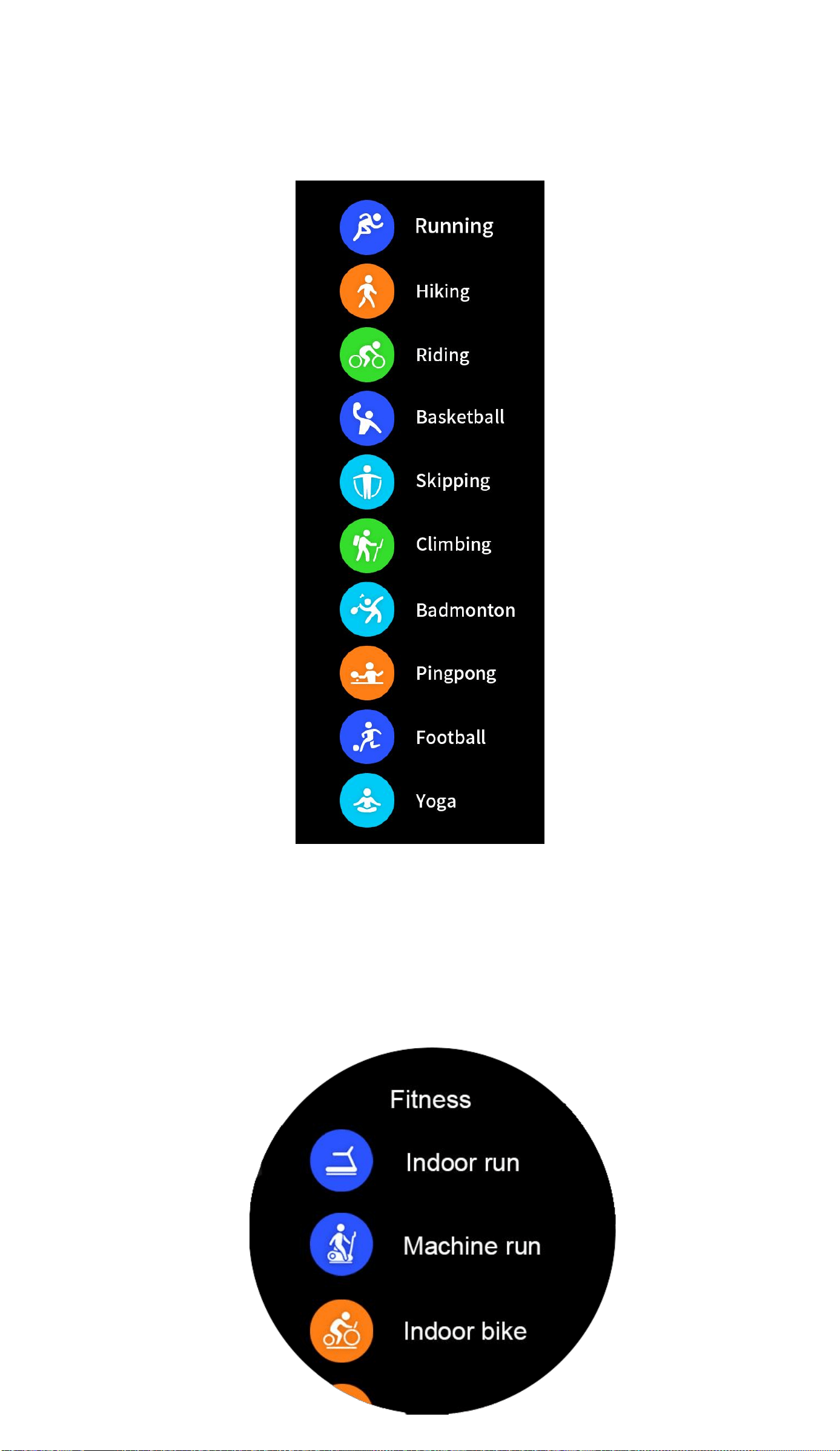
General(10 Sport Modes)
Running,Hiking,Riding,Basketball,Skipping,Climb-
ing,Badminton,Pingpong,Football,Yoga.
Fitness(126 Sport Modes)
Indoor run,Machine run,Indoor bike,Indoor
rowing,Walker,Stair climber,Free training,etc.
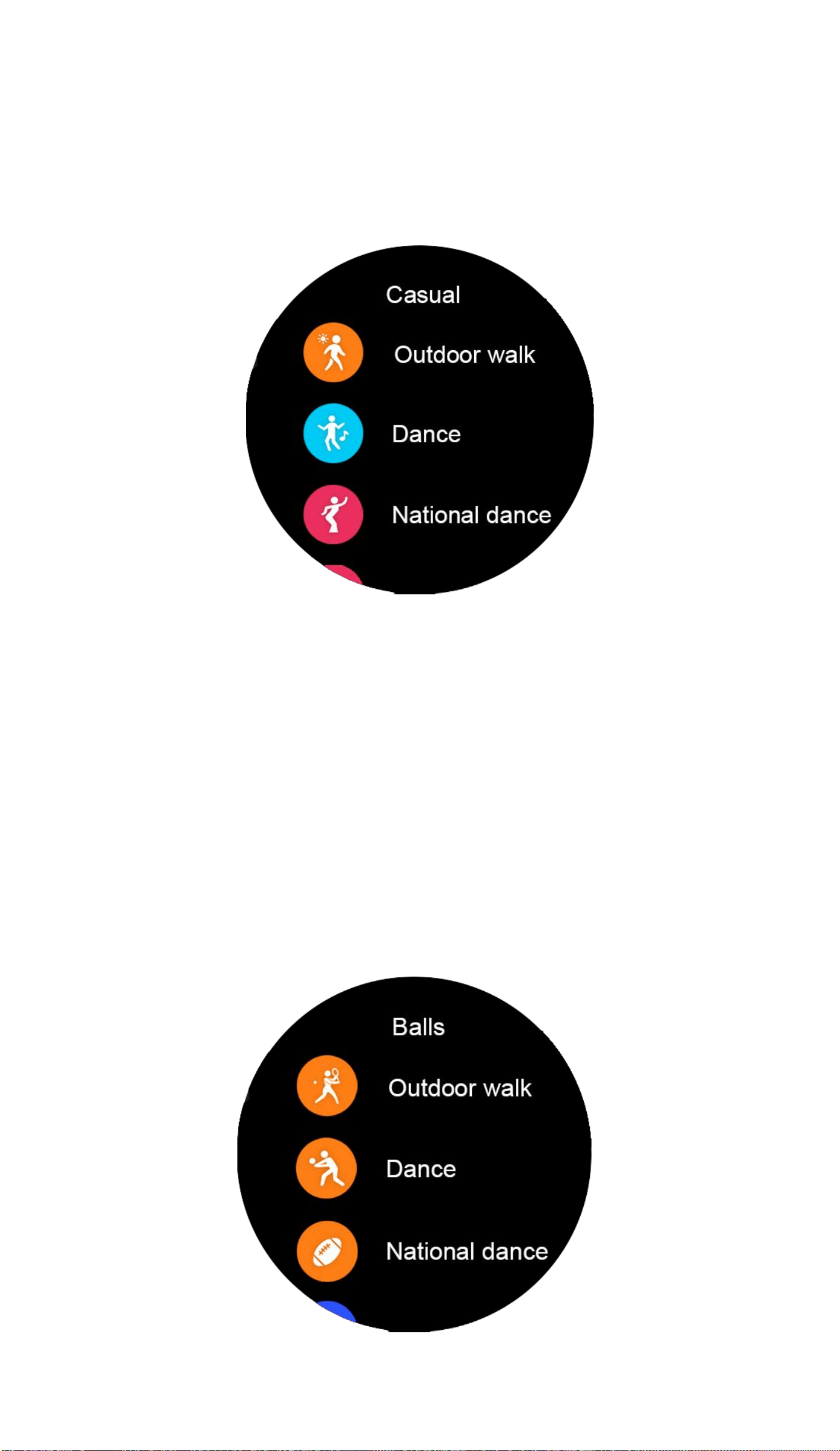
Casual(80 Sport Modes)
Outdoor walk,Dance,National dance,Belly
dance,Latin dance,Ballet,Street dance,Zum-
ba,Pole dance,Modern dance,Jazz,etc.
Balls
(29 Sport Modes)
Tennis,Volleyball,Rugby,Baseball,Softball,
Golf,Billiards,Bowling,Cricket,Shuttlecock
ball,Hockey,Croquet,Handball,ShoT put,
Sepak takraw,Dodge ball,Sand ball,Squash
racket,Petanque,Floorball,Wall ball,Wooden
ball,Beach football,Beach volleyball,Dutch
basketball,Hammer,etc.
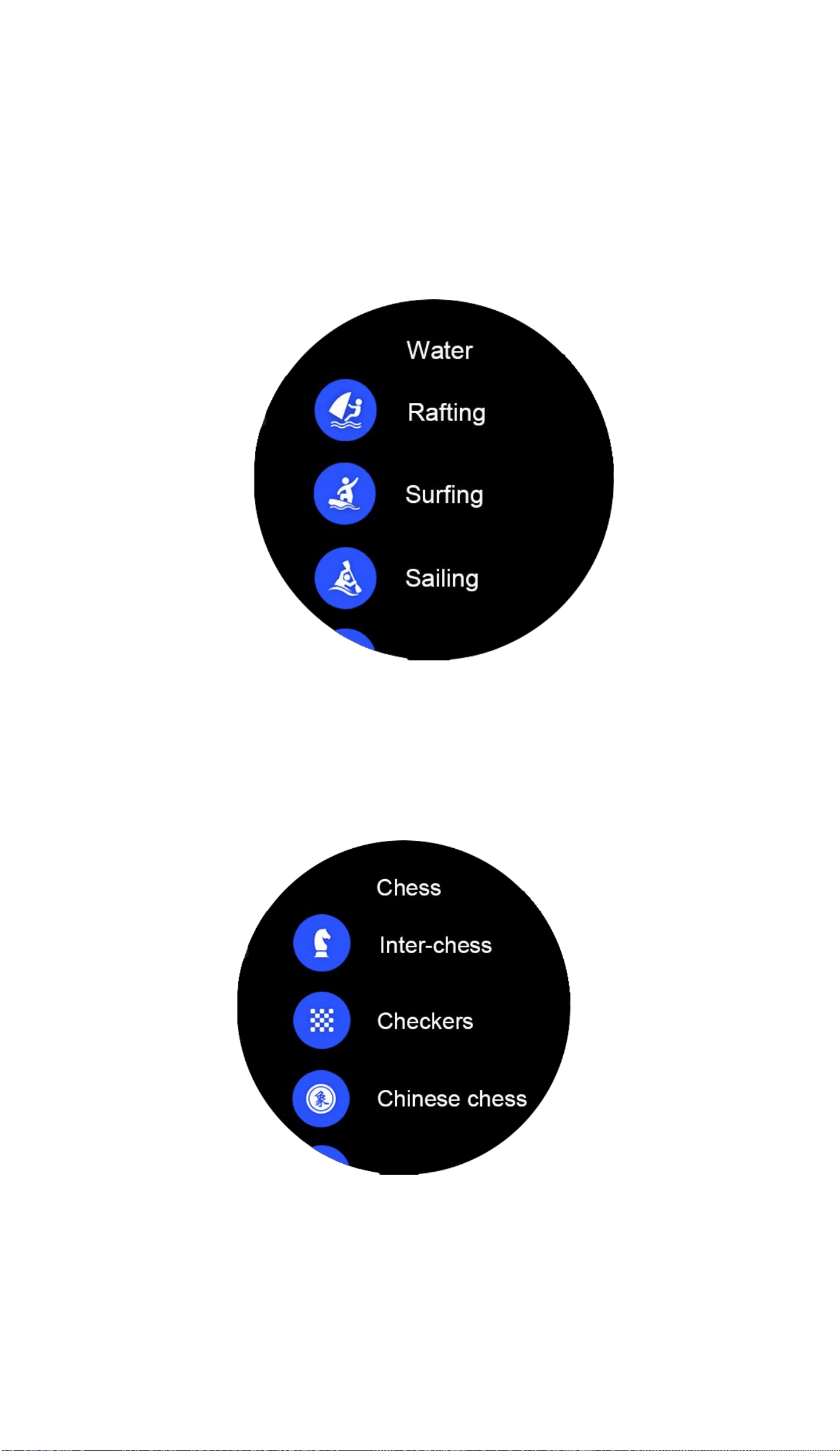
Water(19 Sport Modes)
Sailing,Surfing,Rafting,Kayaking,Rowing,
Dragon boat,Ice hockey,Curling,Skiing,Snow-
boarding,Cross skiing,Motorboat,Alpine
skiing,Sled,Snowmobile,Water skiing,Skating,
Figure skating,Nordic combined,etc.
Chess(9 Sport Modes)
Inter-chess,Checkers,Chinese chess,Go,
Bridge,Mahjong,Flight chess,Shogi,etc.
You can selection one of 300 sport modes to start,
it will display your exercise data in the sport mode.
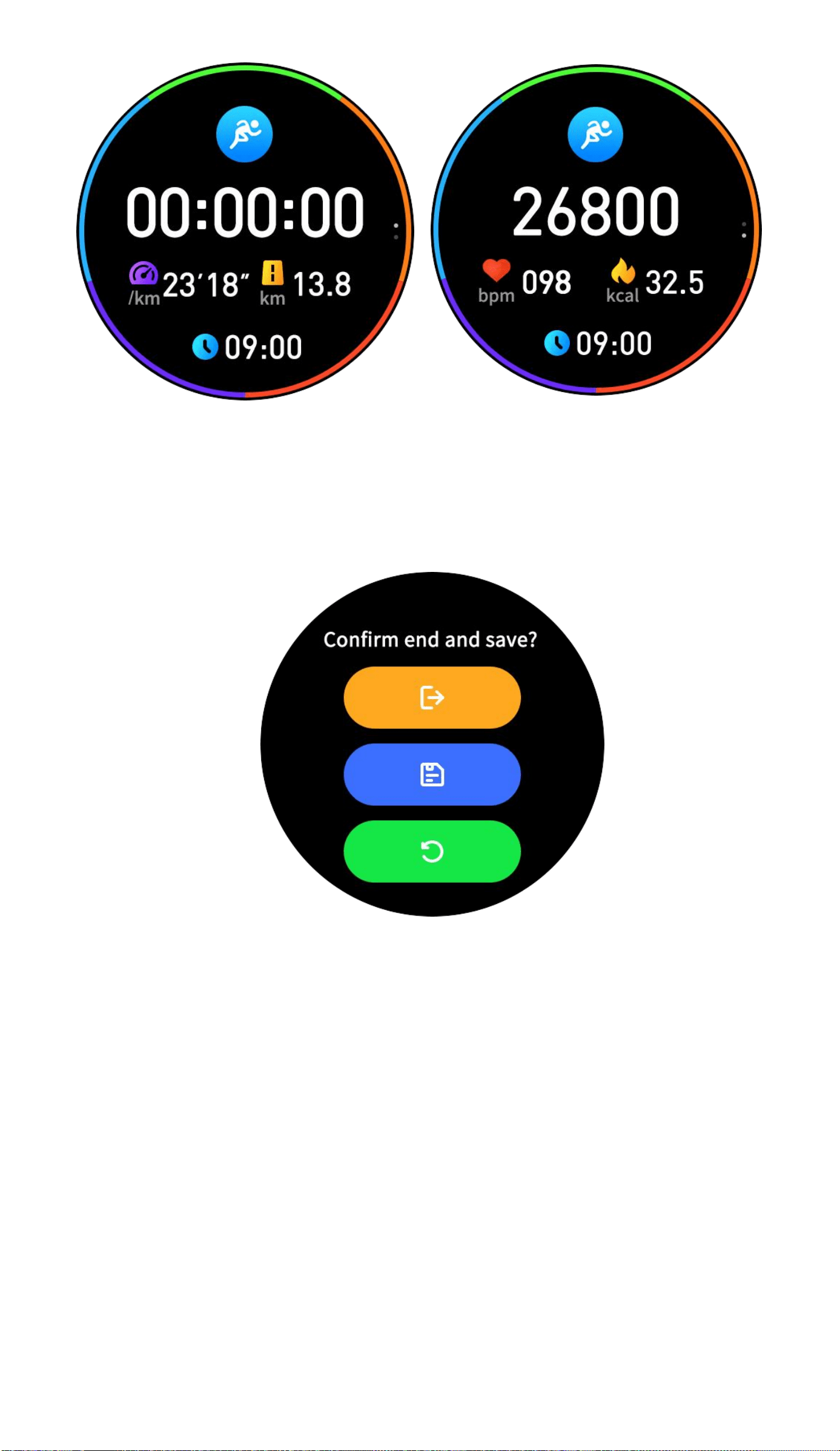
Swipe left/press up button/middle button when
you at sport mode interface,the you can select if
stop the sport mode and save the sport record,or
continue this sport mode.