
FocSign Mobile
User Manual

Legal Informaon
©2020 Hangzhou Hikvision Digital Technology Co., Ltd. All rights reserved.
About this Manual
The Manual includes instrucons for using and managing the Product. Pictures, charts, images and
all other informaon hereinaer are for descripon and explanaon only. The informaon
contained in the Manual is subject to change, without noce, due to rmware updates or other
reasons. Please
nd the latest version of this Manual at the Hikvision website ( hps://
www.hikvision.com/ ).
Please use this Manual with the guidance and assistance of professionals trained in
supporng the
Product.
Trademarks
and other Hikvision's trademarks and logos are the properes of
Hikvision in various
jurisdicons.
Other trademarks and logos menoned are the properes of their respecve owners.
Disclaimer
TO THE MAXIMUM EXTENT PERMITTED BY APPLICABLE LAW, THIS MANUAL AND THE PRODUCT
DESCRIBED, WITH ITS HARDWARE, SOFTWARE AND FIRMWARE, ARE PROVIDED “AS IS” AND “WITH
ALL FAULTS AND ERRORS”. HIKVISION MAKES NO WARRANTIES, EXPRESS OR IMPLIED, INCLUDING
WITHOUT LIMITATION, MERCHANTABILITY, SATISFACTORY QUALITY, OR FITNESS FOR A PARTICULAR
PURPOSE. THE USE OF THE PRODUCT BY YOU IS AT YOUR OWN RISK. IN NO EVENT WILL HIKVISION
BE LIABLE TO YOU FOR ANY SPECIAL, CONSEQUENTIAL, INCIDENTAL, OR INDIRECT DAMAGES,
INCLUDING, AMONG OTHERS, DAMAGES FOR LOSS OF BUSINESS PROFITS, BUSINESS
INTERRUPTION, OR LOSS OF DATA, CORRUPTION OF SYSTEMS, OR LOSS OF DOCUMENTATION,
WHETHER BASED ON BREACH OF CONTRACT, TORT (INCLUDING NEGLIGENCE), PRODUCT LIABILITY,
OR OTHERWISE, IN CONNECTION WITH THE USE OF THE PRODUCT, EVEN IF HIKVISION HAS BEEN
ADVISED OF THE POSSIBILITY OF SUCH DAMAGES OR LOSS.
YOU ACKNOWLEDGE THAT THE NATURE OF INTERNET PROVIDES FOR INHERENT SECURITY RISKS,
AND HIKVISION SHALL NOT TAKE ANY RESPONSIBILITIES FOR ABNORMAL OPERATION, PRIVACY
LEAKAGE OR OTHER DAMAGES RESULTING FROM CYBER-ATTACK, HACKER ATTACK, VIRUS
INSPECTION, OR OTHER INTERNET SECURITY RISKS; HOWEVER, HIKVISION WILL PROVIDE TIMELY
TECHNICAL SUPPORT IF REQUIRED.
YOU AGREE TO USE THIS PRODUCT IN COMPLIANCE WITH ALL APPLICABLE LAWS, AND YOU ARE
SOLELY RESPONSIBLE FOR ENSURING THAT YOUR USE CONFORMS TO THE APPLICABLE LAW.
ESPECIALLY, YOU ARE RESPONSIBLE, FOR USING THIS PRODUCT IN A MANNER THAT DOES NOT
INFRINGE ON THE RIGHTS OF THIRD PARTIES, INCLUDING WITHOUT LIMITATION, RIGHTS OF
PUBLICITY, INTELLECTUAL PROPERTY RIGHTS, OR DATA PROTECTION AND OTHER PRIVACY RIGHTS.
YOU SHALL NOT USE THIS PRODUCT FOR ANY PROHIBITED END-USES, INCLUDING THE
DEVELOPMENT OR PRODUCTION OF WEAPONS OF MASS DESTRUCTION, THE DEVELOPMENT OR
FocSign Mobile User Manual
i

PRODUCTION OF CHEMICAL OR BIOLOGICAL WEAPONS, ANY ACTIVITIES IN THE CONTEXT RELATED
TO ANY NUCLEAR EXPLOSIVE OR UNSAFE NUCLEAR FUEL-CYCLE, OR IN SUPPORT OF HUMAN
RIGHTS ABUSES.
IN THE EVENT OF ANY CONFLICTS BETWEEN THIS MANUAL AND THE APPLICABLE LAW, THE LATER
PREVAILS.
FocSign Mobile User Manual
ii
Regulatory Informaon
FCC Informaon
Please take aenon that changes or modicaon not expressly approved by the party responsible
for compliance could void the user's authority to operate the equipment.
FCC compliance: This equipment has been tested and found to comply with the limits for a Class A
digital device, pursuant to part 15 of the FCC Rules. These limits are designed to provide
reasonable
protecon against harmful interference when the equipment is operated in a
commercial environment. This equipment generates, uses, and can radiate radio frequency energy
and, if not installed and used in accordance with the
instrucon manual, may cause harmful
interference to radio communicaons. Operaon of this equipment in a residenal area is likely to
cause harmful interference in which case the user will be required to correct the interference at his
own expense.
FCC Condions
This device complies with part 15 of the FCC Rules. Operaon is subject to the following two
condions:
1. This device may not cause harmful interference.
2. This device must accept any interference received, including interference that may cause
undesired
operaon.
EU Conformity Statement
This product and - if applicable - the supplied accessories too are marked with
"CE" and comply therefore with the applicable harmonized European
standards listed under the EMC Direcve 2014/30/EU, the RoHS Direcve
2011/65/EU.
2012/19/EU (WEEE direcve): Products marked with this symbol cannot be
disposed of as unsorted municipal waste in the European Union. For proper
recycling, return this product to your local supplier upon the purchase of
equivalent new equipment, or dispose of it at designated
collecon points.
For more
informaon see: hp://www.recyclethis.info .
2006/66/EC (baery direcve): This product contains a baery that cannot be
disposed of as unsorted municipal waste in the European Union. See the
product documentaon for specic baery informaon. The baery is
marked with this symbol, which may include
leering to indicate cadmium
(Cd), lead (Pb), or mercury (Hg). For proper recycling, return the
baery to
your supplier or to a designated
collecon point. For more informaon see:
hp://www.recyclethis.info .
FocSign Mobile User Manual
iii

Industry Canada ICES-003 Compliance
This device meets the CAN ICES-3 (A)/NMB-3(A) standards requirements.
FocSign Mobile User Manual
iv
Preface
Applicable Models
This manual is applicable to FocSign Mobile V1.1.0 and guides you to complete the conguraon
and operaon of FocSign Mobile.
About the Default
Default administrator account: admin.
Symbol
Convenons
The symbols that may be found in this document are dened as follows.
Symbol Descripon
Danger
Indicates a hazardous situaon which, if not avoided, will or could
result in death or serious injury.
Cauon
Indicates a potenally hazardous situaon which, if not avoided, could
result in equipment damage, data loss, performance degradaon, or
unexpected results.
Note
Provides addional informaon to emphasize or supplement
important points of the main text.
FocSign Mobile User Manual
v

Contents
Chapter 1 Product Informaon ................................................................................................... 1
1.1 Introducon ........................................................................................................................... 1
1.2 Operaon Flowchart .............................................................................................................. 1
Chapter 2 Login .......................................................................................................................... 3
Chapter 3 Terminal Registraon and Management ..................................................................... 5
3.1 Register an Inacvated Terminal ............................................................................................ 5
3.2 Register an Acvated Terminal .............................................................................................. 6
3.3 Terminal Control .................................................................................................................... 7
Chapter 4 Create a Program ...................................................................................................... 10
Chapter 5 Program Management .............................................................................................. 14
Chapter 6 Release ..................................................................................................................... 16
6.1 Release a Program ............................................................................................................... 16
6.2 Release a Message ............................................................................................................... 17
6.3 Release a Schedule .............................................................................................................. 18
6.4 Release Management .......................................................................................................... 19
Chapter 7 Maintenance ............................................................................................................ 22
7.1 Background
Protecon ........................................................................................................ 22
7.2 Data Cache Clearance .......................................................................................................... 22
FocSign Mobile User Manual
vi
Chapter 1 Product Informaon
1.1 Introducon
FocSign Mobile (hereinaer referred to as the APP) is used to release programs and schedules to
the digital signage. The APP supports program creaon, program and schedule release, message
cut-in, terminal management, release management etc.
Note
Please refer to the user manual of FocSign Client to know about the details about the installaon
and operaon of FocSign Client and FocSign Server.
1.2 Operaon Flowchart
You can create programs, release programs and schedules that already exist on the server, or cut in
messages to the digital signage on the APP.
See the following operaon owchart to know about the basic operaon process on the APP.
FocSign Mobile User Manual
1
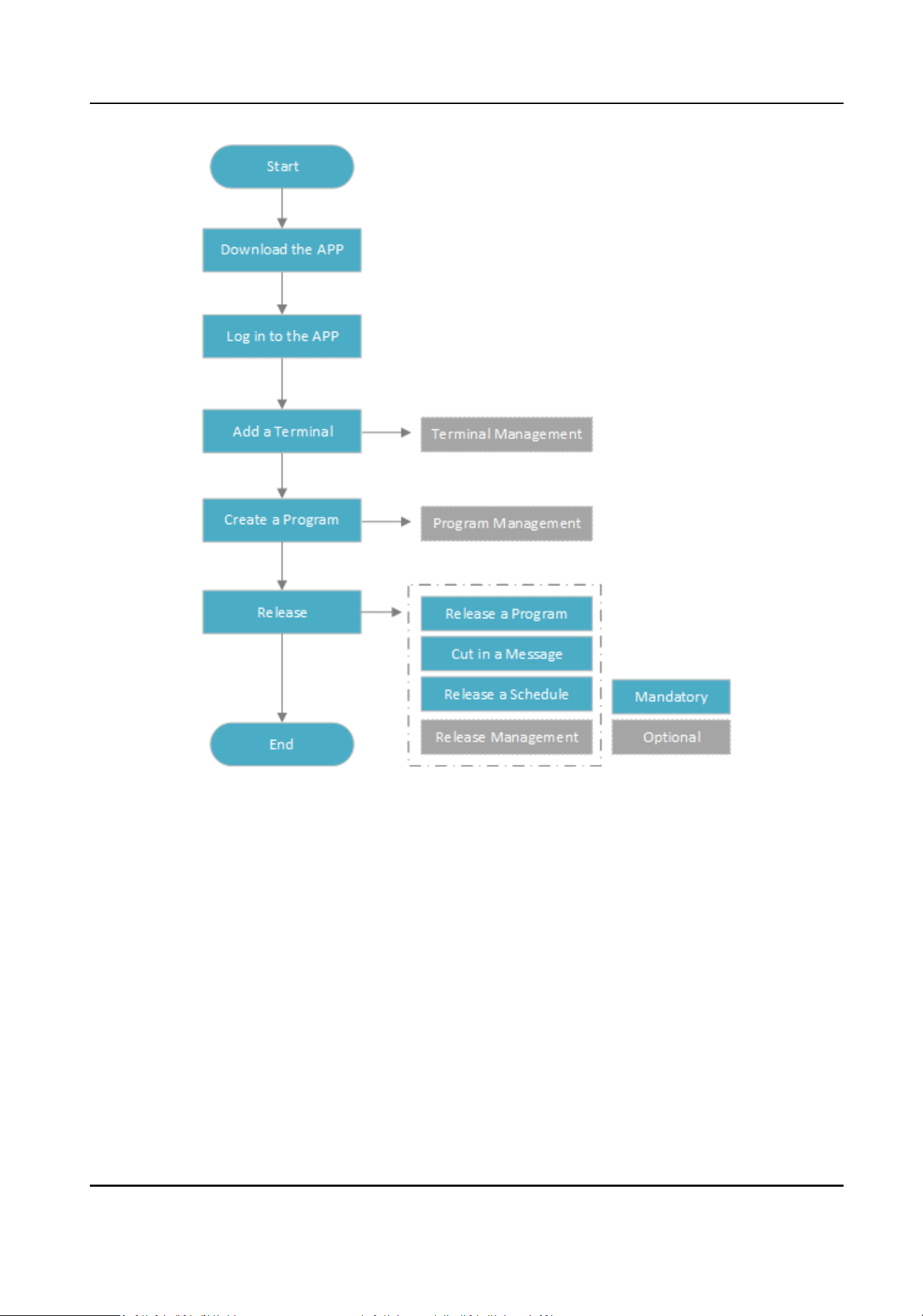
Figure 1-1 Operaon Flowchart
FocSign Mobile User Manual
2
Chapter 2 Login
You can release program and schedules by downloading and logging in to the APP.
Before You Start
• FocSign Server is running.
• The network of the APP interworks with that of the FocSign Server.
• It is recommended that the APP is installed in the following environment:
• Minimum
Conguraon: iPhone 5s/iPad min2, iOS 10.0 system.
• Recommended Conguraon: iPhoneX/iPad pro, iOS 11+ system.
Steps
Note
All gures in the manual are used for illustraon purpose only.
1. Choose one of the following ways to download and install the APP.
-
Visit hps://www.hikvision.com/en , and go to Support → Dowloads → Client Soware →
FocSign Mobile . Scan the QR code to dowload and install the APP.
-
Open App Store on the mobile phone, and search FocSign Mobile to dowload and install the
APP.
2. Click to open the APP.
3. Enter the server IP Address, the User Name and Password of the User. You can enable Auto
Login according to the actual
situaon.
FocSign Mobile User Manual
3
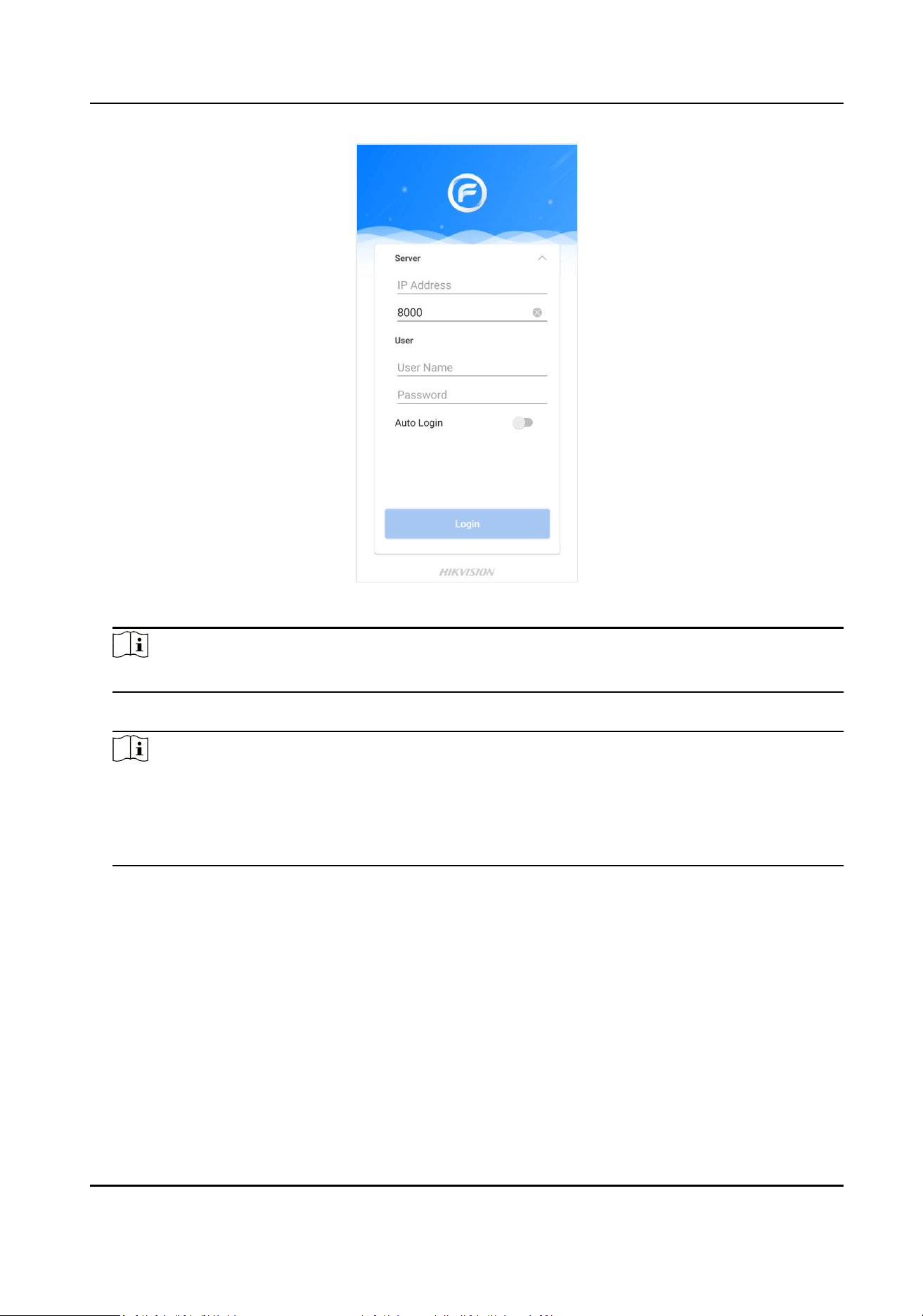
Figure 2-1 Login
Note
The port of the server is 8000 by default.
4. Click Login.
Note
• When you login for the
rst me, the Quick Guide will instruct you to know about the basic
funcons. You can also go to the system menu to see the Quick Guide.
• The APP will be locked when login failure occurs 5 mes for the admin user, or 7 mes for the
other users. You need to wait for 30 minutes to log in again.
FocSign Mobile User Manual
4
Chapter 3 Terminal Registraon and Management
You can acvate, register and manage the terminals using the APP.
Note
• SADP is enabled on the terminal. When the SADP is disabled, there are no QR code on the
terminal.
• The APP and the terminal must be in the same network segment. If a router exists, and the
terminal is connected to the router with the network cable, the APP must be in the Wi-Fi
network environment provided by the same router.
• Please refer to the quick start guide and FocSign Client user manual to
acvate or register
terminals in dierent network segments with the APP.
3.1 Register an Inacvated Terminal
Steps
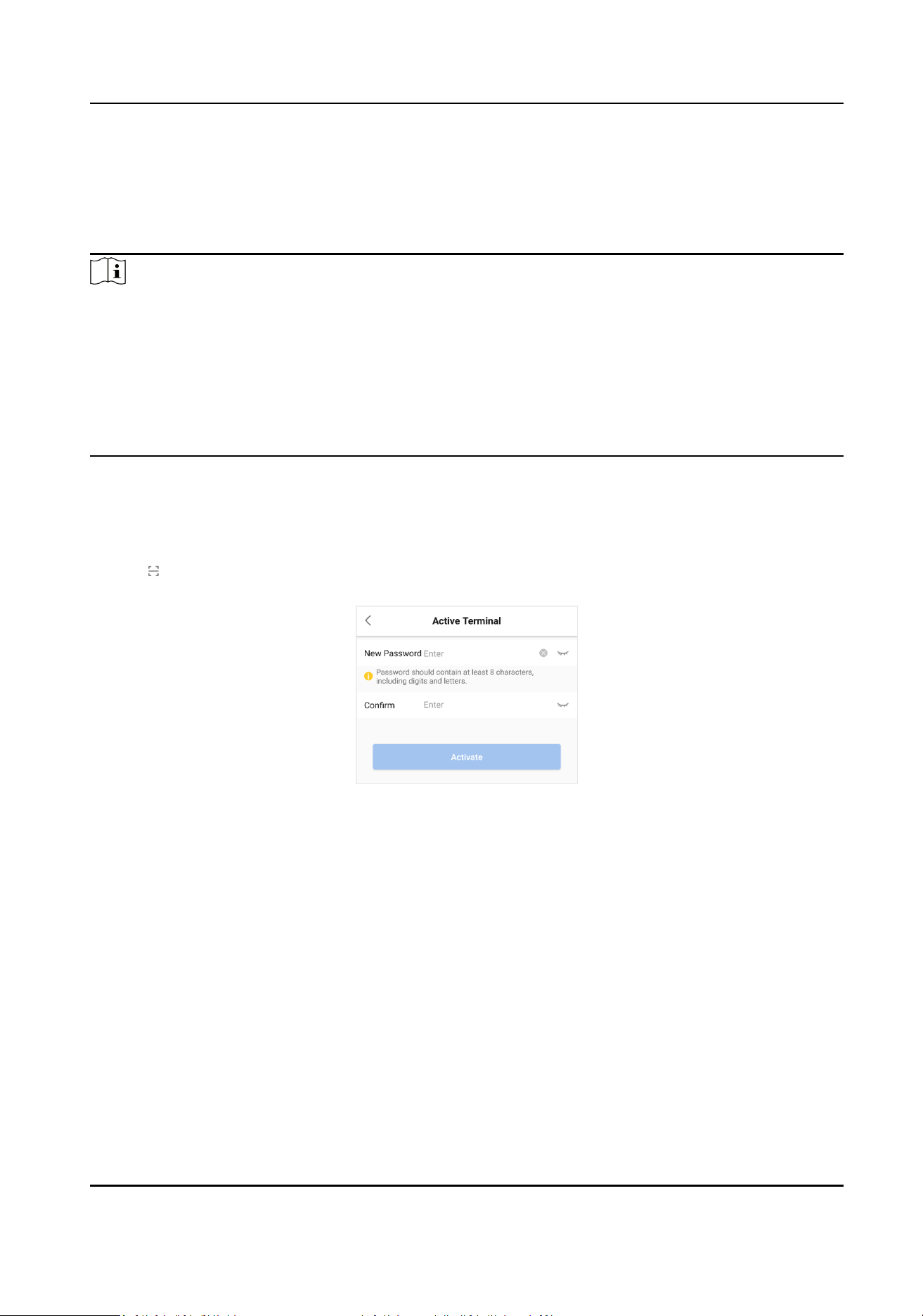
1. Tap
on the upper right corner of the Terminal interface to scan the QR code of the terminal.
2. Enter the New Password and conrm it.
Figure 3-1 Acvate the Terminal
3. Tap Acvate.
A message pops up:
FocSign Mobile User Manual
5
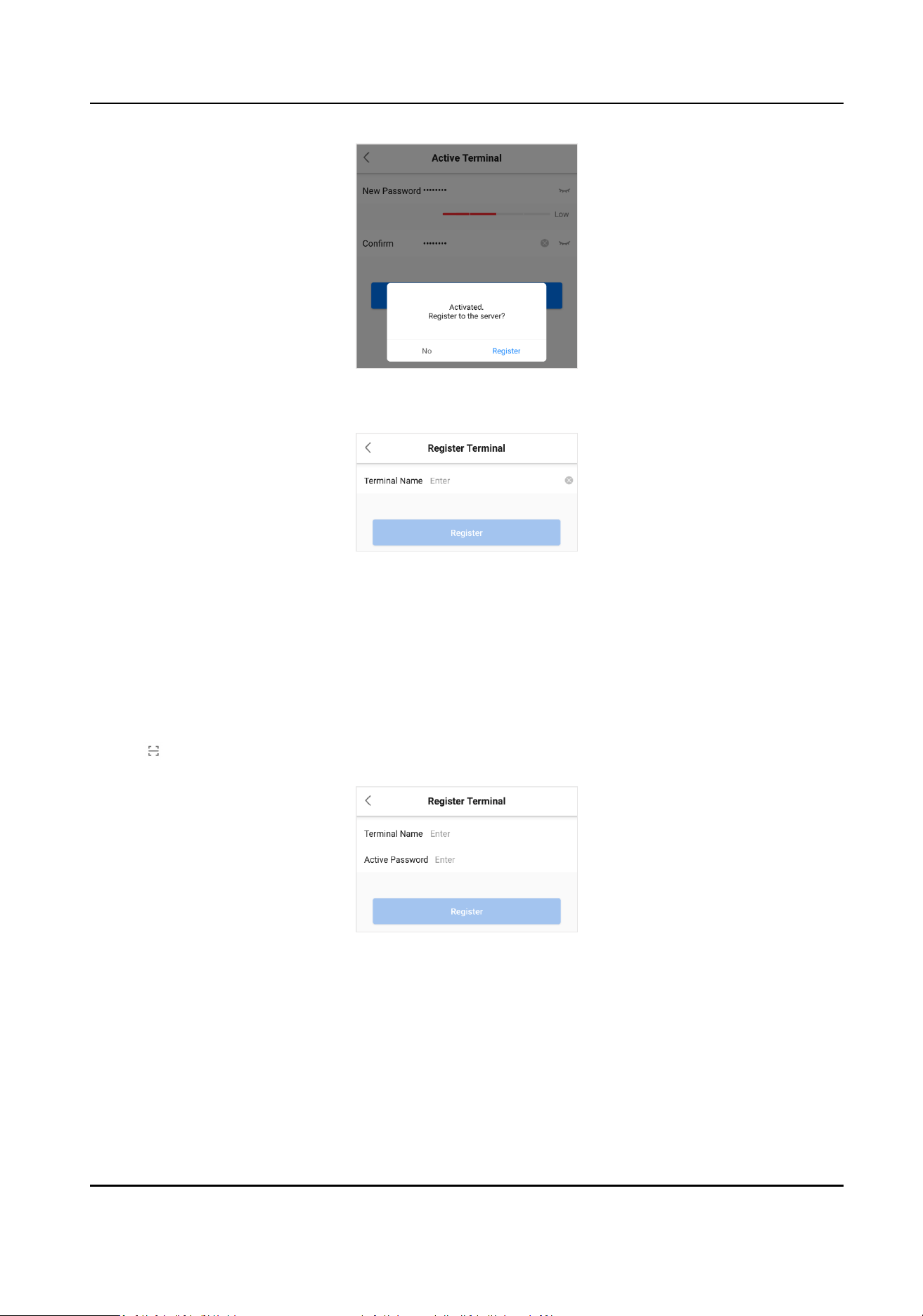
Figure 3-2 Registraon Message aer Acvaon
4. Tap Register.
Figure 3-3 Registraon
5. Enter the Terminal Name.
6. Tap Register.
3.2 Register an
Acvated Terminal
Steps
1. Tap on the upper right corner of the Terminal interface to scan the QR code of the terminal.
2. Enter the Terminal Name and Password.
Figure 3-4 Register an
Acvated Terminal
3. Tap Register
FocSign Mobile User Manual
6
3.3 Terminal Control
On the Terminal interface, you can remotely control the terminals, view terminal details, and
search for the terminals.
Remote Terminal Control
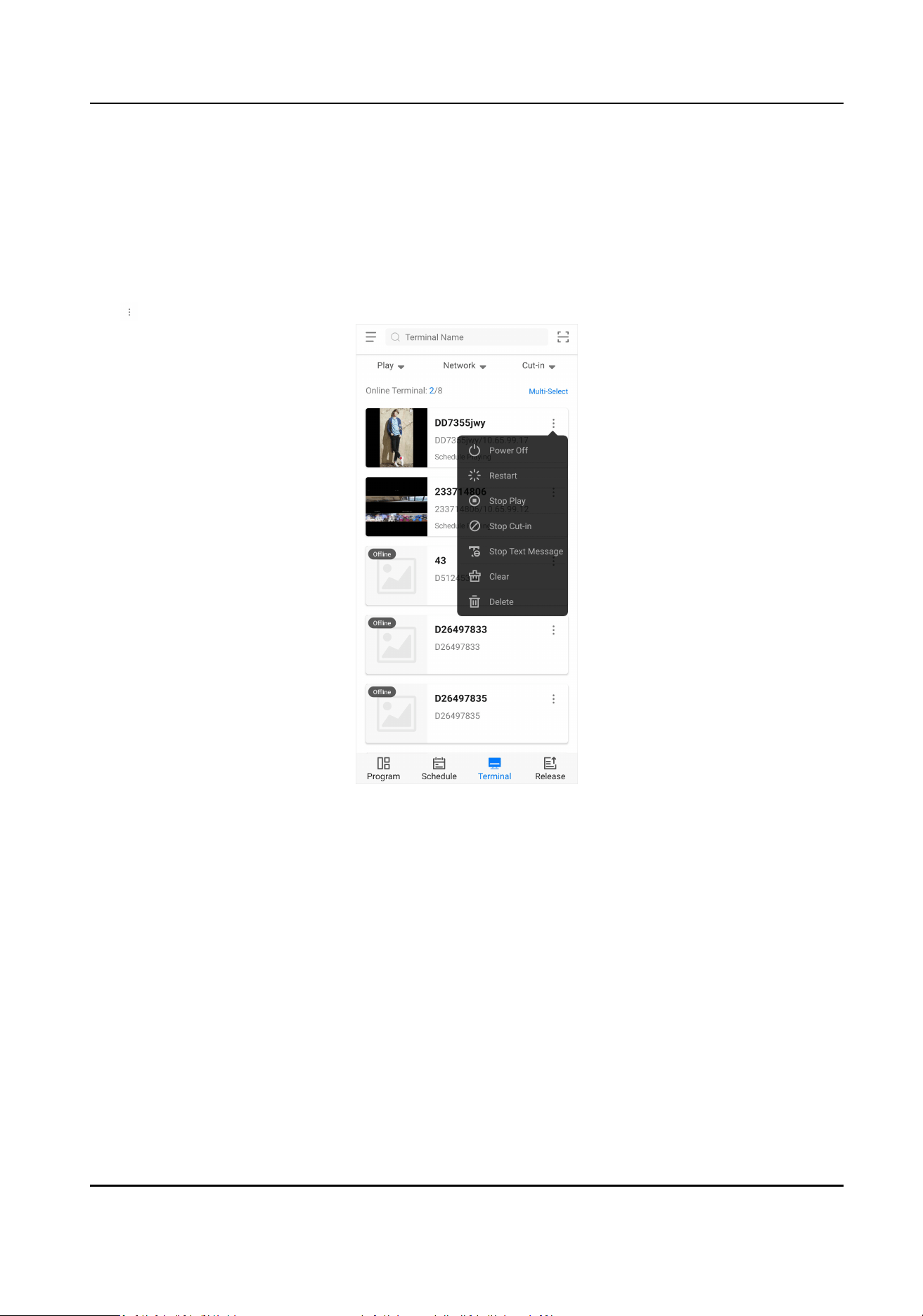
Tap on the right of the terminal. You can tap Mul-Select to control the terminals in batches.
Figure 3-5 Single Terminal Control
FocSign Mobile User Manual
7
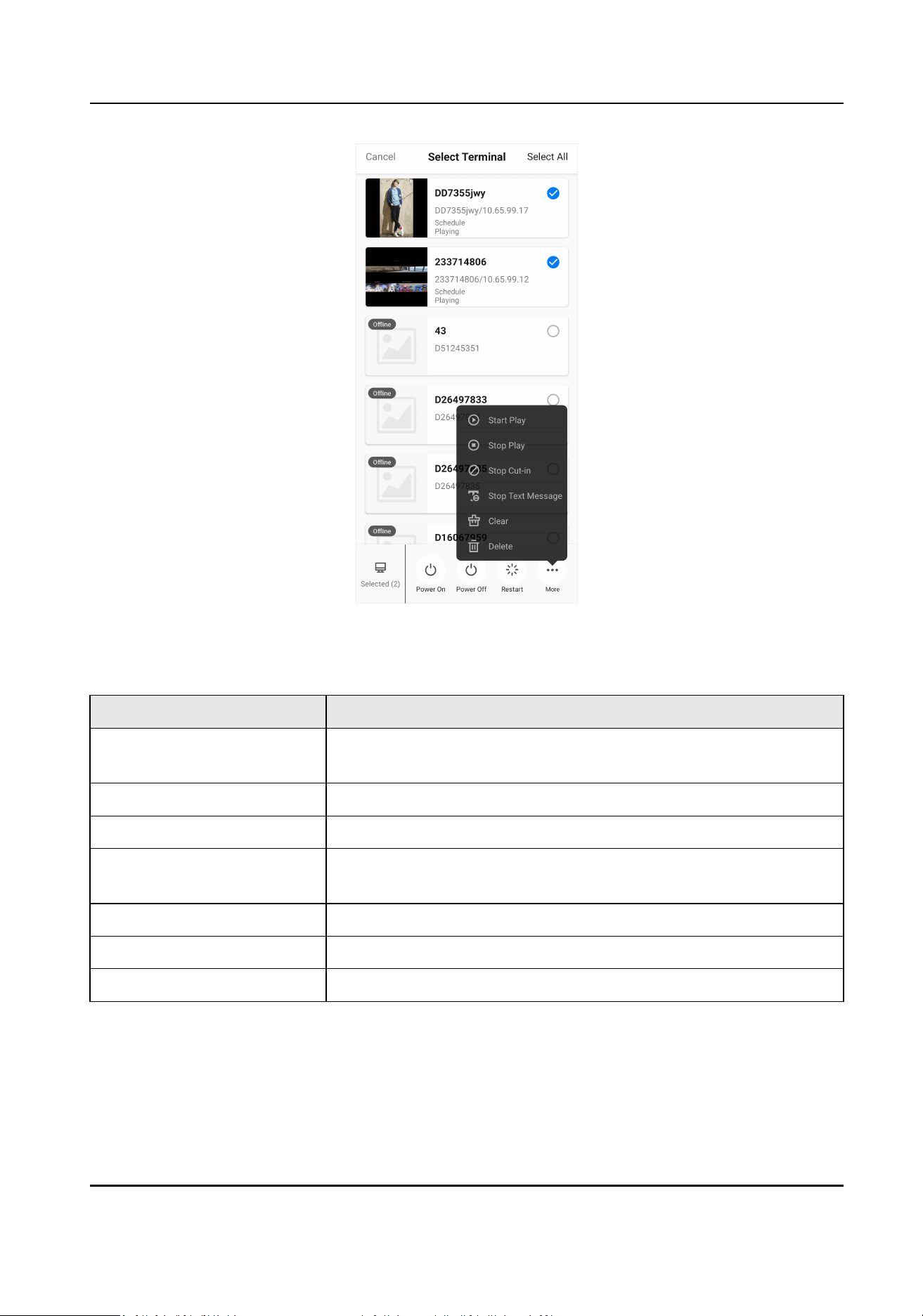
Figure 3-6 Mul Terminal Control
Table 3-1 Remote Terminal Control
Operaon Descripon
Power on/o Remotely turn on or turn o the online terminal. The terminal will
not respond if it is already in on/o state.
Restart Remotely restart the online terminal.
Start/Stop Play Remotely start/stop the program or the schedule on the terminal.
Stop Cut-in Stop the program or the schedule cung in. You cannot stop the
message cung in.
Stop Text Message Stop the text message playing.
Clear Clear all the play contents on the terminal.
Delete Delete the terminal from the server.
View Terminal Details
Tap the terminal to view the terminal details and the screenshot of the playing program. You can
pull to refresh the details.
FocSign Mobile User Manual
8
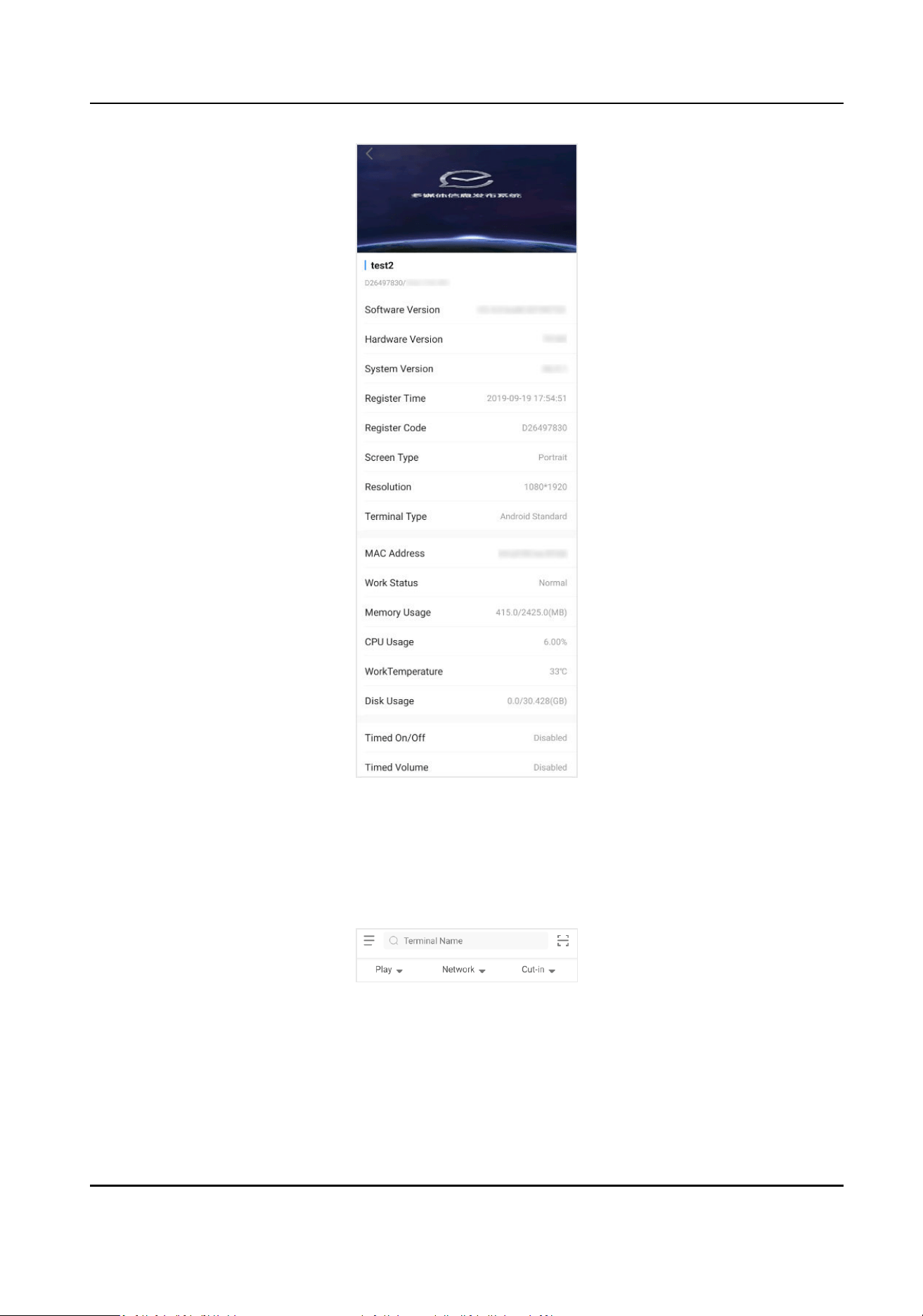
Figure 3-7 Terminal Details
Search for the Terminals
On the top of the Terminal interface, you can set the search condions such as Play, Network and
Cut-in to search for the terminals. You can also enter Terminal Name in the searching box to search
directly. Fuzzy search is supported.
Figure 3-8 Search for the Terminals
FocSign Mobile User Manual
9
Chapter 4 Create a Program
You can create and congure the programs according to the terminal type. You can also customize
the program layout. The layout is same with the
nal release eect.
Steps
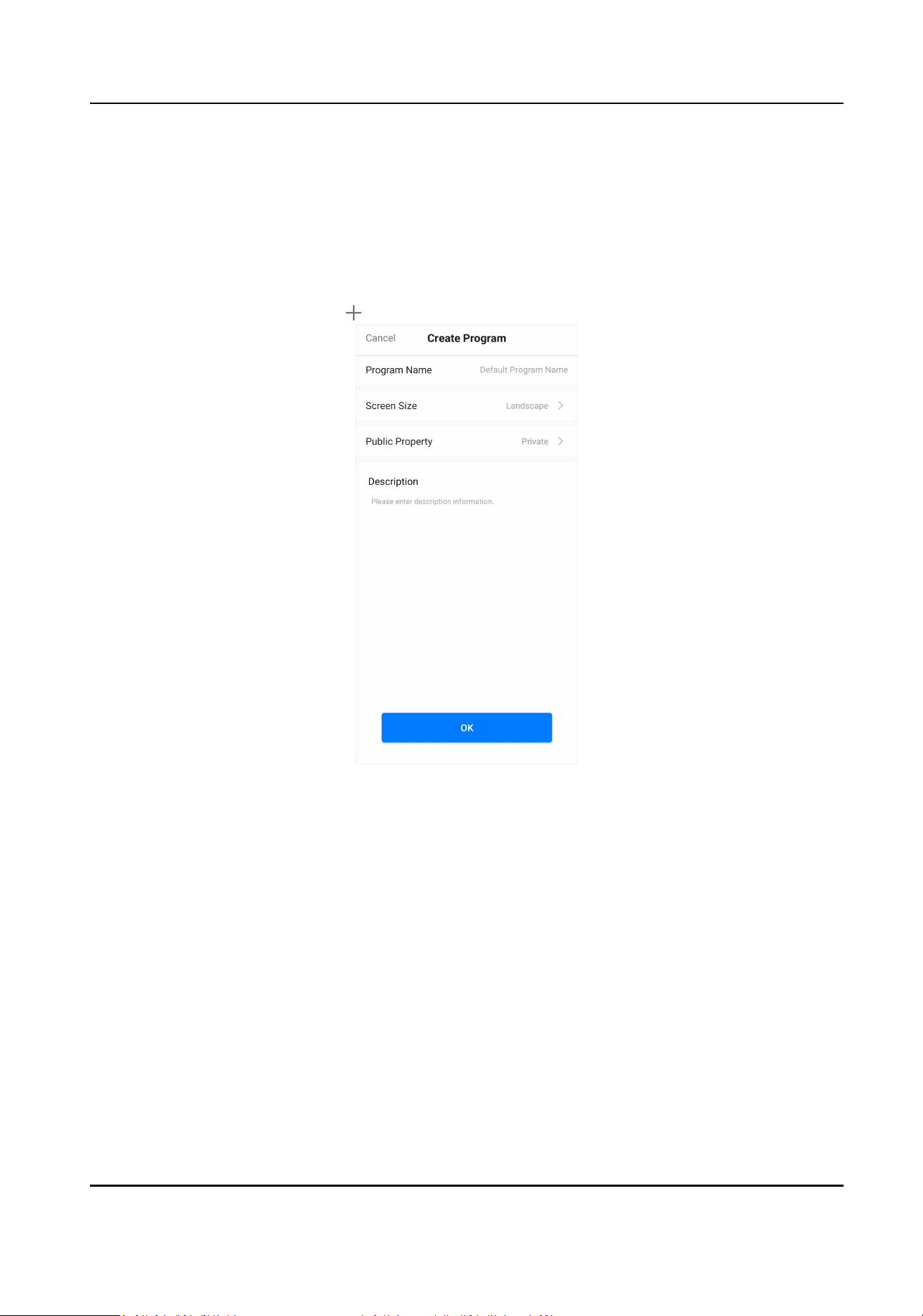
1. On the Program interface, tap
to create a program.
Figure 4-1 Create a Program
2. Enter the basic informaon of the program to edit the program, including Program Name,
Screen Size, and Public Property. You can enter
Descripon informaon as desired. Tap OK.
3. Select a template. 1/2/4-split screen and other 10 kinds of templates are available.
FocSign Mobile User Manual
10
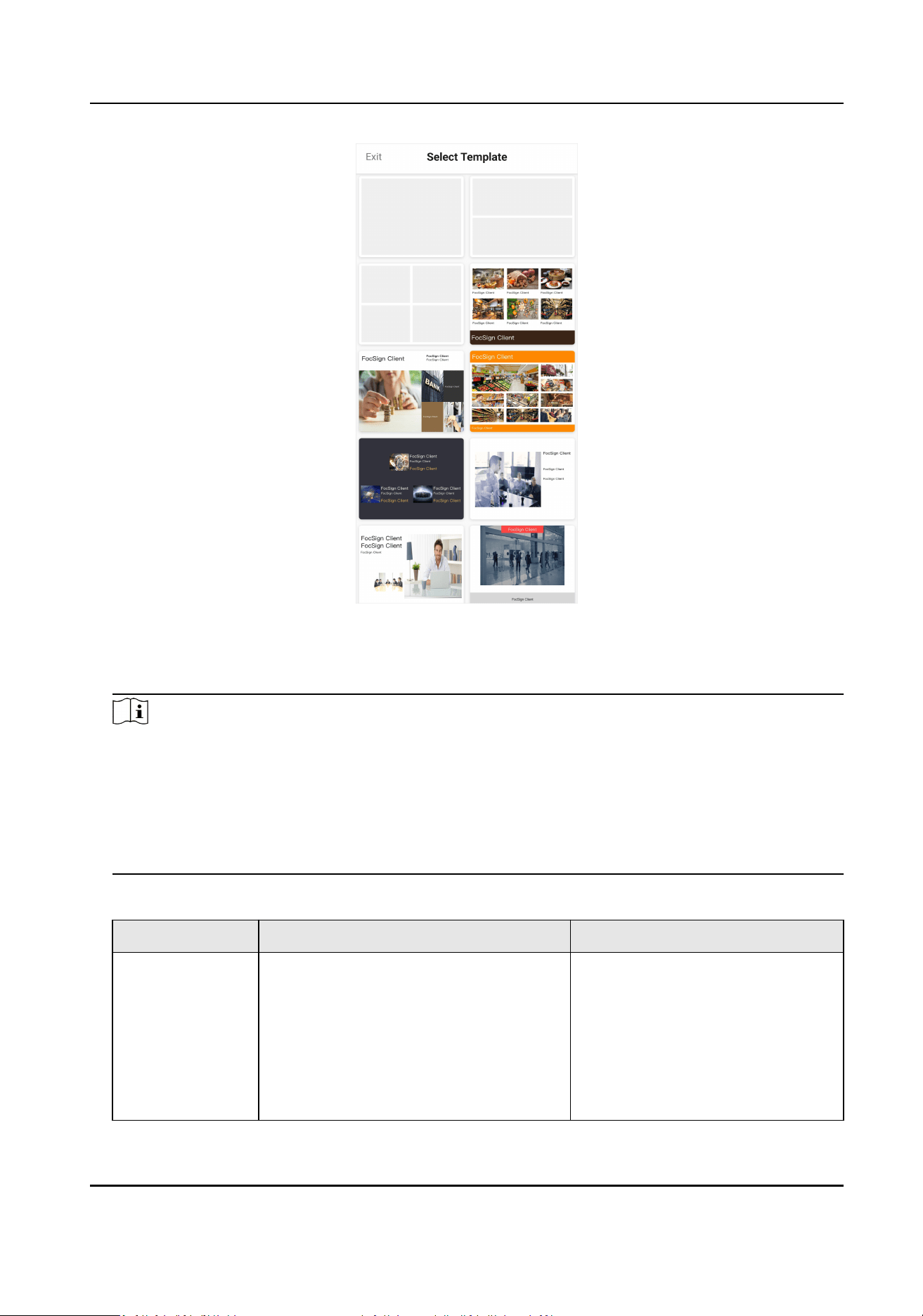
Figure 4-2 Select a Template
4. Edit a program. You can add materials on the server or from local folders. The available material
types and limited
condions are as follows.
Note
• Only users with material management permission can add local materials.
• You can add at most 16 materials (including server and local materials) to 1 window. Among
these materials, only 1 Web material is allowed.
• You can add at most 64 local materials to 1 program.
• You need to share PDF/TXT materials to the APP using
le management applicaons rst
before adding local PDF/TXT materials.
Table 4-1 Material Descripon
Material Type Material Sengs Descripon
Picture • Play Mode: Custom by default.
•
Duraon: 10 to 604800s (7 days),
and 10s by default.
• Switching Eect: 11 kinds of eects
are available, and None by default.
• Formats available:
BMP/JPG/PNG/GIF.
• When the picture
resoluon is
larger than 3840×2160 or
2160×3840, it will be scaled
down according to the original
size. For example, a 4000×4000
FocSign Mobile User Manual
11
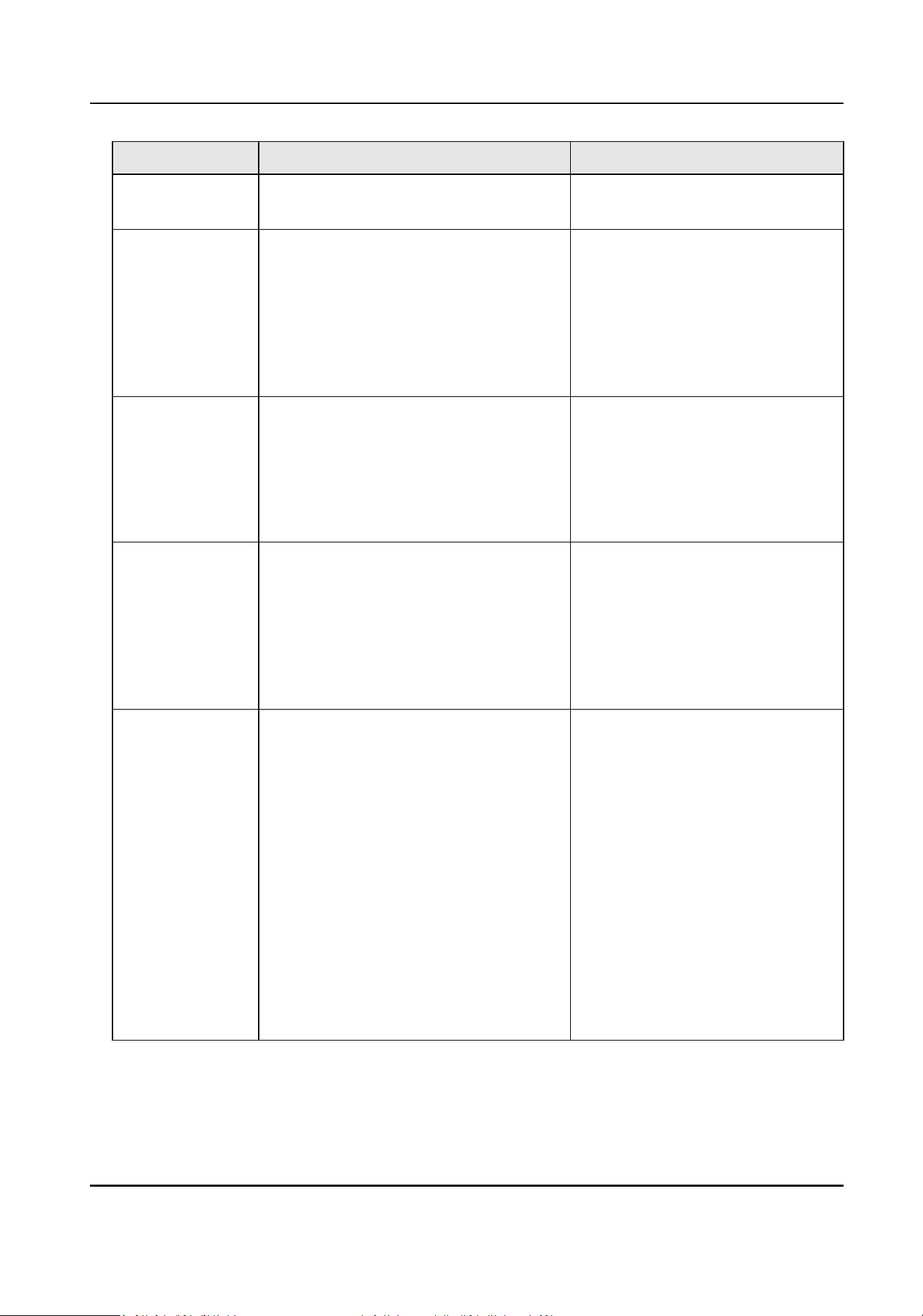
Material Type Material Sengs Descripon
picture will be scaled down to
2160×2160.
Video • Audio: Disable by default.
• Play Mode: Play by custom or by
material me. You need to set play
me when playing by custom. The
play
me ranges from 10 to 604800s
(7 days), and 60s by default.
• Formats available: MOV/MP4.
• Only 1 audio can be enabled on
1 page.
• The video cannot be larger than
4 GB, and its resoluon will be
compressed to 640×480 with
medium quality.
Web Refresh Time: 10 to 604800s (7 days),
and 60s by default.
• Only 1 Web material can be
added.
• Only users with material
management permission can
add local Web materials and
edit Web name and address.
PDF • Play Mode: Custom by default.
•
Duraon: Play me of the whole PDF
material. 10 to 604800s (7 days), and
60s by default.
•
Page
Duraon: Play me of single
PDF page. 10 to 60s, and 10s by
default.
——
TXT Play Mode: Custom by default.
Play Time: 10 to 604800s (7 days), and
30s by default.
Scrolling
Direcon: To Le/Right/Top,
and To Top by default.
Scrolling Speed: 1 to 9, and 5 by
default.
Font Size: 30 to 400 px, and 50 px by
default.
Font Color: White/Black (default)/Blue/
Green/Yellow/Red/Custom.
Background: White/Black (default)/
Blue/Green/Yellow/Red/Custom.
Formats available: TXT.
FocSign Mobile User Manual
12
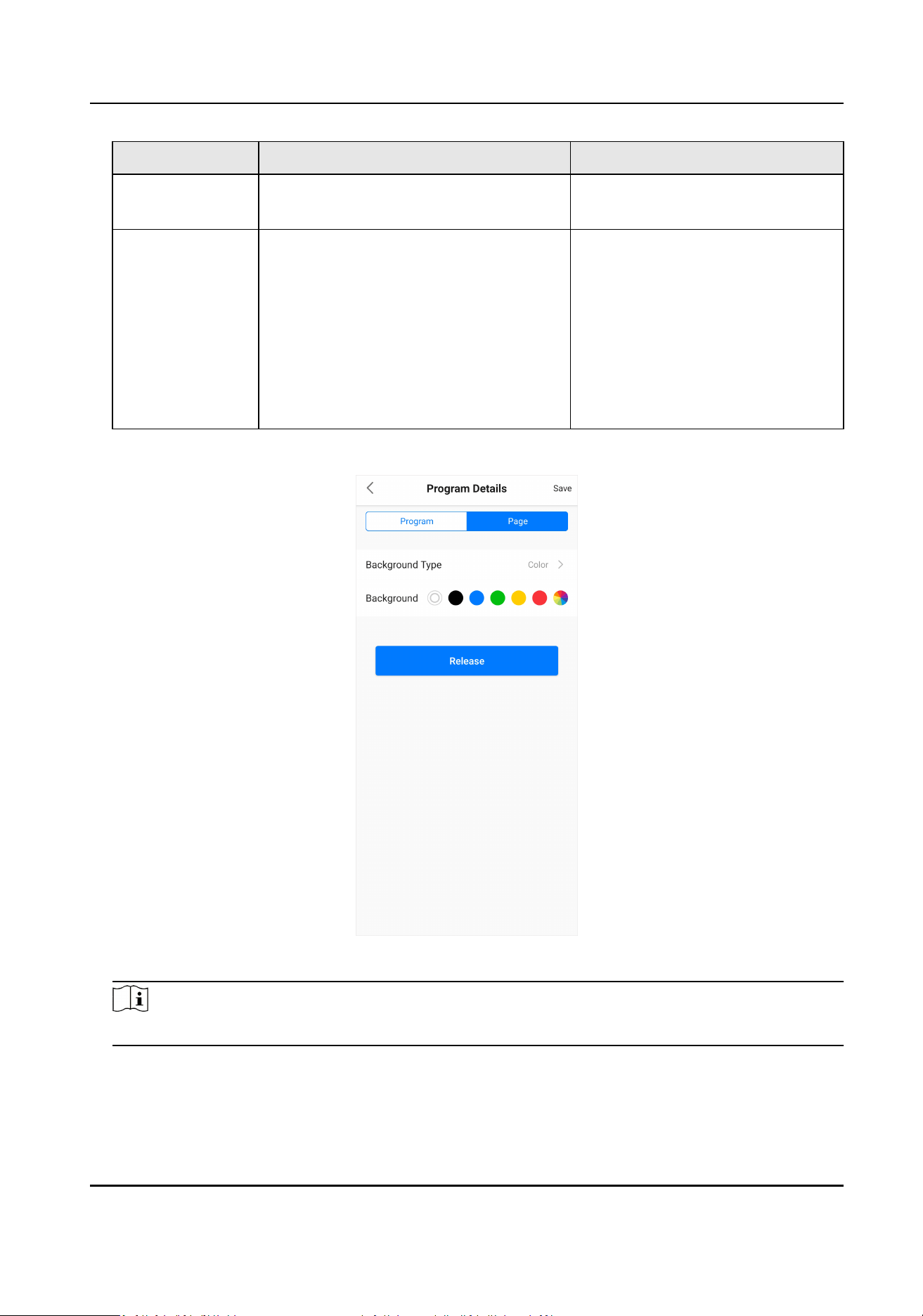
Material Type Material Sengs Descripon
Transparency: 0 to 100%, and 0% by
default.
Text Font size, font color, background, and
transparency sengs are the same
with TXT material.
Font Type: Normal/Bold, and Normal
by default.
Alignment:
Le/Horizontal Center/
Right/Top/Vercal Center/Boom, and
Le by default.
You can add, edit and delete
Chinese and English characters,
but emoji pictures and special
characters are not allowed.
5. Edit program details. You can edit basic program informaon or set page background. Pure color
and custom picture background are available.
Figure 4-3 Program Details
Note
You can create a program with only 1 page on the APP.
6. Tap Save on the upper right corner to save the program created. You can also tap Release to
directly release the program to the terminal. See Release a Program for details。
FocSign Mobile User Manual
13
Chapter 5 Program Management
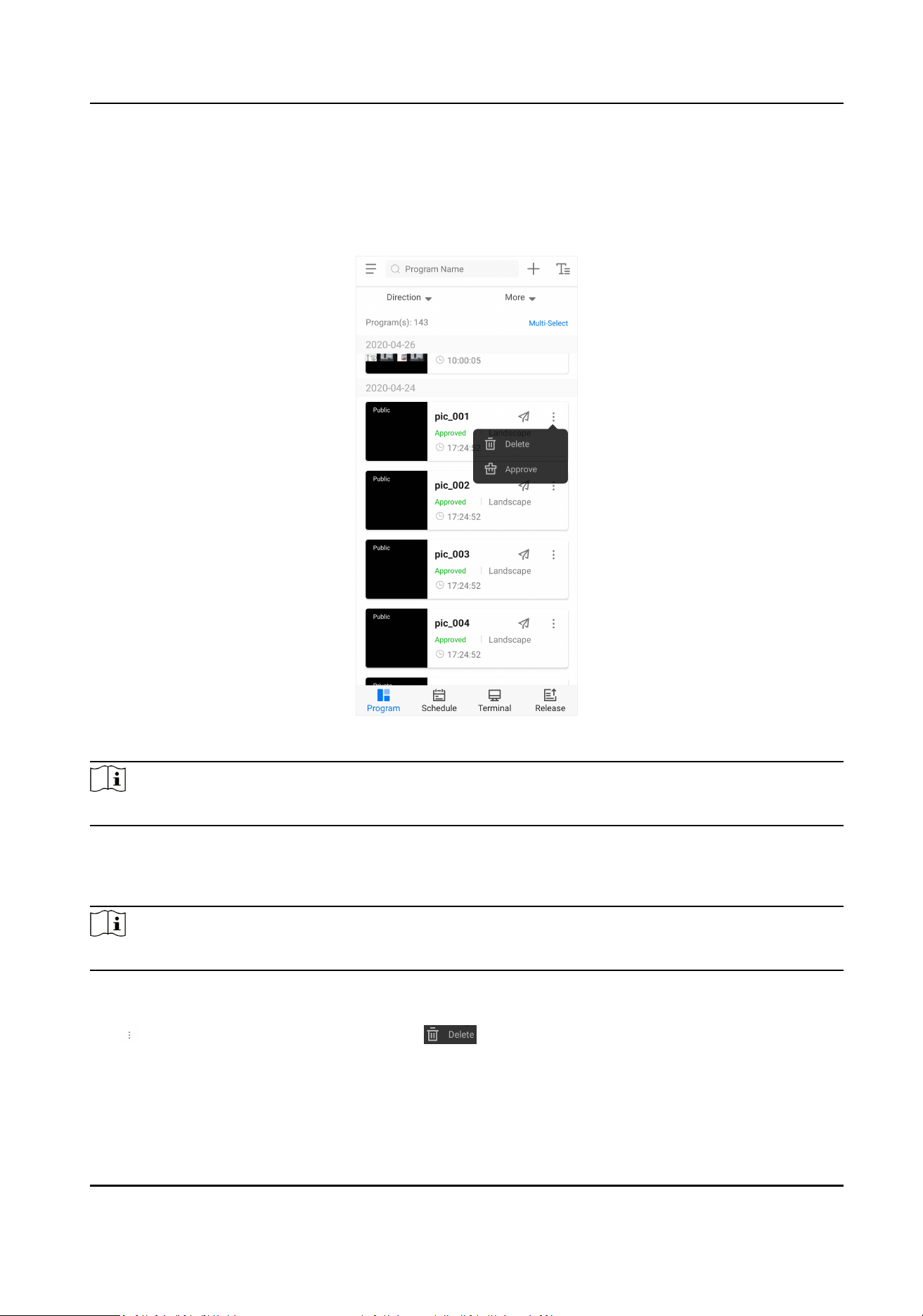
You can edit, delete and approve programs on the Program interface.
Figure 5-1 Program Interface
Note
Tap Mul-Select on the upper right corner to delete or approve mul programs.
Edit a Program
Tap the program in the list to edit. You can edit the materials or the program details.
Note
Programs with more than one pages cannot be edited on the APP.
Delete a Program
Tap on the right of a program, and select to delete the program.
FocSign Mobile User Manual
14

Approve a Program
Users with approval permission can tap on the right of a program, and select to approve
the program.
FocSign Mobile User Manual
15
Chapter 6 Release
You can release the programs or the schedules that already exists on the server to the terminal, or
cut in programs or messages.
On Release interface, you can check or search the release records, cancel or release the release
plan again.
6.1 Release a Program
You can release a program to the terminal.
Before You Start
The terminal is registered to the FocSign Server, and is online.
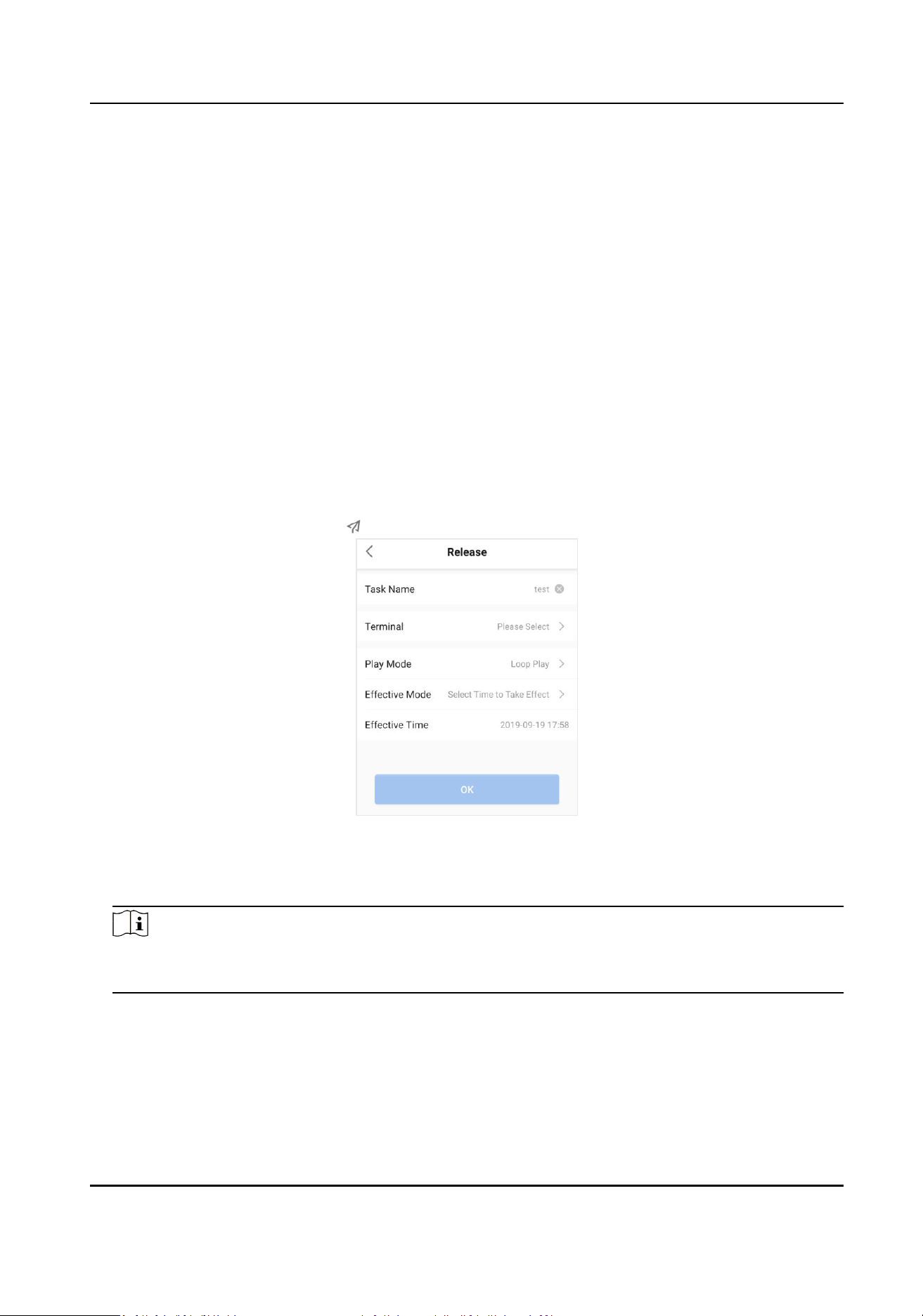
Steps
1. On the Program interface, tap on the right of the program.
Figure 6-1 Release a Program
2. Set the Task Name.
3. Select the desired terminal. You can select terminals in batches.
Note
Aer you select the terminal, the number of selected terminals will show in the Terminal area,
but not the terminal name.
4. Select Play Mode.
Loop Play
FocSign Mobile User Manual
16

• Select
Eecve Mode as Take Eect Immmediately, and the program will play by loop
immediately aer released.
• Select Eecve Mode as Select Time to Take Eect, set Eecve Time, and the program
will play by loop at the eecve me aer released.
Cut-in
• Select Play Time as End Time, set End Time, and the program will
nish cut-in at the end
me.
• Select Play Time as
Duraon, set Duraon, and the program will nish cut-in in the
predened duraon.
5. Tap OK.
6. Oponal: On the top of the Program interface, you can set the search condions such as
Direcon, and More to search for the programs. You can also enter Program Name in the
searching box to search directly.
6.2 Release a Message
You can create a new text message and release it to the terminal on the APP.
Before You Start
The terminal is registered to the FocSign Server, and is online.
Steps
1. Tap on the upper right corner of the Program interface to create a new text message.
FocSign Mobile User Manual
17
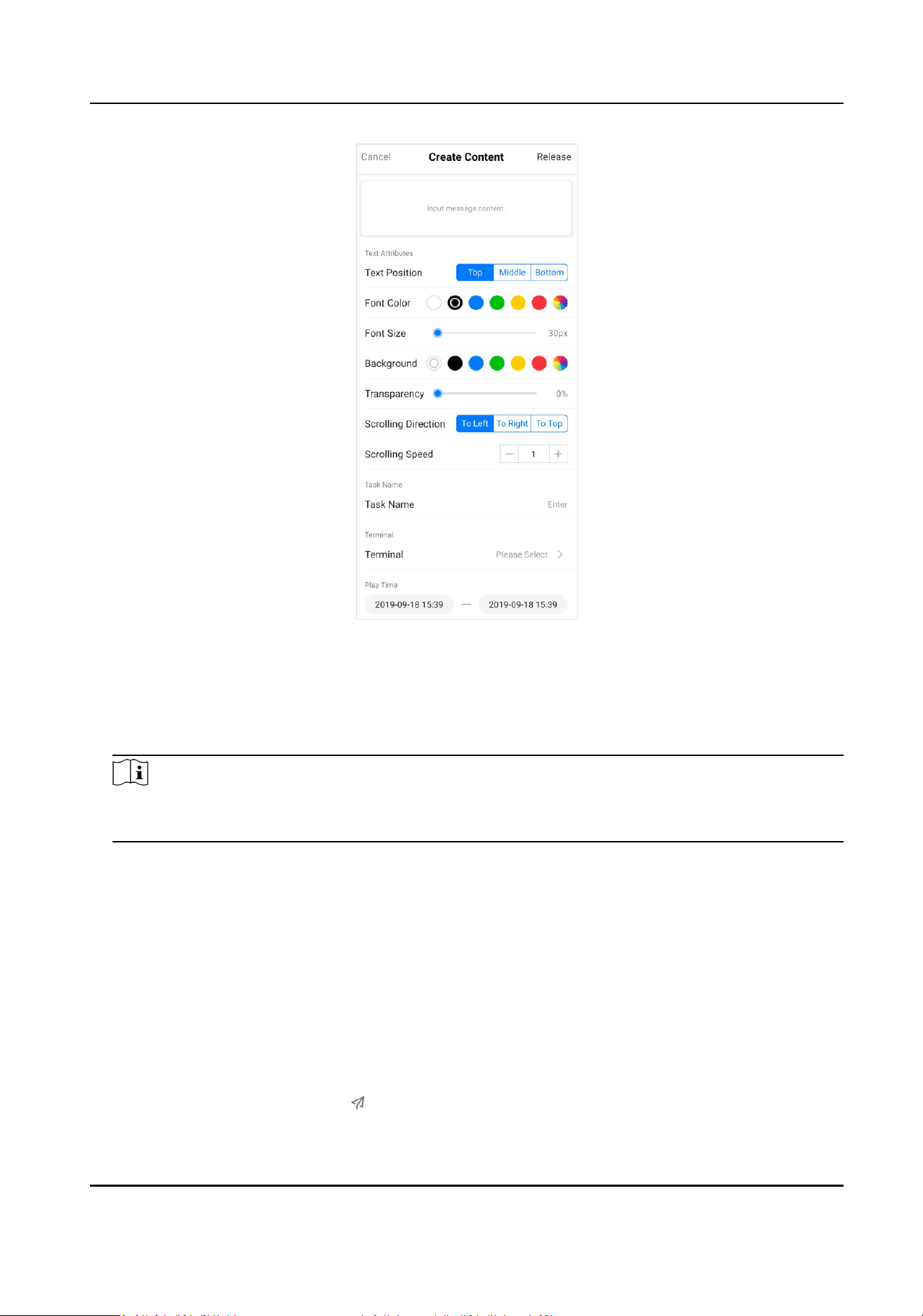
Figure 6-2 Release a Message
2. Input the message content.
3. Conure the text aributes, including Text Posion, Font Color, Font Size and etc.
4. Set the Task Name.
5. Select the desired terminal. You can select terminals in batches.
Note
Aer you select the terminal, the number of selected terminals will show in the Terminal area,
but not the terminal name.
6. Set the Play Time.
7. Tap Release on the upper right corner.
6.3 Release a Schedule
You can release a schedule to the terminal.
Before You Start
The terminal is registered to the FocSign Server, and is online.
Steps
1. On the Schedule interface, tap
on the right of the shcedule.
FocSign Mobile User Manual
18
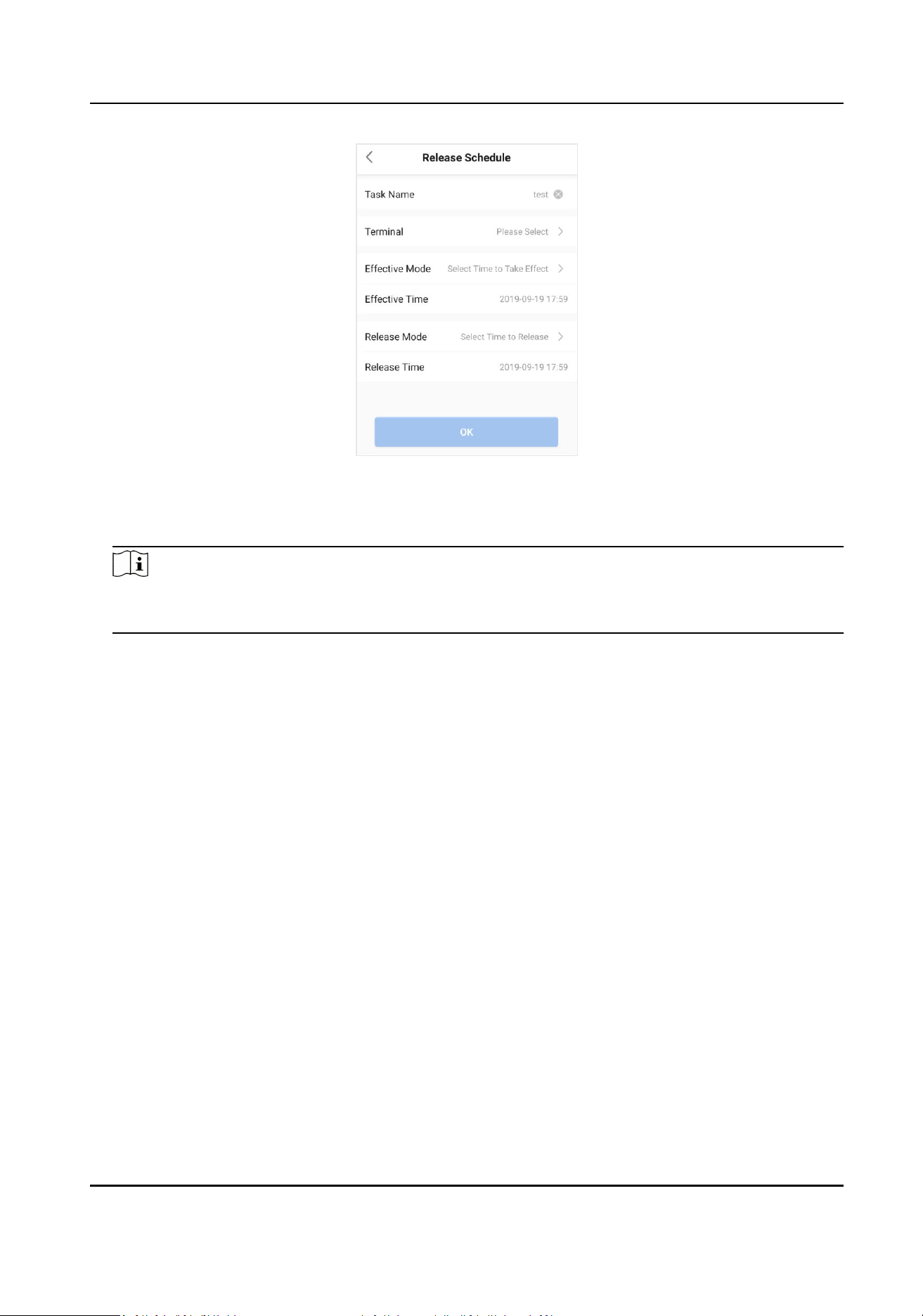
Figure 6-3 Release a Schedule
2. Set the Task Name.
3. Select the desired terminal. You can select terminals in batches.
Note
Aer you select the terminal, the number of selected terminals will show in the Terminal area,
but not the terminal name.
4. Select Eecve Mode and Release Mode.
Eecve Mode
• Take Eect Immediately: The schedule will play immediately aer released.
• Select Time to Take Eect: When you set the Eecve Time, the schedule will play at the
eecve me aer released.
Release Mode
• Release Immediately: When you tap OK, the schedule will be released.
• Select Time to Release: When you set the Release Time and tap OK, the schedule will be
released at the predened me.
5. Oponal: On the top of the Schedule interface, you can set the search condions such as Play
Mode, and More to search for the schedules. You can also enter Schedule Name in the
searching box to search directly.
6.4 Release Management
On the Release interface, you can manage the release tasks, including delete/search the release
tasks, release again, and cancel releasing.
FocSign Mobile User Manual
19
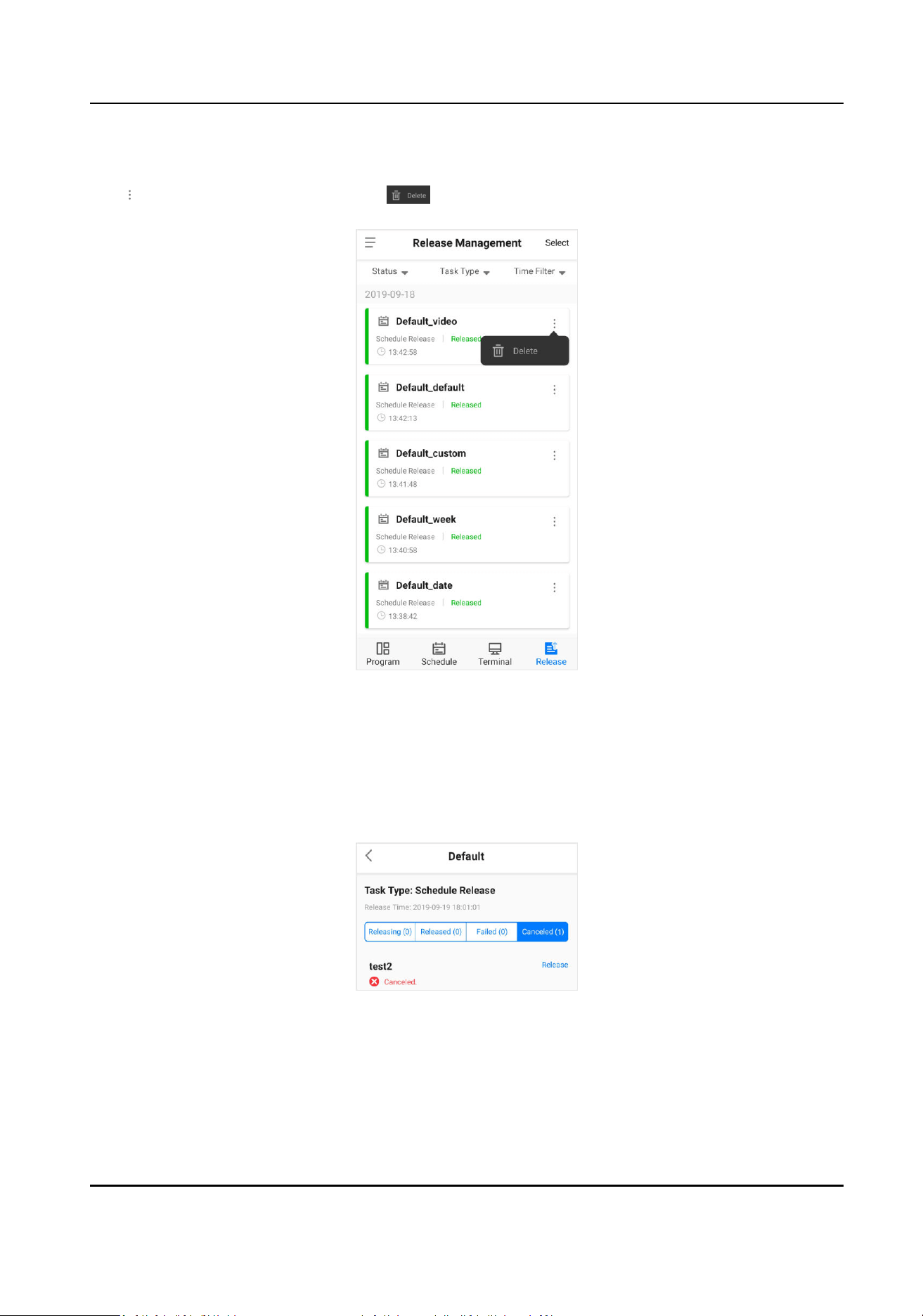
Delete the Release Task
Tap on the right of the task, and tap to delete this release task. You can delete the tasks in
batches by tapping Select on the upper right corner of the Release interface.
Figure 6-4 Delete the Release Task
Release Again
You can release a failed task, a canceled task, and a not released task again.
Tap the tasks that need to release again, tap Failed or Canceled, select the terminal that the task
needs to release to, and tap Release. You can tap Release all to release the task to all the
terminals.
Figure 6-5 Release Again
Cancel Releasing
The task in releasing can be canceled.
FocSign Mobile User Manual
20
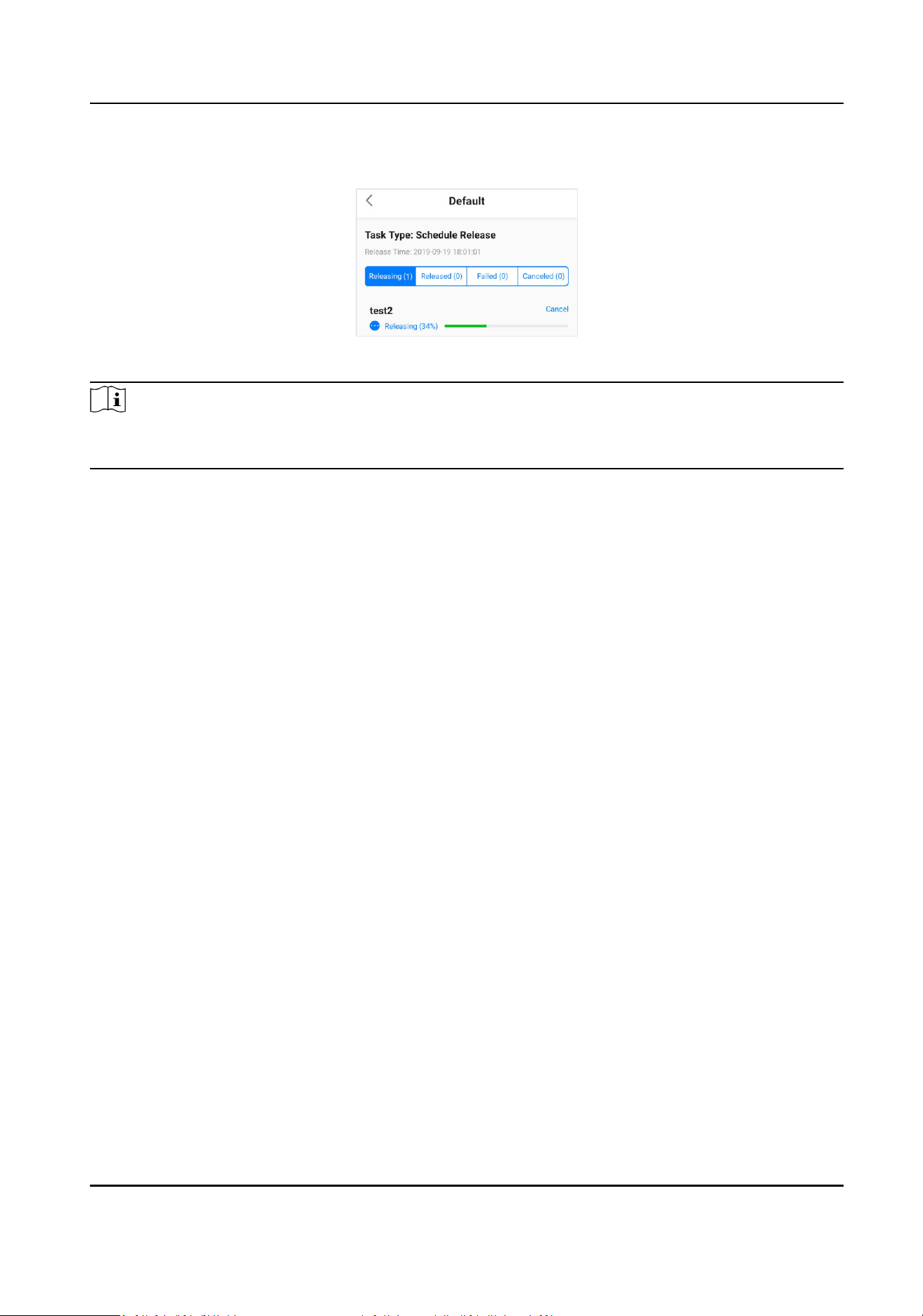
Tap the task in releasing, tap Releasing, select the terminal that the task needs to be canceled on,
and tap Cancel.
Figure 6-6 Cancel Releasing
Note
On the top of the Release interface, you can set the search condions such as Status, Task Type
and Time Filter to search for the release tasks.
FocSign Mobile User Manual
21
Chapter 7 Maintenance
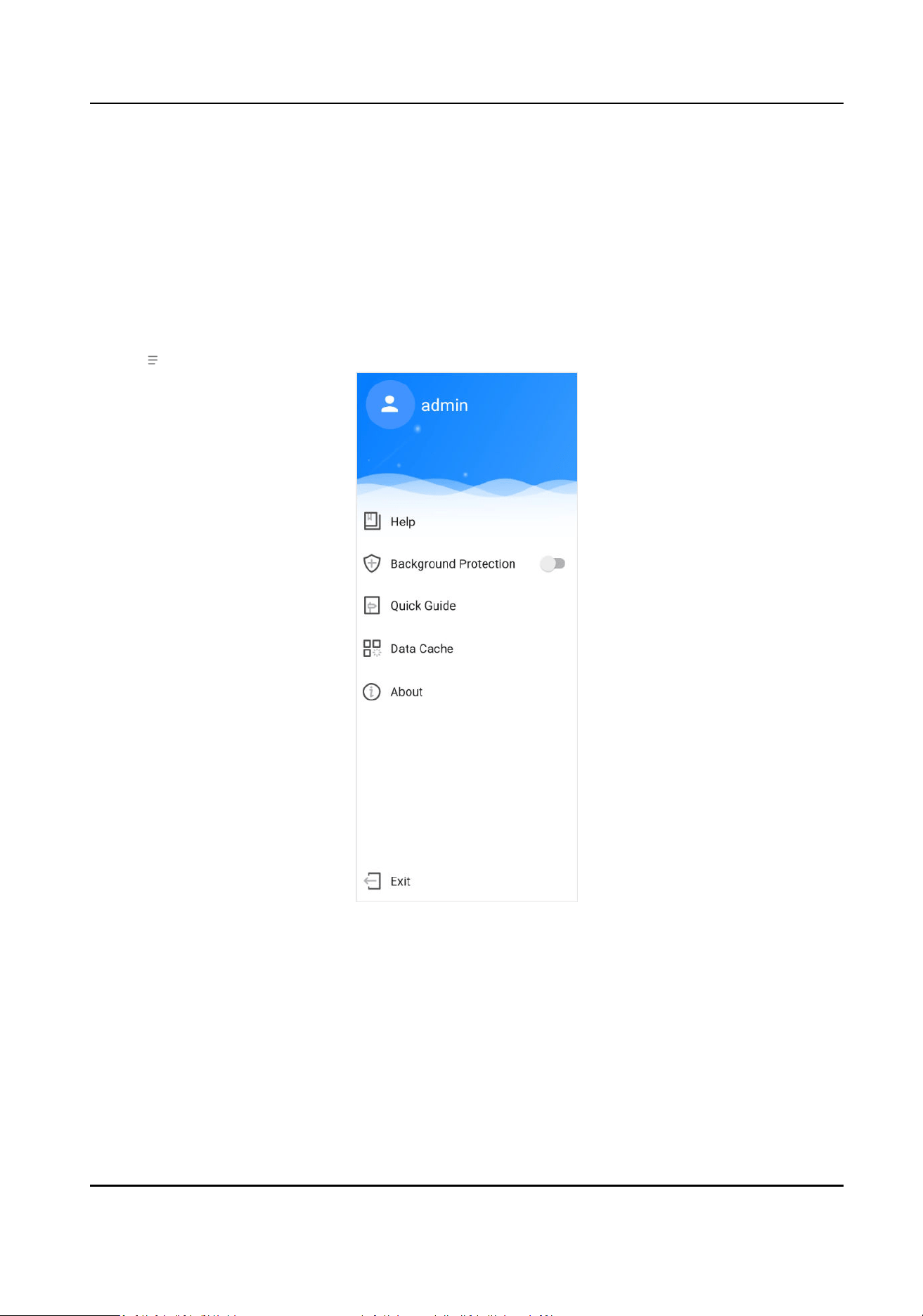
7.1 Background Protecon
When the APP is running in the background, you need to enter the password when go to the APP
again.
Steps
1. Tap on the upper le corner to enter the system menu.
Figure 7-1 Background Protecon
2. Enable Background Protecon.
3. Tap OK to enable.
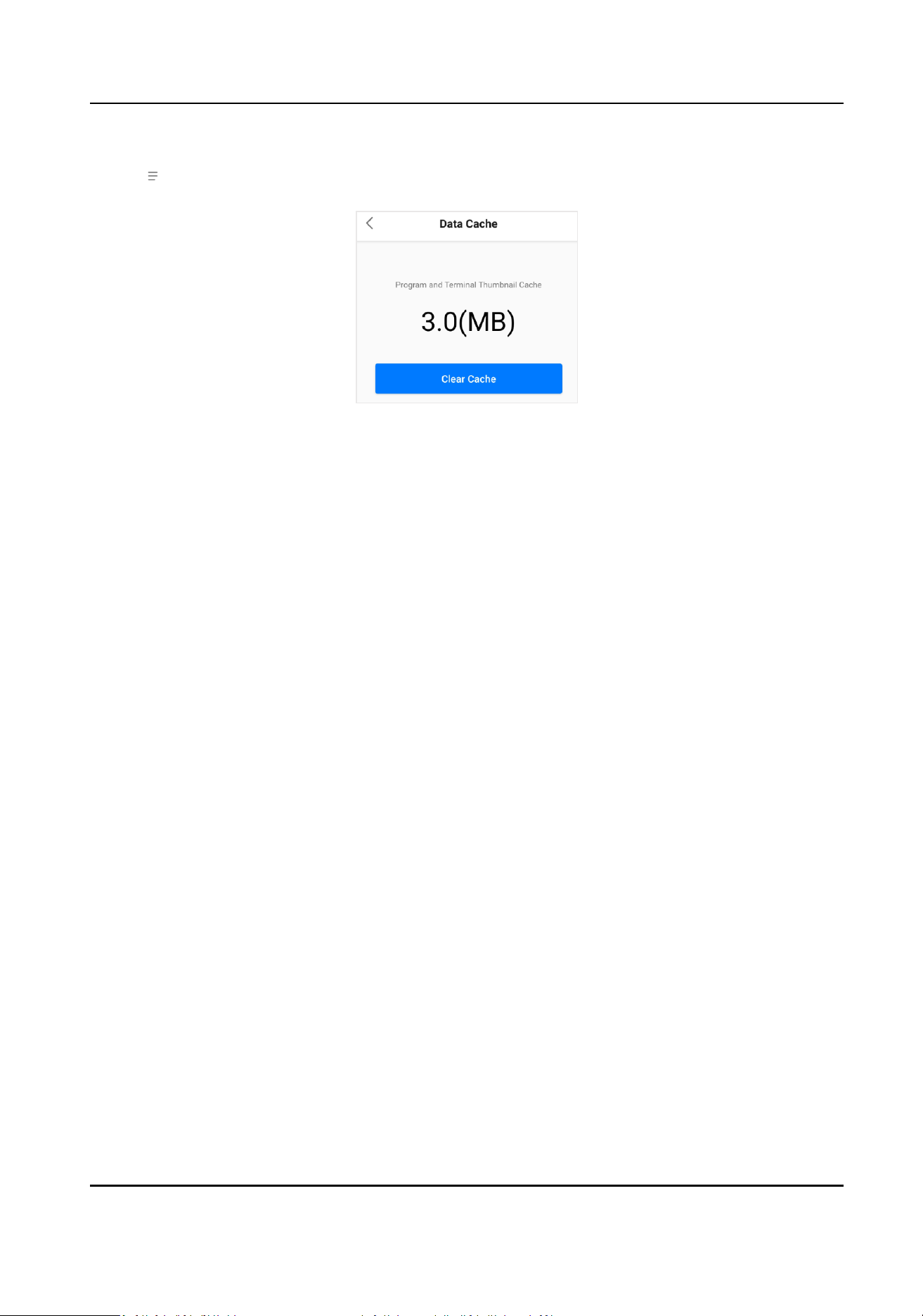
7.2 Data Cache Clearance
Clearing the cache of the program and terminal thumbnails can increase the system running speed.
FocSign Mobile User Manual
22
Steps
1. Tap
on the upper le corner to enter the system menu.
2. Tap Data Cache.
Figure 7-2 Clear Data Cache
3. Tap Clear Cache
4. Tap OK to clear data cache.
FocSign Mobile User Manual
23

UD19095B