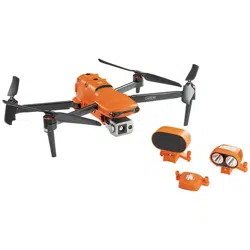

1
EVO II Dual 640T V3
User Manual
2022.09

2
Legend
Pay attention to the following legend keys in this User Manual:
Warning: Informs you of potential dangers.
Important: Precautions that you should pay attention to during flights.
Note: Additional information.
Tip: Tips that can help you get the best user experience.
Reference: Information that can help you find the page number for relevant
chapters.
Trademark Information
The trademarks EVO Ⅱ Dual 640T™, Autel Explorer™, Starpoint™, and Autel
Robotics® are the registered trademarks of Autel Robotics Co., Ltd. (hereinafter
referred to as "Autel Robotics") in China and other countries/regions. All other
products and company names mentioned in this User Manual are registered
trademarks of their respective holders.
Copyright
No part of this Manual may be copied or transmitted in any form or by any means,
electronic, mechanical, photocopying, recording, or otherwise without the prior
written permission of Autel Robotics.
Patent Information
This product is obtained through a patent process. The following shows the patent
numbers:
US7979174
IL192490
US9260184
CA2815885
US9979000
US10224526
US10044013
US10115944
US10090496
US10074836
US10341573
US10399699
US10414514
Disclaimer
To ensure that you can successfully operate your EVO II Dual 640T V3, please
strictly follow the operating instructions and steps in this Manual. The aircraft shall

3
be kept out of the reach of children when it is not used.
If you does not abide by the Safety Guidelines, Autel Robotics shall not be
responsible for any product damage or loss (whether direct or indirect, legal, special,
accident, or economic loss (including but not limited to loss of profit)) during use,
and shall not provide any warranty service. Never modify the product using any
incompatible component or in any way that does not conform to the official
instructions of Autel Robotics.
This User Manual describes the procedures and methods for safely operating the
aircraft. Please ensure that the operations you perform do not endanger personal or
property safety of yourself or those around you. The Safety Guidelines in this
Manual will be updated from time to time. To ensure that you get the latest version,
visit www.autelrobotics.com/download/129.
Data Storage and Use
The backup service function of this product is turned off by default, meaning that
user and flight information will not be uploaded or disseminated via mobile devices.
When the Autel Explorer App is connected to the aircraft and the backup option is
turned on, flight logs and flight remote sensing data will be automatically uploaded
and saved in the Autel Robotics data server. All flight remote sensing data and flight
logs can be uploaded automatically only when the flight log backup option is turned
on. Unless the user explicitly grants permission through the Autel Sky App, the Autel
Robotics Customer Service Team has no right to access the flight log data. After this
permission is granted, only flight logs within the selected date range can be
accessed.
Various still images, motion images, and data transmitted from the aircraft sensor
will be stored on the internal drive of the aircraft. If your drone needs to be repaired,
you can use the information stored on the internal storage unit to diagnose the
drone's problem. This information will not be retained unless for service processing
and product repairing. Do not delete or change the data on the internal storage
device. Otherwise, Autel Robotics shall provide no warranty service. The purpose of
Autel Robotics' collection of data is to provide customers with support and services,
and to improve product performance. We take your right to privacy very seriously.
We will only agree to the disclosure of uploaded data when required by law. For
details about the privacy policies, visit www.autelrobotics.com/page/privacy.
Safety Guidelines
Battery Safety
EVO II Dual 640T V3 aircraft is powered by lithium-ion polymer (LiPo) batteries.
Improper use of LiPo batteries may cause danger. Strictly observe the following

4
safety guidelines when using, charging, or storing your batteries.
Warning
Use batteries and chargers provided only by Autel Robotics. Do not modify the
battery pack and the recharger or replace them with third-party devices.
Electrolytes in the battery are highly corrosive. If any electrolytes make contact
with your skin or eyes, immediately wash the affected area with fresh running
water and then see a doctor.
Battery Use
When installing or removing the aircraft battery, be sure to turn off the aircraft's
power. Other precautions are as follows:
Only use batteries and charging devices sold or authorized by Autel Robotics for
EVO II Pro Enterprise V3. Using unapproved batteries or charging devices may
cause fire, explosion, leakage or other hazards. Autel Robotics is not
responsible for any repercussions caused by the use of third-party batteries or
charging devices.
Do not disassemble, scratch, squeeze, bend, puncture, cut, twist, or otherwise
intentionally damage the battery. Otherwise, it may cause fire, explosion,
leakage, or other hazards.
Once the battery begins to bulge, smoke, leak, or show any other signs of
damage, stop using it immediately and immerse it in a container filled with salt
water.
Use the battery at a suitable temperature (-10ºC to 40ºC). Using the battery at
a high or low temperature will affect the battery life. Extreme temperatures may
cause fire, spontaneous combustion, or permanent damage.
Exposing the battery below 5ºC will increase the battery discharge rate.
Do not use the battery in a strong electrostatic or electromagnetic environment.
Do not expose the battery to open flame, explosives, or other hazards.
If the aircraft falls into water, remove the battery immediately after recovering it.
Put the battery in an open place and keep a safe distance until it is completely
dry. After that, stop using the battery. You can contact our Customer Service
Team to replace it.
Battery Charging
It takes up to 90 minutes to fully charge the aircraft battery, but the charging time is
related to the remaining power.
Other precautions are as follows:
Do not use damaged battery chargers.

5
When the charger is not in use, disconnect it from the aircraft battery and power
supply.
Do not charge the battery until it cools down to near room temperature. If you
connect the battery to the charger immediately after the flight, the
over-temperature protection may be automatically activated, preventing the
battery from charging until it has completely cooled.
Battery Storage
Avoid close contact with water or heat sources when storing the battery. The battery
should be stored in a dry, well-ventilated area at room temperature (ideally 22°C to
28°C).
Other precautions are as follows:
Keep batteries out of the reach of children and pets.
Do not store the battery near direct sunlight, sharp objects, water, metal or
reactive chemicals.
Storing the battery at extreme temperatures will shorten its life.
If the battery is not used for more than 6 days, it should be stored at a
temperature of -10°C to 30°C.
If left unused for an extended period of time, the service life of the battery will
be shortened.
Battery Disposal
Please fully discharge the battery before disposal.
Dispose of the battery in a designated battery recycling bin.
Flying the Aircraft Safely
Flight Environment
Please abide by all local regulations regarding drone flight. Only fly in
designated UAV flight areas. Use the Autel Explorer App to set the distance and
height restrictions that meet the regulations.
Do not fly in dangerous situations or severe weather conditions such as
tornadoes, rain, hail, snow, etc.
Do not fly the aircraft near electromagnetic interference sources such as power
plants, power lines, substations, wind turbine towers, and radio and television
towers.
Fly in an open safe area. Keep the aircraft away from obstacles that may
interfere with GPS signals, such as buildings and trees.
Be careful when flying the aircraft in areas 7000 meters above sea level as the
battery and motor performance may be affected.
Before Takeoff

6
Please do the following before each flight:
Ensure that the remote controller, aircraft battery, and mobile device on which
Autel Explorer App is installed are fully charged.
Ensure that the propeller is installed correctly and is not damaged.
Ensure that the front arm and rear arm of the aircraft are fully unfolded.
Ensure that the motor, gimbal and camera work properly after the aircraft is
powered on.
Ensure that all warnings and errors displayed on the Autel Explorer App have
been handled.
Only use accessories provided with this aircraft or ones sold or authorized by
Autel Robotics for this product. Using unapproved accessories can result in
serious safety risks and void the product warranty.
In Flight
When taking off and landing the aircraft, stay away from people, vehicles and
other moving objects.
Do not let the aircraft leave your sight.
Do not let the aircraft approach the water when flying it.
When a low battery alarm occurs, do not cancel the auto-return process.
Otherwise, the aircraft may not be able to return to the home point due to
insufficient battery power.
When the Autel Explorer App displays an alarm, follow the instructions
immediately.
Do not attempt to operate the aircraft if you are inebriated or experiencing high
blood pressure, dizziness, fatigue or any other physical conditions that may
affect your ability to operate the aircraft safely.
Warning
If any part of the aircraft or the remote controller fails to work properly or is
visibly damaged, do not fly. Contact the Autel Robotics Customer Service Team:
www.autelrobotics.com/page/contact.
Storage and Maintenance
After any collision or squeeze, every part of the aircraft should be checked carefully.
Store the aircraft and its accessories in places out of the reach of children and pets.
Store the aircraft and its accessories in a cool, dry place.
The aircraft should be kept away from water and heat sources.
The recommended storage temperature for the aircraft is 22ºC to 28ºC.

7
Table of Contents
Chapter 1 About This Manual
..................................................................................................
10
1.1 Read Before the First Flight
..............................................................................................
10
1.1.1 Document
...................................................................................................................
10
Chapter 2 Product Profile
.........................................................................................................
11
2.1 Aircraft
.....................................................................................................................................
11
2.1.1 Component Description
..........................................................................................
11
2.1.2 Flight Status Indicator
.............................................................................................
13
2.1.3 Aircraft Battery
..........................................................................................................
14
2.1.4 Gimbal and Camera
................................................................................................
17
2.1.5 Flight Control System
..............................................................................................
22
2.1.6 Intelligent Flight Features
.......................................................................................
24
2.1.7 Omnidirectional Binocular Vision Sensing System
.........................................
26
2.2 Remote Controller
................................................................................................................
30
2.2.1 Component Description
..........................................................................................
30
2.2.2 Use the Remote Controller
....................................................................................
32
2.3 Autel Explorer App
...............................................................................................................
36
2.3.1 Mission
.........................................................................................................................
36

8
Chapter 3 Flight Preparations
.................................................................................................
40
3.1 Prepare the Battery
.............................................................................................................
40
3.1.1 Install the Aircraft Battery
......................................................................................
40
3.1.2 Remove the Aircraft Battery
..................................................................................
40
3.1.3 Charge the Battery
...................................................................................................
40
3.2 Prepare the Remote Controller
........................................................................................
42
3.2.1 Unfold the Remote Controller
...............................................................................
42
3.2.2 Turn On/Off the Remote Controller
.....................................................................
42
3.2.3 Pairing the Aircraft with the Remote Controller
...............................................
42
3.3 Prepare the Aircraft
.............................................................................................................
43
3.3.1 Unfold the Aircraft
....................................................................................................
43
3.3.2 Propeller
......................................................................................................................
43
3.3.3 Compass Calibration
...............................................................................................
45
Chapter 4 Flight Operations
.....................................................................................................
47
4.1 Pre-flight Checklist
..............................................................................................................
47
4.2 Flight Operations
..................................................................................................................
47
4.2.1 Start the Motor and Take Off the Aircraft (Mode 2)
......................................
47
4.2.2 Control with Command Sticks (Mode 2)
...........................................................
48
4.2.3 Landing and Turning Off the Motor
....................................................................
50

9
Chapter 5 Maintenance and Service
....................................................................................
51
5.1 Firmware Updates
...............................................................................................................
51
5.2 Troubleshooting
....................................................................................................................
52
5.3 Storage and Maintenance
.................................................................................................
54
5.4 Warranty
.................................................................................................................................
54
5.5 Customer Service
................................................................................................................
55
5.5.1 Technical Support
....................................................................................................
55
5.5.2 Maintenance Service
...............................................................................................
55
Chapter 6 Appendix
....................................................................................................................
55
6.1 Unlock No-Fly Zones
..........................................................................................................
55
6.2 Specifications
........................................................................................................................
57

10
Chapter 1 About This Manual
Thank you for purchasing EVO Ⅱ Dual 640T V3. Through this Manual, you can learn
product features and how to operate the aircraft and remote controller in a best way.
Please read this Manual and other attached documents prior to the initial operation
of the product and keep the User Manual for later use.
1.1 Read Before the First Flight
1.1.1 Document
The following documents will walk you through how to operate an EVO Ⅱ Dual 640T
V3 aircraft for the first time.
1. Product list: A list of all the items included in the packing box. If anything is
missing, contact Autel Robotics customer support or local retailers.
2. User Manual: Teaches you how to operate the product skillfully.
3. Quick Guide: Provides basic knowledge about how to operate the product.
4. Disclaimer and Safety Operation Guidelines: Provides instructions on how to
operate the product safely.
5. Battery Quick Guide: Provides basic knowledge about intelligent batteries.
Website for downloading all the documents:
www.autelrobotics.com/download/129.
Warning
Please check the aircraft and other accessories listed on the part list in the
packing box. Do not modify this aircraft by using any incompatible component
or any method that is not allowed in the official description.
11
Chapter 2 Product Profile
Equipped with a 640×512 high resolution thermal imaging camera and 4K visual
camera, EVO Ⅱ Dual 640T V3 enables you to capture thermal images and visual
light images at the same time and supports "Picture-in-Picture" mode.
EVO Ⅱ Dual 640T V3 adopts a foldable fuselage design, making it portable and
convenient to fly. With a maximum transmission distance of 15 km (FCC), the
aircraft offers a flight time of up to 42 minutes, and can reach a top speed of up to
72 km/h. It also comes standard with a 7.9-inch 2000nit high-definition remote
controller, enabling real-time transmission of 1080P video images.
The body of the aircraft has 12 visual sensors, providing omnidirectional obstacle
avoidance. The Autel Explorer App offers dozens of intelligent photography modes
and mission flight modes such as rectangular, polygonal, waypoint, and oblique.
You can plan waypoints and flight routes as required.
2.1 Aircraft
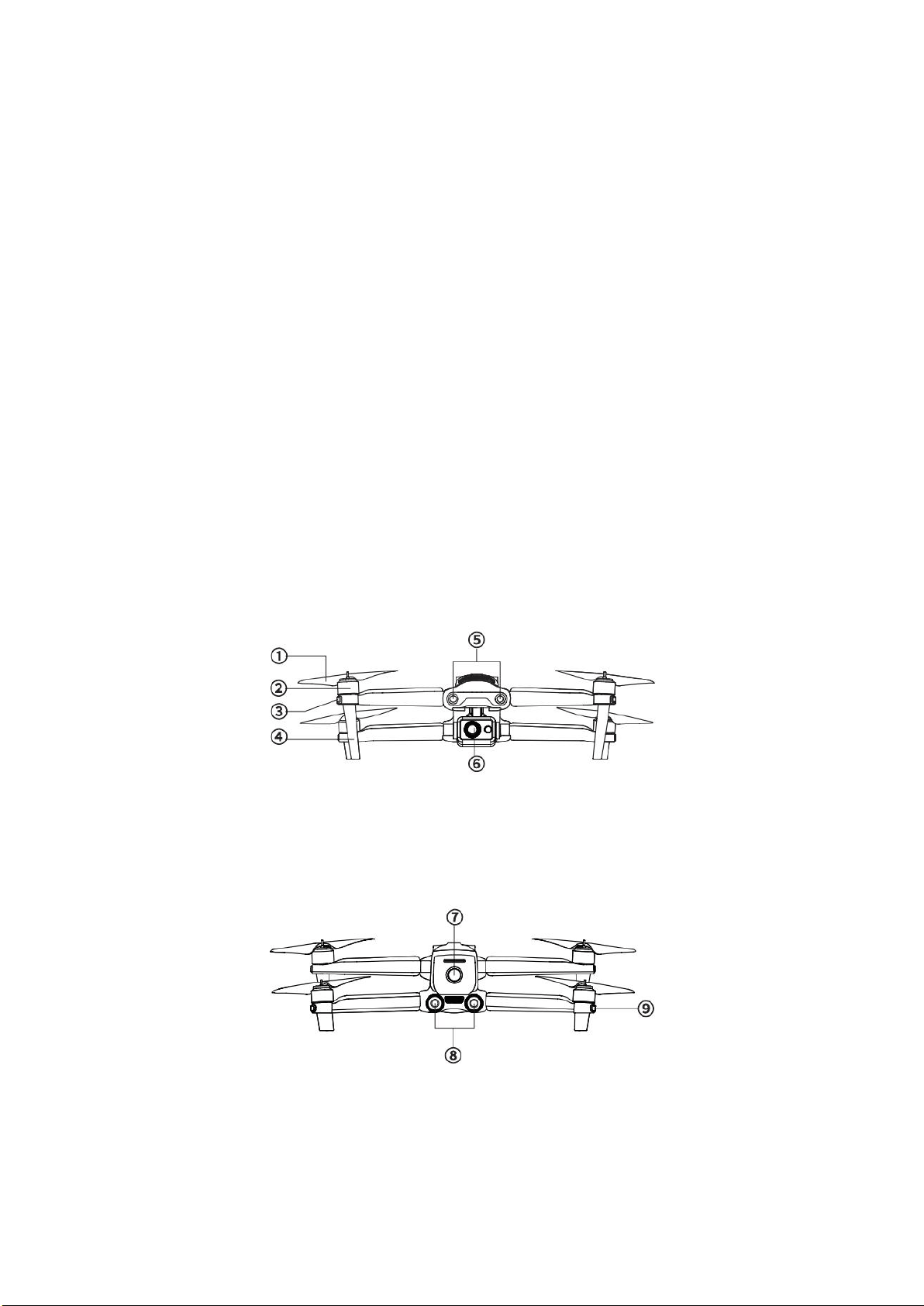
2.1.1 Component Description
① Propeller
④ Landing Gear
② Motor
⑤ Forward Vision System
③ Front LED Indicator
⑥ Gimbal Camera
⑦ Power Button
⑨ Rear LED Indicator
⑧ Rear Vision System
12
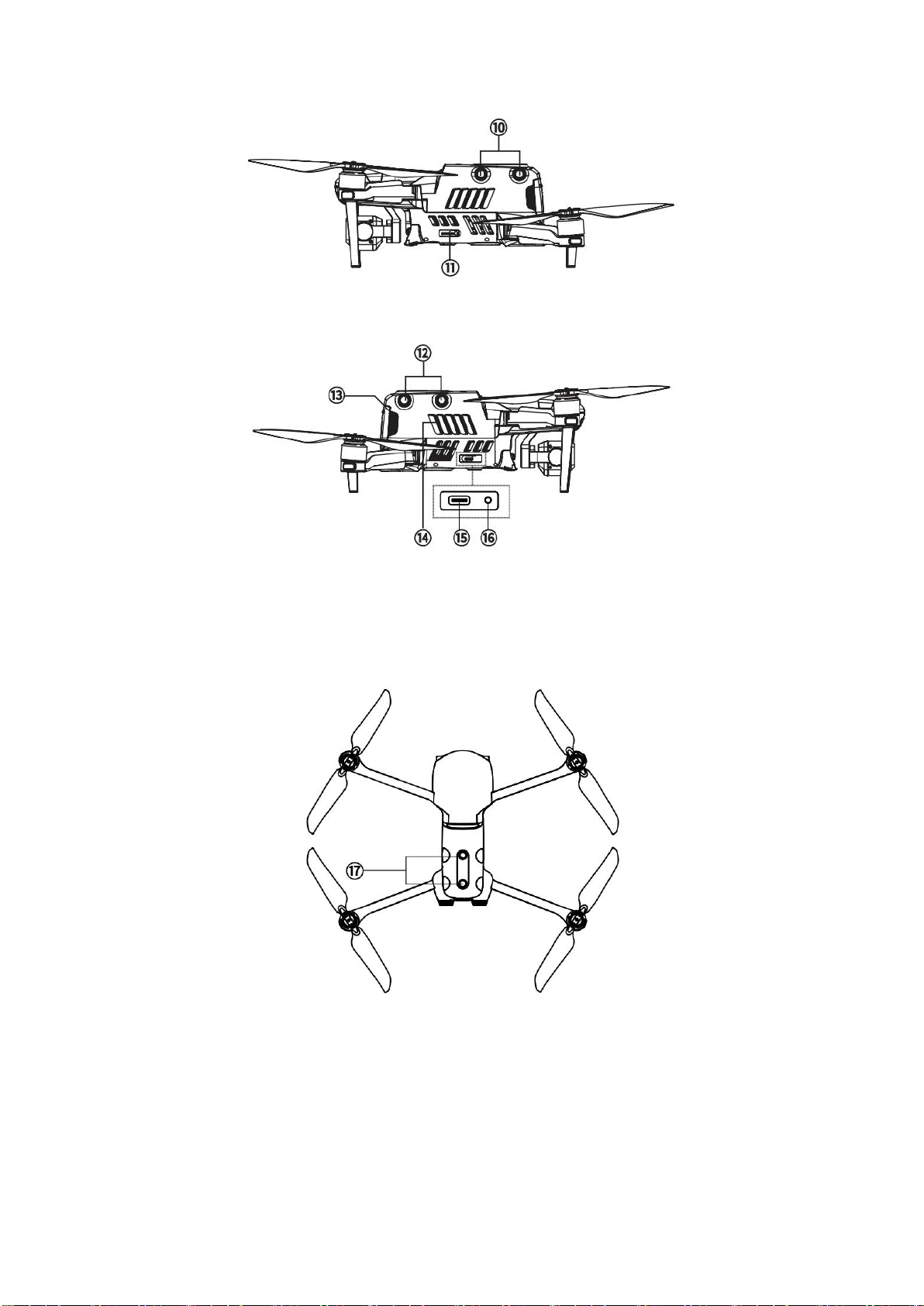
⑩ Left Vision System
⑪ SD Card Slot
⑫ Right Vision System
⑮ USB-C Port
⑬
Aircraft Battery
⑯
Linking button/indicator
⑭ Air Outlet
⑰
Upward Vision System
13
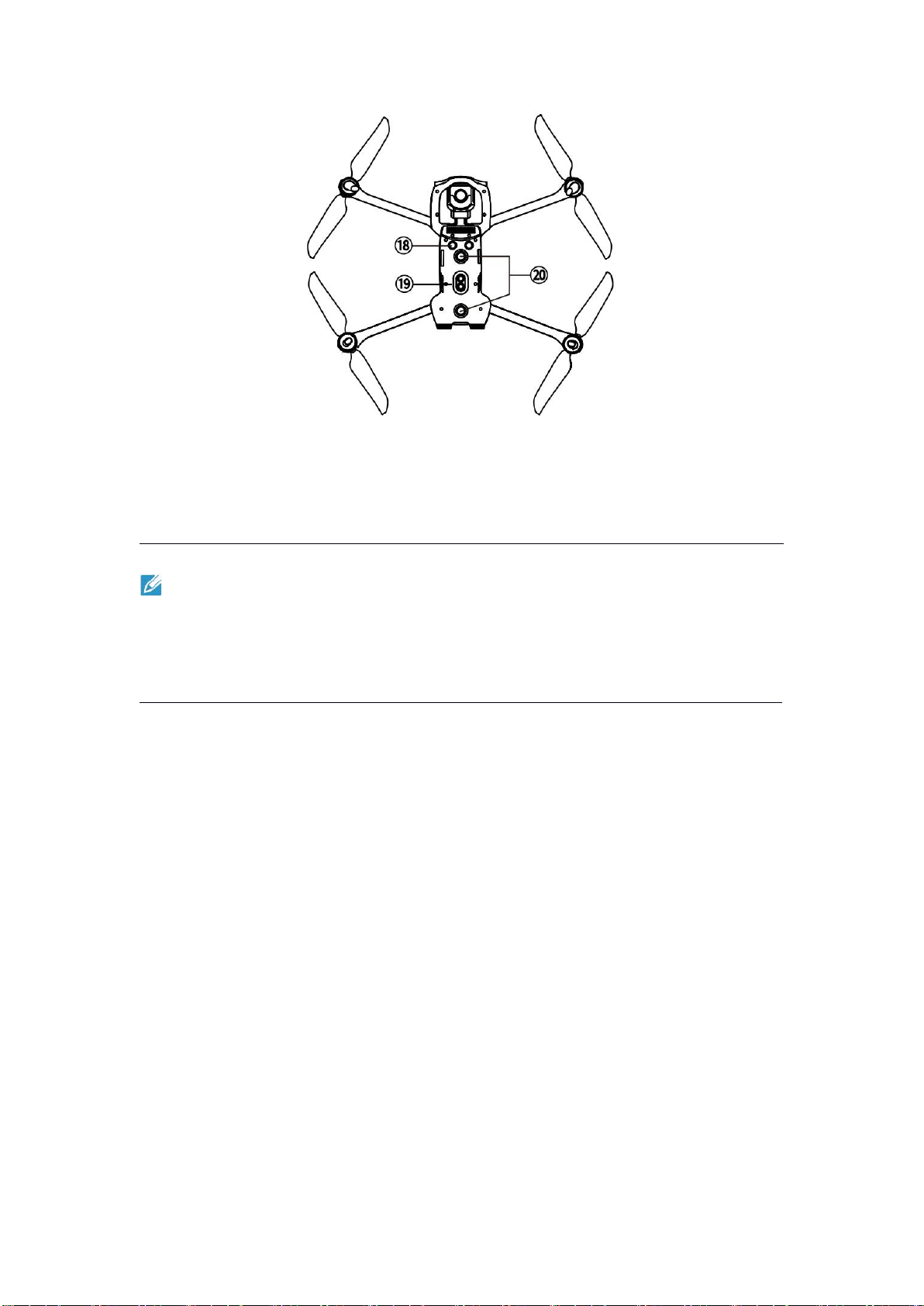
⑱
Ultrasonic Sensor
⑳
Downward Vision System
⑲ LED Fill Light
Note
The right side of the aircraft body has a protective cover that can protect USB-C
ports and the linking button/indicator. Please ensure that the protective cover is
closed during the flight.
2.1.2 Flight Status Indicator
The aircraft has an LED indicator at the end of each arm. The front LEDs glow solid
red to identify the nose orientation of the aircraft. The rear LEDs show the current
flight status of the aircraft. The following table describes the meaning of each LED
state.
Indicator:
Color:
Flash slowly: Flash one time every 2s.
R
Red
Flash quickly: Flash two times every second.
G
Green
Flash alternately: Flash between different colors in an
alternating fashion.
Y
Yellow
14
Status Definition of LED Indicators
Normal
RGY - Flash alternately
System self-check
YG - Flash alternately
Warming up
G - Flash slowly
The aircraft is in GPS mode
Warning
Y - Flash slowly
The aircraft is in ATTI mode
Y - Flash quickly
There is no connection between the aircraft
and the remote controller
R - Flash slowly
Low battery warning
R - Flash quickly
Critical low battery warning
R - Normally on
Critical error or IMU error
RY - Flash alternately
Compass error, requiring calibration/magnetic
interference
Compass Calibration
Y - Flash quickly
Prepare to calibrate the compass/The aircraft
is being calibrated
G - Normally on
Calibration succeeded
R - Normally on
Calibration failed
2.1.3 Aircraft Battery
The rechargeable LiPo battery used by EVO Ⅱ Dual 640T V3 features high energy
density and capacity. The battery needs to be charged by a designated charger.
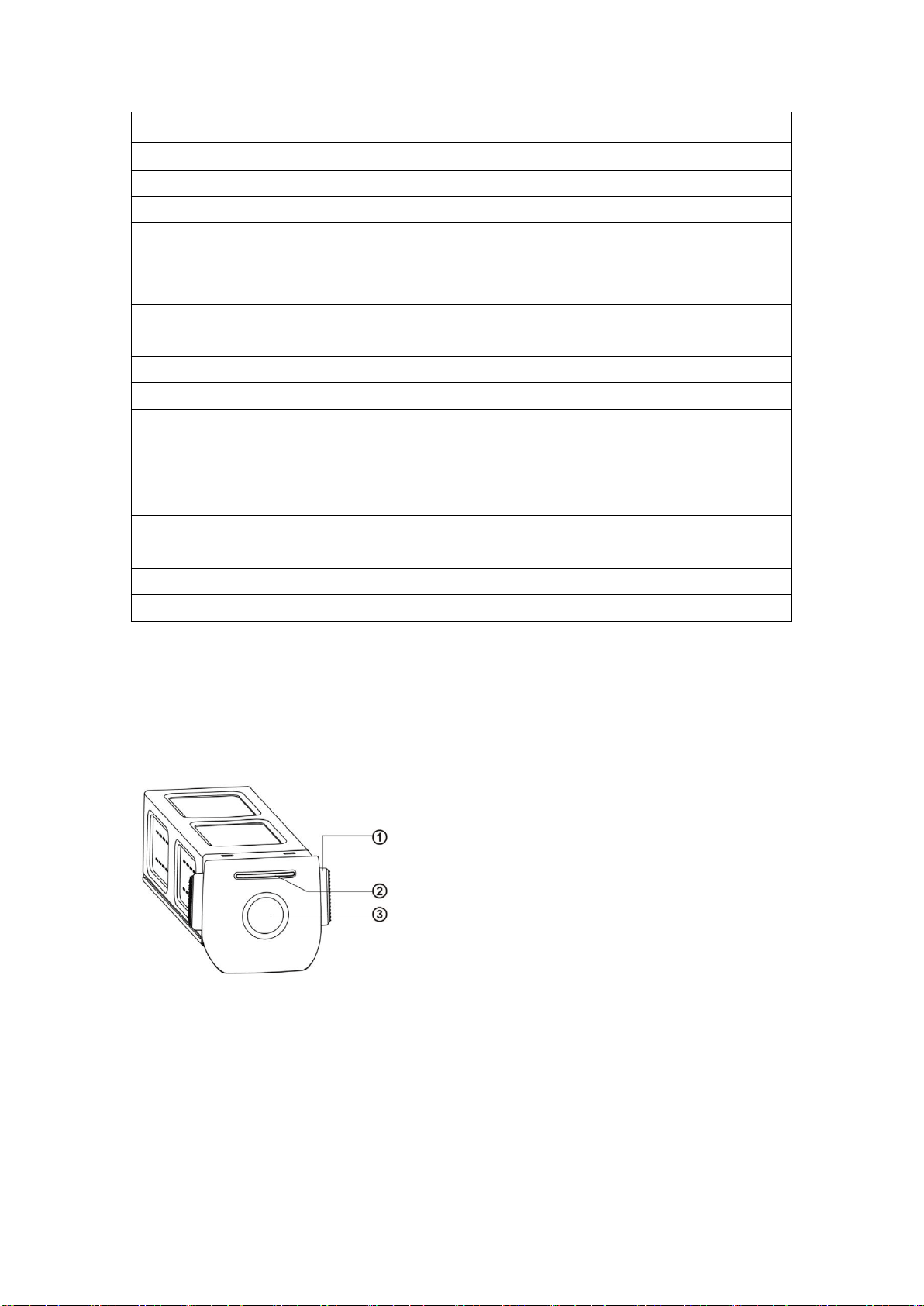
1. Component Description
① Battery Removal Button
② Power Indicator
③ Power Button
Turn on the battery
Make sure that the aircraft is turned off before you install the battery. After you
install the battery, press the power button for 3s. The battery indicator will show the
current battery level.
Turn off the battery
Long press the power button for 3s to turn off the battery. If you have already
installed the battery onto the aircraft, the two LED indicators on the nose and tail of
15
the aircraft will flash 5 times, indicating that the aircraft is being shut down. Remove
the battery from the aircraft when all power indicators are turned off.
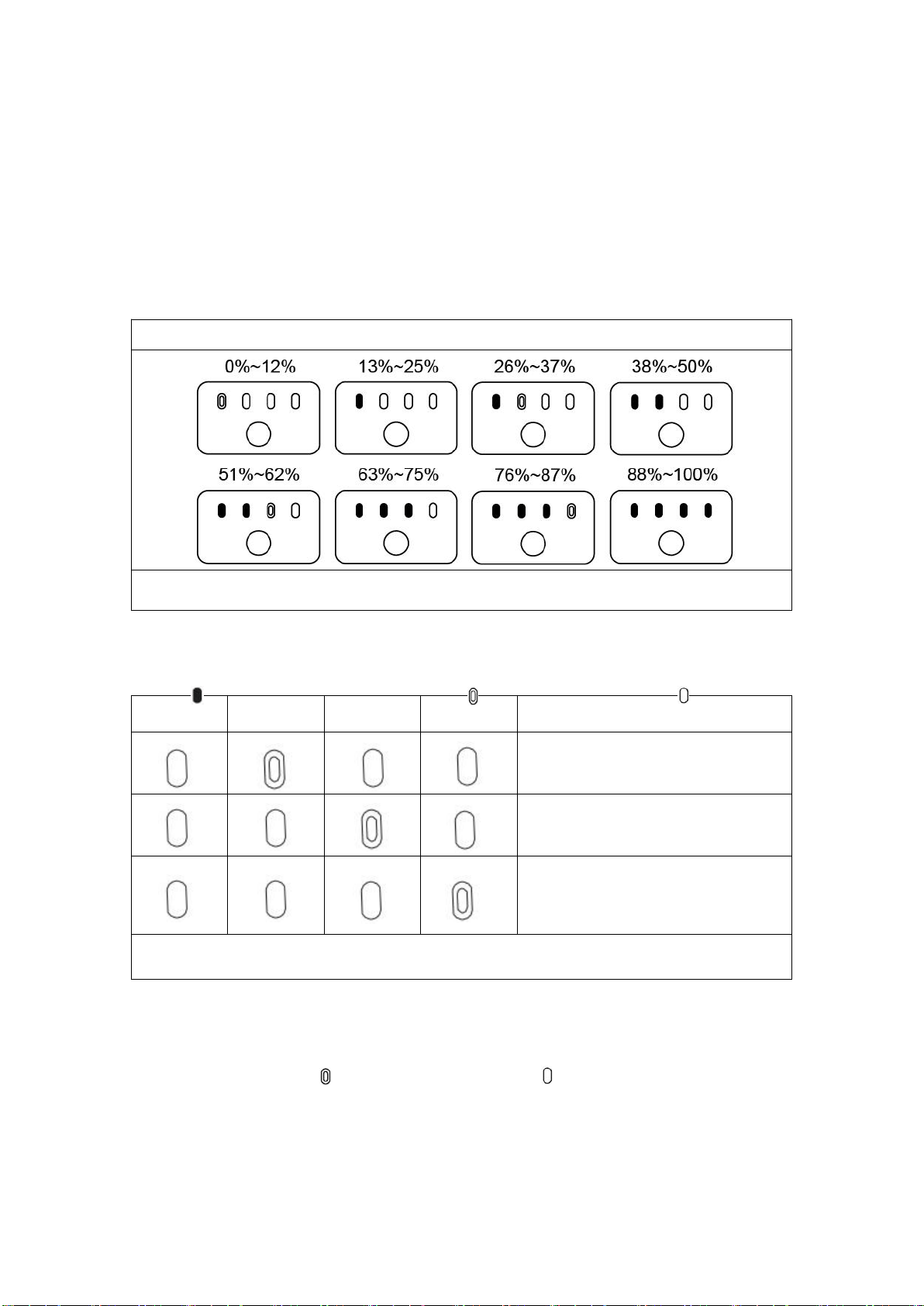
Check the battery level
When the battery is turned off, press the power button for 1s and quickly release it
to check the battery level. The LED indicators will show the current battery level, as
shown below.
Battery Power Indicator Status (Not in the Charging State)
- The green LED is normally on - The green LED flashes - Off
2. LED Warning Description
LED 1
LED 2
LED 3
LED 4
Warning Description
The temperature is too high or
low for charging.
The charging current is too high,
which causes a short circuit.
A circuit overcurrent, a circuit
overload, or a short circuit occurs
during battery discharge.
- The LED flashes - Off

16
3. Additional Functions
The following additional functions can be used to protect and extend the battery life:
Storage Self-Discharge
If the battery is stored in a high-temperature environment or has not been used for
6 days, but the battery power is still high, the self-discharge protection mechanism
will be activated. The battery will automatically discharge to a safe level. This is a
default setting, and the discharge takes about 2-3 days. Although there is no
prompt message indicating that the battery is self-discharging, you may notice that
the battery feels slightly hot. This is normal. You can customize the battery
discharge threshold using the Autel Explorer App.
Sleep Mode Protection
If the battery is low, it automatically enters sleep mode to prevent damage. In this
mode, there is no response if you press the power button. To wake up the sleeping
battery, you must connect it to a charger.
Charging Temperature Detection
The battery stops charging if the temperature is lower than 5ºC or higher than 45ºC.
Overcurrent Protection
The battery stops charging if the charging current exceeds 8A.
Overcharge Protection
The charging automatically stops if the battery is full.
Balance Protection
The voltage of each battery cell is balanced to prevent overcharge or overdischarge.
Overdischarge Protection
When the battery is not used, after the self-discharging is completed, the battery will
be automatically disconnected for power output. This function is not disabled during
flight.
Short Circuit Protection
The power is cut off once a short circuit is detected.
Battery Saver Mode
The battery will be turned off if no operation is performed within 30 minutes.
Communication
When the battery is in use, it is continuously synchronized with the aircraft to provide

17
real-time information, including the voltage, capacity, current, and temperature.
Ultra Low Power Mode
To save electricity, when the battery is idle for 6 days and the voltage is lower than
11.6 V, the battery enters this mode. The battery will return to its normal state after
you connect it to a charger.
2.1.4 Gimbal and Camera
The aircraft has a high-precision 3-axis gimbal, which keeps the camera steady
during the flight and allows you to capture clear and stable images. To ensure that
the gimbal can work properly, the gimbal temperature must keep between -10ºC
and 50ºC. You can pitch or tilt the gimbal (-30º degrees to 90º degrees) using a dial
on the remote controller or an Autel Explorer App.
18
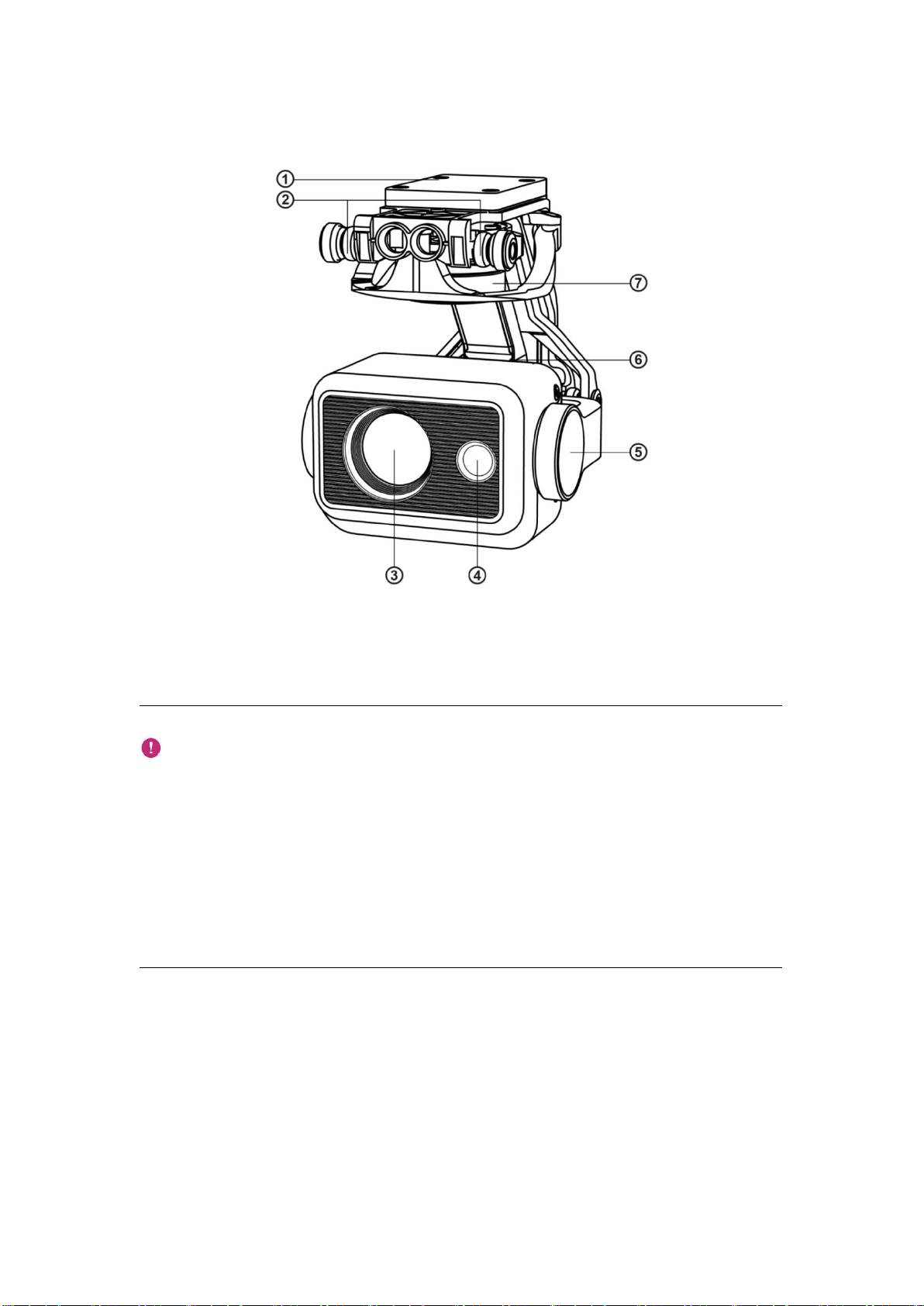
1. EVO II Dual 640T V3 Gimbal
① MCU Mounting Plate
⑤ Pitch Motor
② Vibration Absorber
⑥ Roll Motor
③ Infrared camera
⑦ Yaw Motor
④ 4K camera
Important
A gimbal protective cover is used for stabilizing the gimbal and preventing the
gimbal from rotating accidentally or being damaged during storage.
Please remove the gimbal protective cover before you turn on the aircraft.
Otherwise, the gimbal motor and circuit may be damaged.
When you turn on the aircraft, the gimbal will automatically rotate to perform
self-check and calibration. Make sure that there is no object near the gimbal
that prevents the gimbal movement.
19
2. Gimbal Operation Mode
Stabilized mode
The roll axis remains horizontal and the pitch axis is at a user-defined angle. This
mode is suitable for capturing stable horizontal images and videos.
FPV mode
The roll axis is consistent with the rolling direction of the aircraft and the pitch axis is
at a user-defined angle. This mode is used for the first-person view.
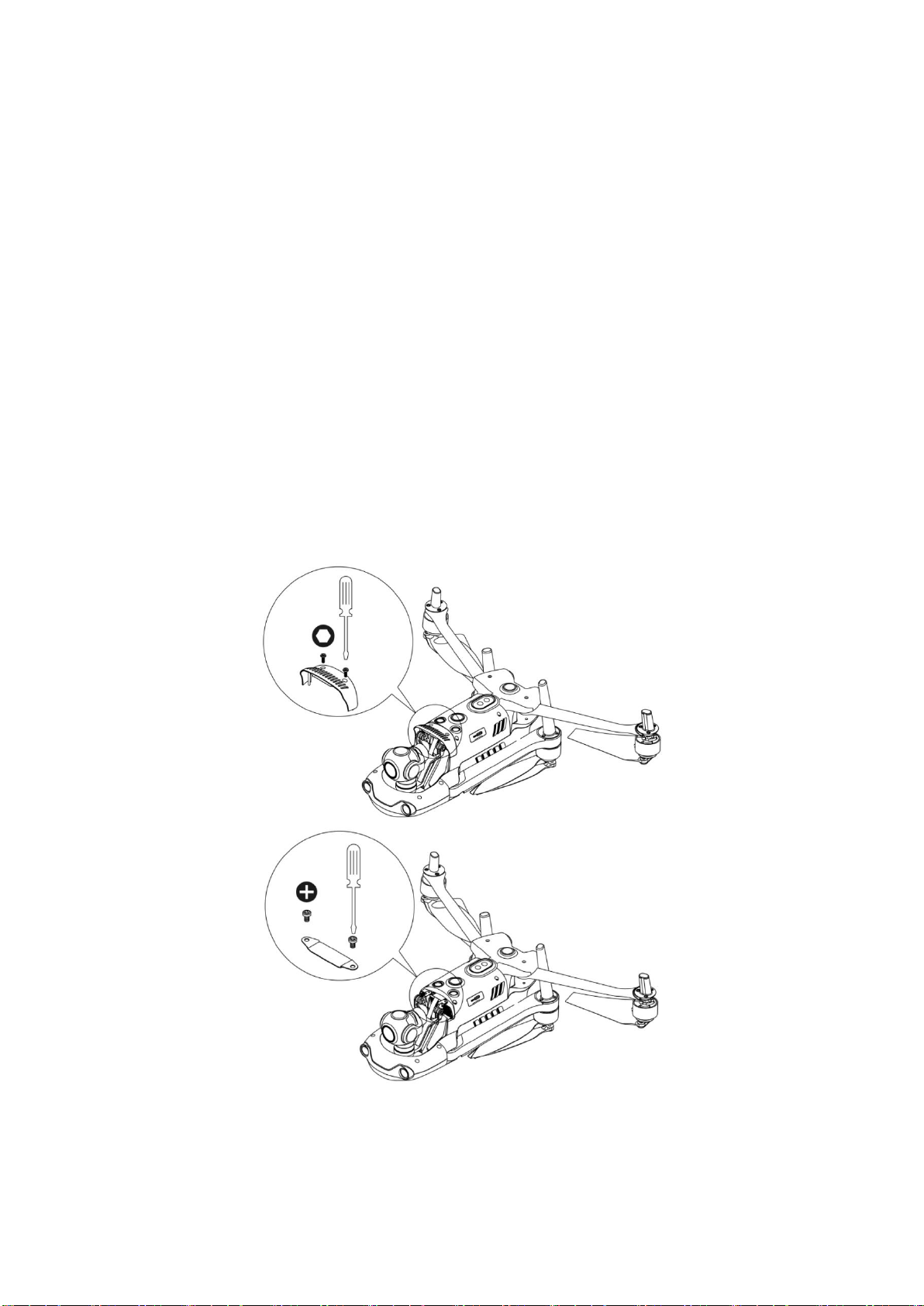
2. Uninstall the Gimbal
1. Place the aircraft on the horizontal surface with the gimbal compartment facing
upwards.
2. Use a T6 screwdriver to loosen the two screws that are fixing the gimbal
protective cover, and then remove the protective cover. Use a cross screwdriver to
loosen the screws that are fixing the FPC connector, and pull the connector cable
port from the slot.
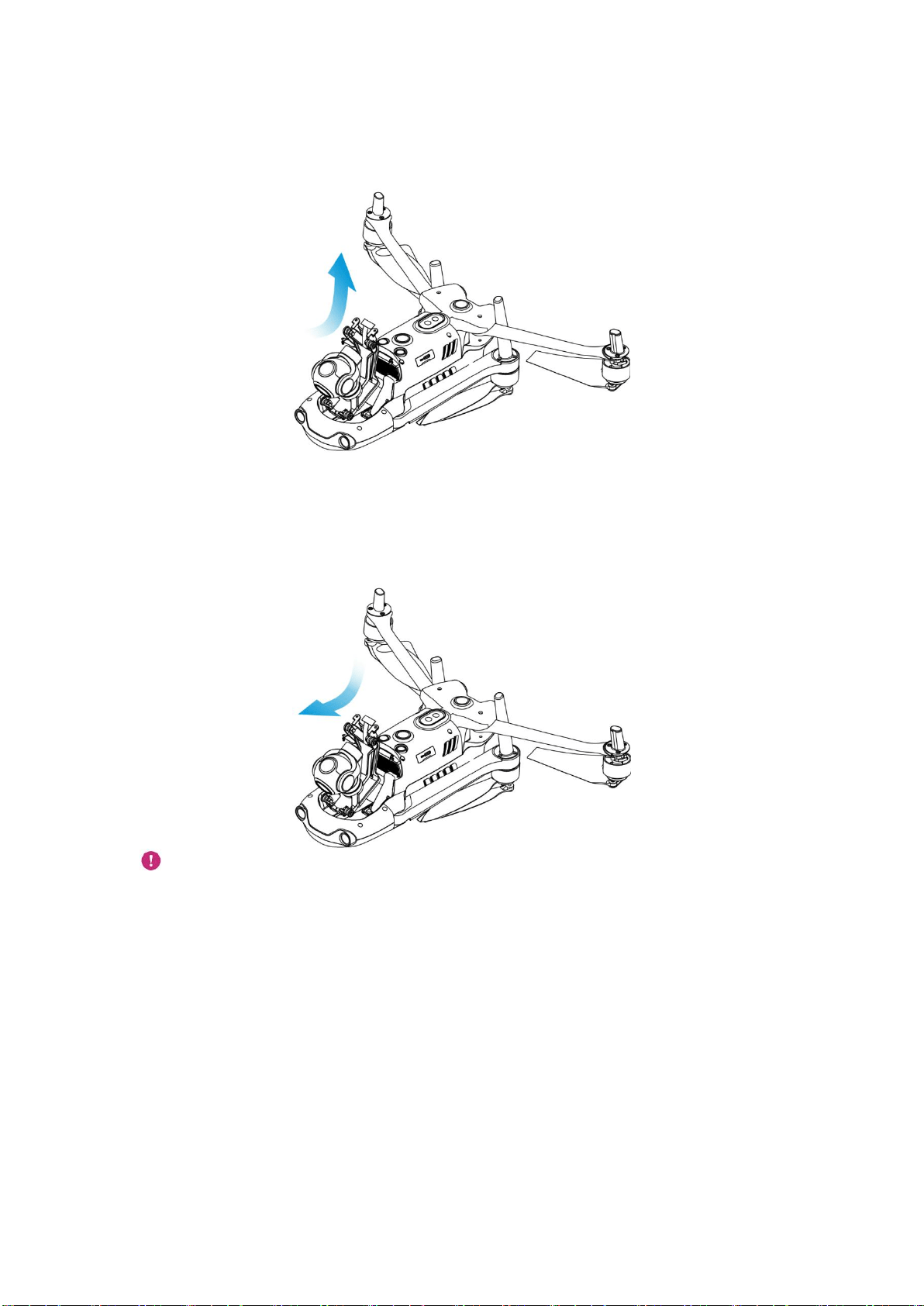
20
3. Gently pinch the tail of the vibration absorber with your thumb and index finger.
Slide the gimbal backward and upward along the slot of the gimbal compartment in
a straight line.
3. Mount the Gimbal
1. Pinch the tail of the vibration absorber with your thumb and index finger and lift
the gimbal. Slide the gimbal downwards and forwards along the slot of the gimbal
compartment in a straight line.
Important:
Ensure that the ring at the front of the gimbal is aligned with the two pins in the
gimbal compartment at the nose of the aircraft.
Ensure that the gimbal is at the same height as the slot of the gimbal
compartment.
2. Insert the connector cable port into its slot and gently push it to the end. Place the
cover on the top of the gimbal compartment and re-tighten the cover with a cross
screwdriver.
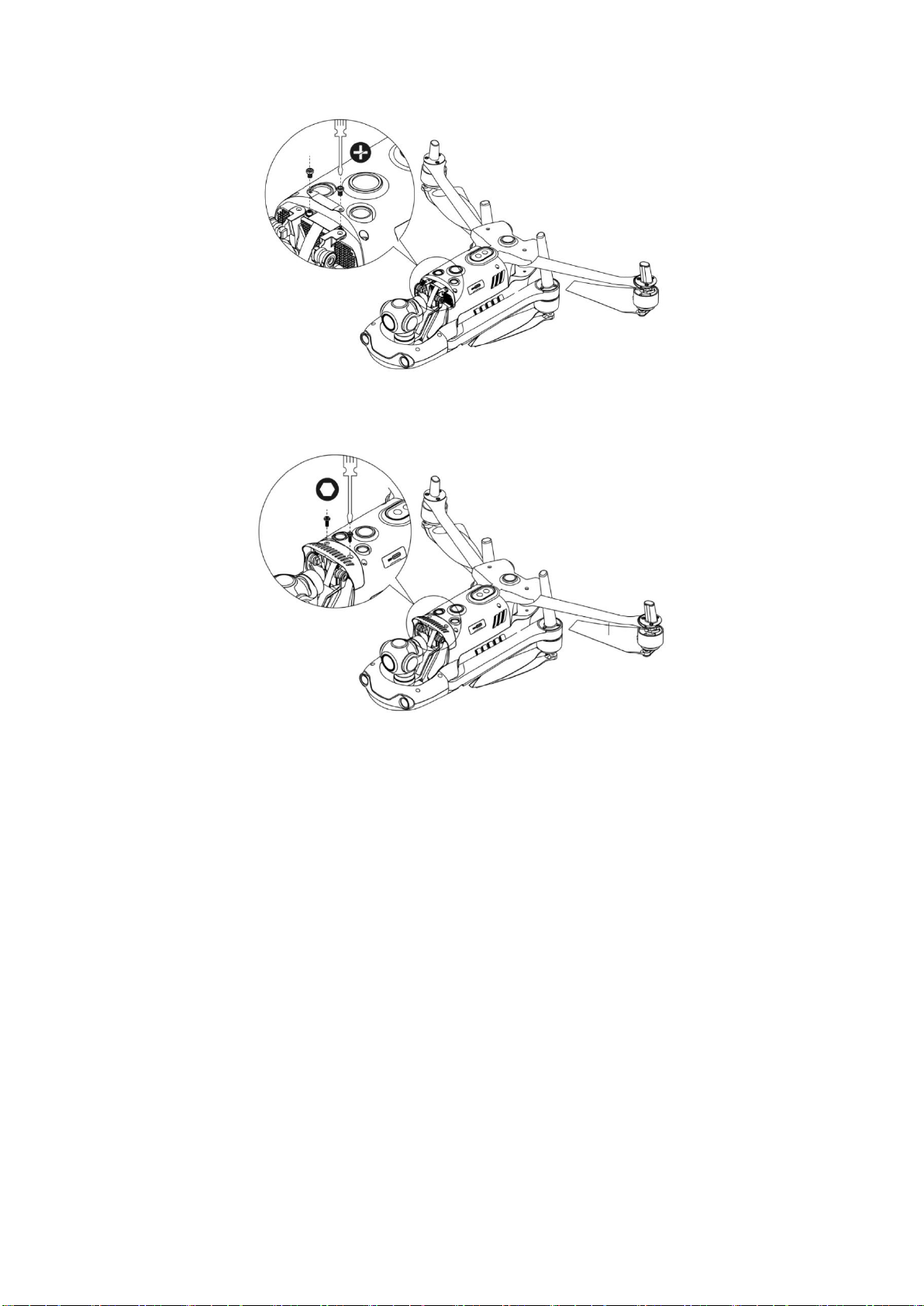
21
3. Insert a screw into a hole of the decorating part of the gimbal, and then screw it
in with a T6 screwdriver until the screw is fixed but not tightened. For the other
screw, repeat the same step. Fully tighten the two screws with a screwdriver.
4. Power on the aircraft. If the connector cable is successfully connected, the
gimbal will automatically rotate to perform a self-check.
4. Camera
Two kind of cameras are provided: 4k visual cameras and an infrared thermal
imaging camera. The thermal imaging camera can work in visual light, infrared light,
or in Picture-in-Picture mode. The 4k cameras can record videos at 3840x2160
video resolution and capture 50 million pixels photos. The infrared camera has a
resolution of up to 640x512.
The camera supports multiple photography modes, including Single, Burst, AEB,
Periodic, and HDR. Images are saved in DNG or JPG format, while videos are
recorded in MOV or MP4 format. Images and videos can be stored on the SD card
or the storage device of the aircraft.
5. Use the Micro SD Card
Before you turn on the aircraft, insert a micro SD card into a port, as shown below.
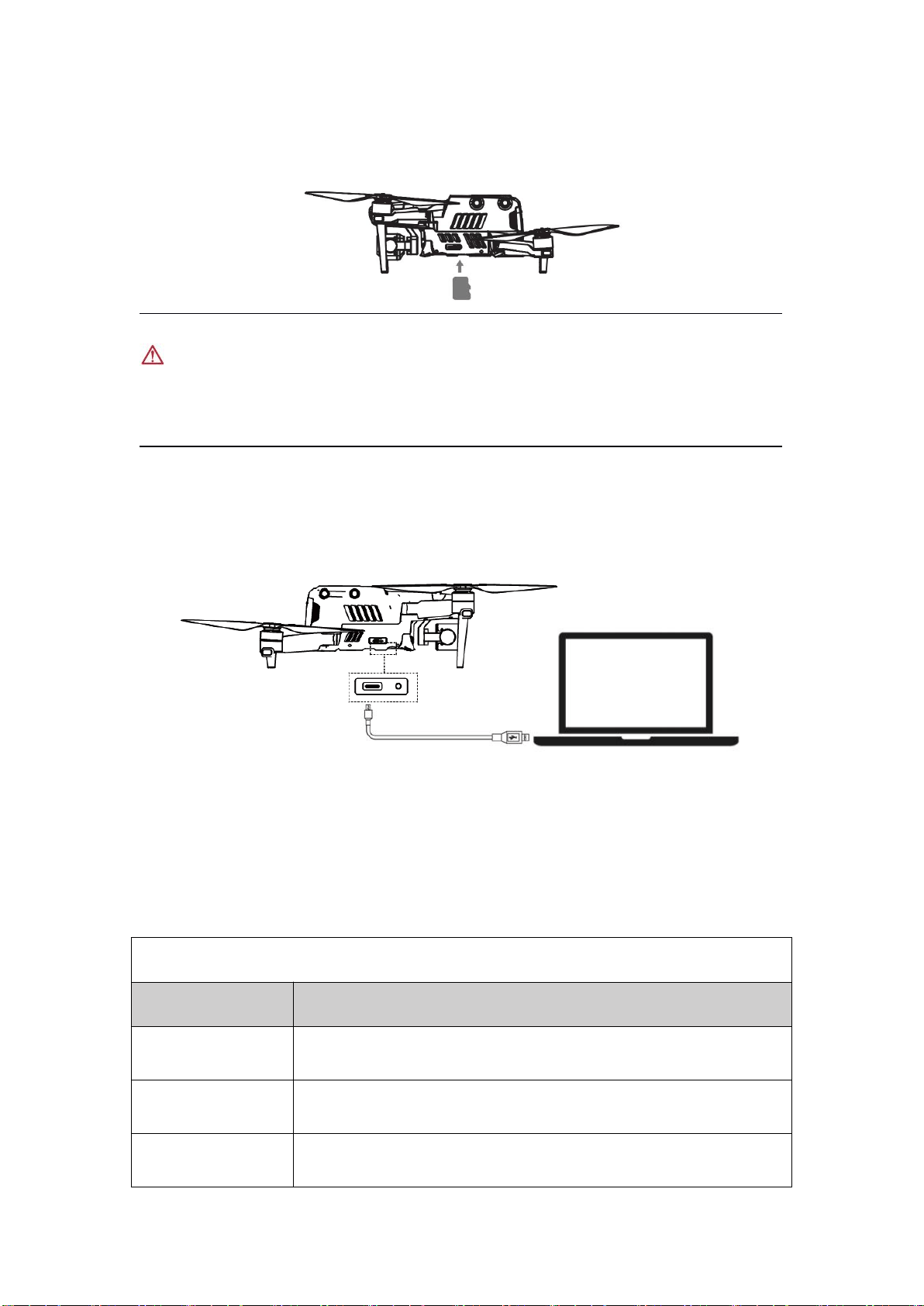
22
EVO II Dual 640T V3 supports SD cards of up to 256 GB in size. If you plan to record
high-definition videos, we recommend using a Class 10 or UHS-3 Micro SD card.
Warning
To protect files on your aircraft, turn off the aircraft before you remove the micro
SD card.
6. Transfer Files to Your Computer
To transfer photos and videos to your computer, connect the aircraft to your
computer using a USB-C port, as shown below.
2.1.5 Flight Control System
Using the built-in intelligent flight control system, EVO Ⅱ Dual 640T V3 provides
stable and convenient flight control. The system supports multiple advanced
functions, such as return to home, failsafe, and Starpoint positioning. Each module
is described in the following table.
Intelligent Flight Control System Module
Module
Description
IMU
Use a 3-axis gyroscope and a 3-axis accelerometer to
measure the acceleration and angular velocity.
Compass
Measure the geomagnetic field and provides reference
information on the aircraft heading.
GNSS receiver
Receive signals from global navigation satellite systems and
determine the 3-D position (latitude, longitude and altitude) of

23
the aircraft.
Barometer
Measure the atmospheric pressure and determine the altitude
of the aircraft.
Ultrasonic sensor
Measure the distance between the aircraft and the ground.
Binocular vision
sensing system
Support omnidirectional binocular vision (front, rear, left, right,
up, and down).
1. Flight Mode
The aircraft can automatically switch between three flight modes based on the
availability of GPS signals and flight conditions.
Flight Mode
Flight Mode
Description
GPS mode
The aircraft will activate the GPS mode once it detects a
sufficient GNSS signal. In GPS mode, with the assistance of
the front and rear vision systems, the aircraft can locate and
avoid obstacles. GPS provides stable and smooth flight control
and supports features such as return to home and failsafe.
ATTI mode
The aircraft automatically changes to ATTI mode when the
GPS signal is weak, and the vision systems are unavailable due
to poor light conditions. The obstacle avoidance feature is
disabled, and the aircraft controls the altitude through a
barometer.
Starpoint mode
In this mode, the aircraft uses vision positioning, which is highly
dependent on the environment and altitude. The surrounding
environment must have sufficient light, and the ground texture
must be clear. In addition, the aircraft must fly at an altitude
that can be sensed by the vision systems. Otherwise, the
aircraft enters the ATTI mode.

24
2.1.6 Intelligent Flight Features
1. Auto-return
This feature is enabled only when the GPS signal is good. To manually activate the
auto-return feature, long press the auto-return button ( ) on the remote
controller for 3s. After receiving the command, the aircraft will automatically return
and land at the preset home point.
EVO Ⅱ Dual 640T V3 can use its forward vision system to avoid obstacles in the
flight route. When the aircraft
is returning to the home point, the remote controller is not available, and you must
press the Pause button ( ) to activate the front vision system.
Warning
If the forward vision system is not enabled when the aircraft is returning to the
home point, the aircraft cannot automatically avoid obstacles. Press the Pause
button on the remote controller ( ) to exit the auto-return mode and regain
control over the aircraft.
Important
The default altitude for returning to the home point is 30 meters. If the
auto-return feature is activated when you fly your aircraft at a lower altitude, the
aircraft will ascend to the default altitude of 30 meters and then return to the
home point.
If you activate the auto-return feature when the aircraft is within a 10 meters
radius of the home point, the aircraft will automatically land at the current place.
2. Failsafe
Failsafe is to help the aircraft return to the home point automatically or land at the
current place when necessary. Failsafe is activated in the following two scenarios:
Communication interrupted
If the communication between the aircraft and the remote controller is interrupted
for 3s, failsafe will be activated.
If a GPS signal is available when the failsafe is activated, the aircraft will
automatically return to the home point. Otherwise, the aircraft will land in the current
place. After the communication is restored, you can press the Pause button ( )
to regain control over the aircraft.

25
Low aircraft battery
The failsafe is triggered whenever one of the following errors occurs:
The aircraft continuously calculates the battery power required for returning to the
home point. If the battery power is sufficient for the aircraft to return to the home
point, the App will show a notification. The failsafe will be activated and the aircraft
will start the auto-return process. In the meantime, you can press the Pause button
( ) to regain control over the aircraft.
A. When the battery level of the aircraft reaches the set threshold (25% by default),
you will receive a low battery warning, the failsafe is activated, and the aircraft will
automatically return to the home point. If you regain control over your aircraft, when
the battery level reaches 15%, you will receive a critically low battery warning and
the aircraft will automatically land in the current place. For any emergency, press
the Pause button ( ) to stop landing and manually fly the aircraft to the nearest
safe landing point.
Note
When the battery level of the aircraft reaches 25% (low battery warning), if the
horizontal distance between the aircraft and the home point is less than 50
meters (150 ft), the aircraft will not execute the auto-return operation.
If no GPS signal is available when a low battery warning is displayed, the aircraft
will not execute the auto-return operation. The aircraft will enter the ATTI mode
and continue to be controlled by you. When the battery level reaches 15%
(critically low battery warning), the aircraft will land automatically.

26
3. Landing Feature
Landing Protection
When the aircraft arrives above the home point, this feature will detect the ground
environment below. If the ground is flat, the aircraft will land automatically.
Otherwise, it will hover and wait for the next instruction.
Accurate Landing
When this feature is activated, the aircraft will land as close to the takeoff point.
Important
The aircraft will record the takeoff point as the default home point. The accurate
landing only takes effect when the home point is not updated during the flight.
Select an open area with sufficient light as the takeoff point.
To use this feature, make sure that the environment where the aircraft takes off
is not changed.
Landing protection and accurate landing features can be enabled using the
App.
2.1.7 Omnidirectional Binocular Vision
Sensing System
The binocular vision sensing systems on the front, rear, left, right, top, and bottom of
EVO Ⅱ Dual 640T V3 use image data to calculate the distance between the aircraft
and potential obstacles. Once an obstacle is detected, the system will stop the
aircraft from flying forwards. The binocular vision systems on the front, rear, and
bottom are also equipped with a Starpoint positioning system. This system uses the
ultrasonic sensor to calculate the aircraft’s altitude and is combined with the
binocular vision camera to obtain the location information through image analysis.
Binocular vision sensing system
System
Position on the Aircraft
Obstacle Sensing Range
Front
Front of the aircraft
0.5 to 18 m
Rear
Tail of the aircraft
0.5 to 16 m
Left/Right
Rear part on the left and right
sides of the aircraft
0.5 to 10 m
Top
Top of the aircraft
0.5 to 10 m
Bottom
Bottom of the aircraft
0.5 to 10 m
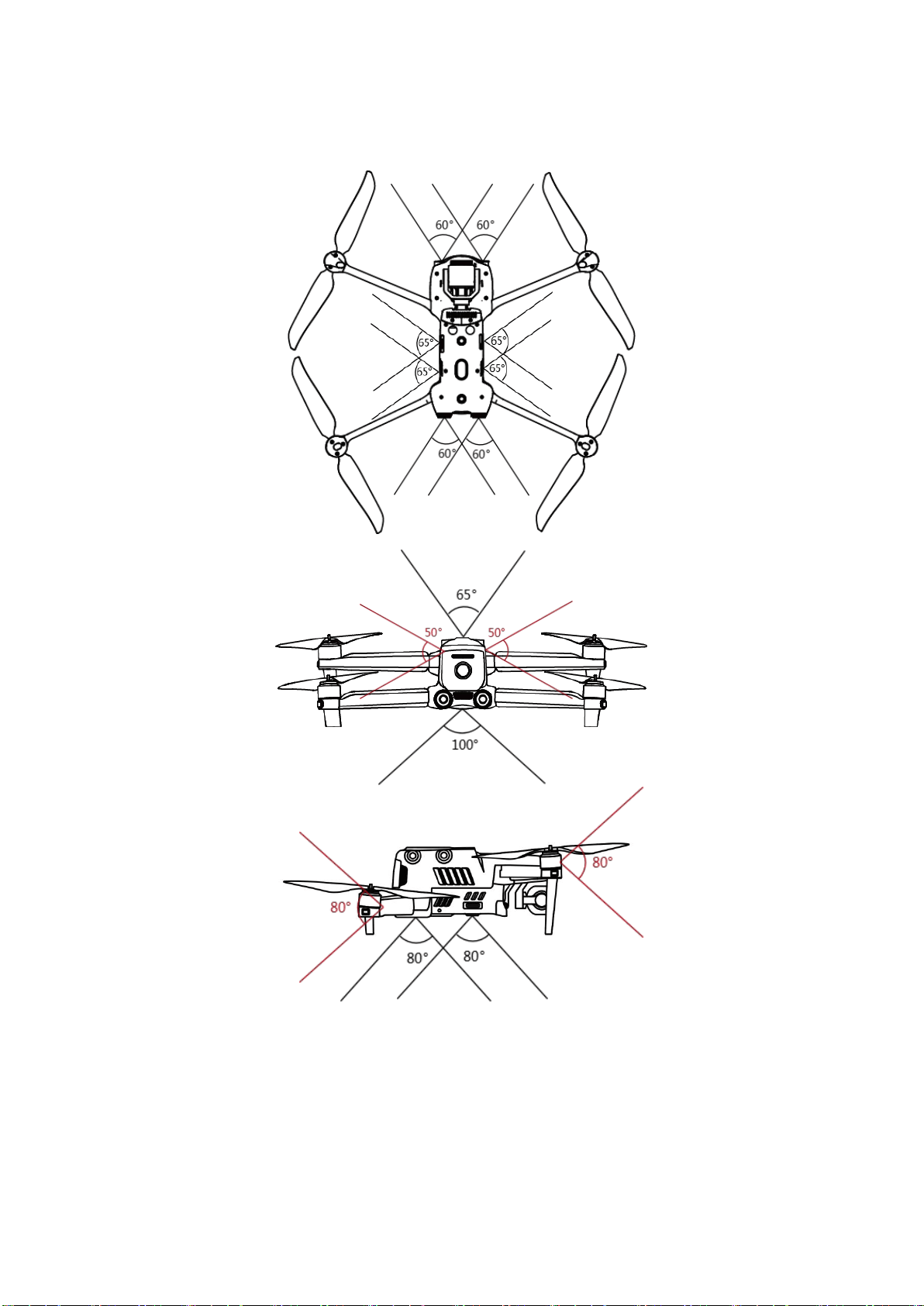
27
The figure below shows the covering angle of each binocular vision sensing system:

28
Note
The omnidirectional vision sensing system can sense obstacles in directions
such as front, rear, top, bottom, left, and right. However, blind areas exist in four
diagonal directions. When you fly the aircraft manually, pay attention to the
surrounding environment and prompt messages of the App to ensure safety.
Do not operate the aircraft in a complex environment with insufficient light, or an
area with small objects (such as twigs, lines, and nets), moving objects, or
objects having transparent surfaces (such as windows) or reflected surfaces
(such as mirrors).
When flying along with a vehicle, select an outside field or a closed road for
driving. Never use the aircraft on the highway.
1. Prerequisites
Ensure that the aircraft is in GPS or vision positioning mode.
The aircraft should take off when the flight LED indicator flashes green slowly or
red twice.
When the GPS signal is weak or the vision positioning is not available (for
example, small visible texture on the object’s surface or the aircraft is flying at
an altitude above 12 meters), you should be extremely careful.
The binocular vision sensing systems and Starpoint locating systems are
affected by the brightness and texture of the objects below the aircraft. Avoid
flying the aircraft above the following surfaces:
- A surface of a pure color
- A highly reflective surface such as a water surface
- A very bright or dark object surface
- A surface with frequently changing light
- Surfaces composed of highly repetitive patterns such as tile
- Sound absorbing surfaces such as thick carpet
- Moving surfaces such as road surface with heavy traffic
Ensure that the binocular camera lens and sensor are kept clean.
To avoid interference with Starpoint locating systems, do not use a 40 kHz
ultrasonic device, such as an ultrasonic range finder, fault detector, cleaner, or
welding machine.

29
2. Function Description
Dynamic Tracking
Using deep learning algorithms, dynamic tracking can detect six objects in real time:
walking persons, persons who ride bicycles, moving cars, trucks, ships, and animals.
Real-time tracking algorithms can automatically track selected objects and let the
aircraft avoid obstacles in its flight path. This feature uses three modes to track
objects.
Viewpoint
With the Viewpoint feature, you can tap on the mobile device screen to let the
aircraft fly in the designated direction.
Gesture Commands
Using deep learning algorithms, the primary camera identifies and responds to three
gesture commands: straighten your arms upwards to set yourself as the target, hold
your arms flat to take a photo, and raise one arm to start or stop recording.
Accurate Landing
The accurate landing feature uses the binocular vision system on the bottom of the
aircraft to record the takeoff location. When the aircraft is returning to the home
point or landing, vision algorithms are used to calculate the distance between the
aircraft and the takeoff point in real time so as to make sure that the aircraft
successfully lands at the takeoff point.
Safe Landing
The safe landing feature creates a density depth map using the vision system on the
bottom of the aircraft. It calculates the flatness and angle of the depth map to check
whether the surface is flat enough to ensure a safe landing.
30
2.2 Remote Controller
Portable and highly-reliable, Autel Smart Controller V3 has a 7.9-inch ultra-bright
screen, which can clearly display real-time flight information under the strong
sunlight. The excellent low-temperature and heat dissipation performance makes it
perfectly adapt to harsh environments. The battery can last for 4.5 hours, satisfying
the needs of long-time outdoor work. It runs a customized Android system with a
built-in Autel Explorer App. You can install third-party apps on it.
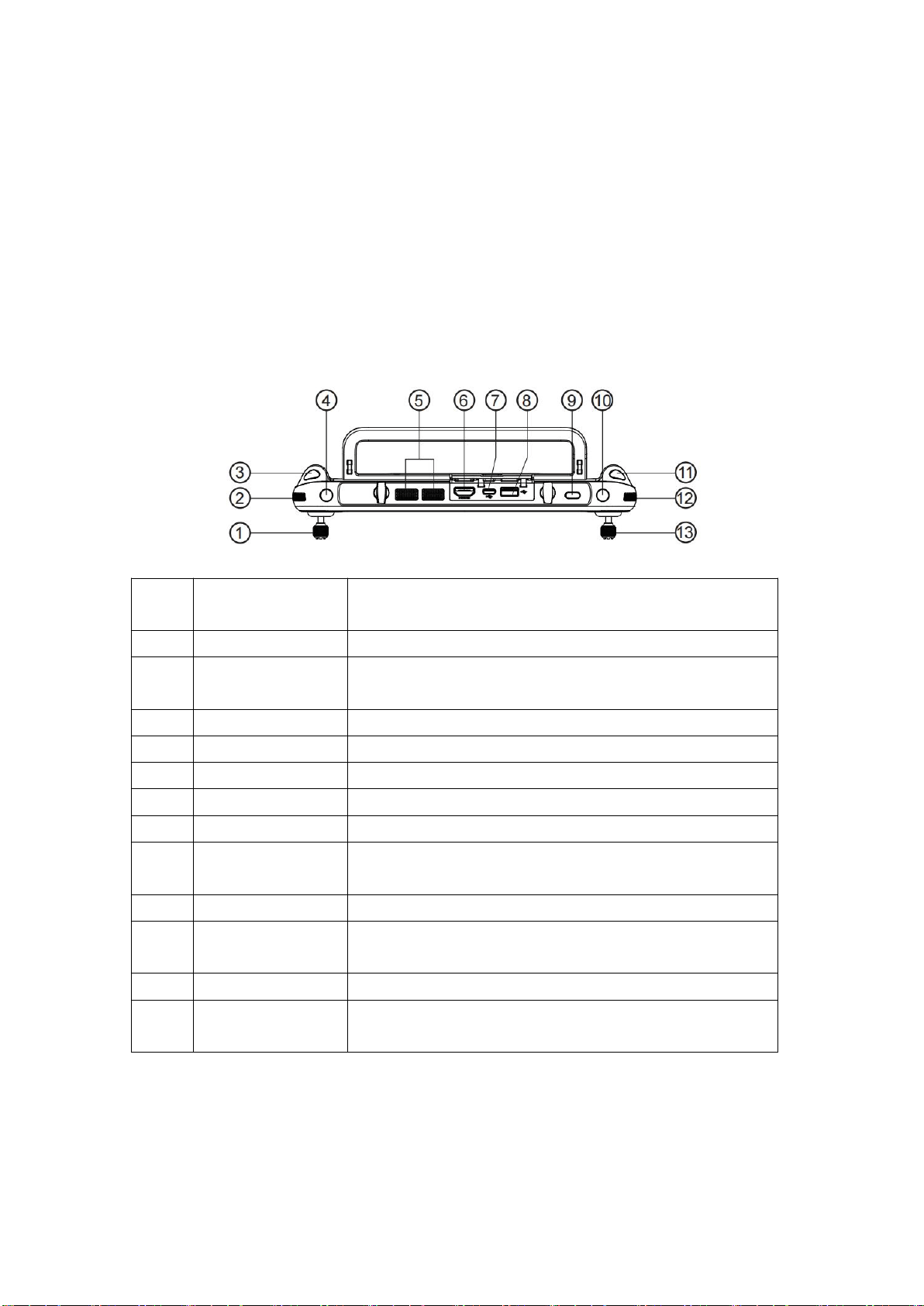
2.2.1 Component Description
1
Left command
stick
Controls the orientation and upward or downward
movement of the aircraft.
2
Gimbal dial
Adjusts the gimbal's pitch or tilt angle.
3
Video recording
button
Start/stop video recording
4
Custom key C1
Uses the Autel Explorer App for feature settings.
5
Air outlet
Used for heat dissipation for the remote controller.
6
HDMI port
Outputs image transmission signals.
7
Type-C port
Used for charging the remote controller.
8
USB port
Expandable 4G/5G module
9
Power button
Long press the button for 2s to turn the remote
controller on or off.
10
Custom key C2
Uses the Autel Explorer App for feature settings.
11
Photo-taking
button
Takes photos.
12
Zoom setting dial
Adjusts the zoom level of the camera
13
Right command
stick
Controls the horizontal movement of the aircraft in
four directions (front, rear, left, and right).
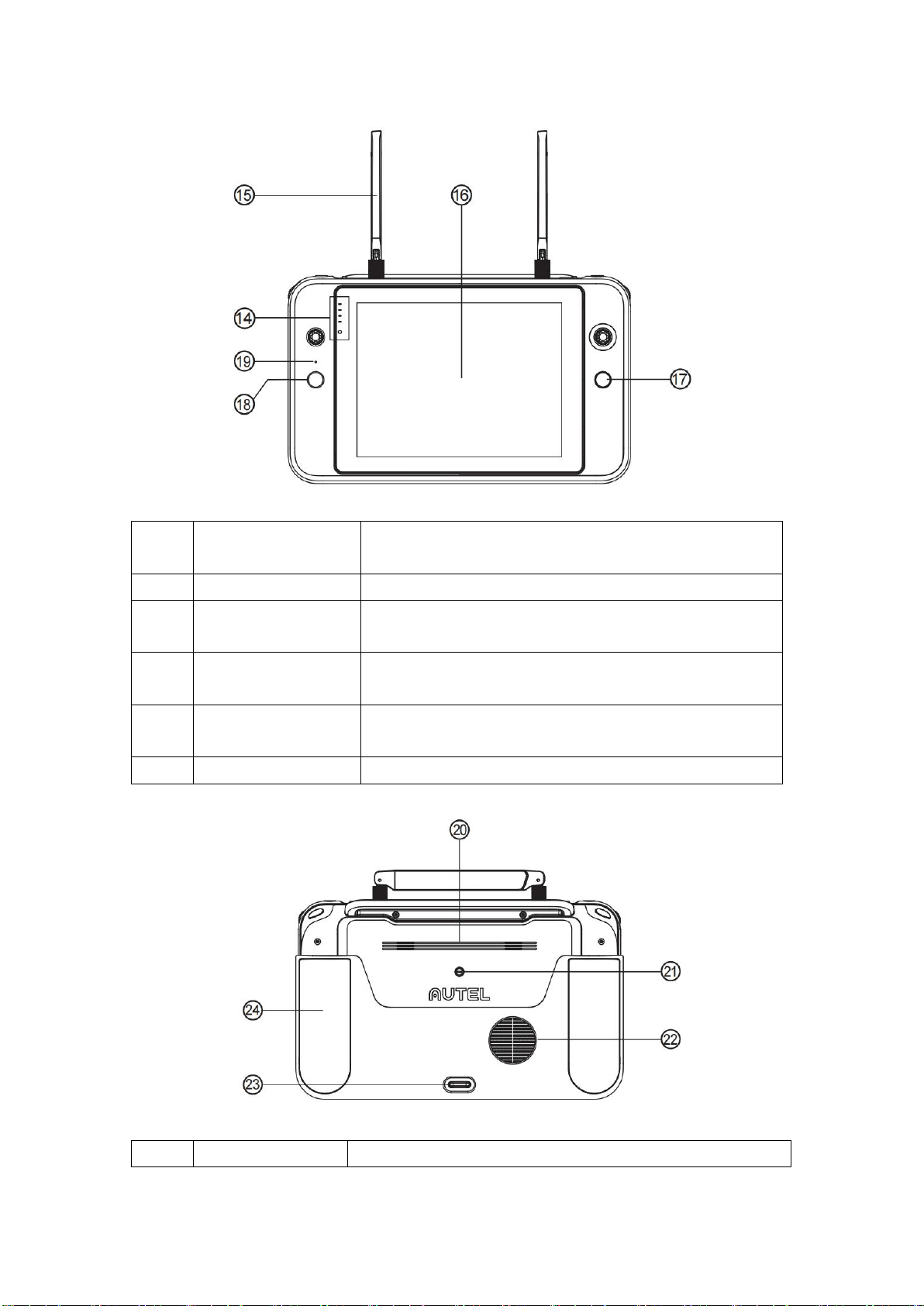
31
14
Power indicator
Indicates the current battery level of the remote
controller.
15
Antenna
Communicates with the aircraft.
16
Display
Displays the image transmission screen and
supports tapping operations.
17
Pause button
Instructs the aircraft to stop flying and hover in the
current place or resume flying.
18
Auto-takeoff/return
button
Instructs the aircraft to take off or return to the
takeoff point.
19
Microphone
Receives audio recordings.
20
Horn hole
Plays recordings or messages about aircraft statuses.
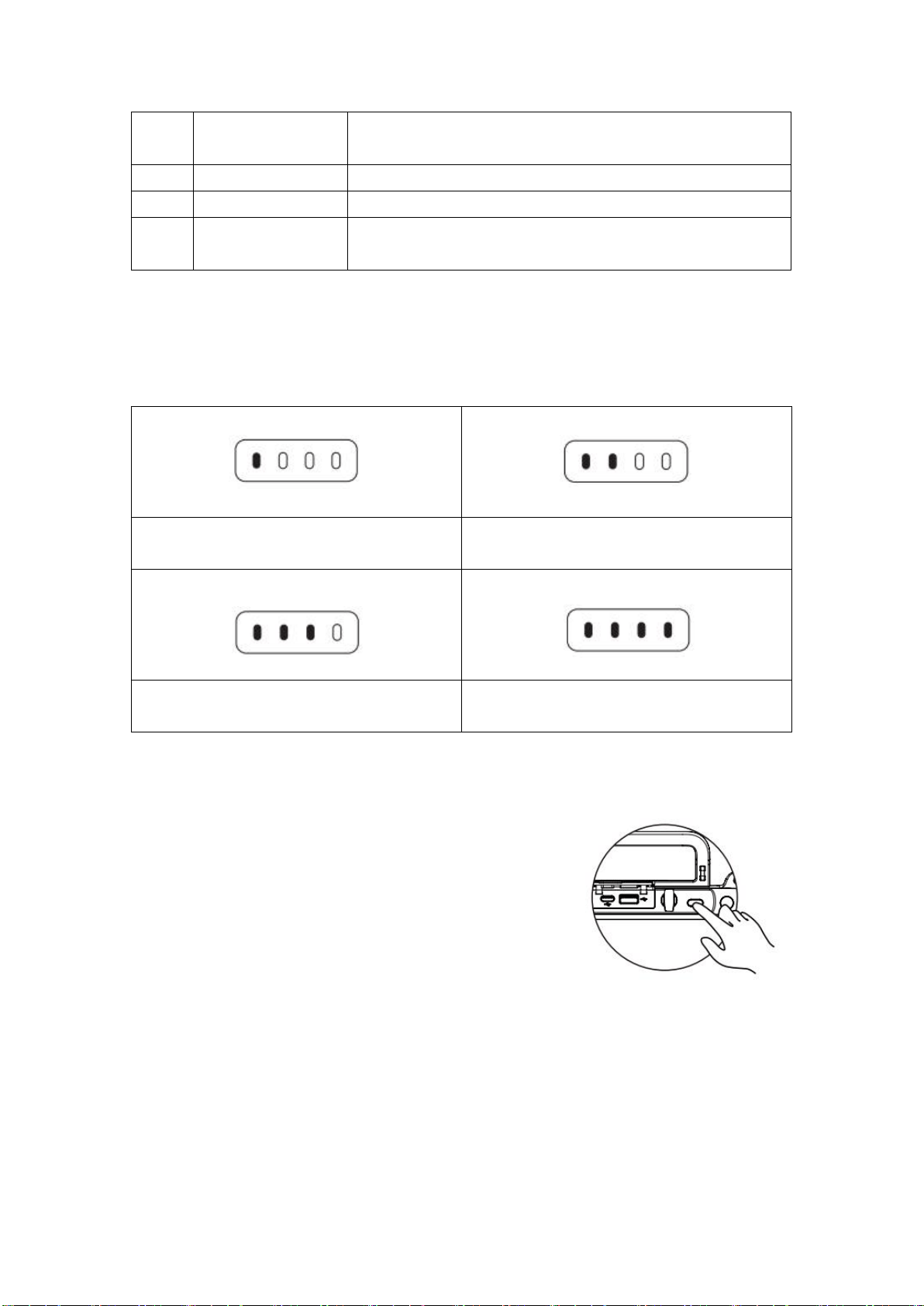
32
21
Standard 1/4
interface
Used for connecting to the tripod.
22
Air inlet
Used for heat dissipation for the remote controller.
23
Lower hook
Used for fixing the strap on the remote controller.
24
Protective cover
Prevents external damage such as collision and wear of
the remote controller.
2.2.2 Use the Remote Controller
1. Check the battery level
Press the power button to view the battery level of the remote controller.
1 LED indicator is normally on: battery
level ≥25%
2 LED indicators are normally on: battery
level ≥50%
3 LED indicators are normally on: battery
level ≥75%
4 LED indicators are normally on: battery
level =100%
2. Turn on/off
Press the power button for 2s to turn the remote controller on/off.
3. Charging
Connect one end of the charging cable to the USB port on the top of the remote
controller, and the other end to an AC power supply (100-240V) through the
adapter.
33
Note
During charging, the LED indicators flash in turn. All LED indicators are on when
the battery is full.
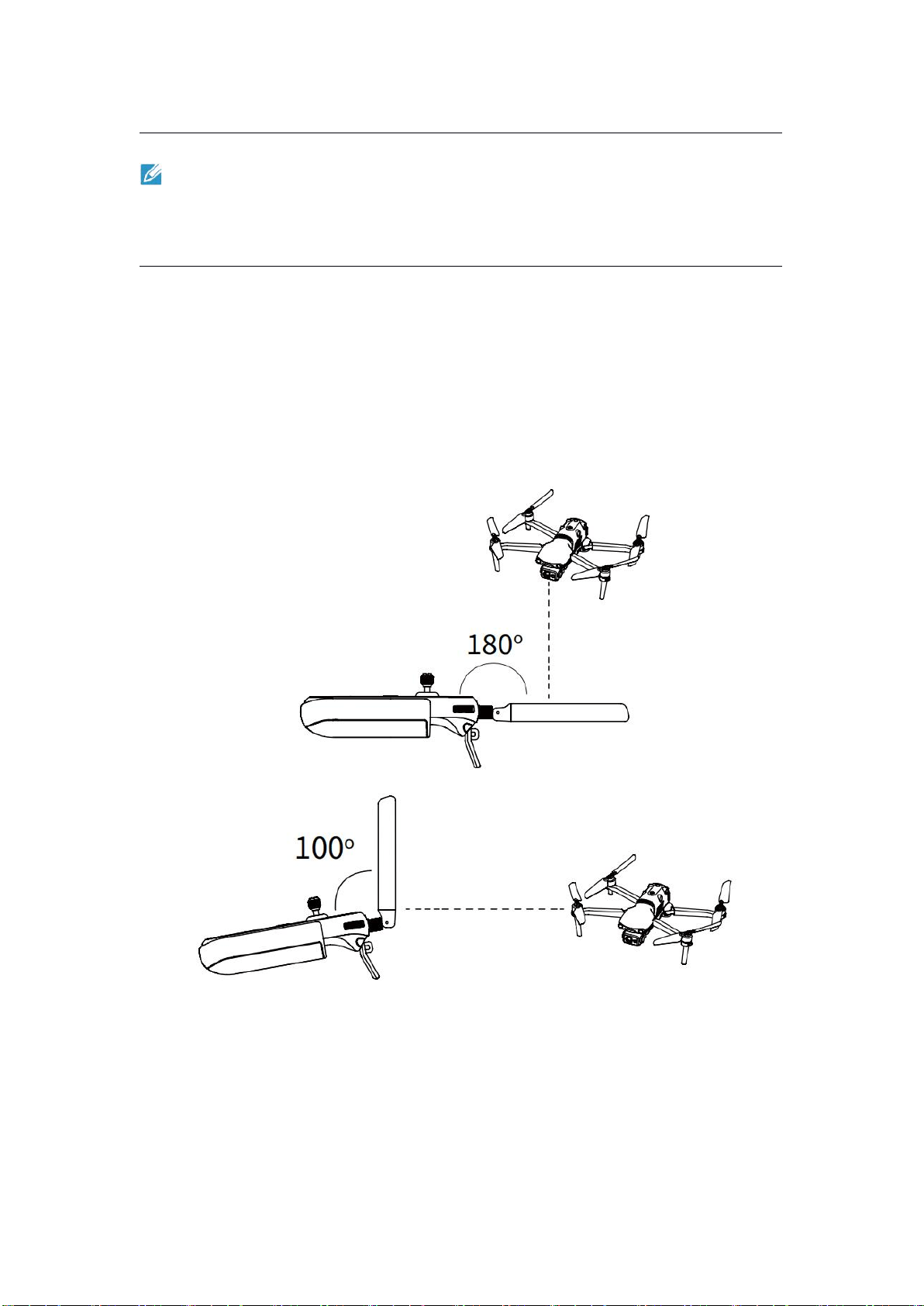
4. Adjust the antennas
Extend the antennas of the remote controller. The strength of the signal received by
the antennas varies depending on their positions. The strongest signal can be
achieved when the antennas and the back of the remote controller form an angle of
180° or 260° degrees and the flat side of the antennas is facing the aircraft. When
you operate the aircraft, make sure that the aircraft is in the place for the best
communications.

34
Note
Do not use other communication devices of the same frequency band at the
same time to prevent interference with the signals of the remote controller.
In practice, when the image transmission signals are weak, the Autel Explorer
App will display prompt messages. Adjust the antennas according to the
prompted instructions and ensure that the aircraft is in the place for the best
communications.
5. Linking
When you buy a package that includes both an aircraft and a remote controller, the
remote controller is already linked to your aircraft before delivery. You can directly
use the aircraft after you activate it.
In other cases, you need to link the remote controller to your aircraft manually.
Perform the following steps to do that.
1. Press the linking button next to the USB port on the right of the aircraft body to let
the aircraft enter the linking state.
2. Turn on the remote controller and launch the Autel Explorer App. Go to the
mission flight page, and click the wheel icon on the upper right corner to go to the
settings menu. Click "Remote Controller -> Data Transmission and Image
Transmission Linking -> Start Linking" and wait for several seconds until the linking
is successful.
6. Calibrate the remote controller
If the stick works improperly, we recommend that you calibrate the remote
controller. You can use the Autel Explore App to calibrate the remote controller or
perform the following steps:
1. Turn on the remote controller. Go to the app camera page. Then click Setting
( ) -> Remote Controller -> Remote Controller Calibration. Two 米-shaped and
two horizontal bars will appear on the screen, representing the left and right
command sticks and dials, respectively.
2. Stick calibration: Push and hold the stick one by one in eight directions until you
hear a beep each time.
3. Dial calibration: Turn the dial clockwise until you hear a beep and then turn it
counterclockwise until you hear another one.
7. Command stick mode
Three command stick modes are provided: mode 1, mode 2, and mode 3. You can
set this in the Autel Explorer App based on your preferences. By default, "Mode 2" is

35
used by the remote controller. In this mode, you can move the left command stick to
control the elevation and heading of the aircraft and move the right command stick
to control the forward and backward pitch of the aircraft and left or right orientation.

36
2.3 Autel Explorer App
2.3.1 Mission
EVO Ⅱ Dual 640T V3 aircraft can be widely applied in security, inspection, and other
industries. You can select multiple mission modes such as waypoint, rectangular,
polygon, and oblique using the Autel Explorer App.
1. Waypoint mission
You can add waypoints by yourself and set the parameters and actions for each
waypoint. The waypoints are connected in order, forming a flight route. After you
call and execute a waypoint mission, the aircraft will automatically fly along the
route and perform predefined actions at each waypoint.
1. Click "Mission" on the main app page and select "Waypoint" to go to the planning
page.
2. Add a waypoint to the map and set corresponding parameters and actions for
the waypoint.
Flight altitude: the aircraft’s altitude at a waypoint relative to the home point.
The aircraft will gradually fly to the preset altitude on its way to the waypoint.
Click Waypoint, select "Flight Altitude", and slide left or right to change the
value.
Flight speed: the flight speed of the aircraft when it is flying to the waypoint. The
aircraft will adjust the flight speed to the preset value on its way to the waypoint.
Click Waypoint, select "Flight Speed", and slide left or right to change the value.
Action: Click Waypoint, select "Action", and set the waypoint actions and
camera actions. Waypoint actions include "Fly Over" and "Hover".
A. If you select "Fly Over", the camera actions available include "Photo taking",
"Time lapse", "Distance lapse", "Start recording", "Stop recording", and "No
action".
B. If you select "Hover", the camera actions available include "time lapse" and
"video recording (1 - 10s)".
Gimbal pitch: the pitch angle of the gimbal when the aircraft flies to the
waypoint (range: 0° - 90°). Click Waypoint, select "Action", add camera actions,
and slide left or right to adjust the gimbal angle.

37
Yaw angle: the nose heading of the aircraft when it flies to this waypoint. Click
Waypoint, select "Action", add camera actions, and select the yaw angle mode.
A. Route: The aircraft will turn to the next waypoint along the designated route.
B. Manual: you can use the remote controller to control the heading of the
aircraft.
C. Custom: you can set the yaw angle of each waypoint.
Longitude and latitude: you can adjust the longitude and latitude of a waypoint.
Associated POI: The main purpose of a POI is to describe the address of an
object or an event, such as banks, schools, hospitals and other geographical
entities. Edit POI > Click POI > Link Waypoint.
2. Regional mission
You can select three types of regional missions (rectangular, polygon, and oblique).
You can set the flight parameters of the aircraft and the system will calculate and
plan the flight route.
1. On the main app page, click "Mission" and select a rectangular mission, a
polygon mission, or an oblique mission to go to the planning page.
2. Create a project to manually move, zoom out, or zoom in the mission region.
After you select a region, click the menu on the bottom to modify the parameters.
Rectangular mission: generate a rectangular region. The aircraft will fly in a
bow-shaped route if the double grid is disabled. This is suitable for collecting
orthophoto data. The aircraft will fly in a route whose shape is like a pound key
if the double grid is enabled. This is suitable for 3D modeling.
Polygon mission: generate a polygon-shaped region. The aircraft will fly in a
bow-shaped route if the double grid is disabled. This is suitable for collecting
orthophoto data. The aircraft will fly in a number-sign-shaped route if the
double grid is enabled. This is suitable for 3D modeling.
Oblique mission: The generated route consists of a regular course and four
oblique courses, which is suitable for precise 3D modeling.

38
Rectangular
Polygon
Oblique
Flight altitude
√
√
√
Oblique
altitude
√
√
√
GSD
▲
▲
▲
Oblique GSD
×
×
▲
Flight speed
√
√
√
Oblique speed
×
×
√
Front overlap
√
√
√
Oblique front
overlap
×
×
√
Side overlap
√
√
√
Oblique side
overlap
×
×
√
Gimbal pitch
√
√
√
Oblique pitch
angle
×
×
√
Finish action
Go home/hover
Go home/hover
Go home/hover
Course angle
√
√
√
Double grid
√
√
×
Note
√-Adjustable ×-Non-adjustable ▲-Only show the number.
Non-adjustable
Note
Front overlap: the amount of overlap from one image to the next along the flight
direction. Side overlap: the amount of overlap between each leg of a flight.
When the aircraft is capturing at a low altitude or in regions with even surfaces
(such as water, desert, field, vegetation, etc.), increasing the overlap is
conducive to image stitching and processing in the later stage.
GSD: It refers to the actual physical size that a pixel represents. The smaller the
value, the more clear the image.

39
Important
If one of the following errors occurs, the mission automatically ends, and the aircraft
will perform the corresponding operations:
Low battery: A message is displayed on the app interface, informing you that
the aircraft will automatically return to the home point.
Critical low battery: The aircraft will end the mission and automatically land in its
current place.
GPS signal too weak: The aircraft will enter the ATTI mode and switch to manual
control.
3. Mission history
You can name and save a flight mission. Missions are displayed in the order of the
creation time. The most recently saved missions are at the top of the list, while the
ones that were saved earlier ago are at the bottom. In addition, you can search
( ) for a file name to find the corresponding historical mission.
40
Chapter 3 Flight Preparations
EVO Ⅱ Dual 640T V3 adopts a unique convenient design and has been all
assembled in the factory. To ensure that you fly the aircraft safely, read the
following instructions and warnings before your first flight.
3.1 Prepare the Battery
3.1.1 Install the Aircraft Battery
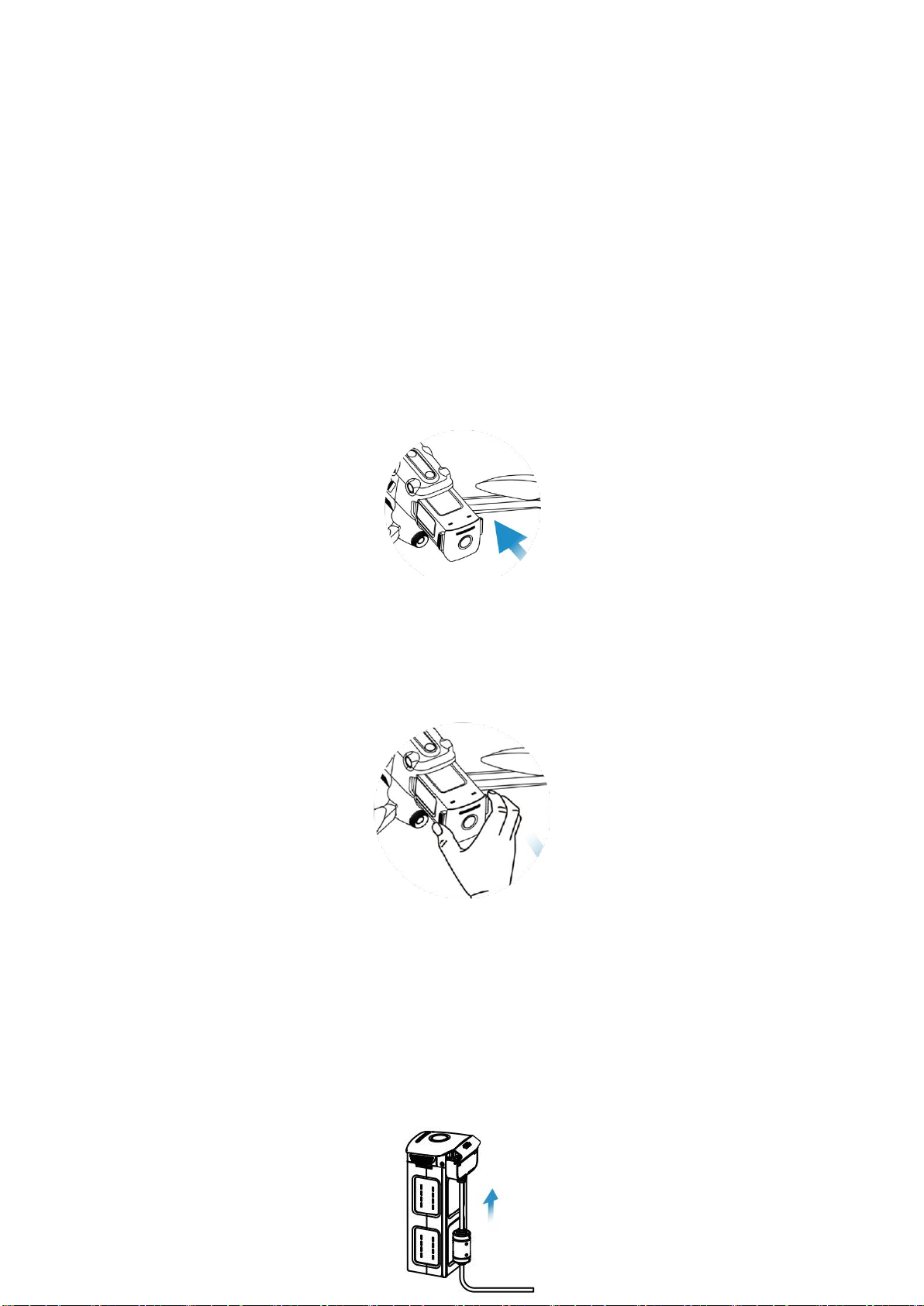
1. Turn the battery switch to off before you install the battery.
2. Insert the battery into the battery compartment, as shown in the figure on the right.
You will hear a clicking sound when the battery is installed correctly.
3.1.2 Remove the Aircraft Battery
1. Turn the aircraft battery switch to off before you remove the battery.
2. Press and hold the clips on both sides of the battery and slowly pull the battery
out.
3.1.3 Charge the Battery
1. Aircraft battery: Insert one end of the charging cable into the charging slot of the
battery, and connect the other end to an AC power supply (100-240V) through the
adapter.
41
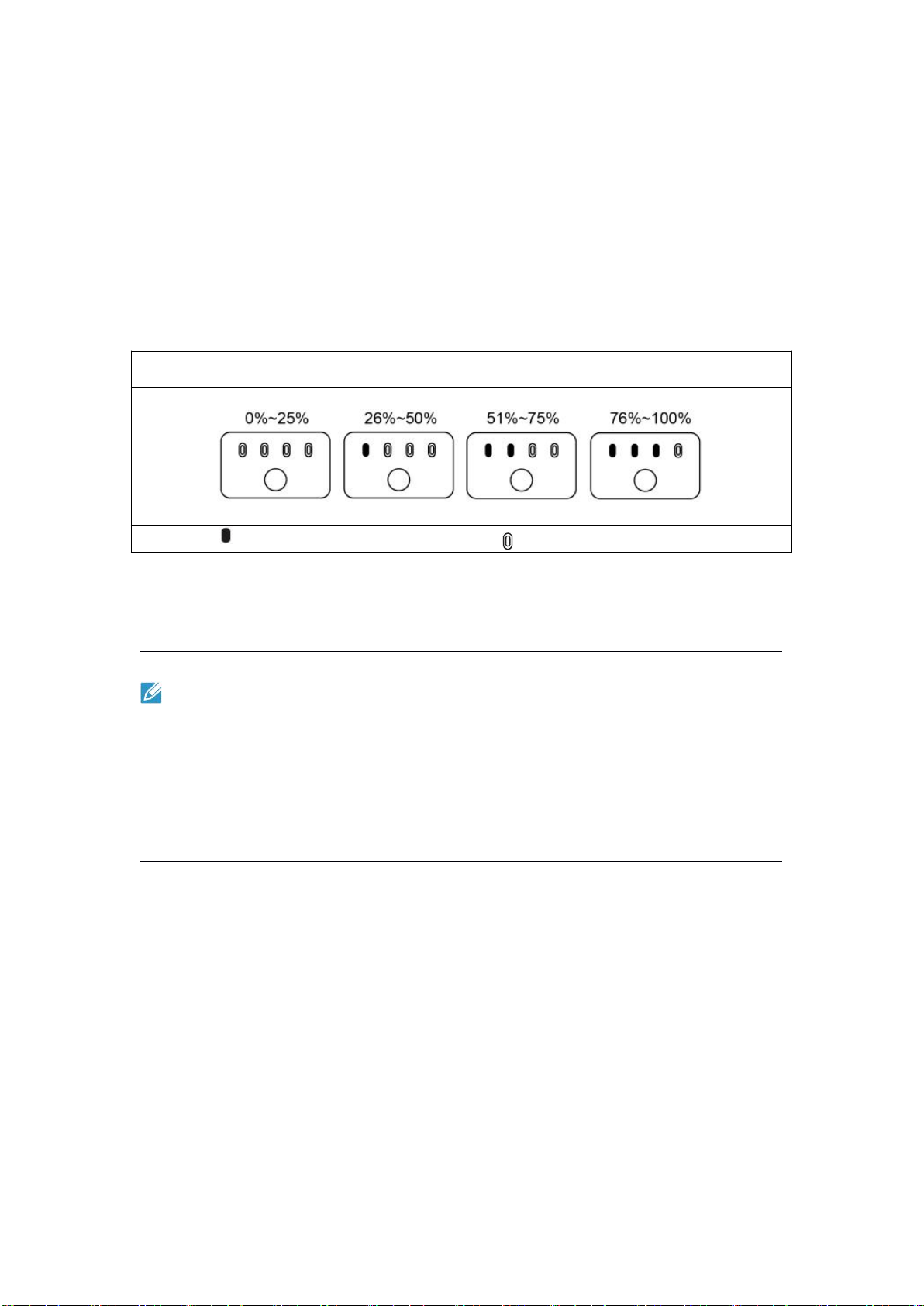
Battery level indicator: The LED indicators on the battery of the aircraft glow from
left to right, indicating the current battery level during the charging. The indicators
will turn off when the battery is full.
Battery level indicator status (during charging)
- The green LED is normally on - The green LED flashes
2. Remote Controller: Insert the Type-C cable into the Type-C port of the remote
controller.
Note
Fully charge the batteries of the aircraft and remote controller before the flight.
It takes about 90 minutes to fully charge the aircraft and about 120 minutes to
fully charge the remote controller.
Disconnect the charger from the battery of the aircraft or remote controller after
the charging is complete.

42
3.2 Prepare the Remote Controller
3.2.1 Unfold the Remote Controller
The remote controller is folded in the packing box. Extend the antennas before you
use the remote controller. For details, see Section 2.2.2 Adjust the antennas.
3.2.2 Turn On/Off the Remote Controller
Turn on/off
Press and hold the power button for 2 seconds until you hear a short beep.
Important
Always turn on the remote controller before you turn on the aircraft.
Always turn off the aircraft before you turn off the remote controller.
3.2.3 Pairing the Aircraft with the Remote Controller
By default, the remote controller is linked to the aircraft before delivery. When
you need to pair them again, you can refer to Section 2.2.2.
43
3.3 Prepare the Aircraft
3.3.1 Unfold the Aircraft
1. Remove/mount the gimbal protective cover
Remove the gimbal support before you turn on the aircraft, as shown in the
following figure.
After you turn off the aircraft, you need to put the protective cover back on the
gimbal to prevent damage.
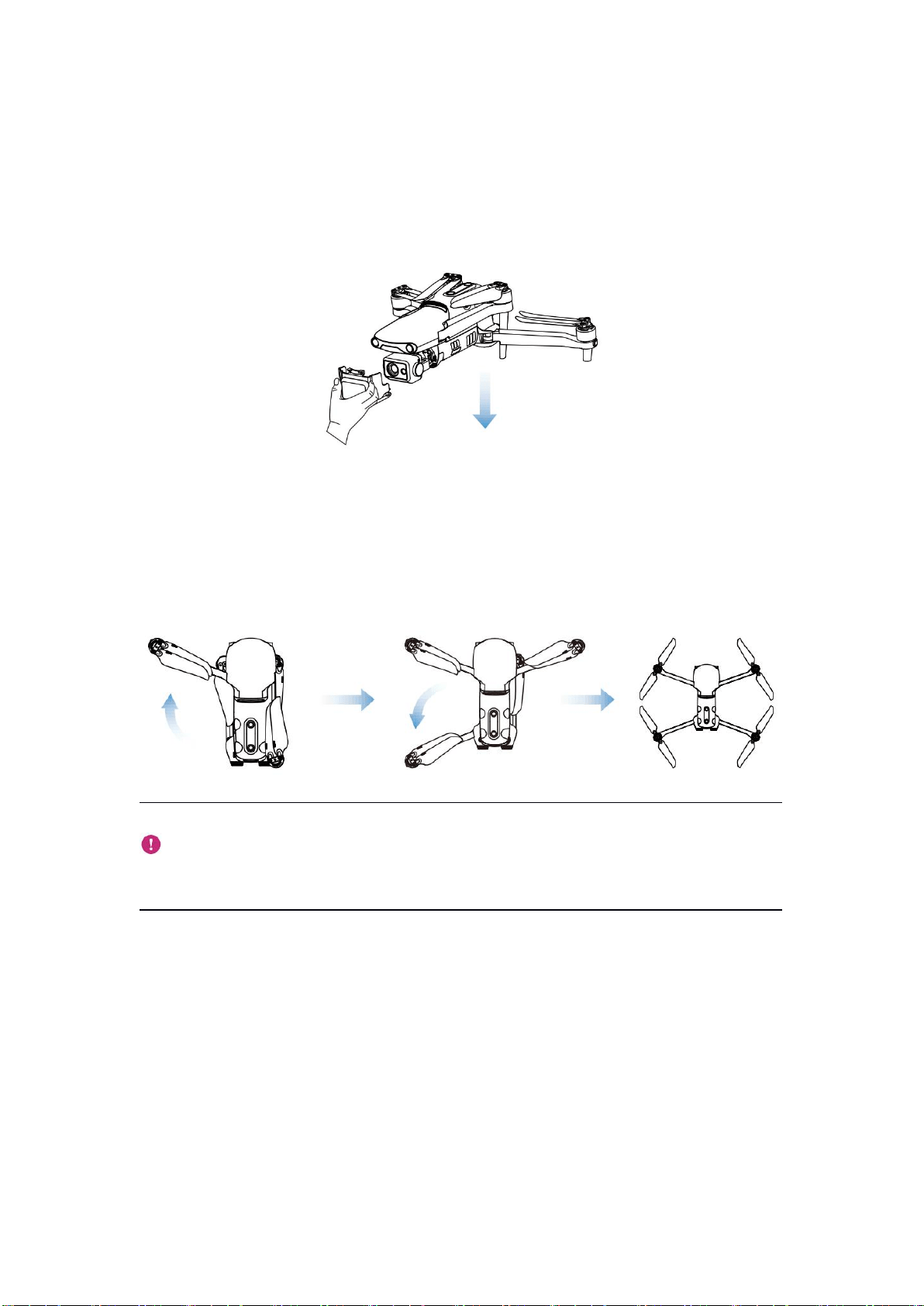
2. Extend the arms and propeller
Always unfold the aircraft arm before you turn on the aircraft.
Unfold the front arm first and then the rear arm.
Important
Turn off the aircraft before you fold the arms.
3.3.2 Propeller
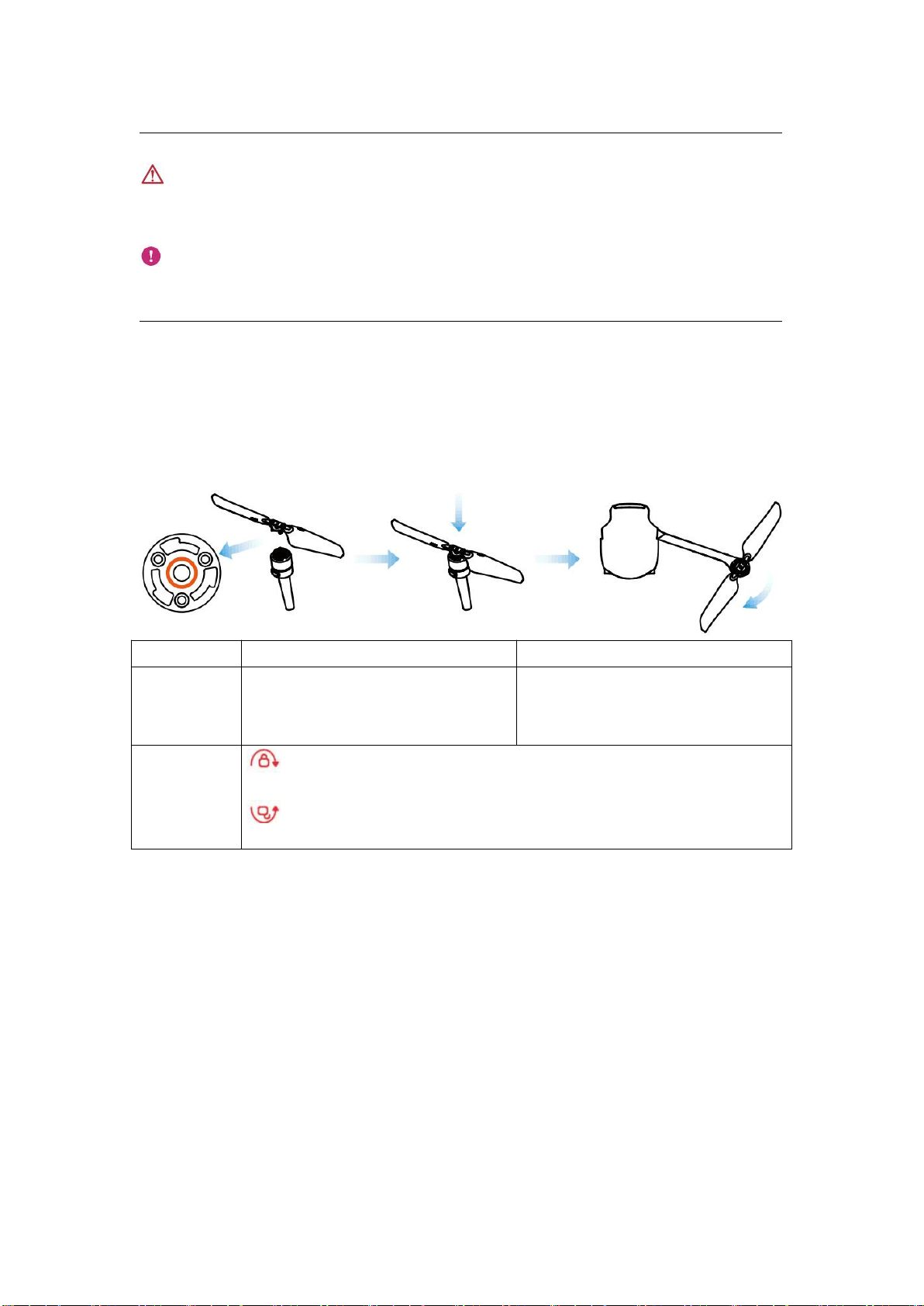
EVO II Dual 640T V3 uses a propeller that is easy to remove.
44
Warning
Turn off the aircraft before you install or remove the propeller.
Important
Wear protective gloves for installing or removing the propeller.
1. Mount the propeller
1. Make sure that the aircraft has been turned off.
2. Select the propeller that is compatible with each motor.
3. Press the propeller firmly and rotate it in the locking direction to firmly secure the
propeller.
Propeller
With a white icon
Without a white icon
Installation
position
Mount the propeller onto the
mounting plate with a white mark.
Mount the propeller onto the
mounting plate with no white
mark.
Legend
description
Locking direction: Rotate the propeller in the direction as shown
in the figure to secure it.
Unlocking direction: Rotate the propeller in the direction as shown
in the figure to remove it.
2. Remove the propeller
1. Turn off the aircraft.
2. Press the propeller firmly and rotate it in the unlocking direction to remove the
propeller.

45
Important
Before the flight, check every propeller is firmly secured.
Do not use a damaged propeller.
Do not touch a rotating propeller or motor.
Always remove the propeller before you test the motor.
3.3.3 Compass Calibration
Generally, you do not need to calibrate the compass as it has already been
calibrated before the delivery. Perform the following steps to calibrate your
compass if one of the following errors occurs: the compass shows incorrect
information, the aircraft is flying in a wrong direction that is not consistent with the
input, or the location where the aircraft is flying is far away from the calibration
location.
Warning
The compass is very easy to be affected by electromagnetic interference.
Electromagnetic interference may lead to compass errors and degradation in
flight quality. If the compass still cannot work properly after the calibration, fly
the aircraft to other places and calibrate the compass again.
Pay attention to the following precautions when calibrating your compass:
Select an open outside area.
Keep it away from all sources of magnetic interference, such as magnets or
steel reinforcements. Proximity to large structures may also affect the
calibration results.
Keep it away from underground and overhead power lines.
Do not carry ferromagnetic materials during calibration (such as keys or
magnetic jewelry).
Keep it away from all electronic devices such as mobile devices that may
interfere with calibration.

46
1. Calibration procedure
1. Turn on the aircraft and remote controller, launch the Autel Explorer App, go to
the camera page, and click the Settings button ( ). When the calibration starts,
the LED indicator on the back of the aircraft flashes yellow.
2. Hold the aircraft horizontally and rotate it until the LED indicator on the back
displays a solid green light.
3. Hold the aircraft vertically, with the nose pointing downwards, and then rotate it
until the LED indicator on the back glows solid green.
4. Hold the aircraft, with the nose pointing forwards and the side plane downwards,
and then rotate it until the LED indicator on the back glows solid green.
Note
If the calibration fails, the LED indicator on the back of the aircraft blinks red. In
this case, repeat the above steps.

47
Chapter 4 Flight Operations
4.1 Pre-flight Checklist
Observe the following steps to perform a comprehensive pre-flight check:
The aircraft, remote controller, and your mobile device are all fully charged.
The gimbal protective cover has been removed.
The propellers are mounted correctly and working properly.
The antennas have been adjusted according to the instructions described in
Section 2.2.2.
The aircraft has already paired with the remote controller.
The firmware has been upgraded to the latest version.
Make sure that you are familiar with flight control operations.
Check whether the flight region is open with no blocking obstacles.
Check the weather conditions including the temperature and wind speed.
Check whether the camera lens of the aircraft and sensors are clean.
4.2 Flight Operations
The aircraft provides three command stick modes: mode 1, mode 2, and mode 3. In
each mode, you can control the aircraft differently. By default, mode 2 is used. You
can switch the modes using the Autel Explorer App. We recommend that beginners
use mode 2.
1. Basic procedure
1. Place the aircraft in an open area. Stand at least 3 meters away from the tail of
the aircraft.
2. Turn on your remote controller.
3. Turn on the aircraft and wait for the LED indicator at the tail to flash green slowly.
4. Start the motor using the remote controller and make the aircraft take off.
5. Carefully control the aircraft within your range of visibility.
6. Land the aircraft and turn off the motor.
4.2.1 Start the Motor and Take Off the Aircraft (Mode 2)
As shown in the following figure, press the left and right sticks for 2 seconds to
start the motor.

48
or
Slowly push the left stick upwards:
Warning
The motor will generate heat during the operation. Operate it with care.
When the battery level is 15% or even lower, the aircraft is unable to take off.
4.2.2 Control with Command Sticks (Mode 2)
Tip
When you control the aircraft for the first time, move the stick gently until you
are familiar with the operations.
1. Left Command Stick
Push the stick upwards and downwards to ascend or descend the aircraft. Push the
stick to the left or right side to control the aircraft orientation.
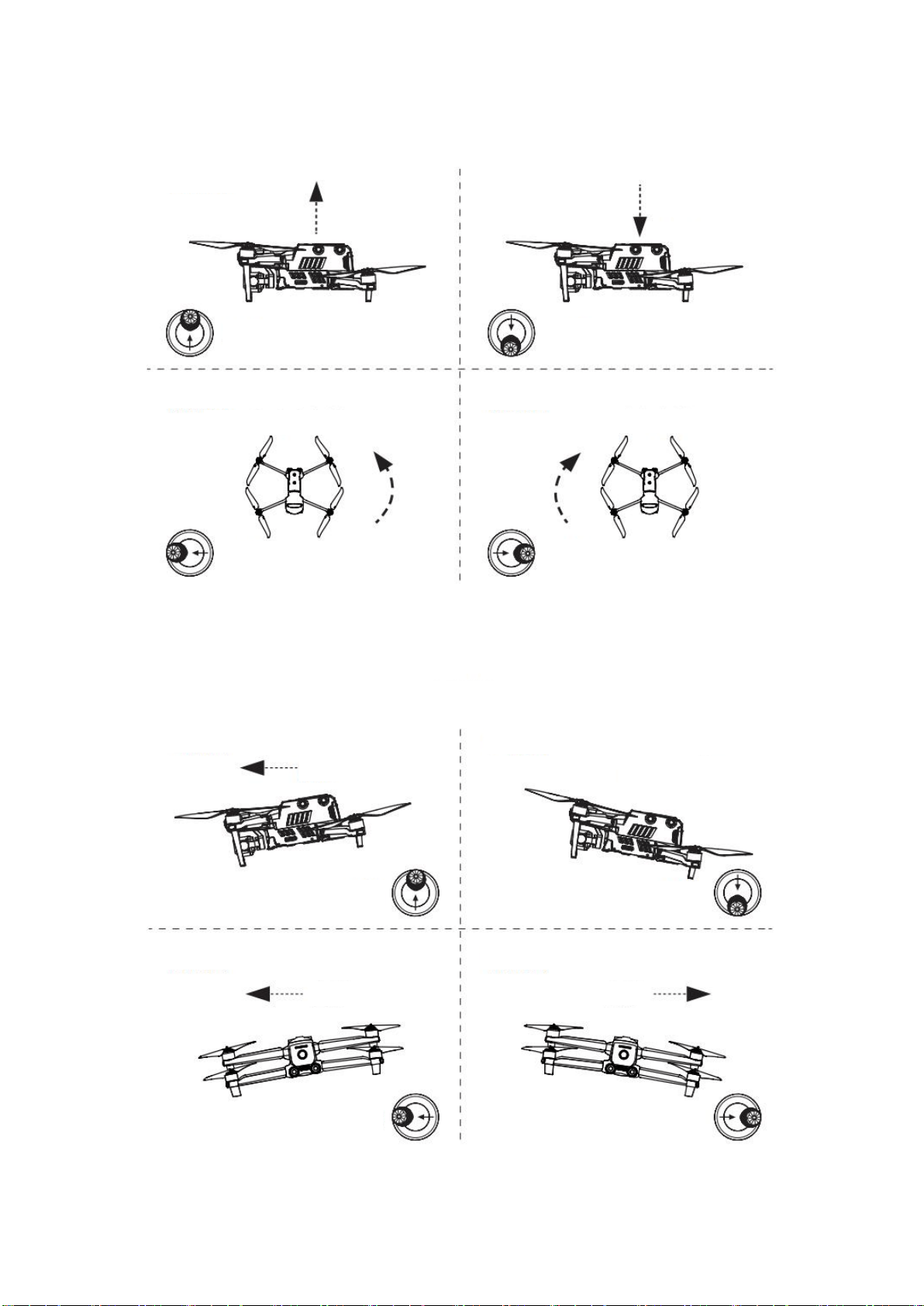
49
2. Right Command Stick
Push the stick upwards and downwards to move the aircraft forwards and
backwards. Push the stick to the left or right to move the aircraft to the left or right.
Left command stick
Left view
Left view
Top view
Top view
Descend
Ascend
Push to the left
Push to the right
Nose turning right
Nose turning left
Push upwards
Push downwards
Right command stick
Left view
Left view
Rear view
Rear view
Backwards
Forwards
Push to the left
Push to the right
Turn to right
Move to the left
Push upwards
Push
downwards

50
4.2.3 Landing and Turning Off the Motor
EVO Ⅱ Dual 640T V3 aircraft can be manually or automatically landed. The
procedure for landing an aircraft is as follows:
1. Manual landing
1. Find an appropriate landing position (flat and open area).
2. When the aircraft arrives above the target position, release the command stick to
hover the aircraft.
3. Slowly push down the left command stick to land the aircraft.
4. After the aircraft lands on the ground, push the left command stick until the motor
is turned off.
Note
When the low battery warning (25%) is displayed, the LED indicator on the back
of the aircraft flashes red. In this case, you must immediately let the aircraft land
in a safe place.
2. Automatic landing
When one of the following errors occurs, failsafe will be triggered, and the aircraft
will automatically land from the current position:
A low battery warning is displayed in a non-GPS environment.
A critical low battery warning is displayed.

51
Chapter 5 Maintenance and Service
5.1 Firmware Updates
To achieve the optimal performance of EVO II Dual 640T V3 aircraft, Autel Robotics
will update relevant firmware when necessary. You can download a unified
firmware upgrade package from the official website. The package includes the
latest versions of multiple firmware, such as the flight controller, gimbal, camera,
intelligent battery, and remote controller.
Important
Before you upgrade the firmware, ensure that:
The aircraft motor is not rotated.
The battery of the aircraft and remote controller is not lower than 25%.
The SD card has sufficient space to store firmware files.
1. Download and upgrade the firmware
Method 1
1. Download the firmware upgrade package from the official website of Autel
Robotics: www.autelrobotics.com/download/129.
2. Insert the SD card into the computer and extract the downloaded files into the
root directory of the SD card. Remove the SD card from the computer.
3. Turn on the aircraft and remote controller.
4. Insert the SD card into the aircraft to automatically start the upgrade process. You
can check the upgrade process through the app.
5. Restart the aircraft and remote controller before you use the product again.
Method 2
When the system detects a new firmware version, the Autel Explorer App will
automatically pop up a prompt message after you connect the App with the aircraft,
reminding you to download and install the firmware. Follow the promoted
instructions to download and upgrade the firmware.

52
Important
The firmware update takes about 15 minutes. During the upgrade, do not turn
off the aircraft or remote controller, start the motor, or remove the SD card from
the camera.
After the upgrade, the remote controller may be disconnected from the aircraft.
To pair them again, refer to Section 2.2.2.
5.2 Troubleshooting
Question 1: An error is found when the aircraft performs the self-check (the LED
indicator at the tail of the aircraft glows solid red).
This is a hardware issue. Please contact Autel Robotics' customer support:
www.autelrobotics.com/page/contact.
Question 2: If the motor cannot start, check the following:
Check whether the remote controller is paired with the aircraft.
Check whether the remote controller is correctly calibrated.
Check whether the aircraft is fully charged.
Check whether the compass is correctly calibrated.
Check whether the GPS is available (when you enable the beginner mode).
Question 3: If the aircraft cannot take off after you start the motor, check the
following:
Check whether the aircraft is in a No Fly Zone.
Check whether the aircraft is placed on a flat surface.
Question 4: Why is the flight time shortened?
The common causes are low temperature and wind speed.
Question 5: There is no response from the remote controller when pairing it with the
aircraft.
Check whether there is a metal object, mobile device or another remote
controller near.

53
Question 6: The video link fault occurs or is interrupted often.
Check whether there is any magnetic or signal interference source near the
aircraft and remote controller.
Question 7: The camera automatically turns off during recording.
Do not pull out the micro SD card from the camera. Restart the camera and wait
for the video file to be stored as much as possible.
Question 8: The video link is interrupted when the aircraft is not out of your sight.
Enable auto-return and let the aircraft return to the home point.
Question 9: What precautions should I follow when using the omnidirectional
binocular vision sensing system?
Ensure that 12 cameras are clean without being blocked before the flight.
"Omnidirectional" means that the system can sense objects in six directions,
including front, rear, left, right, up, and down.
A blind zone of 30° degrees exists in the four diagonal directions of the aircraft.
Pay attention to the surrounding environment and safety prompt messages of
the app.
Obstacles can be detected by checking the texture of their surfaces. The
detection function cannot work properly for objects with no texture, repeated
texture, or a surface of pure color, moving objects, or tiny objects.
Question 10: The accurate landing cannot work properly.
This feature can be implemented by the binocular camera on the rear of the
aircraft. The camera detects the ground texture when the aircraft takes off.
However, if the ground does not have any texture or the camera on the rear of
the aircraft is damaged, this feature cannot work properly.
Question 11: The omnidirectional binocular vision sensing system cannot work
properly.
Restart the aircraft and check whether the system can work properly this time.

54
Question 12: The video is tilted during the flight.
Place the aircraft horizontally and keep it still.
Use the app to calibrate the gimbal.
If the problem persists, adjust the gimbal according to the instructions
described in the relevant section.
Question 13: The lens of the binocular camera is dirty.
Use a cleaning cloth to wipe the lens. Use the glasses cleaning cloth in the
packing box.
Question 14: A visual error occurs during the flight.
Use the calibration tool on your PC to calibrate binocular parameters. You can
download the calibration tool for your PC from the official website.
5.3 Storage and Maintenance
To ensure the optimal performance of EVO Ⅱ Dual 640T V3 aircrafts, read and
observe the maintenance instructions in this section carefully.
Store the aircraft, battery, and remote controller in a clean, dry, cool, and
well-ventilated environment.
Protect the aircraft from direct sunlight when it is not used.
Wipe your hands before you operate your drone.
Clean the camera lens with a soft cloth dipped in alcohol or mild window
cleanser. Do not use any strong detergents or chemicals.
Keep the battery charger away from any conducting materials.
Avoid the aircraft and its accessories from falling on a hard surface. Carefully
check every component whenever a collision occurs. Contact Autel Robotics
customer support for any damage.
Only use the accessories authorized by Autel Robotics, such as a charger. No
warranty shall be provided for any accident caused by using unapproved
accessories.
5.4 Warranty
For users who purchase the products from authorized retailers, Autel Robotics
guarantees that in normal use, the Autel Robotics product you buy is free from
defects in material or workmanship. The warranty period for this product starts on
the day you receive the product. If you cannot provide valid proof of purchase such
as a purchase invoice, the warranty start date will be defined as 90 days after the
delivery date printed on the device or by Autel Robotics.
Important

55
For the detailed after-sales policy, visit the official website of Autel Robotics:
www.autelrobotics.com/page/policy.
5.5 Customer Service
This section includes information on technical support, maintenance service, and
application for replacement and spare parts.
5.5.1 Technical Support
If you have any problems or questions regarding our product, contact Autel
Robotics' customer support:
Tel: (844) 692-8835
Email address: support@autelrobotics.com / support.eu@autelrobotics.com
Website: www.autelrobotics.com
5.5.2 Maintenance Service
If you want to send your device for maintenance, please email
after-sale@autelrobotics.com or call 400-800-1866 to contact Autel Robotics'
customer support.
Note
All content of the product may be deleted during maintenance. We recommend
that you create a backup copy of the data in the product before delivering the
product for warranty service.
Chapter 6 Appendix
6.1 Unlock No-Fly Zones
EVO Ⅱ Dual 640T V3 aircraft can automatically identify No-Fly Zones and avoid
these zones by default during the flight. This ensures that the aircraft complies with
the lawful requirements of flight zones.
Note
You must ensure that you abide by all relevant flight rules and regulations.
If you want to unlock a No-Fly Zone, visit the official website of Autel Robotics


57
6.2 Specifications
Aircraft
Takeoff weight
1150 g
Dimensions (Length x Width x
Height)
230x130x108 mm (folded)
457x558x108 mm (unfolded)
Diagonal length
397 mm
Maximum flight time (no wind)
38 minutes
Maximum hovering time (no wind)
33 minutes
Maximum flight speed
20 m/s (in ludicrous mode)
Maximum ascent speed
8 m/s (in ludicrous mode)
Maximum descent speed
4 m/s (in ludicrous mode)
Maximum flight altitude
7000 meters
Wind resistance
12 m/s (Take-off and landing)
Operating temperature
-10 ~ 40ºC
*Operating frequency
902-928 MHz(FCC)
2.400-2.4835 GHz
5.725-5.850 GHz (Countries except for Japan)
5.650-5.755 GHz (Japan)
Transmission power
900M
FCC/ ISED: ≤31 dBm
2.4G
FCC/ ISED: ≤32 dBm
SRRC/CE/MIC/RCM: ≤20 dBm
5.8G (Countries except for Japan); 5.7G
(Japan)
FCC/ISED/SRRC/MIC: ≤33 dBm
CE/ RCM: ≤14 dBm
Hovering accuracy (mild wind or
no wind)
Vertical:±0.1m (when the vision positioning is
active),
±0.5 m (when the GNSS positioning is active);
Horizontal:±0.3m (when the vision positioning
is active),
±1.5 m (when the GNSS positioning is active);
Built-in storage
8G
Supported SD card
Max. capacity: 256GB (Class 10 or UHS-3)
Gimbal
Mechanical range
Pitch: -135° to +45°
Heading: -100° to +100°

58
Controllable range
Pitch: -90° to +30°
Heading: -90° to +90°
Stabilization
3-axis
Maximum control speed
(tilt)
300°/s
Angular vibration range (°)
±0.005°
Sensing system
Forward
Accurate measurement range: 0.5 - 18 m
Effective sensing speed: < 12 m/s
FOV: horizontal: 60°, vertical: 80°
Backward
Accurate measurement range: 0.5 - 16 m
Effective sensing speed: < 12 m/s
FOV: horizontal: 60°, vertical: 80°
Upward
Accurate measurement range: 0.5 - 10 m
Effective sensing speed: < 5 m/s
FOV: horizontal: 65°, vertical: 50°
Downward
Accurate measurement range: 0.5 - 10 m
Effective sensing speed: < 5 m/s
FOV: horizontal: 100°, vertical: 80°
Left and right
Accurate measurement range: 0.5 - 10 m
Effective sensing speed: < 5 m/s
FOV: horizontal: 65°, vertical: 50°

59
Operating environment
Forward, backward, left and right:
Surface with clear patterns and adequate lighting
(> 15 lux, indoor fluorescent lamp, environment with
normal light exposure)
Upward: surface built from special materials that can
reflects light diffusely and diffuse reflection > 20%
(such as walls, trees. and persons)
Downwards: the ground has a rich texture and
sufficient light.
(> 15 lux, indoor fluorescent lamp, environment with
normal light exposure) surface built from special
materials that can reflect light diffusely and diffuse
reflection > 20%
(such as walls, trees. and persons)
Thermal imaging camera
Infrared thermal imaging
sensor
Uncooled infrared focal plane detector made out of
vanadium oxide
Sensor resolution
640x512
Wavelength
8~14 μm
Focal length
13 mm
FOV
H33°V26°
Pixel size:
12 μm
Digital zoom
1 - 16 times
Accurate distance for
temperature measuring
2 - 20 meters
Photo taking mode
Single/burst/periodic
Photo resolution
Infrared mode: 640x512
Picture-in-picture: 1920x1080, 1280x720
Photo format
JPG (IRG files)
Video format
MP4 / MOV (H.264/H.265)
Video resolution
640x512 30 fps
Temperature measurement
precision
±3ºC or ±3% of the reading (the larger value is used)
@Environment temperature -20ºC - 60ºC
Temperature measurement
range
High gain mode: -20° - +150°
Low gain mode: 0° - +550°
Visual Camera
Image Sensor
1/1.28-inch CMOS
Effective pixels:
50 million

60
Lens
FOV: 85°
Equivalent focal length: 23 mm
Aperture: f/1.9
Focus range: 0.5 m ~ ∞
ISO range
Video: ISO100 - ISO64000
Photo: ISO100 - ISO6400
Digital zoom
1 - 16x (max. 4x lossless zoom)
Photo format
JPG (default)/ DNG / JPG+DNG
Photo-taking mode
Single (default)/burst/AEB/periodic/HDR
Photo resolution
8192 × 6144(4:3)
096 × 3072 (4:3, default)
3840 x 2160(16:9)
Video format
MP4 / MOV (MPEG-4 AVC/H.264, HEVC/H.265)
Video resolution
3840x2160P60/P50/P48/P30(default)/P25/P24
2720x1528P60/P50/P48/P30/P25/P24
1920x1080P60/P50/P48/P30/P25/P24
Max bit rate
120 Mbps
Supported file systems
FAT32/exFAT
Autel Smart Controller V3
Maximum transmission
distance (unobstructed, free
of any interference)
15 km(FCC),8 km(CE)
*Operating frequency
902-928 MHz(FCC)
2.400-2.4835 GHz
5.725-5.850 GHz (Countries except for Japan)
5.650-5.755 GHz (Japan)
Transmission power
Storage space
Built-in 128GB
Video output port
HDMI

61
Battery
Capacity: 5800 mAh
Voltage: 11.55V
Type: LiPo
Energy: 67 Wh
Charging time: 120 minutes
Battery endurance
3 hours (maximum brightness)
4.5 hours (50% brightness)
Operating temperature
-20ºC ~ 40ºC
Dimensions
303×190×87 mm (folded antennas)
303×273×87 mm (extended antennas)
Weight
1150 g (without the protective cover)
1250 g (with the protective cover)
Satellite positioning module
GPS/GLONASS/Galileo/BeiDou
Battery
Battery capacity
7100 mAh
Voltage
11.55
Battery type
LiPo 3S
Battery energy
82 Wh
Net weight
365 g
Environment temperature
for charging
5 ~ 45ºC
Temperature & humidity for
storage
-10 ~ 30ºC,65±20%RH
Ideal temperature for
storage
22~28ºC
Maximum charging power
93W
Charging time
90 minutes

62
Charger
Input
100-240V, 50/60 Hz, 1.5A
Output
13.2V ⎓ 5A
5V
⎓
3A
9V ⎓2A
12V
⎓
1.5A
Voltage
13.2V
Rated power
66W
Note:
* The frequency band used varies in different countries and regions.
