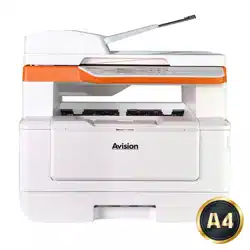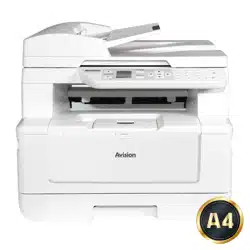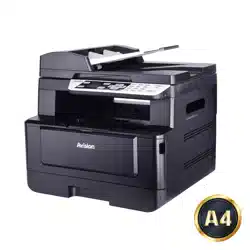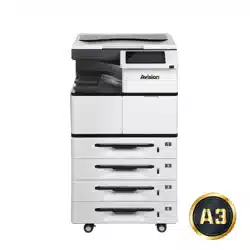
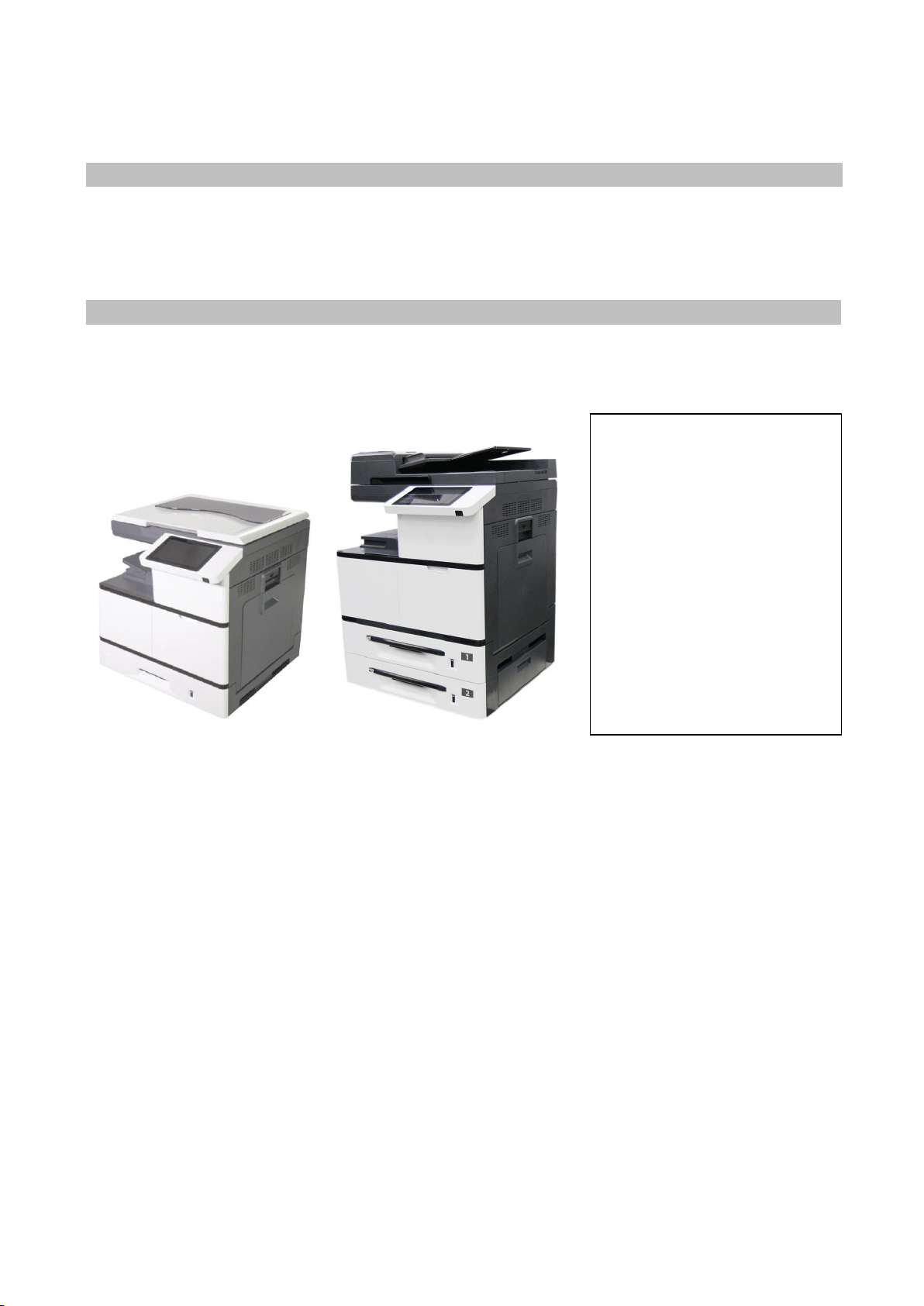
Multi-Function Copier
User’s Manual
Regulatory model:
AM7630i/AM7640i/AM7645i/AM5630i/AM5640i
Avision Inc.
1. Getting Started
2. Installing Your Machine
3. Operation
4. Customizing the Product’s
Configurations
5. Configuring the Printer’s
Features
6. Scanning From Your Computer
7. Maintaining the Product
8. Replacing the Consumables
9. Troubleshooting
10. Specification

ii
Safety During Operation
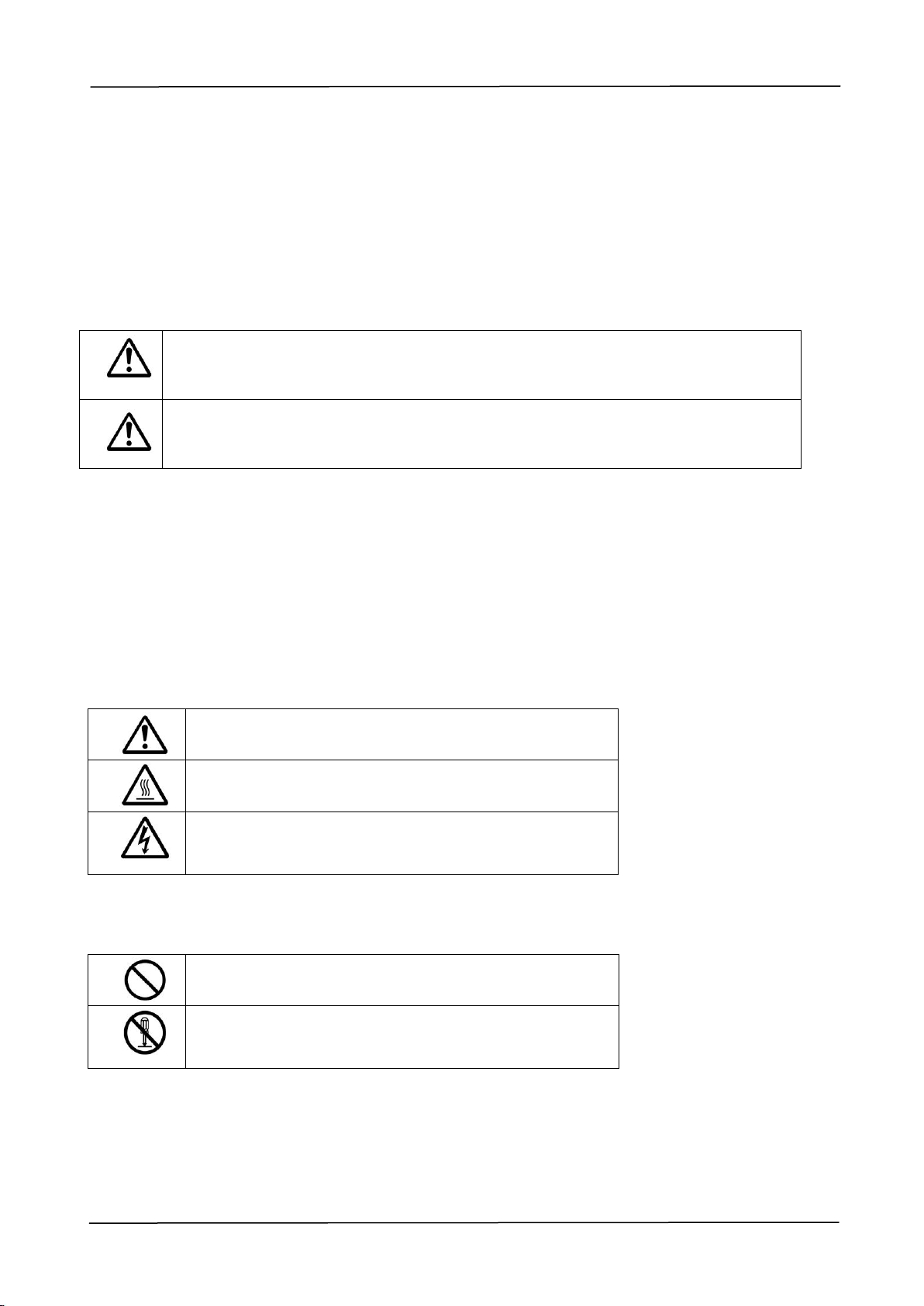
In this manual, the following important symbols are used:
WARNING:
Indicates potentially hazardous situations, which if instructions are not followed, could result in
death or serious injury.
CAUTION:
Indicates a potentially hazardous situation which, if instructions are not followed, may result in
minor or moderate injury or damage to property.
Important:
Indicates operational requirements and restrictions. Please read and follow these instructions
to ensure a proper operation and to avoid damage to the machine.
Note:
Indicates further explanation or clarification. Reading this is highly recommended.
WARNING:
To avoid hazardous electric shock or fire, do not remove any covers or screws other than those
specified in this manual.
CAUTION:
To reduce the risk of fire, use only no.26AWG or larger telecommunication line cord.
Disconnect the power plug by pulling the plug, not the cable.
Do not touch the metal fingers of the ADF pad module. The edges are sharp and touching
them may result in injury.
Notice
Important
Do not make copies of any item for which copying is prohibited by law.
Copying the following items are normally prohibited by the local law:
Bank bills, revenue stamps, bonds, stock certificates, bank drafts, checks, passports,
driver's licenses.
This machine is equipped with a function that prevents making counterfeit bank bills. Due
to this, images similar to bank bills may not be copied properly.
iii
Copyrights and Trademarks
Ethernet is a registered trademark of Xerox Corporation.
Microsoft, Windows 7, Windows 8, Windows 10, and Windows 11 are registered trademarks of
Microsoft Corporation in the United States and/or other countries.
Other product names used herein are for identification purposes only and may be trademarks of
their respective companies. We disclaim any and all rights to those marks.
Warranty
The information contained in this document(s) is subject to change without notice.
The manufacturer makes no warranty of any kind with regard to this material, including, but not
limited to, the implied warranties of fitness for a particular purpose.
The manufacturer shall not be liable for errors contained herein or for incidental or
consequential damages in connection with the furnishing, performance, or use of this material.
When this printer has no operation for an extended period of time
Note: If the printer is idle for a period of time (for example, overnight),
turn off the printer with the power switch. If the printer is idle for a
longer period of time (such as holidays), unplug the power cord from
the electrical outlet to prevent danger.
Take care to remove the paper from the paper tray and store it in the wrapper to
prevent the paper from getting wet.
Disposal of Waste Equipment by Users in Private Union
This symbol on the product or on its packaging indicates that the product can not be disposed of
with your other household waste. Instead it should be sent to appropriate facilities for
recovery and recycling in an effort to protect human health and the environment. Fore more
information about where you can drop off your waste equipment for recycling, please contact
your local city office, your household waste disposal service or the shop where you purchased
the product.

iv
Federal Communications Commission (FCC) compliance information
statement
Part 15
The product has been tested and found to comply with the limits for a Class A digital device
pursuant to Part 15 of the FCC Rules. Operation is subject to the following two conditions: (1)
this device may not cause harmful interference and (2) this device must accept any interference
received including interference that may cause undesired operation.
The FCC Class A limits are designed to provide reasonable protection against harmful
interference when the equipment is operated in a commercial environment. This equipment
generates, uses, and can radiate radio frequency energy and, if not installed and used in
accordance with the instruction manual may cause harmful interference in which case the user
will be required to correct the interference at his own expense.
European Union Regulatory Notice
Products bearing the CE marking comply with the following EU Directives:
Low Voltage Directive 2014/35/EC
EMC Directive 2014/30/EC
Restriction of the use of certain hazardous substances (RoHS) Directive 2011/65/EU
RED (Radio Equipment Directive) (2014/53/EC)
CE compliance of this product is valid if powered with the correct CE-marked AC adapter provide
by Avision.
This product satisfies the Class A limits of EN55032, EN55035, and safety requirements of
EN62368-1.
CE Warning
This is a class A product. In a domestic environment this product may cause radio interference
in which case the user may be required to take adequate measures.
v
Safety Information
When using this equipment, the following safety precautions should always be followed.
Safety During Operation
In this manual, the following important symbols are used:
WARNING:
Indicates potentially hazardous situations, which if instructions are not
followed, could result in death or serious injury.
CAUTION:
Indicates a potentially hazardous situation which, if instructions are not
followed, may result in minor or moderate injury or damage to property.
Important:
Indicates operational requirements and restrictions. Please read and follow these instructions
to ensure a proper operation and to avoid damage to the machine.
Note:
Indicates further explanation or clarification. Reading this is highly recommended.
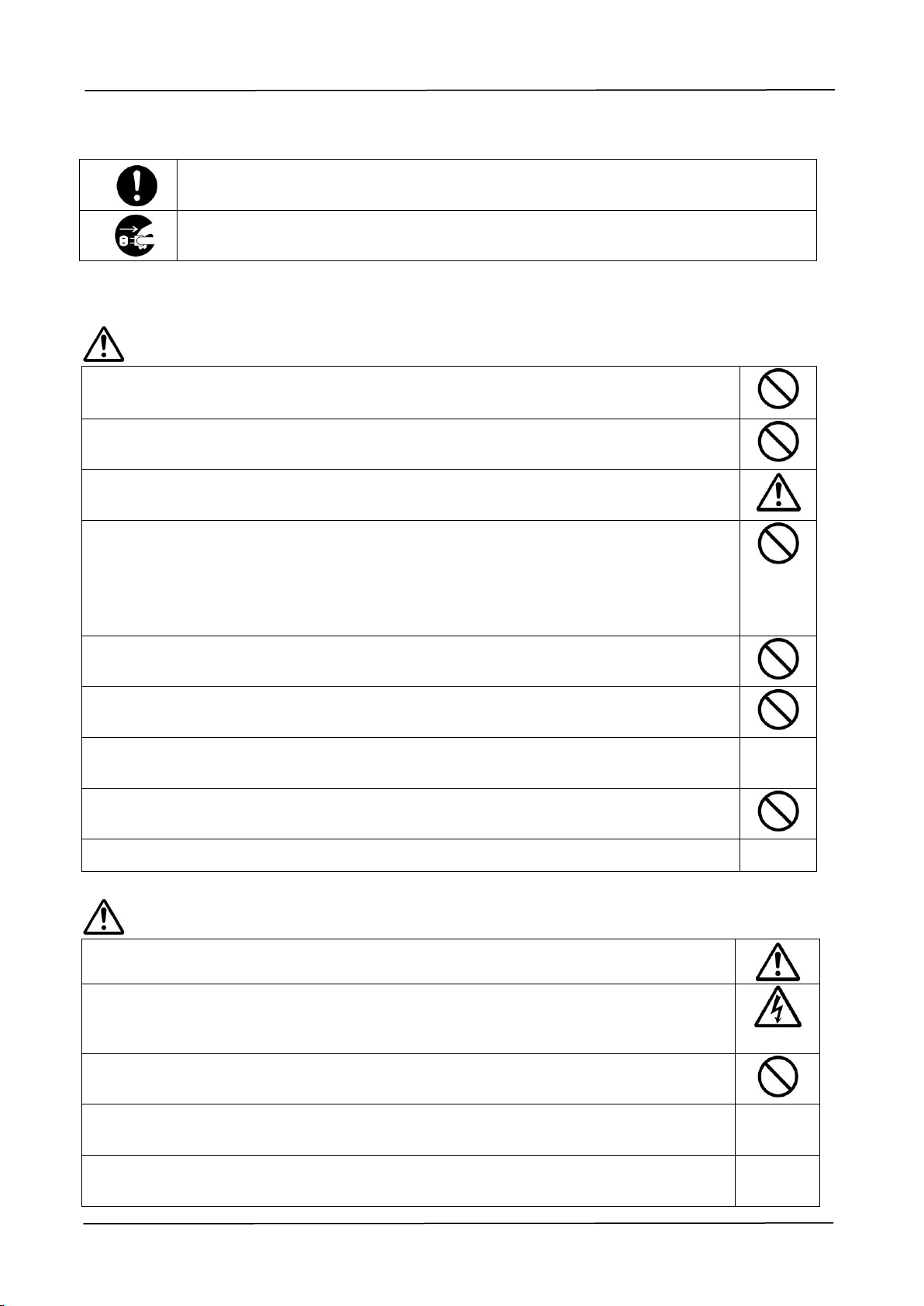
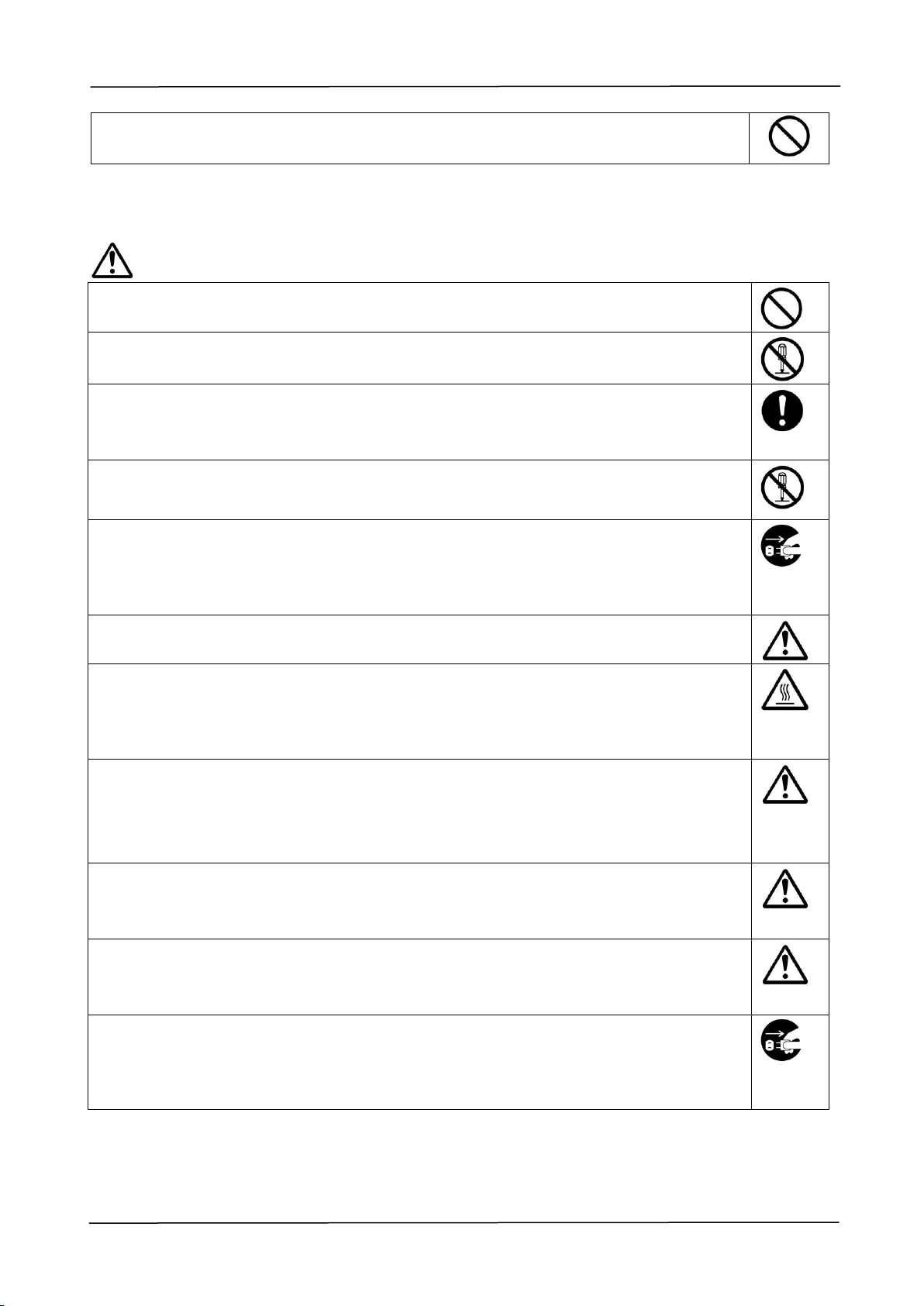
The following symbols indicate that the related section includes safety warnings. Specific points
of attention are indicated inside the symbol.
[General warning]
[Warning of high temperature]
[Warning of danger of electrical shock]
The following symbols indicate that the related section includes information on prohibited
actions. Specifics of the prohibited action are indicated inside the symbol.
[Warning of prohibited action]
[Disassembly prohibited]
vi
The following symbols indicate that the related section includes information on actions which
must be performed. Specifics of the required action are indicated inside the symbol.
[Alert of required action]
[Remove the power plug from the outlet]
Installation and the Operating Environment
Warning
Do not install the equipment near direct sun light, heating or air conditioning
units. Direct sunlight or high temperature may damage the machine.
Do not install the equipment in a humid or dusty place. If dust or dust adheres to
the power plug, clean the plug to avoid fire or electric shock.
Keep the vent hole on the back of the printer at least 10 cm away from the wall
to avoid overheating and fire.
Do not place or store the device:
Outdoors
Near excessive dirt or dust, water, or heat sources
In locations subject to shocks, vibrations, high temperature or humidity,
direct sunlight, strong light sources, or rapid changes in temperature or
humidity
Place the equipment securely on an even, flat surface. Tilted or uneven surfaces
may cause mechanical or paper-feeding problems.
Do not locate the device on rackety or aslope tables. Do not locate the device on
unstable surface. The device may fall down and this may result in injury.
Place the device close enough to the computer so that the interface cable can
easily reach between the device and the computer.
Do not place a coffee cup, vase, or other liquid-filled container on the machine.
Spillage can damage the machine’s electrical parts and insulation.
Make good use of the recycled paper while printing.
Caution
Place the device in an independent, well-ventilated area.
Place the device in a place with good environmental conditions. Operating the
machine beyond the recommended temperature and humidity may cause an
electrical fire.
Do not place heavy objects on the unit. It may cause unbalance and the device
may fall down. This may result in injury.
Risk of explosion if battery is replaced by an incorrect type. Dispose of used
batteries according to the instructions or equivalent.
This product requires connection to protective earth by means of power cord(s)
connected to socket-outlet(s) with protective earthing connection.
vii
Do not place the device in any position that may obstruct the output of the unit,
as it may cause paper jams.
Safety Information During Operation
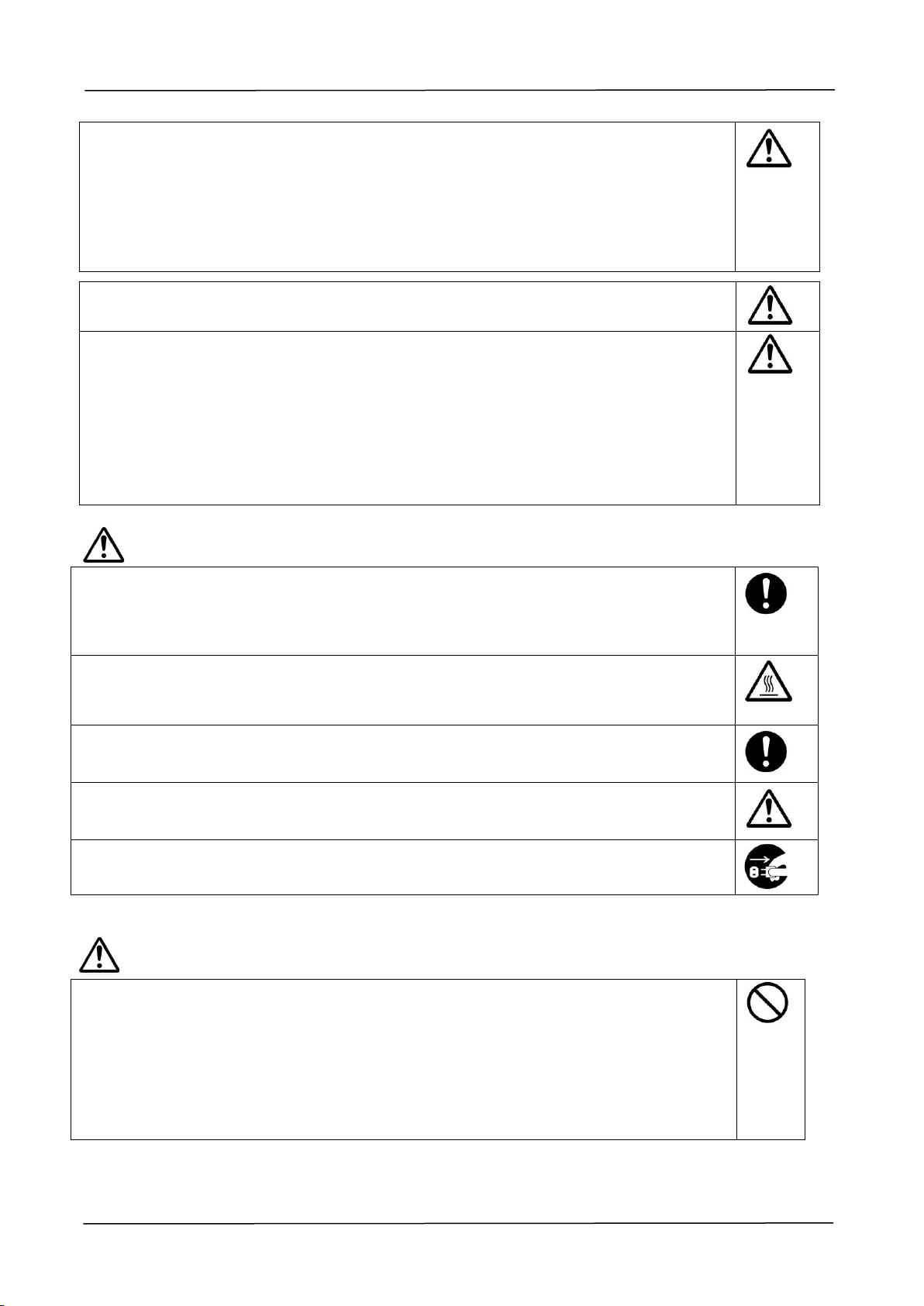
Warning
To prevent fires, do not use flammable sprays near the machine.
Never attempt to open any fixed cover. Otherwise there is danger of electric
shock, fire and laser beam and may cause blindness.
Never disassemble, modify, or attempt to repair the device or device option by
yourself, except as specifically explained in the device's documentation. This could
cause fire, electrical shock, or injury.
Do not attempt to alter the machine or its parts. Avoid contact with the internal
high voltage part or the laser light beam, it may cause electric shock or blindness.
If this product becomes inordinately hot or emits smoke, or unusual odor or noise,
immediately turn OFF the power switch, unplug the power cord from the power
outlet, and then call your authorized service representative. If you keep on using
it as is, a fire or electrical shock could result.
Take care not to drop paper clips, staples, or any other metal objects into the
machine.
The inside of this product has areas subject to high temperature, which may
cause burns. When checking the inside of the unit for malfunctions such as paper
miss-feed, do not touch the locations (around the fusing unit, etc.) which are
indicated by a “Caution! Hot Surface” caution label.
Under normal conditions the small quantities of ozone gas produced by the
machine are harmless. However, if the machine is used for an extended period or
within a small room, you should make sure that the area is adequately ventilated.
Also ventilate the room if you notice the machine smells after a period of frequent
or extended use.
Do not attempt to remove the covers and panels which have been fixed to the
product. Some products have a high-voltage part or a LSU beam source inside
that could cause an electrical shock or blindness.
Do not modify this product, as a fire, electrical shock, or breakdown could result.
If the product employs a LSU print head, the LSU beam source could cause
blindness.
If this product has been dropped or its cover damaged, immediately turn OFF the
power switch, unplug the power cord from the power outlet, and then call your
authorized service representative. If you keep on using it as is, a fire or electrical
shock could result.
viii
Take appropriate emergency measures when the following conditions occur
When toner gets into your eyes, wash it off with water until your eyes are
not painful. If the situation is serious, ask a doctor for treatment.
When the toner gets on your skin, wash it off with soap and rinse it off.
When you are in the toner inlet, leave the dust location immediately and
rinse with plenty of water.
When the toner is in the abdomen, spit it out and consult a doctor.
Do not use the device with wet hands.
Unplug the device and the USB cable, and refer servicing to qualified service
personnel under the following conditions:
Liquid has entered the device.
Object has entered the device.
The device has been dropped, or the case has been damaged.
The device does not operate normally (i.e. appearance of smoke, strange
smell, odd noise, etc.), or exhibits a distinct change in performance.。
Caution
When there is paper jam inside the machine, be sure to remove it thoroughly. The
remaining paper in the machine may cause a fire. When the paper is attached to
an invisible or difficult-to-see area, do not remove it by force to avoid injury and
contact the service personnel or dealer for help.
The temperature inside of the machine may be very hot. When the paper jam is
released, note any warning labels and do not touch it to avoid burns. It is
recommended to clear the jam after the machine has cooled down.
When clearing paper jams, refer to the instructions in this manual.
When using a large number of copies of the machine for a long time, keep the
indoor air flow. Otherwise you may feel a headache.
Unplug the device’s power cord and USB cable before cleaning.
About the Consumables
Caution
Do not unpack the consumables and store the machine’s consumables in any
of these locations:
Outdoors
Near excessive dirt or dust, water, or heat sources
In locations subject to shocks, vibrations, high temperature or humidity,
direct sunlight, strong light sources, or rapid changes in temperature or
humidity
ix
Do not throw the toner cartridge into the fire. After the toner remaining in the
crucible comes into contact with the fire, the powder may explode and cause
personal injury.
Caution
Do not discard the discarded toner cartridges. Please put the used waste toner
cartridges in the supplied plastic bags and return them to the dealer or service
personnel. (For the customer service locations around the company, please refer
to our website.). The latter will recycle the used toner cartridge in accordance with
relevant regulations.
The used consumables must be disposed of properly and in accordance with local
environmental regulations, or disposed of by the company's designated dealer.
Safety Information When using power cord and the USB cable
Warning
Plug the power cord securely into the outlet. Do not touch the pins of the power
cord plug with any metal objects as they may touch dangerous voltage points or
short circuit. This can cause fire, electric shock or injury. Failure to do so may
result in a fire or electric shock.
Before disconnecting the plug, turn the machine off. Make sure your hands are
dry. Hold the plug itself, not its cord, when disconnecting it from the receptacle.
Do not share the power with other high-powered devices, as this may result in fire
or electric shock.
Do not use extension cords as this may result in fire or electric shock.
Always use the correct AC power source. For future transportation and handling,
please keep all packaging materials for this product.
Use only the USB cable that came with your device and avoid abrasions, cuts,
fraying, crimping, and kinking. Using any other USB cable could cause fire,
electrical shock, or injury.
Do not store the cables in the following locations:
Outdoors
Near excessive dirt or dust, water, or heat sources
In locations subject to shocks, vibrations, high temperature or humidity,
direct sunlight, strong light sources, or rapid changes in temperature or
humidity
Keep the supplied USB cable, etc., in a location that is out of reach of children to
avoid the risk of injury.
Please put the packaging materials such as the supplied plastic bags in a place
that children cannot obtain or discard them to avoid the risk of suffocation.
x
Caution
If you are not using the device for a long time, remove the USB cable from the
connector.
This product has a power-saving mode and a standby mode. The zero-energy
state can be achieved only when the product is connected without any external
input power.
At least every year, please disconnect the power cord from the wall outlet to
check whether the power cord is exposed, damaged, cracked, dent, hot, pin
deformation or any burnt marks. If these conditions exist, please do not use the
power cord again and contact the authorized service personnel or dealer.
Make sure the power cord is plugged into a grounded electrical outlet, otherwise it
may cause a fire or electric shock.
Be sure to fully plug the power cord into a wall outlet. Failure to completely insert
may cause unstable connections and heat build-up, creating an unsafe condition.
When disconnecting the power cord from the wall outlet, be sure to pull the plug,
not the power cord, as this may damage the power cord and cause a fire or
electric shock.
To repair the machine, be sure to disconnect the power cord from the wall outlet.
Make sure the power cord is firmly secure and will not trip over.
SAFETY INSTRUCTION
This printer is a page printer which is operated by means of a LSU (Laser Scanning Unit). There
is no possibility of danger from the LSU, provided the printer is operated according to the
instructions in this manual. Since radiation emitted by the laser beam is completely confined
within protective housings and external covers, the laser beams cannot escape from the
machine during any phase of user operation.
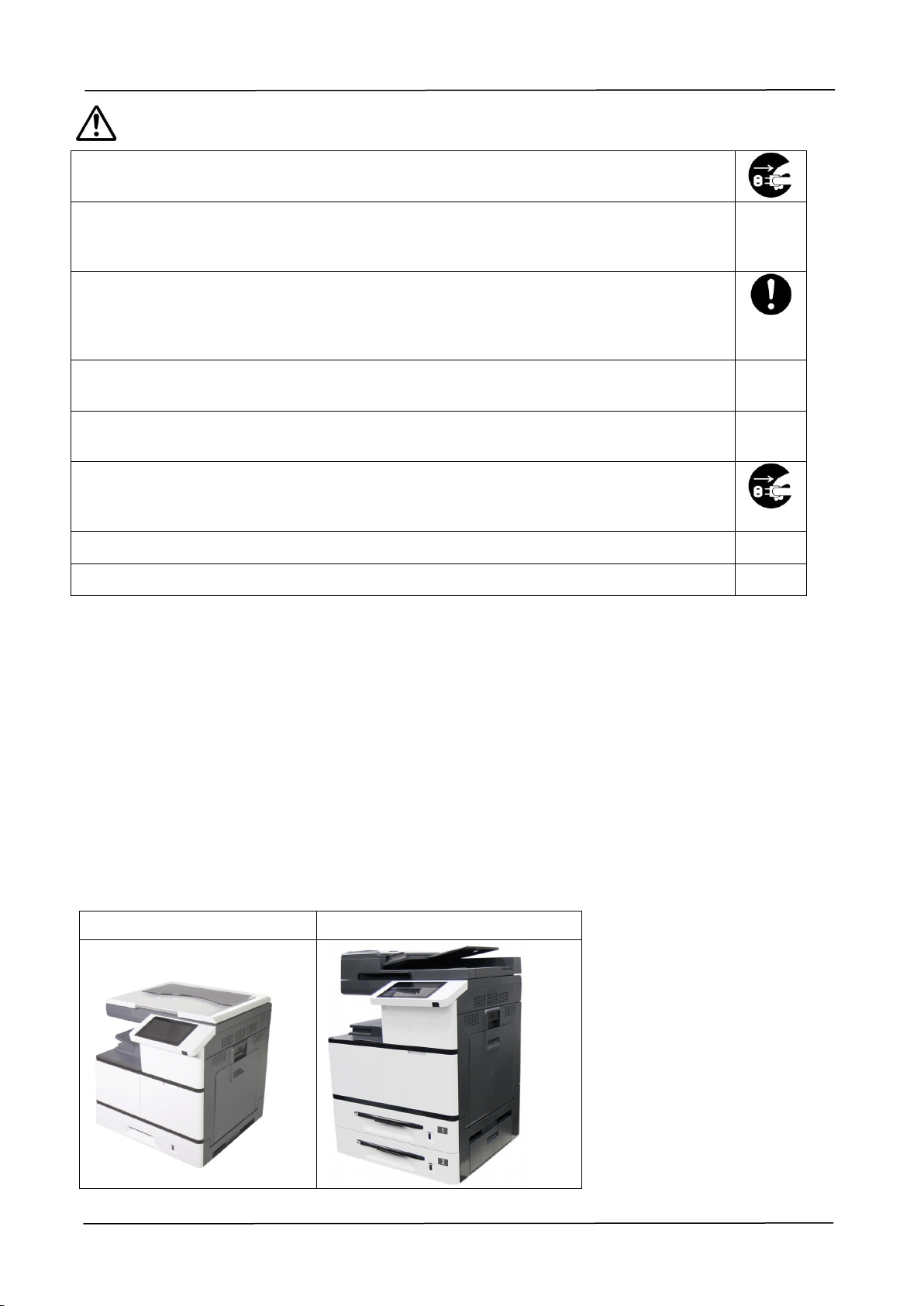
This document is intended to be used for the models including AM5630i, AN5640i, AM7630i, and
AM7640i. The illustration uses AM7640i as examples.
AM5630i/AM5640i
AM7630i/AM7640i/AM7645i

xi
Table of Contents
1. Getting Started .............................................. 1
Removing the Box and Packing Material ............................................. 4
Removing the Protective Tapes .......................................................... 6
Releasing the Lock Switch .................................................................. 9
External View ................................................................................... 10
The Front View ............................................................................. 10
The Rear View .............................................................................. 12
Package Contents ............................................................................. 13
2. Installing Your Machine ............................... 15
Precautions ...................................................................................... 15
Installing the Toner Cartridge .......................................................... 16
Installing the Developing Unit .......................................................... 19
Installing the Drum Unit ................................................................... 22
Installing the Paper Stopper ............................................................ 24
Loading The Main Input Tray ............................................................ 25
Paper size and weights used for Tray 1~4 ................................... 28
Loading the Manual Tray .................................................................. 29
Paper size and weights used for Manual Tray .............................. 31
Unlocking the Scan Unit ................................................................... 33
Connecting to a Wired Network ........................................................ 34
Connecting to Power ........................................................................ 35
Turning On The Machine ................................................................... 36
Turning Off the Machine ................................................................... 36
Set the Product’s Date and Time ...................................................... 37
Configure the Product’s IP Address .................................................. 38
Specifying the Product’s Mail Server ................................................ 39
Installing the Scanner/Printer Drivers ............................................. 41
For USB Interface Users ............................................................... 41
For Network Interface Users ........................................................ 43
3. Operation ..................................................... 46
Loading Paper .................................................................................. 46
Notice on Using the ADF ............................................................... 46
Notice on Using the Flatbed Glass ................................................ 46
Placing Document(s) in the ADF ....................................................... 47
Placing Document(s) on the Glass .................................................... 48
Intelligent Copy ................................................................................ 49
Using Auto Document Feeder ....................................................... 49
Flatbed Copy ................................................................................ 52
Using the [Bind] Feature .............................................................. 53
Scan ................................................................................................. 57

xii
ID Card Copy .................................................................................... 67
Print Saved Job ................................................................................ 67
E-Mail ............................................................................................... 71
4. Customizing the Product’s Configurations .... 75
Customizing the Product’s Configurations by the Touch Screen ....... 76
Machine Information .................................................................... 77
Faults ........................................................................................... 78
Supplies ........................................................................................ 78
Billing Information ....................................................................... 79
Tools ............................................................................................. 80
Customizing the Product’s Configurations by the Product’s Web Page84
Summary of the Web Pages ............................................................. 85
Using the Administrative Mode ........................................................ 91
5. Configuring the Printer’s Features ............... 93
Displaying the Printer Driver Properties Dialog Box ......................... 93
Configuring Printer Driver Settings .................................................. 94
The Basic Tab ............................................................................... 94
The Paper Tab ............................................................................... 97
The Layout Tab ............................................................................. 98
The Watermark Tab .................................................................... 100
The Duplex Tab ........................................................................... 105
The Job Build Tab ....................................................................... 108
The More Tab .............................................................................. 109
6. Scanning From Your Computer ................... 110
System Requirements .................................................................... 110
Operating Steps ............................................................................. 110
A Glance of the User Interface .................................................... 112
Using The Image Tab .................................................................. 113
Using The Paper Tab ................................................................... 116
Using The More Tab .................................................................... 117
Using The Color Dropout Tab ...................................................... 118
Using The Information Tab ......................................................... 118
7. Maintaining the Product ............................. 119
Removing the Abnormal Line On an Image .................................... 119
Cleaning the Document Glass......................................................... 120
Cleaning the ADF ........................................................................... 121
Cleaning the EP Charger ................................................................ 122
Cleaning the Paper Tray Rollers ..................................................... 124
Cleaning the Manual Tray Roller .................................................... 126
Installation Step ......................................................................... 127
Cleaning the Toner Cartridge ......................................................... 128
Remove the Toner Cartridge ....................................................... 128
Install the Toner Cartridge ......................................................... 129
Cleaning the Paper Path ................................................................. 130

xiii
8. Replacing the Consumables ........................ 132
Replacing the Snap-in Pad Module ................................................. 133
Replacing the ADF Roller ................................................................ 135
Replacing the Waste Toner Can ...................................................... 137
Replacing Toner Cartridge .............................................................. 140
Replacing the Paper Tray Rollers .................................................... 142
Replacing the manual tray rollers and pad ..................................... 145
Replacing the Drum Unit ................................................................ 147
Replacing the Developing Unit ........................................................ 149
Replacing the Fuser ........................................................................ 154
9. Troubleshooting ......................................... 160
Monitoring Your Printer Using Printer Status Monitor .................... 160
Accessing Printer Status Monitor ................................................160
Getting Printer Status Details .....................................................161
Setting Monitoring Preferences ...................................................162
Clearing A Warning or Error Message ............................................. 163
Technical Support ........................................................................... 199
10. Specifications ............................................. 200
1. Getting Started
1
1. Getting Started
Introduction – the World’s Renown Intelligent Copier
Congratulations on your purchase of the world's renowned intelligent copier. With the
innovative intelligent copy function, users no longer need to specify the size of
document, worry about whether the document has been loaded straight and correct,
or if the document should be faced down or up, the Avision intelligent copier is able
to crop your paper size, select the text side, straighten your image, and even select
proper paper tray automatically! The Avision intelligent copier truly makes your copy
job perfect and easy!
What is best, the Avision intelligent copier integrates scan, copy, and print functions
into one single machine to streamline your workflow. Through the 8” color and clear
LCD touch screen and the easy-to-use control panel, your task can be completed
within seconds and your document can be distributed and shared very quickly in an
unprecedented way!
Features
Placing Your Document with Ease
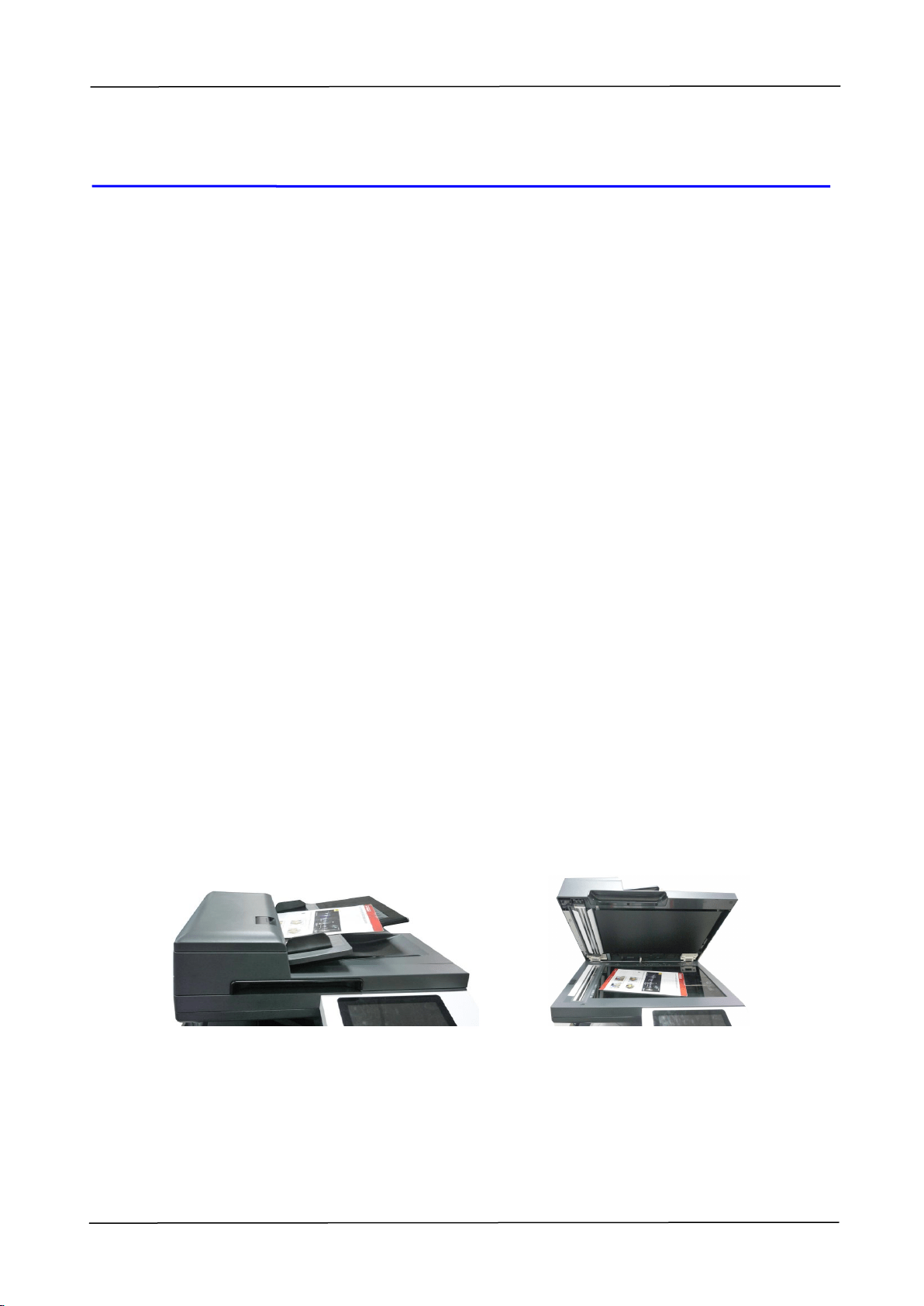
With the auto crop and straighten function, users no longer need to carefully placing
document to the edge of paper guides. Even the document has been placed at a
slight angle in the feeder or on the document glass, the image can be first scanned,
cropped and then straightened automatically.
Easily placing your document to the feeder or on the flatbed glass

2
Automatically Detect the Text Side
With an advanced processor developed by Avision, the front side and rear side of
document can be scanned simultaneously and the text side will be automatically
detected and copied and deleting the blank side.
Automcatically Selecting Paper Tray
The preset tray is auto which means the product will automatically select the tray
which contains the paper size most fit to the original document.
Intelligent Copy
With the “Intelligent Copy” feature, the Avision intelligent copier can make copy
automatically after detecting your document passing through the document feeder.
Plus with the preview feature, user is able to choose one-side or two-side copy and
verify if the image is correct.
Duplex (2-Sided) Capability
Use the automatic duplex printing feature to help save paper and reduce costs.
Scan to Product or USB Flash
The product offers an unprecedented document storage technology, transmitting
paper documents electronically to the product’s memory or a removable USB flash
drive.
Scan-to-e-mail, host, USB, FTP or CIFS
The product offers an unprecedented document delivery technology, transmitting
paper documents electronically over the internet to various destinations including
e-mail addresses, the MFP’s memory, an USB flash drive, ftp servers, or someone
else’s computer on the network. The new way to distribute documents is faster, more
cost effective, and safer than any traditional methods such as mail, or courier.
Remote Device Management through Embedded Web Page
The product provides an embedded web page to let the system administrator
remotely monitor the product by managing a telephone book, address book, checking
the supplies status of toner cartridge, scan count, copy count, and creating user
password and privileges to prevent unauthorized access.
1. Getting Started
3
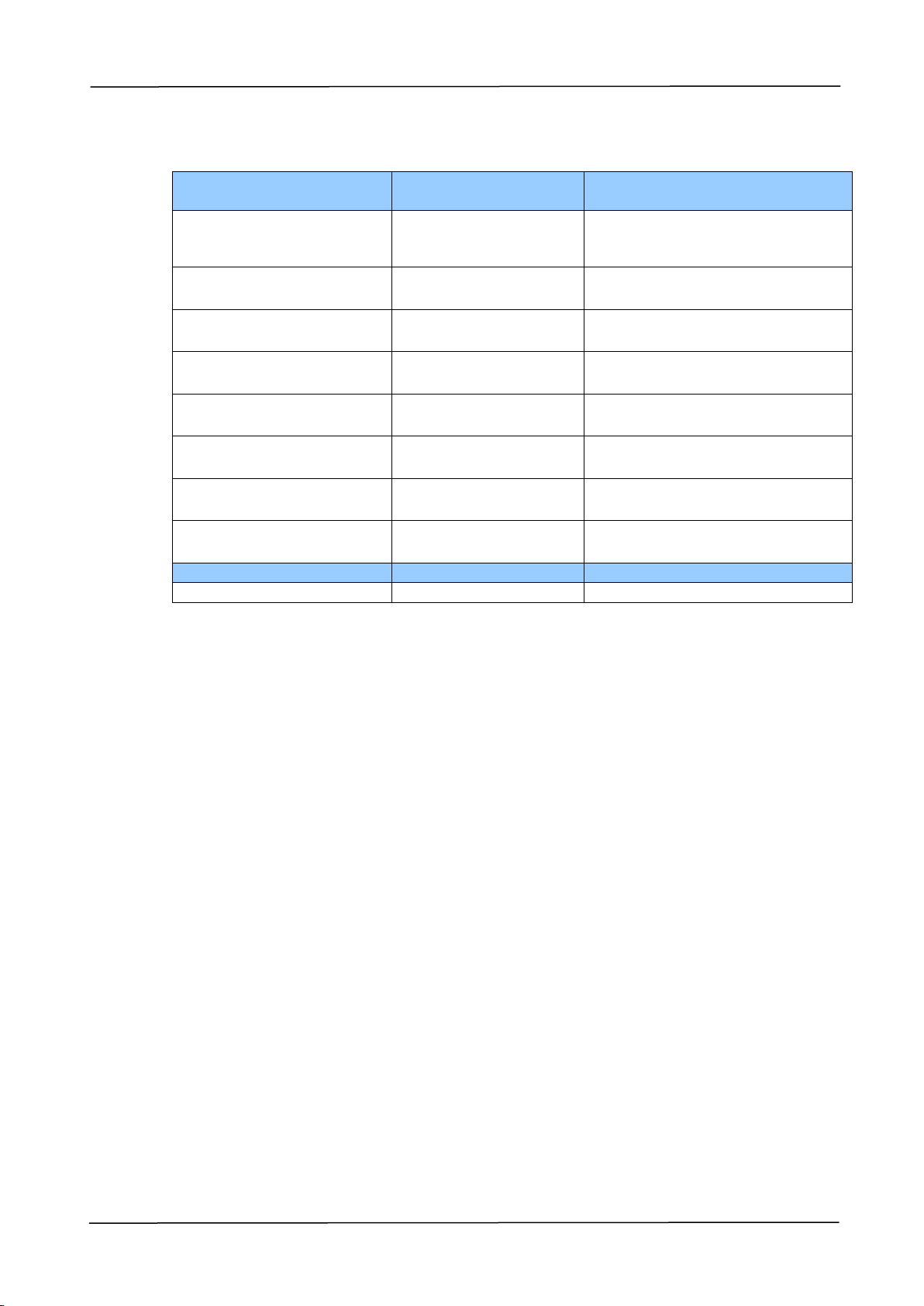
Standard items and optional items for this product:
Standard Package
Items
AM5630i/AM5640i
AM7630i/AM7640i/AM7645i
Auto Document
Feeder
The 1
st
Tray
The 2
nd
Tray
Toner Cartridge
Drum
Developing Unit
Power Cord
CD-ROM
Optional Items
The 3
rd
& 4
th
Tray
4
Pallet
Removing the Box and Packing Material
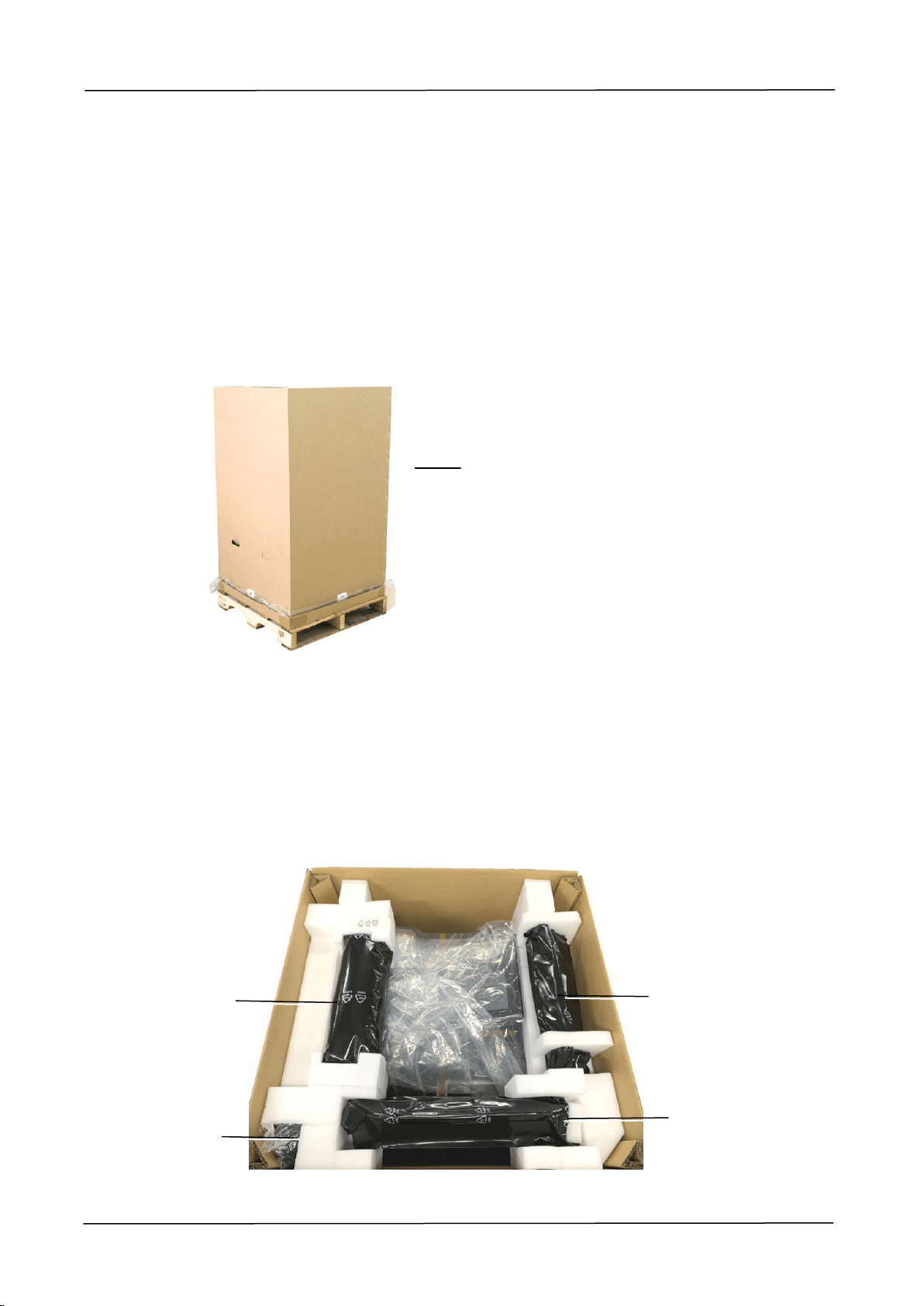
The MFP carton is illustrated is shown in the figure below, which is divided into four
parts:
1. Printer main unit (Packed inside the carton)
2. Pallet (Under the carton)
3. All Accessories (packed inside the carton)
Unpacking Steps
1. Place the MFP carton on a flat, and horizontal surface and do not place any
objects in front of the printer.
2. Open the carton with a utility knife, and then take out all the accessories
[including (1)Developing Unit, (2) Power Cord/CD, (3) Drum Unit, (4)Toner
Cartridge, as shown in below:
(2)
(4)
(1)
(3)
MFP Carton
1. Getting Started
5
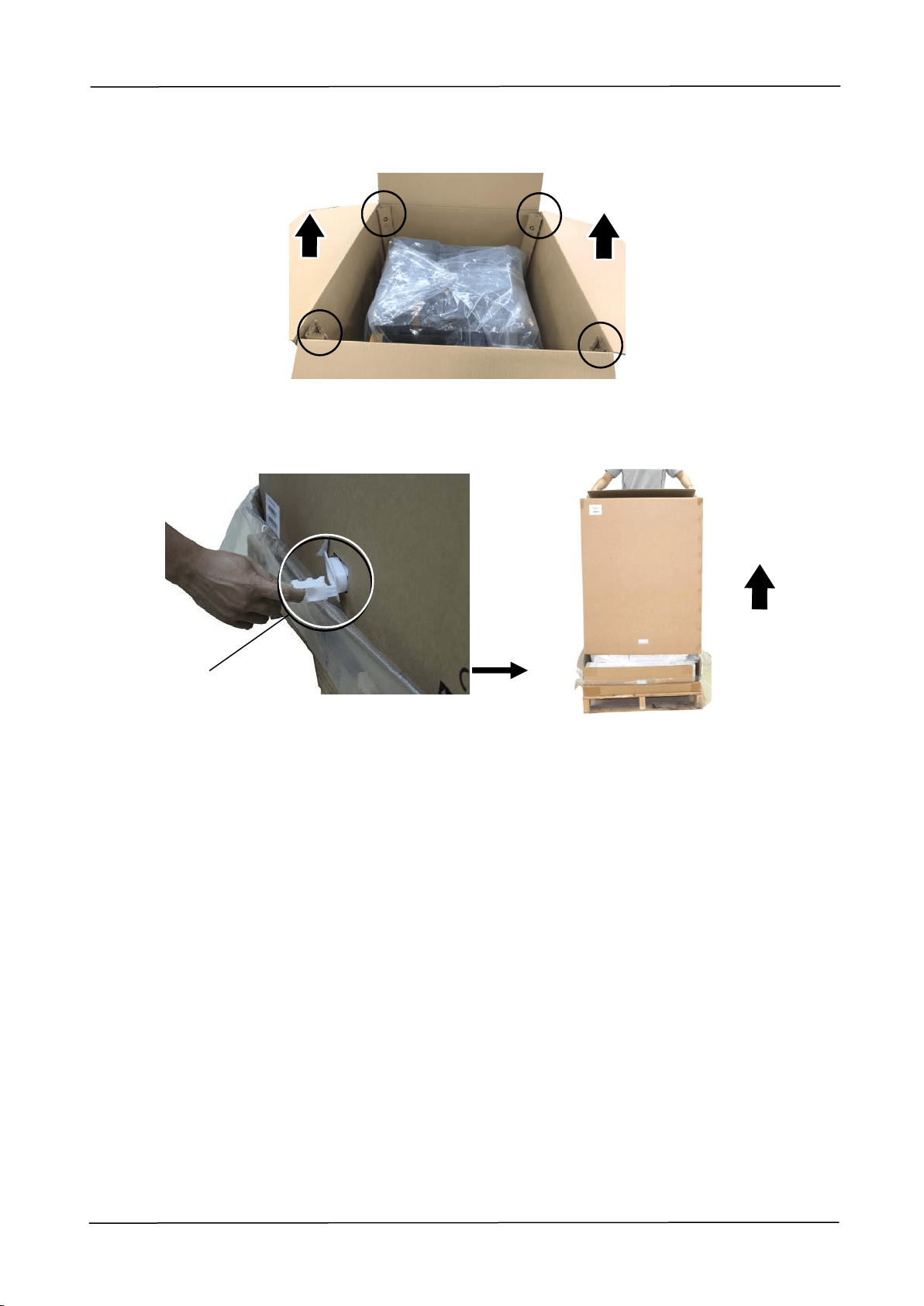
Buckles
3. Remove four box supports.
4. Remove all buckles on the sides of the printer box and pull the printer box
upward.
6
Removing the Protective Tapes
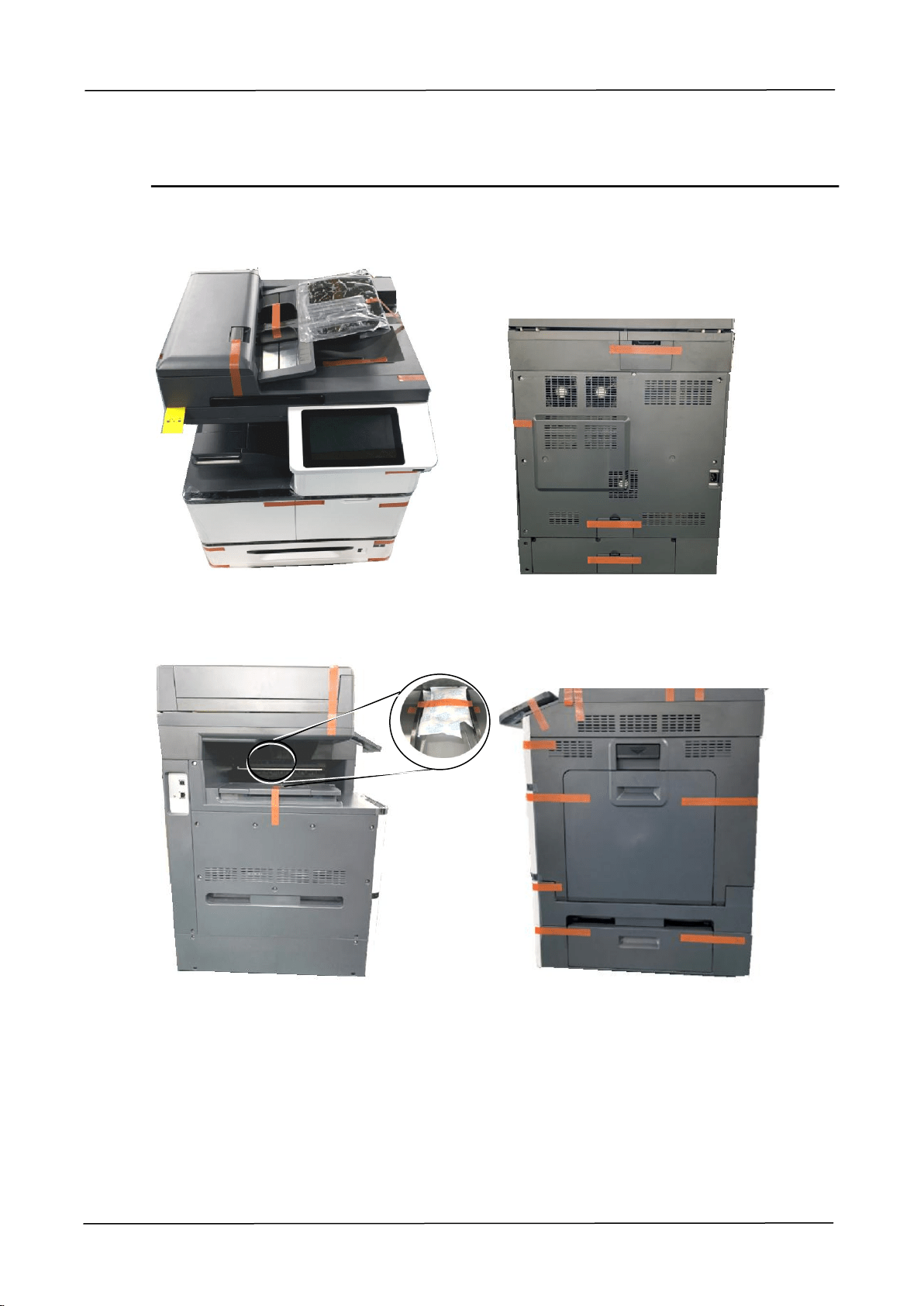
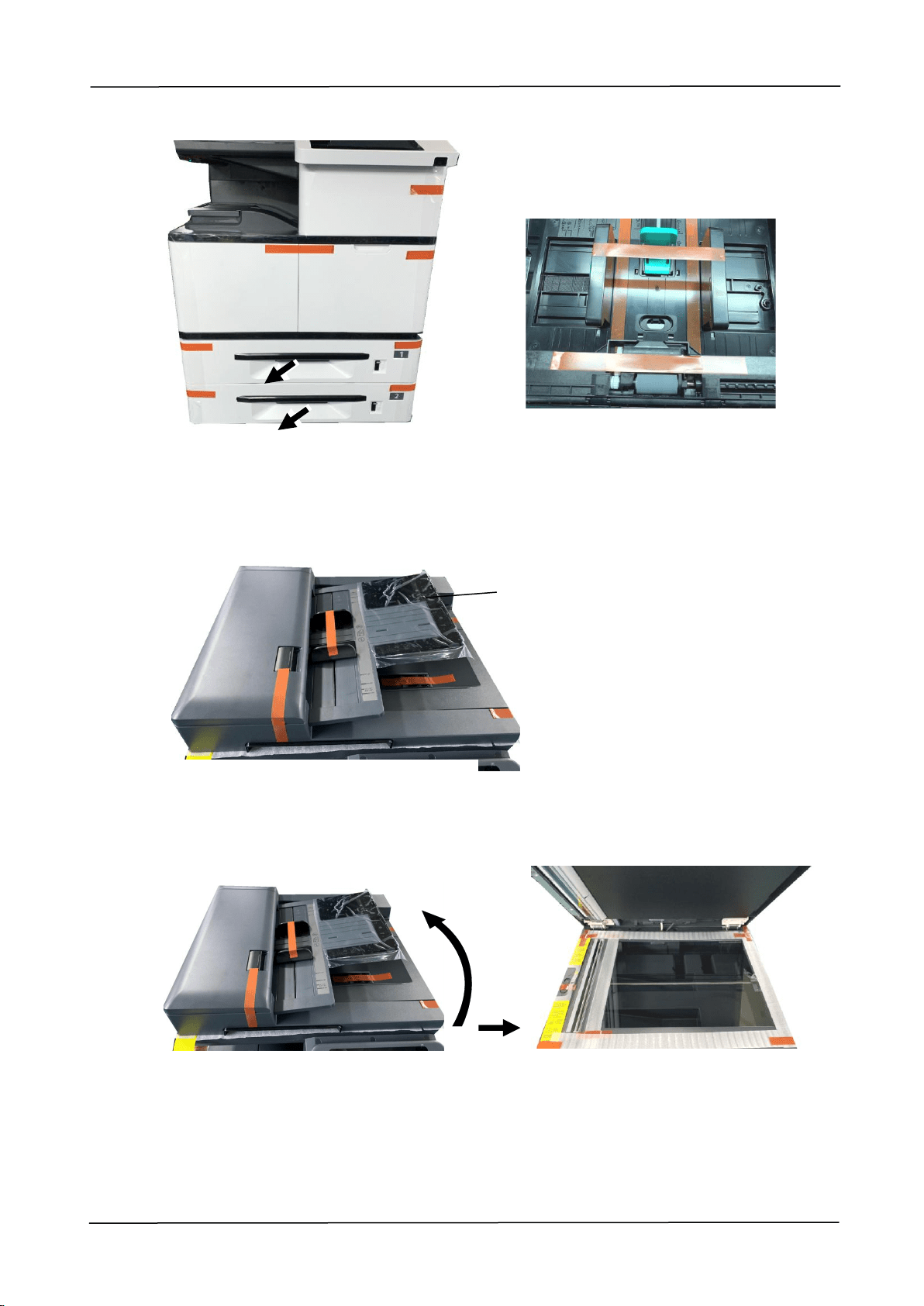
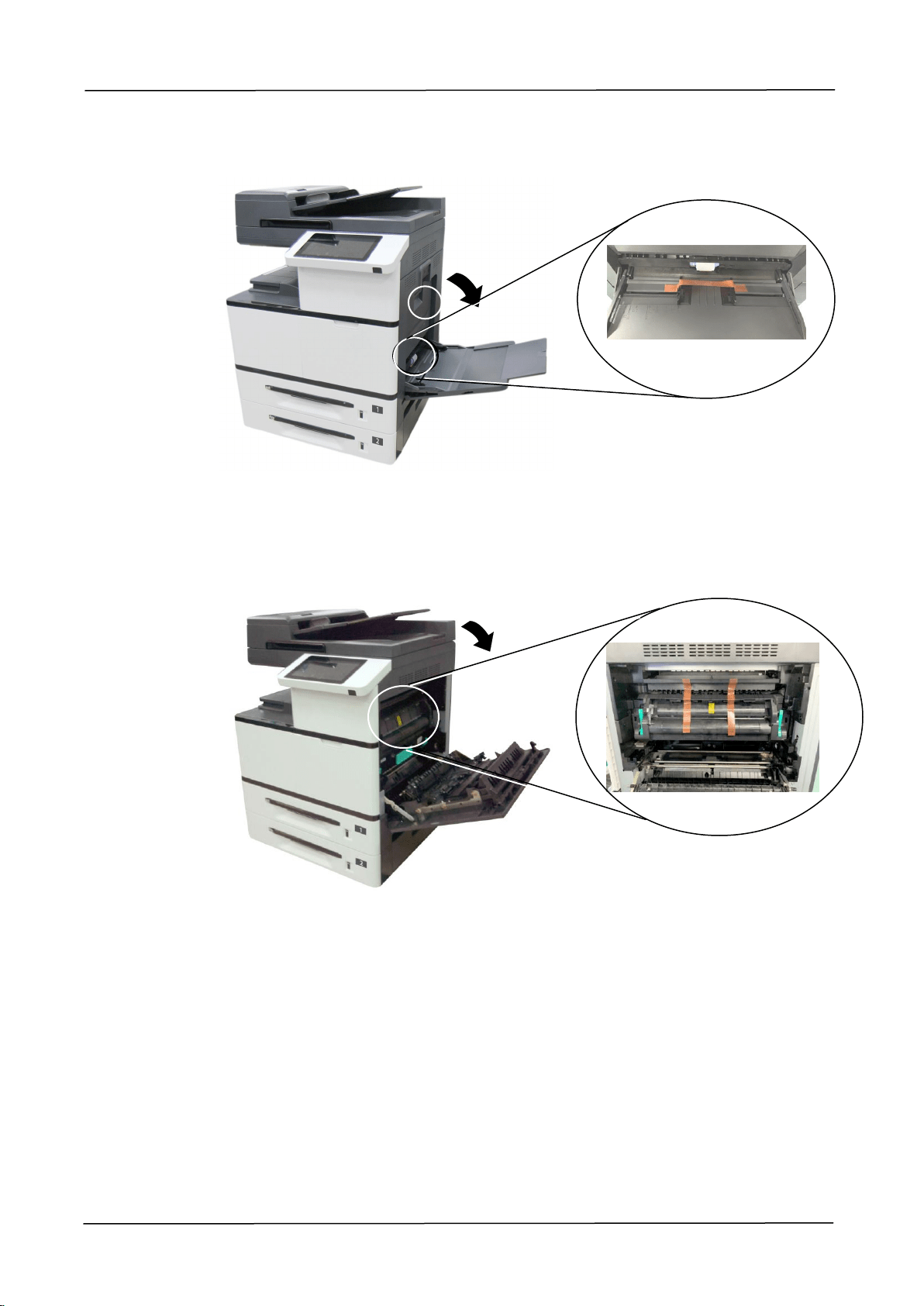
As shown in below, remove the protective tapes, films, and desiccanton the machine.
Remove the tapes on the front and rear side of the machine
Remove the tapes, and desiccanton on the left and right side of the machine
1. Getting Started
7
Pull the Paper Tray and remove the tapes on the Tray
Remove the tapes, and protective film on the top of the machine
Open the Document Cover and then remove the tapes on the glass platen
Protective
Film
8
Pull down the manual tray and remove the tape
Open Side Door and remove the tapes on the fuser
1. Getting Started
9
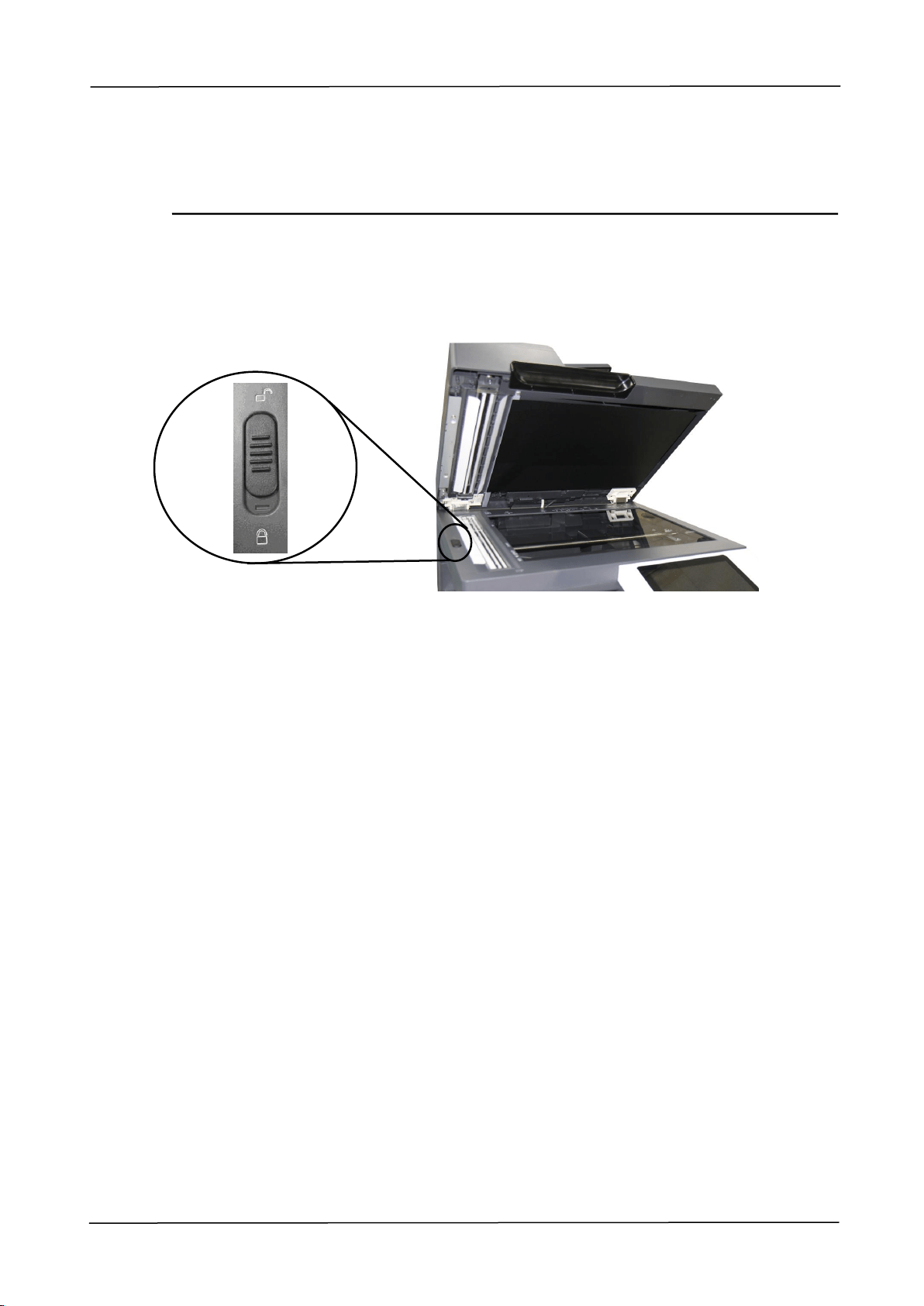
Releasing the Lock Switch
The product is designed with a lock switch to protect the machine from damage
during transportation. As a result, before using the product, please move the lock
switch to the [Unlocking position], otherwise the product may not work.
Locked Position
Unlocked Position
10
External View
The Front View
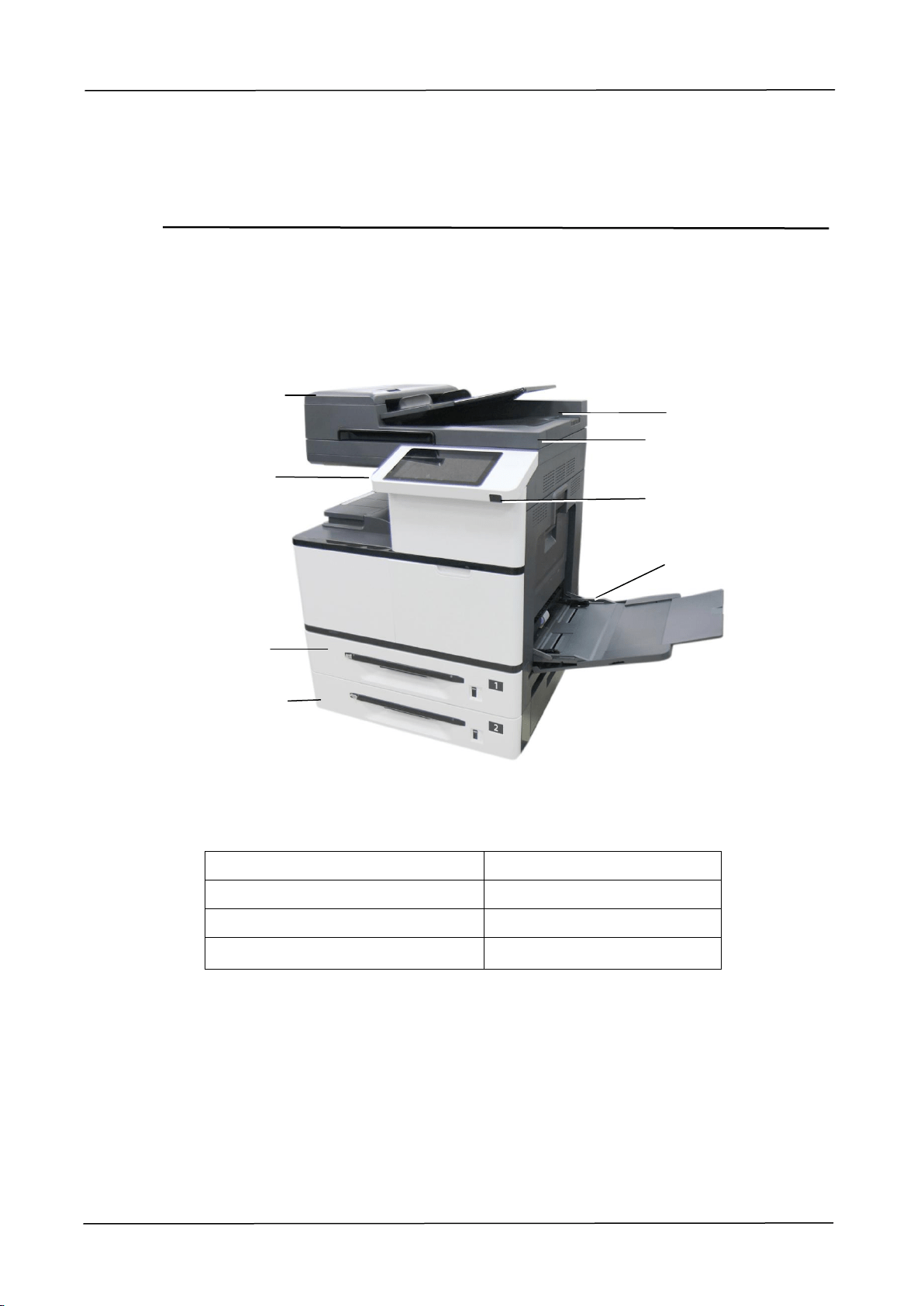
(AM7630i/AM7640i/AM7645i)
1. Automatic Document Feeder
5. Paper Collector
2. USB flash port
6. Document Cover
3. Tray 1
7. Power Switch
4. Tray 2
8. Manual Tray
1
3
2
4
7
6
8
5
1. Getting Started
11
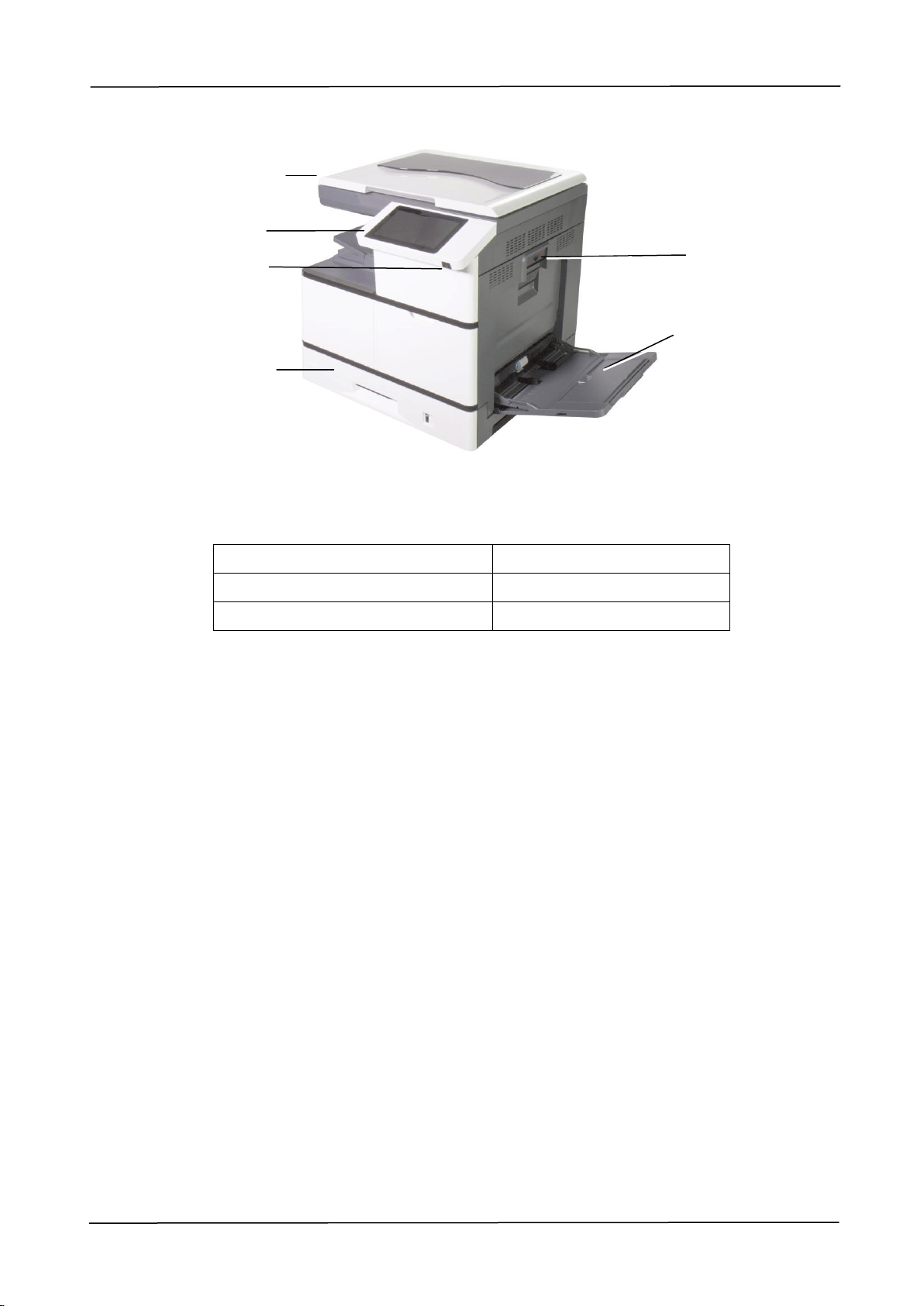
(AM5630i/AM5640i)
1. Document Cover
4. Tray 1
2. USB flash port
5. Side Door Handle
3. Power Switch
6. Manual Tray
1
4
2
5
6
3
12
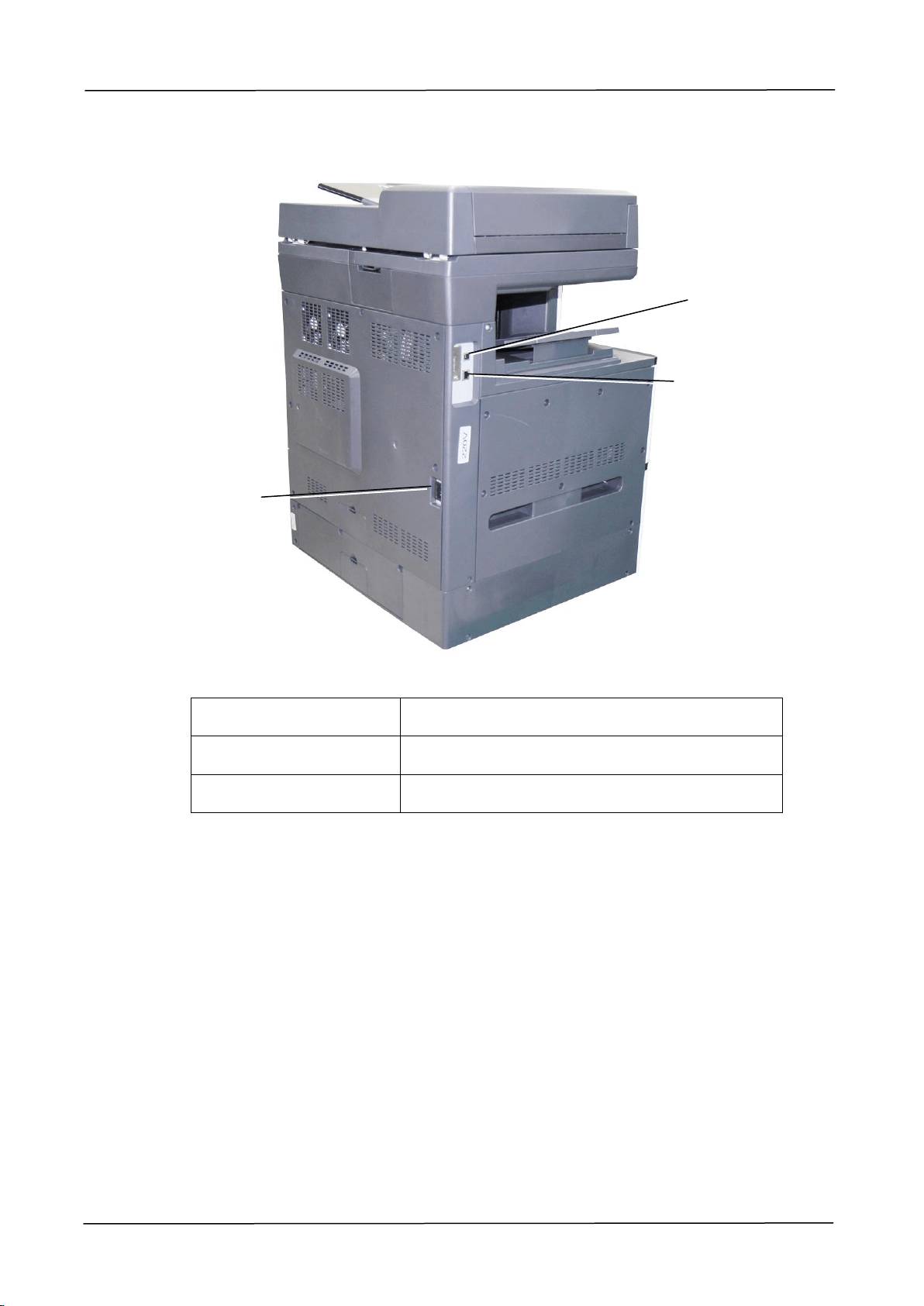
The Rear View
1. USB Port
To connect a computer via a USB cable.
2. LAN Port
To connect network with a network cable.
3. Power Receptacle
To connect power via a power cable.
1
2
3
1. Getting Started
13
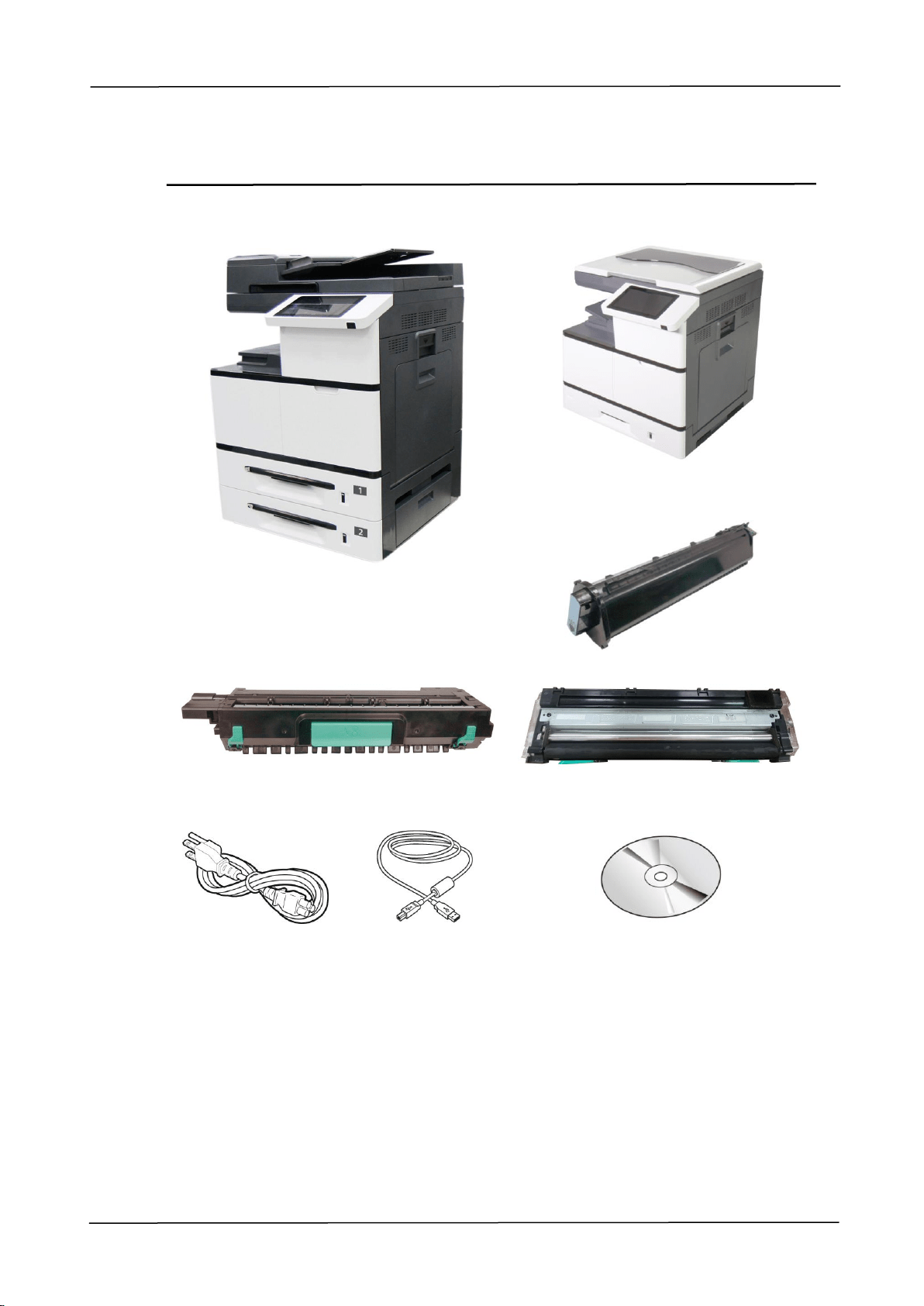
Package Contents
Main Unit (AM7630i/AM7640i/AM7645i)
Main Unit (AM5630i/AM5640i)
Toner Cartridge
Drum Unit
Developing Unit
Power Cable
USB Cable
Software CD (Printer Driver and
Manual)
14
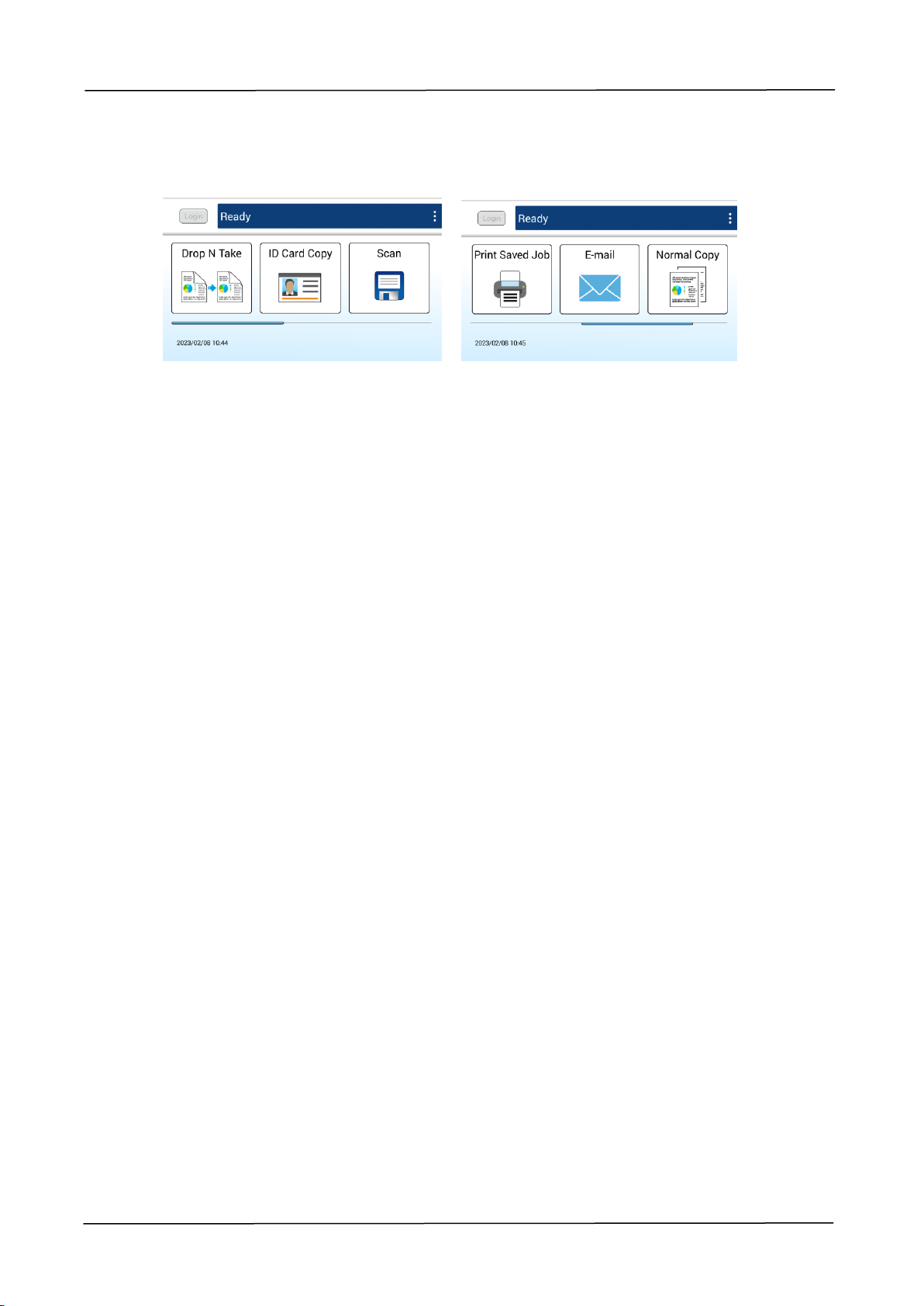
Touch Screen
Used to display information and provide access to the product’s functions.

2. Installing Your Machine
15
2. Installing Your Machine
Precautions
Do not install the equipment near heating or air conditioning units.
Do not install the equipment in a humid or dusty place.
It is recommended to use recycled paper when printing.
Place the equipment in a separate area with good ventilation.
The equipment is equipped with both the power-saving and standby modes.
The equipment can not achieve zero energy consumption state until it is not
connected to any external power supply.
Do not dispose of the waste toner can. Put the used waste toner can into the
bundled plastic bag, and then return it to a dealer or service representative
(About our customer service locations everywhere, please refer to our web site at
www.avision.com). The latter recycles or deals with the collected waste toner
cans in accordance with the relevant regulations.
Be sure to use the correct AC power supply.
Retain the box and packing materials for shipping purposes.
16
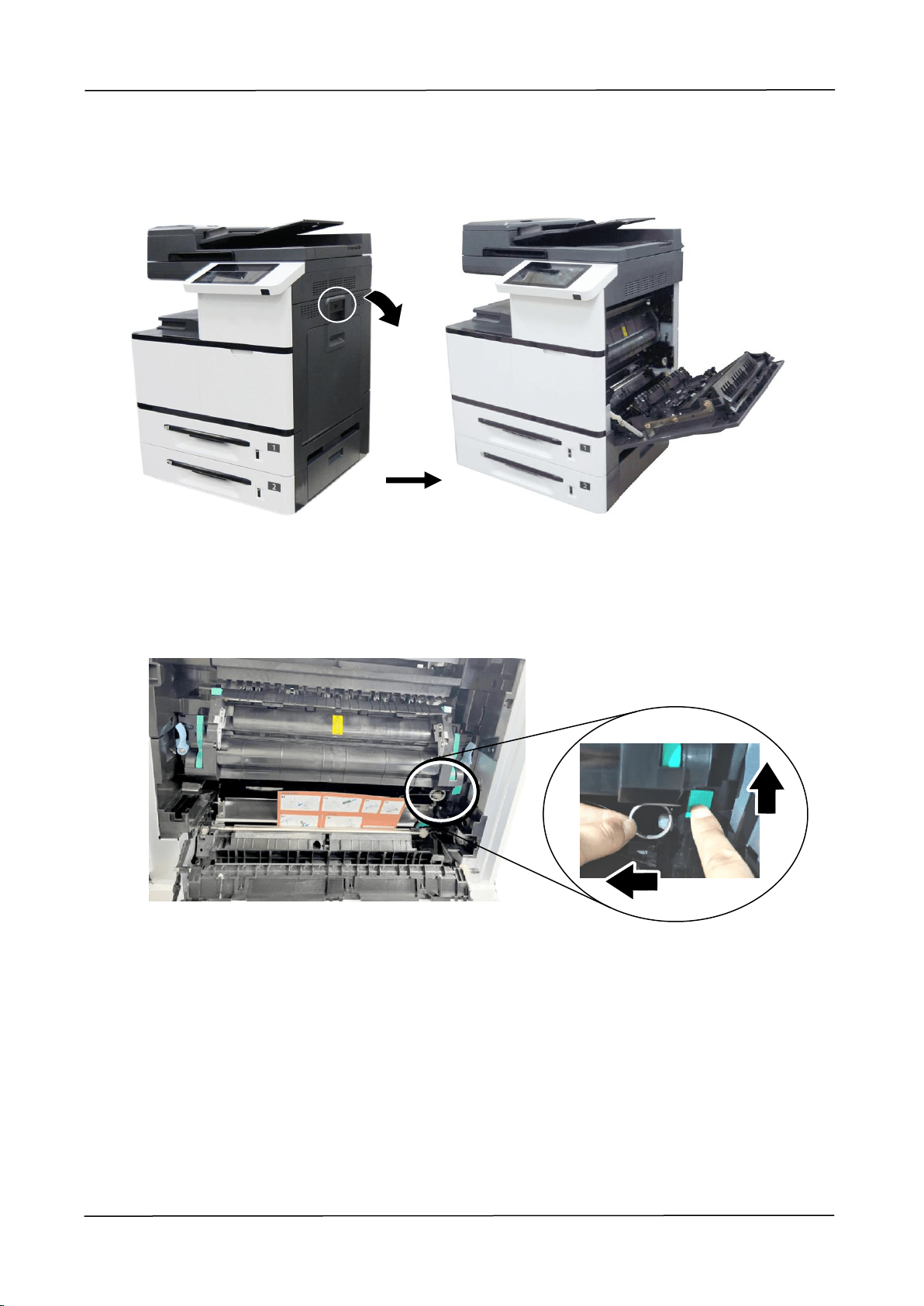
Removing the Locking Latch on the Machine
1. Pull the handle down to open the Side Door as shown.
2. Remove the Latch and its instruction sheet by pressing the bolt with one hand
and pulling the latch with the other hand as shown in below. The latch is
designed to protect the inside of the printer during transportation.
2. Installing Your Machine
17
Installing the Toner Cartridge
Important!
When you unpack the machine, a toner cartridge has been packed
separately besides the machine. Please remove the package cushion
and tapes on the toner cartridge before using it.
Follow these steps to install the Toner Cartridge:
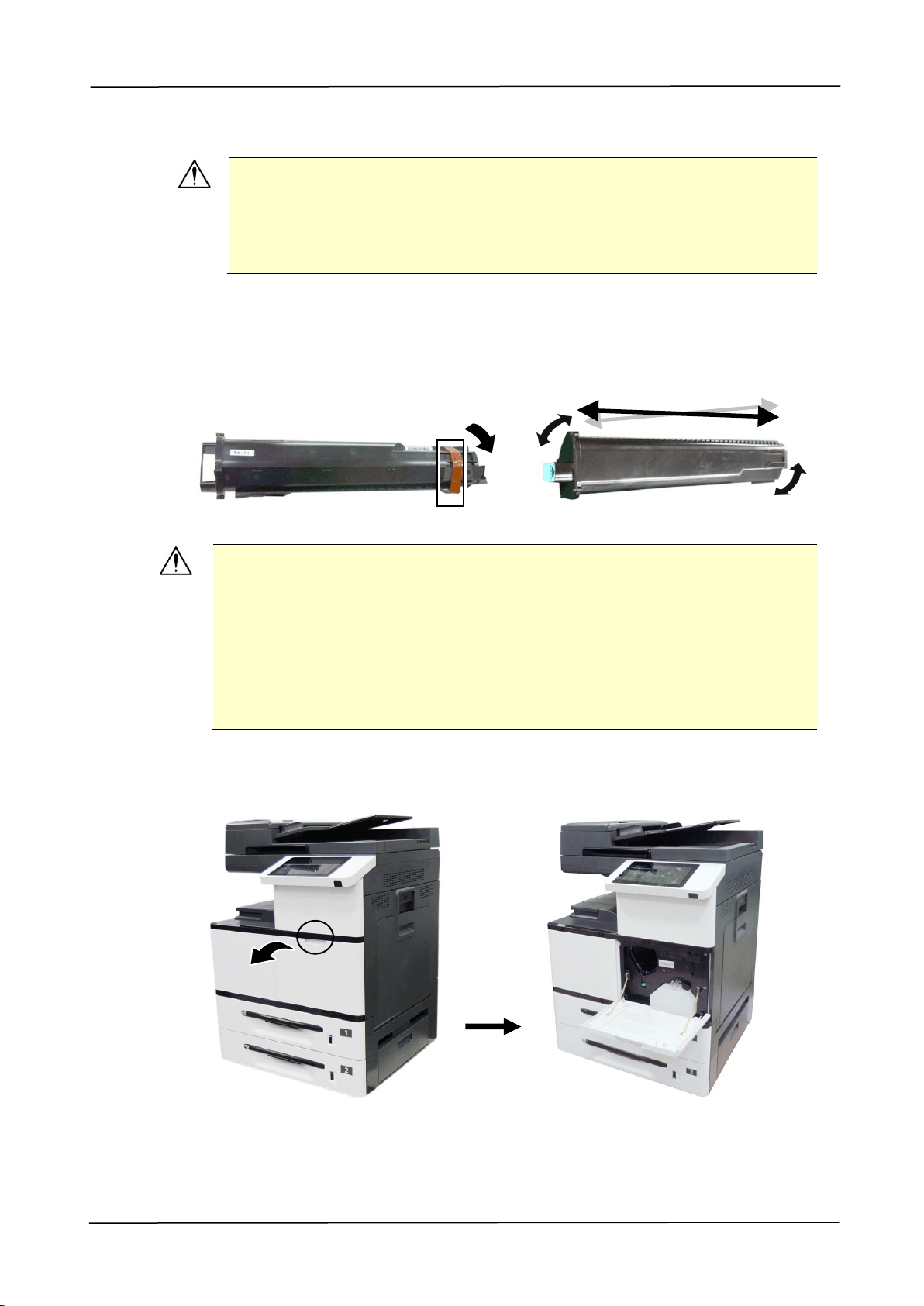
1. Remove the package cushion and tapes on the toner cartridge. Tilt the toner
cartridge up and down and then right and left 10 times to distribute the toner
evenly inside the toner cartridge.
WARNING!
Be careful not to inhale toner.
To avoid print quality problems, DO NOT touch the toner rollers.
If toner gets on your clothing or other fabric, wipe off the toner with a
dry cloth. Wash the items in cold water and dry them in the shade.
To prevent the toner cartridge from damage, do not expose it more
than several minutes.
2. Open the front cover by pulling the handle as shown.
18
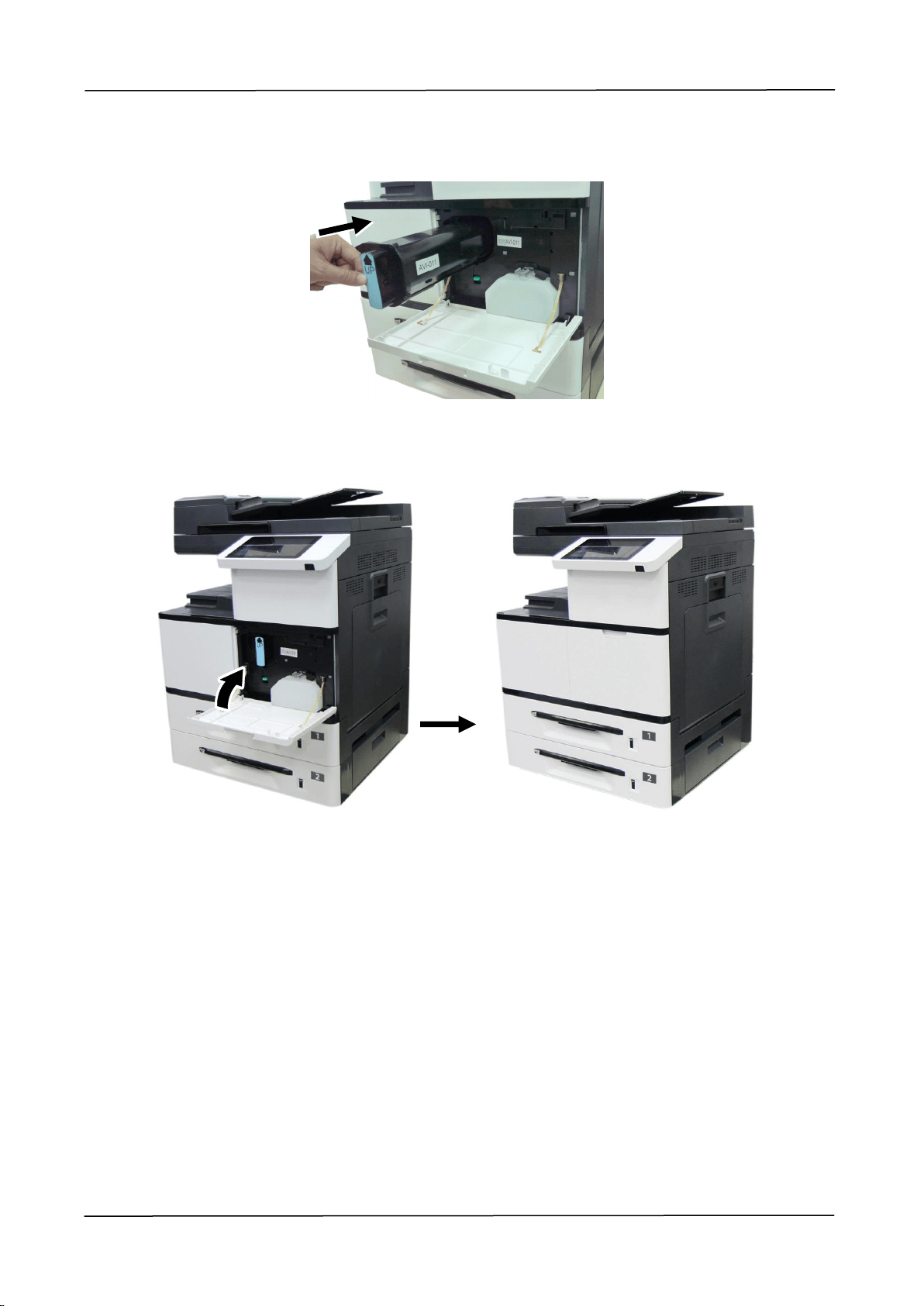
3. Hold the handle of the toner cartridge and insert it to its proper position as
shown.
4. Close the Front Cover.
2. Installing Your Machine
19
Installing the Developing Unit
Follow these steps to install the Developing Unit:
Caution!
To prevent damage to the Developing Unit, do not expose it to light for
more than a few minutes.
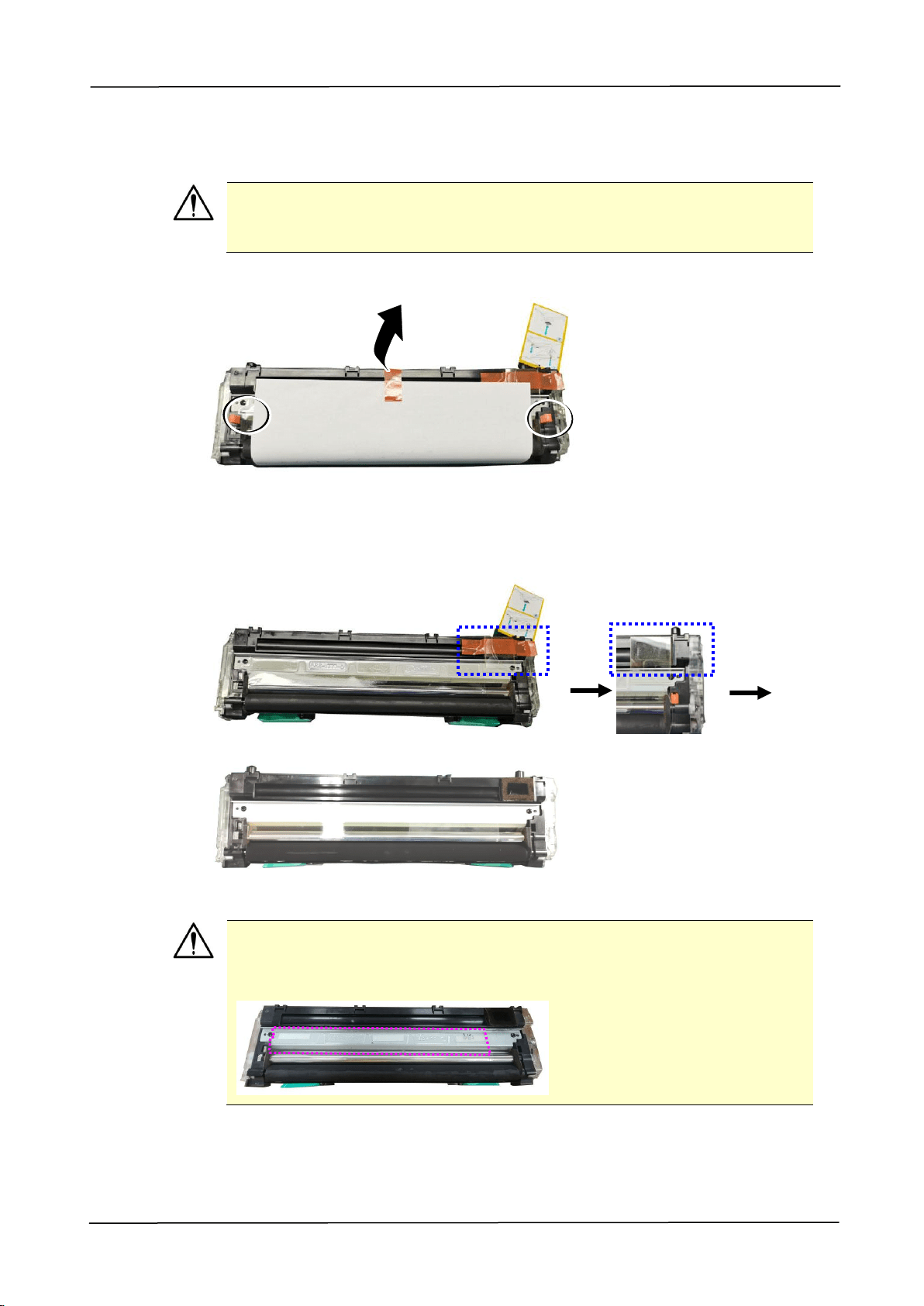
1. Remove the tape, protective film, and the plugson both sides.
2. Remove the tape in the upper right corner,and then remove the instruction
card and sponge.
Important!
Do not remove the transparent plastic protective cover on the surface of
the developing unit as shown in the figure to avoid abnormal images.
20
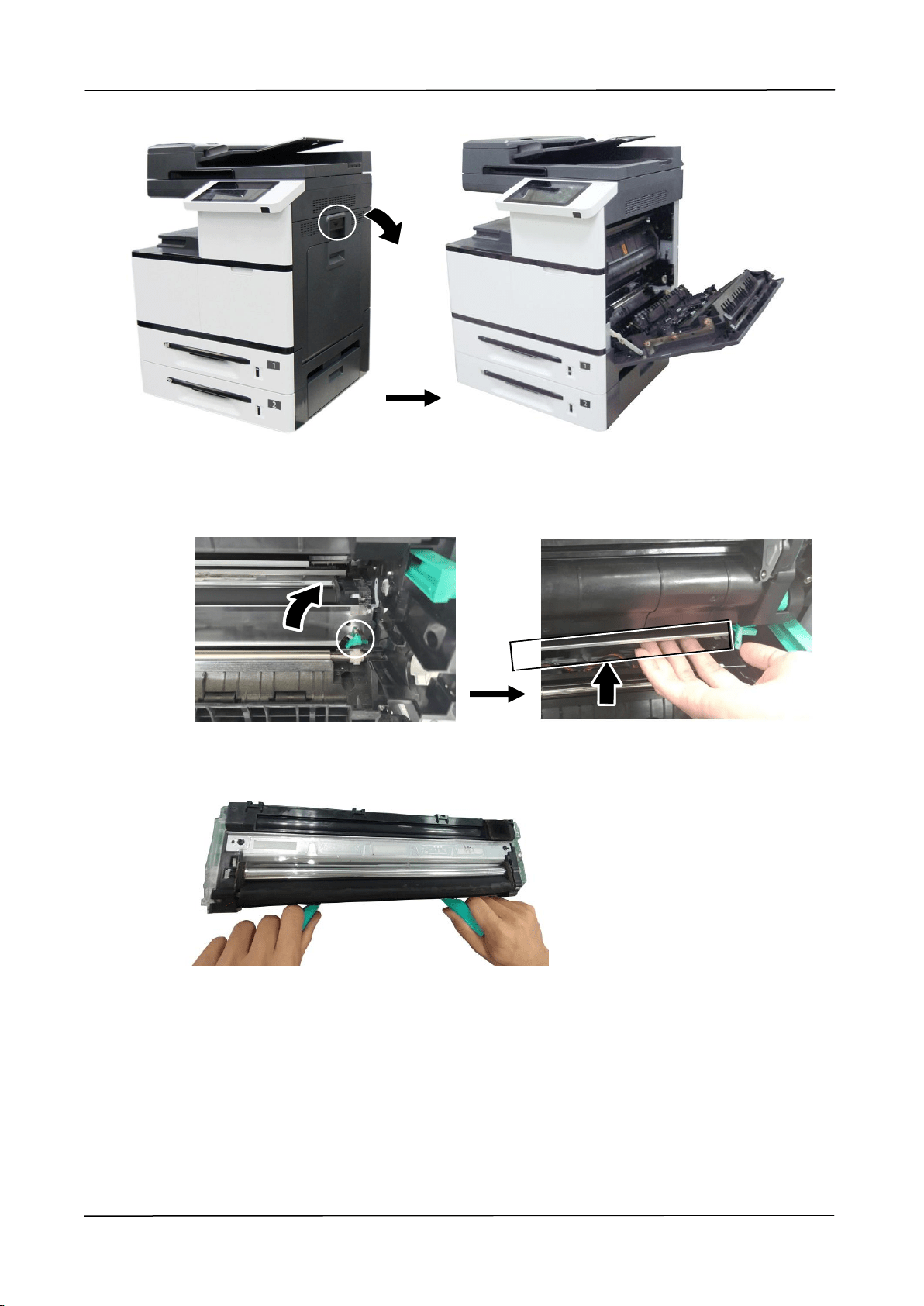
3. Pull the handle down to open the Side Door as shown.
4. Open the paper guide latch in a clockwise direction, and then push up to fix
the paper guide.
5. Open the handle of the developing unit and hold the handle with both hands, as
shown in the figure below.
2. Installing Your Machine
21
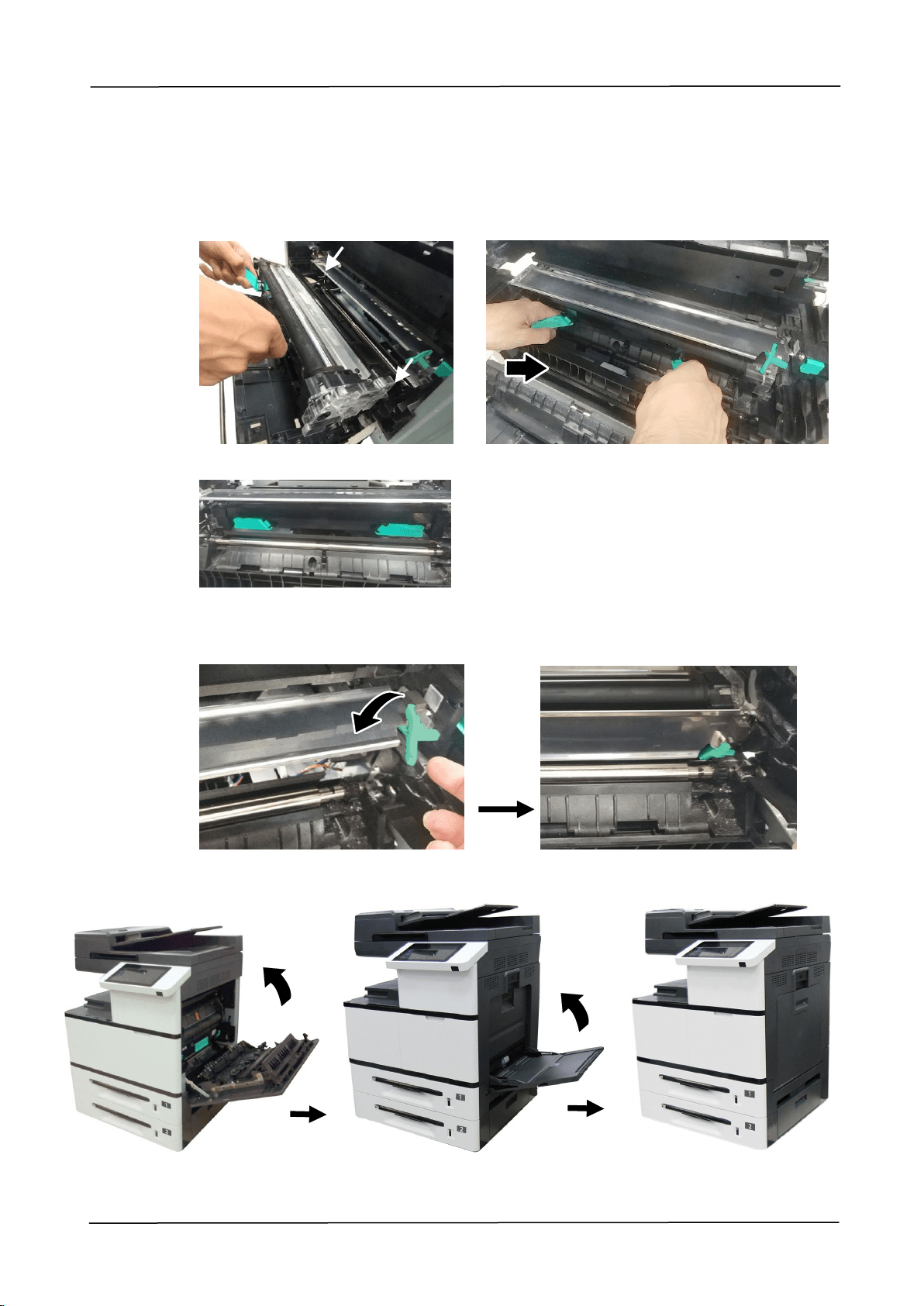
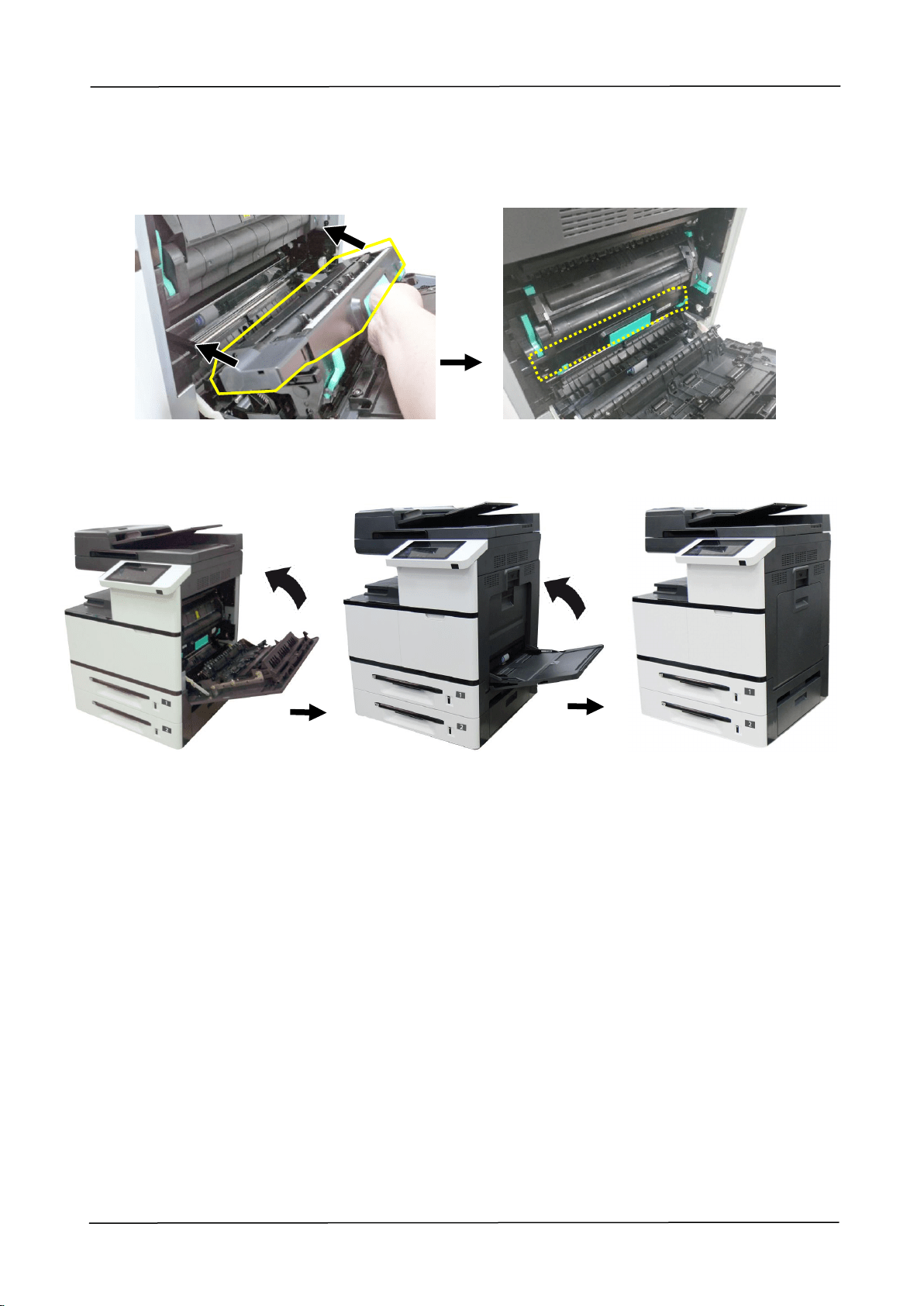
6. Hold the handle with both hands, placing the front end of the developing unit to
the top of the rails on both sides , and then gently push the developing unit
into the machine along the rails . Make sure the handles are closed and left flat
on the surface of the developing unit as shown in below .
7. Pull down the latch of the paper guide counterclockwise to restore the latch of the
paper guide to its original status.
8. Close the Side Door and then the Manual Tray as shown.
22
Installing the Drum Unit
Follow these steps to install the drum unit:
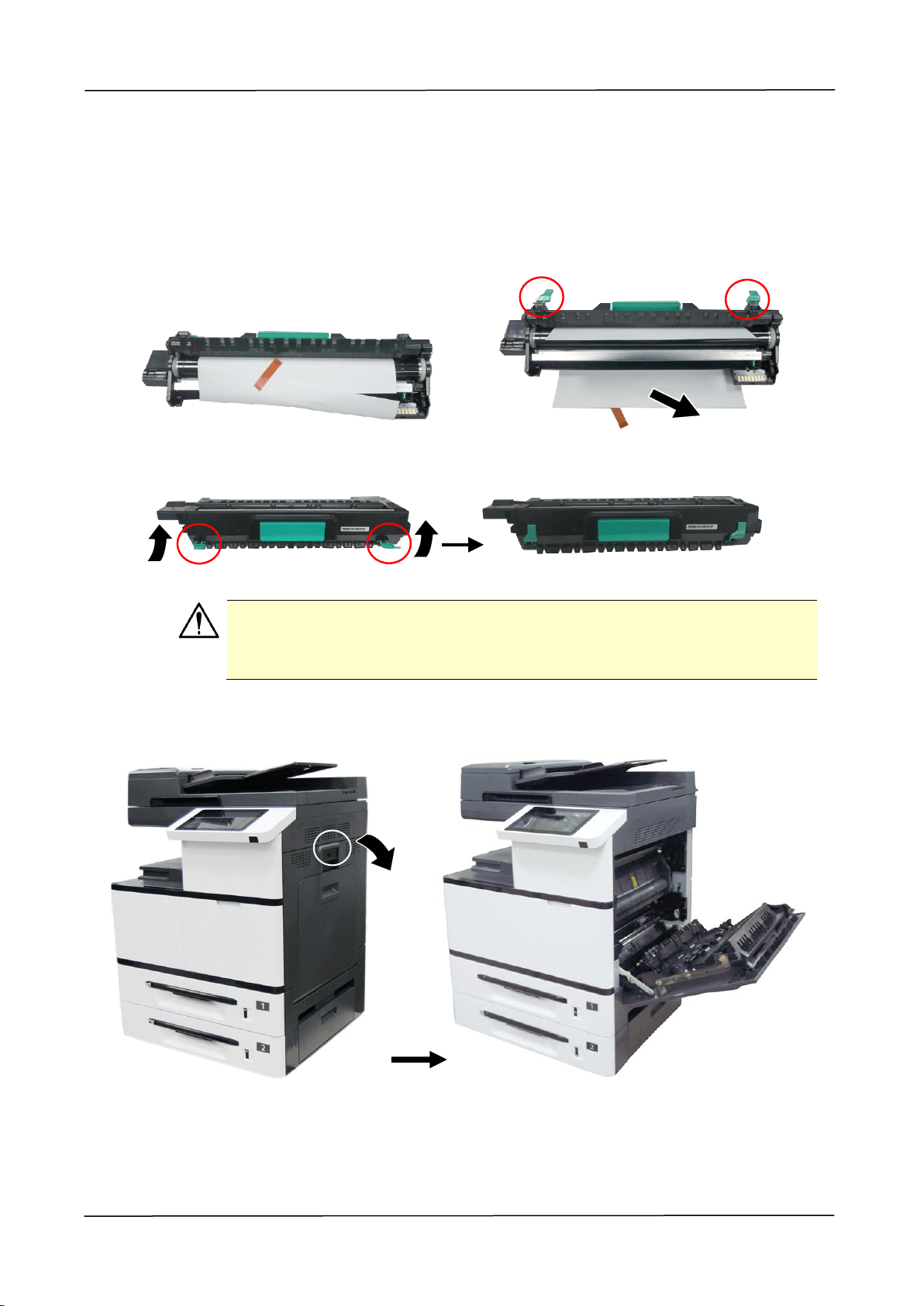
1. Remove the plastic bag, tape, and then press down the Release Arms to pull
out the protective film.
2. Pull up the Release Arms on both ends.
Caution!
To prevent damage to the Drum Unit, do not expose it to light for more
than a few minutes.
3. Pull down the handle to open the side door as illustrated.
2. Installing Your Machine
23
4. Hold the handle of the Drum Unit, and insert the Drum Unit horizontally into the
slot along the top of the support frame on both sides, as shown in the figure.
5. Close the Side Door and then the Manual Tray as shown.
24
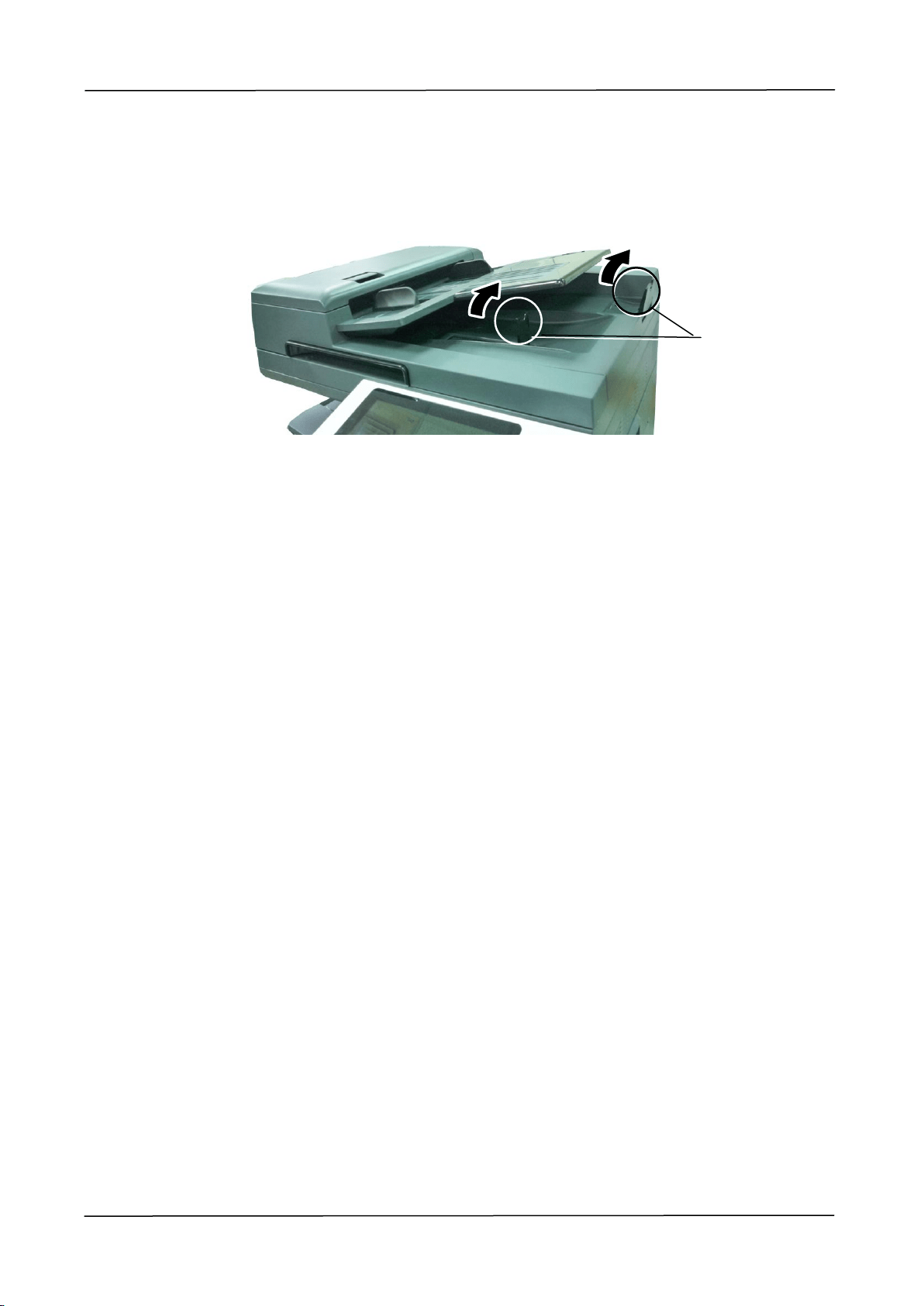
Installing the Paper Stopper
Lift the Paper Stopper to collect the paper.
Paper Stopper
2. Installing Your Machine
25
Loading The Main Input Tray
To insert paper to the input trays (The following instructions use the main input tray
as an example.),
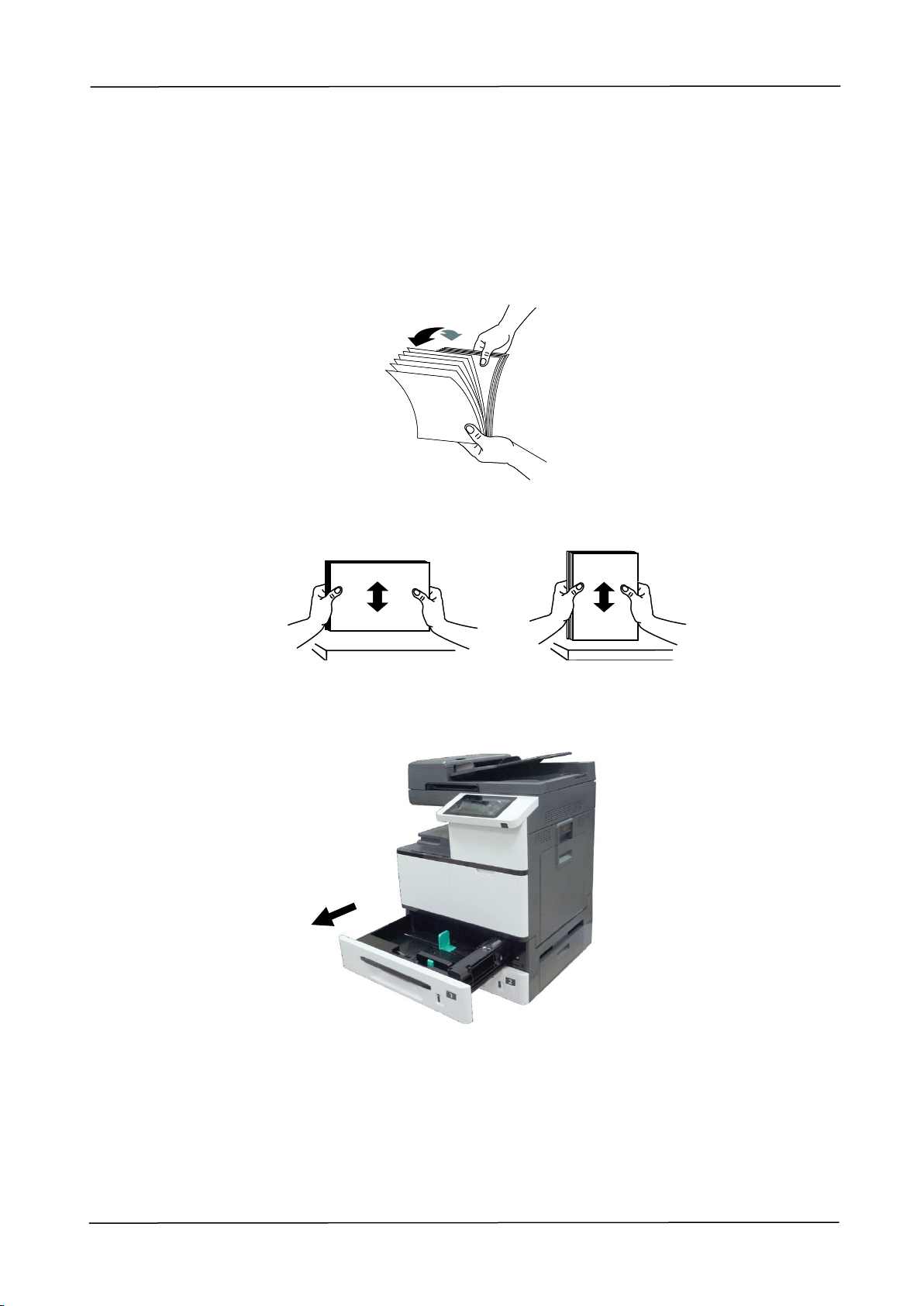
1. Fan your paper first to ensure that the pages do not stick together.
2. Align the edges of the documents by tapping the bottom of the stack against the
table top. Rotate the stack 90 degrees and repeat.
3. Pull out the main input tray.
26
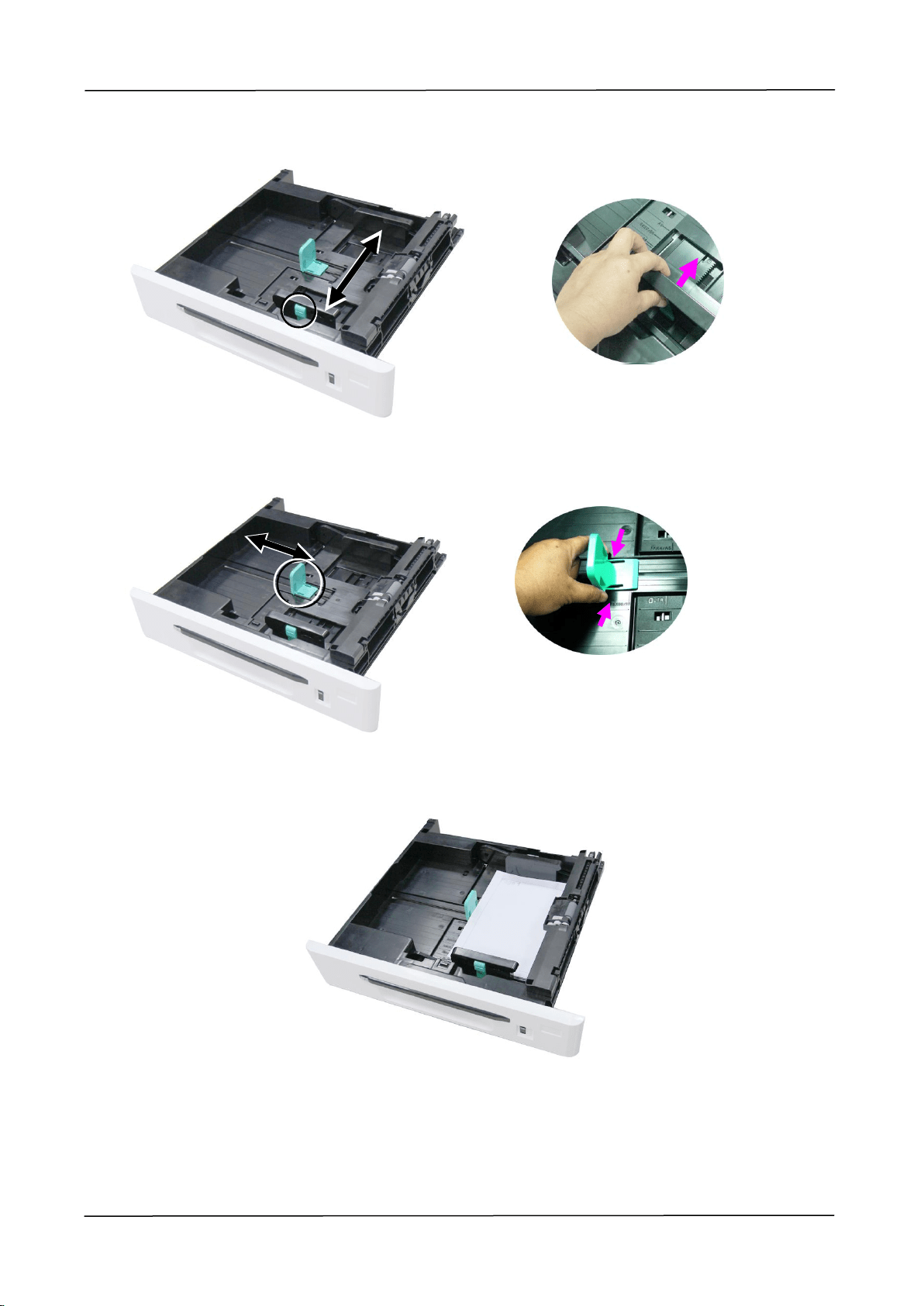
4. Push the center of the [Width guide tab] as shown, and move the width guide to the
correct position for the paper size being loaded.
5. Unlock the length guide, squeeze the bottom of the [Length guide tab] inward as
shown, and slide the guide to the correct position for the paper size being loaded.
6. Load the paper stack face up. Note the print side face up for single-sided
printing.
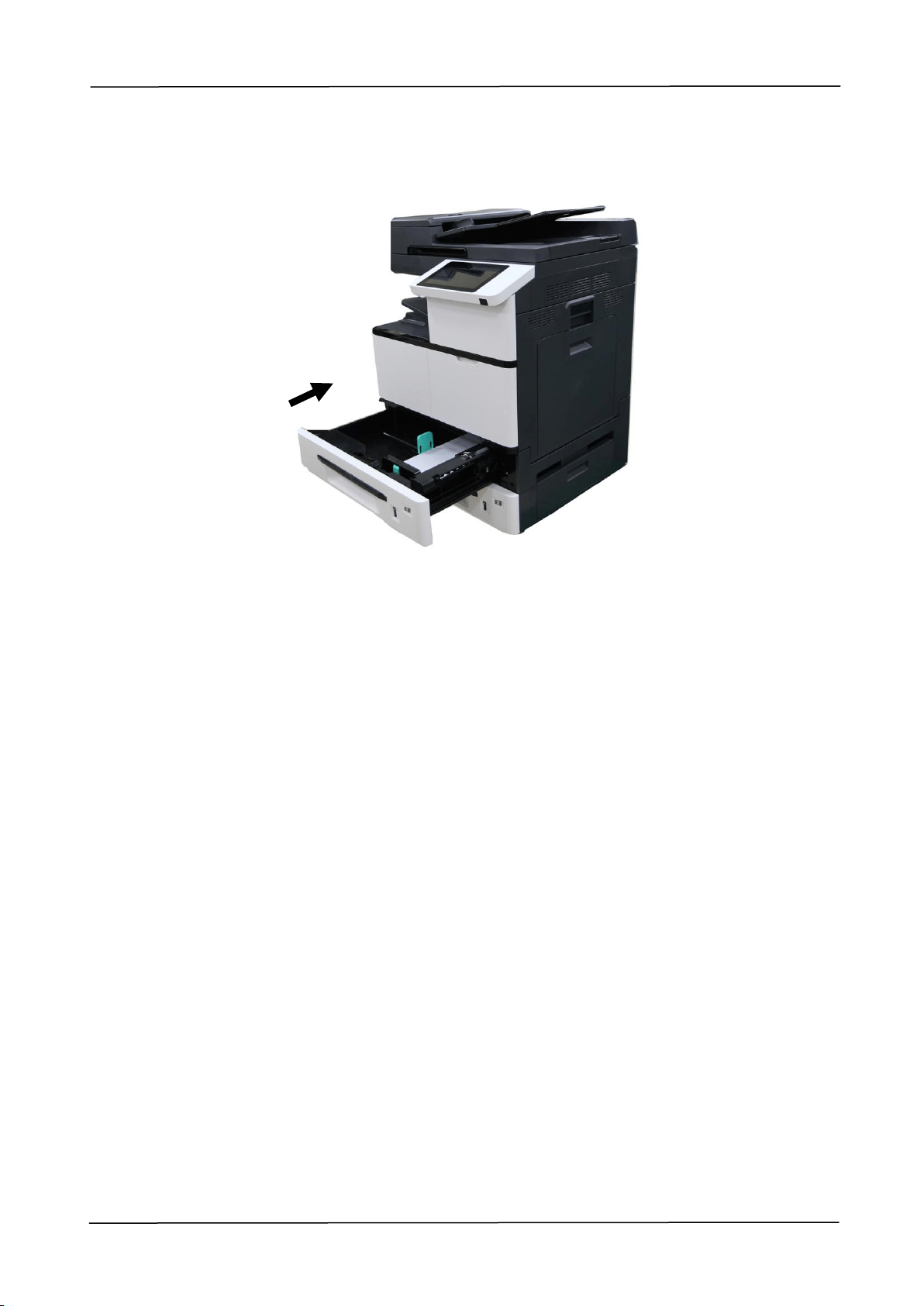
2. Installing Your Machine
27
7. Insert the tray.

28
Paper size and weights used for Tray 1~4
Paper capacity
500 sheets(70 g/m² plain paper)
Paper size
A3 (ISO) (297 x 420 mm)
A4 (ISO) (297 x 210 mm)
A5 (ISO) (148 x 210 mm)
B4 (JIS) (257 x 364 mm)
B5 (JIS) (257 x 182 mm)
Letter (215.9 x 279.4)
Legal (215.9x355.6 mm)
Ledger (Double Letter) (279.4 x 431.8 mm)
Paper weight
60 ~ 105 g/m² (16 ~ 28 lb.)
Note:
To ensure the best quality printing and copying, please use the paper or
media which we have recommended.
Make sure to fan your paper before loading it to the paper tray.
If there is instruction about the printing side on the packaging of your
paper, please follow the instruction to load your paper properly with the
correct printing side to the paper tray.
If the printing quality is not satisfactory or paper jams are easily to
occur, turn over the paper stack so that the top page is now on bottom
and then reload it to the paper tray.
Pack and seal the remaining paper with the original packaging and store
the paper in a dark and dry location away from the sunshine. Paper
which collects much moisture is easy to cause jam during printing.
2. Installing Your Machine
29
Loading the Manual Tray
When you need to print different size paper, you can use the manual tray.
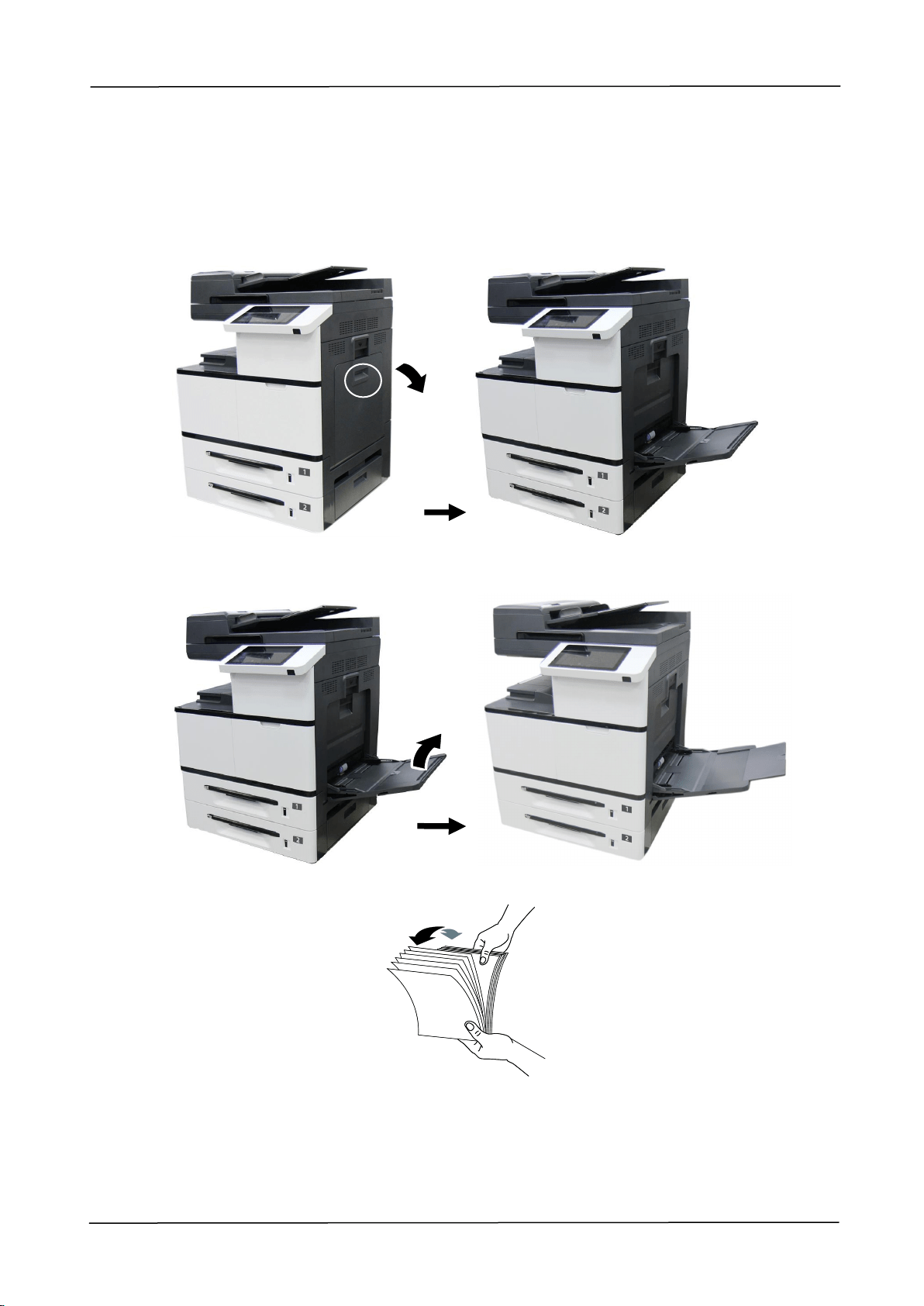
1. Open the manual tray by grasping the handle and pull it down.
2. Pull out the manual tray extension to meet your paper size.
3. Fan your paper first to ensure that the pages do not stick together.
30
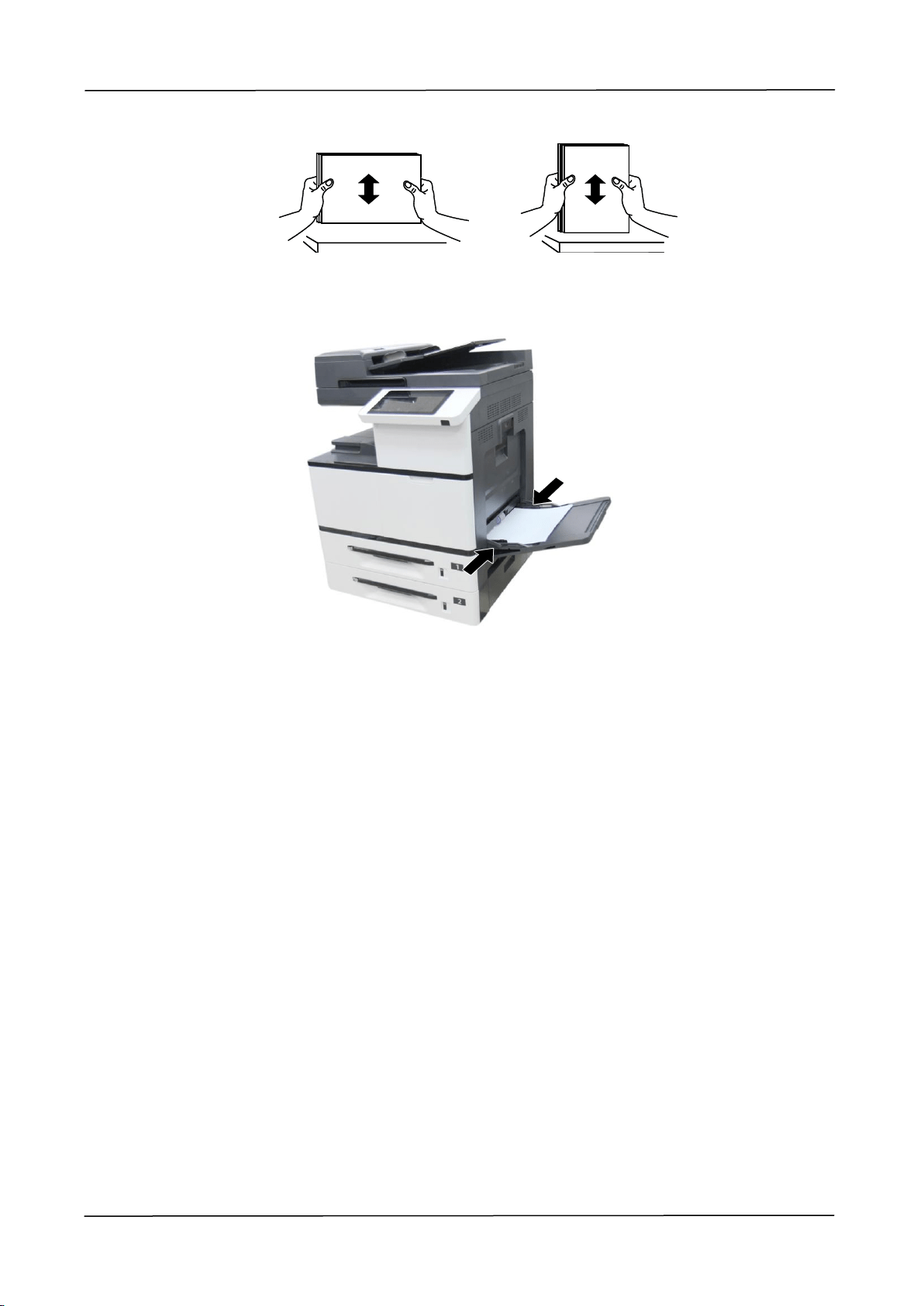
4. Align the edges of the documents by tapping the bottom of the stack against the
table top. Rotate the stack 90 degrees and repeat.
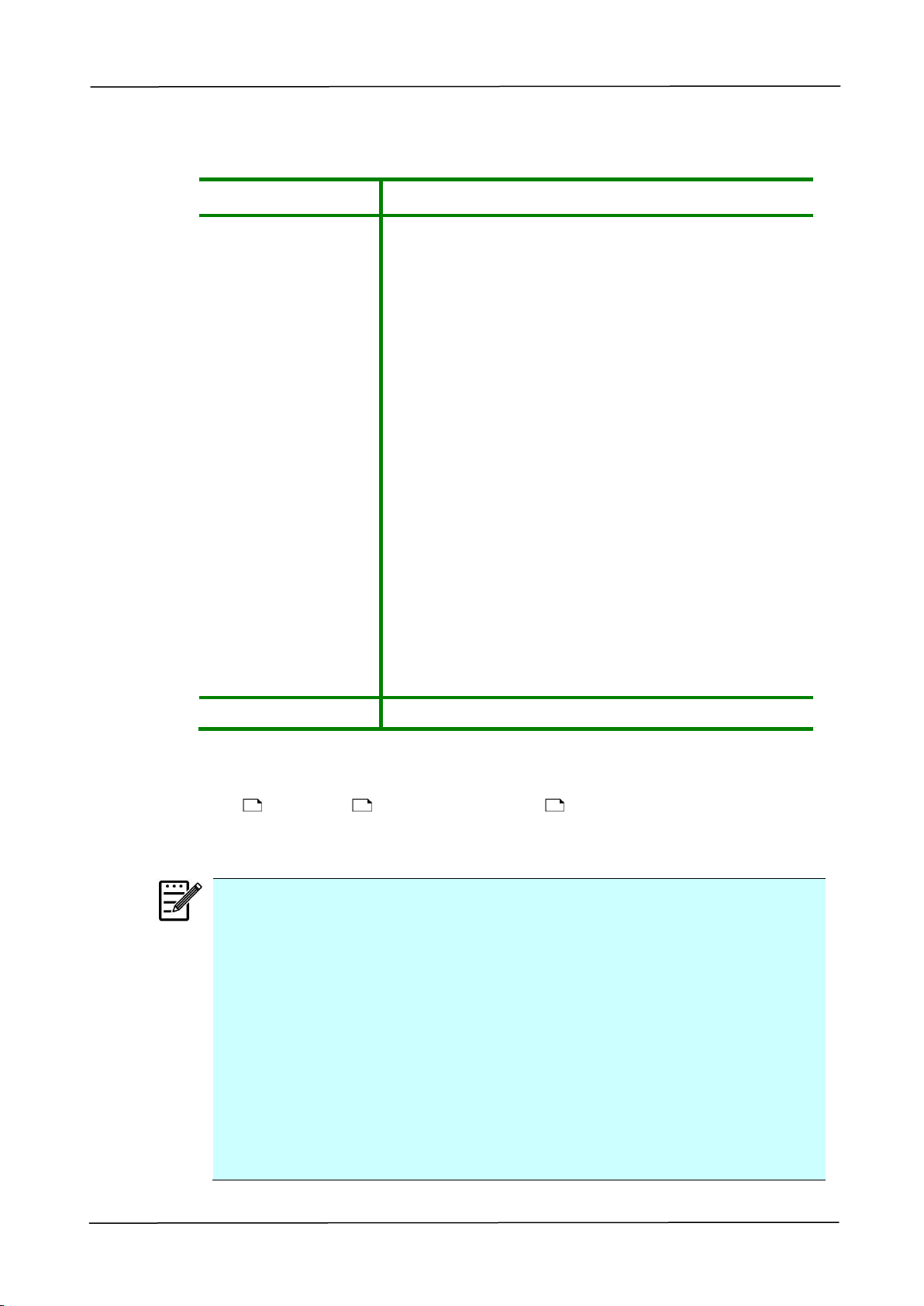
5. Load the paper stack face down and slide the paper guides so that they
slightly touch the paper stack.
2. Installing Your Machine
31
Paper size and weights used for Manual Tray
Paper capacity
100 sheets(70 g/m² plain paper)
Paper size
A3 (ISO) (297x420 mm)
A4 (ISO) (297x210 mm)
A5 (ISO) (148 x 210 mm)
A6 (ISO) (106x148 mm)
B4 (JIS) (257x364 mm)
B5(JIS) (257x182 mm)
B6 (JIS) (128x182 mm)
Letter (215.9x279.4)
Legal (215.9x355.6 mm)
Legal 13 (216x330 mm)
Ledger (Double Letter) (279.4x431.8 mm)
Statement (140x216 mm)
8K (267x390 mm)
16K (195x267 mm)
PostCard (100x148 mm)
Min. Custom Size: 100 x145 mm
Max. Custom Size: 304.8 x 431.8 mm
Paper weight
60 ~ 210 g/m² (16 ~ 56 lb.)
* Statement (LEF) is not supported.
* A6 (SEF), B6 (SEF), and PostCard (SEF) are available only for
single-sided print in the manual tray.
Note:
To ensure the best quality printing and copying, please use the paper or
media which we have recommended.
Make sure to fan your paper before loading it to the paper tray.
If there are instructions about the printing side on the package of your
paper, please follow the instructions to load your paper properly with
the correct printing side to the paper tray.
If the printing quality is not satisfactory or paper jams are easily to
occur, turn over the paper stack so that the top page is now on bottom
and then reload it to the paper tray.
Pack and seal the remaining paper with the original packaging and store
the paper in a dark and dry location away from the sunshine. Paper
which collects much moisture is easy to cause jam during printing.

32
Detectable Paper Size for Manual Tray
Paper Size in Manual Tray
Detectable Size
A3
A3 SEF
A4_SEF
ISO 216:A4 SEF
North America:LTR SEF
A4_LEF
ISO 216:A4 LEF
North America:LTR LEF
A5_SEF
ISO 216:A5 SEF
B4 (JIS)
B4 SEF
B5_SEF/EXEC (JIS)
B5 SEF
B5_LEF (JIS)
B5 LEF
LTR_SEF
ISO 216:A4 SEF
North America:LTR SEF
LTR_LEF
ISO 216:A4 LEF
North America:LTR LEF
LGL
LGL SEF
Ledger (DLT)
Ledger SEF
A6 SEF (ISO)
A6 SEF
B6 SEF (JIS)
B6 SEF
Statement(ST)SEF
ISO 216:A5 SEF
Legal 13 SEF
LGL SEF
8K SEF
Ledger SEF
16K SEF
ISO 216:A4 SEF
North America:LTR SEF
PT SEF
A6 SEF
*SEF (Short Edge First)
*LEF (Long Edge First)
2. Installing Your Machine
33
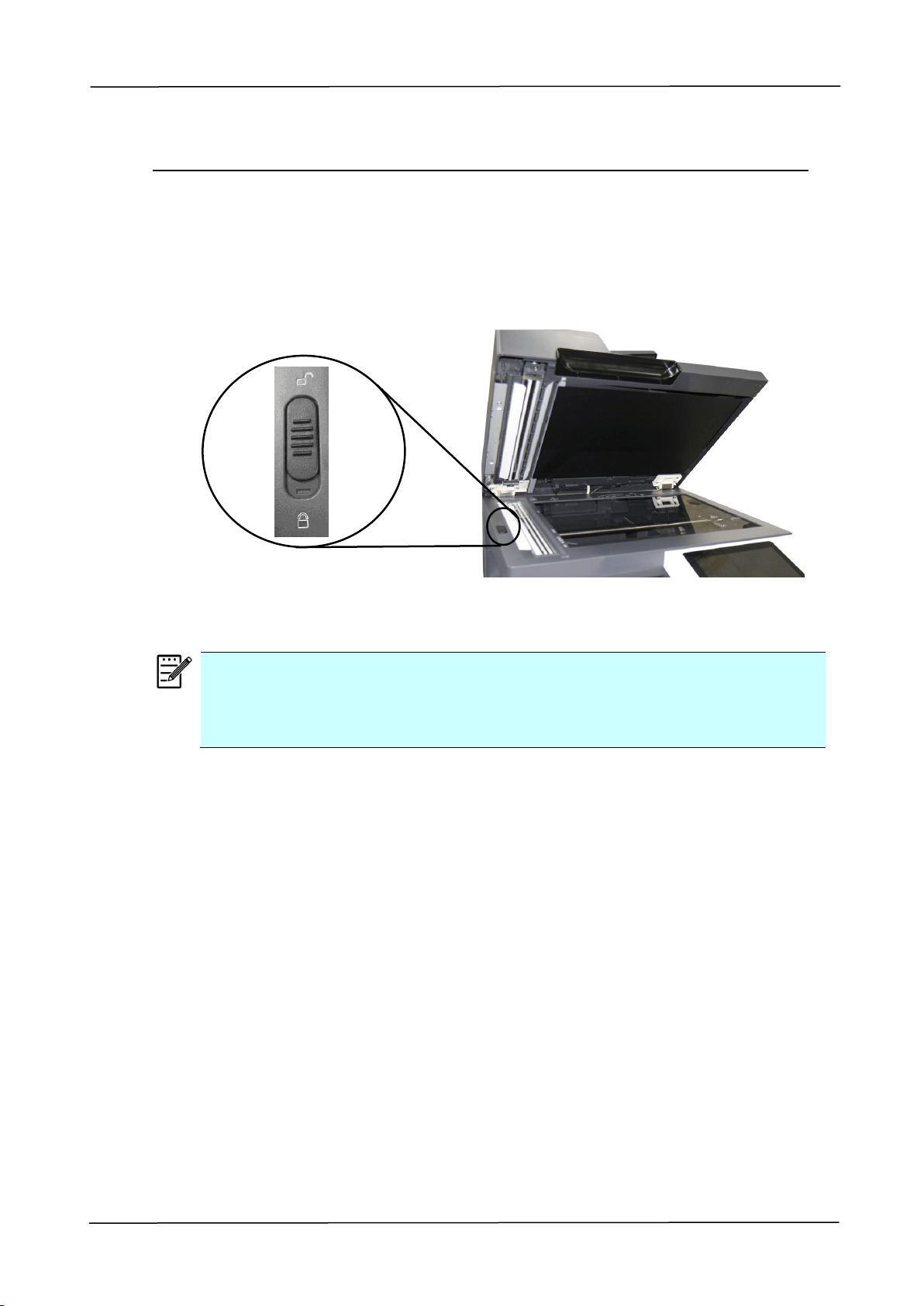
Unlocking the Scan Unit
The scan unit is locked during transport to protect the scanning mechanism from being
damaged. Be sure to unlock the scan unit by moving the lock switch to the
「
Unlock
」
position before using the machine.
Note:
To move the MFP to another location, make sure the scan unit is at the home
position which is at the left side of the glass before locking the scan unit. If
the scan unit is not at its home position, turn on the MFP to let the scan unit
move to its home position. Turn off the MFP and then lock the scan unit.
Lock Position
Unlock Position
34
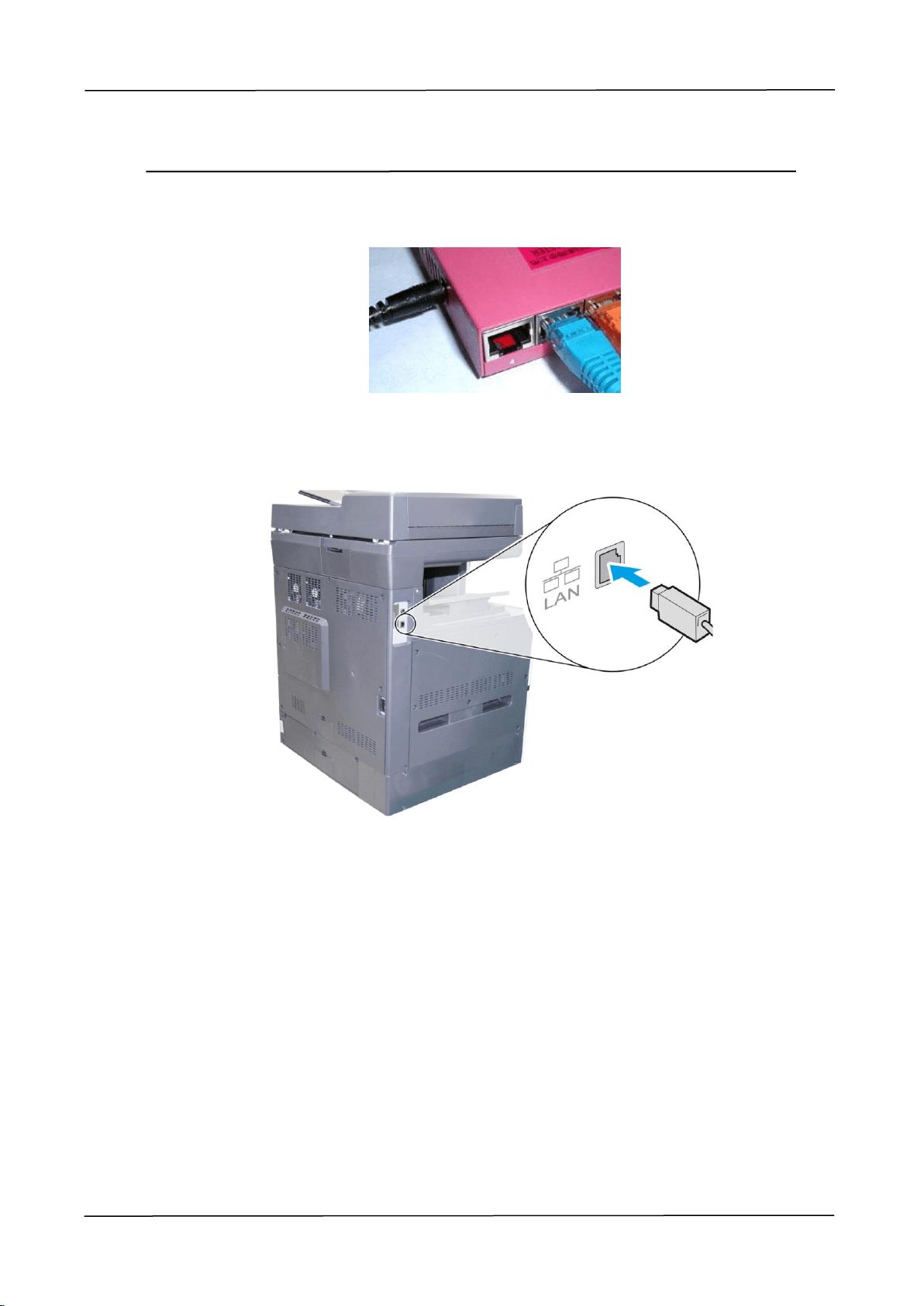
Connecting to a Wired Network
1. Connect one end of your network cable to an available port of your Ethernet Hub.
2. Connect the other end to the LAN port at the back of the product as shown.
2. Installing Your Machine
35
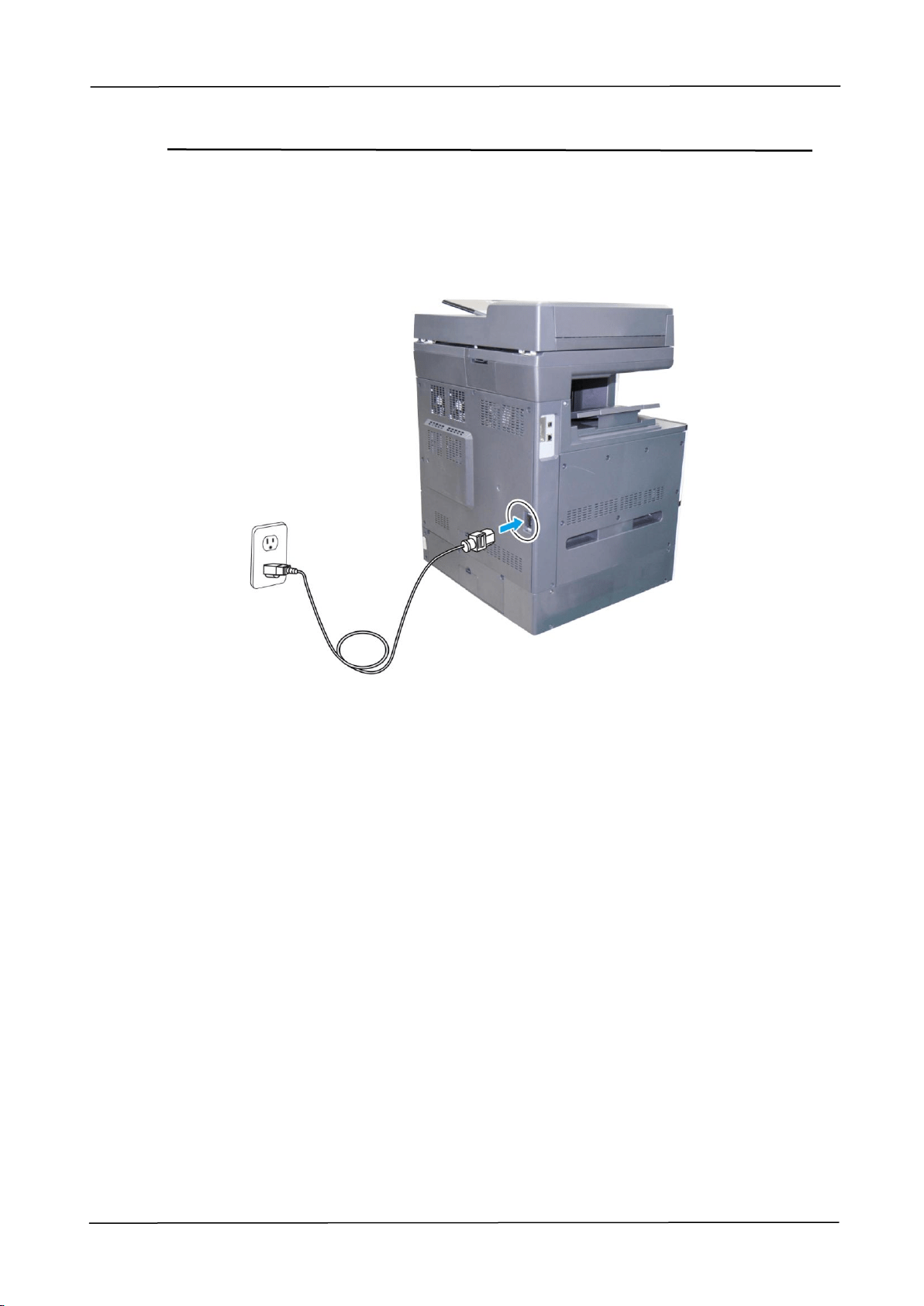
Connecting to Power
1. Connect one end of the power cable to the power jack of your product.
2. Connect the other end to an appropriate power outlet.
36
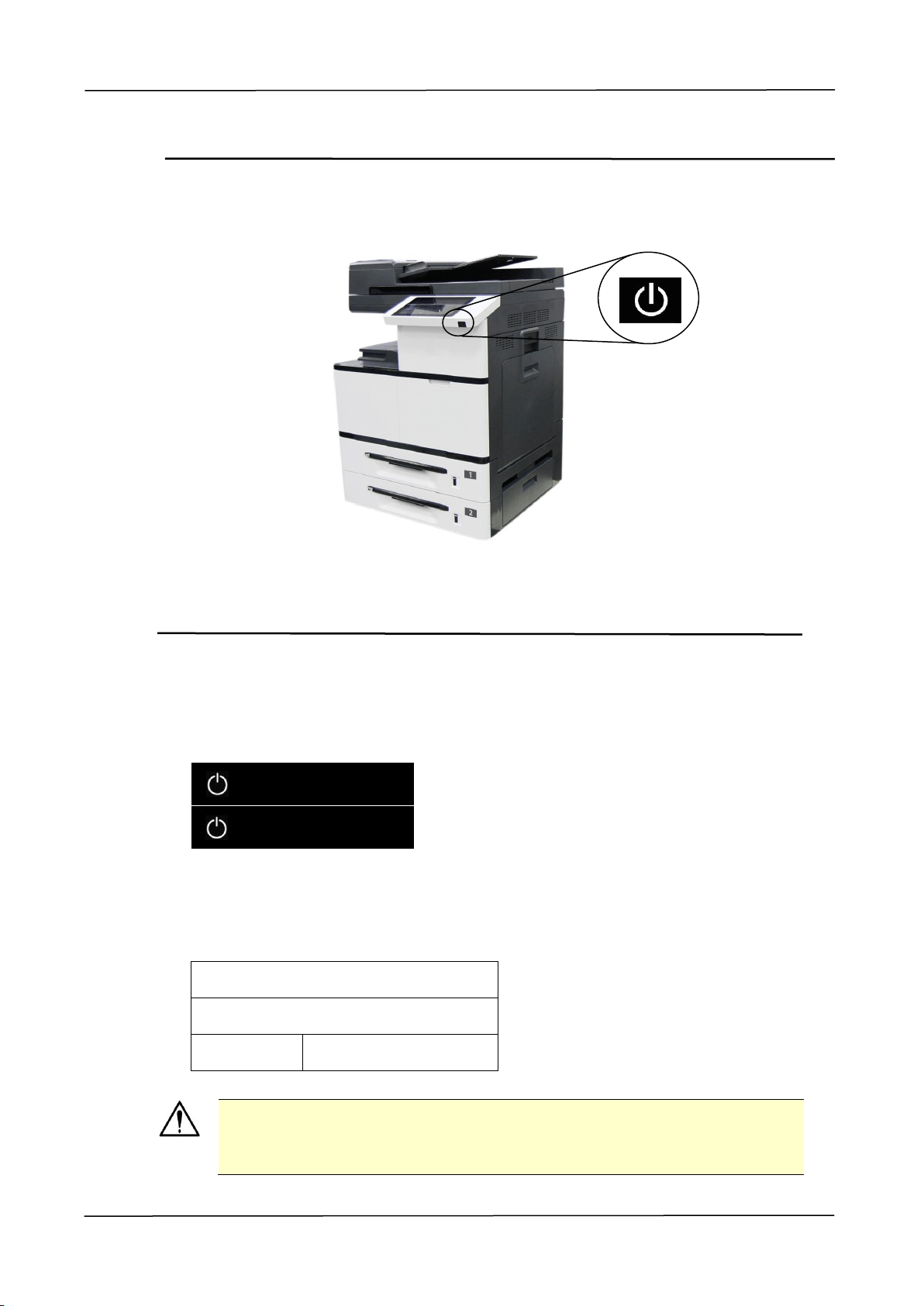
Turning On The Machine
Press the Power button on the bottom of the Control Panel to turn on the machine.
Turning Off the Machine
1. To turn off the machine, press the Power button for 3 seconds. The following
dialog box will be displayed.
2. Tap [Power Off]. The following confirmation dialog box appears. Tap [OK] to
turn off the power.
Power Off
The machine is going to power off.
Cancel
OK
Important!
When the product is not in use, be sure to turn off the power to get a
zero power consumption state.
Power Off
Restart
2. Installing Your Machine
37
Set the Product’s Date and Time
To ensure the machine reflect the current time, please first set correct date and time
after the product is turned on for the first time.
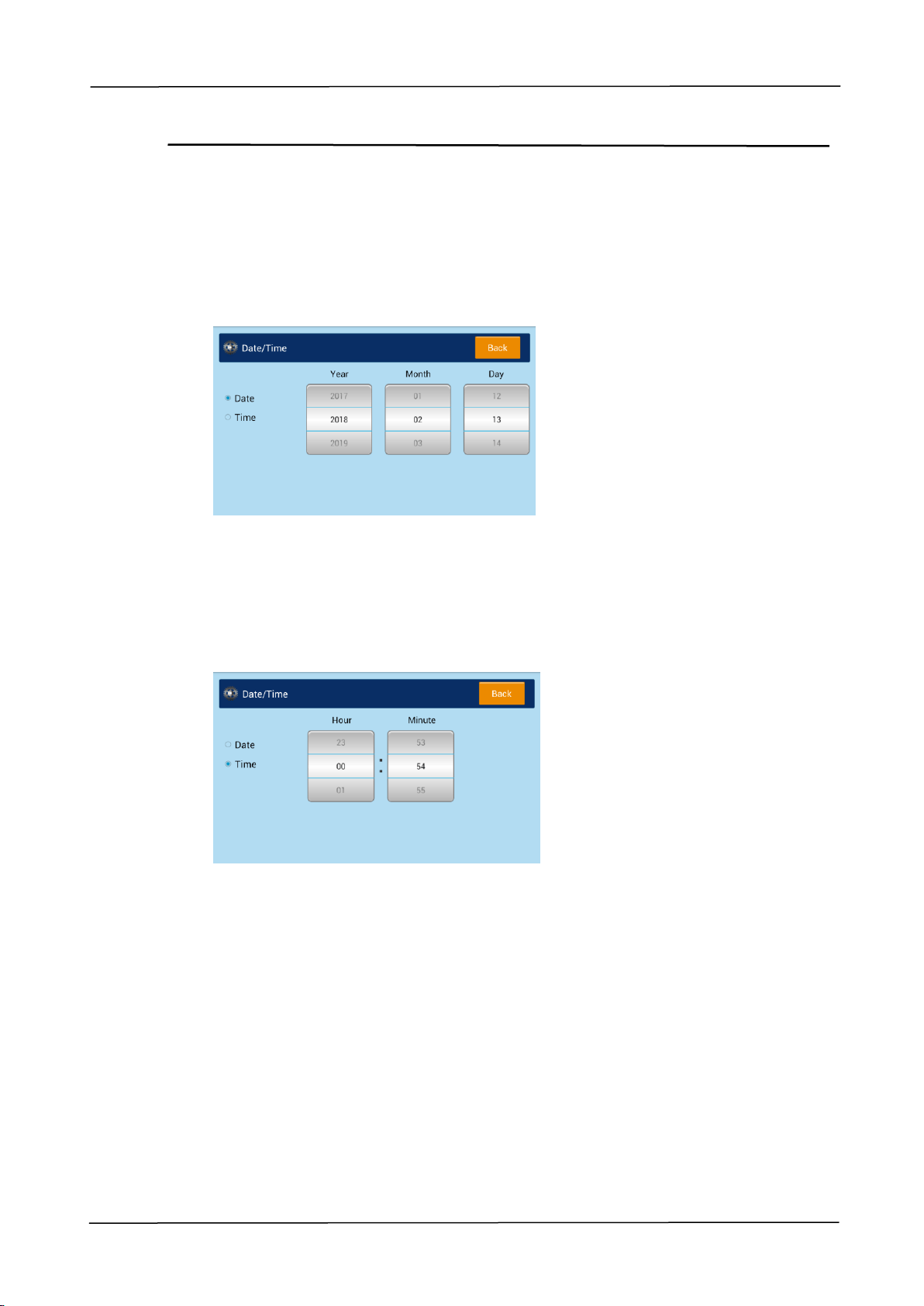
1. When the product is turned on for the first time, the following Date/Time screen
will be displayed.
2. Tap the 「Year」 field,a numeric key pad will be displayed. Enter correct number
of the year. Tap the 「Month」 and 「Date」field respectively,and enter the
correct date. (You can also adjust the value using the up/down arrows.)
3. After the year and date has been set, tap the 「Time」button to prompt the
following Time Setting.
4. Tap the 「Hour」field, a numeric key pad will be displayed. Enter the correct
hour;Tape the 「Minute」field to enter the correct minute. (You can also adjust
the value using the up/down arrows.)
5. After the correct date and time has been set, tap the 「Back」button to return to
the main operational screen.

38
Configure the Product’s IP Address
If you connect the product to your computer via a network cable, you need to specify
an IP address for the product. An IP address can be obtained automatically through
the DHCP server, or you can specify a static IP address. Please follow the steps in
below to configure the IP address of the product.
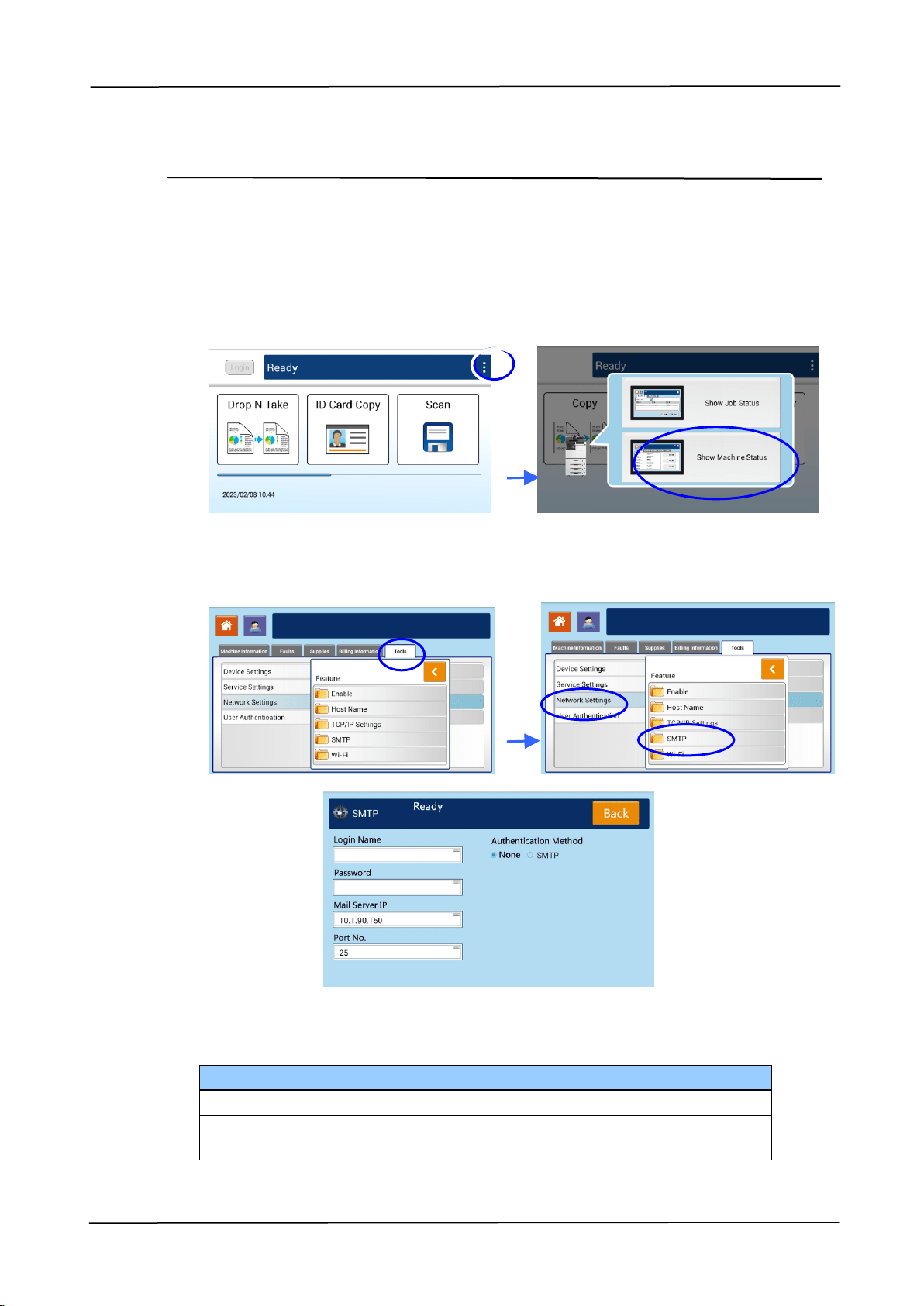
1. Tap [More Settings] on main screen and then choose [Show Machine Status].
This will prompt the [Machine Status] page.
2. Touch the 「Tools」tab, and then the 「Network Settings」>「TCP/IP Settings」
option. The following TCP/IP screen will be displayed.
3. Touch「IP address」, 「Subnet Mask」, 「Gateway」, and 「DNS Server」 fields
to specify each of values. If you wish to disable DHCP, be sure to enter the
address information in the 「IP address」, 「Subnet Mask」, and「Gateway」
respectively.
4. After TCP/IP settings have been completed, touch「Back」to leave the screen.
5. Touch the 「Home」button on the Control Panel to show the main operation
screen.
Note:
If you are using a DHCP server to automatically choose the IP address of
the product, it is recommended that you set the host name for the
product or use the default host name. Otherwise, after the product is
used for a period of time, the DHCP server does not guarantee to choose
the same IP address. If you want to change the default host name of the
product, tap [More Settings] on the upper-right corner of the main
screen, and then tap [Show Machine Status]>[Tools]>[Network
Settings]>[Host Name] to enter your new host name.
If you have further problems about the network setting, please contact
your network administrator.
2. Installing Your Machine
39
Specifying the Product’s Mail Server
To send the scanned image to a recipient via E-mail, you need first specify your mail
server information on the product. Follow these steps to set your mail server:
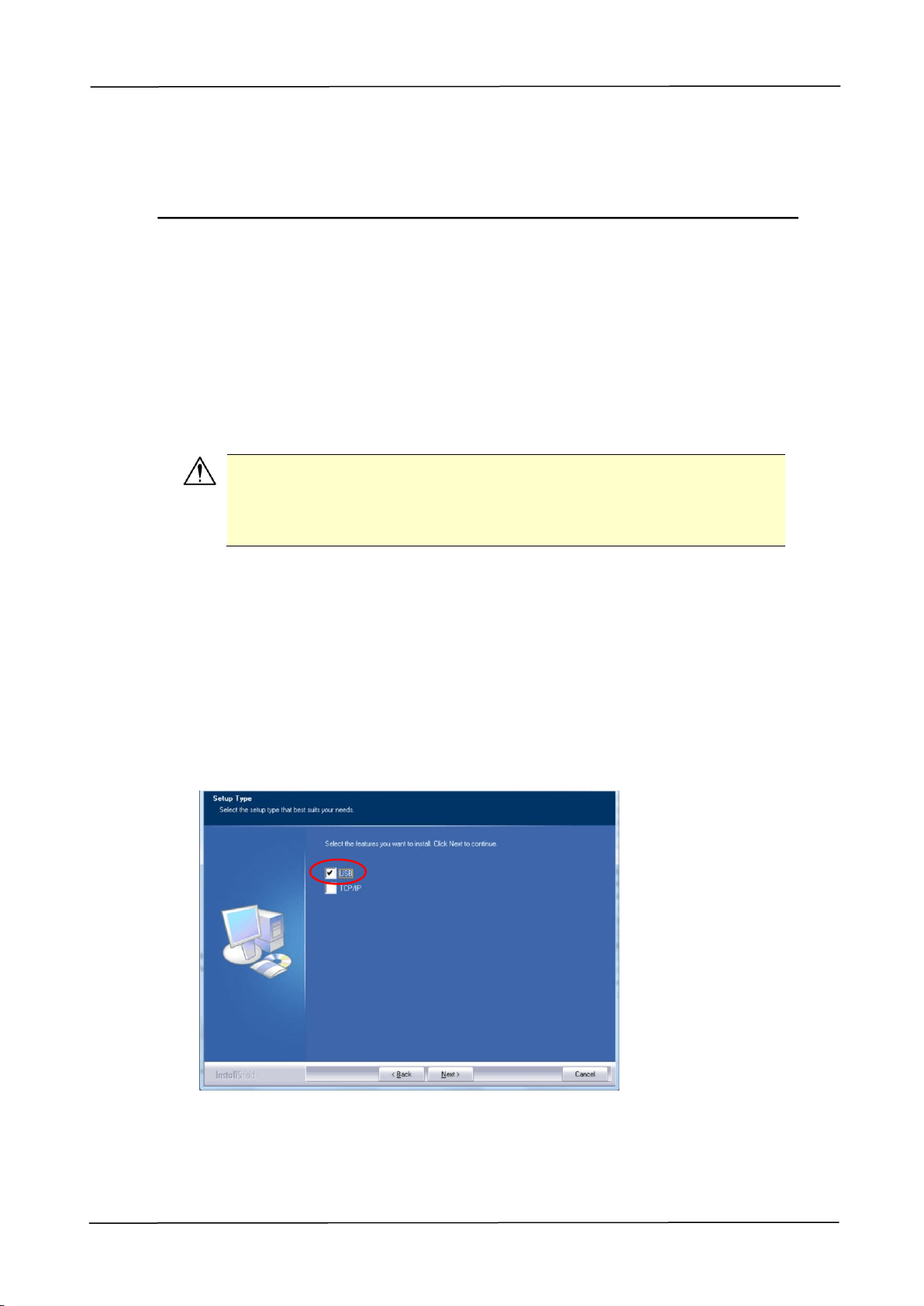
1. Tap [More Settings] on main screen and then choose [Show Machine Status].
This will prompt the [Machine Status] page.
2. Touch the 「Tools」tab, and then the 「Network Settings」>「SMTP」option. The
following SMTP screen will be displayed.
3. Tap anywhere respectively on the Login Name/Password/Mail Server/ Port#
field to bring up the soft keyboard and then enter the relevant values.
E-mail Server Setting
Mail Server
Enter the IP address of your SMTP server.
SMTP Port #
Enter the port number of the SMTP server.
* 25

40
Authentication
Method
Enter the email authentication method.
Choice: *None, SMTP
Encrypt
Choose the encryption method of your emails to
the SMTP server.
Choice: *None, SSL, TLS/STARTTLS
Login Name
Enter the login name for SMTP authentication.
Password
Enter the password for SMTP authentication.
4. Tap [Back] to save the setting and leave the screen.
5. Touch the 「Home」button on the Control Panel to enter the main operation
screen.
Note:
The login name is case-sensitive and is up to 32 digits or characters.
The password is case-sensitive and is up to 16 characters.
Please check the SMTP server and LDAP server information with your Network
Administrator.
2. Installing Your Machine
41
Installing the Scanner/Printer Drivers
System Requirement
Windows 7, Windows 8, Windows 10, Windows 11
For USB Interface Users
Please follow these steps to install the scanner, and printer drivers if this machine is
connected to your computer via a USB cable.
Important!
DO NOT connect the USB cable before installing the scanner, and
printer drivers.
1. Insert the supplied CD into your CD-ROM drive. The installation menu will be
displayed.
2. To install the scanner /printer drivers:
Click 「Install Scanner Driver and Printer Driver」and follow the on-screen
instructions to complete the installation of the program.
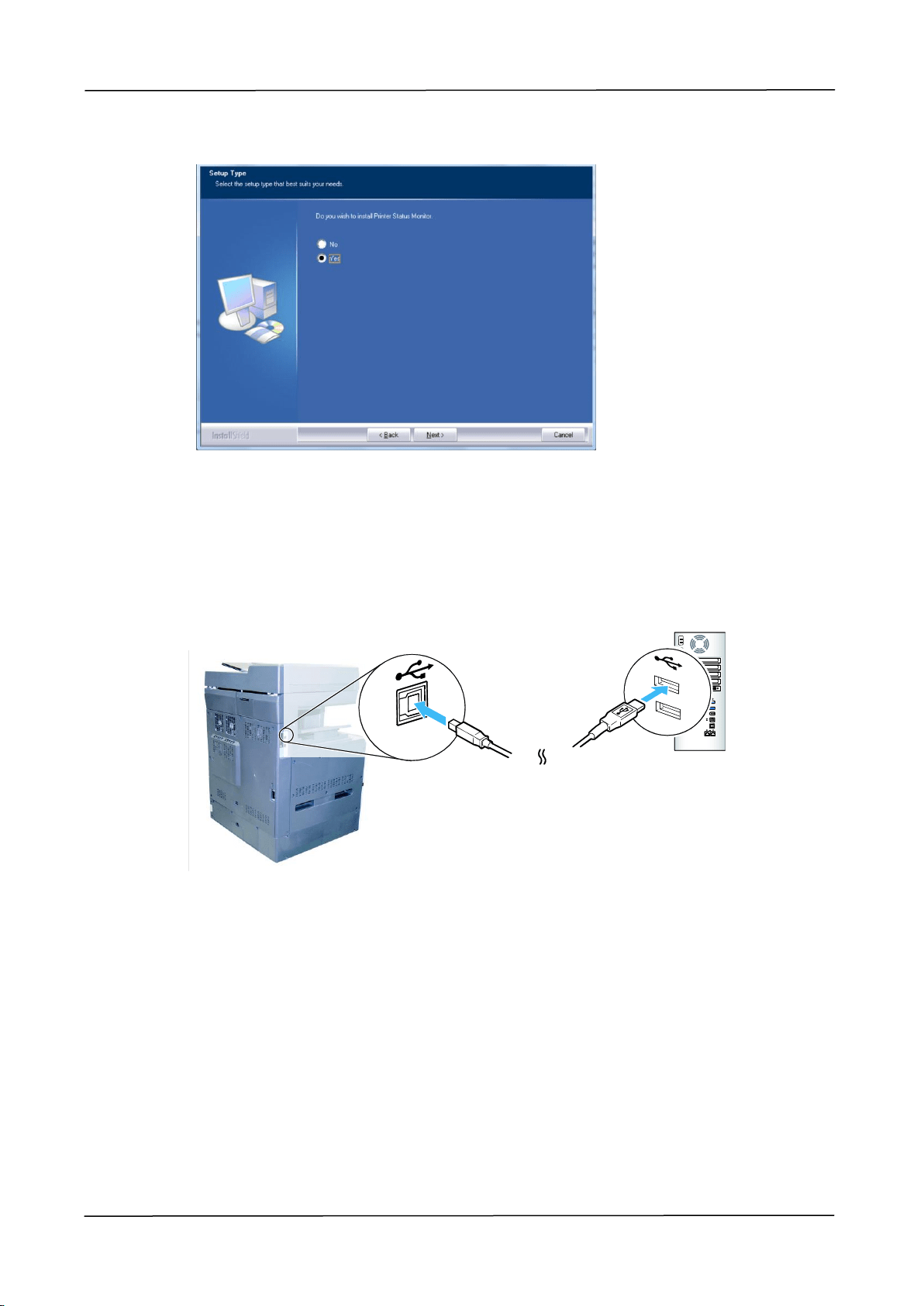
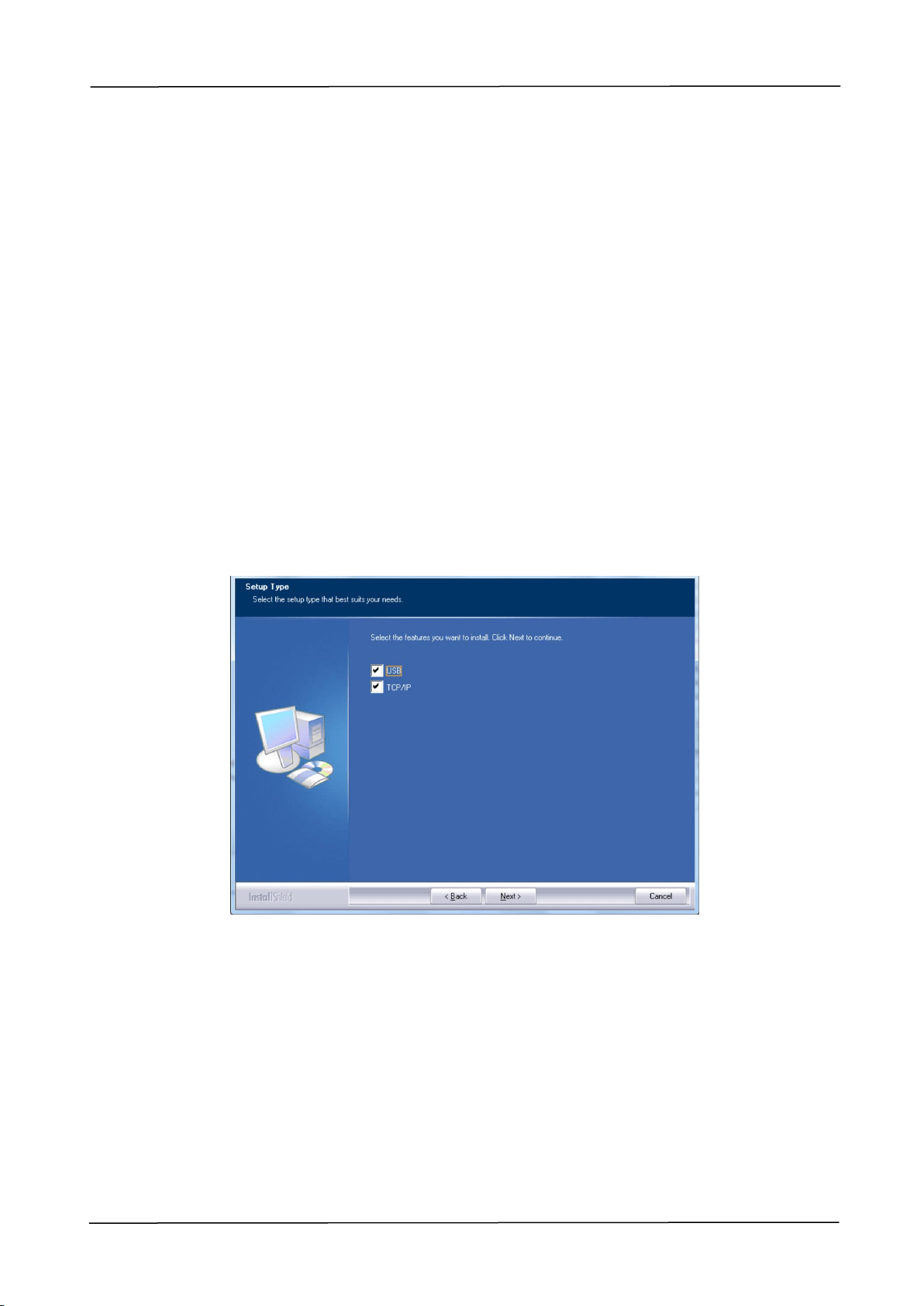
3. When the Setup Type dialog box appears, select [USB].
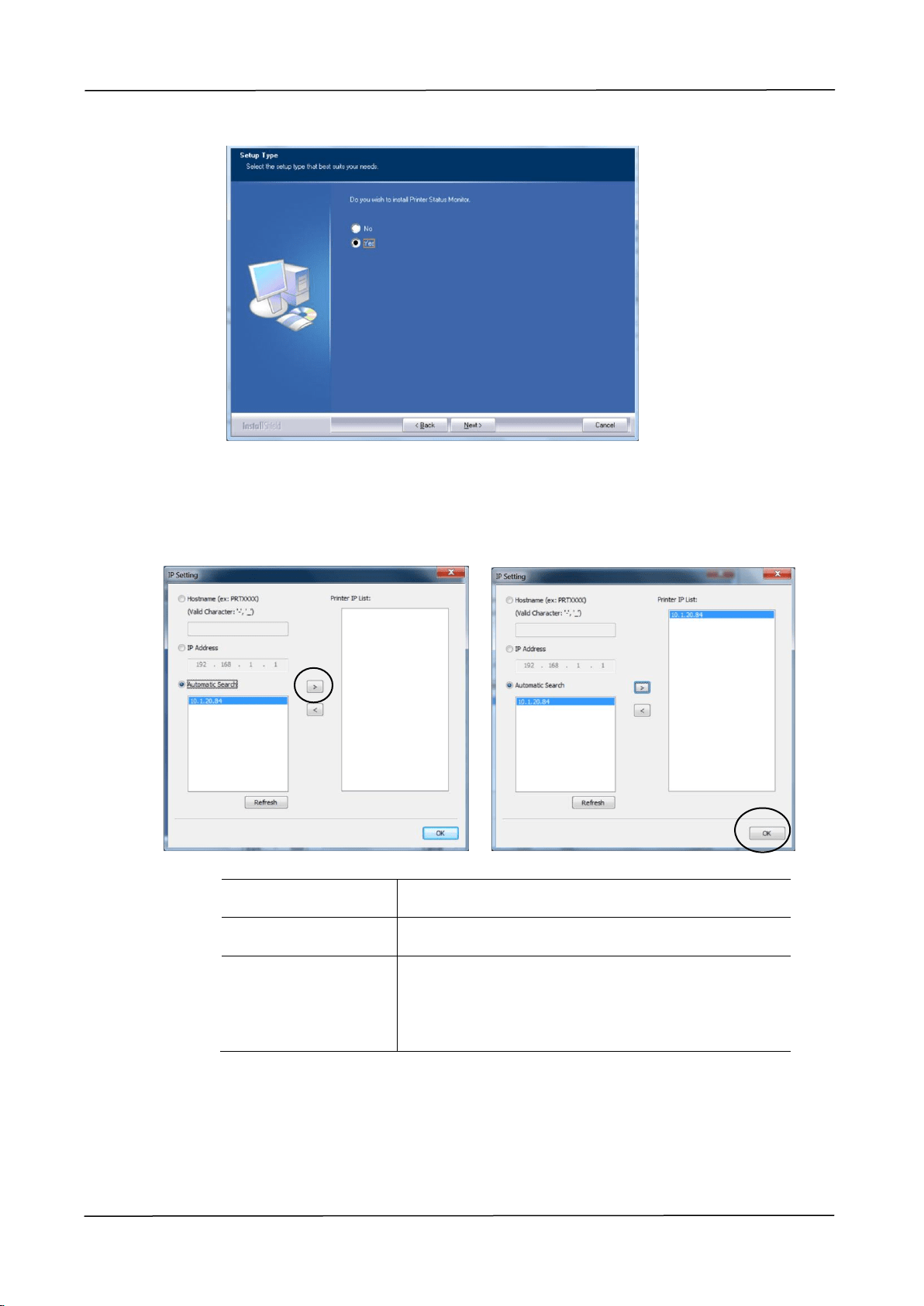
4. Select if you wish to install Printer Status Monitor program. Choose [Yes]
(recommended) and then click [Next]. Printer Status Monitor keeps you update
about printer status and offer alert when you need to replace the consumables.
42
5. During installation, the USB Connection dialog box will be prompted to instruct
you to turn on the MFP and then connect the MFP to your computer with a USB
cable.
a. Connect one end of the USB cable to your computer.
b. Connect the other end to the USB port of your product.
6. When the 「Found New Hardware」screen appears, click Next and follow the
on-screen instruction to complete the installation.
7. When the Finish dialog box appears, click Finish to complete.
If you have successfully installed the printer’s driver, you will find a printer, 「Avision
AMXXXX Printer」, has been added in the 「Printers and Faxes」option from the Control
Panel. (XXXX indicates the model number)
2. Installing Your Machine
43
For Network Interface Users
Please follow these steps to install the scanner, and printer drivers if this machine is
connected to your computer via a network cable.
1. Insert the supplied CD into your CD-ROM drive. The installation menu wil be
displayed.
2. To install the scanner driver and printer driver:
Click 「Install Scanner Driver and Printer Driver」and follow the on-screen
instructions to complete the installation of the program.
3. When the Setup Type dialog box appears, check [TCP/IP] and click [Next]
to continue.
If you need to connect the product to a wireless network, check [USB] and
[TCP/IP] since the Network Setup Tool is included in the USB driver and
only available when the product is connecting to your computer through the
USB cable.
4. Select if you wish to install Printer Status Monitor program. Choose [Yes]
(recommended) and then click [Next]. Printer Status Monitor keeps you
update about printer status and offer alert when you need to replace the
consumables.
44
5. When the following Set IP dialog box appears, choose one of the following
options and click [Add] to add to the printer list. When the desired option
setting is completed, click [OK]. (Follow the preceding section – Checking
the Product’s Default IP Address to obtain the product’s default IP address.
Host Name
Enter the product’s host name to be connected
in the blank box of the Host Name option.
IP Address
Enter the product’s IP address to be connected
in the blank box of the IP Address option.
Automatic Search
Searches the product’s printers automatically,
and all the product’s host names found in the
network will be displayed in the box of the
Automatic Search. Use your mouse to choose
your desired host name to be connected.
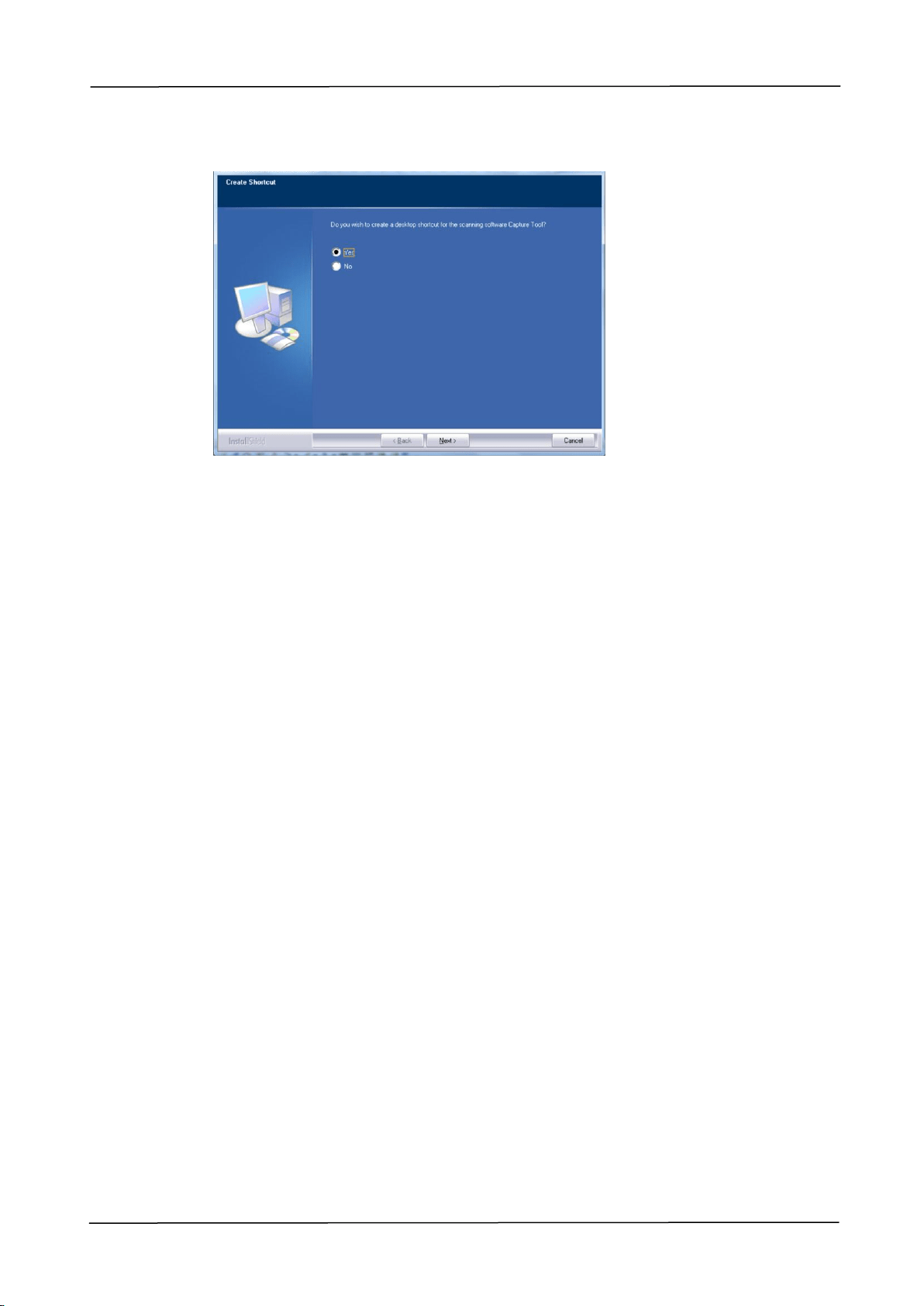
6. Select if you wish to create a Capture Tool shortcut on your desktop. (Capture
Tool is a TWAIN-compliant Scanning Application.) Click [Next] to continue.
2. Installing Your Machine
45
7. When the Finish dialog box appears, choose 「Finish」to complete.
If you have successfully installed the printer’s driver, you will find a printer,
「Avision AMXXXX NetWork」, has been added in the 「Printers and Faxes」
option from the Control Panel. (XXXX indicates your model number)
Uninstalling the Scanner Driver and Printer Driver
1. From the 「Start」menu, select 「All Programs」, 「Avision AMXXXX MFP」, and
then 「Uninstall Driver」.
Or from the 「Start」menu, select 「Control Panel」, 「Add or Remove
Programs」, 「Avision AMXXXX MFP」, and then 「Remove」.
2. Follow the instructions on the screen to complete removing the scanner driver
and the printer driver.
46
3. Operation
Loading Paper
The product can scan and send document(s) either in the ADF (Automatic Document
Feeder) or on the glass. If you need to send multiple pages, please load your papers
in the ADF. The ADF can hold up to 100 pages at one time. If you need to send pages
from books, newspaper clippings, or paper with wrinkles or curls, please place your
paper on the glass.
Notice on Using the ADF
Before using the ADF, please make sure that your paper meets the following
specifications:
Document(s) can range in size from 100 x 148 mm (3.94 x 5.83 in.) to 297 x 432
mm (11.7 x 17 in.).
Document(s) should be square or rectangular and in good condition (not fragile
or worn).
Document(s) should be free of curl, wrinkle, tears, wet ink, or punch holes.
Document(s) should be free of staples, paper clips, paper sticky notes.
Keep the glass clean without document placed on it.
Note:
To transmit irregular types of document(s), place the document(s) on the
glass or make a copy first and then transmit the copy instead.
Notice on Using the Flatbed Glass
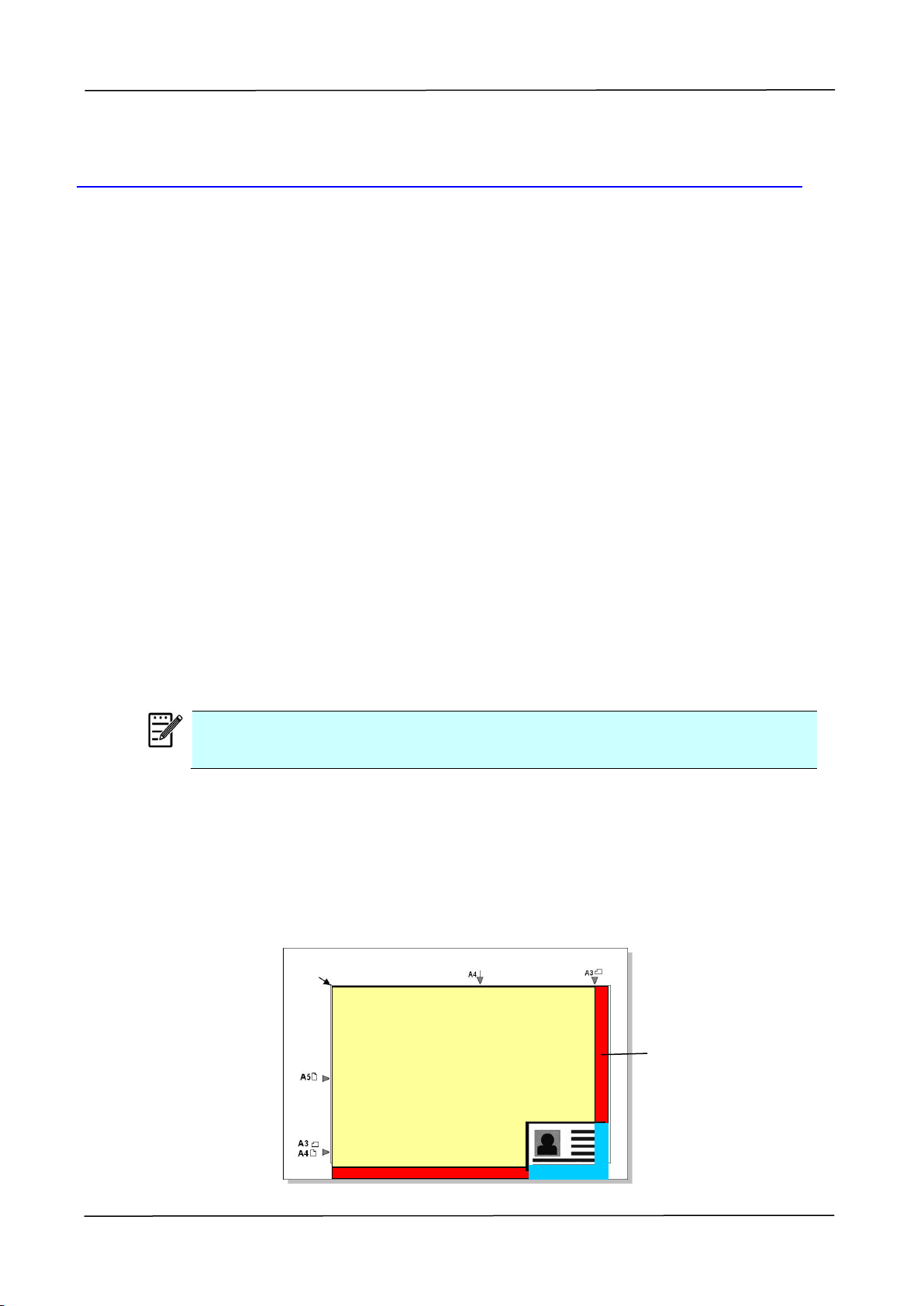
The maximum scan or copy area of the flatbed platform is A3 size. If the document is
placed near the edge of the glass platen, as shown in the illustrated red rectangle, the
content of the document that exceeds the scan range (as illustrated blue rectangle)
cannot be scanned or copied.
Max. Scan Area
Flatbed
Glass
3. Operation
47
Placing Document(s) in the ADF
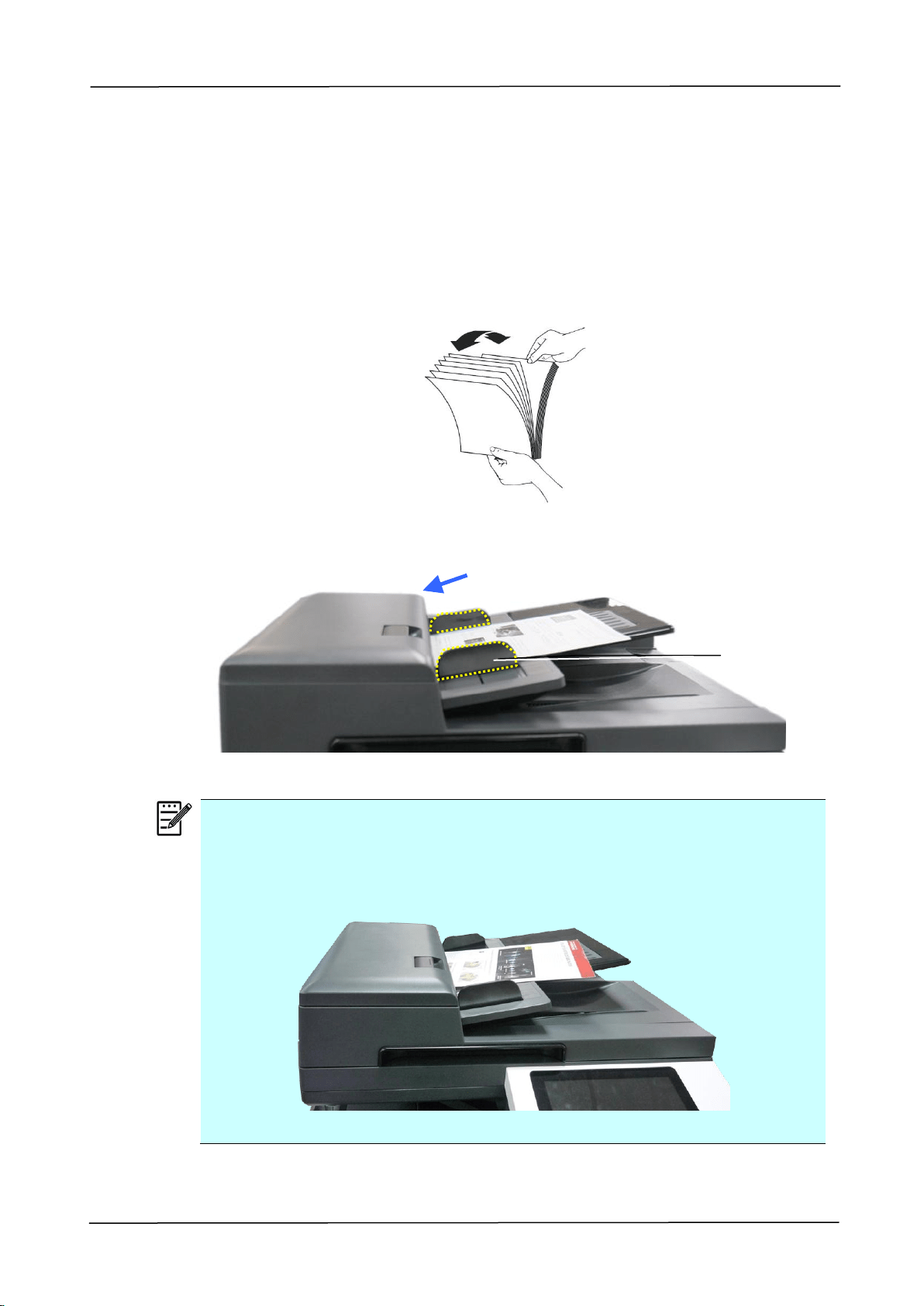
1. Make sure your document is free of staples, paper clips and is not torn out.
2. If you have multiple pages, fan your document(s) to avoid occasional paper
jam.
3. Align the edge of documemt against the Paper Guides and make sure the First
Page feeds in first.
Note:
It is all right if the document is loaded to the feeder with a slight angle as
shown in below. The product is designed with the auto crop and deskew
function, therefore, the image can be automatically cropped and
straightened.
Paper Guide
48
Placing Document(s) on the Glass
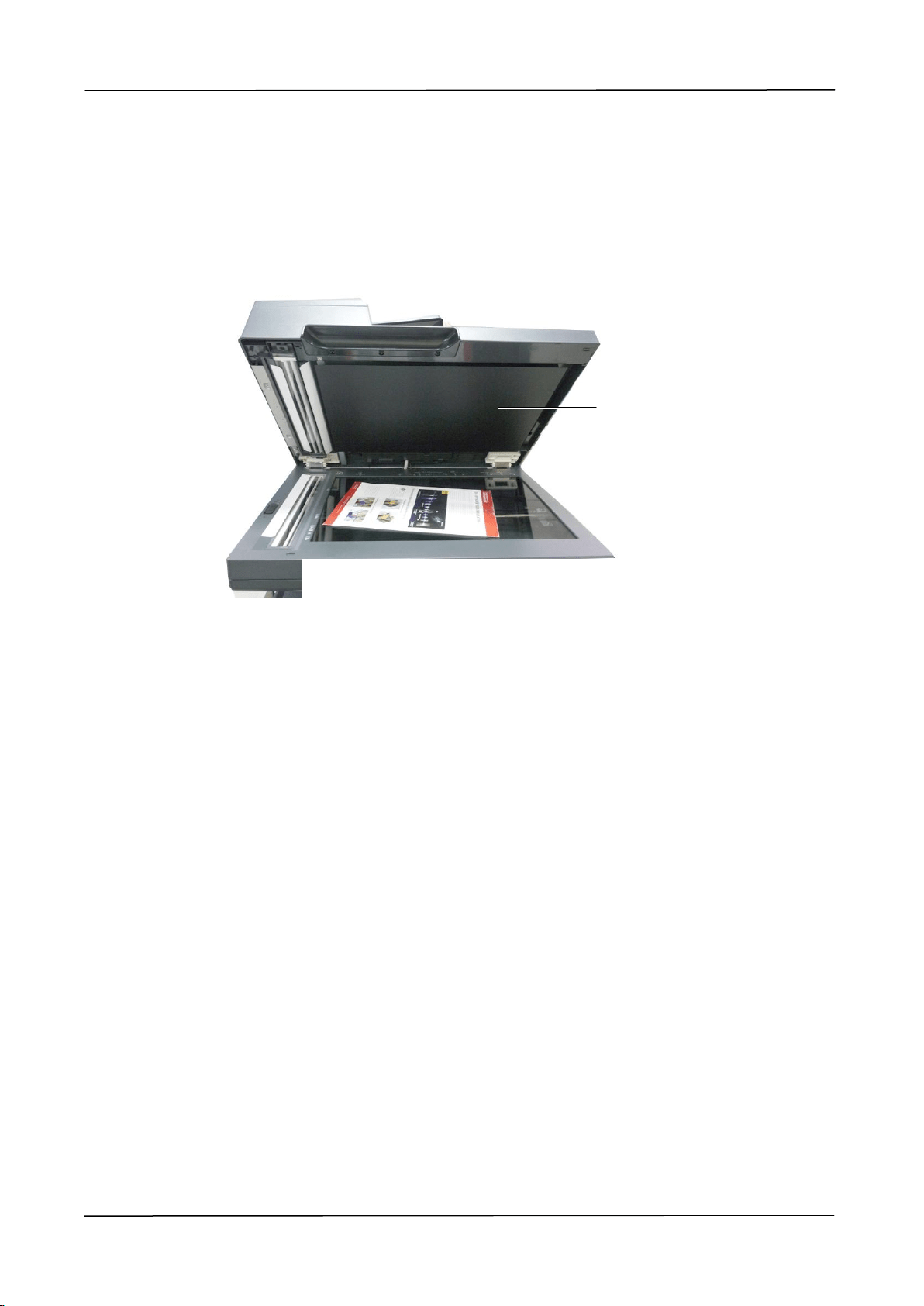
1. Open the document(s) cover to reveal the glass.
2. Place your document easily with the text FACE DOWN on the glass. The product
is designed with the auto crop and deskew function, your scanned image will be
automatically straightened though your document is placed with a slight angle.
Document
Cover
3. Close the document cover.
3. Operation
49
Intelligent Copy
Using Auto Document Feeder
一、Copy Single-Page Document
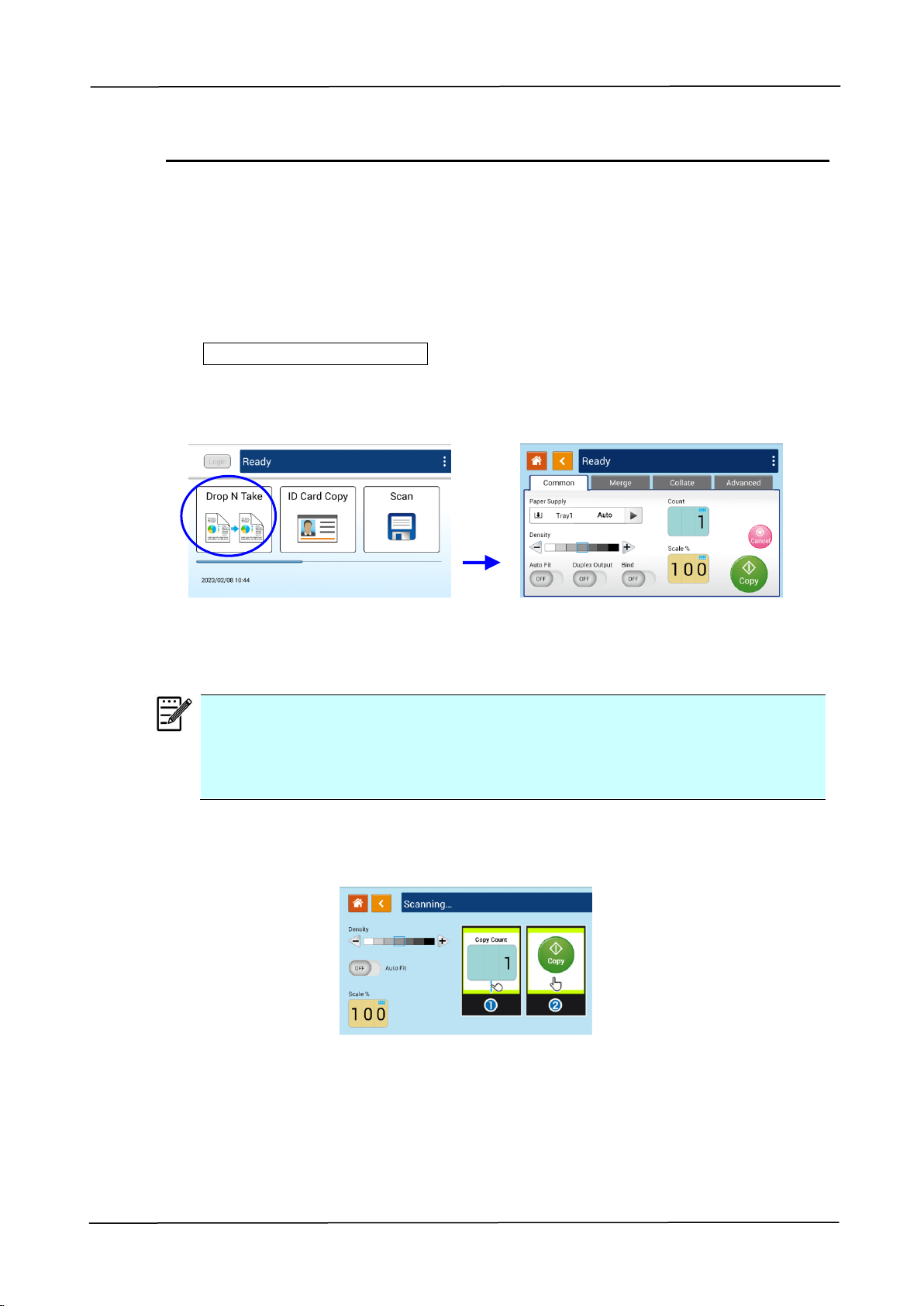
Single-Sided Document
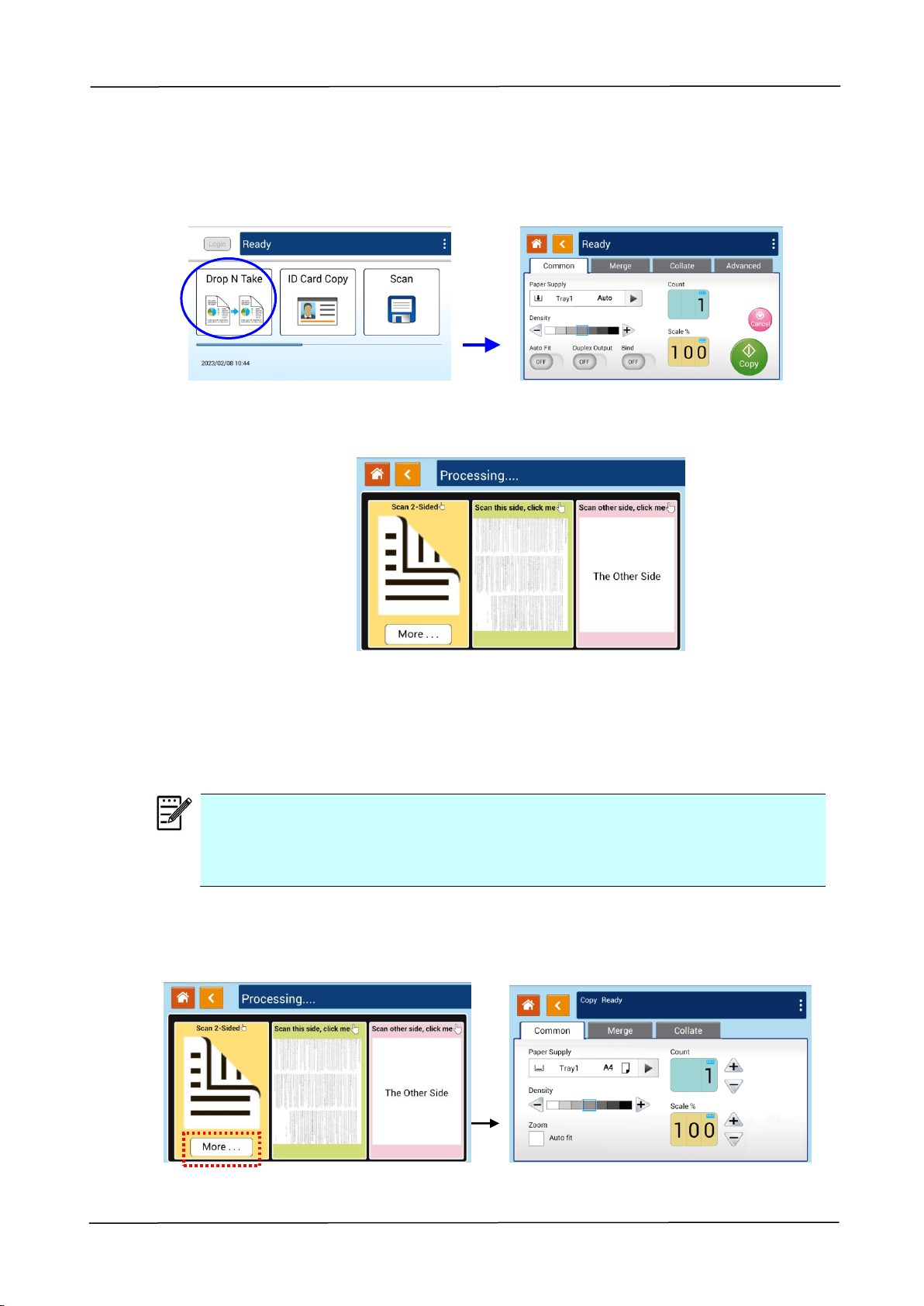
1. Tap the 「Drop N Take」button on the main screen, and the following 「Copy」
screen will be displayed.
2. Load document into the feeder. No need to worry about facing down or facing up
since the Intelligent Copy System will automatically make a correct and perfect
copy.
Note:
The product is built-in with the state-of-the-art image processor to provide
an optimal default settings and image quality for common copy job. Change
the default copy settings only when you need to perform an unusual copy
task.
3. The product will automatically make one copy of your document and then the
following screen will be prompted enquiring if any adjustment such as Density,
Auto Fit, or Scalig needs to be made.
a. If no adjustment is required, press 「<」 (Back) to return to the main Copy
screen.
b. If density, or scaling needs to be adjusted, select your desired value, enter
your copy count and press [Copy] to complete.
50
Double-Sided Document
1. Tap the 「Drop N Take」button on the main screen, and the following 「Copy」
screen will be displayed.
2. Load document into the feeder. No need to worry about facing down or facing up
since the Intelligent Copy System will automatically make a correct and perfect
copy.
Note:
The product is built-in with the state-of-the-art image processor to provide
an optimal default settings and image quality for common copy job. Change
the default copy settings only when you need to perform an unusual copy
task.
3. The product will automatically make one copy of your document and then the
following screen will be prompted enquiring if any adjustment such as Density,
Auto Fit, or Scaling needs to be made.
a. If no adjustment is required, press 「<」 (Back) to return to the main Copy
screen.
b. If density, or scaling needs to be adjusted, select your desired value, enter
your copy count and press [Copy] to complete.
3. Operation
51
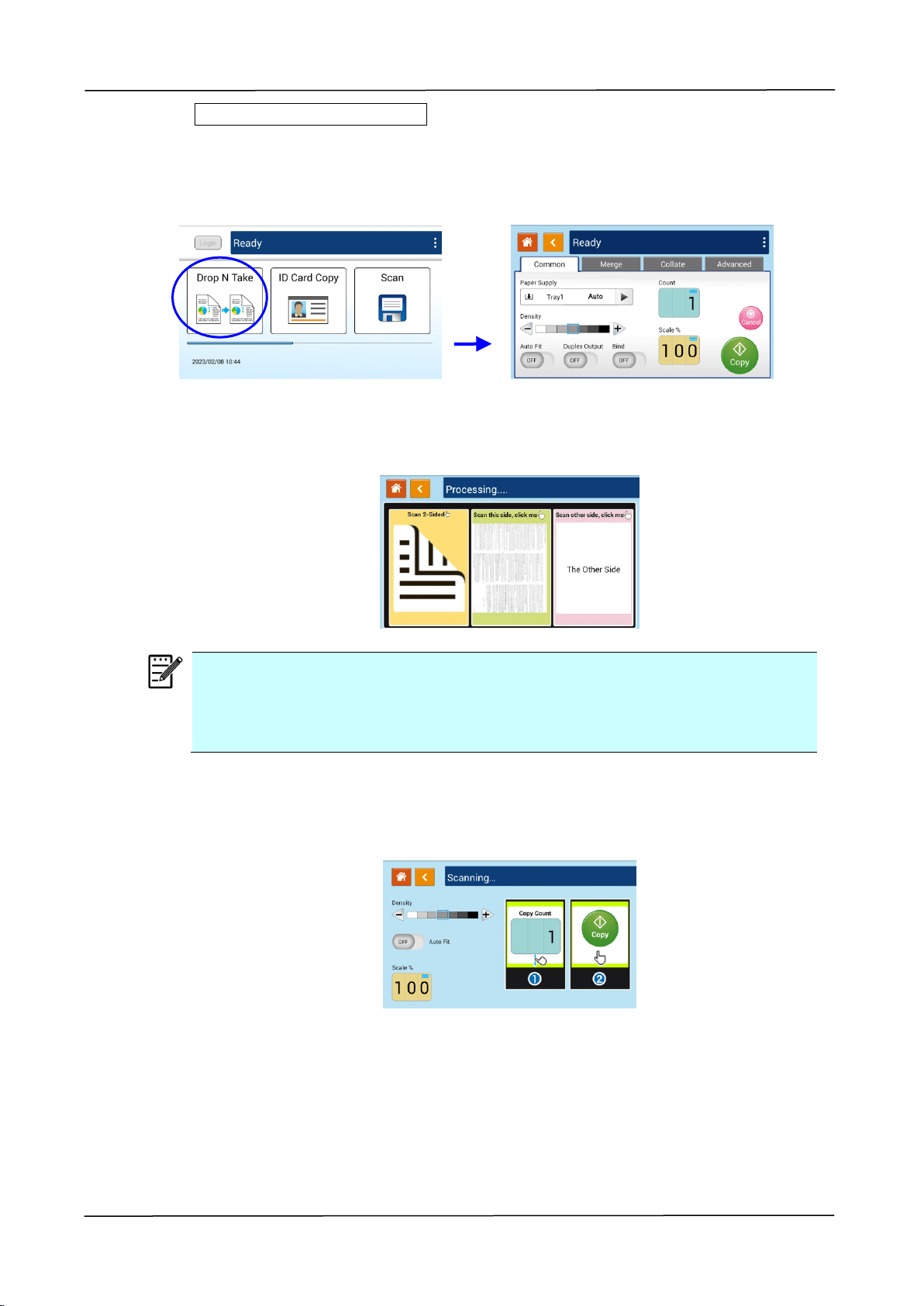
二、Copy Multiple Document
1. Tap the 「Drop N Take」button on the main screen, and the following 「Copy」
screen will be displayed.
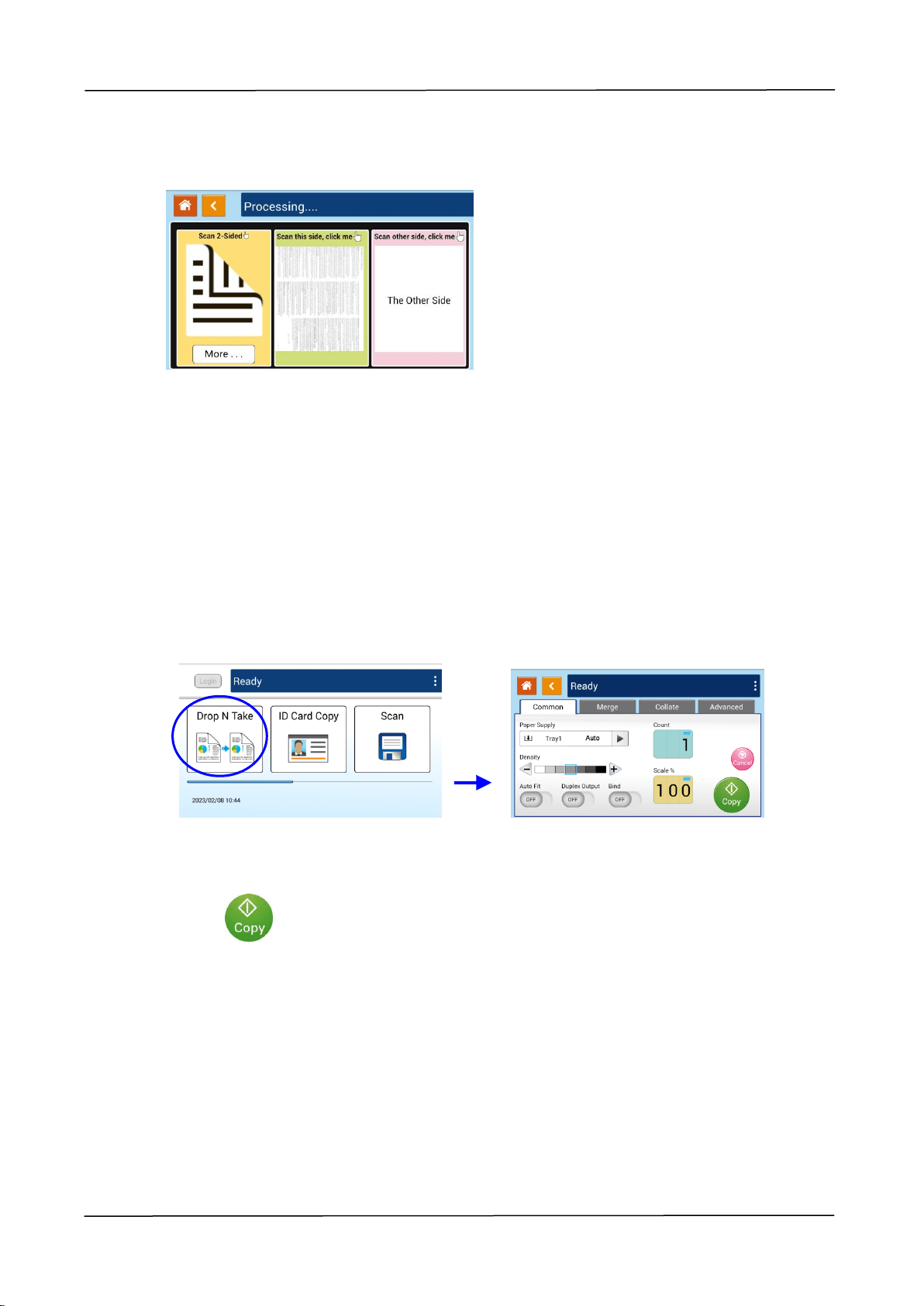
2. Load a stack of multi-page document to the feeder. The product will first
automatically scan first page and the following screen will be displayed.
(1) If you need to make 2-Side copy, press 「Scan 2-Sided」.
(2) If you need to make single-side copy, choose your desired page.
3. The product will continue the copy of the rest document.
Note:
Since the product detect only the first page, therefore, the document
arrangement (such as odd page face up…) of the whole stack of documents
must be consistent with the first page.
[More...] Button
(1) Click [More] to access more copy options.
52
(2) Change your copy settings and then press「<」to return to the main page.
(3) Choose one side or 2 sides, then the copy will begin.
Flatbed Copy
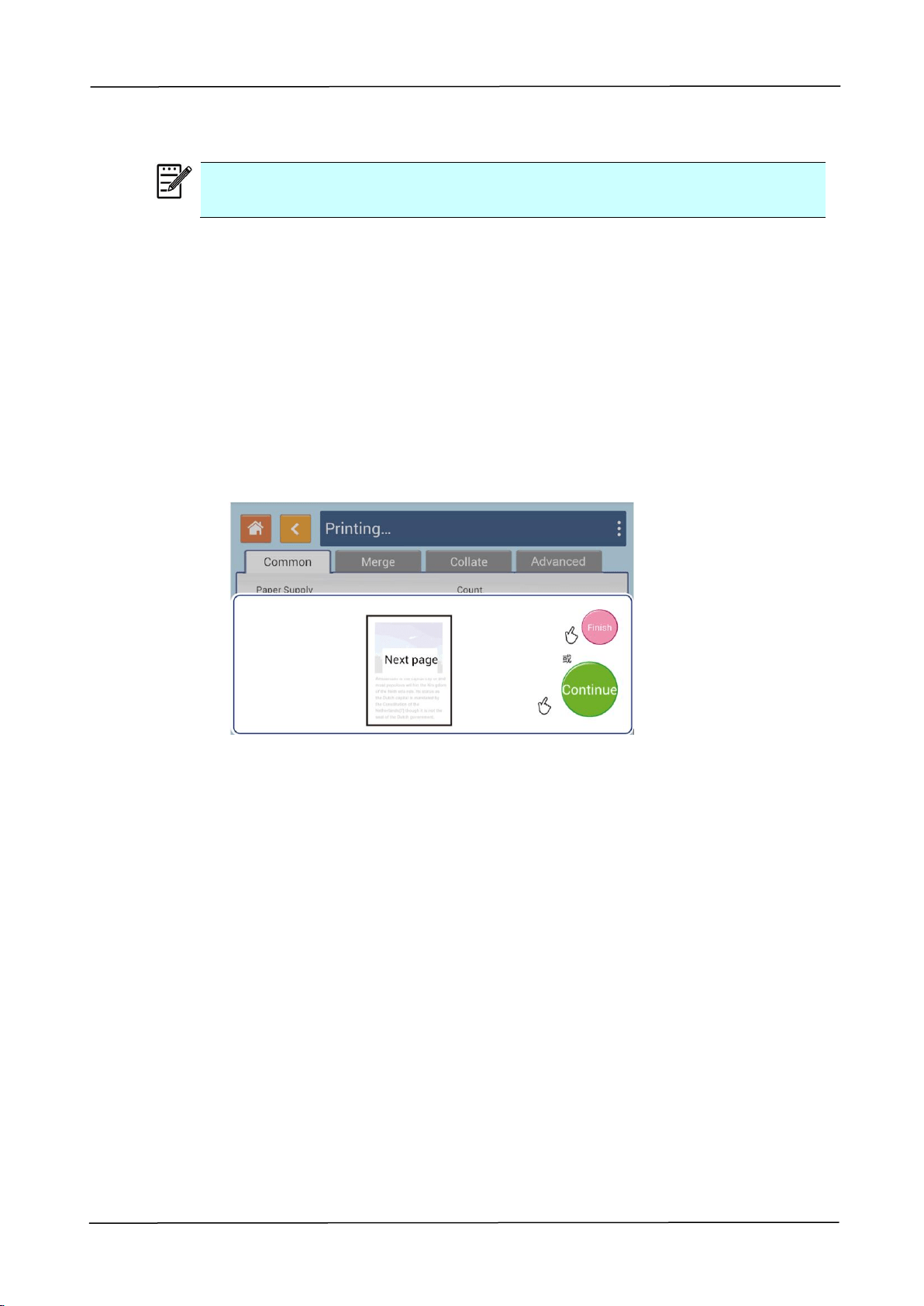
1. Make your document with text FACE DOWN on the document glass.
2. Tap the 「Drop N Take」button on the main screen, and the following 「Copy」
screen will be displayed.
Confirm or change Copy options as desired such as Paper Supply, Scaling, Density,
Auto Fit, Bind, and Duplex Output.
3. Press to complete.
3. Operation
53
Using the [Bind] Feature
Important:
The 「Bind」feature is only available for flatbed copy.
When the [Bind] feature is turned on, copy for the 1
st
sheet or 1
st
stack of document
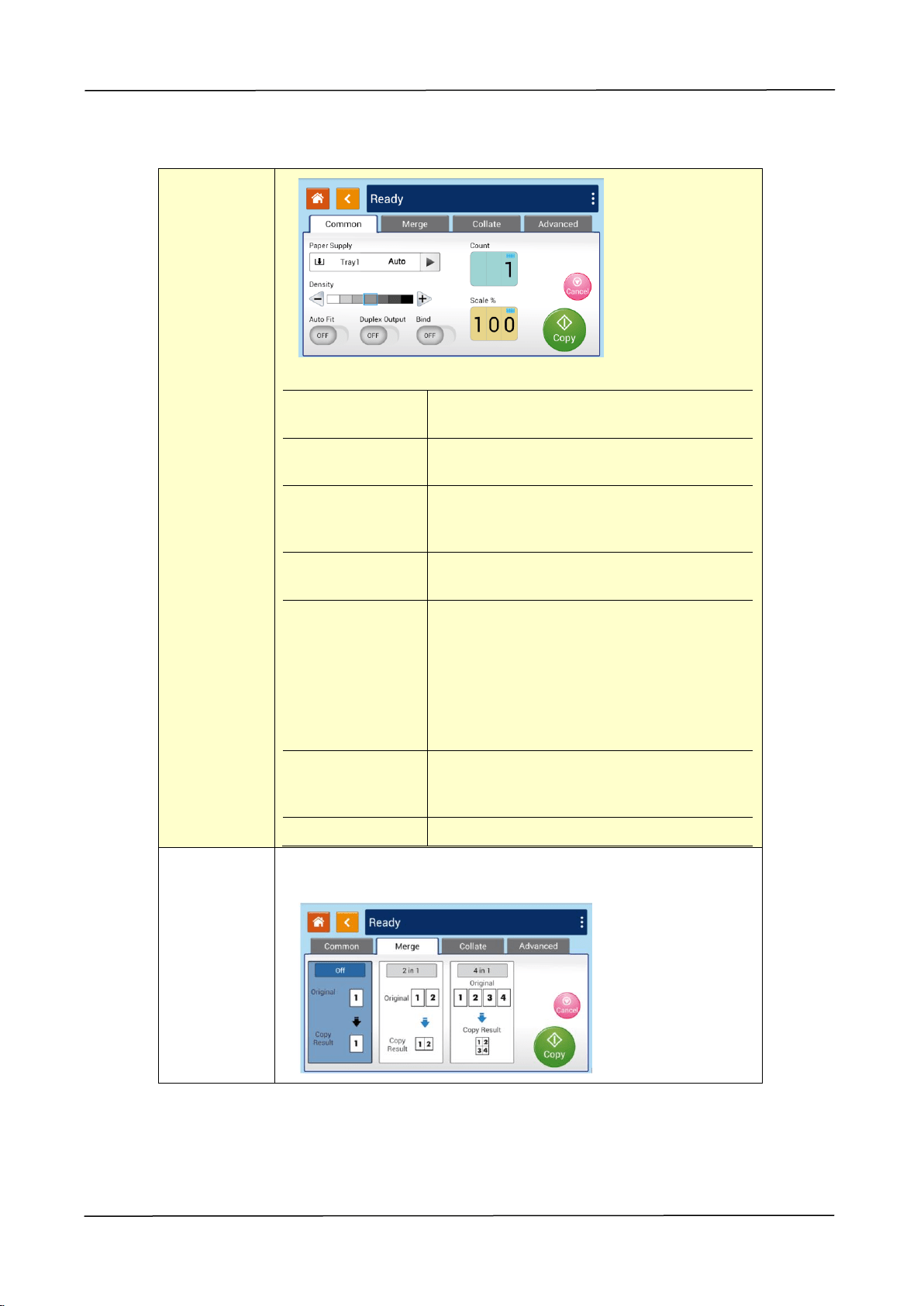
will be completed first. Then the following screen will be prompted indicating that the
next sheet or stack of document is ready to be placed.
>> To end your job, tap「Finish」.
>> To copy next sheet or next stack, open the document cover to remove first
sheet and then place next sheet on the glass, tap [Continue] to complete
your copy; or place your next stack of document in the document feeder and
then tap [Continue] to complete.
54
Copy Settings:
Common
Paper Supply
Choose your paper supply. Choice:
Auto, Tray 1, Tray 2, Manual Tray.
Density
Lighten or darken your original.
Levels: 1~7 (default: 4)
Auto Fit
Check this option to automatically
reduce or enlarge your original
according to output paper.
Duplex Output
Choose if you wish duplex output to
save paper.
Bind
Choose if you wish to open the 「Bind」
feature. The bind feature lets you scan
multiple multi-page documents
continuously from the ADF or multiple
single-side paper continuously from
the glass.
Choice: On/Off
Scale%
Choose if you wish to reduce or
enlarge your original. Range:
25~400% (default=100%)
Count
Enter your copy count.
Merge
Choose if you wish to merge your multi-page document.
Choice: Off/2-in-1/4-in-1
3. Operation
55
Collate
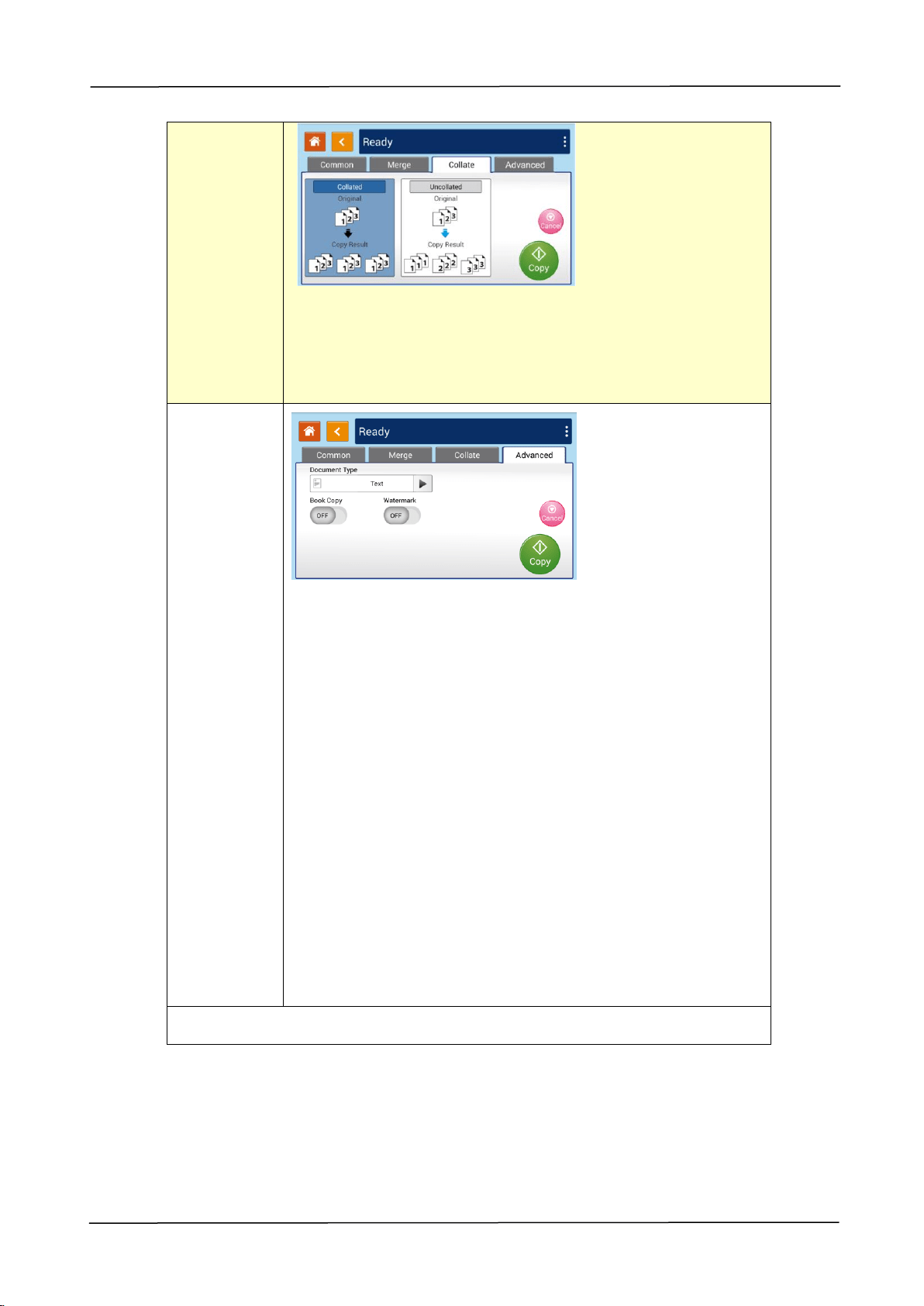
Collated: Place your copies in 「Sort」 order (e.g. page
1,2,3 /1,2,3 /1,2,3).
Uncollated: Place your copies in 「Stack」order (e.g.
1,1,1/2,2,2/3,3,3).
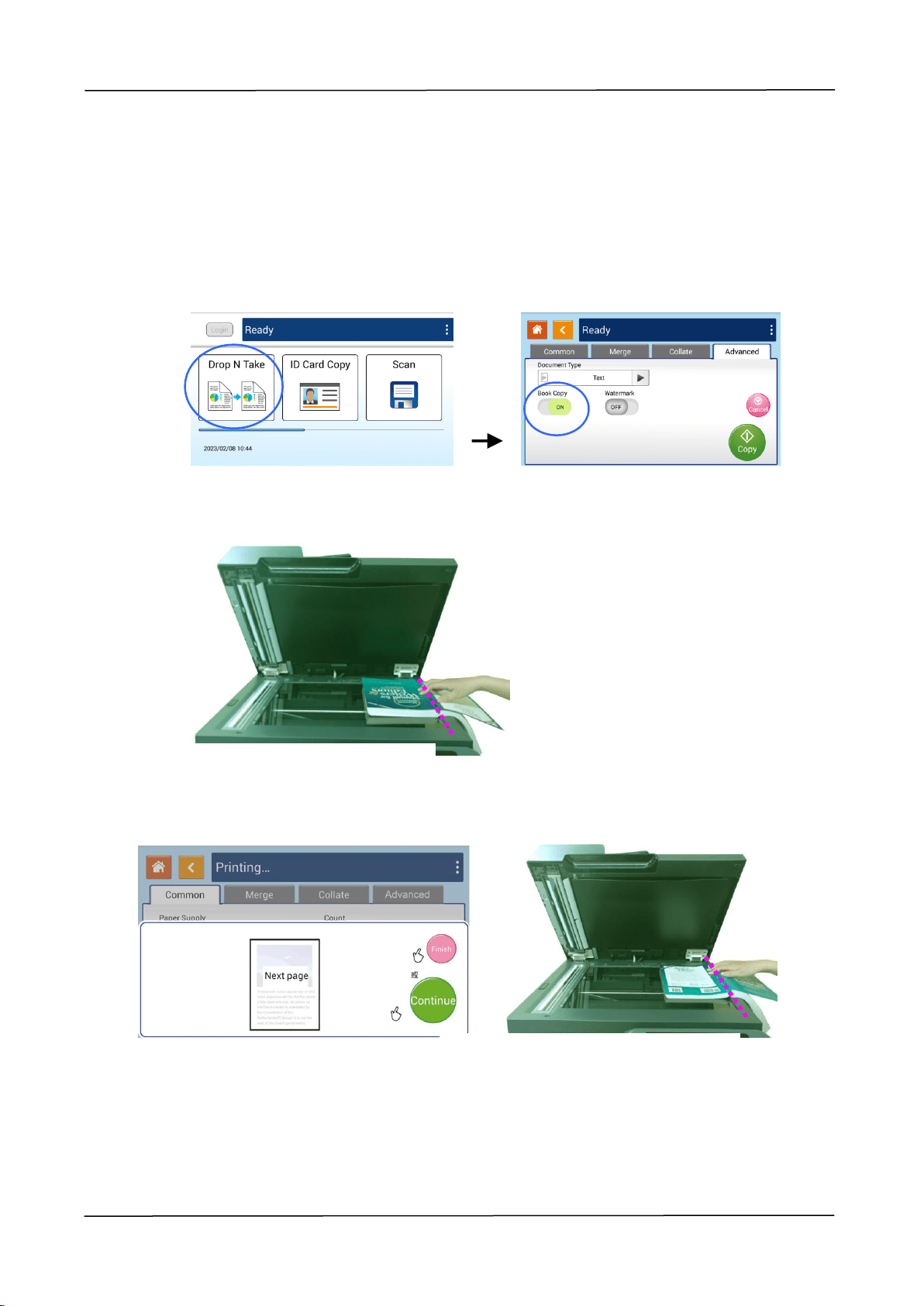
Advanced
The "Advanced" page provides more functions, such as
document mode, book copy, watermark, etc.
Document mode: *Text, Mixed Mode
Text: Sharpen the text of the original to make the text
clearer.
Mixed Mode: Optimize the picture to make it look more
vivid.
Book Copy: Turn on the "Book Copy" function, the [auto
crop] and [auto rotation] features will be turned on. In
addition, the [Duplex Copy] and [Batch Scan] will also be
turned on in default to save your paper. Refer to the
instructions on the next page for the book copy procedure.
Watermark: Use the watermark function to add text such
as confidential, important, draft etc. to the document. After
turning on the function, you can enter the text of the
watermark, set its size (large, medium, small) and angle (0
degrees, 45 degrees, 90 degrees, 135 degrees). Options:
ON, Off
* Default settings is shown in italic bold style
56
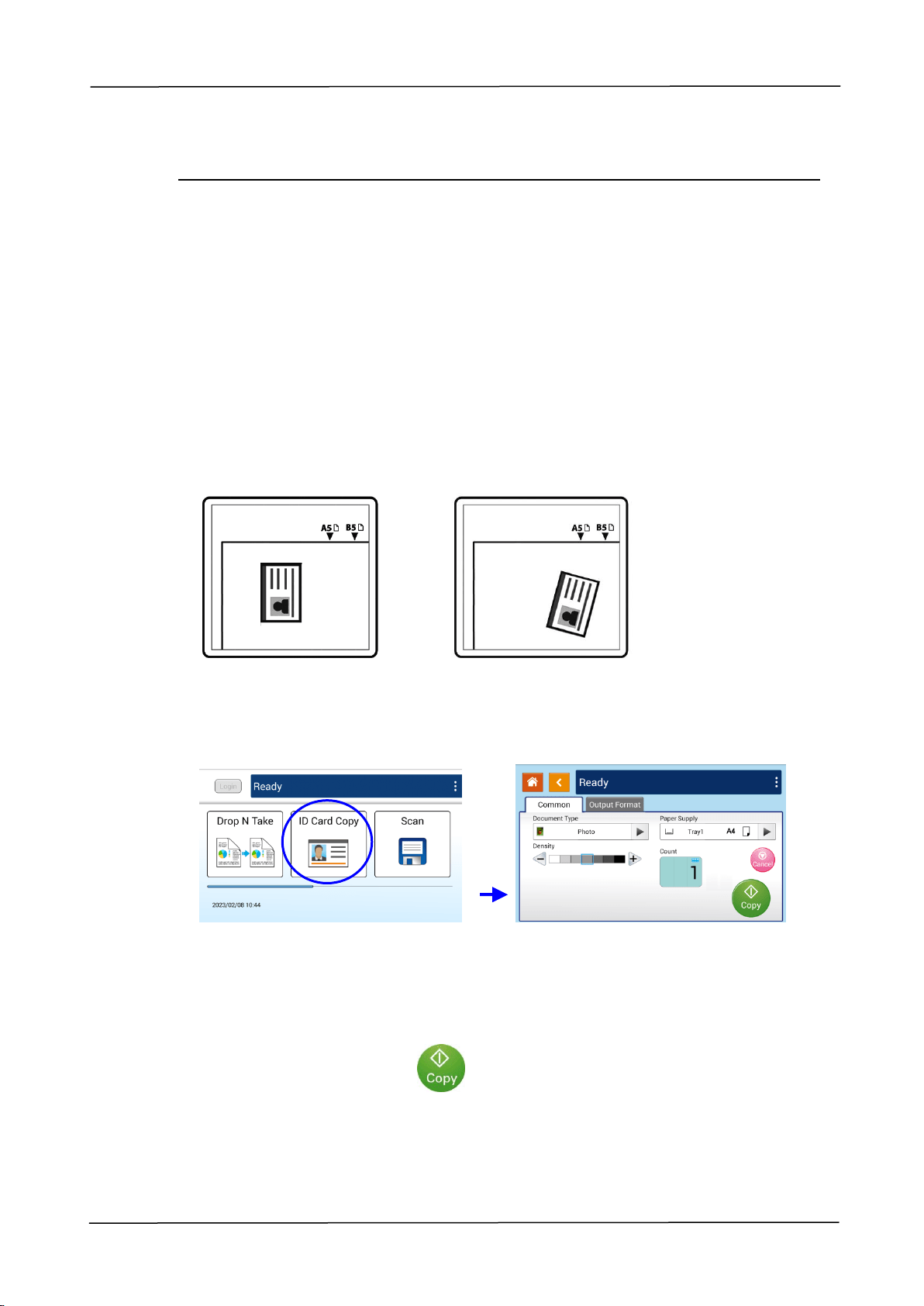
Book Copy
Follow these steps to make book copy:
1. Press the [Drop N Take] button on the main screen and then choose [Advanced].
Turn on the [Book Copy] feature.
2. Open document cover. Align the book spine with the right edge of the glass as
shown.
3. The following dialog box will be prompted after 1
st
page is scanned, turn to next
page and align the book spine with the edge of the glasss platen and then press
[Continue].
4. Continue to copy the rest pages.
5. Press [Finish] if the book copy is completed.
3. Operation
57
ID Card Copy
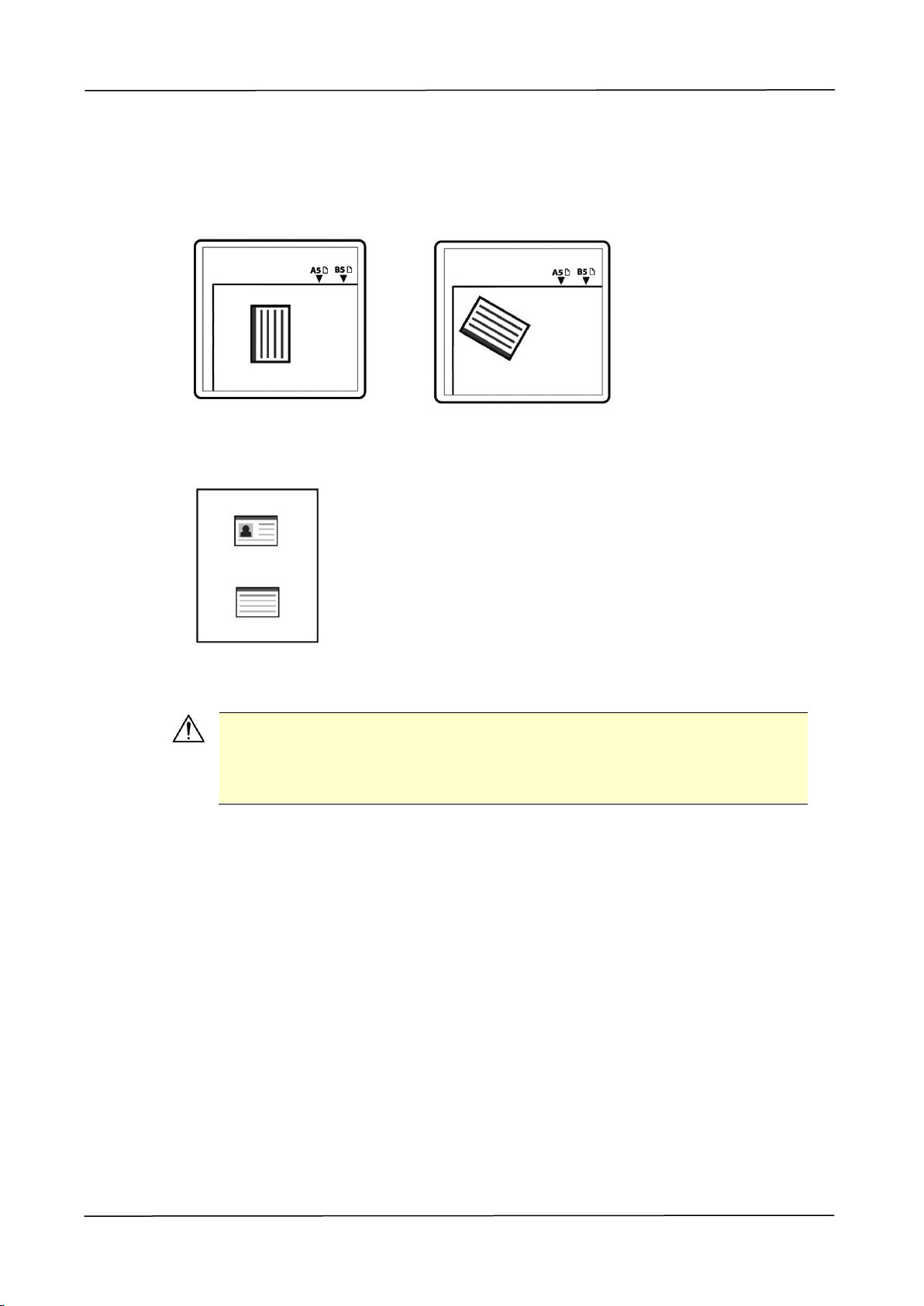
The product is designed with the auto crop and deskew feature which allow you to
easily place your document on the glass platen without the need to carefully align
your document to the starting point. Even though the document is placed with a
slight angle as illustrated in below, the front side and rear side of your ID card can be
copied perfectly on a single sheet of paper.
The Operation Steps:
1. Place one side of your ID card FACE DOWN, aligned with the 「ID Card」mark as
indicated below:
2. Tap the 「ID Card Copy」button on the main screen, and the following 「ID Card
Copy」screen will be displayed.
3. Confirm or change ID Card Copy options.
4. Enter your copy count with the Up /Down key.
5. Tape the 「Copy」button on the touch panel to start copying your card.
6. After the first side scanning is finished, the「Do you wish to continue?」dialog
box will be prompted.
58
7. Open the document cover and place the other side of your card, aligning it with
the「ID Card」mark as illustrated.
8. Tap「Yes」on the touch panel to continue scanning the other side of your card or
tap「Cancel」to leave the screen. The result is illustrated in below:
Important!
The ID Card Copy feature does not support loading your cards from the
auto document feeder.
3. Operation
59
「ID Card Copy」 Settings
Items
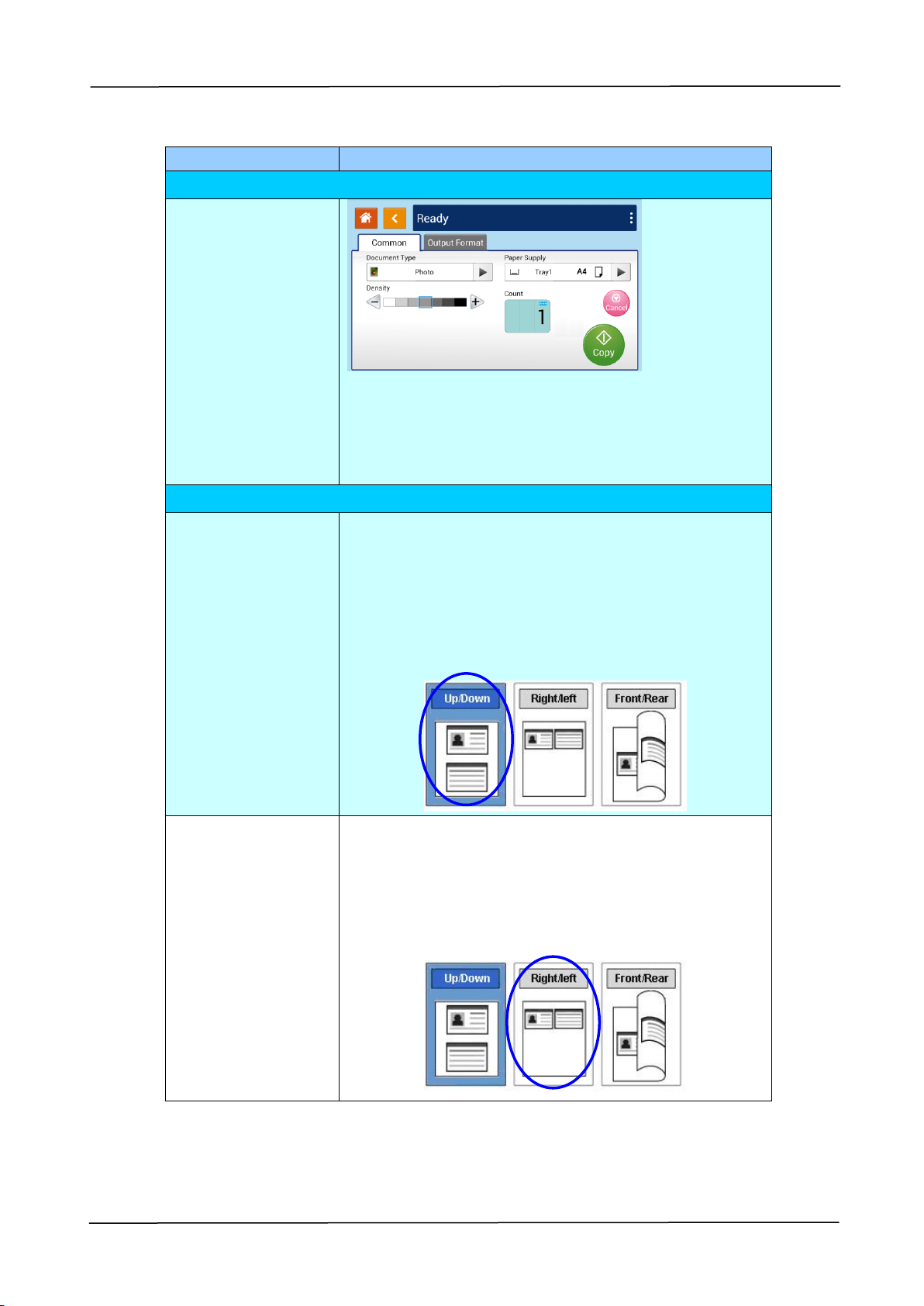
Description
Common
Document Type: Choose your document type.
Choice: Text, Photo
Paper Supply: Choose your paper supply. Choice:
Auto, Tray 1, Tray 2, Manual Tray.
Density: Lighten or darken your original. Levels:
1~7 (default: 4)
Output Format
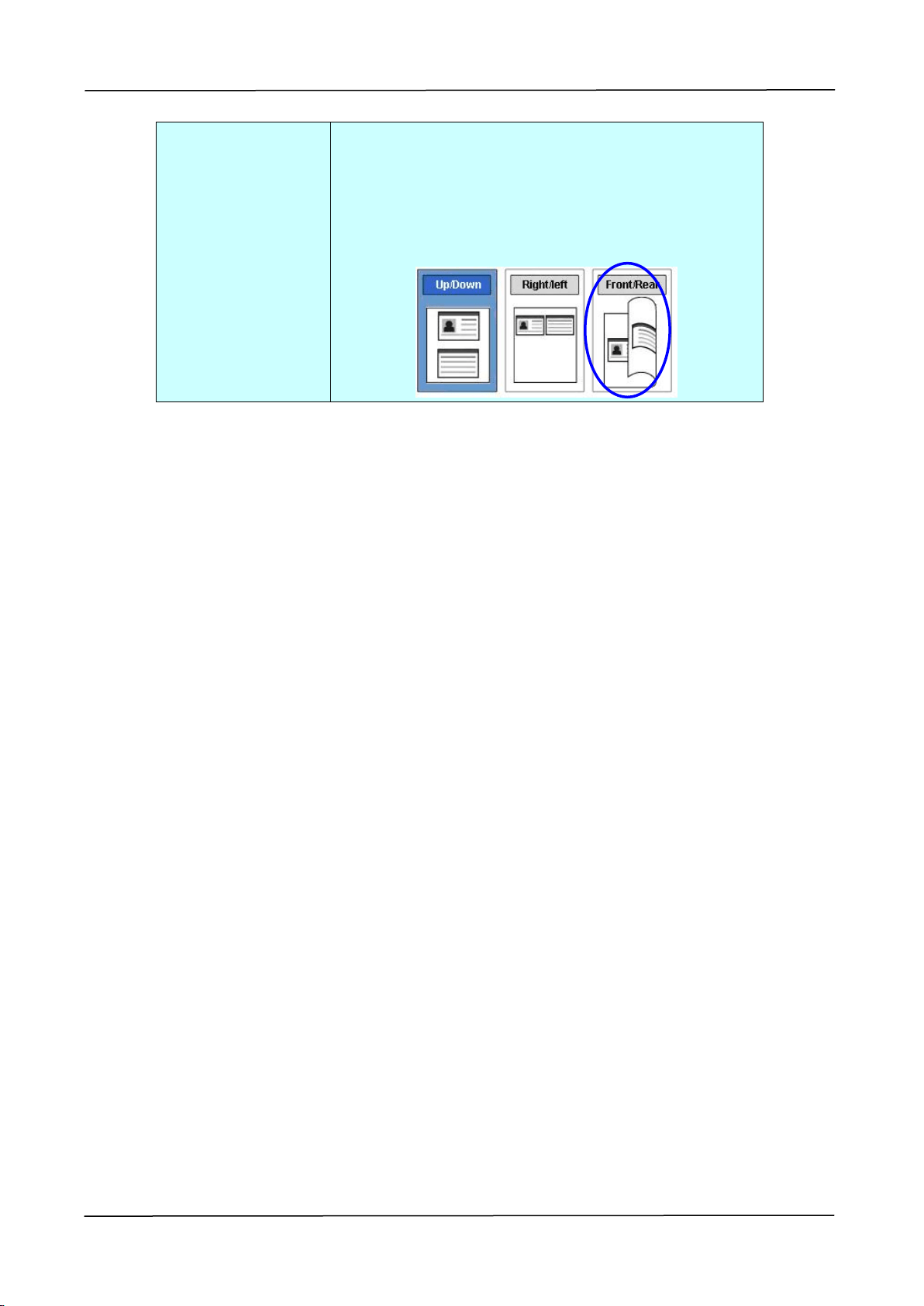
ID Card Copy
(Up/Down)
Copy the front and rear side of your ID card on the
upper and bottom half of one side of a sheet. Two
scans are required to complete the task. The first
scan of one side of card will be copied on the upper
half while the second scan of the other side of card
will be copied on the bottom half of one side of your
sheet.
ID Card Copy
(Right/Left)
Copy the front and rear side of your ID card on the
right and left side of a sheet. Two scans are required
to complete the task. The first scan of one side of
card will be copied on the right side while the second
scan of the other side of card will be copied on the
left side of one side of your sheet.
60
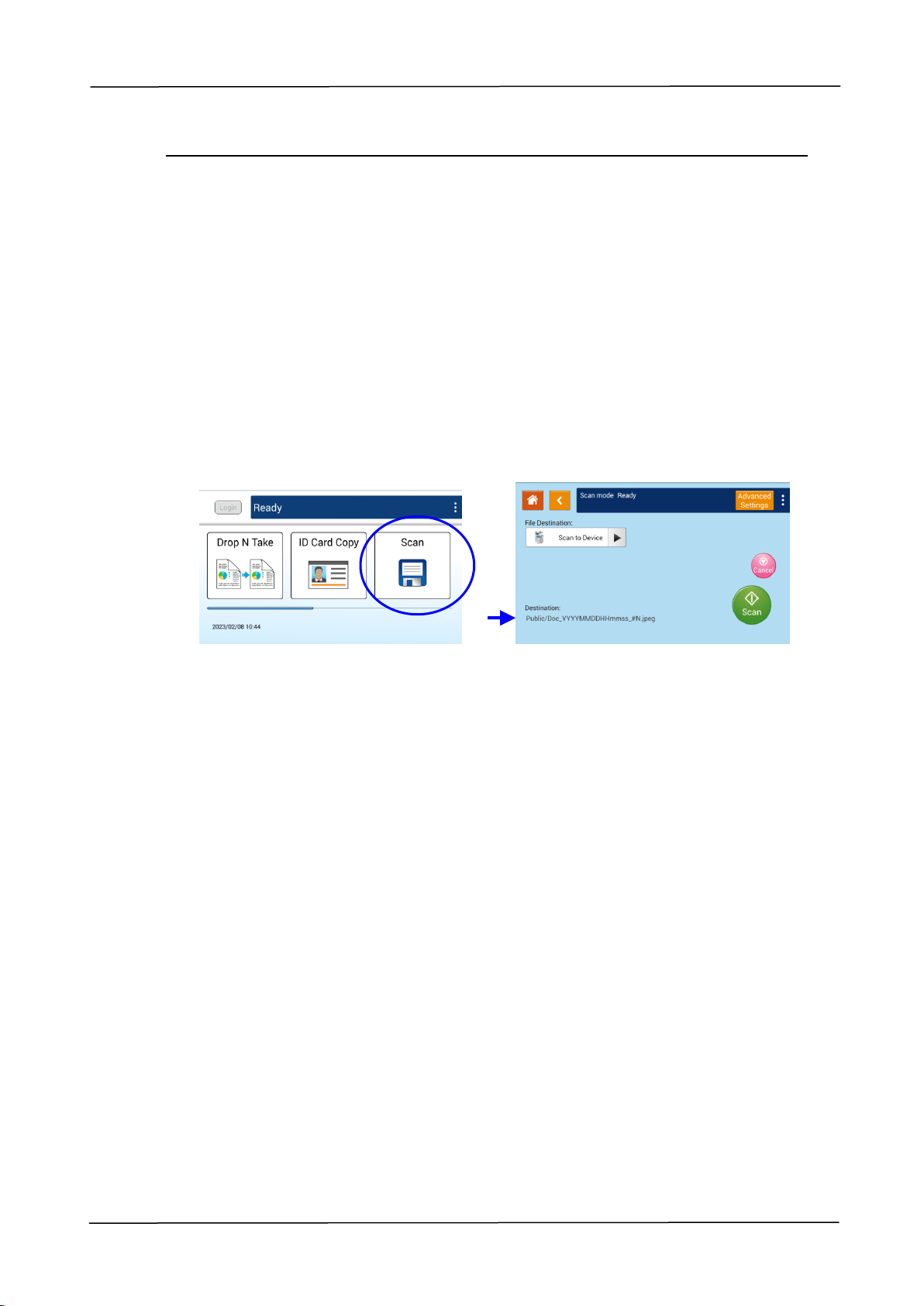
ID Card Copy
(Front/Rear)
Copy the front and rear side of your ID card on the
front and rear side of a sheet. Two scans are
required to complete the task. The first scan of one
side of card will be copied on the front side while the
second scan of the other side of card will be copied
on the rear side of one side of your sheet.
3. Operation
61
Scan
The scan function allows you to first scan your documents and then send the scanned
image to a specified destinations such as Scan to Device (this product’s memory), or
Scan to USB (an inserted USB flash drive).
The Operational Steps:
1. Place your multi-page document Face Up and Top First in the auto document
feeder or single-page Face Down on the document glass.
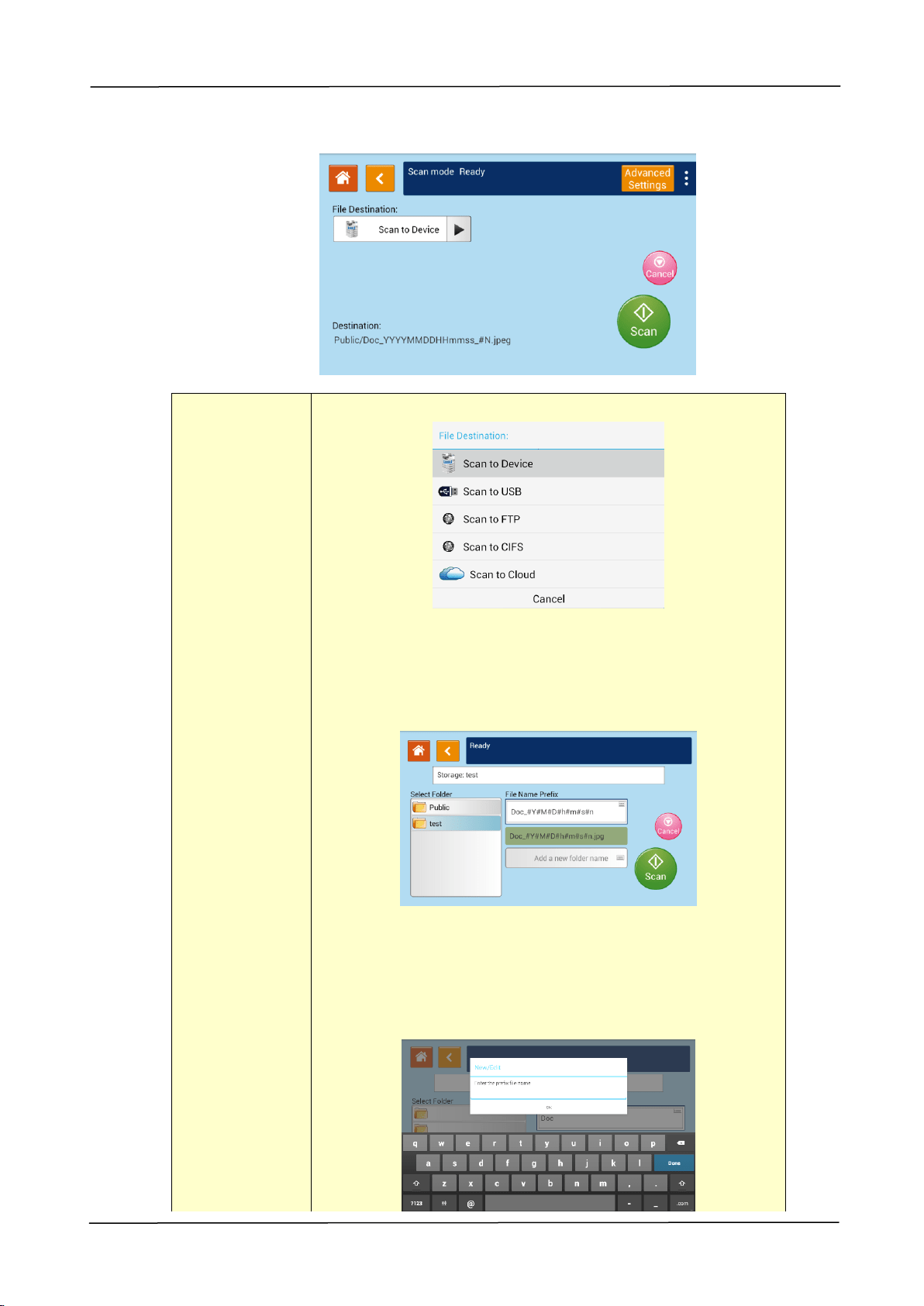
2. Tap the「Scan」button on the touch screen, and the「Scan」screen will be
displayed.
3. Tap「Scan to Device」to choose your scan-to destination.
Scan to Device: Send the scanned document to the product’s memory.
(Download the image through the embedded web page.)
Scan to USB: Send the scanned documents to the inserted USB flash drive.
4. Tap [Advanced Settings] to confirm or change Scan options as desired such
as Resolution, Output Color, Density, 1/2-Sided Scanning, File Format, Folder, or
Original Size.
Resolution: Choose the resolution of the scanned image. The higher the value,
the more details can be reviewed yet more disk space will be
required. Choice: 150/200/300/600 dpi
150 dpi: Suits to be viewed on the screen.
200 dpi: Suits for most business document.
300 dpi/600 dpi: High quality image helps increase OCR (optical
character recognition) accuracy.
Color Mode: Choose your desired color mode. Choice: Color、Gray、B&W
Original Size: Choose your scan size. Choice: Auto, A3, A4, A4, A5, B4,
B5
1/2-Sided: Choose if you wish to scan one side or both the front and rear side
of your document. Choice: 1-Sided、2-Sided
Density: Lighten or darken your original. Levels: 1~7 (default: 4)

62
File Format: Choose your desired file format for the scanned image. Choice:
M-PDF (Multi-Page PDF)、PDF (Single-Page PDF)、JPEG、BMP、
TIFF。
* The default settings is shown in italic bold style.
5. Tap the 「Scan」 button on the touch screen to start scanning and
sending your document.
3. Operation
63
Scan setting description:
File
Destination
Choose the destination of your scanned document.
Choice: Scan to Device/Scan to USB/Scan to FTP/Scan
to CIFS
Scan to Device: Send the scanned document to the
product’s memory. (Download the image through the
embedded web page.)
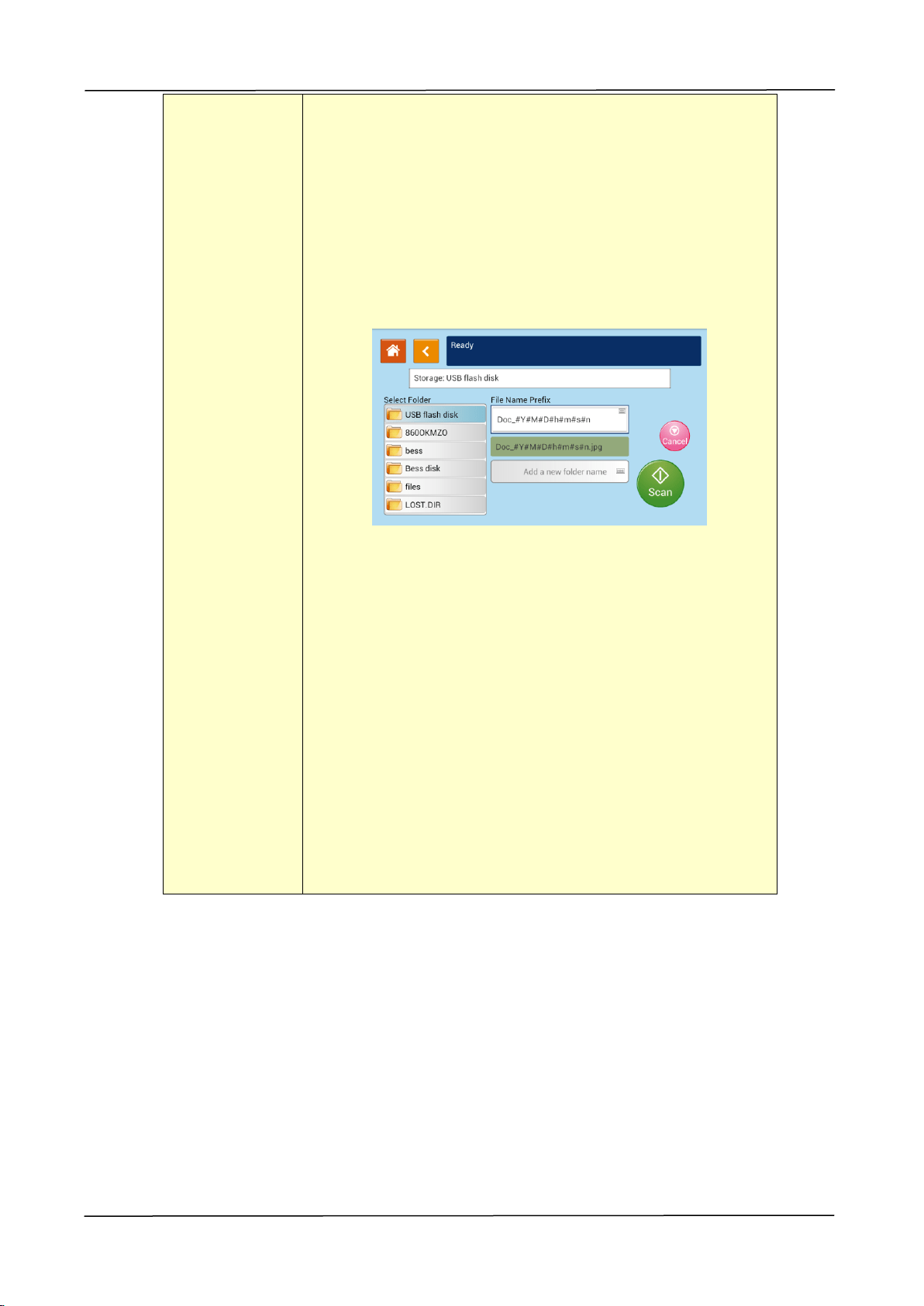
Tap「Add a new folder name」to create a new folder.
(To delete a current folder, open the embedded
web page. )
File name Prefix:Tap the blank field to enter your desired
prefix. Tap 「OK」to leave the keyboard screen.
64
Naming Method:Prefix_YYMMDDHHMMSS_#N. For
example, 「Marketing_150213144840_3.pdf」indicates
Marketing(prefix) 2015 (year) 2 (February) 13 (date) 14
(hour) 48 (minute) 40 (second) 3(serial number) (the
time the file has been sent)。
Scan to USB: The scanned image will be sent to the USB
flash drive inserted to the product.
Tap 「Add a new folder name」to create a new folder in the
USB flash drive.
Naming Method:Prefix_YYMMDDHHMMSS_#N. For
example, 「Marketing_150213144840_3.pdf」indicates
Marketing(prefix) 2015 (year) 2 (February) 13 (date) 14
(hour) 48 (minute) 40 (second) 3(serial number) (the
time the file has been sent)。
Note: The disk format for the USB flash drive supports
only FAT16, and FAT32。
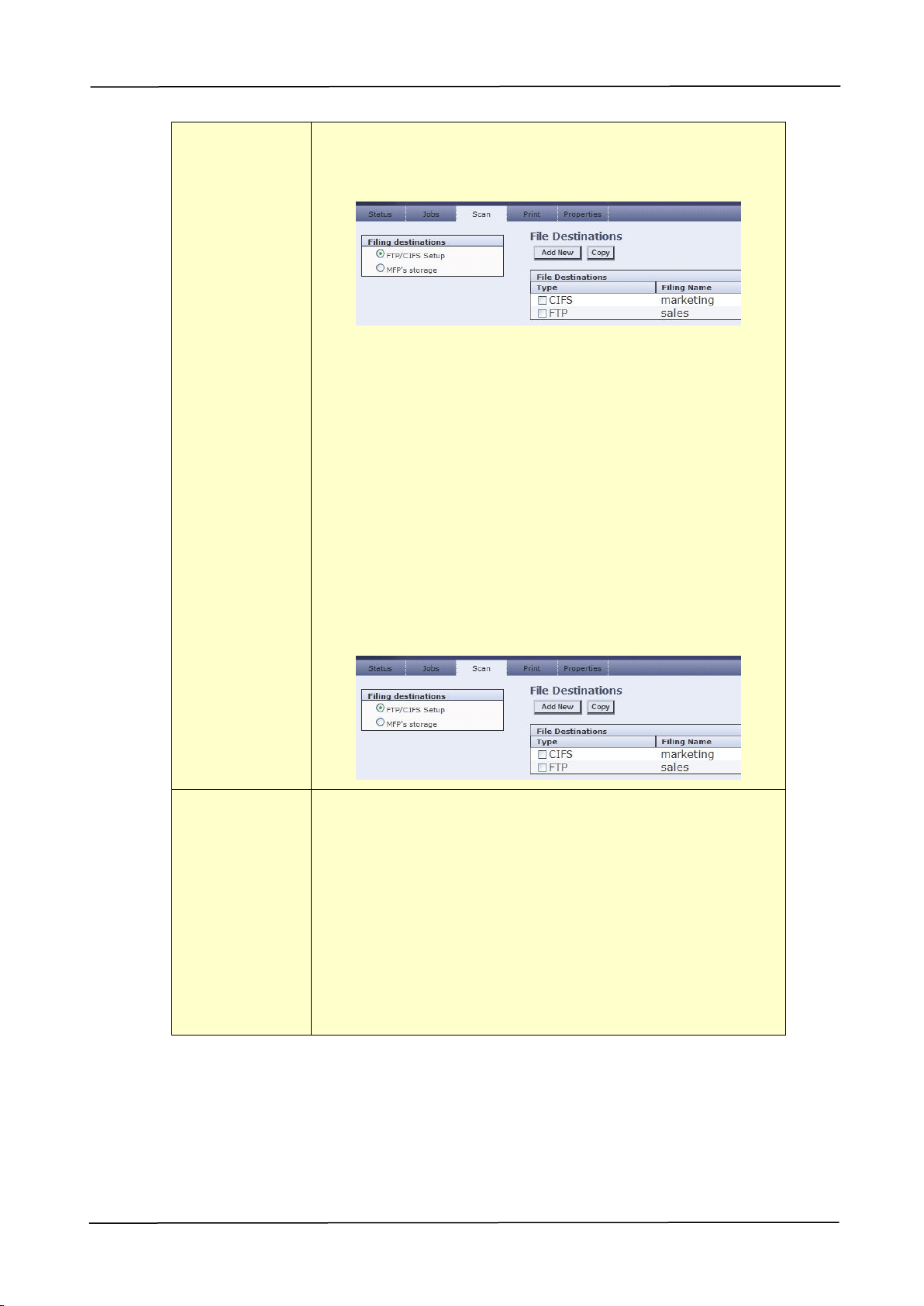
Scan to FTP: Send the scanned image to FTP server in
the network.
3. Operation
65
To edit (add/modify/delete) the FTP destination, please go
to the product’s embedded web site and then choose
Filing destination as shown in below:
Naming Method:Prefix_YYMMDDHHMMSS_#N. For
example, 「Marketing_150213144840_3.pdf」indicates
Marketing(prefix) 2015 (year) 2 (February) 13 (date) 14
(hour) 48 (minute) 40 (second) 3(serial number) (the
time the file has been sent)。
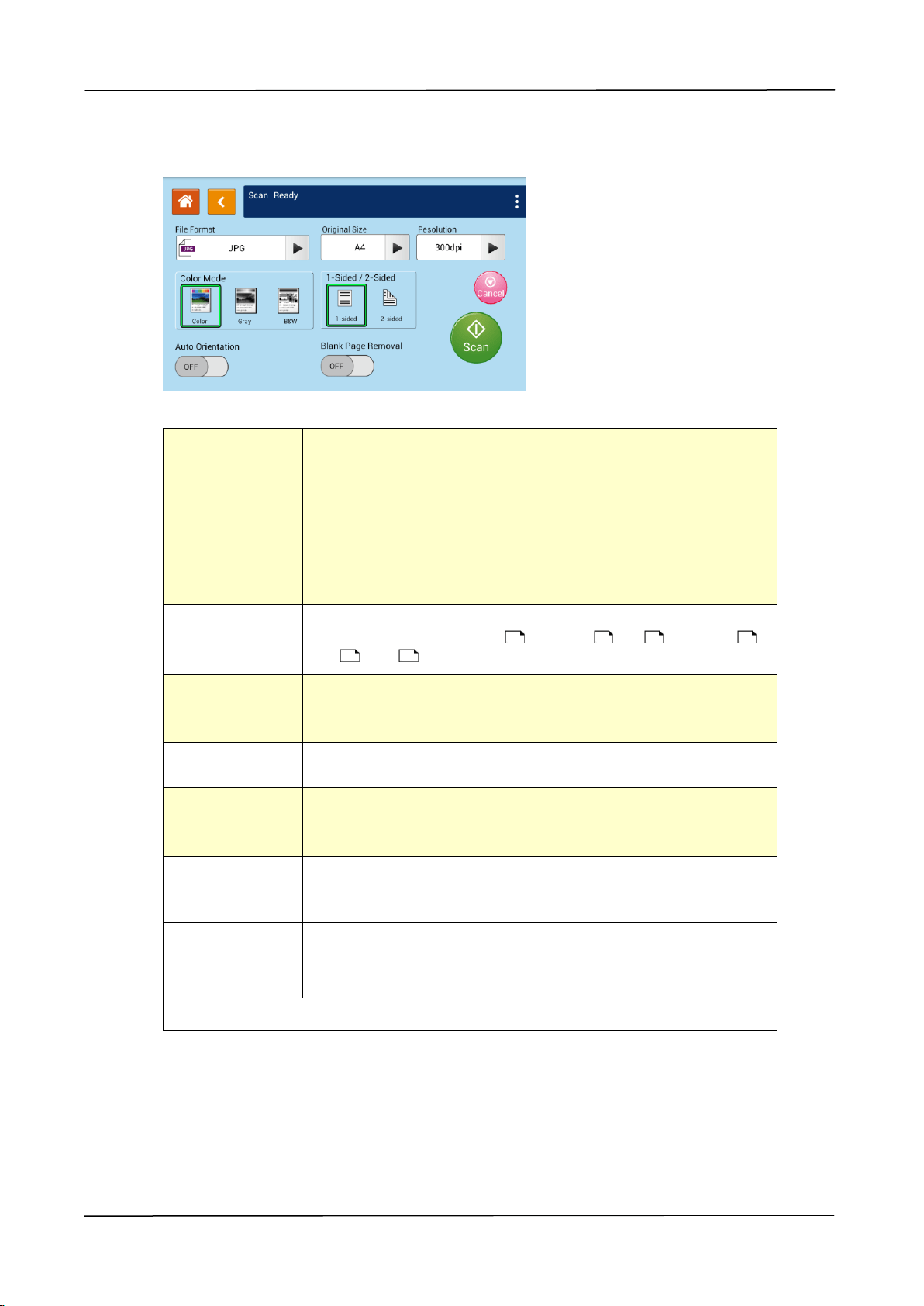
Scan to CIFS: Send the scanned image to the CIFS
server in the network.
Naming Method:Prefix_YYMMDDHHMMSS_#N. For
example, 「Marketing_150213144840_3.pdf」indicates
Marketing(prefix) 2015 (year) 2 (February) 13 (date) 14
(hour) 48 (minute) 40 (second) 3(serial number) (the
time the file has been sent)。
To edit (add/modify/delete) the CIFS destination, please
go to the product’s embedded web site and then choose
Filing destination as shown in below:
Destination
Display the default folder and file name. Tap the「File
Name Prefix」field to enter your desired prefix.
Directory: Public – indicates root directory in the
product’s memory.
File name: DOC – indicates default prefix, the prefix can
be changed as desired.
YYMMDDHHmmss –YY indicates the last two digits of
year, MM indicates month, DD indicates date, MM
indicates minutes, and SS indicates seconds.
#N – indicates series number.
66
Scan Settings:
Resolution
Choose the resolution of the scanned image. The higher
the value, the more details can be reviewed yet more disk
space will be required.
Choice: 150/200/300/600 dpi
150 dpi: Suits to be viewed on the screen.
200 dpi: Suits for most business document.
300 dpi/600 dpi: High quality image helps increase OCR
(optical character recognition) accuracy.
Original Size
Choose your scan size.
Choice: Auto Detect/B5 , B5/A3 , A4 , A4, A5 ,
LGL , LTR , LTR
File Format
Choose your desired file format. Choice: M-PDF
(Multi-Page PDF)、PDF (Single-Page PDF)、JPG、BMP、
TIF。
Color Mode
Choose your color mode.
Choice: Color、Gray、Black and White
1-Sided/
2-Sided
Choose if you wish to scan one side or both the front and
rear side of your document.
Choice: 1-Sided、2-Sided
Auto
Orientation
Choose if you wish to enable the function of automatically
detecting the orientation of the original document.
Choice: Off/On
Blank Page
Removal
Choose if you wish to automatically remove blank pages
of your document.
Choice: Off/On
* Default settings to be shown in italic bold style

3. Operation
67
Print Saved Job
The Print Saved Job function allows you to print previously stored files directly from
the machine. The previously stored files include the files in your computer and the
files in your removable USB flash drive. Many frequently used forms can be saved
into the product’s memory and then use the [Print Saved Job] function to print the
file on demand.
To save the file into the product’s memory, you need to enable the [Storage Copy]
from the Printer’s [Preference] dialog box and then enter the document’s ID
number. Open the file and then choose Print>AMXXXXi Printer, the file can be saved
into the product’s memory. (Refer to Chapter 5 for more detail in page 116)
To print the file in your removable flash drive, simply insert your removable USB
flash drive into the USB port on the left end of the control panel and then choose the
file from the [Print Saved Job] screen. Note: Only jpeg and pdf file formats are
supported.
The Operation Steps:
1. Place your multi-page document Face Up and Top First in the auto document
feeder or single-page Face Down on the document glass.
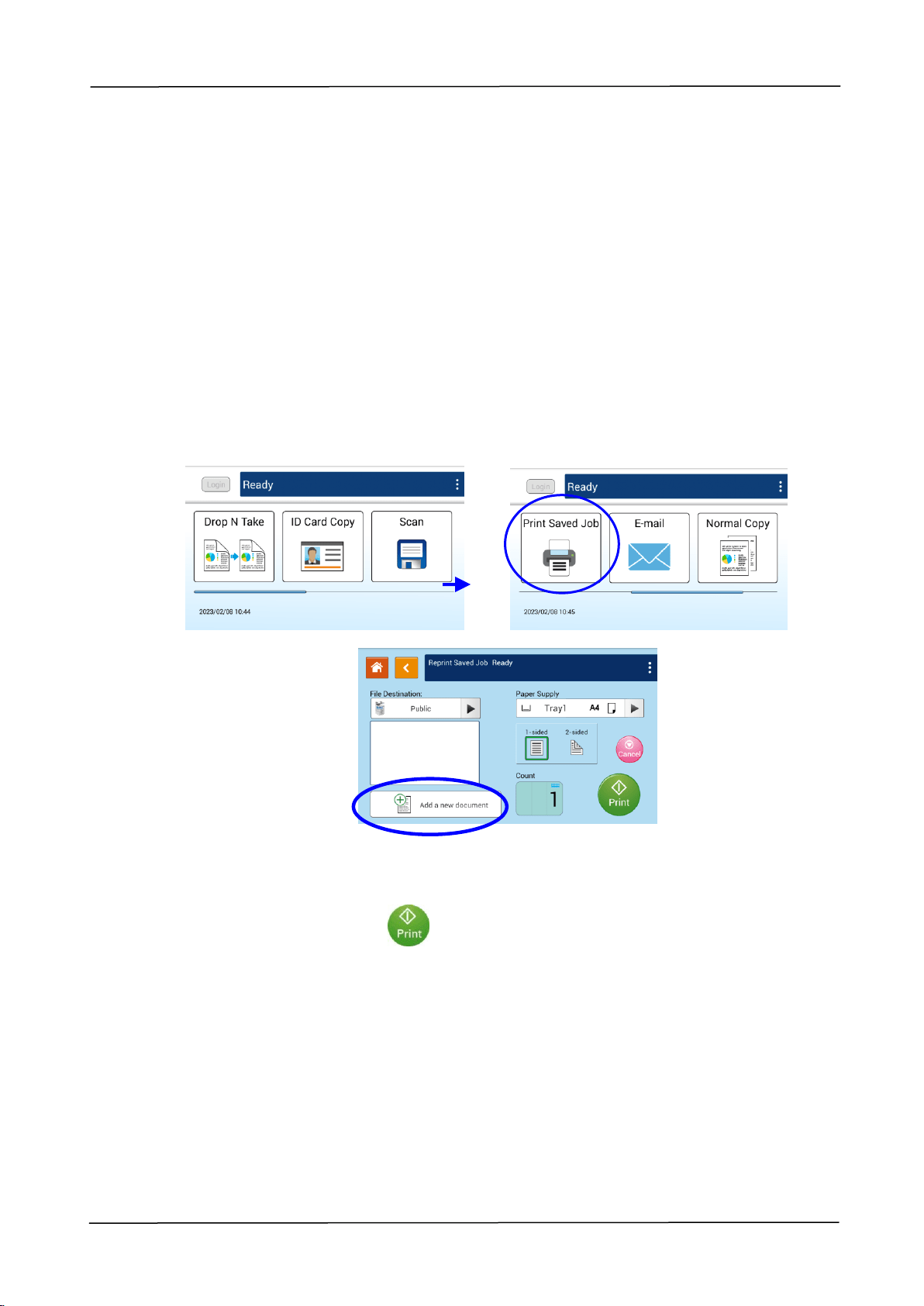
2. Slide the scroll bar and then tap the 「Print Saved Job」button on the touch
screen, and the「Print Saved Job」screen will be displayed as shown.
3. On the 「File Destination」 option,choose the destination of your file such as
Public (the product’s memory), or the inserted USB flash drive. You can also
type in your key word for a destination, and tap to search the
destination.

68
4. Confirm or change print options as desired such as Paper Supply, 1/2-Sided,
Count.
Paper Supply: Choice: Auto Select, Manual, Tray1, Tray2
1-Sided /2-Sided: Choose to print one side or two sides of your document.
Choice: 1-Sided, 2-Sided
* The default settings will be displayed in italic bold style.
5. Enter your print count by sliding the Count roller.
6. Tape the 「Print」button on the touch panel to start printing your
document.
3. Operation
69
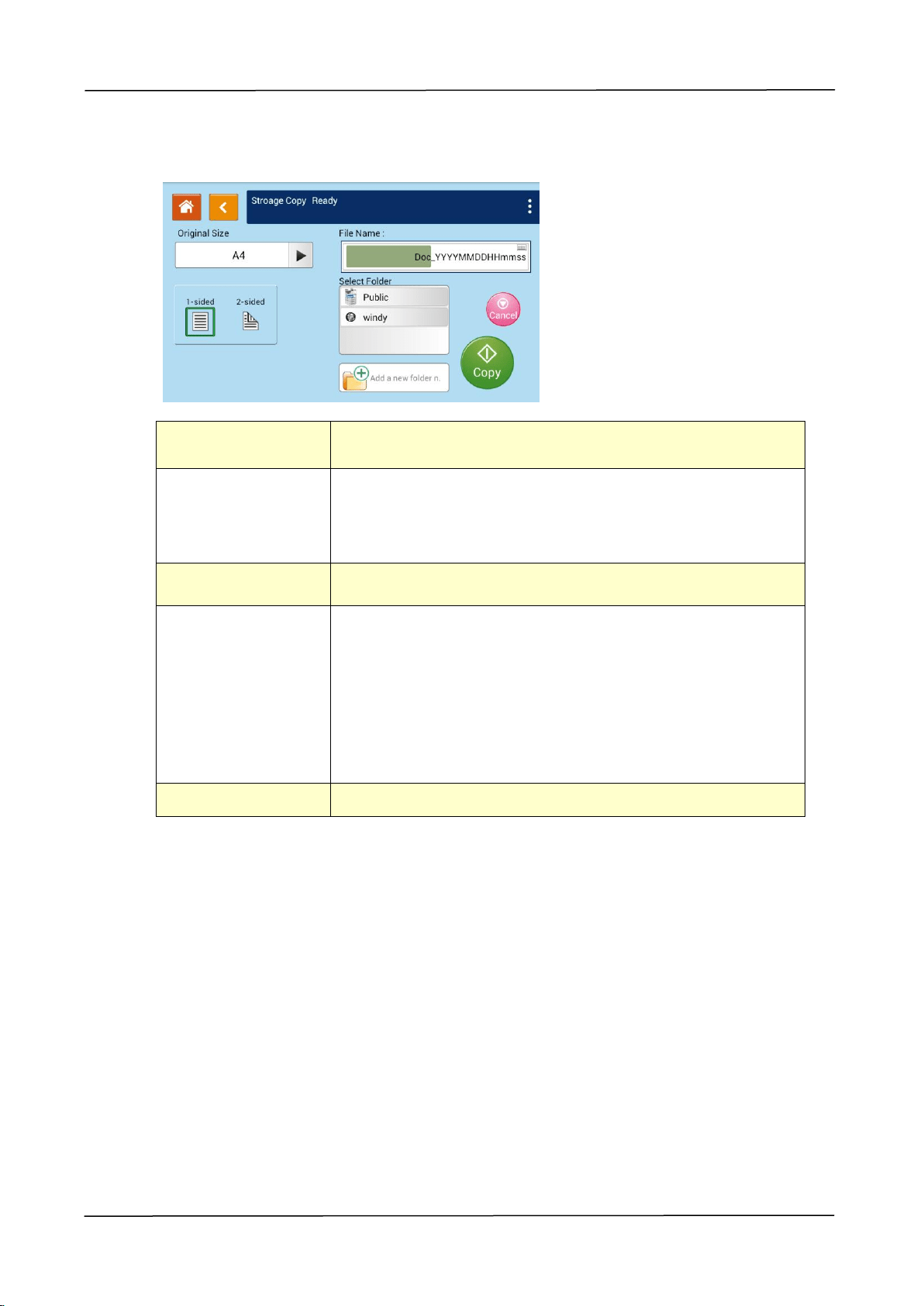
Add a New Document:
The 「Add a New Document」 function allows you to scan your document and save
the copy job (the scanned image) temporarily in the product’s memory. Print the file
at a later date when necessary.
The Operation Steps:
1. Place your document(s) with text FACE UP in the ADF or FACE DOWN on the
glass.
2. Slide the scroll bar and then tap the 「Print Saved Job」button on the touch screen
and then select [Add a new document]. The 「Add a new document」 screen will
be displayed.
3. Set up your desired options respectively. For detailed information about these tab
options, please refer to the next page.
4. Tap the「Print」button on the touch screen to start copying your document
to the product’s memory.
70
Setting Description
(The default settings is shown in Italic bold style)
Original Size
Choose your scan size. Choice: Auto, A3, A4, A4,
A5, B4, B5
2-Sided Copy
1-Sided: Copy single-sided originals onto one side of
one sheet of paper.
2 -Sided: Copy double-sided original onto two sides of
one sheet of paper.
Density
Lighten or darken your original. Levels: 1~7 (default: 4)
File Name
Store a file by your specified prefix filename.
Naming Method:Prefix_YYYYMMDDHHMMSS.file format.
For example, 「Marketing_150213144840.pdf」indicates
Marketing(prefix) 2015 (year) 2 (February) 13 (date) 14
(hour) 48 (minute) 40 (second) (the time the file has
been sent)。
Select Folder
Select a folder to store the job (scanned image).
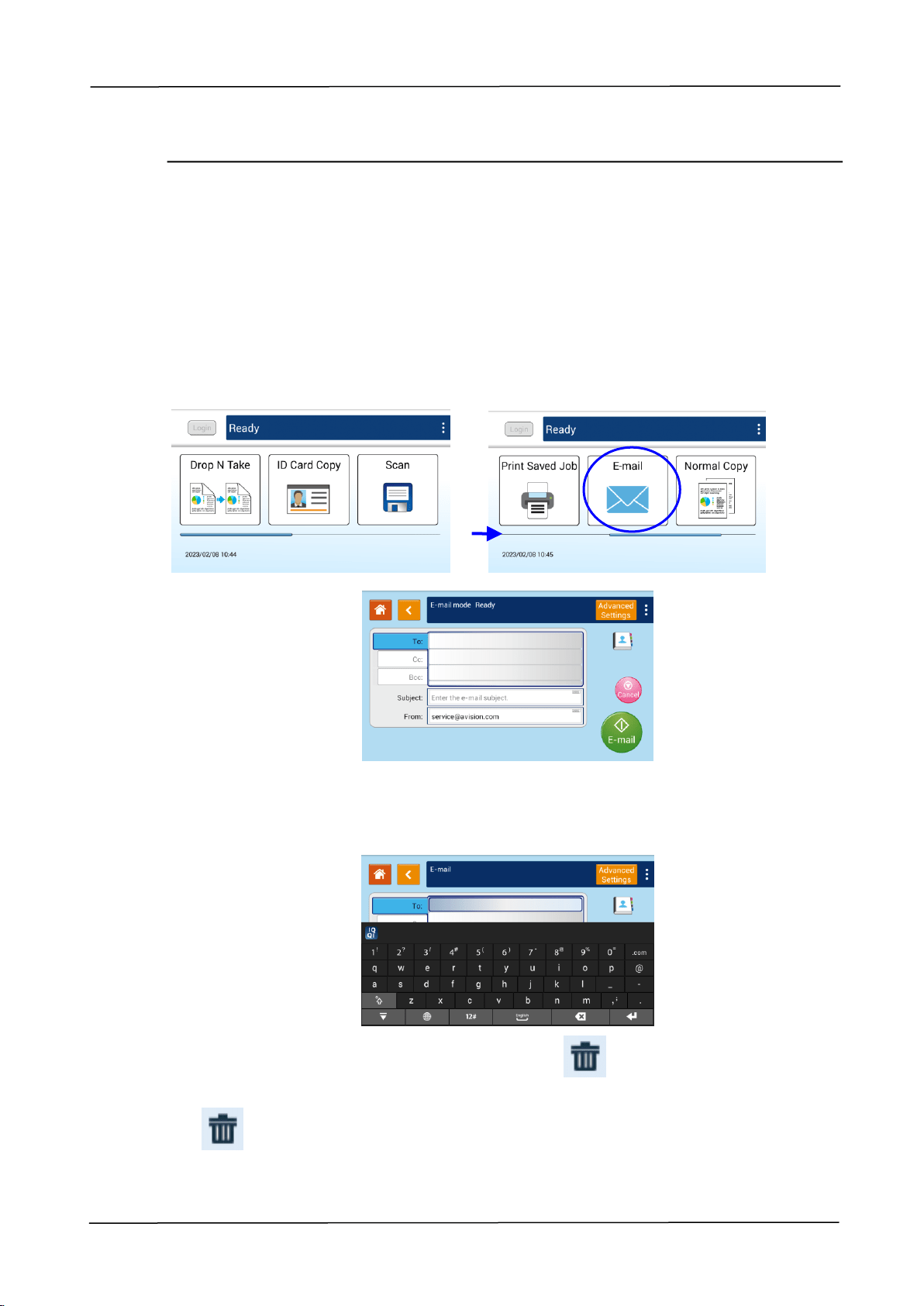
3. Operation
71
E-Mail
The 「E-Mail」 function allows you to scan your documents and send the scanned
image to your recipients via e-mail.
The Operation Steps:
1. Place your multi-page document Face Up and Top First in the auto document
feeder or single-page Face Down on the document glass.
2. Side the scroll bar and then tap the「E-Mail」button on the touch panel to prompt
the「E-Mail」 screen.
3. Tap the blank field of To option, and a soft keyboard screen appears. Enter your
recipient’s email address and press to complete.
After completing entering the email address, a recycle bin icon will be
displayed at the right corner.
: Tapping the button allows you to instantly delete the current To
addresses.

72
4. If necessary, tap the blank field of the 「CC」and 「BCC」option to enter the e-mail
address of the rest recipients.
5. Tap the blank field of Subject option, enter the e-mail subject, and tap [OK] to
confirm the subject.
6. Tap the blank field of From option, enter the sender’s e-mail subject, and tap [OK]
to complete.
Note: The sender’s address is a must item you need to fill before sending the
scanned image.
7. Tap 「Advanced Settings」to confirm or change E-mail options as desired such as
Resolution, Output Color, Original, 1/2-Sided Scan, File Format. Also touch other
tabs for more options.
「Quality」: Choose the resolution of the scanned image. The higher the value,
the more details can be reviewed yet more disk space will be required. Choice:
150/200/300/600 dpi
150 dpi: Suits to be viewed on the screen.
200 dpi: Suits for most business document.
300 dpi/600 dpi: High quality image helps increase OCR (optical character
recognition) accuracy.
「Color Mode」: Choose your desired color mode. Choice: Color、Gray、B&W
「Original Size」: Choose your scan size. Choice: Auto, A3, A4, A4, A5,
B4, B5
「1-Sided/2-Sided」: Choose if you wish to scan one side or both the front and
rear side of your document. Choice: 1-Sided、2-Sided
「File Format」: Choose your desired file format for the scanned image. Choice:
Multi-Page PDF、Single-Page PDF、JPEG、BMP、TIFF。
「Auto Detects the Original Orientation」: Choose if you wish to enable the
function of automatically detecting the orientation of the original document.
Choice: Off, On
* Default settings is shown in italic bold style
8. Tape the 「E-mail」 button on the touch panel to start scanning and
sending your document.
Notice:
The product does not preset the sender’s e-mail address. Users are free
to enter their own favorite sender’s e-mail address.
The administrator of this product can preset a third-party’s address as
the sender’s e-mail address to save user’s time in typing the address. At
the same time, add 「no reply」in the original subject field to avoid
recipients reply to the address. To preset the sender’s e-mail address
and the subject, press the 「Machine Status」button on the control panel
and press choose Tools>Service Settings>E-mail Service
Settings>Feature Default in succession and modify the subject and
sender’s e-mail address.
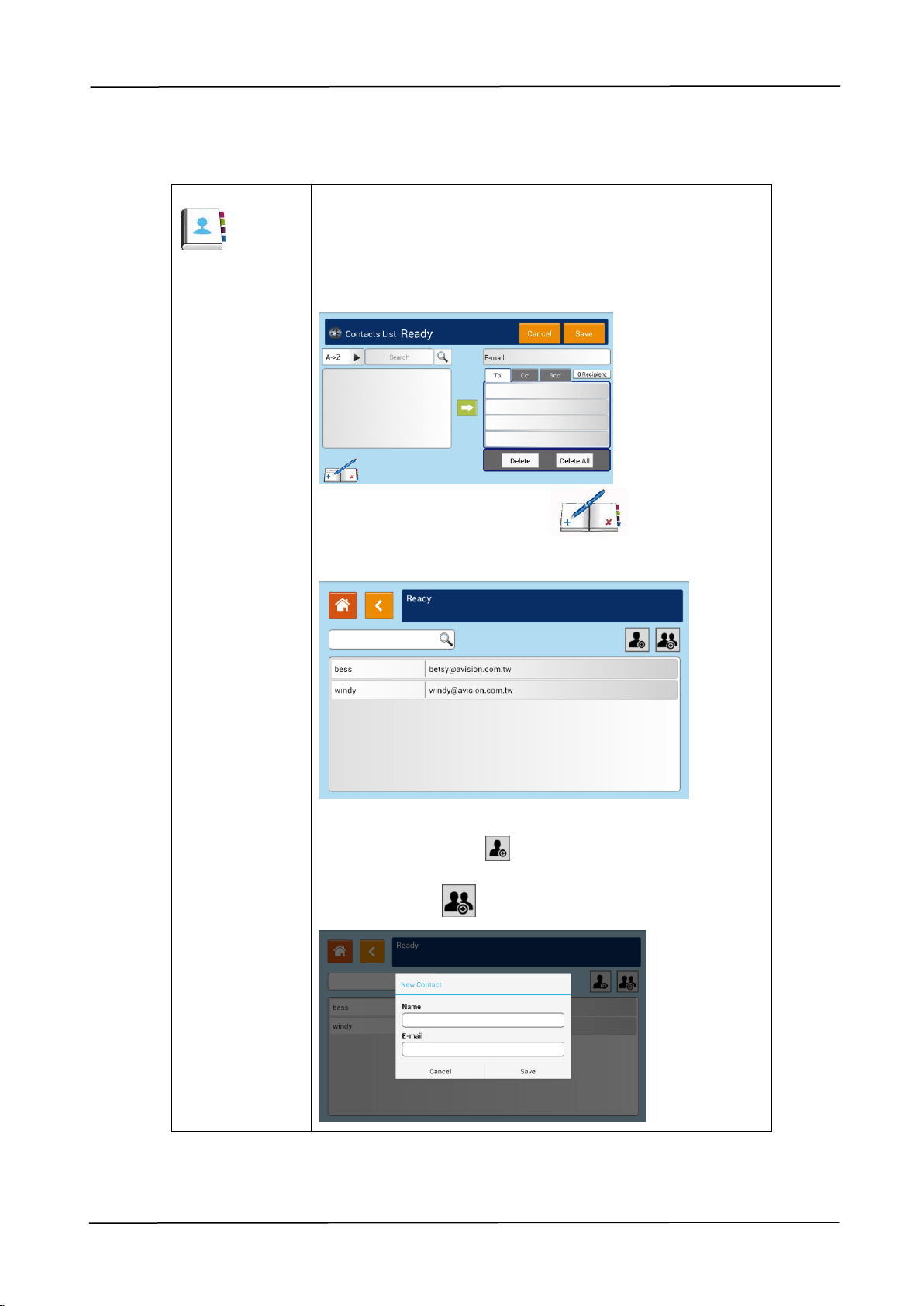
3. Operation
73
Select one recipient from the Address Book
Address Book
Tap the button to select one recipient from the address
book.
Tap the button and the following screen will be
prompted. Choose one address from the left box and
then tap the Right Arrow key to include the address
to the list of your recipients.
To edit the Address Book, tap to prompt the
following screen. You can add/modify/delete recipients’
address in the screen.
Tap「Add Address」 to prompt the following screen.
Enter the recipients’ name, and e-mail address. Or tap
「Add Group」 to add a new group.
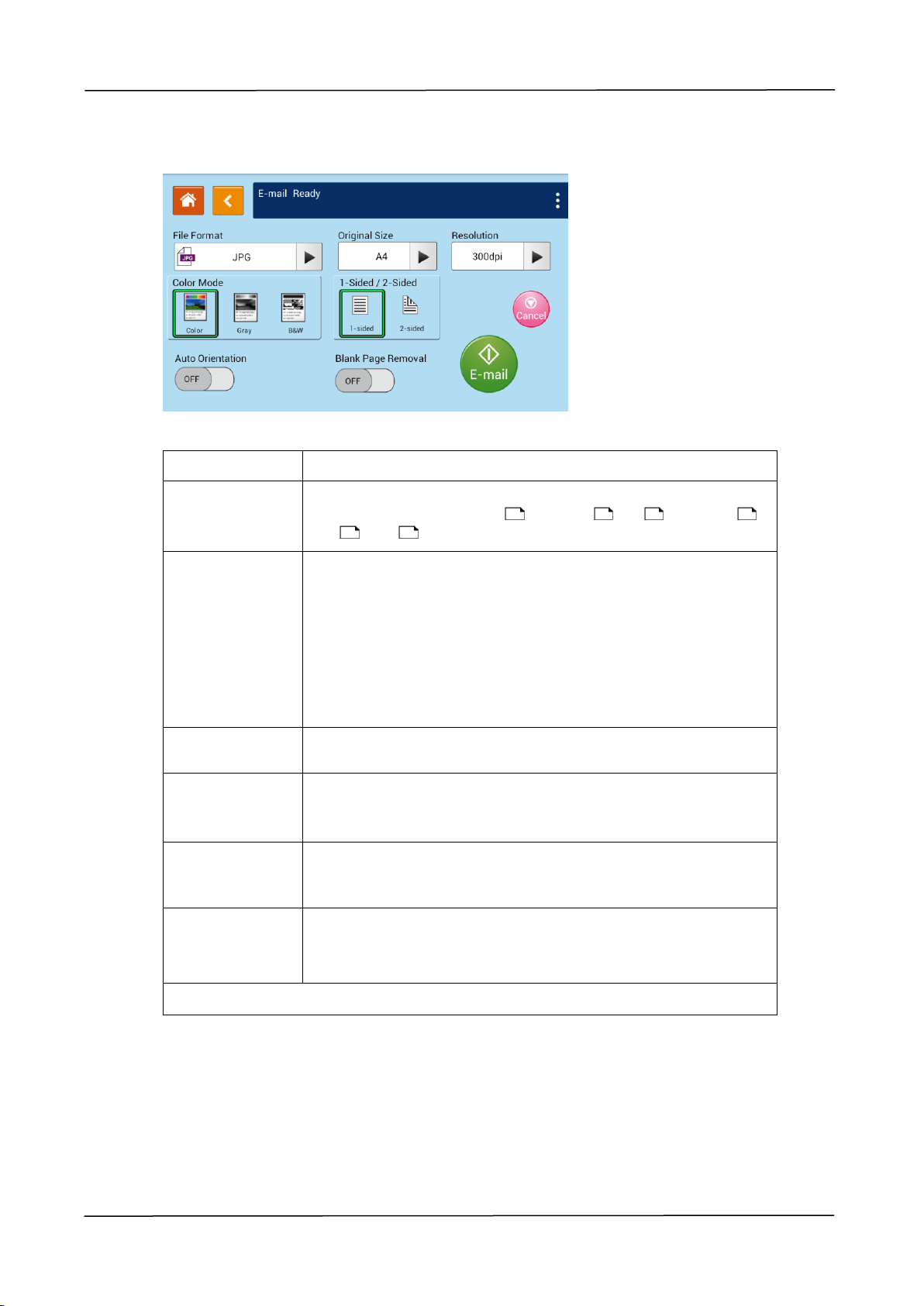
74
Advanced Settings: Tap「Advanced Settings」 to set more settings for the
scanned image that will be attached to the e-mail.
File Format
Multi-Page PDF、One-page PDF、JPG、BMP、TIF。
Original Size
Choose your scan size.
Choice: Auto Detect/B5 , B5/A3 , A4 , A4, A5 ,
LGL , LTR , LTR
Resolution
Choose the resolution of the scanned image. The higher
the value, the more details can be reviewed yet more disk
space will be required.
Choice: 150/200/300/600 dpi
150 dpi: Suits to be viewed on the screen.
200 dpi: Suits for most business document.
300 dpi/600 dpi: High quality image helps increase OCR
(optical character recognition) accuracy.
Color Mode
Choose your color mode.
Choice: Color、Gray、Black and White
1-Sided/
2-Sided
Choose if you wish to scan one side or both the front and
rear side of your document.
Choice: 1-Sided、2-Sided
Auto
Orientation
Choose if you wish to enable the function of automatically
detecting the orientation of the original document.
Choice: Off/On
Blank Page
Removal
Choose if you wish to automatically remove blank pages
of your document.
Choice: Off/On
* Default settings to be shown in italic bold style

3. Operation
75
4. Customizing the Product’s
Configurations
This chapter is specifically targeted to the persons who are responsible for the
administration of the product. It is recommended that the administrator read this
chapter before installing the machine.
The product’s configurations can be customized via the touch screen and the control
panel. In addition to using the touch screen, the product allows the administrator to
remotely configure the machine by launching the product’s embedded web page.
How to customize the product’s configurations via these two methods will be
described in the following sections.
Note:
When installing the product for the first time, it is recommended that the
Administrator retain the default system settings. The settings can be
customized at a later date once you are familiar with the operation and
functionality.
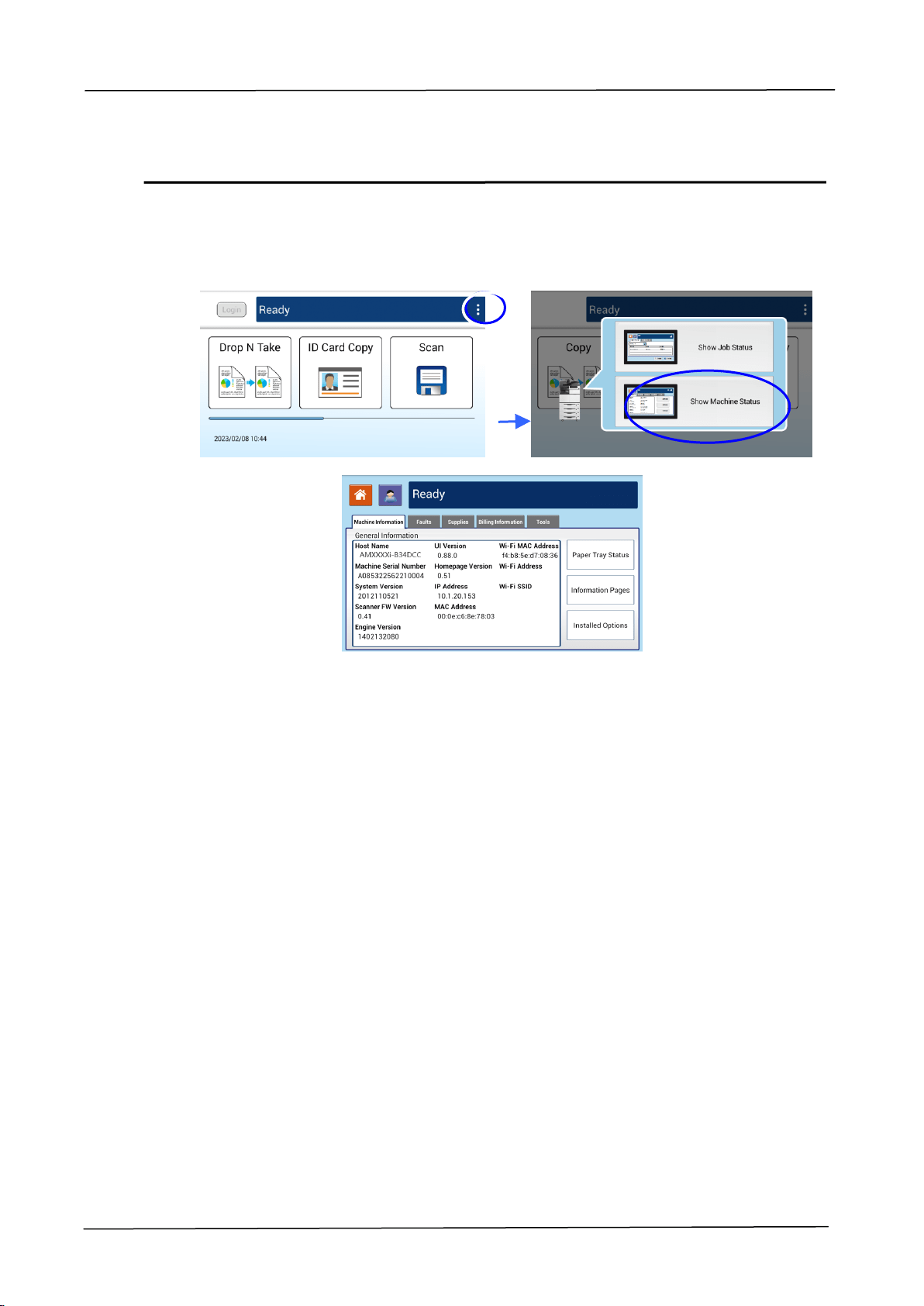
76
Customizing the Product’s Configurations by the Touch
Screen
Click [More Settings] and then choose [View Machine Status]. This will prompt the
following [Machine Status] page which contains 5 tabs.
These 5 tabs displaying at the top are: Machine Information, Faults, Supplies, Billing
Information, and Tools. For each respective option of the 5 tabs, refer to the
descriptions of the next few pages.
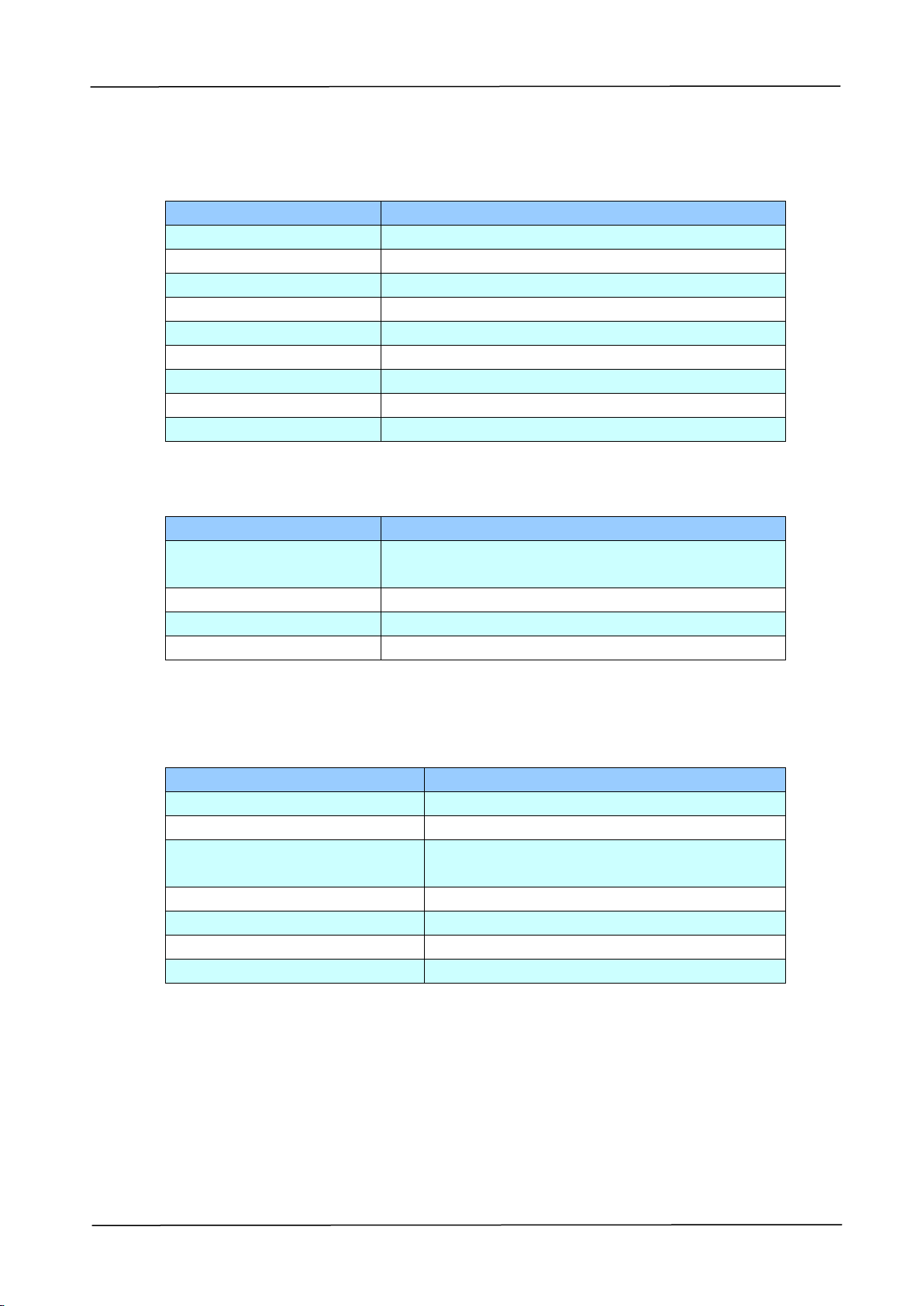
3. Operation
77
Machine Information
General Information: Display the product’s basic information.
Item
Description
Host Name
Displays the product’s host name.
IP Address
Displays the product’s IP address.
MAC Address
Displays the product’s MAC address.
System Version
Displays the product’s system version.
Engine Version
Displays the product’s engine version.
UI Version
Displays the product’s UI version.
Homepage Version
Displays the product’s home page version.
Wi-Fi Mac Address
Displays the product’s Wi-Fi Mac address.
Wi-Fi Address
Displays the product’s Wi-Fi address.
Paper Tray Status: Display the product’s paper tray status.
Item
Description
Tray
Displays the paper tray’s number including
Manual tray.
Status
Displays the remaining paper in the tray.
Paper Size
Displays the paper size with its orientation.
Media Type
Displays the media type to use.
Information Pages: Print out the product’s various reports.
Item
Description
Demo Page
Prints the product’s demo page.
System Configuration Page
Prints the product’s configuration page.
Network Settings Report
Prints the product’s network settings
report.
System Menu Map
Prints the product’s menu map.
System Usage Report
Prints the product’s usage report.
Storage Job List Report
Prints the product’s storage list.
Address Book
Prints the product’s address book.

78
Installed Options: Display the enabled or disabled status of the product’s functions.
Enable or disable the product’s functions only via the embedded web page.
Item
Description
Copy
Displays the enabled or disabled status of the
copy function.
Storage Copy
Displays the enabled or disabled status of the
storage copy function.
Scan
Displays the enabled or disabled status of the
scan-to function.
E-mail
Displays the enabled or disabled status of the
E-mail function.
Reprint Saved Job
Displays the enabled or disabled status of the
reprint saved job function.
ID Card Copy
Displays the enabled or disabled status of the ID
card copy function.
Faults
Faults: Display the current error items or warning message list.
To view each error’s detailed information and troubleshooting methods,
select each error item and touch the Instruction button on the screen.
Supplies
Supplies: Display the current states of supplies.
Item
Description
Toner usage remain
Displays the current remaining toner capacity in
percentage.
Developing unit usage
remain
Displays the current remaining Developing Unit
capacity in percentage.
Fuser usage remain
Displays the current remaining fuser capacity in
percentage.

3. Operation
79
Billing Information
Billing Information: Used to display the usage status of the product’s functions.
Item
Description
Machine serial
Number
Displays the product’s serial number.
Total Page Counts
Displays the total page counts.
Usage Counters
The types of counters are classified as Copy,
Printer engine, and Scanner Module.
Counters/Count
Displays the respective total cumulative usage
number of the copy, printer engine, and scanner
module.

80
Tools
Device Settings: Display the basic settings on the product.
Device Settings
Item
Description
Language
Changes the language on the touch screen.
Supported languages: English, Traditional
Chinese, Simplified Chinese
Date / Time
Sets up the current date and time on the product.
The time format is 24-hour system.
Time Zone
Specify local time zone.
Selectable Paper Size
Specify auto detectable paper size for paper tray
option (Auto Select).
Choice: *A3, B4, *A4, B5, *A5, LGL, LTR, DLT
(*: Default)
Size Spec
Selects paper size detection format.
Supported detection format: *ISO 216, North
America
Tray Contents
Presets paper size and orientation on the input
trays.
[Auto] means the product will automatically detect
the paper size a user uses.
Sleep Mode
Choose how long to enter the energy saving mode
after your last action.
Choice: *Eco Mode, 5Min, 15Min, 30Min, 1Hr
As Eco mode requires more time to return to the
ready mode, to reduce the waiting time, you can
change the default mode to other options.
Auto Power Off
Choose how long to enter the energy saving mode
after your last action.
Choice: * None, 5Min, 15Min, 30Min, 1Hr,
2Hr, 4Hr
Schedule Restart
Enable or disable automatically restart the product
on a preset schedule.
Choice: On/Off
Management
Reset Default: All settings in Tools are back to the
factory defaults.
Recalibration: Calibrate the scan module.

3. Operation
81
System Timeout
When the touch screen has not been operated
for a period of time, the system will
automatically reset all settings in the touch
screen back to the preset values and return to
the main screen.
System Timeout values available: From 5
seconds to 600 seconds. Each selectable
interval range is 5 seconds. (*: 30 sec.)
Display Brightness
Sets up the brightness on the touch screen.
Default Operating Mode
Set the default operating mode (function) on
the touch screen. After timeout arrives, the
specified default operating mode will be
displayed. (* Copy)
Heater
Turn on the heater and specify the humidity
level of the sensor to keep the inside of the
printer operate in the correct environment.
Choice: *Off/RH 80%/RH 70%/RH
60%/RH 50%/On
*: Factory Default Settings

82
Service Settings: presets the settings and defaults for each function features.
Service Settings
Item
Description
Copy Service Settings
Presets the default settings for Copy.
Scan Service Settings
Presets the default settings for Scan.
E-mail Service Settings
Presets default settings for E-mail.
Address Book
Presets address book.
ID Card Copy Service
Settings
Presets default settings for ID Card Copy.
Network Settings: presets the settings and defaults for network features.
Network Settings
Item
Description
Enable
Enables or disables the product’s Ethernet or
Wi-Fi function.
Choice: Off, Ethernet, Wi-Fi
Wi-Fi: Available for Wi-Fi Station Mode.
[Station] mode: In Station mode, this product
acts as a client that connects to a Wi-Fi Access
Point (usually a Wi-Fi enabled router).
Note: Ethernet mode and Wi-Fi mode can not
be working at the same time.
Host Name
Sets up a host name for the product.
TCP / IP Settings
Sets the connection methods and parameters
of the product’s network.
DHCP:
Enables or disables the DHCP.
You don’t need to specify the Static IP if you
enable DHCP.
IP Address/ Subnet Mask/ Gateway:
if you disables DHCP, set up IP Address,
Subnet Mask, and Gateway for your Static IP.
DNS Server:
Sets up a DNS server address for the product.

3. Operation
83
SMTP
Sets SMTP parameters of the product’s
network.
Login Name:
Input a login name for the product’s SMTP
server.
Password:
Enter a password for the product’s SMTP
server.
Mail Server:
Input an IP address or host name for the
product’s mail server.
Port:
Input a port number for the product’s mail
server.
Authentication Method:
Sets an authentication method (SMTP) for the
product’s mail server. Selecting None will not
use an authentication method.
WI-FI
Choose the network name (SSID), channel,
and authentication method.
Enter the authentication key in the Key Setting
box.
Network Security Setup
Enable or disable filter. Please go to the
product’ embedded web page to specify filter IP
address.
User Authentication
Item
Description
User Authentication
Enables or disables the user authentication
function.
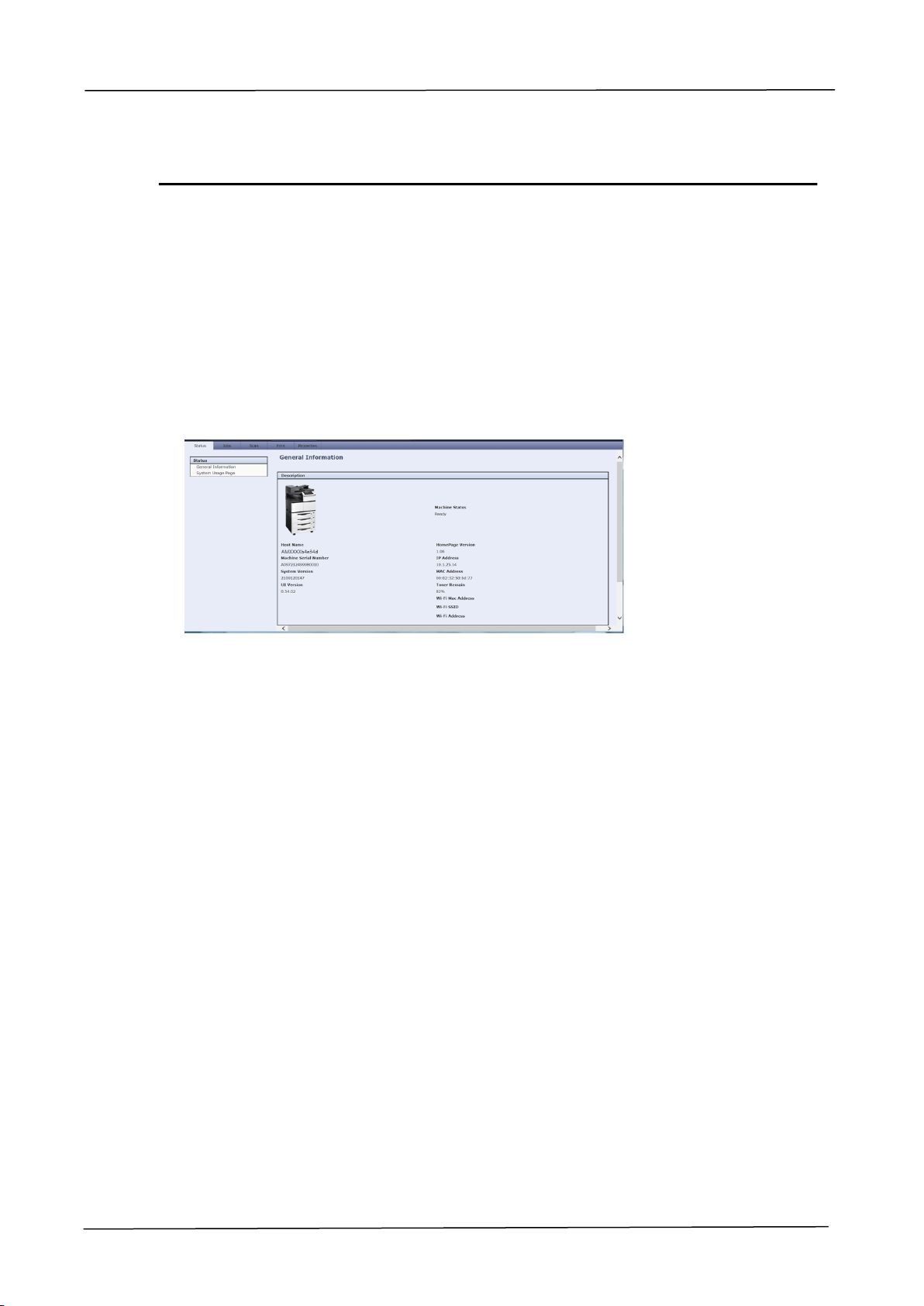
84
Customizing the Product’s Configurations by the Product’s
Web Page
1. Specify the network parameters by referring to the previous section, Specifying
the Product’s IP address and other Network Settings.
2. The product is designed with an embedded web page to allow the system
administrator to remotely manage the product. Simply type the IP address of the
product in the URL field of your browser and then press Enter. The product’s
embedded web page appears as shown below.
3. Click each item under these tabs to set up relevant values. For details on each
setting, please refer to the subsequent section, Summary of the Web Pages.

3. Operation
85
Summary of the Web Pages
The embedded web page contains the following five tabs, the Status tab, the Job tab,
the Scan tab, the Print tab, and the Properties tab. Each of the tabs will be described
in this section.
The Status Tab: The Status tab contains the following options: General
Information and System Usage Page.
General Information: displays the product’s general information.
Item
Description
Host Name
Displays the product’s name.
Machine Serial
Number
Displays the machine serial number.
System Version
Displays the product’s system version.
Engine Version
Displays the product’s engine version.
UI Version
Displays the product’s UI version.
Homepage Version
Displays the product’s home page version.
IP Address
Displays the product’s IP address.
MAC Address
Displays the product’s MAC address.
Toner Remain
Displays the current remaining toner capacity in
percentage.
Machine Status
Displays the product’s machine status.
Wi-Fi Address
Displays the product’s Wi-Fi address.
Wi-Fi Mac Address
Displays the product’s Wi-Fi Mac address.
Wi-Fi SSID
Displays the product’s Wi-Fi SSID.
Tray Status
Tray Status Displays the following information
in Tray1~Tray4 and Manual Tray:
Status: shows the remaining paper.
Paper Size: shows paper size with its orientation.
Media Type: shows the media type to use.

86
System Usage Page: displays the product’s usage report.
Item
Description
System
Displays the product’s system information
including Product Name, Product Serial Number,
Toner Serial Number, EP Serial Number, Fuser
Serial Number, and Continue Power On Time
(hr,min).
Copy
Displays the product’s copy count.
Print Engine
Displays the product’s print count.
Print Supplies
Displays the product’s print supplies status.
Scanner Module
Displays the product’s scan count.
The Jobs Tab: The Jobs tab contains the following options: Active Jobs and Saved
Jobs.
Active Jobs: displays the product’s active jobs.
Item
Description
Owner
Displays the local or remote users.
Name
Displays the function name that is performed.
Status
Displays the function status.
Timeout Settings
Choice: Immediate Cleanup All Jobs, Schedule
Cleanup all Jobs
Selection: Delete all jobs now or at a specified
period.
Saved Jobs: Used to display or reprint current saved jobs.
Item
Description
Create New Folder
Creates a new folder to save a print job.
Manage Folders
Deletes a folder of the saved print job.
Folders
Displays the job name, paper size, number of
pages, and date & time in a folder. Also prints or
deletes the job in a folder. Print options include:
the number of copies, 1-Sided, 2-Sided, and
2-Sided, Rotate Sided2.
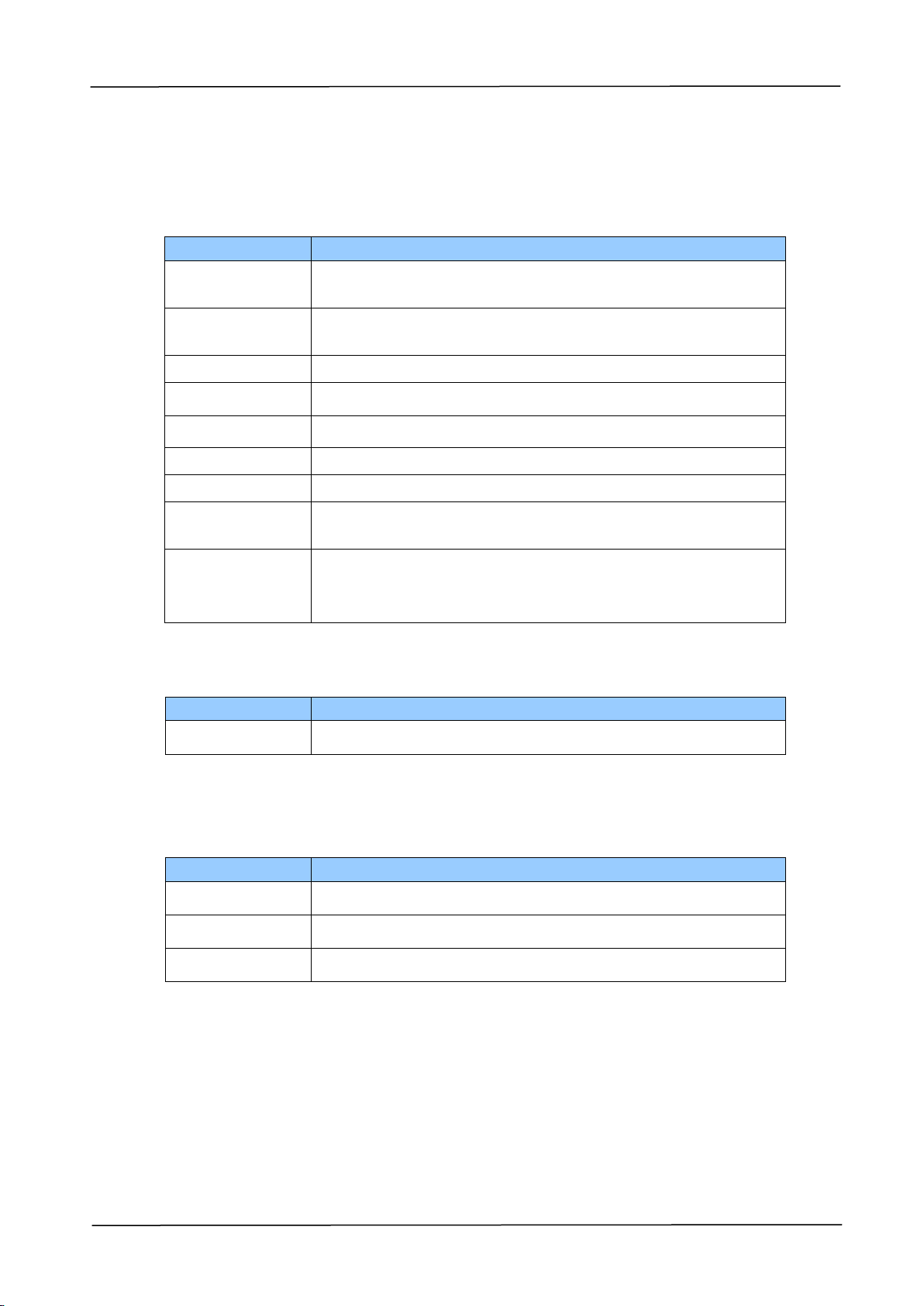
3. Operation
87
The Scan Tab: The Scan tab contains the following filing destination including
FTP/CIFS Setup and MFP’s Storage.
FTP/CIFS Setup: Used to display all destinations or create a new FTP or CIFS
destination to store the scanned images.
Item
Description
Add New
Click to add a new destination. Please enter your
settings for the following items.
Filing
Name
Type your file name.
Protocol
Choice: FTP, CIFS
URL
Input the URL of a filing server.
Port
Type the port number of your filing server.
Login Name
Type the login name of your filing server if required.
Password
Type the password of your filing server if required.
Retype
Password
Retype your password.
Copy
Check a file destination, and click this button to copy this
destination settings including Protocol, URL, Port, Login
Name, and Password.
MFP’s Storage: Used to download and delete files stored in the machine’s memory.
Item
Description
Action
Download and delete files in a folder.
The Print Tab: The Print tab allows the administrator to print a file from a
computer.
Item
Description
File Name
Select a file name from a computer.
Print Size
Select a print size.
2-Sided
Select the 1-sided or 2 sided printing.
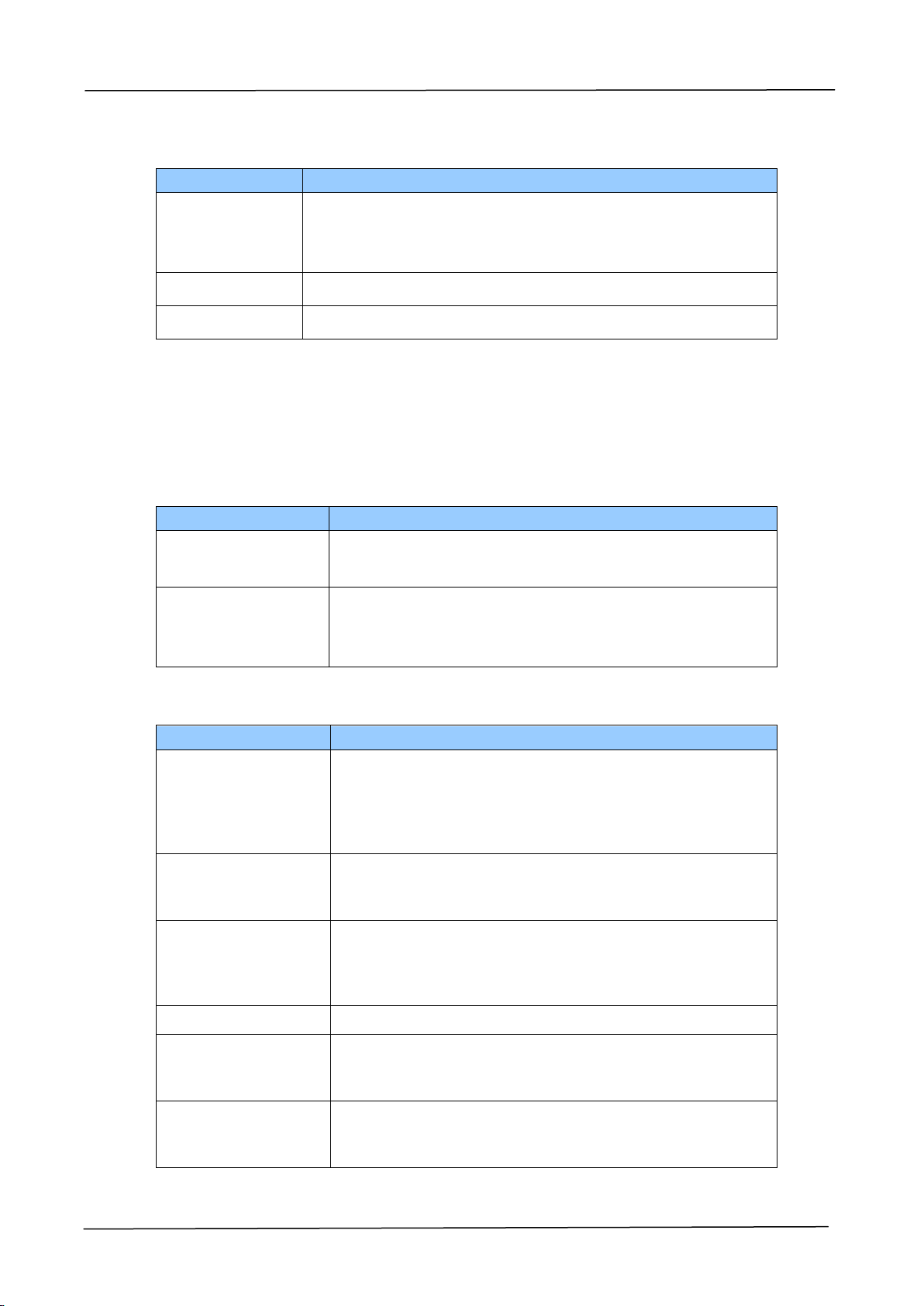
88
Print: Used to print a file in a computer.
Item
Description
File Name
Click Browse to select the file you want to print from a
computer. Print options include: number of copies, 1
sided/2 sided printing, and print size.
Submit Job
Print a file in your computer.
Clear
Recover the default option status.
The Properties Tab: The Properties tab contains the following options: Address
Book, Network, Service Registration, Account, Cloning and FW Update.
Address Book: Used to import /export an e-mail address book or a telephone
directory.
Item
Description
Import Address
Book
Import an e-mail or a phone address book file in .csv
file from your computer.
Export Address
Book
Export an e-mail or a phone address book file in the
product to .csv file. The address book file can be
opened or modified via the Excel software.
Network: Used to specify the network parameters of the machine.
Item
Description
TCP/IP Setting
Display or specify the TCP/IP information including
DHCP, host name, IP address, subnet mask, gateway
address, domain name, primary DNS server,
secondary DNS server, primary WINS server, and
secondary WINS server for TCP/IP Settings.
SMTP
Display or specify the IP address/host name, port
number, authentication method, login name,
password, and time zone on a SMTP server.
LDAP
Display or specify the name of the LDAP server, Base
DN, IP/URL, port number, server type, search
attribute, from e-mail address, search timeout, login
name, password, and authentication type.
Host Name
Display or specify the host name.
Wi-Fi
Display or specify the Wi-Fi settings including SSID,
channel, authentication type, and encrypted
information.
Network Security
Setup
Display or specify the security configuration, filter
configuration, IP address filter configuration, and Mac
address filter configuration.
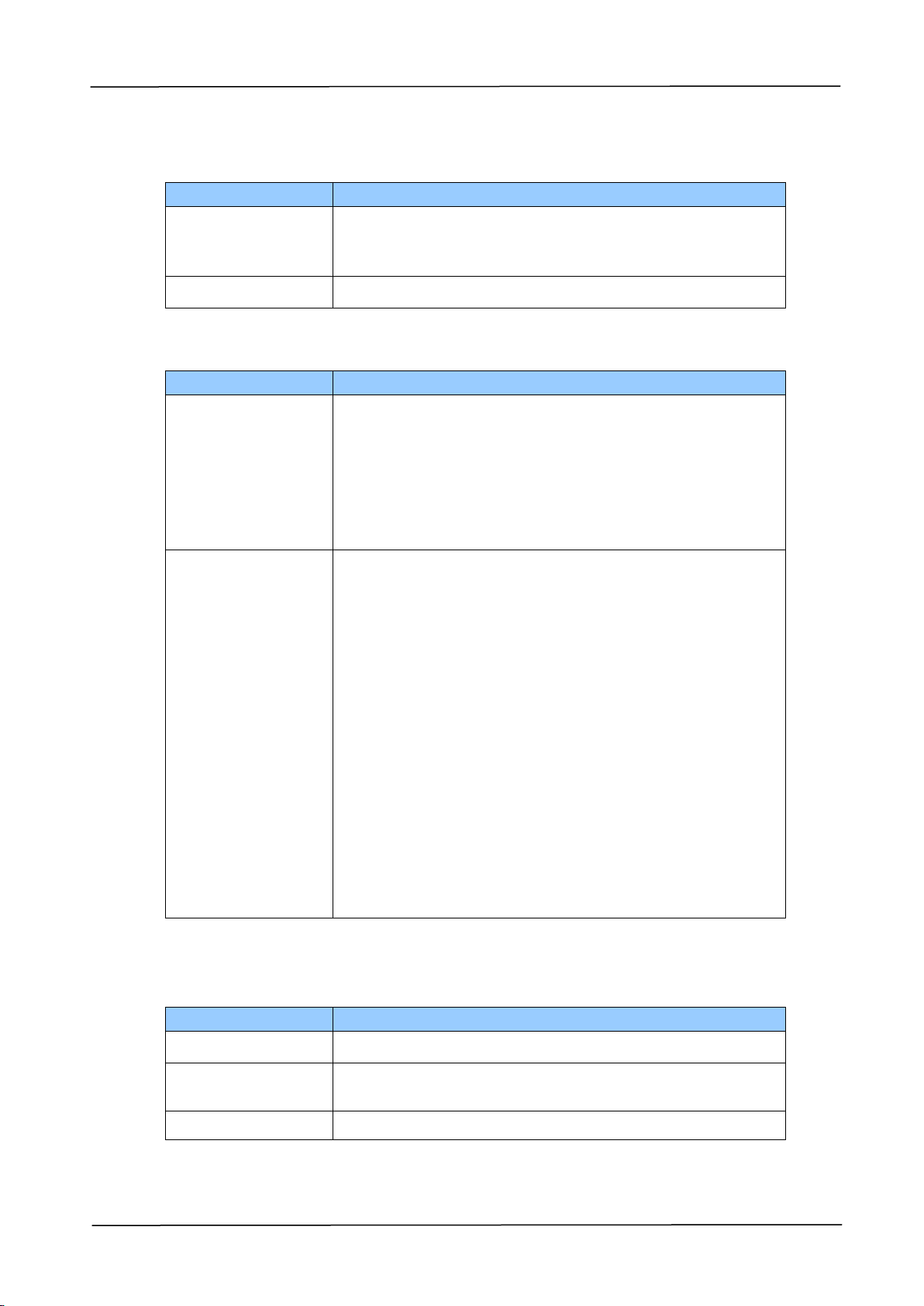
3. Operation
89
Service Registration: Choose the service items you wish to display on the touch
screen.
Item
Description
Name
Check to enable Copy, Storage Copy, Scan, Reprint
Saved Job, ID Card Copy, E-mail, or CSA6 respectively
on the touch screen.
Type
Standard Service。
Account Management: Used to setup user account and specify user privileges.
Item
Description
Enablement
Enable/ disable the account and over quota function.
「Enable User Authentication」allows the
administrator to specify user’s privileges and limitation
to use a certain function.
「Enable over quota」allows a user to complete the
job which happens to exceed his or her limitation.
Users
Used to enter a user name, edit a password, or choose
a user's role (System Administrator/ Account
Administrator/ User).
System Administrator: The default login name and
password for a system administrator are both admin. A
system administrator can modify all settings on the
product.
Account Administrator: An account administrator
cannot disable Account function, set up Over Quota,
specify User Role, and edit other people’s user
names/passwords. All settings in Tools of Machine
Status can not be set up, either.
User: A user can edit only his or her user
names/passwords. All settings in Tools of Machine
Status can not be set up.
Click Add New User to specify the usage limits for
print, and copy.
Report and Reset: Used to generate a usage report and reset all usage data to zero
or default.
Item
Description
Generate Report
Generate a usage report in .csv format.
Reset Usage
Data
Reset all usage data to be zero.
Reset to Default
Reset all usage data to default.

90
Cloning: Used to create a .bin file for current configurations of the product and to
apply the same configurations to other products. All products must have the same
model name and version of firmware for the .bin file to be accepted.
The firmware version is located on the Status tab, under Device Description.
Item
Description
Create Clone File
To clone all the features, click the Clone button.
To clone individual feature, check the desired feature
respectively, and then click the Clone button.
These features include: Device Settings, Network
Settings, Timeout Setting, Service Registration, Service
Settings, Account, and FTP / CIFS.
Install Clone File
Choose a clone file from your computer, and then click
the "Install" button.
When you start installing a clone file, all the network
functions including web pages on the product are
temporarily unavailable.
FW Update: Used to download the latest firmware to the MFP.
A+ Manager: If desired, enter a specified server’s IP address to send a log file for a
quick troubleshooting.
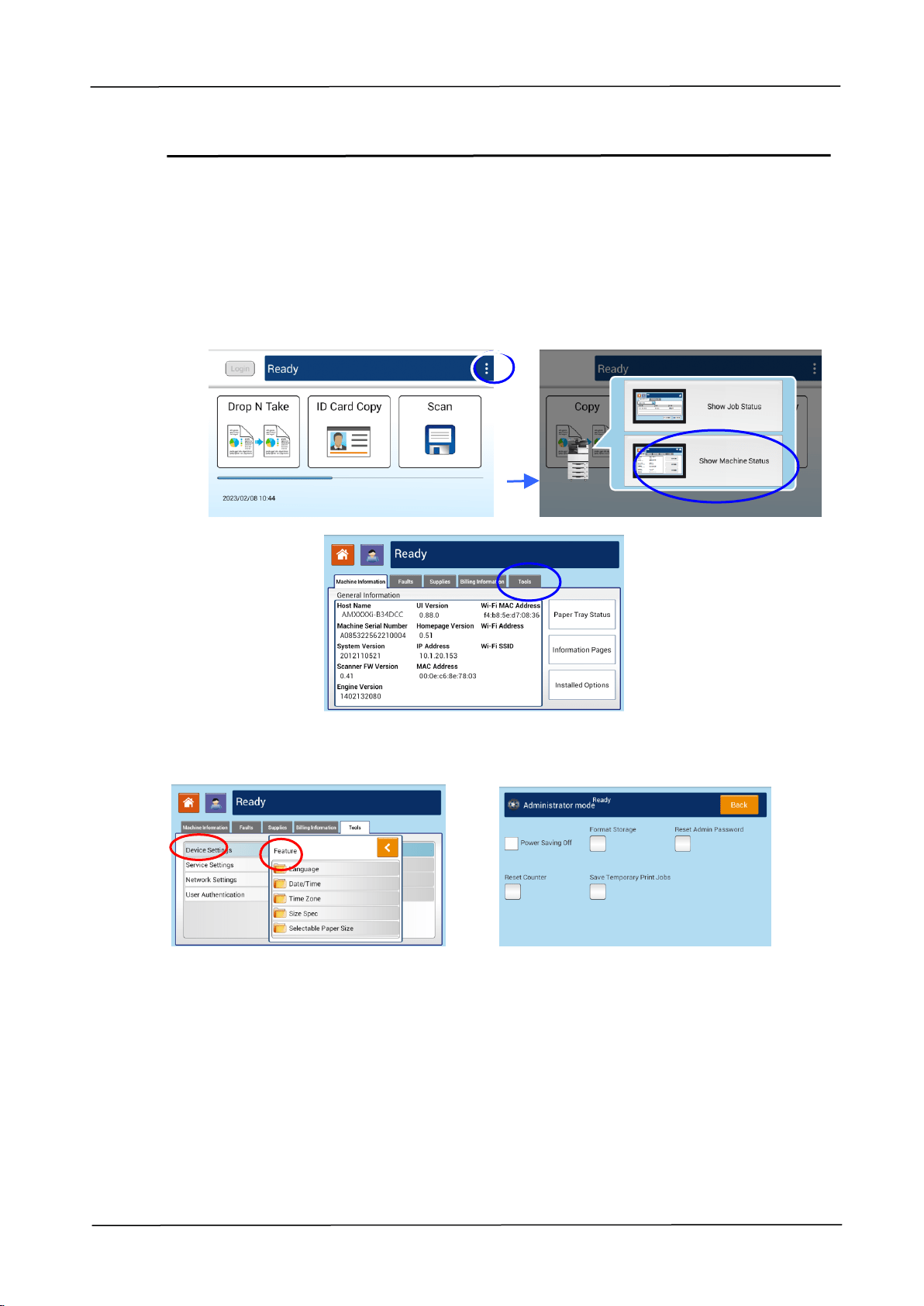
3. Operation
91
Using the Administrative Mode
The Administrative Mode allows administrator to set more settings for the machine.
To switch to administrative mode,
1. Tap [More Settings] on the center of the main screen and then choose [View
Machine Status]. This will prompt the [Machine Status] page.
2. Press [Tools] to prompt the [Tools] page. Choose [Device Settings] and then
double click on [Feature] to prompt the [Administrative Mode] page.

92
Options in the Administrative Mode:
Items
Description /Selection
Power Saving Off
Turn off the power saving (energy saving) mode.
Factory default settings: ON
Format Storage
Format the SD card in the device. The SD card saves the
current jobs including storage print, storage copy, and
scan to device on the machine.
Format the SD card when there is no job waiting or the
function can not be executed. After pressing this option,
a confirmation dialog box will be prompted. Choose Yes
to continue. After the formatting is finished, you need to
reboot the system to complete.
Reset Admin.
Password
Press to reset the password of the Administrator (if this is
enabled) back to default – [admin].
Reset Counter
Reset the counter of consumable components including
Fuser and ADF pad after replacement. If the counter has
not been reset, the [Fuser near end] or [Fuser life
end] warning message will be continuously displayed.
Choice: Fuser/ADF Pad
Note you need to enter the S/N of the new fuser while
reset the fuser counter.
Save Temporary
Print Storage
Set to store the temporary jobs from PC Print, Webpage
print.
Choice: On/Off
On: The temporary print jobs from PC, or Webpage will
be stored after turning off and then on the machine.
Off: The temporary print jobs from PC, or Webpage will
be deleted after turning off and then on the machine.
Factory default setting: On
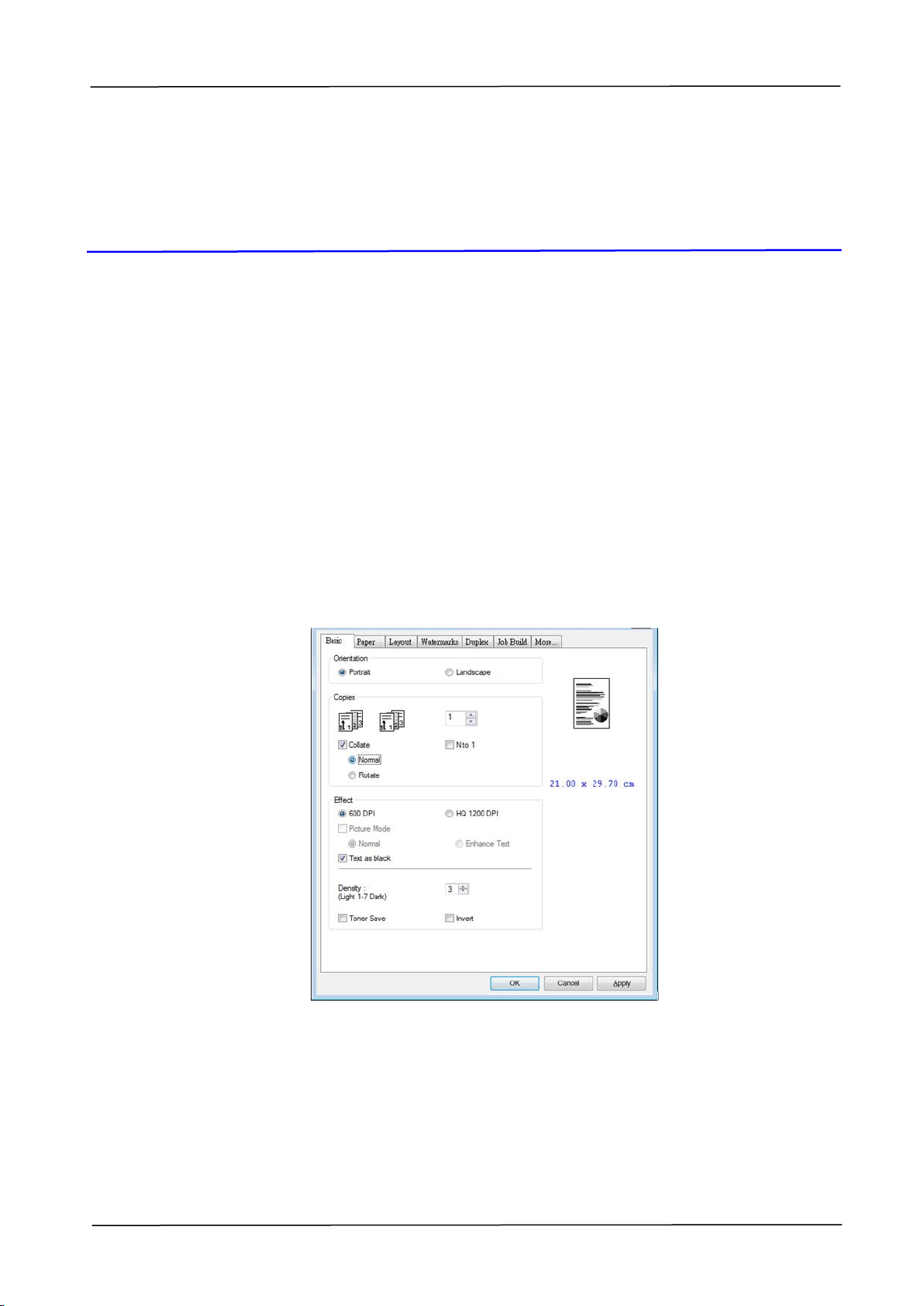
5. Configuring the Printer’s Features
93
5. Configuring the Printer’s
Features
Displaying the Printer Driver Properties
Dialog Box
To display the Printer Driver Properties dialog box,
1. Click Start on the system tray and choose Printers and Faxes.
2. Right-click the product’s printer name and choose Printer Preferences.
3. The following Printing Preferences dialog box will be displayed.
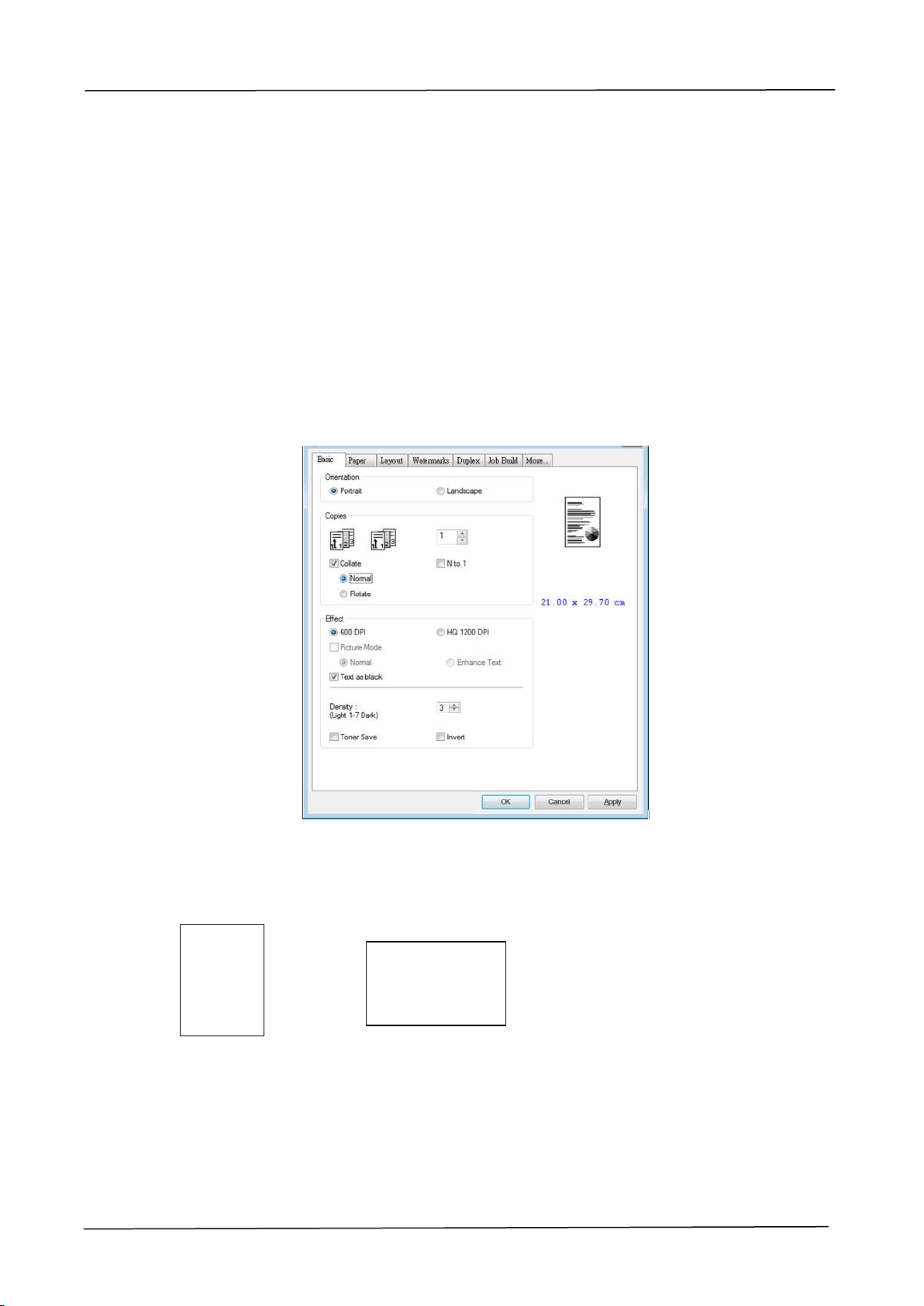
94
Configuring Printer Driver Settings
The Printing Preferences dialog box consists of the Basic tab, the Paper tab, the
Layout tab, the Watermark tab, the Duplex tab, the Storage Print tab, the
Authentication tab, and the More tab. The contents of each tab will be explained in
the following sections.
The Basic Tab
The Basic tab contains settings for Orientation, Copies, Effect, Density, Toner Save,
and Invert.
Orientation
Choose your orientation. Choice: Portrait, Landscape
Portrait
Landscape
ABC
ABC
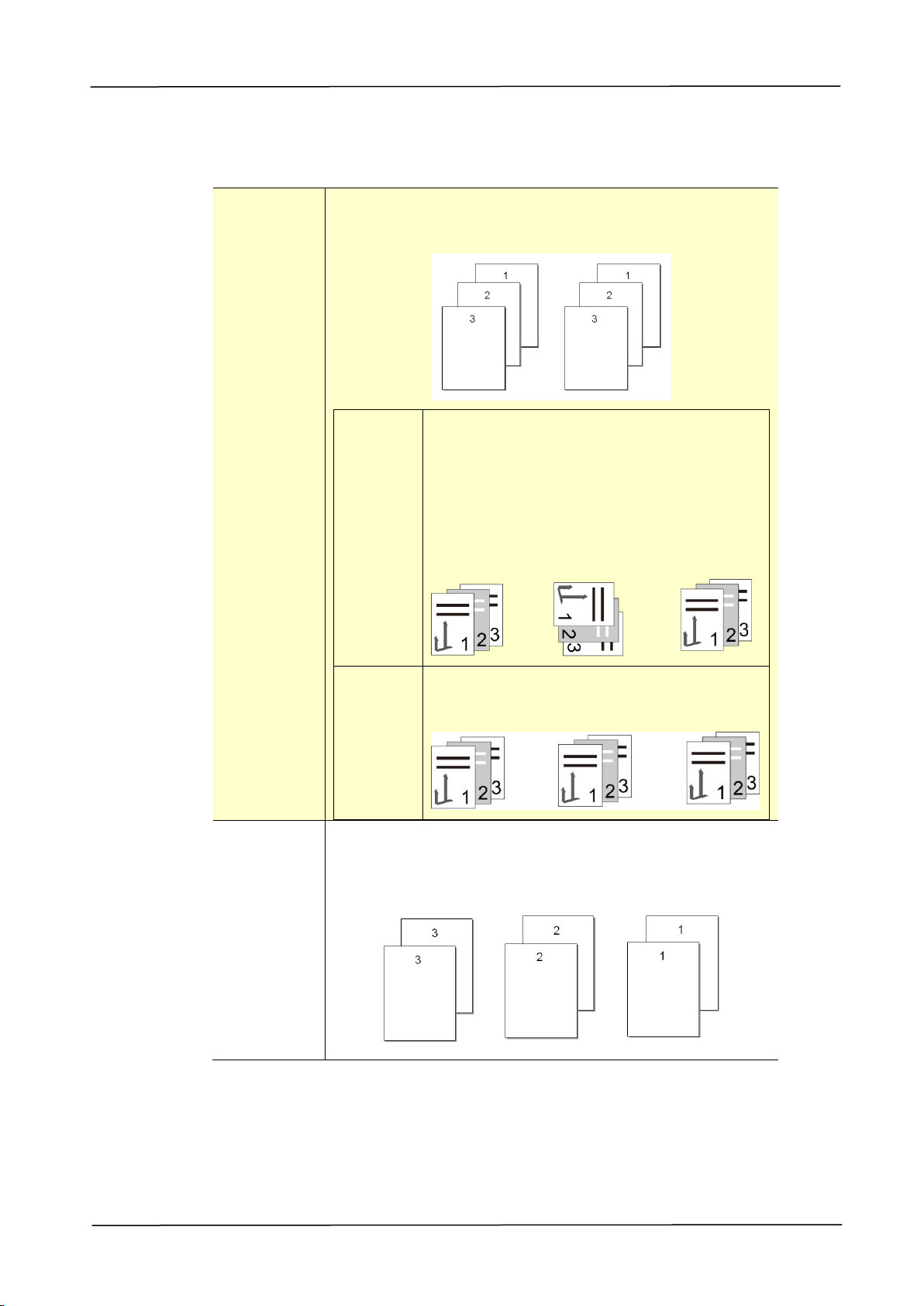
5. Configuring the Printer’s Features
95
Copies
Choose the number of copies to be printed. You can enter up to 999.
Collate:
Click to print your document in the page order such as
1/2/3, 1/2/3, 1/2/3.
Rotate
Every other print set is rotated by 90
degrees and delivered to the paper tray.
To use the Collate Rotate function, two
paper trays loaded with paper of the
same size and type, but in different
orientation are required.
Supported paper size: Letter, A4, B5.
Normal
Every print set is delivered to the paper
tray in the same direction.
N to 1:
Click to reverse the printing order of your document.
As a result, the last page of your document will be
printed first and vice versa.

96
Effect
600 dpi/1200 dpi
600 dpi: for normal document.
1200 dpi: Choose 1200 dpi if you wish to
enhance the print quality.
Picture Mode:
If the picture in your document does not print
clearly, click Picture Mode to improve its
quality. Choice: Normal, Enhance Text
Enhance Text: Make all the text in bold style.
Text as black:
Make all the non-black text in pure black.
Density:
Click to lighten or darken your document.
Density level (1~7). Default: 3
Toner Save:
Allows you to print your document using the
toner saving mode.
Invert:
Invert makes each image pixel inverted to its
complementary color. For example: the
original black text on white background
becomes white text on black background.
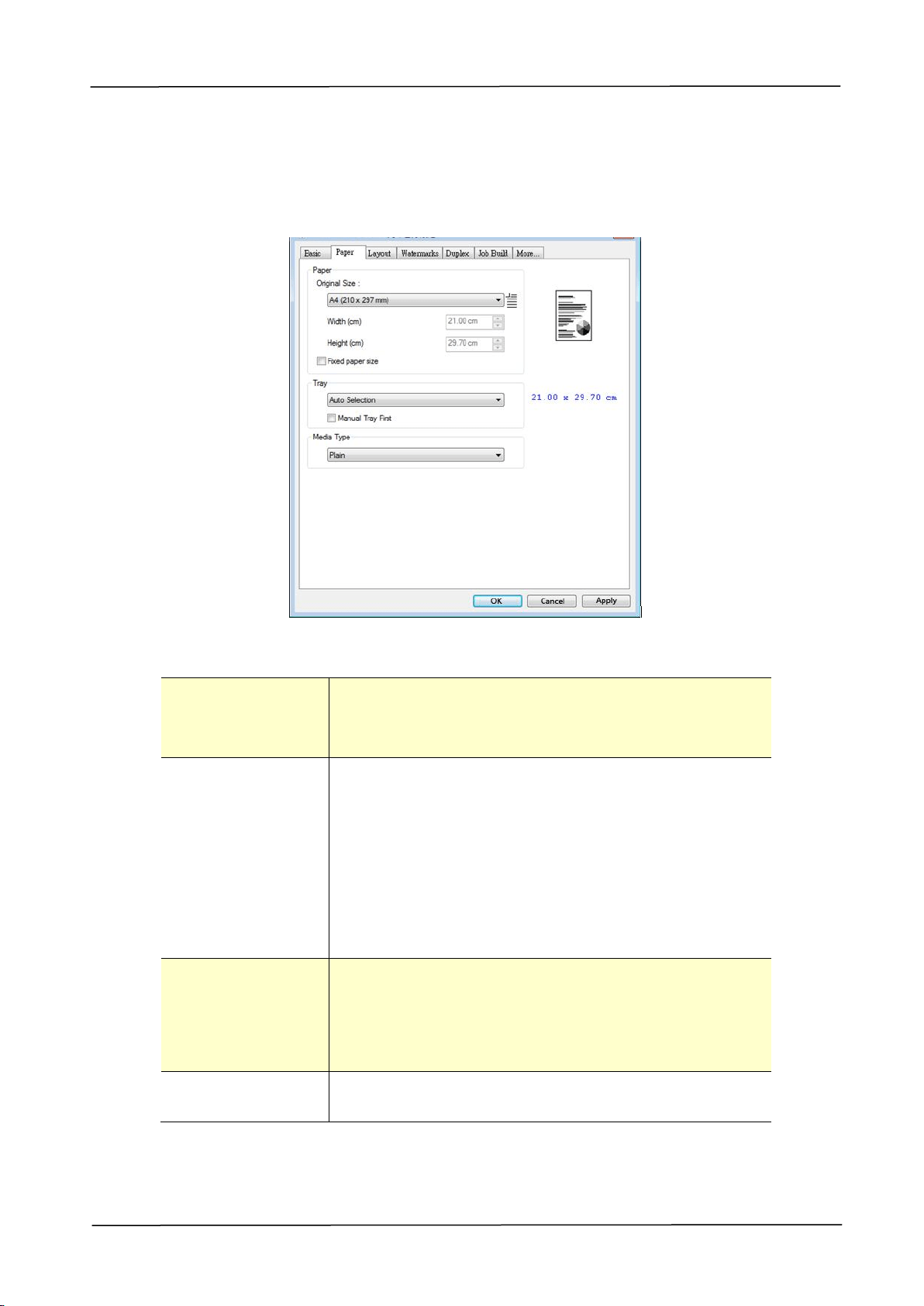
5. Configuring the Printer’s Features
97
The Paper Tab
The Paper tab contains settings for Original Size, Tray, and Media Type.
Paper
Original Size:
Choose the size of paper loaded in the designated
tray.
Choice: A3, A4, A5, B5, B4, Legal, Letter, Ledger
Tray:
Choose the tray from which your paper should be fed.
Choice: Auto Selection, Manual Tray, Main Tray,
Tray 2
Auto Selection means automatically select available
paper tray. (Priority: 1. Tray 1; 2. Manual tray; 3.
Tray 2)
Manual Tray First means automatically select
available paper tray. (Priority: 1. Manual Tray; 2.
Tray 1; 3. Tray 2)
Media Type:
Choose the type of media to be used for printing.
Choice: Any Type, Plain, Thick, Thin, Laser
Printer
Any Type: Any type of media can be printed.
Fixed paper size:
Check to specify all output paper to the fixed paper
size based on the Original Size option。
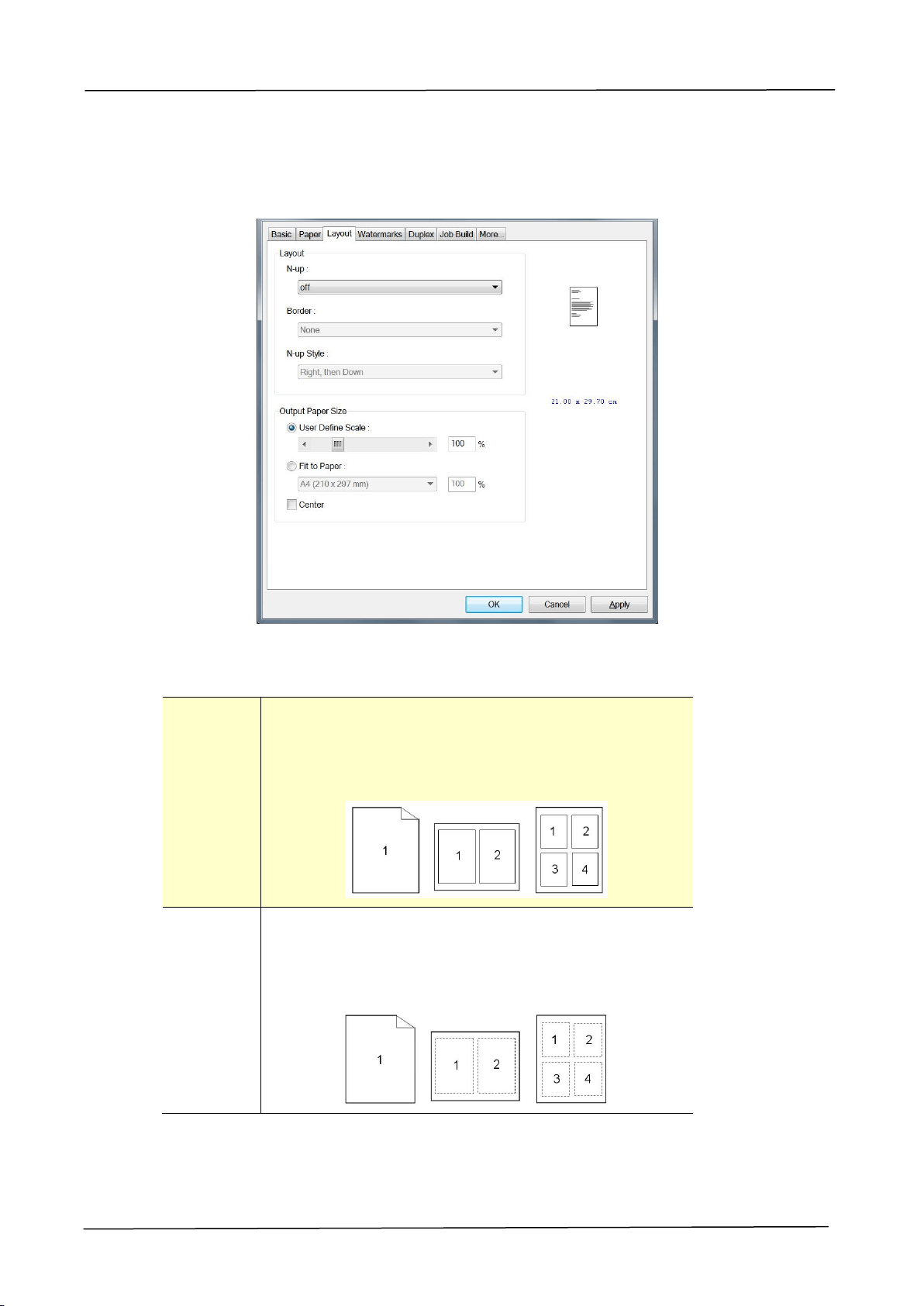
98
The Layout Tab
The Layout tab contains settings for N-up, and Output Paper Size.
N-up
N-up:
Choose number of pages to be printed on a single
sheet of paper.
Choice: Off, 2up(2-in-1), 4-up(4-in-1),
9-up(9-in-1), 16-up(16-in-1)
Border:
Choose if you wish to add border around each page
when printing more than one page on a single sheet
of paper.
Choice: None, Border Line, Dashed Line
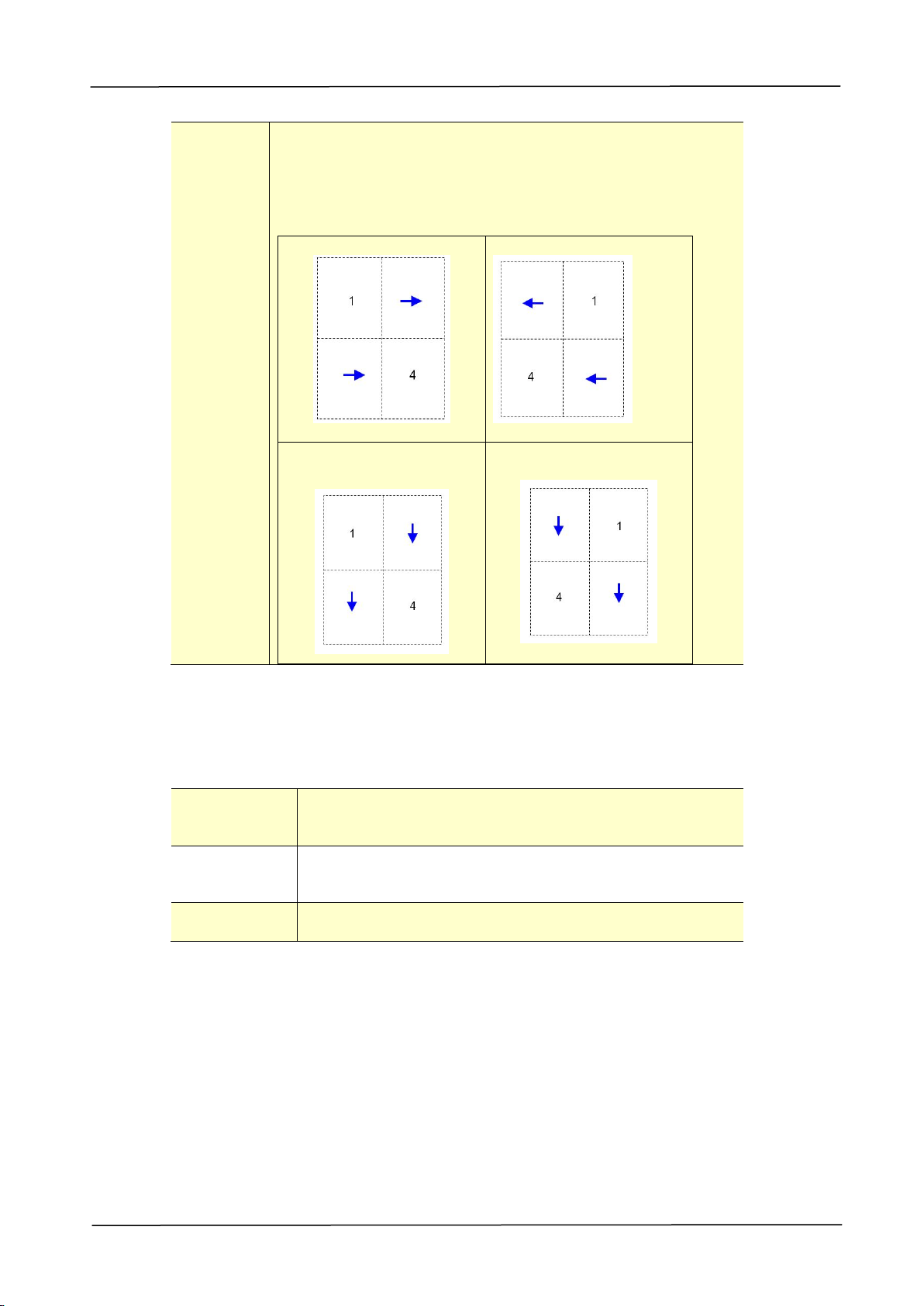
5. Configuring the Printer’s Features
99
N-up
Style:
Choose the style you want when printing multi-page
document on a single sheet.
Choice: Right, then Down/Down, then Right/Left,
then Down/Down, then Left
Right, then Down
Down, then Left
Down, then Right
Left, then Down
Output Paper Size
User Define
Scale
You can reduce or enlarge your printed image using
the Slider Bar. Scaling rate: 25%~400%
Fit to Paper
Output the full page of the selected original including
the four margins.
Center
Print your image in the center of the output paper.
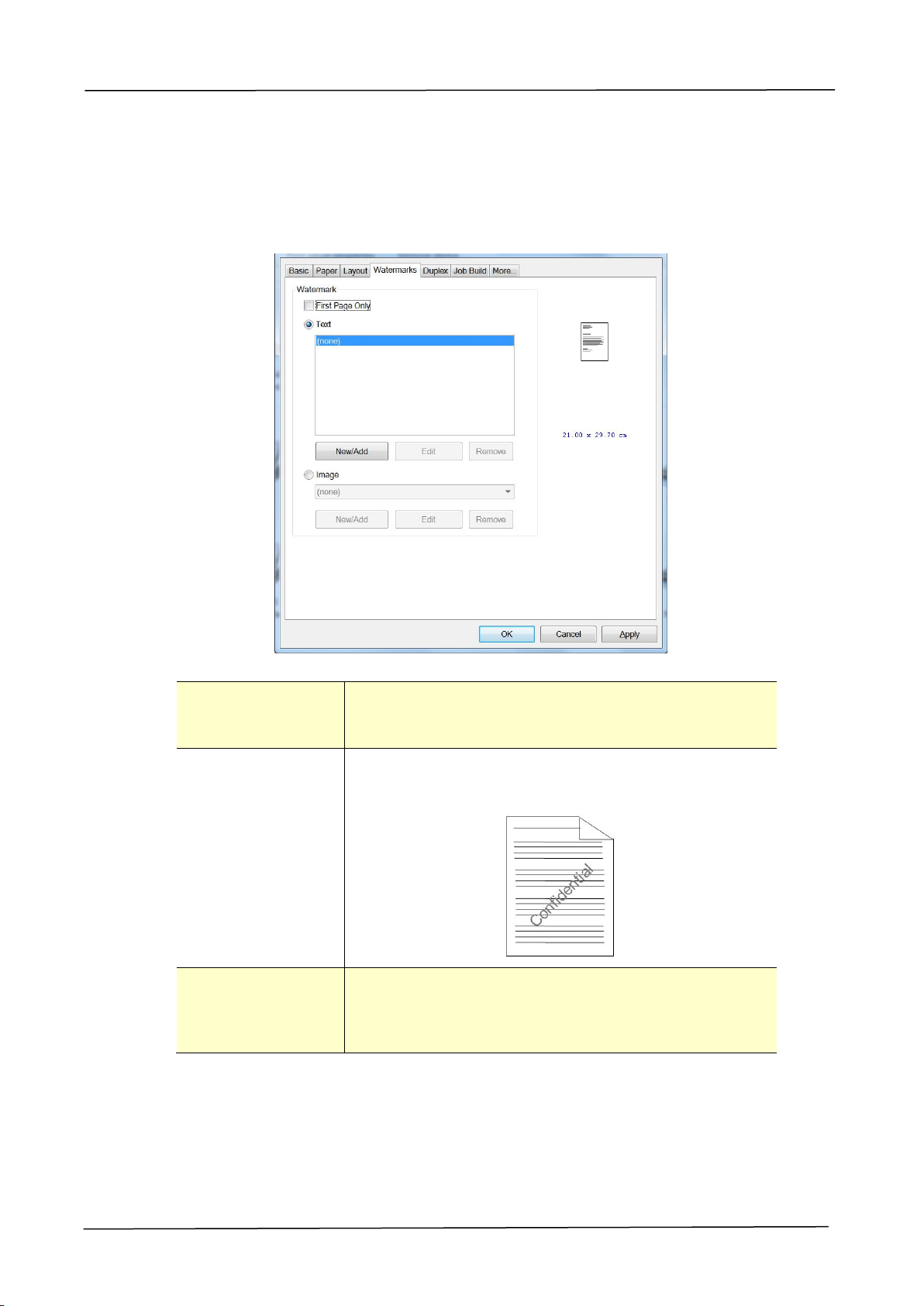
100
The Watermark Tab
The Watermark tab allows you to add some text or image (such as CONFIDENTIAL,
IMPORTANT, DRAFT, etc) for your document.
First Page only
Check to print watermark only on the first page.
Clear the check box will print watermark on all
pages.
Text
Choose and click New/Add to add new watermark
text. Click the Edit button to change or the
Remove button to delete.
Image
Choose and click New/Add to add watermark image.
Click the Edit button to change or the Remove
button to delete. You can choose your image in file
format such as BMP, TIFF, or JPEG.
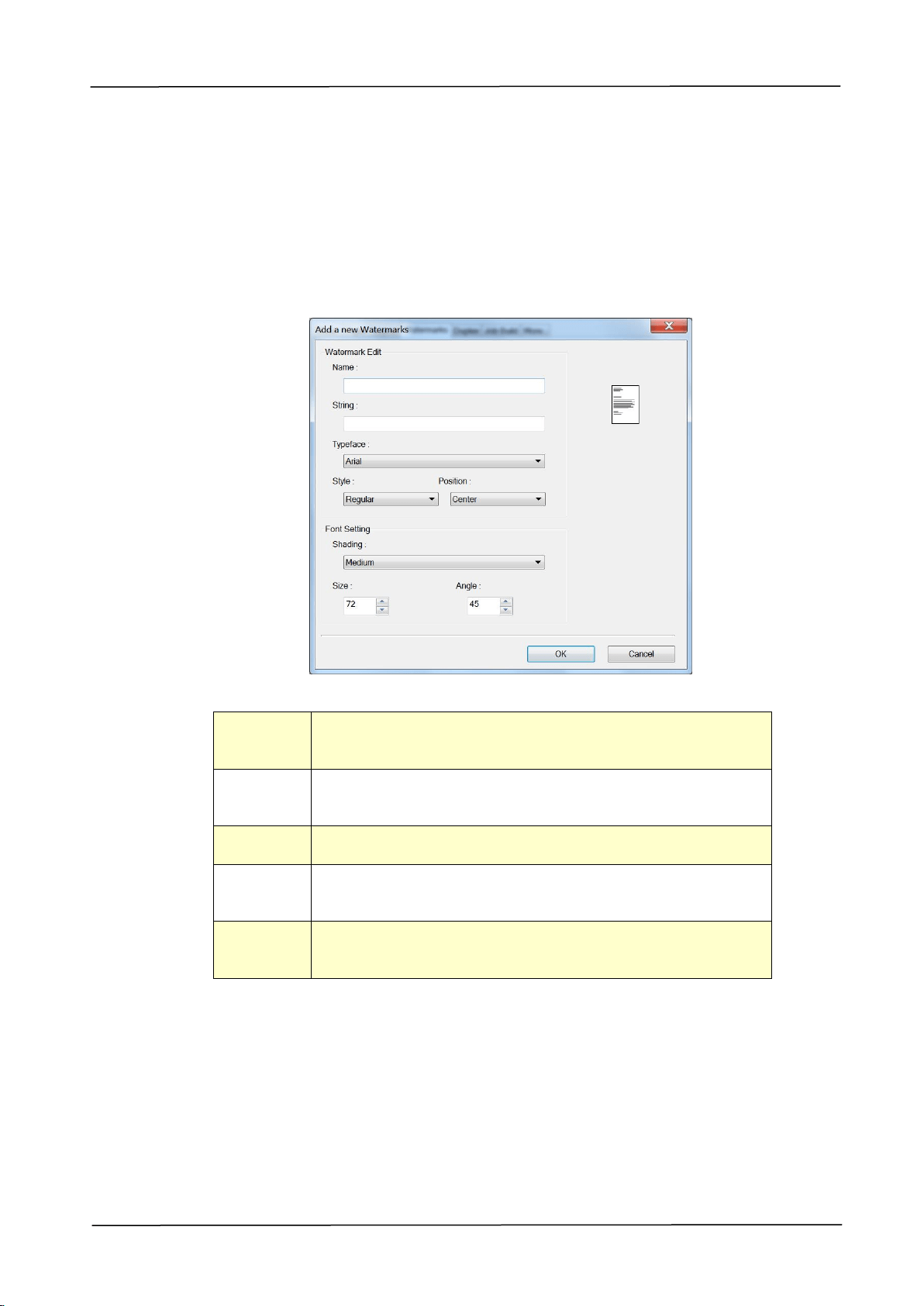
5. Configuring the Printer’s Features
101
Adding a new watermark text
To add a new watermark text,
1. Choose Text and then click the Add/New button. The following Watermark
dialog box appears.
Name
Name your watermark text. This name will be shown in
the Watermark text list.
String
Enter your watermark text, such as confidential,
important, and so on.
Typeface
Choose your font type for your watermark text.
Style
Choose the style of your watermark text. Choice:
Regular, Bold, Italic, Bold Italic.
Position
Choose the position of your watermark text. Choice:
Center, Tile.

102
Angle
Specify the angle of the watermark text from 0° to 360°
Size
Specify the size of your watermark text from 1 to 288.
Shading
Specify a relative density for the watermark text.
Choice: Lightest, Light, Medium, Dark, Darkest.
2. Click the OK button to save the settings. If the new watermark text is created
successfully, the watermark name will be shown in the Text list.
Editing a current watermark text
To edit a current watermark text,
1. Choose the watermark name that you wish to edit from the Text list.
2. Click the Edit button. The Watermark Edit dialog box appears.
3. Change your settings for the selected watermark text and choose OK to
complete.
Removing a current watermark text
To remove a current watermark text,
1. Choose the watermark name that you wish to remove from the Text list.
2. Click the Remove button. The watermark text will be removed.
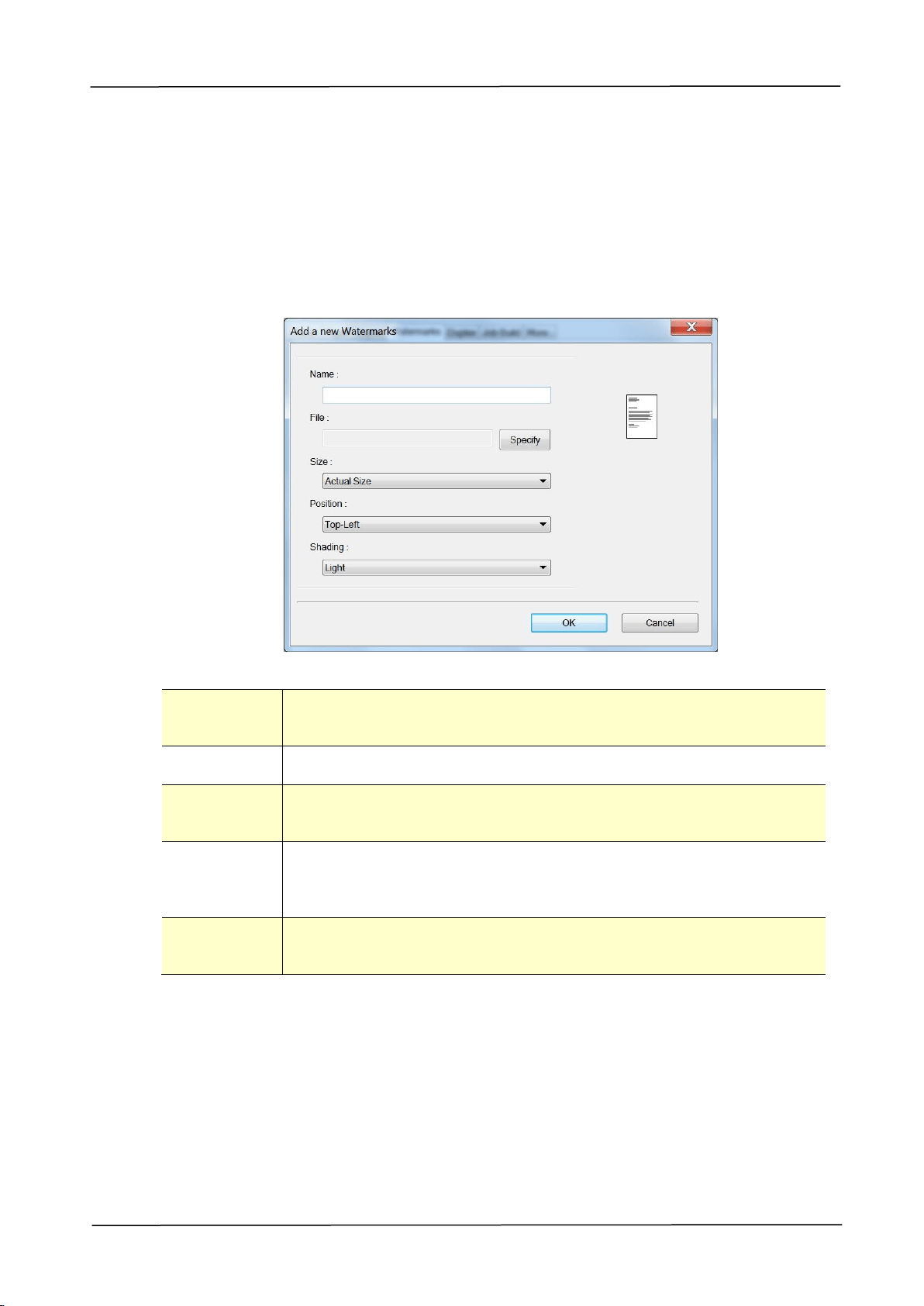
5. Configuring the Printer’s Features
103
Adding a new watermark image
To add a new watermark image,
1. Choose Image and then click the Add/New button. The following Watermark
dialog box appears.
Name
Name your watermark image. This name will be shown in the
Watermark image list.
File
Click the Browse button to locate your watermark image.
Size
Specify the size of your watermark image. Choice: Actural
Size, Fit to Page, Tile.
Position
Choose the position of your watermark image. Choice: Top-Left,
Top-Center, Top-Right, Center, Center-Left, Center-Right,
Bottom-Center, Bottom-Right, Bottom-Left.
Shading
Specify a relative density for the watermark text. Choice:
Lightest, Light, Medium, Dark, Darkest.
2. Click the OK button to save the settings. If the new watermark image is created
successfully, the watermark name will be shown in the Image list.

104
Editing a current watermark image
To edit a current watermark image,
1. Choose the watermark name that you wish to edit from the Image list.
2. Click the Edit button. The Watermark Edit dialog box appears.
3. Change your settings for the selected watermark image and choose OK to
complete.
Removing a current watermark Image
To remove a current watermark image,
1. Choose the watermark name that you wish to remove from the Image list.
2. Click the Remove button. The watermark image will be removed.
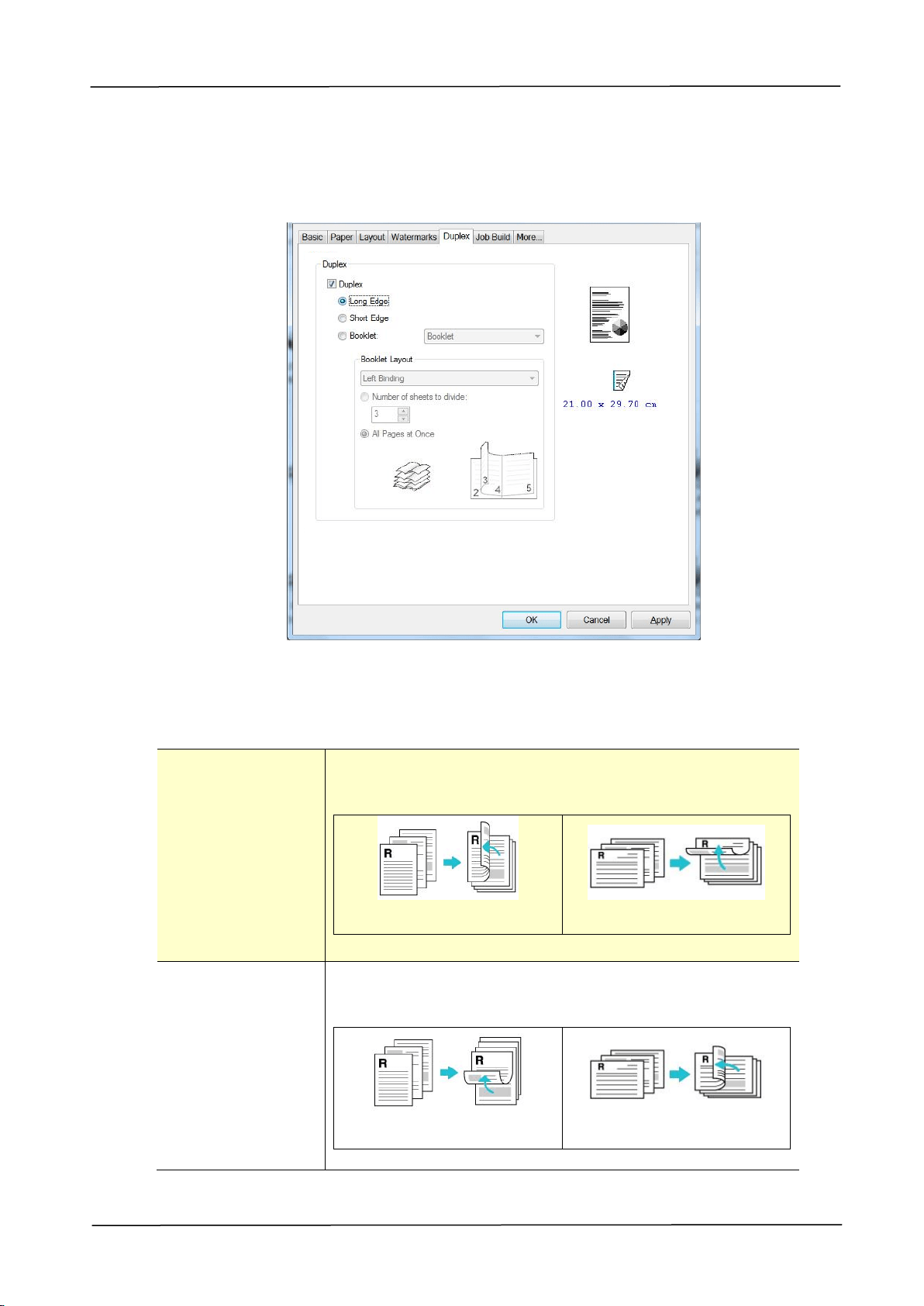
5. Configuring the Printer’s Features
105
The Duplex Tab
The Duplex tab allows you to print your document on two sides of the paper.
When using Two-Sided printing, you can select whether to bind copies on the
long-edge or short-edge.
Long Edge
(Binding)
Long-Edge binding (Portrait) will print the pages so
that you flip them like you would do on a book.
Long-Edge binding (Portrait)
Long-Edge binding
(Landscape)
Short Edge
(Binding)
Short-Edge binding (Portrait) prints them so that your
flip them like you would do on a calendar.
Short-Edge binding (Portrait)
Short-Edge binding
(Landscape)
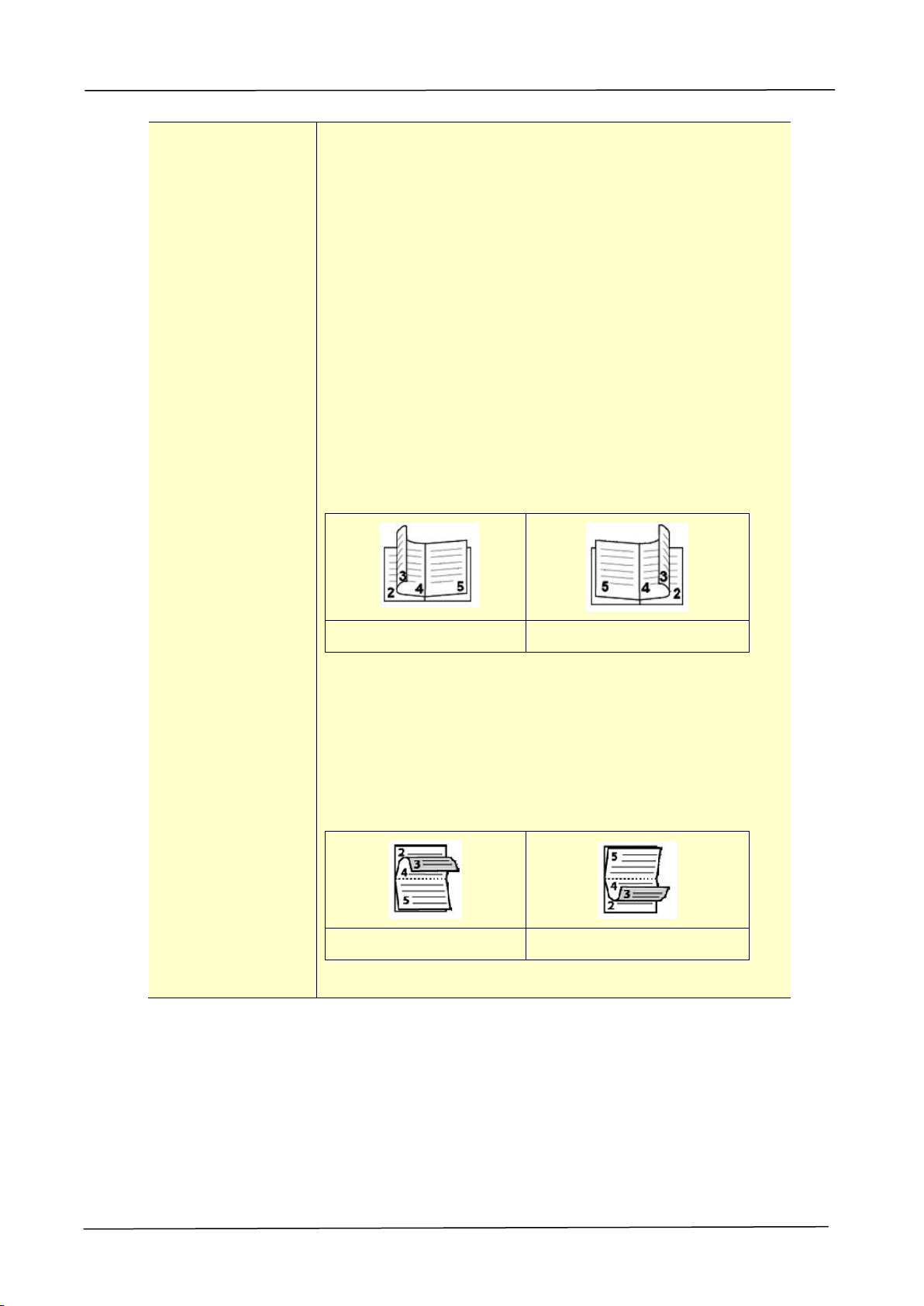
106
Booklet
Booklet (No
Reduction)
The feature allows you to print your documents as a
booklet. Choose 「Booklet」,the contents of the file will be
automatically reduced to fit your output paper. Choose
「Booklet (No Reduction)」,the contents of the file will be
kept the same with the output paper.
For example, to print an A4-sized document to an
A4-sized booklet, choose 「Booklet (No Reduction)」,the
product will automatically choose output paper to be A3
size to keep the original size.
On the other hand, if you wish to print an A4-sized
document to an A5-sized booklet, choose 「Booklet」,the
contents of the document will be reduced to fit your
output paper.
Booklet Layout:
Portrait Orientation
Left Binding/Right Binding: Select Left Binding or
Right Binding for your booklet printing.
Left Binding
Right Binding
Landscape Orientation
Top Binding/Bottom Binding: Select Top Binding or
Bottom Binding for your booklet printing.
A booklet is a document which is printed in a way that
when you fold the printed pages in the middle and staple
them, the pages will be in correct order as a book would
be.
Top Binding
Bottom Binding
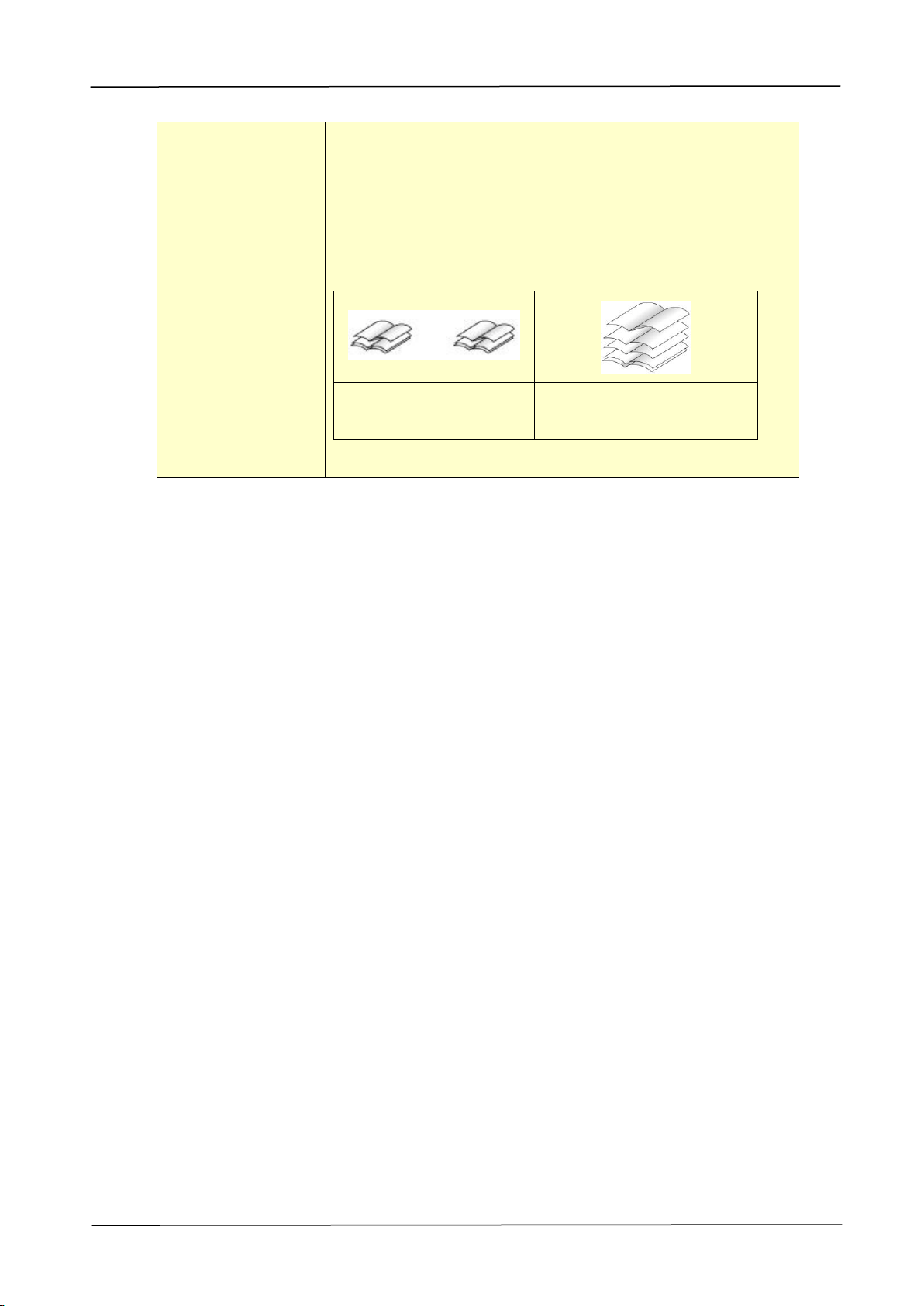
5. Configuring the Printer’s Features
107
Booklet
Booklet (No
Reduction)
Number of sheet to divide/All Pages at Once:
Check [Number of sheet to divide] to separate your
pages into sets and press the Arrow key to enter number
of pages.
All Pages at Once: Check [All Pages at Once] to print
all pages in one set.
Number of sheet to
divide: 2
All Pages at Once
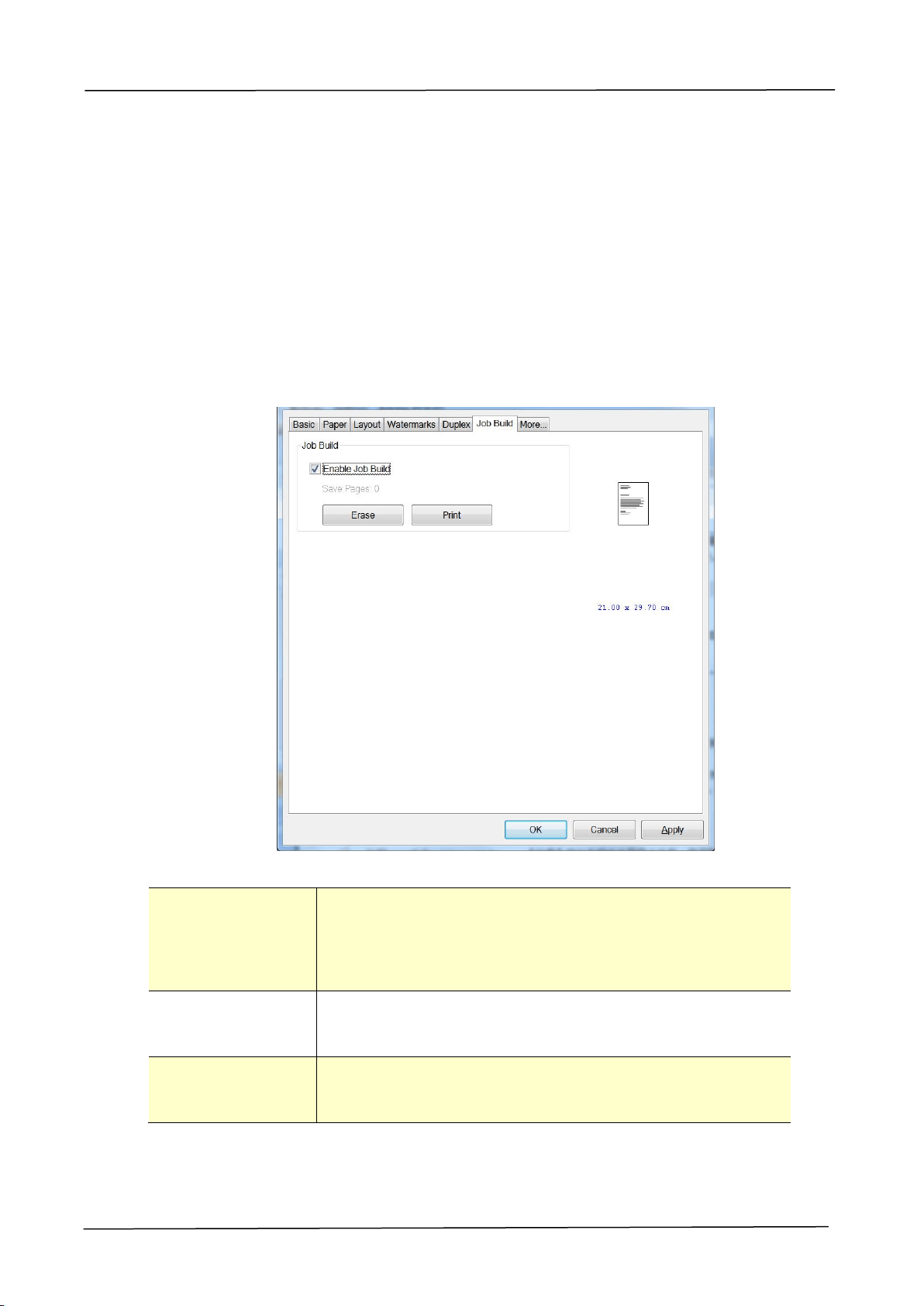
108
The Job Build Tab
The Job Build tab allows you to combine multiple types of files into a cohesive
single file and to be printed together from your PC. (The feature is only available
for GDI printer driver.)
For some cases, it is time-consuming and labor-intense to manually combine and
print certain pages from multiple documents such as a picture file from an image
editing software and a text document from a word-processing software. Enabling
the Job Build function allows you to efficiently do this in just a single file.
Enable Job Build
Check to enable the Job Build function.
Each time you perform printing your file, a print job for
the file is temporarily stored in your PC memory.
Print
Click to print the single combined file for all of your print
jobs stored in your PC.
Erase
Click to erase all of your print jobs temporarily stored in
your PC
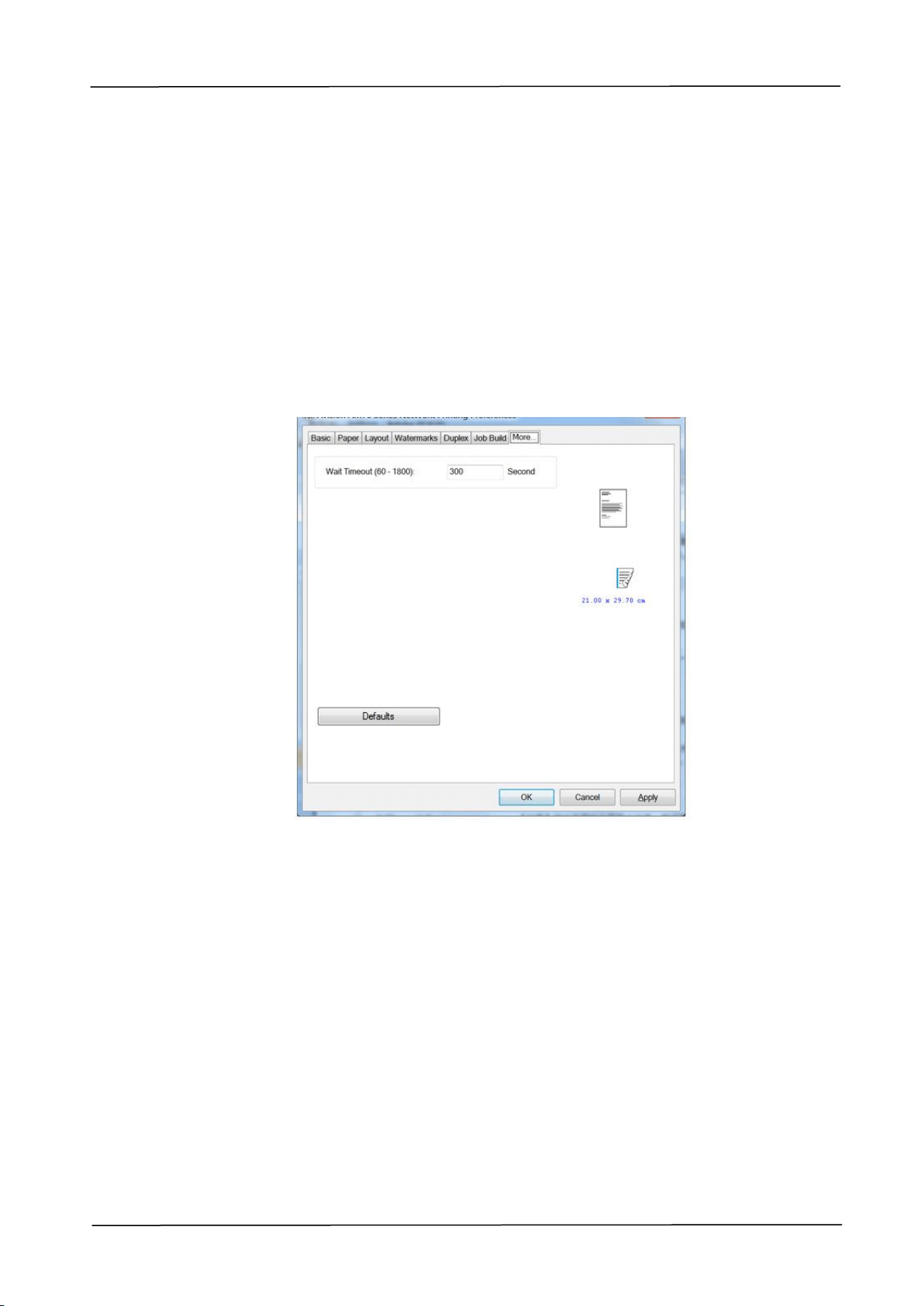
5. Configuring the Printer’s Features
109
The More Tab
On the More tab, a Wait Timeout option is provided to set the amount of time the
MFP waits for data to come from computer during a job. If the data stream pauses
for longer than the specified number of seconds, the job is cancelled.
Permitted timeout values: 60~1800 seconds, default timeout values: 300 seconds
Defaults: Press to resume all settings to factory default.

110
6. Scanning From Your
Computer
After installing the scanner driver and connecting the USB cable to your computer,
the product can be used as a fine scanner. You can use various scanning features to
modify your scanned image.
System Requirements
CPU:
Intel
®
Core™ 2 Duo or higher
Memory:
32 bit: 1 GB
64 bit: 2 GB
Optical Drive:
DVD-ROM Drive
USB Port:
USB port 2.0 (compatible with USB 3.0)
Compatible
Operating
System:
Microsoft Windows 10 (32-bit/64-bit),
Windows 8.x (32-bit/64-bit), Windows 7
(32-bit/64-bit)
Operating Steps
1. Start your image editing application.
2. Pull down the File menu and choose Select Source.
If the Select Source command is not available on the File menu, see your
application’s user’s guide to determine how the TWAIN link is used. A dialog
box with a list of scanning sources appears.
3. Select the model name of your product.
You need to select the source only once, unless you want o choose another
scanner.
4. Place the document FACE DOWN on the flatbed glass.
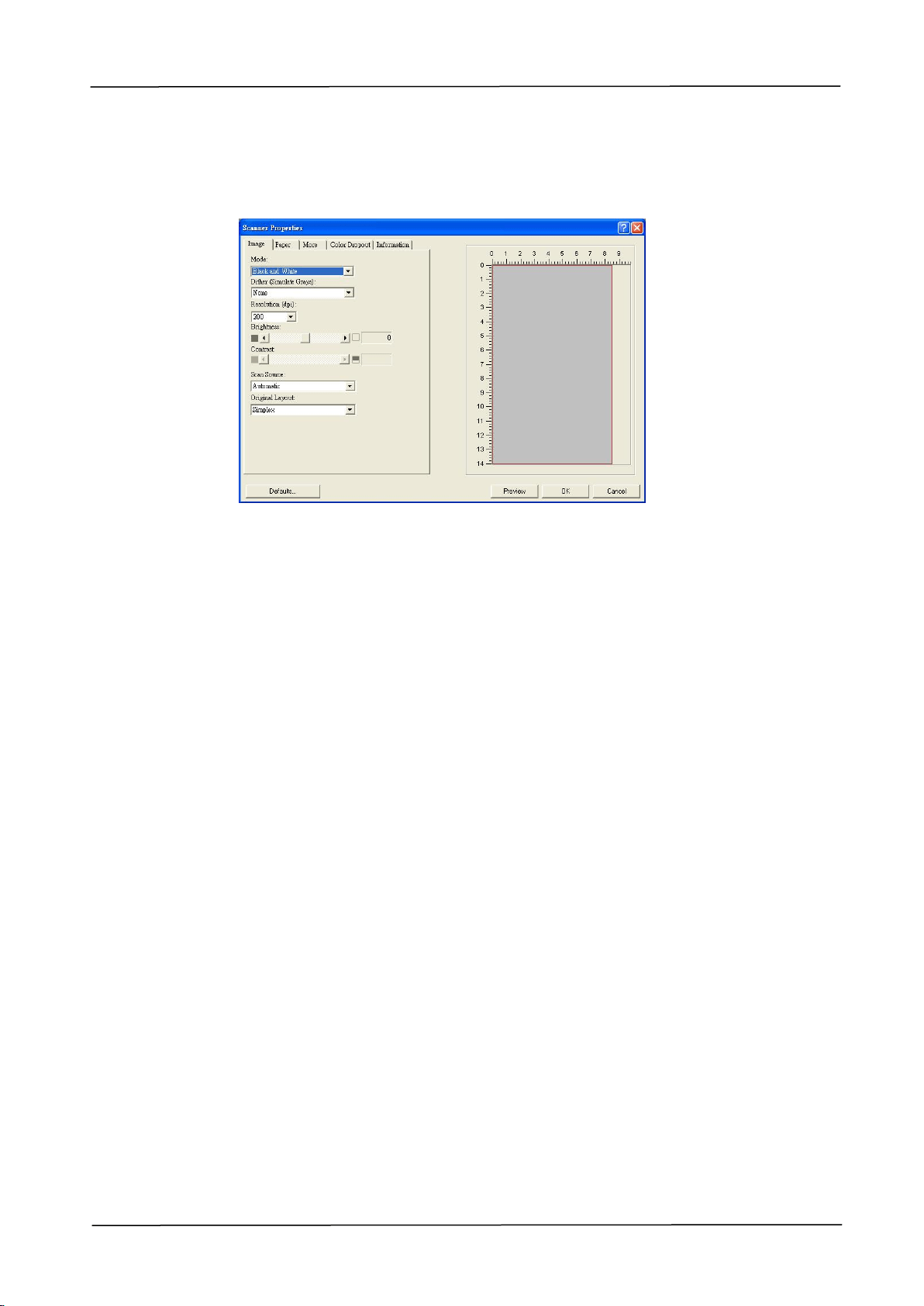
6. Scanning From Your Computer
111
5. Pull down the File menu and choose Acquire.
A dialog box containing scanning features appears.
6. Select the scanning method you want to use on the Scan Source drop-down
menu.
7. Select the mode you want to use for your scans on the Image Mode
drop-down menu.
8. Select a scanning resolution on the Resolution drop-down menu.
9. Select the setting for the scanning features (e.g. Brightness, Contrast,
Original Layout, etc.) that you want to use.
10. Click on Preview or Scan to preview or scan you documents.
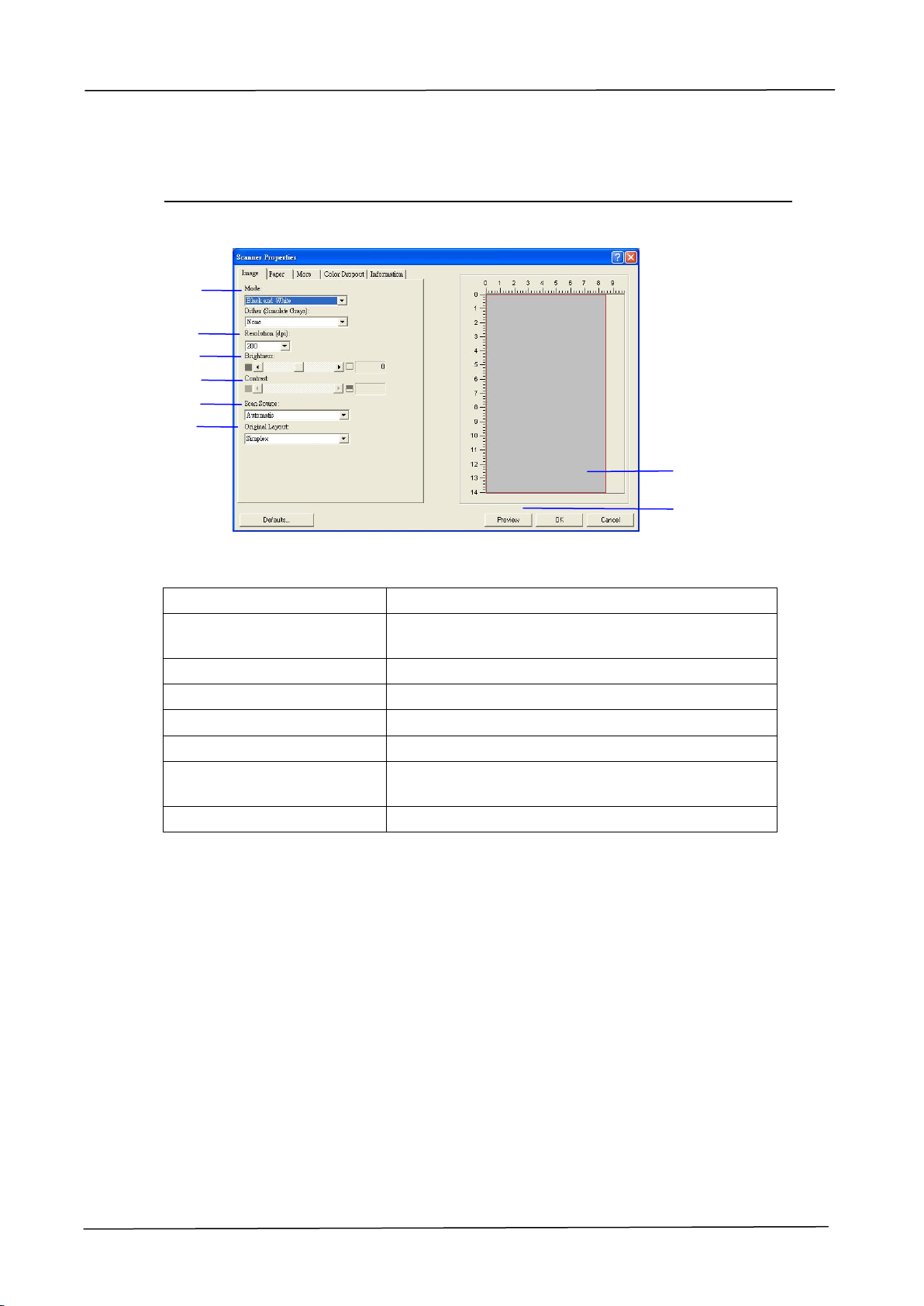
112
A Glance of the User Interface
1. Mode
Choice: Black & White, 8-Bit Gray, 24-Bit Color
2. Resolution
Choice: 50, 72, 100, 144, 150, 200, 300, 600
(dpi).
3. Brightness
Adjust the brightness level from –100 to +100.
4. Contrast
Adjust the contrast level from –100 to +100.
5. Scan Source
Choice: Auto, ADF, Flatbed
6. Original Layout
Choice: Simplex, Duplex
7. Preview Window
Used to display the scanned image in low
resolution.
8. Preview
Resize your scanned area.
7
8
1
2
3
4
5
6
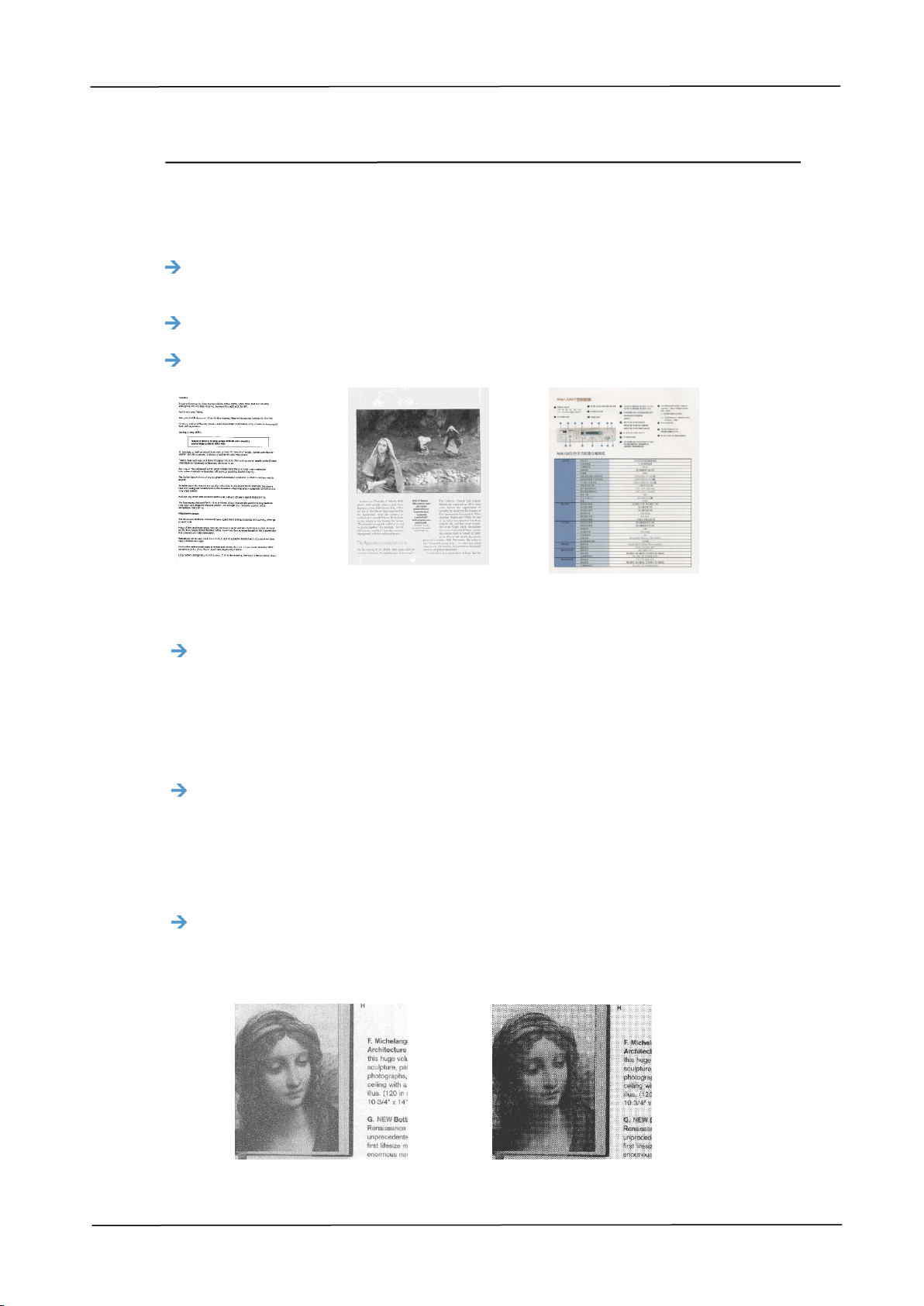
6. Scanning From Your Computer
113
Using The Image Tab
Selecting A Proper Image Mode
Black & White: Choose B&W if your original contains only B&W text, pencil or
ink sketch.
8-bit Gray: 8-bit Gray images contain actual shades of gray.
24-bit Color: Choose 24-bit Color if you wish to scan a color image.
B&W
Gray
Color
Dither (Simulate Grays):
This is the process of converting a grayscale or color image to a bi-tonal
image. There are several different methods of performing this
conversion. Options: None, Halftone 1~5, Diffusion. Default setting is
none.
Halftone:
In addition to the black and white display, halftone can present a somehow
gray shade of image by using different size of dots. Halftone image looks
like the picture you have seen in the newspaper. Options include Halftone
1, Halftone 2, Halftone 3, Halftone 4, Halftone 5.
Diffusion:
Diffusion is a type of halftone. Diffusion gives good image texture and
makes text in images more readable than halftone.
Error Diffusion Image Halftone Image

114
Determining Proper Resolution
A proper resolution reproduces a clear image with good details. The resolution is
measured by dots per inch (dpi). The resolution is measured in pixels per inch (ppi)
(sometimes referred to as dots per inch or dpi). Higher resolutions result in more detail
in the scan, slower scanning and in general, greater file sizes. For example, an A4 size
color image scanned at 300 dpi with color mode consumes approximately 25 MB of
disk space. When OCR (Optical Character Recognition) is to be performed on a scan,
300dpi should be used for most languages except Asian languages. For Asian
languages, 400 dpi is recommended.
Choose a resolution value from the drop down list. The default value is 200 dpi.
Available resolutions are 75, 100, 150, 200,300, 400 and 600.
Resolution: 75 dpi
Resolution: 150 dpi
Adjusting Brightness And Contrast
Brightness
Adjusts the lightness or darkness of an image. The higher the value, the brighter
the image. Drag the slider to the right or left to increase or decrease the
brightness. The range is from –100 to +100. The default value is 0.
Contrast
Adjusts the range between the darkest and the lightest shades in the image.
The higher the contrast, the bigger the different grayscale. Drag the slider to the
right or left to increase or decrease the contrast. The range is from –100 to
+100. The default value is 0.
Brightness: -50
Brightness: 0
(Normal)
Brightness: +50
Contrast: -50
Contrast: 0
(Normal)
Contrast: +50

6. Scanning From Your Computer
115
Choosing Scan Source
Choice:
Flatbed: Select this setting if you need to scan a single page from the flatbed.
*Auto, ADF—Use this setting if you are using the automatic document feeder (ADF)
to scan documents at a time.
Preview Window
Click the Preview button to get a scanned image in a low resolution. You can use this
window to select your scan area.

116
Using The Paper Tab
Selecting Your Scan Size
Automatic: Choose Automatic from the Cropping drop-down list on the
Paper tab. The scanner will capture an image according to the actual size of
your original.
Deskew: Use this option to let the scanner automatically determine if a page
is skewed, and then straighten the image. This option will be available only
when Automatic Cropping is selected.
Custom: Choose Custom from the Cropping drop-down list on the Paper tab.
This feature allows you to define the area or zone to be scanned. If you select
this option, you can enter the x and y offset values, width and length to
redefine your scanned area. The Display window will show the size as you
change the values.
Choose your scan size from the Scan Size drop-down list.
None
US Letter- 8.5”x 11”
US Legal – 8.5” x 14”
ISO A4 – 21 x 29.7 cm
ISO A5 – 14.8 x 21 cm
ISO A6 – 10.5 x 14.8cm
ISO A7 – 7.4 x 10/5 cm
ISO B5 – 17.6 x 25 cm
ISO B6 – 12.5 x 17.6 cm
ISO B7 – 8.8 x 12.5 cm
JIS B5 – 18.2 x 25.7 cm
JIS B6 – 12.8 x 18.2 cm
JIS B7 – 9.1 x 12.8 cm
Scanner Maximum
Long Page (<118”)
The following options are only available when Custom is selected.
X-Offset — the distance from the left end of the scanner to the left edge of the
scanning area.
Y-Offset — the position from the top end of the document to the top end of the
scanning area.
Width — the width of the scanning area.
Length — the length of the scanning area.
Center — automatically calculates the x-offset for center-fed feeding based upon
document size selected.
Unit: Define your measurement system. Inches, Millimeters, and Pixels are
available.

6. Scanning From Your Computer
117
Using The More Tab
Enabling Multi-Feed detection
The multi-feed detection feature allows you to detect overlapped documents that go
through the scanner. Multi-Feed usually occurs due to stapled documents, adhesives
on documents, or electro-statically charged documents.
Additional Length Detection: Additional Length Detection allows you to define
the length of document being multi-fed. This value indicates the additional
length exceeding your scan area. A value of 0 indicates no additional length
detection. For the specified measuring unit, please refer to the Unit drop-down
list box on the Paper tab.
Ultrasonic Detection: Ultrasonic Detection allows you to set overlapped
document by detecting paper thickness between documents. Note:The
availability of this feature varied depending on scanner type.
Once multi-feed is detected, the scanning operation will not be stopped. Instead, a
multi-feed detection message will be displayed.
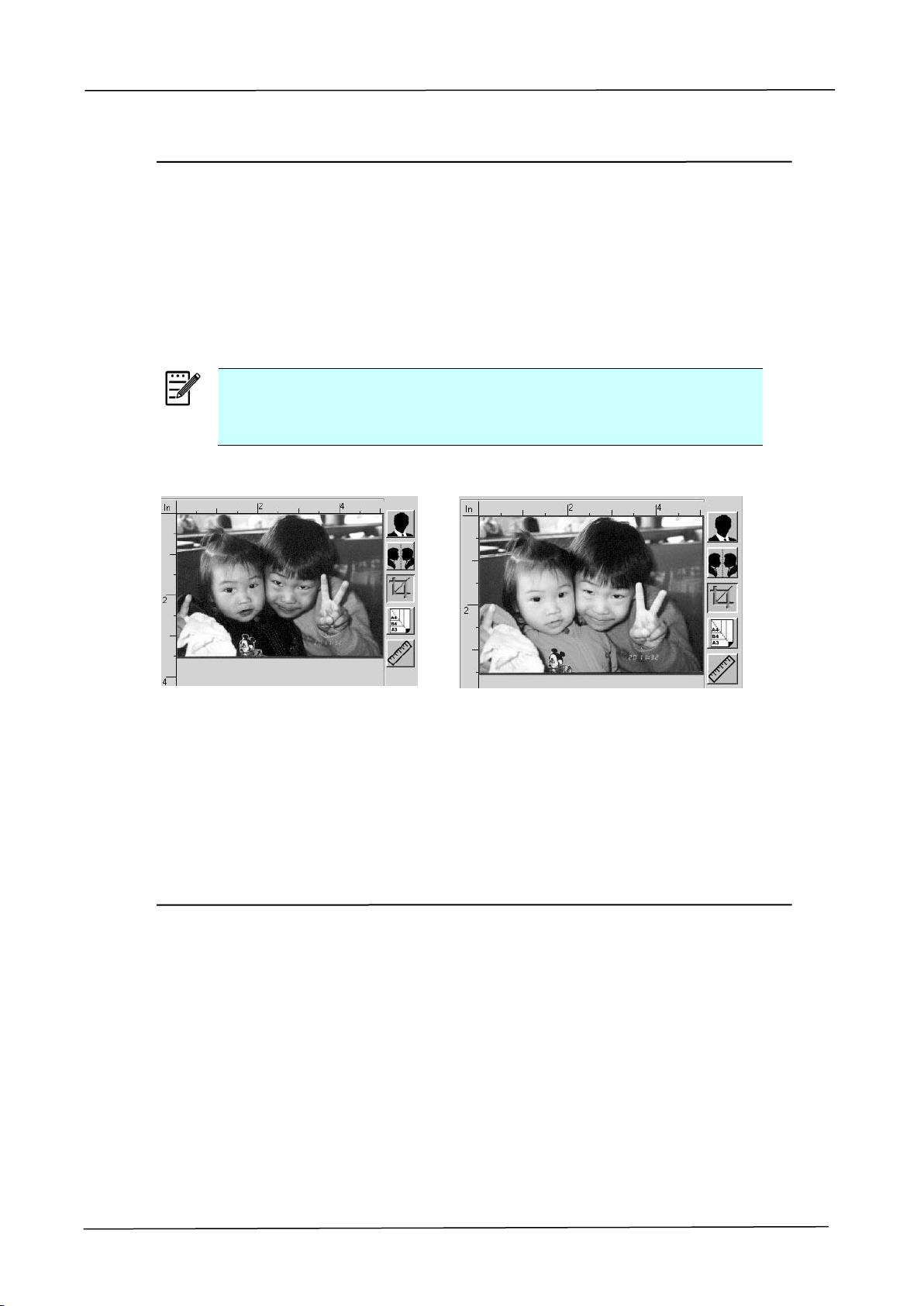
118
Using The Color Dropout Tab
Color Dropout tab allows you to filter out a color channel (red, green, or blue). For
example, if you are scanning a document with a red watermark, you can choose to
filter out the red channel so the scanned image just shows the text and not the red
watermark. Removing colors from the scan might reduce the scan file size and
improve optical character recognition (OCR) result.
Note:
Color dropout only applies to gray scans and to black and white
scans.
After removing the G channel
After removing the R channel
Using The Information Tab
The Information Tab allows you to view all the information about the scanner
including serial number, pad count, roller count, and firmware version. These are
helpful information when you report a problem to the service personnel.
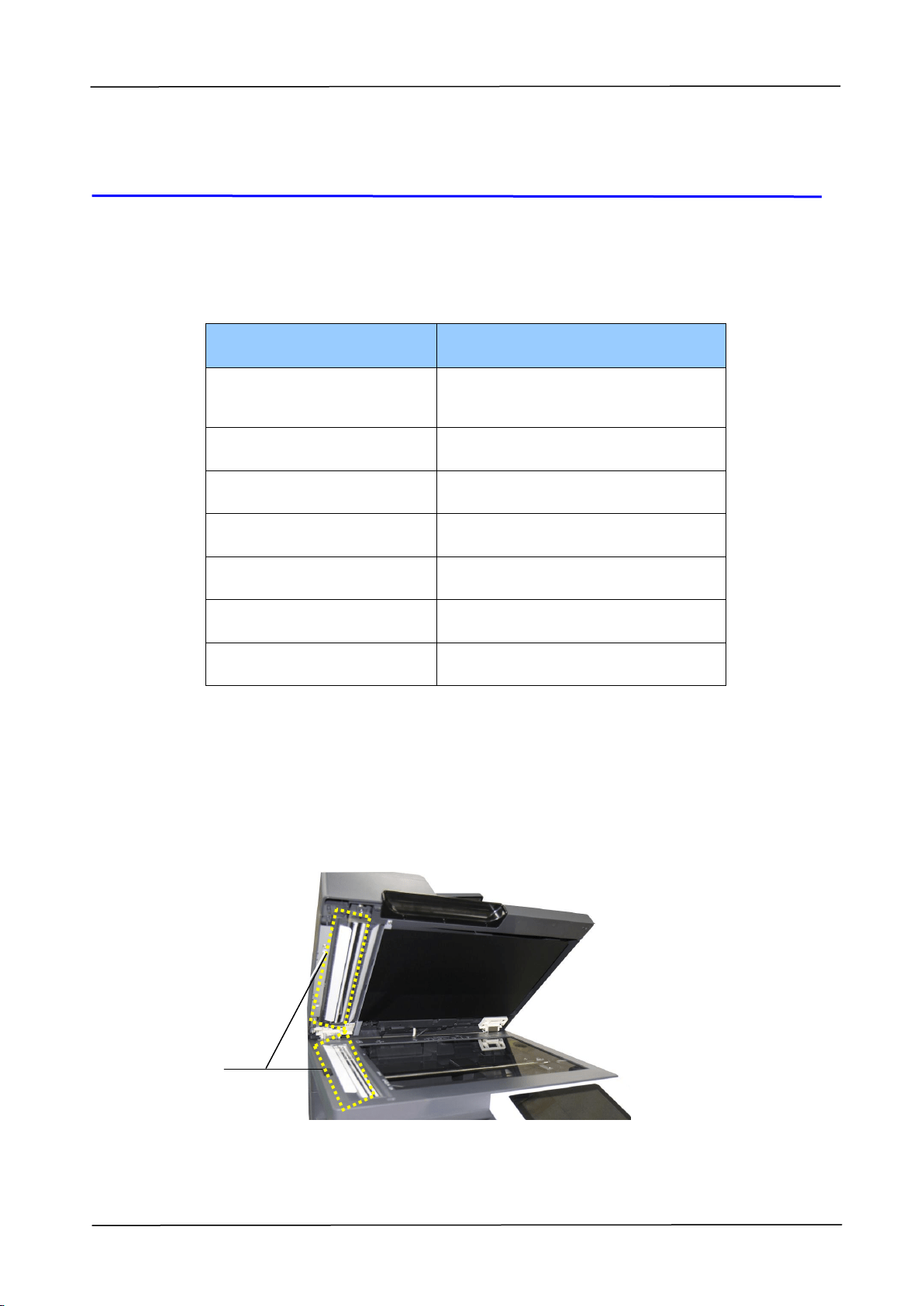
7. Maintaining the Product
119
7. Maintaining the Product
The following table shows the parts and their suggested cleaning cycle.
PARTS
STANDARD CLEANING CYCLE
Glass Platen
When the scanned image is shown
with abnormal lines
Document Glass
Visual Check
Auto Document Feeder
When feeding is not smooth
Snap-in Pad Module
When paper feeding is not smooth
EP Charger
10,000 sheets
Paper Tray Roller
5,000 prints
Paper Path
20,000 prints
Removing the Abnormal Line On an Image
When the scanned image is shown with abnormal lines on it, clean the rectangular
glass area on the left of the document glass as indicated below with a clean lint-free
cloth.
Clean the
white area.
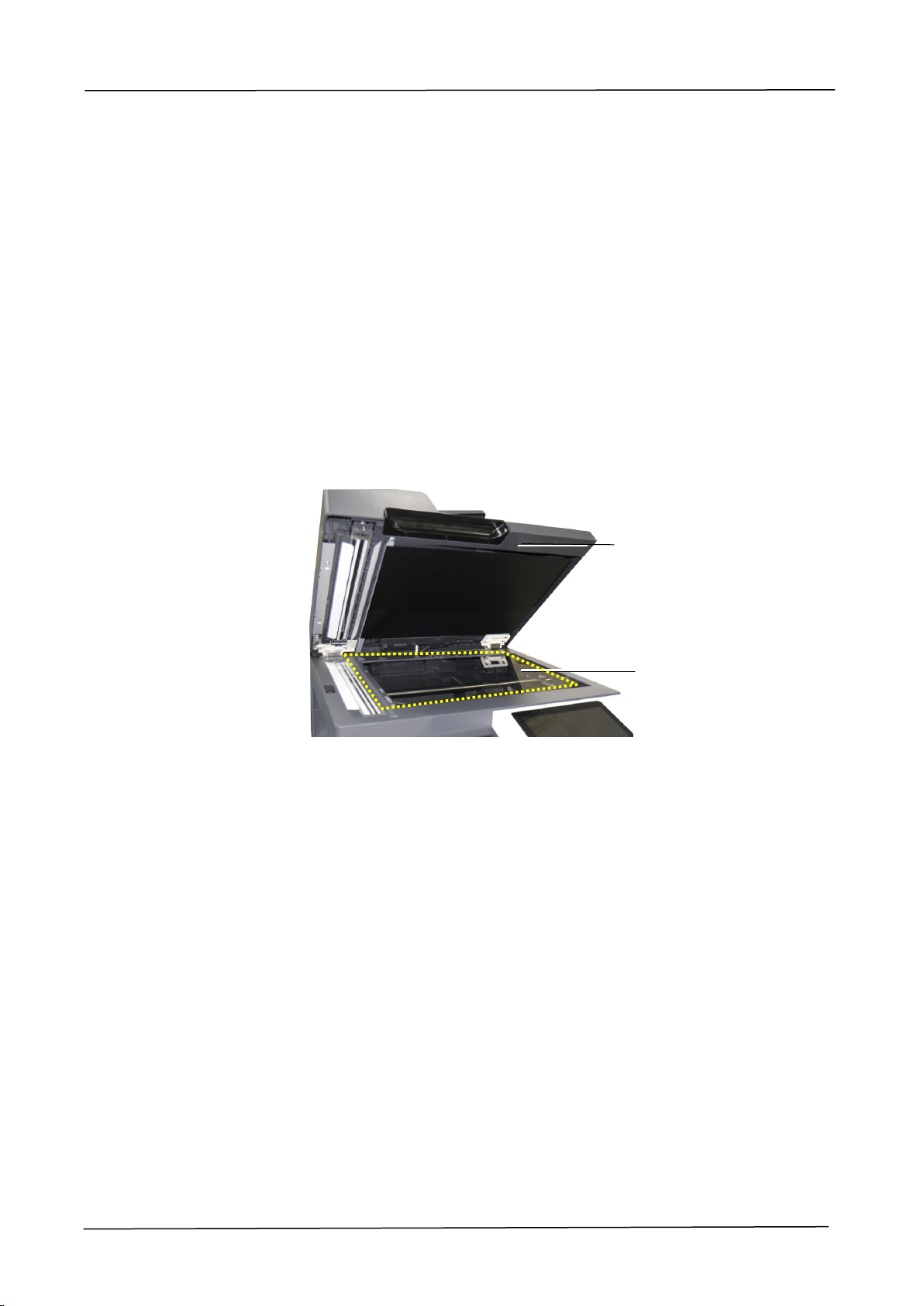
120
Cleaning the Document Glass
The product is designed to be almost maintenance-free. However, it still needs to be
cleaned occasionally to ensure optimum image quality and performance.
To clean the glass,
1. Open the document cover as shown below.
2. Dip a soft clean cloth with isopropyl alcohol (95%).
3. Gently wipe the document glass to remove the dust or any toner particles.
4. Close the document cover. Your machine is now ready to use.
1. Document Cover
2. Document Glass
1
2
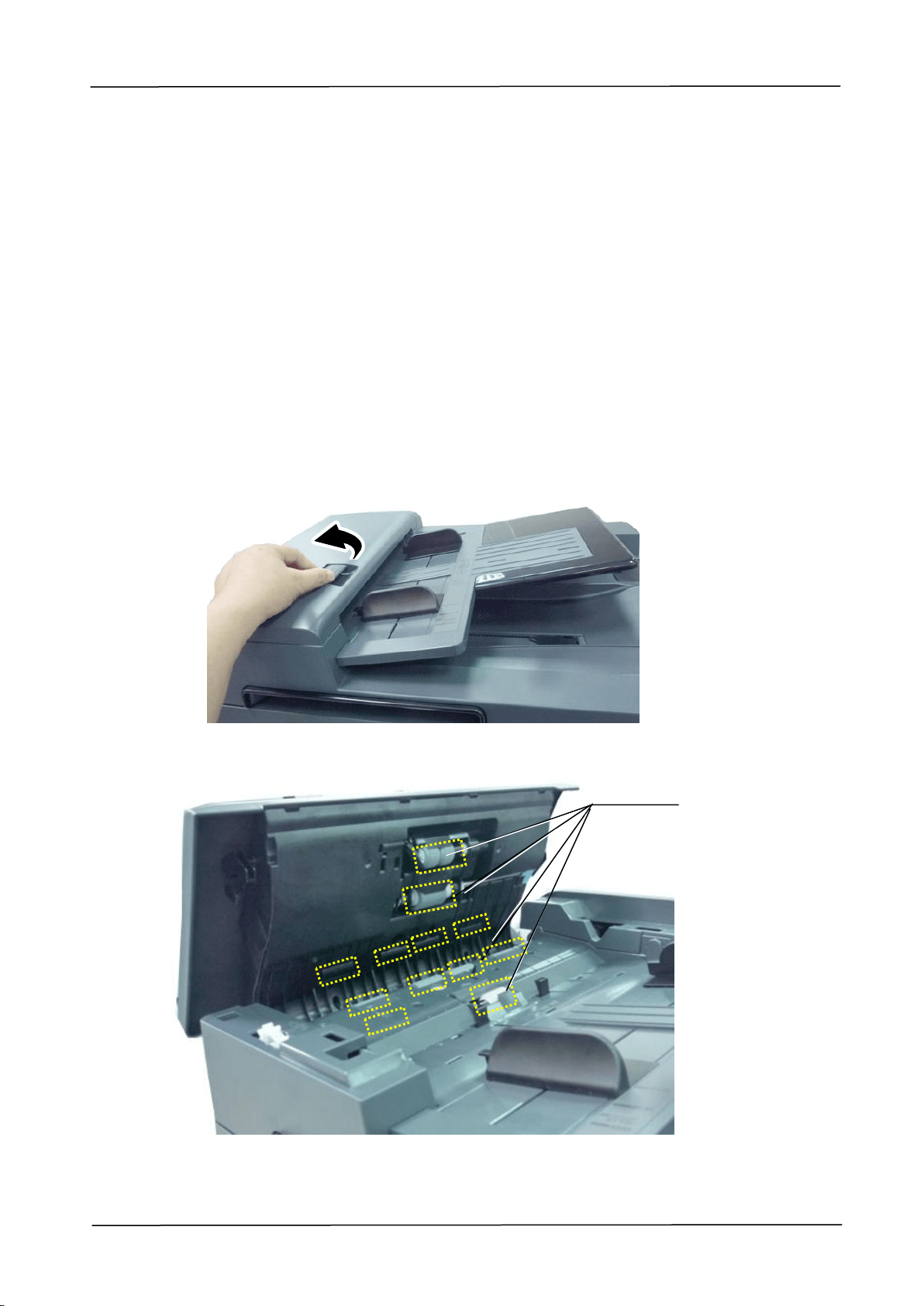
7. Maintaining the Product
121
Cleaning the ADF
From time to time the feeding rollers may become contaminated with ink, toner
particles or paper dust. In this case the product may not feed documents smoothly.
If this occurs please follow the cleaning procedures to return your machine to its
original state.
1. Moisten a clean lint-free cloth with isopropyl alcohol (95%).
2. Gently open the ADF front cover. Wipe the feeding rollers from side to side.
Rotate the rollers forward with your finger and repeat the above cleaning
procedures until the rollers are clean. Be careful not to snag or damage the pick
springs.
3. Wipe the rubber part of the ADF snap-in pad.
4. Close the ADF unit. Your machine is now ready to use.
Feeding
Roller
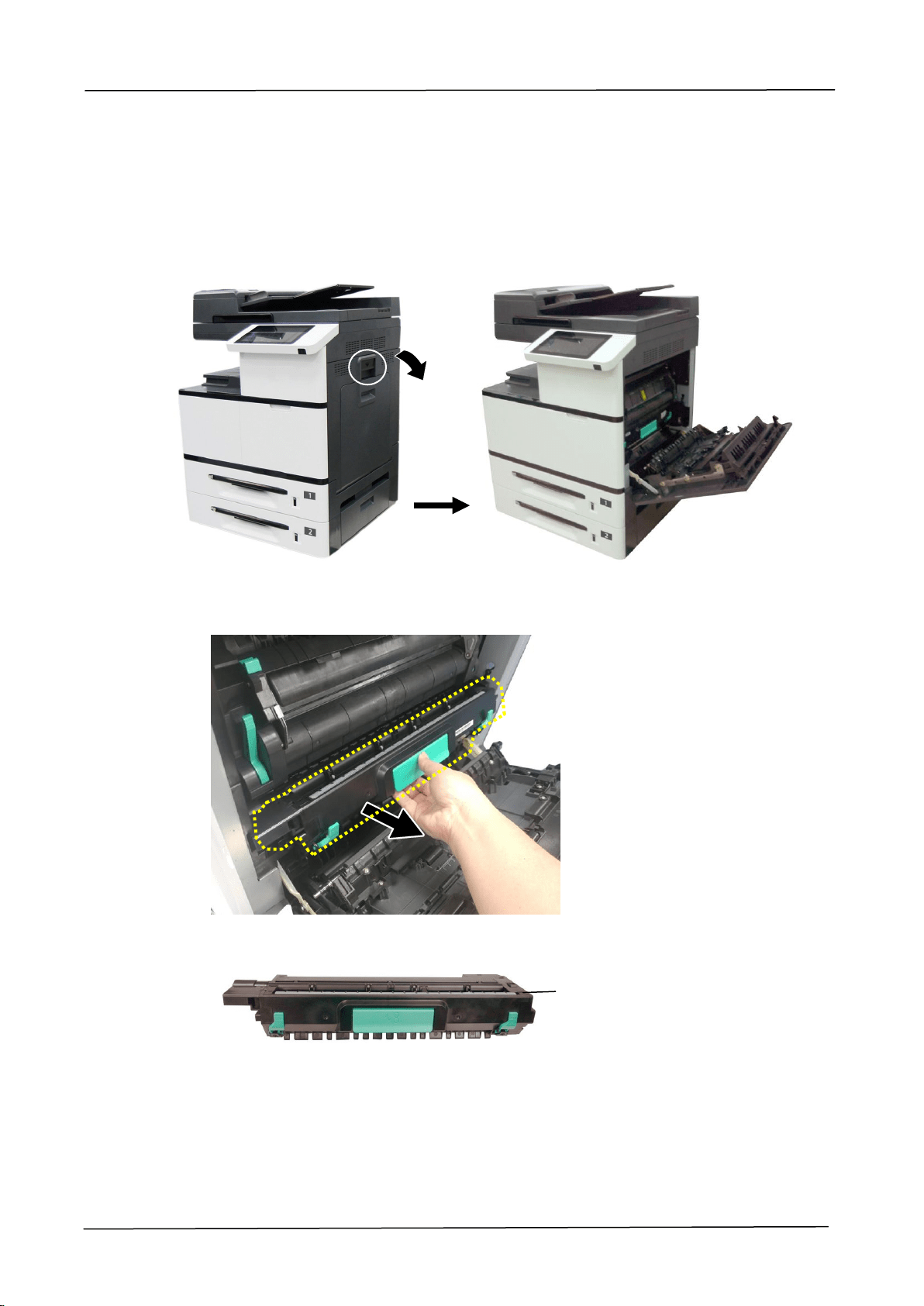
122
Cleaning the EP Charger
After copying about 10,000 pages, it is recommended to clean the developing unit.
Follow these steps to clean the charger.
1. Open the Side Door by pulling the handle as shown.
2. Remove the Drum Unit.
Drum Unit
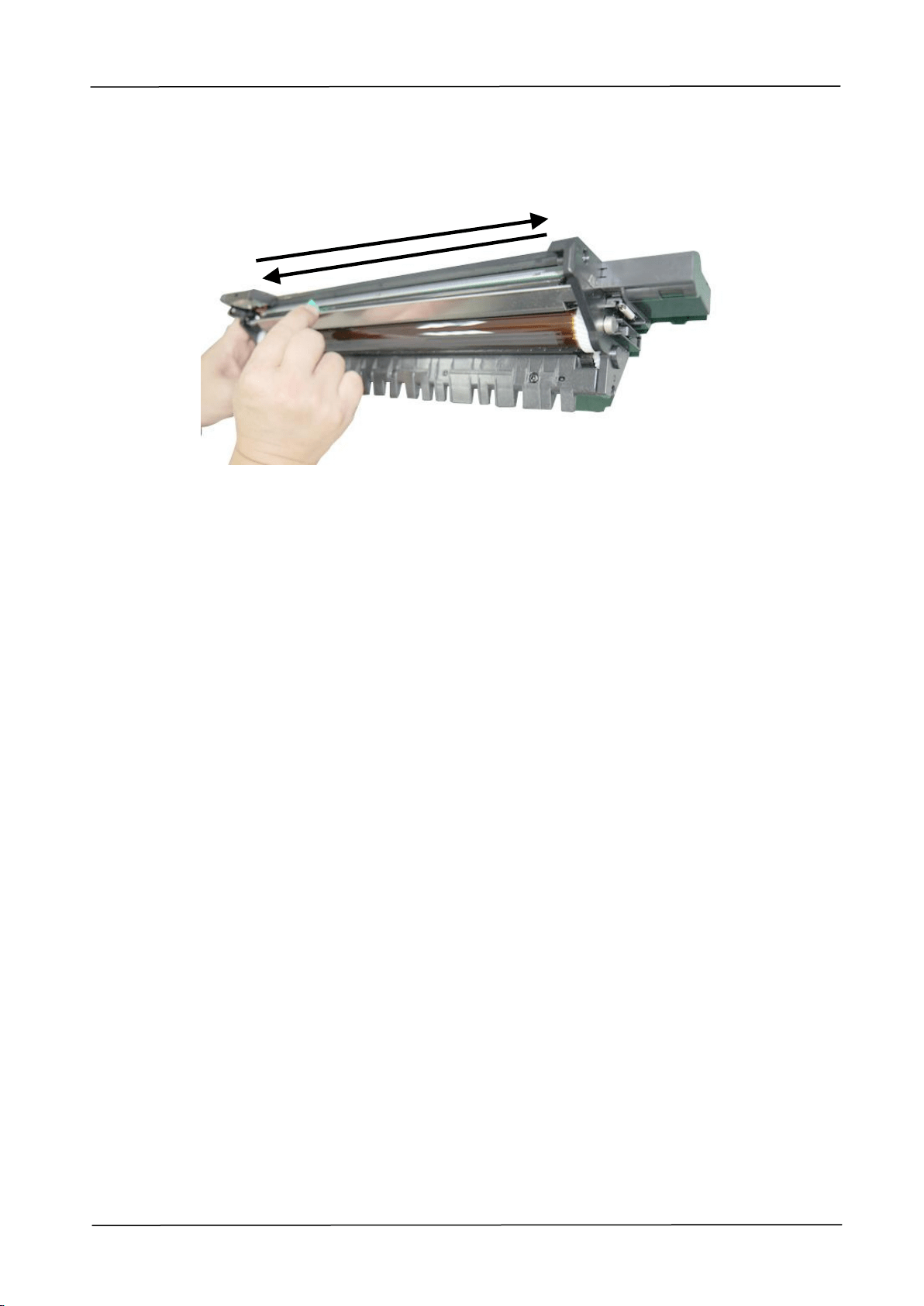
7. Maintaining the Product
123
3. Pull out the charger to the end and then back to its original position.
4. Repeat step 3 for three times. Make sure the charger is back to its original
position. Otherwise, there is trouble to install the Drum Unit back to the
machine.
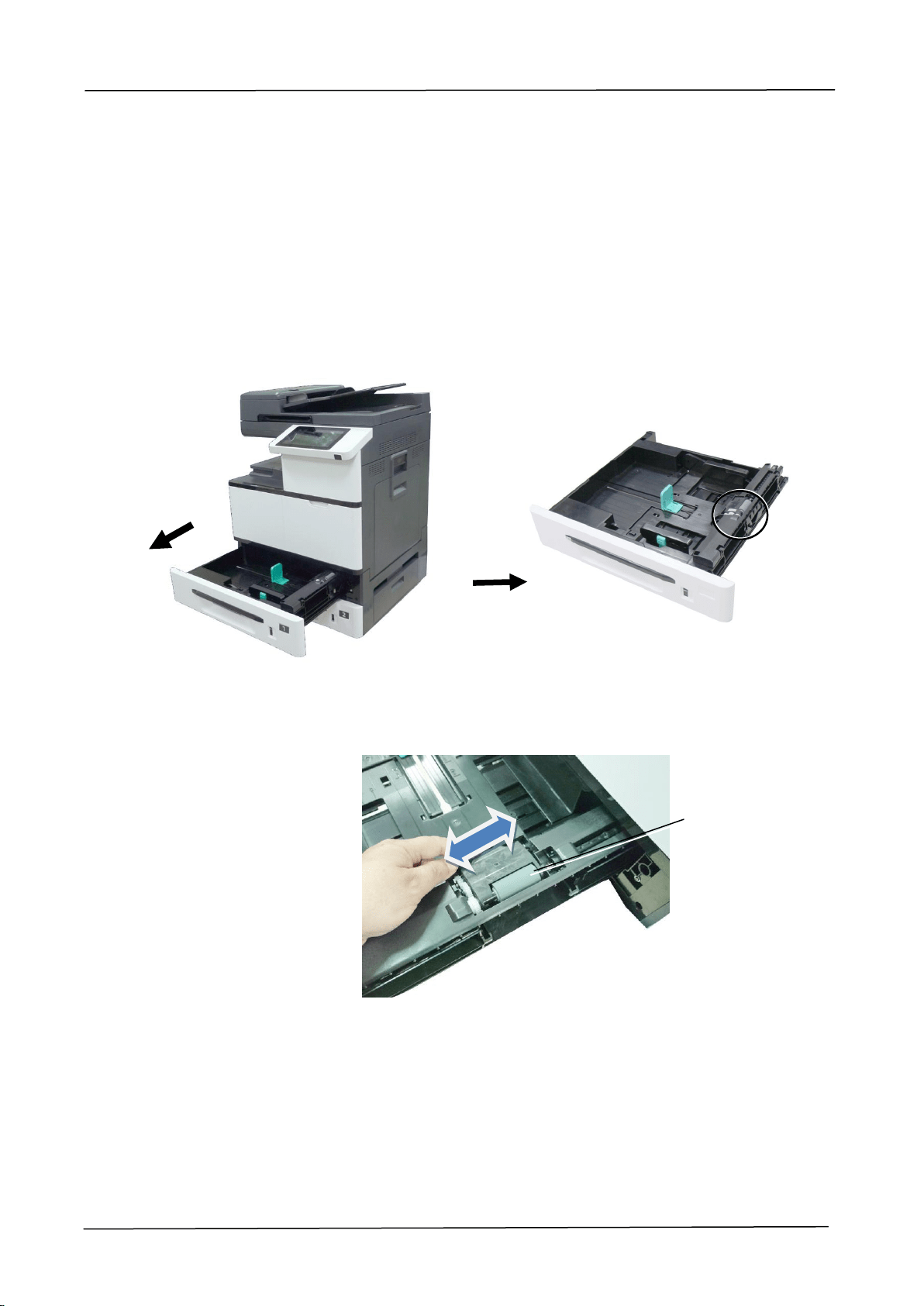
124
Cleaning the Paper Tray Rollers
If the paper tray rollers are is dirty, paper powder is attached to it, or after 5,000
prints or copies, paper may not be fed properly or paper jam. In this case, clean the
paper tray rollers.
The Cleaning Steps:
1. Move the paper tray to reveal the rollers.
2. Slightly wet a soft and lint-free cloth with isopropyl alcohol (95%).
3. Wipe the surface of the pickup roller, feeding roller, and the reverse roller until
they are thoroughly cleaned.
Wipe the surface
of the pickuproller
from left to right
and then from
right to left.
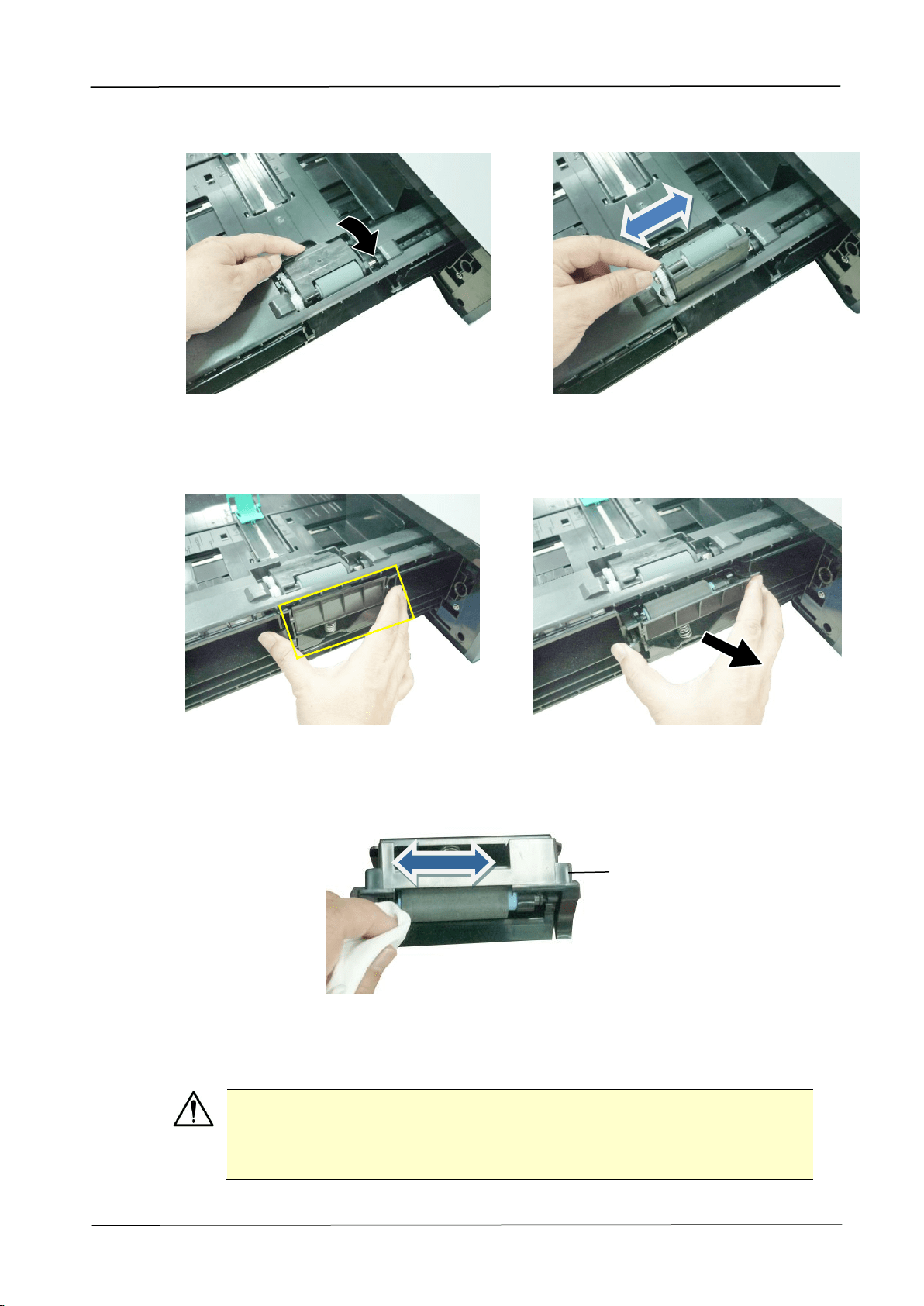
7. Maintaining the Product
125
4. Open the Roller cover as illustrated and wipe the surface of the Feeding Roller
from left to right and then from right to left.
5. As shown in below,The Reverse Roller is located at the other side of the
Feeding Roller. Hold two ends of the Reverse Roller Cover and remove the
cover.
6. Wipe and rotate the surface of the roller to make sure they are thoroughly
cleaned.
7. Hold two ends of the Reverse Roller Cover to install the Reverse Roller Cover
back to the machine.
Important!
Make sure to clean the rollers with a soft and lint-free cloth in case the
fibers may remain on the surface of the rollers.
Reverse
Roller
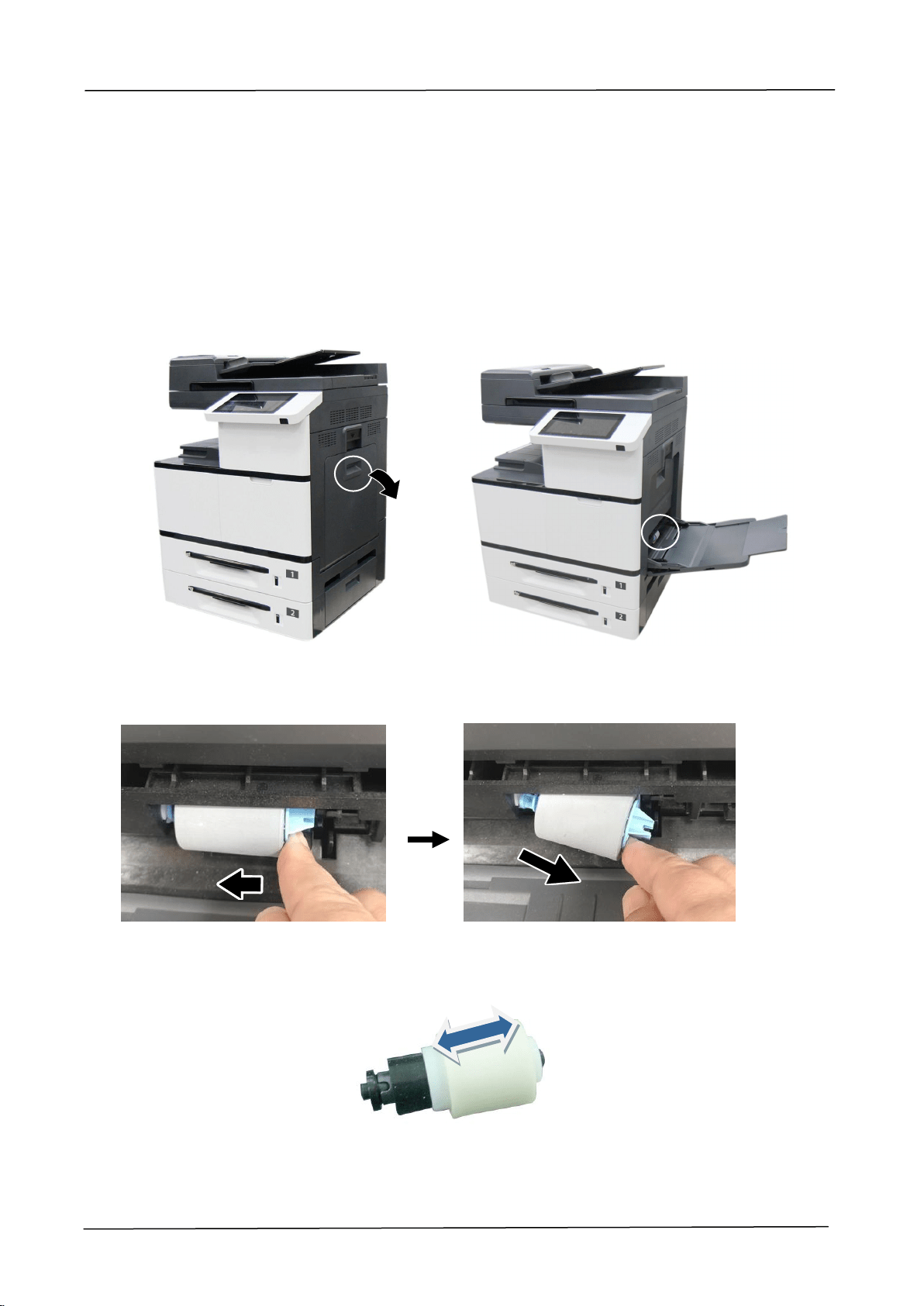
126
Cleaning the Manual Tray Roller
If the paper tray rollers are is dirty, paper powder is attached to it, or after 5,000
prints or copies, paper may not be fed properly or paper jam. In this case, clean the
paper tray rollers.
1. Slightly wet a soft and lint-free cloth with isopropyl alcohol (95%).
2. Pull down the manual tray as shown.
3. Push the roller internally and remove the roller.
4. Wipe the surface of the roller from left to right and then right to left until
the roller is completely cleaned.
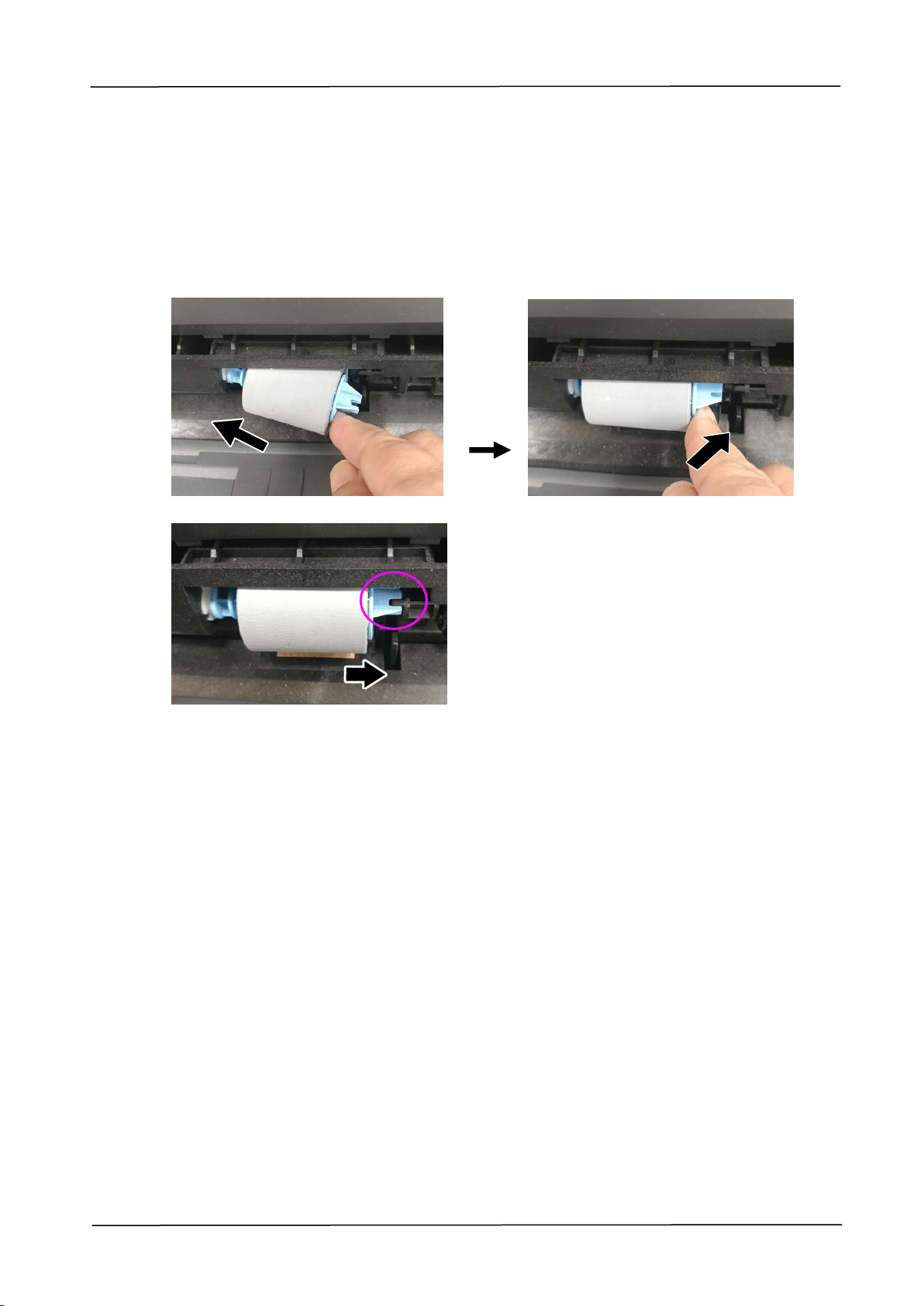
7. Maintaining the Product
127
Installation Step
Install the left end of the roller to the left hole and then the right end to the right
hole. Note the notch on the right end has to be aligned with the tab as indicated in
below.
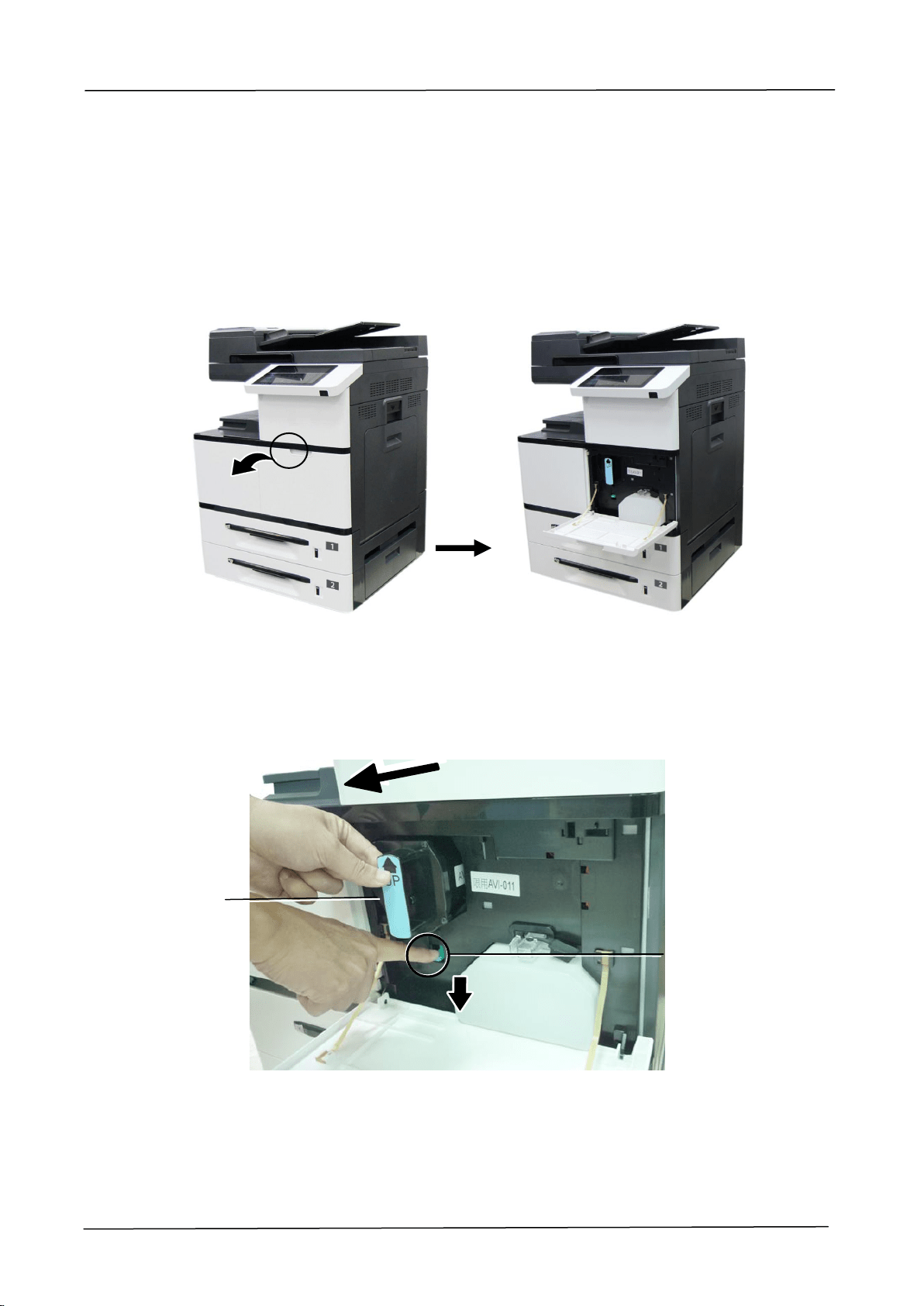
128
Cleaning the Toner Cartridge
If there is toner leaking on the machine, slightly wet a soft and lint-free
cloth with isopropyl alcohol (95%) and wipe the toner off in case you may
touch the toner which is harmful to human health.
Remove the Toner Cartridge
1. Open the front cover by pulling the handle as shown.
2. Use your right hand to unlock the toner cartridge by pressing down the 「lock
switch」and at the same time use your left hand to hold the handle of the toner
cartridge and pull it out of the printer.
Lock Switch
Handle
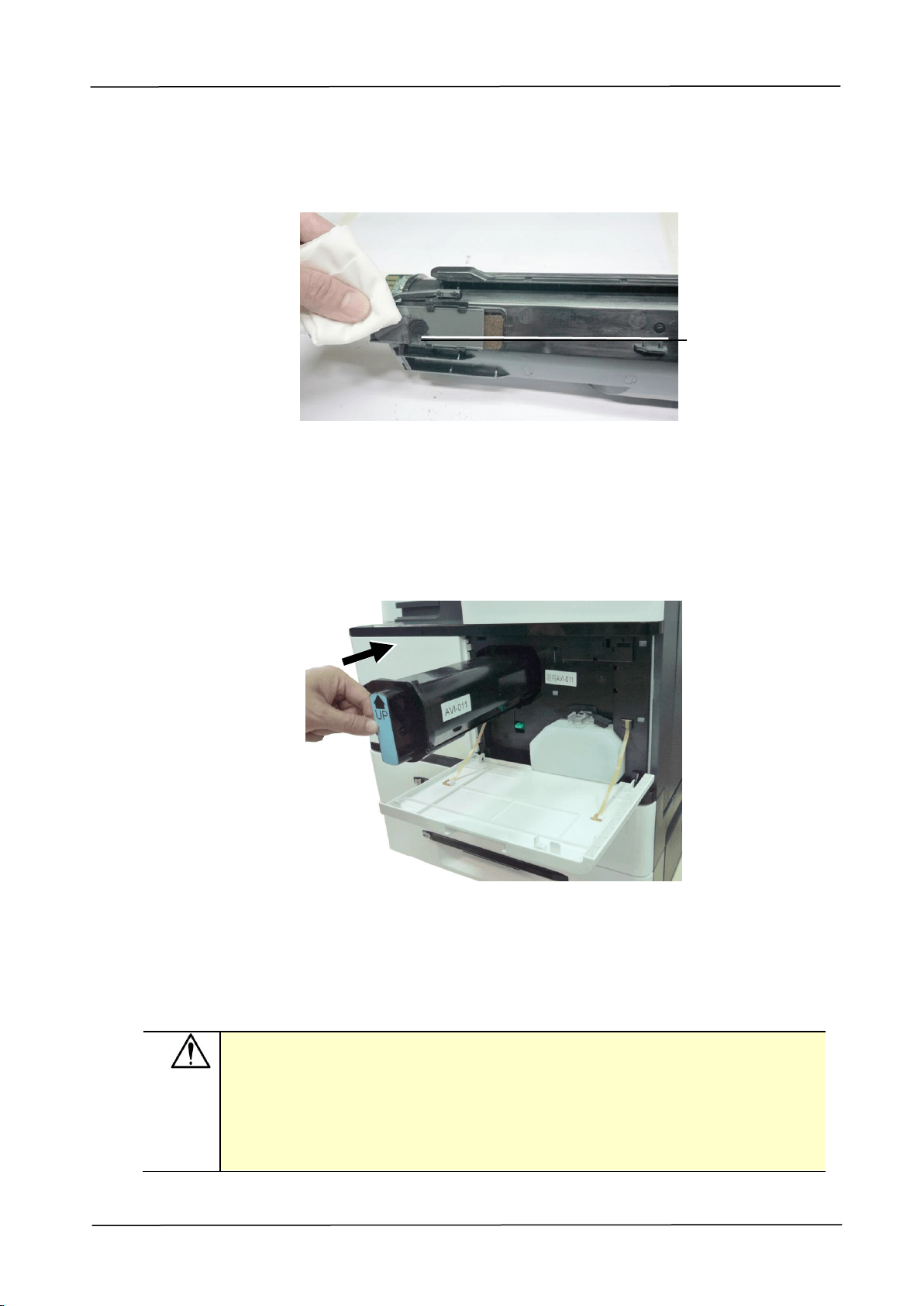
7. Maintaining the Product
129
3. Slightly wet a soft and lint-free cloth with isopropyl alcohol (95%) and wipe the
toner off the cartridge.
Install the Toner Cartridge
1. Hold the handle of the toner cartridge and insert it to its proper position as
shown.
2. Push the Toner Cartridge to the end. A “click” sound means the
installation was successful.
3. Close the Front Cover.
Important!
Be careful not to spill toner from the waste toner can. Do not inhale
toner or allow toner to get into your eyes。
If toner gets on your clothing or other fabric, wipe off the toner with a
dry cloth. Wash the items in cold water and air dry. Hot water causes
the toner to penetrate the fibers of the clothes.
Toner Leakage
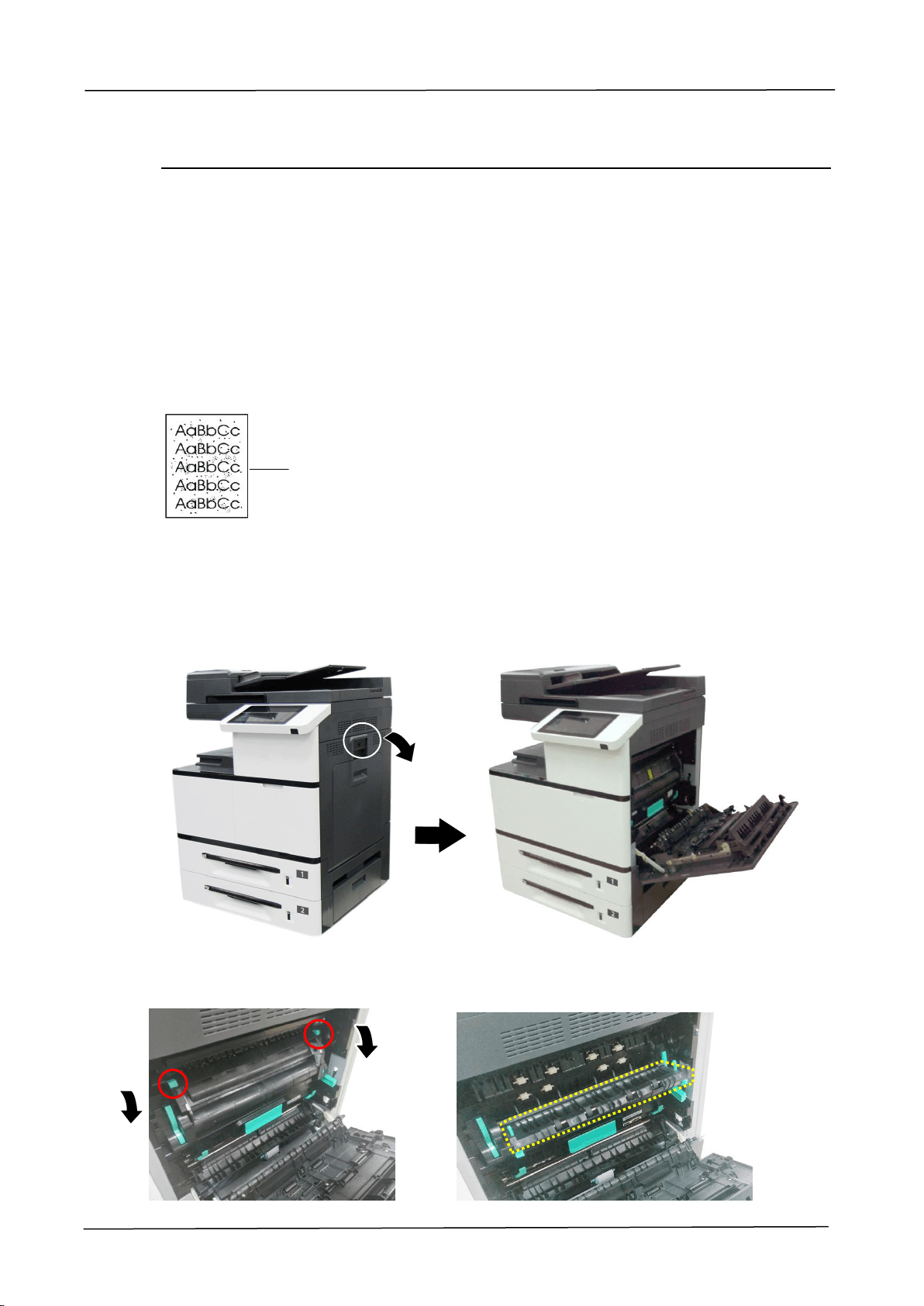
130
Cleaning the Paper Path
During the printing process, paper powder, toner, and dust particles can accumulate
inside the product. Over time, this buildup can cause print quality issues such as
toner specks, smears, or dust particles on the edge of paper. If you are
experiencing these problems, clean the paper path. To keep optimal printing quality,
the paper path needs to be cleaned after approximately every 20,000 prints.
However, the guideline might vary based on the type of paper you are printing (for
example, visible paper powder on paper or paper has not been cut evenly).
To clean the paper path, follow these steps:
1. Turn off the product, disconnect the power cord, and then wait for the product
to cool.
2. Open the side door.
3. Pull down the lock latches on the top of the fuser to open the Fuser Cover.
Toner specks or dots on the
printouts
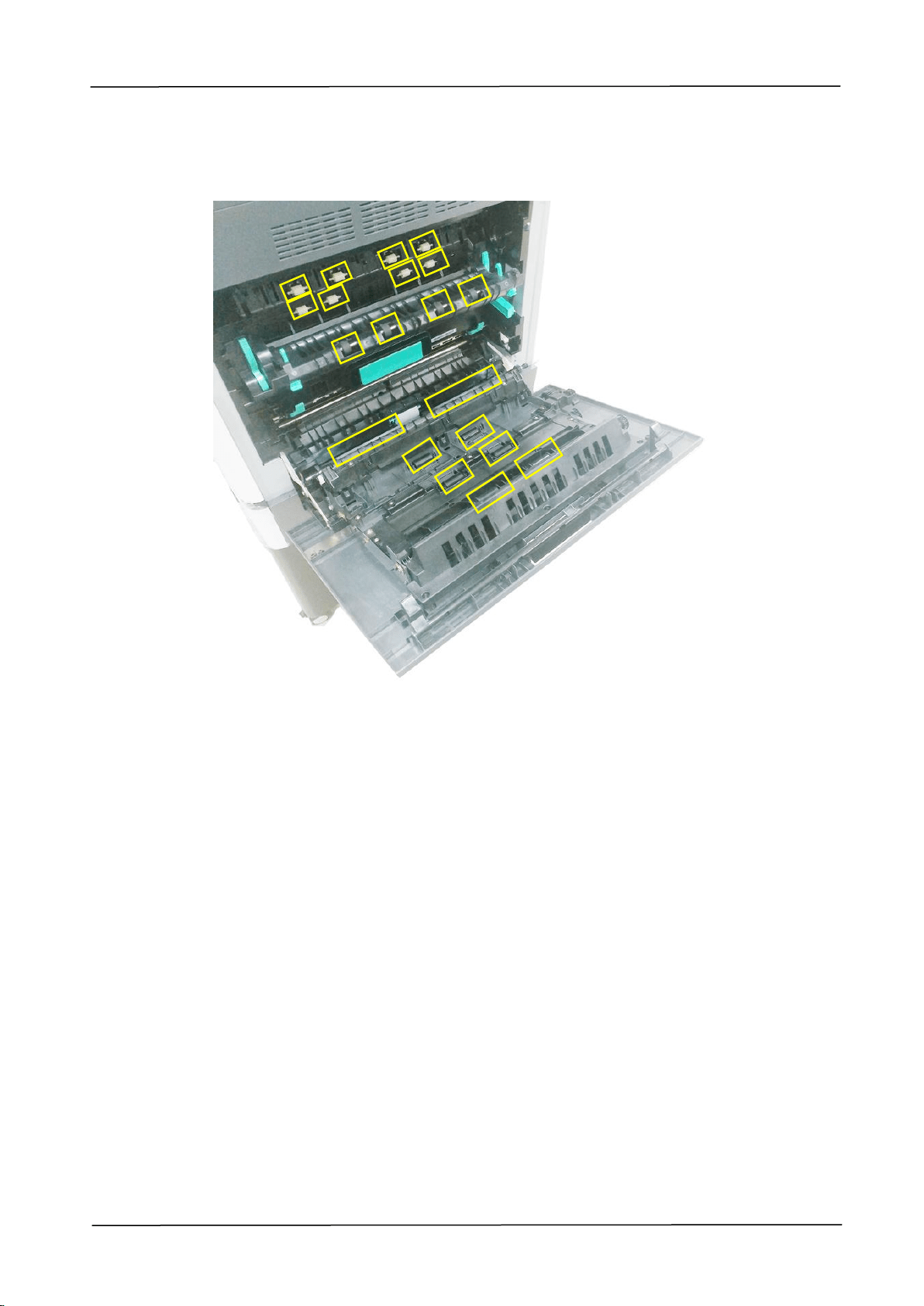
7. Maintaining the Product
131
4. Gently wipe the surface of the rollers and paper path as illustrated with a soft,
dry cloth that is lightly dampened with isopropyl alcohol.
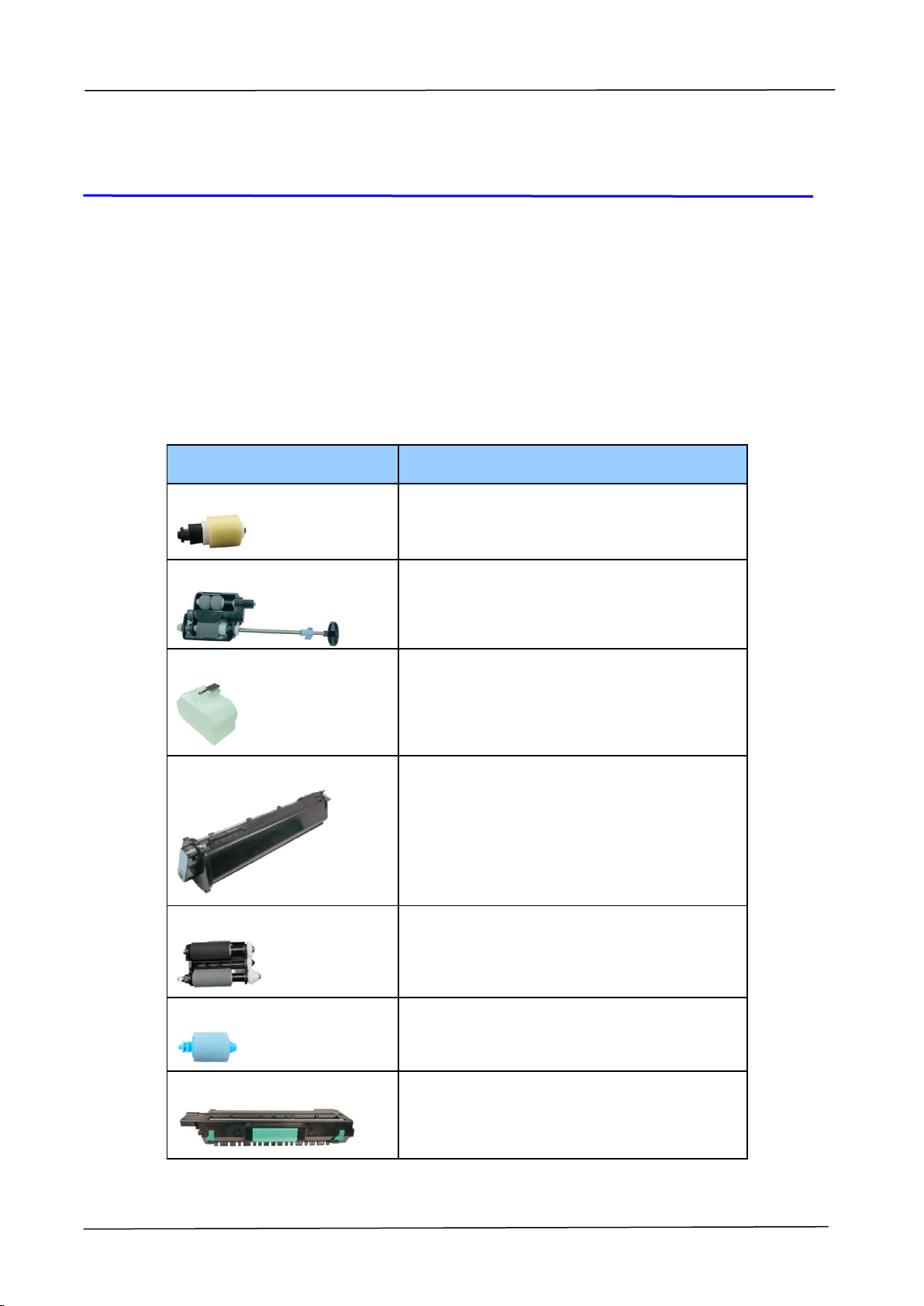
132
8. Replacing the Consumables
The following table shows the parts and their suggested cleaning cycle. The
replacement cycles above are rough guidelines for the case using A4/Letter sized
woodfree or wood containing paper of 70 g/m
2
(20 lbs) in weight. These cycles vary
according to the type of paper used and how frequently the product is used and
cleaned. Please replenish the consumables from the store where you purchased the
product or a Avision authorized service provider.
NAME OF COMPONENT
RECOMMENDED REPLACEMENT CYCLE
Snap-in Pad Module
50K sheets (5% Coverage)
ADF Roller
200K sheets
Waste Toner Can
When waste toner is full
Toner Cartridge
20K sheets (5% Coverage)
Paper Tray Roller
200K sheets
Manual Tray Roller
50K sheets
Drum Unit
150K sheets
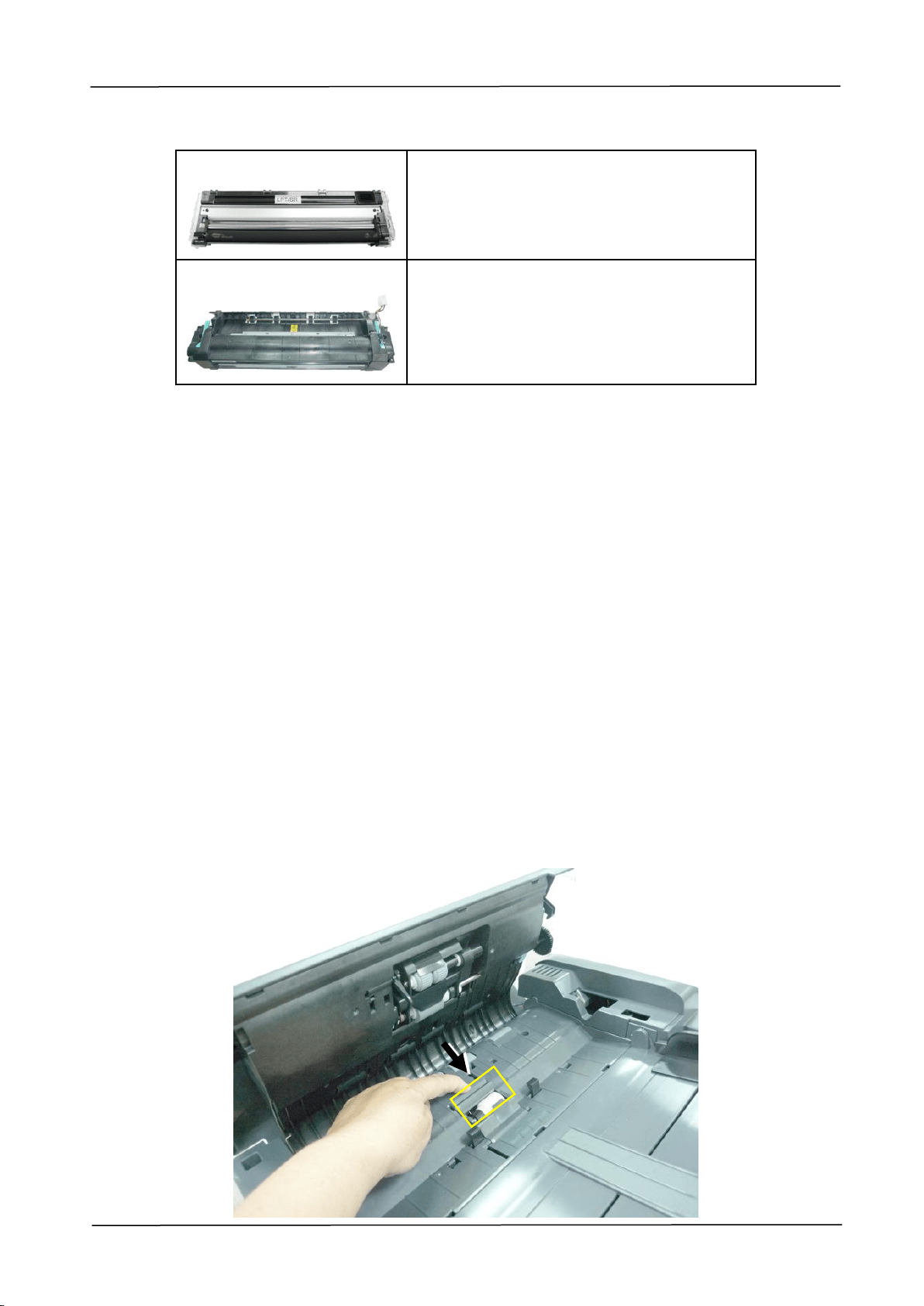
8. Replacing the Consumables
133
Developing Unit
150K sheets
Fuser
300K sheets
Replacing the Snap-in Pad Module
After scanning about 50,000 sheets through the ADF, the pad may be worn out and
you may experience problems with document feeding. In this case, it is highly
recommended to replace the pad module with a new one. For ordering the pad
module, please consult your nearest dealer and follow the procedure below to replace
it.
After the replacement has been finished, be sure to reset ADF pad count. To reset
ADF pad count, tap [More Settings] on the upper-right corner of the main screen,
and then tap [Show Machine Status]>[Tools]>[Device Settings] and then double
click [Feature], the [Administrative Mode] will be displayed. Choose [Reset
Counter] and then [ADF Pad] to reset the ADF pad count.
Disassembling Procedure
1. Gently open the ADF front cover.
2. Remove the ADF snap-in pad module by pressing the lock upward.

134
Assembling Procedure
1. Gently open the ADF front cover to the left.
2. Remove the ADF pad module from the box.
3. Place it into the holes until it snaps into place.
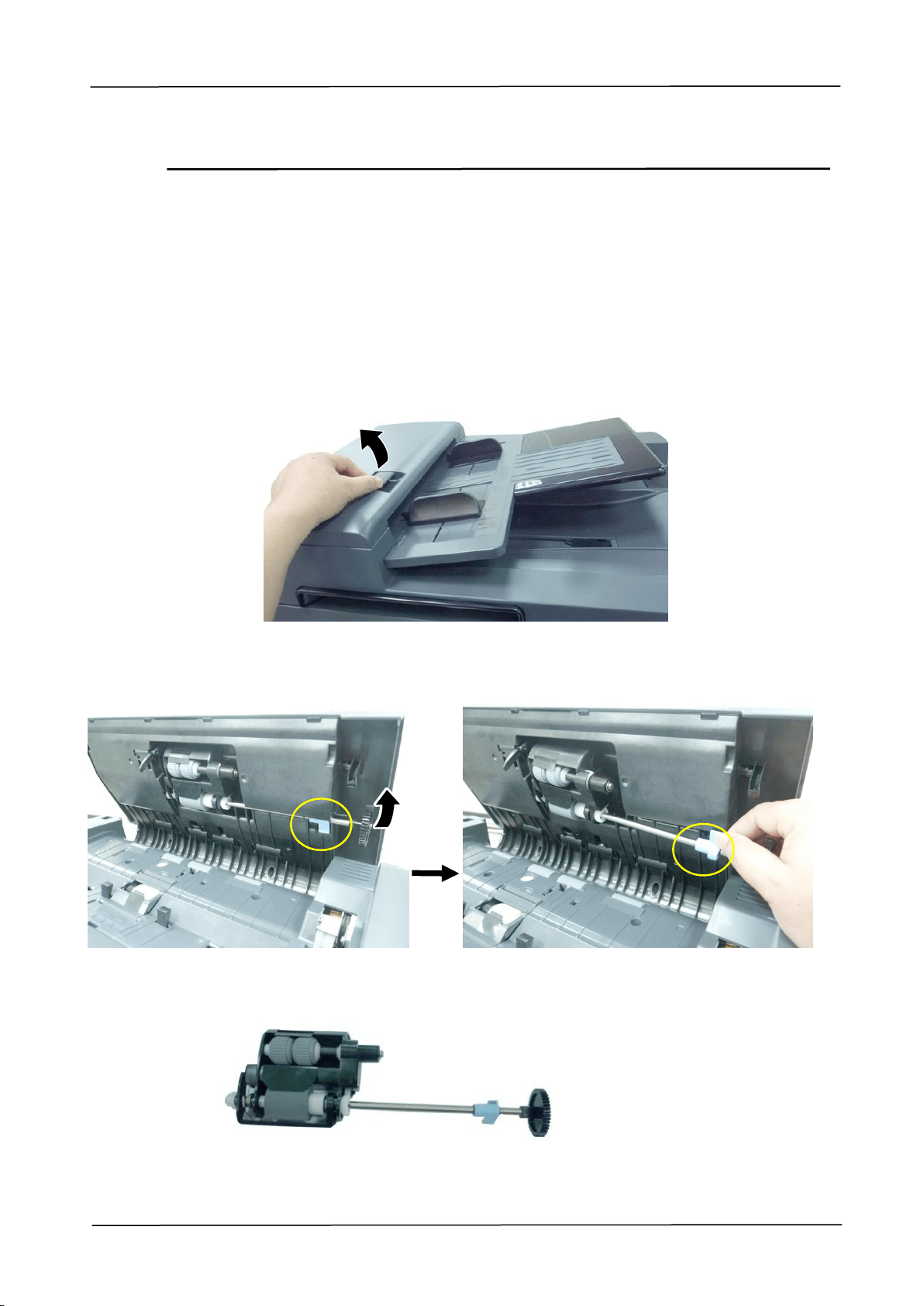
8. Replacing the Consumables
135
Replacing the ADF Roller
After scanning approximately 200,000 pages through the ADF, the ADF roller may be
worn out and you may experience problems with document feeding. In this case, it
is highly recommended to replace the roller with a new one. Please follow these
steps to replace and install the ADF roller.
Disassembling Procedure
1. Open the ADF front cover.
2. Move the clamp at the right end UPWARD to detach the ADF roller.
3. Detach the left end of the ADF Roller from its slot to remove it.
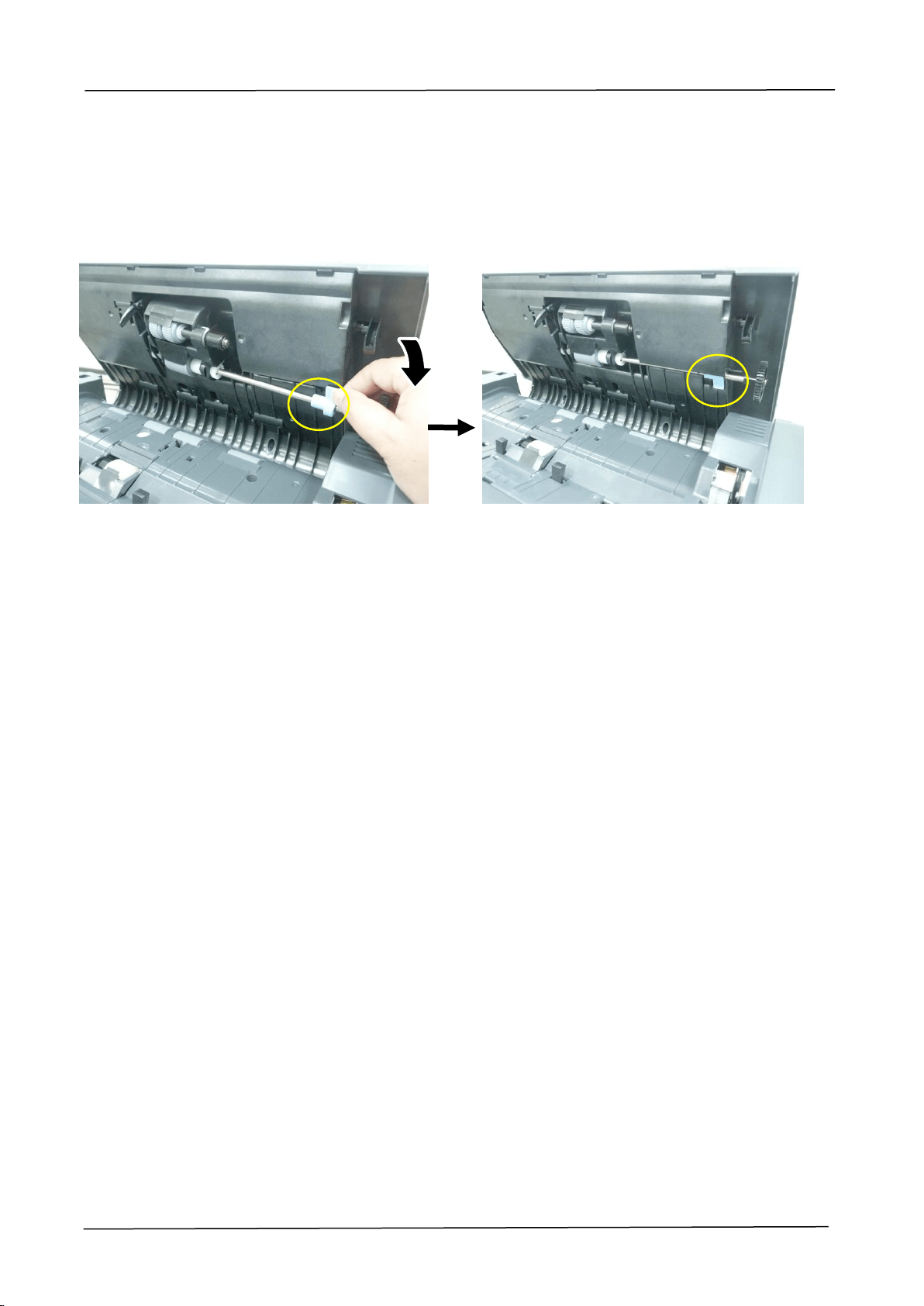
136
Assembling Procedure
1. Insert the left end of the ADF roller to its slot (), place the right clamp at its
slot and move it DOWNWARD (). If it is properly installed, you will hear a
clear snap-in sound.
2. Close the ADF front cover.
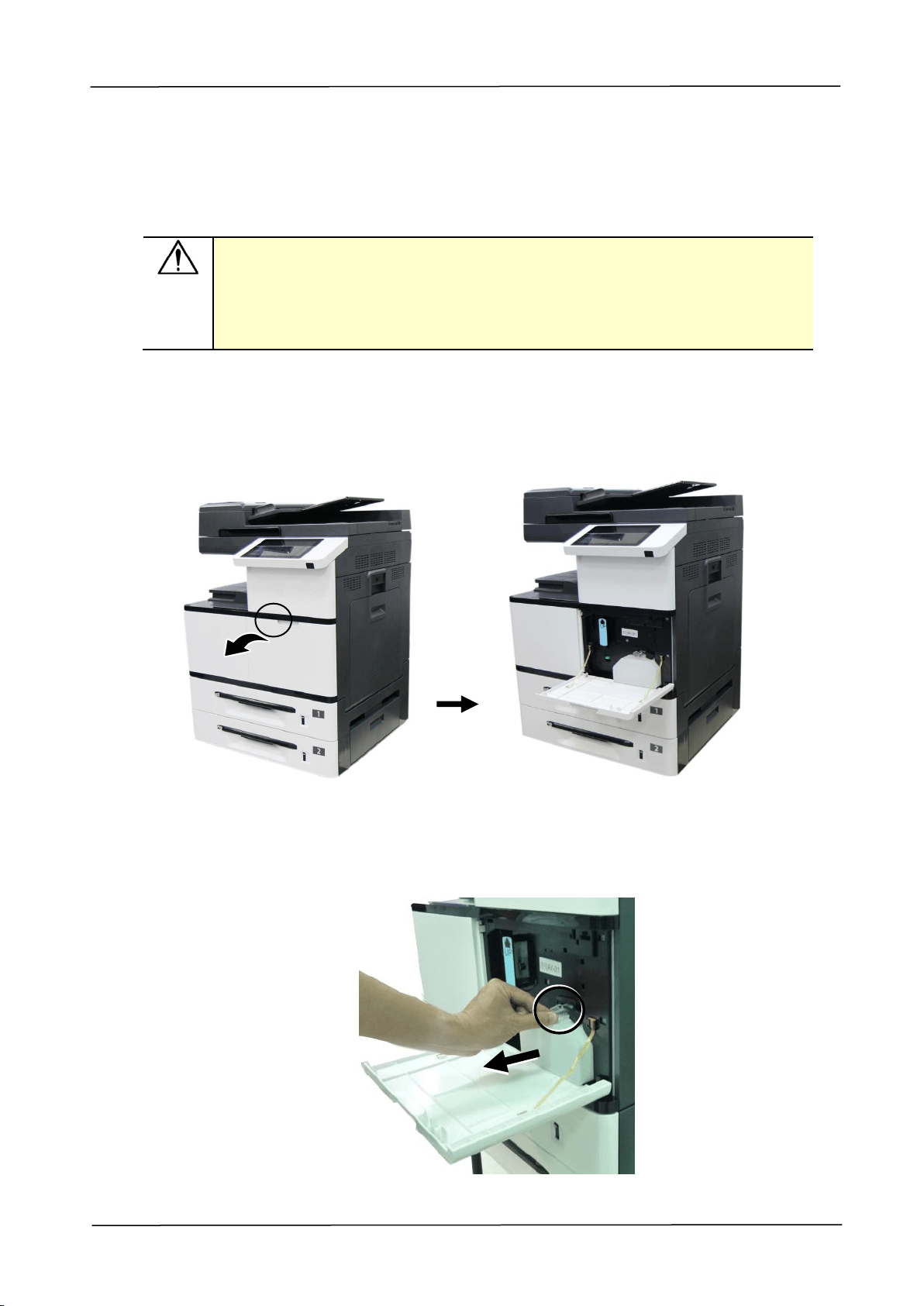
8. Replacing the Consumables
137
Replacing the Waste Toner Can
Follow these steps to replace the waste toner can:
Important!
DO NOT reuse the waste toner can.
DO NOT put the waste toner can into a fire. It could explode.
Be careful not to spill the toner. DO NOT inhale or allow it to get into
your eyes.
Removing the Waste Toner Can
1. Open the front door by pulling the handle as shown.
2. Squeeze the top of the waste toner can and remvoe it from the machine as
shown.
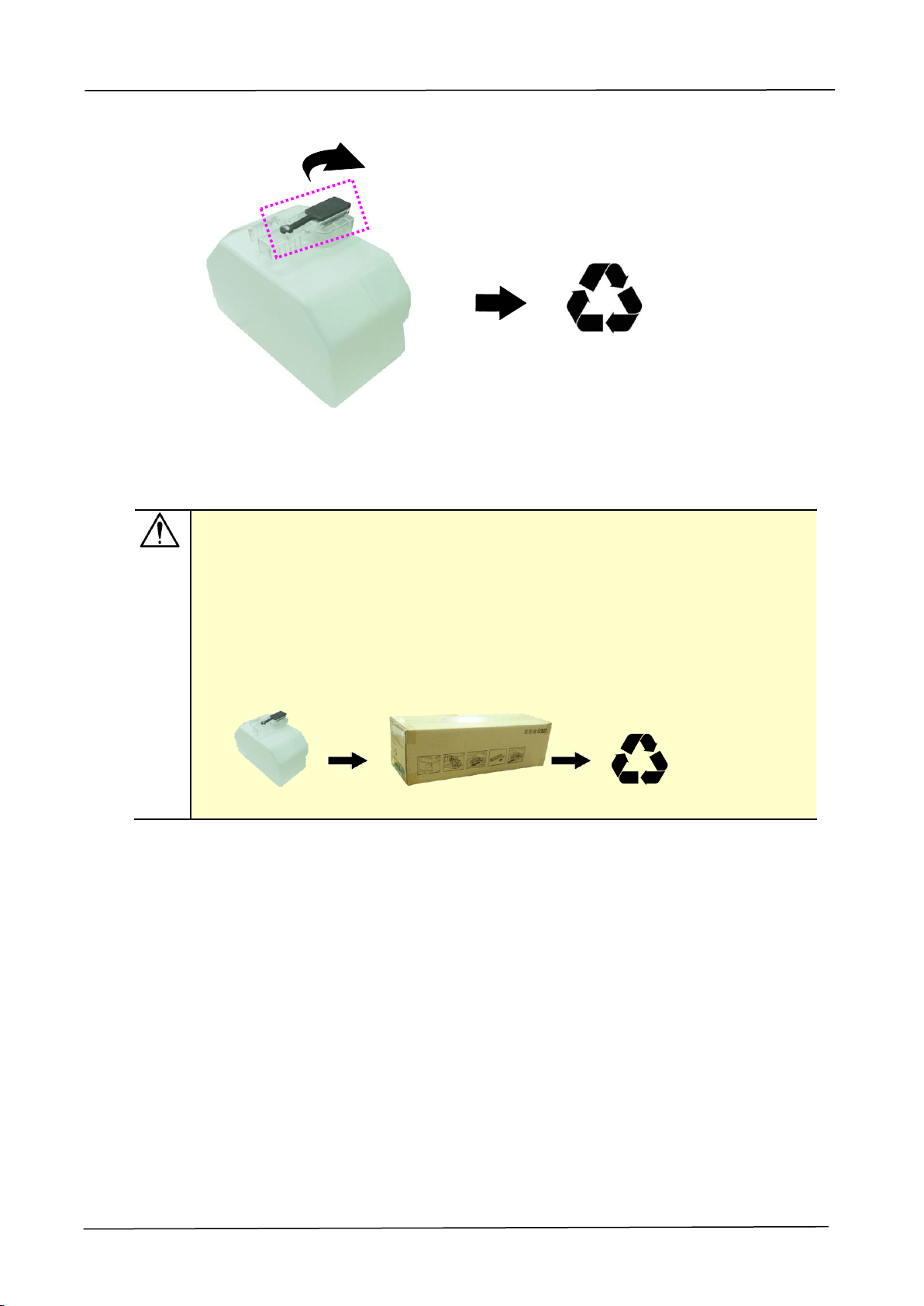
138
3. Insert the cap of the waste toner can and seal it with tape to let the cap firmly
secured.
4. Place the waste toner can into its original plastic bag to ensure the toner will
not spill.
Important!
Be careful not to spill the toner. DO NOT inhale or allow it to get into your
eyes.
As the waste toner may be hazardous to both environment and human
health, please place the waste toner can into a plastic bag and the original
toner cartridge box, and then deliver to our authorized distributors or
service personnel.
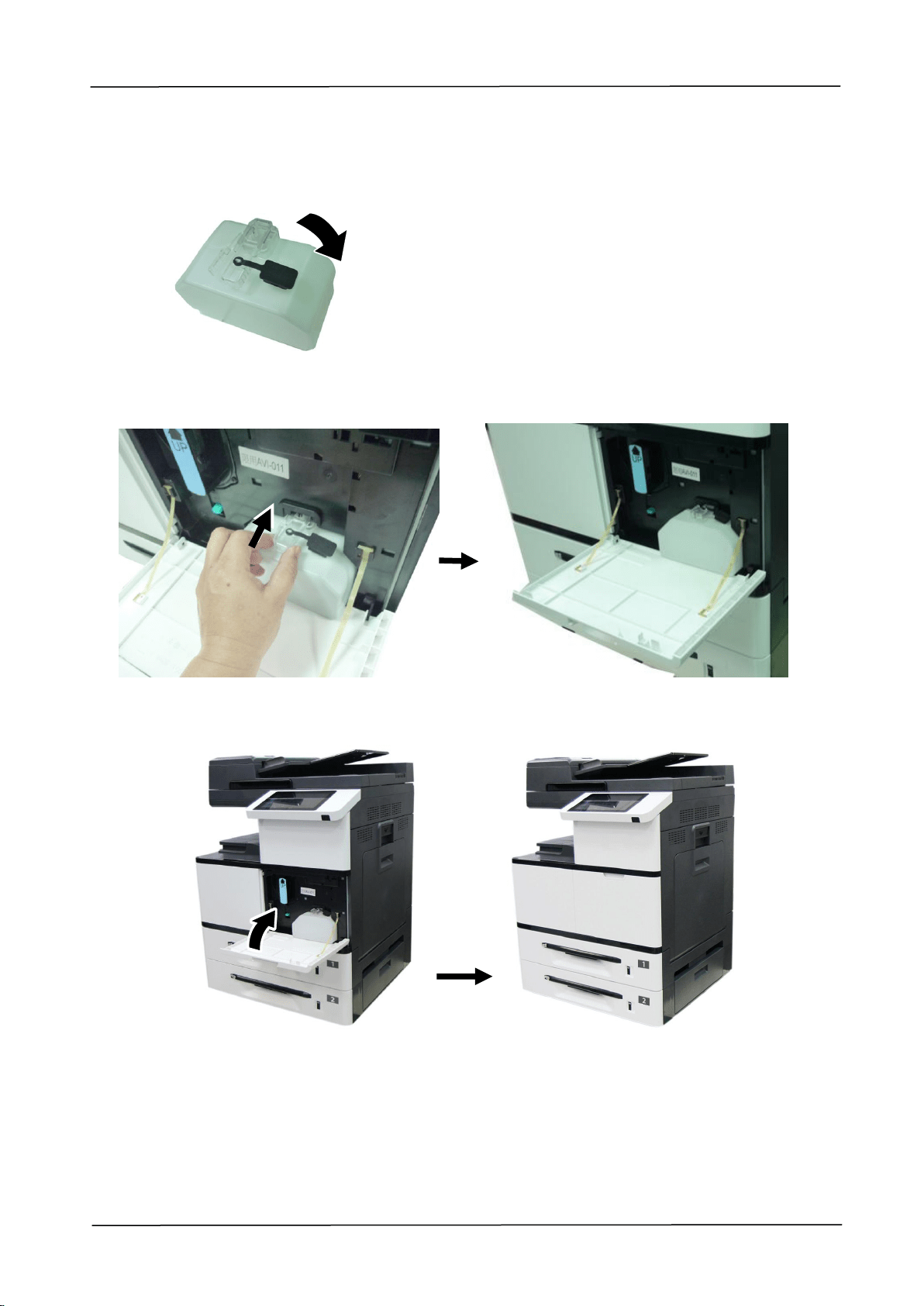
8. Replacing the Consumables
139
Reinstalling the Waste Toner Can
1. Open the cap.
2. Hold the handle of the waste toner can and insert it to its original place. A “click”
sound means the installation was successful.
3. Close the Front Cover as shown.
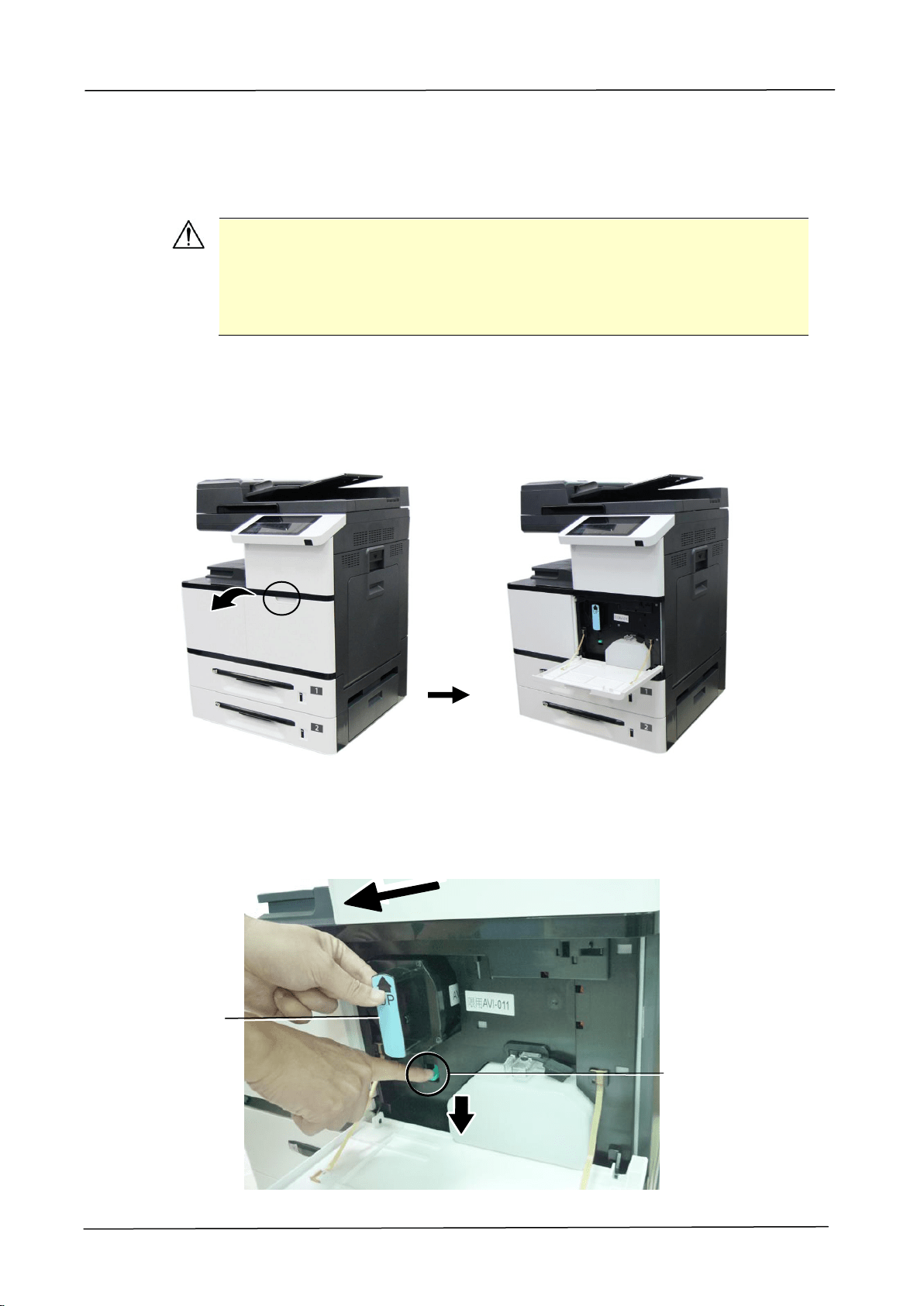
140
Replacing Toner Cartridge
Follow these steps to replace the toner cartridge:
Important!
To maintain the EP Charger in good condition, please clean the EP
charger each time after replacing the toner cartridge. Refer to the
following section, Cleaning the EP Charger – on how to clean the
charger.
Removing the Toner Cartridge
1. Open the front cover by pulling the handle as shown.
2. Use your right hand to unlock the toner cartridge by pressing down the 「lock
switch」and at the same time use your left hand to hold the handle of the toner
cartridge and pull it out of the printer.
Lock Switch
Handle
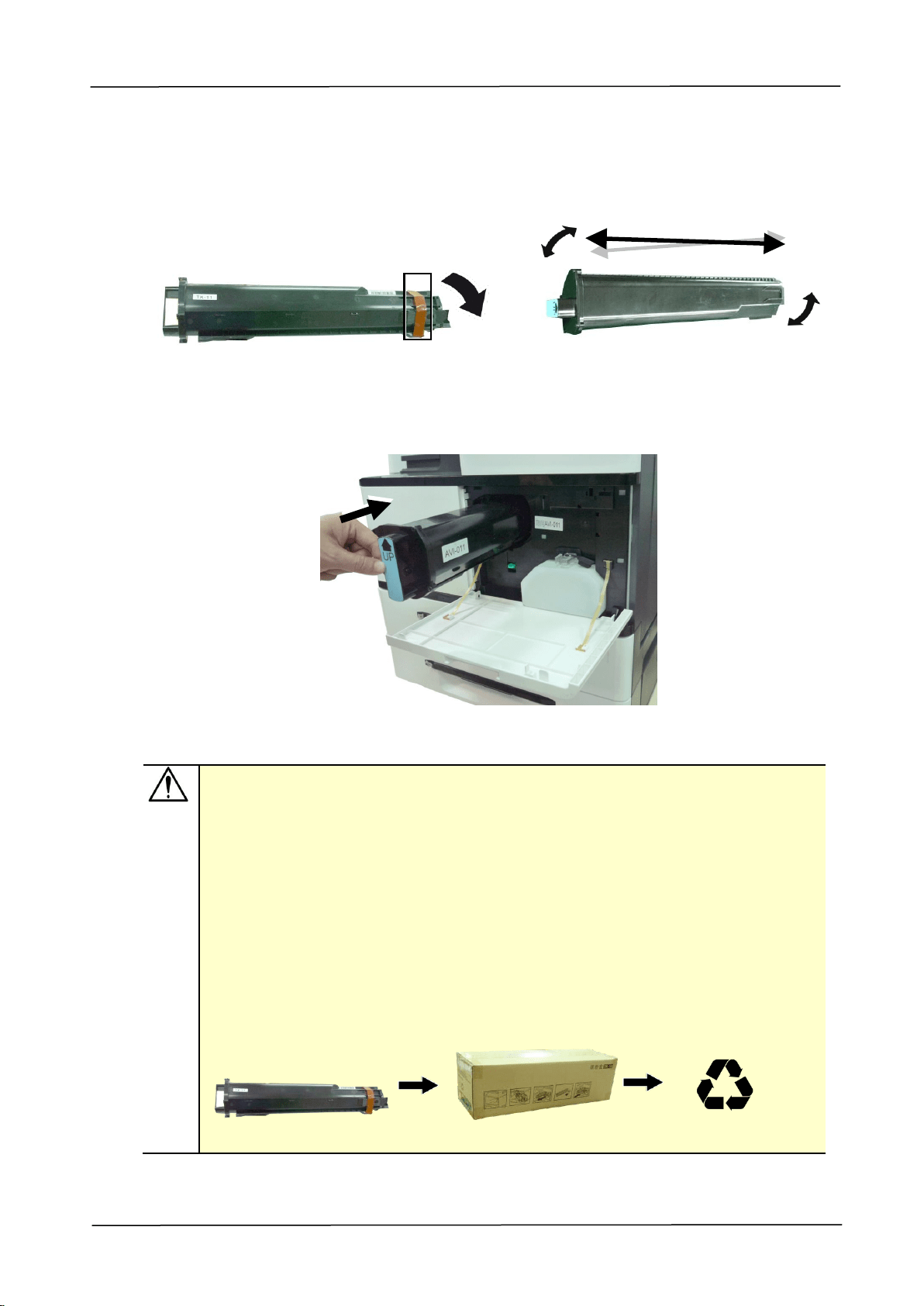
8. Replacing the Consumables
141
Installing the Toner Cartridge
1. Remove the package cushion and tapes on the toner cartridge. Tilt the toner
cartridge up and down and then right and left 10 times to distribute the toner
evenly inside the cartridge.
2. Hold the handle of the toner cartridge and insert it to its proper position as
shown.
3. Close the front cover.
Important!
Be careful not to spill the toner. DO NOT inhale or allow it to get into your
eyes.
If toner gets on your clothing or other fabric, wipe off the toner with a dry
cloth. Wash the items in cold water and air dry. Hot water causes the
toner to penetrate the fibers of the clothes.
Do not dispose of the toner cartridge. Put the used toner cartridge into the
bundled plastic bag, and then return it to a dealer or service
representative. The latter recycles or deals with the collected toner
cartridges in accordance with the relevant regulations.
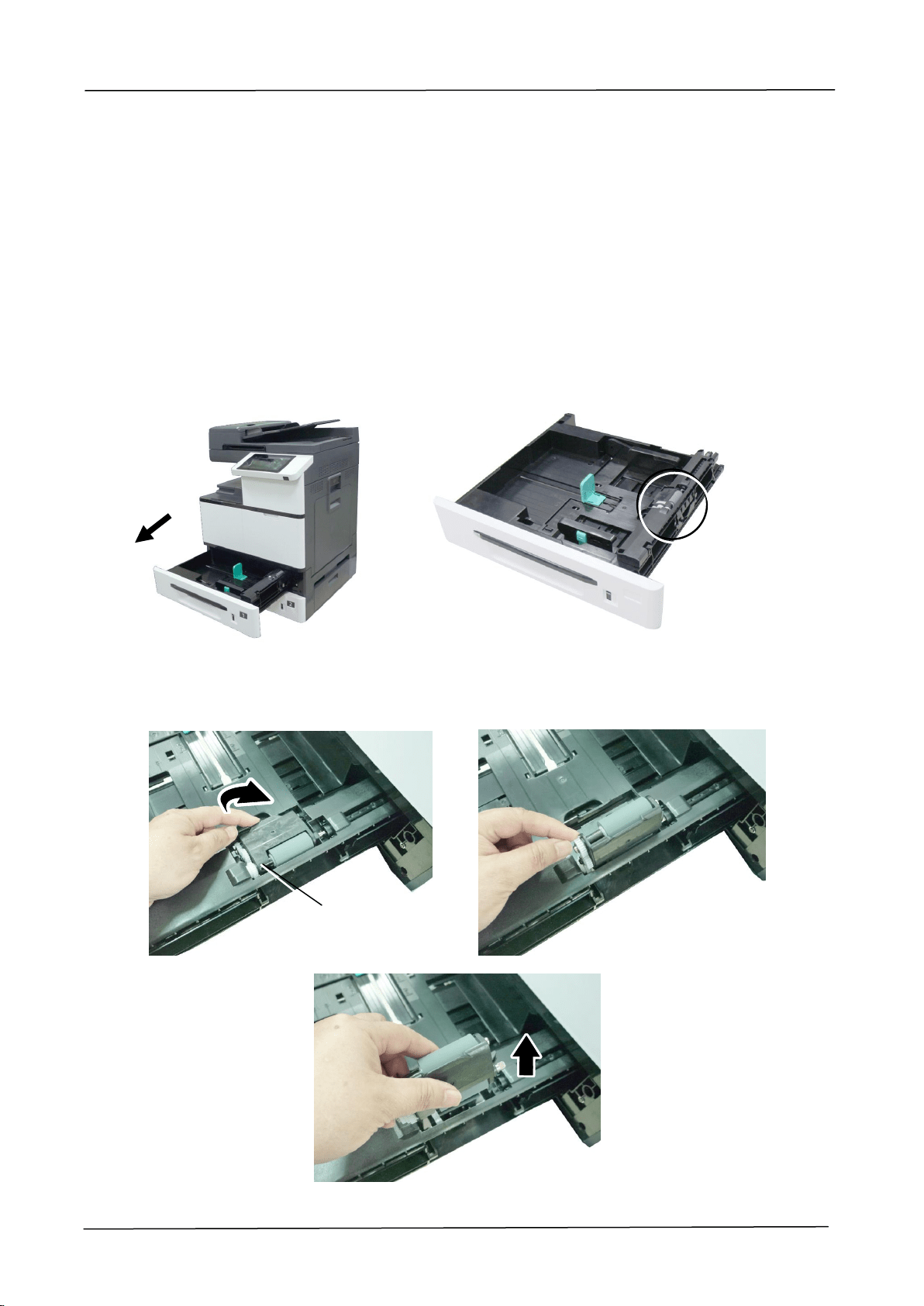
142
Replacing the Paper Tray Rollers
After approximately 200,000 prints or copies, the roller may be worn out and you
may have difficult in feeding paper properly. In this case, please replace the roller
with a new one and follow the steps in below to complete the replacement.
The removing steps
1. Lift the front side of the paper tray, and then pull the paper tray out of the
product. Locate the feeding roller as indicated.
2. Press the front end of the Roller Cover inward to open the cover. Lift the
Feeding Roller upward to remove it.
Feeding Roller
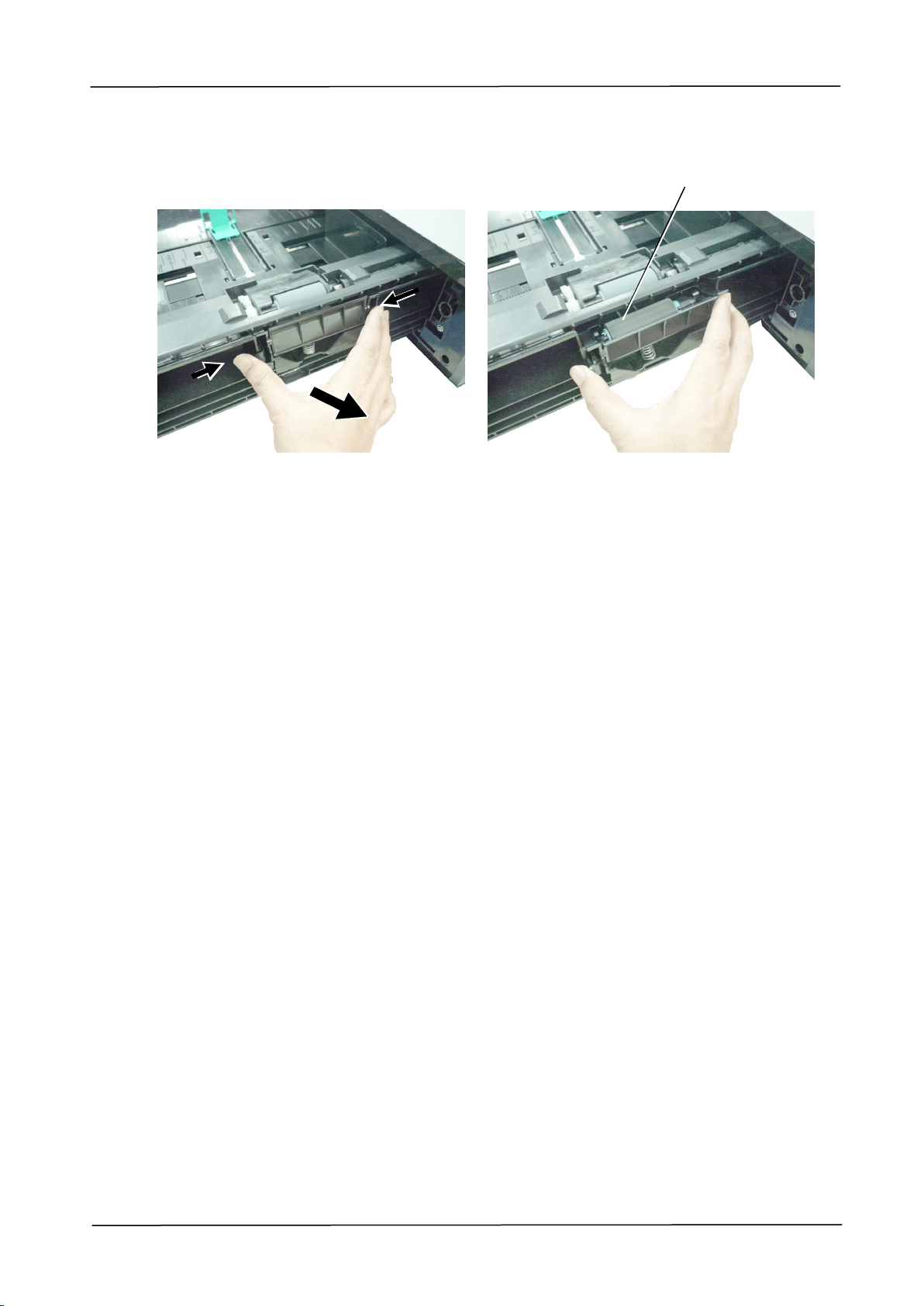
8. Replacing the Consumables
143
3. Press two ends of the Reverse Roller inward to remove the Reverse Roller.
Reverse Roller
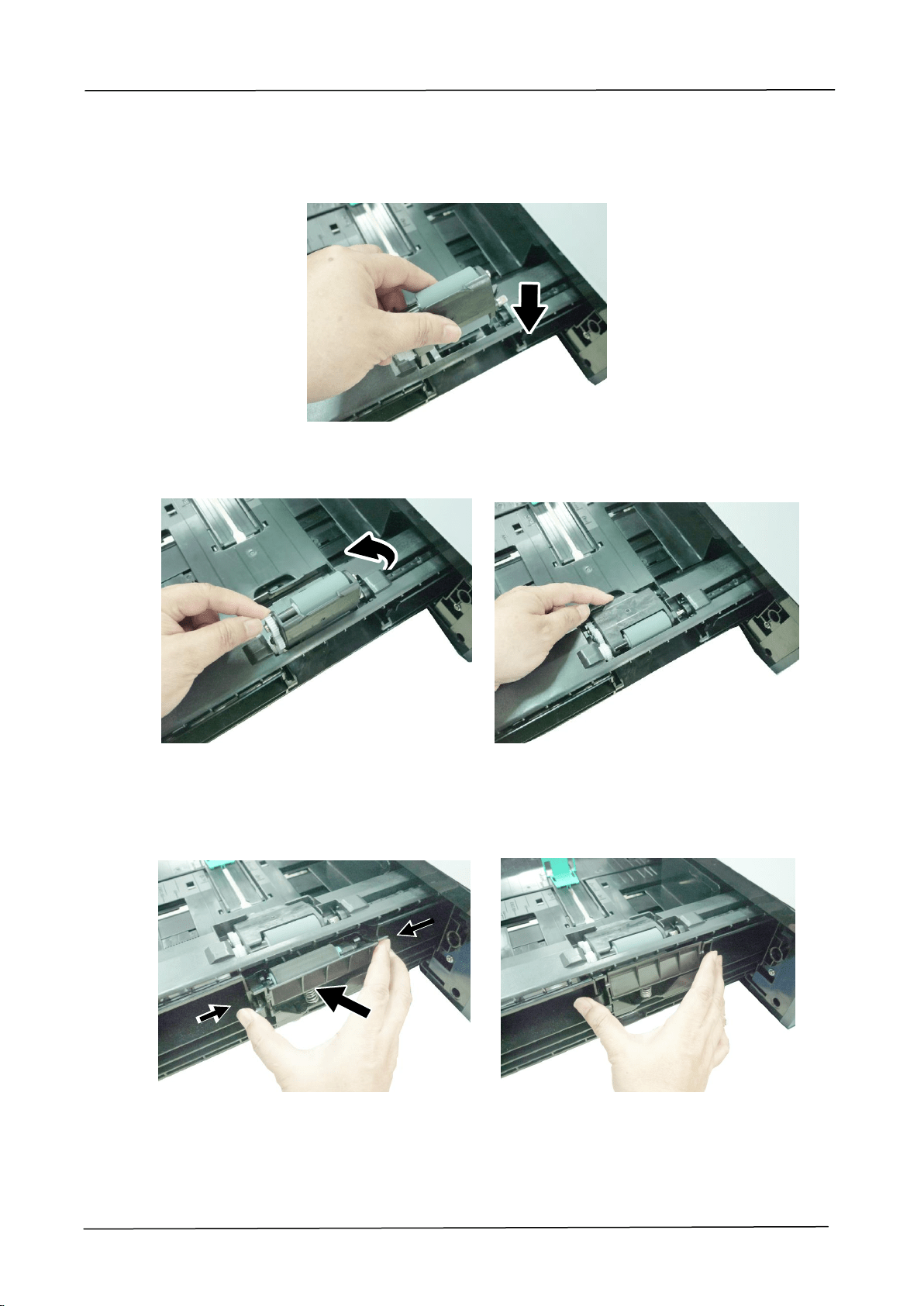
144
The reinstallation steps
1. Insert the Feeding Roller vertically to its original slot.
2. Close the Roller Cover as shown.
3. Hold two ends of the Reverse Roller Assembly and insert it to its original slot as
shown.
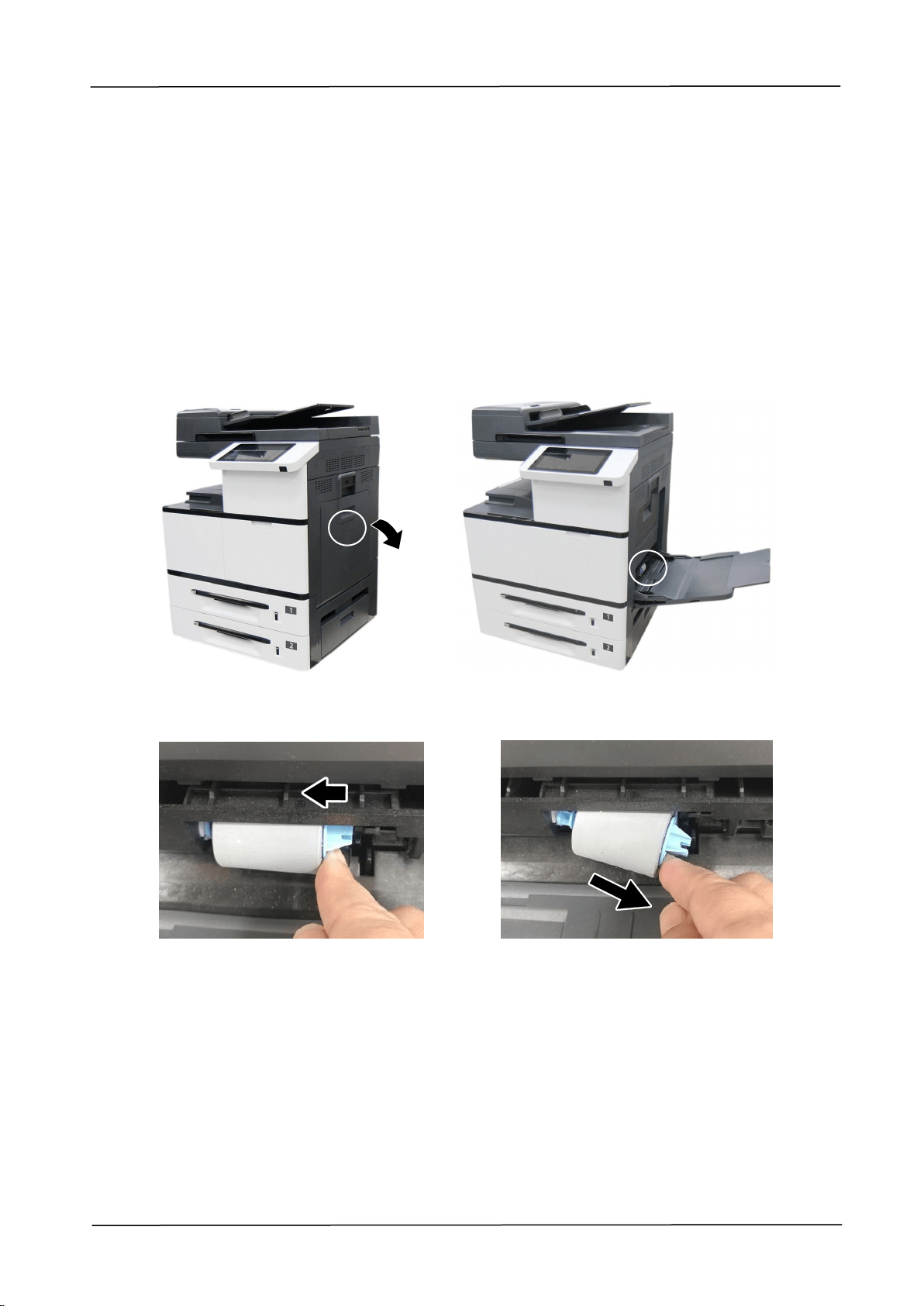
8. Replacing the Consumables
145
Replacing the manual tray rollers and pad
After approximately 200,000 prints or copies, the roller may be worn out and you
may have difficult in feeding paper properly. In this case, please replace the roller
with a new one and follow the steps in below to complete the replacement.
The removing procedure
1. Pull down the manual tray.
4. Press down the tab at the end of the roller as shown.
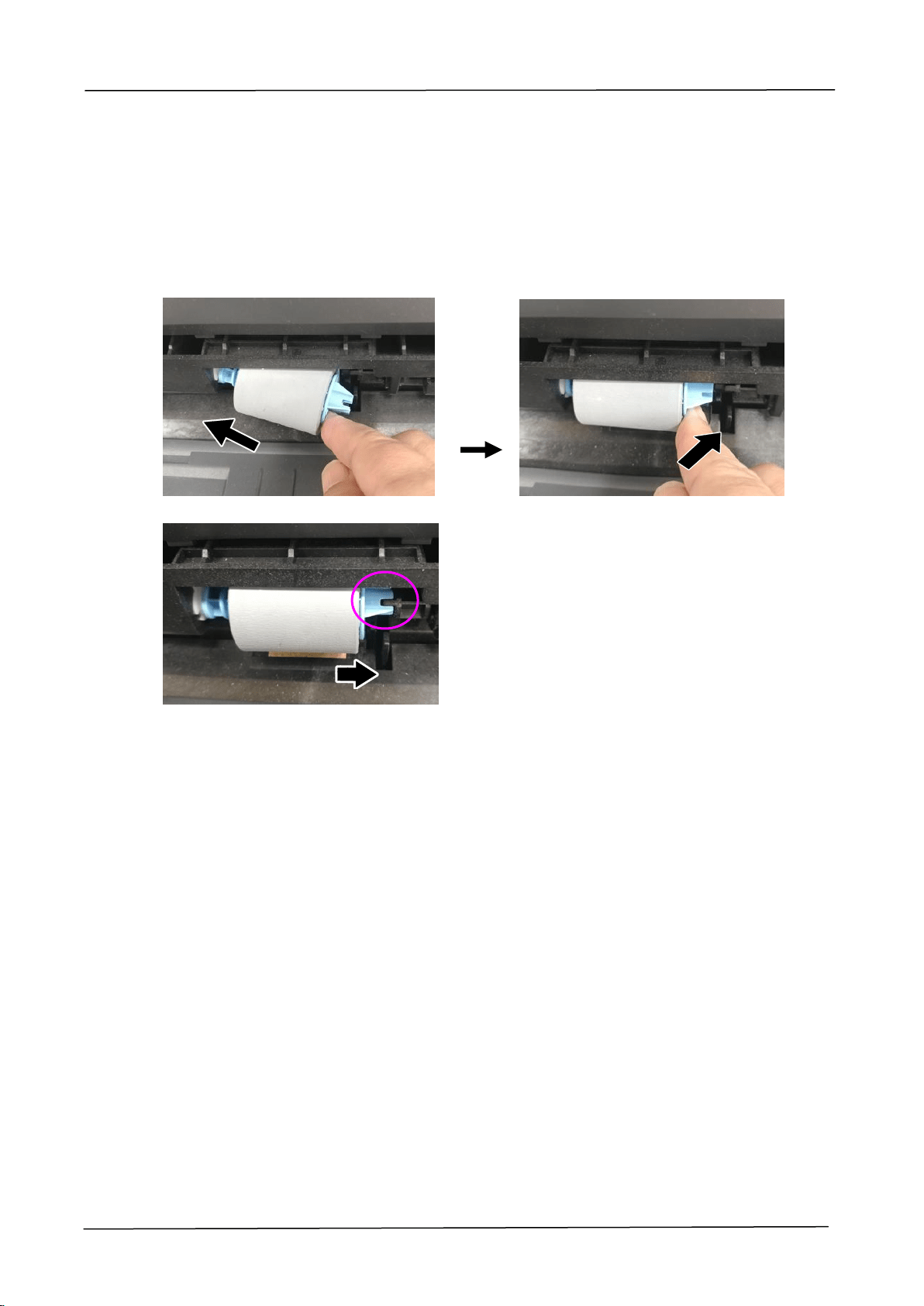
146
The reinstallation procedure
Install the left end of the roller to the left hole and then the right end to the right
hole. Note the notch on the right end has to be aligned with the tab as indicated in
below.
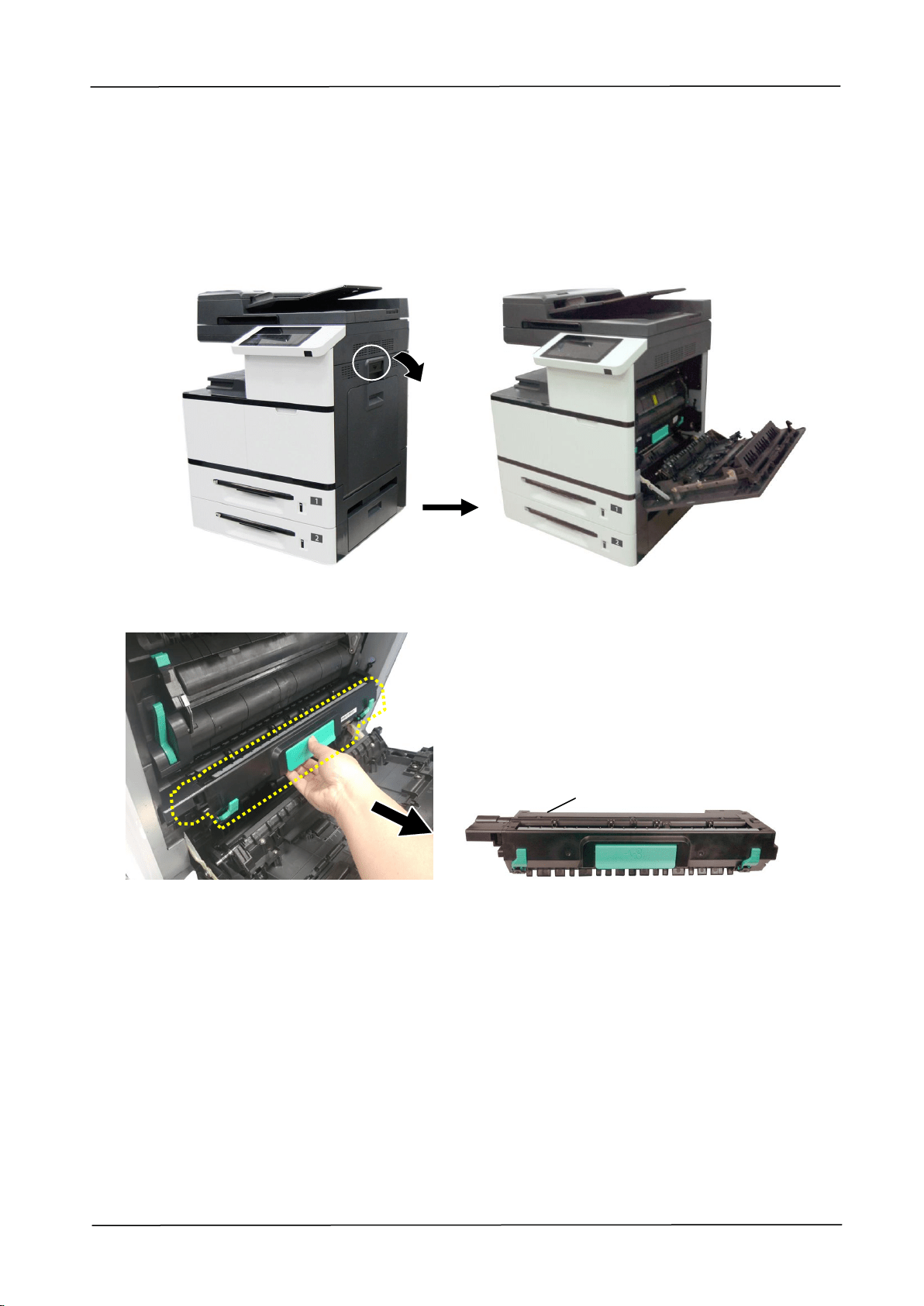
8. Replacing the Consumables
147
Replacing the Drum Unit
The Removing Procedure
1. Turn off the power and disconnect the power cable. Wait for 10 minutes to cool
down the machine. Pull down the Handle to open the Side Door as shown.
2. Hold the handle of the Drum Unit and remove it from the machine as shown.
Drum Unit
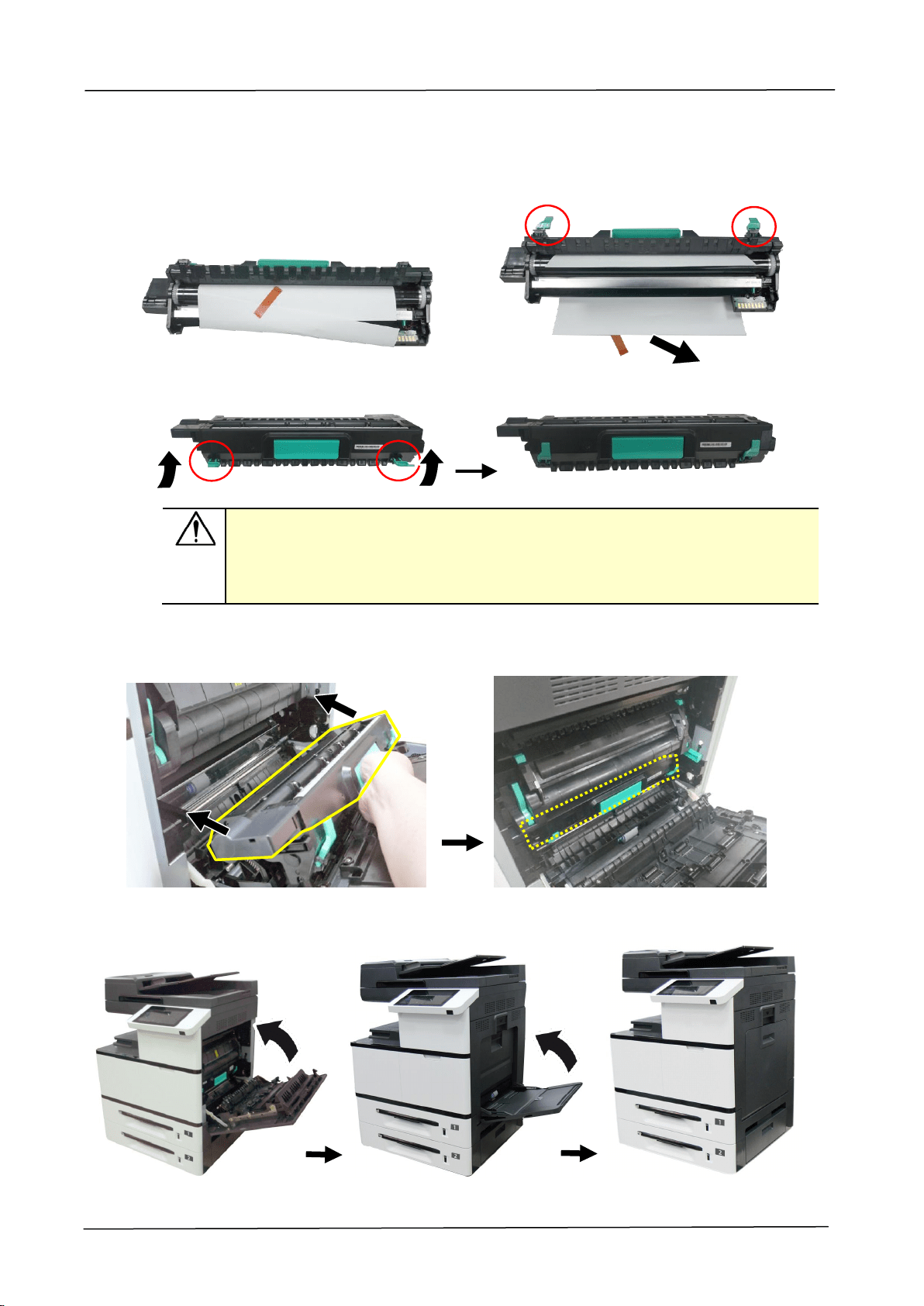
148
Reassembling Steps:
1.
Remove the plastic bag, tape, and then press down the Release Arms to pull out
the protective film.
2. Pull up the Release Arms on both ends.
Important!
To avoid damage the drum unit, please install it after removing the
protection cushions. Do not expose the drum unit to light.
Deliver the old drum unit to an approved recycling center.
3. Holding the handle of the Drum Unit, insert the Drum Unit horizontally into the
slot along the top of the support frame on both sides, as shown in the figure.
4. Close the Side Door and then the Manual Tray as shown.
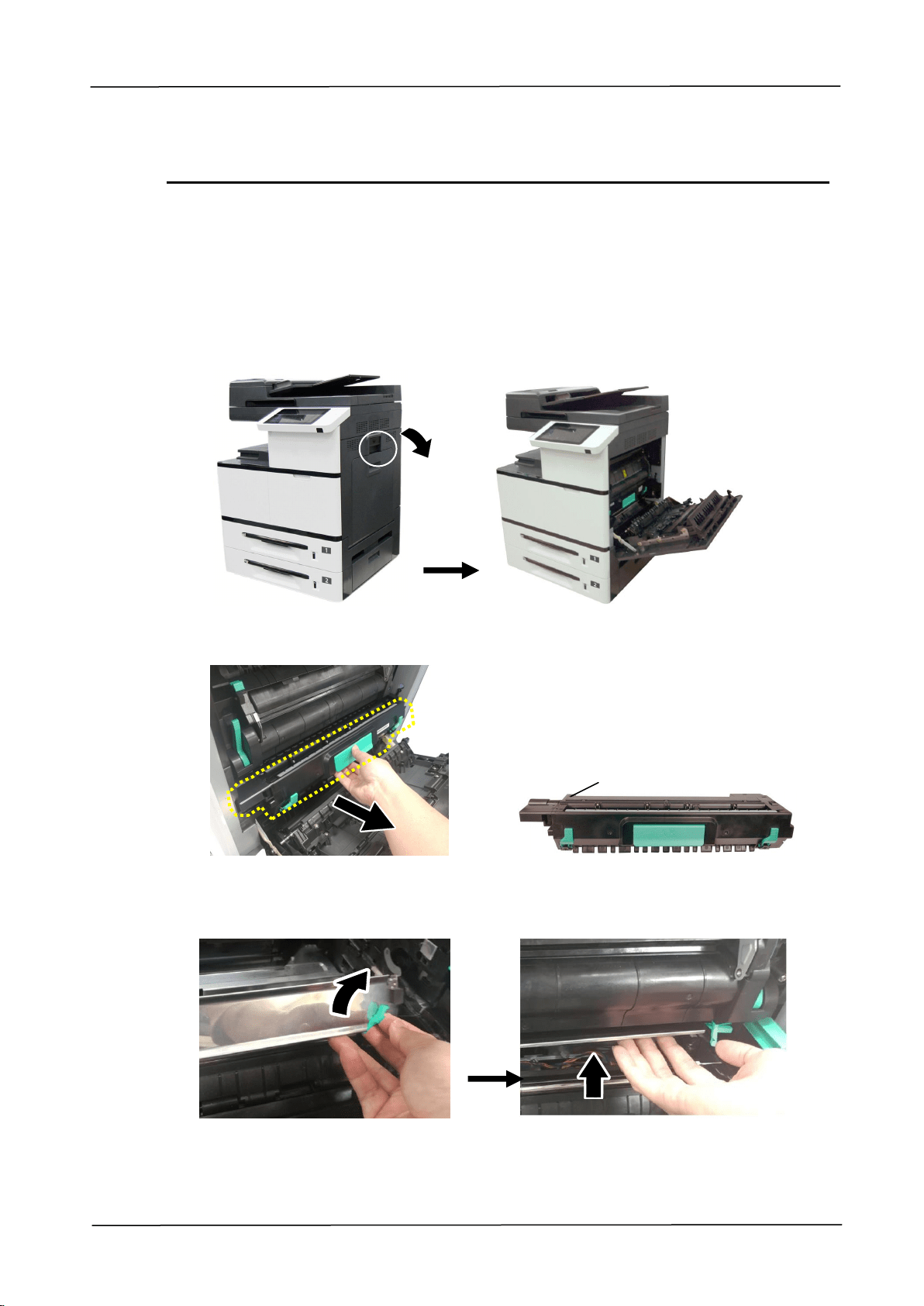
8. Replacing the Consumables
149
Replacing the Developing Unit
Follow these steps to replace the Developing Unit:
The Removing Steps:
1. Turn off the machine until it has been cooled down.
2. Open the Side Door by pulling down the handle as shown.
3. Hold the handle of the Drum unit and pull it out.
4. Open the paper guide latch in a clockwise direction , and then push up to
fix the paper guide.
Drum Unit
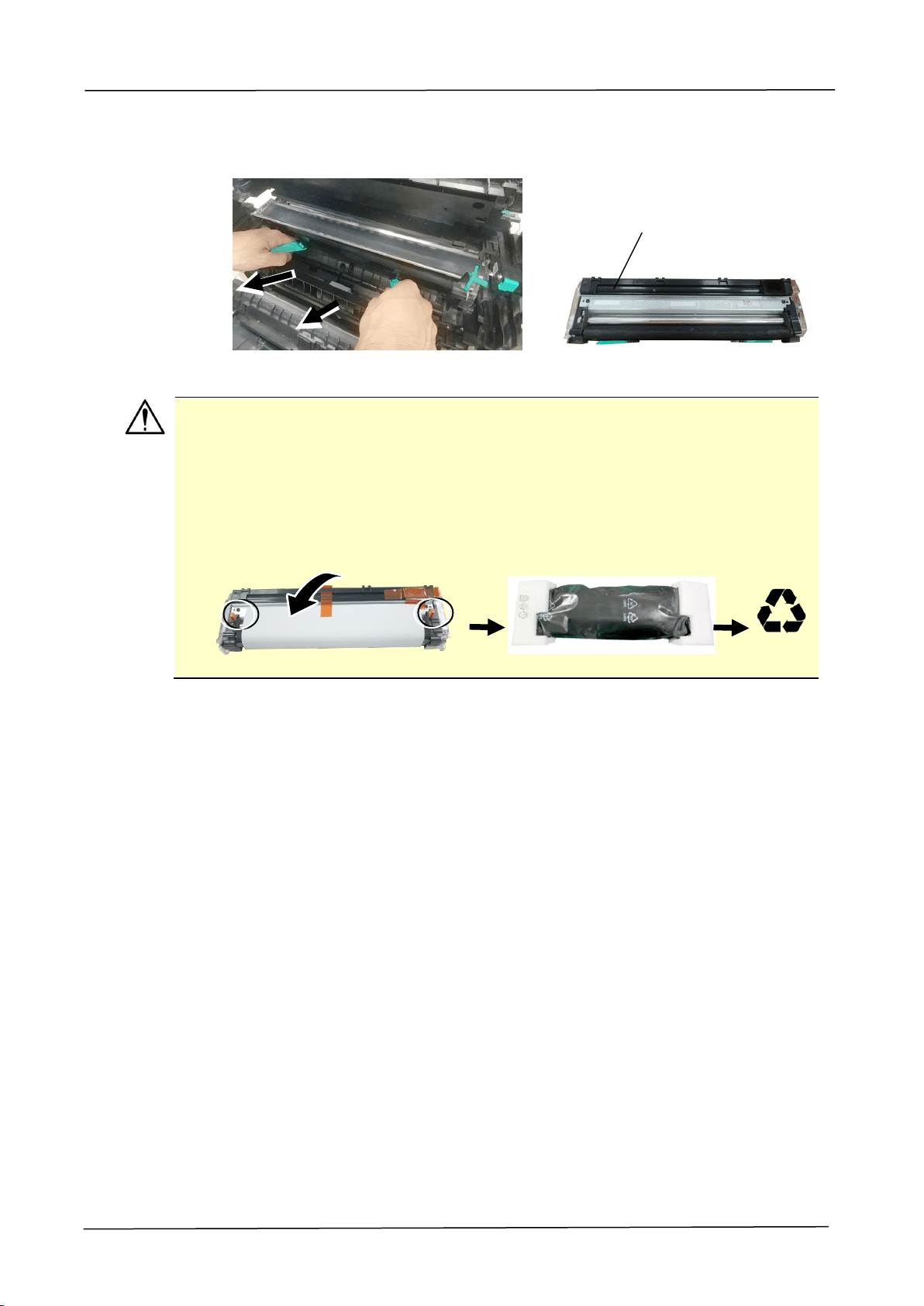
150
5. Hold the handles of the developing unit and gently remove it from the
machine as shown.
Notice to return the used developing unit!
Insert the protective film from the original package into the roller of the
developing unit, and stick the tape , insert the pin into the reserved hole ,
insert the sponge to the toner exit hole, finally stick the tape on the
sponge to avoid vibration during transportation, and then put the developing unit
into its original plastic bag, foam, and packing box to return to the manufacturer.
/
R
Developing Unit
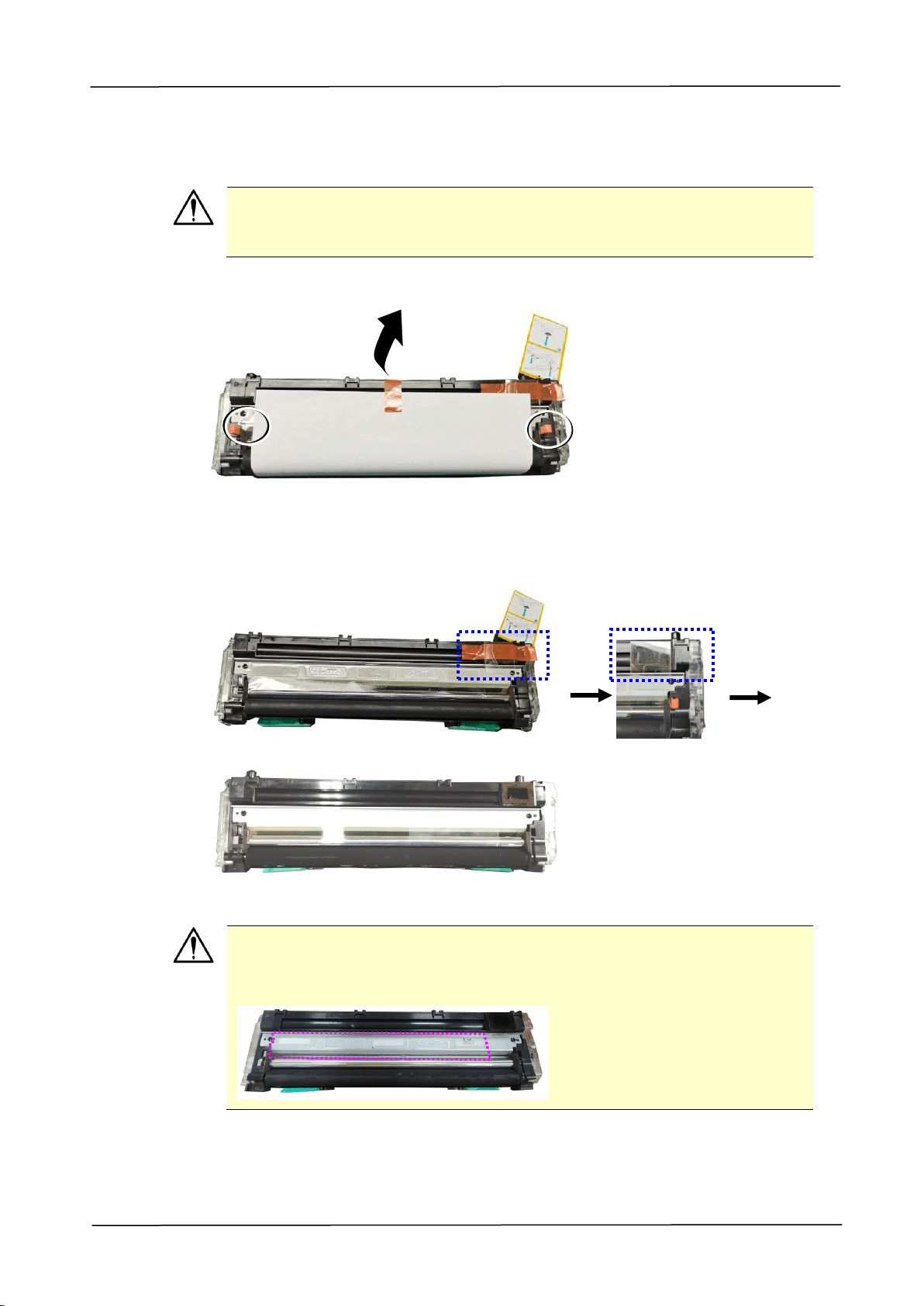
8. Replacing the Consumables
151
Reassembling Steps:
Follow these steps to install the Developing Unit:
Caution!
To prevent damage to the Developing Unit, do not expose it to light for
more than a few minutes.
1. Remove the tape, protective film, and the plugson both sides.
2. Remove the tape in the upper right corner,and then remove the instruction
card and sponge.
Important!
Do not remove the transparent plastic protective cover on the surface of
the developing unit as shown in the figure to avoid abnormal images.
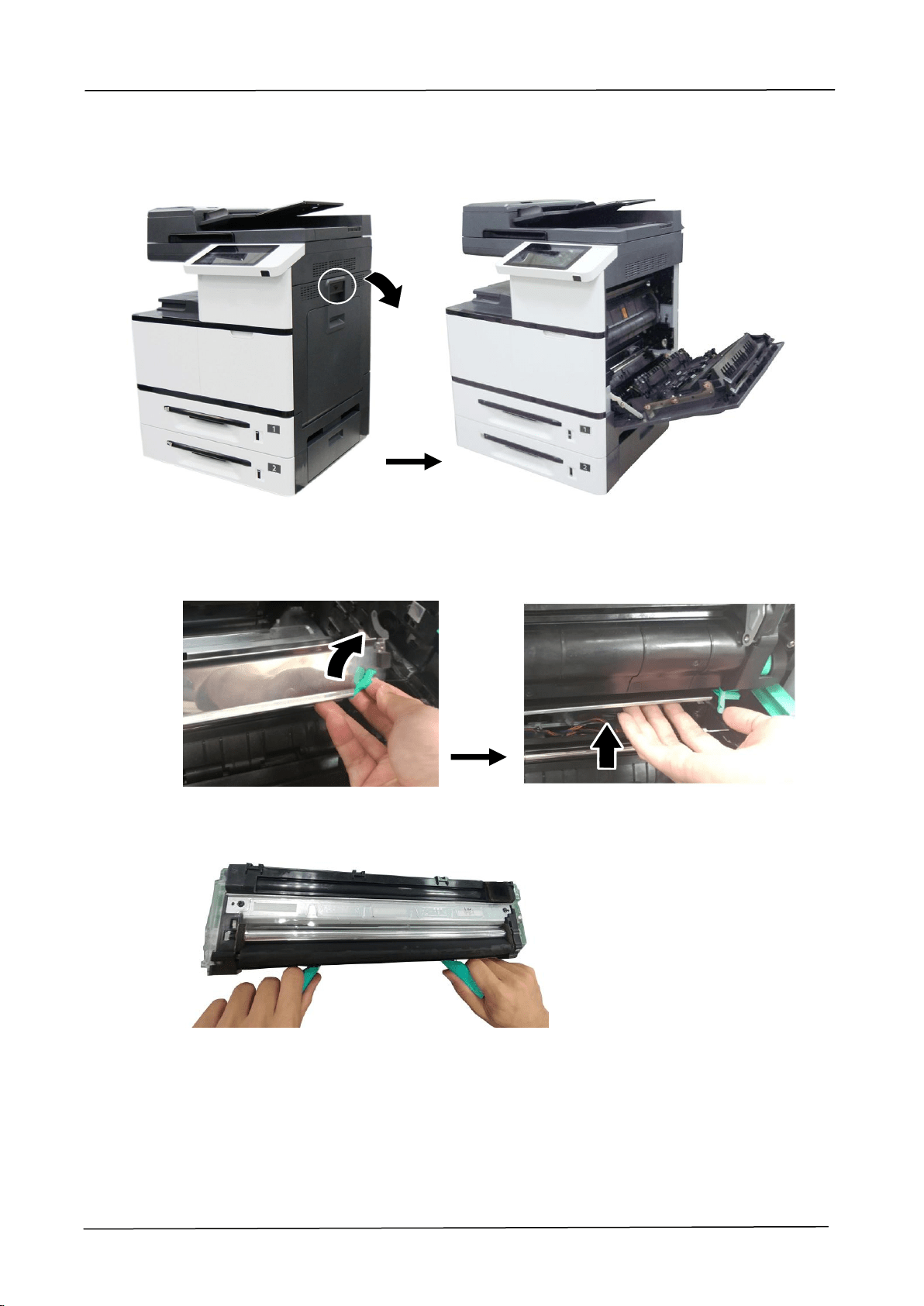
152
3. Pull the handle down to open the Side Door as shown.
4. Open the paper guide latch in a clockwise direction , and then push up to fix
the paper guide.
5. Open the handle of the developing unit and hold the handle with both hands, as
shown in the figure below.
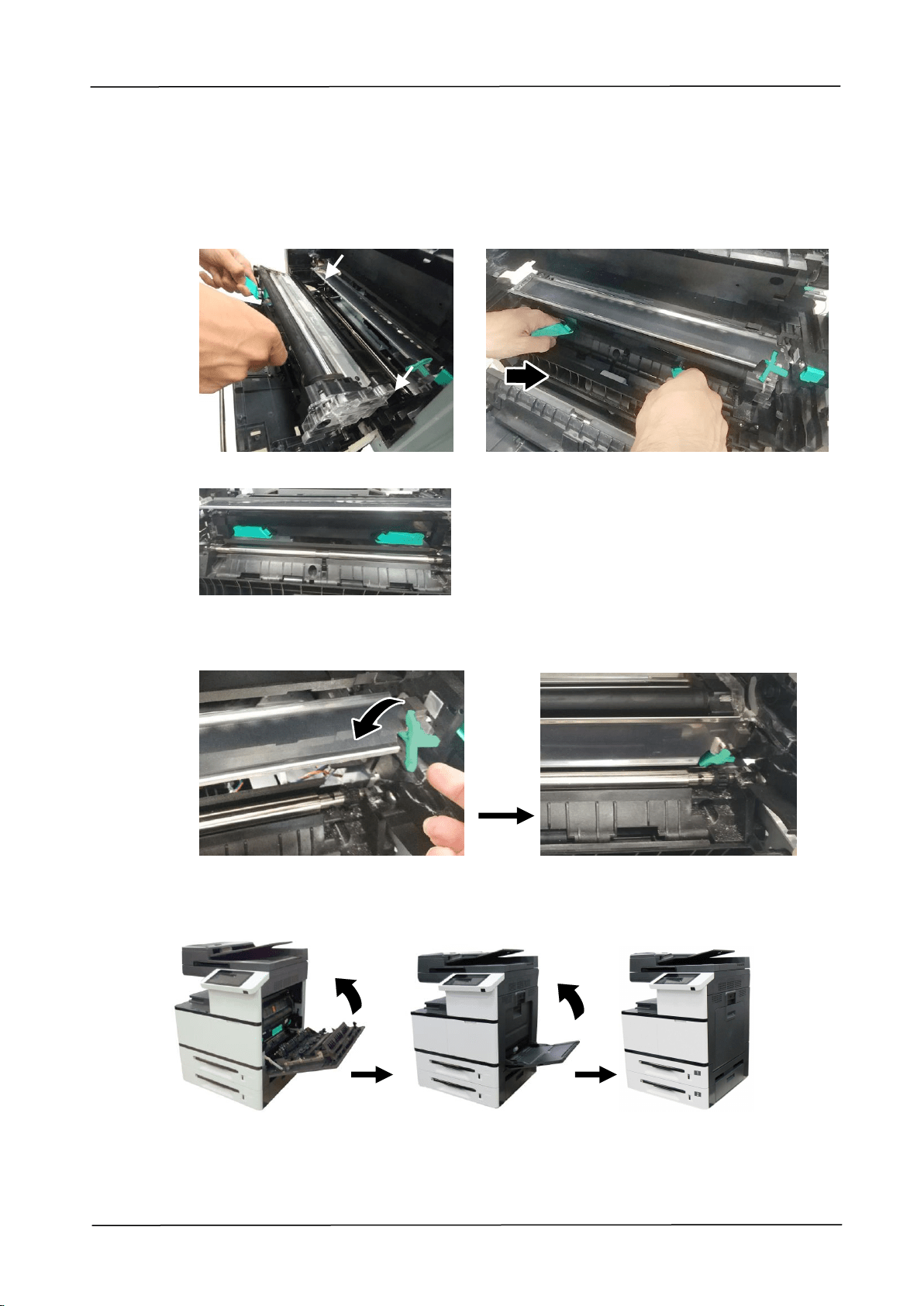
8. Replacing the Consumables
153
6. Hold the handle with both hands, placing the front end of the developing unit to
the top of the rails on both sides , and then gently push the developing unit
into the machine along the rails . Make sure the handles are closed and left flat
on the surface of the developing unit as shown in below .
7. Pull down the latch of the paper guide counterclockwise to restore the latch of the
paper guide to its original status.
8. Close the Side Door and then the Manual Tray as shown.
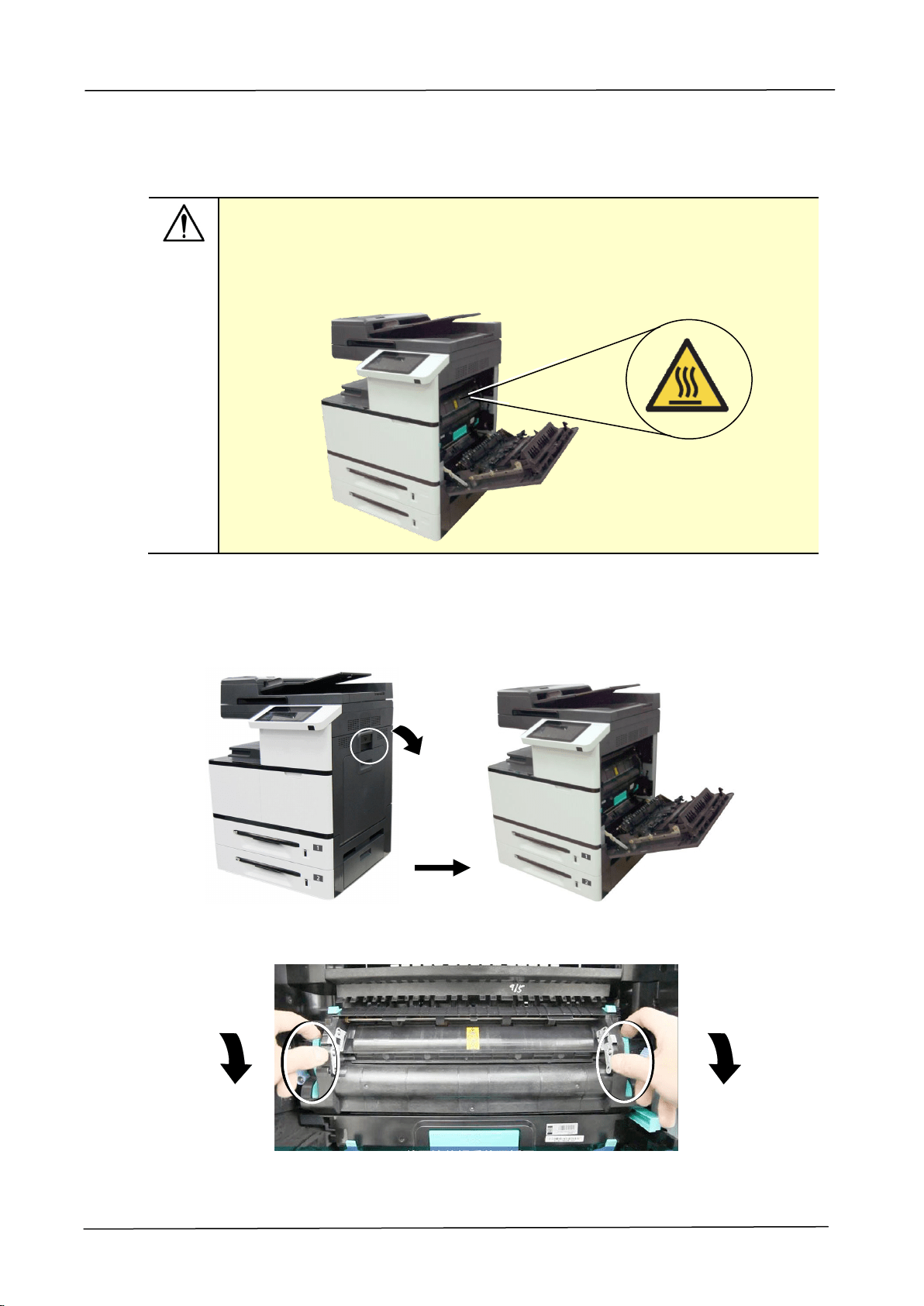
154
Replacing the Fuser
The Removing Steps
Important:
After the product has been used for a while, please do not touch the inside
of the product since the temperature is very high. To replace the fuser,
please first turn the machine off and wait until it has been cooled down.
1.
Turn off the machine and wait until it has been cooled down.
2.
Open the Side Door by pulling down the handle as shown.
3.
Pull down the handles on both sides of the fuser.
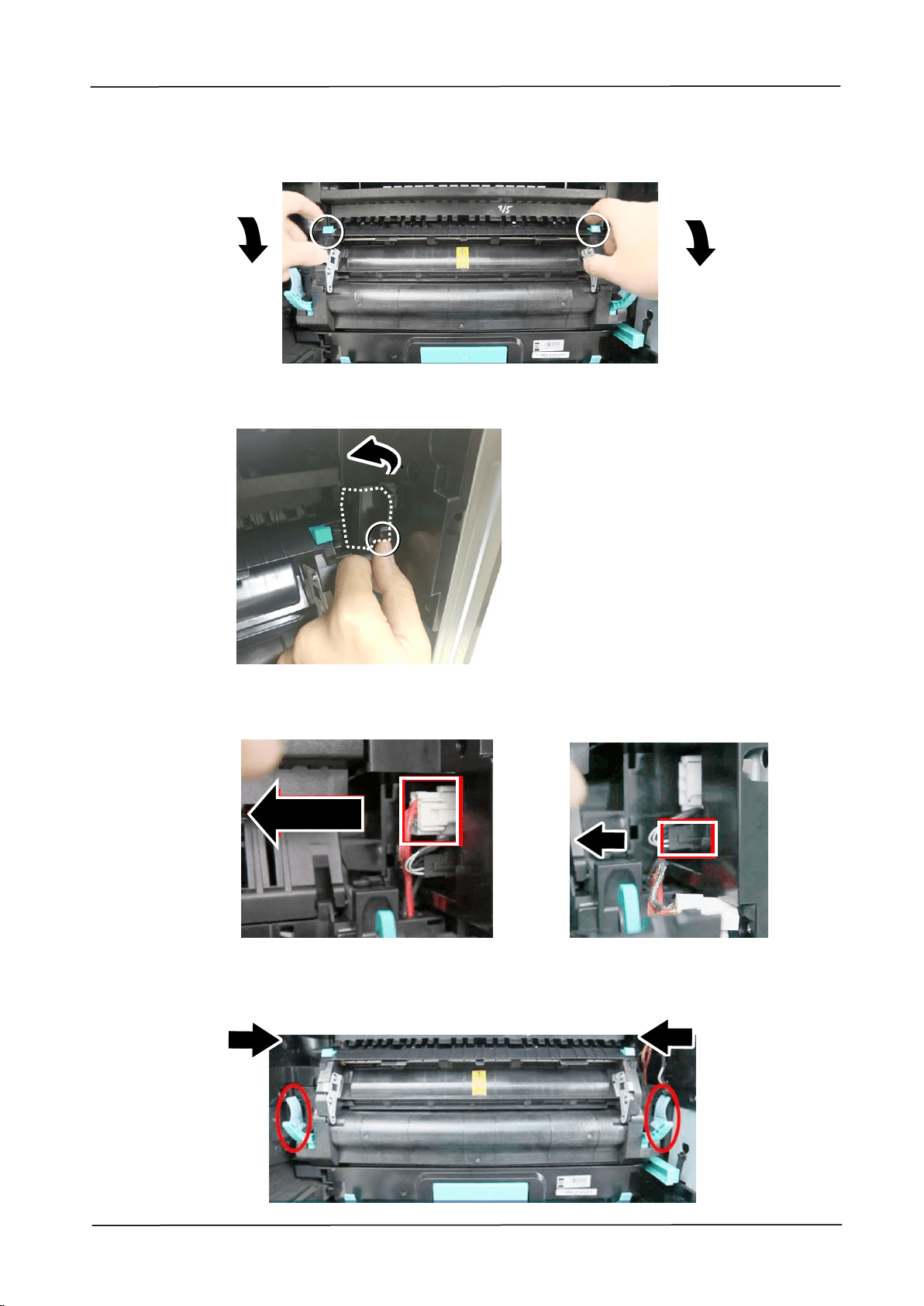
8. Replacing the Consumables
155
4.
Pull down the tabs to open the cover.
5.
Press the latch of the cover and remove the cover as shown in below.
6.
Remove the red cable and then the black cable.
7.
Close the fuser cover and then press the blue latch on both sides inwardly as
illustrated.
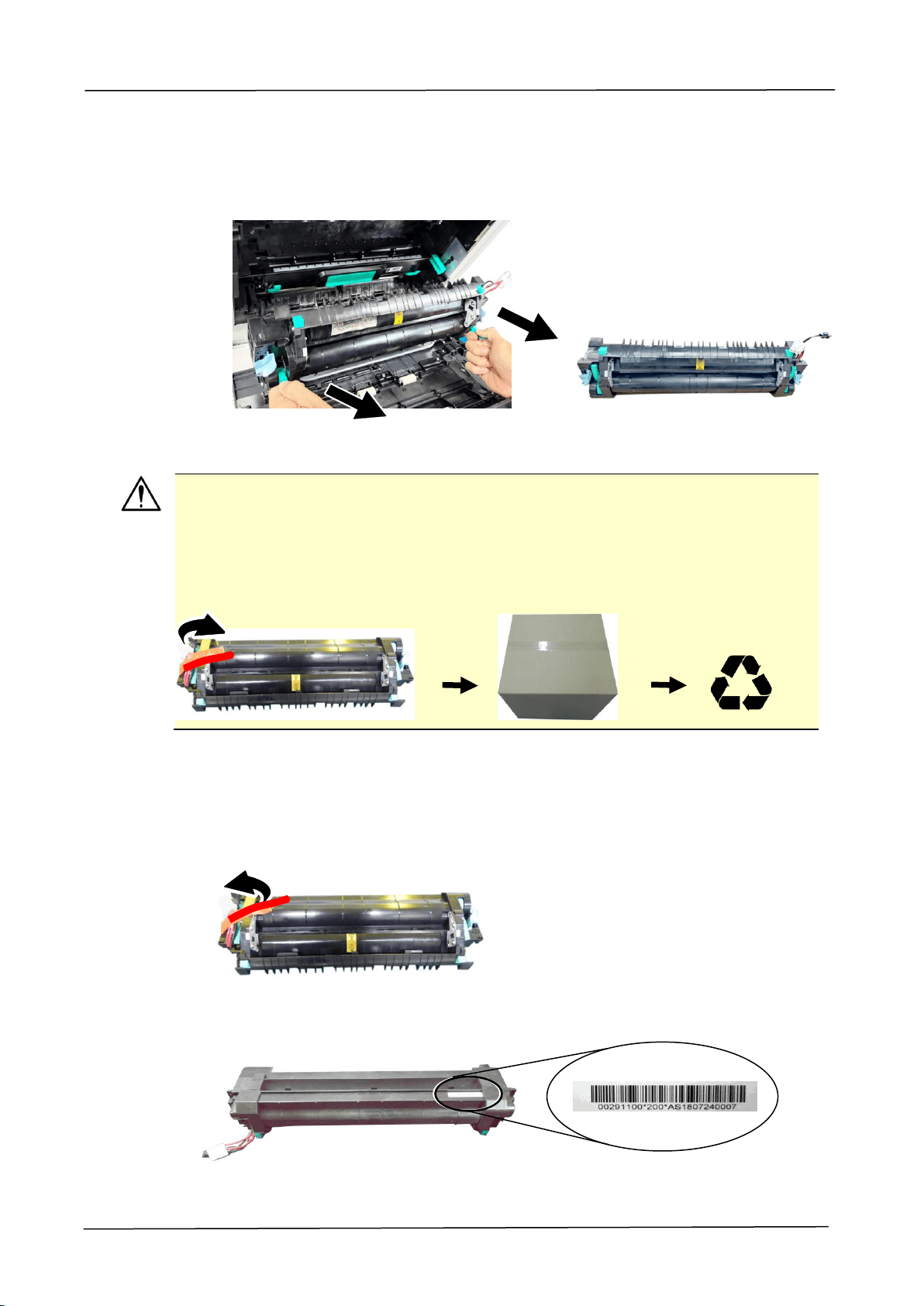
156
8.
Hold the handles on both sides of the fuser and remove the fuser from the
machine.
Important!
Do not dispose of the toner cartridge. Stick the cables with tape, put it in the
original plastic bag and box, and then return to the authorized dealer or service
personnel. The latter will follow Recycling or disposing of the collected fusers
according to relevant regulations.
Reinstallation Steps
1. Remove the protective tape of the new fuser.
2. Turn over the fuser to find the serial number (AXXXXXXXXXX). Write it down
as it is required to reset the fuser count.
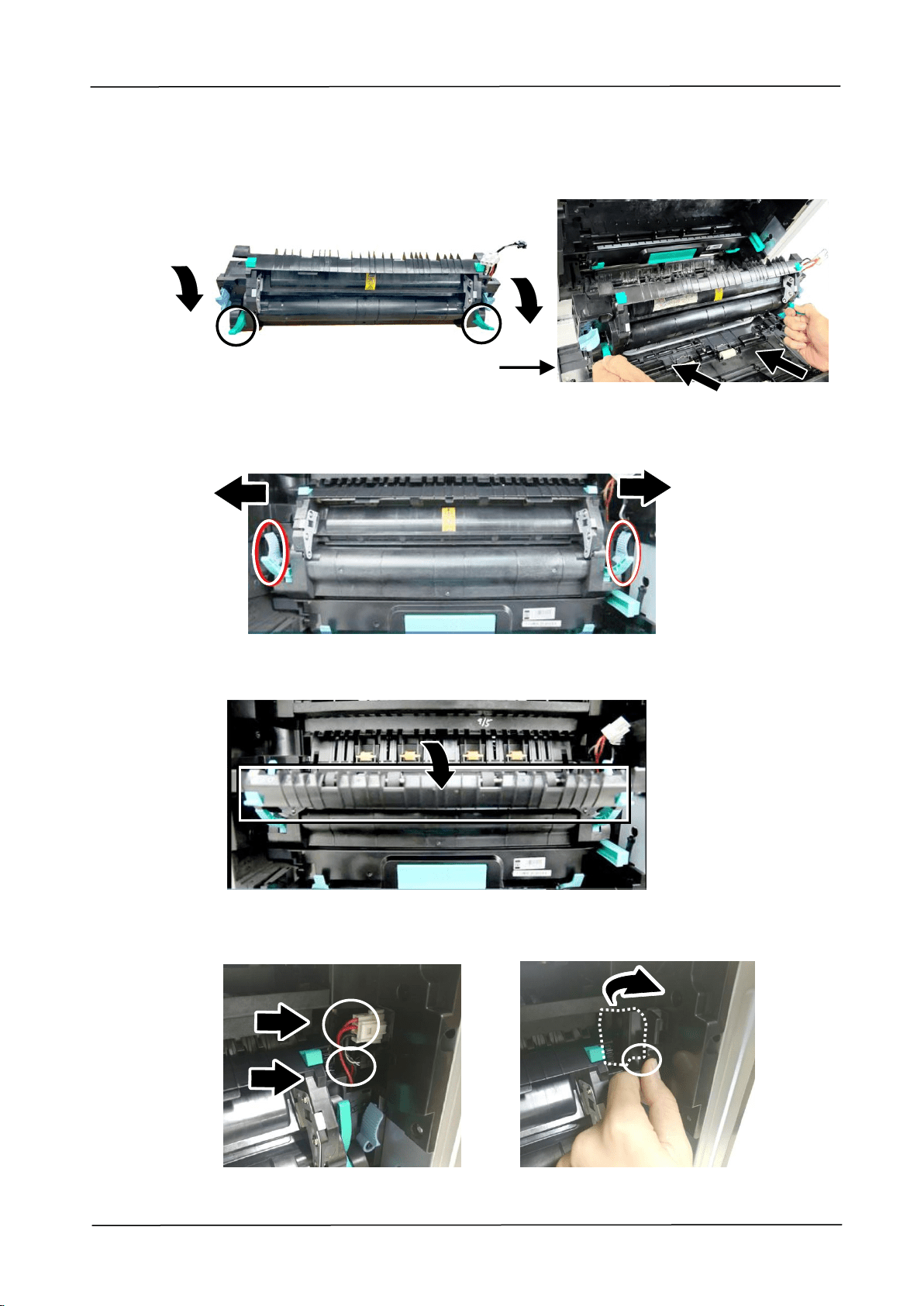
8. Replacing the Consumables
157
3. Pull down the handles of the fuser and then hold the handles with two hands to
install it back to the original place in the machine.
4. Press the latches on both sides outward as illustrated.
5. Pull down the fuser cover.
6. Connect the black cable and then the red cable. Close the cable cover.
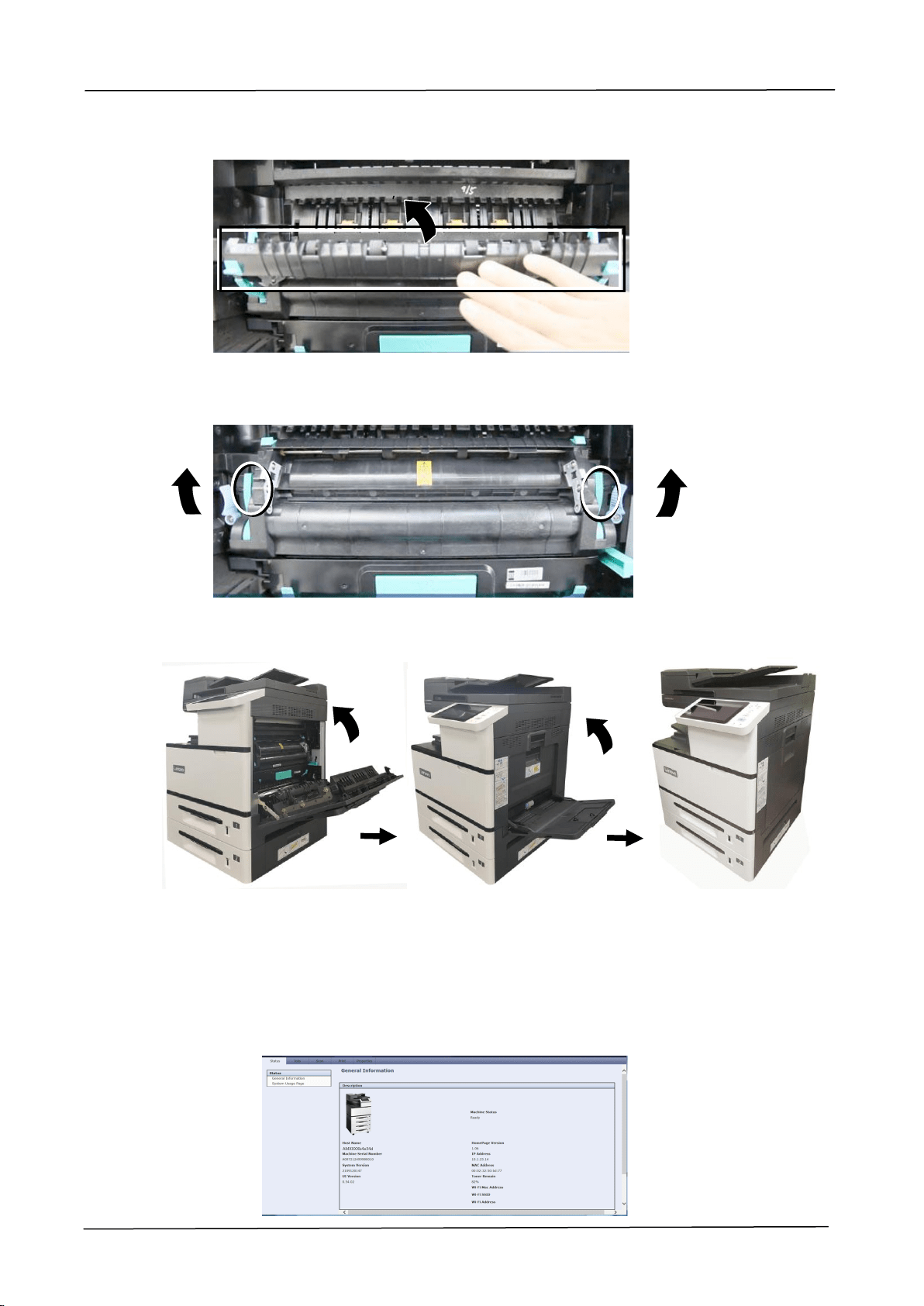
158
7. Close the fuser cover.
8. Pull up the handles on both sides.
9. Close the Side Door and then the Manual Tray as shown.
10. Press the Power button to turn on the machine.
11. Reset the fuser count on the product’s web page as described in below:
1). Connect the product to a network via an ethernet cable.
2). Open your browser and type the product’s IP address on the URL
address. Press OK and the product’s web page will be displayed.
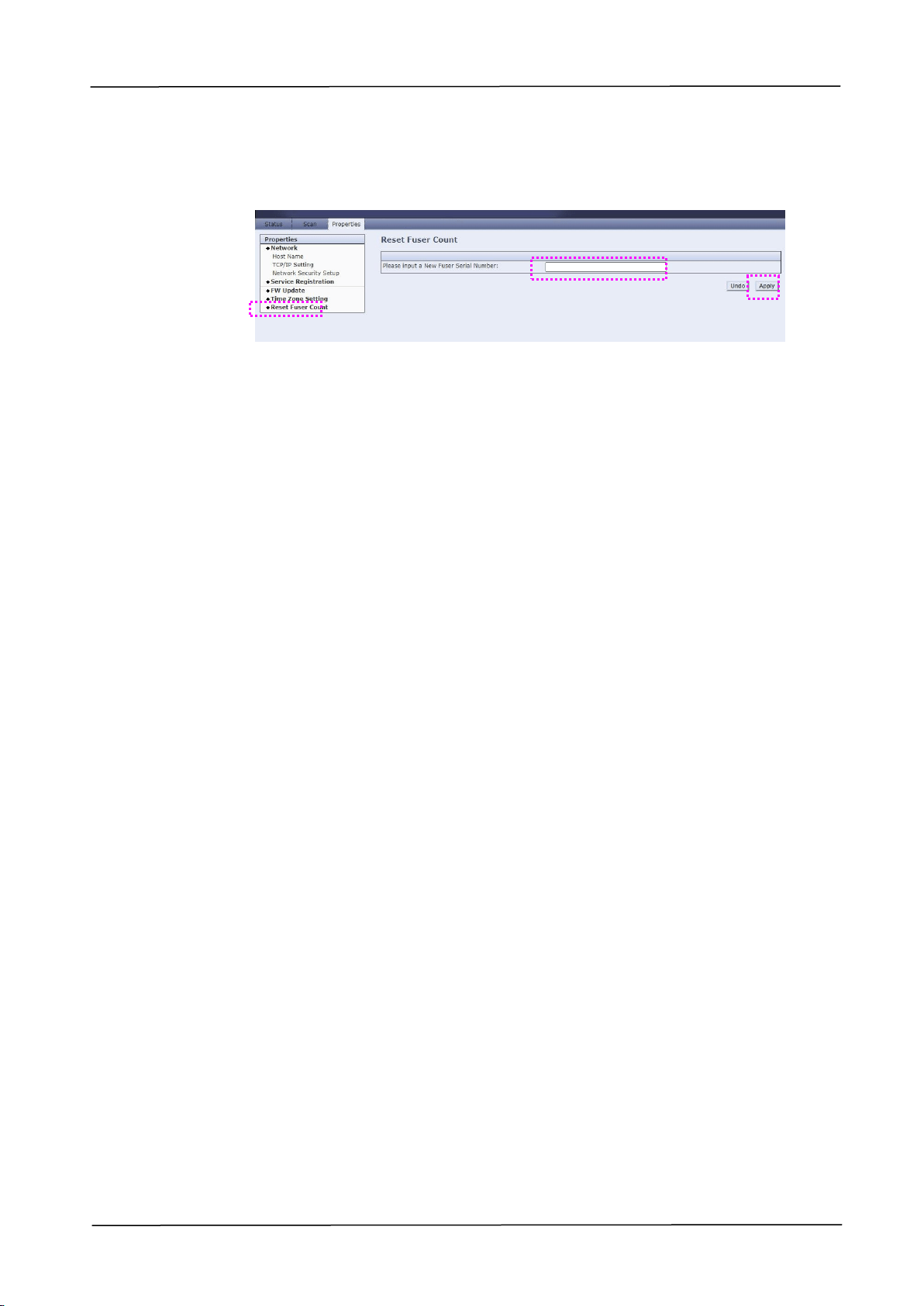
8. Replacing the Consumables
159
3). Click [Properties] and then click [Reset Fuser Count]. Enter fuser’s serial
number and then press [Apply], finally enter the administrator’s
password to reset the fuser count.
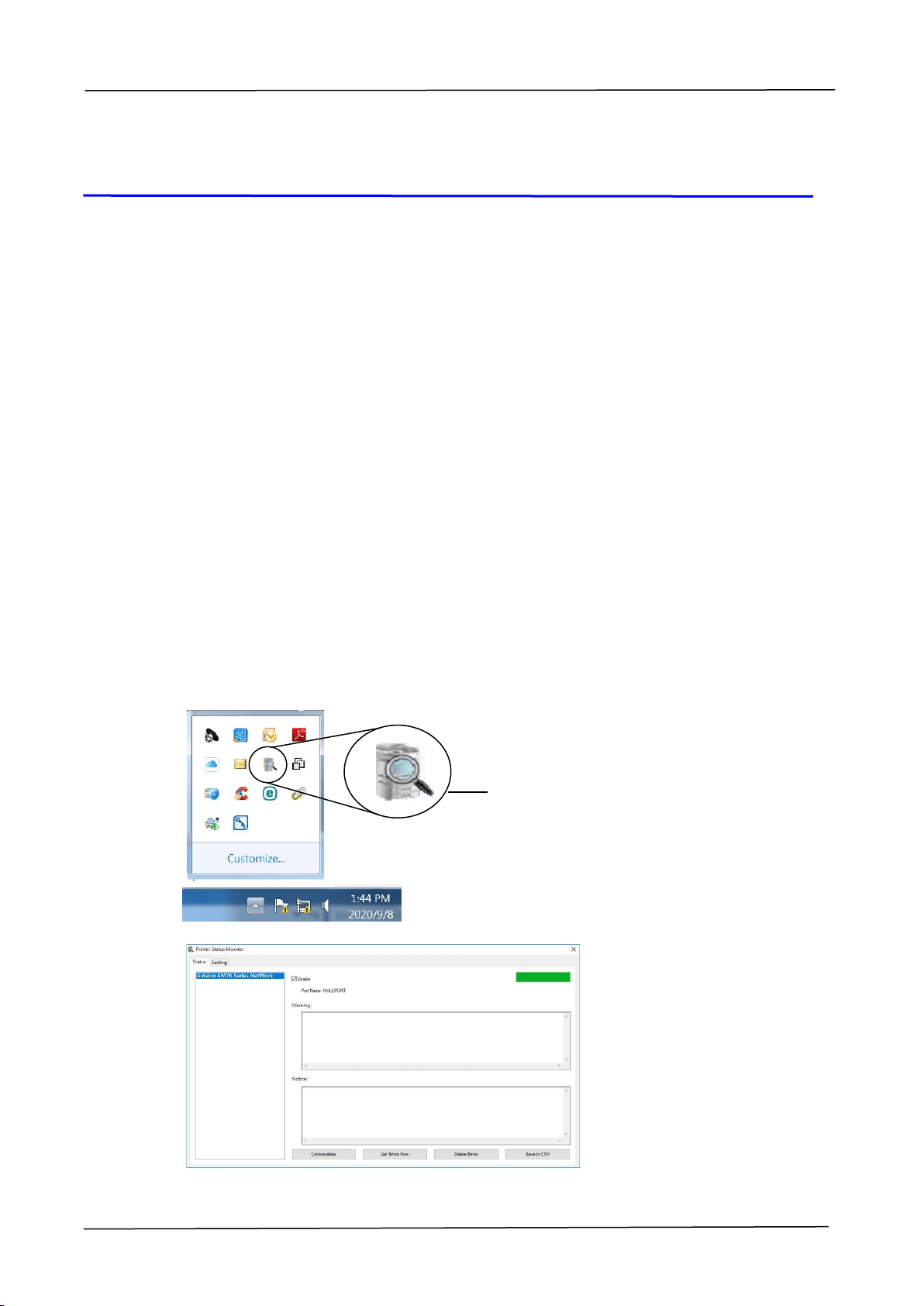
160
9. Troubleshooting
Monitoring Your Printer Using Printer
Status Monitor
The Printer Status Monitor allows you to monitor your printer’s status, get
information on consumable parts, and alerts you when printer errors occur.
Printer Status Monitor is available when the printer is connected directly to a host
computer via the USB port or a network port.
Printer Status Monitor is installed when you install the printer driver as described
in the preceding section.
Accessing Printer Status Monitor
Double-click the Printer Status Monitor icon on the system tray. The following
printer status window appears.
Printer Status Window
Printer Status Monitor icon
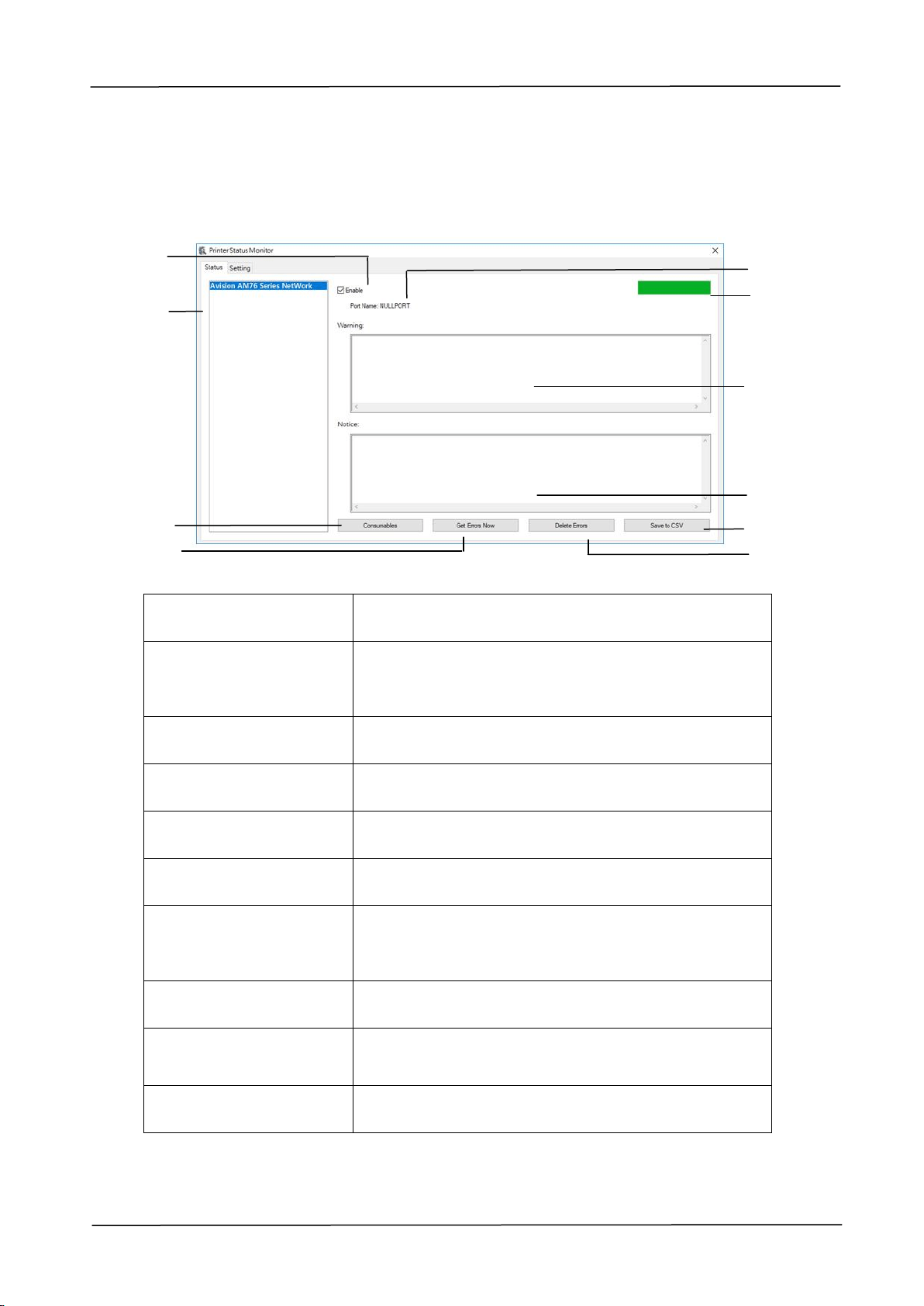
9. Troubleshooting
161
Getting Printer Status Details
You can monitor printer status and get information on consumable products using
the Printer Status Monitor dialog box.
a Port Name
Port name for the specified printer.
b Progress Bar
The progress bar to access the latest data of the
specified printer.
c Text Box
Display the warning message.
h Text Box
Display the notice message.
e Save Errors to CSV
Save error message to a CSV file.
f Delete Errors
Delete all the error messages.
g Enable
Check the box to enable accessing the status of a
specified printer.
h Printer
Display connected printers.
i Consumables
Click to show the information of the paper tray and
the consumables parts such as Drum(EP), Toner.
j Get Errors Now
Refresh the printer status.
a
b
c
d
e
f
g
h
i
j
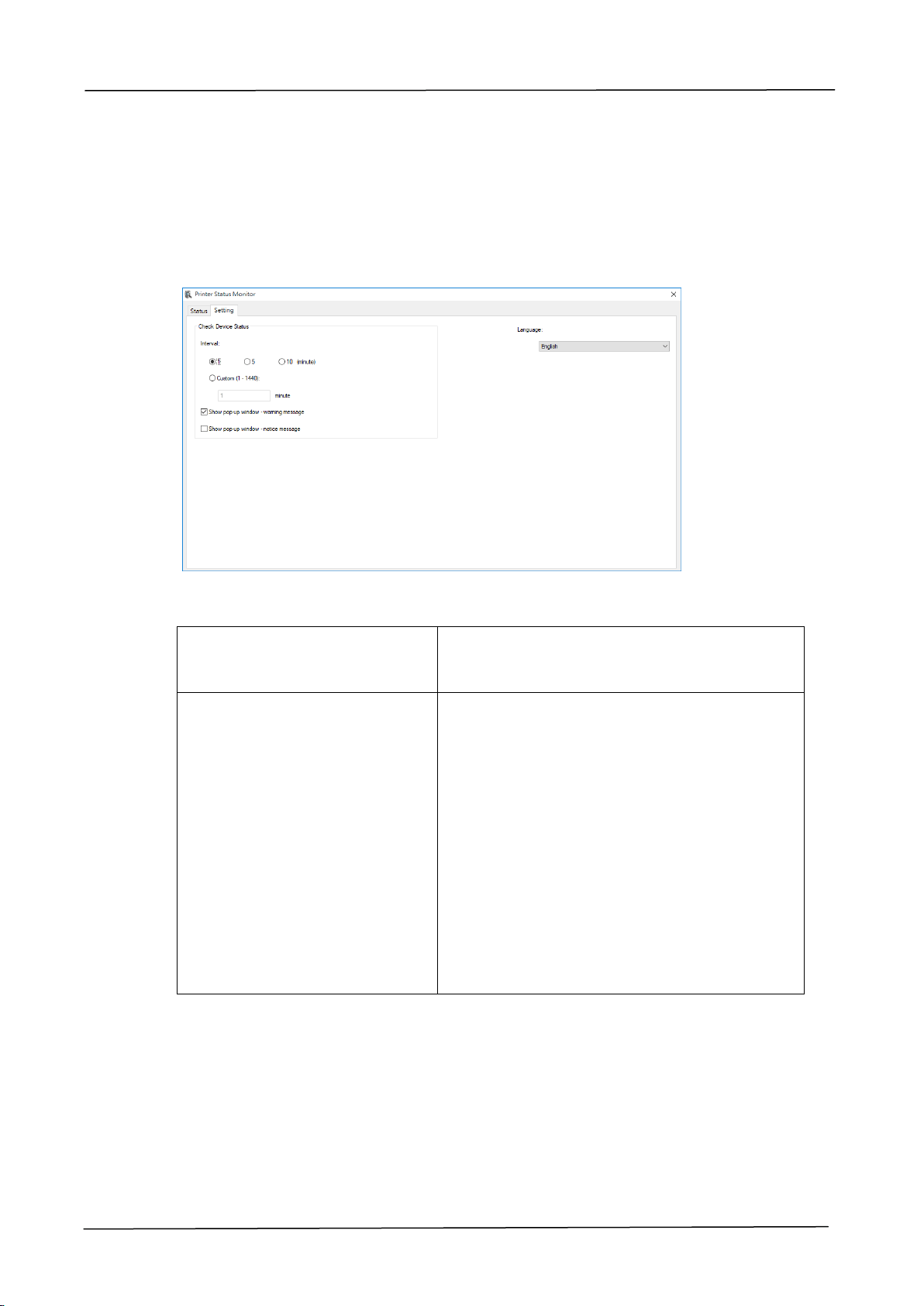
162
Setting Monitoring Preferences
To make specific monitoring settings, click the Setting tab on the Avision Status
Monitor window.
Language
Displays the language of the window.
Status Alert
Update Time
Show pop-up window –
warning message
Show pop-up window –
notice message
Define the interval to refresh the printer
error status.
Choice: 1, 5, 10 (minute), Custom (1 ~
86400) second
Check the box to automatically show the
warning status in a pop-up window on the
system tray.
Check the box to automatically show the
notice message in a pop-up window on the
system tray.
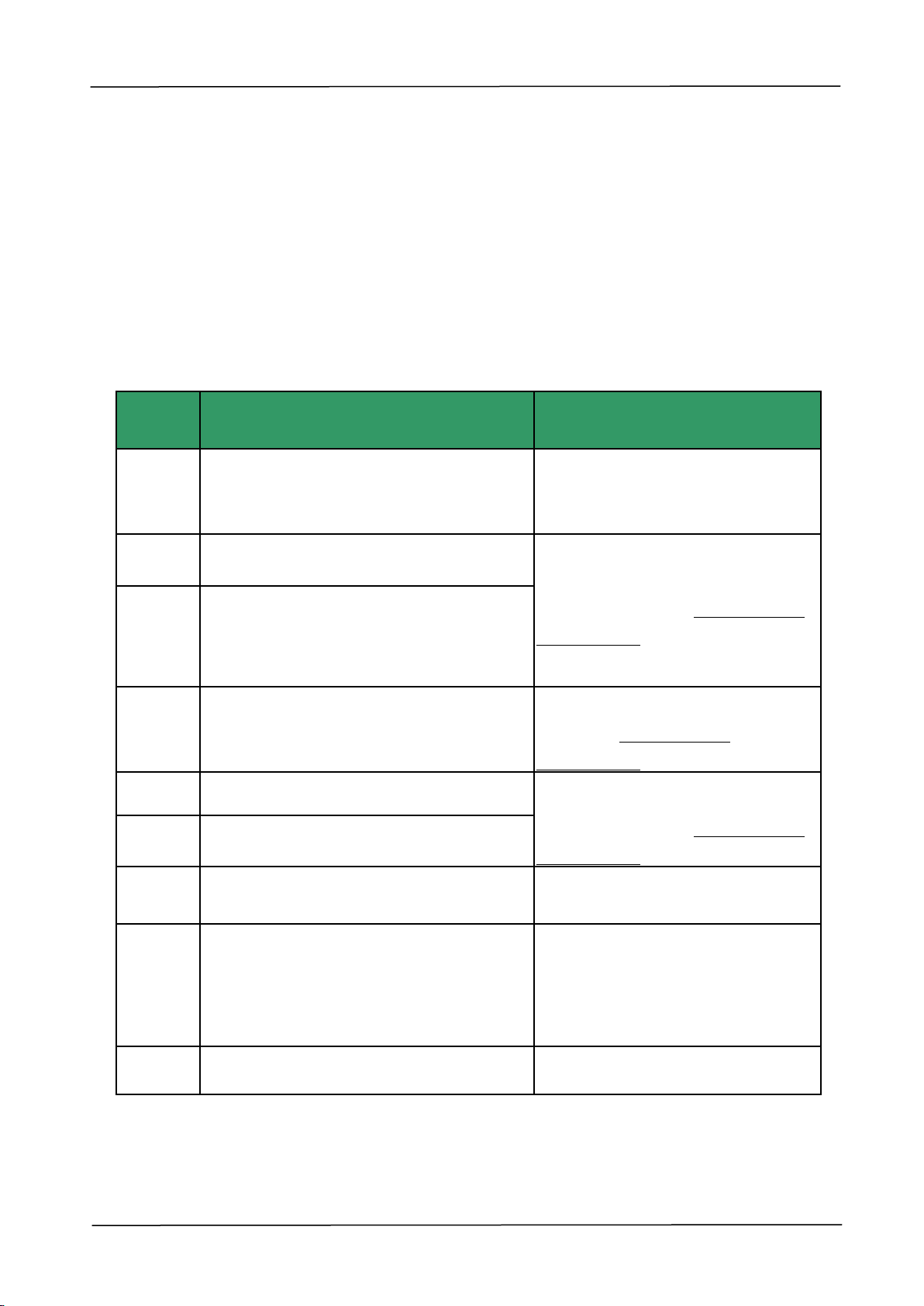
9. Troubleshooting
163
Clearing A Warning or Error Message
If a problem occurs during operation, a warning or error message will display on
the LCD panel. In addition, the Error LED will be flashing or solidly lit to indicate a
warning or an error status. To solve the problem, please follow the on-screen
instruction or the following table for more detailed information.
Warning
Error
Codes
Possible Causes
Solution
200030
No toner is installed or detected.
Possible cause of failure detection: sensor
problem on the toner cartridge.
Please install a cartridge.
200031
Toner has run out.
Replace a new toner cartridge.
(Refer to Chapter 8 Replacing the
Consumables)
200032
Toner that remains is lower than 10%.
The machine can still perform printing or
copying function yet with poor quality.
200033
No waste toner can is installed or
detected.
Install waste toner can. (Refer to
Chapter 8 Replacing the
Consumables)
200034
The waste toner can is full.
Replace an empty waste toner can.
(Refer to Chapter 8 Replacing the
Consumables)
200035
The waste toner can is nearly full.
200036
Toner cartridge error. (incorrect S/N)
Replace genuine toner cartridge
from the original manufacturer.
200040
Drum unit sensor fails. Since toner will
not continue being filled into the drum
unit, resulting in less toner in the drum
unit, the print quality is getting worse.
1. Reboot the system。
2. If the problem persists, replace
the sensor.
200041
No developing unit
Please install developing unit.
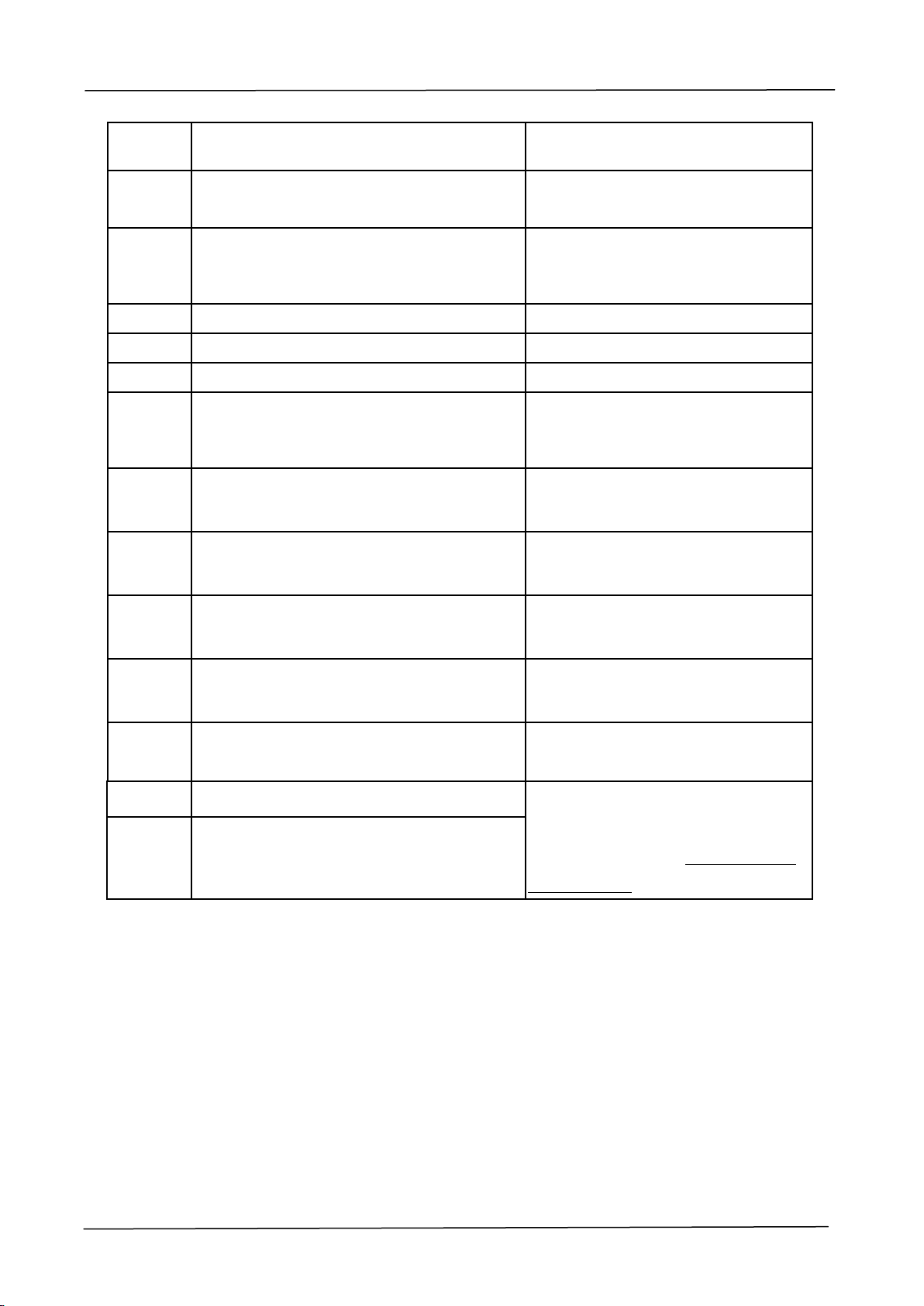
164
200042
Developing unit lifetime ends,
Replace developing unit.
200043
Developing unit lifetime near end (less
than 10%)
Order developing unit.
200044
Invalid developing unit
Order genuine developing unit from
the original manufacturer.
200141
No drum unit
Install drum unit.
200142
Drum unit life exhausted.
Replace drum unit.
200143
Drum unit life near end.(less than 10%)
Replace drum unit.
200144
Invalid drum unit. (incorrect S/N)
Order and replace genuine drum
unit from the original manufacturer.
201502
201512
Invalid fuser. Please use the original fuser
from the vendor.
Use the original fuser from the
vendor.
201503
201513
Invalid developer unit. Please use the
original developer unit from the vendor.
Use the original developer unit from
the vendor.
201504
201514
Invalid drum. Please use the original
drum from the vendor.
Use the original drum from the
vendor.
201505
201515
Invalid toner cartridge. Please use the
original toner cartridge from the vendor.
Use the original toner cartridge
from the vendor.
201611
Toner empty: Toner level sensor always
off.
Replace toner level sensor.
201619
Fuser life has been exhausted.
Call the service personnel to order
and replace the fuser.
(Refer to Chapter 8 Replacing the
Consumables)
201620
Fuser lifetime near end (less than 10%.)
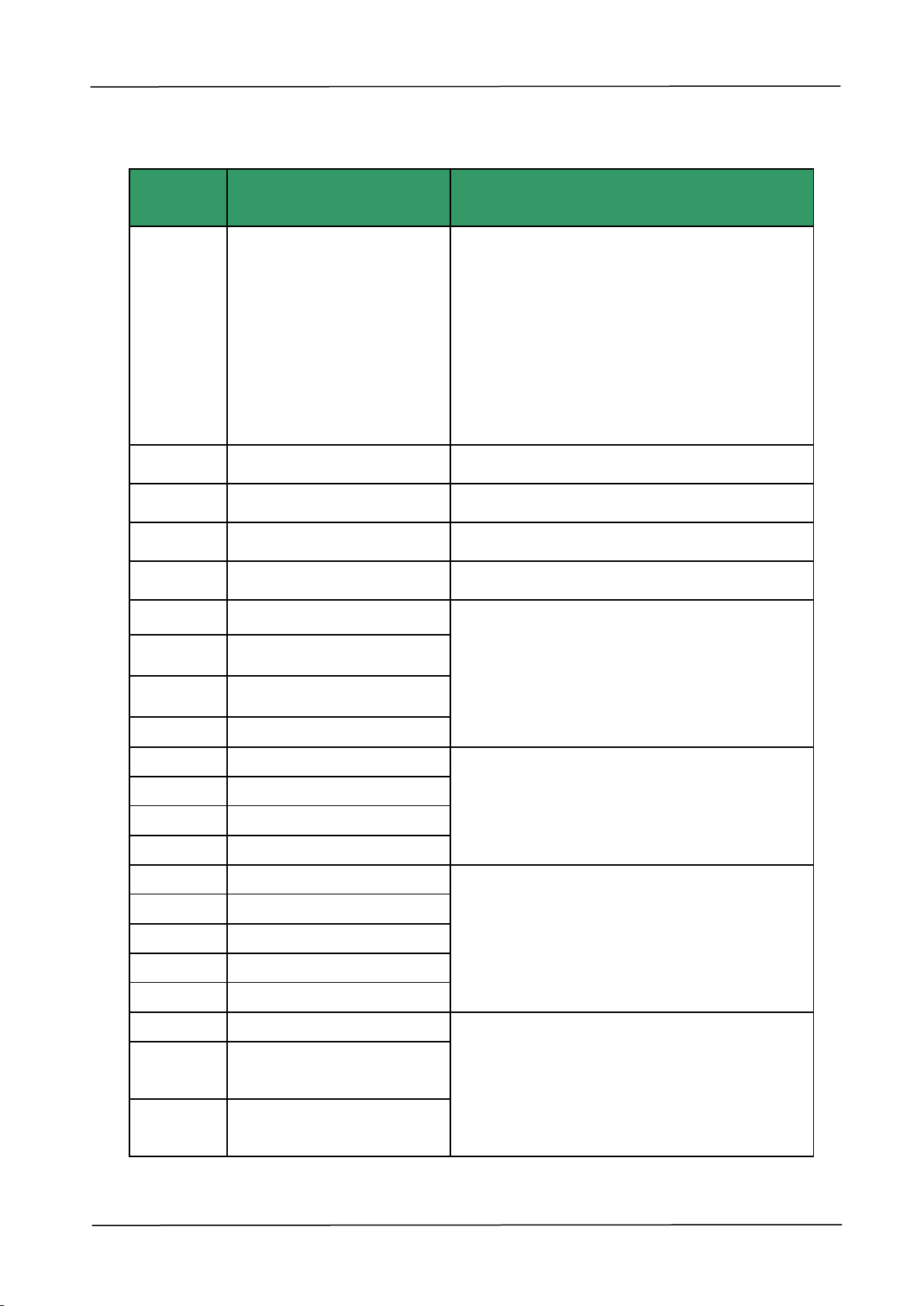
9. Troubleshooting
165
System Error Codes
Error
Codes
Possible Causes
Solution
200000
Multi-fed paper happens.
Open the Side Door, clear papers, and adjust
paper size and orientation.
Possible causes:
1. The paper length in a paper tray is greater
than the specified paper length for printing.
2. If the problem persists, call the service
personnel to check the pick up roller and
spare sensor.
200050
Side door is open.
Close side cover.
200051
Front cover is open.
Close the front cover.
200052
Tray 2 cover is open.
Close tray 2 cover.
200053
Tray 3 cover is open.
Close tray 3 cover.
200060
Tray 1 error.
Please open and close tray to recover it.
200061
Tray 2 error.
200062
Tray 3 error.
200063
Tray 4 error.
200070
Tray 1 is open.
Close tray correctly.
200071
Tray 2 is open.
200072
Tray 3 is open.
200073
Tray 4 is open.
200080
Manual tray paper empty
Any of the printer paper trays has run out.
Load paper to the empty tray.
200081
Tray 1 paper empty
200082
Tray 2 paper empty
200083
Tray 3 paper empty
200084
Tray 4 paper empty
200090
Fan 1 fails (fan for fuser).
When any one of the fans stops or has
abnormal rotation speed, Call the service
personnel to order and replace the fan.
200091
Fan 2 fails (fan for main
board).
200092
Fan 3 fails (fan for
developing unit and drum).
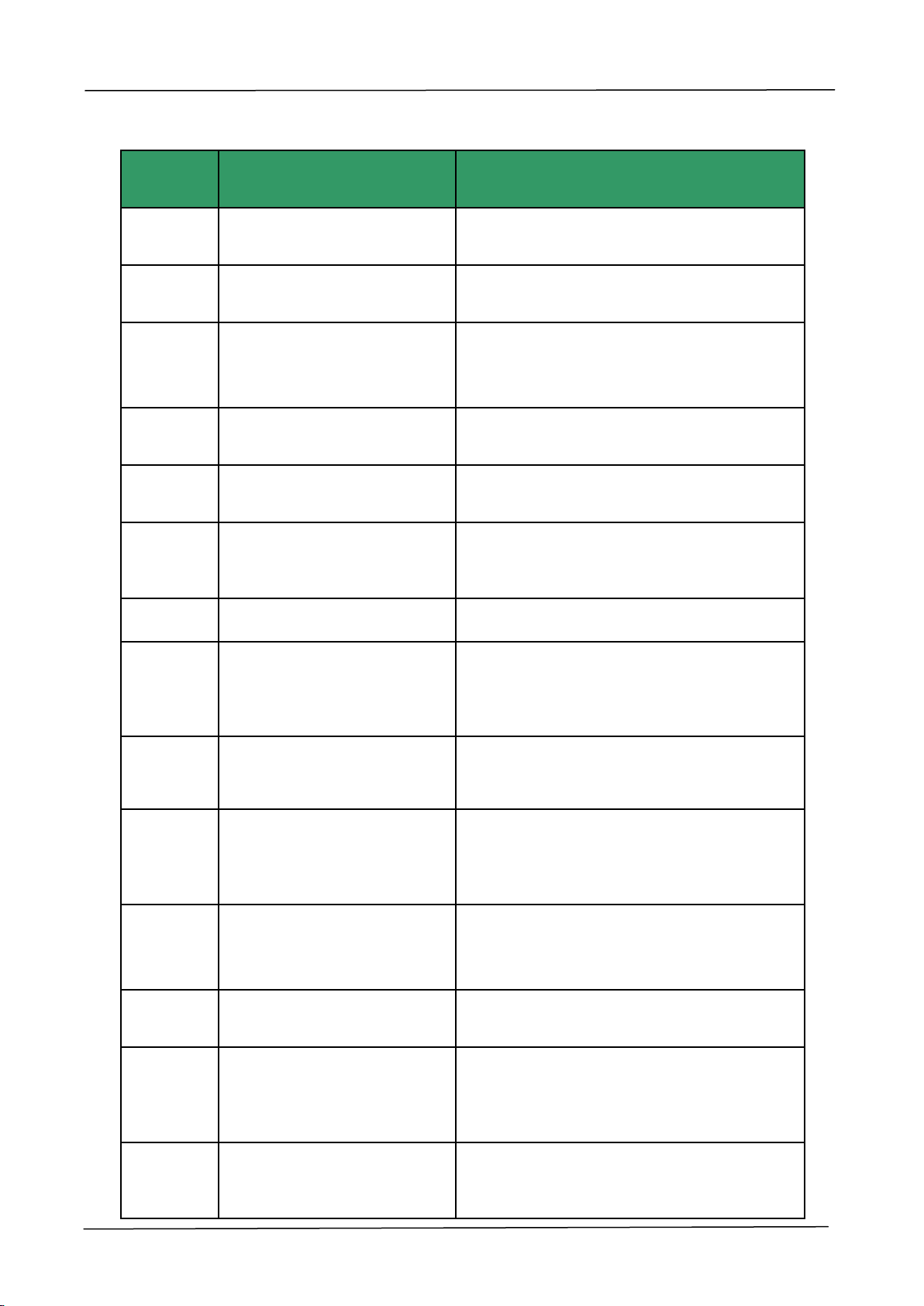
166
Errors on Scanner
Error
Codes
Possible Causes
Solution
000001
The motor is damaged, or
runs incorrect steps.
Replace the motor.
000002
Lamp error (ADF)
The ADF CIS lamp is damaged or not lit.
Replace the CIS unit.
000113
Scanner module error. An
expected error from scanner
parts occurs.
Restart MFP or replace scanner parts that
fail.
002007
Lamp error (FB)
The flatbed CIS lamp is damaged or not lit.
Replace the flatbed CIS unit.
002008
Scanning unit is locked.
Move the lock switch near the glass platen
to the used position.
002013
ADF paper jam occurs during
scanning process.
1. Open ADF cover.
2. Remove the jammed paper.
3. Close ADF cover.
002014
ADF cover opens.
Close ADF cover.
100000
Job full.
When the number of jobs in the Job status
reaches 100, this error occurs.
Delete some jobs to make the total number
of jobs less than 100.
100111
MFP error
When MFP is booted, the scanner and
printer engine Initialization fail.
Restart MFP.
200001
No Matching Paper
No tray is matched and found during
printing or copying process.
Replace the wrong paper with correct one
in the tray.
300380
Error in printing PDF file over
32MB
Printing/ reprinting a PDF file over 32MB is
not allowed.
Reduce page number in a PDF file.
600320
Paper empty. Job Abort.
All Trays are empty during printing.
Fill paper to the paper trays.
600330
No Matching Paper
No tray is matched and found during
printing or copying process.
Replace the wrong paper with correct one
in the tray.
600340
Paper not support
When printing the Demo page, the paper
size in Tray1 is not A4.
Place the A4-sized paper into Tray1.

9. Troubleshooting
167
600350
Number of Address book
exceeds limitation
The number of contacts in the Address
Book exceeds limitation.
Delete some contacts in the Address Book
to make the total number of contacts less
than 500.
600360
Number of groups exceeds
limitation
The number of groups in the Address Book
exceeds limitation.
Delete some groups in the Address Book to
make the total number of groups less than
10.
600680
Receiver exceed allowable
limit
The number of email receivers added
exceeds the upper limit.
Delete some email receivers to make the
total number of receivers less than 20.
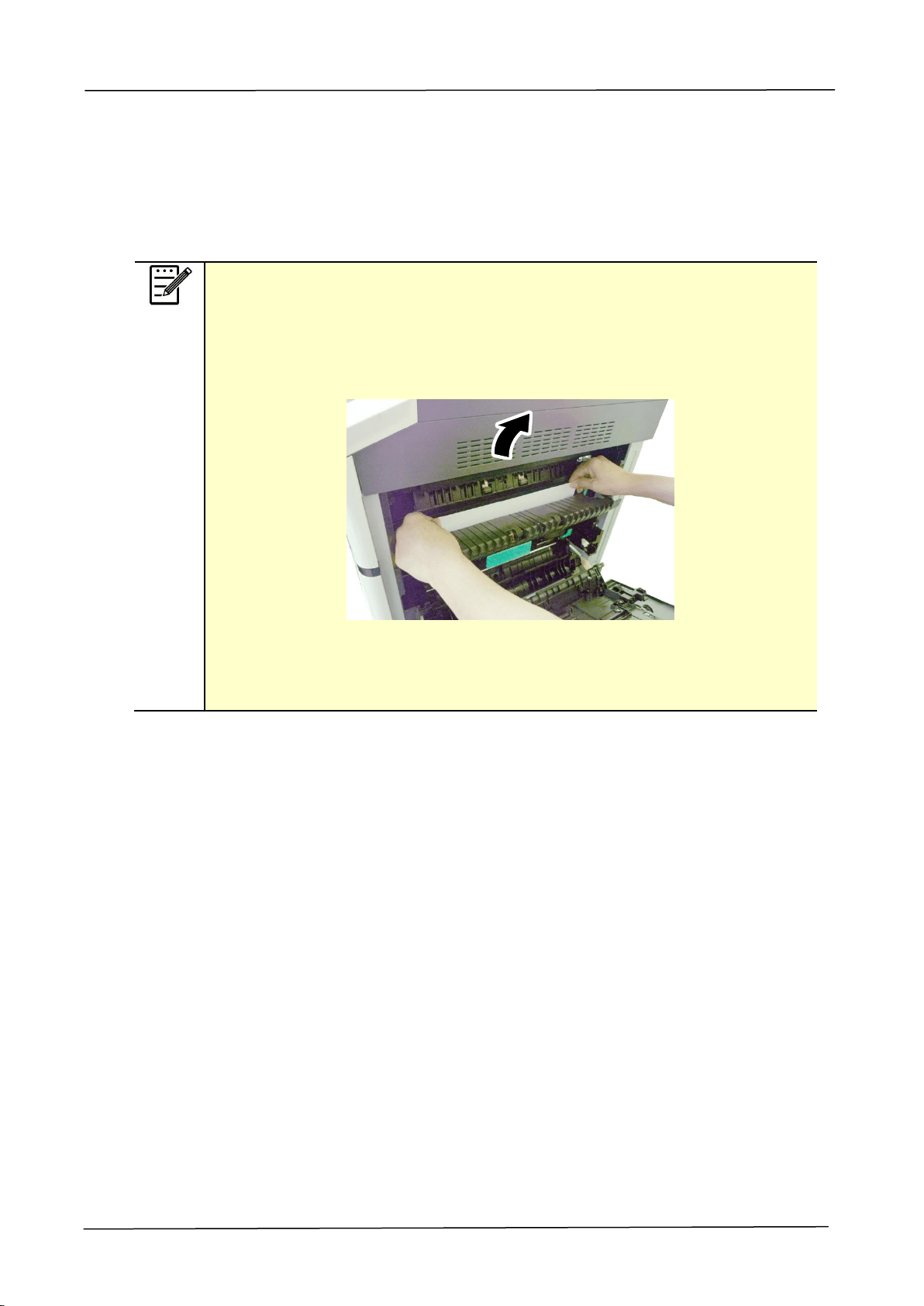
168
PaperJam Errors
When paperjam error occurs, check the jammed positions indicated in the message to
clear the jam error.
Notice when removing the jammed paper:
1. As shown in the figure below, gently remove the paper by holding
the edges of paper with both hands according to the arrow direction.
Removing jammed paper by force in other directions (up、right、or
left) might cause damage to the machine.
2. Check if the paper is complete. If it is incomplete, check if any
scraps left inside the machine and remove the scraps. Otherwise, the
scraps might affect document feeding and also the print quality.
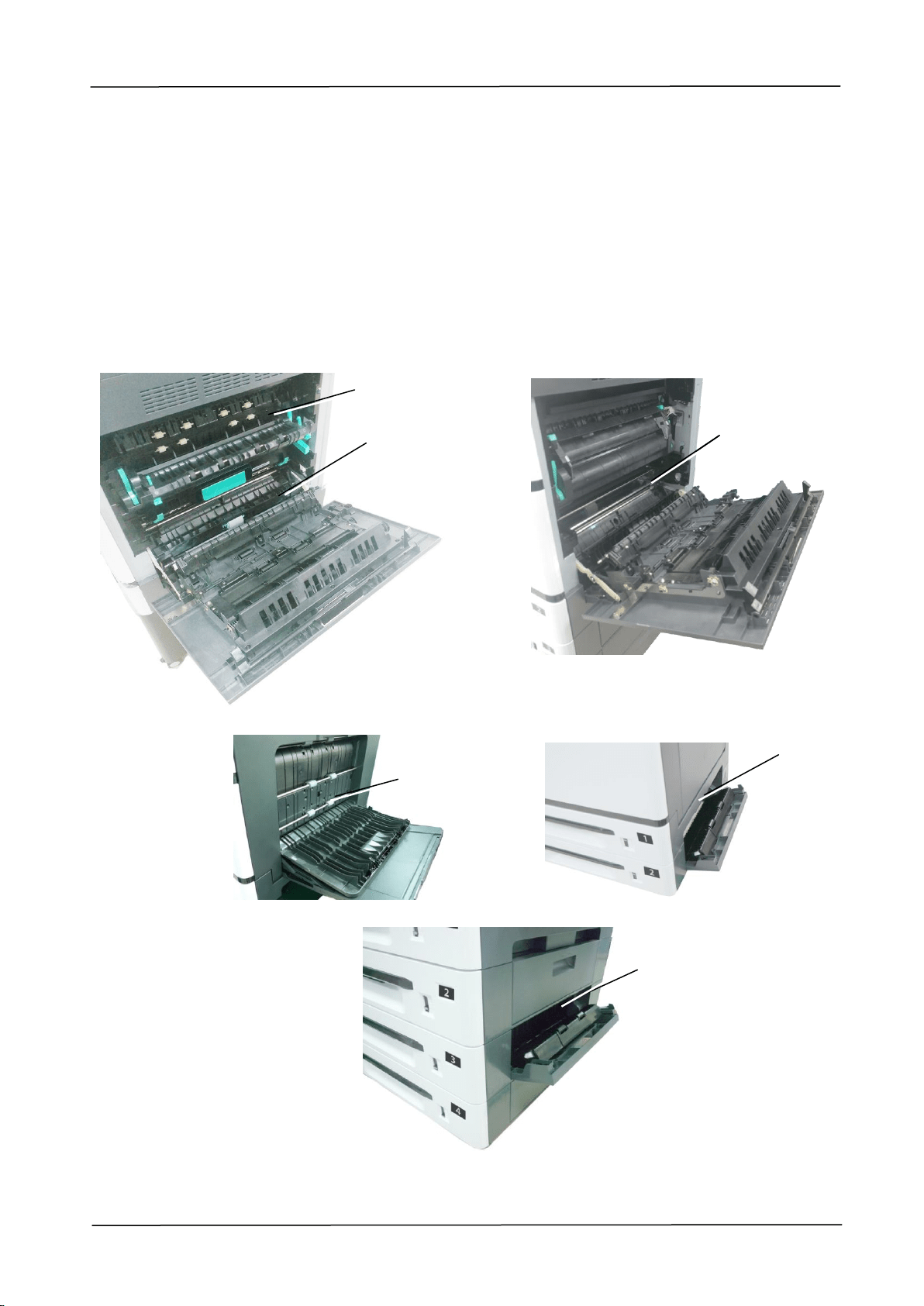
9. Troubleshooting
169
Paperjam Areas
Area A:Fuser
Area B:Paper Exit on Tray 1
Area C:Duplex Unit
Area D:Side Cover of Tray 2
Area E:Side Cover of Tray 3
Area F:Drum Unit
Area C
Area D
Area E
Area A
Area B
区域 D
Area F
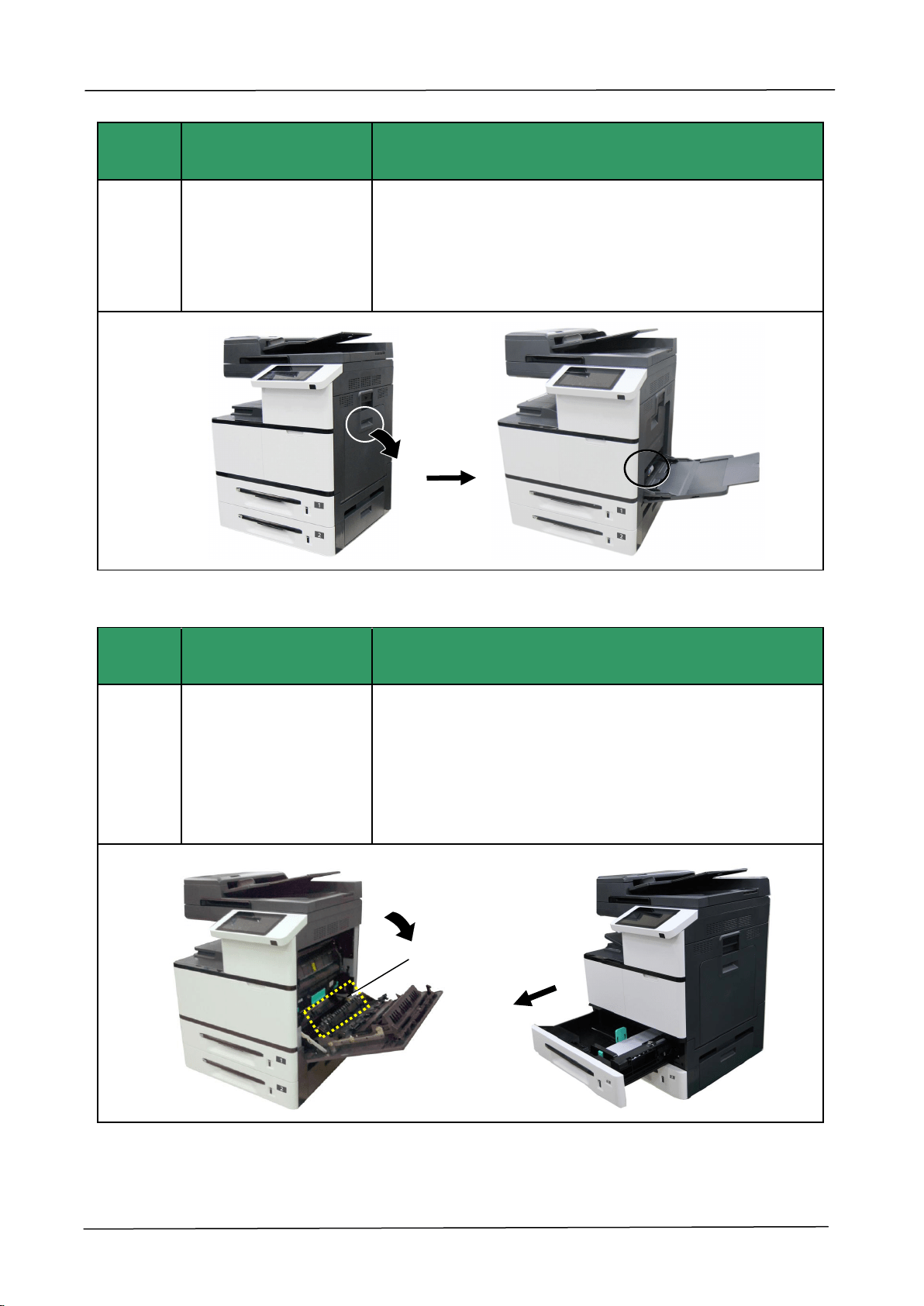
170
Error
Code
Cause
Solution
200301
Paperjam in the
manual tray
1. Remove the jammed paper. Fan your paper and
reload it to the manual tray.
2. If the problem still persists, clean the Feeding Roller
in the manual tray.
Error
Code
Cause
Solution
200302
Paperjam in Tray 1
1. Open the Side Door.
2. Check if there is jammed paper in the paper exit of
Tray 1 (Area B). If so, remove the paper.
3. Open Tray 1 to remove the jammed paper.
4. Close Tray 1 and the Side Door.
Area B
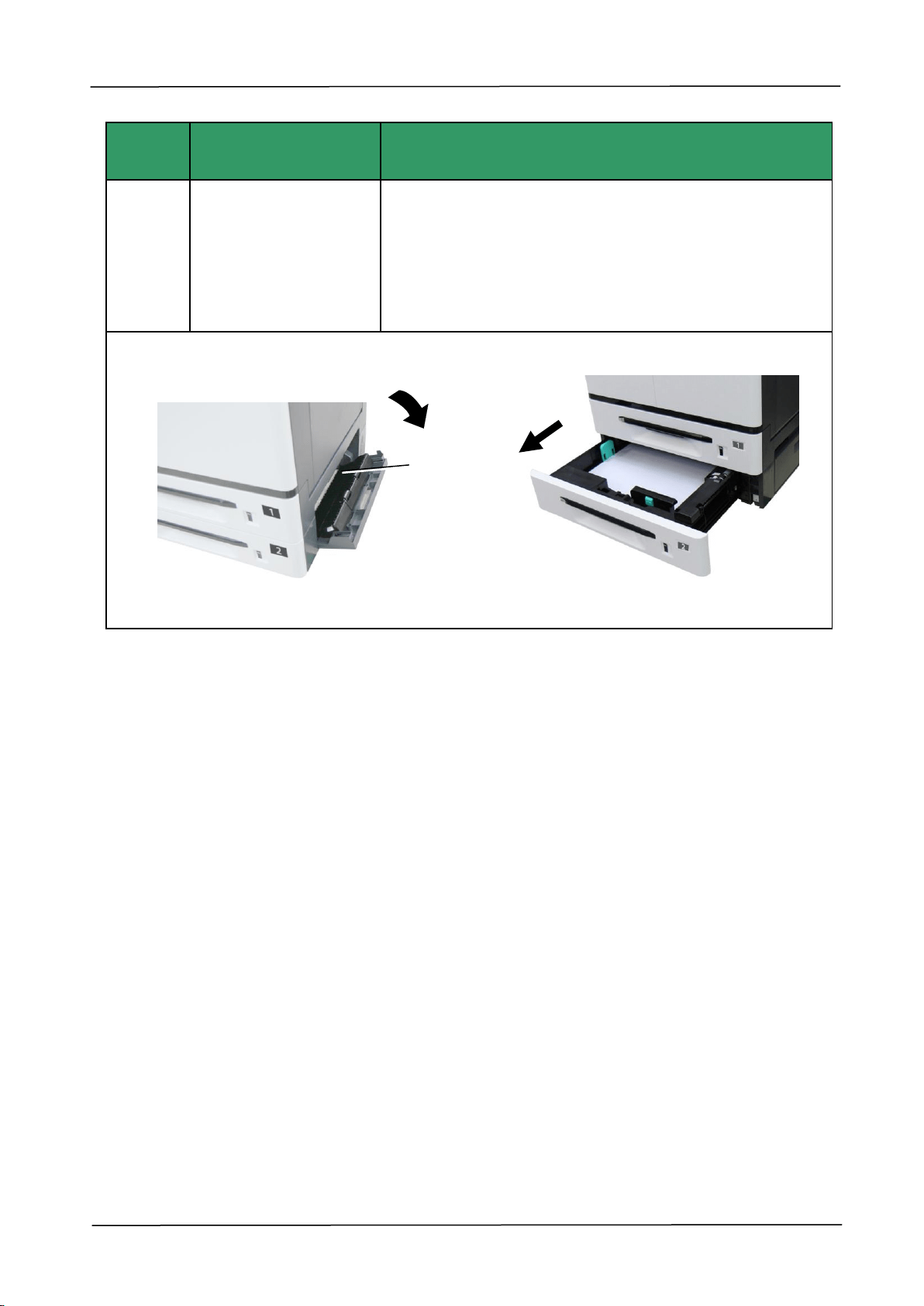
9. Troubleshooting
171
Error
Code
Cause
Solution
200303
Paperjam in Tray 2
1. Open the Side Door of Tray 2 as shown.
2. If there is paper on Area D (paper exit on Tray 2),
remove the paper.
3. Open Tray 2 to remove if there is further paper.
4. Close Tray 2 and the Side Door of Tray 2.
Area D
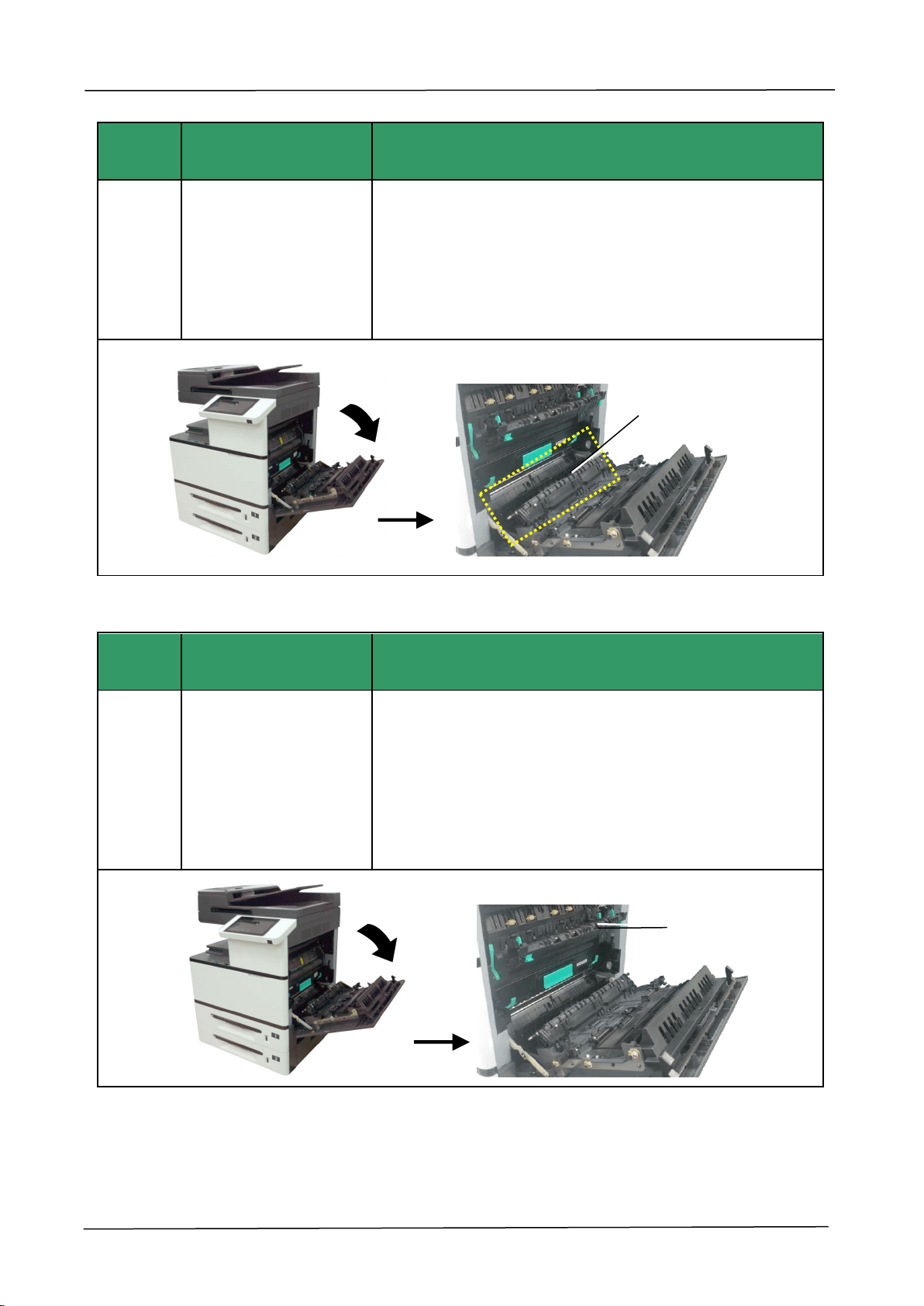
172
Error
Code
Cause
Solution
200306
Paperjam in deskew
sensor。
1. Open the Side Door.
2. If there is paper on Area B (paper exit on Tray 1),
remove it. Be careful not to touch the area marked the
temperature.
3. Close the Side Door.
Error
Code
Cause
Solution
200309
Paperjam in paper exit
sensor of fuser.
1. Turn off the machine and wait for a few minutes to let
the operating temperature drop and then open the Side
Door.
2. Check Area A (Fuser area) and remove the paper.
Pay attention the temperature is high in the fuser.
3. Close the fuser cover and the Side Door.
Area B
Area A
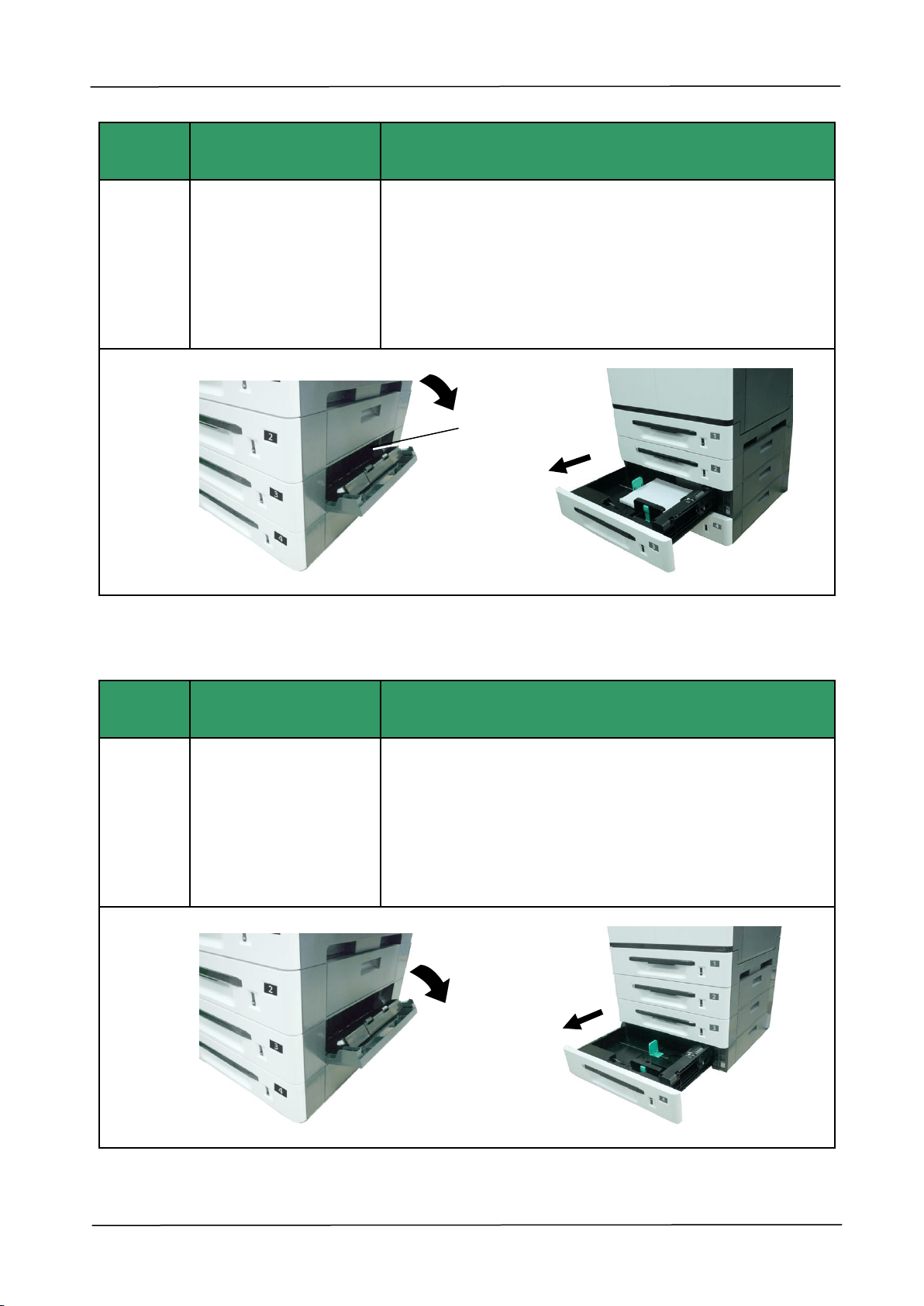
9. Troubleshooting
173
Error
Code
Cause
Solution
200317
Paperjam in Tray 3
1. Open the Side Door of the 3
rd
and 4
th
Tray.
2. If there is paper in the exit of the 3
rd
Tray, pull the
paper out a bit and then remove the paper.
3. If there is no paper in the exit of the 3
rd
Tray, open
Tray 3 to remove paper. Then close Tray 3.
4. Close the Side Door of the 3
rd
and 4
th
Tray.
Error
Code
Cause
Solution
200318
Paperjam in Tray 4
1. Open the Side Door of the 3
rd
and 4
th
Tray.
2. If there is paper in the exit of the 3
rd
Tray, pull the
paper out a bit and then remove the paper.
3. If there is no paper in the exit of the 3
rd
Tray, open
Tray 3 to remove paper. Then close Tray 3.
4. Close the Side Door of the 3
rd
and 4
th
Tray.
Area E
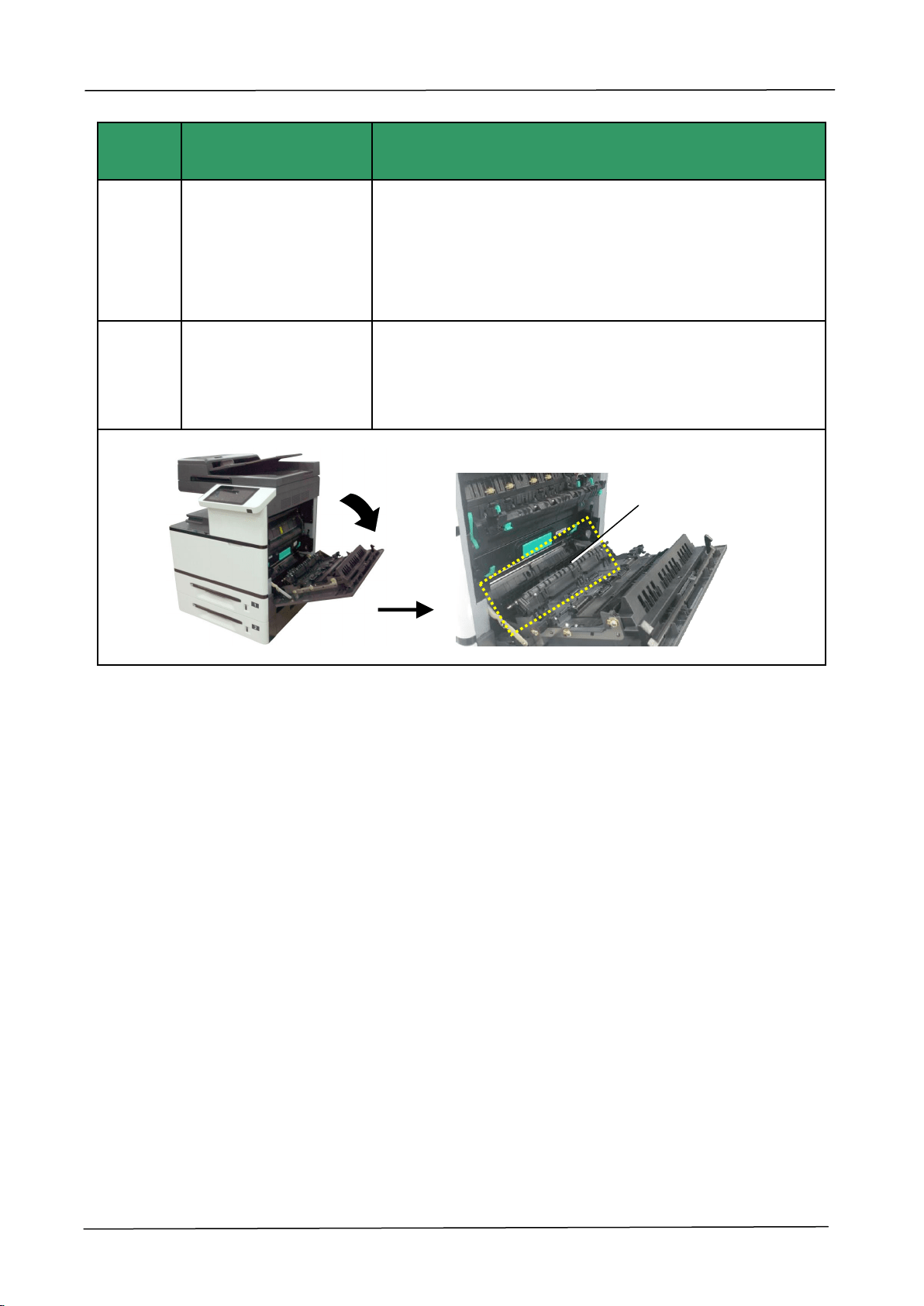
174
Error
Code
Cause
Solution
200340
Paperjam in the sensor
of Tray 1
1. Open the Side Door.
2. If there is paper on Area B (paper exit on Tray 1),
remove it. The temperature near the fuser is very high.
Do not touch those areas.
3. Close the Side Door.
200341
Paperjam between Tray
1 Sensor and Deskew
Sensor
Same as above
Area B
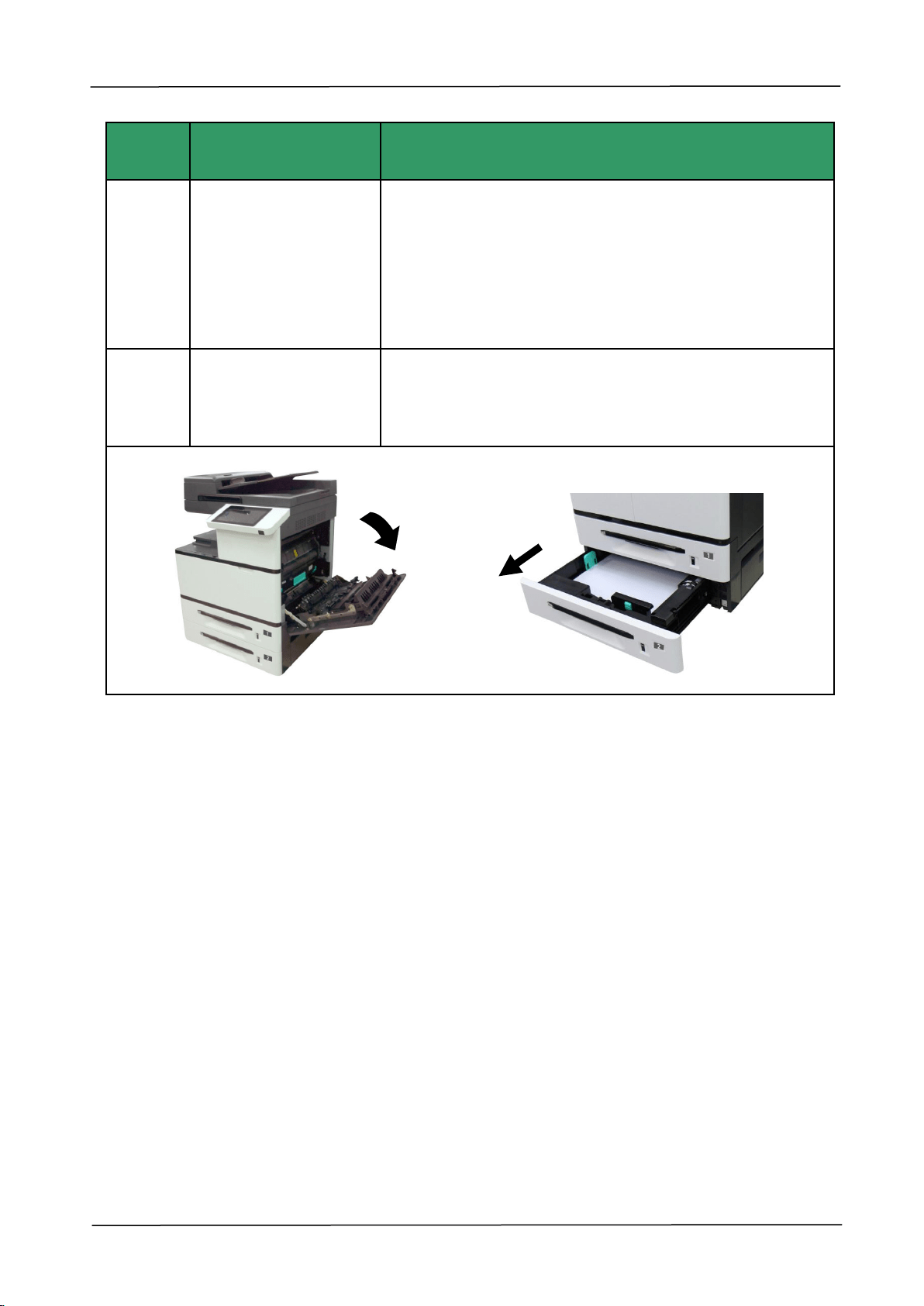
9. Troubleshooting
175
Error
Code
Cause
Solution
200342
Paperjam in Tray 2
1. Open the Side Door.
2. If there is paper on Paper Exit of Tray 2, pull the
paper out and then remove it.
3.If there is no paper on Paper Exit of Tray 2, pull out
Tray 2 to remove the paper.
4.Close Side Door and Tray 2.
200343
Paperjam between Tray
1 sensor and Tray 2
sensor
Same as above
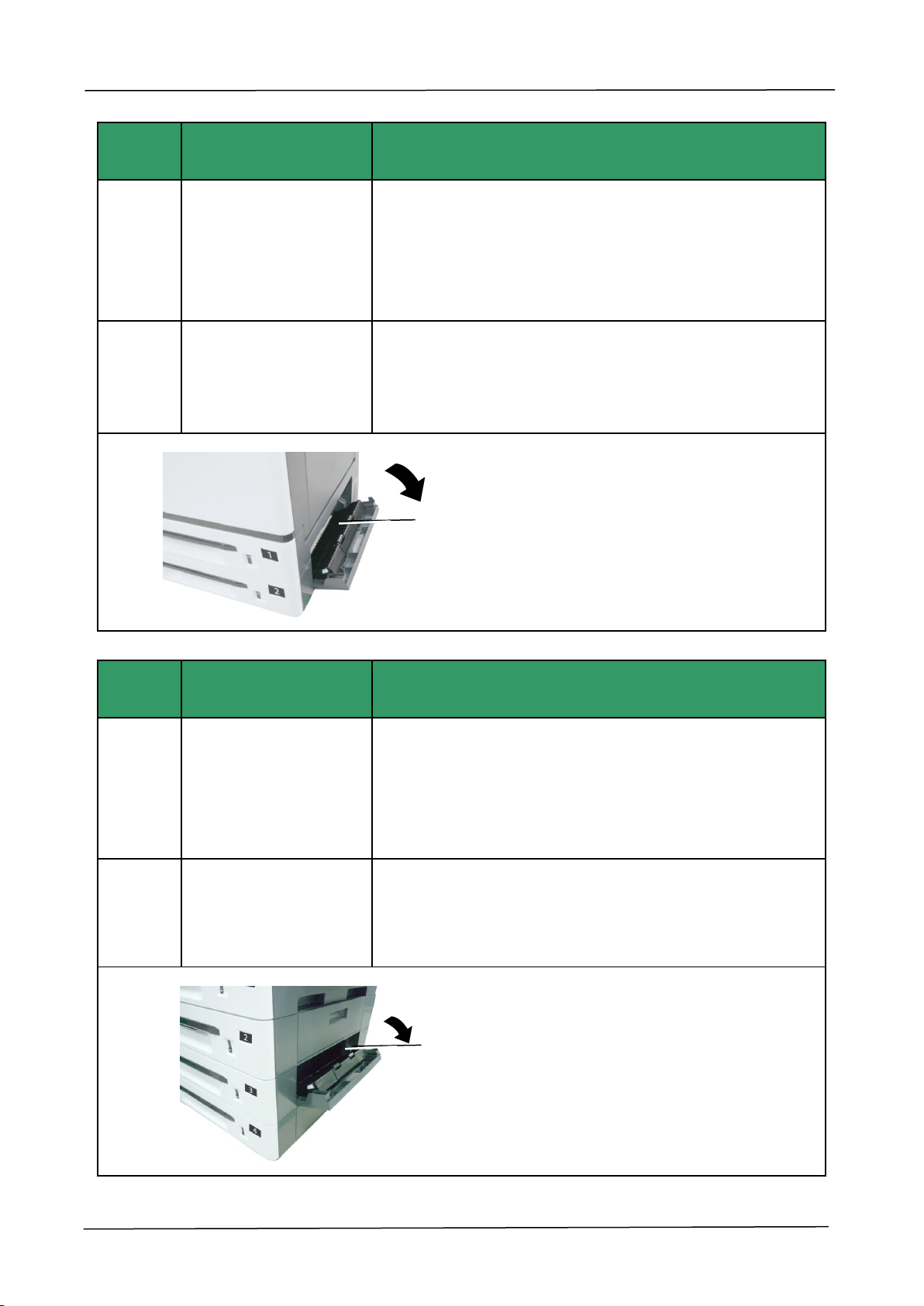
176
Error
Code
Cause
Solution
200344
Paperjam in Tray 3
sensor
1. Open the Side Door of Tray 2.
2. If there is paper on Area D (paper exit of Tray 2), pull
the paper out and remove it.
3. If there is no paper, pull Tray 3 to remove all paper.
4. Close the Side Door of Tray 2.
200345
Paperjam between Tray
2 sensor and Tray 3
sensor
Save as above
Error
Code
Cause
Solution
200346
Paperjam in Tray 4
sensor
1.Open the Side Door of Tray 3.
2.If there is paper on Area E (Paper exit of Tray 3),pull
the paper out and then remove the paper.
3.If no paper, open Tray 3 to check and remove paper.
4.Close the Side Door of Tray 3 and Tray 3.
200347
Paperjam between Tray
3 sensor and Tray 4
sensor
Same as above
Area E
Area D
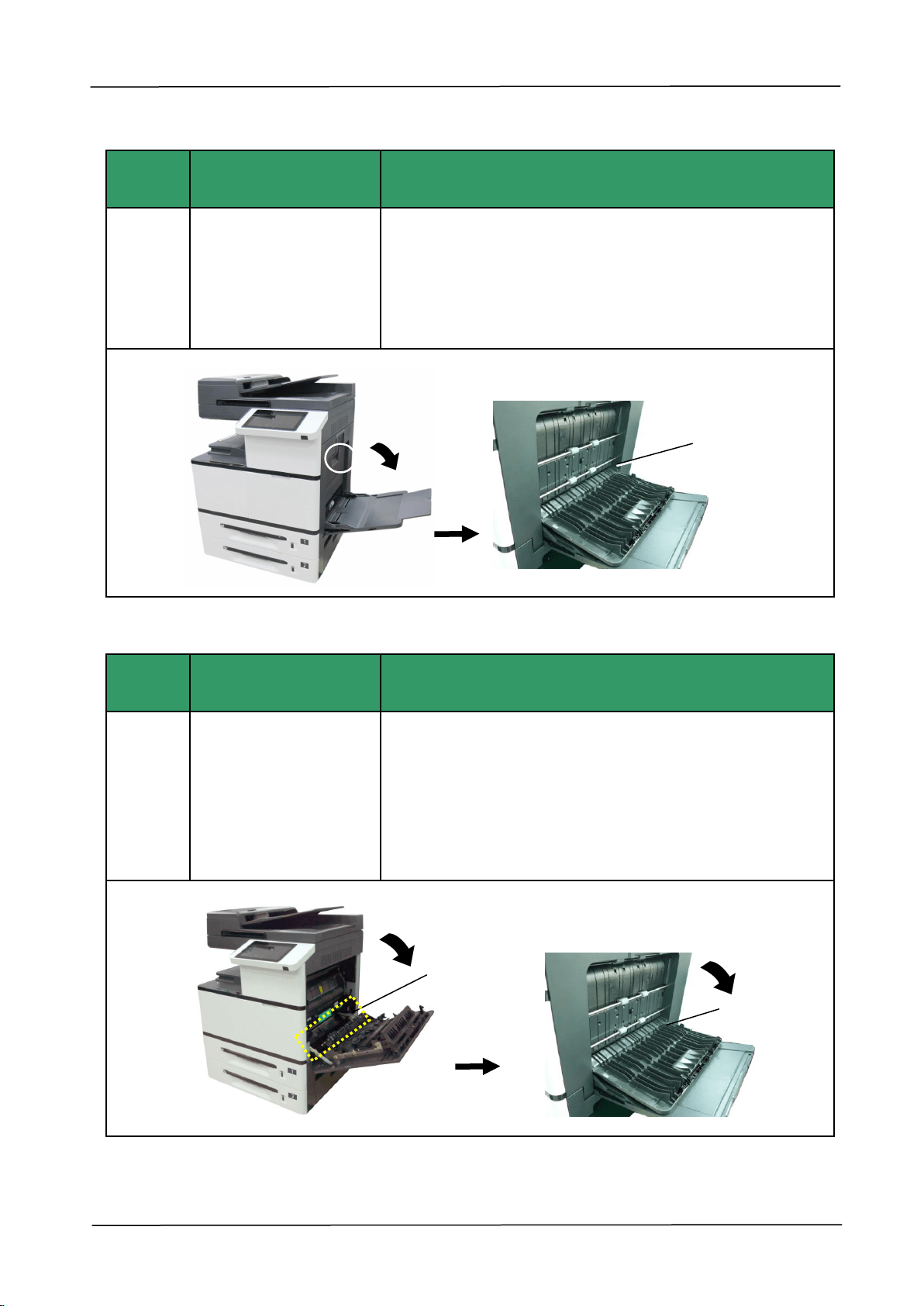
9. Troubleshooting
177
Error
Code
Cause
Solution
200348
Paperjam in the Duplex
Unit
1. Open the Side Door of the Duplex Unit.
2. If there is paper in area C (Duplex Unit),pull the
papergently and remove the paper.
3. If the problem repeats, please clean the pickup rollers
of the Duplex Unit.
Error
Code
Cause
Solution
200349
Paperjam in Duplex
Sensor and Deskew
Sesnor
1. Open the Side Door of the Duplex Unit.
2. If there is paper in area B and area C (Tray 1 exit,
Duplex unit),remove the paper. Be careful not to touch
the places marked high temperature.
2. If the problem persisits, clean the pickup roller of the
Duplex Unit.
Area B
Area C
Area C
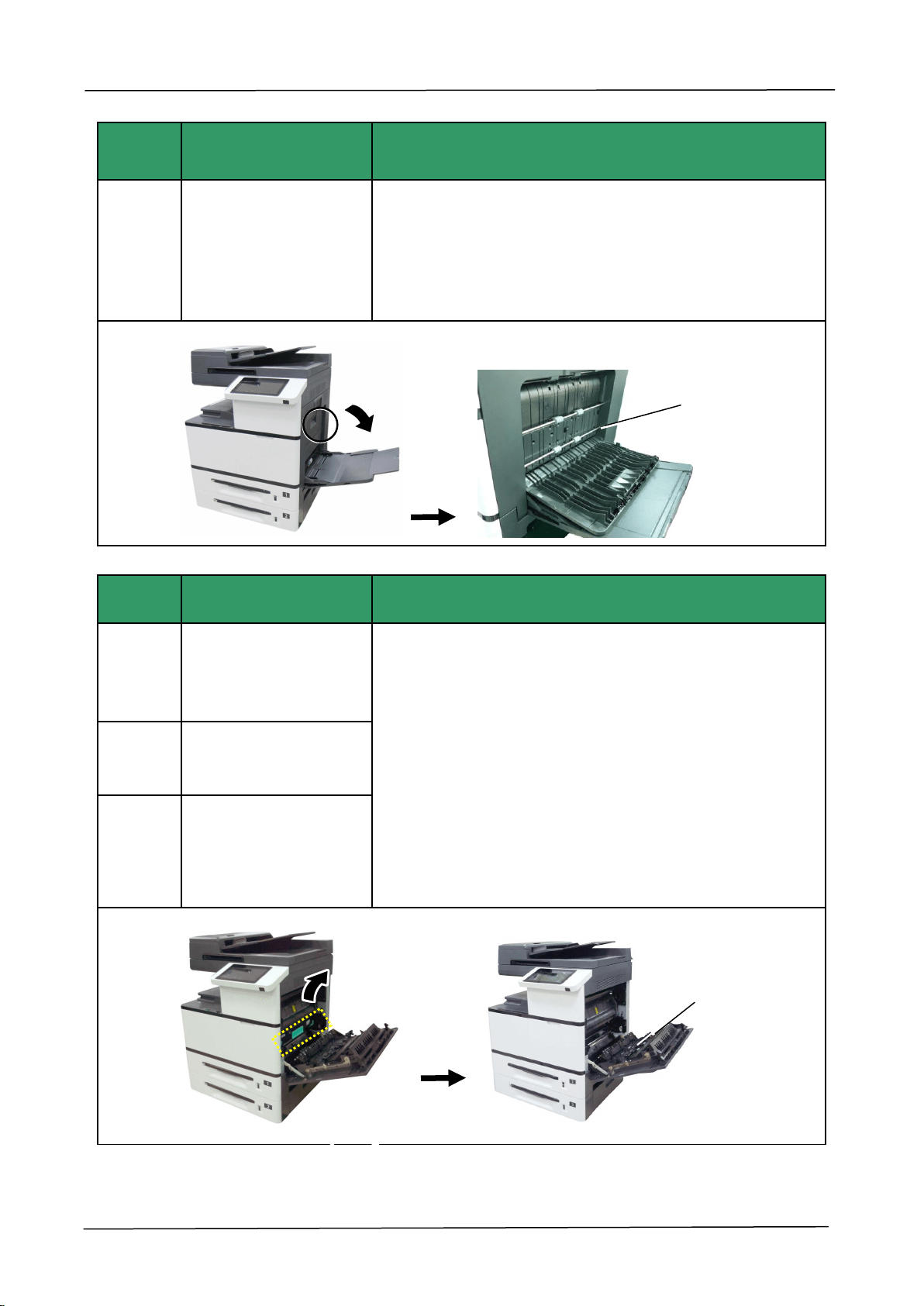
178
Error
Code
Cause
Solution
200351
Paperjam between
Fuser Sensor and
Duplex Sensor
1. Open the Side Door of the Duplex Unit.
2. If there is paper in area C (Duplex Unit),pull the
papergently and remove the paper.
3. If the problem repeats, please clean the pickup rollers
of the Duplex Unit.
Error
Code
Cause
Solution
200352
Paperjam between
Deskew Sensor and
Drum Jam Sensor
1. Open Side Door.
2. Remove the drum unit and check area F. Remove
paper. Be careful not to touch the places marked high
temperature.
3. Close Side Door and Manual Tray Side Door.
200353
Paperjam in Drum Jam
Sensor
200354
Paperjam between
Drum Jam Sensor and
Fuser Out Sensor
Area C
Area F
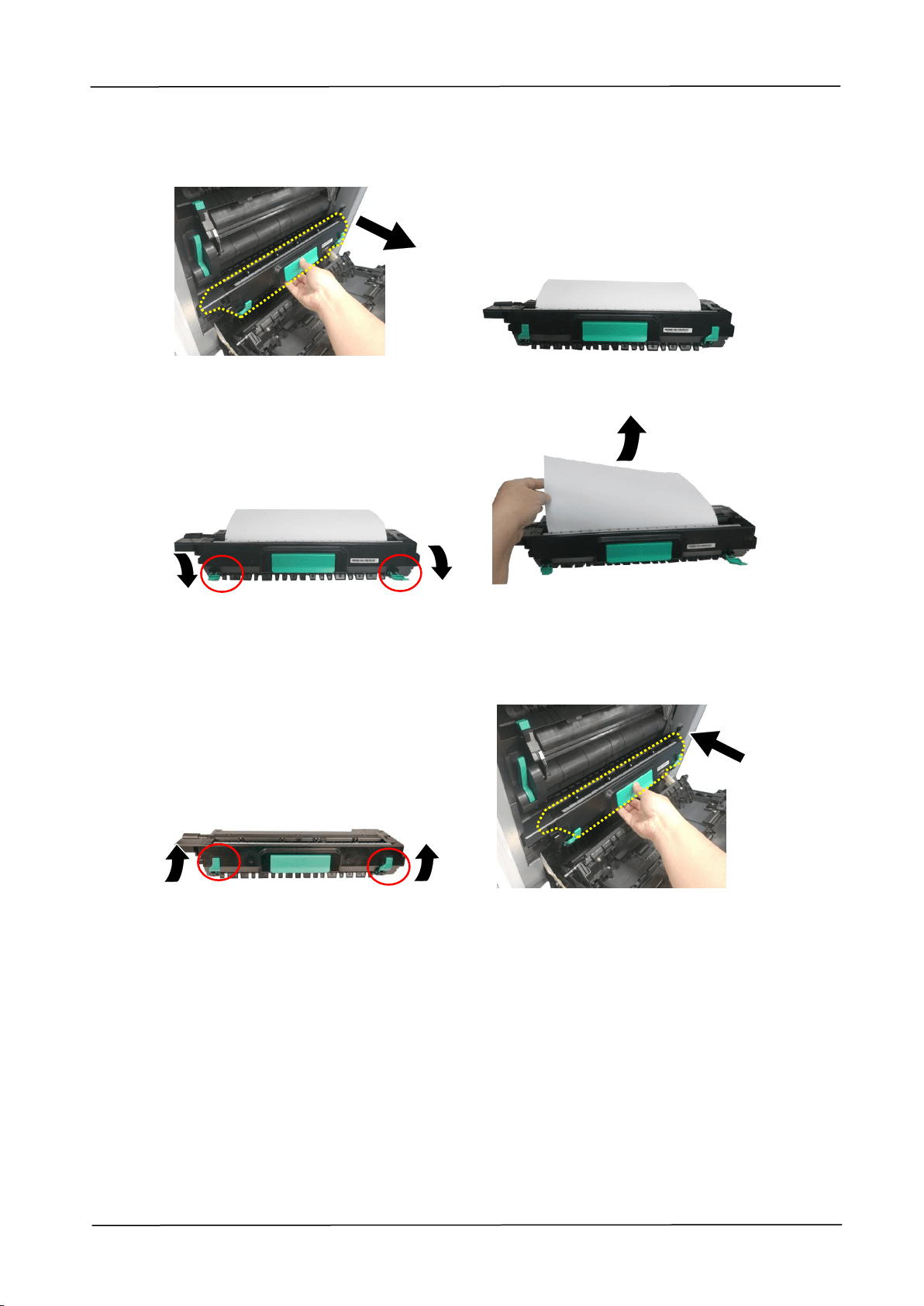
9. Troubleshooting
179
How to remove the jammed paper in the drum unit
1. Open the Side Door and remove the drum unit as shown.
2. Release the roller by pressing down the Release Arms on two ends and then
gently remove the paper.
3. After removing the paper, pull up the Release Arms on both ends. Then
grapse the handle of the drum unit and install it horizontally to the original
place in the printer as shown.
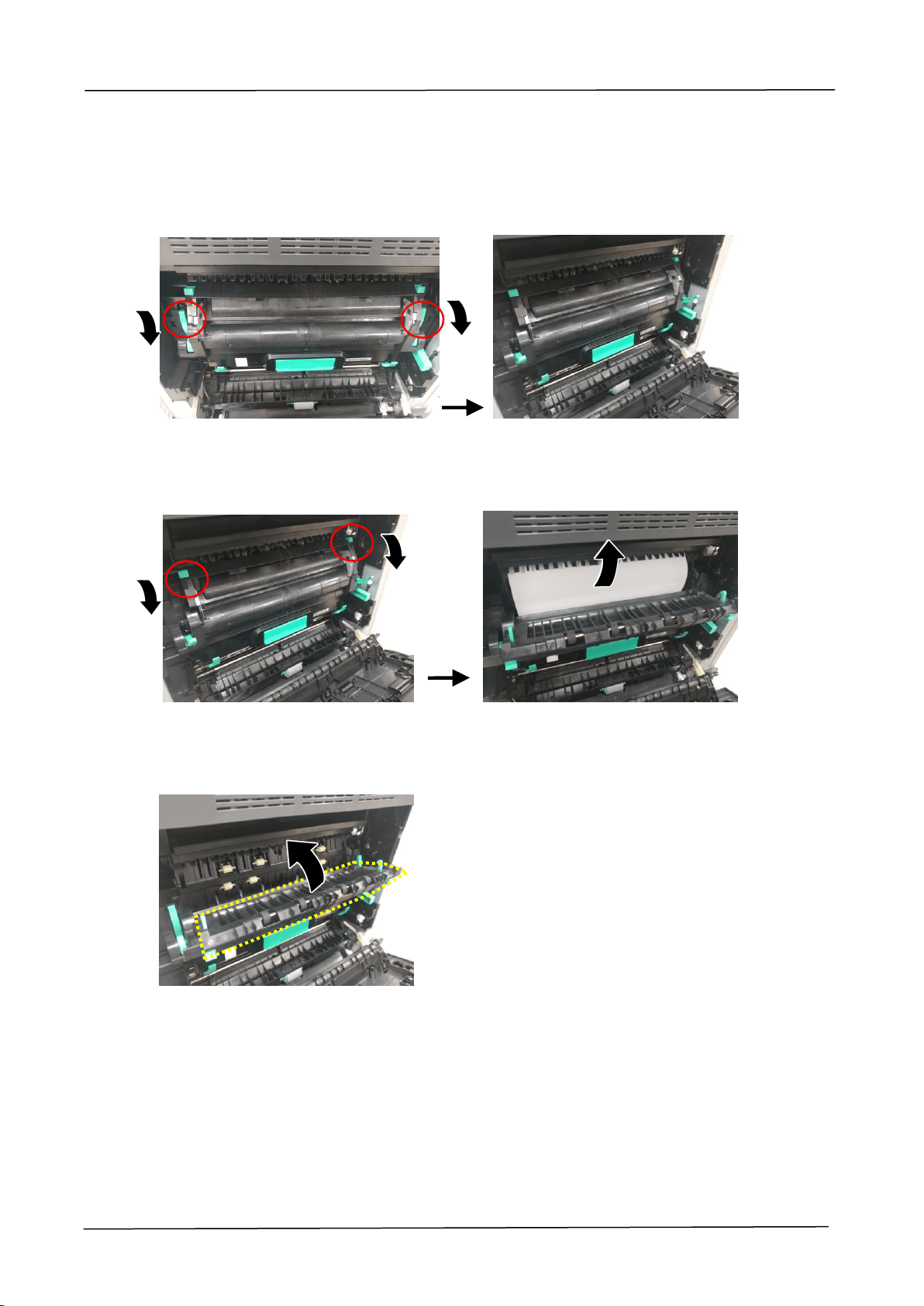
180
How to remove the jammed paper in the fuser
1. Open the Side Door. Release the fuser by pressing down two lock hooks on
both sides as shown.
2. Open the fuser cover by pressing down two lock tabs on the top. Gently
remove the jammed paper.
3. After the jammed paper has been removed, close the fuser cover. A snap-in
sound will be heared.
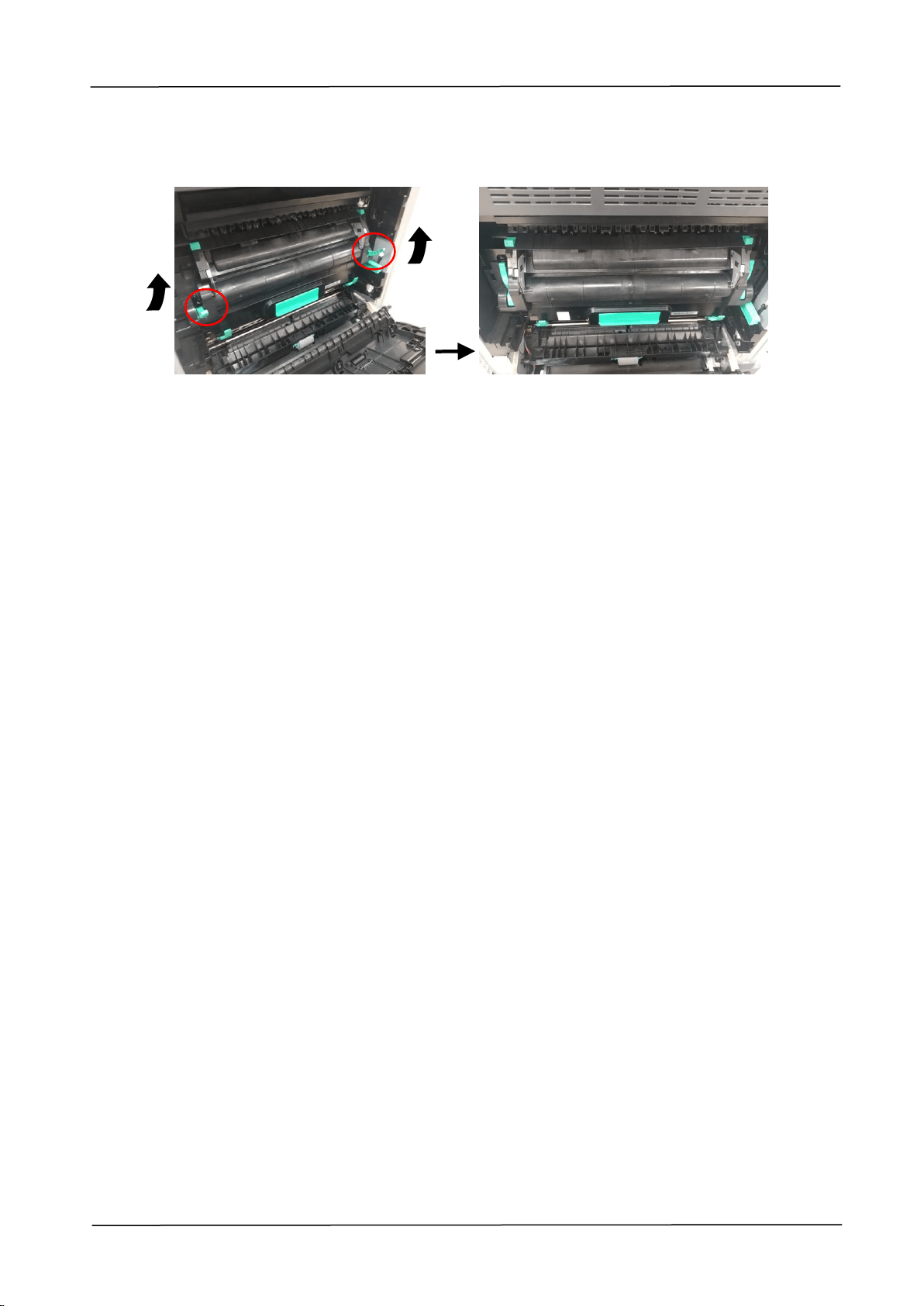
9. Troubleshooting
181
4. Finally, push the lock hooks back into its original places as shown. Then close
the Side Door.
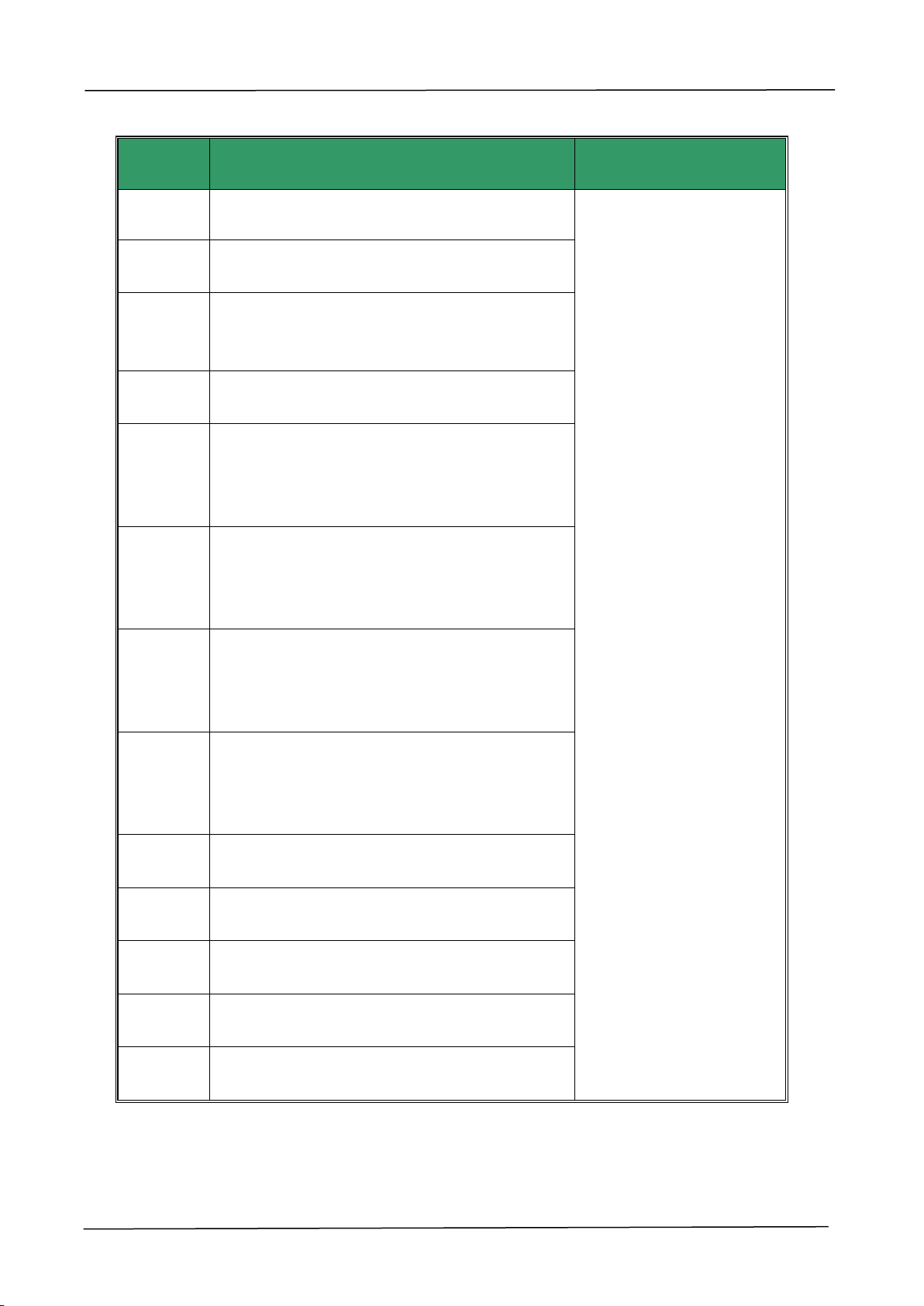
182
Fuser Errors
Error
Code
Problem Cause on Fuser
Solution
201600
A3 or A4 lamp heating exceeds the upper
temperature limit (210 degrees).
1. Reboot the machine.
2. If the error code
persists, replace the
fuser.
201604
Analog to Digital conversion (ADC)
adjustment not ready.
201605
Analog to digital conversion not ready: In a
non-initial state, query on the A3 and A4
lamps’ ADC values per 500ms fails.
201607
The temperature difference between A3 and
A4 lamps is more than 50 degrees.
201612
The difference between the current and last
temperatures of the A3 lamp is more than 20
degrees.
201613
The difference between the current and last
temperatures of the A4 lamp is more than 20
degrees.
201614
In the warming state, the A3 lamp does not
heat up over 5 degrees in 10 seconds, which
means a heating error occurs.
201615
In the warming state, the A4 lamp does not
heat up over 7 degrees in 10 seconds, which
means a heating error occurs.
201616
Fuser heating from ready to print status is
over 20 seconds.
201617
Fuser heating from warming to ready status
is over 155 seconds.
201618
Fuser heating from starting to ready status is
over 100 seconds.
201621
The machine detects that the A4 lamp’s
thermistor is not connected.
201624
The machine detects that the A3 lamp’s
thermistor is not connected.
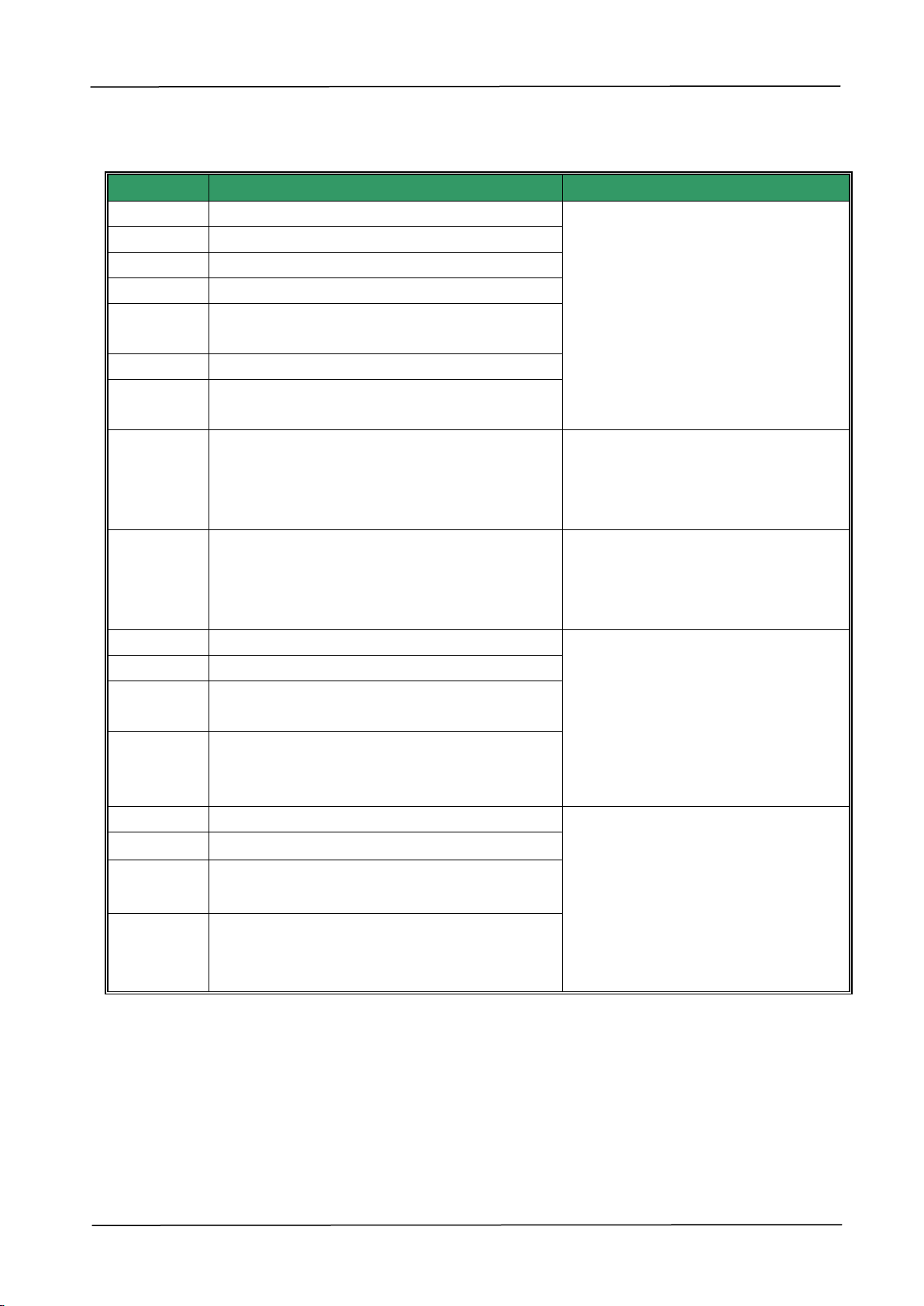
9. Troubleshooting
183
Runtime Errors
Error Code
Problem Cause on Runtime Error
Problem-solving Solution
200100
Api_nvram_rw_test_fail, I/O action fails.
1. Reboot the machine.
2. If the error code persists, call
the service personnel to replace
the main board.
200101
Api_nvram_write_fail, write fails.
200102
Api_nvram_read_fail, read fails.
200200
Flash error, flash unknown error.
200201
Flash_block_erase_failed, chunk erasing
fails.
200202
Flash_chip_erase_failed, chip erasing fails.
200203
flash_program_failed, Flash write-in fails.
201610
LPH Error. The LPH flat cable has not been
properly installed.
1. Reboot the machine.
2. If the error code persists, call the
service personnel to check the LPH
flat cable.
201650
Printer Runtime error.
1. Reboot the machine.
2. If the error code persists, call the
service personnel to replace the
main board.
201701
MB NVRAM:A reading error occurs.
1. Reboot the machine.
2. If the error code persists, call the
service personnel to replace the
main board.
201702
MB NVRAM: A writing error occurs.
201703
MB NVRAM:Write-in is normal, but a
reading error occurs during comparison.
201704
MB NVRAM:Both write-in and read are
normal, but an error occurs during
comparison.
201711
EP NVRAM:A reading error occurs.
1. Reboot the machine.
2. Check if the EP has been
properly installed.
3. If the error code persists, call the
service personnel to replace the
main board.
201712
EP NVRAM:A writing error occurs.
201713
EP NVRAM:Write in is normal, but a read
error occurs during comparison.
201714
EP NVRAM:Both write-in and read are
normal, but an error occurs during
comparison.
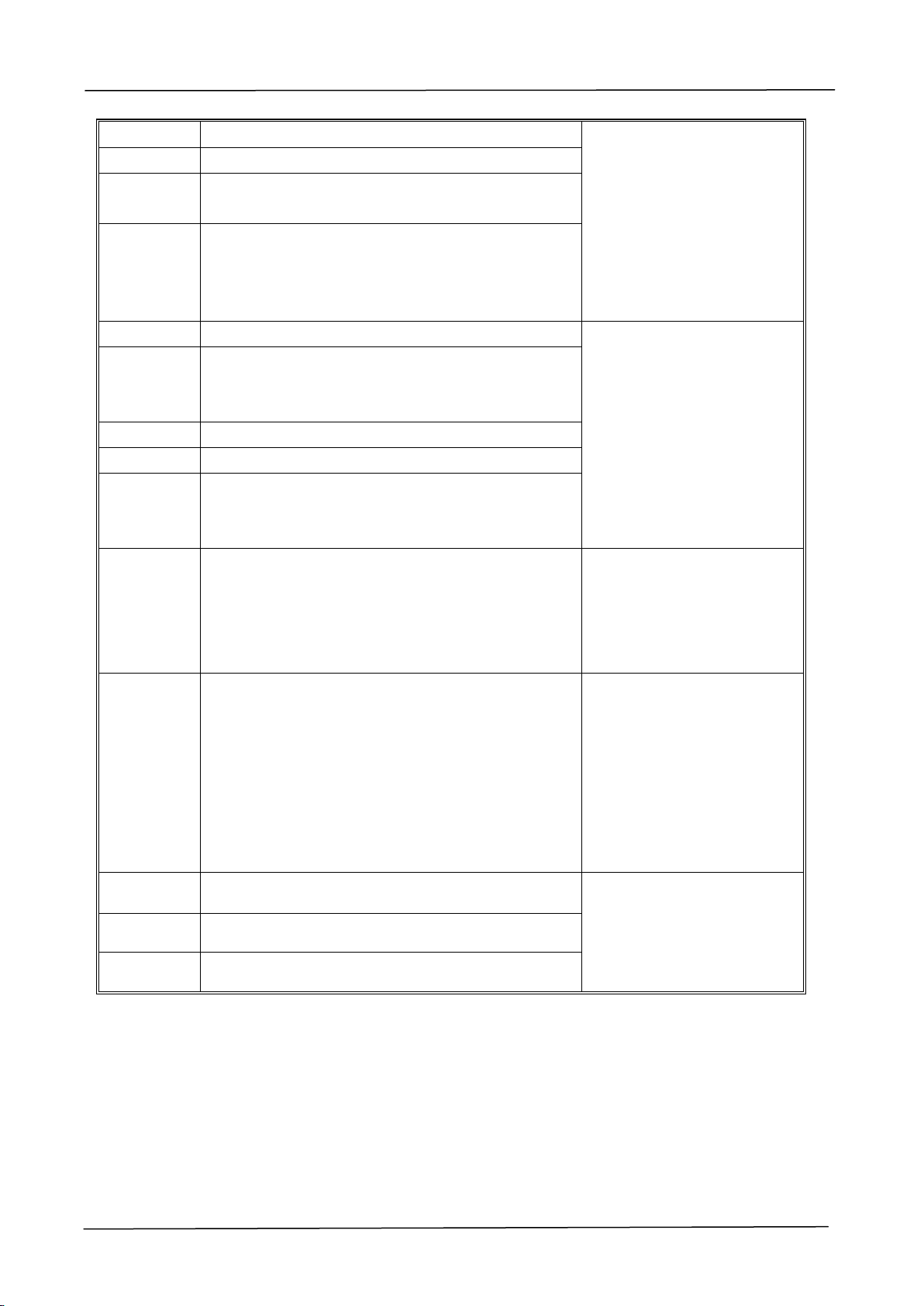
184
201721
Toner NVRAM:A reading error occurs.
1. Reboot the machine.
2. Check if the toner
cartridge has been properly
installed.
3. If the error code
persists, call the service
personnel to replace the
main board.
201722
Toner NVRAM:A writing error occurs.
201723
Toner NVRAM:Write in is normal, but a read
error occurs during comparison.
201724
Toner NVRAM:Both write-in and read are
normal, but an error occurs during comparison.
201730
The wrong NVRAM Address is used.
1. Reboot the machine.
2. If the error code
persists, call the service
personnel to replace the
main board.
202651
Network_INIT_Fail The network initialization
fails.
201801
Backup PDL setting fails.
201802
Backup GDI setting fails
201803
The product will check if the serial numbers of
PDL and GDI are the same while it is starting.
The error will occur if they are different.
205001
Eeng Error _polymotoraction Error: only occurs
on the LPH machine because Polygonmotor
does not run properly.
1. Reboot the machine.
2. If the error code
persists, call the service
personnel to replace the
LPH module.
205101
eEngError_HiVChargerError:is for Hw to avoid
the EP charger error, leading to the EP’s
abnormal power supply, which causes a video
error.
1. Pull out and back the EP
charger repeatedly for at
least 3 times to clean the
corona wire.
2. Reboot the machine.
3. If the error code
persists, replace the EP
charger.
800001
Security chip error
1. Reboot the machine.
2. If the error code
persists, call the service
personnel.
800002
Storage security check error
800003
Memory security check error
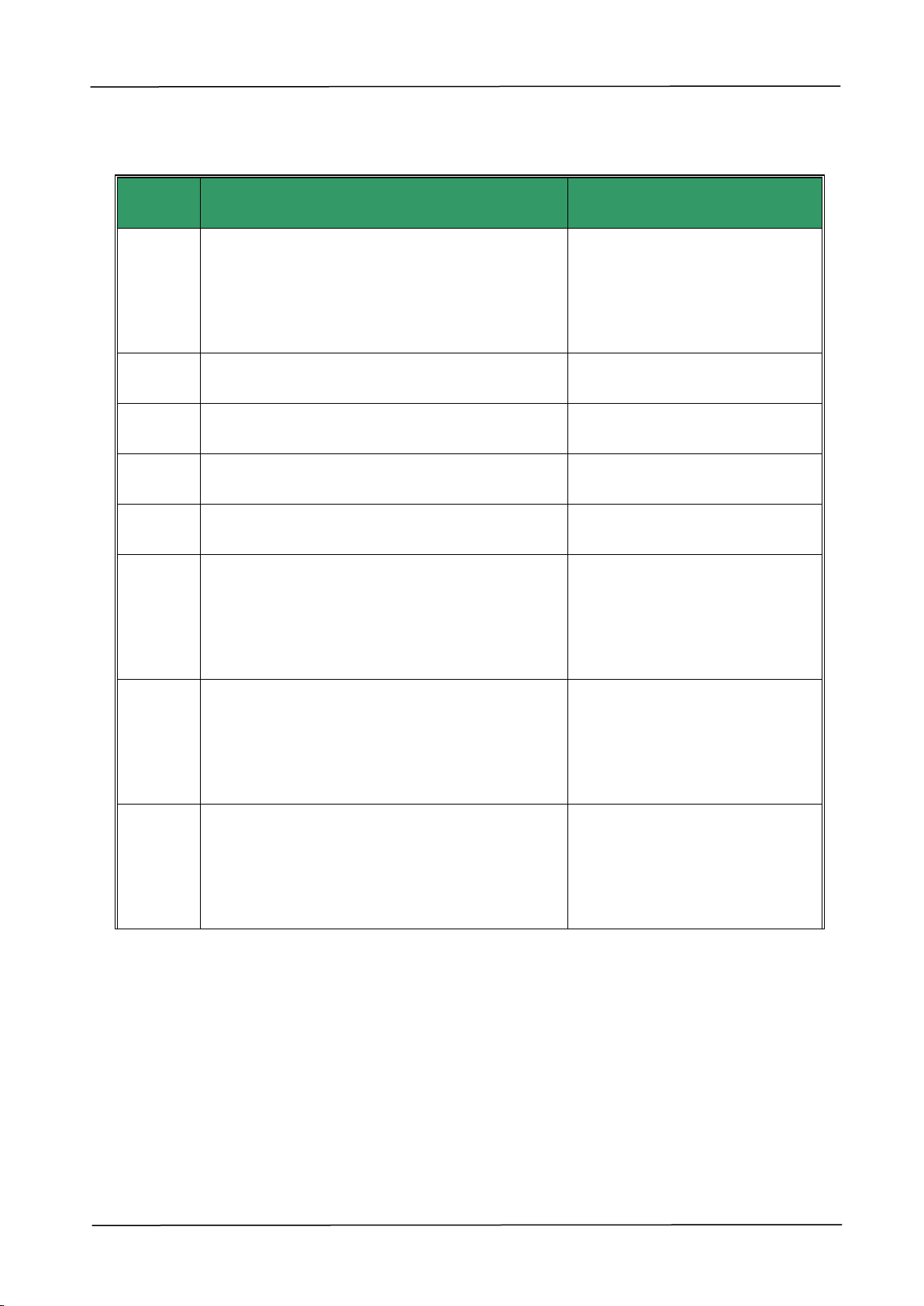
9. Troubleshooting
185
System Errors
Error
Code
Problem Cause
Solution
200000
Continue Feed Error: This error is displayed
when multiple-feed occurs during printing.
Open the side door to remove
the paper, and then load the
paper with the correct size,
orientation, and type in the
specified tray.
200050
Side door Open: The side door is not closed
properly.
Close the side door properly.
200051
Upper Cover Open: The printer’s upper cover
is opened
Close the printer’s upper cover
properly.
200052
Tray 2’s Upper Cover Open: The side door of
the second tray is opened.
Close the 2
nd
tray’s side door
properly.
200053
Tray 3’s Upper Cover Open: The side door of
the third and forth trays is opened.
Close the side door of the 3
rd
and 4
th
input trays properly.
200060
Tray 1 Error: Paper-lifting on the main input
tray fails.
1. Open and close the main
input tray again, and make
sure the tray is firmly closed.
2. If the error persists, call the
service personnel to check.
200061
Tray 2 Error: Paper-lifting on the second tray
fails.
1. Open and close the 2
nd
input
tray again, and make sure the
tray is firmly closed.
2. If the error persists, call the
service personnel to check.
200062
Tray 3 Error: Paper-lifting on the third tray
fails.
1. Open and close the 3
rd
input
tray again, and make sure the
tray is firmly closed.
2. If the error persists, call the
service personnel to check.
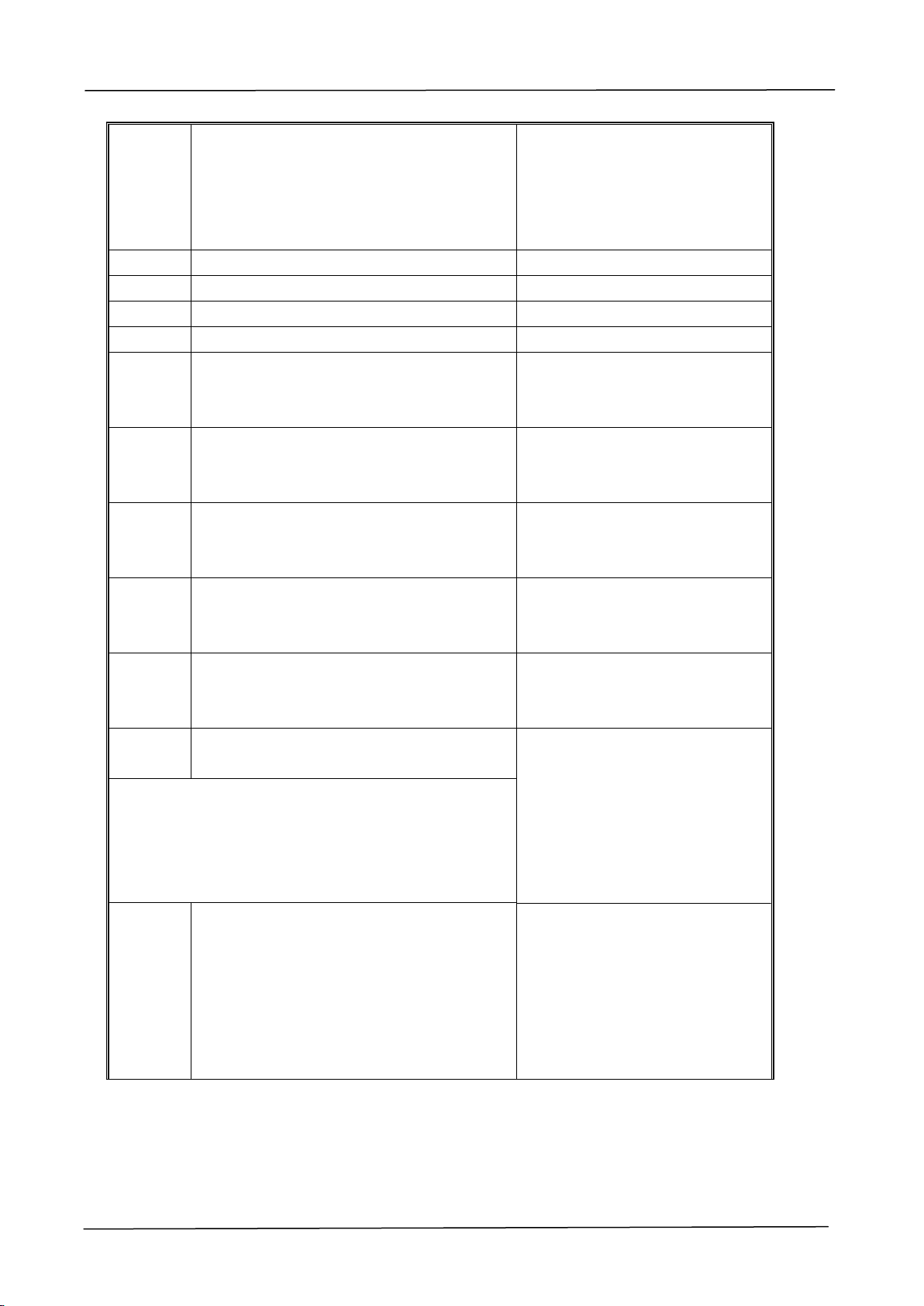
186
200063
Tray 4 Error: Paper-lifting on the forth
tray fails.
1. Open and close the forth tray
again, and make sure the tray
is firmly closed.
2. If the error persists, call the
service personnel to check.
200070
Tray 1 Open: The first tray is opened.
Close the 1
st
tray firmly.
200071
Tray 2 Open: The second tray is opened.
Close the 2
nd
tray firmly.
200072
Tray 3 Open: The third tray is opened.
Close the 3
rd
tray firmly.
200073
Tray 4 Open: The forth tray is opened.
Close the 4
th
tray firmly.
200080
Manual Tray Empty: There is no paper in
the manual tray.
Check if the paper is loaded in
the manual tray with correct
size and orientation.
200081
Tray 1 Empty: There is no paper in the
main input tray.
Place the paper with correct
size and orientation in the 1
st
input tray.
200082
Tray 2 Empty: There is no paper in the
second tray.
Place the paper with correct
size and orientation in the 2
nd
input tray.
200083
Tray 3 Empty: There is no paper in the
third tray.
Place the paper with correct
size and orientation in the 3
rd
tray.
200084
Tray 4 Empty: There is no paper in the
forth tray.
Place the paper with correct
size and orientation in the 4
th
tray.
200090
Fan 1 fails: The product detects the first
fan rotates abnormally.
This is a warning type of error
message.
The machine can still run
normally. If this error continues
to occur, call the service
personnel to perform the
replacement handling.
200091
Fan 2 fails: The product detects the 2
nd
fan rotates abnormally.
200092
Fan 3 fails: The product detects the 3
rd
fan rotates abnormally.
This is a warning type of error
message. The machine can still
run normally. If this error
continues to occur, call the
service personnel to perform
the replacement handling.

9. Troubleshooting
187
Network Errors
500000
IP Conflict : The same IP address is
detected in the network environment by
the product.
DHCP: require a new set of
unique IP address from DHCP
Server.
Static IP:reset the native IP
address.
500001
Net Cable Unplug : The RJ-45 port
without a network cable plugged in is
detected.
Connect the network cable.
500002
DHCP has no response: When the
product is connected to the network via
DHCP, the DHCP Server has no response
to the request from the product.
Network connection failure.
The solution:
Use the static IP or connect to a
network environment with a
DHCP server.
569033
Incorrect
shared path
Check settings
Please check URL or if IP is
correct.
569020
No response and
time out.
Check target PC
Check target PC.
540020
540021
Ctrl connection
is broken.
Check network
1.Contact server administrator
to check ftp server log.
2.Contact network
administrator to check network
environment.

188
External Device Error
Error Code
Message
Solution
400000
CSA6 paper jam
Remove the paper in the CSA6.
400001
CSA6 memory error
Please unplug and then plug the USB
cable that connects the CSA6 to the MFP.
400002
CSA6 timeout error
Insert card and try again.
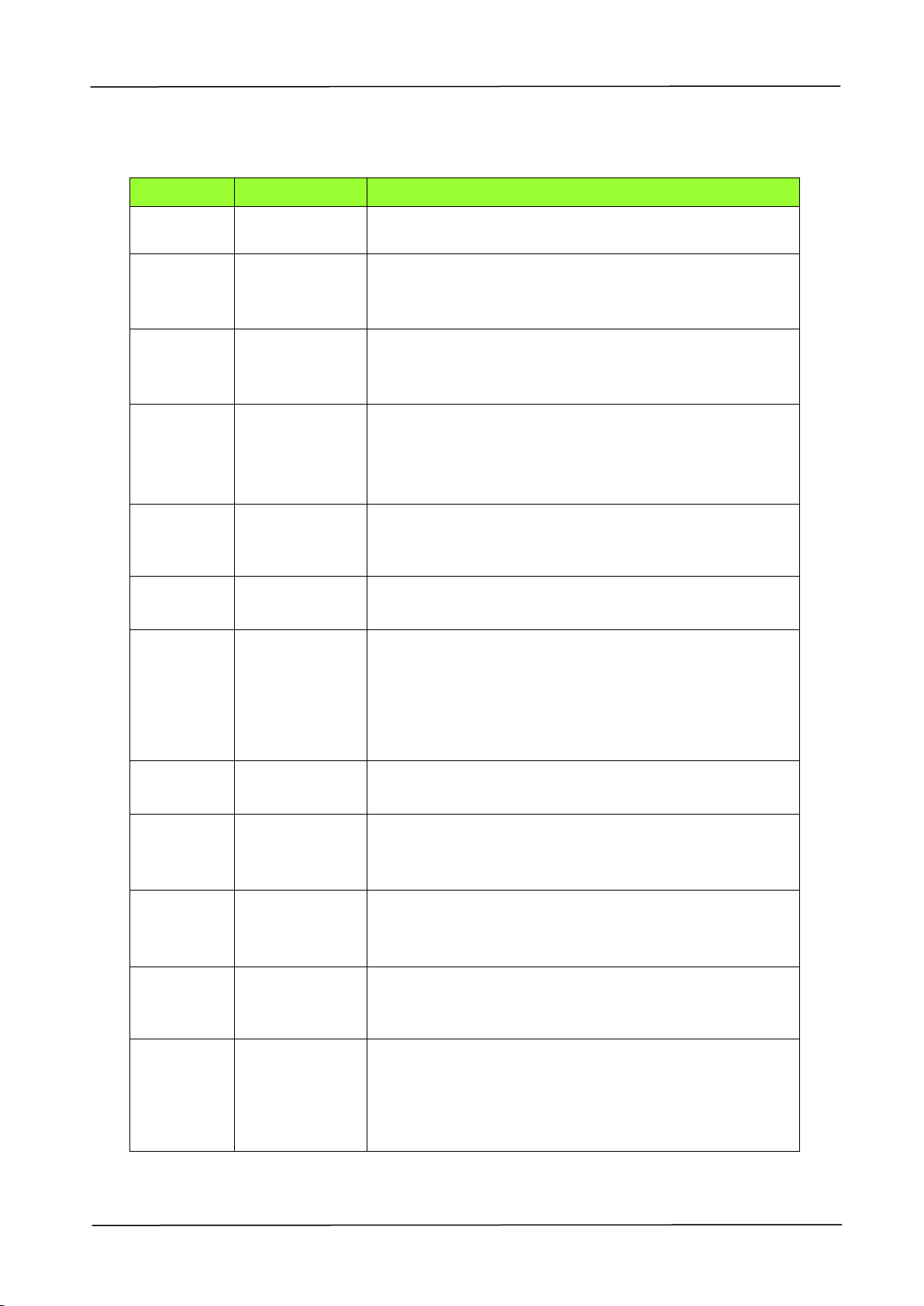
9. Troubleshooting
189
Network Error Codes
Error Code
Message
Solution
500000
IP Conflict
Change your IP address.
500002
DHCP no
response
Check your DHCP server or try again.
500003
Can not connect
to Network
Check your network and try again.
530001
E-Mail
Reboot the machine, and try again. If the error is still
there, contact service personnel to replace the UI
board.
530002
E-Mail
Please consult your SMTP administrator. The server
returns Error code 002.
531001
E-Mail
Check if the account and password are correct.
530421
531421
532421
533421
534421
536421
E-Mail
Please consult your SMTP administrator. The server
returns Error code 421.
530440
E-Mail
The sender must be the same with its login accounts.
531501
532501
533501
534501
E-Mail
1. Check the sender’s email address.
2. Check the recipient e-mail address.
3. Please consult your SMTP administrator. The server
returns Error code 501.
531504
E-Mail
1. Check the sender’s email address.
2. Check the recipient e-mail address.
3. Please consult your SMTP administrator. The server
returns error code 504.
532450
533450
E-Mail
Please consult your SMTP administrator. The server
returns Error code 450.
532451
533451
534451
535451
537451
E-Mail
Please consult your SMTP administrator. The server
returns Error code 451.

190
533452
535452
537452
E-Mail
Please consult your SMTP administrator. The server
returns Error code 452.
533550
E-Mail
Please consult your SMTP administrator. The server
returns Error code 550.
533551
E-Mail
1. Check the sender email address.
2. The sender must not be the same with the
recipient. The server returns error code 551.
533552
535552
537552
E-Mail
1. Check the sender email address.
2. Check whether mail attachments exceeds allowed
size.
3. Please consult your SMTP administrator. The server
returns error code 552.
533553
E-Mail
Check the recipient e-mail address.
534554
535554
537554
E-Mail
Please consult your SMTP administrator. The server
returns Error code 554.
538001
E-Mail
1. Check whether the network is working.
2. Check whether the attachment exceeds allowable
size.
540001
540008
540009
540010
540011
540012
540013
540014
540960
540976
543501
545501
545504
FTP
Reboot the machine, and try again. If the error is still
there, contact service personnel to replace the UI
board.
540002
540003
FTP
1. Confirm the FTP server is not closed and FTP port is
correct.
2. If this message still appears, consult your network
administrator. The server returns error codes 002,
003.
540004
FTP
Check the login name and try again.
540005
FTP
Check the login name and try again.
540006
FTP
For a path problem, contact your network
administrator.
540007
FTP
Enter a file name during the time.
9. Troubleshooting
191
540015
FTP
Check if the network is working properly.
540978
FTP
Check if the network is working properly.
541421
542421
543421
544421
545421
546421
FTP
Too many people connected to the FTP server at the
same time. Contact your network administrator.
544450
546450
FTP
The file already exists and is locked by Windows (the
file is opened by a specific software application)
546452
FTP
Ask your FTP administrator to increase allotted
storage space, or delete some files.
541500
542500
543500
544500
545500
546500
547500
FTP
Please consult your SMTP administrator. The server
returns Error code 500.
541501
542501
544501
546501
FTP
Verify your input parameter has invalid characters.
541502
542502
544502
FTP
Ftp server does not support this command.
Consult your network administrator. The server
returns error code 502.
541550
542550
546550
FTP
Verify that you are attempting to connect to a correct
server/location. A remote server administrator should
provide your permission through FTP connection.
546553
FTP
Change the file name, delete spaces, or there are
special characters in the file name.
561003
SMB (CIFS)
Wrong URL Path
561012
SMB (CIFS)
Wrong user account and password
561019
SMB (CIFS)
The user account does not have permission to create
a folder.
561032
SMB (CIFS)
Wrong shared folder name
192
561034
SMB (CIFS)
The file is in use.
561183
SMB (CIFS)
The folder name is duplicated.
562088
SMB (CIFS)
Server busy. Try scan-to CIFS again later.
563021
SMB (CIFS)
CIFS service is not ready.
563039
SMB (CIFS)
The disk space to write to is full.
564019
SMB (CIFS)
The user account does not have permission to write
the files.
564183
SMB (CIFS)
The file name is duplicated.
59000x
59030x(SMTP)
59040x(FTP)
59060x(CIFS)
59100x
Network
Reboot the machine, and try again. If the error is still
there, contact service personnel to replace the UI
board.
592301
E-Mail
Mail server is NULL.
1. Check “Mail server” setting.
2. Contact your SMTP administrator for further help.
9. Troubleshooting
193
The following message will be displayed when a selected setting is unavailable for a
specific copying feature or you have failed to enter necessary information in an
operating step:
Selected Setting/Operating Step
Message
(1) Custom Zoom、Ratio
These selections are not
available when Auto Select
(paper tray) is enabled.
(2) Rotate Collate
(3) Custom Size Copy
(4) Cover Page (Copy)
Auto Select (Paper Tray)
These selections are not
available when Reduce/Enlarge
is not 100%.
(1) Paper Saver (N-Up)、ID Card
These selections are not
available when Book Copy is
enabled.
(2) Custom Zoom、Ratio、Full Page
(3) Auto Select
(4) Auto Detect、Custom Scan Areas、
A3、B4、8K、DLT、LGL、LG13 Size
(1) Custom Zoom、Ratio、Full Page
These selections are not
available when Paper Saver
(N-Up) is enabled.
(2) Auto Select
(3) Cover Page (Copy)
Auto Select (Paper Tray)
These selections are not
available when Custom Scan
Areas is enabled.
[Rotate Side 2] is not available when 1->1 or 2->1 Sided copying are
selected.
Previously select A6、B6、PT、Custom
size in Paper Size
These paper sizes are not
available for 2-Sided output.
Previously select A6、B6、PT、Custom
size in Paper Tray
(1) JPEG (File Format)
These selections are not
available with the Black &
White output.
(2) Saturation (Image Options)
(3) File Size (Quality)
194
(1) Saturation (Image Options)
These selections are not
available for Grayscale output.
(2) BMP (File Format)
This selection (Black and White) is not available for JPEG File Format.
In new recipient address
Invalid e-mail addresses have
been entered in these fields.
Enter an valid E-mail address.
In From address
In [Reply to] address
In E-mail address book
A blank name. Reenter a name to continue.
(Failed to enter a name for a recipient in Address Book.)
(1) Auto Select (Paper Tray)
These selections are not
available when [Rotate
Collate] is enabled.
(2) Cover Page (Copy)
Copying…Can not leave interrupt print.
(The job of an interrupted copy has not been finished.)
The selection (cover page) is not available when [Uncollated] is enabled.
[Uncollated] is not available when Cover Page is selected.
Manual tray is not available when custom size is selected for ID Card Copy.
Selected paper tray with paper size of A6、
B6、PT、Custom size
These selections are not
available when 1->2 or 2->2
sided copying is selected.
Selected paper tray with media type
( Transparency、Bond、Cardstock)
The selection (custom size) is not available when Auto is selected in
[Reduce/Enlarge].
When Auto is selected in [Reduce/Enlarge], custom size is not available.
1. Copy
2-Sided copying or printing is
not available when the media
types (transparency, bond,
cardstock) are selected.
2. Reprint saved job
A6、B6、PT size & the media types (transparency, bond, cardstock) are not
available for 2-Sided Copy.
Duplex copy is not available for the currently selected paper size (A6、B6、
PT size).
Duplex copy is not available for the currently selected media type
(transparency, bond, cardstock).
2-Sided output is not available for the selected paper size (A6、B6、PT size).

9. Troubleshooting
195
Ethernet cannot be turn on when Wi-Fi station mode is enabled.
Please connect the network cable and enable the ethernet.
The selection (BMP) is not available for the Color Output.
The selection (Color output) is not available for the BMP File Format.
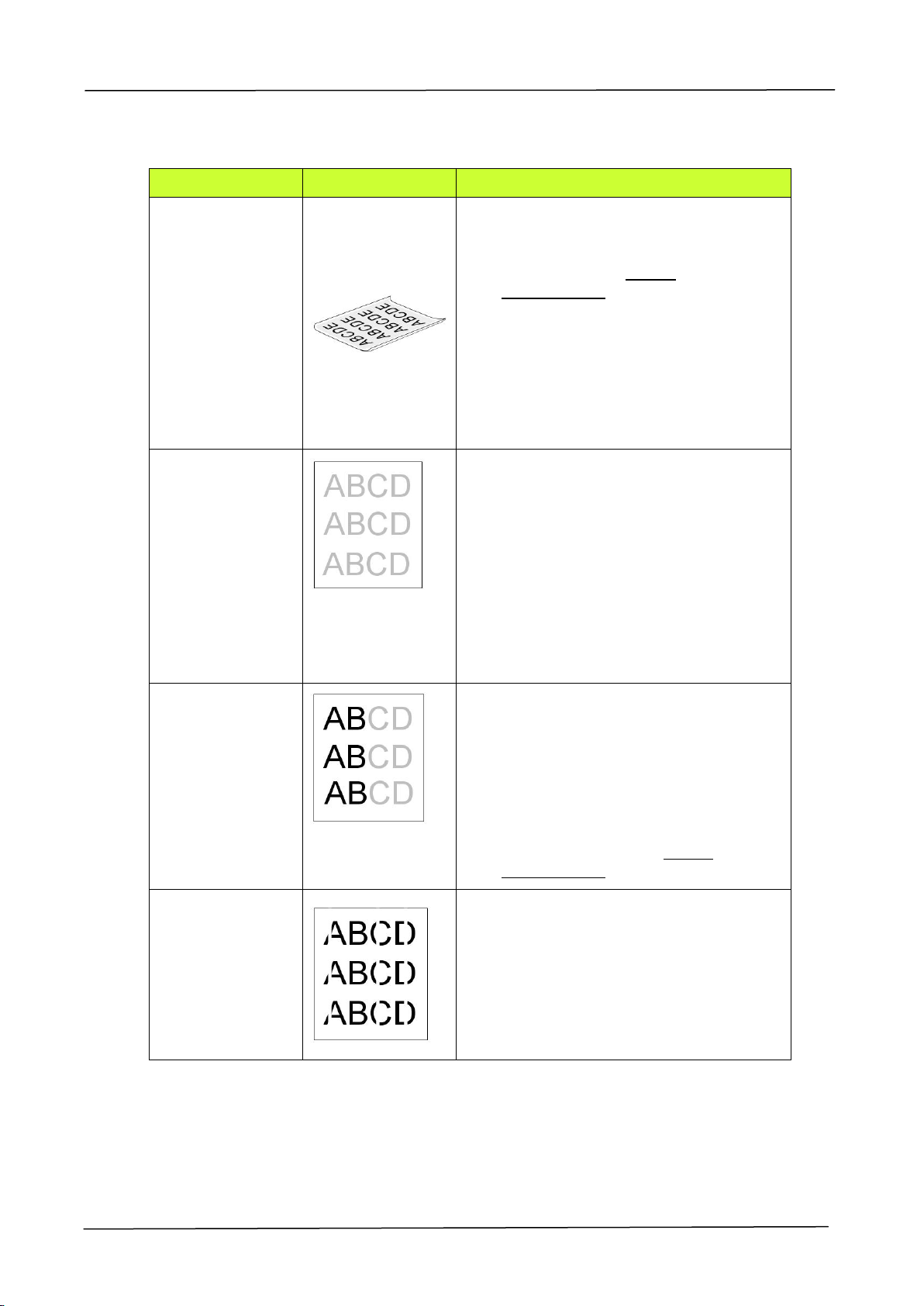
196
Image Problem Troubleshooting
Problem
Image Example
Solution
Paper curls
1. Use paper of standard weight: If
you are using thin paper, try to use
paper of standard weight (70
g/m
2
). Refer to paper
specifications.
2. Use paper with less moisture: Load
the paper to the paper tray
immediately after removing them
from the packaging. Seal the
remaining paper with the original
packaging to keep from the
moisture absorption.
Light
print(entire
page)
1. Make sure that the toner cartridge
is fully installed.
2. Make sure that the Toner Save
setting is turned off in the printer
driver.
3. Try using a different type of paper.
4. The toner cartridge might be
almost empty. Replace the toner
cartridge.
Light
print(partial
page)
1. Make sure that the toner cartridge
is fully installed.
2. The toner level might be low.
Replace the toner cartridge.
3. The paper might not meet the
printer’s specifications (for
example, the paper is too moist or
too rough). Refer to paper
specifications.
Vertical white
lines
Call the service personnel for help to
clean the drum unit.
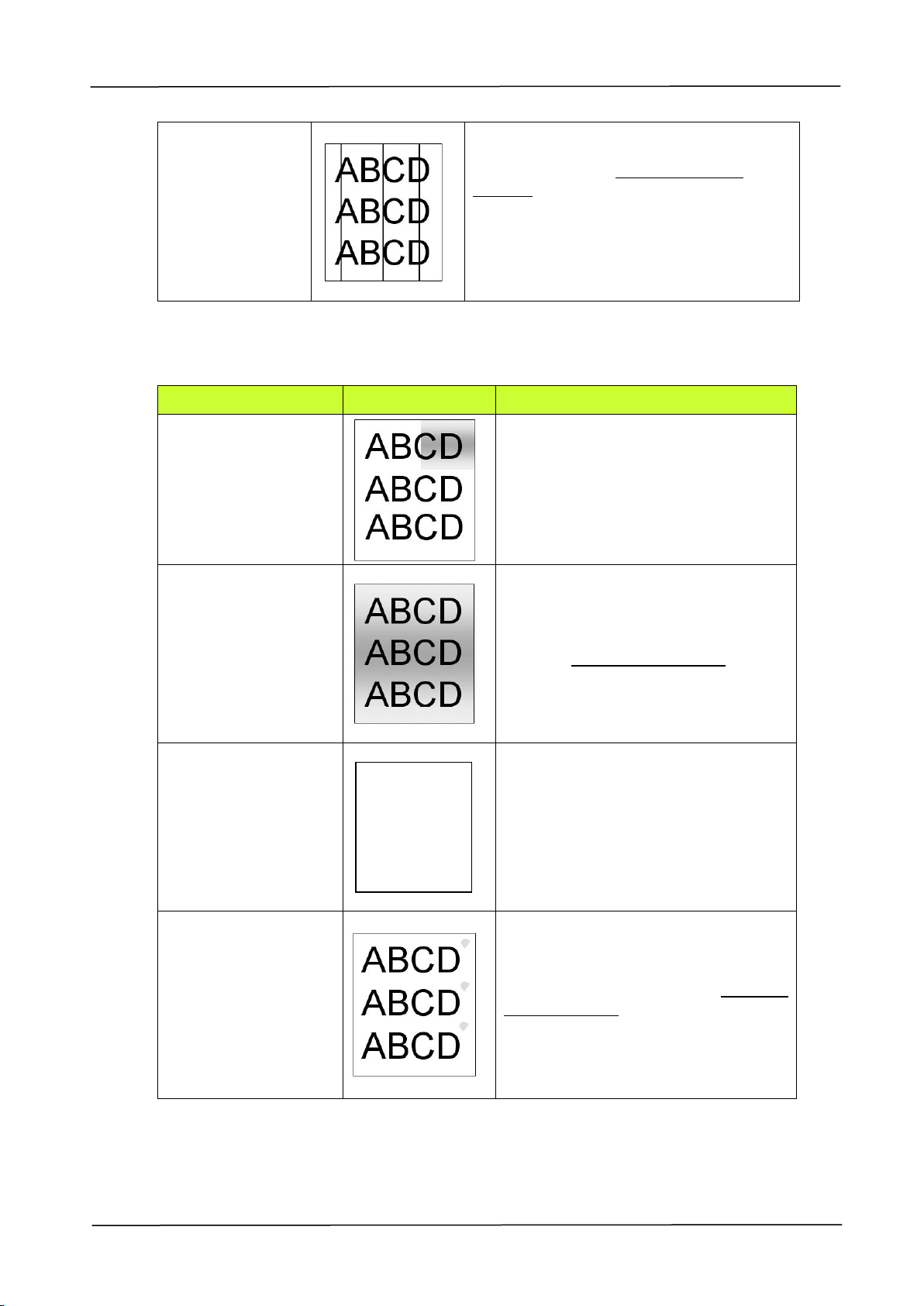
9. Troubleshooting
197
Vertical black
lines
Please clean the EP charger according to
the procedure described in the
preceding section Cleaning the EP
charger.
Image Problem Troubleshooting
Problem
Image Example
Solution
Dirty
background(partial
page)
Check if toner is not leaked from
the toner cartridge. If so, replace
the toner cartridge.
Dirty
background(entire
page)
The paper might not meet the
printer’s specifications (for
example, the paper is too thin).
Refer to paper specifications.
Print blank page
Check if there is enough toner in
the toner cartridge. If not, please
replace the toner cartridge.
If this error happens again, call
service for help.
Defective image of
regular interval
Clean the inside of the product
(Refer to preceding section Cleaning
the Paper Path).
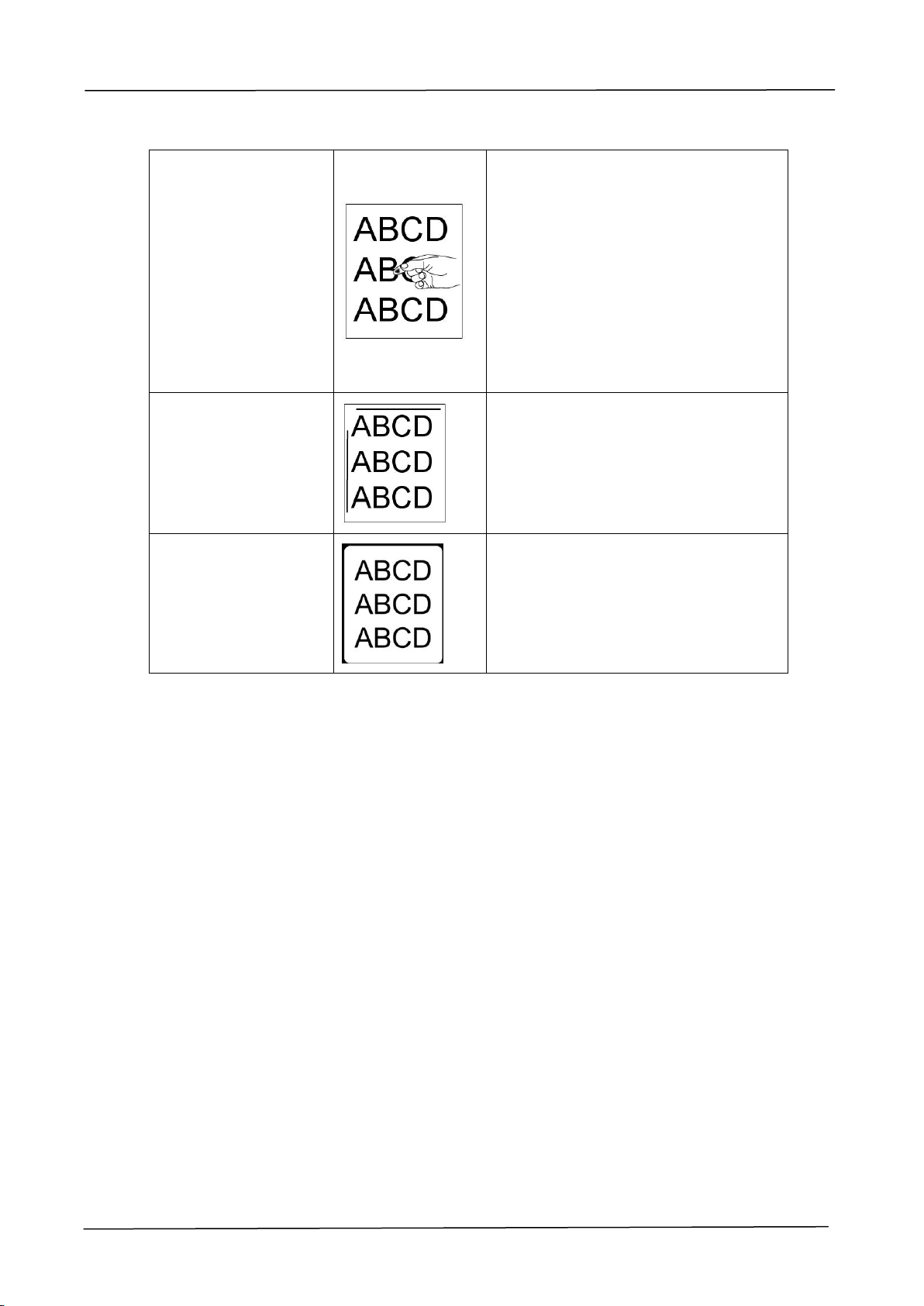
198
Loose toner
1. If you have observed a rougher
texture on one side of your
paper, try printing on the
smoother side.
2. The paper might not meet the
printer’s specifications (for
example, the paper surface is
not smooth or paper too thick).
3. Media type incorrect. Please
choose proper media type for
your paper.
Black lines on edge
The image is slightly skew. Make
sure the edge of your document is
properly aligned and slightly touch
the paper guides in the auto
document feeder.
Black borders on
edge
Your original may not be a square
sheet of paper. The scanner will fill
the space with black background.

9. Troubleshooting
199
Technical Support
If your problem still exists after trying the above solution, please contact our
technical support.
Please register your product on our web site (http://www.avision.com) to have
complete technical support. Before contact Avision, please prepare the following
information:
Scanner serial & revision number (located on the bottom of the scanner);
Hardware configuration (e.g., your host CPU type, RAM size, free disk space,
display card, interface card);
Headquarter
Avision Inc.
No. 20, Creation Road I, Science-Based Industrial Park,
Hsinchu 300, Taiwan, ROC
TEL: +886 (3) 578-2388
FAX: +886 (3) 577-7017
Web Site: http://www.avision.com.tw
US and Canada Area
Avision Labs, Inc.
6815 Mowry Ave., Newark CA 94560, USA
TEL: +1 (510) 739-2369
FAX: +1 (510) 739-6060
Web Site: http://www.avision.com
China Area
Technical Support Center in Shanghai
7A, No.1010, Kaixuan Road, Shanghai 200052 P.R.C.
TEL :+86-21-62816680
FAX :+86-21-62818856
E-MAIL : [email protected]n
Web Site: http://www.avision.com.cn
Europe Area
Avision Europe GmbH
Bischofstr. 101 D-47809 Krefeld Germany
TEL: +49-2151-56981-40
FAX: +49-2151-56981-42
Web Site: http://www.avision.de
Espaço Brasil
Avision Brasil Ltda.
Avenida Jabaquara, 2958 - Cj. 75 - Mirandópolis –
CEP: 04046-500 - São Paulo, Brasil
TEL: +55-11-2925-5025
E-MAIL: suporte@avisionbrasil.com.br
Web Site: http://www.avisionbrasil.com.br
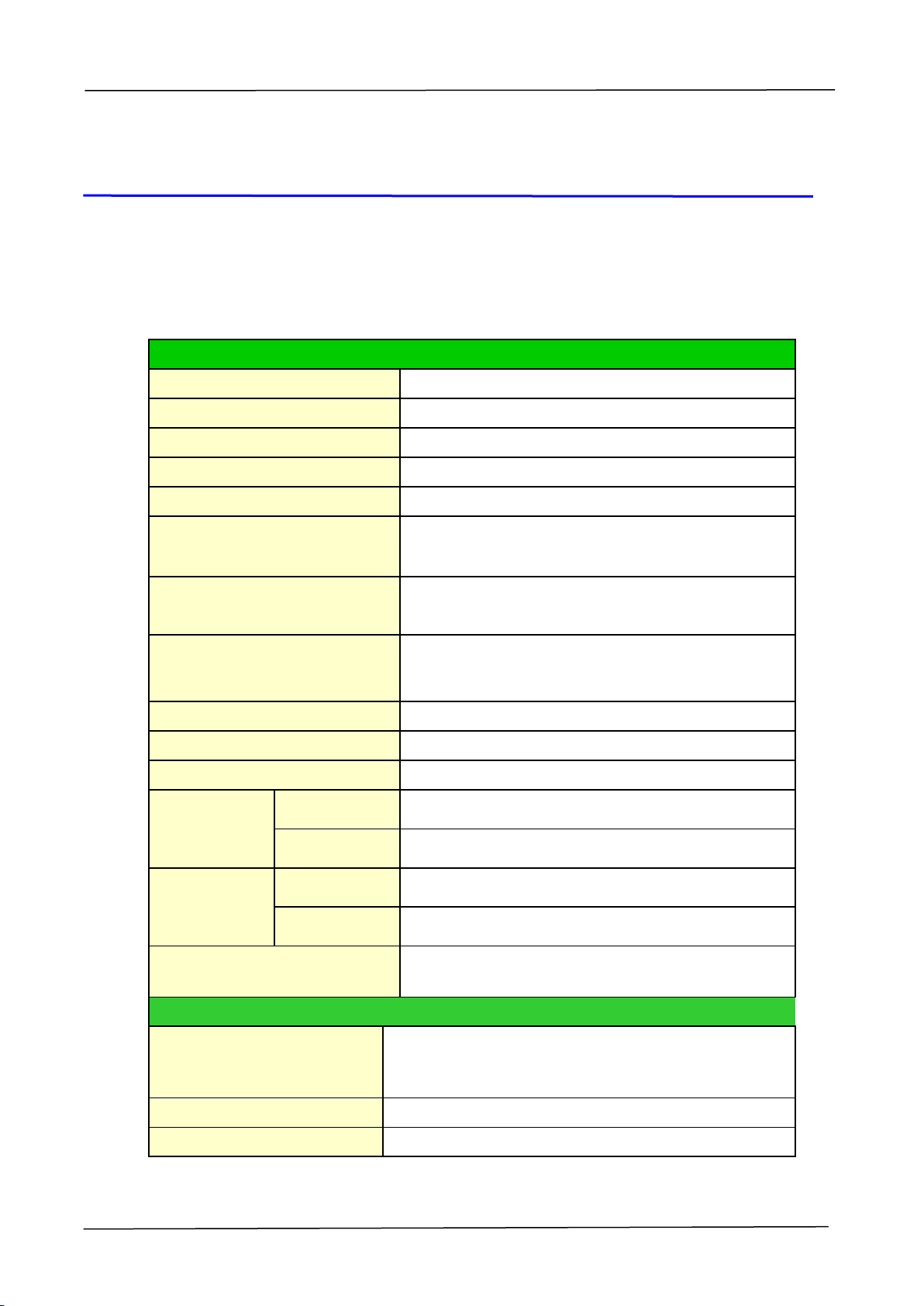
200
10. Specifications
All specifications are subject to change without notice. For the complete and
up-to-date specifications, please refer to our web site at www.avision.com.
General
Type
4-in-1 Multi-function Copier
Functions
Copier-Printer-Scanner-E-mail
CPU
1GHz
SDRAM
2048MB DDR III
Flash Memory
8G
Dimension (WxDxH)
AM5630i/AM5640i
AM7630i/AM7640i/AM7645i
575 x 568 x 585 mm
575 x 568 x 786 mm
Weight
AM5630i/AM5640i
AM7630i/AM7640i/AM7645i
37 kgs (includes tray one only)
45 kgs (includes two trays)
Power Consumption
AM5630i/AM5640i
AM7630i/AM7640i/AM7645i
<700W
<490 W
Warm up time
<26 seconds
LCM
8 in. TFT
Connectivity
Hi-speed USB 2.0 (Device/Host)/ RJ-45
Operating
Environment
Temperature
10°C to 35 °C
Humidity
15% ~ 85% RPH
Storage
Environment
Temperature
-40°C ~ 40°C
Humidity
10% ~ 90% RPH
Current Consumption
110V Input: 100-127Vac, 50/60Hz, 13A
220V Input: 220-240Vac, 50/60Hz, 6.5A
Copy Functions
Copy size
A3, Legal, Letter, A4 ,A5, B4(JIS), B5(JIS), 8K,
16K, Postcard, LGL, Ledger
Max scanning size
A3 (297 x 420 mm)
Copy resolution
600 x 600dpi
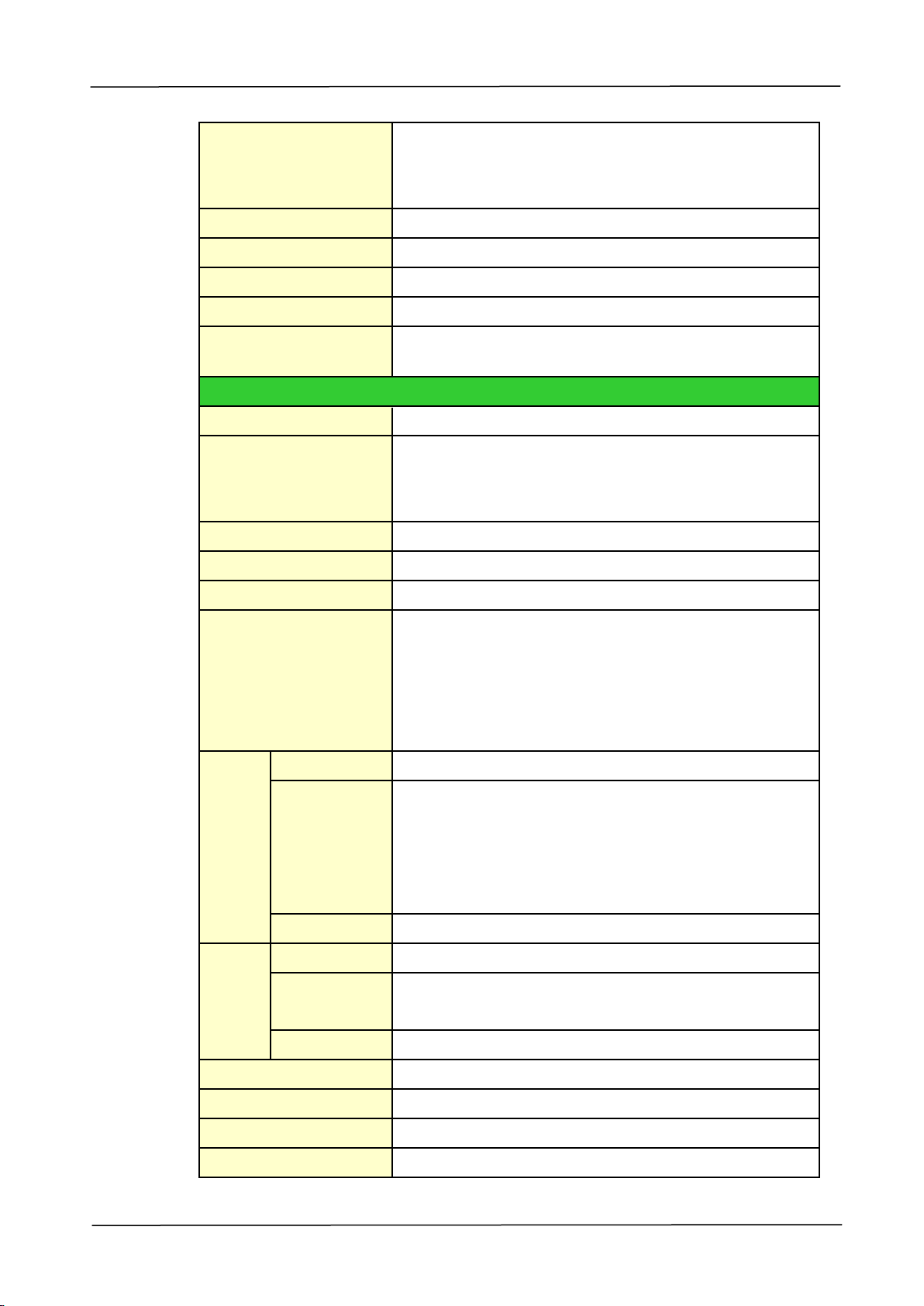
10. Specifications
201
Copy speed
AM5630i/AM5640i
AM7630i/AM7640i
AM7645i
30 cpm/40 cpm (A4 LEF)
45 cpm (A4 LEF)
Copy count
up to 999, Auto Reset to 1
Zoom
25 ~ 400%
N-up copy
2 in1 / 4 in 1 / ID card
Copy mode
Text/Photo/Mixed
Auto size detection
Yes
(A3、A4、A5、A6、B4、B5、B6、LGL、LTR、DLT)
Print Function
Printing method
Mono Laser
Printing speed
AM5630i/AM5640i
AM7630i/AM7640i
AM7645i
30 ppm/40 ppm (A4 LEF)
45 ppm (A4 LEF)
Max print size
279 x 413 mm (Ledger, Double Letter)
Min print size
100 x 148 mm (3.92 x 5.82 in.)
Resolution
1200x1200 dpi
Max paper capacity
500 (tray 1) (70 g/m
2
, plain paper)
500 (tray 2) (70 g/m
2
, plain paper) (optional for
AM5630i/AM5640i)
500 (tray 3/4, optional) (70 g/m
2
, plain paper)
100 (manual tray) (70 g/m
2
, plain paper)
Manual
tray
Paper capacity
100 pages(70g/m² plain paper)
Paper size
A3, Double Letter (Ledger), Statement (SEF),
8K, 16K, A6, A4, B6(JIS), B4(JIS), A5, B5(JIS),
Letter, Legal 13, Legal, Japanese PostCard,
Customized size: 100x148 ~ 297x420 mm
(3.93”x5.82”~11.6”x16.5”)
Paper weight
60~163 g/m²
Tray
1~4
Paper capacity
500 pages(70g/m² plain paper)
Paper size
A3, A4, B4(JIS), A5, B5(JIS), Letter, Legal 14,
Double Letter
Paper weight
60~105 g/m²
Support paper tray
Standard 500 pages input tray
Paper output capacity
530 pages
PCLs/Emulations
GDI
First print out time
<9 seconds
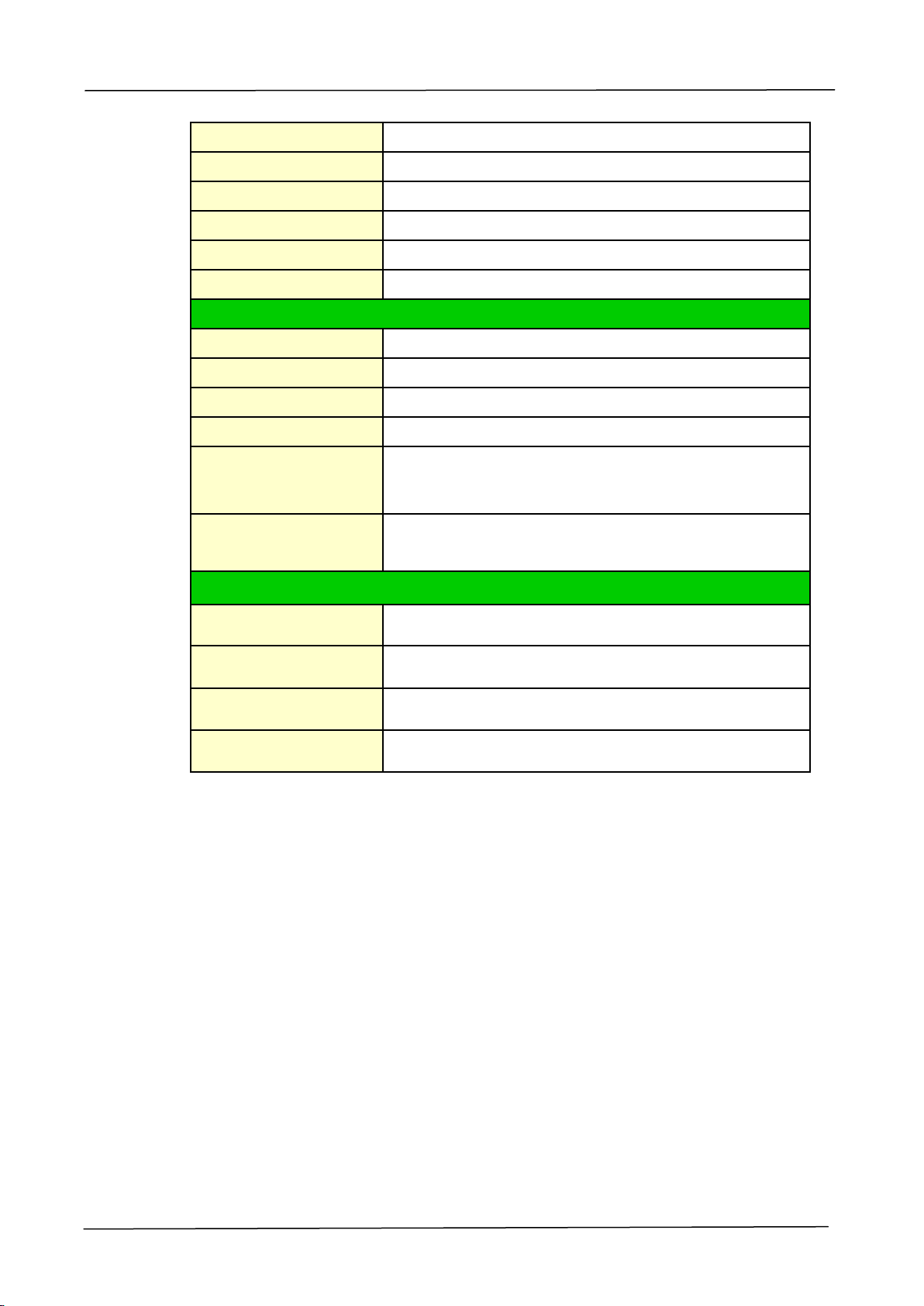
202
Edge erase
4.3 mm (top, bottom, left, right)
Scaling
25 ~ 400%
Duplex print
Yes
Storage print
Yes
Security print
Yes
Network print
Yes
Scan Function
Scanner type
Flatbed/ADF/CIS type, Color/BW
Max scanning size
A3
Optical resolution
600 x 600 dpi
ADF Capacity
100 pages (70 g/m
2
, plain paper)
Scanning bit depth
Color - 24bit(output)/48bit (input)
Gray - 8bit(output)/16bit (input)
B/W - 1bit
File format
Color/Gray - JPEG, MPDF, TIFF
B/W - MPDF, TIFF, BMP
Consumables Life
Toner
20,000 pages (A4 5% cover rate)
Drum unit
150,000 pages
Developing unit
300,000 pages
Fuser
300,000 pages