i
Trademarks
Autel
®
, MaxiSys
®
, MaxiDAS
®
, MaxiScan
®
, MaxiTPMS
®
, MaxiRecorder
®
, and MaxiCheck
®
are trademarks of Autel Intelligent Technology Corp., Ltd., registered in China, the United
States and other countries. All other marks are trademarks or registered trademarks of their
respective holders.
Copyright Information
No part of this manual may be reproduced, stored in a retrieval system or transmitted, in any
form or by any means, electronic, mechanical, photocopying, recording, or otherwise without
the prior written permission of Autel.
Disclaimer of Warranties and Limitation of Liabilities
All information, specifications and illustrations in this manual are based on the latest
information available at the time of printing.
Autel reserves the right to make changes at any time without notice. While information of
this manual has been carefully checked for accuracy, no guarantee is given for the
completeness and correctness of the contents, including but not limited to the product
specifications, functions, and illustrations.
Autel will not be liable for any direct, special, incidental, indirect damages or any economic
consequential damages (including lost profits).
IMPORTANT
Before operating or maintaining this unit, please read this manual carefully, paying extra
attention to the safety warnings and precautions.
For Services and Support:
pro.autel.com
www.autel.com
1-855-288-3587/1-855-AUTELUS (North America)
0086-755-86147779 (China)
For details, please refer to the
Service Procedures in this manual.
ii
Safety Information
For your own safety and the safety of others, and to prevent damage to the device and
vehicles upon which it is used, it is important that the safety instructions presented
throughout this manual be read and understood by all persons operating or coming into
contact with the device.
There are various procedures, techniques, tools, and parts for servicing vehicles, as well as
in the skill of the person doing the work. Because of the vast number of test applications and
variations in the products that can be tested with this equipment, we cannot possibly
anticipate or provide advice or safety messages to cover every circumstance. It is the
automotive technician's responsibility to be knowledgeable of the system being tested. It is
crucial to use proper service methods and test procedures. It is essential to perform tests in
an appropriate and acceptable manner that does not endanger your safety, the safety of
others in the work area, the device being used, or the vehicle being tested.
Before using the device, always refer to and follow the safety messages and applicable test
procedures provided by the manufacturer of the vehicle or equipment being tested. Use the
device only as described in this manual. Read, understand, and follow all safety messages
and instructions in this manual.
Safety Messages
Safety messages are provided to help prevent personal injury and equipment damage. All
safety messages are introduced by a signal word indicating the hazard level.
DANGER
Indicates an imminently hazardous situation which, if not avoided, will result in death or
serious injury to the operator or to bystanders.
WARNING
Indicates a potentially hazardous situation which, if not avoided, could result in death or
serious injury to the operator or to bystanders.
Safety Instructions
The safety messages herein cover situations Autel is aware of. Autel cannot know, evaluate
or advise you in regards of all possible hazards. You must be certain that any condition or
service procedure encountered does not jeopardize your personal safety.

iii
DANGER
When an engine is operating, keep the service area WELL VENTILATED or attach a
building exhaust removal system to the engine exhaust system. Engines produce carbon
monoxide, an odorless, poisonous gas that causes slower reaction time and can lead to
serious personal injury or loss of life.
It is not advised to use headphones at a high volume
Listening at high volumes for long periods of time may result in loss of hearing.
Safety Warnings
Always perform automotive testing in a safe environment.
Wear safety eye protection that meets ANSI standards.
Keep clothing, hair, hands, tools, test equipment, etc., away from all moving or hot
engine parts.
Operate the vehicle in a well-ventilated work area, for exhaust gases are poisonous.
Put the transmission in PARK (for automatic transmission) or NEUTRAL (for manual
transmission) and make sure the parking brake is engaged.
Put blocks in front of the drive wheels and never leave the vehicle unattended while
testing.
Be extra cautious when working around the ignition coil, distributor cap, ignition wires
and spark plugs. These components create hazardous voltages when the engine is
running.
Keep a fire extinguisher suitable for gasoline, chemical, and electrical fires nearby.
Do not connect or disconnect any test equipment while the ignition is on or the
engine is running.
Keep the test equipment dry, clean, and free from oil, water, and grease. Use a mild
detergent on a clean cloth to clean the outside of the equipment as necessary.
Do not drive the vehicle and operate the test equipment at the same time. Any
distraction may cause an accident.
Refer to the service manual for the vehicle being serviced and adhere to all
diagnostic procedures and precautions. Failure to do so may result in personal injury
or damage to the test equipment.
To avoid damaging the test equipment or generating false data, make sure the
vehicle battery is fully charged and the connection to the vehicle DLC is clean and
secure.
Do not place the test equipment on the distributor of the vehicle. Strong electro-magnetic
interference can damage the equipment.

iv
CONTENTS
SAFETY INFORMATION ........................................................................................................ II
Safety Messages ....................................................................................................... ii
SAFETY INSTRUCTIONS ...................................................................................................... II
Safety Warnings ....................................................................................................... iii
1 USING THIS MANUAL ...................................................................................................... 1
1.1 CONVENTIONS ............................................................................................................. 1
1.2 BOLD TEXT ................................................................................................................. 1
1.2.1 Notes and Important Messages ......................................................................... 1
1.2.2 Hyperlink ............................................................................................................ 2
1.2.3 Illustrations ......................................................................................................... 2
1.2.4 Procedures......................................................................................................... 2
2 GENERAL INTRODUCTION ............................................................................................. 3
2.1 MAXISYS TABLET ......................................................................................................... 3
2.1.1 Functional Description ....................................................................................... 3
2.1.2 Power Sources ................................................................................................... 5
2.1.3 Technical Specifications .................................................................................... 6
2.2 MAXIFLASH VCI .......................................................................................................... 8
2.2.1 Functional Description ....................................................................................... 8
2.2.2 Power Sources ................................................................................................... 9
2.2.3 Technical Specifications .................................................................................. 10
2.3 MAXIBAS B200 ........................................................................................................ 11
2.3.1 Functional Description ..................................................................................... 11
2.4 ACCESSORIES KIT ...................................................................................................... 12
2.4.1 Main Cable ....................................................................................................... 12
2.4.2 Non-OBDII Adapters ........................................................................................ 12
2.4.3 Other Accessories ............................................................................................ 13
3 GETTING STARTED ....................................................................................................... 16
3.1 POWER UP ................................................................................................................ 16
3.1.1 Application Buttons .......................................................................................... 17
3.1.2 Locator and Navigation Buttons ....................................................................... 18
3.1.3 System Status Icons ........................................................................................ 19
3.2 POWER DOWN ........................................................................................................... 20
3.2.1 Reboot System ................................................................................................ 20
4 CV DIAGNOSTICS OPERATIONS ................................................................................. 21

v
4.1 ESTABLISH VEHICLE COMMUNICATION AND SELECTION .................................................. 21
4.1.1 Establish Vehicle Communication .................................................................... 21
4.1.2 Getting Started ................................................................................................. 25
4.1.3 Vehicle Identification ........................................................................................ 27
4.2 DIAGNOSTICS SCREEN LAYOUT ................................................................................... 32
4.3 AUTO SCAN ............................................................................................................... 33
4.4 CONTROL UNIT .......................................................................................................... 38
4.4.1 Screen Messages ............................................................................................ 39
4.4.2 Making Selections ............................................................................................ 40
4.5 ECU INFORMATION .................................................................................................... 40
4.6 TROUBLE CODES ....................................................................................................... 41
4.6.1 Read Codes ..................................................................................................... 41
4.6.2 Erase Codes .................................................................................................... 43
4.7 LIVE DATA ................................................................................................................. 43
4.8 ACTIVE TEST ............................................................................................................. 51
4.9 SPECIAL FUNCTIONS .................................................................................................. 52
4.10 PROGRAMMING AND CODING ..................................................................................... 54
4.10.1 Coding ........................................................................................................... 55
4.10.2 Reprogramming ............................................................................................. 55
4.10.3 Re-flash Errors ............................................................................................... 56
4.11 GENERIC OBDII OPERATIONS ................................................................................... 57
4.11.1 General Procedure ......................................................................................... 57
4.11.2 Function Descriptions .................................................................................... 58
4.12 DIAGNOSTICS REPORT ............................................................................................. 61
4.12.1 Pre-Scan and Post-Scan ............................................................................... 61
4.12.2 Diagnostic Report PDF .................................................................................. 61
4.13 EXIT DIAGNOSTICS ................................................................................................... 65
5 INTELLIGENT DIAGNOSTICS ........................................................................................ 66
5.1 ACCESSING INTELLIGENT DIAGNOSTICS ........................................................................ 66
5.1.1 Auto Scan ........................................................................................................ 66
5.1.2 Scan System Faults ......................................................................................... 68
5.1.3 Access via Intelligent Diagnostics Button ......................................................... 71
5.1.4 Access via Intelligent Diagnostics Icon ............................................................ 71
5.2 INTELLIGENT DIAGNOSTICS OPERATION ........................................................................ 75
5.2.1 Vehicle System and Detected DTC(s) ............................................................. 75

vi
5.2.2 Technical Service Bulletin (OEM Information).................................................. 76
5.2.3 DTC Analysis ................................................................................................... 77
6 SERVICE ......................................................................................................................... 78
6.1 OIL RESET SERVICE ................................................................................................... 78
6.2 AFTERTREATMENT SERVICE ........................................................................................ 79
6.3 LIMIT SERVICE ........................................................................................................... 80
6.4 INJECTOR SERVICE .................................................................................................... 80
6.5 SPEED & PTO SERVICE ............................................................................................. 80
6.6 VGT LEARN SERVICE ................................................................................................. 80
7 BATTERY TEST .............................................................................................................. 81
7.1 TEST PREPARATION ................................................................................................... 81
7.1.1 Inspect the Battery ........................................................................................... 81
7.1.2 Connect the Battery Tester .............................................................................. 81
7.2 IN-VEHICLE TEST ....................................................................................................... 83
7.2.1 Start the test..................................................................................................... 83
7.2.2 Battery Test...................................................................................................... 84
7.2.3 Starter Test ...................................................................................................... 86
7.2.4 Generator Test ................................................................................................. 87
7.3 OUT-VEHICLE TEST .................................................................................................... 88
7.3.1 Test Procedure ................................................................................................ 88
7.3.2 Test Results ..................................................................................................... 89
8 MULTIMETER ................................................................................................................. 91
8.1 SAFETY INFORMATION ................................................................................................ 91
8.2 CONNECTING THE MULTIMETER ................................................................................... 92
8.3 SCREEN LAYOUT AND OPERATIONS ............................................................................. 93
9 SETTINGS ...................................................................................................................... 96
9.1 UNIT ......................................................................................................................... 96
9.2 LANGUAGE ................................................................................................................ 96
9.3 PRINTING SETTINGS ................................................................................................... 97
9.4 NOTIFICATION CENTER ............................................................................................... 98
9.5 AUTO UPDATE ........................................................................................................... 98
9.6 ADAS SETTINGS ....................................................................................................... 99
9.7 VEHICLE LIST ............................................................................................................ 99
9.8 BATTERY TEST .......................................................................................................... 99
9.9 COUNTRY/REGION CODE .......................................................................................... 100

vii
9.10 SYSTEM SETTINGS ................................................................................................. 100
9.11 ABOUT .................................................................................................................. 100
10 DATA MANAGER ........................................................................................................ 101
10.1 VEHICLE HISTORY .................................................................................................. 102
10.1.1 Test Records ................................................................................................ 103
10.2 WORKSHOP INFORMATION ...................................................................................... 104
10.3 CUSTOMER ........................................................................................................... 105
10.4 IMAGE ................................................................................................................... 105
10.5 PDF FILES ............................................................................................................ 107
10.6 REVIEW DATA ........................................................................................................ 107
10.7 UNINSTALL APPS ................................................................................................... 108
10.8 DATA LOGGING ...................................................................................................... 108
11 VCI MANAGER ........................................................................................................... 109
11.1 VCI CONNECTION VIA WI-FI .................................................................................... 109
11.2 VCI CONNECTION VIA BLUETOOTH .......................................................................... 111
11.3 BAS CONNECTION VIA BLUETOOTH ......................................................................... 112
11.4 VCI UPDATE ......................................................................................................... 113
11.5 BAS UPDATE ........................................................................................................ 114
12 UPDATE ...................................................................................................................... 115
13 SUPPORT ................................................................................................................... 117
13.1 PRODUCT REGISTRATION ....................................................................................... 117
13.2 SUPPORT SCREEN LAYOUT ..................................................................................... 117
13.3 MY ACCOUNT ........................................................................................................ 118
13.3.1 Personal Info ................................................................................................ 118
13.3.2 Update Info .................................................................................................. 118
13.3.3 Service Info .................................................................................................. 119
13.4 TRAINING .............................................................................................................. 119
13.5 DATA LOGGING ...................................................................................................... 119
13.6 FAQ DATABASE .................................................................................................... 120
14 MAXIVIEWER ............................................................................................................. 121
15 MAXIVIDEO ................................................................................................................ 123
15.1 ADDITIONAL ACCESSORIES ..................................................................................... 123
15.1.1 MaxiVideo Camera ...................................................................................... 124
15.1.2 Imager Head Accessories ............................................................................ 124
15.1.3 Accessory Assembly .................................................................................... 125

viii
15.1.4 Technical Specifications .............................................................................. 126
15.2 OPERATIONS ......................................................................................................... 127
16 QUICK LINK ................................................................................................................ 129
17 REMOTE DESKTOP ................................................................................................... 130
17.1 OPERATIONS ......................................................................................................... 130
18 USER FEEDBACK ...................................................................................................... 132
19 MAINTENANCE AND SERVICE ................................................................................. 133
19.1 MAINTENANCE INSTRUCTIONS ................................................................................. 133
19.2 TROUBLESHOOTING CHECKLIST ............................................................................... 133
19.3 ABOUT BATTERY USAGE ......................................................................................... 134
19.4 SERVICE PROCEDURES .......................................................................................... 135
19.4.1 Technical Support ........................................................................................ 135
19.4.2 Repair Service ............................................................................................. 136
19.4.3 Other Services ............................................................................................. 136
20 COMPLIANCE INFORMATION ................................................................................... 137
21 WARRANTY ................................................................................................................ 138
21.1 12-MONTH LIMITED WARRANTY .............................................................................. 138

1
1 Using This Manual
This manual contains device usage instructions.
Some illustrations shown in this manual may contain modules and optional equipment
that are not included in your system.
1.1 Conventions
The following conventions are used.
1.2 Bold Text
Bold text is used to highlight selectable items such as buttons and menu options.
Example:
Tap OK.
1.2.1 Notes and Important Messages
Note
A NOTE provides helpful information such as additional explanations, tips, and comments.
Example:
NOTE
New batteries reach full capacity after approximately 3 to 5 charging and discharging cycles.
Important
IMPORTANT indicates a situation that if not avoided may result in damage to the tablet
or vehicle.
Example:
IMPORTANT
Keep the cable away from heat, oil, sharp edges and moving parts. Replace damaged
cables immediately.

2
1.2.2 Hyperlink
Hyperlinks or links that take you to other related articles, procedures, and illustrations are
available in electronic documents. Blue italic text indicates a selectable hyperlink and blue
underlined text indicates a website link or an email address link.
1.2.3 Illustrations
Illustrations used in this manual are samples, and the actual testing screen may vary for
each vehicle being tested. Observe the menu titles and on-screen instructions to make
correct option selection.
1.2.4 Procedures
An arrow icon indicates a procedure.
Example:
To use the camera:
1. Tap the Camera button. The camera screen opens.
2. Focus the image to be captured in the view finder.
3. Tap the camera icon on the right side of the screen. The view finder now shows the
captured picture and auto-saves the taken photo.
4. Swipe the screen left to view the stored photos.
5. Tap the Back or Home button to exit the camera application.
3
2 General Introduction
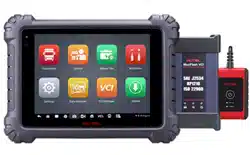
MaxiSys MS909CV provides the full functionality and online repair information you need
when diagnosing vehicles, identifying faults and researching repair issues. It features a
powerful octa-core processor and 9.7-inch TFT-LCD capacitive touchscreen for swift
diagnosis and optimum viewing.
MaxiSys MS909CV has three main components:
MaxiSys Display Tablet — the central processor and monitor for the system.
VCI — vehicle communication interface.
B200 — battery & electrical system tester.
This manual describes the construction and operation of these devices and how they
work together to deliver diagnostic solutions.
2.1 MaxiSys Tablet
2.1.1 Functional Description
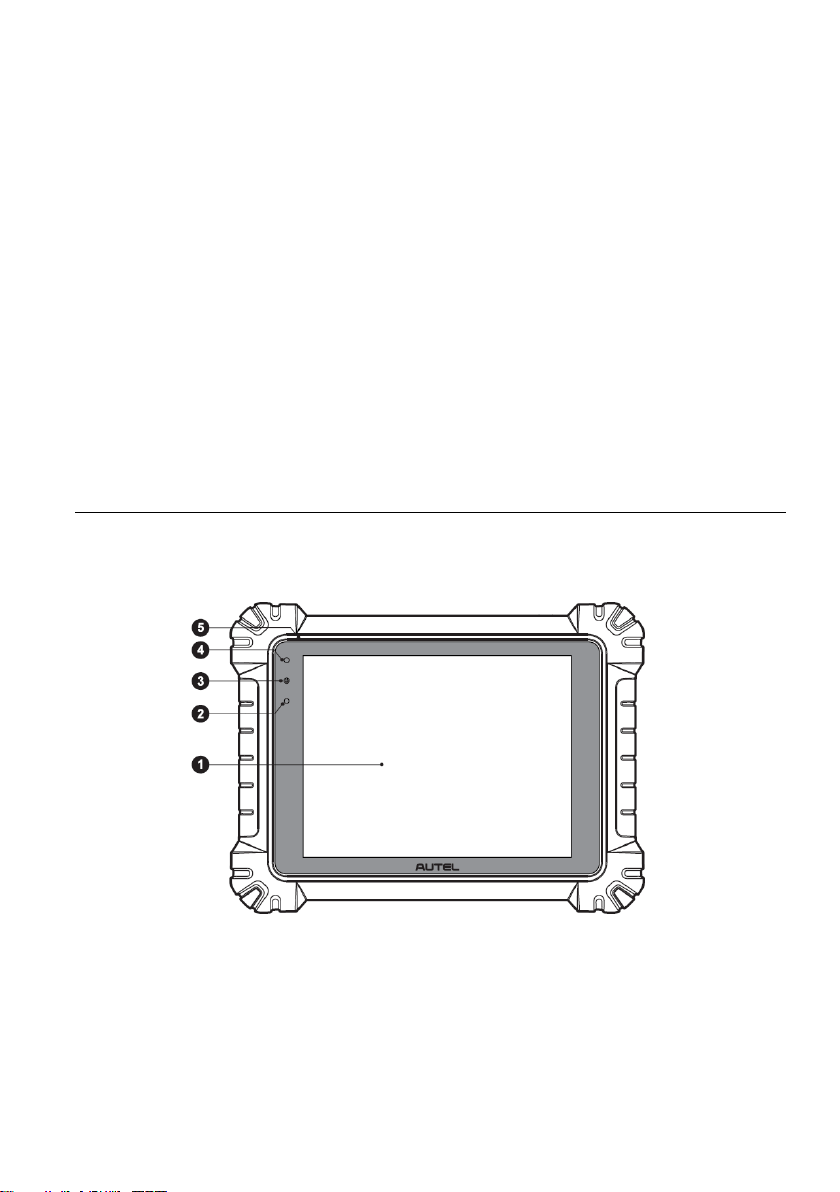
Figure 2-1 MaxiSys Tablet Front View
1. 9.7" TFT-LCD Capacitive Touchscreen
2. Ambient Light Sensor — detects ambient brightness
3. Power LED
4. Front Camera
4
5. Microphone
Table 2-1 Power LED Description
LED
Color
Description
Power
Green
Lights green when the Tablet is charging and the
battery level is above 90%.
Lights green when the Tablet is powered on and the
battery level is above 15%.
Yellow
Lights yellow when the Tablet is charging and the battery
level is below 90%.
Red
Lights red when the Tablet is powered on and the battery
level is below 15%.
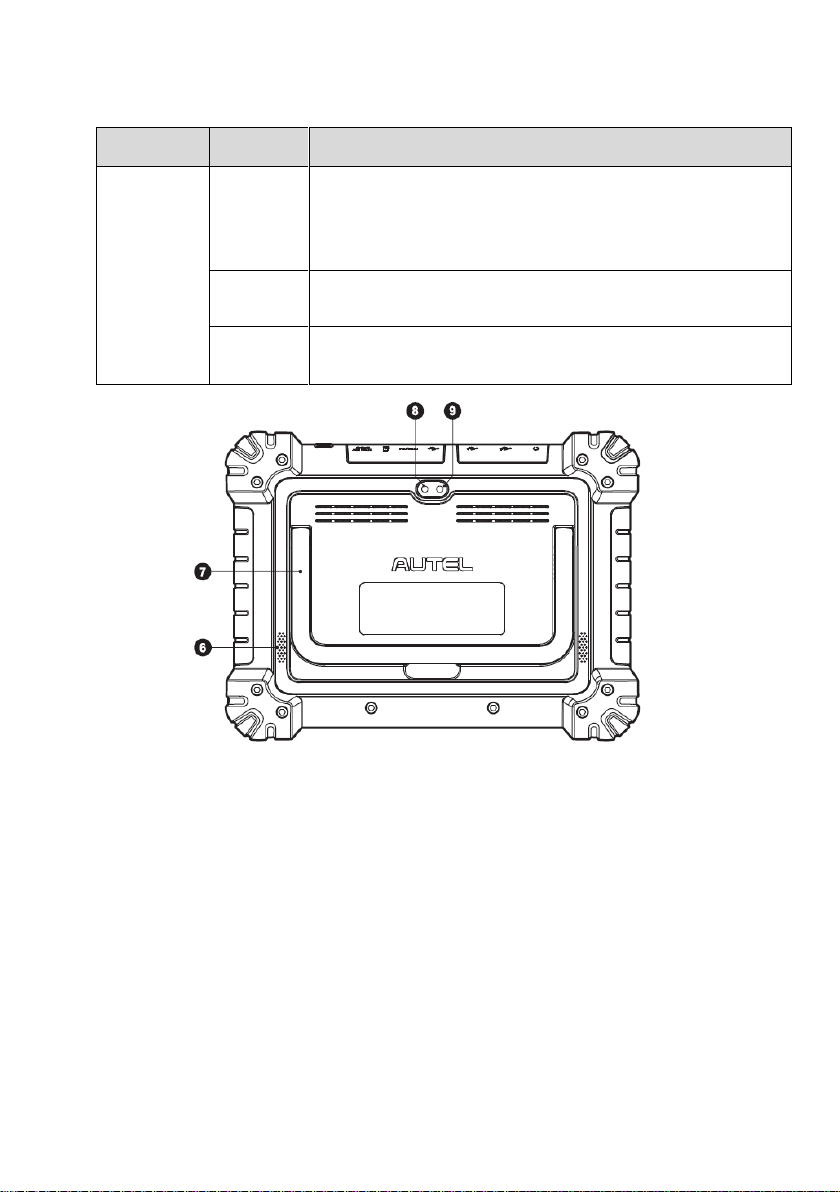
Figure 2-2 MaxiSys Tablet Back View
6. Speaker
7. Collapsible Stand — extends from the back to allow hands-free viewing of the tablet
8. Rear Camera
9. Camera Flash
5
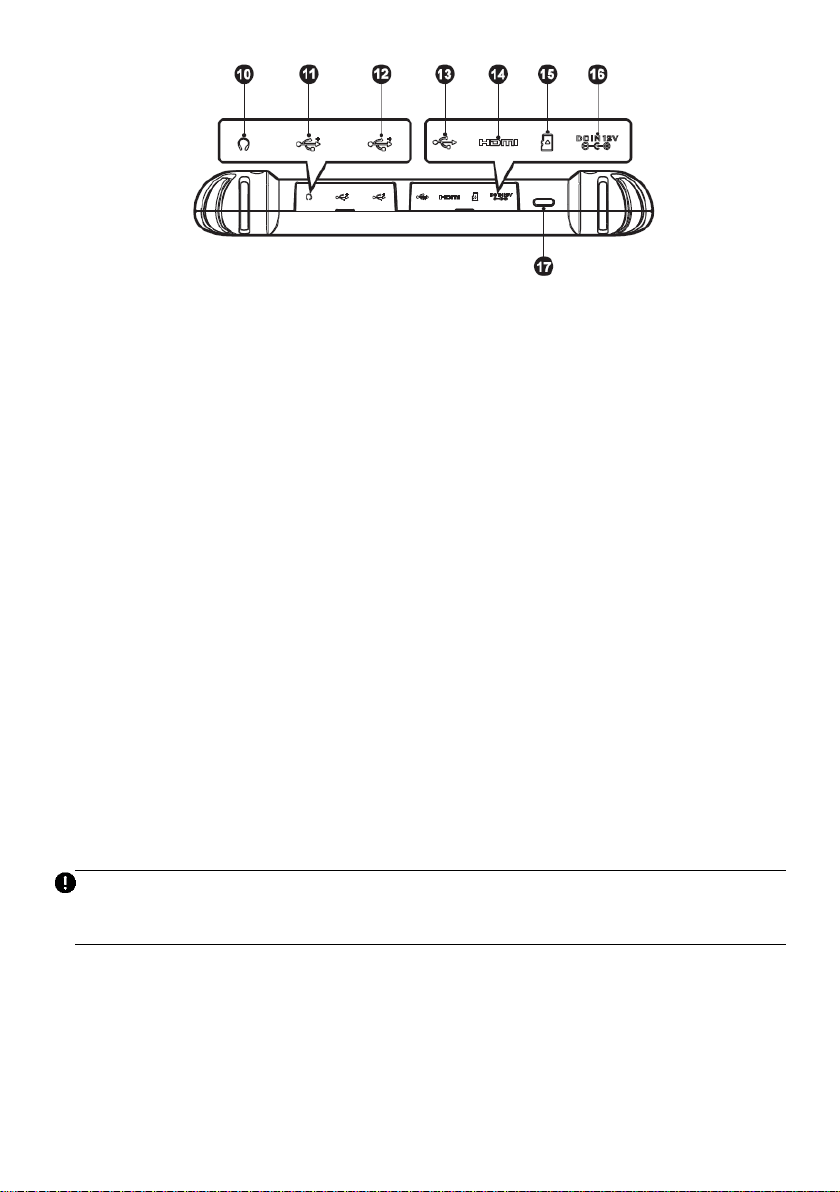
Figure 2-3 MaxiSys Tablet Top View
10. Head Phone Jack
11. USB Port
12. USB Port
13. Mini USB Port
14. HDMI (High-Definition Multimedia Interface) Port
15. Micro SD Card Slot
16. DC Power Supply Input Port
17. Lock/Power Button — long press to turn on and off the Display Tablet, or tap to lock
the screen
2.1.2 Power Sources
The tablet can receive power from any of the following sources:
Internal Battery Pack
AC/DC Power Supply
Vehicle Power
IMPORTANT
Do not charge the battery when the temperature is lower than 0°C (32°F) or higher than
45°C (113°F).
Internal Battery Pack
The tablet can be powered with the internal rechargeable battery, which if fully charged
can provide sufficient power for about 8 hours of continuous operation.

6
AC/DC Power Supply — using power adapter
The tablet can be powered from an electrical outlet using the AC/DC power adapter. The
AC/DC power supply also charges the internal battery pack.
Vehicle Power
The tablet can be powered from the auxiliary power outlet adapter or other DC power port
on the test vehicle through a direct cable connection. The vehicle power cable connects
to the DC power supply port on the top side of the display unit.
2.1.3 Technical Specifications
Table 2-2 Tablet Specifications
Item
Description
Operating System
Android 7.0
Processor
Samsung Exynos 8895V octa-core Processor
(2.3GHz Quad-core Mongoose + 1.7GHz Quad-core
A53)
Memory
4GB RAM & 128GB On-board Memory
Display
9.7-inch TFT-LCD with 1536 x 2048 resolution &
capacitive touch screen
Connectivity
WiFix2 (802.11 a/b/g/n/ac 2x2 MIMO)
Bluetooth v.2.1 + EDR
GPS
USB 2.0 (TWO USB HOST Type A, ONE USB
mini device)
HDMI 2.0
SD Card (Support up to 256GB)
Camera
Rear: 16 Megapixel, Autofocus with Flashlight
Front: 5.0 Megapixel
Sensors
Gravity Accelerometer, Ambient Light Sensor (ALS)
Audio
Microphone
Dual Speakers

7
Item
Description
Input/Output
3-Band 3.5 mm stereo/standard headset jack
Power and Battery
15000mAh 3.8V lithium-polymer battery
Charging via 12V AC/DC power supply with
the temperature between 0°C and 45°C
Input Voltage
12V/3A Adapter
Operating Temp.
0 to 50°C (32 to 122°F)
Storage Temp.
-10 to 60°C (14 to 140°F)
Dimensions (WxHxD)
304.4 mm (11.98") x 227.8 mm (8.97") x 42.5 mm
(1.67")
Weight
1.66 kg (3.66 lb.)
Protocols
DoIP, PLC J2497, ISO-15765, SAE-J1939, ISO-
14229 UDS, SAE-J2411 Single Wire Can (GMLAN),
ISO-11898-2, ISO-11898-3, SAE-J2819 (TP20),
TP16, ISO-9141, ISO-14230, SAE-J2610 (Chrysler
SCI), UART Echo Byte, SAE-J2809 (Honda Diag-
H), SAE-J2740 (GM ALDL), SAE-J1567 (CCD
BUS), Ford UBP, Nissan DDL UART with Clock,
BMW DS2, BMW DS1, SAE J2819 (VAG KW81),
KW82, SAE J1708, SAE-J1850 PWM (Ford SCP),
SAE-J1850 VPW (GM Class2)
8
2.2 MaxiFlash VCI
2.2.1 Functional Description
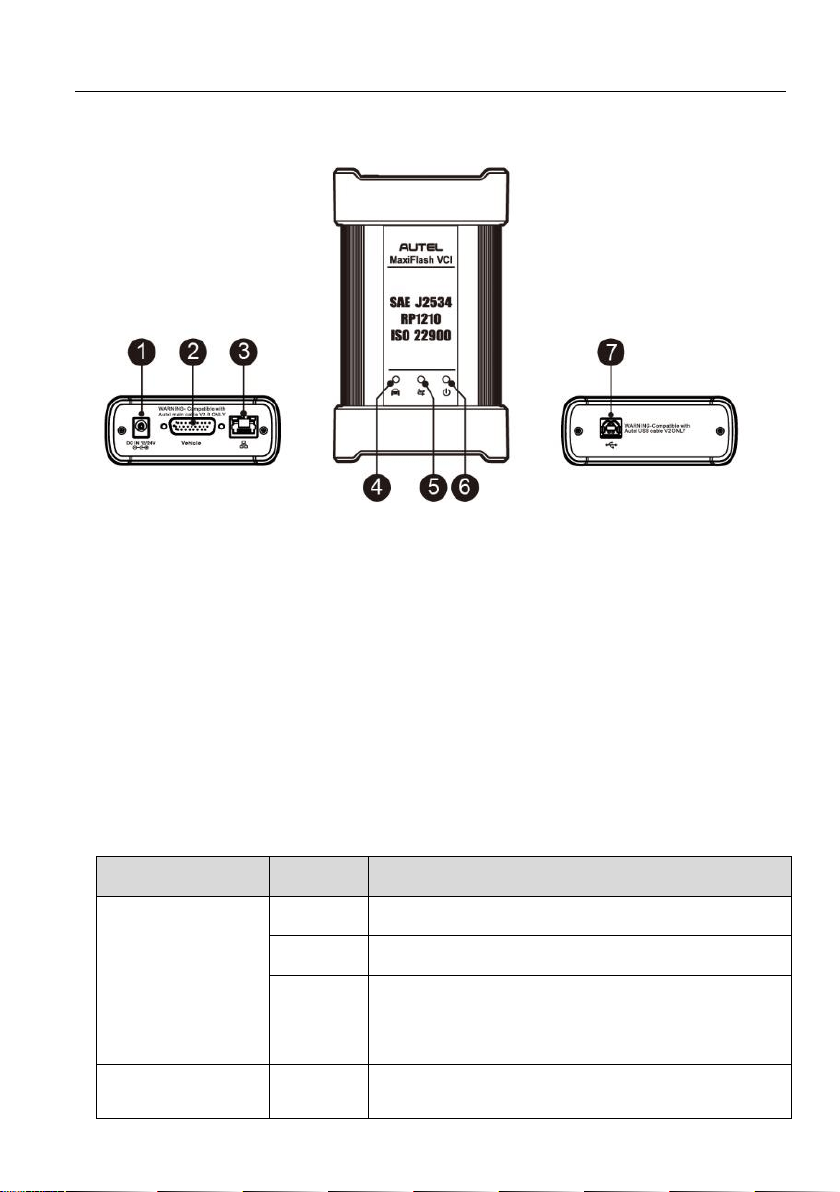
Figure 2-4 MaxiFlash VCI Programming Device
1. DC Power Supply Input Port
2. Vehicle Data Connector
3. Ethernet Port
4. Vehicle LED
5. Connection LED
6. Power LED
7. USB Port
Table 2-3 LED Description
LED
Color
Description
Power LED
Yellow
The VCI is powered on and performing self-check.
Green
The VCI is ready for use.
Red
Lights solid red when system failure occurs.
Flashes red when the VCI is upgrading.
Vehicle LED
Green
Flashes green when communicating with the
vehicle.

9
LED
Color
Description
Connection LED
Green
Lights solid green when the VCI is connected via
USB cable.
Cyan
Lights solid cyan when the VCI is connected via
Wi-Fi.
Blue
Lights solid blue when the VCI is connected via
Bluetooth.
IMPORTANT
Do not disconnect the programming device while the vehicle LED status light is on. If the
flash programming procedure is interrupted while the vehicle's ECU is blank or only partially
programmed, the module may be unrecoverable.
Programming Capability
The MaxiFlash VCI device is a D-PDU, SAE J2534 & RP1210 compliant PassThru
programming interface device. Using the updated OEM software, it is capable of replacing
the existing software/firmware in the Electronic Control Units (ECU), programming new
ECUs, and fixing software-controlled drivability issues and emission issues.
Communication Capability
The MaxiFlash VCI device supports Bluetooth, Wi-Fi, and USB communications. It can
transmit vehicle data to the tablet with or without a cable connection. In open areas, the
working range of the transmitter through Bluetooth communication is up to 328 feet (about
100 m). The working range of 5G Wi-Fi is up to 164 feet (50 m). If the signal is lost due to
being taken out of range, communication will be restored once the tablet is within range.
2.2.2 Power Sources
The VCI device can receive power from the following sources:
Vehicle Power
AC/DC Power Supply
Vehicle Power
The VCI device operates on 12/24 Volt vehicle power, which receives power via the
vehicle data connection port. The device powers on whenever it is connected to an
OBDII/EOBD compliant data link connector (DLC). For non OBDII/EOBD compliant
vehicles, the device can be powered from an auxiliary power outlet adapter or other
suitable power port on the test vehicle using the auxiliary power cable.
10
AC/DC Power Supply
The VCI device can be powered from a wall socket using the AC/DC power adapter.
2.2.3 Technical Specifications
Table 2-4 MaxiFlash VCI Specifications
Item
Description
Communications
Bluetooth V2.1 + EDR
USB 2.0
Wi-Fi 5G
Ethernet
Wireless Frequency
5 GHz
Input Voltage Range
12 V DC to 24 V DC
Supply Current
170 mA @12 V DC
100 mA @ 24 V DC
Operating Temp.
0°C to 50° C
Storage Temp.
-20°C to 60° C
Dimensions (L x W x H)
168.6 mm (5.87") x 99.7 mm (3.38") x 38 mm
Weight
0.399 kg (0.88 lb.)
NOTE
For additional information, please refer to the accompanied user manual for the VCI
device.
11
2.3 MaxiBAS B200
2.3.1 Functional Description
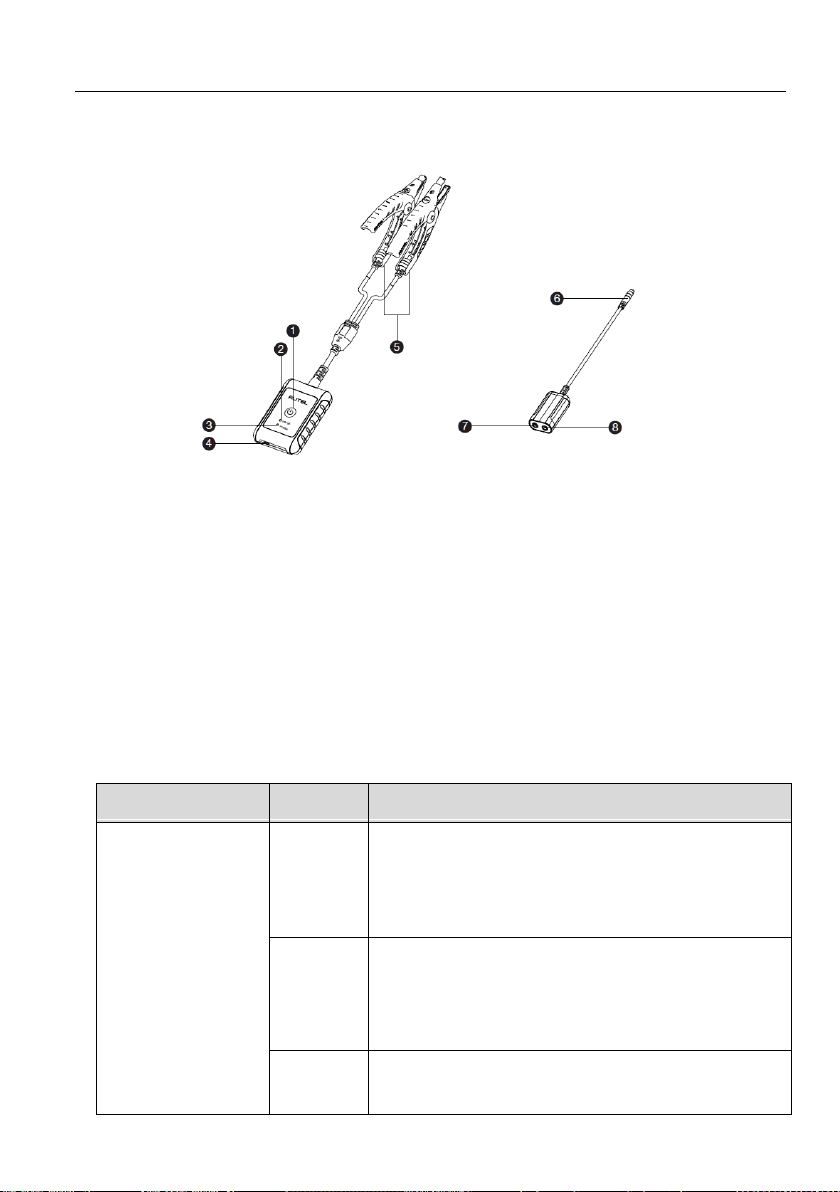
Figure 2-5 MaxiBAS B200 Device
1. Power Button
2. Status LED
3. Power LED
4. USB Port
5. Battery Clamp Cable
6. Aviation Plug
7. Positive Clamp Cable Port
8. Negative Clamp Cable Port
Table 2-5 LED Description
LED
Color
Description
Status LED
Green
Solid Green: The tester is connected via
USB cable.
Flashing Green: The tester is communicating
via USB cable.
Blue
Solid Blue: The tester is connected via
Bluetooth.
Flashing Blue: The tester is communicating
via Bluetooth.
Red
Flashing Red: Battery clamps are connected to the
wrong battery terminals.
12
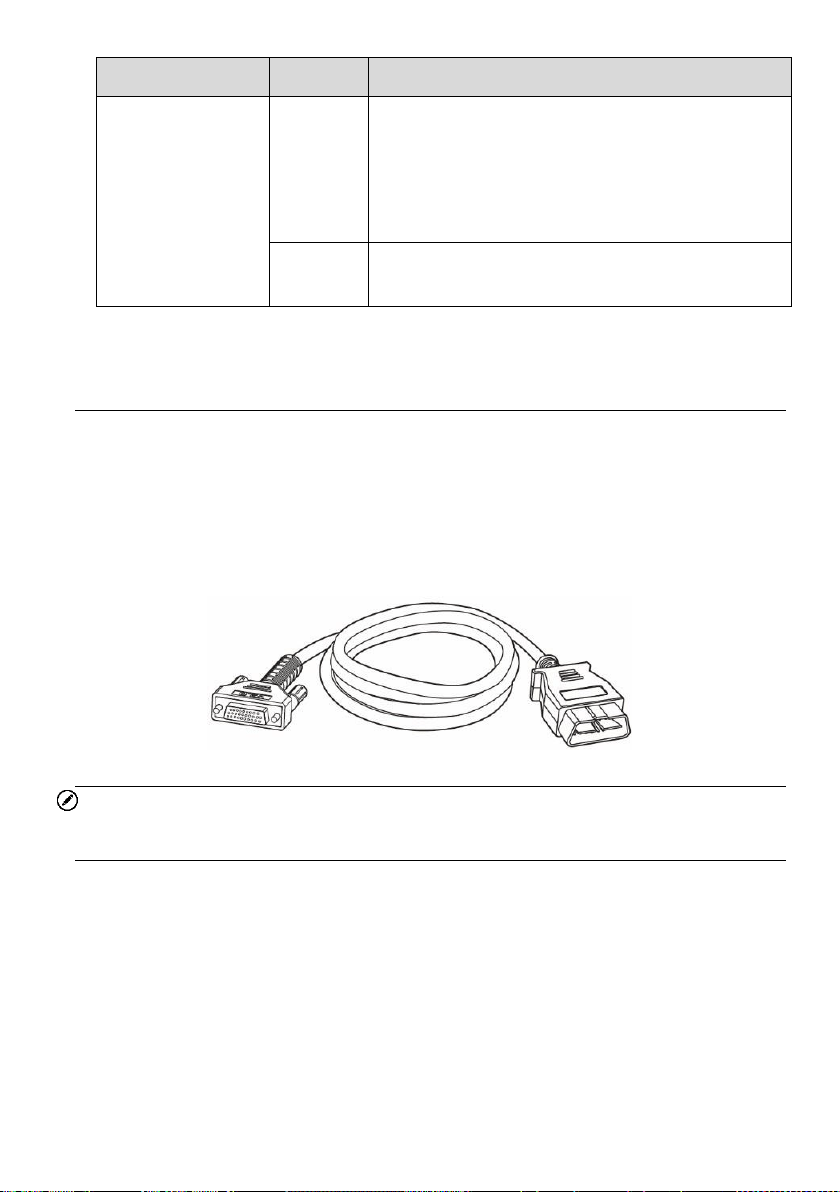
LED
Color
Description
Power LED
Green
Solid Green: The tester is powered on and
the battery is sufficiently charged.
Flashing Green: The tester is charging; turns
to solid green after its battery is fully
charged.
Red
Flashing Red: The tester’s battery level is low.
Please charge.
2.4 Accessories Kit
2.4.1 Main Cable
The VCI device can be powered through the Autel Main Cable V2.0 (the V2.0 icon can be
seen on the cable) when connected to an OBDII/EOBD compliant vehicle. The Main Cable
connects the VCI device to the vehicle's data link connector (DLC), through which the VCI
device can transmit vehicle data to the tablet.
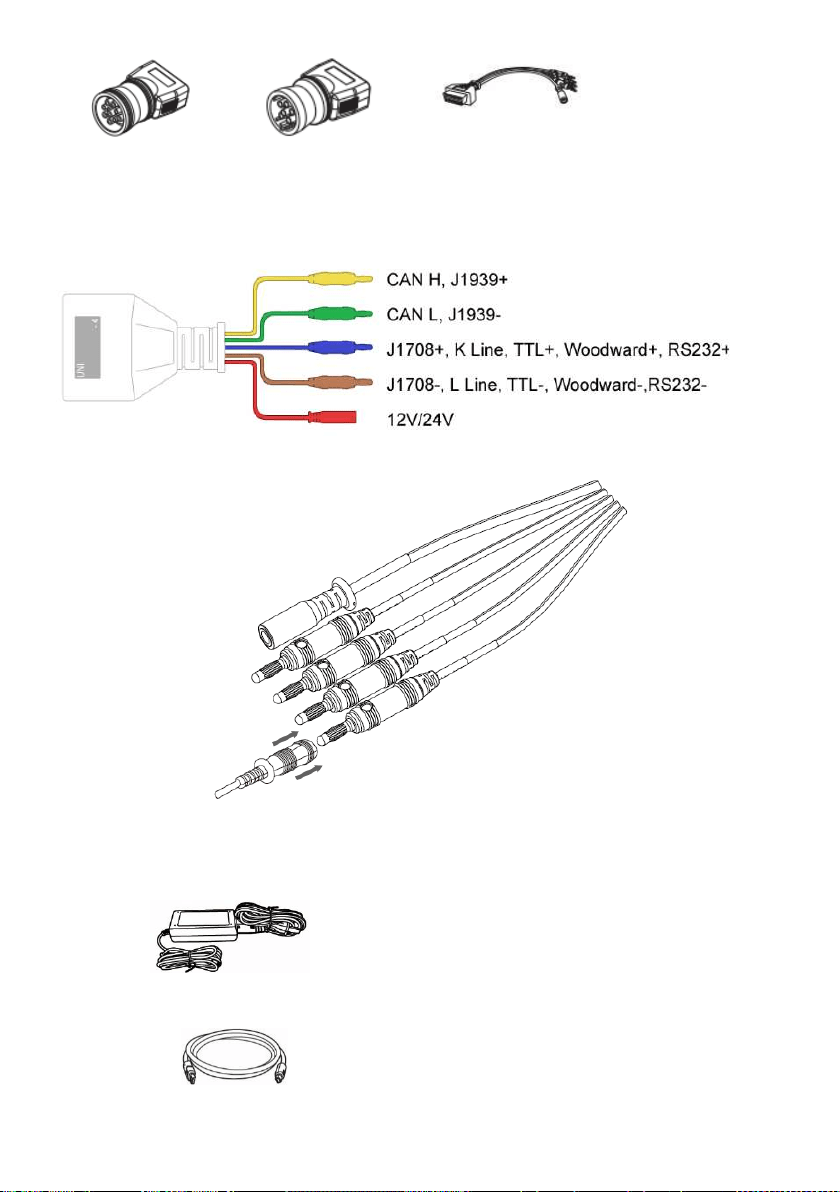
Figure 2-6 Main Cable – 1.5m in Length
NOTE
MaxiFlash VCMI and MaxiFlash VCI can be connected by the Autel Main Cable V2.0 only.
DO NOT use other Autel main cables to connect the MaxiFlash VCMI and MaxiFlash VCI.
2.4.2 Non-OBDII Adapters
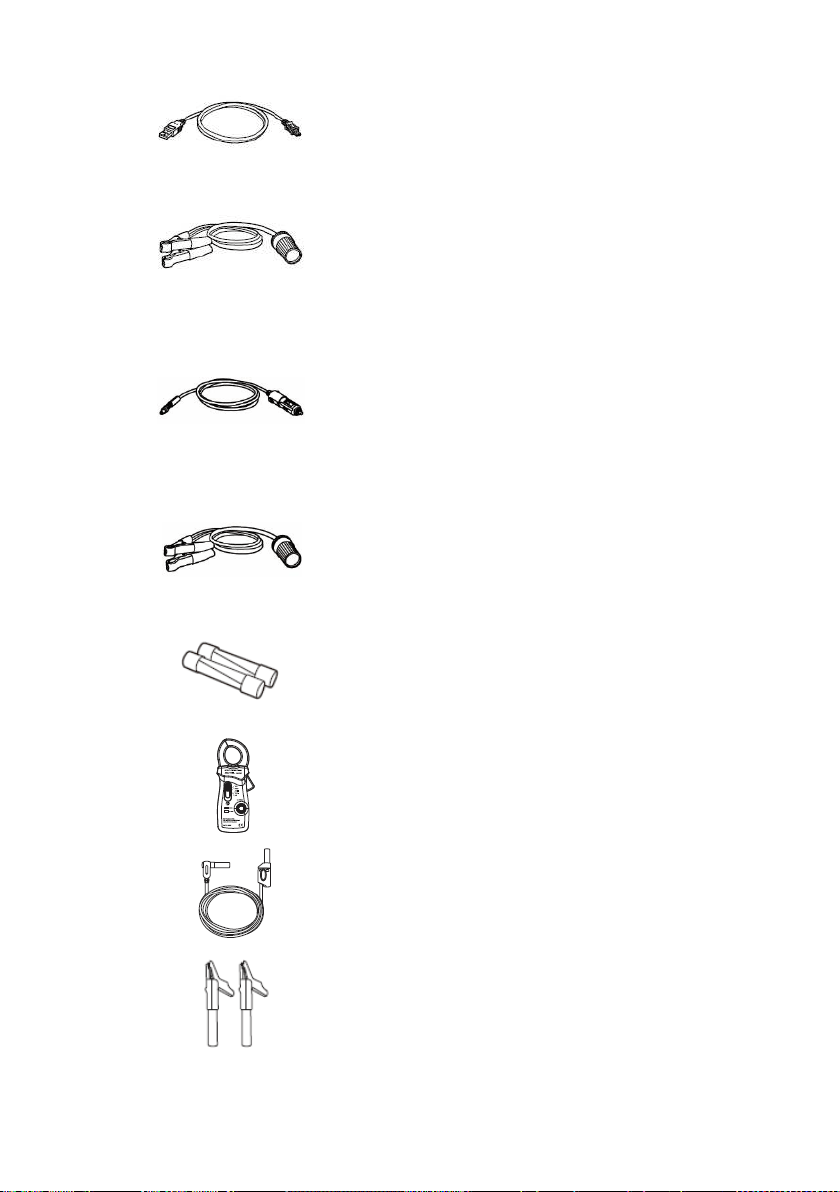
The adapter used depends on the type of vehicle being tested. The most common
adapters are shown below.
13
Deutsch-9
Deutsch-6
UNI-4
UNI-4 instructions
Choose the appropriate JW1/JW2/JW3/JW4/JW5/JW6/JW7/JW8/JW9/JW10 that matches
DLC to connect with UNI-4.
2.4.3 Other Accessories
AC/DC Adapter (12V)
Connects the tablet to the external DC power port
for power supply.
USB 2.0 Cable V2
Connects the tablet to the VCI unit.
14
Mini USB Cable
Connects the Display Tablet to the PC.
Clipper Cable
Provides power to the Display Tablet or the VCI
device, through connection to the vehicle’s
battery.
Auxiliary Power Outlet Adapter
Provides power to the tablet or the VCI device
through connection to the vehicle auxiliary power
outlet adapter receptacle, as some non-OBDII
vehicles cannot provide power via the DLC
connection.
Clipper Cable
Provides power to the tablet or the J2534
programming device through connection to the
vehicle battery.
Spare Fuse x2
A safety device for the auxiliary power outlet
adapter.
400A Current Clamp
Used to measure AC or DC current up to 400A.
Multimeter Test Lead x2
Used to connect the multimeter and multimeter
probe.
Alligator Clip x2
Designed for connecting exposed wires or
terminals.

15
Multimeter Probe x2
Designed for connecting exposed wires or
terminals.
DM100
Digital Multimeter (Not available alone).
Case
The Case contains the following pins: JW1
x2
,
JW2
x2
, JW3
x2
, JW4
x2
, JW5
x2
, JW6
x2
, JW7
x2
,
JW8
x2
, JW9
x2
, JW10
x2
.
16
3 Getting Started
Make sure the tablet has sufficient power or is connected to the external power supply
(see
Power Sources).
3.1 Power Up
Long press the Lock/Power button on the top right side of the tablet to switch the unit on.
The system boots up and shows the lock screen with 3 entry options.
1. MaxiSys Home — Swipes up the MaxiSys Home icon to enter the MaxiSys Job
Menu shown as below.
2. Unlock — Swipes up the Lock icon at the center to unlock the screen or enter the
MaxiSys Job Menu when booting up.
3. Camera — Swipes up the Camera icon to launch the camera.
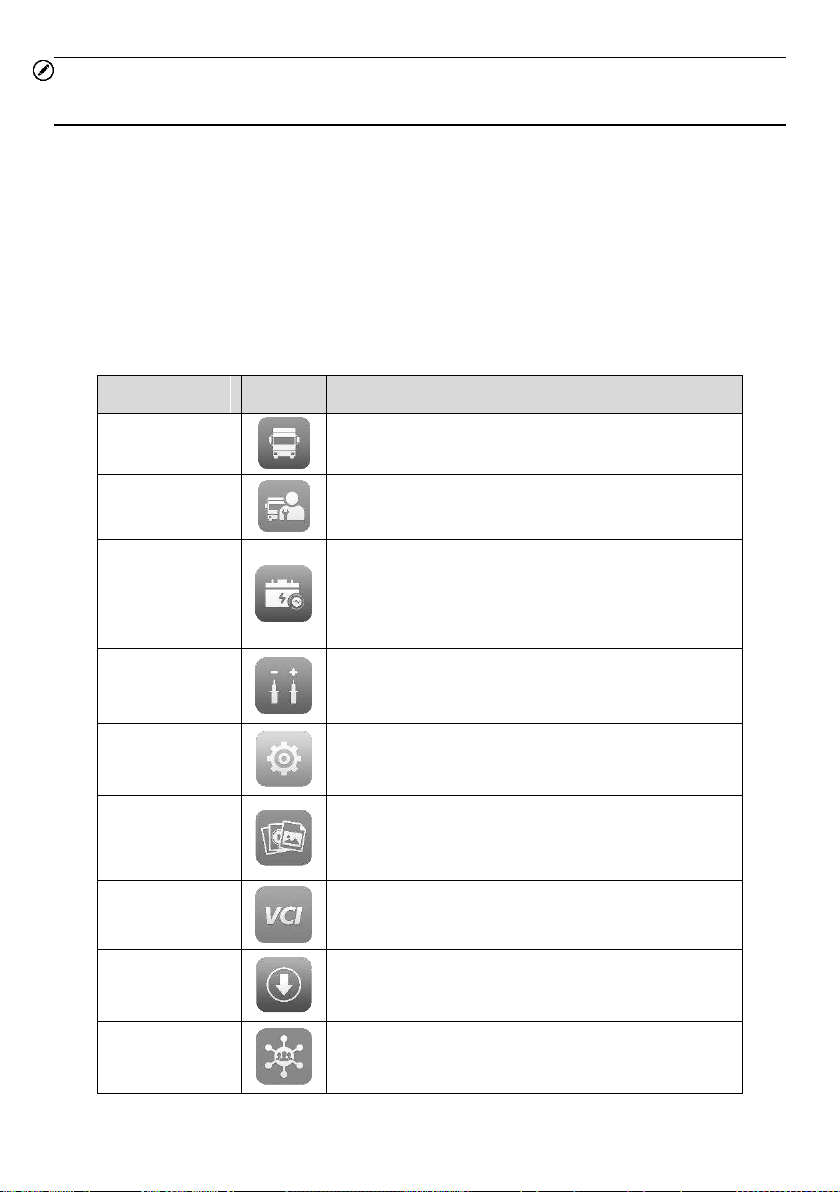
Figure 3-1 Sample MaxiSys Job Menu
1. Application Buttons
2. Locator and Navigation Buttons
3. Status Icons
17
NOTE
It is recommended to lock the screen when not in use to protect information in the system
and conserve the power.
Almost all operations on the tablet are controlled through the touchscreen. The
touchscreen navigation is menu driven, which allows you to quickly locate the test
procedure or data that you need, through a series of questions and options. Detailed
descriptions of the menu structures can be found in the chapters for each application.
3.1.1 Application Buttons
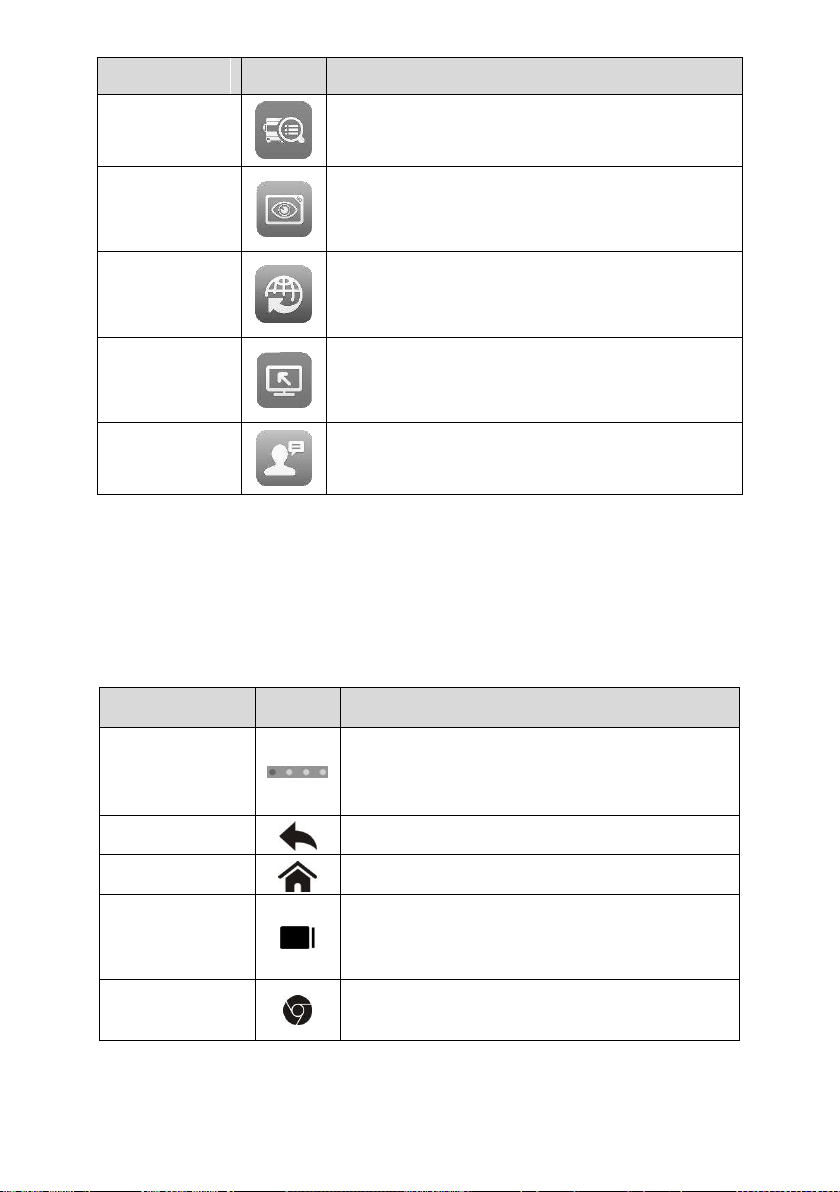
The table below briefly describes each of the applications in the MaxiSys system.
Table 3-1 Applications
Name
Button
Description
Diagnostics
Accesses the unit's diagnostic functions. See CV
Diagnostics Operations.
Service
Accesses special functions menu. See Service.
Battery Test
Conducts battery and cranking/charging systems
analysis and enables technicians to view the
health status of vehicle’s battery and electrical
system. See Battery Test.
Multimeter
Conduct a multi-function, multi-range
measurement. See Multimeter.
Settings
Accesses the system settings menu and general
tablet menu. See
Settings.
Data Manager
Accesses the saved repair shop, customer and
vehicle data including detailed vehicle diagnostics
and test records. See Data Manager.
VCI Manager
Accesses VCI connection menu. See VCI
Manager
.
Update
Accesses system software update menu. See
Update
.
Support
Synchronizes Autel's online service database with
the MaxiSys tablet. See
Support.
18
Name
Button
Description
MaxiViewer
Provides a quick search for supported functions
and/or vehicles. See MaxiViewer.
MaxiVideo
Configures the unit to operate as a video scope
device by connecting to an imager head cable for
close vehicle inspections. See MaxiVideo.
Quick Link
Provides associated website bookmarks to allow
quick access to product update, service, support
and other information. See Quick Link.
Remote
Desktop
Configures your unit to receive remote support
using the TeamViewer application. See
Remote
Desktop
.
User
Feedback
Allows you to submit questions related to this
product. See User Feedback.
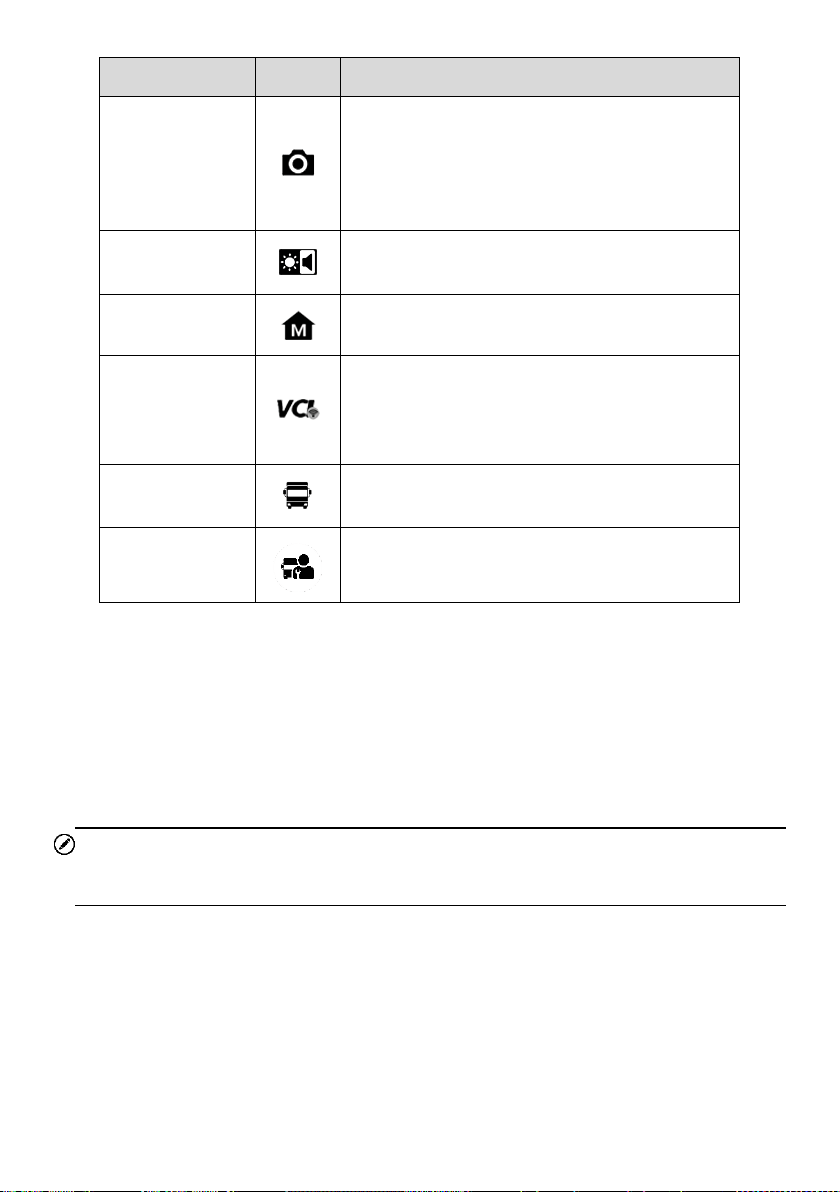
3.1.2 Locator and Navigation Buttons
Operations of the Navigation buttons at the bottom of the screen are described in the table
below:
Table 3-2 Locator and Navigation Buttons
Name
Button
Description
Locator
Indicates the location of the screen. Swipe the
screen left or right to view the previous or next
screen.
Back
Returns to the previous screen.
Android Home
Returns to Android System's Home screen.
Recent Apps
Displays a list of applications that are currently
running. Tap an app icon to launch. Remove an
app by swiping it to the right.
Browser
Launches the Chrome Internet browser.
19
Name
Button
Description
Camera
Tap icon to open camera viewfinder. Press and
hold icon to capture a screenshot of the display
screen. The saved files are auto-stored in the
Data Manager application for later review. See
Data Manager.
Display&Sound
Adjusts the brightness of the screen and the
volume of the audio output.
MaxiSys Home
Returns to MaxiSys Job Menu.
VCI
Opens the VCI Manager application. A green
icon at the bottom right corner indicates the VCI
device is connected, while a red cross icon will
display if connection fails.
MaxiSys
Shortcut
Returns to the Diagnostics screen.
Service
Returns to the Service screen.
To use the camera
1. Tap the Camera button. The camera screen opens.
2. Focus the image to be captured in the view finder.
3. Tap the camera icon on the right side of the screen. The viewfinder now shows
the captured picture and auto-saves the taken photo.
4. Swipe the screen left to view the stored photos.
5. Tap the Back or Home button to exit the camera application.
NOTE
After swiping the camera screen from left to right, the camera mode and video mode can
be switched by tapping the blue camera icon or video icon.
Refer to Android documentation for additional information.
3.1.3 System Status Icons
Your MaxiSys tablet is a fully functional Android tablet with the standard Android operation
system status icons. Refer to Android documentation for additional information.

20
3.2 Power Down
All vehicle communications should be terminated before shutting down the tablet. A
warning message displays if a shutdown is attempted while the tablet is communicating
with the vehicle. Forcing a shutdown while the tablet is communicating with the vehicle
may lead to ECU problems on some vehicles. Please exit the Diagnostics application
before shutting off the tablet.
To power down the MaxiSys tablet
1. Press and hold the Lock/Power button.
2. Tap Power off option.
3. Tap OK.
3.2.1 Reboot System
In case of system crash, press and hold the Lock/Power button and tap Reboot to restart
the system.

21
4 CV Diagnostics Operations
The Diagnostics application can access the electronic control module of multiple vehicle
control systems, including but not limited to the engine, transmission, anti-lock brake
system (ABS), and airbag system (SRS).
4.1 Establish Vehicle Communication and Selection
4.1.1 Establish Vehicle Communication
The Diagnostics operations require connecting the MaxiSys MS909CV tablet to the test
vehicle through the VCI device using the Main Cable (Use the applicable Non-OBD type
adapter if needed). To establish proper vehicle communication with the tablet, you need
to perform the following steps:
1. Connect the VCI device to the vehicle's DLC for both communication and power
source.
2. Connect the VCI device to the tablet via Bluetooth, Wi-Fi or USB connection.
3. When the above steps are completed, check the VCI navigation button at the
bottom bar on the screen. If a green Bluetooth, Wi-Fi or USB icon appears at the
lower-right corner, the MaxiSys MS909CV Diagnostic Platform is ready to start
vehicle diagnosis.
4.1.1.1 Vehicle Connection
The method used to connect the VCI device to a vehicle's DLC depends on the vehicle's
configuration as follows:
A vehicle equipped with an On-board Diagnostics Two (OBDII) management
system supplies both communication and 12-volt/24-volt power through a
standardized J-1962 DLC.
A vehicle not equipped with an OBDII management system supplies communication
through a DLC connection, and in some cases supplies 12-volt power through the
auxiliary power outlet or a connection to the vehicle battery.
OBDII Vehicle Connection
This type of connection only requires the main cable without any additional adapter.
To connect to an OBDII vehicle
1. Connect the main cable's female adapter to the Vehicle Data Connector on the
VCI device and tighten the captive screws.

22
2. Connect the cable's 16-pin male adapter to the vehicle's DLC, which is
generally located under the vehicle dashboard.
NOTE
The vehicle's DLC is not always located under the dashboard; refer to the user manual of
the test vehicle for additional connection information.
Non-OBDII Vehicle Connection
This type of connection requires both the main cable and a Deutsch-9/Deutsch-6/UNI-4
adapter for the specific vehicle being serviced.
There are three possible scenarios for Non-OBDII vehicle connection:
DLC connection supplies both communication and power.
DLC connection supplies communication and power is supplied via the auxiliary
power outlet adapter connection.
DLC connection supplies communication and power is supplied via the vehicle battery.
To connect to a Non-OBDII Vehicle
1. Connect the main cable's female adapter to the Vehicle Data Connector on the
VCI device, and tighten the captive screws.
2. Locate the required Deutsch-9/Deutsch-6/UNI-4 adapter and connect its 16-pin
jack to the main cable's male adapter.
3. Connect the attached Deutsch-9/Deutsch-6/UNI-4 adapter to the vehicle's DLC.
NOTE
Some vehicles may have more than one adapter or may have test leads instead of an
adapter. Make the proper connection to the vehicle DLC as required.
To connect the auxiliary power outlet adapter
1. Plug the DC power connector of the auxiliary power outlet adapter into the DC
power supply input port on the device.
2. Connect the male connector of the auxiliary power outlet adapter to the vehicle's
auxiliary power outlet.
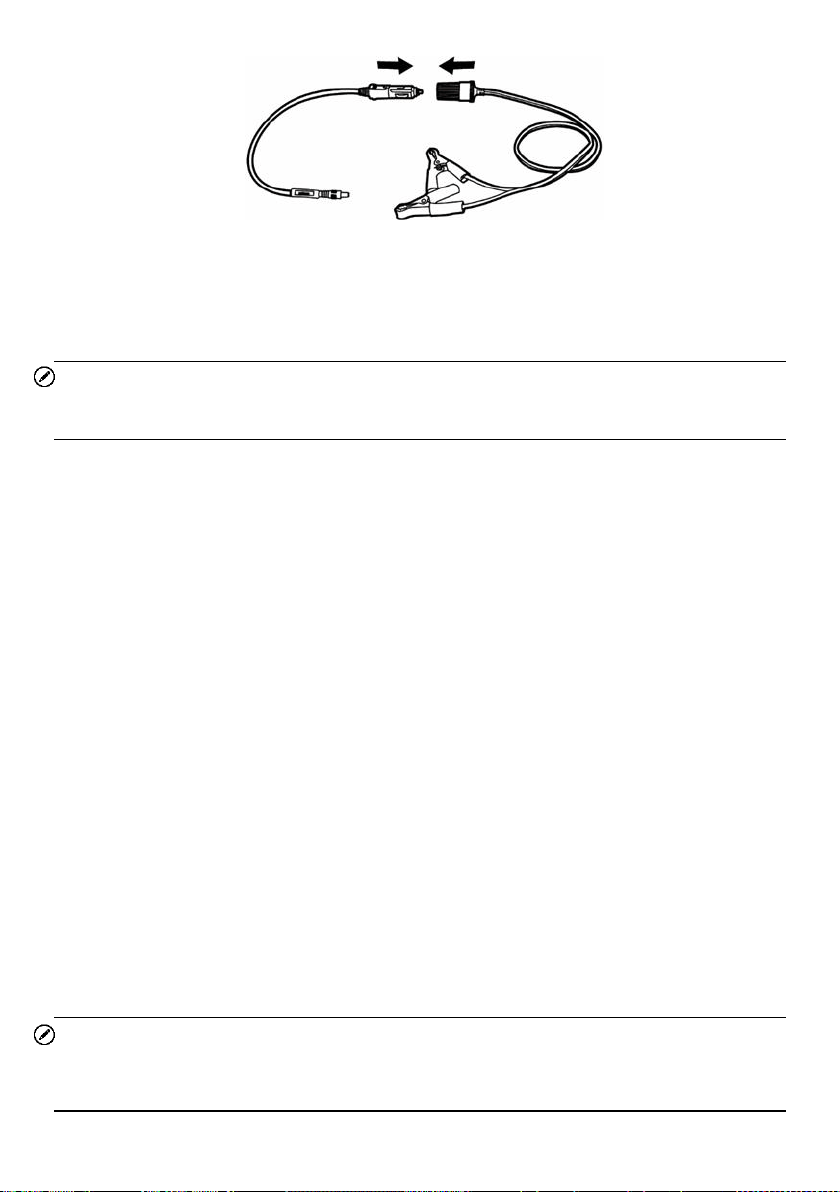
To connect the clipper cable
1. Connect the tubular plug of the clipper cable to the male connector of the auxiliary
power outlet adapter.
23
Figure 4-1 Connection between Auxiliary Power Outlet Adapter and Clipper Cable
2. Plug the DC power connector of the auxiliary power outlet adapter into the DC
power supply input port of the VCI device.
3. Connect the clipper cable to the vehicle's battery.
NOTE
After the VCI device is successfully connected to the vehicle, the Power LED on the device
will light solid green, and a beeping sound will be heard.
4.1.1.2 VCI Connection
After the VCI device is properly connected to the vehicle, the Power LED on the VCI device
lights solid green, and is ready to establish communication with the tablet.
The VCI device is supplied with the MaxiSys MS909CV tool kit. The VCI device supports
three communication methods with the tablet: Bluetooth, Wi-Fi and USB.
Pairing via Bluetooth
In open areas, the working range for Bluetooth communication is about 328 feet (100 m),
giving technicians greater mobility to perform vehicle diagnosis from anywhere in the repair
shop.
To expedite multi-vehicle diagnostics, more than one VCI can be used in busy repair shops,
enabling technicians to quickly pair their MaxiSys tablet to each VCI separately via Bluetooth
and therefore eliminating the need to unplug the VCI from one vehicle and then connect it to
another each time.
To pair the tablet with the VCI device via Bluetooth
1. Power up the tablet.
2. Select the VCI Manager application from the MaxiSys Job Menu.
3. When the VCI Manager application is opened, the device automatically scans for
available VCI devices for Bluetooth pairing. Available devices are listed in the
Setting section on the right side of the screen.
NOTE
If no VCI device is found, this may indicate that the signal strength is too weak to be detected.
Reposition the VCI device and remove all possible objects that may cause signal
interference. Tap the Scan button at the top right corner to rescan for the VCI.

24
4. Typically, the VCI device name appears as “Maxi” suffixed with the device serial
number. Select the VCI device for pairing. (If more than one VCI is used in the shop,
ensure the correct VCI is selected for pairing.)
5. When pairing is successful, the connection status appears as “Connected”.
6. The VCI icon on the tablet navigation bar on the bottom appears as a green circle
Bluetooth icon when the tablet and the VCI are connected.
Wi-Fi Connection
The VCI device supports 5 GHz Wi-Fi connection. In open areas, the working range of 5G
Wi-Fi communication is up to 164 feet (50 m).
To connect the tablet with the VCI device via Wi-Fi
1. Power up the tablet.
2. Select the VCI Manager application from the MaxiSys Job Menu.
3. When the VCI Manager application is opened, the tablet automatically scans for
available VCI devices for Wi-Fi connection. Found VCI devices are listed in the
Setting section on the right side of the screen.
4. Typically, the VCI device name appears as “Maxi” suffixed with the device serial
number. Select the required device for connection.
5. When connection is successful, the connection status is shown as “Connected”.
6. The VCI icon on the tablet navigation bar at the bottom appears as a green circle
Wi-Fi icon when the tablet and the VCI are connected.
USB Cable Connection
The USB cable connection is a simple and quick way to establish communication between
the tablet and the VCI device. After properly connecting the tablet to the VCI device using
the USB cable, the VCI navigation button at the bottom bar of the screen displays a green
check mark and the USB LED on the VCI device lights solid green, indicating the
connection between the devices is successful.
The MaxiSys diagnostic platform is now ready to perform vehicle diagnosis.
NOTE
Since the USB connection provides the most stable communication and is therefore the
recommended communication method between the tablet and VCI when operating ECU
programming or coding. The USB communication method will take priority over other
communication methods.
4.1.1.3 No Communication Message
A. If the tablet is unable to connect to the VCI, an “error” message appears. An “error”
message indicates the tablet is not communicating with the VCI device. Troubleshoot
the error by performing the following steps:

25
Ensure the VCI device is powered on.
When using the wireless connection, ensure the network is configured correctly and
the proper device has been connected.
If the tablet loses communication abruptly during the diagnosis, ensure no objects
are causing signal interruption.
Ensure the VCI device is properly positioned with the VCI front side facing upward.
Move the tablet closer to the VCI device. If using the wired connection, ensure the
cable is securely attached to the VCI.
Ensure the VCI communication mode is lit for the selected communication type:
Bluetooth, Wi-Fi or USB.
B. If the VCI device is unable to establish a communication link, a message will display
troubleshooting instructions. Possible causes for the communication error include:
A vehicle system has been selected for diagnosis that is not supported by the vehicle.
There is a loose connection.
There is a blown vehicle fuse.
The vehicle or the data cable has a wiring fault.
There is a circuit fault in the data cable or adapter.
The vehicle information entered is incorrect.
4.1.2 Getting Started
Prior to first use of the Diagnostics application, ensure the VCI device is properly
connected to and is communicating with the tablet. See
VCI Manager.
4.1.2.1 Vehicle Menu Layout
When the VCI device is properly connected to the vehicle and the tablet, the platform is
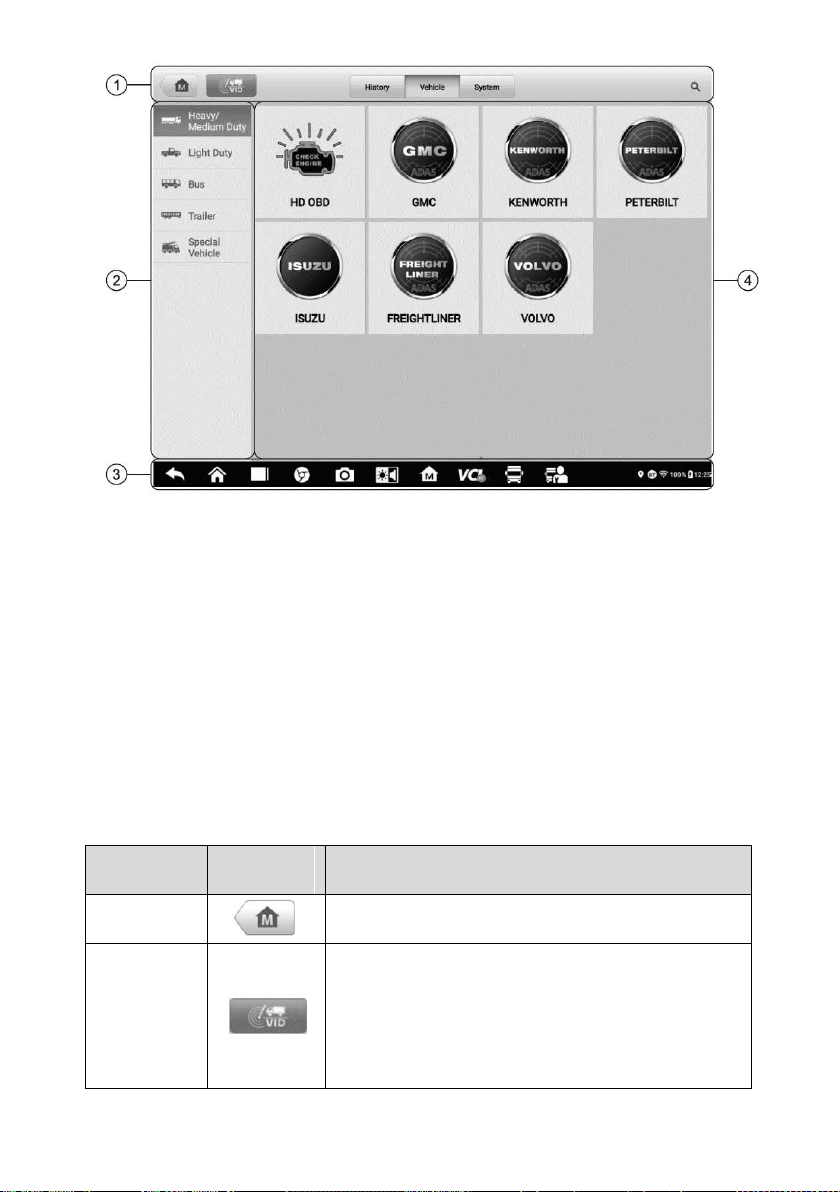
ready to start vehicle diagnosis. Tap on the Diagnostics application button on the
MaxiSys Job Menu, the Vehicle Menu will appear on the screen.
26
Figure 4-2 Sample Vehicle Menu Screen
1. Top Toolbar Buttons
2. CV Band Vehicles
3. Locator and Navigation Buttons
4. Manufacturer Buttons
Top Toolbar Buttons
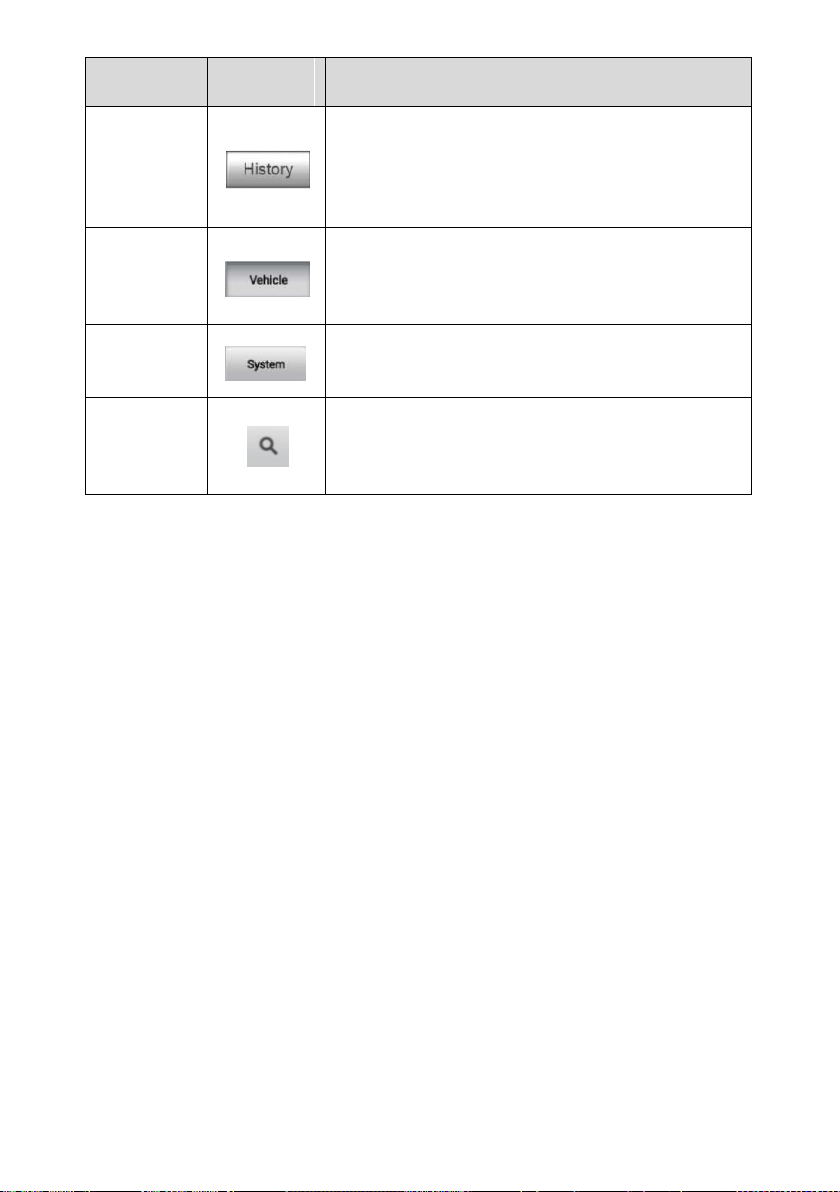
The operations of the Toolbar buttons at the top of the screen are listed and described in
the table below:
Table 4-1 Top Toolbar Buttons
Name
Button
Description
Home
Returns to the MaxiSys Job Menu.
VID
Scan
Tap this button to open a dropdown list; tap
Auto Detect for auto VIN detection; tap Manual
Input to enter VIN code or license number
manually. Tap Scan VIN/License to scan the
VIN code/license number by camera.
27
Name
Button
Description
History
Displays the stored test vehicle records. This
option provides you with direct access to the
previously tested vehicle recorded during
previous test sessions. See Vehicle History.
Vehicle
Displays the vehicles such as Heavy/Medium
Duty, Light Duty, Bus, Trailer, AGRIC, Trailer in
the vehicle menu.
System
Displays the major commercial vehicle system
manufacturers.
Search
Touching this button opens the virtual keyboard,
allowing you to manually enter the specific
vehicle make.
Manufacturer Buttons
The Manufacturer buttons display the various vehicle brand. To start a diagnostic session,
select the proper manufacturer button after the VCI device is properly connected to the
test vehicle.
4.1.3 Vehicle Identification
The MaxiSys MS909CV diagnostic system supports five methods of Vehicle Identification.
1. Auto Detect
2. Manual Input
3. Scan VIN/License
4. Manual Vehicle Selection
5. OBDII Direct Entry
4.1.3.1 Auto Detect
The MaxiSys MS909CV diagnostic system features the latest VIN-based AutoVIN Scan
function to identify CAN vehicles with just one tap, enabling the technician to quickly
identify the exact vehicle and scan its available systems for fault codes.
To perform an AutoVIN Scan
1. Tap the Diagnostics application button from the MaxiSys Job Menu. The Vehicle
Menu displays.
28
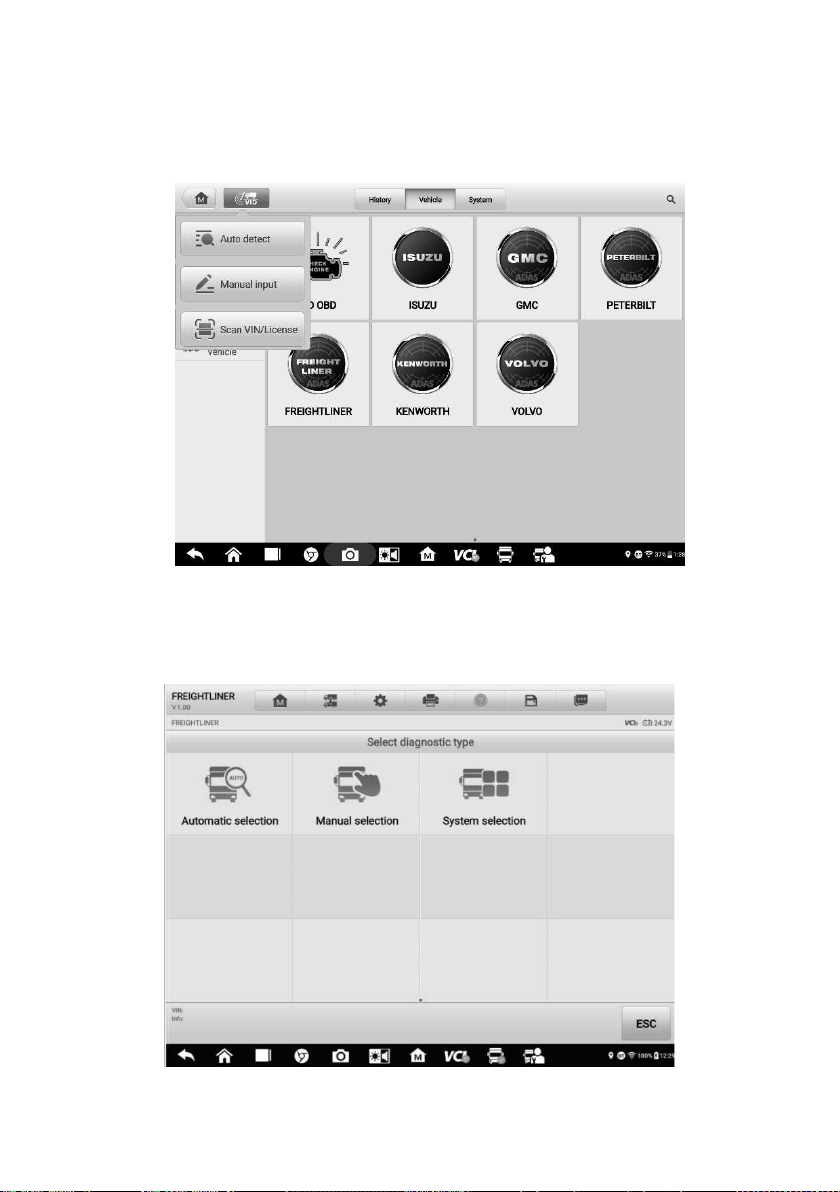
2. Tap the VID Scan button on the top toolbar.
3. Select Auto detect. The tablet starts VIN scanning on the vehicle's ECU. Once
the test vehicle is successfully identified, the system will guide you to the CV
Diagnostics screen directly.
Figure 4-3 Sample Auto Detect Screen
In some cases, when you have selected the vehicle brand instead of performing AutoVIN
Scan in the first place, the system still provides the AutoVIN Scan option.
Figure 4-4 Sample Automatic Selection Screen
29
Select Automatic Selection and the system will acquire VIN information automatically or
allow users to input the VIN manually.
4.1.3.2 Manual Input
For some vehicles that do not support the AutoVIN Scan function, the MaxiSys CV
Diagnostics system allows you to enter the vehicle VIN manually, or simply take a photo
of the VIN sticker for quick vehicle identification.
To perform Manual Input
1. Tap the Diagnostics application button from the MaxiSys Job Menu. The Vehicle
Menu displays.
2. Tap the VID Scan button on the top toolbar.
3. Select Manual input.
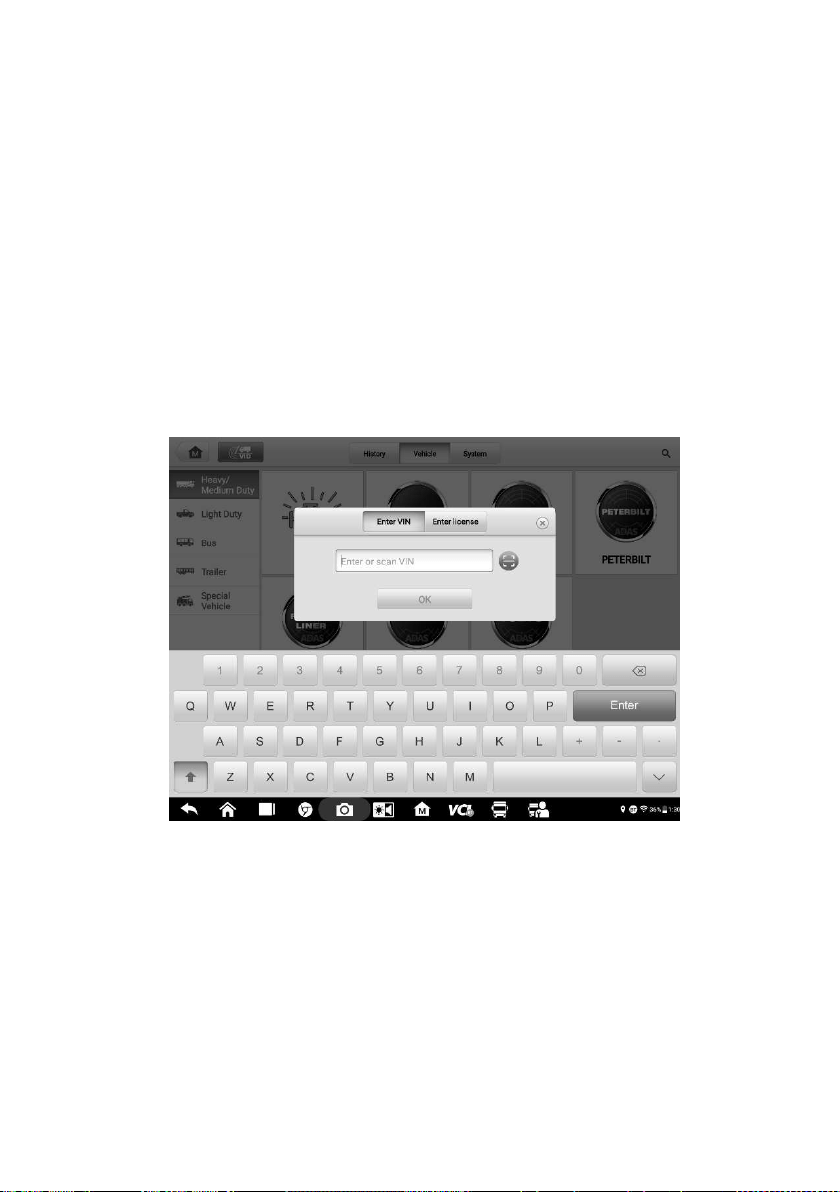
4. Tap the input box and enter the correct VIN code or license number.
Figure 4-5 Sample Manual VIN Input
5. Tap OK. The vehicle will be identified and matched to the vehicle database and
the Vehicle Diagnostics screen will appear.
6. Tap the cross icon on the top-right corner to exit Manual Input.
4.1.3.3 Scan VIN/License
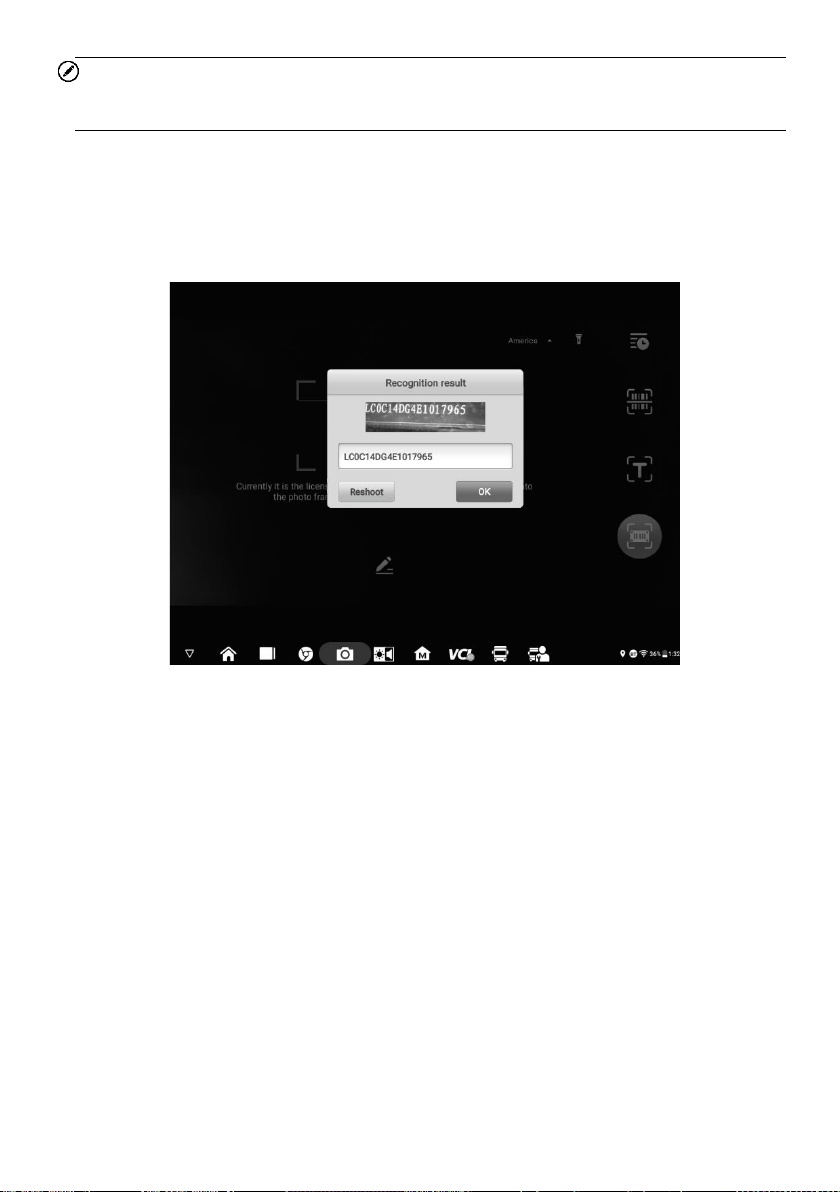
Tap Scan VIN/License in the dropdown list (Figure 4-3), the camera will launch. On the
right side of the screen, from top to bottom, three options are available: Scan bar code,
Scan VIN, and Scan License.
30
NOTE
The Scan License option is supported in limited countries and areas. If not available,
manually enter the license number.
Select one of three options and position the tablet to align the VIN or license number within
the scanning window, the result appears in the Recognition dialog box after scanned. Tap
OK to confirm the result, and then the vehicle information confirmation screen will appear
on the tablet. If all the vehicle information is correct, tap the icon in the middle of the screen
to confirm the VIN of the vehicle being tested. Tap OK to continue.
Figure 4-6 Sample Scan VIN Code
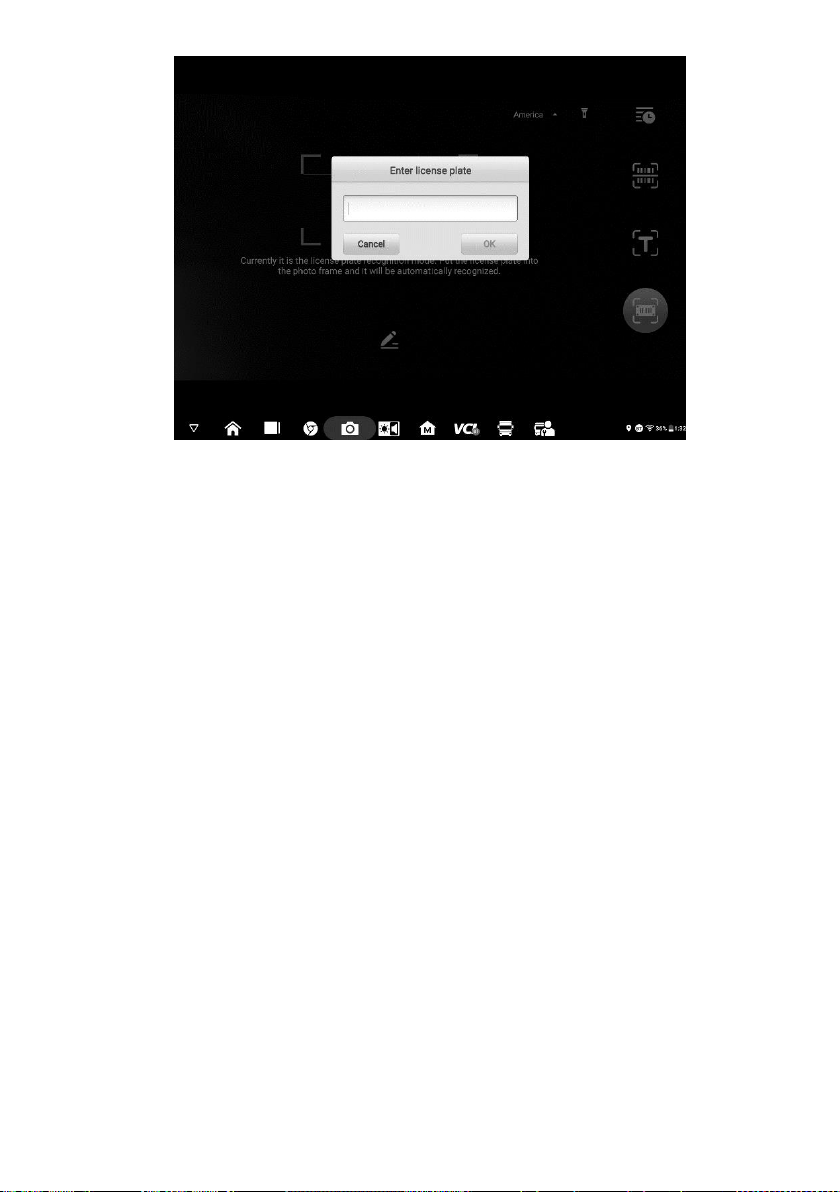
If the VIN/License number can't be scanned, please manually enter it. Tap OK to continue.
Manually enter the license number and select a vehicle brand in the vehicle information
confirmation screen. Tap the icon in the middle of the screen to confirm the VIN of the
vehicle being tested. Tap OK to continue.
31
Figure 4-7 Sample Manually Enter License Number
4.1.3.4 Manual Vehicle Selection
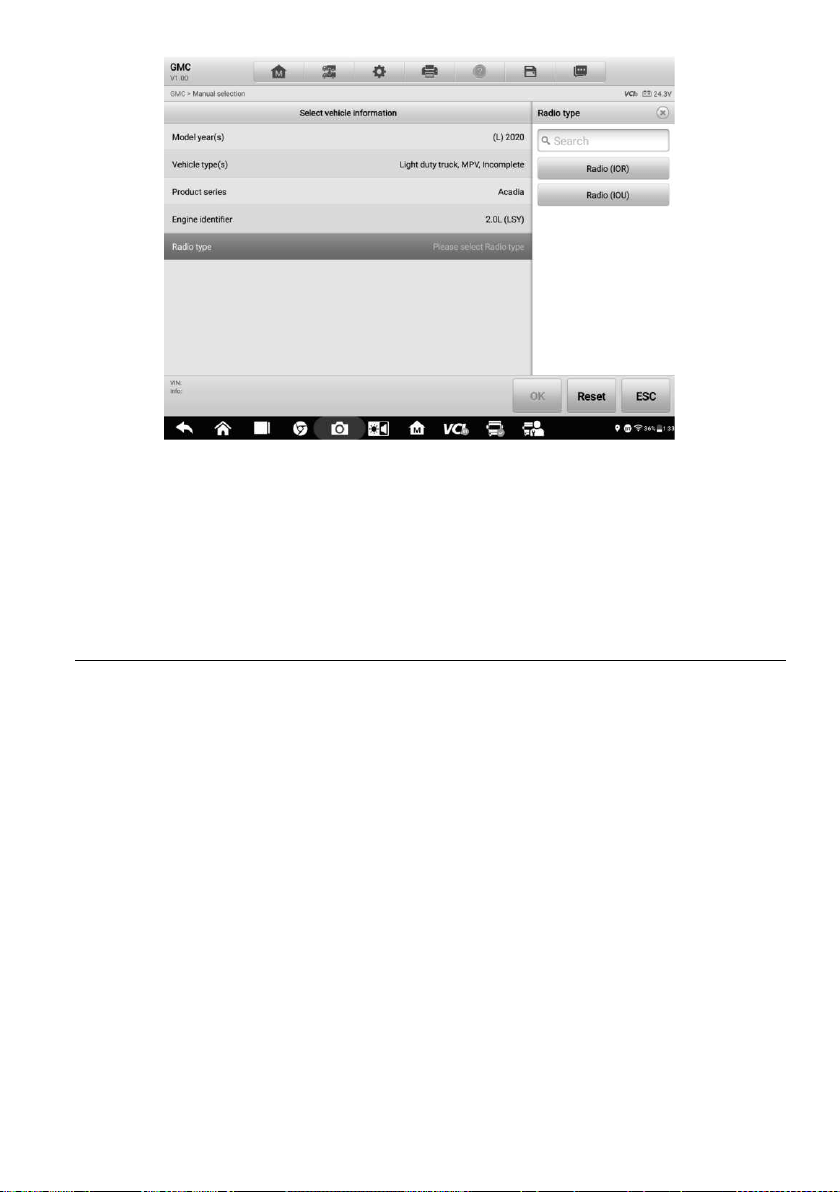
When the vehicle's VIN is not automatically retrievable through the vehicle's ECU, or the
specific VIN is unknown, you can select the vehicle manually.
Manual Vehicle Selection
This mode of vehicle selection is menu driven. Select the Manufacturer icon on the
Vehicle Menu screen and the 'Select Diagnostic Type' screen appears. Then tap the
Manual Selection button. Select the vehicle information like the Brand, Model, Capacity,
Engine Type and Model Year on the same screen. Each selection you make advances
you to the next screen. The Esc button at the lower right corner of the screen will bring
you back to the previous screen. Tap the Reset button to reselect the vehicle information,
if needed.
32
Figure 4-8 Sample Manual Vehicle Selection Screen
4.1.3.5 Alternative Vehicle Identification
Occasionally, the tablet may not be able to identify a vehicle. For these vehicles, the user
may perform a generic OBDII or EOBD diagnostics. See
Generic OBDII Operations for
additional information.
4.2 Diagnostics Screen Layout
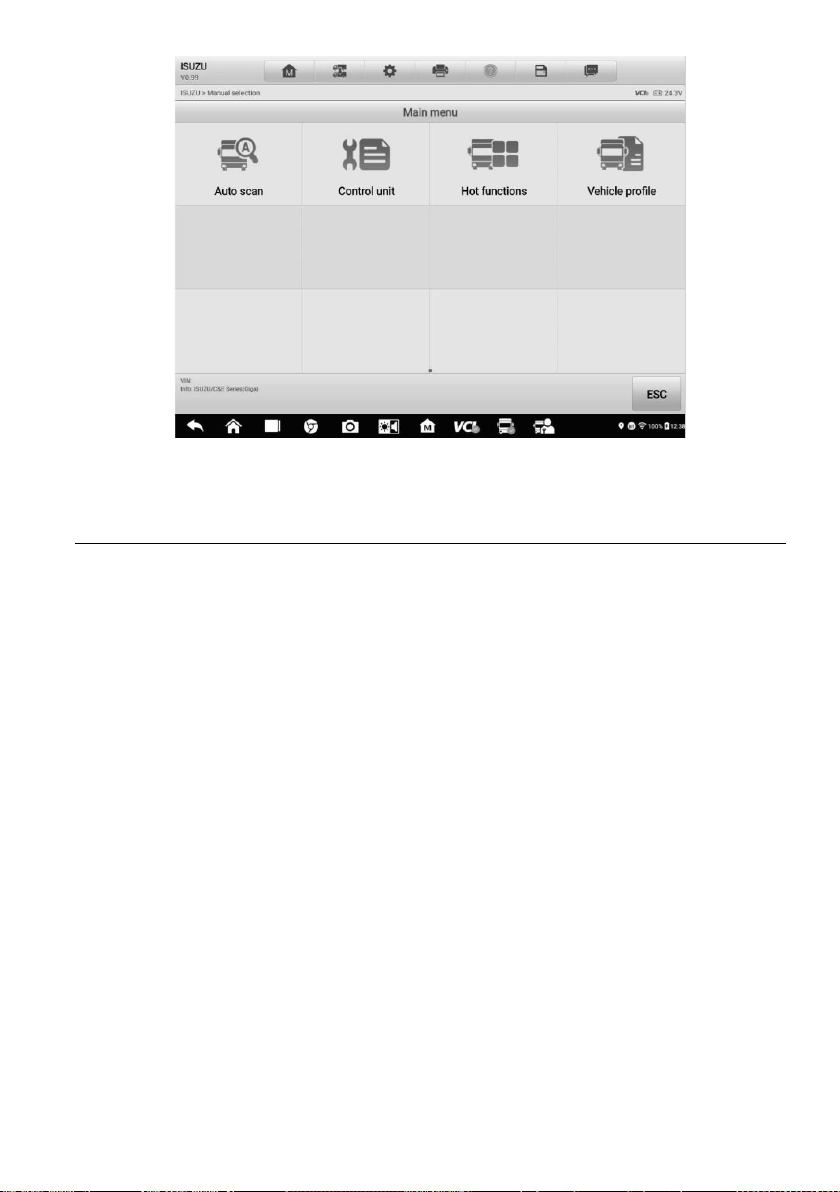
After the vehicle information is selected, tap the OK button at the bottom-right corner of
the screen to open the Main menu page. This section consists of various commonly used
functions, including Auto Scan and Control Unit. The available functions displayed vary
by vehicle.
33
Figure 4-9 Sample Main Menu Screen
4.3 Auto Scan
The Auto Scan function performs a comprehensive scanning of all the systems in the
vehicle ECU to locate faults and retrieve DTCs. Tap Fault Scan to start. Systems with no
faults detected will appear in green; systems containing faults will appear orange.
To perform the Auto Scan function
Using topology for GMC as an example:
1. Tap the Diagnostics application button on the MaxiSys Job Menu. Choose the
corresponding vehicle information and enter the Vehicle Diagnostics page.
2. Select Auto Scan on the Main menu to enter the diagnostics interface.
3. The Topology tab page displays in the main section. Tap the Fault Scan button at
the bottom of the screen to scan the vehicle system modules.
4. A system scanned with no faults detected appears in green; a system scanned with
faults detected will appear in orange. The number of total faults will appear on the
upper-right corner.
34
Figure 4-10 Sample Auto Scan Screen
NOTE
On the Auto Scan screen, there is a Select System icon on the upper-right corner.
Select the corresponding system(s) to scan will save more time than scanning all systems.
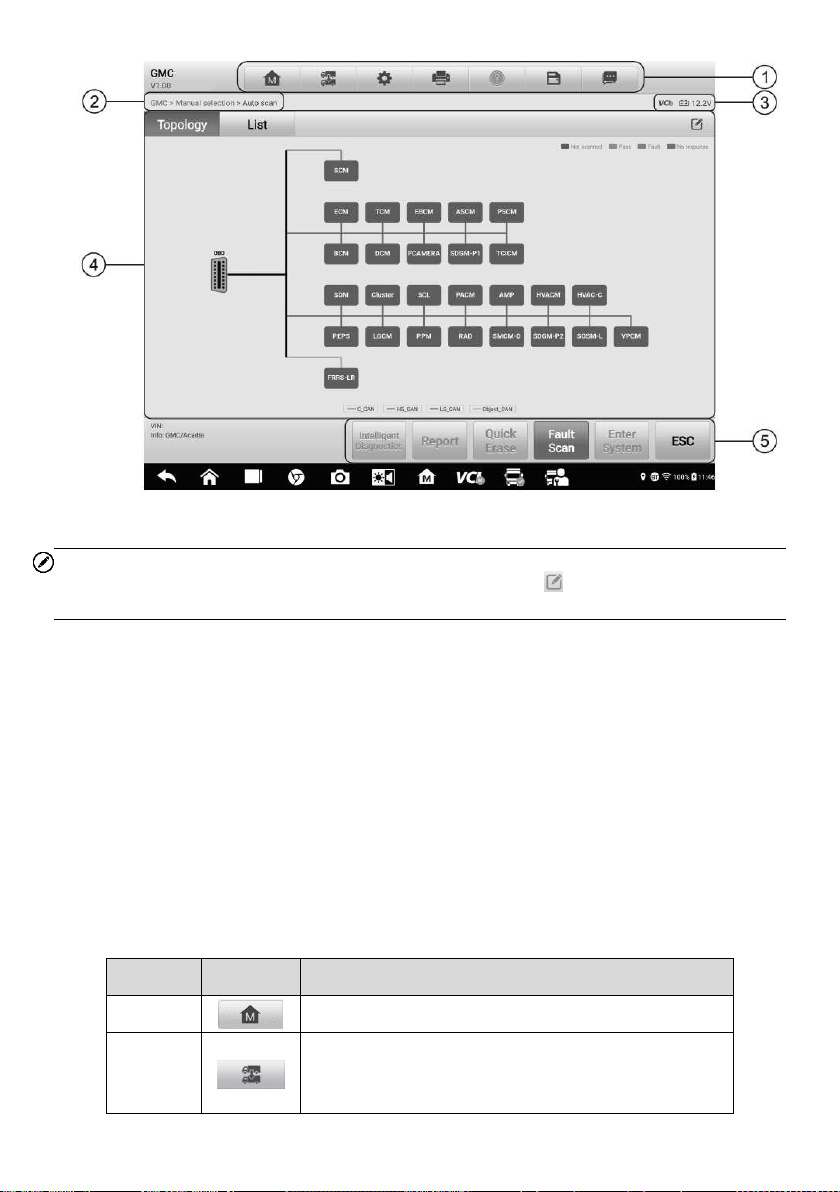
1. Diagnostics Toolbar
2. Current Directory Path
3. Status Information Bar
4. Main Section
5. Function Buttons
Diagnostics Toolbar
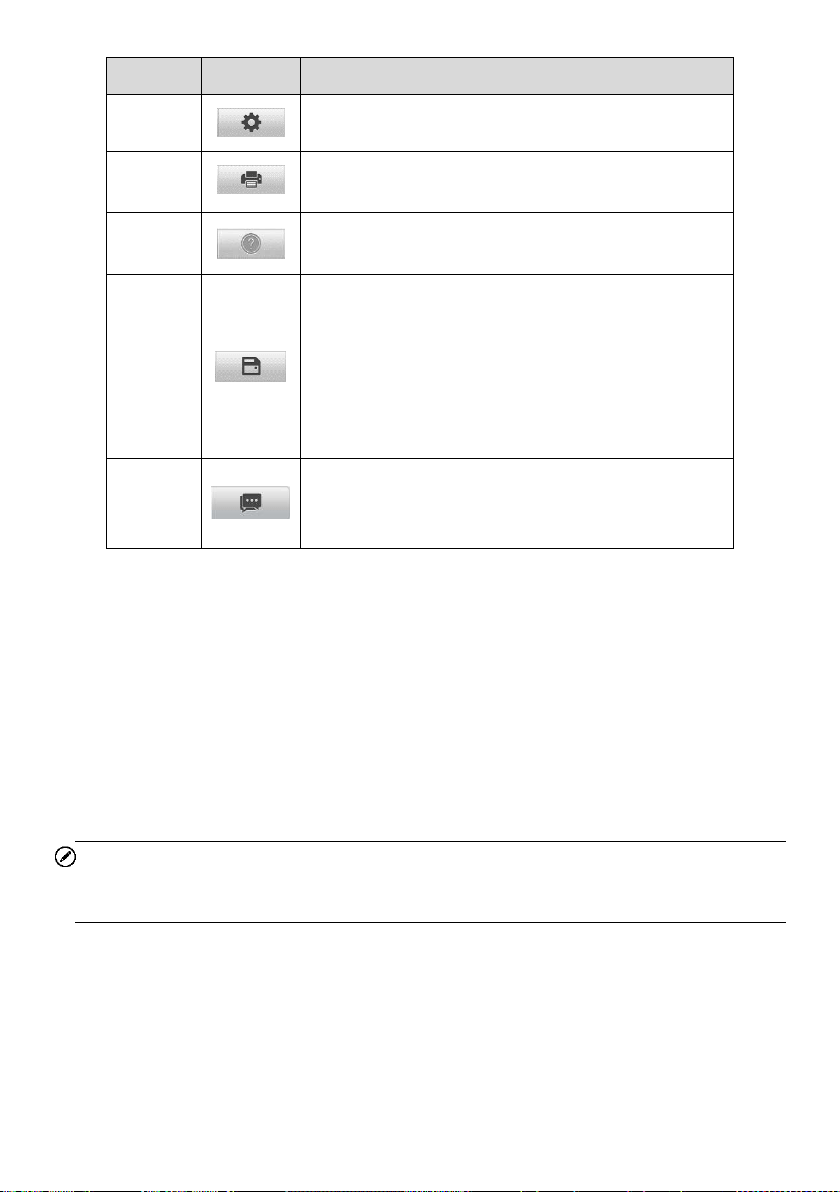
The Diagnostics Toolbar contains buttons that allow you to print or save the displayed
data and perform other operations. The table below provides a brief description for the
operations of the Diagnostics toolbar buttons:
Table 4-2 Diagnostics Toolbar Buttons
Name
Button
Description
Home
Returns to the MaxiSys Job Menu.
Vehicle
Swap
Exits the diagnostic session and returns to the
vehicle menu screen to select another vehicle for
testing.
35
Name
Button
Description
Settings
Opens the Settings screen. See Settings.
Print
Saves and prints a copy of the displayed data. See
Printing Settings.
Help
Provides instructions or tips for operations of various
diagnostic functions.
Save
Opens a submenu for the 2 options to save data:
Tap Save This Page to take a screenshot image
Tap Save All Data to save a PDF file (use this
save option when data displays on multiple
screens)
These files are stored in Data Manager application
for later reviews. See
Data Manager.
Data
Logging
Tap to display the error options. Select a specific
abnormal type, and a submission form will appear to
let you enter the report information.
To print data in Diagnostics
1. Tap the Diagnostics application button on the MaxiSys Job Menu. The Print
button in the diagnostics toolbar is available throughout the whole Diagnostics
operations.
2. Tap Print and a drop-down menu displays.
Print This Page — prints a screenshot copy of the current screen.
Print All Data — prints a PDF copy of all displayed data.
3. A temporary file will be created and sent via the computer to the printer.
4. When the file is sent, a confirmation message displays.
NOTE
Make sure the tablet and the printer are connected either by Wi-Fi or LAN before printing.
For more instructions on printing, see Printing Settings.
To submit Data Logging reports in Diagnostics
1. Tap the Diagnostics application button from the MaxiSys Main Screen. The
Options button on the diagnostic toolbar is available throughout the whole
Diagnostics operations.
2. Tap the Options button to display the error options. Select a specific error, and
a submission form will display to let you fill in the report information.
3. Tap the Send button in the upper-right corner of the screen to submit the report
36
form via the Internet, a confirmation message displays when sent successfully.
Current Directory Path
The Directory Path shows all directory names to access the current page.
Status Information Bar
The Status Information Bar at the top of the Main Section displays the following items:
1. VCI Icon — indicates the communication status between the tablet and the VCI
device.
2. Battery Icon — indicates the battery status of the vehicle.
Main Section
The Main Section varies depending on the stage of operations which shows vehicle
identification selections, the main menu, test data, messages, instructions and other
diagnostic information.
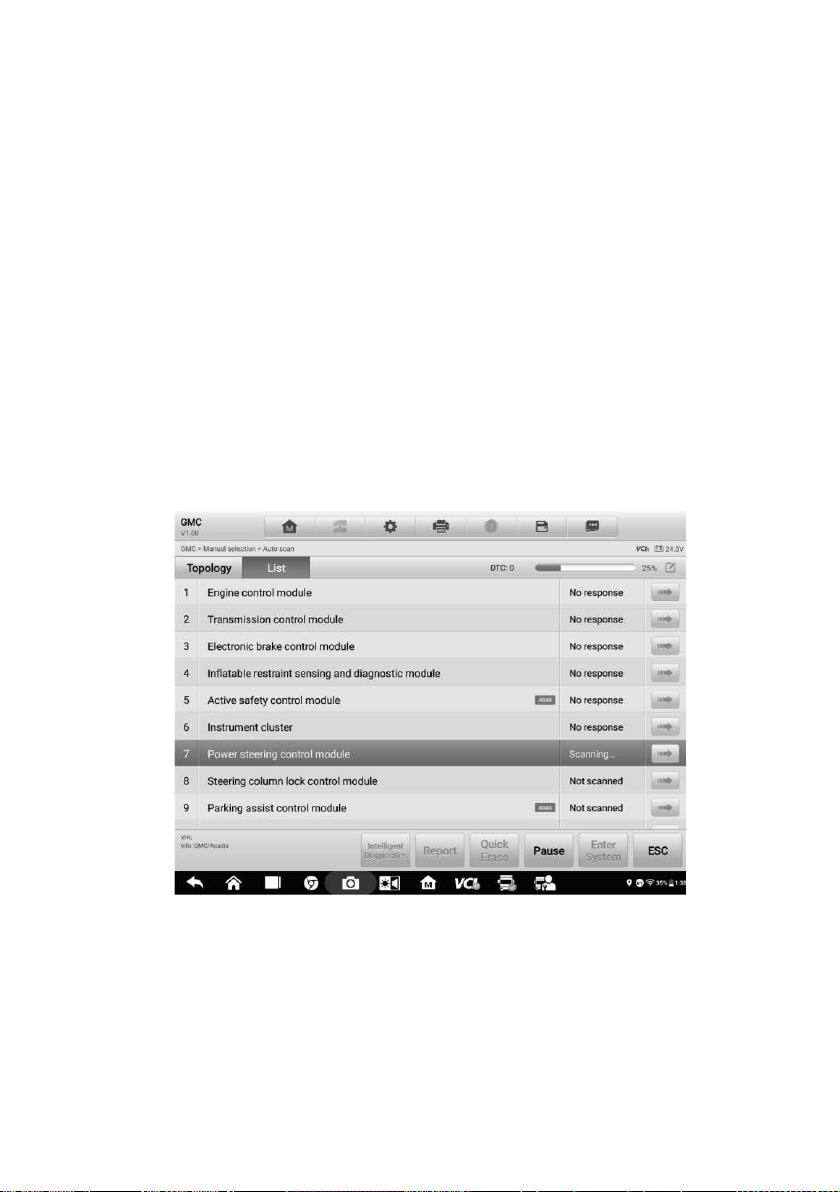
The Main Section of Auto Scan screen displays both a System List for most vehicles and
a topology map for some makes, including KENWORTH, Peterbilt, Chevrolet.
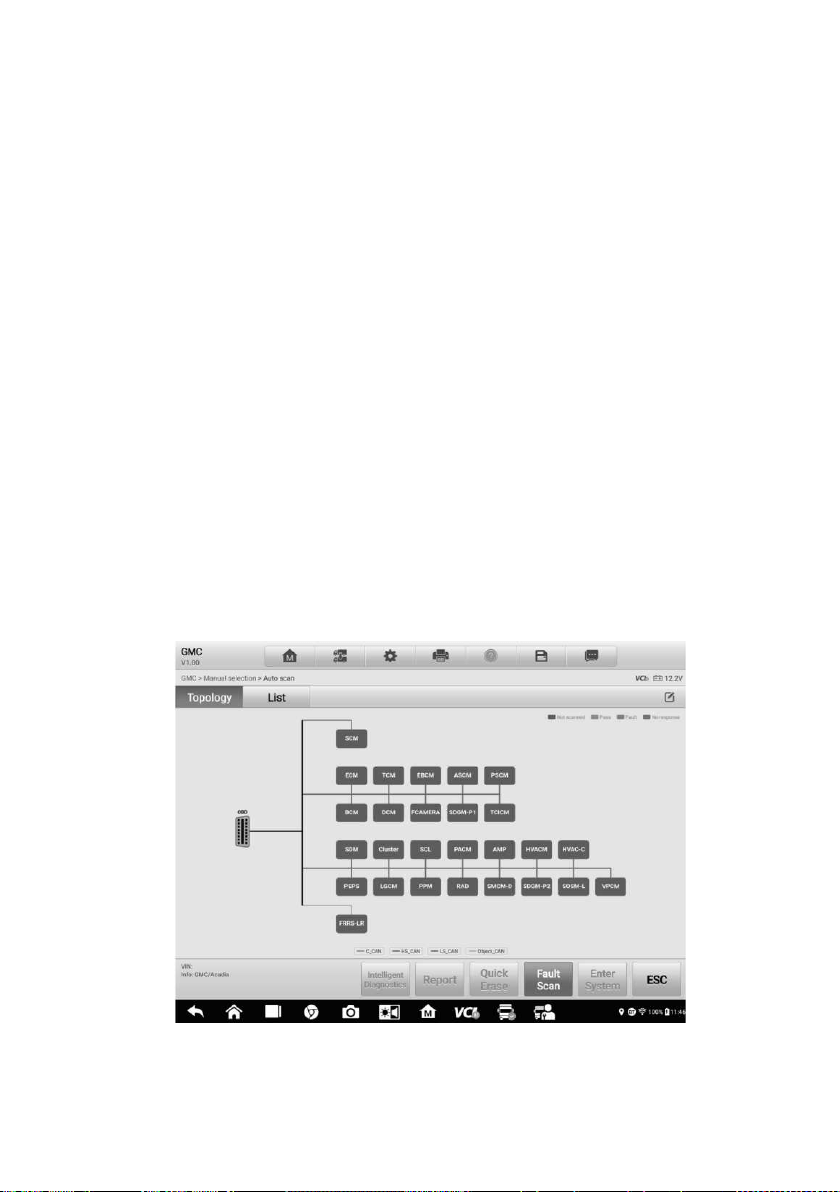
A. Topology Tab Page
The Topology Tab page displays a system distribution diagram of the vehicle control
modules.
Figure 4-11 Sample Topology Tab Page
37
B. List Tab Page
Column 1 — displays the system numbers.
Column 2 — displays the scanned systems.
Column 3 — displays the scan results.
Fault | #: Indicates there is/are fault code(s) detected; “#” indicates the quantity of
detected faults.
Pass | No Fault: Indicates the system was scanned and no faults detected.
Not Scanned: Indicates the system has not been scanned; or indicates that the
vehicle control system has been detected, but the tester cannot access it.
No Response: Indicates the system has not received a response, or that the scanned
system may not support the code-reading function, or that there is a communication
error between the tester and the control system.
Pause: Pauses the scanning process.
Column 4 — tap to enter the corresponding system.
Figure 4-12 Sample List Tab Page
Function Buttons
The type of Function Buttons displayed at the bottom of the screen vary by operation.
Functions include pause, reporting, code clearing, exit scanning, and other function
controls. The functions of these buttons will be described in the following sections when
relevant.
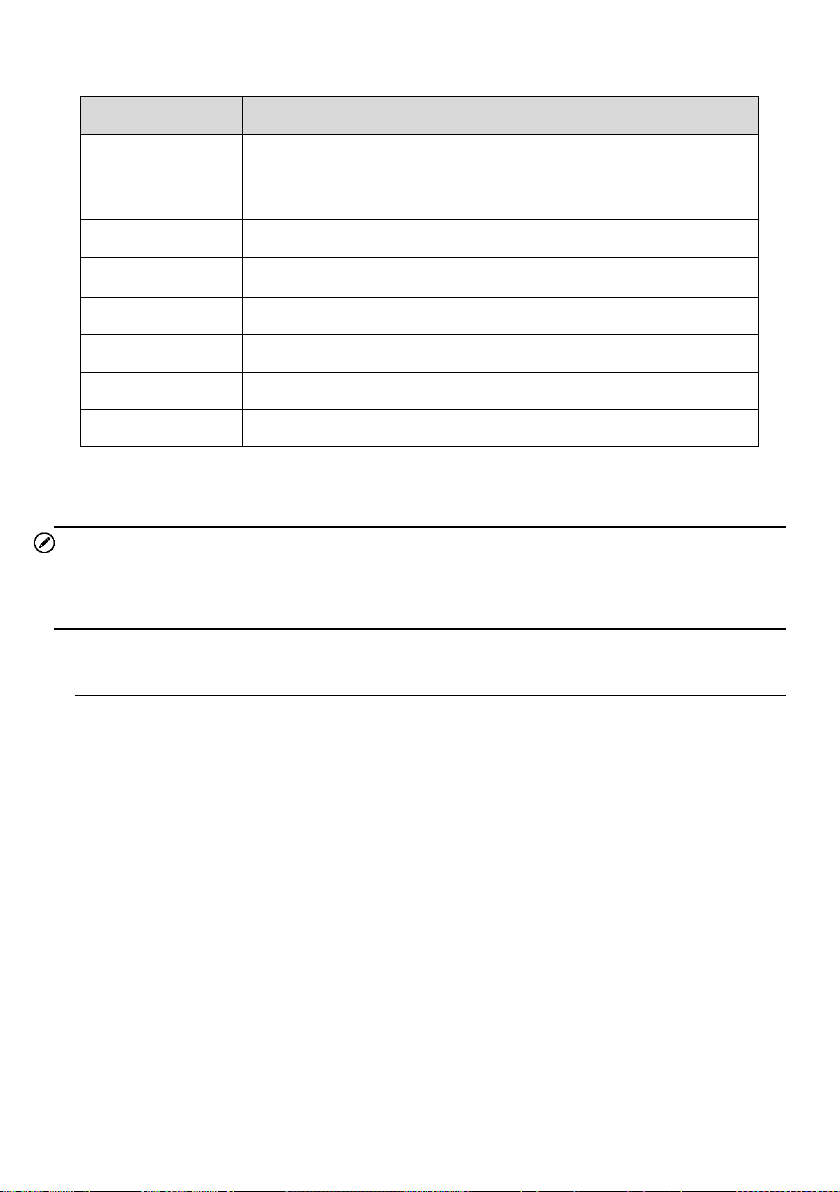
The table below provides a brief description of the Function Buttons' operations:
38
Table 4-3 Function Buttons in Diagnostics Screen
Name
Description
Intelligent
Diagnostics
Directly accesses the Intelligent Diagnostics function to view
the fault code analysis information of ALL DTCs. See
Intelligent
Diagnostics Operation
.
Report
Displays the diagnostic data in the report form.
Quick Erase
Erases all fault information after scanning.
Fault Scan
Scans vehicle system modules for fault codes.
Pause
Pauses the scanning process.
Enter System
Enters the ECU system.
ESC
Returns to the previous screen or exits the Diagnostics Screen.
Select one of the system modules from Topology or List and tap Enter System to enter
the specific system functions.
NOTE
The Diagnostic Buttons Toolbar (located on the top of the screen) will be active throughout
the diagnostic session for tasks such as printing and saving the displayed data, Bluetooth
pairing help, or performing data logging.
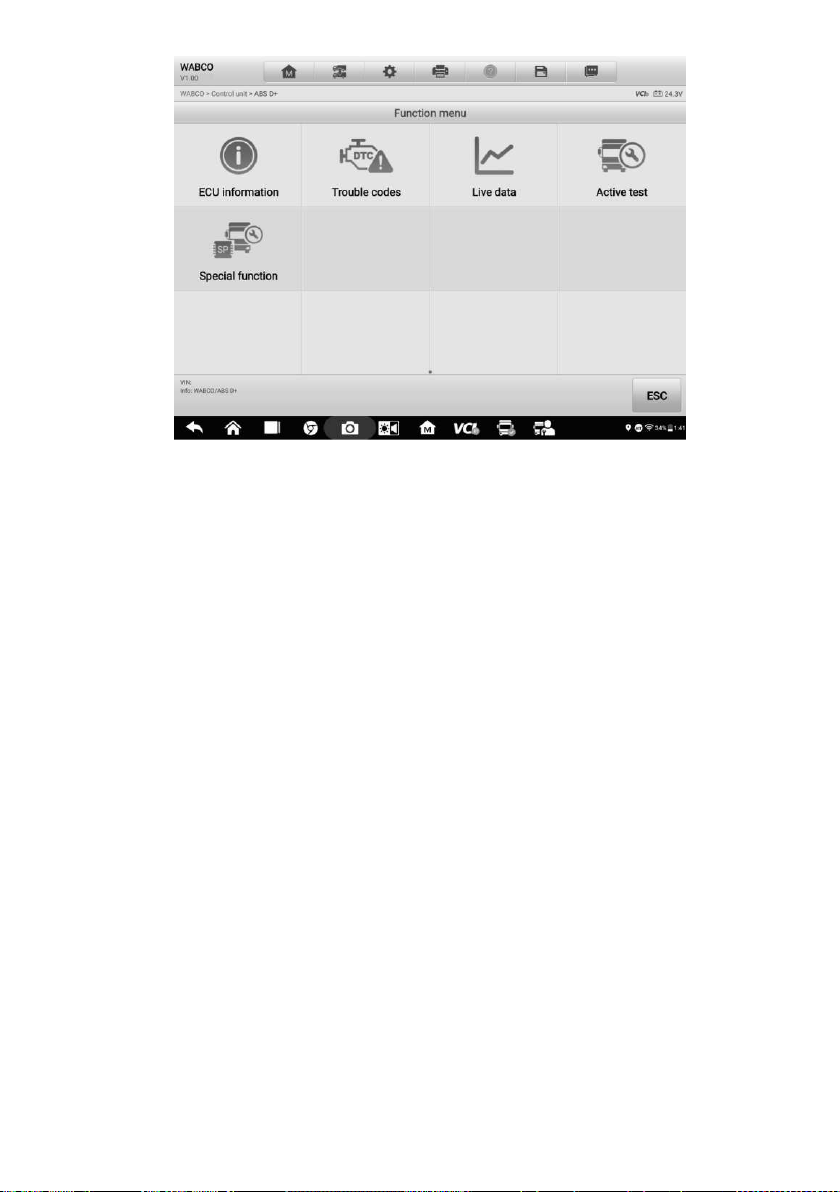
4.4 Control Unit
The Control Unit allows you to manually locate a required control system for testing
through a series of choices. Follow the menu driven procedure, and the program will guide
you to the Diagnostic Function menu.
39
Figure 4-13 Sample Function Menu Screen
Available functions may vary by vehicle. The function menu may include:
ECU Information — displays detailed ECU information. Select to display information
screen.
Trouble Codes — contains Read Codes and Erase Codes. The former displays
detailed DTC information retrieved from the vehicle control module, the latter allows
you to erase DTCs and other data from the ECU.
Live Data — retrieves and displays live data and parameters from the vehicle's ECU.
Active Tests — provides specific subsystem and component tests. This selection may
display as Actuators, Actuator Test, or Function Tests. Available tests vary by vehicle.
Special Functions — provides component adaptation or variant coding functions for
custom configurations, and allows entry of adaptive values for certain components
after repairs. Depending on the test vehicle, this selection may sometimes appear as
Control Unit Adaptations, Variant Coding, Configuration or something similar.
4.4.1 Screen Messages
Messages appear when additional input is needed before proceeding. There are mainly
three types of on-screen messages: Confirmation, Warning, and Error.

40
Confirmation Messages
This type of message usually appears as an "Information" screen, when you are about to
perform an action that cannot be reversed or when an action has been initiated and your
confirmation is needed to continue.
When a user-response is not required, the message displays briefly.
Warning Messages
This type of message appears when completion the selected action may result in an
irreversible change or loss of data. An example of this message is the “Erase Codes”
message.
Error Messages
Error messages appear when a systemic or procedural error has occurred. Possible errors
include cable disconnection and communication interruption.
4.4.2 Making Selections
The Diagnostics application is a menu driven program that presents a series of options
one at a time. As you select from a menu, the next menu in the series appears. Each
selection narrows the focus and leads to the desired test. Use your fingertip to make menu
selections.
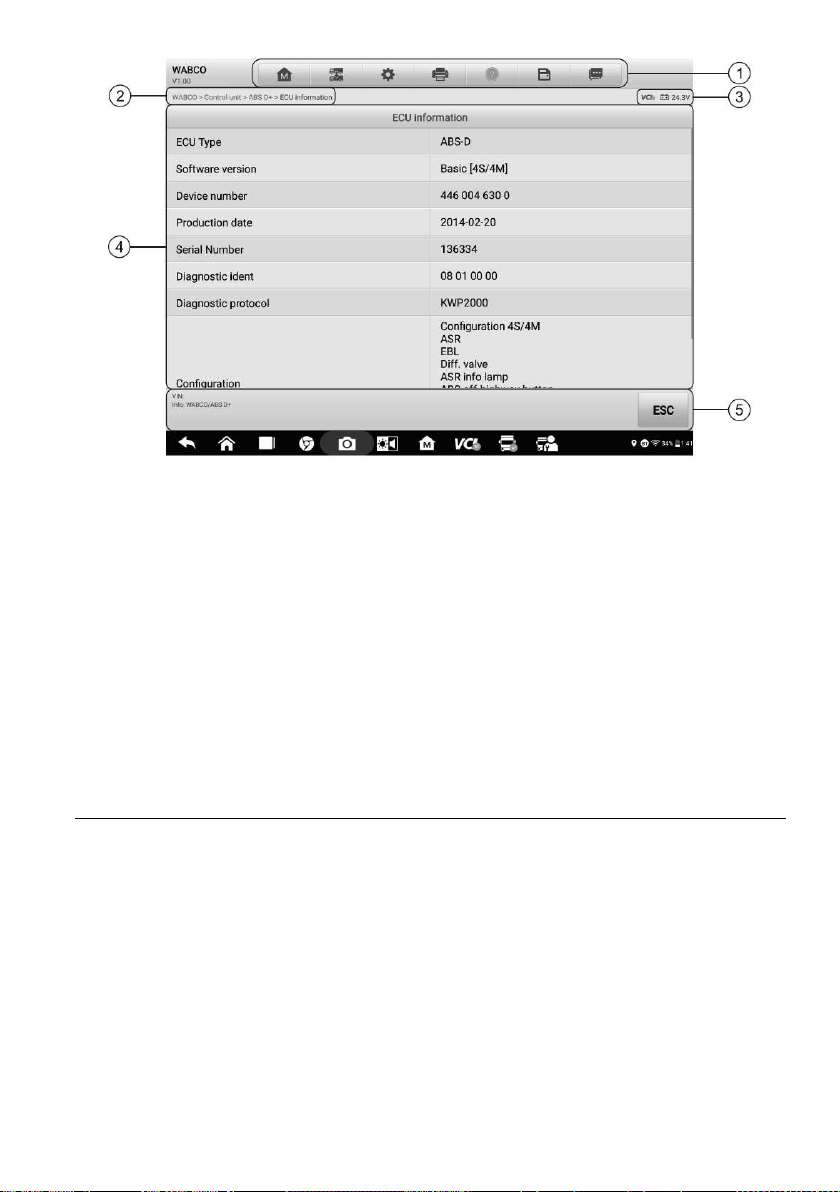
4.5 ECU Information
This function retrieves and displays the specific information for the tested control unit,
including unit type and version numbers.
41
Figure 4-14 Sample ECU Information Screen
1. Diagnostics Toolbar Buttons — see
Table 4-2 Diagnostics Toolbar Buttons for detailed
descriptions of the operations of each button.
2. Current Directory Path
3. Status Information Bar
4. Main Section — the left column displays the item names; the right column displays the
specifications or descriptions.
5. Function Button — in this case, only the ESC button is available; tap it to exit after
viewing.
4.6 Trouble Codes
4.6.1 Read Codes
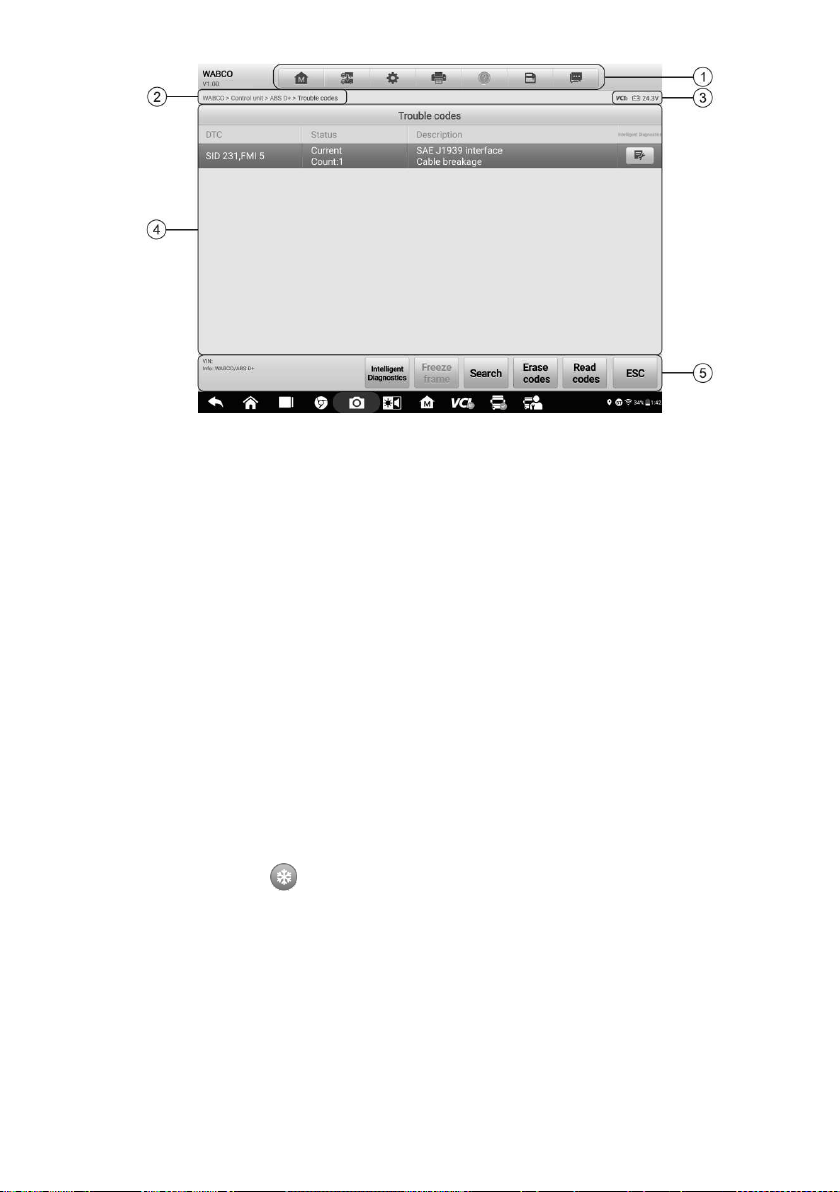
This function retrieves and displays DTCs from the vehicle control system. The Read
Codes screen varies for each vehicle being tested. For some vehicles, freeze frame data
can also be retrieved for viewing. A sample Read Codes screen displays as below:
42
Figure 4-15 Sample Read Codes Screen
1. Diagnostics Toolbar — see Table 4-2 Diagnostics Toolbar Buttons for details.
2. Current Directory Path
3. Status Information Bar
4. Main Section
Column 1 — displays the retrieved codes from the vehicle.
Column 2 — indicates the status of the retrieved codes.
Column 3 — detailed descriptions for the retrieved codes.
Column 4 — provides access to the Intelligent Diagnostics screen.
5. Function Buttons
Intelligent Diagnostics — tap to enter the Intelligent Diagnostics screen to check
related repair cases and help information.
Freeze Frame — icon displays when freeze frame data is available for viewing.
Tap the icon to display the data screen. The Freeze Frame screen is similar to that
of the Read Codes interface and share similar operations.
Search — tap to search the selected DTC for additional information on the Internet.
Erase codes — tap to erase codes from the ECU. It is recommended that DTCs
are read and needed repairs are performed before erasing codes.
Read codes — retrieves and displays the DTCs from the vehicle control system.
The Read Codes screen varies for each vehicle being tested.
ESC — tap to return to the previous screen or exit the function.

43
4.6.2 Erase Codes
After reading the retrieved codes from the vehicle and certain repairs having been made,
you can erase the codes from the vehicle using this function. Before performing this
function, make sure the vehicle's ignition key is in the ON (RUN) position with the engine
off.
To erase codes
1. Tap Erase Codes in the Function Menu.
2. A warning message appears to inform you of data loss when this function is
applied.
a) Tap Yes to continue. A confirmation screen appears when the operation is
successfully done.
b) Tap No to exit.
3. Tap ESC on the confirmation screen to exit Erase Codes.
4. Check the Read Codes function again to ensure the operation is successful.
4.7 Live Data
When this function is selected, the screen displays the data list for the selected module.
The parameters appear in the order that they are transmitted by the ECU, so expect
variation among vehicles.
Gesture scrolling allows you to quickly move through the data list. Drag your finger up or
down on the screen to reposition the parameters being displayed if the data occupies
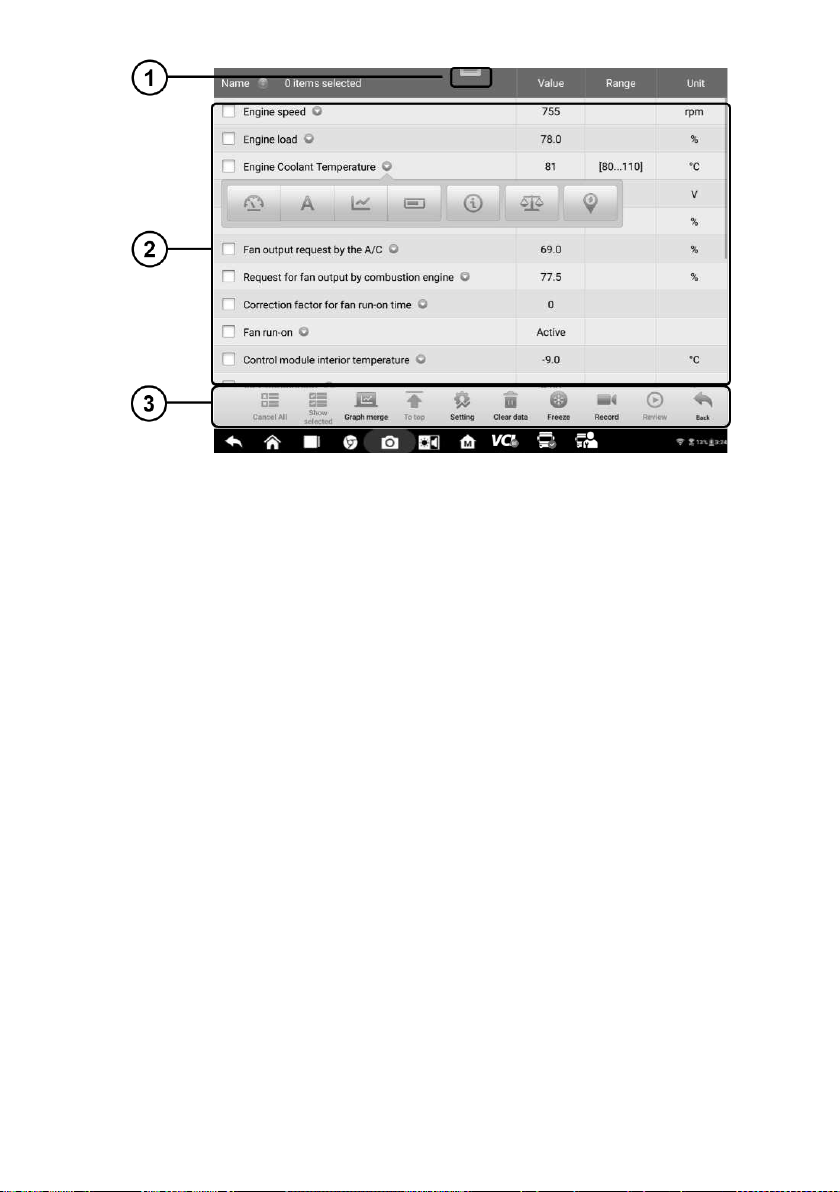
more than one screen. The figure below displays a typical Live Data screen:
44
Figure 4-16 Sample Live Data Screen
1. Diagnostics Toolbar Buttons — tap the toolbar menu icon at the top of the screen to
display diagnostics toolbar buttons. See
Table 4-2 Diagnostics Toolbar Buttons for
detailed descriptions of each button.
2. Main Section
Name Column — displays the parameter names.
a) Check Box — tap the check box to the left of a parameter name to select the item.
Tap the check box again to deselect it.
b) Drop-down Button — tap the drop-down button on the right side of the parameter
to open a submenu, which provides optional modes that display the data.
Value Column — displays the values of the parameters.
Range Column — displays the range of the parameters.
Unit Column — displays the units of the parameter values.
To change the Unit mode, tap the Settings button in the top toolbar and select a
required mode. See Unit.
Display Mode
There are four types of display modes available for data viewing, allowing you to view various
parameters in the mode best suited to represent the data.
Tap the drop-down button on the right side of the parameter name to open a submenu. A
total of 7 buttons will be displayed: The 4 buttons on the left represent different data display
modes, plus an Information button (active when additional information is available), an Unit
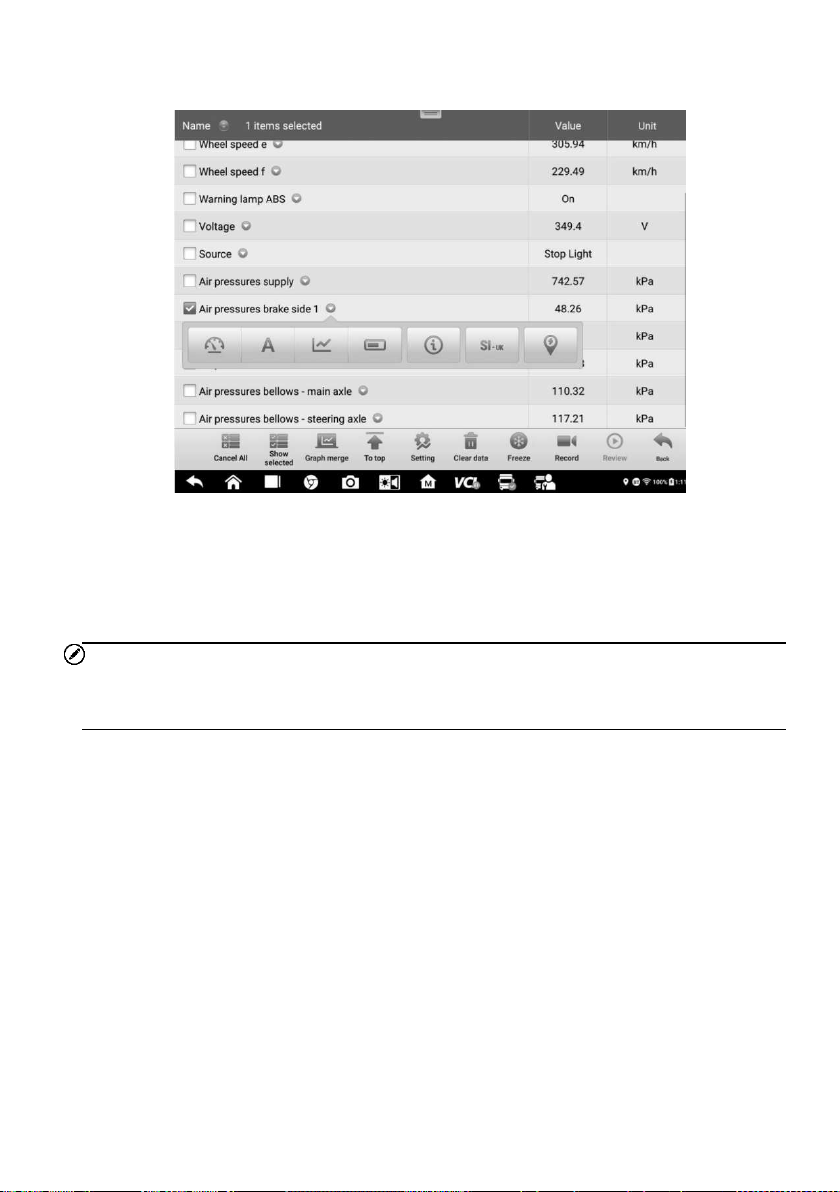
45
Change button (for switching the unit of displayed data), and a Trigger button (tap to open
the "Trigger Settings" window).
Figure 4-17 Sample Display Mode Screen
Each parameter displays the selected mode independently.
Analog Gauge Mode — displays the parameters in gauge charts.
Text Mode — the default mode that displays the parameters as a text list.
NOTE
Some status parameters, such as a switch reading like ON, OFF, ACTIVE, and ABORT,
can only be displayed in Text Mode. Others, such as a sensor reading, can be displayed
in both text and graph modes.
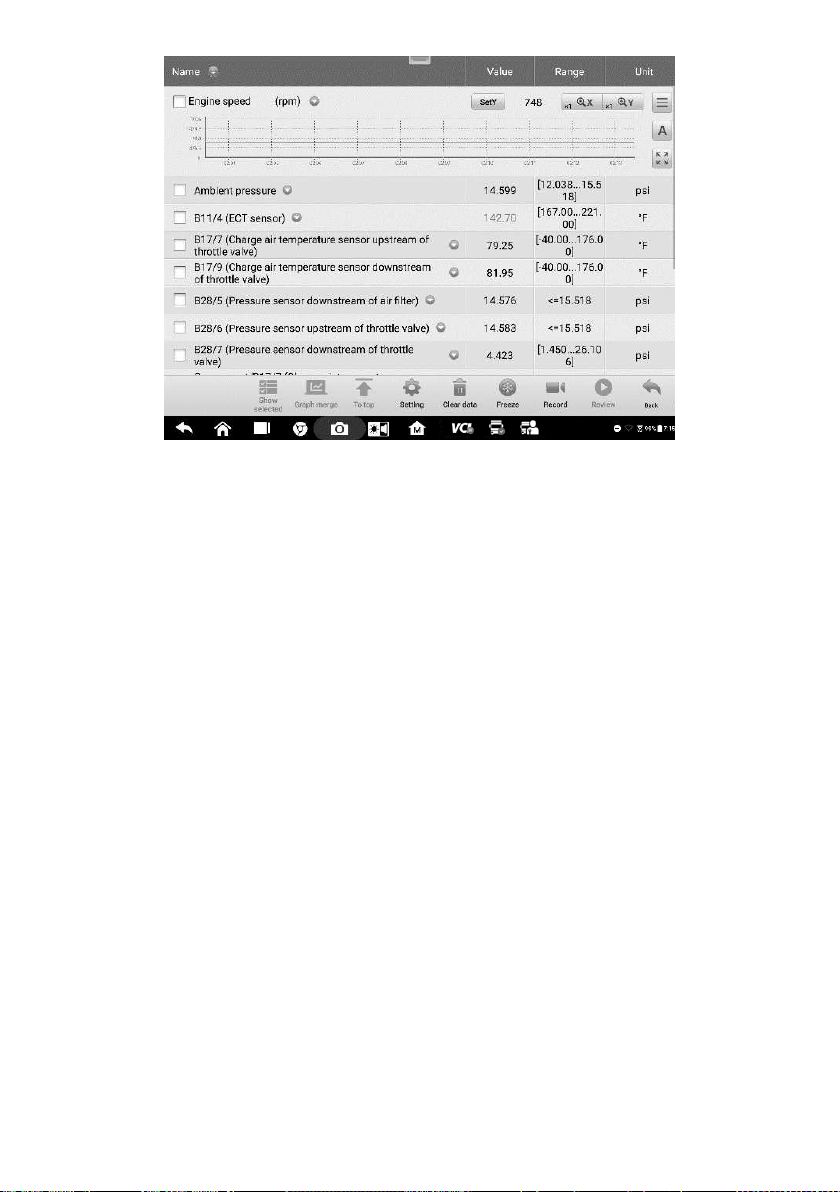
Waveform Graph Mode — displays the parameters in waveform graphs.
In this mode, five control buttons will appear on the right side of the parameter item,
allowing you to manipulate the display status.
46
Figure 4-18 Sample Waveform Graph Mode Screen
1. Settings Button (SetY) — sets the minimum and maximum value of the Y axis.
2. Scale Button — changes the scale values.
There are two scale buttons displaying above the waveform graph to the right
side, which can be used to change the scale values of the X axis and Y axis of
the graph. There are four scales available for the X axis: x1, x2, x4 and x8, and
three scales available for the Y axis: x1, x2, and x4.
3. Edit Button — edit the waveform color and line thickness.
4. Zoom-in Button — tap once to display the selected data graph in full screen.
5. Exit Button — tap to exit the waveform graph mode.
Full Screen Display — this option is only available in the waveform graph mode, and
is mostly used in Graph Merge status for data comparison. There are three control
buttons available on the top right side of the screen under this mode.
Scale Button — tap to change the scale values below the waveform graph. There
are four scales available for the X axis: x1, x2, x4 and x8. There are three scales
available for the Y axis: x1, x2, and x4.
Edit Button — tap to open an edit window, in which you can set the waveform
color and the line thickness displayed for the selected parameter.
Zoom-out Button — tap to exit full screen display.
Exit Button — tap to exit the waveform graph mode.
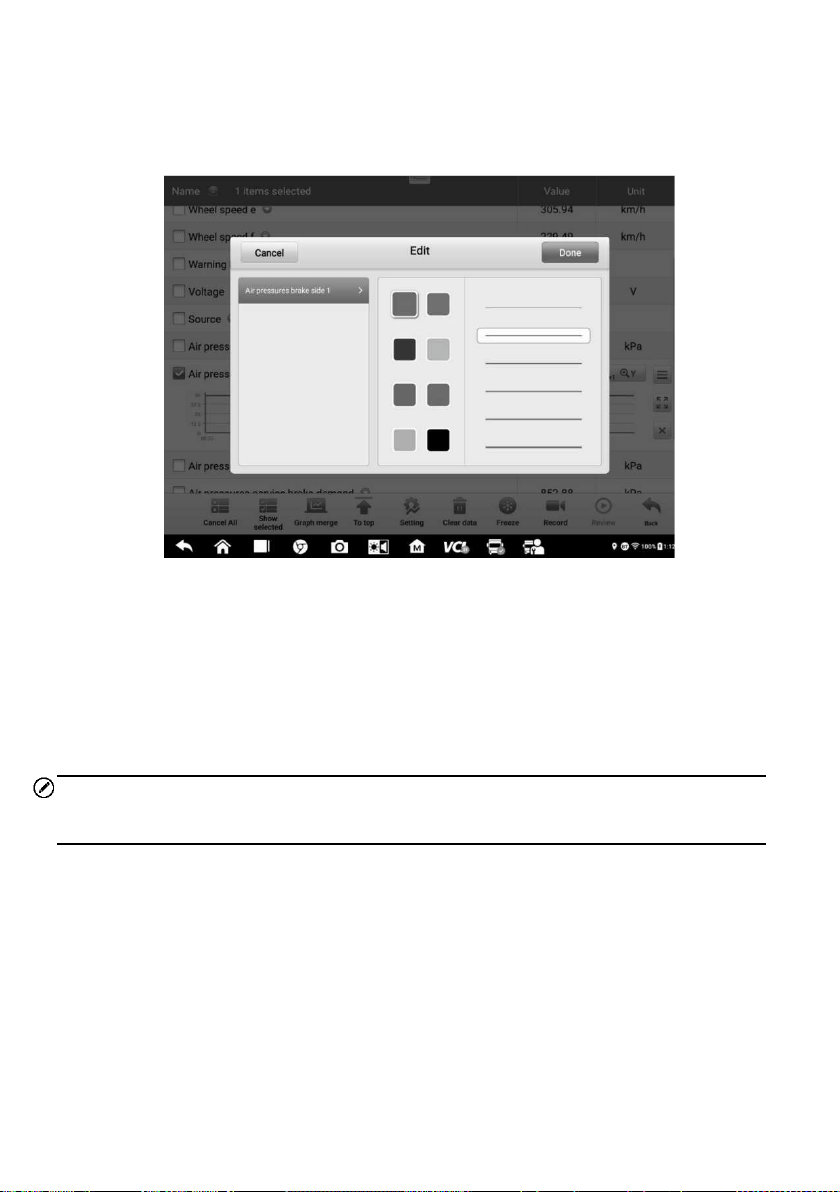
47
To edit the waveform color and line thickness in a data graph
1. Select parameters to display in Waveform Graph mode.
2. Tap the Edit Button and an edit window will appear.
Figure 4-19 Sample Waveform Edit Screen
3. The parameter is selected automatically in the left column.
4. Select a color from the second column.
5. Select a line thickness from the right column.
6. Tap Done to save the settings and exit, or tap Cancel to exit without saving.
NOTE
In full screen display, you can edit the waveform color and line thickness by tapping the Edit
button on the upper-right side of the screen.
Digital Gauge Mode — displays the parameters in the form of a digital gauge graph.
Trigger Settings
Tap the drop-down button on the right side of the parameter to open a submenu. The
Trigger button is the last one in the submenu. Tap to display the Trigger Settings window.
On the trigger setting screen, you can set a standard range by filling in a minimum value
and a maximum value. When exceeding this range, the trigger function will be executed
and the device will automatically record and save the generated data. You can review the
saved live data by tapping the Review button at the bottom of the screen.
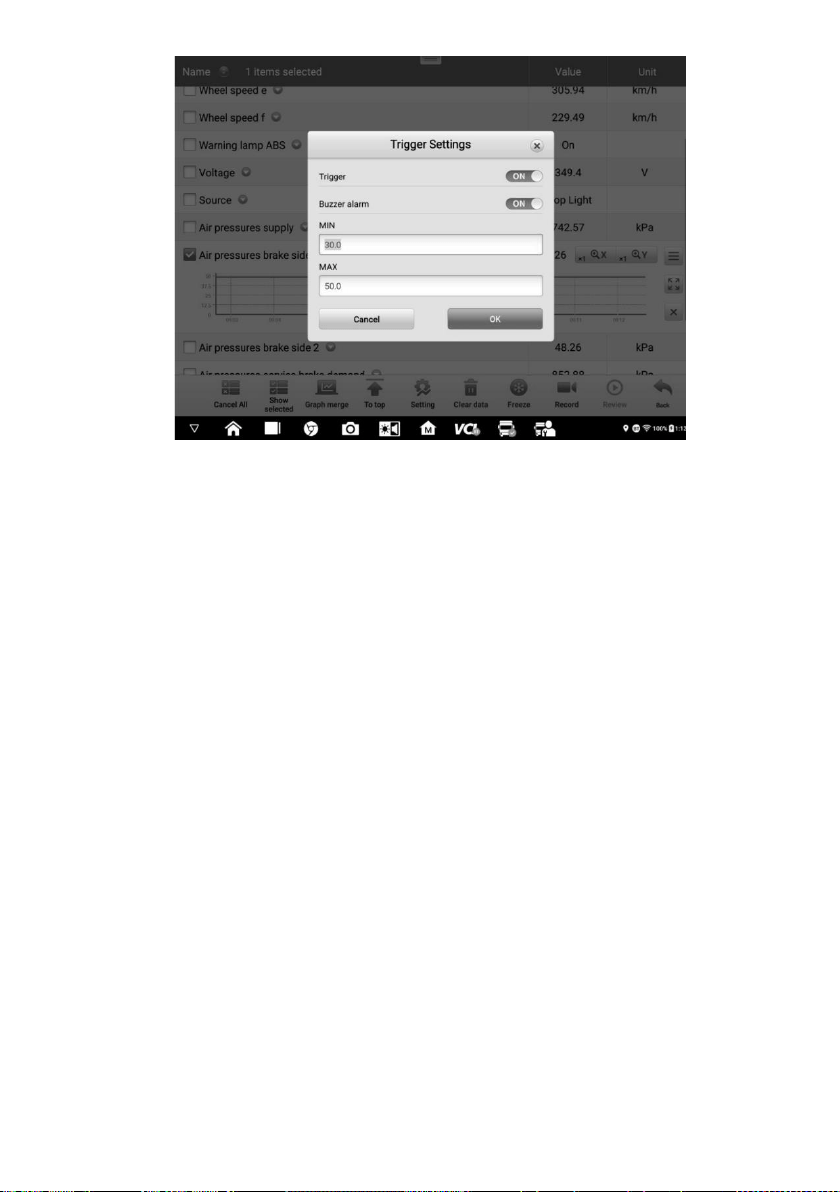
48
Figure 4-20 Sample Trigger Settings Screen
Two buttons and two input boxes are available in the Trigger Settings window.
a) Trigger — switches the trigger on and off. The trigger is ON by default.
b) Buzzer Alarm — switches the alarm on and off. The alarm function makes a beeping
sound as an alert when the data reading reaches the preset minimum or maximum
point. The buzzer alarm will only sound at the first trigger.
c) MIN — tap this input box to display a virtual keyboard to enter the required lower
threshold value.
d) MAX — tap this input box to display a virtual keyboard to enter the required upper
threshold value.
To set a trigger
1. Tap the drop-down button on the right side of the parameter to open a submenu.
2. Tap the Trigger button on the right side of the submenu to open the Trigger
Settings window.
3. Tap the MIN button on the right side, and enter the required minimum value.
4. Tap the MAX button on the right side, and enter the required maximum value.
5. Tap OK to save the settings and return to the Live Data screen, or tap Cancel to
exit without saving.
When the trigger is set, a trigger mark appears in front of the parameter. The mark is
gray when it is not triggered, and turns orange when triggered. Moreover, two horizontal
lines appear on each of the data graphs (when Waveform Graph Mode is applied) to

49
indicate the alarm point. The threshold lines are shown in different colors to differentiate
them from the parameter waveforms.
3. Function Buttons
The operations of all available function buttons on the Live Data screen are described
below:
Cancel All — tap to cancel all selected parameters. Up to 50 parameters can be
selected at one time.
Show Selected/Show All — tap to switch between the two options; one displays the
selected parameters, the other displays all the available items.
Graph Merge — tap this button to merge selected data graphs (for Waveform Graph
Mode only). This function is very useful when comparing different parameters.
NOTE
This mode supports the merging of 2 to 5 parameters from different graphs. Only quantitative
parameters are supported.
To merge selected data graphs
1) Select parameters to be merged.
2) Tap the Graph Merge button at the bottom of the Live Data screen.
a) This mode only supports parameters that can be represented digitally. If
non-digital parameters are selected, a message will display advising the
user that the selected parameters are not supported in this mode and to
select 2 to 5 digital parameters. Tap Got It button to return to the previous
screen and select supported parameters.
b) When unsupported parameters are selected, a message will appear
advising the user to selected only parameters that are supported. A
message will also appear if more than 5 parameters have been selected.
Please select 2 to 5 of the supported parameters and tap OK button to
merge.
3) Tap Cancel Merging button at the bottom of the Live Data screen to cancel
merge.
To Top — moves a selected data item to the top of the list.
Setting — tap this button to set recording duration. Five options are available: 5
seconds, 15 seconds, 30 seconds, 60 seconds and 90 seconds.
To set live data record duration
1. Tap Setting button at the bottom of the Live Data screen.
2. Tap the > button to the right of Recording time after trigger bar and select a
time length.

50
3. Tap OK to save the settings and return to the Live Data Setting screen; or tap
the “X” button at the upper-right corner to exit without saving.
4. Tap Done at the upper-right corner of the Live Data Setting screen to confirm
and save the settings, and return to the Live Data screen, or tap Cancel to exit
without saving.
Clear Data — tap to clear all cached live data.
Freeze — displays a still capture retrieved data.
Previous Frame – moves to the previous frame of frozen data.
Next Frame — moves to the next frame of frozen data.
Play/Pause — tap to play/pause the frozen data.
Resume — tap to exit the freeze data mode and return to normal data display.
Record — starts recording the live data of the selected data items. Tap the Record
button at the bottom of the Live Data screen. A message will display prompting user
to select parameters to record. Tap Got It button to confirm. Scroll down and select
data to record. Tap the Record button to start recording. Tap Resume button to stop
recording. The recorded live data can be viewed in the Review section at the bottom
of the Live Data screen or in the Data Manager application.
Resume — tap to stop data recording and to return to normal data display.
Flag — this button appears when the Record function is applied. Tap to set flags
to note points of interest when recording data. Notes can be added during
playback in Review or Data Manager. Select the preset flag to open a popup
window and display a virtual keyboard to input notes.
Review — review the recorded data. Tap Review button to display a recording list,
and select an item to review.
NOTE
Only the data recorded during the current operation can be reviewed on the Live Data
screen. All the historical recorded data can be reviewed in "Review Data" in the Data
Manager application.
Previous Frame — switches to the previous frame of recorded data.
Next Frame — switches to the next frame of recorded data.
Play/Pause — tap to play/pause the recorded data.
Show Selected — displays the selected parameter items.
Graph Merge — merges selected data graphs.
Back — exits the review, and returns to the Live Data screen.
Back — returns to the previous screen or exits the function.
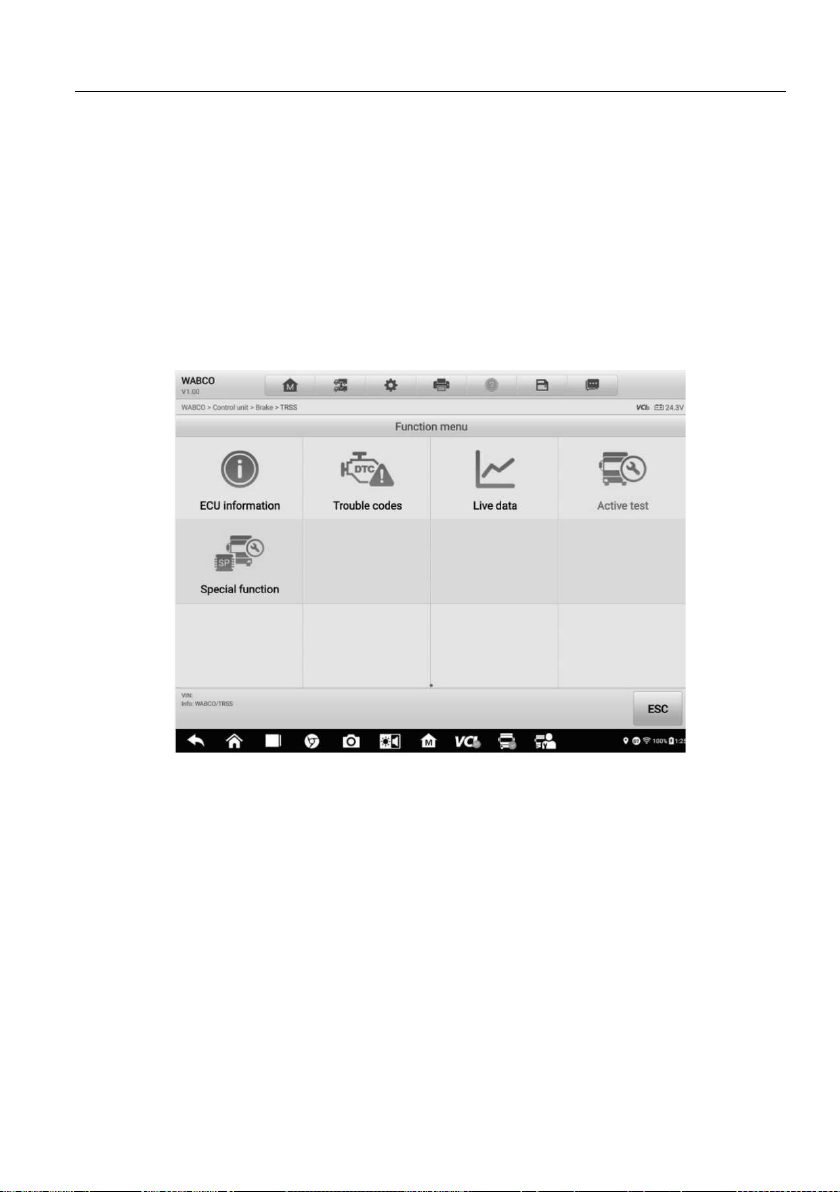
51
4.8 Active Test
The Active Test function is used to access vehicle-specific subsystem and component
tests. Available tests vary by vehicle.
During an active test, the tablet sends commands to the ECU to activate the actuators.
This test determines the integrity of the system or part by reading ECU data or by
monitoring the operation of the actuators. Such tests may include toggling a solenoid,
relay, or switch, between two positions.
Selecting Active Test displays a menu of test options. Available tests vary by vehicle.
Select test from the menu options. Follow the instructions displayed on the screen to
complete the test. Procedures and instructions vary by vehicle.
Figure 4-21 Sample Active Test Screen 1
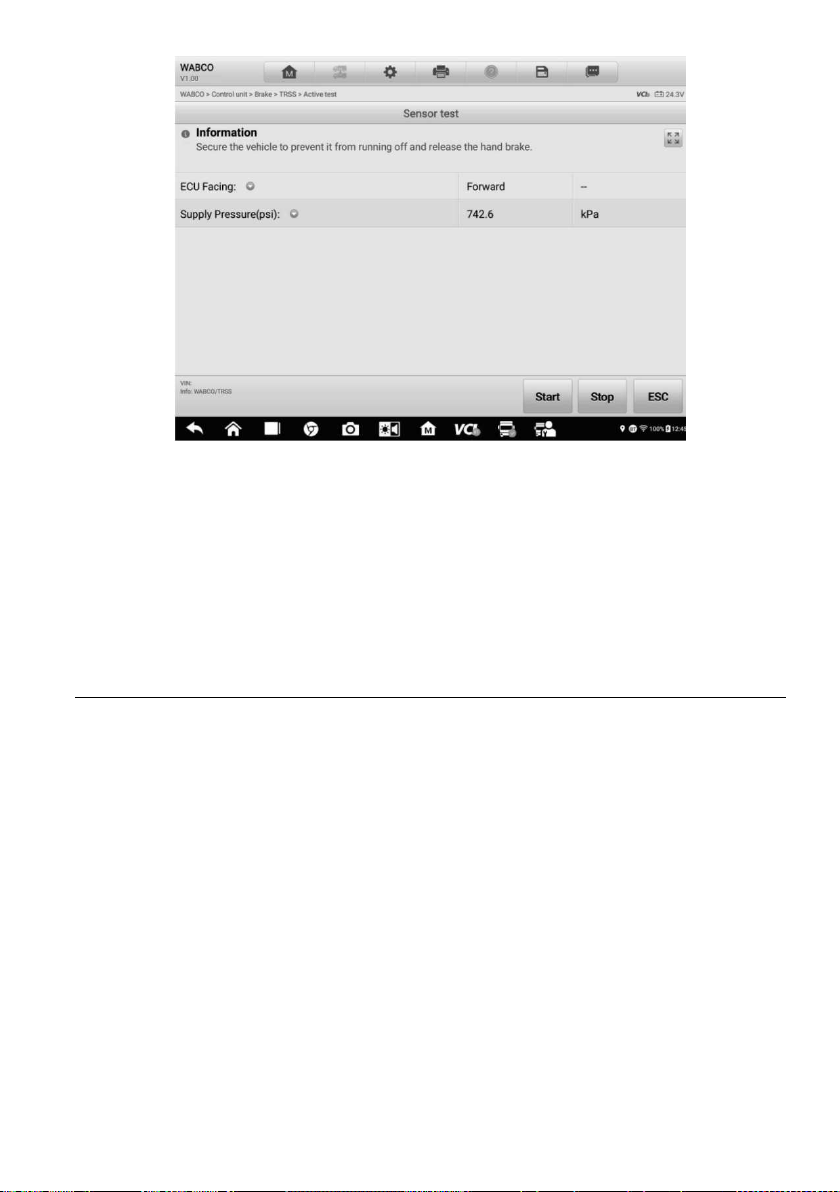
52
Figure 4-22 Sample Active Test Screen 2
The function buttons in the lower-right corner of the Active Test screen manipulate the
test signals. The operational instructions are displayed in the main section of the test
screen. Follow the on-screen instructions and make appropriate selections to complete
the tests.
Tap the ESC button to exit the test when finished.
4.9 Special Functions
These functions perform various component adaptations, including the recalibration or
configuration of certain components after repairs or replacements have been completed.
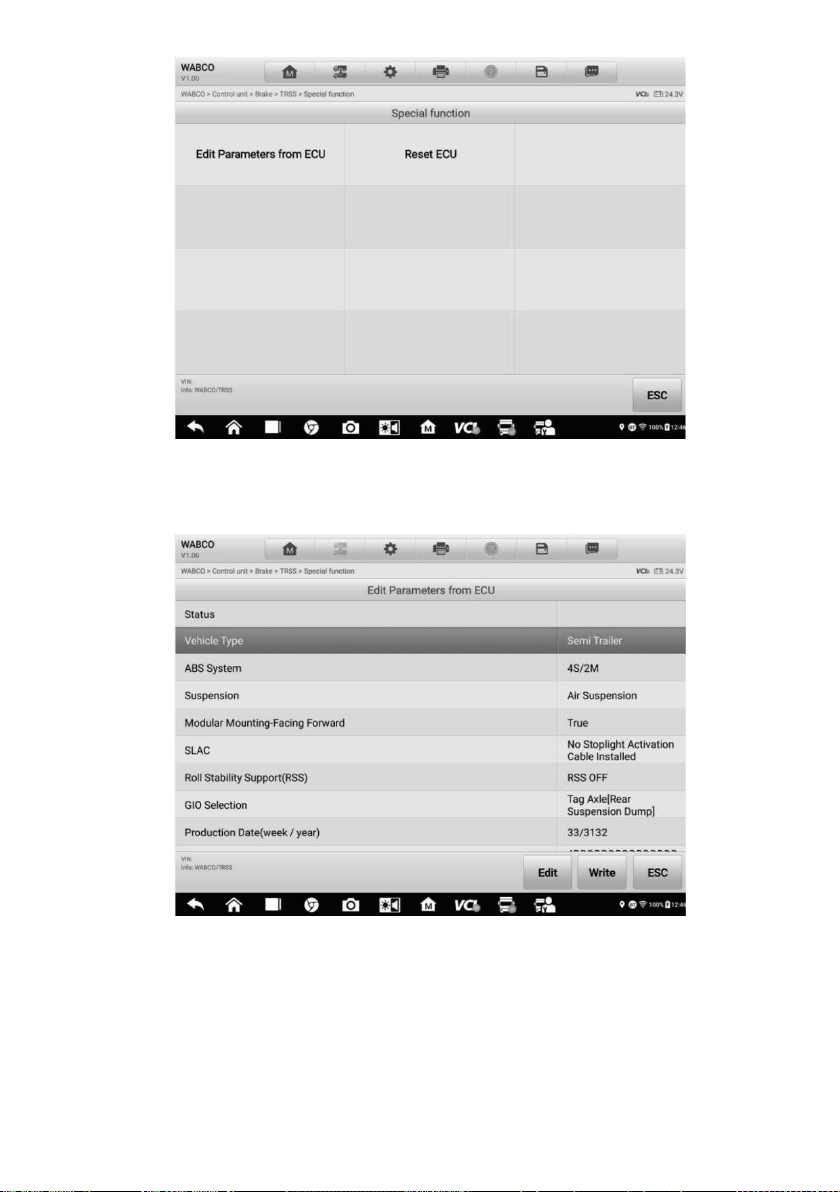
53
Figure 4-23 Sample Special Function Screen 1
Select a function to display detailed information and execution screen.
Figure 4-24 Sample Special Function Screen 2
Tap the function buttons to perform the selected function or exit the function.

54
4.10 Programming and Coding
Since the introduction of OBDII and leading up to modern Hybrids and EVs, hardware and
software technologies in cars have been advancing at an exponential rate. Updating
software may be the only way to fix the following issues:
Drivability
Fuel Efficiency
Power Loss
Fault Codes
Durability of Mechanical Parts
The Programming and Coding function is used to “re-flash” the vehicle control modules,
which allows you to update the computer software of the vehicle to the latest version, as
well as to reprogram adaptive data of certain components after making repairs or
replacements.
NOTE
The programming function applies only when the vehicle is connected with a VCI device,
which serves as a PassThru interface to establish communication with and transfer data
to the vehicle's ECU.
Available programming or coding operations vary by test vehicle. Only the available
operations display in the tablet menu.
There are two general types of programming operations:
A. Coding — also known as Teach-in Program, or Component Adaptation, is used to
reprogram adaptive data for vehicle control modules after repairs or replacements of
vehicle parts.
B. Reprogramming — downloads the latest version of software from the online server
database via the Internet access (this procedure is done automatically when the tablet
is connected to the Internet, so there is no need to check for software updates yourself),
and reprograms the newest version into the vehicle's ECU.
NOTE
Ensure that the tablet is connected to a stable internet access before launching the ECU
programming function, so that the tablet is able to access the vehicle manufacturer's
server for update service.
Selecting the Programming or Coding function opens a menu of operation options that
varies by vehicle make and model. Selecting a menu option either displays a programming
interface or opens another menu of additional choices. Follow all screen instructions while
performing the programming or coding operations. How and what information is presented
on the screen vary by the type of operation being performed.
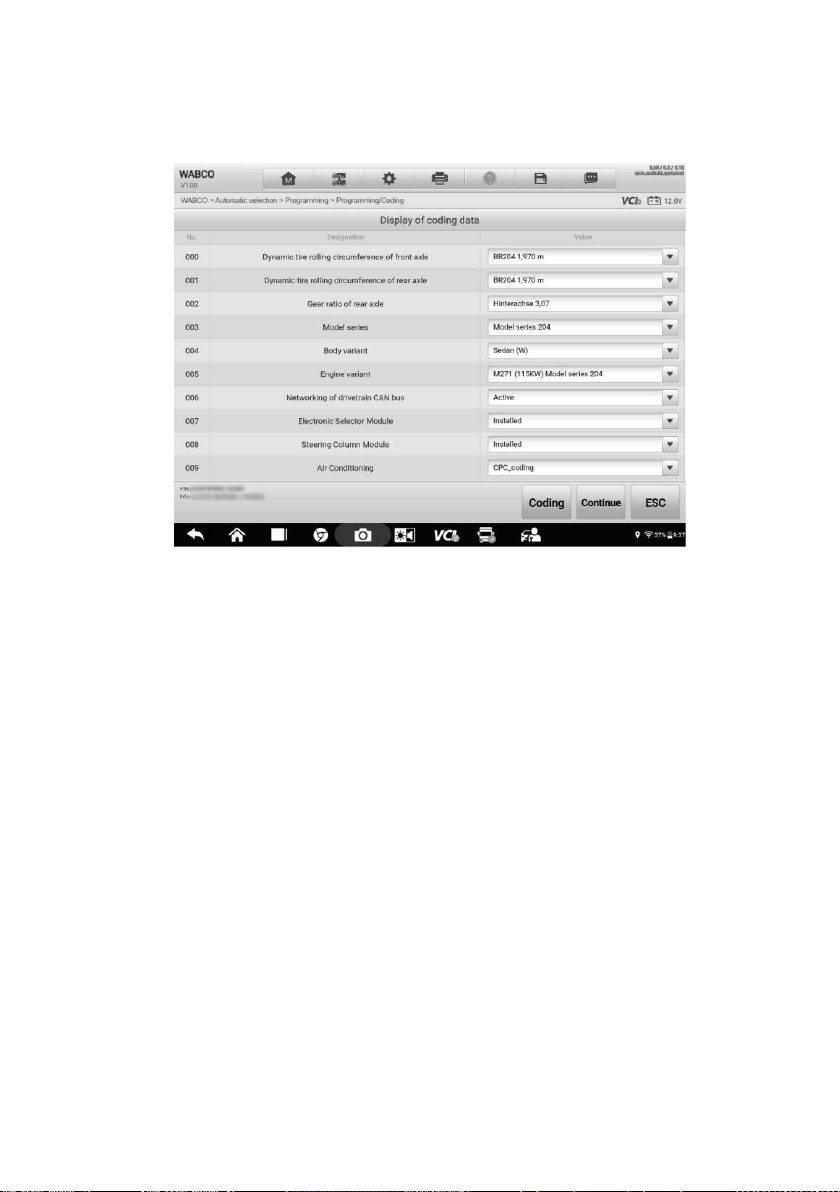
55
4.10.1 Coding
The main section of the Coding screen displays a list of vehicle components and the
coding information that mainly consists of two parts:
Figure 4-25 Sample Coding Screen
1. All available systems for coding are displayed on the left side, and the coding data or
value on the right side.
2. The bottom of the main section displays the function buttons that enable you to
manipulate the operation.
Check the vehicle condition and the coding information carefully. Use the function button
to edit codes for the corresponding components. Tap Send when you finish editing all
items. When the operation is completed, an execution status message such as Completed,
Finished or Successful, may appear.
Tap the ESC button to exit the function.
4.10.2 Reprogramming
Before reprogramming begins
Tablet must be connected to a stable Wi-Fi network.
Tablet must be connected to VCI by USB.
Tablet battery must be fully charged during module programming. Connect tablet to a
charger if needed.
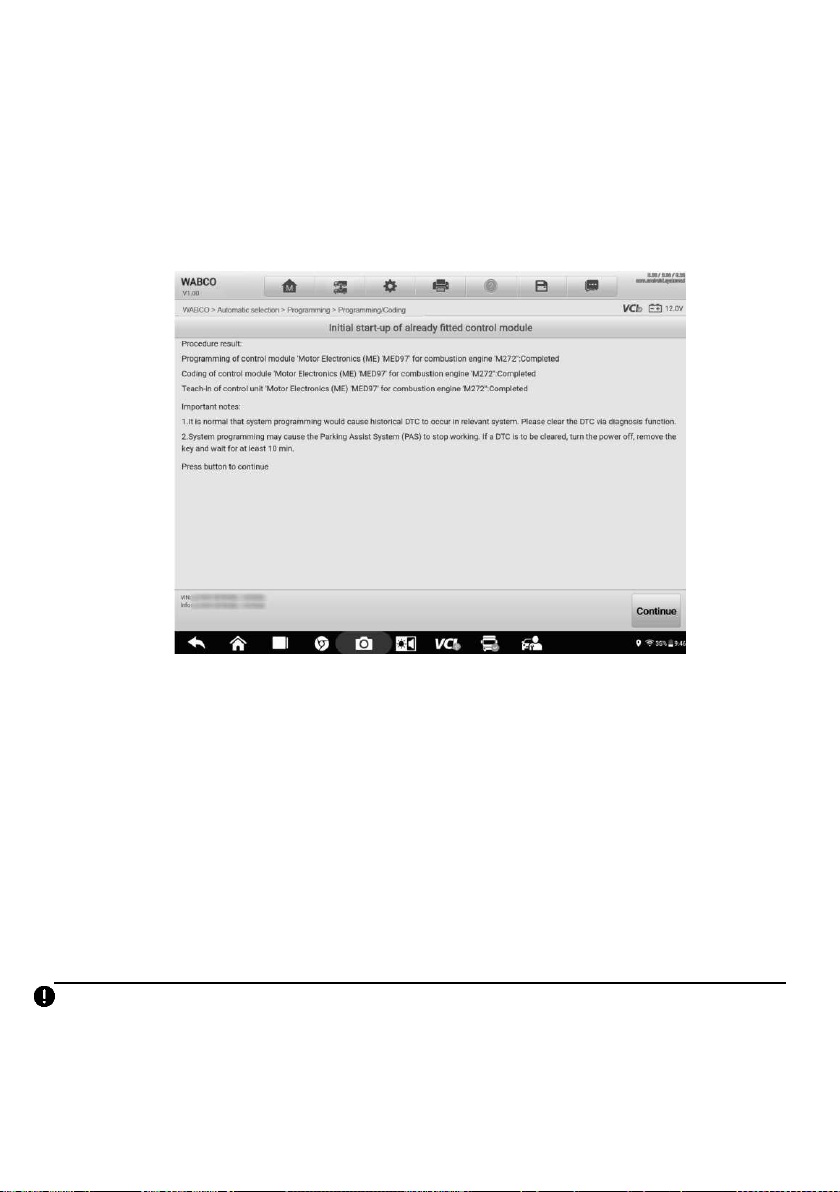
56
Attach battery maintainer to vehicle battery to ensure a steady voltage is maintained
throughout programming. Voltage requirements differ by vehicle manufacturer. Consult
vehicle manufacturer recommendations prior to programming a module.
Do not quit the application during a module programming as the process may fail and
may also result in permanent damage to the module.
Typical reprogramming operations require you to input and validate the VIN number first.
Tap the input box and enter the correct number. The programming interface then appears.
Figure 4-26 Sample Reprogramming Operation Screen
The main section of the reprogramming interface offers information about the hardware,
the current software version and the newest software versions to be programmed into the
control units.
A series of on-screen operational instructions will display to guide you through the
programming procedure.
Carefully read the on-screen information and follow the instructions to execute the
programming procedure.
4.10.3 Re-flash Errors
IMPORTANT
When reprogramming onboard, always make sure the vehicle battery is fully charged and in
good working condition. During reprogramming, the operation may fail if voltage falls below
the proper operation voltage. Sometimes a failed operation can be recovered, but the failed
reprogramming can also ruin the control module. We recommend connecting an external
battery maintainer to the vehicle to ensure a steady voltage is maintained throughout

57
programming. The required voltage differs by vehicle manufacturer. Consult vehicle
manufacturer for correct voltage to be maintained.
Occasionally a flash update procedure may not be completed properly. Common causes
of flash errors include poor cable connections between the tablet, VCI, and vehicle, the
vehicle ignition being switched off before the flash procedure is completed, or low vehicle
battery voltage.
If the process quits, recheck all cable connections to assure good communications and
initialize the flash procedure. The programming procedure will automatically repeat if the
previous operation does not succeed.
4.11 Generic OBDII Operations
The OBDII/EOBD vehicle diagnosis option offers a quick way to check for DTCs, isolate
the cause of an illuminated malfunction indicator lamp (MIL), check monitor status prior to
emissions certification testing, verify repairs, and perform other emissions-related
services. The OBDII direct access option is also used for testing OBDII/EOBD-compliant
vehicles that are not included in the diagnostics database. Diagnostics toolbar buttons at
the top of the screen are available for specific vehicle diagnostics. See Table 4-2
Diagnostics Toolbar Buttons for details.
4.11.1 General Procedure
To access the OBDII/EOBD diagnostics functions
1. Tap the Diagnostics button in the MaxiSys Job Menu. The Vehicle Menu appears.
2. Tap the HD OBD button. There are two options to establish communication with
the vehicle.
Auto Scan — select to establish communication using each protocol in order to
determine which one the vehicle is using.
Protocol — select to open a submenu of various protocols. A communication
protocol is a standardized way of data communication between an ECM and a
diagnostics tool. Global OBD may use several different communication
protocols.
3. Select a specific protocol if the Protocol option is selected. Wait for the OBDII
Diagnostic Menu to appear.
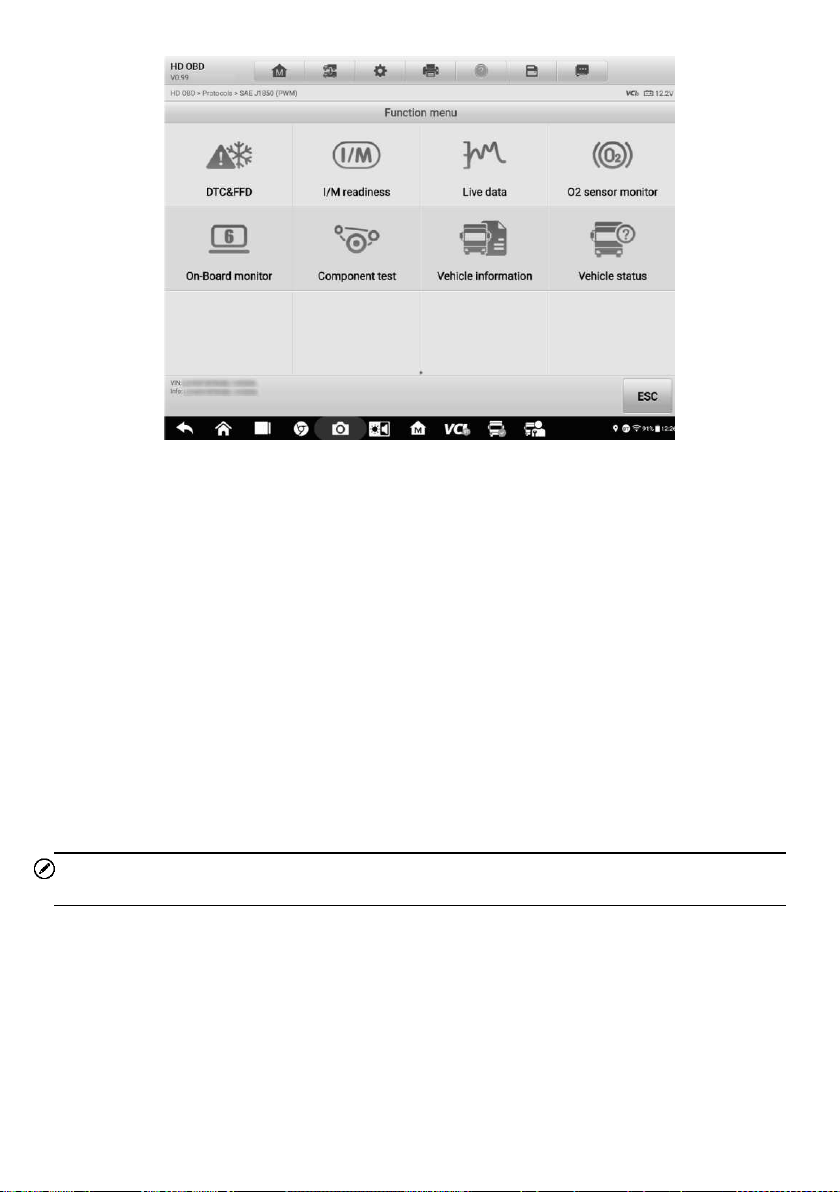
58
Figure 4-27 Sample OBDII Diagnostic Menu
4. Select a function to continue.
DTC & FFD
I/M Readiness
Live Data
O
2
Sensor Monitor
On-Board Monitor
Component Test
Vehicle Information
Vehicle Status
NOTE
Supported functions may vary by vehicle.
4.11.2 Function Descriptions
This section describes various functions of each diagnostics option.
4.11.2.1 DTC & FFD
When this function is selected, the screen displays a list of Current Codes and Pending
Codes. When the Freeze Frame data of certain DTCs are available for viewing, a
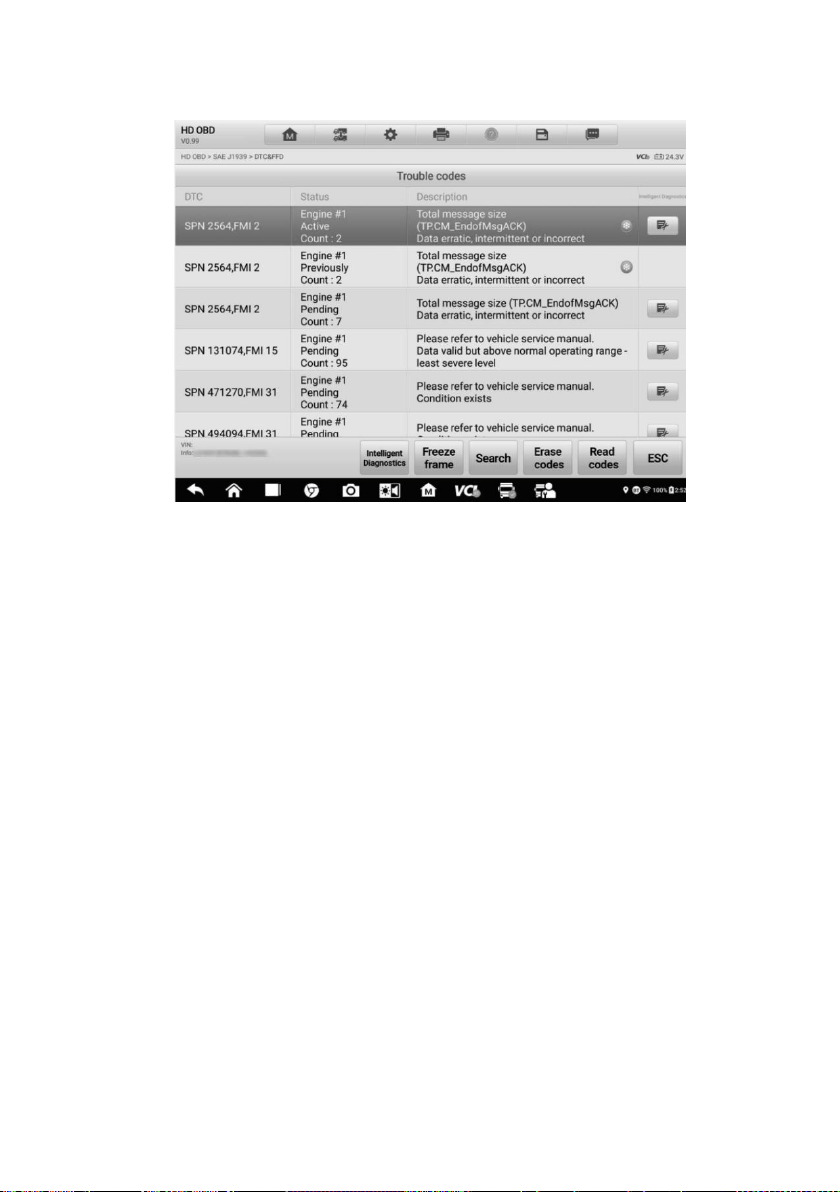
59
snowflake button will display on the right side of the DTC item. The Erase Codes function
can be applied by tapping the function button at the bottom of the screen.
Figure 4-28 Sample DTC & FFD Screen
Current Codes
Current codes are emission-related DTCs from the ECU of the vehicle. OBDII/EOBD
Codes are prioritized according to their emission severity, with higher-priority codes
overwriting lower-priority ones. The priority of the code determines the illumination of
the Malfunction Indicator Light (MIL) and the codes erase procedure. Manufacturers
rank codes differently, so DTCs may vary by vehicle.
Pending Codes
These are codes whose storing conditions have been met during the last drive cycle,
but need to be met on two or more consecutive drive cycles before the DTC stored.
The purpose of displaying pending codes is to assist the service technician after a
vehicle repair when diagnostic information is cleared, by reporting test results after a
single driving cycle.
a) If a test fails during the driving cycle, the DTC associated is reported. If the pending
fault does not occur again within 40 to 80 warm-up cycles, the fault is automatically
cleared from memory.
b) Test results reported do not necessarily indicate a faulty component or system. If
test results indicate another failure after additional driving, a DTC is stored to
indicate a faulty component or system.

60
Freeze Frame
In most cases the stored frame is the last DTC reported. Certain DTCs — those that
have a greater impact on vehicle emission — have a higher priority. In these cases,
DTC of the highest priority is the one for which the freeze frame records are retained.
Freeze frame data includes a “snapshot” of critical parameter values at the time the
DTC is stored.
Erase Codes
This option is used to clear all emission-related diagnostics data including DTCs,
freeze frame data and specific manufacturer-enhanced data from the vehicle ECU.
This option resets the I/M Readiness Monitor Status for all vehicle monitors to Not
Ready or Not Complete status.
A confirmation screen displays when the clear codes option is selected to prevent
accidental loss of data. Tap Yes on the confirmation screen to continue, or No to exit.
4.11.2.2 I/M Readiness
This function is used to check the readiness of the monitoring system. It is an excellent
function to use prior to having a vehicle inspected for state emissions compliance.
Selecting I/M Readiness opens a submenu with two choices:
Since DTCs Cleared — displays the status of monitors since the last time the DTCs
were erased.
This Driving Cycle — displays the status of monitors since the beginning of the current
drive cycle.
4.11.2.3 Live Data
This function enables the display of real-time PID data from the ECU. Displayed data
includes analog and digital input and output, and system status information broadcast in
the vehicle data stream.
Live data can be displayed in various modes, see
Live Data for detailed information.
4.11.2.4 O
2
Sensor Monitor
This function allows retrieval and review of recent O
2
sensor monitor test results stored
on the vehicle on-board computer.
The O
2
Sensor Monitor test function is not supported by vehicles that communicate using
a controller area network (CAN). For O
2
Sensor Monitor tests results of CAN-equipped
vehicles, refer to
On-Board Monitor.
4.11.2.5 On-Board Monitor
This function allows you to view the results of On-Board Monitor tests. The tests are useful
after the service when a vehicle control module memory is already erased.

61
4.11.2.6 Component Test
This function enables dual-directional control of the ECU so that the diagnostics tool can
transmit control commands to operate the vehicle systems. This function is useful in
determining how well the ECU responds to a command.
4.11.2.7 Vehicle Information
This function enables the display of the vehicle identification number (VIN), calibration
identification number, calibration verification number (CVN), and other information of the
test vehicle.
4.11.2.8 Vehicle Status
This function checks the current condition of the vehicle, such as the communication
protocols of OBDII modules, number of fault codes, and status of the Malfunction Indicator
Light (MIL).
4.12 Diagnostics Report
4.12.1 Pre-Scan and Post-Scan
To perform the pre-scan and post-scan functions
1. Auto scan the Vehicle — the Auto VID function can automatically identify the
vehicle and its equipped systems. All available modules in all systems will be
scanned automatically. Codes and their details will be listed.
2. Print Pre-scan Report — vehicle images can be taken with the tablet and attached
to SCAN report. The report file can be generated and submitted. The report can
be customized with shop and vehicle information.
3. Repair Vehicle — creates efficient repair plan from the start.
4. Auto scan Repaired Vehicle — ensures no new faults were created during repair
and no DTCs are present at completion.
5. Print Post-scan Report — proves all DTCs on Pre-SCAN report are repaired.
4.12.2 Diagnostic Report PDF
The diagnostic report can be reviewed, saved, and printed in multiple applications of the
platform.
a) Via the History function:
Enter the Diagnosis main page, and tap History in the Top Toolbar.
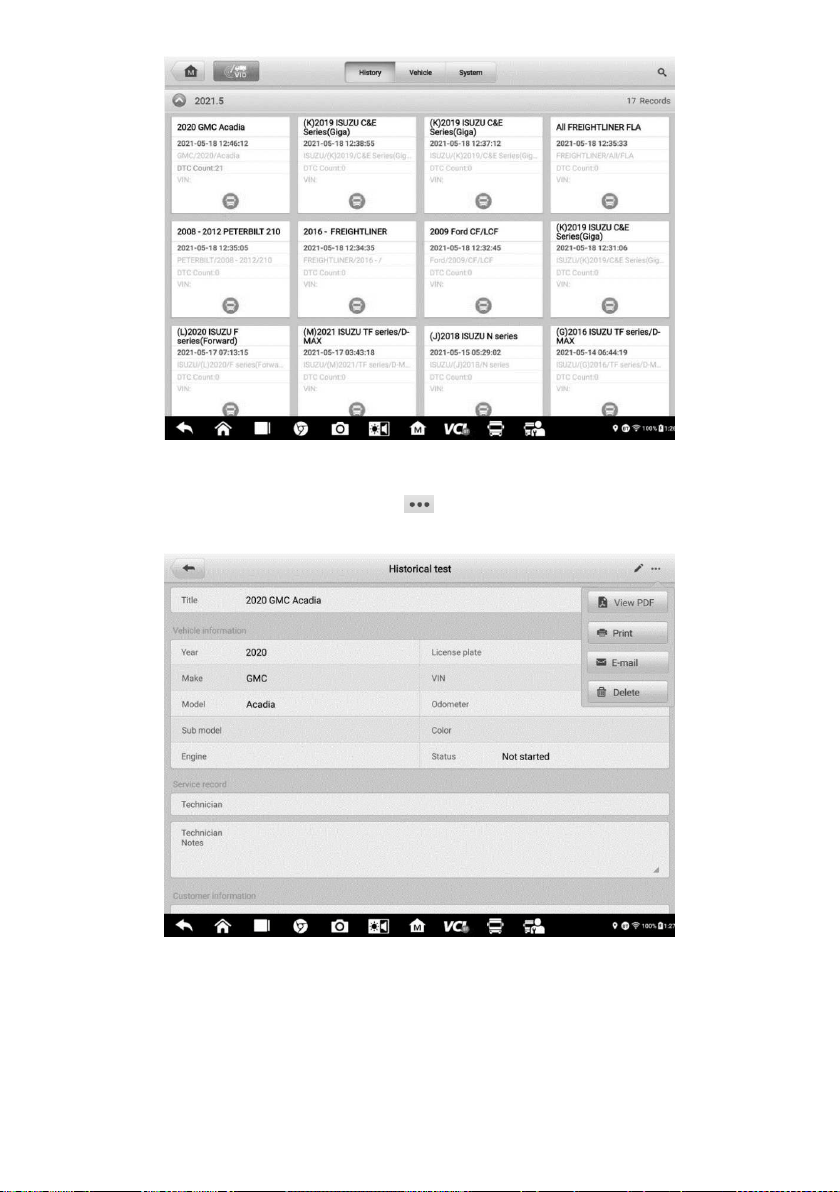
62
Figure 4-29 Sample History Screen
Select a history record and tap the button on the upper-right corner to view the
PDF document, print, email or delete the test record.
Figure 4-30 Sample Test Record Screen
b) Via the Auto Scan function:
Enter the Auto Scan page and tap Fault Scan at the bottom of the screen.
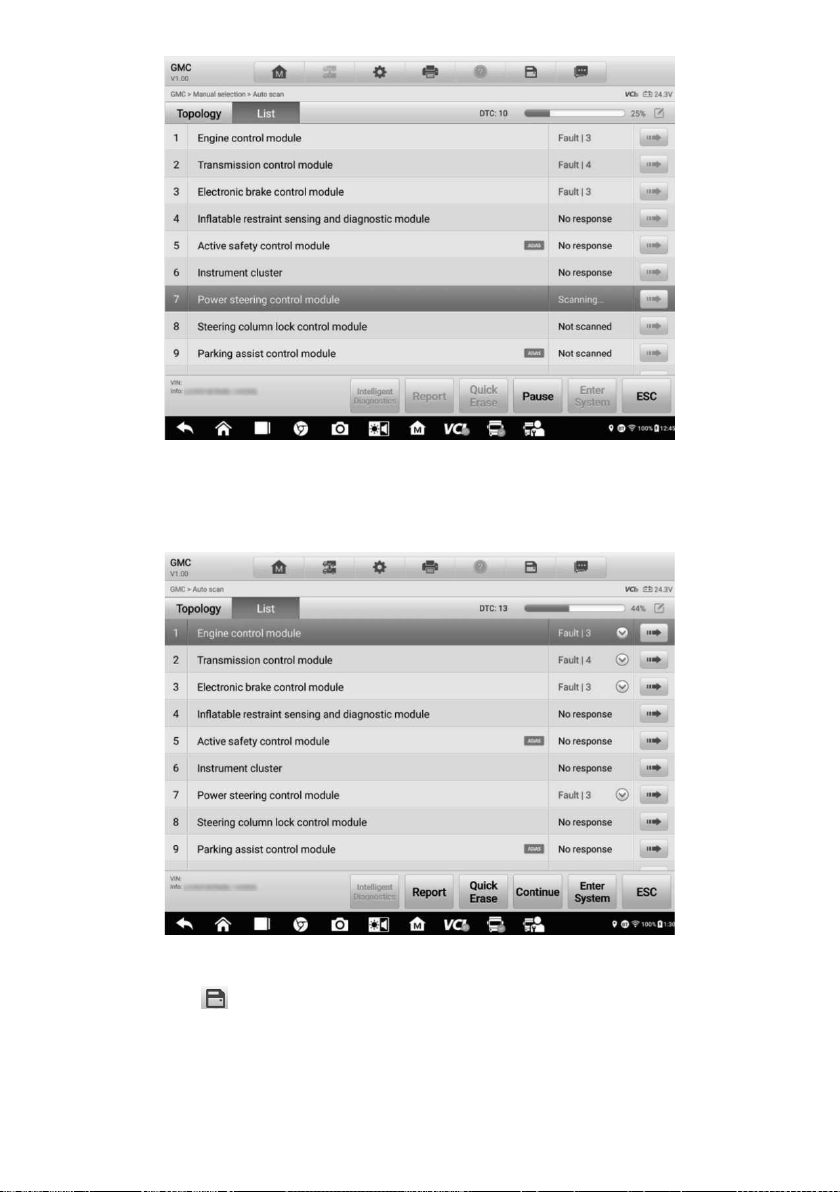
63
Figure 4-31 Sample Auto Scan Screen 1
When the system scan is completed, tap Report in the Function Button Bar at the
bottom of the screen.
Figure 4-32 Sample Auto Scan Screen 2
Tap the button in the Diagnostics Toolbar and select Save all data to save
the PDF document or select Save this page to save the screenshot of the current
page.
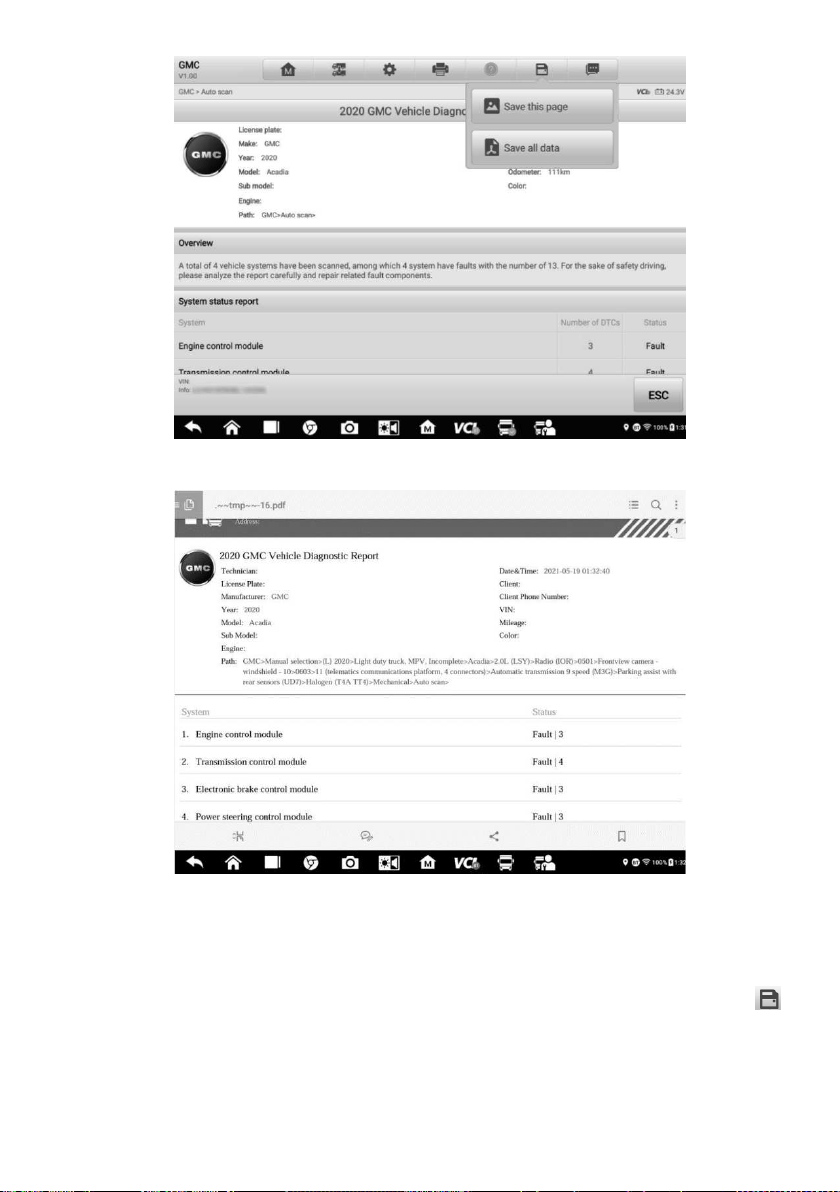
64
Figure 4-33 Sample Auto Scan Screen 3
Figure 4-34 Sample PDF Document Screen
c) Via the functions on the Navigation Bar:
The diagnostic report can also be viewed from such diagnostics function screens
including Auto Scan, Read Codes, Live Data, and Active Test screens. Tap the
button in the Diagnostics Toolbar, and select Save all data to save the PDF
document or select Save this page to save a screenshot of the current page.
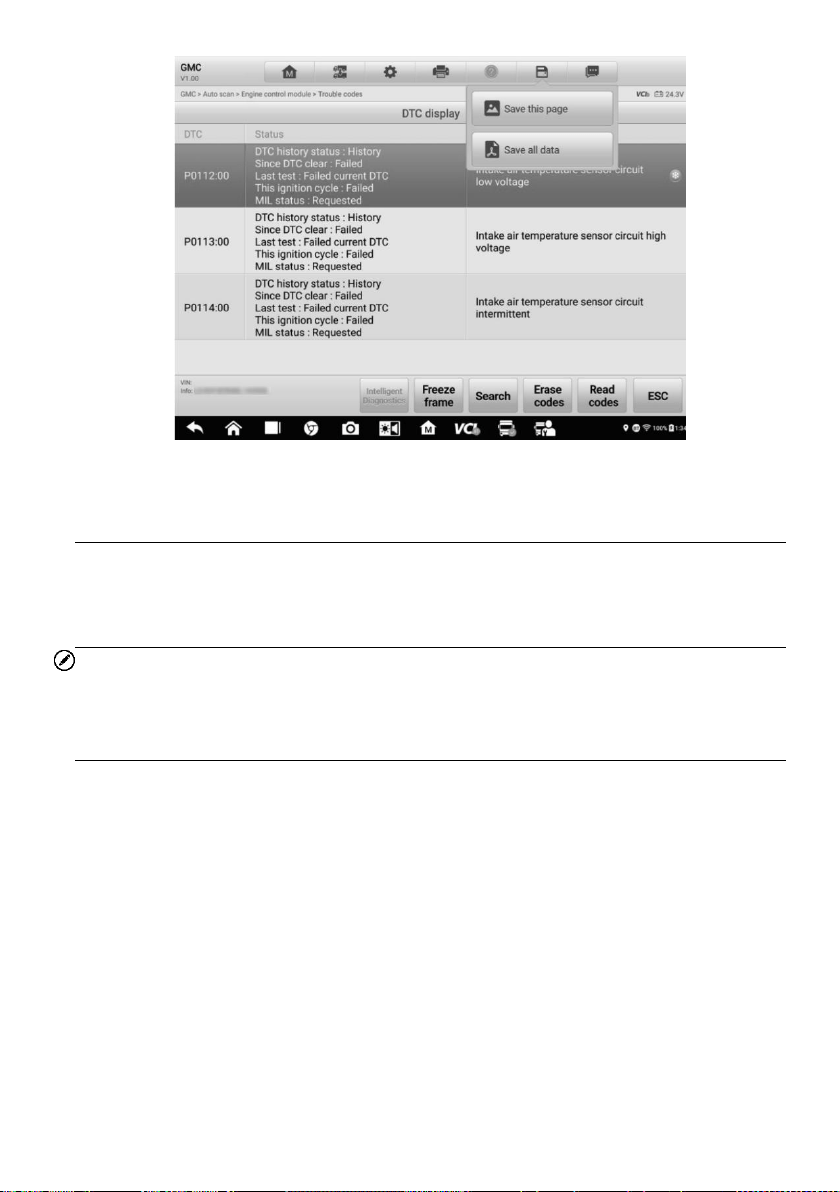
65
Figure 4-35 Sample Read Codes Screen
4.13 Exit Diagnostics
The Diagnostics application operates while communication between the tablet and the
vehicle is still active. It is important to properly exit from the diagnostics operation interface
to stop all communications with the vehicle before closing the Diagnostics application.
NOTE
Damage to the vehicle electronic control module (ECM) may occur if communication is
disrupted. Ensure all forms of communication links such as data cable, USB cable, and
wireless or wired network, are properly connected throughout the test. Exit all interfaces
before disconnecting the test cable and power supply.
To exit the Diagnostics application
1. On an active diagnostic screen, tap the Back or ESC button to exit a diagnostic
session, or tap Vehicle Swap button in the diagnostics toolbar to return to the
Vehicle Menu screen.
2. On the Vehicle Menu screen, tap the Home button in the top toolbar, or tap the
Back button in the navigation bar at the bottom of the screen, or tap the Home
button in the diagnostics toolbar to exit the application directly and return to the
MaxiSys Job Menu.
Now, the Diagnostics application is no longer communicating with the vehicle and it is safe
to open other MaxiSys applications or exit the MaxiSys Diagnostics System and return to
the Home screen.

66
5 Intelligent Diagnostics
Intelligent Diagnostics is a specific fault code analysis function, with which you can
access the most comprehensive and the latest Vehicle System and Detected DTC(s),
Technical Service Bulletin, and DTC Analysis. It has been drawn from real shop repair
orders and records and with input from experienced industry professionals.
Intelligent Diagnostics adopts the scientific data cloud computing technology to match the
specific fault code with the exact vehicle model. And the data has been verified by
automotive maintenance professionals.
The following are main parts of the code data contained in Intelligent Diagnostics:
1. Vehicle System and Detected DTCs
2. Technical Service Bulletin (OEM Information)
3. DTC Analysis
NOTE
Before launching the Intelligent Diagnostics function, please ensure the network is
connected successfully.
5.1 Accessing Intelligent Diagnostics
5.1.1 Auto Scan
Before launching Intelligent Diagnostics, please ensure that vehicle communication has
been established. Connect the MaxiSys MS909CV Diagnostic tablet to the test vehicle
through the VCI device. For detailed instructions to establish vehicle communication with
the MaxiSys tablet, see
Establish Vehicle Communication.
Once communication is established, enter the Diagnostics application and select a
vehicle model. After a vehicle model is selected, tap Auto Scan from the Main menu.
The System list screen will display. For detailed instructions on using the Auto Scan
function, see
Auto Scan.
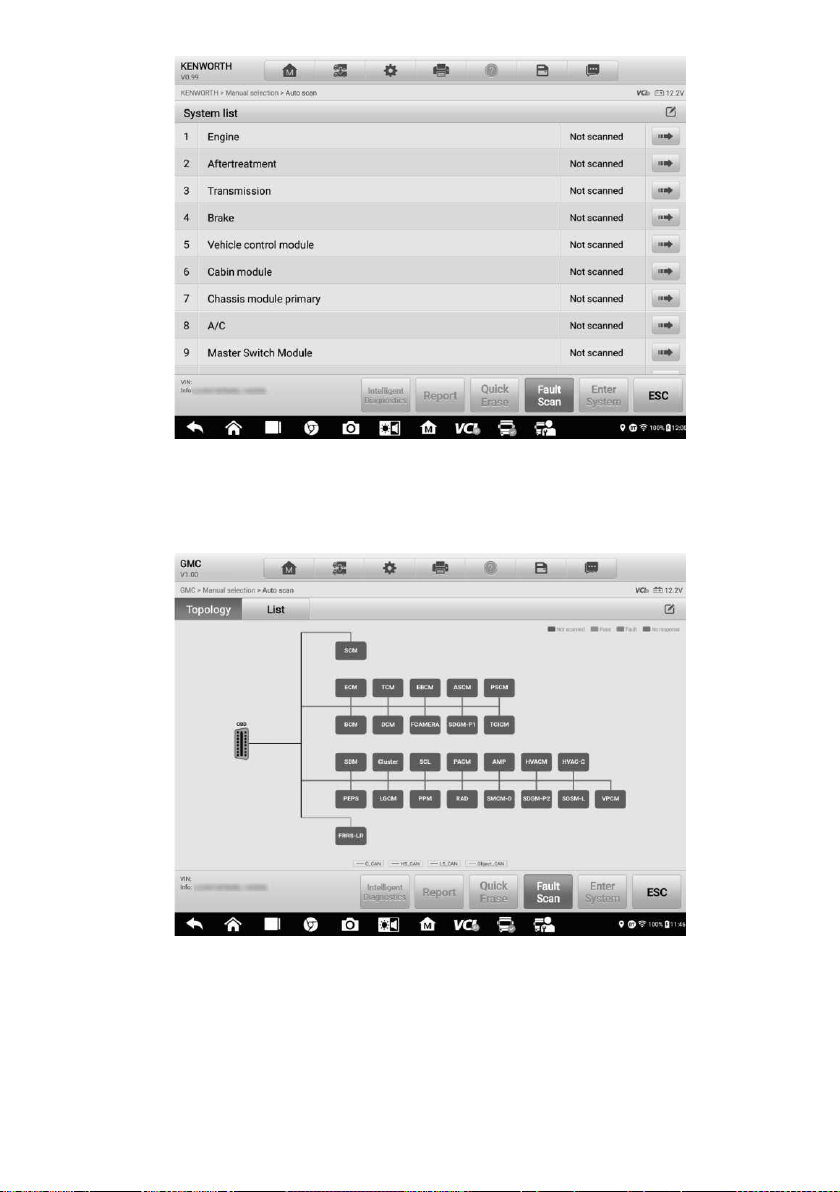
67
Figure 5-1 Sample System List Screen
The topology map, which displays relations among different systems, is available on
certain vehicles, including Kenworth, Peterbilt, Chevrolet and more.
Figure 5-2 Sample Topology Display Screen
Select the List tab to display the vehicle systems in a list.
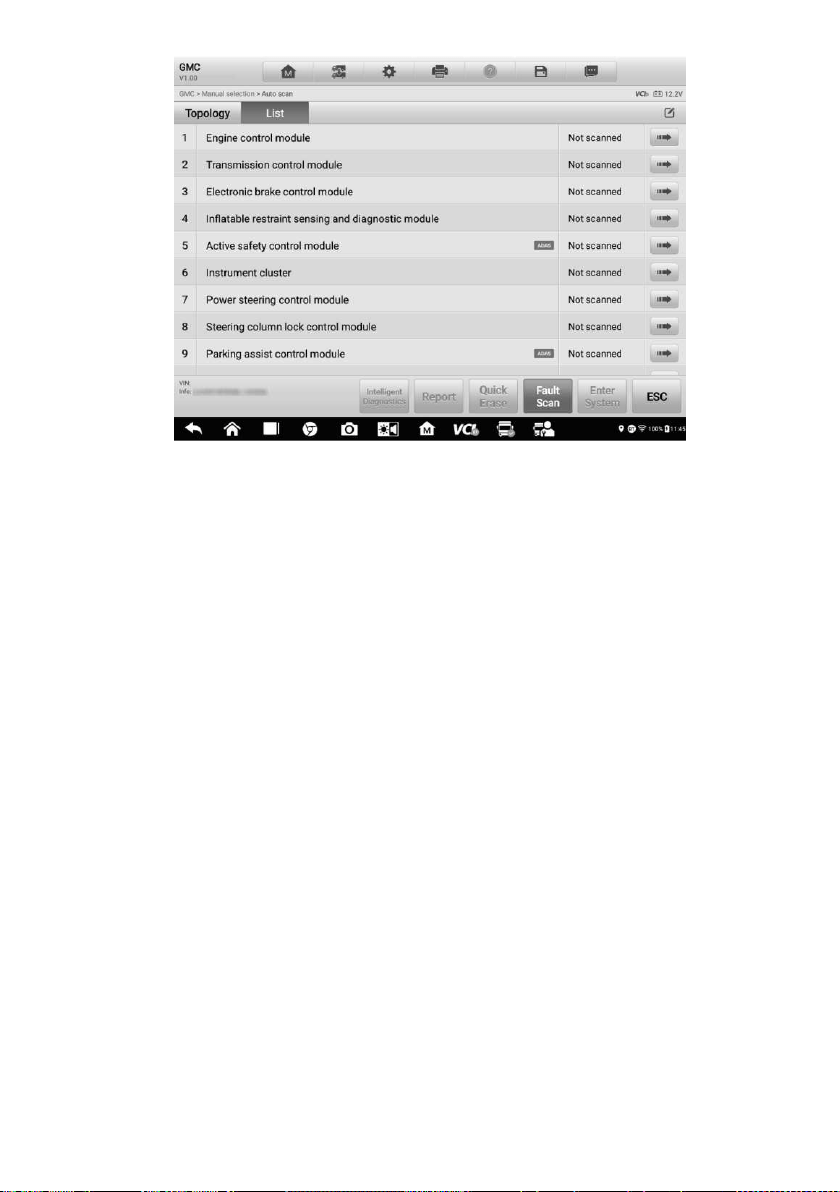
68
Figure 5-3 Sample List Screen
5.1.2 Scan System Faults
Once the vehicle system listing or Topology mapping is completed, tap the Fault Scan
button at the bottom of the System list, Topology or List screen to identify the faults in
the vehicle systems.
1) On the System list screen, tap the Fault Scan button at the bottom. After scanning,
a system with identified faults will display in red, with the number of faults displayed
on the right. The number of total faults will display on the top.
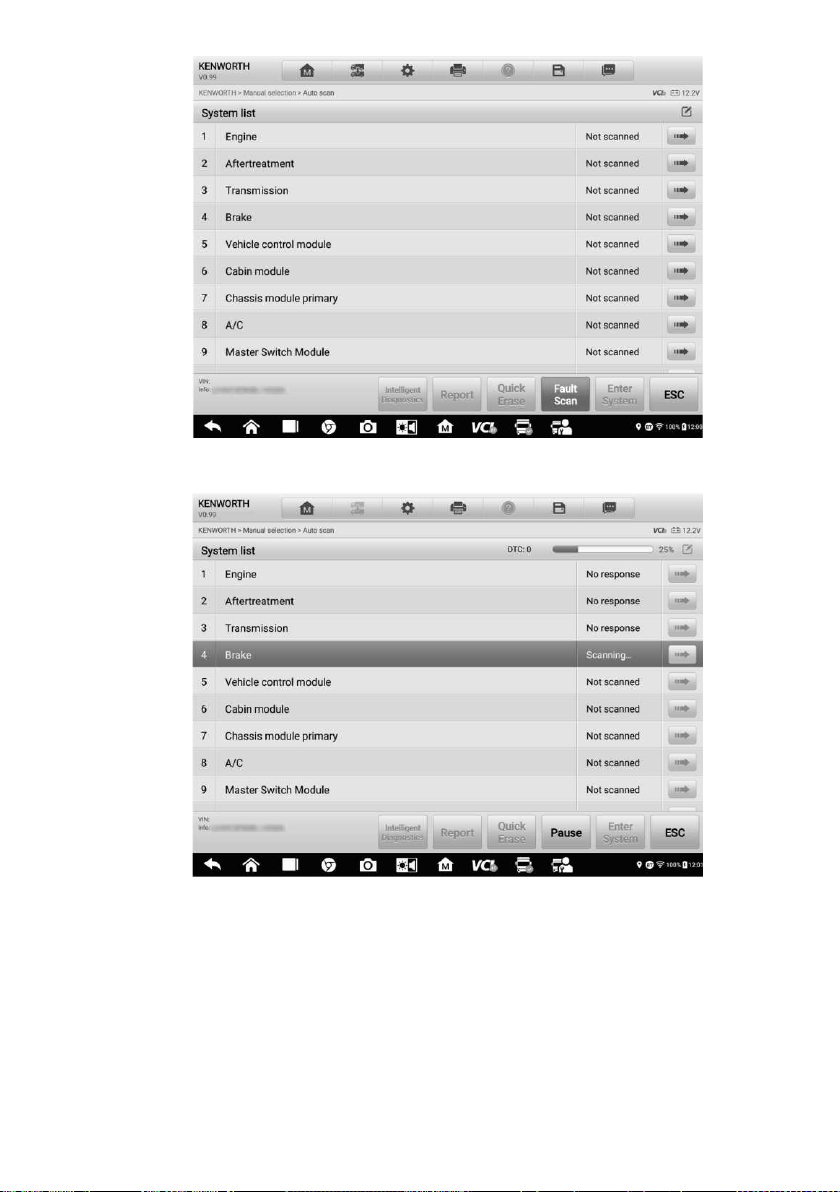
69
Figure 5-4 Sample Fault Scan on System List Screen 1
Figure 5-5 Sample Fault Scan on System List Screen 2
2) On the Topology screen, a system with identified faults will display in orange, with
the number of faults displayed on the upper-right corner of the system icon. The
number of total faults will display on the top.
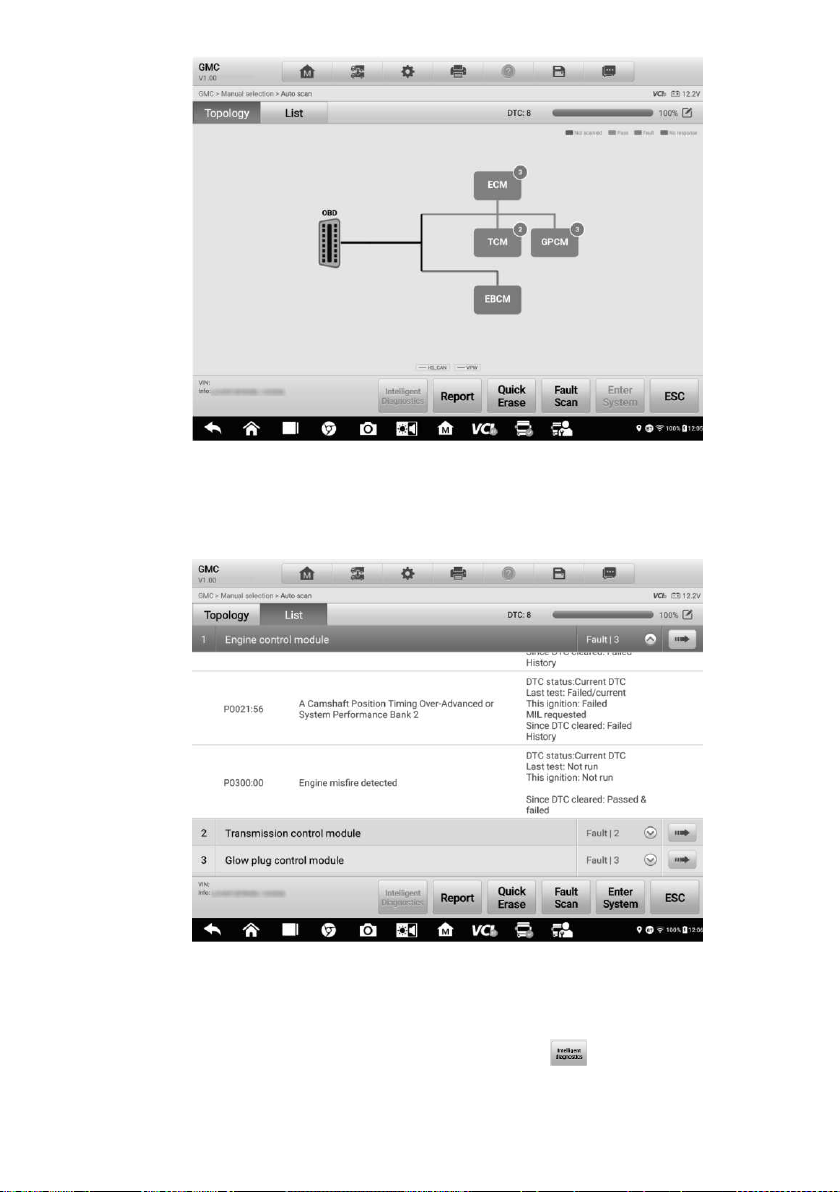
70
Figure 5-6 Sample Fault Scan on Topology Screen
3) On the List screen, a system with identified faults will also display in red, with the
number of faults on the right. The number of total faults will display on the top.
Figure 5-7 Sample Fault Scan on List Screen
After scanning system faults, there are two methods to access the Intelligent Diagnostics
screen:
Access via the Intelligent Diagnostics button to view code-related
information of all DTCs for the whole vehicle.
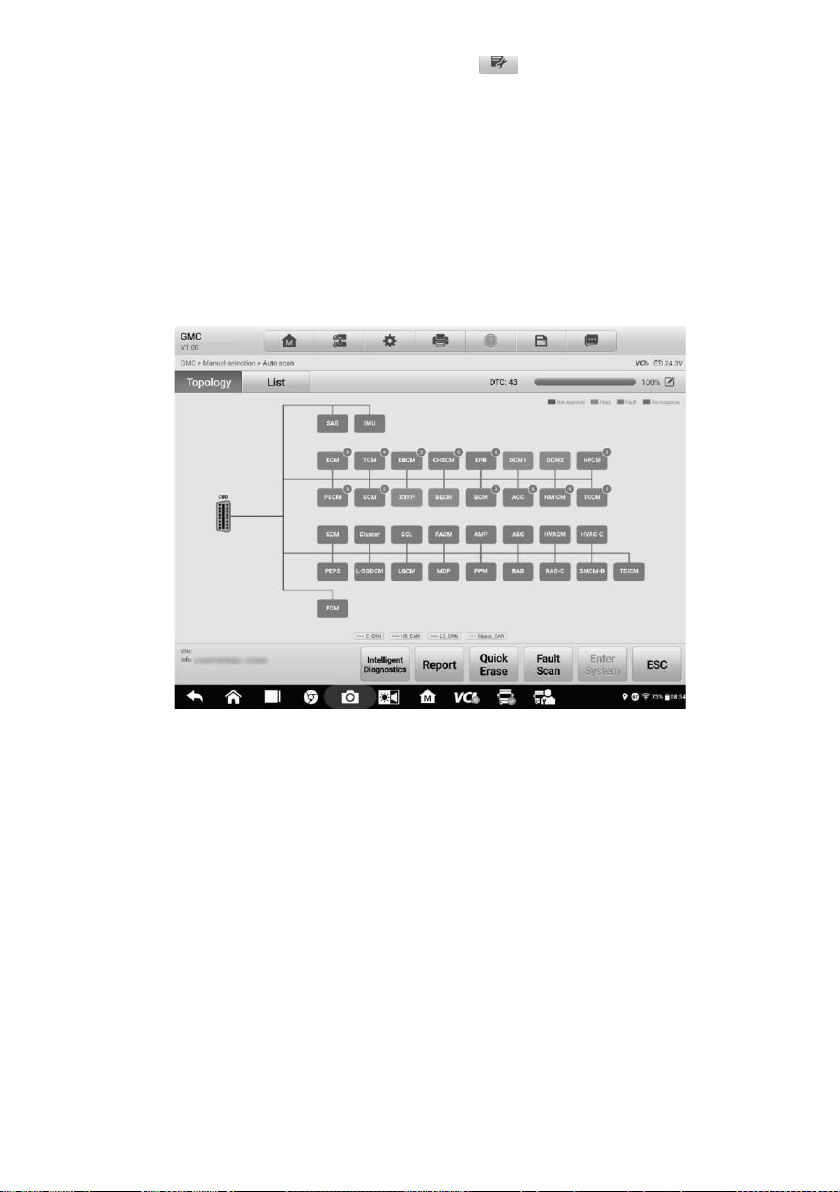
71
Access via the Intelligent Diagnostics icon to view code-related information
of a specific DTC.
5.1.3 Access via Intelligent Diagnostics Button
After all the faults of the vehicle systems are scanned, tap the Intelligent diagnostics
button on the bottom of the screen to directly enter the Intelligent Diagnostics screen.
Entering the Intelligent Diagnostics screen, you can find the TSB and DTC analysis
information of All DTCs for all the systems that have been scanned. For detailed operation
instructions, please refer to the
Intelligent Diagnostics Operation for details.
Figure 5-8 Sample Intelligent Diagnostics Button Screen
5.1.4 Access via Intelligent Diagnostics Icon
You can also use the Intelligent Diagnostics icon to enter the Intelligent Diagnostics
function to get detailed fault repair instructions of a specific DTC.
The details of the detected faults, including the fault code, fault description and status, will
be displayed under the system name or module. If the Intelligent Diagnostics function is
available for this vehicle, the Intelligent Diagnostics icon will display on the right.
On the List screen, tap the Intelligent Diagnostics icon on the right side to enter the
Intelligent Diagnostics screen directly.
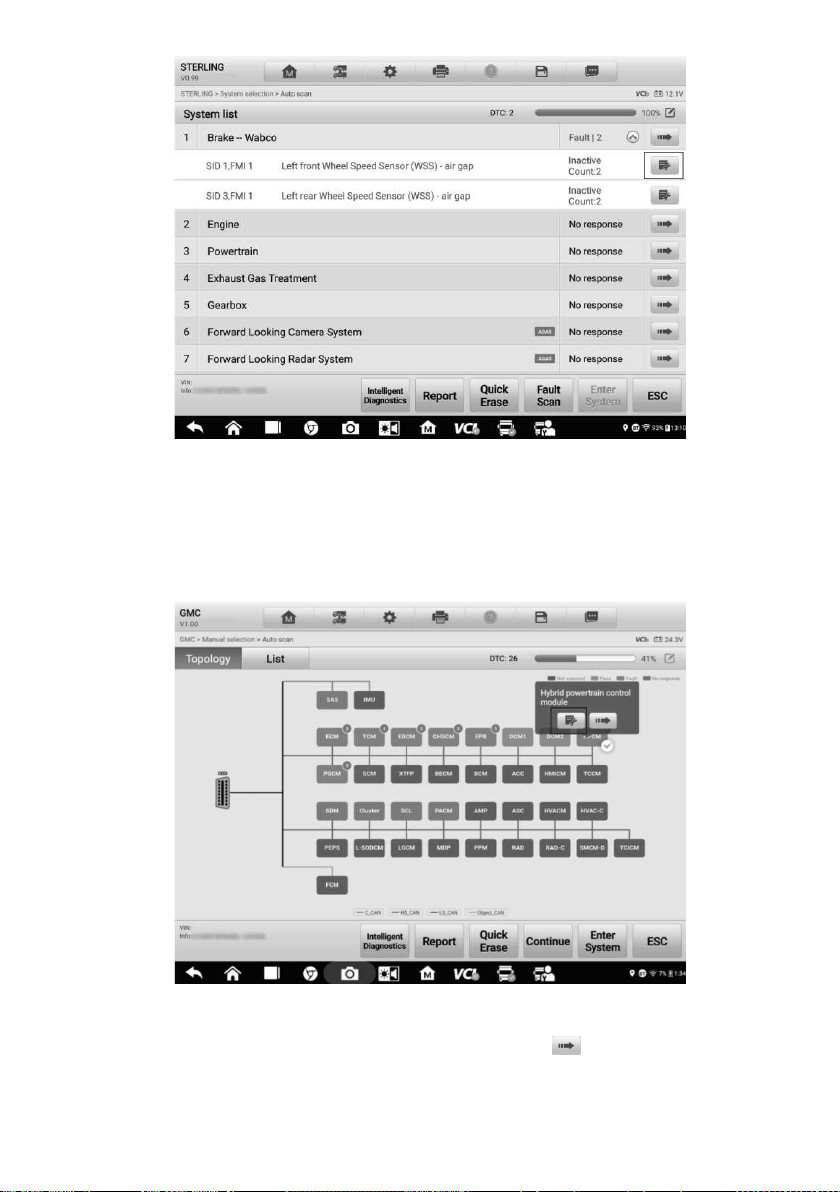
72
Figure 5-9 Sample Intelligent Diagnostics Icon Screen 1
On the Topology screen, once the system scan is completed, tap a system icon
(displays in orange if faults are detected) to display complete system name with the
Intelligent Diagnostics icon shown below. Tap the Intelligent Diagnostics icon to enter
the Intelligent Diagnostics screen directly.
Figure 5-10 Sample Intelligent Diagnostics Icon Screen 2
When entering a specific system by tapping the arrow icon , you can also access the
Intelligent Diagnostic screen if the Intelligent Diagnostics function is available for this
vehicle.
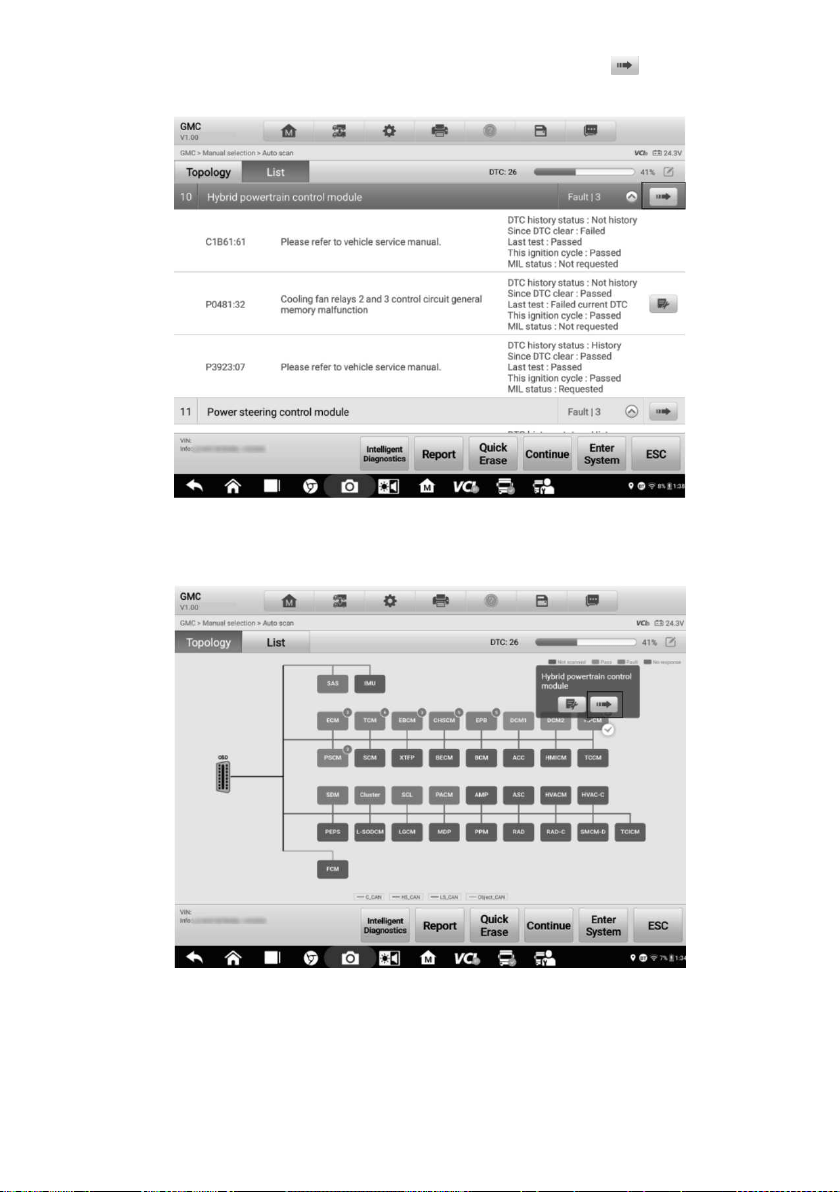
73
1. On the System list, Topology or List screen, tap the arrow icon to enter a system,
the Function menu will display. Available functions vary by vehicle.
Figure 5-11 Sample Entering System Icon Screen (List)
Figure 5-12 Sample Entering System Icon Screen (Topology)
2. Select Trouble codes from the Function menu screen and the trouble codes screen
will display.
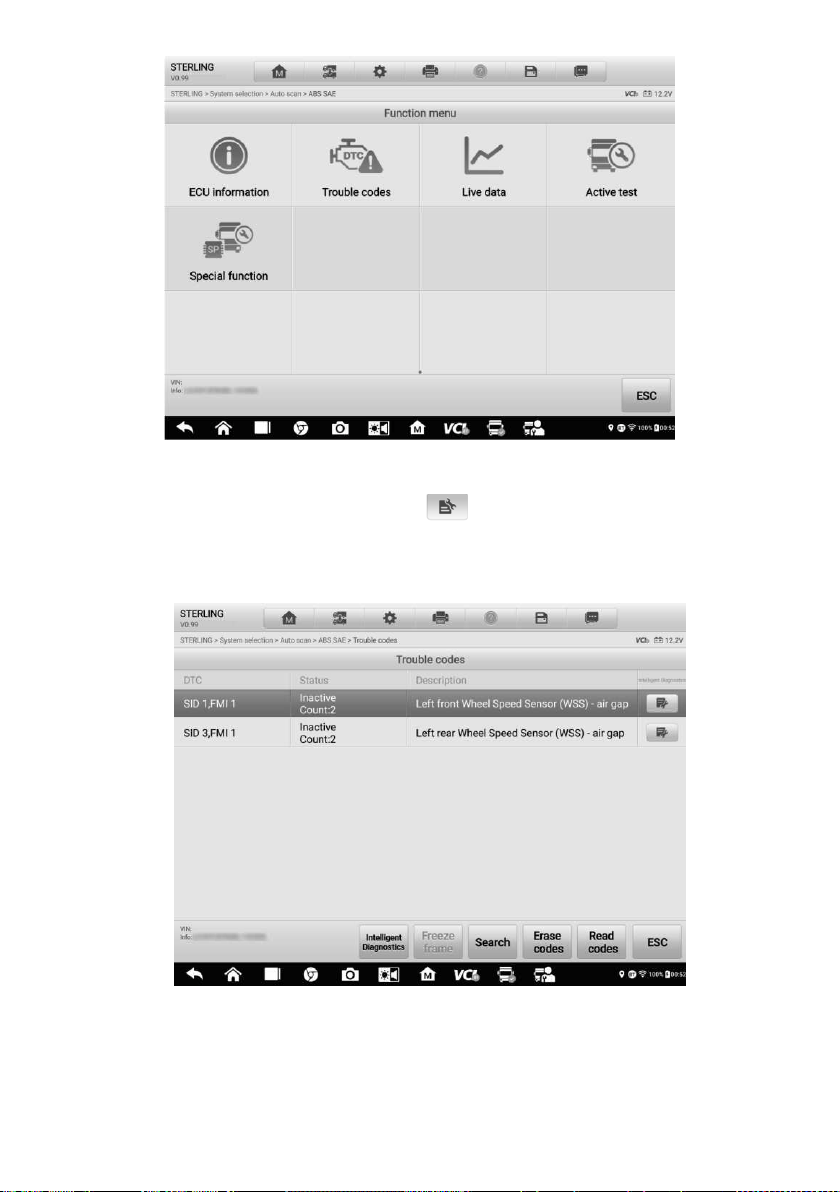
74
Figure 5-13 Sample Function Menu Screen
3. Tap the Intelligent Diagnostics icon to the right of the DTC description, or
select a specific DTC from the DTC list, and then tap the Intelligent Diagnostics
button at the bottom of the screen.
Figure 5-14 Sample Trouble Codes Screen
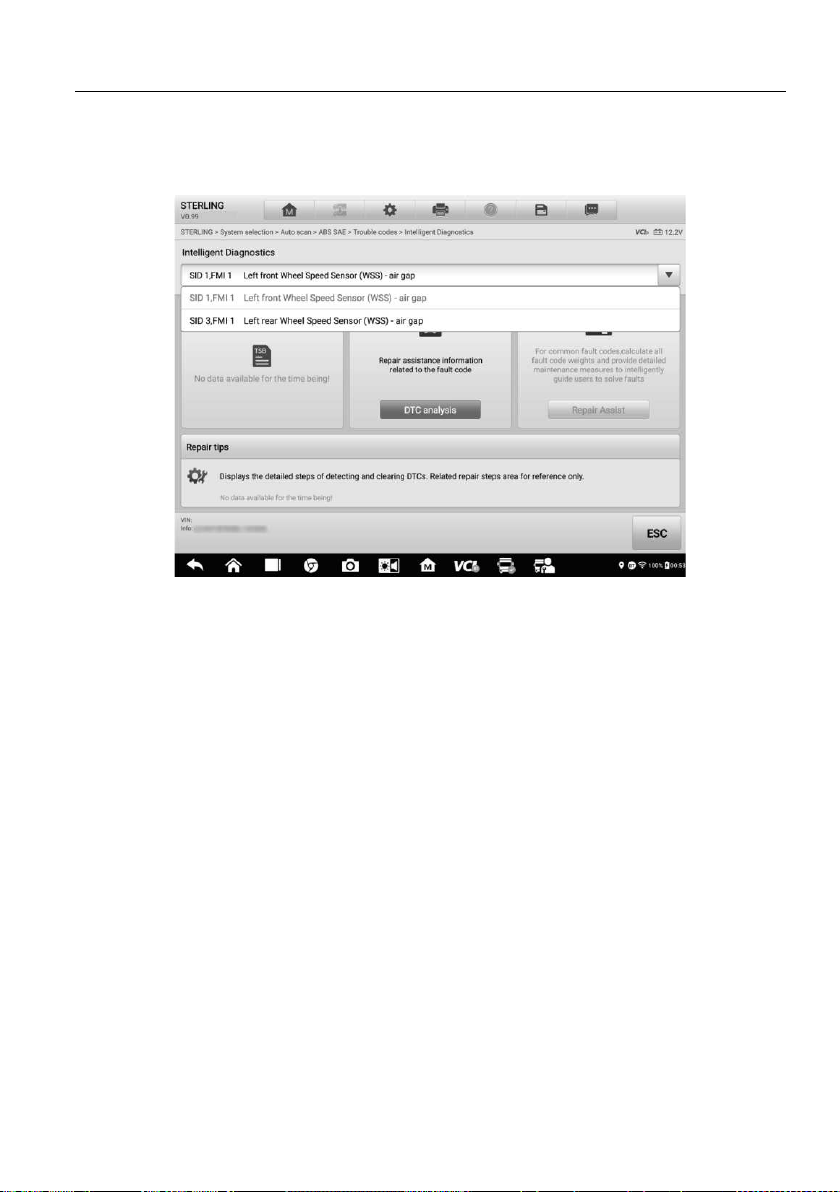
75
5.2 Intelligent Diagnostics Operation
Intelligent Diagnostics is an important and powerful function of MaxiSys MS909CV. It
provides substantial information for Vehicle System and Detected DTCs, Technical
Service Bulletin, and DTC Analysis to help you repair detected faults.
Figure 5-15 Sample Intelligent Diagnostics Layout
The Intelligent Diagnostics function consists of the following sections:
1. Vehicle System and Detected DTCs — displays the name of the vehicle system(s)
and the detected DTCs.
2. Technical Service Bulletin — contains DTC-related recalls, TSB, and OEM
campaigns.
3. DTC Analysis — provides repair assistance information related to the fault code.
5.2.1 Vehicle System and Detected DTC(s)
This section displays the scanned vehicle systems that contain faults. Tap the drop-down
menu to view comprehensive information of ALL systems or switch to different fault codes
for details.
Tap the arrow button on the right to display a drop-down list of all systems along with
specific DTCs. Touch and slide up or down on the screen to review all codes in the list.
Select ALL systems or select a DTC to view the corresponding Intelligent Diagnostics
information.
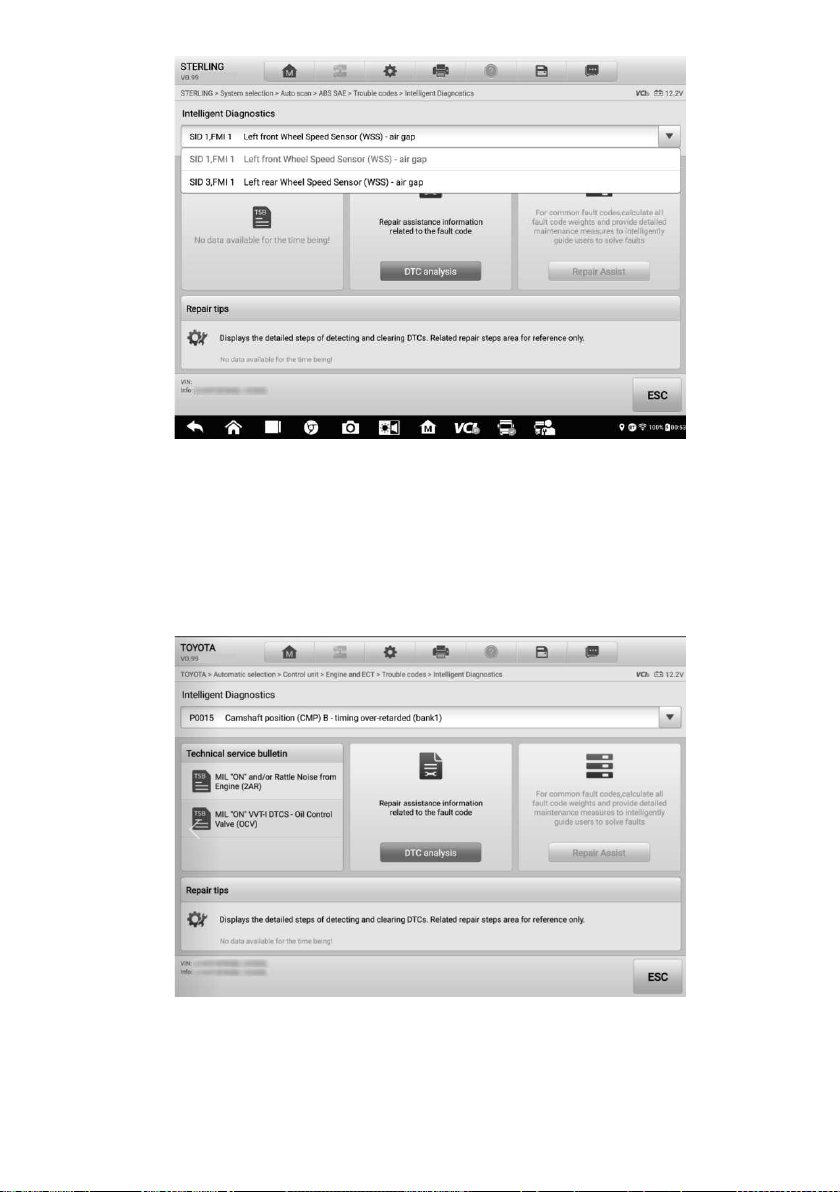
76
Figure 5-16 Sample Vehicle System and Detected DTC(s) Screen
5.2.2 Technical Service Bulletin (OEM Information)
The Technical Service Bulletin function matches the selected fault code with relevant
vehicle manufacturer TSBs. All TSBs related to the selected DTC are listed in the TSB
display window. Select a TSB to open the TSB page and view the TSB in details.
Figure 5-17 Sample TSB Screen
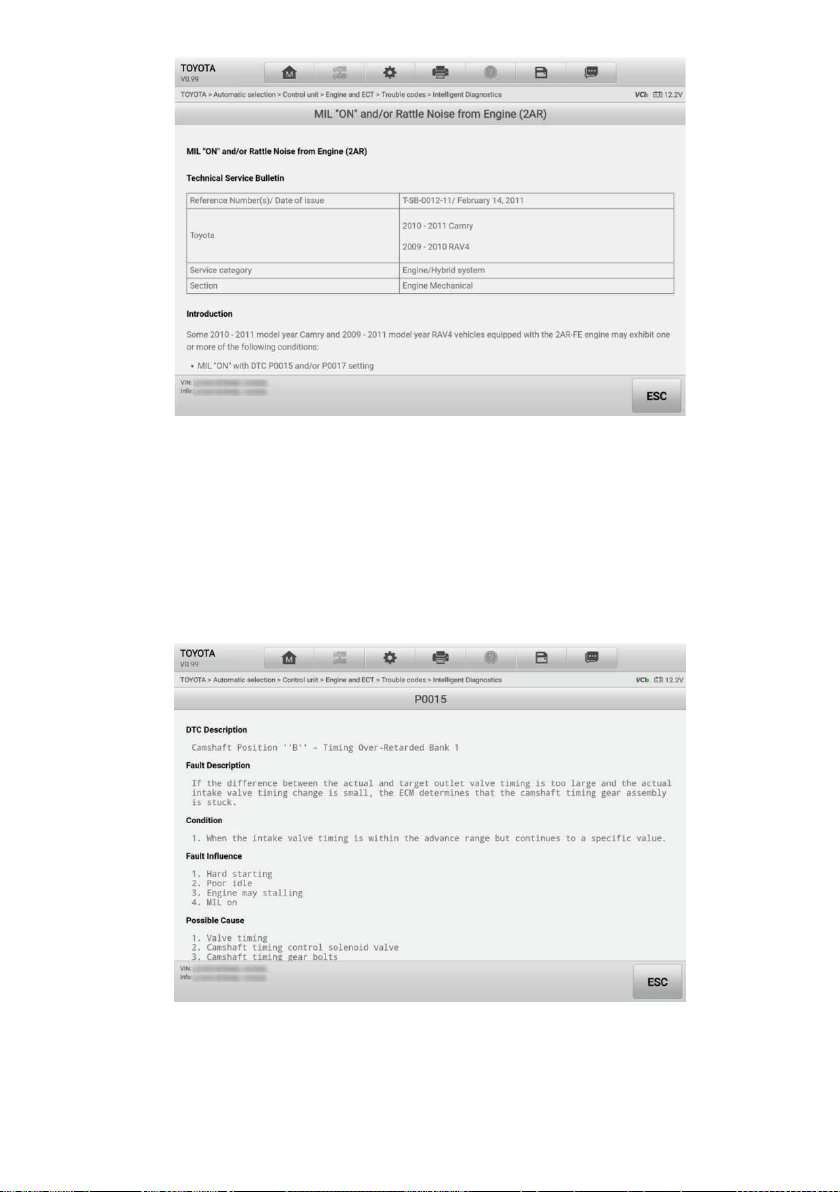
77
Figure 5-18 Sample TSB in Details
5.2.3 DTC Analysis
On the Intelligent Diagnostic screen, the DTC Analysis contains repair assistance and
information related to the fault codes, including the fault description, condition, fault
influence, possible cause, and possible solution. The repair assistance information vary
by vehicle.
Figure 5-19 Sample DTC Analysis Screen
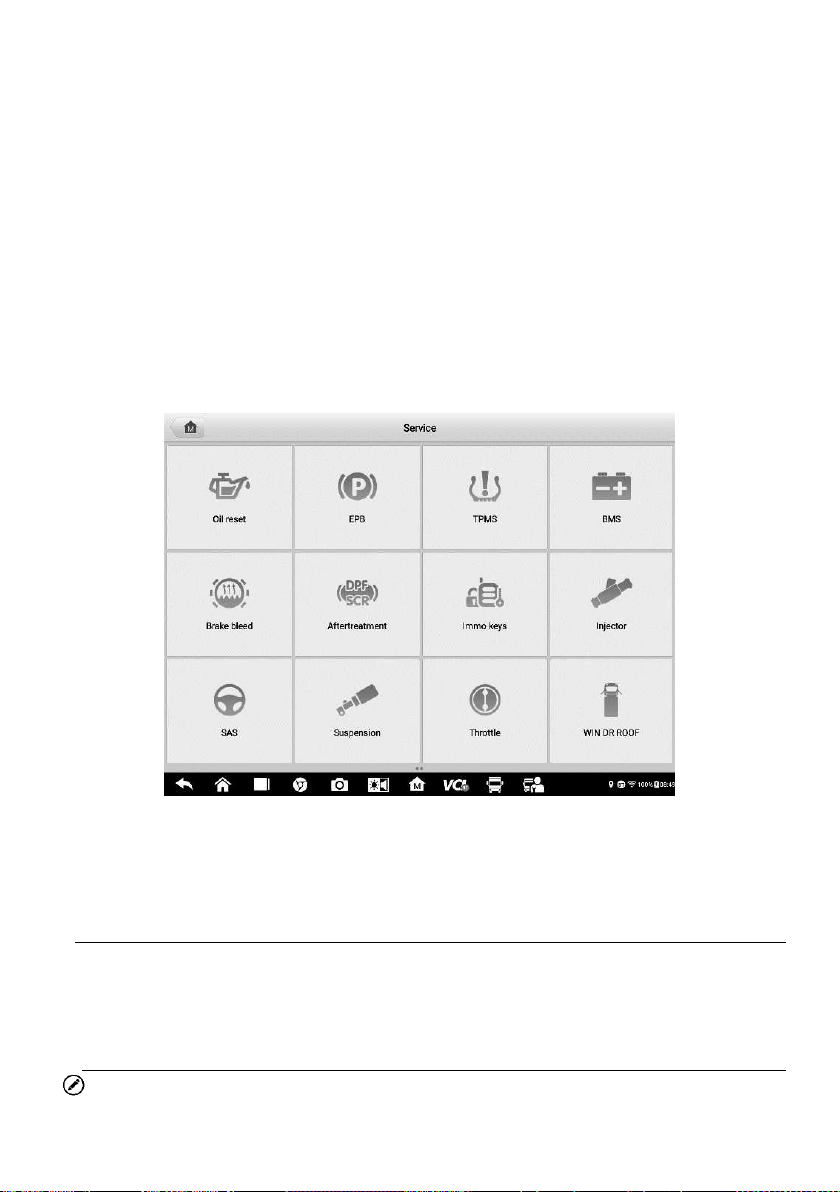
78
6 Service
The Service section is specially designed to provide quick access to the vehicle systems
for various scheduled service and maintenance tasks. The typical service operation
screen is a series of menu-driven commands. Follow the on-screen instructions to select
appropriate options, enter values or data, and perform necessary actions. The application
will display detailed instructions to complete selected service operations.
After entering each special function, the screen will display two application choices:
Diagnosis and Hot Functions. The Diagnosis enables the reading and clearing of codes,
which is sometimes necessary after completing certain special functions. Hot Functions
consists of sub functions of the selected special functions.
Figure 6-1 Sample Service Menu
Several most commonly used services are described in this chapter.
6.1 Oil Reset Service
Perform reset for the Engine Oil Life system, which calculates an optimal oil life change
interval depending on the vehicle driving conditions and climate. The Oil Life Reminder
must be reset each time the oil is changed, so the system can calculate when the next oil
change is required.
NOTE
1. Always reset the engine oil life to 100% after every oil change.

79
2. All required work must be carried out before the service indicators are reset. Failure
to do so may result in incorrect service values and cause DTCs to be stored by the
relevant control module.
3. For some vehicles, the scan tool can reset additional service lights such as
maintenance cycle and service interval. On BMW vehicles for example, service
resets include engine oil, spark plugs, front/rear brakes, coolant, particle filter, brake
fluid, micro filter, vehicle inspection, exhaust emission inspection and vehicle checks.
6.2 Aftertreatment Service
The Aftertreatment function manages DPF regeneration, DPF component replacement
teach-in and DPF teach-in after replacing the engine control unit.
The ECM monitors driving style and selects a suitable time to employ regeneration. Cars
driven a lot at idling speed and low load will attempt to regenerate earlier than cars often
driven with higher load and speed. For regeneration to take place, a prolonged high
exhaust temperature must be obtained.
In the event of the car being driven in such a way that regeneration is not possible, i.e.,
frequent short journeys, a diagnostic trouble code will eventually be registered in addition
to the DPF light and “Check Engine” indicators displaying. A service regeneration can be
requested in the workshop using the diagnostics tool.
Before performing a forced DPF regeneration using the tool, check the following items:
The fuel light is not on.
No DPF-relevant faults are stored in system.
The vehicle has the specified engine oil.
The oil for diesel is not contaminated.
IMPORTANT
Before diagnosing the problem vehicle and attempting to perform an emergency
regeneration, it is important to obtain a full diagnostic log and read out relevant measured
value blocks.
NOTE
1. The DPF will not regenerate if the engine management light is on, or there is a faulty
EGR valve.
2. The ECU must be re-adapted when replacing the DPF and when topping up the fuel
additive Eolys.
3. If the vehicle needs to be driven in order to perform a DPF service, a second person
is required for the function. One person should drive the vehicle while the other
person observes the screen on the tool. Do not attempt to drive and observe the scan

80
tool at the same time. This is dangerous and puts your life and the lives of other
motorists and pedestrians at risk.
6.3 Limit Service
This function is usually used to change the maximum speed limit of a vehicle (some
vehicles are manufactured with a maximum speed limit set by the manufacturer).
6.4 Injector Service
This function is usually used to set the compensation code for the new injector assembly
or the injectors to the Engine ECU after replacement.
6.5 Speed & PTO Service
The Cylinder function allows a technician to carry out cylinder bank cutout test, cylinder
cutout test, cylinder performance test, and single bank cutout test to troubleshoot cylinder
misfires. The sub-functions may vary by test vehicle.
6.6 VGT Learn Service
Turbo matching — this function is used for turbine removal and recalibration.
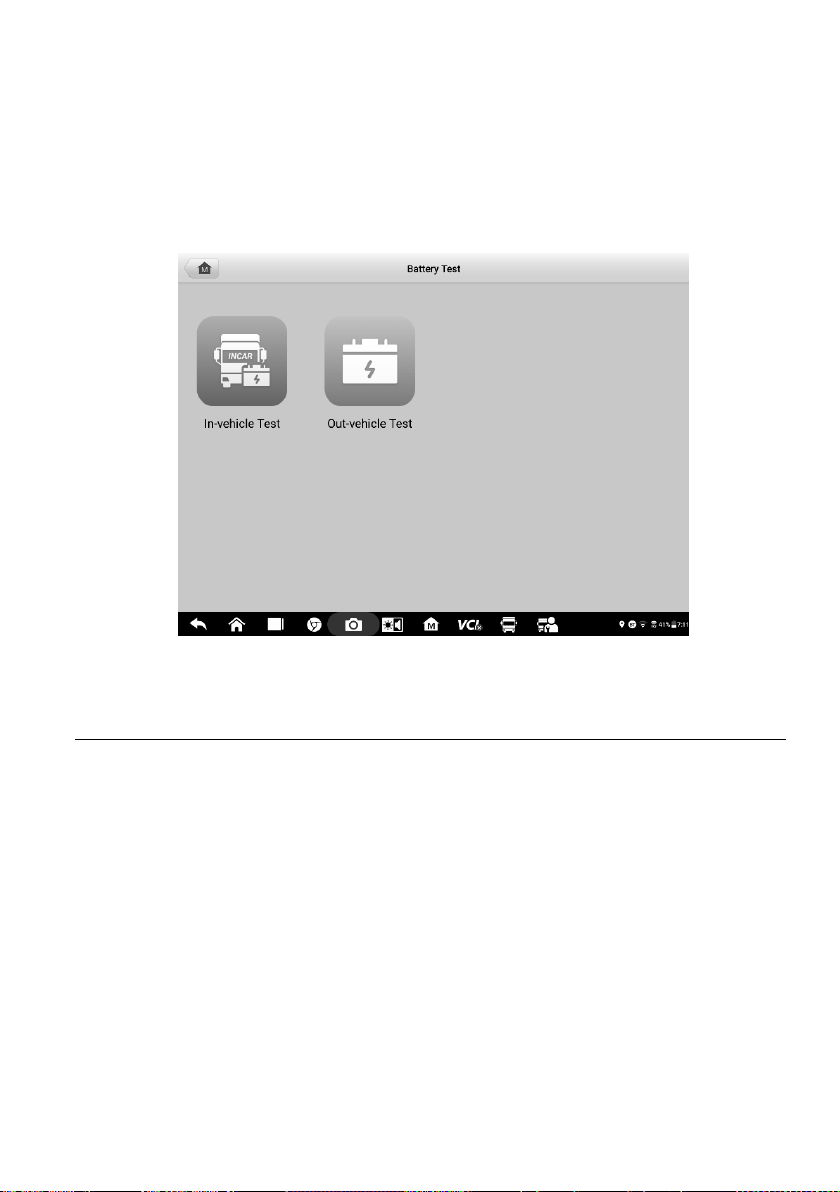
81
7 Battery Test
Battery Test conducts battery and cranking/charging systems analysis and enables
technicians to view the health status of the vehicle’s battery and electrical system.
Functions include in-vehicle test and out-vehicle test.
Figure 7-1 Sample Battery Test Screen
7.1 Test Preparation
7.1.1 Inspect the Battery
Before starting a test, observe the battery for:
Cracking, buckling or leaking (If you see any of these defects, replace the battery.)
Corroded, loose or damaged cables and connections (Repair or replace as needed.)
Corrosion on the battery terminals, and dirt or acid on the case top (Clean the case and
terminals using a wire brush and a mixture of water and baking soda.)
7.1.2 Connect the Battery Tester
To pair the with the MaxiSys MS909CV tablet
1. Press and hold the Power Button to turn on the MS909CV. Ensure that the unit
is sufficiently charged before use.
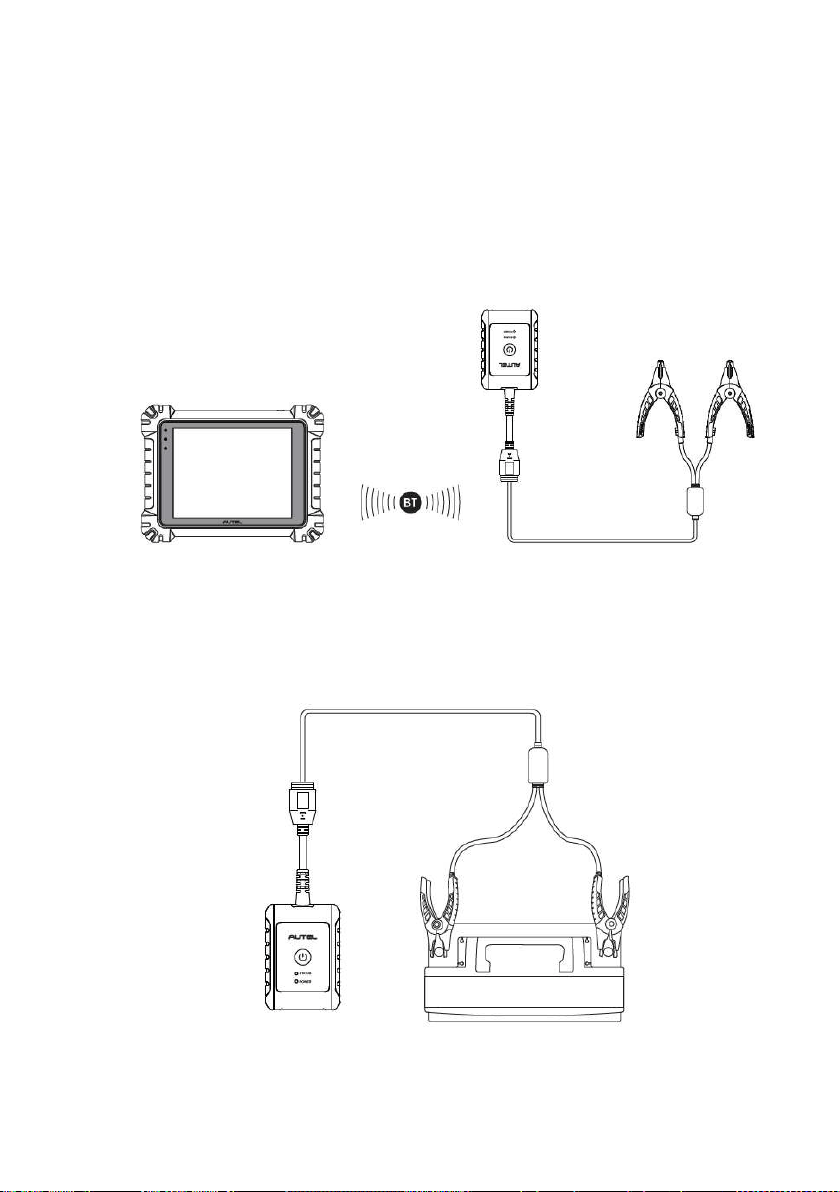
82
2. Enable Bluetooth on the MS909CV by tapping VCI Manager > BAS BT, and
the tablet automatically scans for an available tester for Bluetooth pairing. The
device name will appear as “Maxi” suffixed with a serial number.
3. Check the serial number of your MaxiBAS B200 series tester and select the
desired device for pairing.
4. When paired successfully, the connection status will read as “Connected” and
the Status LED will light solid blue.
To connect to a battery
Connect the red clamp to the positive (+) terminal and the black clamp to the
negative (-) terminal of the battery.
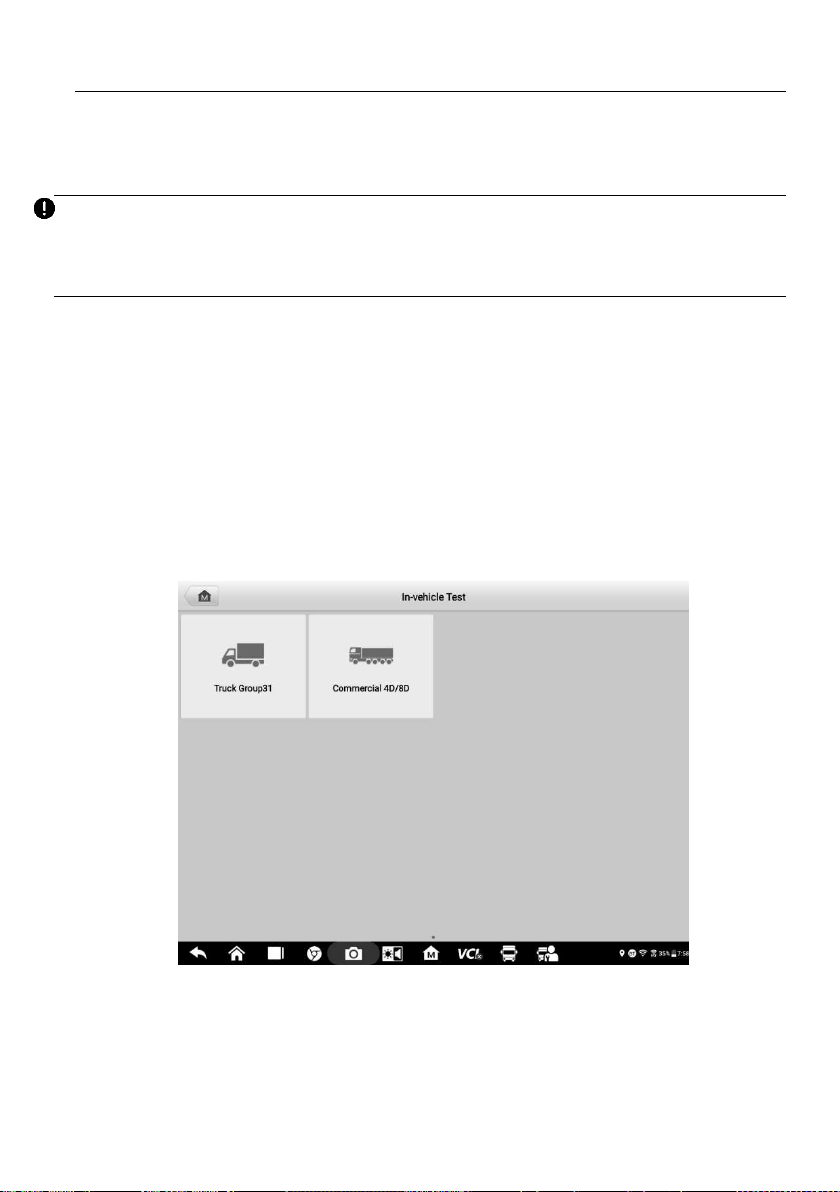
83
7.2 In-vehicle Test
In-vehicle Test is used for testing batteries that are installed in a vehicle. An in-vehicle test
includes Battery Test, Starter Test, and Generator Test. These tests help determine the
health status of the battery, the starter, and the generator.
IMPORTANT
A disclaimer page will appear when accessing any function on the Home screen for the first
time. Please read the end user agreement and Tap Accept to continue. If you tap Decline,
you will not be able to use the features properly.
Prior to testing any battery, ensure that the B200 series tester is paired with the tablet via
Bluetooth.
7.2.1 Start the test
To start the battery test
1. Select In-vehicle Test.
2. Choose your desired vehicle type from Truck Group31 or Commercial 4D/8D
(for example).
Figure 7-2 Sample In-vehicle Test Screen
3. Confirm your battery information, including voltage, type, standard, and capacity.
Tap Next to continue in-vehicle test functions.
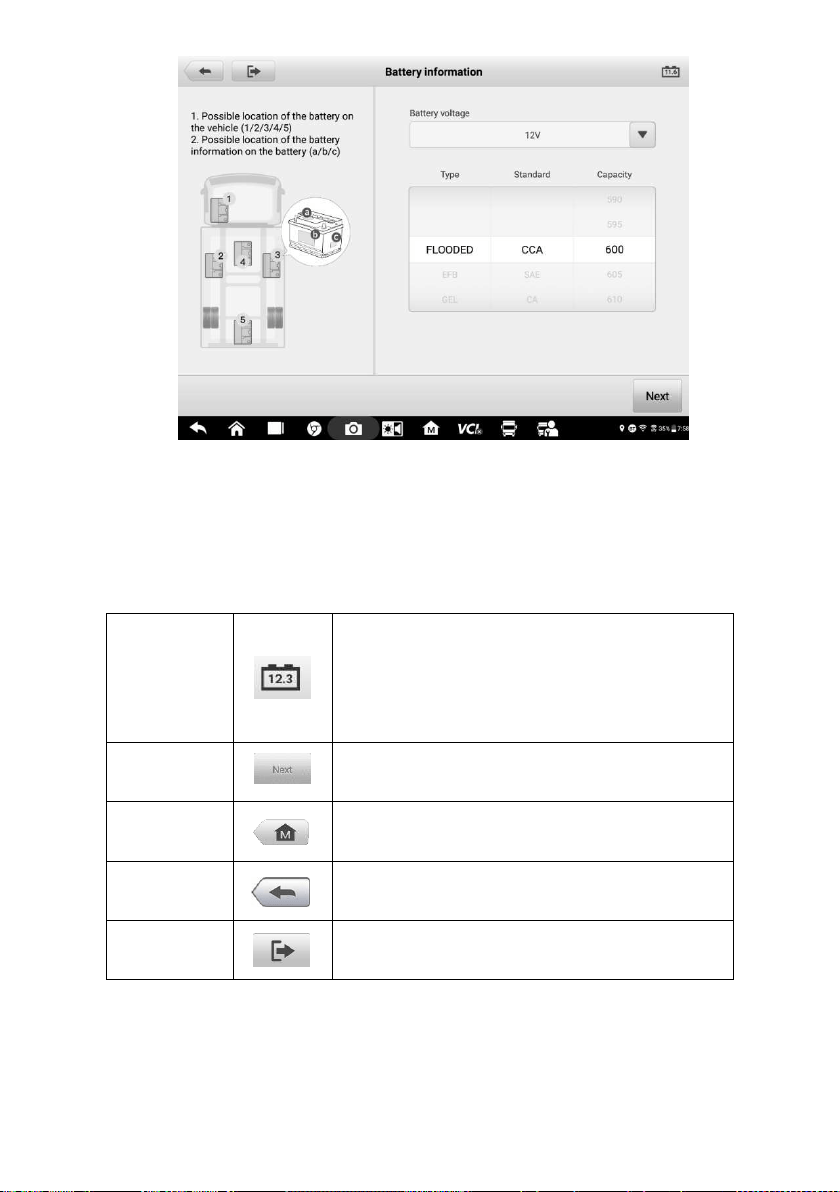
84
Figure 7-3 Sample Battery information Screen
Please refer to the table below for a list of buttons that may appear when accessing the
functions:
Table 7-1 Top Toolbar Buttons
7.2.2 Battery Test
1. Follow the on-screen instructions. Check the boxes once all required tasks are
completed, and tap Start Testing.
Battery
Connection
The value on the icon indicates the real-time
voltage of the tested battery. In the battery test,
the button will turn green if the battery is good;
otherwise, it will turn red.
Next
Tap to proceed.
Home
Returns to the MaxiSys Job Menu.
Back
Returns to the previous screen.
Exit
Returns to the Job Menu.
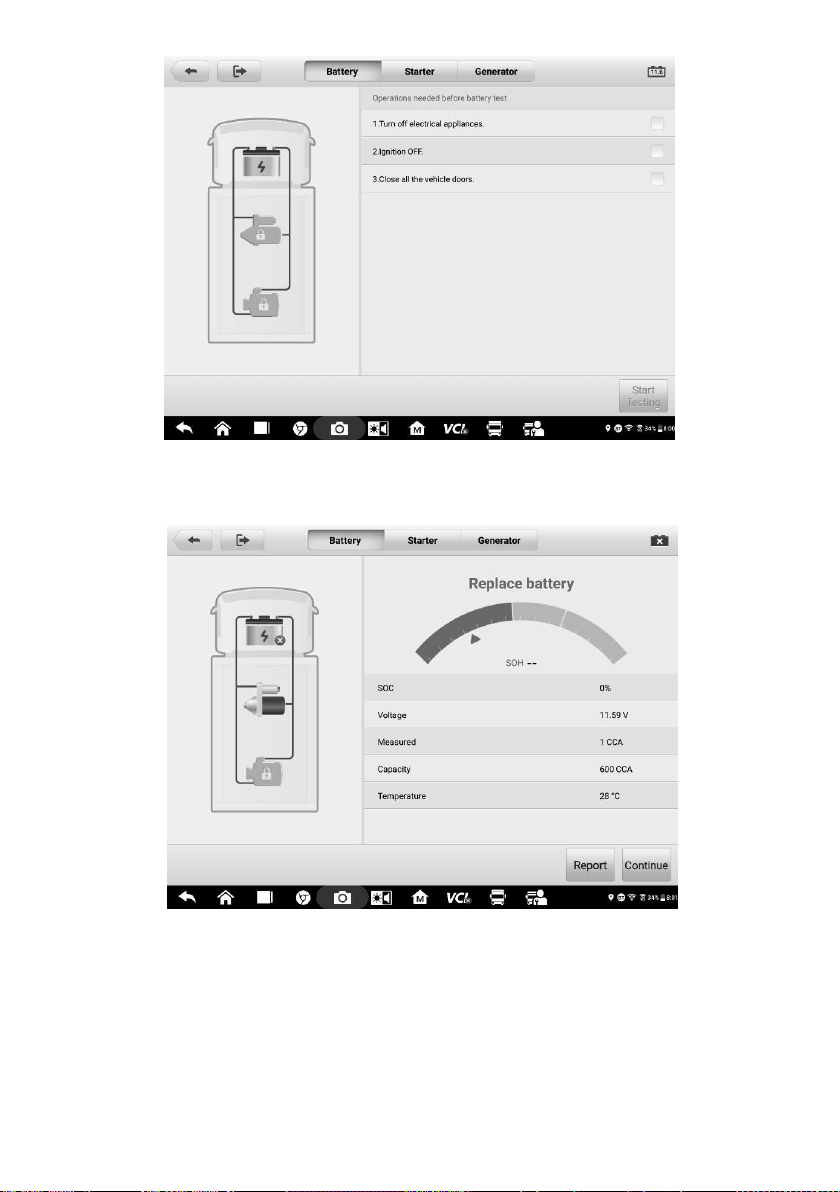
85
Figure 7-4 Sample Battery Screen
2. Wait until the test is completed. The test results will be displayed on the tool.
Figure 7-5 Sample Battery Test Results Screen
Battery Test Results
The battery test results include a color-coded results summary, a list of test data, and
repair tips.
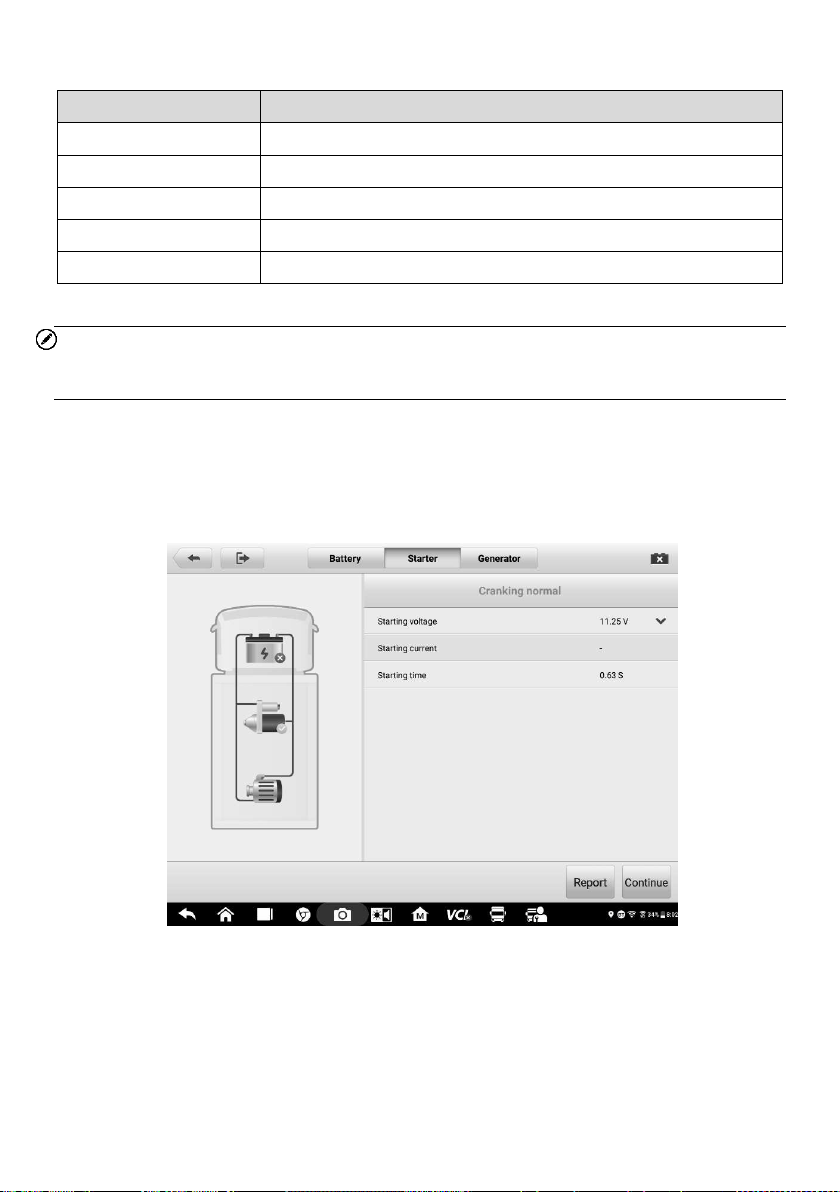
86
Table 7-2 Test Results
Result
Repair Tip
Good Battery
Battery is good.
Good & Recharge
Battery is good but insufficiently charged. Recharge the battery.
Charge & Retest
Battery requires charge to determine its condition.
Bad Cell
Replace the battery.
Replace Battery
Replace the battery.
NOTE
Please always complete the battery test before you proceed to the starter and generator
tests.
7.2.3 Starter Test
Follow the on-screen instructions to complete the test. Start the engine and let it idle. The
test results will appear as follows:
Figure 7-6 Sample Starter Test Result Screen
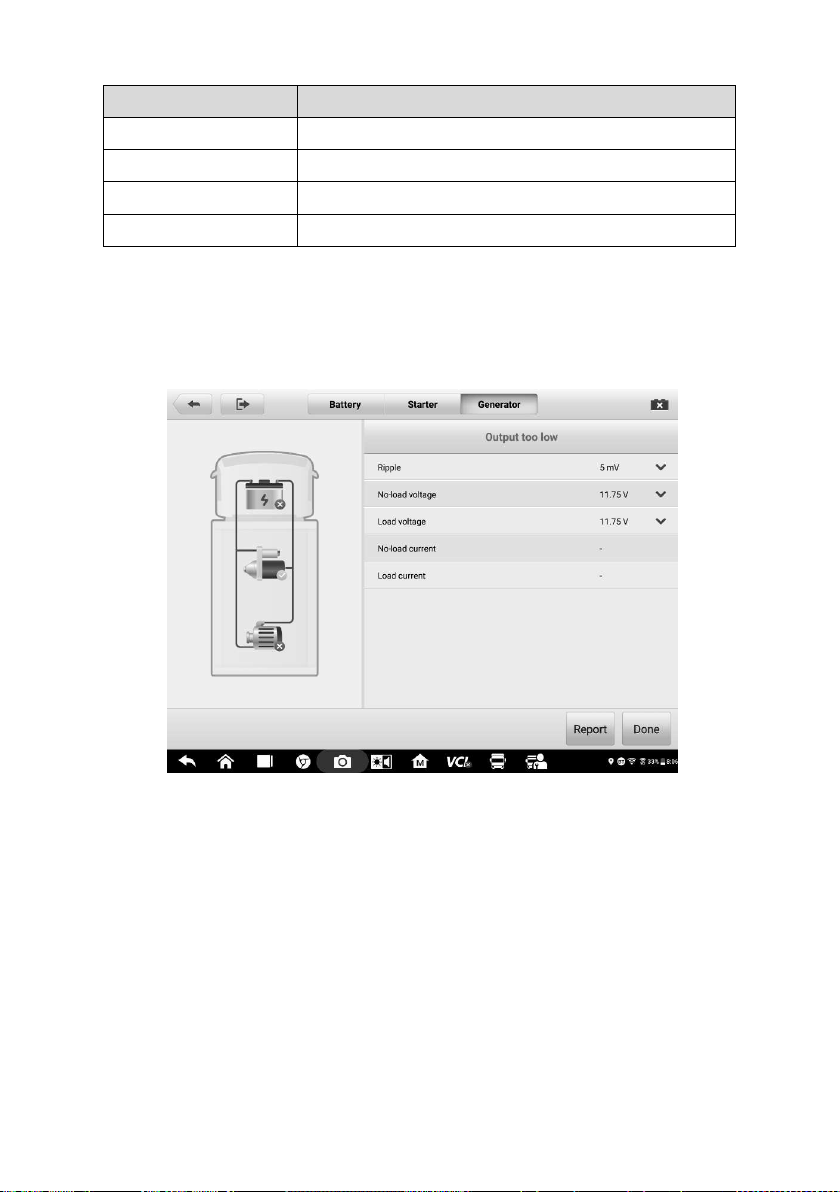
87
Table 7-3 Starter Test Results
Result
Description
Cranking Normal
The starter is good.
Current Too Low
Low momentary discharge capacity.
Voltage Too Low
Low battery storage capacity.
Not Started
The starter is not detected for starting.
7.2.4 Generator Test
Follow the on-screen instructions to complete the test. The test results will appear as
follows:
Figure 7-7 Sample Generator Test Results Screen
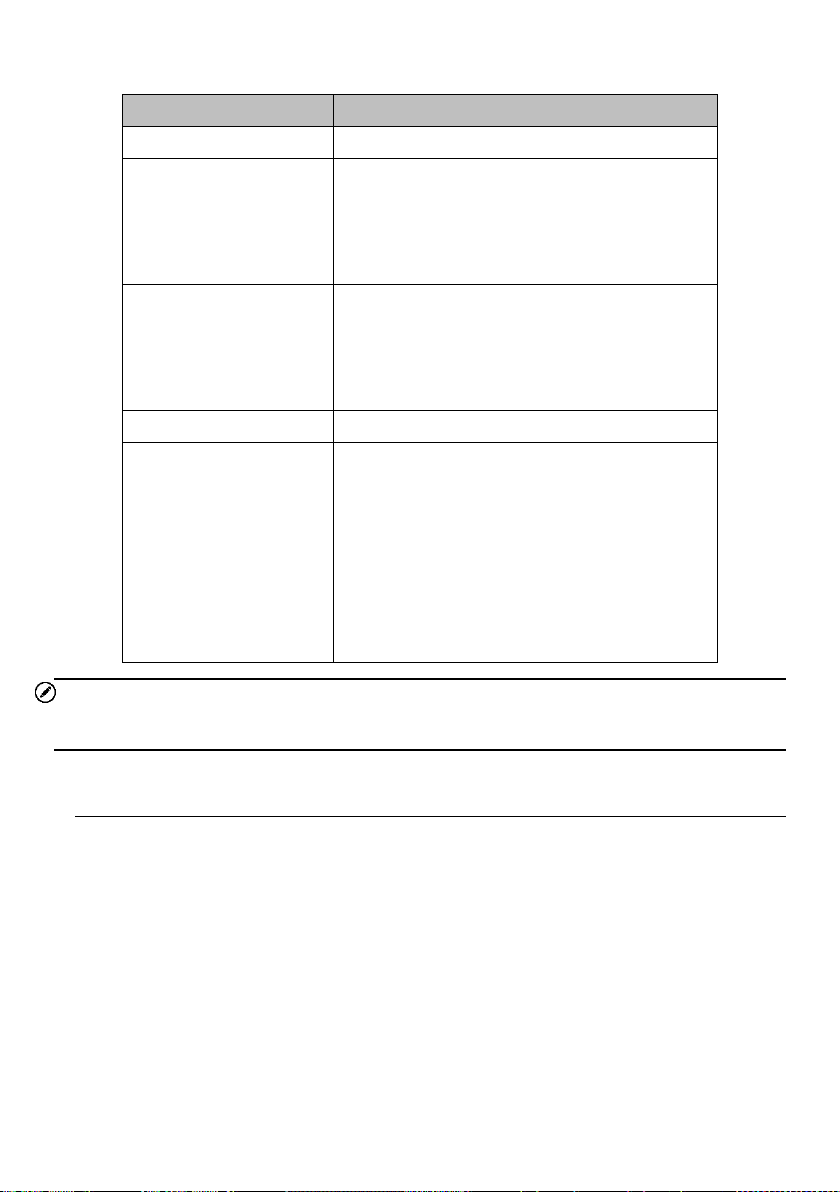
88
Table 7-4 Generator Test Results
Result
Description
Charging Normal
The generator is functioning normally.
Output Too Low
The belt linking the starter and the
generator is loose;
The cable linking the starter and battery
is loose or corroded.
Output Too High
The generator is not properly connected
to the ground;
The voltage adjuster is broken and
needs replacement.
Ripple Too Large
The commutation diode is broken.
No Output
The cable is loose;
Some vehicles with power management
systems do not provide path for charging
due to the sufficient load capacity of the
battery;
The generator or the voltage adjuster is
broken and needs replacement.
NOTE
To measure the current, connect the current clamp. Tap the Settings button on the main
menu to enter the application. Swipe the Current Clamp toggle to turn it ON.
7.3 Out-vehicle Test
Out-vehicle Test is used to test the conditions of batteries that are not connected to a
vehicle. This function aims to check the health status of the battery only.
7.3.1 Test Procedure
To start the out-vehicle test
1. Connect the tester clamps to the battery terminals.
2. Select the appropriate battery type, rating standard, and CCA value. Tap Start
Testing to start the test.
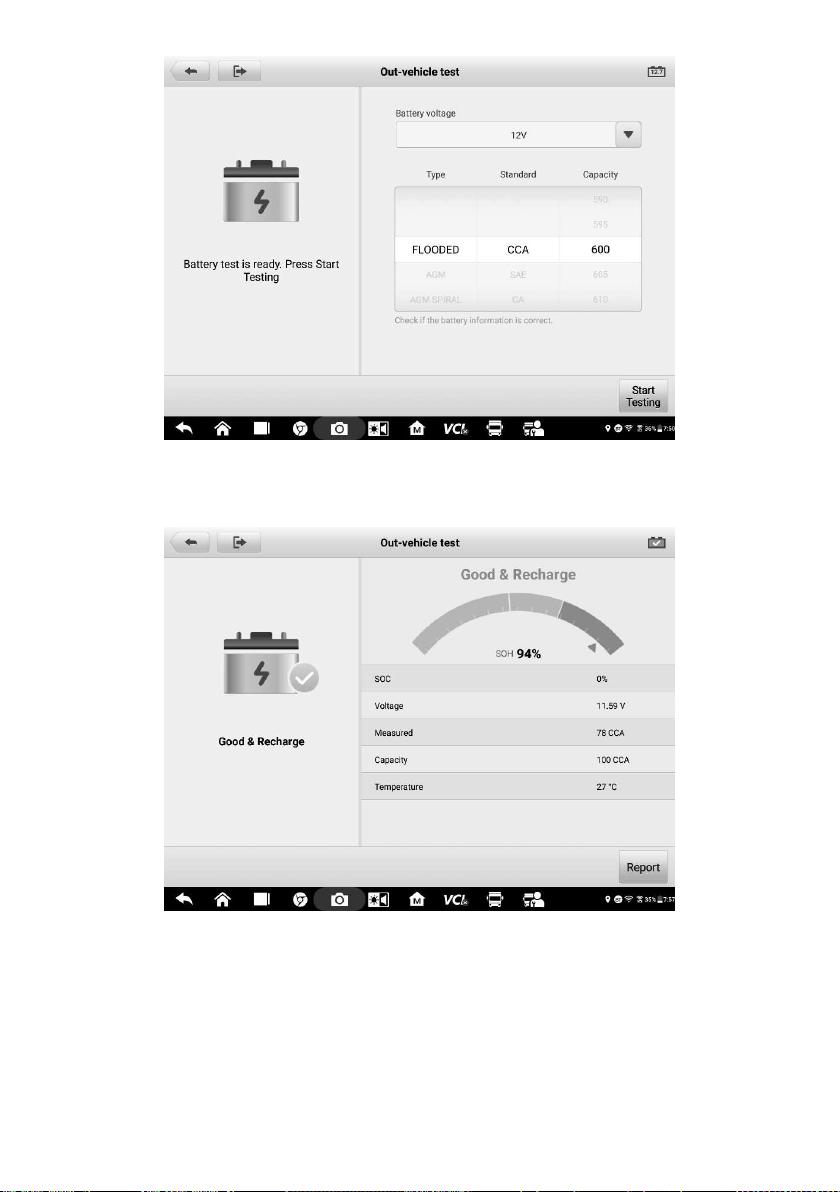
89
Figure 7-8 Sample Out-vehicle Test Screen
3. The test results will display in a few seconds.
Figure 7-9 Sample Out-vehicle Test Results Screen
7.3.2 Test Results
Icons are color-coded to indicate status.
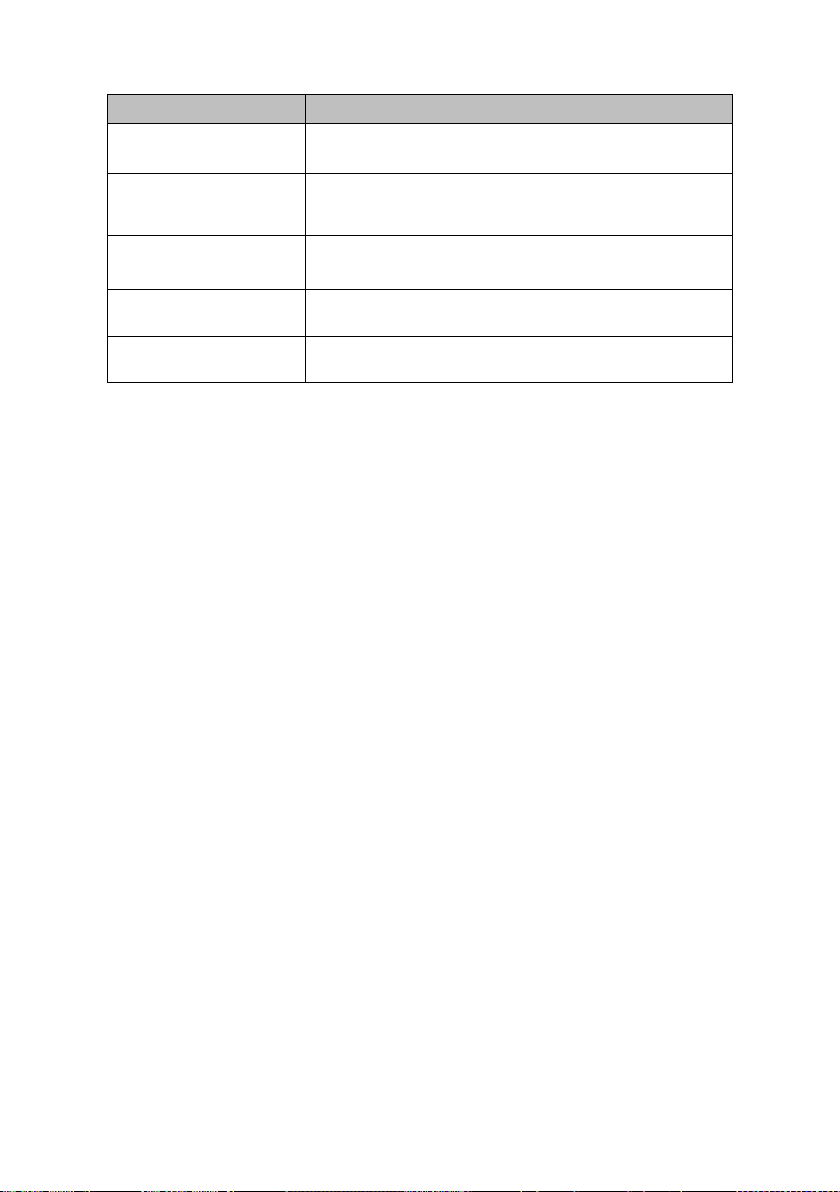
90
Table 7-5 Out-vehicle Test Results
Result
Description
Good Battery
Battery meets required standards.
Good & Recharge
Battery is good, but low on charge. Fully charge
the battery. Check for causes of low charge.
Charge & Retest
Battery requires charge to determine its condition.
Replace Battery
Battery fails to meet industry-accepted standards.
Bad Cell
Battery fails to meet industry-accepted standards.

91
8 Multimeter
The multimeter (sold separately) is a multi-function, multi-range measuring instrument.
Connect the multimeter to the B200 device and access its features directly from the
MaxiSys 909CV Home screen to perform basic functions including AC/DC voltage,
resistance measurements, AC/DC current, diode, and connectivity tests. The test results
are displayed in various formats for easy viewing.
8.1 Safety Information
Follow the instructions below to reduce the risk of injury from electric shock and prevent
equipment damage.
Use the multimeter only as specified in this manual.
Do not apply more than the rated voltage between connectors or between any
connector and ground.
Do not input a value beyond the maximum range when measuring. Remember that
the maximum range of this multimeter is 200V.
To prevent injury or death, do not use the multimeter if it appears to be damaged in
any way, and stop use immediately if you are concerned with any abnormal
operations.
To prevent injury or death, never ground yourself when taking electrical
measurements. Isolate yourself from ground by using dry rubber insulating mats to
cover all exposed/grounded metal. Ensure all clothing, including gloves, are dry.
Stand on rubber mats when using the tool.
Use the test leads or probes supplied with the product, or compatible terminals.
Inspect the test leads or probes for damage before use.
When using probes, keep fingers behind the finger guards on the probes.
Use the supplied replacement fuses or specified replacement parts.
Always consider electrical and electronic equipment to be energized (live). Never
assume any equipment is de-energized.
When making electrical connections, connect the common test lead before
connecting the live test lead; when disconnecting, disconnect the live test lead before
disconnecting the common test lead.
When measuring current, turn off circuit power before connecting the multimeter to
the circuit. Remember to place the multimeter in series with the circuit.
After current measurement is finished, turn off the power to the circuit before
removing the test leads and before reconnecting any disconnected wires or devices.
Do not add voltage to the input terminal when measuring resistance.
To avoid electric shock, turn off the power to the component before connecting.
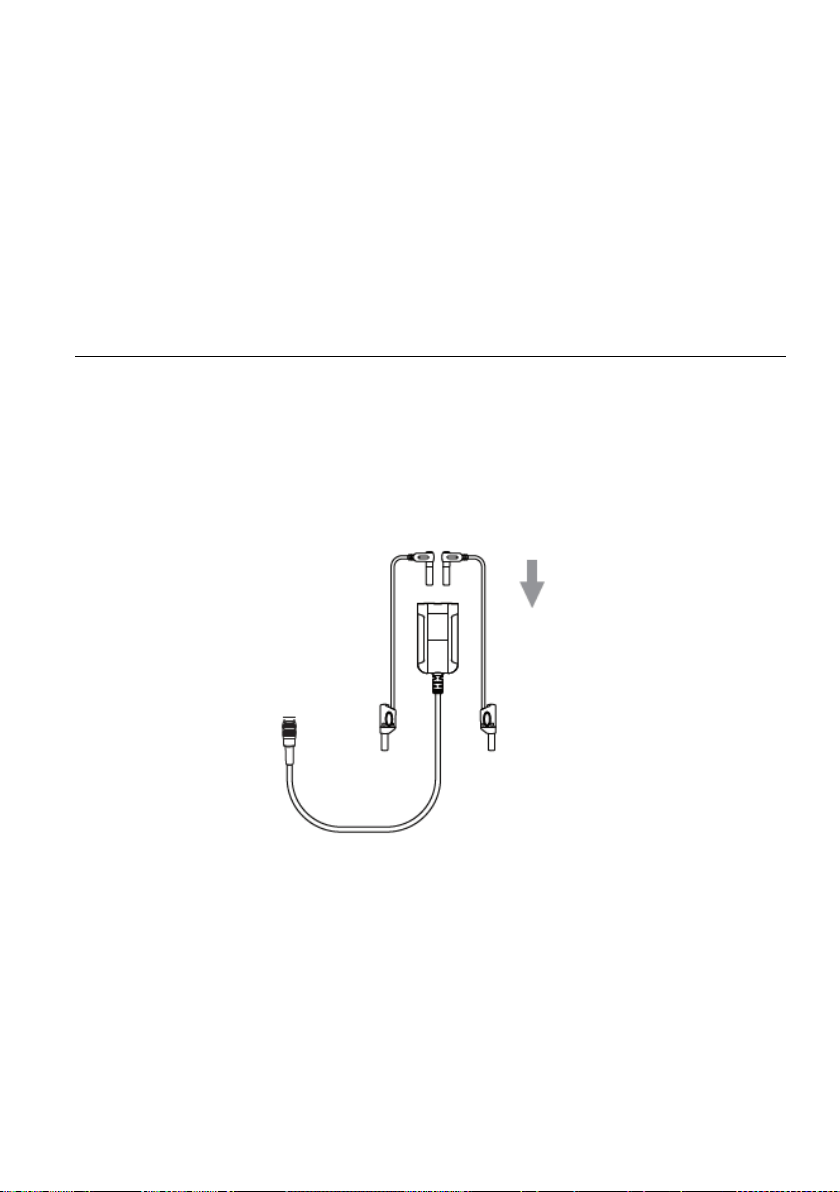
92
To prevent damage, always use and store your multimeter in appropriate
environments.
Do not use in wet or damp conditions or around explosive gas or vapor.
Do not tamper with or disassemble the multimeter, connectors or accessories.
Internal damage will affect performance.
Before carrying out maintenance and cleaning of the multimeter, make sure the unit
is NOT connected to a power source, vehicle or computer.
When cleaning the multimeter, use a damp, soft cloth with mild detergent. Do not
allow water to enter the multimeter casing.
8.2 Connecting the Multimeter
1. Power on the MS909CV and ensure that the MaxiBAS B200 series tester is paired
with the tablet via Bluetooth (For more information, see
Connect the Battery Tester).
Tap the Multimeter button to enter the application.
2. Plug the red test lead into the red input of the multimeter, and the black test lead
into the black input.
3. Connect the red alligator clip/red probe to the other end of the red test lead, and the
black alligator clip/black probe to the black test lead.
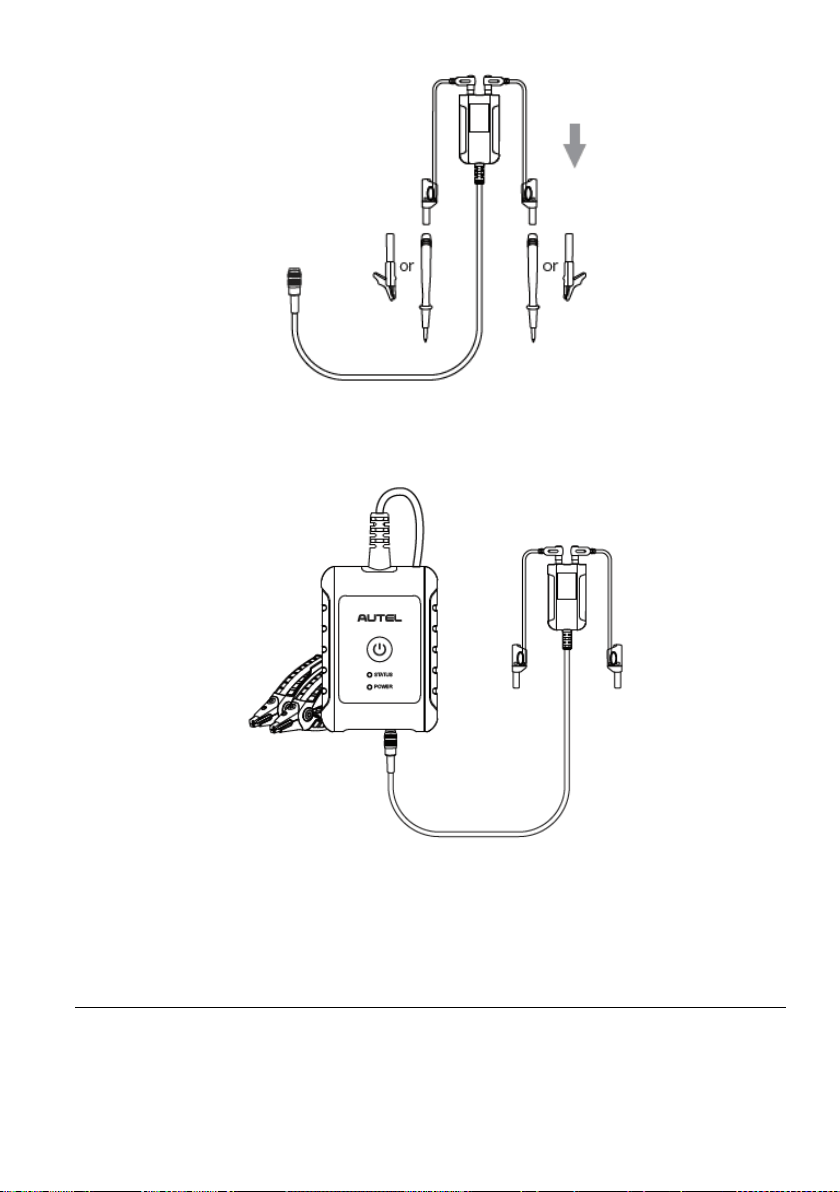
93
4. Connect the multimeter to the multimeter cable port of the MaxiBAS B200 Series
Tester and tighten the connector of the multimeter.
5. Now you can start to perform basic functions including AC/DC voltage, resistance
measurements, AC/DC current, diode, and connectivity tests. Access the test
results directly from the MaxiSys 909CV Home screen.
8.3 Screen Layout and Operations
Tap the Multimeter icon on the main menu to view the multimeter page.
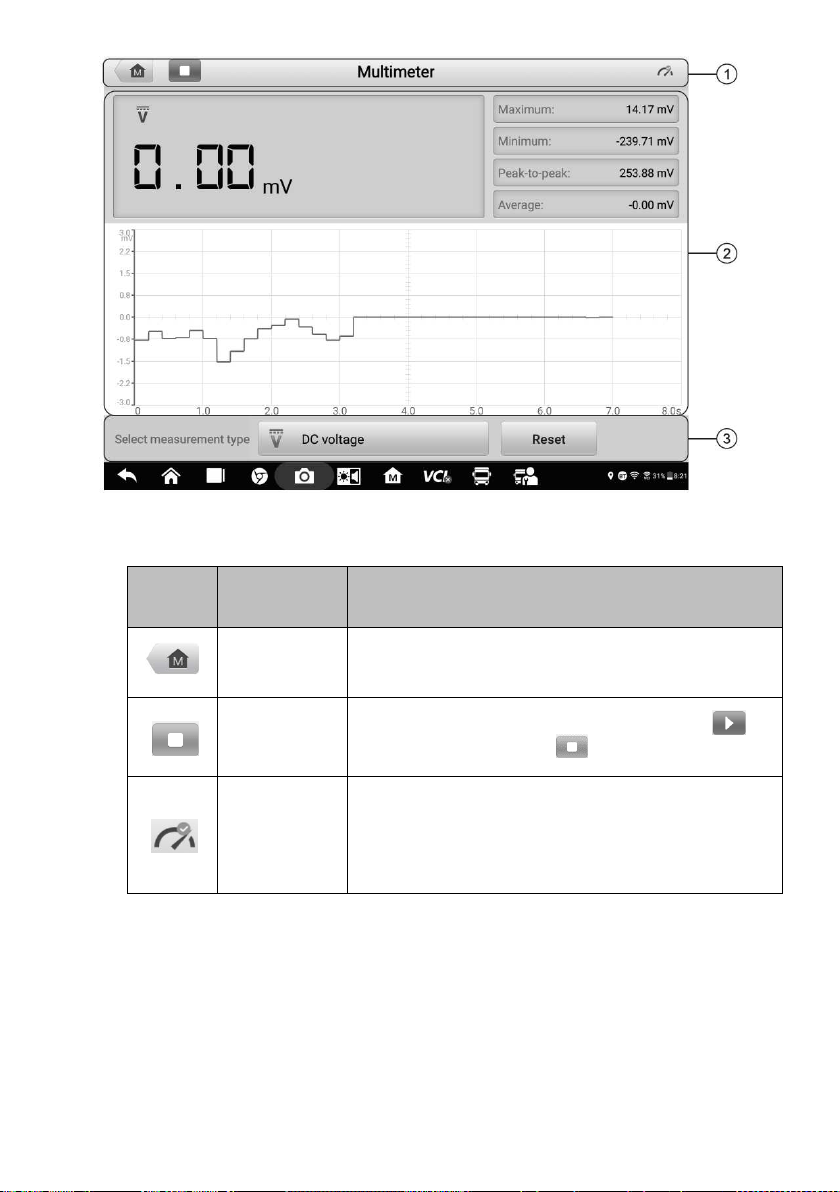
94
Figure 8-1 Sample Multimeter Home Screen
1. Upper Toolbar
Icon
Name
Description
MaxiSys
Home
Returns to MaxiSys Job Menu.
Start/Stop
Button
Starts or stops the multimeter device. Tap to
start the multimeter; Tap to stop the multimeter.
Multimeter
status icon
Indicates the connection status with the battery
tester. A green “√” mark means that the tester and
the multimeter are connected; a red “x” means that
the device and the tester are not connected.
2. Main view section
The main view section displays the digital readouts on the top and the waveform in
the grid.
Current Value: the current value can be the AC voltage, DC voltage,
resistance, frequency, or duty cycle.
Maximum: the recorded maximum value of the measurement.
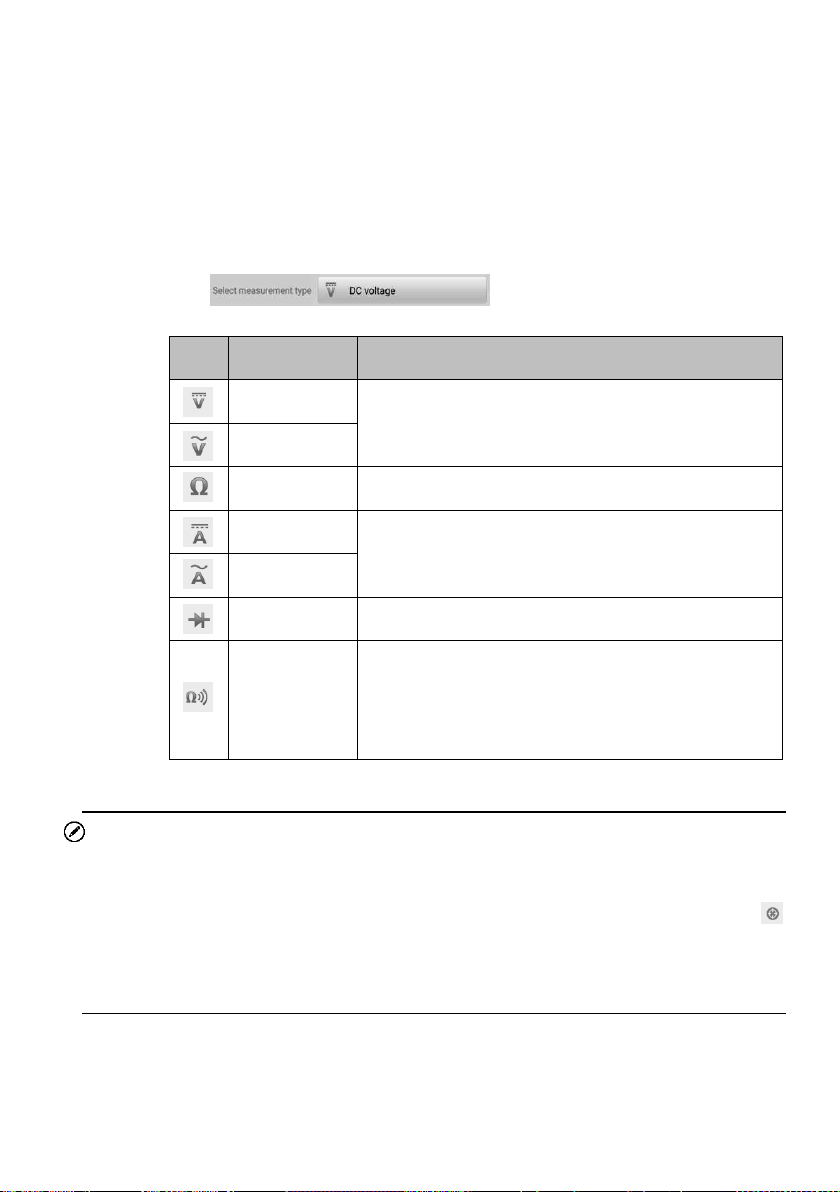
95
Minimum: the recorded minimum value of the measurement.
Peak-to-Peak: the difference between the maximum and minimum values.
Average: the average value of the measurements.
The waveform in the grid: a coordinate grid with the X-axis representing the
time duration and the Y-axis representing the amplitude level.
3. Lower Toolbar
Tap to select the measurement types
you want:
Icon
Name
Description
AC voltage
Measures the voltage in the electrical circuit.
DC voltage
Resistance
Measures the resistance of the electrical circuit or
the component.
AC current
Measures current amperage by using the optional
current clamp.
DC current
Diode
Conducts a diode test of the electrical circuit.
Connectivity
Determines whether a low impedance exits two
points in the electrical circuit. If the impedance is
less than 100 ohms, the circuit is “closed,”
otherwise, the circuit is “open.”
Tap Reset to return to the original state.
NOTE
1. AC/DC current is measured with clamps, while AC/DC voltage, diode and
connectivity are measured with probes.
2. When selecting the Resistance measurement type, the self-calibration mark
will display beside Resistance, indicating the multimeter will return to zero in order
to improve accuracy.
3. When measuring AC/DC current, different measuring ranges require different
operations of the clamp. Tap no more to hide diagram.

96
9 Settings
Access the Settings menu to adjust default settings and view information about the
MaxiSys system. The following options are available for the MaxiSys system settings:
Unit
Language
Printing Settings
Notification Center
Auto Update
ADAS Settings
Vehicle List
Battery Test
Country/Region Code
System Settings
About
This section describes the operation procedures for the settings.
9.1 Unit
This option allows you to change the measurement unit for the diagnostics system.
To change the unit setting
1. Tap the Settings application on the MaxiSys Job Menu.
2. Tap the Unit option on the left column.
3. Select the appropriate measurement unit. A check mark displays to the right of
the selected unit.
4. Tap the Home button on the top left corner to return to the MaxiSys Job Menu,
or select another setting option for the system setup.
9.2 Language
This option allows you to change the display language for the MaxiSys system.
To adjust the language setting
1. Tap the Settings application on the MaxiSys Job Menu.
2. Tap the Language option on the left column.

97
3. Select the appropriate language. A check mark displays to the right of the selected
language.
4. Tap the Home button on the top left corner to return to the MaxiSys Job Menu, or
select another setting option for the system setup.
9.3 Printing Settings
Printing Settings
This option allows you to print from the tablet to a network printer via a computer.
To set up the printer connection
1. Tap Settings on the MaxiSys Job Menu.
2. Tap Printing Settings on the left column.
3. Tap Print via Network to activate the printing function, which enables the device
to send files to the printer through the PC via Wi-Fi or Ethernet connection.
4. Tap Home on the top-left corner to return to the MaxiSys Job Menu, or select
another setting option for the system setup.
Printing Operations
To install the MaxiSys Printer driver program
1. Download Maxi PC Suite from
www.autel.com > Support > Downloads > Autel
Update Tools, and install to your Windows-based PC.
2. Double-click on Setup.exe.
3. Select an installation language and the wizard will load.
4. Follow the instructions on the screen and click Next to continue.
5. Click Install and the printer driver program will be installed to the computer.
6. Click Finish to complete the installation.
NOTE
The MaxiSys printer runs automatically after the installation.
This section describes how to receive files from the MaxiSys tablet and perform printing
through the computer:
To print from a computer
1. Make sure the tablet is connected to the computer network, via Wi-Fi or LAN,
before printing.
2. Run the MaxiSys Printer program on the computer.
3. Click Test Print to check whether the printer works properly.
4. Tap the Print button on the toolbar of the tablet. A test document will be sent to
the computer.

98
If the Auto Print option in the MaxiSys Printer is selected, the MaxiSys printer
will automatically print the received document.
If the Auto Print option in the MaxiSys Printer is not selected, click the Open
PDF File button to view files. Select the file(s) to be printed and click Print.
NOTE
Make sure the computer installed with the Printing Services program is connected to a printer.
9.4 Notification Center
This option allows you to turn the Notification Center function on or off. The Notification
Center function configures the MaxiSys tablet to receive regular online messages from
the server for system update notifications or other service information via the Internet. It
is highly recommended that the Notification setting be on at all times so as not to miss
news of updates or important service messages. Internet access is required for receiving
online messages.
To enable the Notification Center function
1. Tap Settings on the MaxiSys Job Menu.
2. Tap Notification Center on the left column.
3. Tap ON/OFF to enable or disable the Notifications function. If the function is
enabled, the button displays blue, or if disabled, the button displays gray.
4. Tap Home on the top-left corner to return to the MaxiSys Job Menu, or select
another setting option for the system setup.
When the Notification Center function is turned on and new messages are received by
the MaxiSys device, a notification message displays on the MaxiSys Job Menu. Press on
the message bar and drag it down to display a list of received messages. Slide the list up
or down to view additional messages if present.
Tap a specific message to launch the corresponding application. For example, if you tap
on an Update notification message, the Update application will be launched.
9.5 Auto Update
This option allows you to preset a time to update the software. There are three update
options: OS Update, MaxiSys Update, and Vehicle Update.
Tap ON/OFF to enableor disable the Auto Update. The button displays blue if Auto Update
is enabled and displays grey if the Auto Update is disabled. Set the time of the day for
updating. If a specific time is set, the selected software will be automatically updated at
this specific time.

99
9.6 ADAS Settings
Advanced Driver Assistance Systems (ADAS) is an array of vehicle systems that aid the
driver either through passive alerts or by active control of the vehicle to drive safer and
with greater awareness and precision.
MaxiSys MS909CV is bound to the main frame when it leaves the factory, and you can
configure related settings through the following steps:
To adjust the ADAS setting
1. Tap the Settings application on the MaxiSys Job Menu.
2. Select ADAS settings on the left column.
3. Follow the on-screen instructions to complete the settings.
9.7 Vehicle List
This option allows you to sort the vehicles either by alphabetic order or by frequency of
use.
To adjust the vehicle list setting
1. Tap the Settings application on the MaxiSys Job Menu.
2. Select Vehicle list on the left column.
3. Select the required sort type. A check mark will display to the right of the selected
language.
4. Tap the Home button on the top-left corner to return to the MaxiSys Job Menu, or
select another setting option for system setup.
9.8 Battery Test
To adjust the battery test setting
1. Tap the Settings application on the MaxiSys Job Menu.
2. Select Battery test on the left column.
3. Switch on Current clamp and then you can measure the current when doing the
battery test; switch on Visual inspection to access the visual inspection when
doing the battery test.
4. Tap the Home button in the top left corner to return to the MaxiSys Job Menu. Or
select another setting option for system setup.

100
9.9 Country/Region Code
This function provides Wi-Fi channel options for different country regions to ensure
reliable and stable Wi-Fi communication. Please connect the tablet with VCI device before
making adjustment.
To adjust the country code setting
1. Tap the Settings application on the MaxiSys Job Menu.
2. Tap the Country/Region Code option on the left column.
3. Select your country/Region region. A message displays to confirm your
selection.
4. Tap the Home button on the top left corner to return to the MaxiSys Job Menu,
or select another setting option for the system setup.
NOTE
If the tablet can NOT find the VCI device via Wi-Fi connection after setting the country
code, please use the USB or Bluetooth connection to retry.
9.10 System Settings
This function provides you with direct access to the Android system settings interface,
where you can adjust various system settings for the Android system platform, regarding
wireless and networks settings, various device settings such as sound and display, as
well as system security settings, and check related information about the Android system.
Refer to Android documentation for additional information.
9.11 About
The About function provides information of the MaxiSys diagnostics device, including the
product name, version, hardware, and serial number.
To check the MaxiSys product information in About
1. Tap the Settings application on the MaxiSys Job Menu.
2. Select the About option on the left column. The product information screen
displays on the right.
3. Tap the Home button on the top-left corner to return to the MaxiSys Job Menu, or
select another setting option for the system setup after viewing.
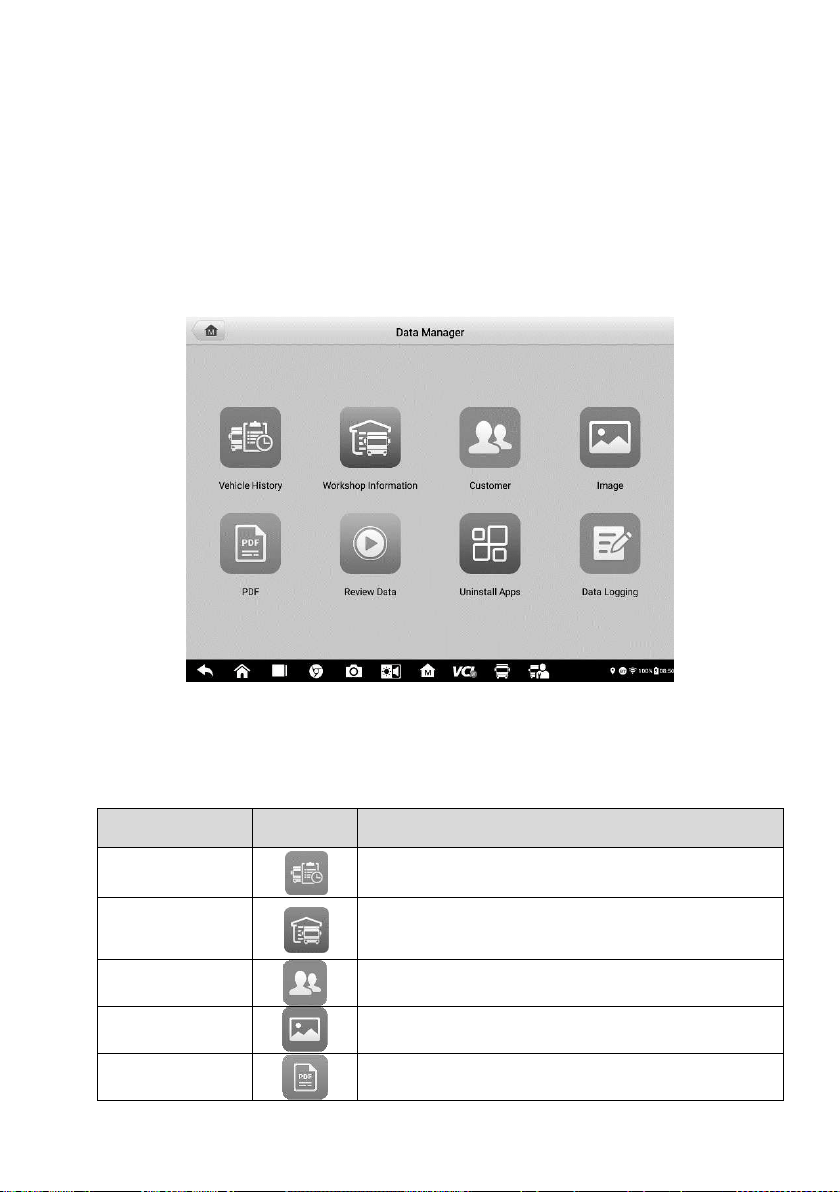
101
10 Data Manager
The Data Manager application allows you to store, print, and review the saved files,
manage the workshop information, customer information records and keep test vehicle
records.
Selecting the Data Manager application opens the file system menu. There are eight main
functions available.
Figure 10-1 Sample Data Manager Main Screen
The table below describes each of the function buttons in the Data Manager application.
Table 10-1 Buttons in Data Manager
Name
Button
Description
Vehicle History
Tap to view the diagnostic records.
Workshop
Information
Tap to view or edit the workshop information.
Customer
Tap to create a new customer account file.
Image
Tap to view the screenshots.
PDF
Tap to view the diagnostic reports.
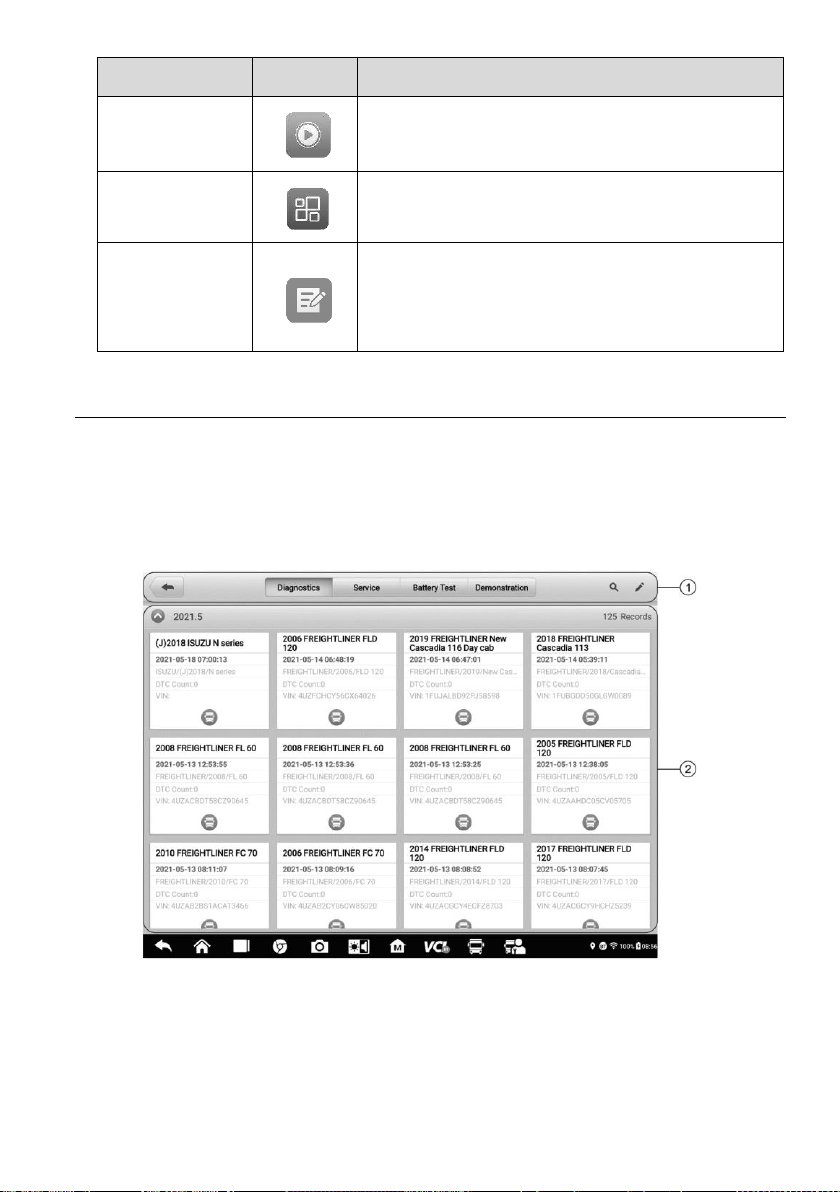
102
Name
Button
Description
Review Data
Tap to view the recorded data.
Uninstall Apps
Tap to uninstall applications.
Data Logging
Tap to view communications with Autel support
service and ECU information of the test vehicle.
The saved data can be reported and sent to the
technical center via the Internet.
10.1 Vehicle History
This function stores records of test vehicle history, including vehicle information and the
retrieved DTCs from previous diagnostic sessions. Test information is summarized and
displayed in an easy-to-read table listing. The Vehicle History also provides direct access
to the previously tested vehicle and allows you to directly restart a diagnostic session
without needing to perform auto or manual vehicle selection.
Figure 10-2 Sample Vehicle History Screen
1. Top Toolbar Buttons — navigation and application controls.
2. Main section — displays all the vehicle records.
To activate a test session for the recorded vehicle
1. Tap Data Manager on the MaxiSys Job Menu.
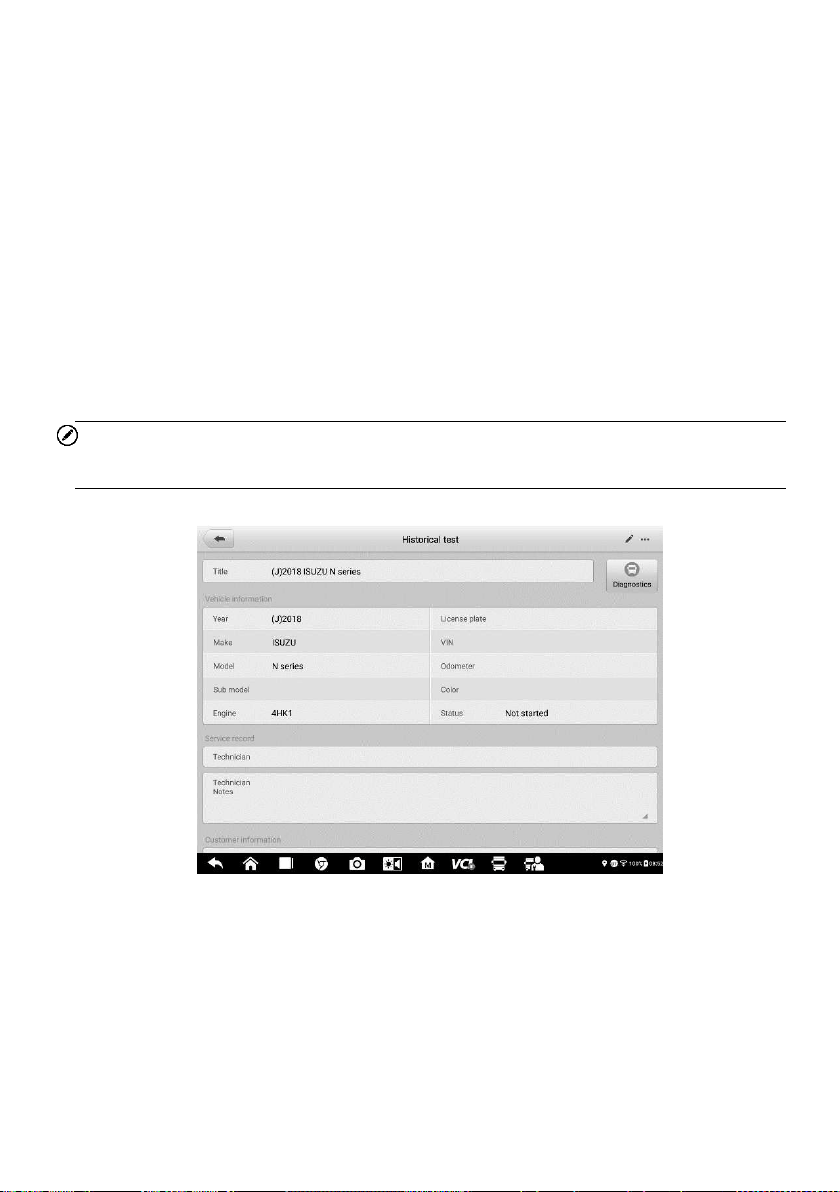
103
2. Select Vehicle History to open the screen. Tap Diagnostics or Service to
select diagnostic test records or service test records.
3. Tap Diagnostics icon at the bottom of the thumbnail of a vehicle record item.
4. The Diagnostics screen of the vehicle displays and a new diagnostics session is
activated. See
Diagnostics for detailed instructions on vehicle diagnostics
operations. Or select a vehicle thumbnail to select a record. A Test Records
window appears. Review the recorded information of the test vehicle, and tap
the Diagnostics button on the upper-right corner to continue diagnostics.
10.1.1 Test Records
A Test Record is a detailed data form of the tested vehicle, which includes general vehicle
information, service record, customer information, and the diagnostic trouble codes
retrieved from previous test sessions. Technician Notes will also display if present.
NOTE
The MaxiSys tablet must establish a connection to the VCI to restart test sessions on a
previously tested vehicles.
Figure 10-3 Sample Test Records Sheet
To edit the Test Records
1. Tap Data Manager on the MaxiSys main screen.
2. Select Vehicle History.
3. Select a specific vehicle history record thumbnail from the main section. The test
record will display.
4. Tap the Edit button (the pen icon) to start editing.
5. Tap each item to enter information or attach files or images.
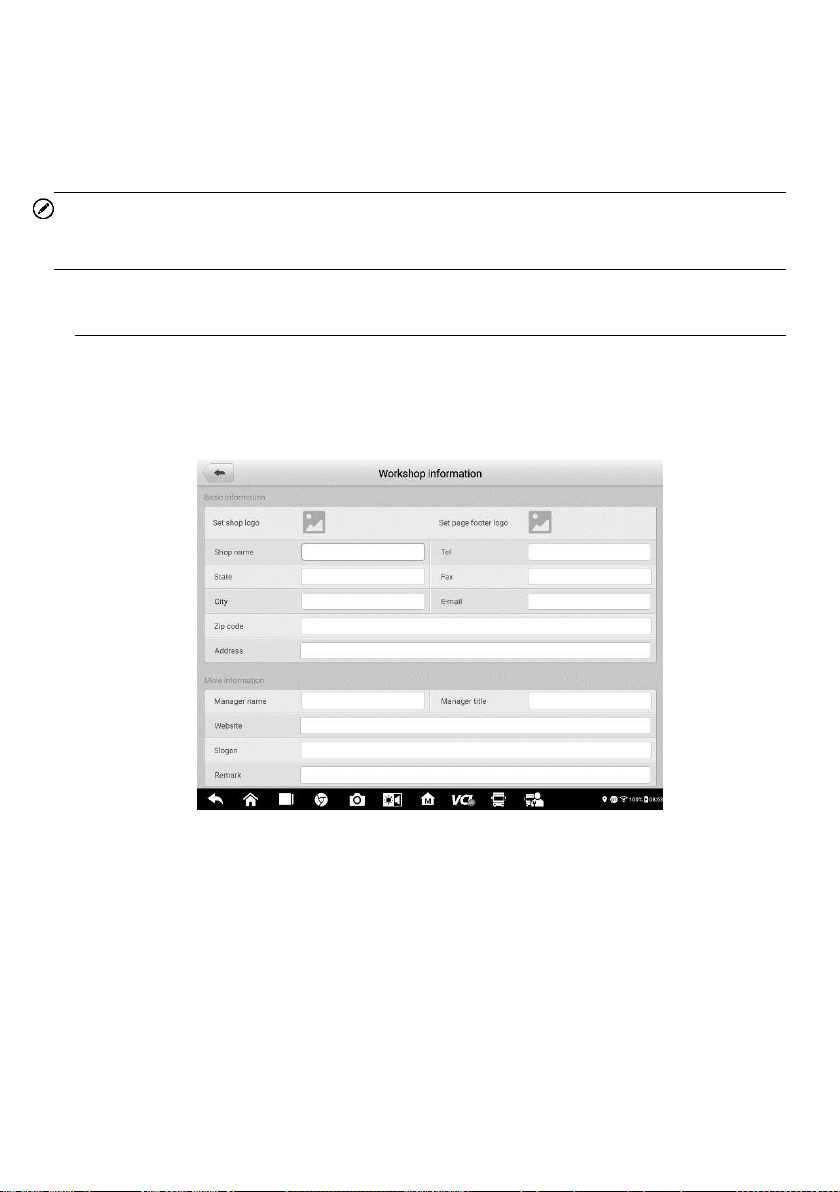
104
6. Tap Add a Customer to associate the test record sheet to an existing customer
account, or add a new account to be associated with the test vehicle record. See
Customer
for more information.
7. Tap Done to save the updated record, or tap Cancel to exit without saving.
NOTE
The vehicle VIN, license number and customer account are associated by default. Vehicle
records will automatically be associated using this vehicle and customer identification.
10.2 Workshop Information
Workshop Information allows you to enter, edit, and save detailed workshop information,
such as shop name, address, phone number and other remarks, which, when printing
vehicle diagnostics reports and other associated test files, will appear as the header of
your printed documents.
Figure 10-4 Sample Workshop Information Sheet
To edit the Workshop information sheet
1. Tap Data Manager on the MaxiSys Main Screen.
2. Select Workshop Information.
3. Tap on each field to enter the corresponding information.
4. Tap Done to save the updated workshop information, or tap Cancel to exit without
saving.

105
10.3 Customer
The Customer function allows you to create and edit customer accounts. It helps you to
save and organize all customer accounts associated with the test vehicle records.
To create a customer account
1. Tap the Data Manager application on the MaxiSys main screen.
2. Select Customer.
3. Tap the Add a customer button. A blank information form appears. Tap each
field to enter the appropriate information.
NOTE
Required fields are denoted by an asterisk.
4. For customers with more than one vehicle for service, tap Add New Vehicle
Information. To delete the added vehicle information, tap the button.
5. Tap OK on the upper-right corner of the screen to save the customer information,
or tap Cancel to exit without saving.
To edit a customer account
1. Tap Data Manager on the MaxiSys Job Menu.
2. Select Customer.
3. Select a customer account by tapping the corresponding name card. A Customer
Information record displays.
4. Tap Edit on the top toolbar to start editing.
5. Tap on the input field to edit the information.
6. Tap Complete to save the updated information, or tap Cancel to exit without
saving.
To delete a customer account
1. Tap Data Manager on the MaxiSys Job Menu.
2. Select Customer.
3. Select a customer account by tapping the corresponding name card. A Customer
Information record appears.
4. Tap Edit on the top toolbar to start editing.
5. Tap Delete on the top of the screen. A reminder message appears.
6. Tap OK to confirm the command, and delete the account. Tap Cancel to cancel
the request.
10.4 Image
The Image section is a database containing all captured screenshots.
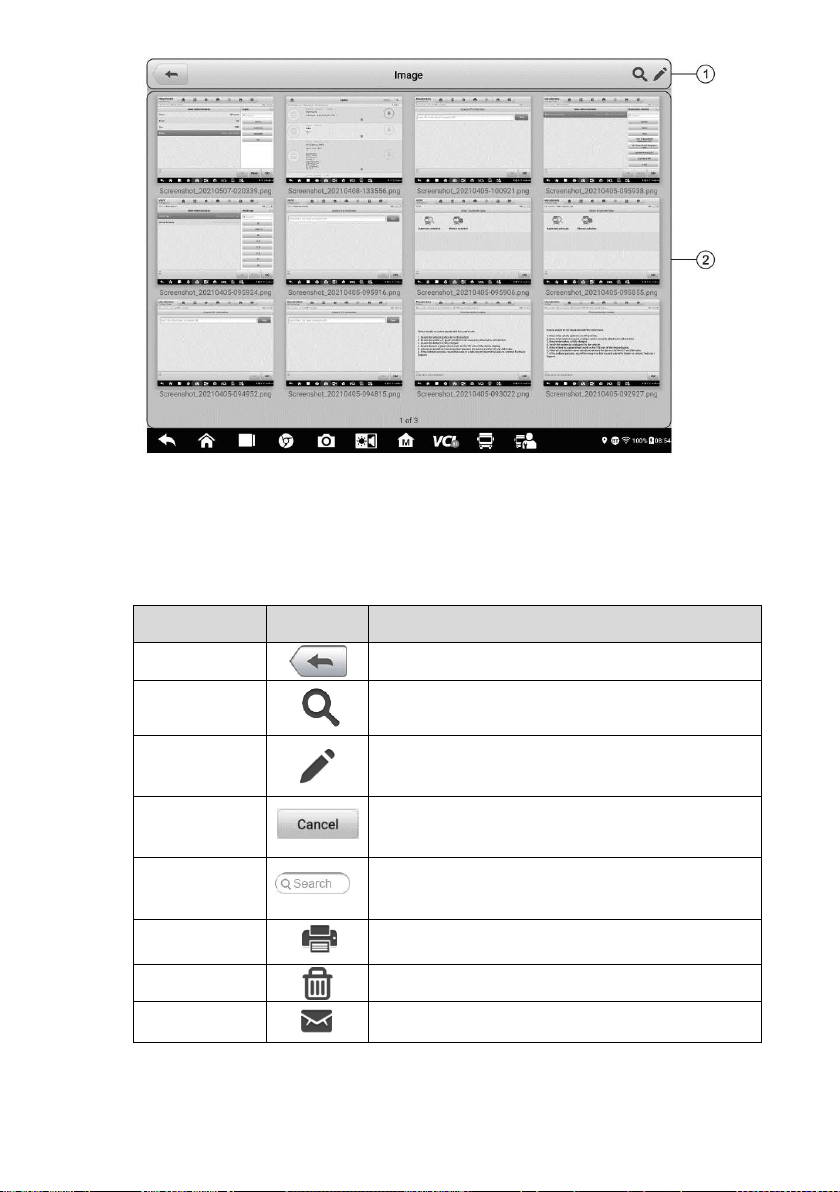
106
Figure 10-5 Sample Image Database Screen
1. Toolbar Buttons — used to edit, print or delete the image files. See
Table 10-2 Toolbar
Buttons Description
below for detailed information.
2. Main Section — displays the stored images.
Table 10-2 Toolbar Buttons Description
Name
Button
Description
Back
Return to the previous screen.
Search
Tap to enter the search page.
Edit
Tap to display the editing toolbar to print, delete
or view image.
Cancel
Tap to close the editing toolbar or cancel file
search.
Search
Quickly searches the image by entering the
time of the screenshot.
Print
Tap to print the selected image.
Delete
Tap to delete the selected image.
Email
Tap to attach the selected image to an email.
To edit/delete image(s)
1. Select Data Manager from the MaxiSys Job Menu.
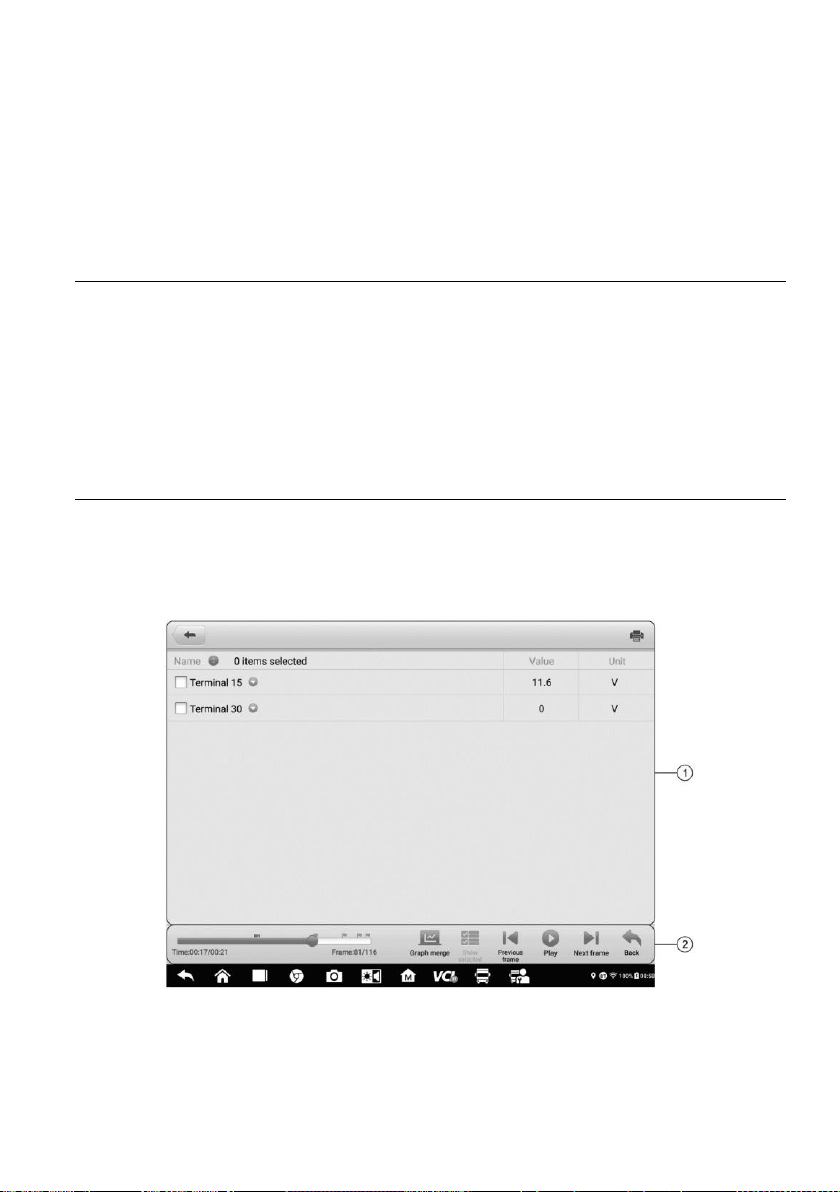
107
2. Select Image to access the image database.
3. Tap Edit on the top-right corner of the window. The editing screen appears.
4. Select the image(s) you want to edit by tapping the check box at the bottom-right
corner of the image.
5. Tap Delete to delete the selected images or delete all images. Tap Print icon to
print the selected image(s). Tap Email to attach the selected image(s) to an email.
10.5 PDF Files
The PDF section stores and displays all PDF files of saved data. After entering the PDF
database, select a PDF file to view the stored information.
This section uses the standard Adobe Acrobat Reader application for file viewing and
editing. Please refer to the associated Adobe Acrobat Reader manual for more detailed
instructions.
10.6 Review Data
The Review Data function allows you to playback the recorded data frames from live data
streams.
On the Review Data main screen, select a record to play back.
Figure 10-6 Sample Data Playback Screen
1. Main Section — displays the recorded data frames.
2. Navigation Toolbar — allows you to manipulate data playback.

108
Use the Navigation Toolbar buttons to play back the record data from frame to frame.
Tap Back to exit data playback.
10.7 Uninstall Apps
This section allows you to manage the firmware application installed on the MaxiSys
Diagnostics System. Selecting this section opens a management screen, on which you
can check all the available vehicle diagnostics applications.
Select the vehicle firmware you want to delete by tapping on the car brand icon. The
selected item will display a blue check mark on the upper-right corner. Tap the Delete
button on the top bar to delete the firmware from the system database.
10.8 Data Logging
The Data Logging section allows you to launch the Support platform to view all records
with or without feedback (saved) data logs on the diagnostics system. For more
information, please refer to Data Logging.
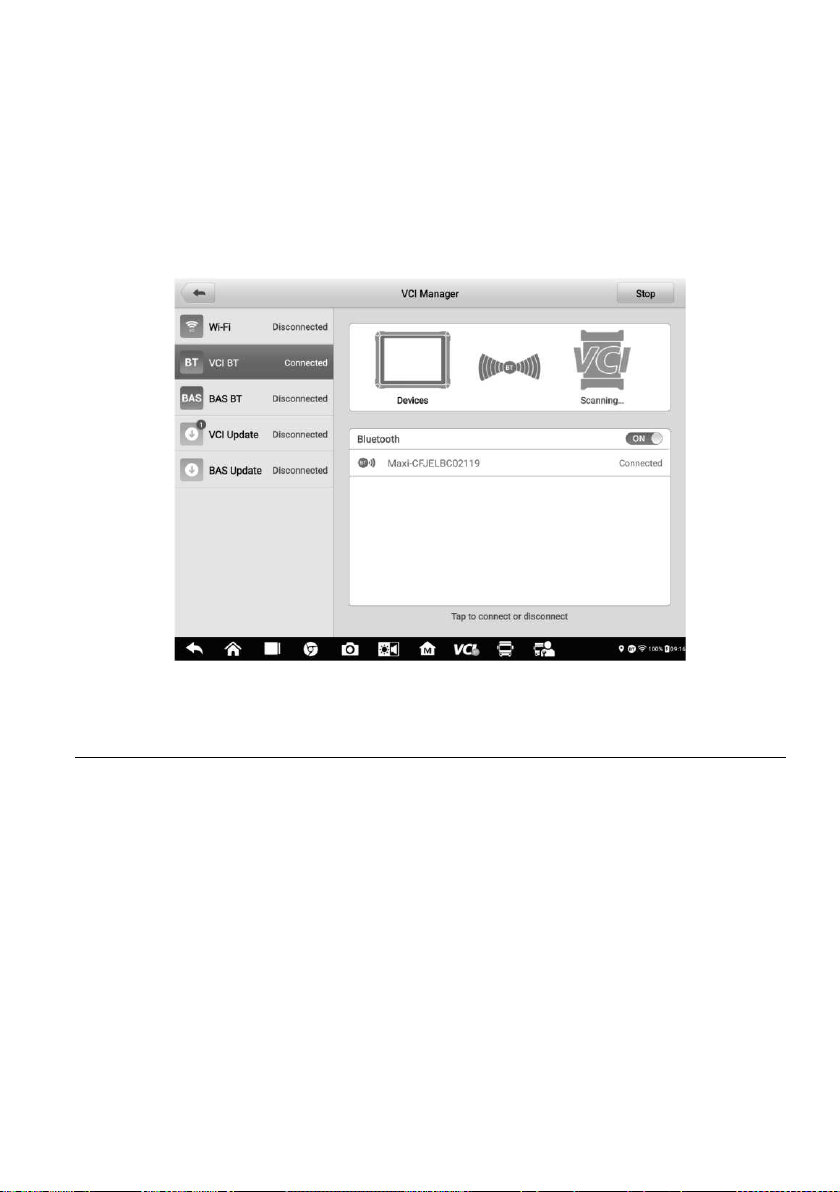
109
11 VCI Manager
VCI Manager is for connecting the MaxiSys MS909CV tablet with a VCI device through
Wi-Fi or Bluetooth. This application allows you to pair the tablet with the VCI device and
to check its communication status. You can either establish the connection via Bluetooth
or Wi-Fi, of which the latter is more stable and faster for module operation.
Figure 11-1 Sample VCI Manager Screen
11.1 VCI Connection via Wi-Fi
Wi-Fi Connection is an advanced function for quick link with a VCI. Since Wi-Fi connection
supports 5G, the MaxiSys MS909CV tablet and VCI share a faster and more stable
connection when using this communication method. The tablet can be operated up to 50
meters away from the VCI device when connected to the vehicle via Wi-Fi.
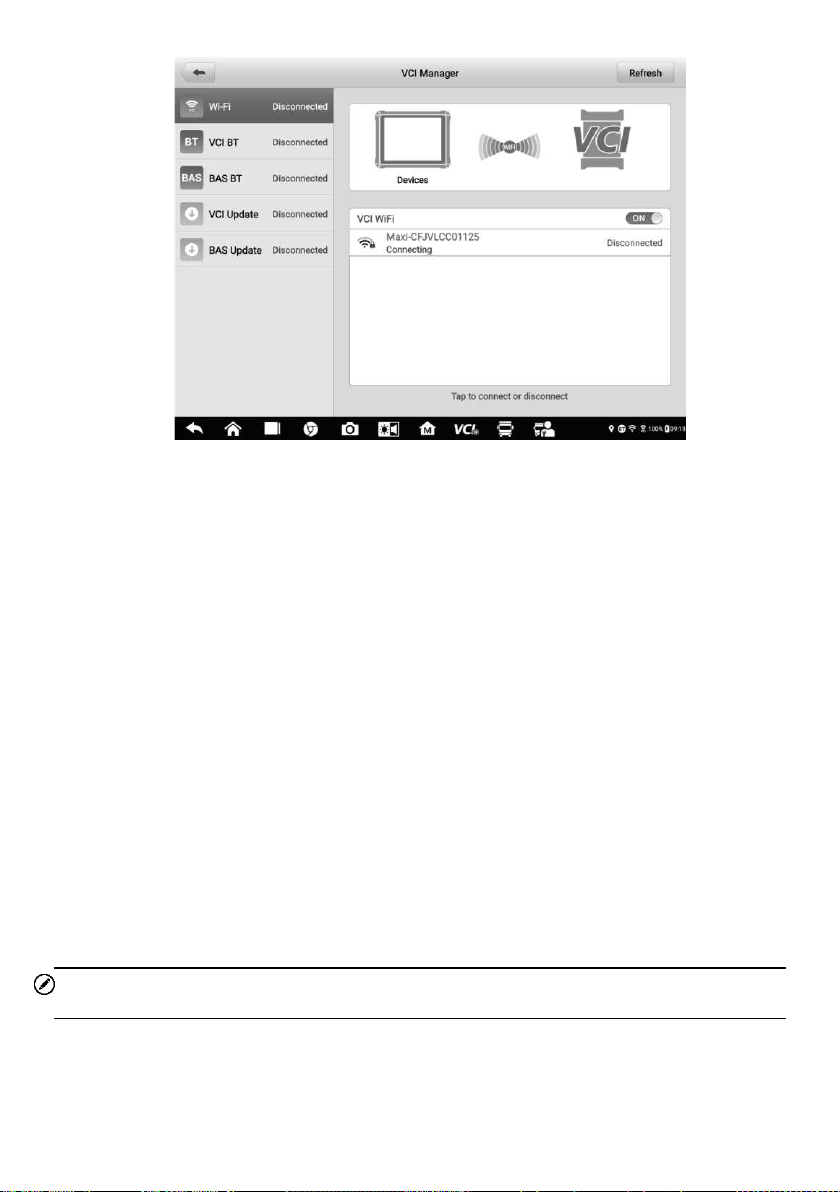
110
Figure 11-2 Sample Wi-Fi Connection Screen
To connect the VCI device with the tablet via Wi-Fi
1. Power on the tablet.
2. Connect the 26-pin end of the data cable to the VCI's vehicle data connector.
3. Connect the 16-pin end of the data cable to the vehicle data link connector (DLC).
4. Tap VCI Manager on the MaxiSys Job Menu of the tablet.
5. Select Wi-Fi from the connection mode list.
6. Tap the Wi-Fi Toggle to turn it ON. Tap Refresh at the top-right corner. The
device will start to search for available units.
7. Depending on the VCI type you use, the device name may appear as Maxi
suffixed with a serial number. Select the appropriate device for connection.
8. When connection is established, the connection status reads “Connected”.
9. The VCI button on the system Navigation Bar at the bottom of the screen
displays a green Wi-Fi icon, indicating the tablet is connected to the VCI device.
10. To disconnect the device, tap the connected device again.
11. Tap Back on the top-left to return to the MaxiSys Job Menu.
NOTE
To ensure a fast connection, perform this operation in a steady network environment.
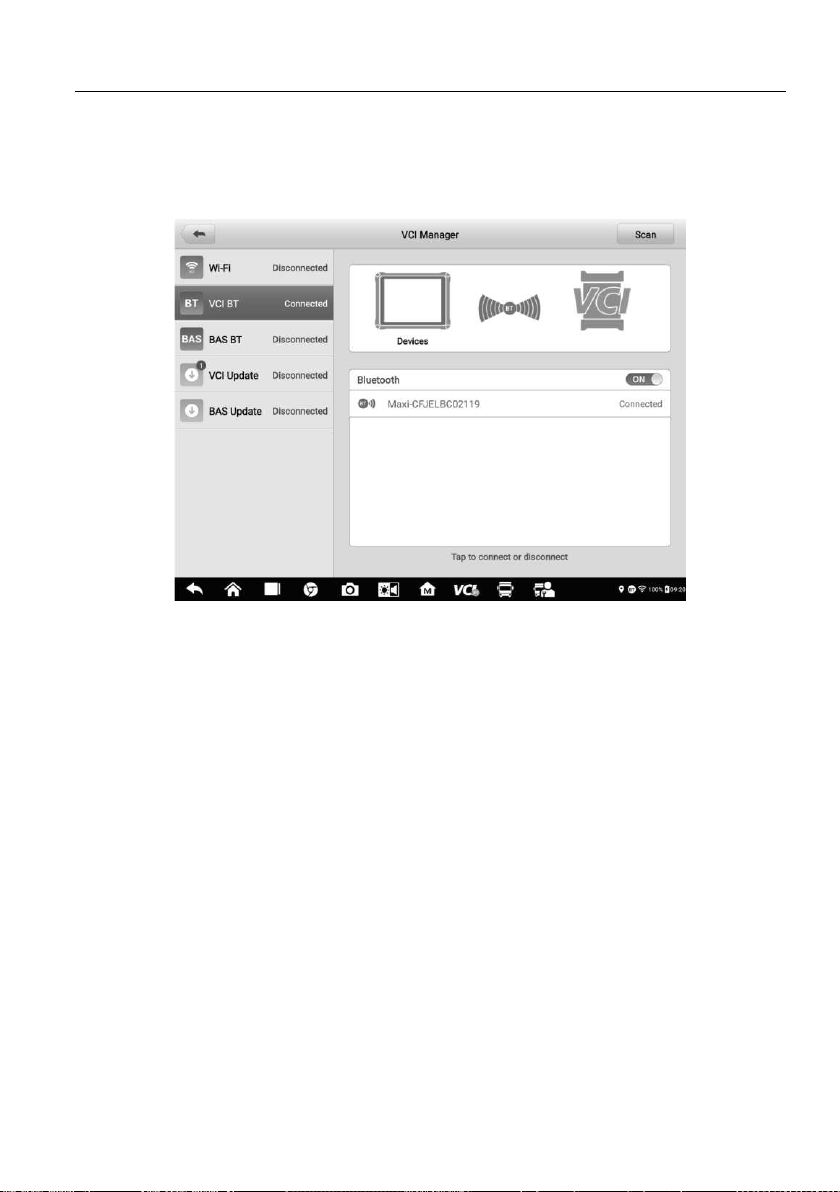
111
11.2 VCI Connection via Bluetooth
Bluetooth Paring provides a simple wireless connection. The VCI device needs to be
either connected to a vehicle or to an available power source, so that it is powered up
during the synchronization procedure. Make sure the tablet has a fully charged battery or
is connected to an external power supply.
Figure 11-3 Sample VCI Bluetooth Pairing Screen
To pair the VCI device with the tablet via Bluetooth
1. Power on the tablet.
2. Connect the 26-pin end of the data cable to the VCI's vehicle data connector.
3. Connect the 16-pin end of the data cable to the vehicle data link connector (DLC).
4. Tap VCI Manager on the MaxiSys Job Menu of the tablet.
5. Select VCI BT, short for VCI Bluetooth, from the connection mode list.
6. Toggle Bluetooth ON. Tap Scan at the top-right corner. The device will start
searching for available units for pairing.
7. Depending on the VCI you use, the device name may appear as “Maxi” suffixed
with the VCI’s serial number. Select the appropriate device for pairing.
8. When paired successfully, the connection status reads “Connected”.
9. After a few seconds, the VCI button on the system Navigation Bar at the bottom
of the screen will display a green check mark, indicating the tablet is connected
to the VCI device.
10. To disconnect the device, tap the connected device again.
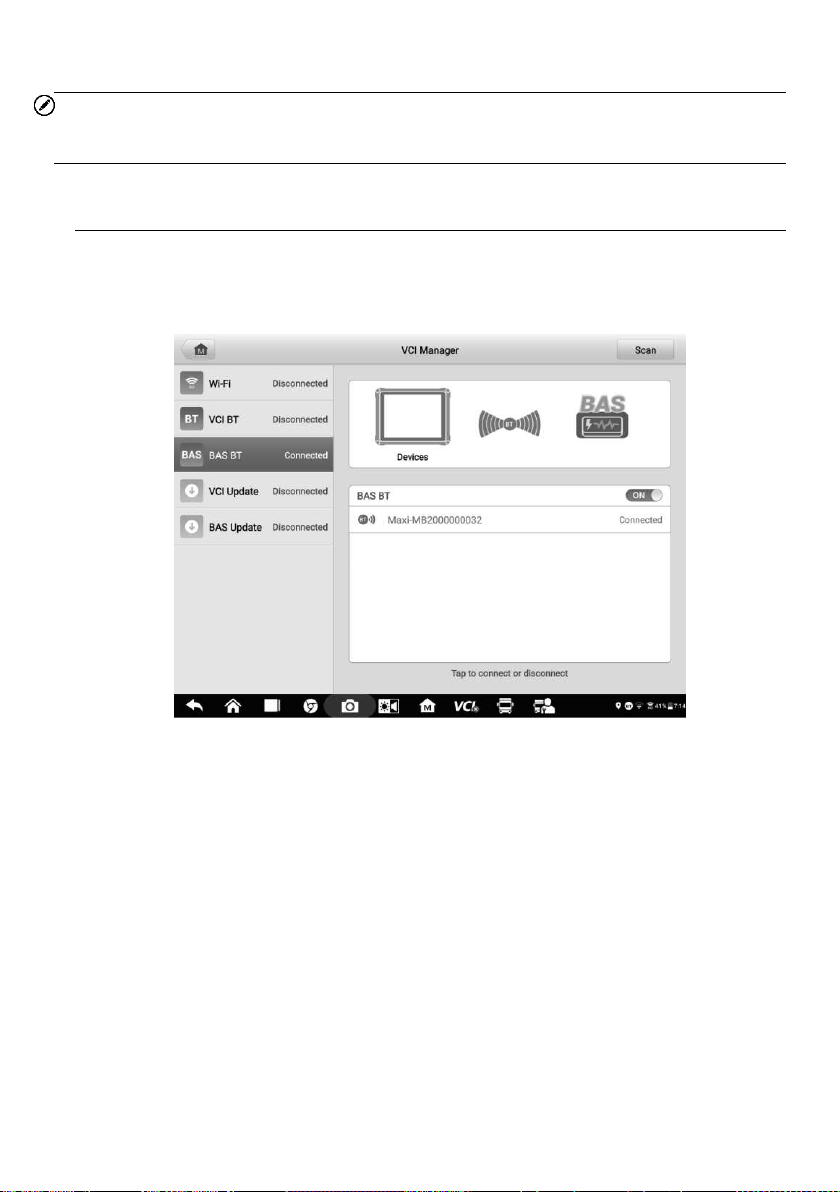
112
11. Tap Back on the top-left to return to the MaxiSys Job Menu.
NOTE
A VCI device can be paired with only one tablet at a time, and once it's been paired, the
device will not be discoverable by any other unit.
11.3 BAS Connection via Bluetooth
The MaxiBAS B200 device needs to be either connected to a vehicle or to an available
power source, so that it is powered up during the synchronization procedure. Make sure
the tablet is fully charged or is connected to an external power supply.
Figure 11-4 Sample BAS Bluetooth Pairing Screen
To pair the B200 series tester with the tablet
1. Press and hold the Power Button to turn on the MaxiSys MS909CV. Ensure
that the unit is sufficiently charged before using.
2. Power on the MaxiBAS B200. Connect the red clamp to the positive (+)
terminal and the black clamp to the negative (-) terminal of the battery.
3. Enable Bluetooth on the MS909CV by tapping VCI Manager > BAS BT, and
the tablet automatically scans for an available tester for Bluetooth pairing. The
device name will appear as “Maxi” suffixed with a serial number.
4. Check the serial number of your B200 series tester and select the desired
device on the tablet for pairing.
5. When paired successfully, the connection status will read as “Connected” and
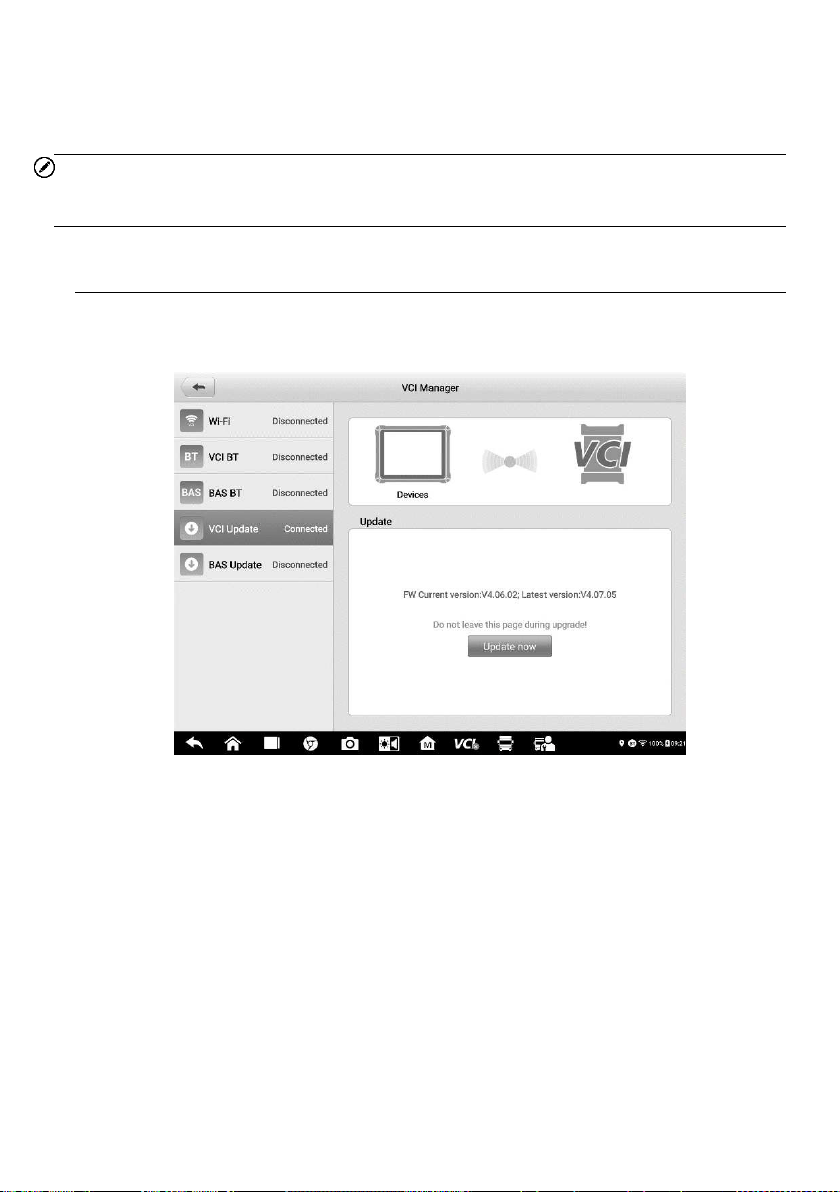
113
the status LED will light solid blue.
6. To disconnect the device, tap the connected device again.
7. Tap Back on the top-left to return to the MaxiSys Job Menu.
NOTE
A VCI device can be paired to only one tablet at a time, and once it's been paired, the device
will not be discoverable by any other unit.
11.4 VCI Update
The VCI Update provides the latest update for the MaxiFlash VCI. Before updating the
VCI firmware, please make sure the tablet network is stable.
Figure 11-5 Sample VCI Update Screen
To update the VCI firmware
1. Power on the tablet.
2. Connect the 26-pin end of the data cable to the VCI's vehicle data connector.
3. Connect the 16-pin end of the data cable to the vehicle data link connector (DLC).
4. Connect the VCI device to the tablet via Wi-Fi or USB.
5. Tap VCI Manager on the MaxiSys Job Menu of the tablet.
6. Select VCI Update from the connection mode list.
7. The current version and the latest version of the VCI firmware will appear. Tap
Update Now to update the VCI firmware.
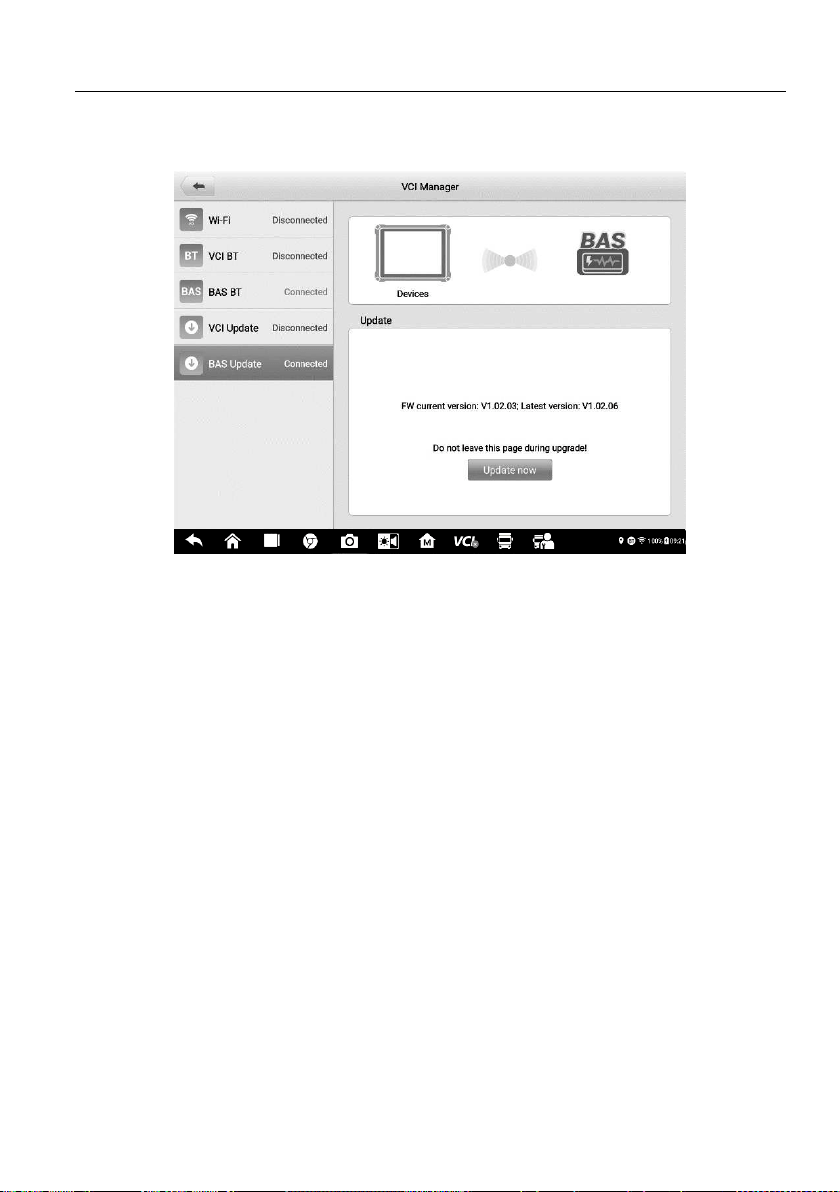
114
11.5 BAS Update
The BAS Update provides the latest update for the MaxiBAS B200. Before updating the
BAS firmware, please make sure the tablet network is stable.
Figure 11-6 Sample VCI Update Screen
To update the MaxiBAS B200 firmware
1. Power on the tablet and the MaxiBAS B200.
2. Connect the MaxiBAS B200 device to the tablet via Bluetooth or USB.
3. Tap VCI Manager on the MaxiSys Job Menu of the tablet.
4. Select BAS Update from the connection mode list.
5. The current version and the latest version of the MaxiBAS B200 firmware will
appear. Tap Update Now to update the MaxiBAS B200 firmware.
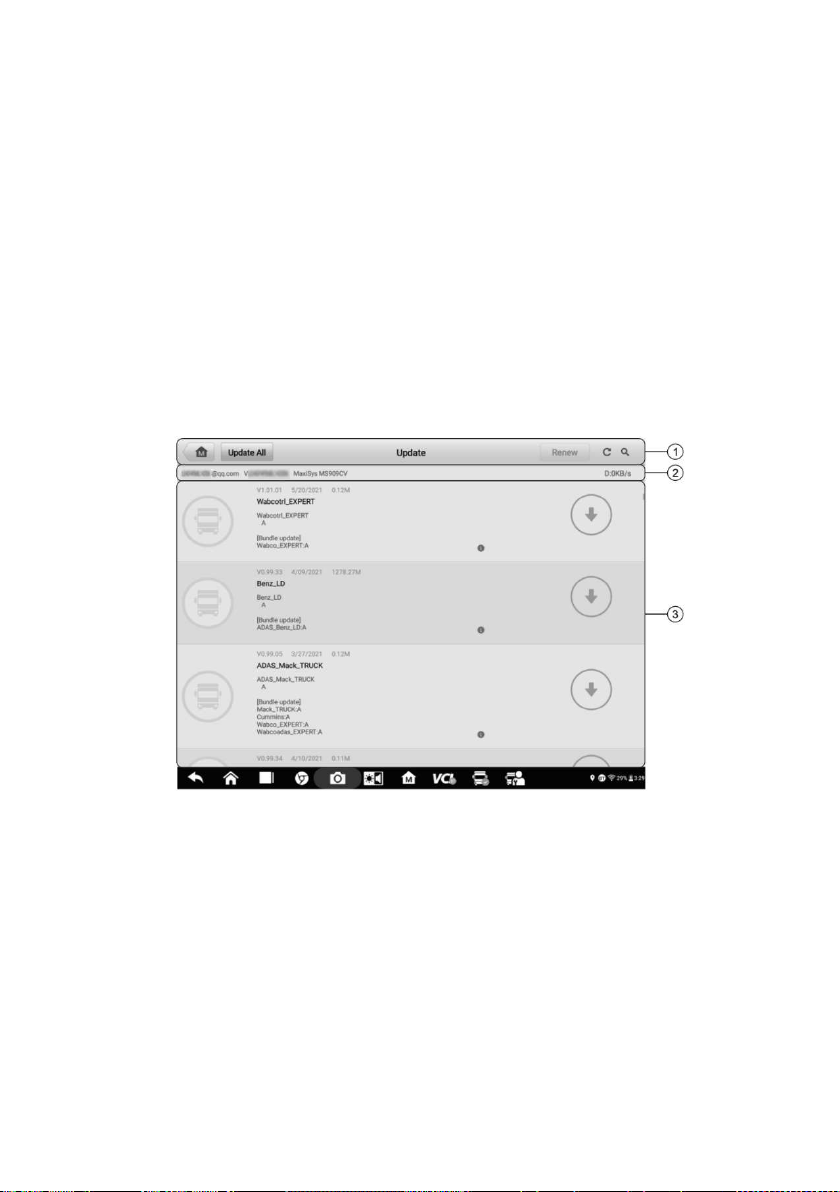
115
12 Update
The internal programming of the MaxiSys Diagnostics System, known as the firmware,
can be updated using the Update application. Firmware updates increase the MaxiSys
applications' capabilities, typically by adding new tests, new models, or enhanced
applications to the database.
The display device automatically searches for available updates for all of the MaxiSys
components when it is connected to the Internet. Any updates that are found can be
downloaded and installed on the device. This section describes installing an update to
the MaxiSys Diagnostics System firmware. A notification message displays if an update
is available when the Notifications function is enabled in the Settings application (See
Notification Center).
Figure 12-1 Sample Update Screen
1. Navigation and Controls
Home Button — return to the MaxiSys Job Menu.
Update All — available updates for all tablet systems.
Search Bar — searches specific update item by inputting the file name, for
example, a specific vehicle manufacturer.
2. Status Bar
Left Side — displays the MaxiSys device model information and serial number.
Right Side — displays an update progress bar indicating the completion status.
3. Main Section
Left Column — displays vehicle logos and update firmware version information.

116
Middle Column — displays a brief introduction about the new changes to the
firmware operation or capabilities. Tap button to display an information screen
to view more details, and tap the dim area around to close the window.
Right Column — according to the operation status of each firmware item, the
button appears differently.
a) Tap Update to update the selected item.
b) Tap Pause to suspend the updating procedure.
c) Tap Continue to go on updating the suspended update.
To update the firmware
1. Power up the tablet, and ensure that it is connected to a power source and has
a steady Internet connection.
2. Tap the Update application button from the MaxiSys Job Menu, or tap the update
notification message when received. The Update application screen appears.
3. Check all available updates:
To update all the items, tap the Update All button.
To update some individual items, tap the Update button on the right column
of the specific item. This option is highly recommended to ensure updates are
performed correctly, especially when you are unsure of the speed and stability
of your Internet connection.
4. Tap the Pause button to suspend the updating process. Tap Continue to resume
the update and the process will continue from the pause point.
5. When the updating process is completed, the firmware will be installed
automatically. The new version will replace the older version.

117
13 Support
This application launches the Support platform which synchronizes Autel's online service
base station with the MaxiSys tablet. In order to synchronize the device to your online
account, you need to register the product through the Internet when you use it for the first
time. The Support application is connected to Autel's service channel and online
communities that provides the quickest way for problem solutions, send help requests to
obtain direct service and support.
13.1 Product Registration
In order to get access to the Support platform and obtain update and other services from
Autel, you are required to register the MaxiSys Diagnostics Device the first time you use
it.
To register the diagnostics device
1. Visit the website: http://pro.autel.com.
2. If you have an Autel account, sign in with your account ID and password.
3. If you are a new member to Autel, click on the Create Autel ID button on the left
side to create an ID.
4. Enter the required information in the input fields, and click Get Verification Code
button to get the verification code for email validation.
5. The online system will automatically send a verification code to the registered
email address. Input the code in the Verification Code field and fill in other input
fields, read through Autel's Terms and Conditions and click on Agree, and then
click Create Autel ID at the bottom. A product registration screen will display.
6. The device's serial number and password is located in the
About section of the
Settings application on the tablet.
7. Select your product model, enter the product serial number and password on the
Product Registration screen, and tap Submit to complete the registration
procedure.
13.2 Support Screen Layout
The Support application interface is navigated by the Home button on the top navigation
bar.
Home button — returns to the MaxiSys Job Menu.
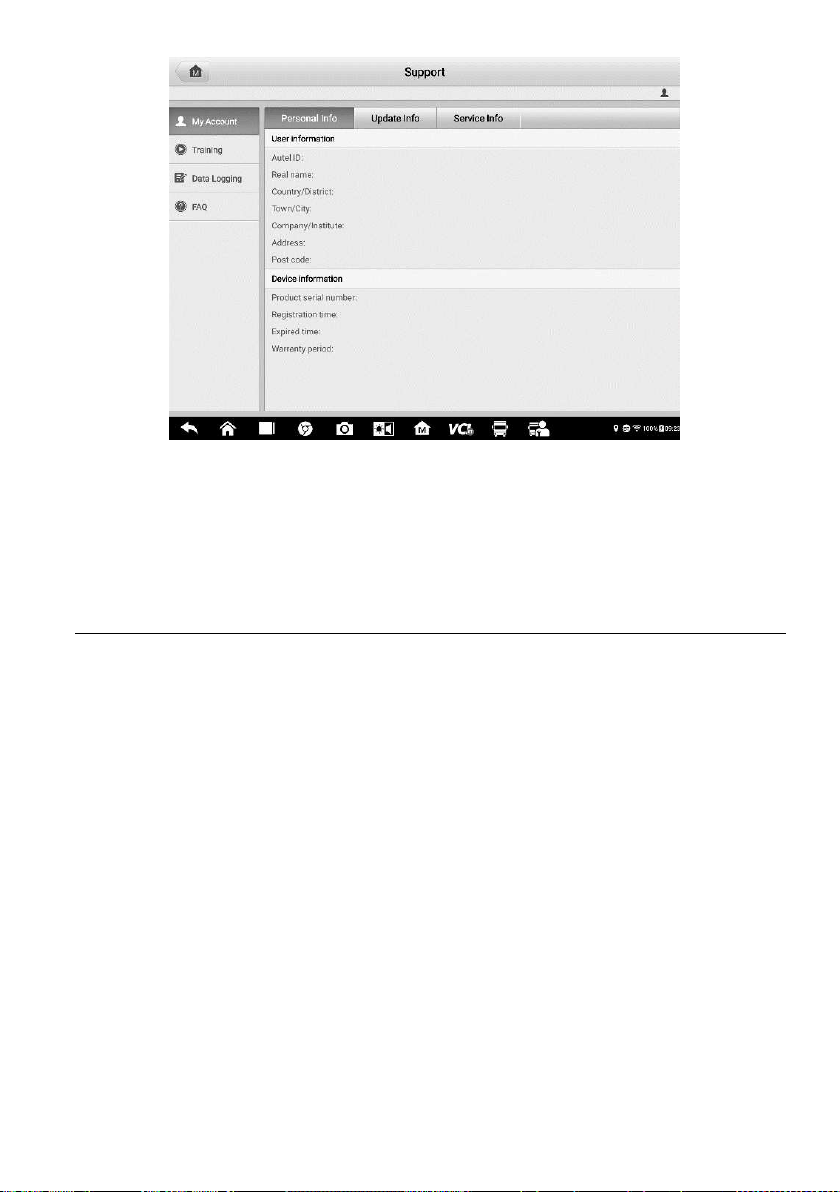
118
Figure 13-1 Sample Support Application Screen
The main section of the Support screen is divided into two sections. The narrow column
on the left is the main menu: select one subject from the main menu displays the
corresponding function interface on the right.
13.3 My
Account
The My Account screen displays the comprehensive information of the user and the
product, which is synchronized with the online registered account, including User Info,
Device Info, Update Info, and Service Info.
13.3.1 Personal Info
The User Info and Device Info are both included under the Personal Info section.
User Info — displays detailed information of your registered online Autel account, such
as your Autel ID, Name, Address and other contact information.
Device Info — displays the registered product information, including the Serial Number,
Registration Date, Expire Date, and Warranty Period.
13.3.2 Update Info
The Update Info section displays a detailed list of the product's software update history,
including the product serial number, software version or name, and the update time.
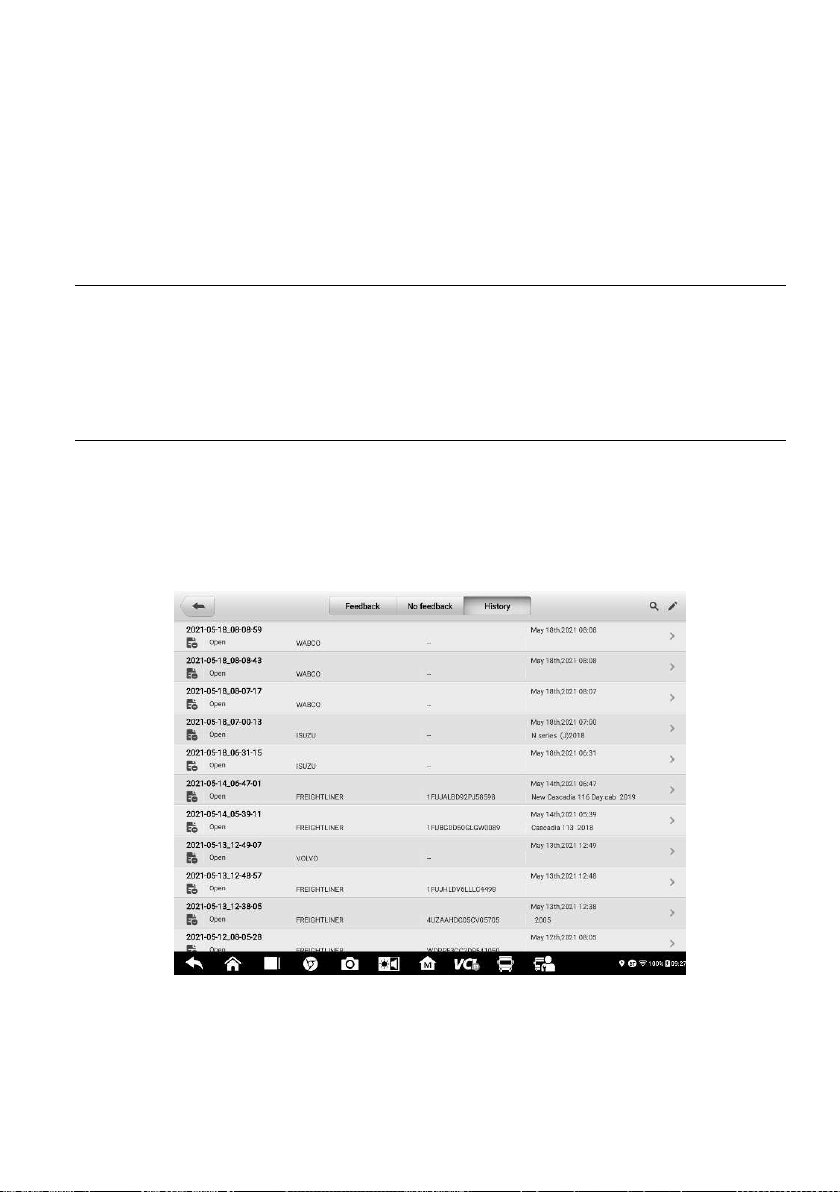
119
13.3.3 Service Info
The Service Info section displays a detailed record list of the device's service history
information. Each time the device is sent back to Autel for repair, the device's serial
number and the detailed repair information, such as the fault type, changed components,
or system reinstallation, will be recorded and updated to the associated online product
account that will be synchronized to the Service Info section.
13.4 Training
The Training section provides quick links to Autel's online video accounts. Select a video
channel by language to see all available Autel online tutorial videos on such topics as
product usage techniques and vehicle diagnostics practices.
13.5 Data Logging
The Data Logging section keeps records of all Feedback (submitted), Not Feedback (but
saved) or History (up to the latest 20 test records) data loggings on the diagnostics
system. The support personnel will receive and process the submitted reports through the
Support platform. The solution will be sent back within 48 hours. You may continue to
correspond with Support until the issue is resolved.
Figure 13-2 Sample Data Logging Screen
To make a reply in a Data Logging session
1. Tap the Feedback tab to view the submitted data loggings.
2. Select the latest message from Autel support service.

120
3. Tap the input field at the bottom of the screen and enter your reply, or tap the
Audio button to record a voice message, or tap the Camera button to take a
screenshot.
4. Tap Send to send your reply to Support.
13.6 FAQ Database
The FAQ section provides comprehensive references for all questions frequently asked
and answered about the use of Autel's online member account, shopping, and payment
procedures.
Account — displays questions and answers about the use of Autel's online user
account.
Shopping & Payment — displays questions and answers about online product
purchase and payment methods or procedures.
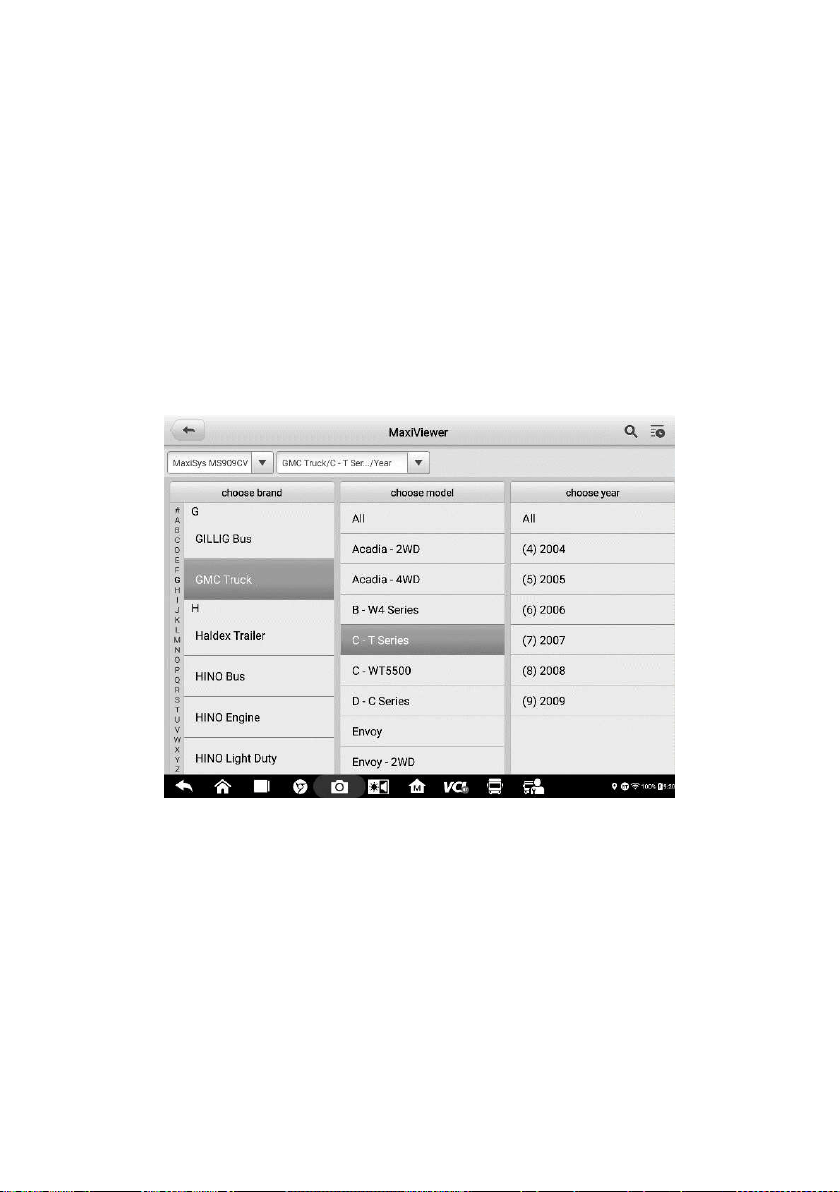
121
14 MaxiViewer
MaxiViewer allows you to search the functions supported by our tools and the version
information. There are two ways of searching, either by searching the tool and the vehicle
or searching the functions.
To search by vehicle
1. Tap the MaxiViewer application on the MaxiSys Job Menu. The MaxiViewer
application screen displays.
2. Tap the tool name on the top-left to drop down the tool list, and tap the one you
want to search.
3. Tap the vehicle brand, model, and year you want to search.
Figure 14-1 Sample MaxiViewer Screen 1
4. All the functions supported by the selected tool for the selected vehicle are
displayed within three columns: function, sub function, and version.
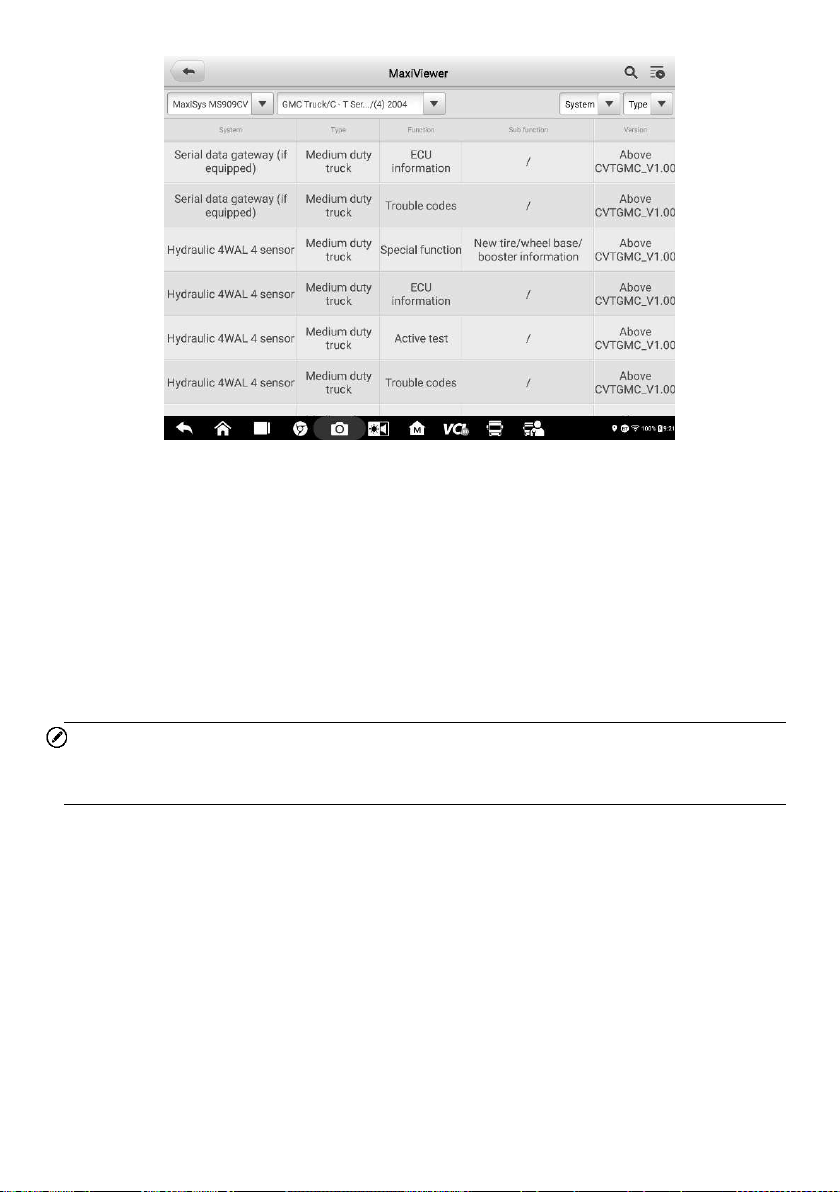
122
Figure 14-2 Sample MaxiViewer Screen 2
To search by the functions
1. Tap the MaxiViewer application on the MaxiSys Job Menu. The MaxiViewer
application screen displays.
2. Tap the tool name on the top-left to drop down the tool list, and tap the one you
want to search.
3. Enter the function you want to search in the top-right search box. The screen will
display all vehicles that support this function, along with information such as the
vehicles' year, system, capacity, type, function, sub-function, and version.
NOTE
Fuzzy search is supported. Type in some part of the function-related keywords to find all
available information.

123
15 MaxiVideo
The MaxiVideo application configures the MaxiSys Diagnostics Device to operate as a
digital video scope by simply connecting the tablet to a MaxiVideo Camera. This function
allows you to examine difficult-to-reach areas normally hidden from sight, with the ability
to record digital still images and videos, which offers you an economical solution to inspect
machinery, facilities, and infrastructure in a safe and quick way.
WARNING & IMPORTANT:
Follow these instructions to reduce the risk of injury from electric shock, entanglement
and other causes and prevent tool damage.
Do not place the imager head into anything or anywhere that may contain a live electric
charge or moving parts, which increases the risk of electric shock or entanglement
injuries.
Do not use the imager head cable to modify surroundings, clear pathways or clogged
areas.
When inspection is completed, carefully withdraw the imager head from the inspected
area.
The imager head cable is waterproof to a depth of 3m (10'). Greater depths may cause
leakage into the imager head cable, electric shock or tool damage.
The working temperature of the imager head is between 32 °F (0 °C) and 113 °F
(45 °C).
Check-Ups:
FOR AUTOMOBILES: Ensure the automobile is not running during inspection to avoid
damage from hot metal and liquid under the hood. Do not get oil or gasoline on the
imager head.
FOR PIPES: If you suspect that a metal pipe may carry electric charge, have a
qualified electrician to check the pipe before inspecting it.
FOR WALLS: Before you inspect the inside of a wall with the imager head, turn off the
circuit breaker to the house.
WORK AREA: Ensure the work area has sufficient light.
15.1 Additional Accessories
The MaxiVideo Camera and its fittings are the additional accessories. Both sizes (8.5 mm
and 5.5 mm) of the imager head are optional and available for purchase along with the
standard MaxiSys tool kit.
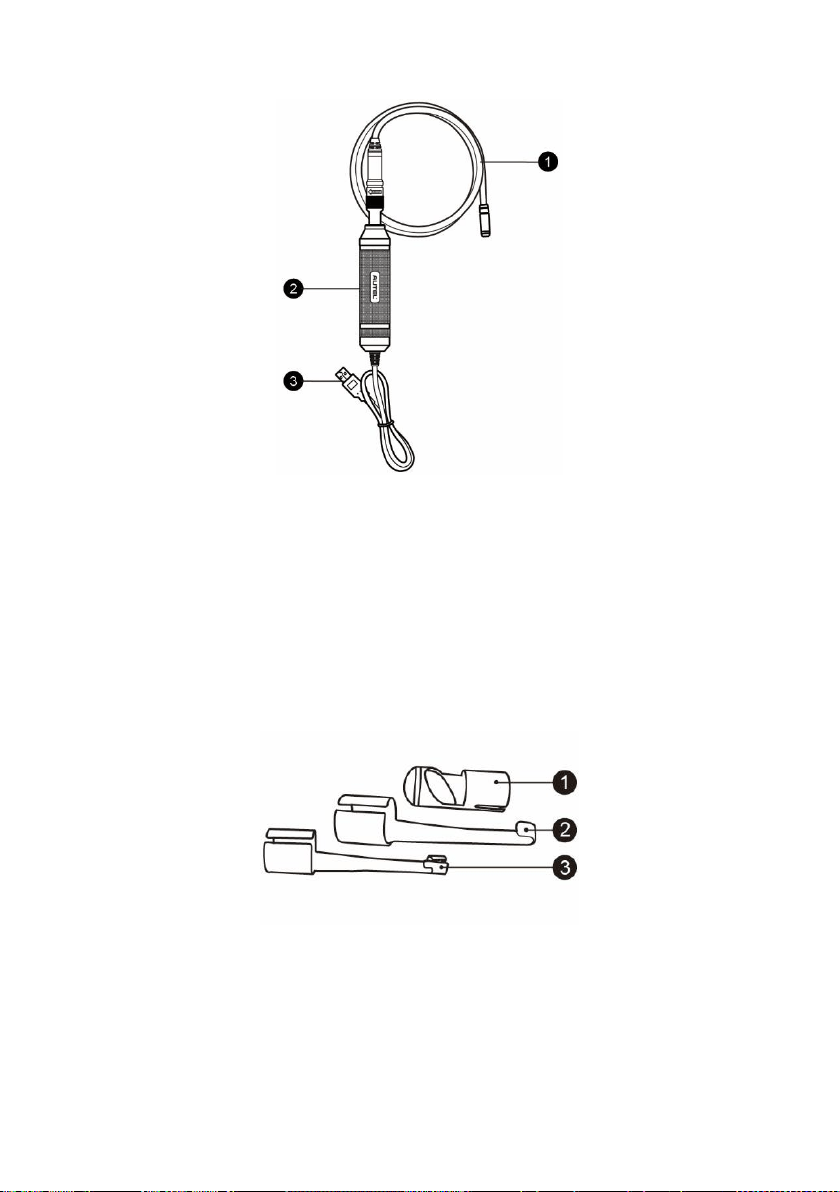
124
15.1.1 MaxiVideo Camera
Figure 15-1 MaxiVideo Camera
1. Removable Imager Head Cable — connects to the tool when performing MaxiVideos
for image and video viewing.
2. Handgrip — ergonomically designed handle for comfortable grips and agile
operation.
3. USB Cable — connects the MaxiVideo Camera to the MaxiSys tablet.
15.1.2 Imager Head Accessories
Figure 15-2 8.5mm Imager Head Accessories
1. Magnet — picks up small metal objects such as dropped rings or screws.
2. Hook — unclogs obstacles and picks up wires in the pipes or confined areas.
3. Mirror — helps to look around corners and see the unreachable areas.
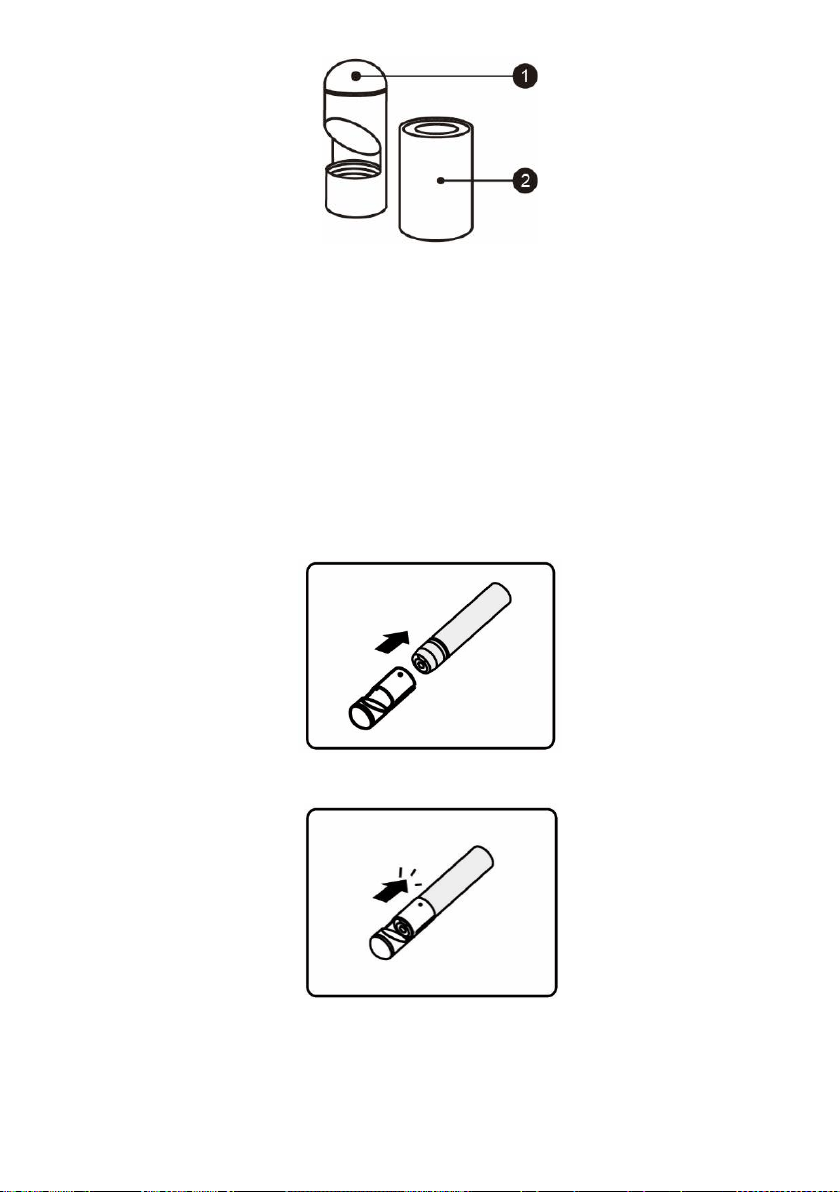
125
Figure 15-3 5.5mm Imager Head Accessories
1. Mirror — helps to look around corners and see the unreachable areas.
2. Magnet — picks up small metal objects, such as dropped rings or screws.
15.1.3 Accessory Assembly
15.1.3.1 For 8.5mm Imager Head
The three accessories, including the Magnet, Hook, and Mirror, can be attached to the
Imager Head in the same manner described below:
1. Hold the accessory and the imager head.
2. Slip the end of the accessory over the imager head and then fix the accessory.
15.1.3.2 For 5.5mm Imager Head
The two accessories, the Magnet and Mirror, can be attached to the Imager Head in the
same manner described below:
1. Hold the accessory and the imager head.
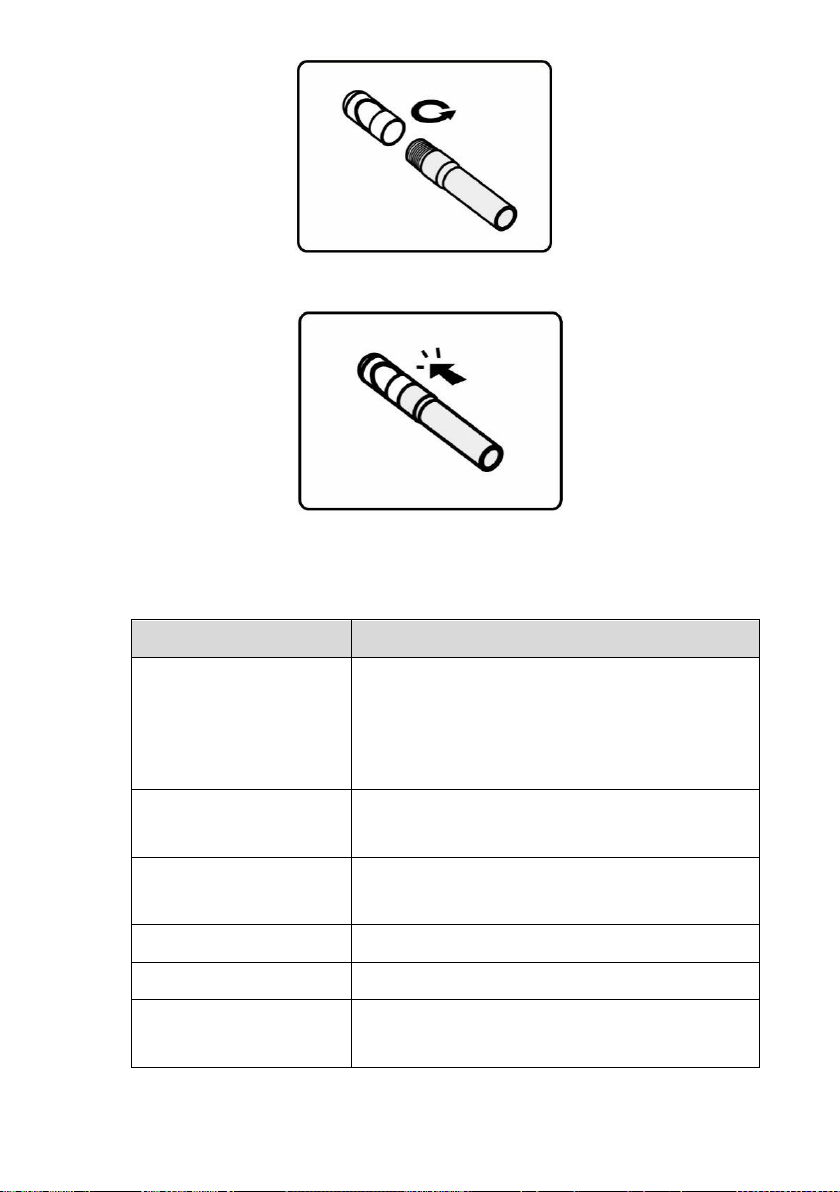
126
2. Screw the thread part of the accessory over the imager head to fix the accessory.
15.1.4 Technical Specifications
Table 15-1 Specifications
Item
Description
Optimal Viewing
Distance
1" to 14" (2.54cm to 35.56cm) with 8.5mm-
diameter imager head
3/8" to 12" (0.95cm to 30cm) with 5.5mm-
diameter imager head
Resolution
JPG images (640x480)
AVI videos (320 x 240)
Operating Temperature
Main Unit: 0°C to 55°C (ambient)
Cable: -10°C to 70°C
Storage Temperature
-20°C to 75°C (ambient)
Waterproof
Imager head and cable to 1m
Weight
0.3 kg for 8.5 mm diameter imager head
0.2 kg for 5.5 mm diameter imager head

127
15.2 Operations
Before opening the MaxiVideo application, the imager head cable must be connected to
the tablet through the USB port. Install the correct imager head accessories according to
the specific needs.
NOTE
When in operation, the imager head cable can be manipulated so as to better access
confined or awkward spaces.
To take images using the MaxiVideo application
1. Connect the imager head cable to the USB port on the top of the tablet.
2. If not already done, power up the tablet.
3. Tap the MaxiVideo application on the MaxiSys Job Menu. The MaxiVideo
interface displays, showing a camera operating screen. The imager head
camera is used by default.
4. Select the Camera icon at the lower-right corner to take images.
5. Focus the image to be captured in the view finder by adjusting and properly
locating the imager head cable.
6. Tap the blue ring on the screen. The view finder now displays the captured
picture and auto-saves the taken photo.
7. Tap the thumbnail image on the top-right corner of the screen to view the stored
image. Slide the screen left and right to view the images.
8. Tap on the selected image and the edit toolbar instantly displays.
9. Tap the corresponding button to share or delete an image.
10. Tap the Back or Home button on the Navigation Bar at the bottom of the screen
to exit the MaxiVideo application.
To record a video using the MaxiVideo application
1. Connect the imager head cable to the USB port on the top side of the tablet.
2. If not already done, power up the tablet.
3. Tap the MaxiVideo application on the MaxiSys Job Menu. The MaxiVideo
interface displays, showing a camera operating screen. The Imager head
camera is used by default.
4. Select the Video icon at the lower-right corner to record a video.
5. Properly locate the imager head cable to focus the inspection scene for
recording.
6. Tap the red ring on the operating screen to start recording.
7. Tap the red circle again to stop recording. The recorded video is automatically
saved.
8. Tap the gallery icon at the bottom-right corner to review all recorded videos.

128
9. Select the corresponding button on the upper-right corner to search or delete a
video.
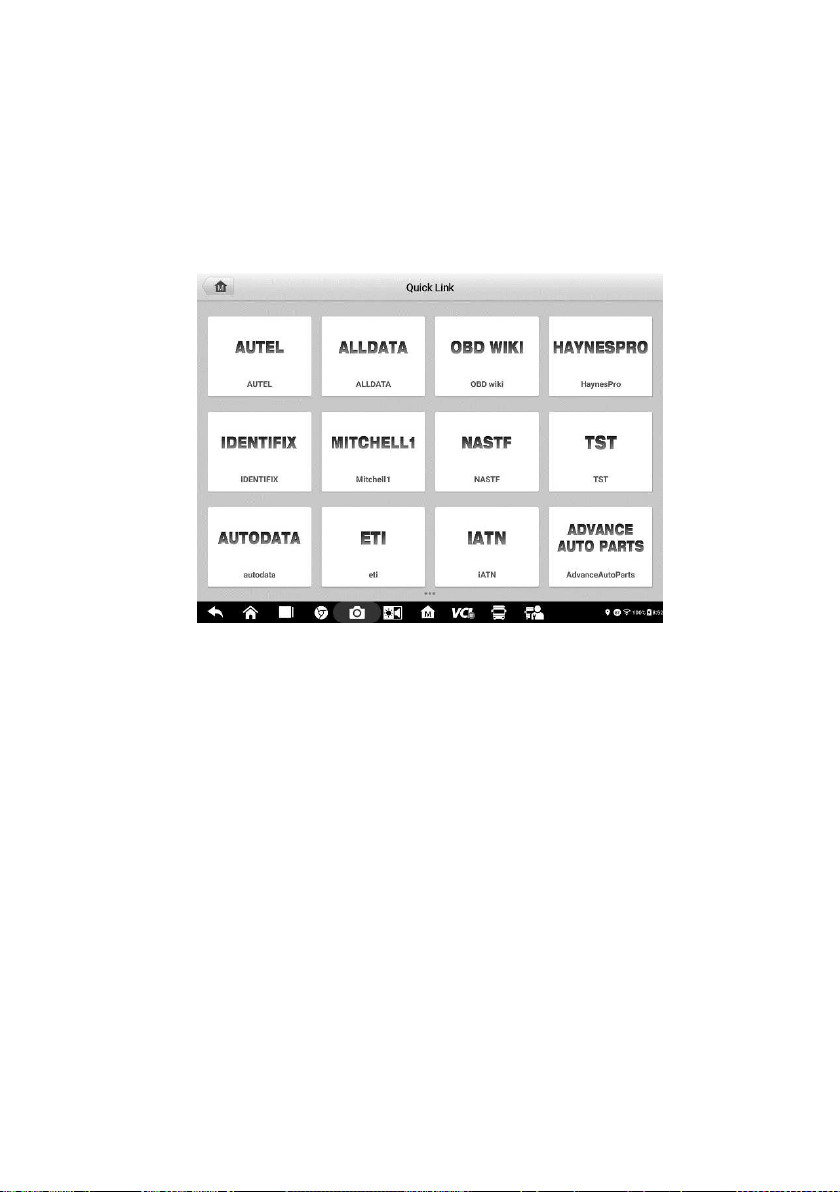
129
16 Quick Link
The Quick Link application provides you with convenient access to Autel's official website
and many other well-known sites in automotive service, which offers you abundant
information and resources, such as technical help, knowledge bases, forums, training and
expert consultations.
Figure 16-1 Sample Quick Link Screen
To open a quick link
1. Tap Quick Link on the MaxiSys Job Menu. The Quick Link application screen
displays.
2. Select a website thumbnail from the main section. The Chrome browser is
launched and the selected website is opened.
3. Now you can start exploring the website.
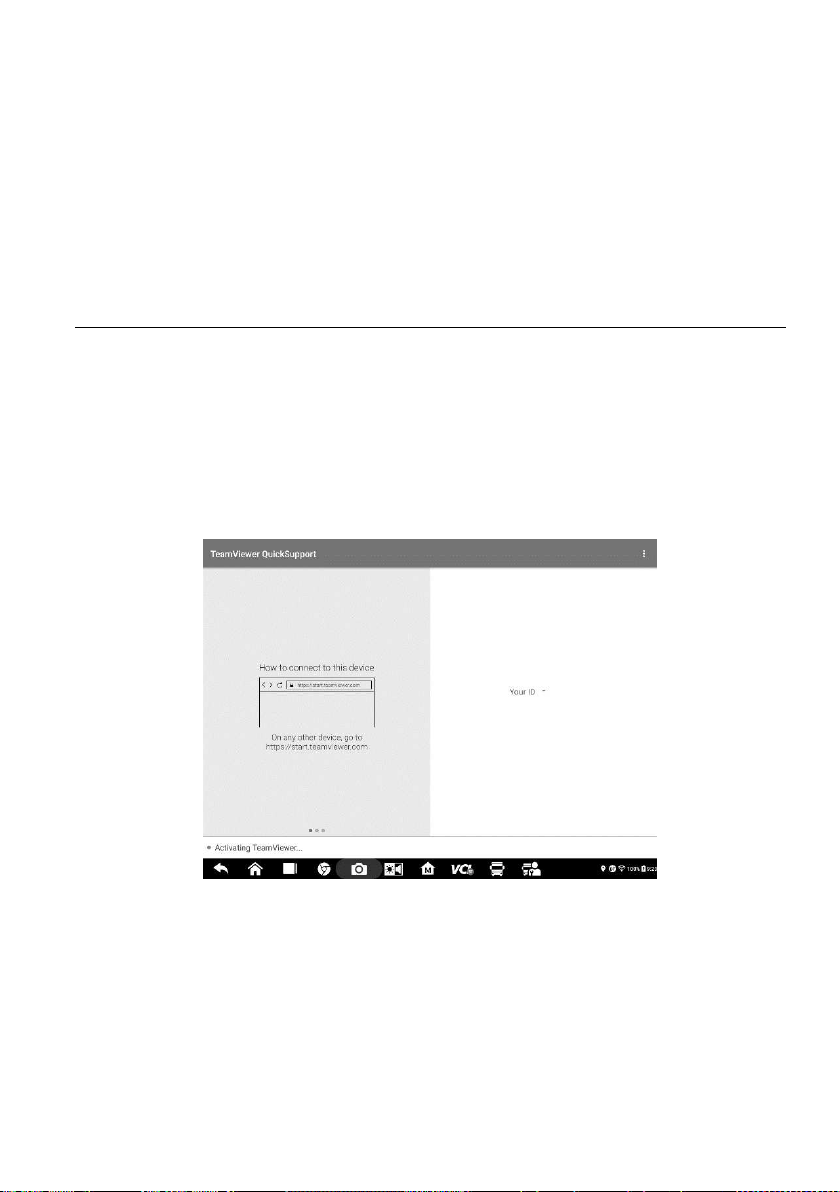
130
17 Remote Desktop
The Remote Desktop application launches the TeamViewer Quick Support program,
which is a simple, fast and secure remote control interface. You can use the application
to receive ad-hoc remote support from Autel's support center, colleagues or friends, by
allowing them to control your MaxiSys tablet on their PC via the TeamViewer software.
17.1 Operations
If you think of a TeamViewer connection as a phone call, the TeamViewer ID would be
the phone number, under which all TeamViewer Clients can be reached separately.
Computers and mobile devices that run TeamViewer are identified by a globally unique
ID. The first time the Remote Desktop application is started, this ID is generated
automatically based on the hardware characteristics and will not change.
Make sure the tablet is connected to the Internet before launching the Remote Desktop
application, so that the tablet is able to receive remote support from the third party.
Figure 17-1 Remote Desktop Screen
To receive remote support from a partner
1. Power on the tablet.
2. Tap the Remote Desktop application on the MaxiSys Job Menu. The
TeamViewer interface displays and the device ID is generated and shown.
3. Your partner must install the Remote Control software to the computer by
downloading the TeamViewer full version program online

131
(
http://www.teamviewer.com). Start the software on the computer at the same
time in order to provide support and take control of the tablet remotely.
4. Provide your ID to the partner, and wait for him/her to send you a remote control
request.
5. A message displays to ask for your confirmation to allow remote control on your
device.
6. Tap Allow to accept, or tap Deny to reject.
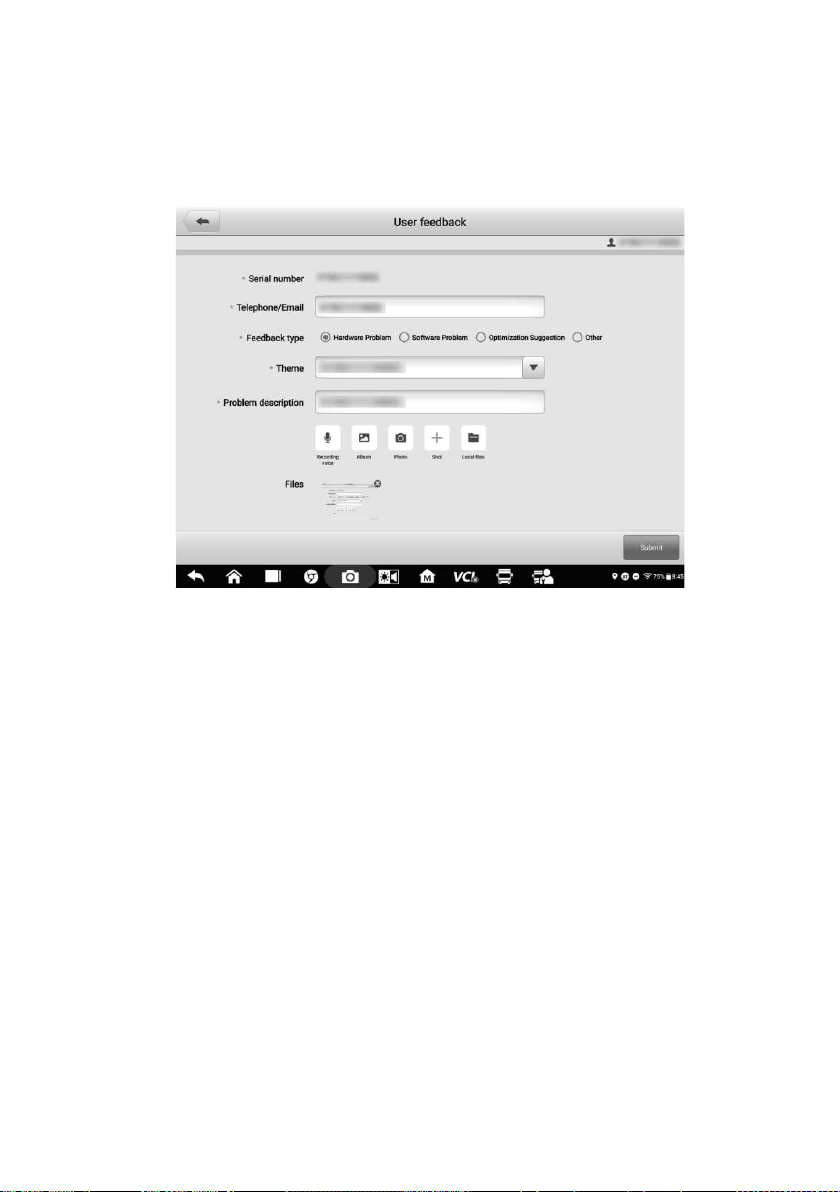
132
18 User Feedback
The User Feedback feature allows you to submit questions related to this product.
Figure 18-1 Sample User Feedback Screen
To send new user feedback
1. Register the product online, see
Product Registration for detailed information.
2. Tap User Feedback on the MaxiSys Job Menu. The device information is
automatically synchronized with the online account.
3. Enter your telephone number/email address, feedback type, theme, and problem
description. You can also attach a voice recording, photo, photo album, screen
captures, image or PDF files with the form. To help resolve the issue efficiently,
we recommend you to complete the form with as much detailed as possible.
4. Tap Submit to send the completed form to Autel's online service center. The
submitted feedback will be carefully read and handled by our service personnel.

133
19 Maintenance and Service
To ensure that the tablet, the combined VCI unit, and the B200 perform at their optimum
level, we advise that the product maintenance instructions in this section are strictly
followed.
19.1 Maintenance Instructions
The following includes how to maintain your devices, together with precautions to take.
Use a soft cloth dampened with alcohol or mild glass cleaner to clean the tablet
touchscreen at the end of each work day.
Do not use any abrasive cleansers, detergent or automotive chemicals on the tablet.
Keep the devices in dry conditions and within specified operating temperatures.
Dry your hands before using the tablet. The touchscreen of the tablet may not work
when it is moist, or when you tap the touchscreen with wet hands.
Do not store the devices in humid, dusty or dirty areas.
Check the housing, wiring, and connectors for dirt and damage before and after each
use.
Do not attempt to disassemble your tablet, the VCI unit or the B200.
Do not drop or cause severe impact to the devices.
Use only authorized battery chargers and accessories. Any malfunction or damage
caused by the use of unauthorized battery charger or accessories will void the limited
product warranty.
Ensure that the battery charger does not contact conductive objects.
Do not use the tablet beside microwave ovens, cordless phones and certain medical
or scientific instruments to prevent signal interference.
19.2 Troubleshooting Checklist
A. When the tablet does not work properly:
Make sure the tablet has been registered online.
Make sure the system software and diagnostic application are properly updated.
Make sure the tablet is connected to the Internet.
Check all cables, connections, and indicators to see if the signal is being received.
B. When battery life is shorter than usual:
This may happen when you are in an area with low signal strength. Turn off your device
if it is not in use.

134
C. When you cannot turn on the tablet:
Make sure the tablet is connected to a power source or the battery is fully charged.
D. When you are unable to charge the tablet:
Your charger maybe out of order. Contact your nearest dealer.
You may be attempting to use the device in an overly hot/cold temperature. Charge
the device in a temperate area.
Your device may not be connected to the charger properly. Check the connector.
NOTE
If the problems persist, please contact Autel's technical support personnel or your local
selling agent.
19.3 About Battery Usage
Your tablet is powered by a built-in lithium-ion polymer battery, which enables you to
recharge your battery when there is electricity left.
DANGER
The built-in lithium-ion polymer battery is factory-replaceable only. Incorrect replacement or
tampering with the battery pack may cause an explosion.
Do not use a damaged battery charger.
Do not disassemble, open, crush, bend, deform, puncture, or shred the battery.
Do not modify, remanufacture or attempt to insert foreign objects into the battery, or
expose the battery to fire, explosion, or other hazards.
Only use the specified charger and USB cables. Use of non-Autel-authorized charger
or USB cables may lead to device malfunction or failure.
Use of an unqualified battery or charger may present a risk of fire, explosion, leakage,
or other hazards.
Avoid dropping the tablet. If the tablet is dropped, especially on a hard surface, and
you suspect damage, take the tablet to a service center for inspection.
Try to keep closer to your wireless router to reduce battery usage.
The time needed to recharge the battery varies depending on the remaining battery
capacity.
Battery life inevitably shortens over time.
Unplug the charger once the tablet is fully charged since overcharging may shorten
battery life.
Keep the battery in temperate environments. Do not place it inside a car when it is too
hot or too cold, which may reduce the capacity and life of the battery.

135
19.4 Service Procedures
This section provides information on technical support, repair service, and application for
replacement or optional parts.
19.4.1 Technical Support
If you have any question or problem on product operations, please contact us.
AUTEL NORTH AMERICA
Phone: 1-855-AUTEL-US (288-3587) (Monday-Friday, 9AM-9PM Eastern Time)
Website:
www.autel.com
Email: [email protected]; [email protected]; [email protected]
Address: 175 Central Avenue, Suite 200, Farmingdale, New York, USA 11735
AUTEL EUROPE
Phone: 0049 (0) 6103-2000520 (Monday-Friday, 9:00AM-6:00PM Berlin Time)
Website:
www.autel.eu
Email:
Address: Adalperostraße 82, 85737 Ismaning, Germany
AUTEL CHINA HQ
Phone: 0086-755-2267-2493 (Monday-Friday, 9:00AM-6:00PM Beijing Time)
Website:
www.autel.com
Email: [email protected]; [email protected]
Address: 7-8th, 10th Floor, Building B1, Zhiyuan, Xueyuan Road, Xili, Nanshan,
Shenzhen, 518055, China
AUTEL LATIN AMERICA
Website:
www.autel.com
Email:
Address: Avenida Americas 1905, 6B, Colonia Aldrete, Guadalajara, Jalisco,
Mexico
AUTEL APAC
Phone: +045 5948465
Website:
www.autel.com/jp/
Email: [email protected]; [email protected]
Address: 719, Nissou Building, 3-7-18, Shinyokohama, Kouhoku, Yokohama,
Kanagawa, Japan 222-0033

136
AUTEL IMEA DMCC
Phone: +971 585 002709
Website:
www.autel.com
Email: [email protected]; [email protected]
Address: Office 1006-1010, Cluster C, Fortune Tower, Jumeirah Lakes Tower (JLT),
Dubai, U.A.E
For technical assistance in other markets, please contact your local selling agent.
19.4.2 Repair Service
If it is necessary to send back your device for repair, please download and fill out the
repair service form from
www.autel.com. The following information must be included:
Contact name
Return address
Telephone number
Product name
Complete description of the problem
Proof-of-purchase for warranty repairs
Preferred method of payment for non-warranty repairs
NOTE
For non-warranty repairs, payment can be made with Visa, Master Card, or with approved
credit terms.
Send the device to your local agent, or to the address below:
7-8th, 10th Floor, Building B1, Zhiyuan,
Xueyuan Road, Xili, Nanshan,
Shenzhen, 518055, China
19.4.3 Other Services
You can purchase the accessories directly from authorized tool suppliers of Autel, or your
local distributor or agent.
Your purchase order should include the following information:
Contact information
Product or part name
Item description
Purchase quantity

137
20 Compliance Information
FCC Compliance FCC ID: WQ8MAXISYSMS909CV
This equipment has been tested and verified to comply with the limits for a Class B digital
device, pursuant to Part 15 of the FCC Rules. These limits are designed to provide
reasonable protection against harmful interference in a residential installation. This
equipment generates uses and can radiate radio frequency energy and, if not installed
and used in accordance with the instructions, may cause harmful interference to radio
communications. However, there is no guarantee that interference will not occur in a
particular installation. If this equipment does cause harmful interference to radio or
television reception, which can be determined by turning the equipment off and on, the
user is encouraged to correct the interference by one or more of the following measures:
Reorient or relocate the receiving antenna.
Increase the separation between the equipment and receiver.
Consult the dealer or an experienced radio/TV technician for help.
This device complies with part 15 of the FCC Rules. Operation is subject to the following
two conditions:
(1) This device may not cause harmful interference, and
(2) This device must accept any interference received, including interference that may
cause undesired operation.
Changes or modifications not expressly approved by the party responsible for compliance
could void the user's authority to operate the equipment.
SAR:
The radiated output power of this device is below the FCC radio frequency exposure limits.
Nevertheless, the device should be used in such a manner that the potential for human
contact is minimized during normal operation.
The exposure standard for wireless devices employs a unit of measurement known as the
Specific Absorption Rate, or SAR. The SAR limit set by the FCC is 1.6 W/Kg. Tests for
SAR are conducted using standard operating positions accepted by the FCC with the
device transmitting at its highest certified power level in all tested frequency bands.
Although the SAR is determined at the highest certified power level, the actual SAR level
of the device while operating can be well below the maximum value. This is because the
device is designed to operate at multiple power levels to use only the power required to
reach the network. To avoid the possibility of exceeding the FCC radio frequency
exposure limits, human proximity to antenna should be minimized.

138
21 Warranty
21.1 12-Month Limited Warranty
Autel Intelligent Technology Corp., Ltd. (the Company) warrants to the original retail
purchaser of this MaxiSys Diagnostic Device that should this product or any part thereof
during normal usage and under normal conditions be proven defective in material or
workmanship that results in product failure within twelve (12) months period from the date
of purchase, such defect(s) will be repaired, or replaced (with new or rebuilt parts) with
Proof of Purchase, at the Company's option, without charge for parts or labor directly
related to the defect(s).
The Company shall not be liable for any incidental or consequential damages arising from
the use, misuse, or mounting of the device. Some states do not allow limitation on how
long an implied warranty lasts, so the above limitations may not apply to you.
This warranty does not apply to:
a) Products subjected to abnormal use or conditions, accident, mishandling, neglect,
unauthorized alteration, misuse, improper installation or repair or improper storage;
b) Products whose mechanical serial number or electronic serial number has been
removed, altered or defaced;
c) Damage from exposure to excessive temperatures or extreme environmental
conditions;
d) Damage resulting from connection to, or use of any accessory or other product not
approved or authorized by the Company;
e) Defects in appearance, cosmetic, decorative or structural items such as framing and
non-operative parts.
f) Products damaged from external causes such as fire, dirt, sand, battery leakage,
blown fuse, theft or improper usage of any electrical source.
IMPORTANT
All contents of the product may be deleted during the process of repair. You should create
a back-up copy of any contents of your product before delivering the product for warranty
service.
